KitGuru KitGuru.net – Tech News | Hardware News | Hardware Reviews | IOS | Mobile | Gaming | Graphics Cards


Contemporary smartphones have come on leaps and bounds in the past few years but if you are a mass media consumer they are still lacking in one key area: storage space. You can pick up hard drives for your PC with multiple terabytes for a fraction of the cost of a new phone and yet they come with merely a few gigabytes, often at most 64. So it is no wonder that companies are starting to produce larger storage devices, designed with mobile in mind.
Take Corsair's latest effort, the Voyager Air 2. It is a one terabyte, mobile, wirelessly connected storage hub and streaming platform, giving your tablet or smartphone the ability to connect to whole archives worth of music, TV shows and movies, wherever you go.
Features
- Totally wireless, take it anywhere.
- Acts as wireless hub and USB storage drive.
- Android and iOS compatible mobile app.
- High, one TB storage capacity.
- Synchronise with the cloud.
- Use smart tools to organise your media library on the go.
- Supports expanded video formats thanks to VLC integration.
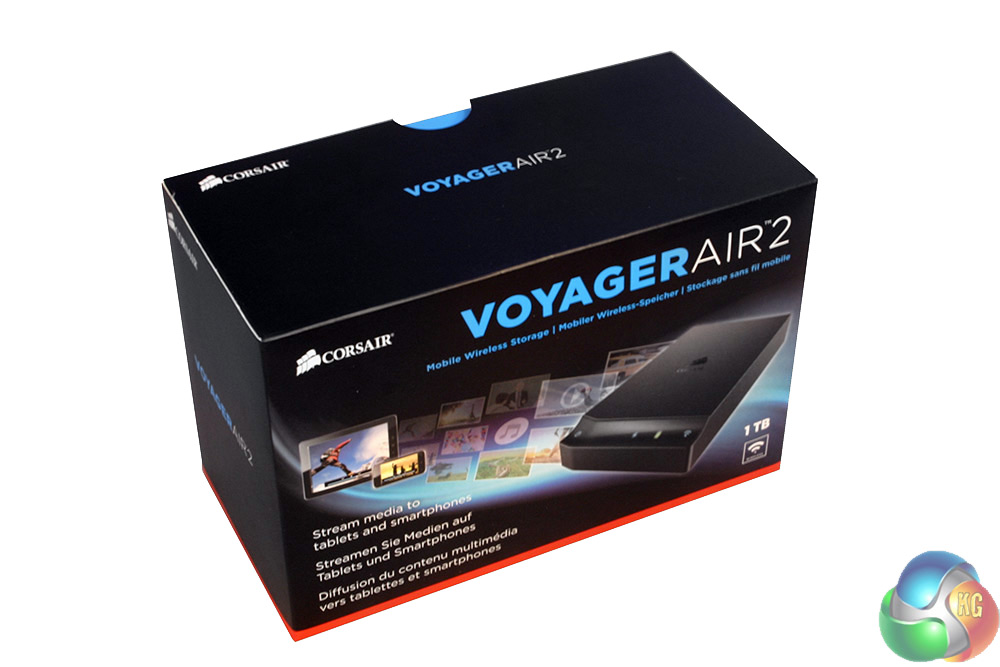
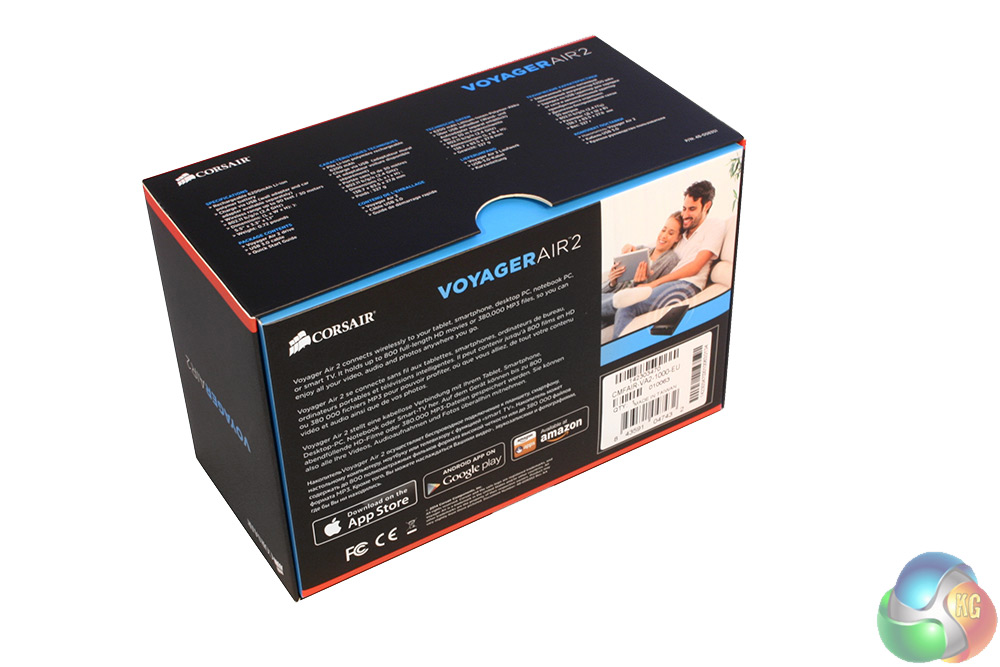
The Voyager Air 2 ships in a neat little box that slides open, revealing a bright blue interior packaging. The exterior does not say much about it, merely extolling its ability to store hundreds of movies, thousands of songs and photos, and much more.
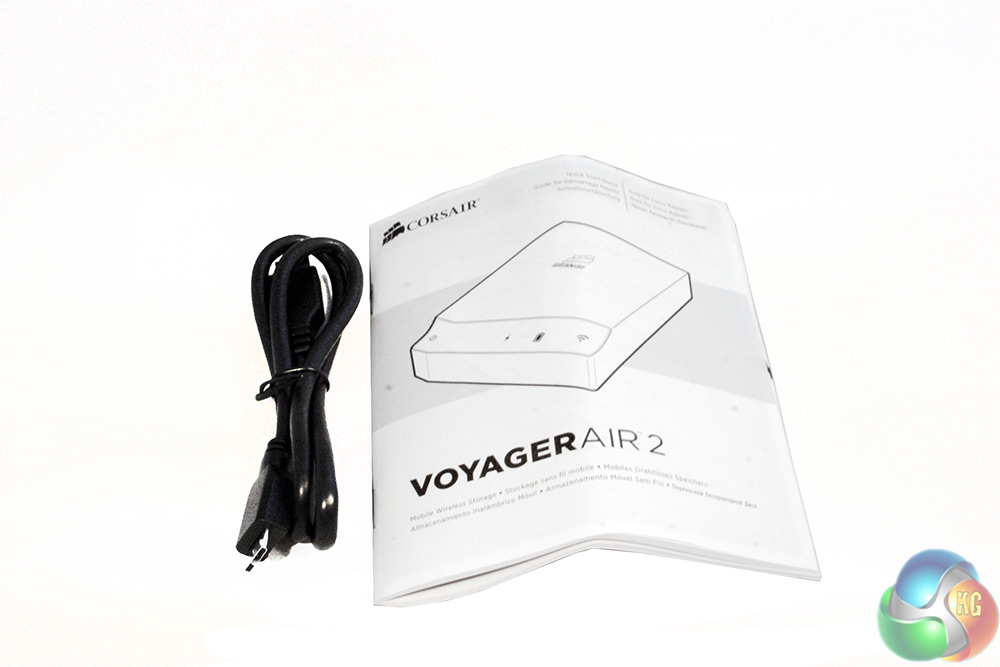
The only thing you get in the way of an accessory is a single USB 3.0 cable with the B configuration at one end which guarantees you will never get them mixed up. The instruction manual that comes with it is adequate at the basic set up, but unfortunately omits a lot of the advanced features that make the Voyager Air 2 stand out, like its WiFi passthrough and dropbox connectivity. The full manual is available as a download on Corsair's website.
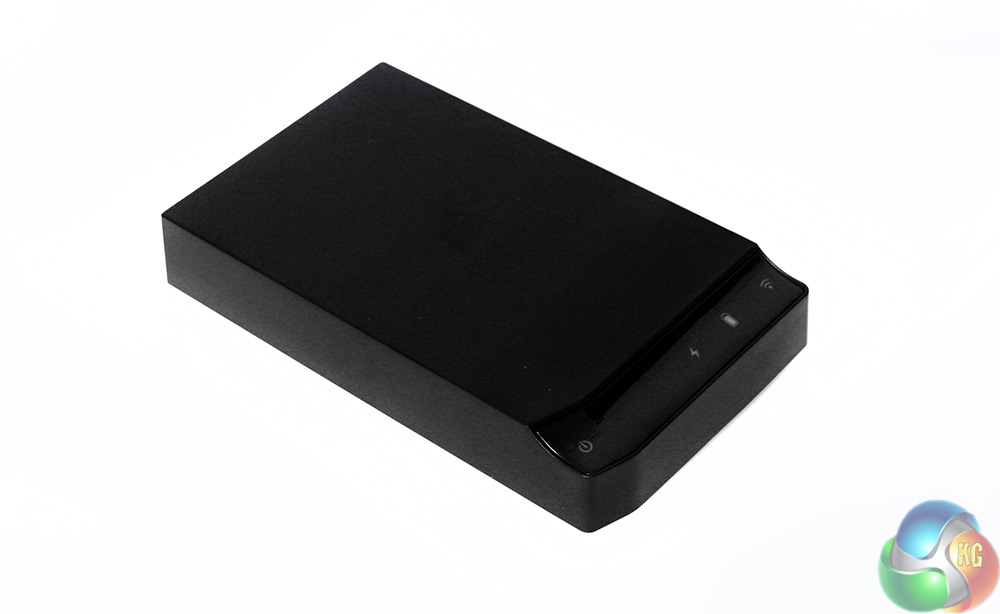
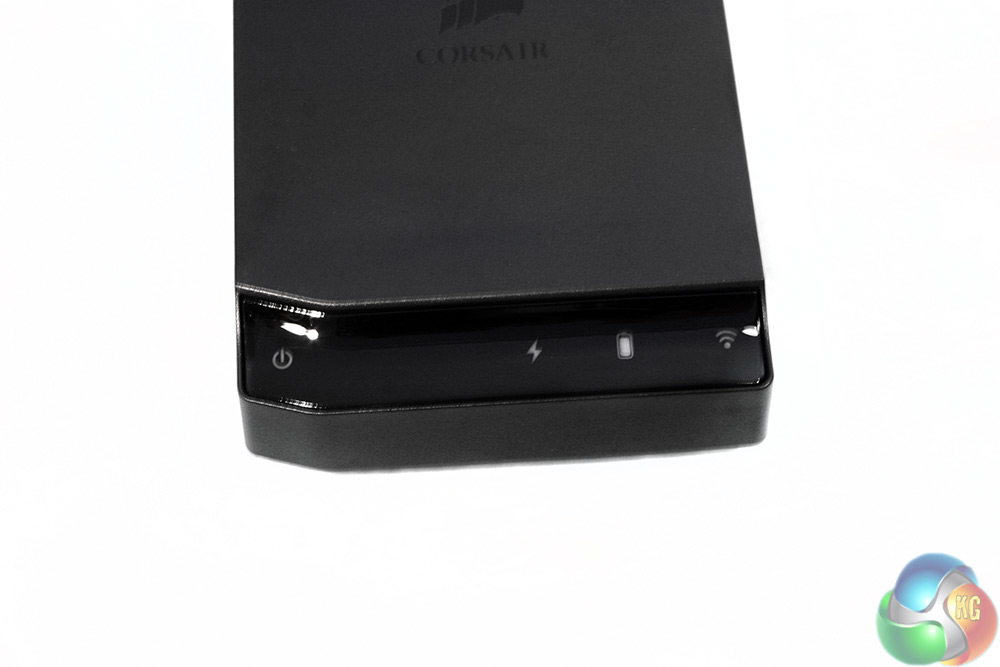
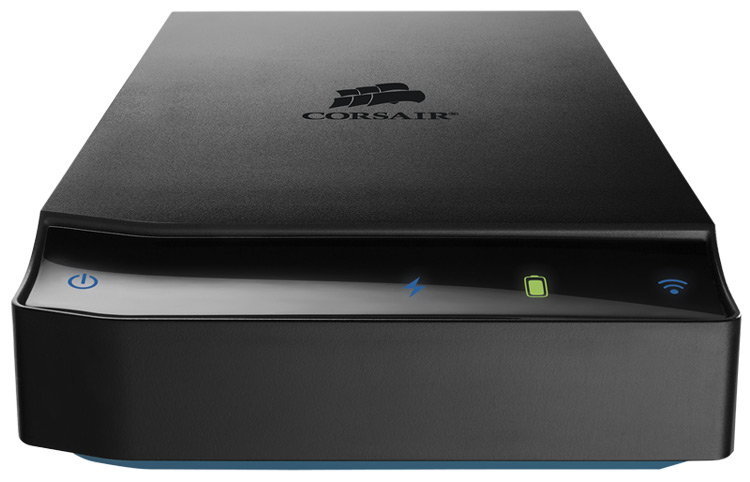
The Corsair Voyager Air II is a smart little device, about the size of a traditional 3.5″ HDD, though obviously containing the much smaller modern form factors. It features a black paint job over its whole body, though the main section is a matt black plastic, while the front indicator section has a glossy finish.
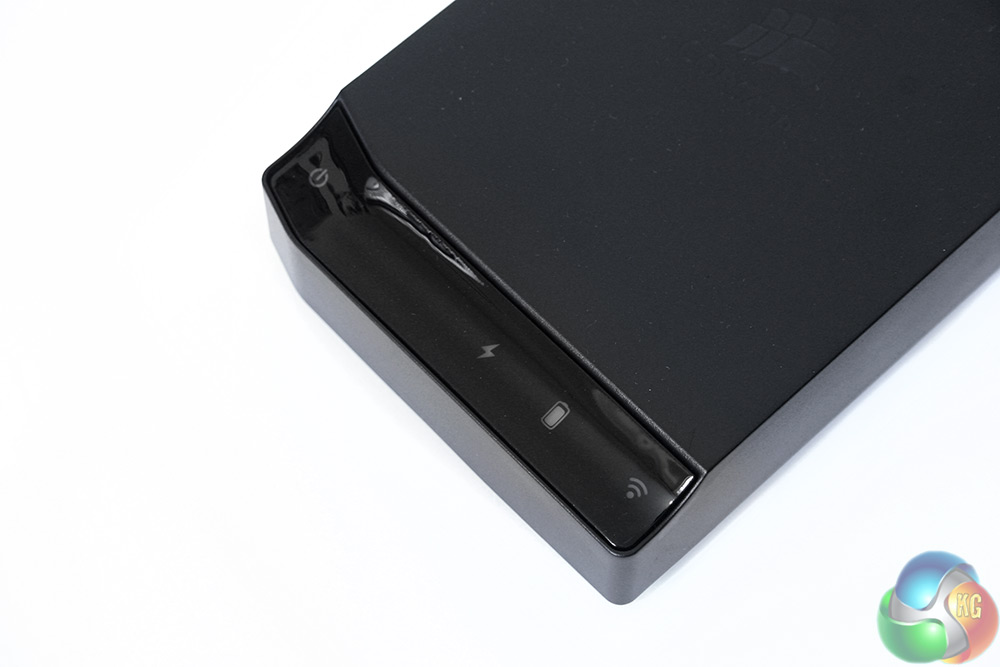
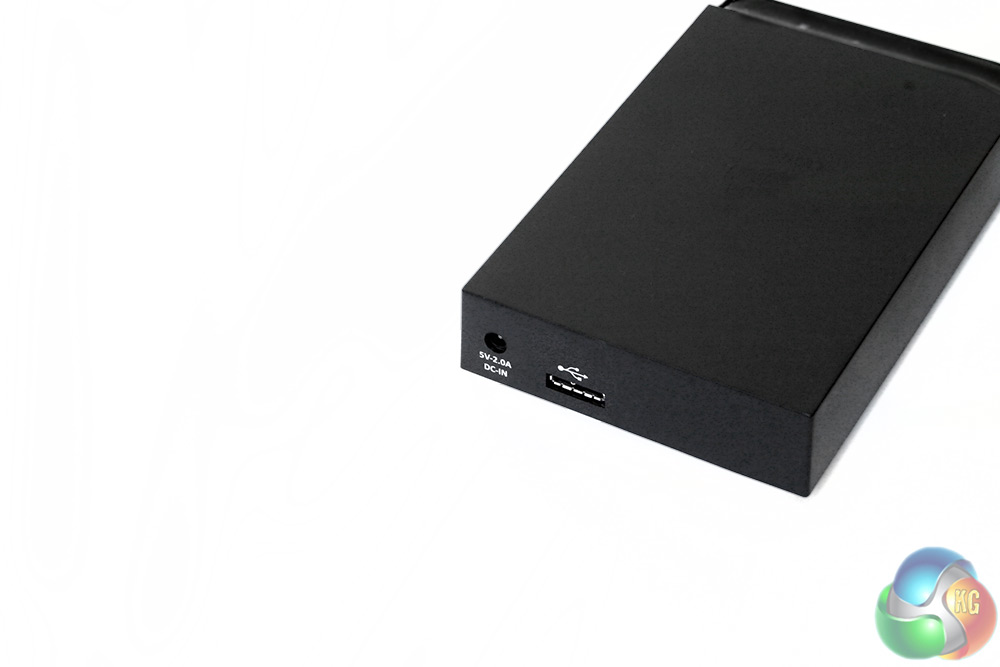
The indicator strip at the front lights up to let you know when the Air 2 is turned on, when WiFi is powered up, when the battery is getting low and when it is charging. The back has a simple pair of ports: one for AC power and the other for the USB 3.0 cable.
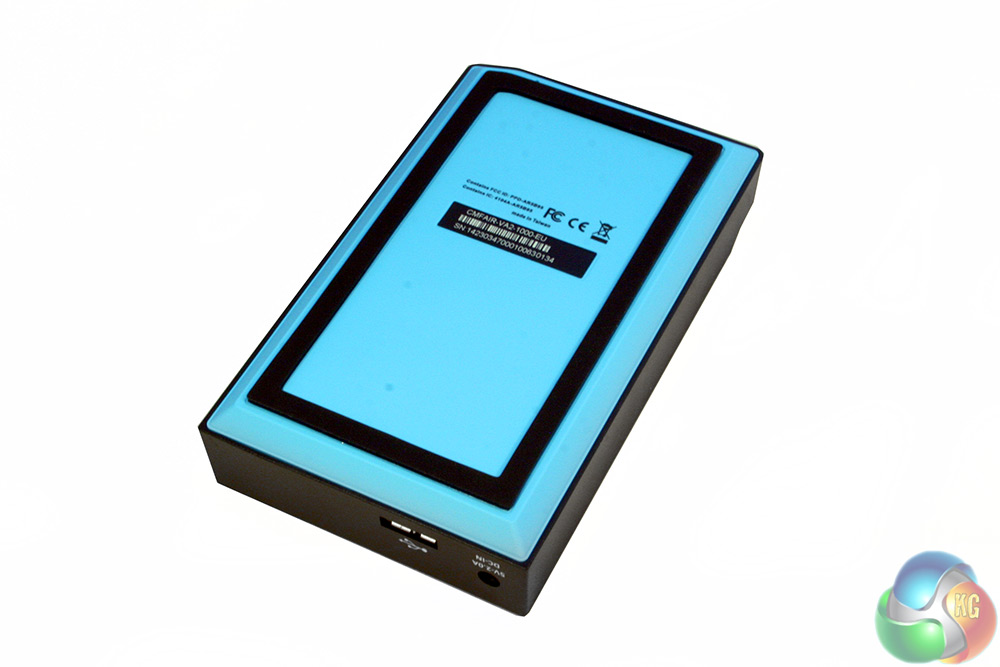
The underside, for some reason, is a bright, cyan blue. It is eye catching for sure, but you can't even see it when the Air 2 is sat on a flat surface, which is where it spends most of its time.
There is also a rectangle of rubber around the edge that keeps it firmly in place.
Testing a device like this is a bit odd really, as once you have set it up and start streaming some media to your device, part of you would be quite content to call it a day. However, there are a lot of little features on the Voyager Air 2 which are worth taking note of, as it is a surprisingly versatile little device. I also ran a basic USB 3.0 bandwidth test on it to see how good it is at transferring media.
Getting it set up initially is a slightly convoluted process, just because it is not your average system. Since it connects over its own WiFi network, you will need to connect to that, rather than your home one to find it. That in itself takes a short while as the drive takes a minute or so to boot up and a further few seconds to initiate the wireless. This is not a problem in itself, but if you ever lose the signal (see later) it can become tiresome.
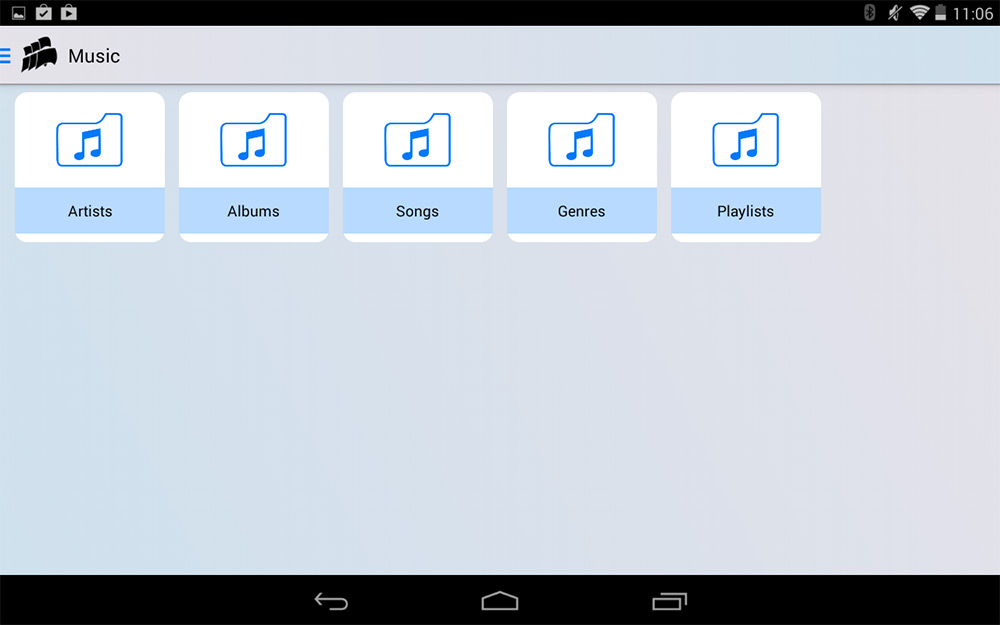
While movies and videos are just dumped in a single file, music can be automatically sorted
Once you have connected to the WiFi, you'll then need to connect to the drive itself through the official Voyager Air 2 app. That can be downloaded from the iOS App Store or Google Play Store. For the purpose of this review, I used a Sony Xperia Z2 and a Z1.
Finally, once you are connected, you can browse through the folders on there, or select one of several options: Videos, Music, Photos and Documents. These specific folders group all of your files together, which is handy if you've just thrown them on there and not set up your own proper file system. They can then be played at your heart's content, with content streaming very easily to a handset at a decent range. I have had it streaming close to its maximum range, through several walls/doors without issue.
Connecting multiple device to it at the same time is not a problem either, with Corsair claiming as many as five separate 720p streams can be handled at once. The maximum I have had it do is three, but there was no issue at all.
Adding new media to the drive is very simple too, though it does require manually plugging it into your PC or similar USB enabled device and drag-dropping the files over. This would be a perfectly adequate way to do it, if it didn't mean dropping the wireless connection. That means that there is no way to leave it permanently set up. That said, if you do not regularly add new media, it shouldn't be an issue, but it's a shame there is not a way to transfer files over wirelessly.
You can hook the the drive up to your local WiFi however, due to the Wireless pass-thru feature, but I was unable to connect it to the local network in a way that allowed file transfers from my PC to the drive. Thanks to its DLNA compatibility though, I was able to watch files from the drive on my compatible set top box.
Similarly compatible TVs and PCs would be able to do the same without too much difficulty. You would not be able to leave this configuration in place permanently however, as it would require the recommended power accessory kit from Corsair ($15) to avoid running out of battery.
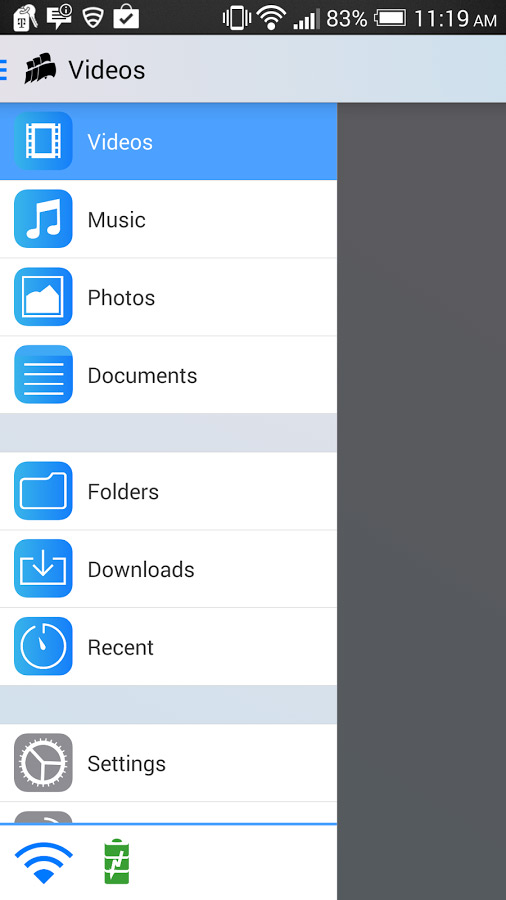
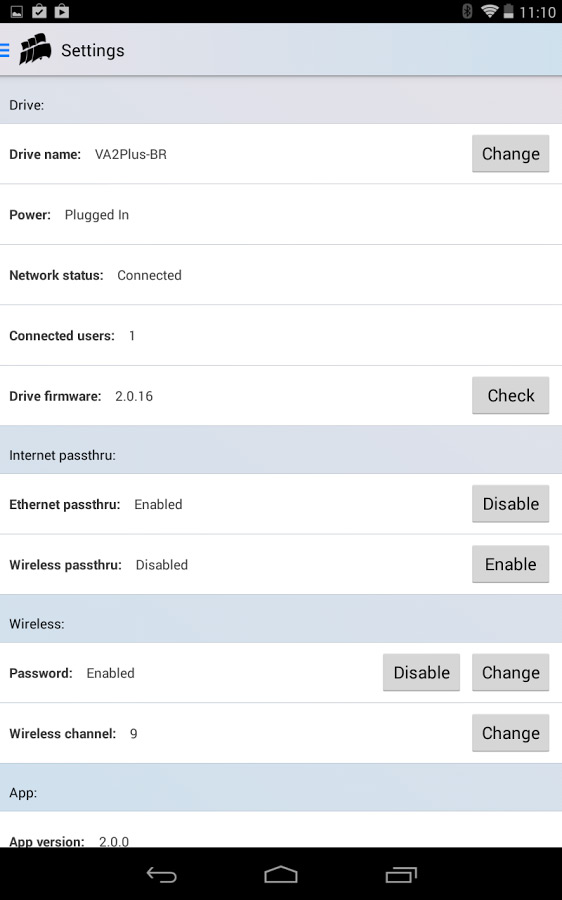
The category layout in the app and some of its advanced settings
If you want a home media server Corsair actually recommends its original Voyager Air which is more designed for that type of thing. The Voyager Air 2 on the other hand, is designed with mobile access in mind. By taking it with me out and about, I have been able to watch films and TV shows in the car, or in a public place, with all the selection I have at home.
Loading several hundred movies, TV shows and albums I felt complete with my own mass media library. It was very handy, especially when it came to wanting to listen to long podcasts or radio shows in the car, which at three hours+ can eat up a lot of space on your average phone or MP3 player.
However, it was in the car where I hit the biggest snag with the Voyager Air II: it liked to cut out. During the journey, the drive shut down several times without warning, which considering the lengthy reconnection process was quite irritating.
I spoke with Corsair about this problem and it said it is due to a built in safety feature. Taking readings from an internal accelerometer, if the drive thinks it is in “free fall”, thereby expecting an impact (something that may occur due to bumps in the road, or during heavy acceleration and braking) it could shut down to protect the internal hard drive.
Ultimately I found that by placing the Voyager Air 2 in a fixed position seemed to help, but it still powered itself down at least once every half an hour during the journey and sometimes as often as every five minutes. This is a shame, but I can understand why the safety feature is there. Perhaps Corsair could look to make it a little less sensitive, or build in some sort of “car mode,” which accounts for the occasional bump in the road.
To the drive's credit however, the battery does last a long time. I have mixed up streaming films from it, TV shows, music and just leaving it in standby for over five hours so far and it's only just hit 25 per cent remaining. A full charge doesn't take too long to complete, but if you're in a rush, Corsair recommends its aftermarket charging kit. While I applaud its cost saving measure of not including it in the package, one of the first things it tells you when you power on The Air 2 is to update it and to remember to do so with the power cord in.
It is also worth mentioning that unlike a smartphone or tablet, this device comes with no way to expand its memory. However I think even the biggest media hound is going to struggle to find more than a terabyte of films, TV and music that they need to carry around with them regularly.
But if you do need extra, you can hook the drive up to your DropBox or Google Drive account to give you access to even more if using the WiFi passthrough feature in a public place.
Because this wouldn't be a complete test of a drive without some kind of benchmark, here is how it performs in CrystalDiskMark:
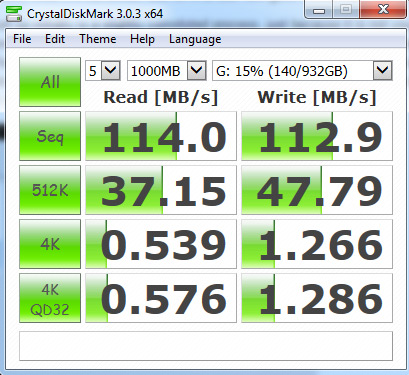
This test was conducted with a few hundred gigabytes of data already loaded, with the drive plugged in to a native USB 3.0 port.
So, what do we think of the Corsair Voyager Air ? We like it a lot. It is a handy device to have around. It is a little on the expensive side, coming at £130 at most retailers and up to £180 at others. If it was just an external drive for that sort of price, I would suggest it was not remotely worth it, but its ability to stream content to multiple devices wherever it is and to do so for many hours at a time, is very useful. I imagine it would be simply perfect for a plane – if they let you have WiFi enabled – and I have found it a great companion on long car journeys.
I would say there is more benefit to a device like this if you have a tablet, as watching movies on your phone never feels ideal, but if you have a big collection, the option is there at least. I like the DLNA compatibility as it lets you hook it up to your TV too (if it is compatible) and its wireless range is nice. However, I really want to hear back from Corsair about why the drive decided to shut down so much while on the road. It is not a deal breaker, but if it had done that during standing tests, I would have told you guys to stay away from this drive like the plague.
Fortunately it performs well almost all of the time. It has got a pretty convoluted connection process, but that's only so you can have the benefit of its WiFi-anywhere abilities.
The Corsair Voyager Air 2 is currently available at Overclockers at £130.
Discuss on our Facebook page, HERE.
Pros
- Plenty of storage space.
- Can stream HD video to several devices at once.
- Wireless range is pretty good.
- Compact.
- Apps for Android and iOS hardware.
- Wireless pass-thru, DLNA support.
- Battery lasts a good few hours.
Cons
- Shutdown unexpectedly while in transit.
- Connection process is a bit long winded.
- No wireless streaming when plugged in.
Kitguru Says: The Corsair Voyager Air 2 is a great little device giving you access to media wherever you are. It is not quite perfect, but it is certainly worth recommending to big media consumers and potentially photographers, who can back up to it straight away and then have wireless access via their tablet.