 KitGuru KitGuru.net – Tech News | Hardware News | Hardware Reviews | IOS | Mobile | Gaming | Graphics Cards


Once you've plugged everything in and powered up the FRITZ!Box 4690, you need to enter the URL “http://fritz.box” into a web browser to locate the router.
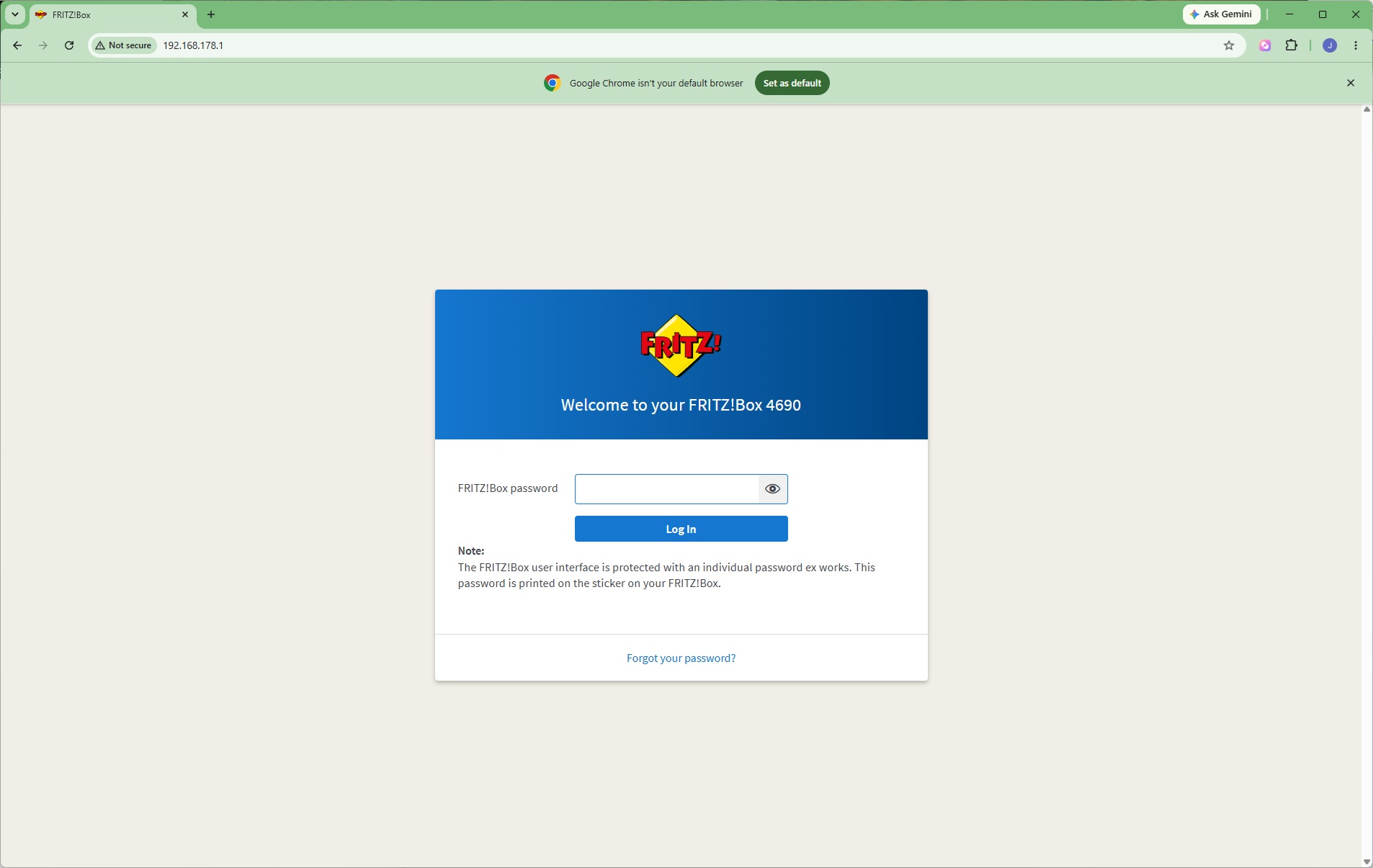
Some FRITZ! routers will ask you to define your language, but as our FRITZ!Box 4690 was a UK edition it took us straight to the sign in. There's a password printed on a card you can use to enter the interface.
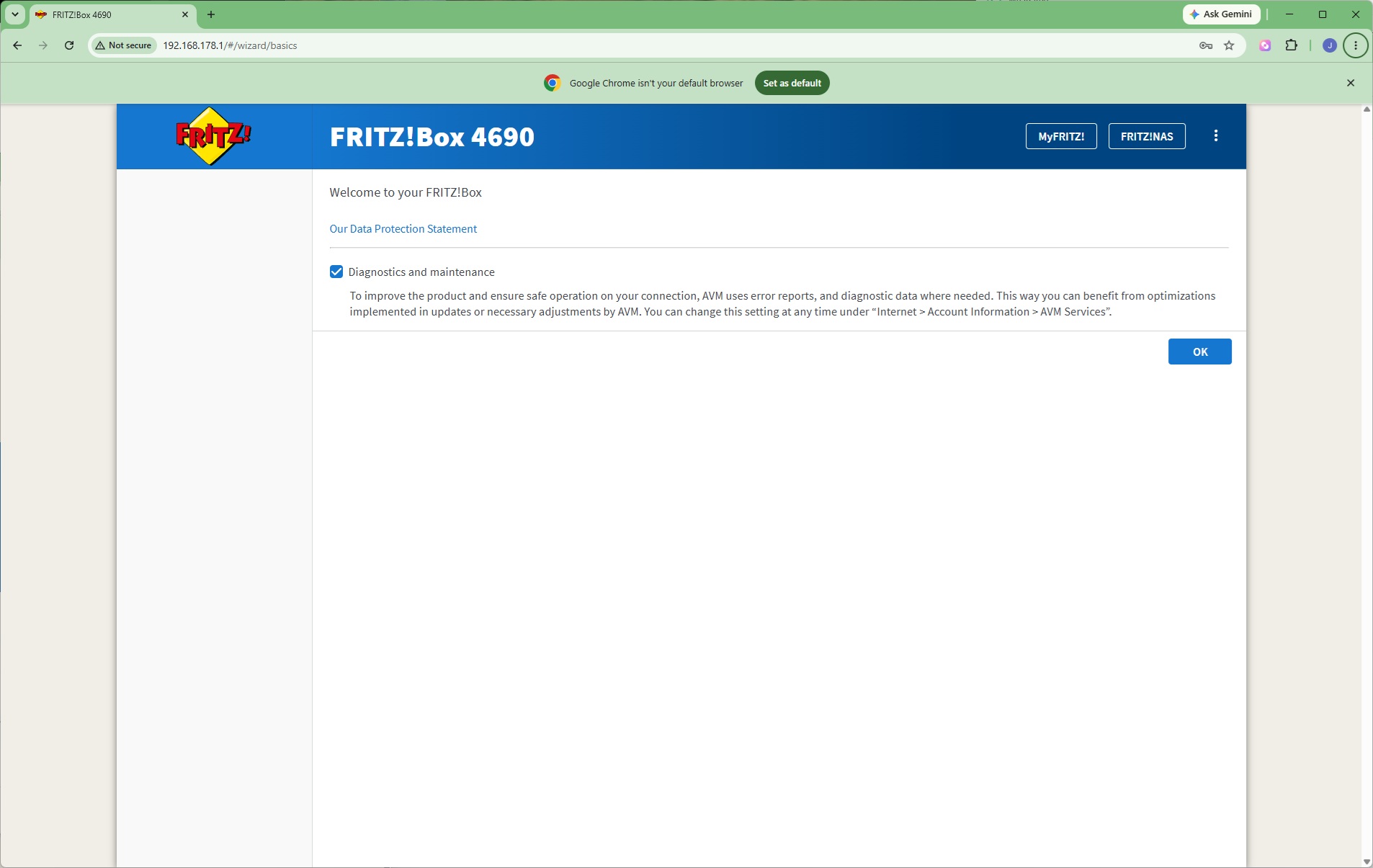
Next up is a data protection dialog, which you will only have to agree to once.
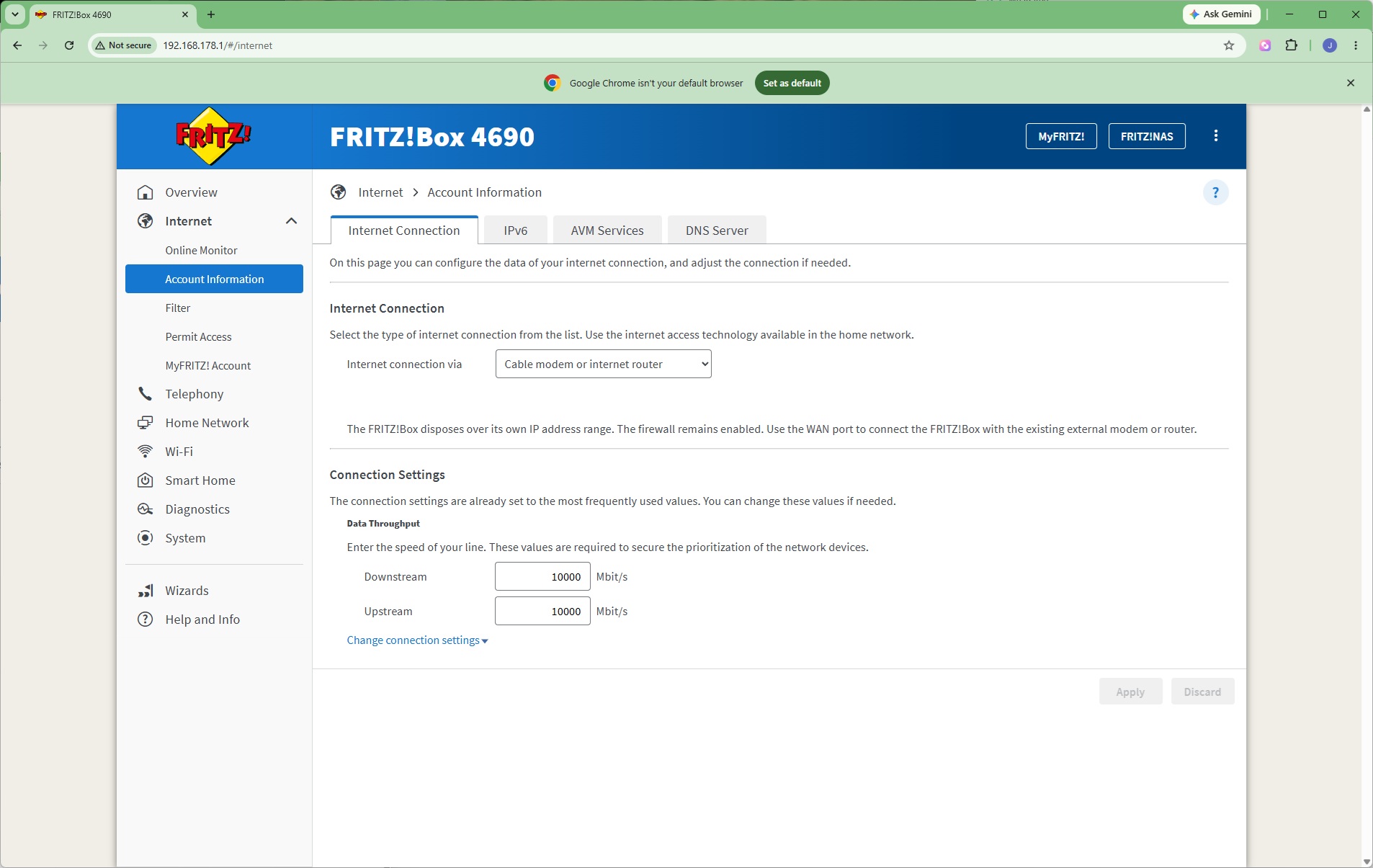
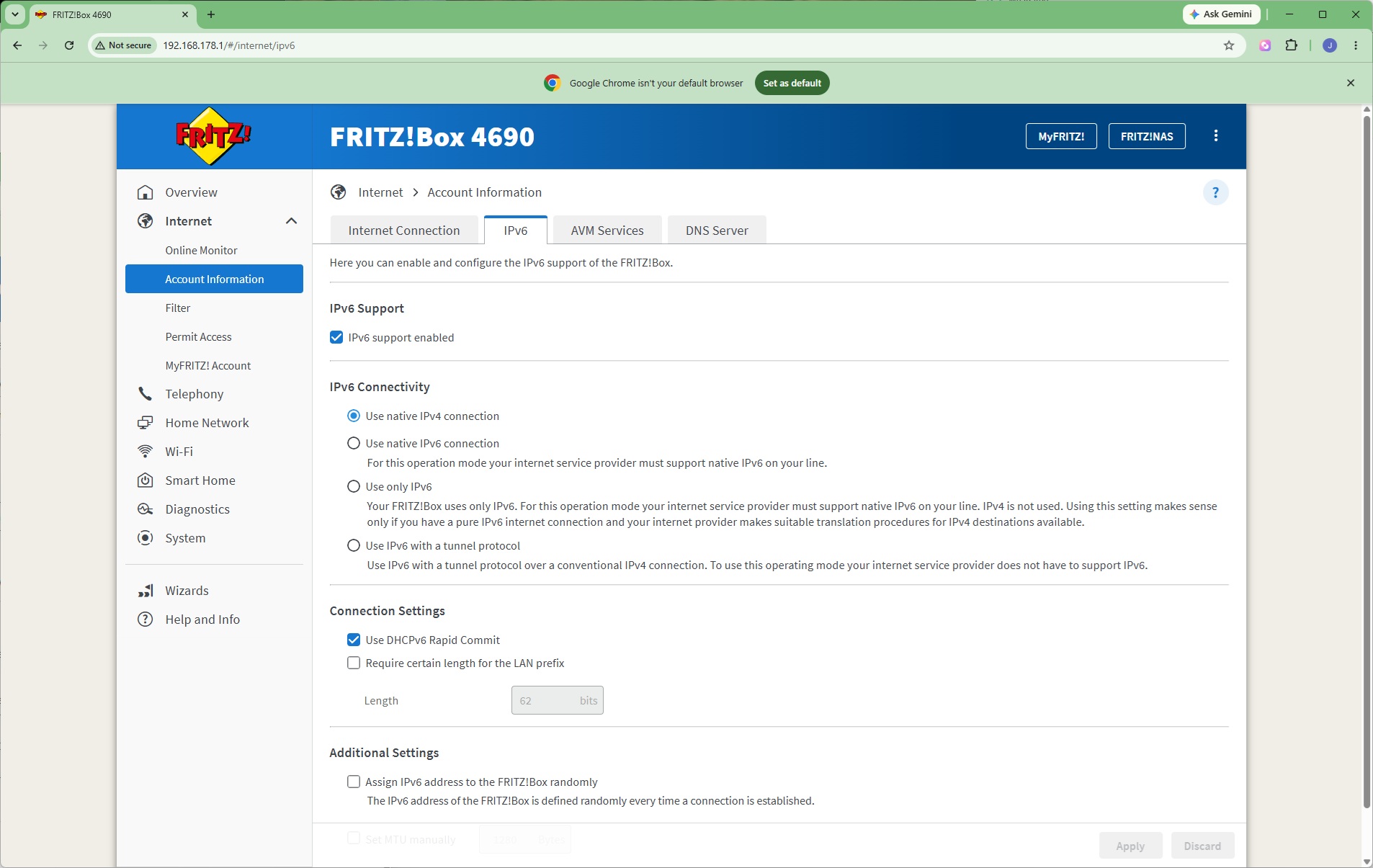
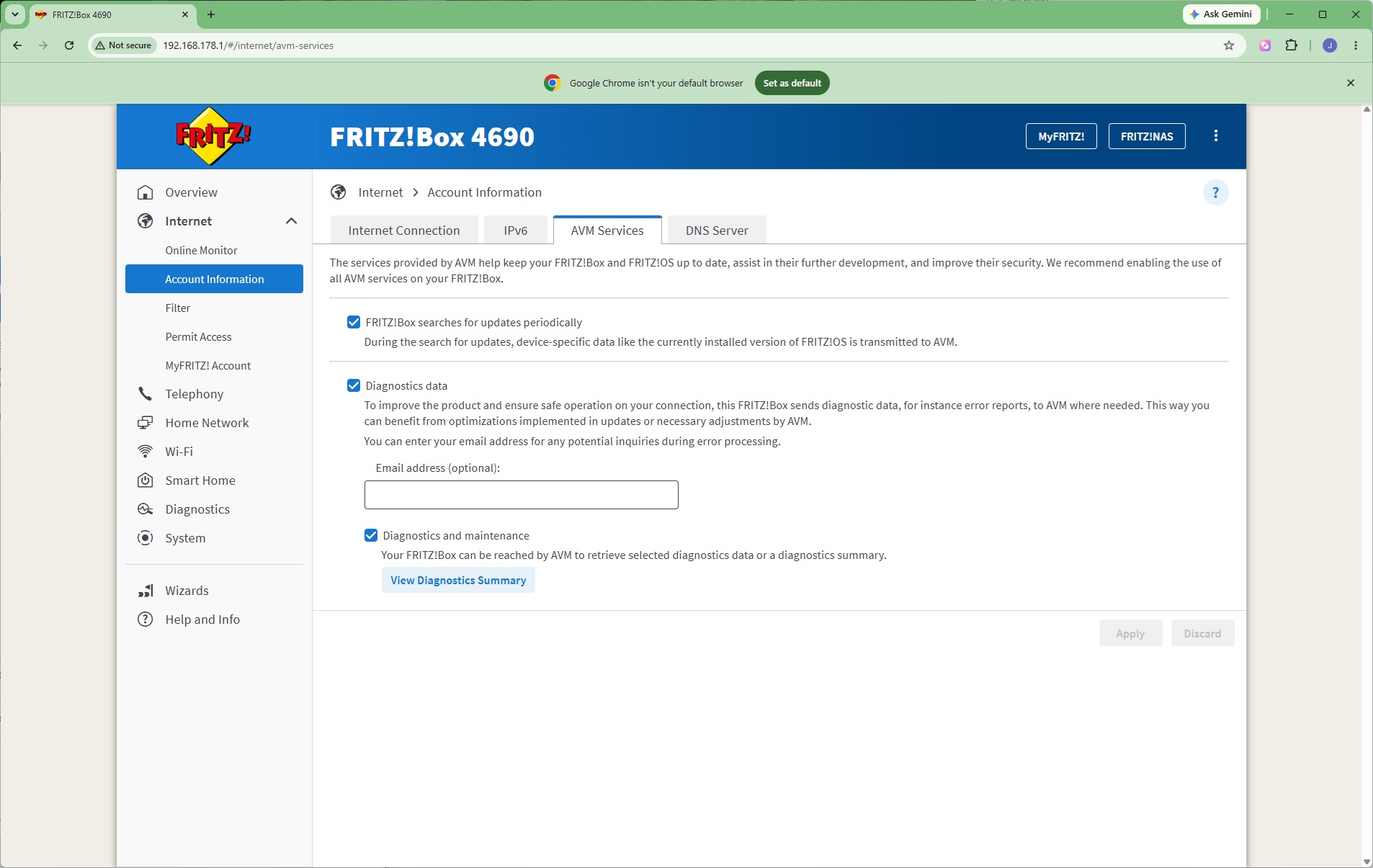
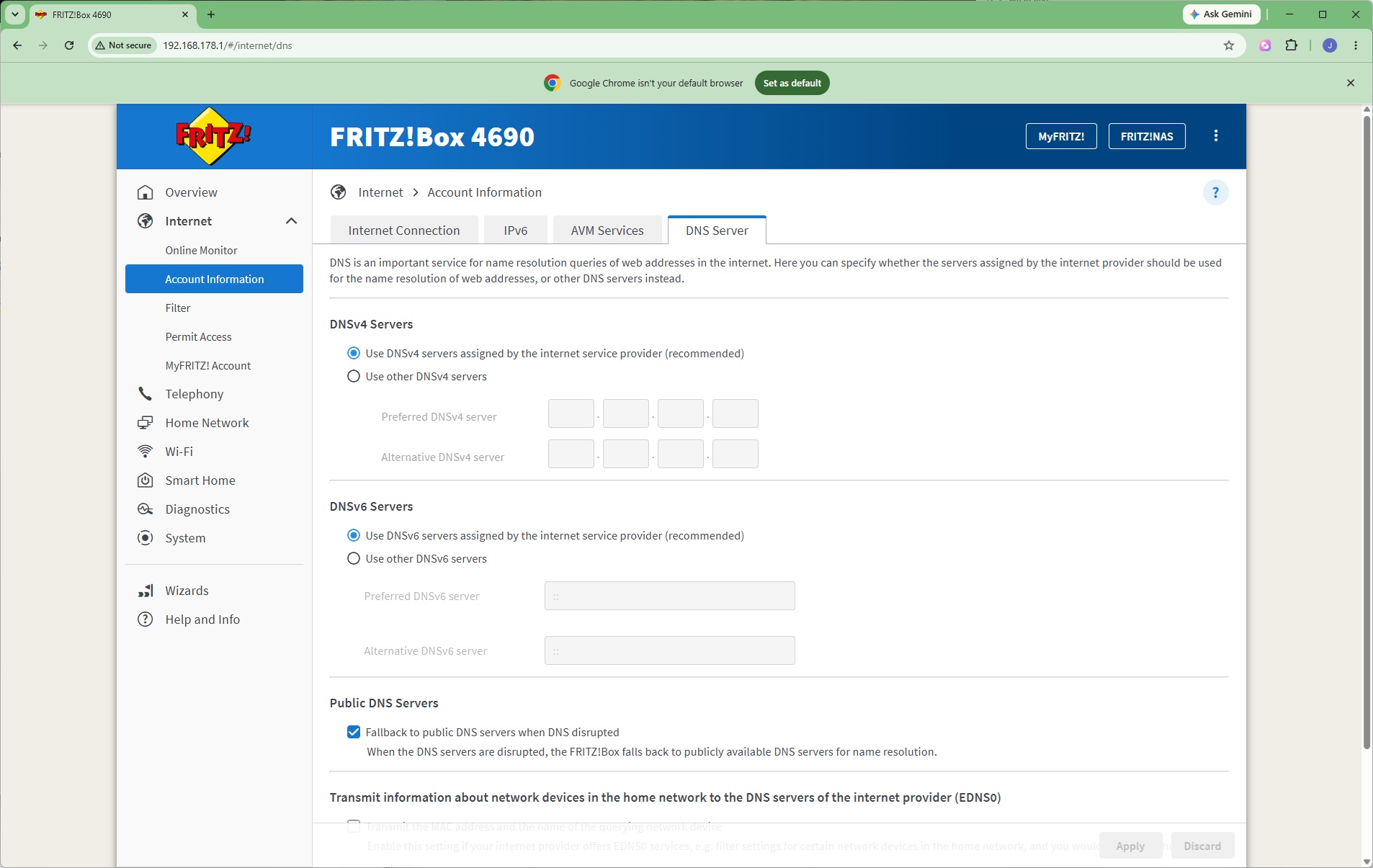
You're then asked to define your Internet connection type, followed by a choice of IPv4 or IPv6 native connectivity. You then define how the router interacts with FRITZ's services (note that this page still mentions AVM…). Finally, you can choose whether the DNS server is automatically detected or a fixed IP address.
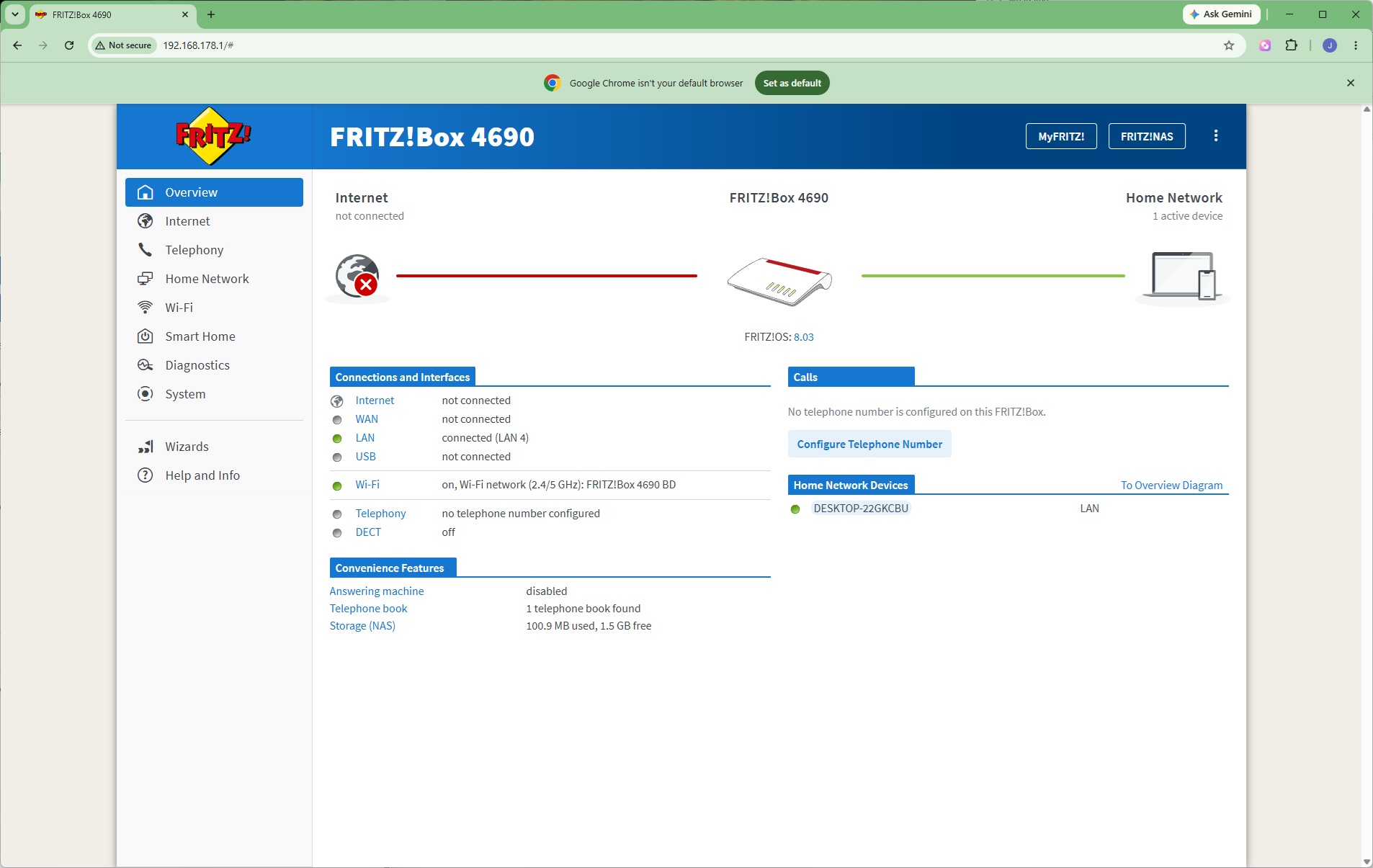
Once things are initially configured, you can see your settings in the Overview window, which isn't as graphical as some routers. Note that we hadn't connected our broadband in this screengrab (we disconnect this during throughput testing to avoid any online updates interrupting bandwidth).
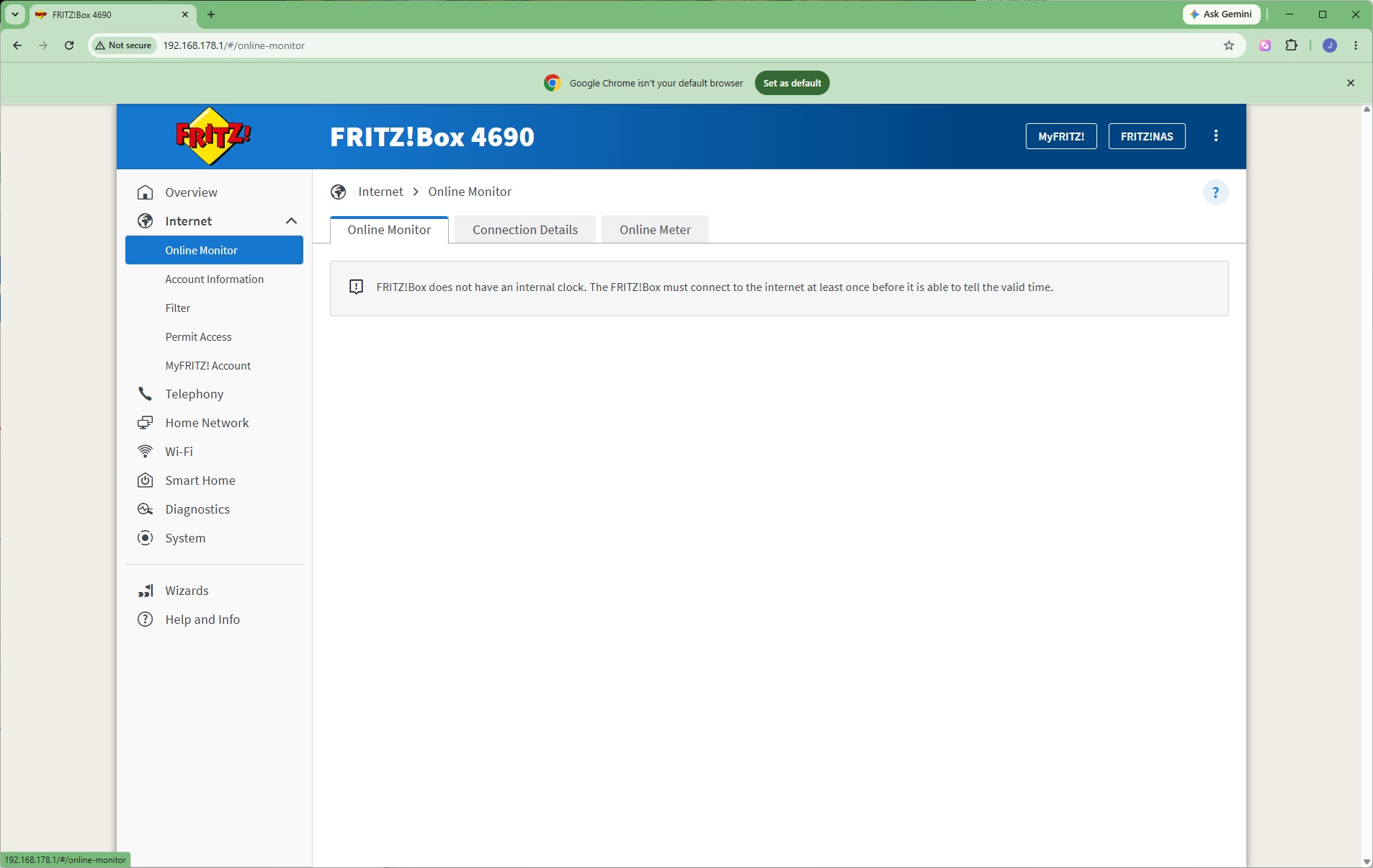
With the broadband connection not yet active, the online monitoring tools weren't yet available, but when that's operational this section will show traffic rates so you can see if anything is hogging bandwidth.
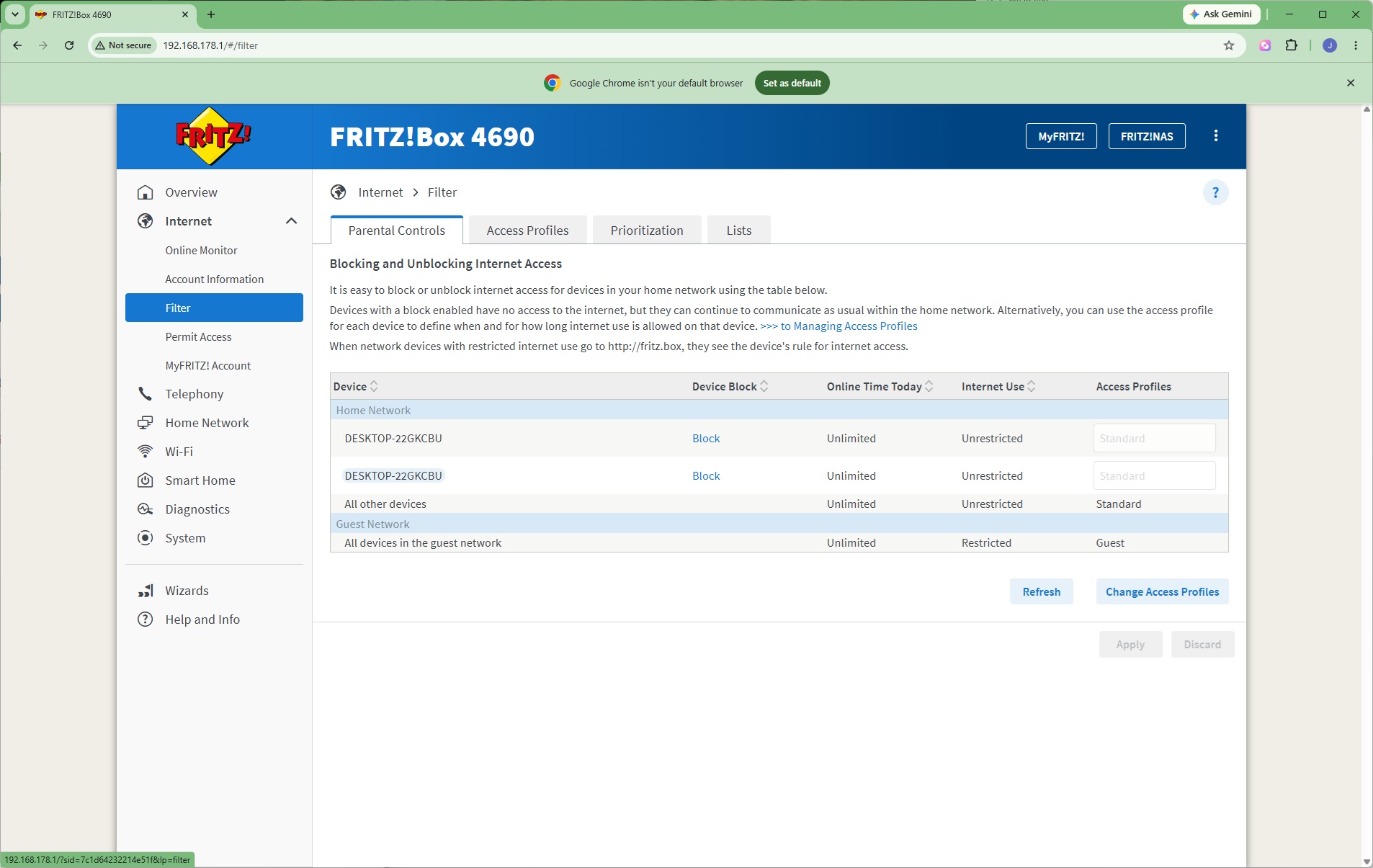
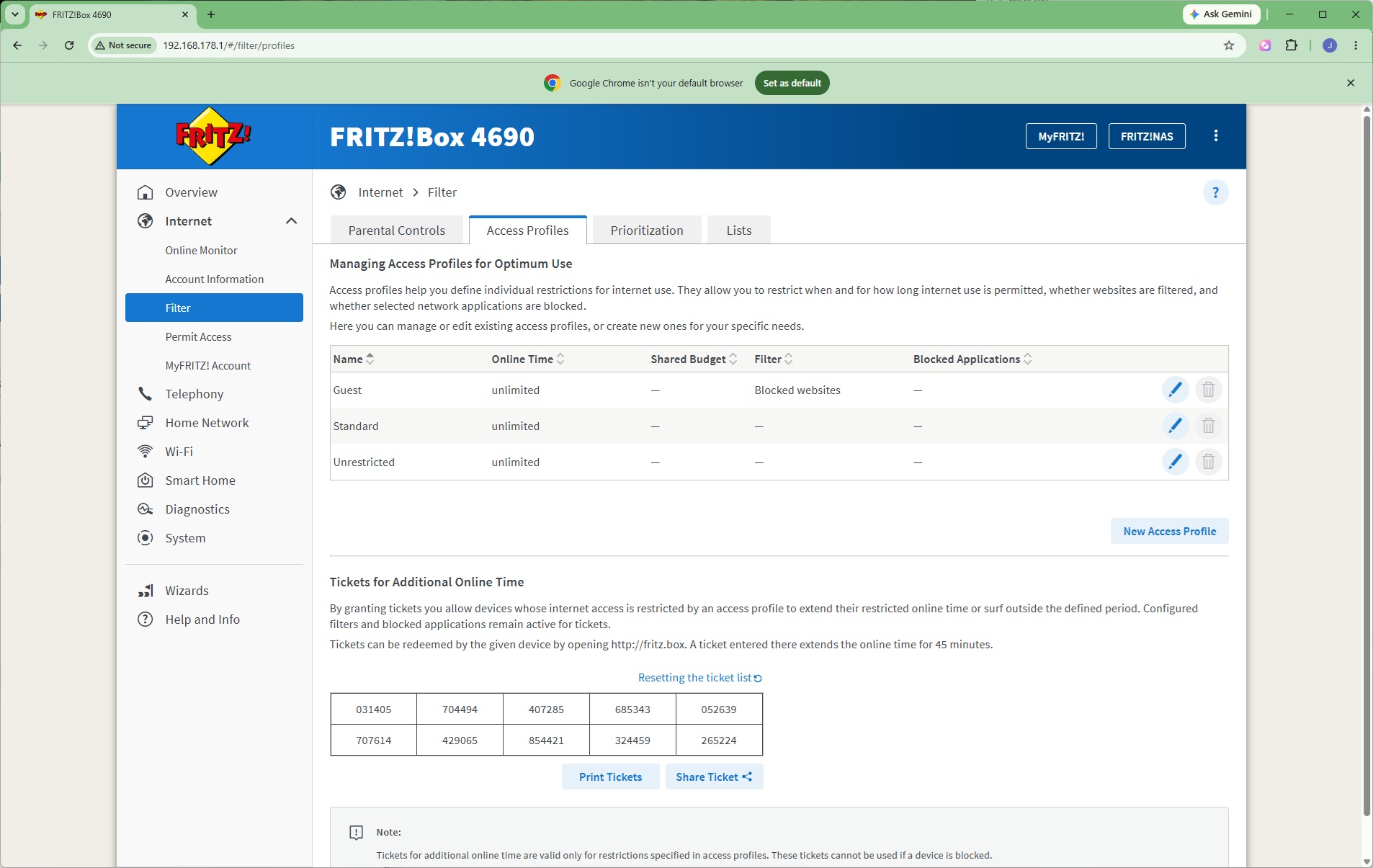
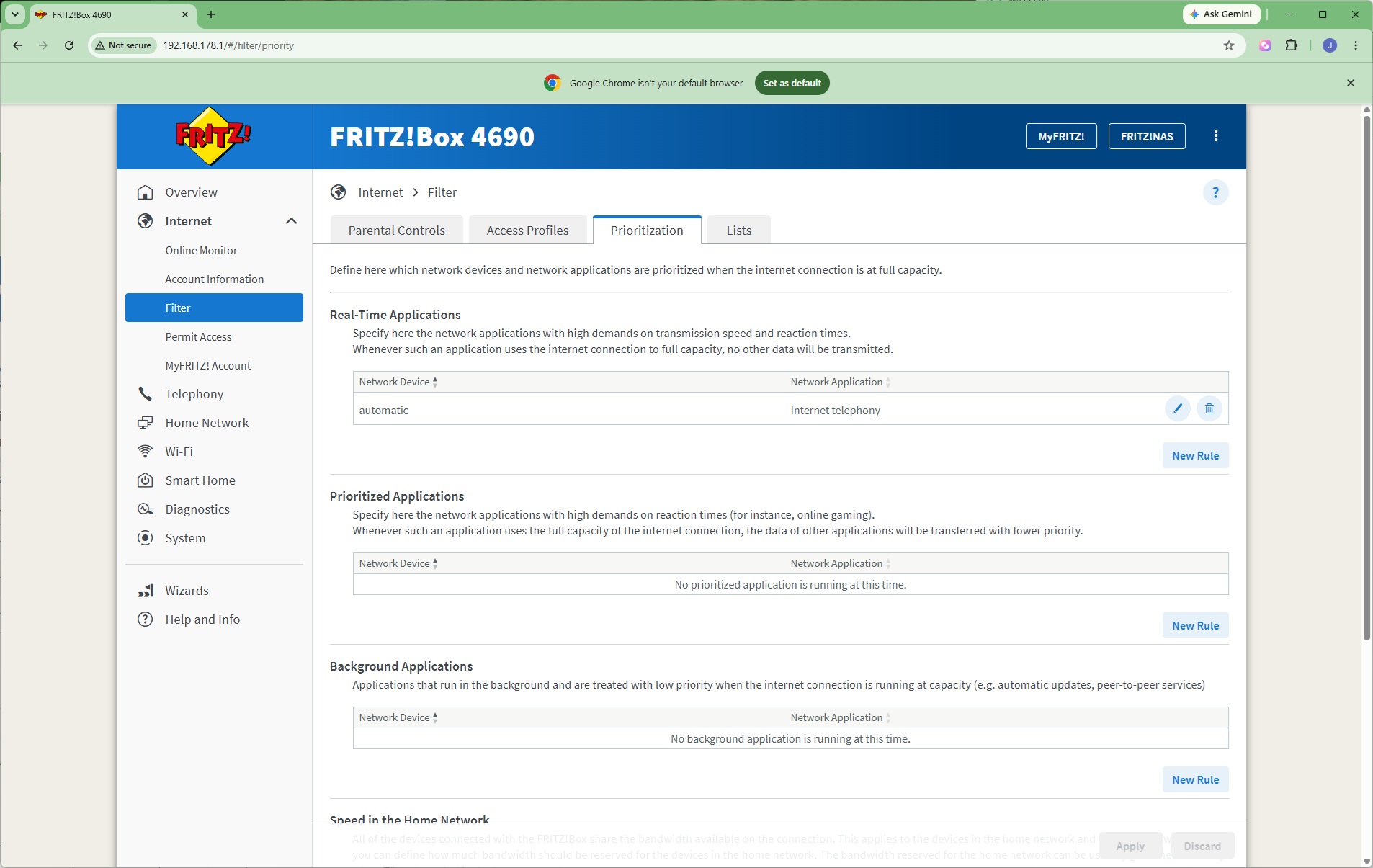
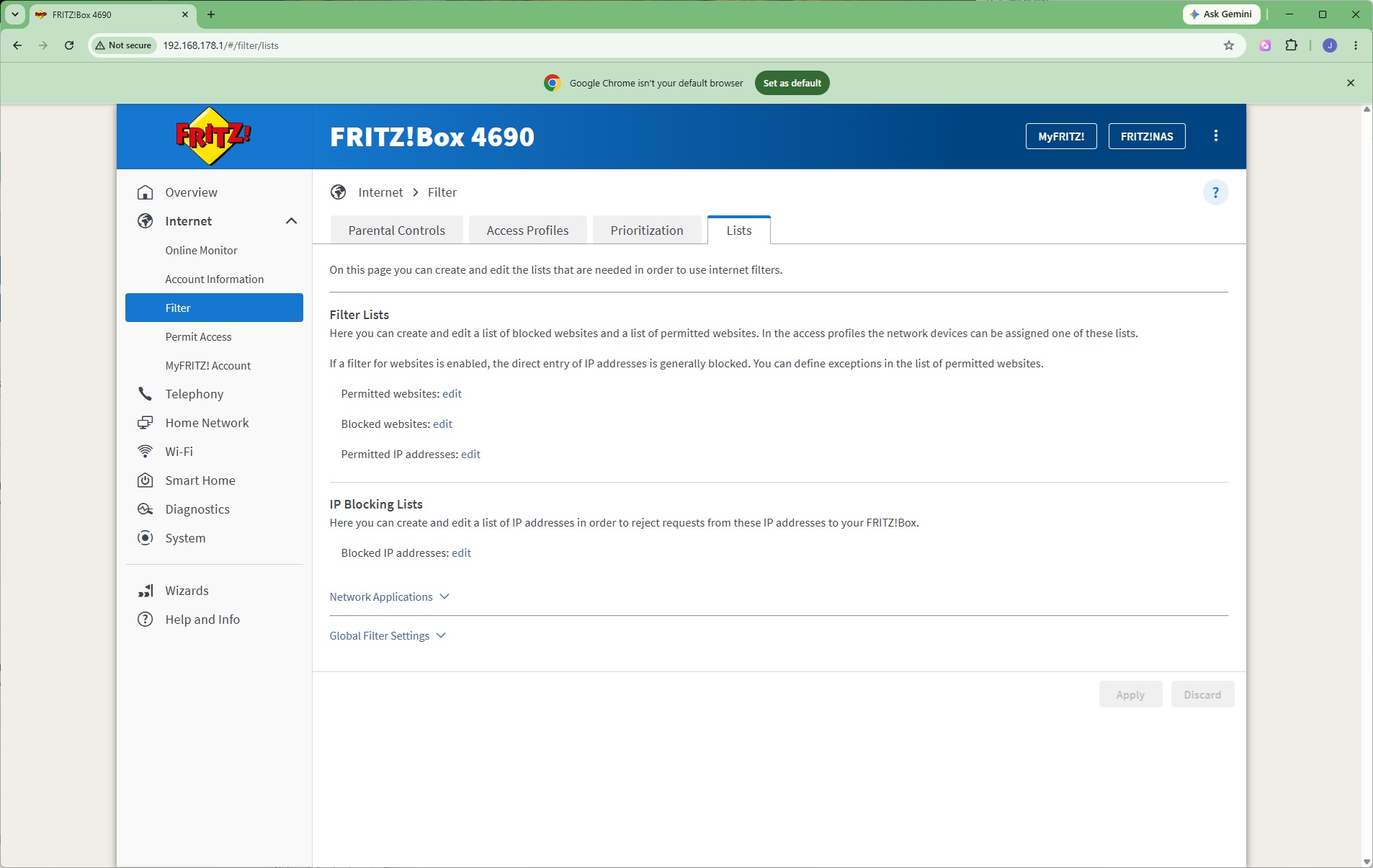
The FRITZ!Box 4690 has built-in connectivity controls, starting with the ability to block systems or restrict their access. You can set up access profiles to streamline this process. You can introduce quality of service rules by prioritising certain types of traffic. You can also create website and IP access lists, either by permission or blocking certain URLs and addresses.
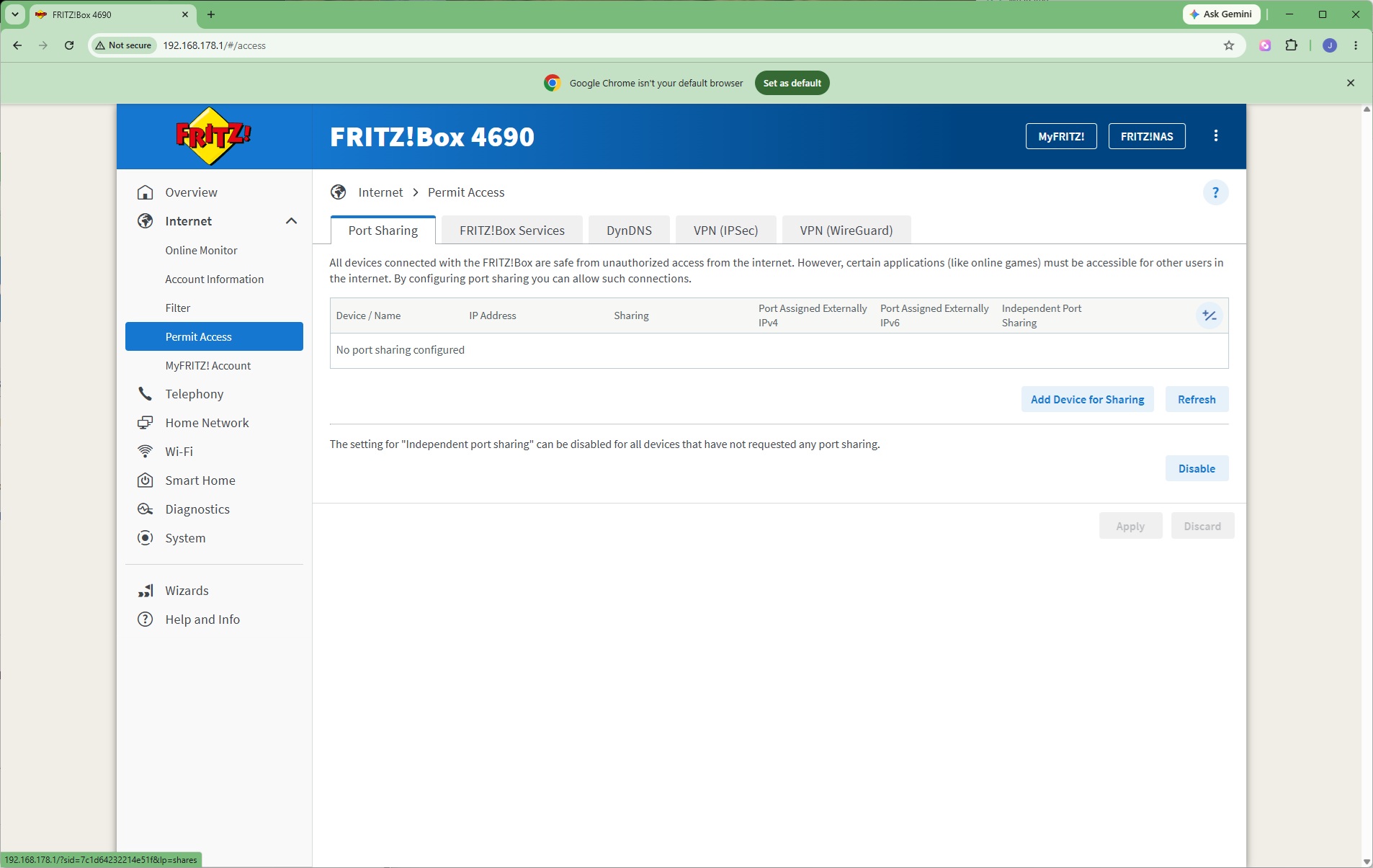
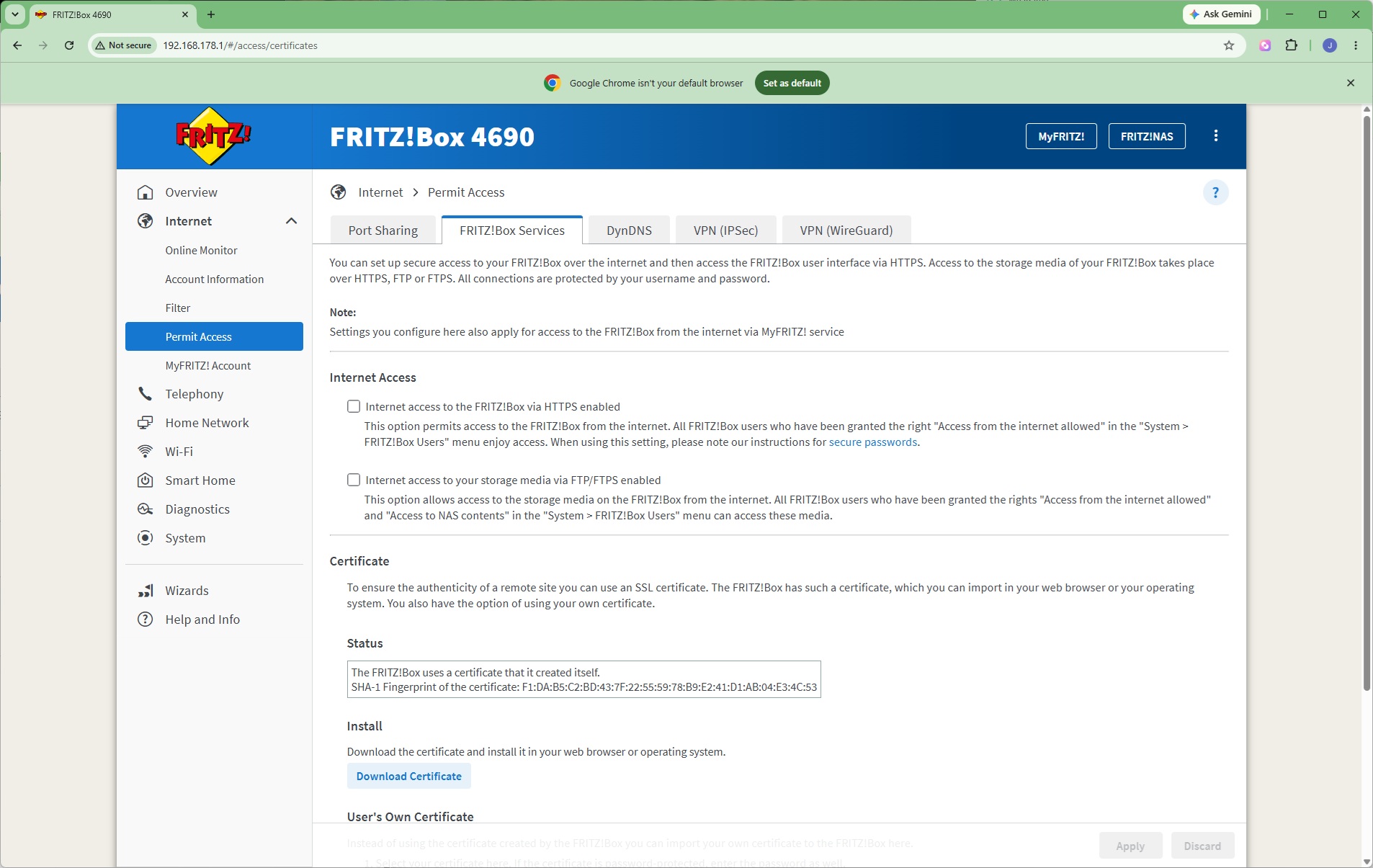
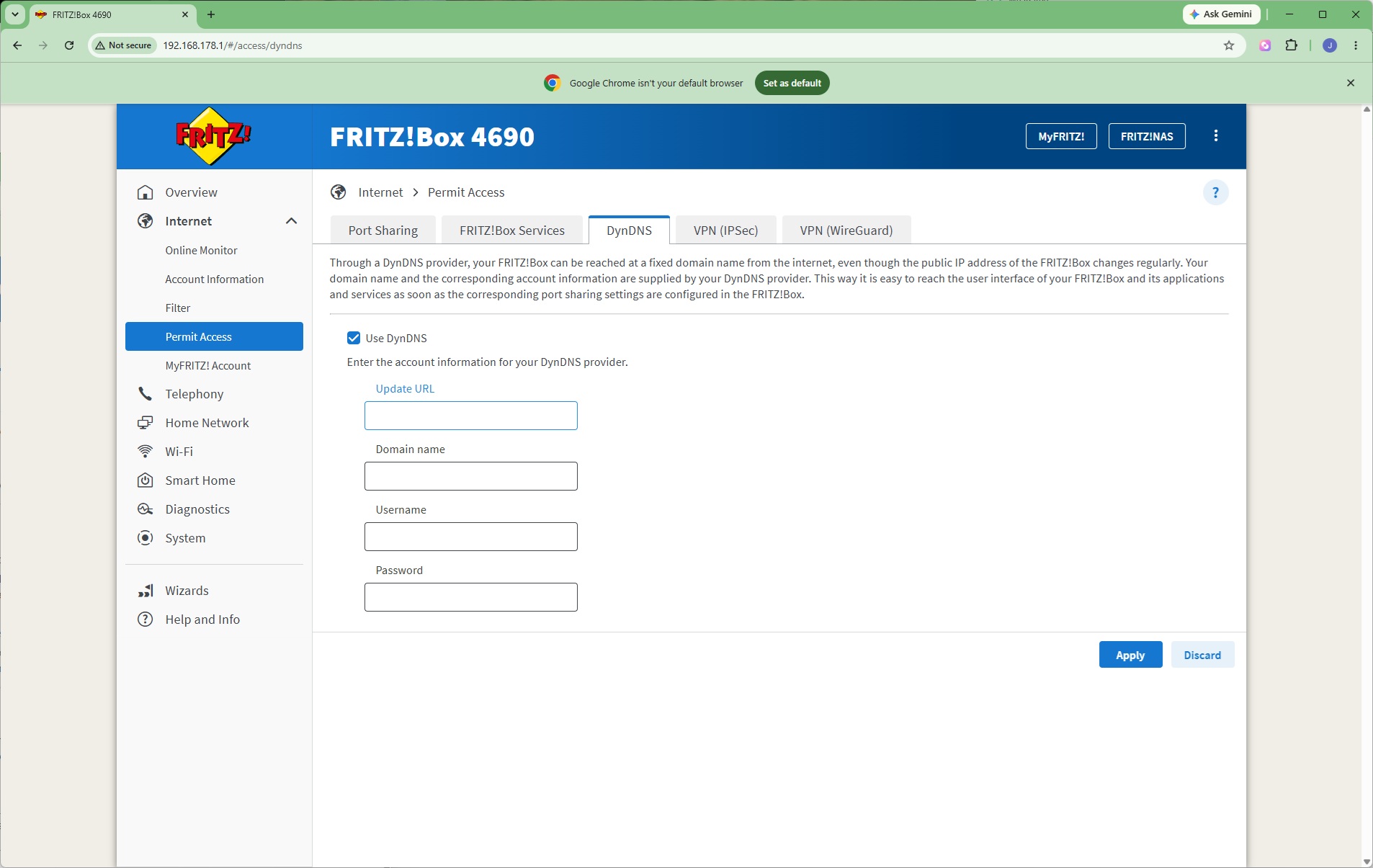
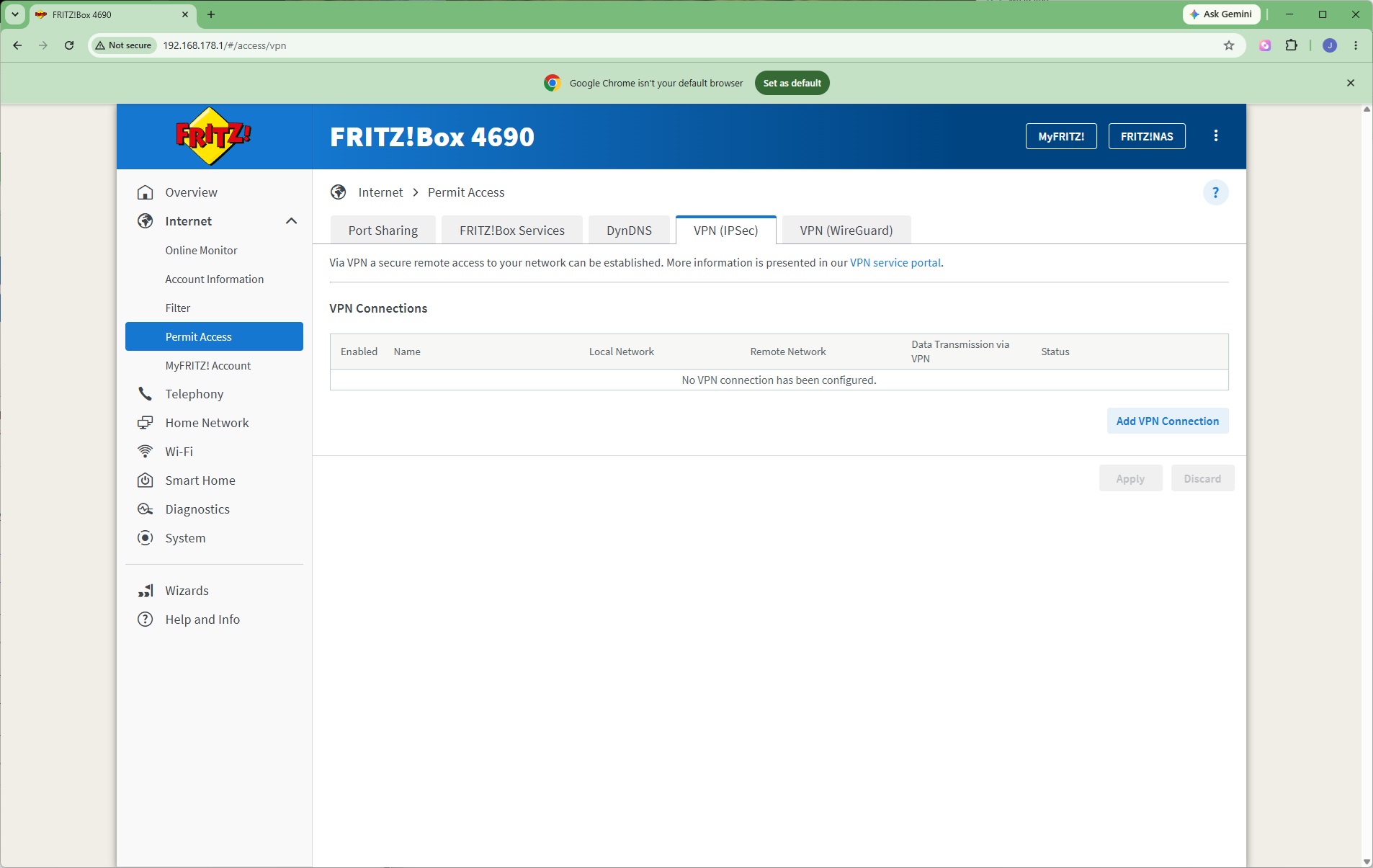
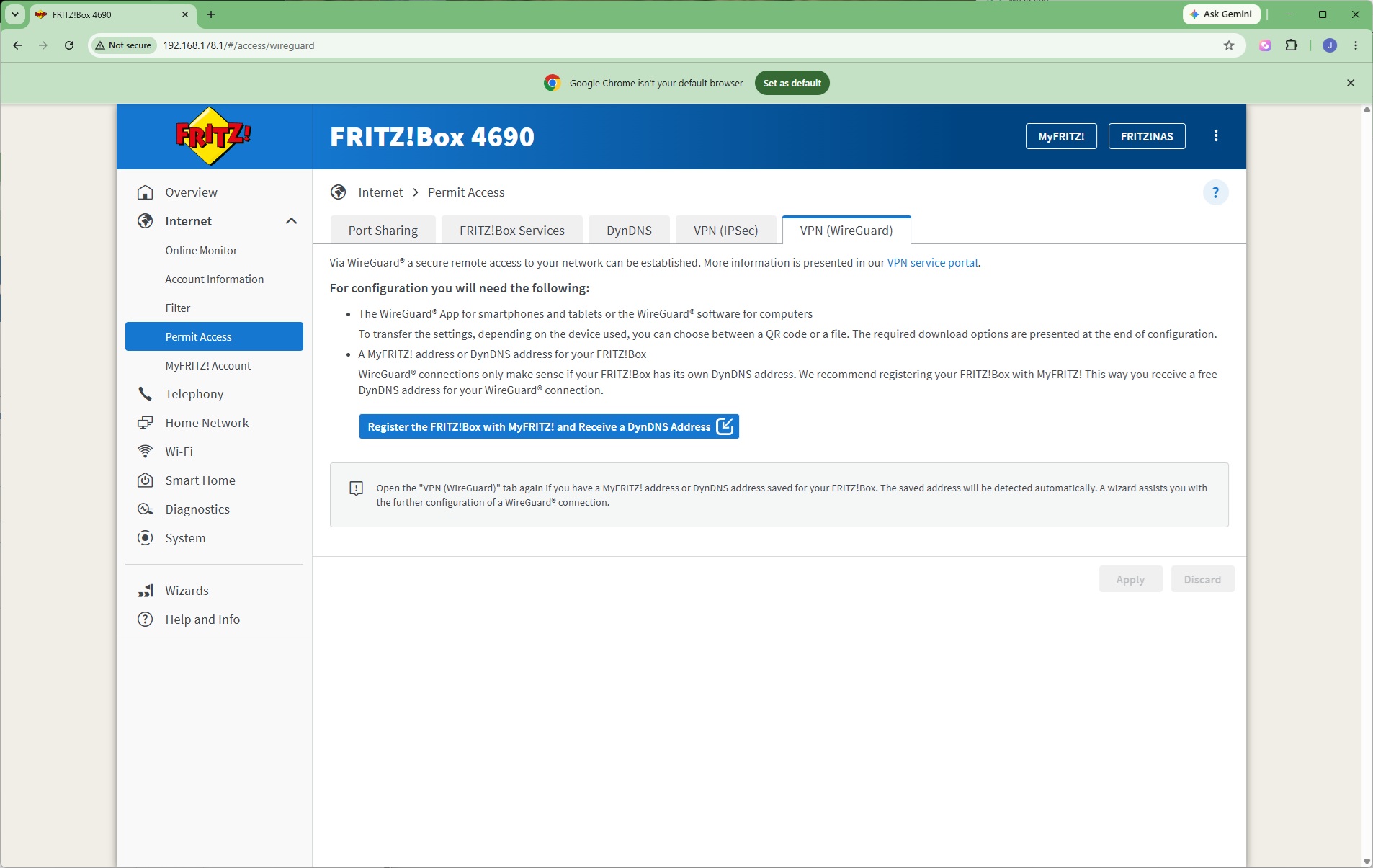
The FRITZ!Box has further permission options, starting with the ability to share devices on the local area network with the Internet through port forwarding. You can also choose whether the FRITZ!Box itself is externally accessible, although this is secured by certificate. There's support for DynDNS, but you have to enter more details yourself here than some routers. You can configure IPSec or WireGuard VPN connections too.
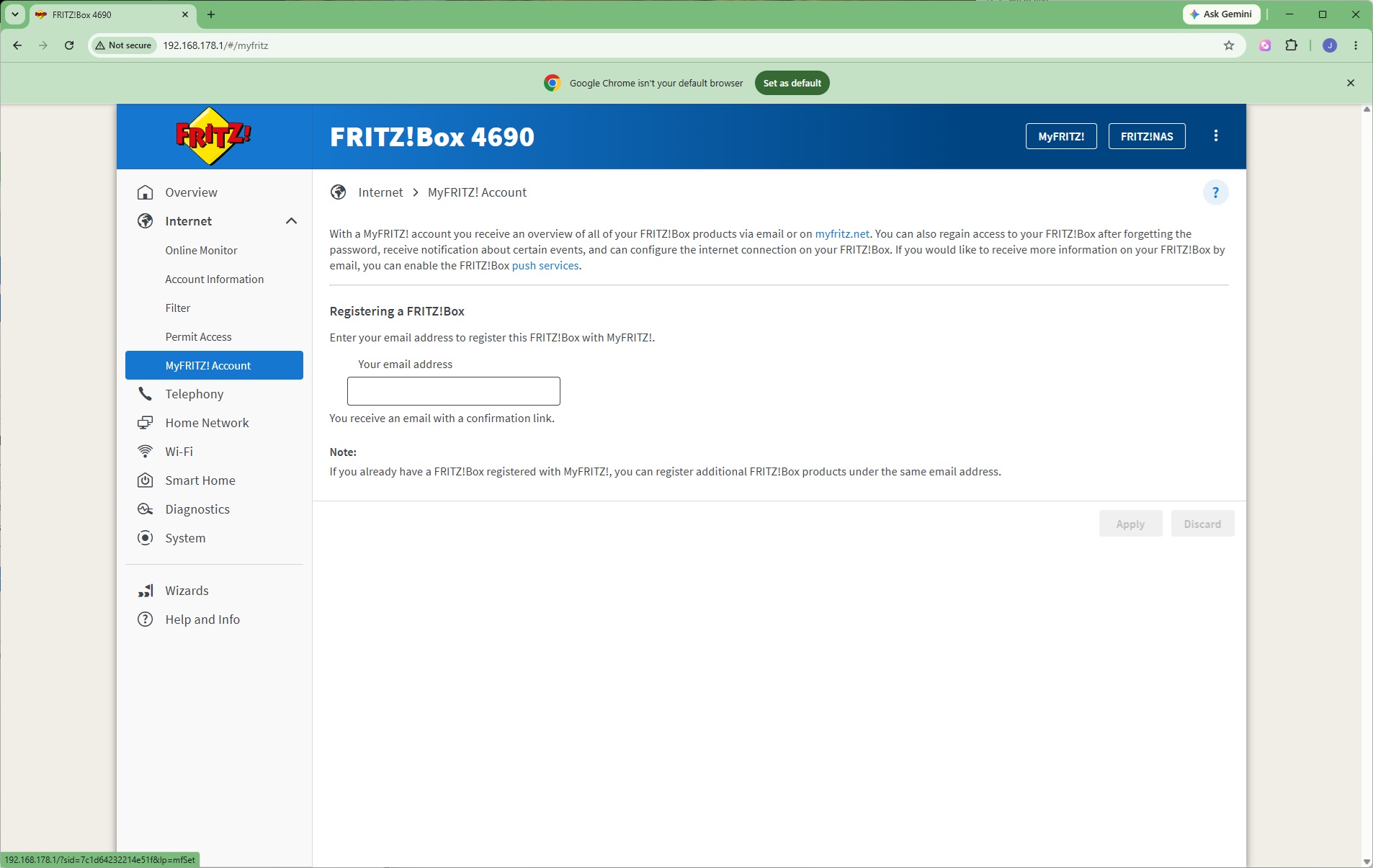
Registration of your FRITZ!Box with FRITZ! is built into the interface.
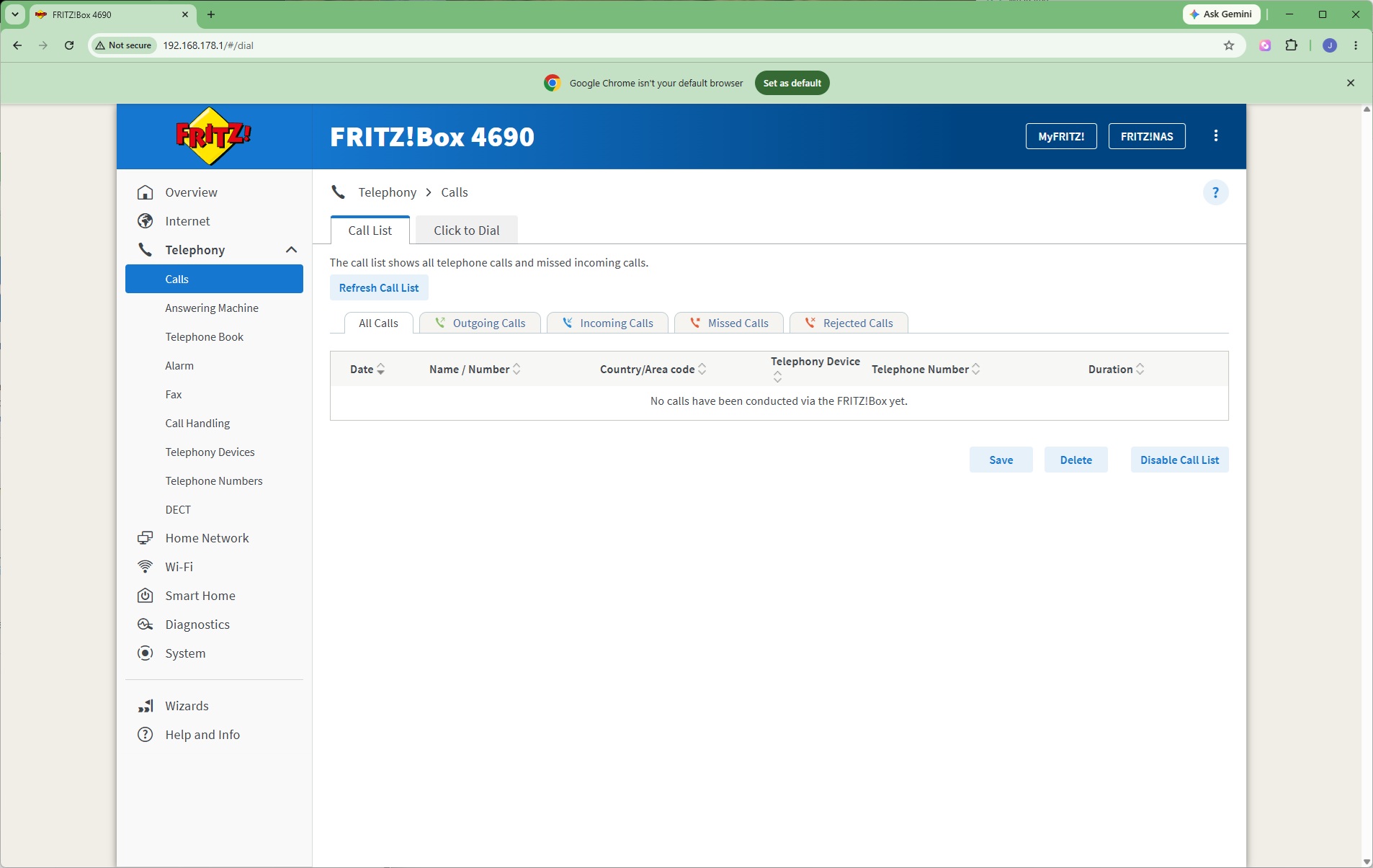
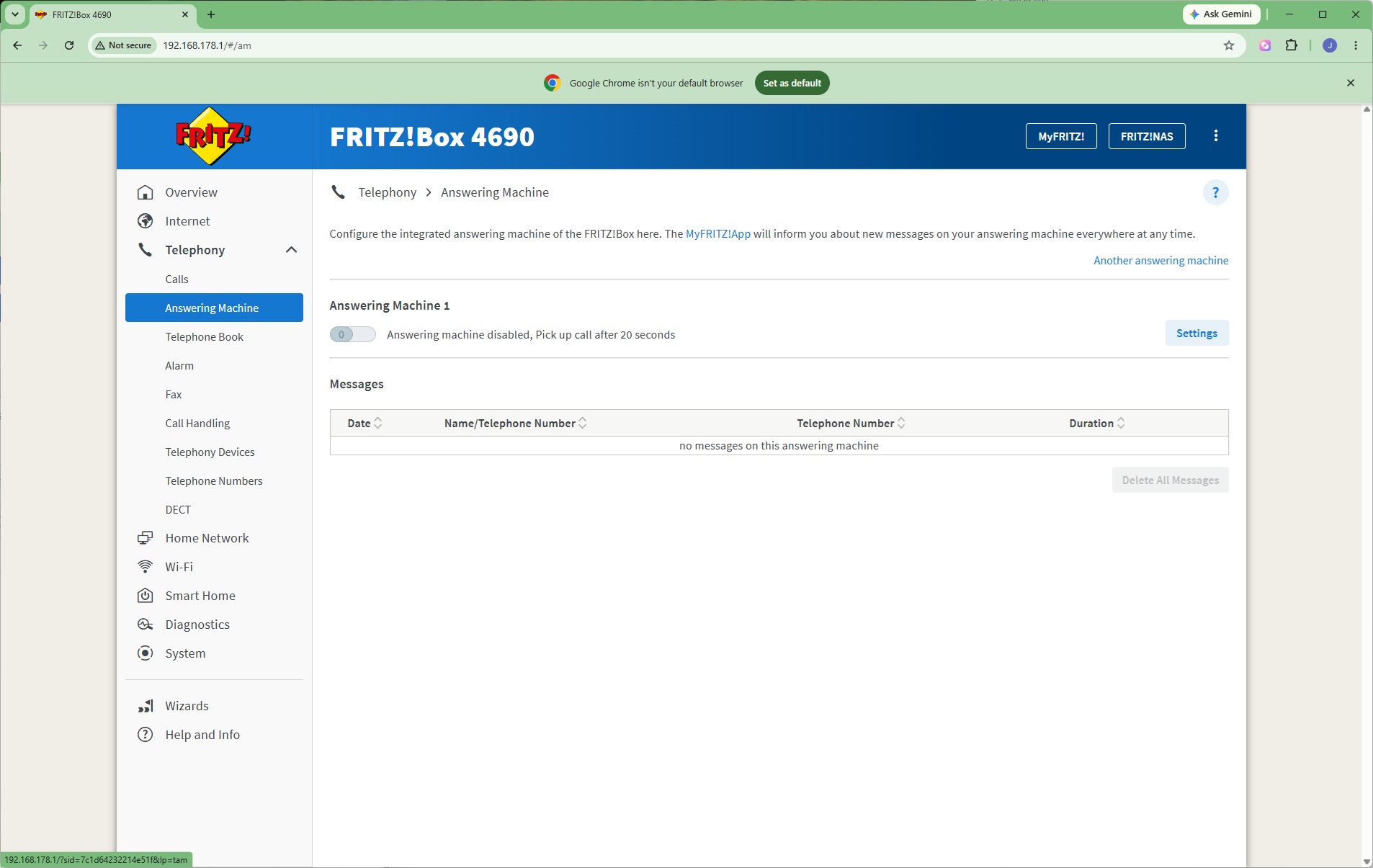
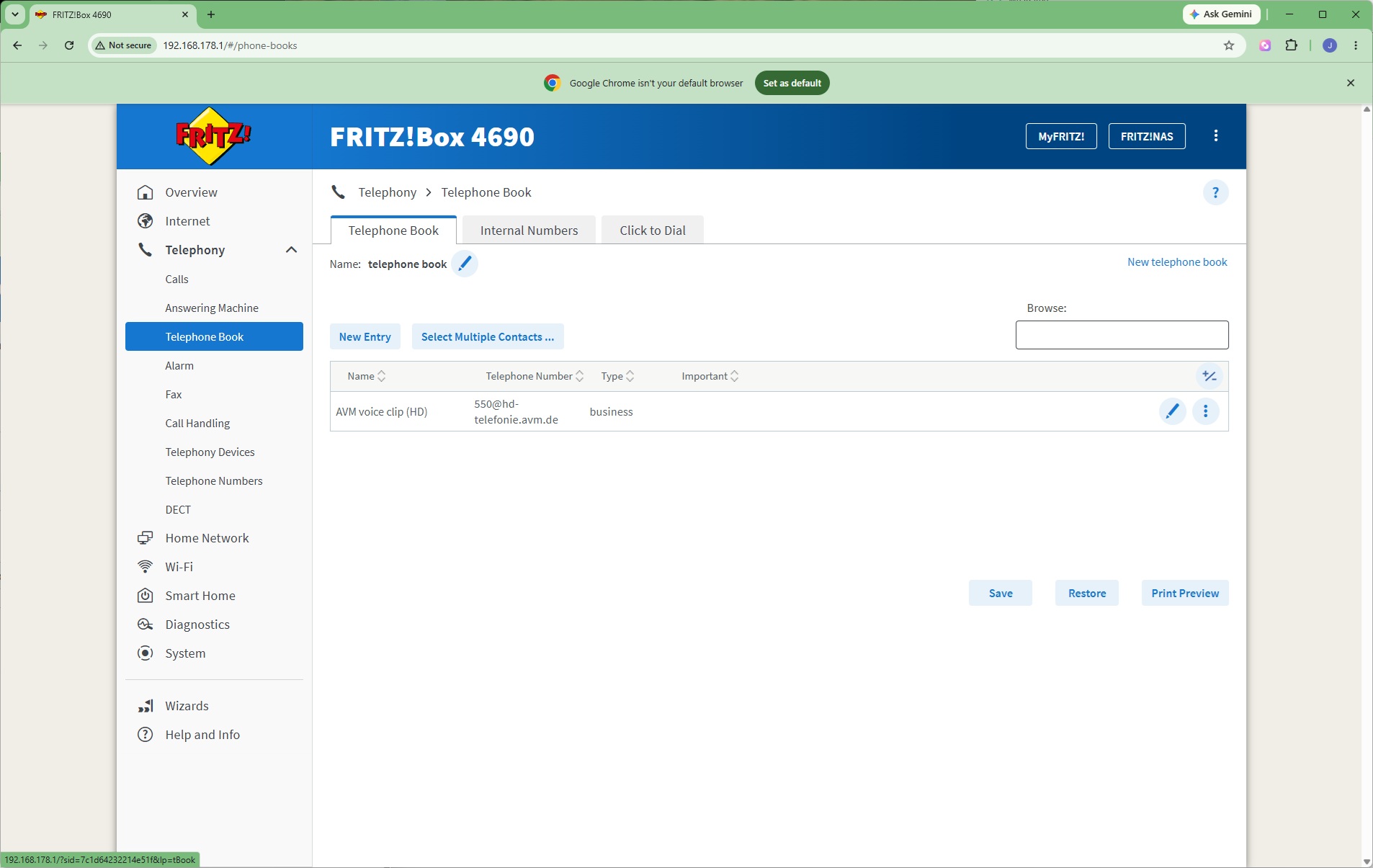
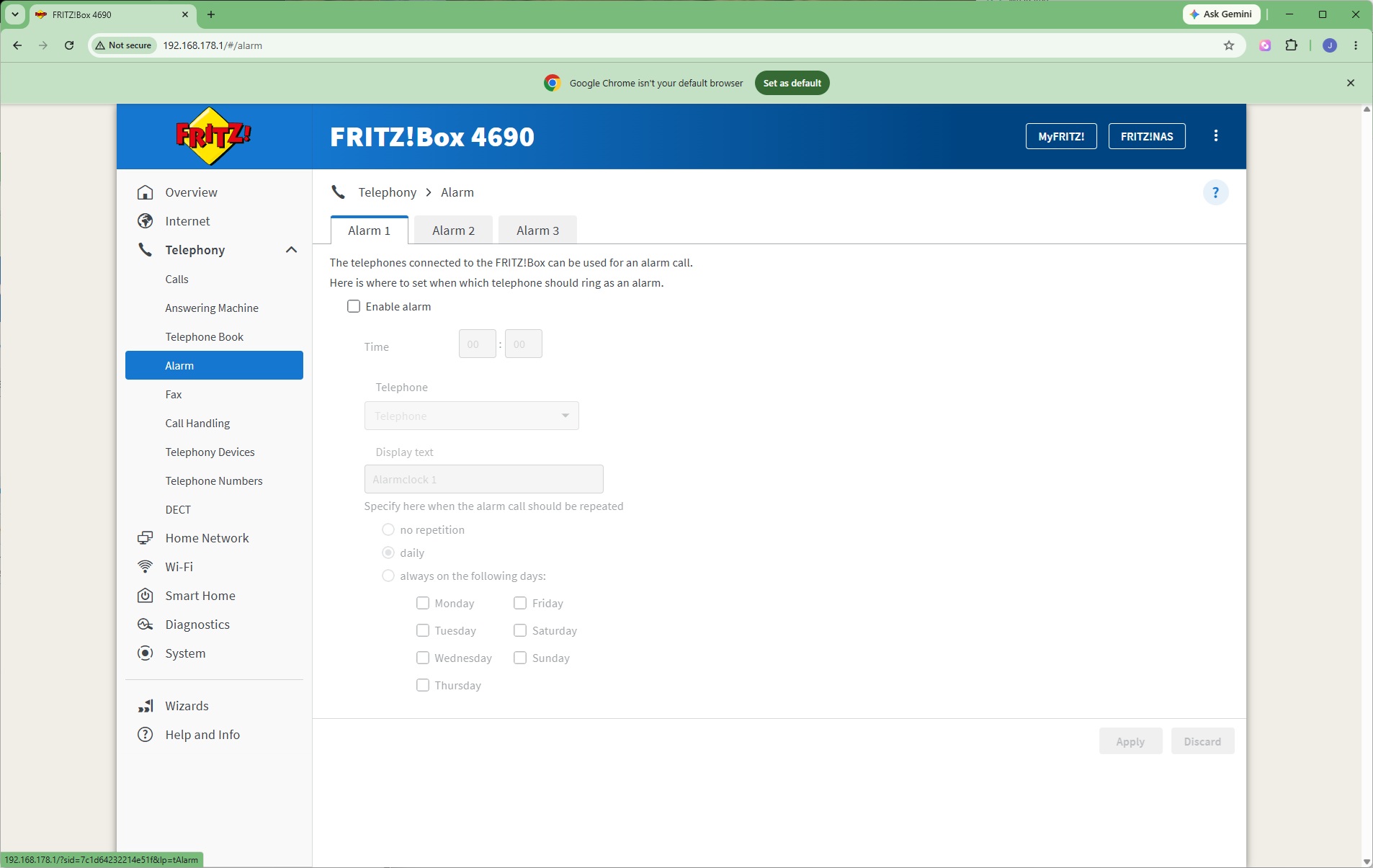
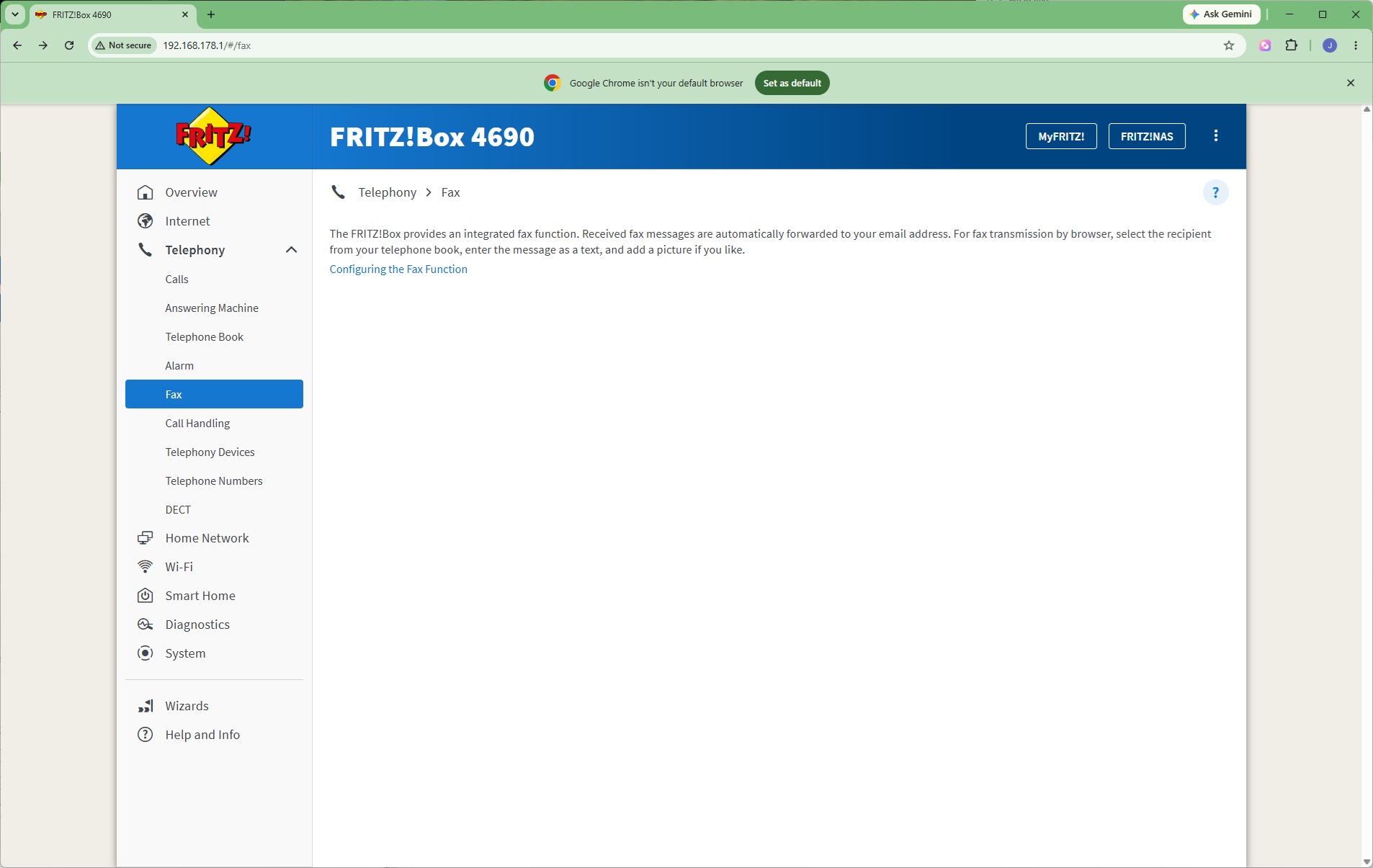
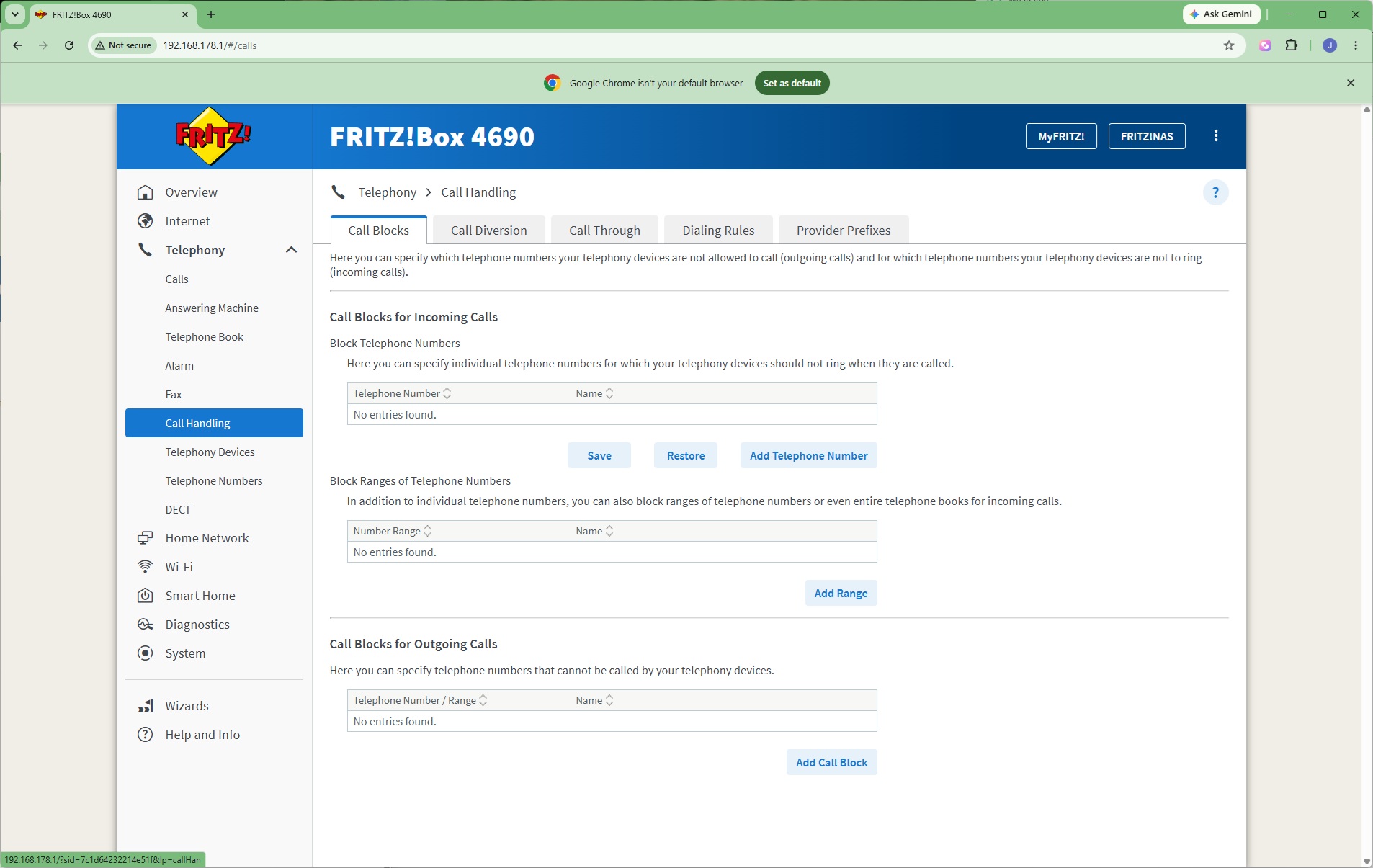
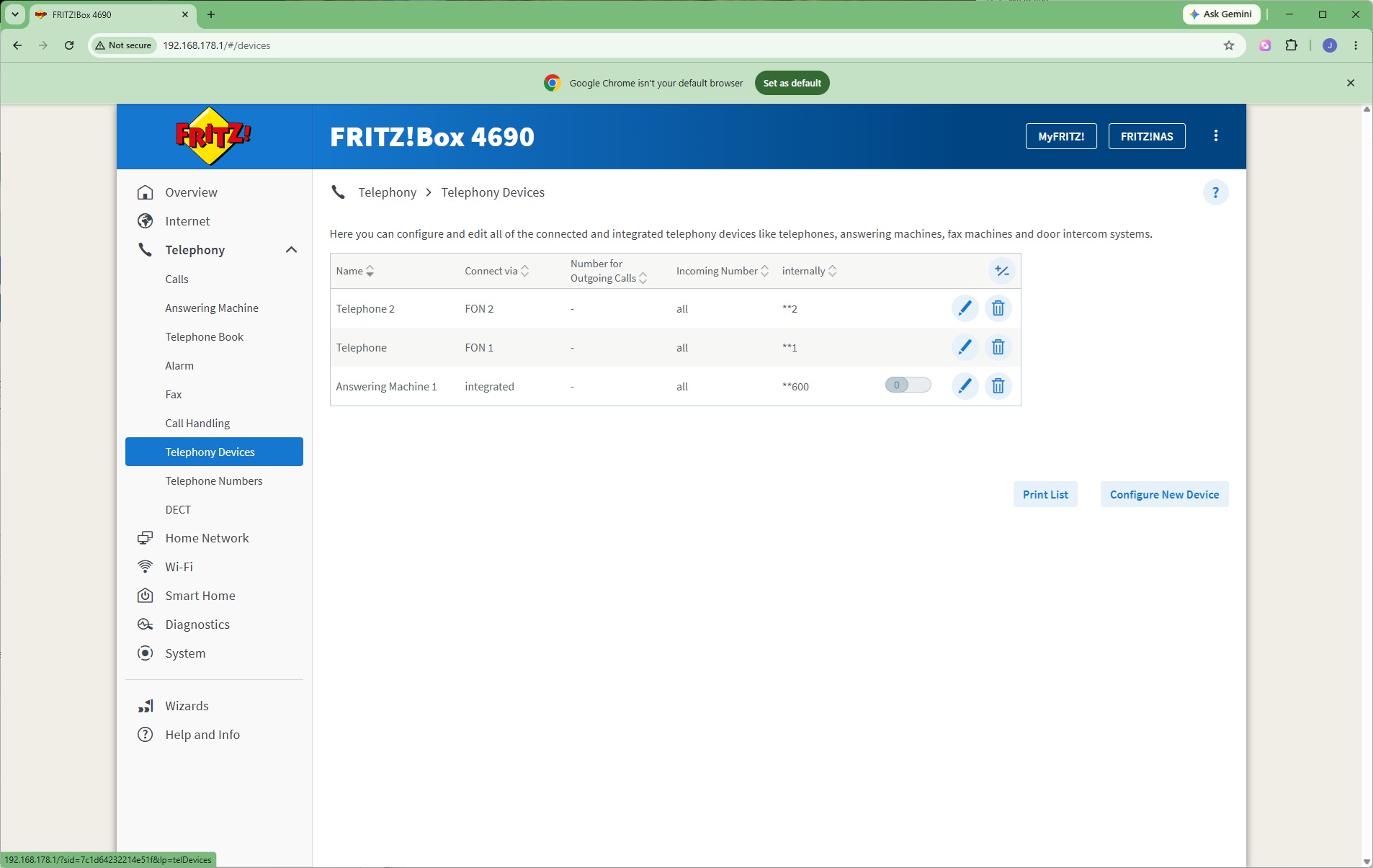
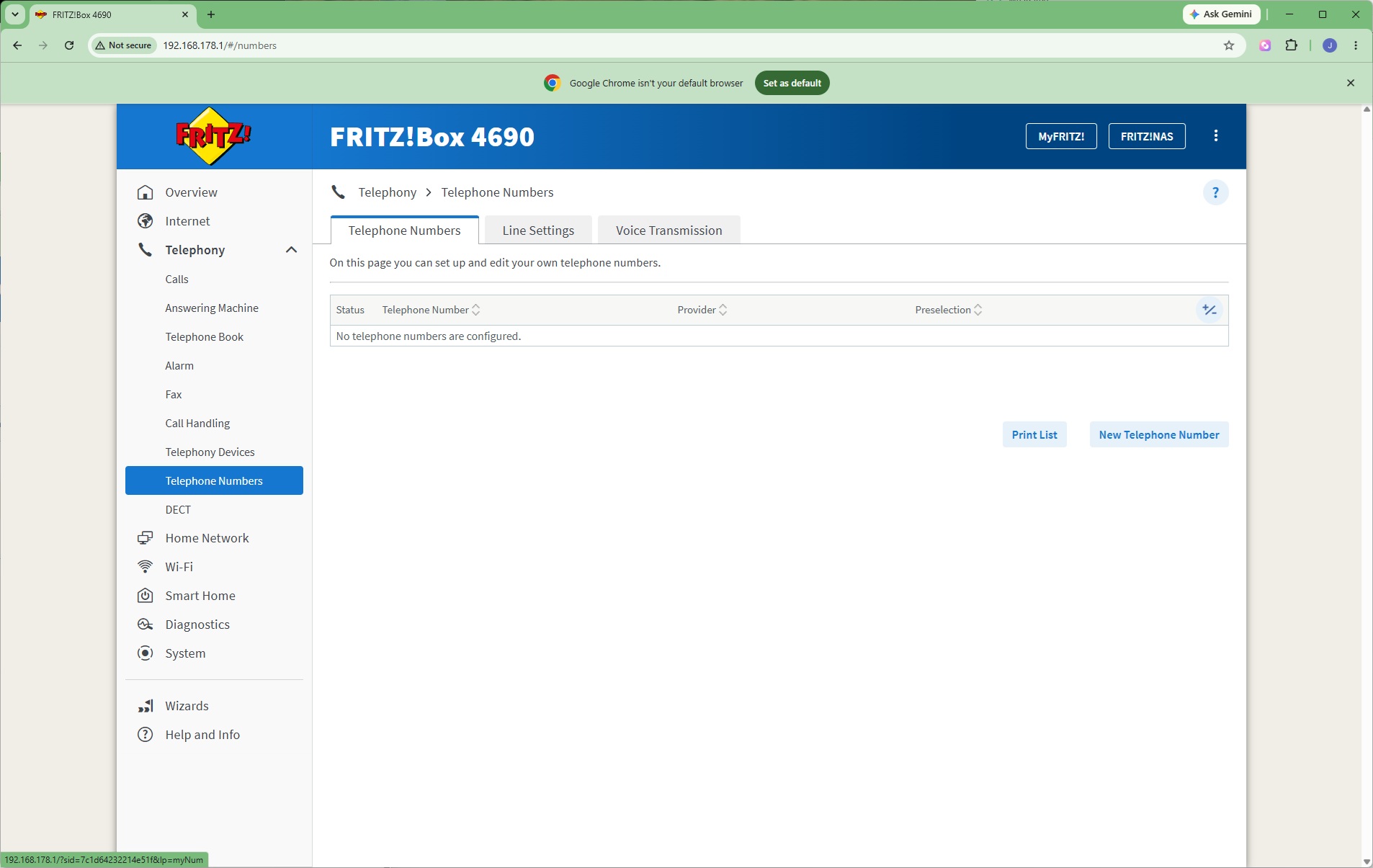
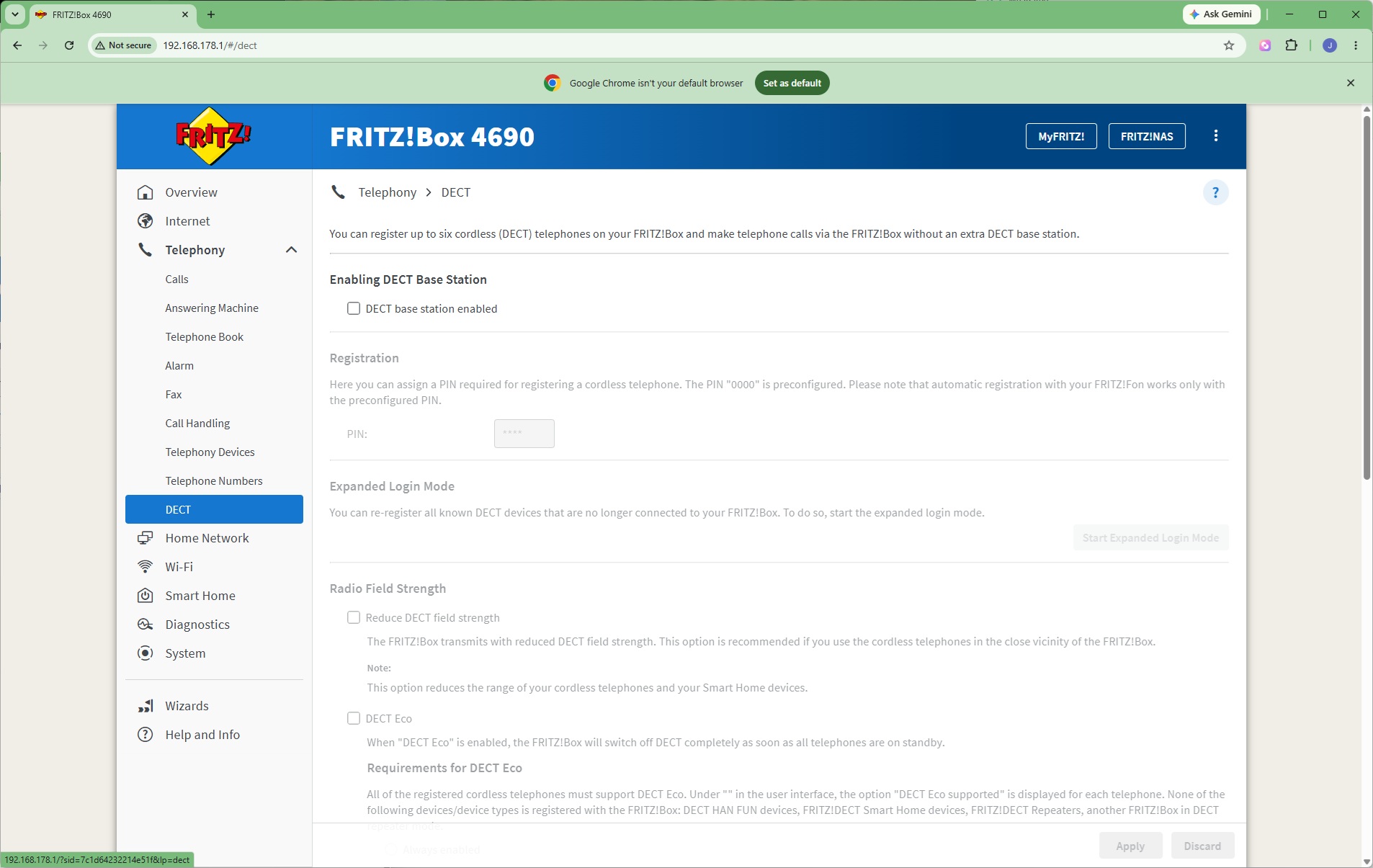
The Telephony section is, of course, huge on the 4690 – this is a FRITZ!Box after all! Telephony is one of the company's USPs. You can view calls, set up a digital answering machine, and create an online telephone book. The alarms let you ring a handset at a fixed time as a reminder. The FRITZ!Box can even send and receive faxes. Call handling rules are available, so you can block known spammers, for example. Interestingly, the system also supports door intercoms as well as regular handsets.
The telephony system primarily revolves around SIP. You enter your provider details under Telephone Numbers, or alternatively use FRITZ!Box's own service. Alongside the RJ-11 and German TAE wired telephony ports, the 4690 can act as a DECT hub, too, communicating wirelessly with handsets.
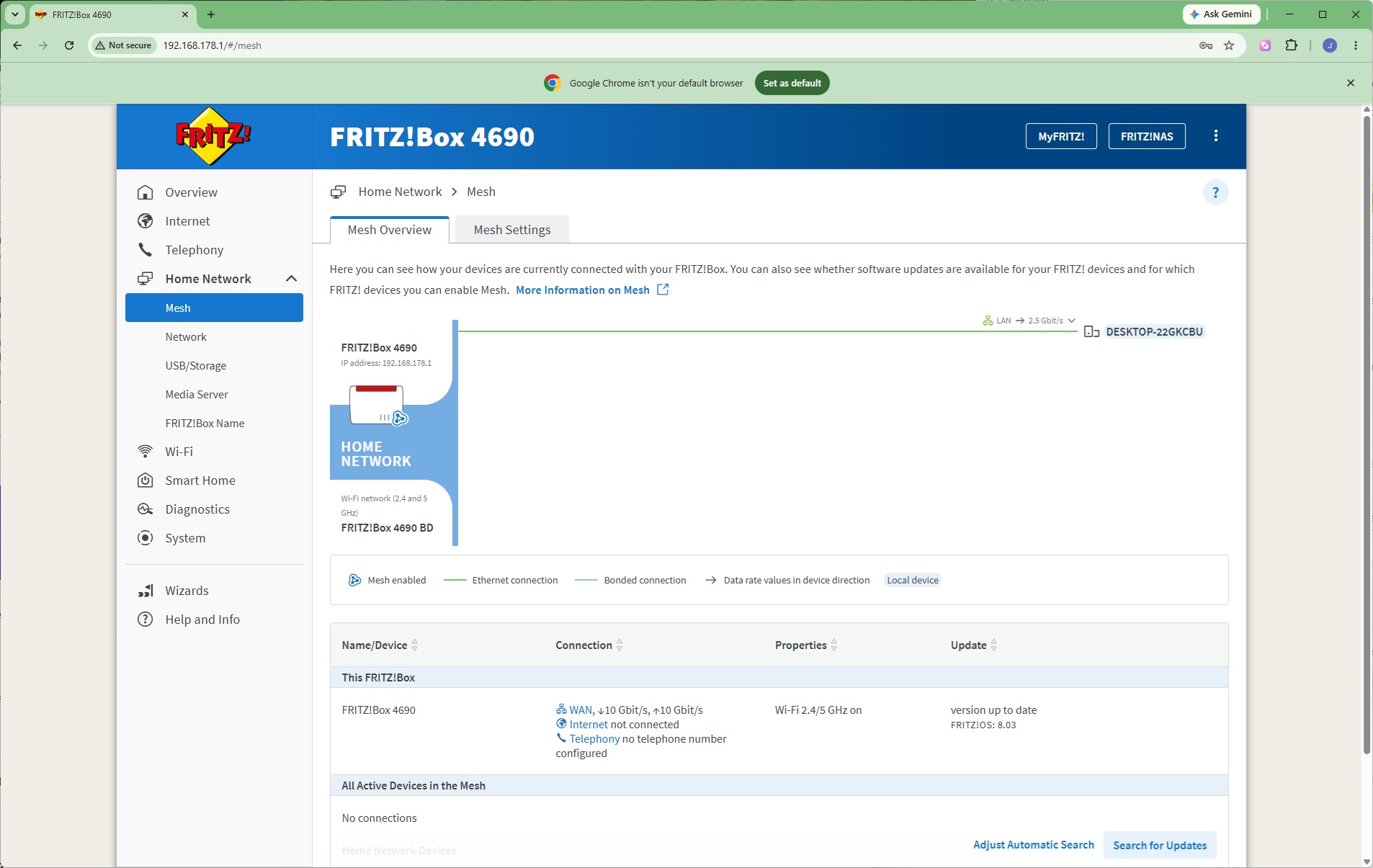
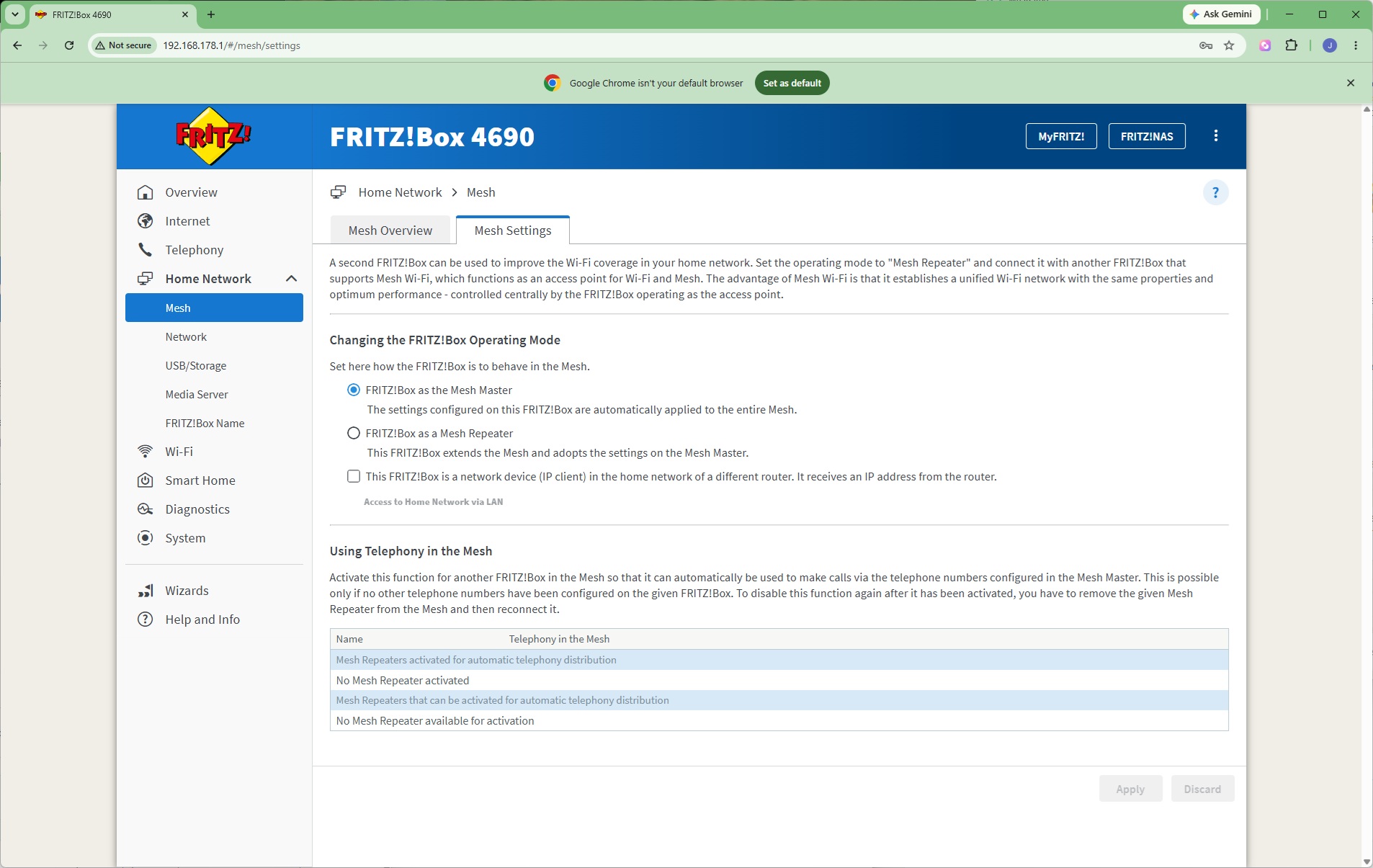
The FRITZ!Box 4690 can also act as the hub of a wireless mesh network. You can set up additional units as Repeaters. Powerline networking can be used to connect the Master to its Repeaters as well.
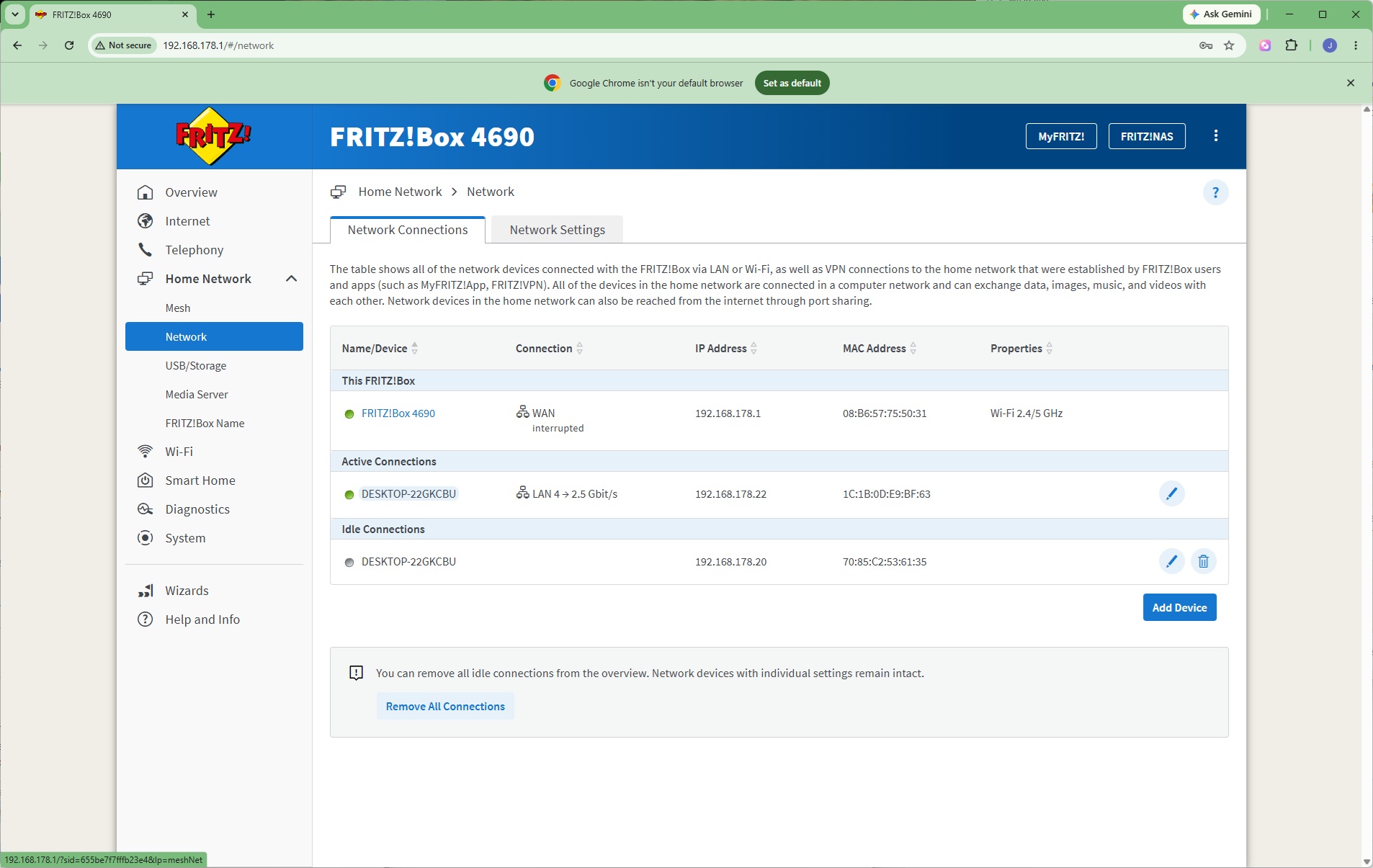
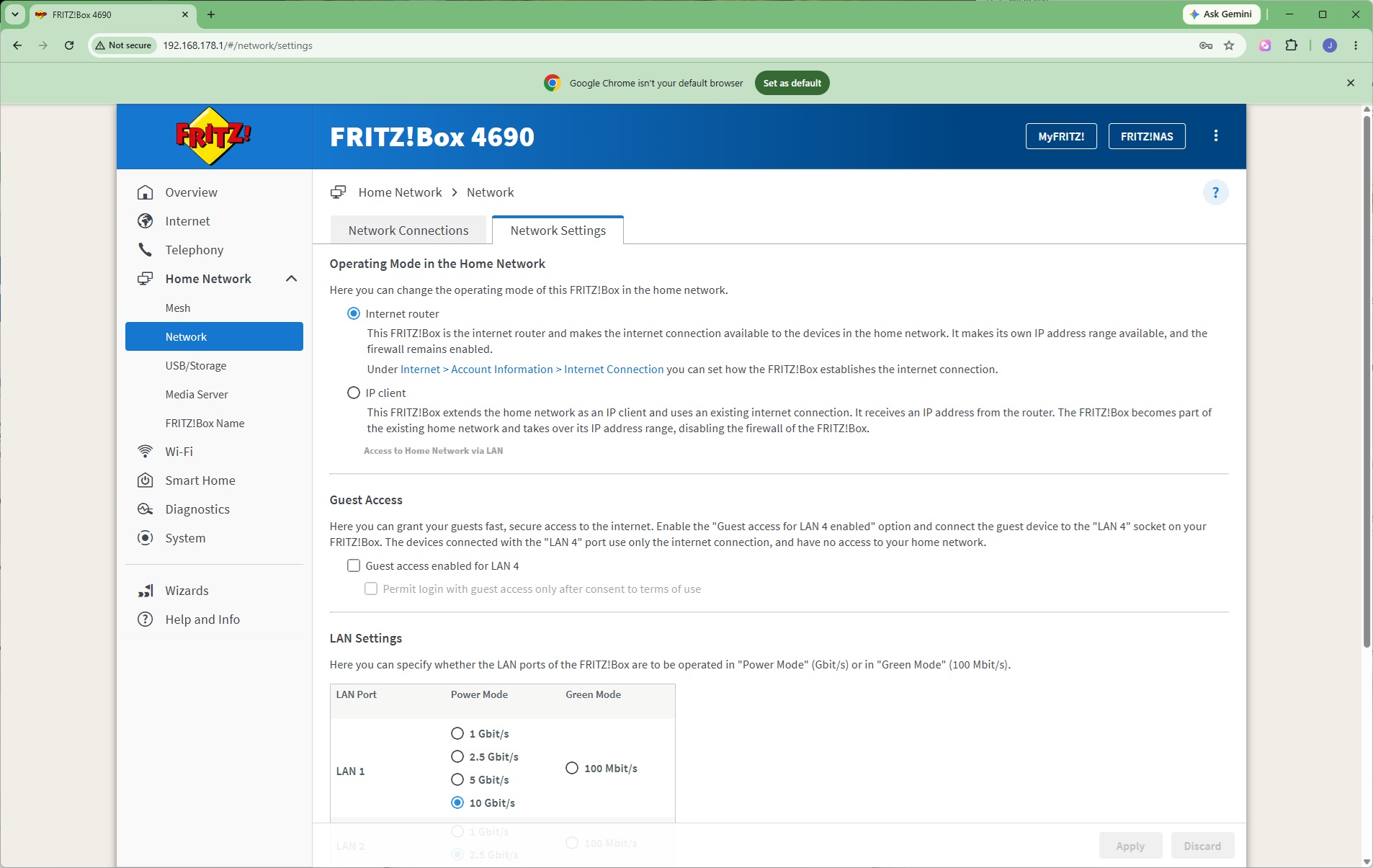
Under the Network section, you can see which devices are connected to the system, and choose how the router behaves as well as individual LAN ports.
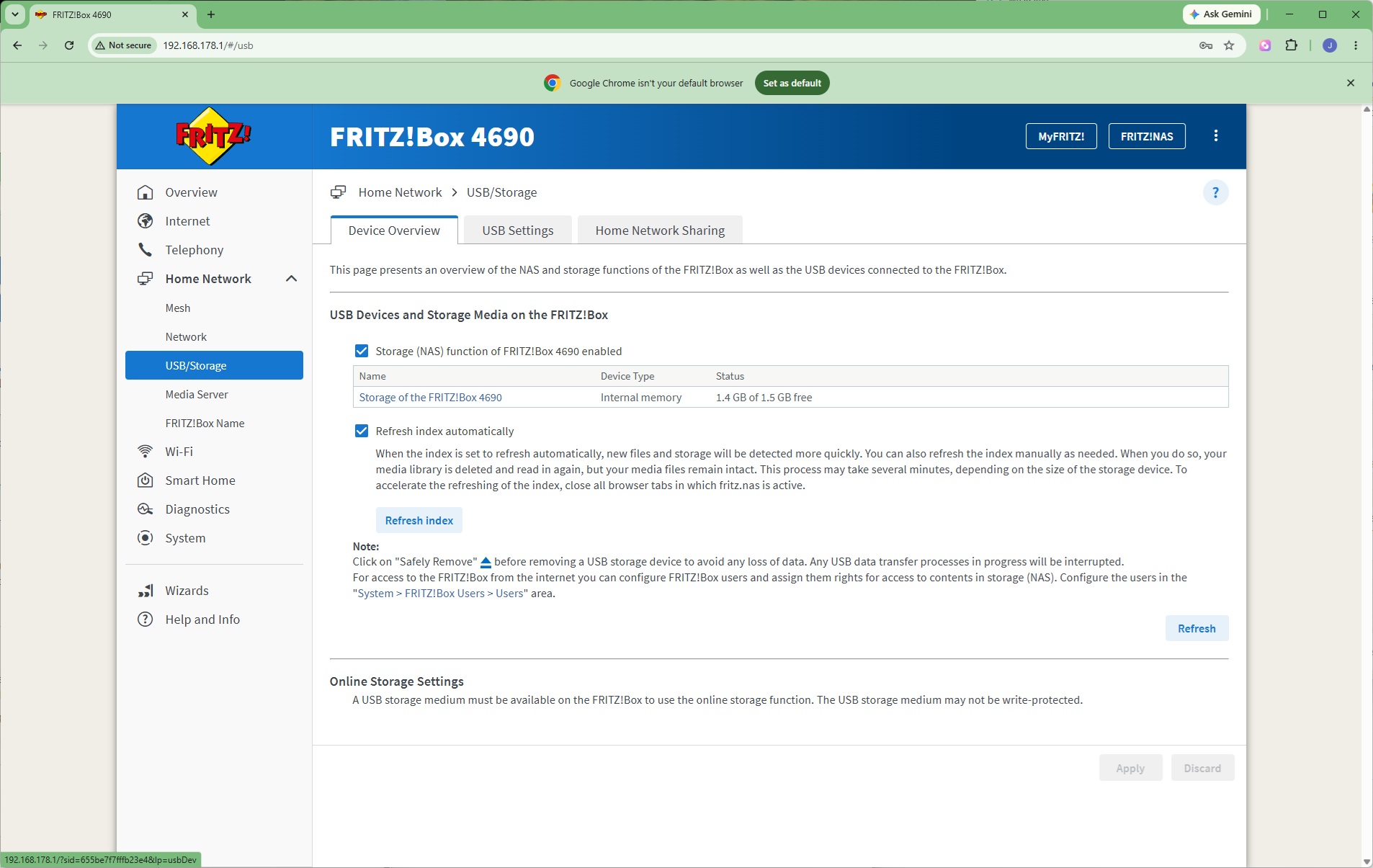
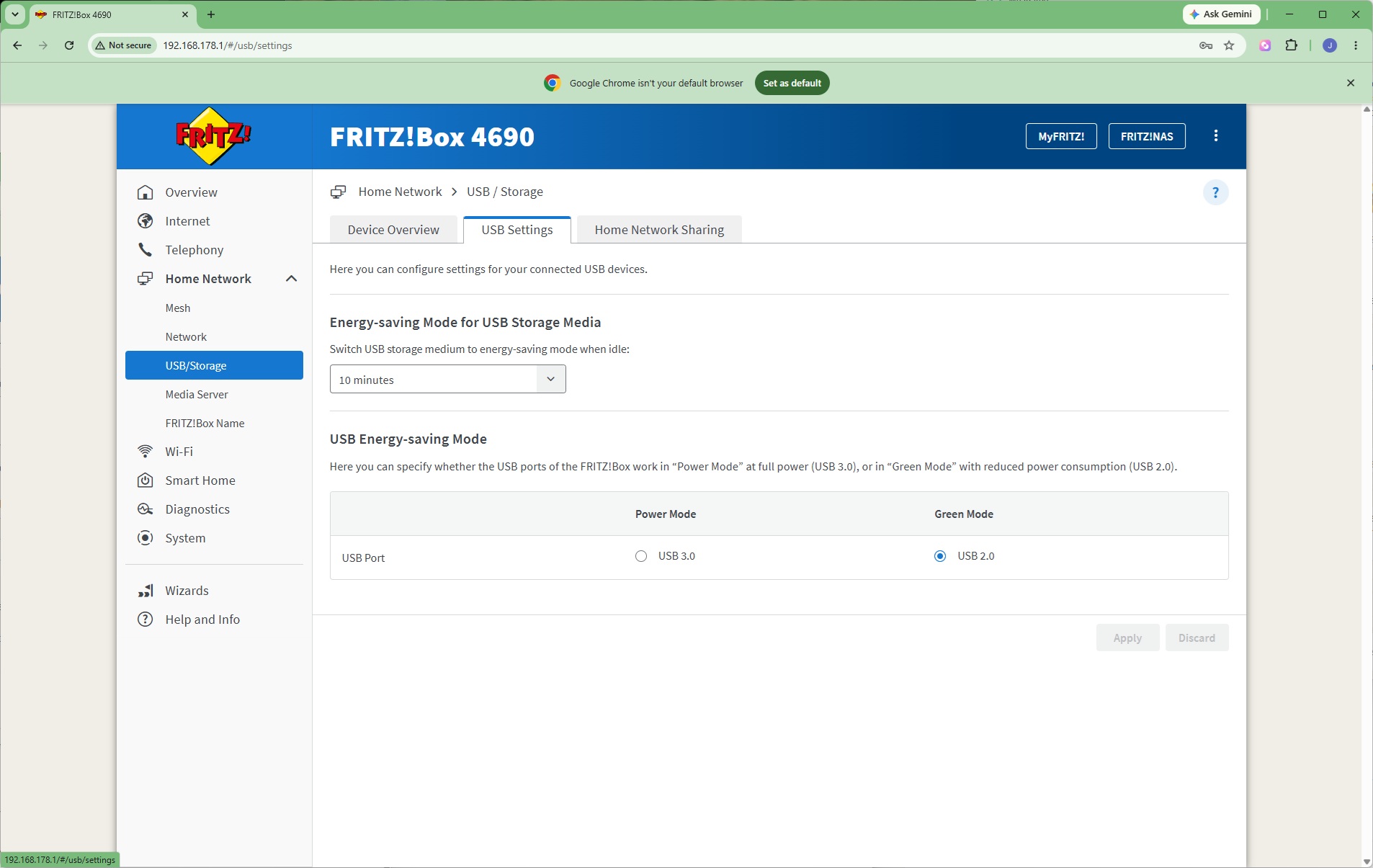
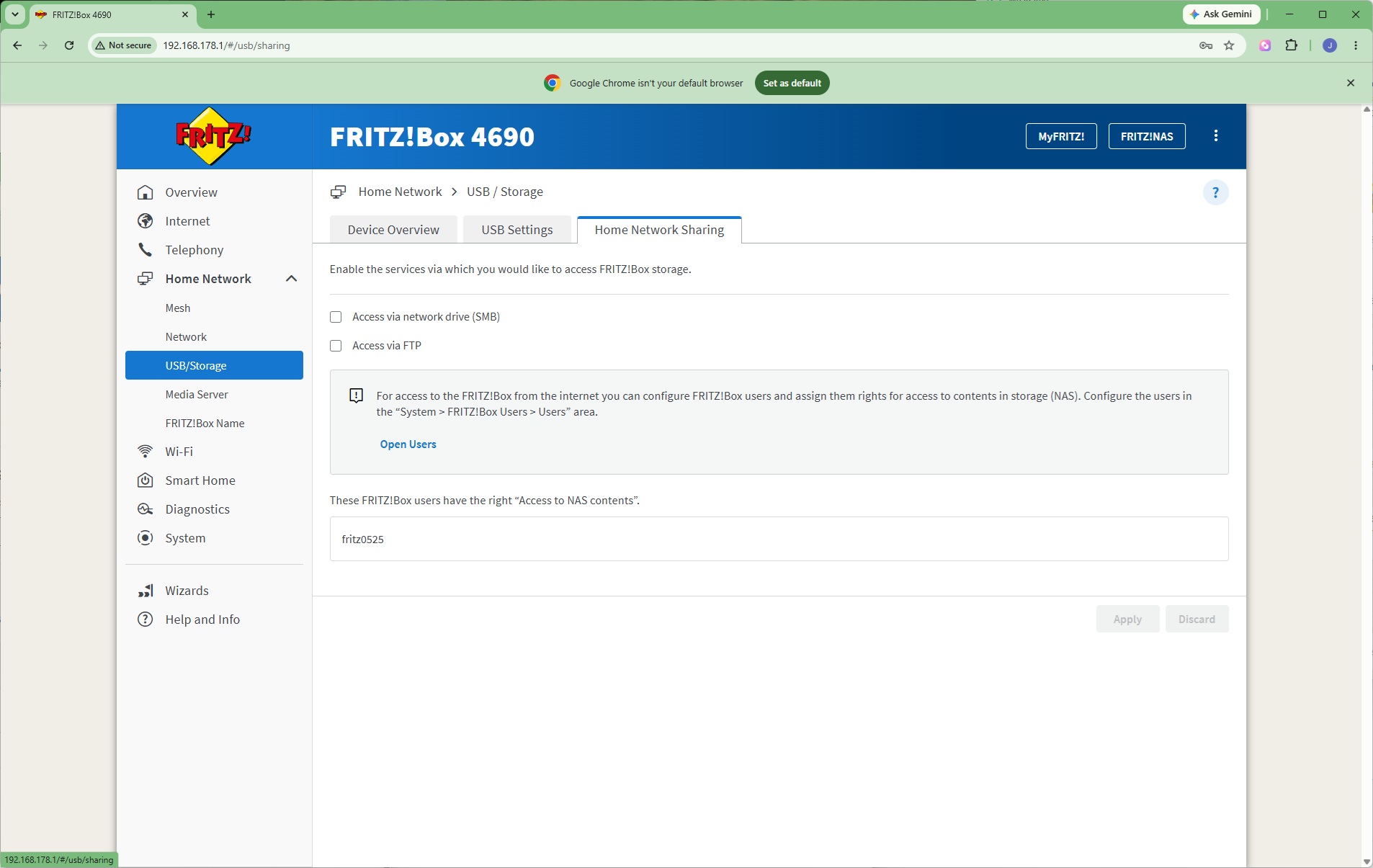
You can use the FRITZ!Box's 1.5GB of internal storage as a NAS repository, but if you connect a USB storage device that can be shared across the network as well. It's also possible to select whether the USB ports operate in full 3.0 mode or 2.0 mode to save power. The onboard and USB storage can be shared via SMB (Windows network file sharing) and / or FTP.
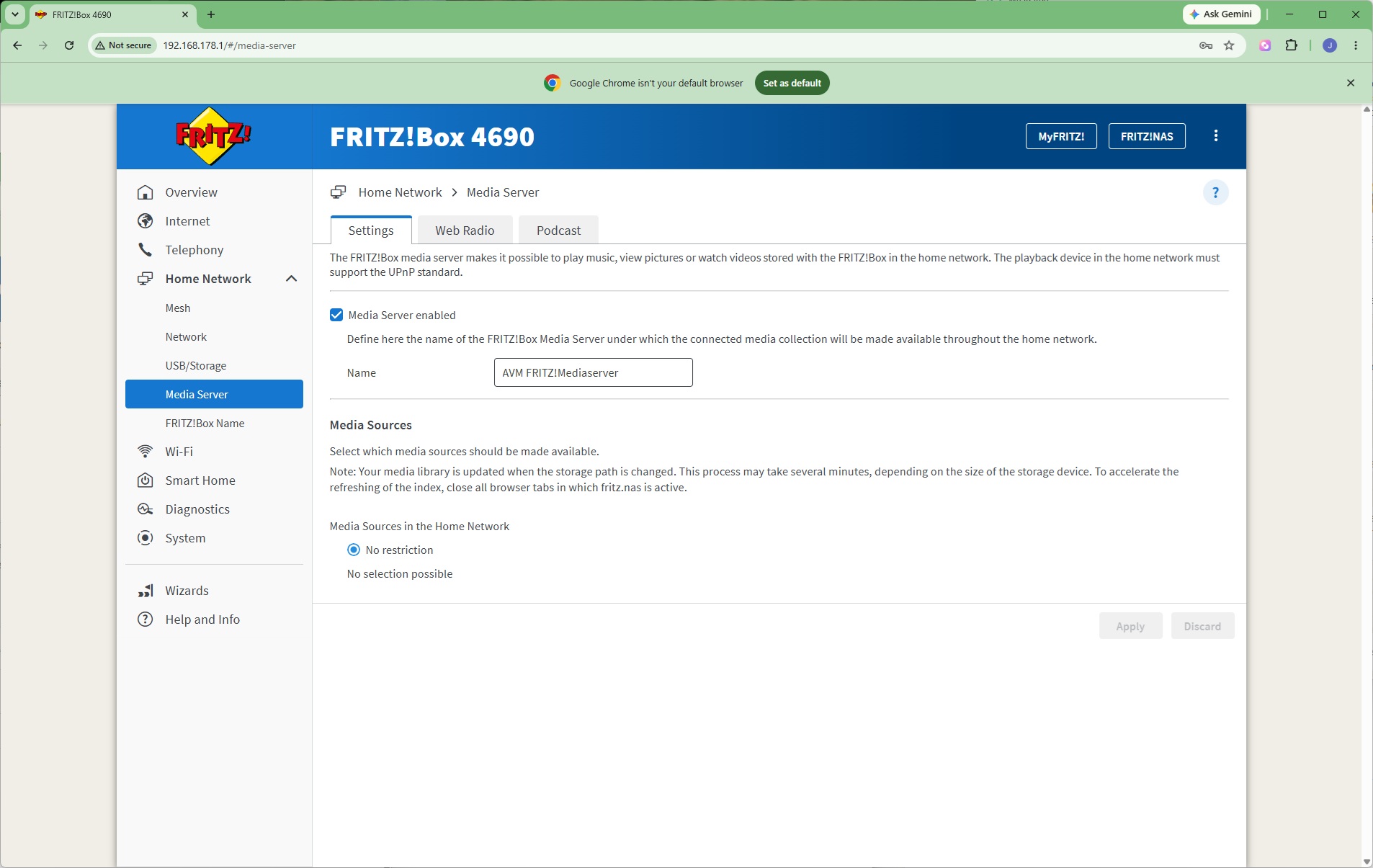
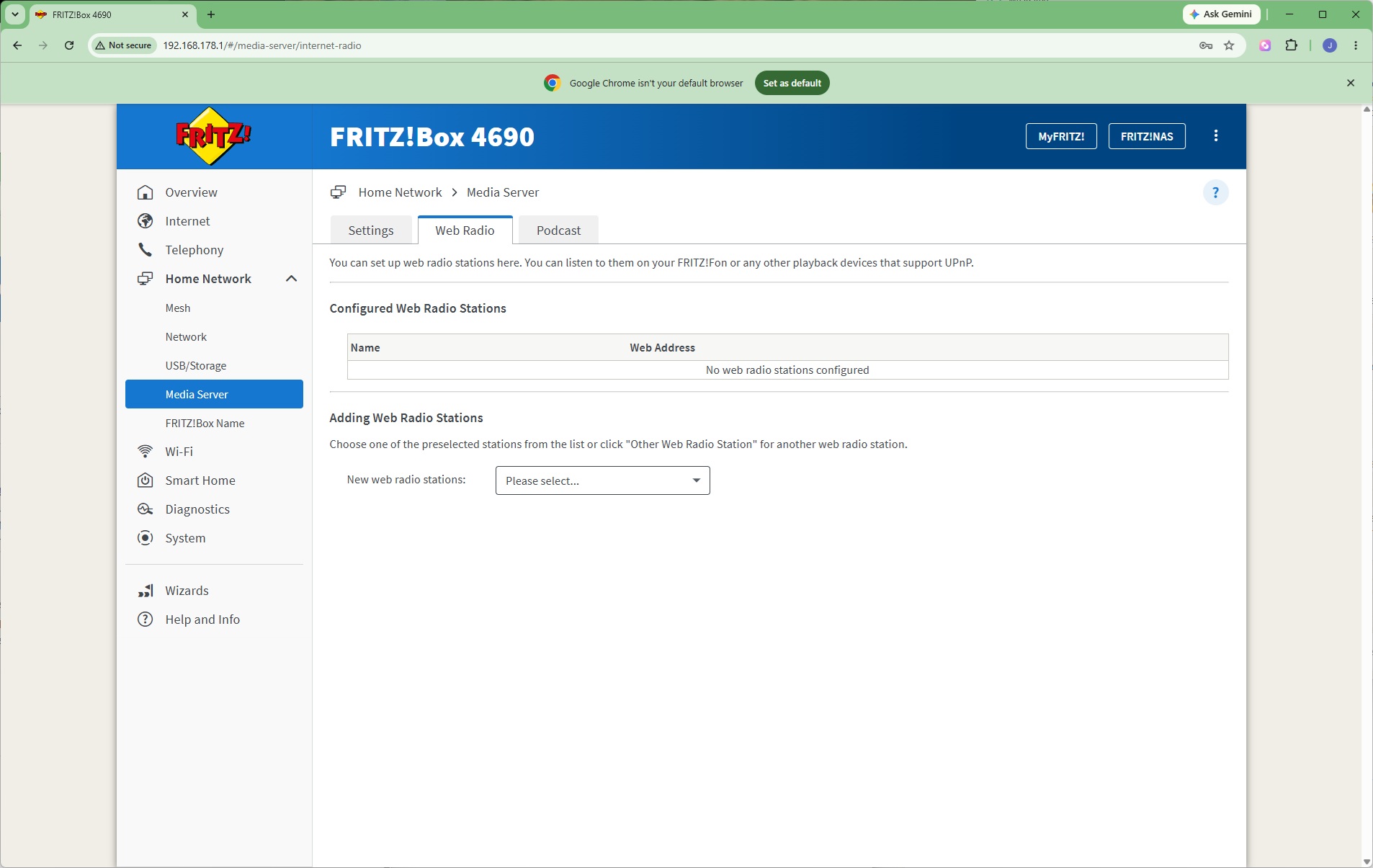
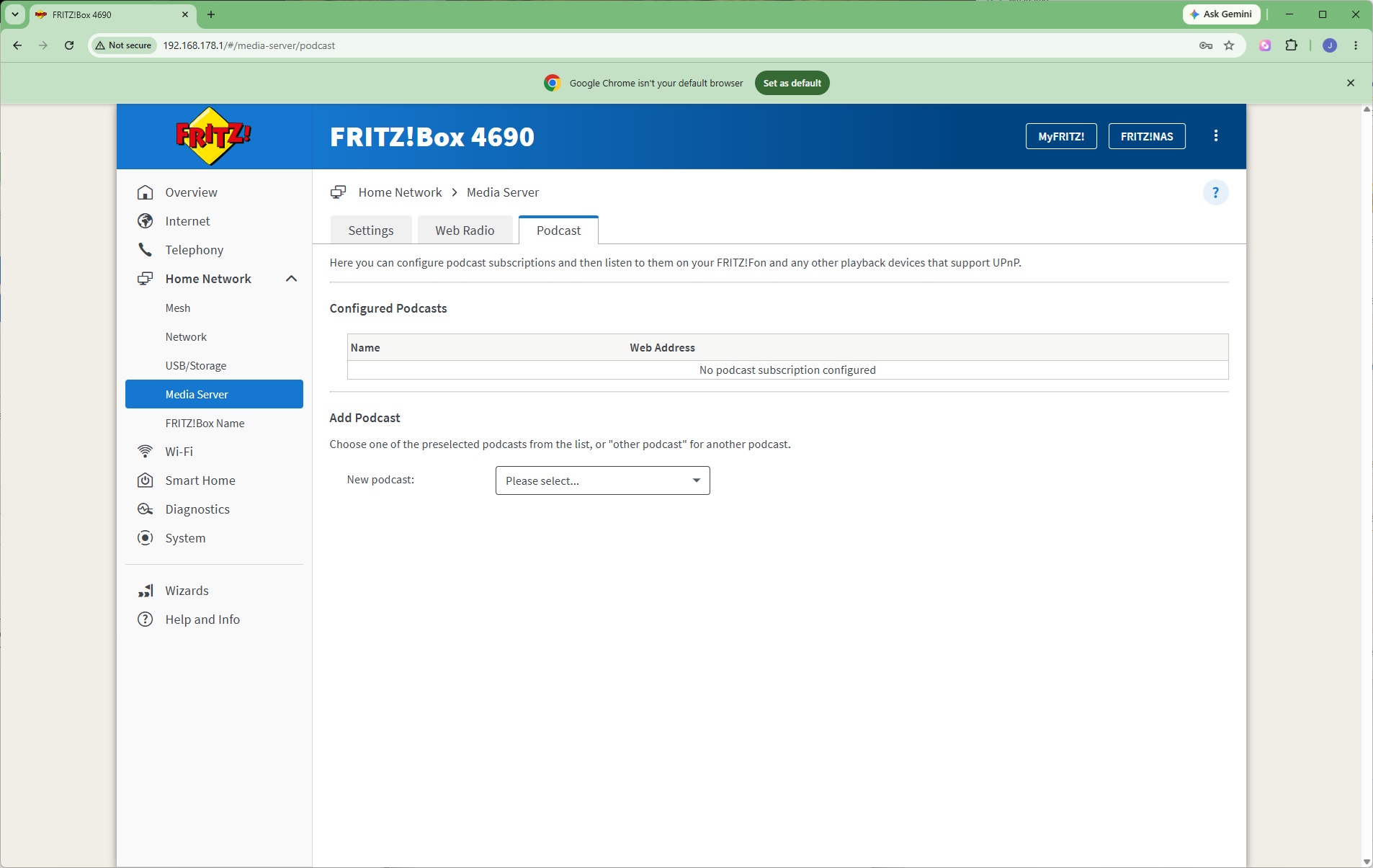
The onboard storage can also be presented via UPnP as a media server. This can stream Web Radio stations and podcasts as well. You can even stream audio to telephony devices.
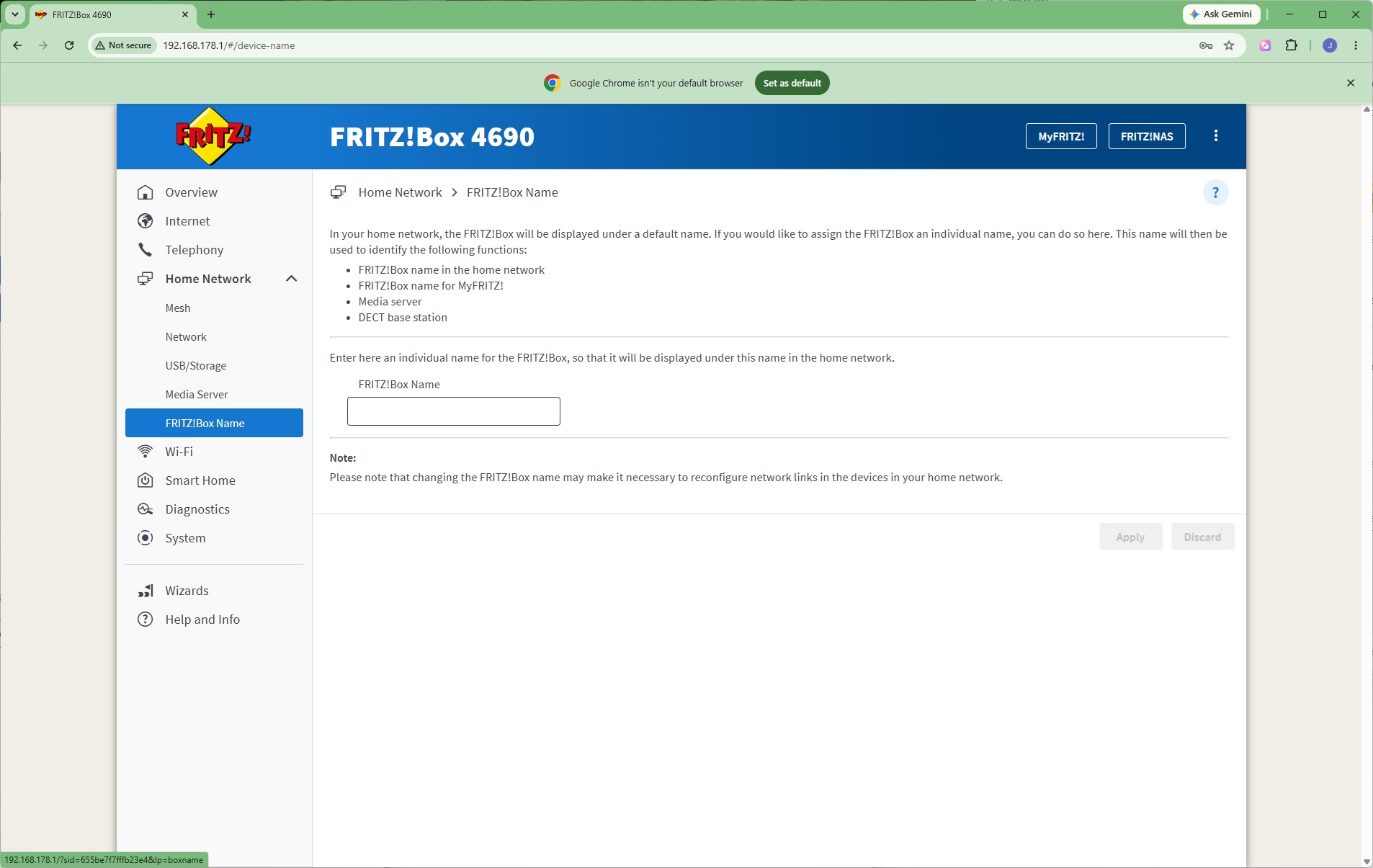
If you have multiple FRITZ! devices, or just don't like the default option, you can rename the 4690.
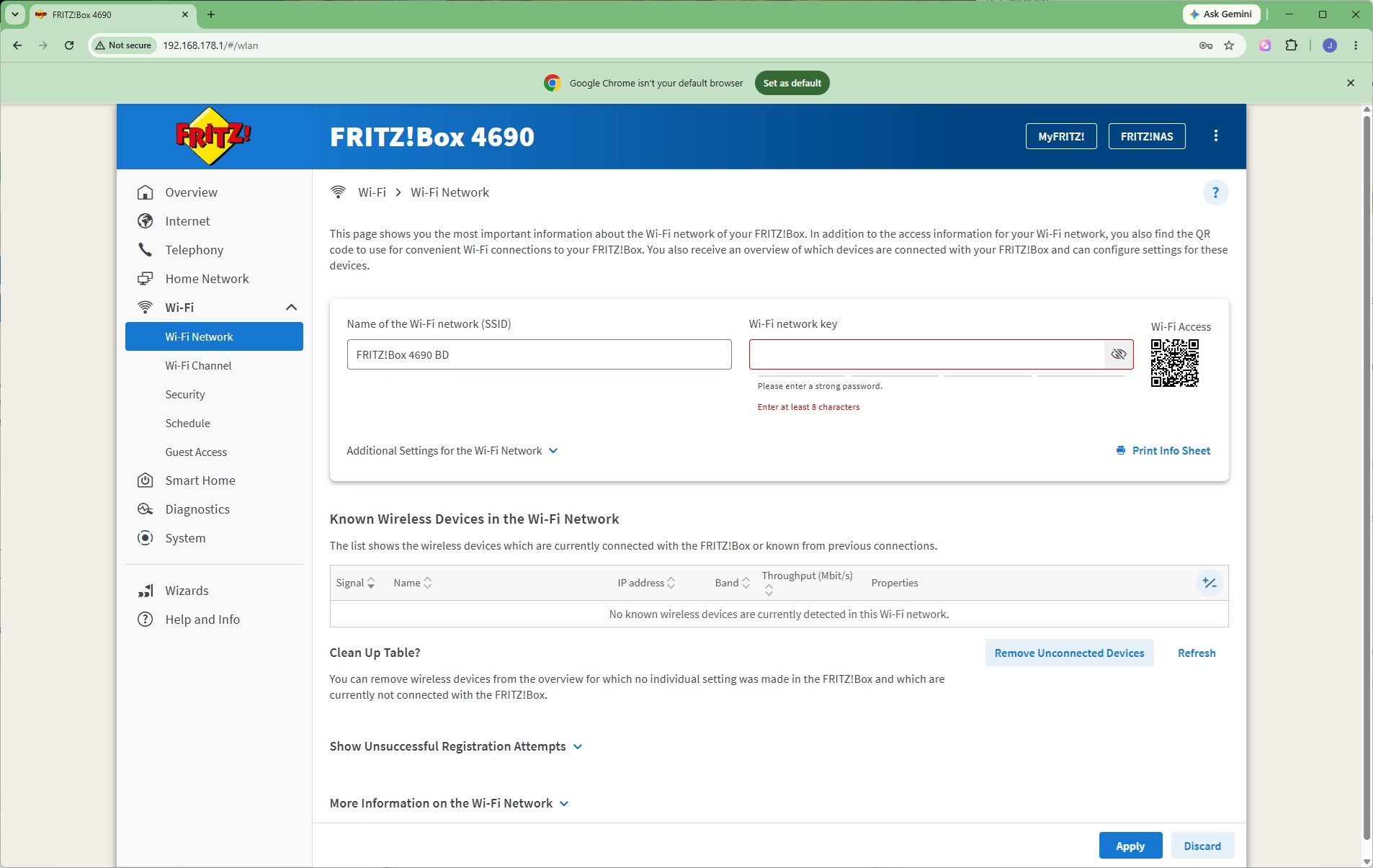
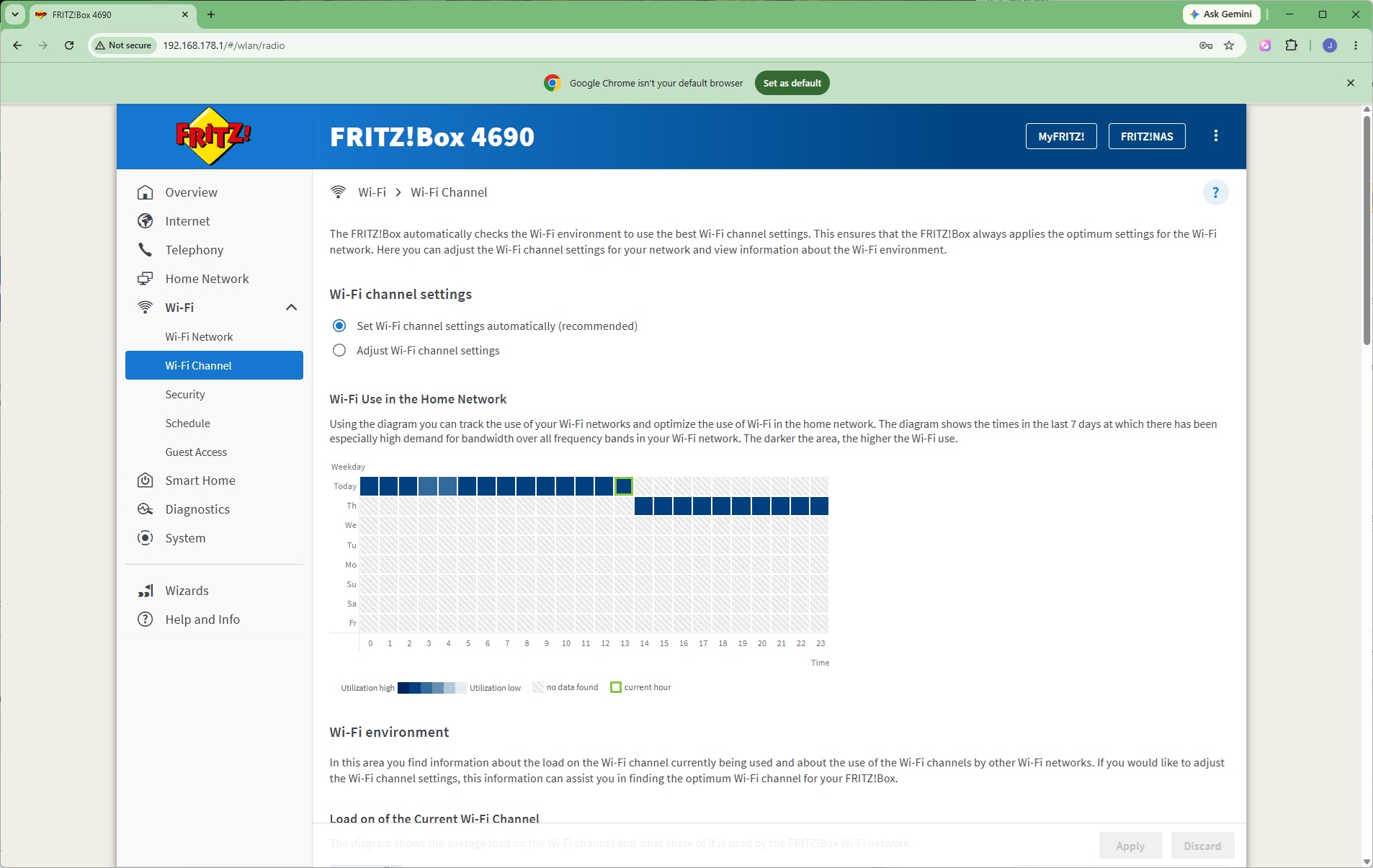
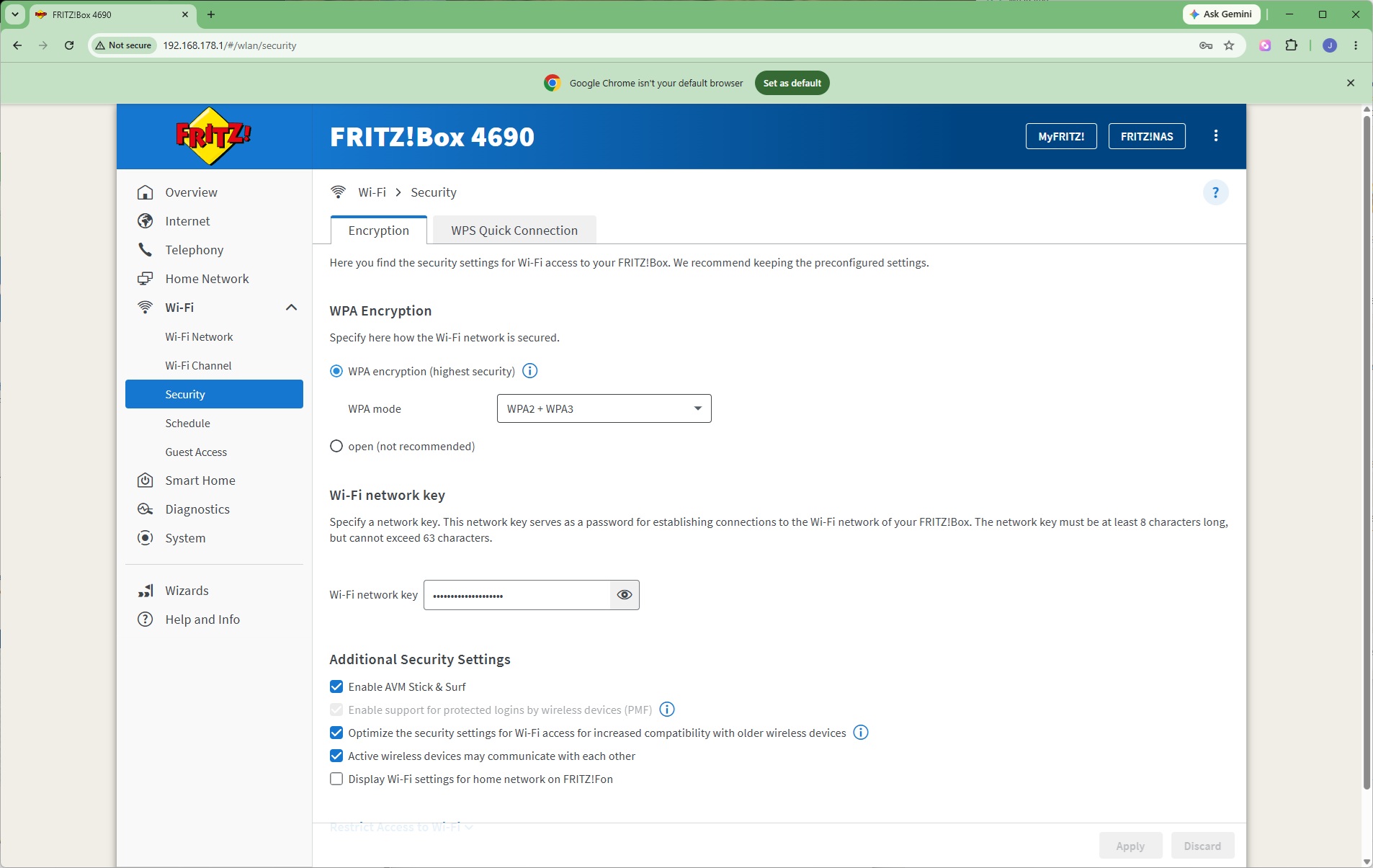
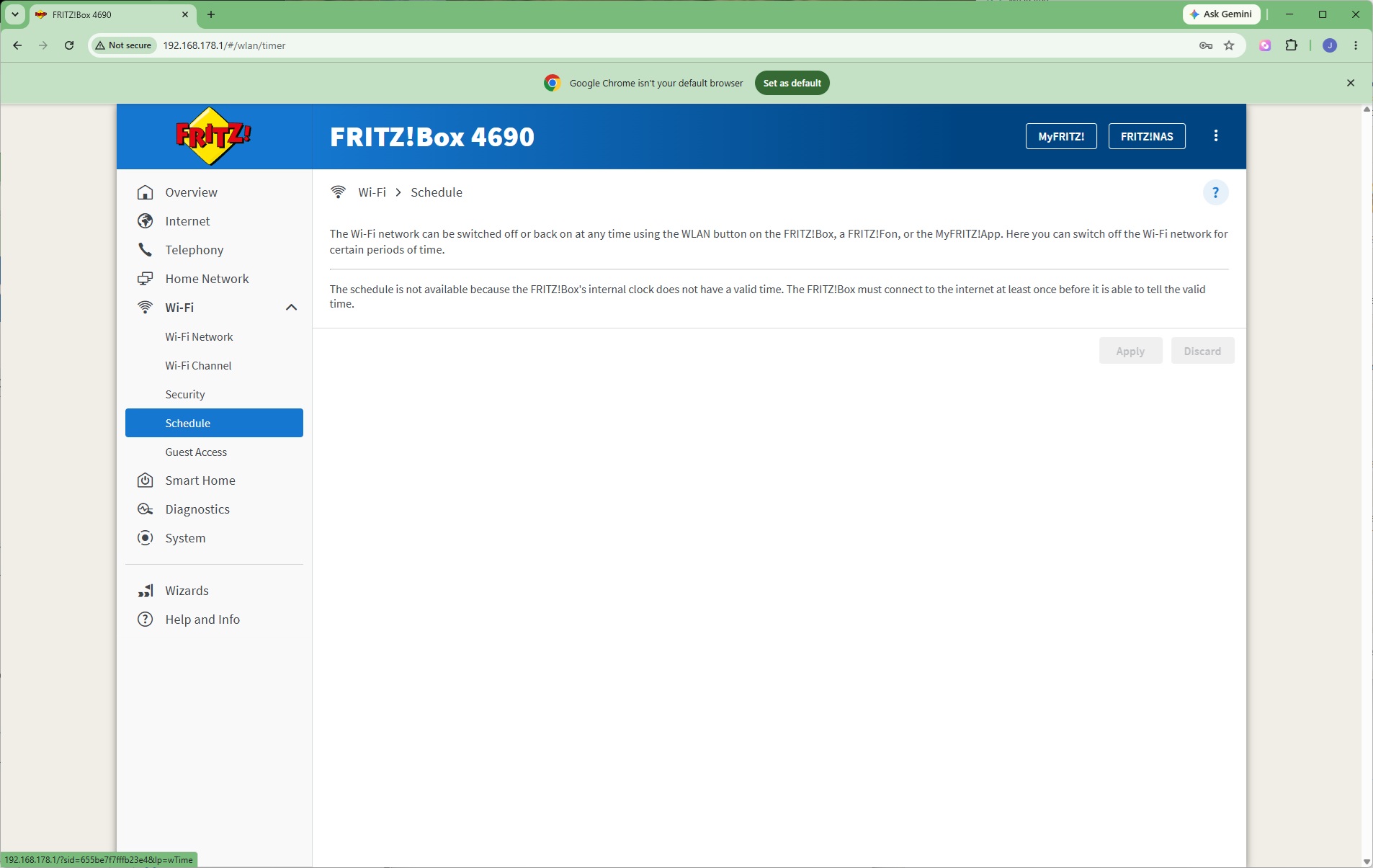
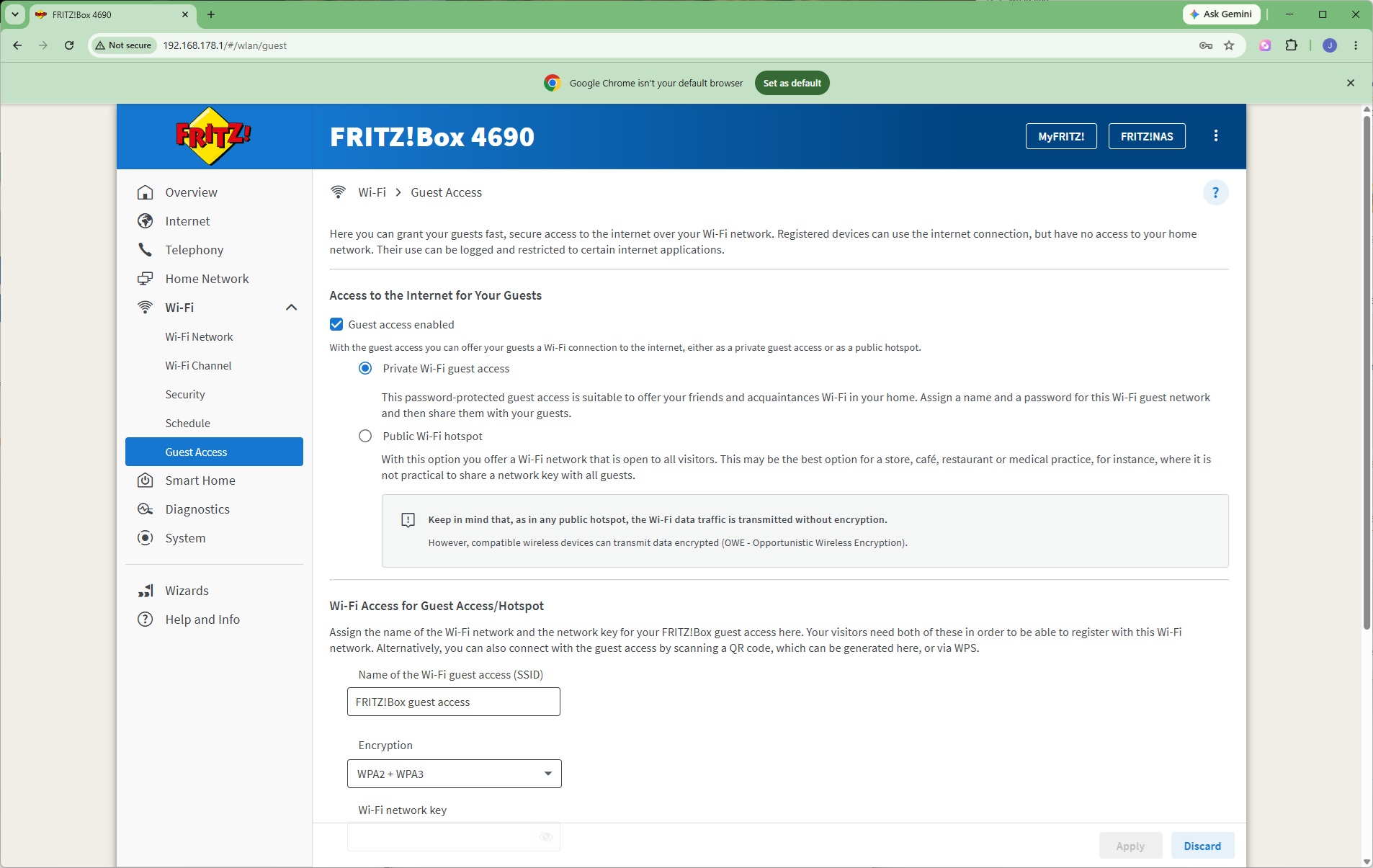
Out of the box, the FRITZ!Box WiFi has a rather long numerical network key, but you can change this. You can also choose either to assign WiFi channels automatically or manually, and select which WPA mode the signal encryption uses (or none at all, if you want to leave yourself open to hacking). There's an option to create a schedule so the WiFi is only on at certain times of the day, and there's a facility to create a separate Guest WiFi network to keep visitors distinct from permanent home users.
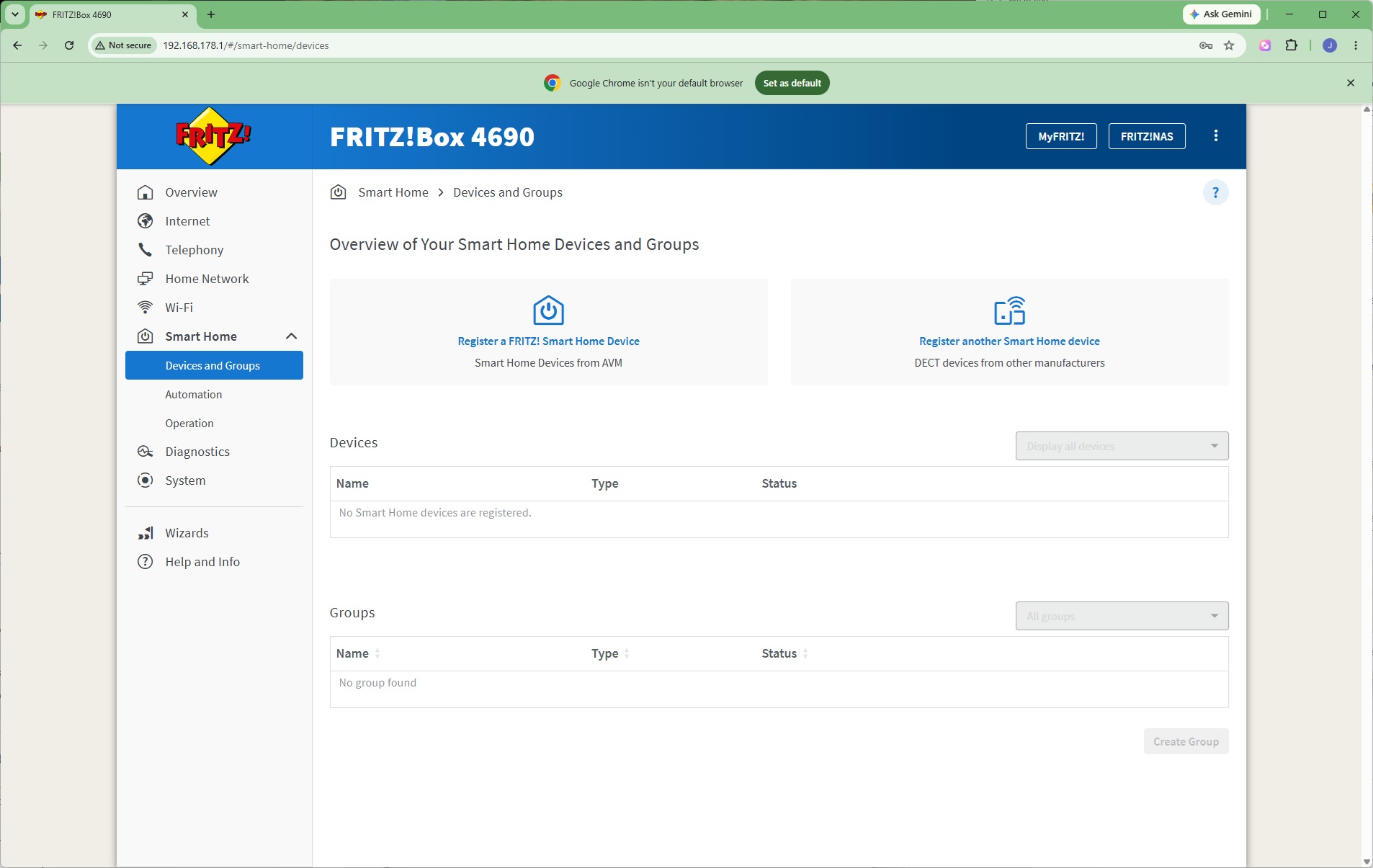
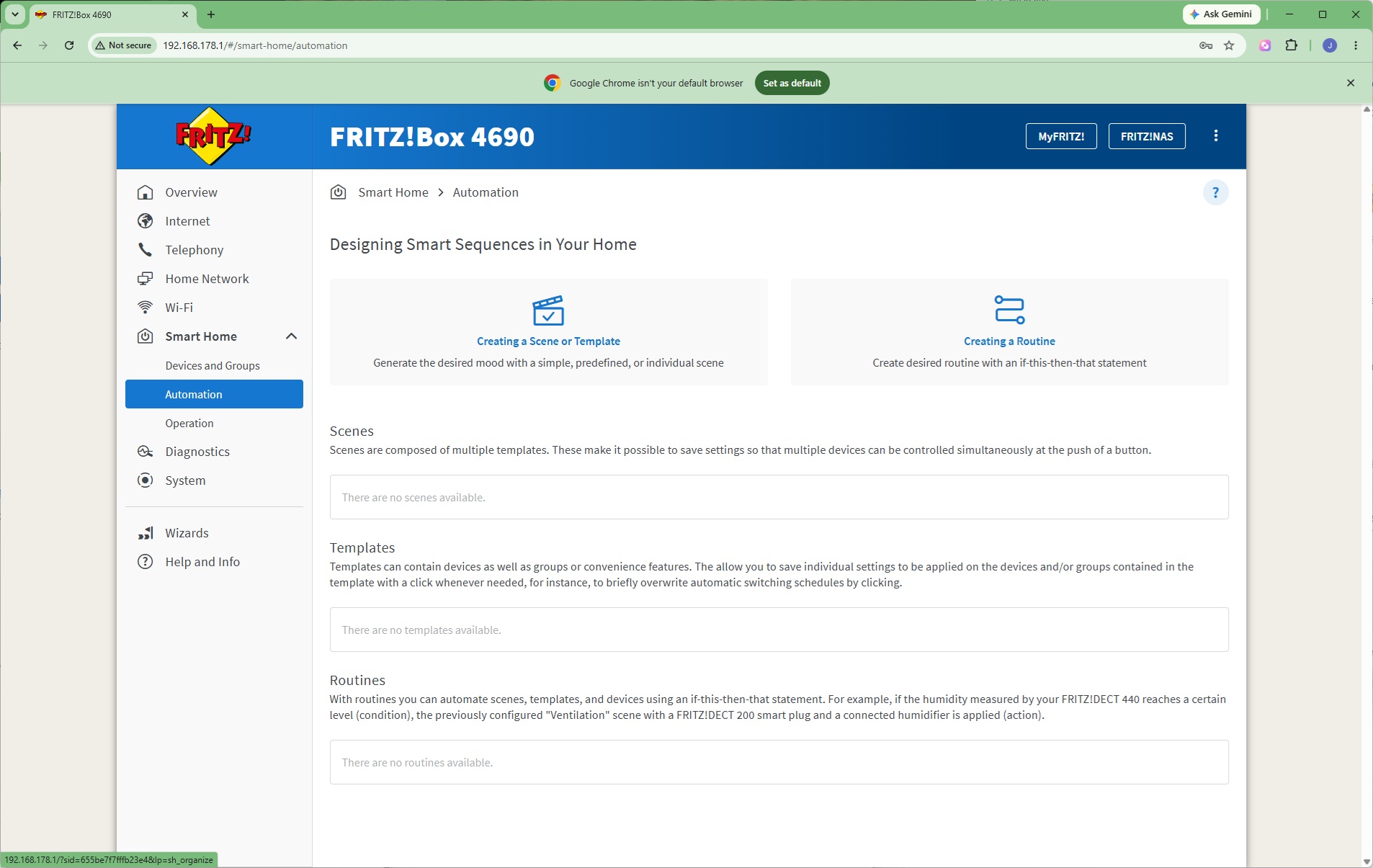
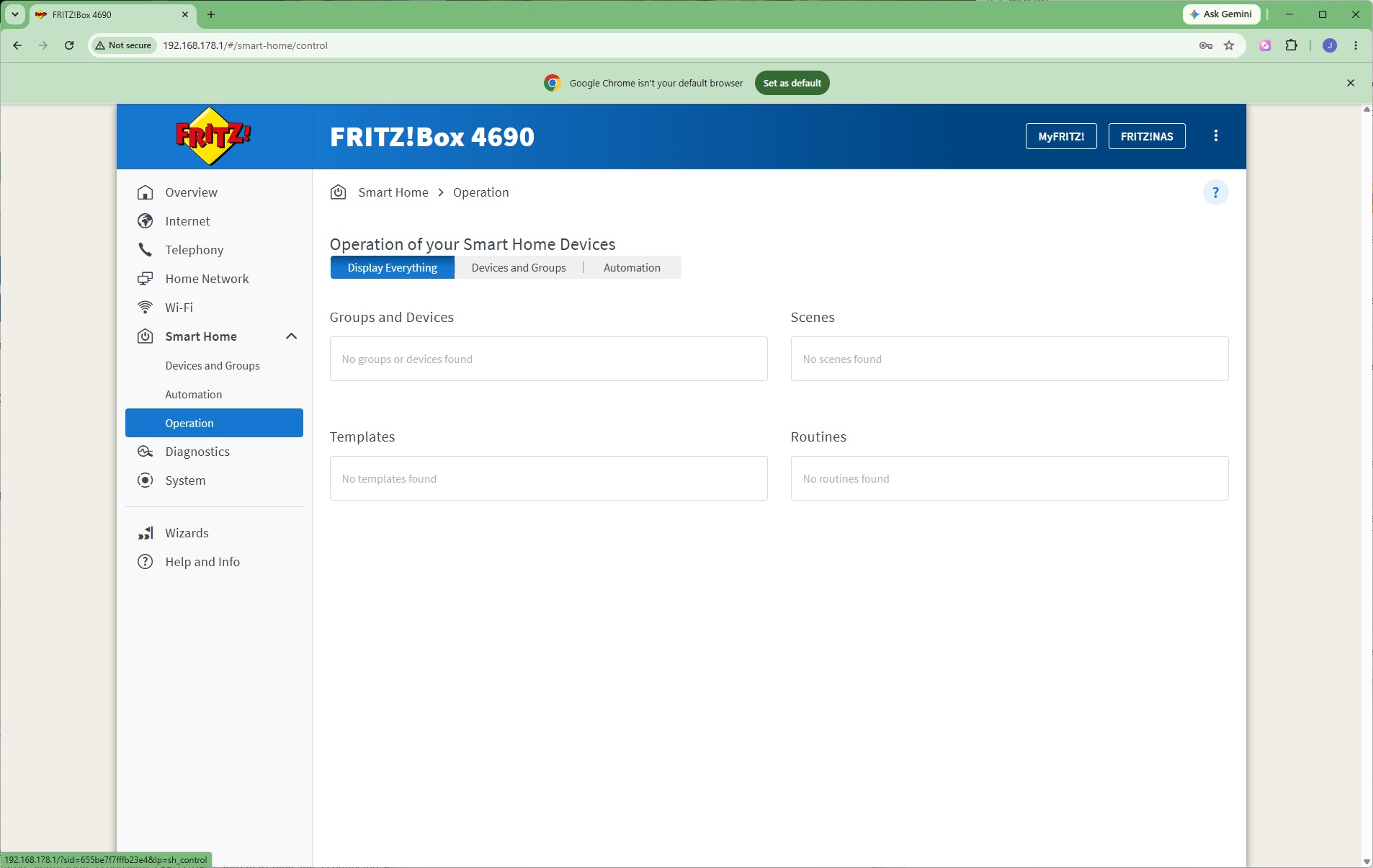
Although the FRITZ!Box 4690 doesn't support the Zigbee smart home ecosystem, unlike some FRITZ! routers, it does work with the company's own devices, which include power plugs, radiator controls, current sensors, and door/window sensors as well as a gateway to DECT, Zigbee and Matter. At the moment, however, these seem to be EU-only. There is support for devices from other manufacturers that operate via DECT. You can create Scenes, Templates and Routines to orchestrate these devices via automation.
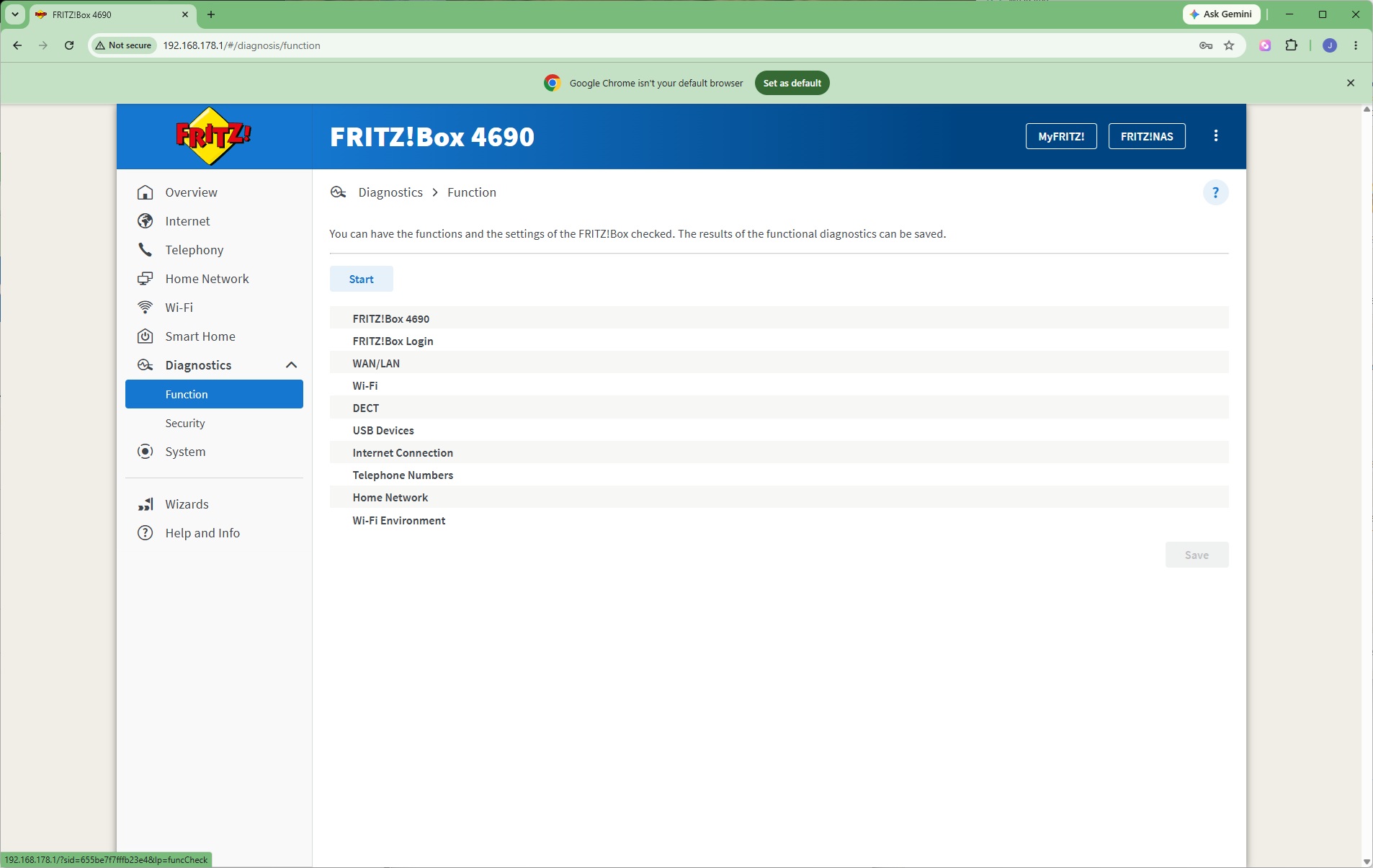
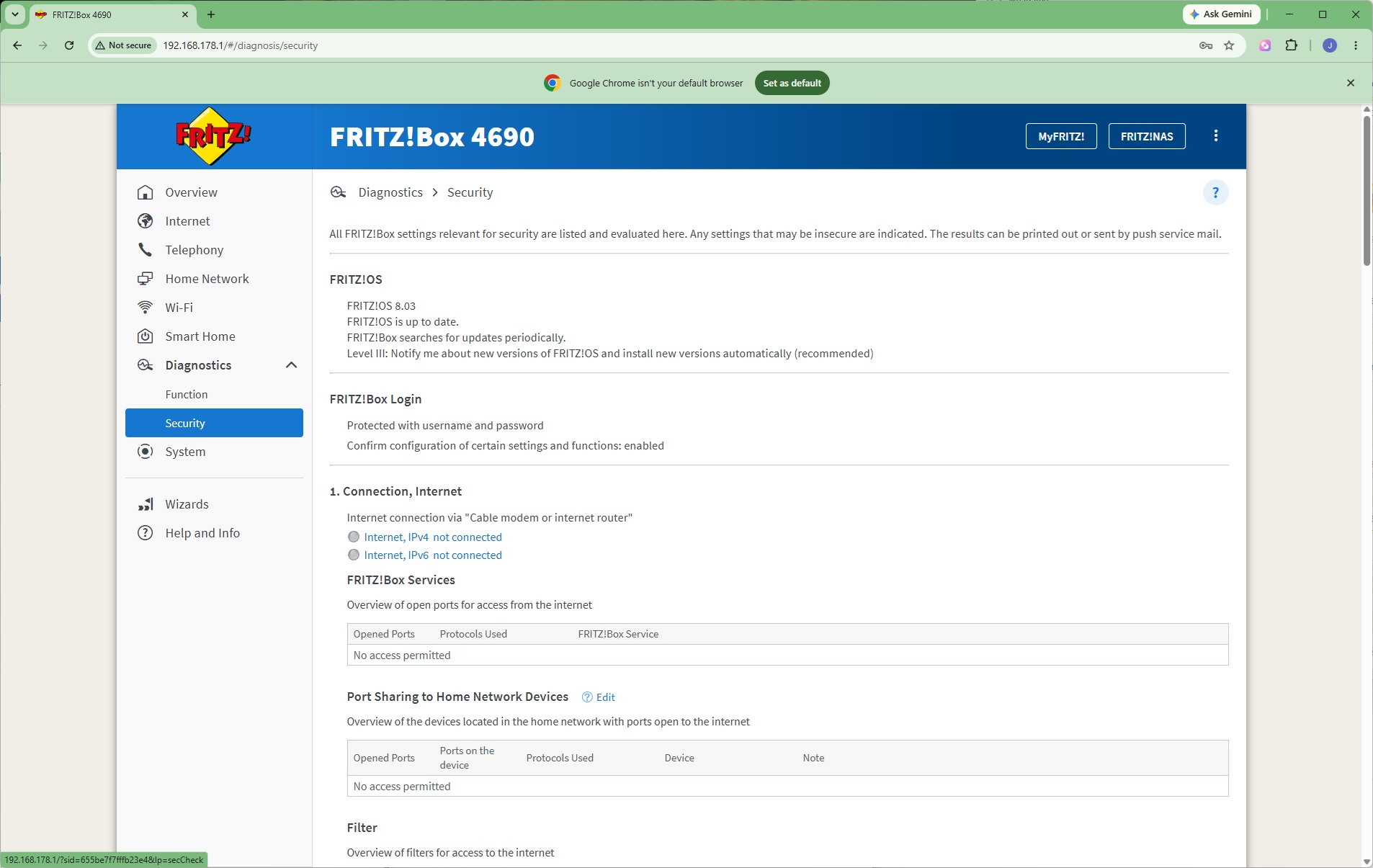
Diagnostics include a full status check of all functions. There's also a section aggregating all settings involved with security.
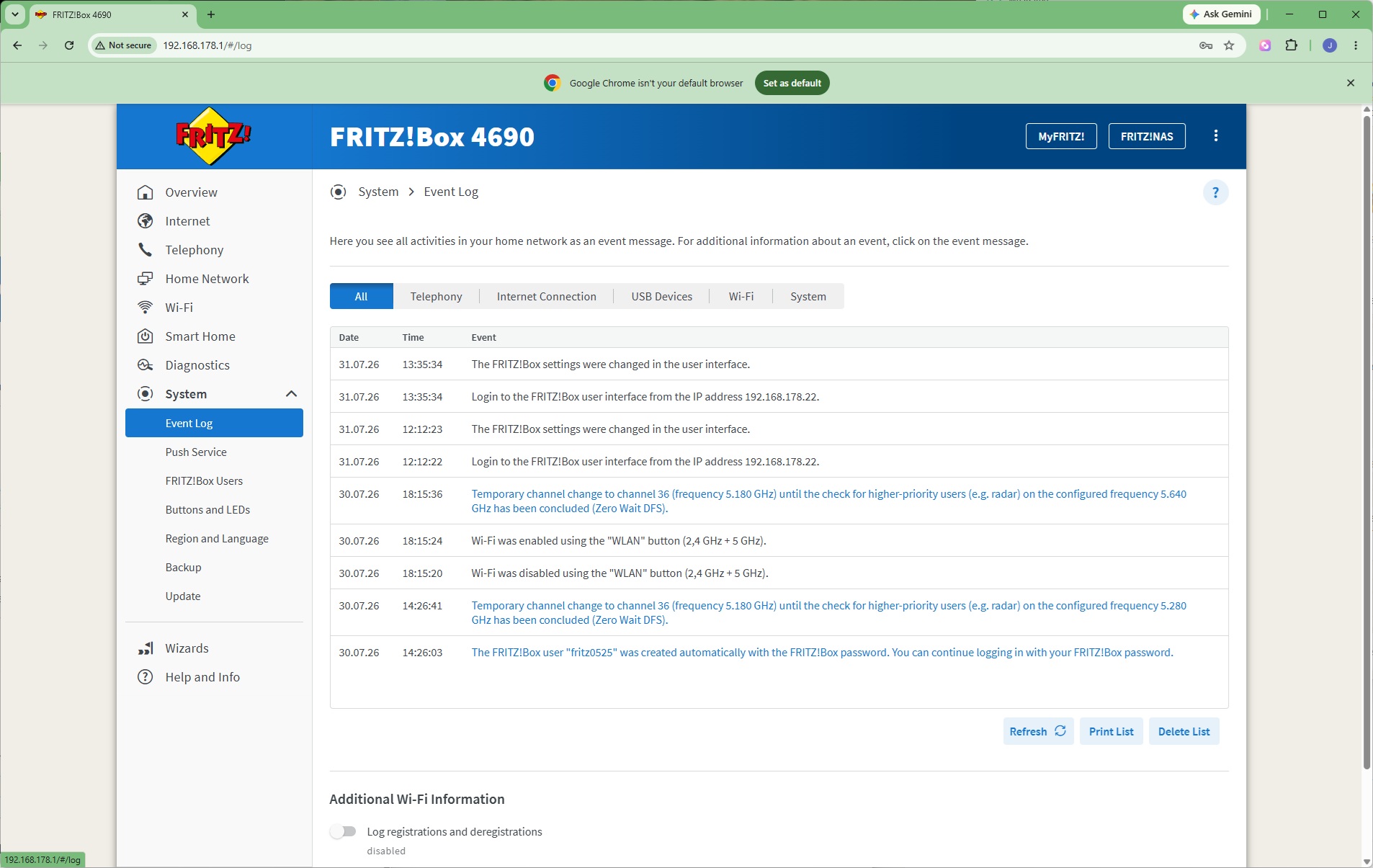
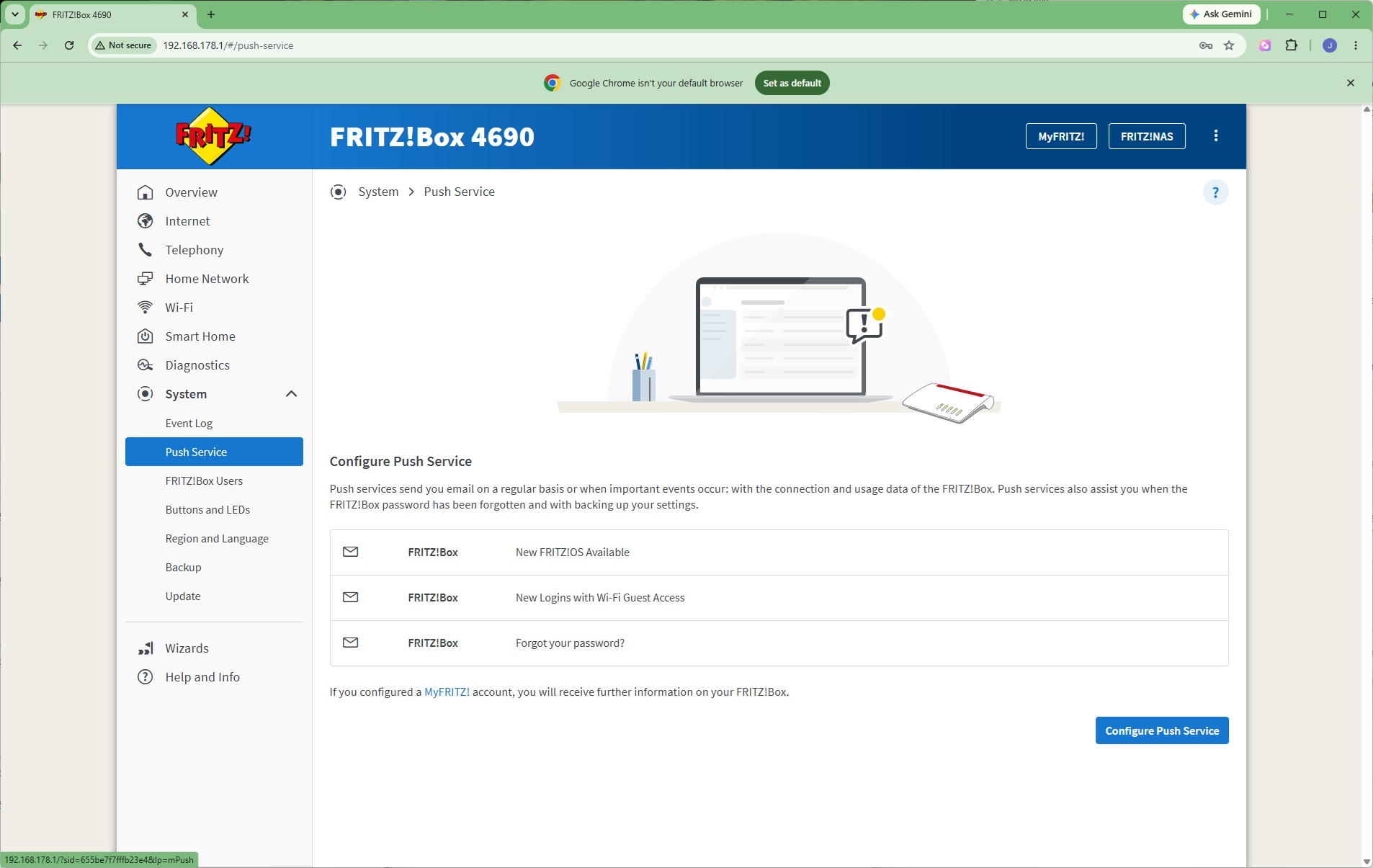
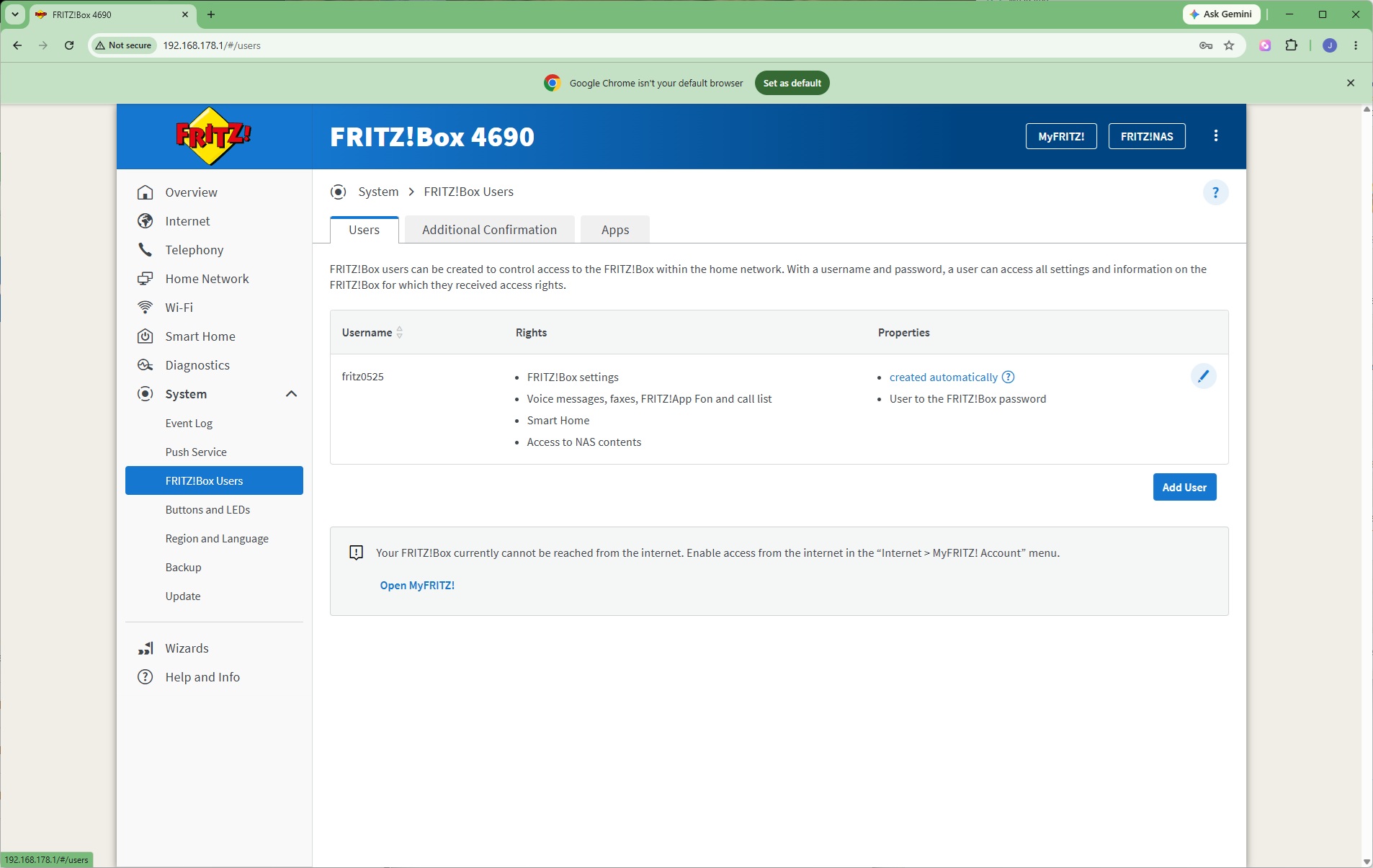
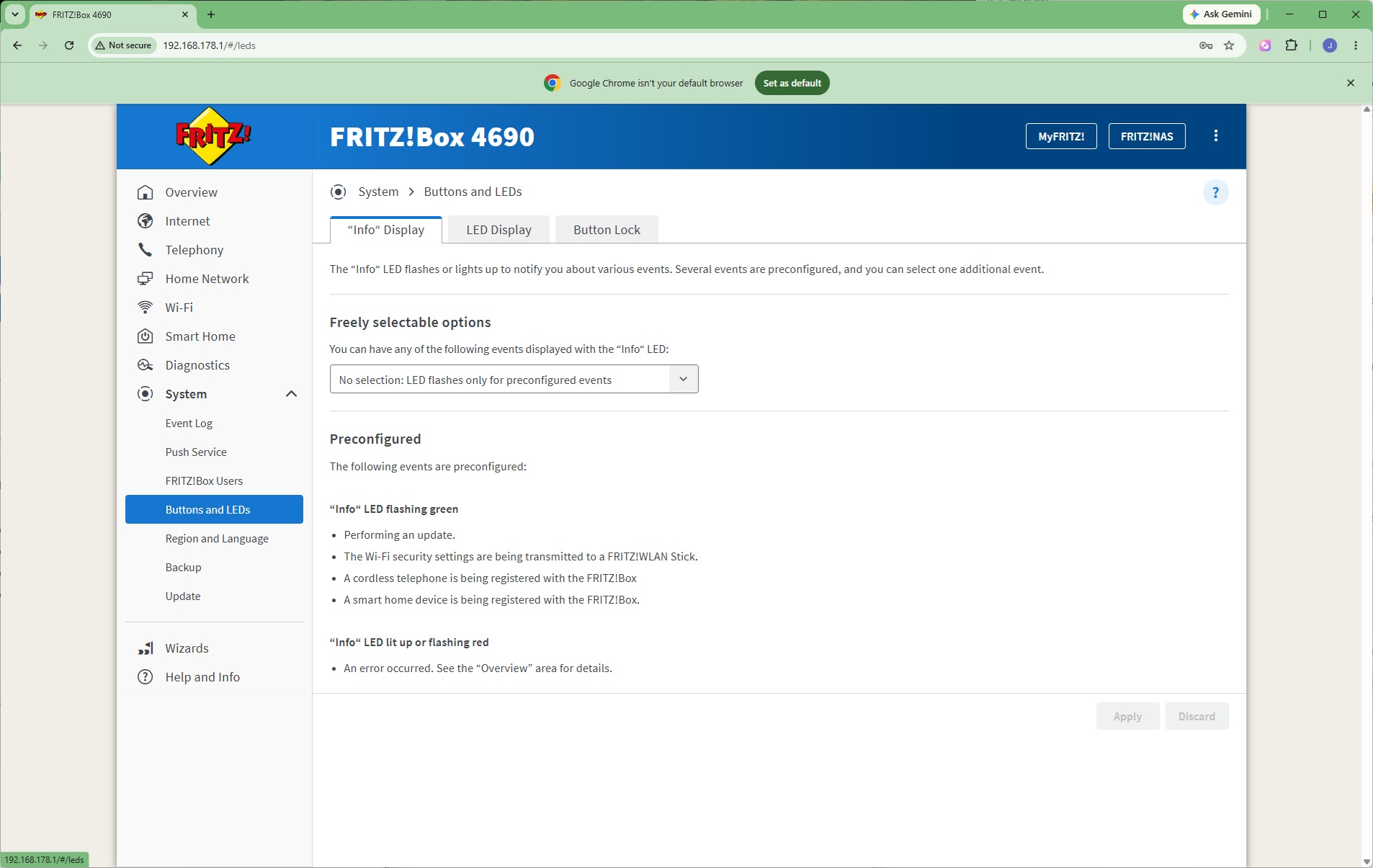
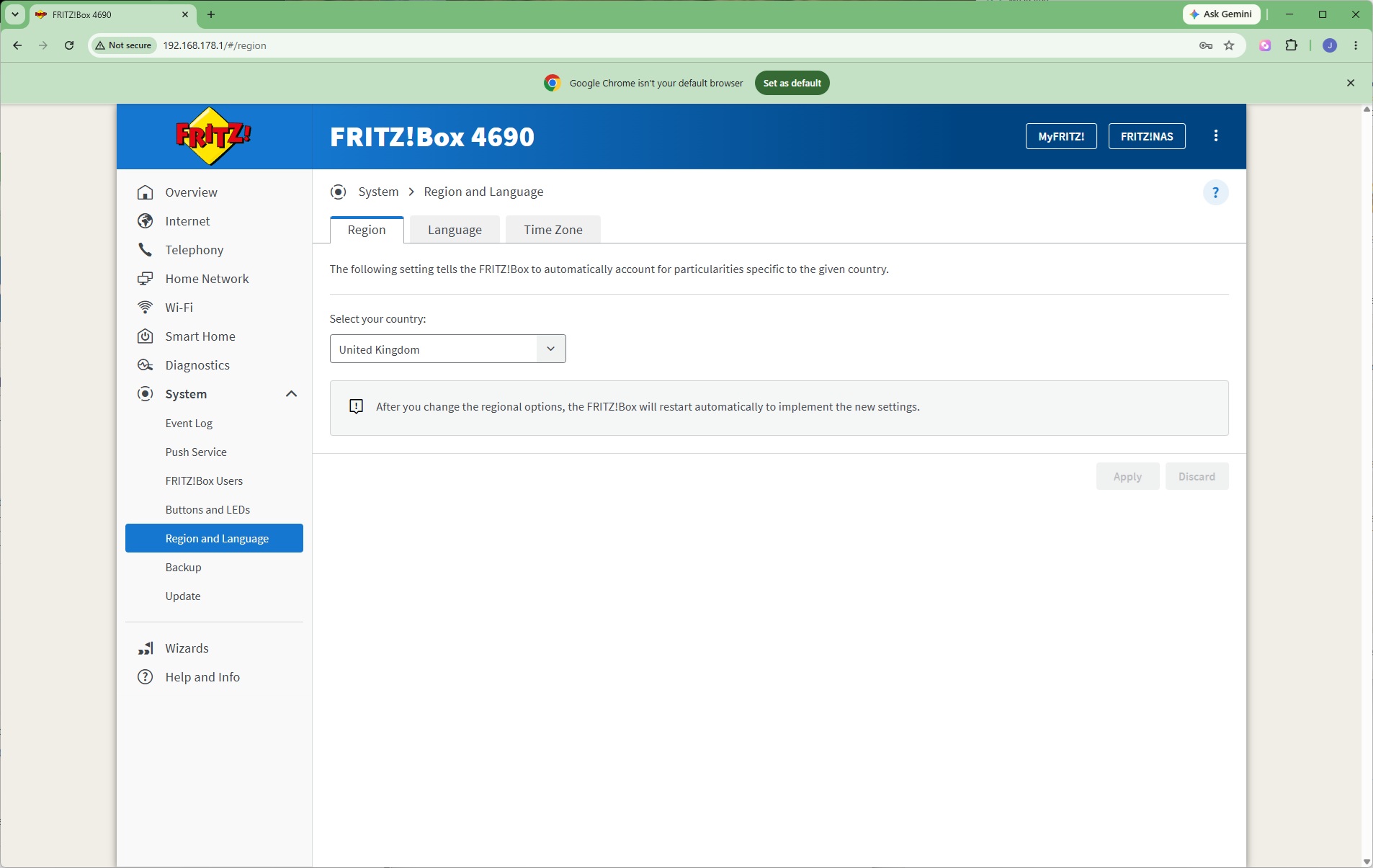
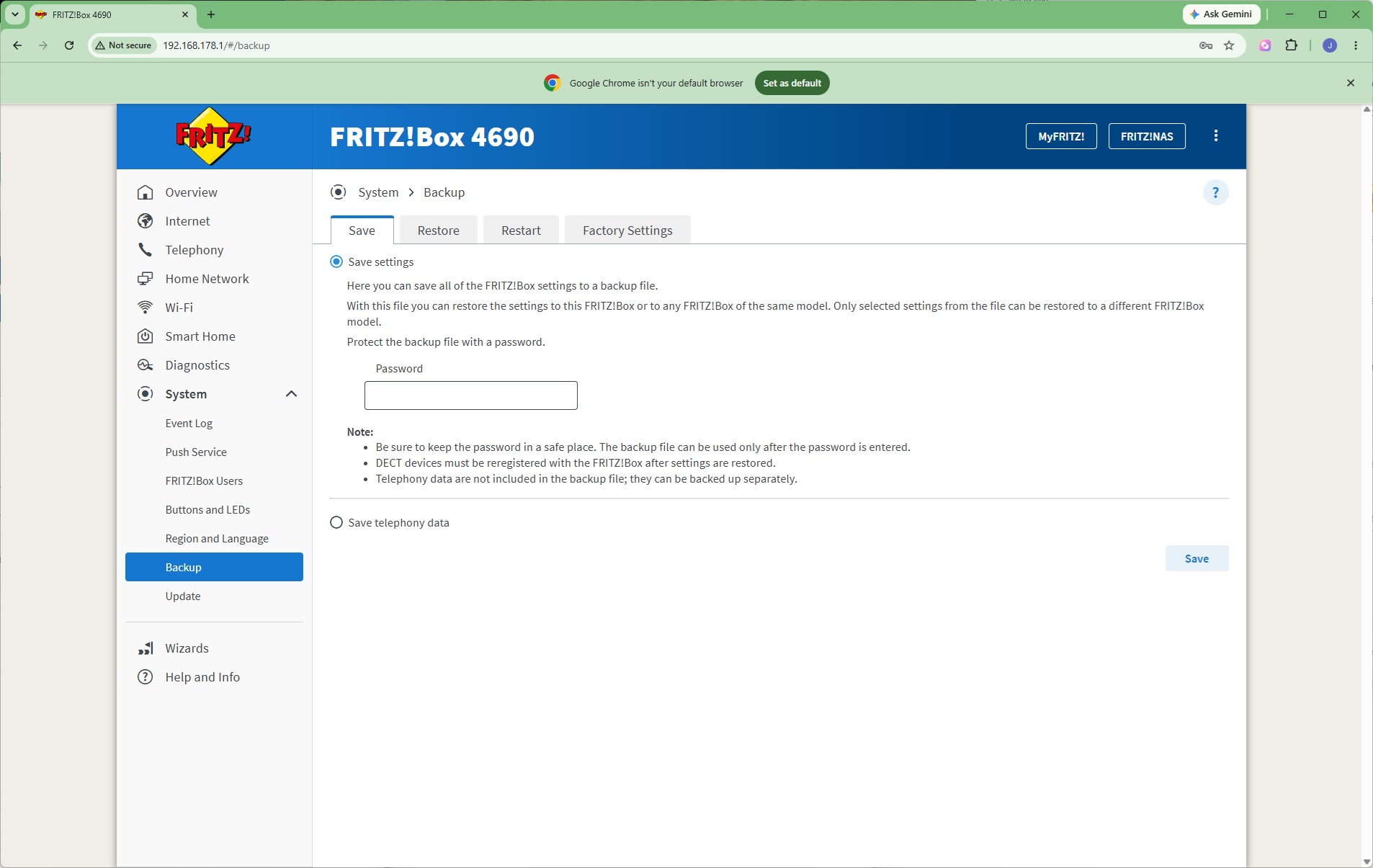
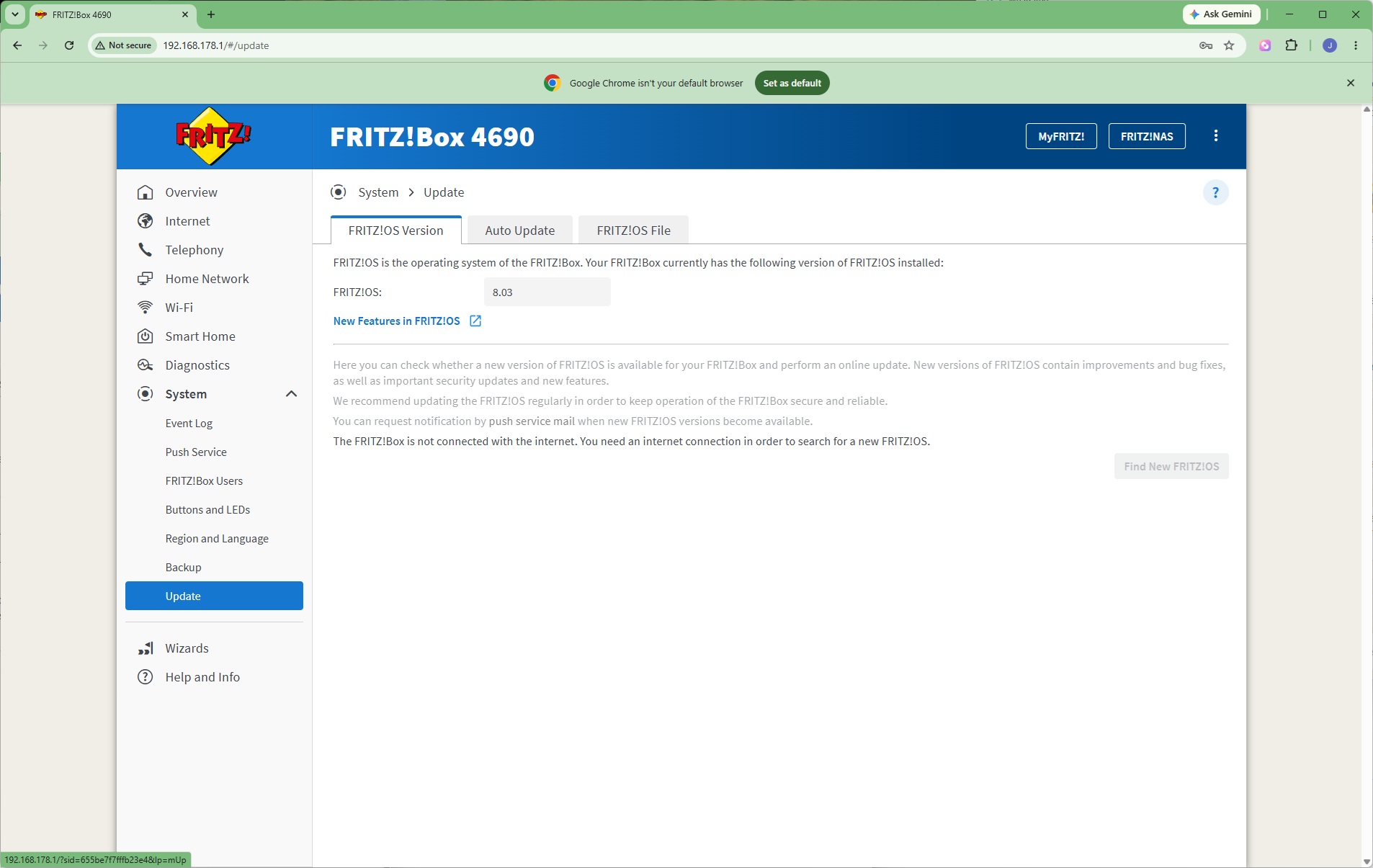
In the System section can be found copious event logs for all the different functions. You can even get certain notifications pushed to an administrator via email. Further FRITZ!Box users may be set up, and the behaviour of the buttons and LEDs on the unit itself configured. While this unit came preconfigured for the UK, other regions, languages and time zones are available. The settings can be backed up and restored, or the device returned to factory settings. Finally, this is where the firmware is updated.
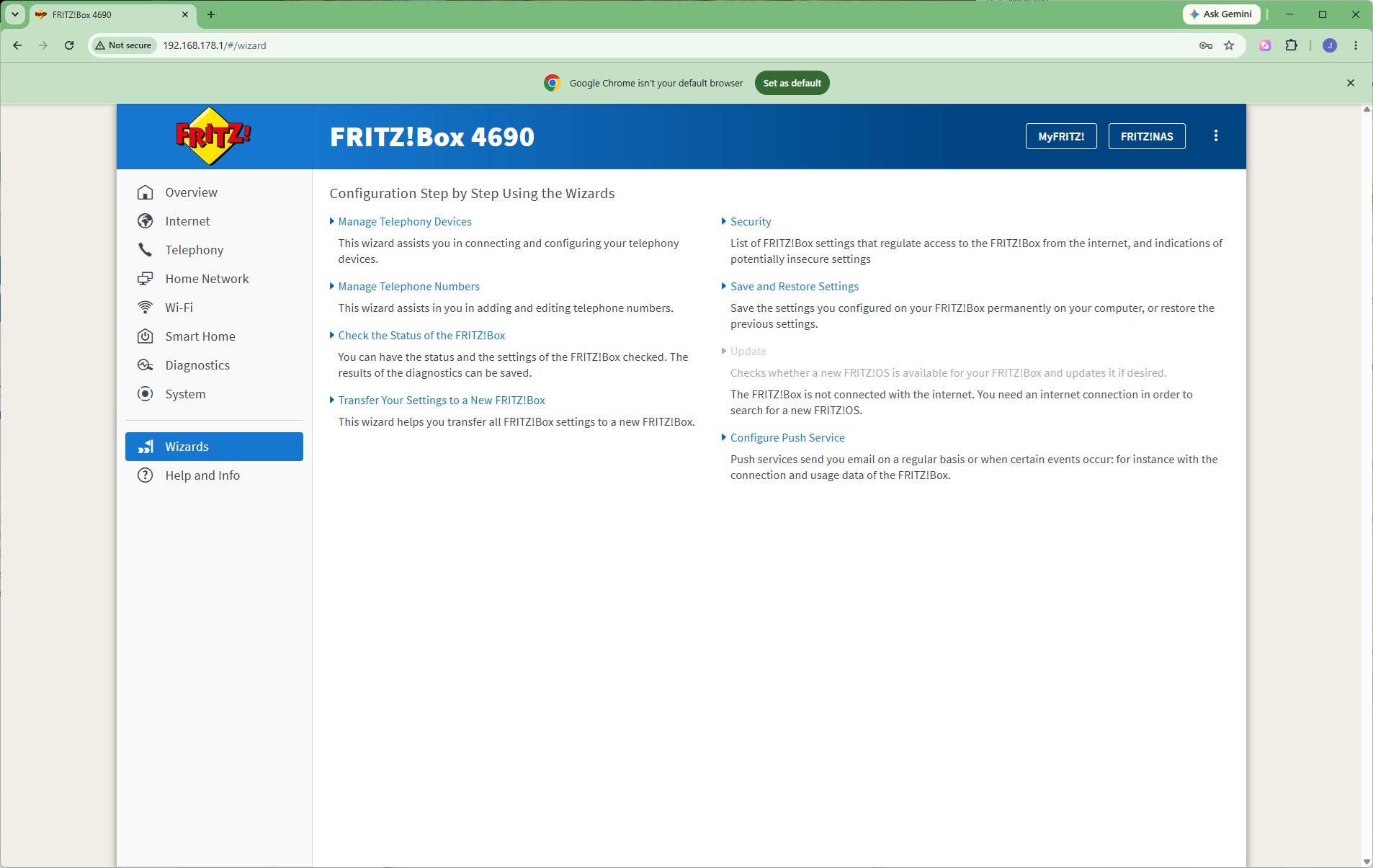
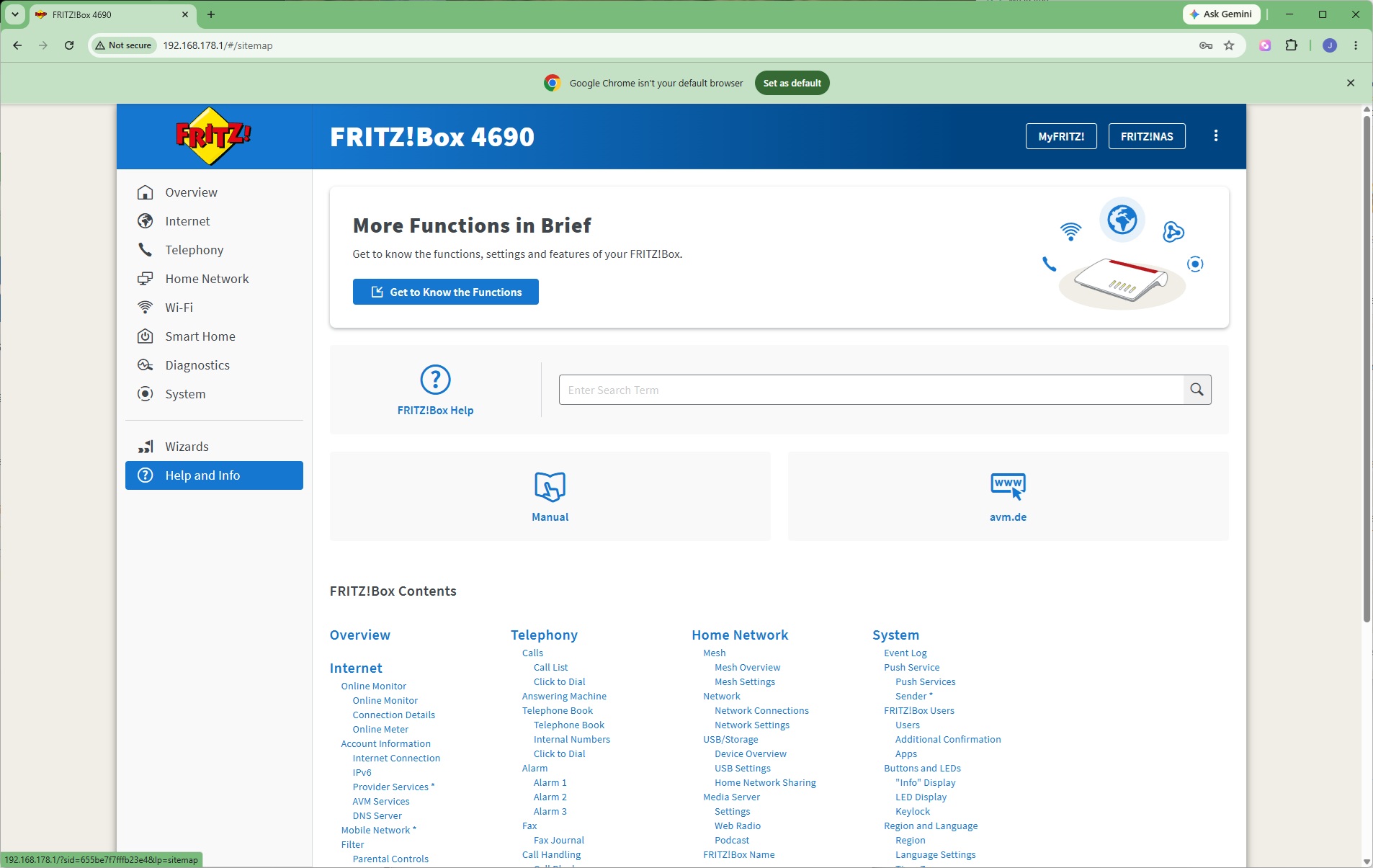
Finally, plenty of help is available via setup and a searchable database of functions.
As with other FRITZ!Box routers, the 4690 is jam packed with features. Most other manufacturers don't include telephony capabilities, and nobody does these better than FRITZ! If you were hoping to make your router the hub of a smart home experience, this may not be the model for you as there are other units from FRITZ! that offer broader capabilities. Otherwise the options are comprehensive. But you buy this model to combine fast WiFi with the solid wired connectivity, so next we turn to that area.