KitGuru KitGuru.net – Tech News | Hardware News | Hardware Reviews | IOS | Mobile | Gaming | Graphics Cards


Like many router manufacturers, MSI expects you to use its smartphone app for initial configuration. There is a QR code on the quick start leaflet that will guide you to downloading and installing that for your phone OS (Apple or Android).
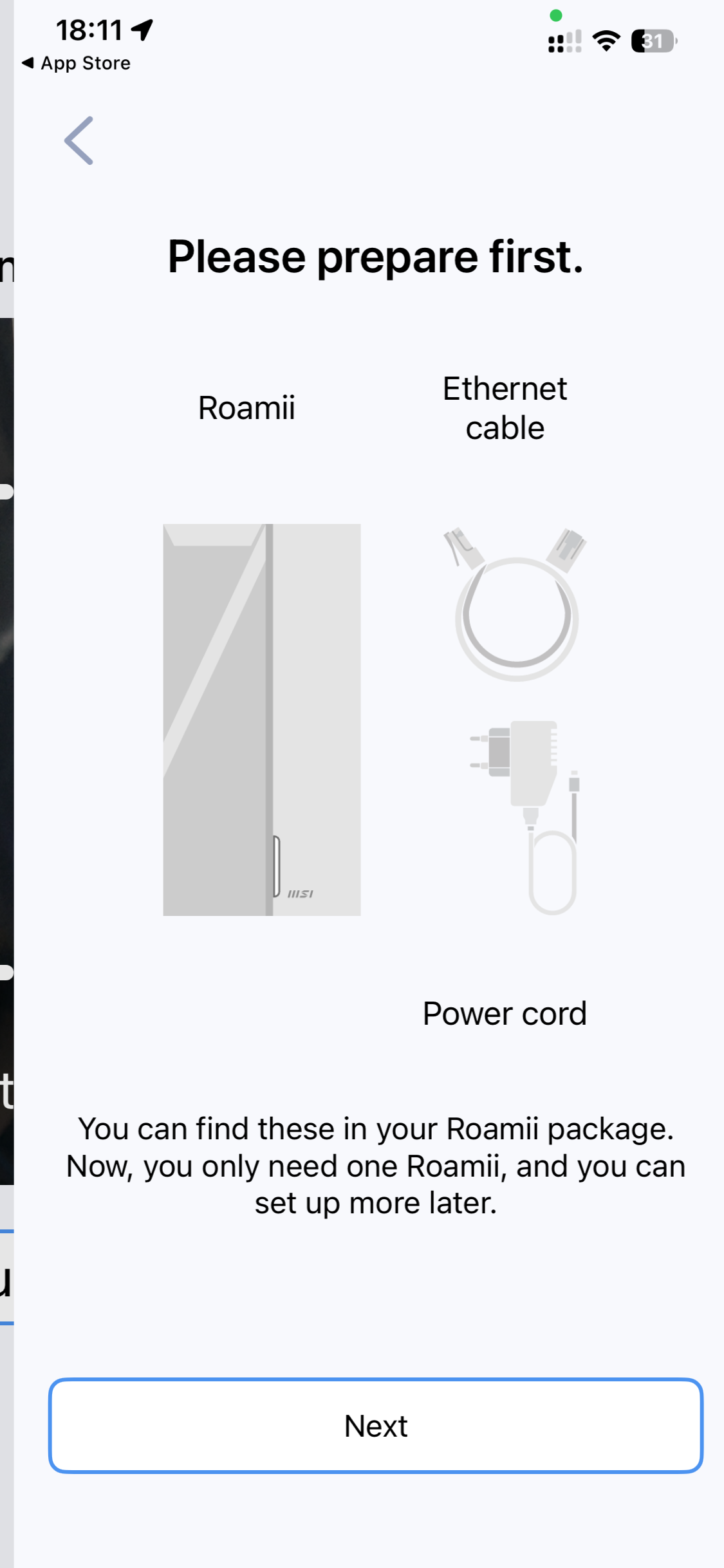
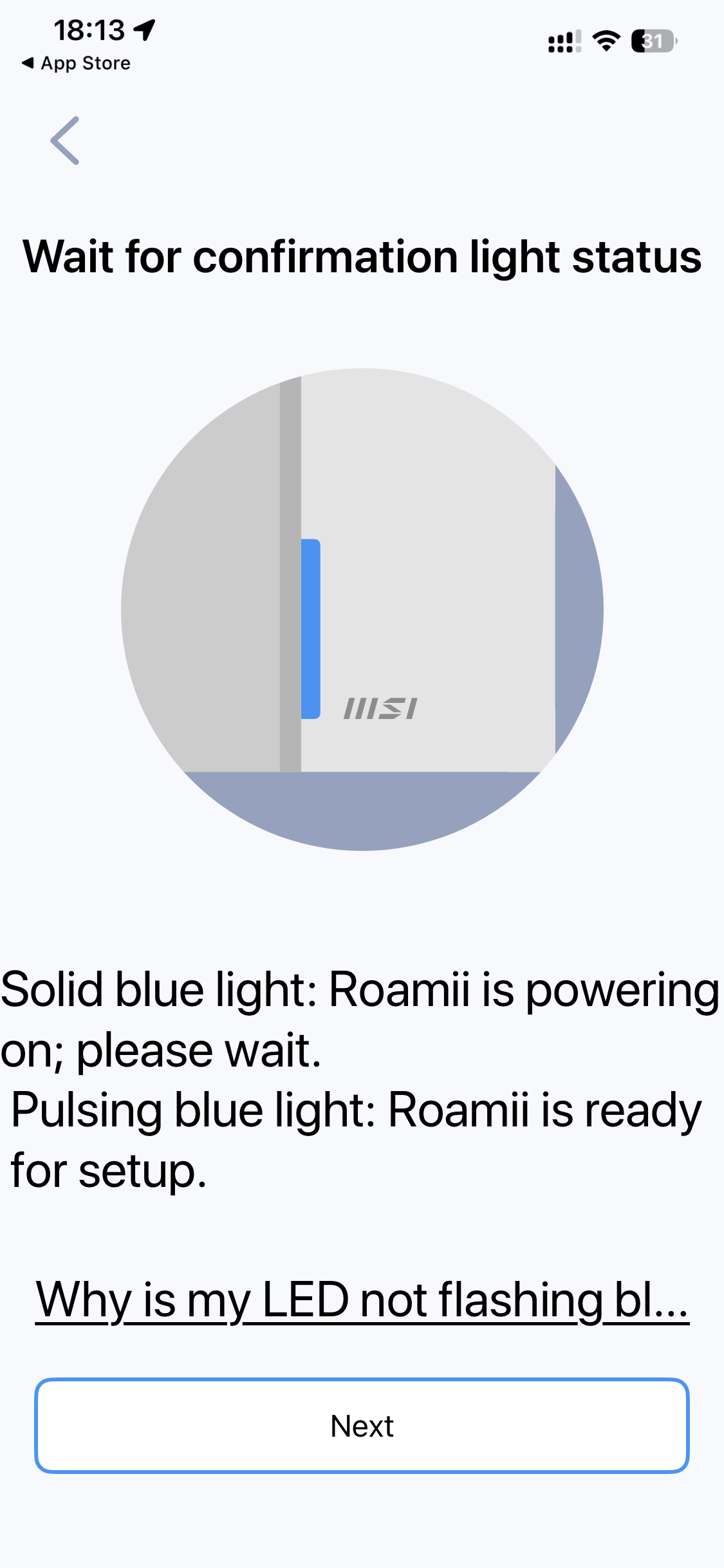
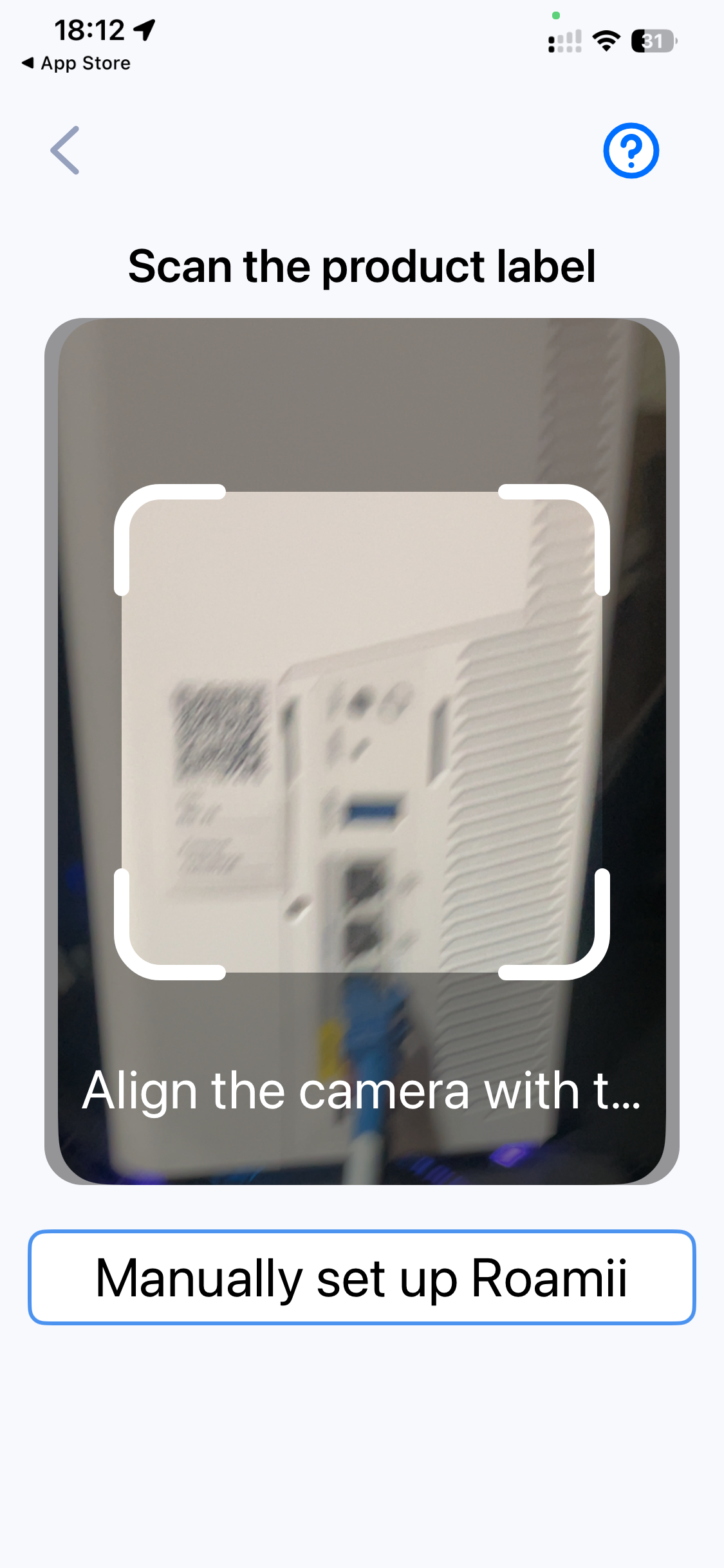
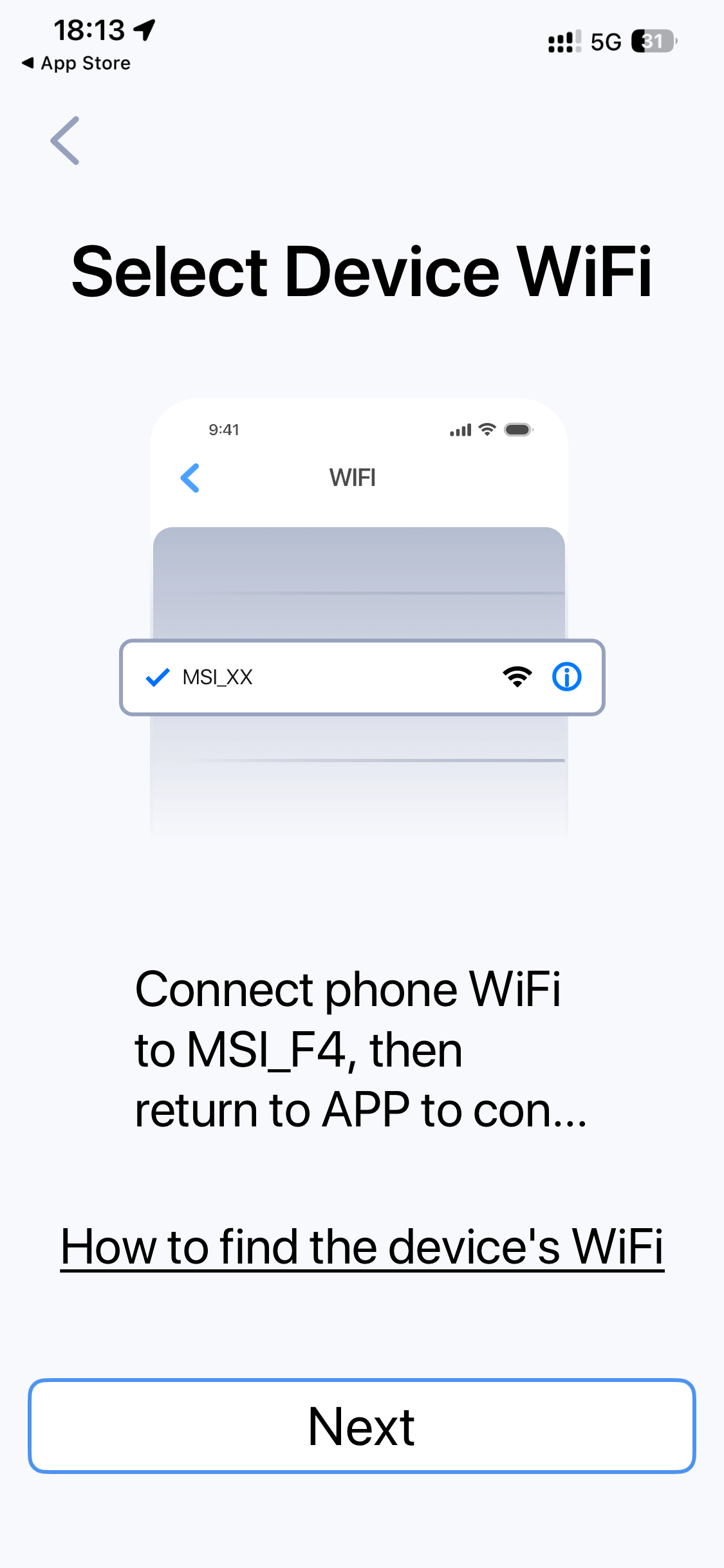
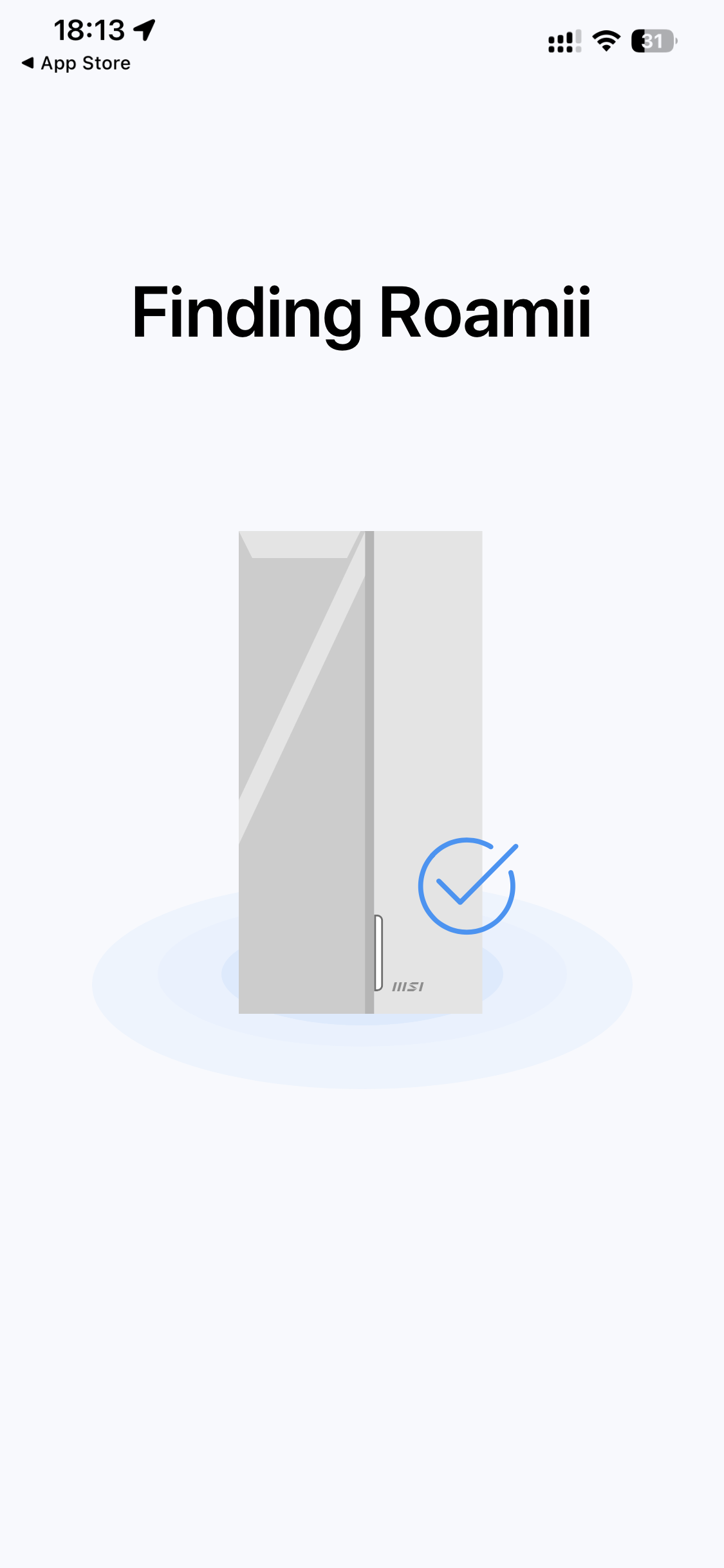
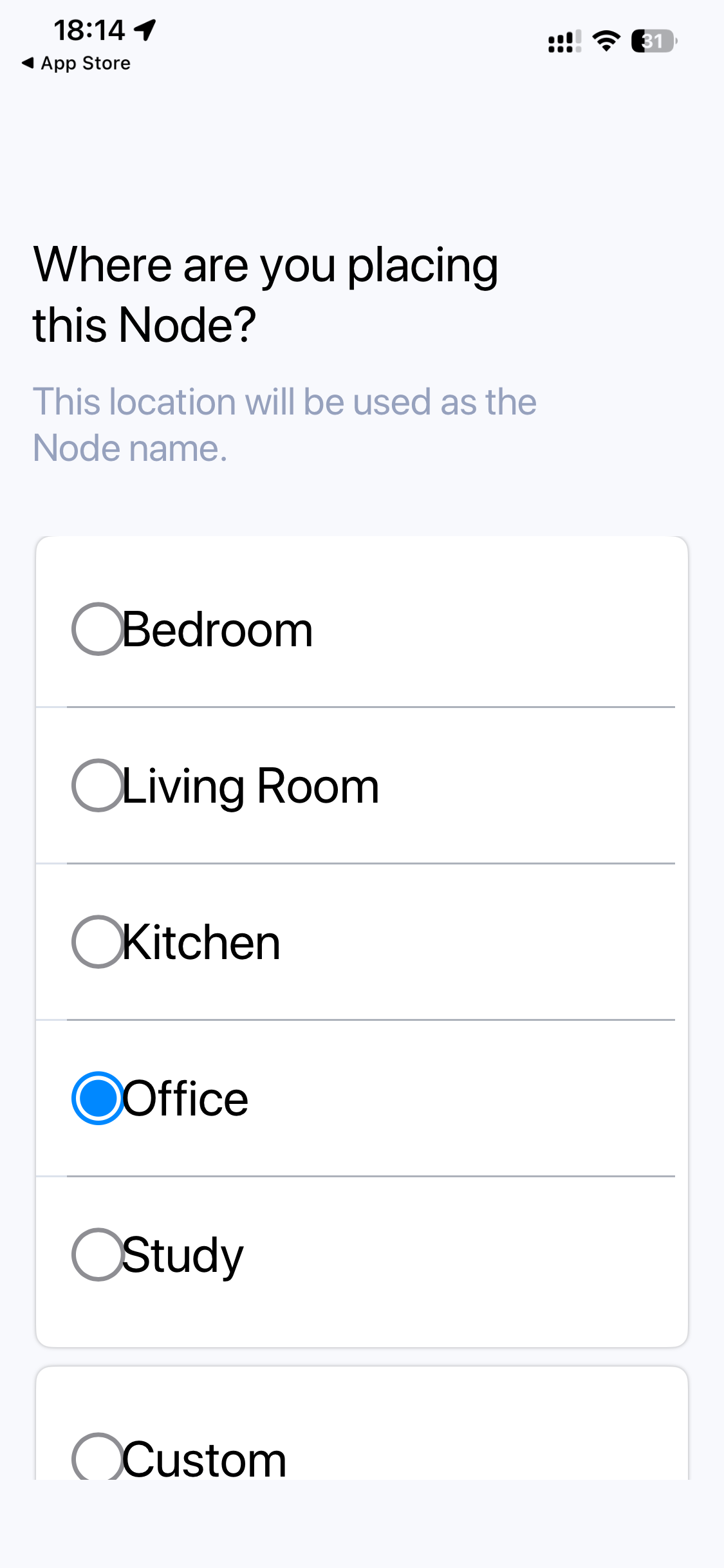
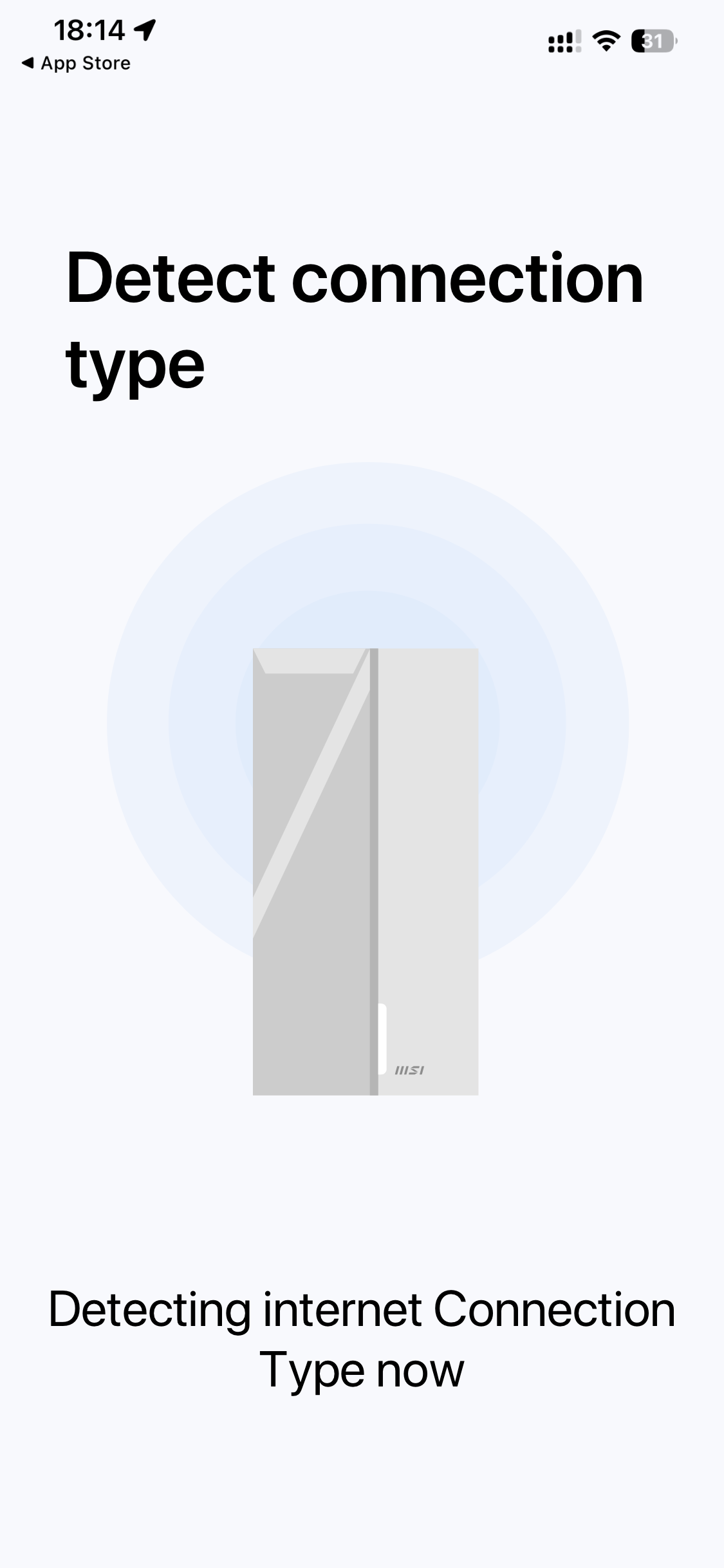
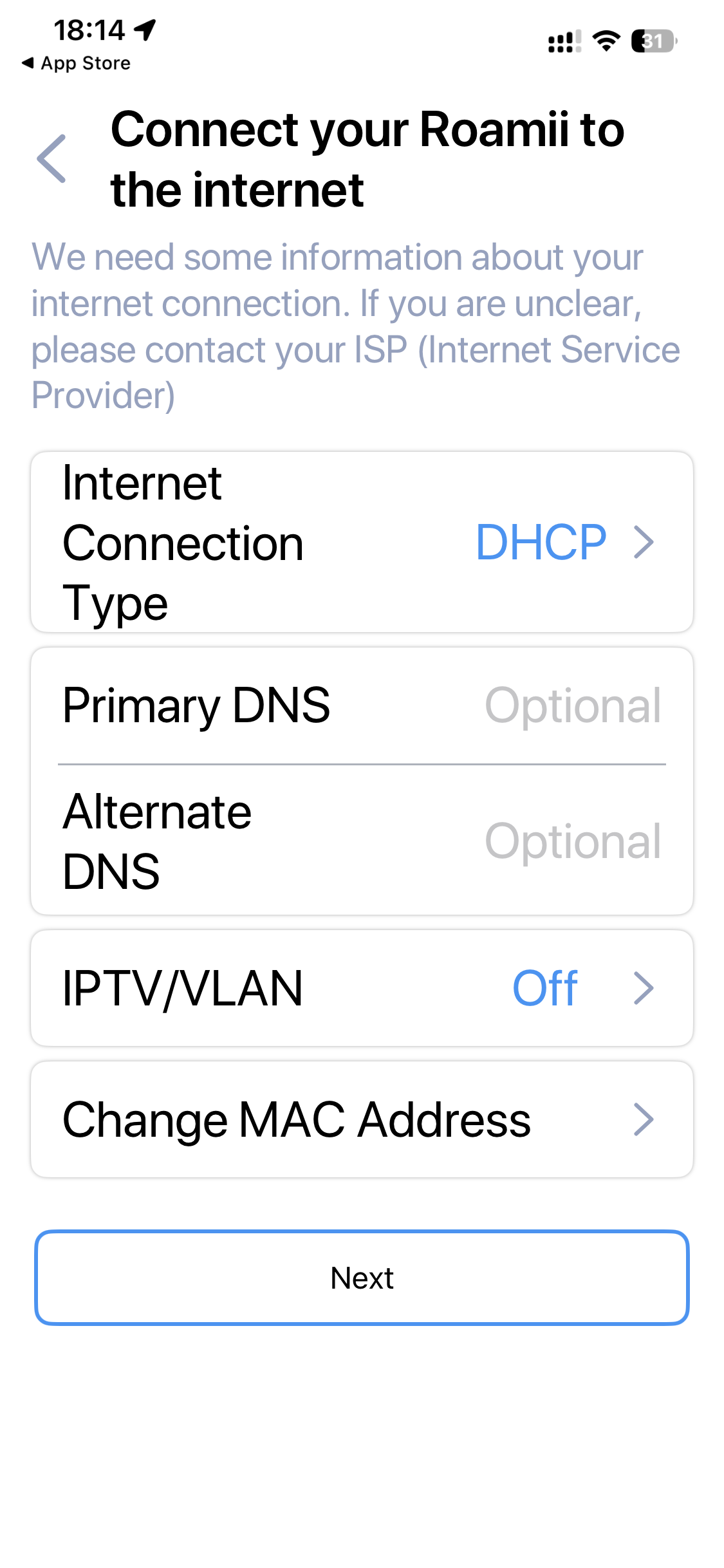
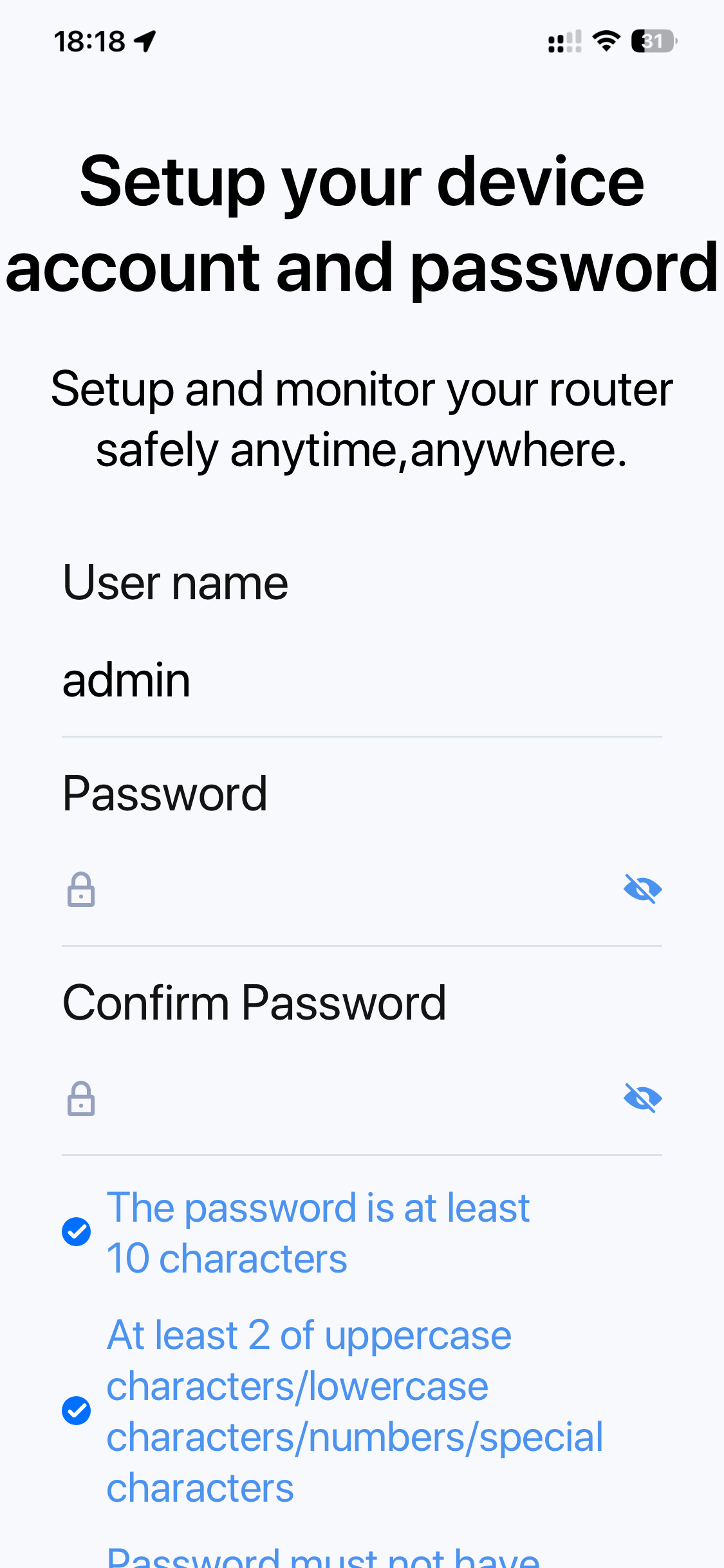
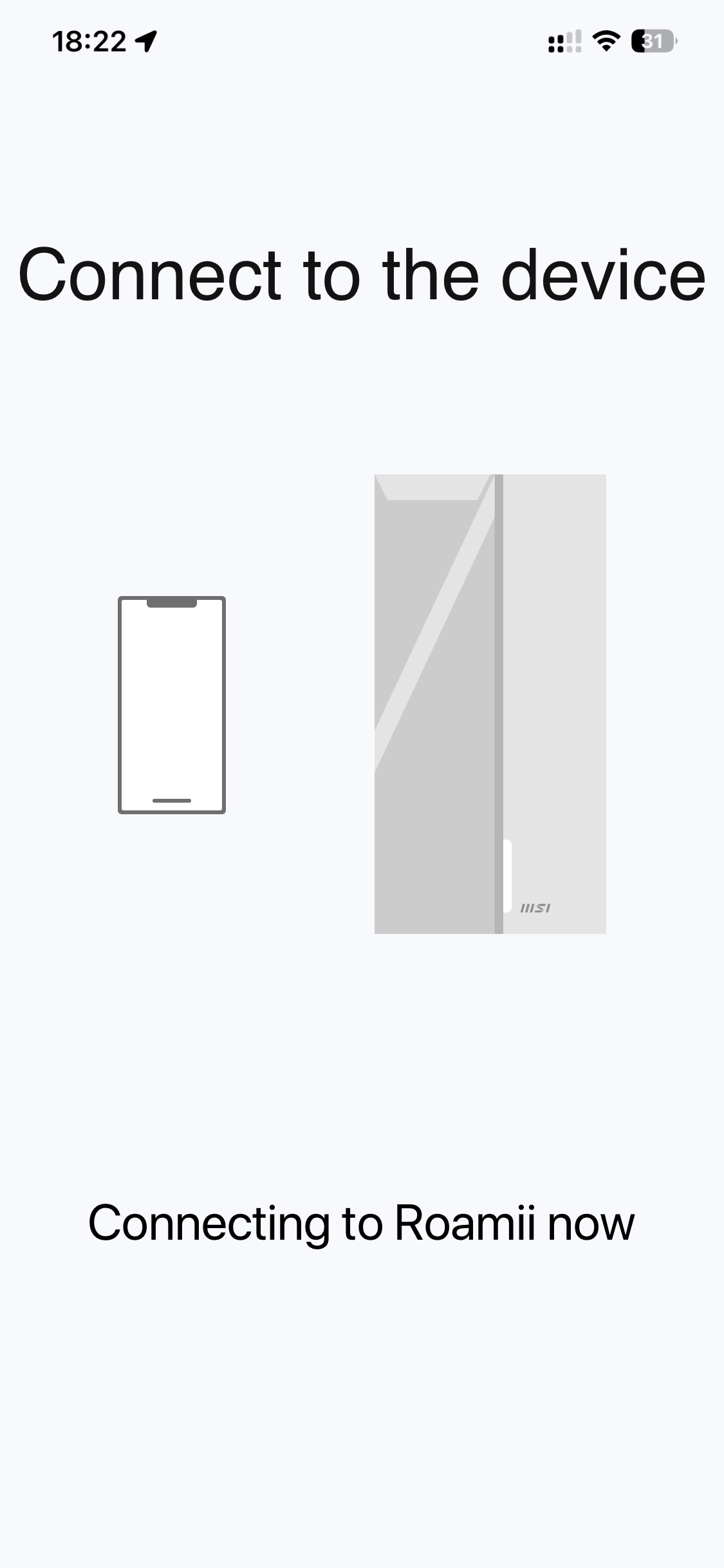
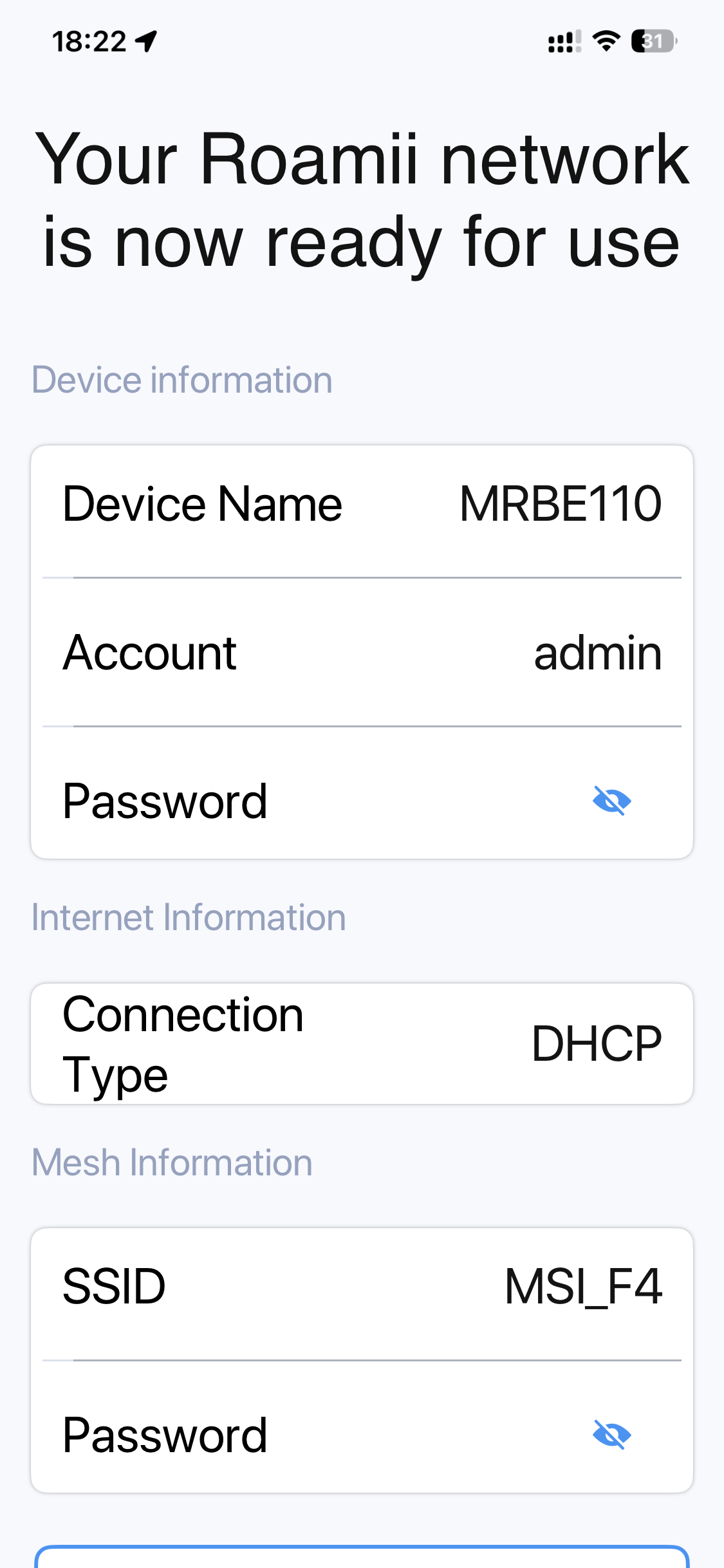
The smartphone app wizard is relatively painless. Once everything is plugged in (power, broadband) and you have a pulsing blue light, you are led towards the QR code on the back of the unit that you will be using as the router. This will connect you to the WiFi and then the smartphone app will guide you through logging into the unit for administration, setting up the broadband connection, configuring the admin password, and finally the WiFi SSID and password.
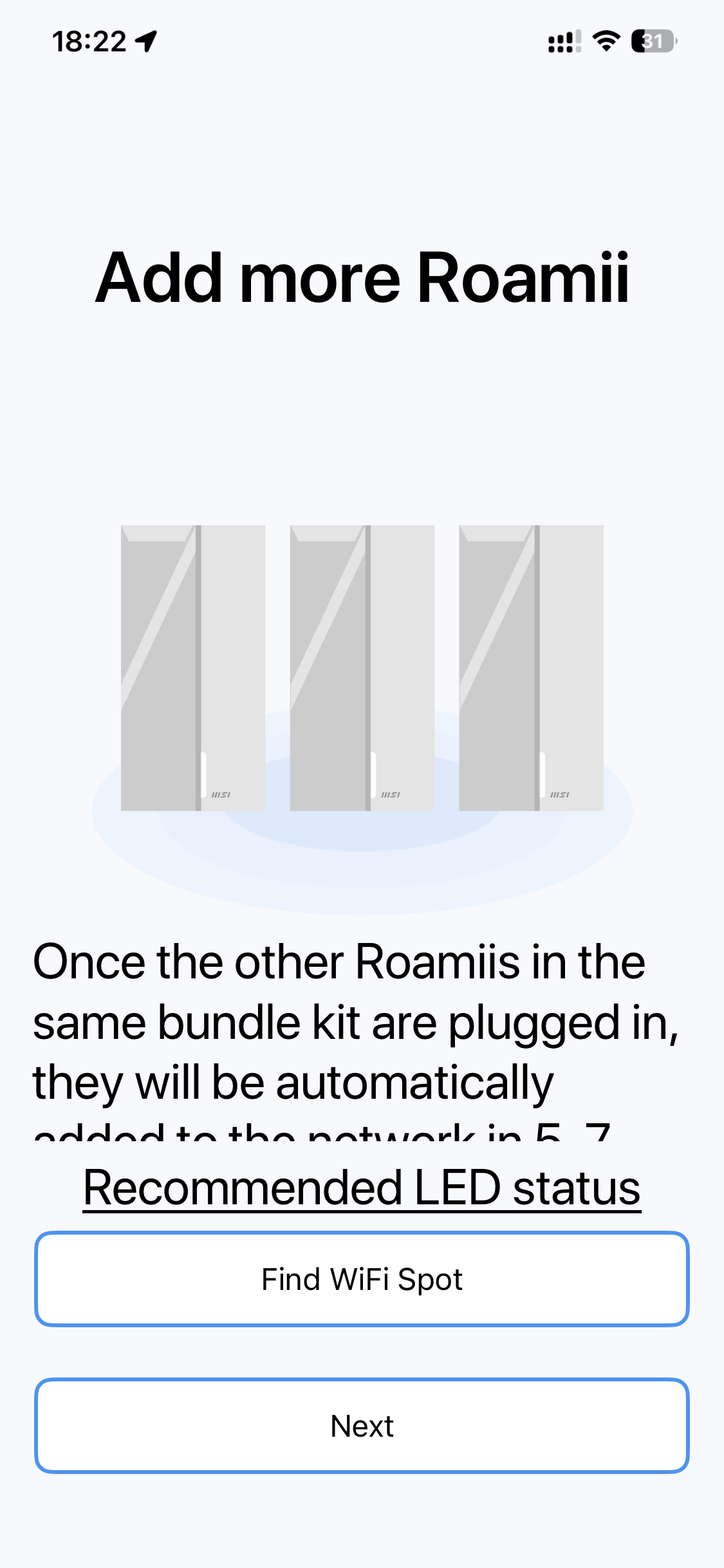
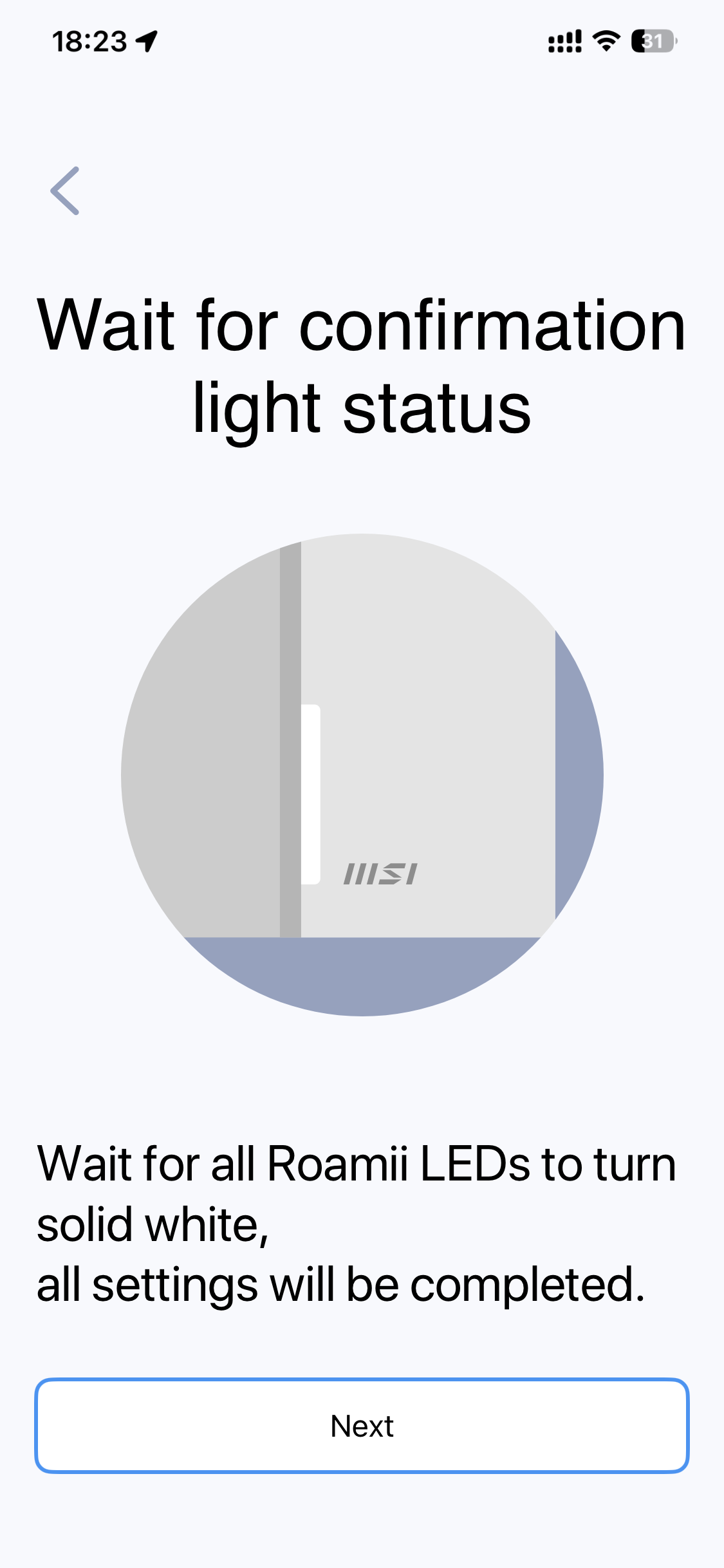
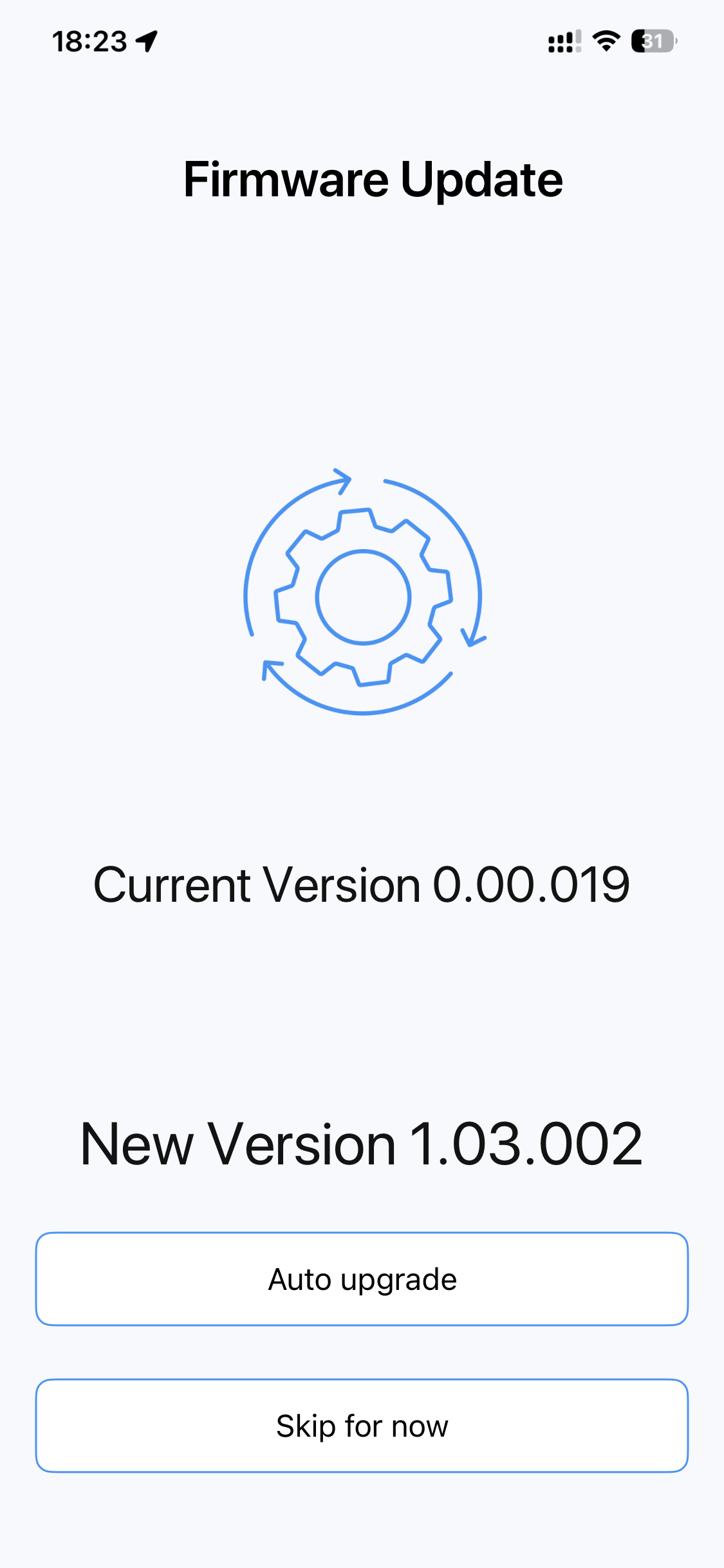
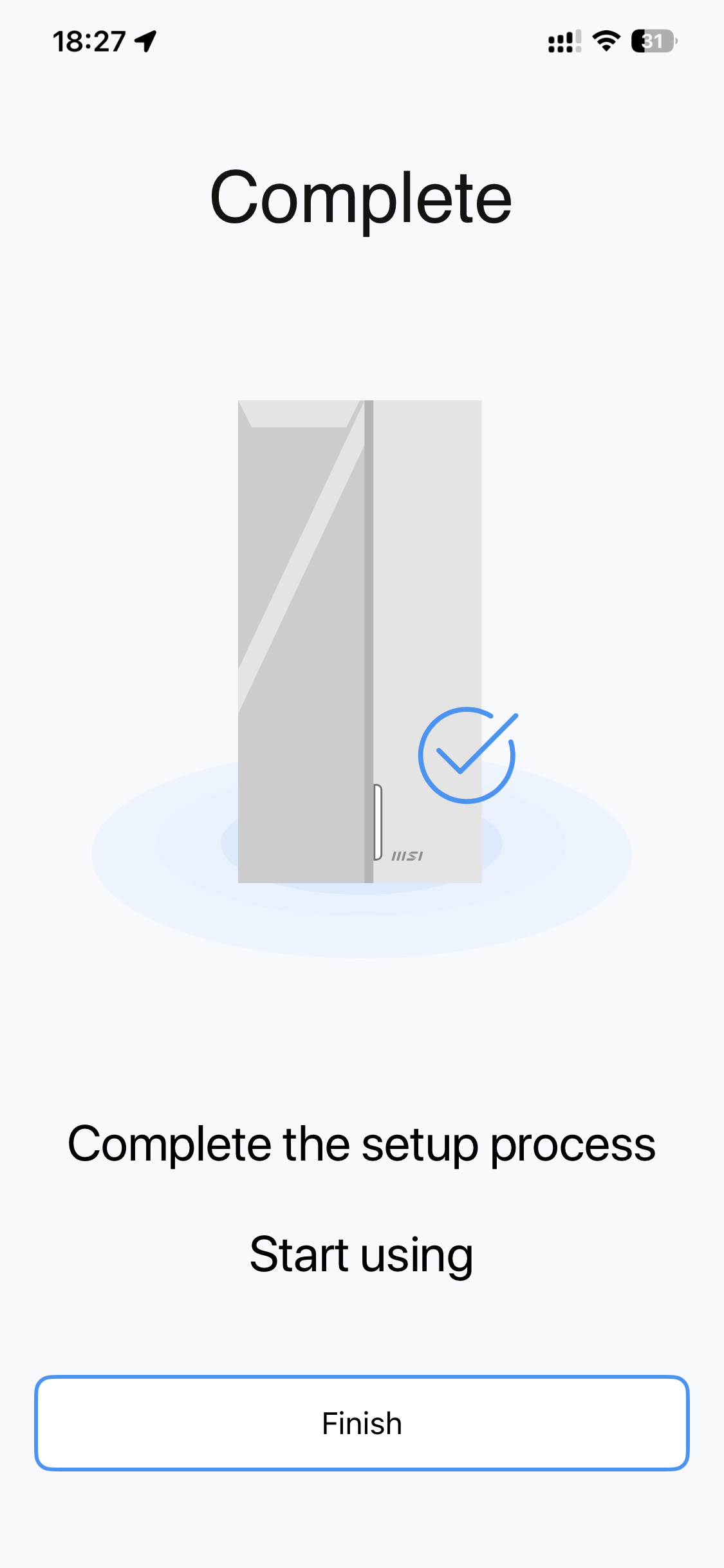
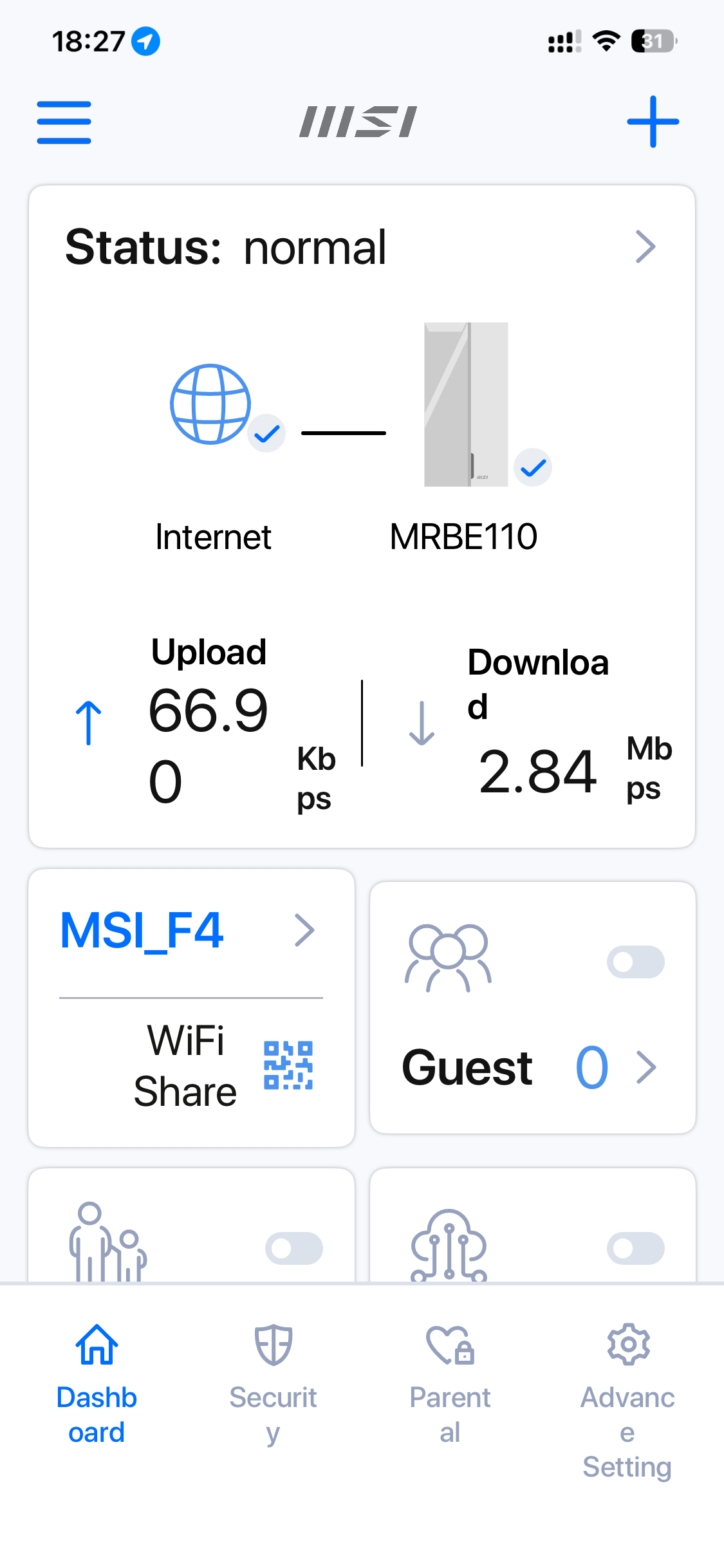
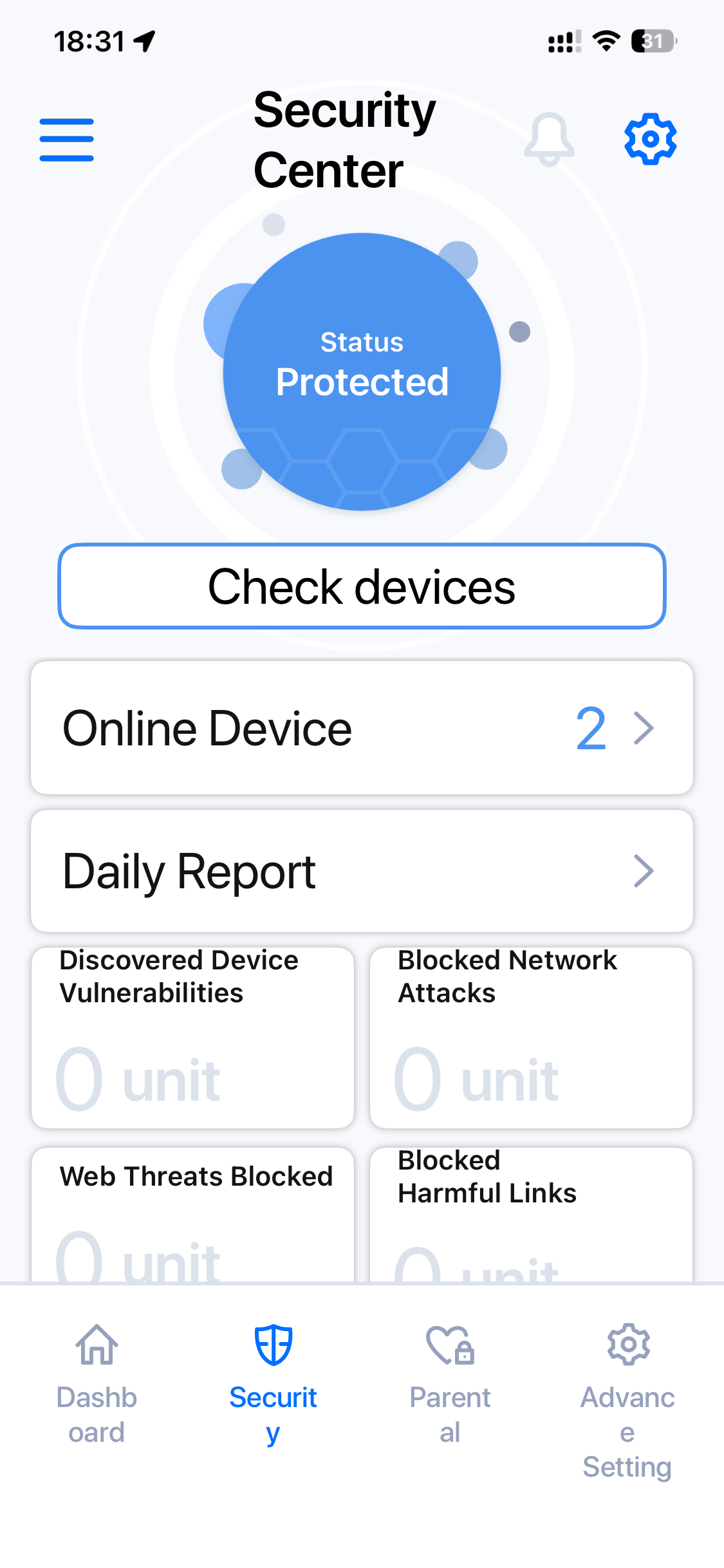
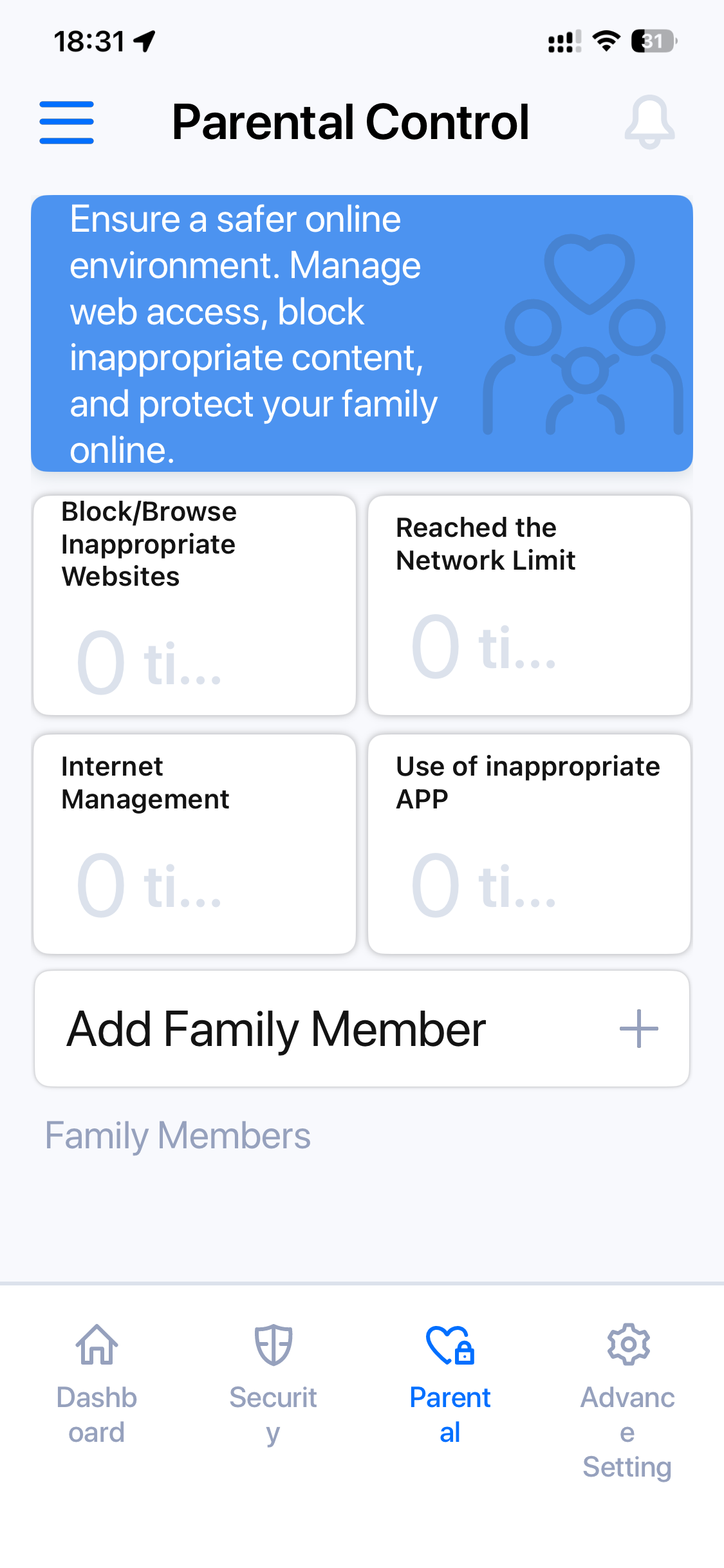
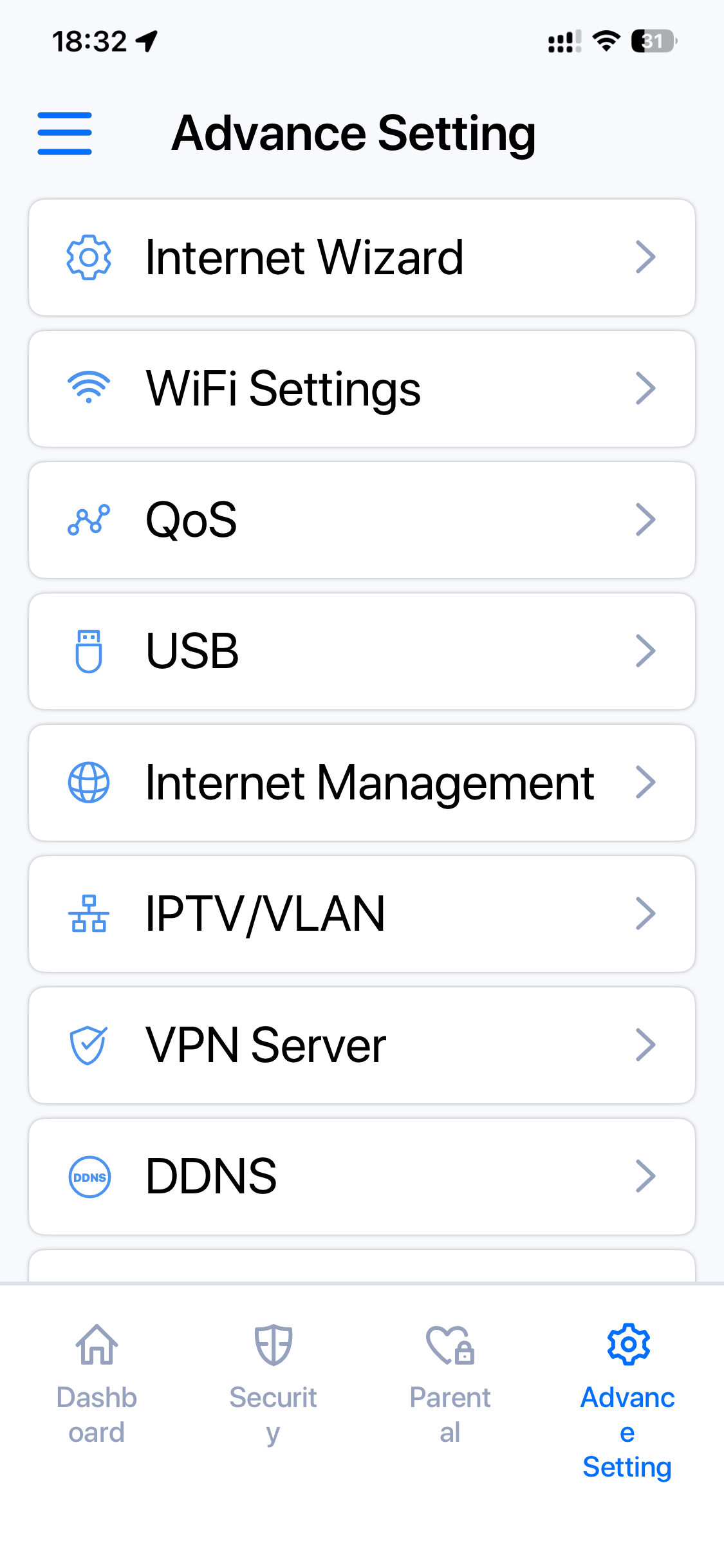
The smartphone wizard is then supposed to add the next Roamii units in the box automatically, but we didn't find this actually worked. The firmware update after this process was seamless, however, and then you can log into the admin interface. This is surprisingly fully featured. Alongside the Security Center (which requires a lengthy download the first time you access it) there are parental controls. The “Advance Setting” section has most of the abilities you would expect from a full Web interface, which is impressive. It's great that you can set up QoS, DDNS and a VPN server using just the smartphone app.
Less impressive is connecting the satellite unit. Since the supposedly automated process hadn't worked, we had to do this manually, which you can perform either with the smartphone app or the full web interface. This took a very long time to complete successfully. After a number of aborted attempts following the wizard process, which seemed to hang, we left the unit with its green “sync” light. After about 25 minutes and a few reboots, the satellite miraculously displayed a white front light indicating all was up and running. This was the longest mesh satellite connectivity process we've ever experienced, but at least it completed in the end.
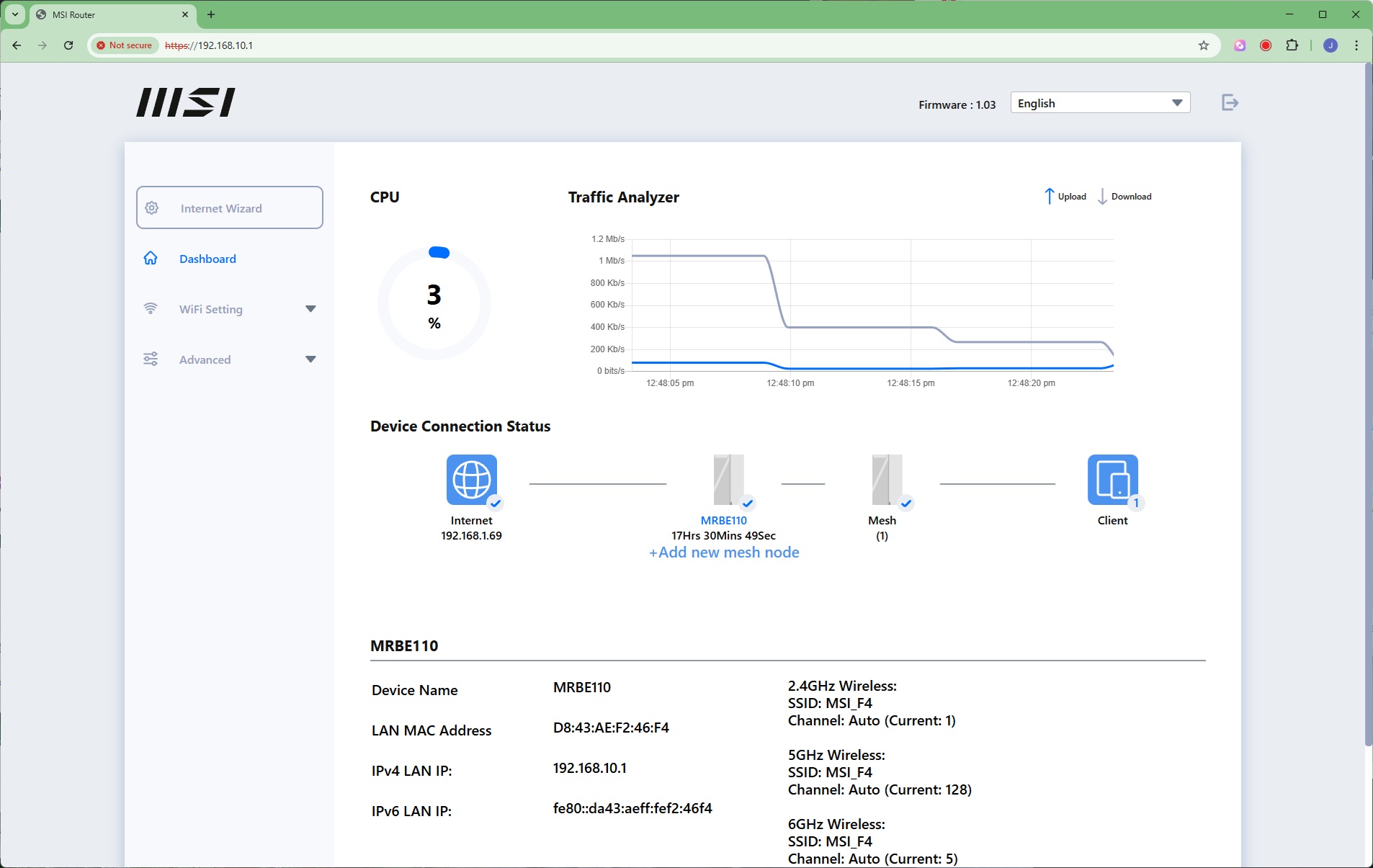
The Web admin Dashboard provides a limited view of the mesh and live throughput. But there is a huge amount of information and settings to be had in the rest of the interface.
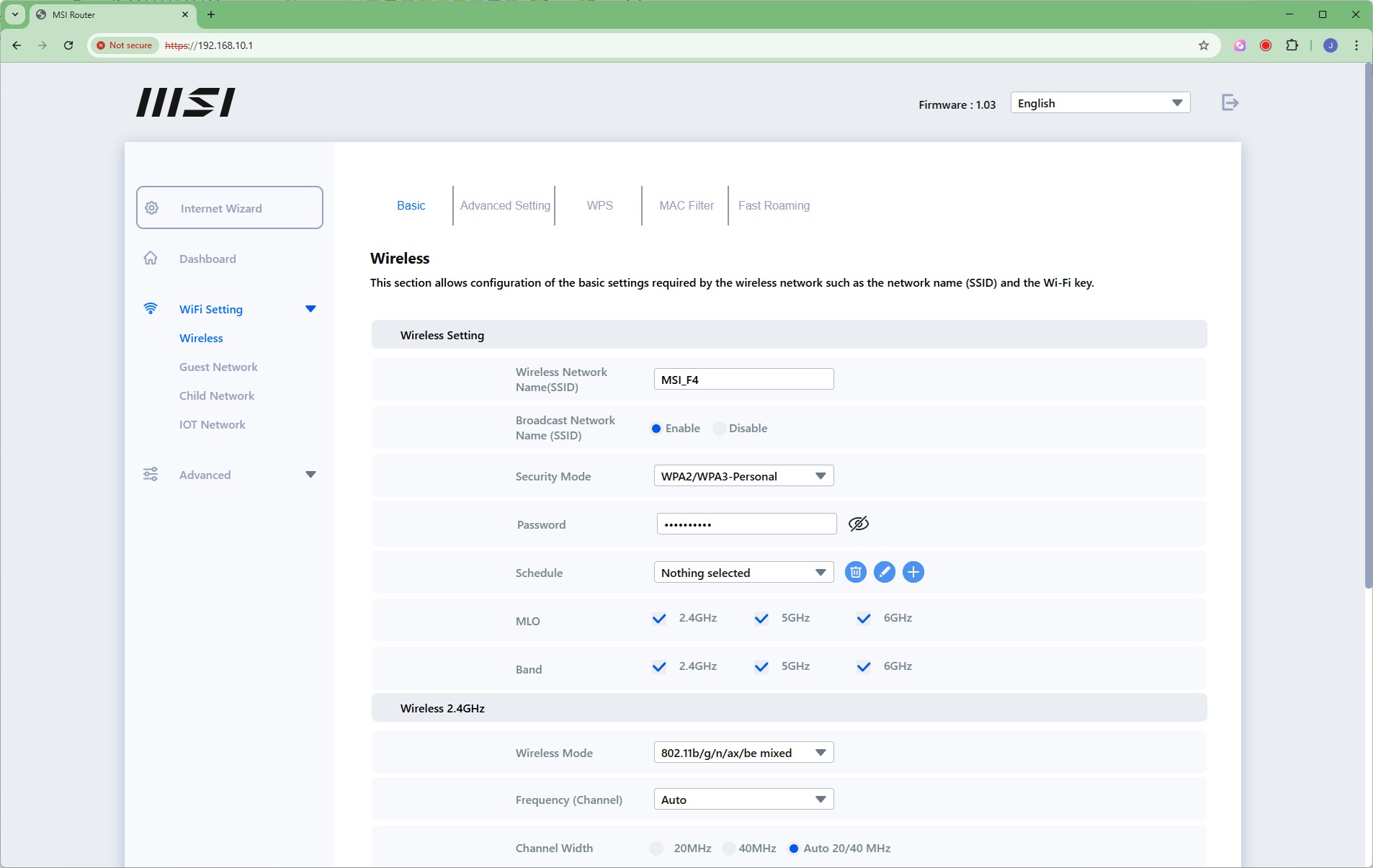
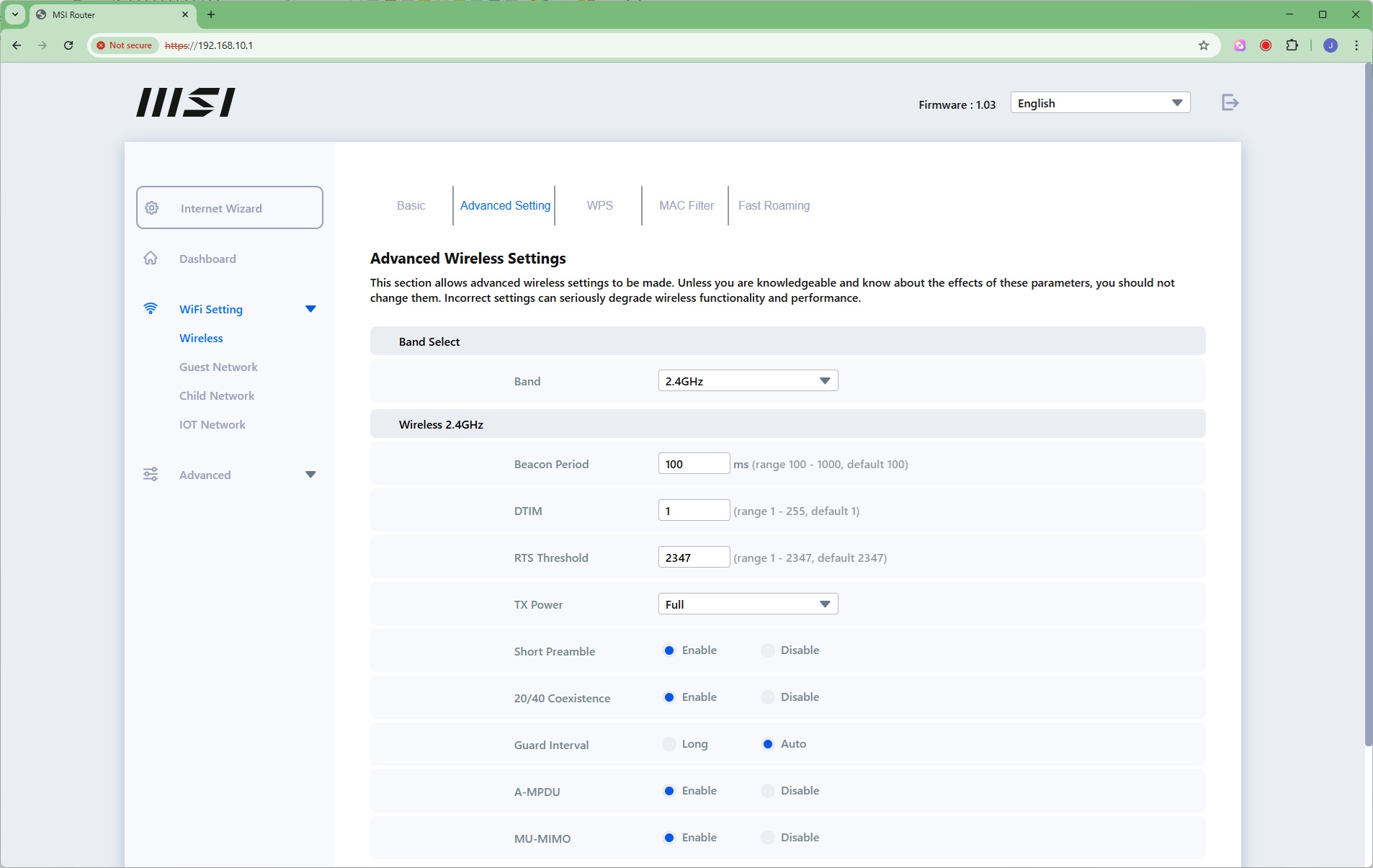
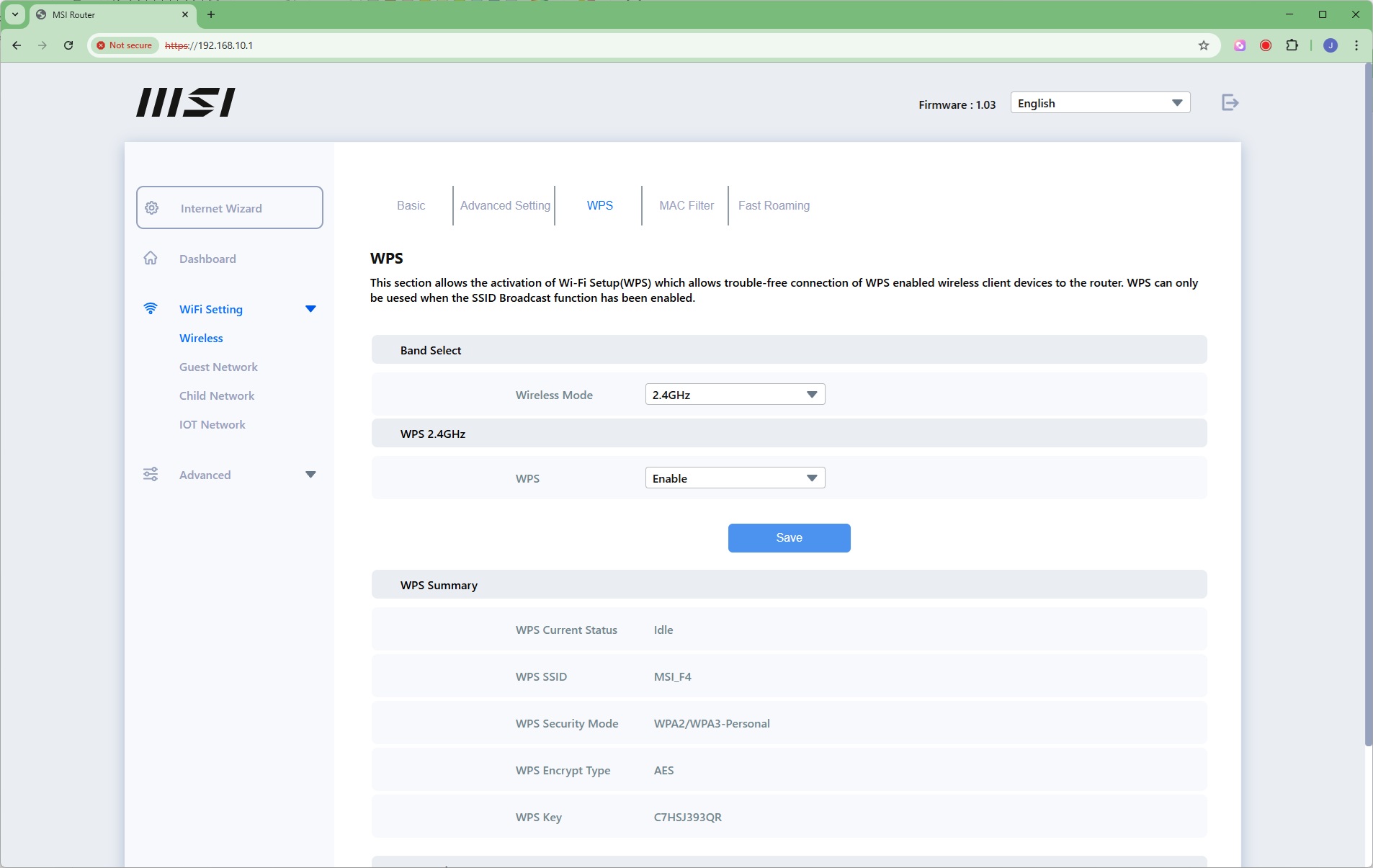
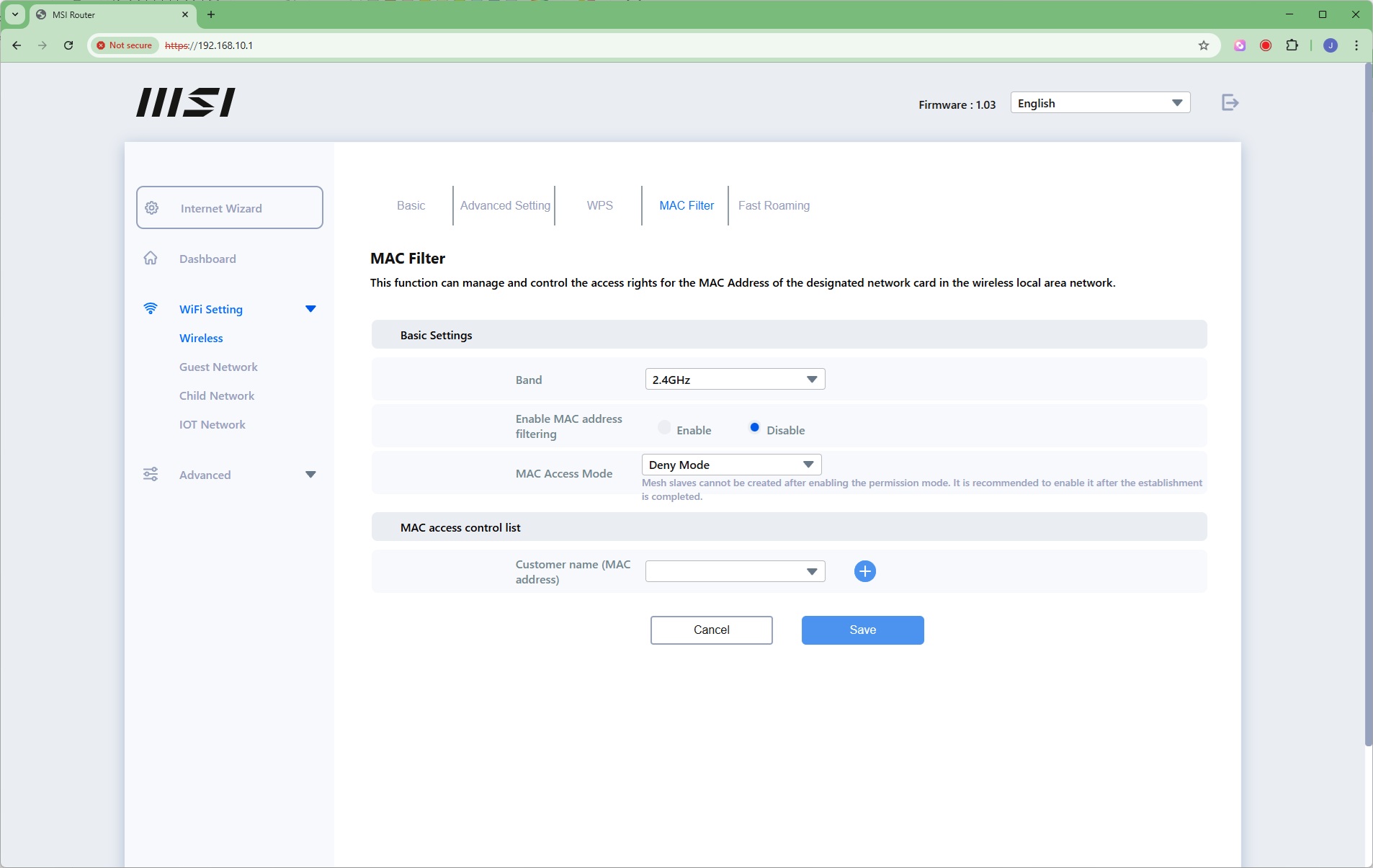
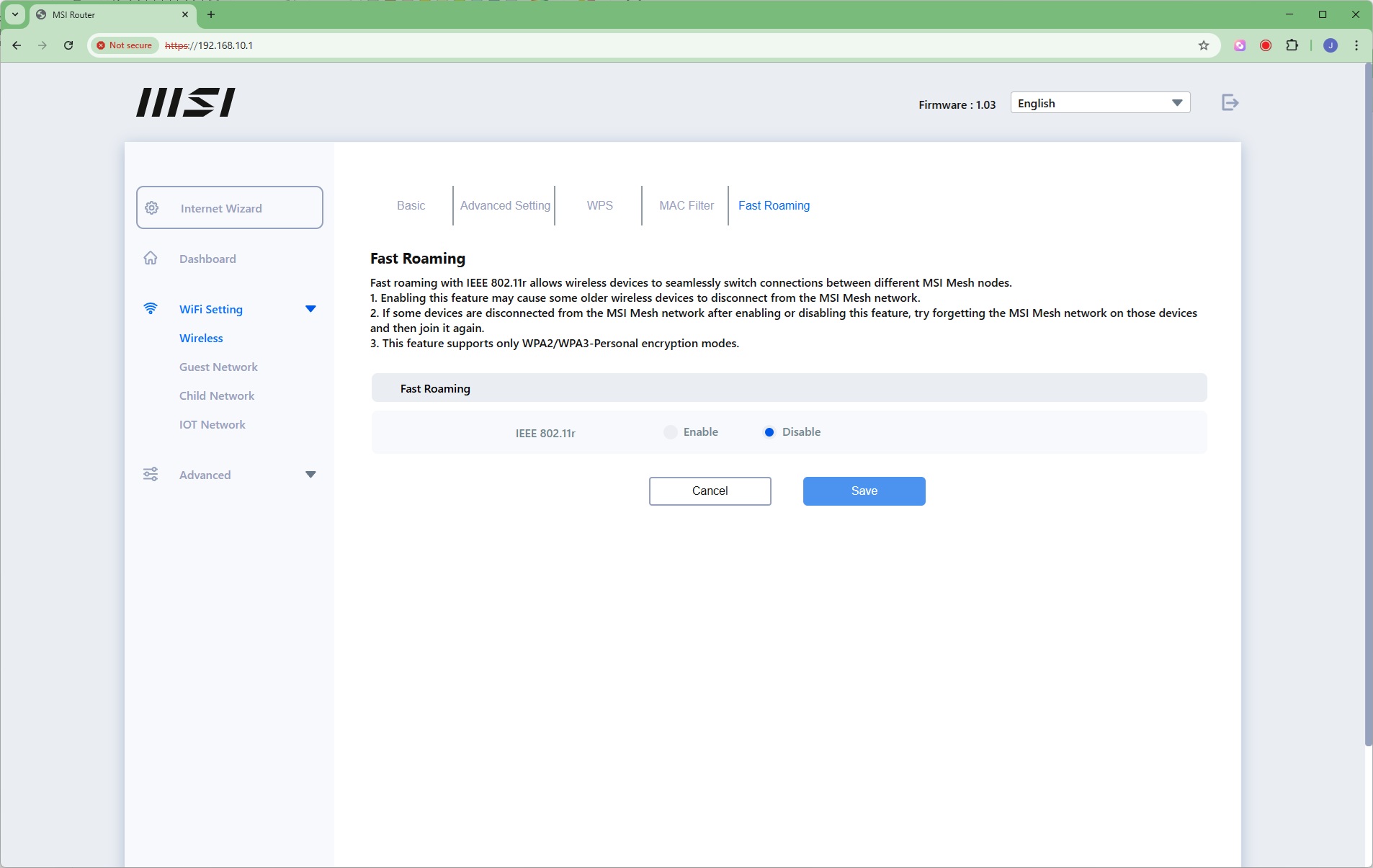
Under Wireless you can change the SSID of the WiFi and the behaviour of each waveband. You can drill down to extremely granular settings for each of the three frequencies. You can configure WPS for each waveband too, apply MAC address control, and enable Fast Roaming. This 802.11r standard can cause older devices to disconnect, however, so it's off by default.
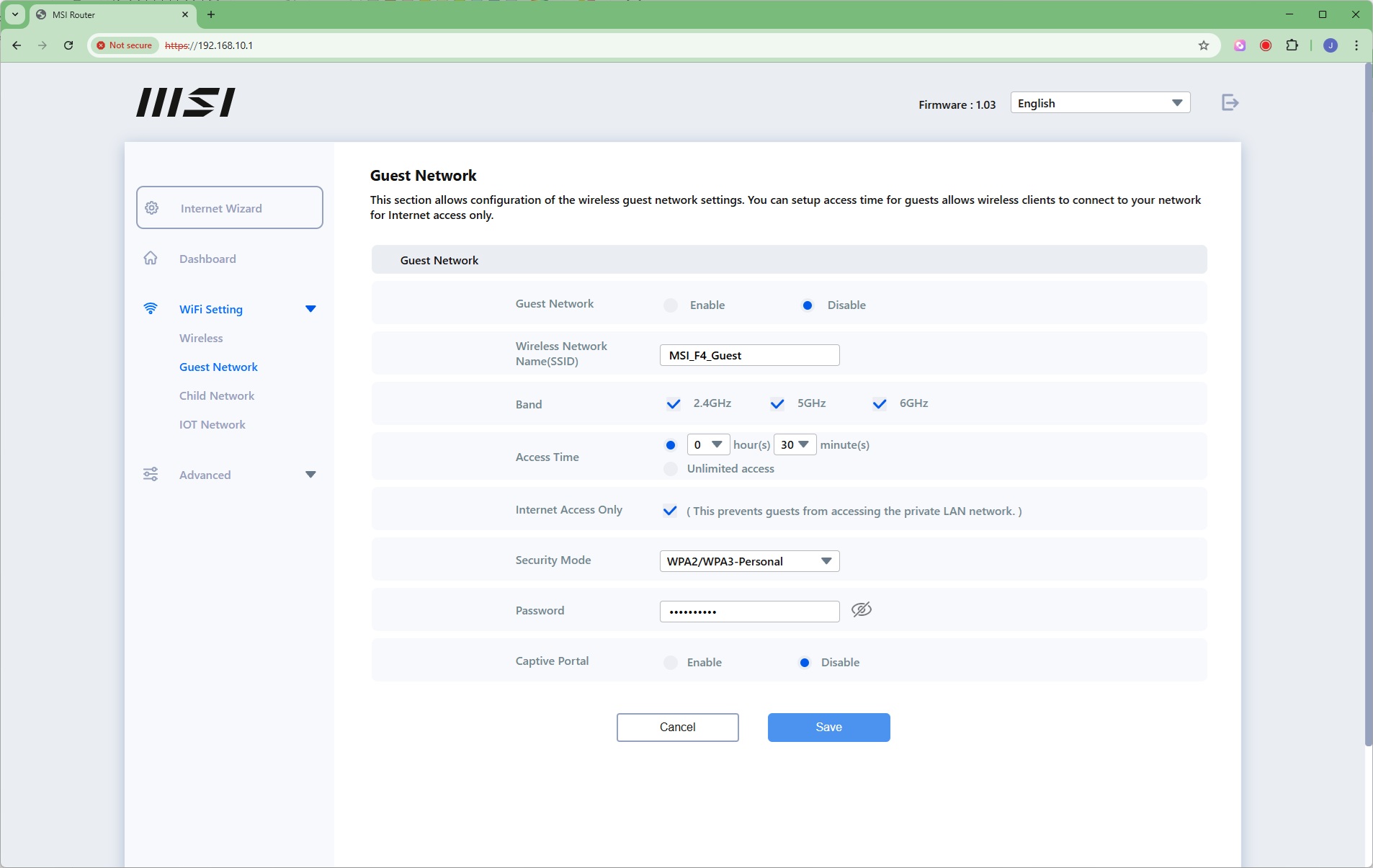
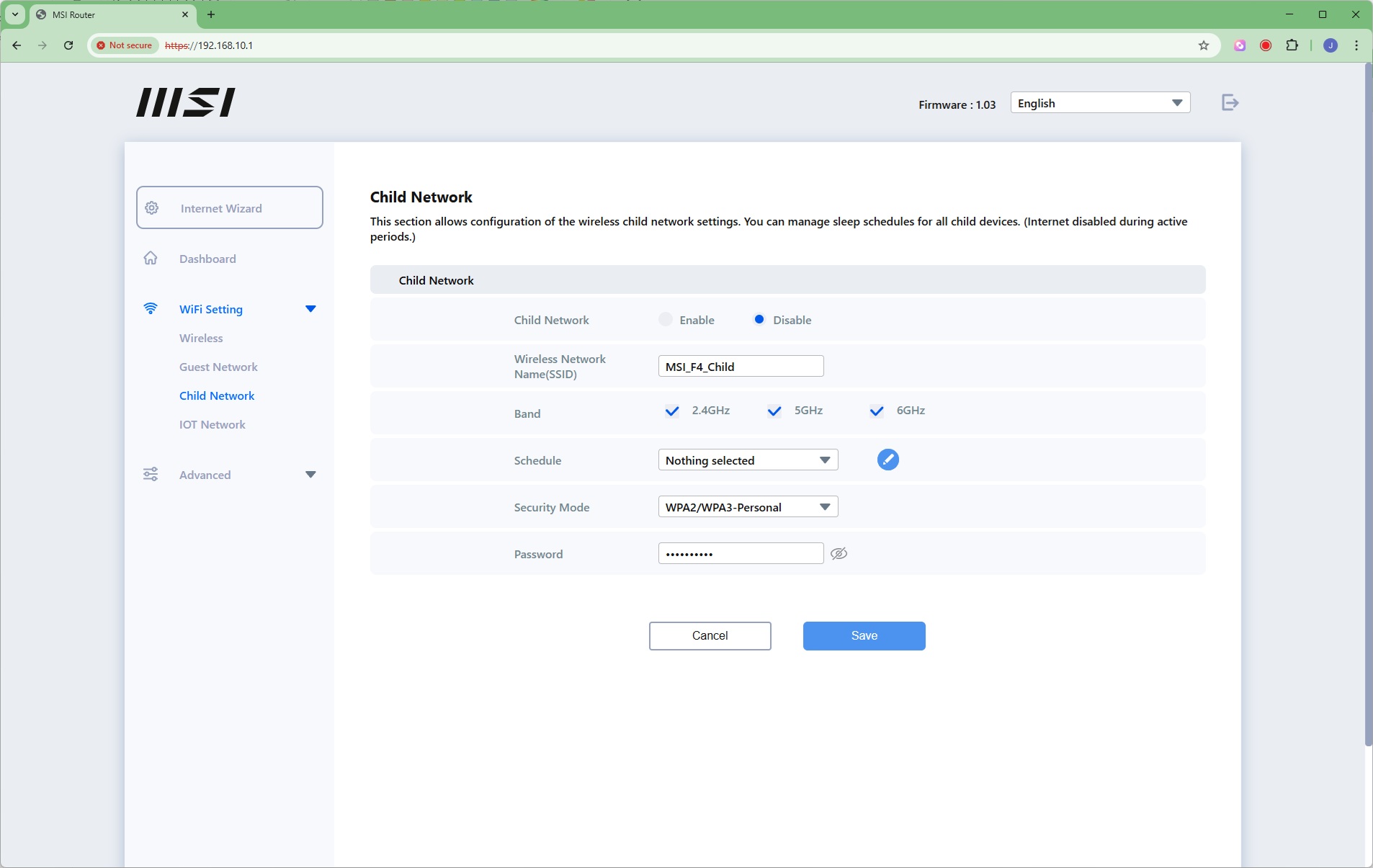
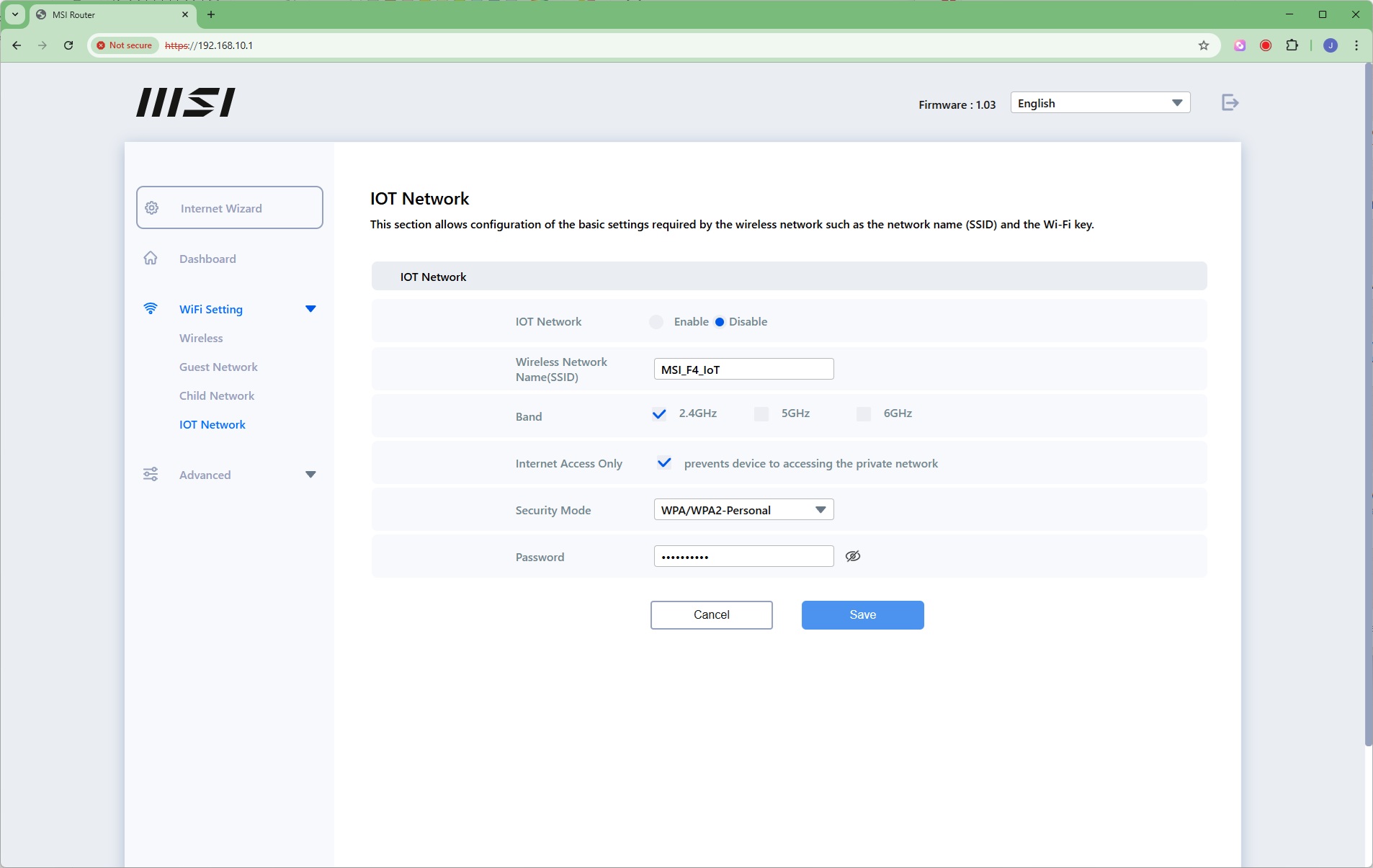
Three separate additional SSIDs can be configured. There's the traditional Guest option, but you can also set one up for your children that is only operational during certain hours of the day – so you can block their Internet when they should be asleep, for example. Then there's an IoT option that can keep your IoT devices separate from the local network, giving them Internet access only.
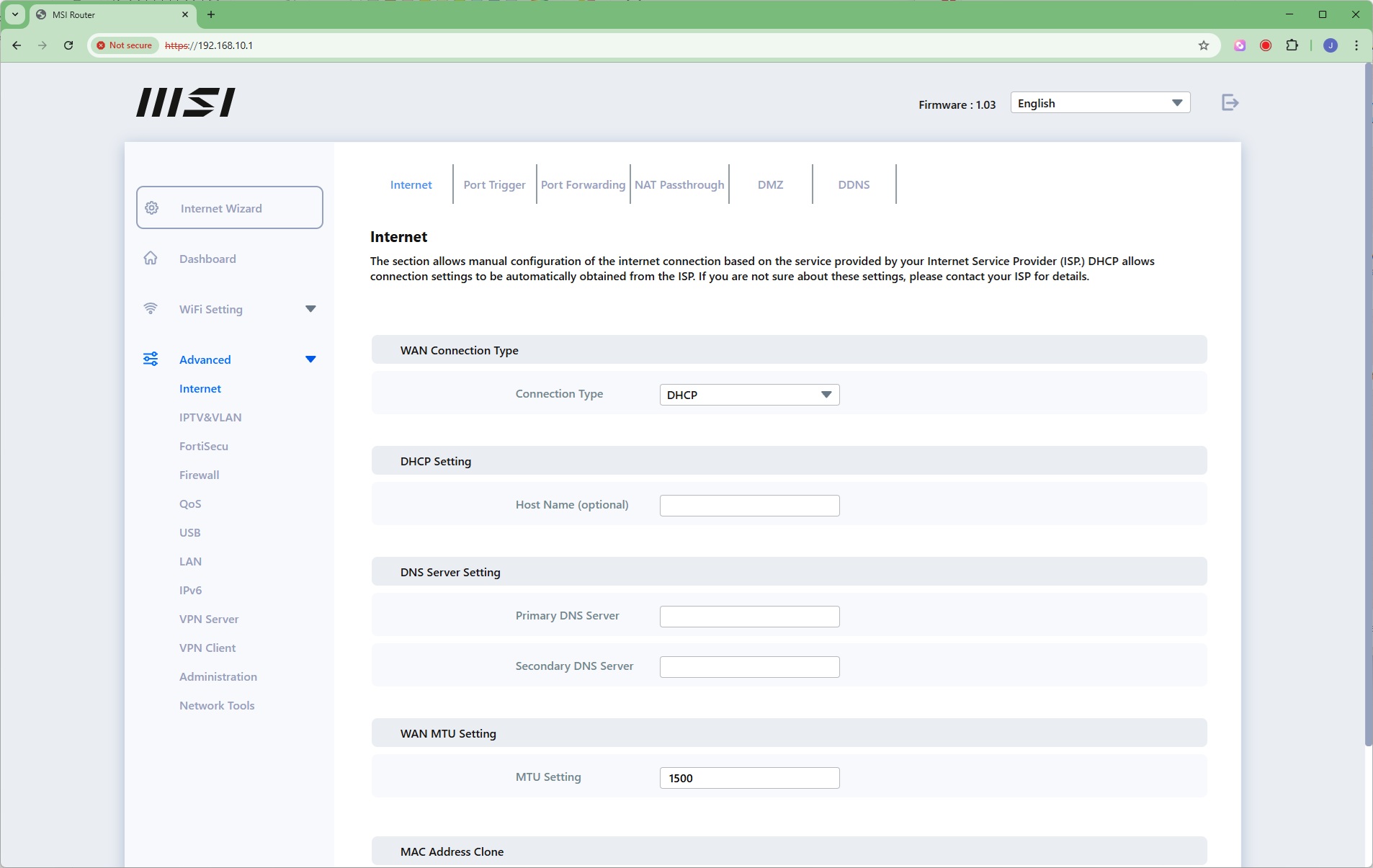
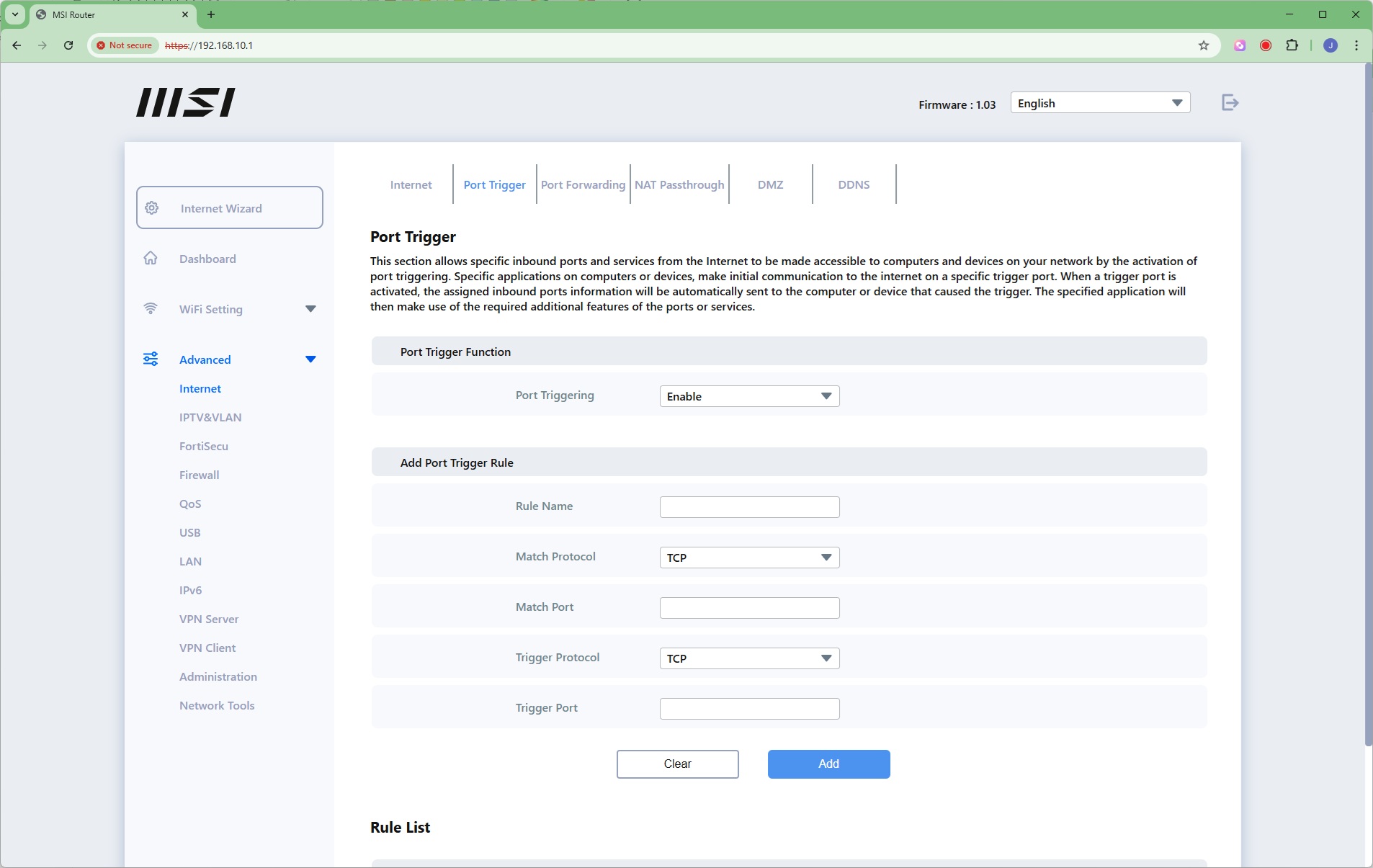
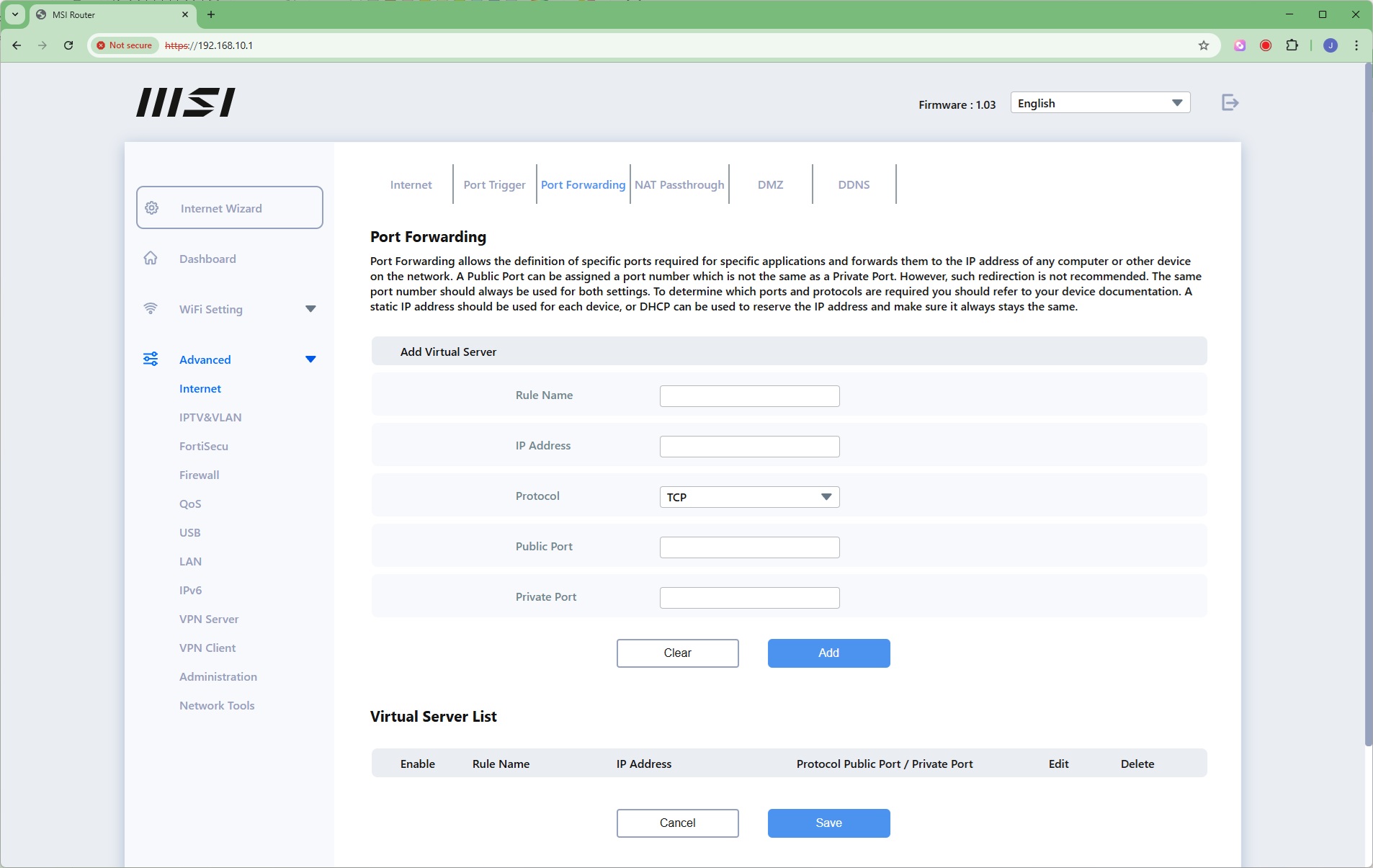
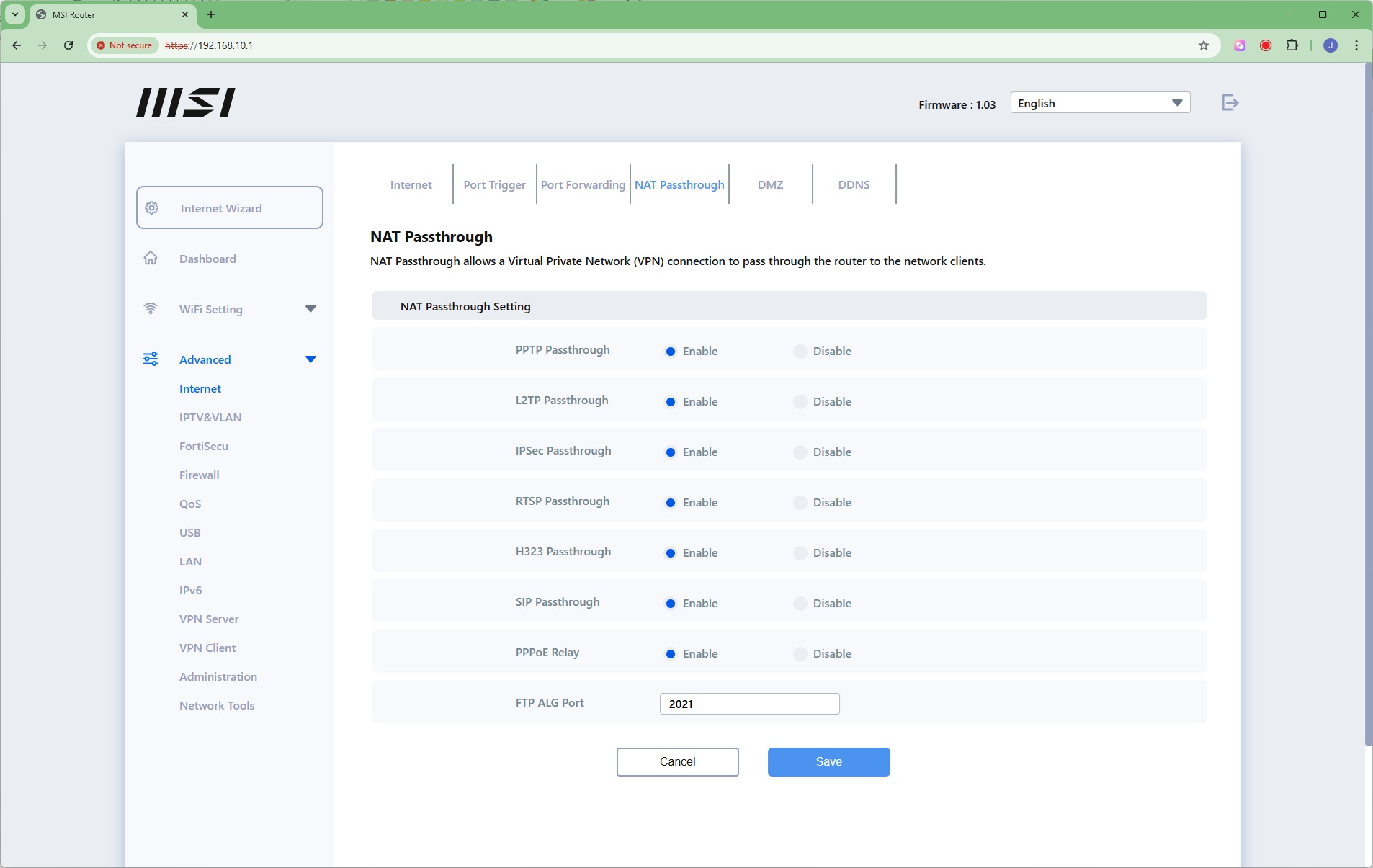
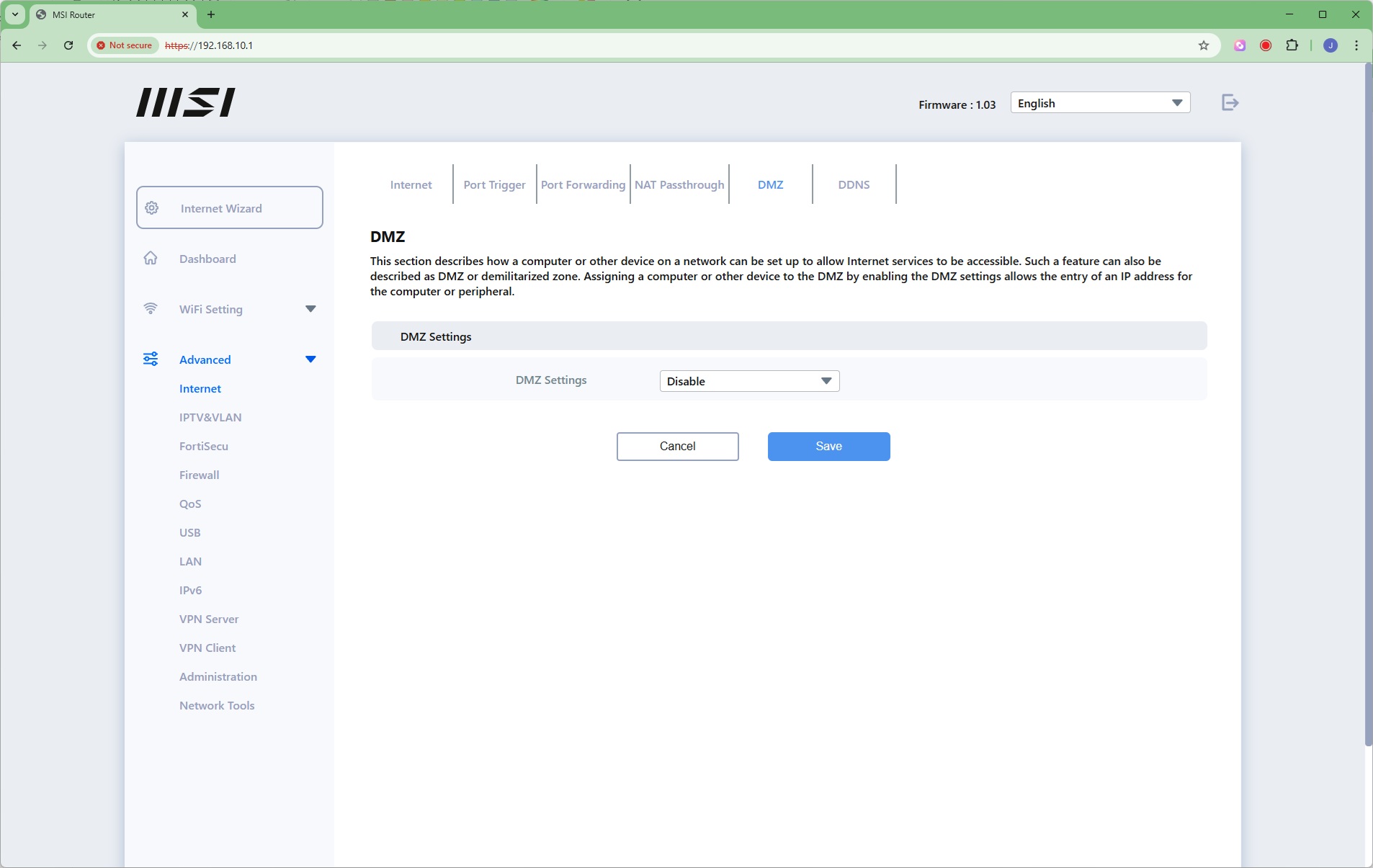
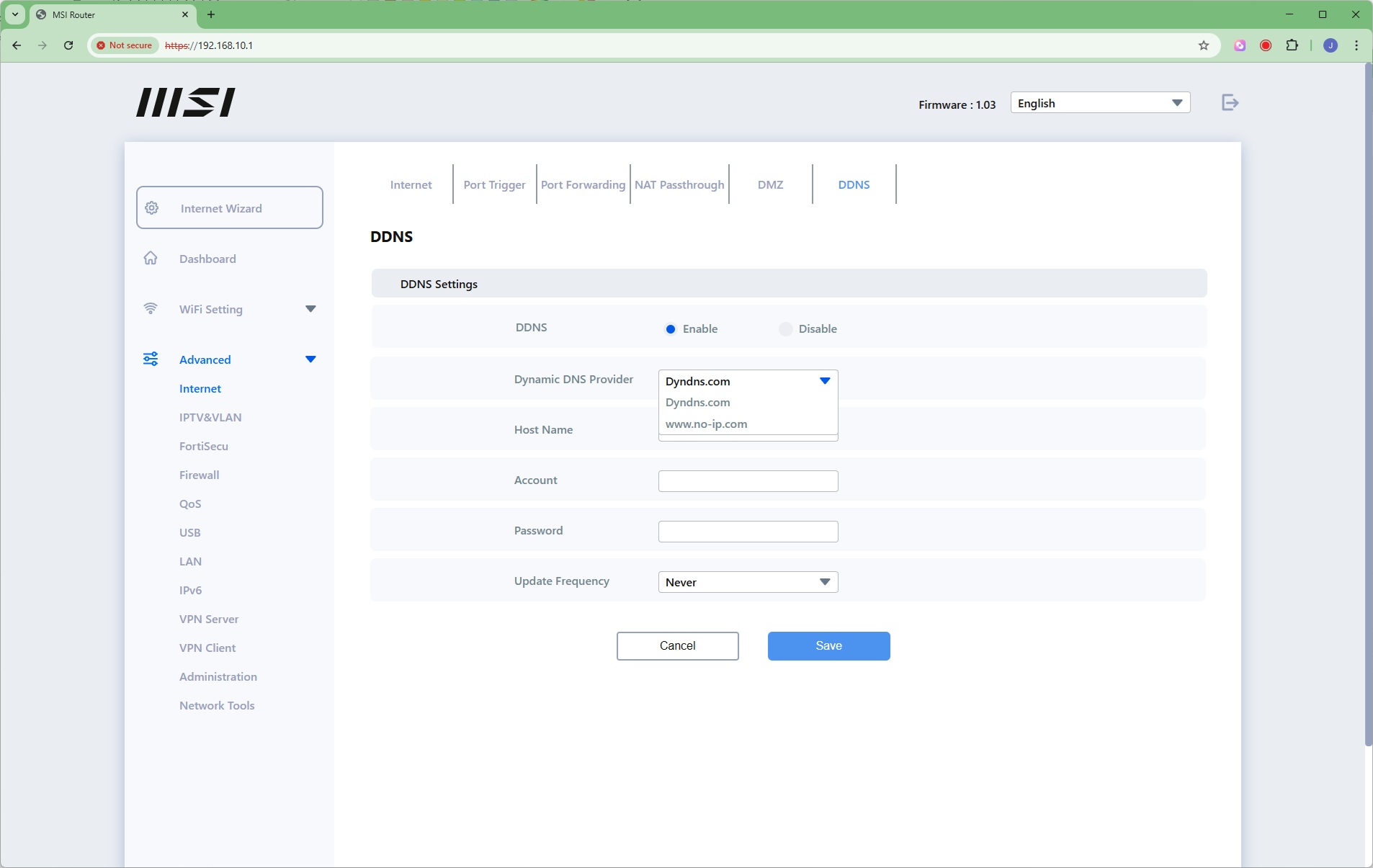
Now we get to the Advanced section, where the Internet subsection provides a very comprehensive set of controls over WAN connection, DHCP, and even MAC address cloning. There's port triggering and forwarding, enabling you to make some services on systems inside your home network visible externally. There's NAT Passthrough for a host of services such as PPTP and SIP (for telephony). You can set up a DMZ to make one computer entirely visible from the Internet, and configure dynamic DNS via the Dyndns or No-IP online services.
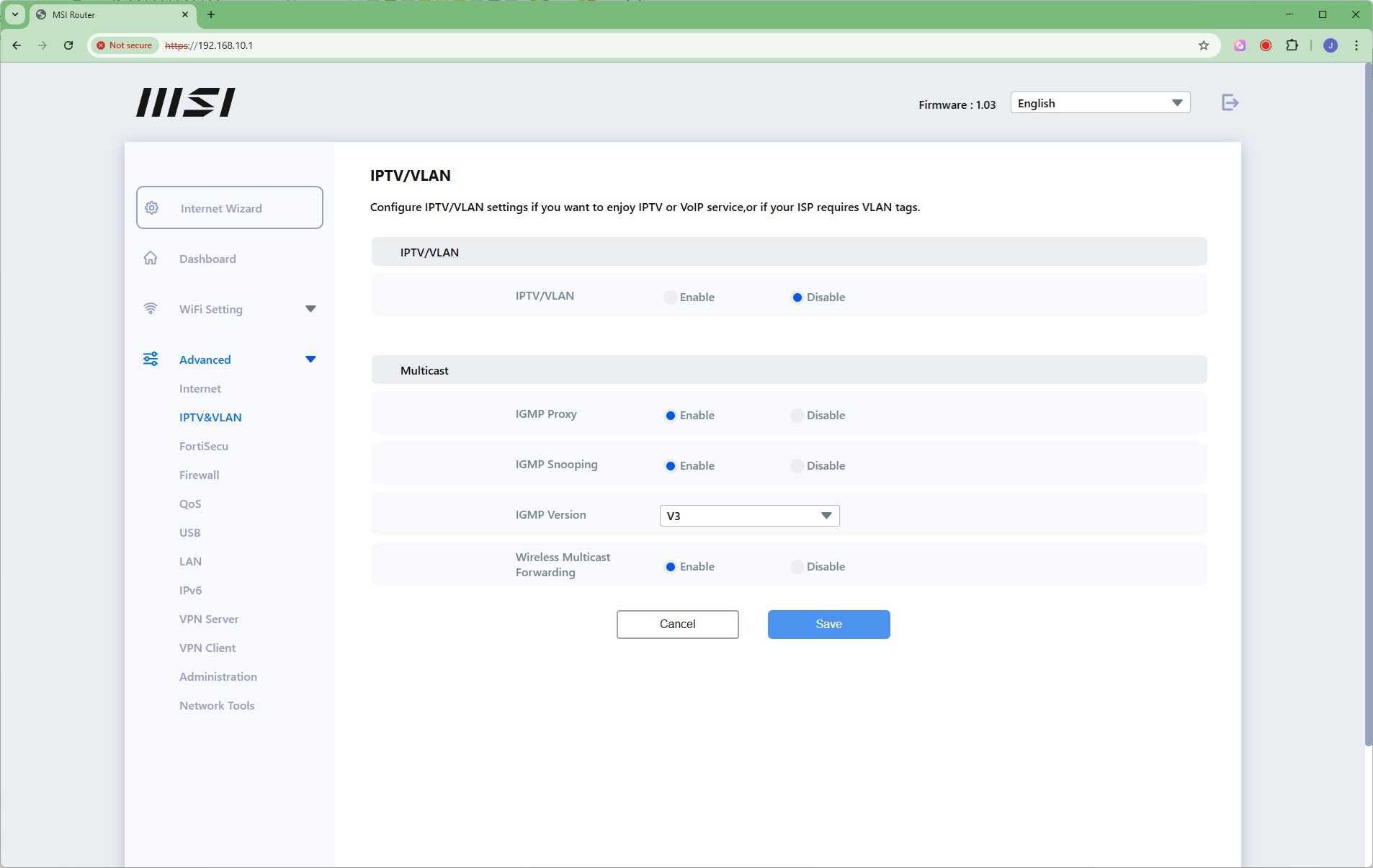
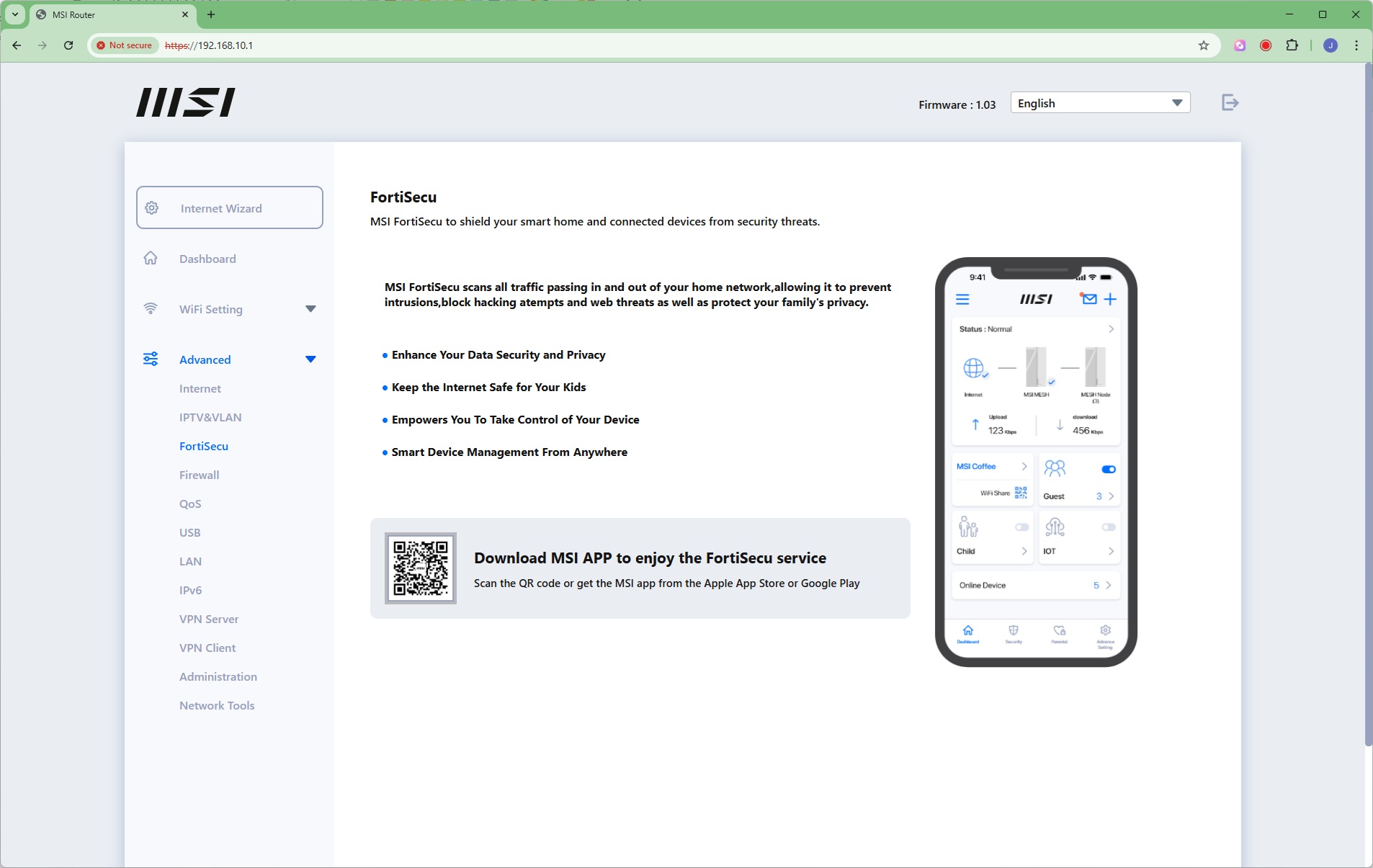
You can set up VLANs and Multicasting, while the FortiSecu section merely directs you towards the Security section on the smartphone app.
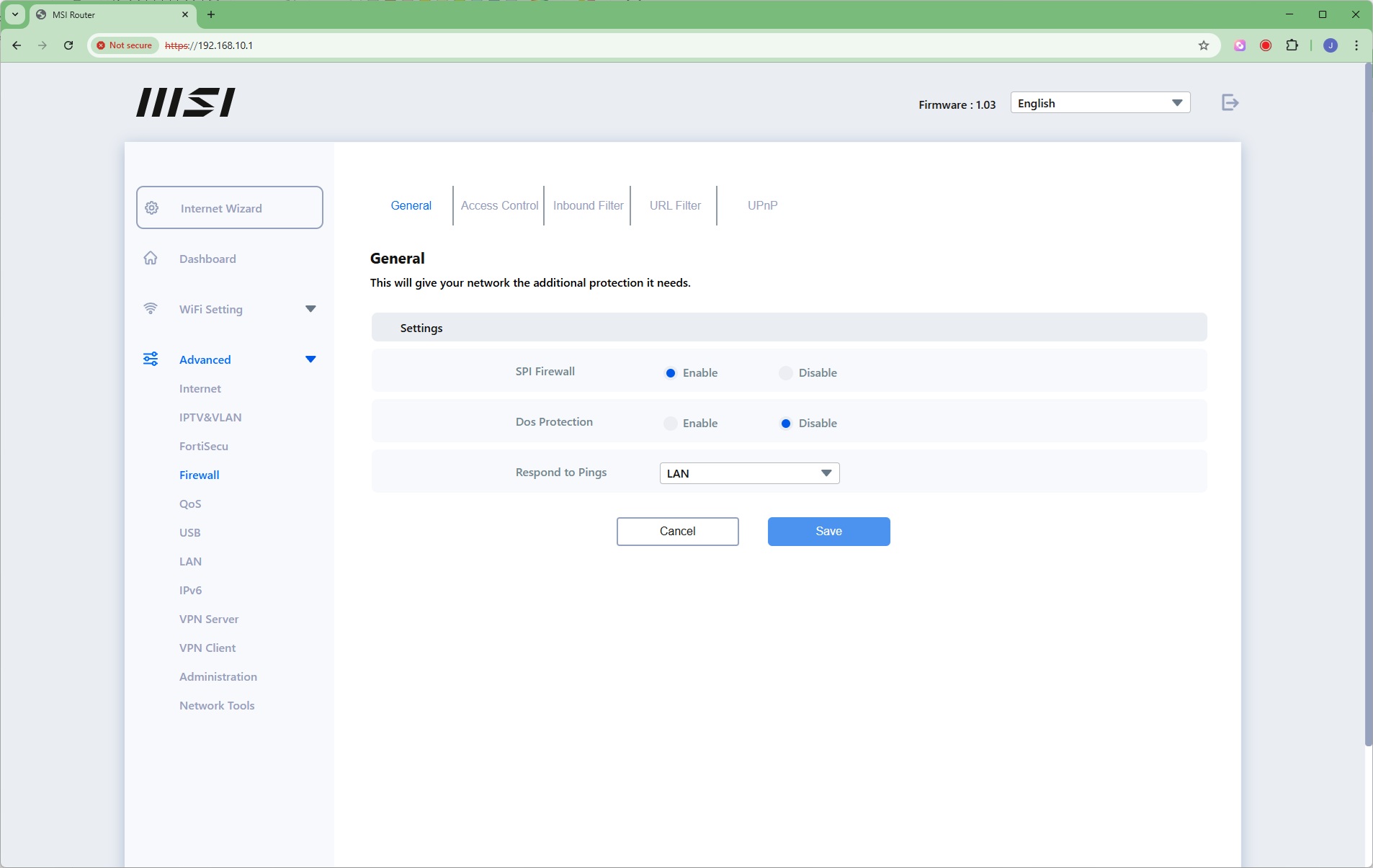
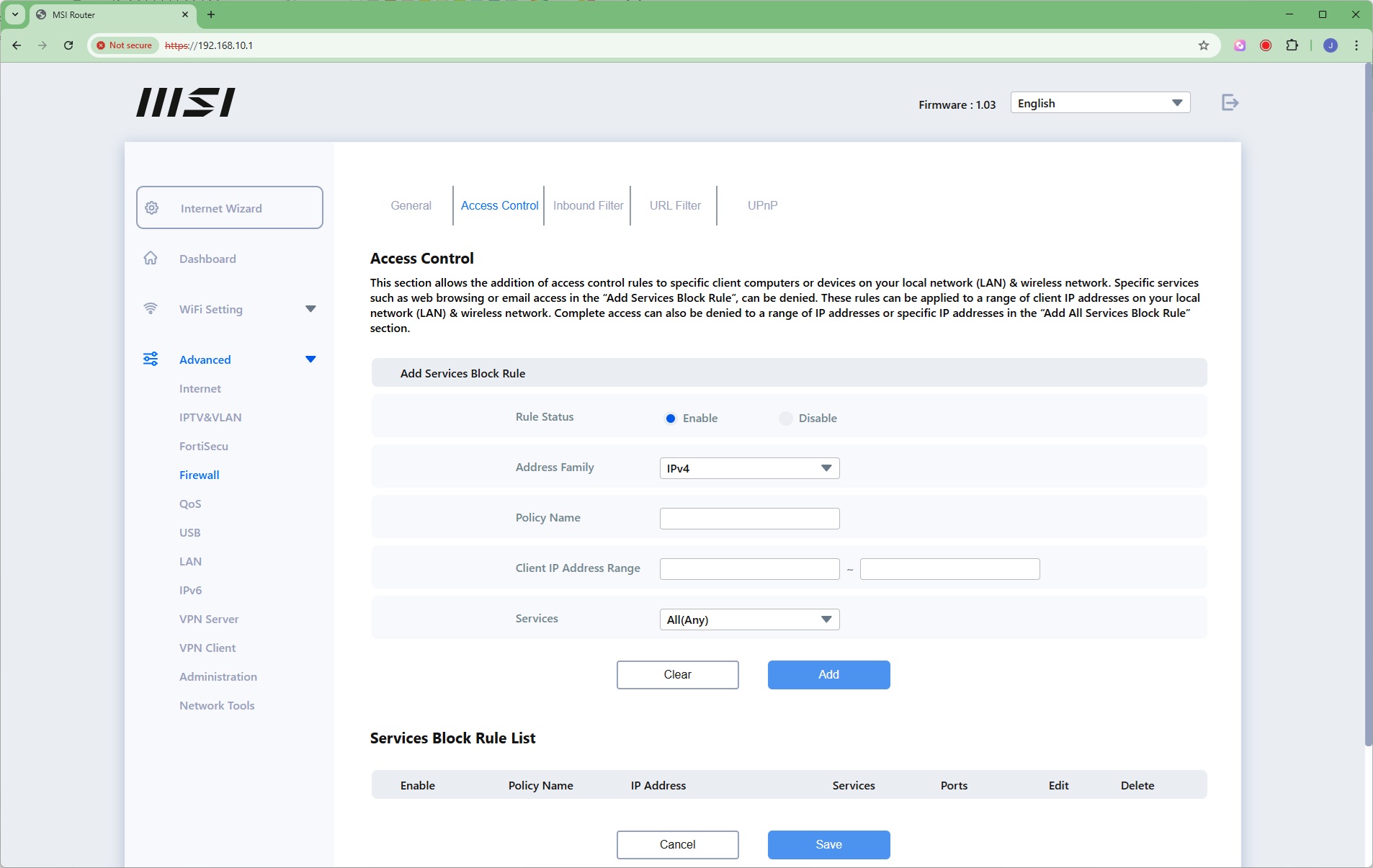
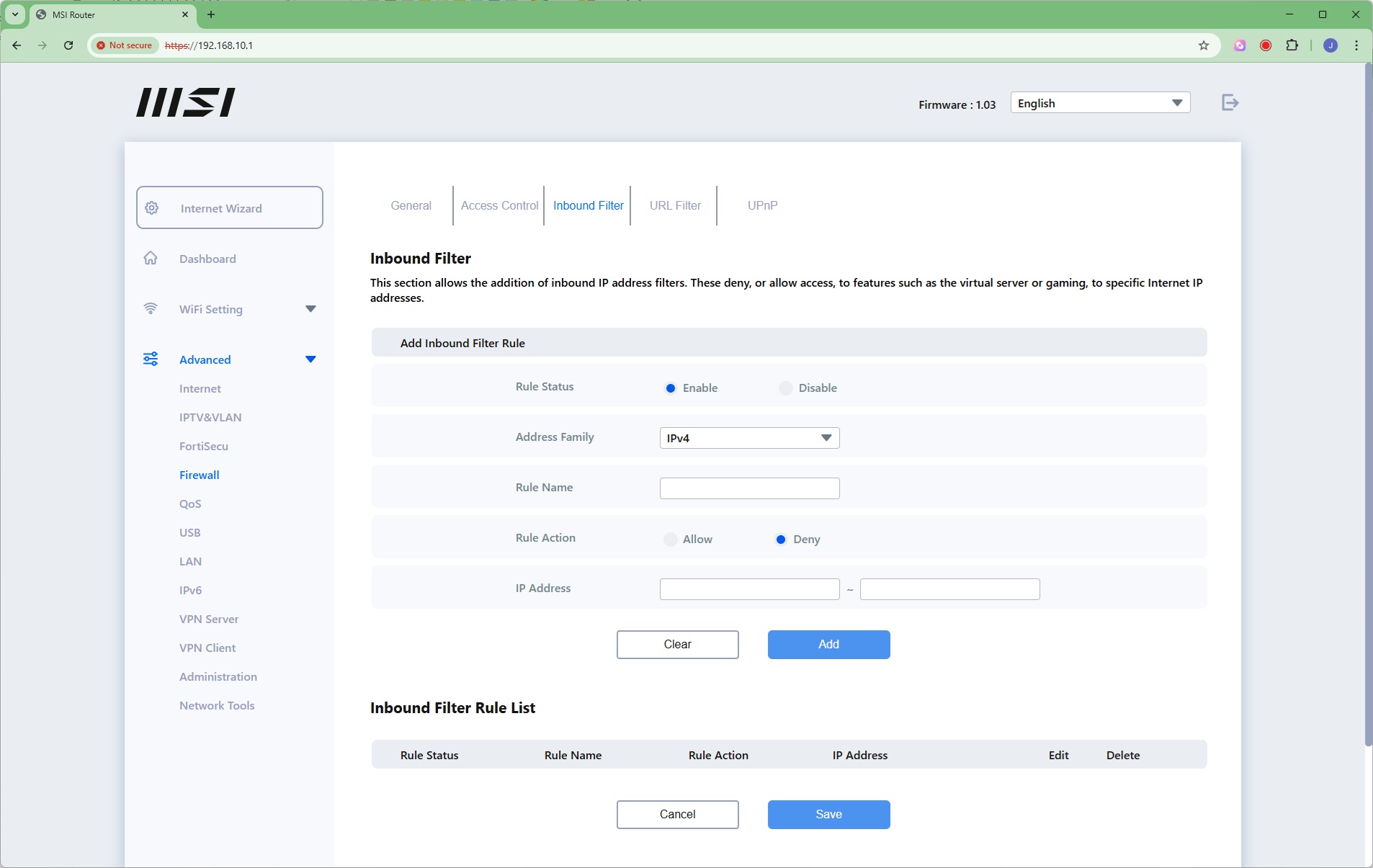
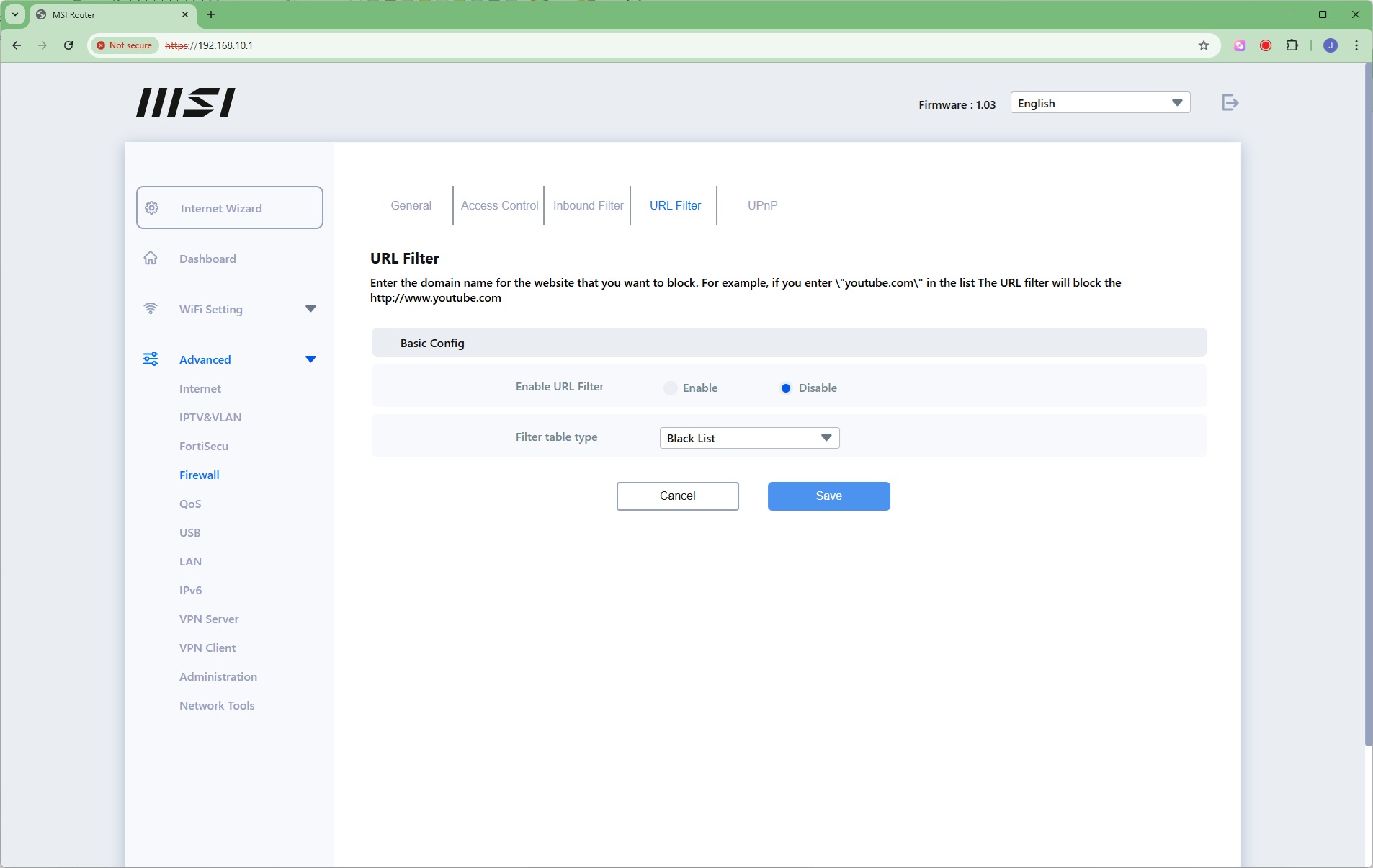
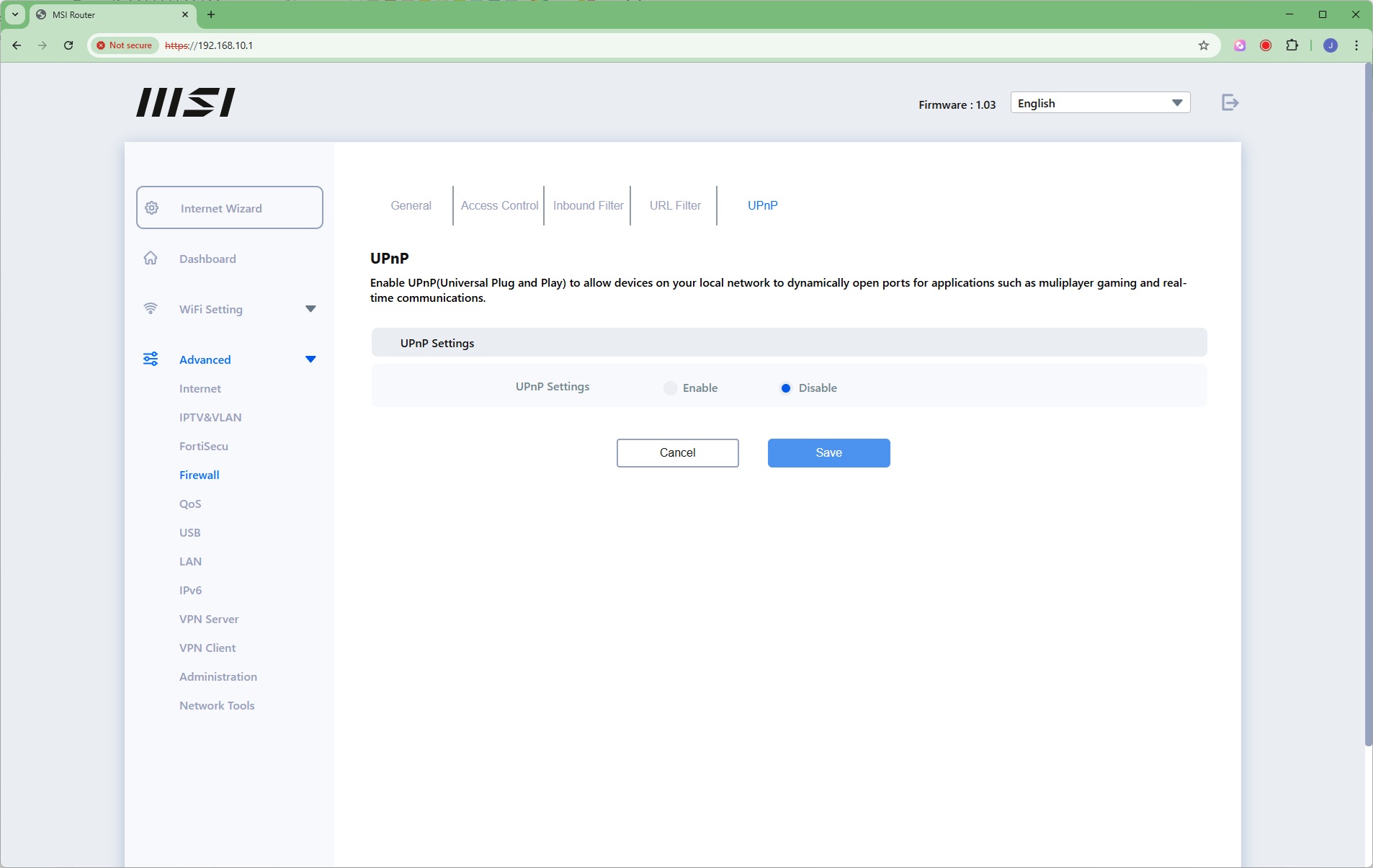
The MSI Roamii BE Pro has an extensive firewall built in, with denial of service protection. You can block services, create rules, restrict URLs by keyword, and enable UPnP.
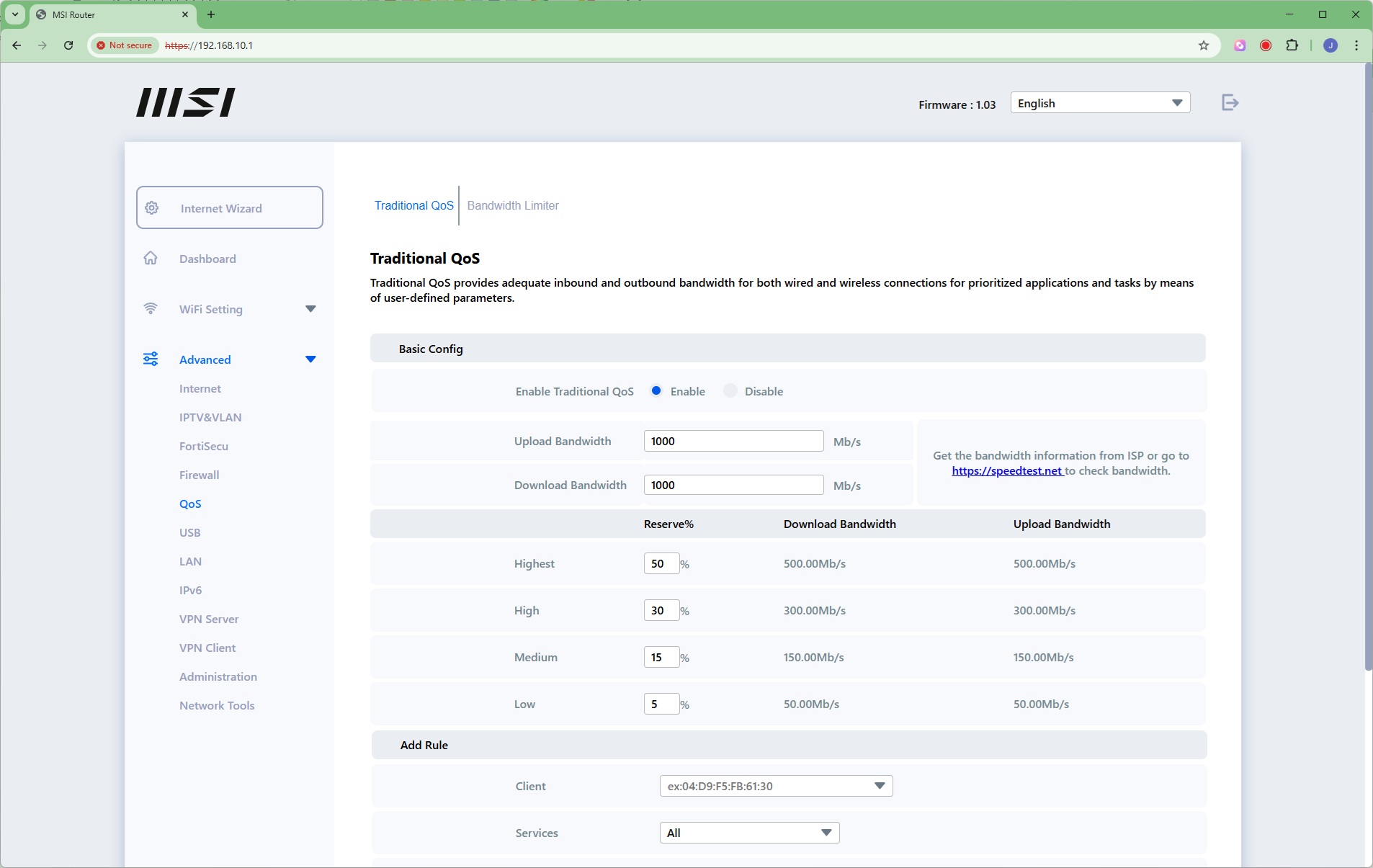
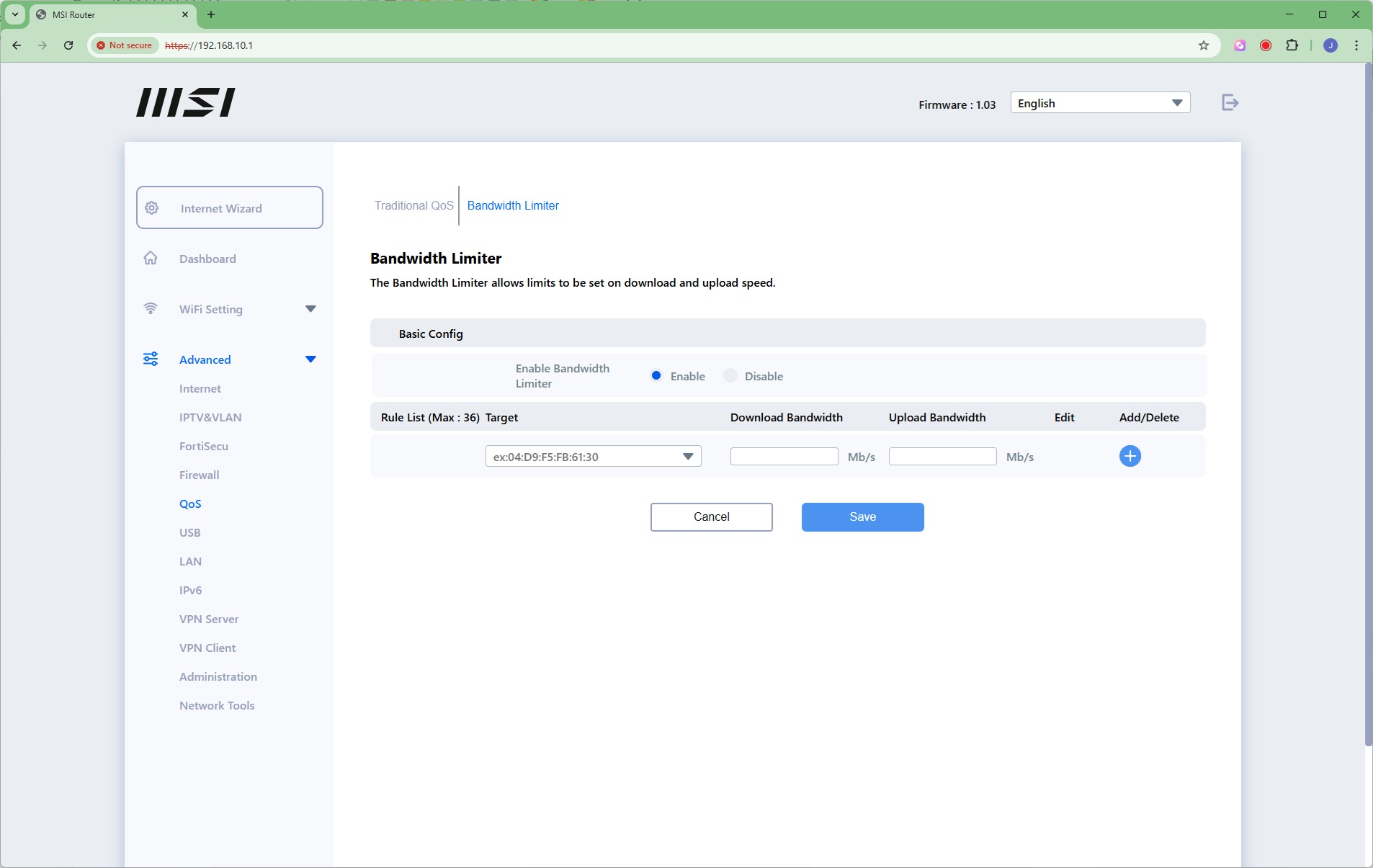
Detailed quality of service settings are available, and can be applied to specific client systems on the network by MAC address or system name. There's also a simple bandwidth limiter that can also be applied by MAC address or system name.
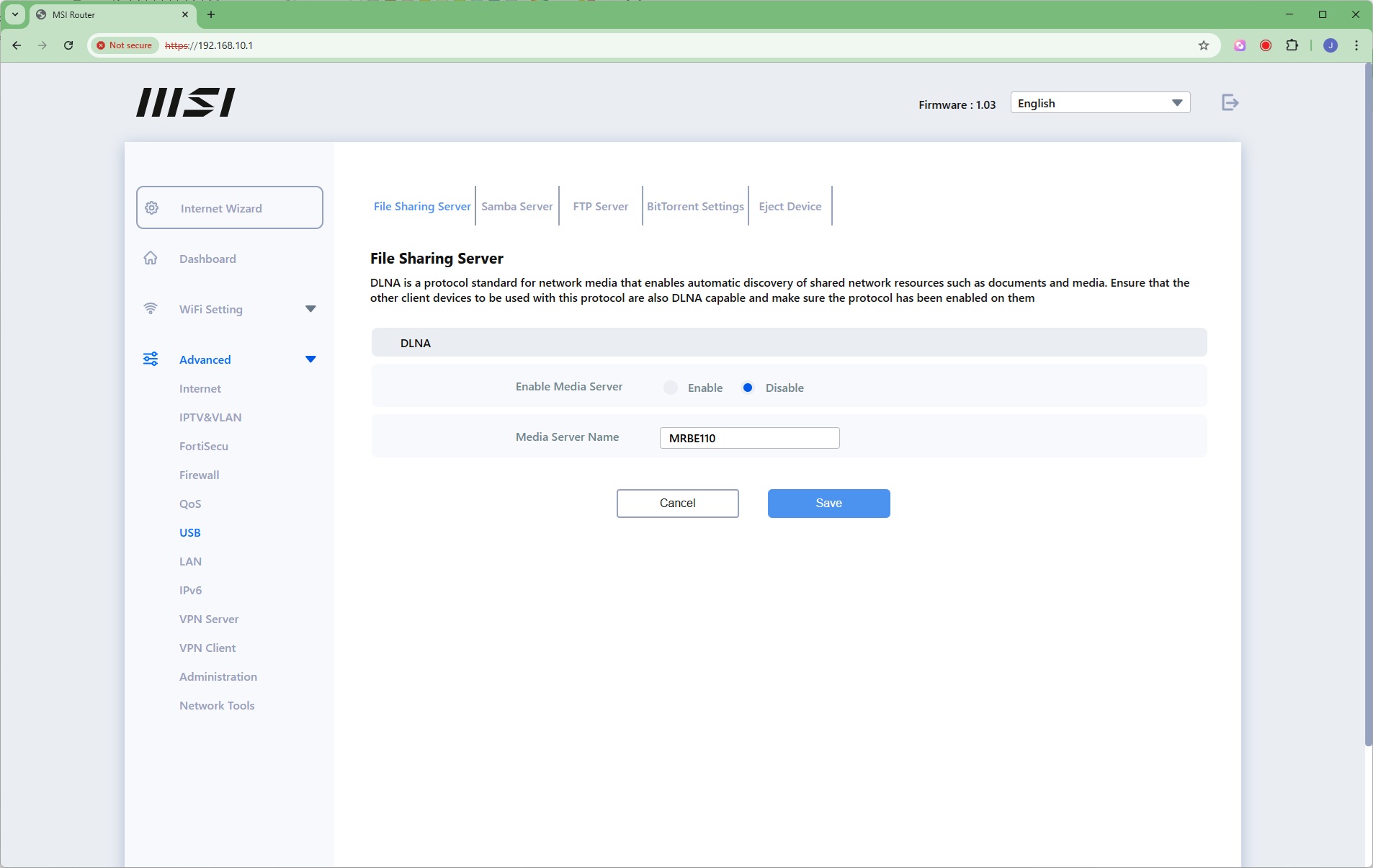
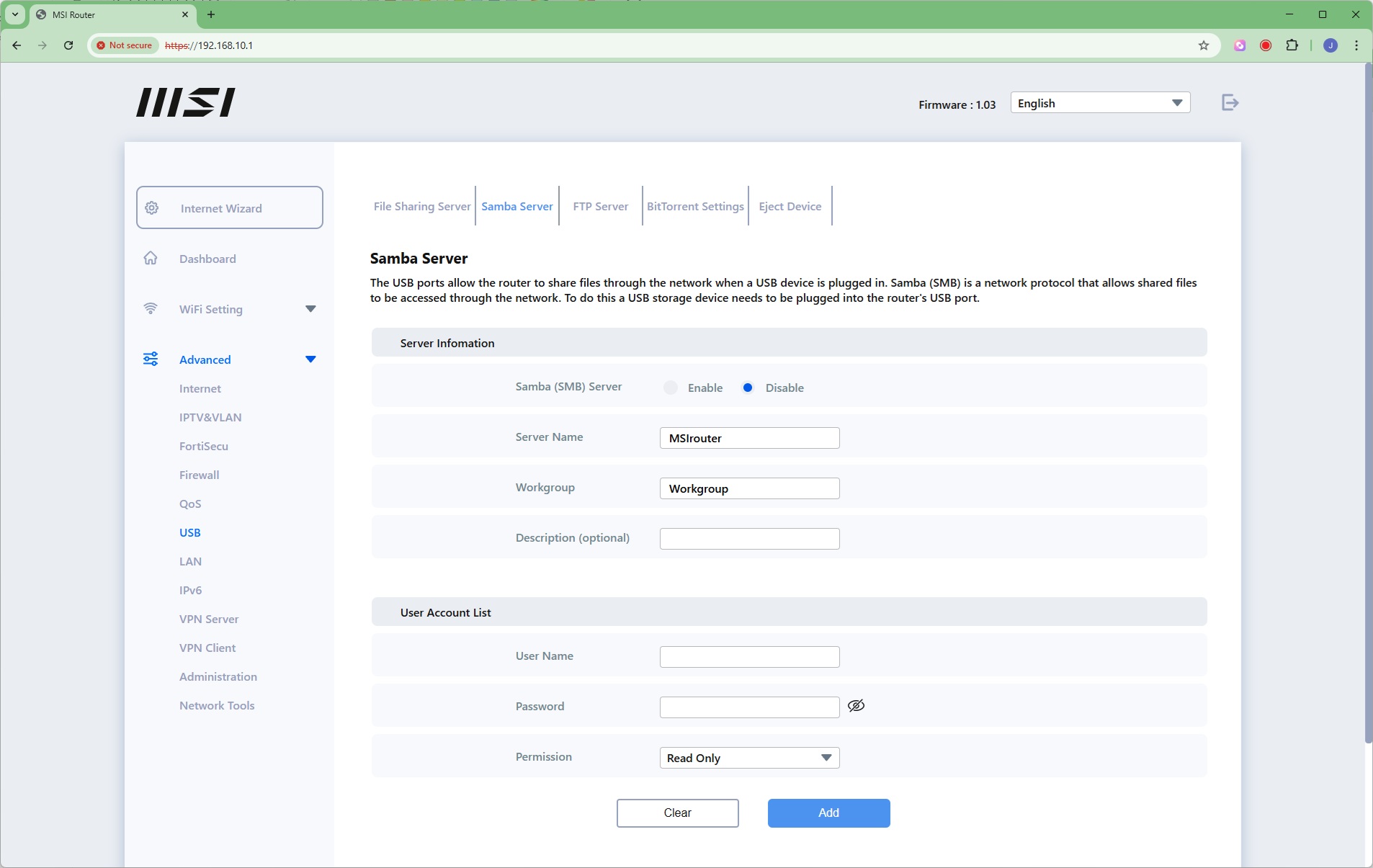
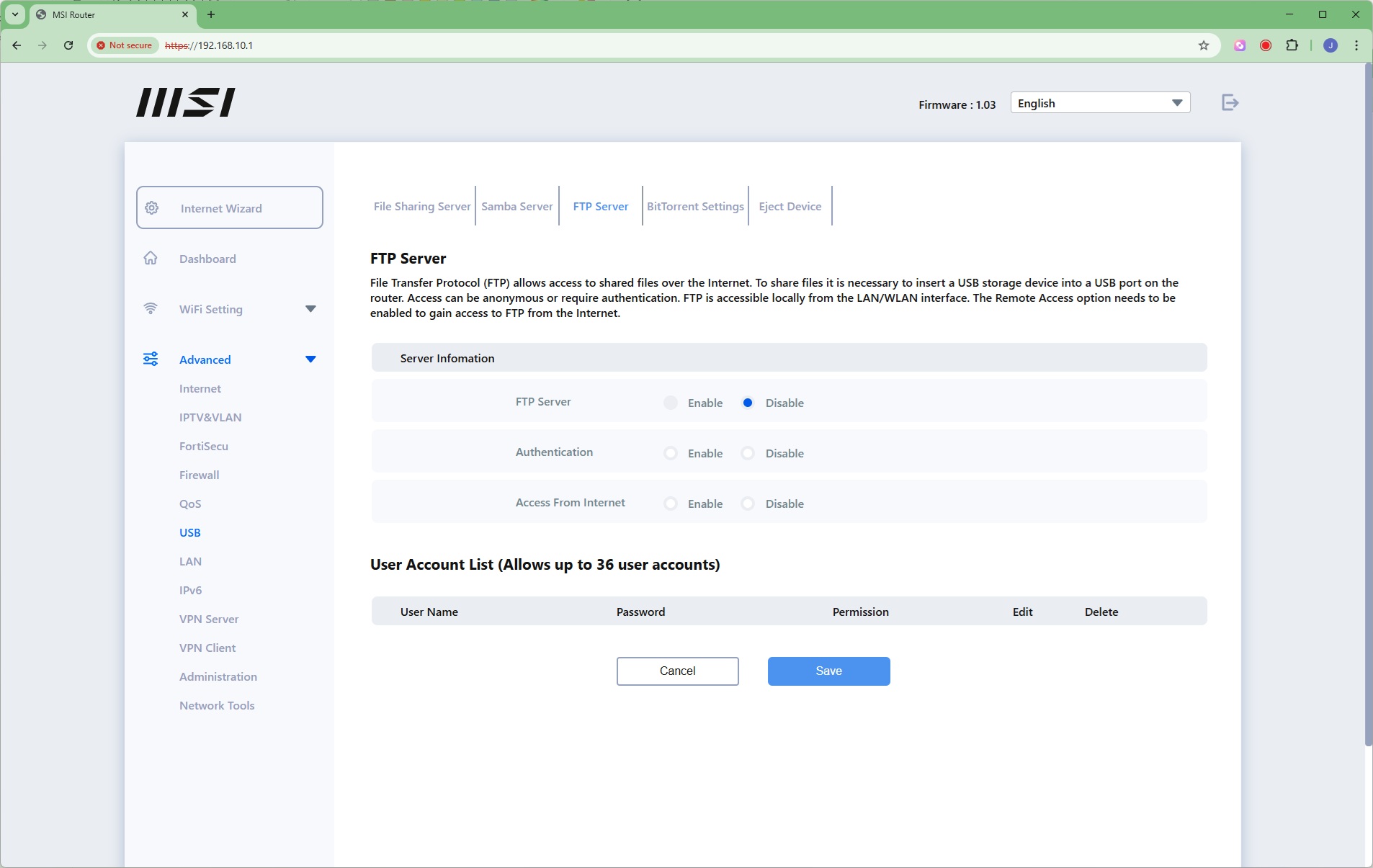
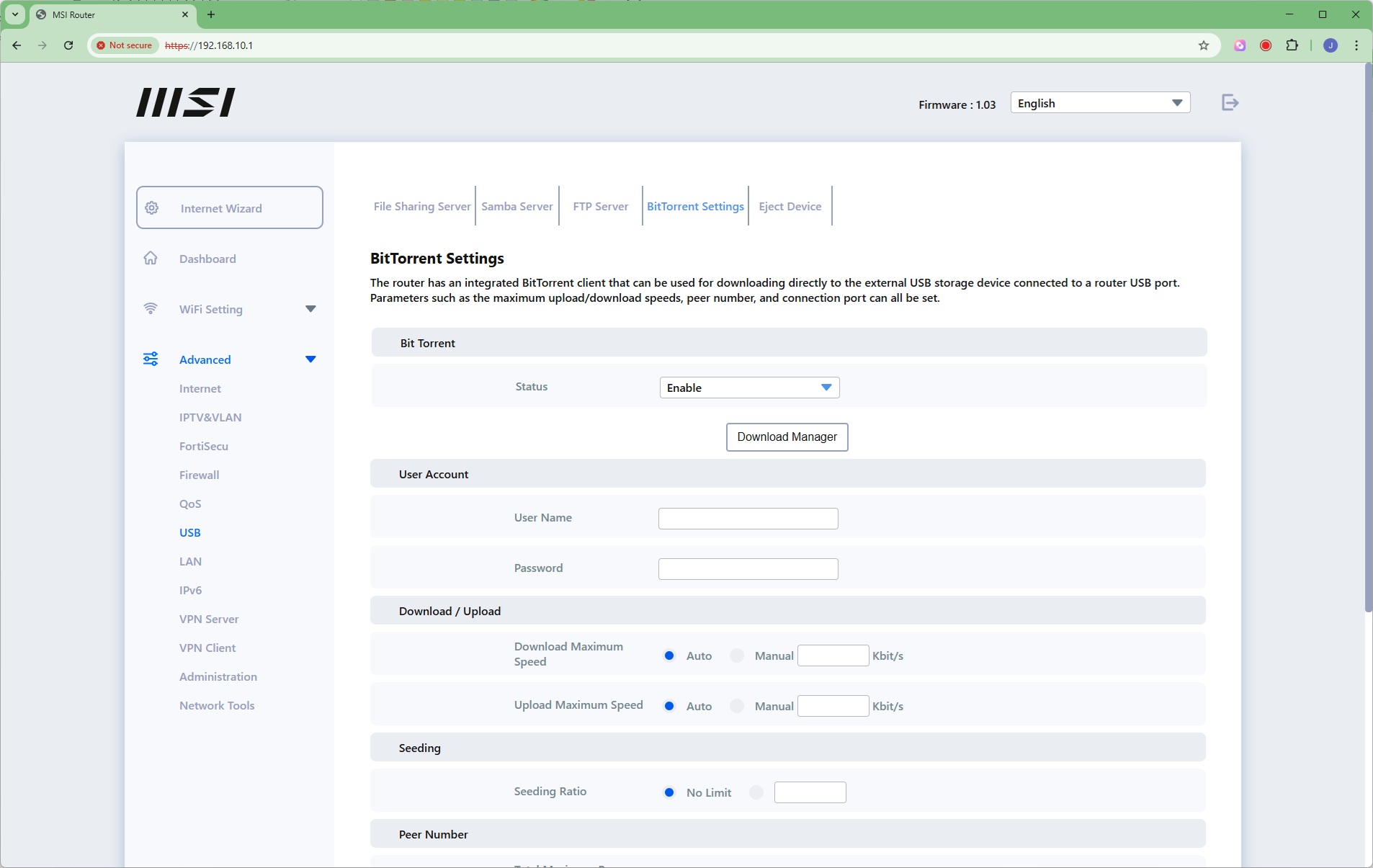
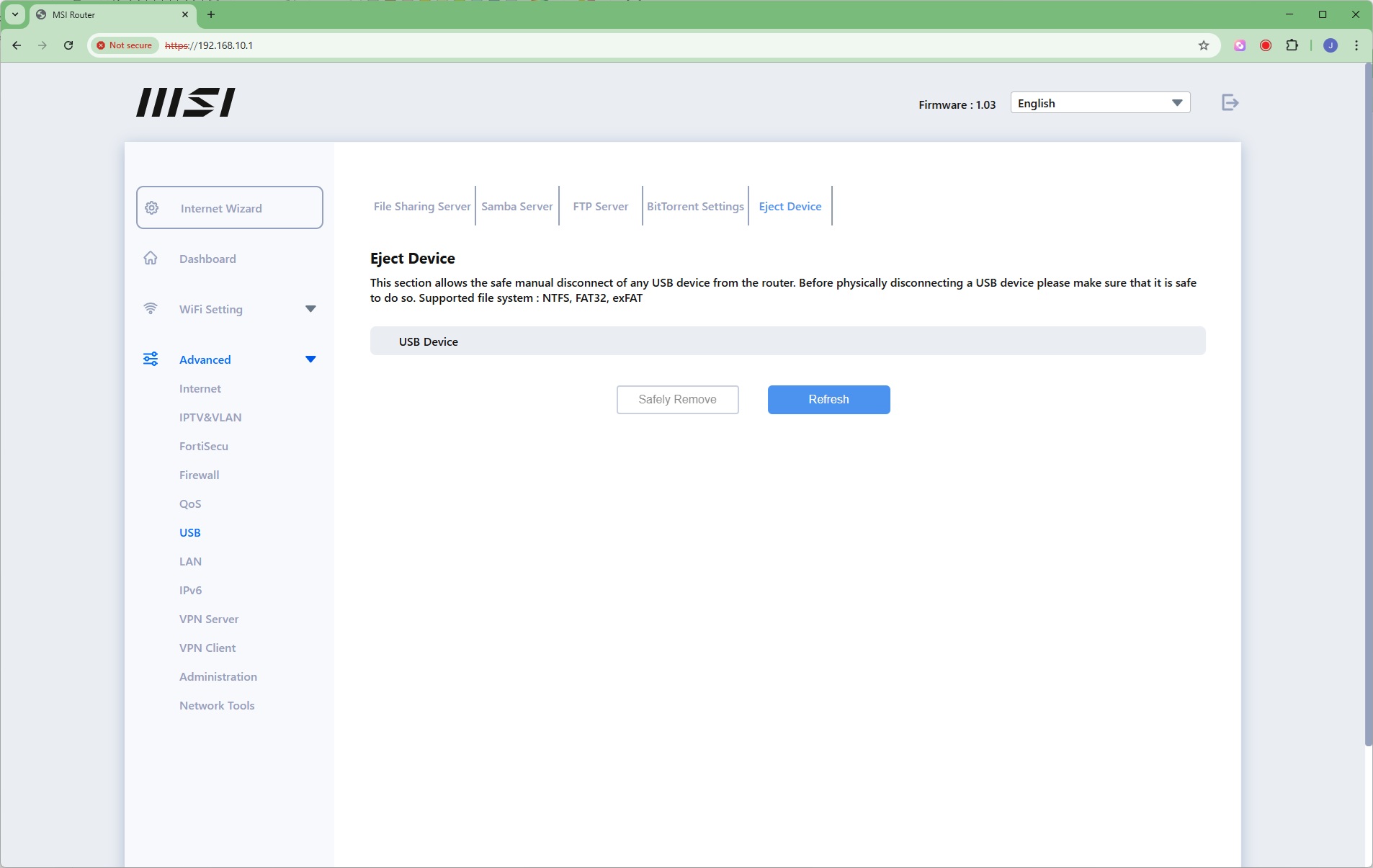
The USB port on the router can be shared using DLNA, Samba (for Windows systems), FTP, and as a BitTorrent peer.
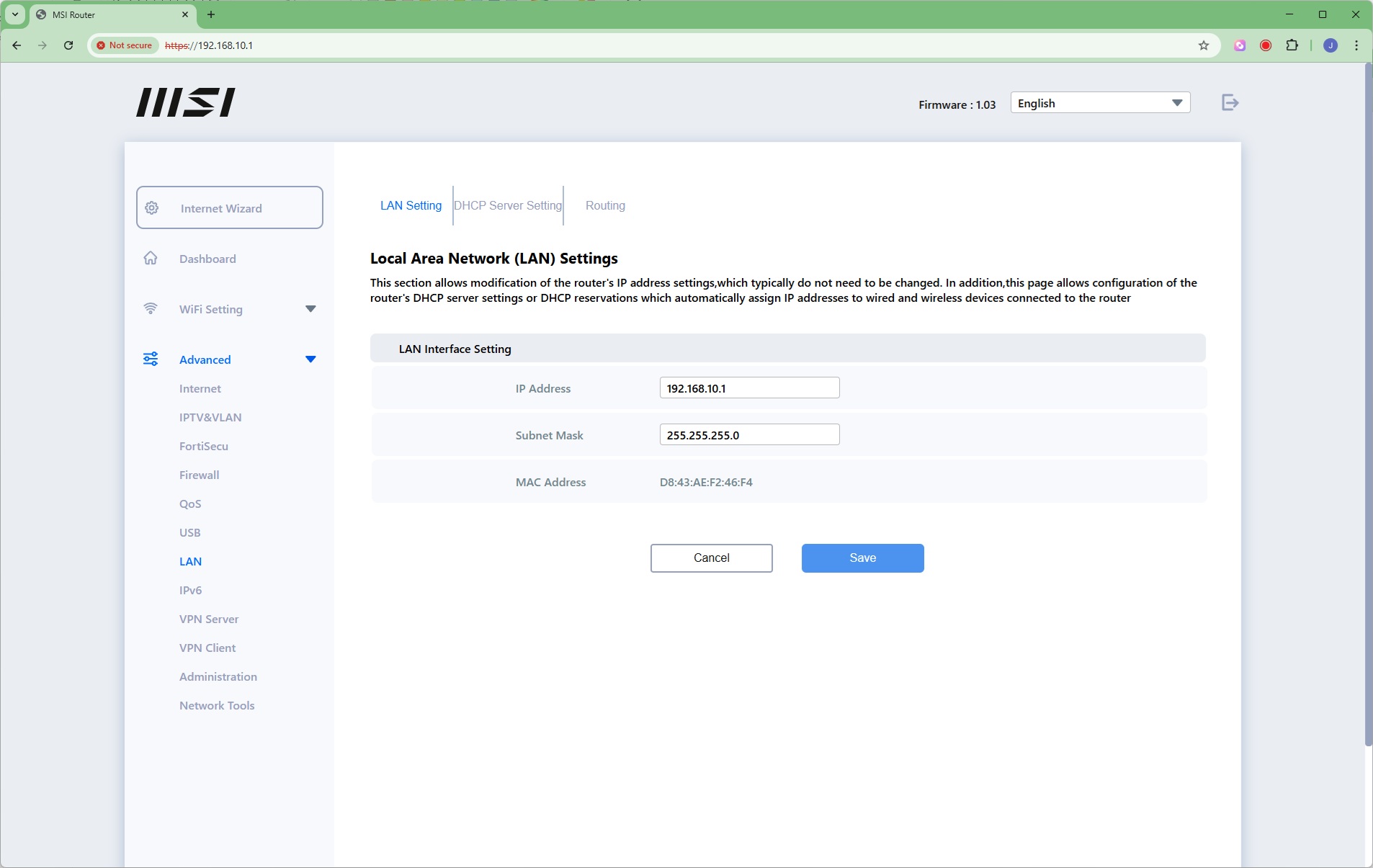
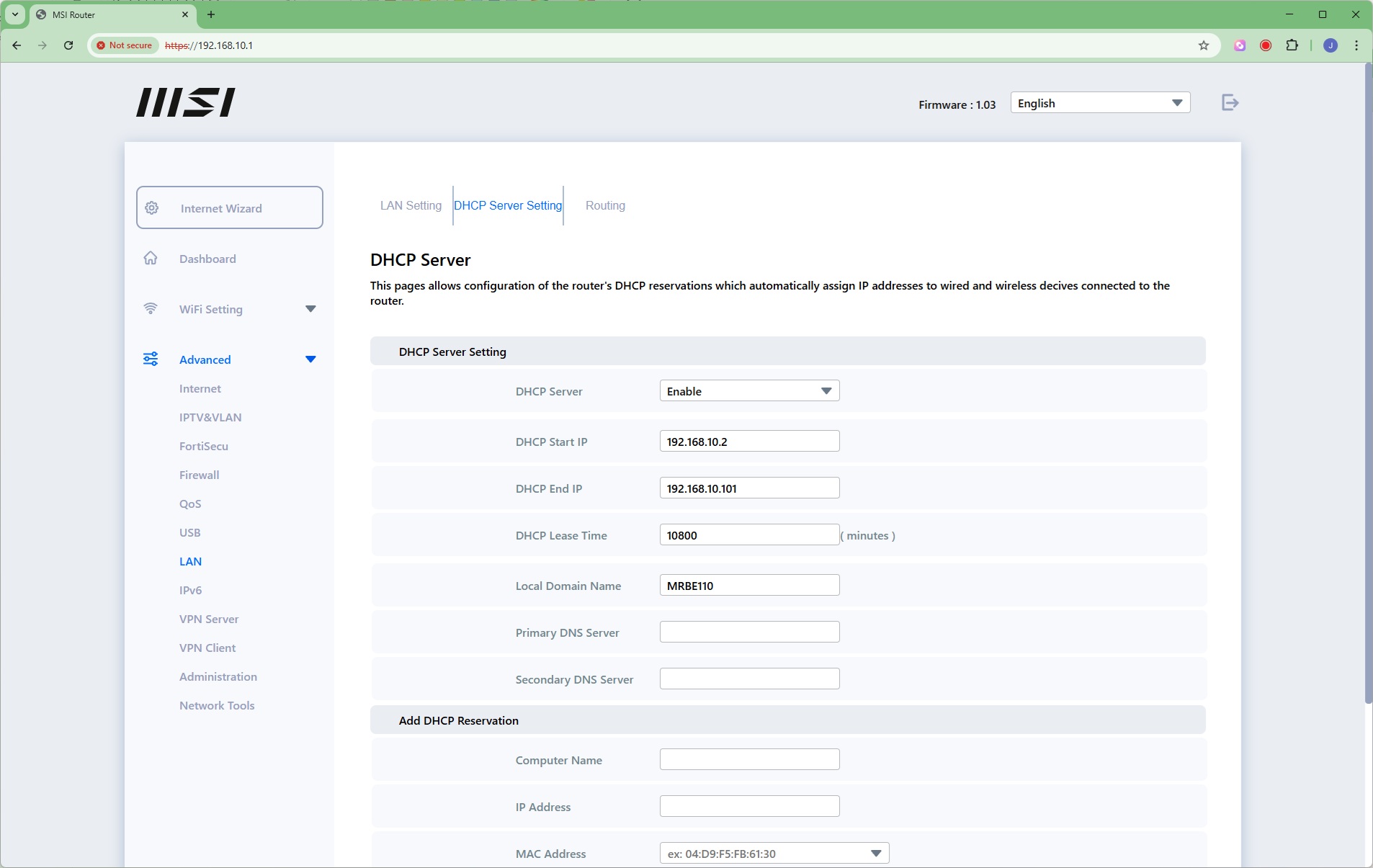
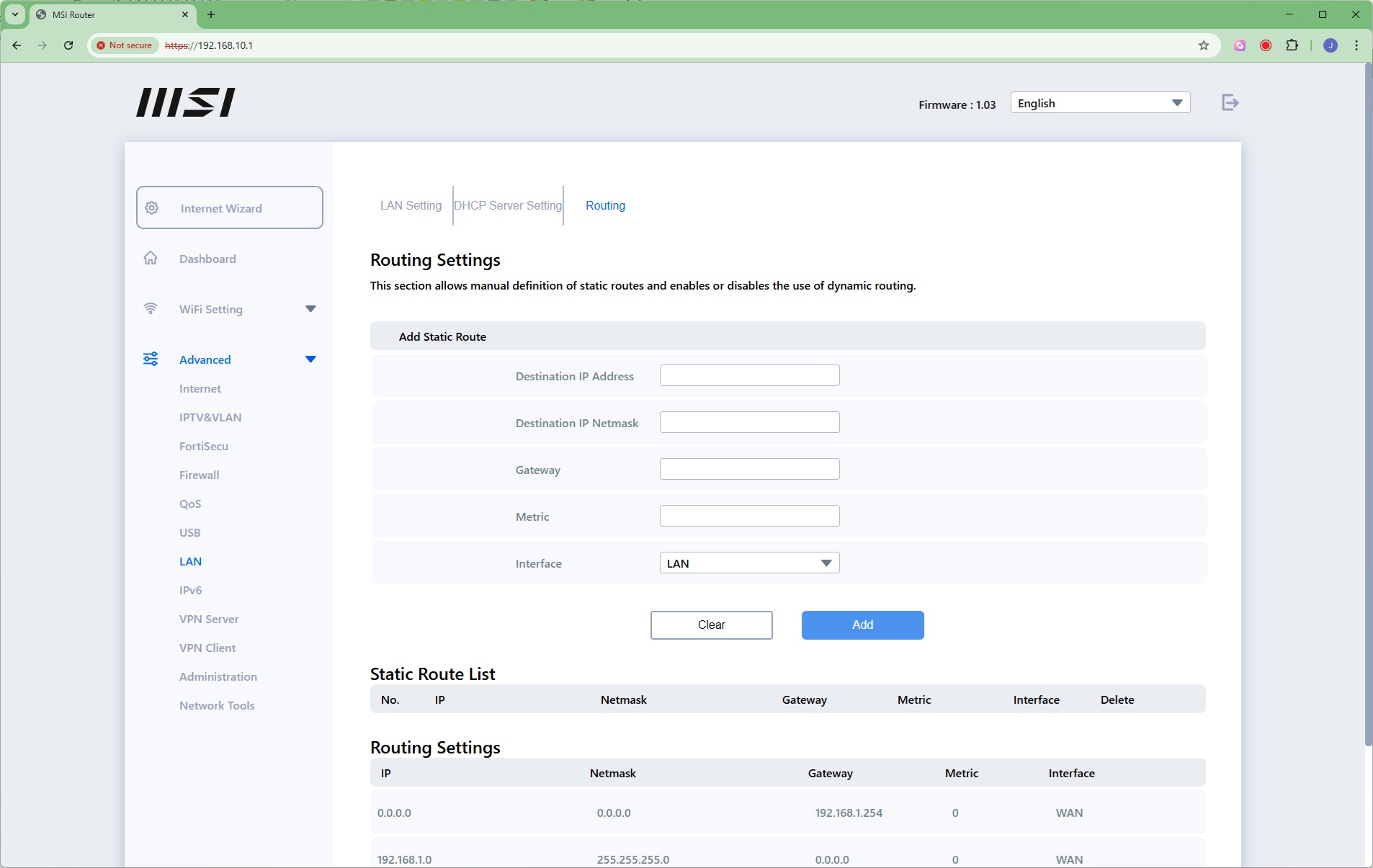
The LAN section lets you change the IP address and subnet for the LAN interface, which range of IP addresses the DHCP server uses (or you can disable it entirely), and define static routes.
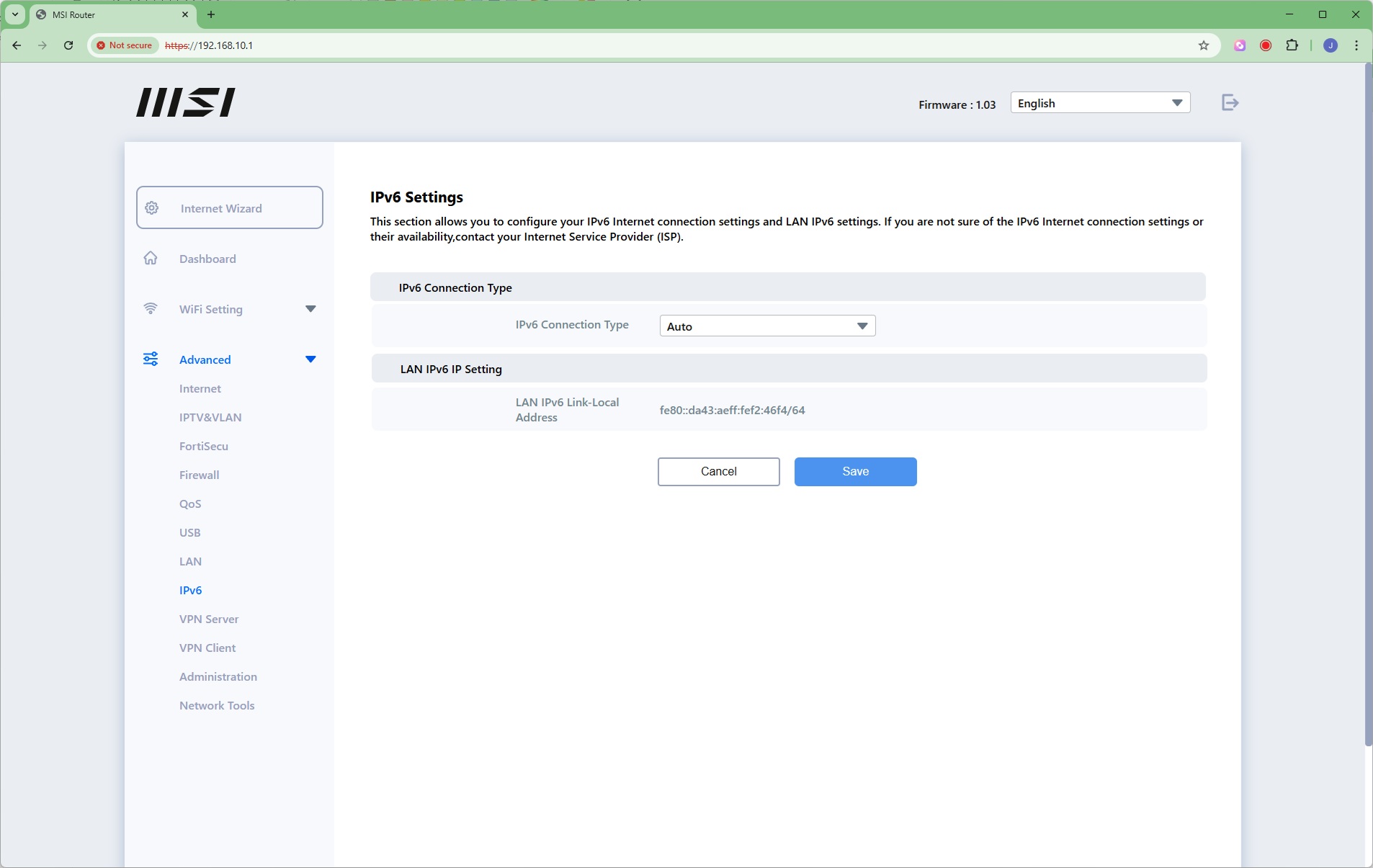
IPv6 settings are available.
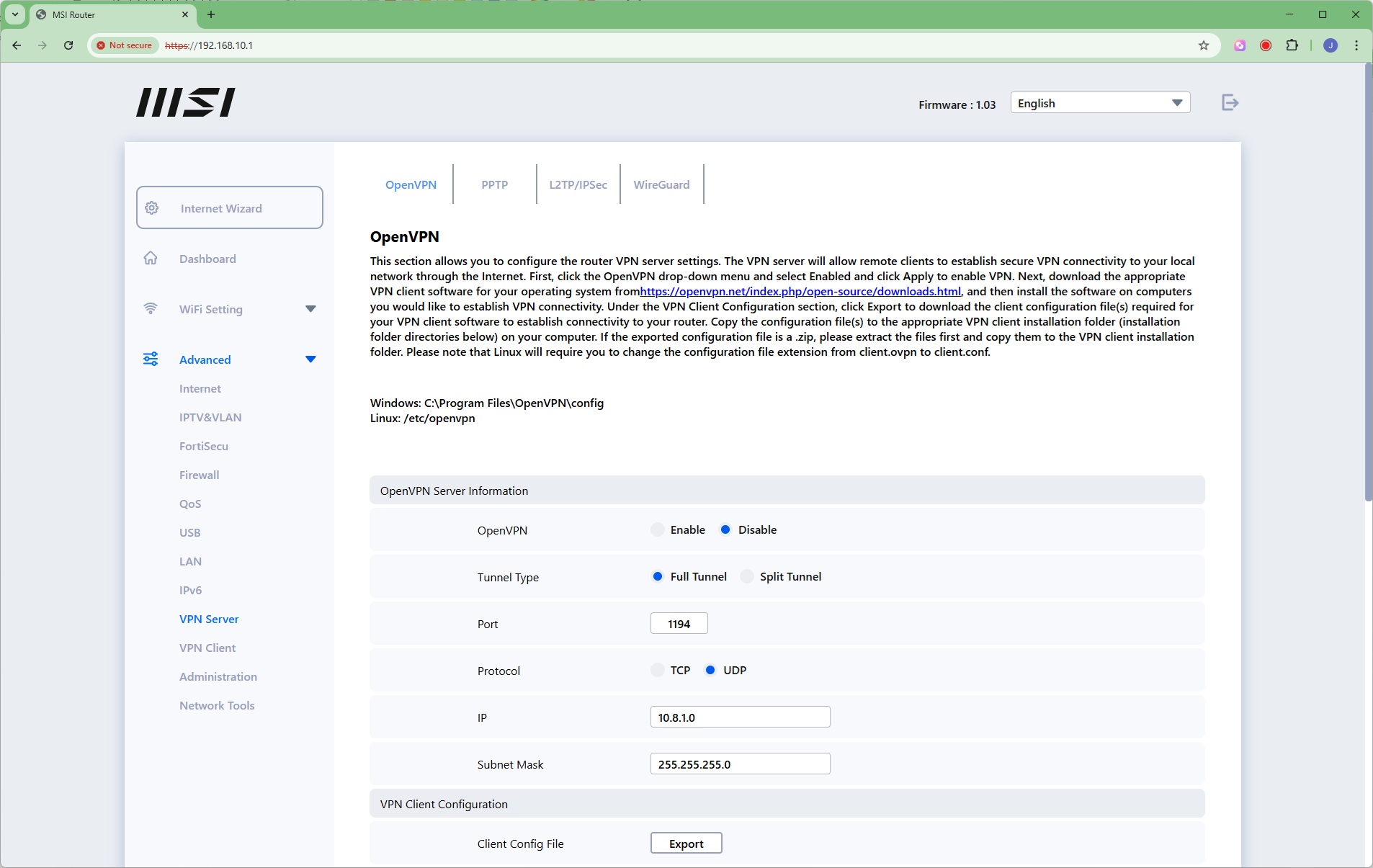
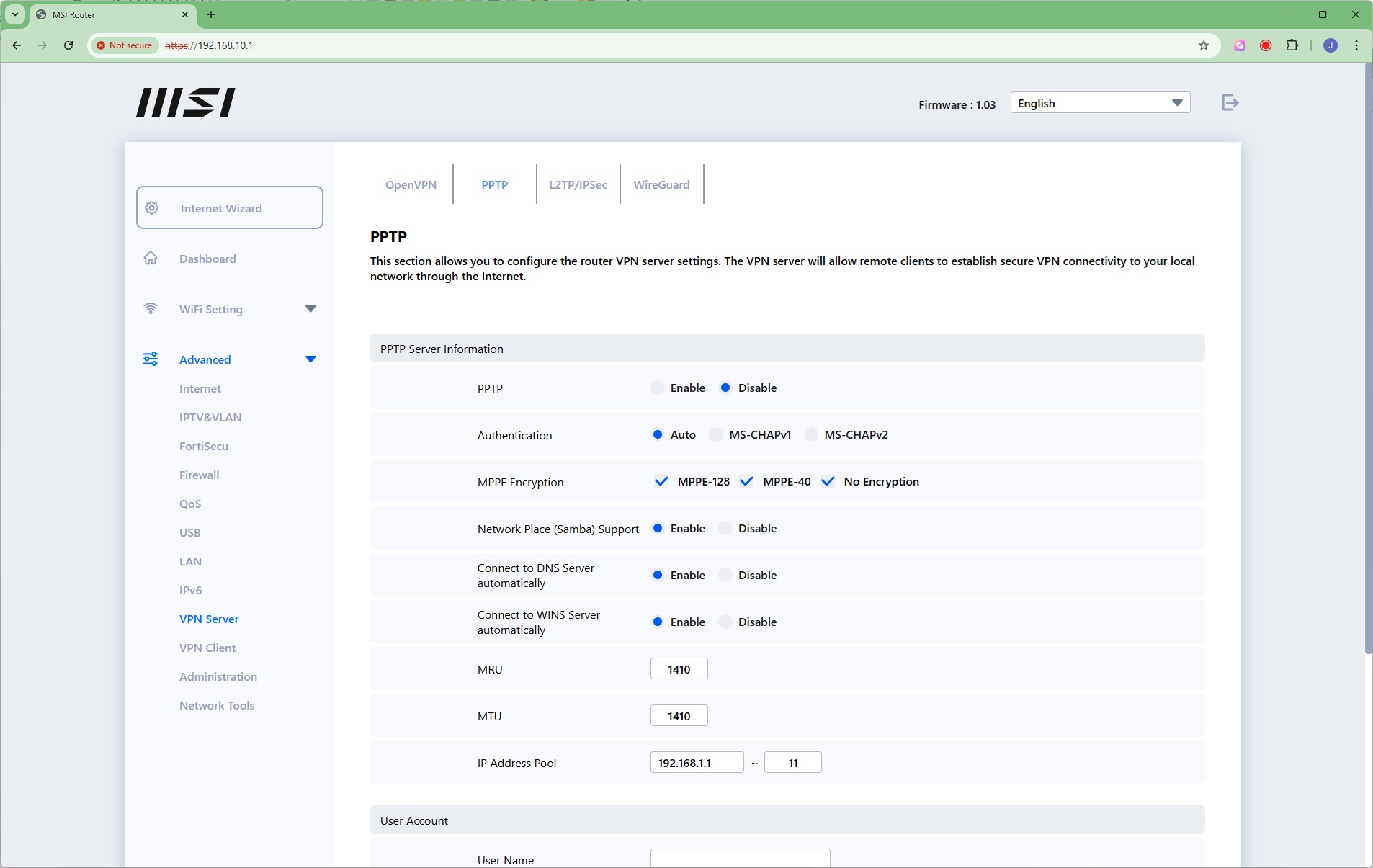
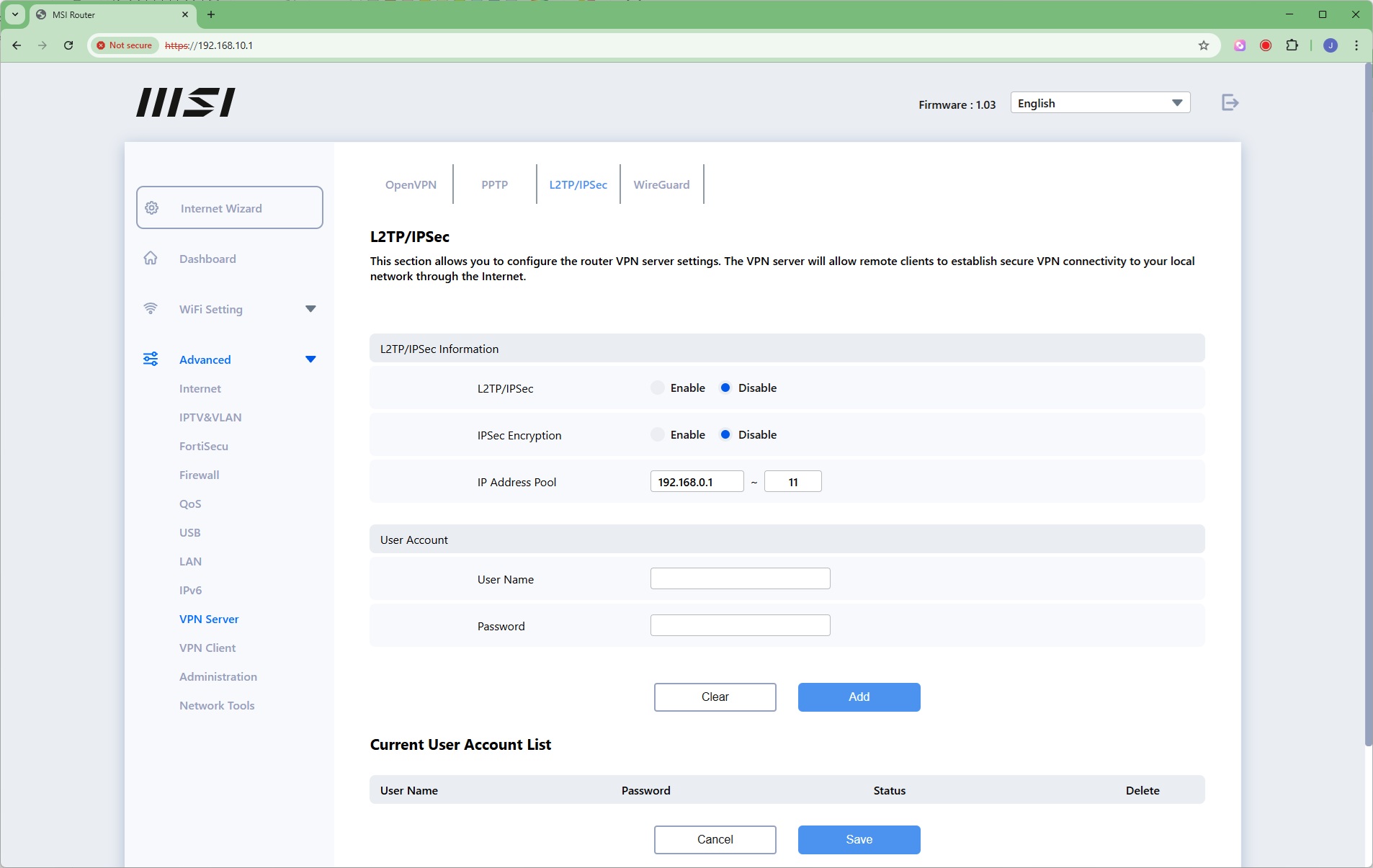
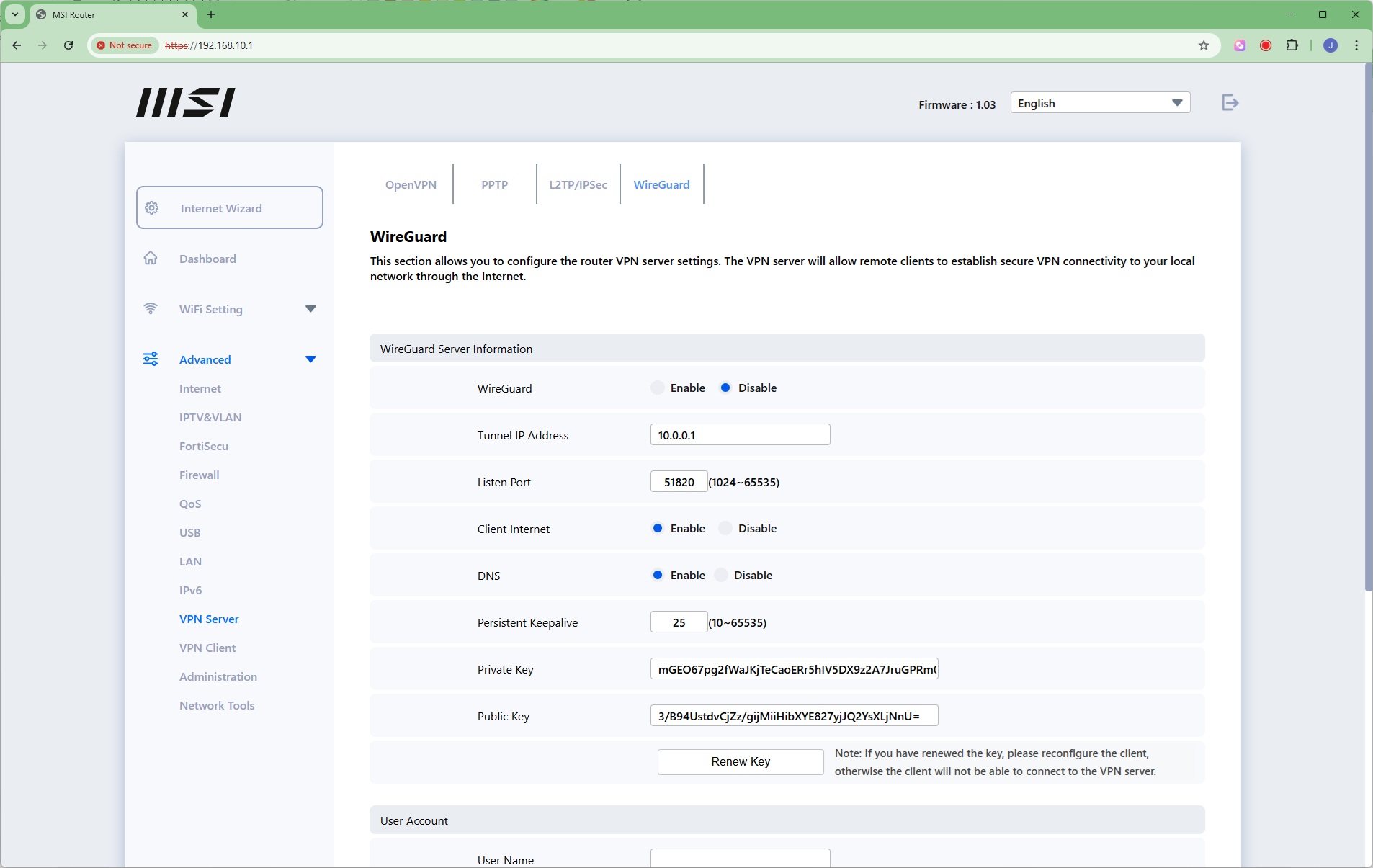
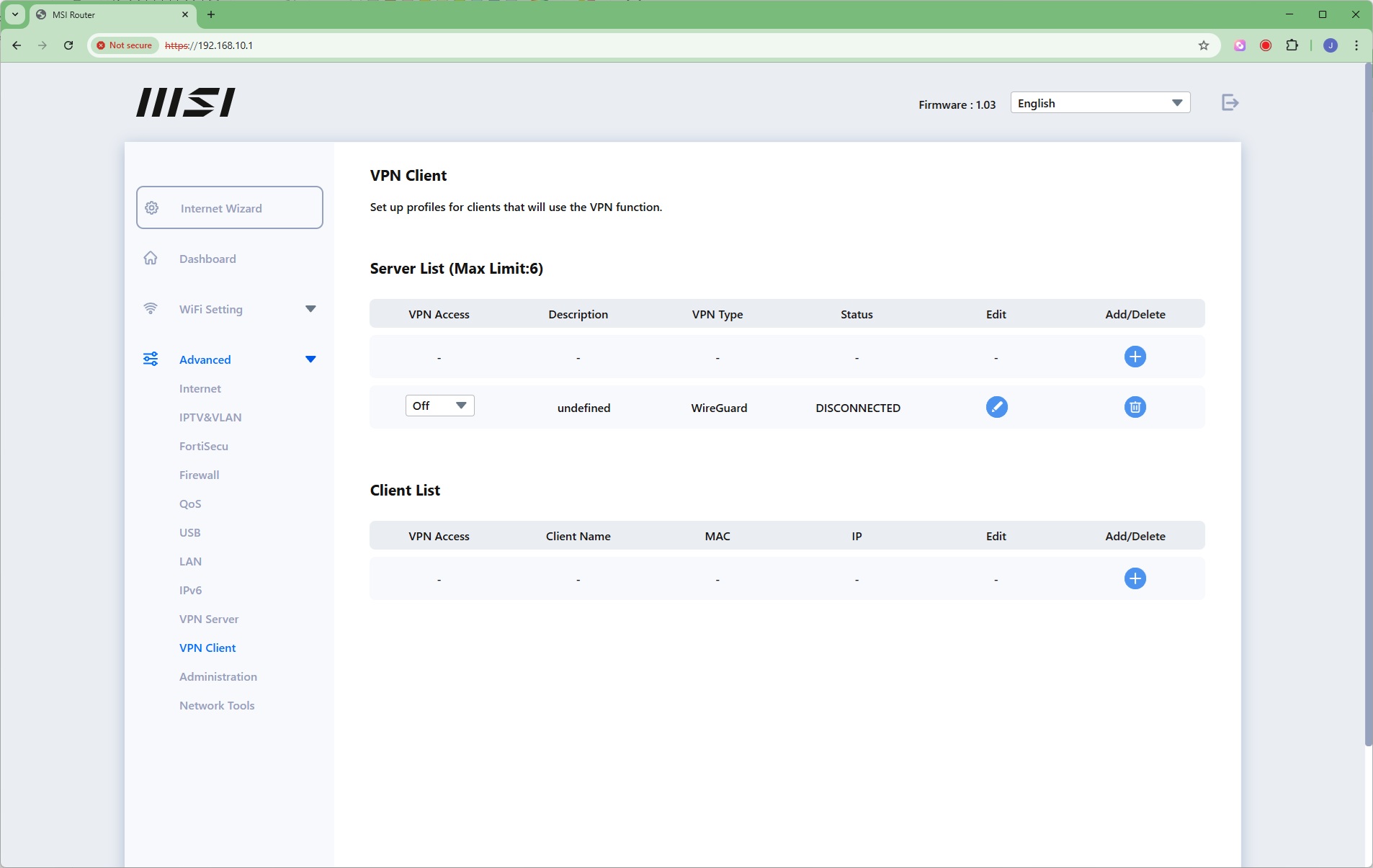
The MSI Roamii BE Pro can act as a VPN server, using OpenVPN, PPTP, L2TP/IPSec or WireGuard. That's a pretty comprehensive level of VPN support, when most routers will only offer a couple of these options. You can also set up profiles for clients of the VPN server.
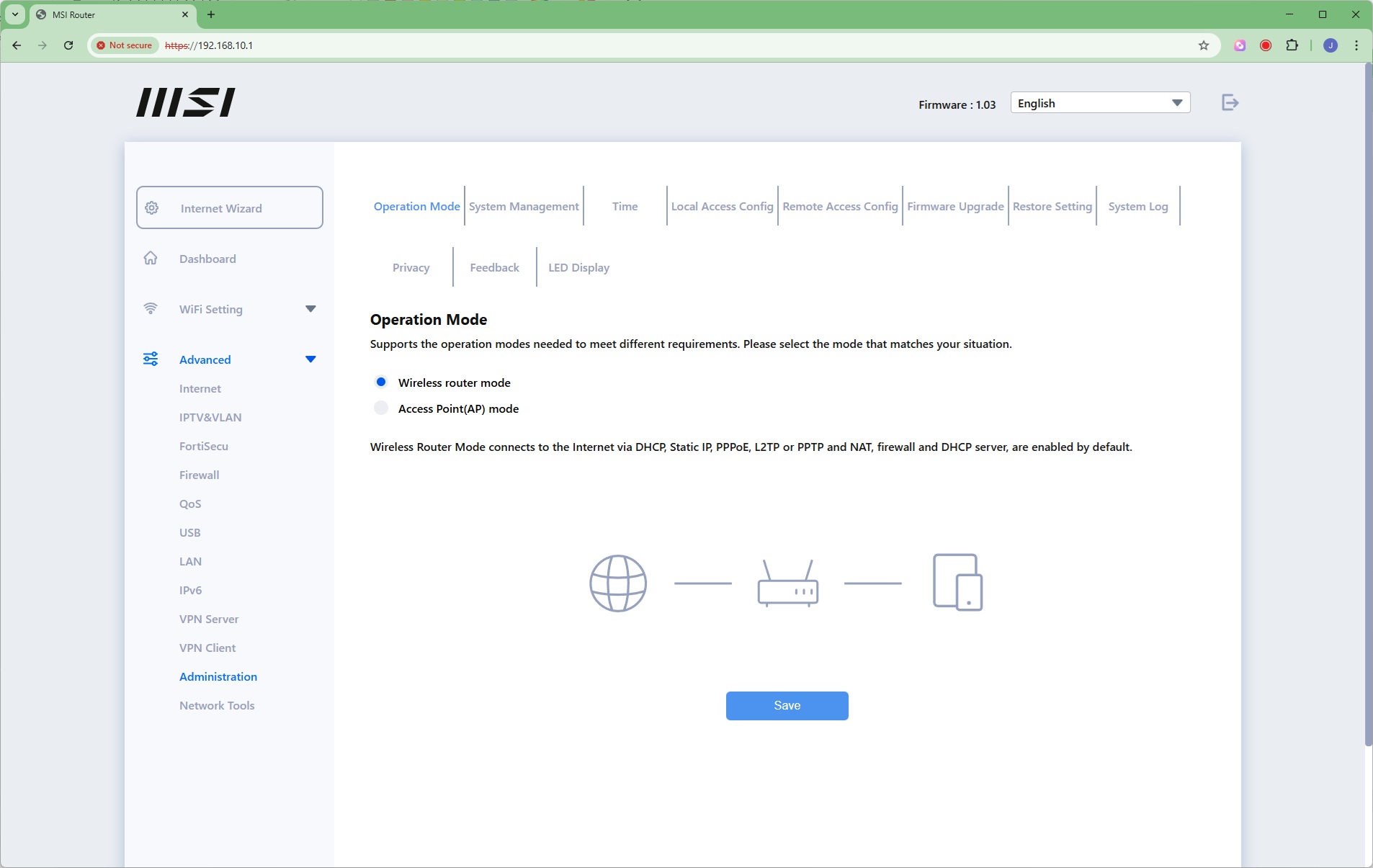
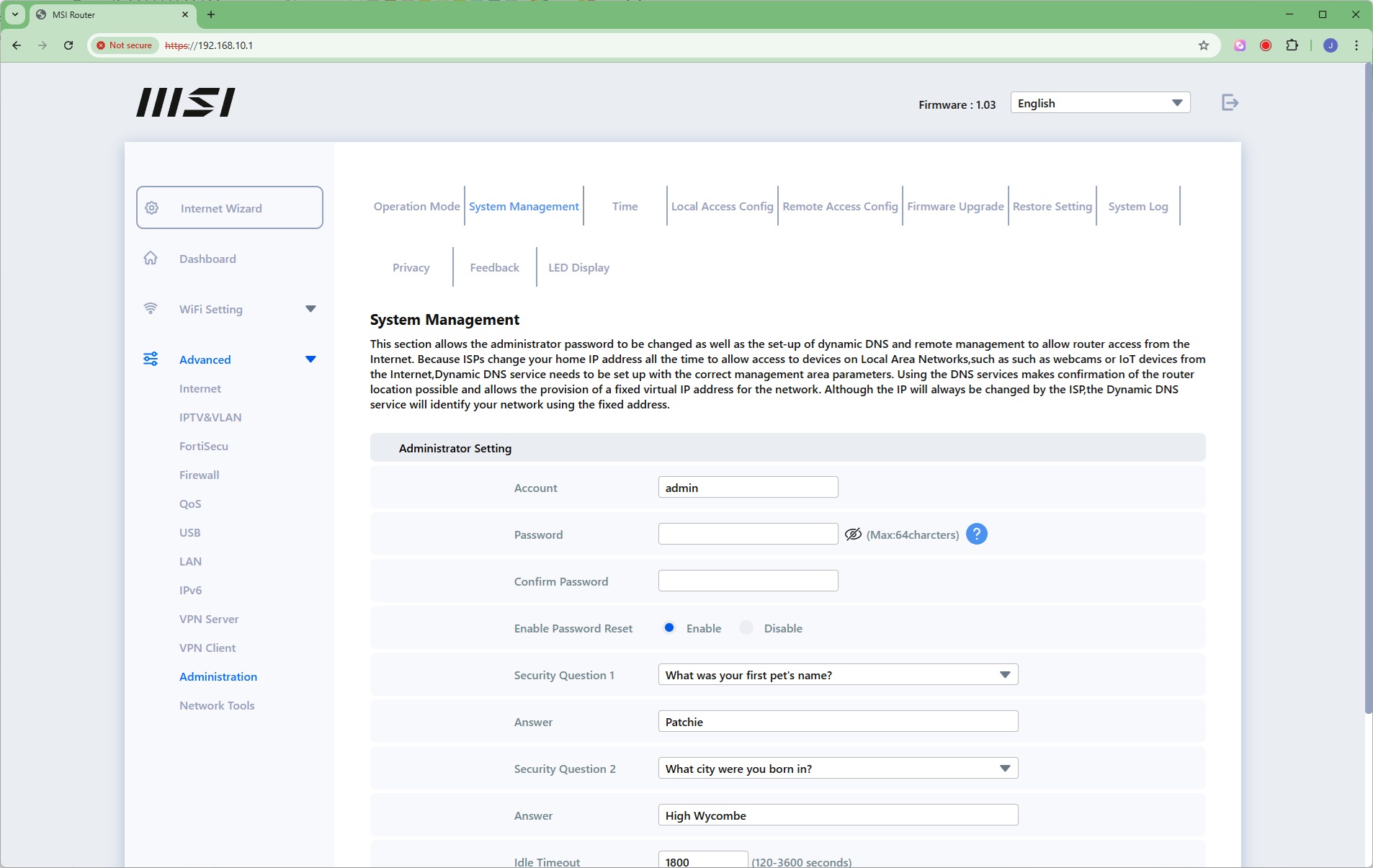
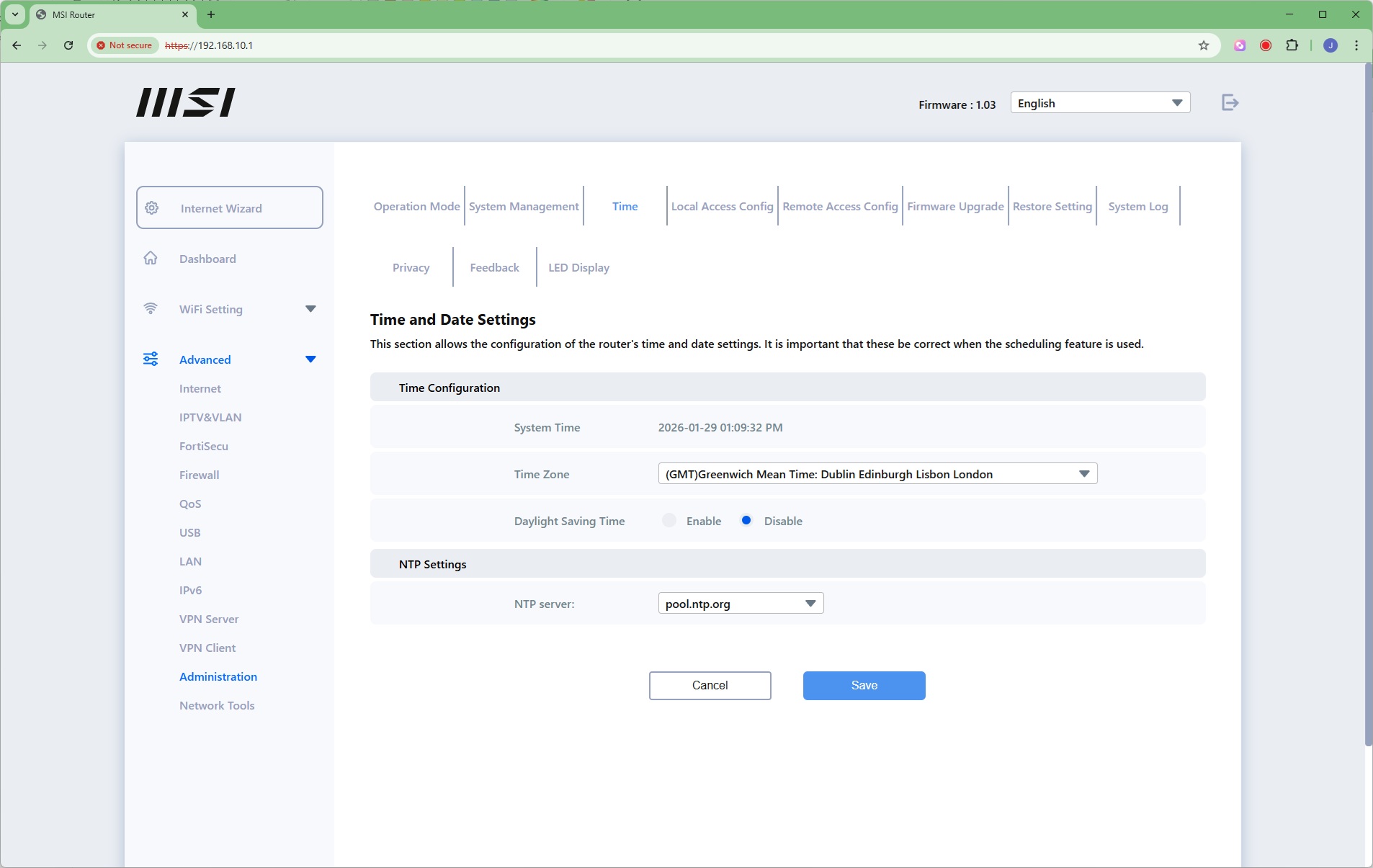
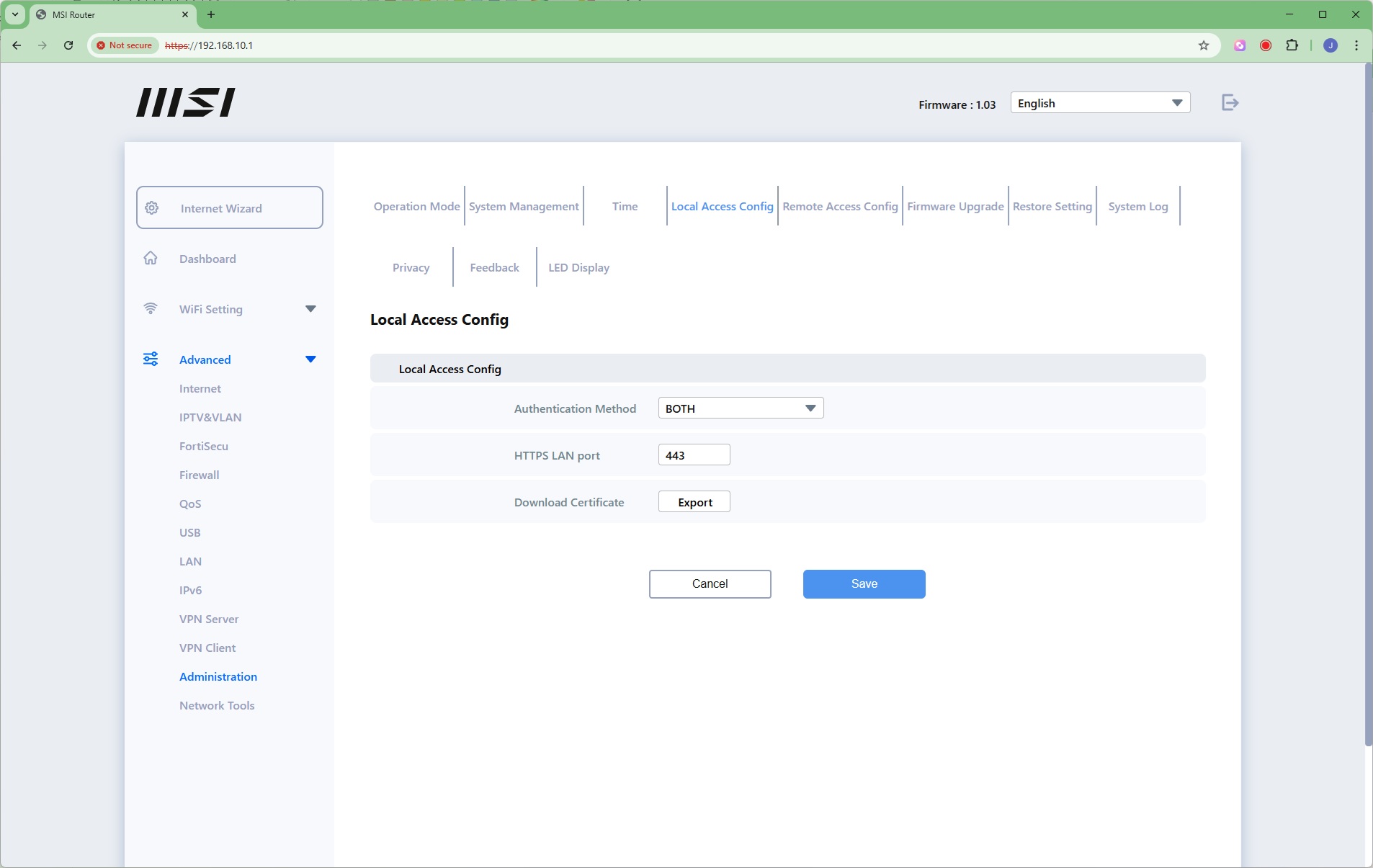
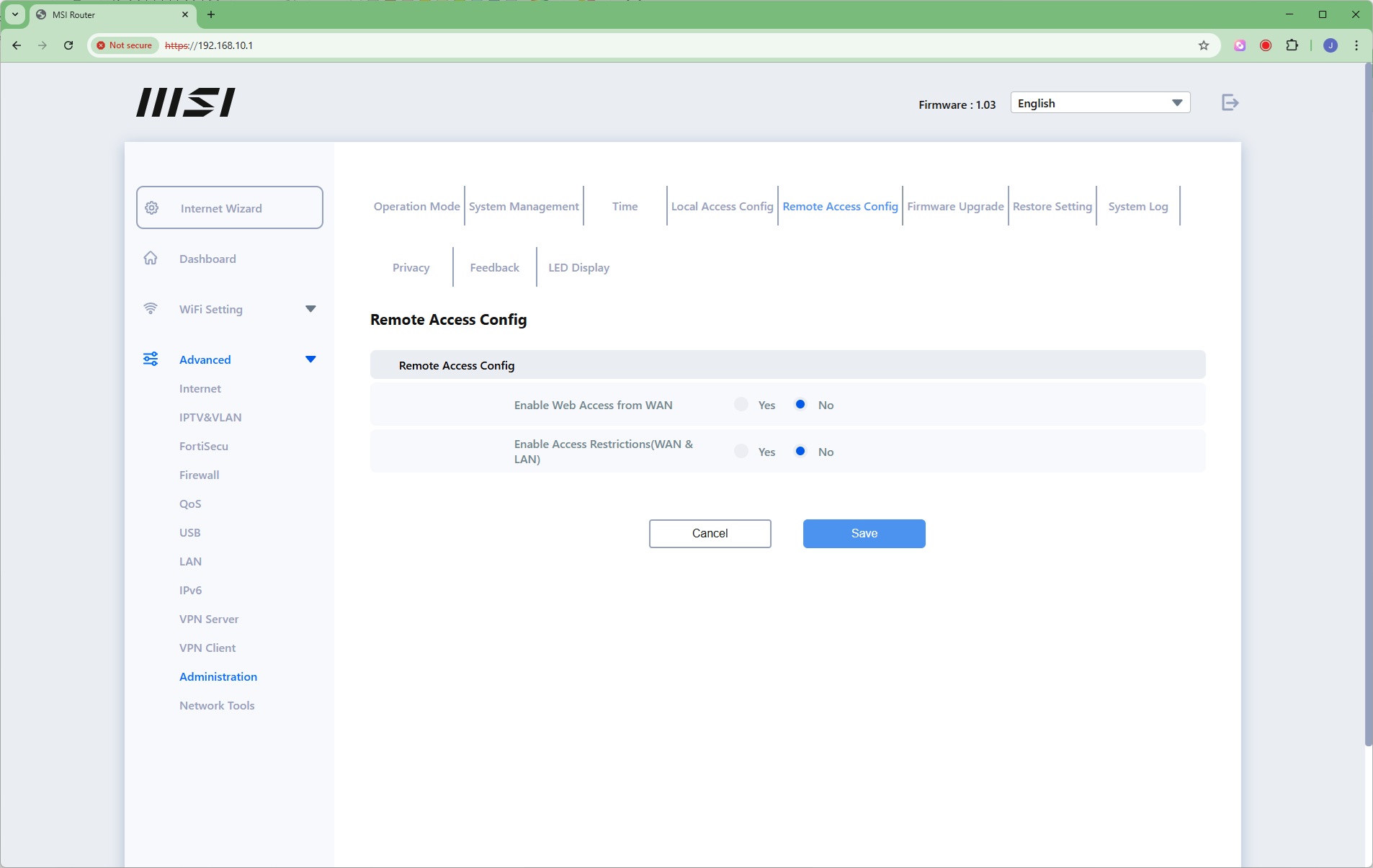
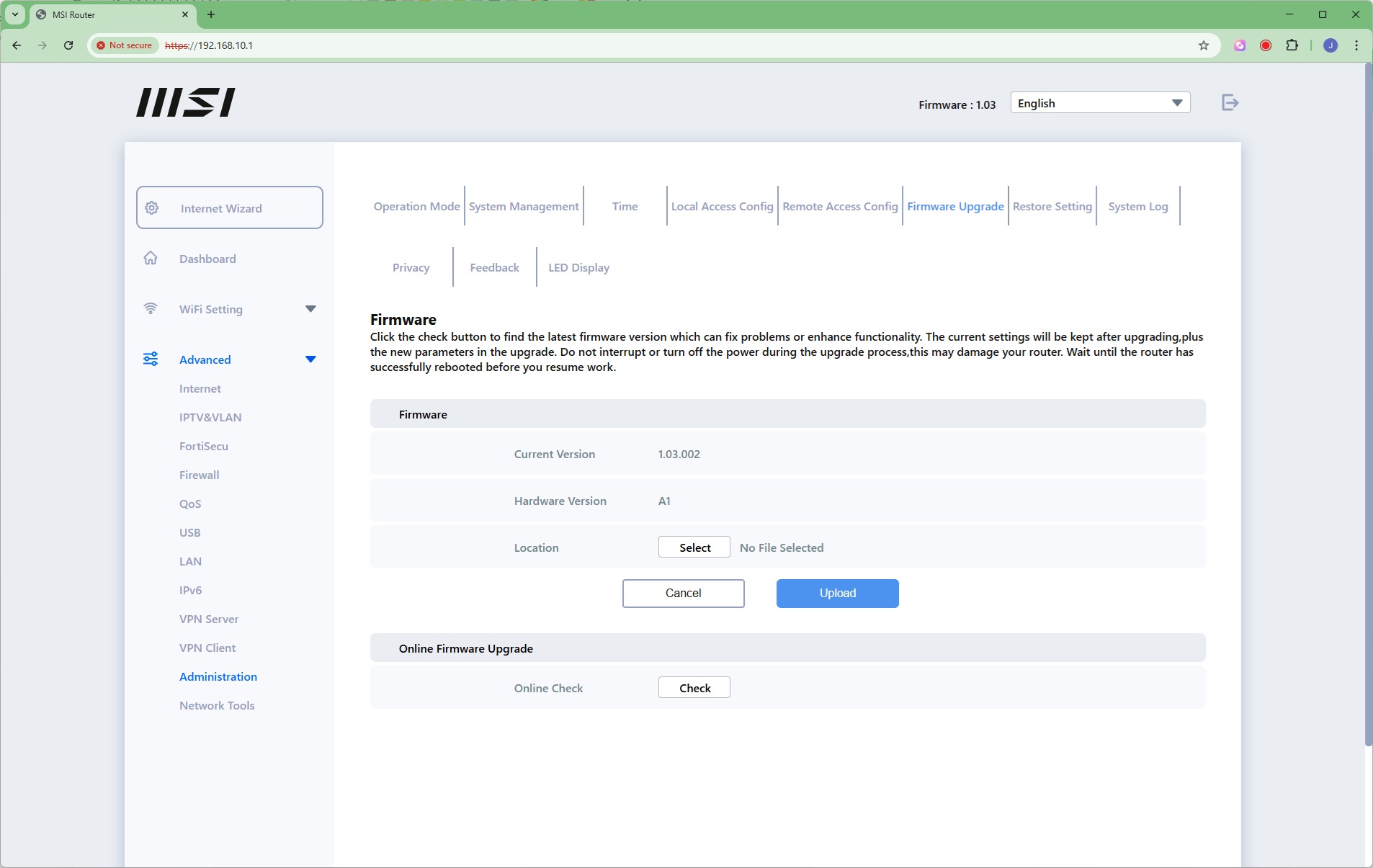
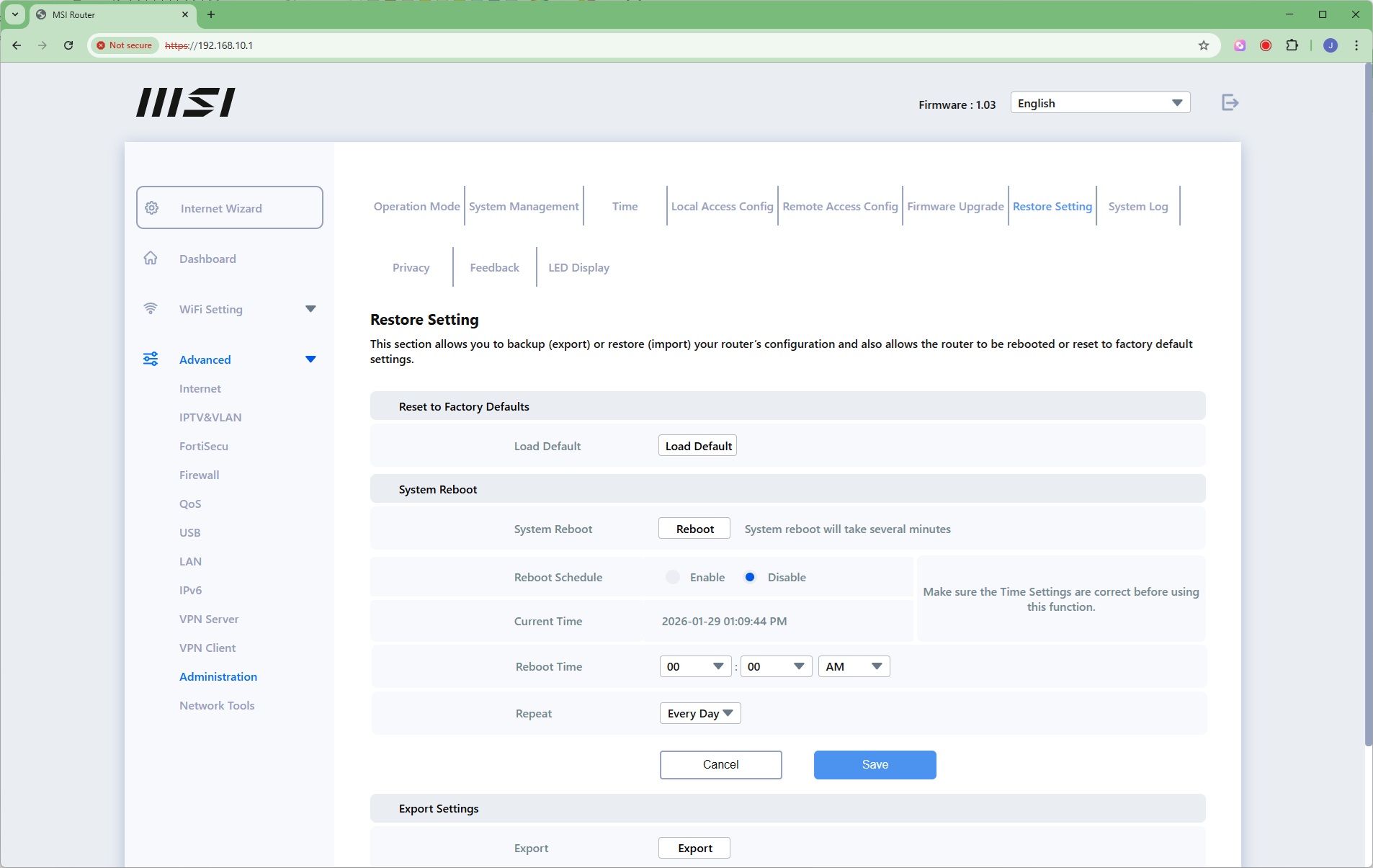
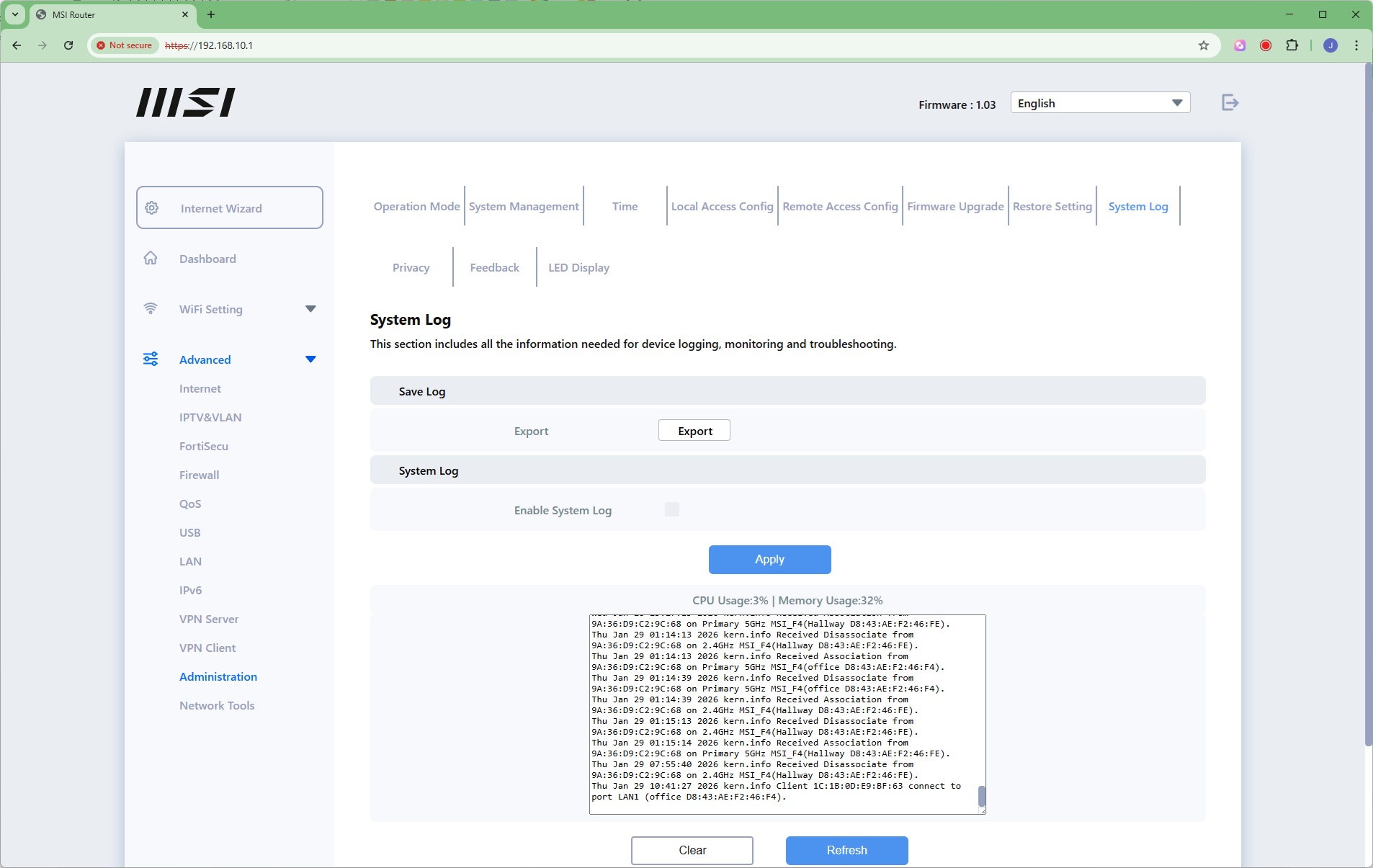
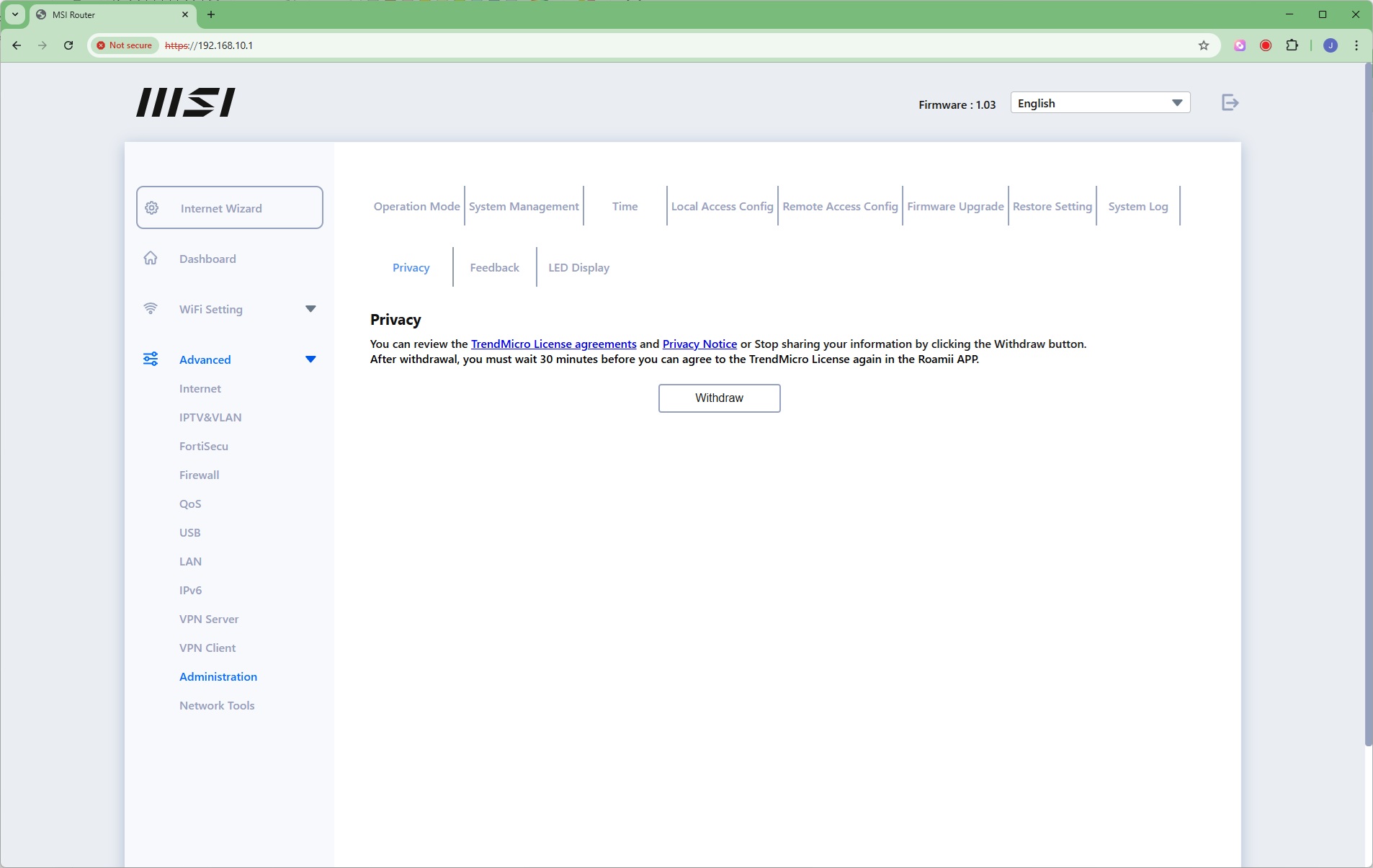
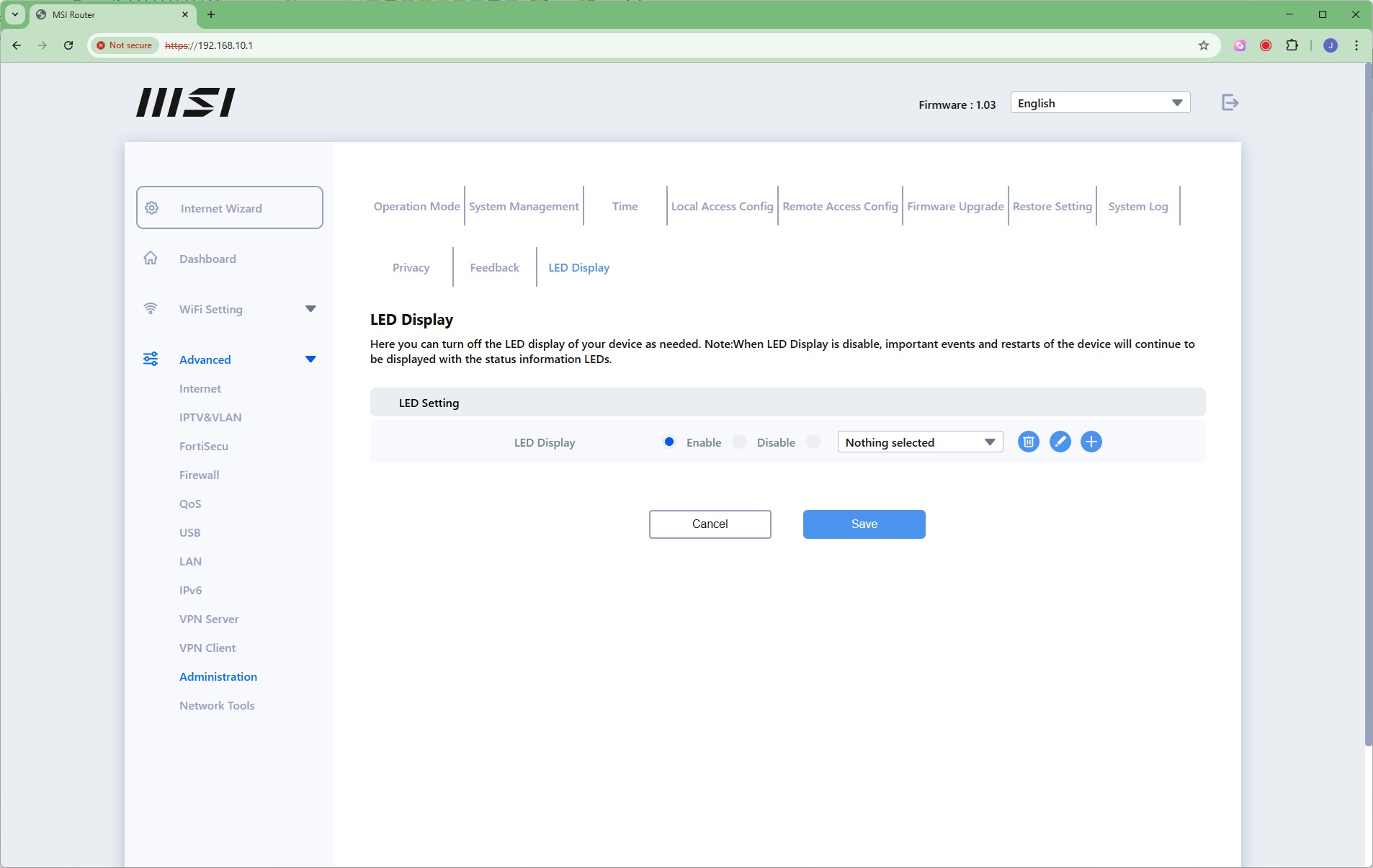
The Administration section is absolutely huge. You can choose between router and access point modes for the primary Roamii. You can configure the admin security credentials, choose an NTP server for time synchronisation, as well as how the admin interface is accessed (HTTP and HTTPS or just the latter). You can turn on external Internet admin access, upgrade the firmware, and restore settings. One thing that would have been good to see is that you can upgrade the firmware across all units. It's not obvious from the interface whether satellites are being upgraded, or just the router. It would appear to be only the latter.
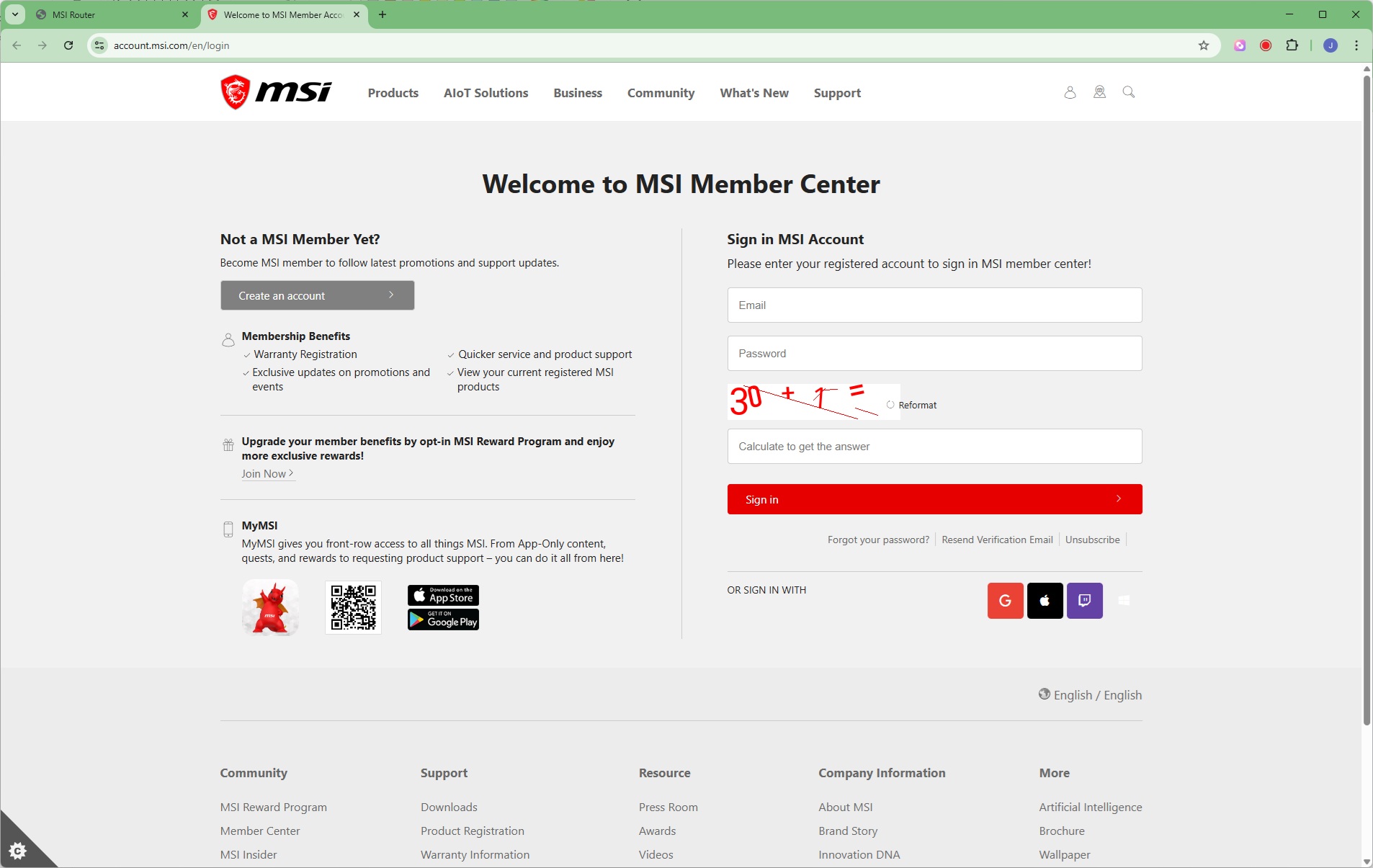
There's an extensive system log you can export as a text file. You can choose whether or not to share information with TrendMicro, which supplies some of the security capabilities. The Feedback option takes you to an external website where you can log in and share your thoughts. Finally, you can configure the LED display – which you might want to, as the lights on the bottom are quite bright.
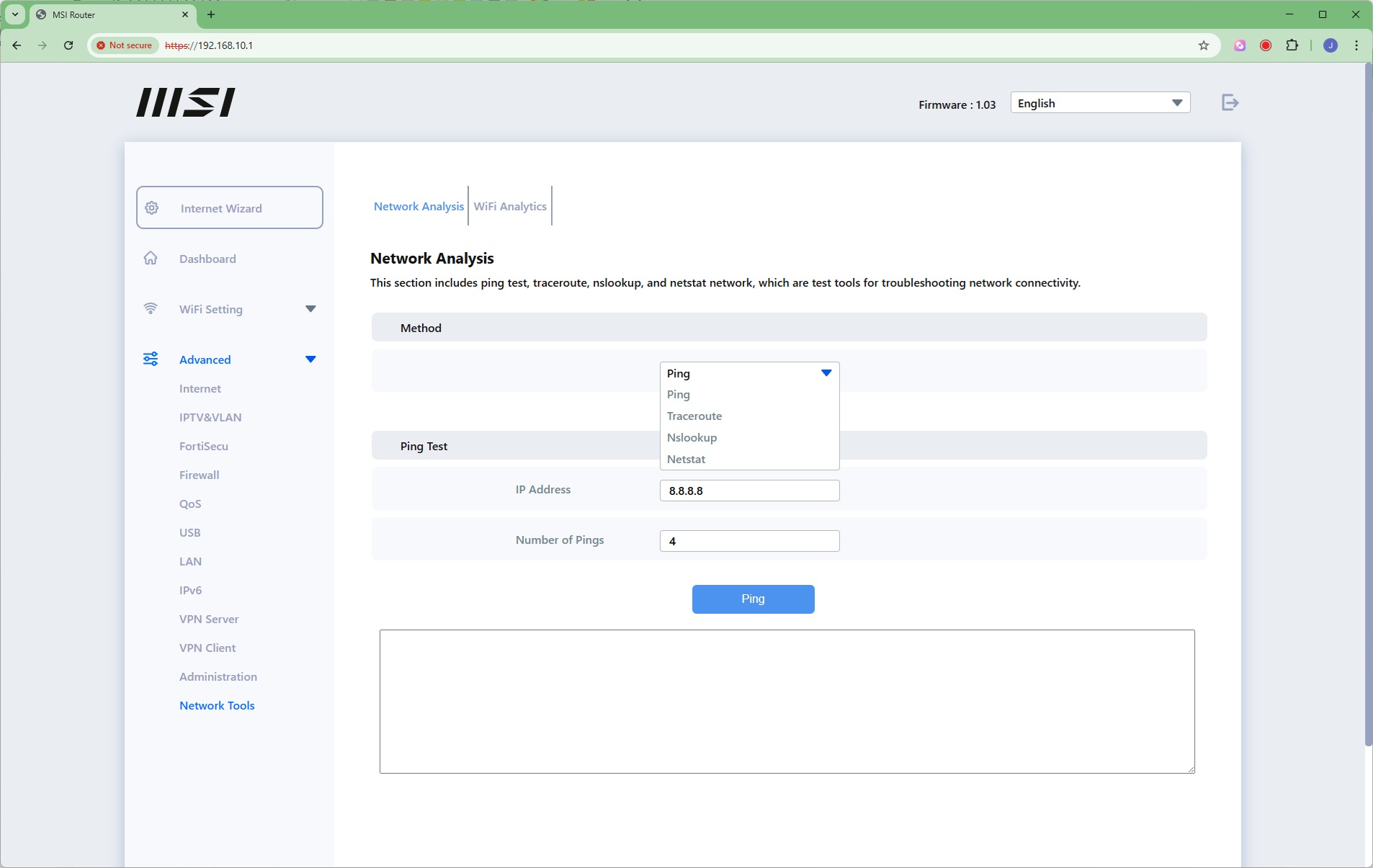
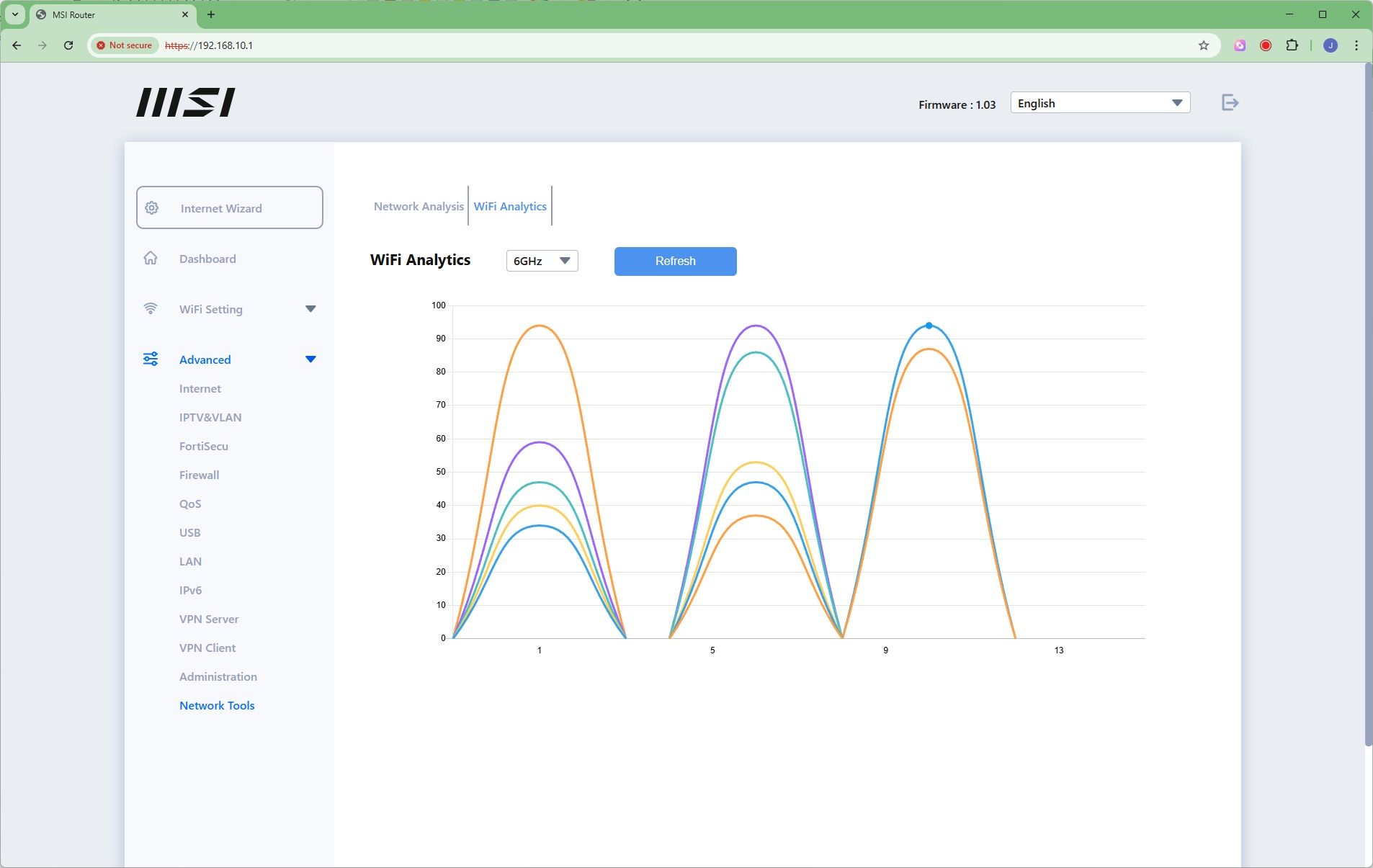
The last Network Tools section offers Ping, Traceroute, Nslookup and Netstat to analyse your network. You can also view how the wireless wavebands in your area are occupied by other WiFi systems, making it possible to avoid contention (although that's getting increasingly hard to do as everyone gets more powerful whole home WiFi systems).
Overall, this is a very comprehensive administration interface, and it's great to see that the most important features can be controlled from the smartphone app alone. Many people may never need to access the Web interface, but if you do, there's pretty much everything you could ever want there. We particularly like the ability to set up a separate WiFi SSID for your kids to control their access. Top marks to MSI for administration, apart from the lengthy satellite mesh pairing process.