KitGuru KitGuru.net – Tech News | Hardware News | Hardware Reviews | IOS | Mobile | Gaming | Graphics Cards


MSI has officially released MSI Afterburner 4.6.7 Beta 2, a major update that shifts the utility from a pure GPU tuning tool to a broader system health monitor. The update introduces native support for the upcoming flagship GeForce RTX 5090 Lightning series and debuts a monitoring tool to prevent hardware damage caused by faulty 16-pin power connections.
According to Guru3D, by utilising a new PSU.dll plugin, Afterburner can now pull real-time telemetry from high-end MSI PSUs, such as the MEG Ai1x00 and MPG Ai1x00TS series. This allows enthusiasts to monitor PSU-level data, such as voltage, current, power, efficiency, and fan speeds, directly in the software UI. Users with supported MPG units can even view per-pin current data for 12VHPWR and 12V-2×6 connectors.
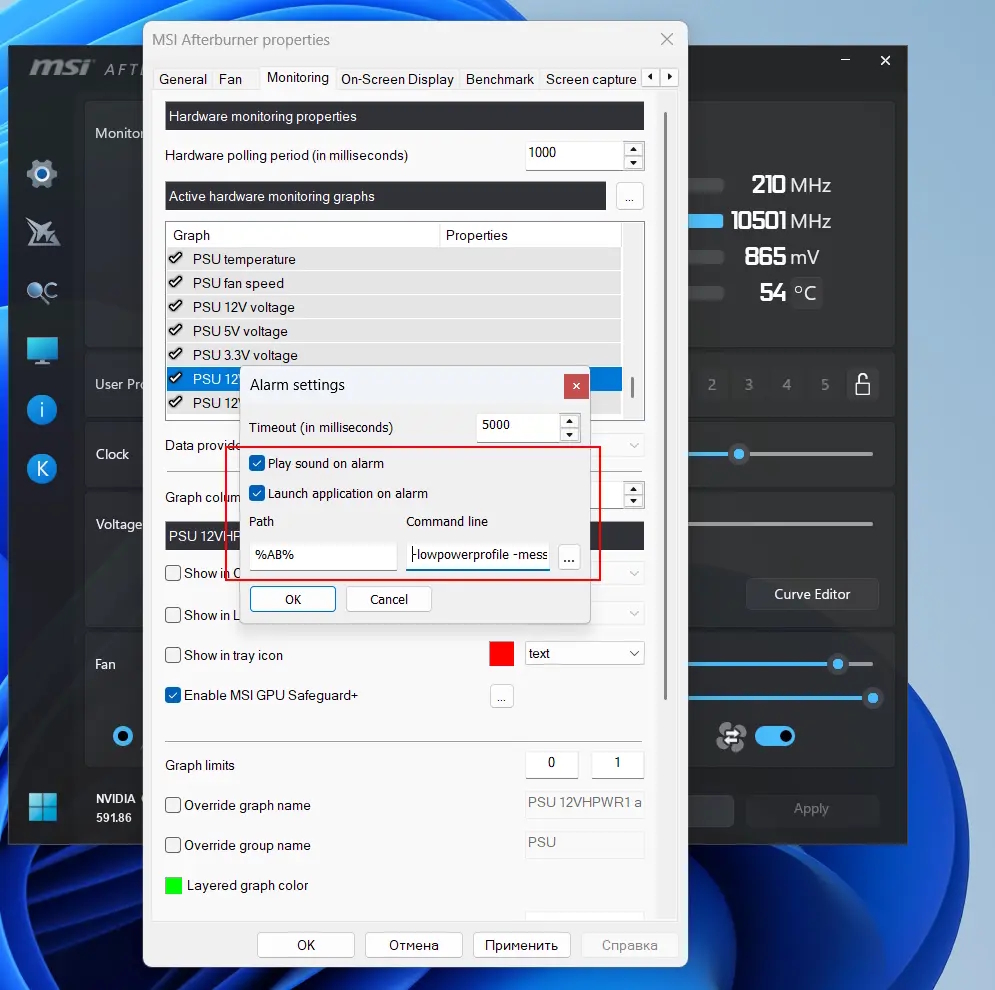
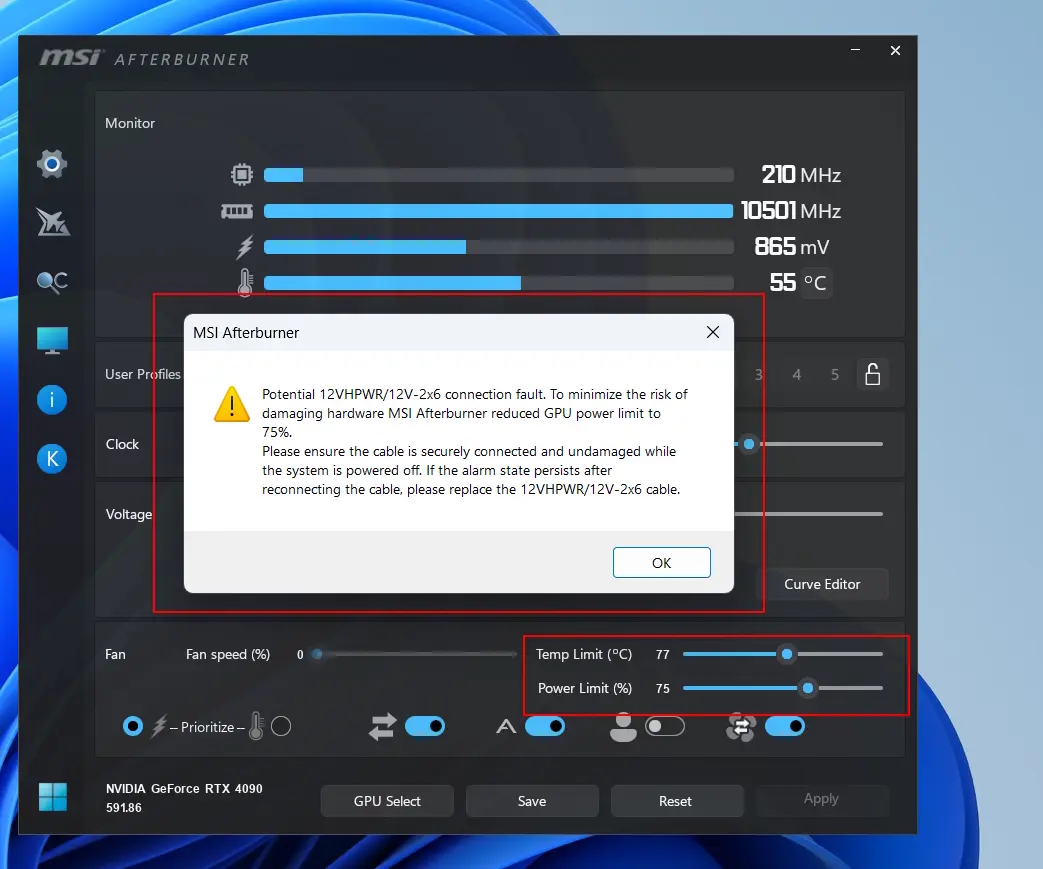
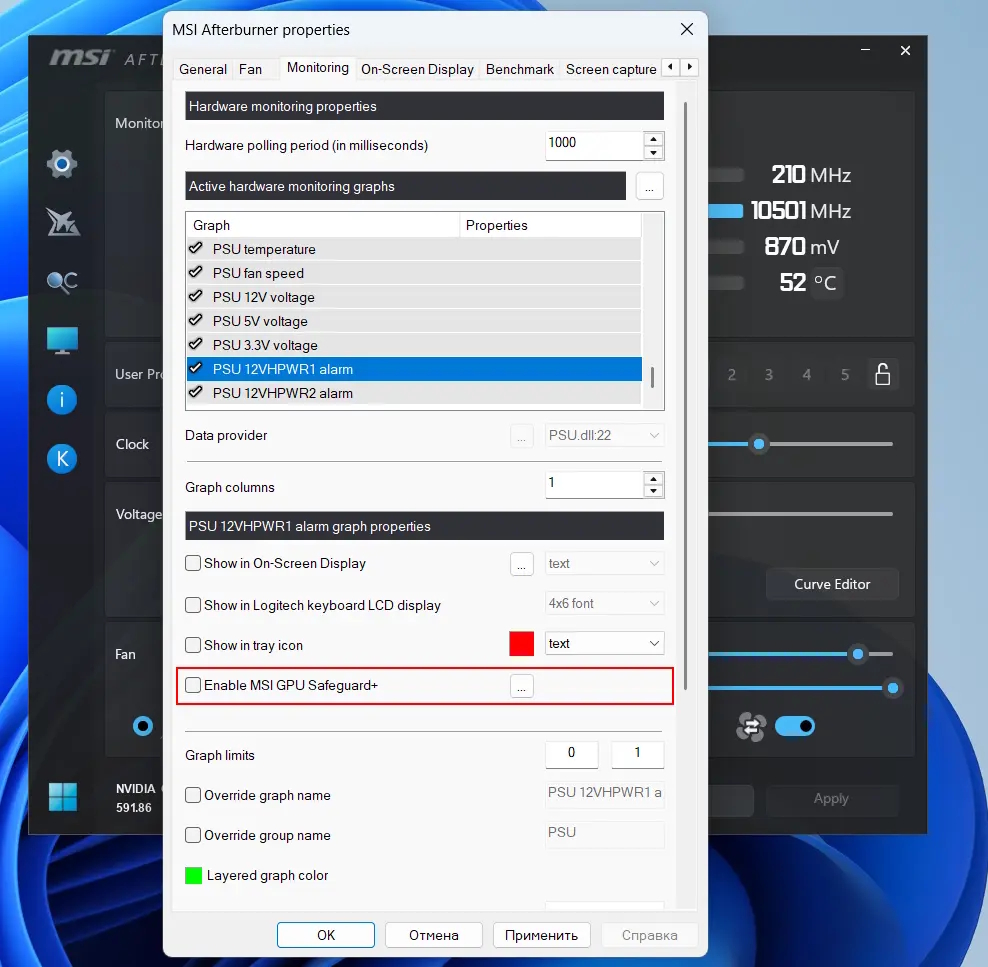
Image credit: Guru3D
In the new Beta 2 update, Afterburner can take automated action if a power fault is detected. If the PSU reports overcurrent or a significant imbalance in current across the 16-pin connector pins (a common precursor to connector melting), the software can trigger an alarm, displaying an on-screen warning and triggering audible buzzers. Moreover, it can automatically reduce power by loading a predefined “Emergency Profile”, instantly slashing the GPU power limit to lower thermal stress and giving the user time to shut down and inspect the cable safely.
Those interested in the full patch notes of MSI Afterburner 4.6.7 Beta 2 can find them below:
- Added MSI RTX 5090 Lightning cards support
- Improved Voltage/Frequency curve editor:
- Default size of V/F nodes is now adjustable via configuration file, so you can make nodes bigger if default node size is too small and uncomfortable for your eyes.
- Now you may zoom work area of V/F curve editor window with mouse wheel in 100%-500% range. Size of V/F nodes is also zoomed in this mode.
- Now you may pan work area of V/F curve editor window by pressing right mouse button and dragging work area with mouse cursor.
- Now you may restore default view mode and reset zoom and pan position of V/F curve editor with <V> keyboard shortcut.
- Improved functionality of linear voltage curve interpolation mode with fixed anchor point (<Ctrl> + node dragging). Now this mode can be applied to selection, the farthest node inside selected range is used as anchor point in this mode.
- Added arbitrary linear interpolation mode. Now you may select a source node and press <I> key to activate arbitrary interpolation mode, source node will start flashing to indicate started interpolation process. After selecting the source node simple click destination node to finalize the process, it will result in generating linearly interpolated frequency offsets between source and destination nodes.
- Improved functionality of V/F curve movement with preserved per-point offsets (<Alt> + node dragging). Now this mode can be applied to selection.
- Added command line switch for loading predefined emergency profile with lowered GPU power consumption (75% power limit on NVIDIA GPUs, -25% on AMD GPUs). New command line switch can be selected inside the predefined applications list when you manually configure a command line based action for alarm in hardware monitoring module.
- Added command line switch for displaying custom text message when applying a profile.
- Improved monitoring plugins:
- Now the plugins can specify string names for enum values for a data source, e.g. “No,Yes” or “Safe,Alarm” for binary 0/1 values. Such string names are being used to interpret enum values displayed in On-Screen Display.
- Now the plugins can customise the appearance of critical threshold related options for some specific hardware monitoring data sources and replace “Alarm when value is out of range” options inside “Monitoring” tab with a single custom checkbox. Plugins can use such functionality to provide simplified one click way to enable pre-configured critical thresholds and alarm settings for some specific data sources.
- Added new PSU.dll plugin:
- New plugin provides native hardware monitoring support for MSI MEG Ai1x00 and new MSI MPG Ai1x00TS power supplies.
- New plugin provides traditional PSU 12V/5V/3.3V voltages, currents, output power, efficiency, temperature and fan speed monitoring functionality on MSI MEG Ai1x00 series power supplies and additional per-pin current monitoring for 12VHPWR/12V-2×6 connectors on new MSI MPG Ai1x00TS power supplies.
- On new MSI MPG Ai1x00TS power supplies with per-pin 12VHPWR/12V-2×6 current monitoring support the plugin also provides two additional alarm sensors, which are reporting 0 when each connector pin’s current is in safe range and 1 when at least one pin’s current reach critical threshold or difference between any two pins is higher than critical delta. With such additional alarm sensors, you do not need to monitor each 12VHPWR/12V-2×6 pin’s current independently and can easily detect overcurrent or current imbalance state by monitoring just a single alarm sensor. The plugin provides both PSU firmware-based and software-based alarm sensor implementations. For software-based alarm sensor implementation power users may redefine the maximum current threshold and the maximum current difference values via editing the plugin’s configuration file.
- 12VHPWR/12V-2×6 alarm sensors can be used in conjunction with MSI Afterburner’s programmable critical thresholds supported by hardware monitoring module. When you set critical threshold for such sensor, you may see alarms from 12VHPWR/12V-2×6 overcurrent or current imbalance in monitoring window, in On-Screen Display, enable sound alarm, load some specific emergency MSI Afterburner profile (e.g. a profile with drastically lowered power limit), perform emergency system shutdown and so on.
- 12VHPWR/12V-2×6 alarm sensors use new functionality of monitoring plugins to simplify the process of configuring critical thresholds and alarm settings associated with alarm sensors. New “Enable GPU Safeguard+” option is displayed for the alarm sensors instead of “Alarm when value is out of range”, so beginners can easily enable pre-configured protective features with a single click. The following features are being automatically enabled when you tick GPU Safeguard+ checkbox:
- “Play sound on alarm” option is being enabled.
- “Launch application on alarm” is being enabled and MSI Afterburner is configured to launch itself to load emergency profile with reduced GPU power limit and display notification message to inform user about potential 12VHPWR/12V-2×6 connection fault.
- Experienced users can configure the alarm manually and customise it further, e.g. disable alarm sound, apply a different custom-made emergency profile with even lower GPU power limit and additional GPU downclocking and so on.
If you're interested in downloading the Beta 2, you can do so HERE.
Discuss on our Facebook page, HERE.
KitGuru says: The infamously fragile nature of the 16-pin connector has been a dark cloud over high-end PC gaming for some time. With the new version of MSI Afterburner, users can at least act on the first sign that something is wrong and protect their investment.