KitGuru KitGuru.net – Tech News | Hardware News | Hardware Reviews | IOS | Mobile | Gaming | Graphics Cards


Corsair is one of the few vendors that offers a 420mm version of its all-in-one closed-loop liquid CPU cooling systems. We get a lot of messages in the YouTube comments section saying how good these coolers are and why they are not featured on our testing charts. Well, today we give you guys a look at how the 420mm Corsair iCUE H170i Elite LCD XT cooler performs on our test bench against the competition. Will it live up to the hype? Let’s find out.
Watch via our Vimeo channel (below) or over on YouTube at 2160p HERE
Timestamps:
00:00 Start
00:47 Pricing
01:53 Compatibility / Fans
02:46 Radiator & tubing
05:35 IPS LCD Display / CPU Block
07:01 Cables and accessories
09:12 Fans
10:50 Test setup and install
14:24 System is powered on
14:54 iCUE cooler support
18:26 Performance test results
20:13 James Closing thoughts
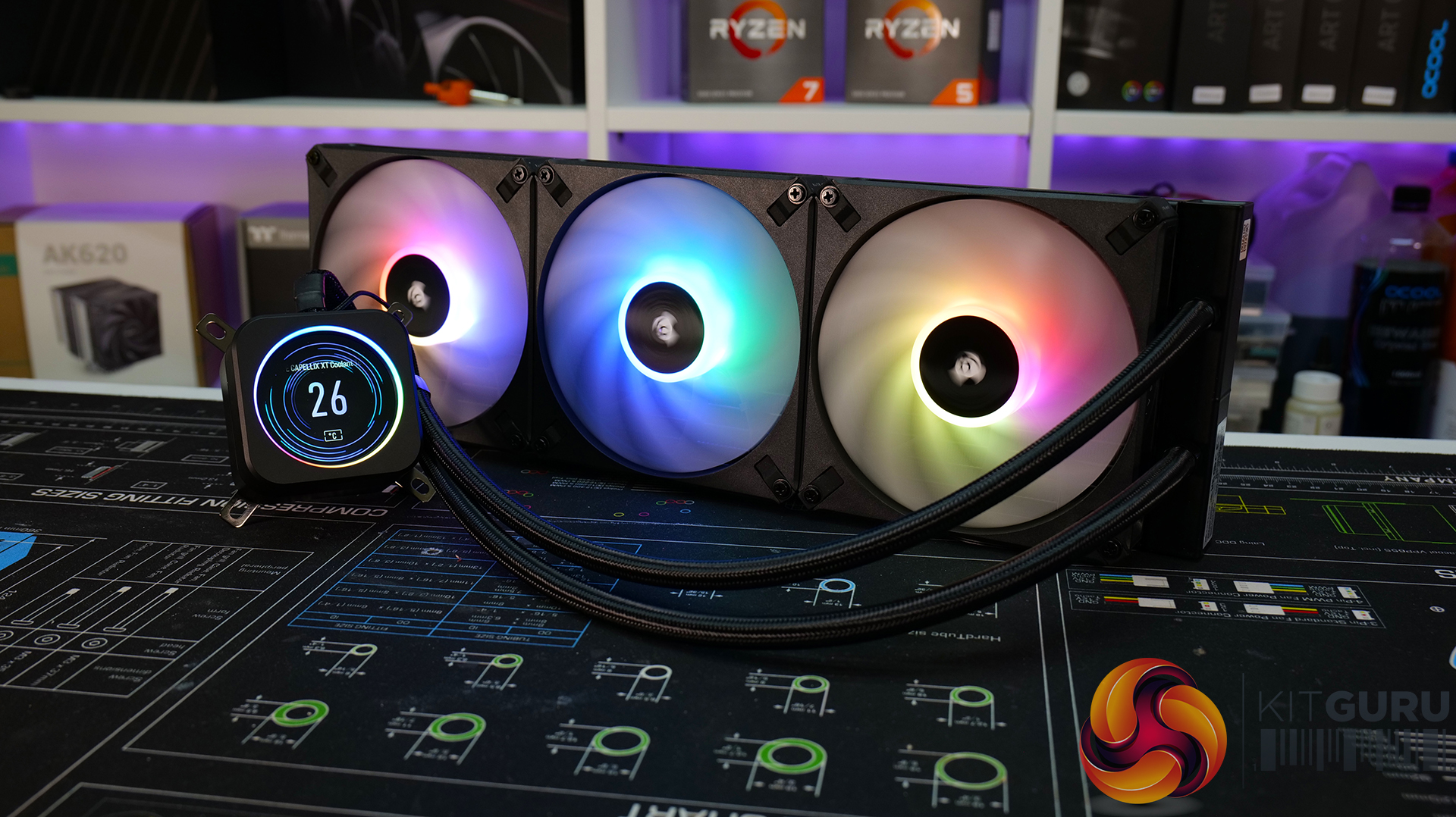
Normally I would leave the price information until the end of the review but with this AIO I feel the need to put it out there from the off. The 420mm Corsair iCUE H170i Elite LCD XT closed-loop CPU cooler costs a whopping £349.99 at launch, which to me seems like a lot to be forking out just for a CPU cooler. You could build an EKWB CPU-only custom loop with a Velocity² block and Quantum Kinetic D5 pump res combo for a similar price, which are excellent bits of kit.
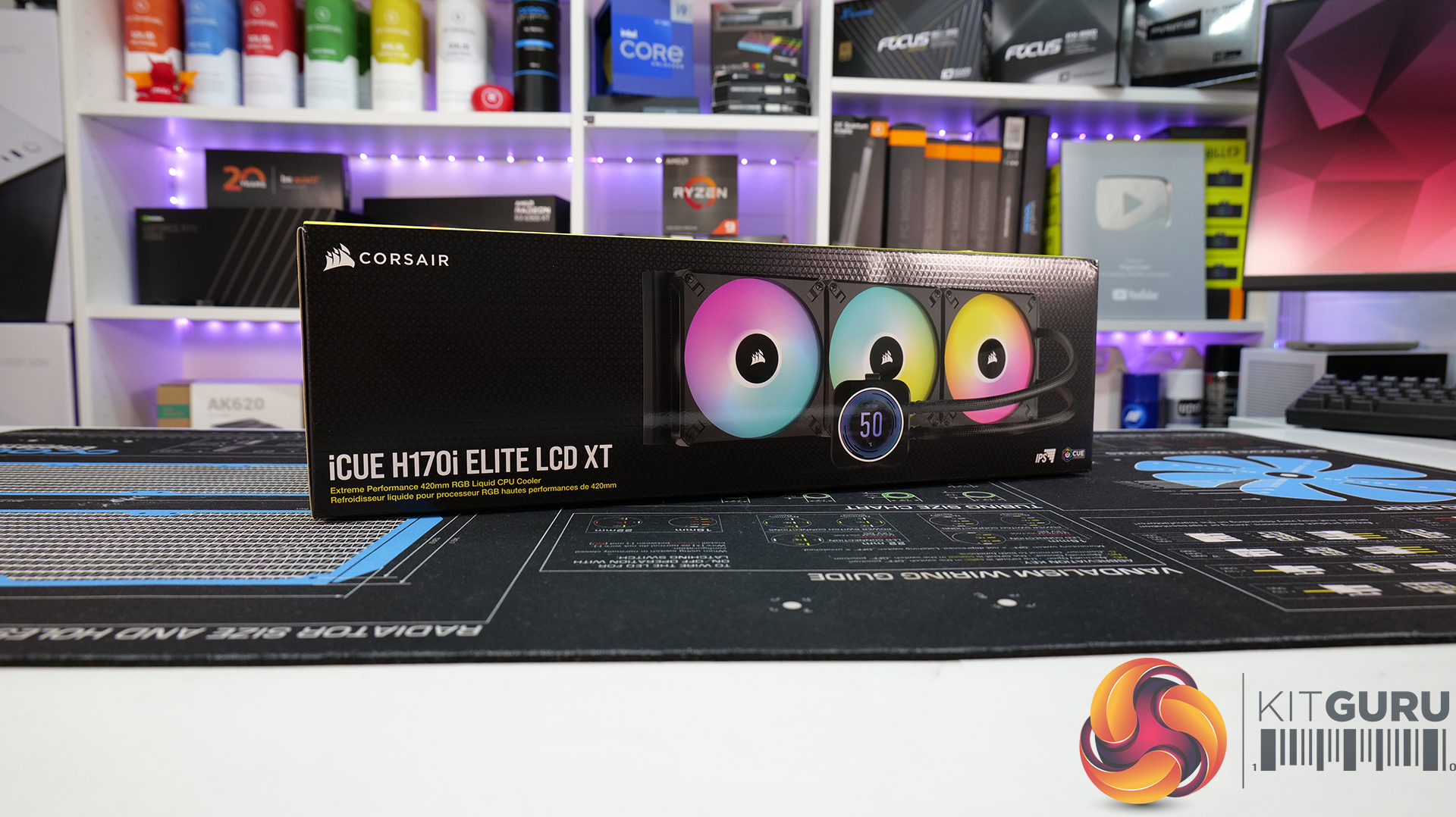
Now we have that shock out of the way let’s look at what you get for your money with this LCD-equipped Corsair AIO. Packaging is typical of mainstream AIO coolers, it comes packed in a cardboard box with everything segregated inside a cardboard carton and wrapped in plastic bags. Not exactly the premium packaging we saw recently with the EK-Nucleus AIO, but it does the job. However, at this price, I think Corsair could do better.
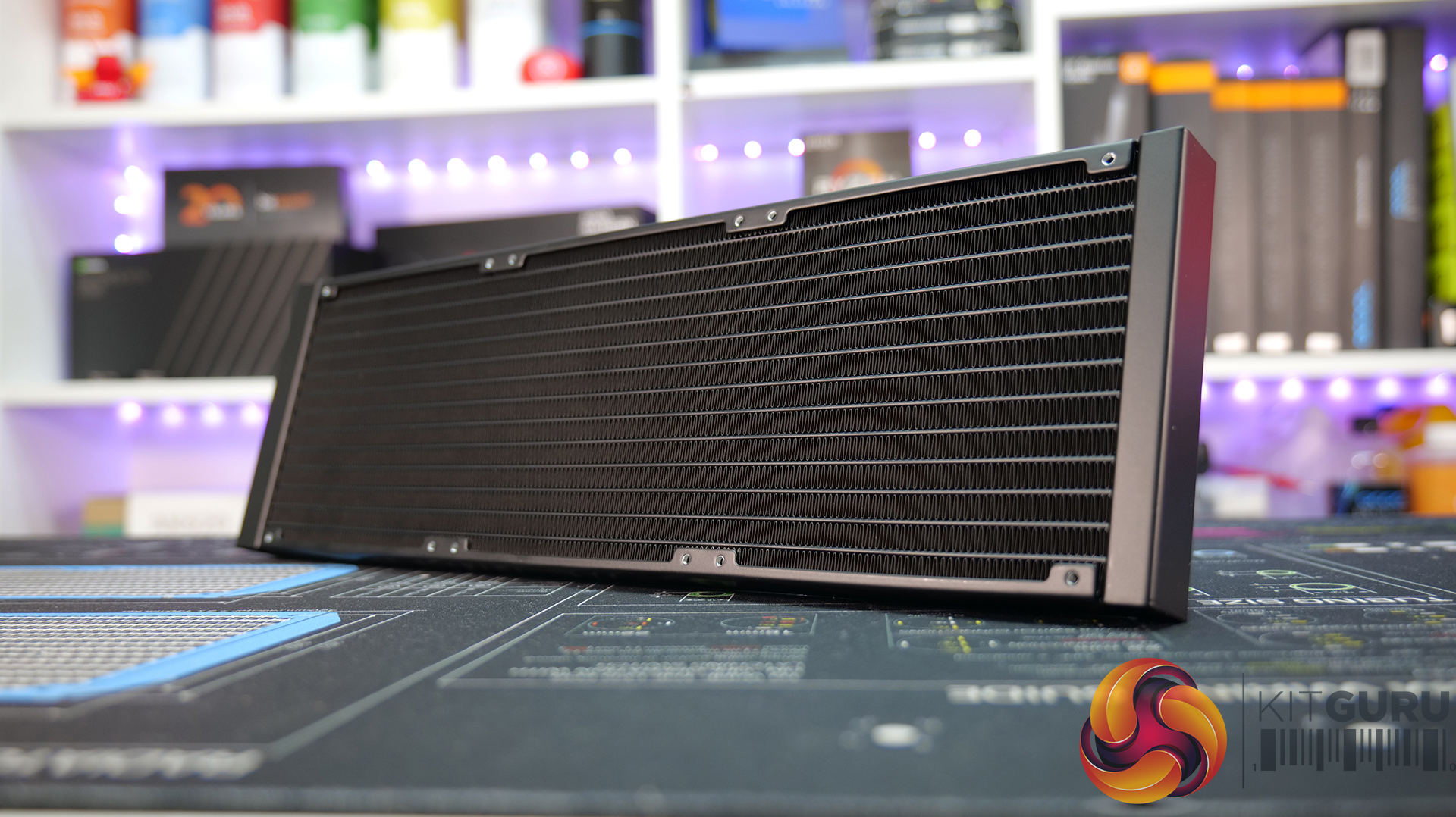
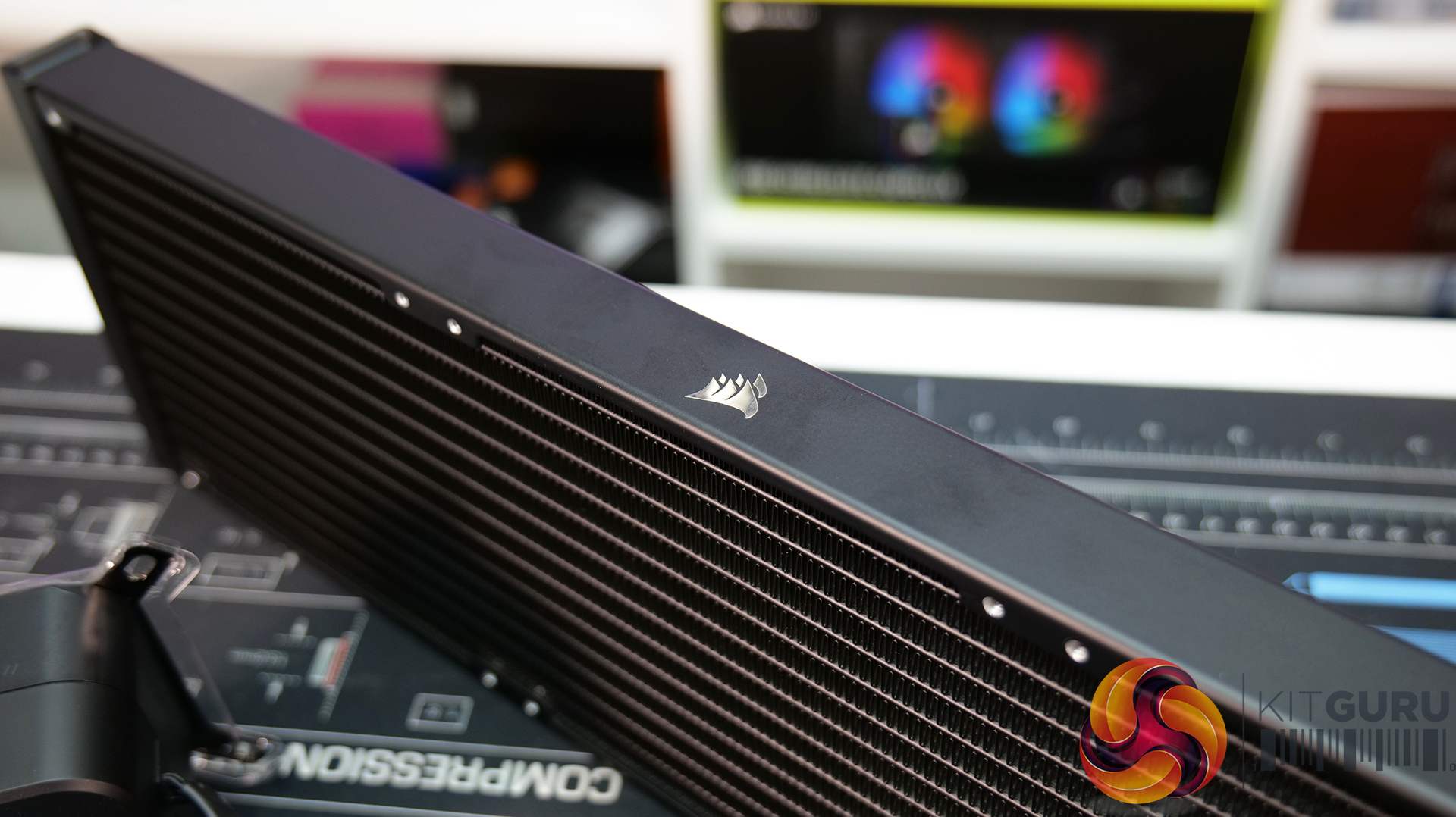
Thankfully The build quality of the cooler looks to be of very high standard, everything has a sturdy feel to it. The radiator is constructed from Aluminium which is typical of AIO coolers. It has a very smooth and uniform black coating with a satin finish so it’s neither glossy nor matt, so not too bad at showing up fingerprints etc. there are chrome effect Corsair logos on either of the radiator’s long sides which is a nice touch.
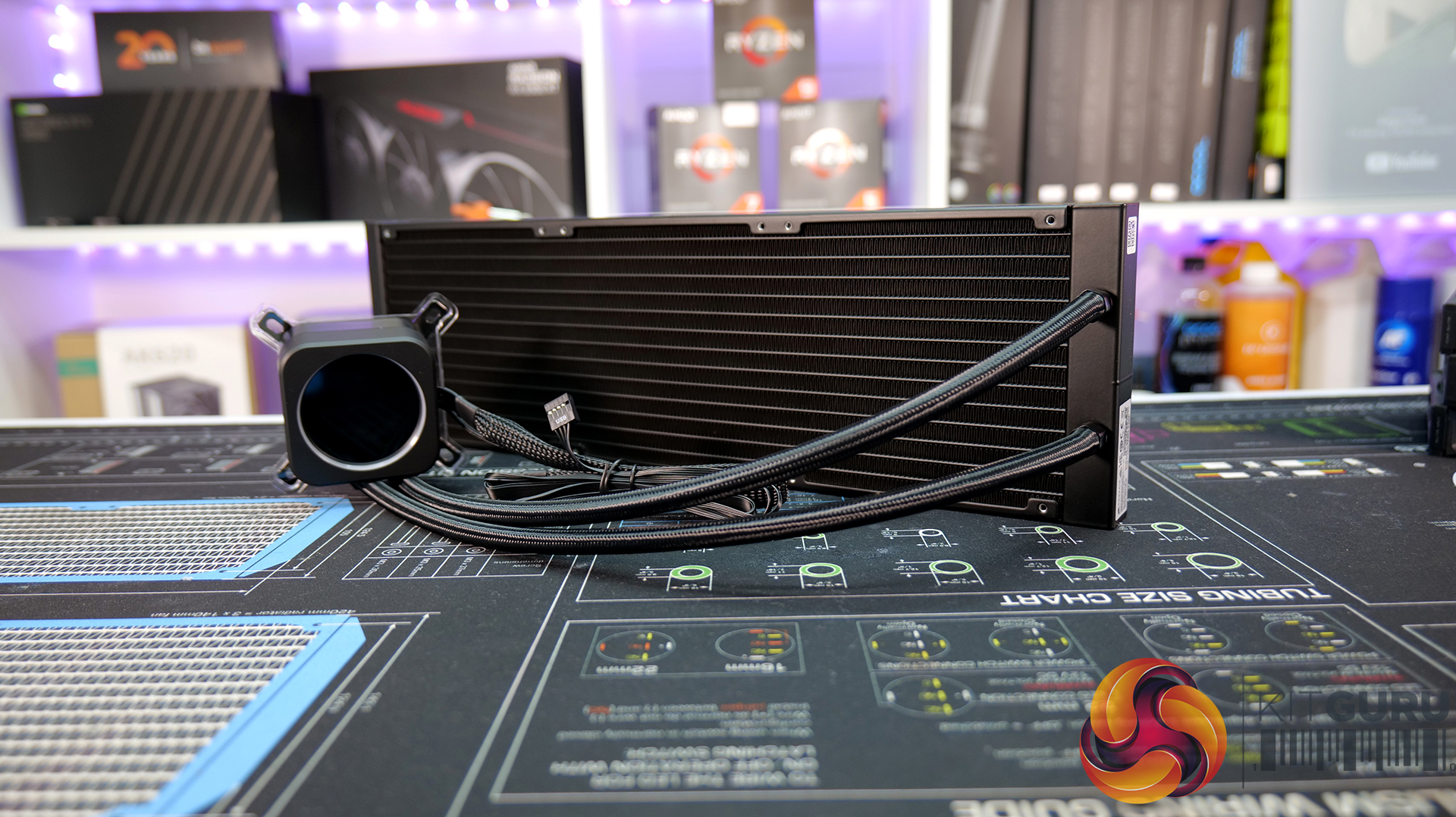
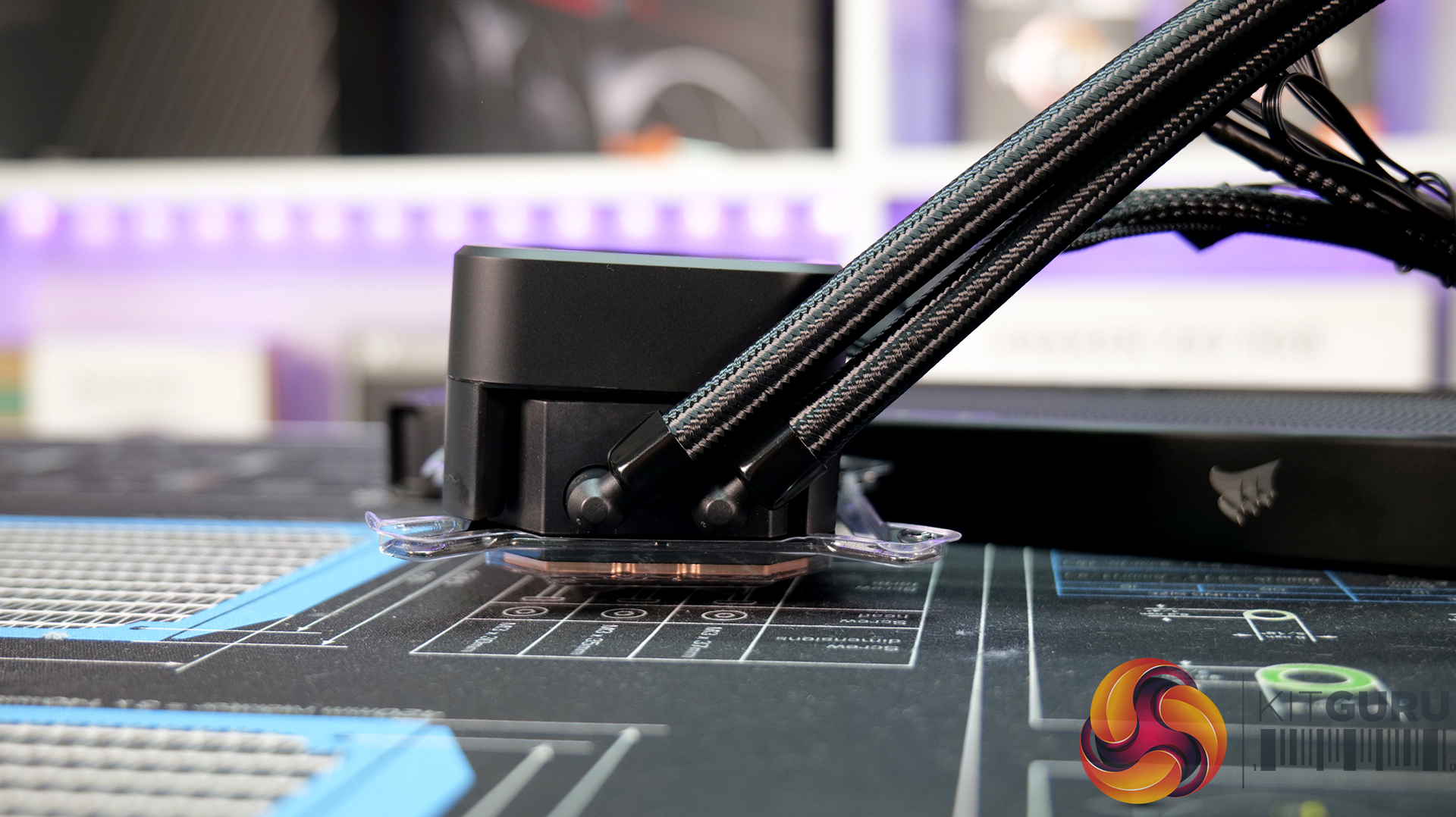
Compared with previous versions of the Corsair Elite LCD series the XT has longer tubing at 450mm, made from low evaporation rubber with a nylon braided sleeving. Corsair claims that there has been some minor revisions to the pump/block but other than that it's very similar to previous Elite series coolers.
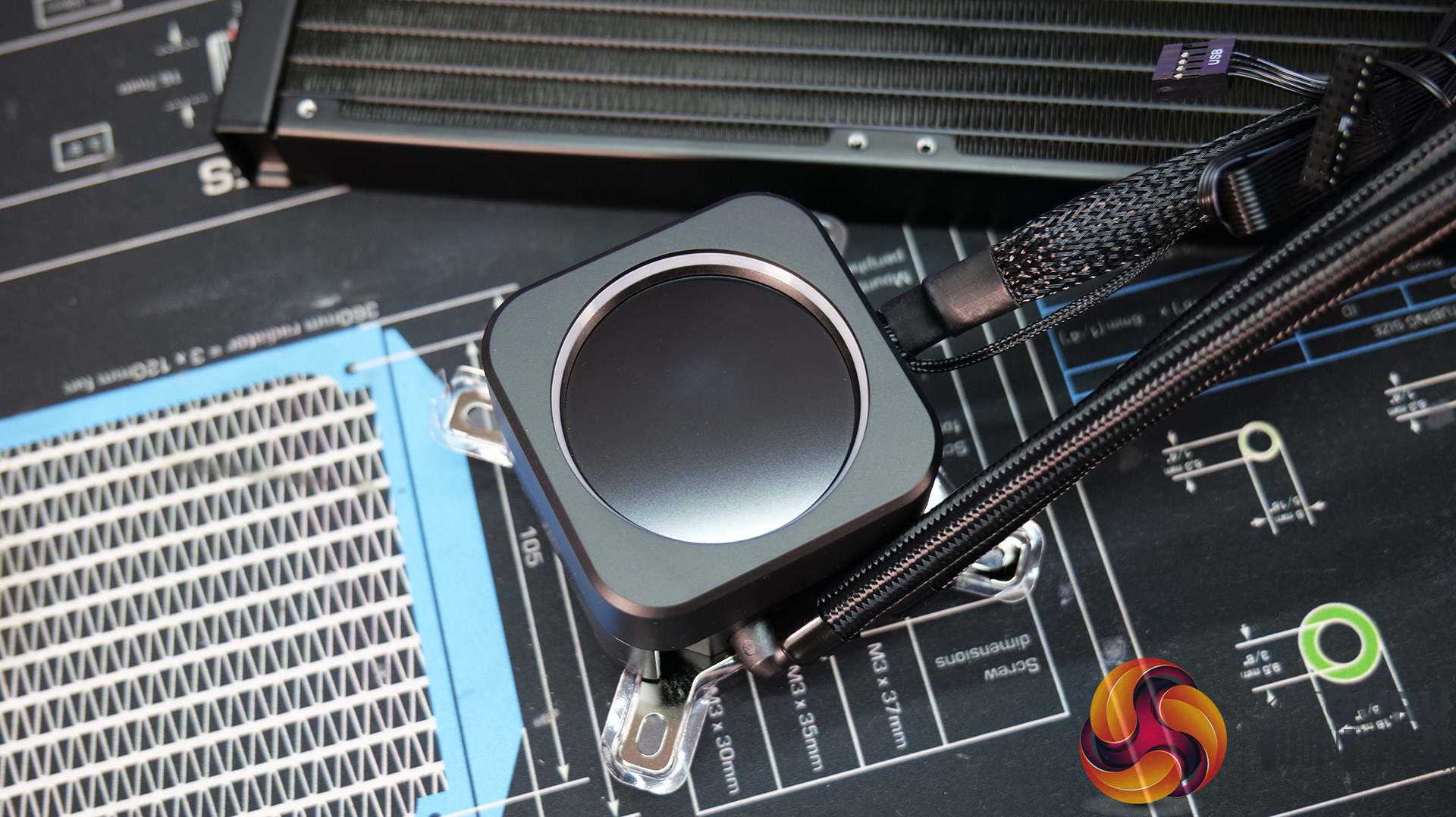
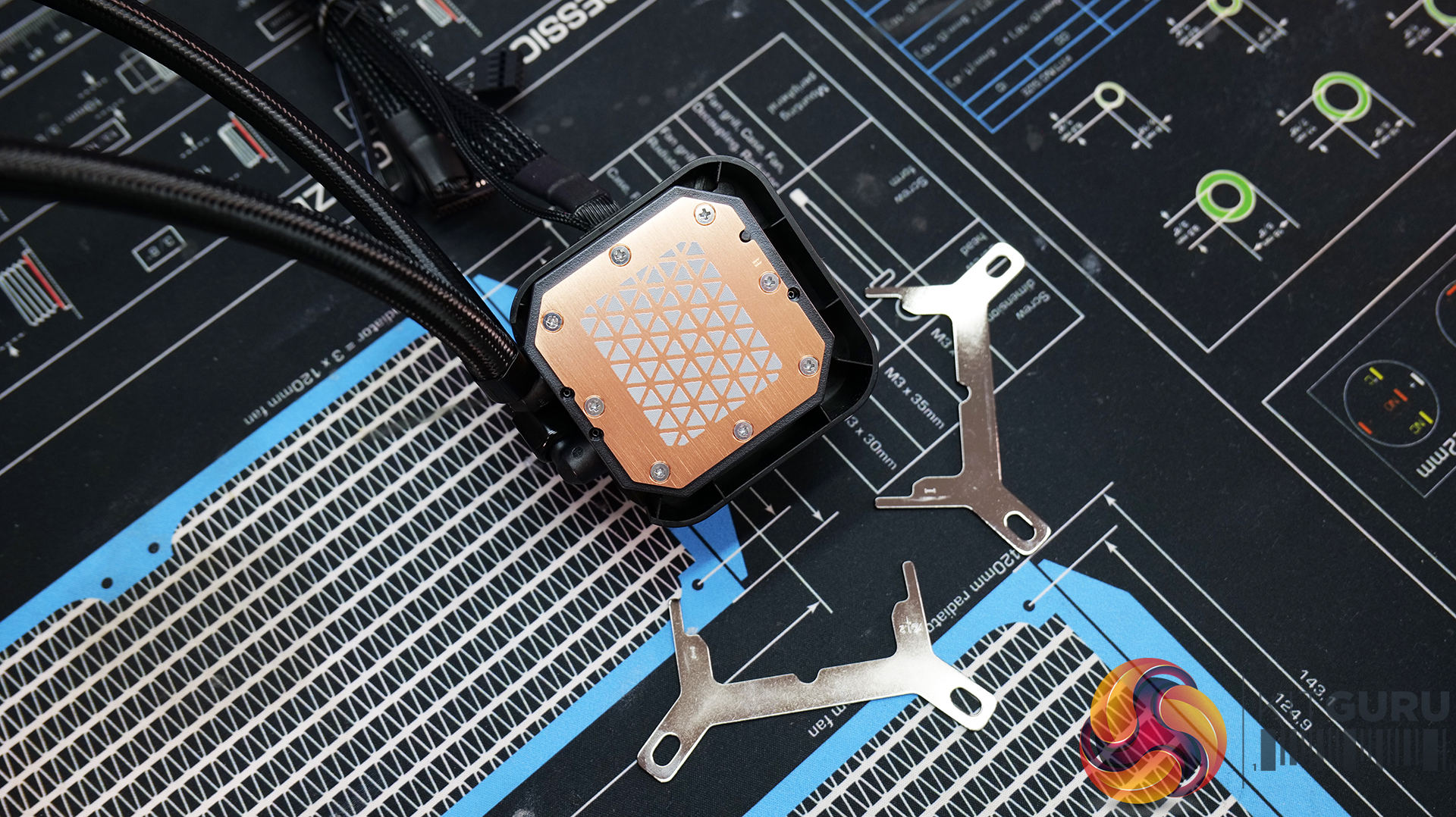
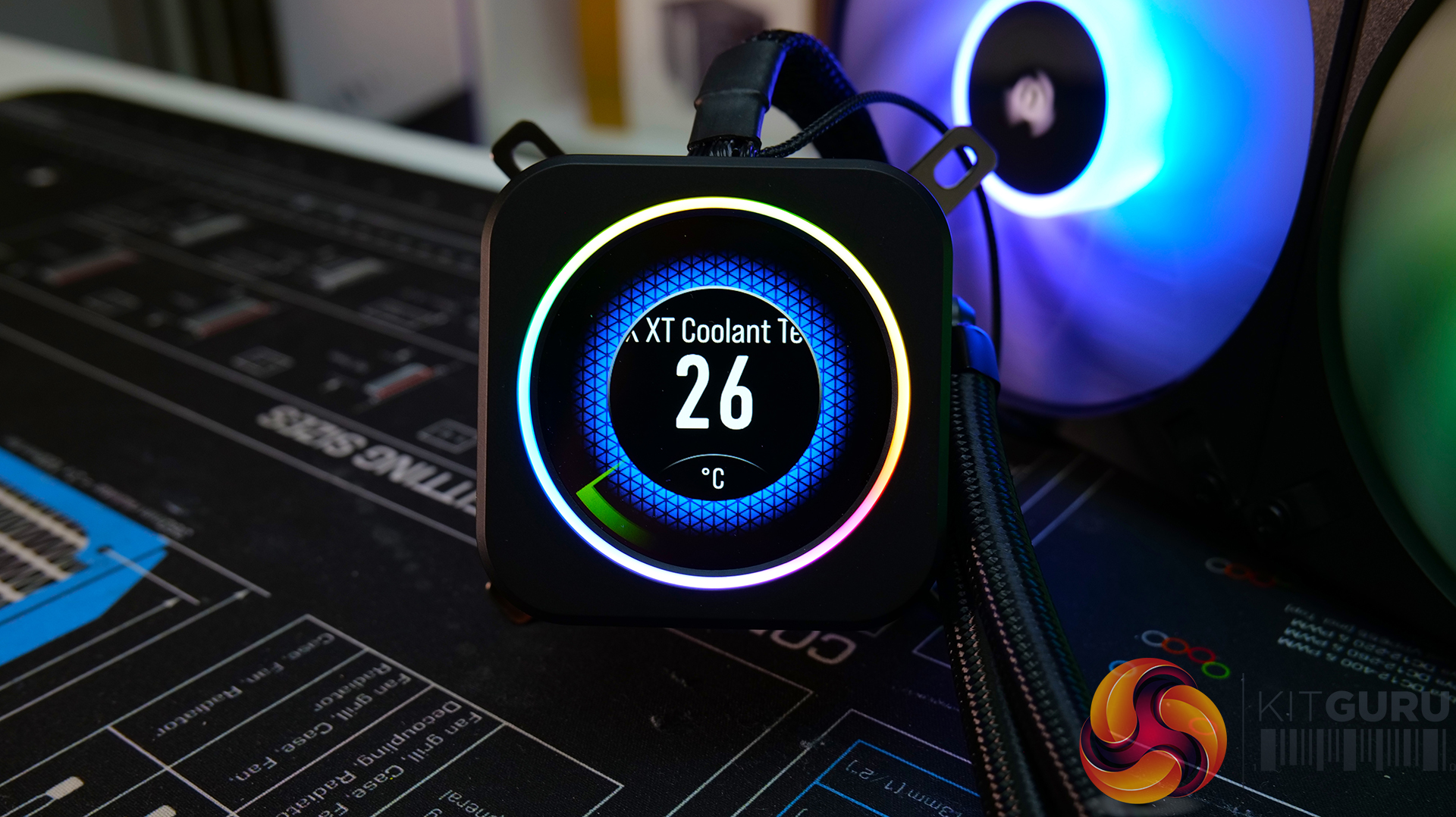
The pump block casing and detachable top cover that houses the 2.1” LCD IPS screen are manufactured from ABS moulded plastic. While at the base of the block is a skived copper cold plate featuring 128 micro-skived channels per inch. The cooler's base is used to connect the mounting hardware that just slides into position, which is handy for installation as it reduces installation time as there are no fiddly screws to deal with.
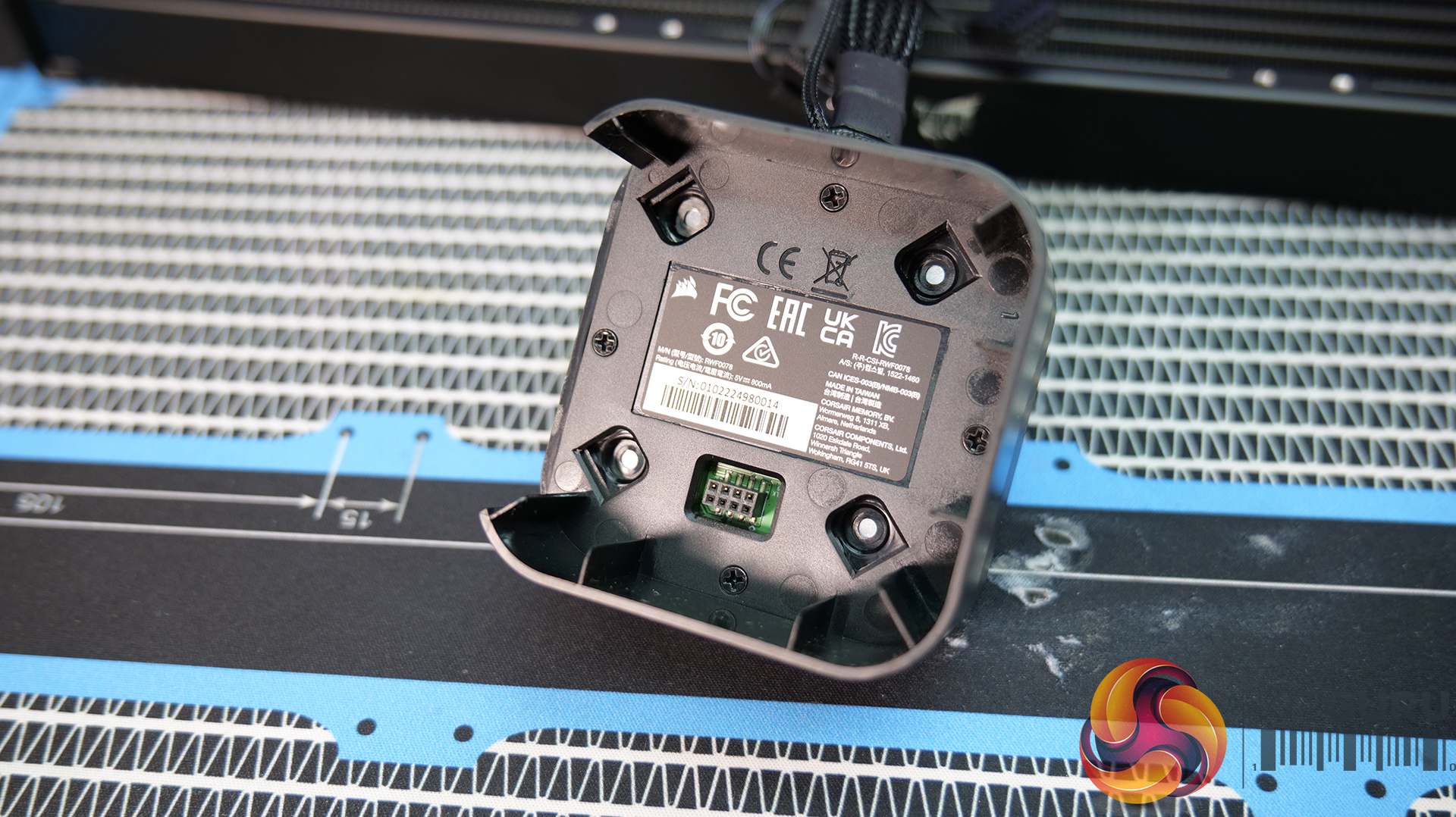
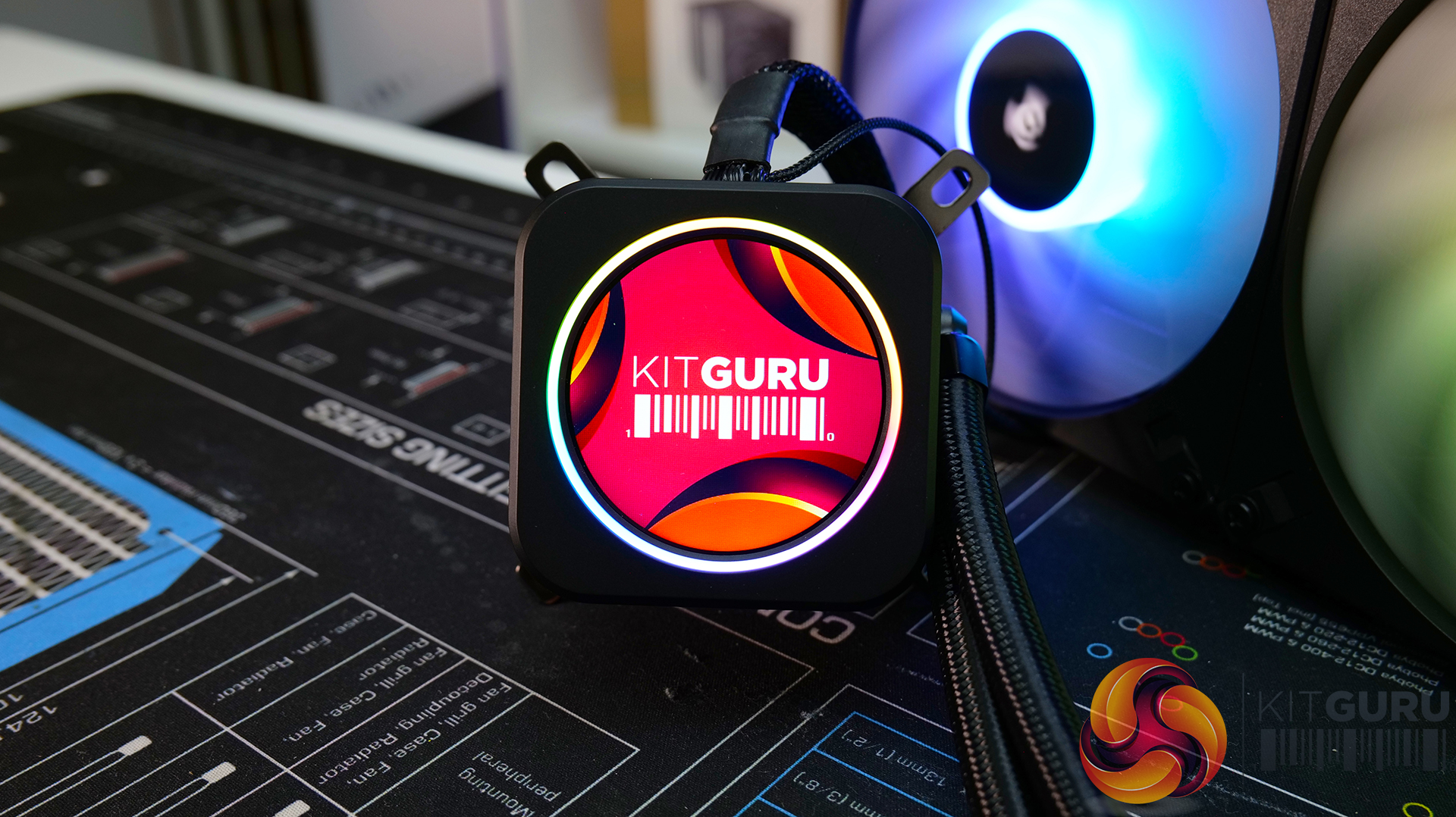
As mentioned the top cover containing the LCD panel can be detached from the base. Inside the cover are electrical connections for the pump. The display is an IPS Panel with 480×480 resolution and 30Hz refresh rate. Refresh rate can be adjusted in the iCUE software and so can the rotation of the display, but only when displaying a custom image or gif which is annoying as corsair said it would allow the software to rotate the display using the preset styles previously, but still isn’t implemented in the latest version of iCUE.
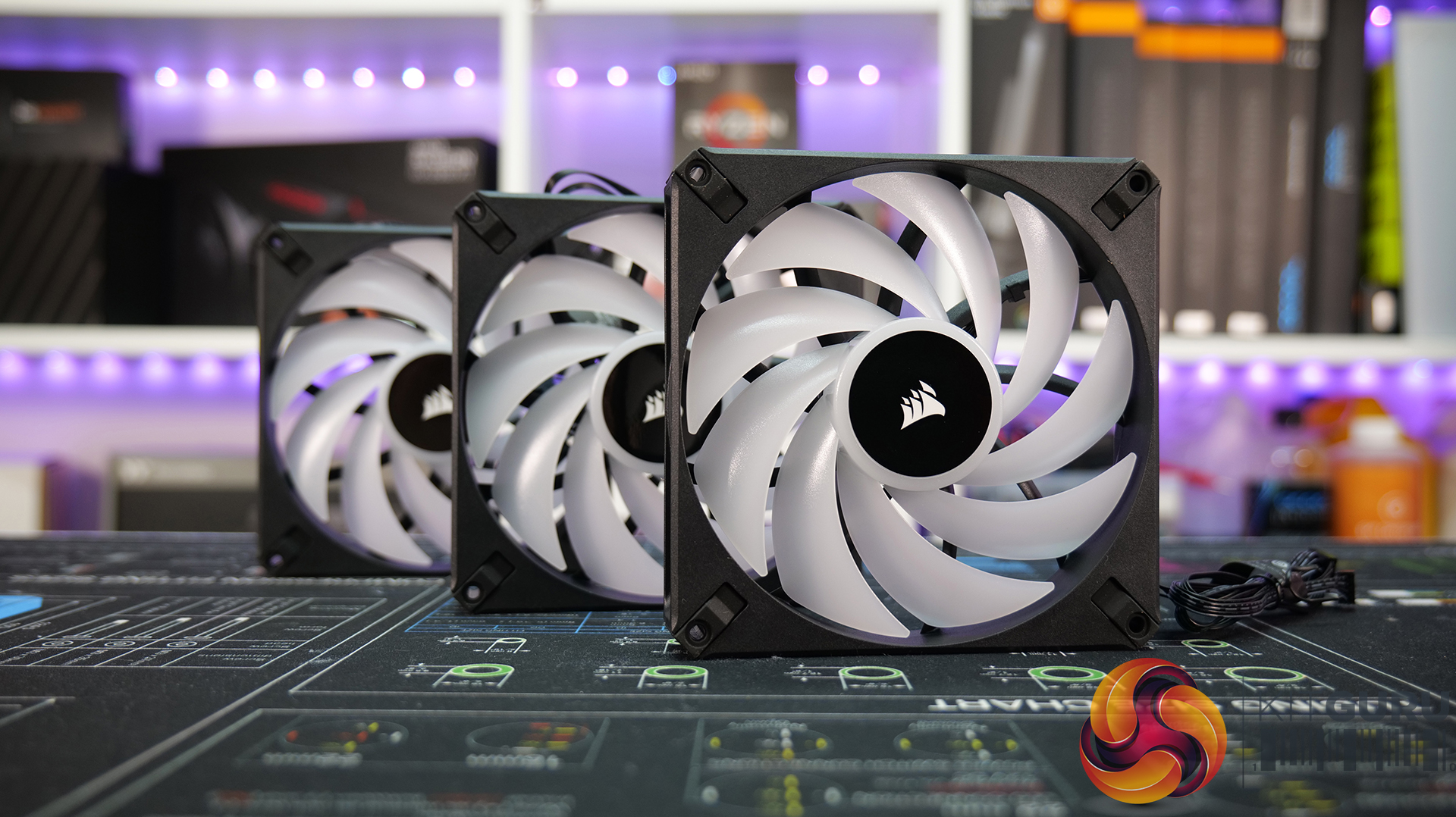
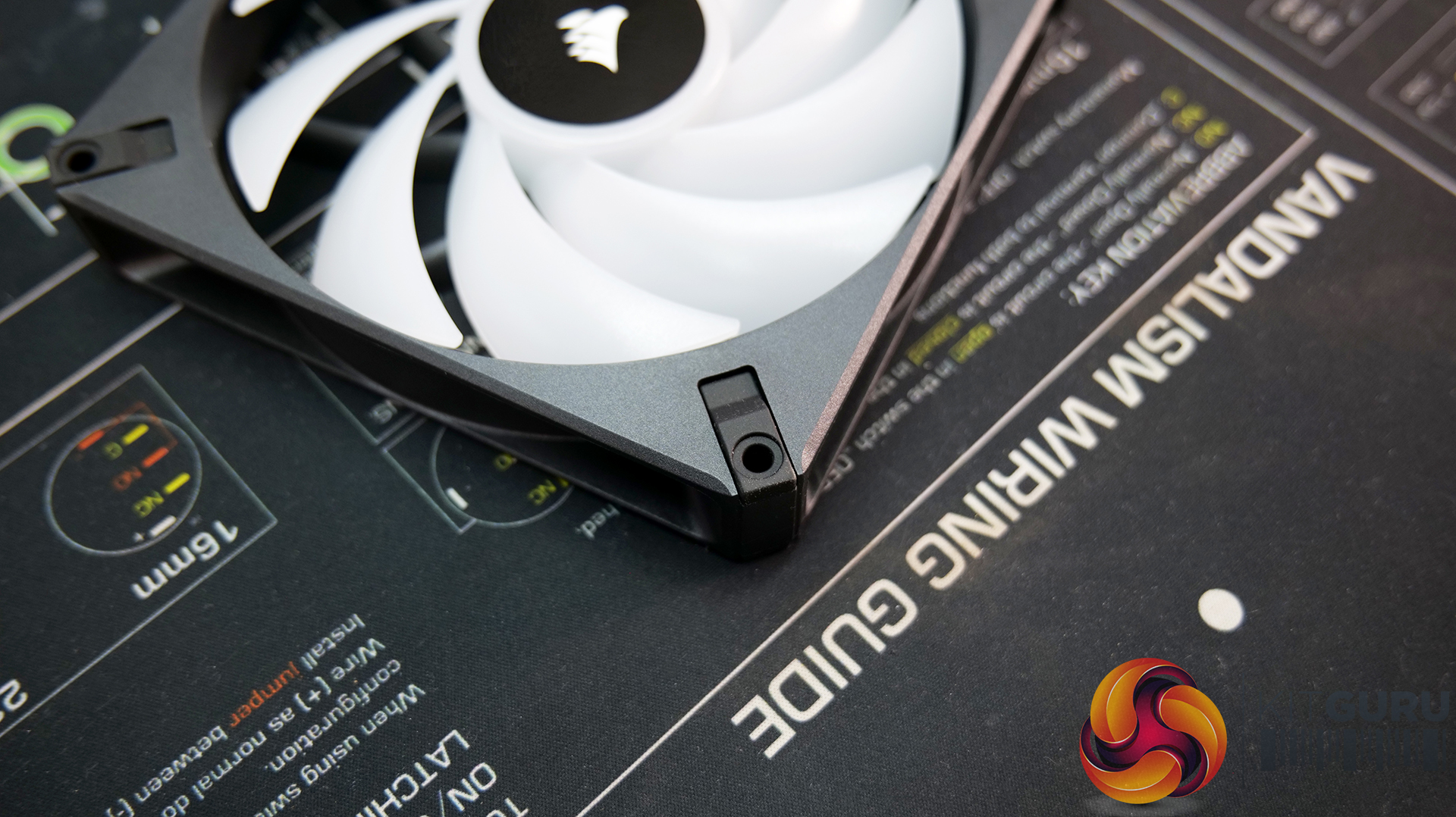
Another major change from the previous Elite LCD coolers is the fans that come with the Elite LCD XT range. Corsair has chosen the AF Elite fans to go with the Elite LCD XT series which is a change from ML Elite that came previously with the non-XT Elite LCD coolers.
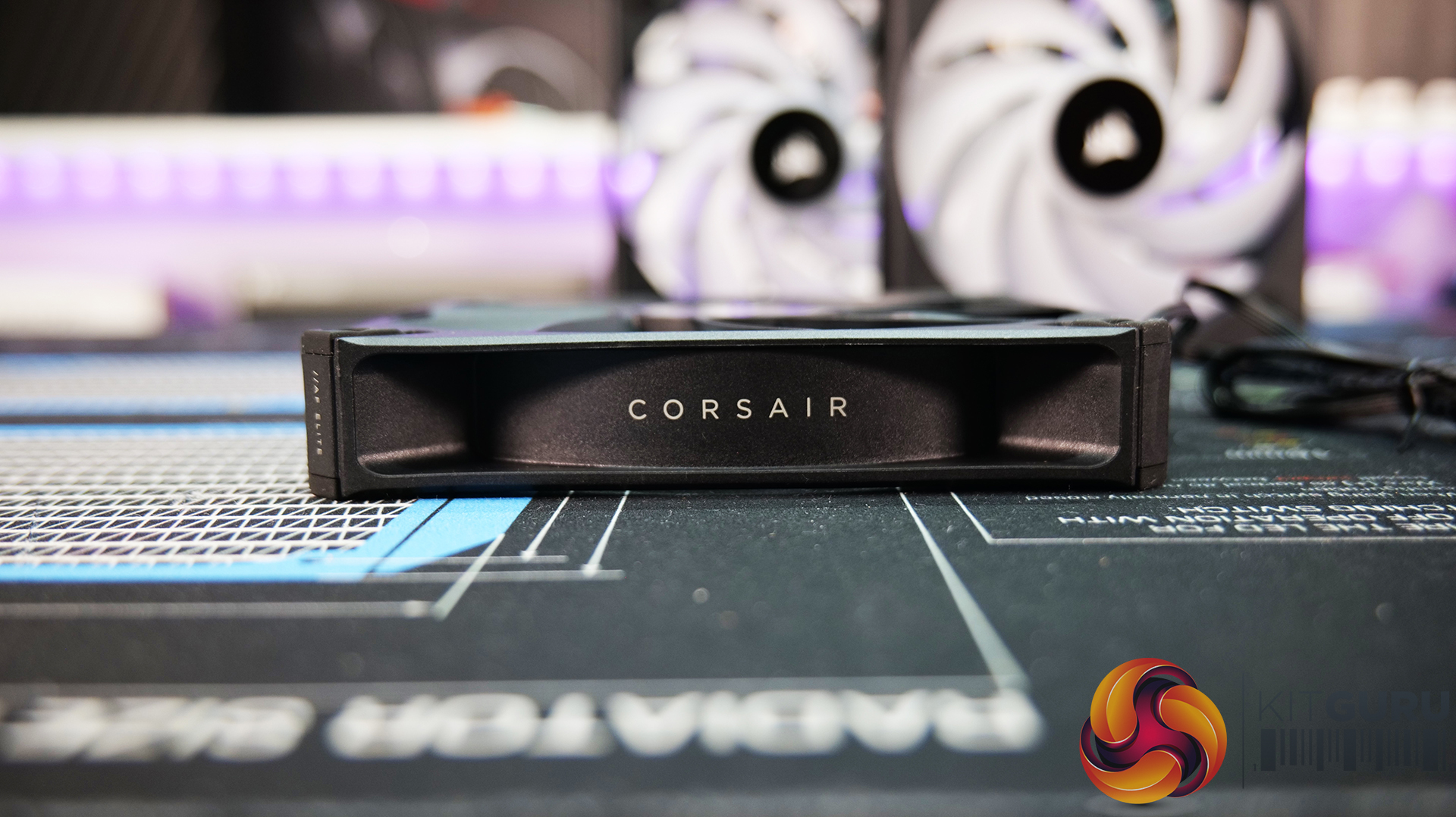
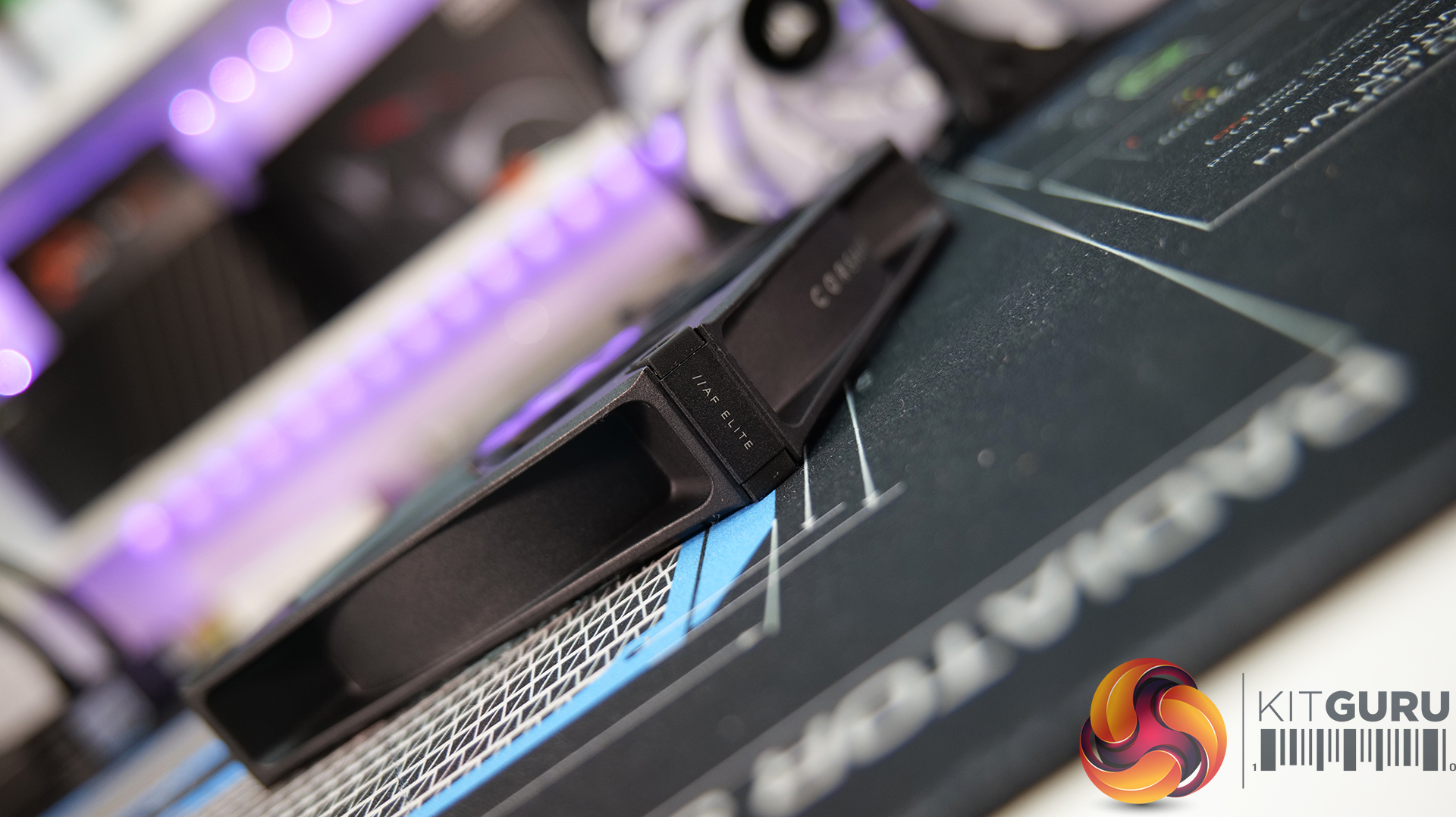
AF Elite fans look similar to the ML Elite fans but with a different blade design. AF Elite fans have anti-vortex vanes on the rear which Corsair calls AirGuide technology just like the ML Elite fans. The anti-vortex vanes are designed to help concentrate airflow. AF Elite is equipped with a fluid dynamic bearing and has a PWM speed range of 500-1700 RPM with a zero RPM mode.
Corsair iCUE H170i Elite LCD XT Specifications:
- Pump Noise: <20.0 dBa @ 1m
- Pump Harness : 24-Pin Commander CORE COM Port Cable, USB
- Pump RGB Features: Multi-Zone ARGB LED Pump Head (24 LEDs & Zones)
- LCD Dimensions: 2.1” Diameter
- LCD Panel Type: IPS LCD
- LCD Resolution: 480 x 480 px2
- LCD Color Depth: 24-Bit True Colour (16.7M+ Colours)
- LCD Refresh Rate: 30hz (Adjustable)
- LCD Brightness: 600 cd/m2
- Coldplate Material: Micro-Skived Copper
- Coldplate Dimensions: 65mm
- Radiator Dimensions: 457mm x 140mm x 27mm
- Software Compatibility: CORSAIR iCUE Software Suite
- Fan Series: AF140 RGB ELITE Series
- Fan Bearing: Fluid Dynamic bearing
- Fan RGB Features: 8x Individually Addressable RGB LEDs per Fan
- Fan Speed: 500 – 1,700 RPM + Zero RPM mode
- Fan Static Pressure: 2.0 mm- H20
- Fan Noise Maximum: 33.8 dBA
- Fan Control Method: PWM Controlled via iCUE Commander CORE
- Socket Compatibility: AMD AM5, AM4, sTR4, sTRX4, Intel 1700, 1200, 115x, 20xx
- Warranty: Five Years
Corsair includes installation kits for all current Intel and AMD Desktop platforms as well as installation hardware for some high-end desktop CPUs. Since the current KitGuru test bench uses an AMD AM4 motherboard, the AM4/AM5 installation process is shown in this review. Installing on Intel 115x/1200/1700 is very similar but an additional backplate is required which is included in the kit.
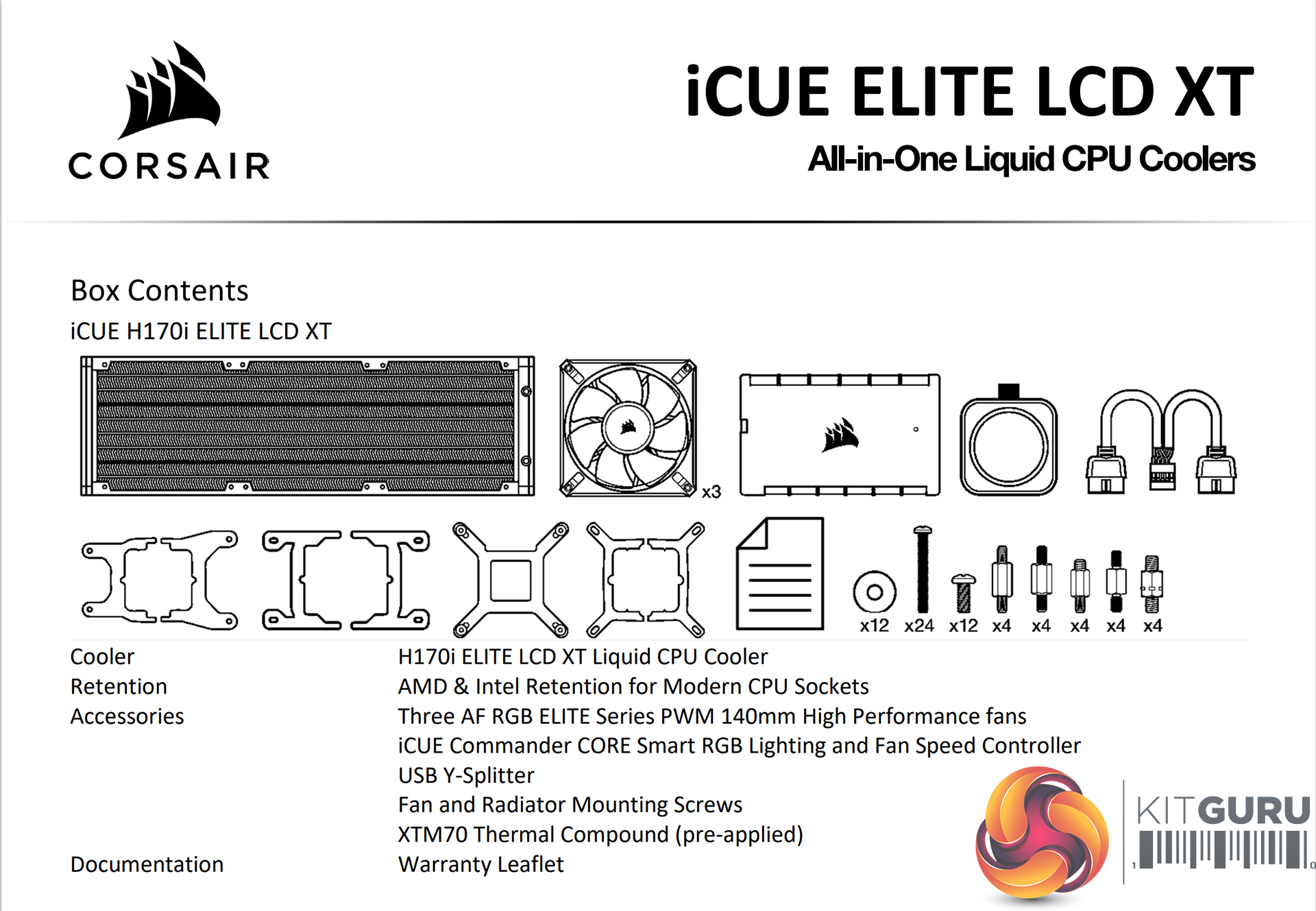
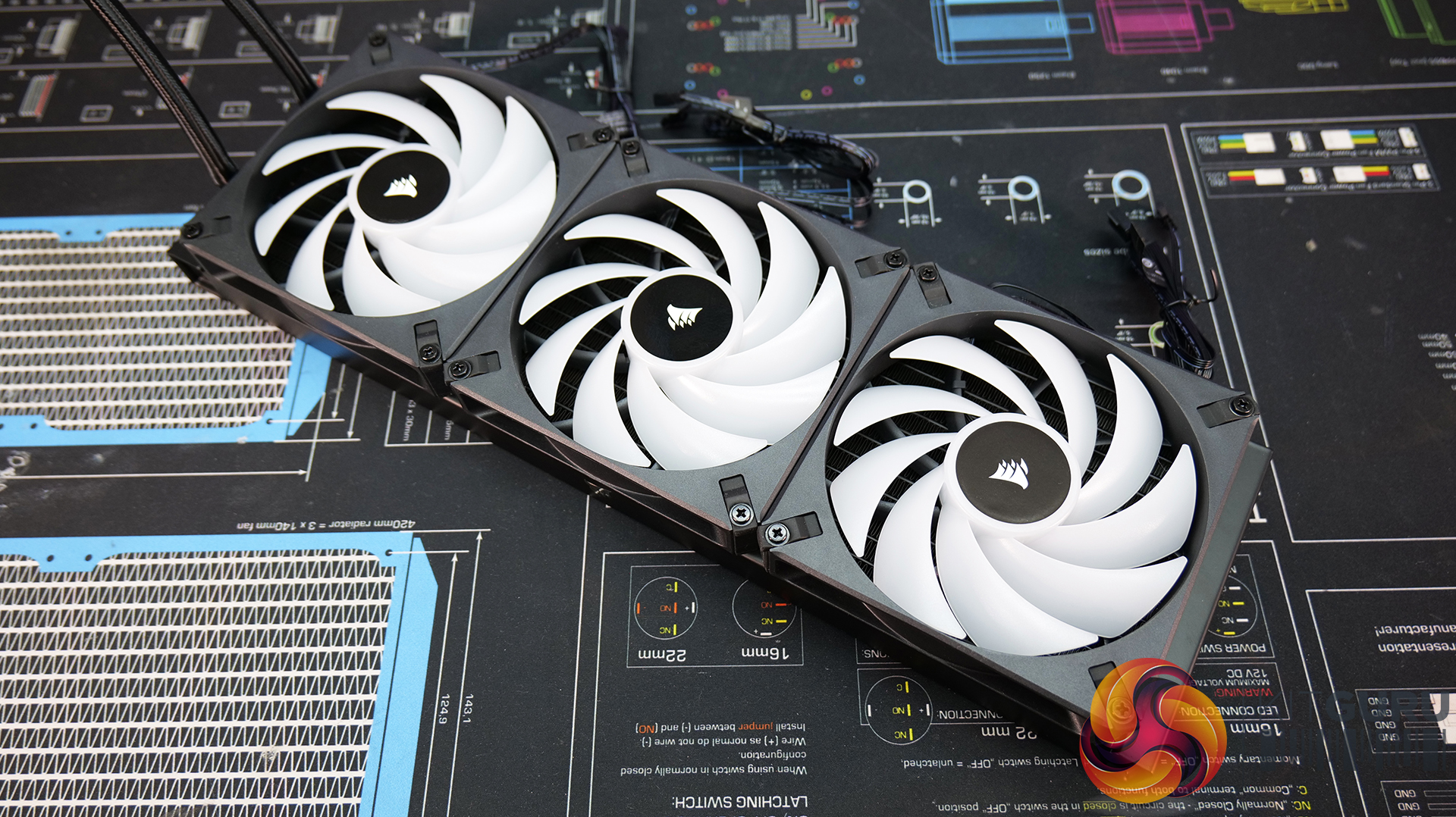
Begin the AMD installation by removing the intel upper mounting brackets from the CPU block base and sliding the AMD brackets into place. Screw the fans to the radiator using the long screws and washers provided. Corsair includes enough screws for six fans, so if you choose to run a push-pull fan configuration, you don’t need to buy extra screws.
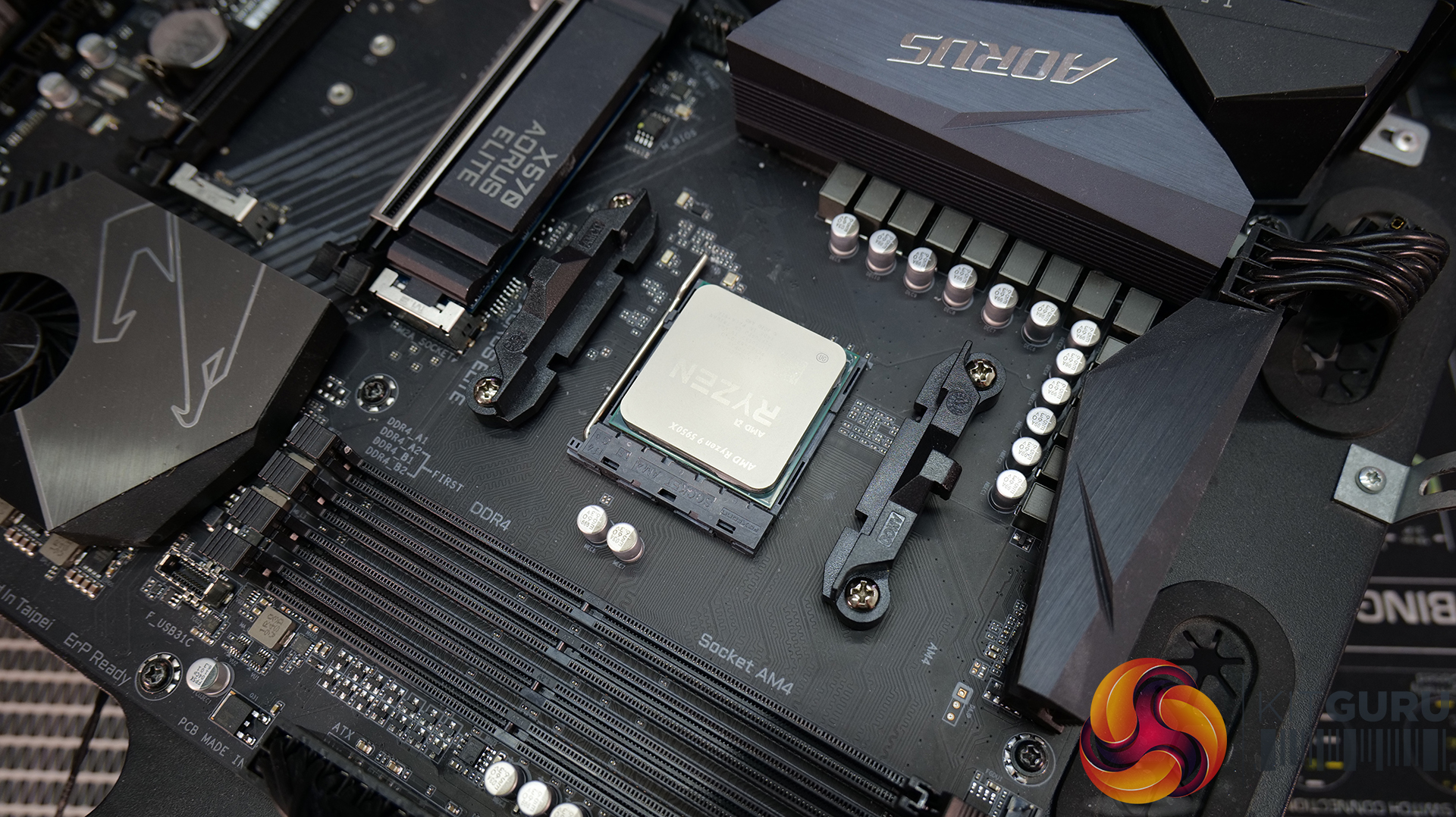
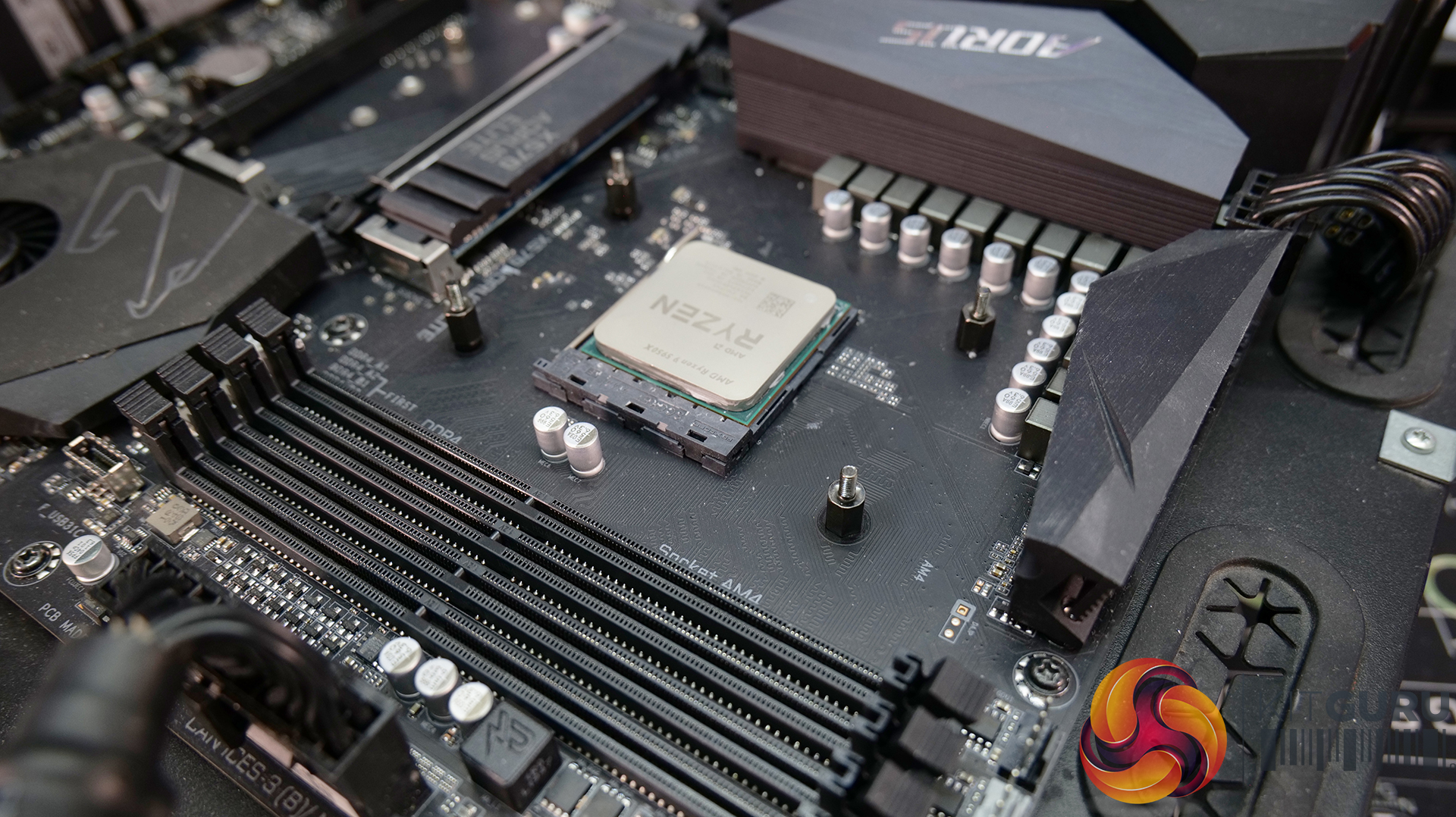
To prepare the AM4 motherboard, remove the stock upper plastic mounting brackets and retain the stock AM4 backplate, then screw the Corsair AM4/AM5 stand-offs to the original backplate.
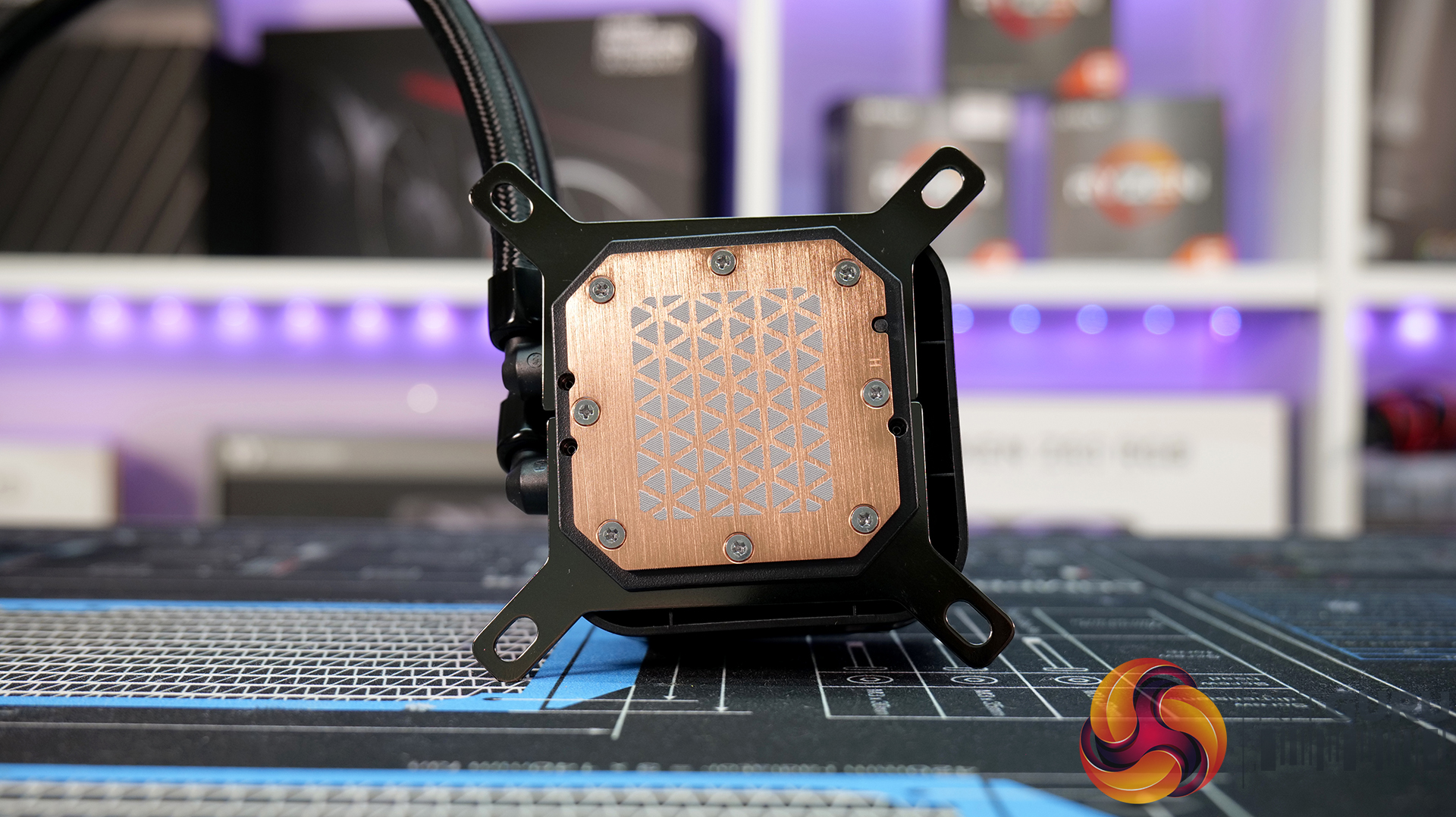
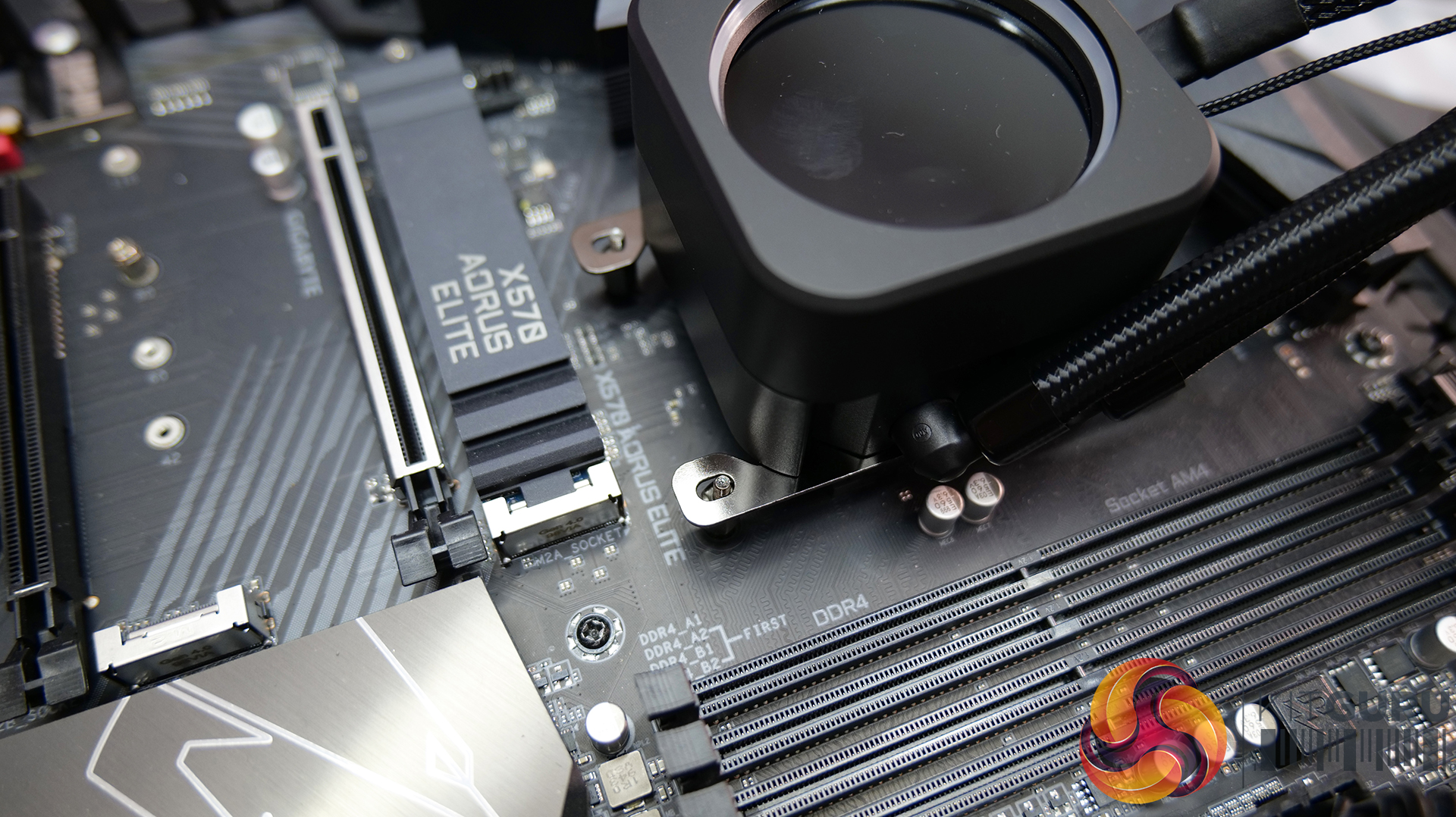
The cooler comes with some Corsair XTM70 thermal compound pre-applied to the cold plate base. Next, lower the CPU cooler block onto the CPU aligning the upper mounting bracket holes with the stand-off threads.
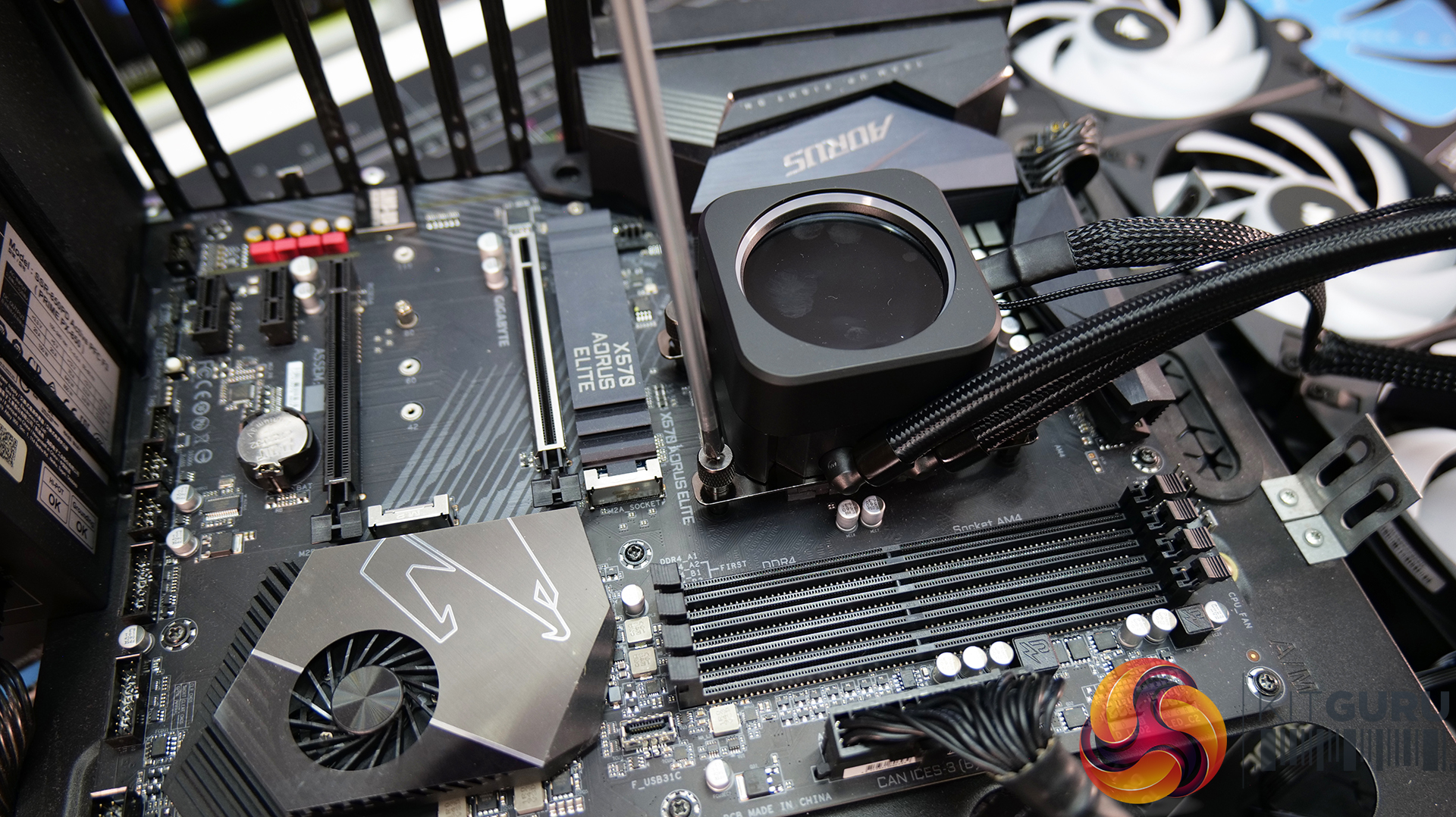
Now tighten the CPU block in place using the four thumbscrews provided. Start tightening the thumbscrews by hand and complete the tightening using a screwdriver. Remember to tighten the screws in an X pattern equally and progressively to ensure the best CPU to cold plate contact.
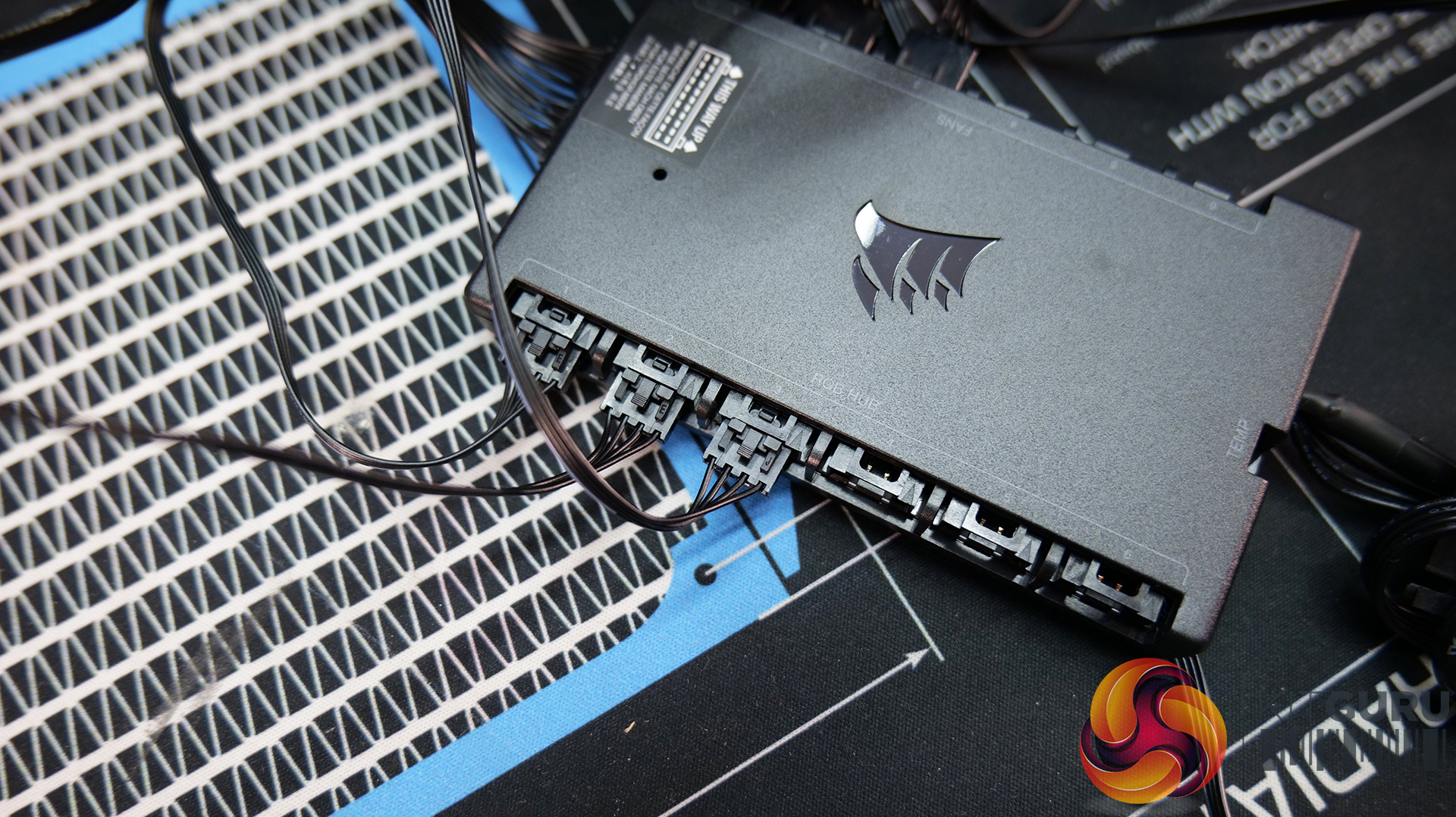
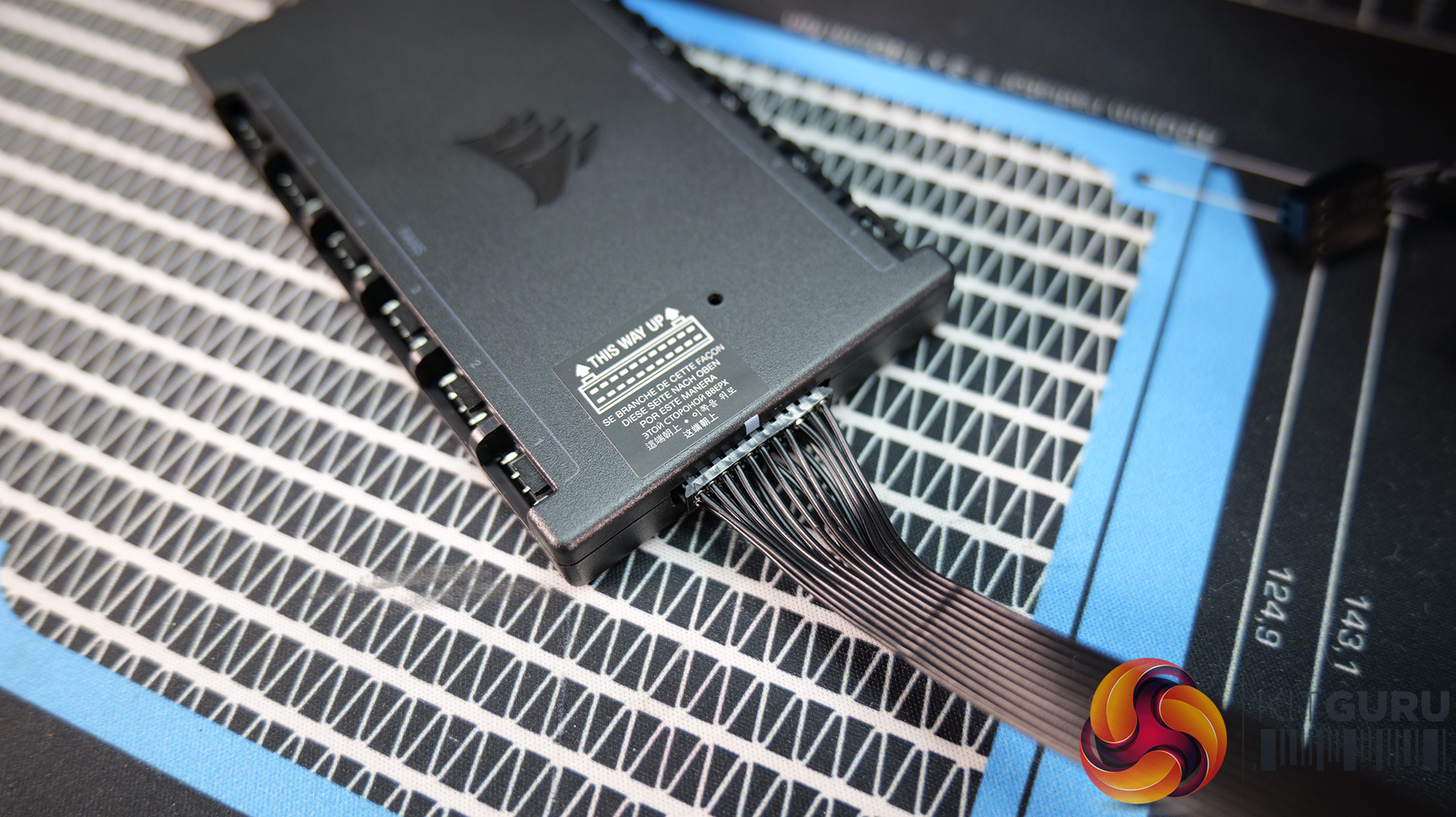
Next, the fans and pump need to be connected to the Corsair Commander Core unit. Start with the first fan connecting to port number one, connect the PWM cable on one side and the RGB cable opposite. The 24-pin connection from the pump plugs into the end of the Commander Core unit.
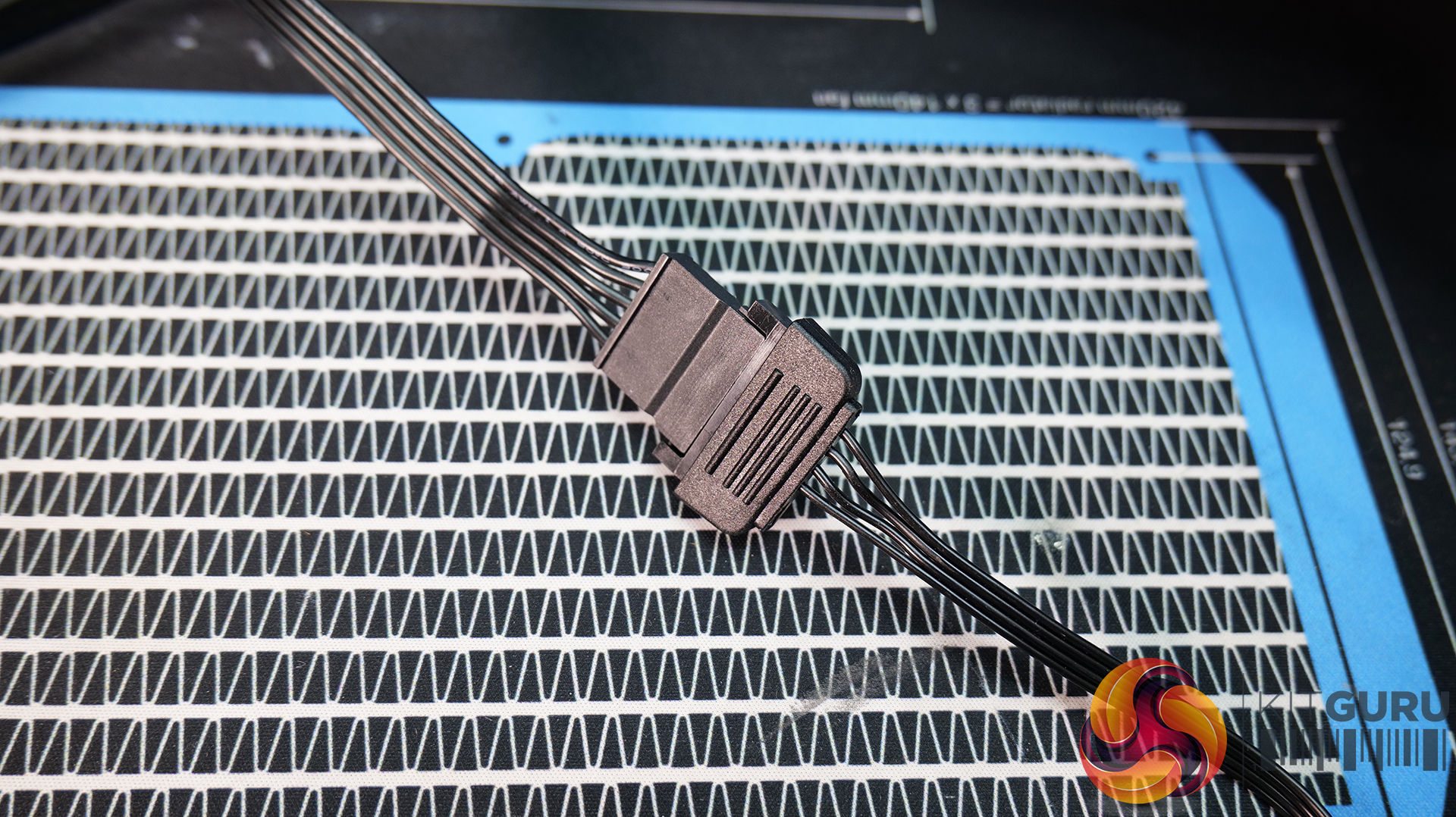
The Commander Core unit is powered by SATA so needs to be connected to a spare SATA Power connector from the power supply.
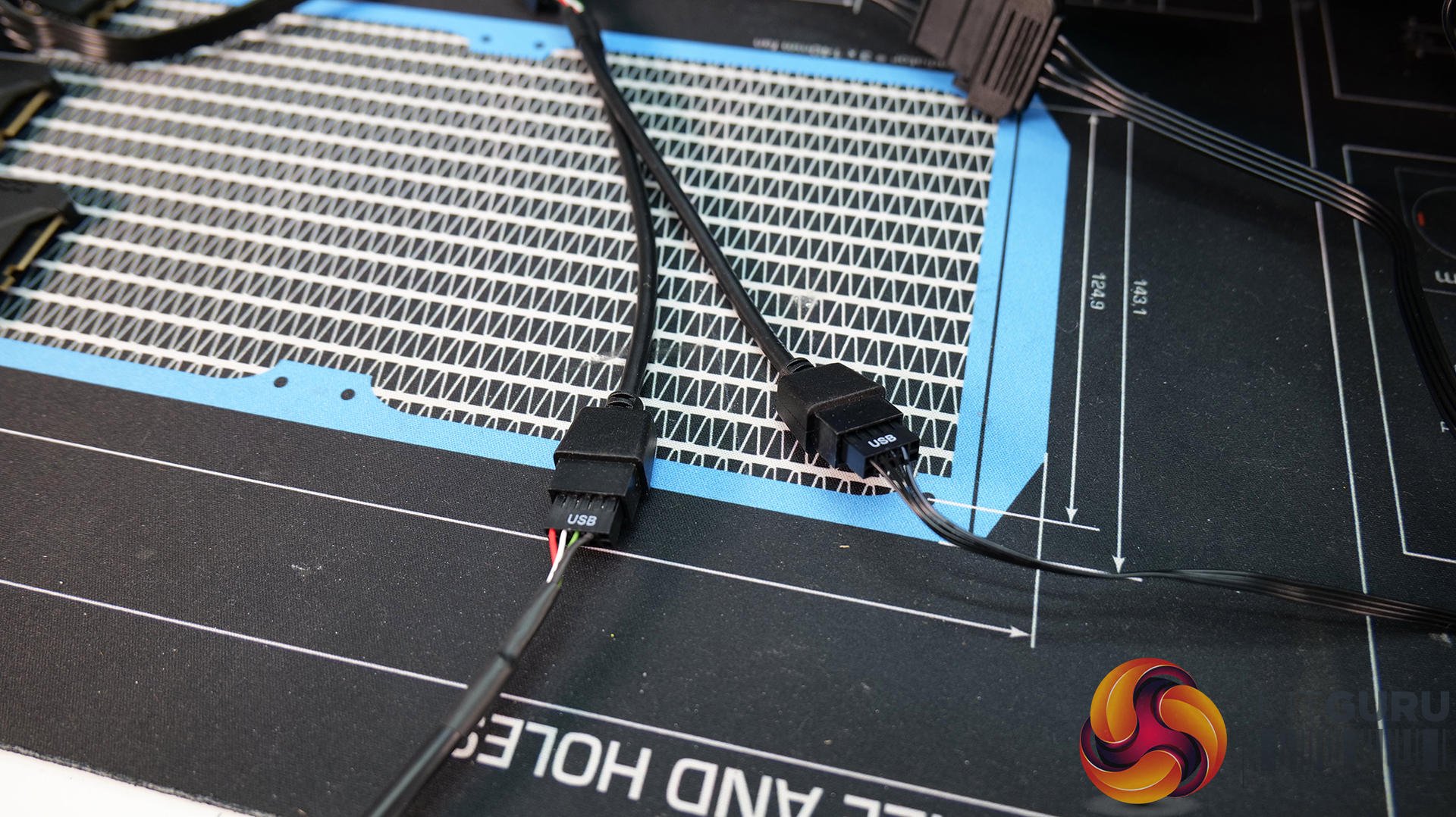
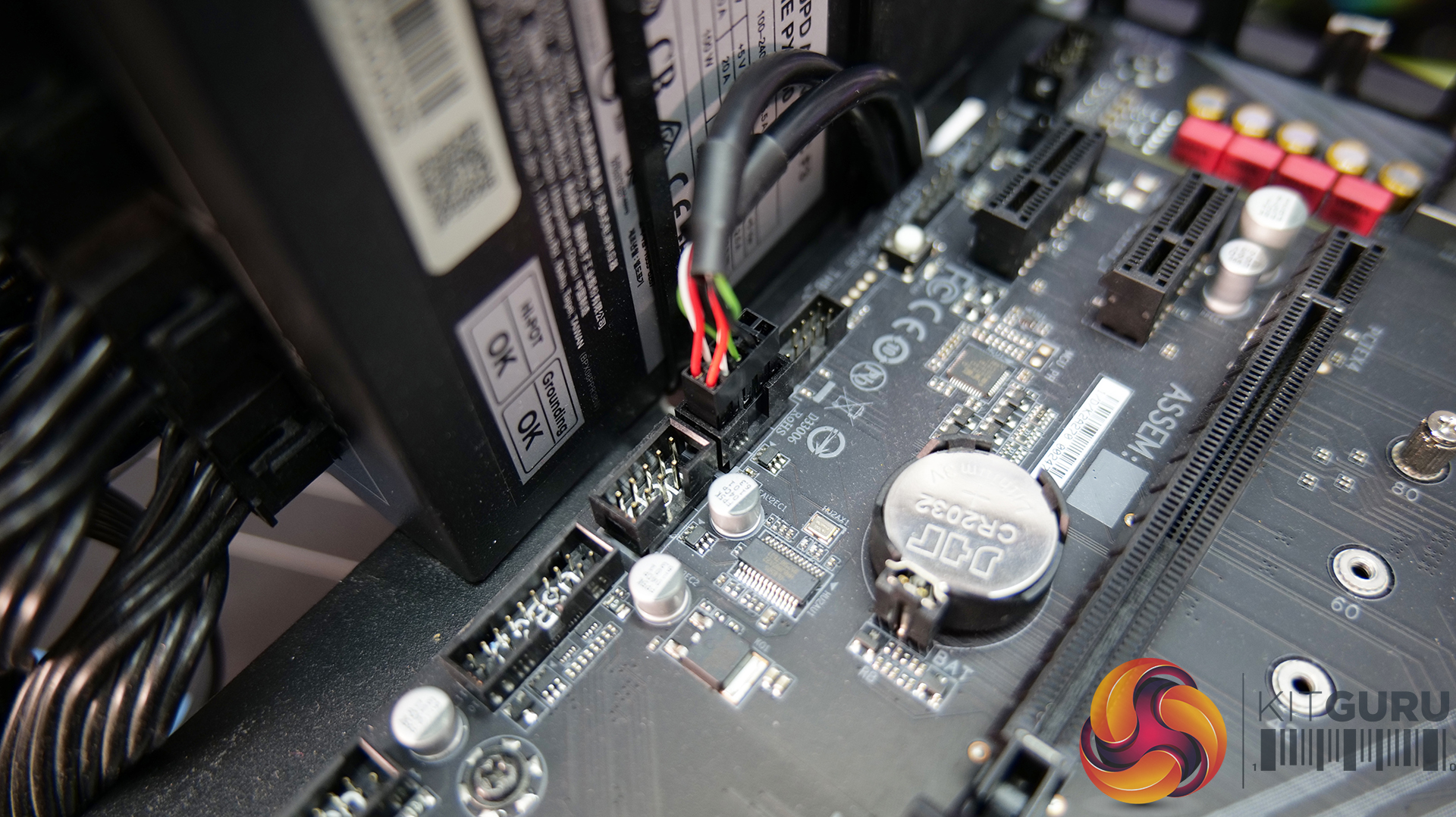
Connect the USB splitter cable to the USB cables coming from the pump and Commander Core, then connect the end of the USB splitter to an available USB 2.0 motherboard header.
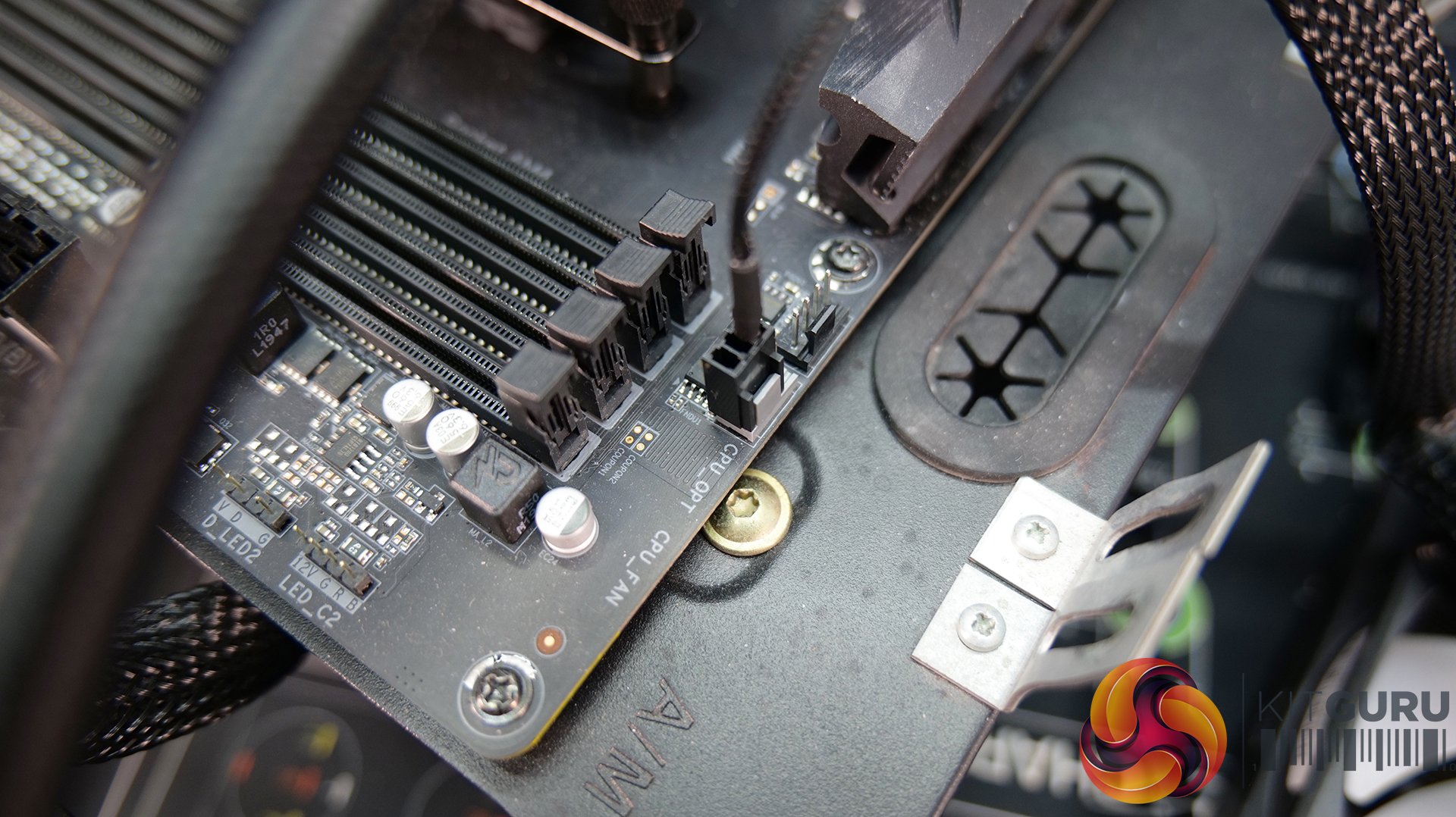
Finally, connect the 3-pin cable from the pump to the motherboard CPU_FAN header. This will stop any CPU fan fail warning from coming up in the motherboard BIOS and sends a pump RPM reading that can be seen in the BIOS and other monitoring software.
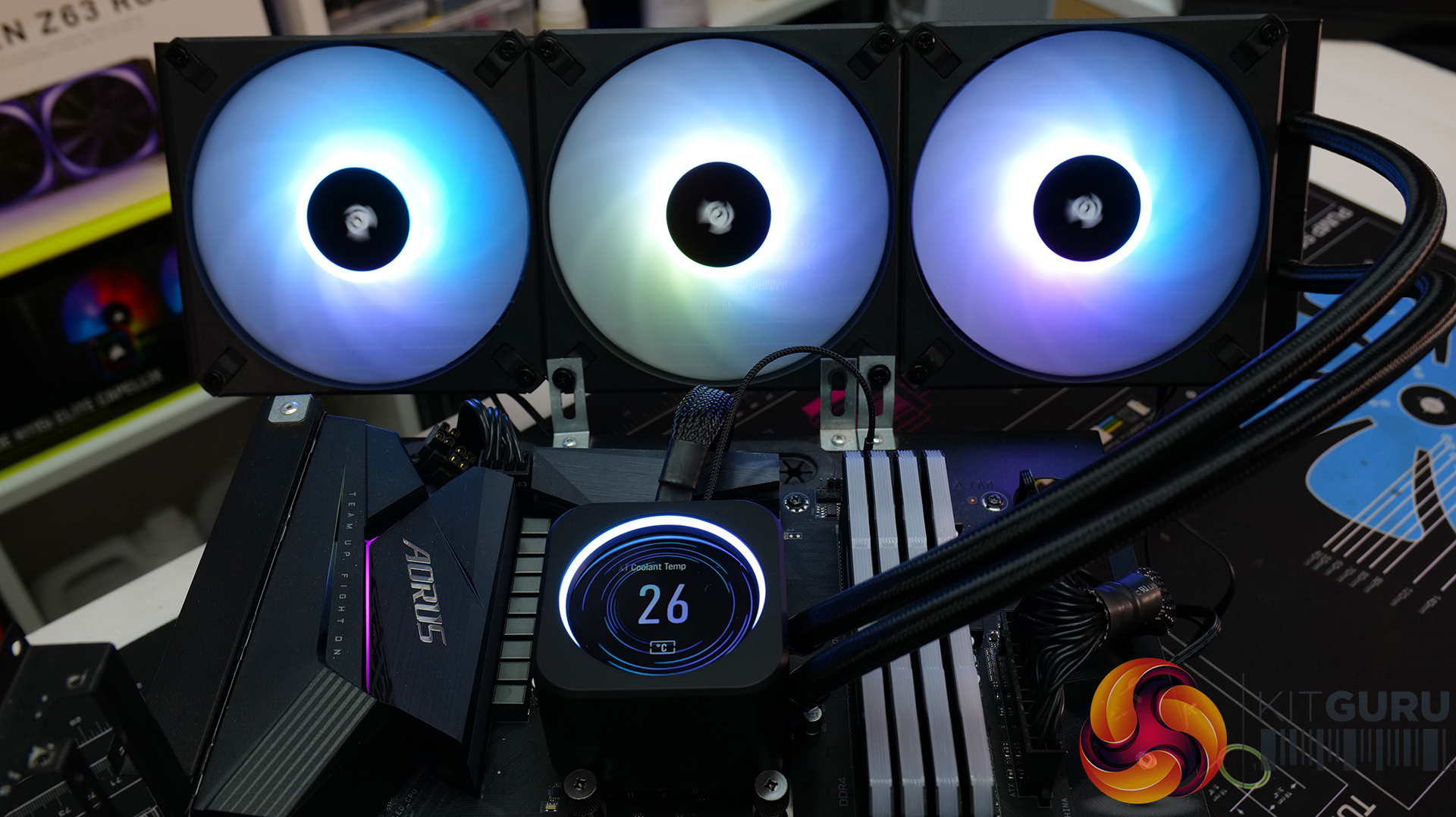
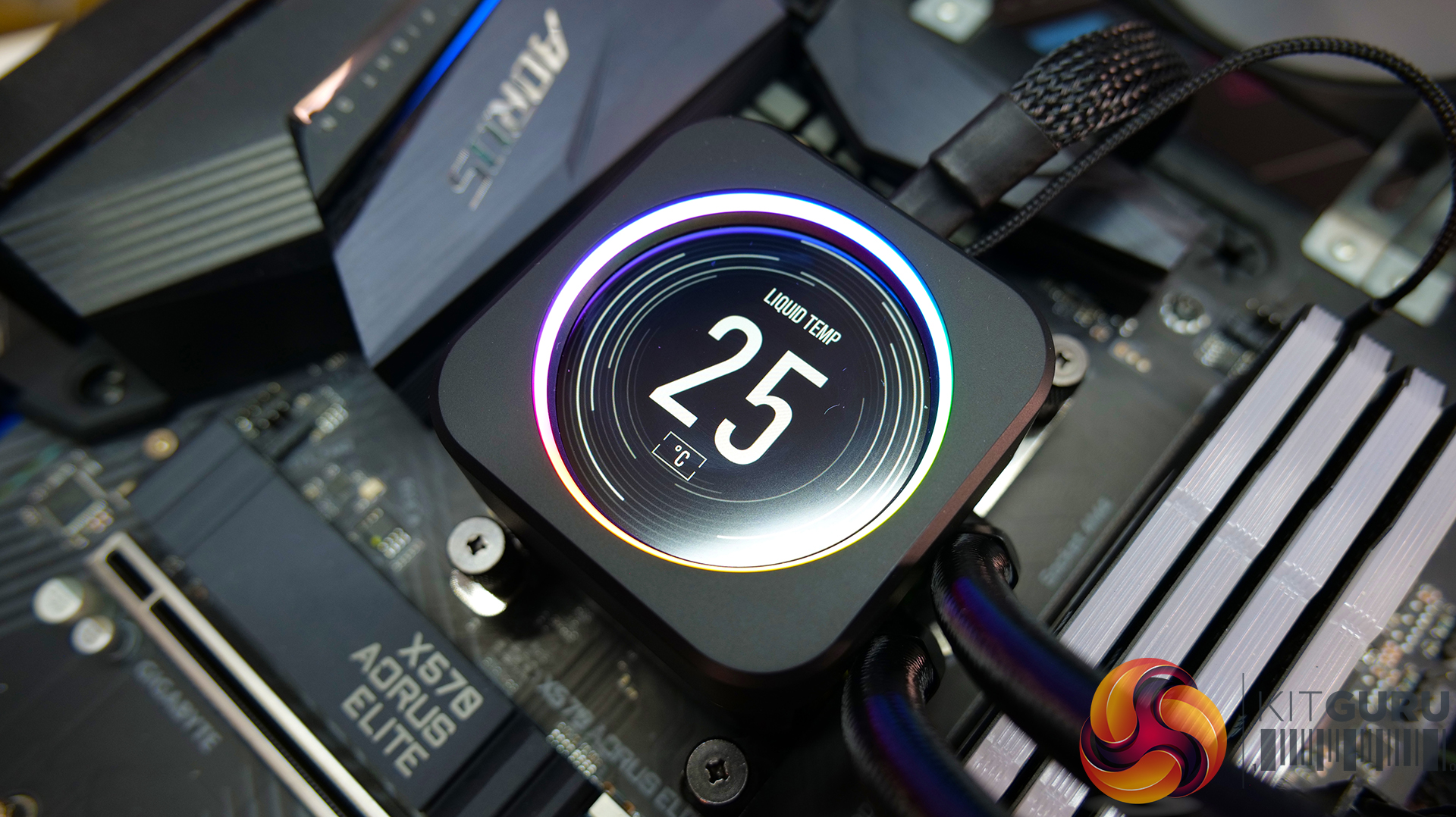
Corsair has revised its AIO installation process over the years which means that the installation is as easy as possible. The Commander Core and associated wiring add some time to the installation compared with standard motherboard header connections, but overall the installation takes about 15-20 mins.
Test System:
- Processor: AMD Ryzen 9 5950X
- Overclocked Settings: 4.45GHz all-core @ 1.30V LLC Level 5
- Motherboard: Gigabyte X570 Aorus Elite
- Memory: 32GB (4x8GB) Corsair Vengeance RGB RPO SL 3600MHz
- Graphics Card: MSI Radeon RX 6600XT Gaming X (zero dBA mode)
- Chassis: Open Test Bench
- Power Supply: Seasonic Prime TX-850
- Operating System: Windows 10 Pro 64-bit
Testing Methodology:
- For testing, we use a 30-minute looped run of Cinebench R23 and record the steady-state CPU temperature at the end of the test. This ensures that the CPU has ample time to warm up and reach steady-state under all the coolers.
- The ambient is maintained at around 19-21 degrees Celsius. Where there is variation beyond this temperature range, we add extra repeated tests to ensure consistency.
- We also test each cooler with at least two fresh installs (typically three) to mitigate the likelihood of a dodgy mount spoiling results.
Test Results:
Noise Output
Let’s begin with noise output as this will give us a good indication of what to expect from thermal performance based on noise.
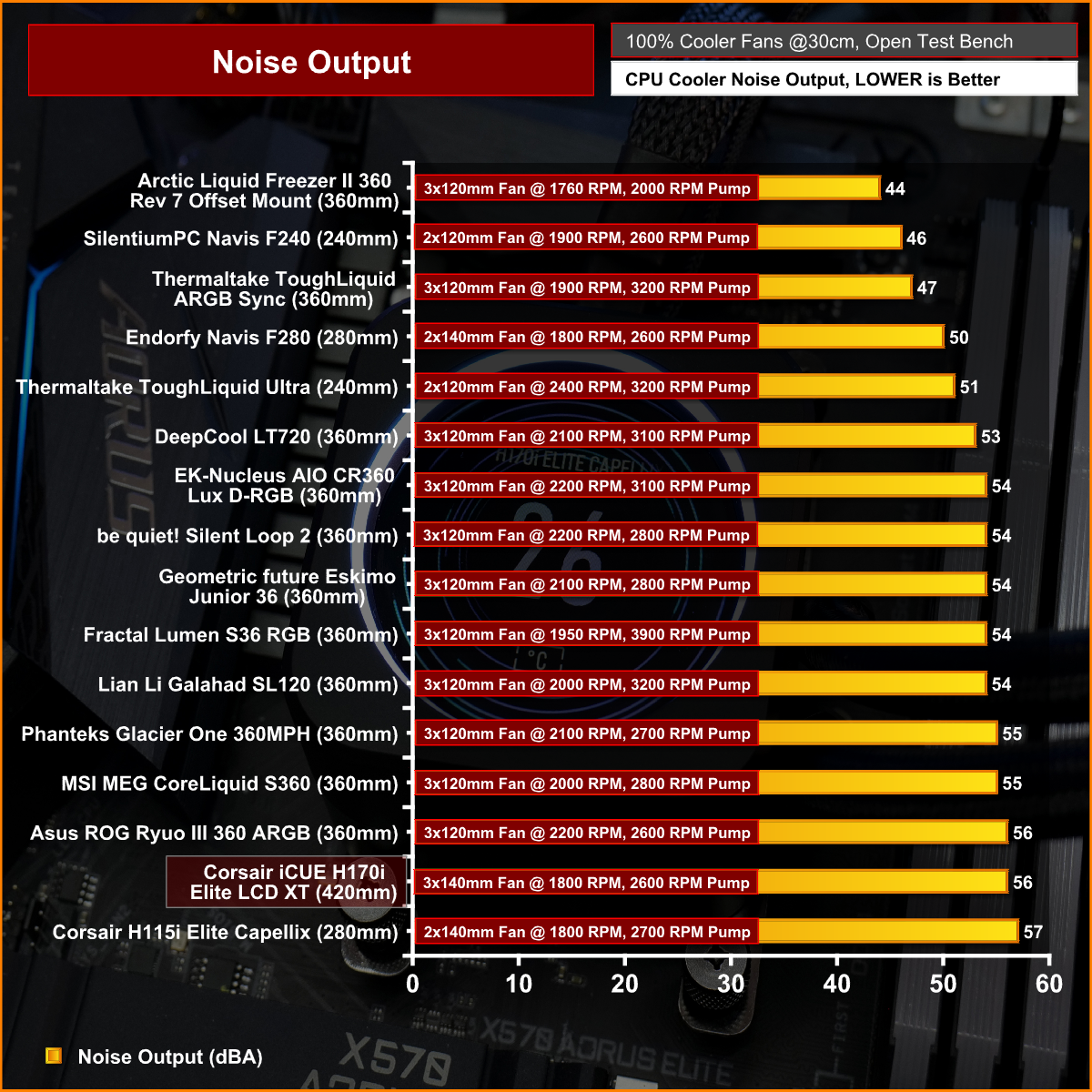
The H170i Elite LCD XT follows the Corsair trend of being loud with the fans at maximum RPM. But noise levels are at a similar level to other 360mm AIO coolers from the likes of Asus, MSI and Phanteks, so it's not uncommon for a triple fan cooler to be loud with the fan speed maxed out, it does seems to be an improvement compared with the smaller 280mm Elite Capellix.
Thermal Performance
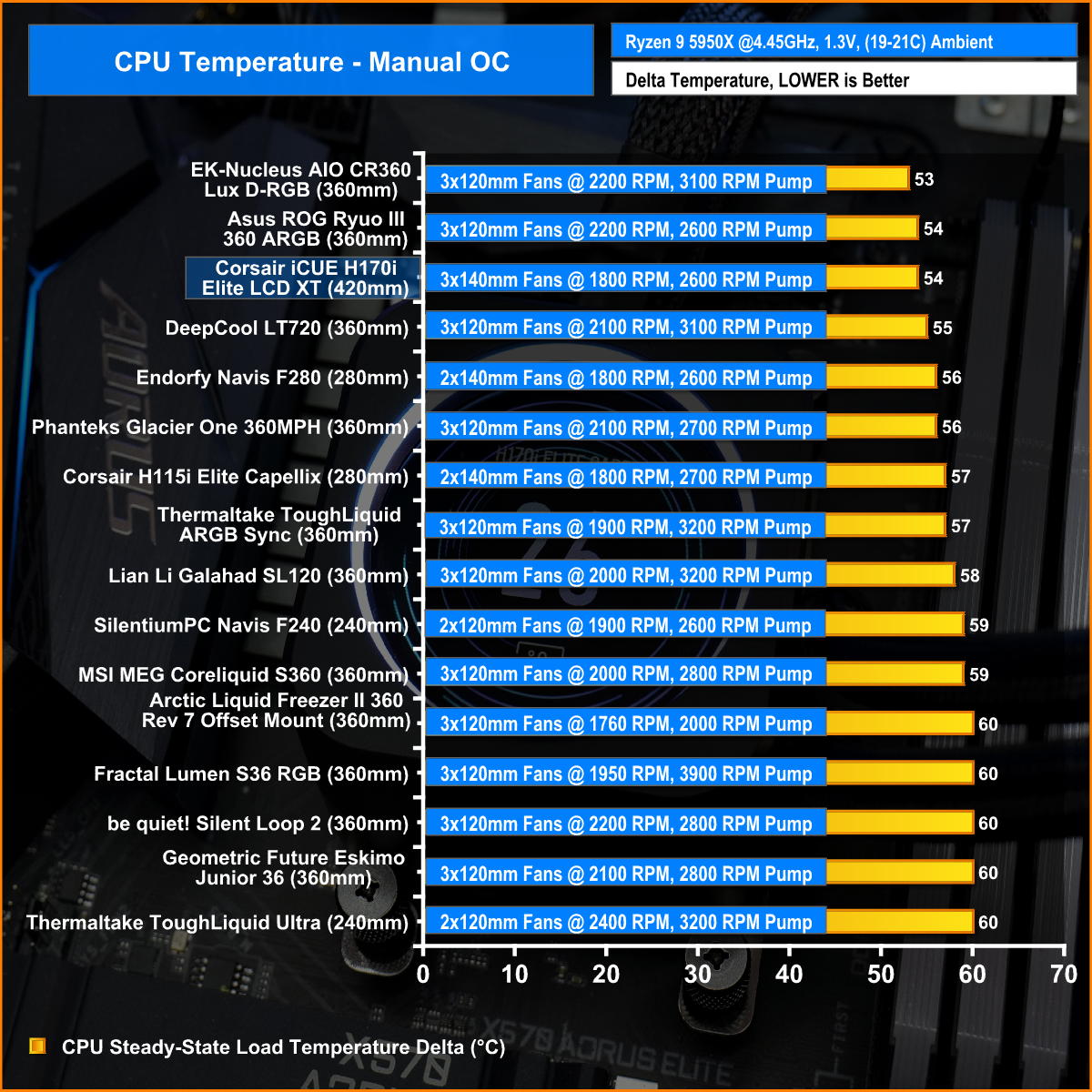
With the fans at maximum RPM, the H170i records an average CPU temperature of 54C. It's up there with some of the best coolers we have tested but is beaten by some of the top performing 360mm units from EK and Asus which is a little disappointing since the H170i has a larger cooling surface area and bigger fans, but it’s still a solid result.

With noise output normalised and limited to 40dBA the H170i Elite LCD XT holds on to its cooling performance and is still up at the top of the chart, but again we see it only performing on par with some of the best 360mm coolers. This again is a good result but a little disappointing considering that this cooler has an increased cooling surface area.

With the PBO test, the most important metrics are the clock multiplier and cooling power as the temperature difference between coolers is slim. The Corsair unit is able to cool 244W of package power and holds on to a 43x average multiplier during the test which is a solid performance, but again it is beaten by other smaller coolers which is a bit disappointing as a higher clock multiplier means more CPU performance.
Taken as a whole, Corsair has done a decent job with the iCUE H170i Elite LCD XT AIO cooler. Build quality is up to the usual standard. No additional trim panels needed to be added to the radiator as the factory black finish is of high quality and the chrome logos give it the unique Corsair touch.
The new AF140 Elite fans are well-built too, there’s no adverse flex in the frame, and they feel sturdy. How much effect the anti-vortex Corsair AirGuide vanes have on performance is questionable, but in terms of noise they seem to be an improvement over previous generations. However, they are still quite loud at maximum RPM compared with some of the competition.
Integration with iCUE and other Corsair products via the Commander Core is excellent. iCUE is one of the few pieces of RGB software I don’t mind using as it just seems to work where similar software from rival manufacturers is fussy at best. The wiring to and from the Commander Core is a little messy and adds time to the installation. I still feel that this could be improved upon and I would like to see the option of a Corsair AIO that does not require iCUE to operate fully.
Corsair has revised the installation process of its AIO coolers many times and has now got to a point where the cooing hardware at least is very easy to install. Brackets easily slide on and off the pump housing and all CPU platforms use the same sliding bracket method for installation so there’s no faffing around with loads of screws. Just slide the brackets in, install the motherboard stand-offs and you are away.
In terms of the performance of the H170i Elite LCD XT, on our test bench, it is up there with some of the best AIOs we have installed. However, for the £349.99 price tag attached to the cooler, I expected it to be a clear performance winner, edging away from 360mm competition, which sadly it isn’t.
In an age where consumer budgets are stretched due to the rising costs of living it no doubt very expensive. A couple of years ago we could buy a decent graphics card for this price and now Corsair is asking almost £350 for a CPU cooler. It seems excessive to me but no doubt there will be Corsair enthusiasts out there that are willing to pay the price.
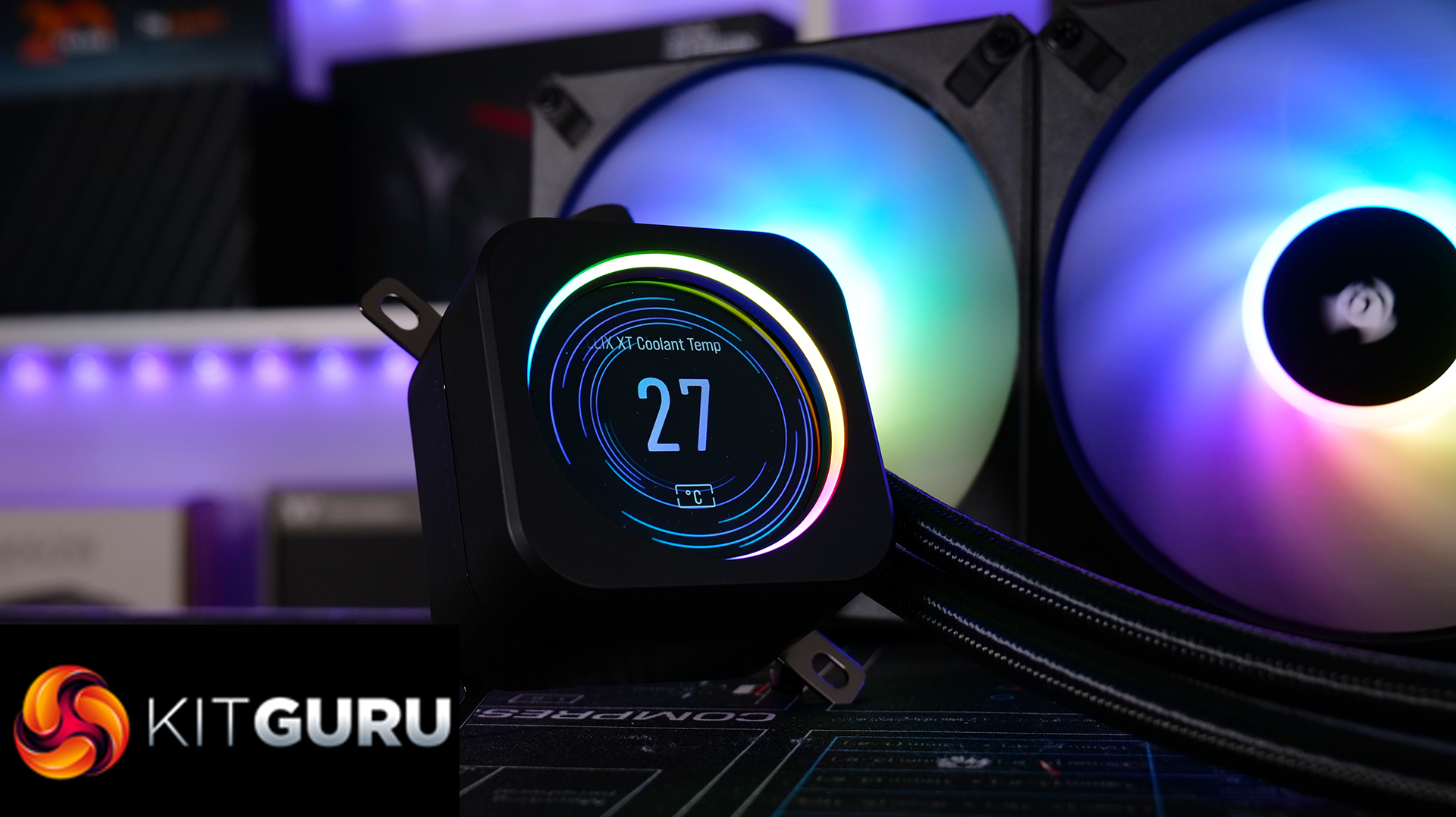
One thing for certain is that the cooler looks great. Corsair’s implementation of RGB lighting is subtle compared with previous products as the company now uses a watercolour-type pastel theme as the default lighting effect. I like this subtle look but it can be changed and customised easily using the iCUE software.
When installed into a system with other Corsair products the integration with the software is excellent. In iCUE the user can customise lighting effects individually or use the Lighting Link option which projects the same RGB effect on all installed Corsair parts for seamless synchronisation. The customisation options of the LCD screen are very good too with the ability to select various system info, pre-set and custom images or animated gifs which look great on the IPS display.
The Corsair iCUE H170i Elite LCD XT is a very expensive AIO which performs only on par with the best 360mm offerings from other manufacturers which is why I find it difficult to be too enthusiastic about it, but if you absolutely need a Corsair AIO, iCUE integration and LCD then it could be worth buying. If an LCD screen is not essential but you still want the iCUE features maybe go with the cheaper Elite Capellix.
Discuss on our Facebook page HERE.
Pros:
- Great integration with iCUE.
- The LCD screen allows customisation.
- RGB effects are very good.
- Installation is easy.
Cons:
- Expensive.
- Lots of cables to manage.
- Might not fit in your case.
- Still only able to rotate images and GIFs in the software.
KitGuru says: The iCUE H170i Elite LCD XT might be an expensive CPU cooler for most, but for Corsair enthusiasts that have already invested in iCUE integration it might be a price worth paying – let us know what you think.