KitGuru KitGuru.net – Tech News | Hardware News | Hardware Reviews | IOS | Mobile | Gaming | Graphics Cards


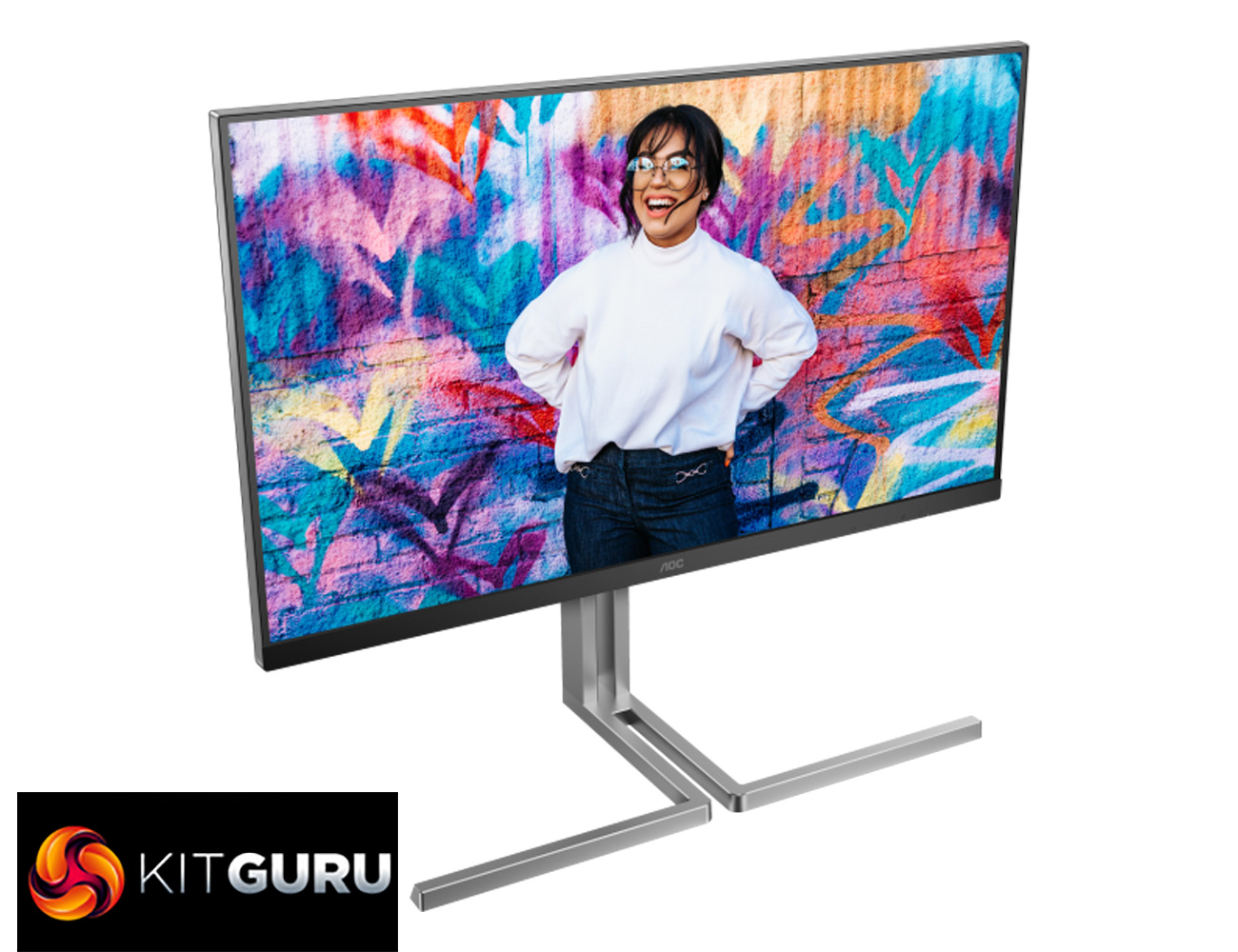
Today we're checking out the AOC Graphic Pro U32U3CV, one of the company's first professional monitors geared towards creatives. Announced back at a special event in April, the Graphic Pro U3 series comprises three initial SKUs and we're checking out the flagship model. Sporting a 32in 4K Nano IPS panel, the U32U3CV is Calman Ready and designed to meet the needs of modern professionals. We put it through its paces today.
While we have reviewed heaps and heaps of AOC Gaming monitors over the years, the Graphic Pro U3 series is something entirely new for the company, so it'll be fascinating to see what this screen can deliver. Priced at £499 UK MSRP, though on sale for around £530, AOC is claiming impressive out of the box colour accuracy, with a deltaE of less than 2 for the sRGB space, alongside wide colour gamut, KVM functionality, multiple USB-C ports and more.
Specification:
- Screen size (inch): 31.5
- Screen size (cm): 80
- Flat / Curved: Flat
- Display hardness: 3H
- Panel treatment: Antiglare (AG)
- Pixel Pitch (mm): 0.18159
- Pixels per Inch: 140
- Panel resolution: 3840×2160
- Resolution name: UHD
- Aspect ratio: 16:9
- Panel type: Nano IPS
- Backlight type: WLED
- Sync technology (VRR): Adaptive Sync
- HDR (High Dynamic Range): VESA Certified DisplayHDR™ 400
- Multiview (PbP, PiP): PiP+PbP
- Colour space (sRGB) CIE 1931 %: 135.3
- Colour space (sRGB) CIE 1976 %: 130.3
- Colour space (DCI-P3) CIE 1931 %: 99.7
- Colour space (DCI-P3) CIE 1976 %: 103.8
- Flicker-Free: Flicker Free
- KVM: Yes
- Delta E: <2 (sRGB)
- Color space mode: sRGB, Display P3, DCI-P3, Adobe RGB, Rec. 2020, Rec 709
- 3D LUT: 17x17x17 and 14-bit LUT
- Calman Ready: Yes
- Color Accuracy: E<2
- Speakers: ✓
- Speaker power: 3 W x 2
- Tilt: -6.5° ~ 23°
- Height adjust (mm): 150mm
- Swivel: -15° ~15°
- Pivot: -90° ~ 90°
- Power supply: Internal
- Connectivity information
- HDMI: HDMI 2.0 x 2
- Digital HDCP (HDMI version): HDCP 2.2
- DisplayPort: DisplayPort 1.4 x 1
- USB-C connectivity:
- 1 x USB-C (DP1.4 Alt Mode, USB3.2 Gen 2 – upstream, 10Gbps, w/ HDR, Max. PD 96W Smart Power, HDR, Adaptive Sync)
- 1 x USB-C (USB3.2 Gen 2 – upstream, 10Gbps)
- 1 x USB-C (USB3.2 Gen 2 – downstream, 10Gbps, power supply up to 15W)
- USB Hub speed: USB 3.2 (Gen 2)
- USB downstream ports: USB-A x4, USB-C x1 (Power supply up to 15W)
- Audio Output:1x Audio out
- Warranty period: 3 years
- MTBF: 30.000 hours (with backlight)
- MTBF (excluding panel): 70.000 hours
- Firmware Update (OTA) Support: ✓
Firmware tested: V1.02


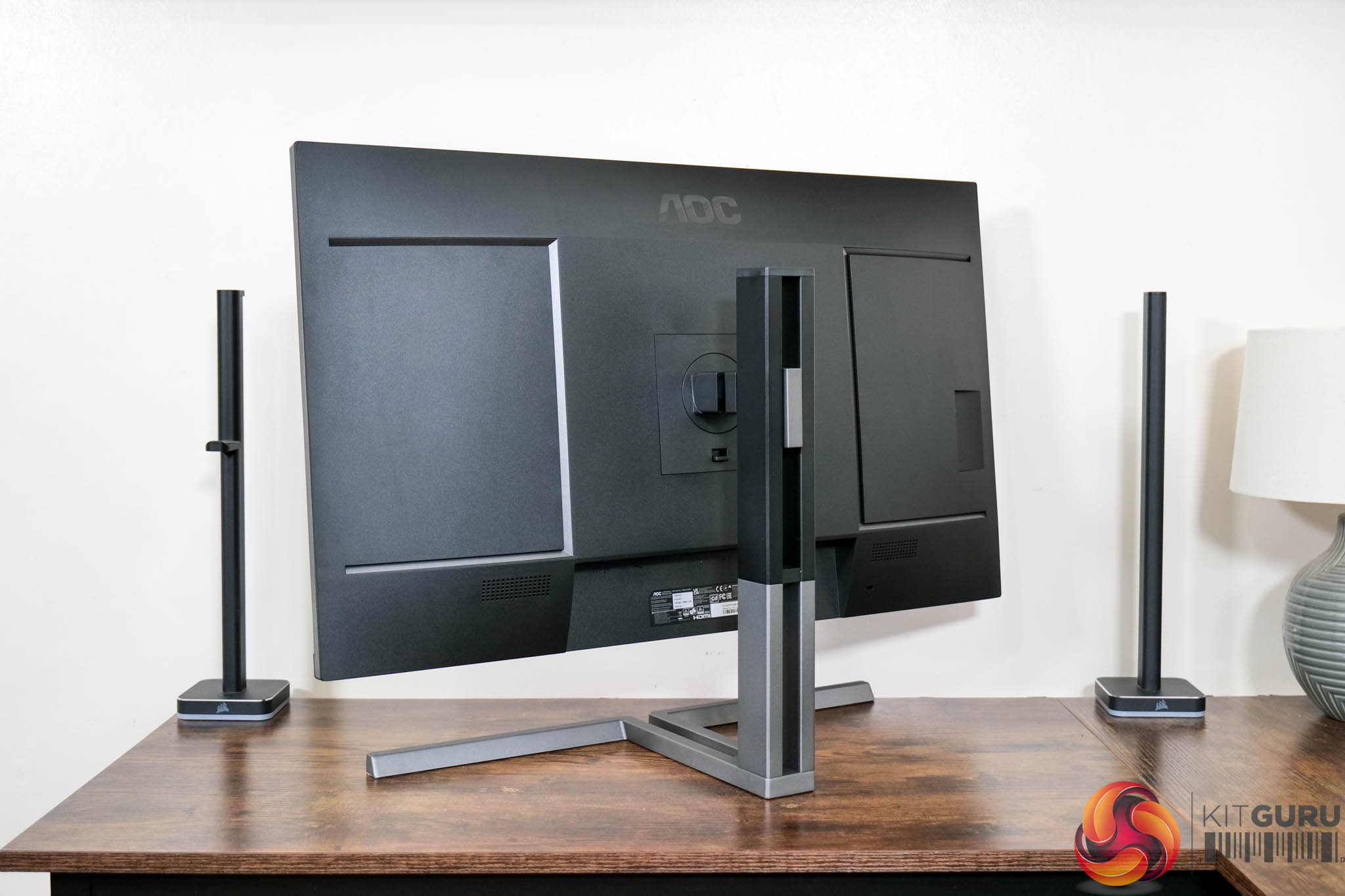
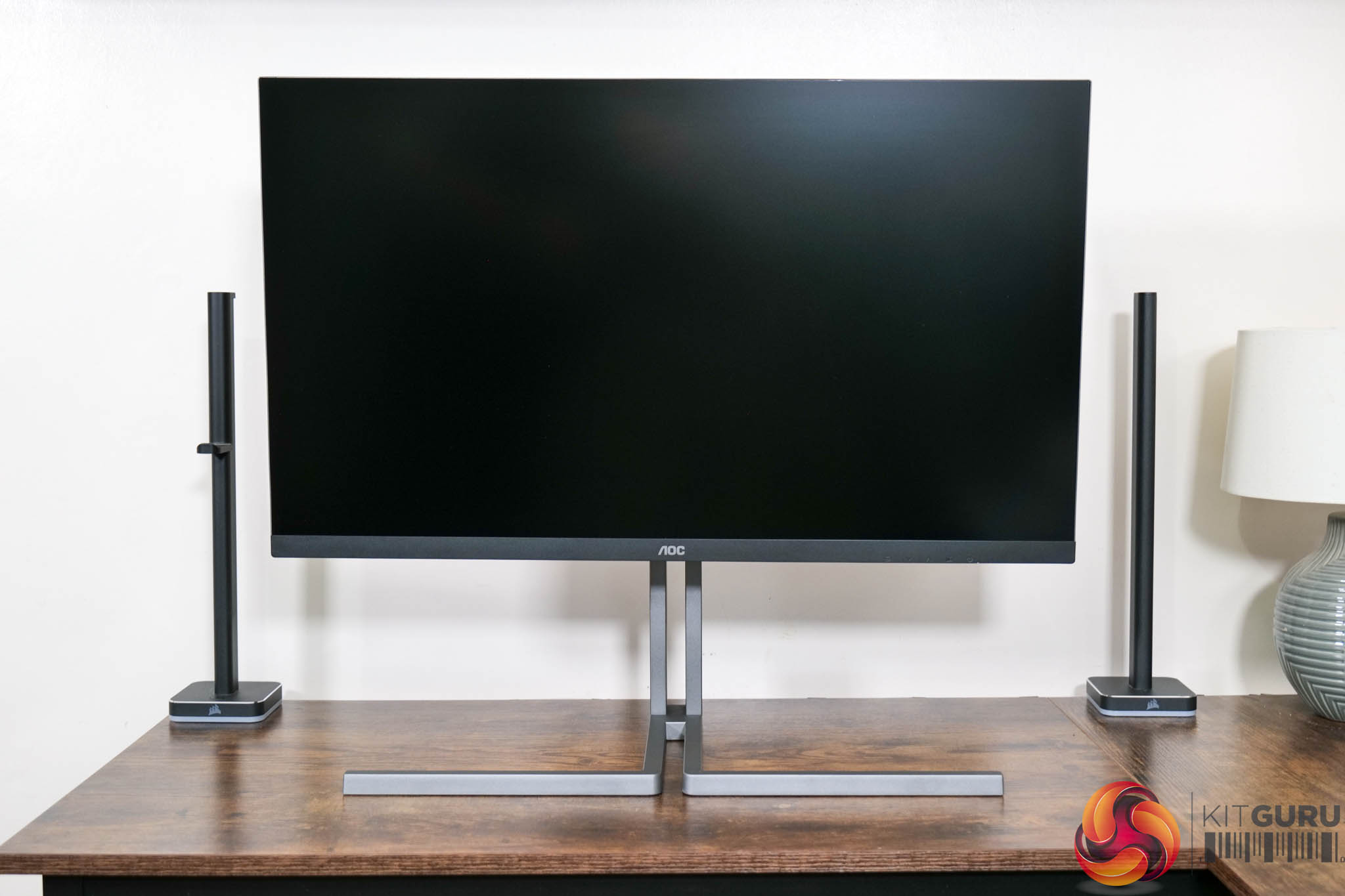
The AOC Graphic Pro U32U3CV features a very clean, dare I say professional, design. All of the gamer-inspired aesthetics we have come to expect from AOC are gone, replaced with a sleek and minimalistic appearance which I personally find very appealing.
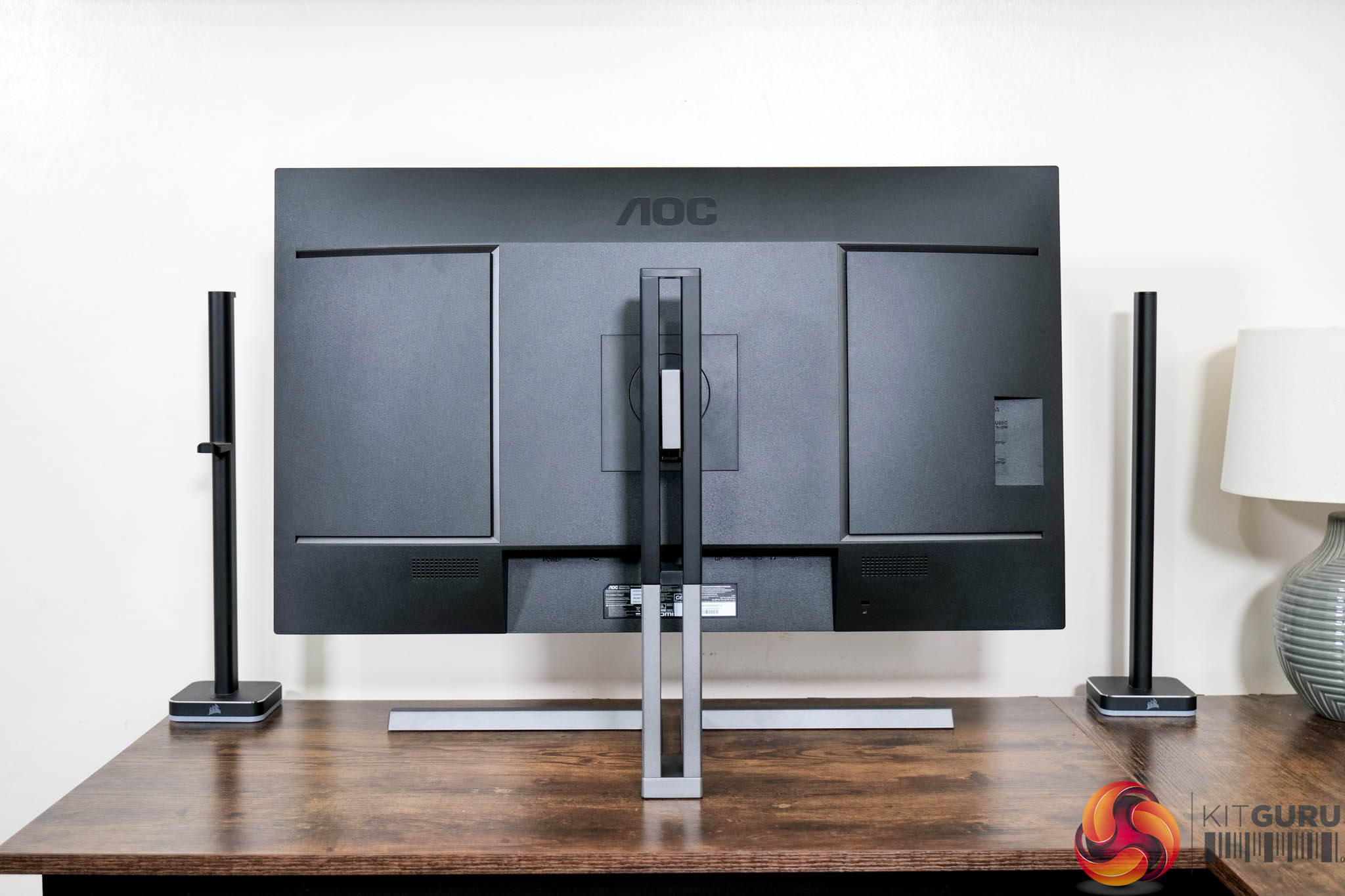
On the front side we find a 3-sided frameless design, while there is a slightly thicker chin bezel, measuring approximately 19mm. The AOC logo is positioned centrally, in grey text. Round the back, things are again very stripped back, with no distracting or gaudy design elements, it's just matte black plastic.
The stand is quite visually unique too, with its two prongs giving me Scandi-inspired aesthetic vibes. It's also reassuringly sturdy, being made from metal. It measures approximately 55cm across and 26cm from back to front.

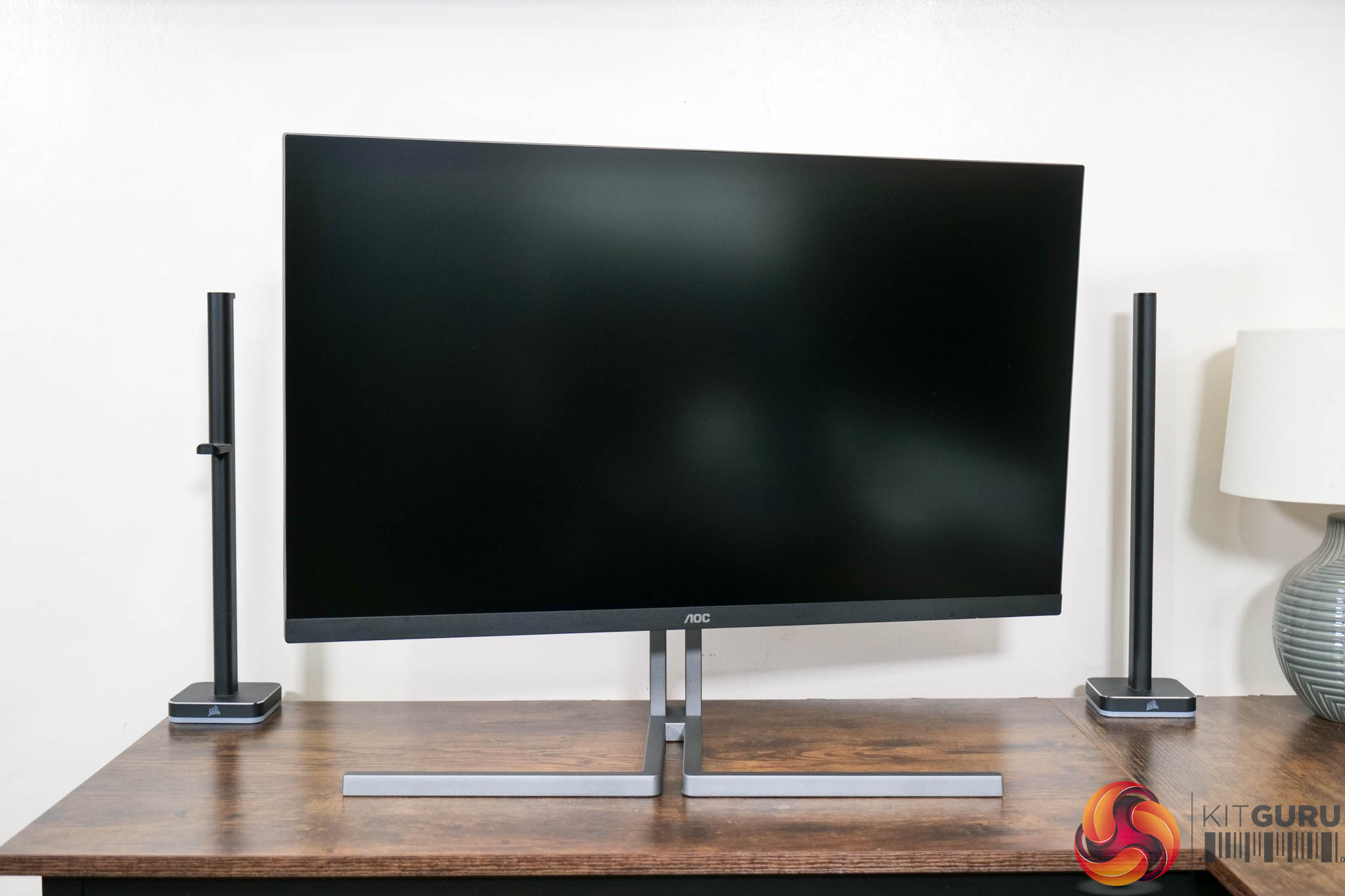
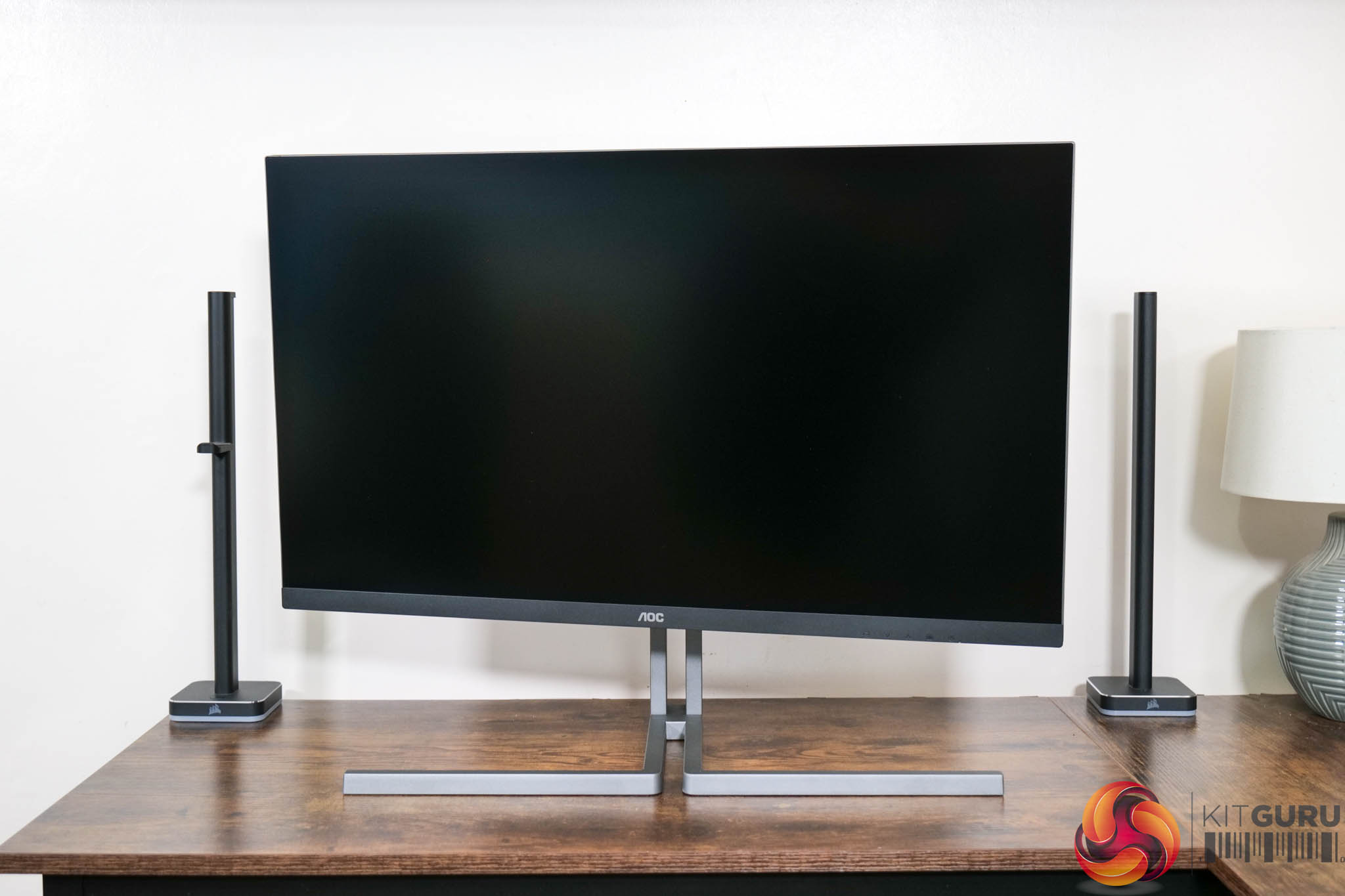
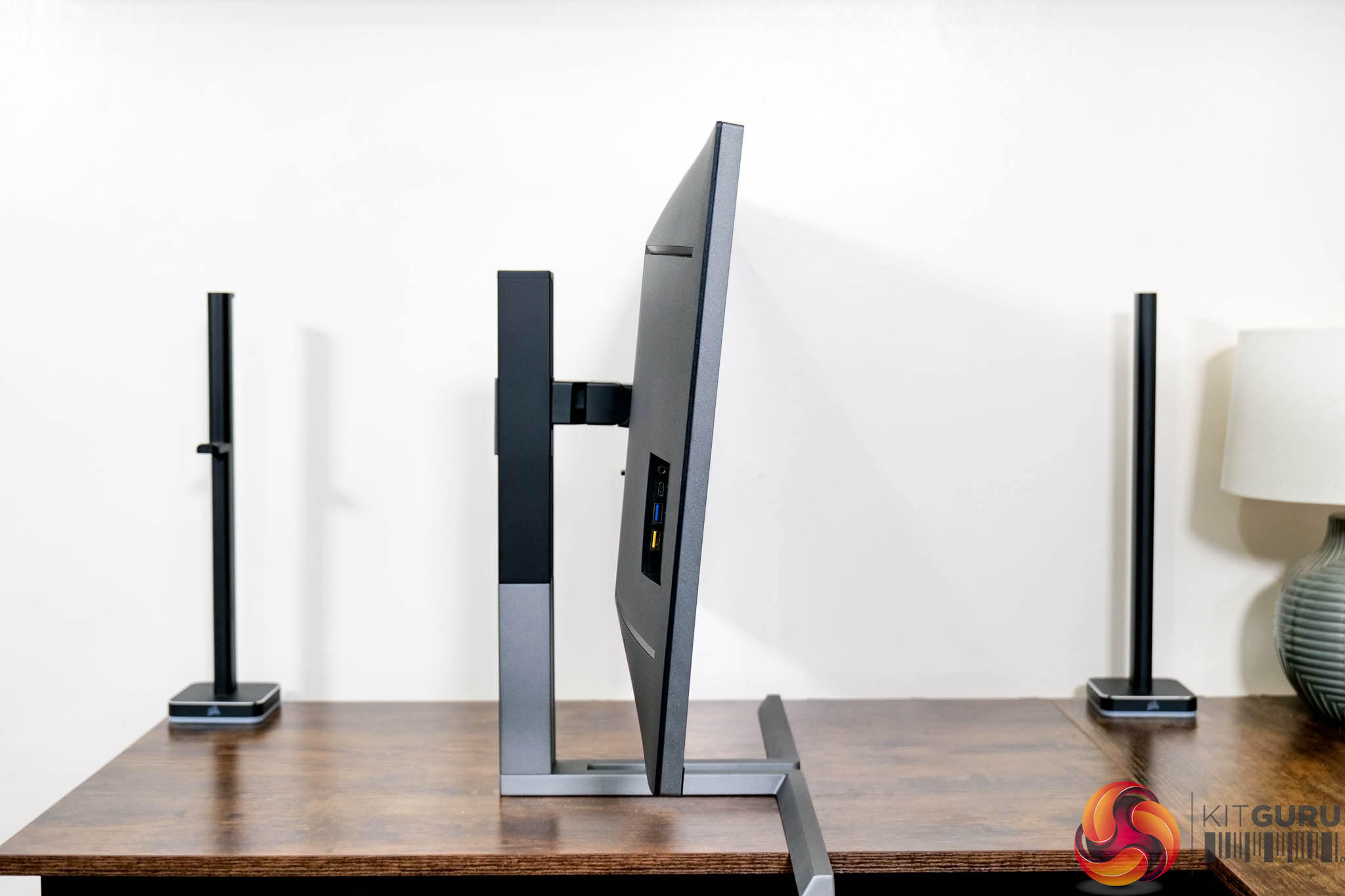
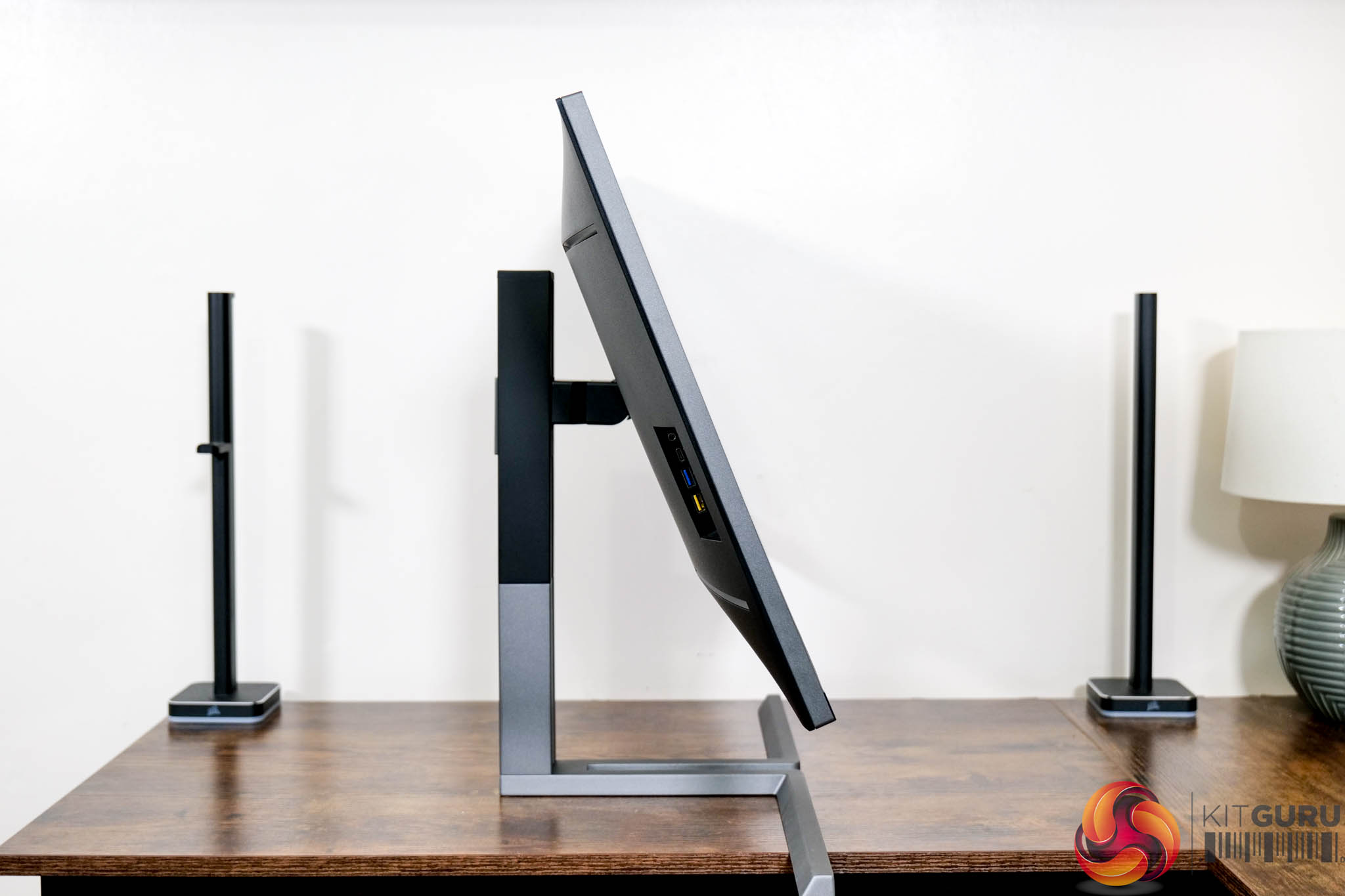
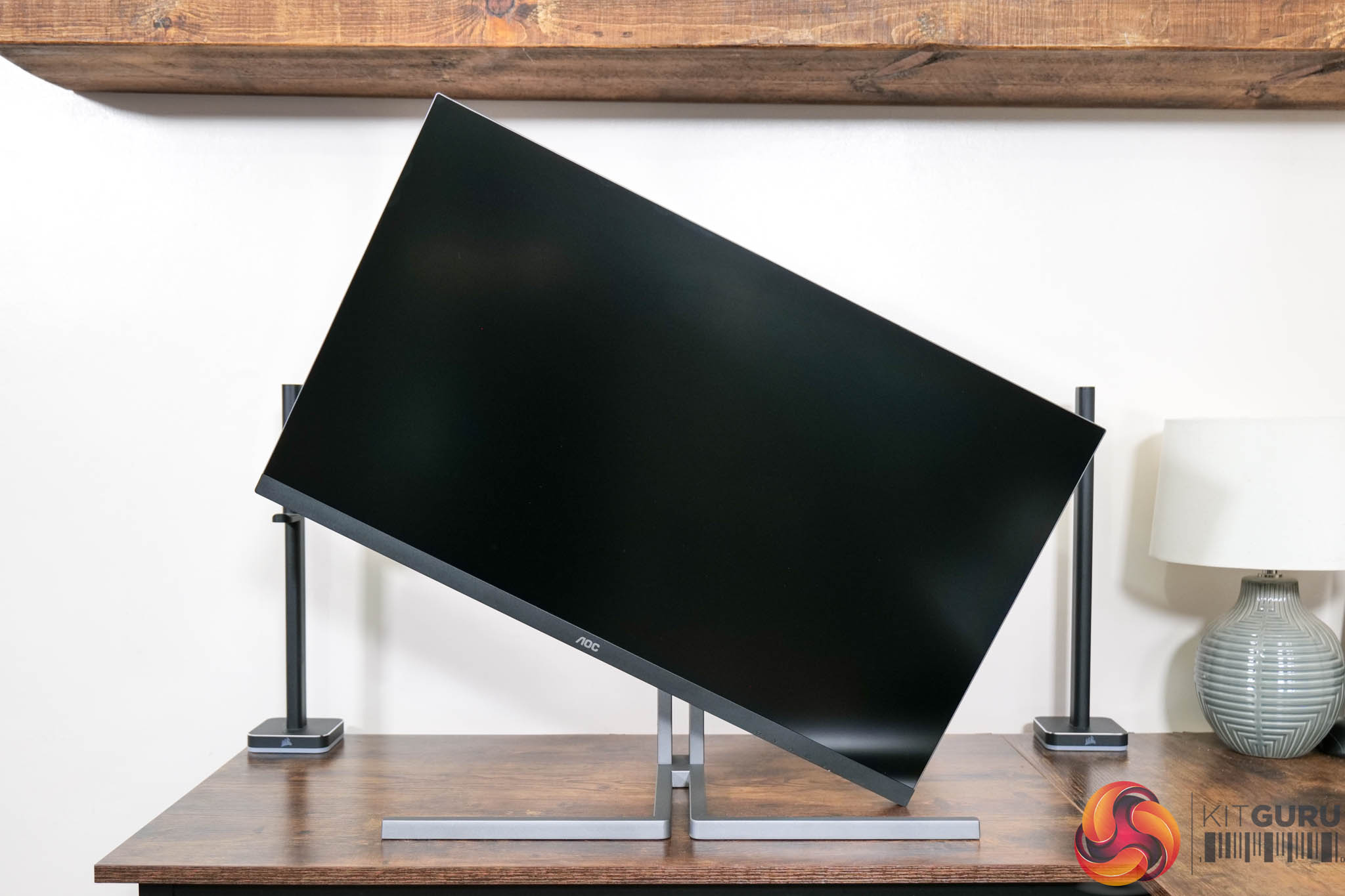
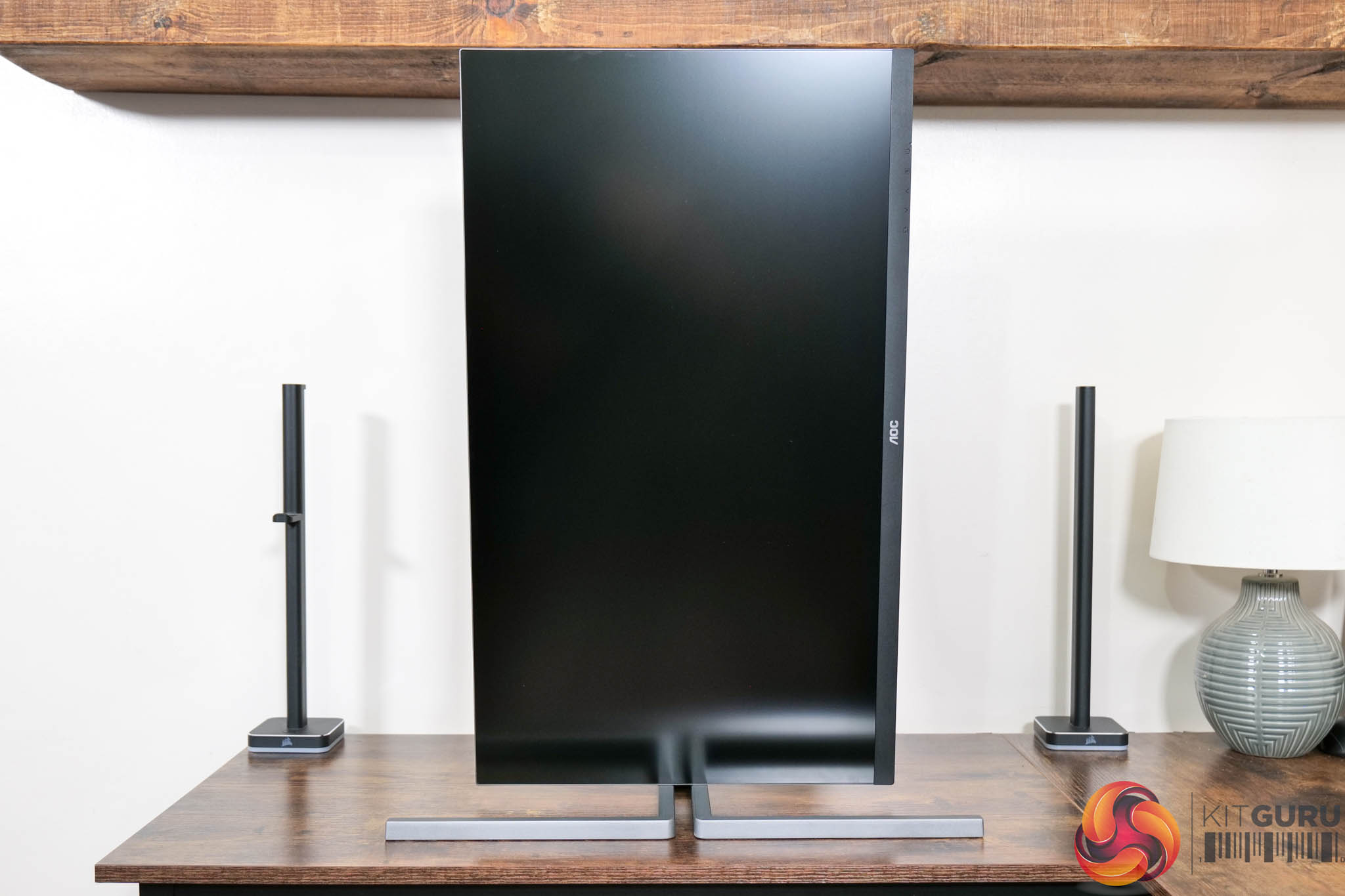
As we'd expect, the included stand also offers a full array of ergonomic adjustments, with up to 150mm of height adjustment, 15 degrees of swivel both left and right, tilt from -6.5 degrees to +23 degrees, and there's also 90 degree pivot functionality. VESA 100×100 mounts are supported, too.
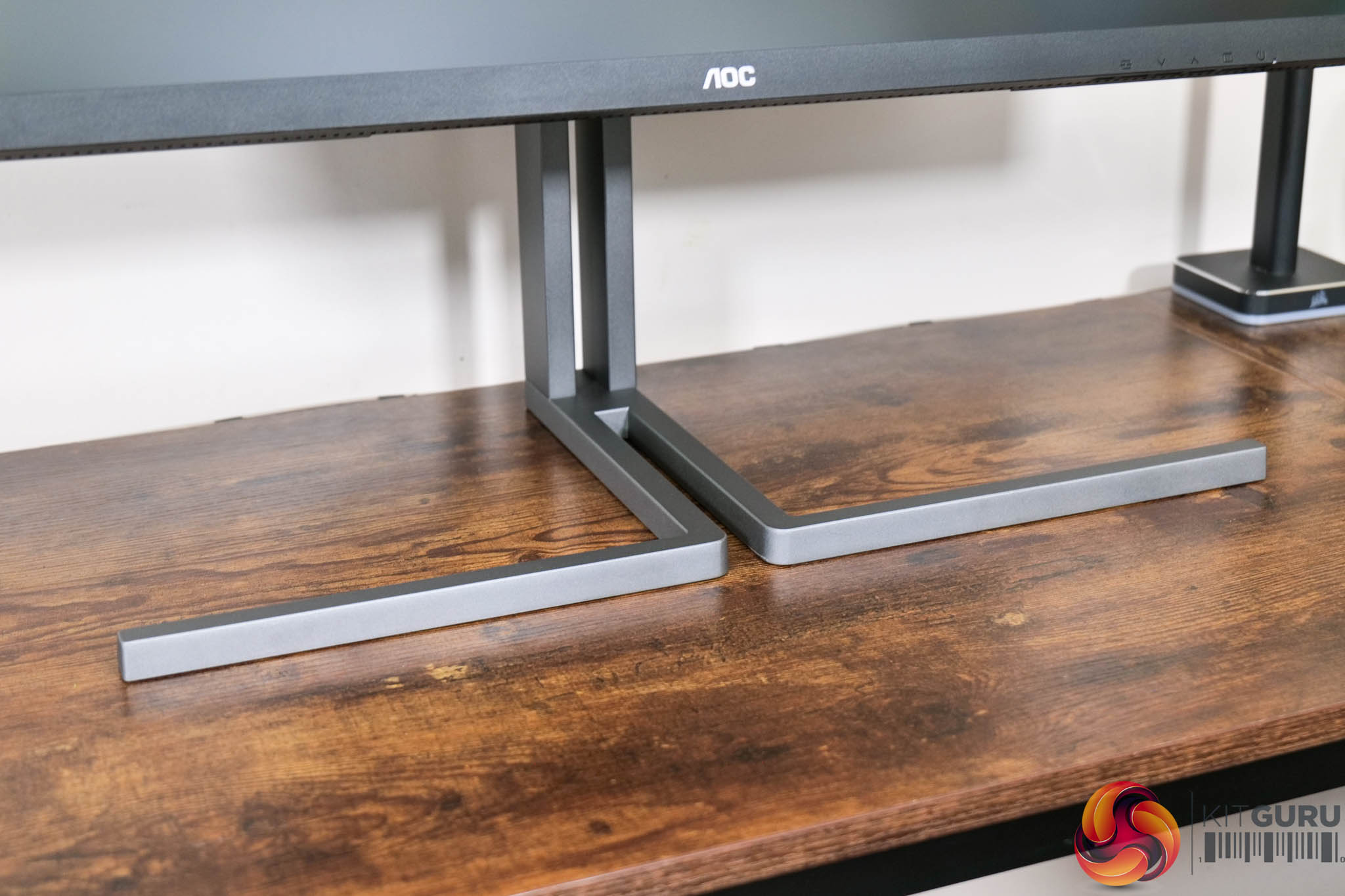
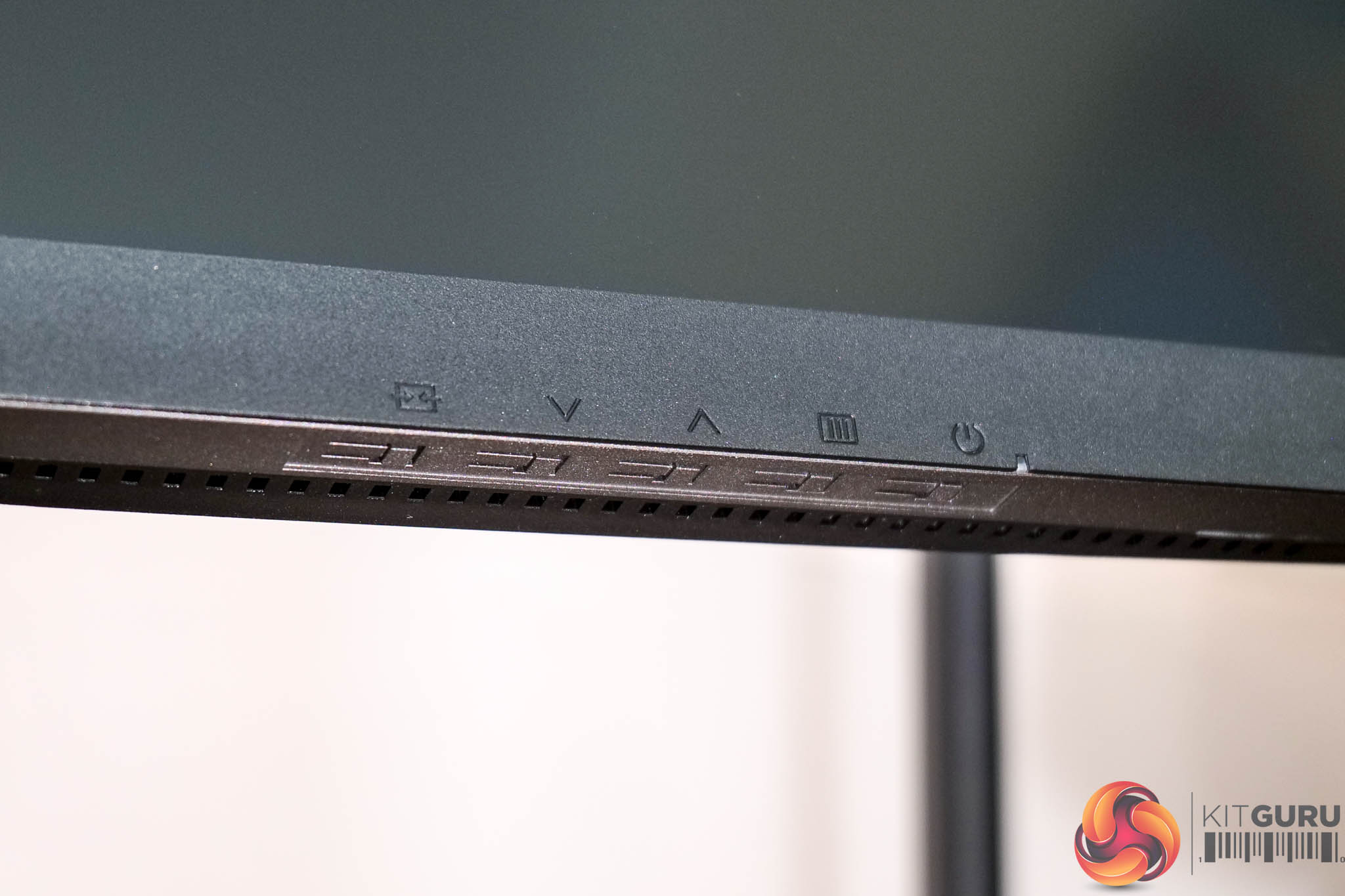
Above we get a close look at the eye-catching stand design, as well as the on-screen controls. These are placed on the bottom edge of the chin, with a total of five buttons used to navigate the OSD.
I have to admit I was disappointed to see this 5-way control system, especially on a £500 professional monitor – to me it is a very dated system that is quite frustrating to use, and I would have much preferred a joystick. I did mention this to AOC, and I was told that as ‘the AOC U32U3CV is a B2B product, a joy stick is generally not viewed as common. Users tend to look for the easy and sharp control of the OSD via the buttons.' That may be true, but why not go the same route as the ASUS ProArt PA27JCV and offer both – I know which type of control I'd rather use!
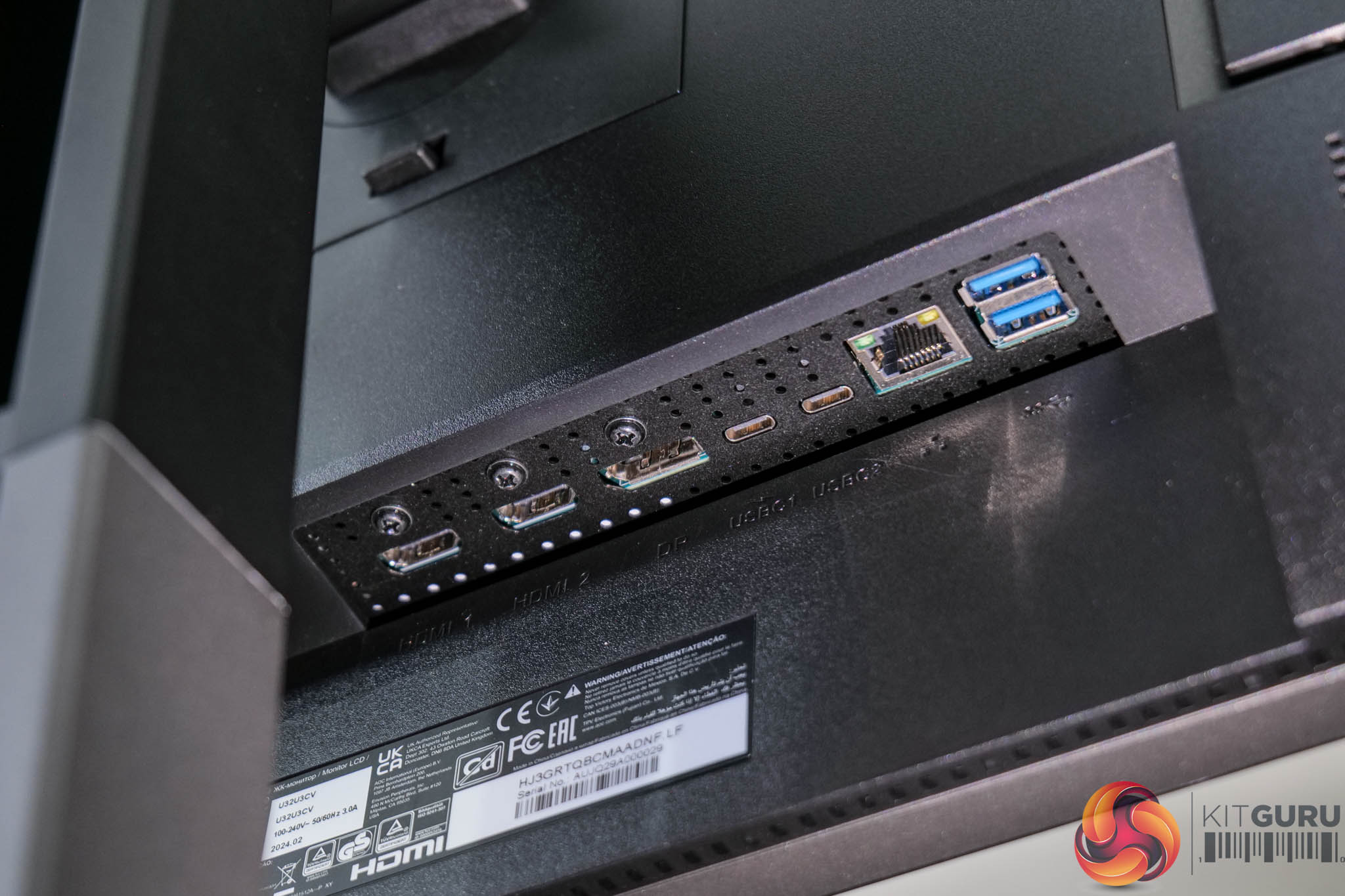
As for the I/O, it's pleasing to see AOC has been generous with the connectivity options. There's two HDMI 2.0, one DisplayPort 1.4, and then two USB-C ports. One of these USB-C connectors offers DP Alt mode for another video input, and also supports 96W power delivery alongside acting as the data upstream for the other USB Type-A ports. The second USB-C is more limited as it only offers 10Gbps data upstream capabilities. Next to those we find an Ethernet input as well as two Type-A USB 3.2 Gen 2 downstream ports.
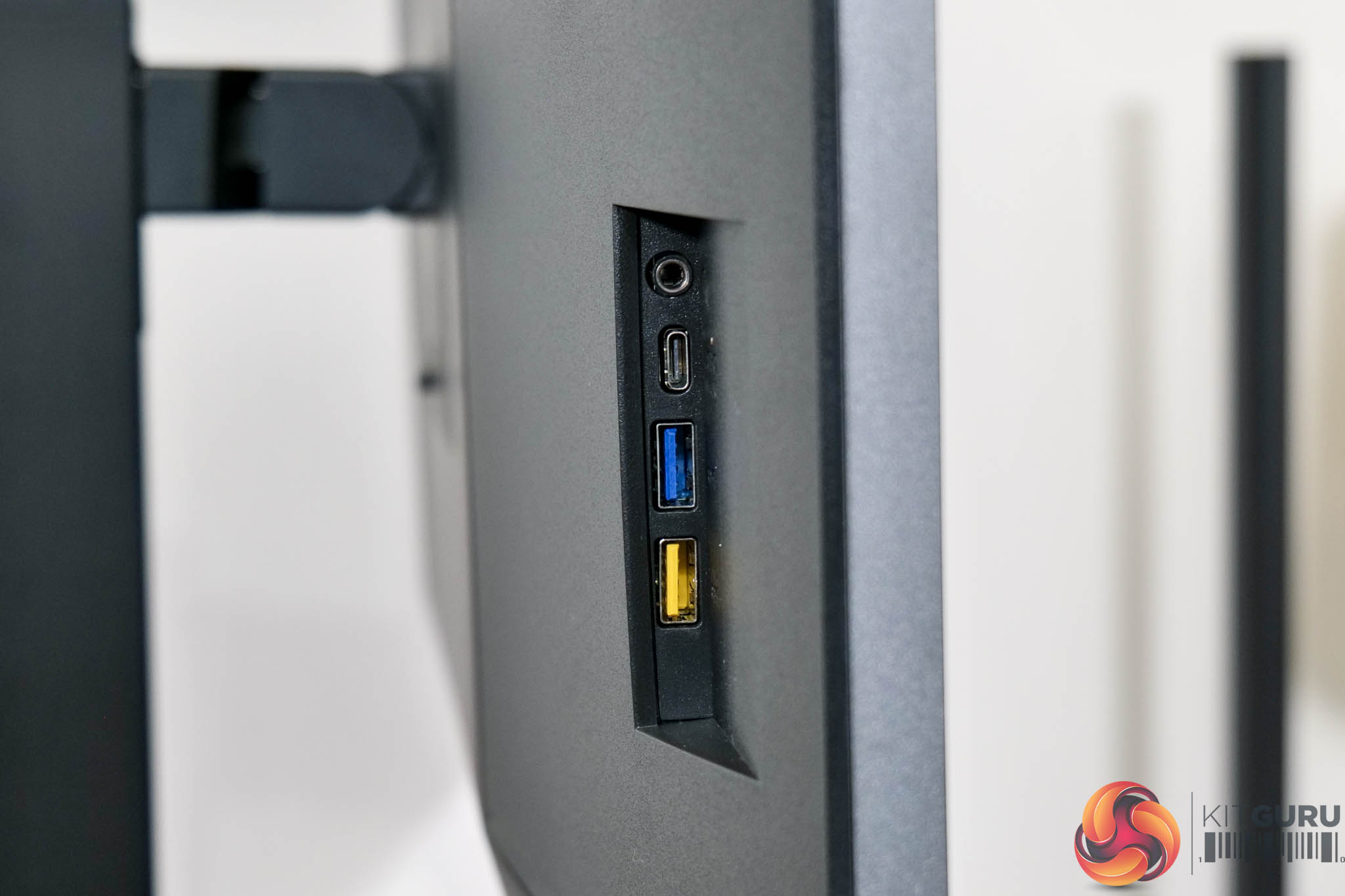
There are even more ports on the left-hand edge of the screen, too. Here we find an audio jack, a USB-C downstream that supports 15W power delivery, and then two more USB 3.2 Gen 2 Type-A downstream ports – the yellow one being an ‘always on' charging port.
Here we take a look at the U32U3CV's OSD system, which is split into seven main tabs:
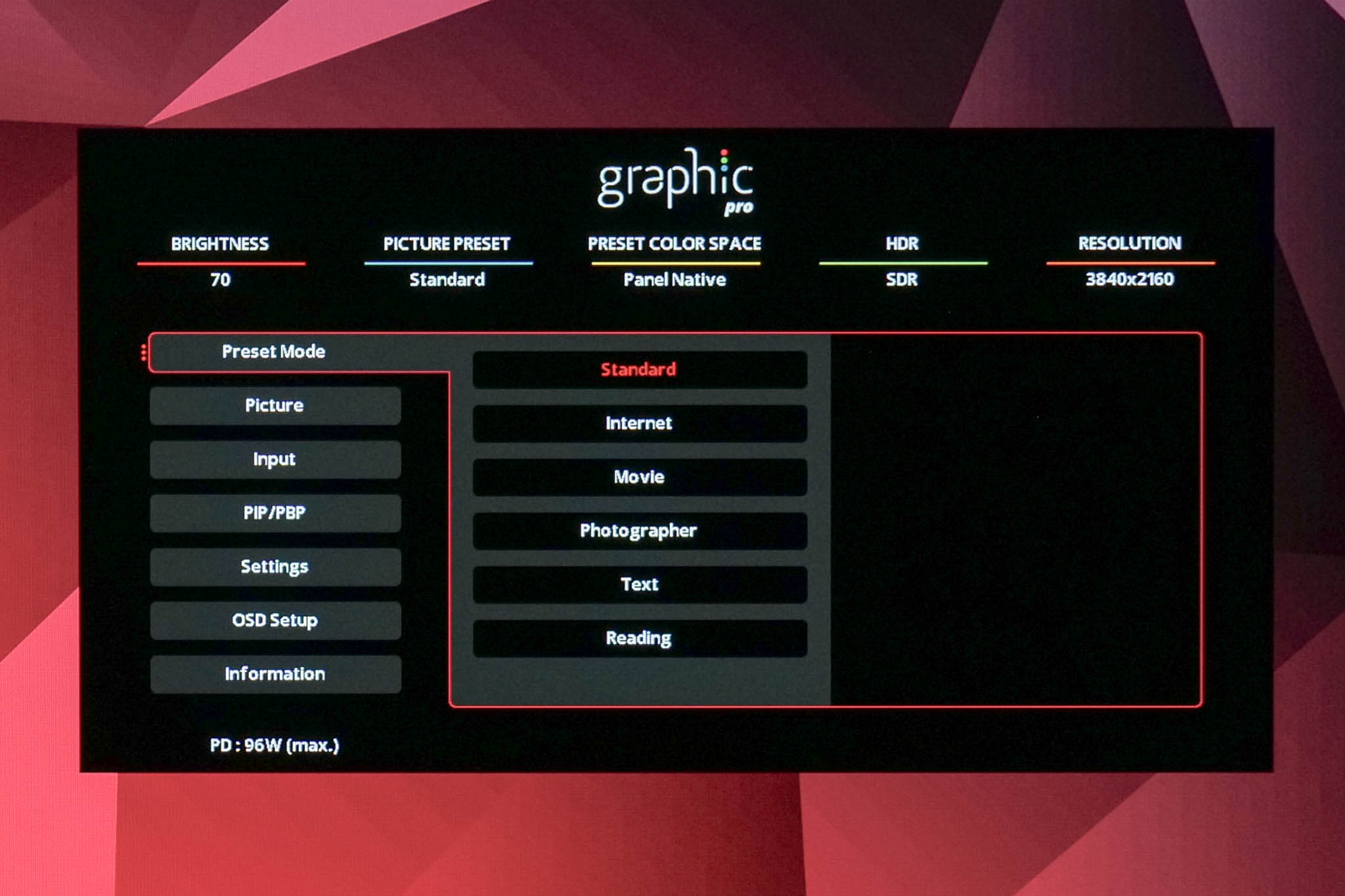
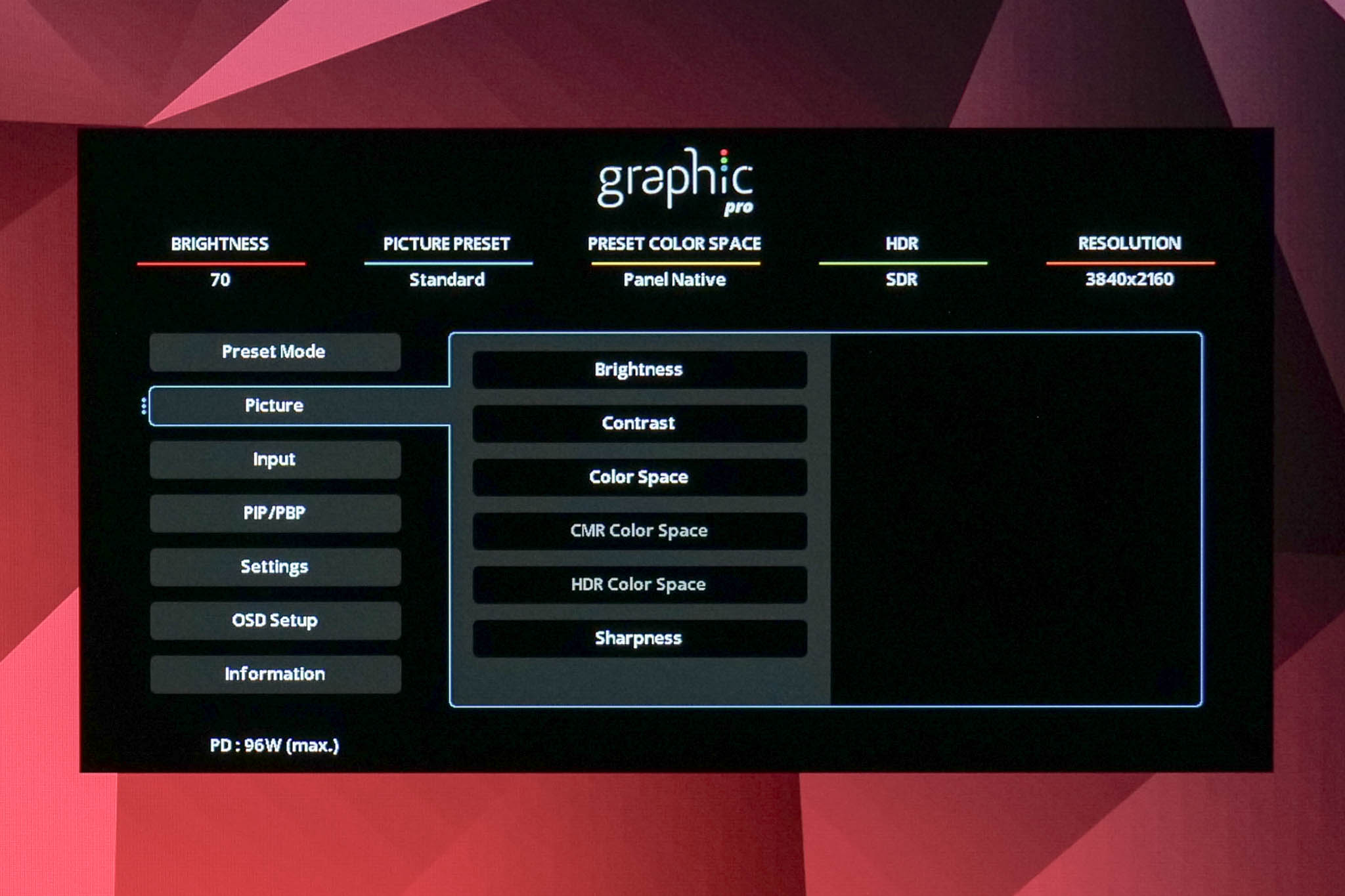
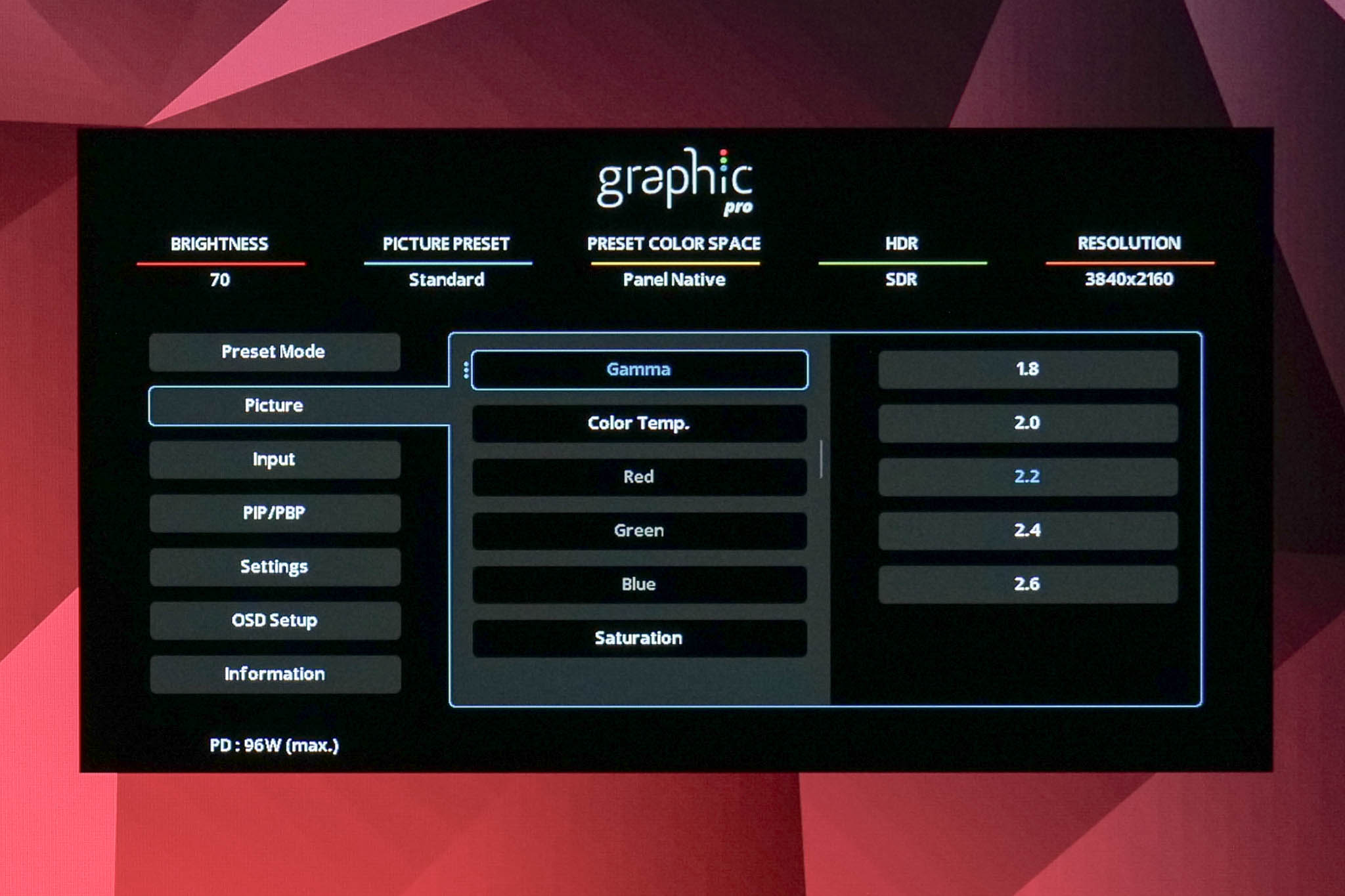
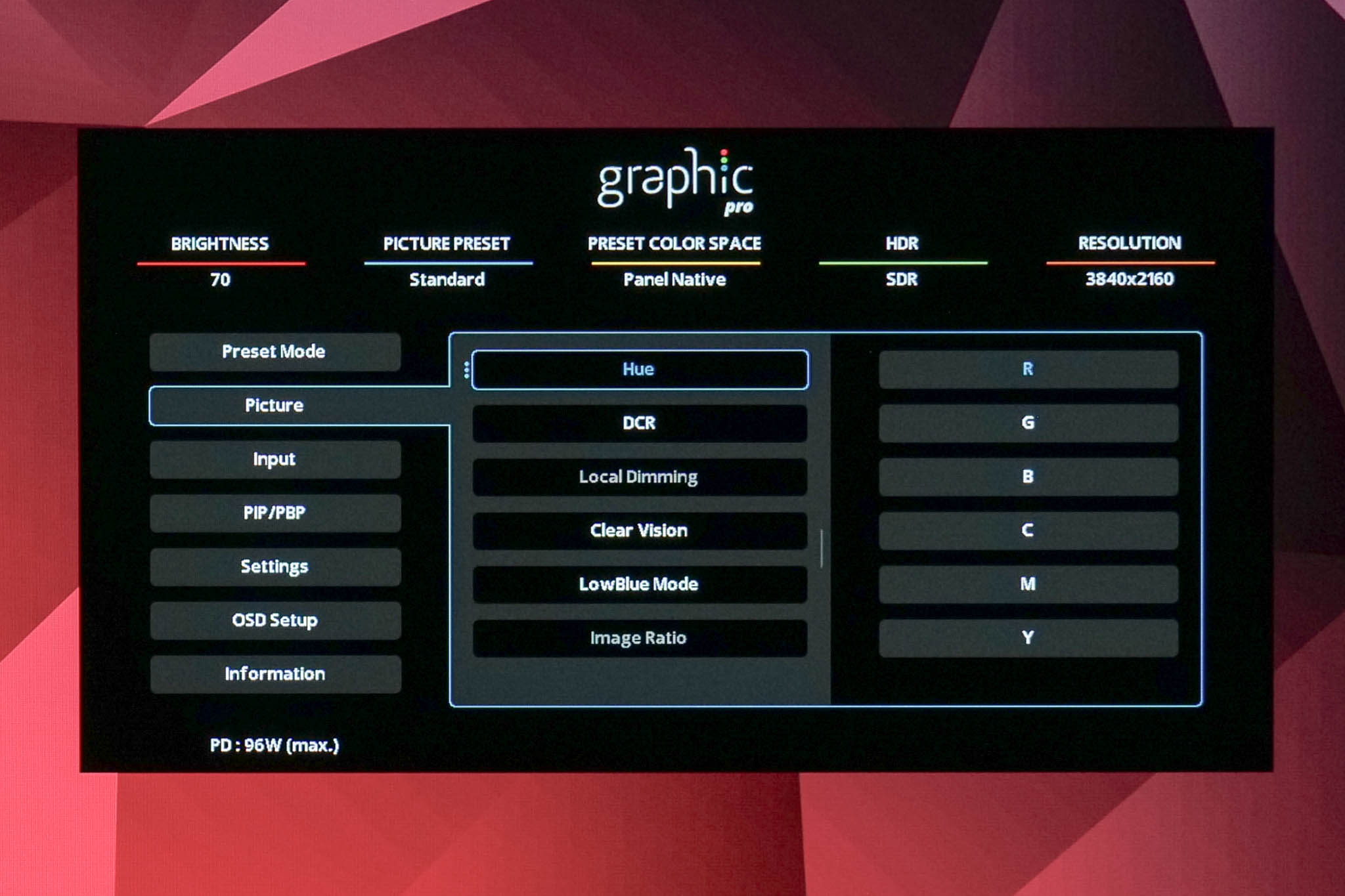
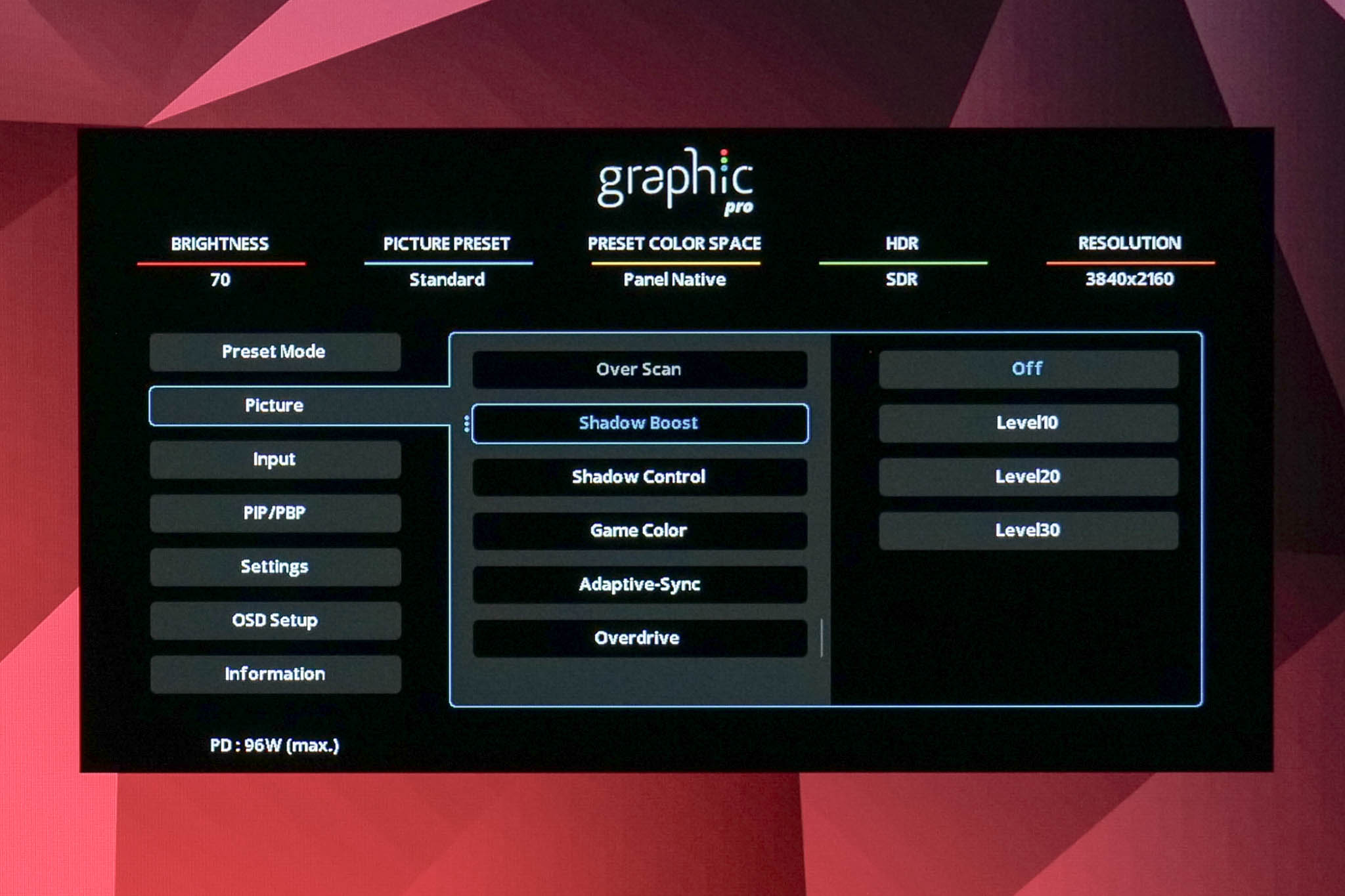
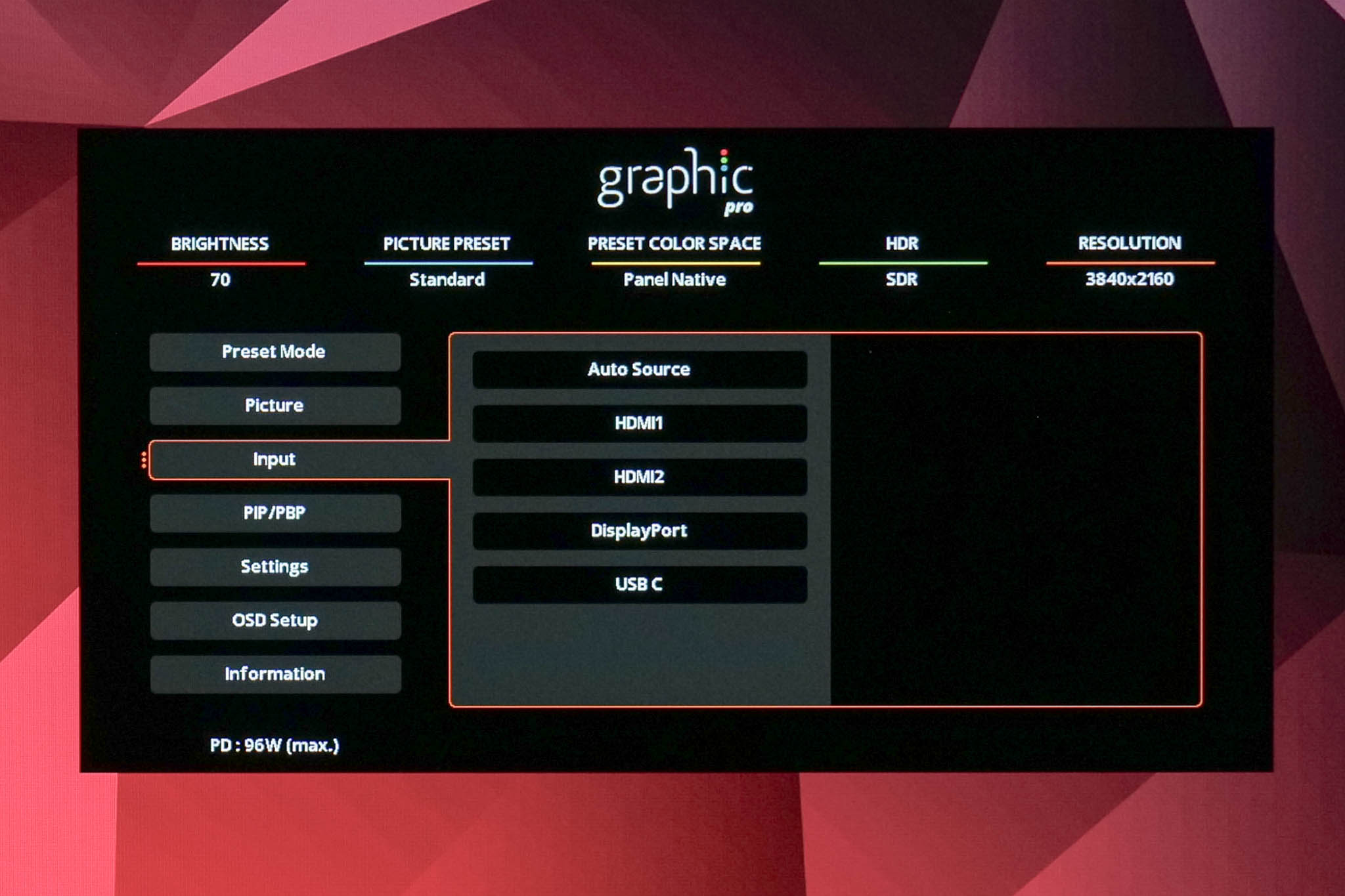
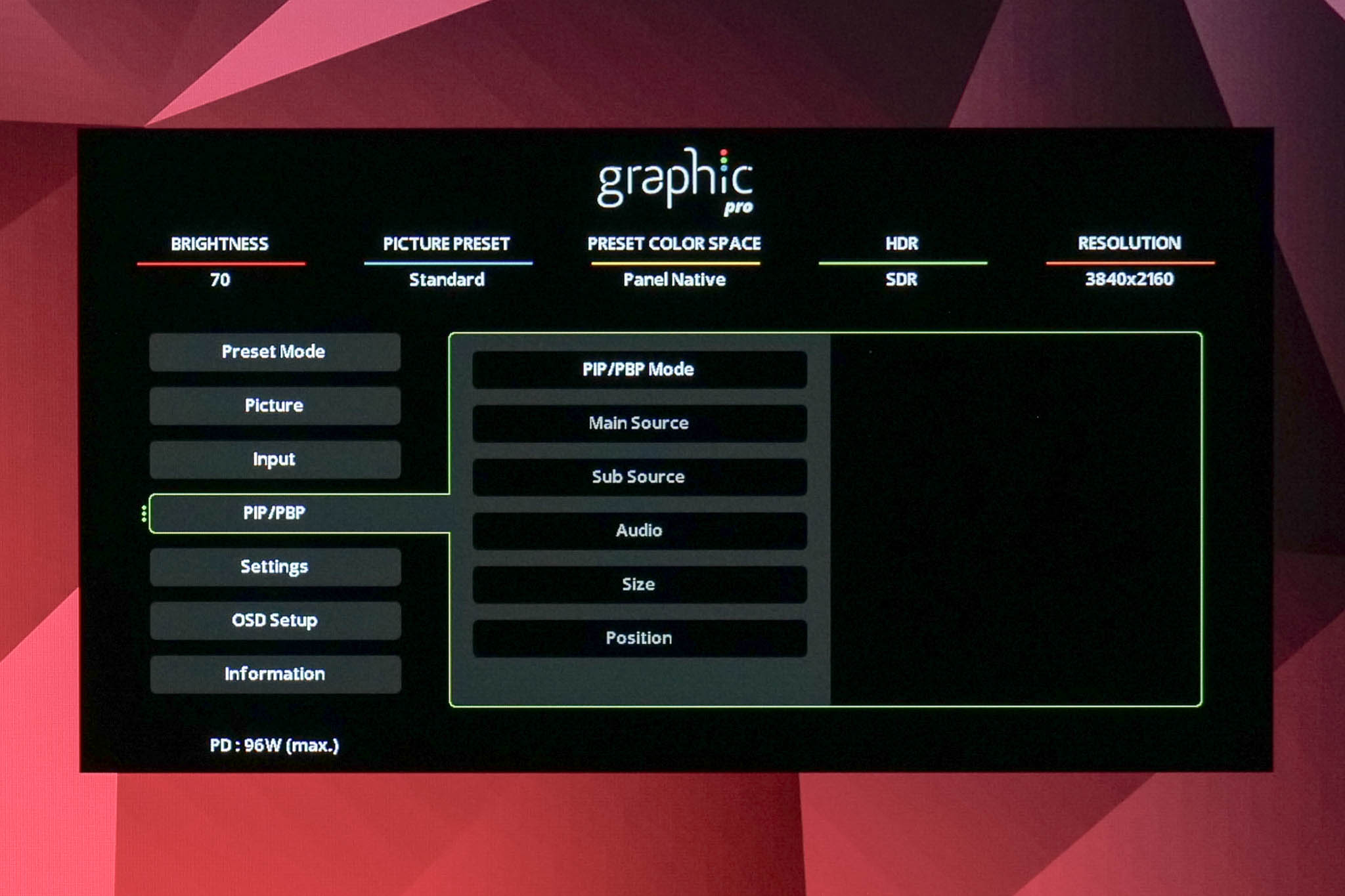
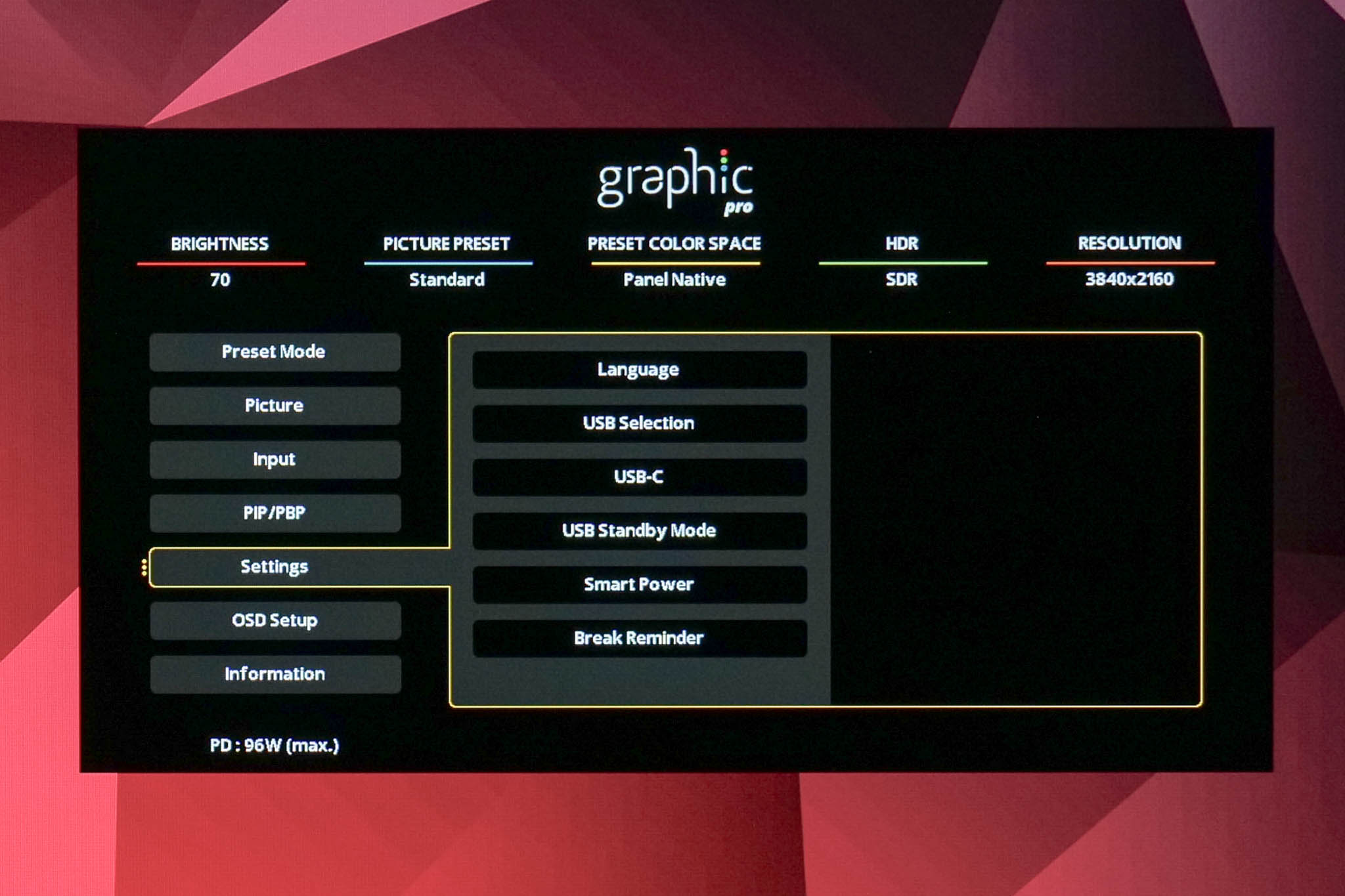
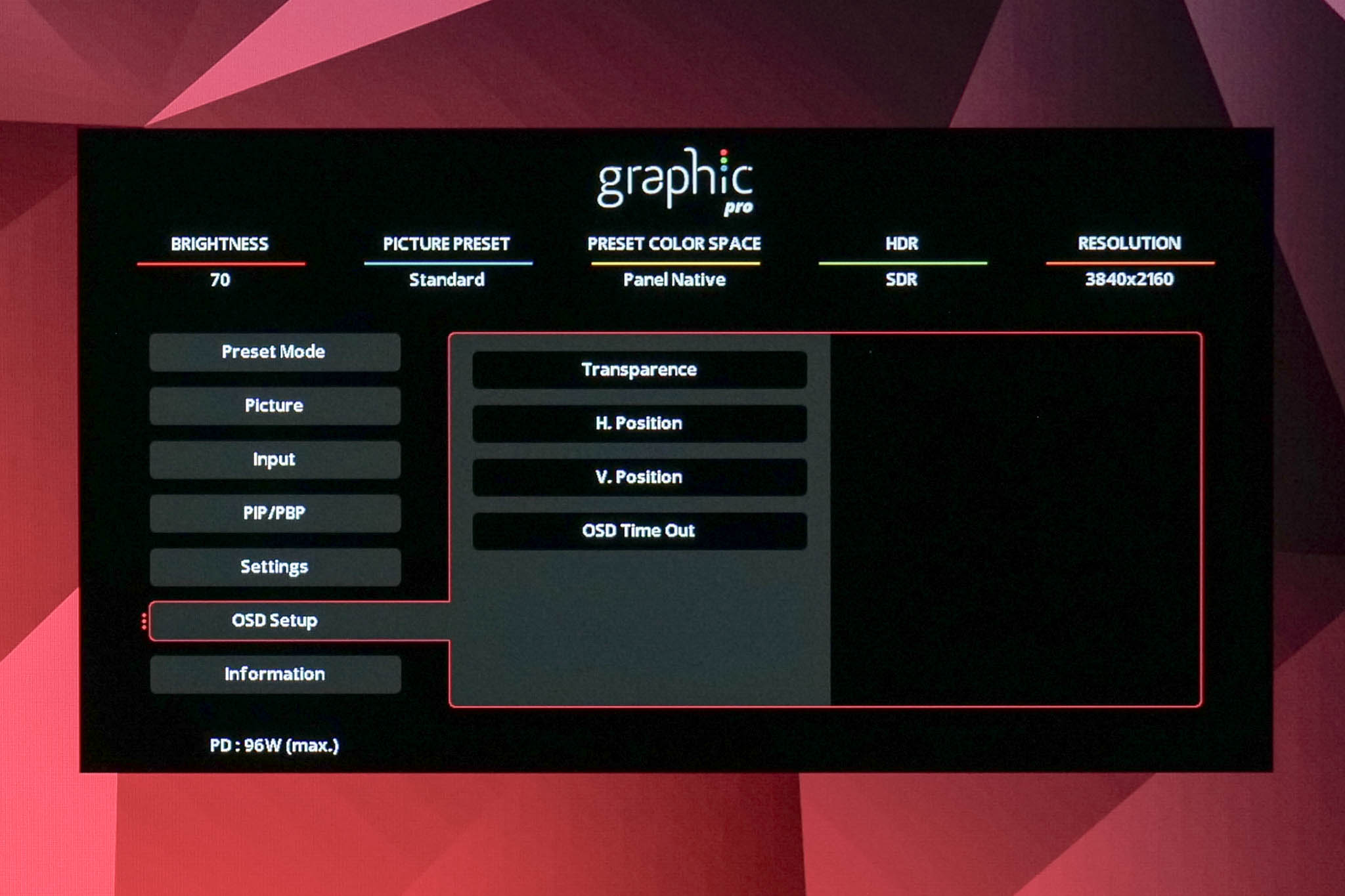
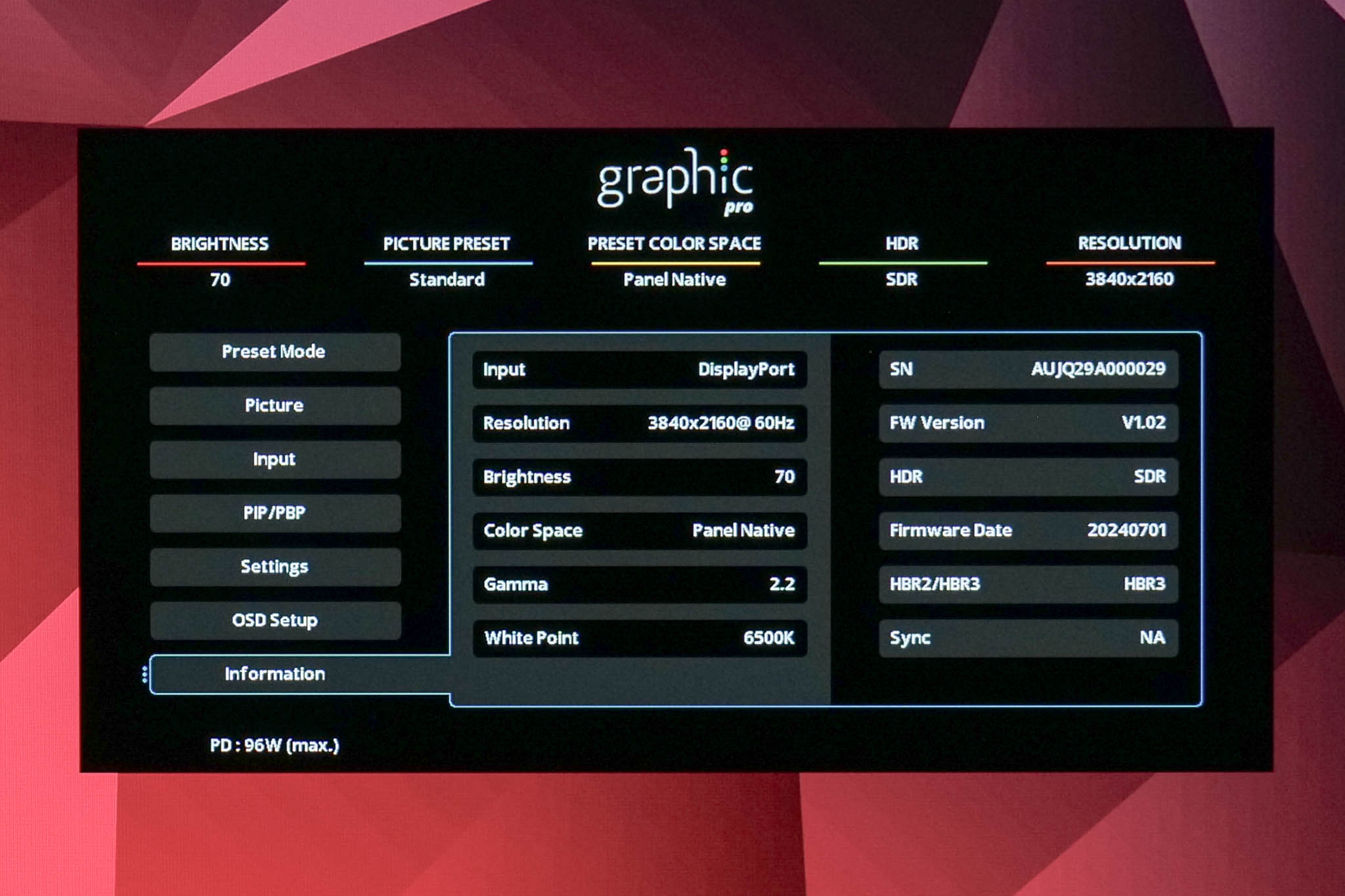
I was impressed when I first saw this OSD system at the AOC launch event back in April and that has not changed upon closer inspection. Not only is it a huge visual improvement to some of the OSDs we've seen from AOC's gaming monitors over the years, but it is jam-packed with features too. You will notice that there's no less than four pages of Picture options, and that doesn't include the multiple colour space options if you drill down further – including sRGB emulation, AdobeRGB, DCI-P3, Rec.709, Rec.2020 and more.
On top of that, there's even some gaming-oriented options like Game Color and Overdrive, the latter of which I was surprised to see considering this is a pro-grade monitor. Then you have controls for the USB connectivity, PIP/PBP, KVM and more.
Overall it's a very clean menu system and I really like what AOC has done here. I would prefer to use a joystick to navigate between the settings, as the 5-way control buttons are just annoying to me, but enough said on that!
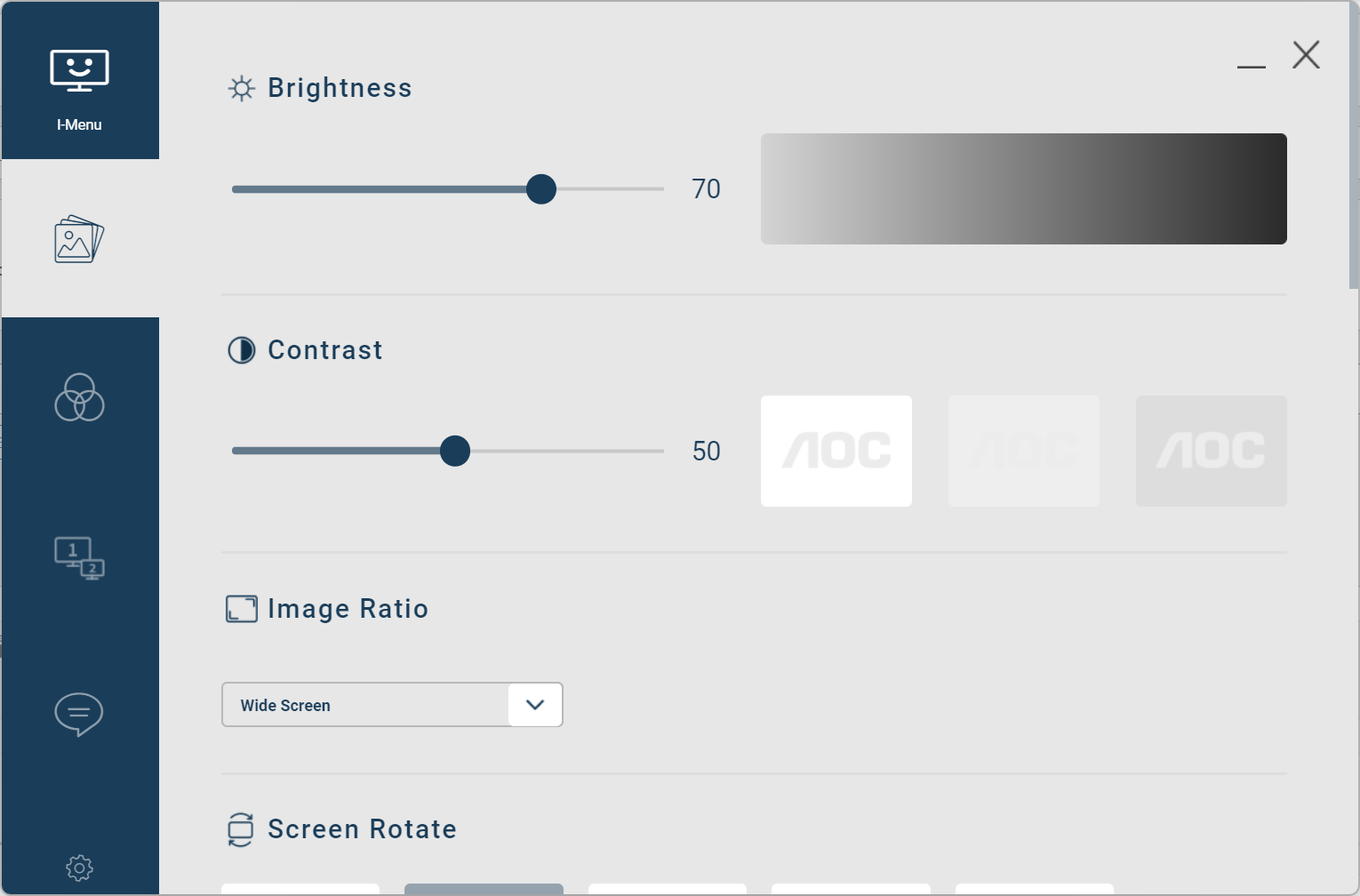
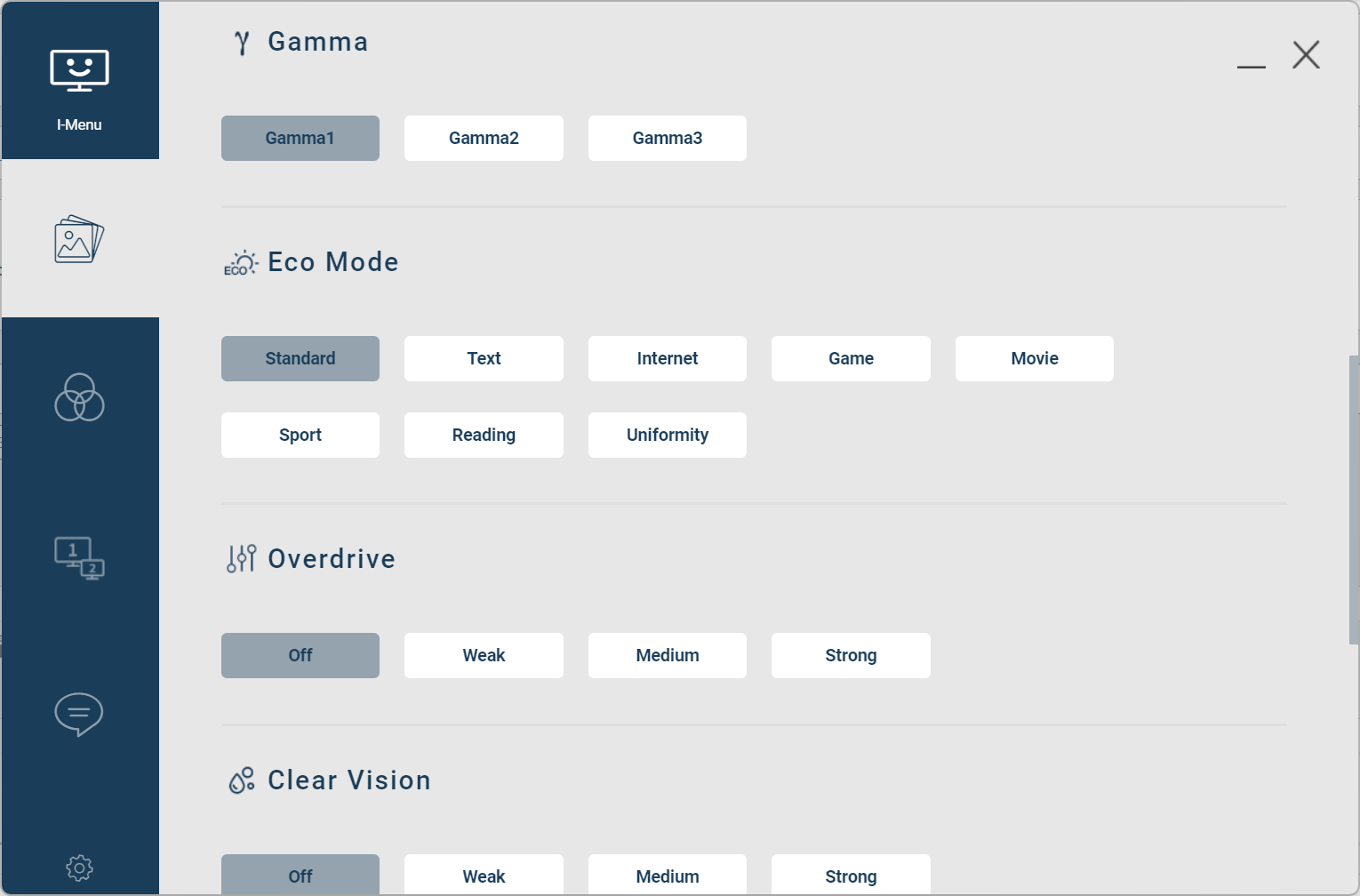
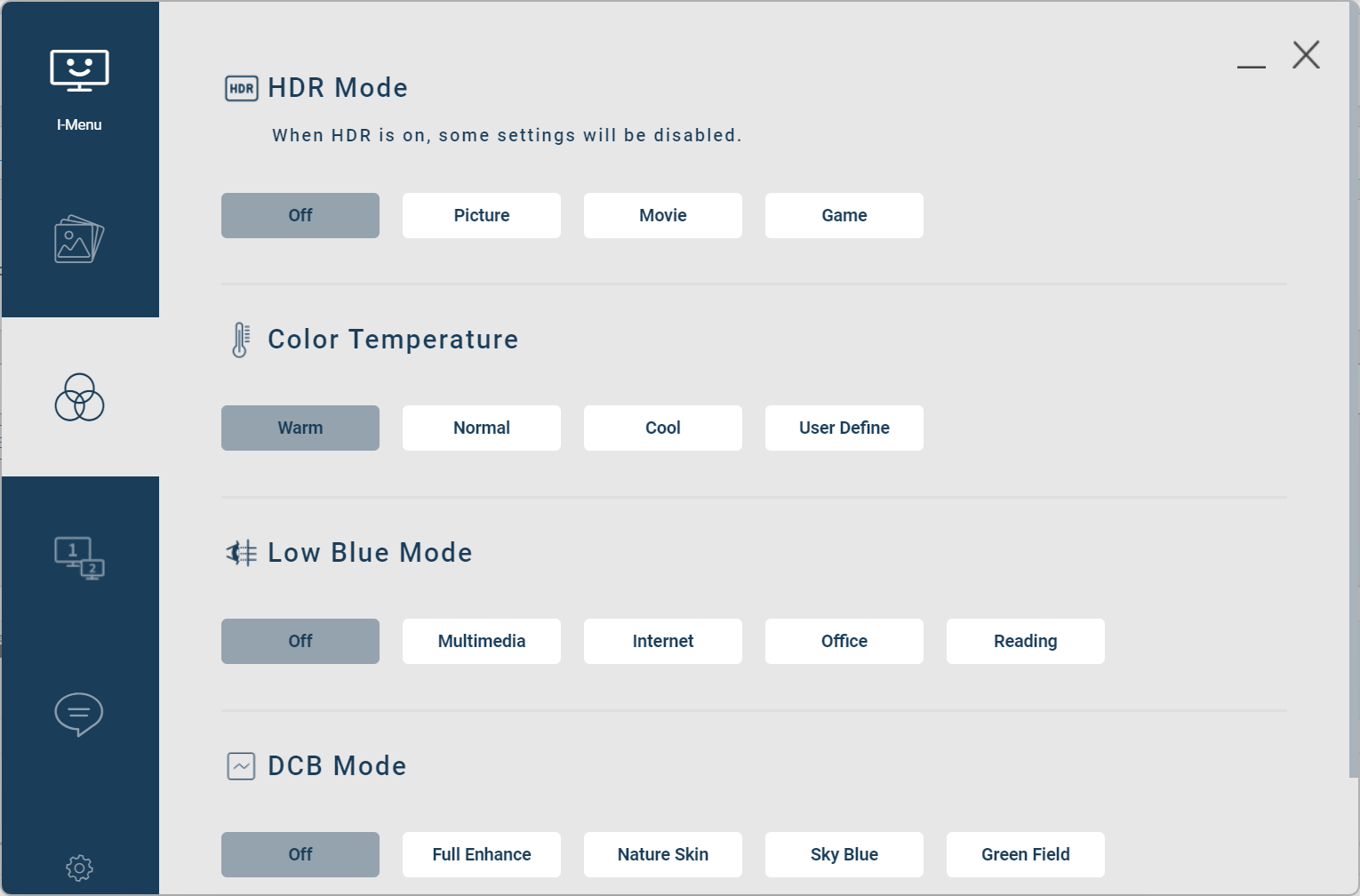
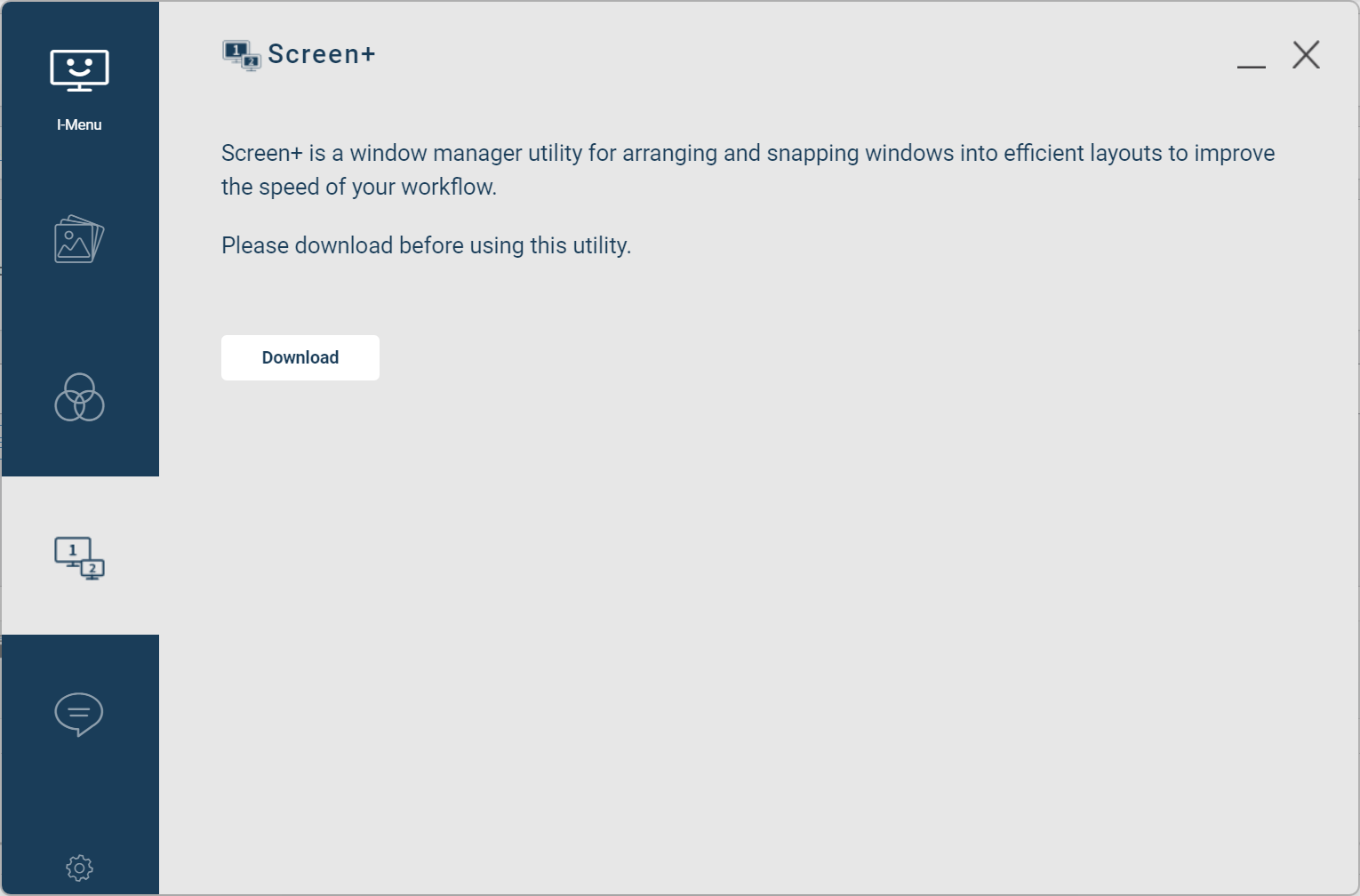
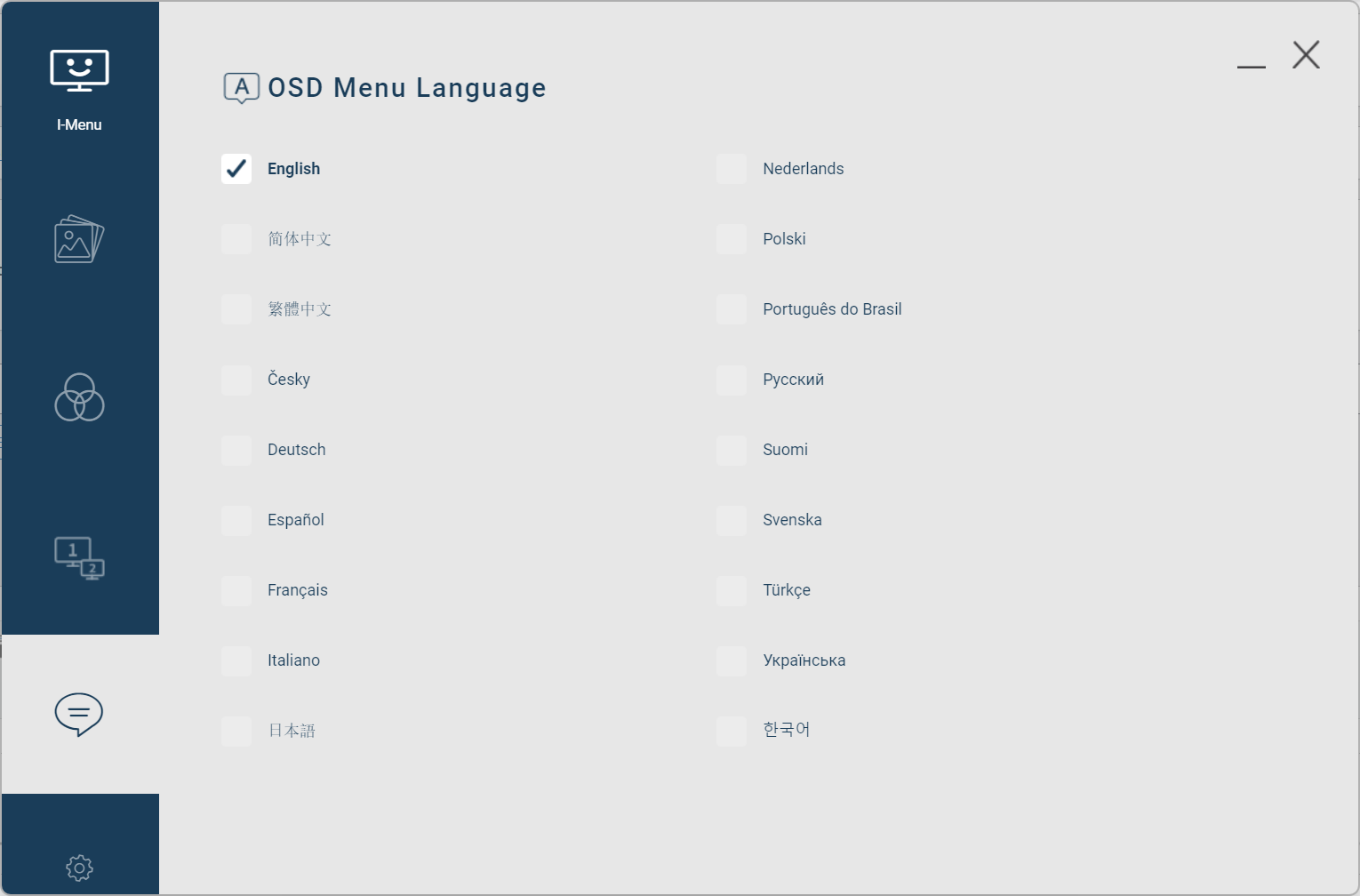
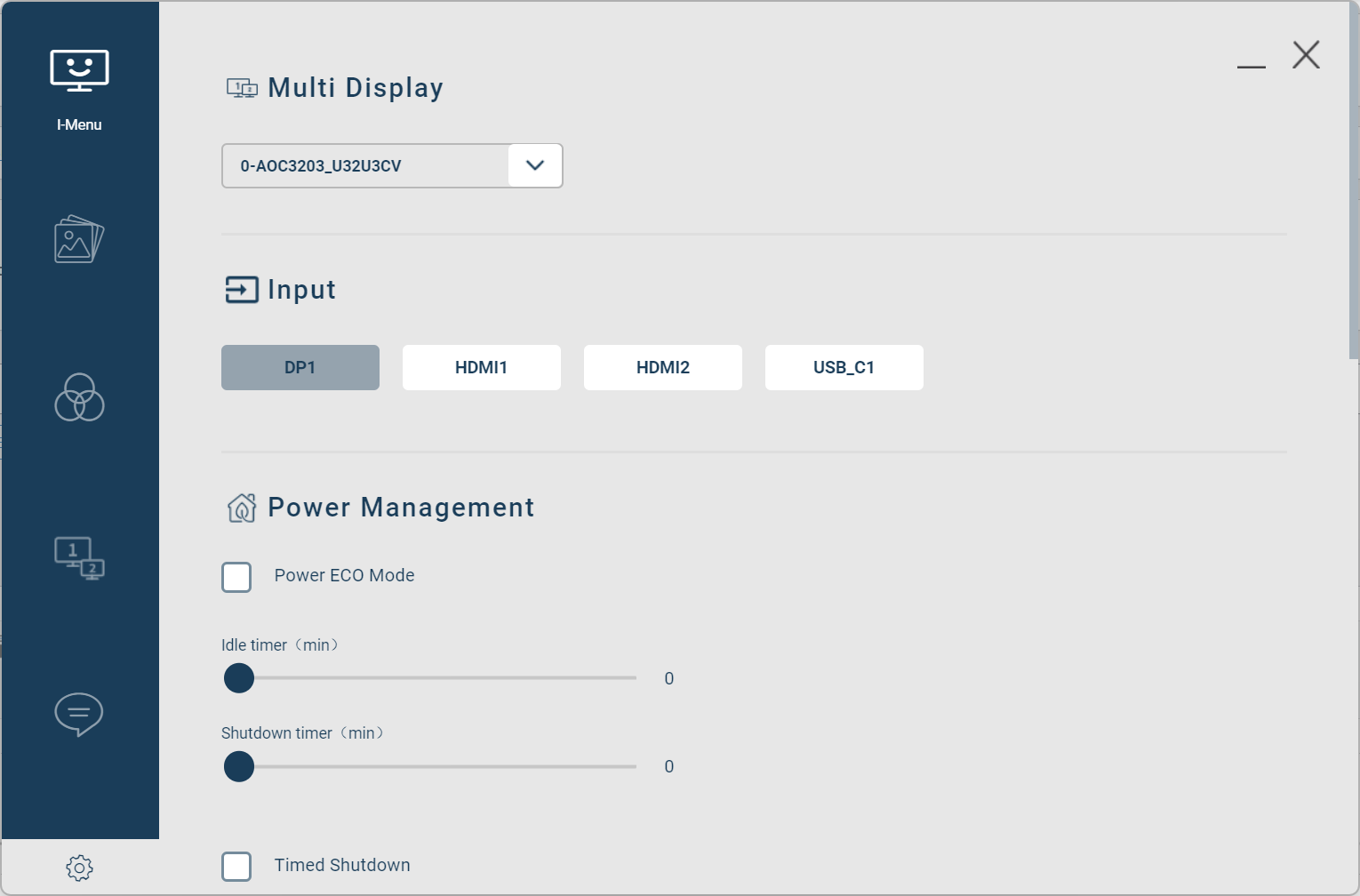
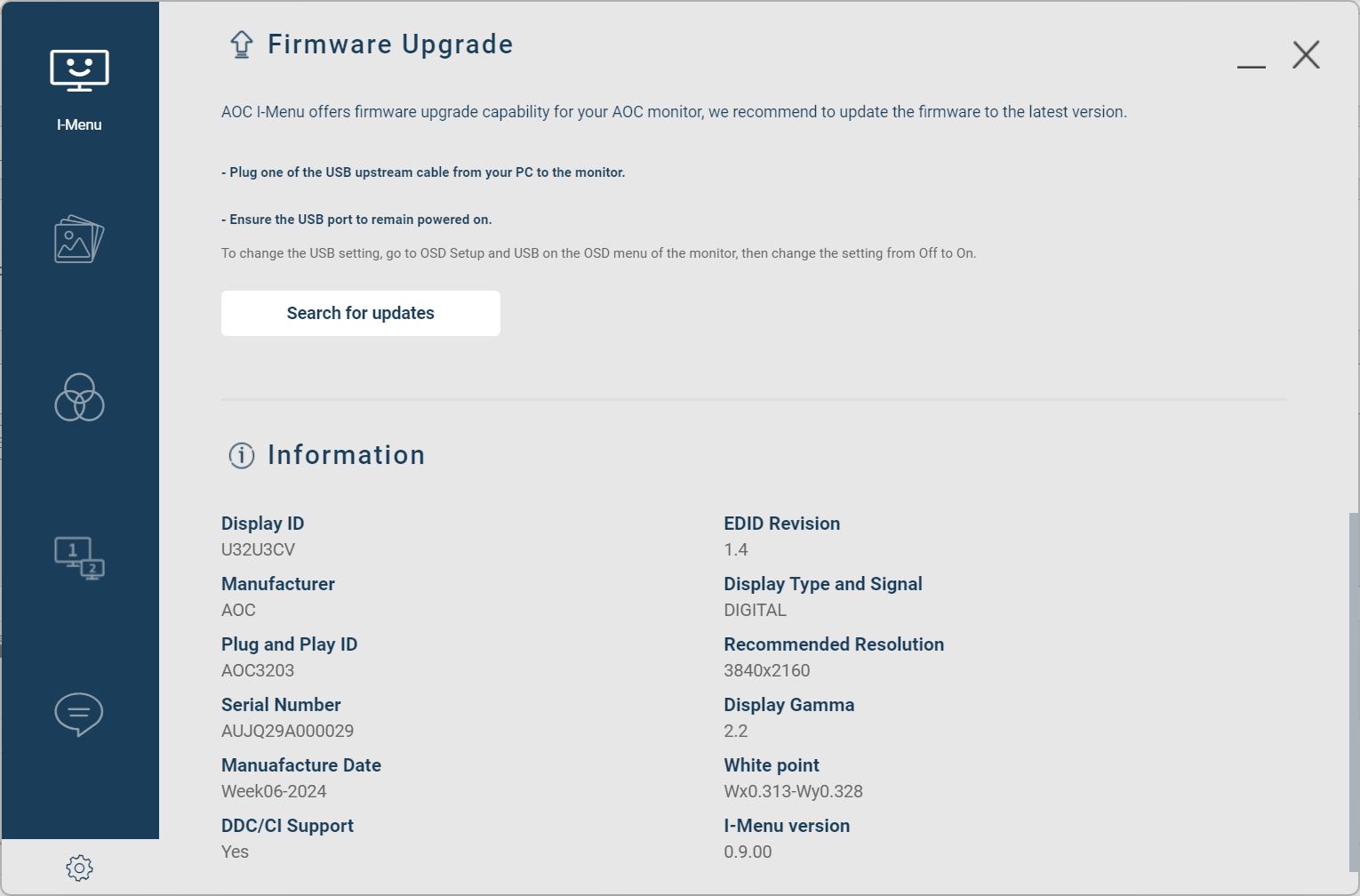
AOC also offers its I-Menu software as an accompaniment to the U32U3CV. Unfortunately this isn't quite so clean-looking as the new OSD system and it can be a touch slow on occasion. It does, however, provide more-or-less all the same controls you get from the OSD, but in software form, so that could be useful for some. It's also required to update the monitor's firmware, a feature we always like to see.
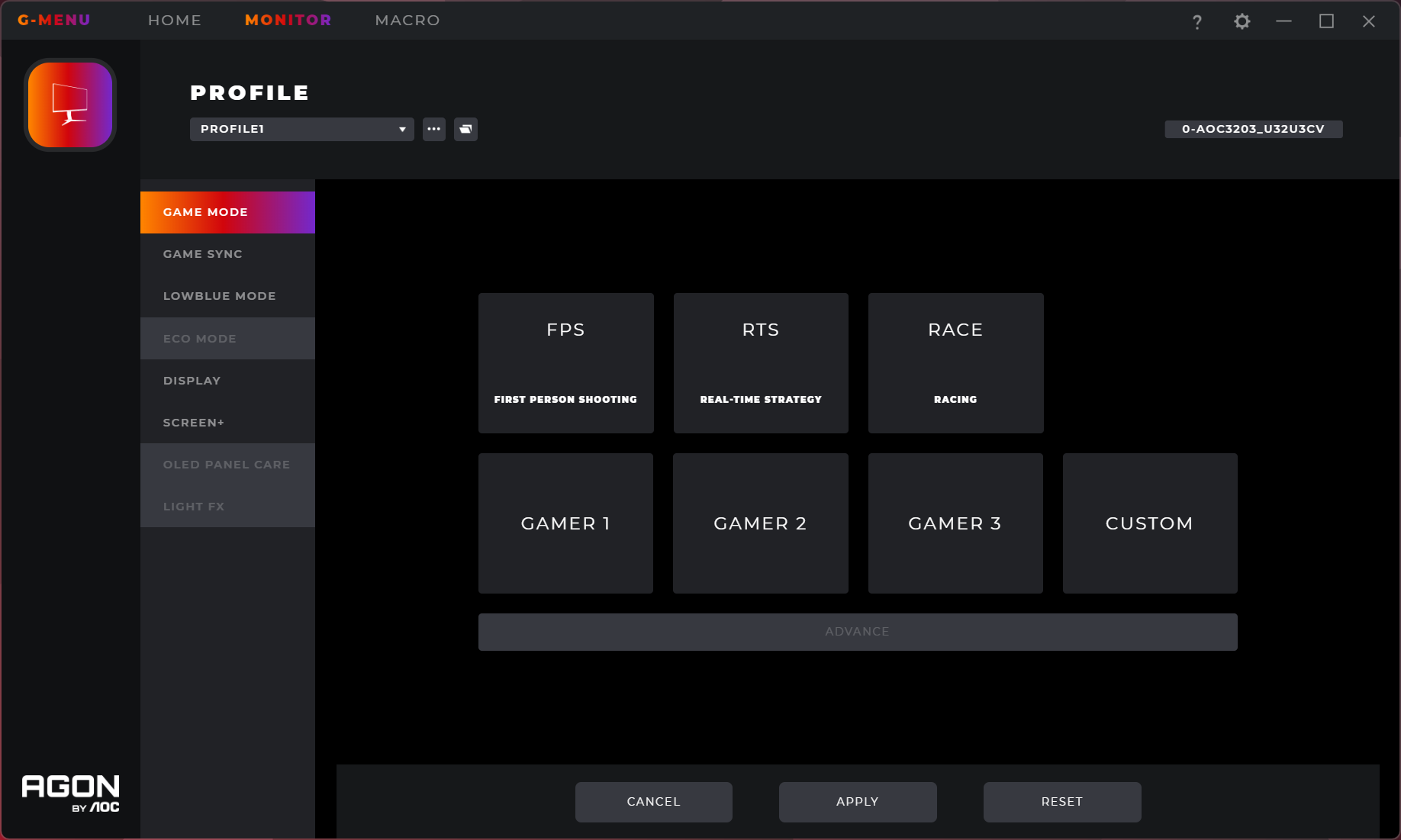
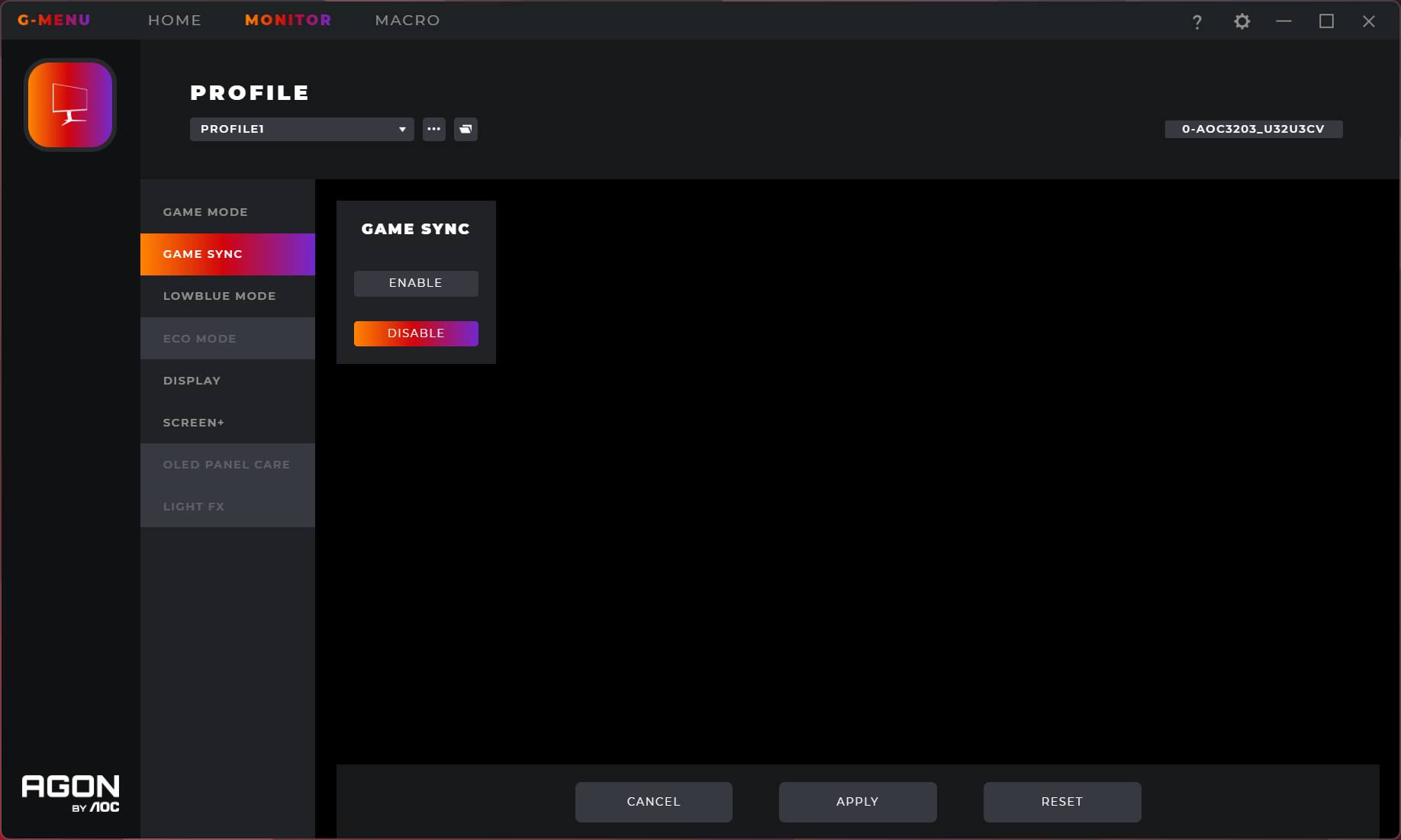
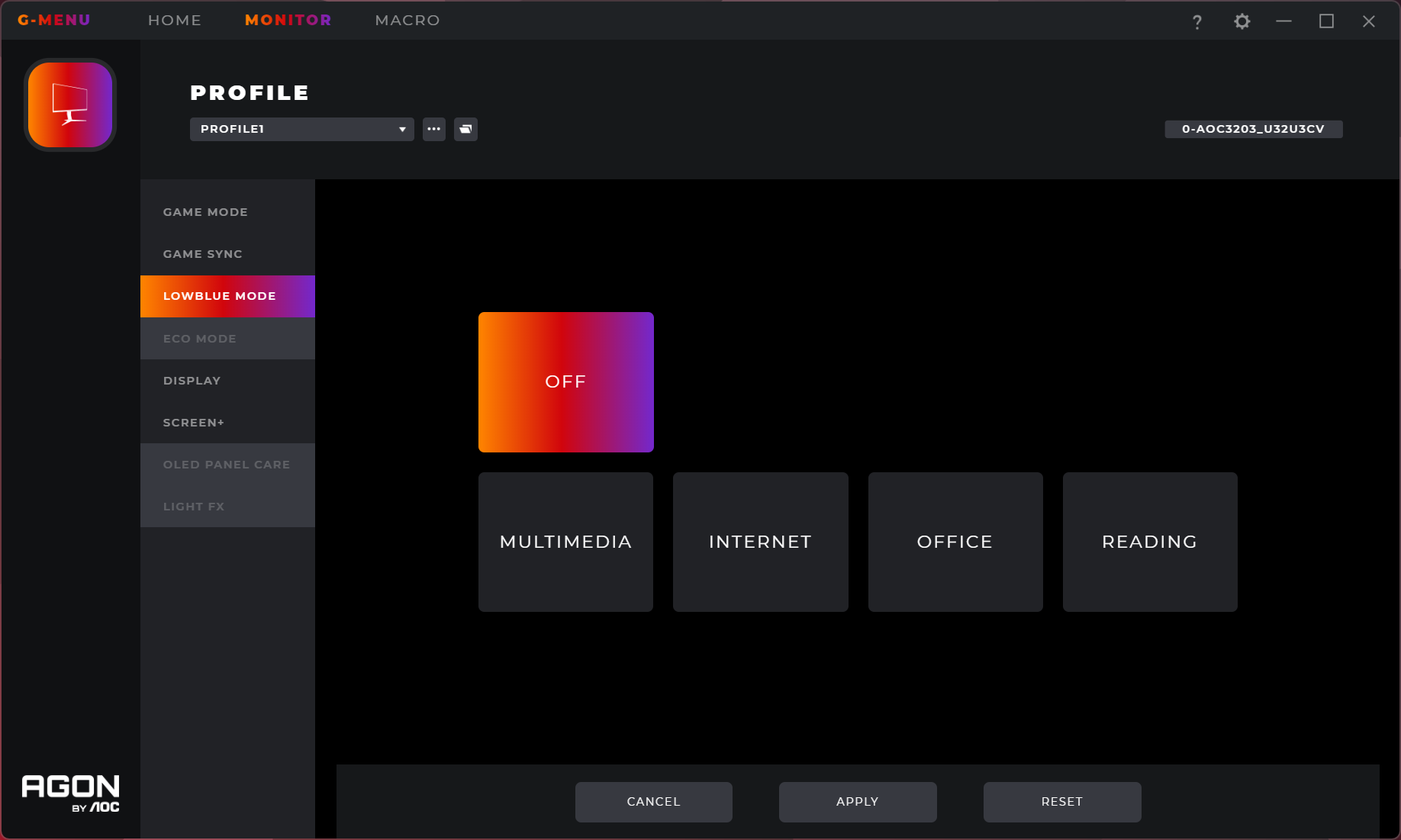
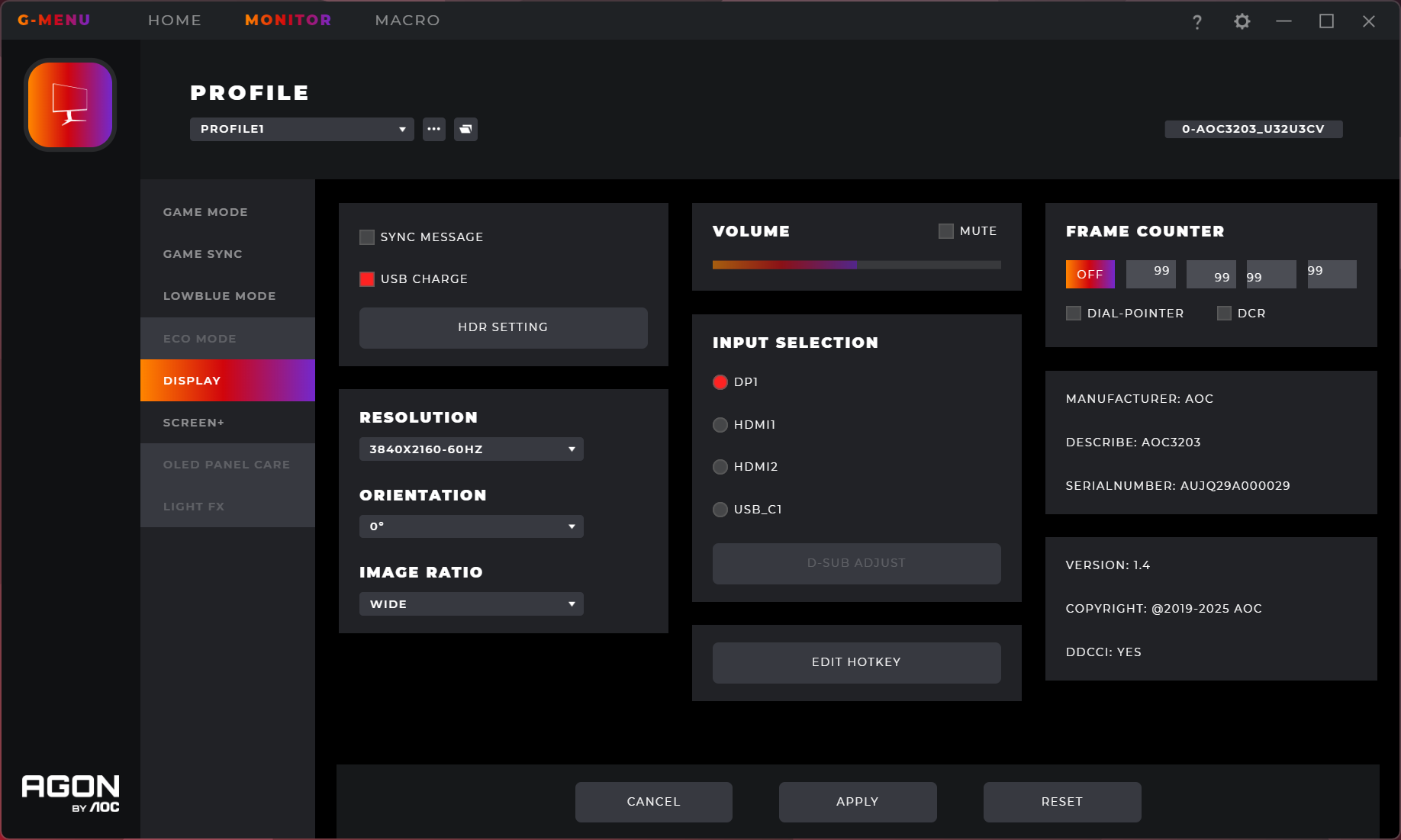
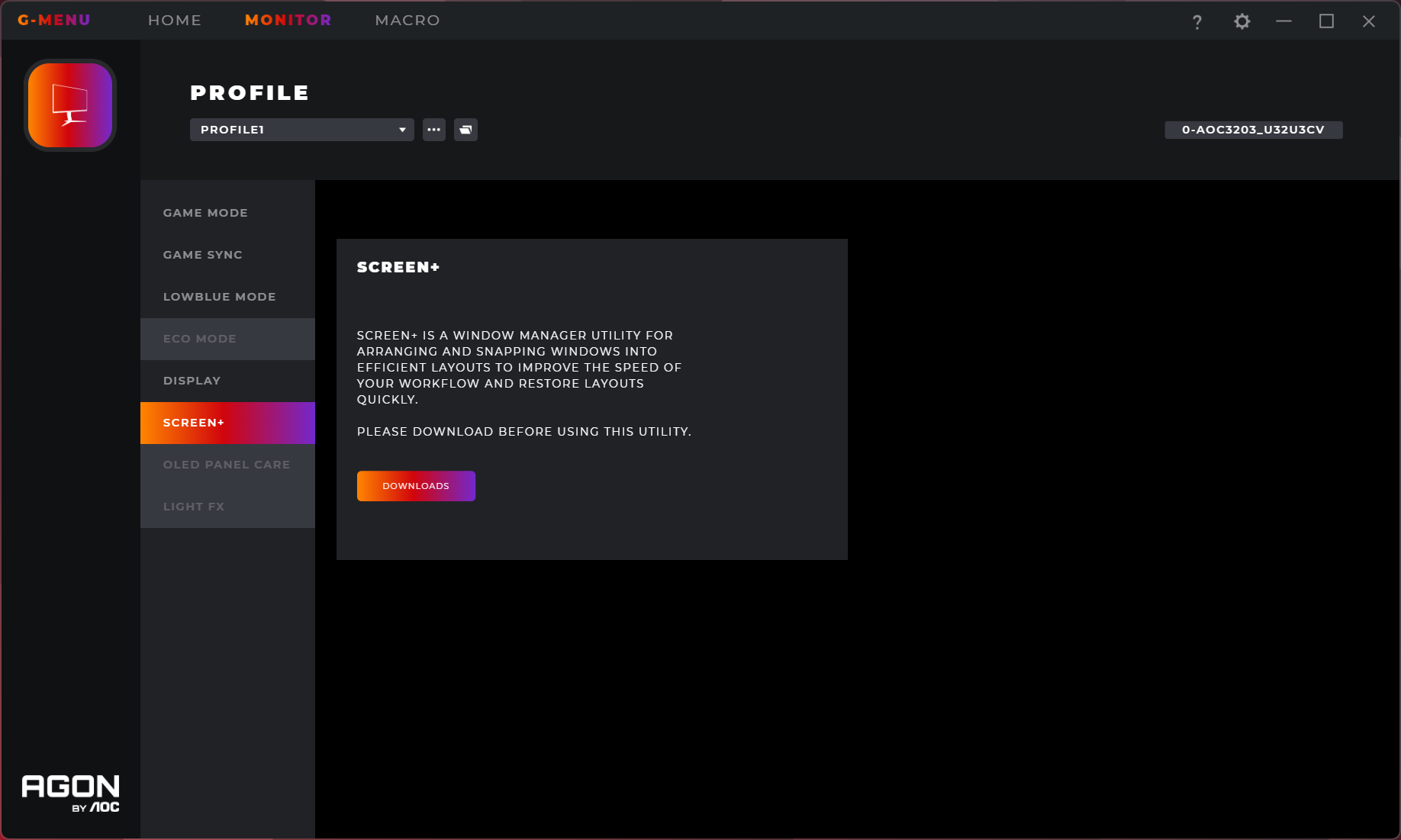
AOC also offers its G-Menu software on the downloads page for the U32U3CV, which is slightly odd given G-Menu is more of a gaming monitor utility. However, it does work with this screen, but its overall usefulness is fairly limited – though AOC tells me this may change with an upcoming firmware update.
Our main test involves using an X-Rite i1 Display Pro Plus colorimeter and utilising Portrait Display's Calman Ultimate software. The device sits on top of the screen while the software generates colour tones and patterns, which it compares against predetermined values to work out how accurate the screen is.
The results show:
- A monitor’s maximum brightness in candelas or cd/m2 at various levels set in the OSD.
- A monitor’s contrast ratio at various brightness levels in the OSD.
- Gamut coverage, primarily focusing on sRGB and DCI-P3 colour spaces.
- Greyscale accuracy, measured across 20 shades, with an average colour balance reported.
- The exact gamma levels, with a comparison against preset settings in the OSD.
- The colour accuracy, expressed as a Delta E ratio, with a result under 3 being fine for normal use, and under 2 being great for colour-accurate design work.
We first run these tests with the display in its out-of-the-box state, with all settings on default. If there is an sRGB emulation option or other useful mode then we may test that too. We then calibrate the screen using the Calman Ultimate software and run the tests again.
You can read more about our test methodology HERE.
Default settings
Brightness and Contrast (Full Screen)
| OSD Brightness | White Luminance (cd/m2) | Black Luminance (cd/m2) | Contrast Ratio |
| 0% | 49.2 | 0.041 | 1186:1 |
| 25% | 130 | 0.11 | 1184:1 |
| 50% | 207.4 | 0.175 | 1186:1 |
| 75% | 284.7 | 0.242 | 1178:1 |
| 100% | 370 | 0.315 | 1176:1 |
Starting our testing with full screen brightness, we get a range from 49 nits up to 370 maximum. The minimum is decent, but not super low, though I was hoping for a little more in terms of the peak brightness. 370 nits will be fine for most users in most environments, but we have tested brighter LCDs.
Contrast is solid however, hovering just below the 1200:1 mark. AOC only claims a 1000:1 ratio here, but we were able to comfortably exceed that.
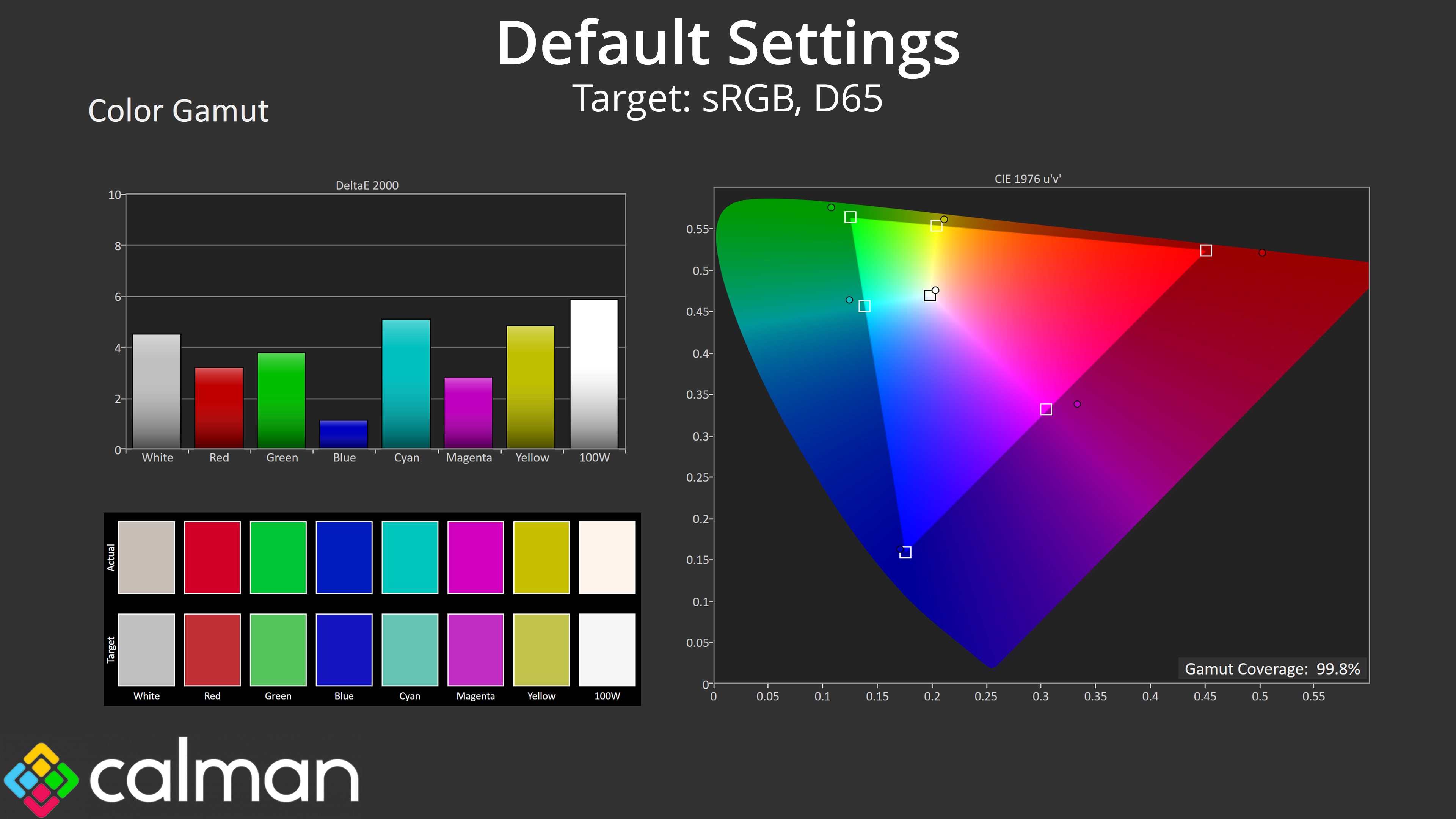
Gamut (CIE 1976)
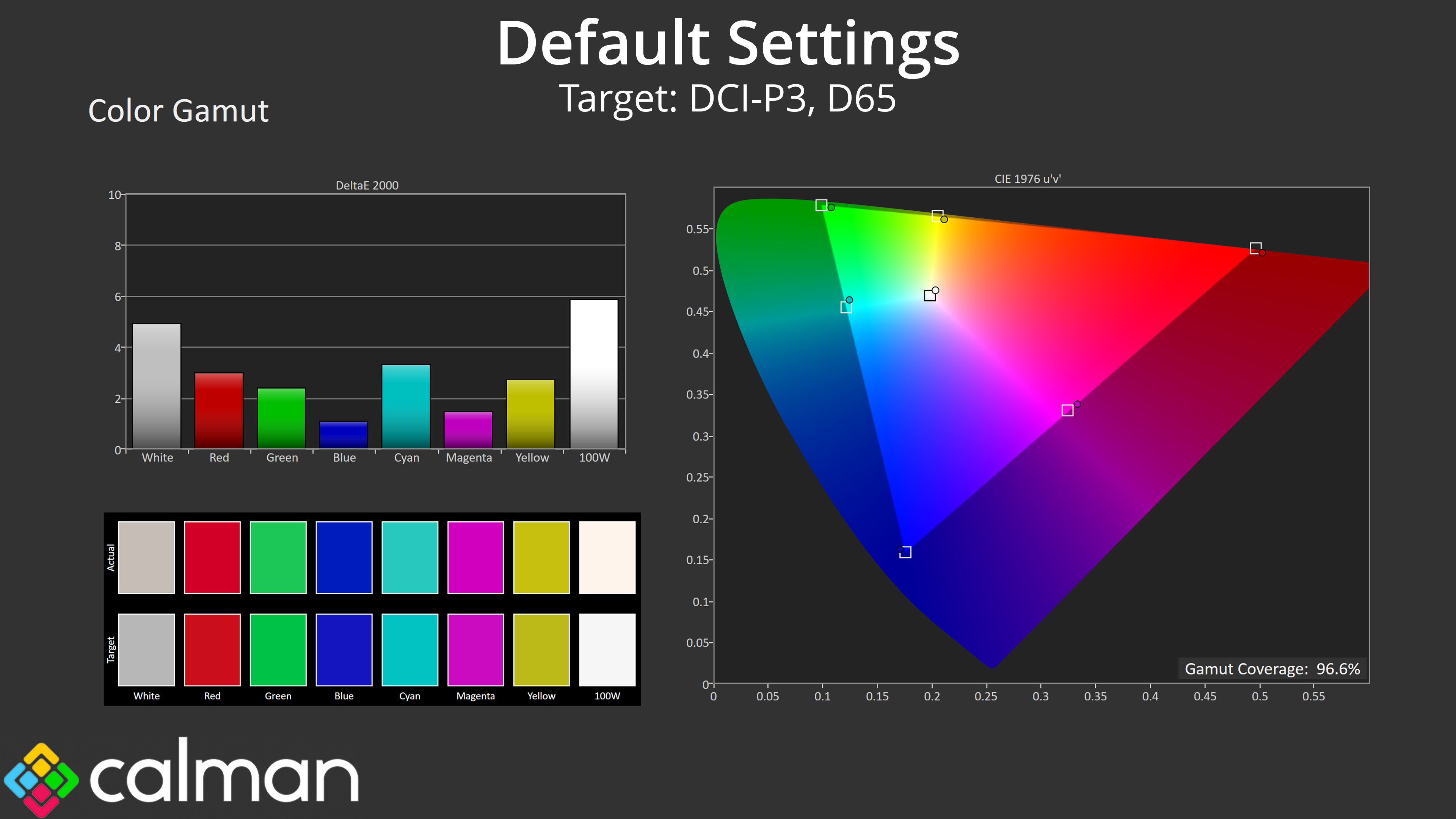
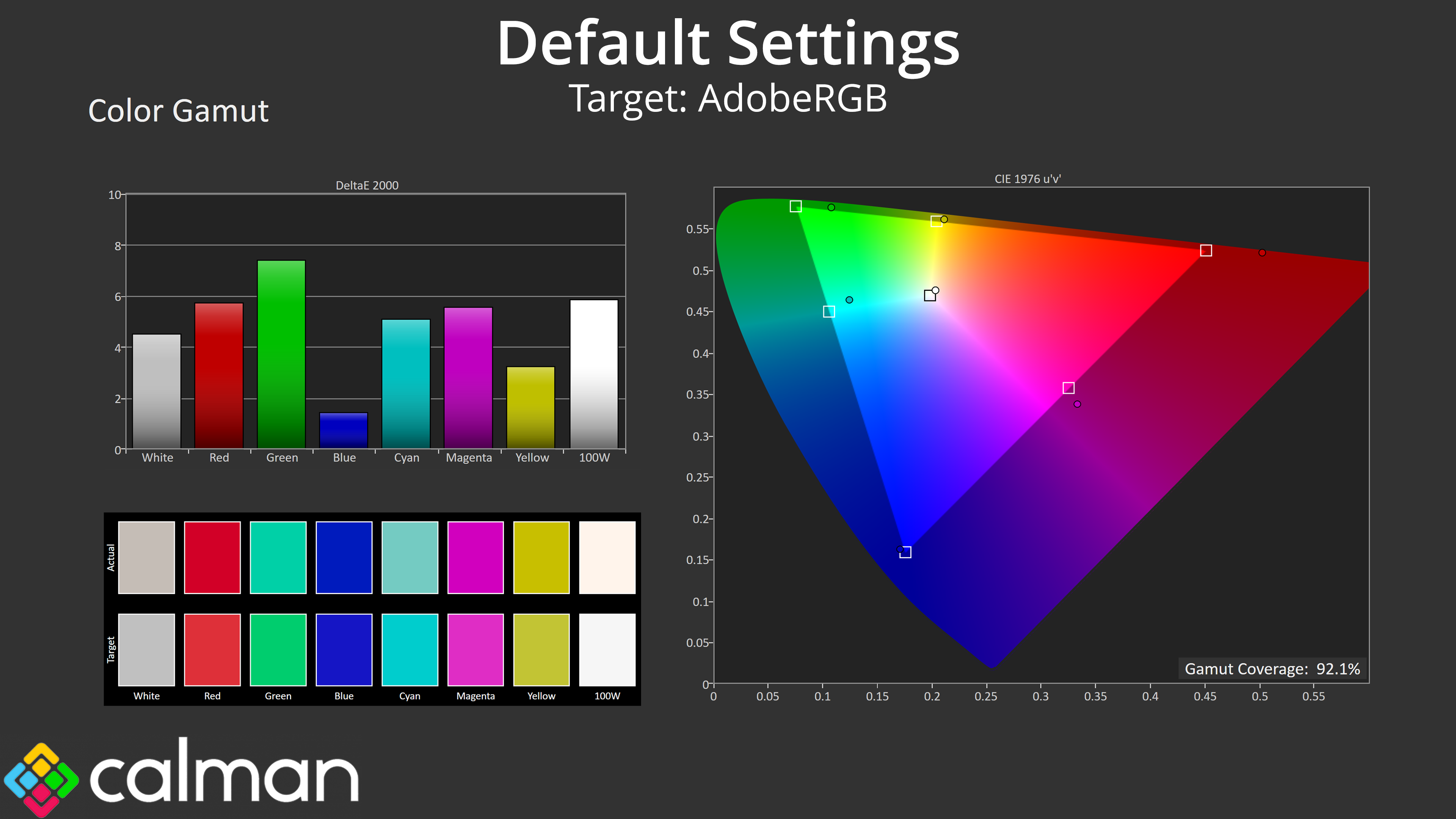
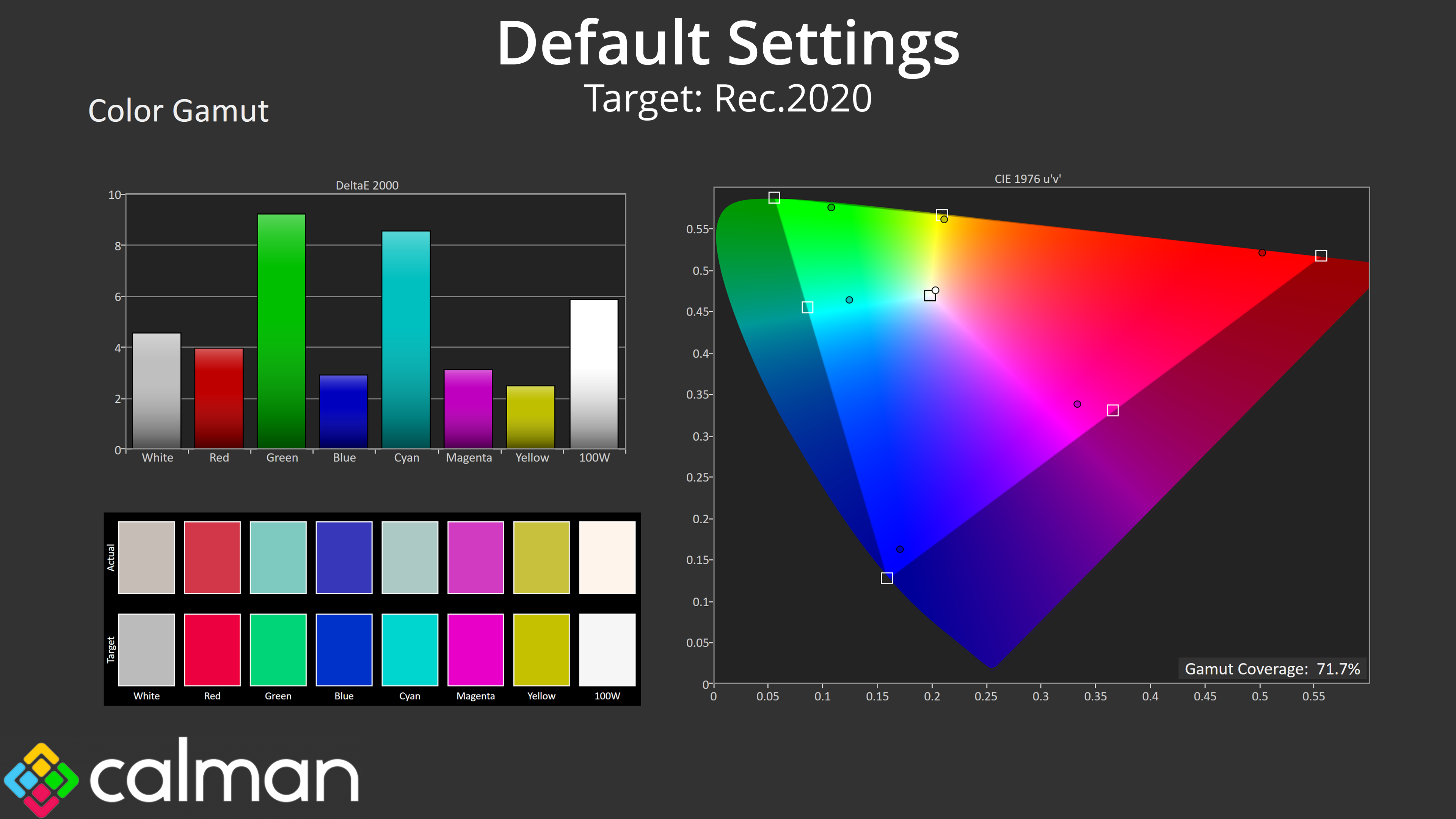
| Colour space | Coverage (%) |
| sRGB | 99.8 |
| DCI-P3 | 96.6 |
| Adobe RGB | 92.1 |
| Rec.2020 | 71.7 |
Gamut coverage is nice and wide, though perhaps not quite as wide as it would be if the screen had a quantum dot layer – something the smaller and cheaper Q27U3CV does offer, which I find slightly strange! Still, coverage generally far exceeds the sRGB space and delivers 96.6% DCI-P3, 92.1% AdobeRGB and 71.7% Rec.2020 reporting.
Greyscale
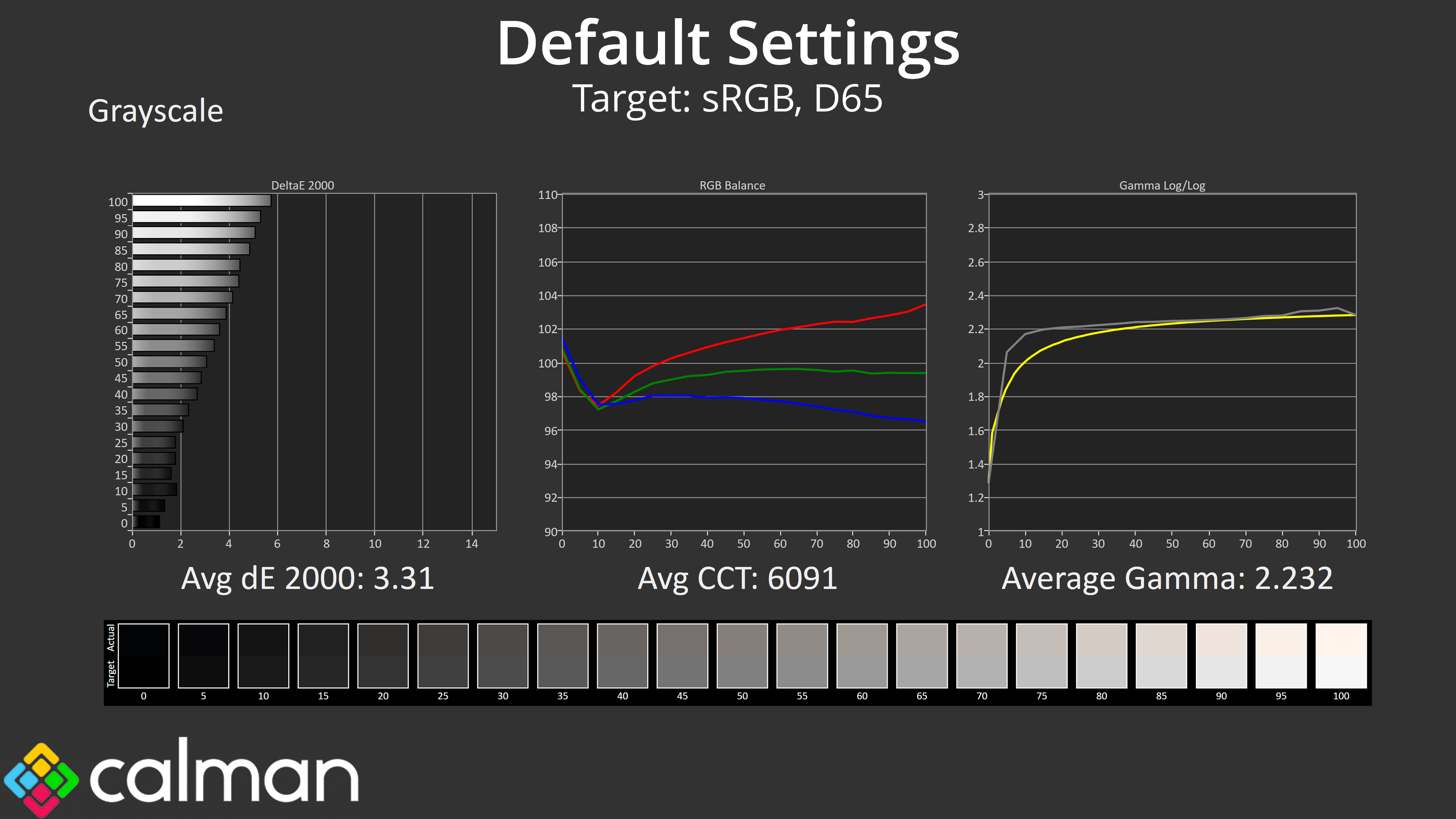
Moving onto greyscale, first we test with completely stock, out of the box settings. This gives reasonably accurate results, though it is slightly warm with an average CCT (correlated colour temperate) of 6091K, a 7% deviation from the 6500K target. That results in an average greyscale dE 2000 of 3.31, which is decent but not spectacular. Gamma, however, is very good indeed, tracking the curve nicely and delivering an average result of 2.232.
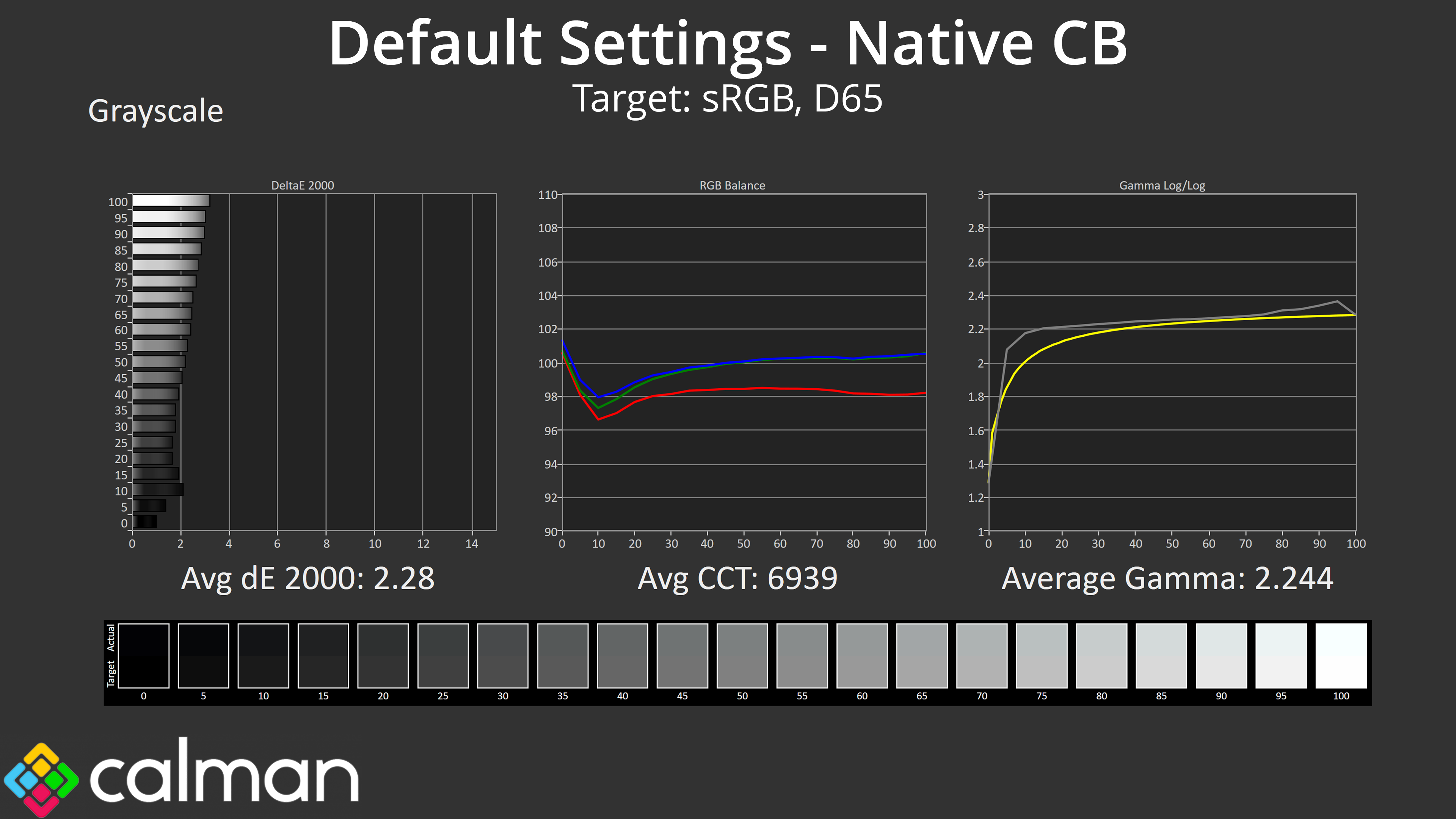
I also tried the Native colour balance mode from within the OSD. It's now slightly too cool, averaging 6939K, but overall it is slightly more accurate than the default setting, with a lower greyscale average dE 2000 of 2.28.
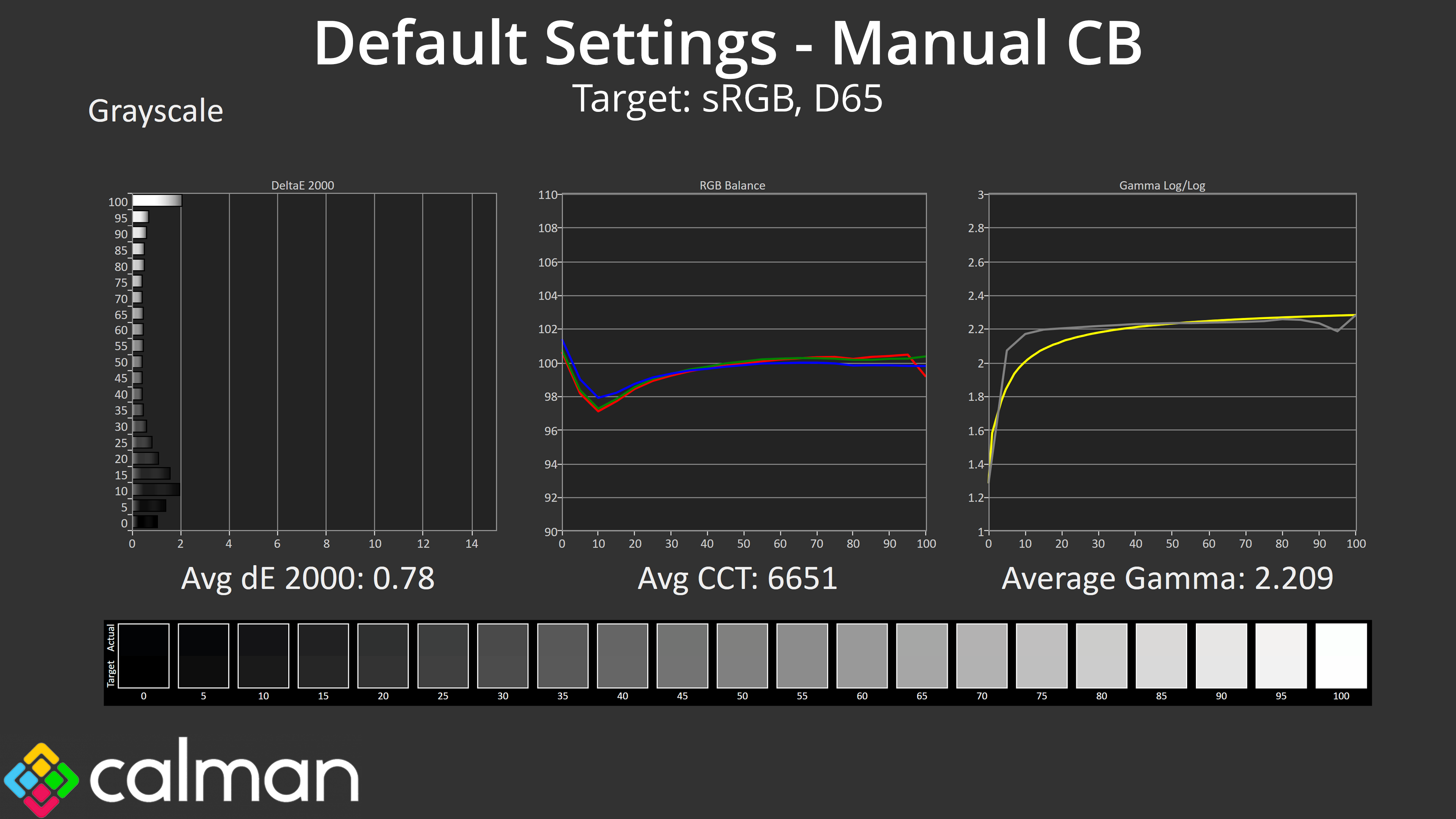
With just a couple of very brief tweaks using the manual colour balance, I was able to achieve an average greyscale dE 2000 of just 0.78. This was with the Red channel at 51, Green and Blue channels at 49.
Considering this is a pro-grade monitor aimed at creatives, and also one that is Calman Ready, I think it's reasonable to assume most people buying the U32U3CV would be able to verify the accuracy of any manual adjustments using a colorimeter.
Saturation
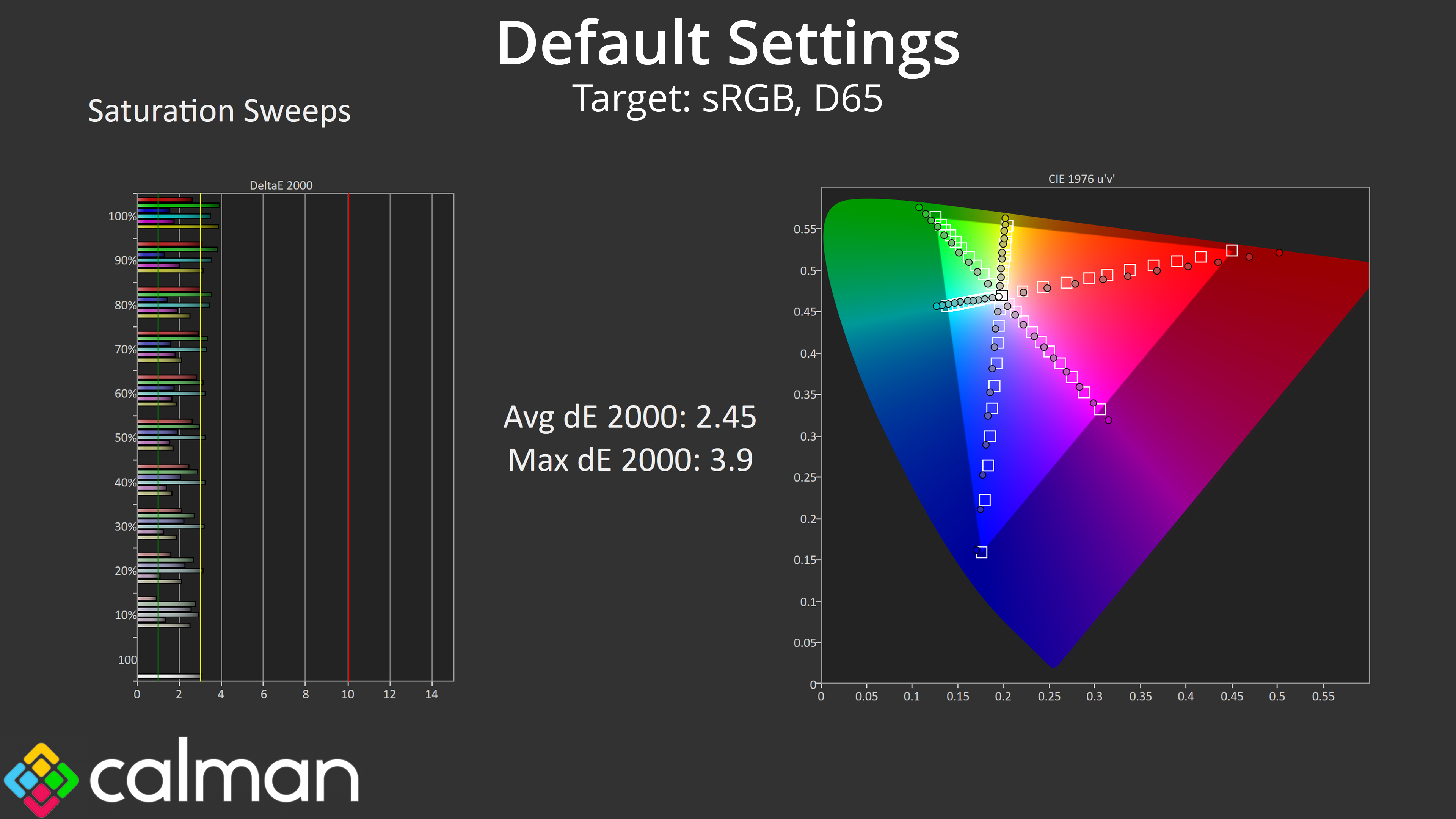
Moving on with our out of the box testing, we come to the saturation sweeps. The results here are good, with an average dE 2000 of 2.45 relative to the sRGB space – the inaccuracies are a result of the wide gamut, presenting as over-saturation relative to sRGB.
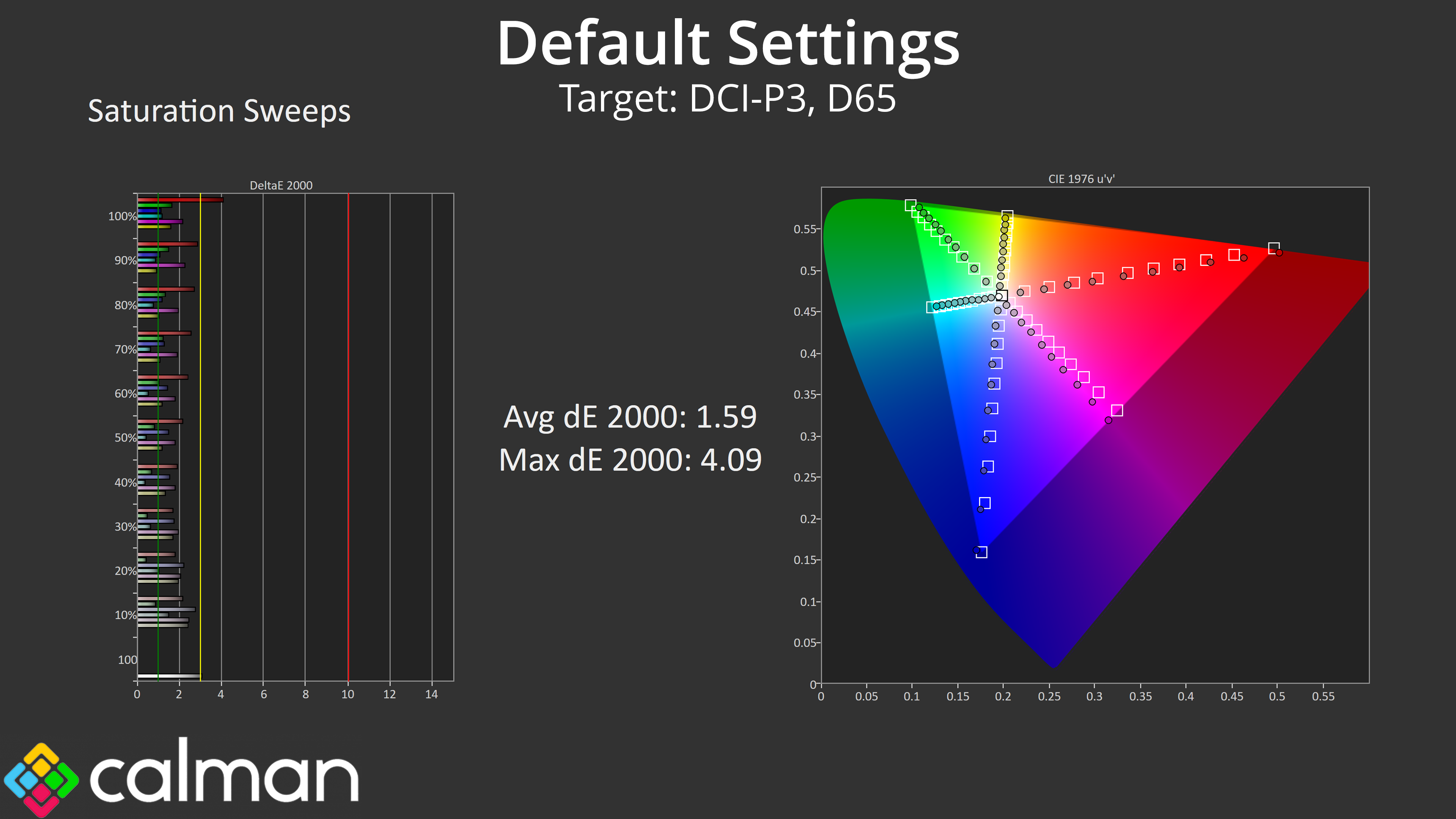
Relative to the DCI-P3 space however, the results are very good, with an average dE 2000 of just 1.59.
Colour Accuracy
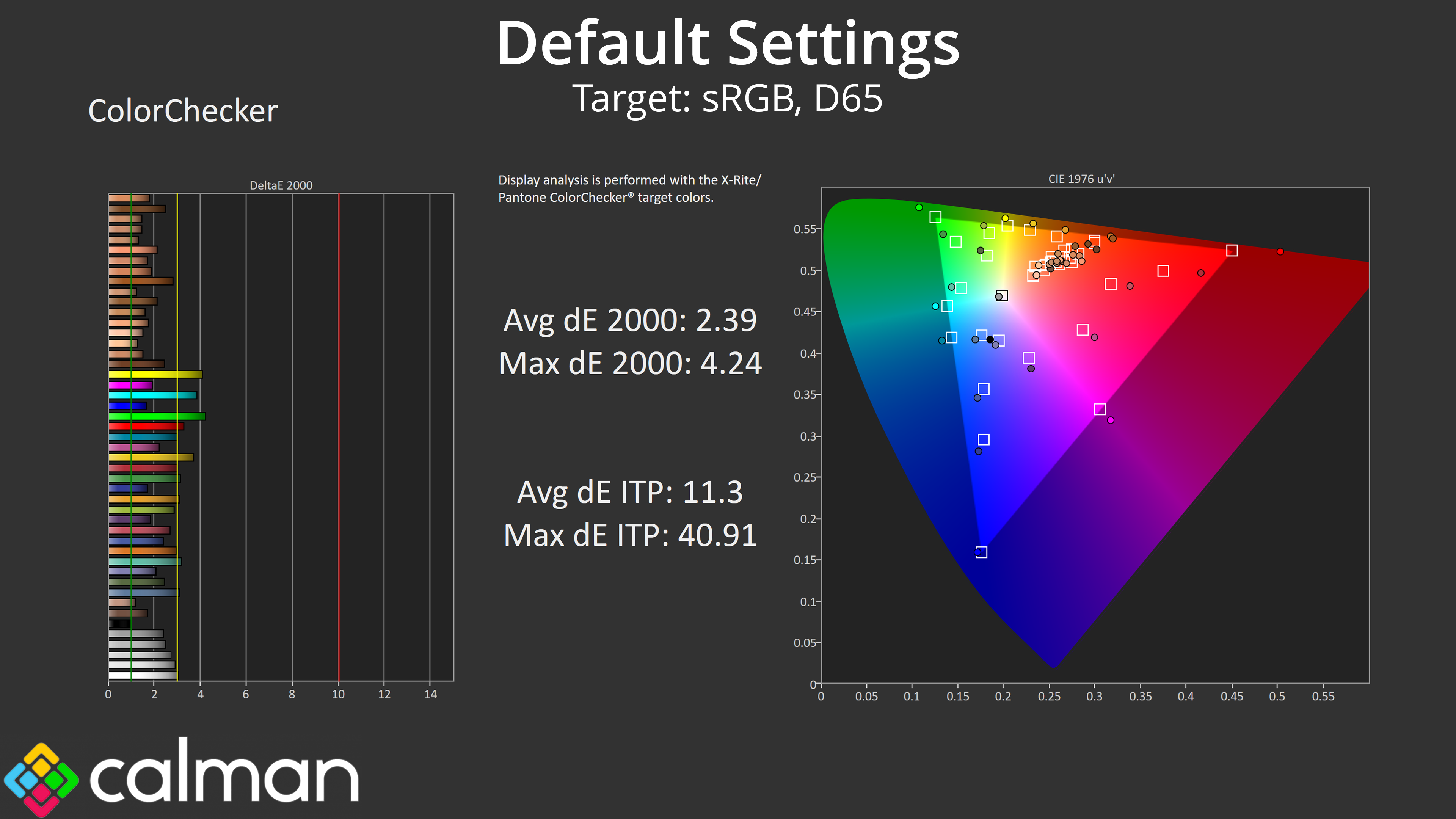
Colour accuracy is also decent out of the box, delivering an average dE 2000 of 2.39 when compared against the sRGB space. AOC does claim a deltaE of less than 2, but that's when using the sRGB emulation mode which we test below.
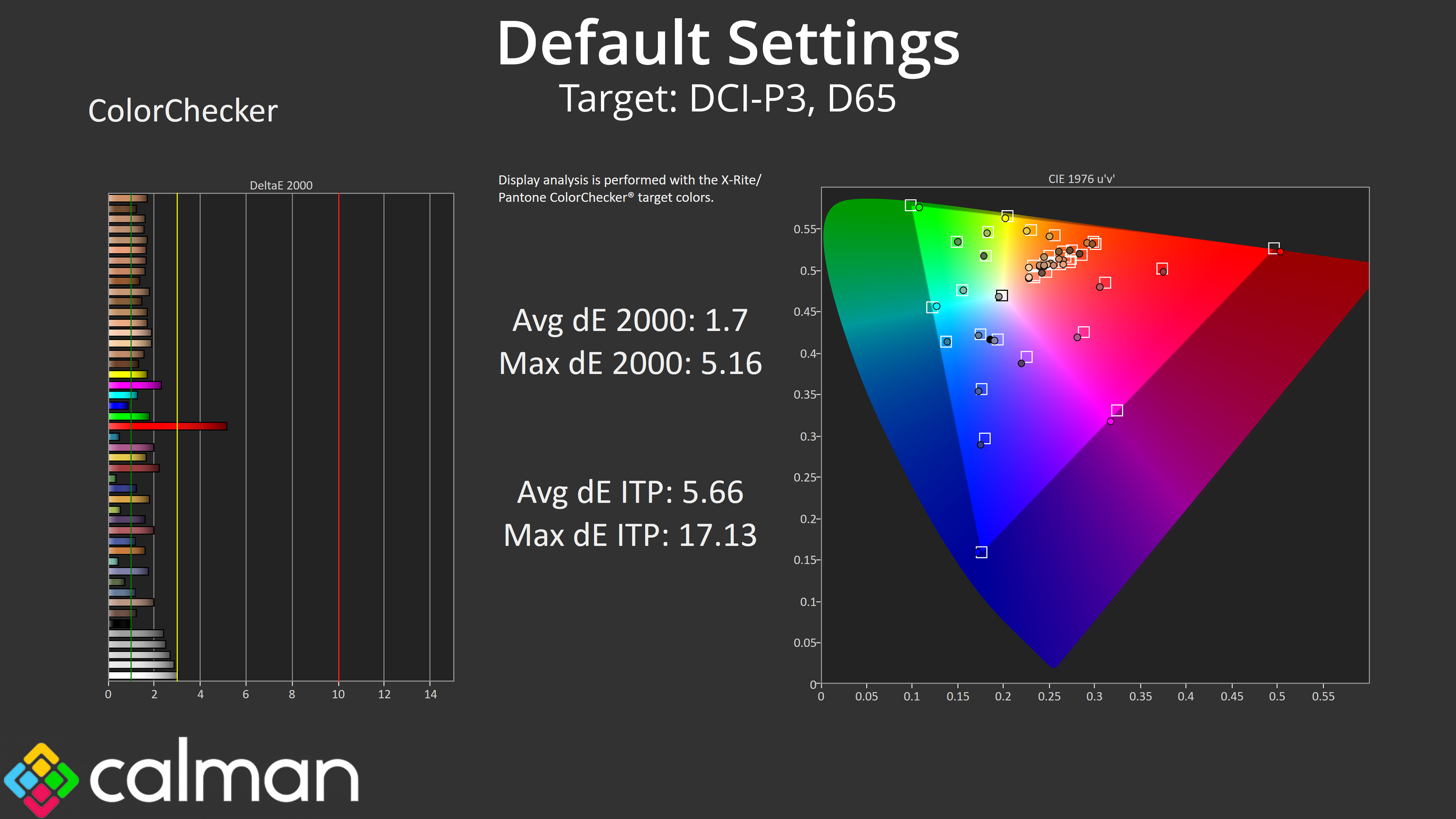
Relative to the DCI-P3 space, things improve once again, and we see an average dE 2000 of just 1.7, which is very good for a factory calibration.
sRGB Emulation Mode
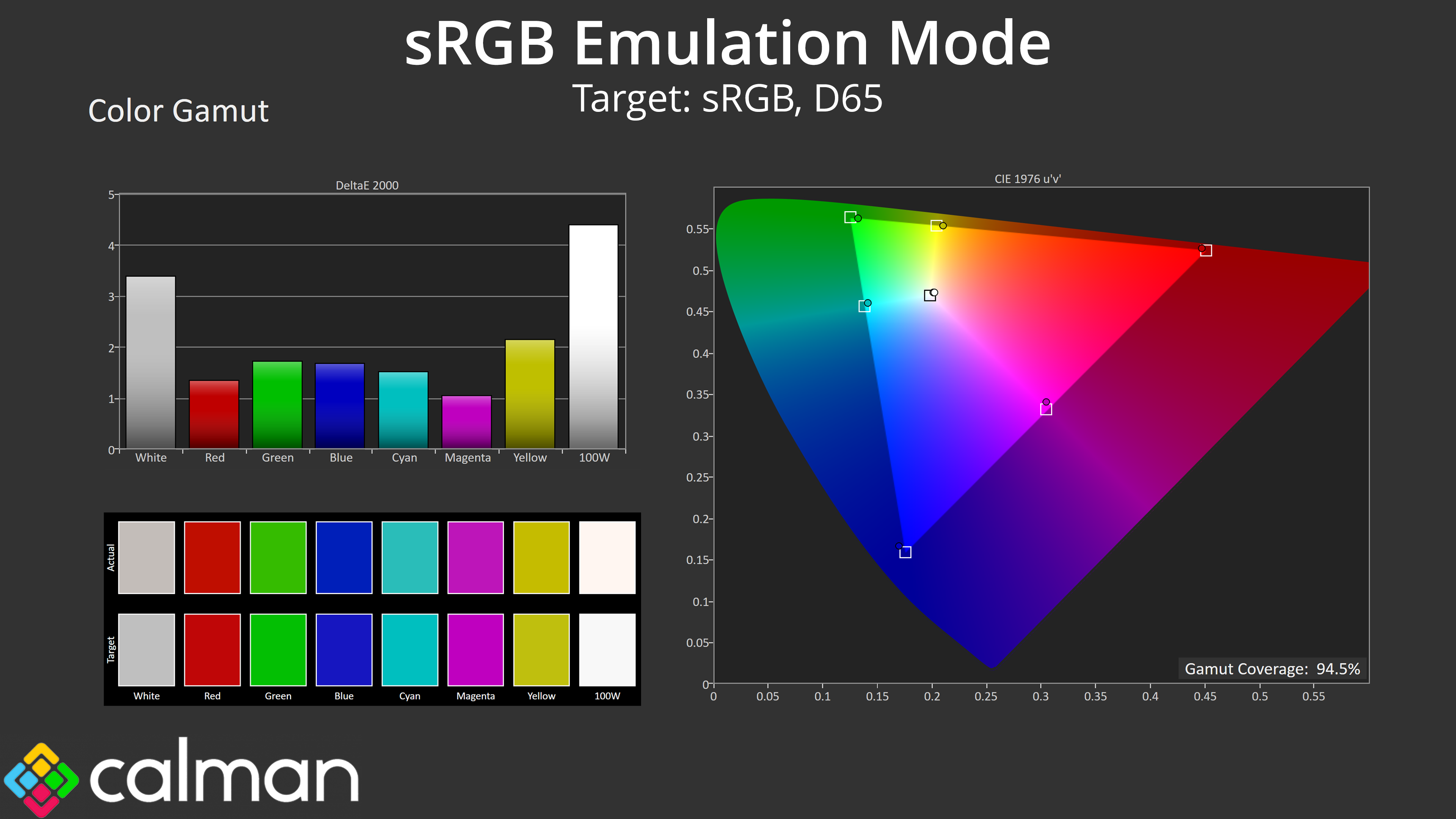
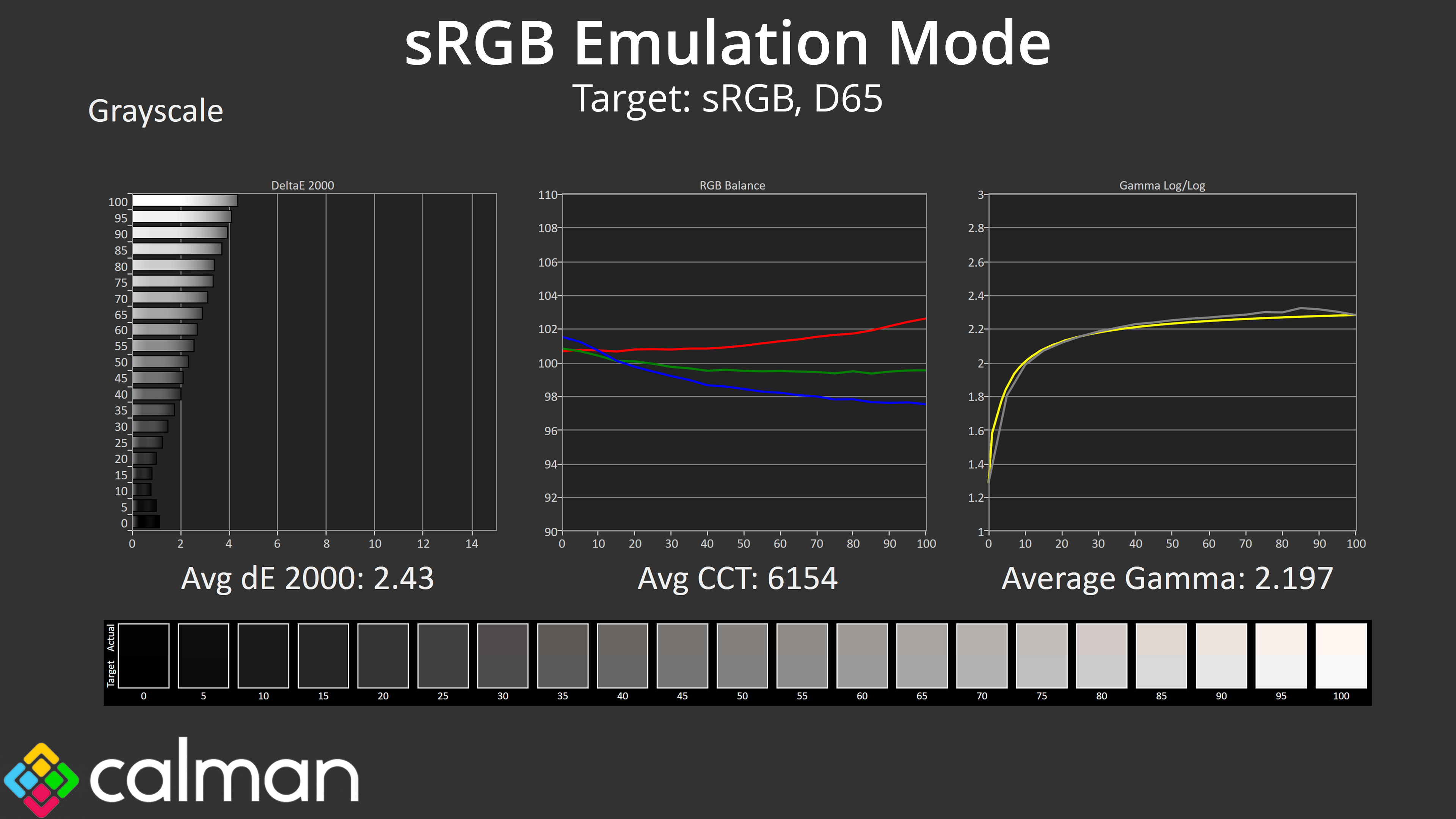
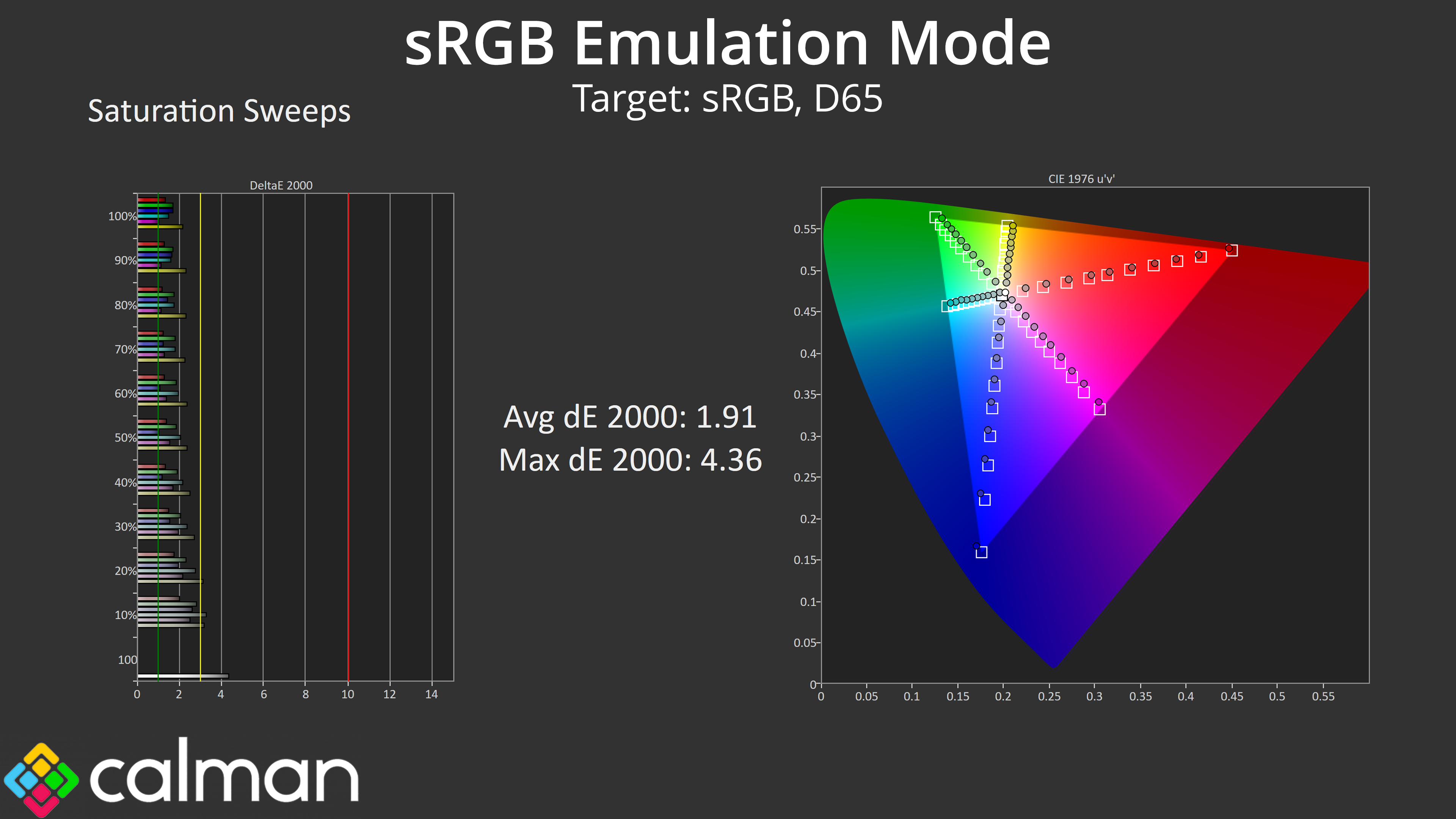
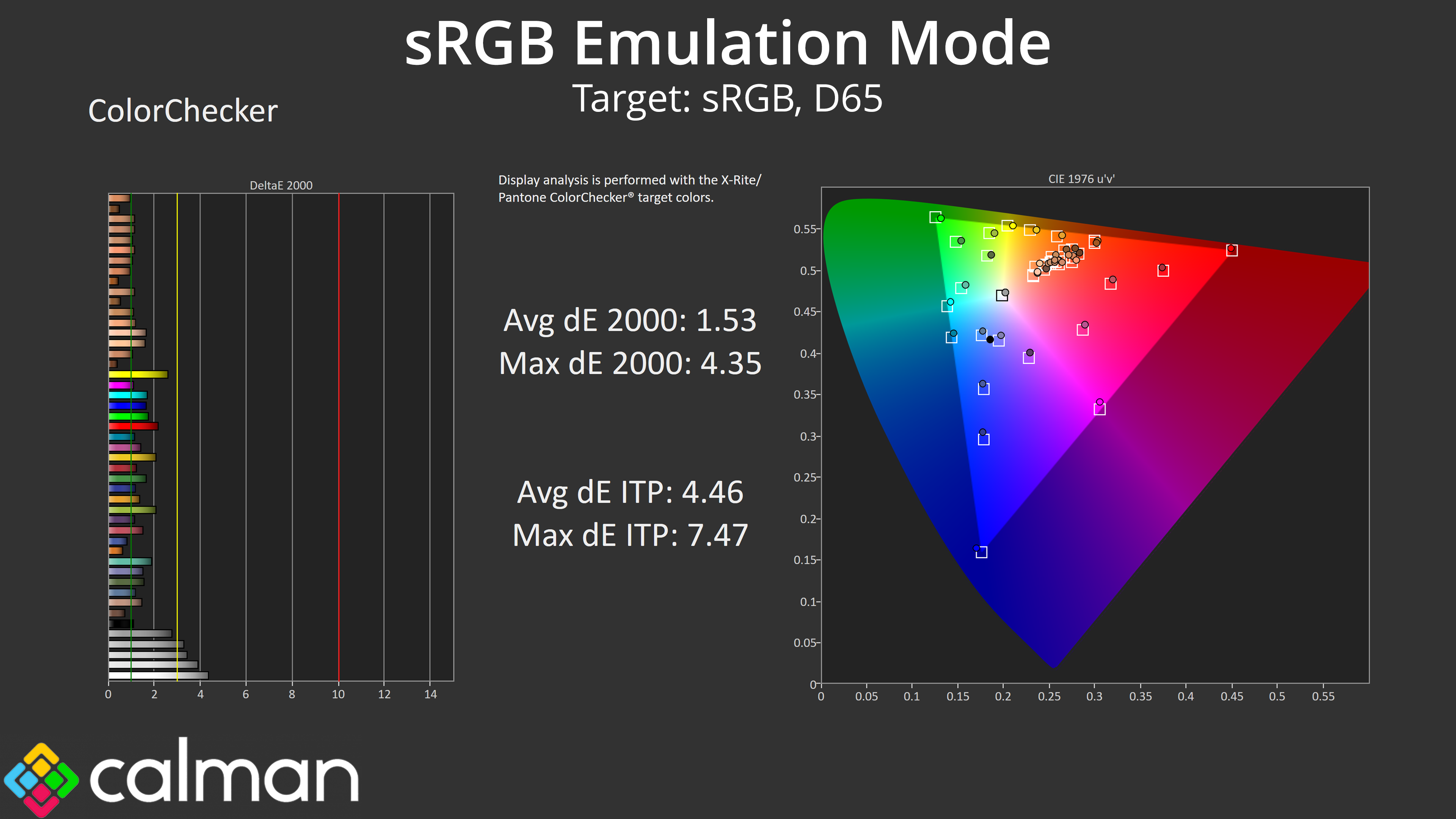
Next we have the sRGB emulation mode which clamps the gamut to prevent over-saturation. This makes a small improvement to greyscale, with a slightly more accurate colour balance, averaging a deltaE 2000 of 2.43, while gamma tracking is basically spot on.
Saturation is much improved as we'd expect, and then colour accuracy sees the average dE 2000 drop below 2, as AOC claims – to be specific, it hit 1.53 in our testing, so colours will be nice and accurate for any creative or design work.
AdobeRGB Emulation Mode
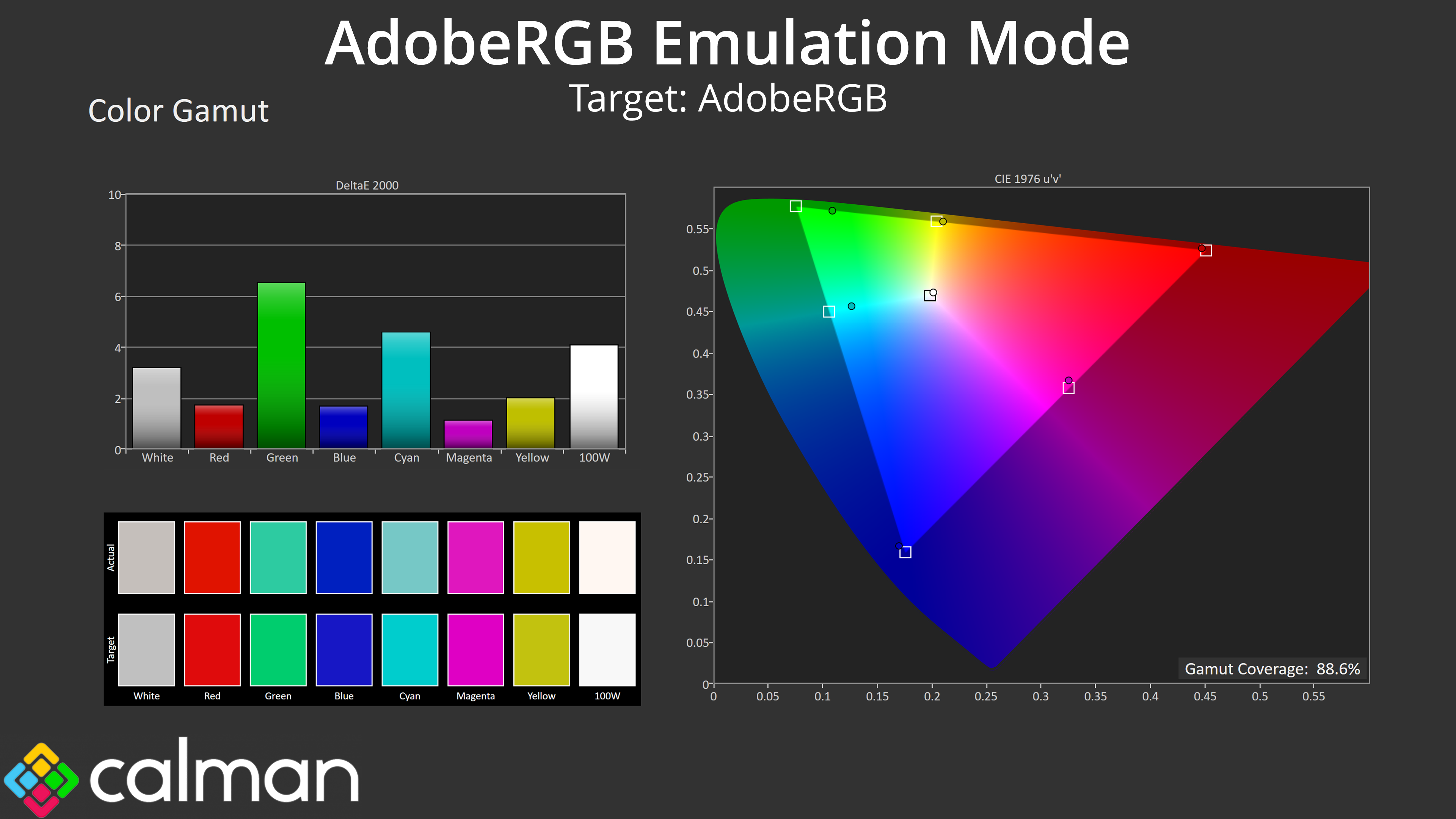
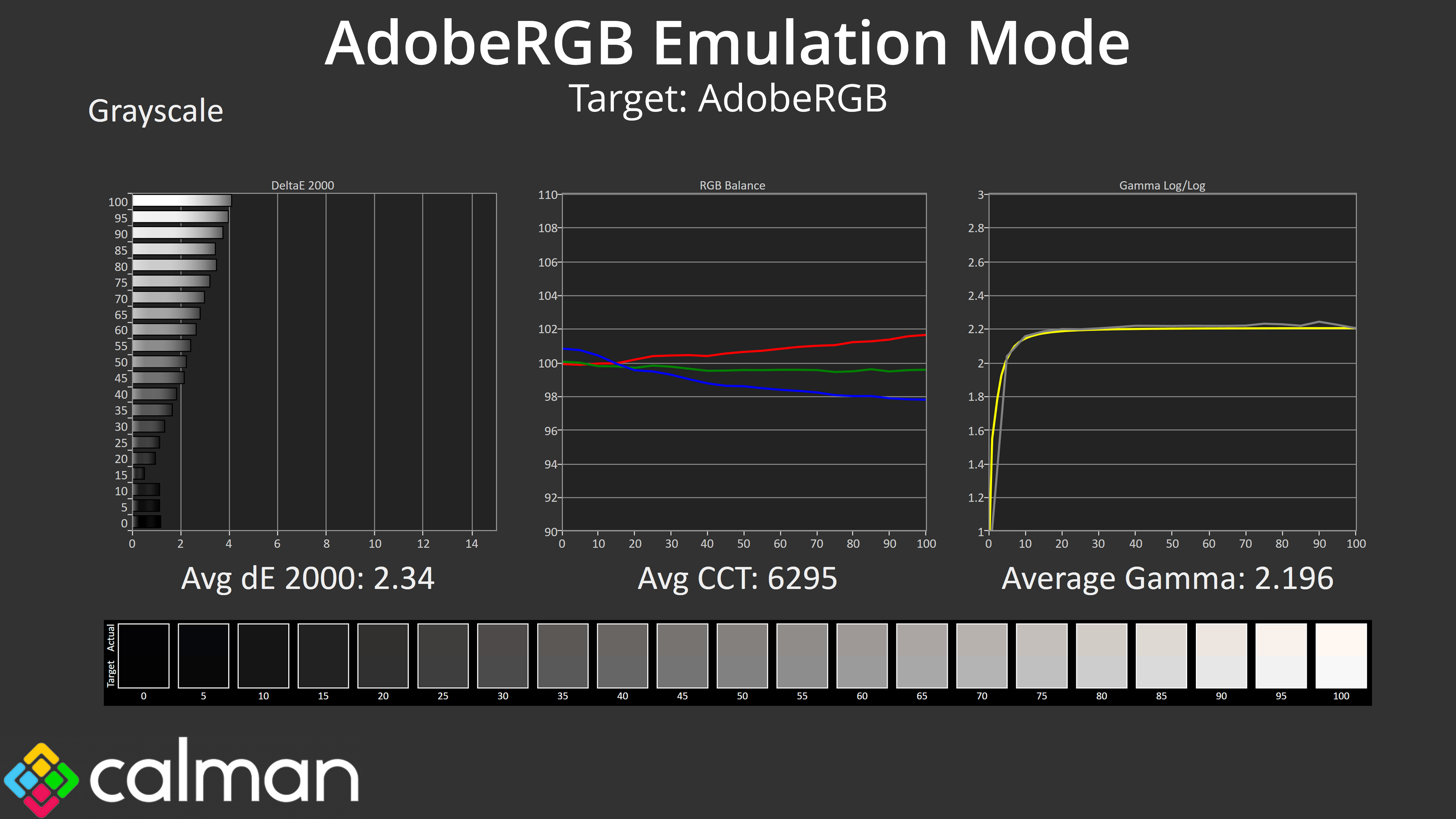
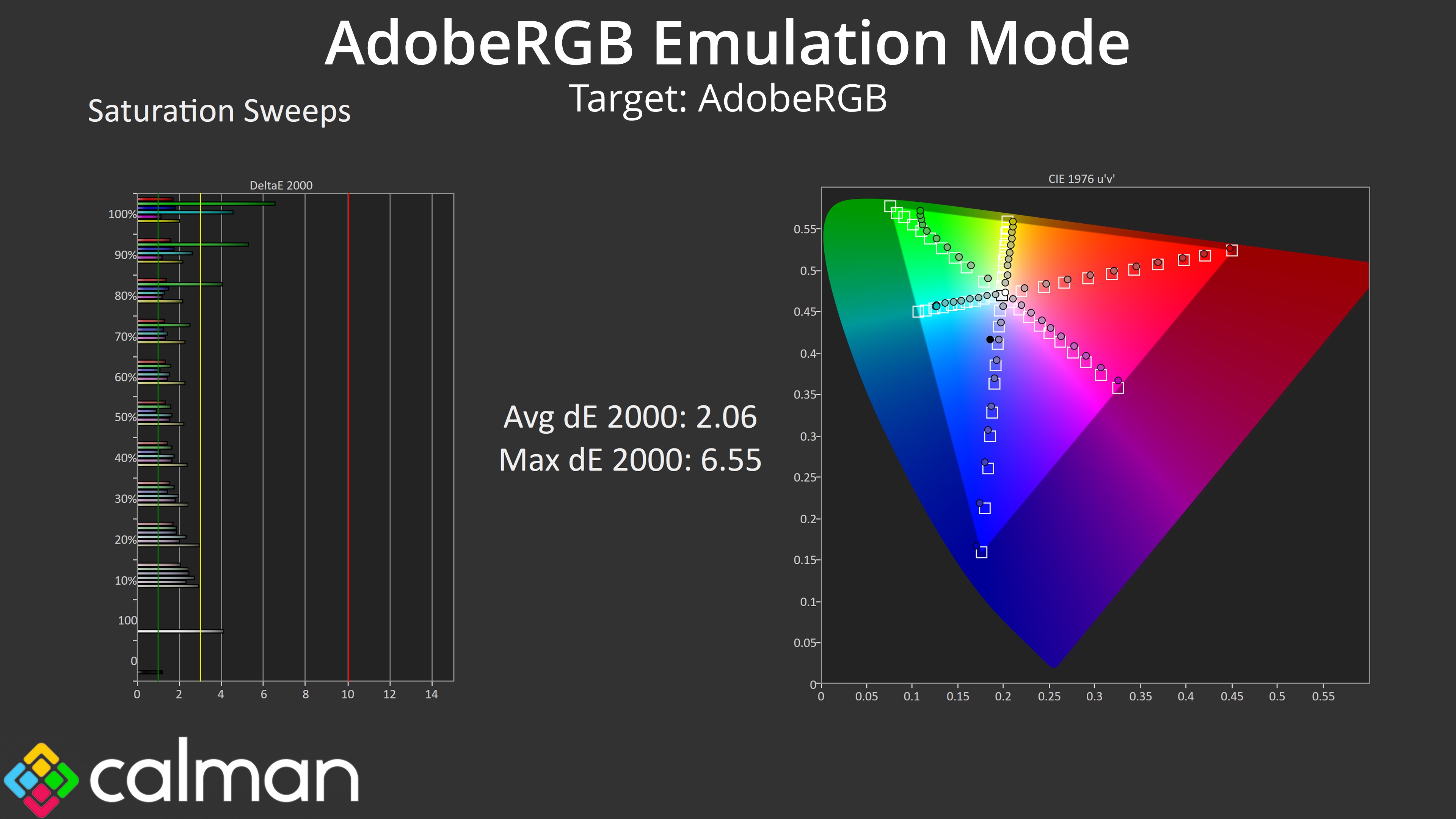
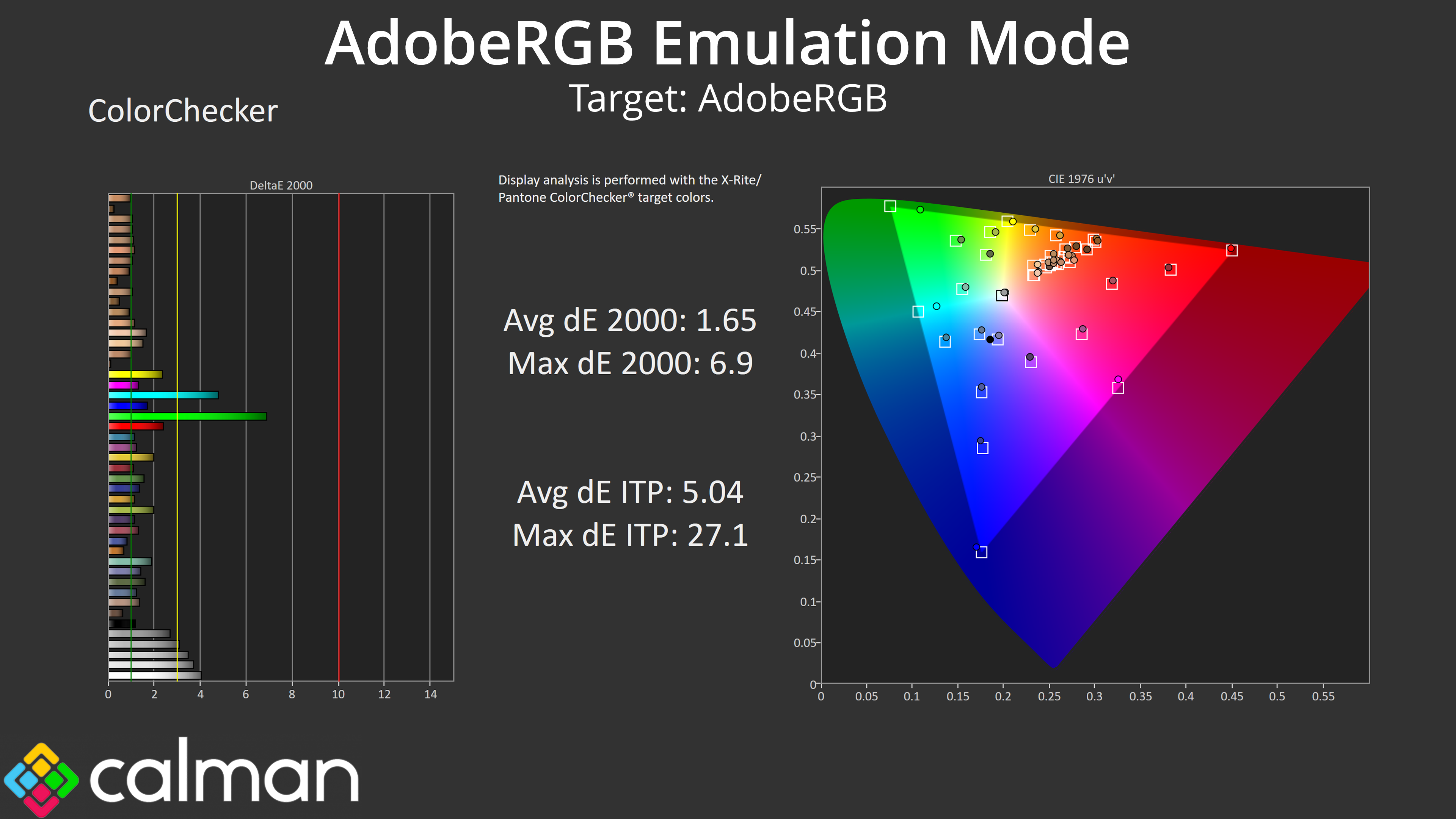
Given the U32U3CV offers so many colour space modes, I also tried the AdobeRGB mode here. This also sees good improvements versus the native testing, with a 6295K colour balance and very accurate gamma. The saturation and colour accuracy results are also very good, with results in the cyan and green channels just suffering slightly as the monitor isn't quite able to cover the full AdobeRGB gamut.
DCI-P3 Emulation Mode
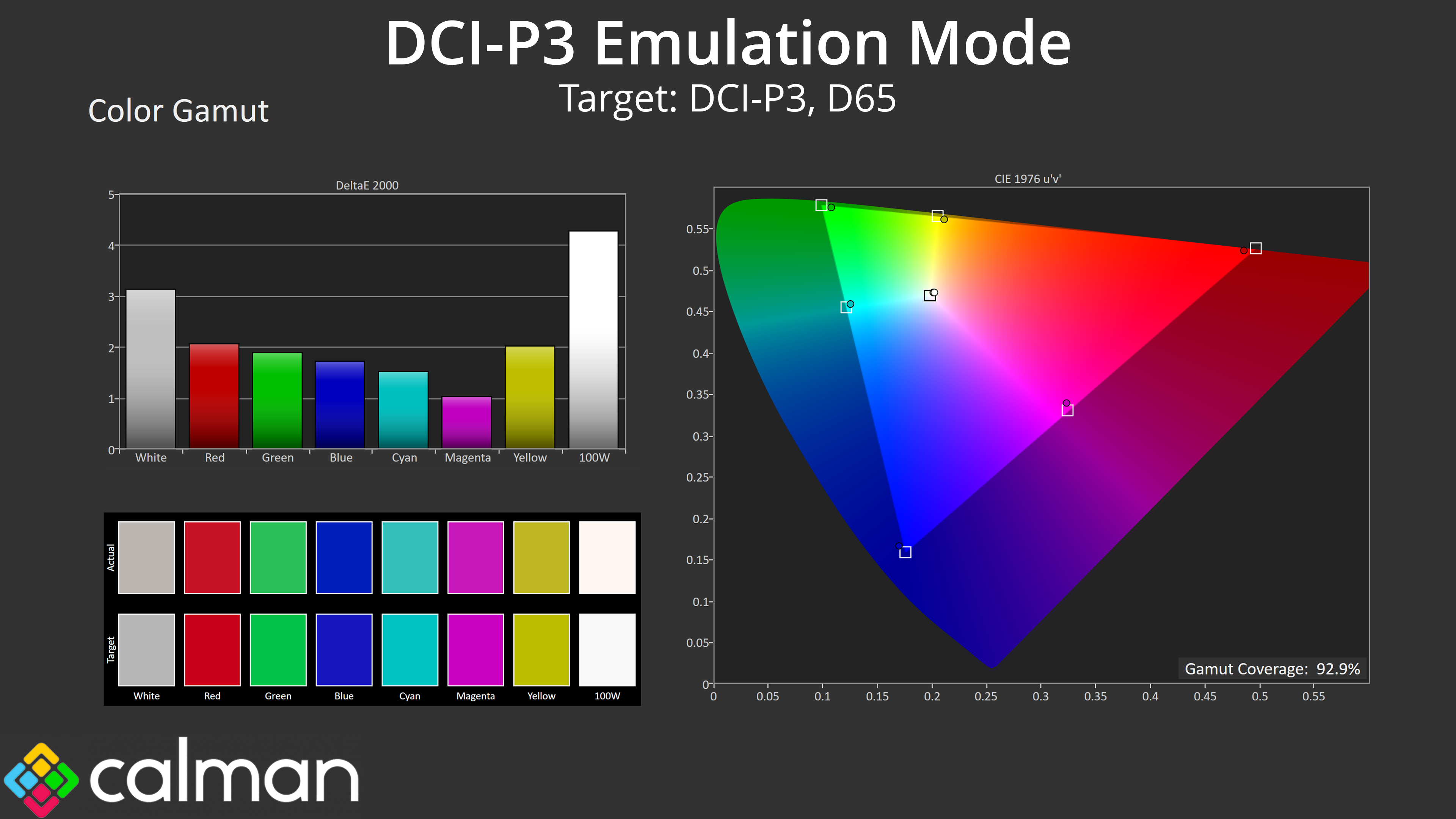
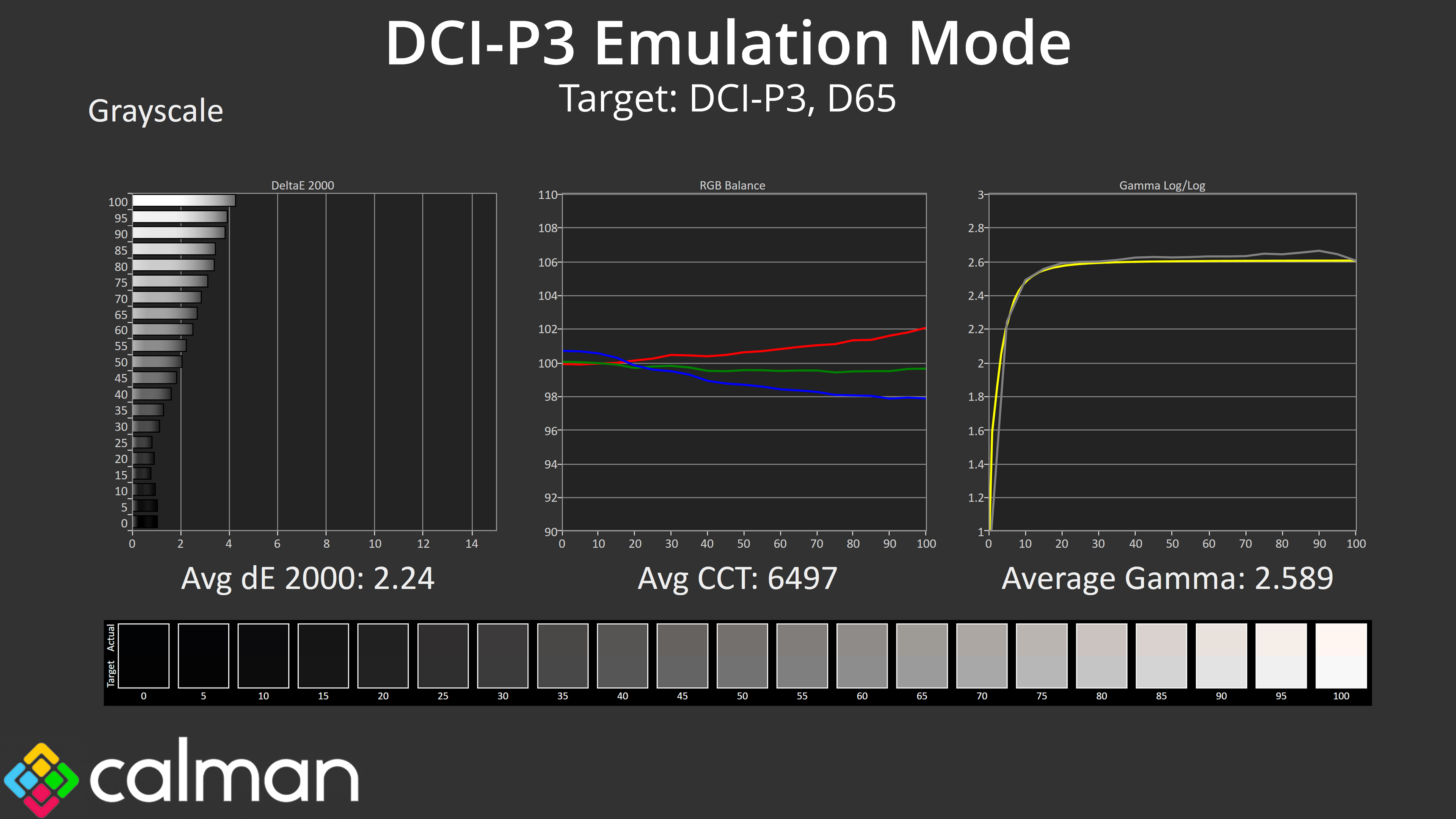
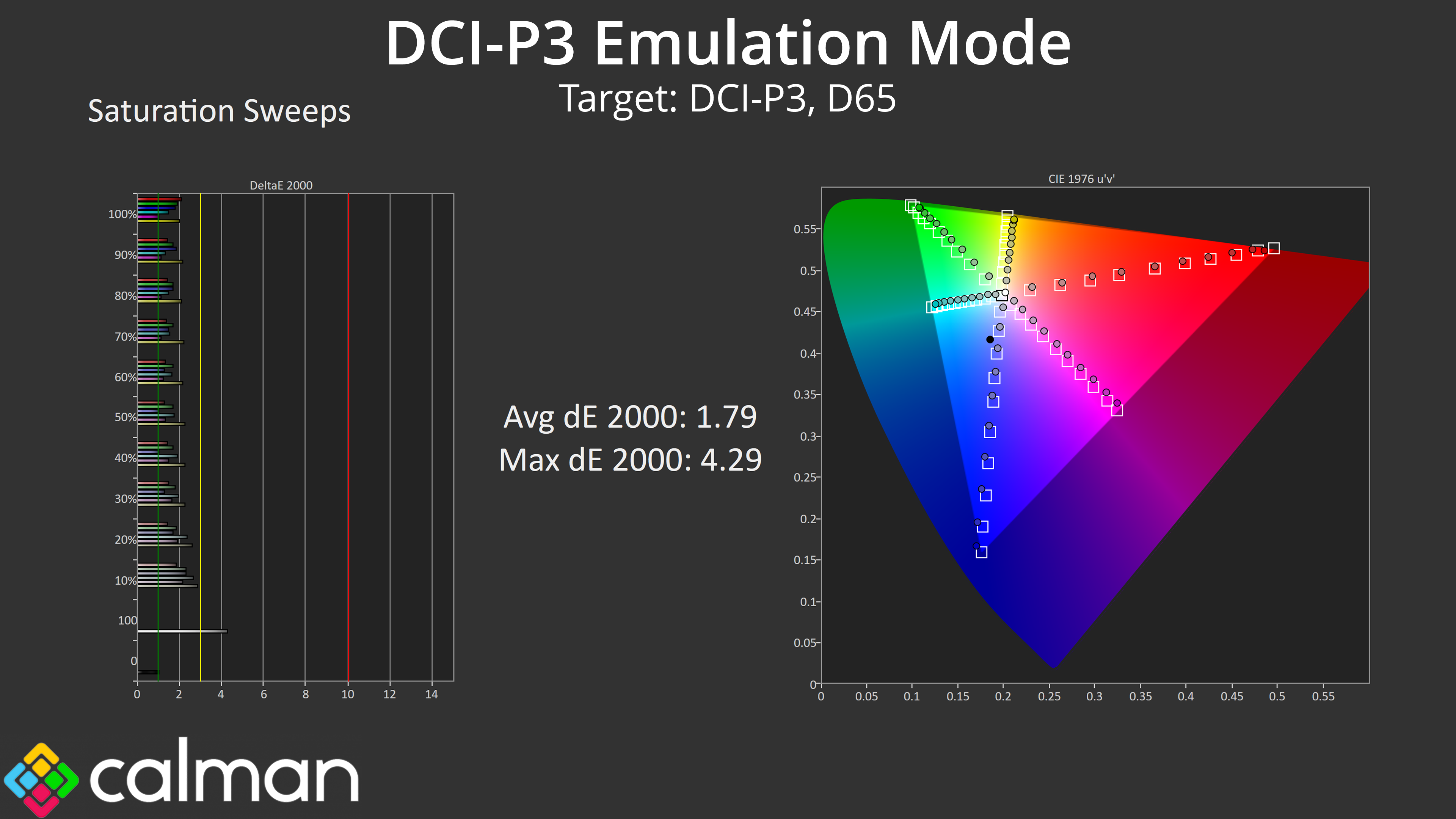
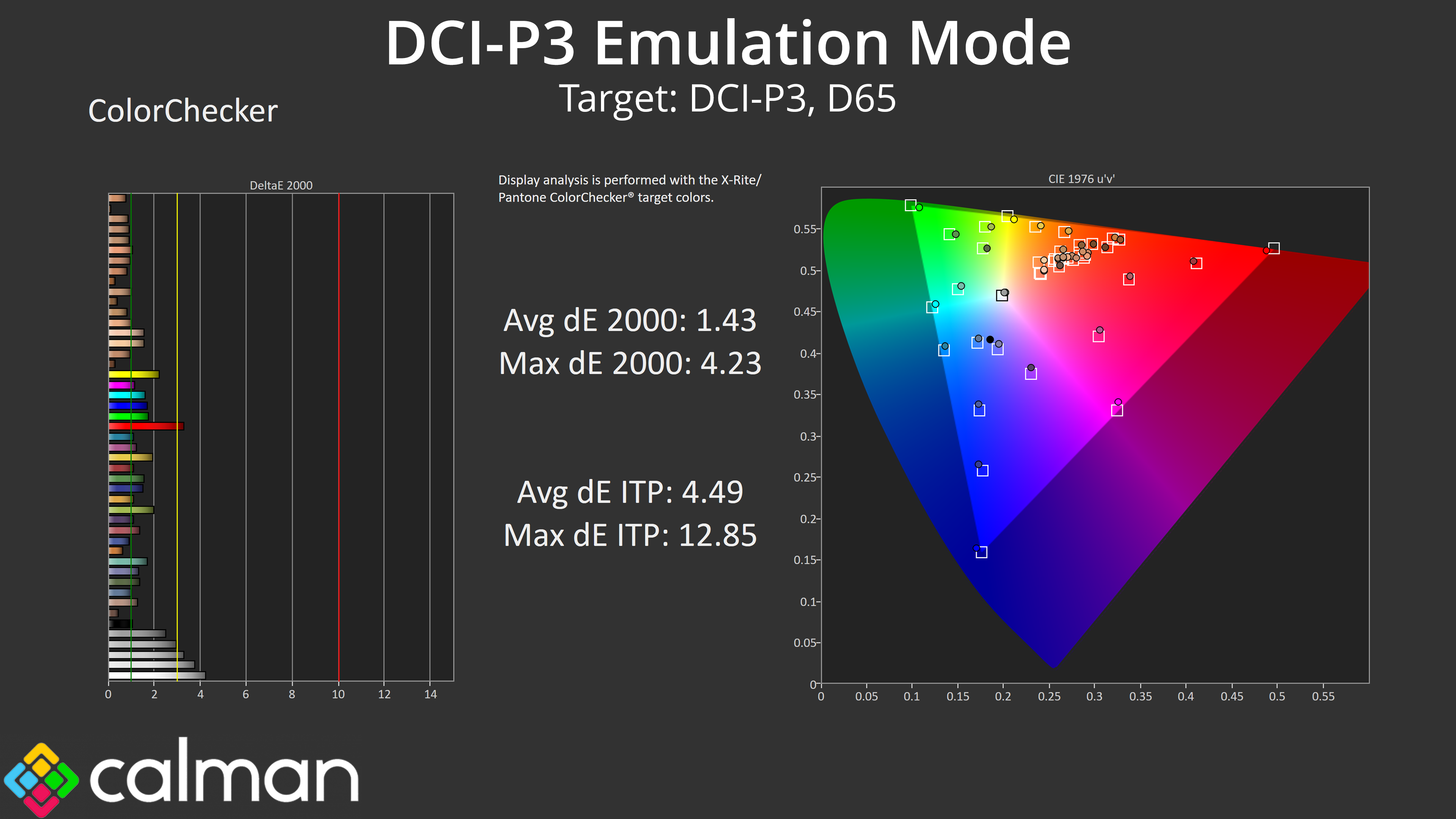
The DCI-P3 mode is arguably the best of the lot, with accurate greyscale and both saturation and colour accuracy average deltaEs below 2. I'm happy to recommend using any of these emulation modes if you need to work with these colour spaces.
One of the key features of the U32U3CV is the fact it is Calman Ready, meaning it can tap into Calman's AutoCal functionality and use 3D LUT hardware calibration, rather than relying on simpler ICC profiles.
To benefit from this you will need a Calman license, but we run through the entire AutoCal process below, so you can see every step along the way, before showing the results at the bottom.
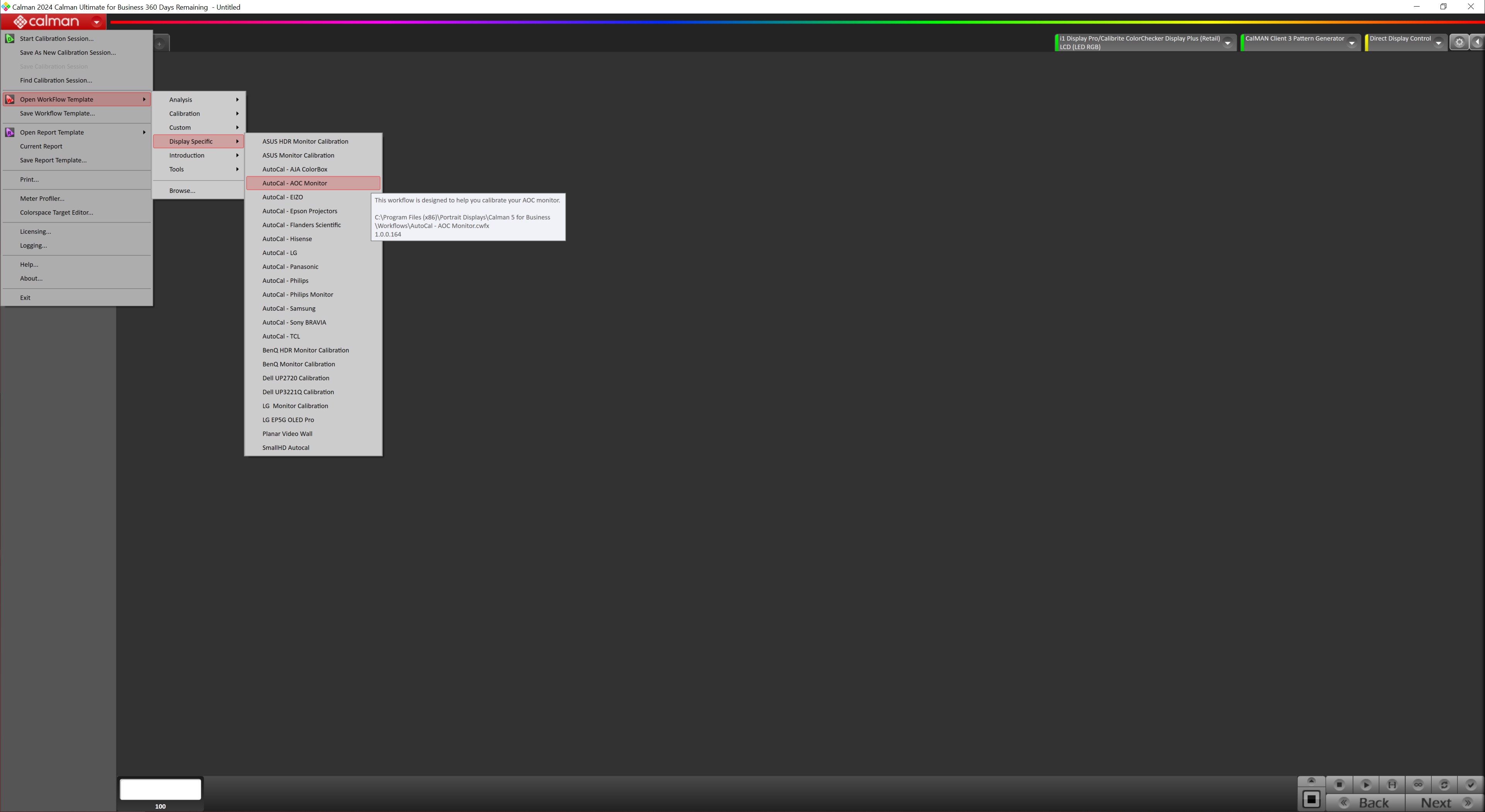
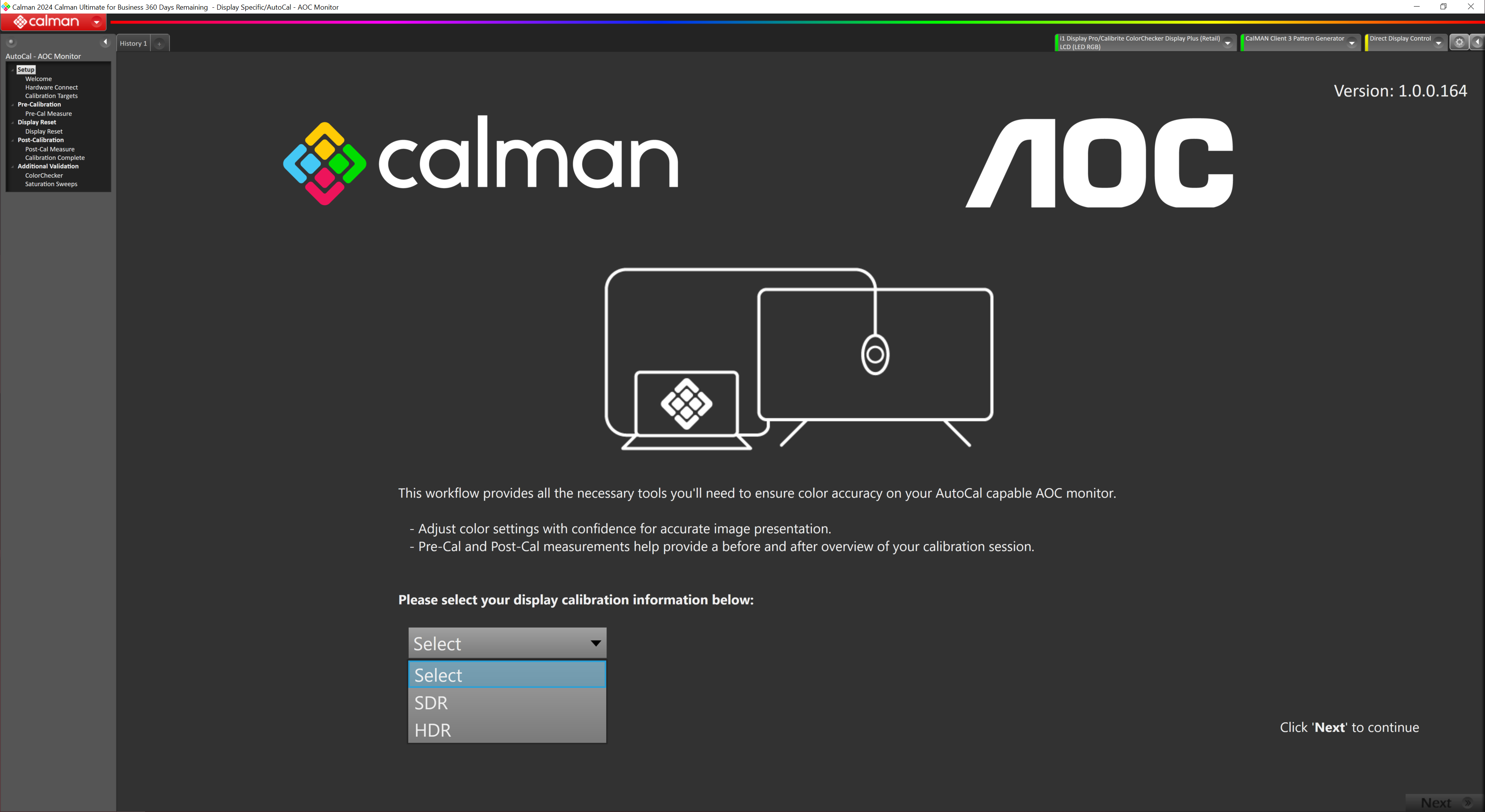
The first stage is to navigate to a display-specific workflow – calibrating an AOC monitor. You can then choose either SDR or HDR calibration.
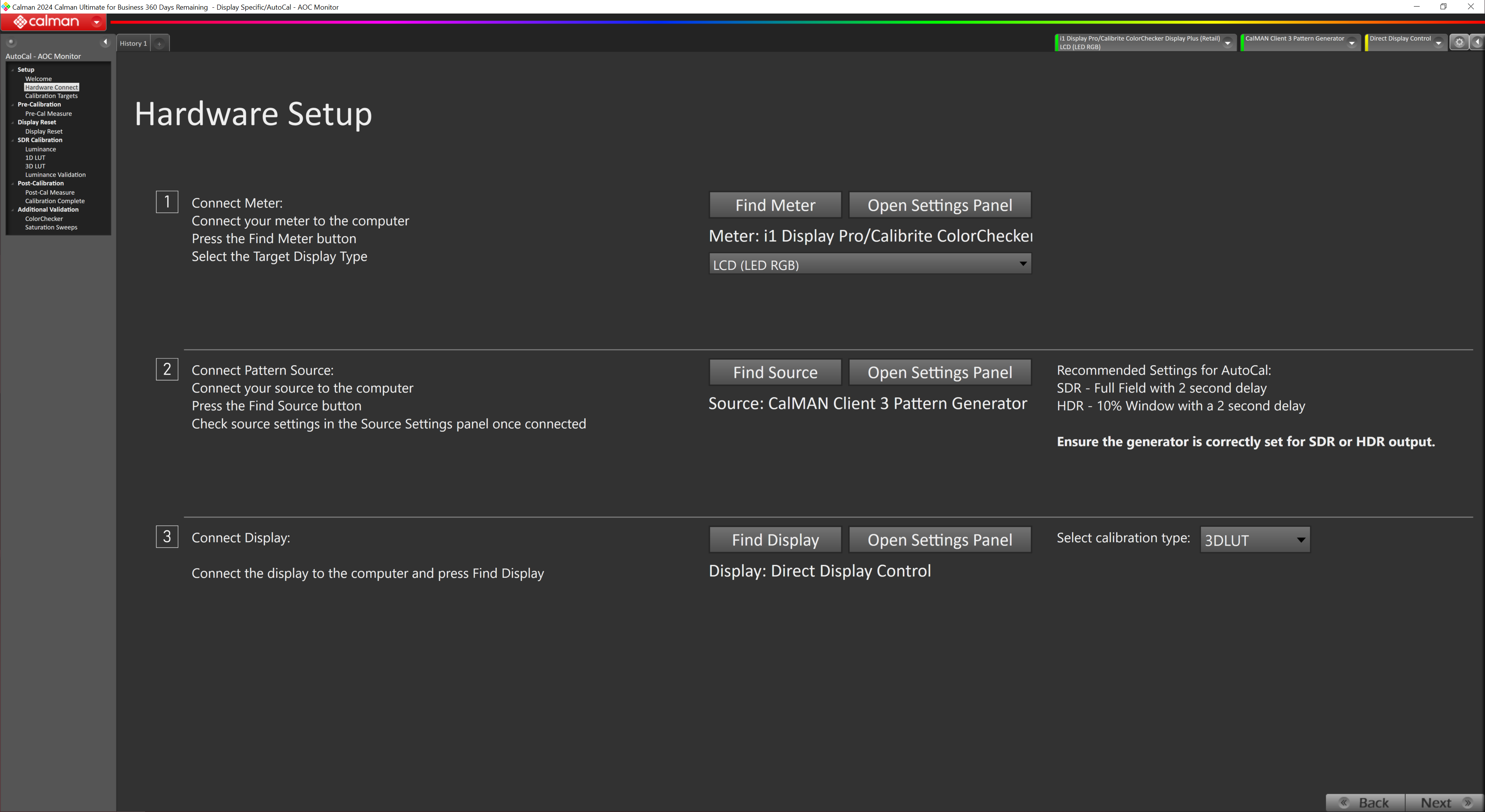
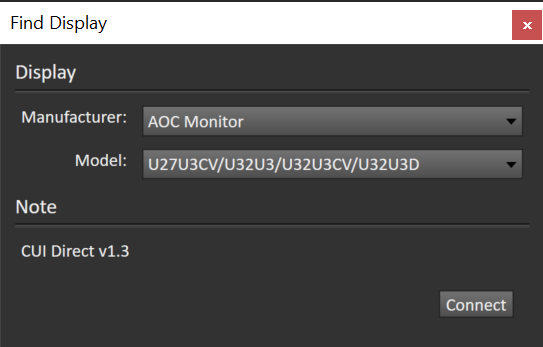
The hardware setup page ensures you have your meter and pattern generator connected – we're using the X-rite i1 Display Pro Plus and Calman Client 3, respectively. Then you have to connect to the monitor, ensuring a USB cable is hooked up from one of the U32U3CV's USB-C ports, before finding the relevant AOC models from the drop down menu.
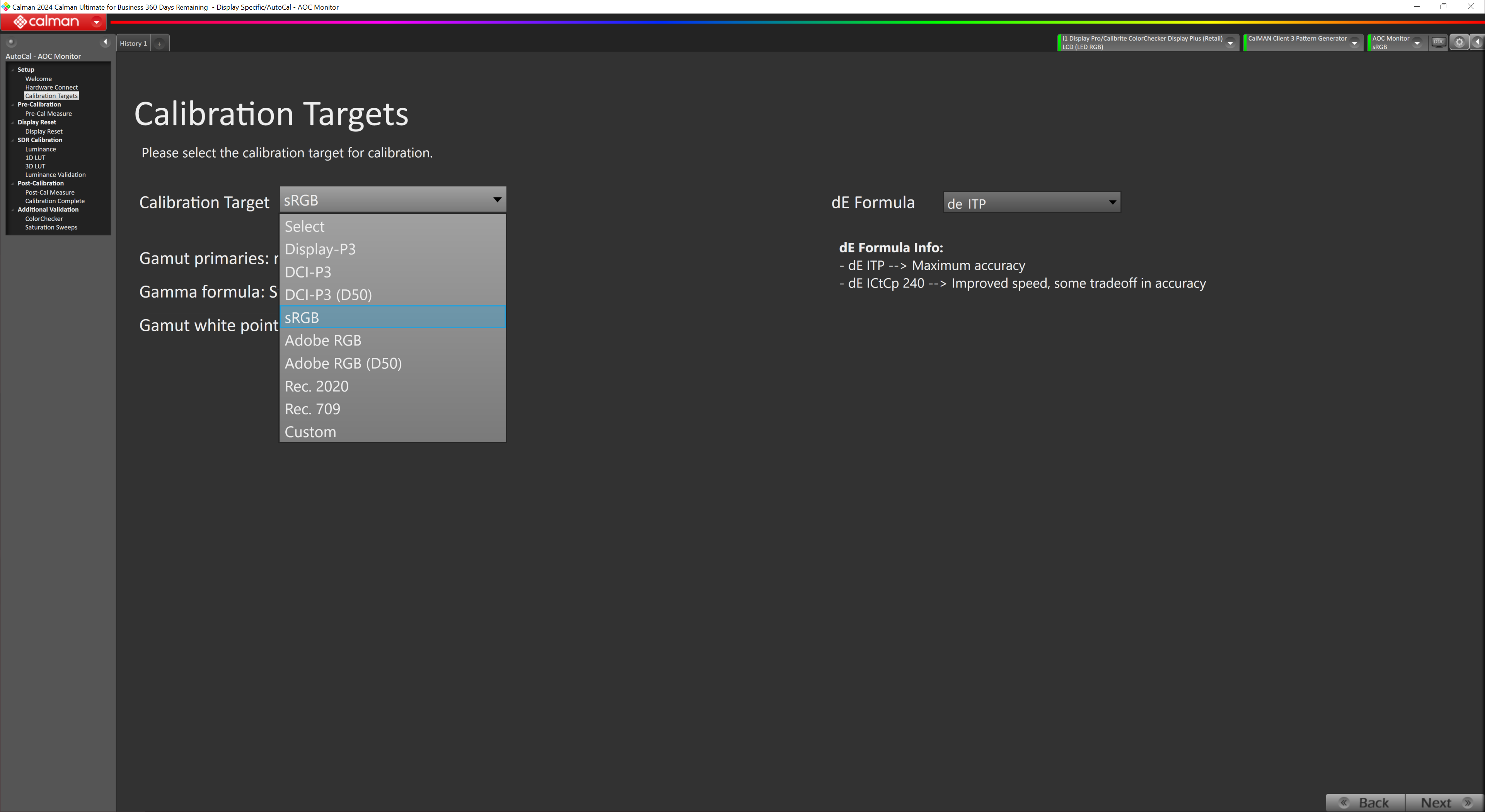
After that, you'll want to choose the calibration target. We're using sRGB for the purposes of this review.
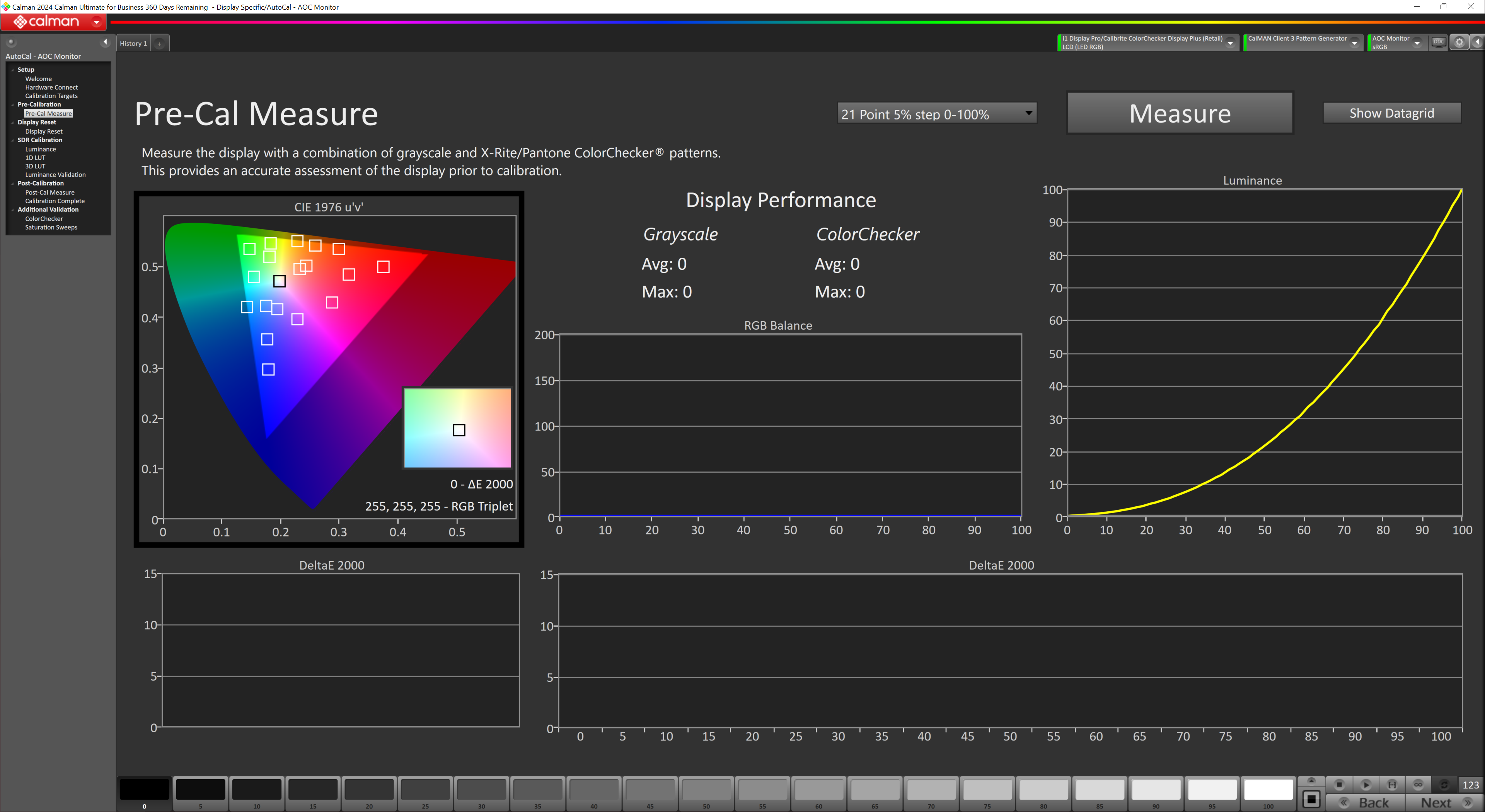
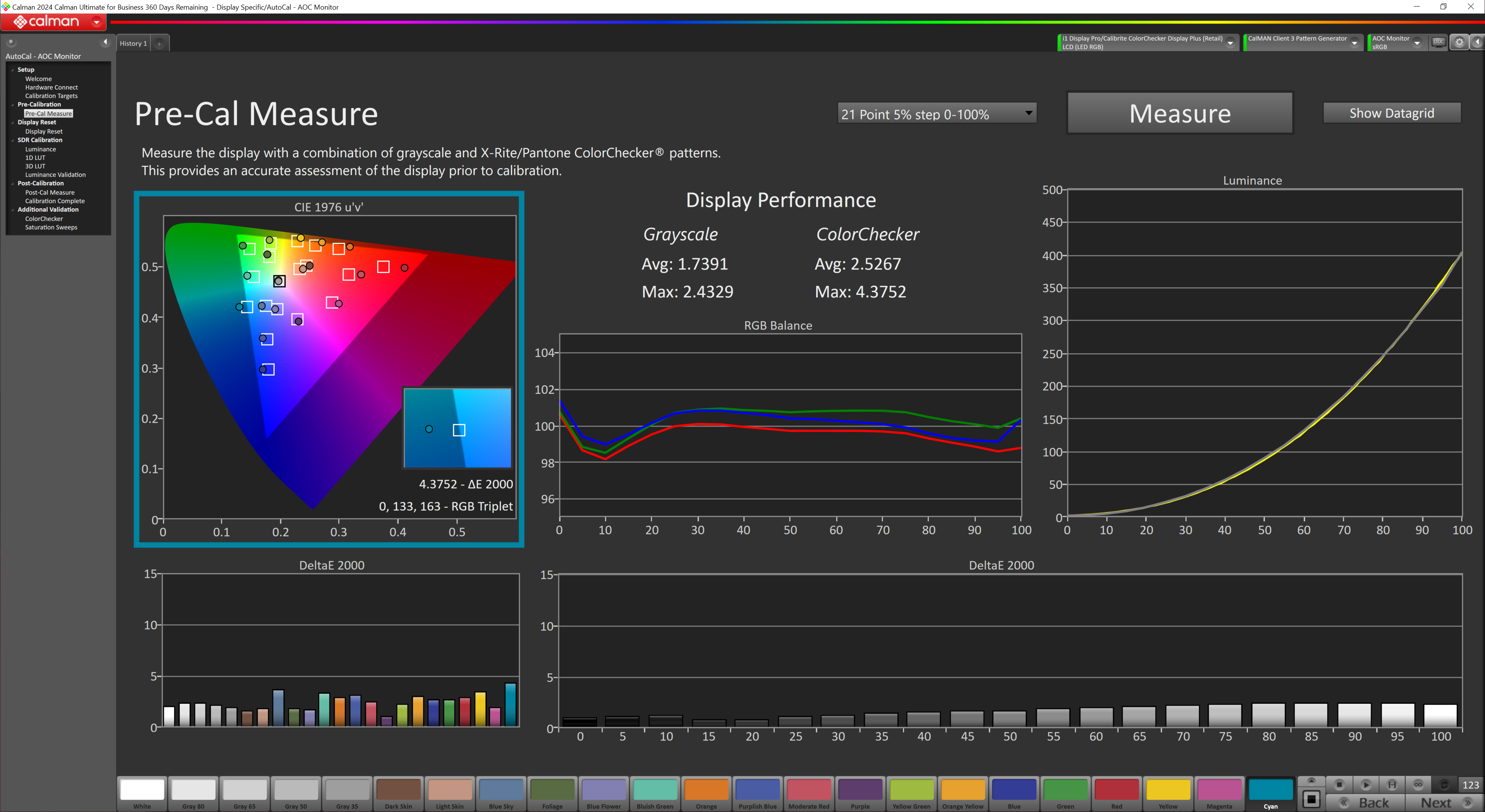
A pre-calibration measurement window will appear, and hitting the ‘measure' button gives you a look at current performance before any tweaks are made.
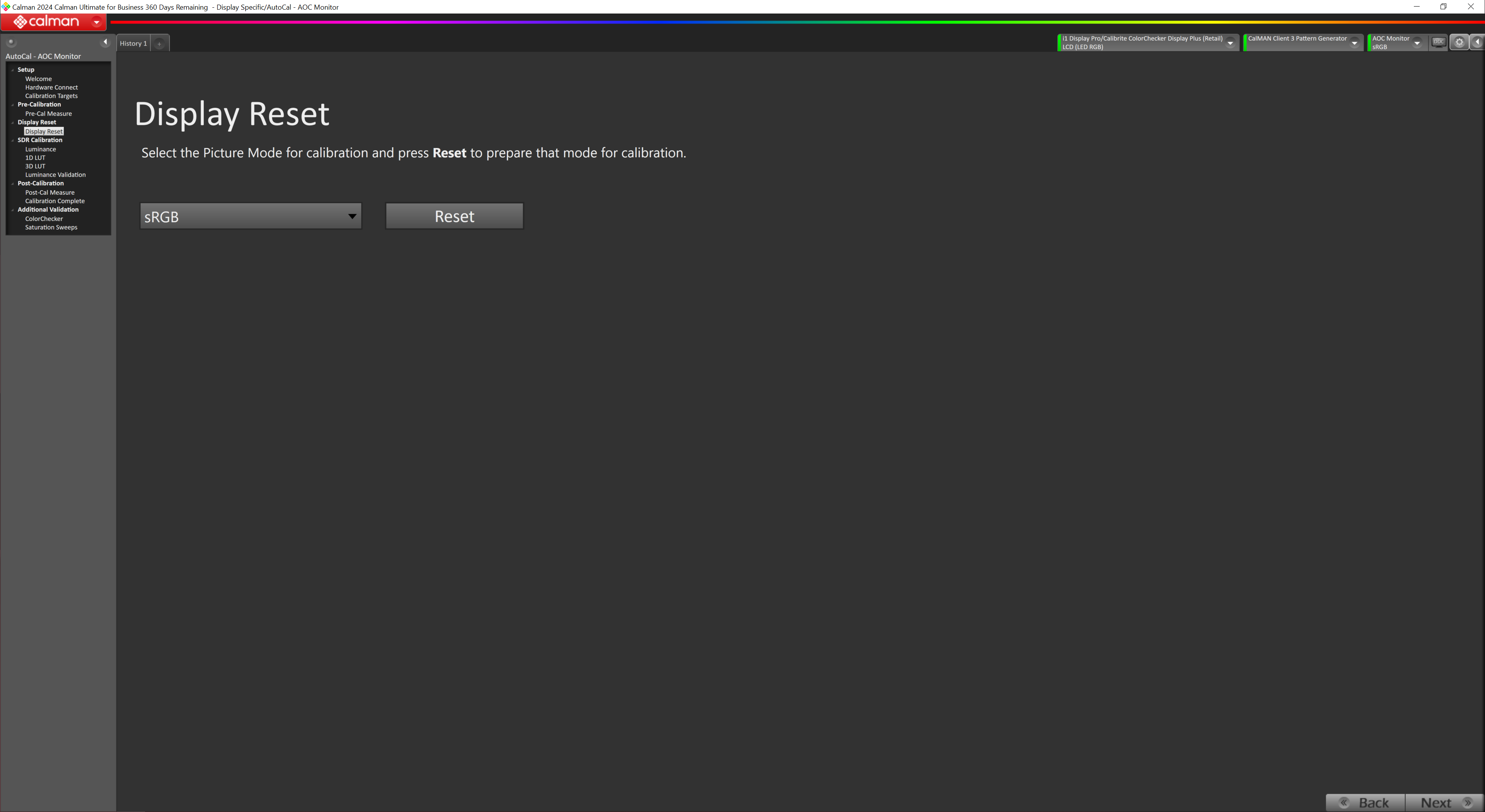
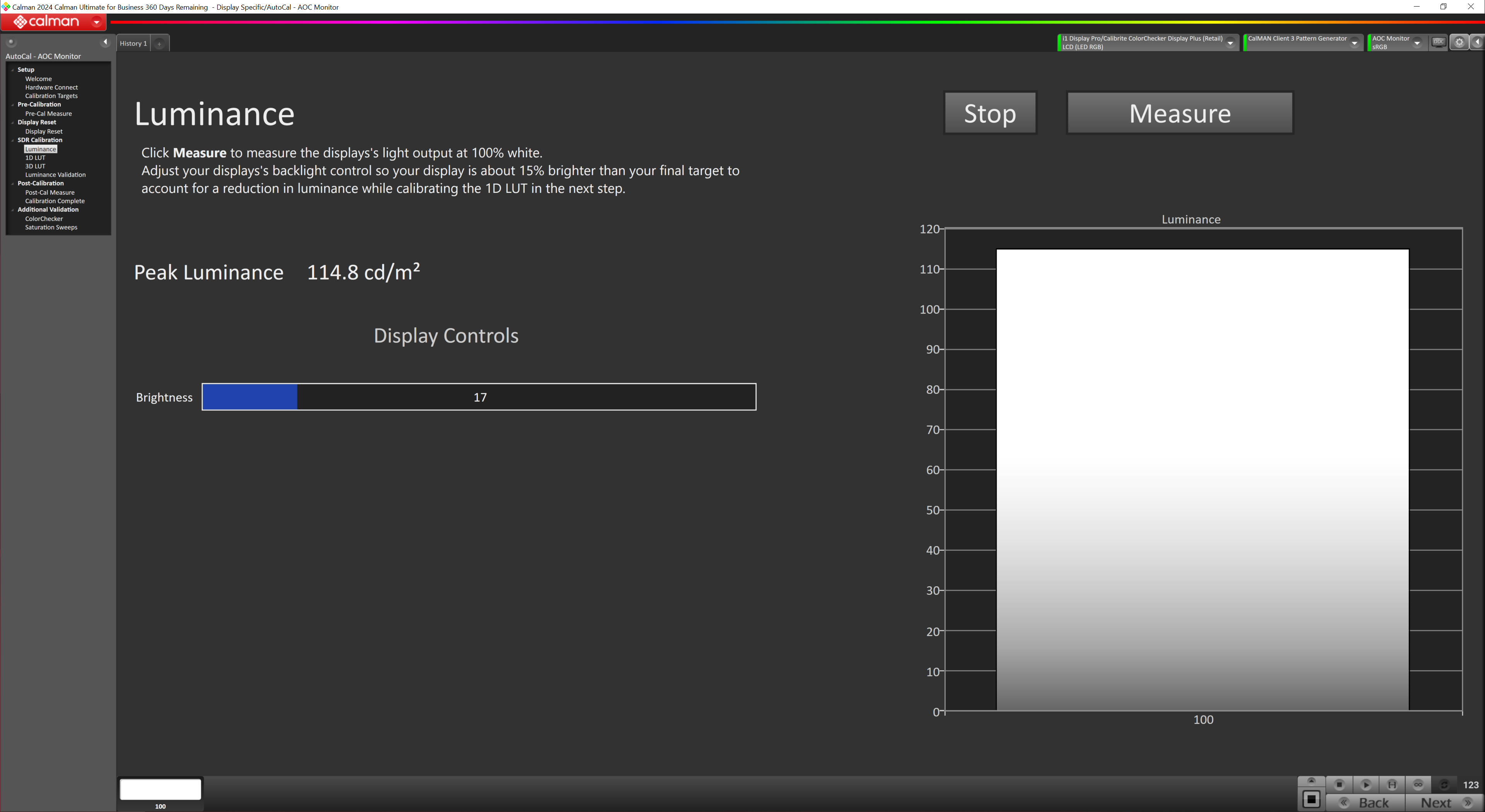
After that, the process will reset any previously saved profiles, before taking you onto the luminance verification check. Calman recommends aiming for a brightness level that's 15% above your actual target, as some brightness is lost during the calibration process.
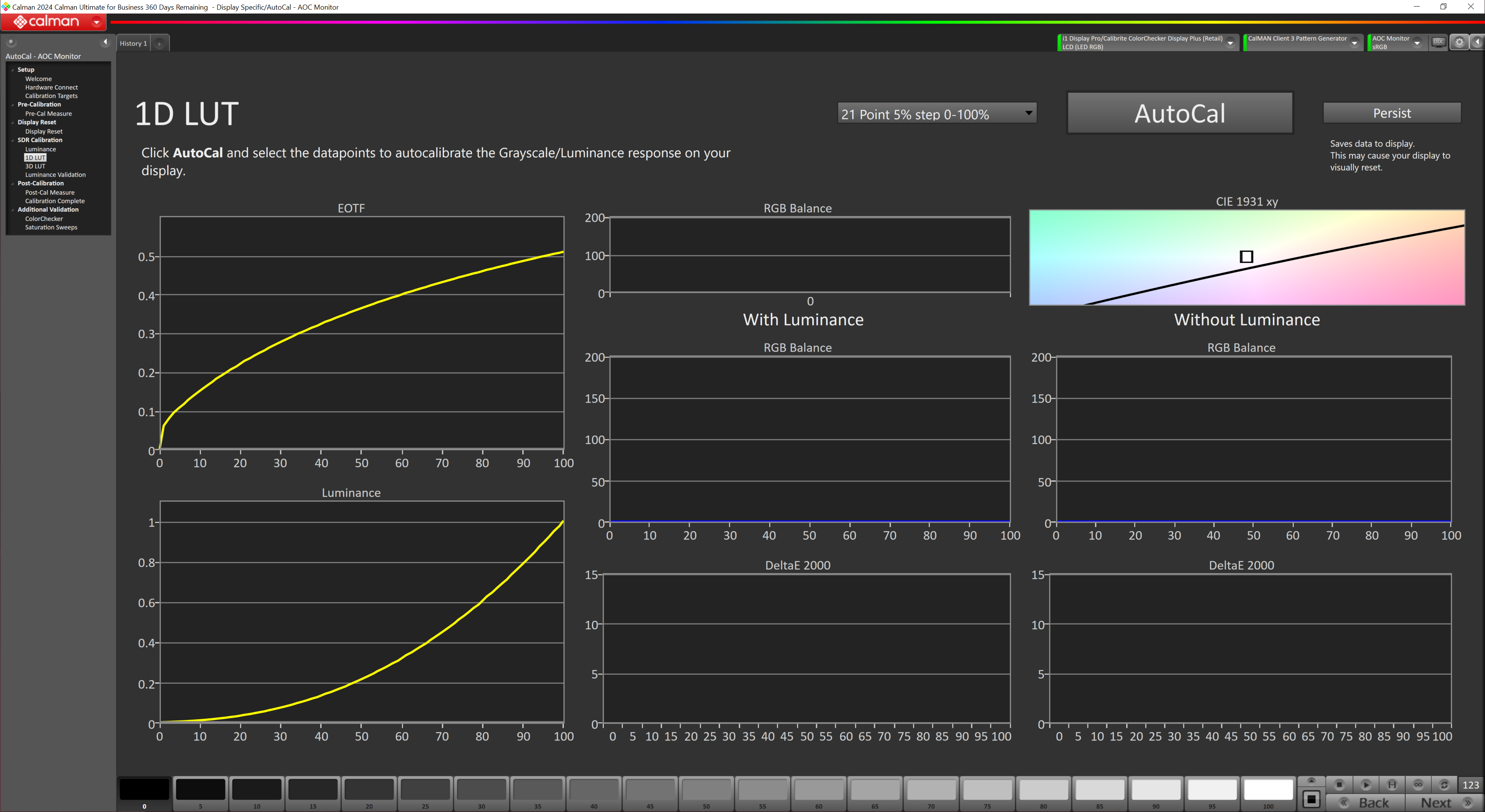
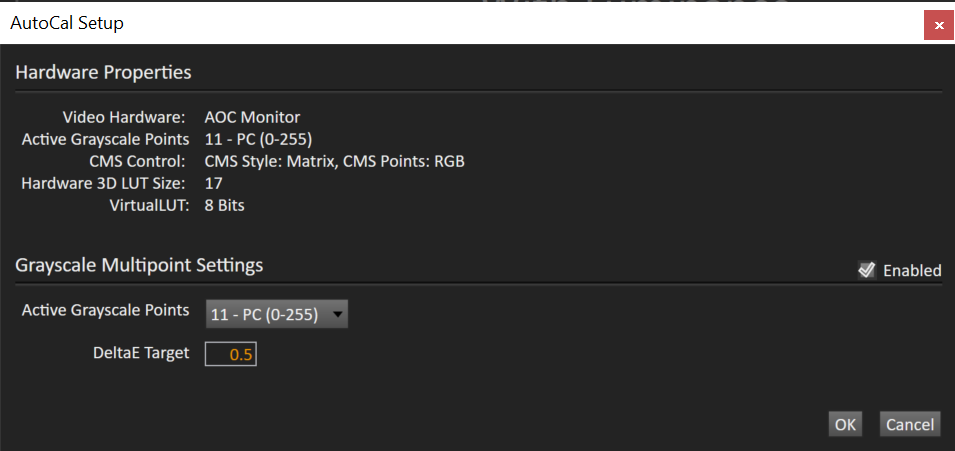
The next window brings us to the 1D LUT calibration process. Hitting the ‘AutoCal' button brings up a pop-ip window where you can choose the desired number of active greyscale points, which we left at 11, with a deltaE target of 0.5.
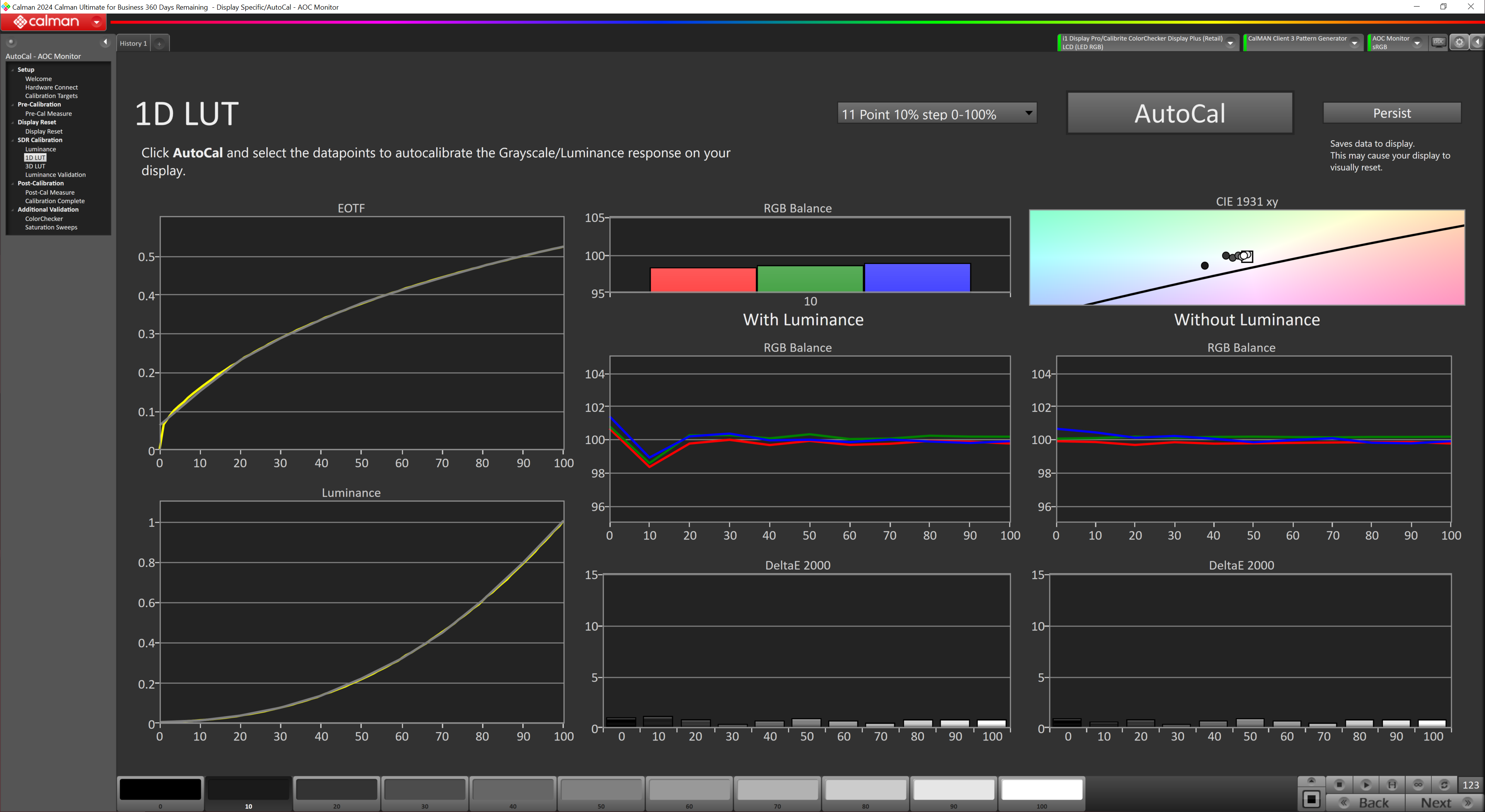
Here we can see the same 1D LUT window, but with all the results now showing on-screen.
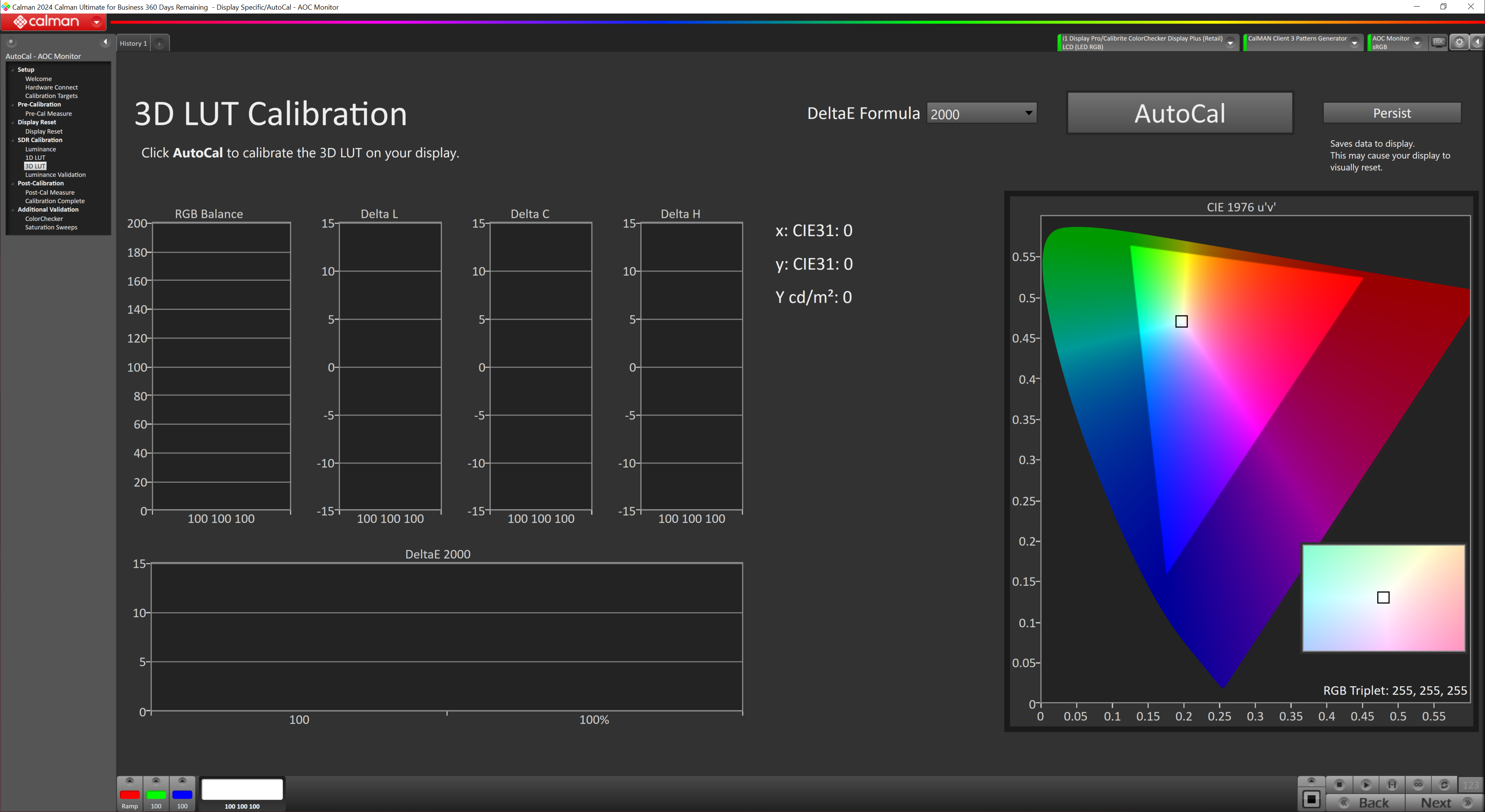
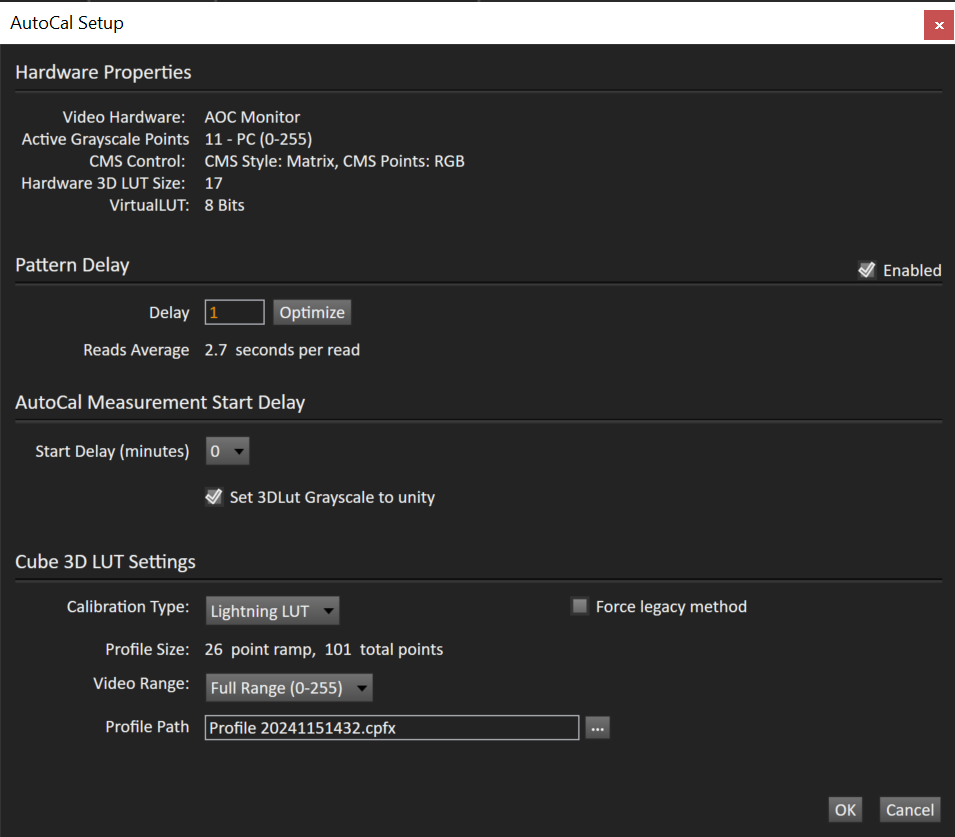
Then we move onto the 3D LUT calibration stage. Hitting ‘AutoCal' once again brings up more options to choose from in regards to the calibration type. We stuck with ‘Lightning LUT' which is fast but potentially not as accurate as the Hybrid and Fixed Grid options, but those are significantly slower.
Once the calibration process is complete, it's vital to hit the ‘Persist' button, otherwise the calibration is not saved to the display. I learned this the hard way and had to repeat the process!
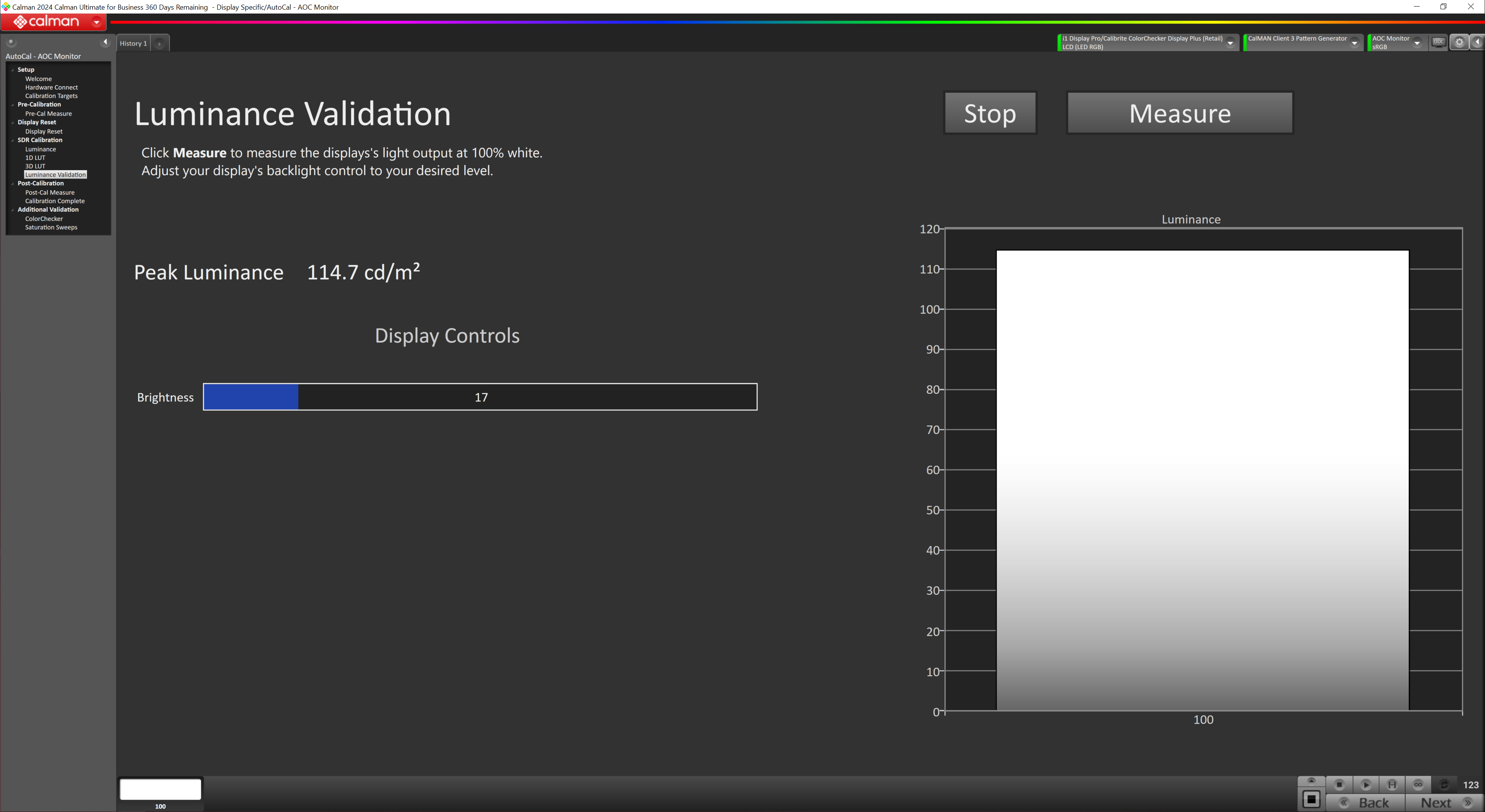
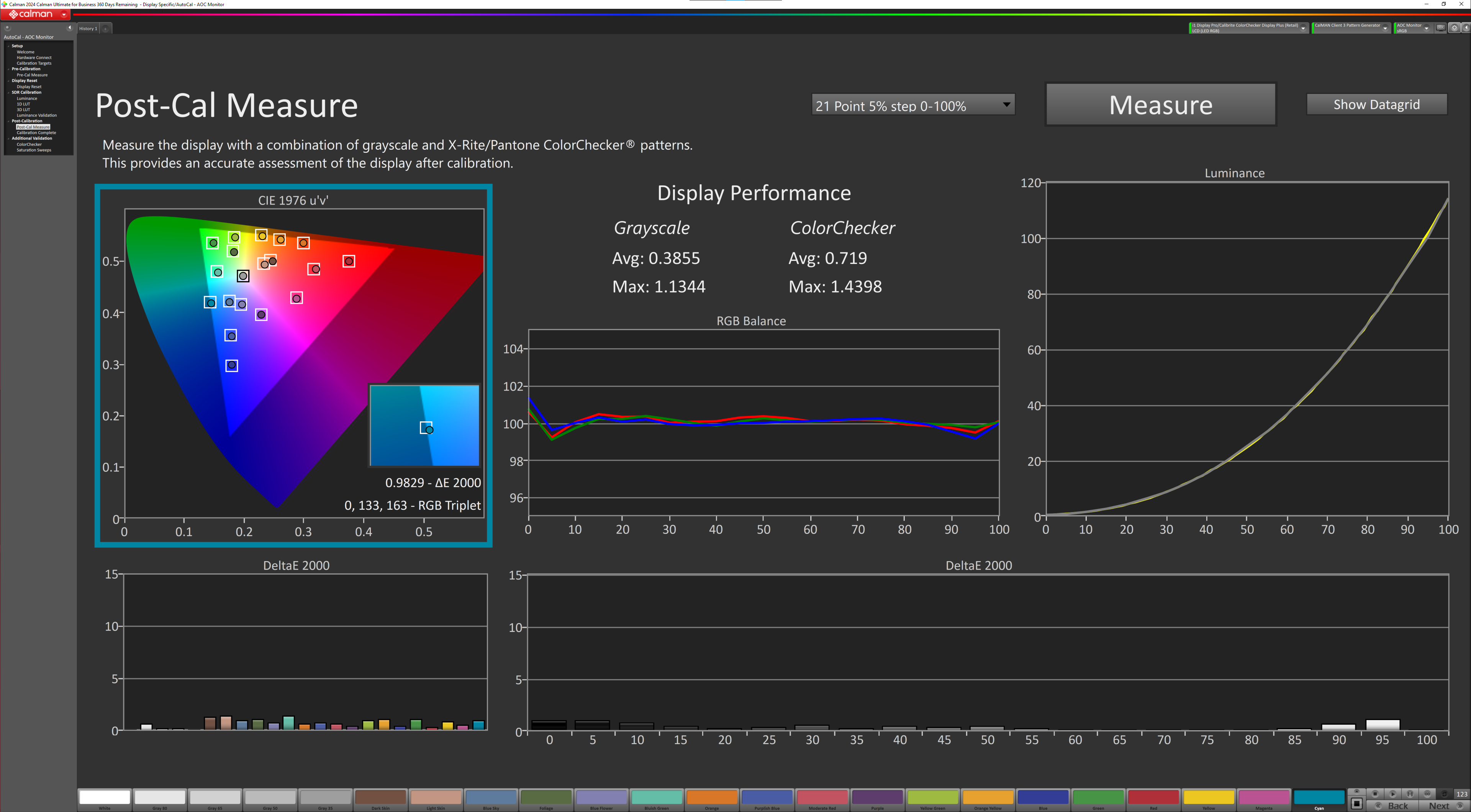
Once the calibration is saved, you can verify luminance once again, and then do a post-calibration measurement which already shows a big improvement compared to the pre-calibration measurement shown above.
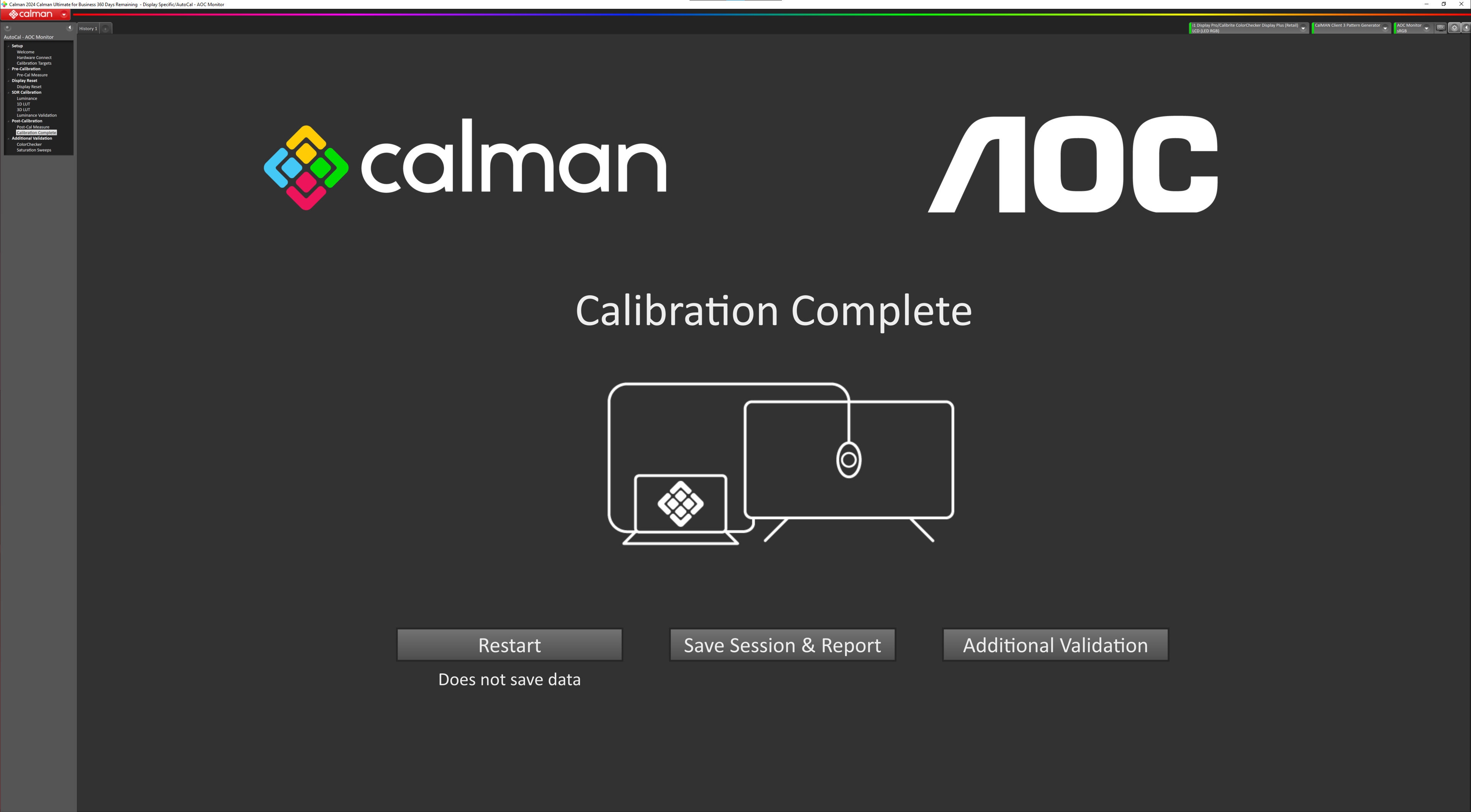
And that's it! You can now save the calibration workflow and generate a report if you wish, or Calman includes some addition verification functionality built in.
Instead, I'm going to run over my four main tests below – gamut, greyscale, saturation sweeps and colour accuracy.
Calibrated Results
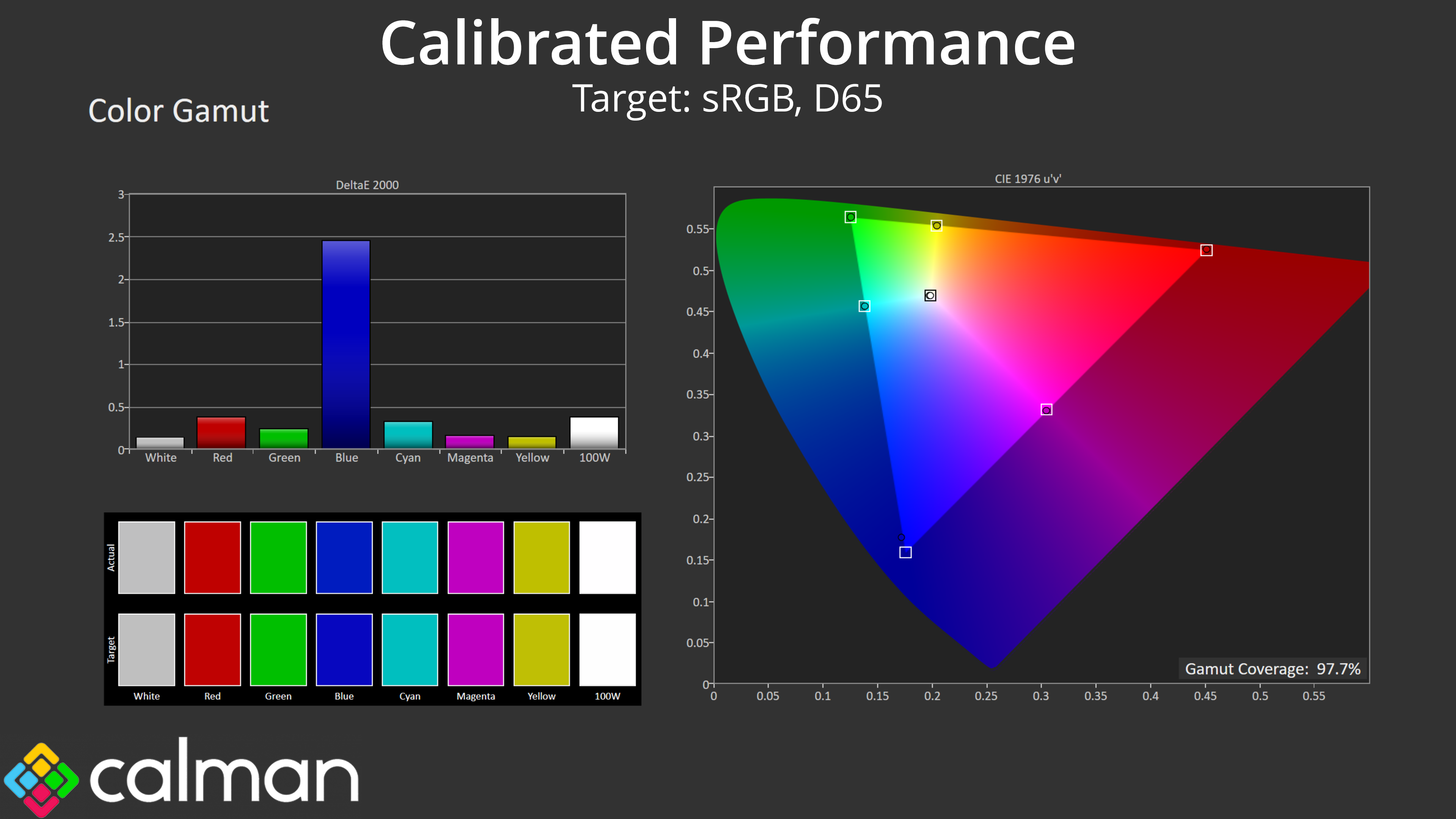
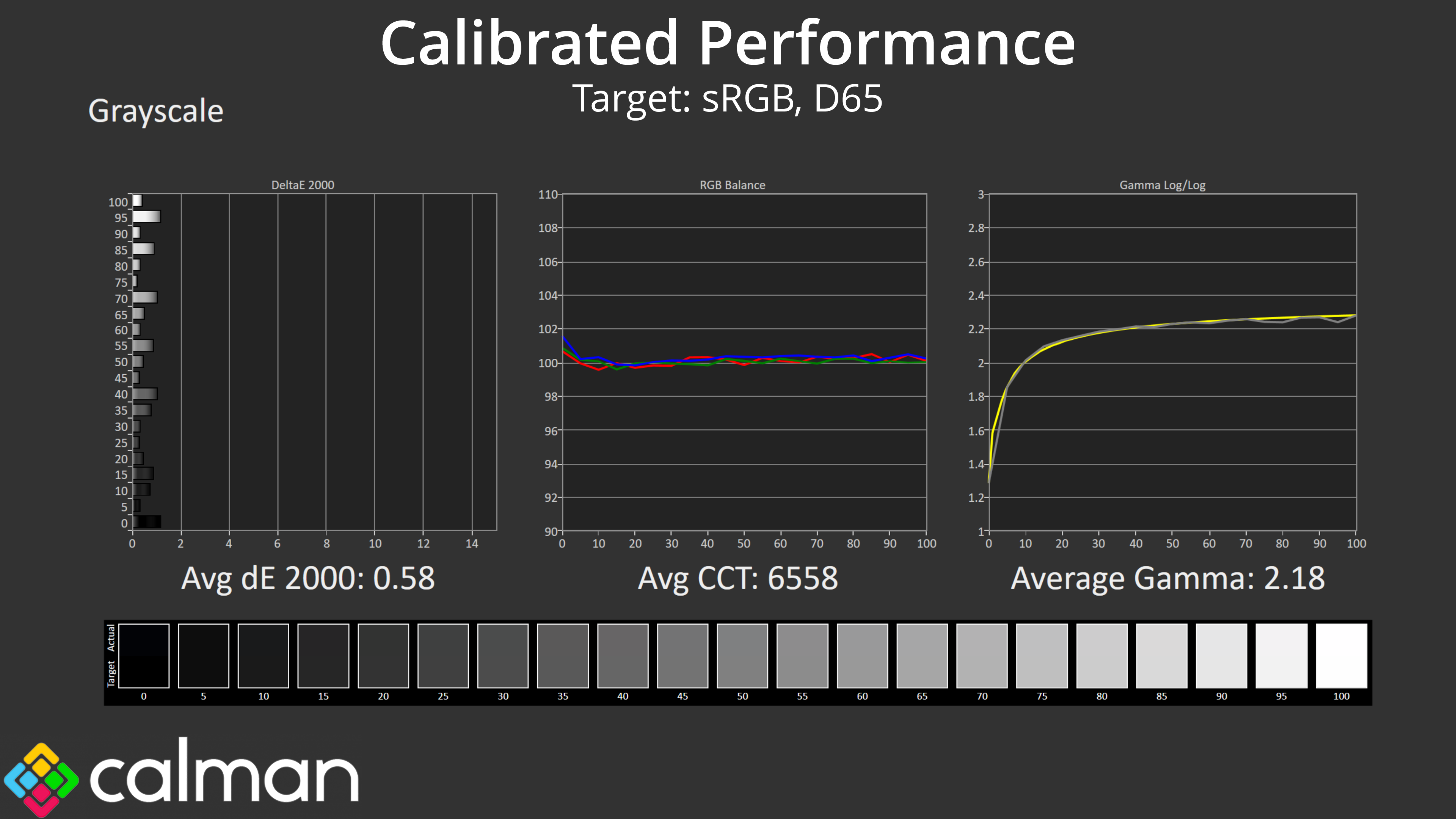
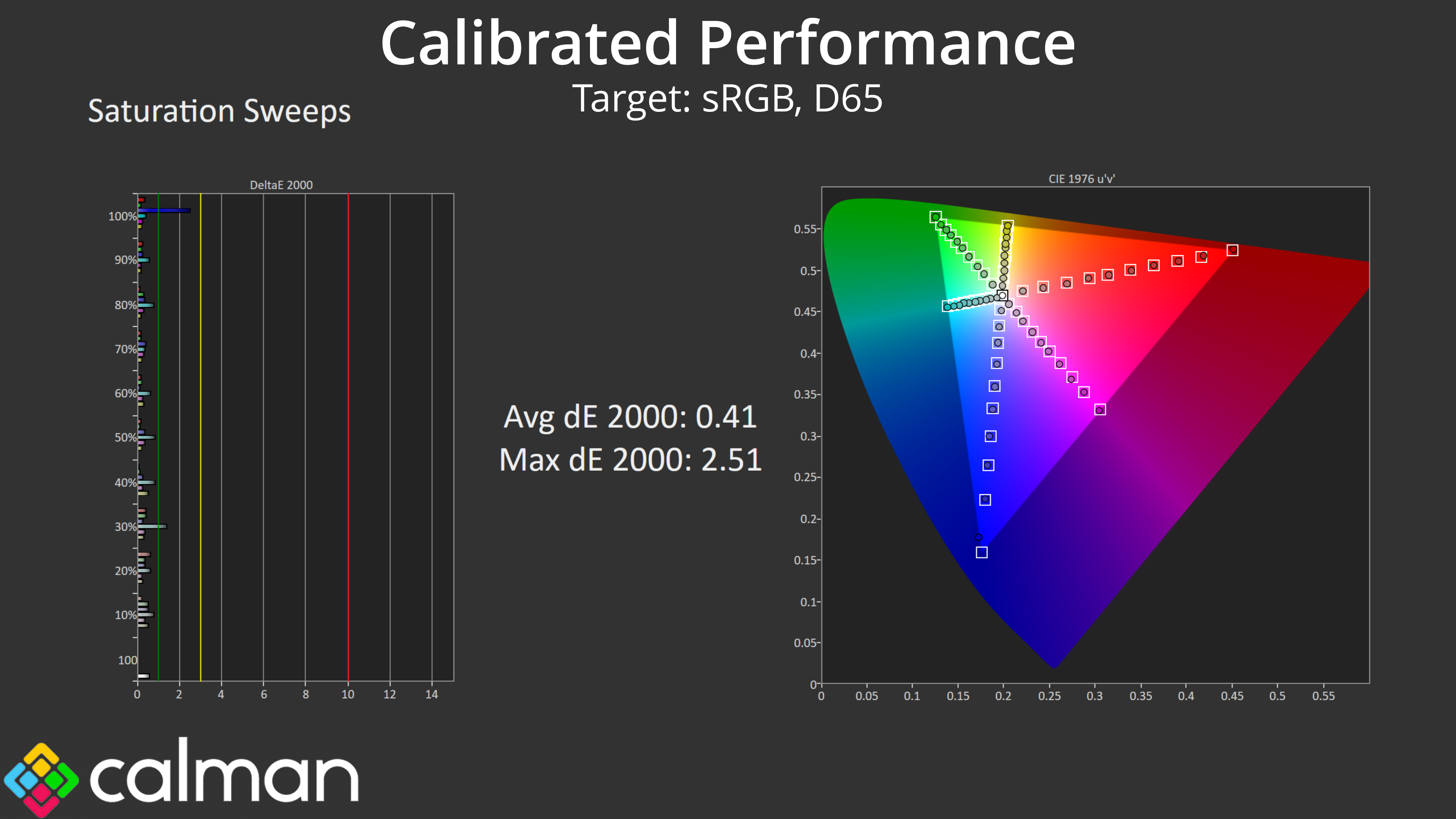
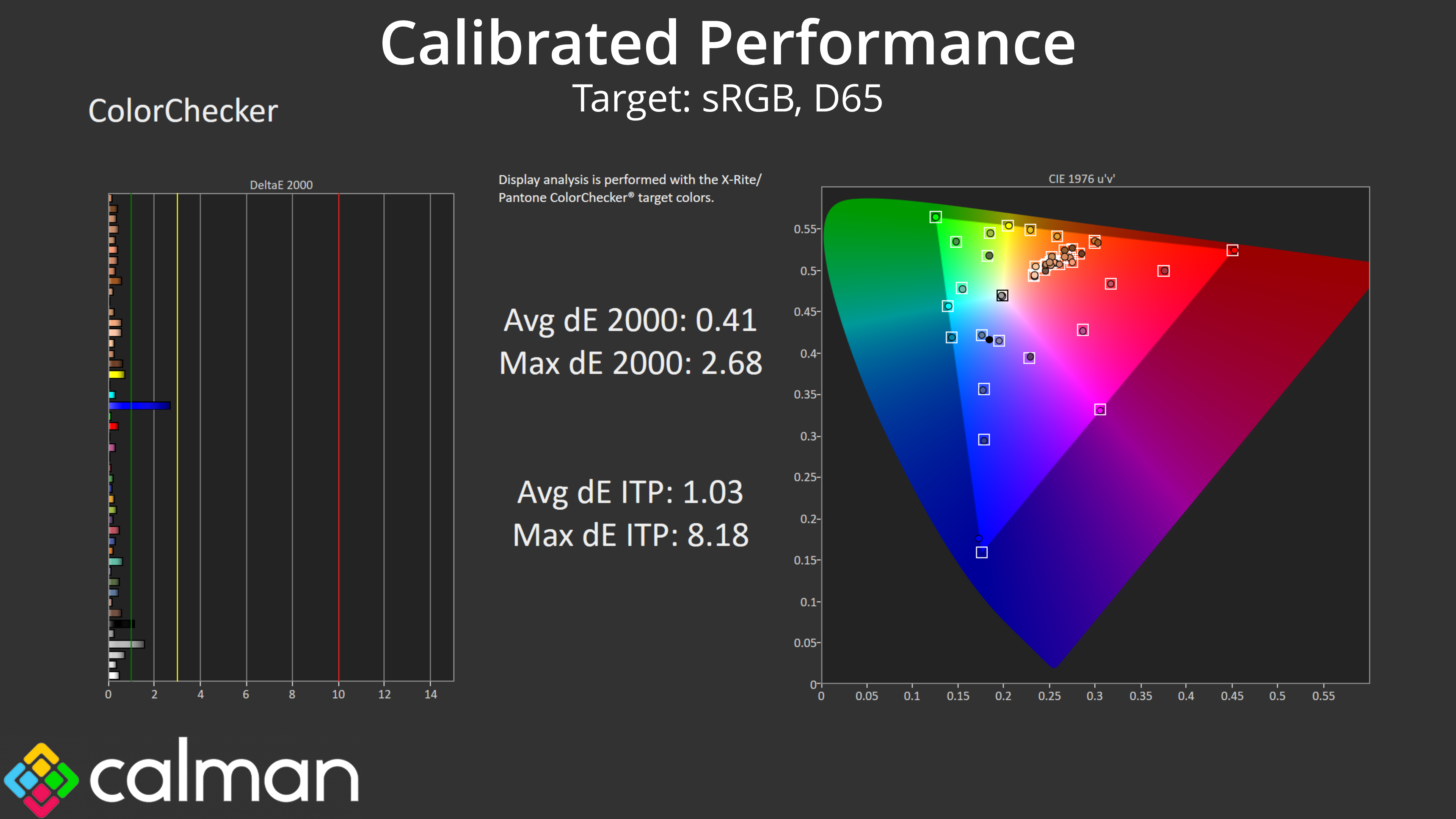
As you can see, the calibration results are generally stellar. The 100% blue channel didn't lock in quite as well as the rest, but an average deltaE 2000 of just 0.41 is still astonishing for the colour accuracy test. Greyscale performance is also about as close to perfect as you can get, so we're very happy with these results.
Monitor response time testing is a new addition to our reviews, where we use the Open Source Response Time Tool (OSRTT), developed by TechTeamGB. This measures grey-to-grey response times and presents the results in a series of heatmaps, the style of which you may be familiar with from other reviews.
Initial Response Time is the time taken for the panel to transition from one colour to another, where lower values are better. We present the initial response time, so overshoot is not taken into account and is measured separately. We use a fixed RGB 5 tolerance for each transition.
Overshoot is the term given for when a monitor's transition exceeds or goes beyond its target value. So if a monitor was meant to transition from RGB 0 to RGB 55, but it hits RGB 60 before settling back down at RGB 55, that is overshoot. This is presented as RGB values in the heatmaps – i.e. how many RGB values past the intended target were measured.
Visual Response Rating is a metric designed to ‘score' a panel's visual performance, incorporating both response times and overdrive. Fast response times with little to no overshoot will score well, while slow response times or those with significant overshoot will score poorly.
We test the U32U3CV at 60Hz, using all four of the overdrive settings found within the OSD.
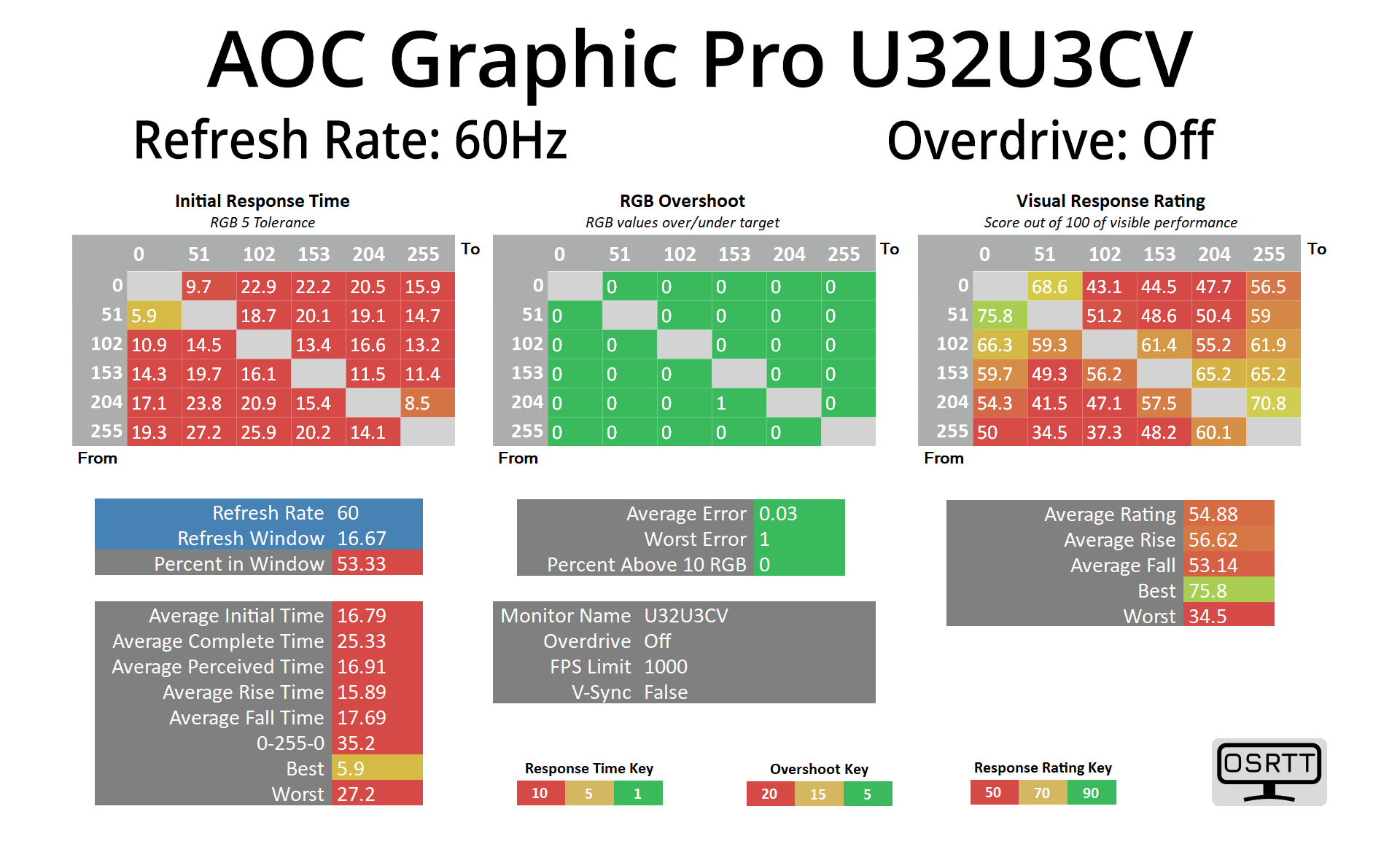
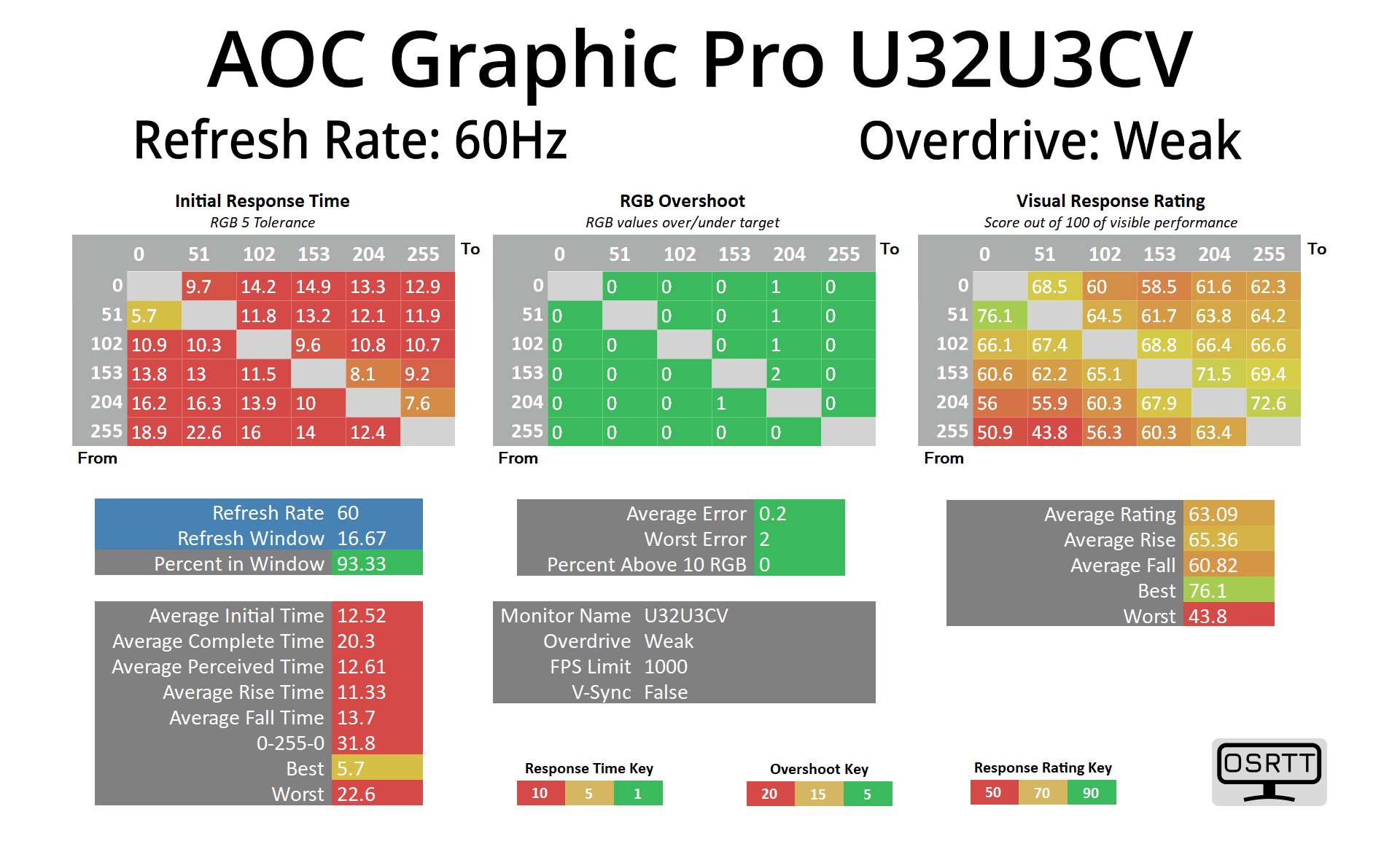
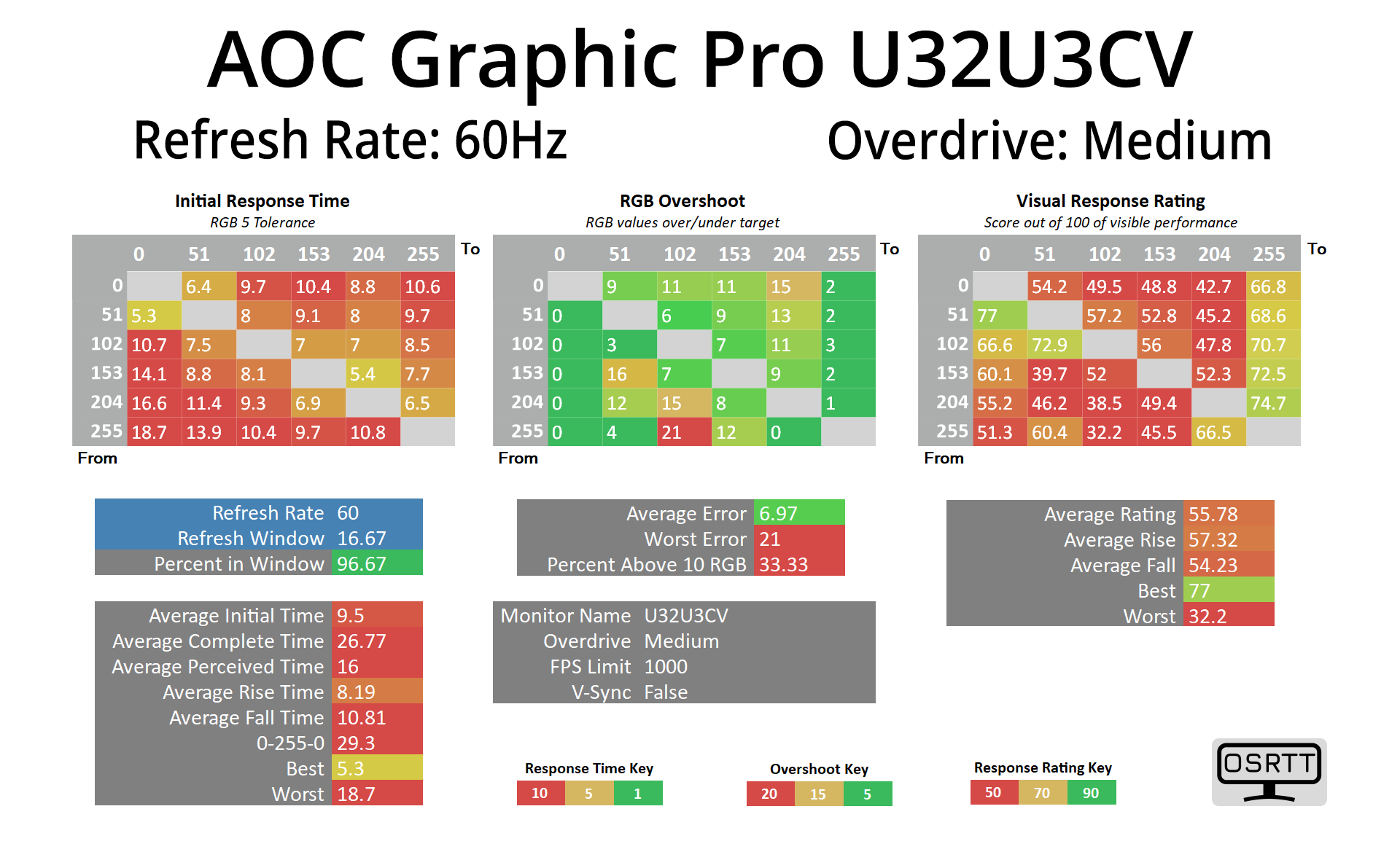
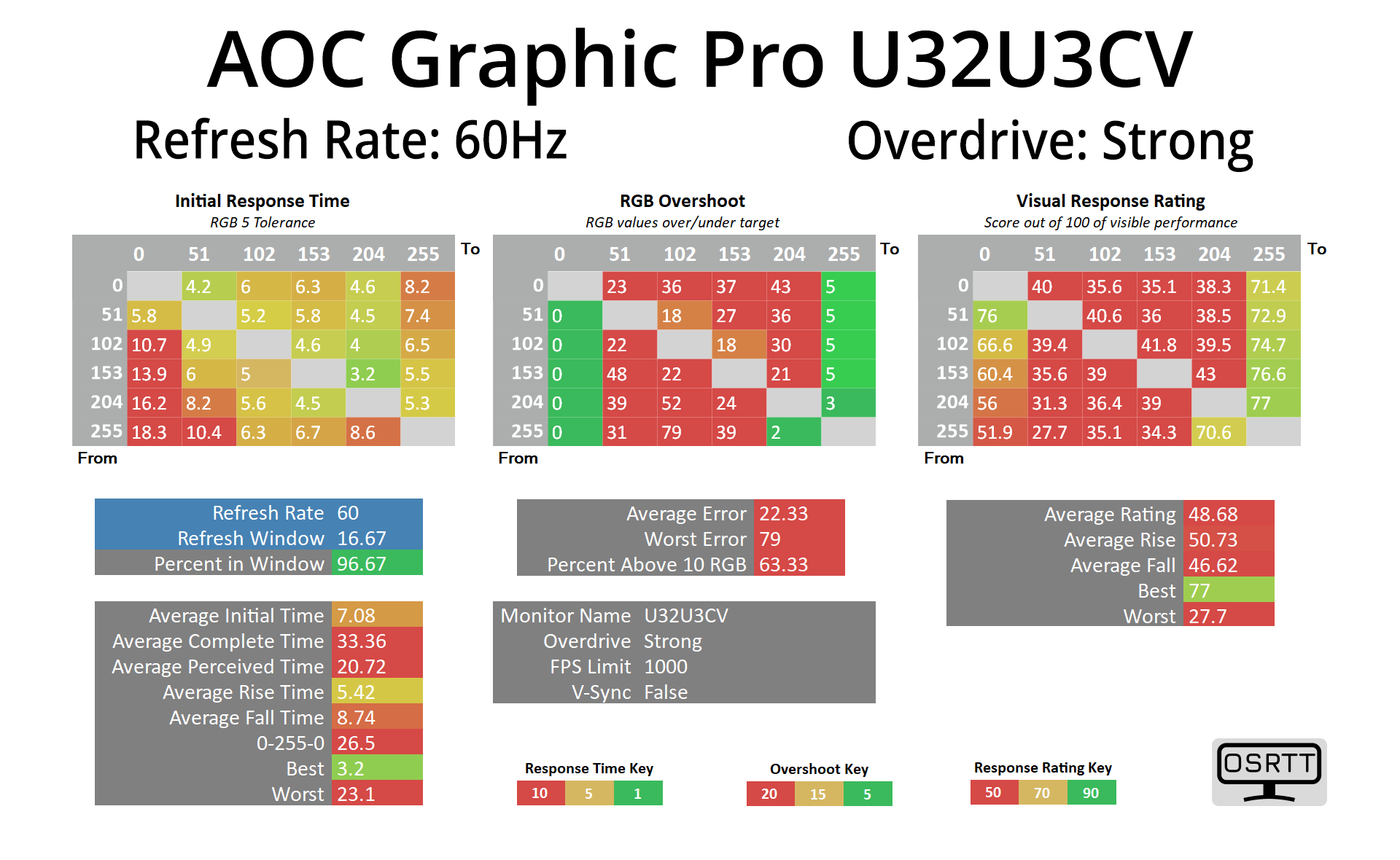
I won't focus too heavily on the results here as the U32U3CV is obviously a pro-grade monitor and not a gaming screen. With that in mind, the slow response times aren't really a big deal, though we can recommend the Medium overdrive mode which delivers the best results, falling well within the 16.67ms window for the 60Hz refresh.
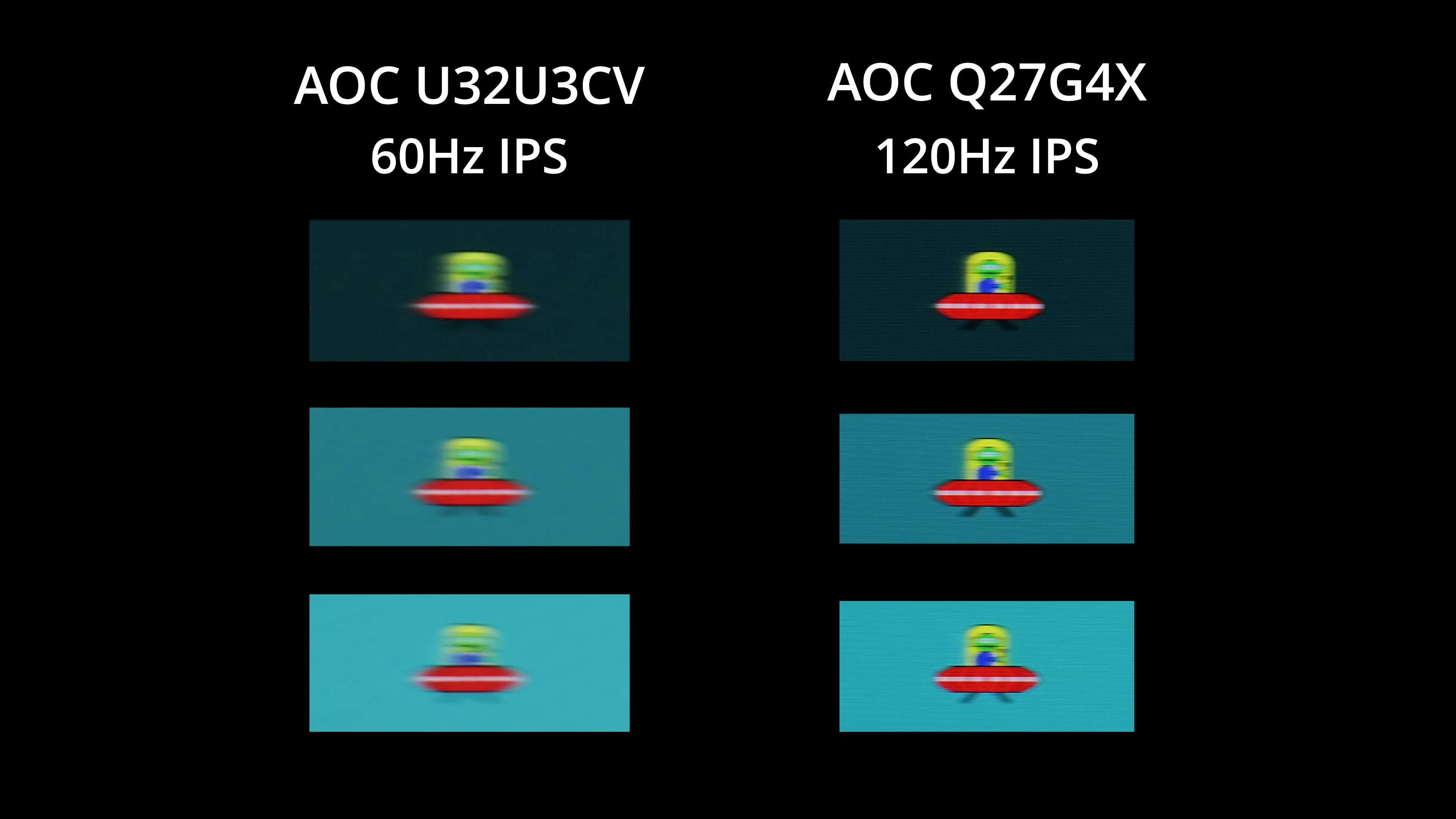
I've also included this motion clarity example, just as we did in the ProArt PA27JCV review. We're comparing the U32U3CV to the AOC Q27G4X, a budget 1440p 180Hz IPS screen which I ran at 120Hz for the purposes of this test.
As you can see, there is a fair amount of motion blur visible from the U32U3CV, as we'd expect considering the 60Hz refresh rate. It's not hard to see that the Q27G4X looks substantially clearer. Of course, you can argue as to whether or not a professional screen like the Graphic Pro U32U3CV needs a refresh above 60Hz, and it may not be a factor for many considering this type of screen. Most pro-grade screens that offer a 120Hz refresh rate will be significantly more expensive too, but we thought it was worth including the comparison so you can make your own decision.
We again use the Open Source Response Time Tool (OSRTT), developed by TechTeamGB, to report monitor input latency.
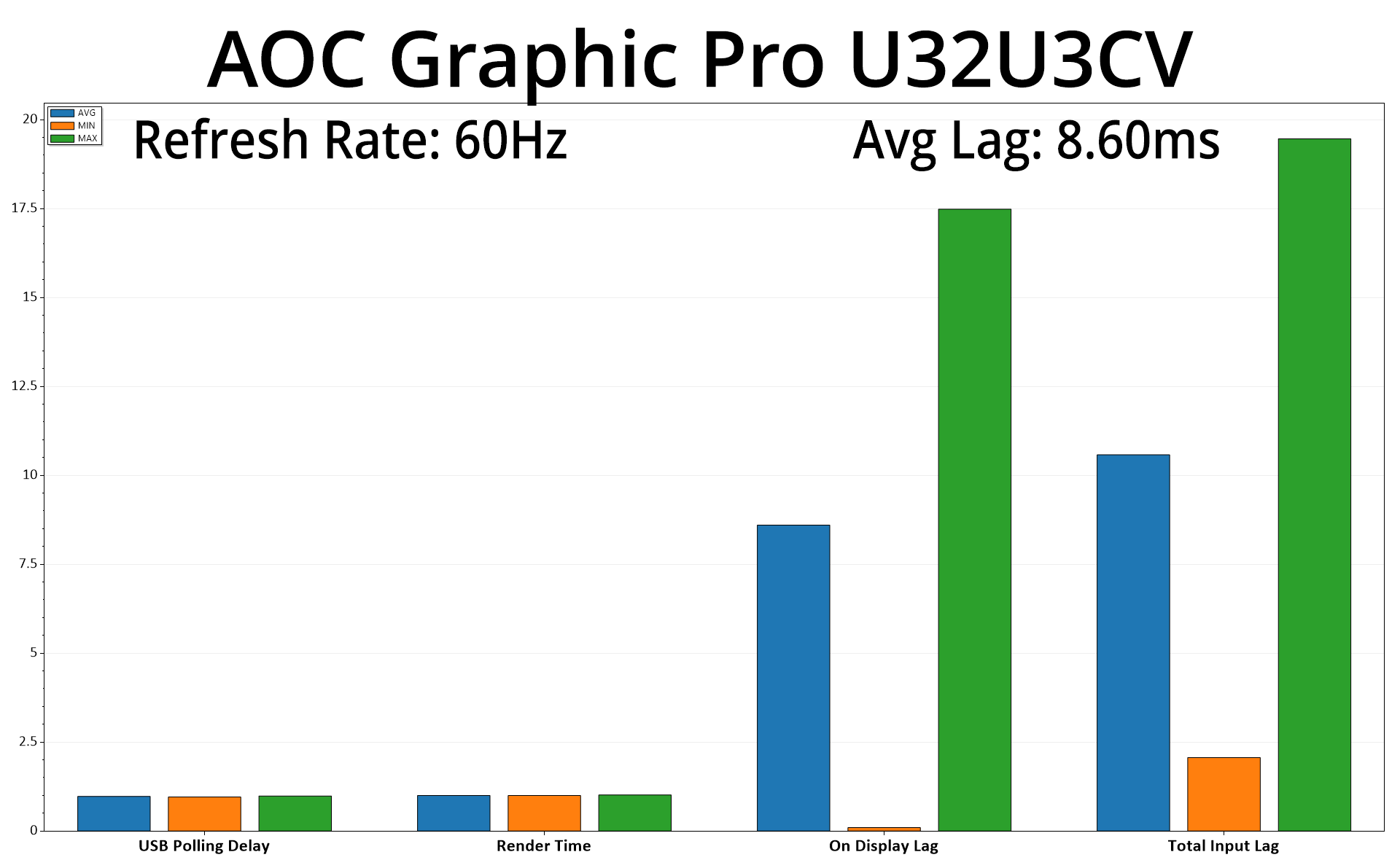
Input latency is no problem. 8.6ms may sound quite high compared to almost all of the gaming screens we test, but those typically have much higher refresh rates than the 60Hz panel found here. Even so, the 8.6ms figure is still roughly half a frame at 60Hz, so it's really not a problem, and about the same as the ProArt PA27JCV.
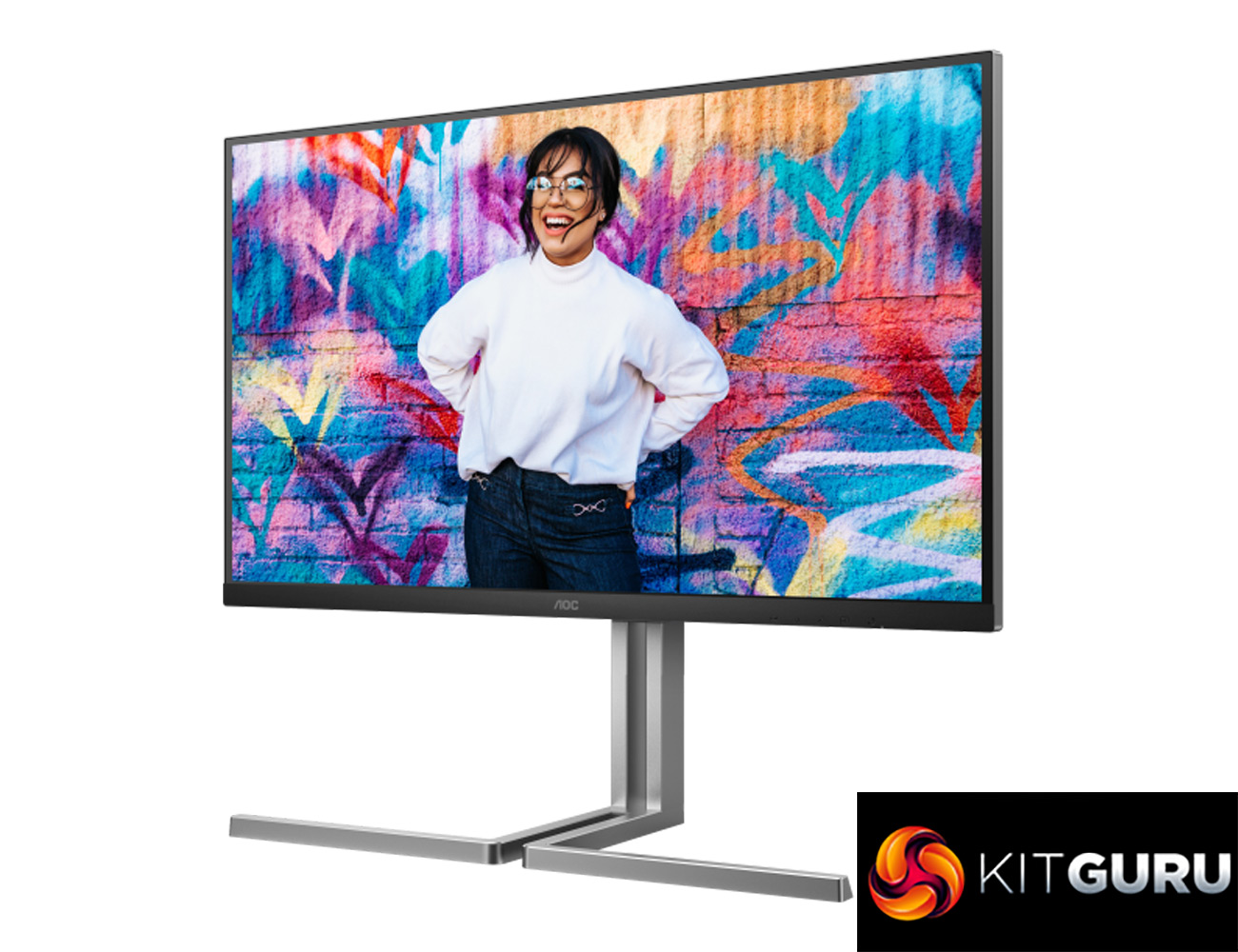
It's always interesting when an established brand tries something new, and that's exactly what AOC has done with its Graphic Pro U3 series. Comprising three models at launch, today we have reviewed the 32in 4K flagship in the form of the U32U3CV, and I have to say I am impressed with what AOC has brought to the table.
Targeting creative professionals, AOC makes an immediate positive impression with the smart design of this monitor. Forget the gamer-inspired aesthetic of the company's typical offerings, this one is all about clean lines and a minimalistic approach, and I love it. It also helps that there's a ton of connectivity options, including a total of 3x USB-C ports, one which supports 96W power delivery alongside KVM functionality.
Of course, the panel is the most important thing here, and I'm happy to say it's very accurate overall. You will get the best results using one of the many colour space modes on offer – using the sRGB emulation mode, for instance, resulted in an average colour accuracy dE 2000 of 1.53. We also tried the AdobeRGB and DCI-P3 modes and were impressed with both. The results may not be as jaw-dropping as what we saw from the ASUS ProArt PA27JCV in our recent review, but we have to factor in the AOC is a good chunk cheaper at around £500, and it's still delivering great colour accuracy.
The U32U3CV is also Calman Ready, so anyone with an existing Calman Studio or Ultimate license will benefit from the integration. Not only can you use the AutoCal feature for a very speedy calibration, but it's a proper hardware calibration using 1D/3D LUTs, when most screens are limited to calibration via the ICC profile only. We ran through the process start to finish earlier in the review, and as you'd expect, the results are very good indeed.
The monitor is not quite perfect, though, as there's a couple of areas that could be improved. Some of these are admittedly minor points, but I would have much preferred an OSD joystick instead of the 5-way button control. I also think the screen would benefit from being a touch brighter overall – its maximum of 370 nits will be fine in most cases, but plenty of monitors these days can go well beyond 400 nits, even 500 nits, and I think that would help the screen's overall appeal.
I also don't understand why the smaller and cheaper Graphic Pro Q27U3CV offers a quantum dot (QD) layer, but the flagship U32U3CV doesn't. A QD layer would typically help offer an even wider gamut, improving performance with the DCI-P3 and AdobeRGB colour spaces. It's also worth remembering that the U32U3CV won't be a viable option if you want to do some real HDR work, given it's only DisplayHDR 400 certified and has no local dimming. Of course, that is to be expected considering the price – real pro-grade HDR monitors are considerably more expensive – but it is worth pointing out.
Overall, for a pro-grade screen that's on the market for under £530, there is a lot to like about the Graphic Pro U32U3CV. Considering it's AOC's first effort in this space, we have high hopes for the future of the Graphic Pro lineup.
Discuss on our Facebook page HERE.
Pros
- Clean and modern design.
- Tons of colour space modes to work with.
- Very accurate gamma tracking in any mode.
- sRGB mode provides colour accuracy dE 2000 of 1.53, in line with AOC's claims.
- Calman Ready certification allows for fast and accurate calibration.
- Revamped OSD looks the part and is feature-rich.
- Good value considering the features and performance on offer.
Cons
- Lacks the QD layer of its smaller sibling, the Q27U3CV.
- A bump to maximum brightness wouldn't go unnoticed.
- Some would prefer an OSD joystick instead of the 5-way button controls.
- Lacks real HDR support given the DisplayHDR 400 certification.
KitGuru says: AOC's Graphic Pro U32U3CV is an enticing monitor for creatives thanks to its plentiful colour space modes, clean design and modern I/O. Priced around £530, it won't break the bank either.