KitGuru KitGuru.net – Tech News | Hardware News | Hardware Reviews | IOS | Mobile | Gaming | Graphics Cards


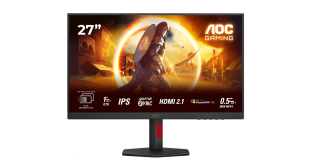
While we've been focused on the booming OLED monitor segment, that doesn't mean other areas of the market aren't moving forward, too. High refresh-rate 4K LCDs are getting cheaper and cheaper, with the AOC U27G4R we are looking at today priced at under £280. Not only does it offer a native 4K/160Hz experience, but it also supports dual-mode technology, meaning it can switch to 1080p/320Hz with the press of a button. But what's it actually like to use on a daily basis? We find out today.
Aside from the aforementioned dual-mode technology (which AOC confusingly calls both ‘Dual Frame' and ‘Dual Resolution' depending where you look), the U27G4R uses a Fast IPS panel, offering a claimed 1ms response time, alongside 1000:1 contrast and up to 400 nits of brightness. It also offers adaptive sync support and a pair of HDMI 2.1 ports, so on paper it looks enticing at the circa-£280 price-point. Let's see if it can deliver.
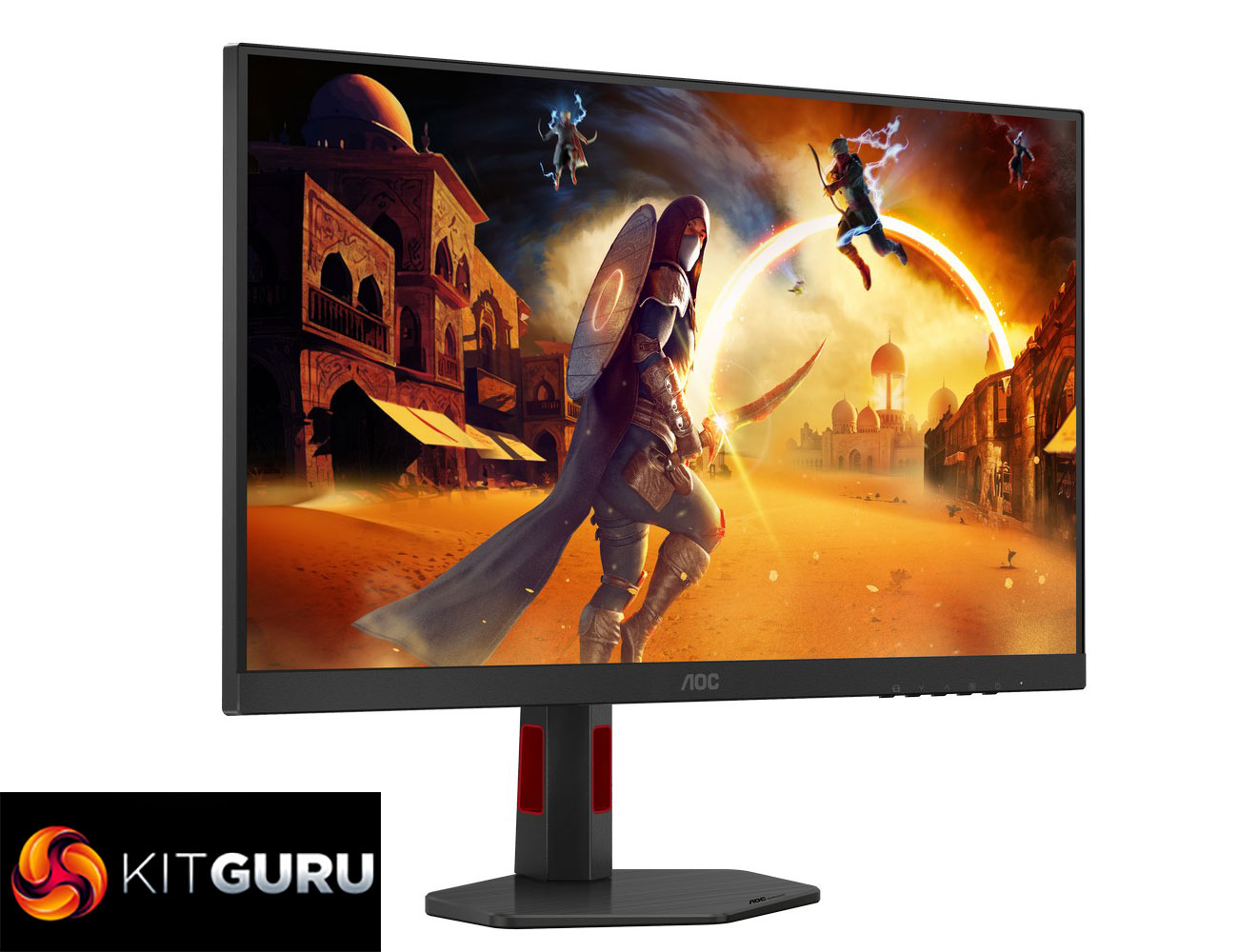
Specification:
- Screen size (inch): 27
- Screen size (cm): 68.6
- Panel treatment: Antiglare (AG)
- Pixels per Inch: 163
- Panel resolution: 3840×2160 / 1920×1080 (Dual Frame Monitor)
- Resolution name: UHD / FHD (Dual Frame Monitor, UHD)
- Aspect ratio: 16:9
- Panel type: Fast IPS
- Backlight type: WLED
- Max Refresh Rate: UHD@160Hz / FHD@320Hz (Dual Frame Monitor)
- Response time GtG: 1 ms
- Response time MPRT: UHD 0.5 ms / FHD 0.3 ms
- Static contrast ratio: 1000:1
- Viewing angle (CR10): 178°/178°
- Display colours: 16.7M (8 bits)
- Brightness (nits): 400 cd/m²
- Sync technology (VRR): Adaptive Sync
- HDR (High Dynamic Range): VESA Certified DisplayHDR™ 400
- Blue Light Technology: Anti Blue Light
- Multiview (PbP, PiP): PiP + PbP
- Colour space (sRGB – CIE 1976): 124.7%
- Colour space (DCI-P3 – CIE 1976): 95.9%
- Colour space (Adobe RGB – CIE 1976): 93.4%
- Removable stand: ✓
- Kensington Lock: ✓
- VESA wallmount: 100×100
- Quick release function: ✓
- Tilt: –3.5° ±1.5° ~ 21.5° ±1.5°
- Height adjustment: 130 mm
- Swivel: –30° ±2° ~ 30° ±2°
- Pivot: –90° ±2° ~ 90° ±2°
- HDMI: HDMI 2.1 × 2
- DisplayPort: DisplayPort 1.4 × 1
- USB Hub: ✓
- USB Hub speed: USB 3.1 (Gen 1)
- USB downstream ports: 4
- Audio Output: Headphone out (3.5mm)
Firmware tested: V1.00
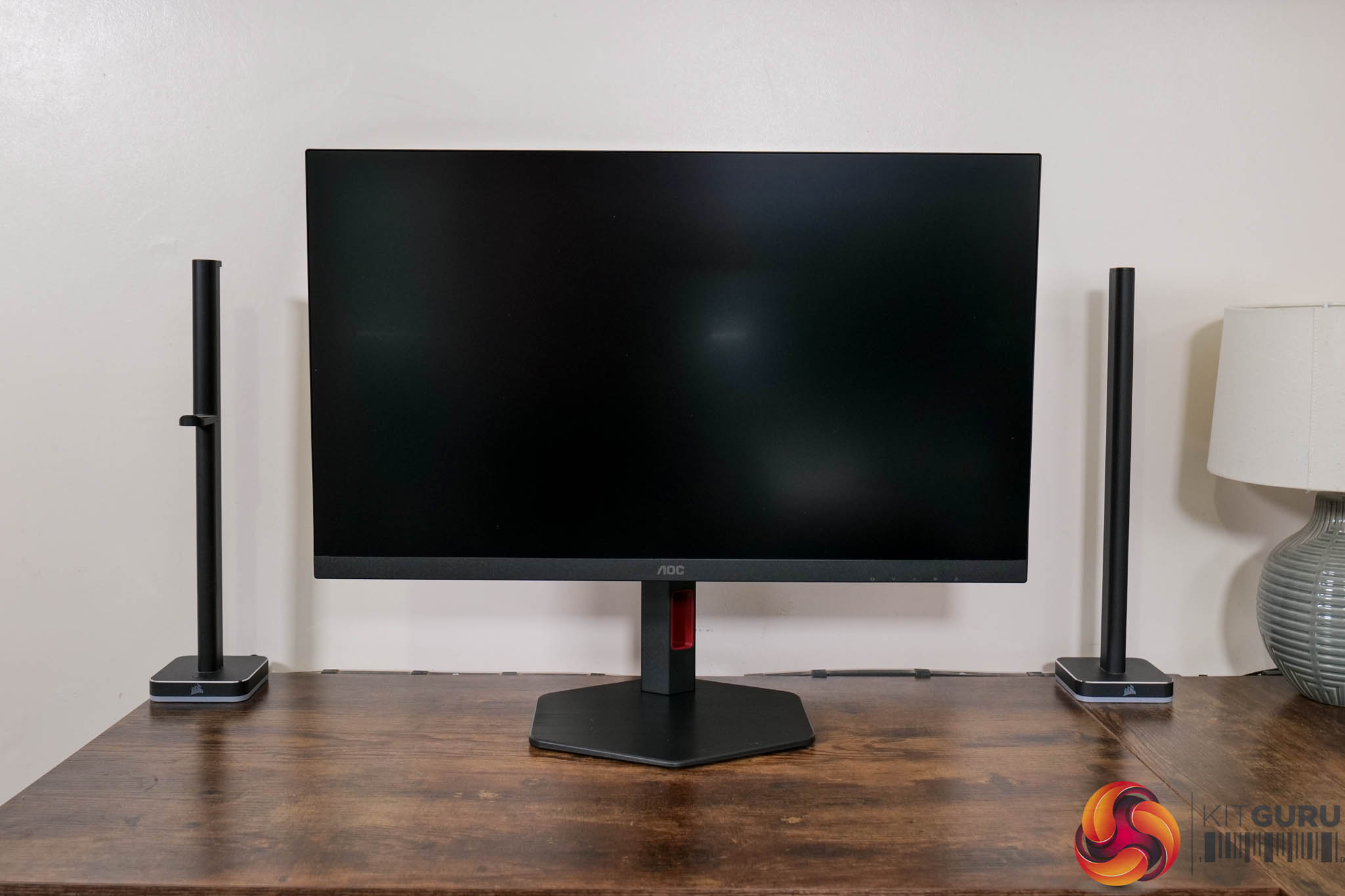
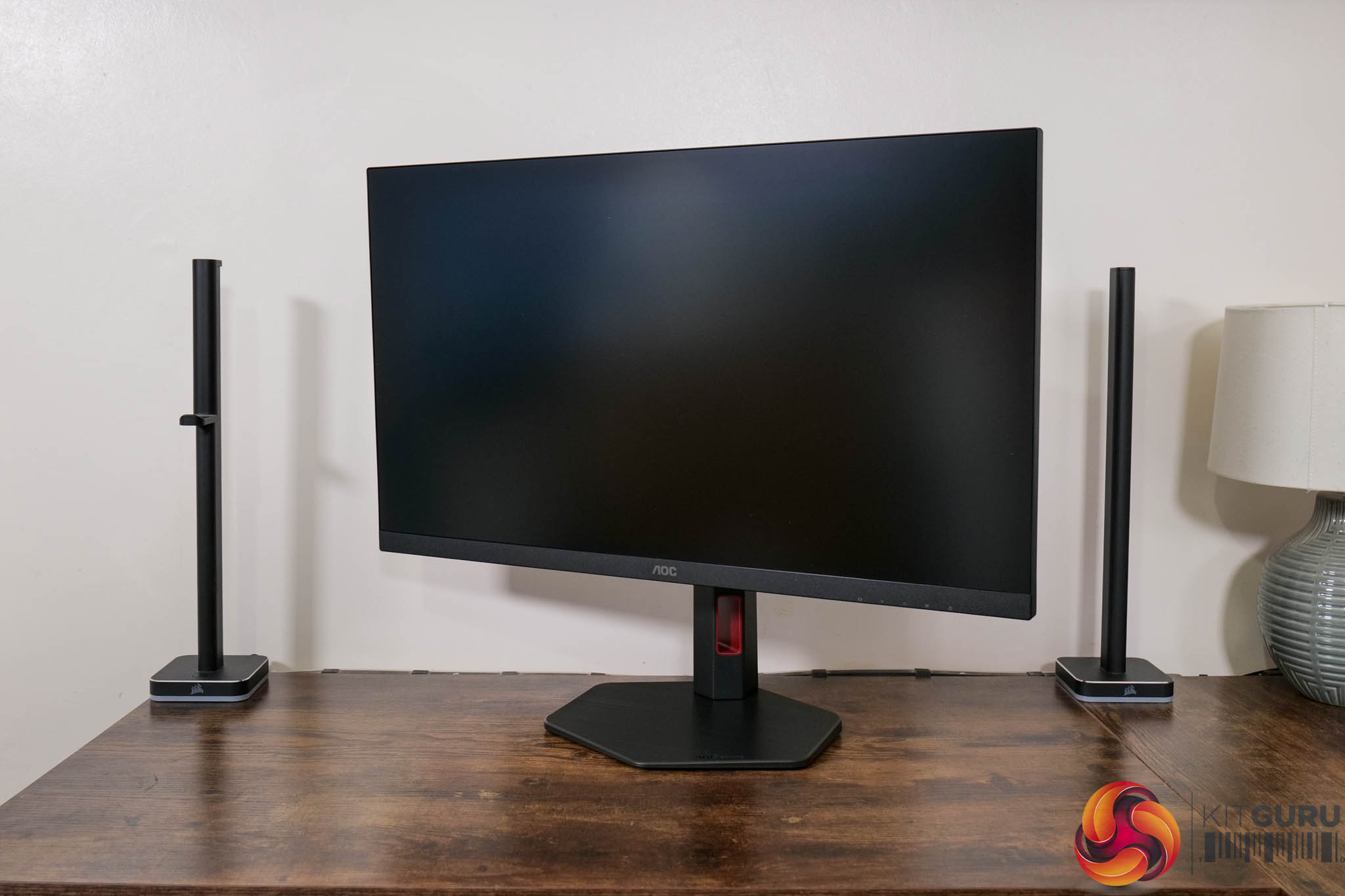
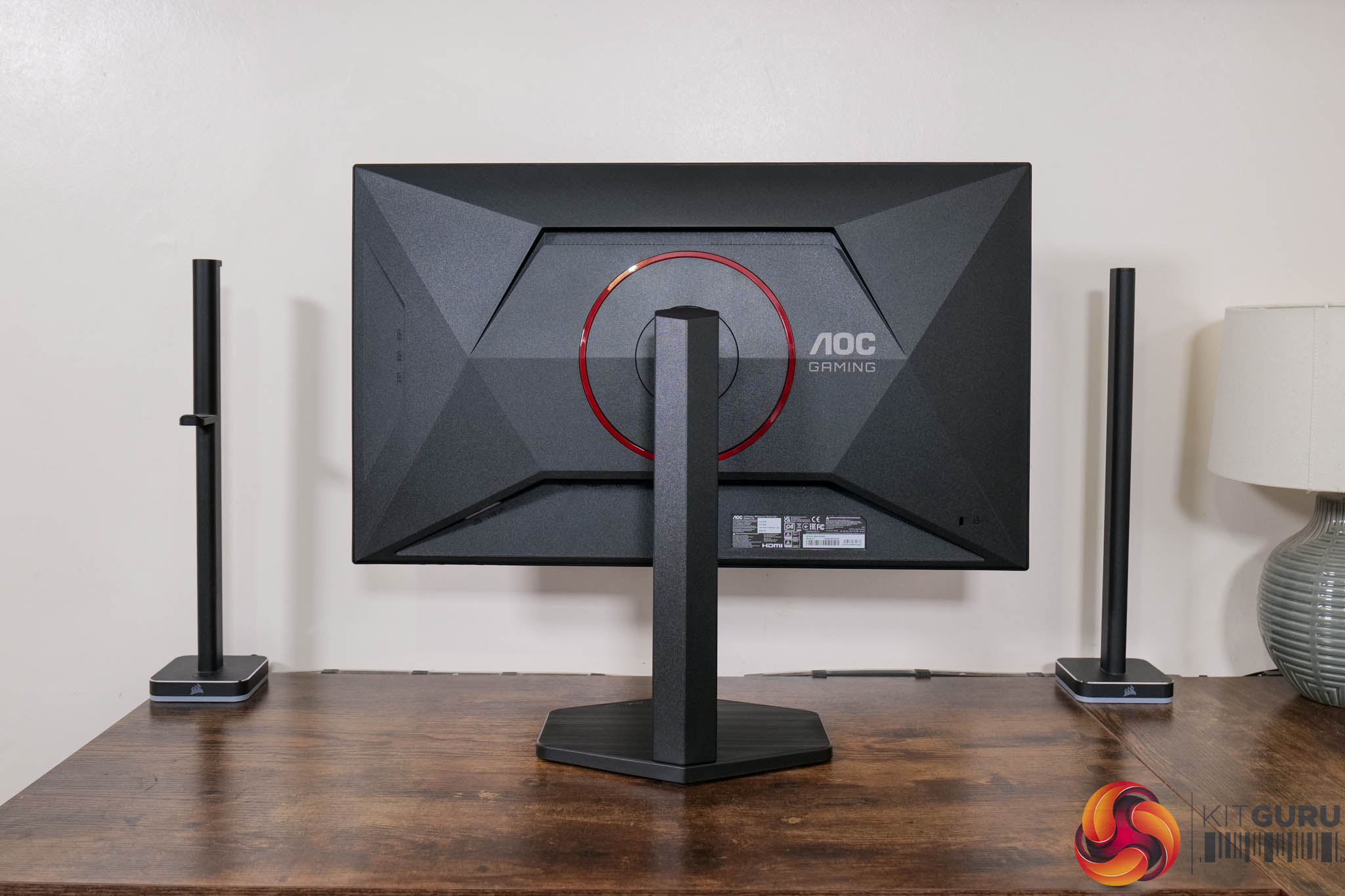
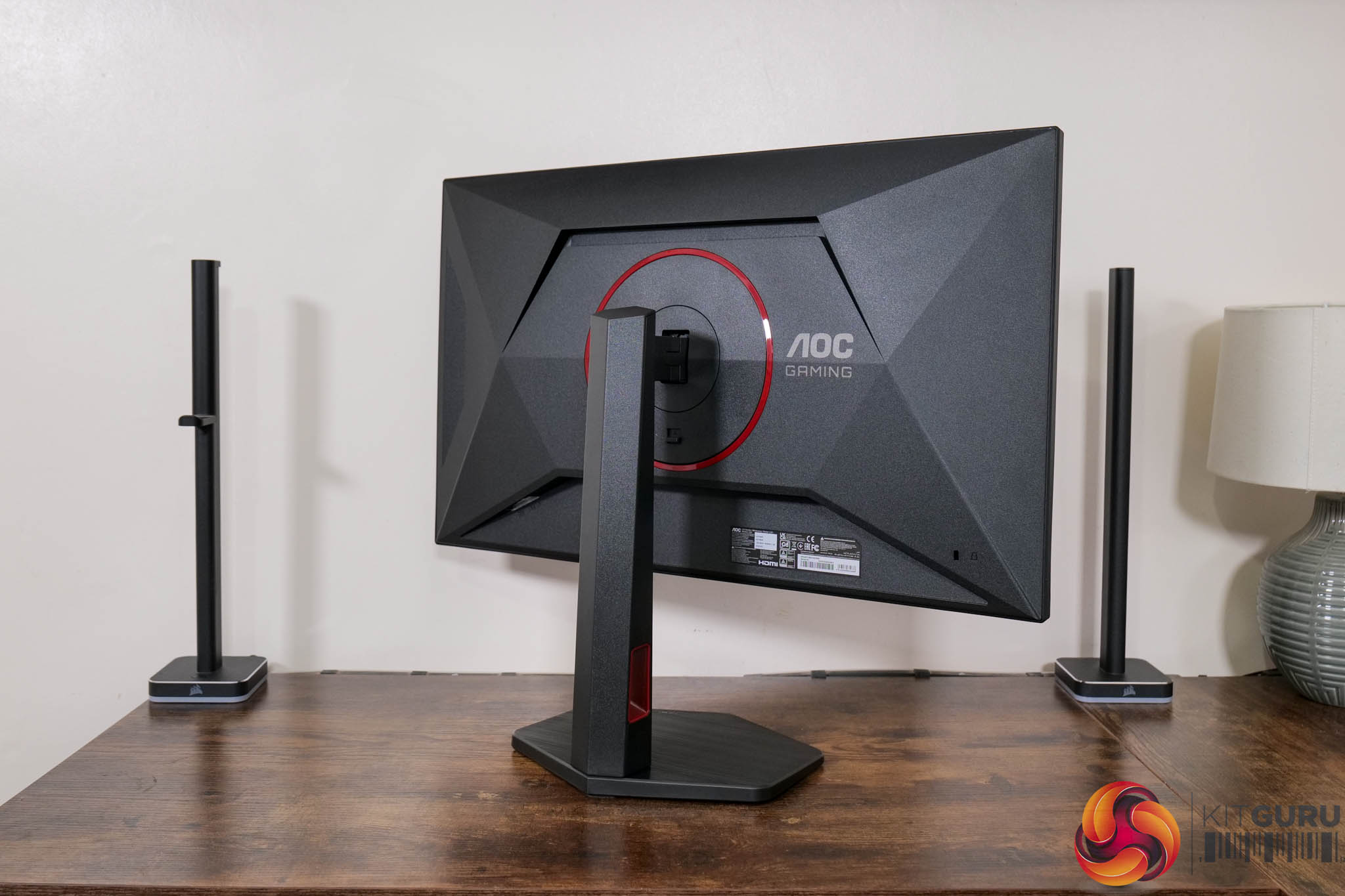
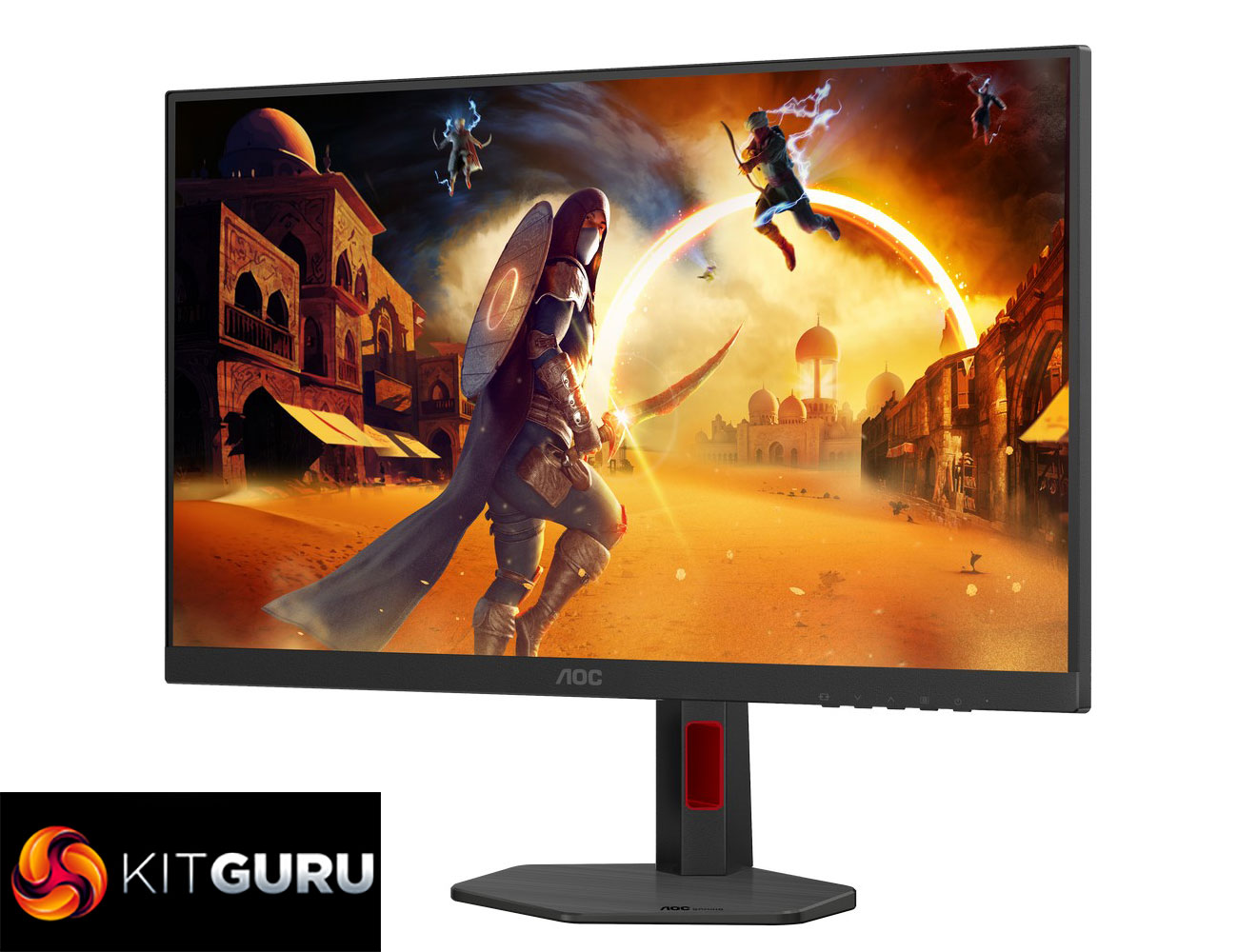
In terms of its design, the AOC U27G4R doesn't really stand out from the crowd – but at this price point, I wouldn't expect it to. It offers conventional styling with a three-sided frameless design and a chin that measures approximately 18mm thick. The rear is more matte black plastic, accented by a red ring around the stand mount.
I do like that AOC has opted for a compact hexagonal foot, though, as this takes up much less space on your desk compared to a typical v-shape foot.
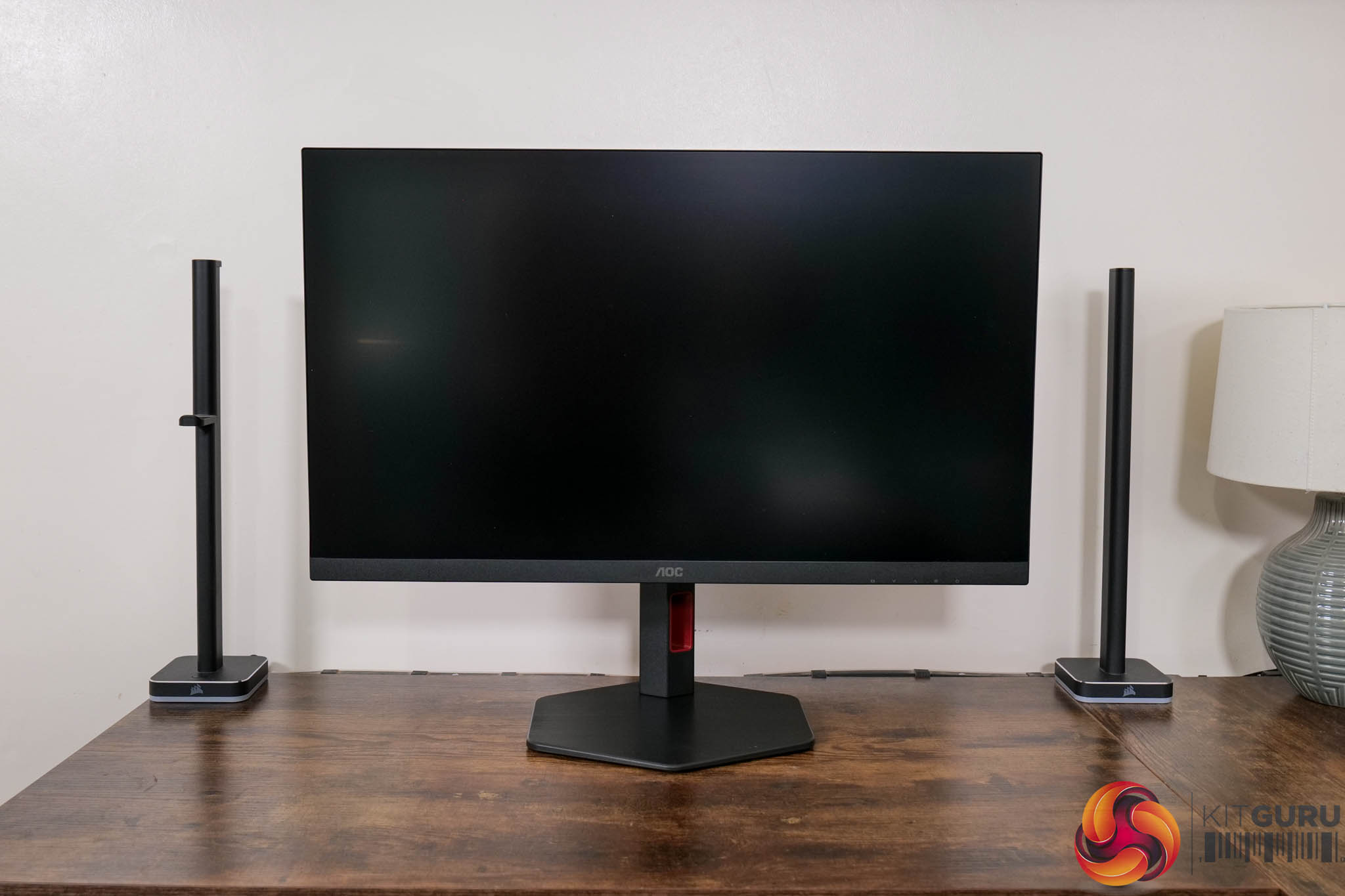
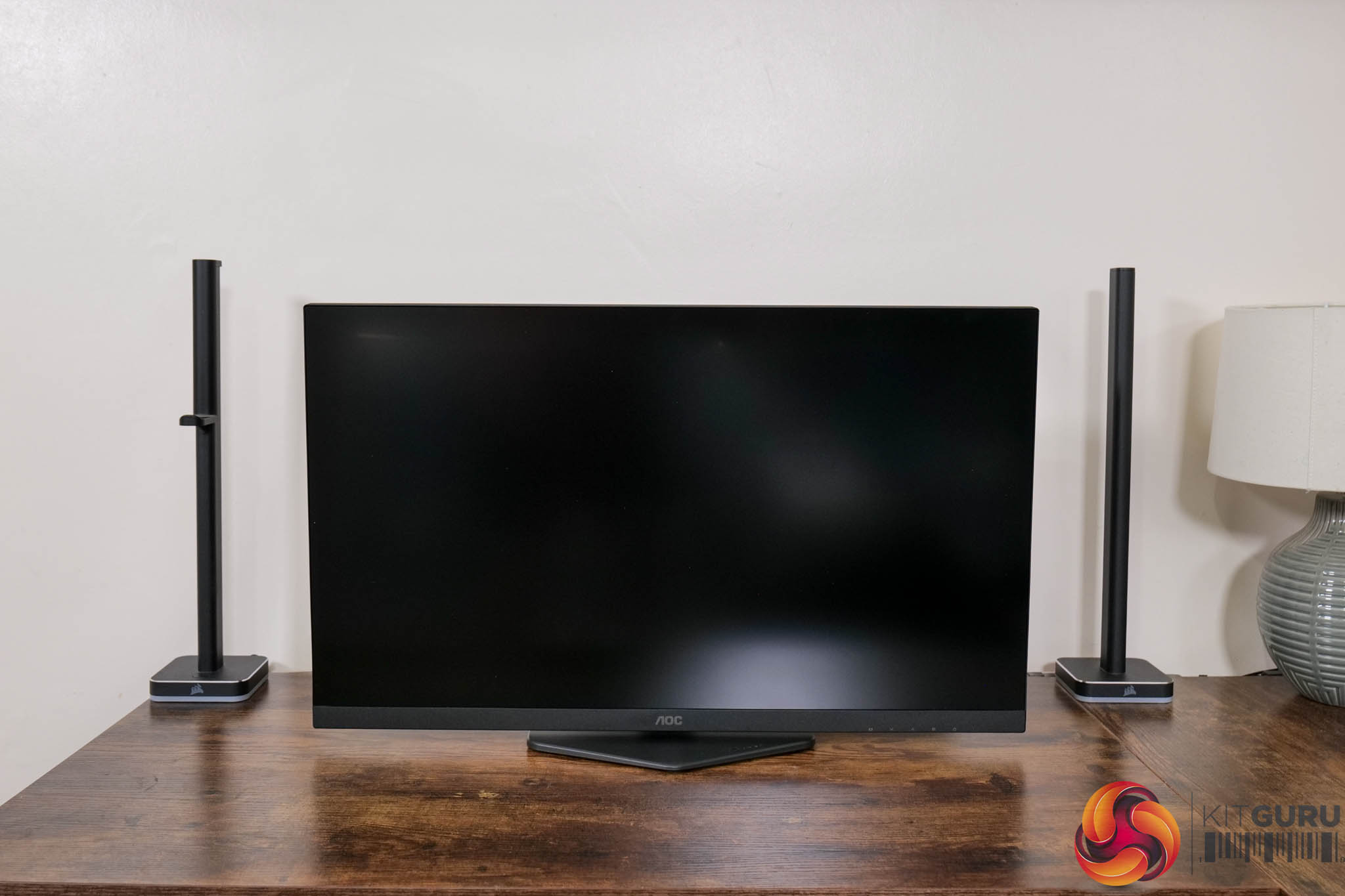
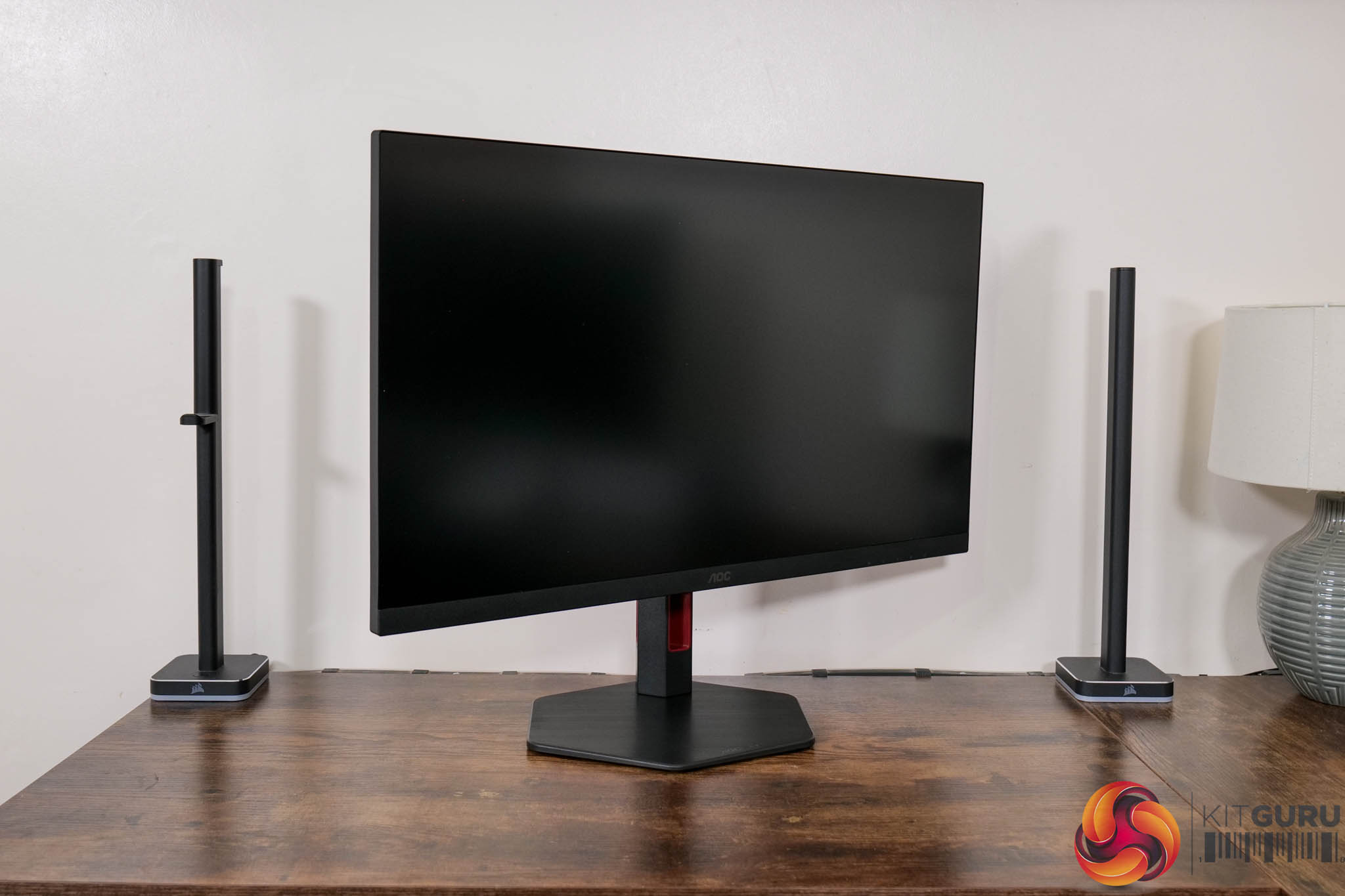
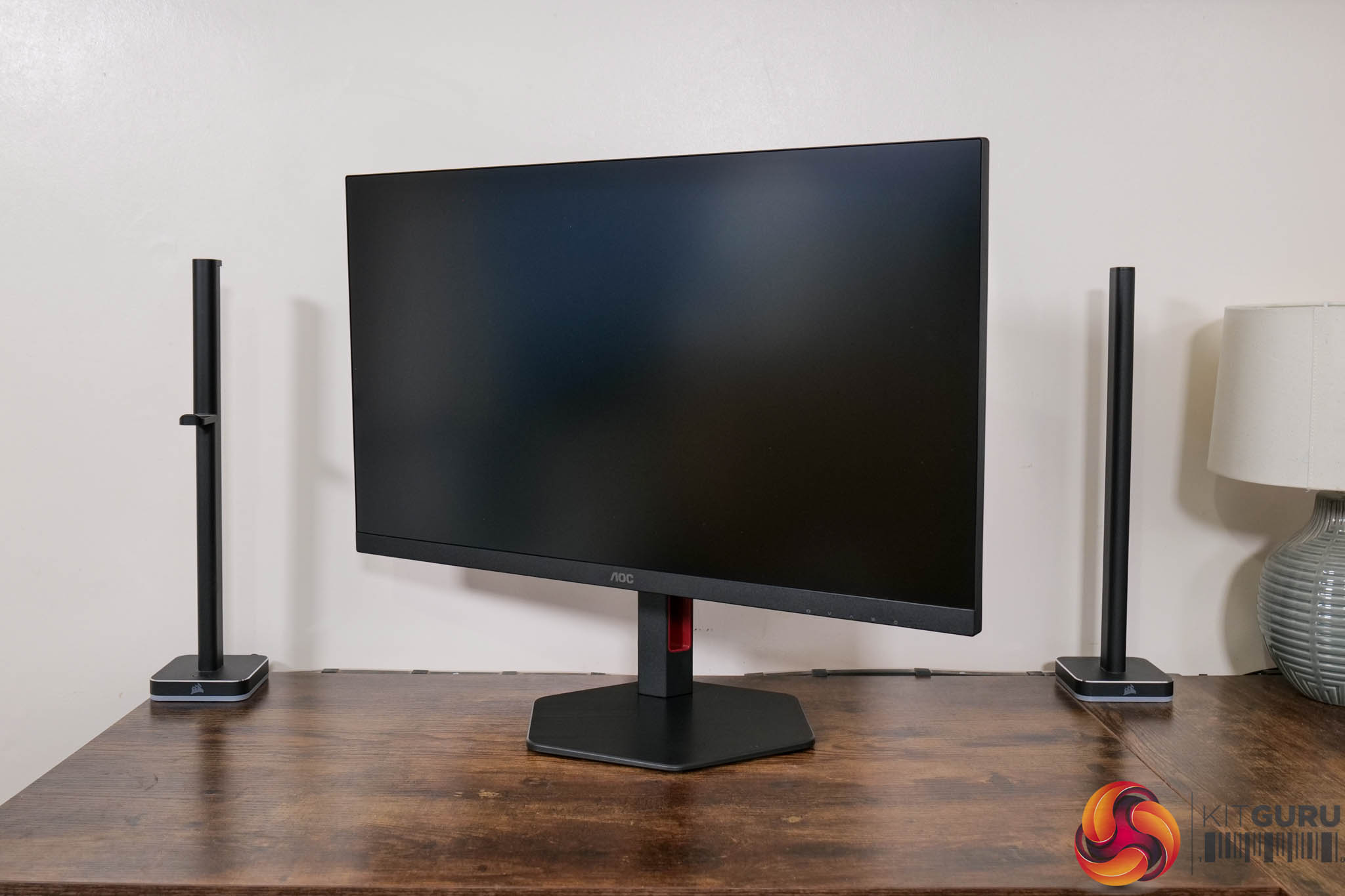
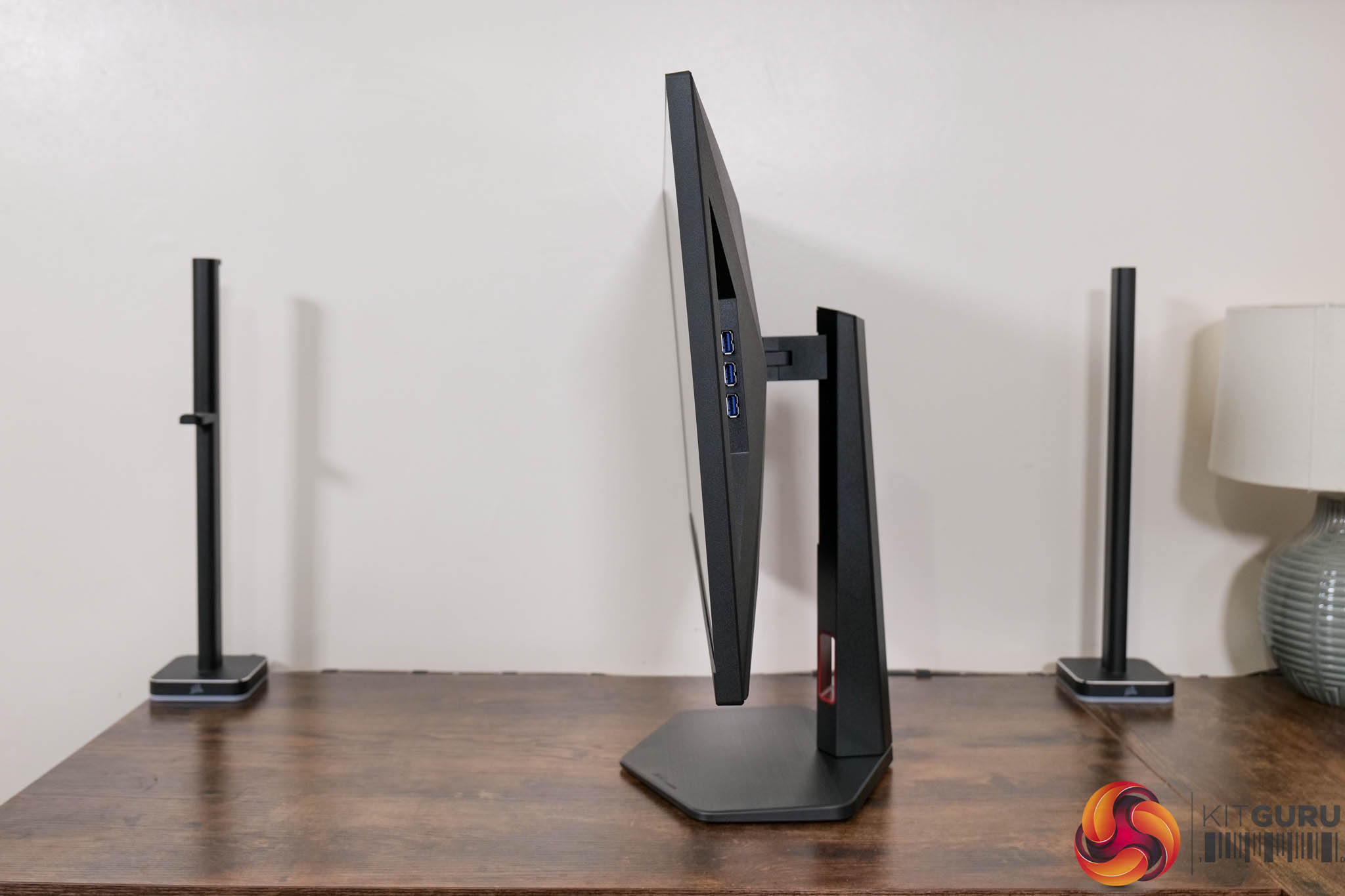
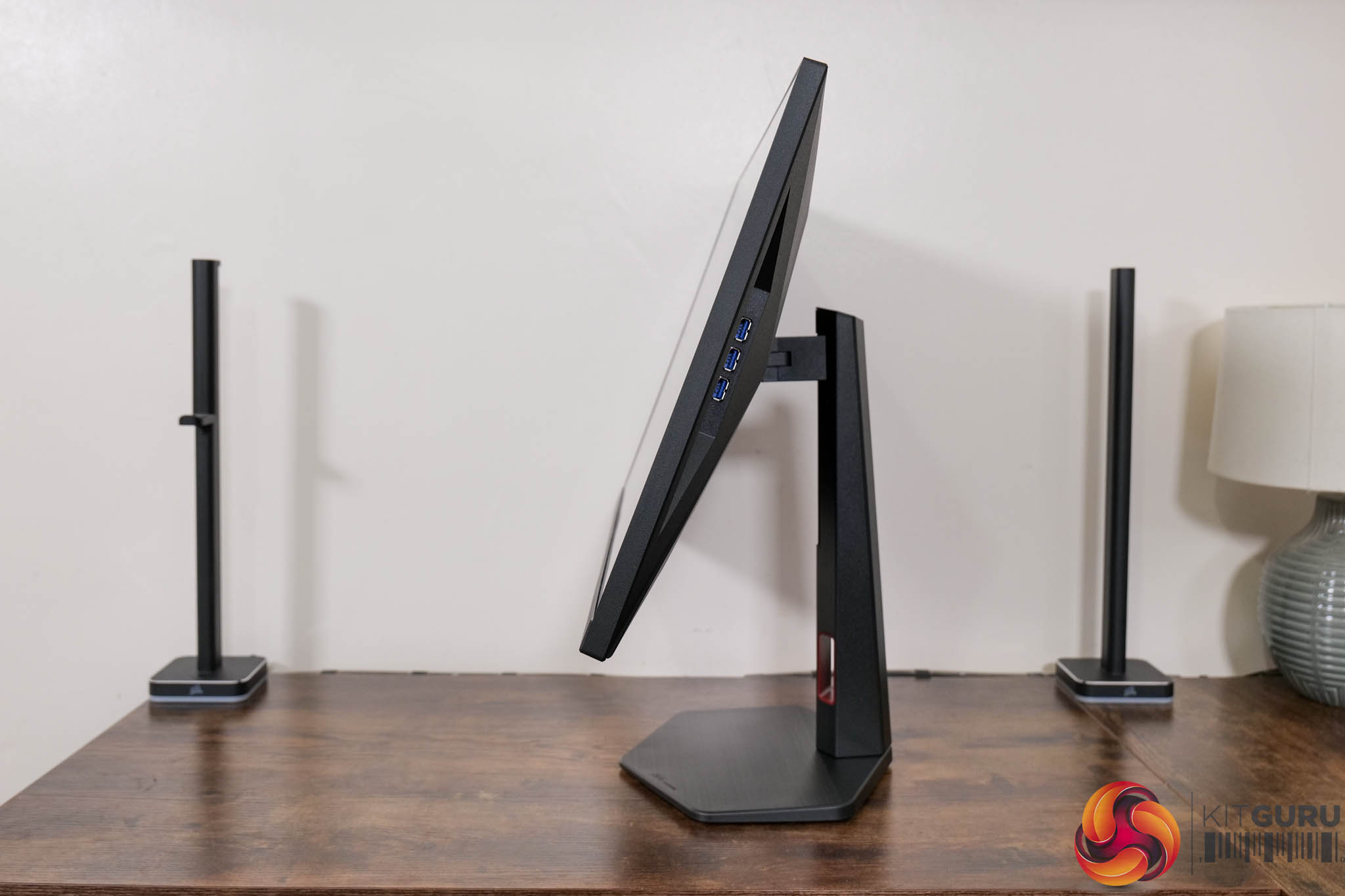
The stand also offers a good amount of ergonomic adjustment, including up to 130mm of height adjustment, 30 degrees of swivel both left and right, tilt from -3.5 to 21.5 degrees, alongside 90 degree pivot functionality. Third-party VESA 100×100 mounts are also supported.
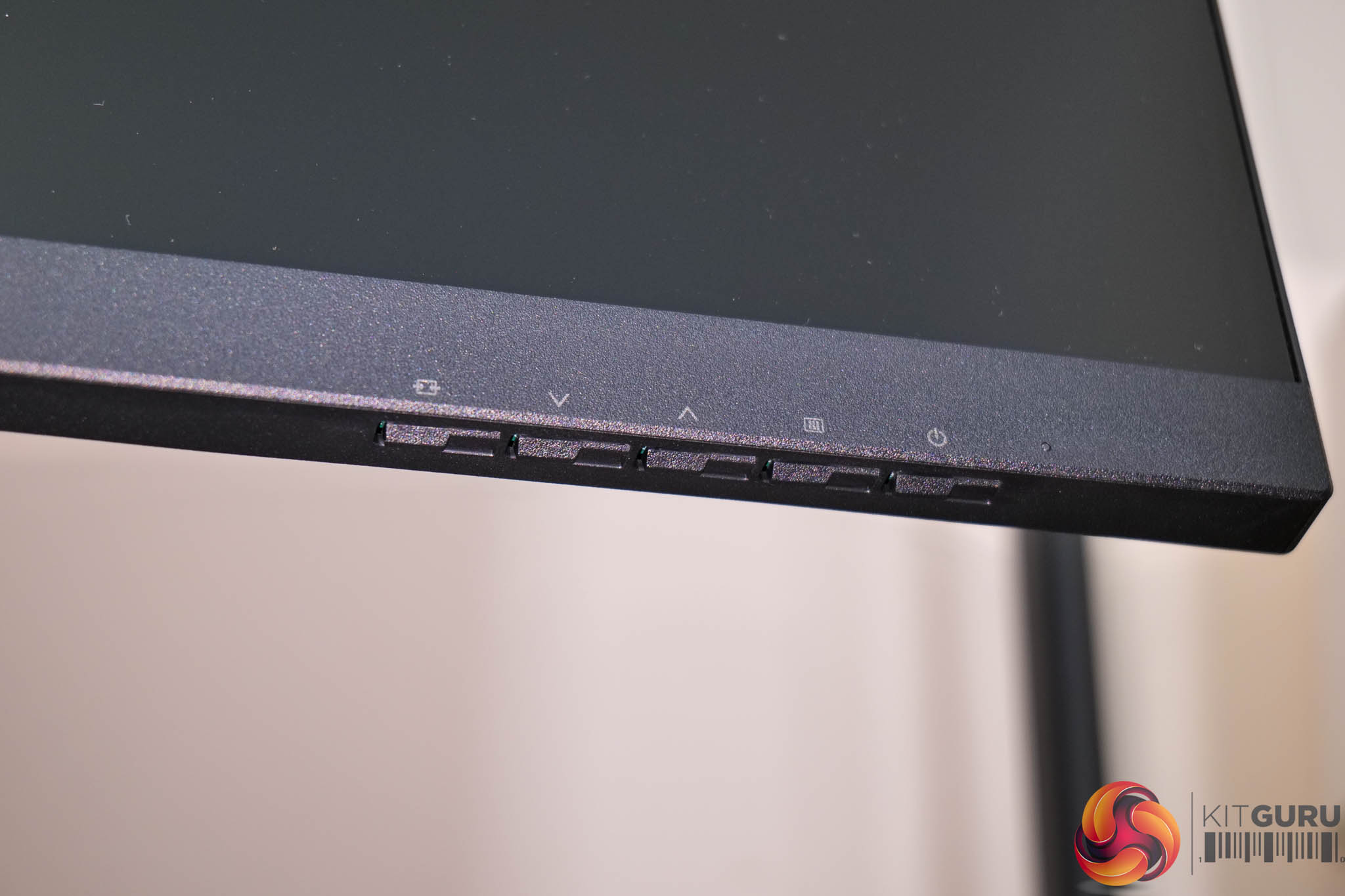
We can note the five-way control buttons positioned on the underside of the front chin – no joystick here sadly. I did ask AOC about this and they said it wasn't actually a cost thing, but most people prefer this over a joystick. If that's the case, I can confidently say most people are wrong – AOC please bring back the joystick!
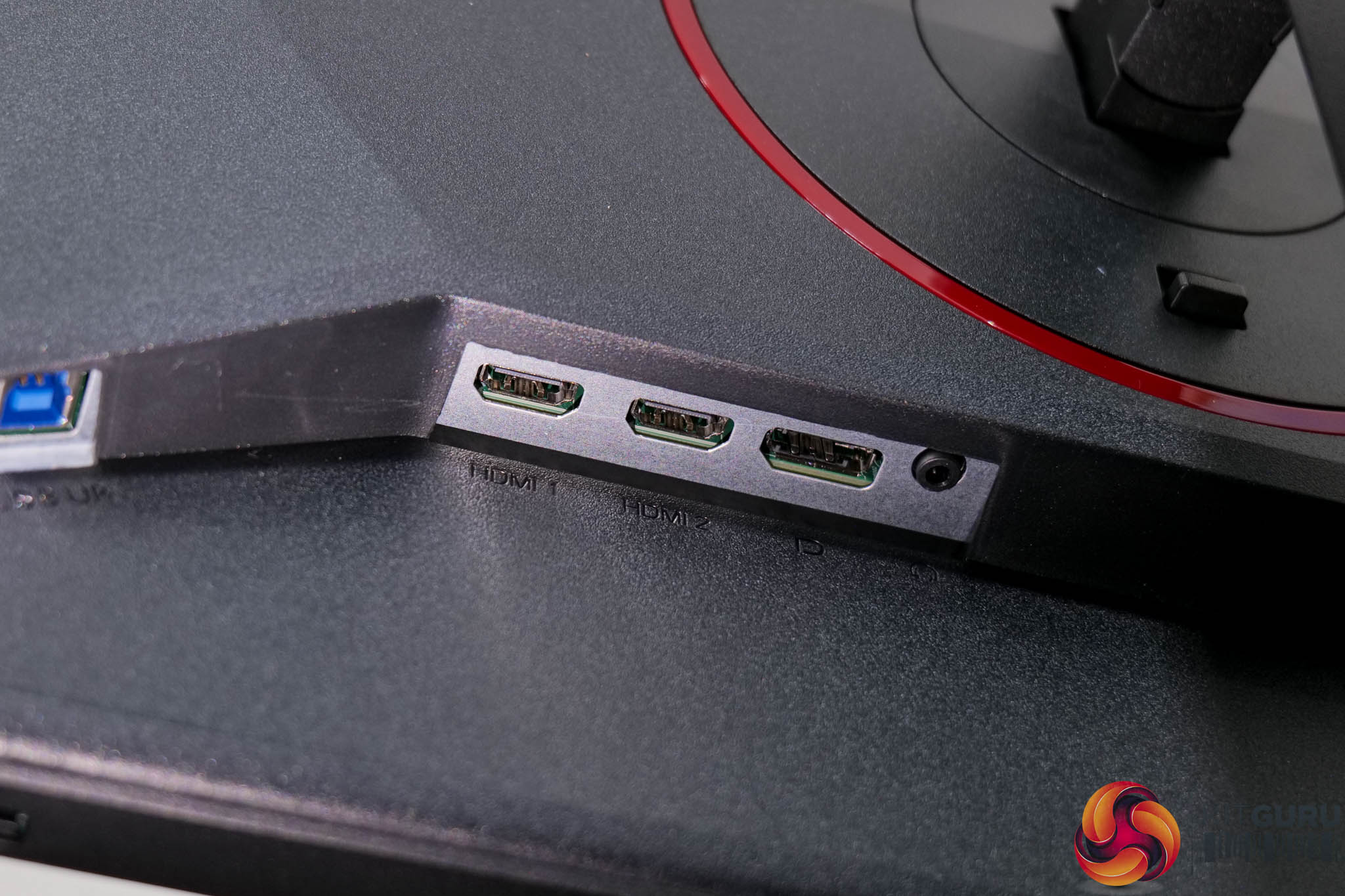
As for connectivity, we find two HDMI 2.1 and one DisplayPort 1.4 video inputs, alongside a headphone jack.
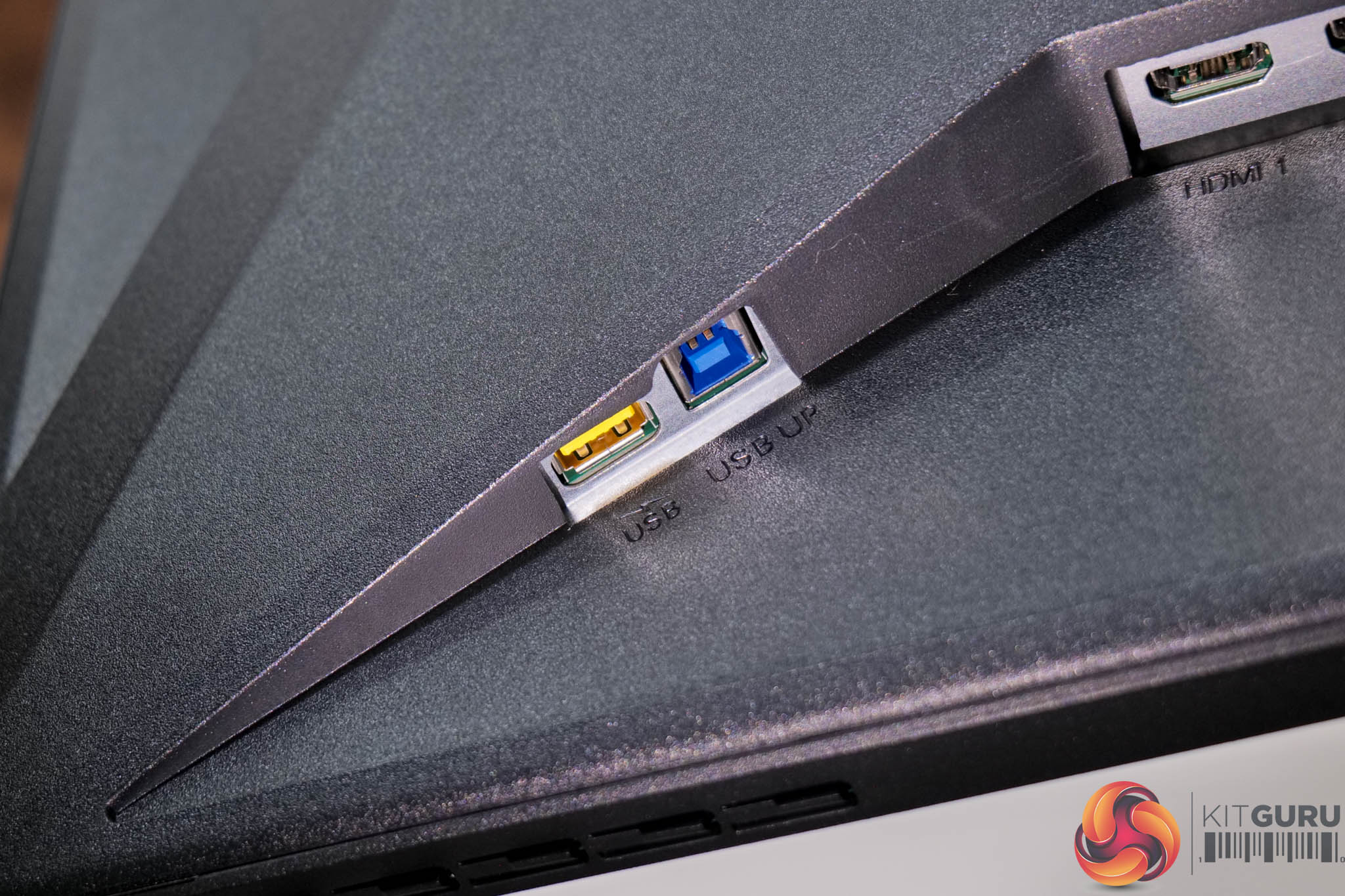
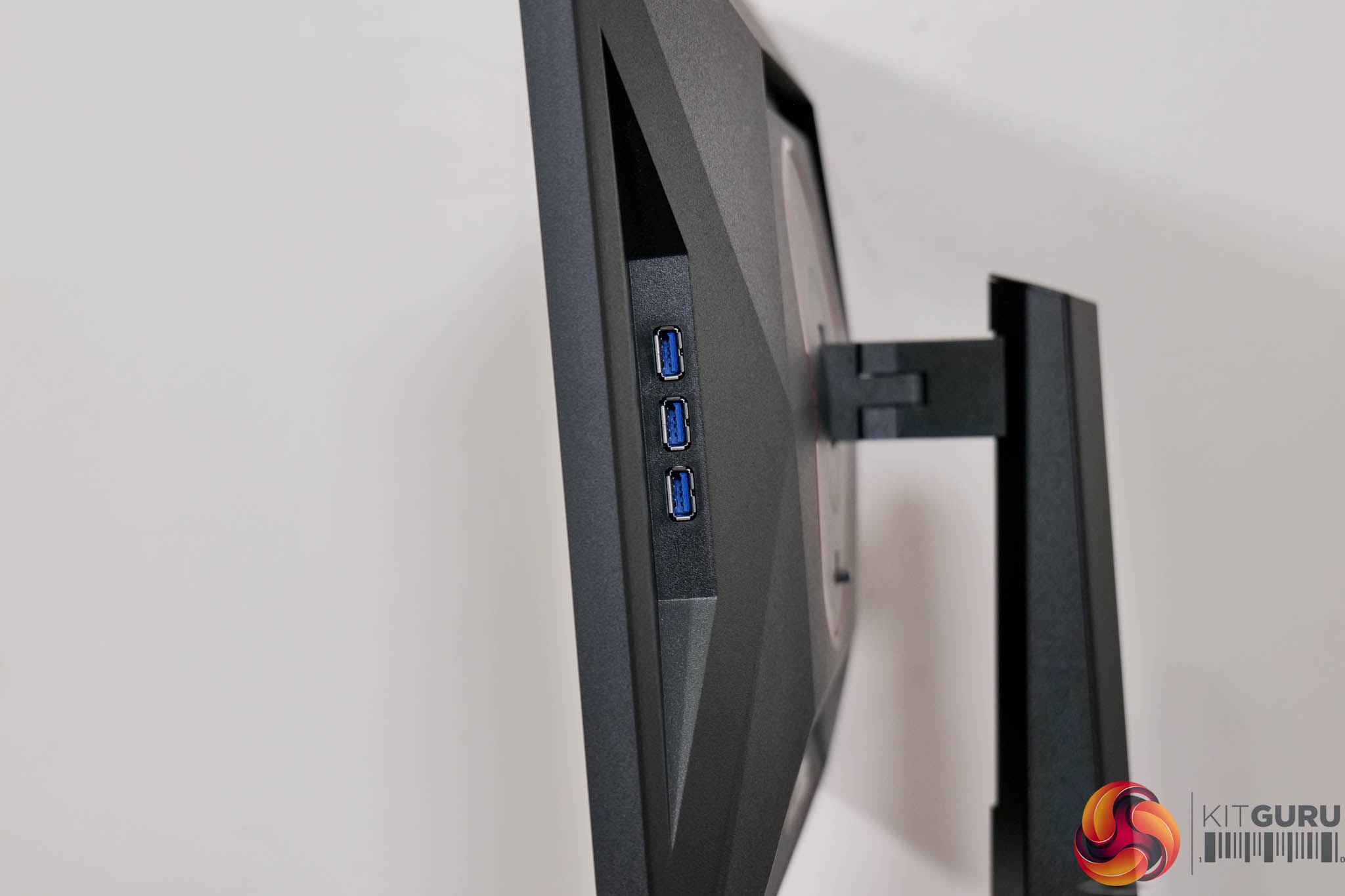
Just to the left of that, there's the USB Type-B upstream connector and a single Type-A downstream – the yellow colouring indicates it's a fast charging port. Three more regular Type-A downstreams are also placed on the right-hand edge of the monitor.
AOC recently overhauled its OSD system, offering settings that are split over seven main tabs:

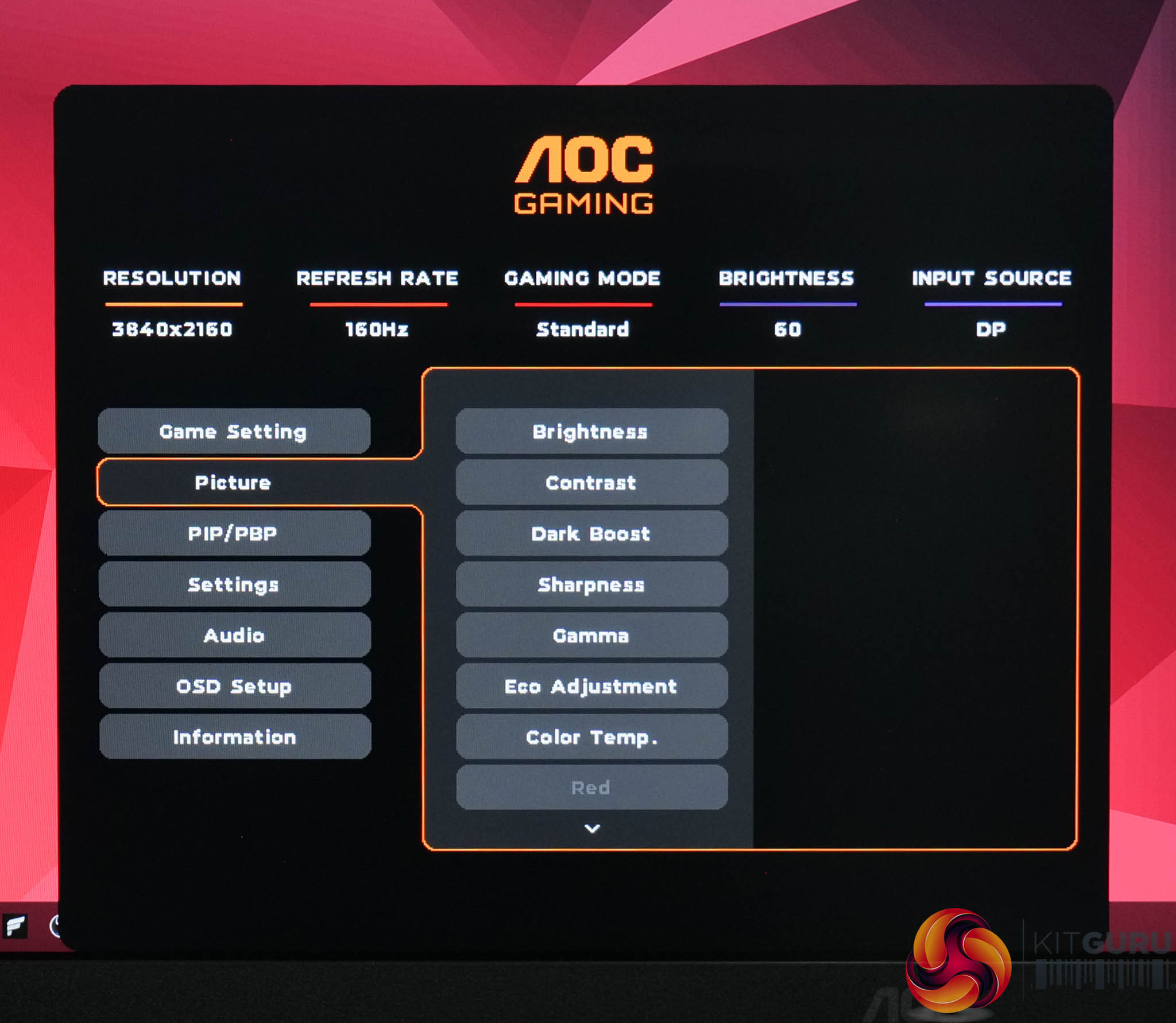

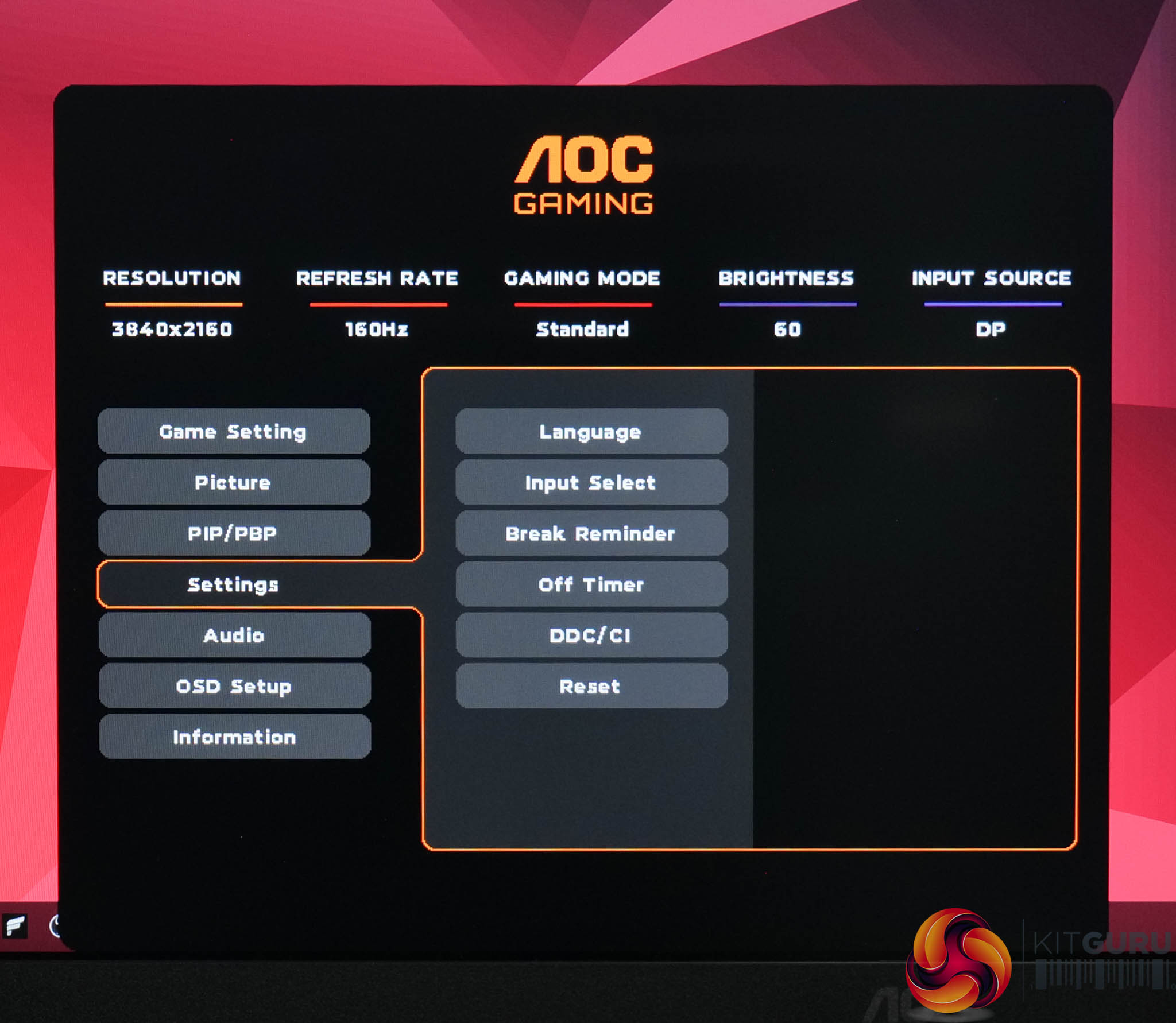
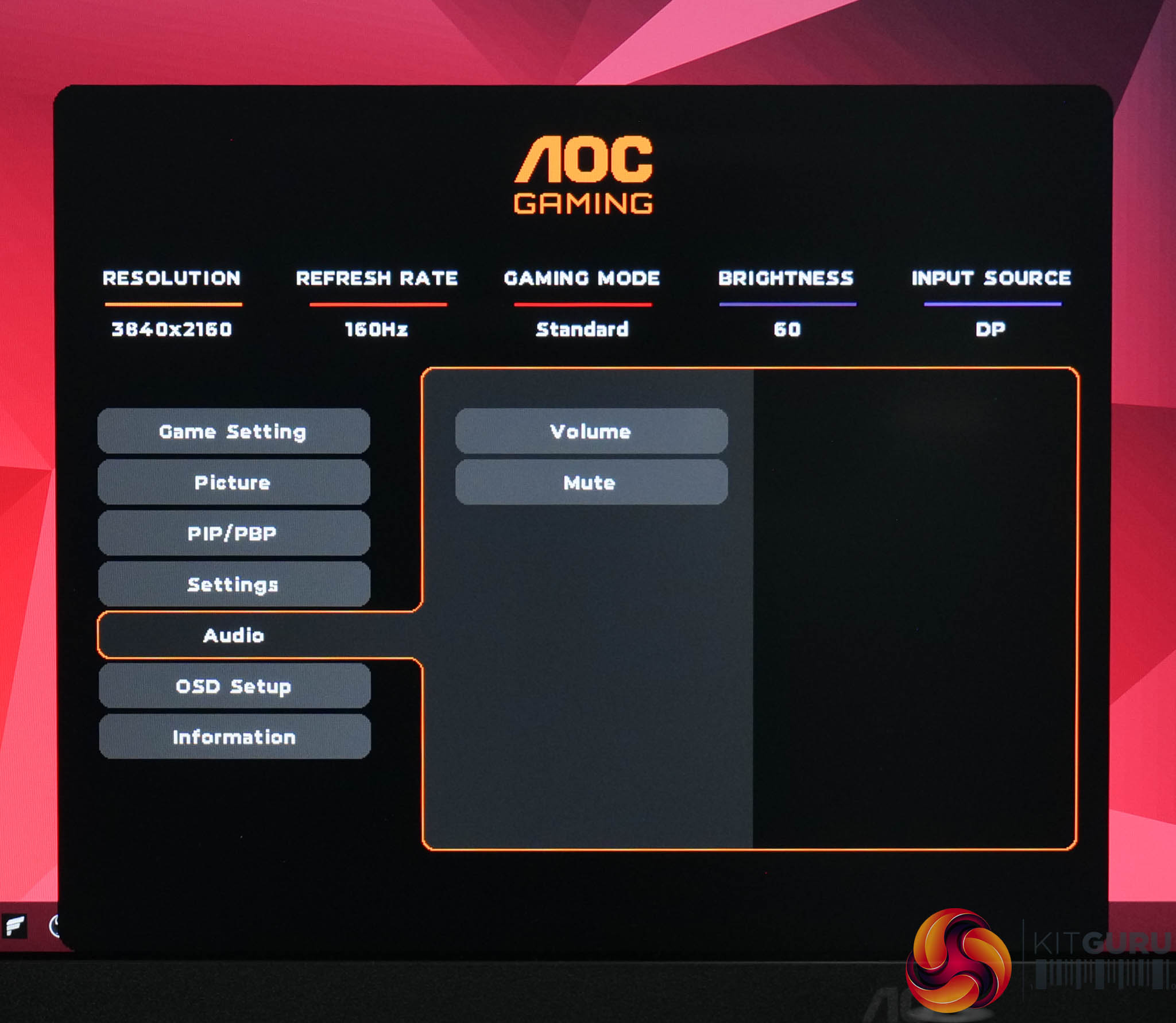
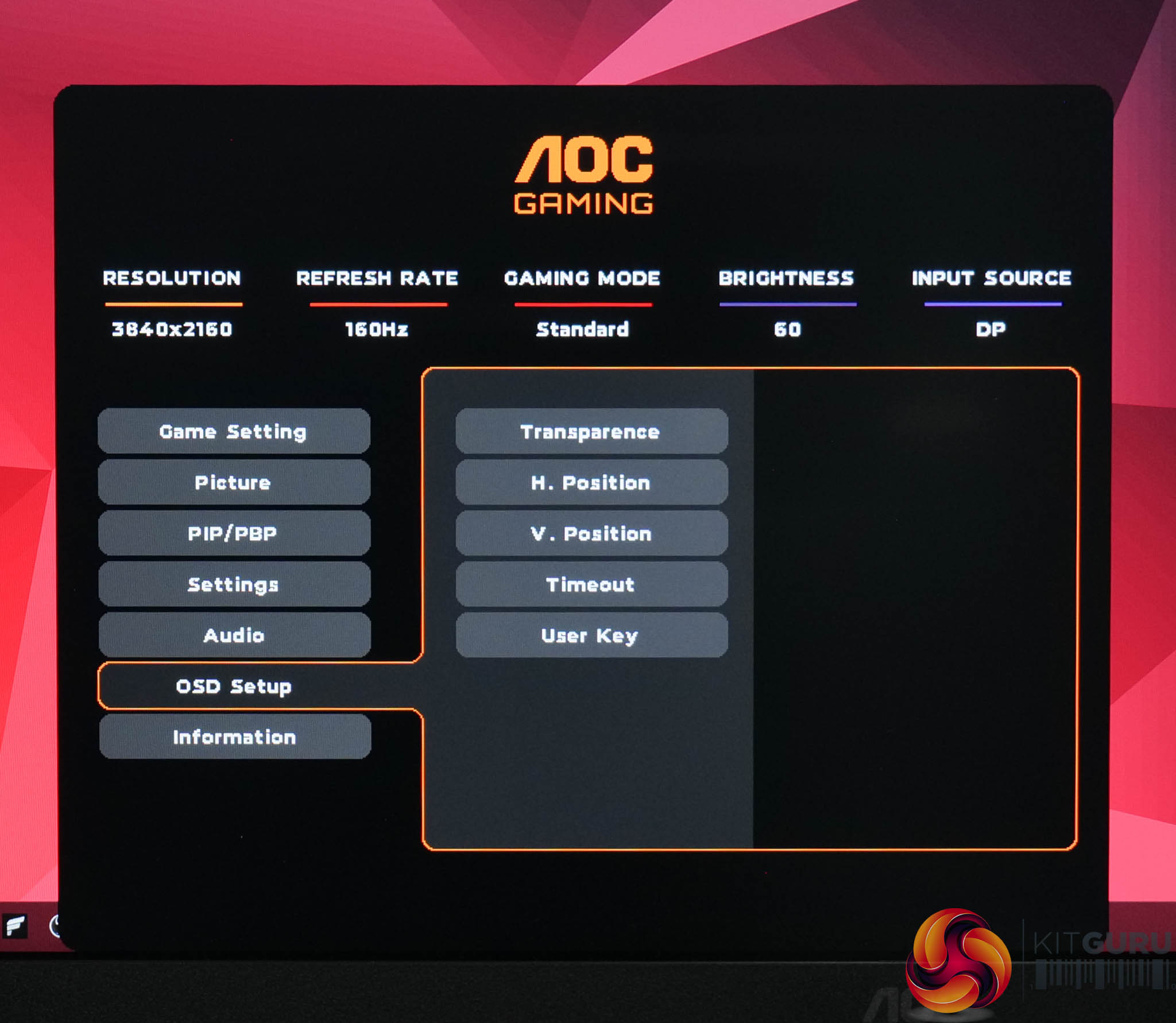
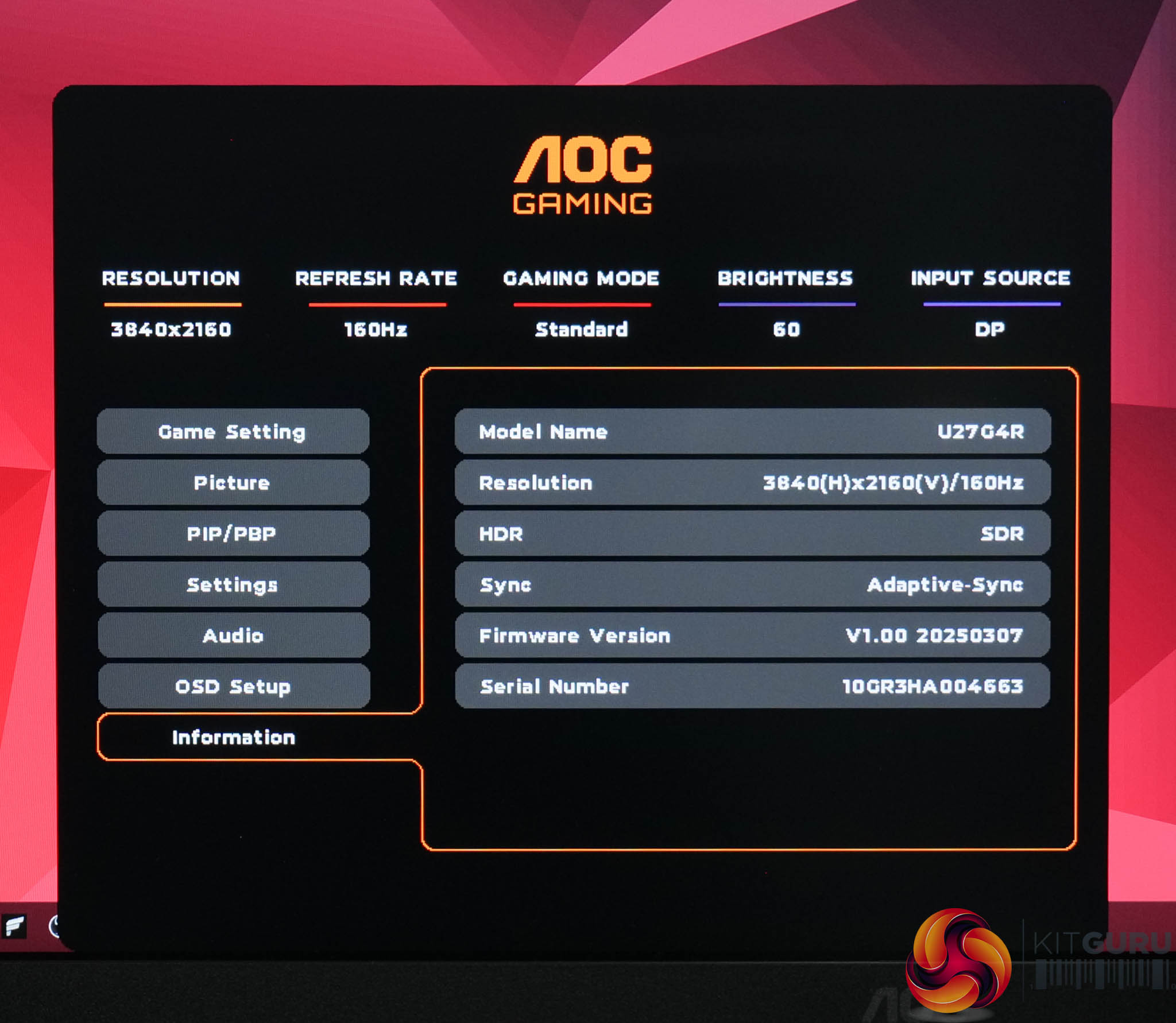
AOC's new OSD system is worlds better than its older menu UI from previous screens we've reviewed – everything is cleanly and clearly laid out, there's plenty of features for gamers, plus a couple of colour space modes too. I do find it very annoying using the 5-way button controls to navigate the menus though, as I frequently turn the screen off by accident, but it is what it is.
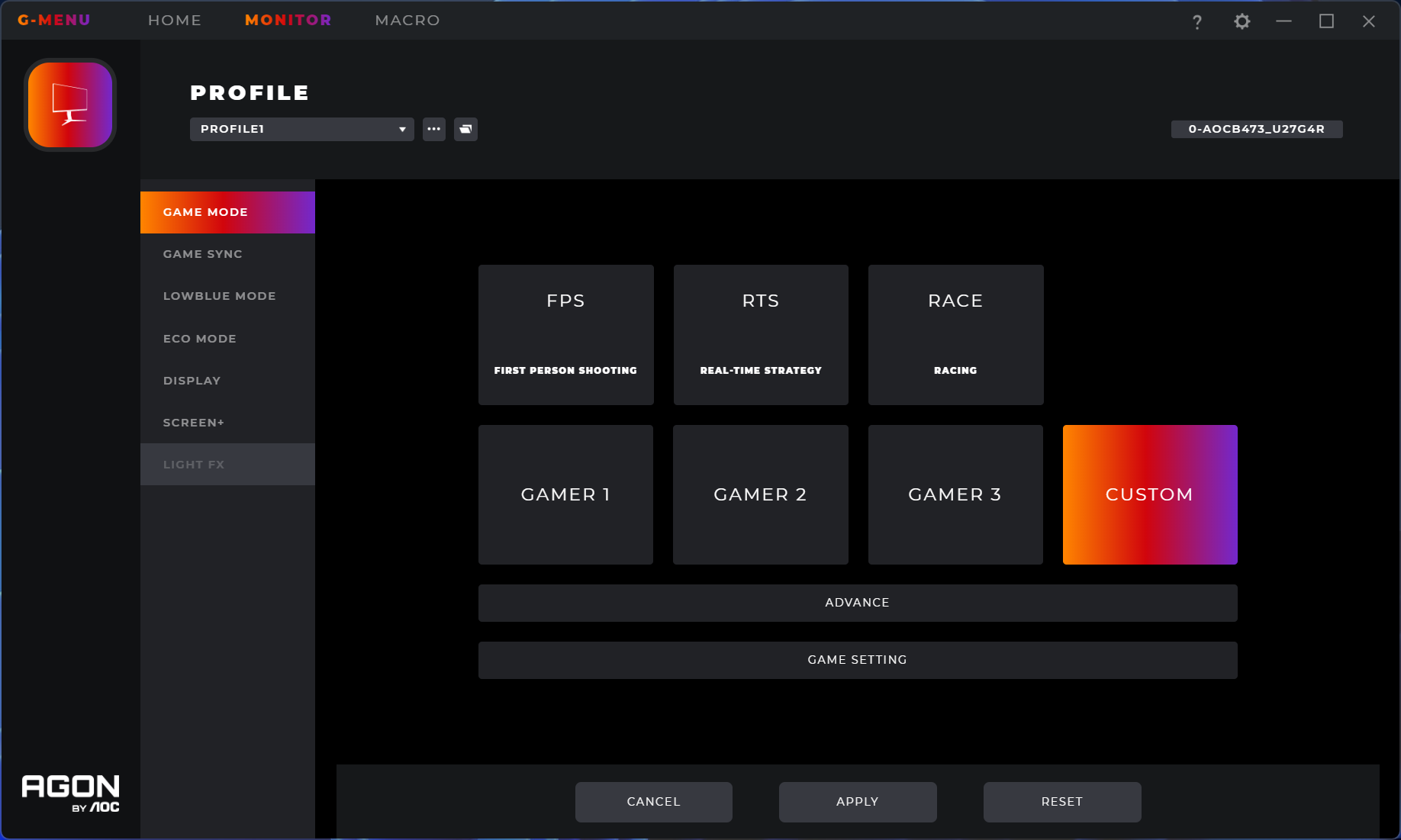
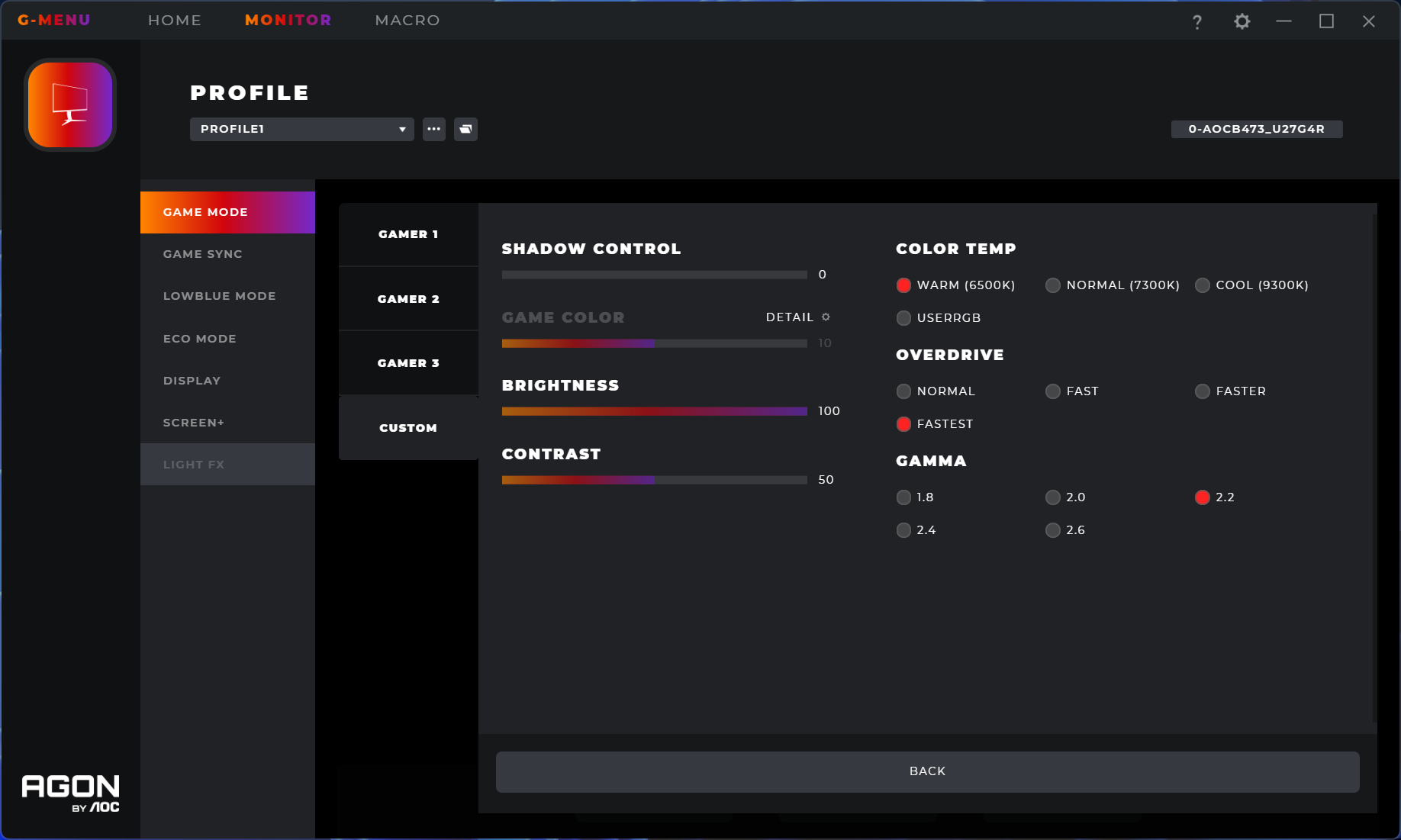
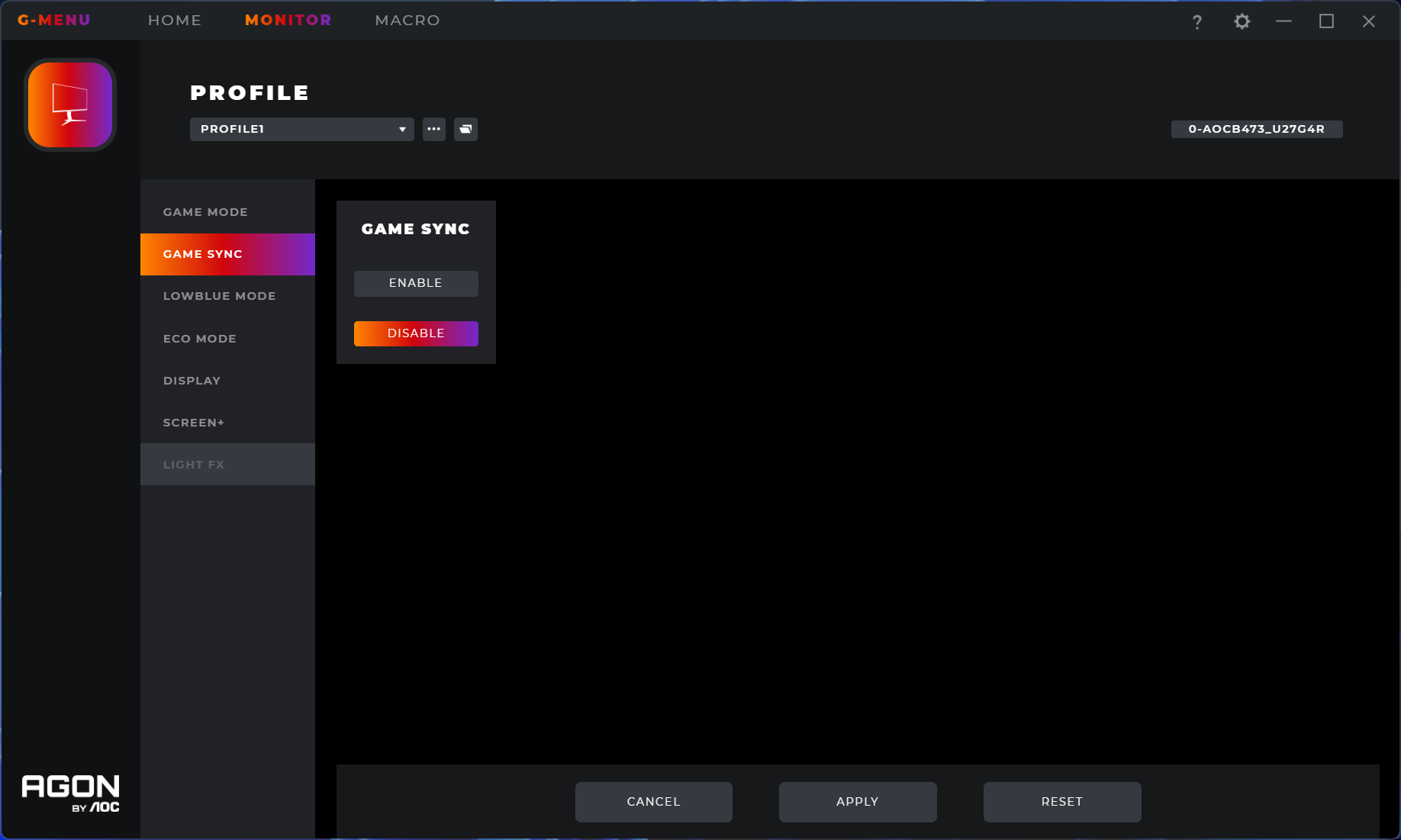
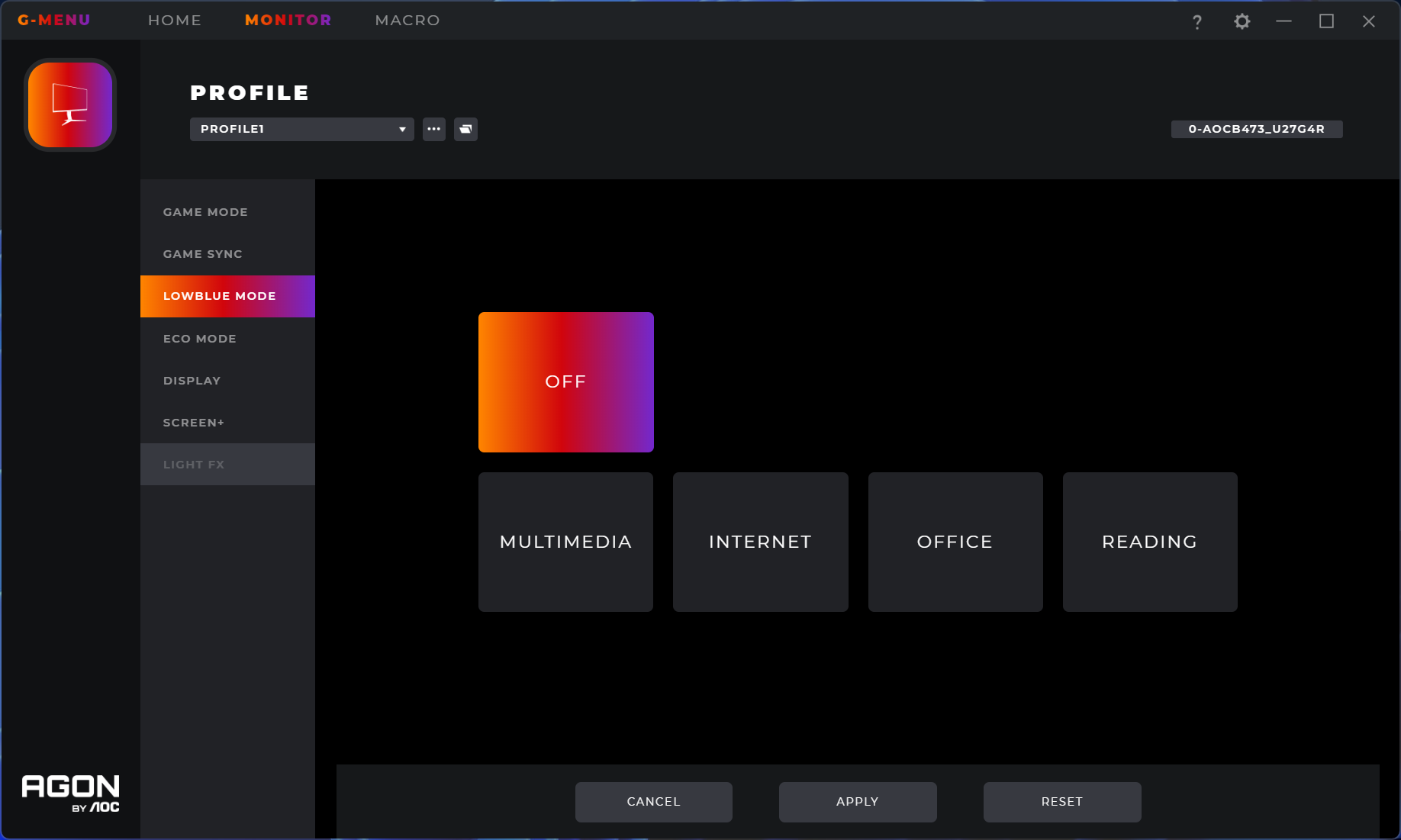
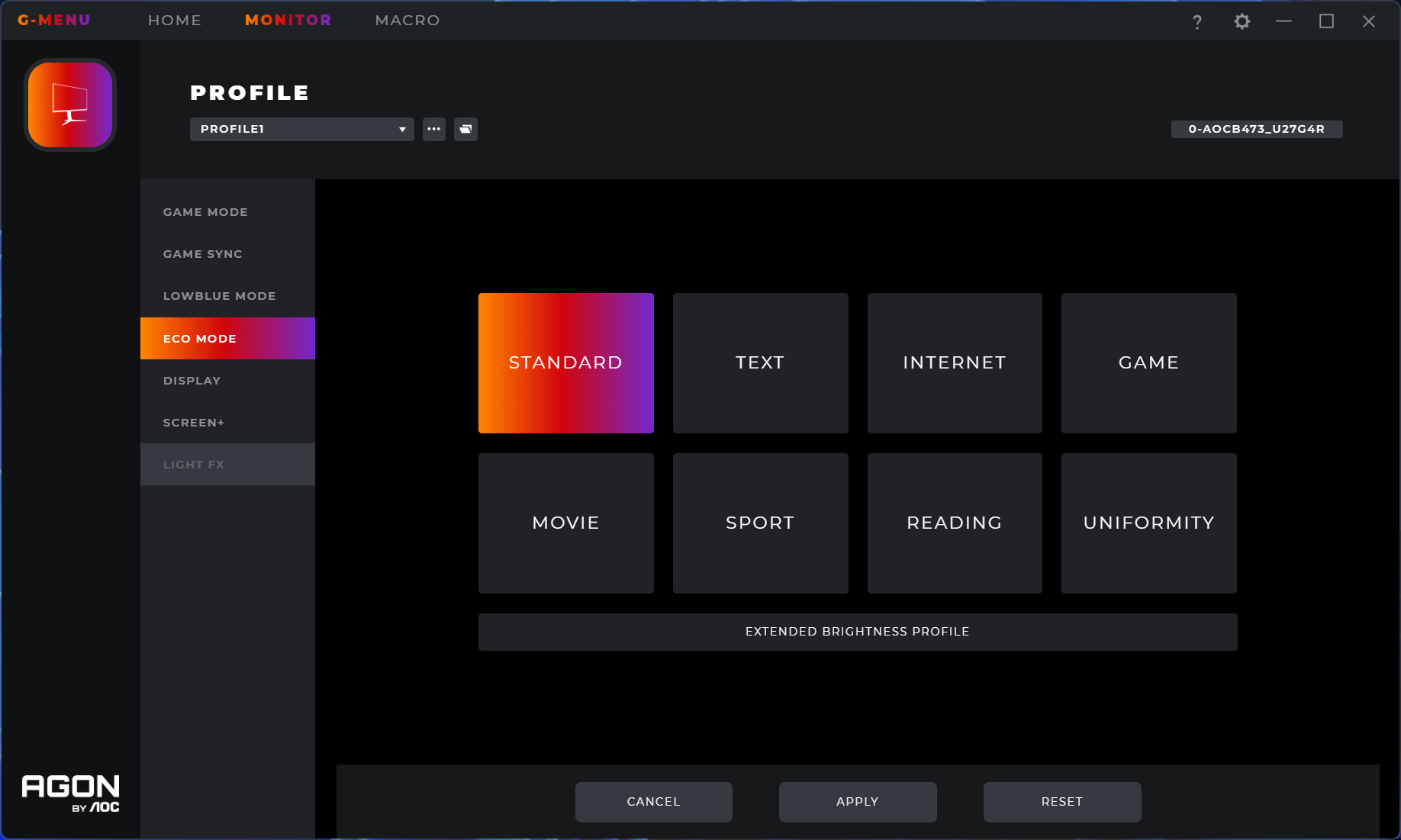
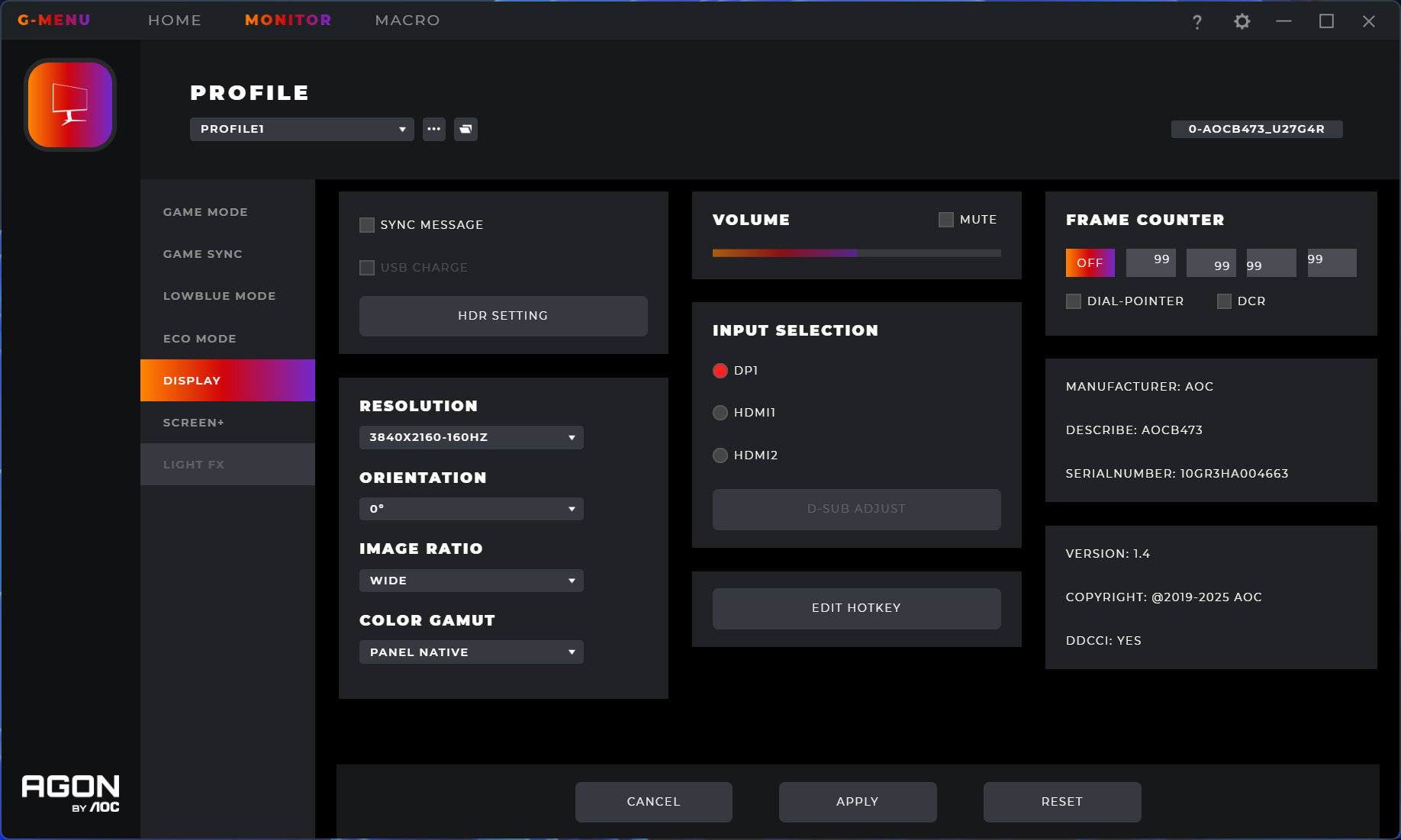
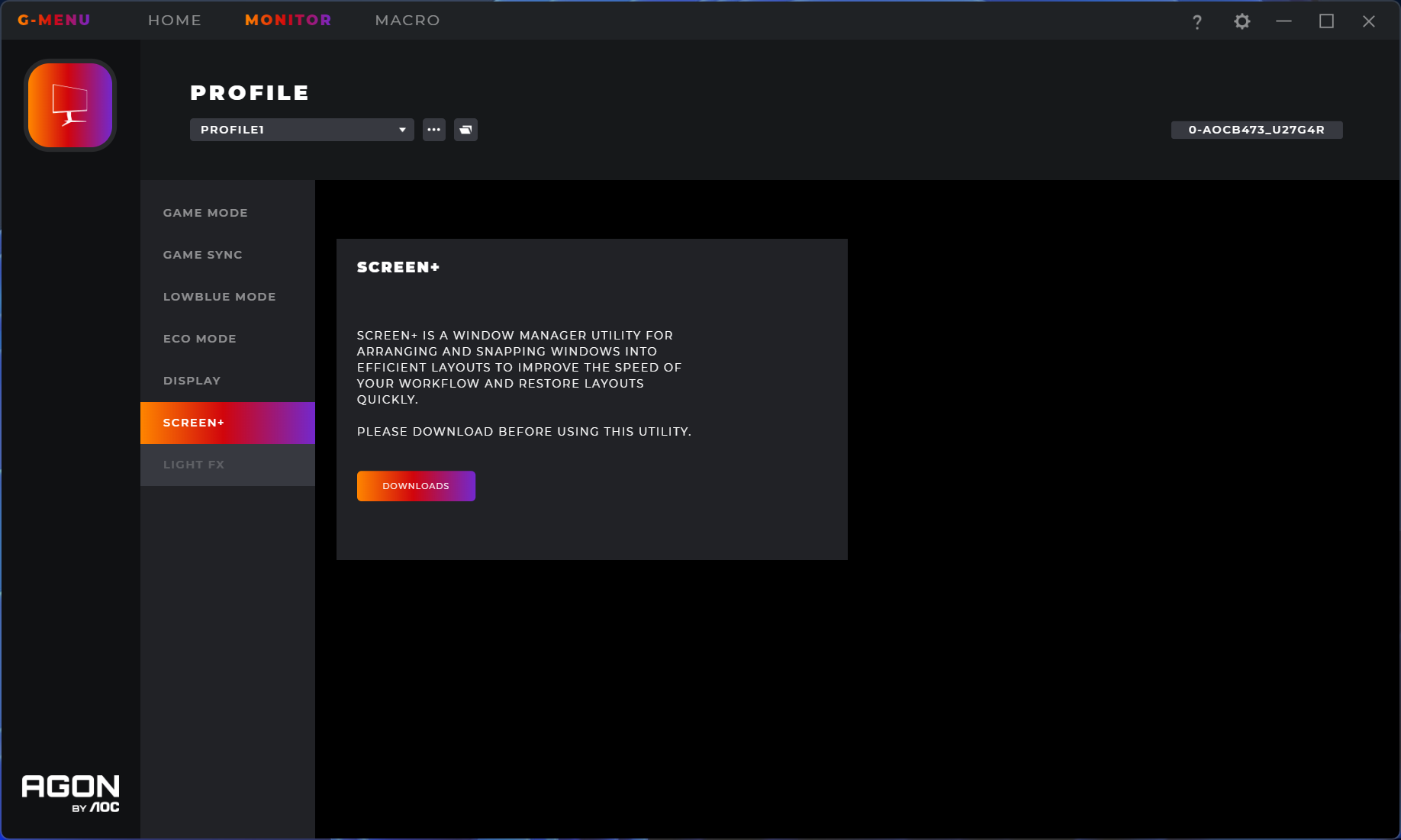
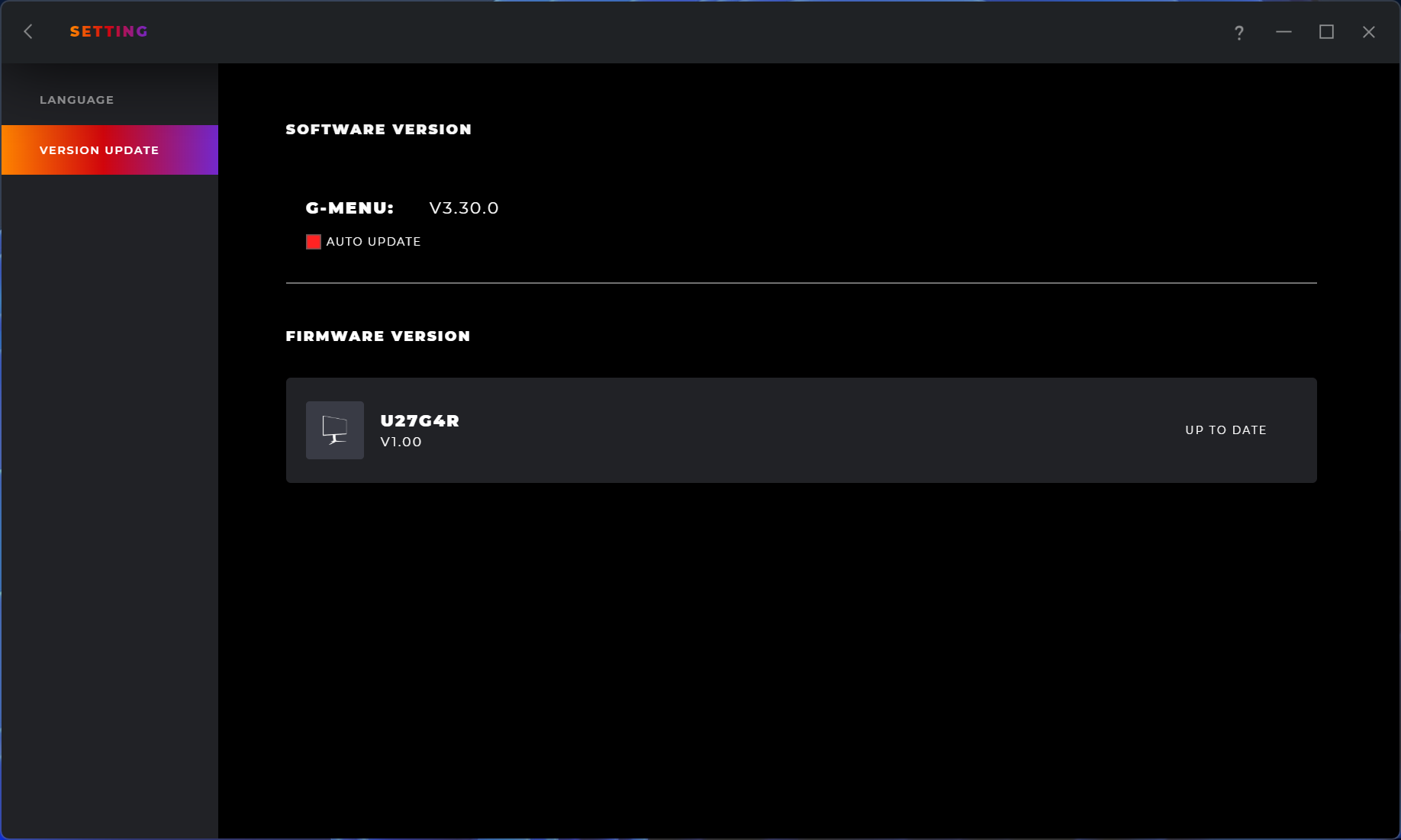
AOC does also offer its GMenu software alongside the U27G4R, providing the same controls but for use directly from the desktop, which is a nice addition. It can also be used to update the monitor's firmware, a feature I always like to see included, so credit to AOC there.
Our main test involves using an X-Rite i1 Display Pro Plus colorimeter and utilising Portrait Display's Calman Ultimate software. The device sits on top of the screen while the software generates colour tones and patterns, which it compares against predetermined values to work out how accurate the screen is.
The results show:
- A monitor’s maximum brightness in candelas or cd/m2 at various levels set in the OSD.
- A monitor’s contrast ratio at various brightness levels in the OSD.
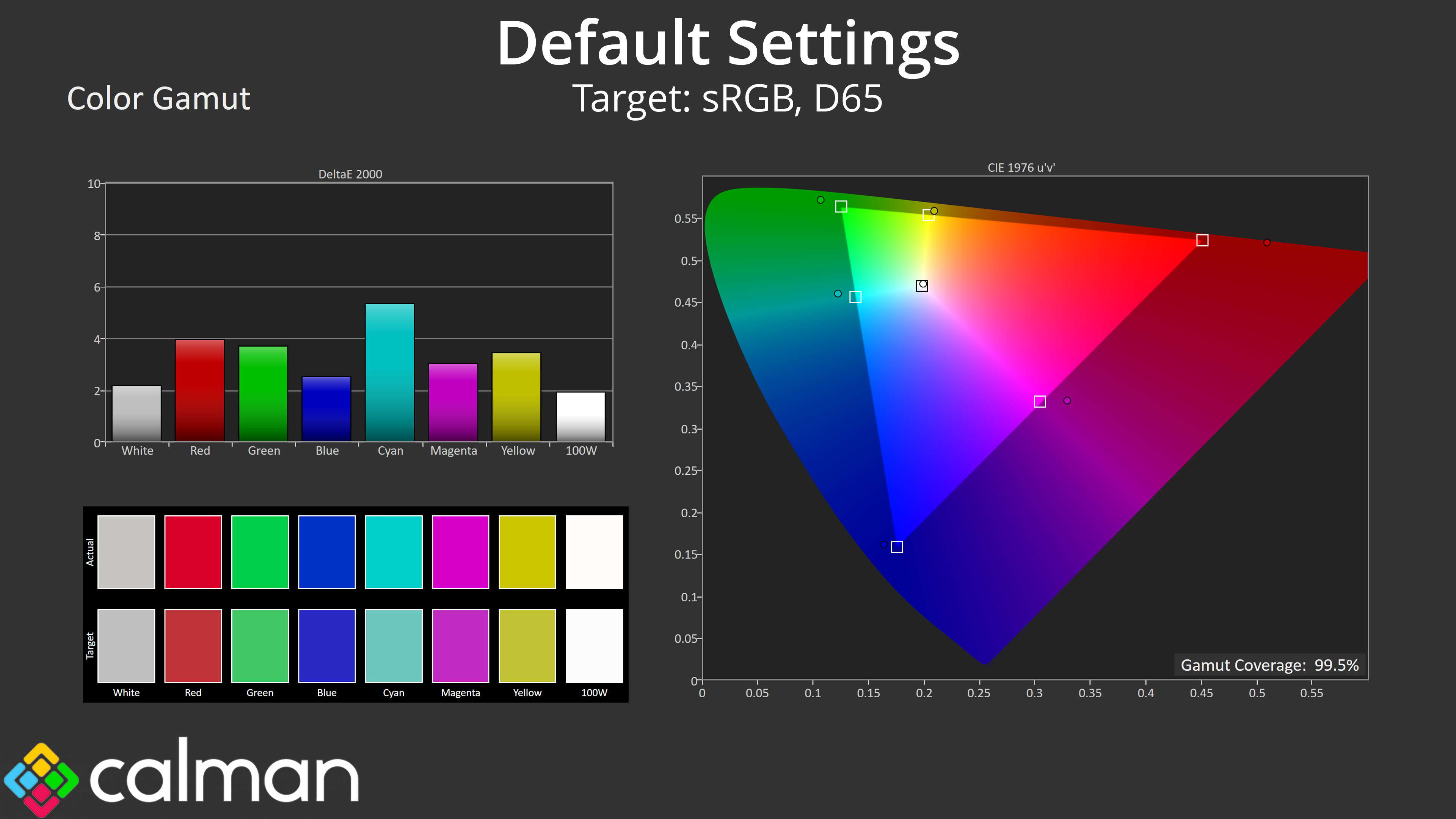
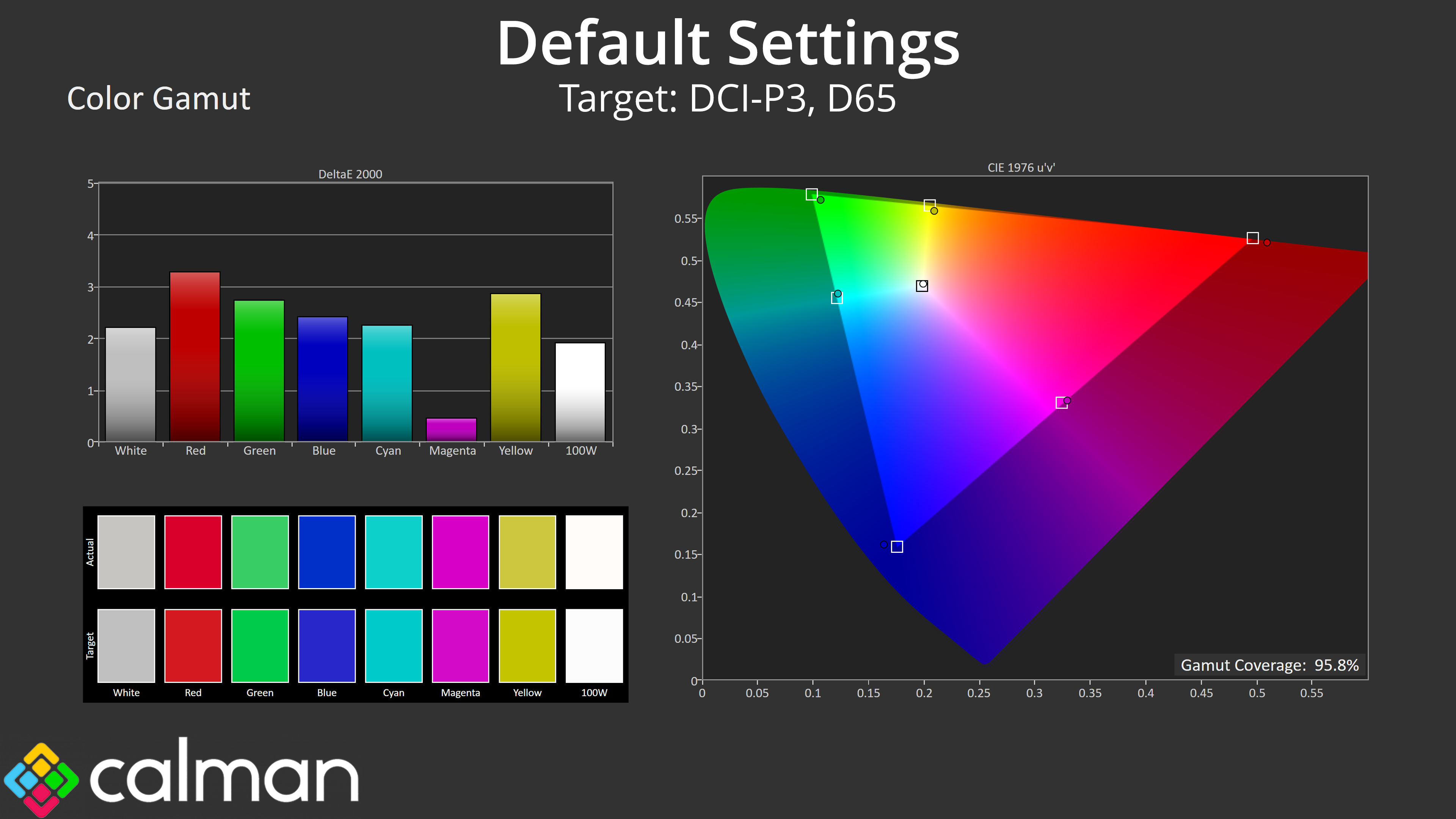
- Gamut coverage, primarily focusing on sRGB and DCI-P3 colour spaces.
- Greyscale accuracy, measured across 20 shades, with an average colour balance reported.
- The exact gamma levels, with a comparison against preset settings in the OSD.
- The colour accuracy, expressed as a Delta E ratio, with a result under 3 being fine for normal use, and under 2 being great for colour-accurate design work.
We first run these tests with the display in its out-of-the-box state, with all settings on default. If there is an sRGB emulation option or other useful mode then we may test that too. We then calibrate the screen using the Calman Ultimate software and run the tests again.
You can read more about our test methodology HERE.
Default settings
Brightness and Contrast (Full Screen)
| OSD Brightness | White Luminance (cd/m2) | Black Luminance (cd/m2) | Contrast Ratio |
| 0% | 58.4 | 0.052 | 1128:1 |
| 25% | 156.9 | 0.139 | 1131:1 |
| 50% | 250.7 | 0.221 | 1132:1 |
| 75% | 335.8 | 0.297 | 1132:1 |
| 100% | 395.1 | 0.349 | 1131:1 |
Kicking off our testing with brightness and contrast, things are pretty typical of an LCD here. The minimum brightness of 58 nits isn't super low, but the peak of just below 400 nits is solid. Black levels are also as expected, resulting in contrast of around 1130:1, which is slightly higher than AOC's claimed 1000:1 ratio, but about par for the course for an IPS panel.
Gamut (CIE 1976)
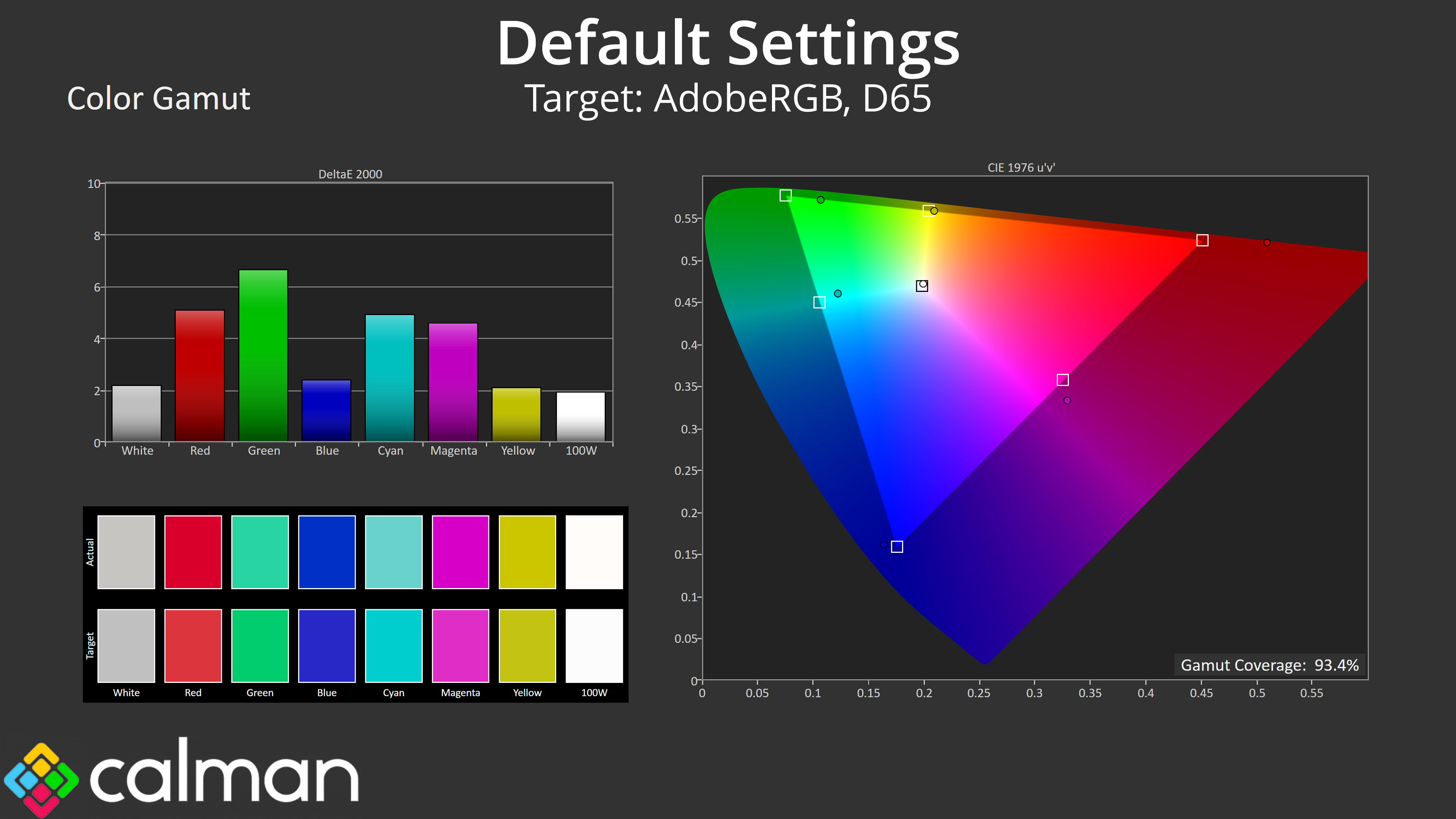
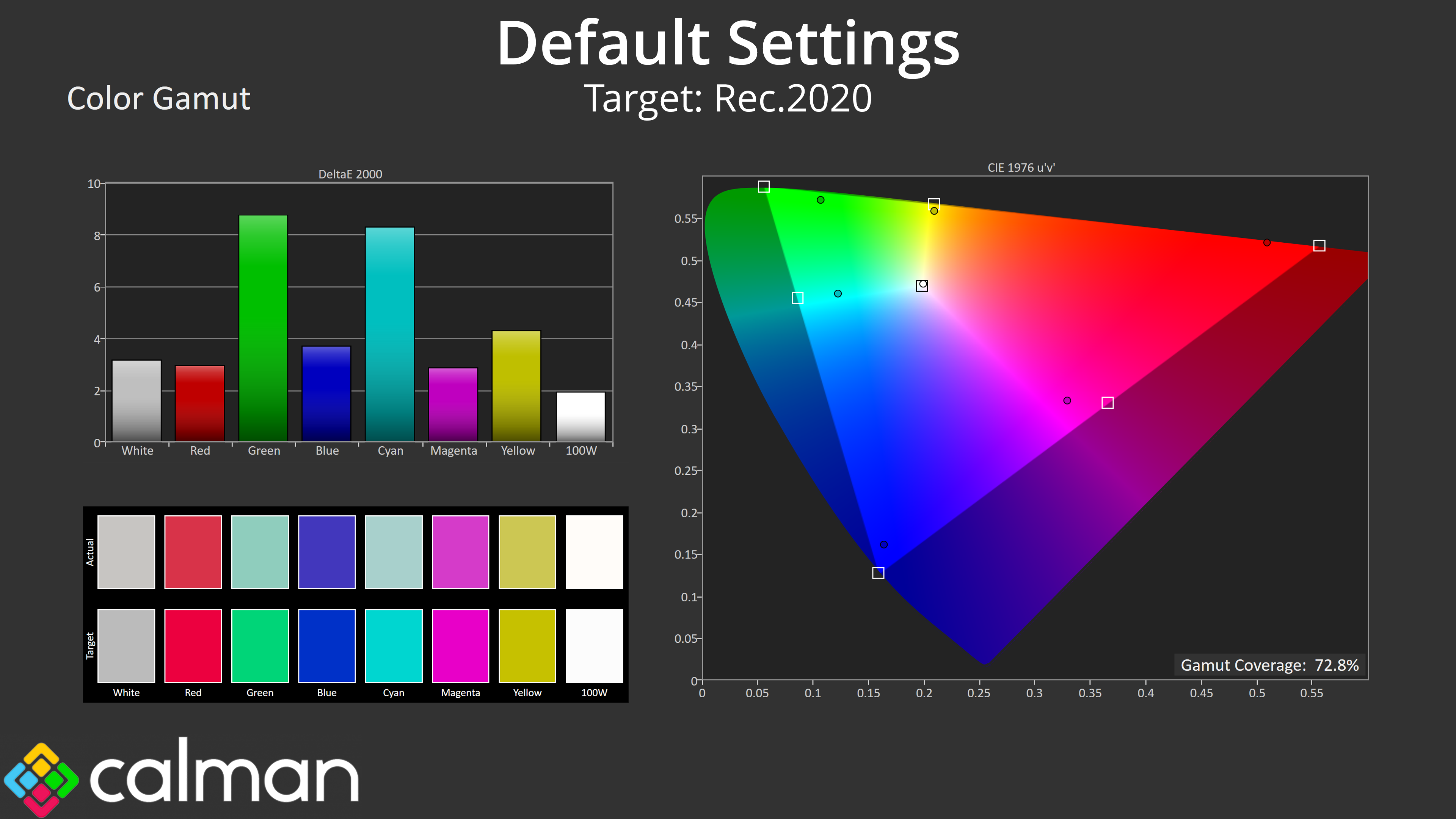
| Colour space | Coverage (%) |
| sRGB | 99.5 |
| DCI-P3 | 95.8 |
| Adobe RGB | 93.4 |
| Rec.2020 | 72.8 |
The U27G4R's gamut is perhaps surprisingly wide, well exceeding the sRGB space and covering 95.8% of DCI-P3, 93.4% of Adobe RGB and then 72.8% reporting for Rec.2020. It's not reaching quantum dot levels, but for a screen at this price point, it's impressively wide.
Greyscale

As for default greyscale performance, the monitor's white balance is very good, averaging 6428K, so no need for any changes there. Gamma is less impressive, being consistently below the 2.2 target, averaging 2.031, resulting in a brighter-than-intended appearance.
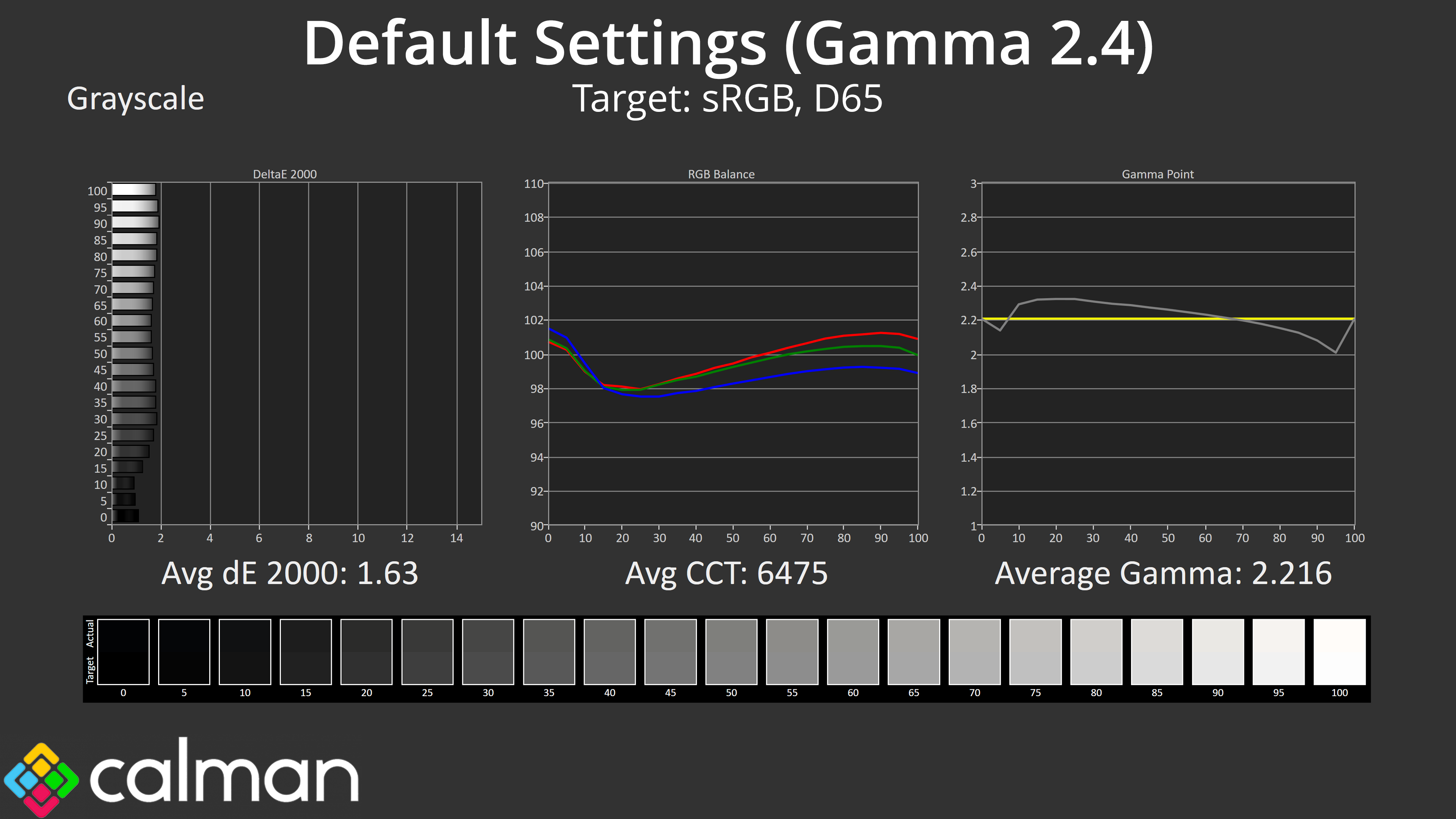
I actually found that switching to the Gamma 2.4 setting resulted in a better overall setup – it's still not perfect, but is consistently closer to the 2.2 target and averaging 2.216.
Saturation
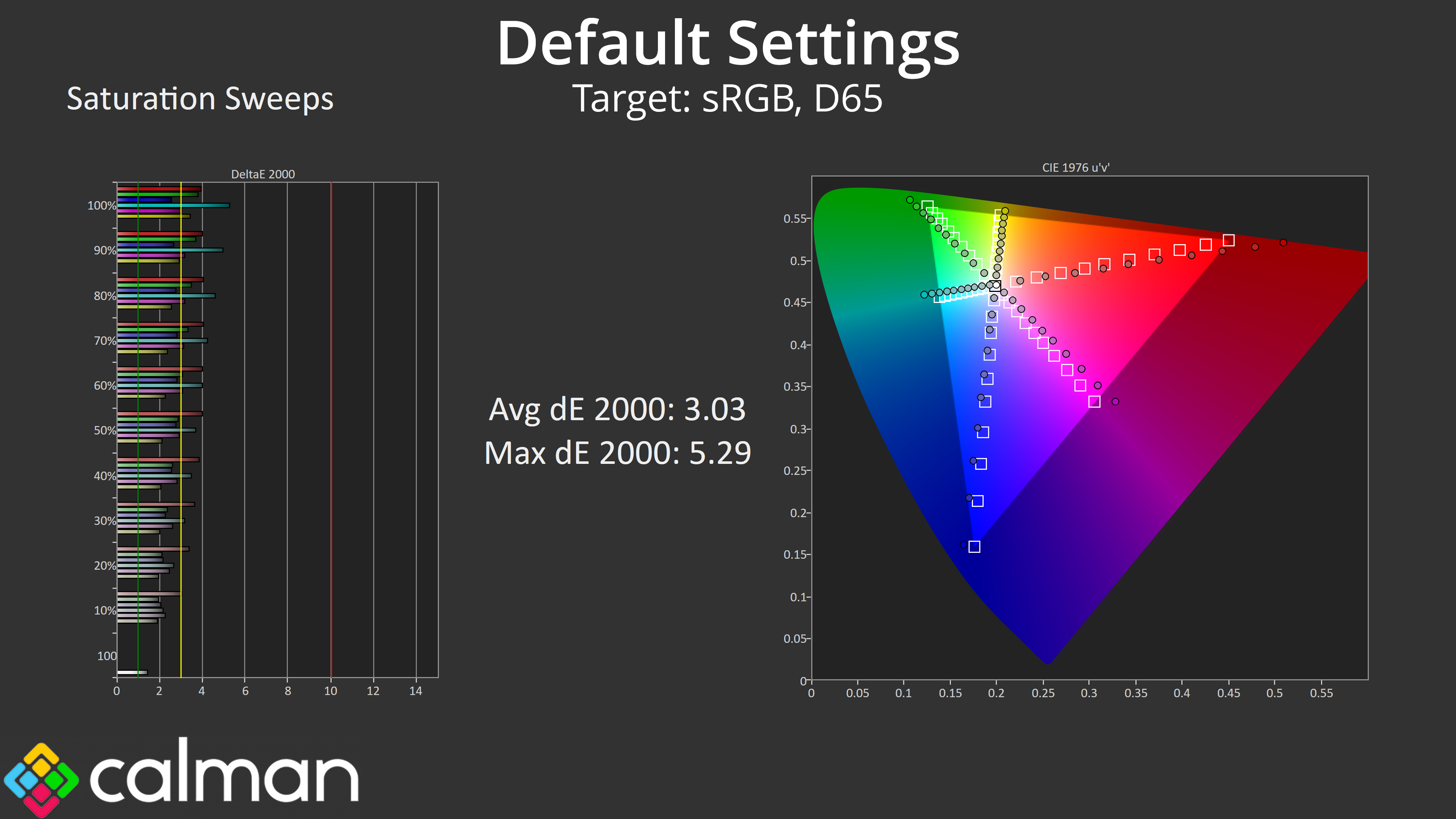
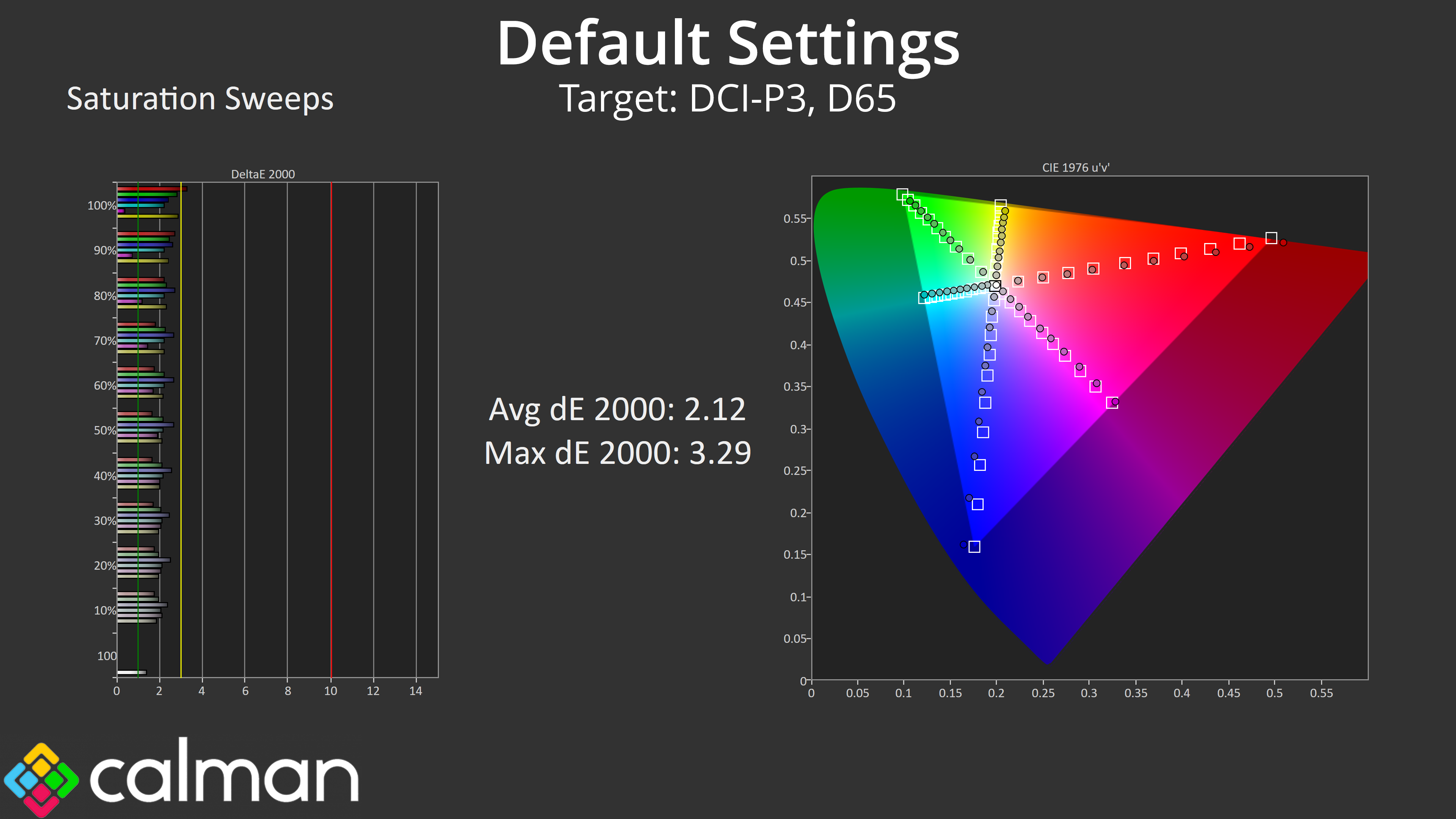
Out of the box saturation performance is about as expected considering how wide the gamut is. Relative to the sRGB space we saw an average deltaE 2000 of 3.03, though that does improve to an average of 2.12 when compared against the DCI-P3 space.
Colour Accuracy

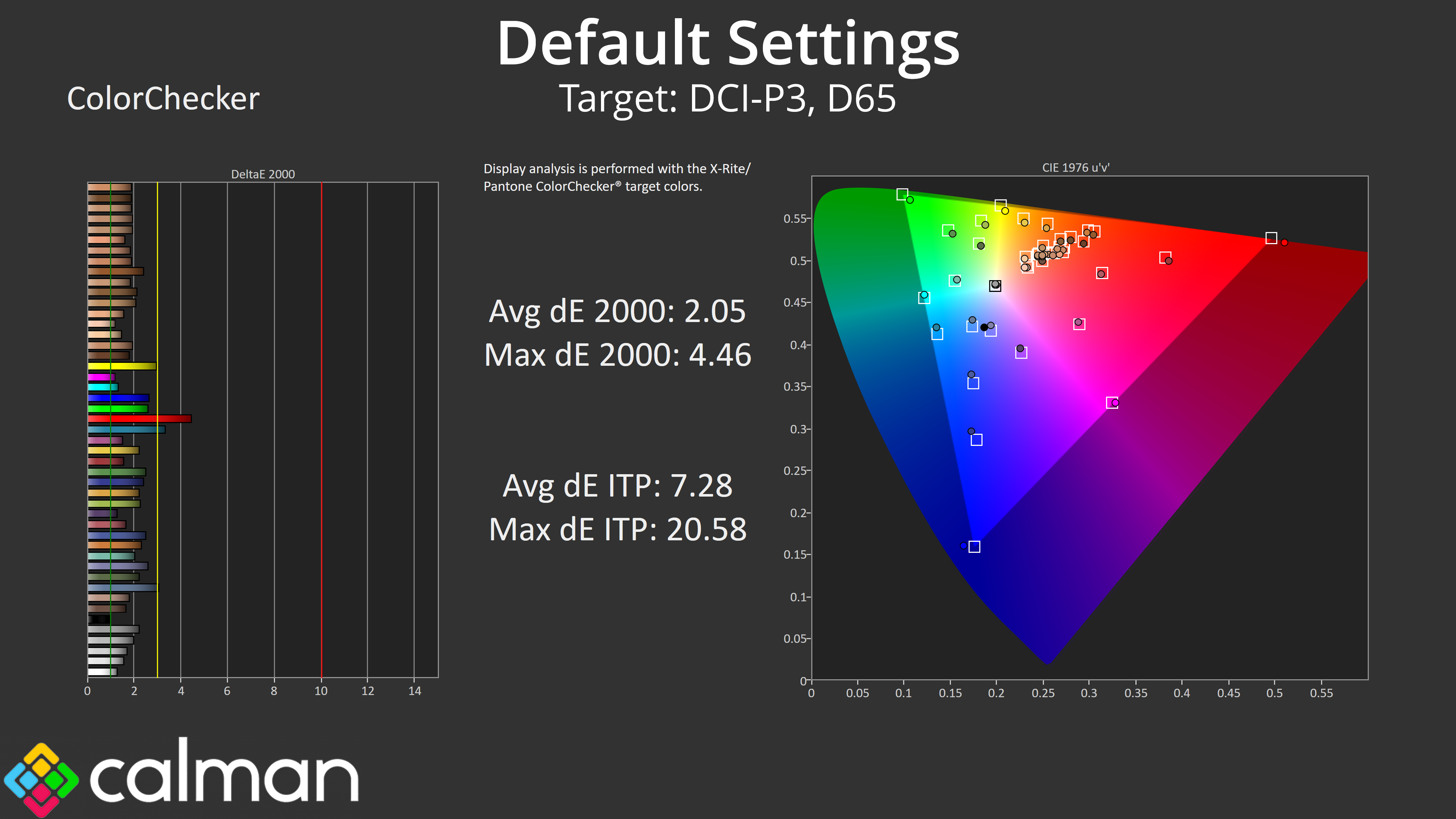
It's a very similar story for colour accuracy, too. Relative to sRGB we're looking at an average dE 2000 of 3.36, and then that improves to 2.05 for the DCI-P3 space.
sRGB Emulation Mode
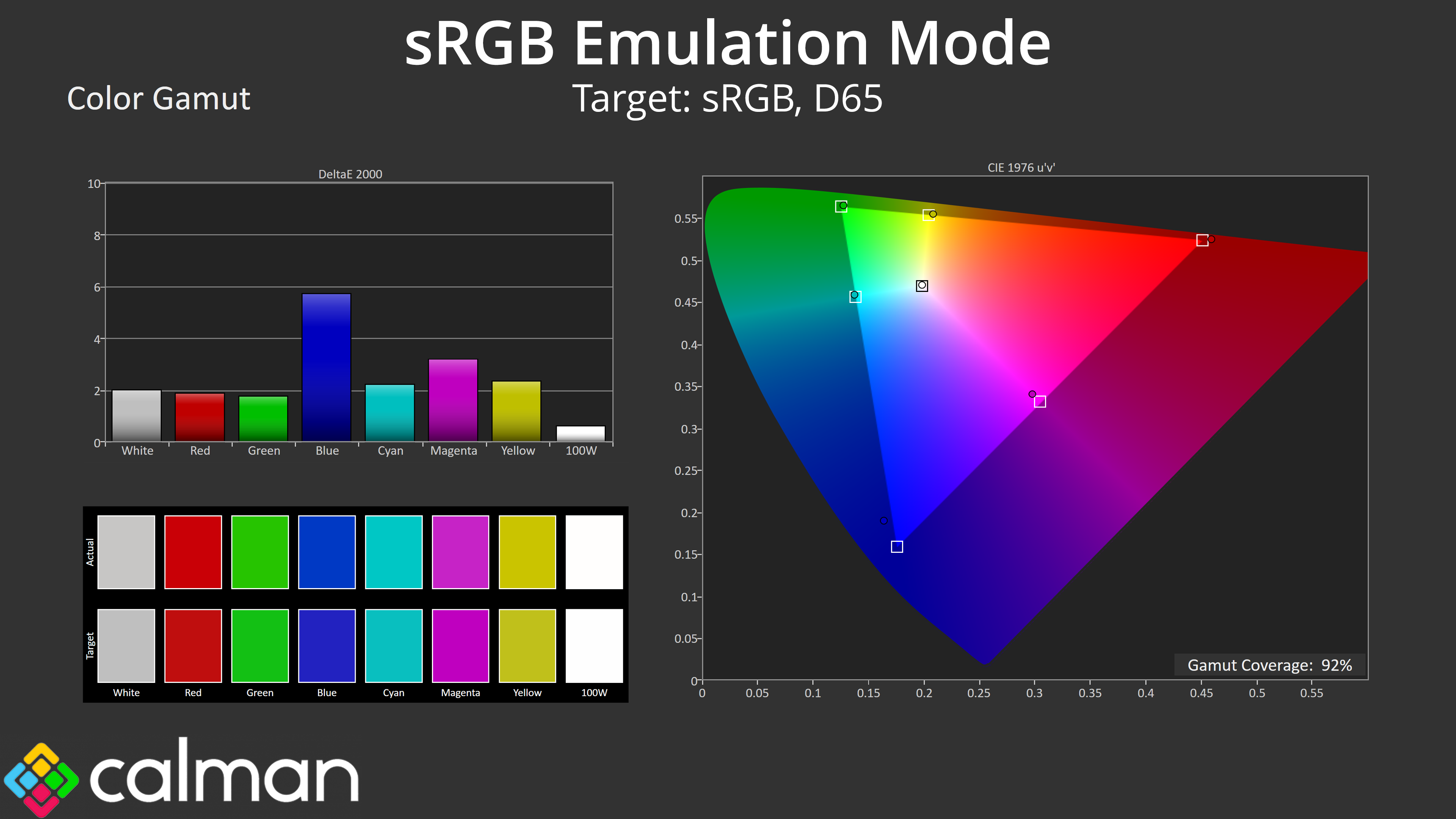
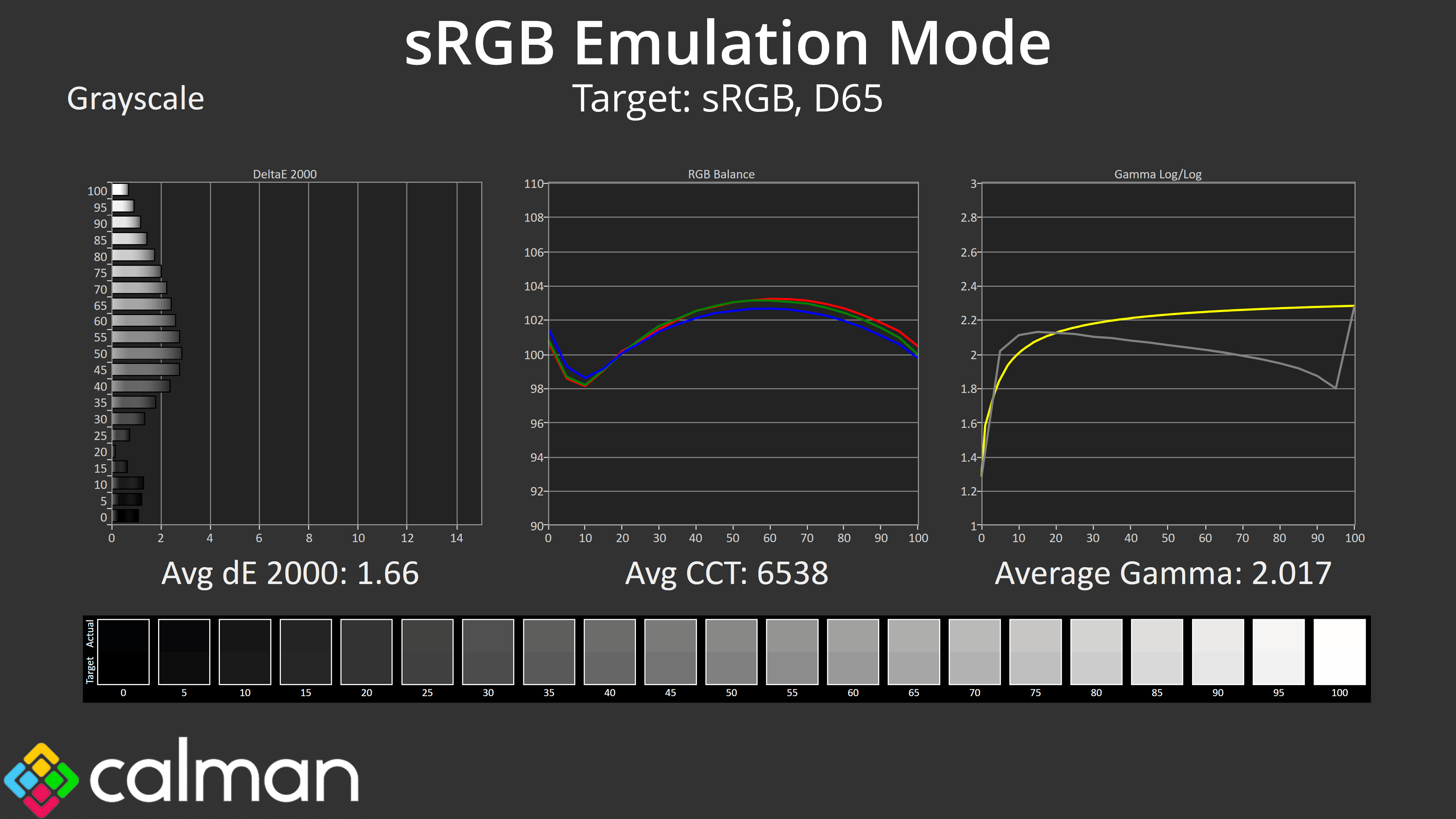
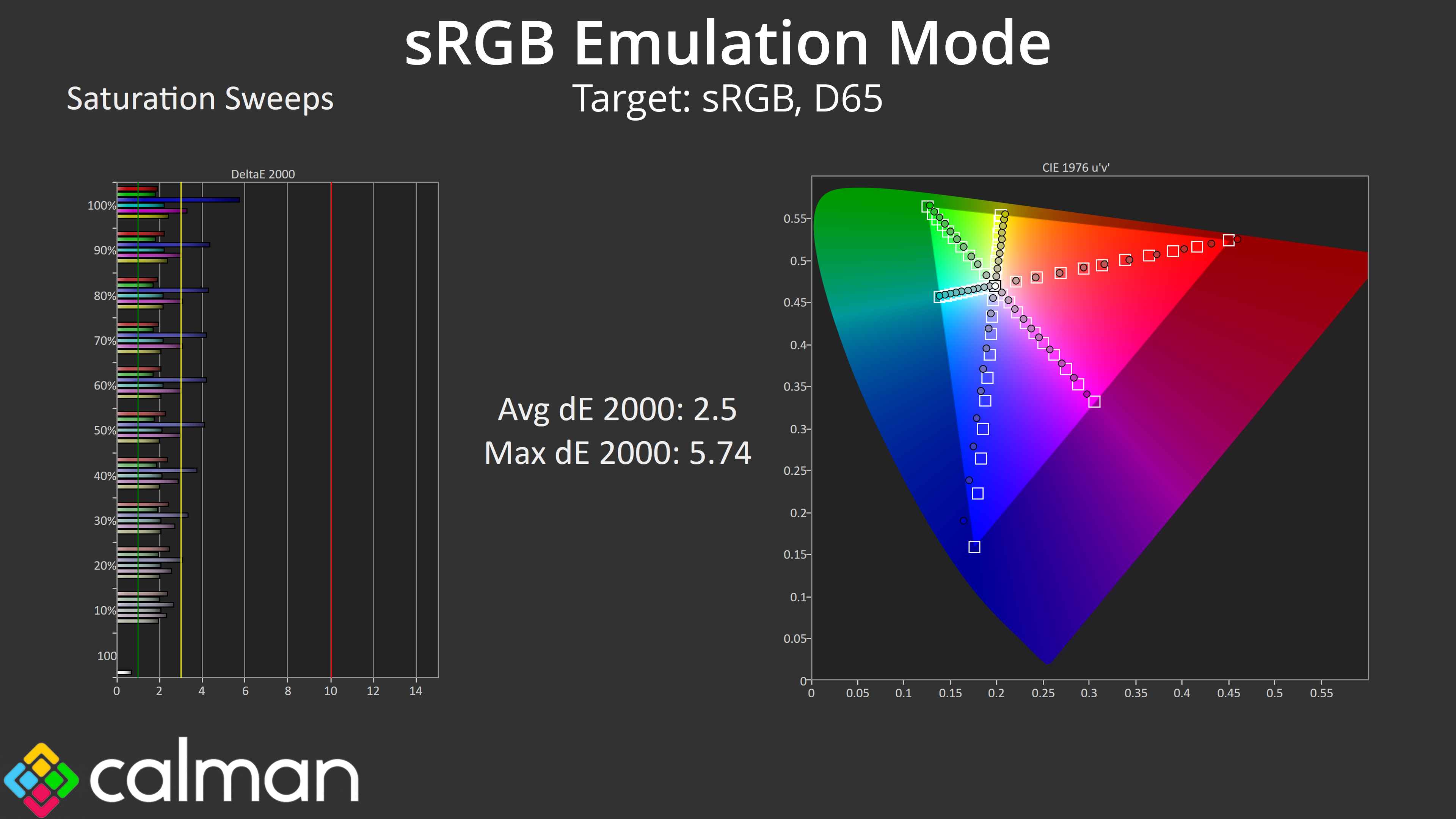
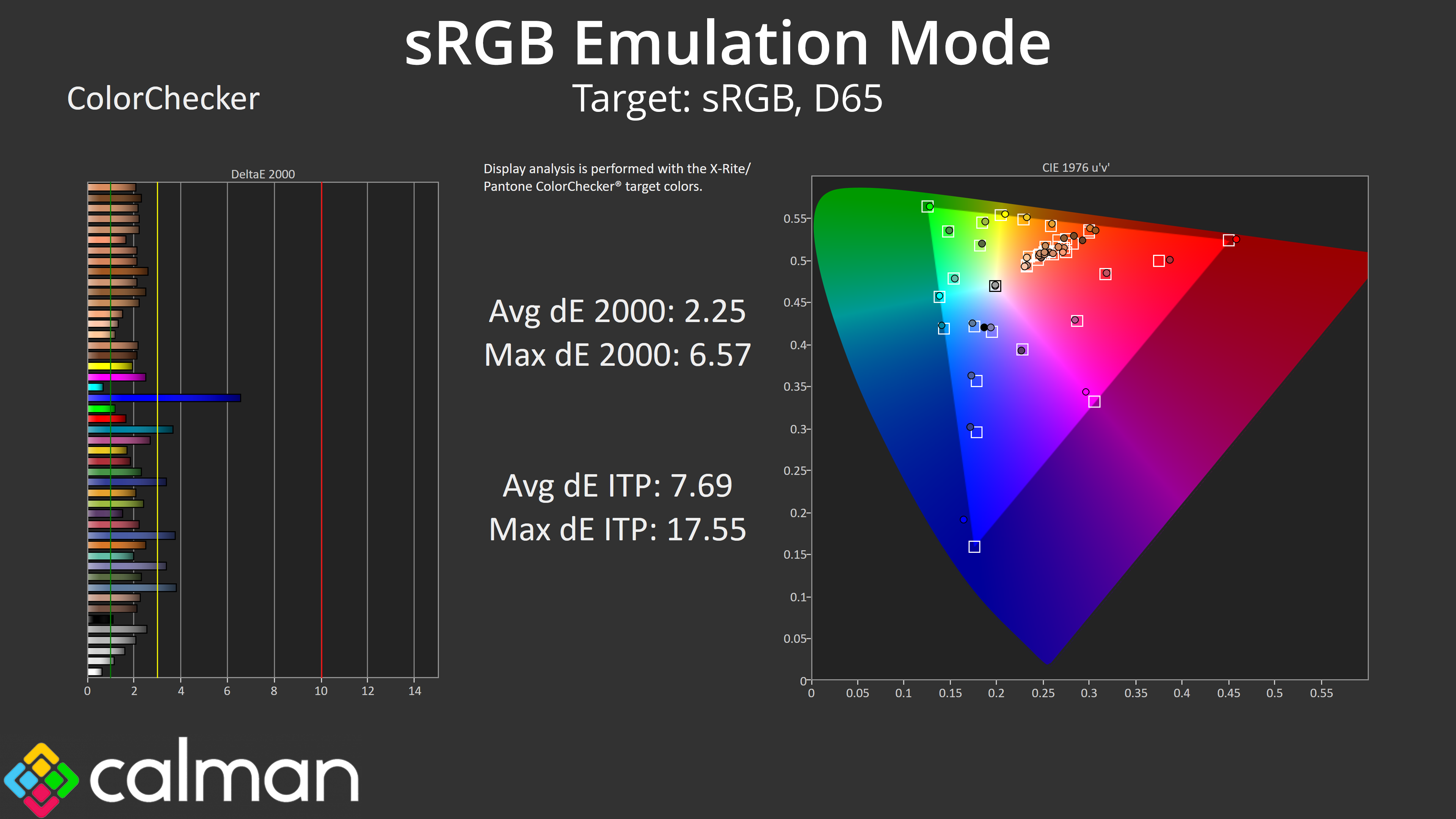
AOC does also includes an sRGB mode within the OSD, but it's not the best I've ever used. It does clamp the gamut to prevent over-saturation, but is actually a bit over-aggressive here, reducing coverage to 92%. On top of that, Gamma tracking is still well off and now cannot be adjusted given the sRGB mode locks down various settings. Both saturation and colour accuracy dE 2000s do improve over stock, hovering around 2-2.5, so they're decent, but it's nothing mind blowing.
Calibrated Results
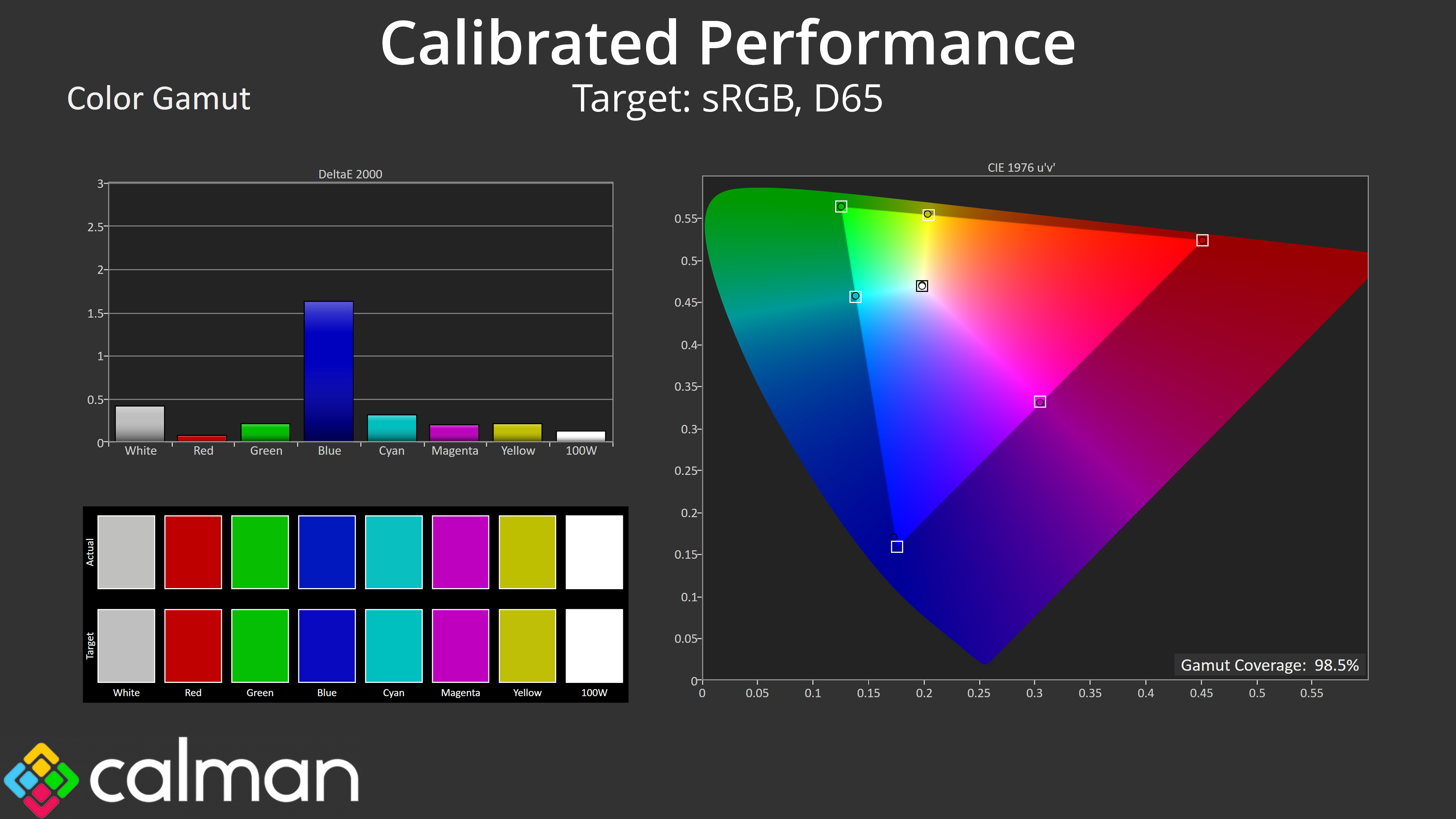
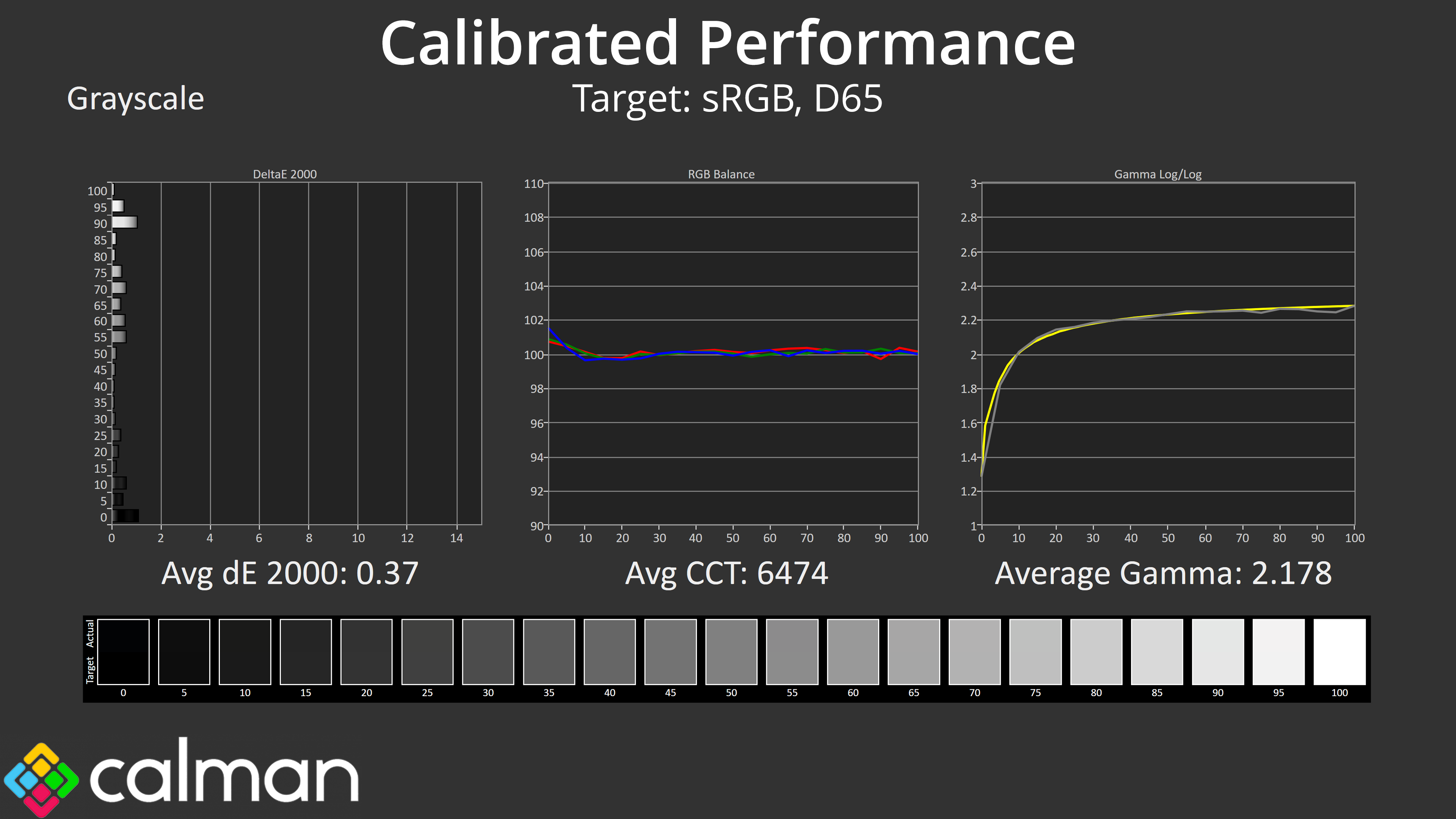
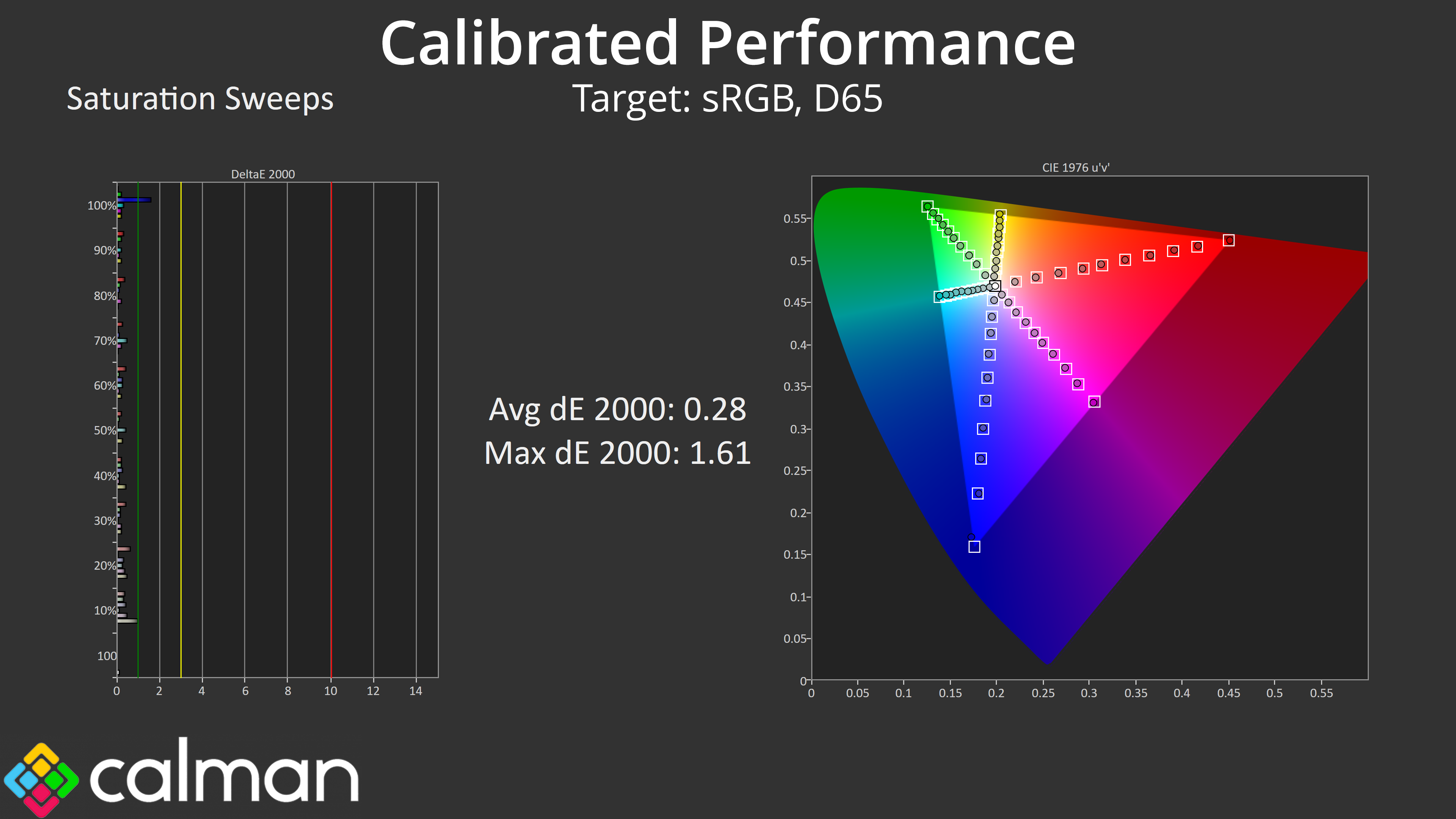
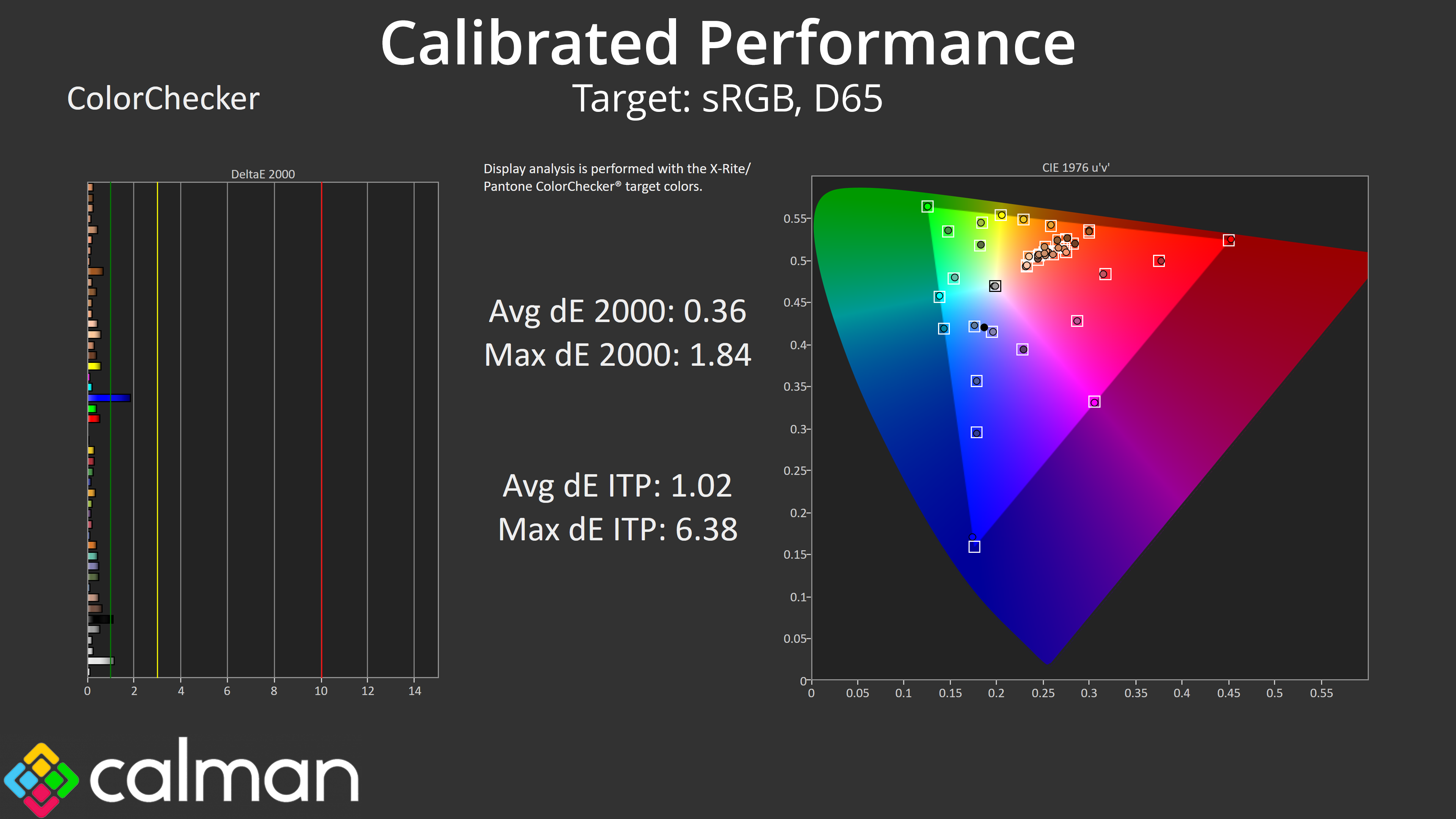
For the best results, a full calibration is required, with the U27G4R doing incredibly well here – with stellar results across the board and a particularly low average deltaE for colour accuracy. I can't imagine many people will be buying this sort of monitor for colour-sensitive work, but it's good to know what's achievable if you have the tools.
We use the Open Source Response Time Tool (OSRTT), developed by TechTeamGB, for our response time testing. This measures grey-to-grey response times and presents the results in a series of heatmaps, the style of which you may be familiar with from other reviews.
Initial Response Time is the time taken for the panel to transition from one colour to another, where lower values are better. We present the initial response time, so overshoot is not taken into account and is measured separately. We use a fixed RGB 5 tolerance for each transition.
Overshoot is the term given for when a monitor's transition exceeds or goes beyond its target value. So if a monitor was meant to transition from RGB 0 to RGB 55, but it hits RGB 60 before settling back down at RGB 55, that is overshoot. This is presented as RGB values in the heatmaps – i.e. how many RGB values past the intended target were measured.
Visual Response Rating is a metric designed to ‘score' a panel's visual performance, incorporating both response times and overdrive. Fast response times with little to no overshoot will score well, while slow response times or those with significant overshoot will score poorly.
The AOC U27G4R offers a total of four overdrive modes – normal, fast, faster, and fastest. To keep things as concise as possible, we're looking at the best three overdrive modes for the 160Hz and 320Hz modes.
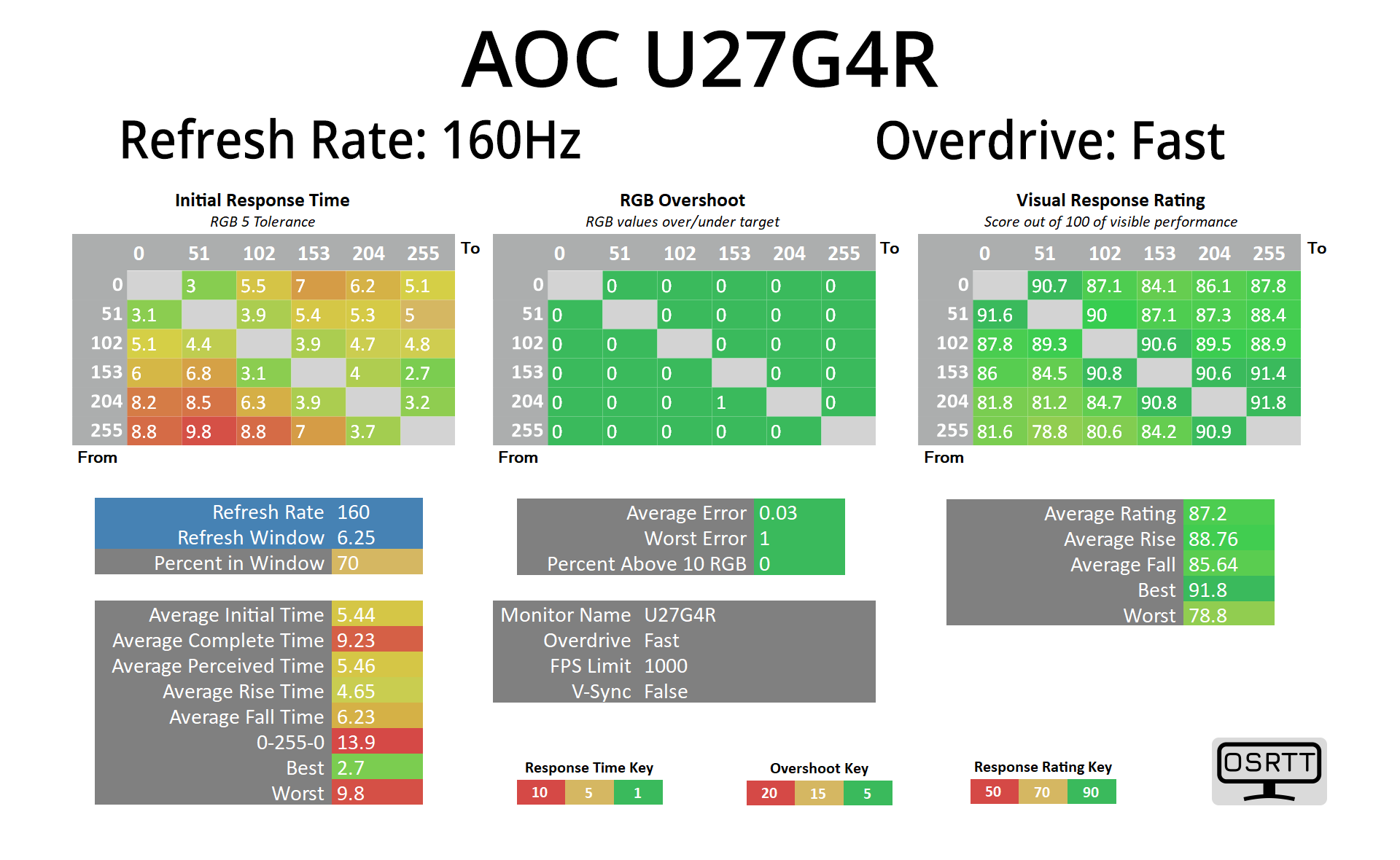
Starting at 160Hz with the Fast mode, this is a decent start – the average response time of 5.44ms is decent if not mind-blowing, but there's no overshoot here at all.
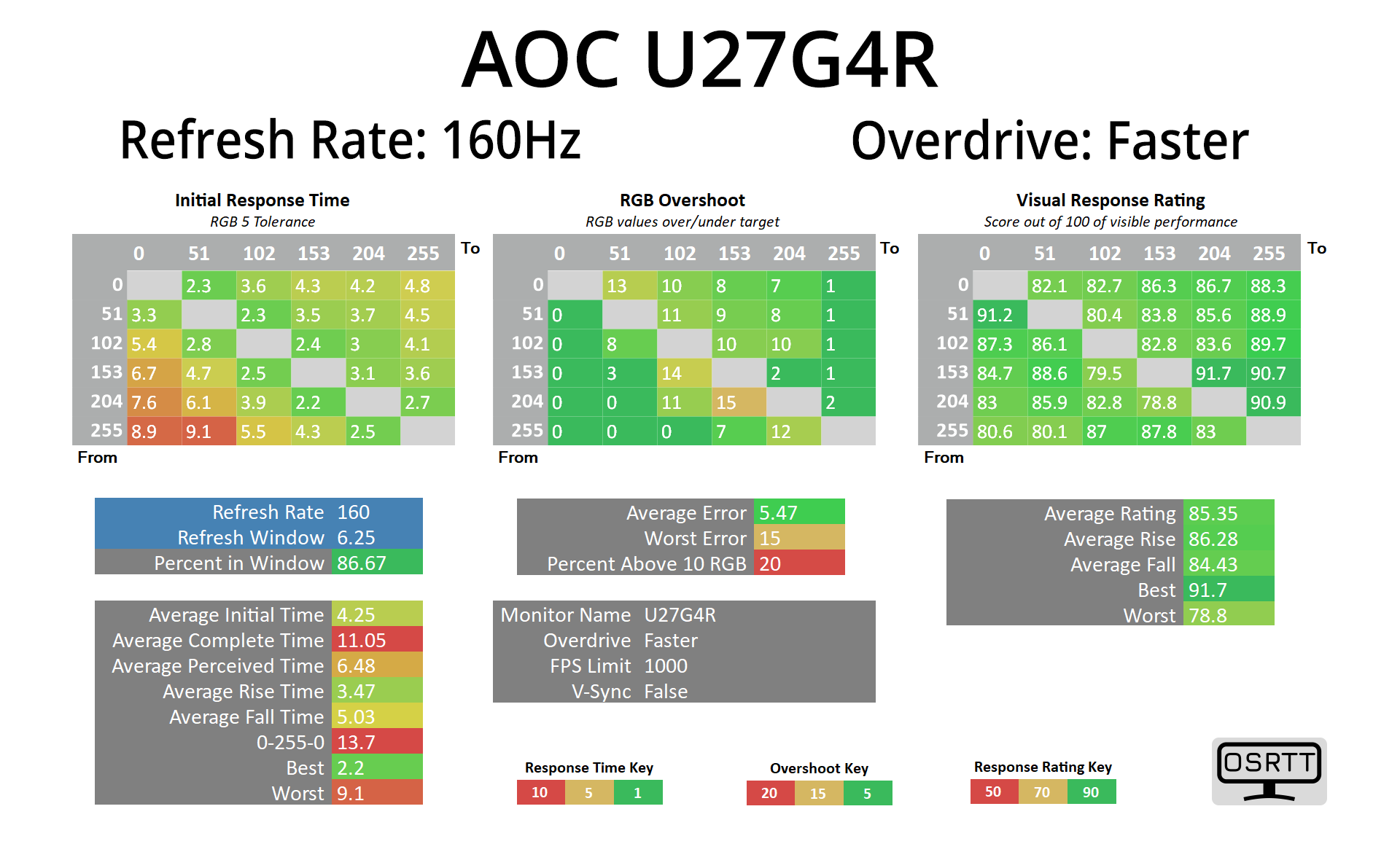
I think the Faster mode is more optimal though, reducing the average response time to 4.25ms, and while there is some overshoot, the average error is just 5.47 RGB values over the intended target, so it's not really noticeable at all.
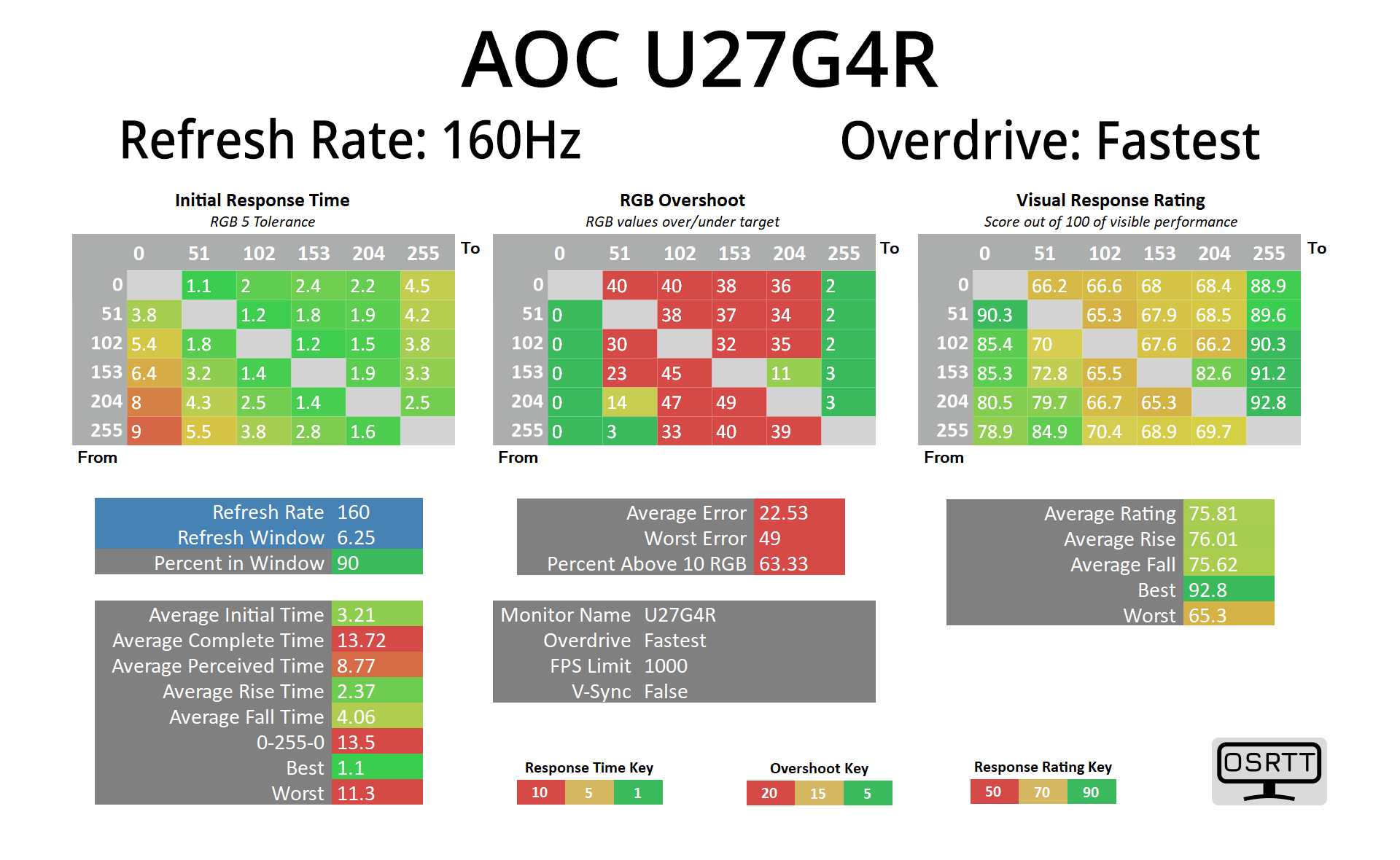
The Fastest mode, however, introduces way too much overshoot at 160Hz.
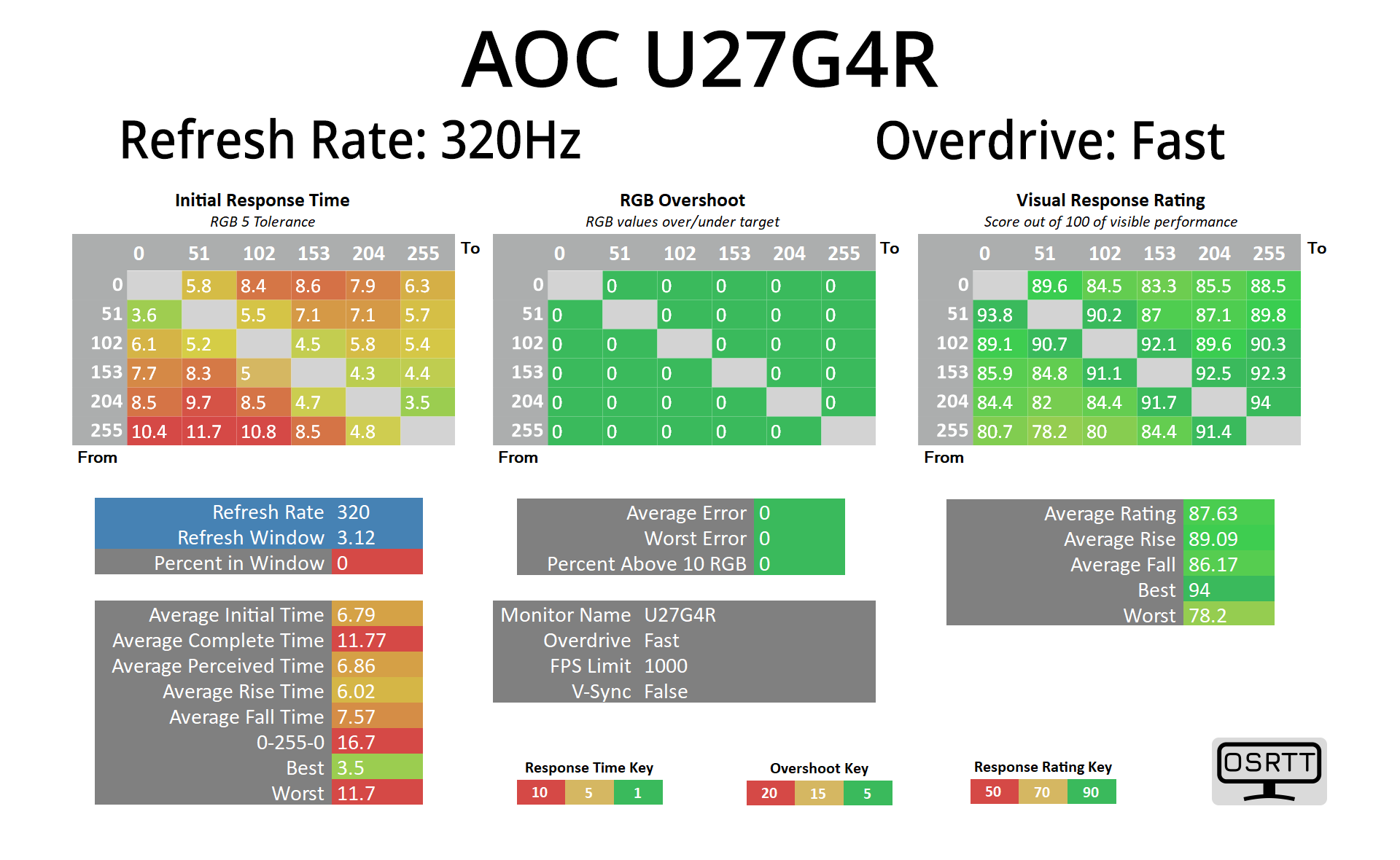
Up at 320Hz for the 1080p mode, the Fast overdrive setting is a bit slower, averaging 6.79ms.
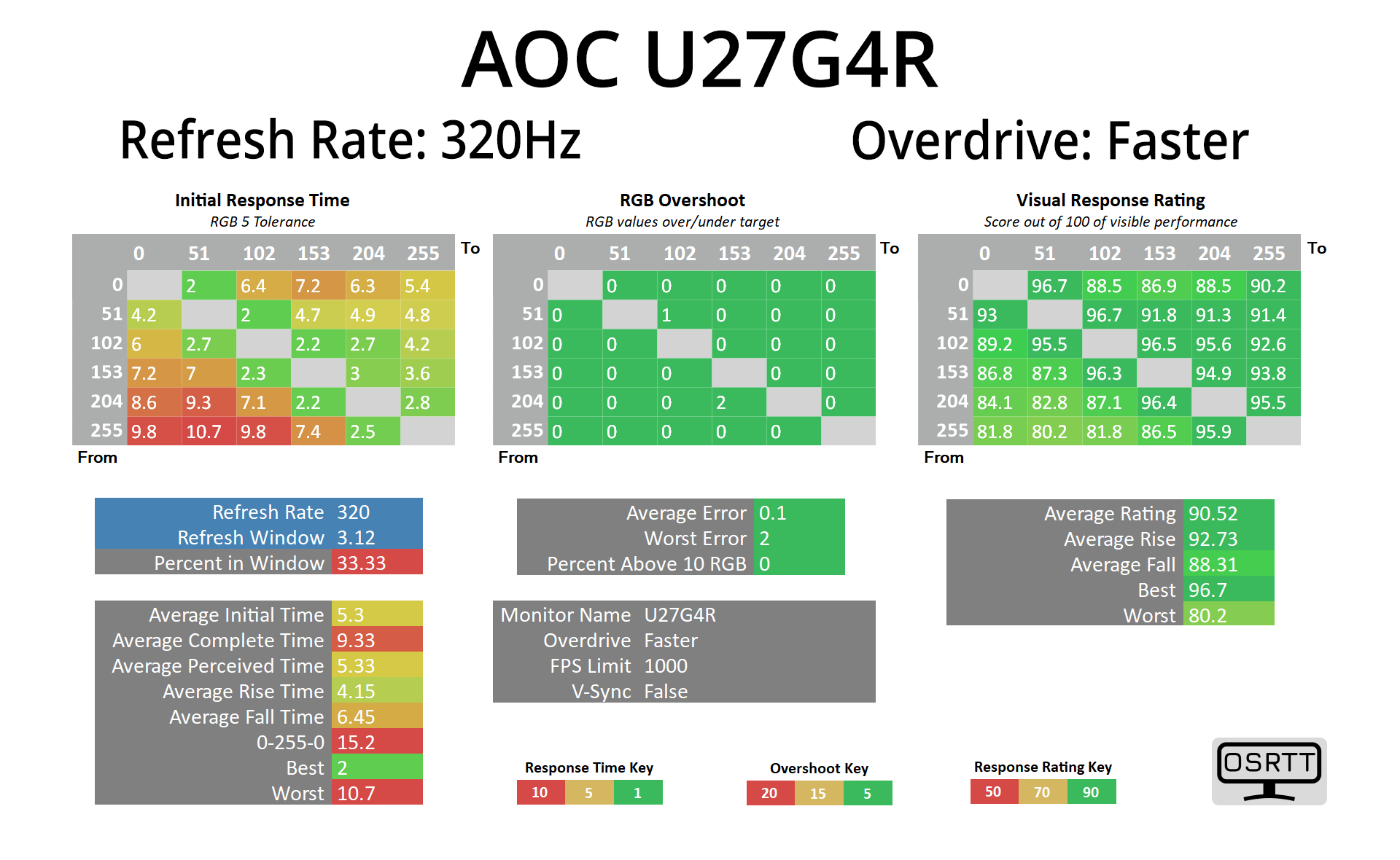
Faster is better at 5.3ms and still doesn't have any overshoot, but it's not super fast, as indicated by the refresh rate compliance hitting just 33.33%.
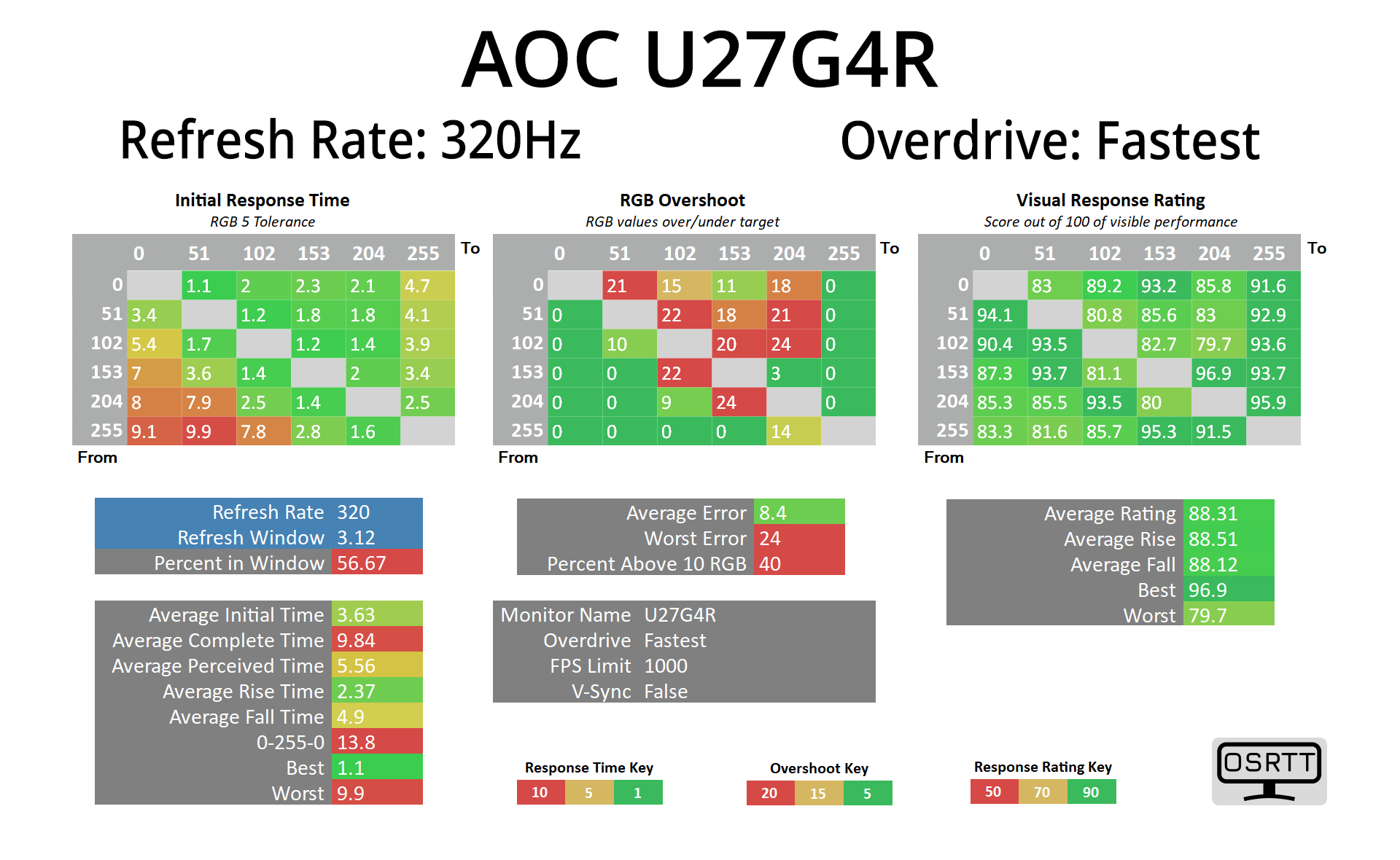
I think the Fastest mode is probably the best bet at 320Hz – it does introduce a bit of overshoot, even at this refresh rate, but the average error of 8.4 RGB values isn't too bad.
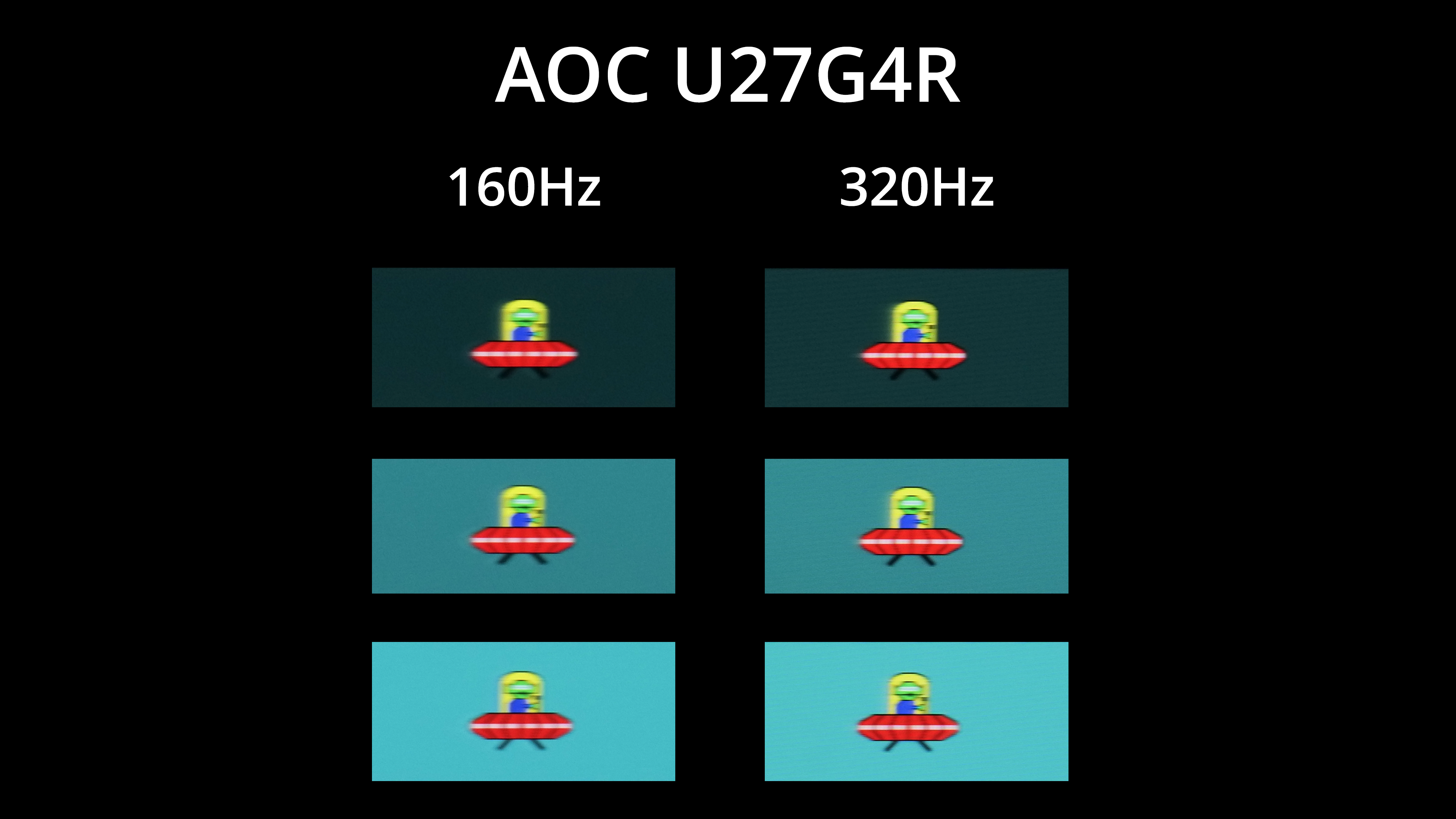
For a visual representation, we're using our pursuit photos of the BlurBusters UFO test. First things first, we do see an improvement in overall clarity, with less motion blur, when using the 320Hz mode instead of 160Hz.
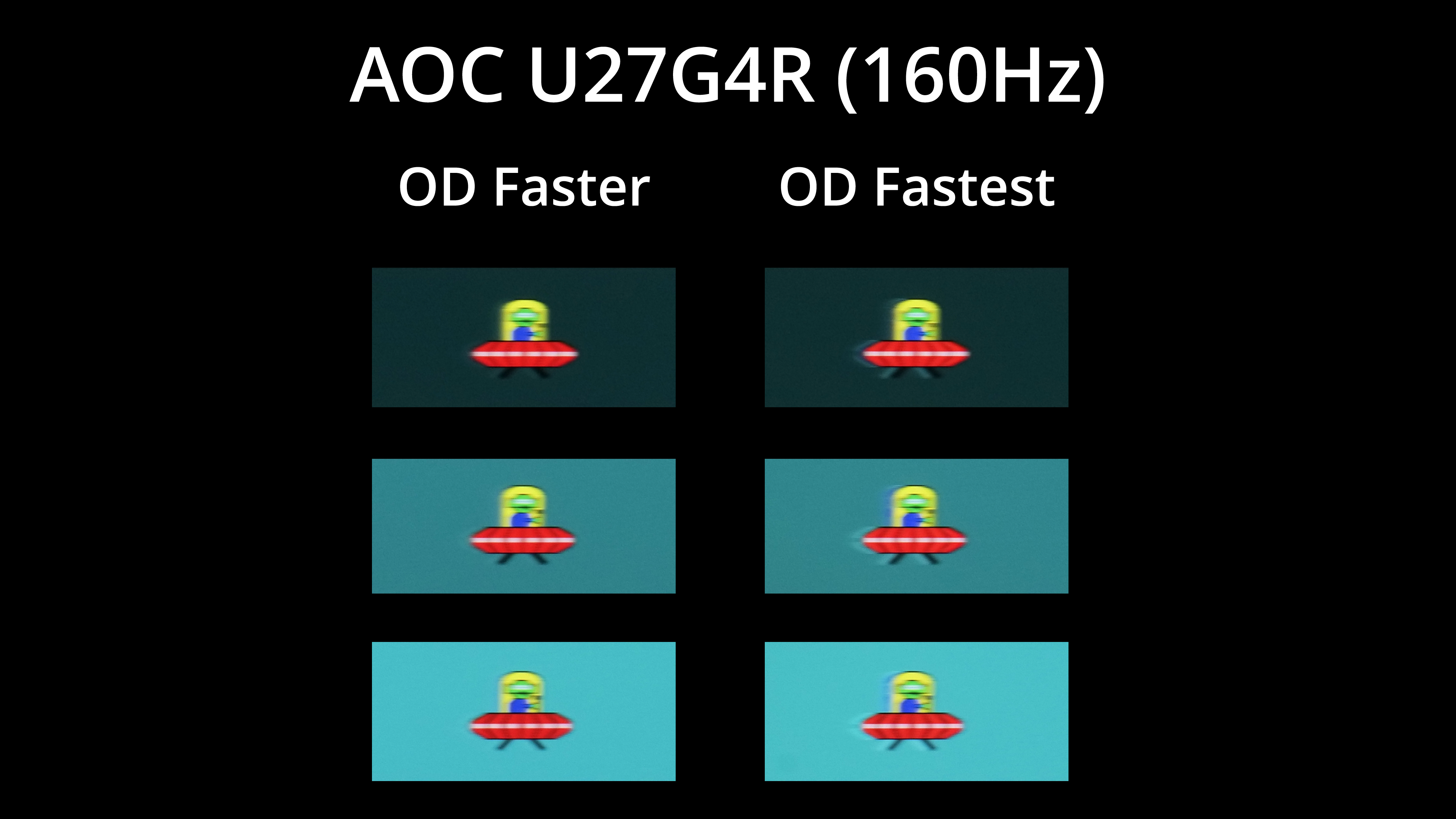
At the 4K 160Hz mode, I think the Faster overdrive mode is optimal considering how much overshoot is introduced by the Fastest mode at this refresh.
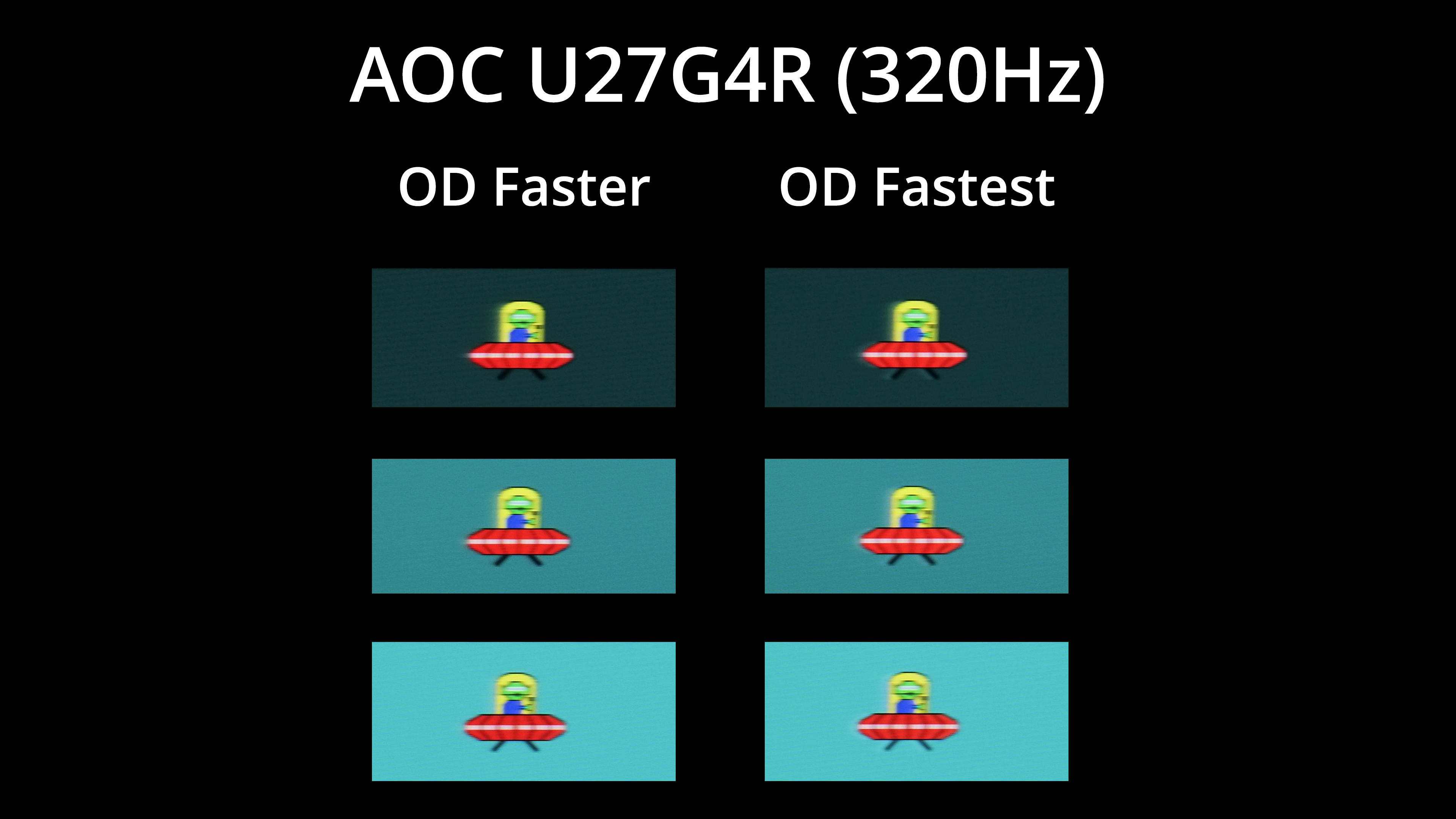
At 320Hz though, I do think you can get away with the Fastest mode as the overshoot is less noticeable. This does create a situation where you may want to switch overdrive modes depending which of the two dual-mode options you are using, which is a bit annoying. But I also think the Faster mode still looks fine at 320Hz, so you could just leave overdrive there if you don't want to keep adjusting it as and when you change between the two dual-modes.
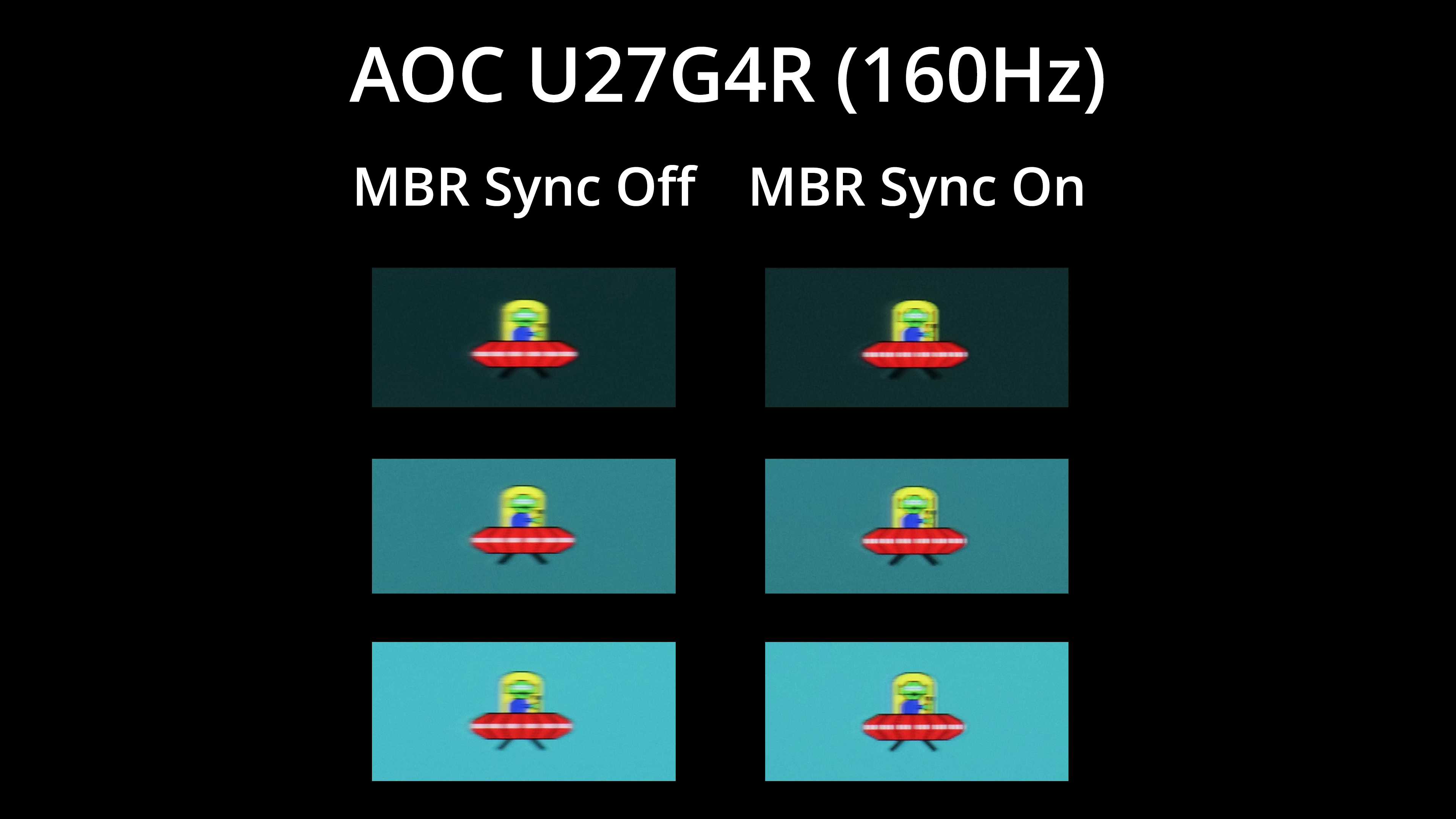
There is another twist though, as AOC also offers MBR Sync – it's backlight strobing implementation. At 160Hz, this provides a noticeable boost to clarity, with only minimal signal crosstalk – so just a hint of a double image, but I think it's well worth using if you don't mind that.
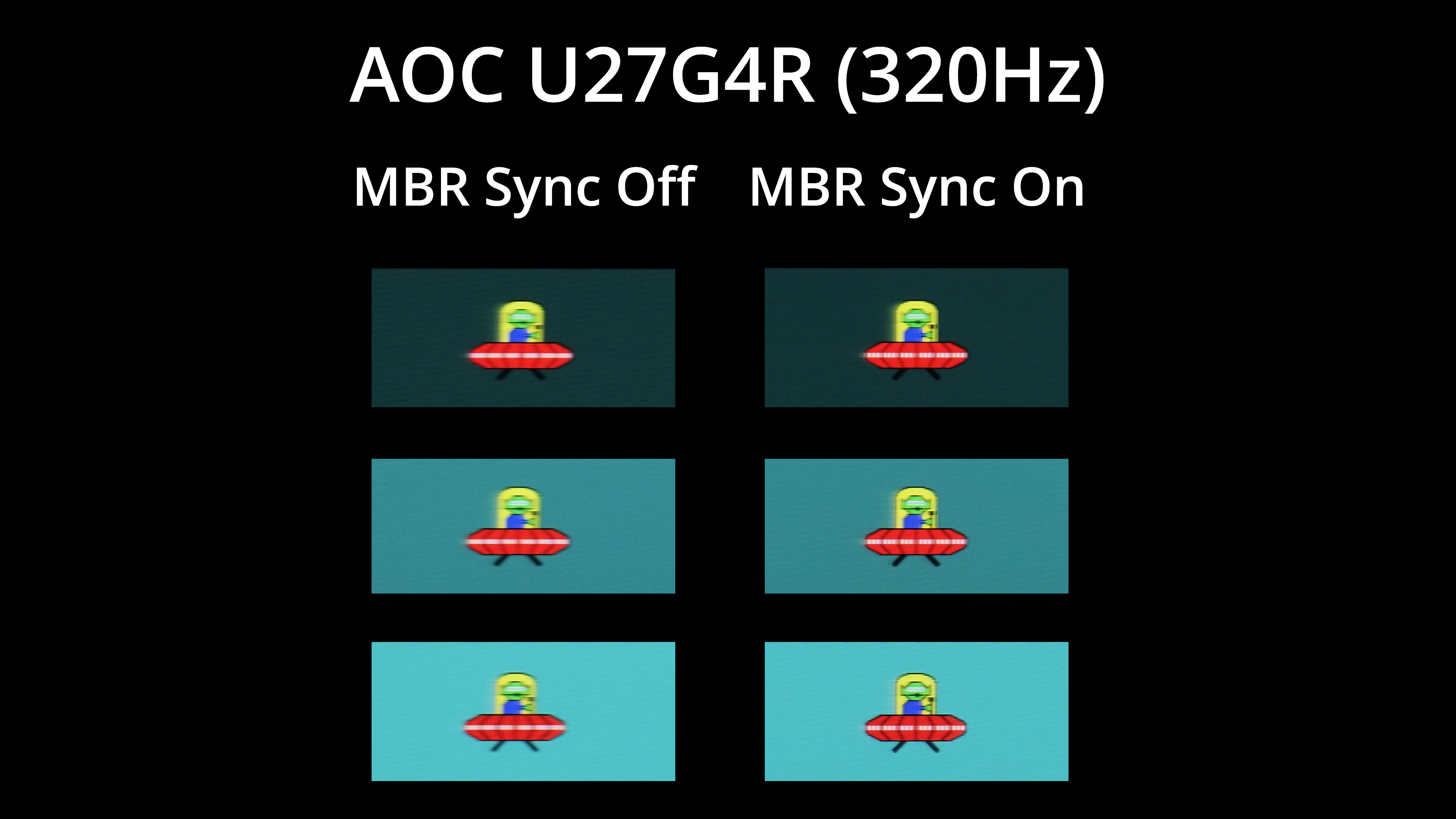
It works even better at 320Hz, too, so it's great to have this option. And as it's MBR Sync, it works with adaptive sync enabled – unlike earlier forms of backlight strobing technology – so it's a great inclusion to have.
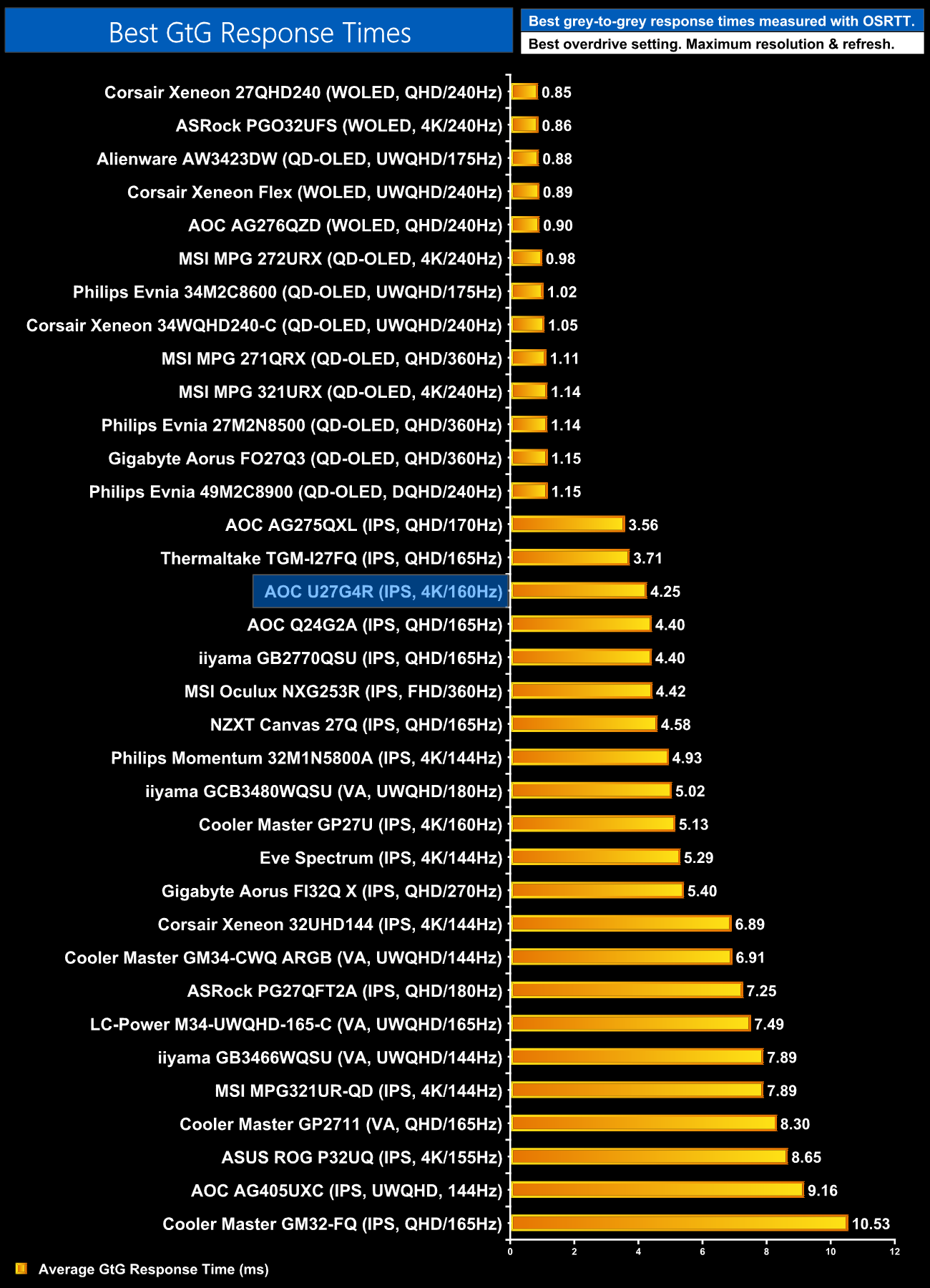
As a final comparison, here we can see how the U27G4R stacks up against the rest of the monitors we've tested for its response times. As LCDs go, it's actually very good, sitting third in the chart (if we ignore all the OLEDs), so that's good to see.
We again use the Open Source Response Time Tool (OSRTT), developed by TechTeamGB, to report monitor input latency.
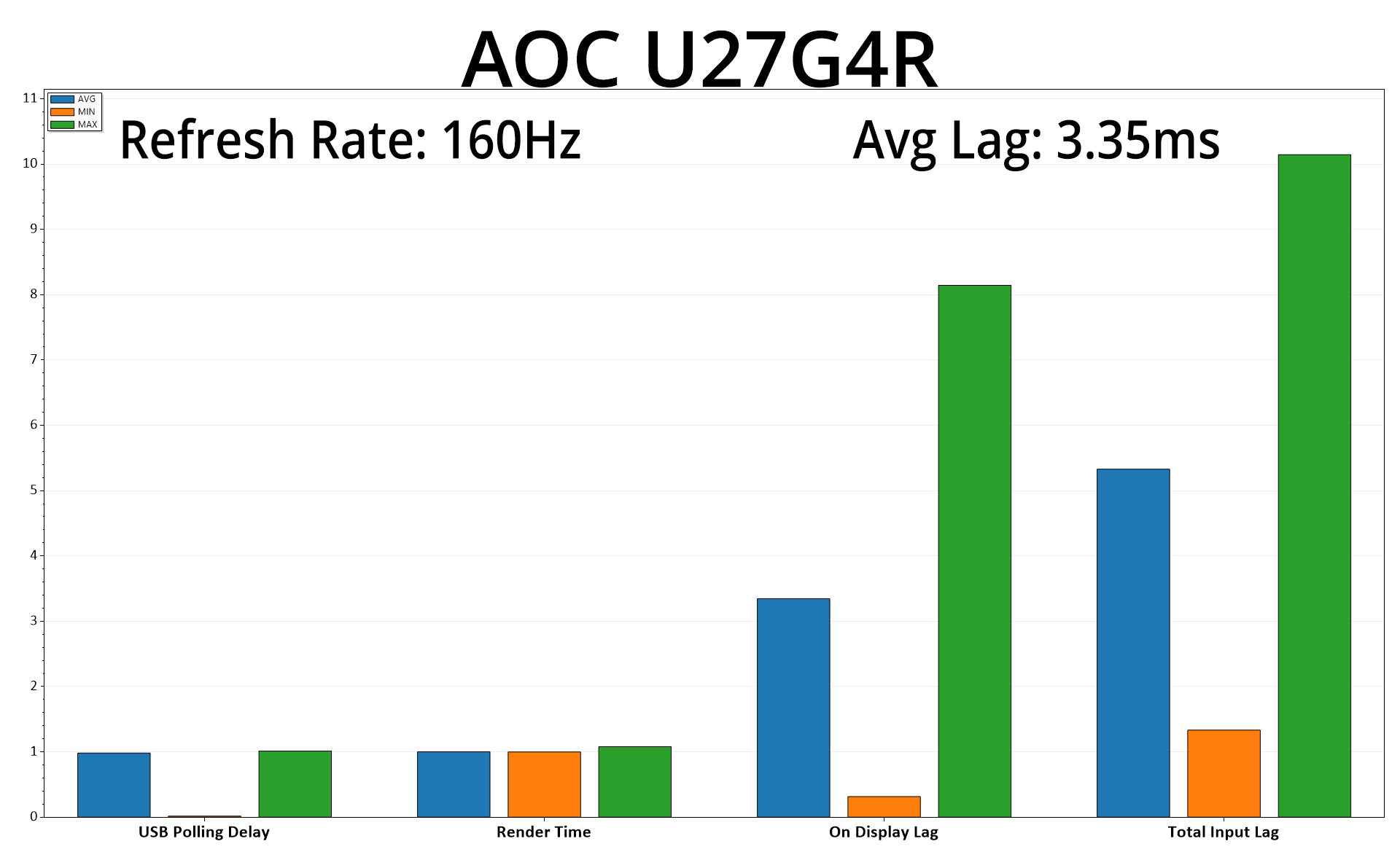
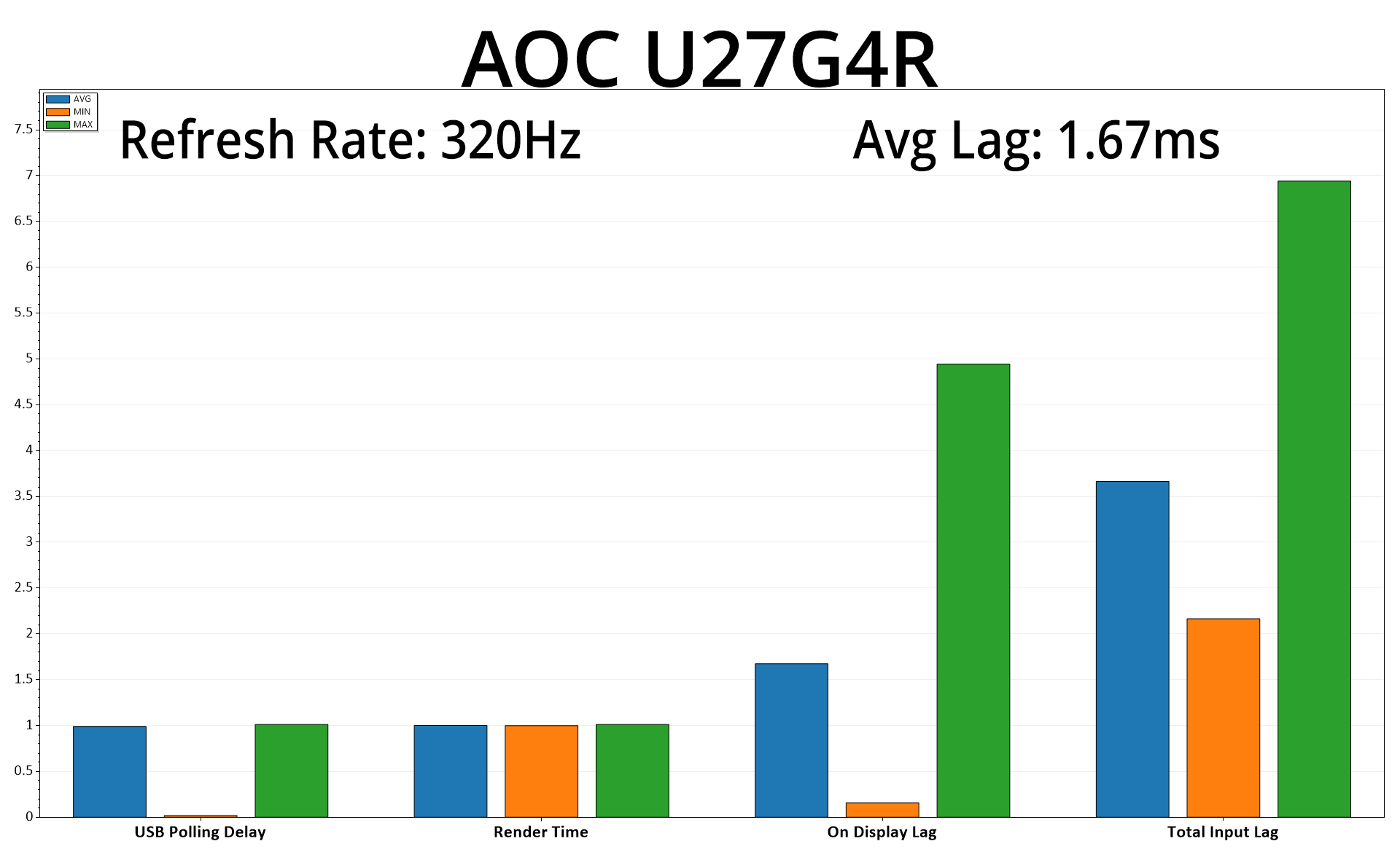
It's also good to confirm that latency is not a problem for the U27G4R, regardless of which mode you are using. In both instances, we see average lag that's equivalent to about half a frame of the chosen refresh rate, so really nothing to be concerned about.
Having focused on so many OLED monitors lately, it's been great to see what's happening in the LCD market. I was pleasantly surprised to be sent a 4K/160Hz monitor that costs less than £280, and certainly didn't expect it to offer dual-mode functionality at that price. But that's exactly what the AOC U27G4R brings to the table, and it is well worth buying if you're in the market for a new LCD.
Fundamentally, this panel offers impressive response times for an IPS screen, enabling it to deliver the goods at either 4K/160Hz or 1080p/320Hz, depending on your preference. On top of that, AOC's backlight strobing mode has been well configured and offers a significant improvement to motion clarity, while input lag is nice and low at either refresh rate.
Overall colour accuracy and general panel performance is decent, too. We did find a few areas that could be improved – gamma is generally low, for instance, and we actually got better results using the 2.4 mode instead of the 2.2 setting. The sRGB mode could also be improved, given it locks out gamma settings and also clamps the gamut over-aggressively. Overall brightness is decent though, hitting just under 400 nits in our testing, while contrast hovers around 1130:1, so that's better than what AOC claims.
Apart from those niggles, there's not much else that could be improved. Yes, the design is a bit plasticky and not particularly inspiring, but we have to remember the price-point this screen is targeting. That said, I do wish AOC had opted for a joystick to control the OSD, as opposed to the five small buttons which I find very fiddly.
Other boons include a pair of HDMI 2.1 ports, so this could be an option if you have a current-gen console, while it even supports upgradable firmware from within AOC's GMenu software.
Overall then, the AOC U27G4R is a very solid LCD monitor. The dual-mode functionality is the standout feature, but it backs it up with well-configured overdrive and backlight strobing settings for a great overall gaming experience, making this a very good buy indeed at under £280.
Pros
- Dual-mode functionality works very well.
- Well-configured overdrive modes.
- MBR Sync (backlight strobing) offers a noticeable improvement to motion clarity.
- Decent brightness and contrast for an IPS LCD at this price.
- Colour balance is very good out of the box.
- Pair of HDMI 2.1 ports.
- Supports firmware updates.
Cons
- Default gamma tracking is too low.
- sRGB mode needs improvement.
- Lacks a joystick for controlling the OSD.
KitGuru says: If you're in the market for a high refresh-rate 4K LCD, this one is less than £280 and offers dual-mode technology. Well played, AOC.