KitGuru KitGuru.net – Tech News | Hardware News | Hardware Reviews | IOS | Mobile | Gaming | Graphics Cards


Not everyone can afford the best possible gaming features in a monitor. But which areas should you compromise on while still getting the most enjoyable experience for the money? In the case of the G-Master G2745QSU-B1, iiyama has taken the hit on refresh rate in favour of panel quality and resolution. If you're less of a first-person shooter player and more into strategy, this could be a trade-off worth making. We put iiyama's new budget-conscious 27in panel through its paces.
Aside from the 27in screen diagonal, the G2745QSU-B1 has a resolution of 2,560 x 1,440, which we think is about right for this panel size. Full HD would be too low, and 4K deserves bigger. iiyama has opted for an IPS panel, a technology that majors on image quality but not always on pixel response rate. A figure of 1ms is quoted, but this is MPRT not grey-to-grey. This panel doesn't use the response-enhancing technology that, for example, Cooler Master calls Ultra-Speed IPS. However, AMD FreeSync is available to provide adaptive refresh rates. So while the G2745QSU-B1 only supports 100Hz, it will adjust this dynamically to match what your graphics card is delivering..
The specification is otherwise mostly as expected for an IPS panel, although the typical brightness of 250cd/m2 is low. Contrast, on the other hand, is a little higher than average at 1,300:1. iiyama doesn't quote any figures for colour gamut, and there are no VESA Display HDR accreditations associated with this screen either.
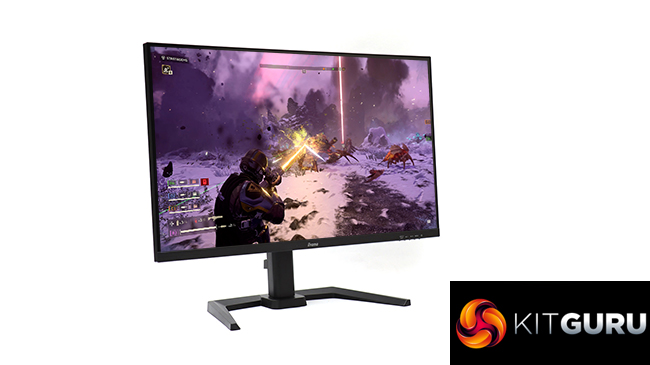
The range of video inputs only includes HDMI 1.4 and DisplayPort 1.2, but you don't need higher levels of either to support the resolution and refresh this monitor has to offer. There's no USB C, but you do get a two-port USB 3.2 Gen 1 hub, plus stereo 2W speakers and a headphone connector. Ergonomic adjustments include tilt, swivel, raise and rotating into portrait mode, so all your bases are covered for pointing the screen in exactly the direction you want.
Overall, the iiyama G-Master G2745QSU-B1 doesn't offer a standout specification, but the price is under £190, which isn't bad for a 27in 1440p screen. So let's find out if iiyama's compromises on capabilities make this good value.
Specification:
- Screen size: 27-inch, 16:9 aspect
- Native resolution: 2,560 x 1,440
- Curvature: None
- Refresh rate: 100Hz, AMD FreeSync
- Panel type: IPS
- Contrast ratio: 1,300:1 (typical)
- Brightness: 250cd/m2
- Response time: 1ms MPRT
- Display inputs: HDMI 1.4, DisplayPort 1.2
- USB hub: Yes, USB Type B input, 1 x USB 3.2 Gen 1 outputs
- Tilt: 4 degrees forward, 22 degrees backward
- Raise: Yes
- Swivel: 45 degrees left and right
- Portrait: Yes
- Other: Audio output minijack, headset minijack, 2 x 2W stereo speakers
Retail Price: £189.95 (inc. VAT)
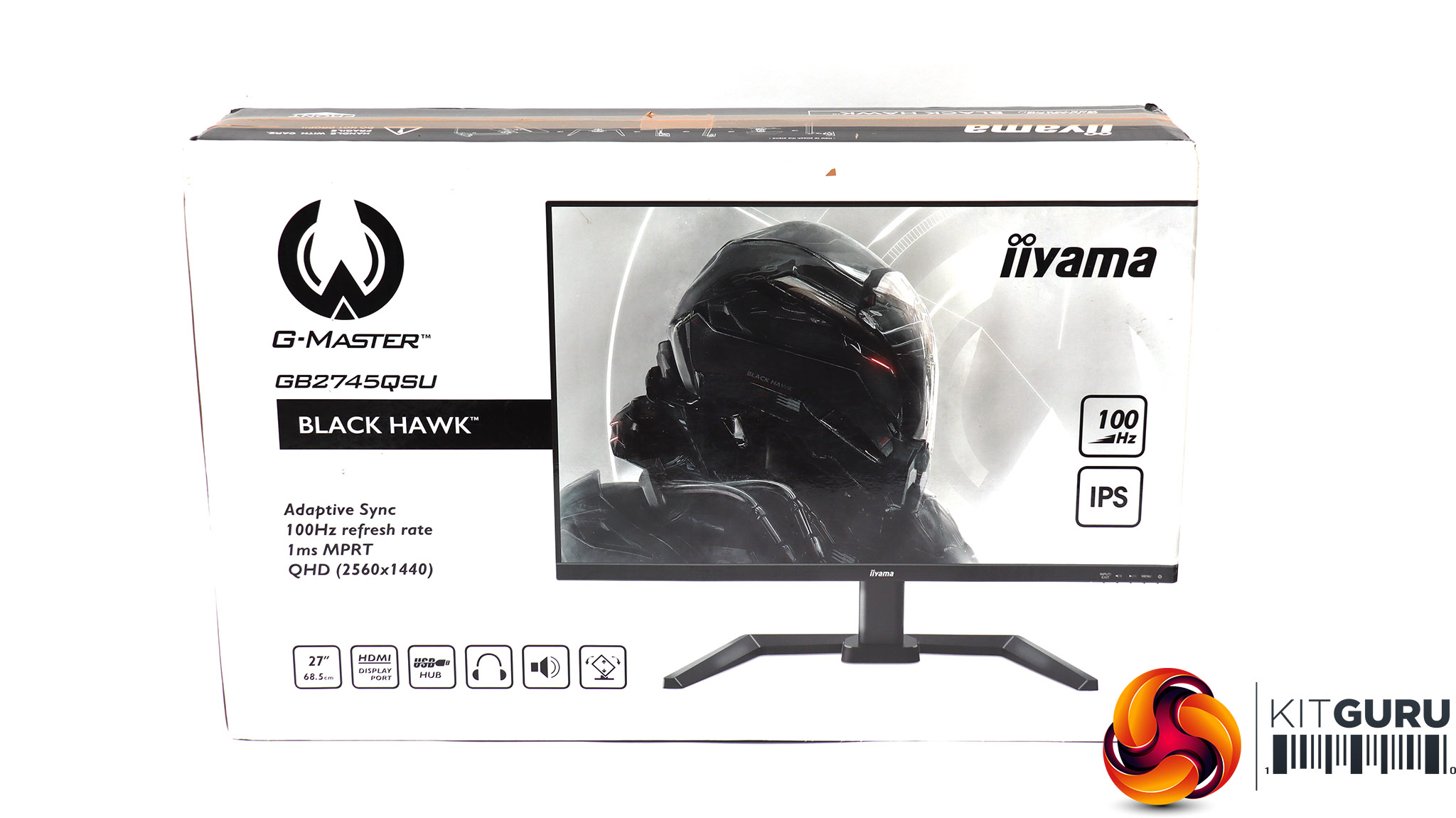
The iiyama G-Master G2745QSU-B1 box is monochrome, but at least it has some hint of the gaming intentions of the screen inside, which thankfully isn't monochrome. iiyama's professional monitor boxes are beige.
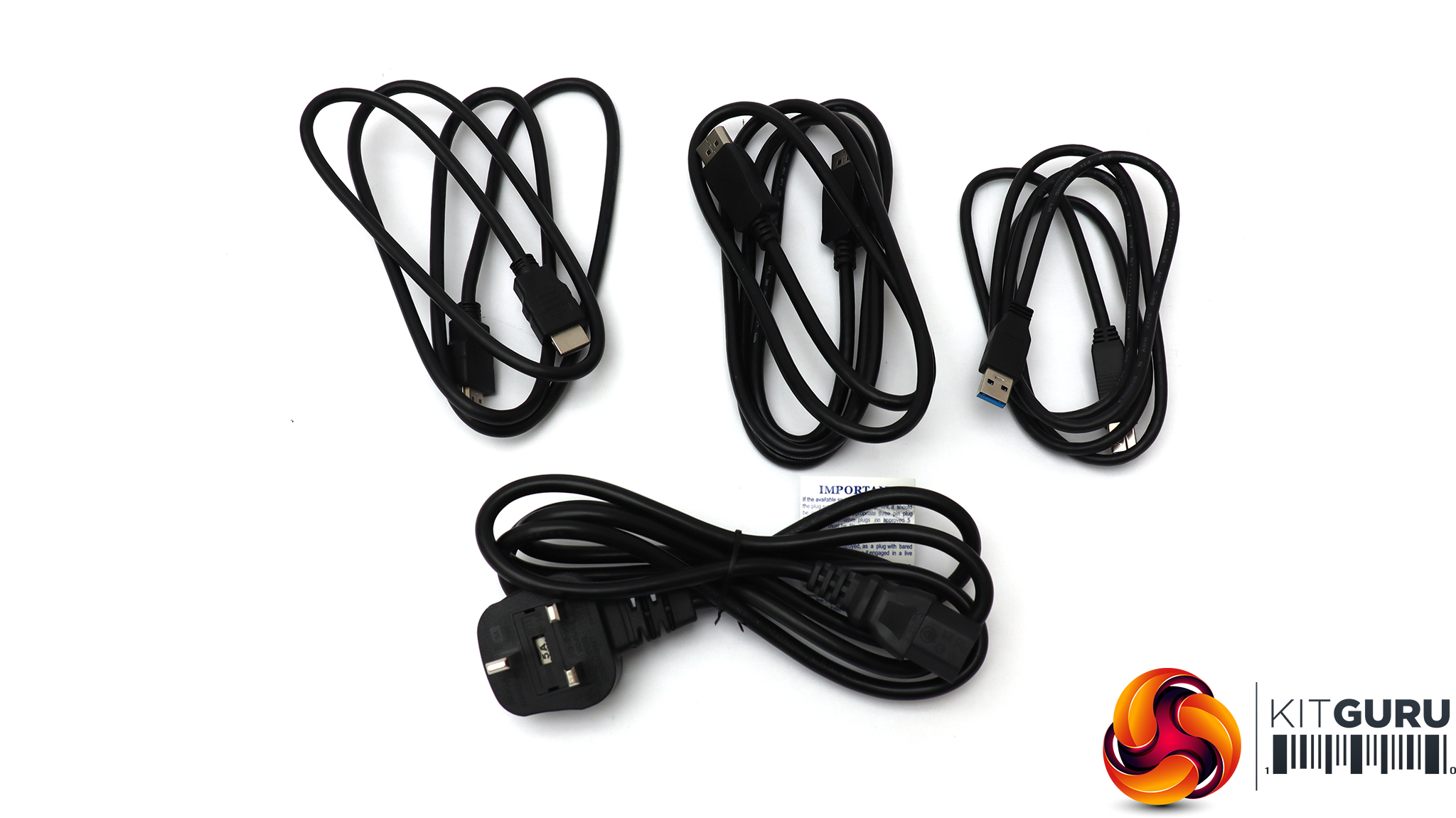
Inside is a power lead, plus HDMI, DisplayPort and USB upstream wiring.
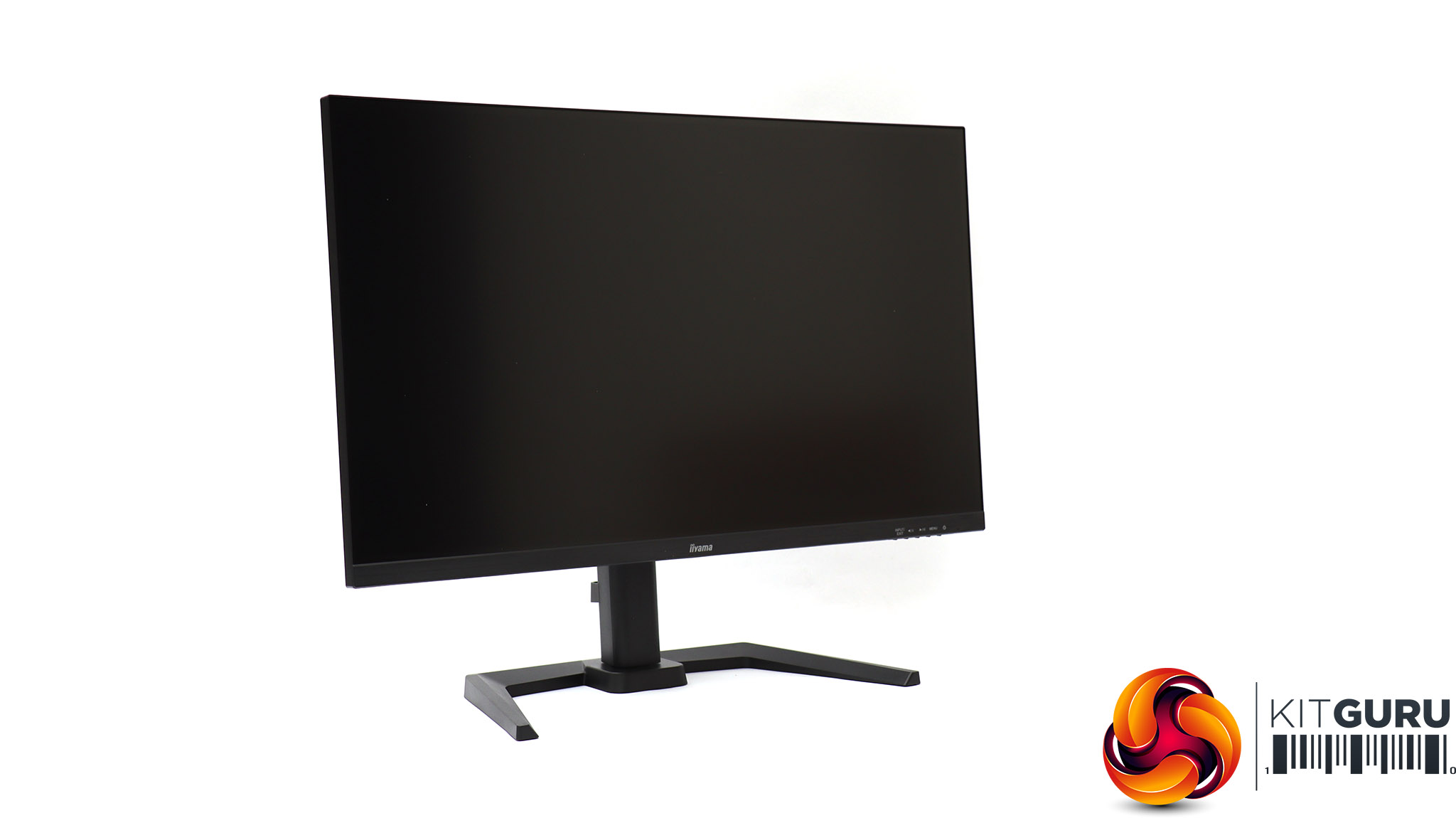
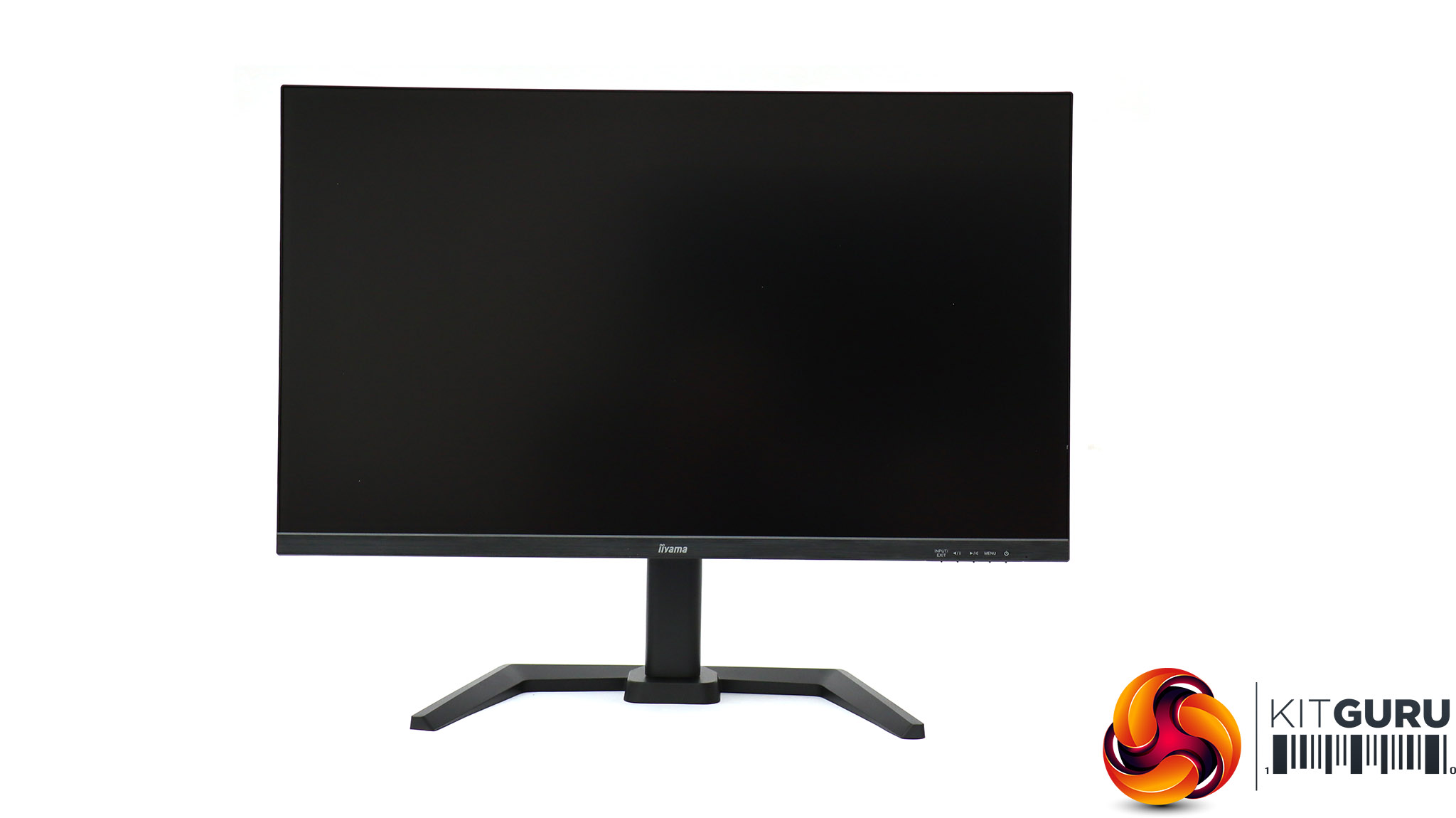
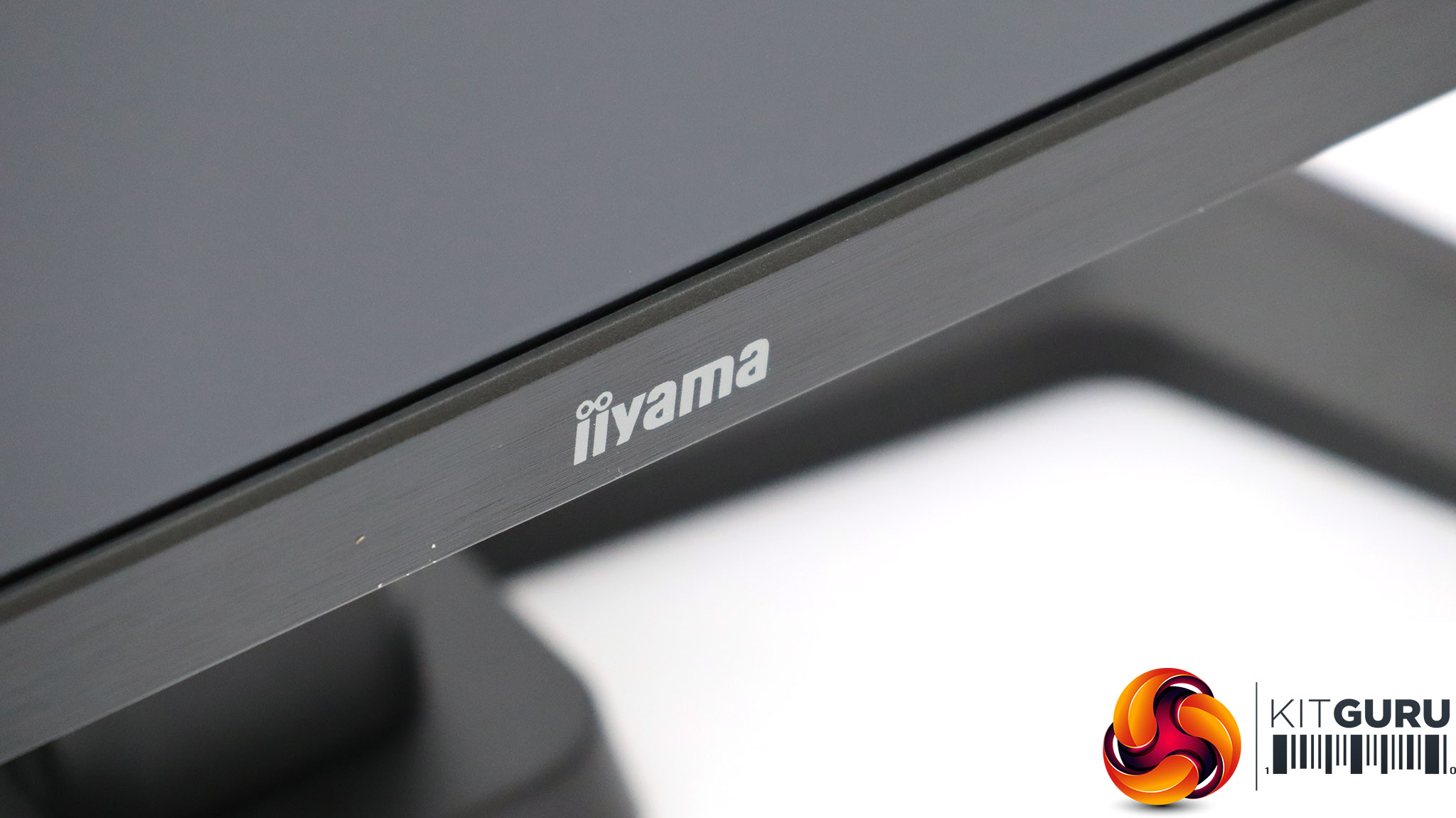
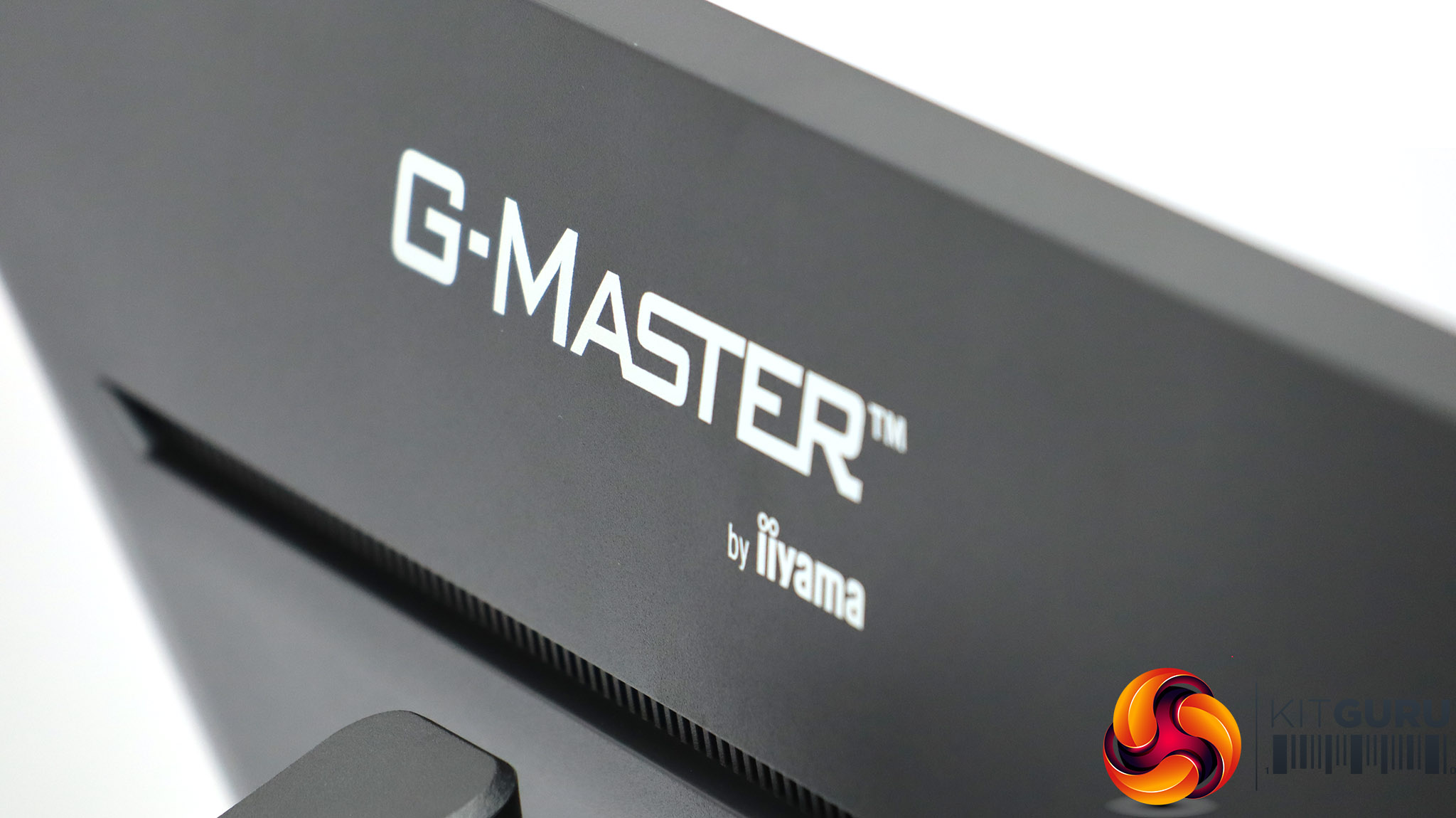
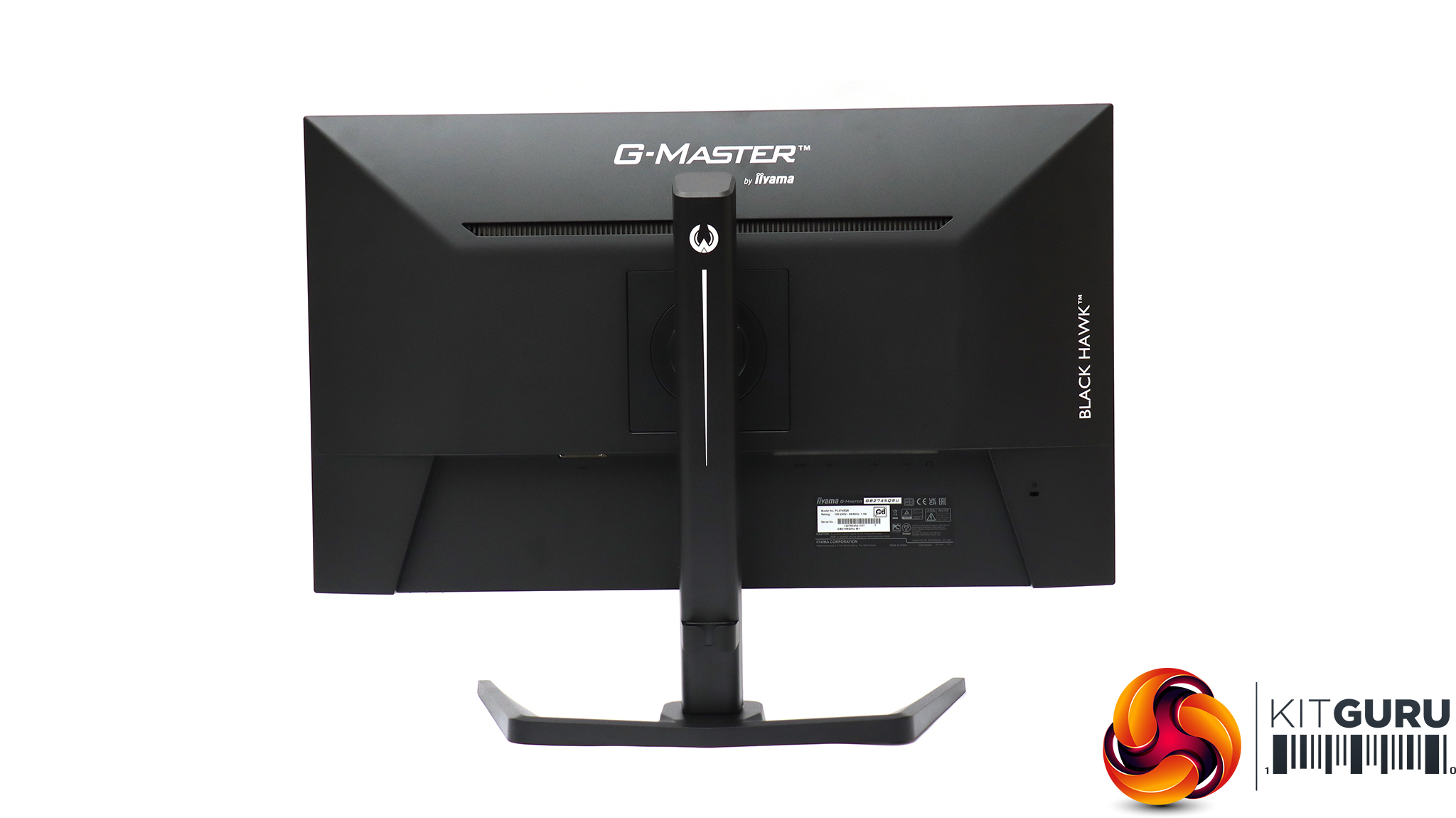
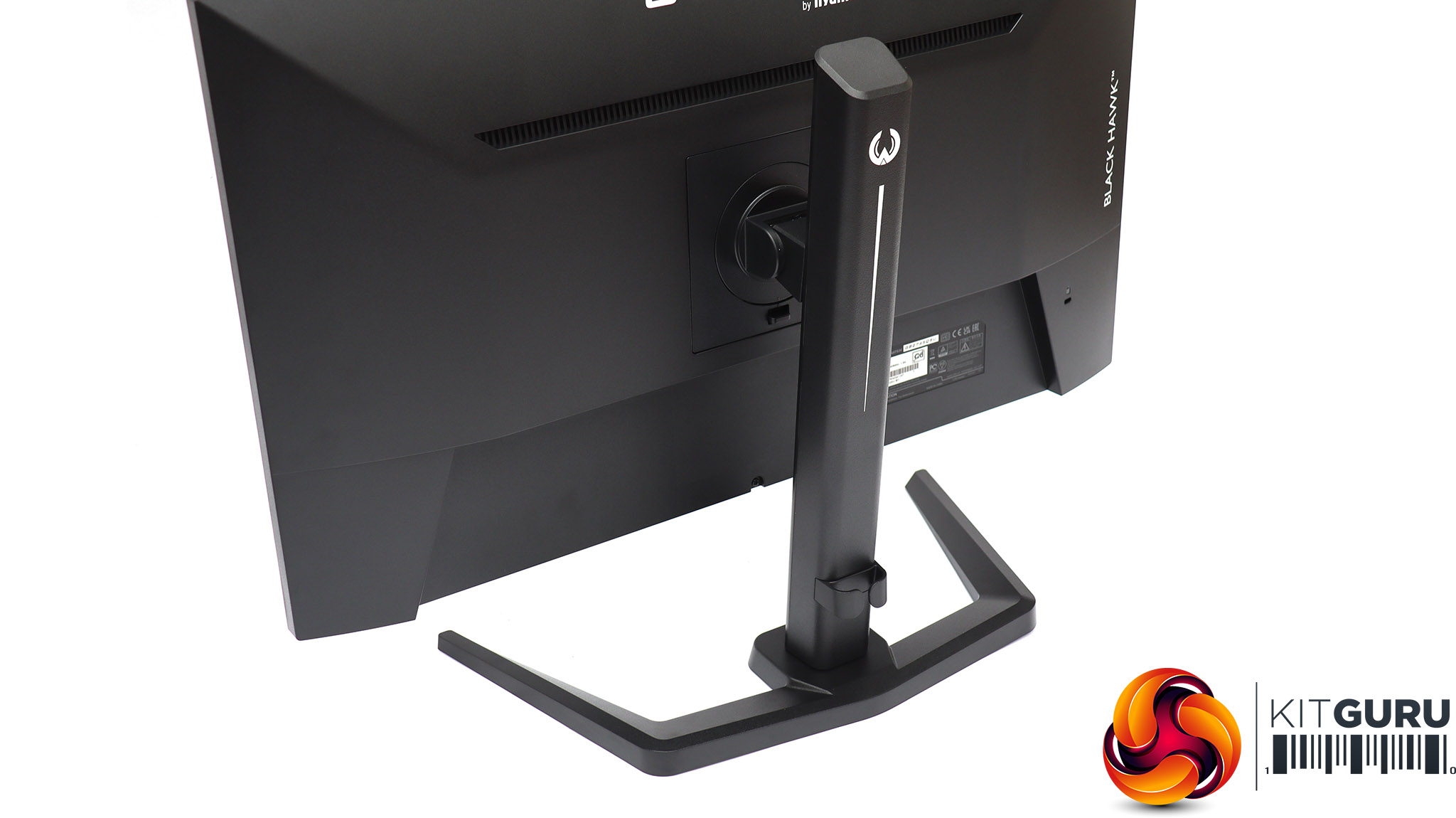
Like most iiyama screens, whether professional or for gaming, the main design theme is black. There is a definite absence of bling in any form, which might not satisfy the hardened player of first person shooters, but the overall build feels solid and dependable.
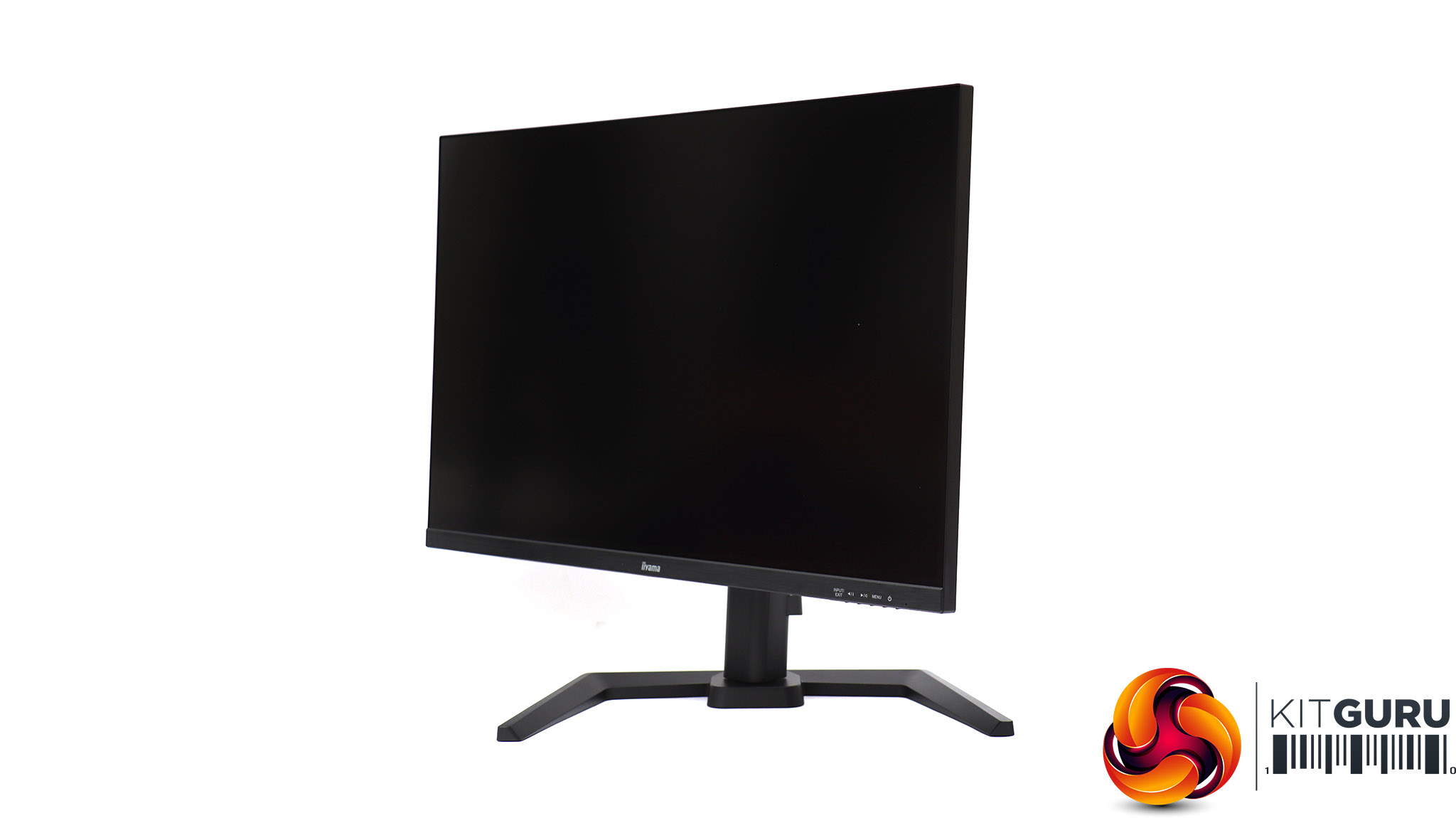
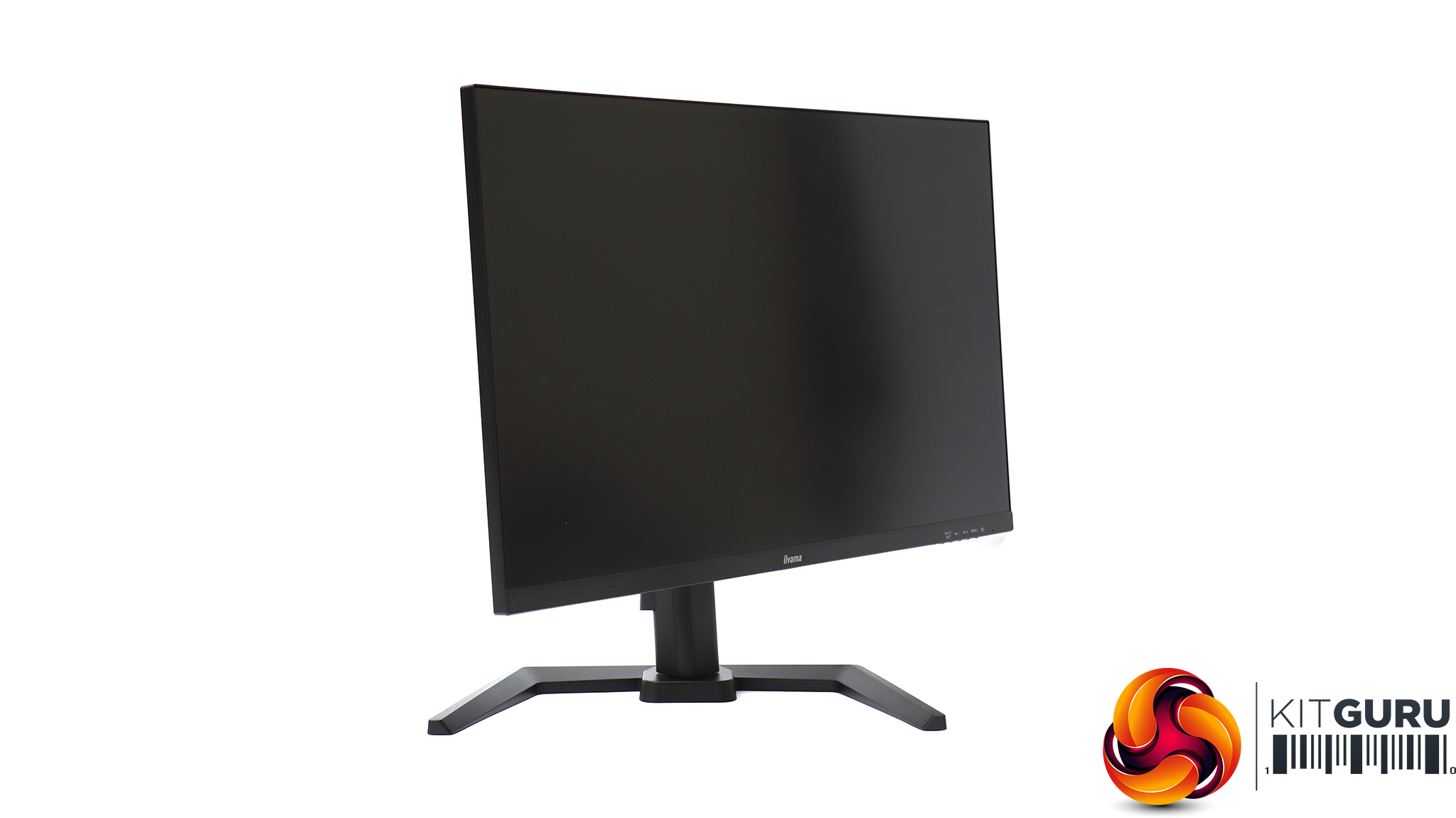
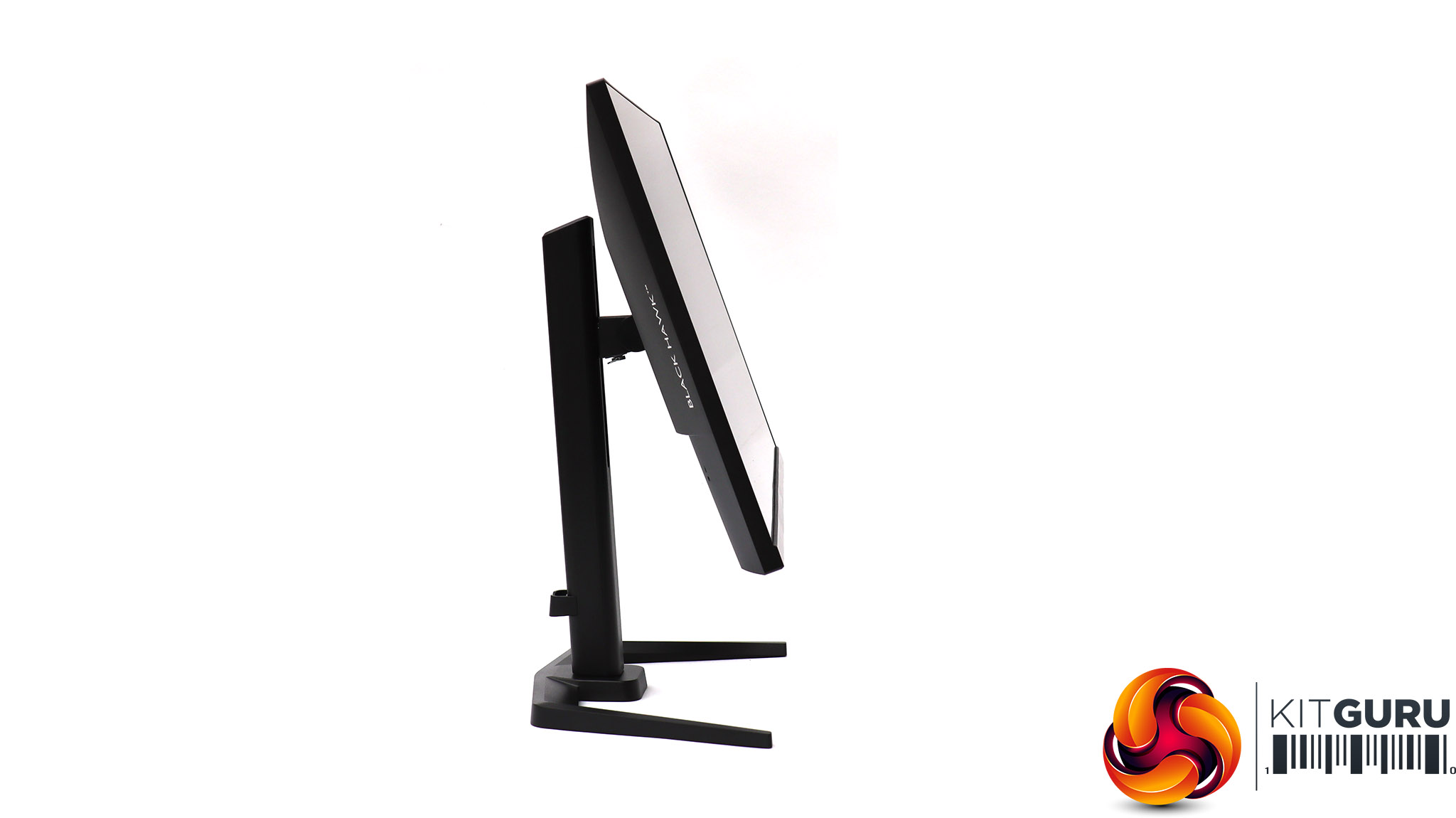
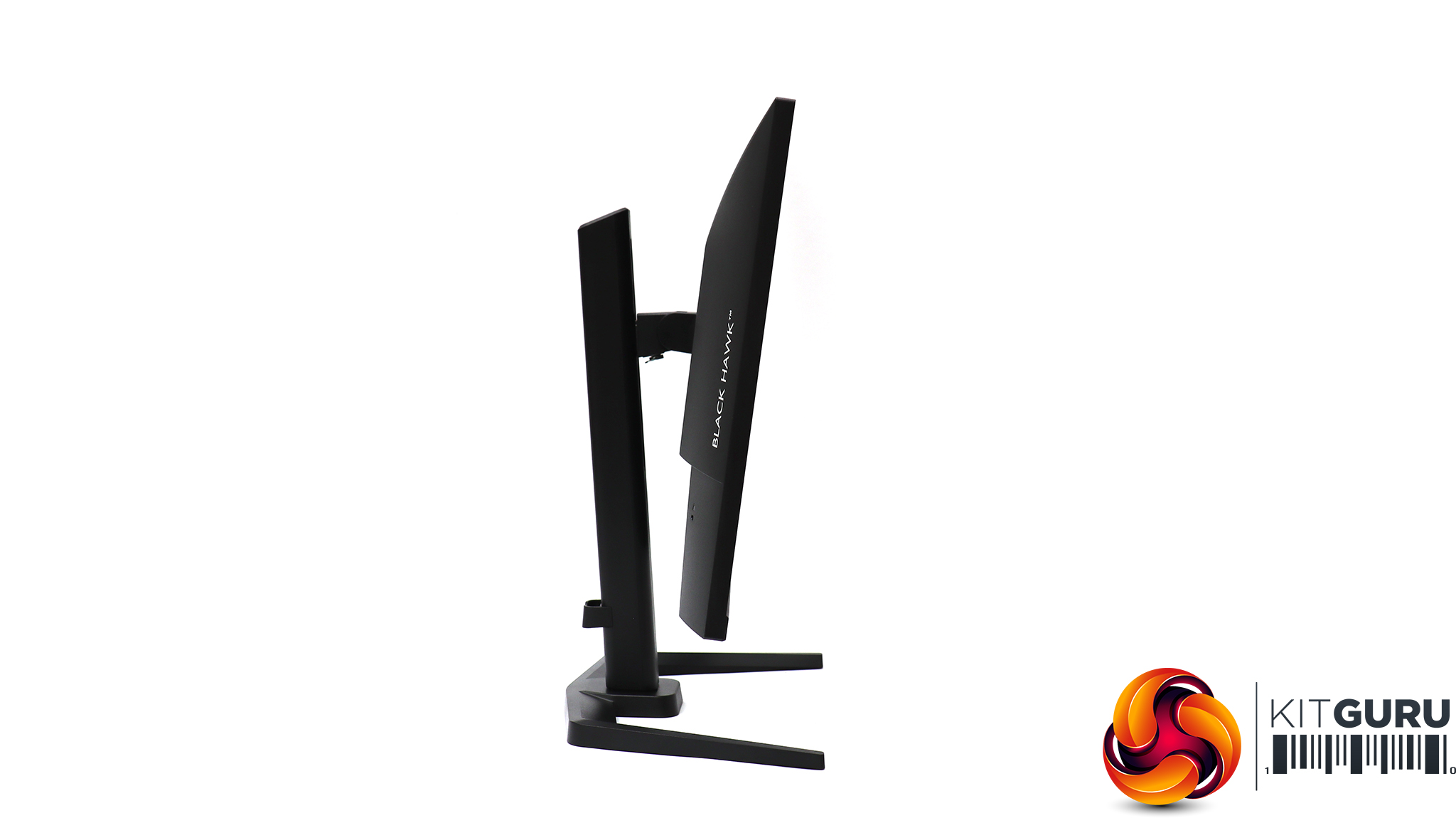
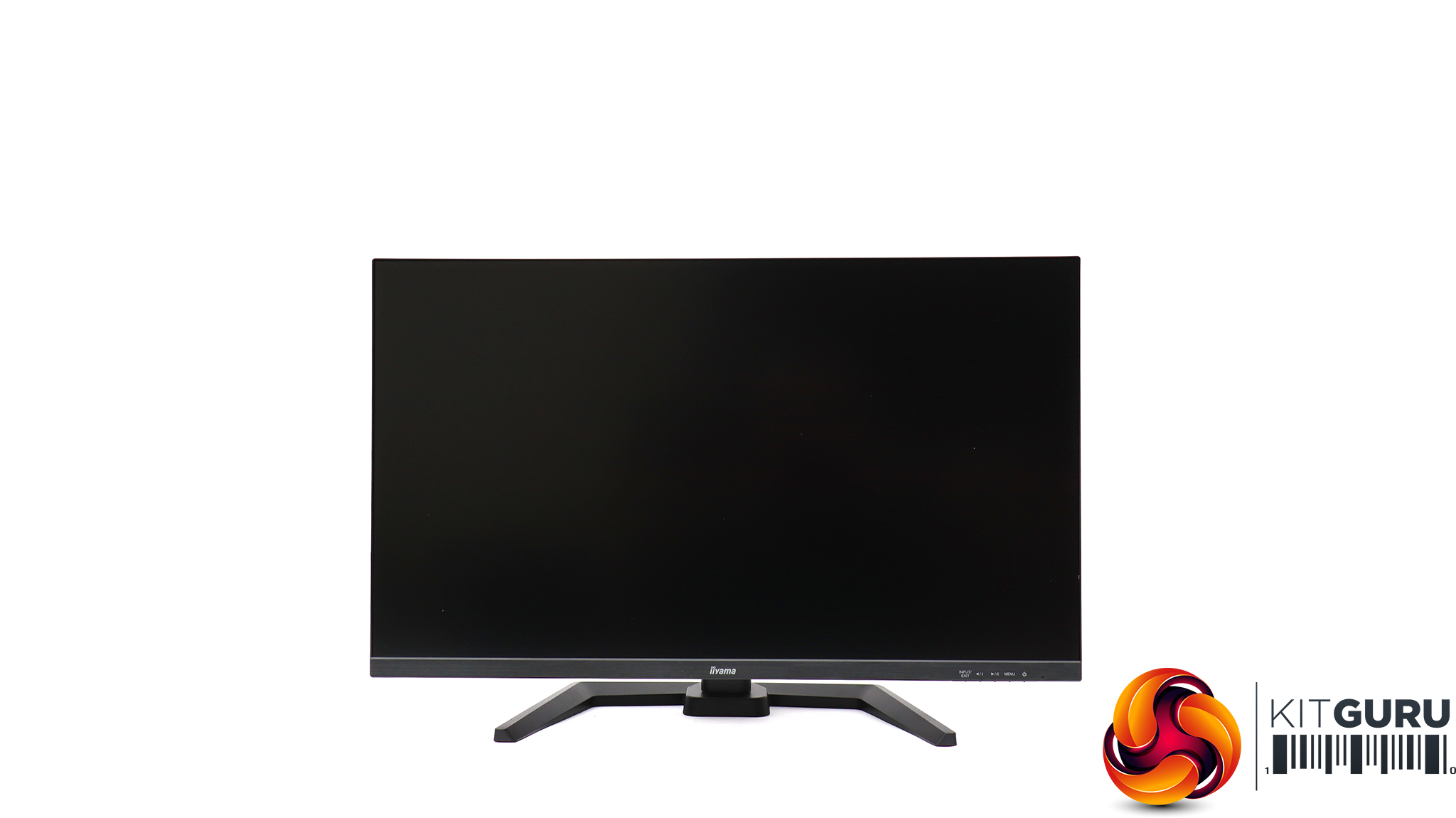
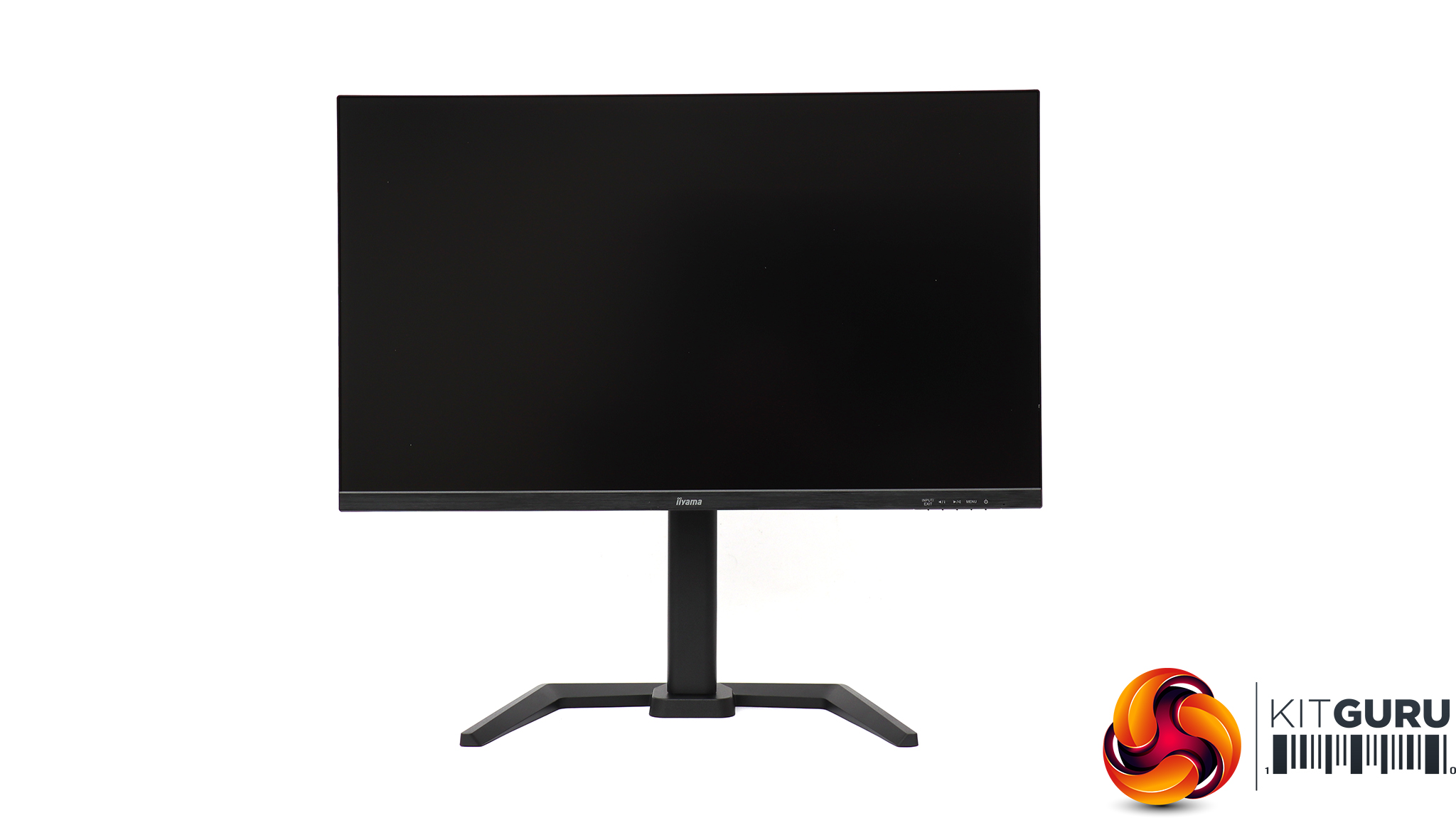
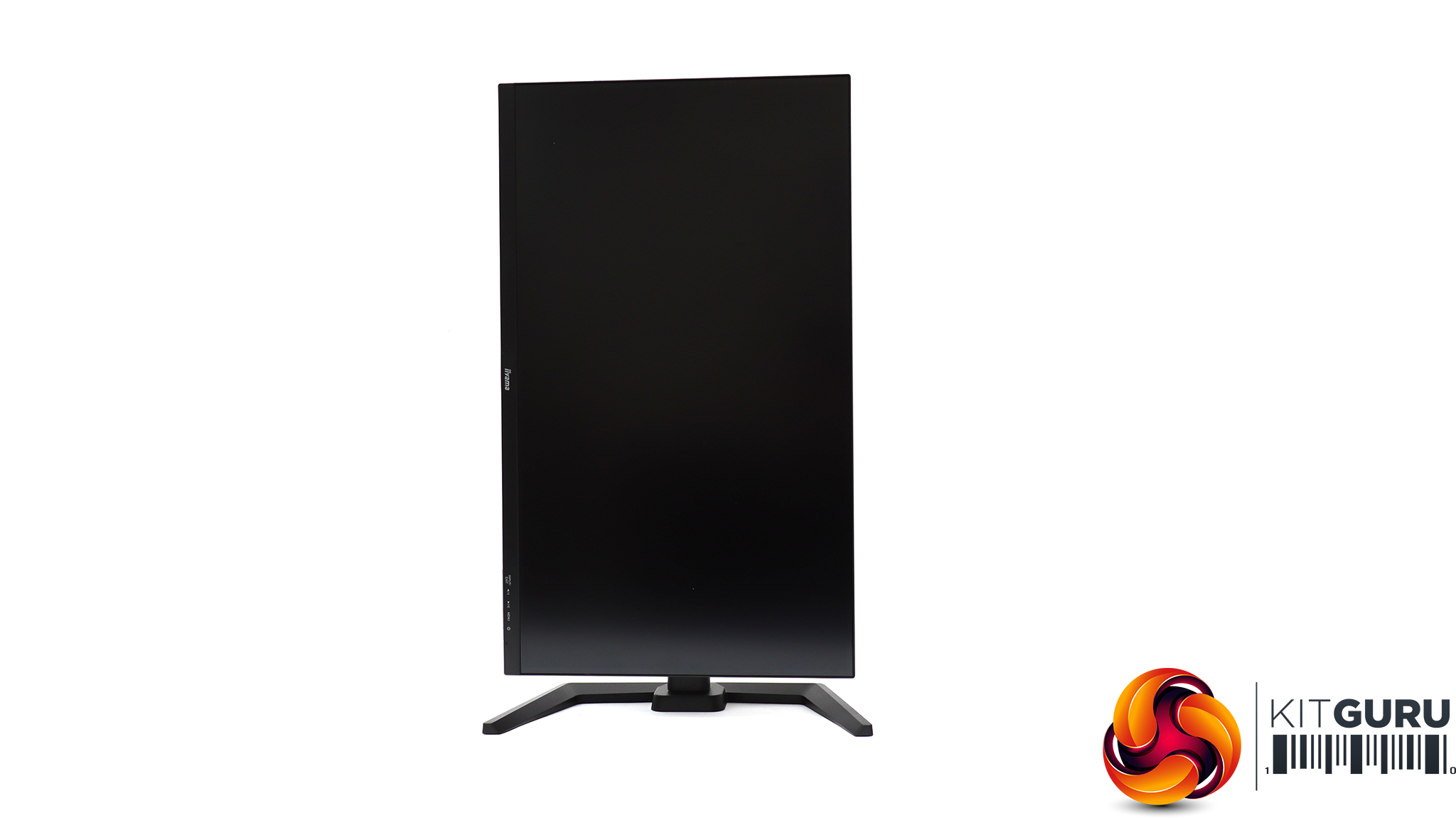
Adjustments are comprehensive. iiyama doesn't state figures for swivel, but the angle appears to be 45 degrees in either direction. Tilt is 4 degrees forward and 22 degrees backward. You can raise or lower the panel on its stand, too, but again iiyama doesn't state the range. We measured it as 155mm, which is quite a lot. You can also spin the screen 90 degrees into portrait mode.
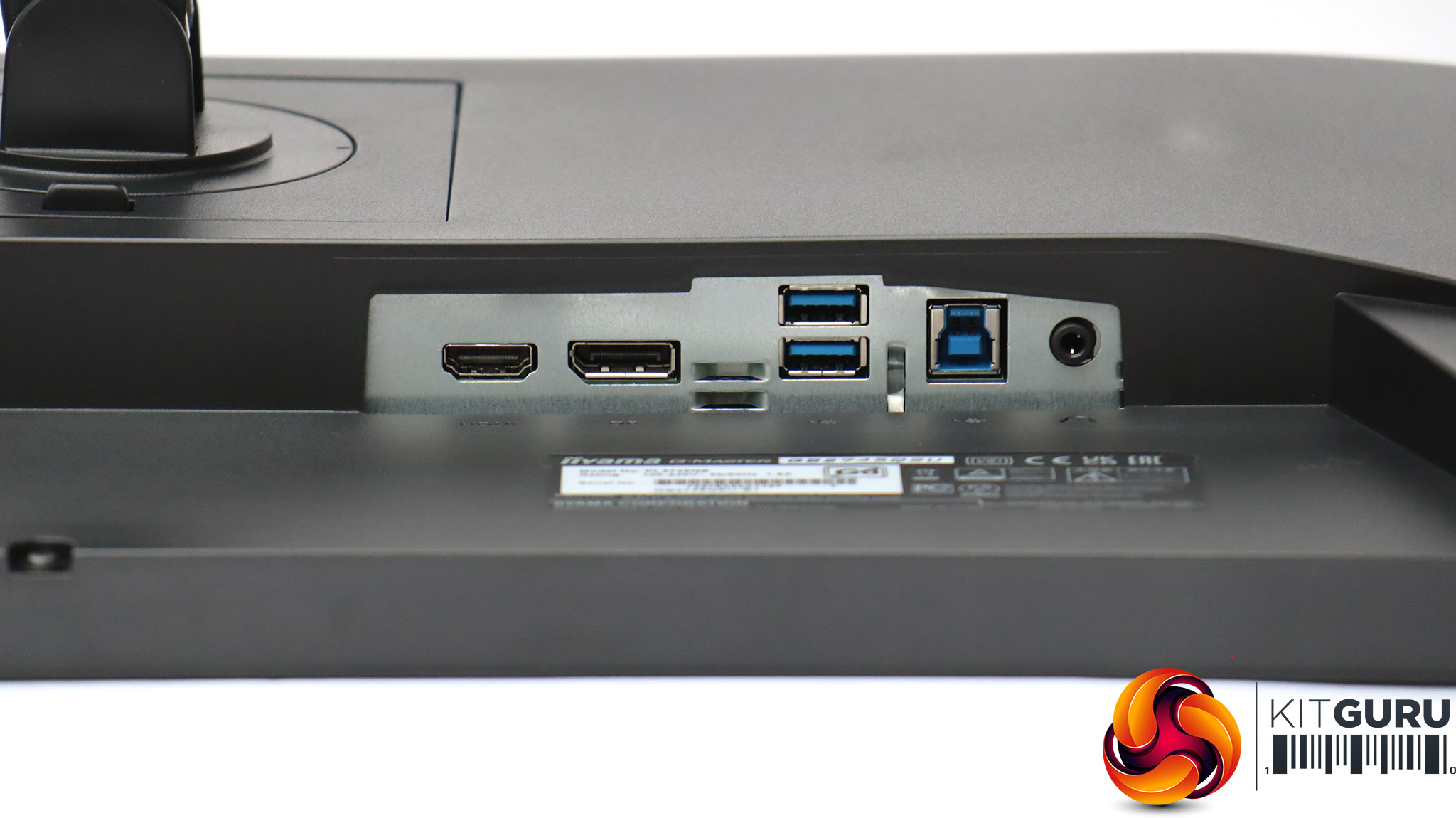
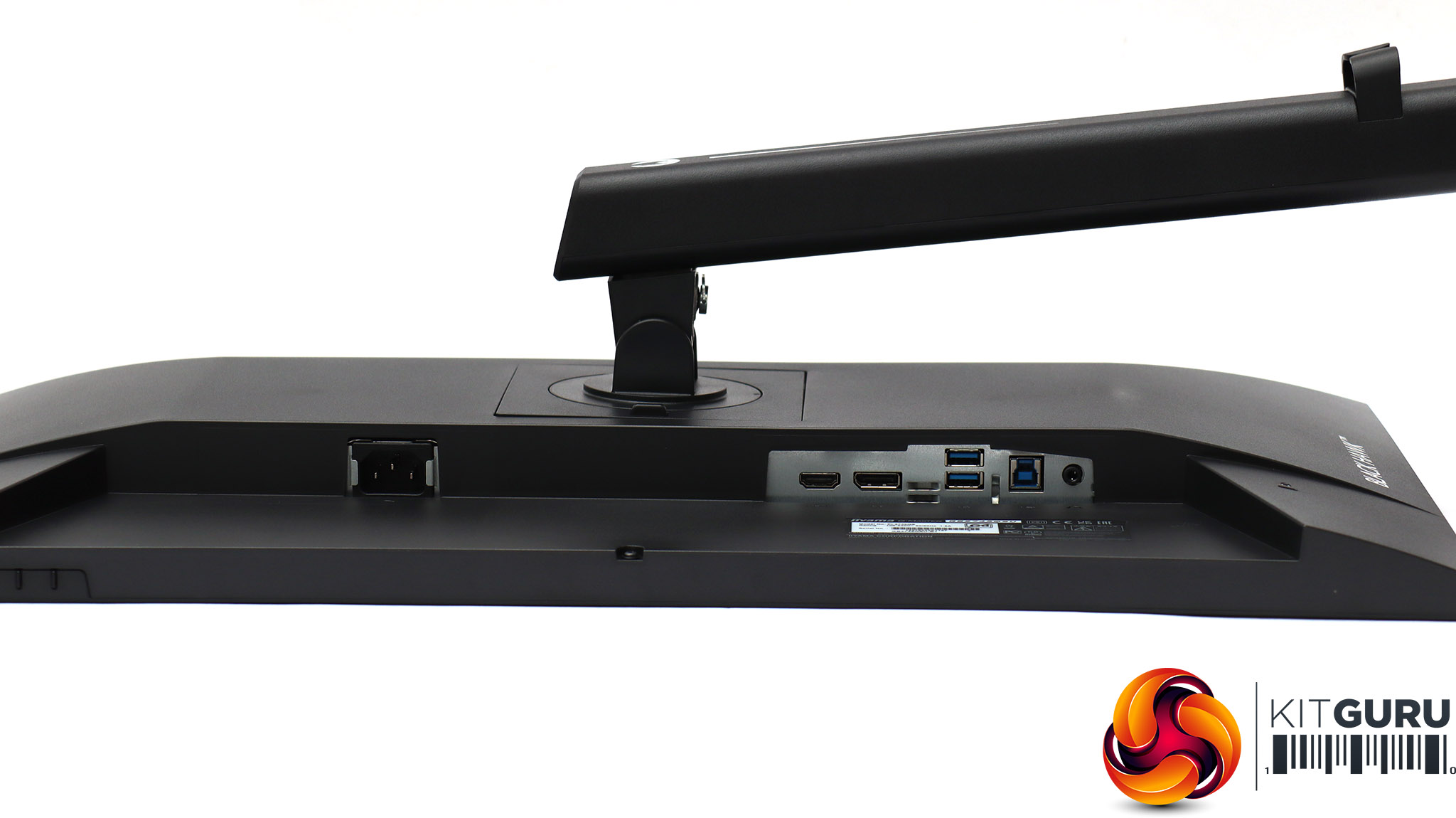
The power socket is on one side of the stand at the back, with all the rest of the ports on the other (on the left when looking from the front). These include DisplayPort 1.2 and HDMI 1.4 for video, which aren't the latest standards but sufficient for the resolution and refresh rate of this monitor. There are two USB 3.2 Gen 1 Type A ports and a Type B for the upstream connection to your PC. Finally, a minijack is available for audio output. You will want to use that or external speakers, because the built-in 2W ones are very weedy.
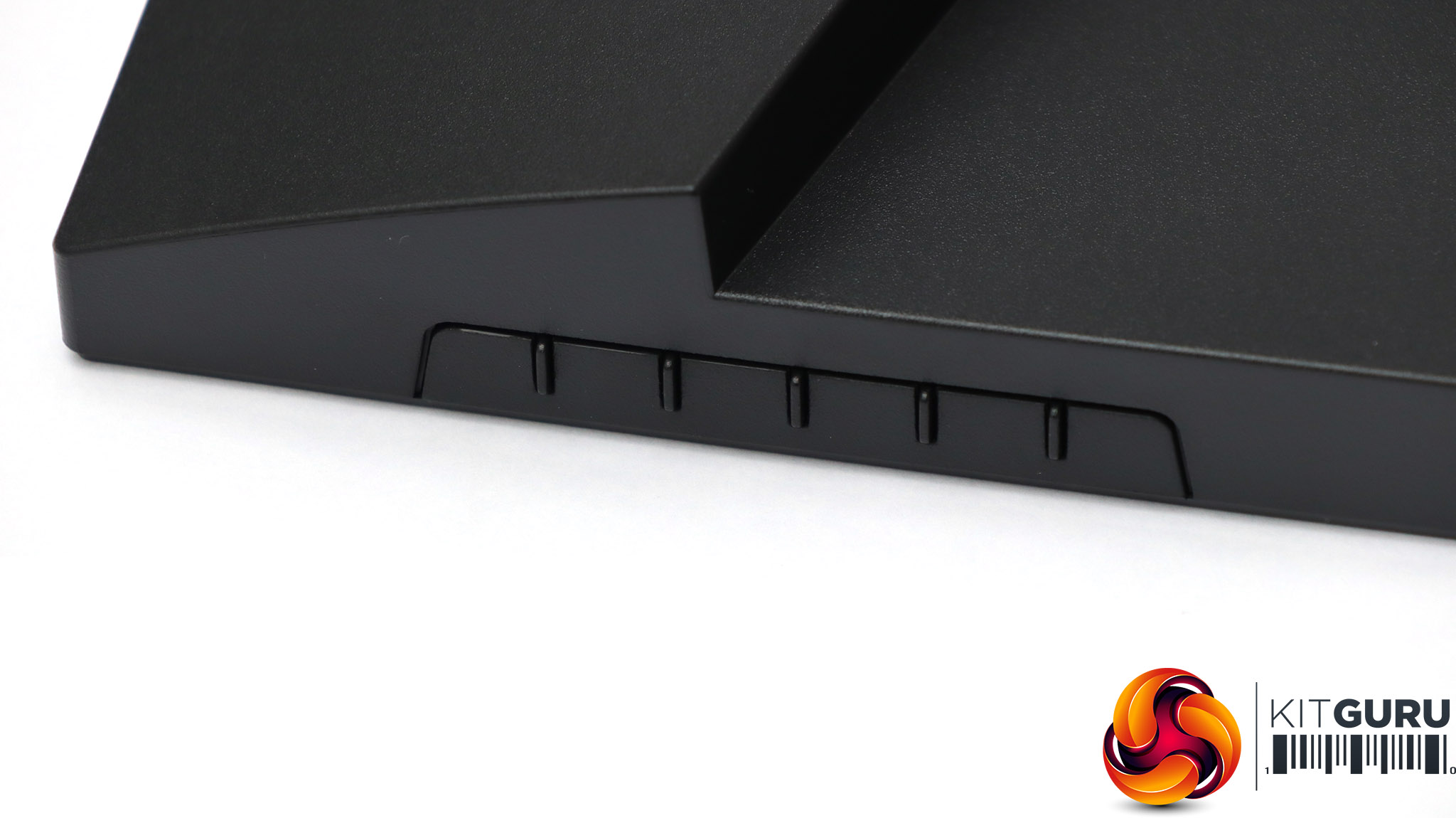
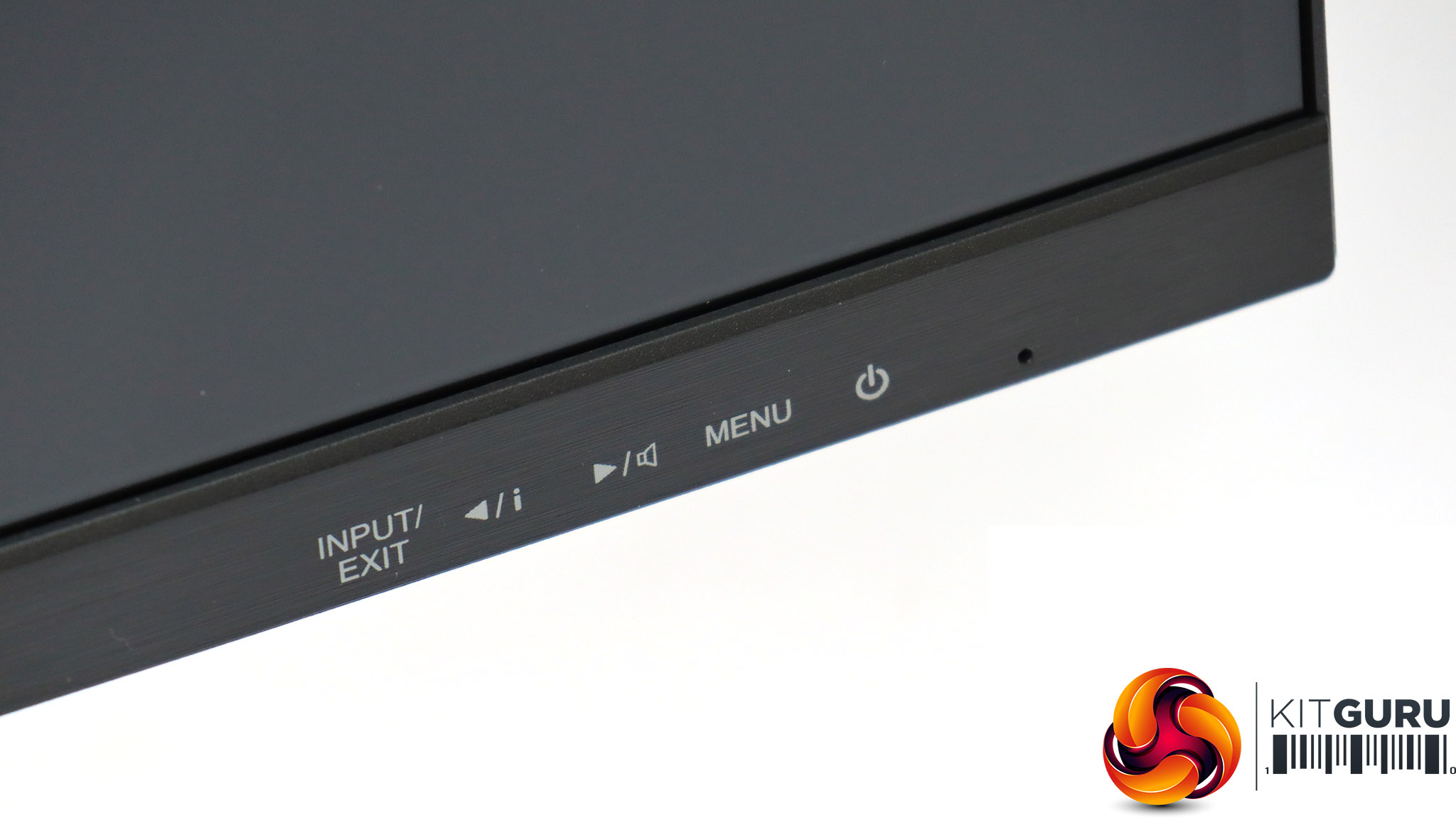
The menu is controlled by buttons on the bottom right-hand-side edge of the bezel, with symbols and text on the front to tell you what each button does.
The button on the furthest right toggles power.
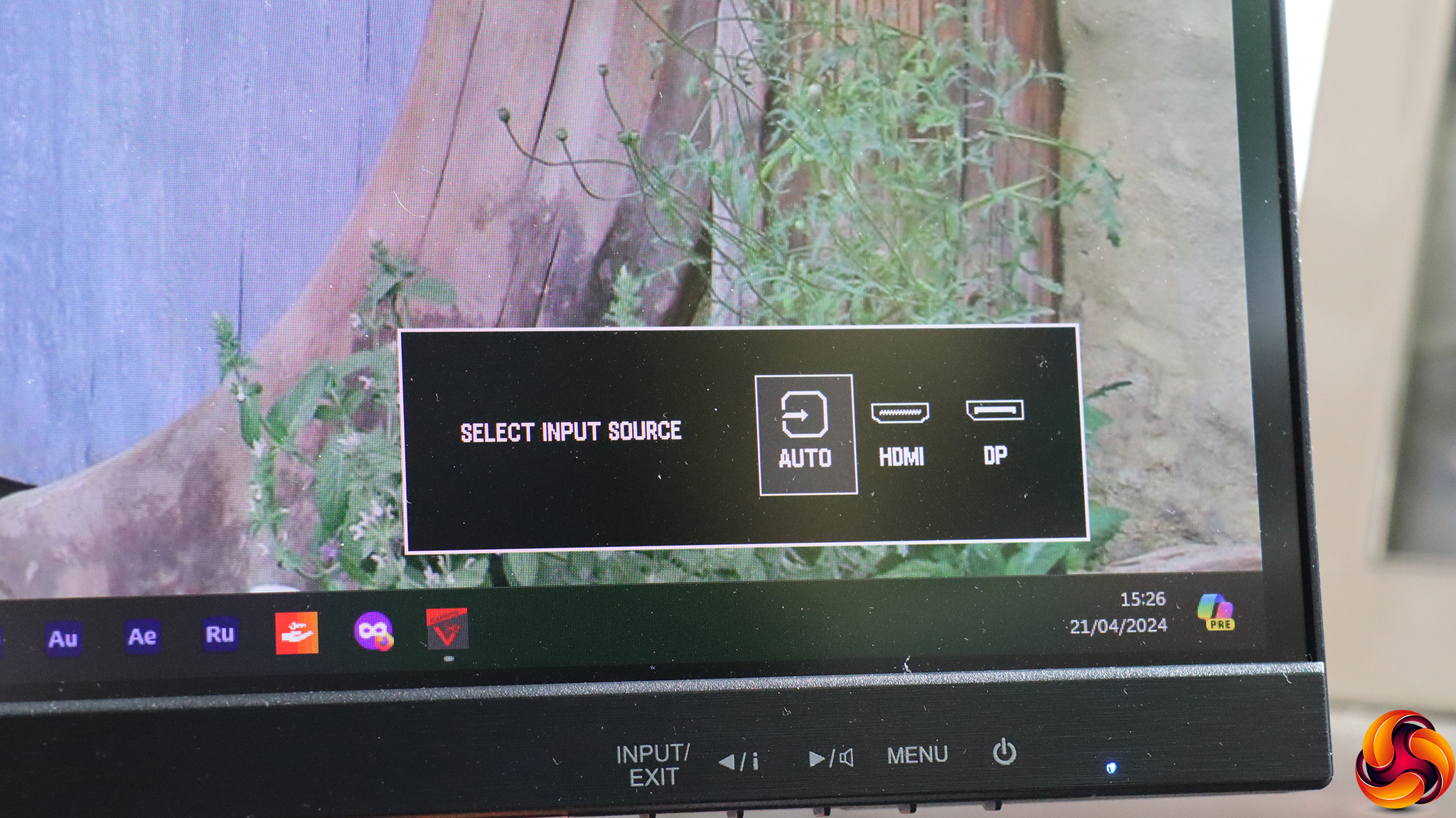
The button furthest left lets you manually choose between the two video inputs.
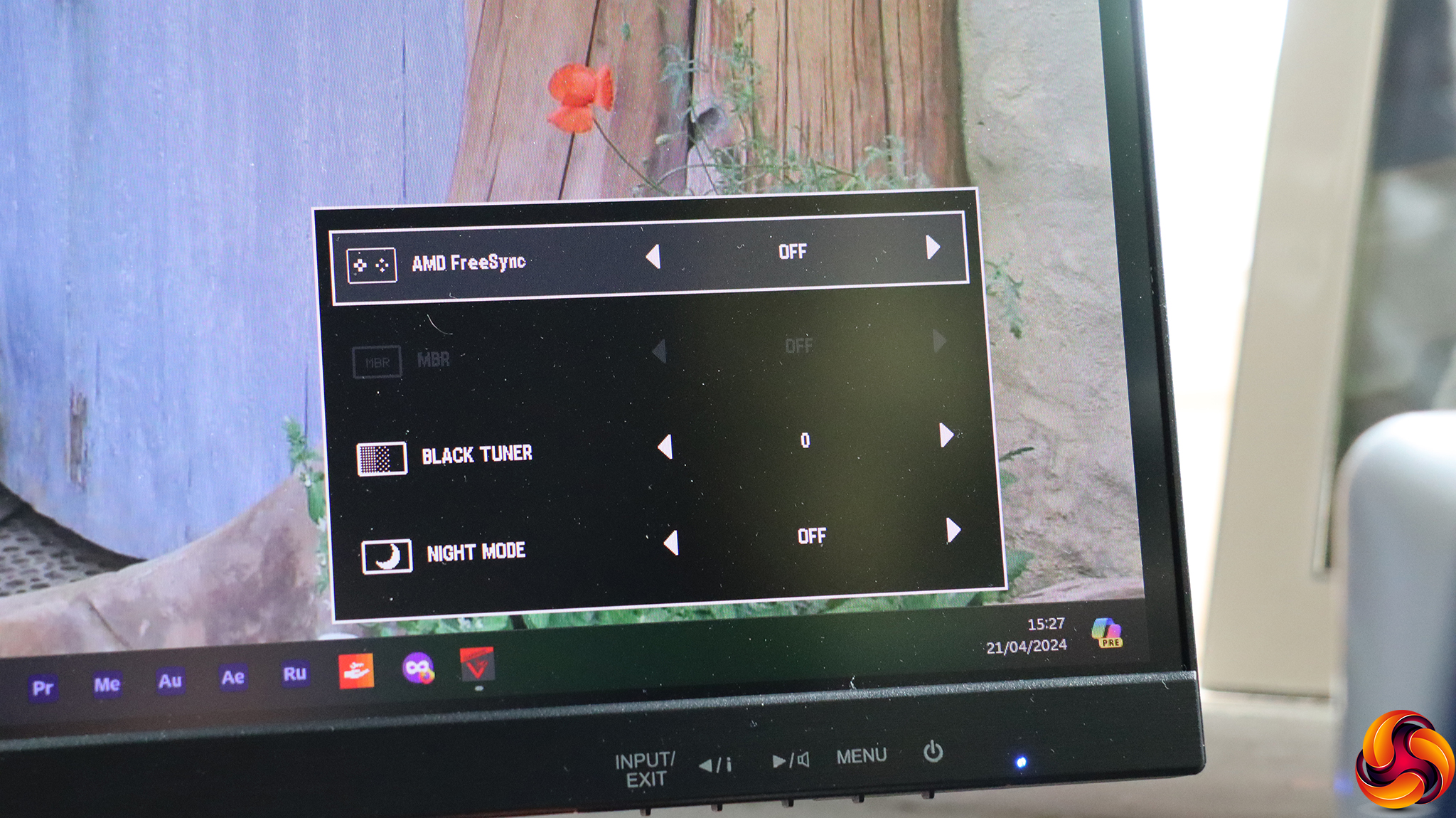
The next button from the left provides a few picture settings, including toggling AMD FreeSync, MBR (motion blur reduction), the black tuner (which adjust brightness in darker areas, if you're having trouble with your enemies hiding in the shadows) and night mode, which reduces the screen brightness.
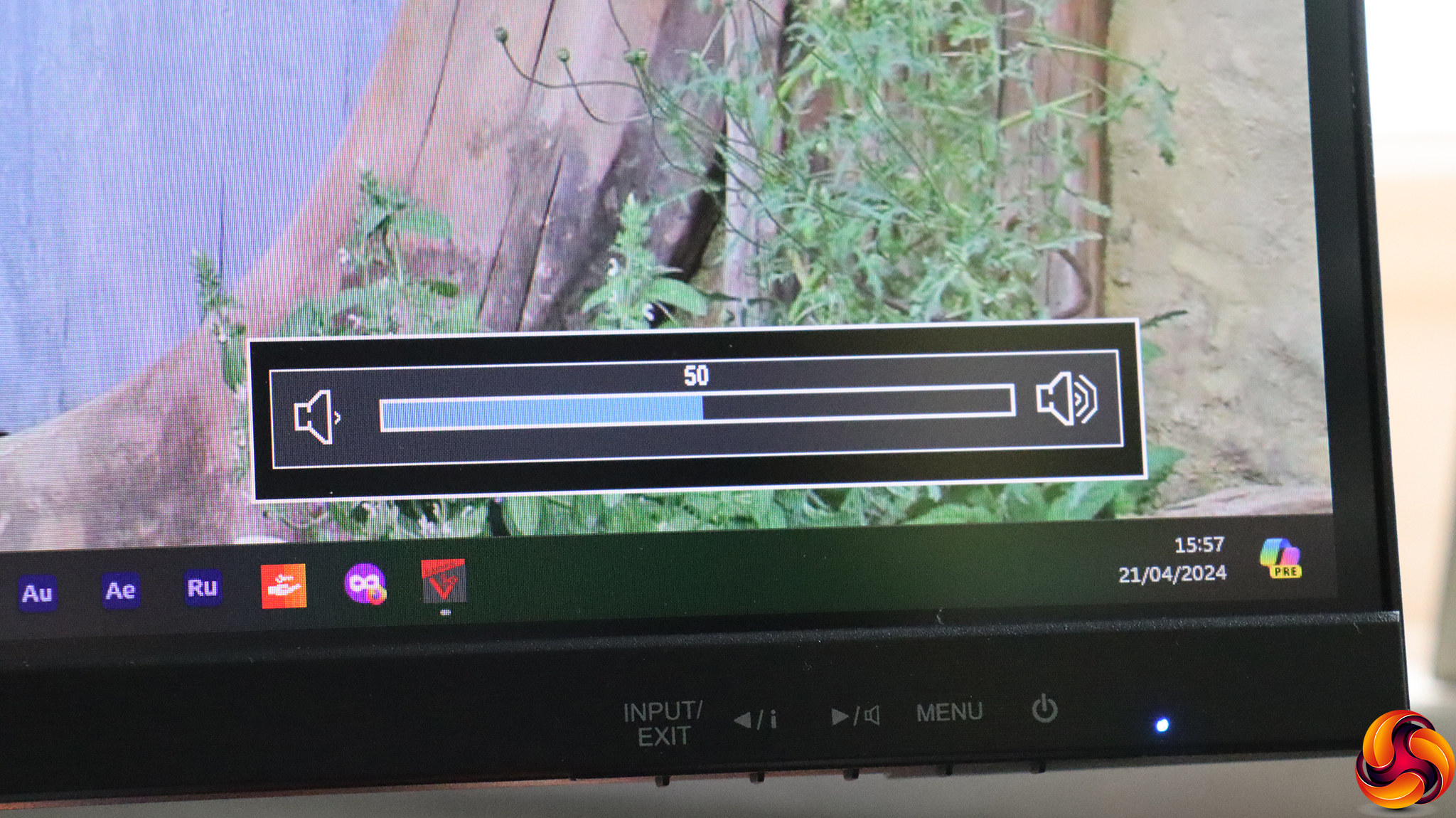
The third button allong calls up control over the volume of the built-in speakers or attached headphones.
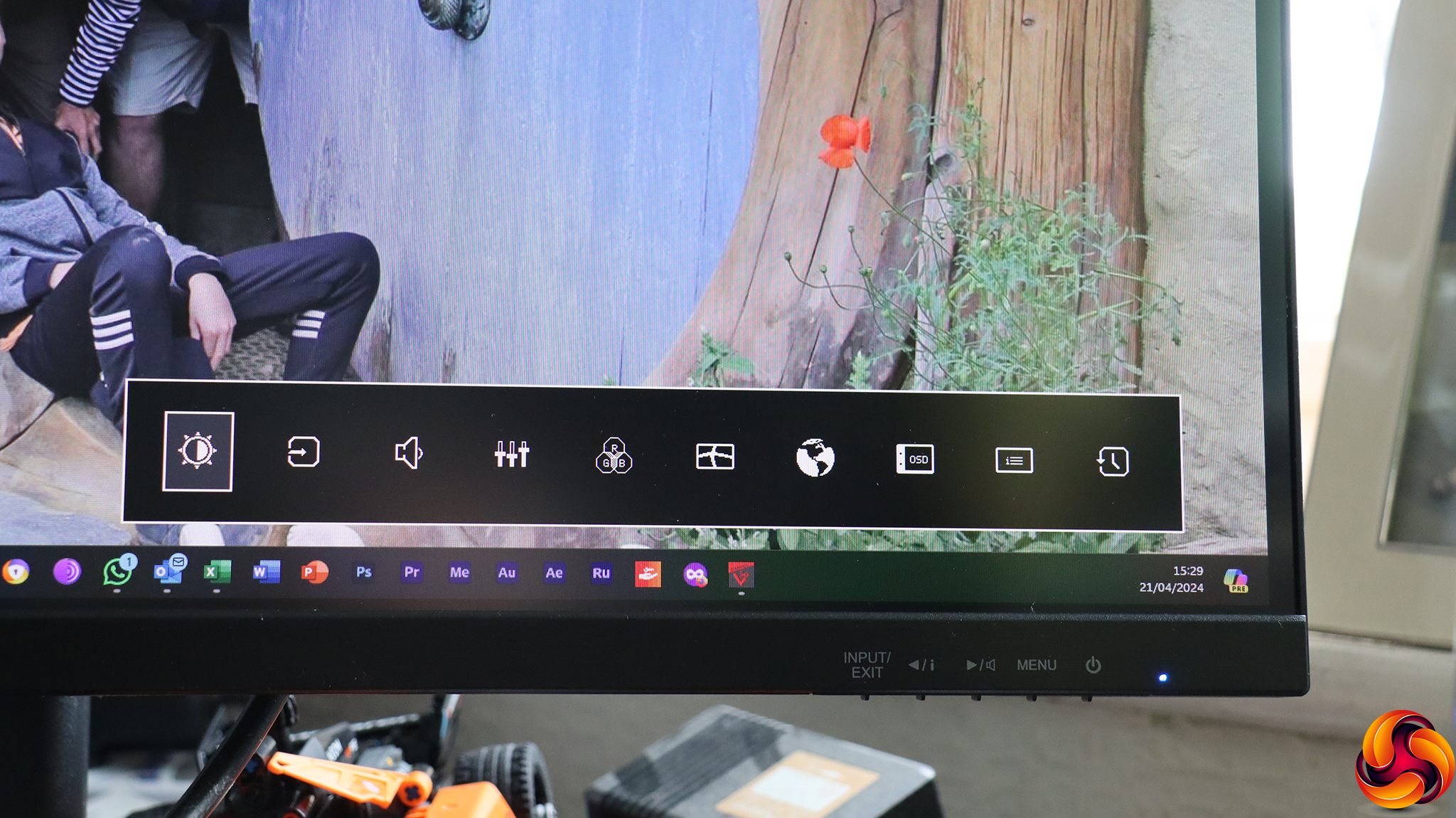
Hitting the Menu button doesn't immediately call up the menu, but a row of icons that will enable you get straight to the section you want, if you can remember what each icon means. This is a common feature on iiyama monitors and doesn't seem to have much of a point, because it merely adds an extra button click to get you to any subsections.
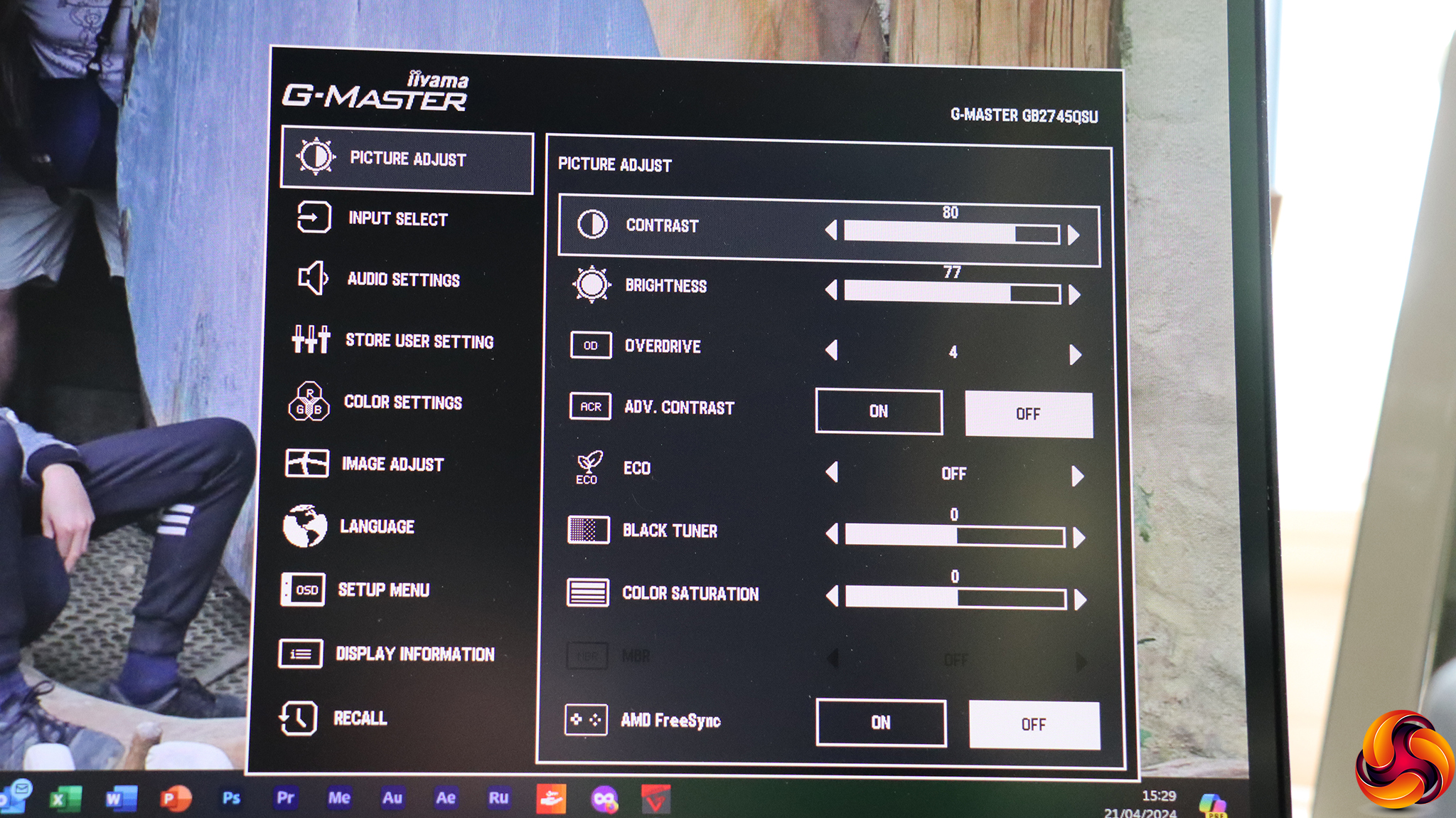
The first main menu option is Picture Adjust, where you can configure contrast, brightness, pixel overdrive (for faster response), advanced contrast, eco mode, and the aforementioned Black Tuner. You can also vary the colour saturation, as well as turning on MBR and AMD FreeSync.
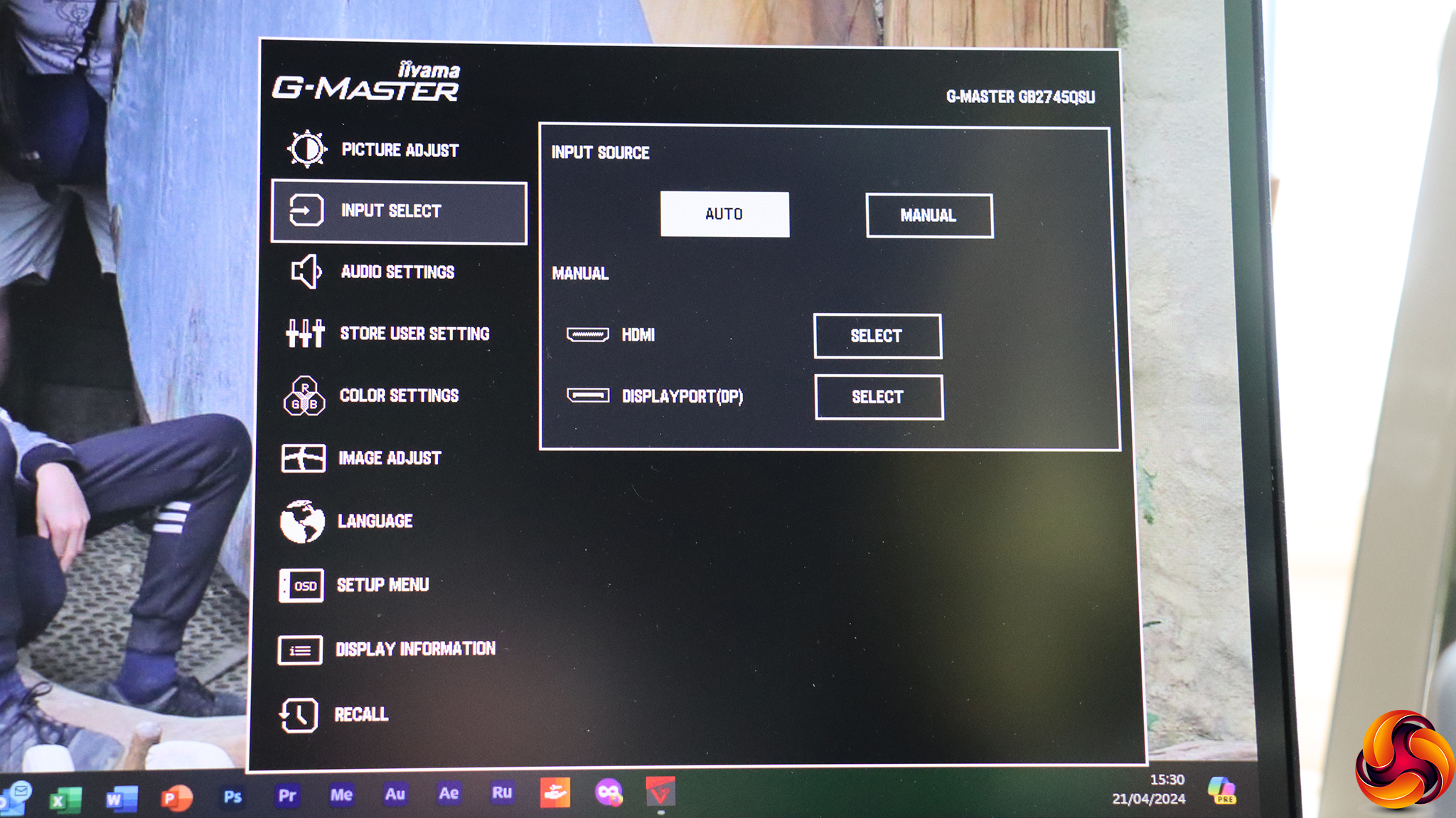
Next down in the main menu is the same ability to change the input manually as you have via the first menu control button.
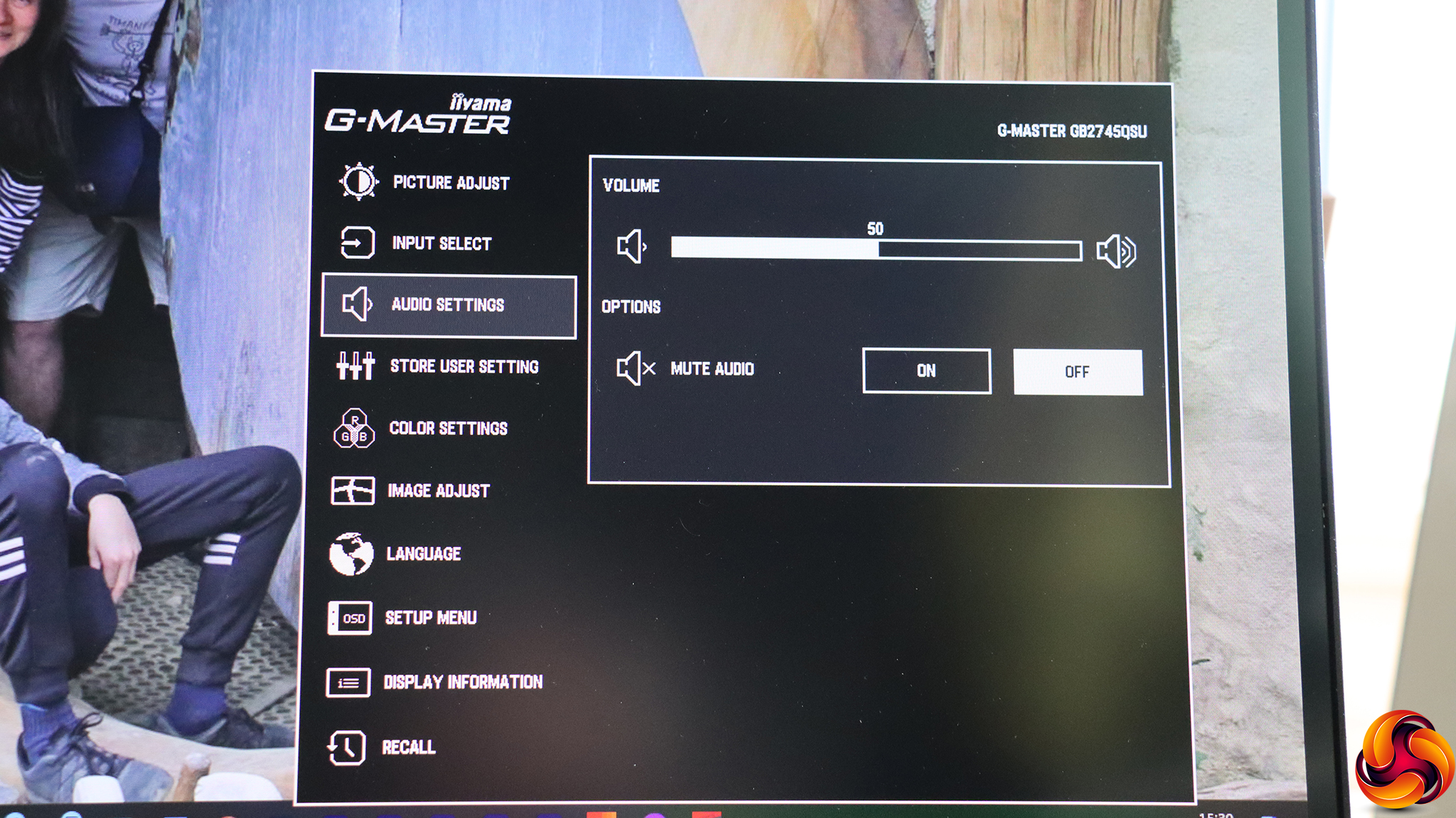
The Audio Settings are just another route to volume control and muting the built-in speakers or attached headphones.
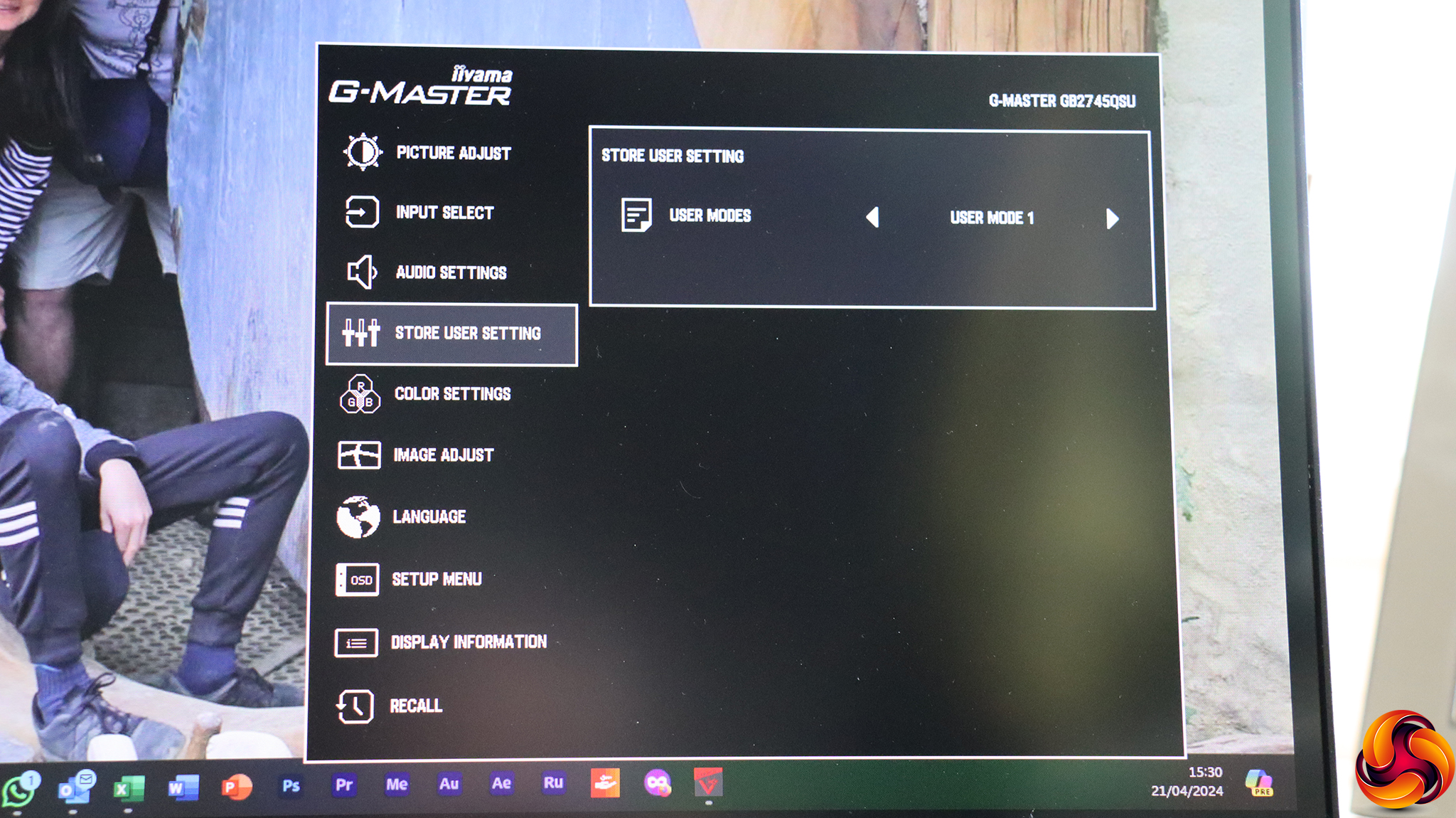
The Store User Setting lets you create up to three user-configured modes, which will then appear in the i-Style menu (of which more later).
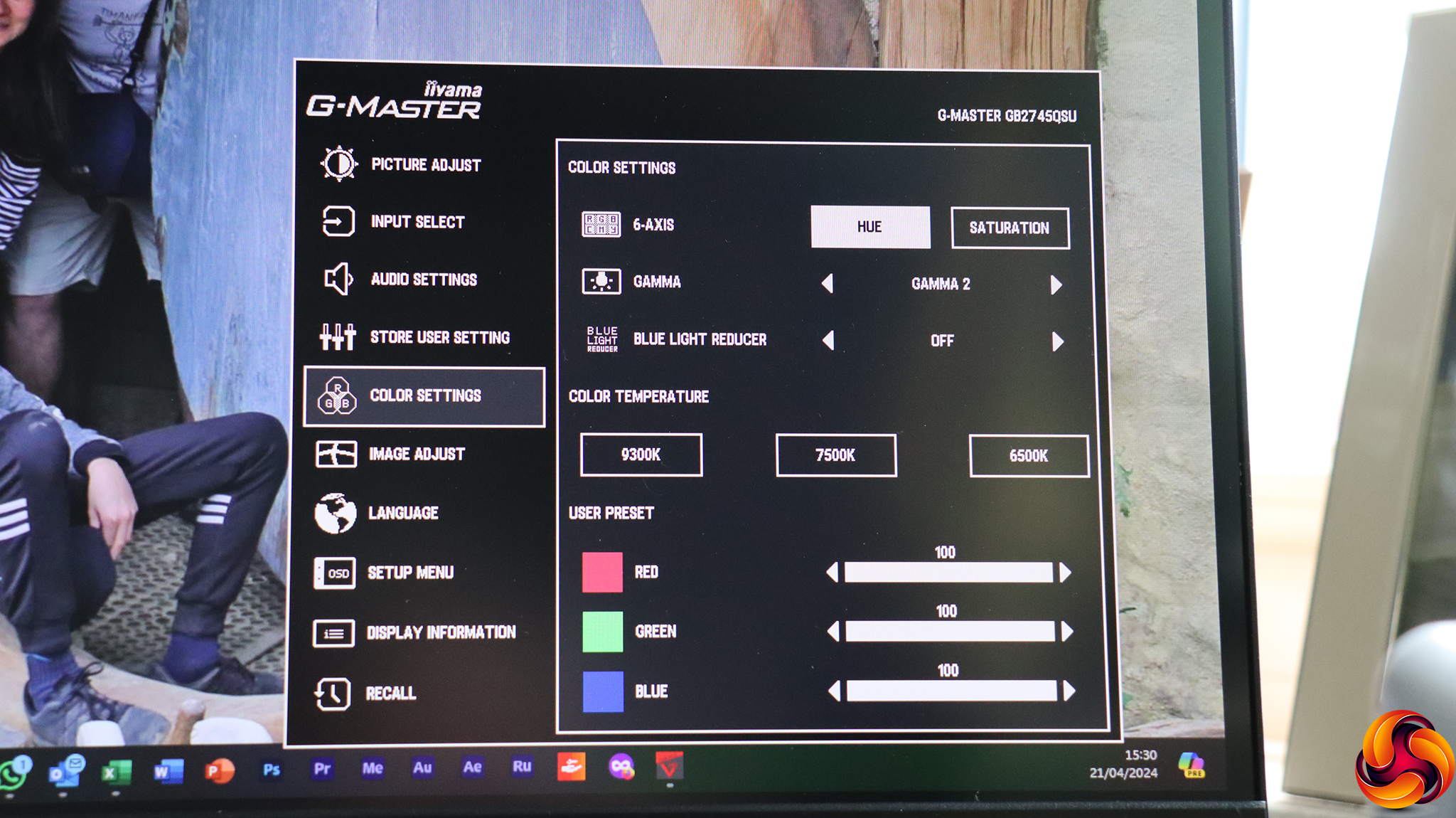
Color Settings include six-axis adjustment (when no i-Style preset is selected) using either Hue or Saturation. There are three Gamma options, and you can reduce blue light by up to three levels to help with eye fatigue. Color Temperature presets include 6500K, 7500K and 9500K. You can also adjust red, green and blue levels individually.
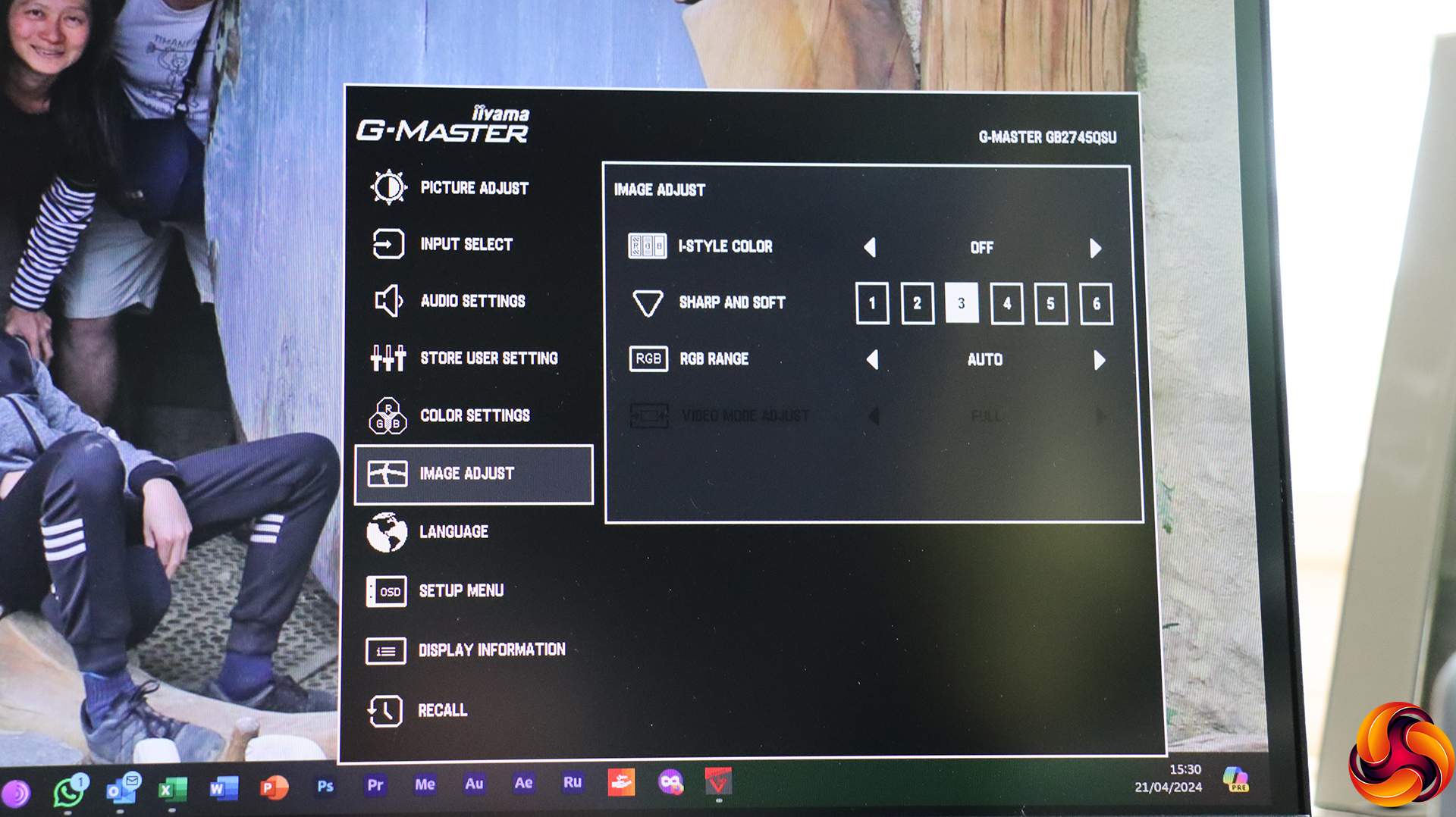
Image Adjust is where you can find the i-Style Color presets, which can't be used alongside Blue Light Reduction. The presets include Off, Standard, Sport Game, FPS Game, Strategy Game, Text, and the three User Mode slots mentioned earlier.
You can also adjust sharpness, RGB range, and video mode adjust. The latter configures how the screen handles a non-native resolution input.
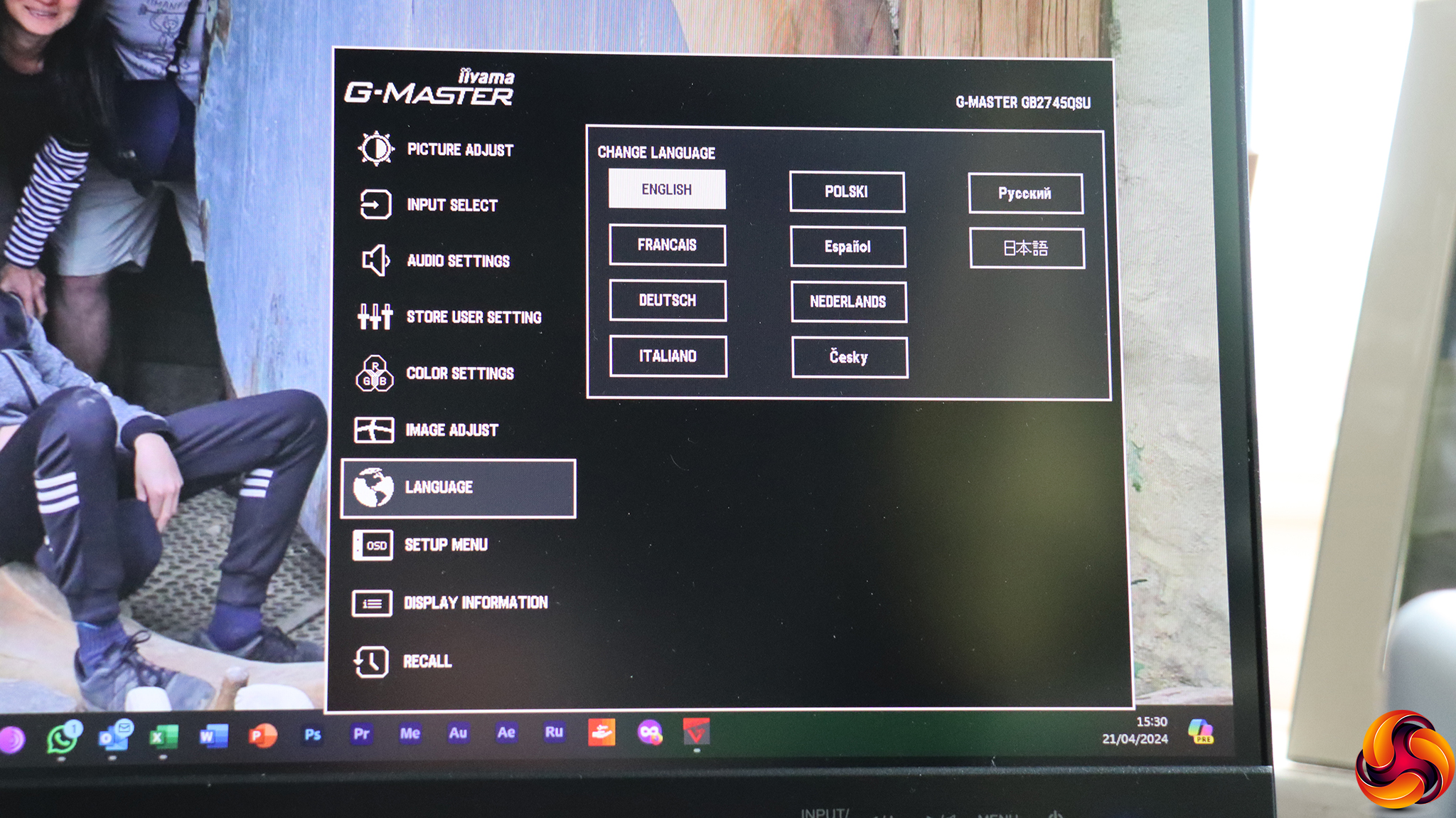
The screen OSD supports nine languages other than English.
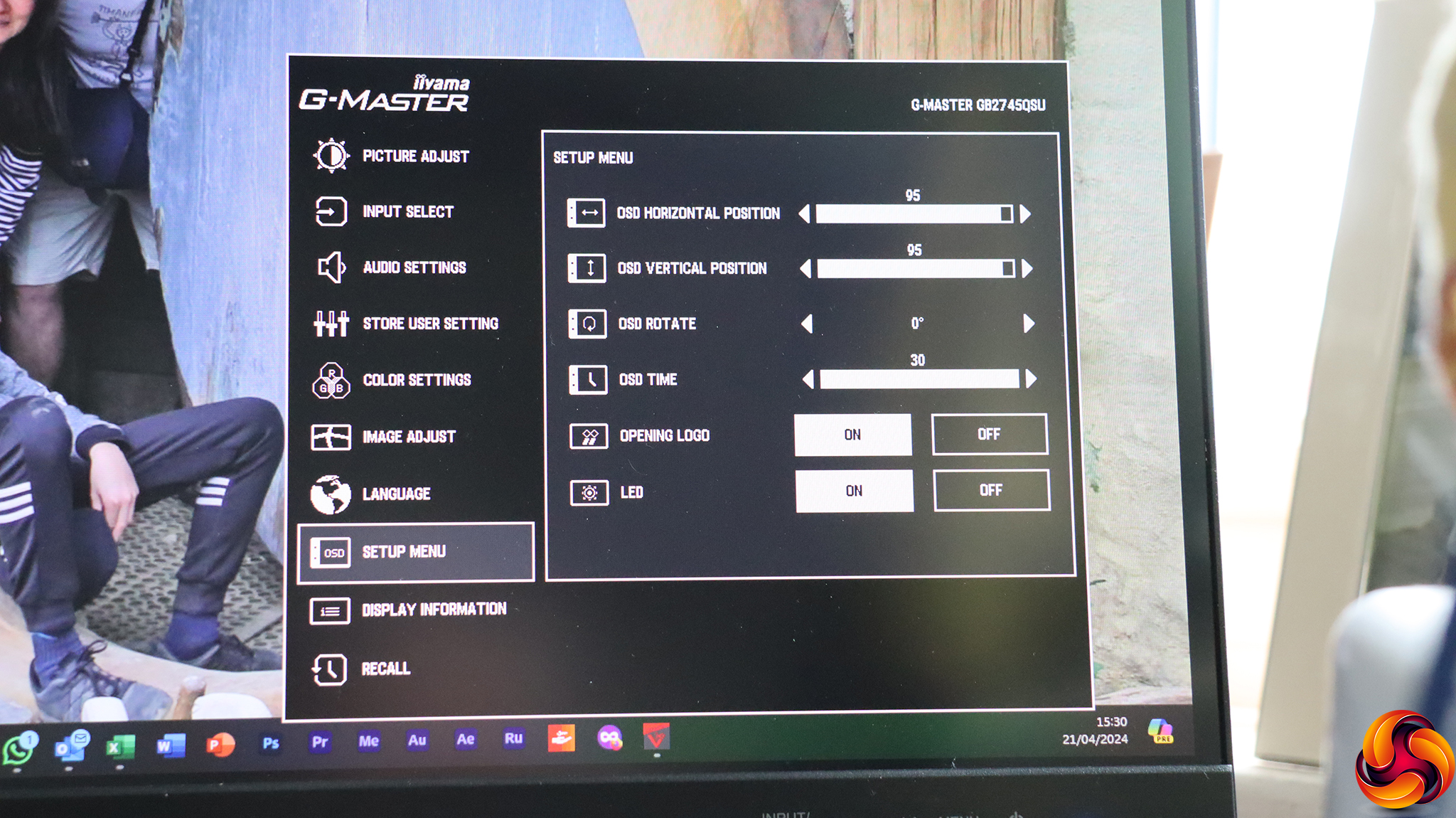
Under Setup Menu, you can configure how the OSD behaves.
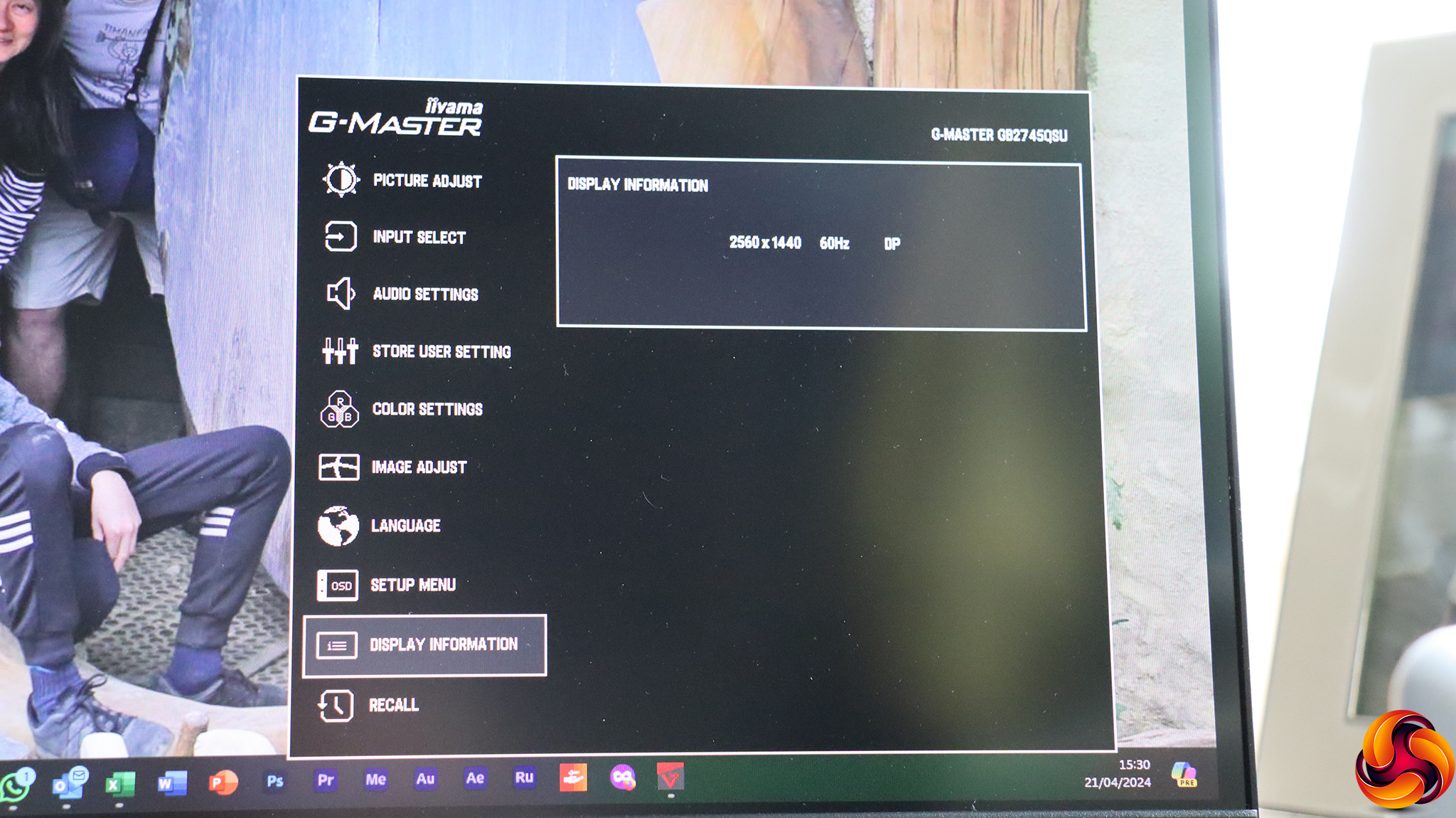
The Display Information can't be changed – it just tells you what your current resolution, refresh and input are.
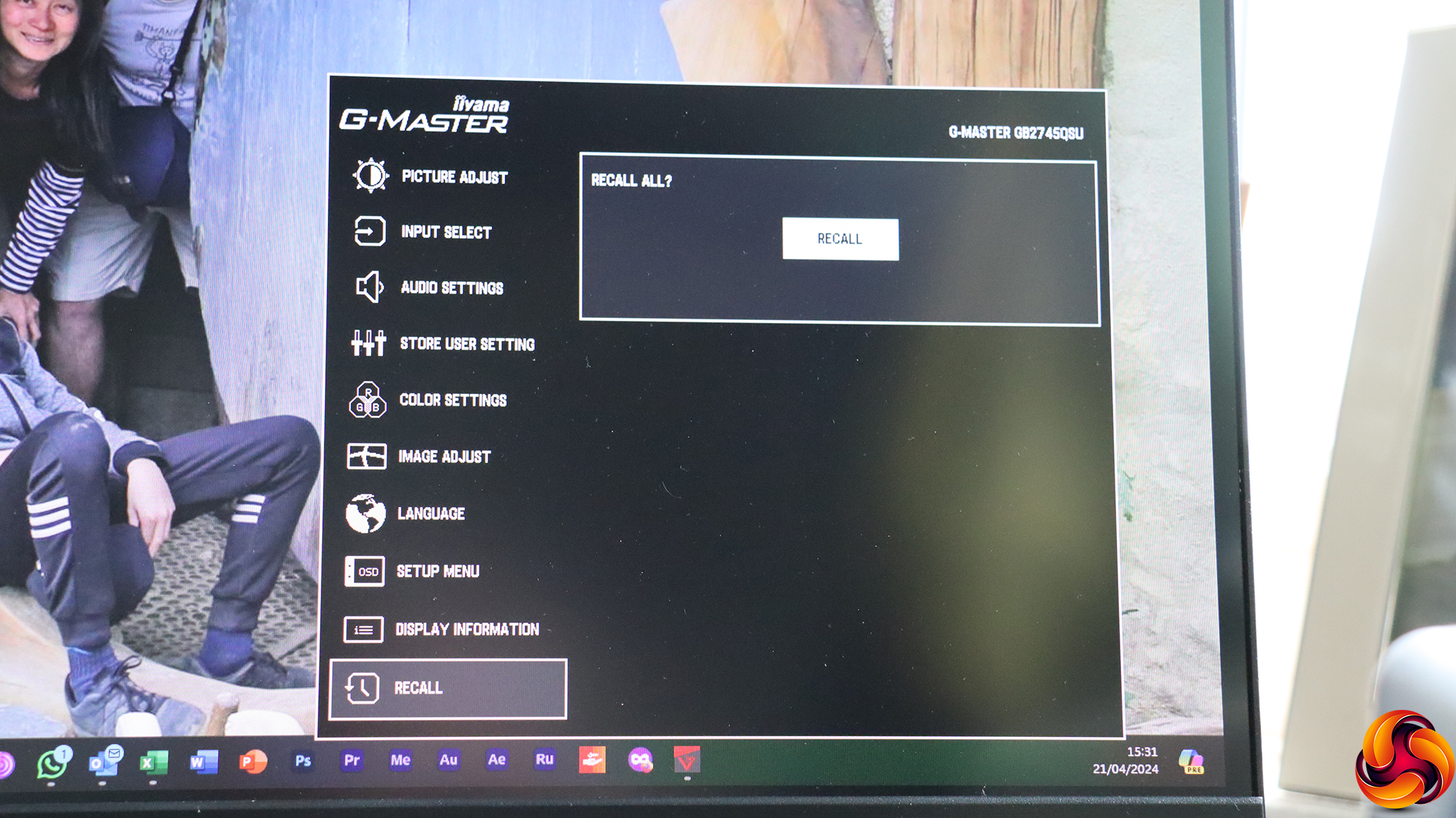
Finally, Recall resets the monitor to its default configuration.
Overall, this is a pretty bog standard menu. There are no advanced gaming options or widgets such as an on-screen FPS counter, but there is plenty available to fine tune the picture quality to your taste. It's also annoying that you can't change what is immediately available via quick keys. It would be good to have the i-Style Color presets accessible this way.
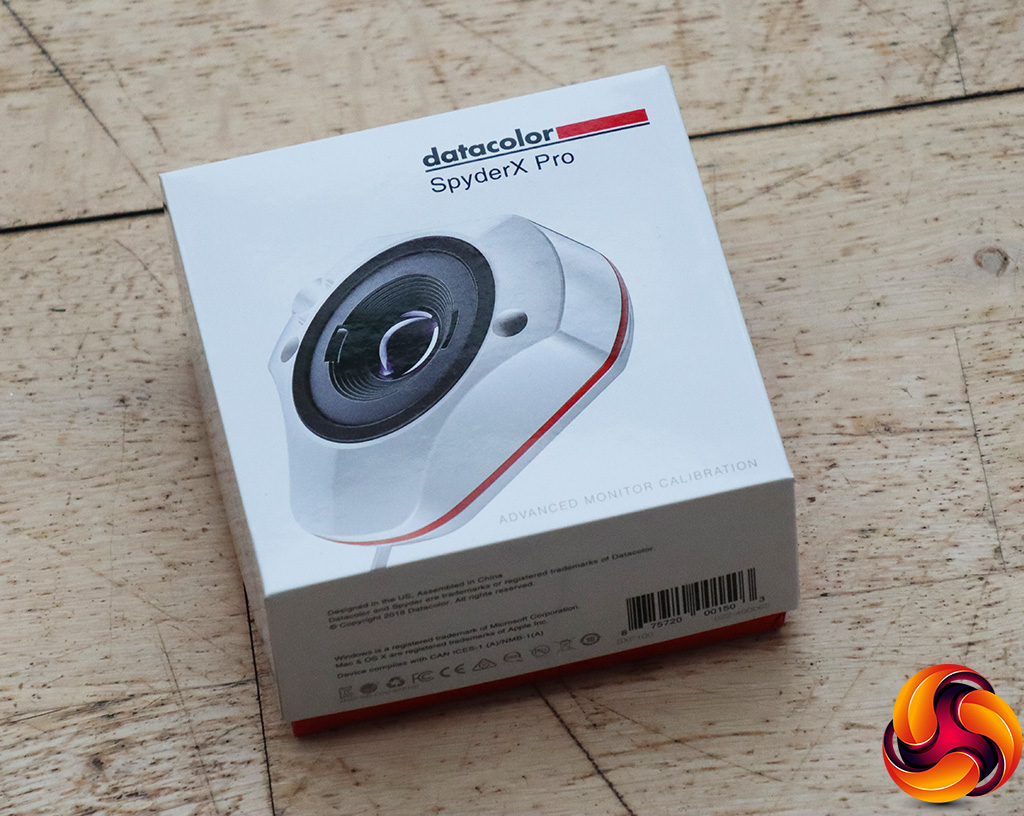
Our main test involves using a DataColor SpyderX Colorimeter to assess a display’s image quality. The device sits on top of the screen while the software generates colour tones and patterns, which it compares against predetermined values to work out how accurate the screen is.
The results show –
- A monitor’s maximum brightness in candelas or cd/m2 at various levels set in the OSD.
- A monitor’s contrast ratio at various brightness levels in the OSD.
- The brightness deviation across the panel.
- The black and white points.
- The colour accuracy, expressed as a Delta E ratio, with a result under 3 being fine for normal use, and under 2 being great for colour-accurate design work.
- The exact gamma levels, with a comparison against preset settings in the OSD.
We first run this test with the display in its default, out-of-the-box state, with all settings on default. We then calibrate the screen using the Spyder software and run the test again.
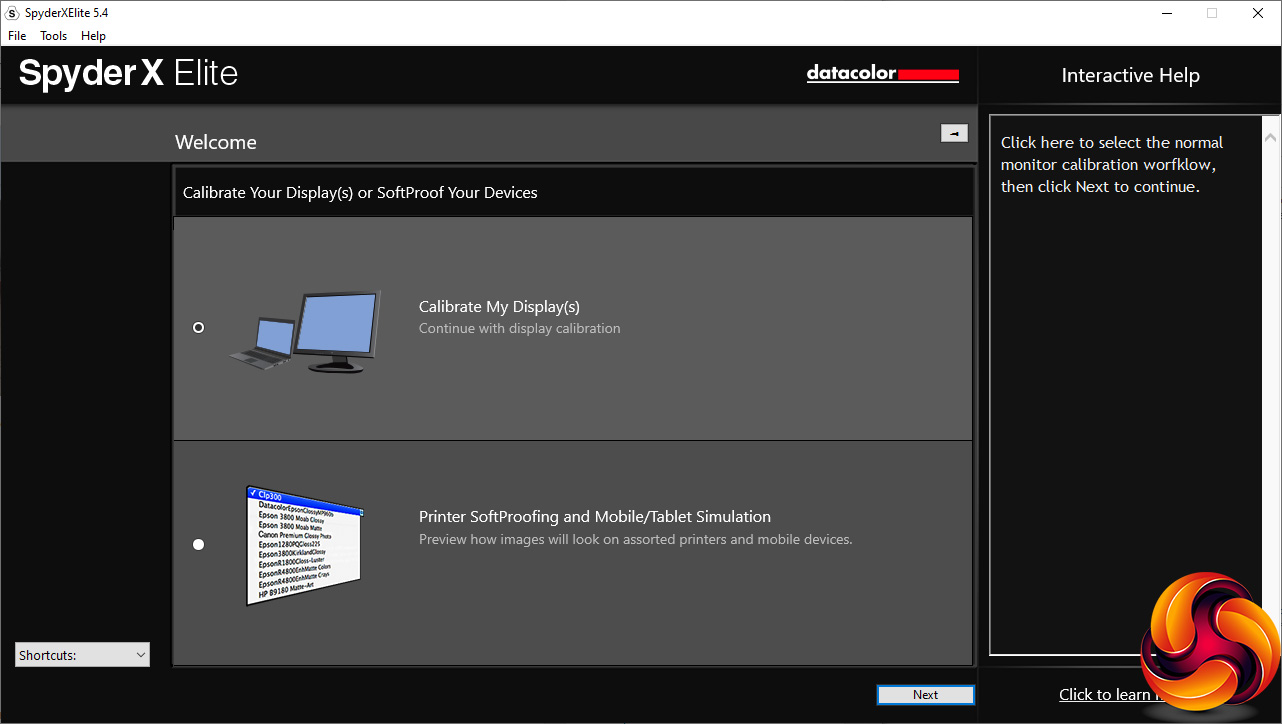
We always test the display subjectively on the Windows desktop, using it for general tasks such as browsing and word processing, and with games as well, even if the display is not intended solely for that purpose.
We pay careful attention to any artefacts, ghosting or motion blur, and enable any gaming-specific features, such as adaptive-sync settings like G-Sync or FreeSync, using a compatible graphics card in our test PC.
We performed the quality tests on the iiyama G-Master G2745QSU-B1 at its native 2,560 x 1,440 resolution in the default mode, after resetting the OSD. Our test system was equipped with an AMD Radeon Vega Frontier Edition graphics card, which supports FreeSync.
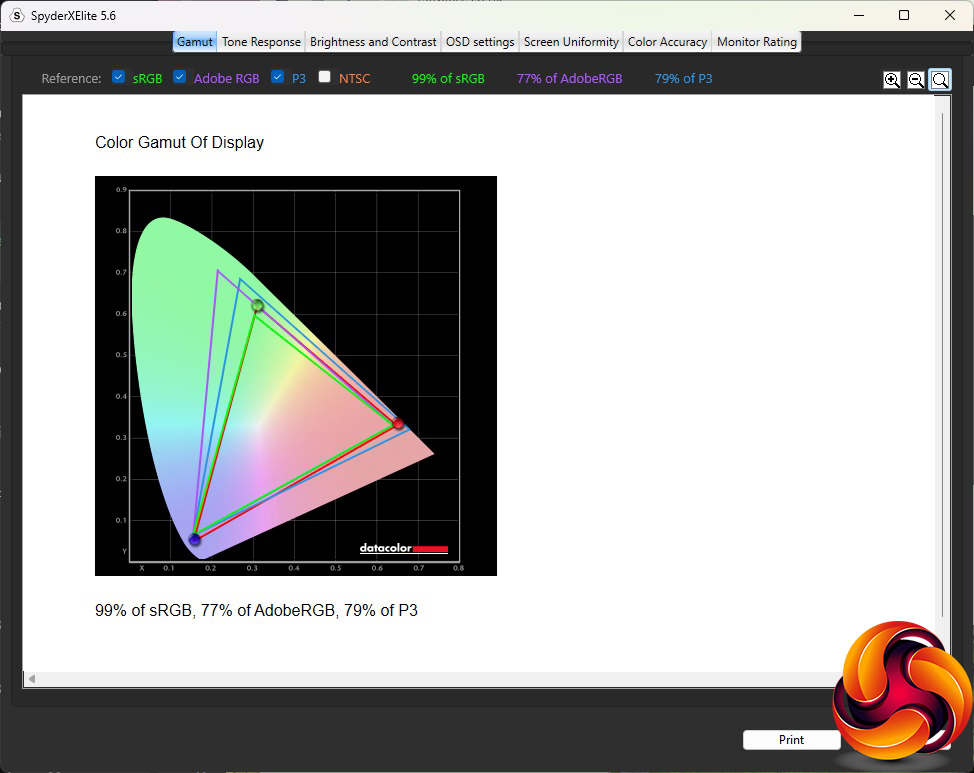
The gamut is not particularly outstanding, achieving on 99 per cent of sRGB, 77 per cent of AdobeRGB and 79 per cent of DCI-P3. These are not terrible scores, just a bit mediocre.

The Brightness Uniformity is decent at the top, but below that it's more divergent, and the two bottom corners vary quite a bit.
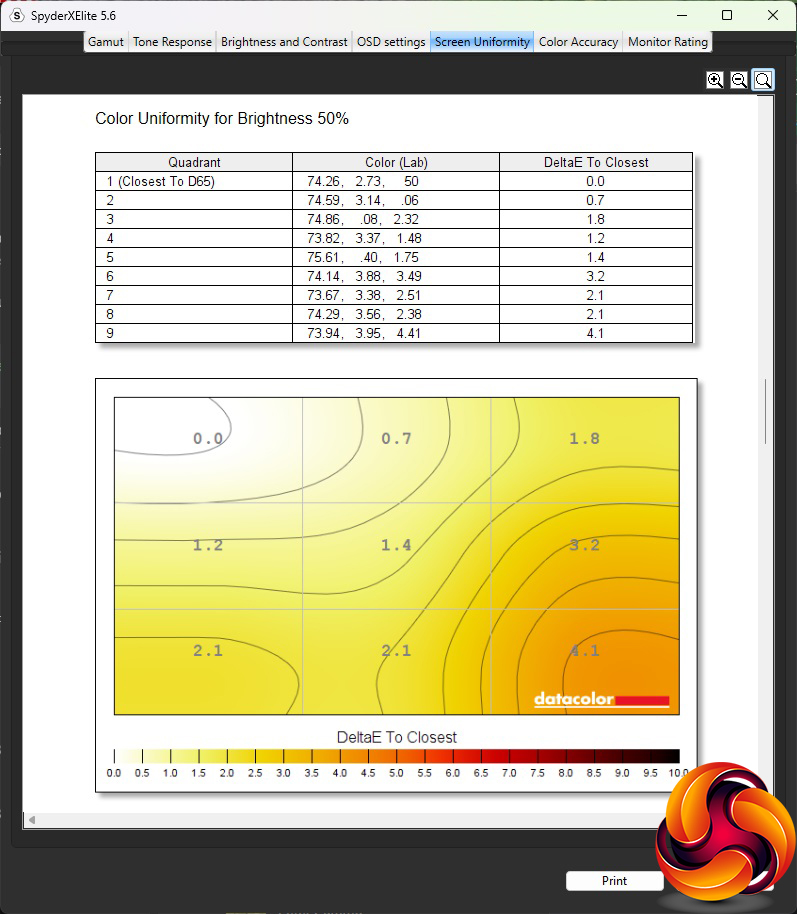
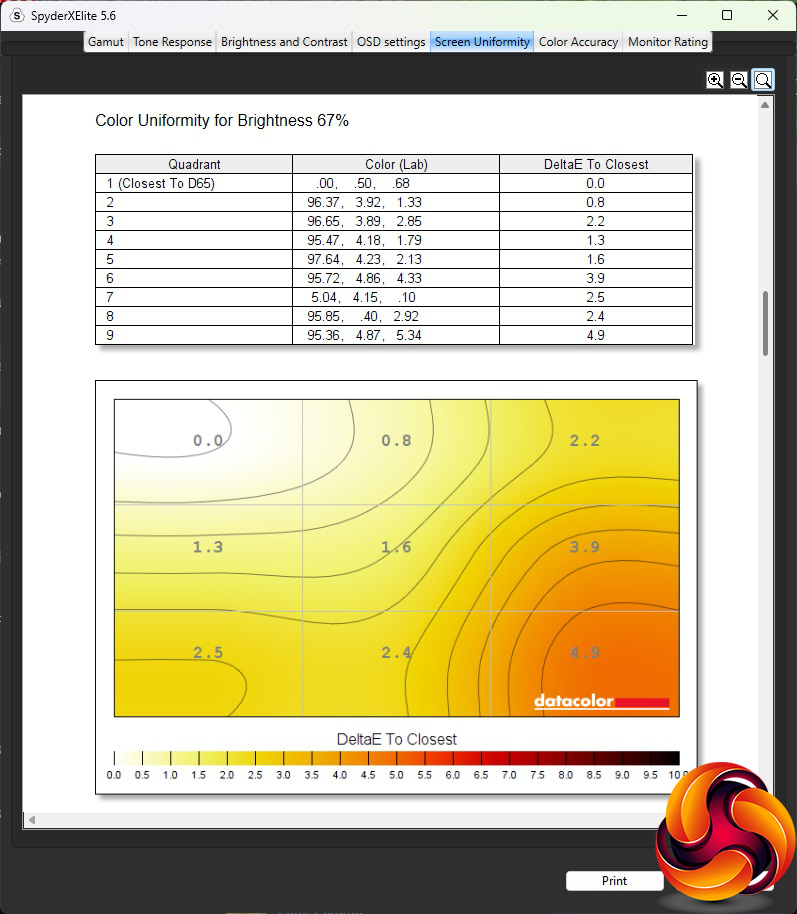
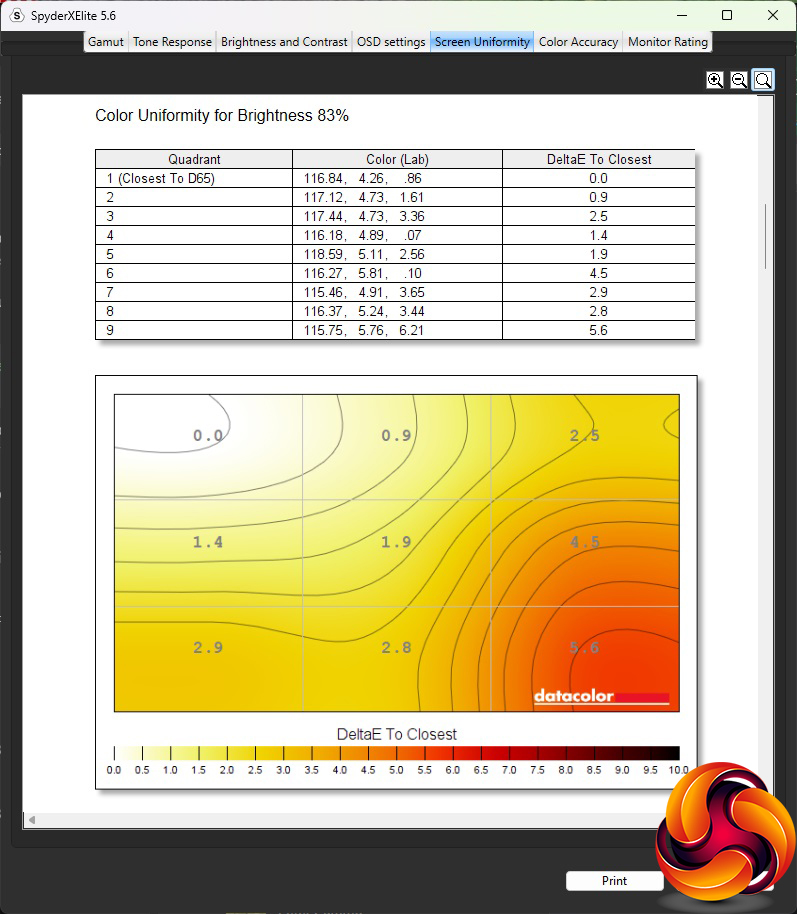
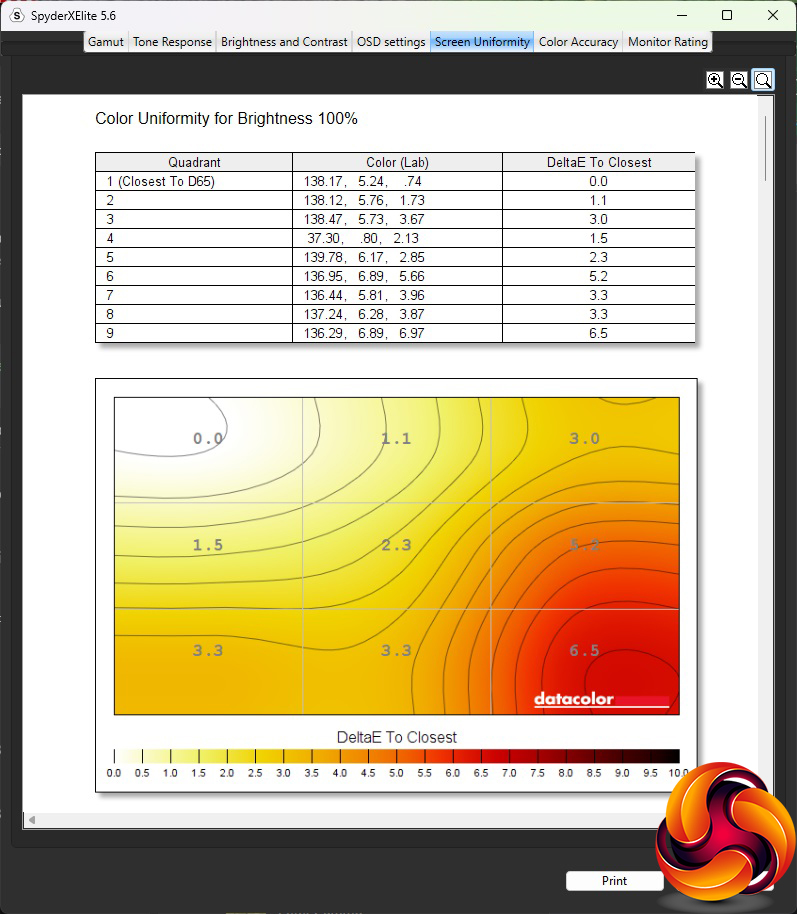
Colour uniformity is better except for the right-hand bottom corner, which increasingly diverges as the brightness goes up.
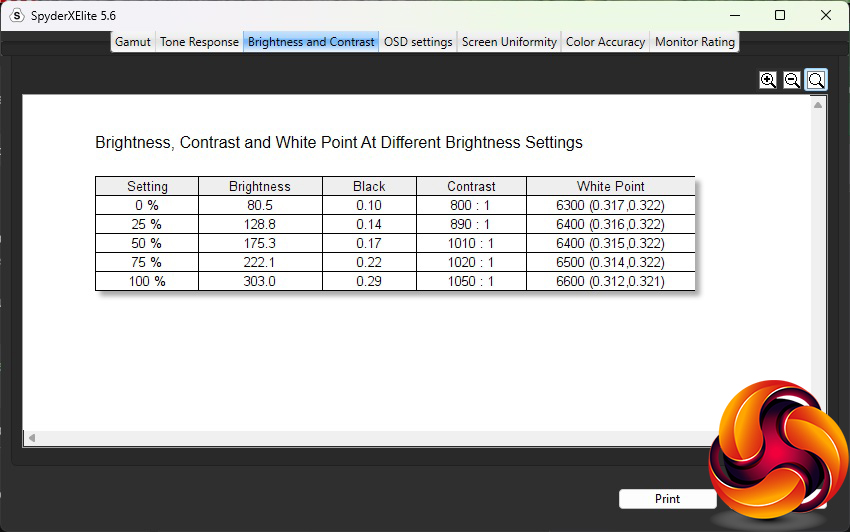
This panel is rated at 250cd/m2, but we found it managed 300cd/m2 at 100 per cent brightness, which is usable but not class leading. Contrast, however, is good for IPS, reaching 1,050:1 at 100 per cent brightness. The White Point varies from 6300K at 0 per cent brightness to 6600K at 100 per cent, but at the default 90 per cent you're getting around 6500K which is about the colour temperature you want.
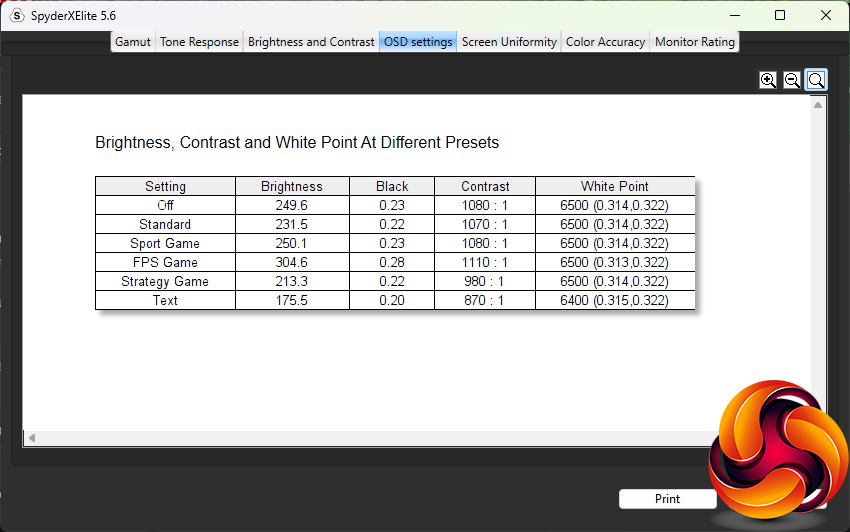
Interestingly, all presets but the Text i-Style Color one provide a 6500K White Point, and Text is just a little warmer at 6400K. The brightness doesn't vary a lot across the presets either, with Off and Sport Game around the 250cd/m2 mark, Standard at 231.5cd/m2, FPS Game at a bright 304.6cd/m2, and Strategy Game at 213.3cd/m2. Almost all the presets have similar contrast between 1,070:1 and 1,110:1, too, while Strategy Game drops to 980:1. The Text mode is the main outlier, with 175.5cd/m2 brightness and 870:1 contrast. Surprisingly, there are no presets for watching video, which normally benefits from a cooler (higher) White Point value.
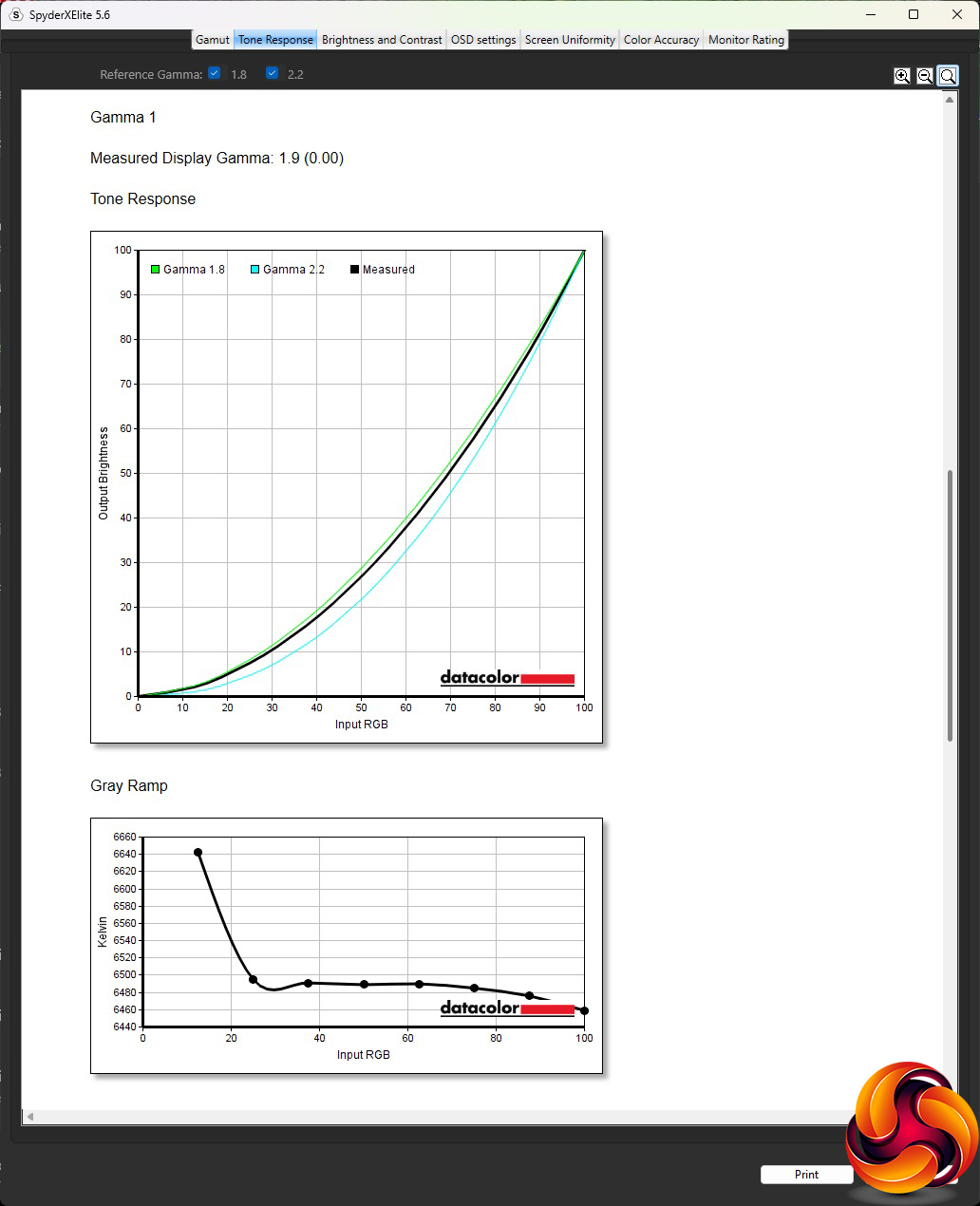
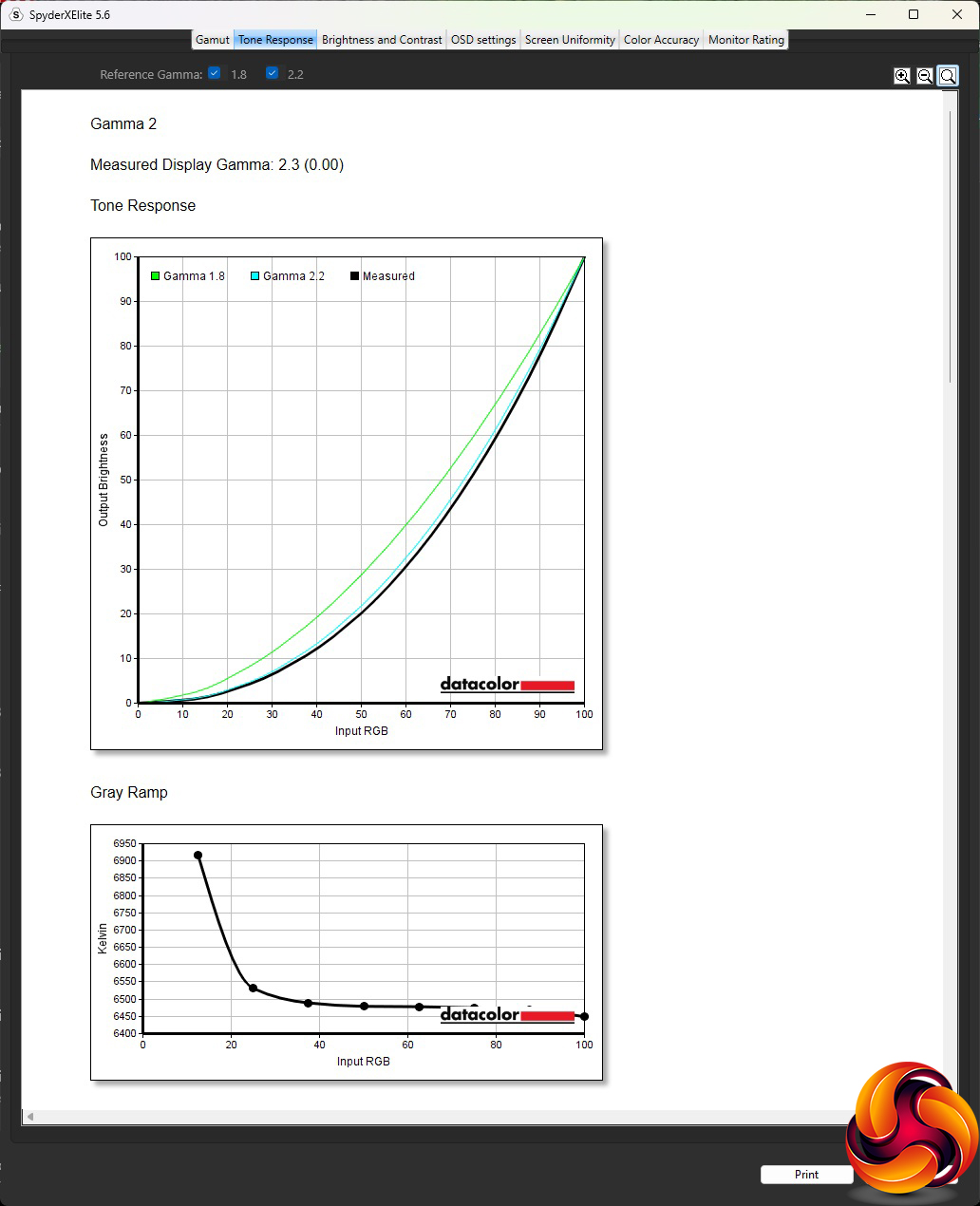
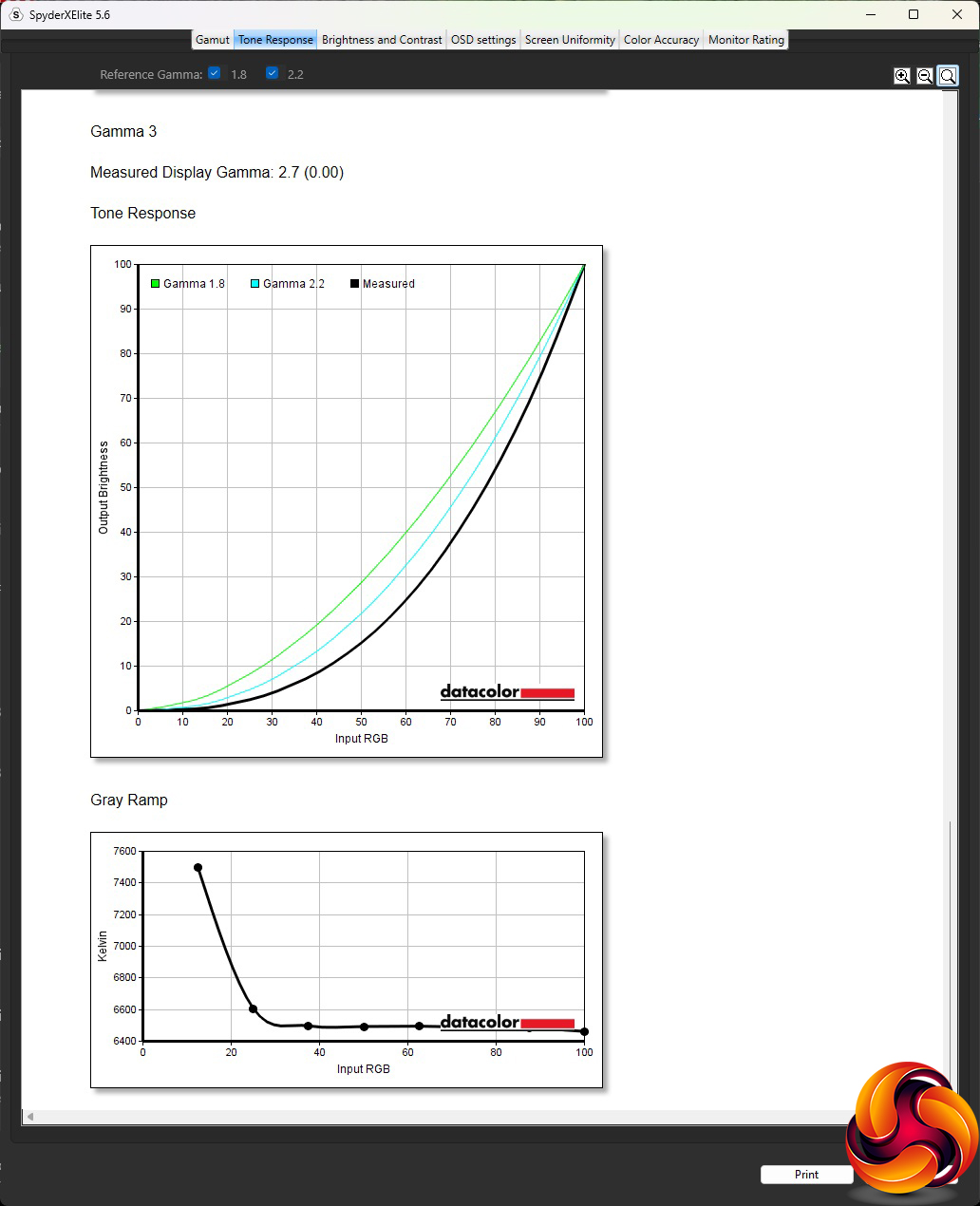
Although there are only three gamma settings, they represent quite a wide range of values. Gamma 1 corresponds to 1.9, the default Gamma 2 to 2.3, and Gamma 3 to 2.7. The spacing is reassuringly even.
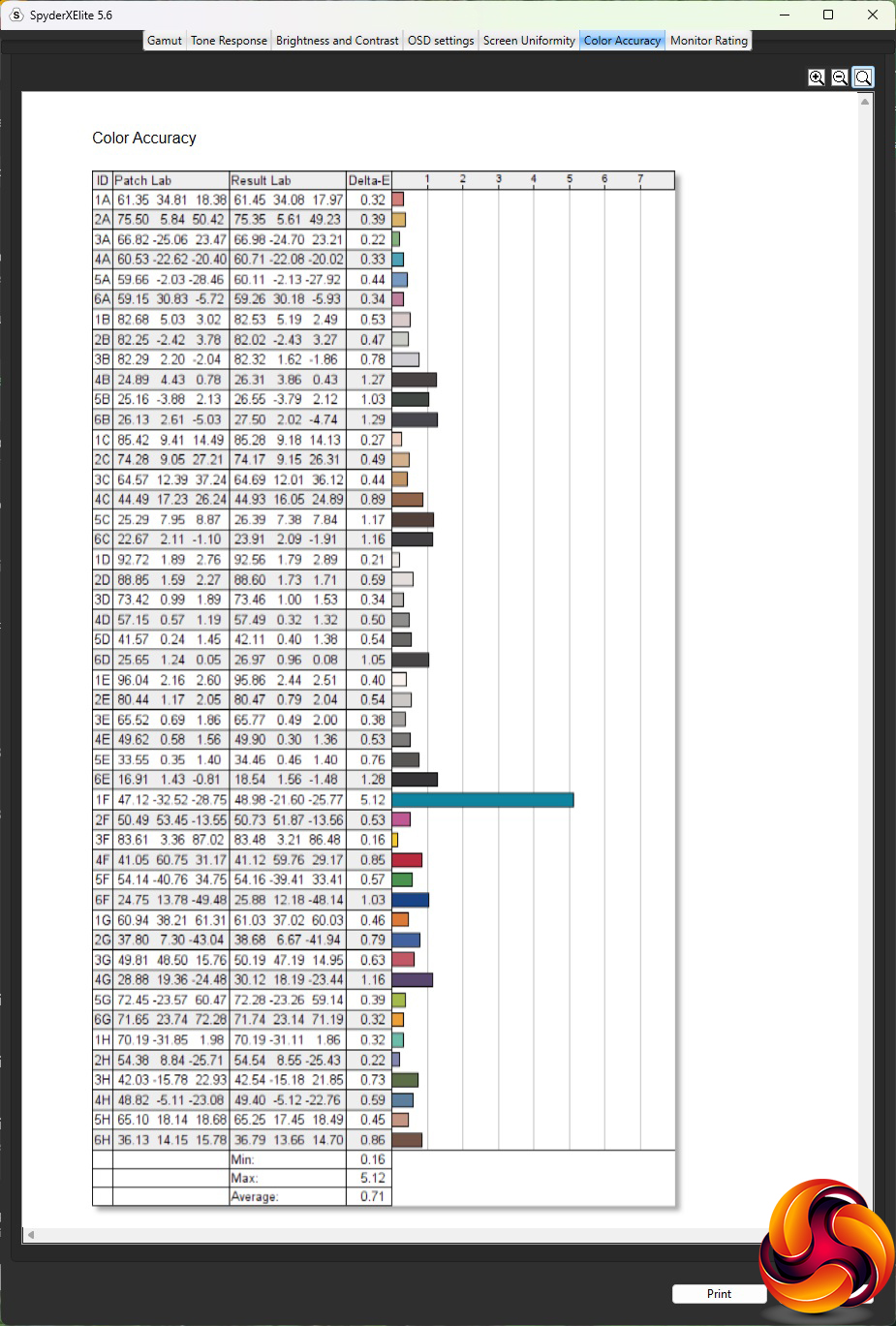
The IPS panel's party trick is colour accuracy, and here the iiyama screen excels. The average deviation is just 0.71, which is close to the lowest scores we've seen. Despite this, we always check to see if calibration can improve things, so went through the routine to see if we could squeeze out a little more accuracy.
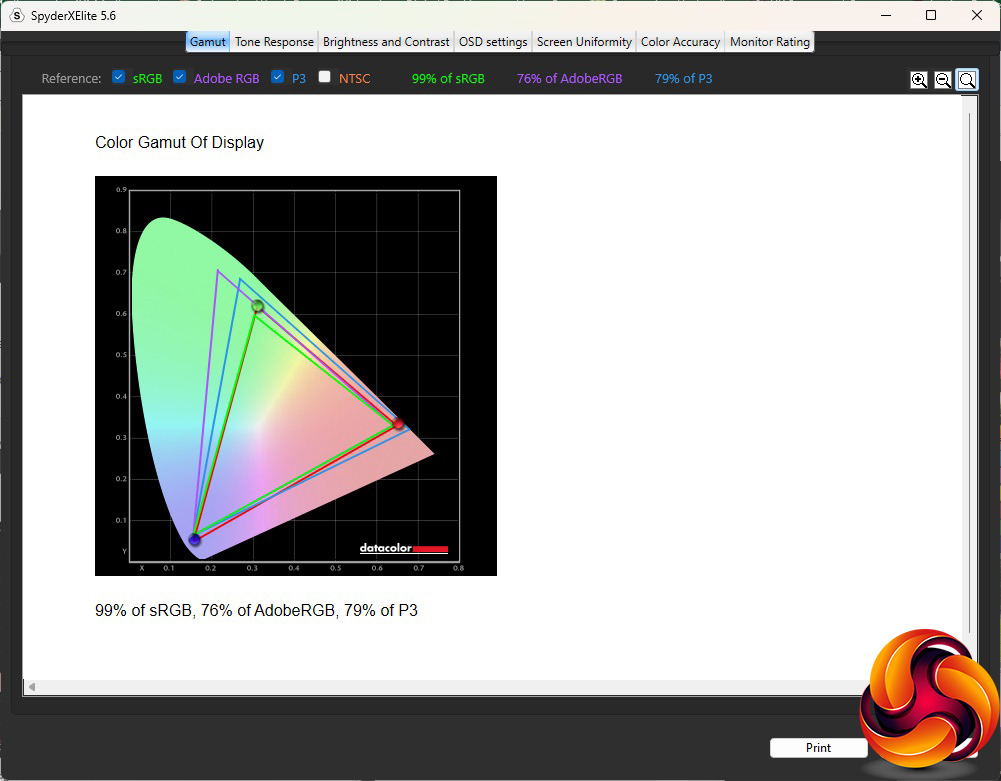
Calibration doesn't usually affect gamut, and while the sRGB hadn't changed from 99 per cent, nor DCI-P3 from 79 per cent, AdobeRGB had dropped a notch to 76 per cent.
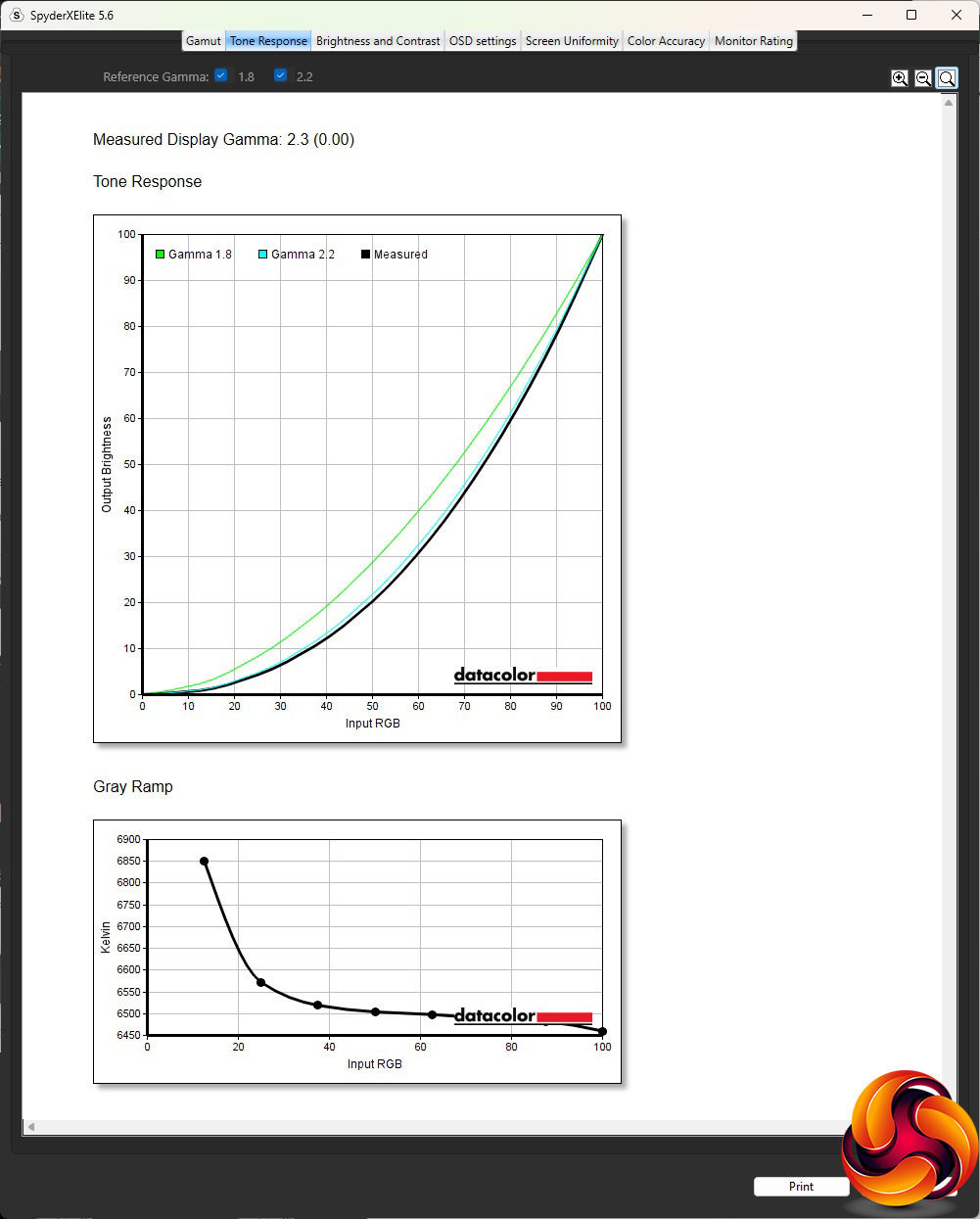
We only retested the default Gamma 2 setting, which retained its 2.3 value.

Calibration made the iiyama's colour accuracy even better than before, with an average deviation of just 0.60, and just one troublesome blue channel. Few monitors have scored better than this in our testing in the past.
Overall, the colour accuracy is the highlight for the iiyama G-Master G2745QSU-B1. The gamut and uniformity are mediocre. While it outperforms its brightness setting, we would have liked to see a preset for watching movies.
Of course, gaming is the focus of this screen, so we called upon our usual blend of titles with our test system's AMD Radeon Vega Frontier Edition graphics and FreeSync enabled. The games included CS2 for maximum frame rates, Rainbow 6 Siege, and League of Legends. This graphics card can easily drive CS2 at over 100fps when running a 2,560 x 1,440 resolution and with most quality settings on maximum. The FreeSync operated flawless, giving smooth framerates at all time. Likewise the other games we tried. The big deficiency here will be if you're an FPS player who wants the fastest frame rates around. The 100Hz limitation probably won't satisfy you.
The iiyama G-Master G2745QSU-B1 has great colour fidelity and gives you a decent panel size and resolution for the money. The ergonomic adjustments are comprehensive, too.
However, it's not without faults. The brightness and colour uniformity are mediocre, as is the gamut. You also get the usual limitations of IPS, with lower overall brightness and contrast than some other panel technologies. There are only two video inputs – and no USB-C – although there is at least a USB 3.2 Gen 1 hub with two ports.
The elephant in the room, however, is the refresh rate, which is clearly the compromise being made to keep the price low. If you're an ardent FPS player and have a graphics card capable of over 100 frames per second with your chosen title, this monitor will limit the benefit you get, although the AMD FreeSync support will at least mean you get smooth performance when you drop below 100 FPS.

However, at £190 this screen is still a bit of a bargain. If you have £75 more to spend, the Cooler Master GM2711S offers 180Hz refresh instead plus a faster pixel response, and is a much more serious gaming contender as a result. But if your budget is more limited and your favoured titles are less frenetic, this is a decent screen diagonal and pixel count for the money.

You can buy the iiyama G-Master G2745QSU-B1 from Overclockers UK over HERE for £189.95 inc VAT.
Discuss on our Facebook page HERE.
Pros:
- Great value.
- Superb colour fidelity.
- AMD FreeSync.
- Some useful adjustment settings in OSD.
- Comprehensive ergonomic adjustment.
- USB hub.
Cons:
- Only 100Hz refresh.
- Mediocre gamut.
- Mediocre uniformity.
- No USB-C.
KitGuru says: The iiyama G-Master G2745QSU-B1 is limited to 100Hz and has some other performance downsides, but it still delivers Quad-HD 27in gaming at a very keen price.