KitGuru KitGuru.net – Tech News | Hardware News | Hardware Reviews | IOS | Mobile | Gaming | Graphics Cards


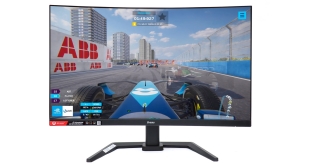
Large curved monitors used to be at a considerable premium, but the iiyama G-Master GCB3280QSU-B1 costs less than £300 for a 31.5in panel and 2,560 x 1,440 resolution. It even offers a maximum refresh of 165Hz, which used to be an expensive feature too, and this comes with AMD FreeSync Premium. So at a first glance this is a very promising gaming screen for the money. Could there be a catch? Is there something important missing?
This is a bit of a contrast considering that the company made its name with premium professional displays. The G-Master GCB3280QSU-B1 is part of iiyama's Red Eagle range. It's based on VA panel technology, so offers a considerable 3,000:1 contrast ratio. But the brightness level is relatively modest at 350cd/m2. The quoted pixel response is just 0.2ms, but that's MPRT not grey-to-grey. There is no mention of a gamut specification, however. The FreeSync Premium capability is the middle of AMD's adaptive sync levels, offering at least 120Hz vertical refresh at a minimum of Full HD, support for low framerate compensation, and low latency.
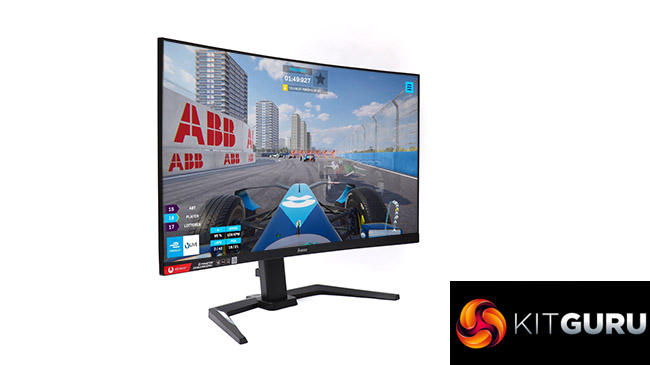
There is a decent selection of video inputs on the G-Master GCB3280QSU-B1, including DisplayPort, and two HDMI. There's a USB Type B input with two Type A outputs, plus an analog headphone jack and built-in stereo speakers.
Ergonomic adjustment includes height alteration, swivelling, tilting, and pivoting into portrait orientation. With some gaming-specific presets in the OSD, there's a lot to like in the G-Master GCB3280QSU-B1. Let's find out if it lives up to our expectations.
Specification:
- Screen size: 31.5-inch, 16:9 aspect
- Native resolution: 2,560 x 1,440
- Curvature: 1500R
- Refresh rate: 165Hz
- Panel type: VA
- Contrast ratio: 3,000:1 (typical)
- Brightness: 350cd/m2
- Response time: 0.2ms MPRT
- Display inputs: HDMI x 2, DisplayPort x 1
- USB hub: Yes, Type B input, 2 x USB 3.2 Gen 1 outputs
- Tilt: 5 degrees forward, 23 degrees backward
- Raise: 150mm
- Swivel: 45 degrees left or right
- Portrait: Yes
- Other: Audio output minijack, 2 x 2W stereo speakers
Retail Price: £298.99 (inc. VAT)
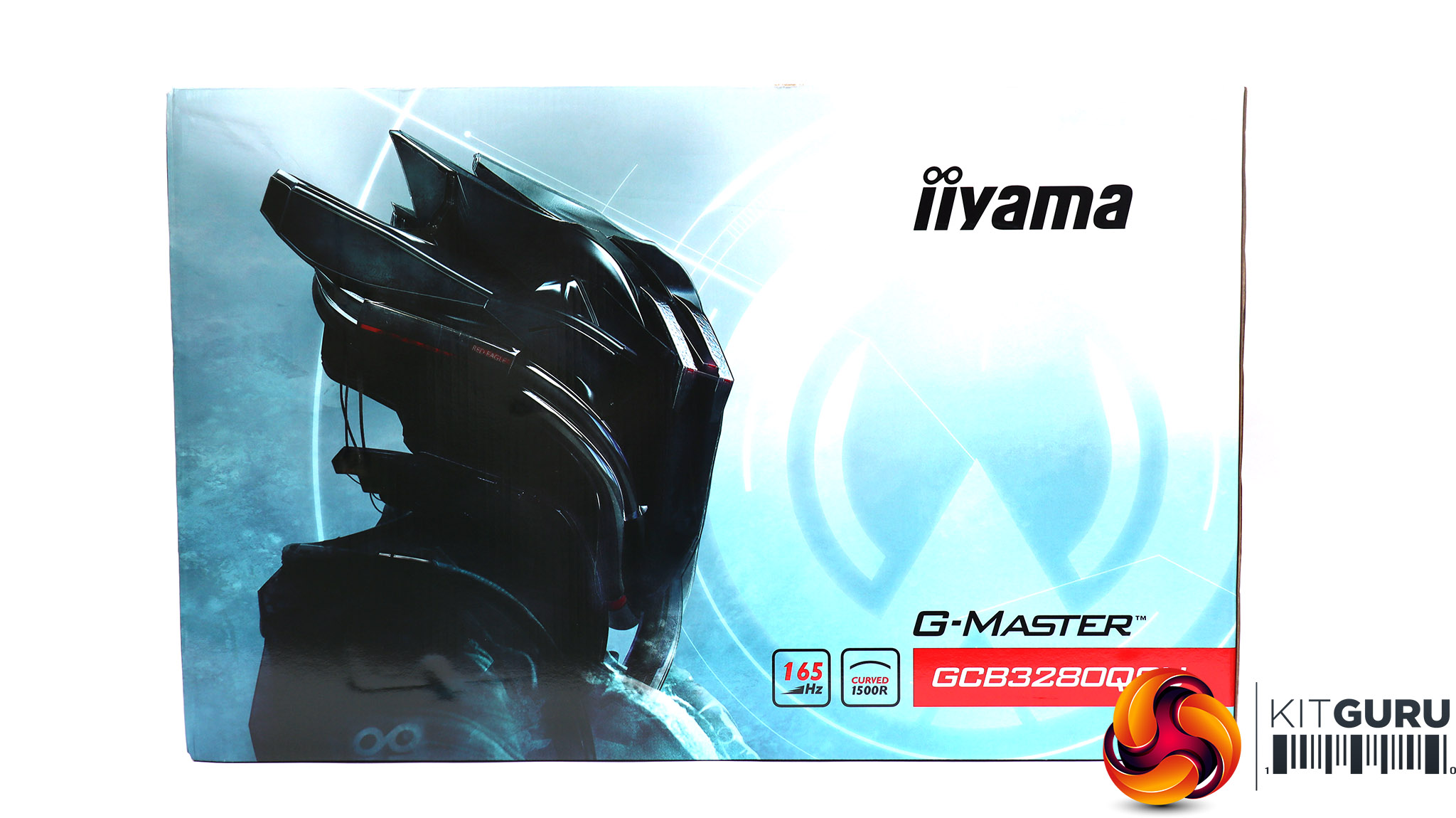
The iiyama G-Master GCB3280QSU-B1 comes in the company's more exciting “gaming” box rather than the brown of its professional screens.
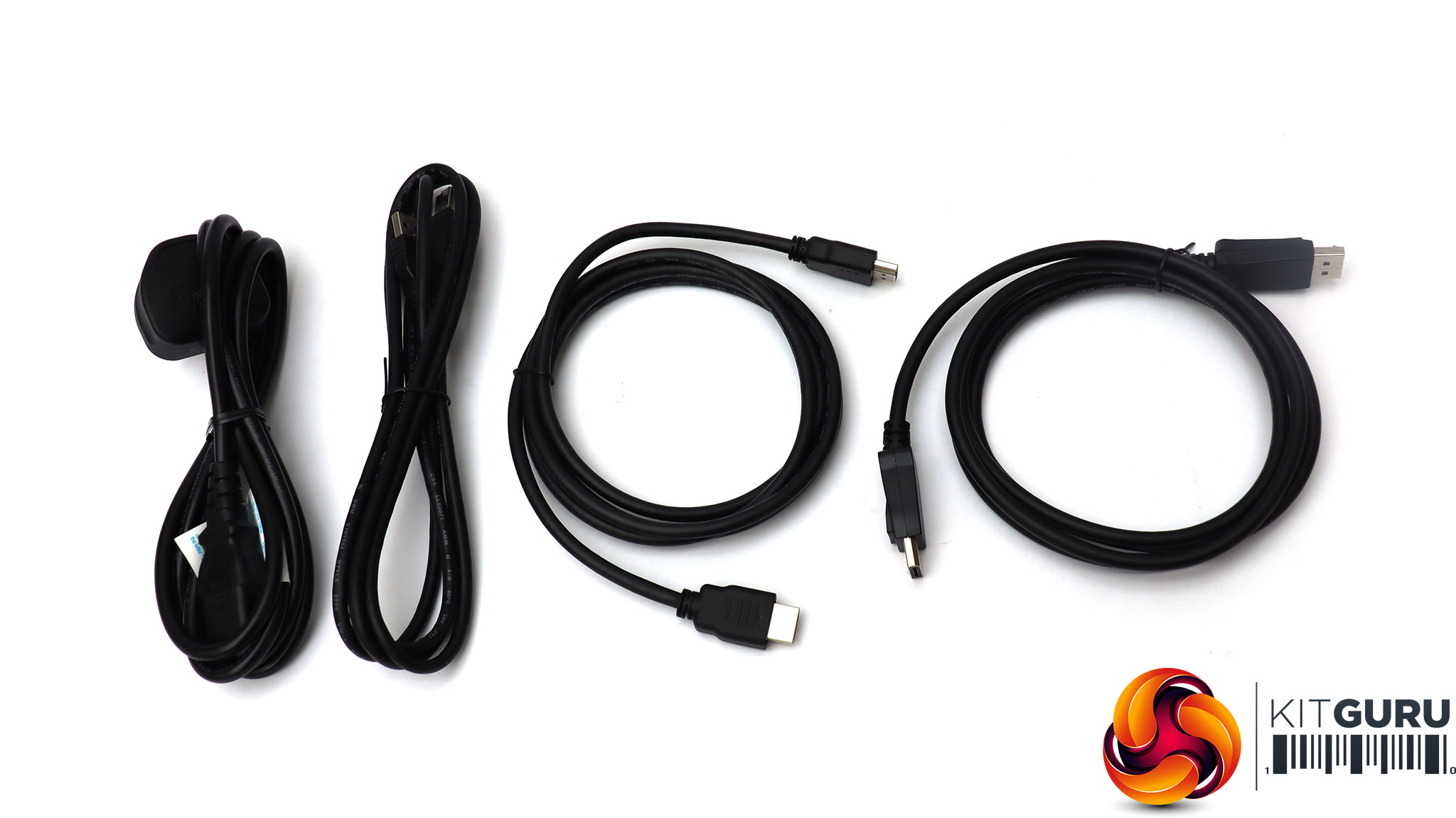
Inside, you get HDMI, DisplayPort, USB upstream and power cables.
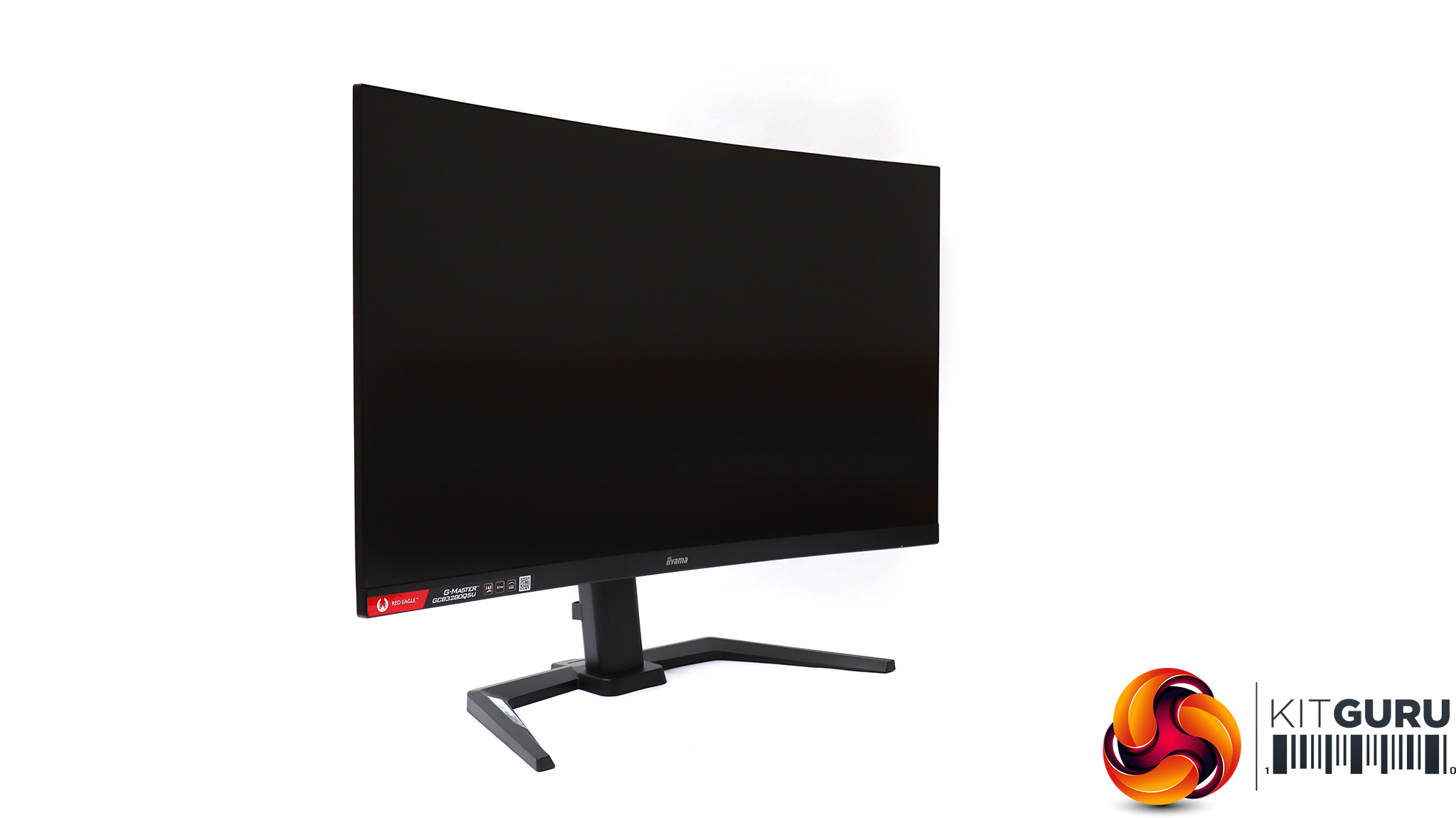
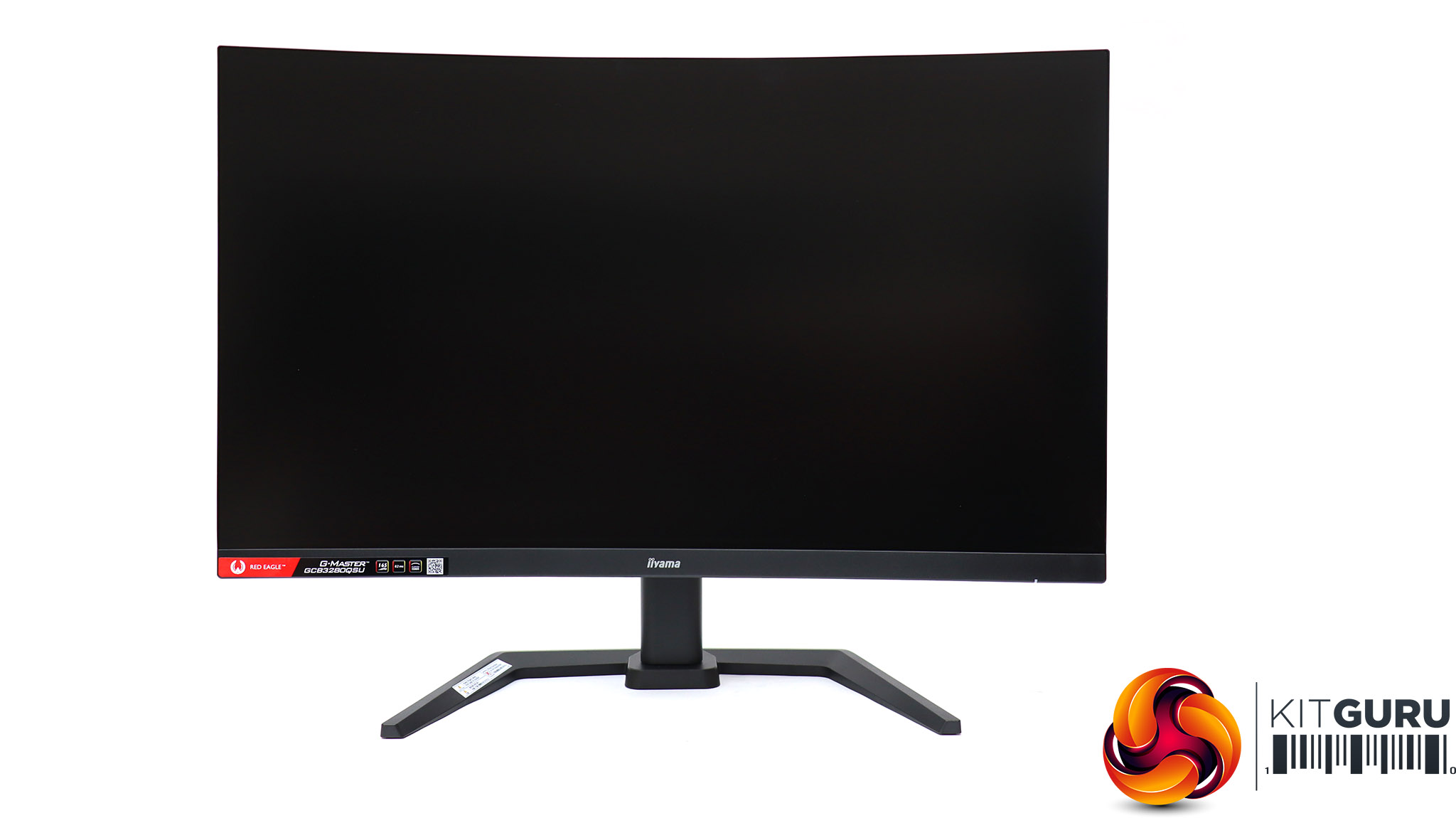
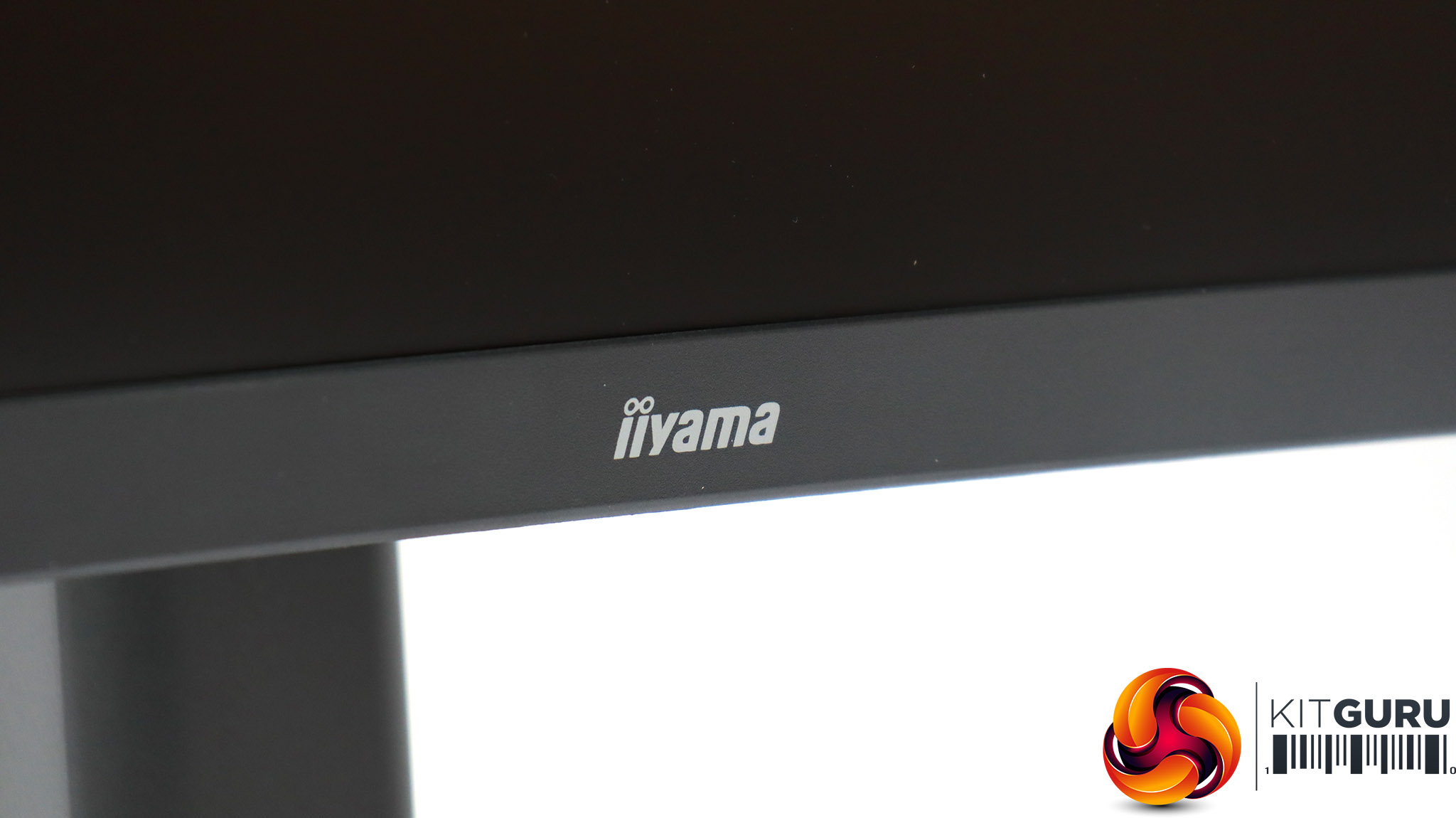
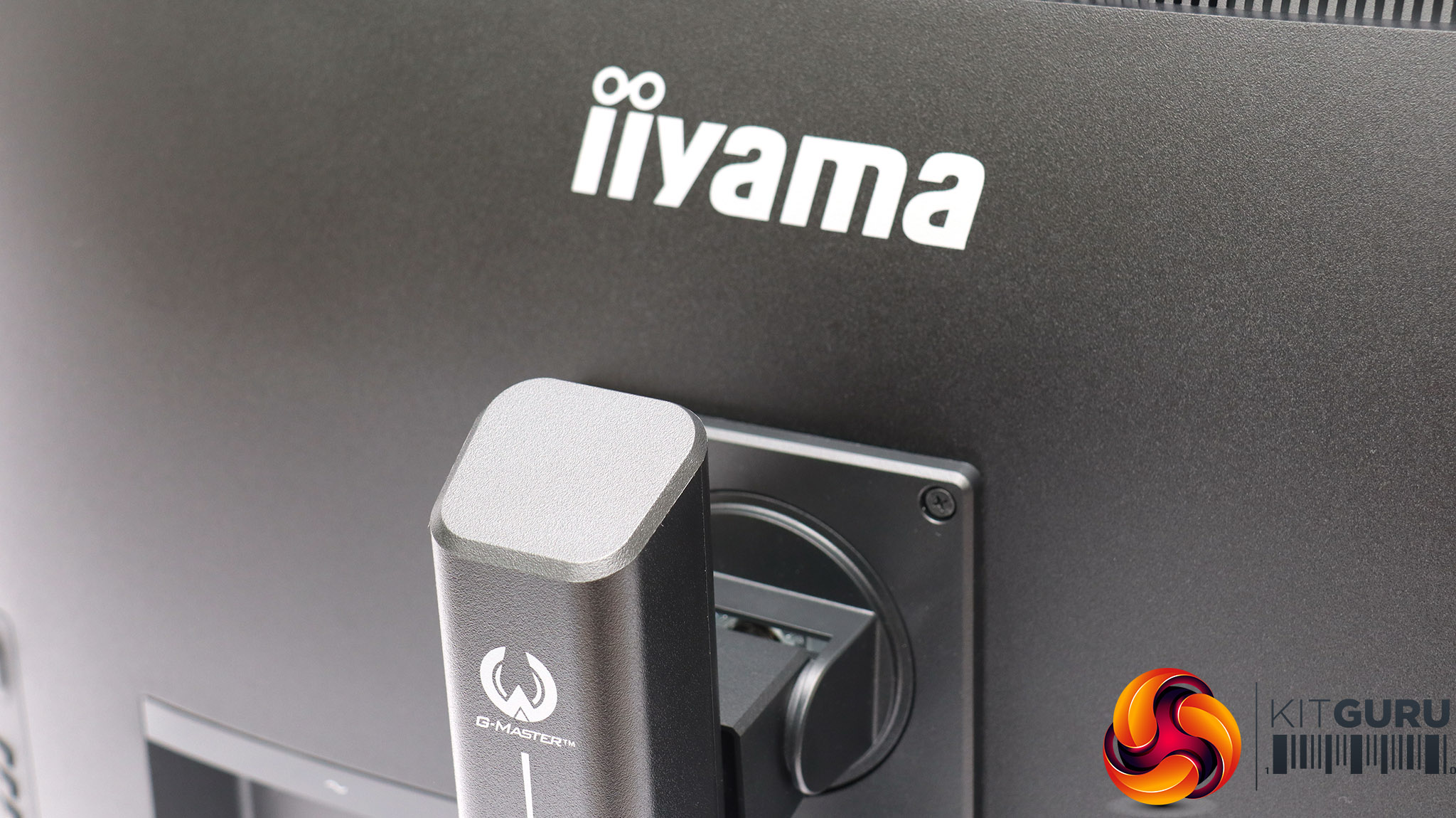
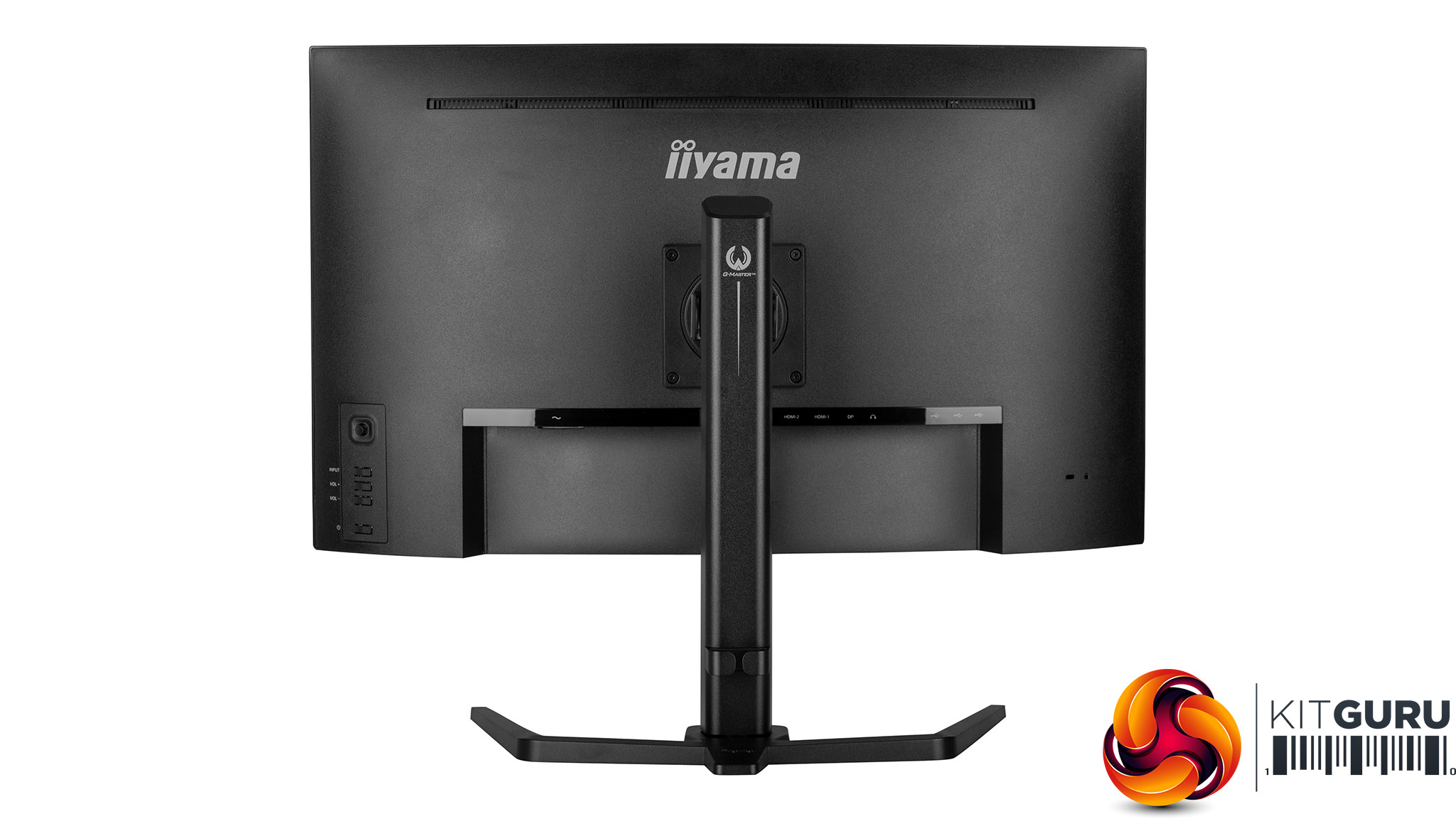
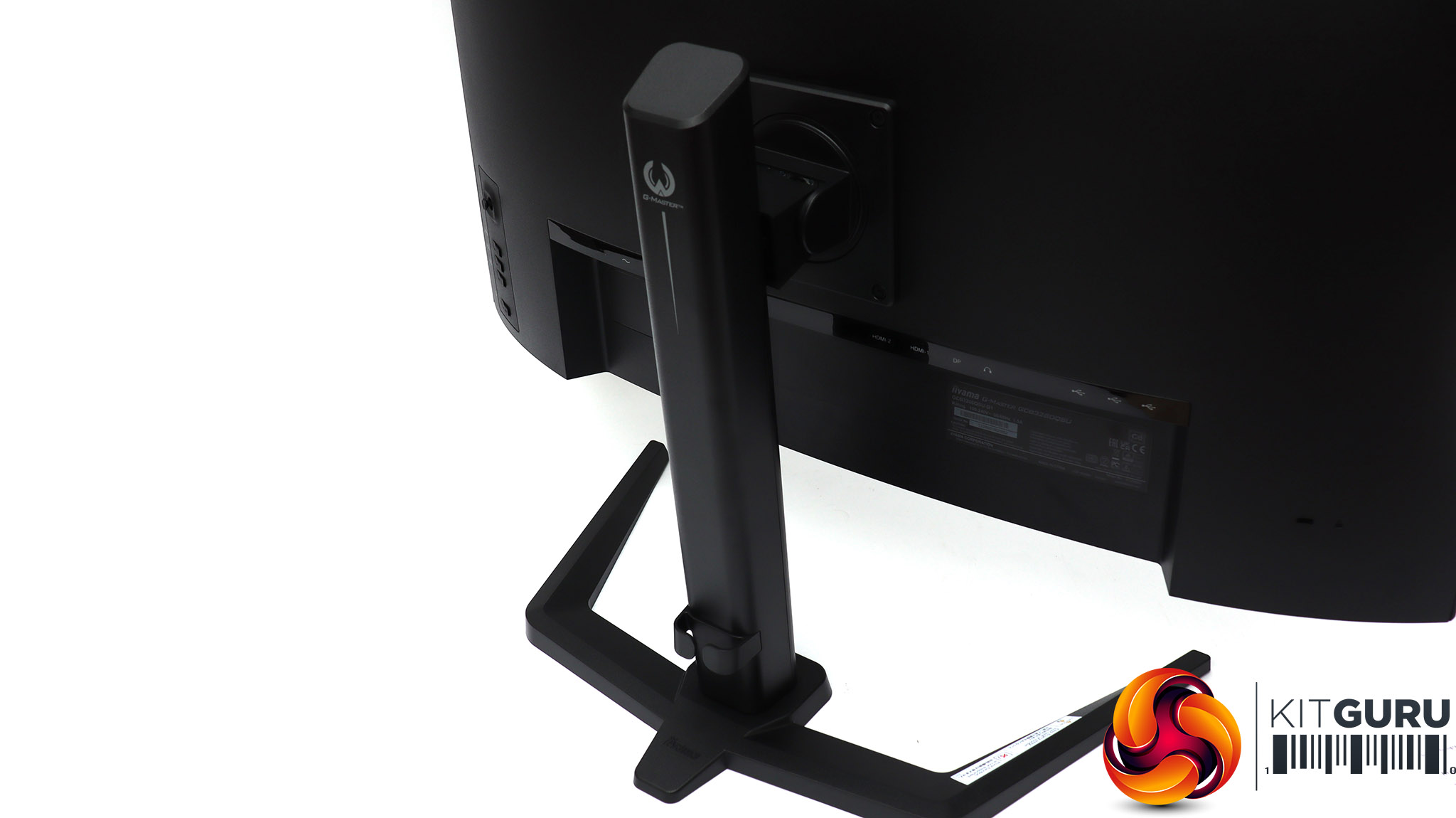
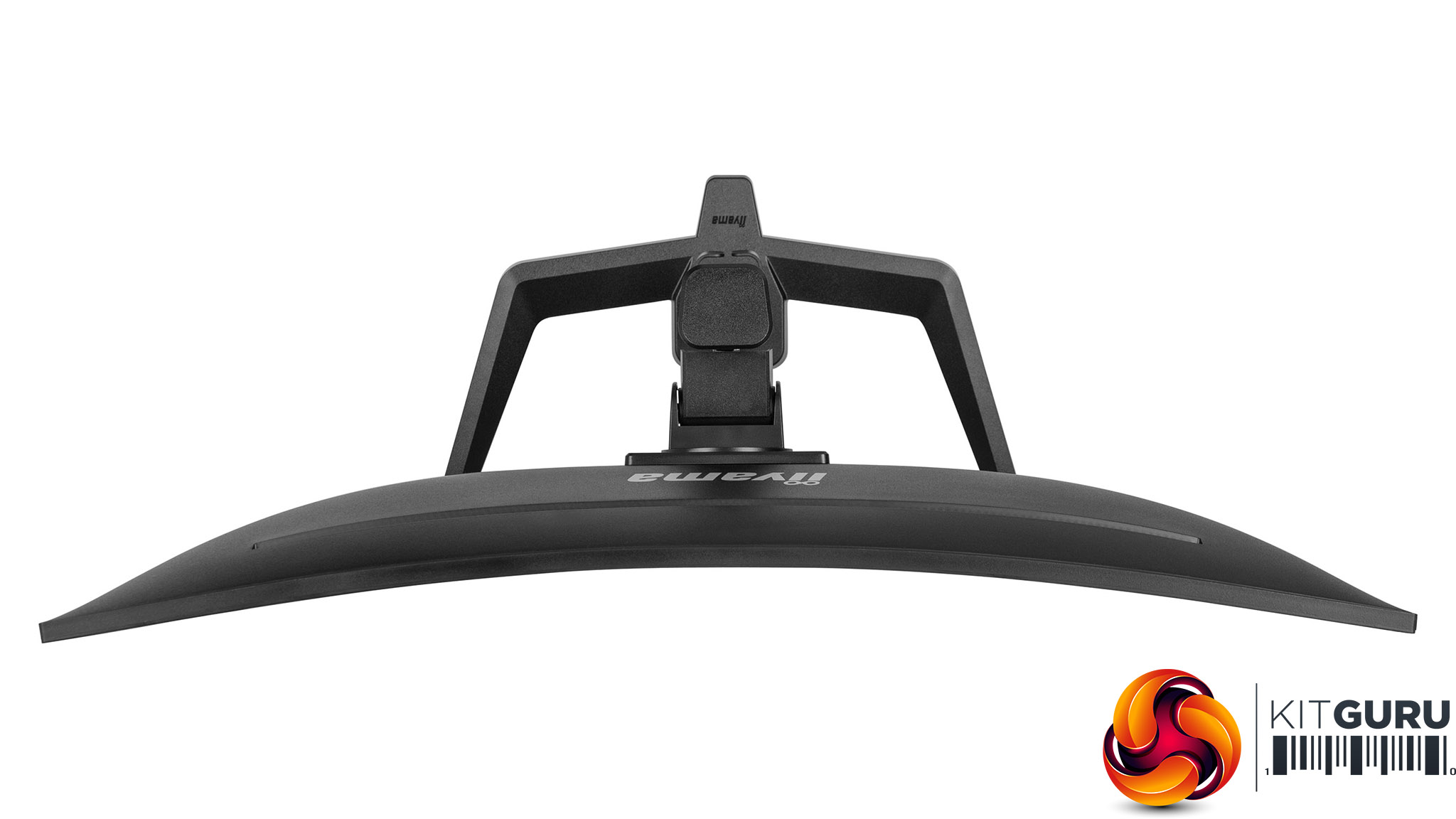
The G-Master GCB3280QSU-B1 is a bit more stylish than iiyama's business screens, but it's still matt black and lacking in bling, if you like that sort of thing. The 1500R curvature is typical for a monitor in this class.
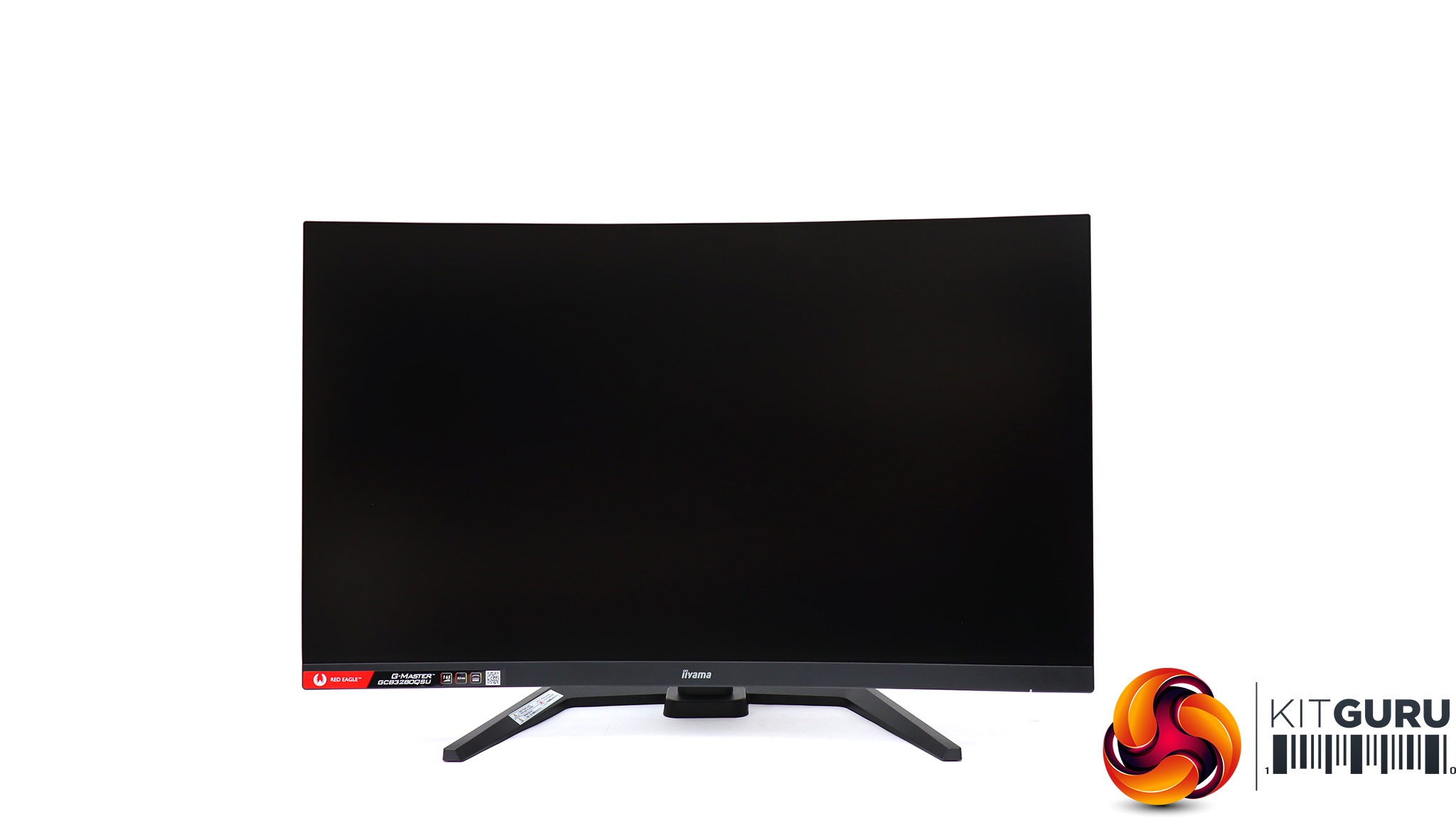
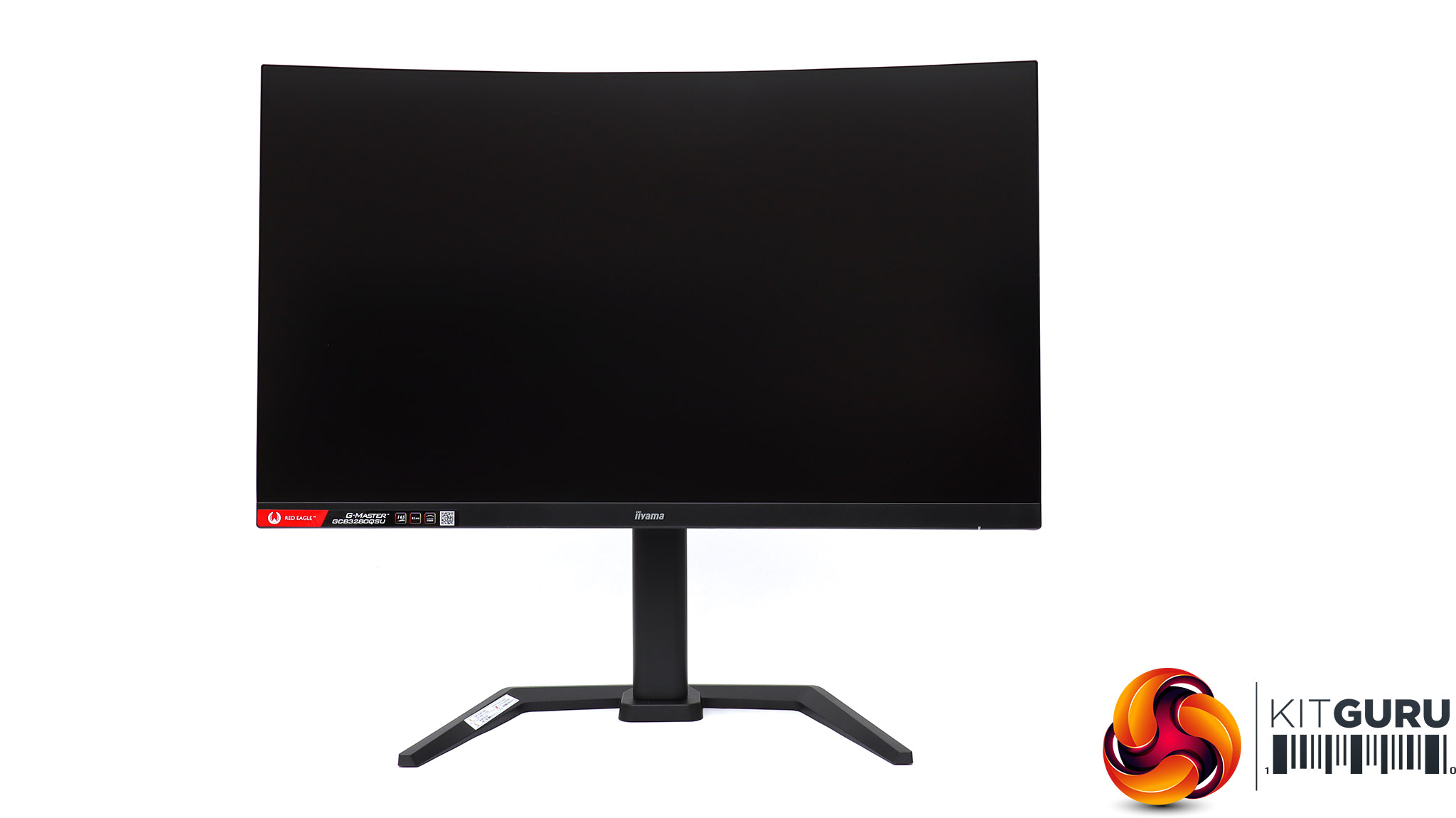
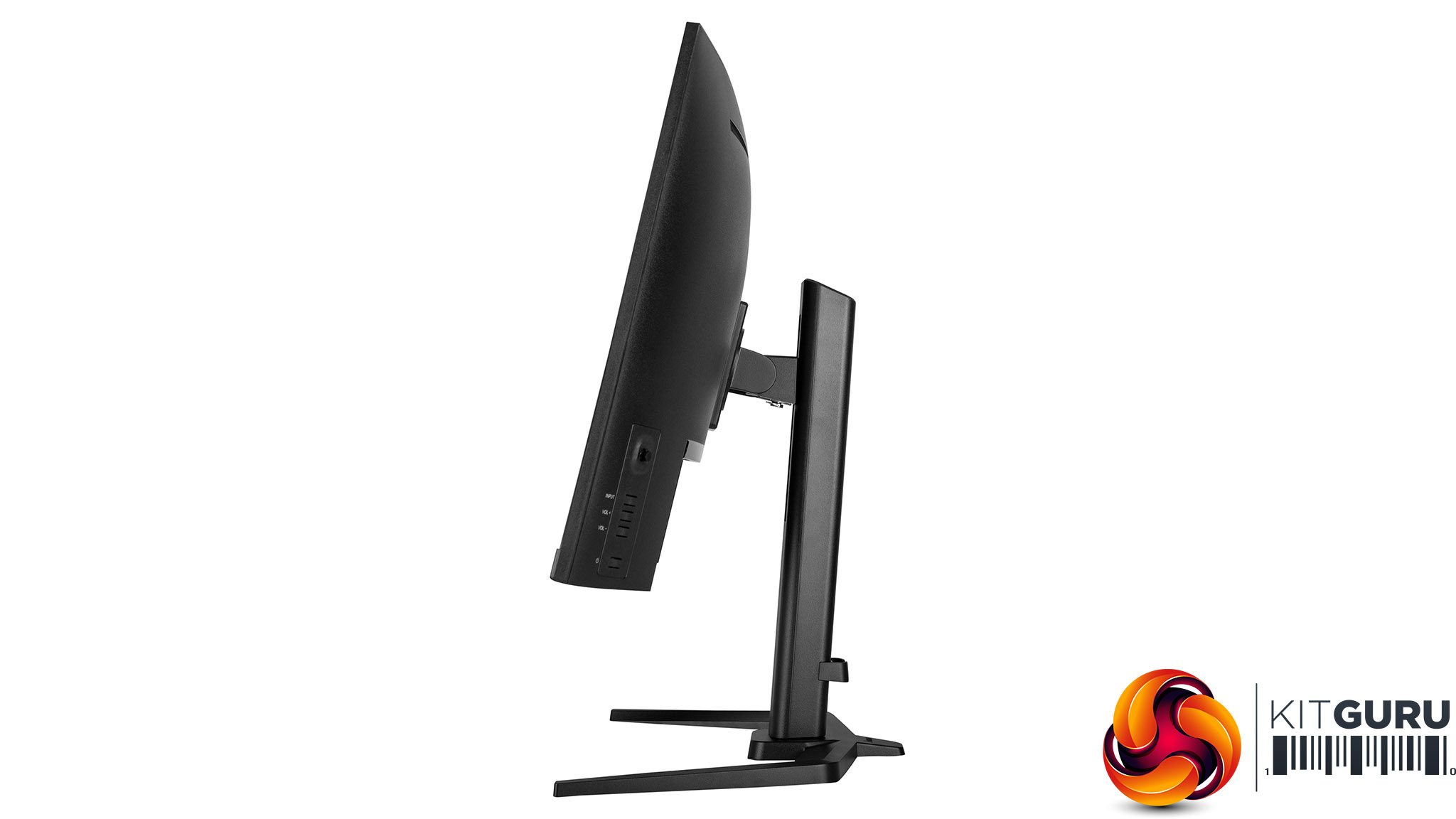
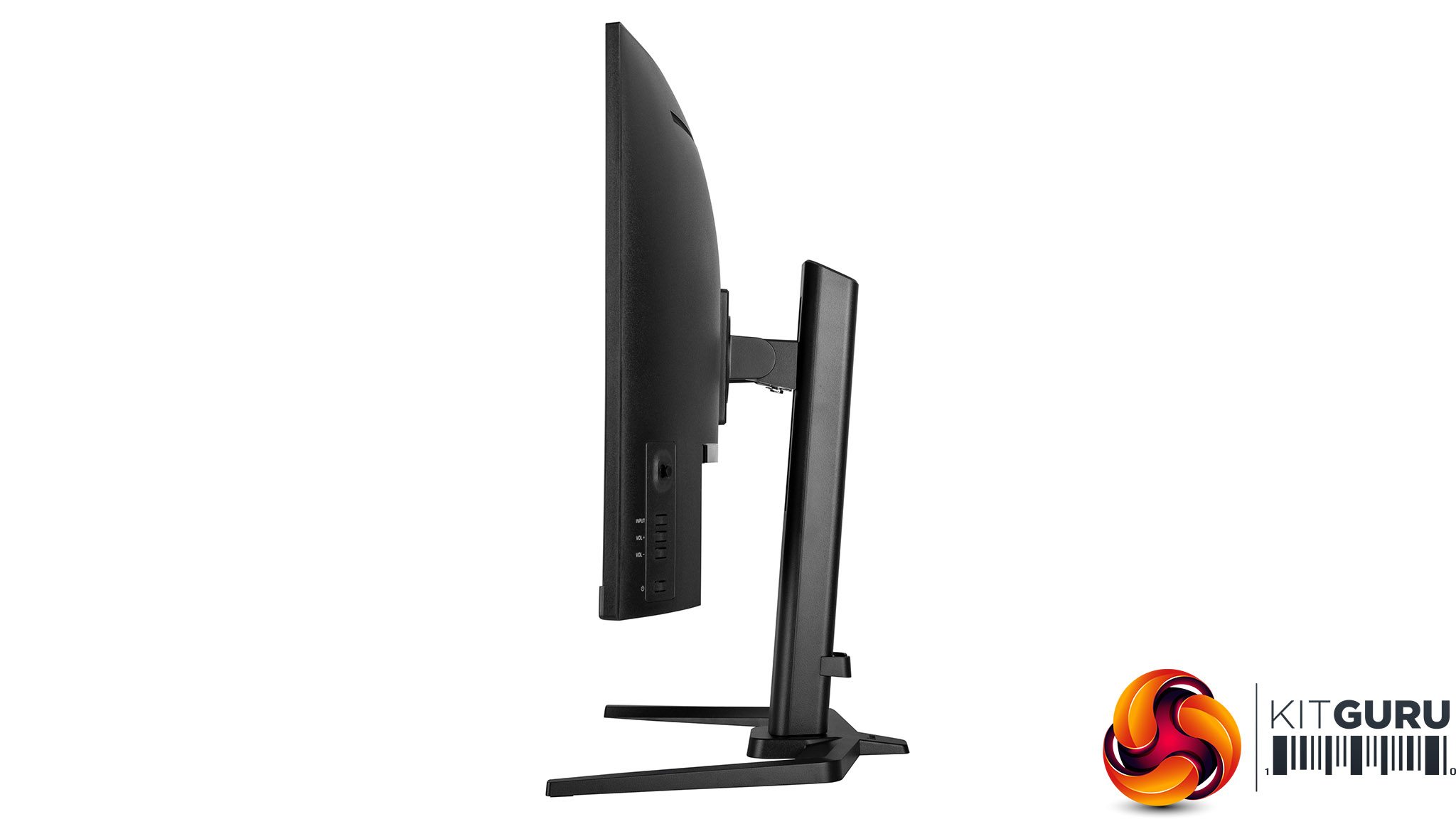
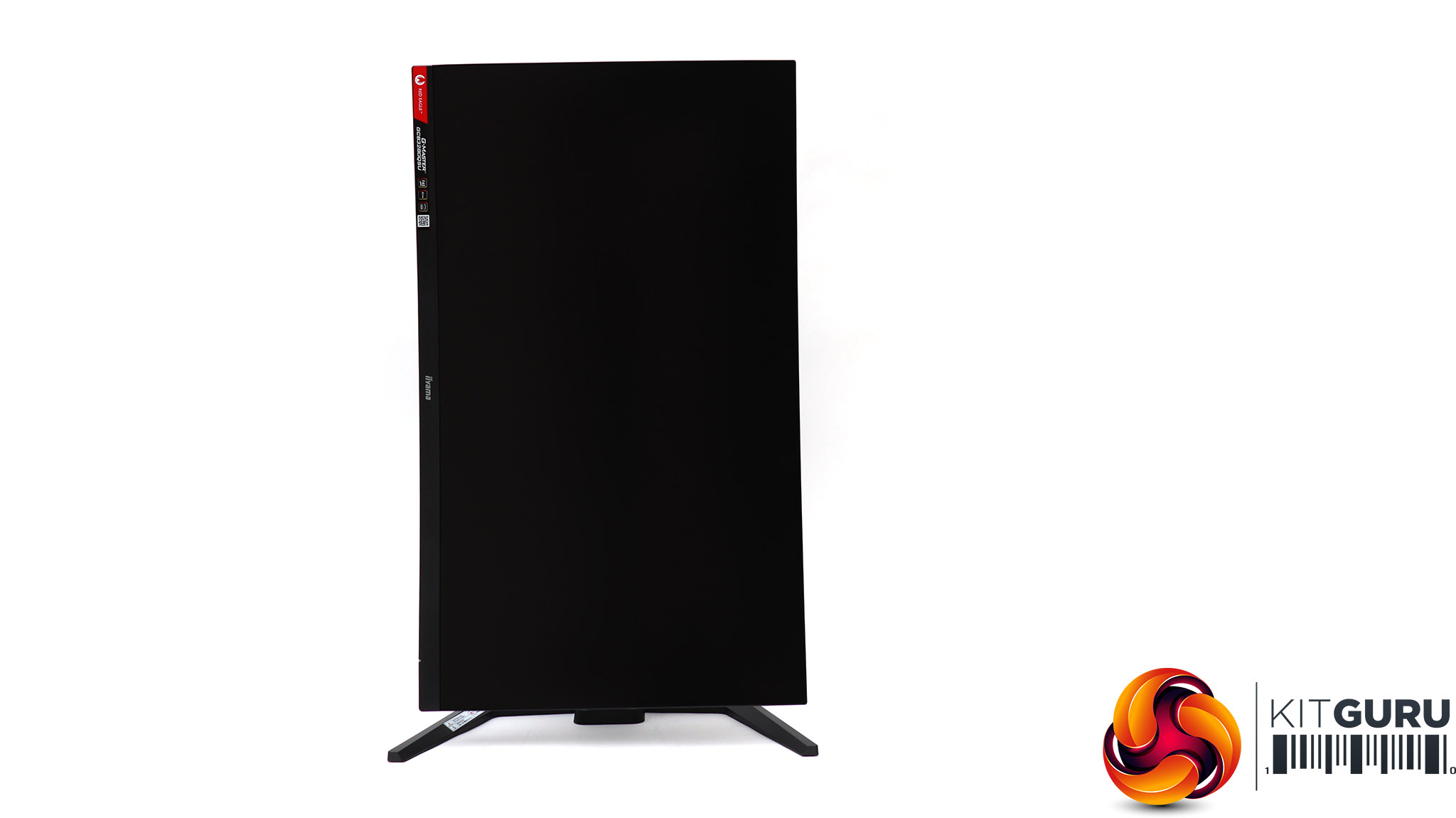
There's a healthy range of height adjustment – 150mm, when some screens only offer 100mm. You can tilt 23 degrees backward or 5 degrees forward. You can also swivel the screen by 45 degrees left and right, but we found it so stiff, you really have to force it. Strangely, you can also rotate the screen 90 degrees into portrait orientation, which is something we don't think is very useful for a curved monitor.
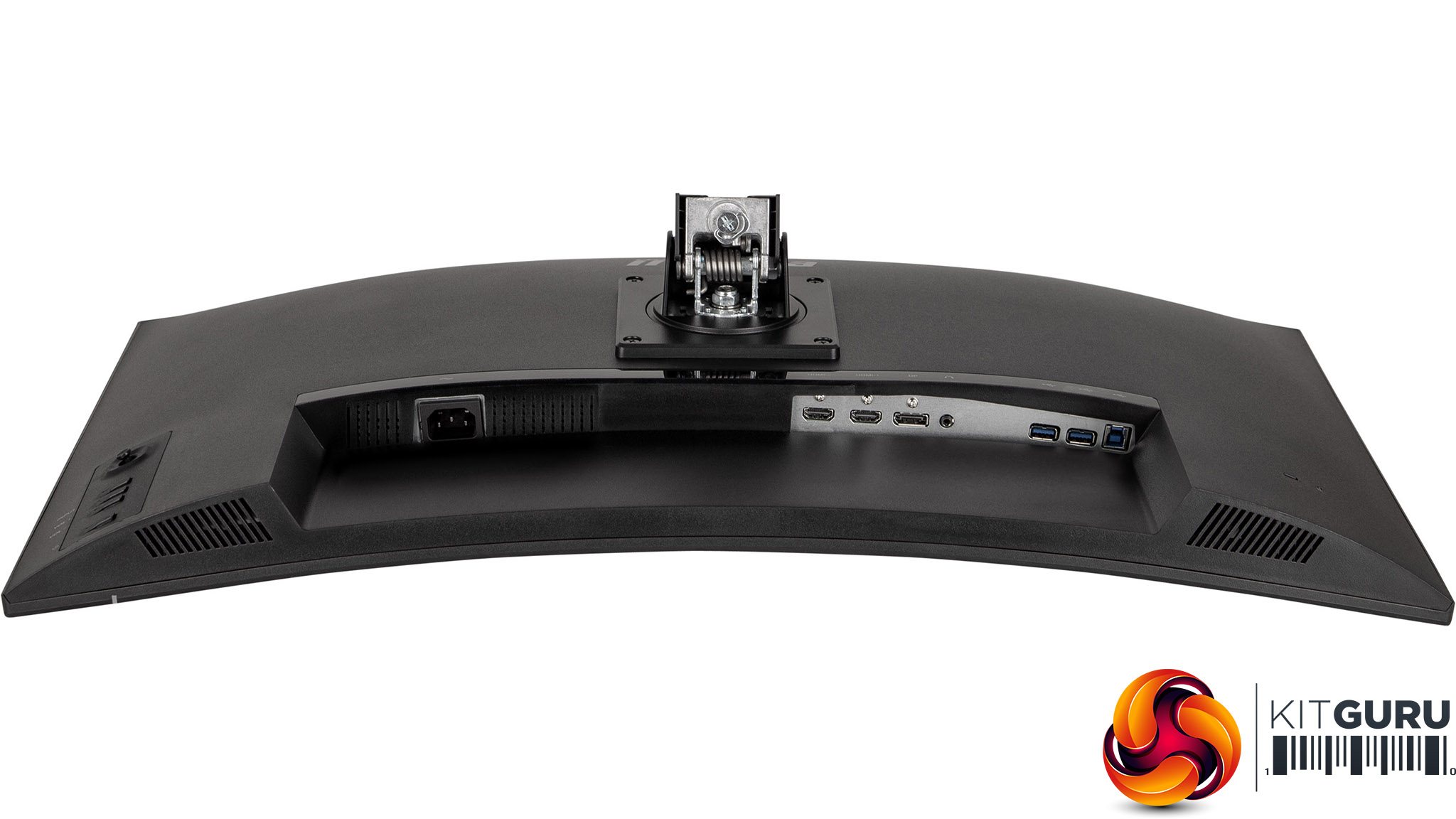
The power supply is built into the G-Master GCB3280QSU-B1, so there is just a regular kettle lead connection on the monitor itself. On the other side of the stand are two HDMI connections and a single DisplayPort. The former duo supports the 2,560 x 1,440 resolution at up to 144Hz, but the DisplayPort raises the refresh to the full 165Hz, so this will be your preferred option when PC gaming. There's no USB-C, however.
There's a minijack headphone connection (alongside rather weedy stereo 2W built-in speakers) and the ports for a USB 3.2 Gen 1 hub. This has a Type B upstream port and two downstream Type A ports. It's presumably aimed mostly at making your keyboard and mouse connections easier, as reaching the ports from the front is a little fiddly.
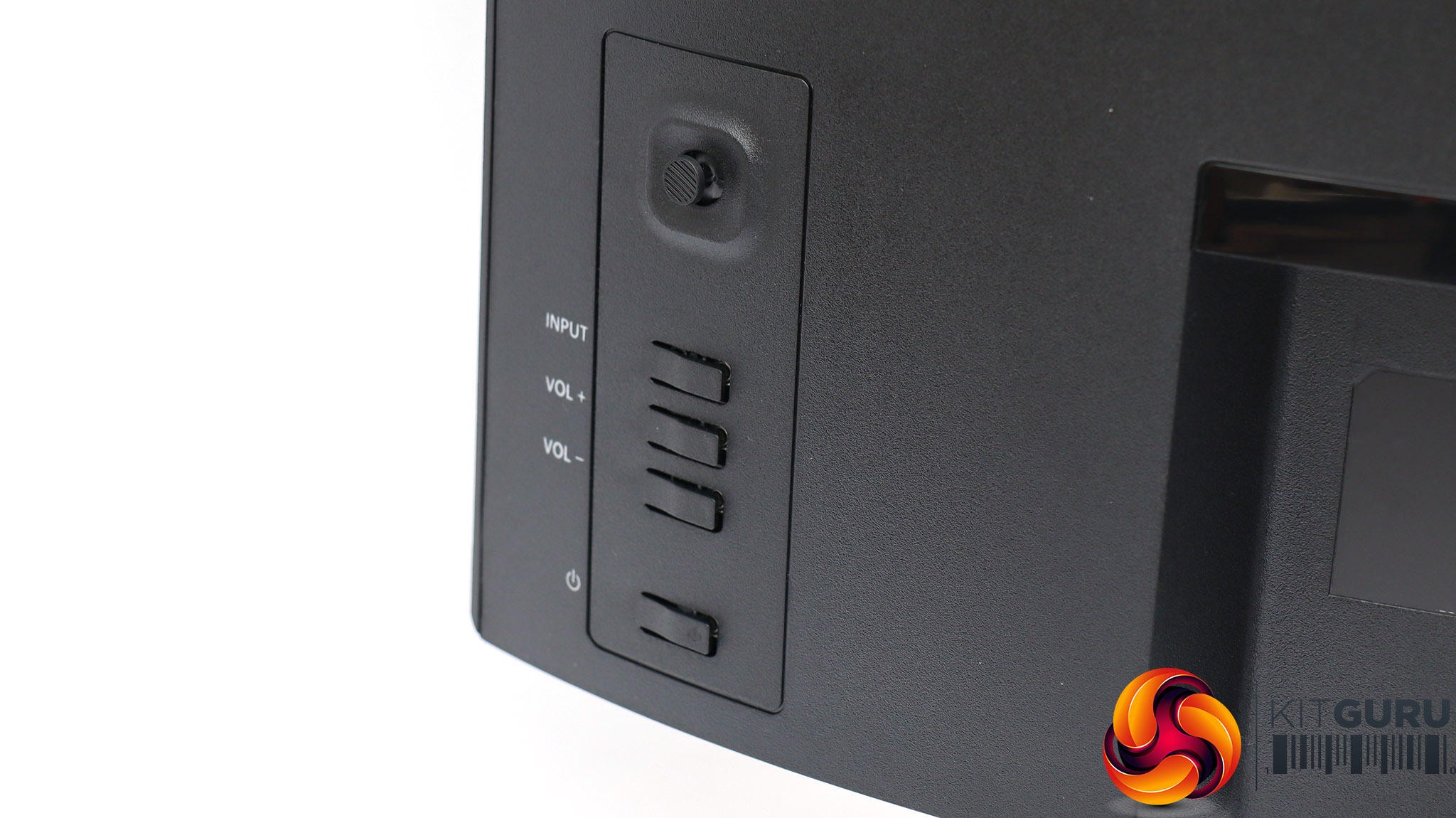
Unusually, iiyama has chosen to provide both a joystick and some buttons to control monitor functions. The button at the bottom turns on the power, then you get volume controls and a button to toggle manually between the three video inputs.
Pushing the joystick up or down doesn't appear to do anything, and we couldn't find a way to assign functions to these motions either, which is a missed opportunity.
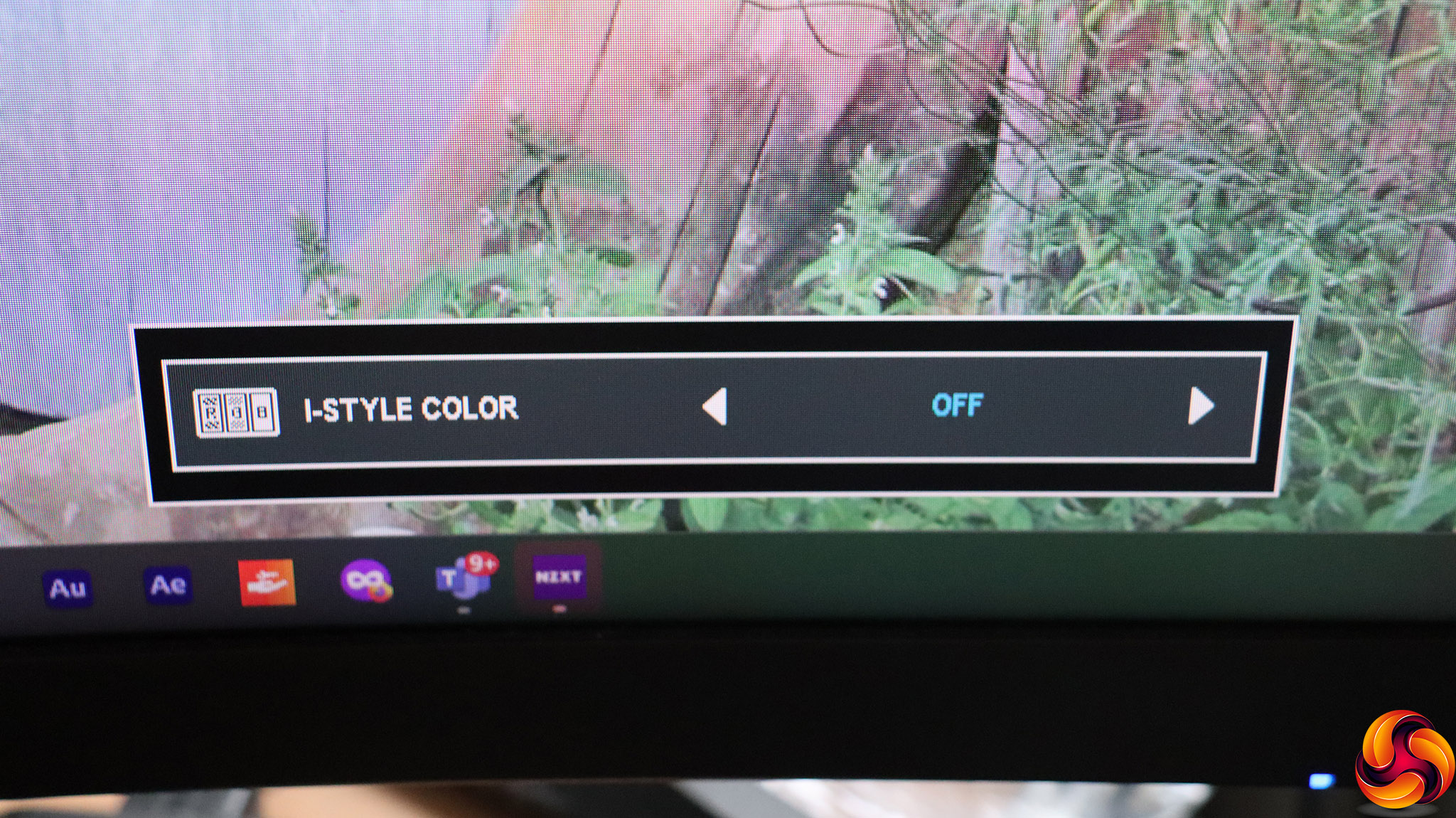
Push the joystick left, however, and you can cycle through the I-Style Color preset options. These include the default Off, Standard, Sport Game, FPS Game, Strategy Game, Text, and three configurable User Modes. However, the presets other than the User Modes are only available if you turn off Direct Drive (the low input lag option).
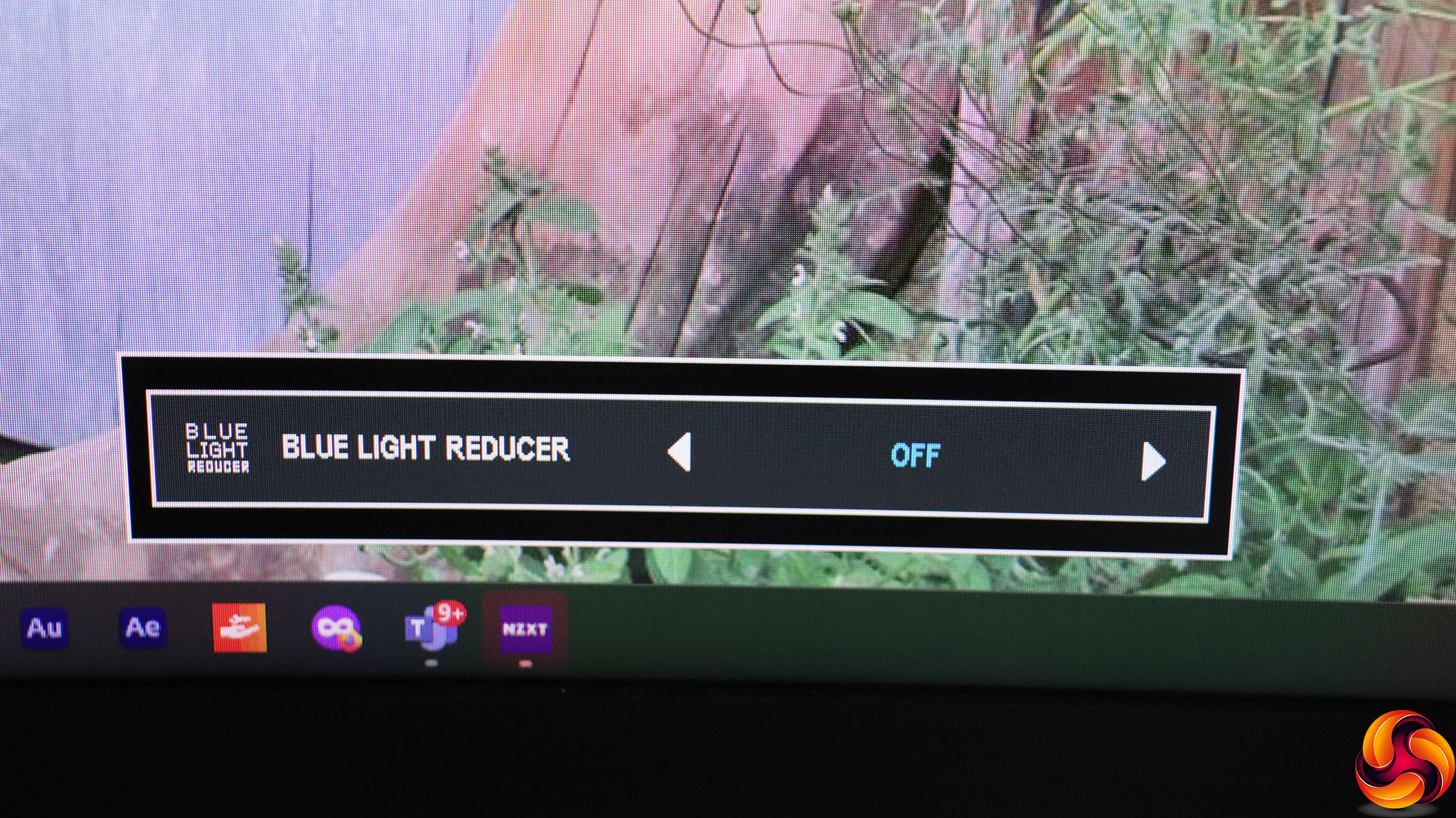
Pull the joystick right and you can adjust the Blue Light Reducer, with three levels above Off. This is meant to save your eyes from tiredness during prolonged periods of use.
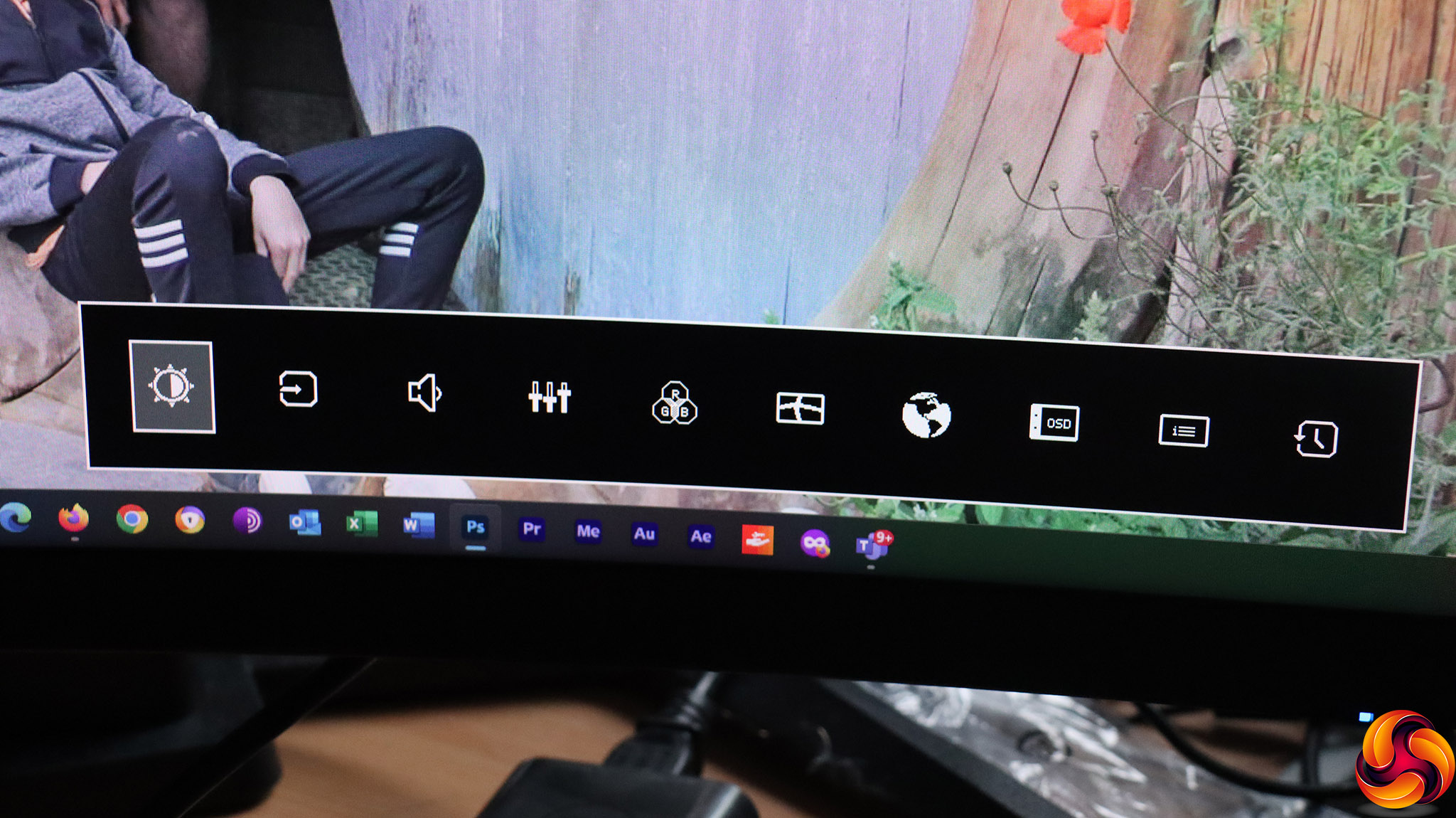
Press the joystick inwards and you get an icon strip giving you access to all the main menu functions. A further press selects the currently highlighted option.
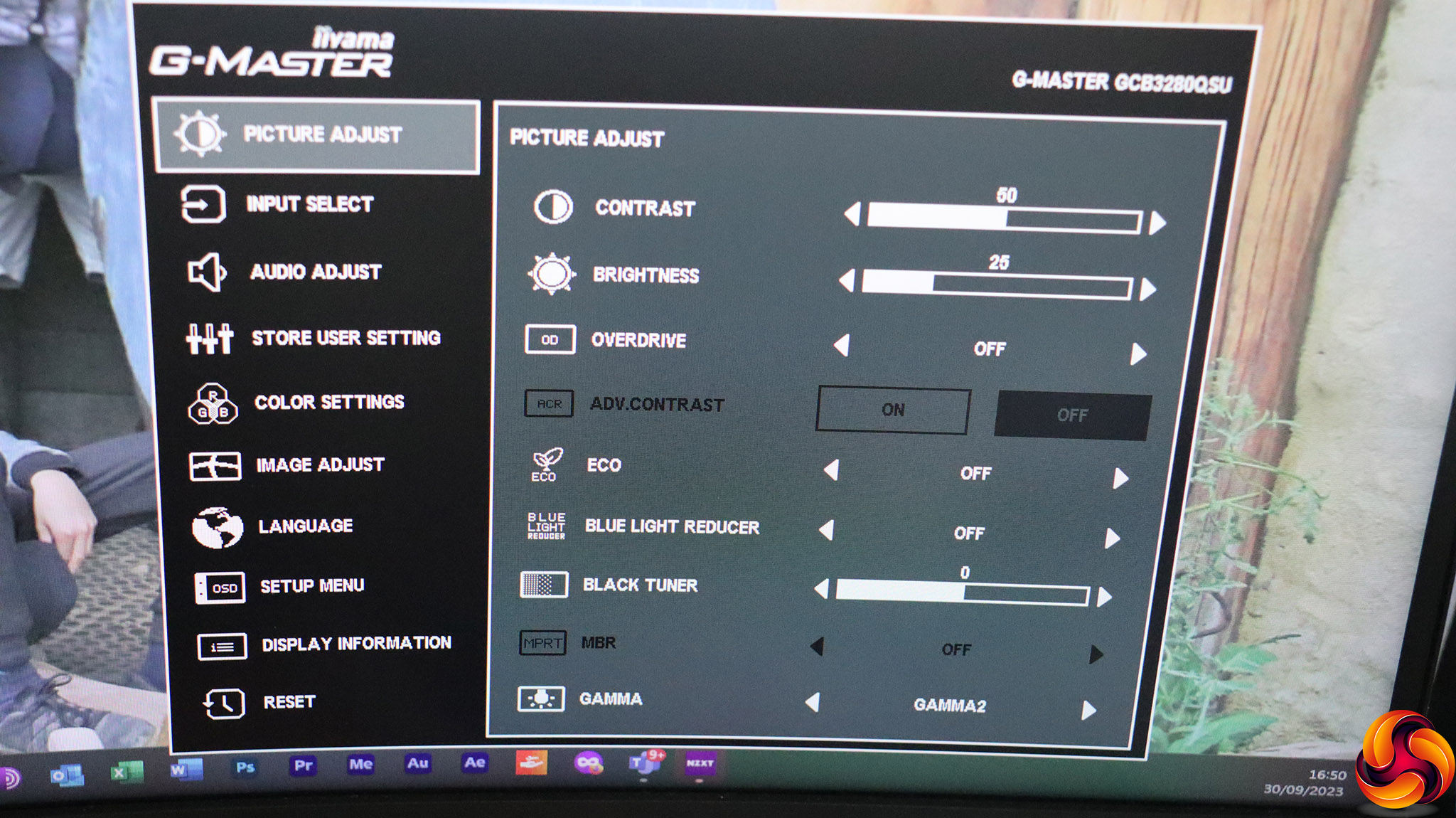
The first option is for Picture Adjust settings. These include Contrast, Brightness, the grey-to-grey pixel response-improving Overdrive (with five levels above Off), and Advanced Contrast, which is a boost algorithm. The Eco mode has three levels beyond Off, which reduce the backlight level to save power. The Blue Light Reducer can be accessed here as well, and there is a Black Tuner level that increases or reduces the contrast in dark shades only. MBR improves moving picture response time. Then there are three Gamma settings with 2 the default.
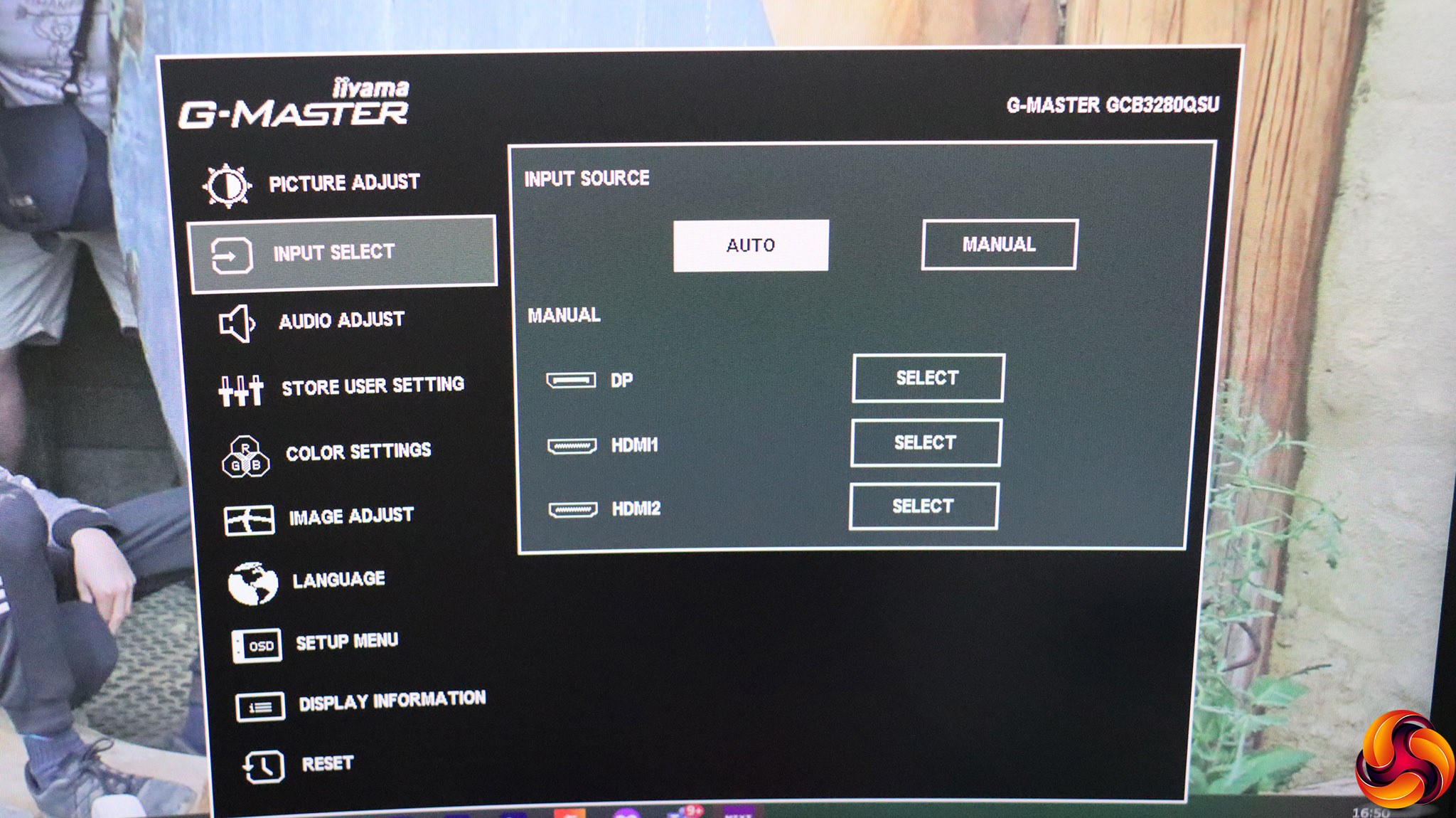
Next along is another route to changing the video input.
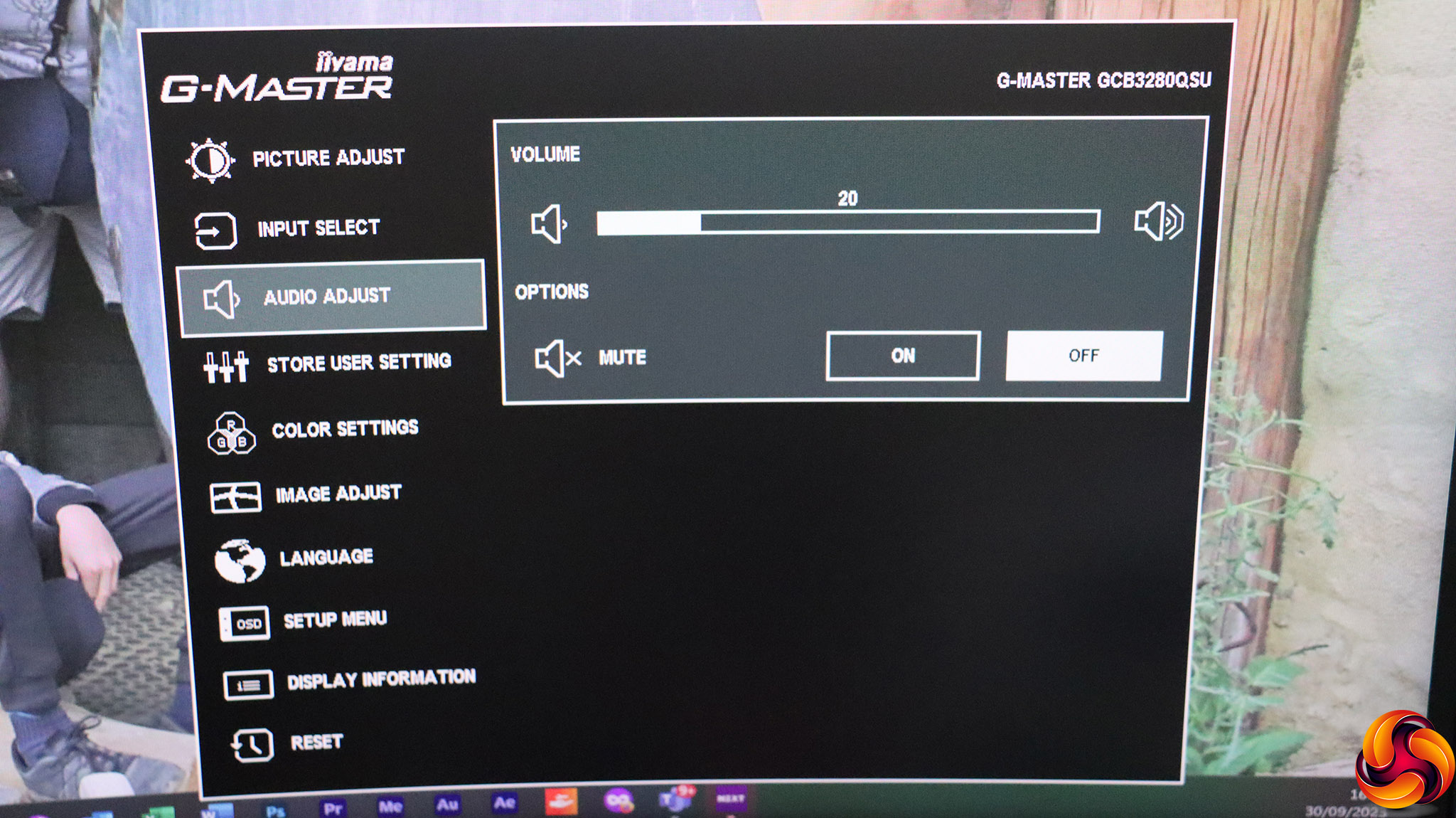
The Audio Adjust section merely provides volume control and muting, but you have discrete buttons on the back of the monitor for volume.
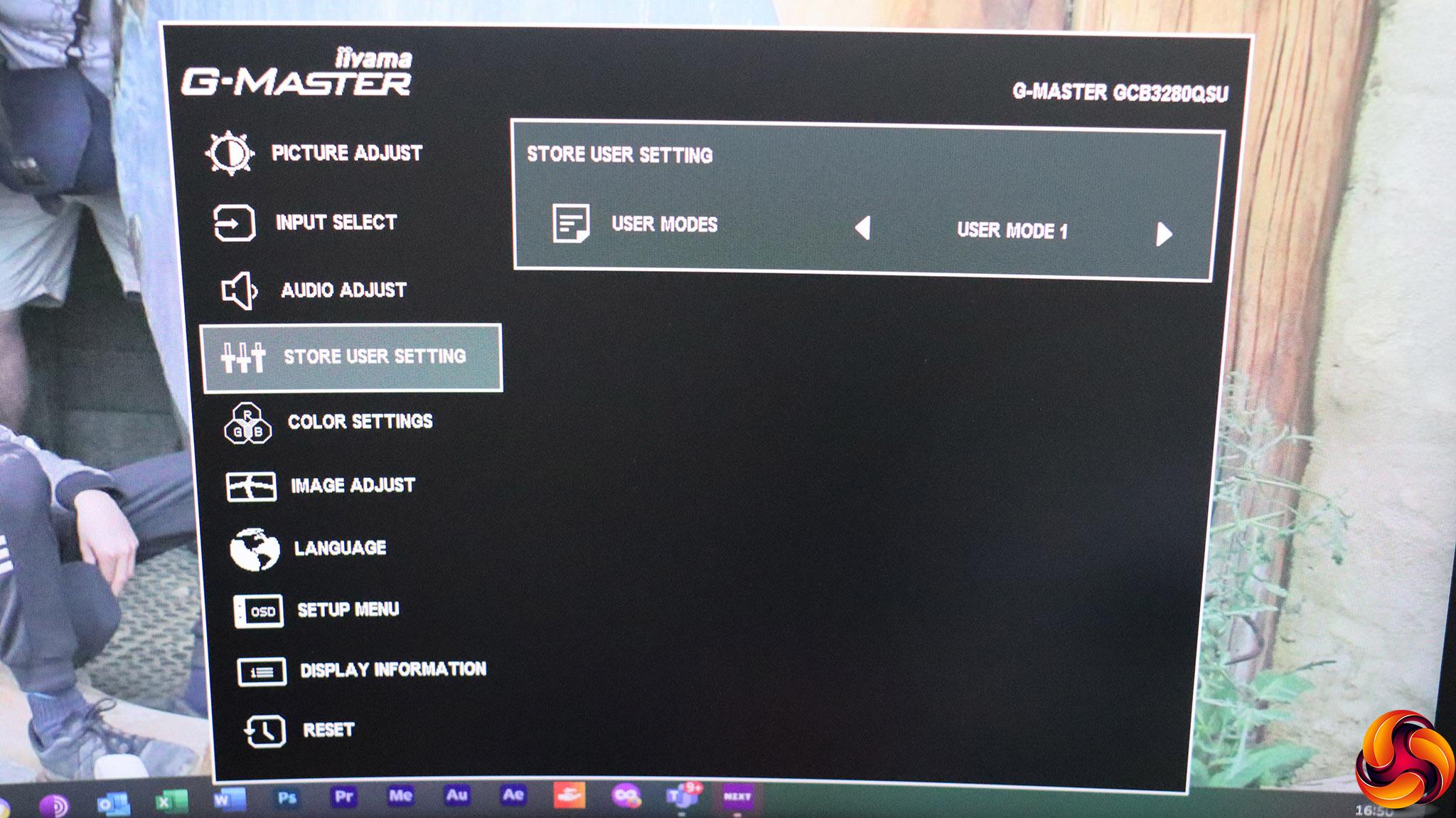
There's a specific section for saving settings into the three I-Style User Mode preset slots.
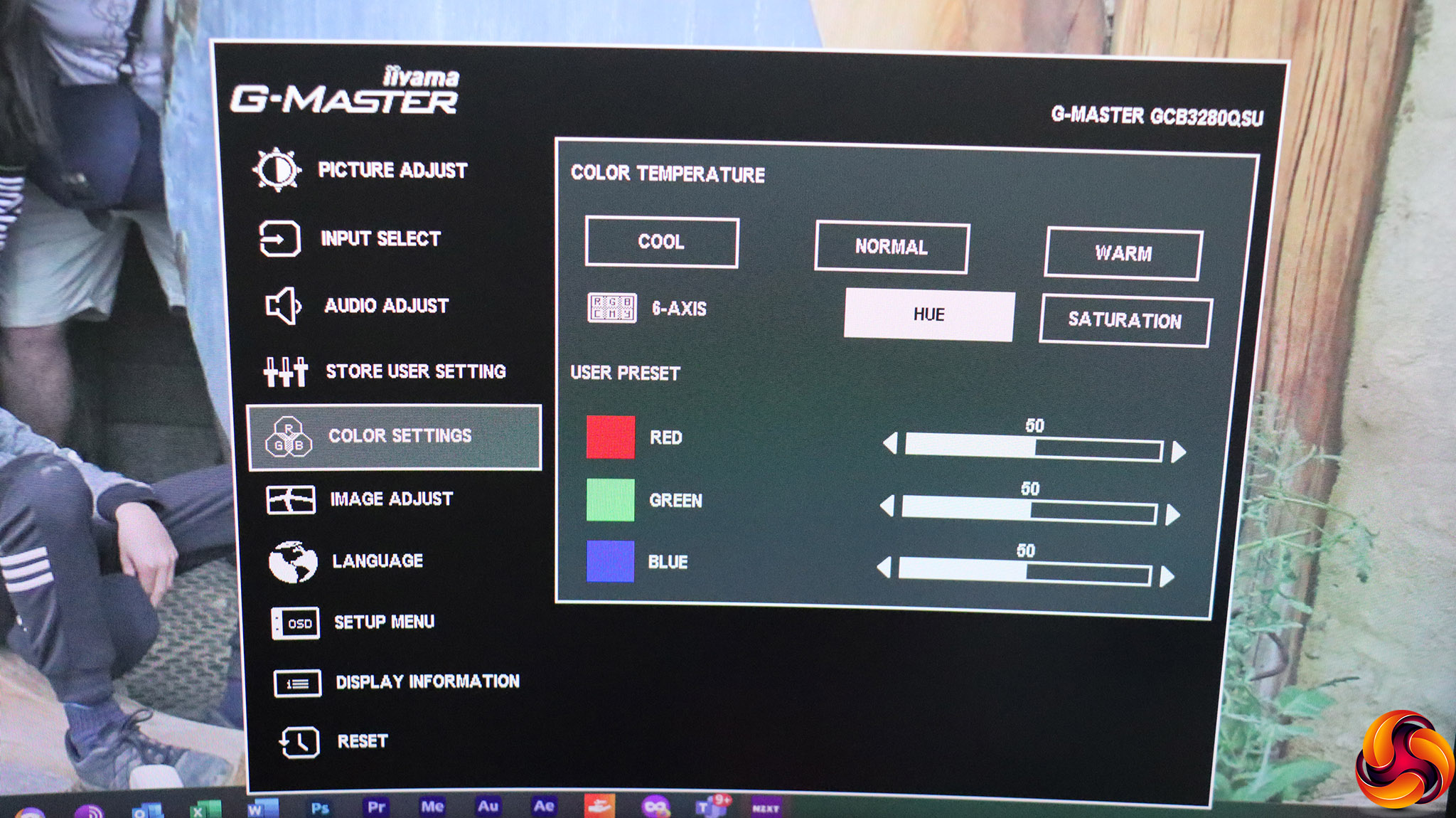
The Color Settings include Cool, Normal and Warm temperature presets, or you can adjust manually via red, green and blue. You can also adjust six-axis hue or saturation manually.
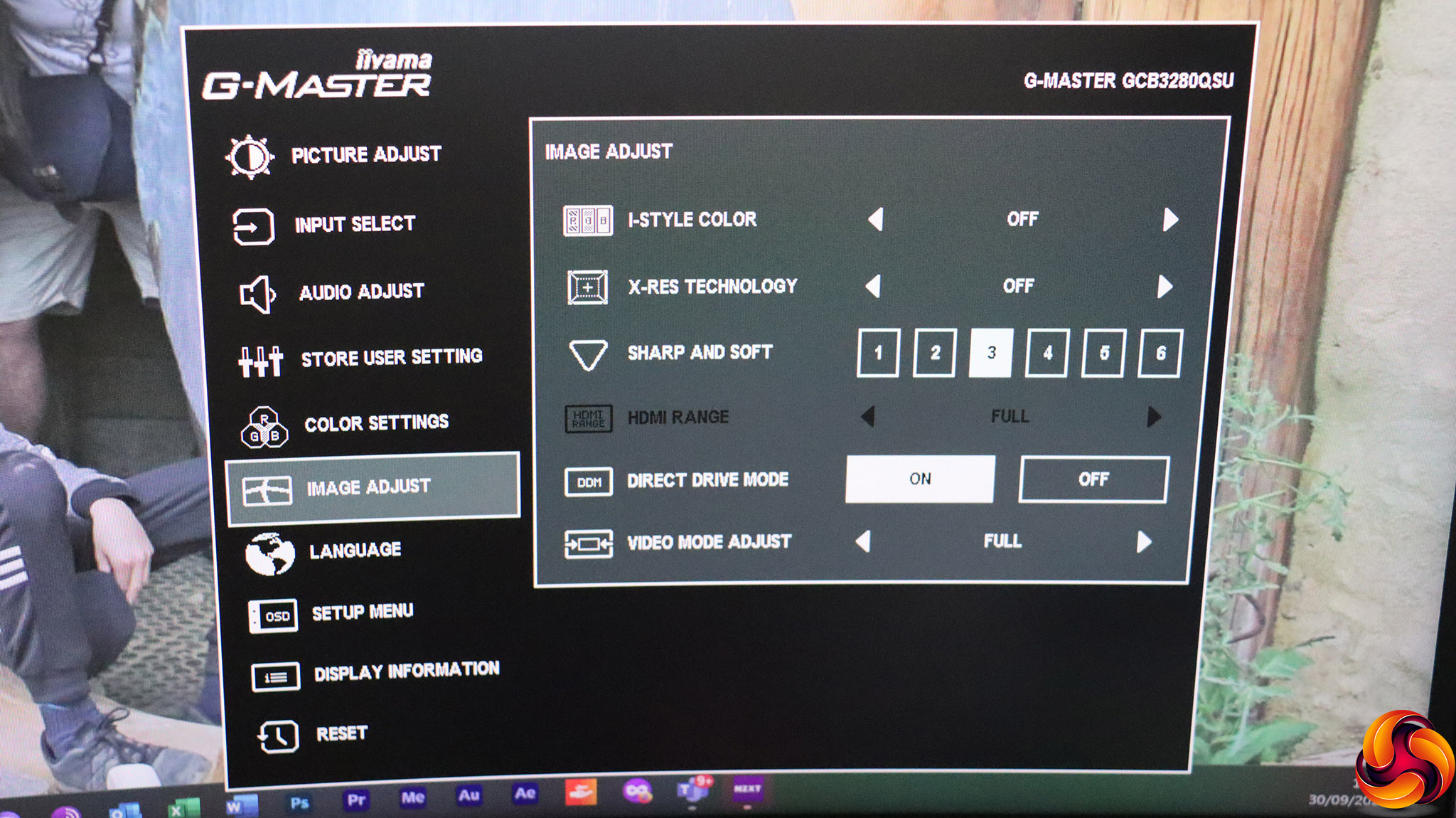
Under Image Adjust you can select an I-Style Color preset, and enable X-Res Technology. The latter enhances the edges of objects, with Soft, Middle, and Hard options. There's a more general sharpening control with six levels, and when using an HDMI connection, you can choose whether the colour range is full or limited. Direct Drive Mode reduces input lag, and Video Mode Adjust lets you choose to emulate different screen types for displaying the video signal. Just to reiterate, you can't use Direct Drive Mode at the same time as the non-User I-Style Color presets.
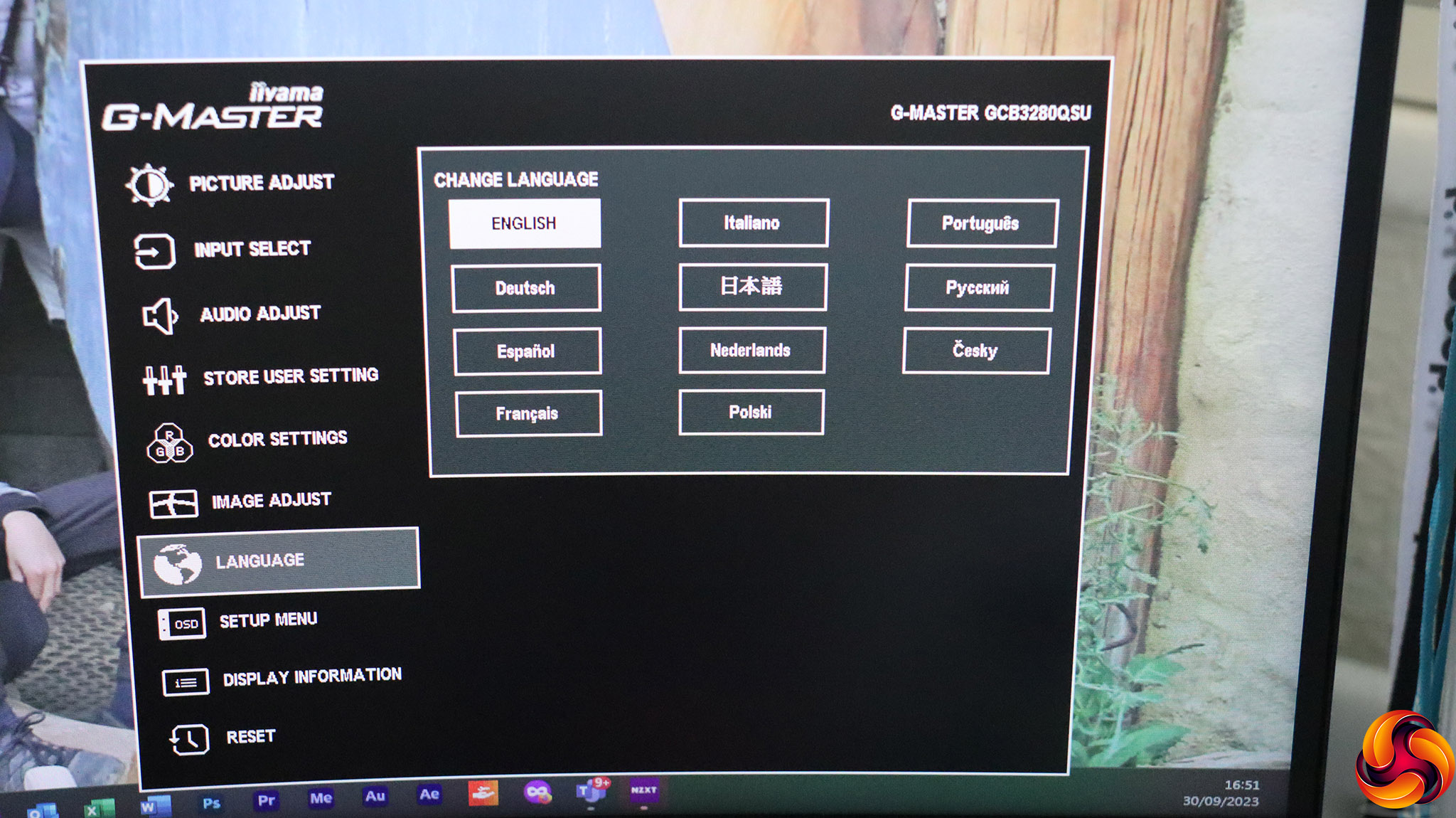
There are 11 different OSD languages to choose from.
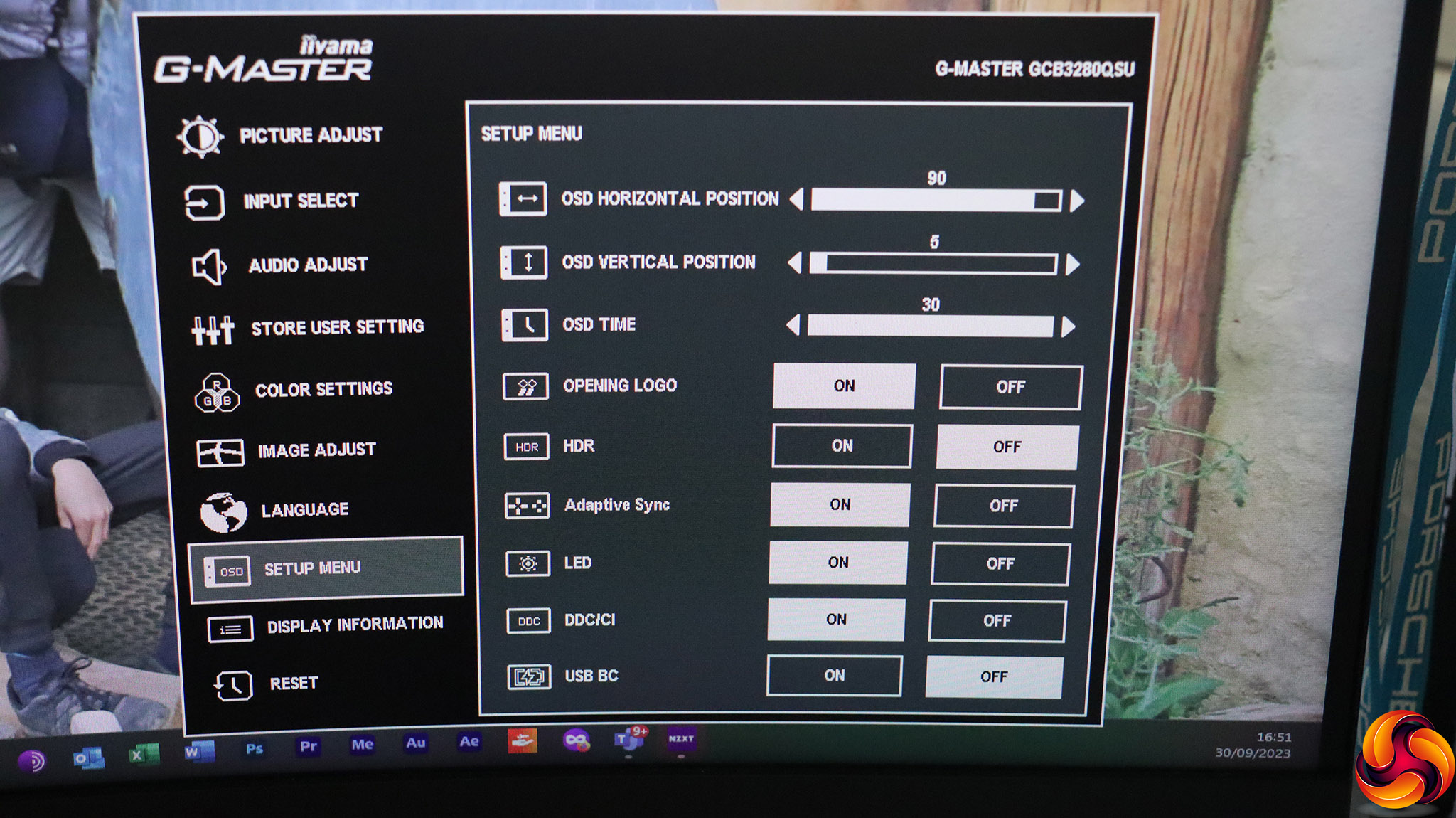
In the Setup Menu you can adjust the behaviour of the OSD, turn on HDR and Adaptive Sync, plus a grab bag of sundry options.
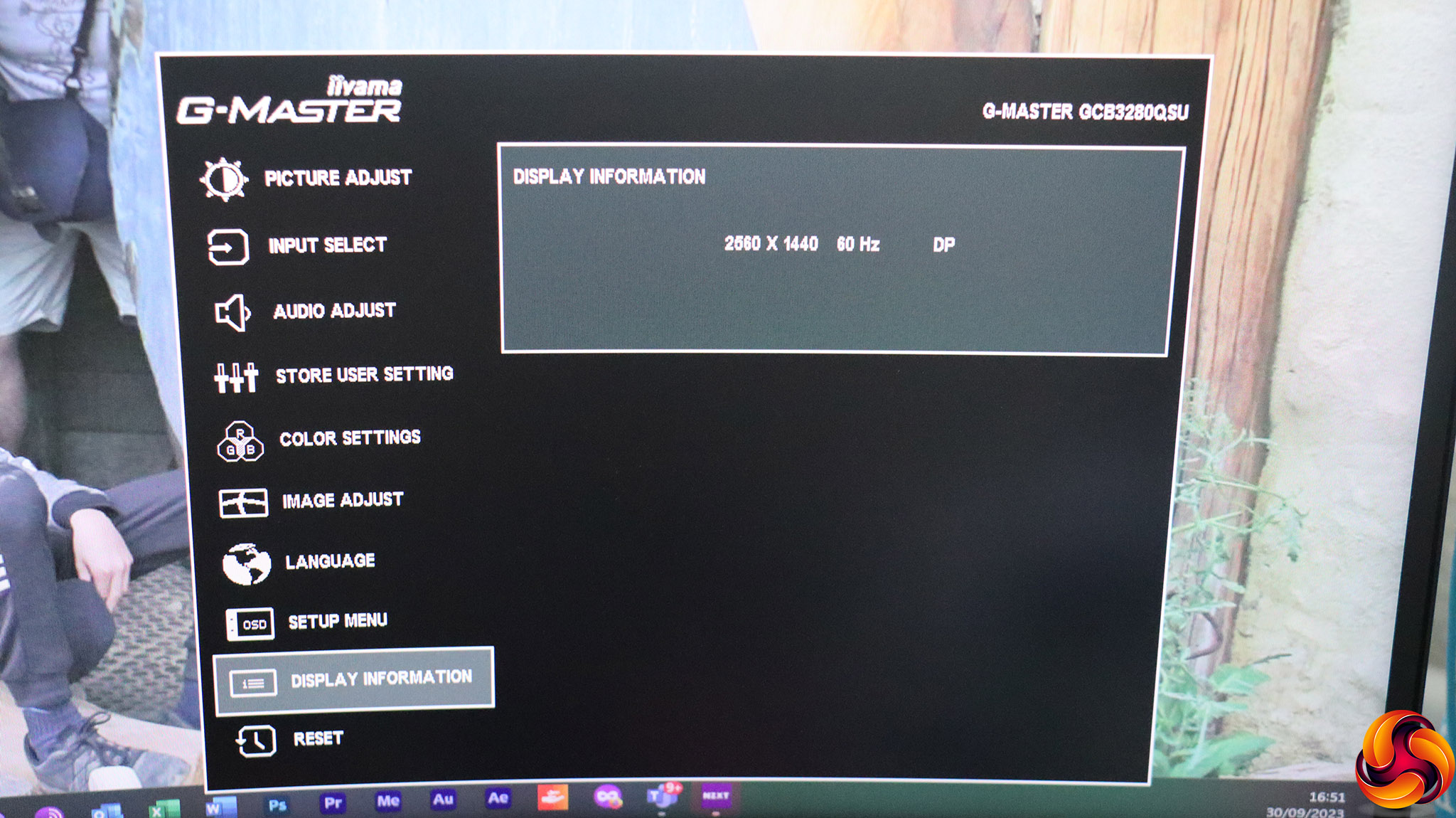
The Display Information section provides exactly what its name implies.
Finally, you can reset everything back to default.
Overall, there's plenty in this OSD and a few gaming-related presets, but there could be more here – such as crosshairs, a timer, and an onscreen FPS counter. It would also have been a plus to have control over the functions of the joystick.
Our main test involves using a DataColor SpyderX Colorimeter to assess a display’s image quality. The device sits on top of the screen while the software generates colour tones and patterns, which it compares against predetermined values to work out how accurate the screen is.
The results show –
- A monitor’s maximum brightness in candelas or cd/m2 at various levels set in the OSD.
- A monitor’s contrast ratio at various brightness levels in the OSD.
- The brightness deviation across the panel.
- The black and white points.
- The colour accuracy, expressed as a Delta E ratio, with a result under 3 being fine for normal use, and under 2 being great for colour-accurate design work.
- The exact gamma levels, with a comparison against preset settings in the OSD.
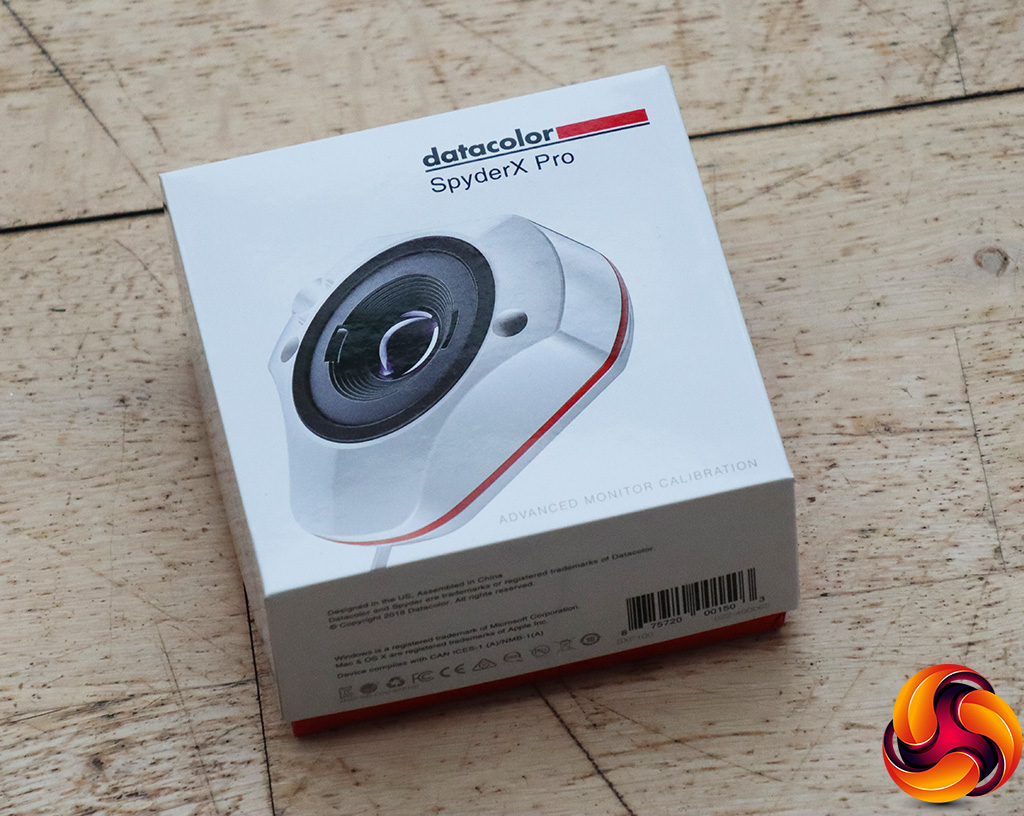
We first run this test with the display in its default, out-of-the-box state, with all settings on default. We then calibrate the screen using the Spyder software and run the test again.
We always test the display subjectively on the Windows desktop, using it for general tasks such as browsing and word processing, and with games as well, even if the display is not intended solely for that purpose.
We pay careful attention to any artefacts, ghosting or motion blur, and enable any gaming-specific features, such as adaptive-sync settings like G-Sync or FreeSync, using a compatible graphics card in our test PC.
We performed the quality tests on the iiyama G-Master GCB3280QSU-B1 at its native 2,560 x 1,440 resolution in the default mode, after resetting the OSD. Our test system was equipped with an AMD Radeon Vega Frontier Edition graphics card, which supports FreeSync.
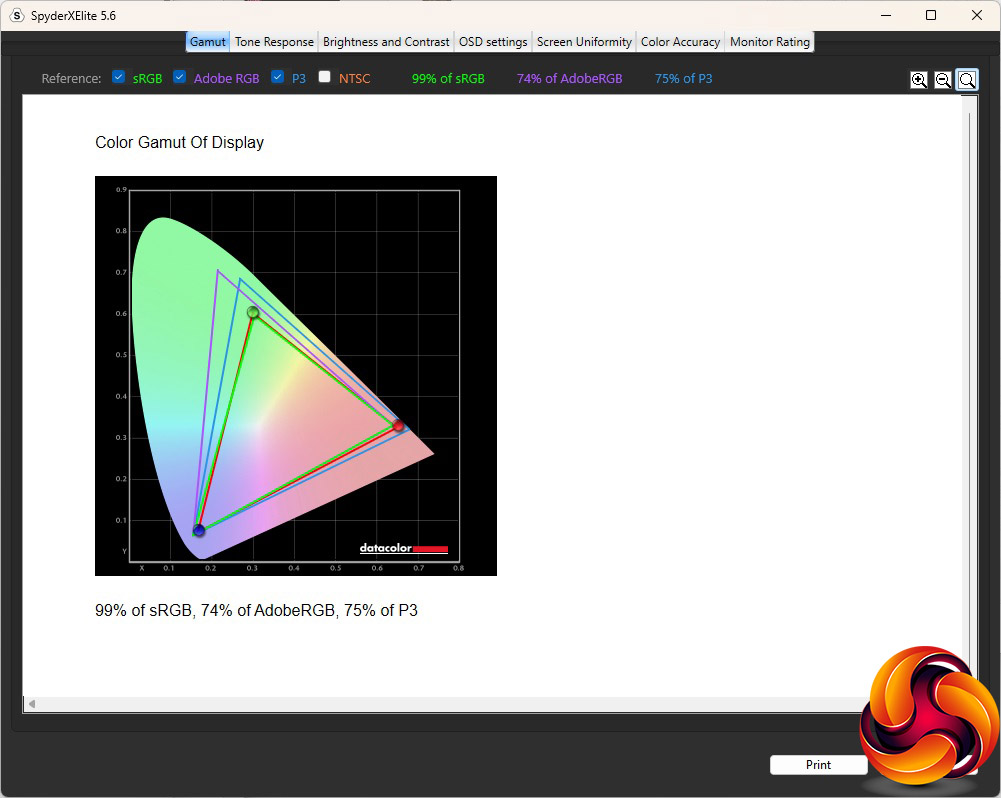
The GCB3280QSU-B1 delivered mediocre gamut readings, with sRGB of 99 per cent, 74 per cent AdobeRGB and 75 per cent P3.
 T
T
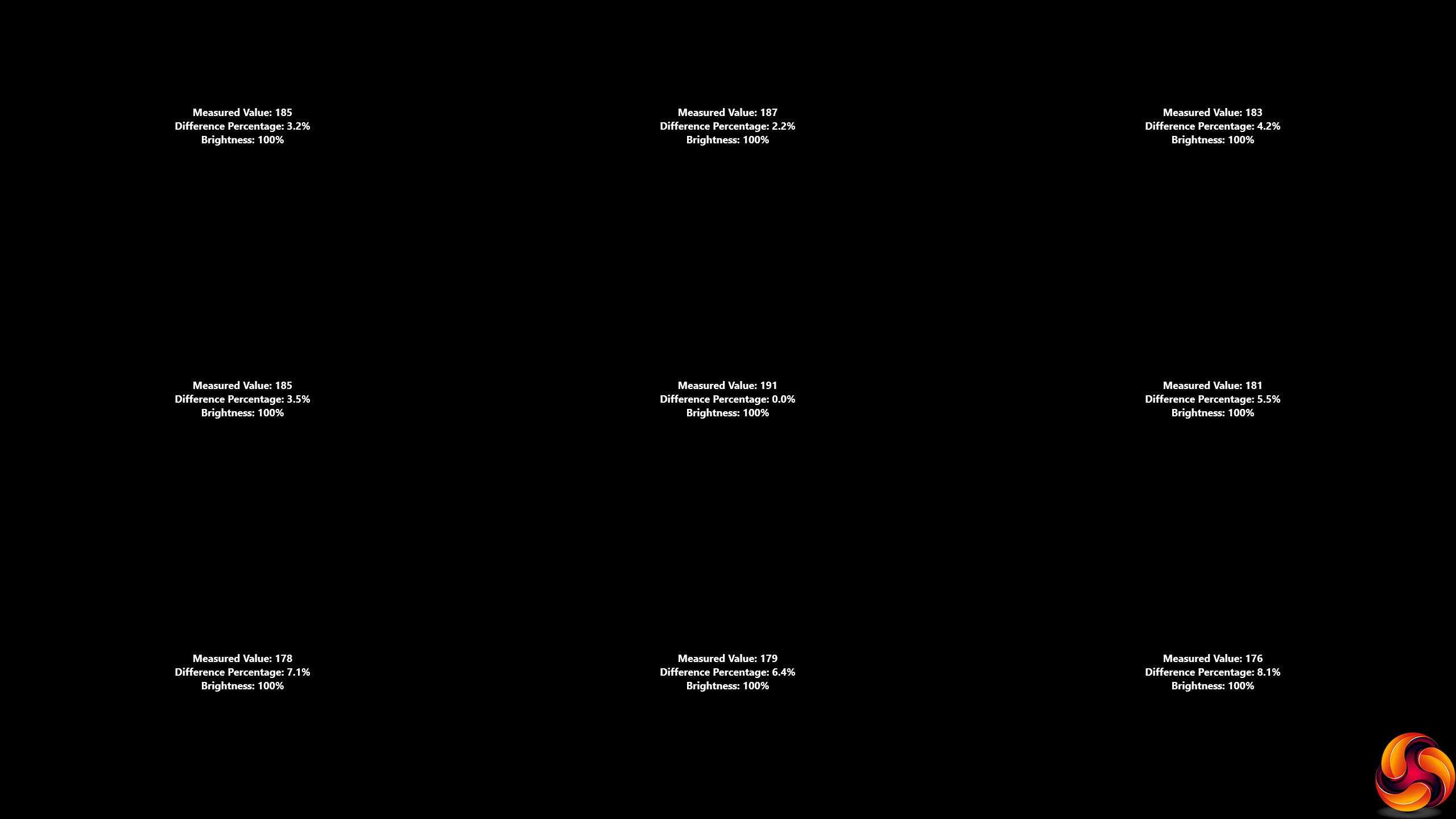
The brightness distribution is more promising, with no part of the screen going beyond 8.1 per cent deviation and most areas much lower.
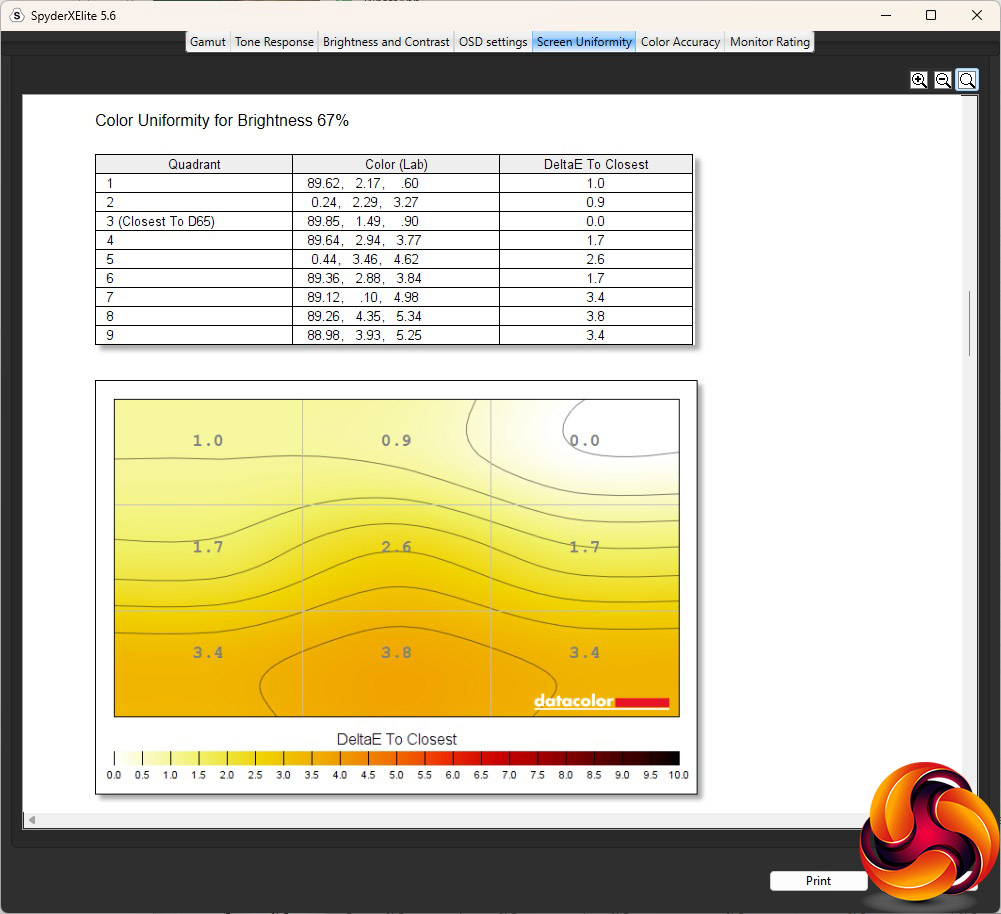
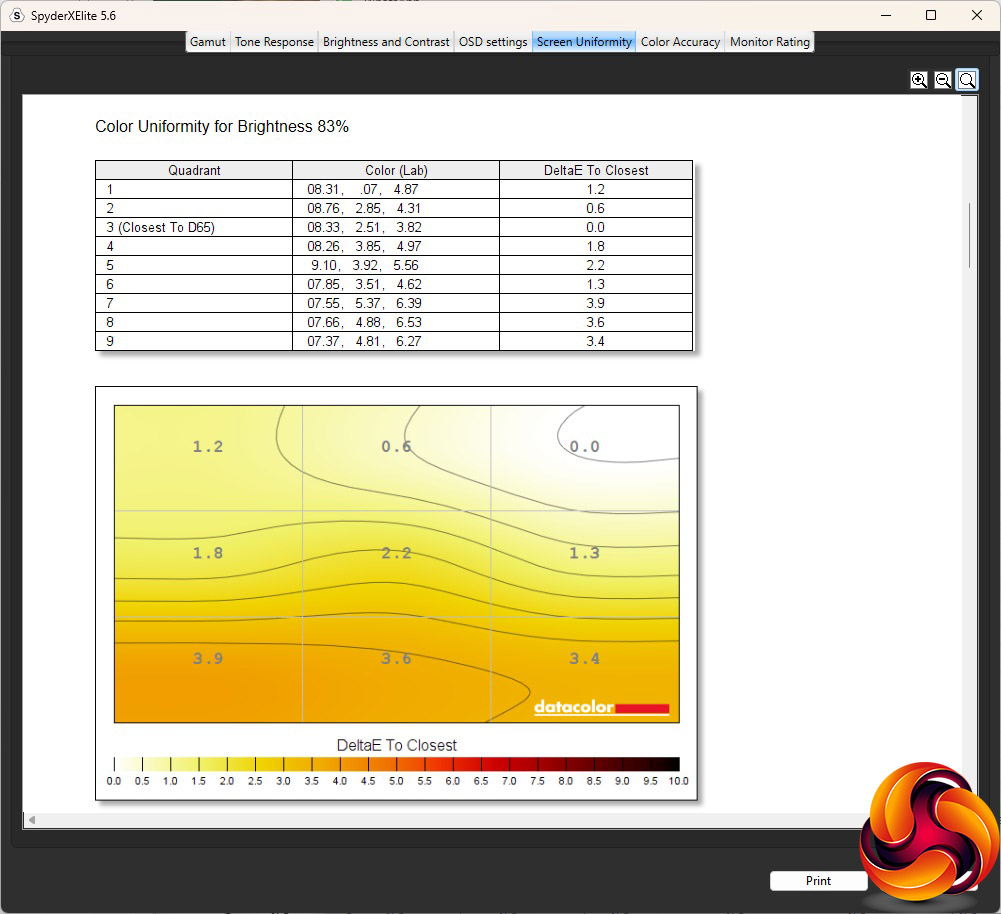
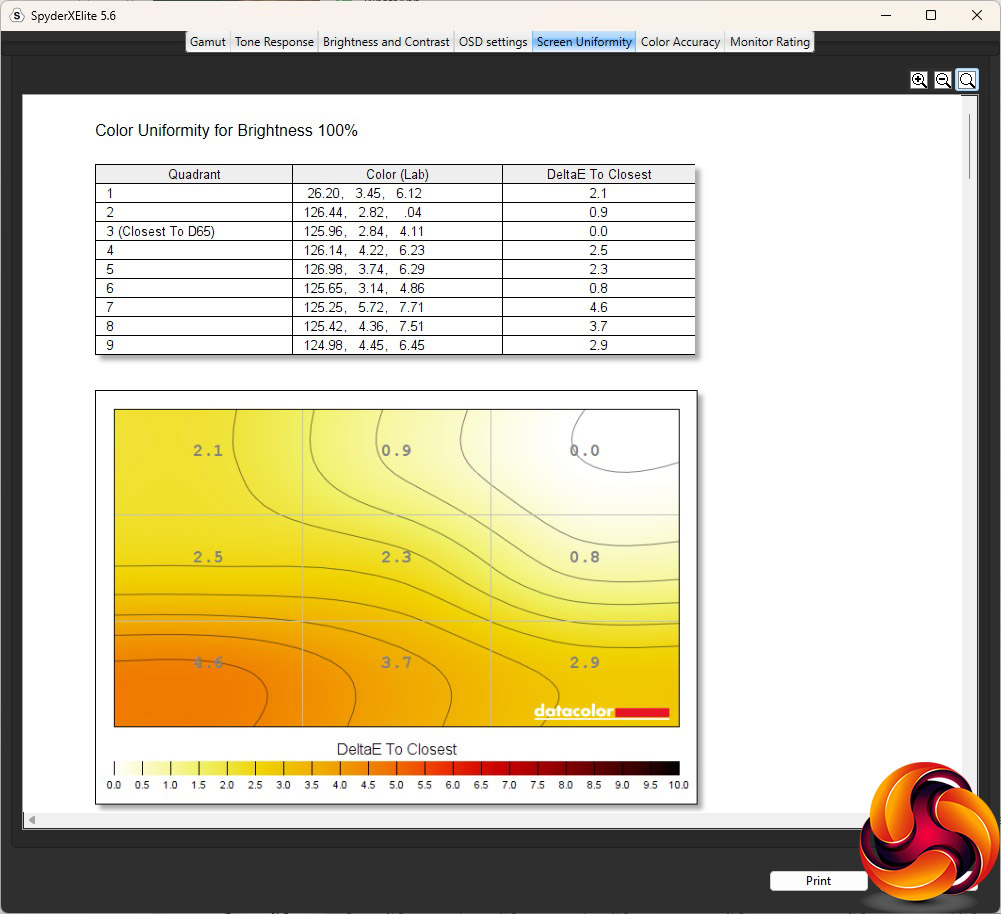
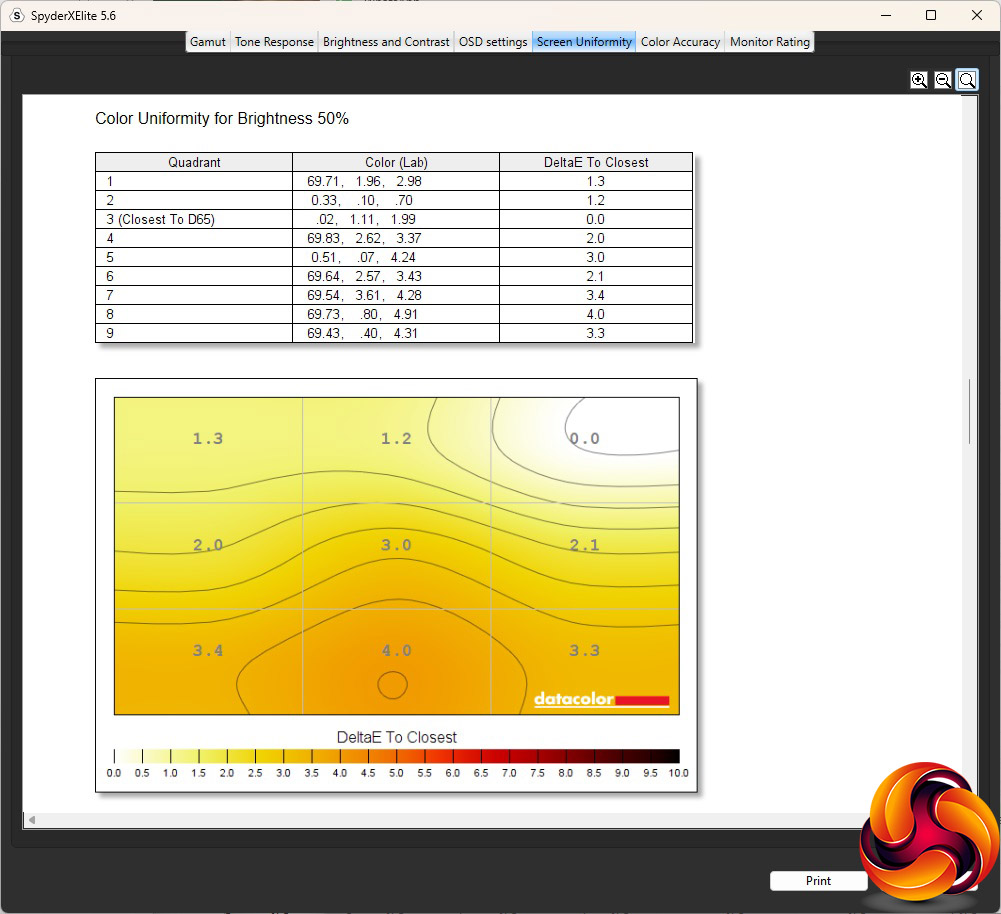
Colour uniformity is also pretty good. The screen defaults to 25% brightness so will be even more uniform if left at this level.
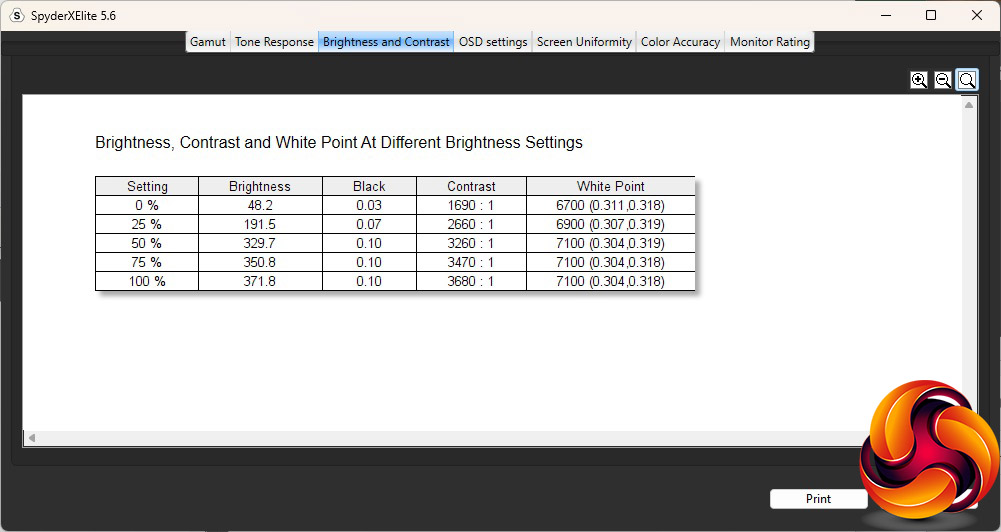
The GCB3280QSU-B1 actually hits its brightness specification at 75 per cent, going to 371.8cd/m2 at 100 per cent. That's still not hugely bright, but not a drawback. The contrast ranges from 1,690:1 to an incredible 3,680:1, but we expect strengths in this area from VA panel technology. The white point varies a bit from 6700K at 0 per cent to 7100K at 50 per cent brightness or above.
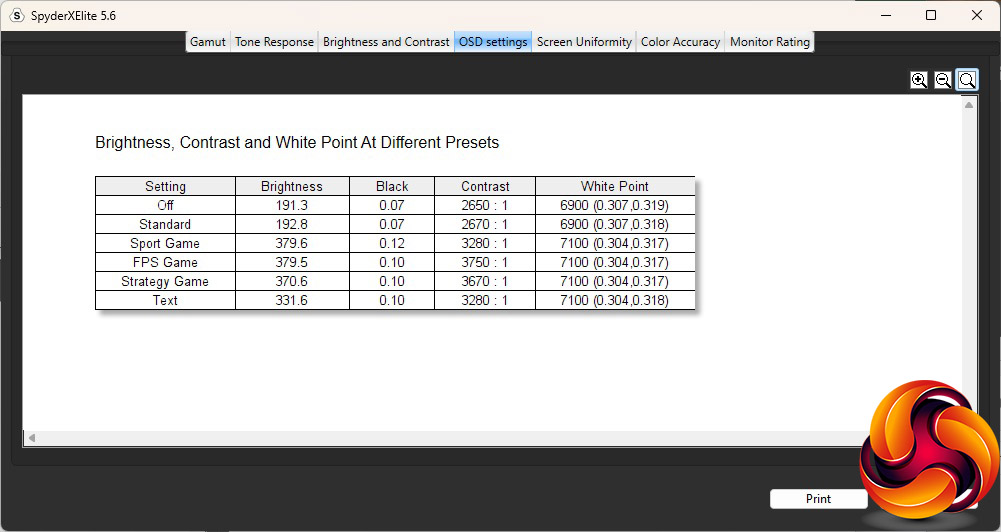
The I-Style Color presets don't vary greatly, and you can't even use them if you turn on Direct Drive Mode low input lag. Off and Standard mode are the same by default, with 191-193cd/m2 brightness, around 2650:1 contrast, and a 6900K white point. All the other presets offer a slightly cooler 7100K white point. Sport Game and FPS Game bump up the brightness to full with 379.5cd/m2, but Sport Game uses a slightly lower 3,280:1 contrast while FPS Game is the highest at 3,750:1.
The Strategy Game preset drops the brightness slightly to 370.6cd/m2 but with a still high 3,670:1 contrast. Text mode, presumably aimed at reading things onscreen, still has a high 331.6cd/m2 brightness and 3,280:1 contrast. This type of mode is usually not so bright. Strangely, there aren't any presets for movie watching or general productivity – both of which you are still likely to do, even on a screen aimed primarily at gaming.
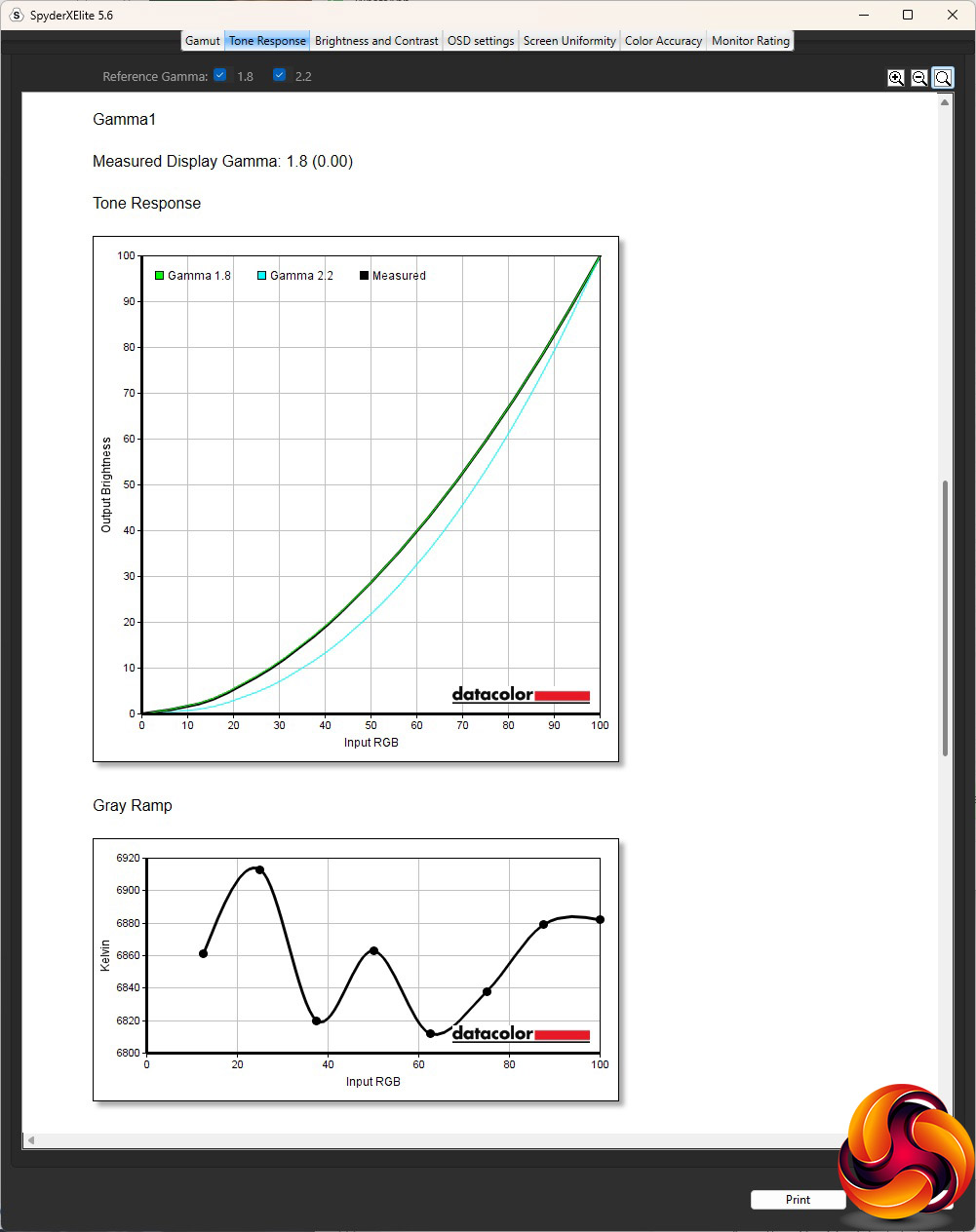
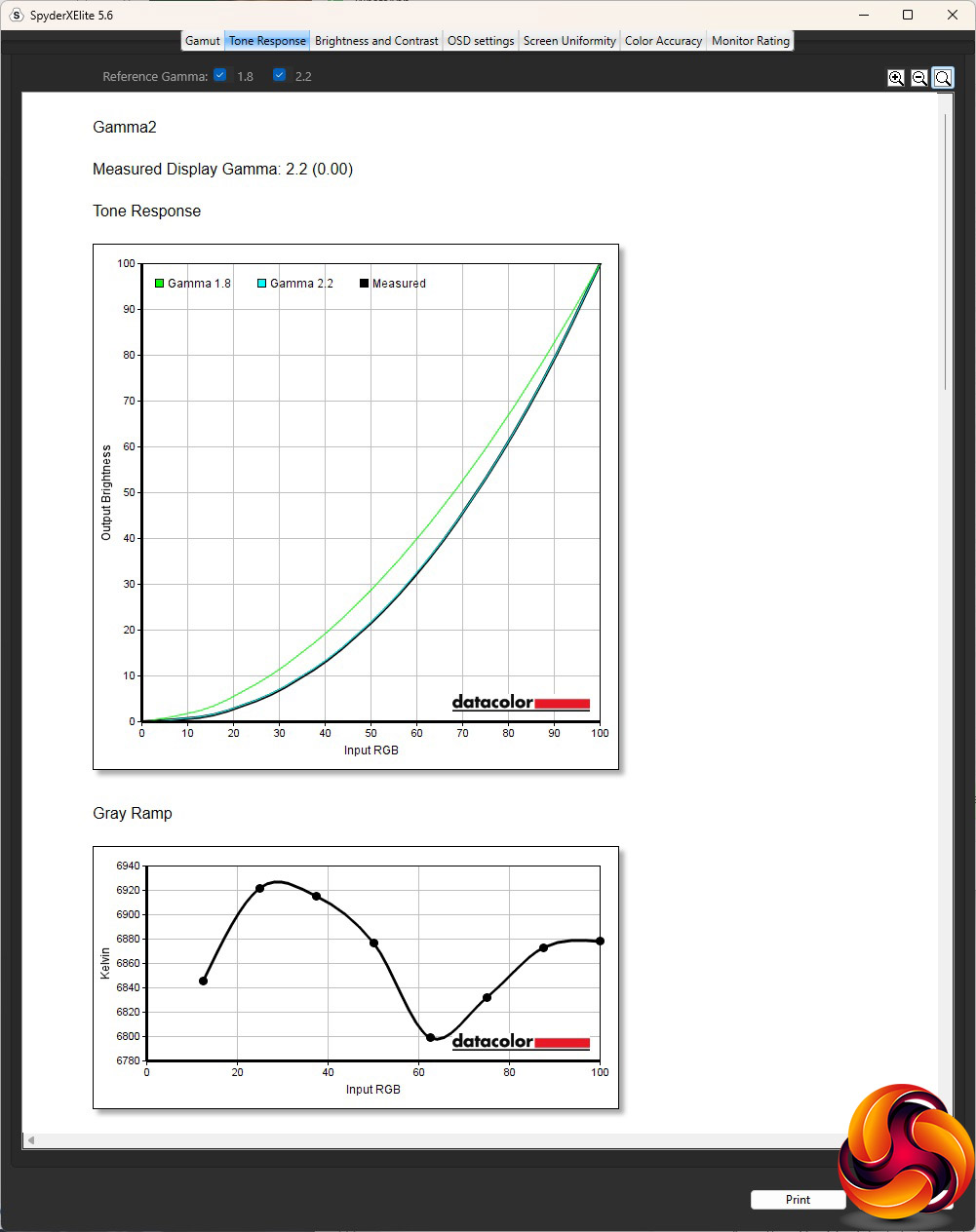
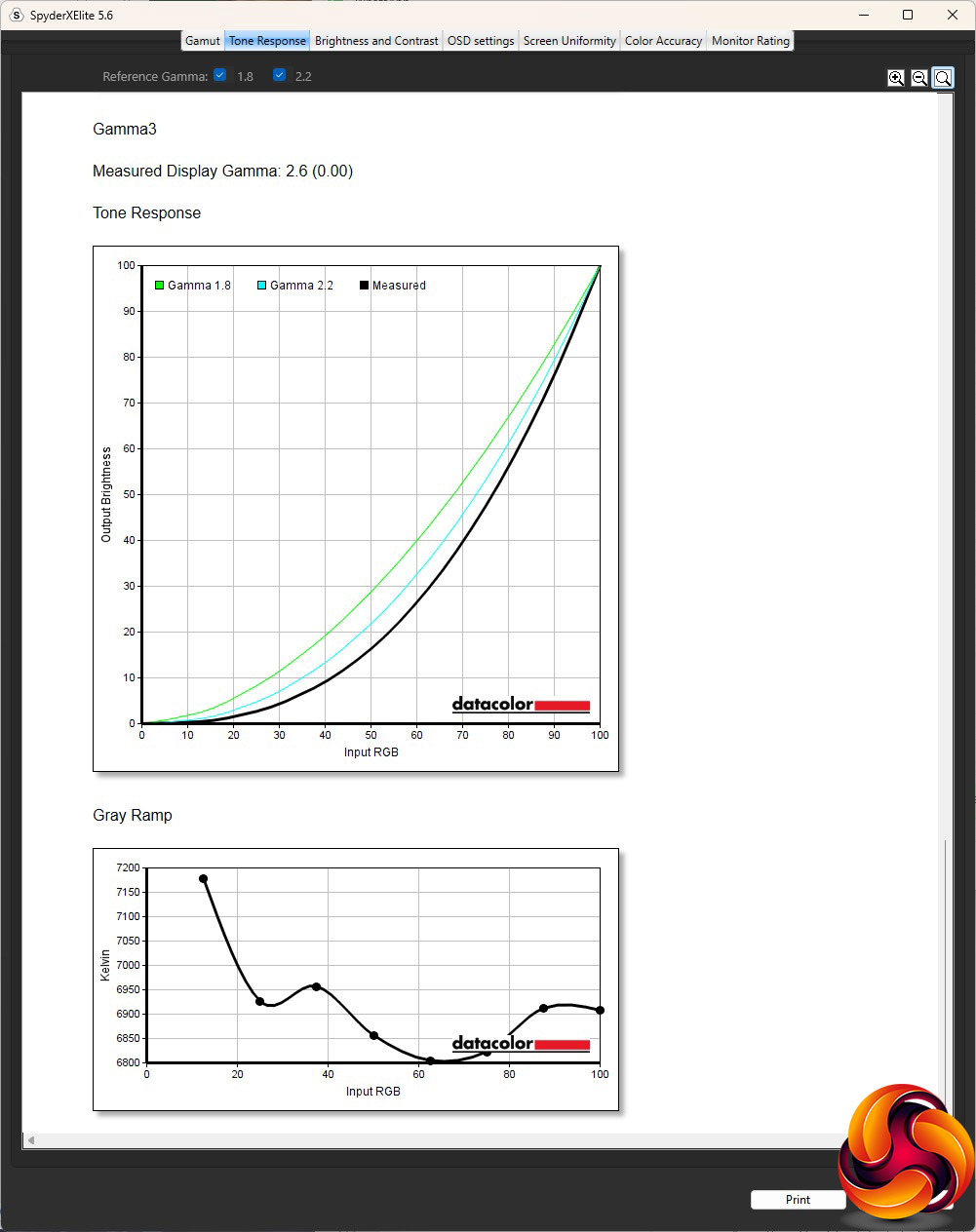
The three Gamma options are perfectly spaced, ranging from 1.8 to 2.6. The default is 2.2, which is exactly what we would expect.
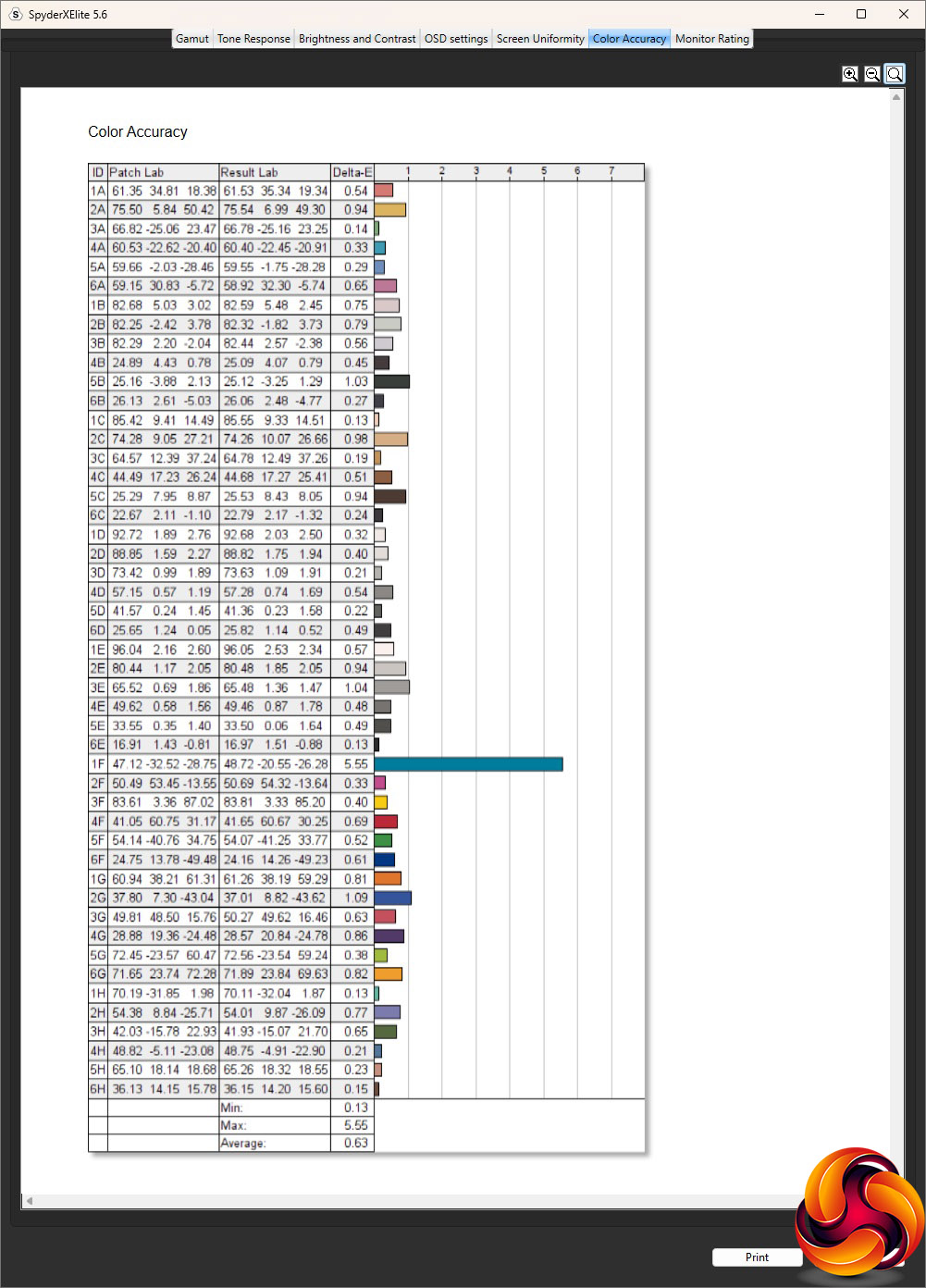
The colour accuracy is superb out of the box, with a 0.63 average deviation. Only one blue shade appeared to be dramatically deviant. But as always, we fired up the SpyderX again to see if calibration could improve things any further. The only adjustment suggested during the process was dropping the brightness level by 1 per cent.
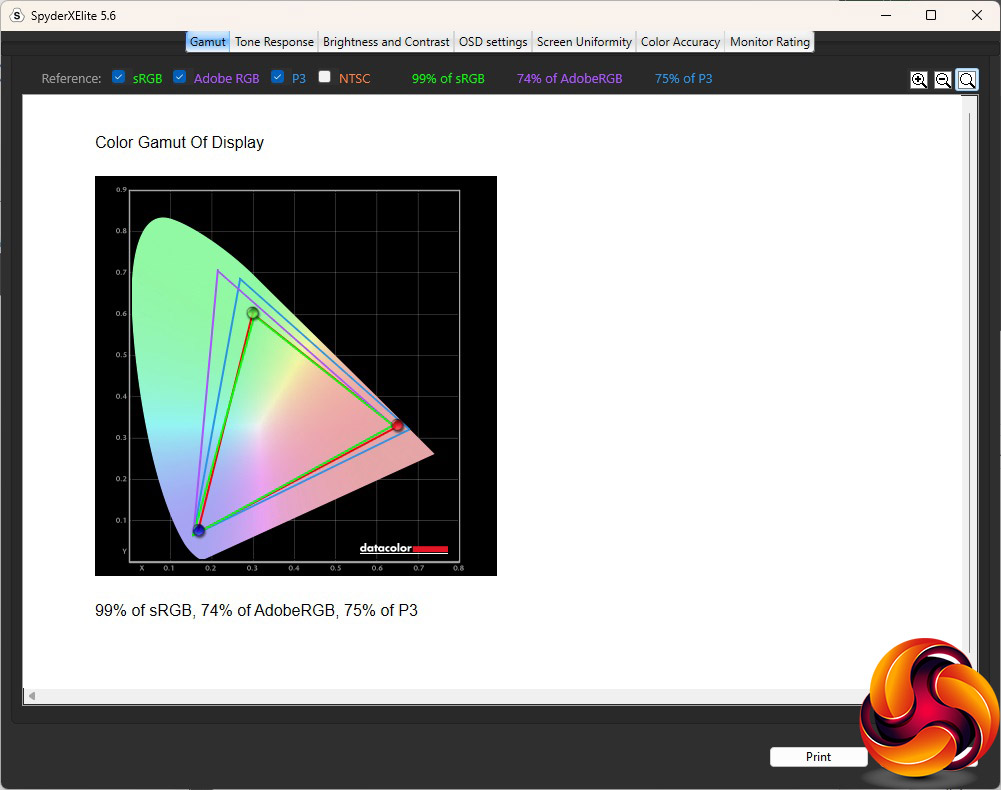
The gamut is almost never changed by calibration, and this is true for the GCB3280QSU-B1.
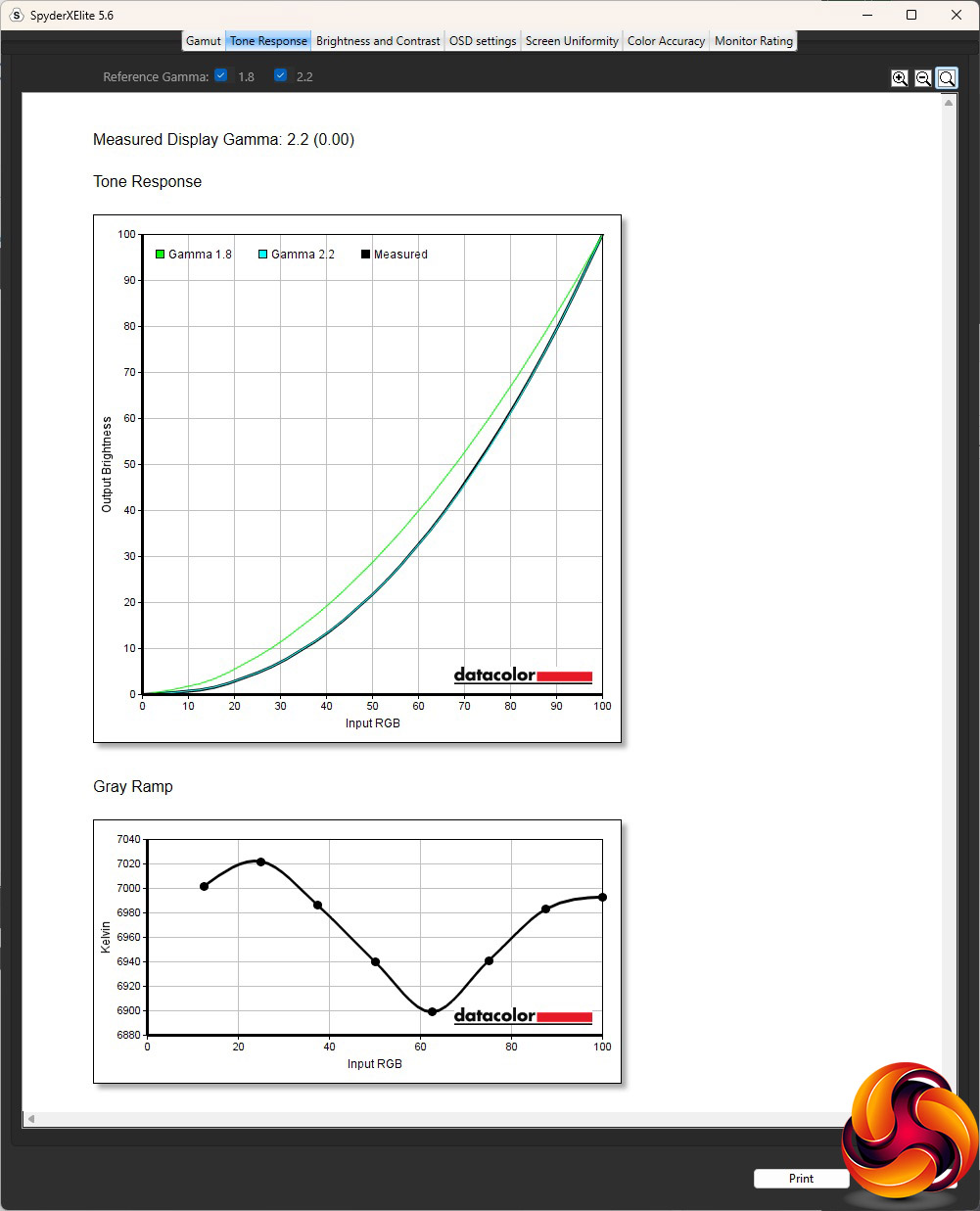
Likewise, the default Gamma 2 option remained the same at 2.2.
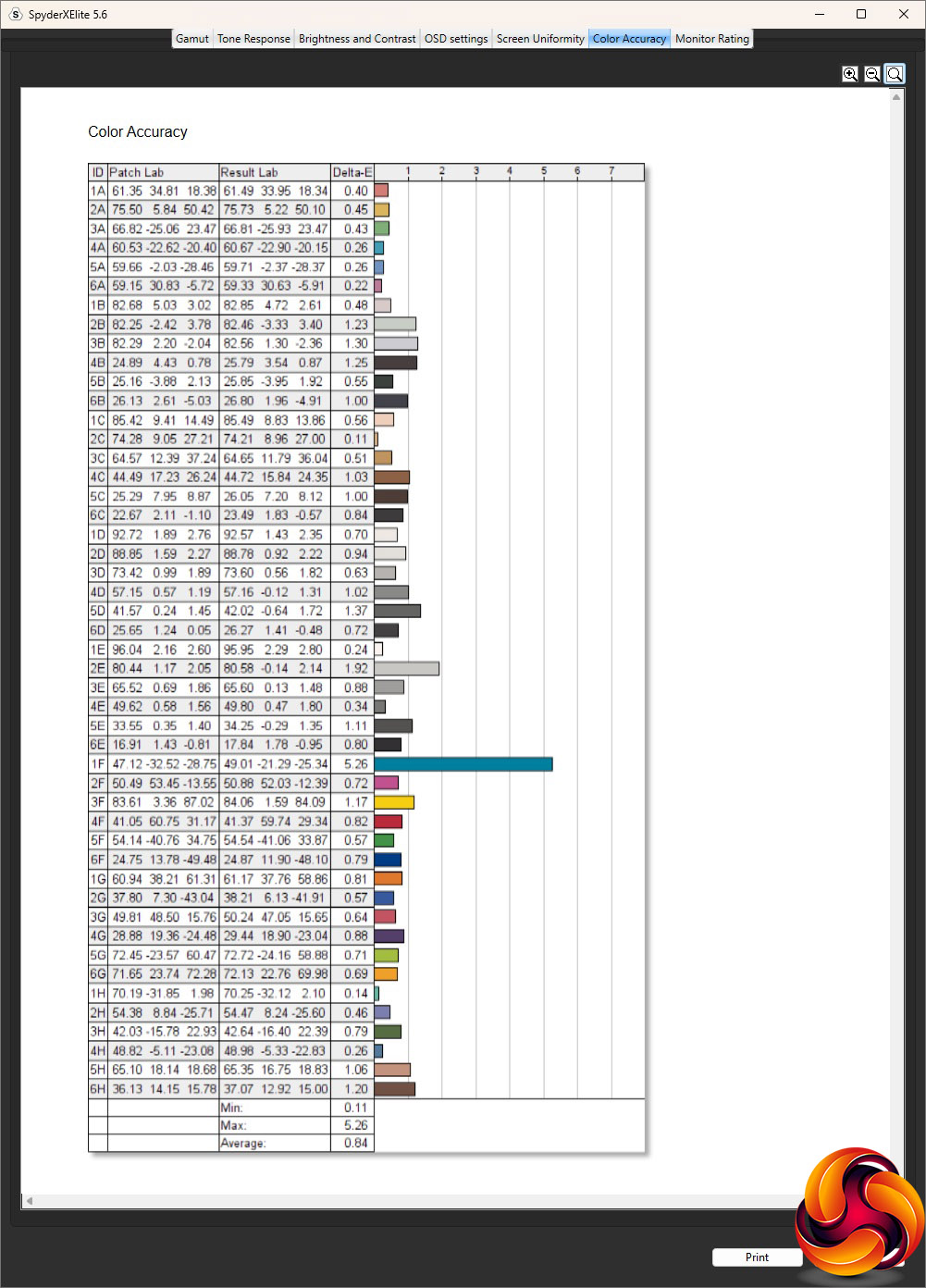
Most importantly, colour accuracy had got slightly worse with an average deviation of 0.84. That's still great, but shows this panel has been well calibrated out of the factory and there's not much point trying to improve on things yourself.
We also tried a few games, movie watching and general productivity with the GCB3280QSU-B1, making use of presets where appropriate. We tried FPS Game with Rainbow 6: Siege and CS2. With the latter being very light on 3D processing compared to recent AAA titles, it's a good test of how a monitor copes with very high framerates, and this one did very well indeed. The FreeSync Premium adaptive sync provided smooth, jitter- and tear-free refreshing. We also tried LOL with the Strategy Game setting. The huge area of this screen made it ideal for RTS-style map viewing. The curvature was immersive and made movie watching a pleasure, despite the lack of a specific preset for this.
The iiyama G-Master GCB3280QSU-B1 isn't quite perfect. The gamut could be wider, and we'd like to see a few more gaming widgets in the OSD. Although USB C is more of a productivity than gaming feature, it would still be useful to have the option. But the colour accuracy is excellent and both brightness and colour uniformity are very good.
Best of all, this is a large screen with a resolution that is arguably still the sweet spot for general gaming (4K might tax all but the most expensive graphics cards with the latest titles). Throw in the 165Hz refresh and FreeSync Premium adaptive sync, and the sub-£300 price looks like an absolute bargain.
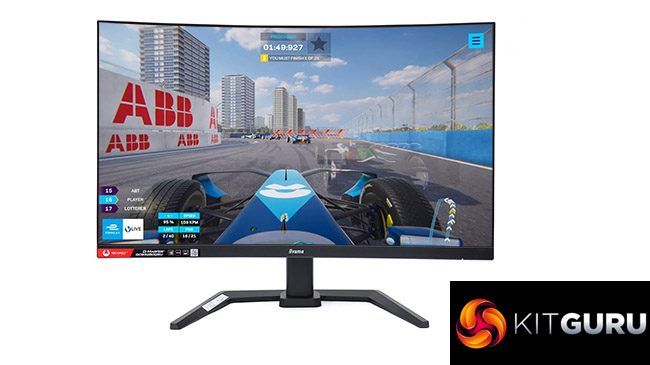
Overall, this is a brilliant gaming monitor for the money. You can have a large, curved panel, with a decent resolution, a high refresh and adaptive sync for a very keen price. Unless you absolutely need 4K or some special features and are prepared to pay significantly more for them, this display should be near the top of your list.

You can buy the iiyama G-Master GCB3280QSU-B1 from Overclockers UK over HERE for £298.99 inc VAT.
Pros:
- Excellent colour accuracy.
- Large curved panel.
- Smooth 165Hz refresh.
- Strong contrast from the VA panel.
- Gets decently bright.
- FreeSync Premium adaptive sync.
- Keen price.
Cons:
- Needs a few more gaming OSD widgets.
- Mediocre gamut.
- No USB-C.
KitGuru says: The iiyama G-Master GCB3280QSU-B1 gives you a lot of gaming goodness for the money, including a large panel, 165Hz refresh with FreeSync Premium, and excellent colour accuracy. Highly recommended.