KitGuru KitGuru.net – Tech News | Hardware News | Hardware Reviews | IOS | Mobile | Gaming | Graphics Cards


NZXT has built a solid reputation designing stylish and well thought-out chassis for the gaming PC community. Recently the company has been looking to translate that design-focused DNA to the ultra-competitive market of monitors. We were quite impressed with its first foray into this arena, the NZXT Canvas 27Q. Now we are putting the smaller 24.5in Canvas 25F through its paces. It may only be Full HD, but with a 240Hz refresh it could be a gaming monster.
Although most monitors can be deployed with a desktop stand or an arm, NZXT is explicitly offering the Canvas 25F with a choice between the two. You can even purchase an arm that will accommodate two monitors. But that's not the only trick up this monitor's sleeve, if monitors can have sleeves. The resolution is just 1920 x 1080, which is pretty standard for a panel this size, but the refresh rate of 240Hz is about as fast as you can get, making this screen ideal for fast-paced gaming such as FPS. There is AMD FreeSync Premium, which is the medium tier, offering at least 120Hz, low framerate compensation, tear-free motion plus low flicker and latency. The main feature missing compared to the Pro upper tier is HDR.
The panel type is IPS, but NZXT quotes a 1ms response time, which is probably not grey-to-grey considering the screen technology. Brightness is 400cd/m2 and contrast 1,000:1, which are typical for IPS. The colour gamut is middling, on paper, with 99 per cent sRGB and 83 per cent DCI-P3.
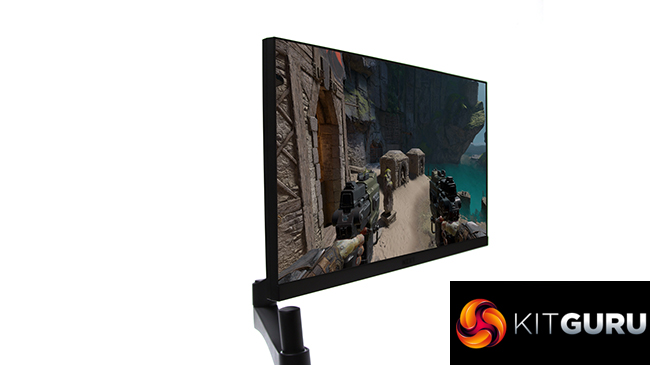
Ergonomics vary depending on the stand you choose. We were sent the Canvas 25F with the mounting arm, about which no adjustment details were supplied, but the options are extensive. For the regular desktop stand, you get height adjustment, tilt, swivel and pivot. The mounting arm also supports pivoting, and there's a comprehensive set of connections, including DisplayPort, two HDMI, and USB Type C. There's a regular USB upstream plus two Type A downstream and a headphone jack.
However, this isn't a cheap screen. The panel on its own is £259, then you add £40 for the stand or £139.99 for the mounting arm. You can choose white or black for the monitor or stand, but the arm only comes in black. At these prices, the NZXT Canvas 25F needs top-notch performance. Read on to find out if it delivers.
Specification:
- Screen size: 24.5-inch, 16:9 aspect
- Native resolution: 1,920 x 1,080
- Curvature: No
- Refresh rate: 240Hz, AMD FreeSync Premium
- Panel type: IPS
- Contrast ratio: 1,000:1 (typical)
- Brightness: 400cd/m2
- Response time: 1ms
- Display inputs: HDMI 2.0 x 2, DisplayPort 1.2 x 1, USB Type C
- USB hub: Yes, Type B or C input, 2 x USB 3.0 outputs
- Tilt: (with desktop stand) 5 degrees forward, 20 degrees backward
- Raise: (with desktop stand) 120mm
- Swivel: (with desktop stand) 20 degrees left or right
- Portrait: Yes (desktop stand or mounting arm)
- Other: Audio output minijack
Retail Price: £259 (inc. VAT) – panel only
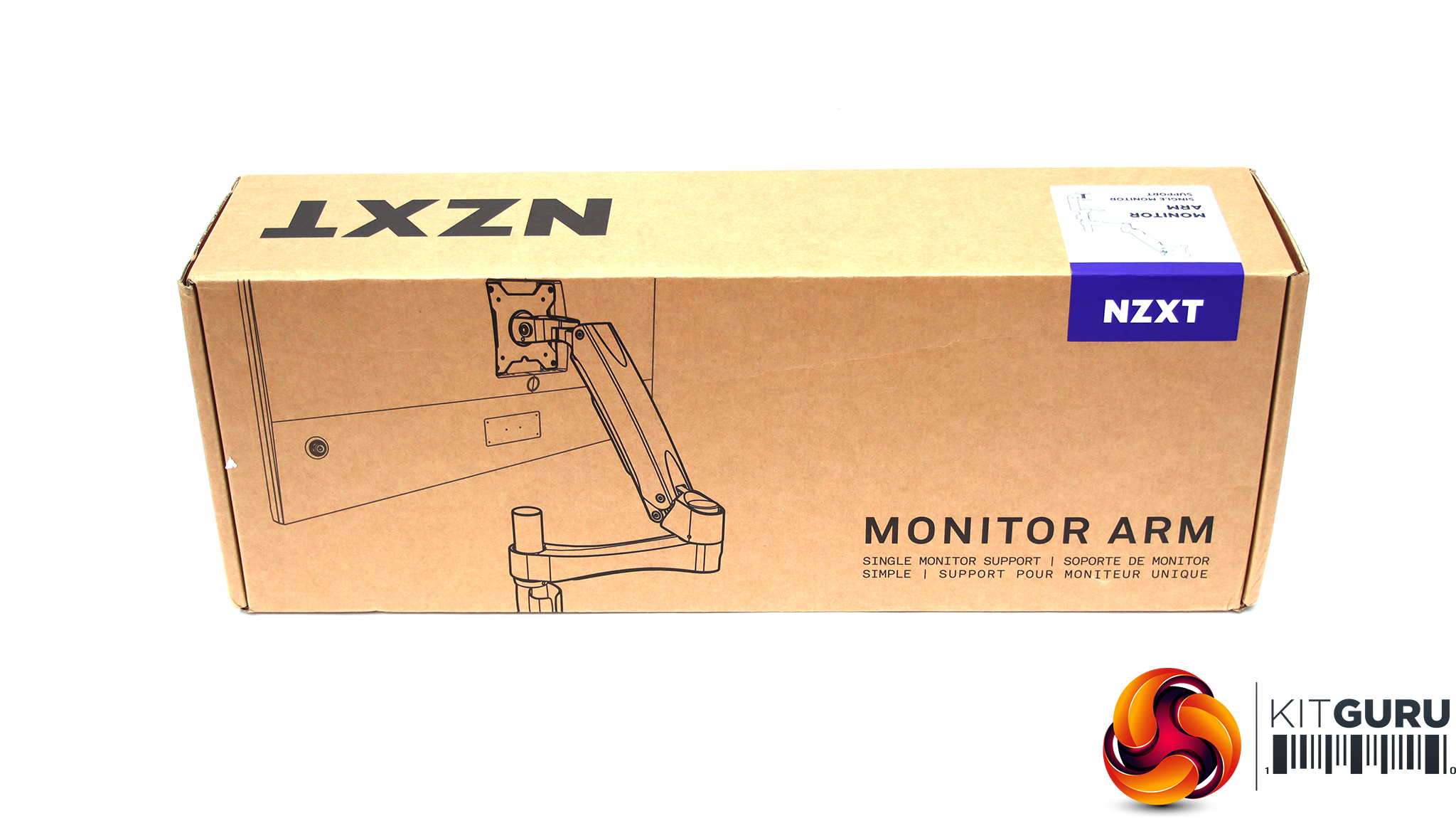
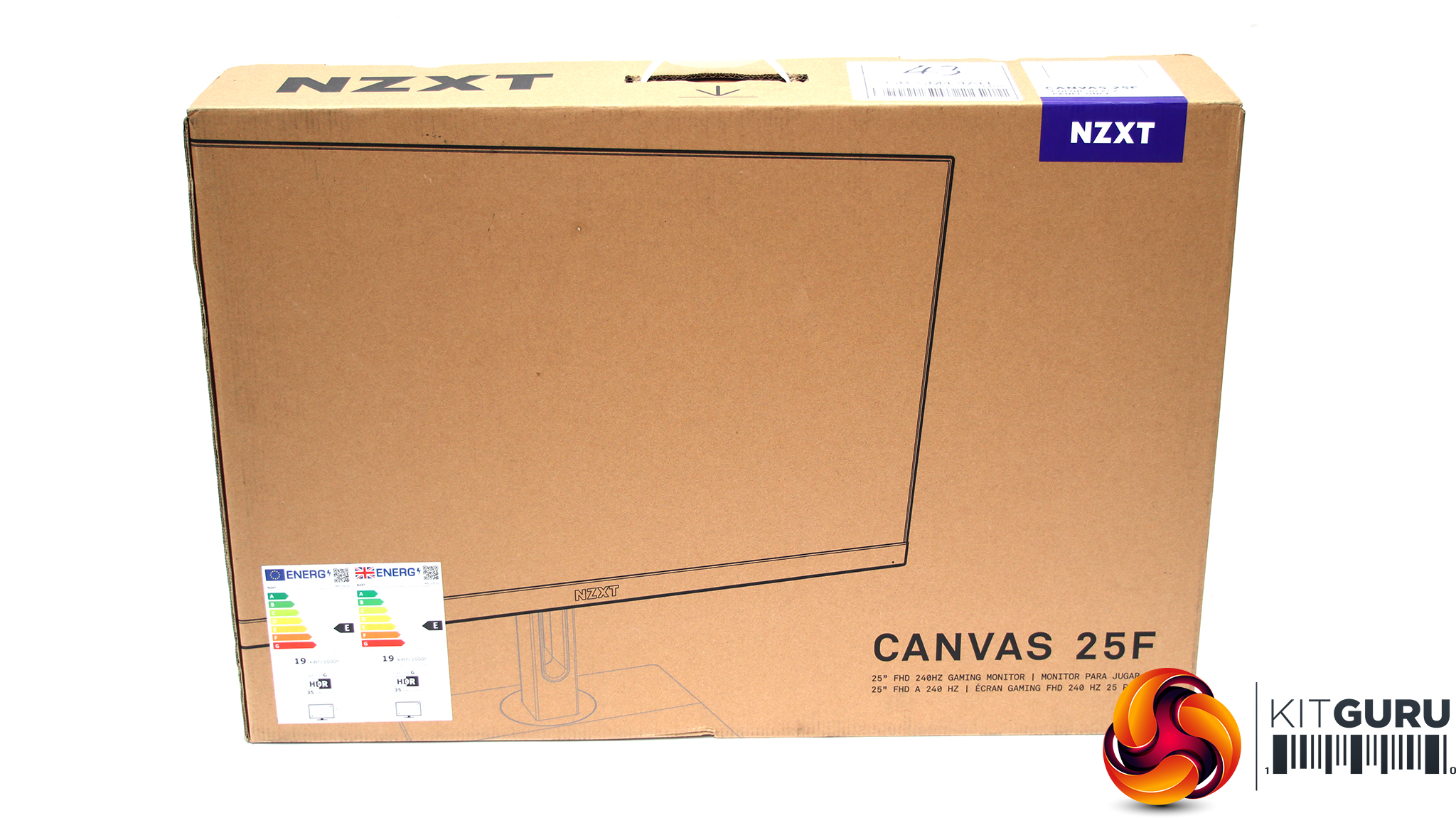
The NZXT Canvas 25F comes in a nondescript brown box. The mounting arm is delivered in similarly innocuous packaging.
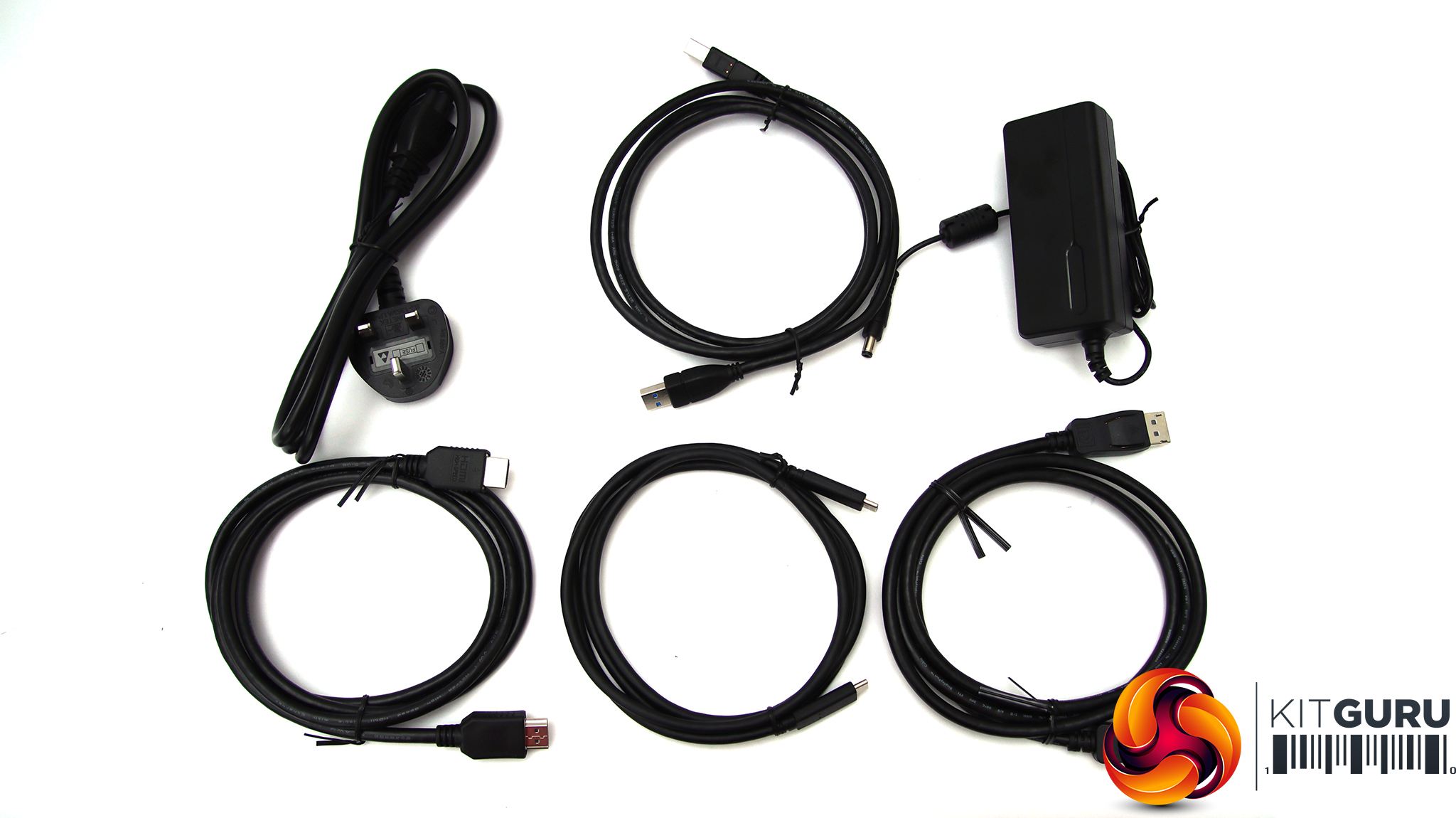
Inside, there is a UK power cord. There are cables for HDMI, DisplayPort, and USB C, plus an upstream USB cable.
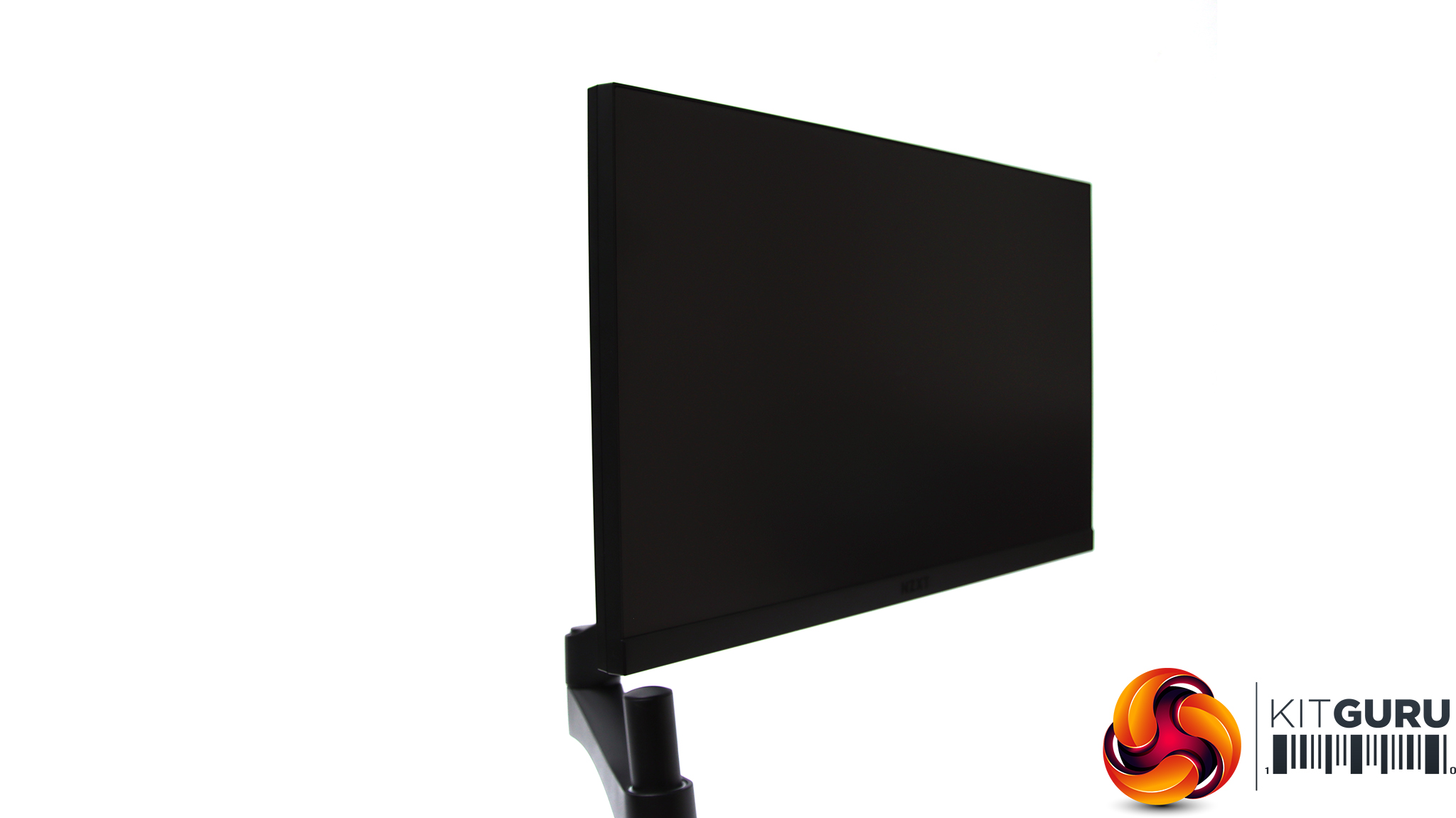
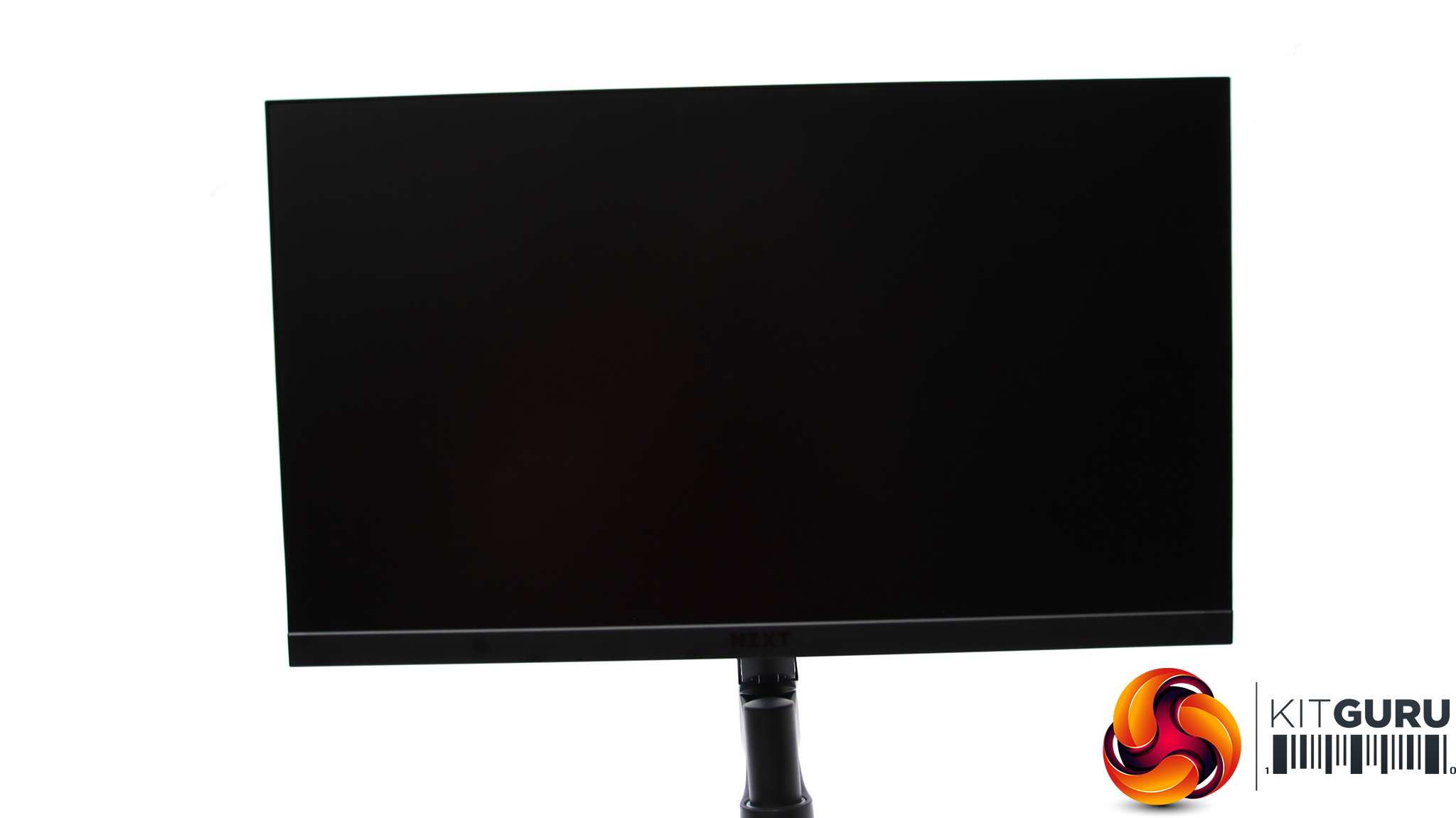
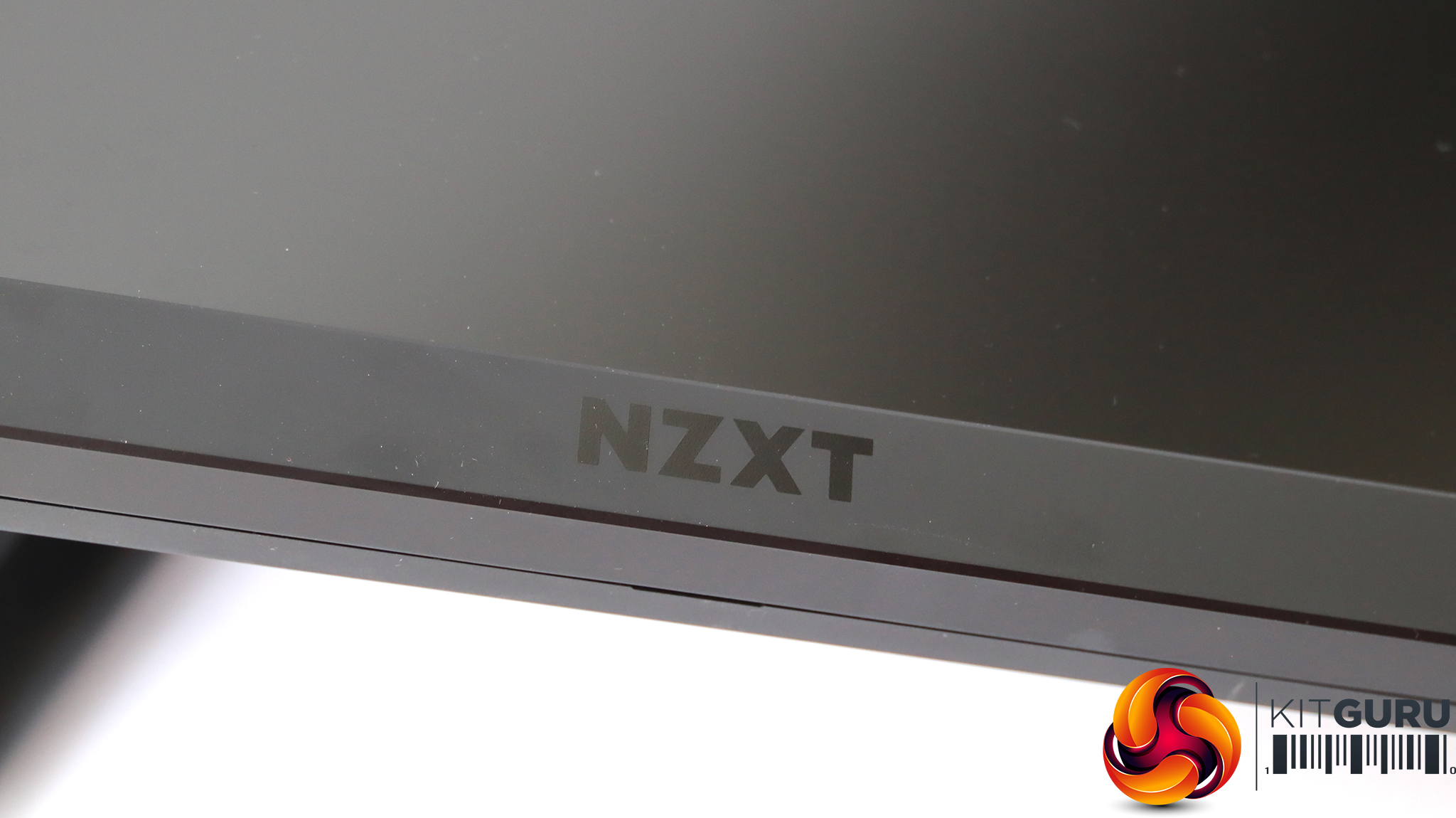
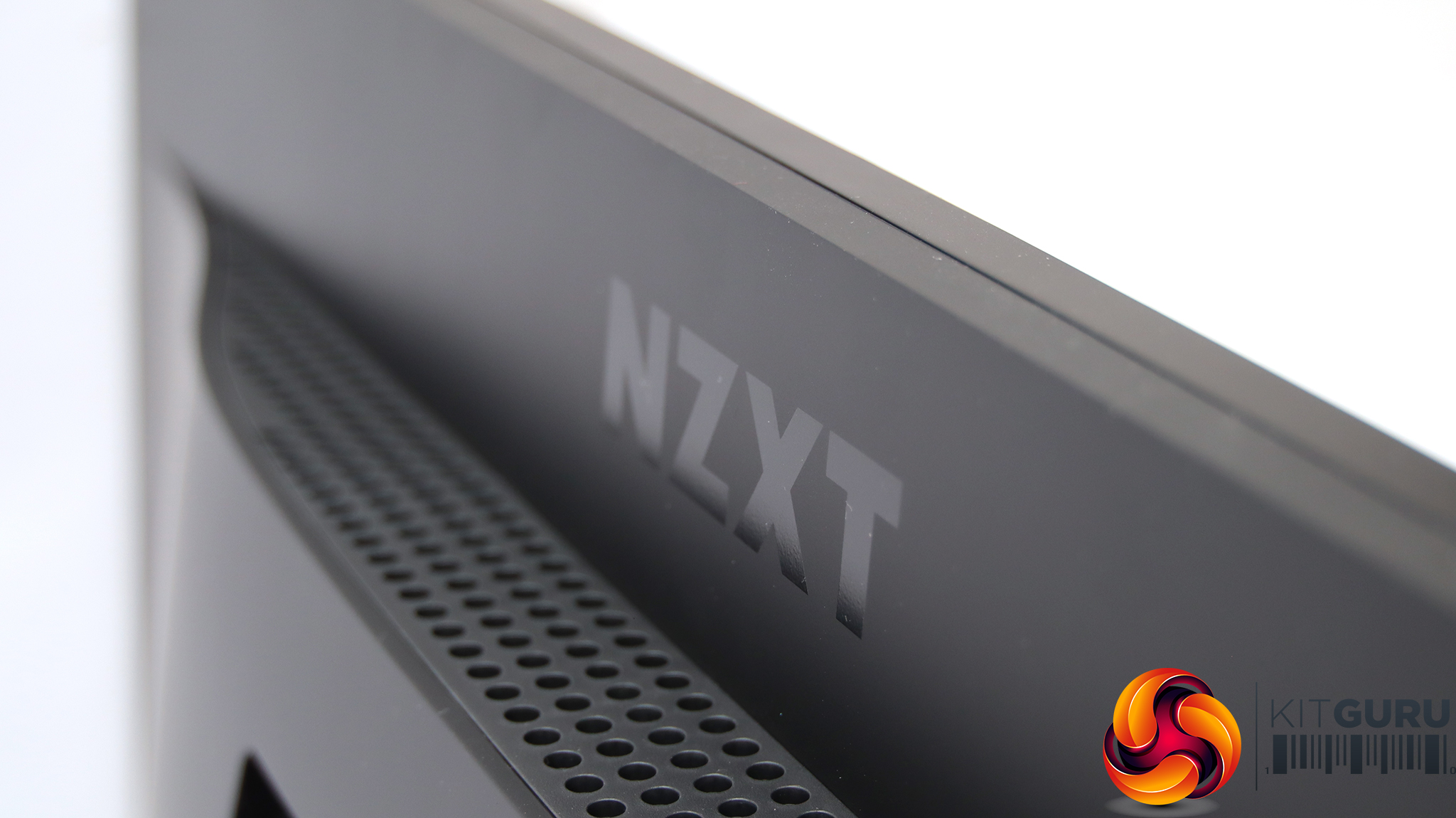
The Canvas 25F has a borderless frame design, which adds a level of sophistication to the appearance. The NZXT logo on the front is so subtle as to be barely noticeable, as is the one on the rear. Whereas the company's chassis have a bit more gaming bling about them, the black version of this screen is very sober indeed. The white version still has a black front, with the white only being on the rear. You can choose a black or white desktop stand whichever monitor style you go for.
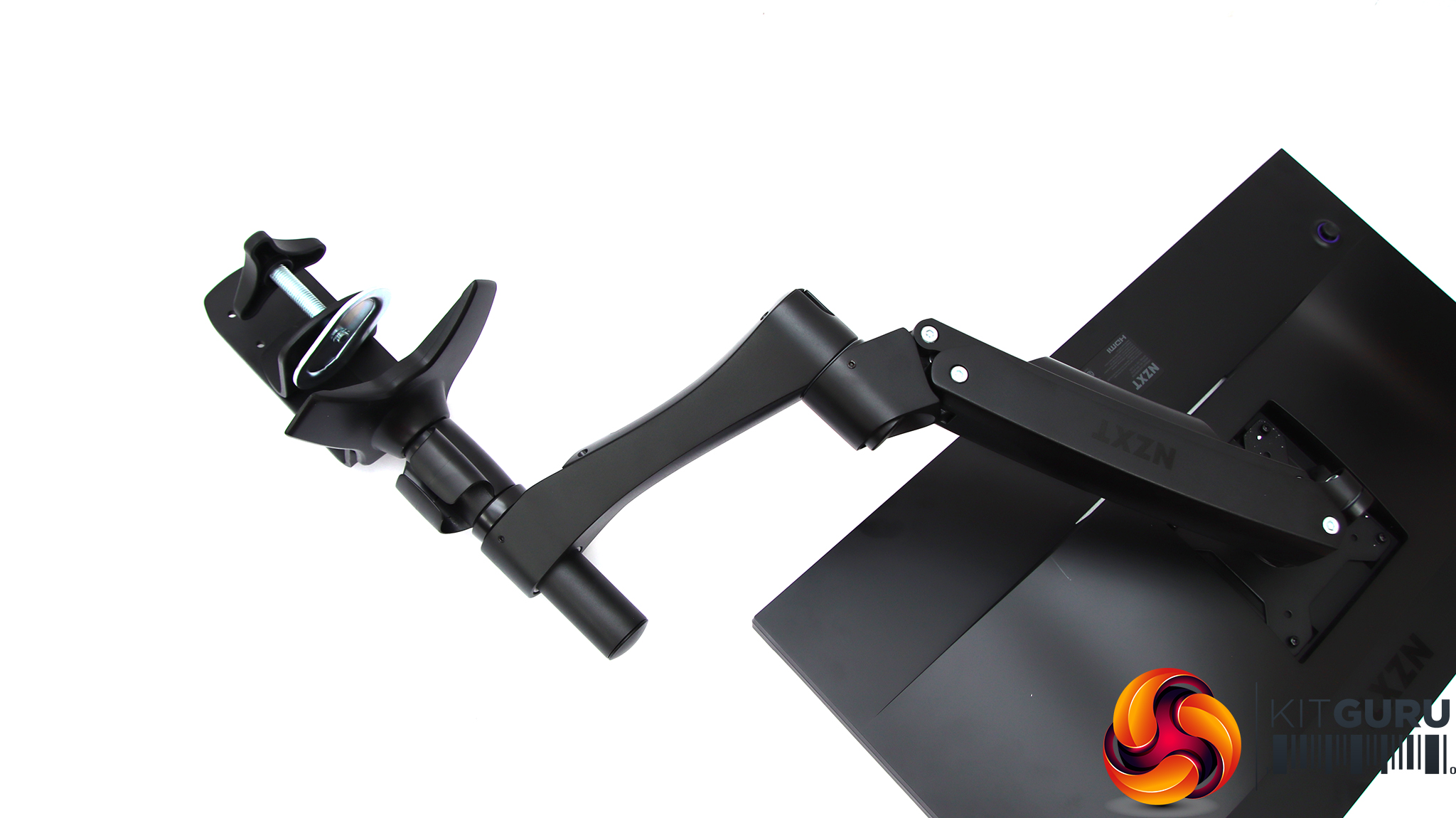
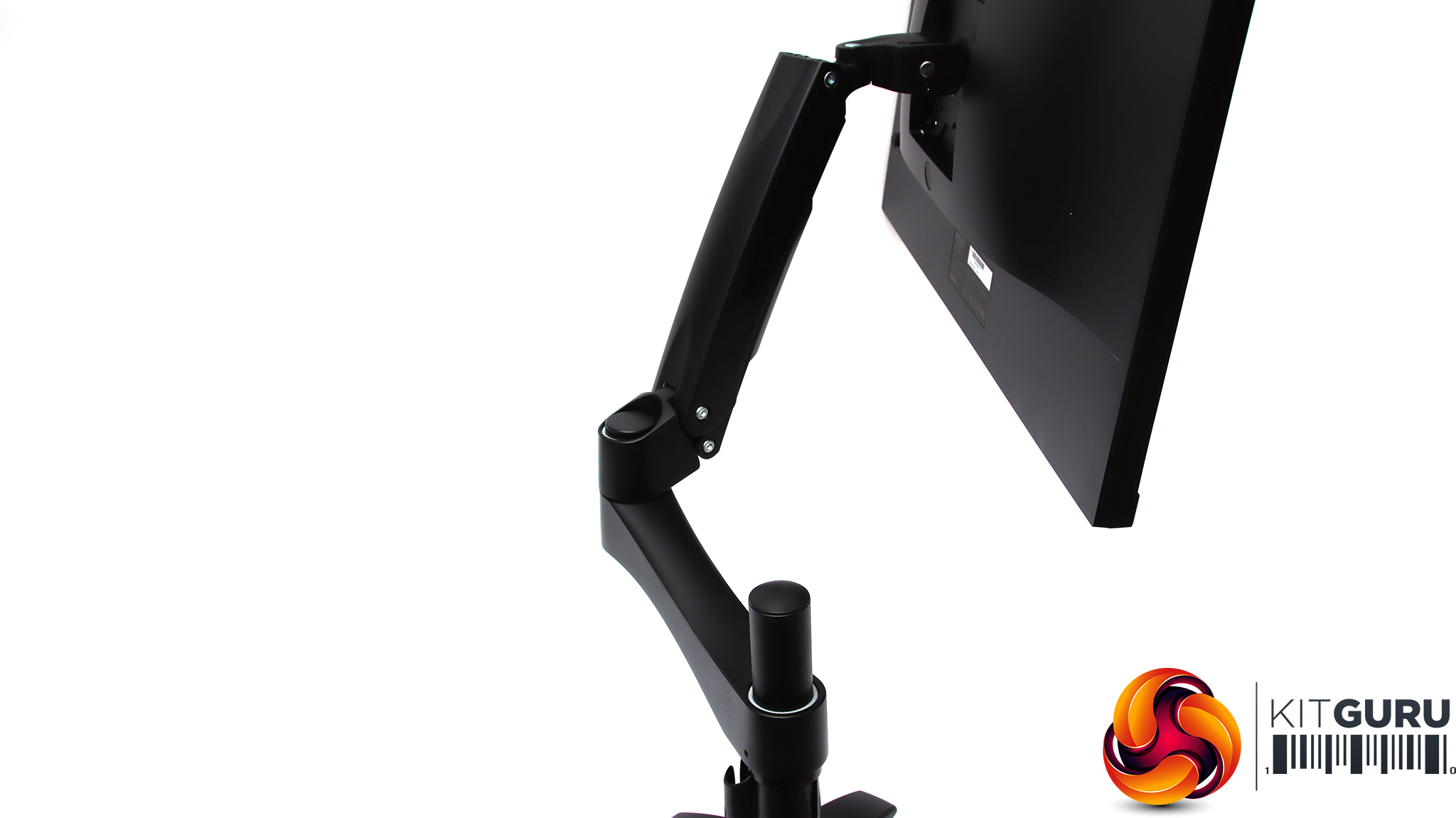
The monitor arm is only black, however, and although not ugly, is relatively sober. The package together with the black version of the screen is very serious.
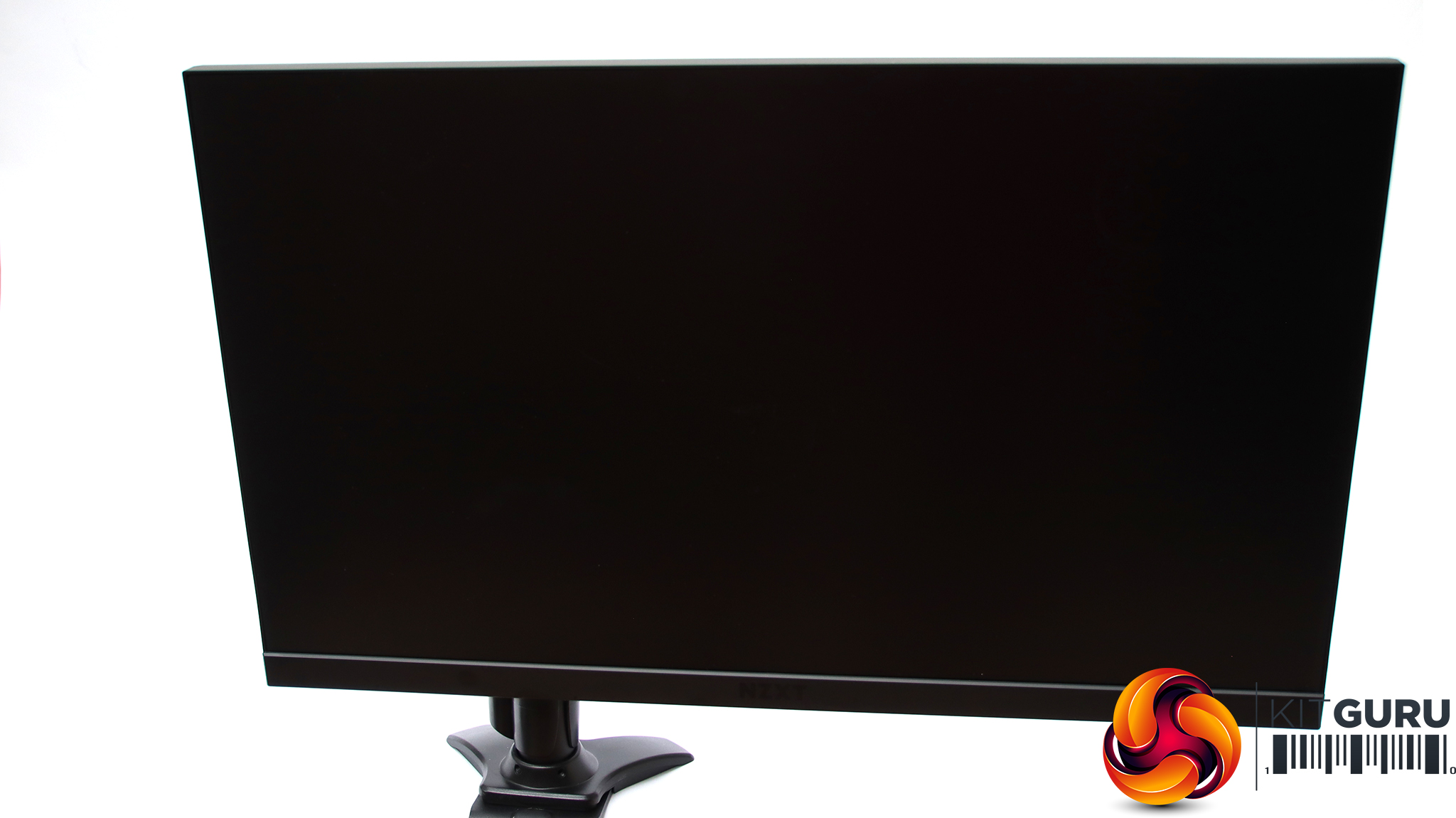
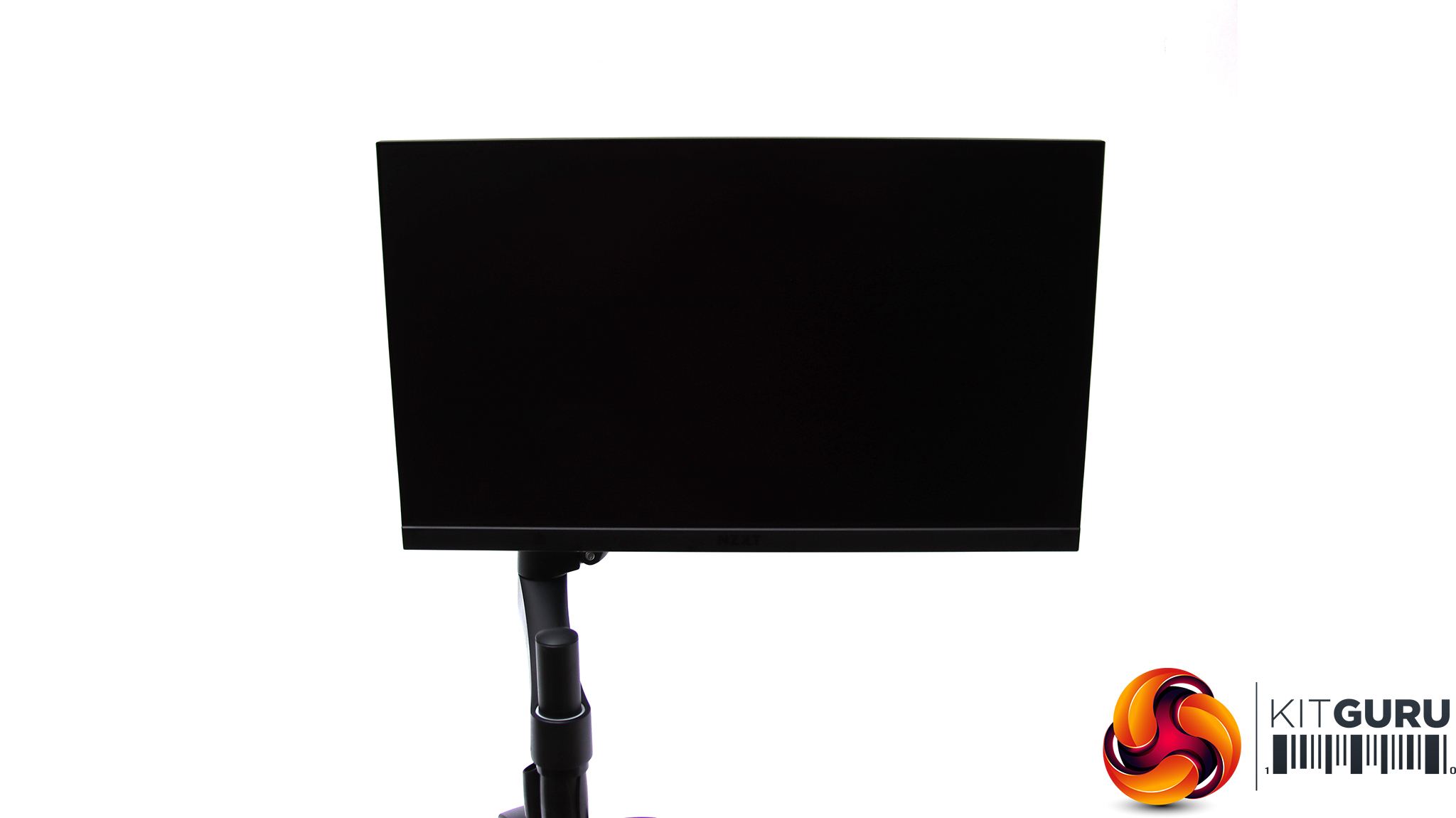
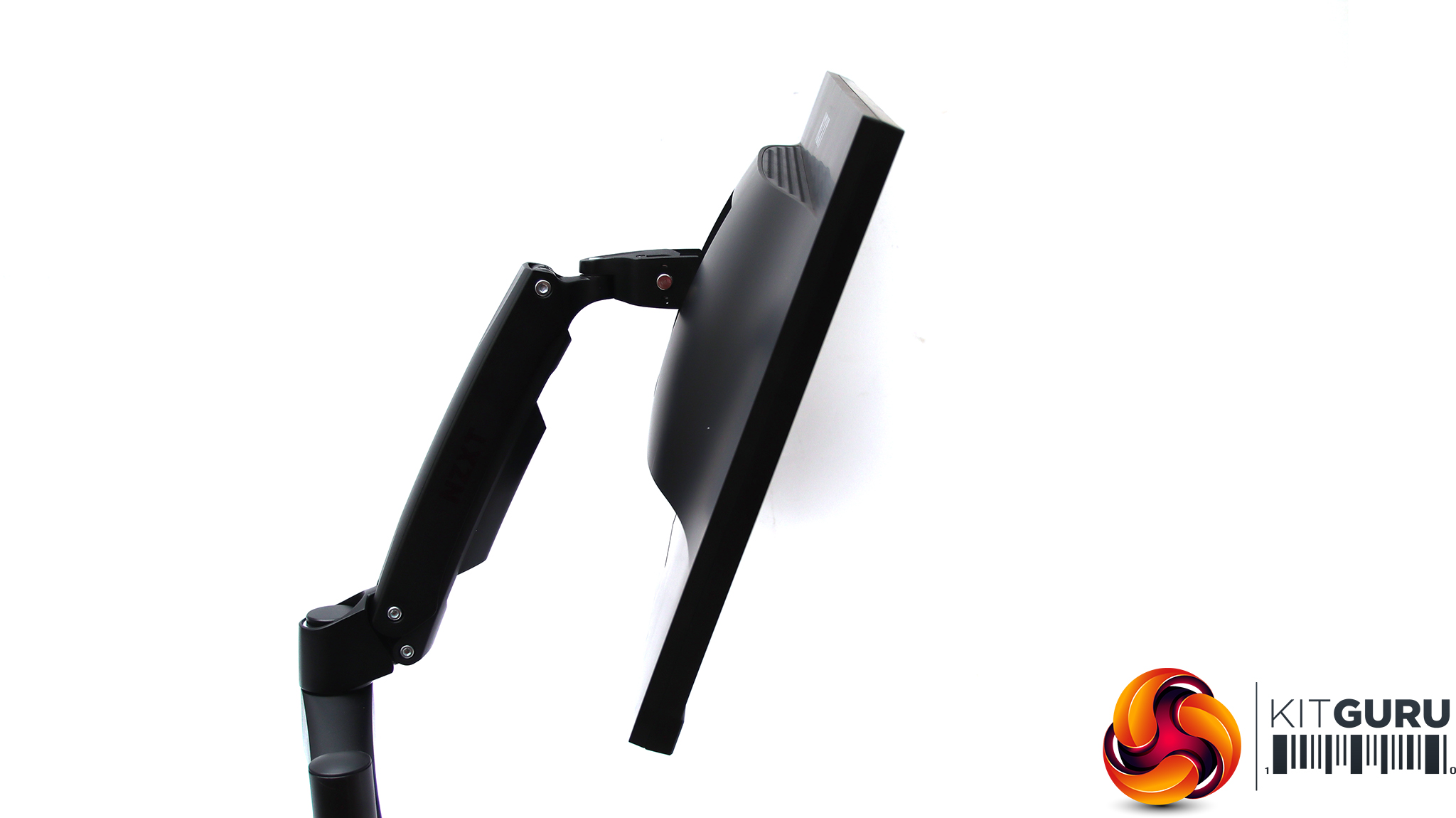
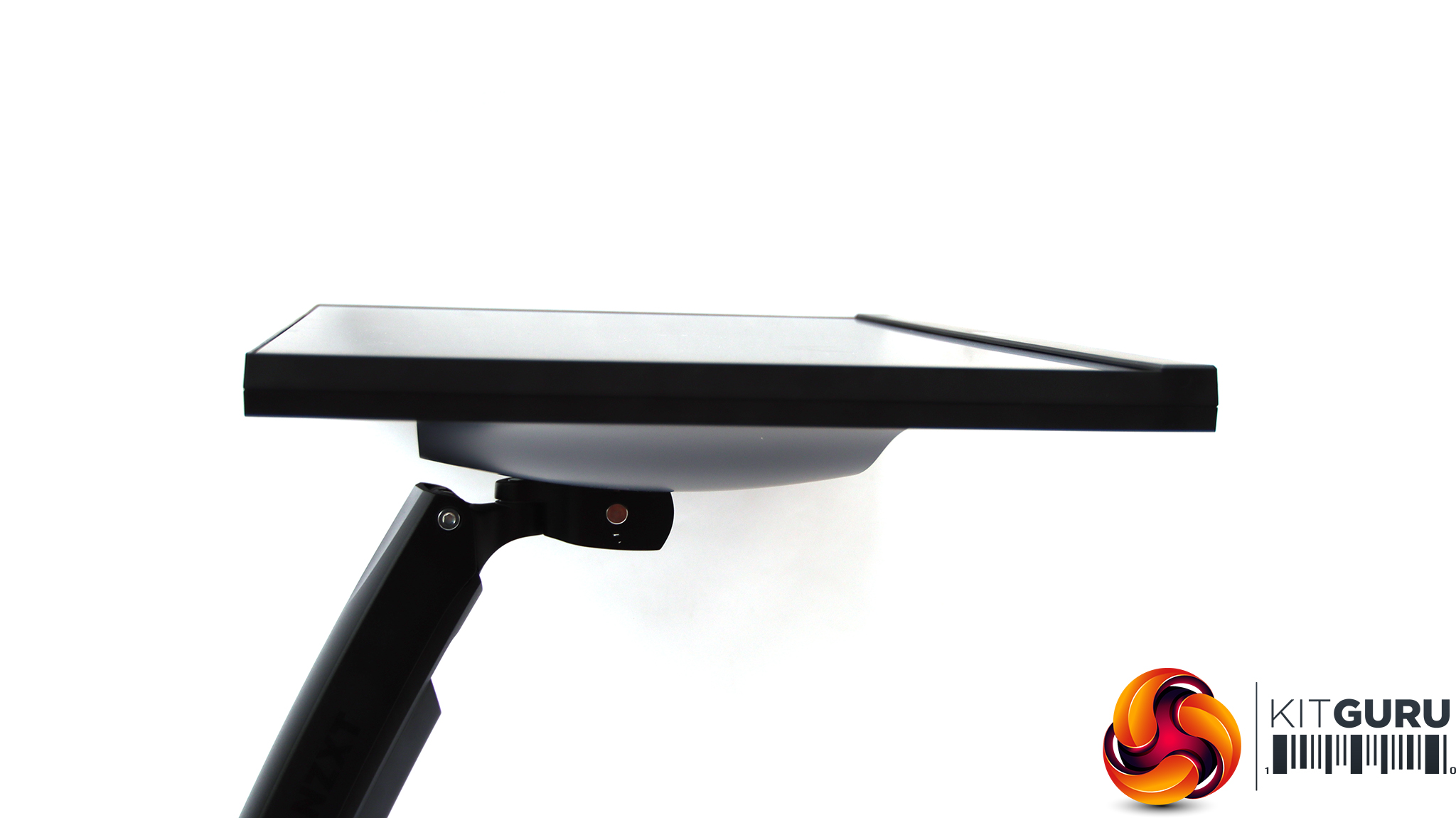
The mounting arm gives you a huge range of tilt, rotation, and height adjustments. The stand clamps firmly to a wide variety of desktop surface thicknesses, and there's a cable tidy built in to ensure your wiring doesn't just flop about behind the panel. The arms are sturdily built, with small screws to lock each section into position, but the various parts feel very secure even without these. Overall, the screen feels very safe on the arm, so long as you clamp the base firmly.
As we were sent the mounting arm, we can't show you pictures of the desktop stand, but with this installed you can adjust height up and down across 120mm, tilt 5 degrees forward or 20 degrees backward, swivel 20 degrees left and right, and pivot 90 degrees into portrait orientation (which you can also do with the mounting arm). You can also take a look at it in our Canvas 27Q review.
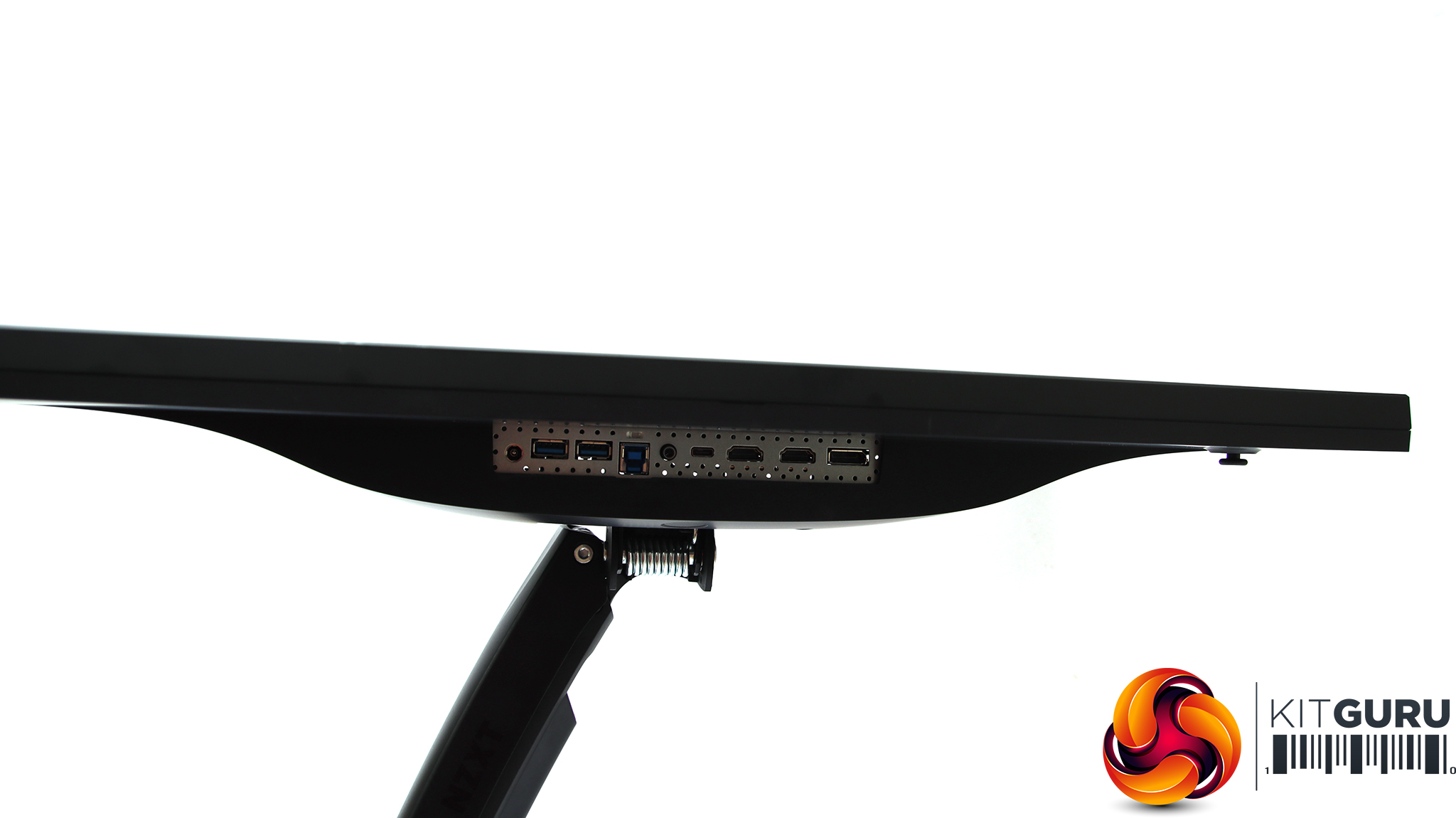
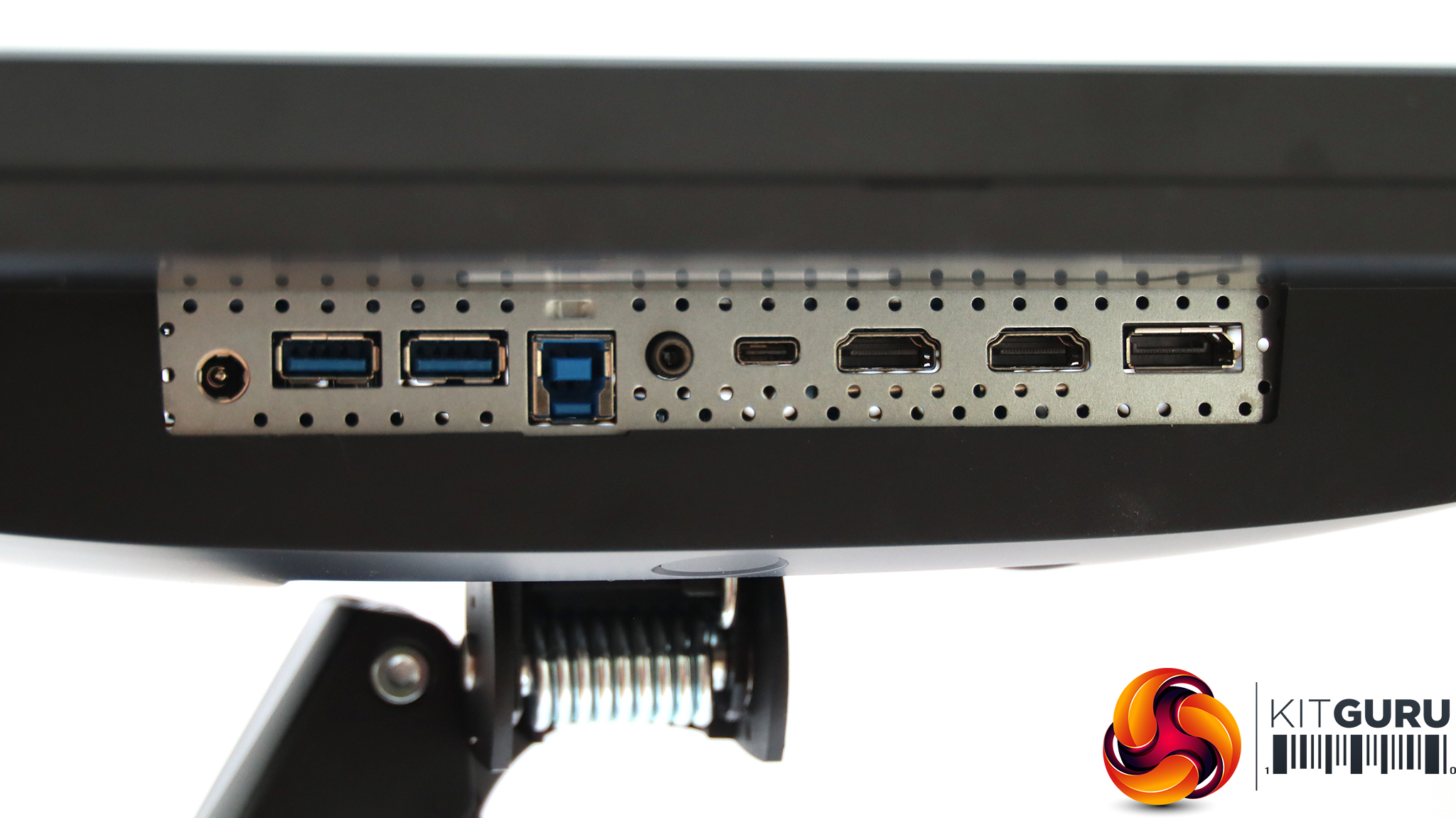
All the ports are in one line in the middle of the rear of the Canvas 25F, pointing downwards. From the right, there is a DisplayPort 1.2 connection, according to the specification, but this technically only supports 144Hz at a Full HD resolution, and we managed the full 240Hz with DisplayPort. Then you get two HDMI 2.0 ports, which also support the full 240Hz (we tested this as well), followed by USB Type C, which can act as a video input as well as upstream USB connection. Since this supports DisplayPort Alt, it can display Full HD at up to 144Hz.
However, this USB-C port is not powered, so can't charge your laptop when attached. This is a bit of a disappointment, as a single-cable laptop connection is a compelling feature of USB-C. Next along is a headphone minijack, followed by a Type B port for USB 3.0 upstream. This (or the USB C port) can drive the two USB 3.0 Type A ports. The power connection is on the right-hand end. This monitor uses an external power brick rather than having its AC-DC power supply built in.
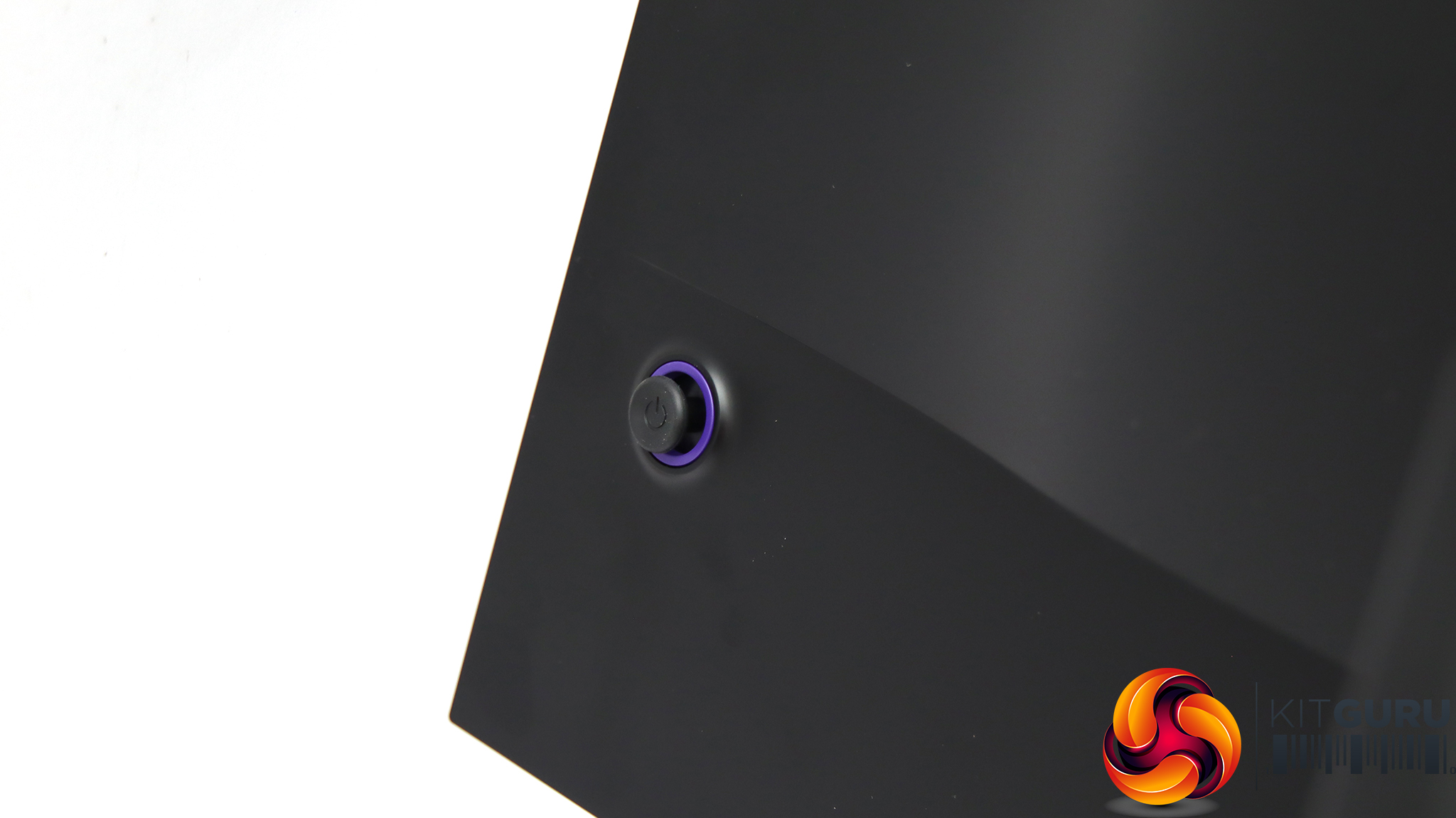
The menu system is accessed exclusively via a joystick on the back, placed in the typical position of the bottom right-hand corner as you look at the monitor from the front.
A quick press of the joystick turns the monitor on.
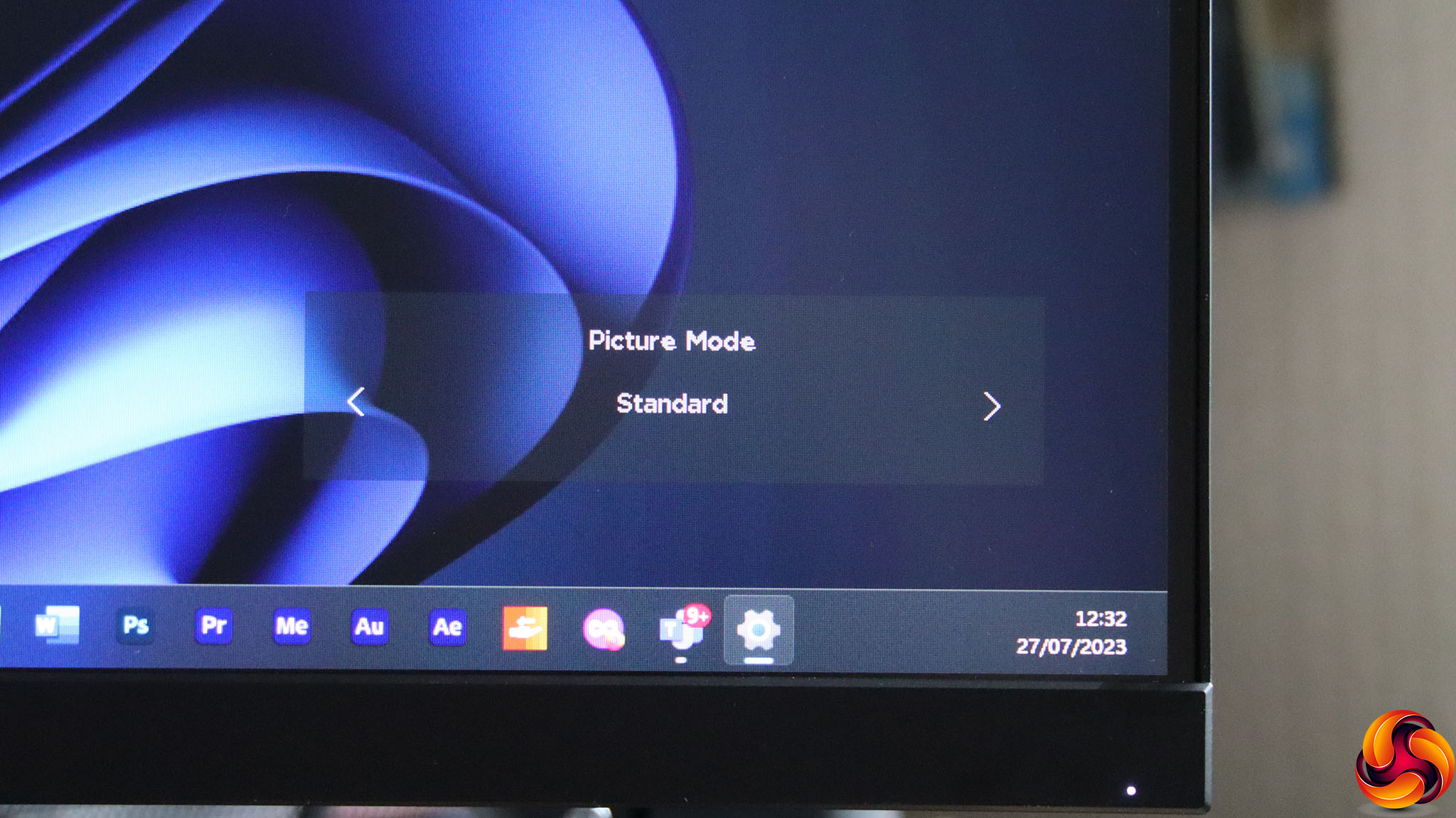
Pulling the joystick down calls up the Picture Modes. These include Standard, FPS, RTS, RPG, Racing, Cinema, Professional, and Night.
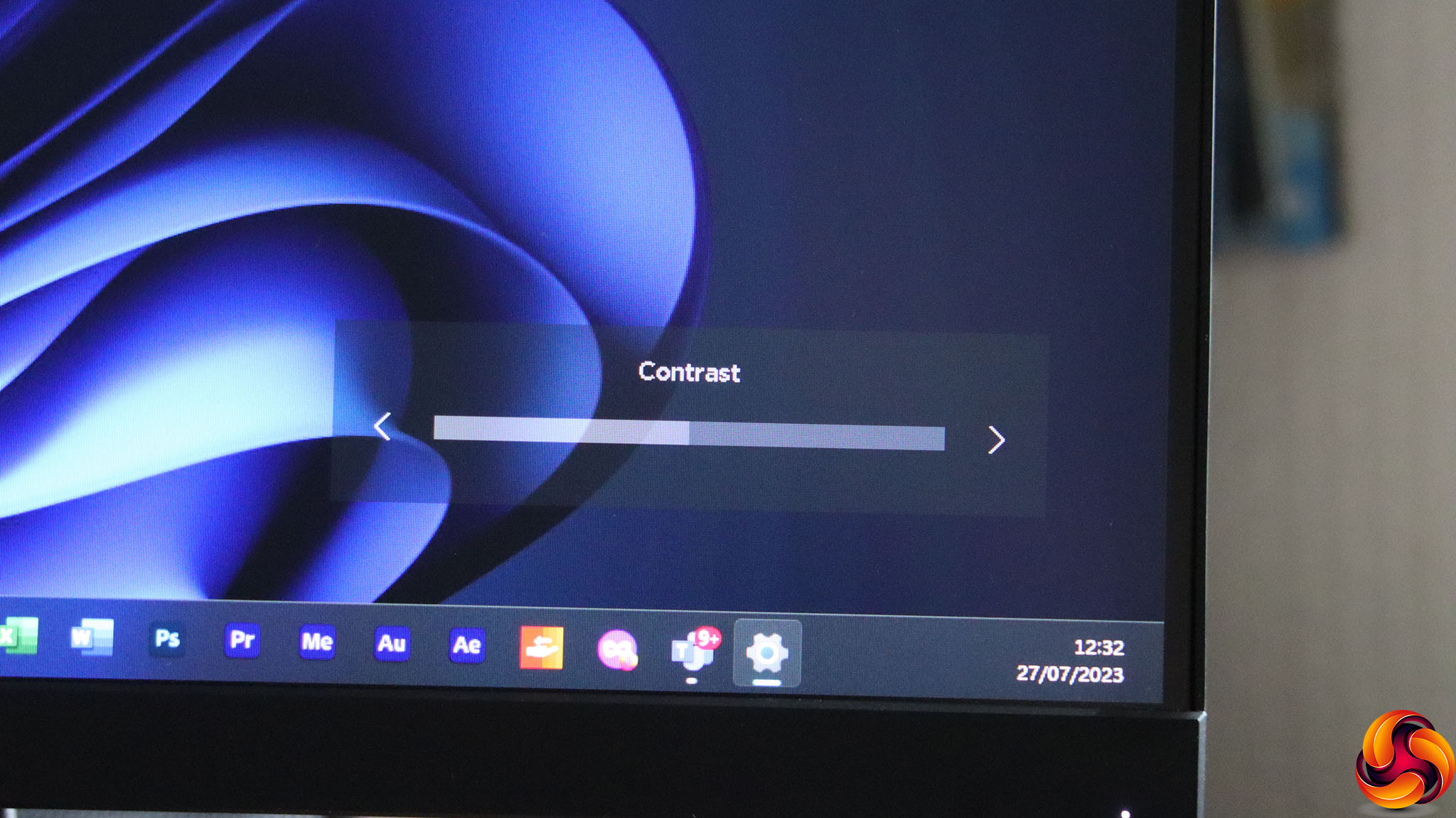
Pushing the joystick left enables contrast controls.
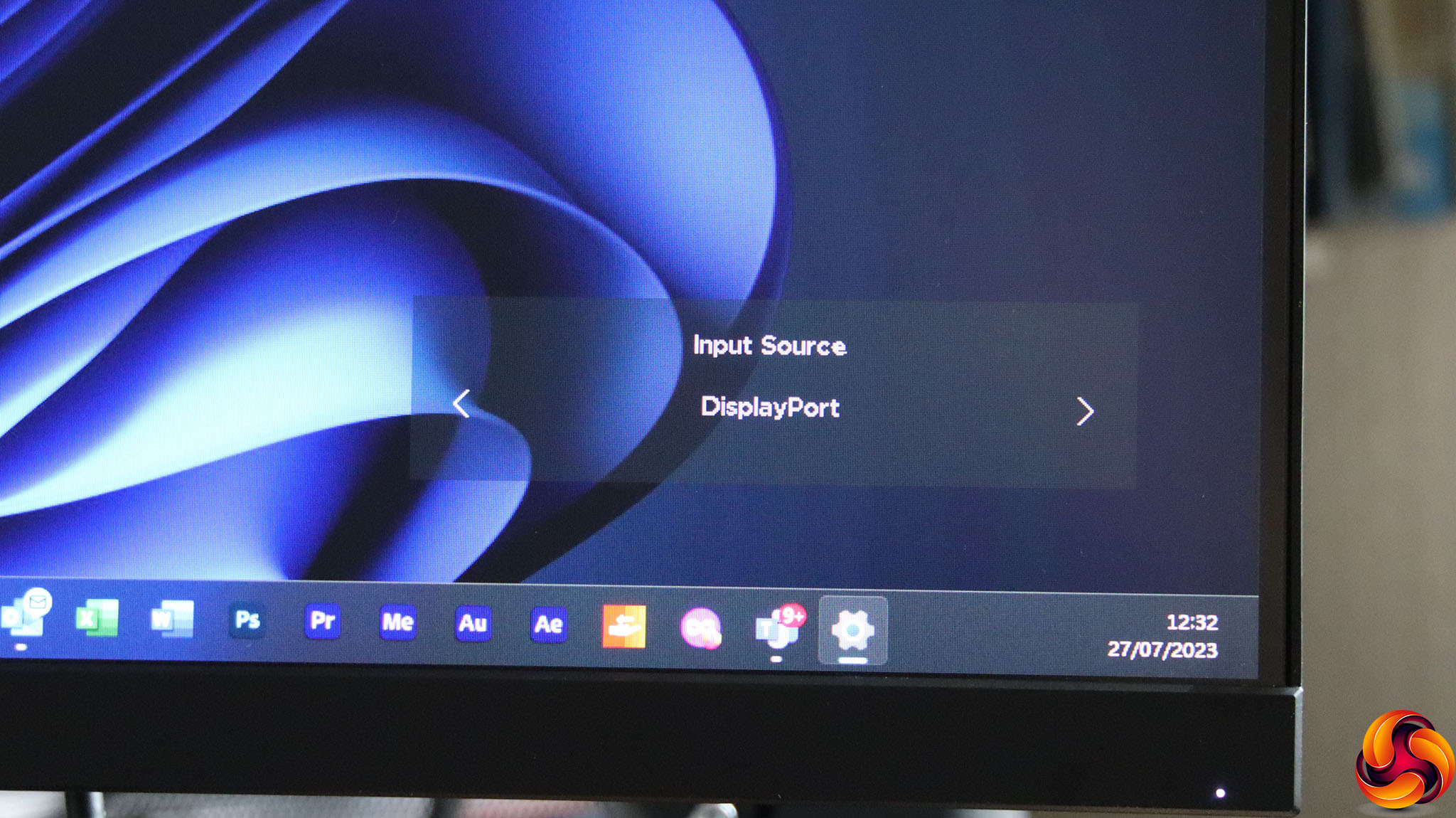
Pushing the joystick right lets you manually select the video input, if you have more than one computer attached.
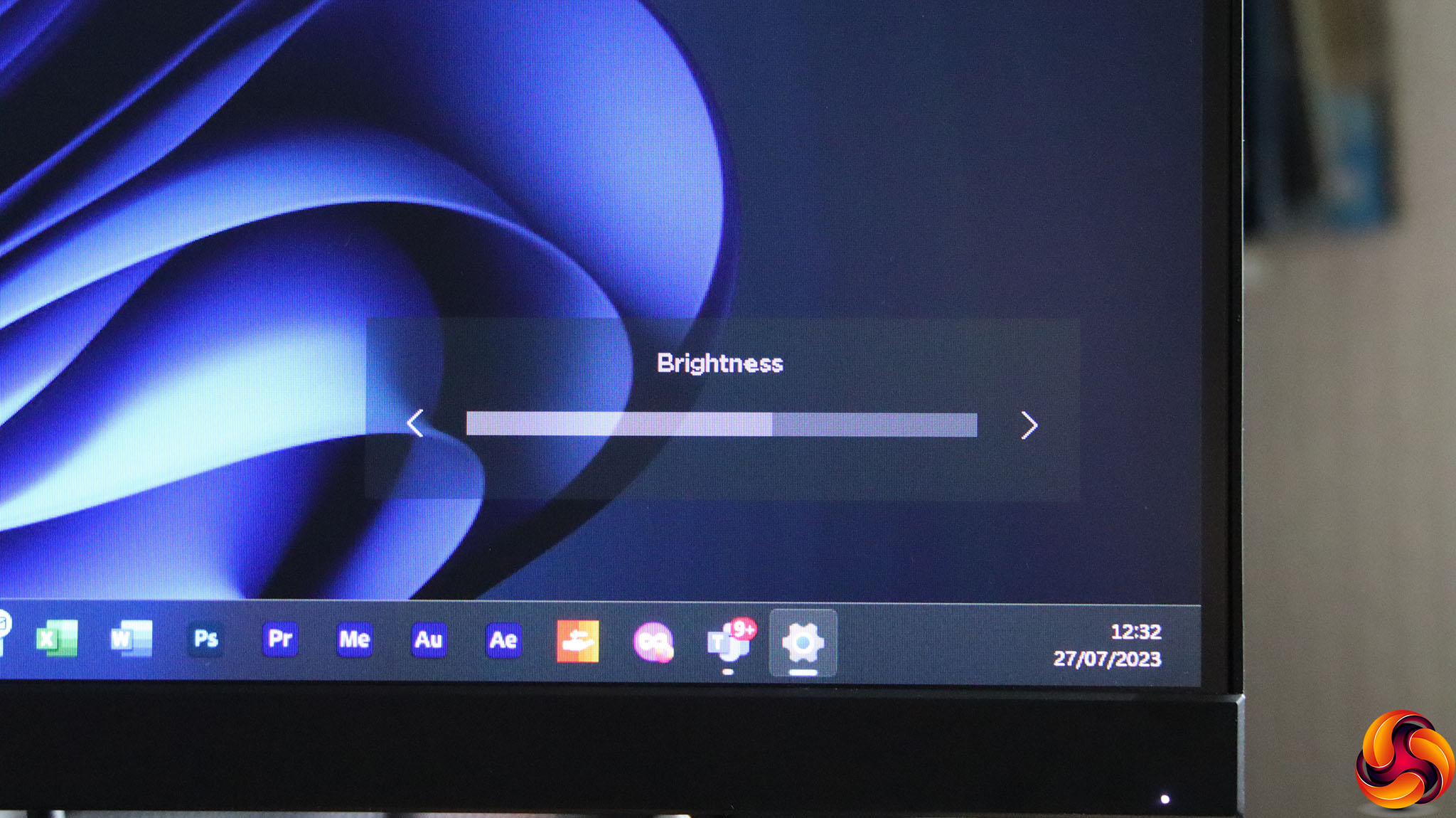
Pulling the joystick up lets you adjust brightness.
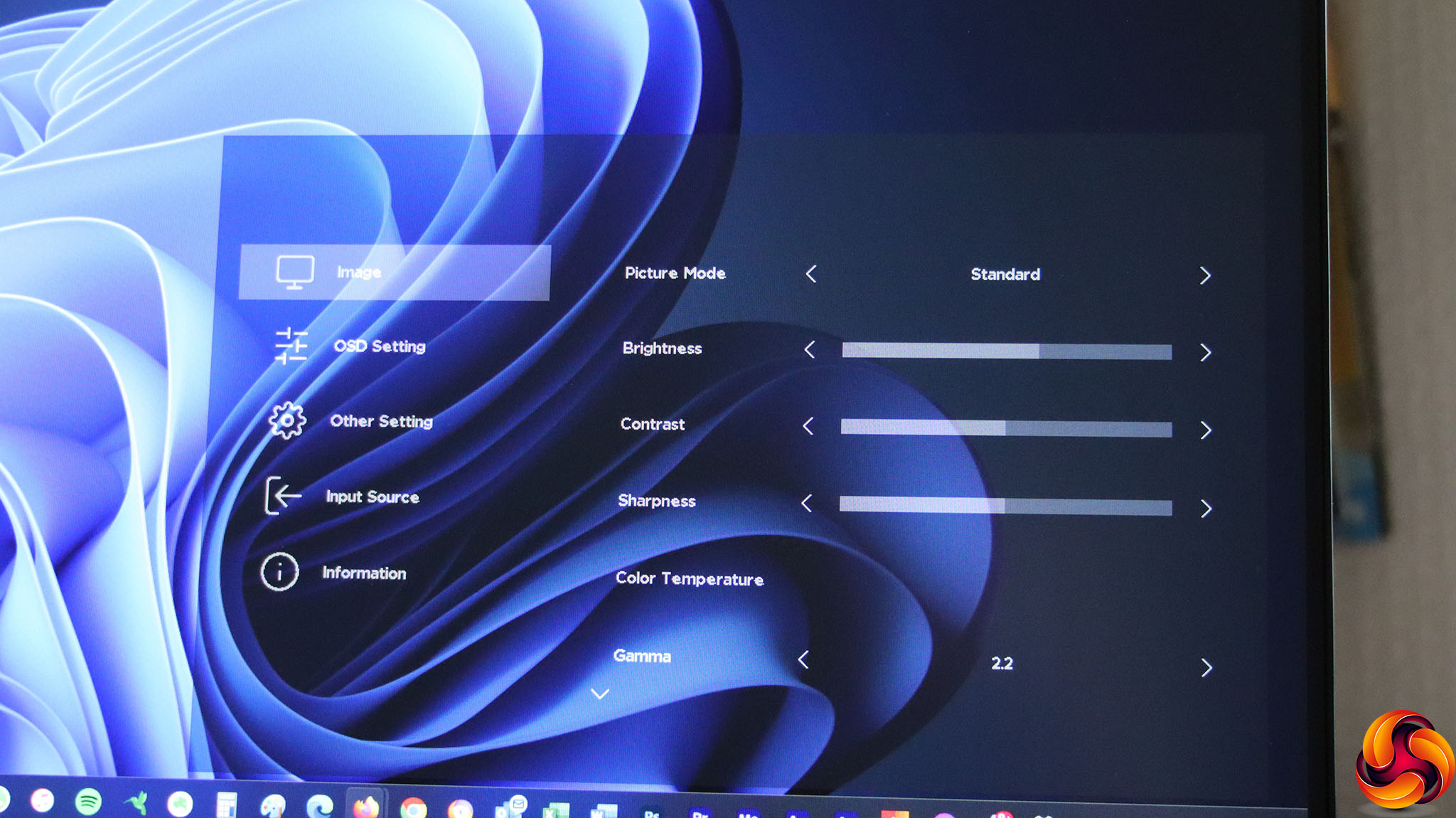
Push the joystick in and you get to the Main Menu, with the Image subsection open by default. This gives you combined access to the Picture Modes, Brightness, Contrast, and Sharpness. Color Temperature options include Cool, Normal, Warm and Custom, which lets you choose Red, Green and Blue values separately. Gamma levels include 2.0, 2.2 (the default), 2.4 and (strangely) Off. If you scroll further down, and you can alter Saturation, Response Time (Normal, Fast, Fastest), Refresh Rate display in the upper left or right corner, and turn MPRT on or off. The latter improves the perception of motion clarity when gaming. You can also vary the level of Low BlueLight and Black Equalizer, as well as force aspect ratio to 4:3 or 16:9.
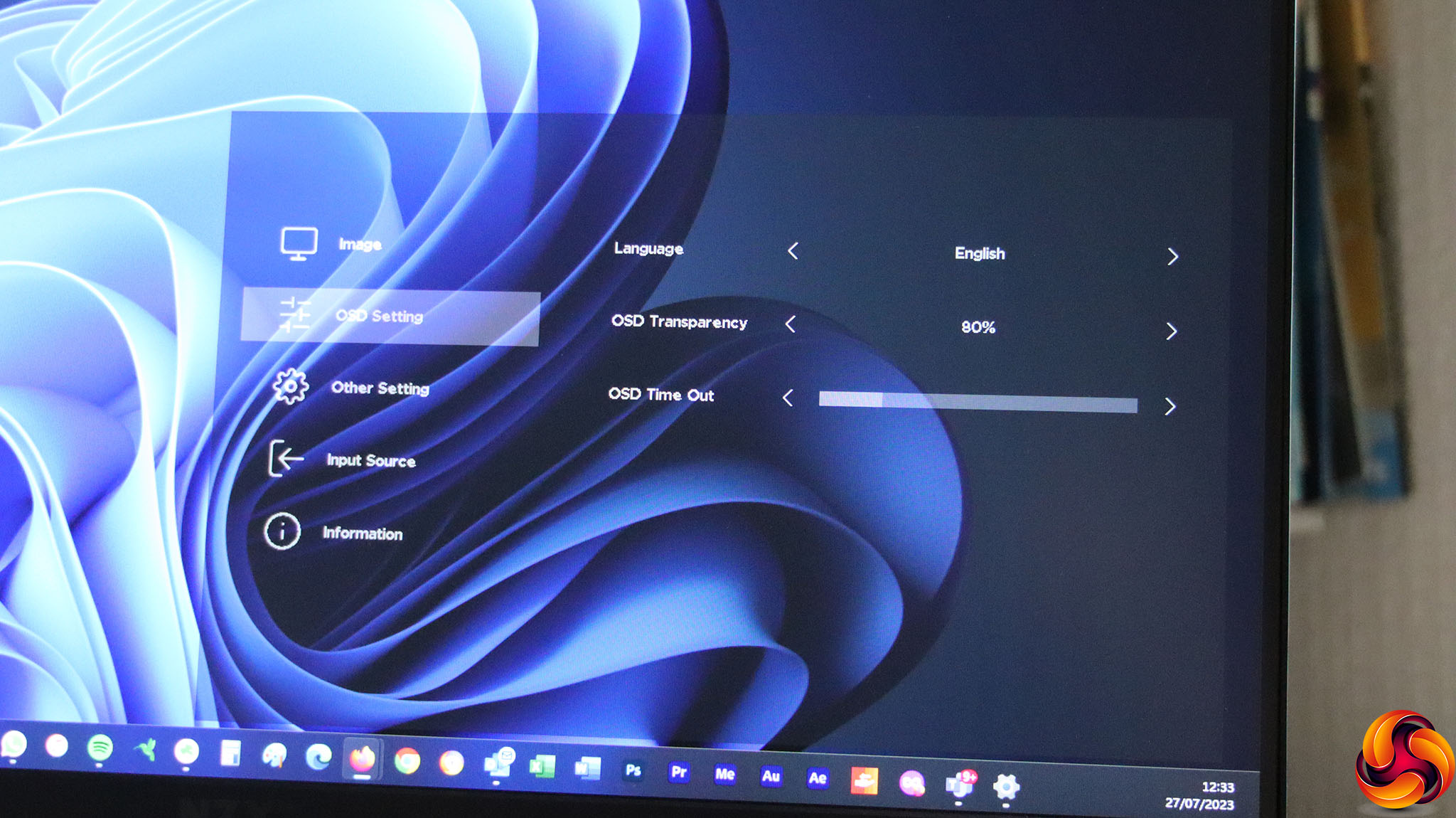
With most of the functions in the Image section, the OSD Setting section merely lets you choose the menu Language, Transparency level, and the Time Out duration after which the menu disappears.
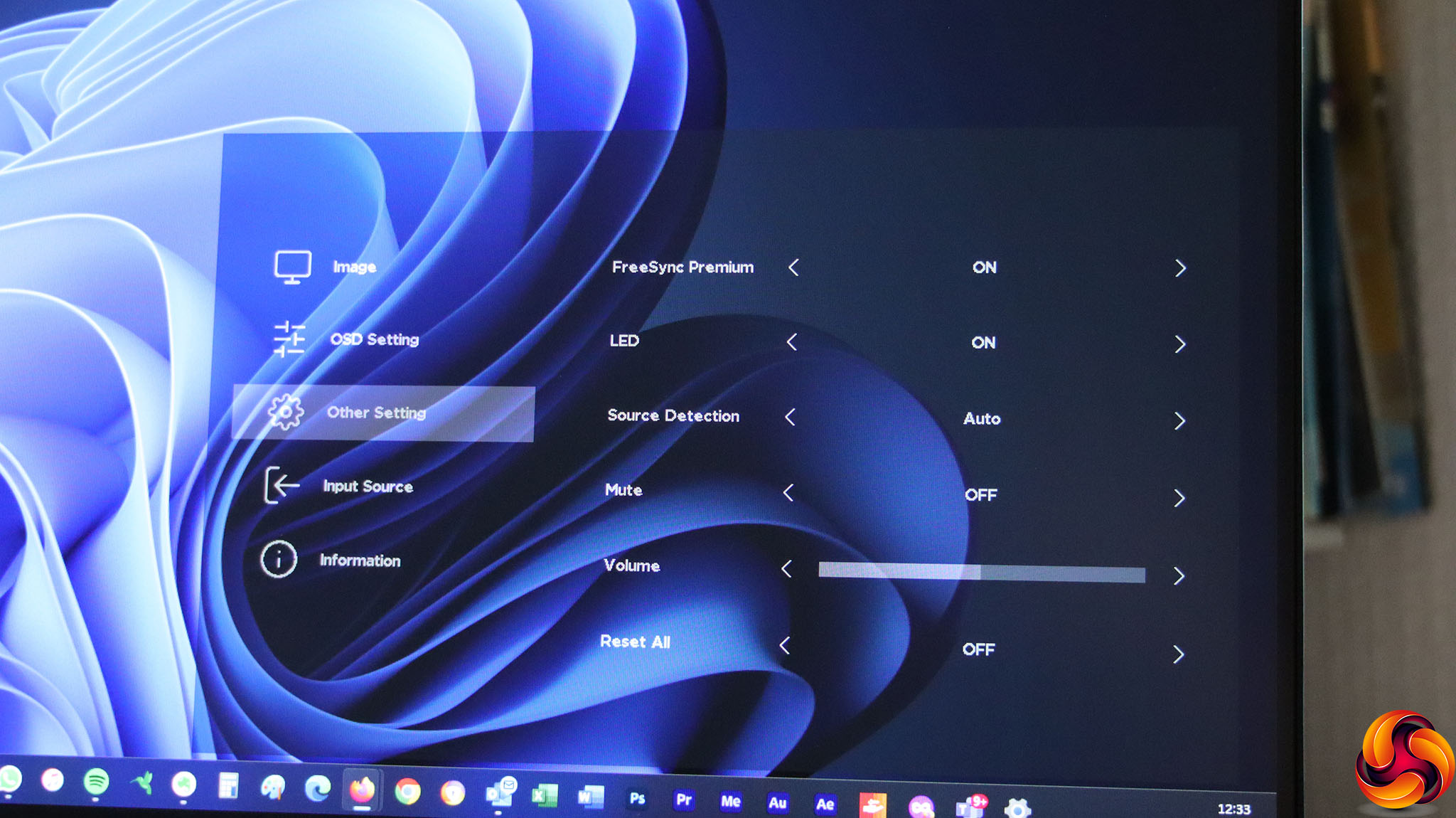
The Other Setting section lets you toggle the FreeSync Premium adaptive system, turn the LED on the front off or on, and control whether the video source is detected automatically or set manually. You can mute the audio and change the volume of attached headphones, as well as resetting everything to default.
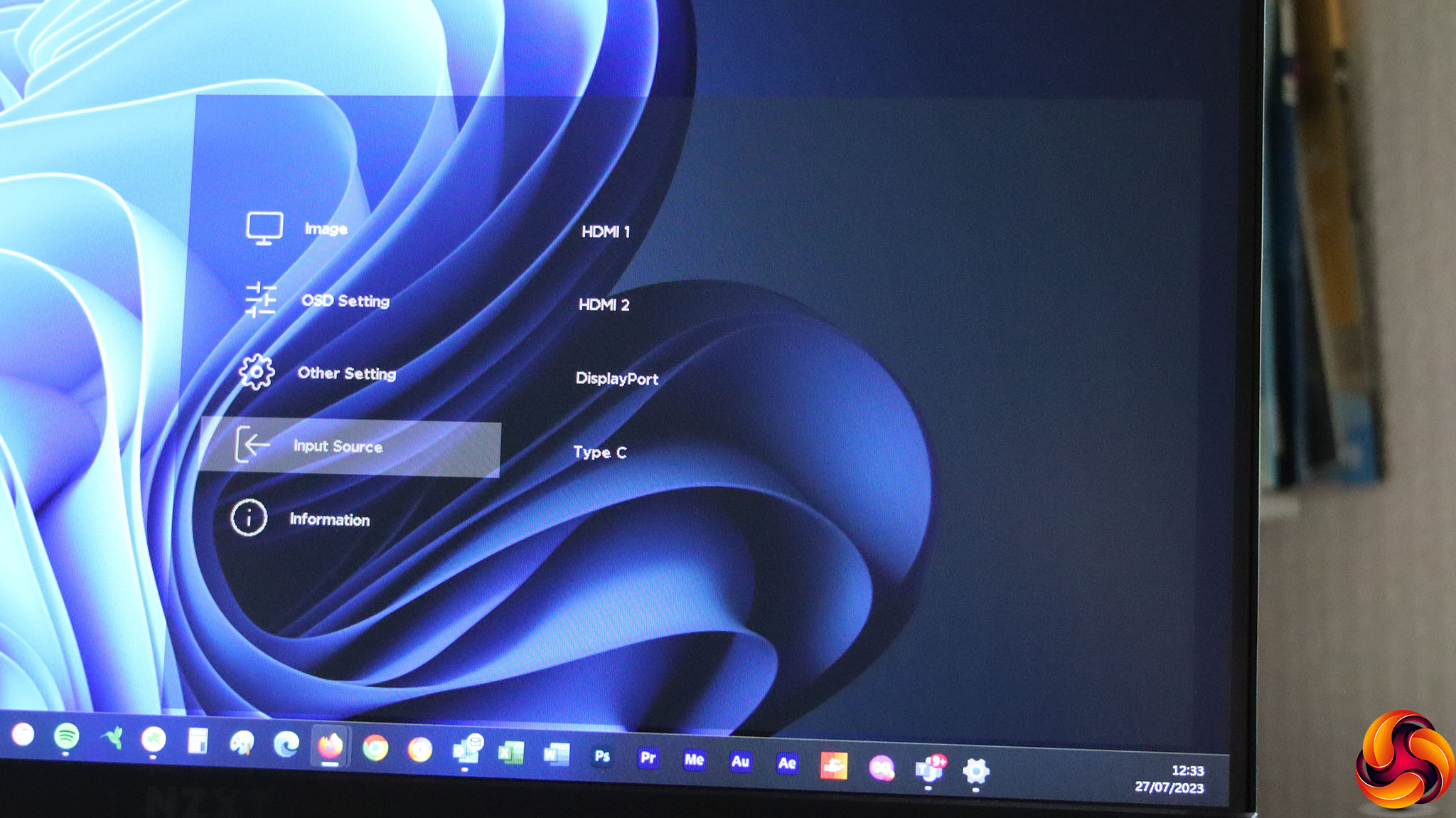
There's a section for changing the video source in the main menu, which seems a bit superfluous when there is no option to remove it from quick direct access via the joystick.
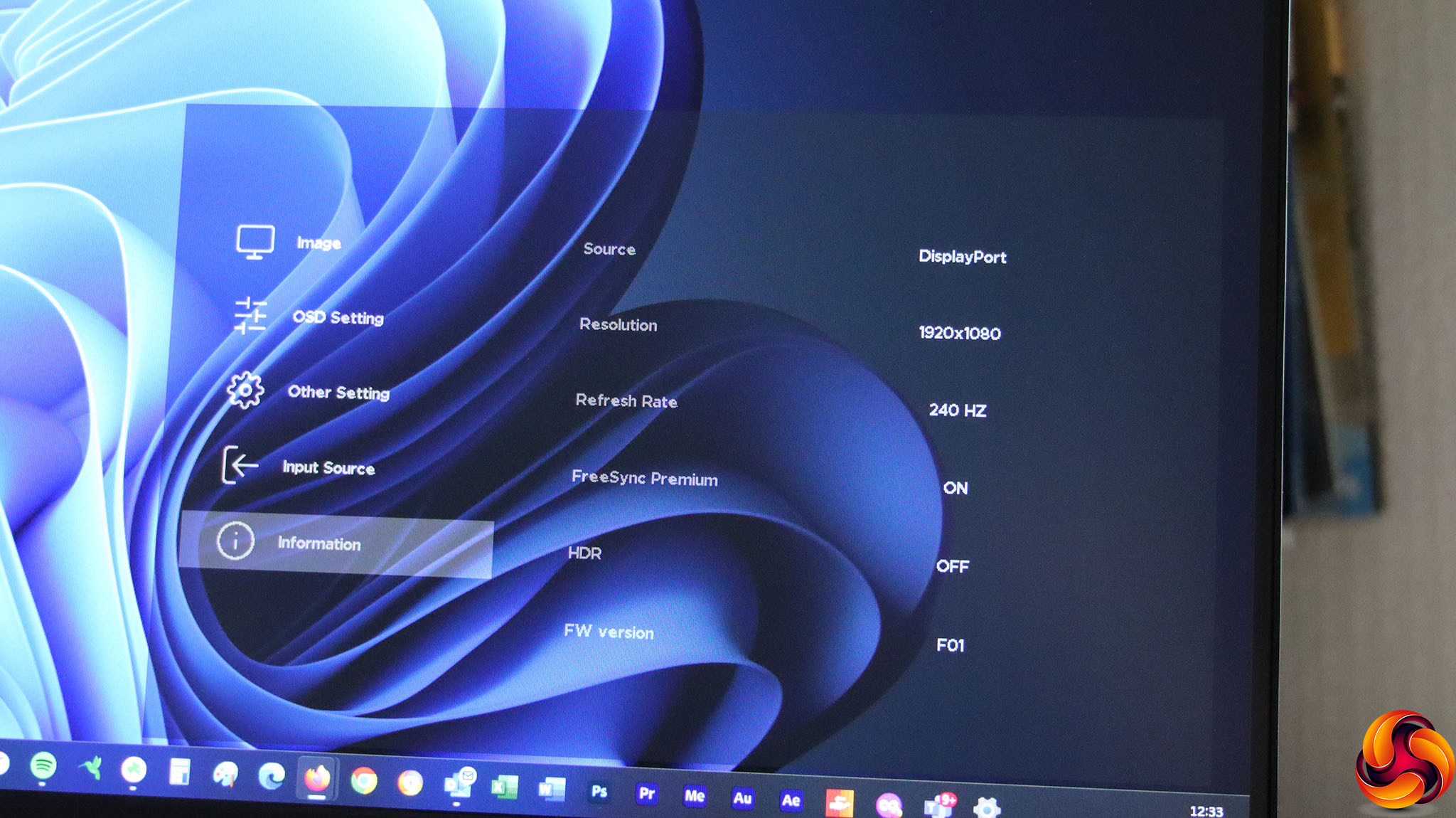
The final section simply presents Information about the current video signal input and monitor firmware.
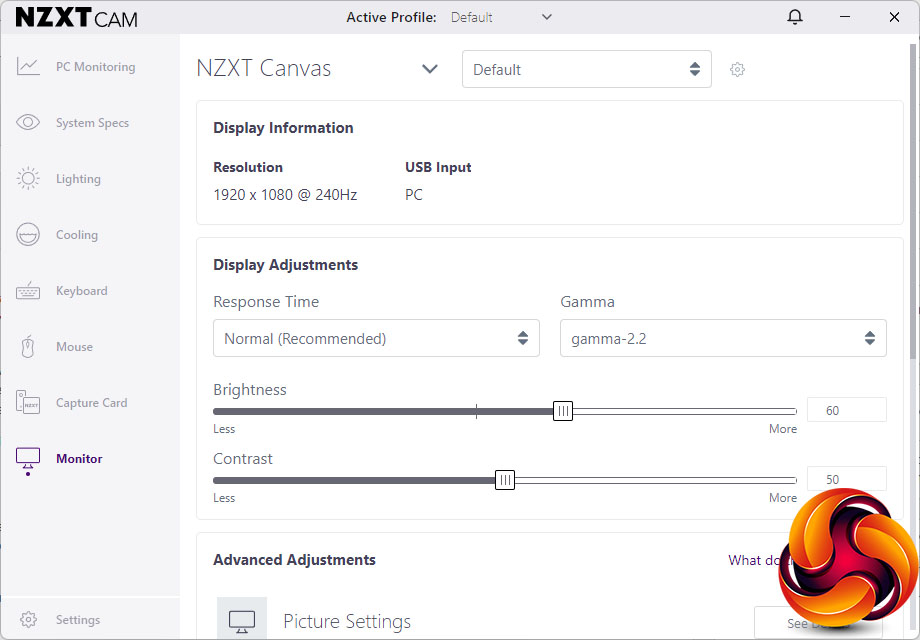
With your PC connected to the monitor via USB as well, you can install NZXT's CAM software to enable control over the screen's settings from your Windows desktop. Not every option is included, but all the most important ones are, making this a genuinely useful ease-of-use capability.
Overall, while there's a decent level of control in the OSD, we would have liked to have seen a few more games-specific features considering the price and how this is the main function of the Canvas 25F. You will get along without them, but some high-end gaming screens add bonus capabilities such as hardware crosshairs. Otherwise, this is a competent OSD with a reasonably intuitive layout, and CAM makes adjusting settings very easy.
Our main test involves using a DataColor SpyderX Colorimeter to assess a display’s image quality. The device sits on top of the screen while the software generates colour tones and patterns, which it compares against predetermined values to work out how accurate the screen is.
The results show –
- A monitor’s maximum brightness in candelas or cd/m2 at various levels set in the OSD.
- A monitor’s contrast ratio at various brightness levels in the OSD.
- The brightness deviation across the panel.
- The black and white points.
- The colour accuracy, expressed as a Delta E ratio, with a result under 3 being fine for normal use, and under 2 being great for colour-accurate design work.
- The exact gamma levels, with a comparison against preset settings in the OSD.
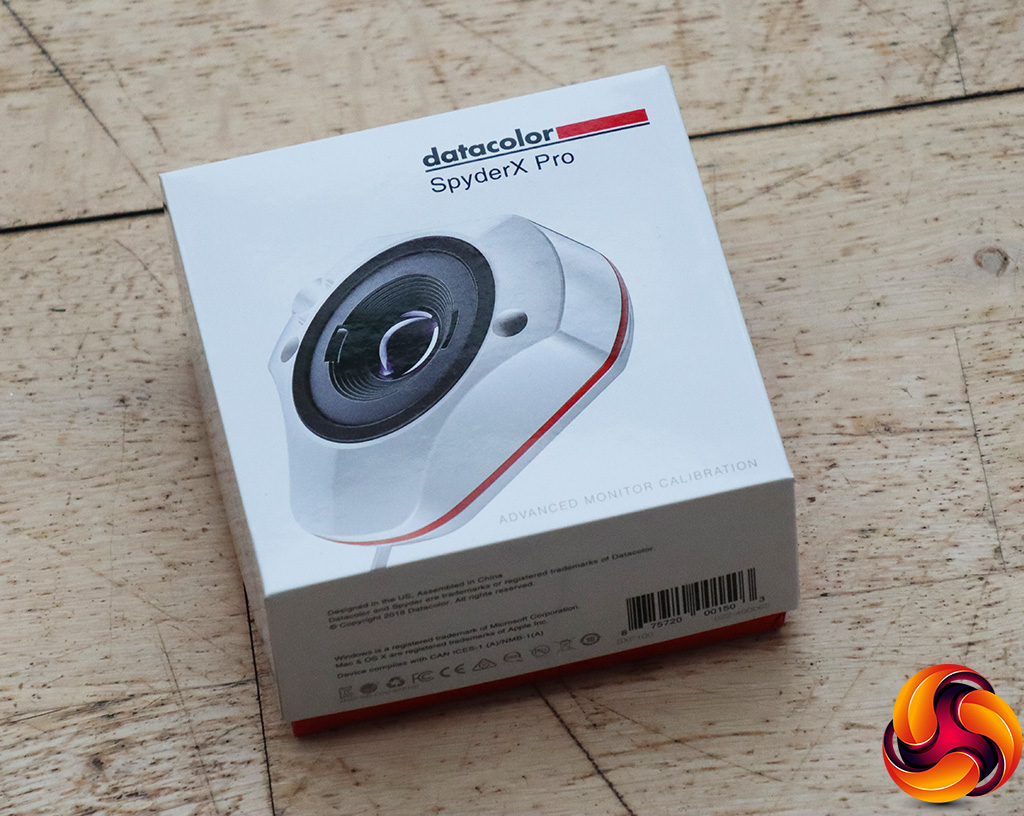
We first run this test with the display in its default, out-of-the-box state, with all settings on default. We then calibrate the screen using the Spyder software and run the test again.
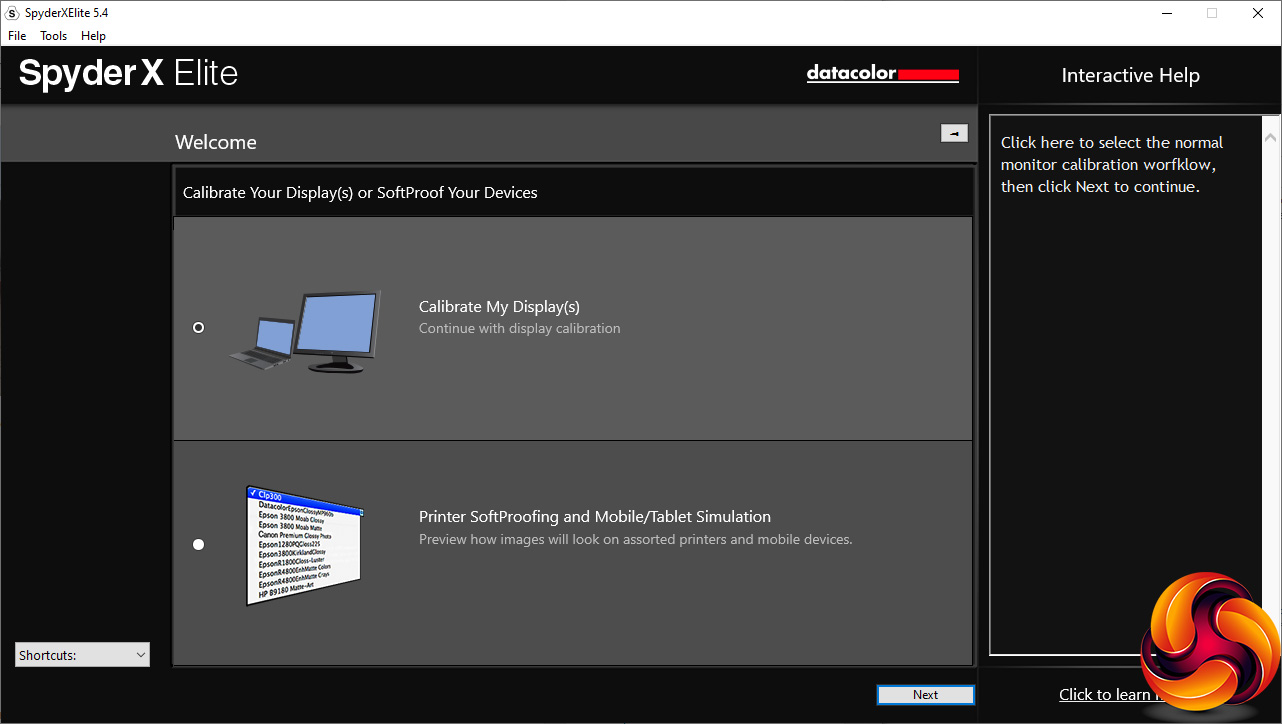
We always test the display subjectively on the Windows desktop, using it for general tasks such as browsing and word processing, and with games as well, even if the display is not intended solely for that purpose.
We pay careful attention to any artefacts, ghosting or motion blur, and enable any gaming-specific features, such as adaptive-sync settings like G-Sync or FreeSync, using a compatible graphics card in our test PC.
We performed the quality tests on the NZXT Canvas 25F at its native 1,920 x 1,080 resolution in the default mode, after resetting the OSD. Our test system was equipped with an AMD Radeon Vega Frontier Edition graphics card, which supports FreeSync.
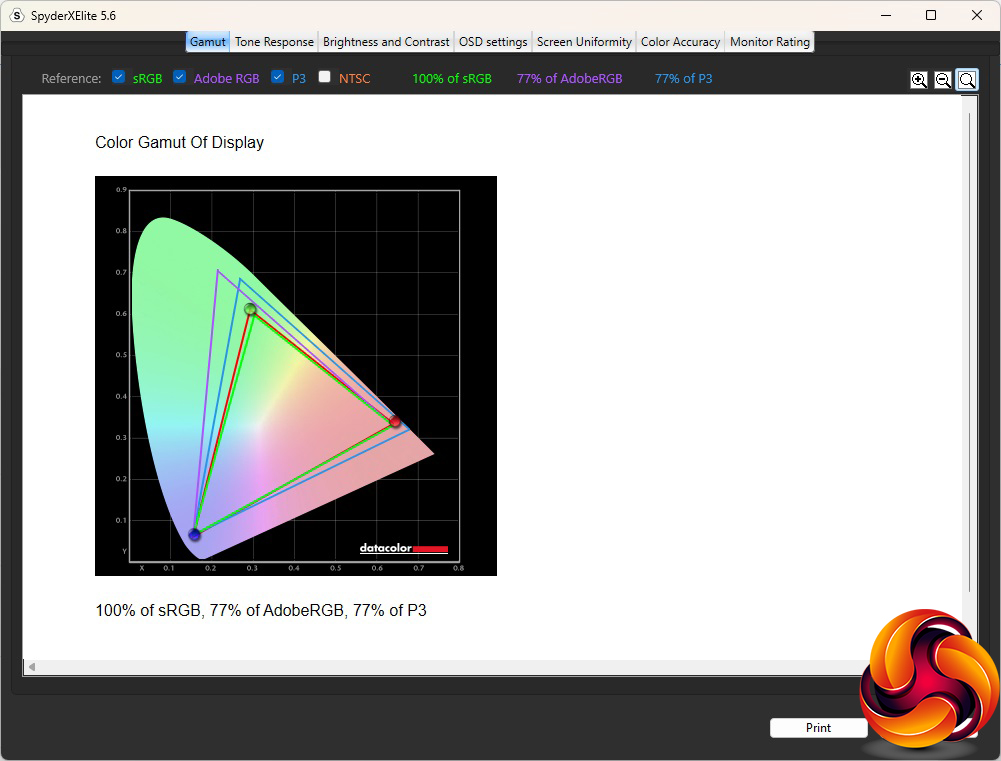
The Canvas 25F exceeded its sRGB gamut, hitting 100 per cent, but was not so impressive with P3. The result of 77 per cent isn't bad but we've seen a lot better elsewhere.
 T
T
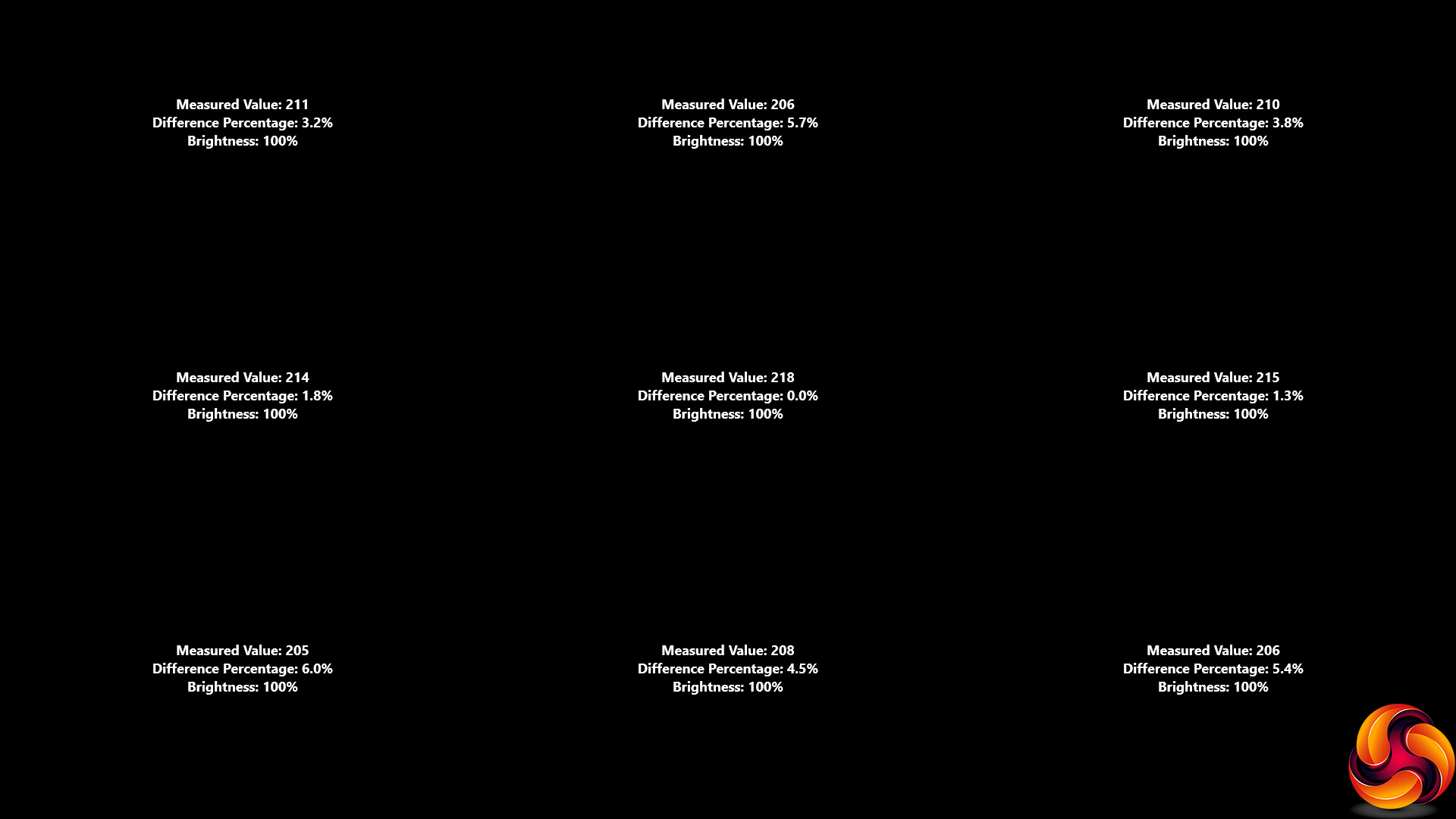
The brightness was very evenly distributed across the panel – it's impressive for an LCD display.
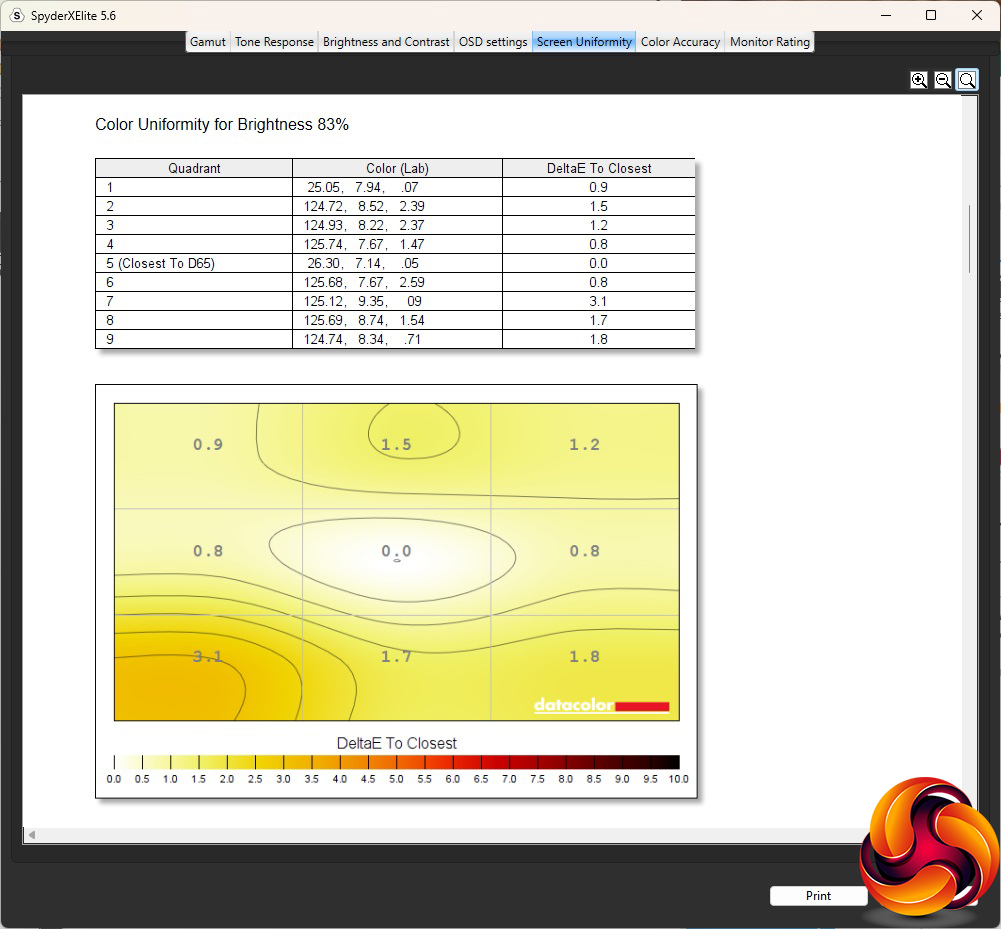
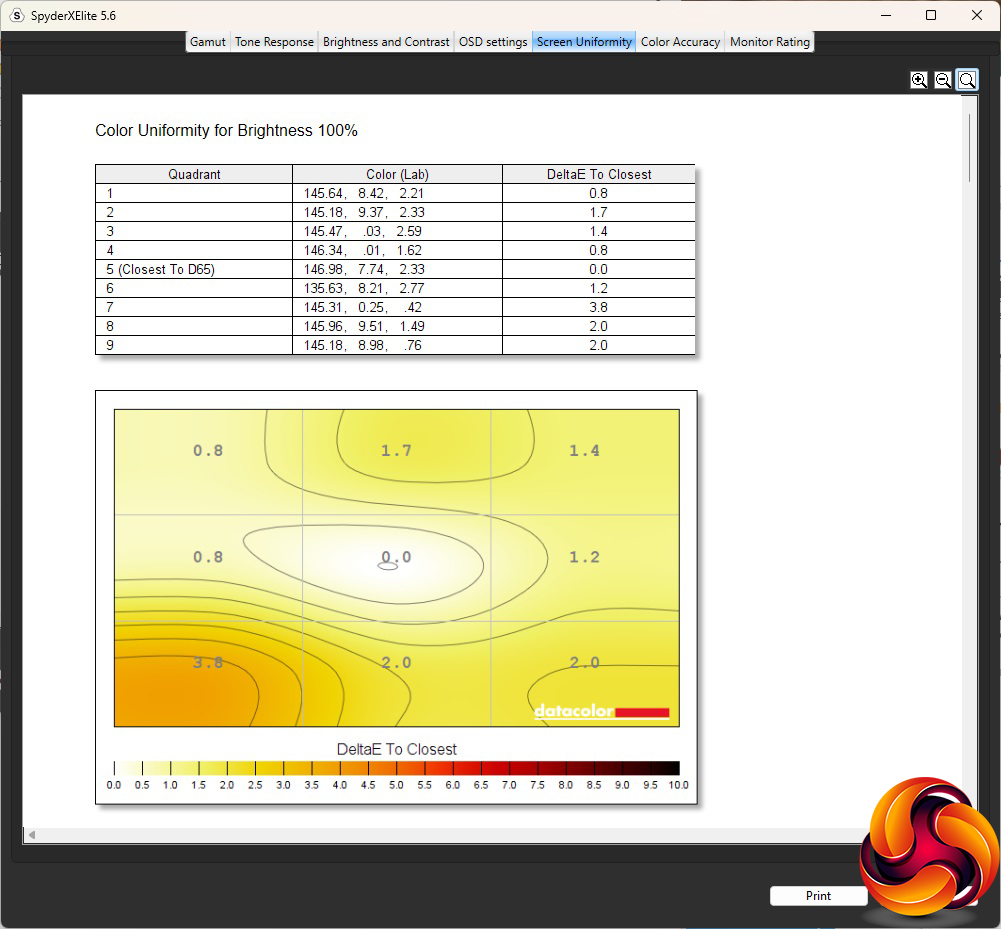
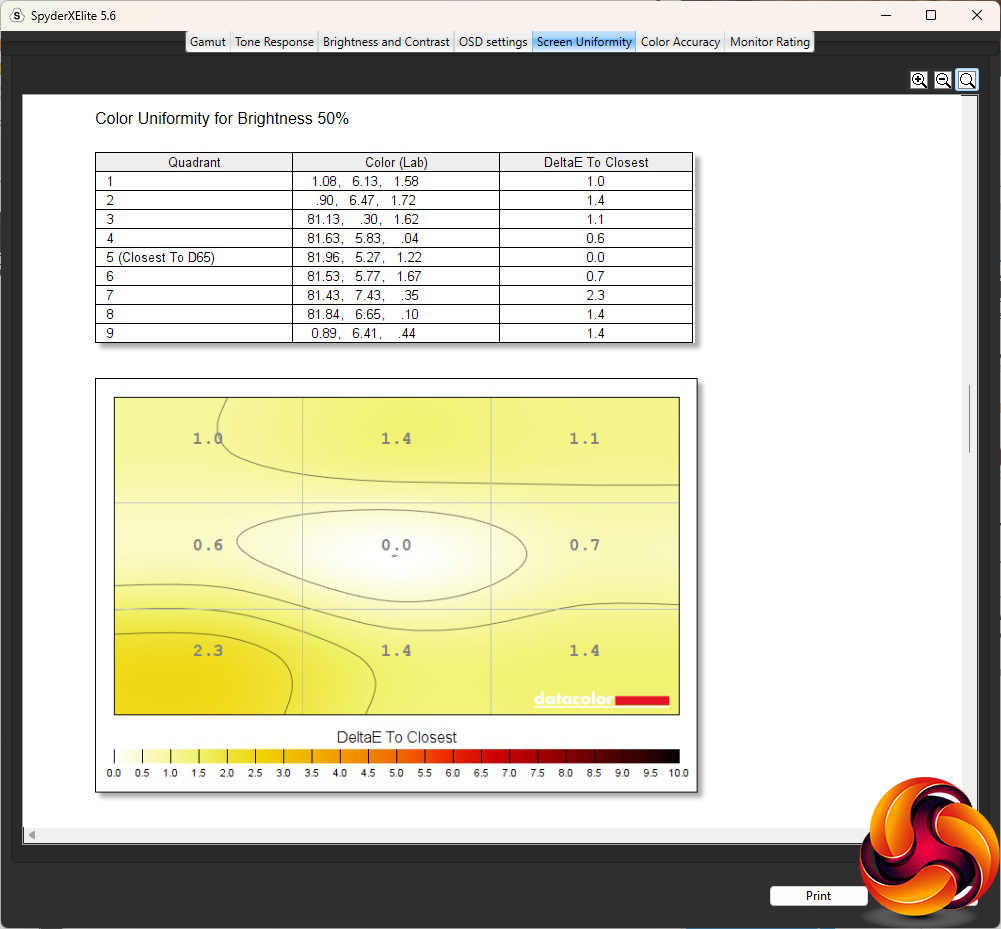
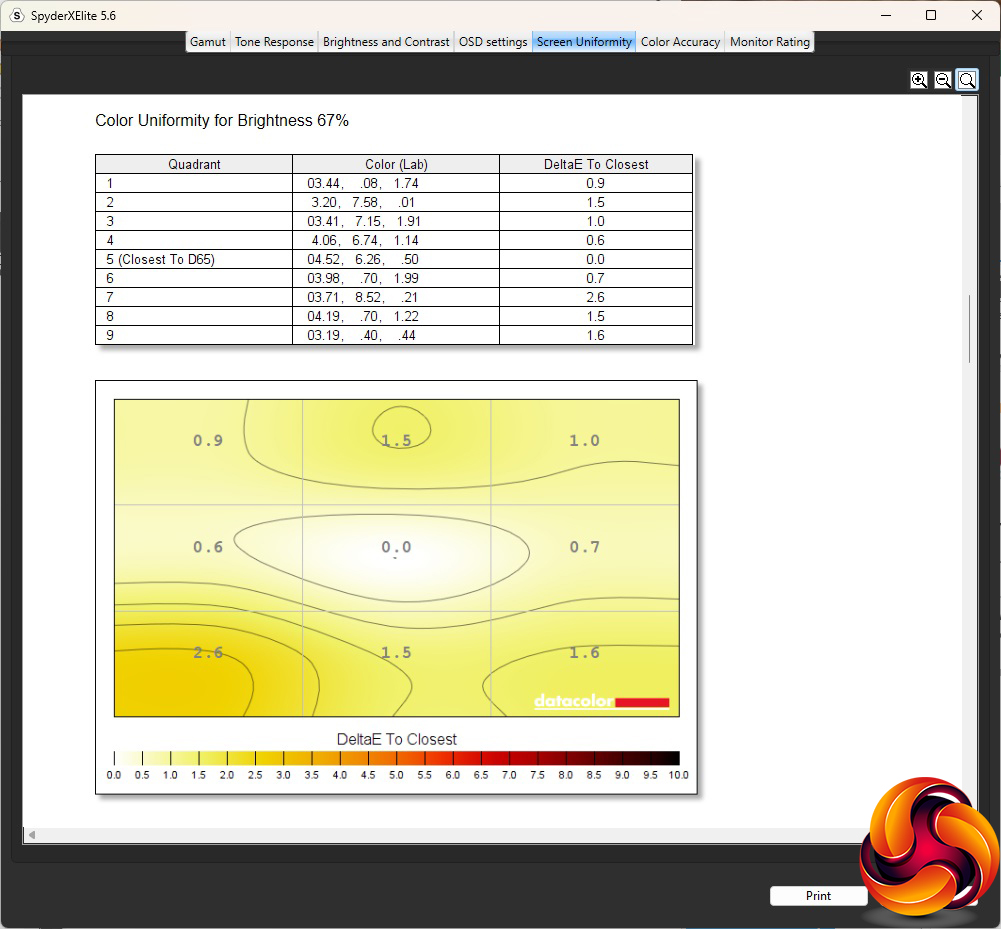
Likewise for colour uniformity, which is very evenly distributed at all brightness levels.
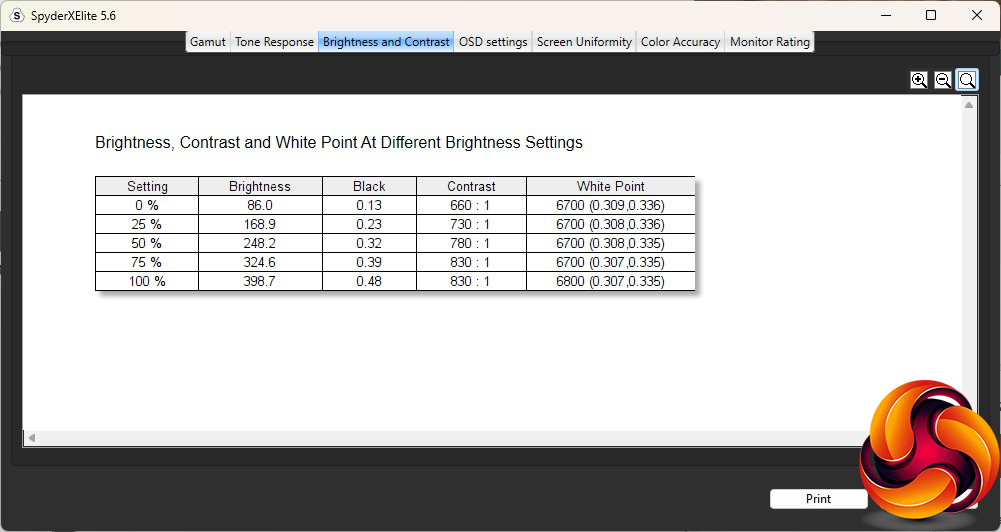
This panel lives up well to its rating, hitting 398.7Cd/m2 of brightness at 100% which is virtually spot on for the 400Cd/m2 specification. Contrast increases as the brightness goes up, and the top 830:1 is good considering that we test this at the default which is not 100 per cent contrast anyway. It's certainly close enough to the 1,000:1 rating for this IPS panel. The white balance is stable as the brightness increases.
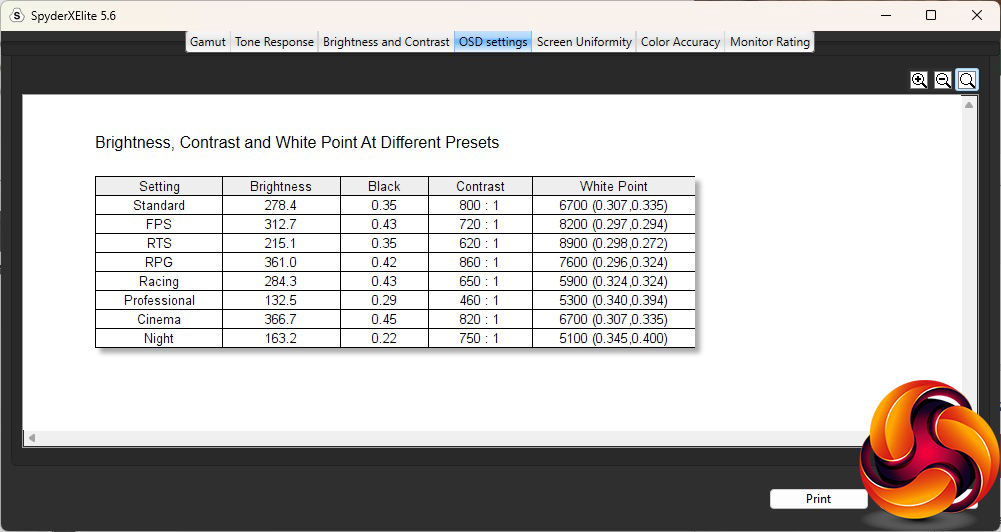
This monitor's default Standard mode brightness setting is 60 per cent, which delivers 278.4Cd/m2 and 800:1 contrast. The white point of 6700K is in the ballpark of what you would hope for, which is typically expected to be 6500K. FPS mode bumps up the brightness a little to 312.7Cd/m2 but with a slightly lower 720:1 contrast and a much cooler 8200K white point, which is quite a noticeable difference. Even more pronounced is RTS mode, which uses a 8900K white point, with lower 215.1Cd/m2 brightness and 620:1 contrast. The RPG setting is back in the other direction, with a 361Cd/m2 brightness, 860:1 contrast and 7600K white point. The final gaming preset, Racing, offers 284.3Cd/m2 brightness and 650:1 contrast, but a much warmer 5900K white point.
Strangely, the Professional option is even warmer, with a 5300K white point. This is combined with a low 132.5Cd/m2 brightness and 460:1 contrast. We wonder why you would want a warm hue if you're working on graphics, for example. Cinema mode ups the brightness to near maximum at 366.7Cd/m2 with 820:1 contrast, but a mid-range 6700K white point. We usually expect movie-watching modes to use a cooler white point than this. Finally, unsurprisingly, Night mode is the warmest with a 5100K white point, as this will drop the blue light level to help combat eye tiredness. The brightness is also reduced to 163.2Cd/m2 but the contrast remains relatively high at 750:1.
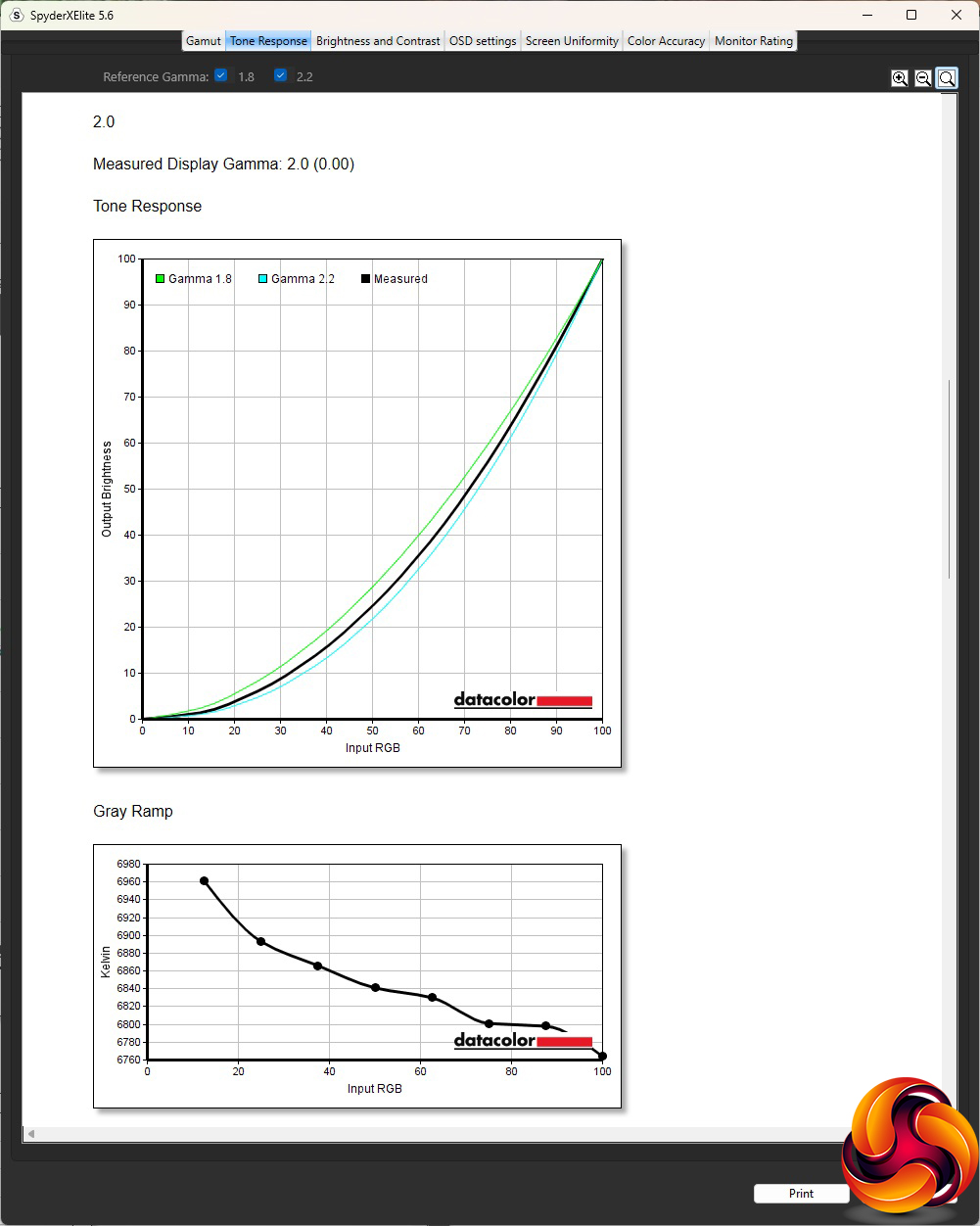
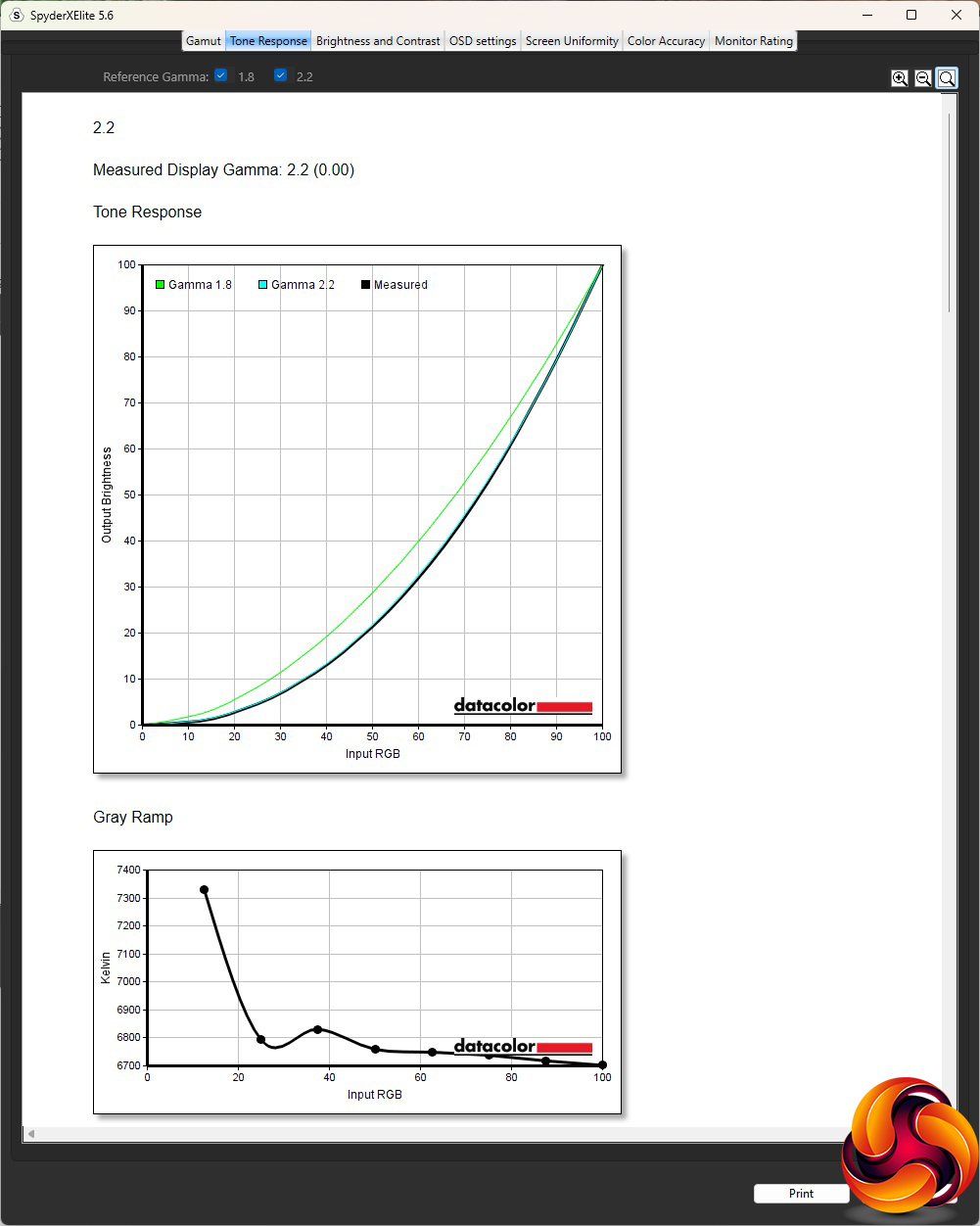
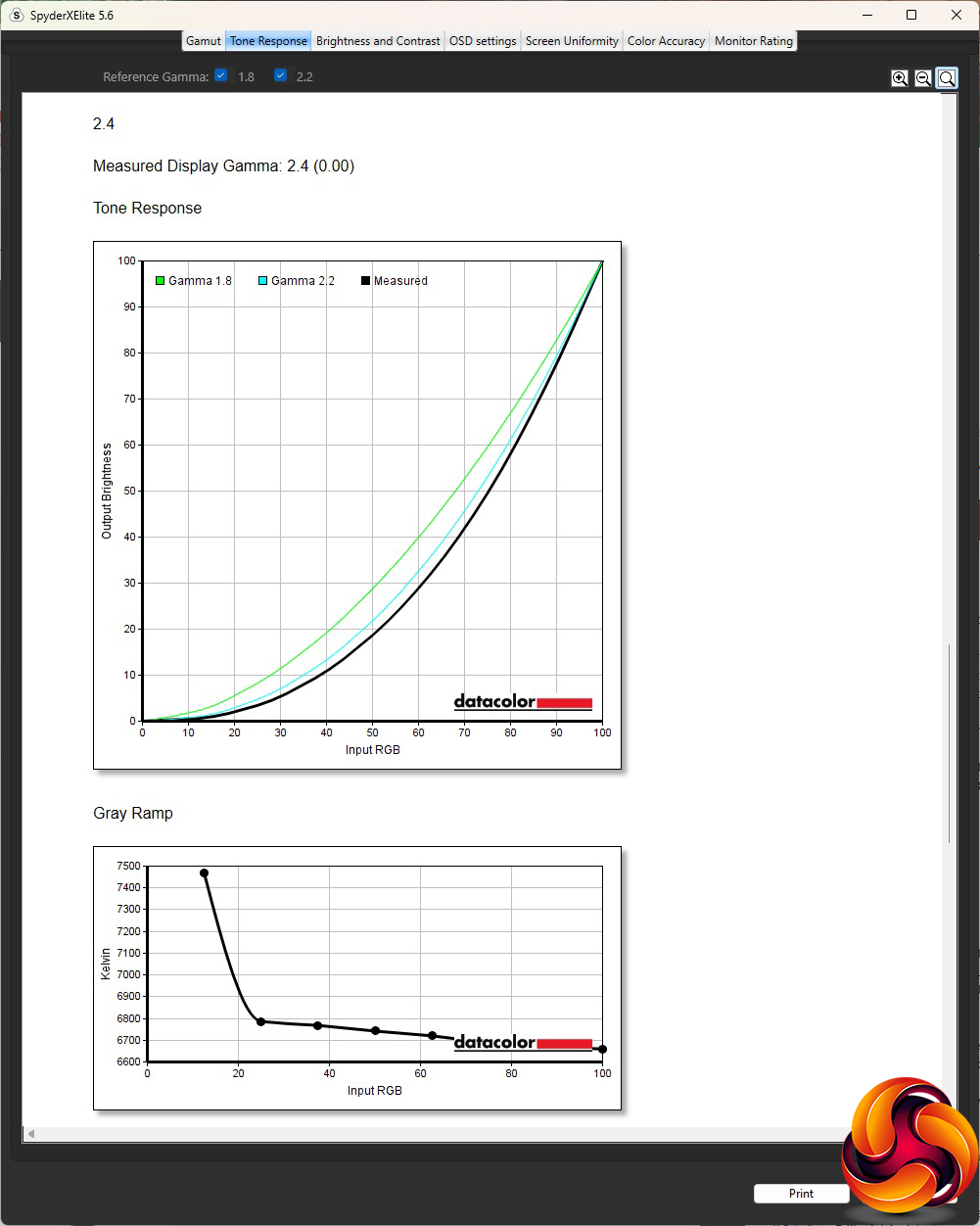
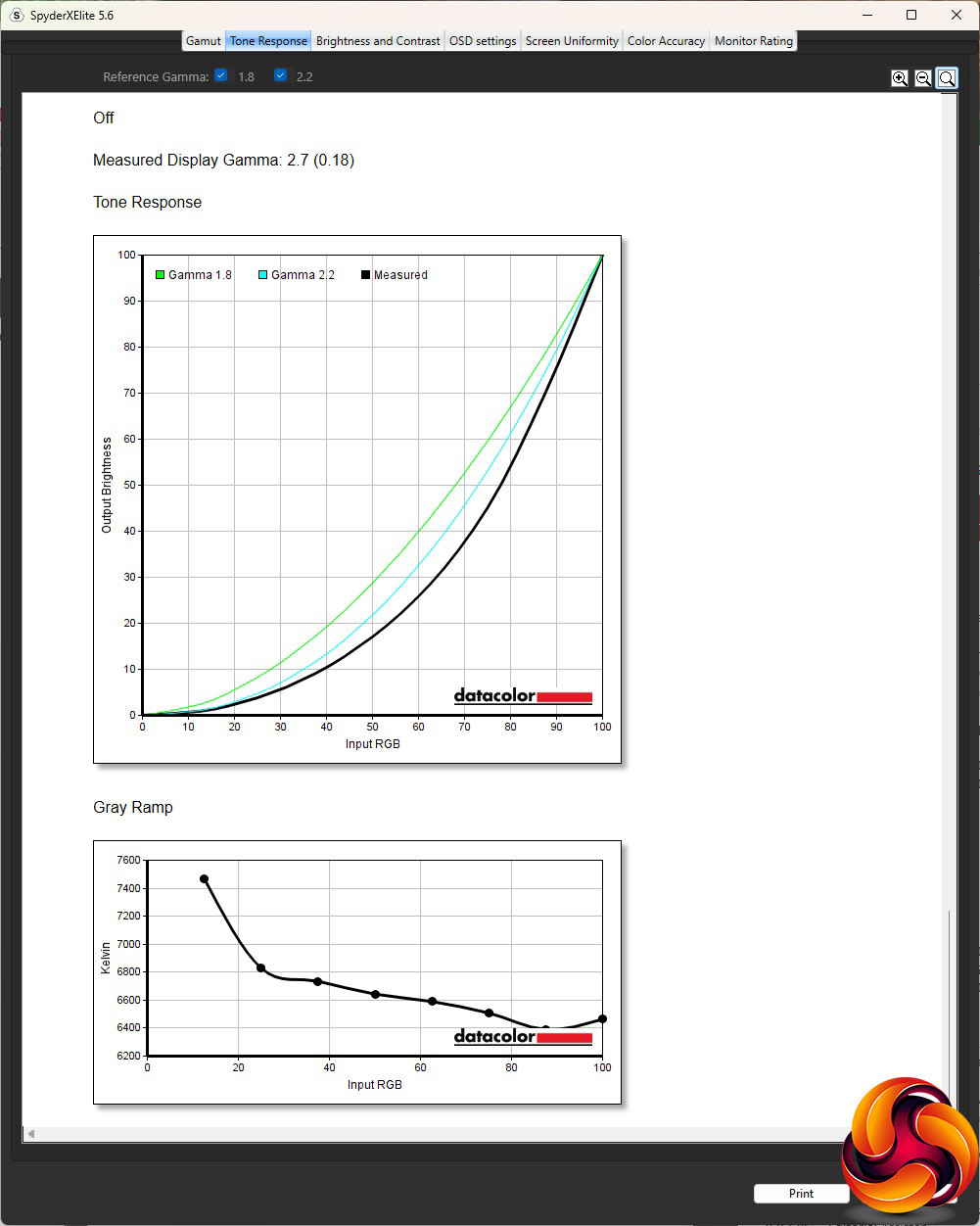
The three gamma are spot on their intended values, giving you true 2.0, 2.2 and 2.4 options. The slightly odd “Off” setting ups the gamma to 2.7.
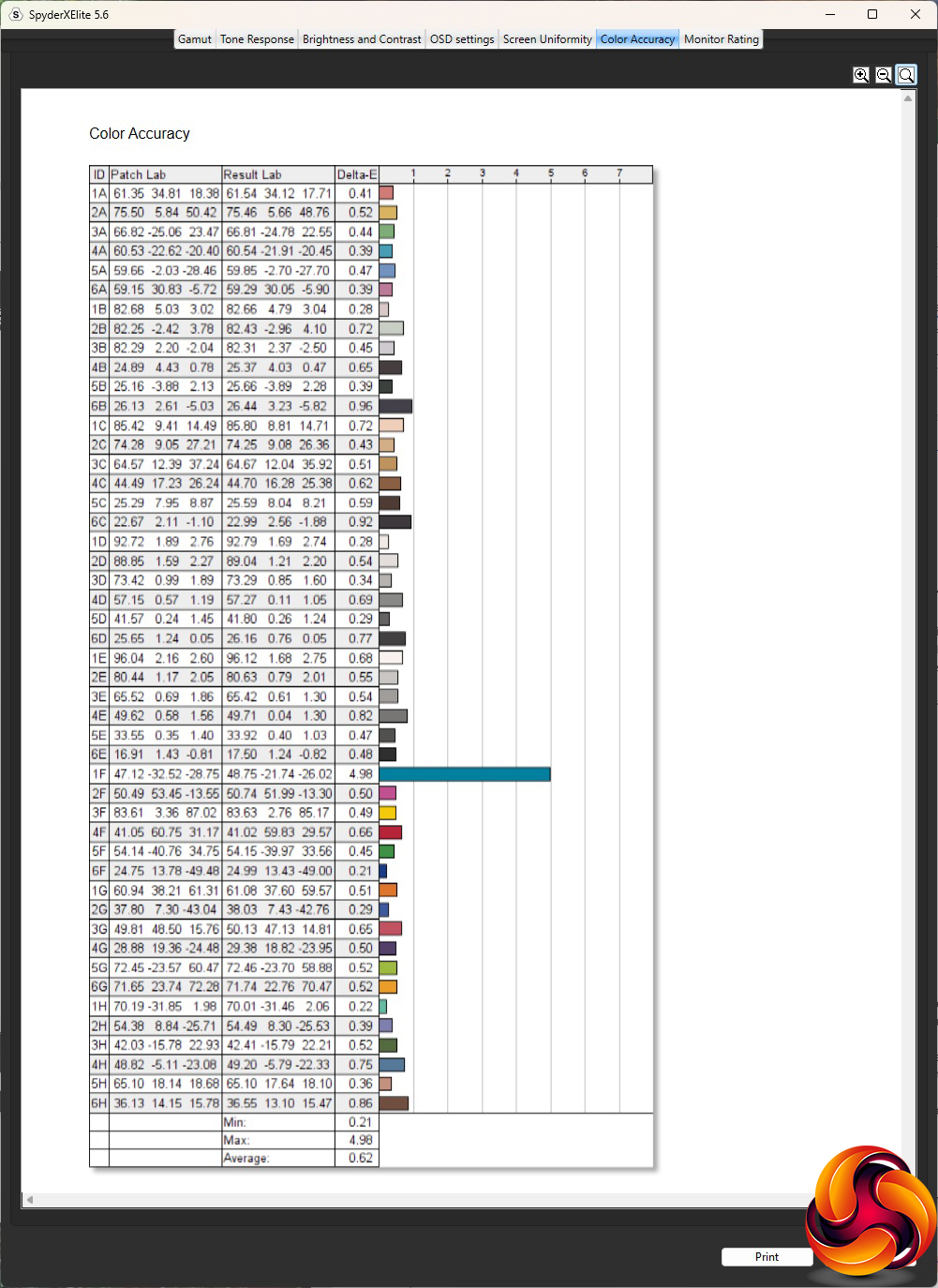
We normally expect good colour accuracy from an IPS panel – this is one of its USPs. But the results from the Canvas 25F are truly excellent, with a low 0.62 average deviation. This is one of the most colour-accurate panels we have tested. Nevertheless, we still wanted to see if calibration could improve things even further, so we fired up the SpyderX once more to make further adjustments.
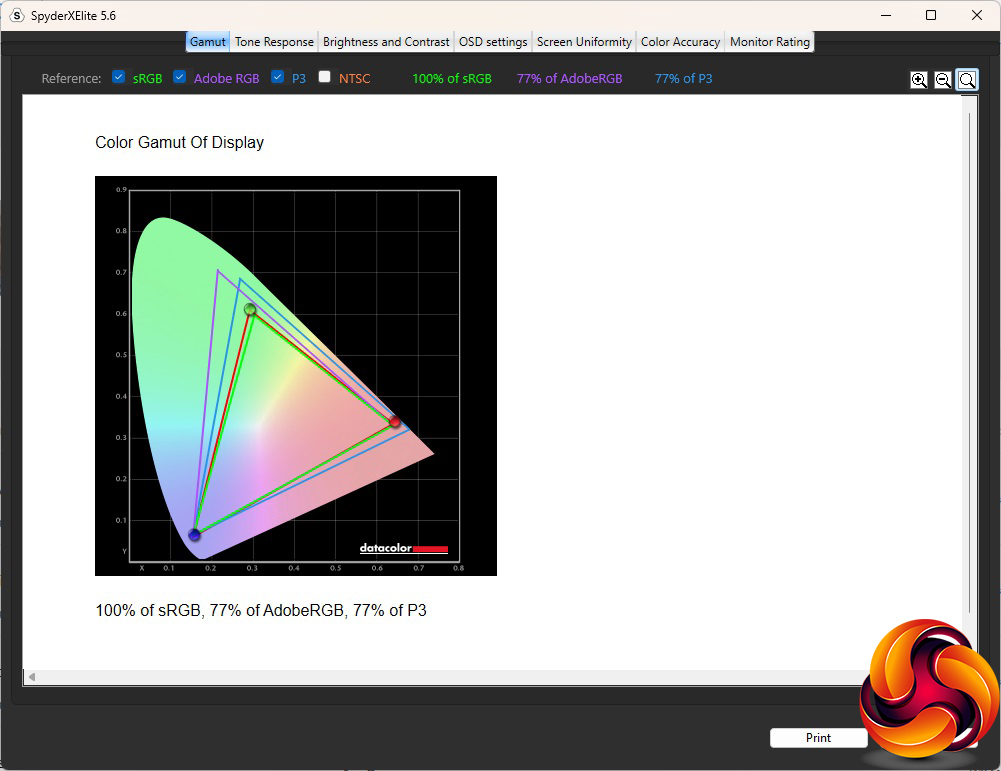
After calibration, we usually find the Gamut hasn't changed, and that was true for the Canvas 25F. The sRGB value of 100 per cent is as we'd hope, but the P3 value of 77 per cent isn't.
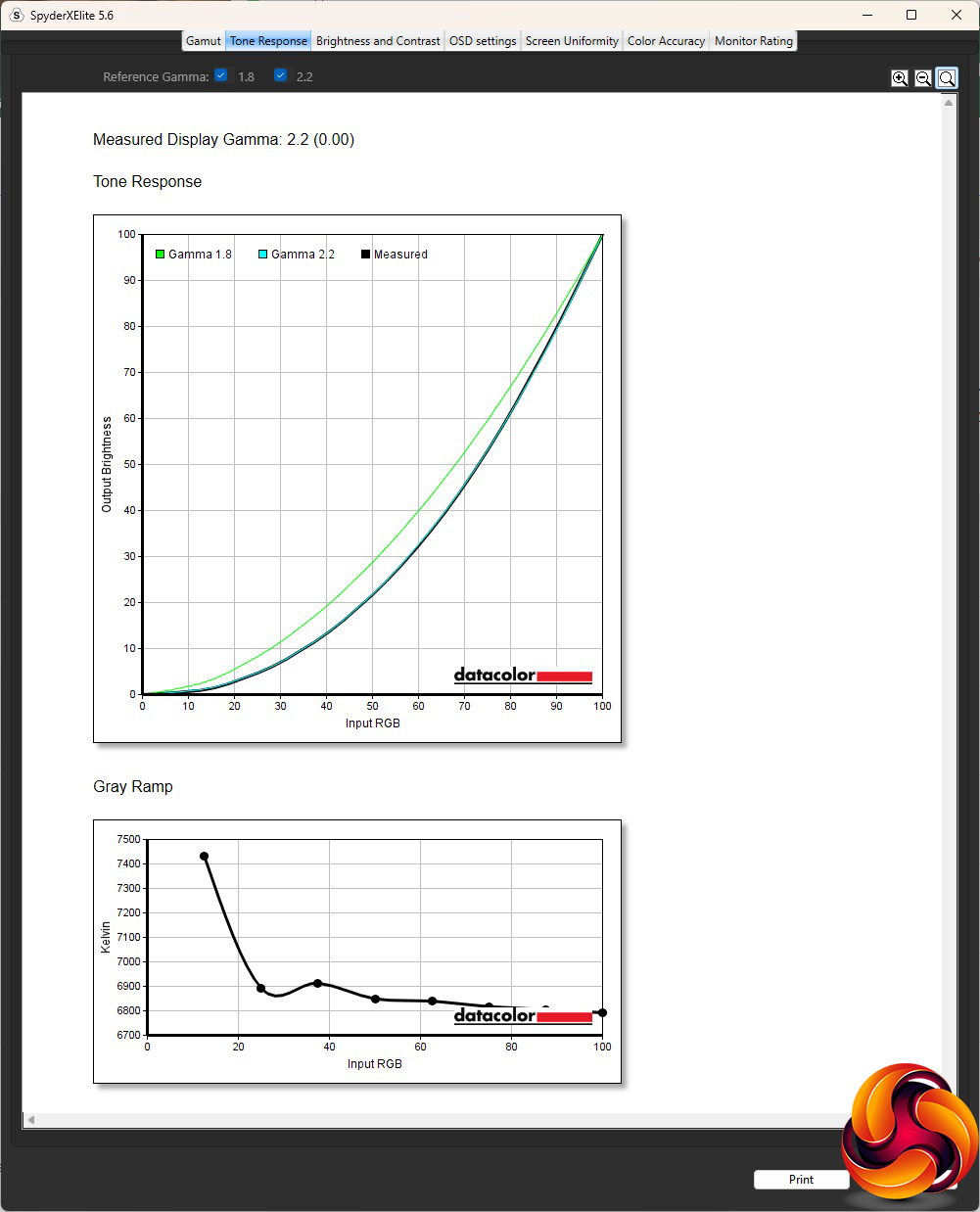
We only retested the default Gamma 2.2, because this usually doesn't change with calibration, and it hadn't, still coming out spot on 2.2.
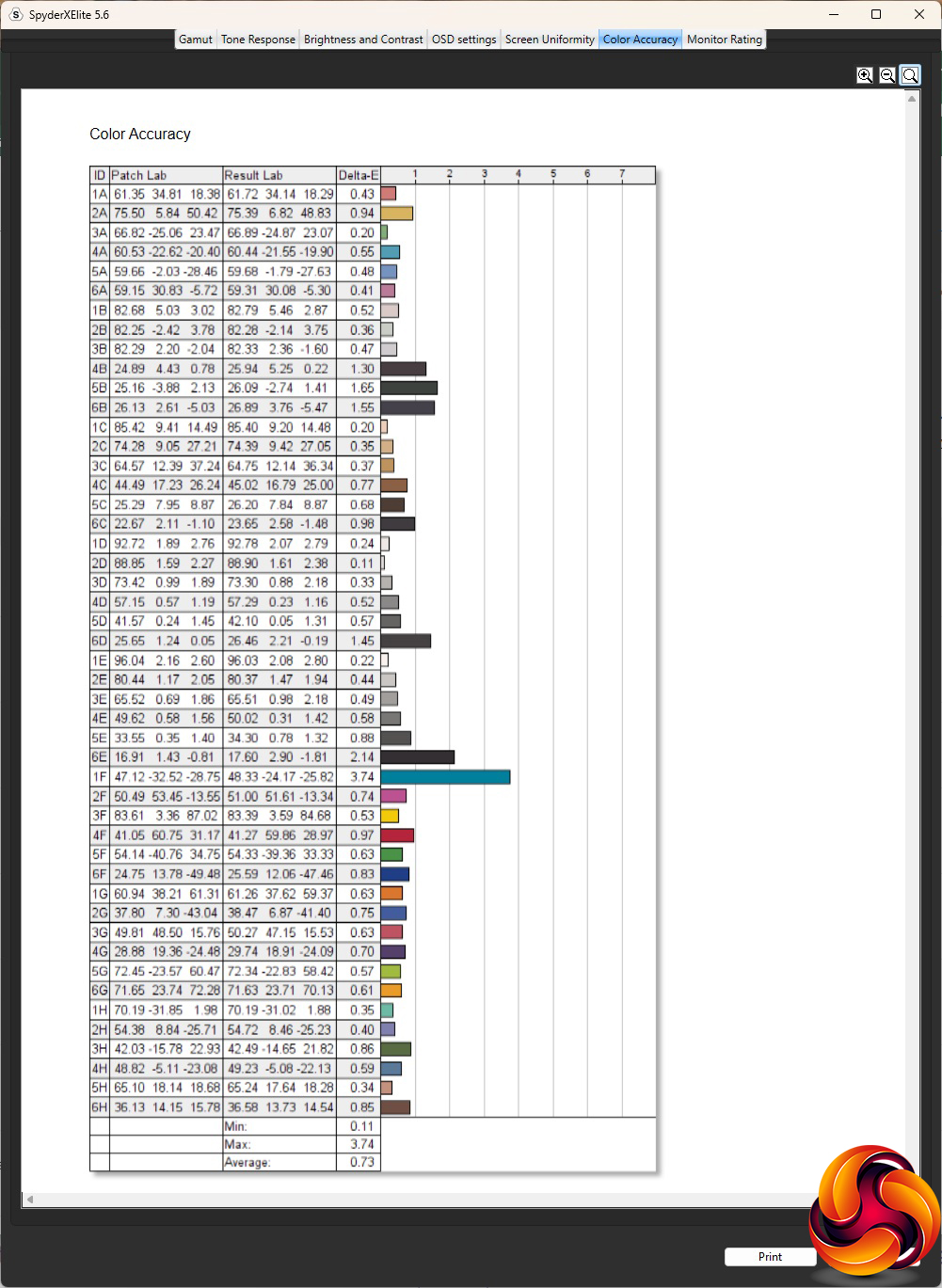
We often find that calibration has a counterintuitively adverse affect on colour accuracy with screens that have very good values out of the box. That was the case with the Canvas 25F, but it only dropped a little to a 0.73. The max deviation had improved, however, to 3.74 from 4.98 (lower is better). Either way, you don't need to calibrate the Canvas 25F as it's great out of the box.
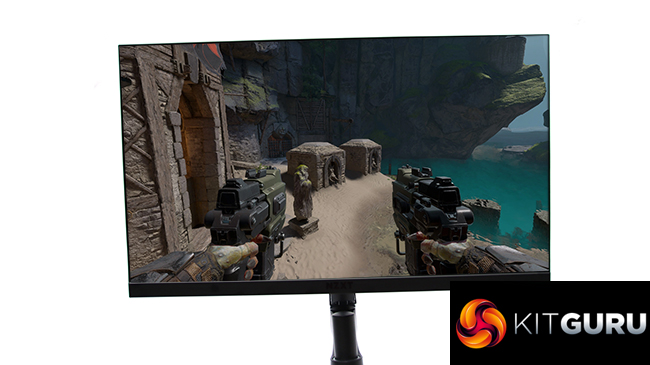
Of course, the reason you'd buy this screen isn't primarily for colour accuracy, but for its high-refresh gaming abilities, so we fired up a few titles, making sure AMD FreeSync was fully enabled. We tried CS:GO, League of Legends, and Rainbow 6: Siege. The FPS titles ran incredibly smoothly, as you'd hope. The relatively low screen resolution meant our AMD Radeon Vega Frontier Edition could drive CS:GO up to the top frame rates. This is what you buy a 240Hz screen for – the fastest possible FPS reaction time. The Canvas 25F proved extremely capable for this kind of game.
The Canvas 25F fits the bill for FPS gaming, delivering crisp tear-free images at high frame rates (graphics card permitting). While the OSD lacks bonus extras for this application, it contains all the essentials and the CAM software means making adjustments is easily completed without needing to touch the physical joystick. The colour accuracy is superb, too.
It is a shame that the USB-C port doesn't output power, because that reduces the utility of this screen as a single-cable dock for your laptop. But there are plenty of video inputs so you can have your gaming PC, console, and even a TV set-top box attached as well.
The NZXT mounting arm is also excellent, providing plenty of adjustment with a robust and confidence-inspiring construction.
However, this is not a cheap screen. While the specification and performance are premium-grade, the price of £259 is high for this level of hardware – and you need to add at least £40 more for a stand, with another £100 on top of that for the mounting arm. For our combination of mounting arm and panel, you would have to shell out a cool £400.
Overall, the NZXT Canvas 25F is a great FPS gaming screen, but you need deep pockets to afford it.
You can buy the NZXT Canvas 25F from NZXT over HERE for £259 inc VAT (panel only). The NZXT stand is another £40 on top, while the monitor arm would set you back an extra £139.99.
Pros:
- Superb colour accuracy.
- Robust, well constructed optional mounting arm.
- 240Hz refresh with AMD FreeSync Premium.
- Smooth FPS gaming performance.
- NZXT Windows control software.
- Four video inputs including USB C.
Cons:
- Expensive, especially when factoring in the extra stand or mounting arm from NZXT.
- Mediocre gamut.
- Could do with a few more gaming features in OSD.
KitGuru says: The NZXT Canvas 25F is a very competent gaming screen, particularly for genres that benefit from rapid refresh rates such as FPS. The optional mounting arm is well constructed too. But the panel and arm together make for a hefty price tag.