KitGuru KitGuru.net – Tech News | Hardware News | Hardware Reviews | IOS | Mobile | Gaming | Graphics Cards


We use the Open Source Response Time Tool (OSRTT), developed by TechTeamGB, for our response time testing. This measures grey-to-grey response times and presents the results in a series of heatmaps, the style of which you may be familiar with from other reviews.
Initial Response Time is the time taken for the panel to transition from one colour to another, where lower values are better. We present the initial response time, so overshoot is not taken into account and is measured separately. We use a fixed RGB 5 tolerance for each transition.
Overshoot is the term given for when a monitor's transition exceeds or goes beyond its target value. So if a monitor was meant to transition from RGB 0 to RGB 55, but it hits RGB 60 before settling back down at RGB 55, that is overshoot. This is presented as RGB values in the heatmaps – i.e. how many RGB values past the intended target were measured.
Visual Response Rating is a metric designed to ‘score' a panel's visual performance, incorporating both response times and overdrive. Fast response times with little to no overshoot will score well, while slow response times or those with significant overshoot will score poorly.
Response times
In terms of overdrive, AOC offers a range from 0 all the way up to 400, with the default being 100. Before going further, however, it's worth clarifying that overdrive is only configurable when Pulsar is disabled. With Pulsar enabled, overdrive is handled entirely via G-Sync Variable Overdrive, as tuned by Nvidia. That means the following results are a best-case indication for response times at 360Hz, but exact figures will vary according to the VRR situation.
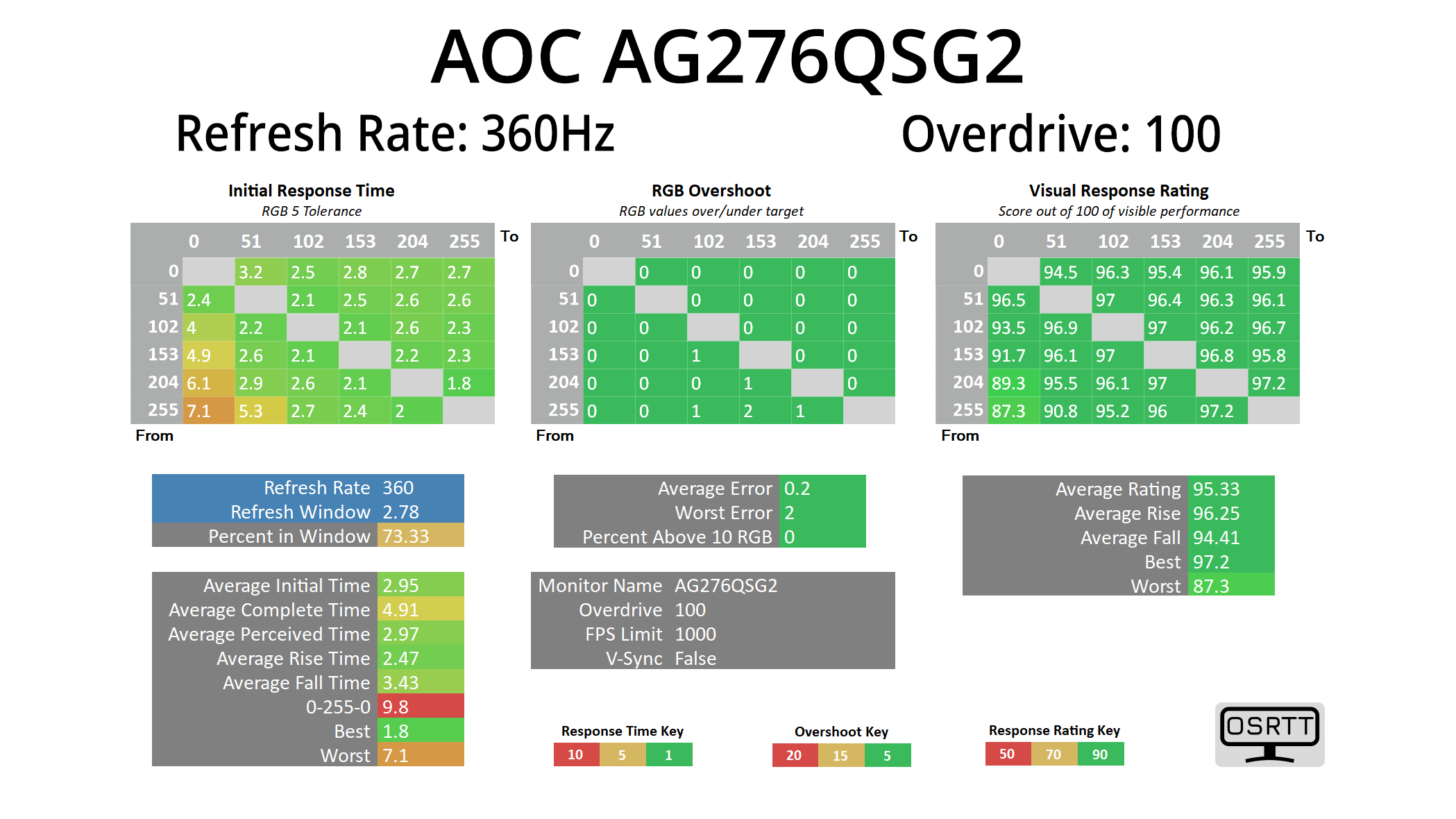
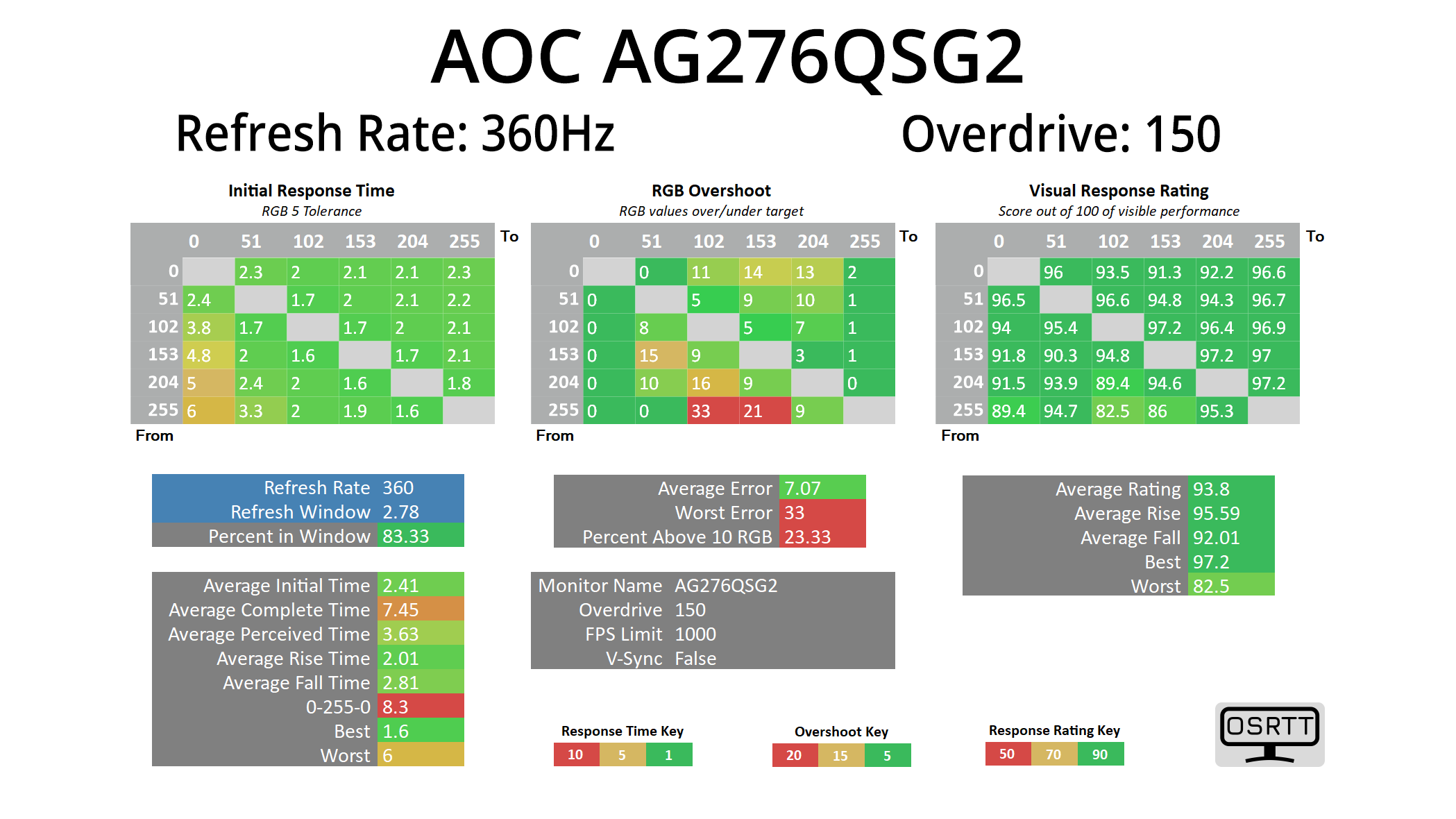
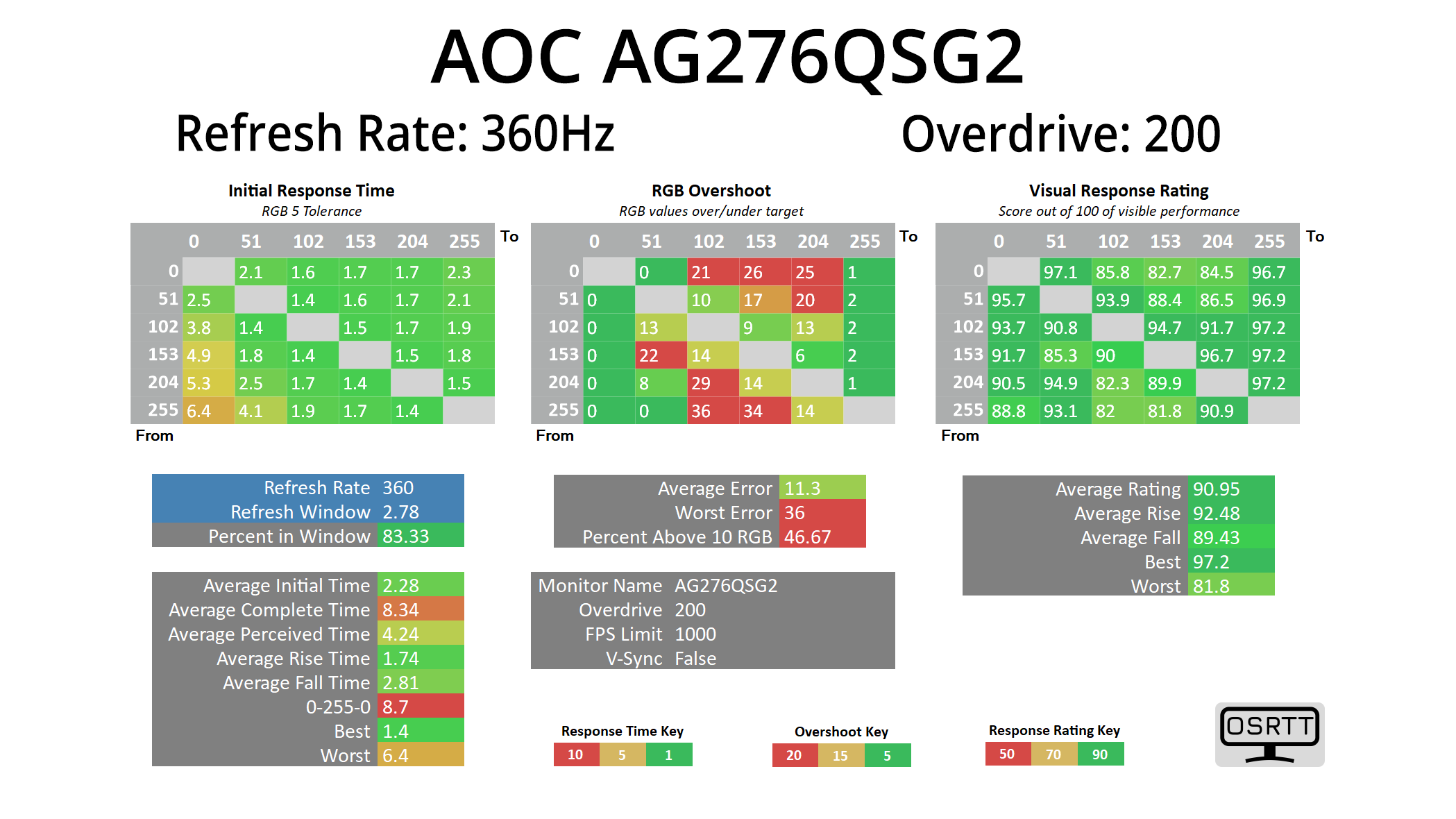
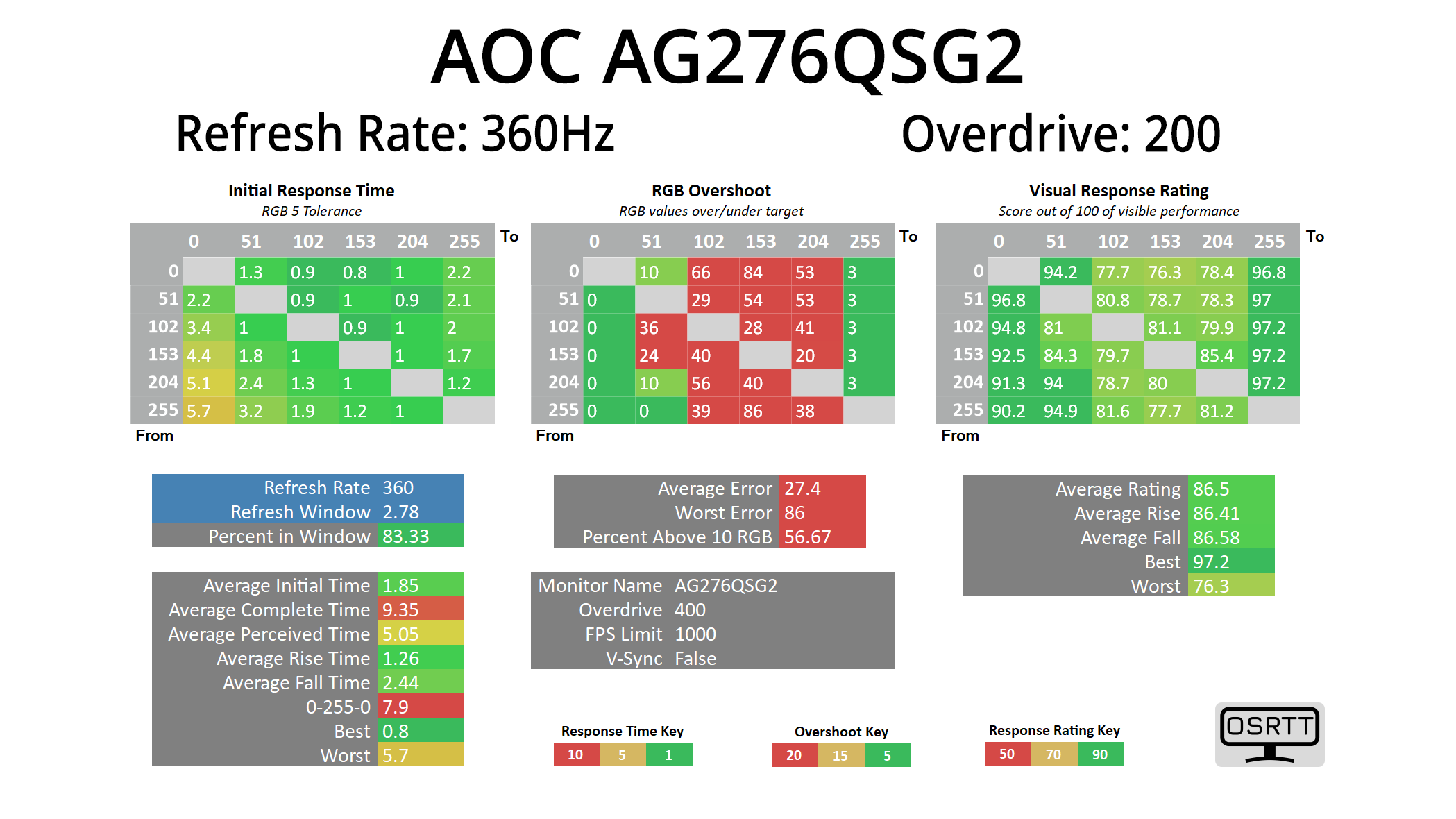
Still, the results are very impressive indeed, indicating a very fast IPS panel. OD 100 is the default setting and that gives solid response times with no overshoot. I found that the OD 150 setting is the most optimal, improving average response time to just 2.41ms with only small amounts of overshoot. OD 200 is only marginally faster but has more visible overshoot, while maxed out at OD 400 isn't worth using given the overshoot is pretty horrific.
Best GtG results
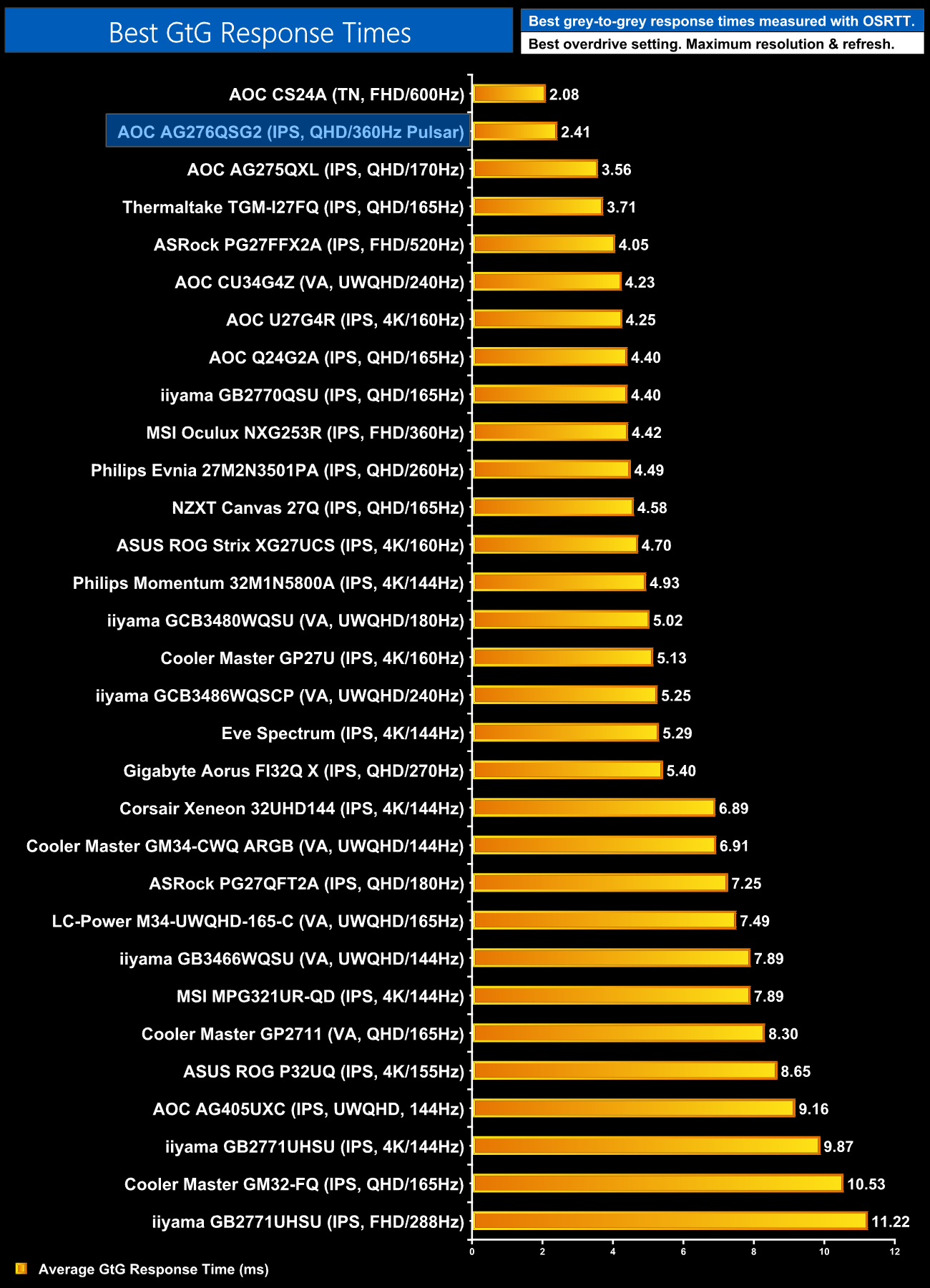
Compared to the rest of the LCD monitors we've tested in recent years, this puts the AG276QSG2 right at the top, second only to the 600Hz CS24A we reviewed very recently. The panel has clearly been very well tuned and that sets it up very nicely for use with G-Sync Pulsar to further improve motion clarity.
Pulsar in action
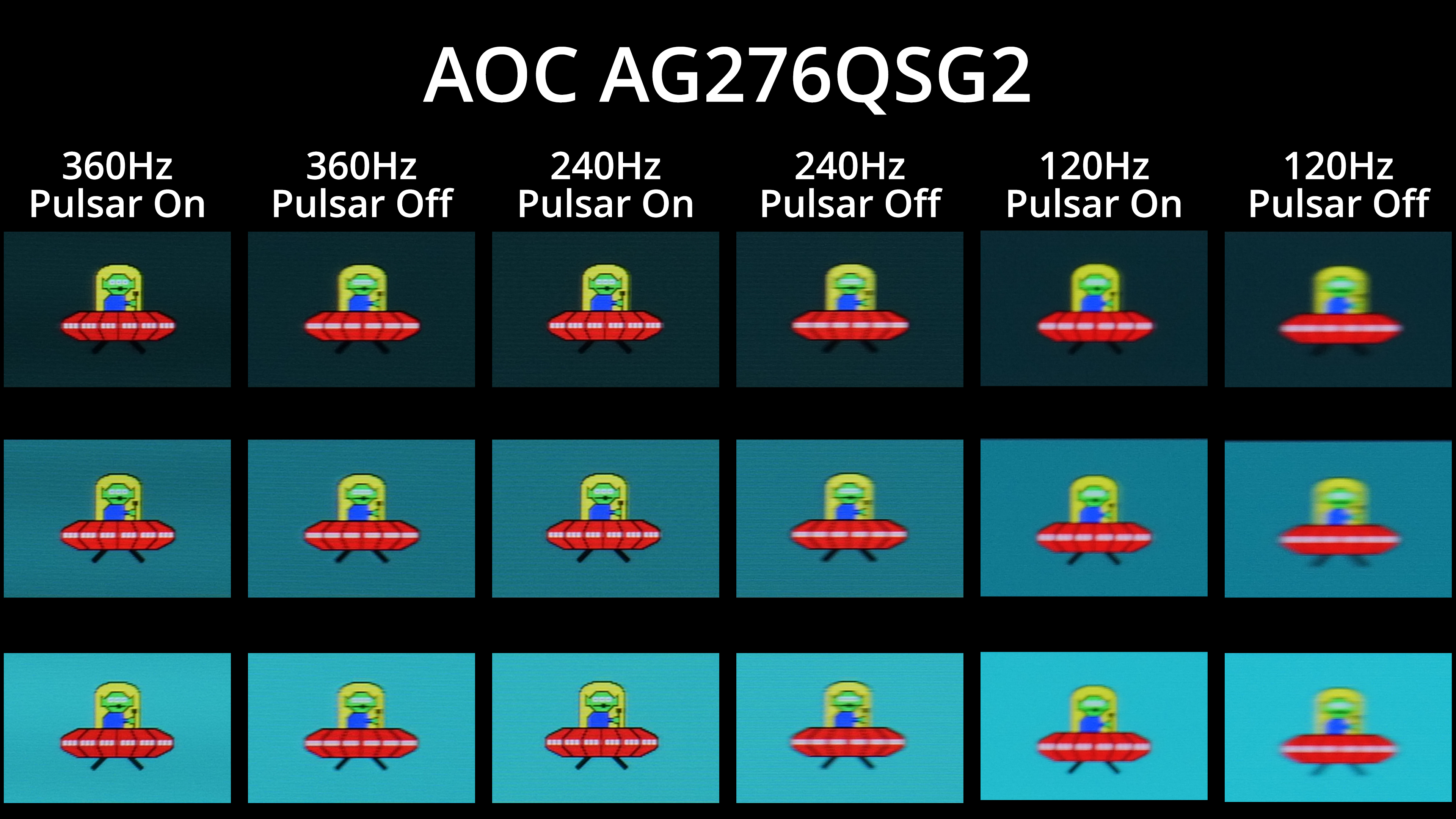
Speaking of Pulsar, let's get right to it and show motion clarity examples with Pulsar on vs Pulsar off, at 120, 240 and 360Hz. It should be immediately obvious that Pulsar makes a huge difference across the refresh rate range – perceived clarity is significantly improved, even at 120Hz, whereas the 360Hz image with Pulsar enabled has very little blur whatsoever.
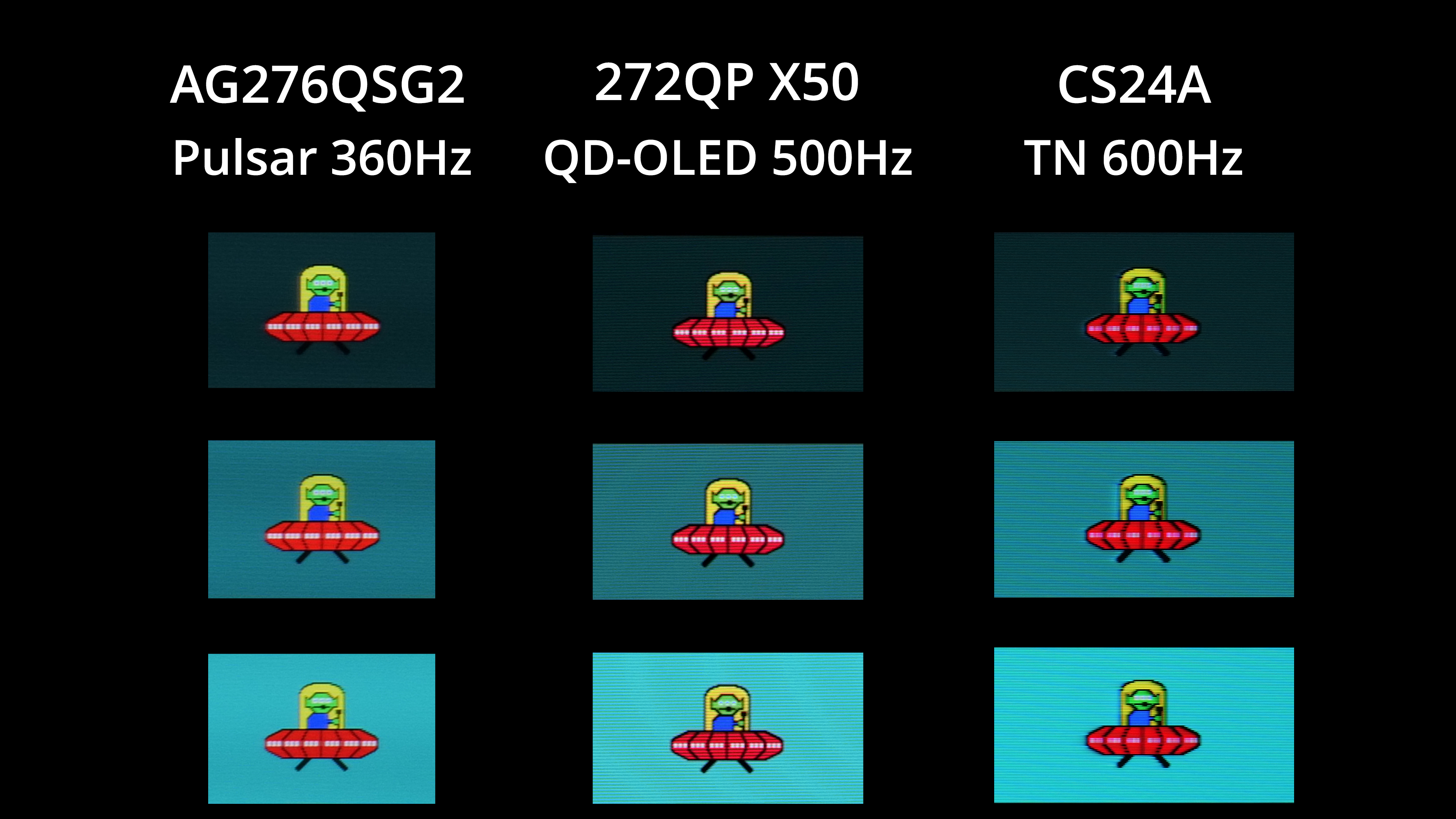
The first thing I wanted to do when I saw the Pulsar results was compare them to a fast OLED screen. I don't unfortunately have test results for OLED at 720Hz, but a 500Hz panel like MSI's 272QP X50 still shows exceptional motion clarity. Pulsar on the AG276QSG2, I think, is even better, with greater clarity around the alien's three eyes, as well as the arm and torso area. It's not a huge difference by any means, but you have to remember this is being achieved at only 360Hz on the Pulsar monitor, whereas the OLED is having to drive an extra 140fps on top to reach the motion clarity we can see there.
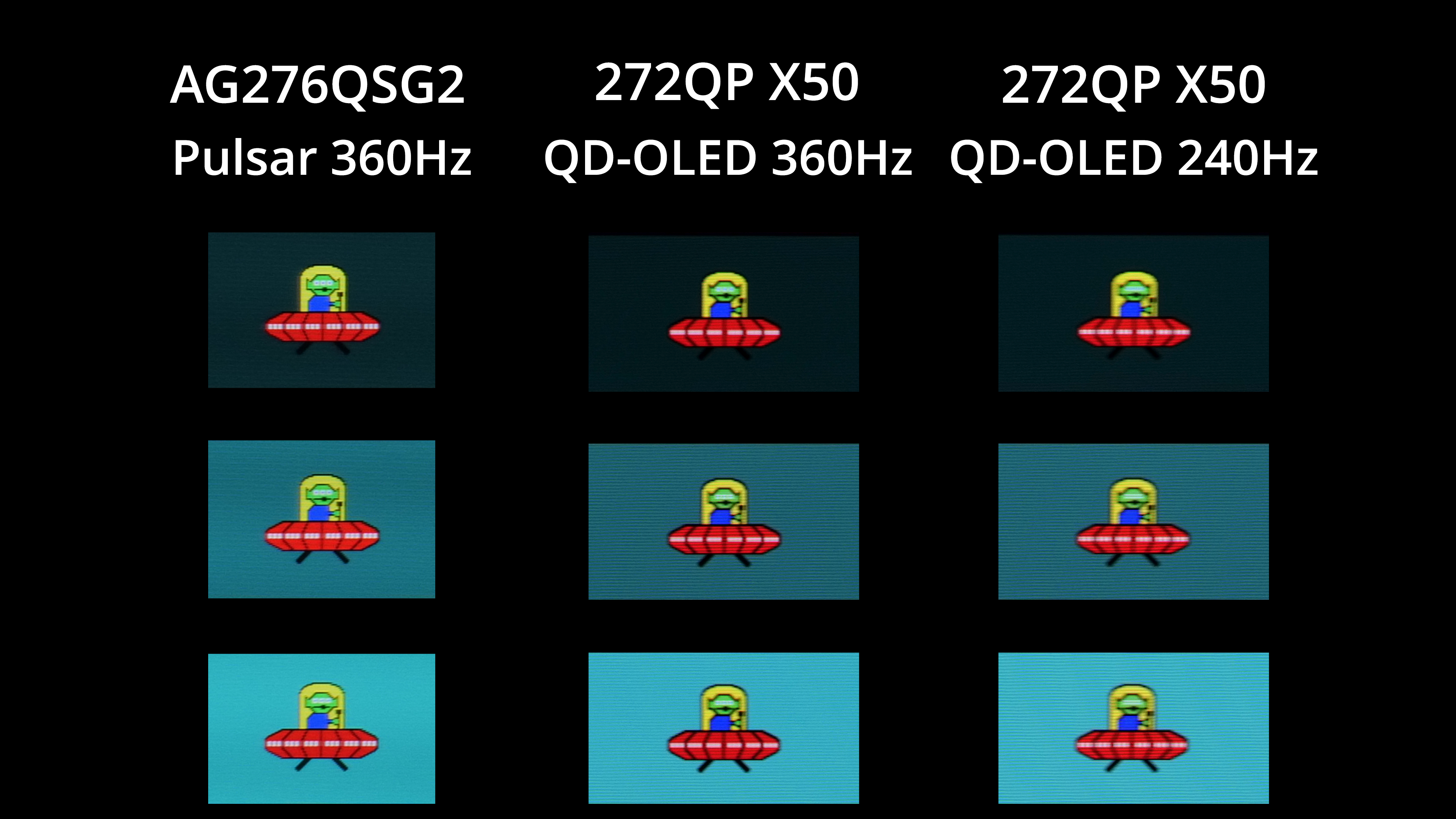
To make that point, I've dropped the refresh rate on the 272QP X50 to 360Hz, along with 240Hz. At matching refresh rates, the Pulsar screen clearly gives better motion clarity, with a more defined image with less blur wherever you look.
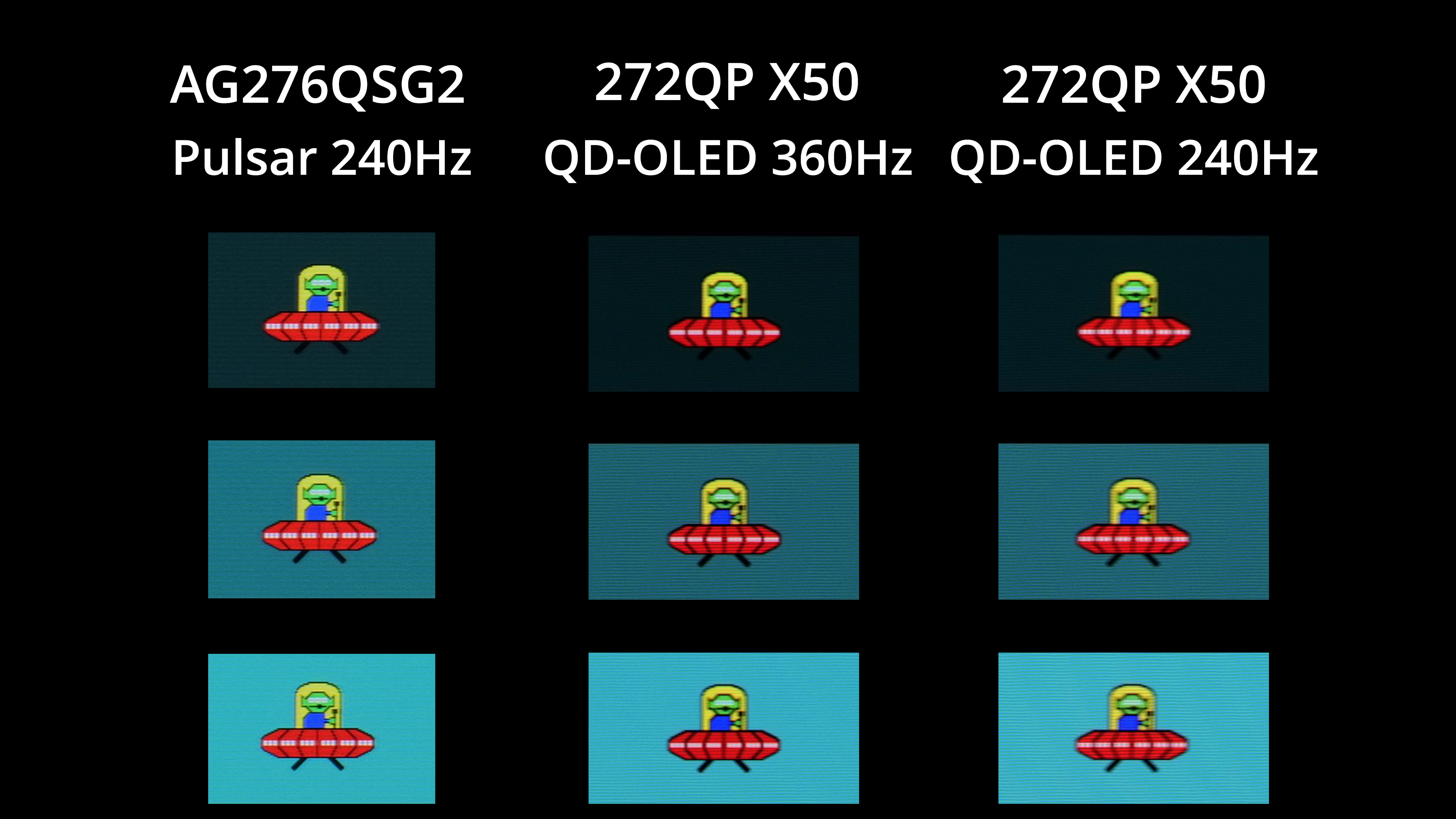
Even Pulsar running at 240Hz is superior to QD-OLED at 360Hz, while it's a noticeable improvement over OLED at 240Hz as well.
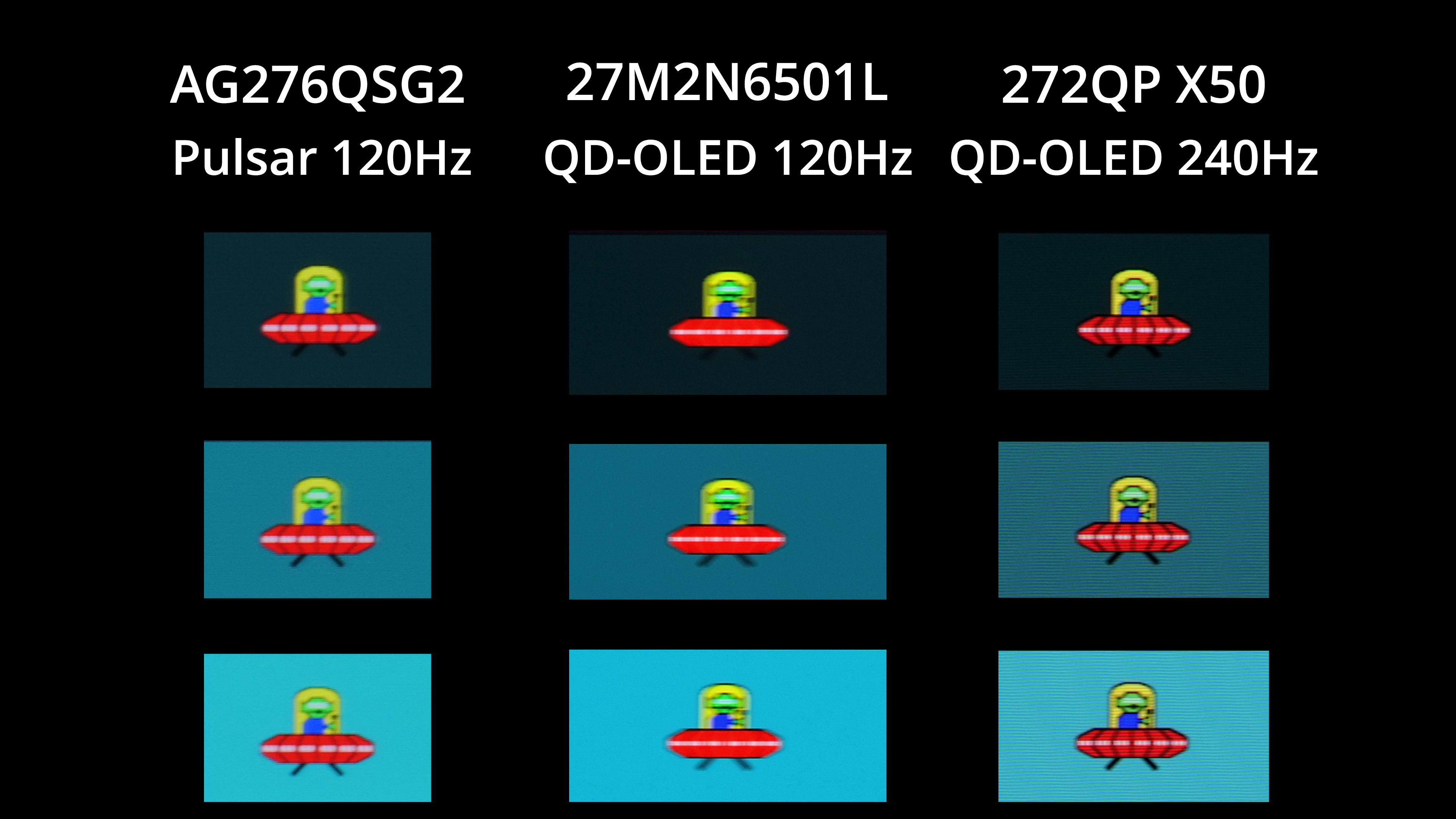
For the final example I've dropped down to 120Hz, where once again we see noticeably better motion clarity from Pulsar than we do from an OLED at the same refresh rate. The Pulsar 120Hz result is even fairly similar to an OLED at 240Hz, which really is a win as it is significantly easier to drive frame rates to 120fps than it is to 240fps, and on an OLED, the lower the frame rate drops, the more the motion blur is increased.