KitGuru KitGuru.net – Tech News | Hardware News | Hardware Reviews | IOS | Mobile | Gaming | Graphics Cards


Today's monitor may not be the newest kid on the block given it launched last year, but recent price cuts mean it is now offering a high refresh-rate 4K IPS panel for just a smidge over £300. I'm talking about the ASUS ROG Strix XG27UCS, which also packs in a claimed 1ms response time, HDMI 2.1 connectivity and adaptive sync support. Let's see how it performs at this attractive price point.
Timestamps:
00:00 Intro
00:44 Pricing and product details
01:17 Design + build
02:10 I/O and OSD
03:39 Default panel performance
05:32 sRGB mode and calibration
06:46 Response time testing
08;34 Motion clarity
09:55 Real-world gaming experience
11:28 Closing thoughts
We had a lot of positive feedback following on from our AOC U27G4R review, given the combination of 4K resolution and 160Hz refresh rate for less than £300. Today's monitor isn't quite so cheap at around £319, but offering the same key specs and potentially some extra polish we associate with the ROG brand could see the XG27UCS come away a winner. Let's dive in and find out just how good it is.
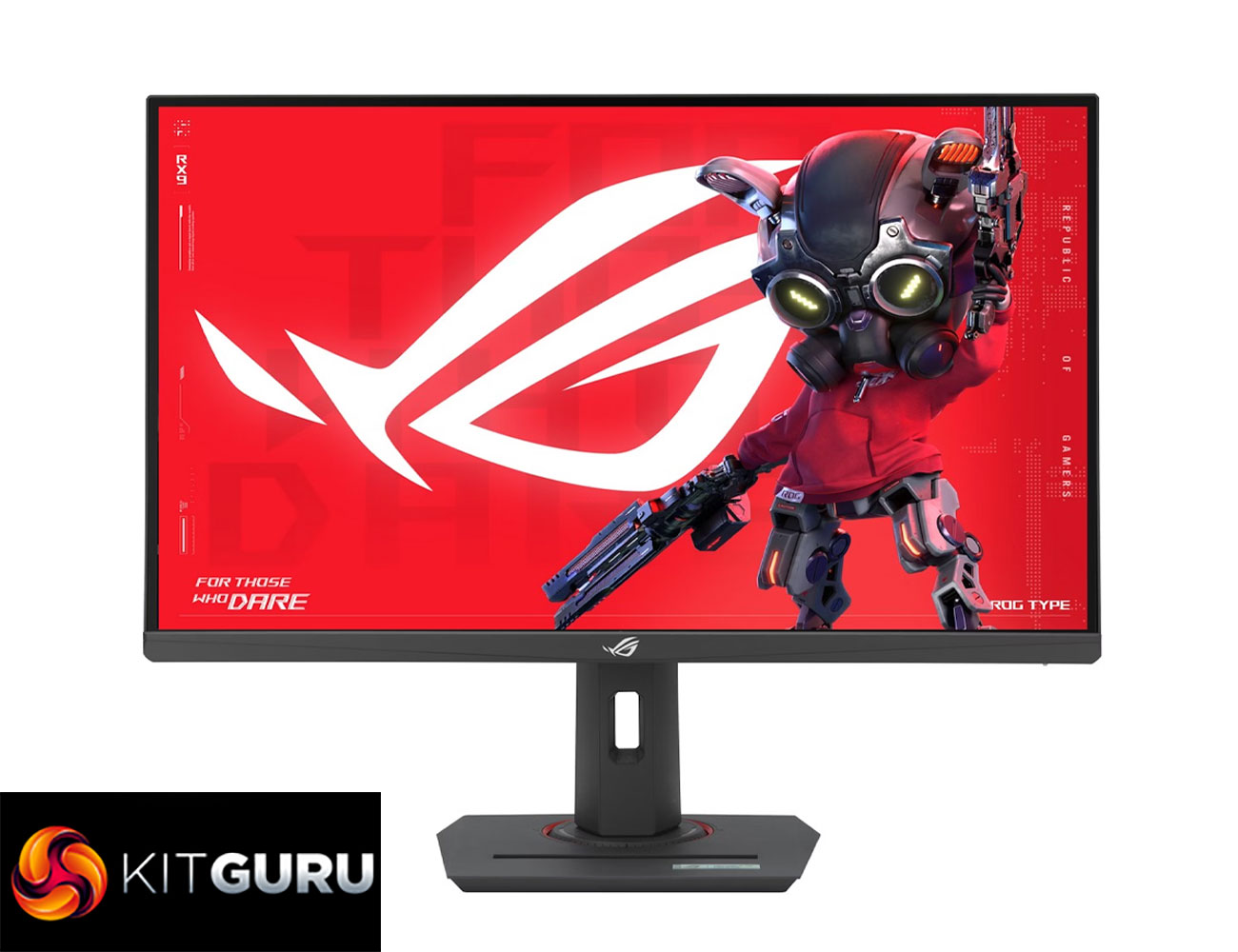
Specification:
- Panel Size (inch): 27
- Pixels Per Inch (PPI): 163
- Aspect Ratio: 16:9
- Display Viewing Area (H x V): 596.73 × 335.66 mm
- Display Surface: Anti-Glare
- Backlight Type: LED
- Panel Type: Fast IPS
- Viewing Angle (CR≧10, H/V): 178°/178°
- Pixel Pitch: 0.155mm
- Resolution: 3840×2160
- Color Space (sRGB): 130%
- Color Space (DCI-P3): 95%
- Brightness (HDR, Peak): 450 cd/㎡
- Brightness (Typ.): 400 cd/㎡
- Contrast Ratio (Typ.): 1000:1
- Display Colors: 1073.7M (10 bit)
- Response Time: 1ms (GTG)
- Refresh Rate (Max): 160Hz
- HDR (High Dynamic Range) Support: HDR10
- Flicker-free: Yes
- Trace Free Technology: Yes
- GameVisual: Yes
- Color Temp. Selection: Yes (8 modes)
- Color Adjustment: 6-axis adjustment (R,G,B,C,M,Y)
- Gamma Adjustment: Yes (Support Gamma 1.8/2.0/2.2/2.4/2.6)
- GamePlus: Yes
- HDCP: Yes, 2.3
- Extreme Low Motion Blur: Yes
- ELMB Sync: Yes
- VRR Technology: FreeSync™ & G-SYNC® Compatible
- GameFast Input technology: Yes
- Shadow Boost: Yes
- DisplayWidget: Yes, DisplayWidget Center
- Low Blue Light: Yes
- Multiple HDR Mode: Yes
- I/O Ports
- USB-C: x1 (DP Alt Mode)
- DisplayPort 1.4: x1
- HDMI (v2.1): x1
- Earphone Jack: Yes
- USB-C Power Delivery: 15W
- Mechanical adjustment:
- Tilt: Yes (+20° ~ -5°)
- Swivel: Yes (+45° ~ -45°)
- Pivot: Yes (+90° ~ -90°)
- Height Adjustment: 0~120mm
- VESA Wall Mounting: 100x100mm
- Kensington Lock: Yes
- 1/4″ Tripod Socket: Yes

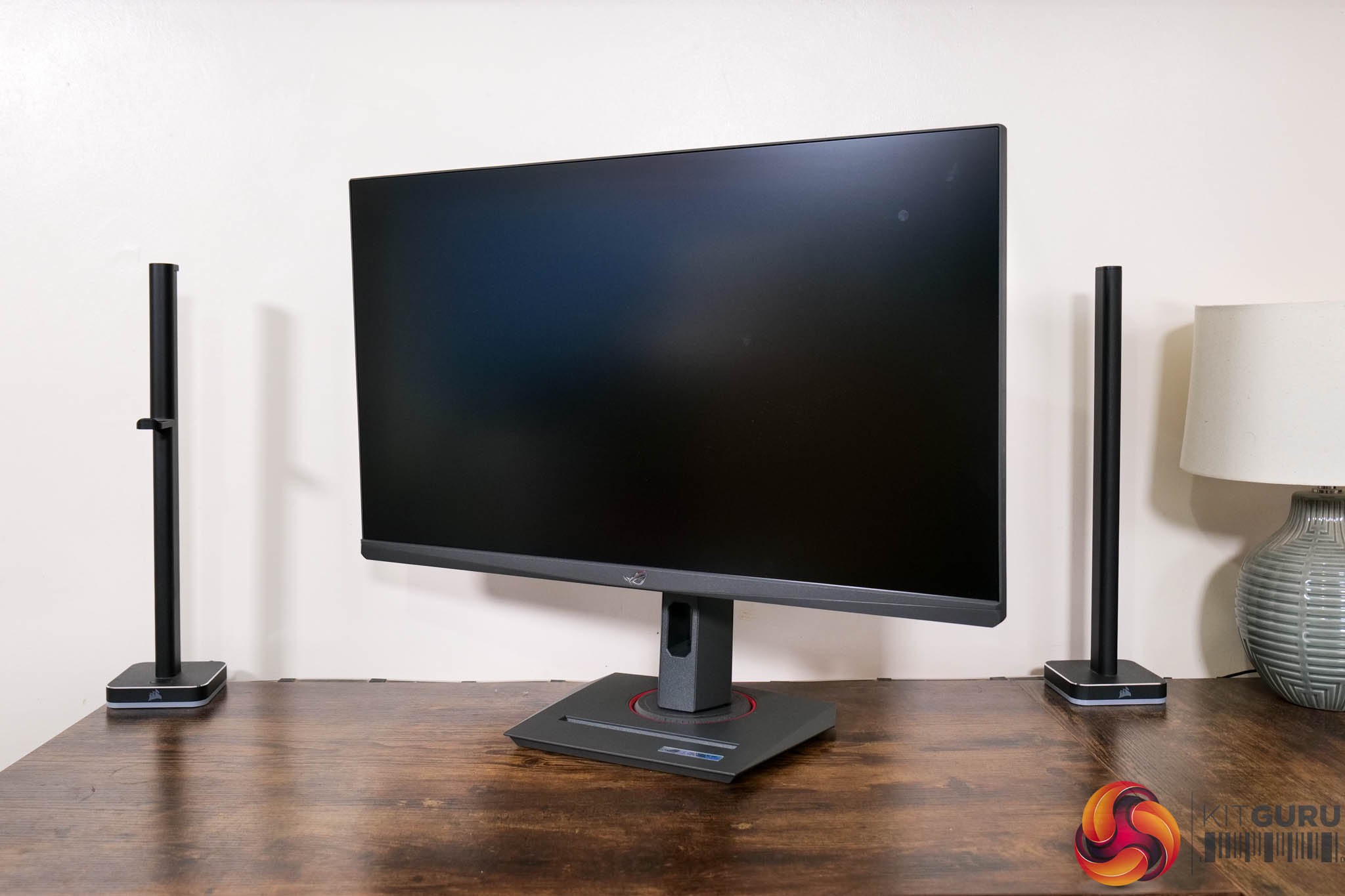


Starting with the design, as we'd expect from an ASUS ROG product, there's the usual gamer flair in the form of the large ROG logo and some PCB-inspired accents on the rear of the monitor. I think it looks quite good personally, while the front is home to a three-sided frameless design, with a chin that measures approximately 18mm thick.
It is made of plastic, as we'd expect at this price point, but it doesn't feel overly cheap, and I like the fact it's a clean mid-grey colour, rather than the usual matte black. ASUS has also opted for a square foot rather than a large v-shaped foot.
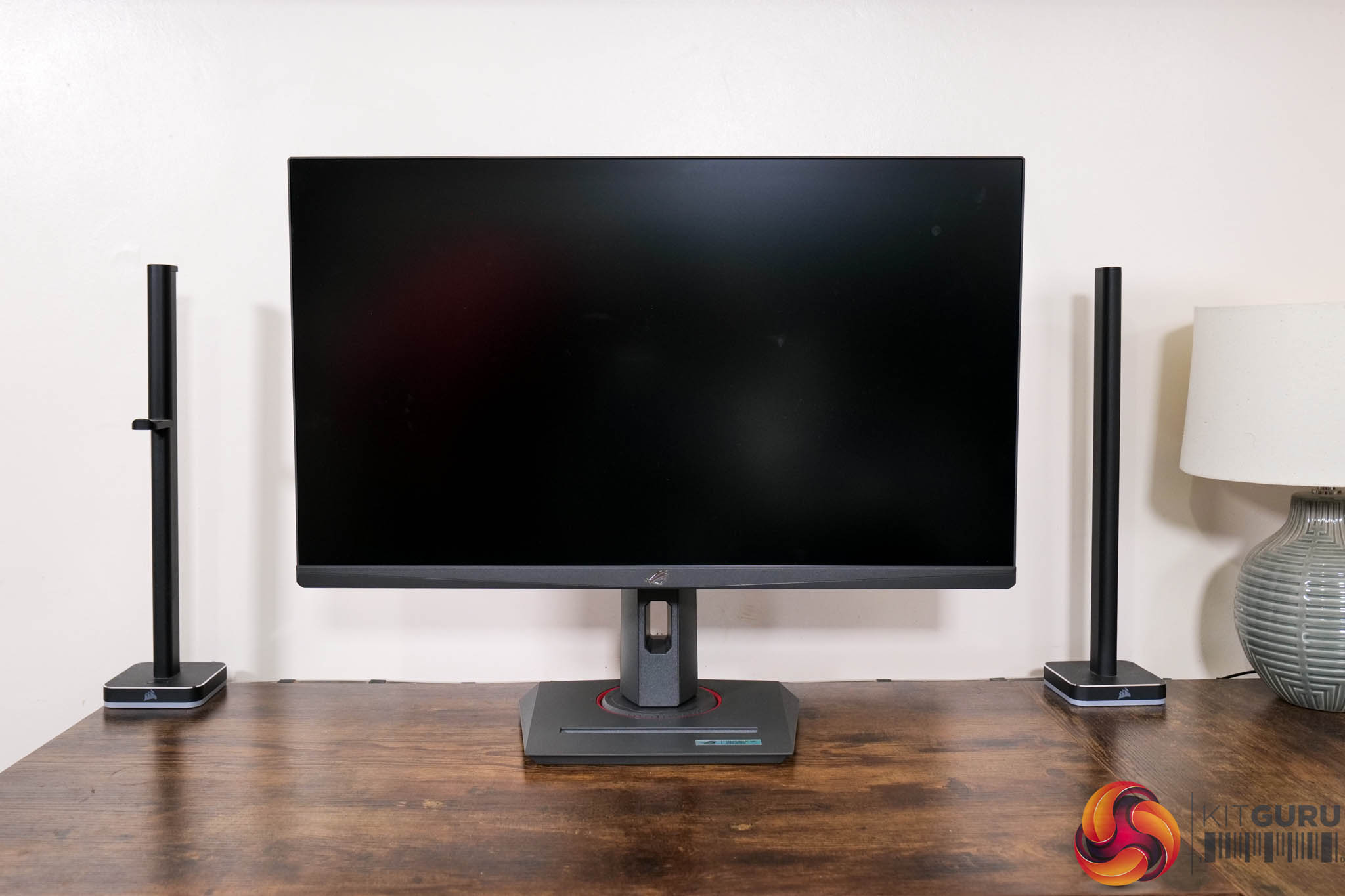
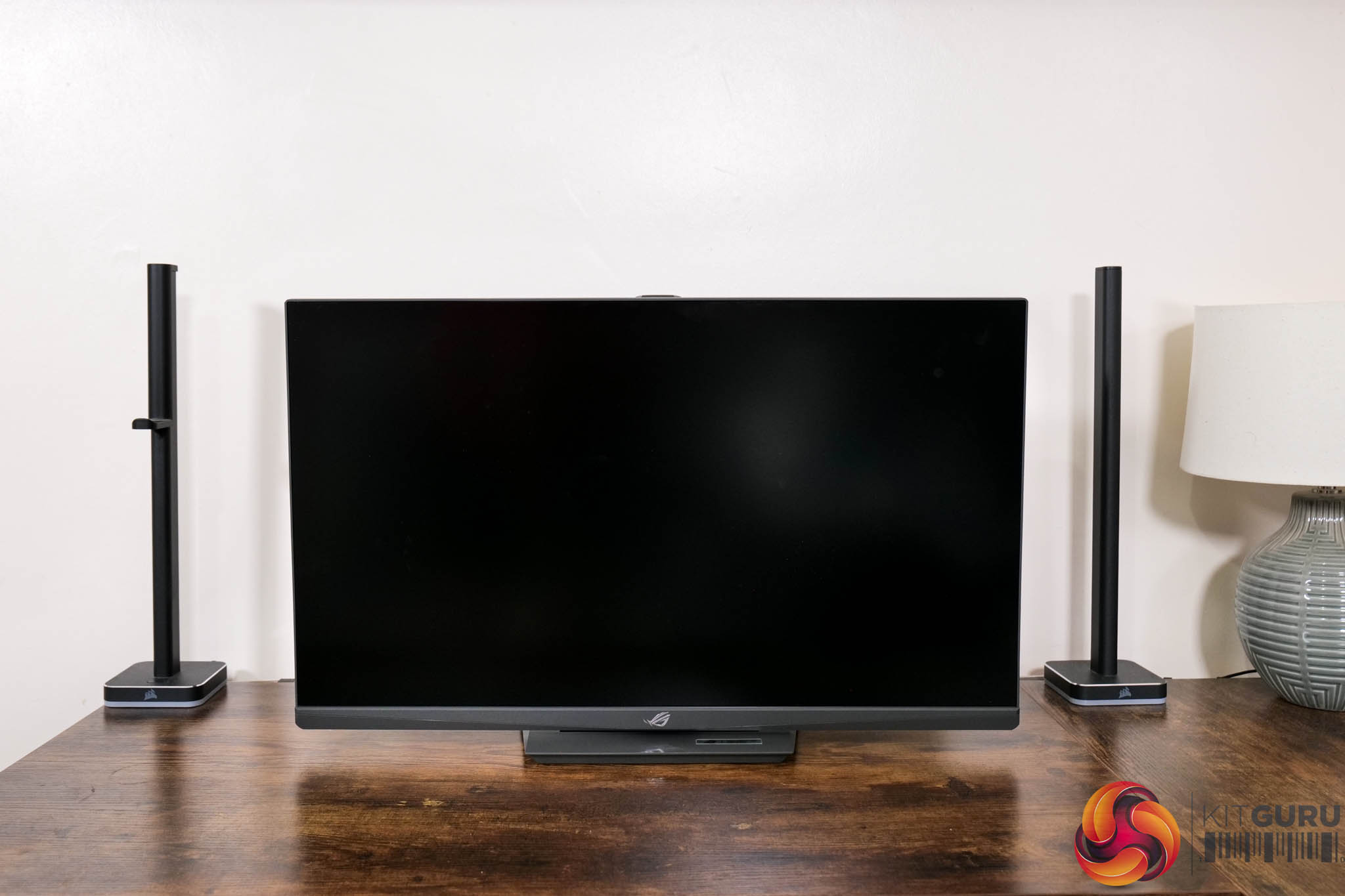
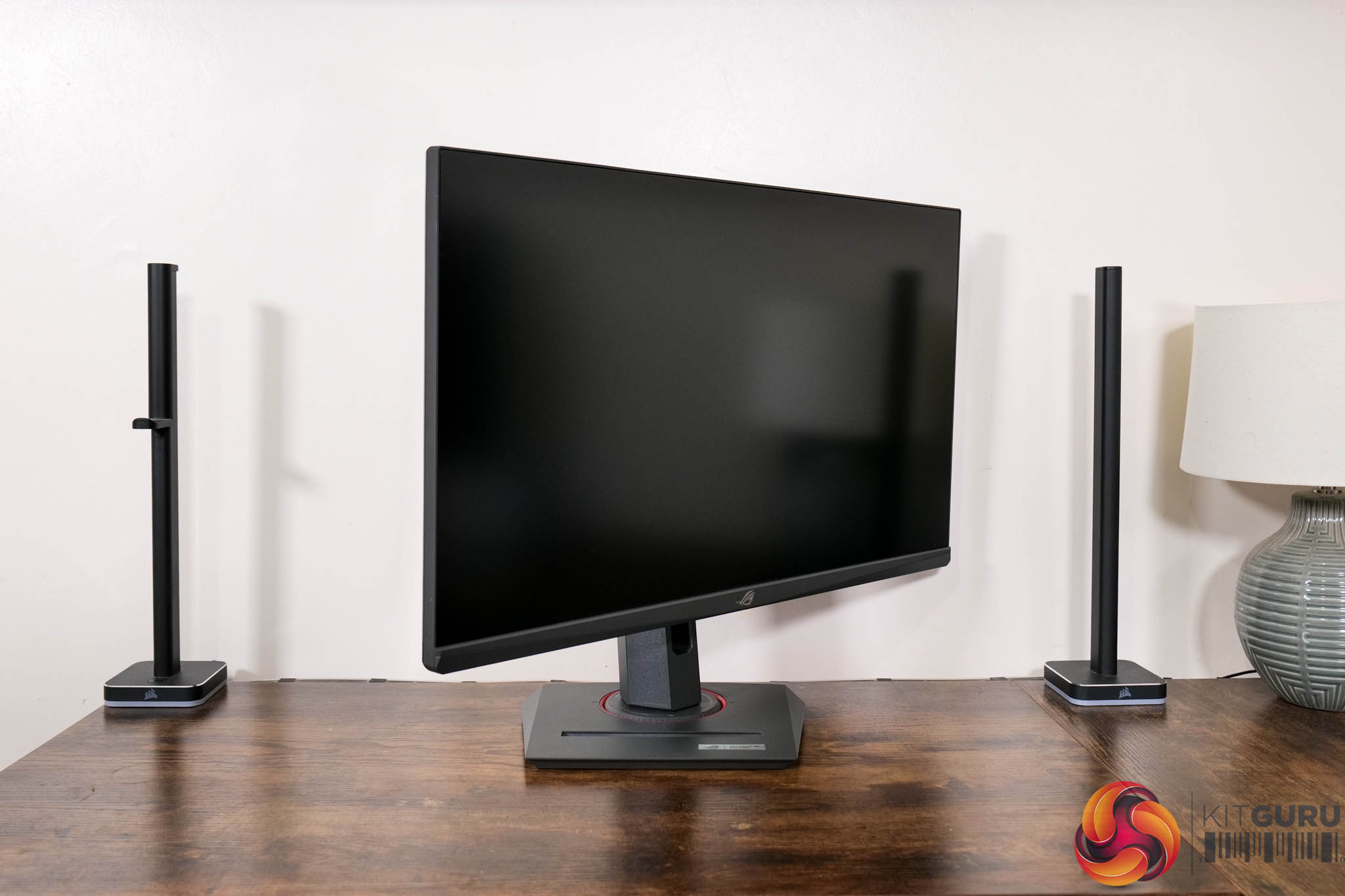
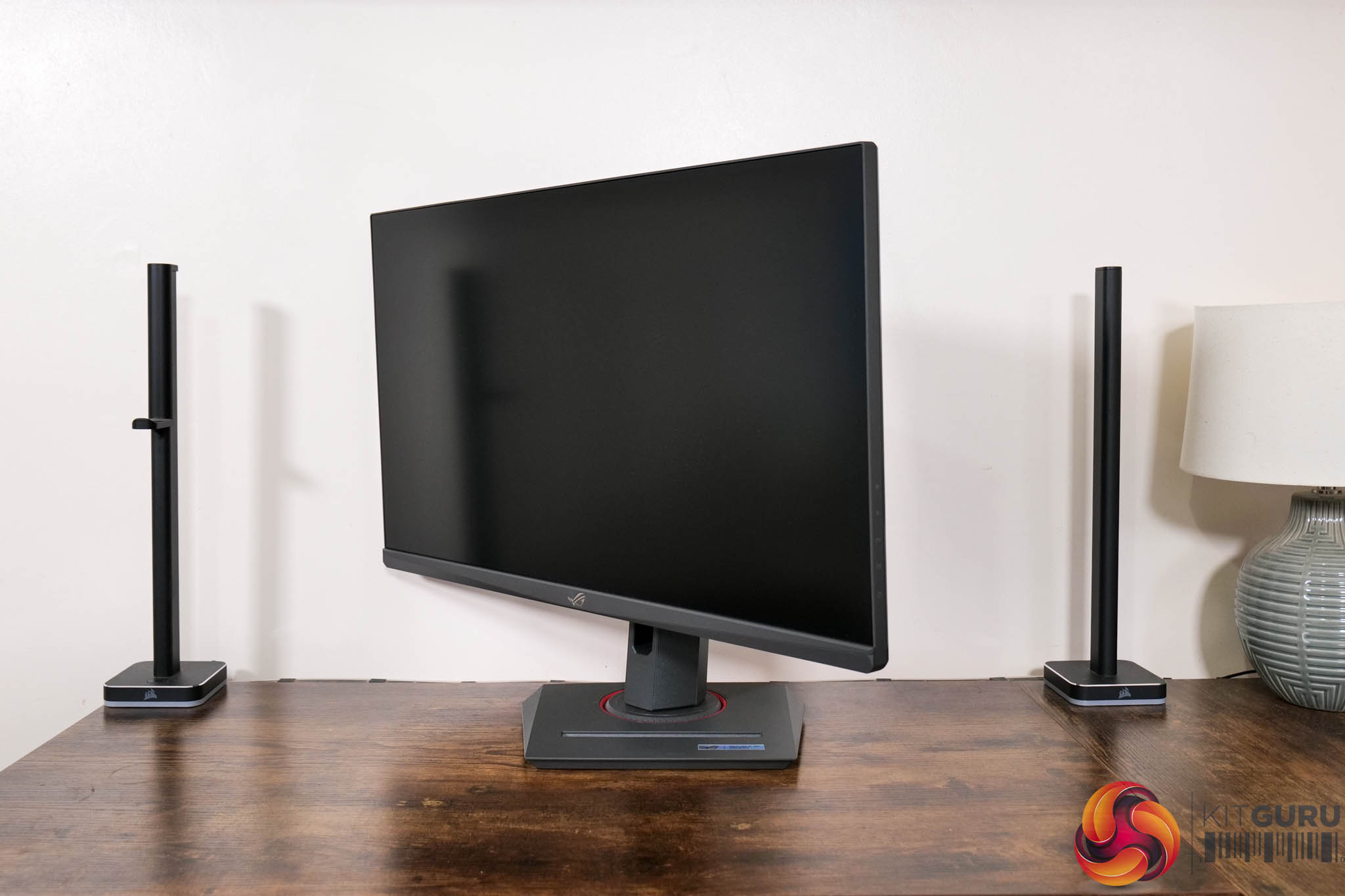
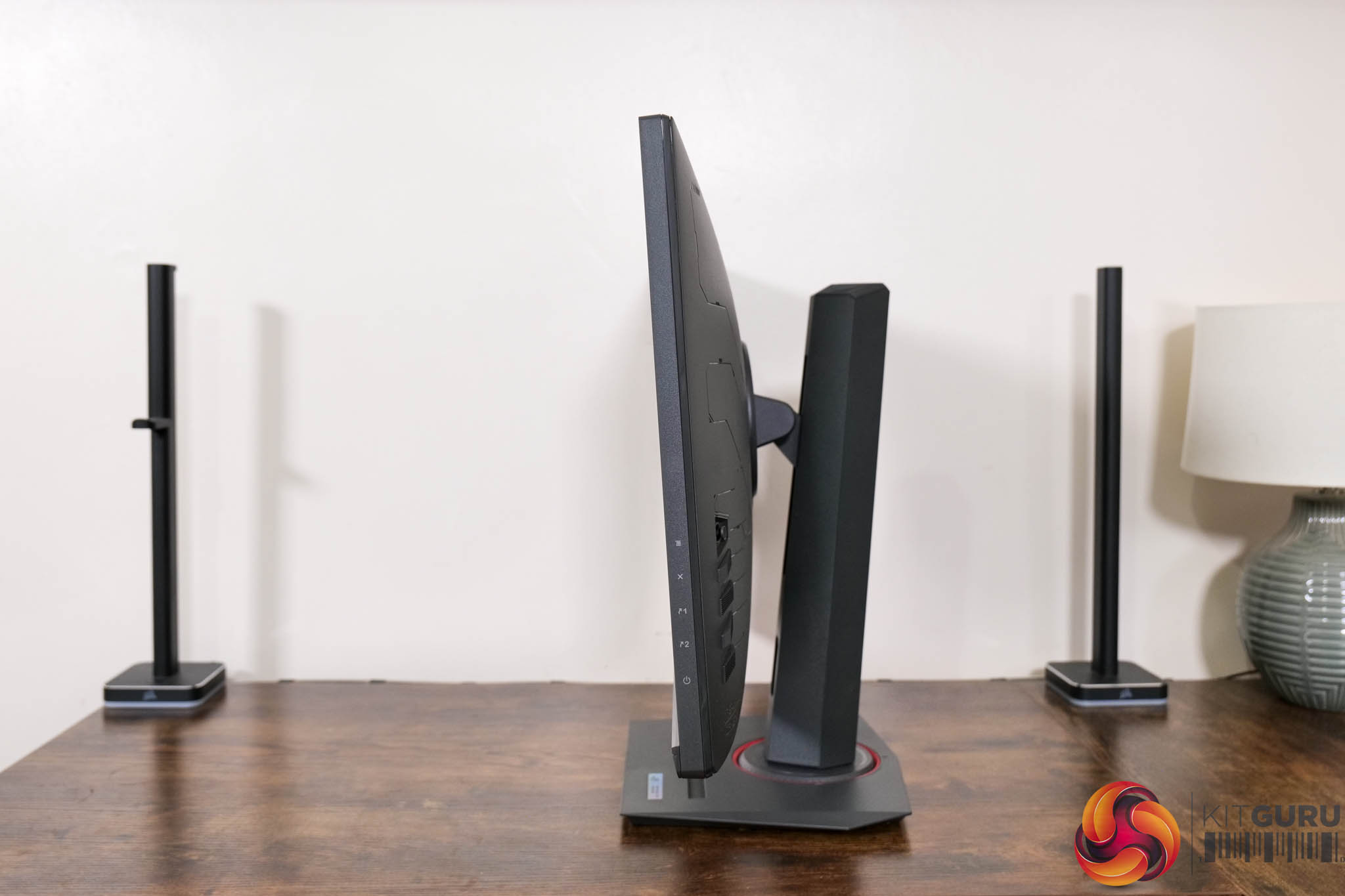
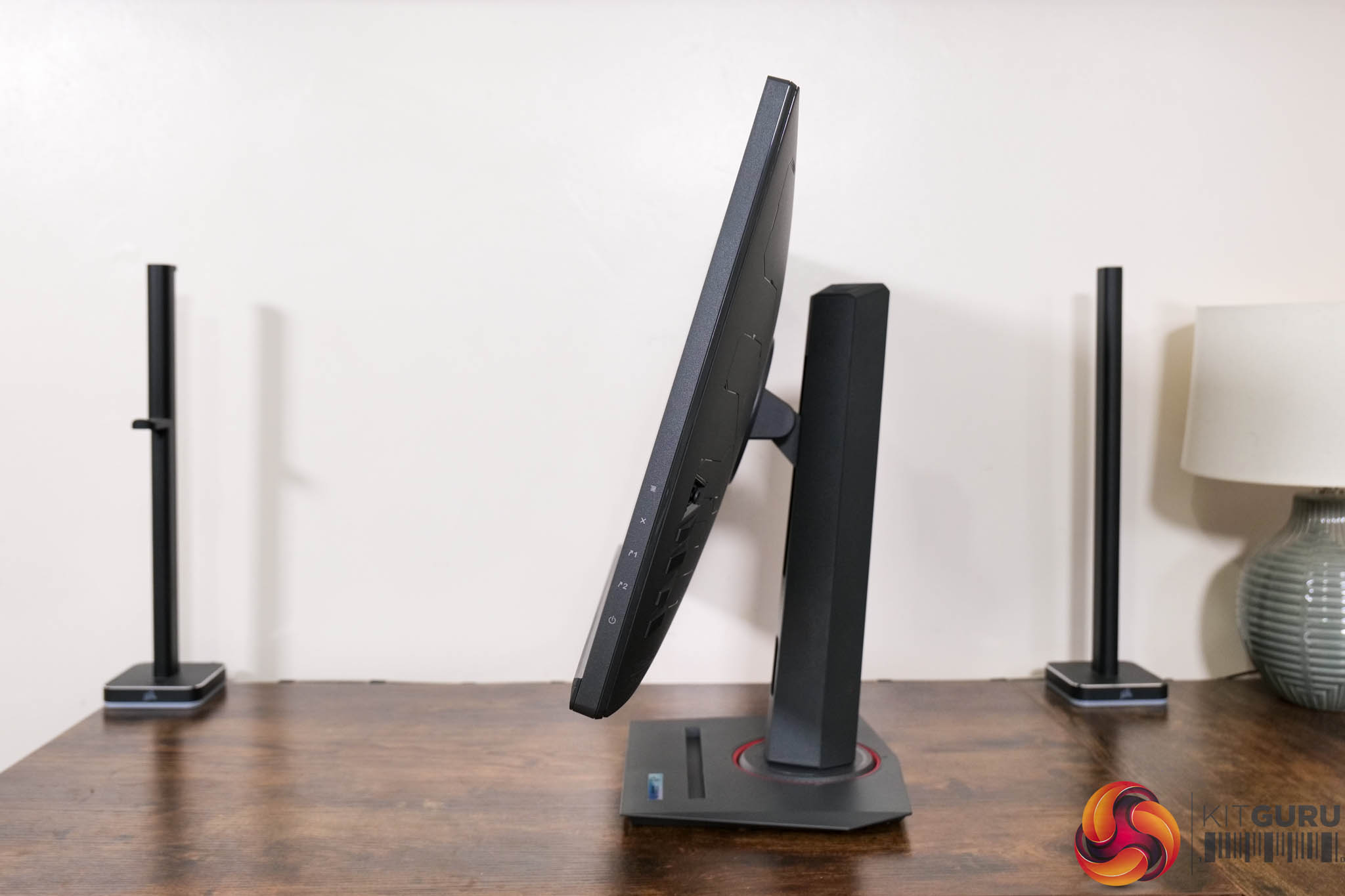
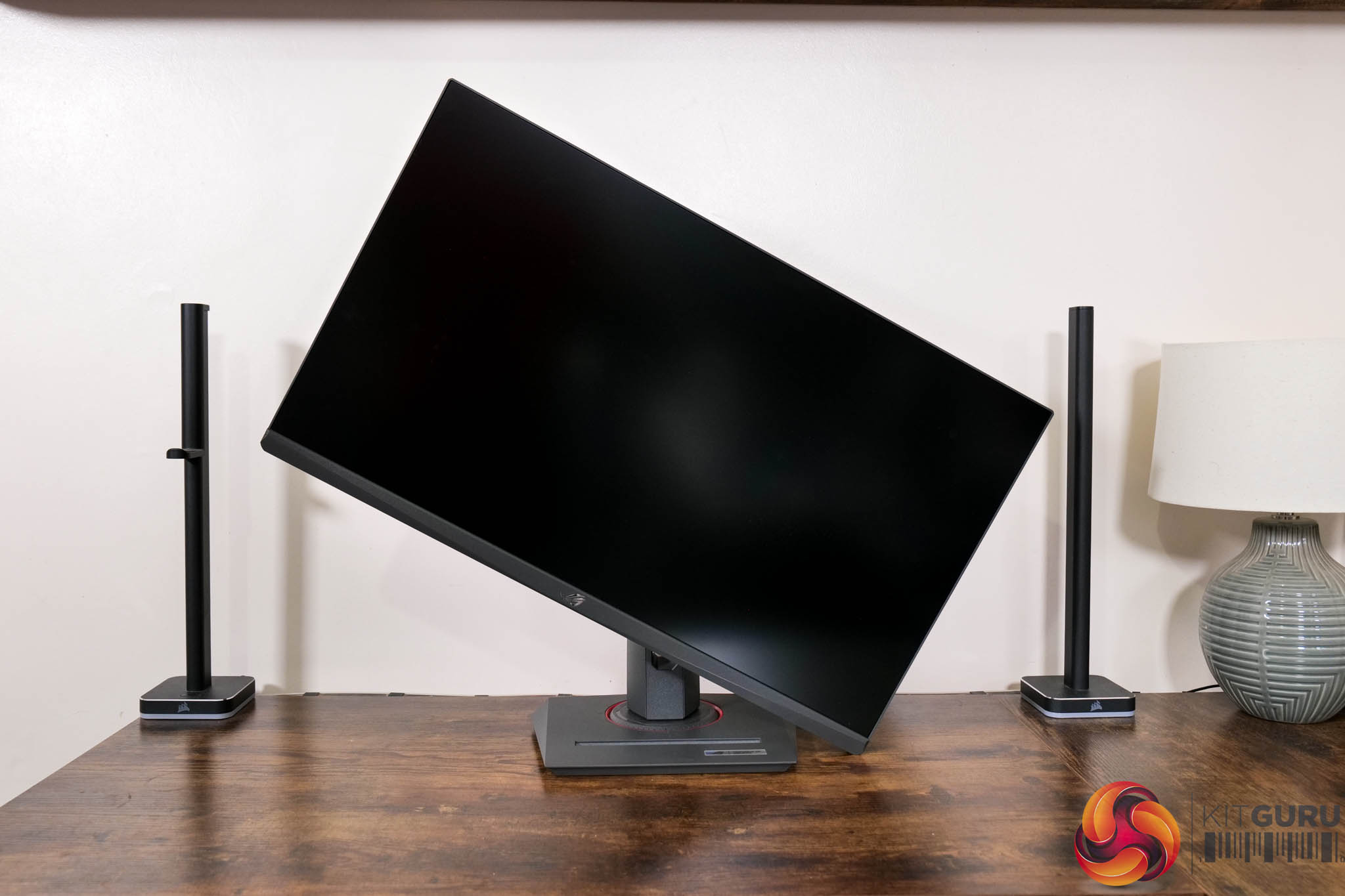
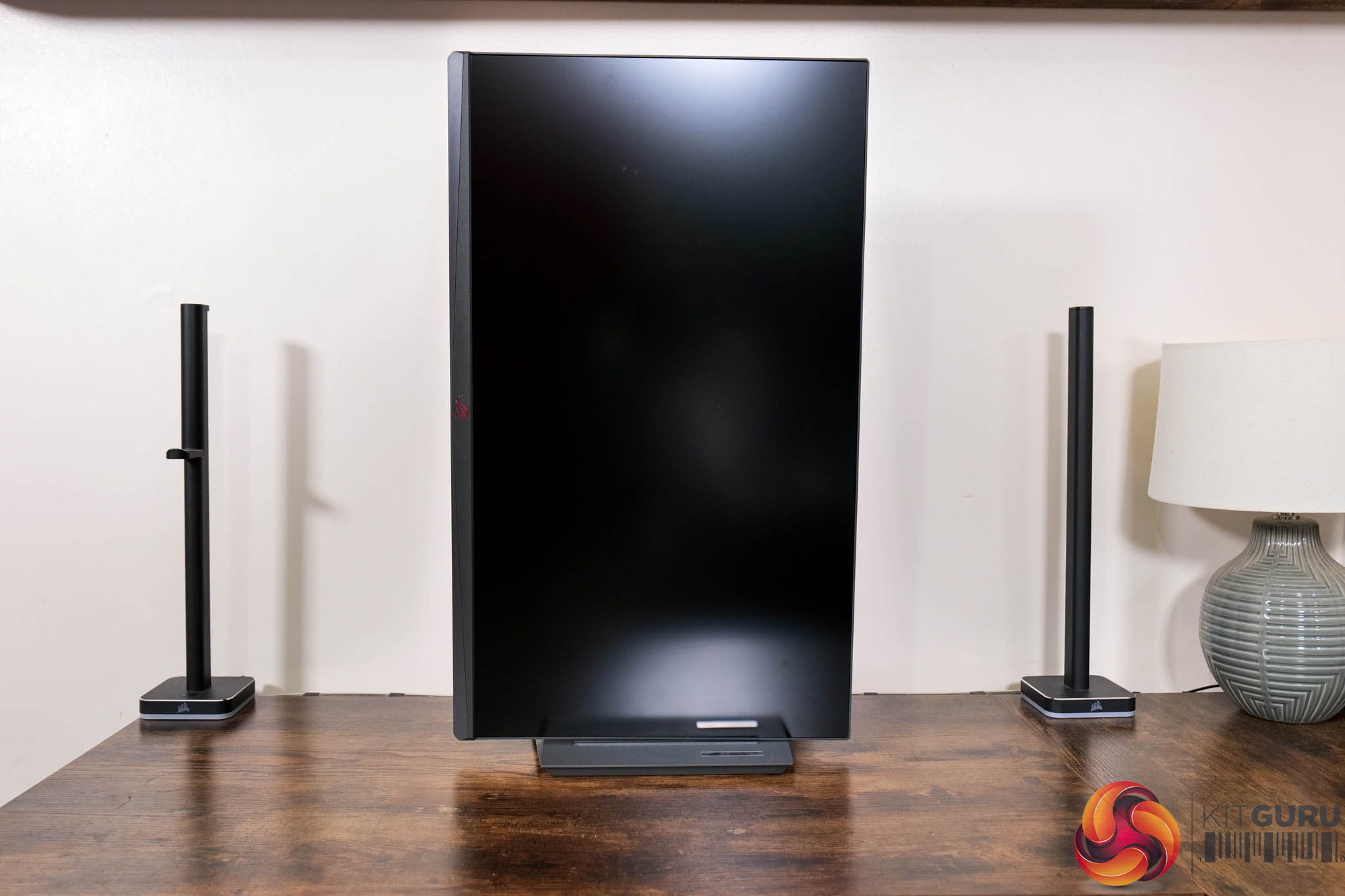
The included stand offers the full array of ergonomic adjustments, including up to 120mm of height adjust, 45 degrees of swivel both left and right, tilt from -5 to +20 degrees, alongside 90 degree pivot functionality if you want to use the monitor vertically. VESA 100×100 mounts are also supported.
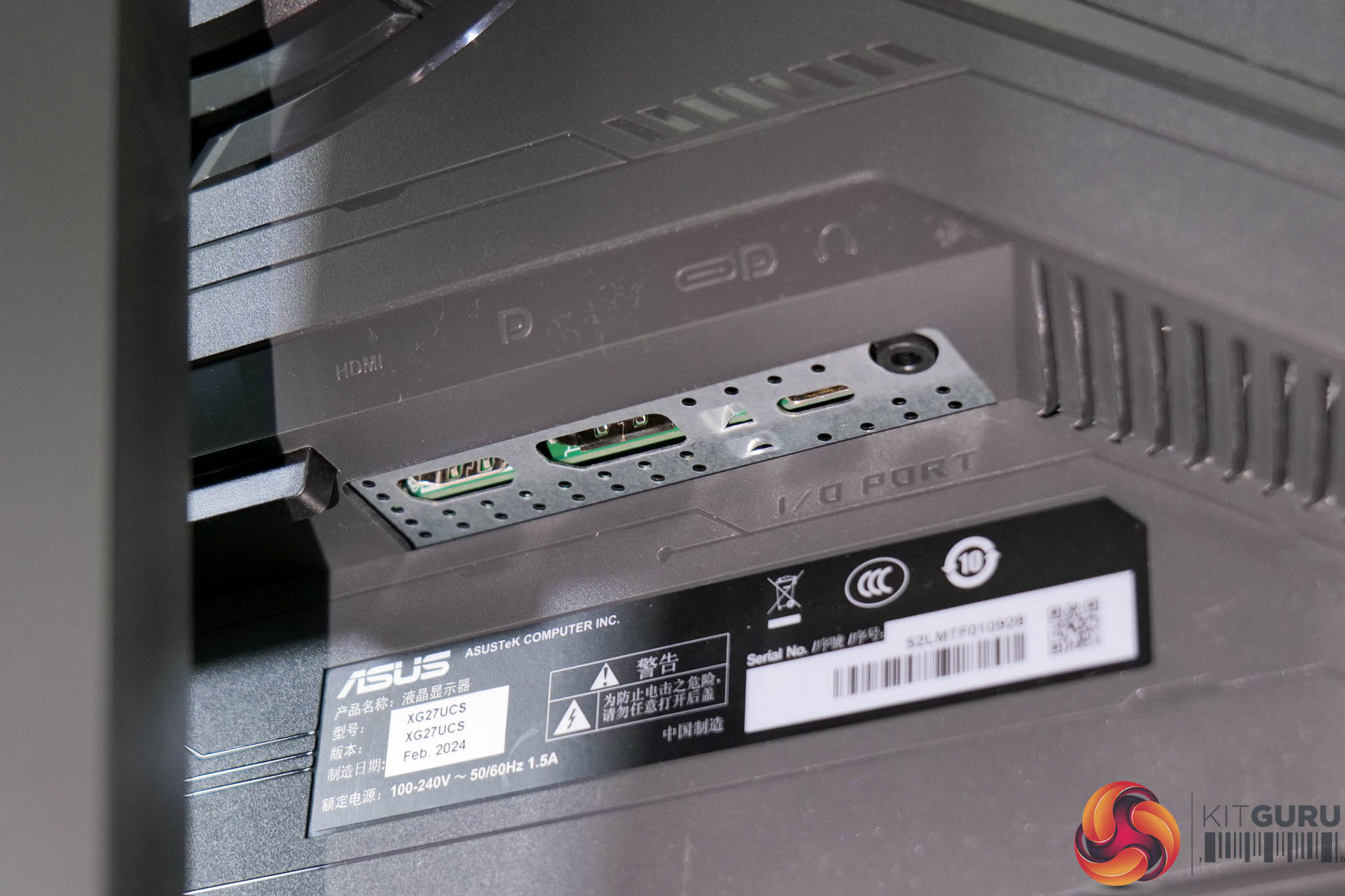

I/O is one of the areas that ASUS has cut back to meet the aggressive price point, given we find a single HDMI 2.1, one DisplayPort 1.4, a USB-C port that supports DP-Alt mode and 15W power delivery, and then a headphone jack. That means just two full-size video inputs, though HDMI 2.1 is at least a good inclusion for use with a console, while there's also no USB passthrough ports, let alone KVM functionality.
We do, thankfully, find a joystick used to navigate the OSD, along with four other buttons – one for power, two are user-customisable shortcuts, while the other closes the OSD.
The OSD is broken down into six main tabs:
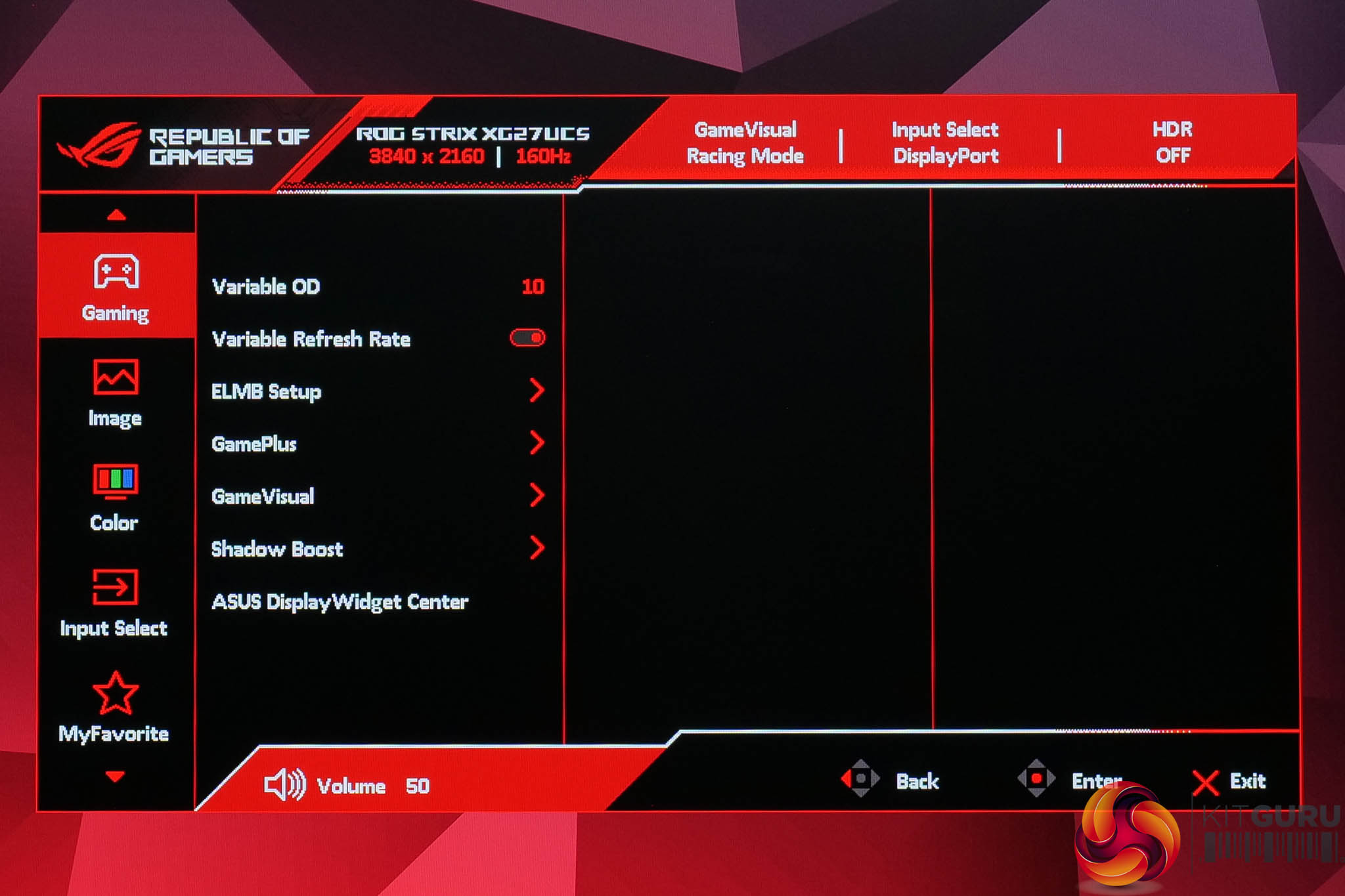
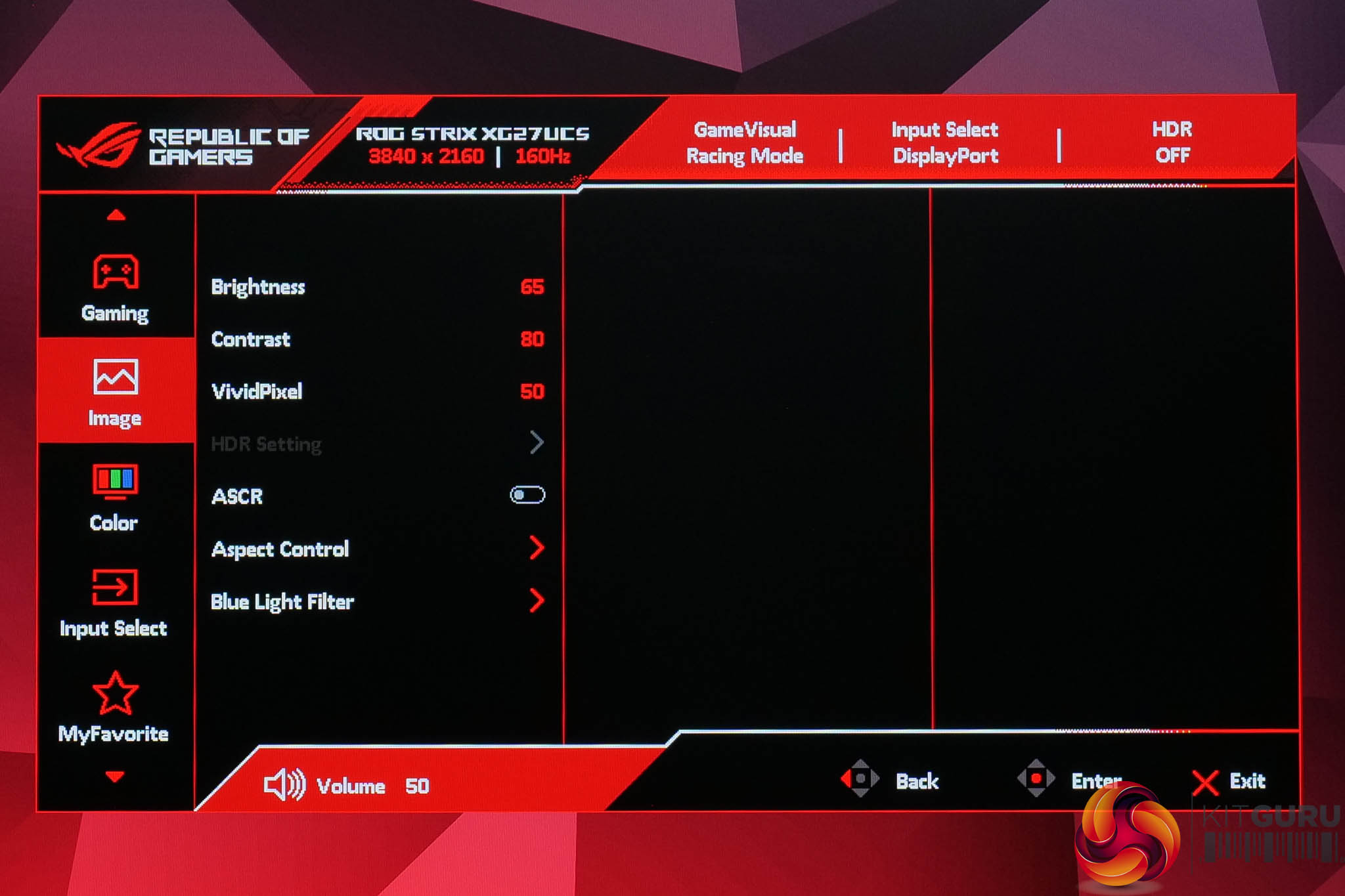
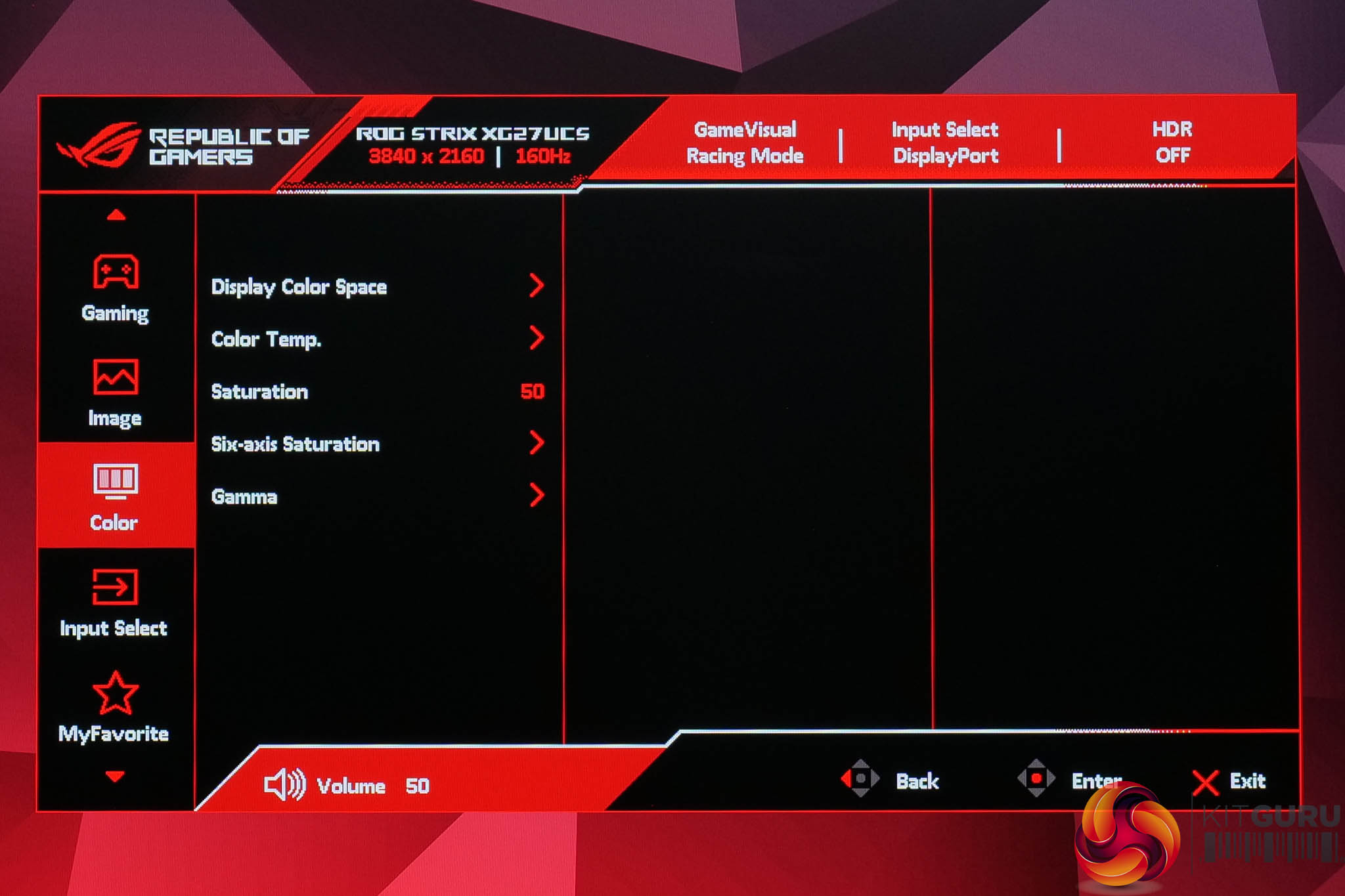
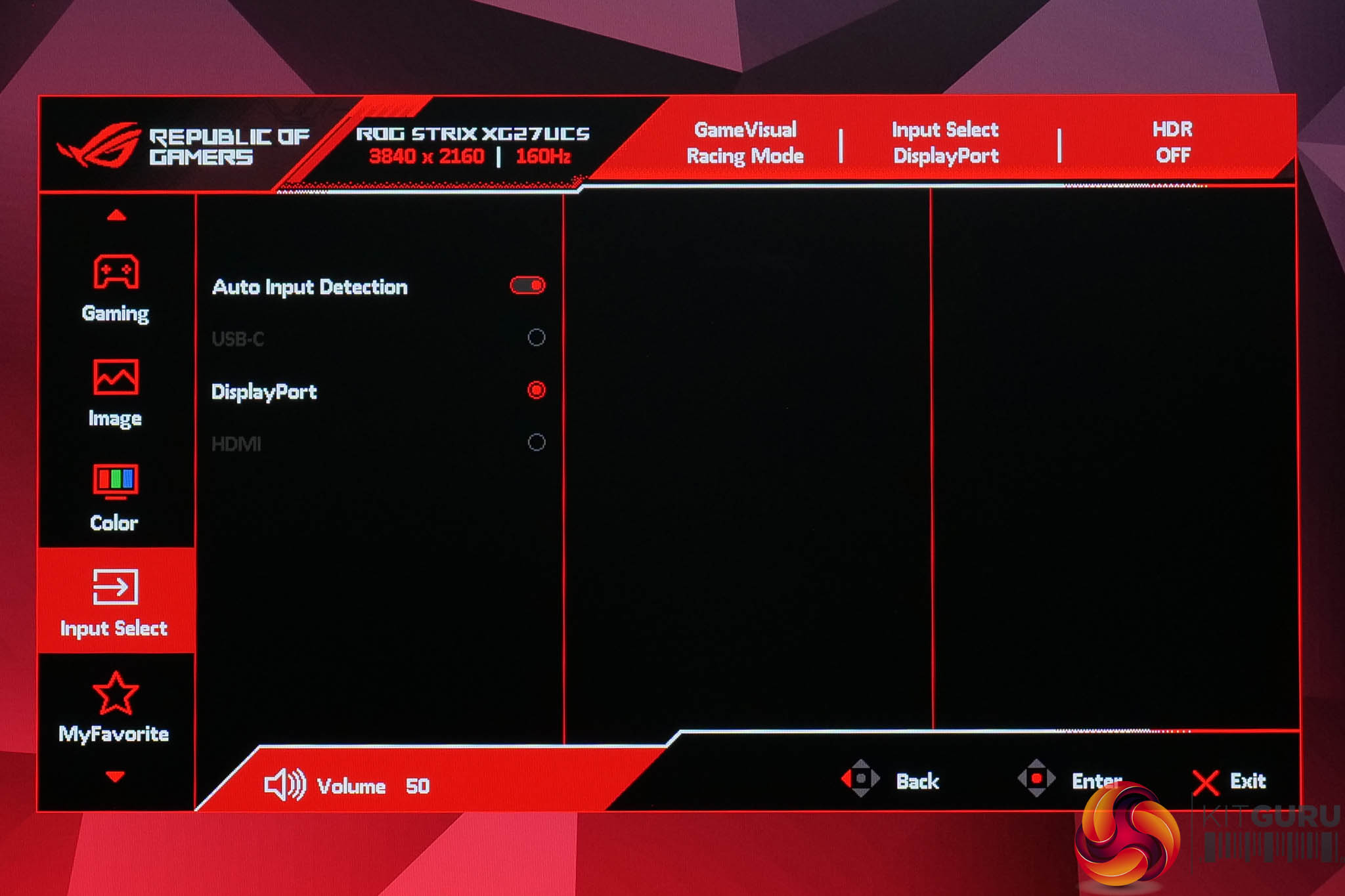
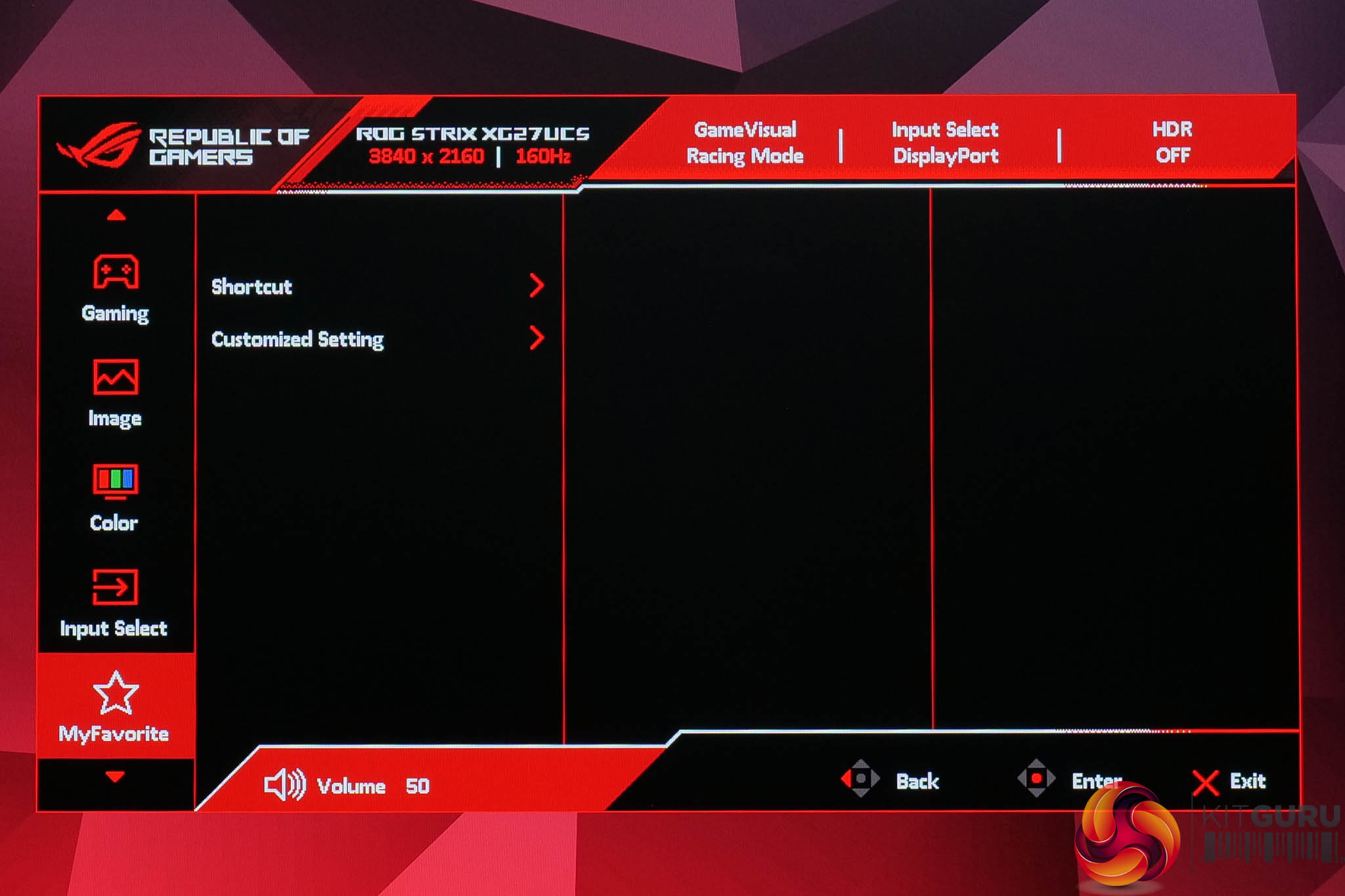
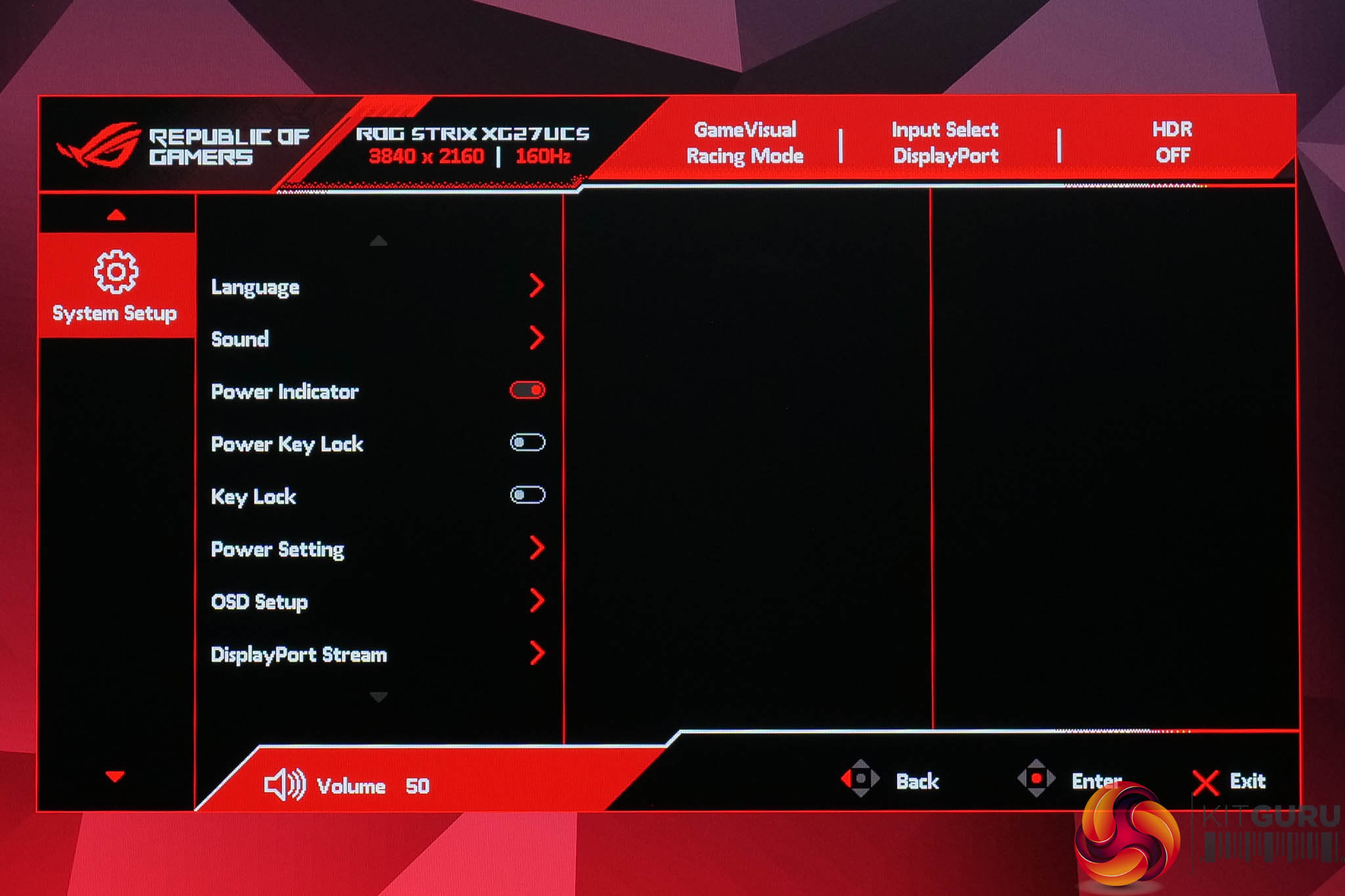
The OSD itself is every bit as comprehensive and well-laid out as we'd expect from an ASUS ROG monitor. It's very quick and easy to navigate, packed with features like crosshairs, shadow boost and colour space options, while I like the ability to map two settings to the shortcut buttons if you want to quickly adjust brightness or overdrive on the fly.
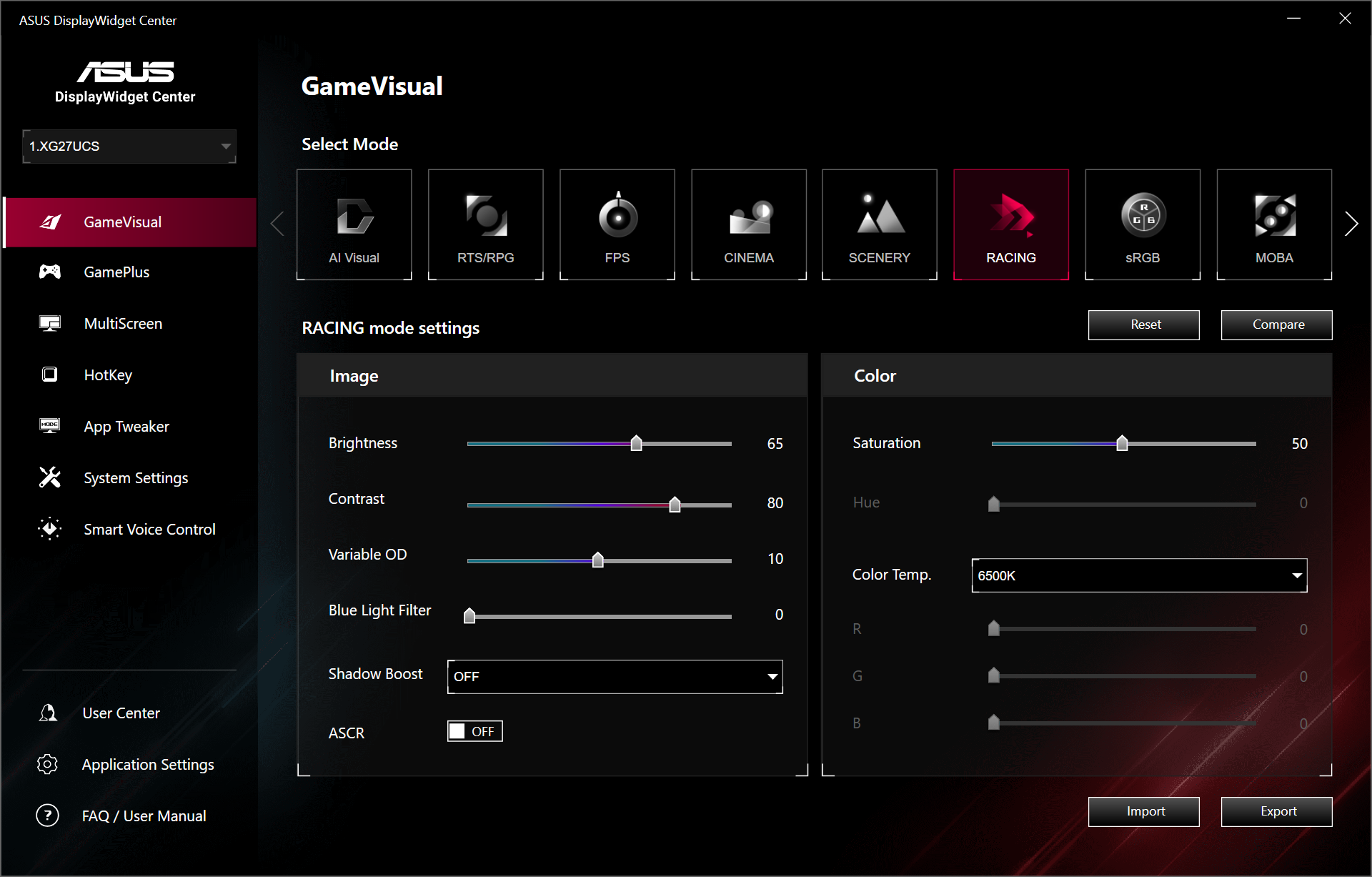
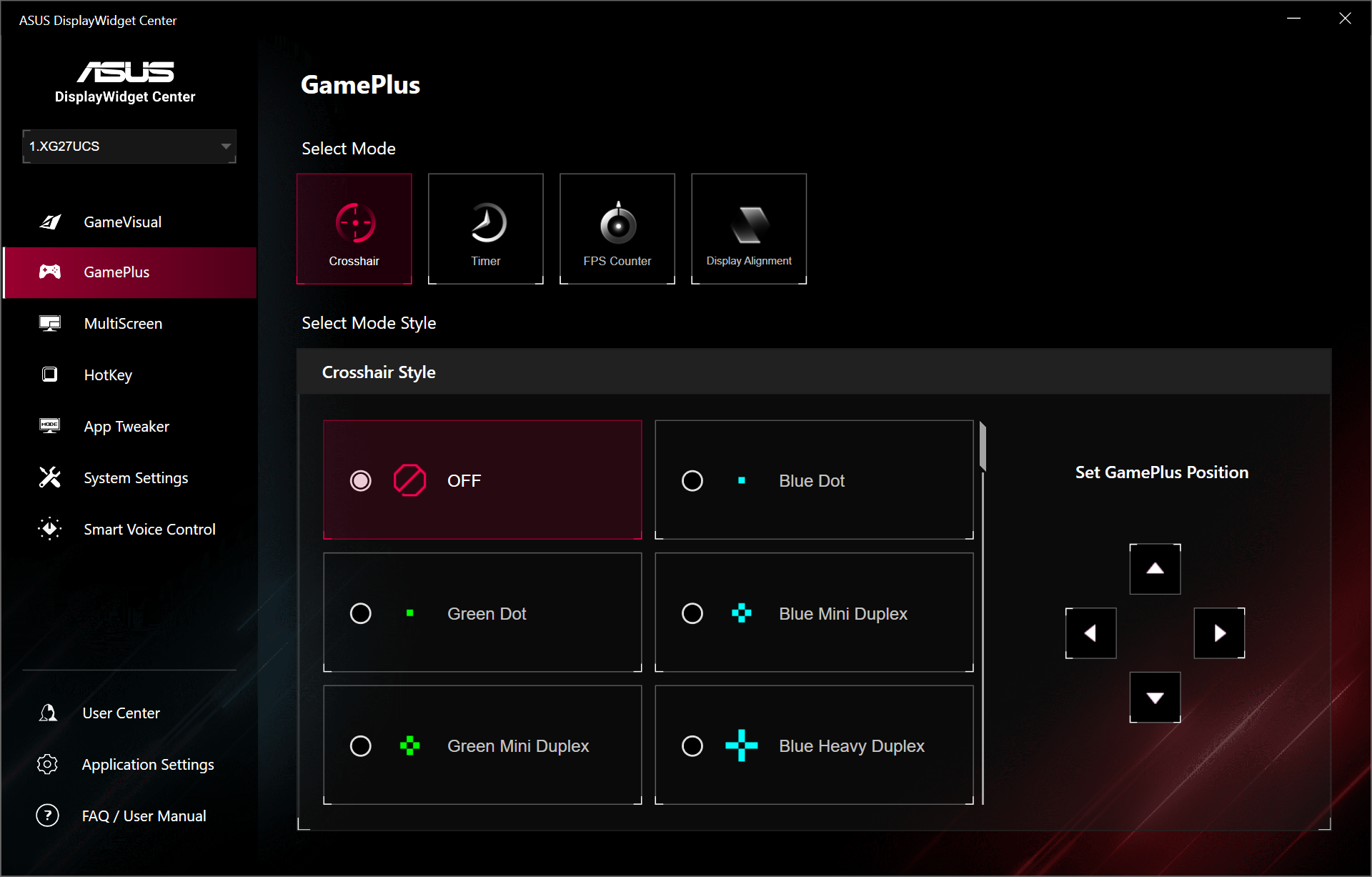
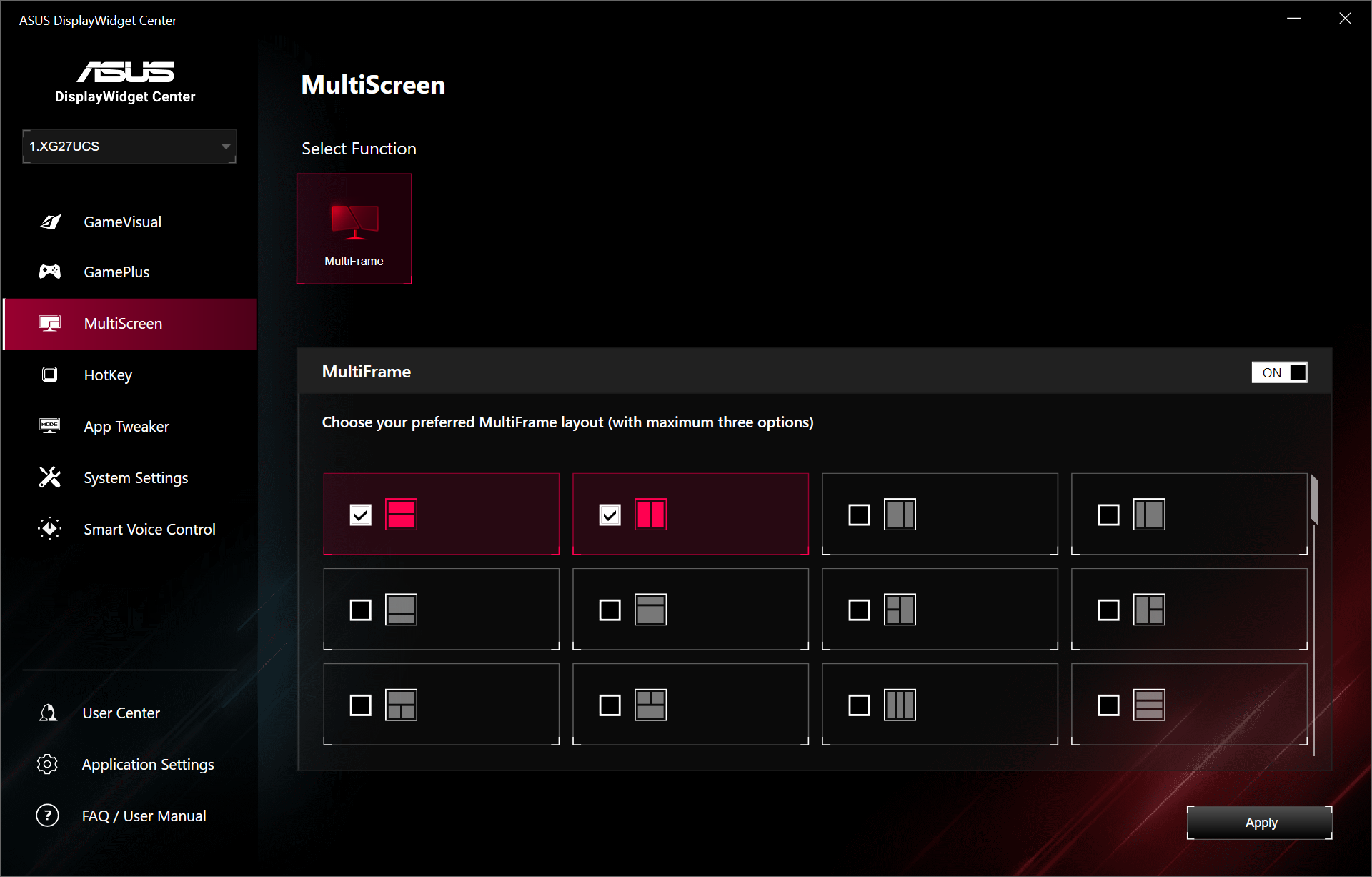
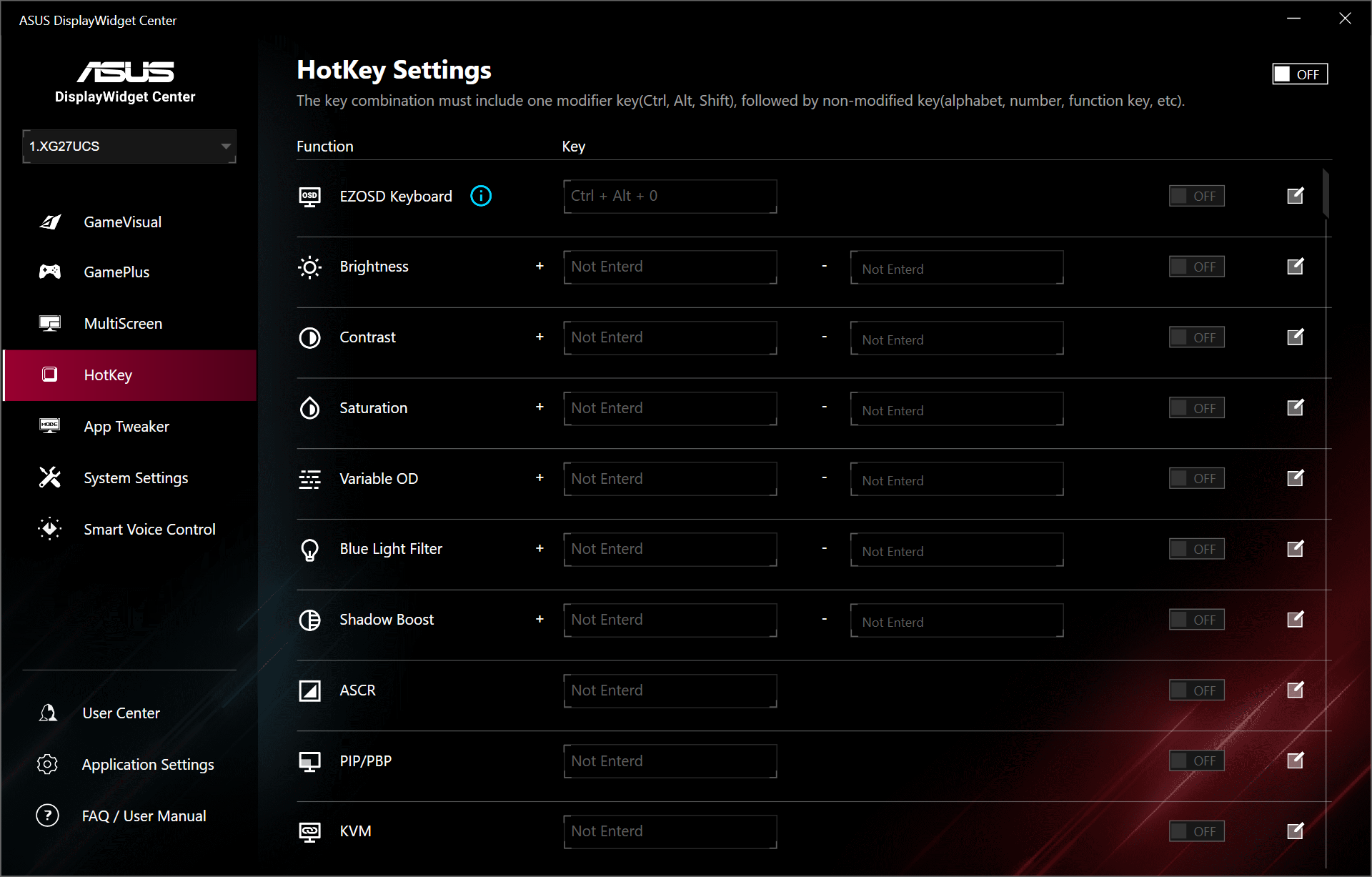
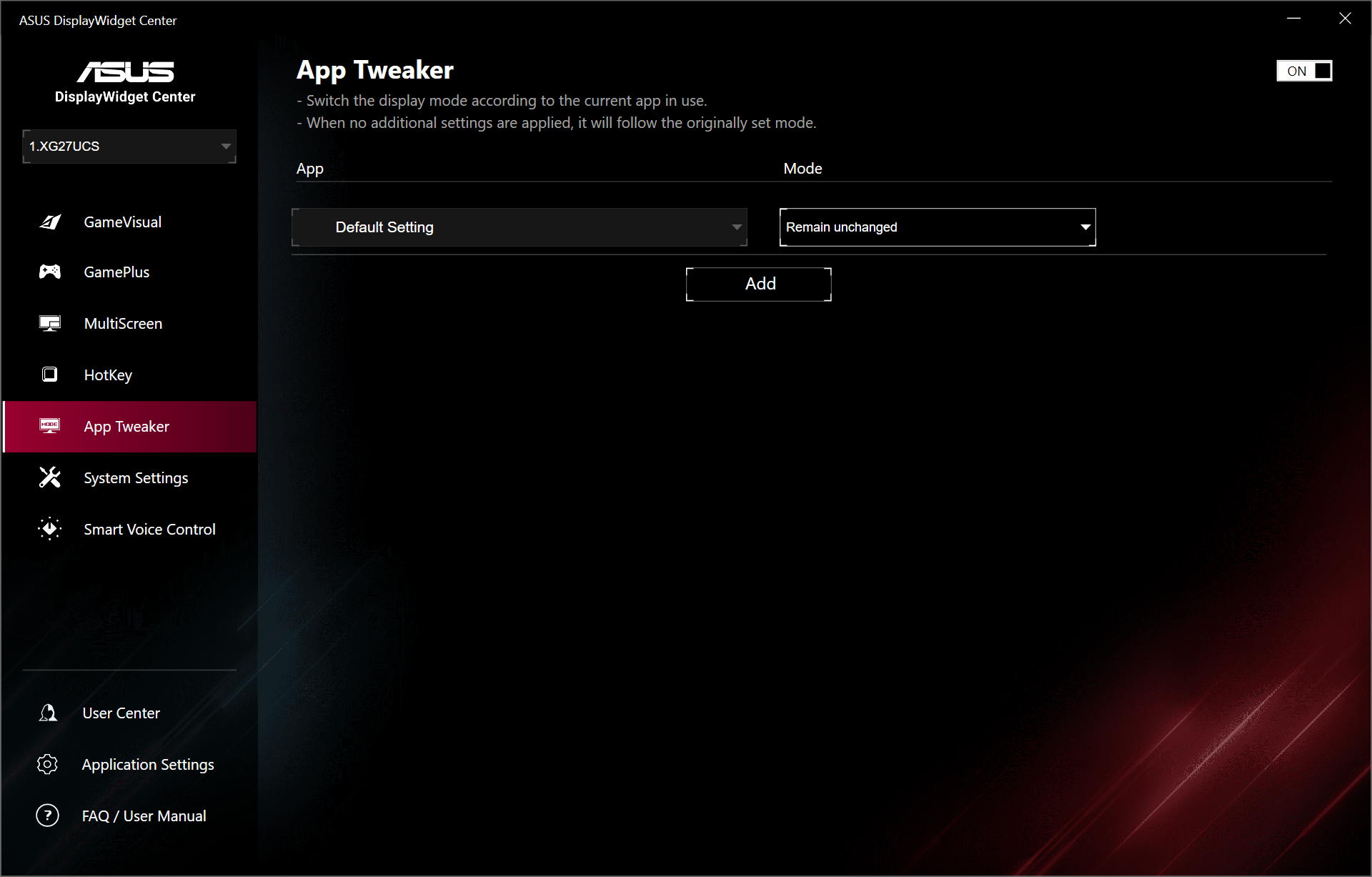
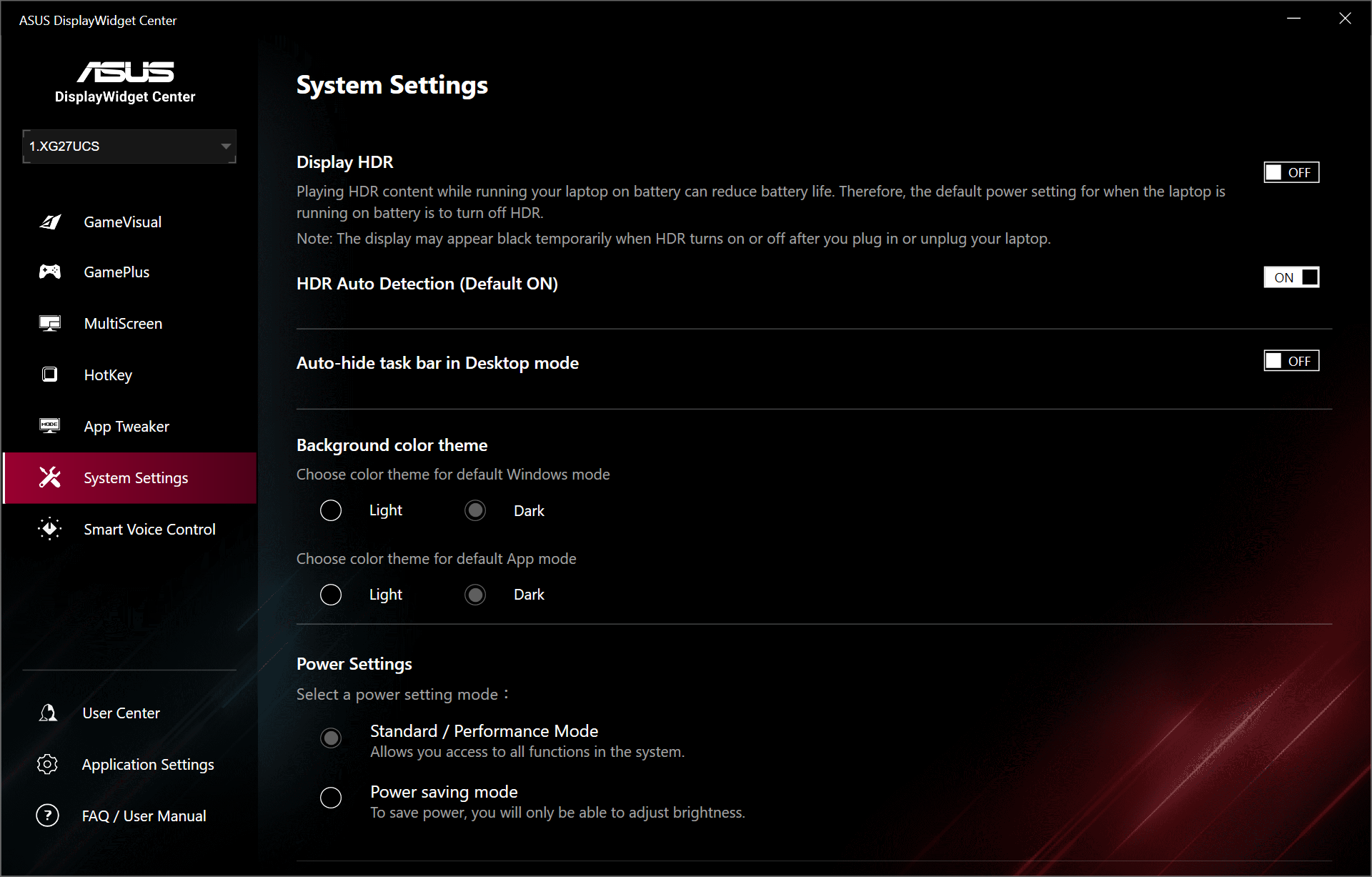
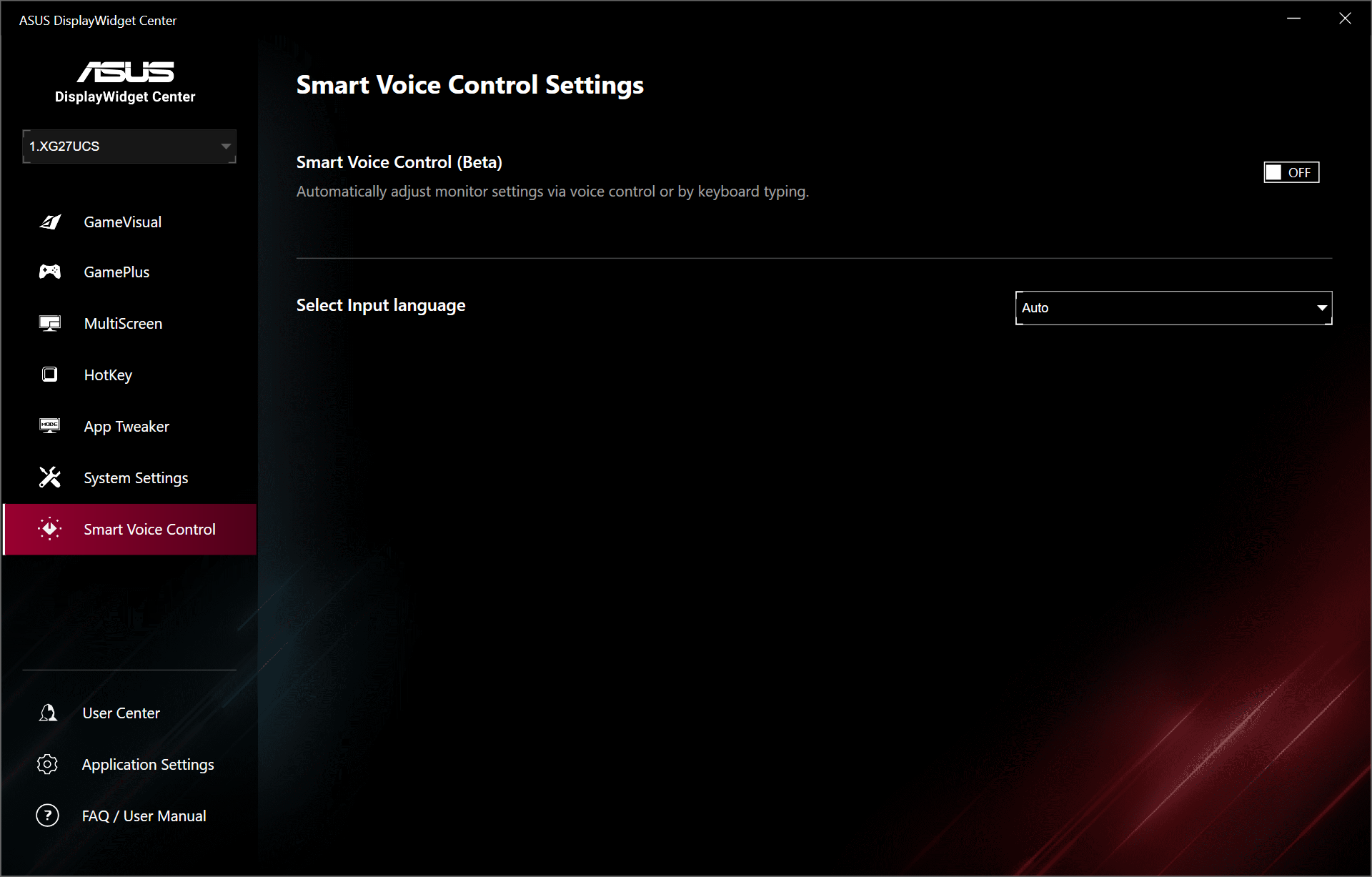
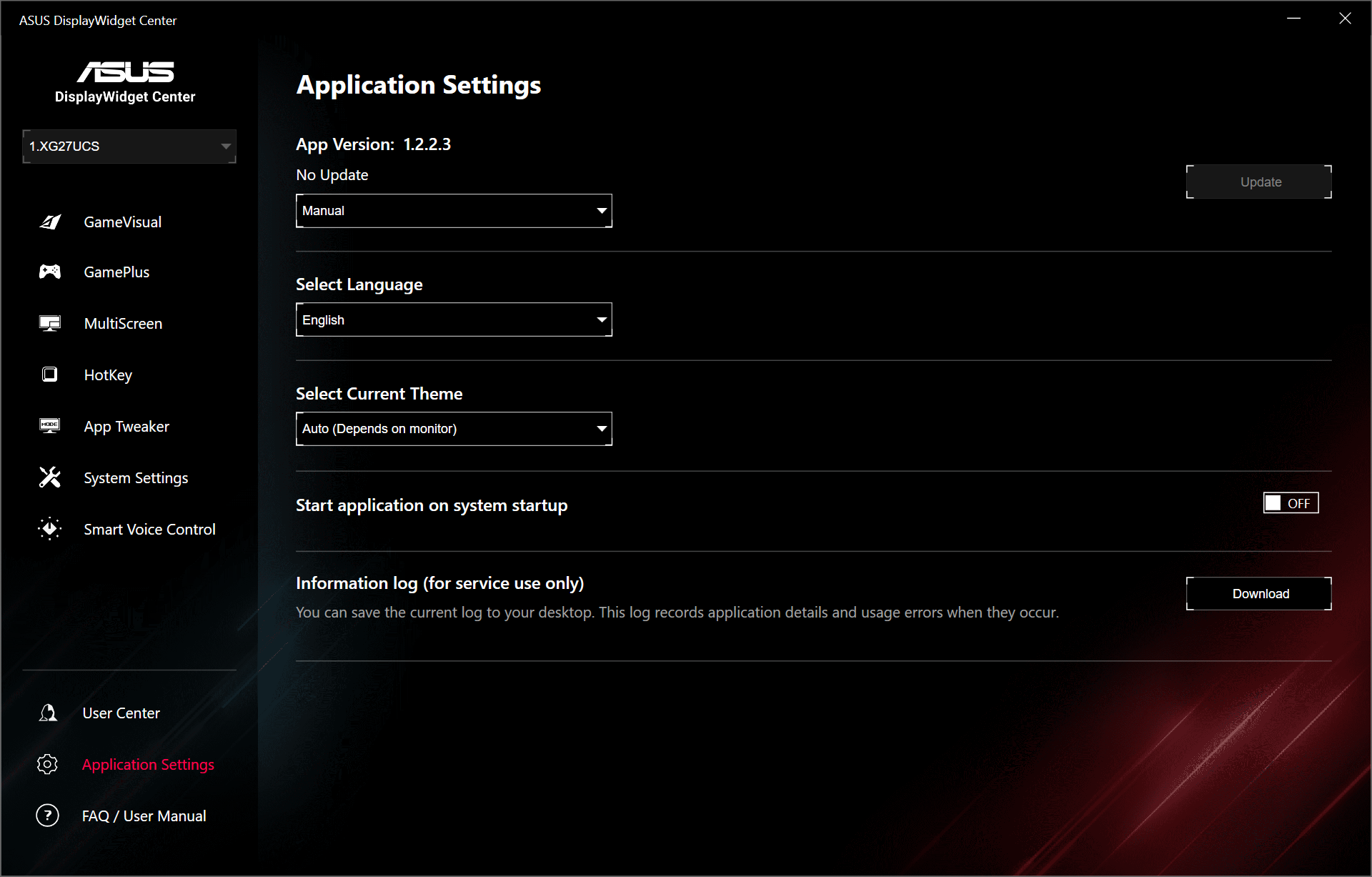
ASUS also offers its DisplayWidget Center software, giving you the same core functionality but in software form. It works well and is responsive, so it's a good option to have.
Our main test involves using an X-Rite i1 Display Pro Plus colorimeter and utilising Portrait Display's Calman Ultimate software. The device sits on top of the screen while the software generates colour tones and patterns, which it compares against predetermined values to work out how accurate the screen is.
The results show:
- A monitor’s maximum brightness in candelas or cd/m2 at various levels set in the OSD.
- A monitor’s contrast ratio at various brightness levels in the OSD.
- Gamut coverage, primarily focusing on sRGB and DCI-P3 colour spaces.
- Greyscale accuracy, measured across 20 shades, with an average colour balance reported.
- The exact gamma levels, with a comparison against preset settings in the OSD.
- The colour accuracy, expressed as a Delta E ratio, with a result under 3 being fine for normal use, and under 2 being great for colour-accurate design work.
We first run these tests with the display in its out-of-the-box state, with all settings on default. If there is an sRGB emulation option or other useful mode then we may test that too. We then calibrate the screen using the Calman Ultimate software and run the tests again.
You can read more about our test methodology HERE.
Default settings
Brightness and Contrast (Full Screen)
| OSD Brightness | White Luminance (cd/m2) | Black Luminance (cd/m2) | Contrast Ratio |
| 0% | 53.6 | 0.062 | 861:1 |
| 25% | 156 | 0.181 | 863:1 |
| 50% | 255.3 | 0.294 | 867:1 |
| 75% | 351.5 | 0.406 | 867:1 |
| 100% | 444.8 | 0.514 | 866:1 |
Starting our testing with brightness, the minimum of 53.6 nits is fine, while the maximum comes in just below 450 nits, so that's about 50 nits brighter than the U27G4R. However, black levels aren't the best, resulting in contrast of around 860:1. Even by IPS standards that is quite low, given modern screens will be hitting at least 1000:1 and often more like 1200:1 nowadays.
Gamut (CIE 1976)

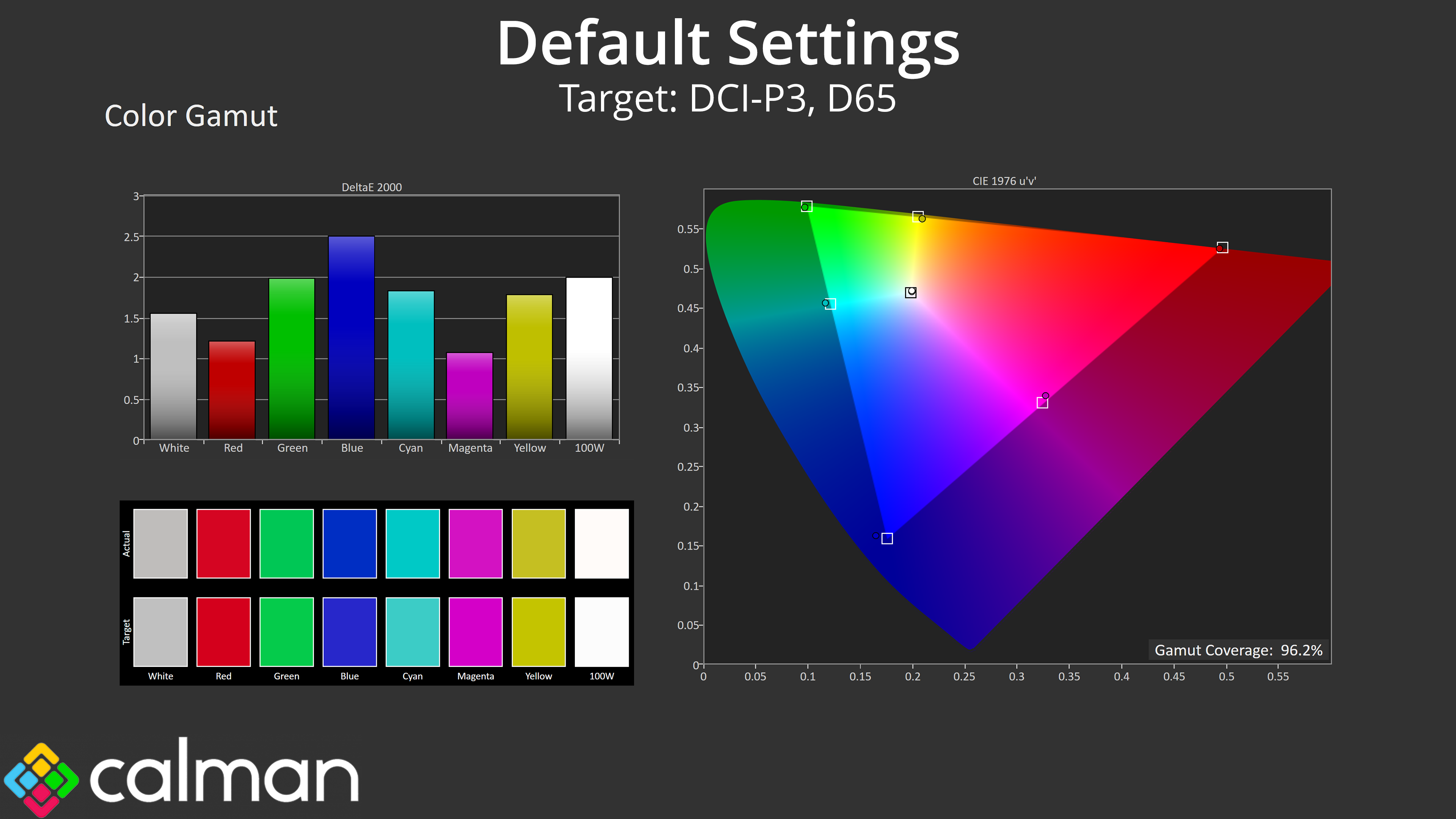
| Colour space | Coverage (%) |
| sRGB | 99.2 |
| DCI-P3 | 96.2 |
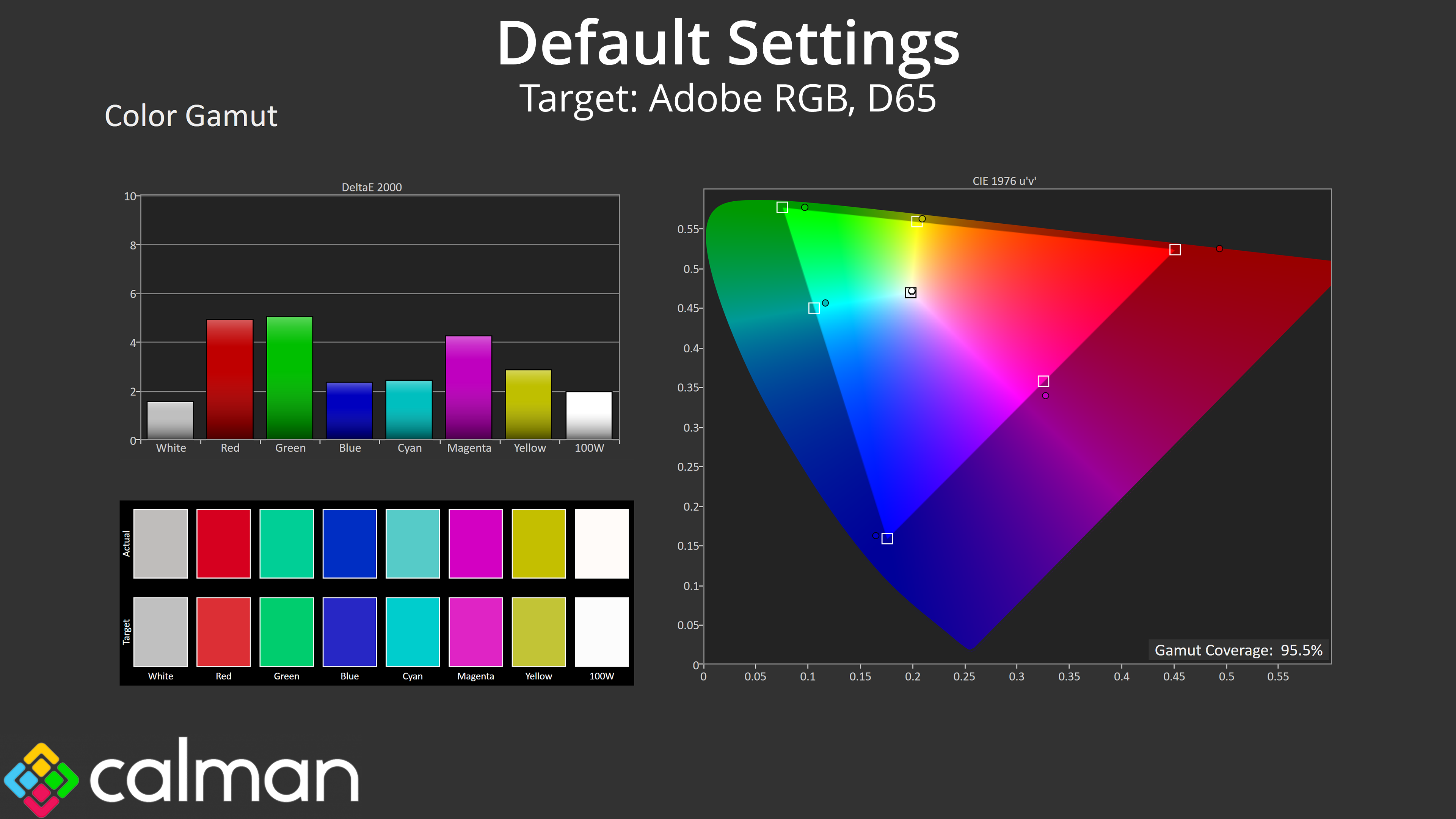
| Adobe RGB | 95.5 |
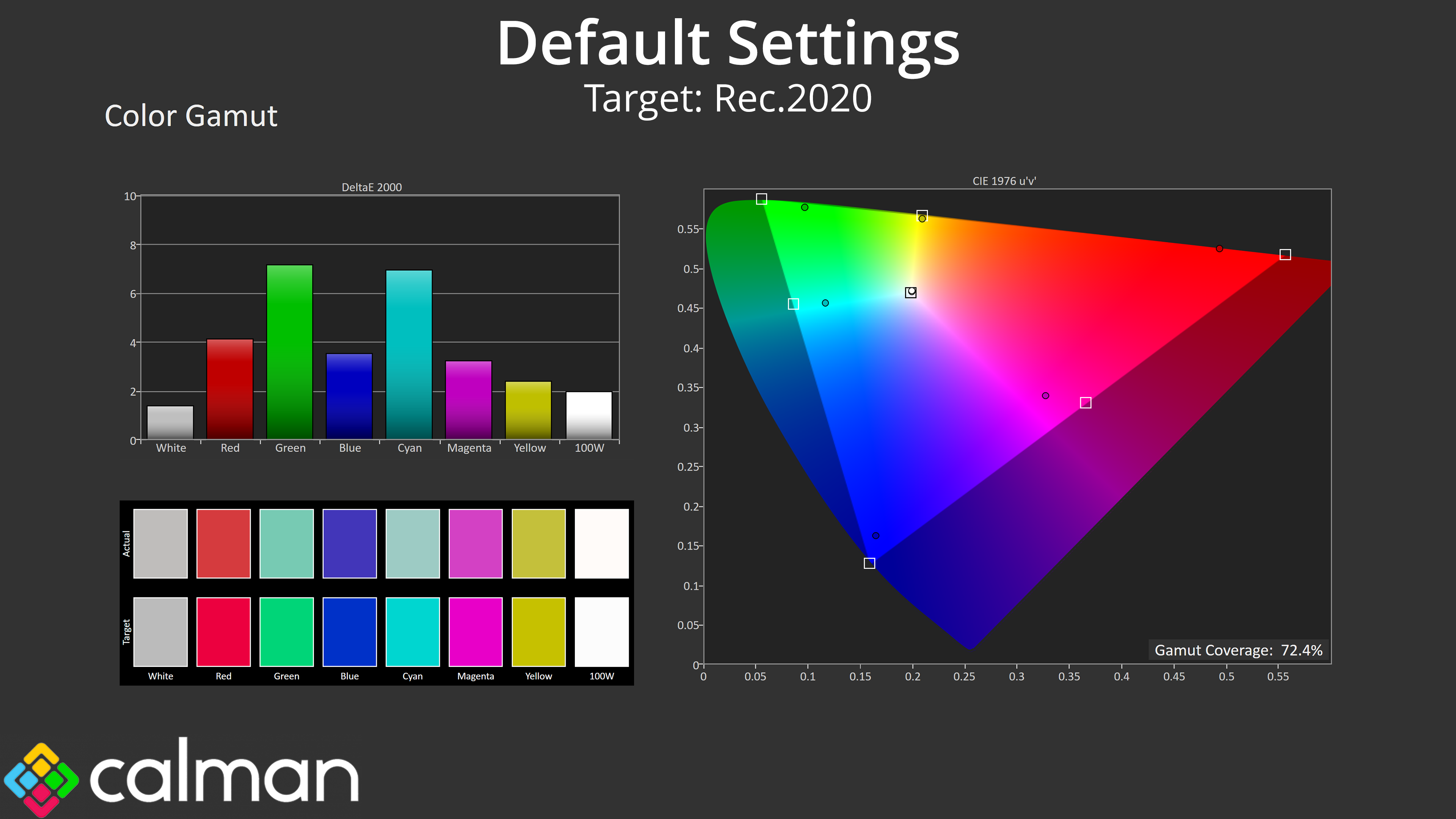
| Rec.2020 | 72.4 |
The gamut is pleasingly wide though, generally exceeding the sRGB space and offering 96.2% coverage of DCI-P3, 95.5% reporting for Adobe RGB and 72.4% for Rec.2020, which is not bad at all considering the price.
Greyscale
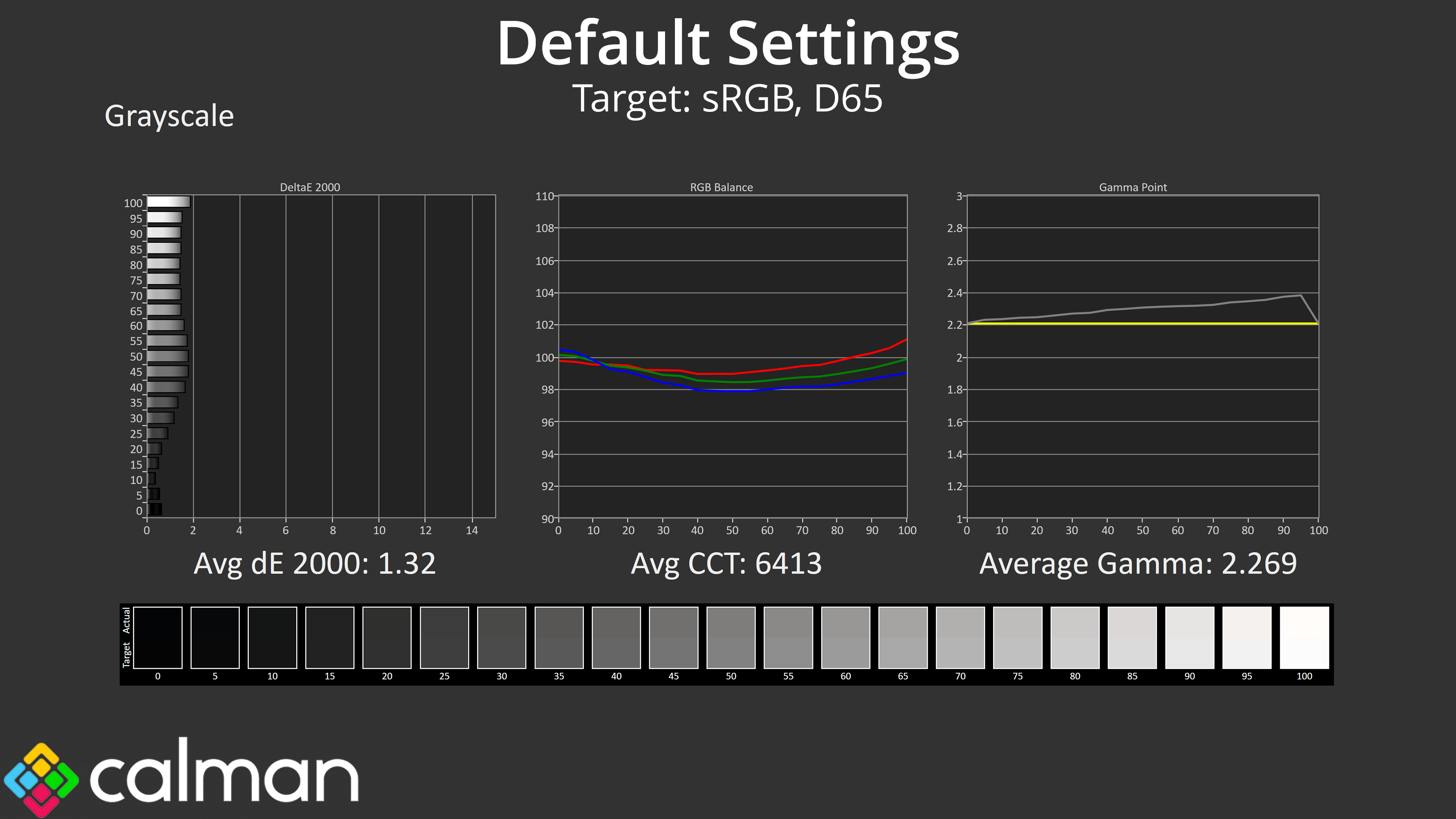
I'm also pleased to say ASUS has done a good job with the factory calibration. The colour balance is generally very accurate, averaging 6413K, with only the slightest of warm tints but nothing that was really visible to my eye. Gamma gets a little high toward the end of the curve but is fine overall, averaging 2.269. All in all that gives an average greyscale deltaE 2000 of just 1.32, a very good result indeed.
Saturation
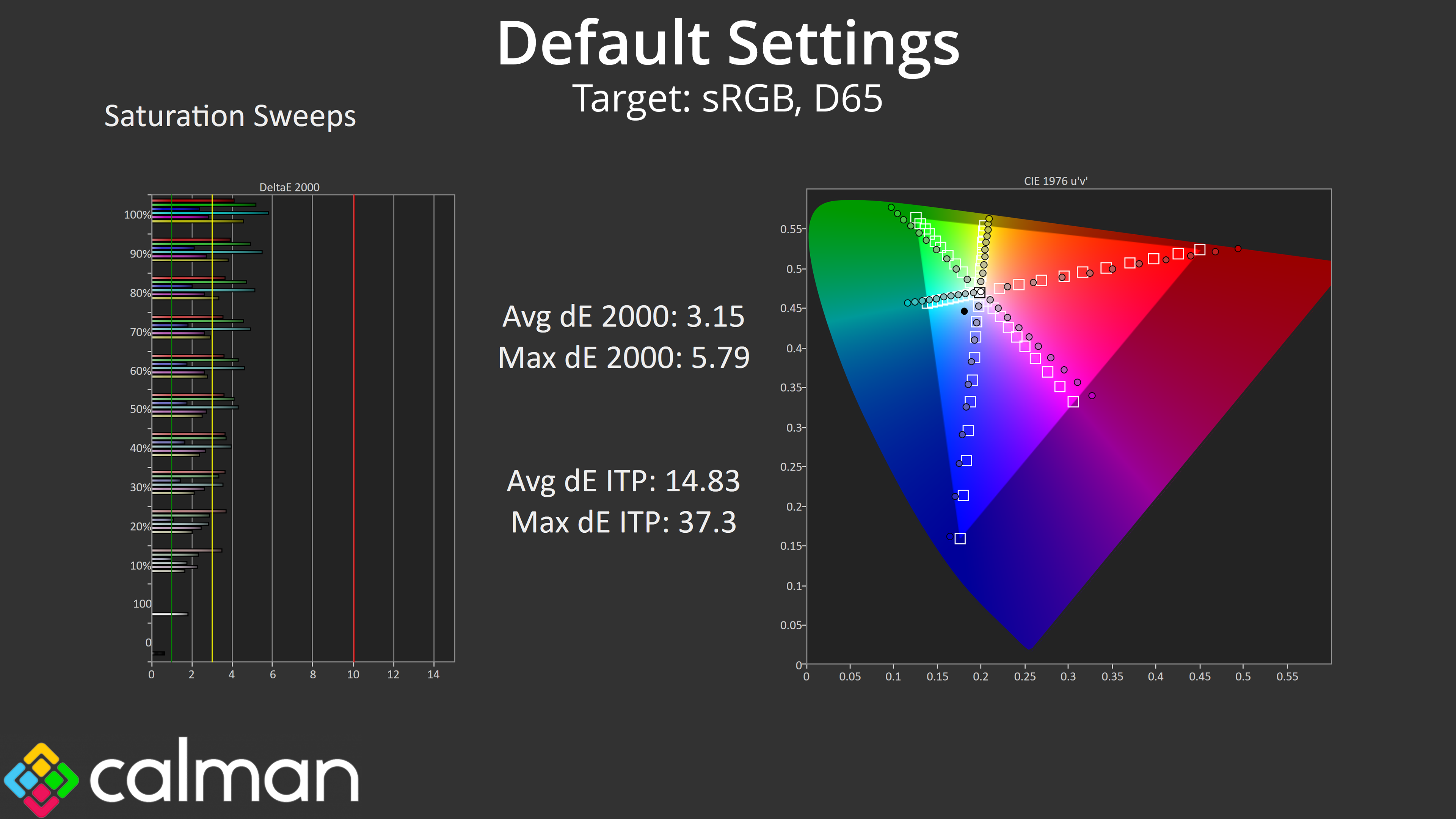
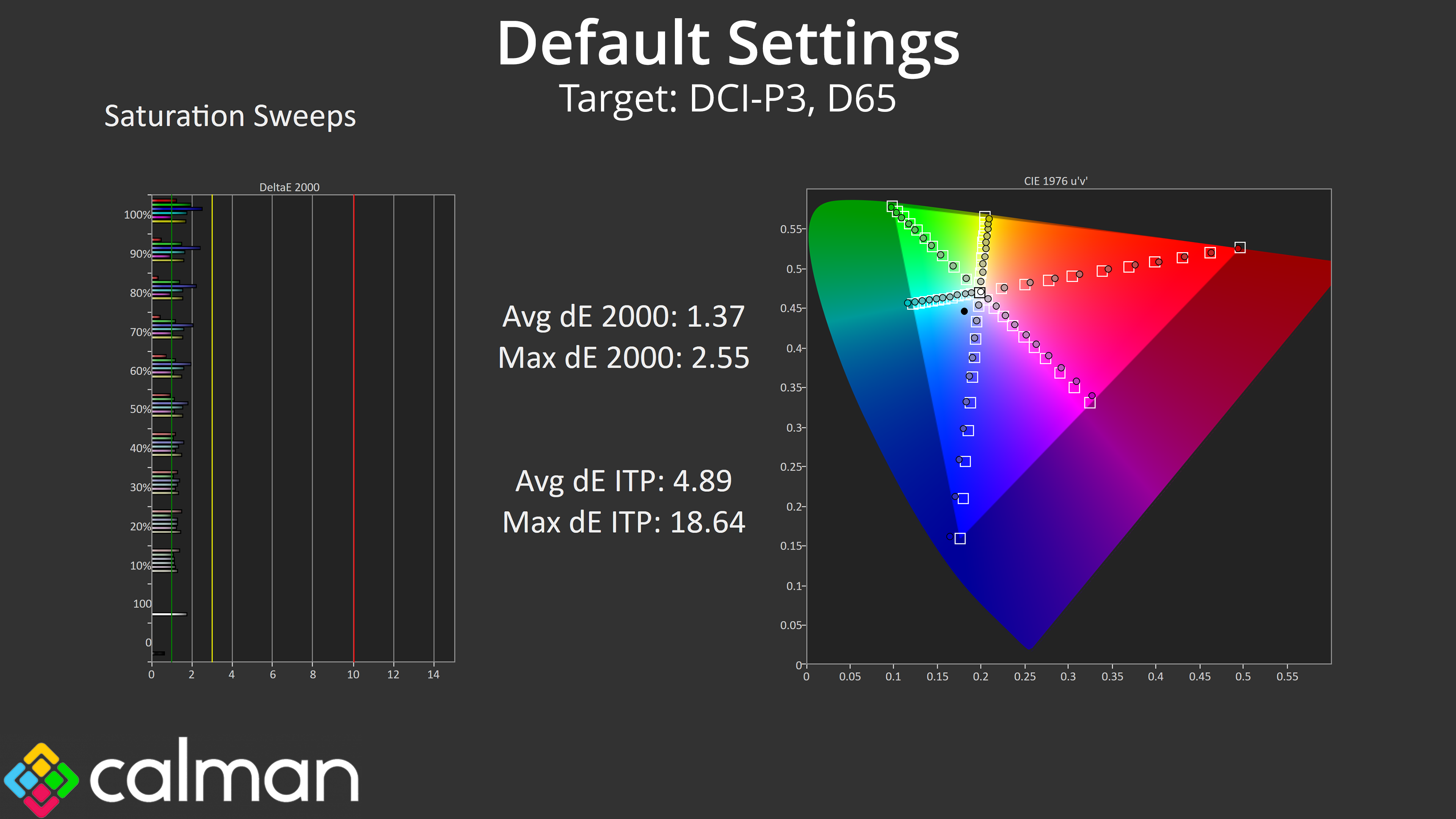
Given the wide gamut on show, we do see a good amount of oversaturation relative to sRGB, though compared against the DCI-P3 space, the average dE 2000 of just 1.37 is very good.
Colour Accuracy
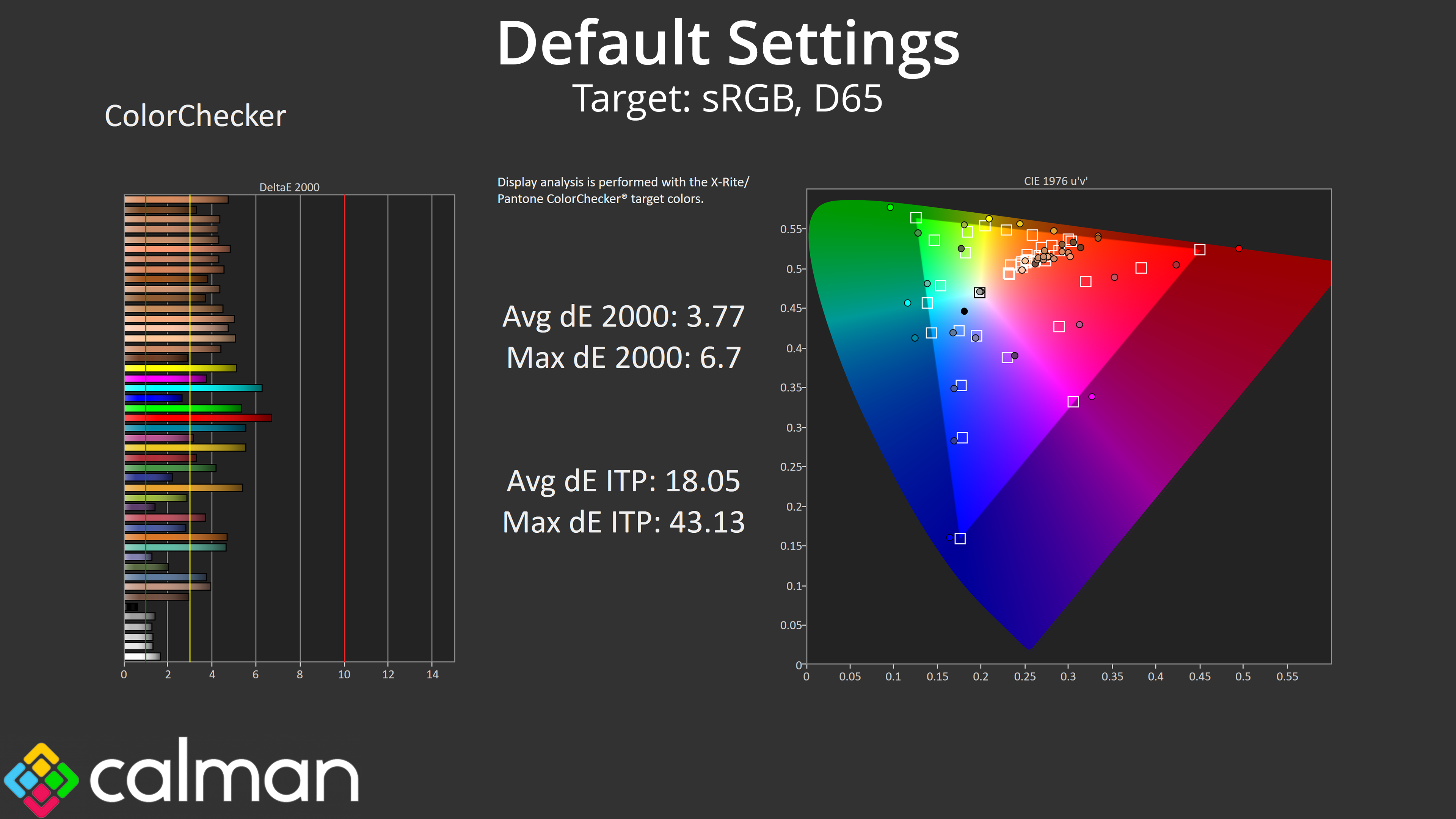
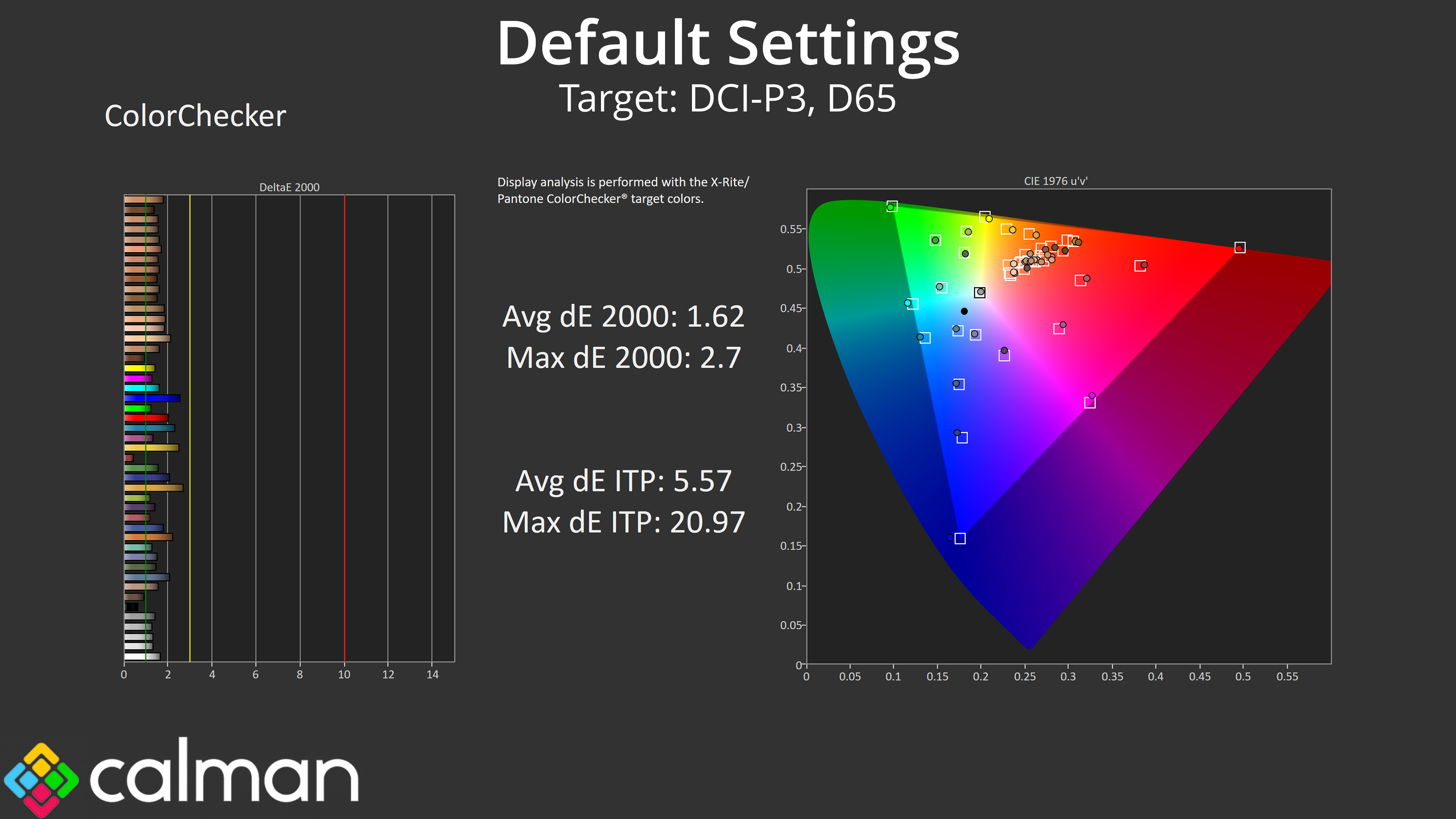
The same goes for our colour accuracy testing. The sRGB space shows the effects of the oversaturation and colours aren't particularly accurate, averaging a dE 2000 of 3.77. Relative to the DCI-P3 space though, things are much improved, with a new average dE of 1.62 – not bad at all for a £300 gaming monitor!
sRGB Emulation Mode
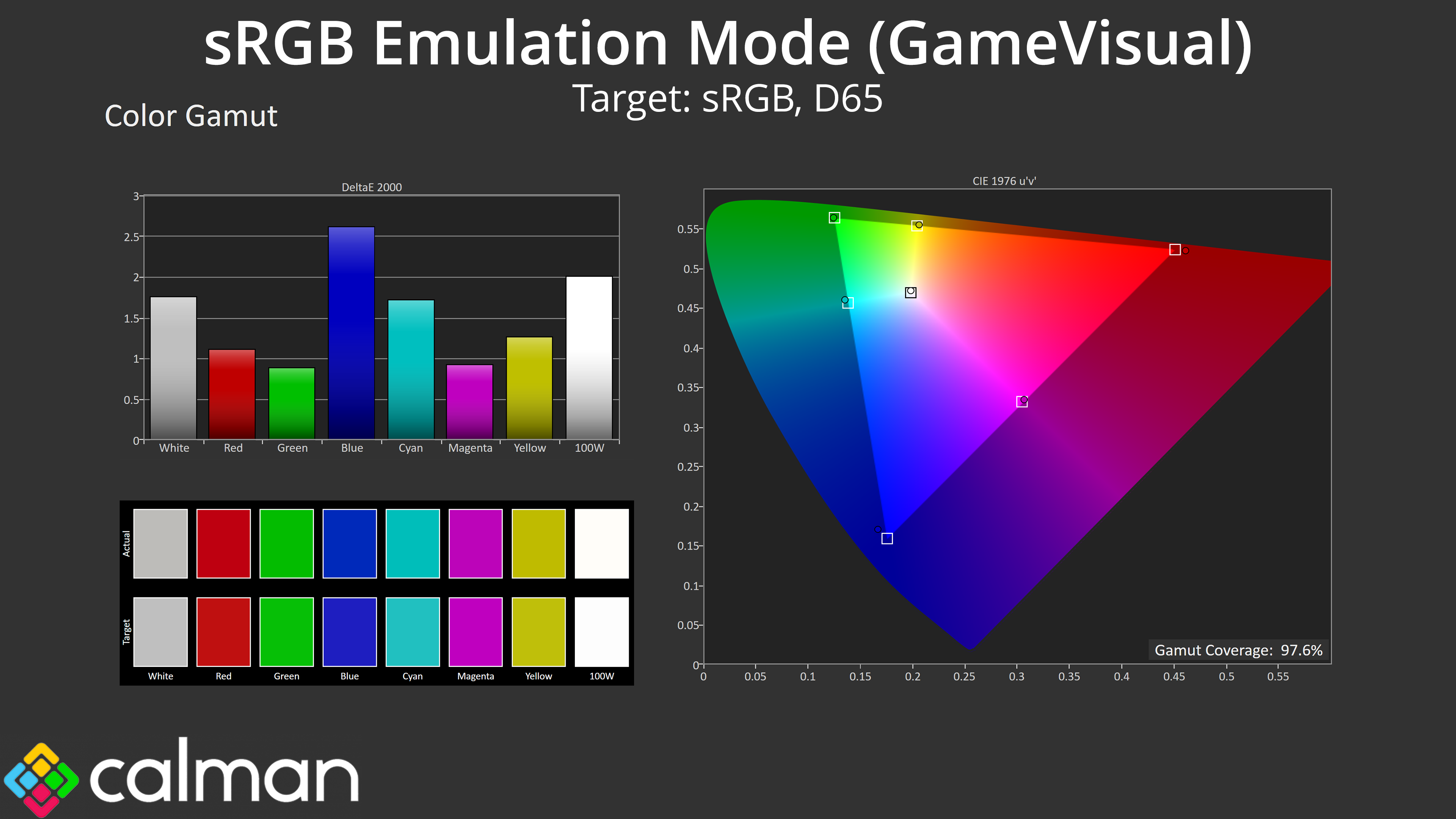
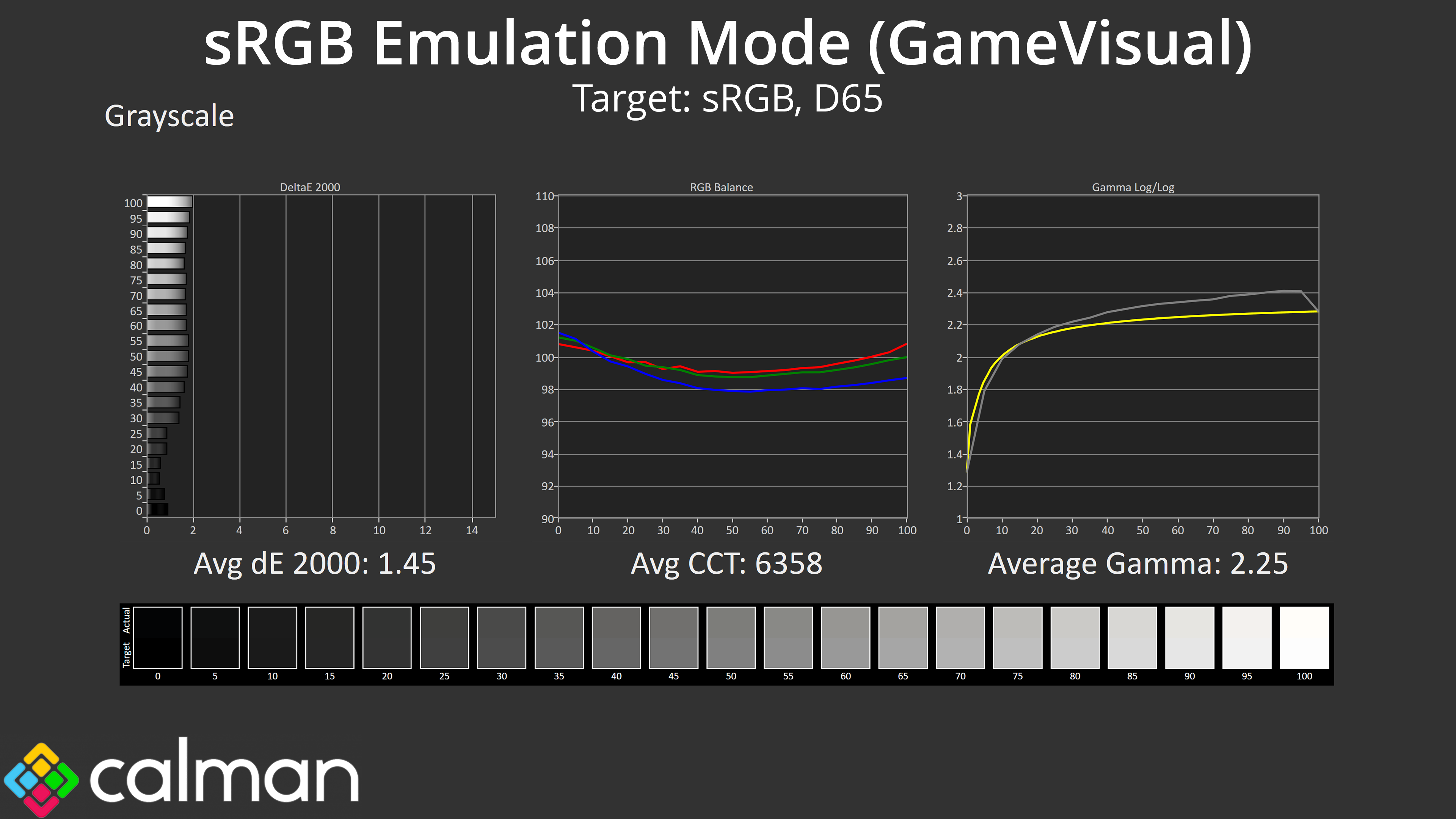
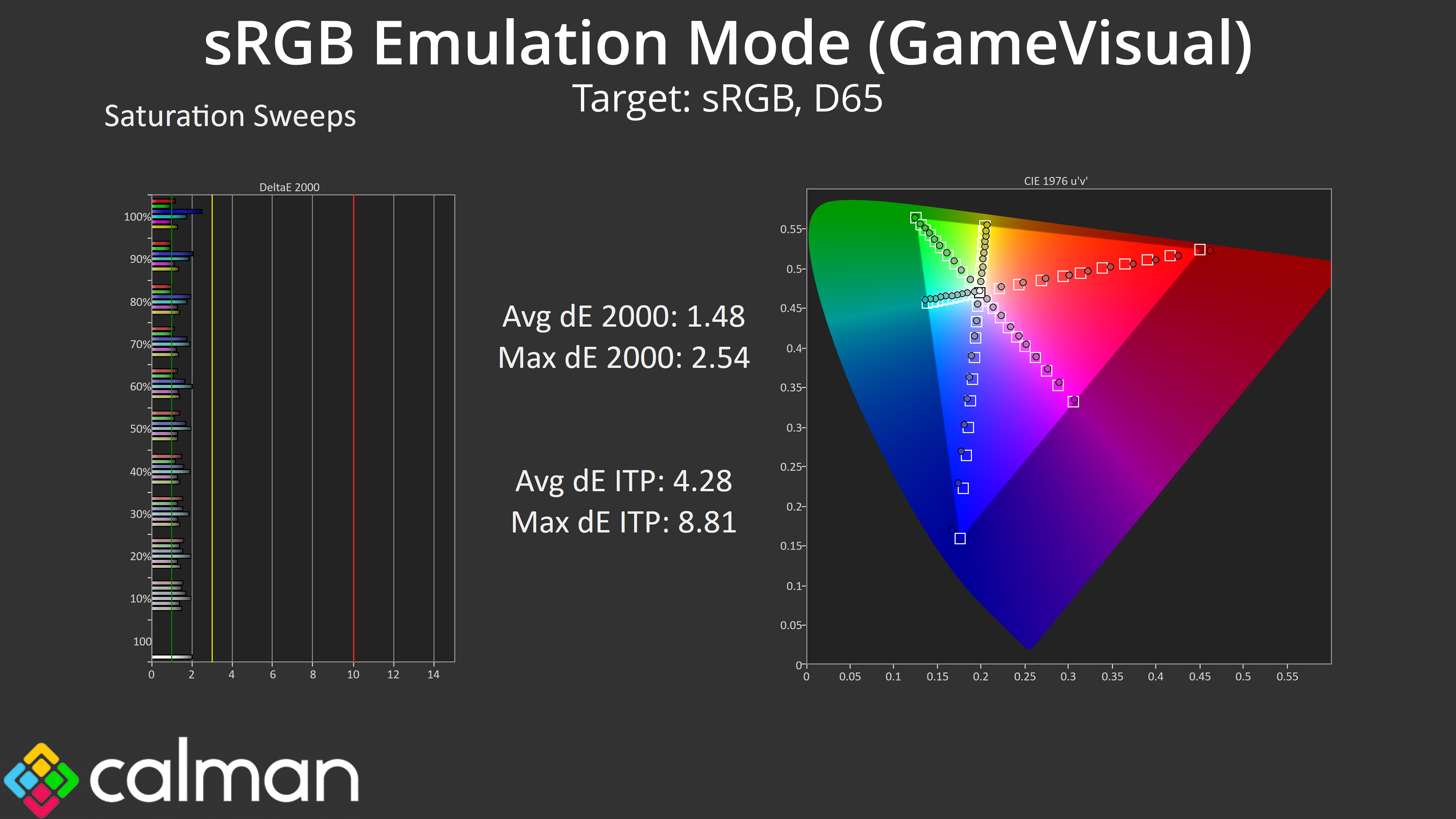
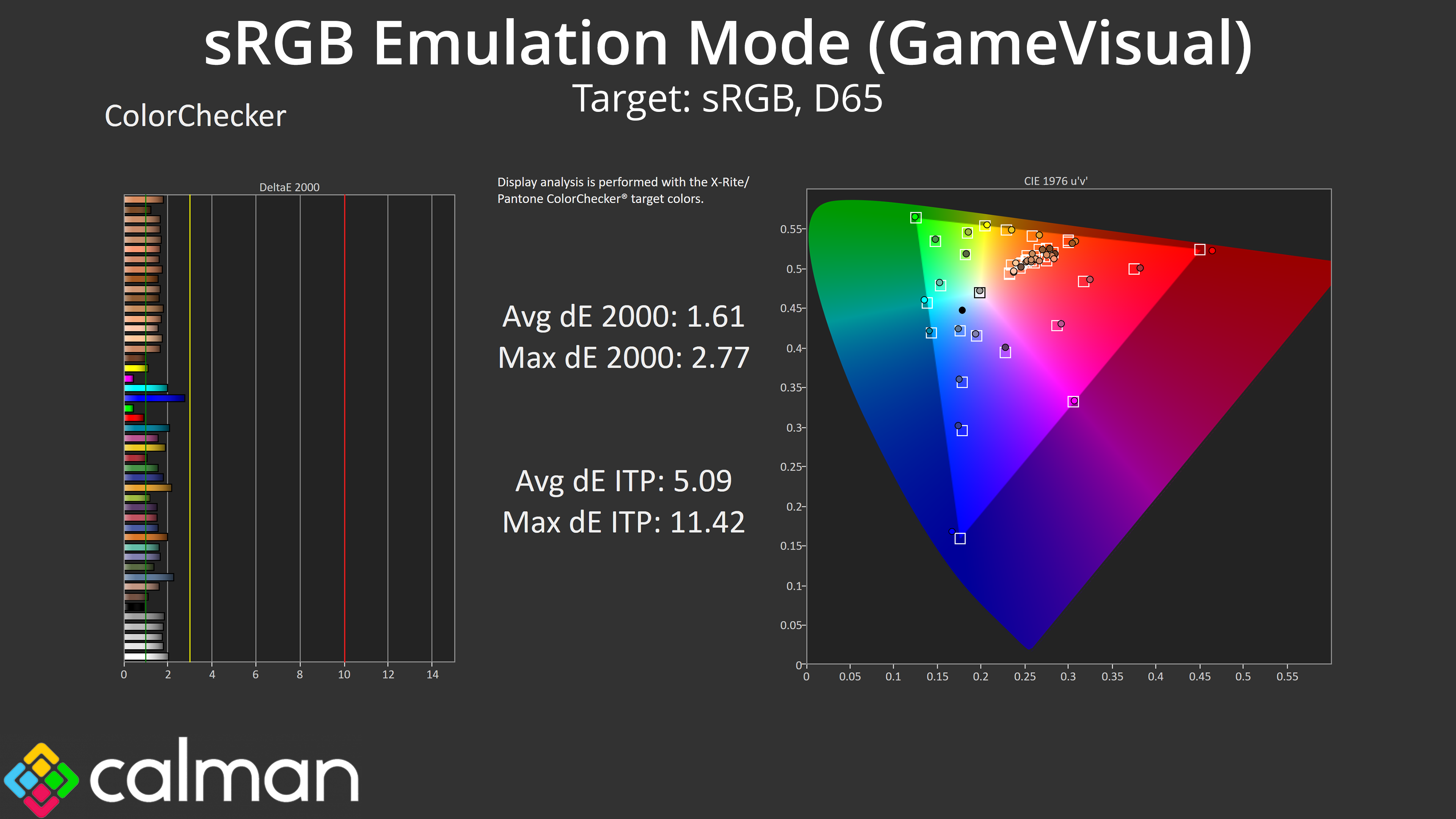
Thankfully there is an sRGB mode included – well, technically there are two! You can enable the sRGB mode via the ‘GameVisual' setting, or you can enable the sRGB space from within the ‘Colour Space' setting. I’m not quite sure why there are two options but I found that using the GameVisual setting gives the most accurate results, clamping the gamut fairly well and keeping an accurate greyscale. Both the saturation and colour accuracy average dE 2000 results also hover between 1.5-1.6, so that's a noticeable improvement over the default results and it's well worth using if you want to reduce oversaturation.
Calibrated Results
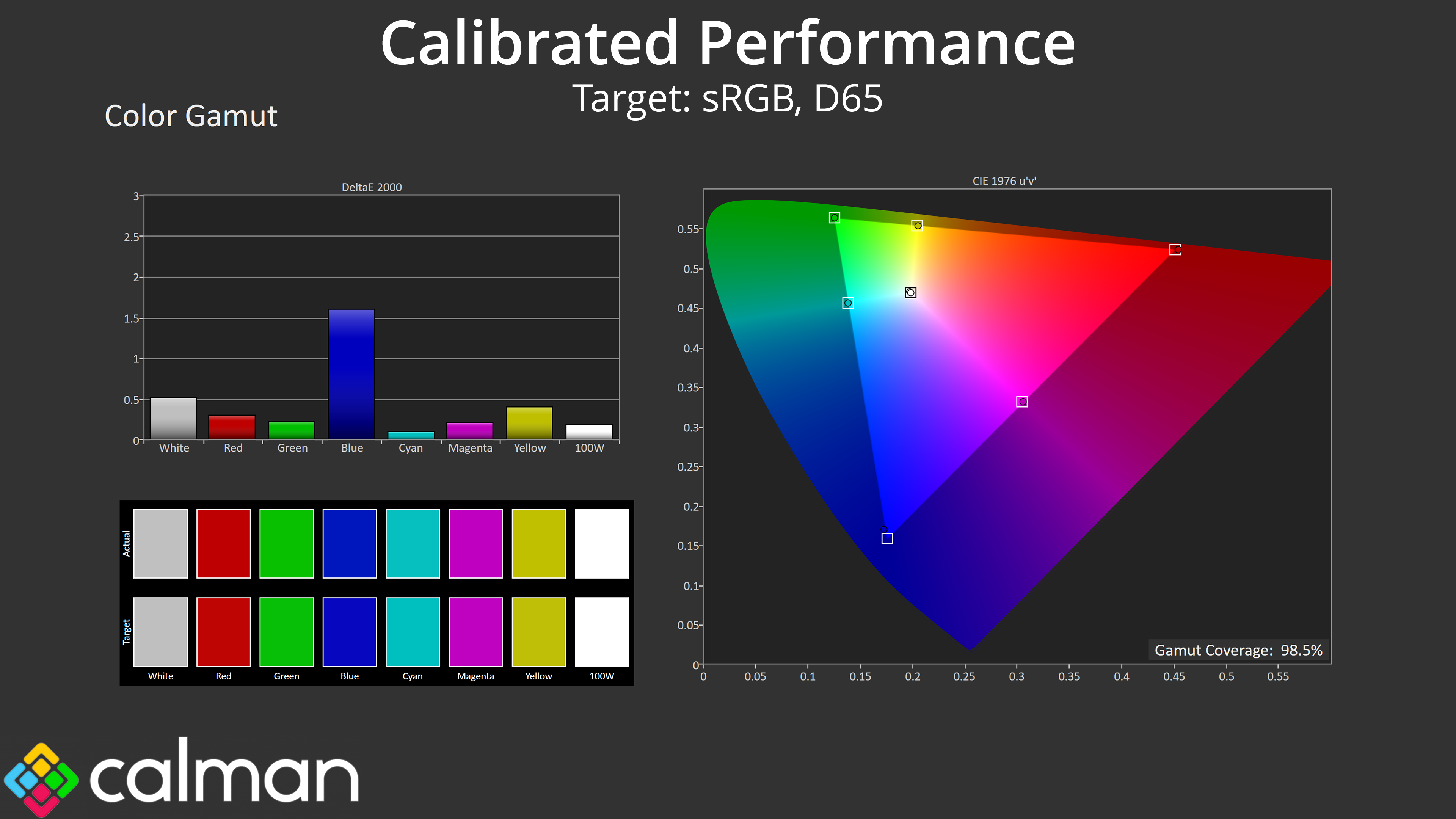
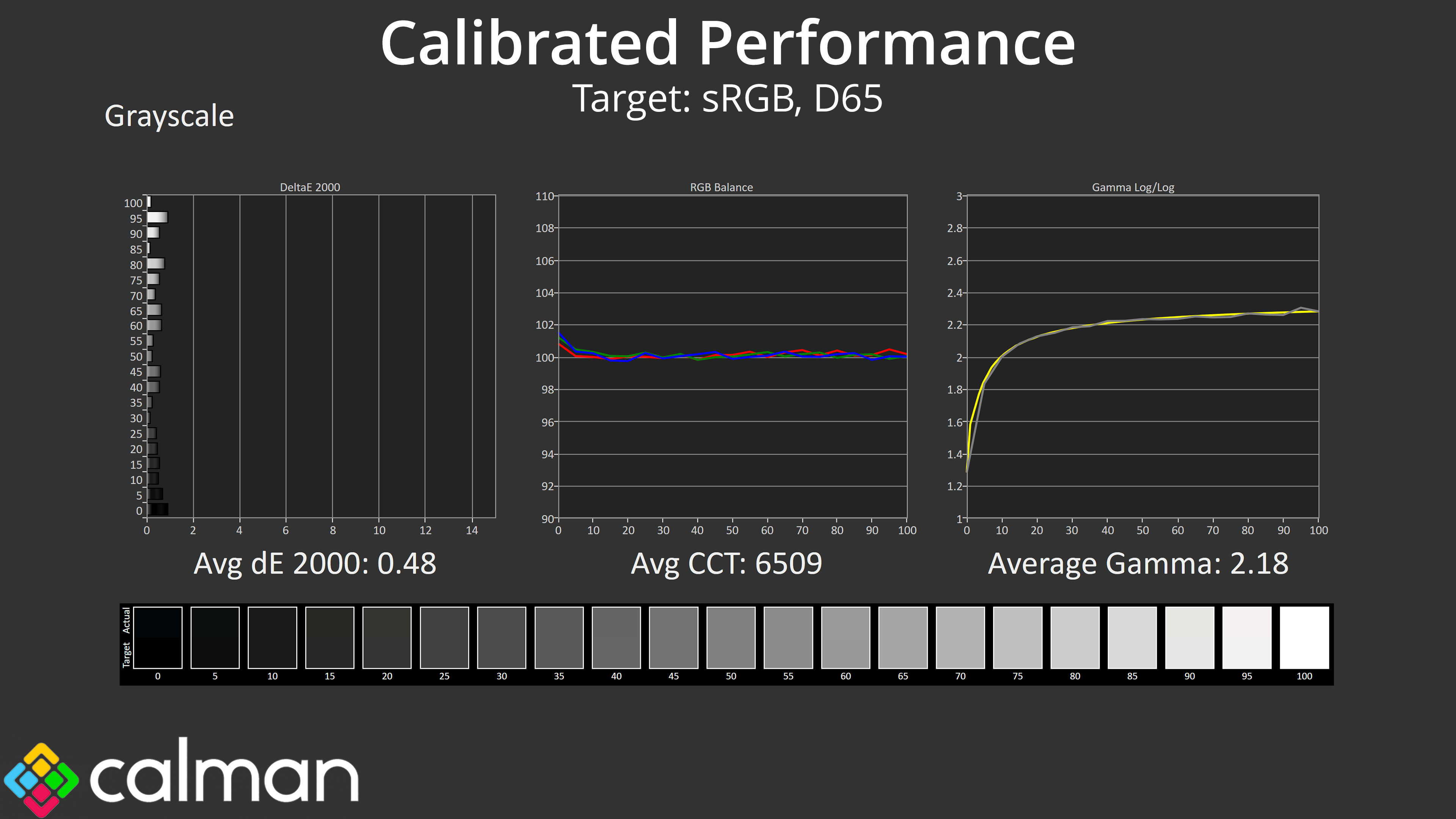
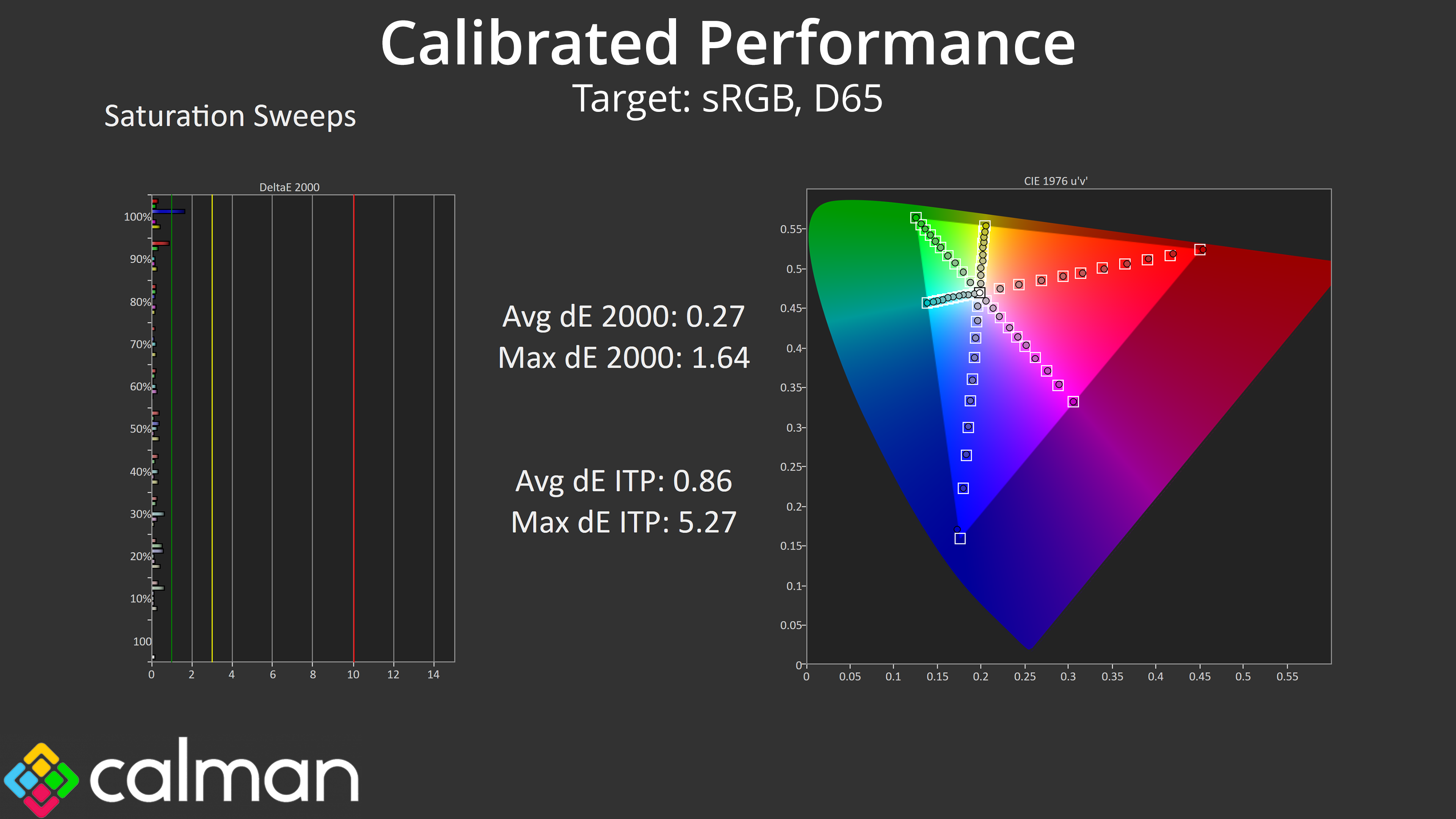
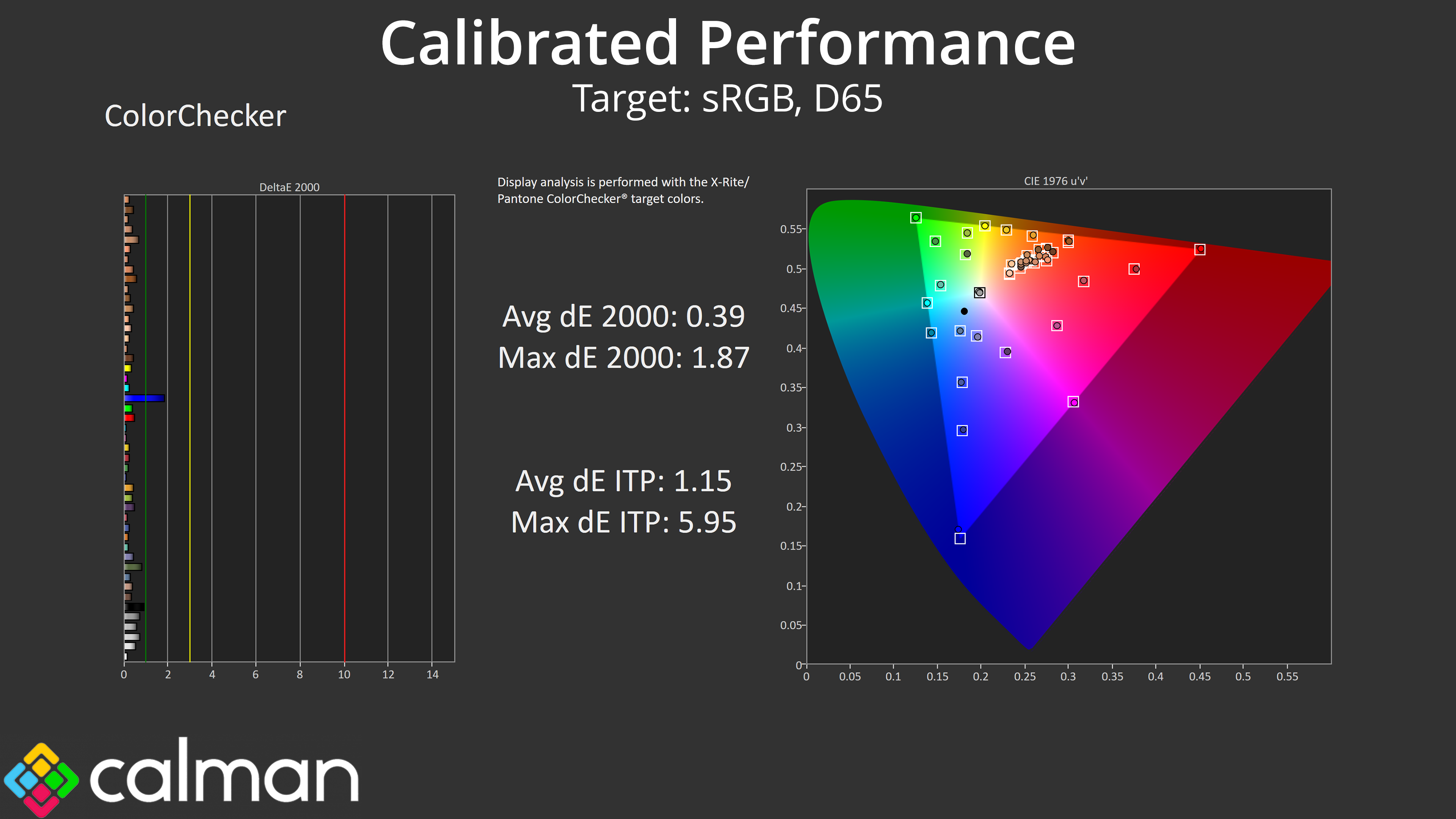
Of course, for the best results we also ran a full calibration, and that led to stellar accuracy across the board. I can't imagine too many people will be calibrating a £300 gaming monitor, but it goes to show what the panel is capable of.
We use the Open Source Response Time Tool (OSRTT), developed by TechTeamGB, for our response time testing. This measures grey-to-grey response times and presents the results in a series of heatmaps, the style of which you may be familiar with from other reviews.
Initial Response Time is the time taken for the panel to transition from one colour to another, where lower values are better. We present the initial response time, so overshoot is not taken into account and is measured separately. We use a fixed RGB 5 tolerance for each transition.
Overshoot is the term given for when a monitor's transition exceeds or goes beyond its target value. So if a monitor was meant to transition from RGB 0 to RGB 55, but it hits RGB 60 before settling back down at RGB 55, that is overshoot. This is presented as RGB values in the heatmaps – i.e. how many RGB values past the intended target were measured.
Visual Response Rating is a metric designed to ‘score' a panel's visual performance, incorporating both response times and overdrive. Fast response times with little to no overshoot will score well, while slow response times or those with significant overshoot will score poorly.
OD Modes
For our response time testing, it's great to see ASUS are using user-configurable overdrive with the XG27UCS. That means instead of three or four predefined presets, there's an overdrive slider that ranges from 0-20, so you can choose exactly how strong you want the overdrive to be.
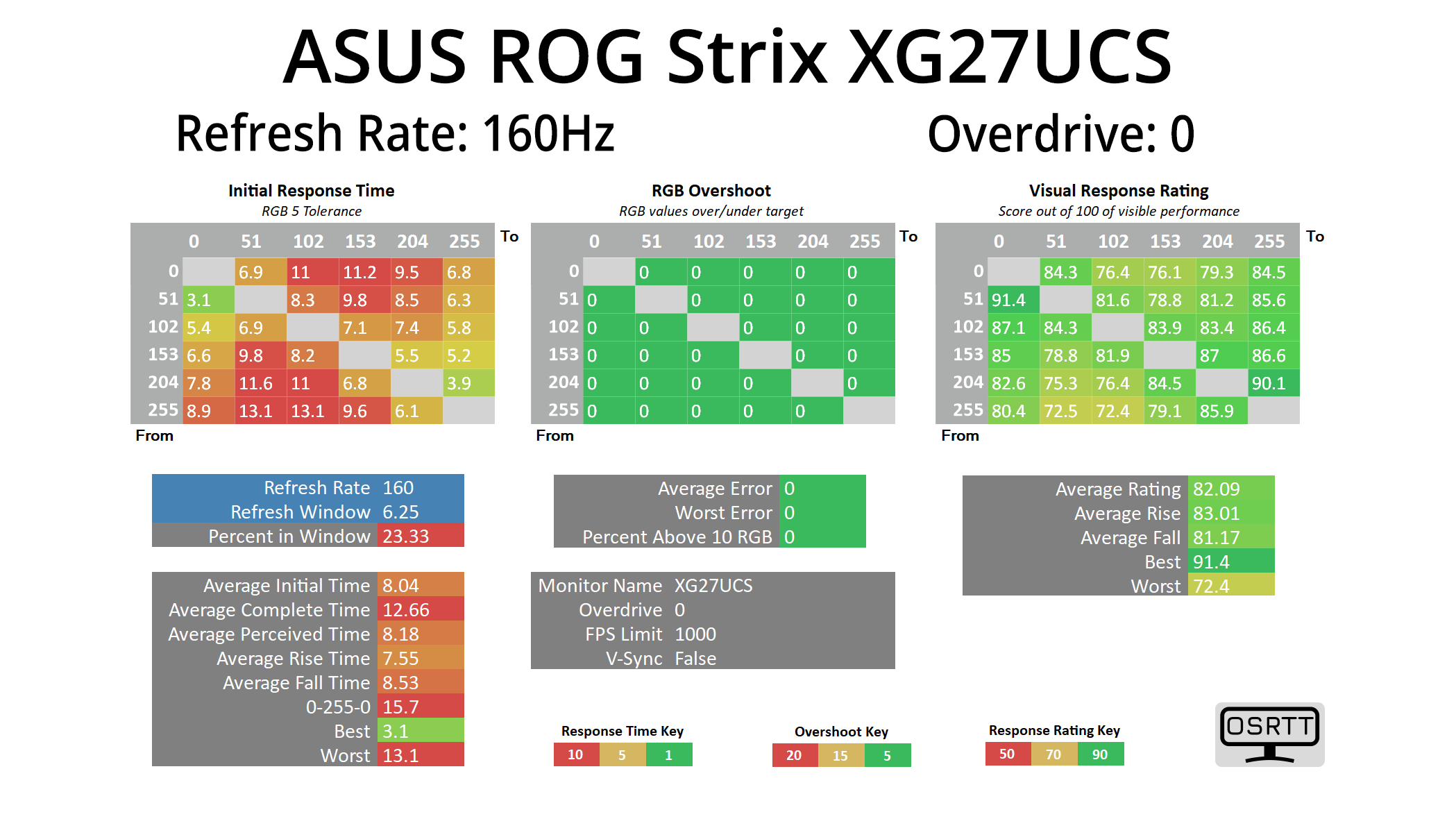
Starting at 160Hz with overdrive at 0, so it's effectively off, panel response times are expectedly slow, averaging 8.04ms.
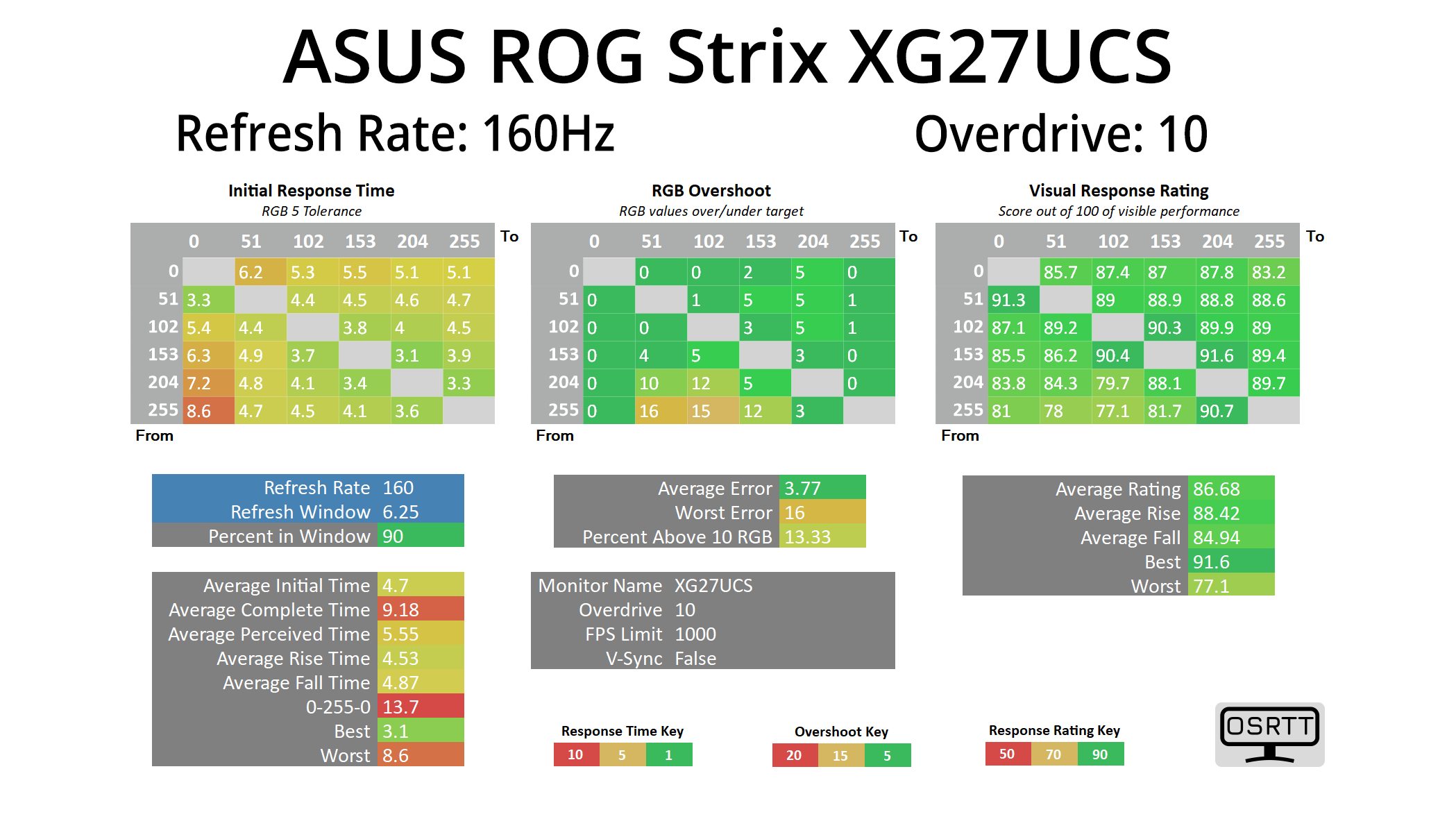
The OD 10 setting is actually default out of the box, and that speeds things up significantly, averaging 4.7ms, while there's only very small amounts of overshoot, with an average error of just 3.77 RGB values.
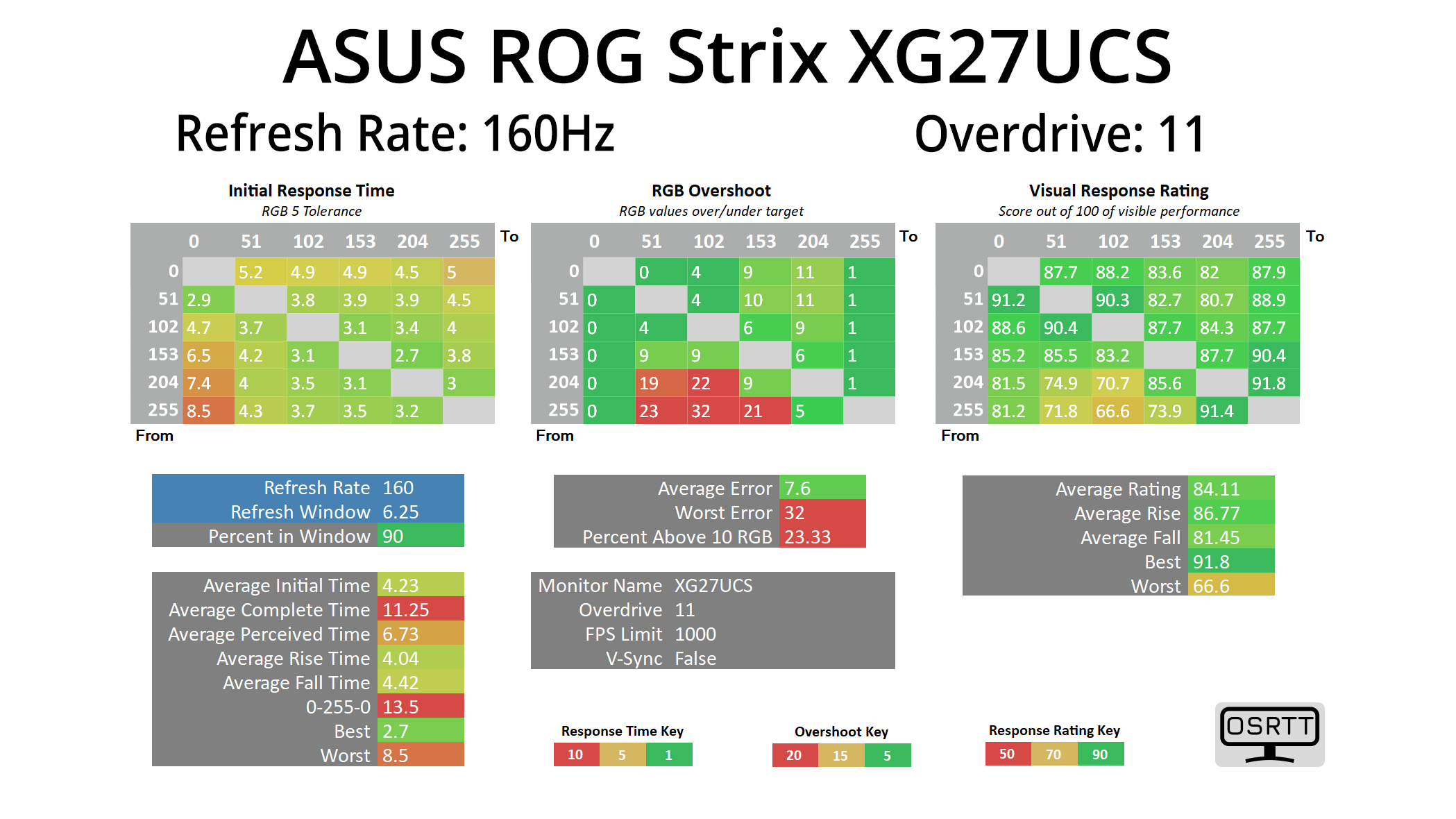
I also tried bumping to the OD 11 setting, just one nudge faster, and that improved response time to 4.23ms. It did increase overshoot, something I noticed during real-world usage, given nearly a quarter of transitions exceeded their target by 10 or more RGB values.
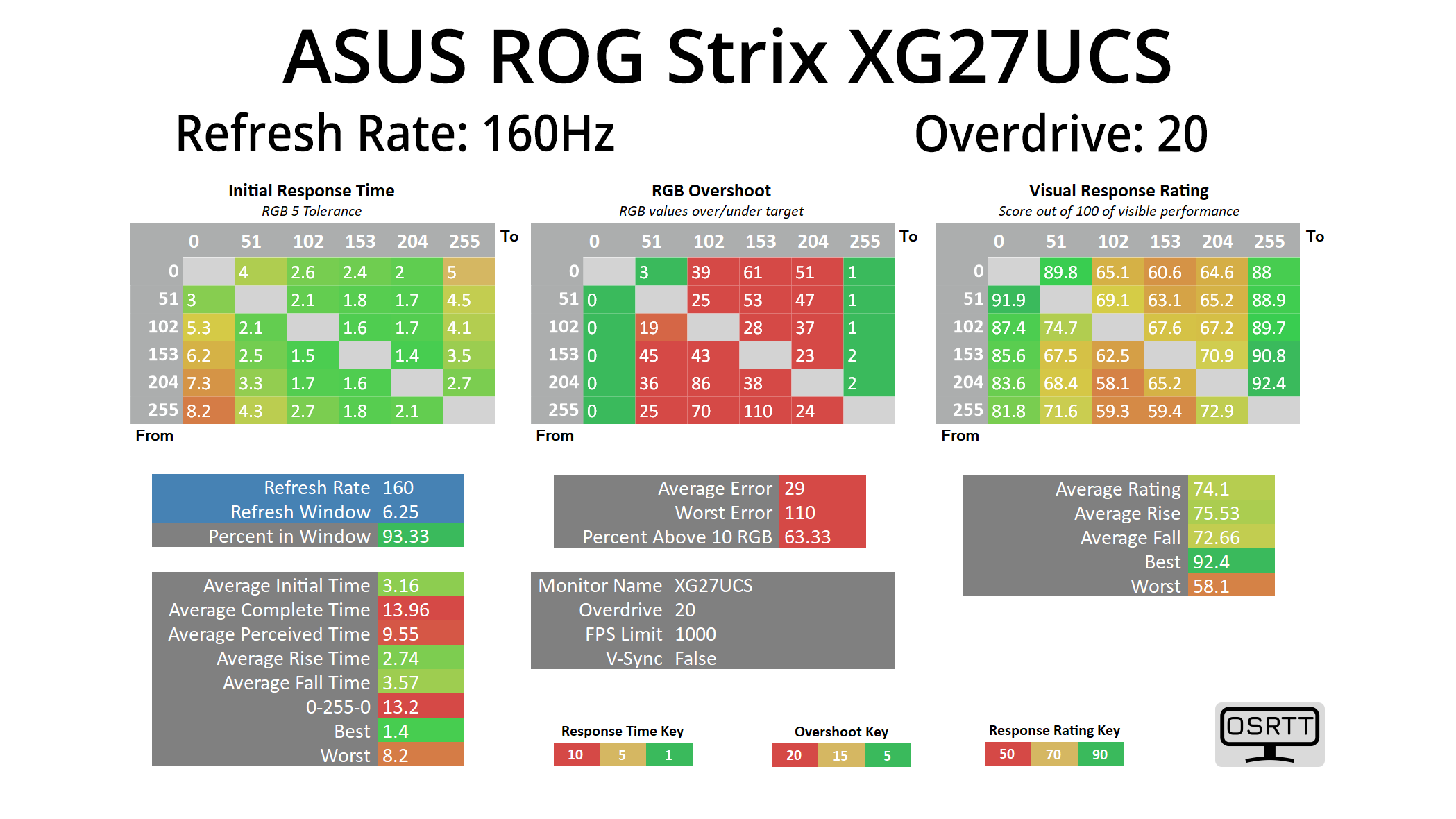
Just for fun I also tried the OD 20 mode and as we'd expect, the overshoot is horrible, though it shows the range of speed on offer, given the average response time increased to 3.16ms.
Variable overdrive
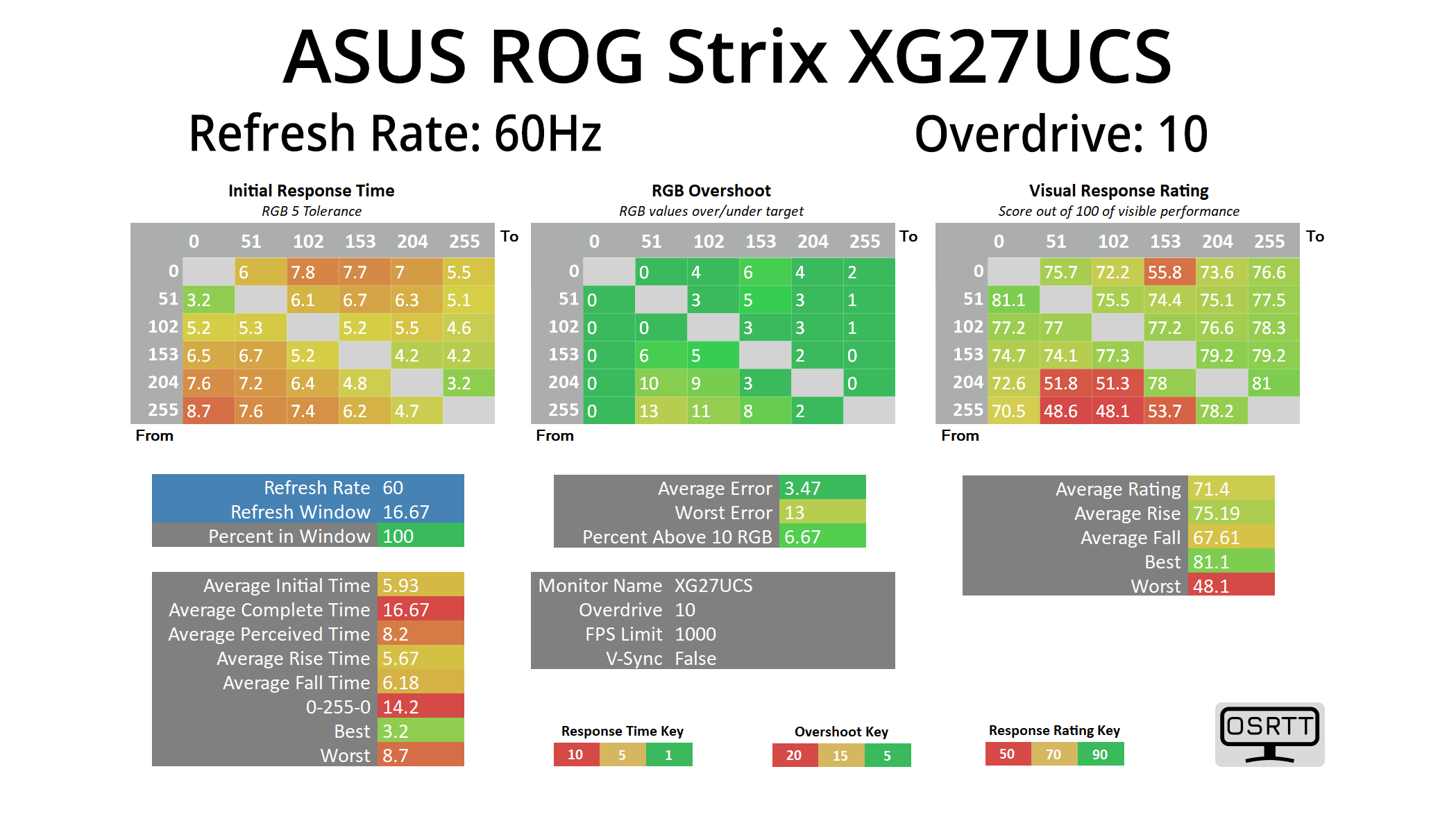
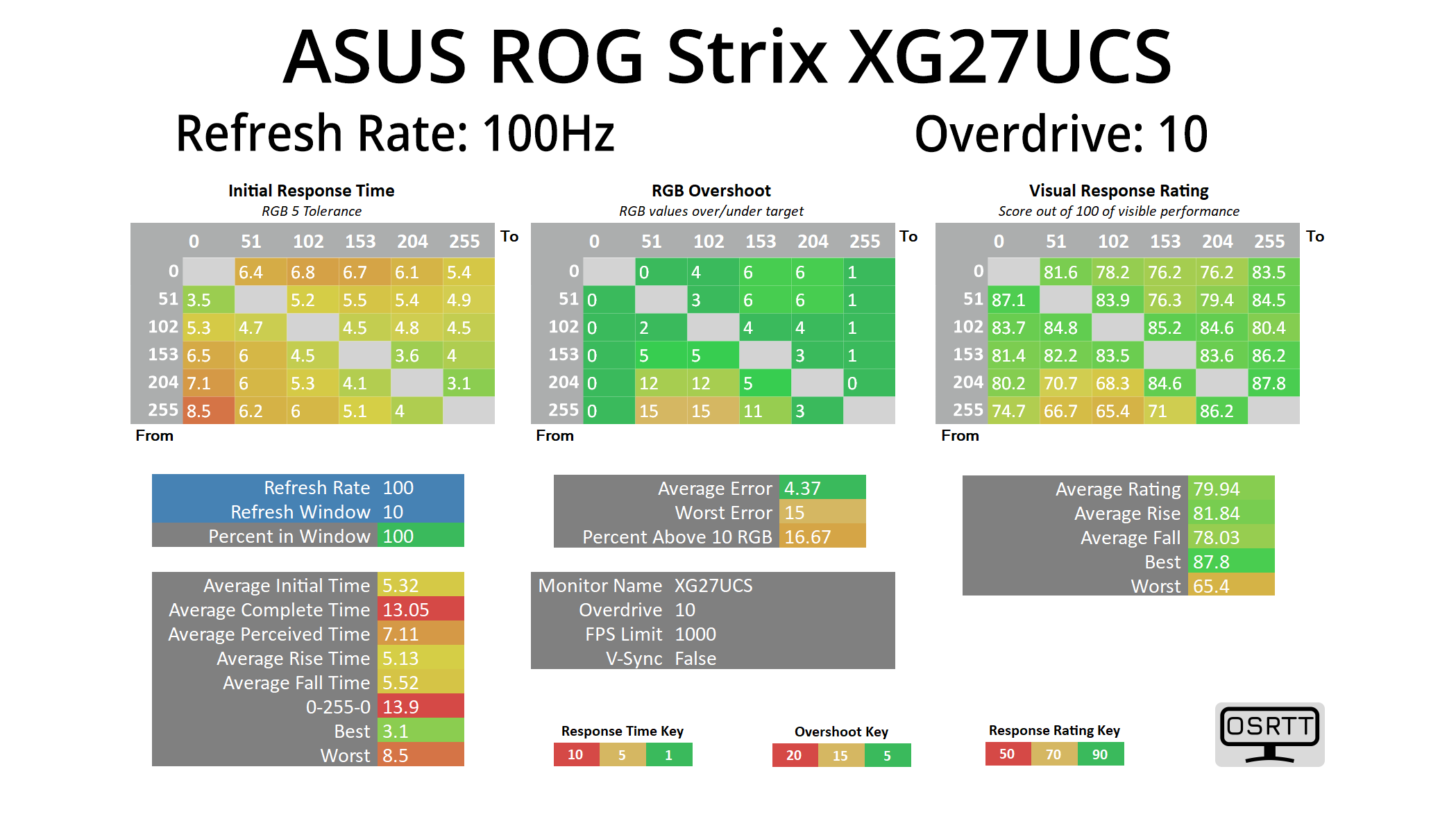
The good news is that the OD 10 mode works very well at any given refresh rate, as ASUS has implemented variable overdrive. It does slow down slightly at both 100Hz and then at 60Hz, but that's no problem given the refresh window also lengthens at the lower refresh rates. The key thing is that overshoot doesn't get worse as the refresh rate drops, which we typically see when variable overdrive has not been implemented – instead it is consistent at any refresh rate tested.
Response time comparison
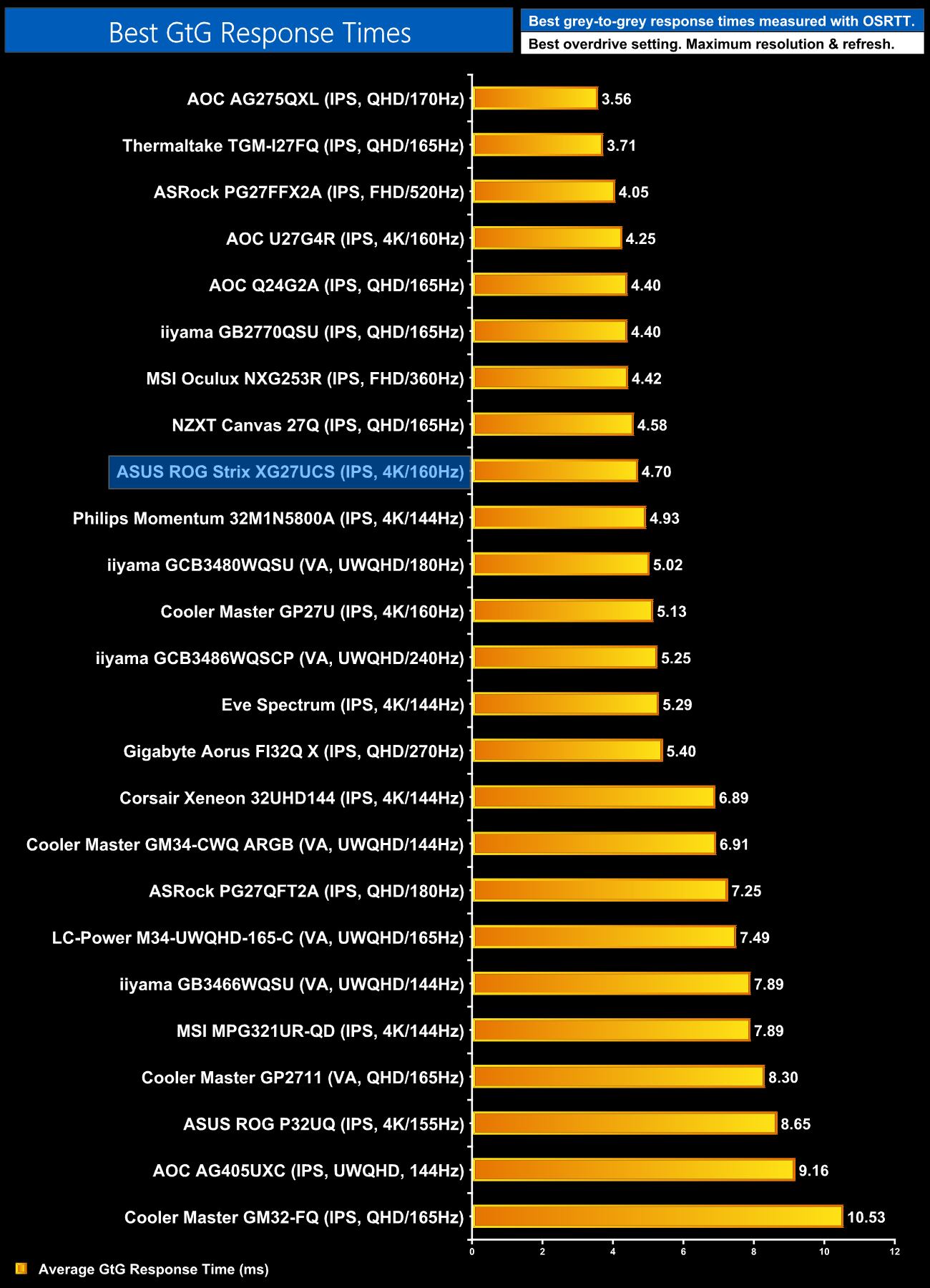
Comparing the best response times to the competition, we can see the XG27UCS is a decently-fast IPS monitor. It's not the absolute fastest we've ever tested, but it's up there in the top third of the chart.
Motion clarity
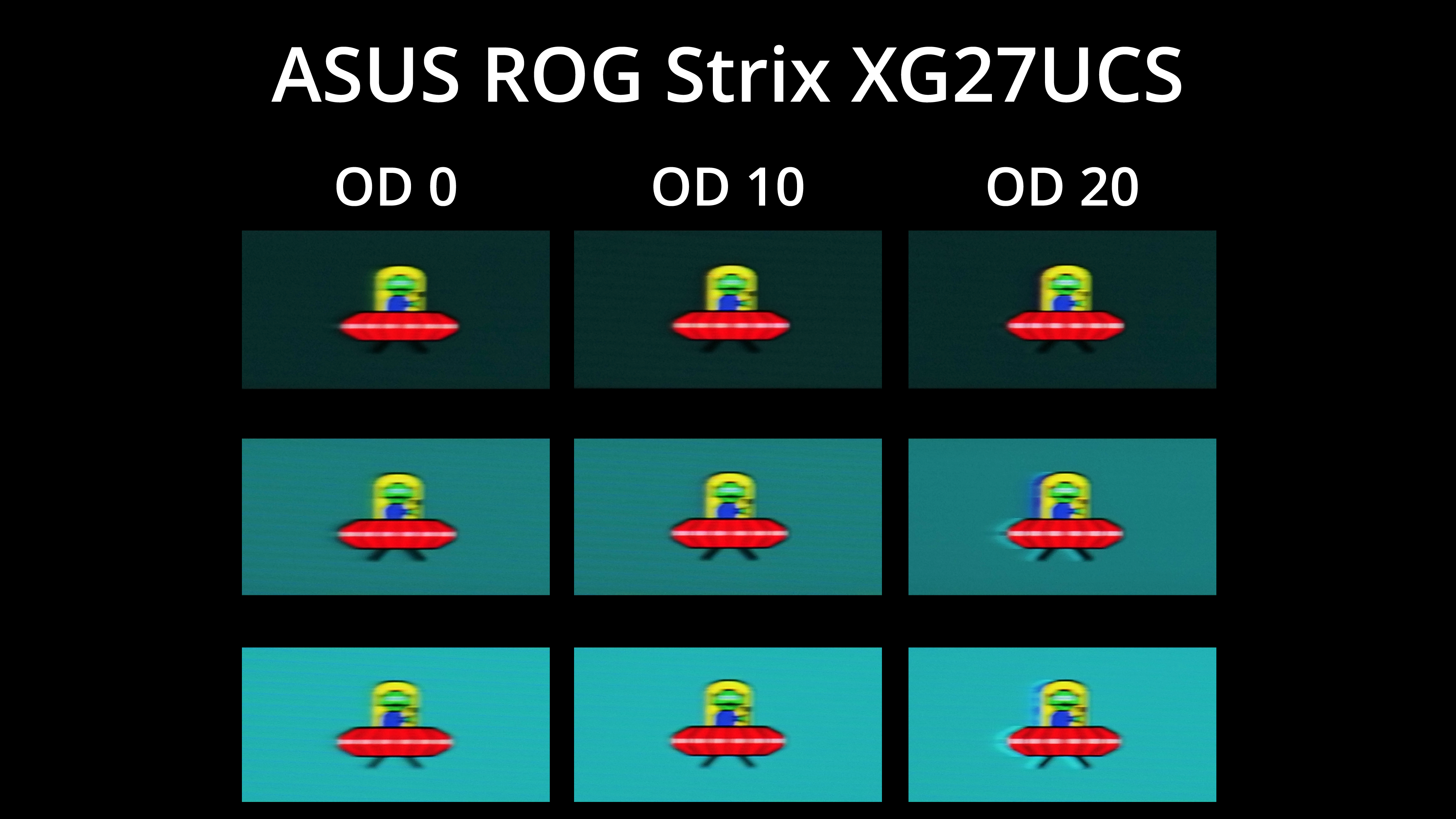
Here we can see a visual representation of the overdrive modes, using BlurBuster's UFO ghosting test. I personally think OD 10 strikes the best balance, cleaning up some ghosting compared to overdrive off, but without much – if any – visible overshoot.
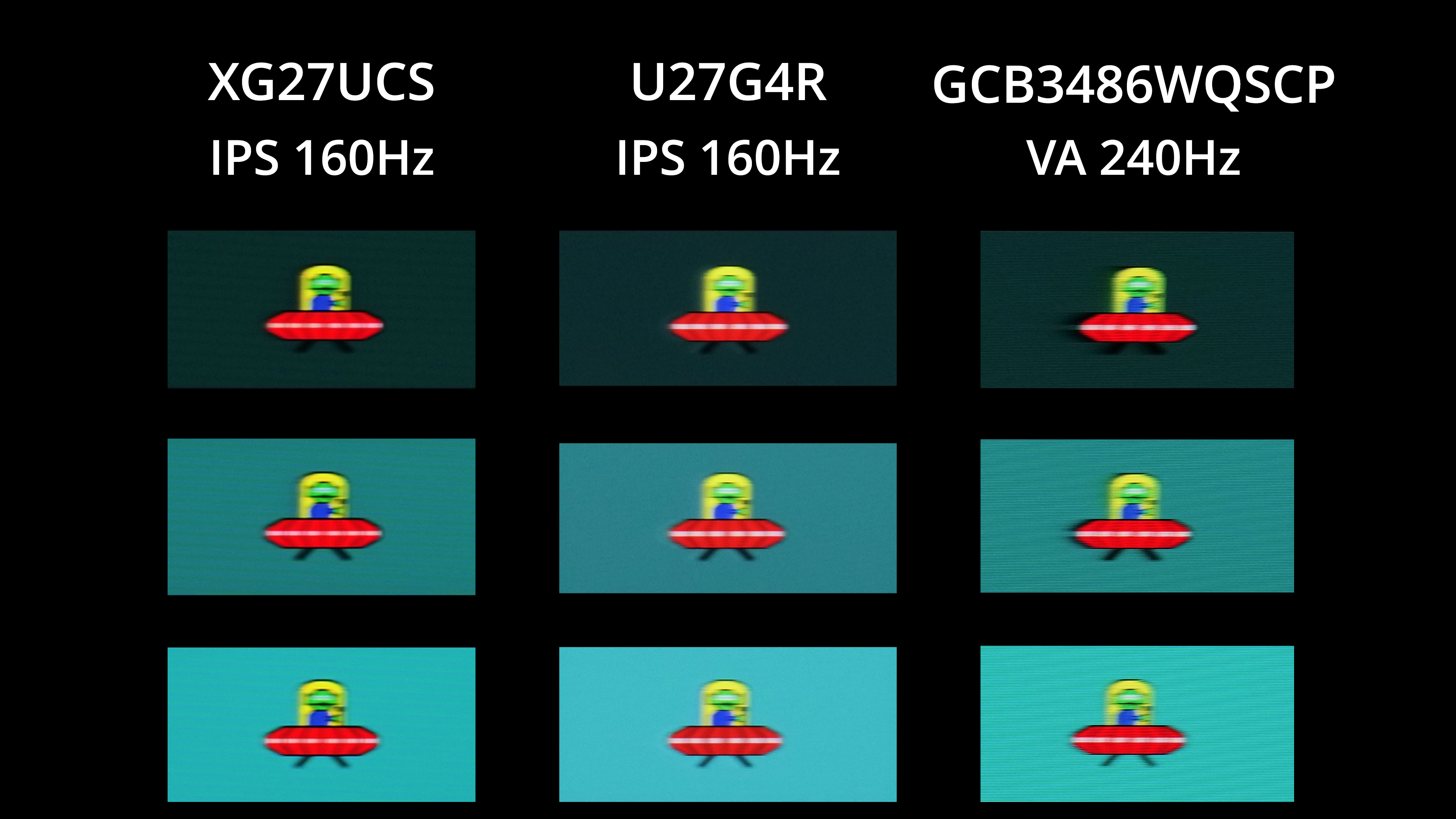
We've also compared the XG27UCS against the similarly-priced AOC U27G4R and the iiyama GCB3486WQSCP. The ASUS monitor comes out favourably – I wouldn't say there's a huge difference between the two IPS screens, but clarity is perhaps one step up for the ROG monitor. We can also see the lack of any black smearing which is a problem for cheaper VA panels.
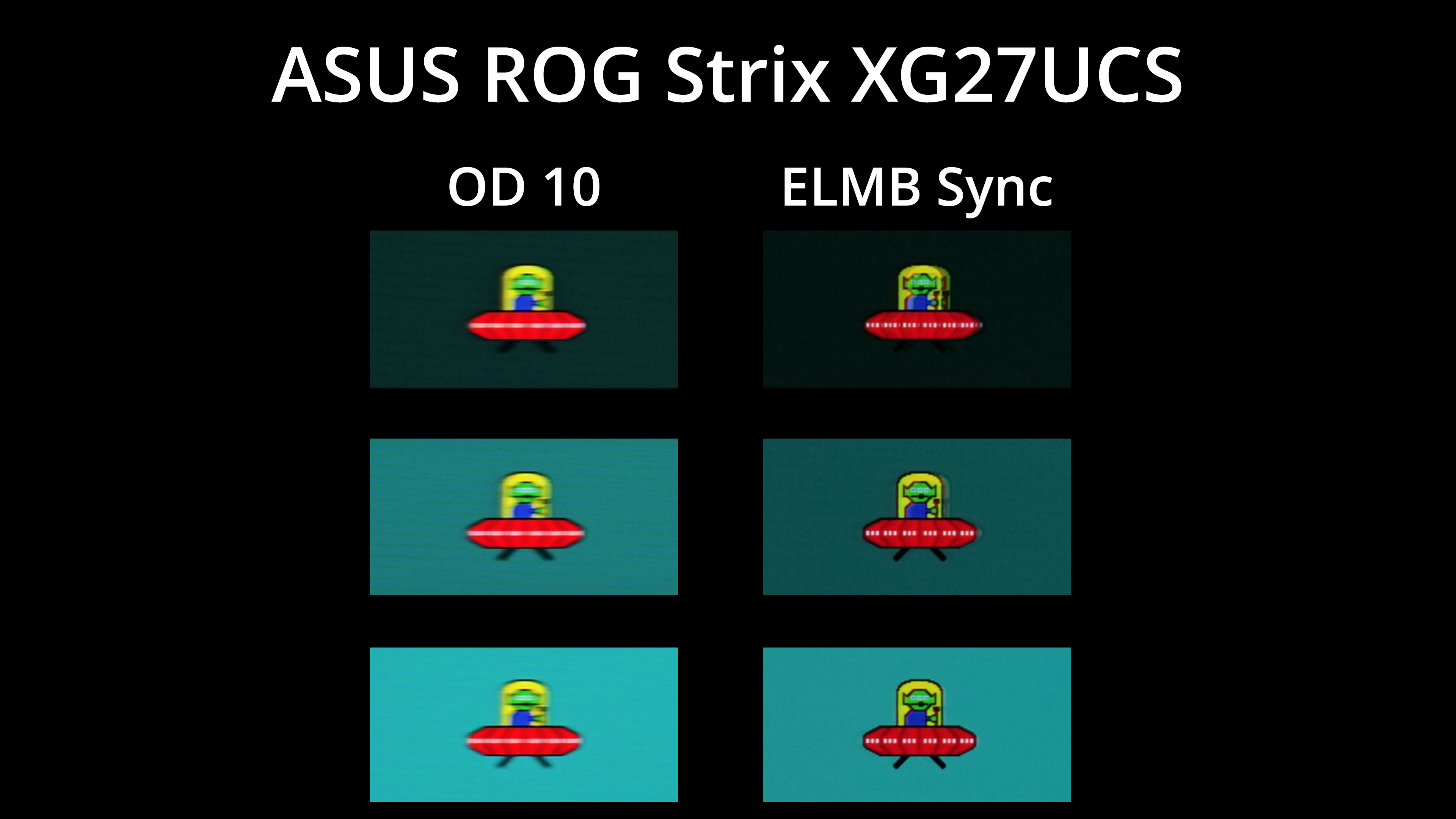
ASUS has one final trick up its sleeve and that is ELMB Sync, or backlight strobing. The good news is that works with adaptive sync enabled and it also improves motion clarity significantly – there's some signal crosstalk, resulting in a slight double image, but it's still a noticeable improvement. Unfortunately, this mode caps brightness at just 30 nits, which is staggeringly low – I'm genuinely not sure how use that is given how dim the monitor gets.
We again use the Open Source Response Time Tool (OSRTT), developed by TechTeamGB, to report monitor input latency.
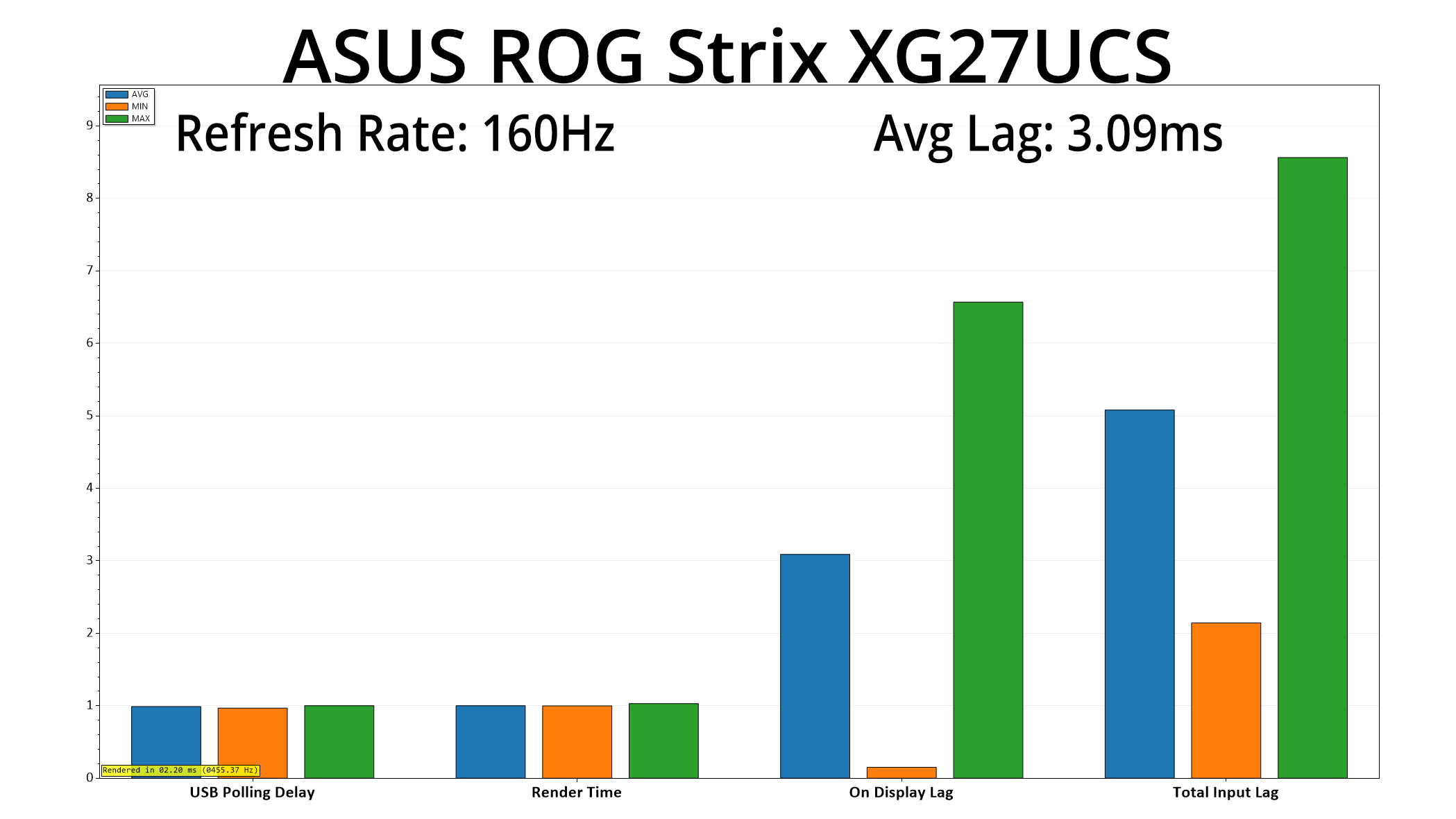
We have good news when looking at latency, too, given it averages 3.09ms at 160Hz, or just less than half a frame of lag – nothing at all to worry about.
It's been an interesting few weeks testing some more affordable gaming monitors. Sure, we all love to see what the latest OLED panels can do as the refresh rates get higher and higher, but most of those screens still cost the best part of a grand – if not more! – so are out of reach for the majority of end users.
Not so the ASUS ROG Strix XG27UCS. It's not the newest screen on the market, but having dropped in price to just £319 over the last few weeks, we thought it was well worth looking at. And, as it turns out, we were correct – this is a very capable screen that delivers a lot of performance for the money.
Factory calibration is solid for one, with an accurate colour balance and generally solid gamma. The native gamut is very wide, too, with strong accuracy for the DCI-P3 space, while ASUS offers a good sRGB mode if you want to clamp the gamut to avoid oversaturation.
Gaming performance is impressive, too, thanks to the use of user-configurable overdrive. We found the OD 10 setting delivered the best balance of speed while minimising overshoot, but it's great that end users are free to tinker with this setting to their heart's content, as opposed to being offered just three or four predefined presets. Latency is also nice and low, while motion clarity is as good as you'd expect at 4K 160Hz.
It's not quite a perfect screen though, with contrast being a little low even by IPS standards, given we measured it at 860:1. There's a distinct lack of USB passthrough ports too, which may not bother some, but for others could be a dealbreaker. Lastly, as good as the ELMB Sync mode is for improving motion clarity when adaptive sync is enabled, it caps brightness at just 30 nits, severely limiting its real-world utility.
When you factor in the price though, I still think ASUS' ROG Strix XG27UCS is well worth a look if you want a high refresh-rate 4K display. Primarily it impresses with strong response times and good motion clarity for gaming, going hand-in-hand with the 4K 160Hz panel to deliver some visually impressive results.
We found it listed on Amazon for £319 HERE, or on Scan for the same price HERE.
Pros
- User-configurable overdrive.
- Impressive motion clarity.
- Strong brightness for an IPS LCD at this price.
- Wide native gamut.
- Colour balance is very good out of the box.
- sRGB emulation mode works well.
- Clean and feature-rich OSD.
- HDMI 2.1 support (albeit just one port).
Cons
- Contrast a bit low, even by IPS standards.
- No USB passthrough ports.
- ELMB Sync limits brightness to just 30 nits.
KitGuru says: For a little over £300, the XG27UCS is well worth buying if you're in the market for a fast but affordable 4K LCD.