KitGuru KitGuru.net – Tech News | Hardware News | Hardware Reviews | IOS | Mobile | Gaming | Graphics Cards


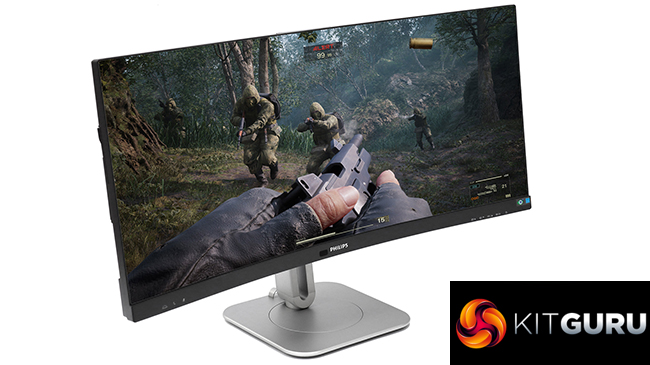
Gaming monitors are mostly about quality and response times, but for business users features like a variety of connectivity options can be equally important. The Philips 34B2U6603CH is the first monitor to hit our labs testing bench with Thunderbolt 4 built in, potentially streamlining KVM abilities when you hook up a notebook. But it's also a 34in ultrawide curved screen with support for refresh rates up to 120Hz.
The basic features of the 34B2U6603CH are mostly as expected for a 34in ultrawide screen. The resolution is 3,440 x 1,440, which is spot on for this screen size and aspect ratio. The panel type is VA, which is great for contrast and colour, but not so much for response times. The rating 4ms grey-to-grey, implying that this won't be such an ideal monitor for gamers. Adaptive Sync is also supported, which you'd hope for when a monitor offers 120Hz via Thunderbolt 4 or DisplayPort.
Contrast is rated at 4,000:1. This is also a bright monitor, with up to 450cd/m2 in SDR mode and 550cd/m2 in HDR mode. This enables the 34B2U6603CH to support VESA HDR 400. Philips promises 101 per cent NTSC and 120 per cent sRGB colour gamuts too.
Connectivity is where this monitor really knocks it out of the park, however. You really are spoilt for choice here. On the video side, you get two HDMI 2.0 ports, a single DisplayPort 1.4 and the aforementioned Thunderbolt 4, which also supports data and power up to 96W (enough to charge a laptop). There's a 2.5Gbit LAN port, which will be passed through to a system attached to the KVM hub. You also get a couple of USB Type A and another Type C. There is even a side USB C port plus a couple of Type A ports along with audio out. Just to top it off (literally), hidden in the upper bezel is a pop-up 5Mpixel webcam with microphone and LED indicator. There are stereo 5W speakers too.
This is not a cheap screen, costing towards £600. But for a business user wanting plenty of screen real estate and the option to plug in multiple devices, the Philips 34B2U6603CH has plenty of promise. Read on to find out if it delivers.
Specification:
- Screen size: 34-inch, 21:9 aspect
- Native resolution: 3,440 x 1,440
- Curvature: 1500R
- Refresh rate: 120Hz
- Panel type: VA
- Contrast ratio: 4,000:1 (typical)
- Brightness: 450cd/m2 (SDR); 550cd/m2 (HDR)
- Response time: 4ms GTG
- Display inputs: 2 x HDMI 2.0, DisplayPort 1.4, Thunderbolt 4
- USB hub: Yes, USB Type C or Thunderbolt 4 input; Thunderbolt 4, 4 x USB 3.2 Gen 1 Type A, 2 x Type C outputs
- Tilt: 5 degrees forward, 30 degrees backward
- Raise: 180mm
- Swivel: 180 degrees left and right
- Other: Audio output / headset minijack, 2 x 5W stereo speakers, 5Mpixel webcam with microphone
Retail Price: £529 (inc. VAT)
The Philips 34B2U6603CH box doesn't really do the contents justice, but perhaps gives off the business image that this particular model wants.

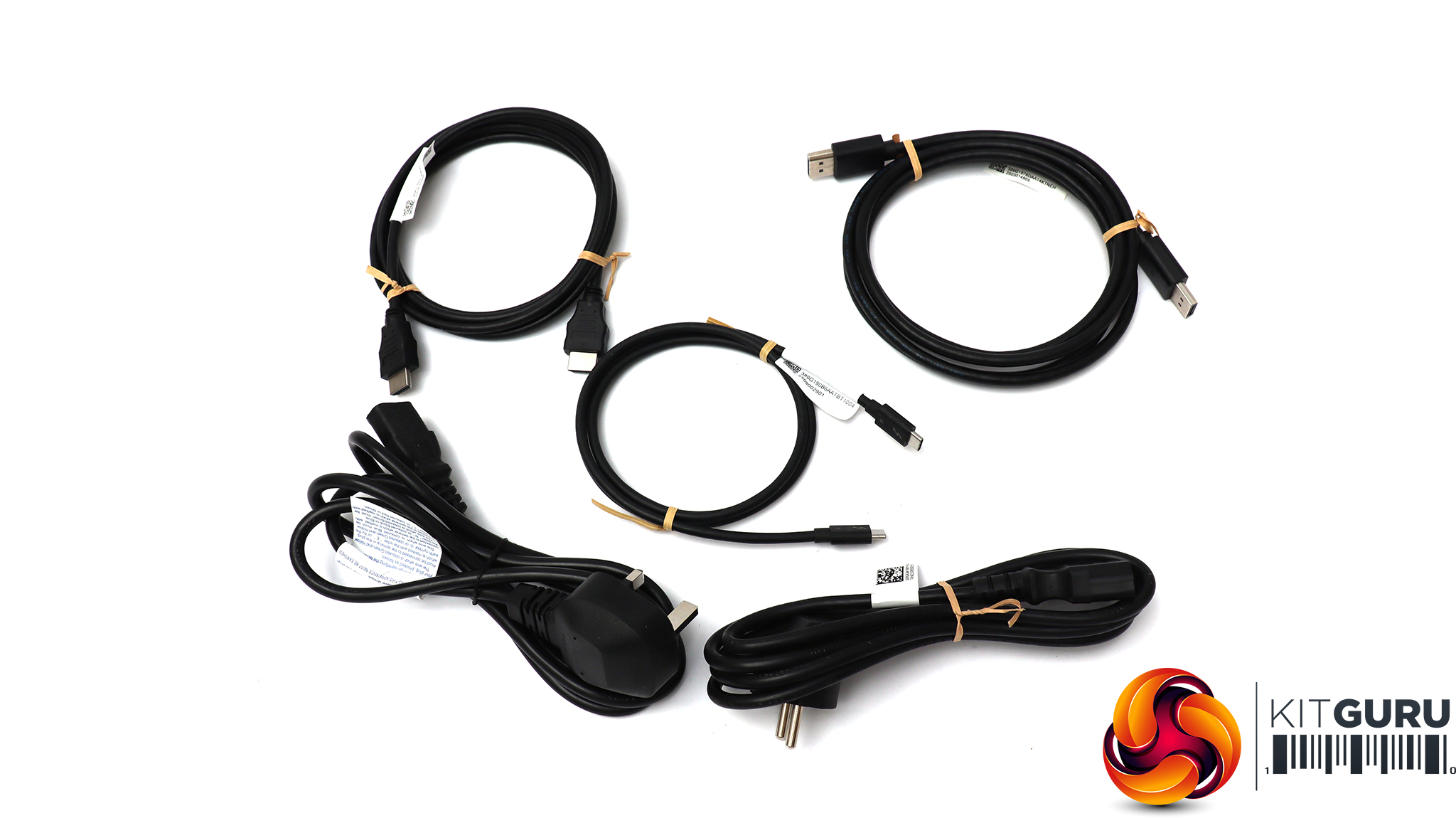
Inside are kettle-style power leads (no external power brick) for the UK and Europe, plus HDMI, DisplayPort and USB-C / Thunderbolt upstream wiring.
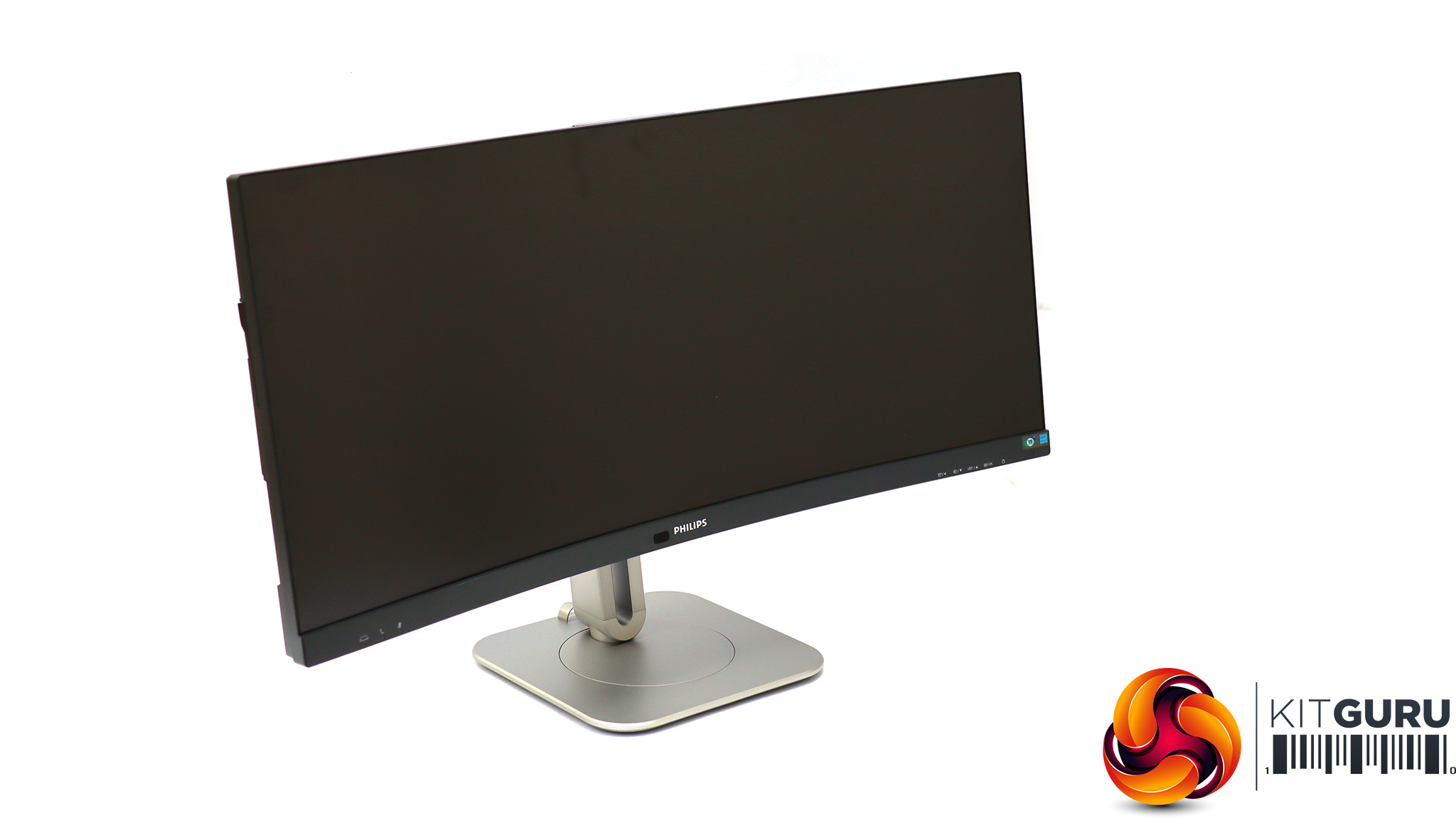
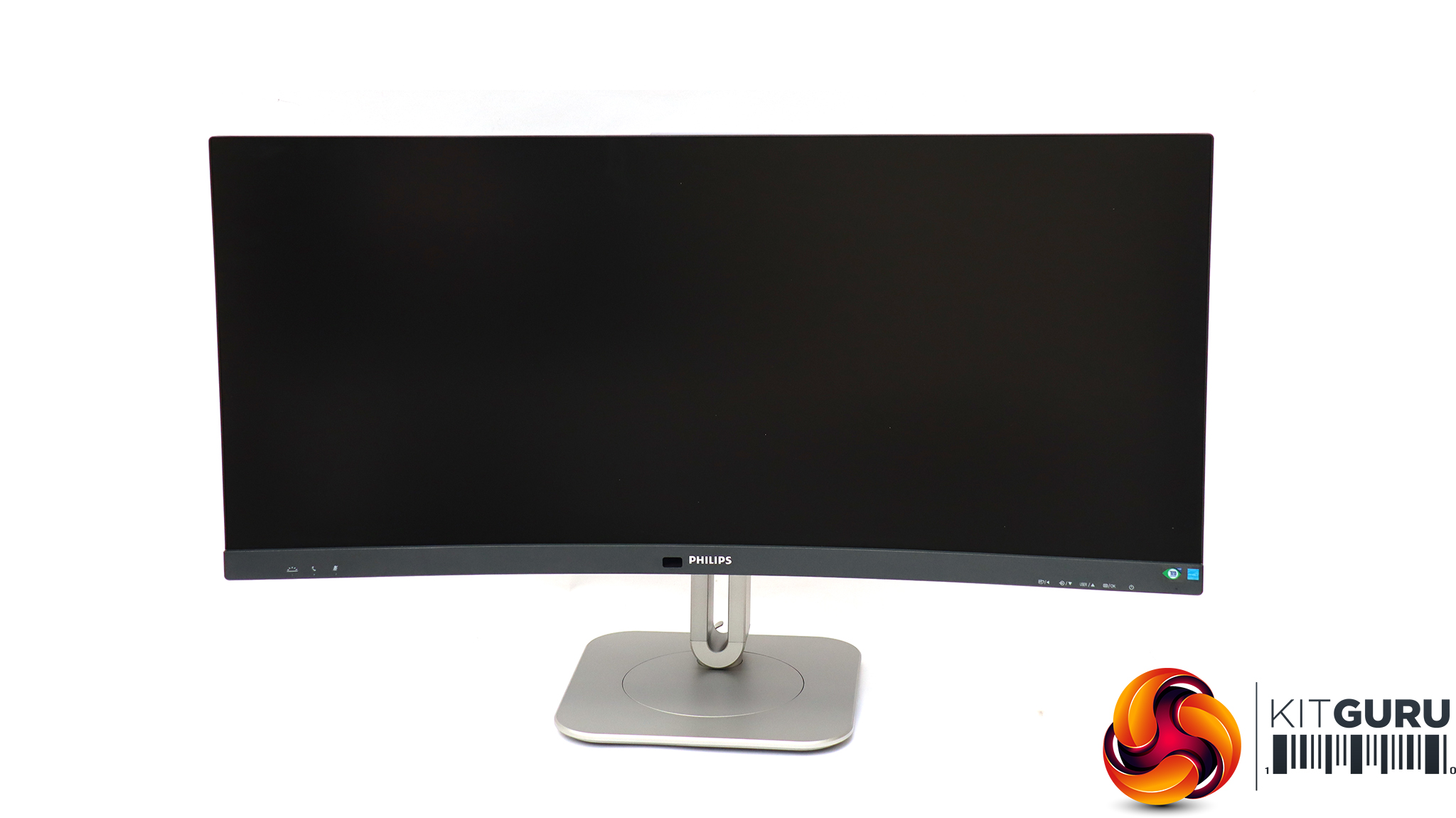
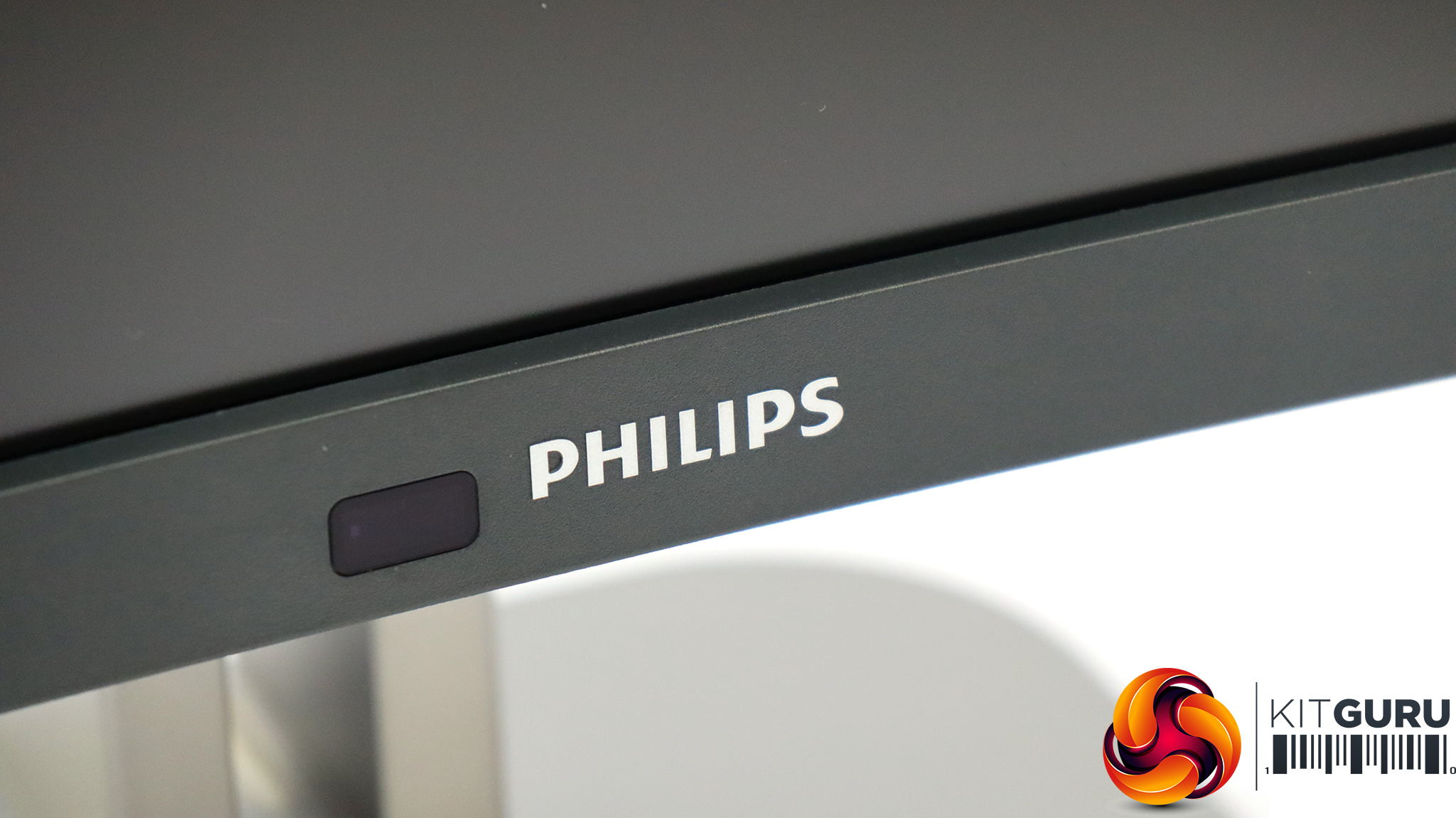
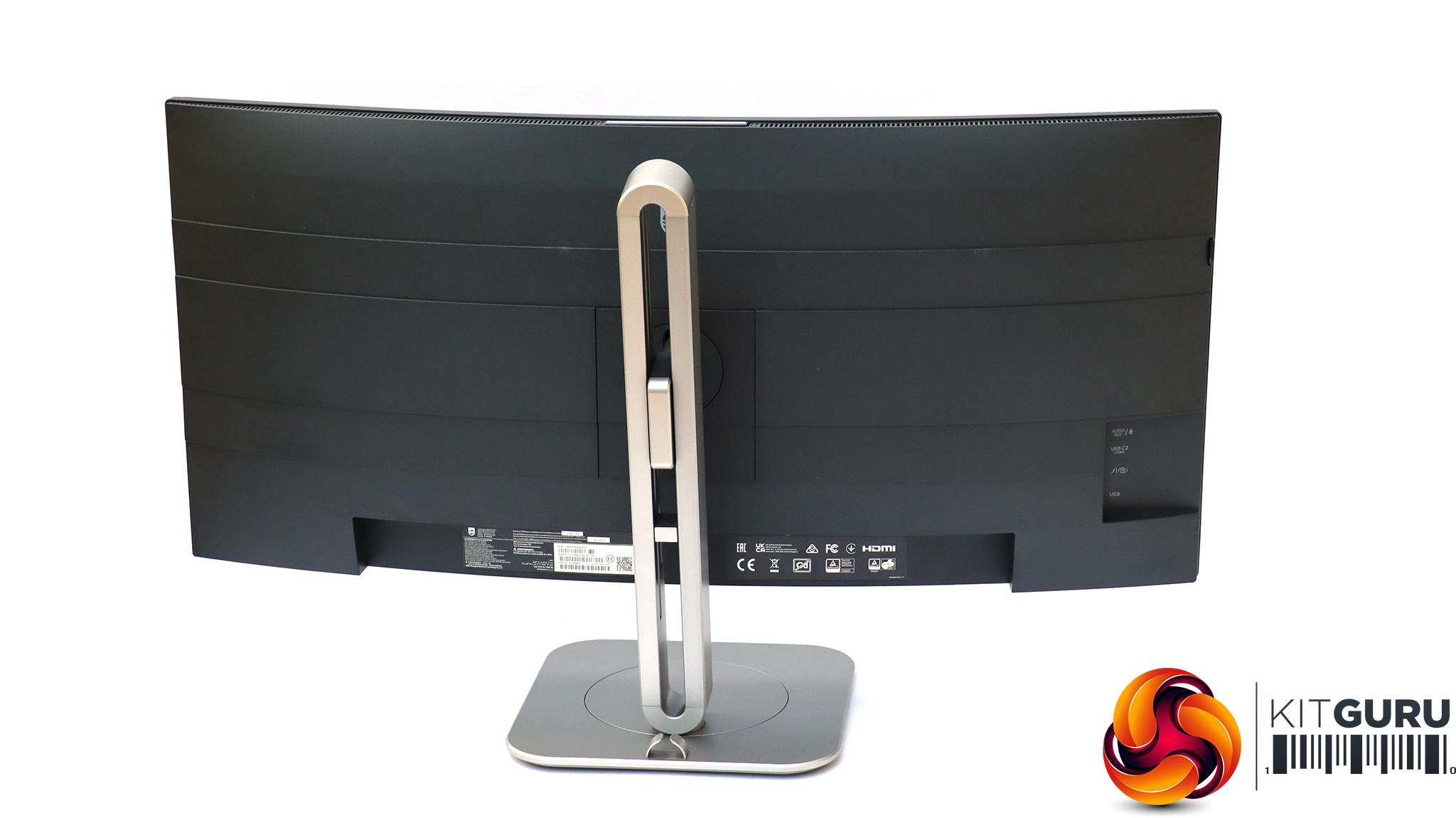
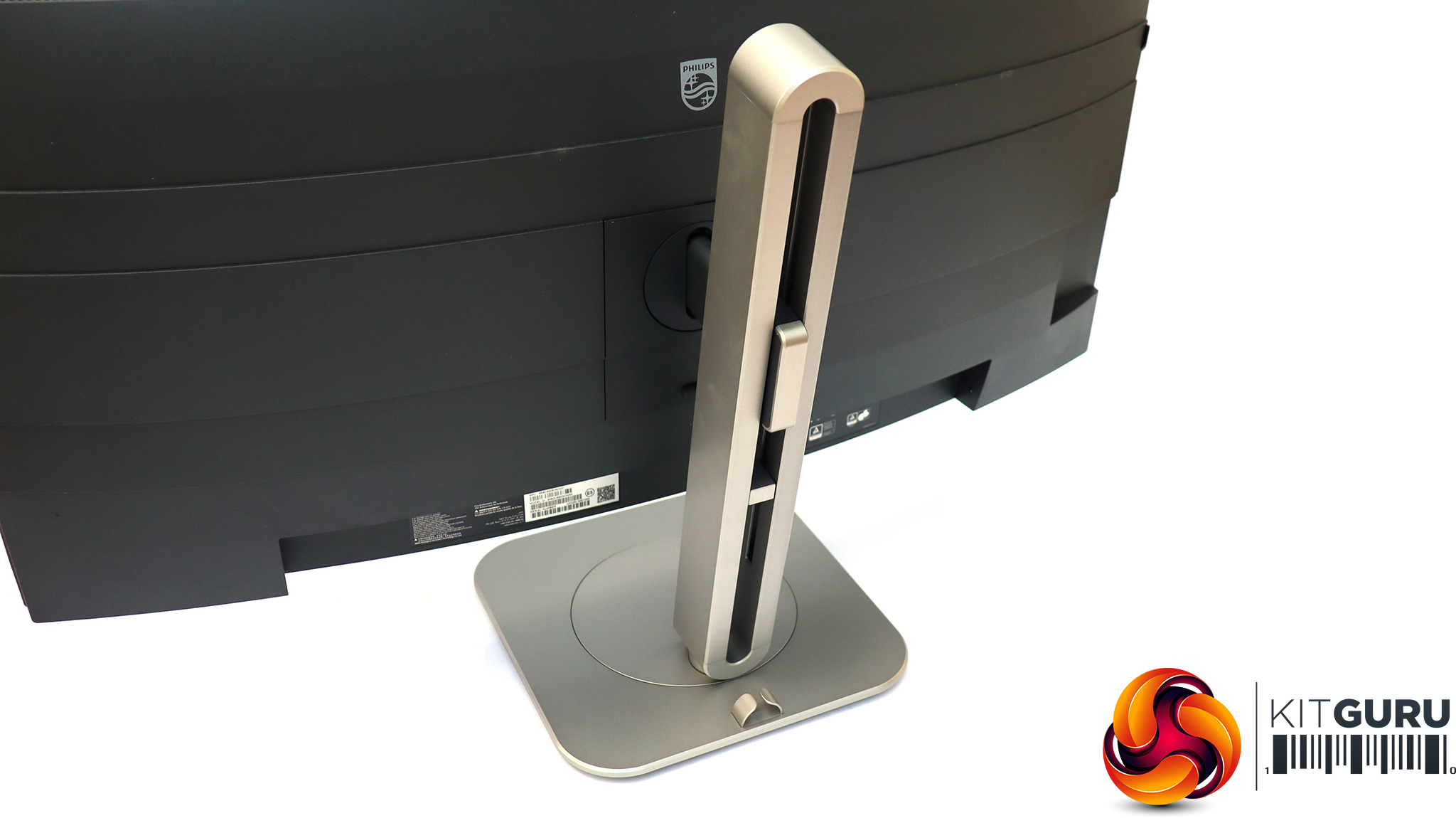
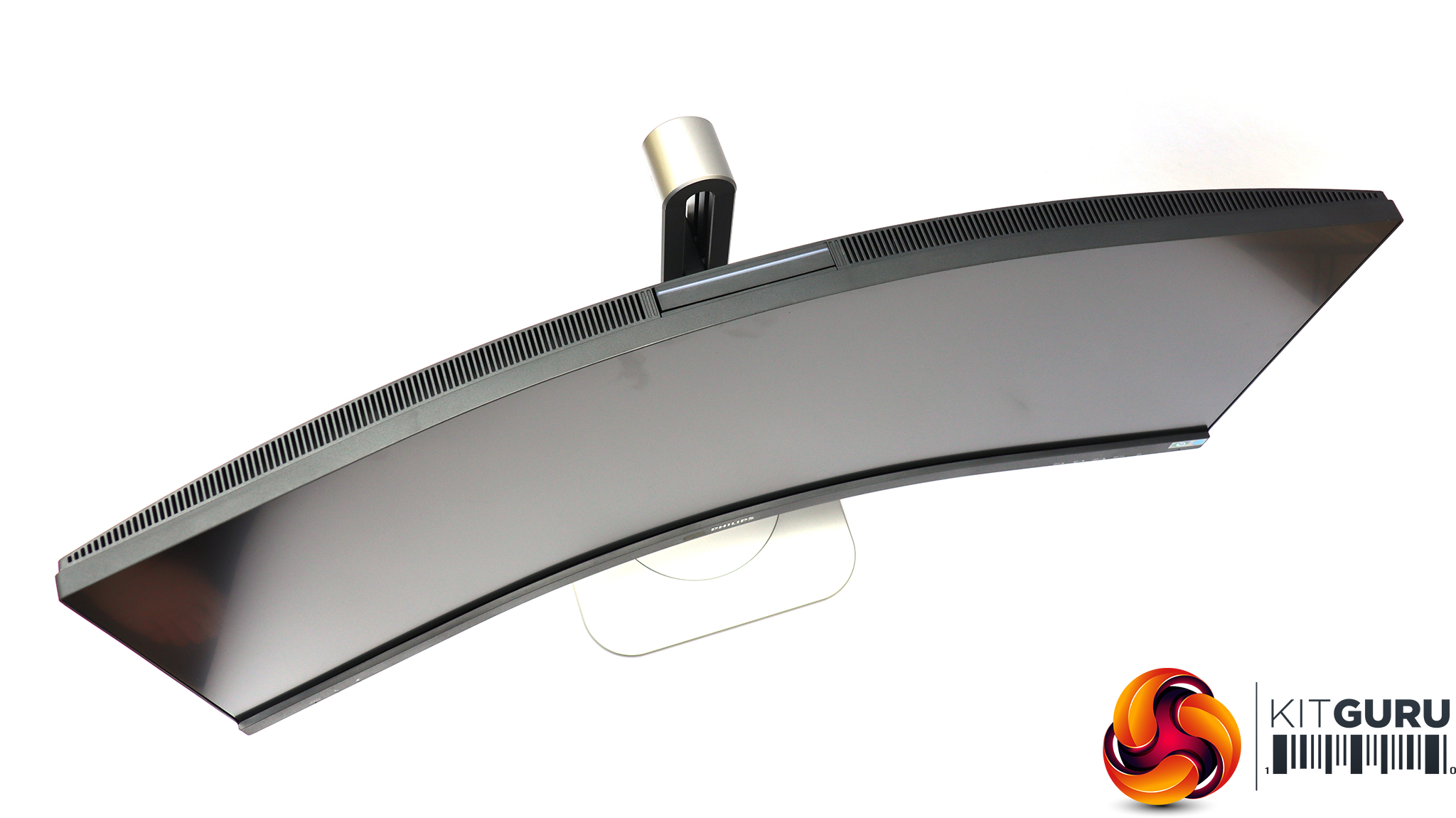
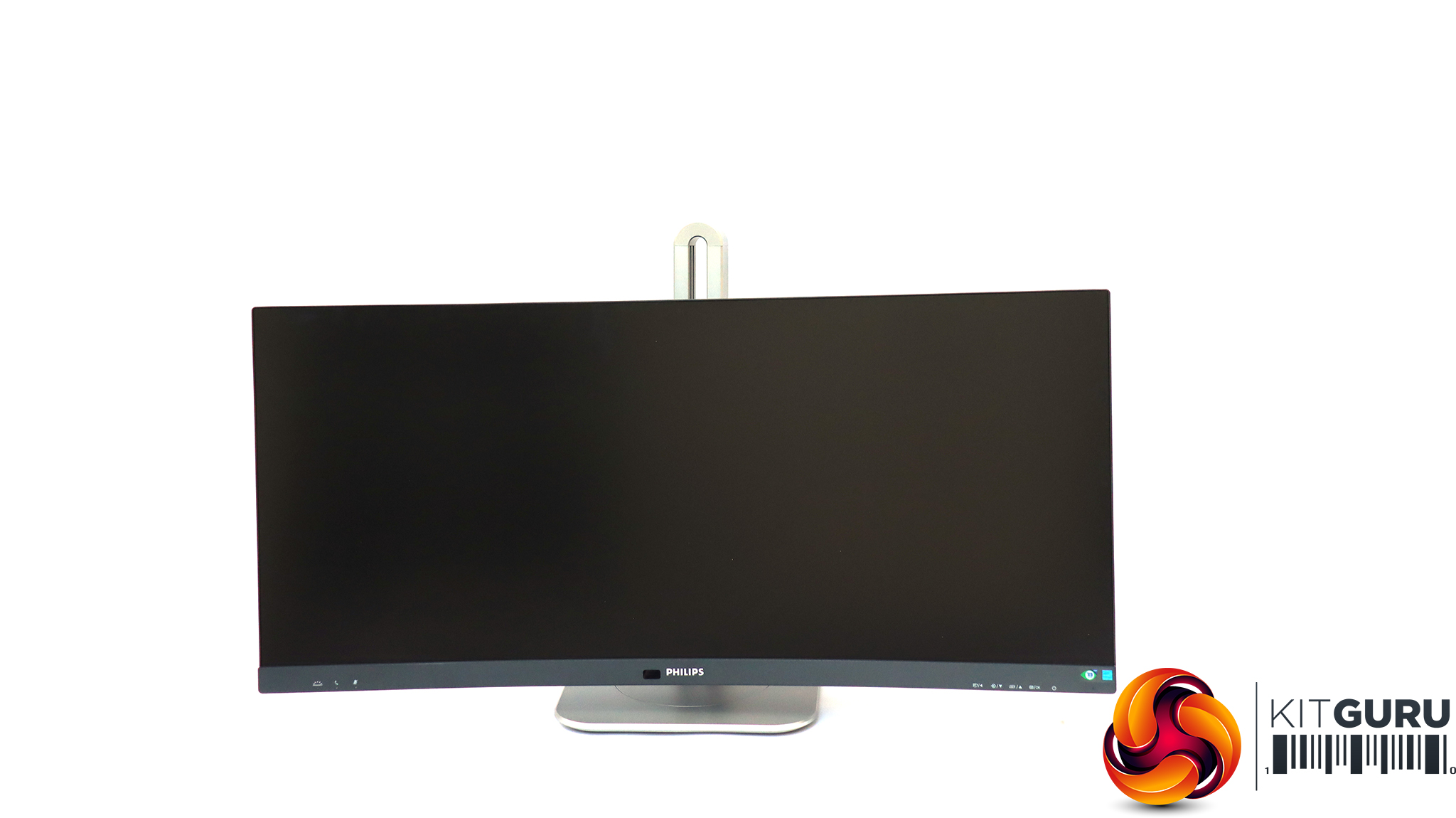
This is a sober but classy-looking screen with a solid, quality feel. The 1500R curvature is quite noticeable.
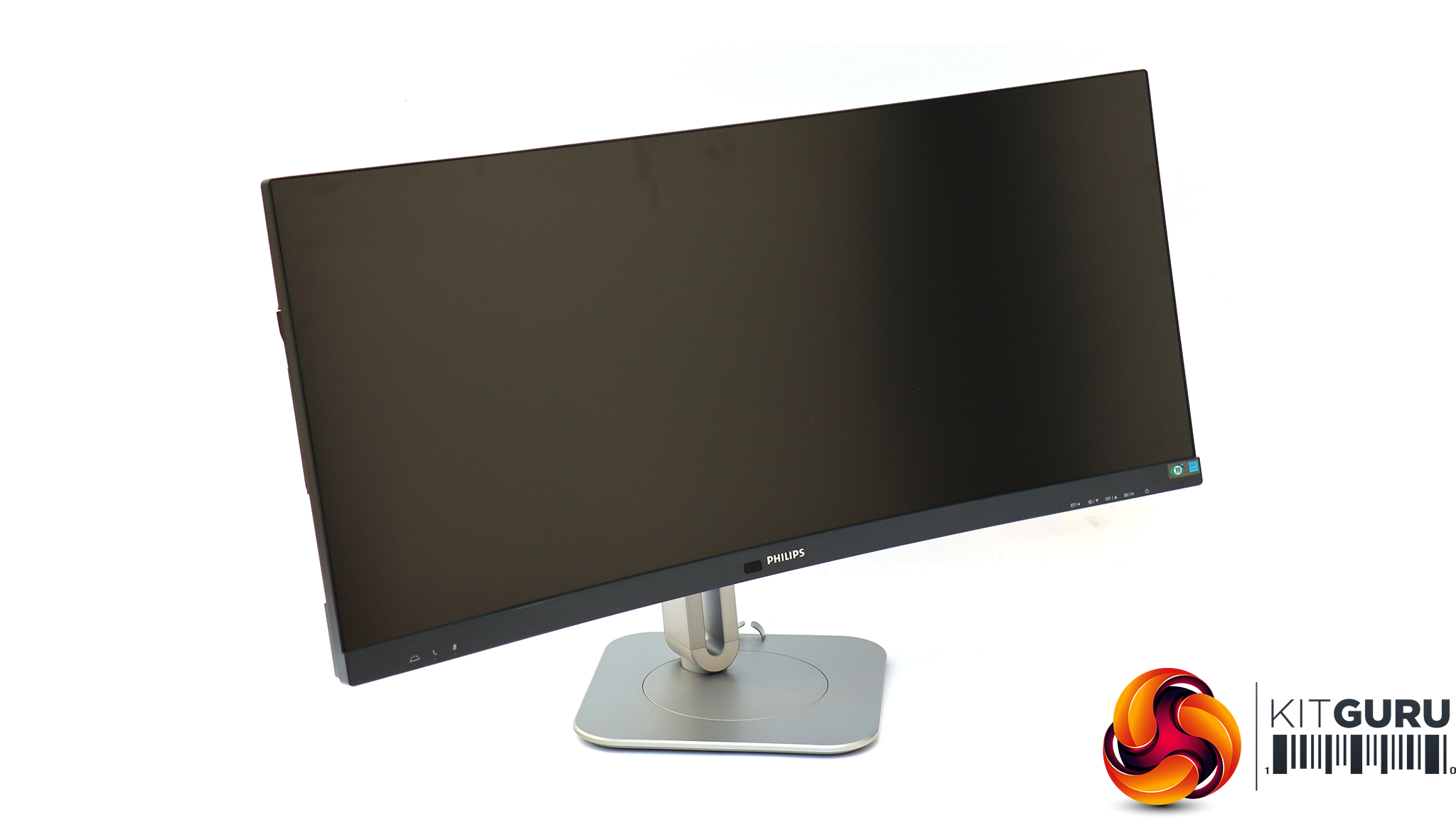
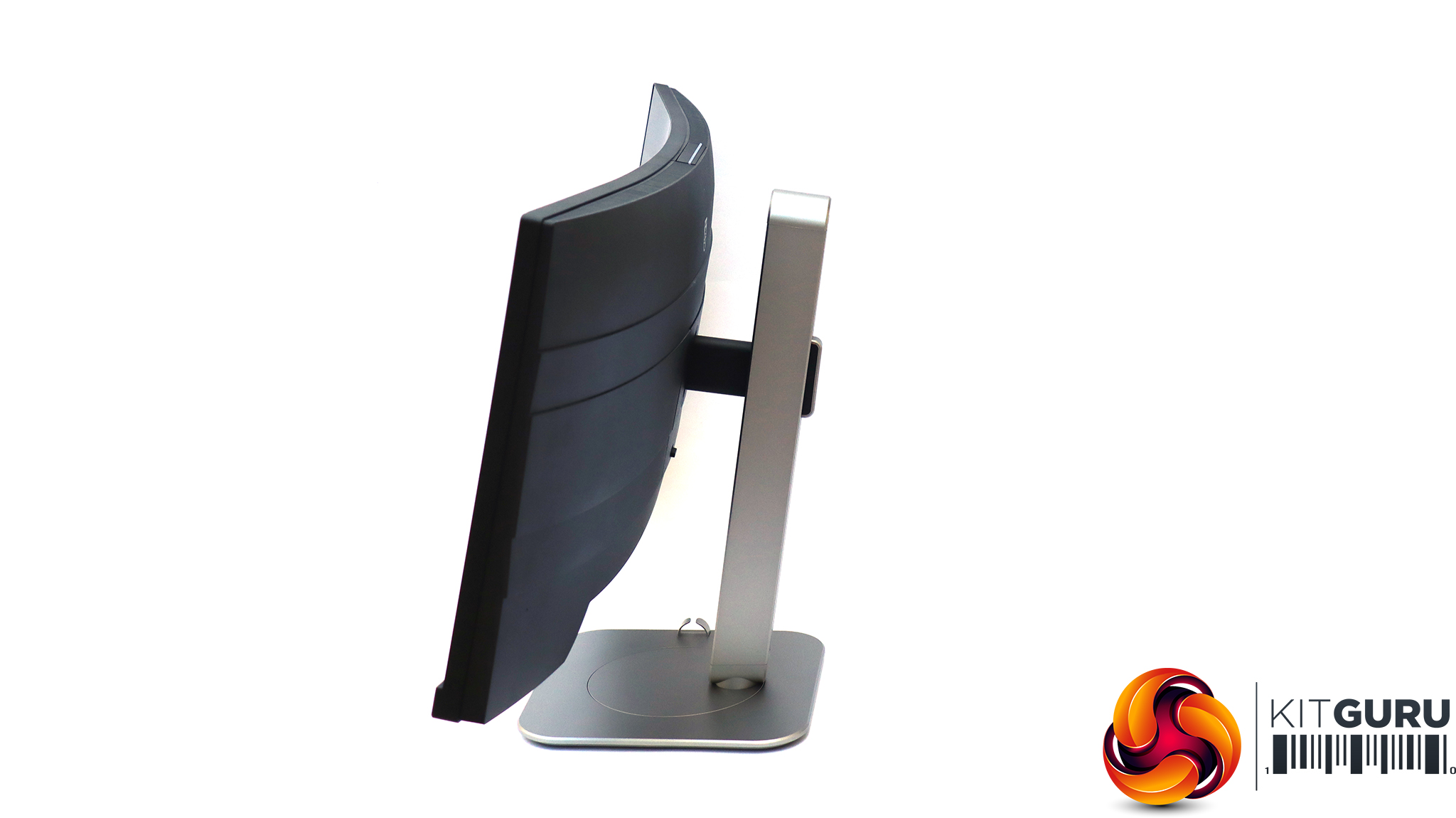
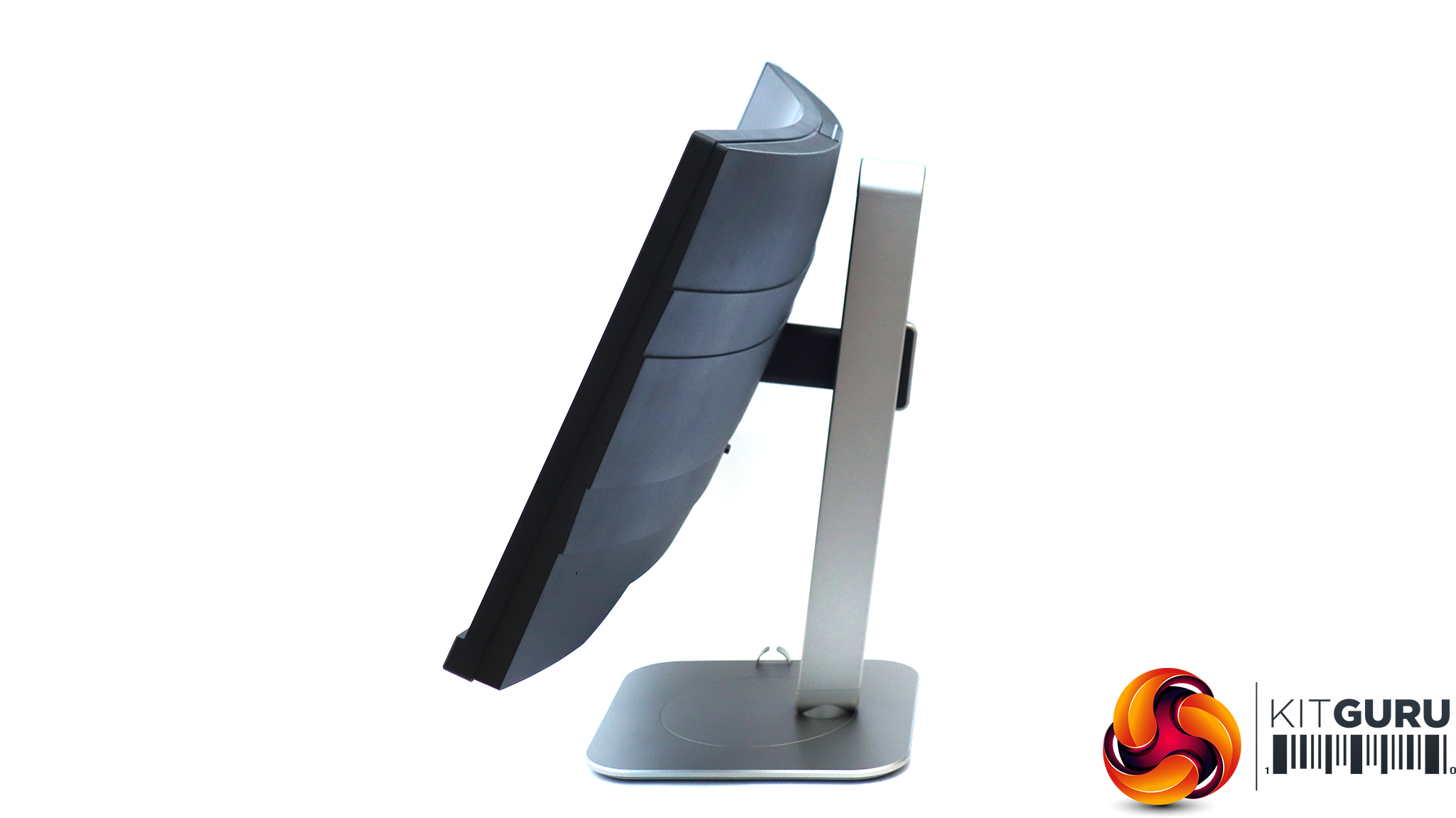
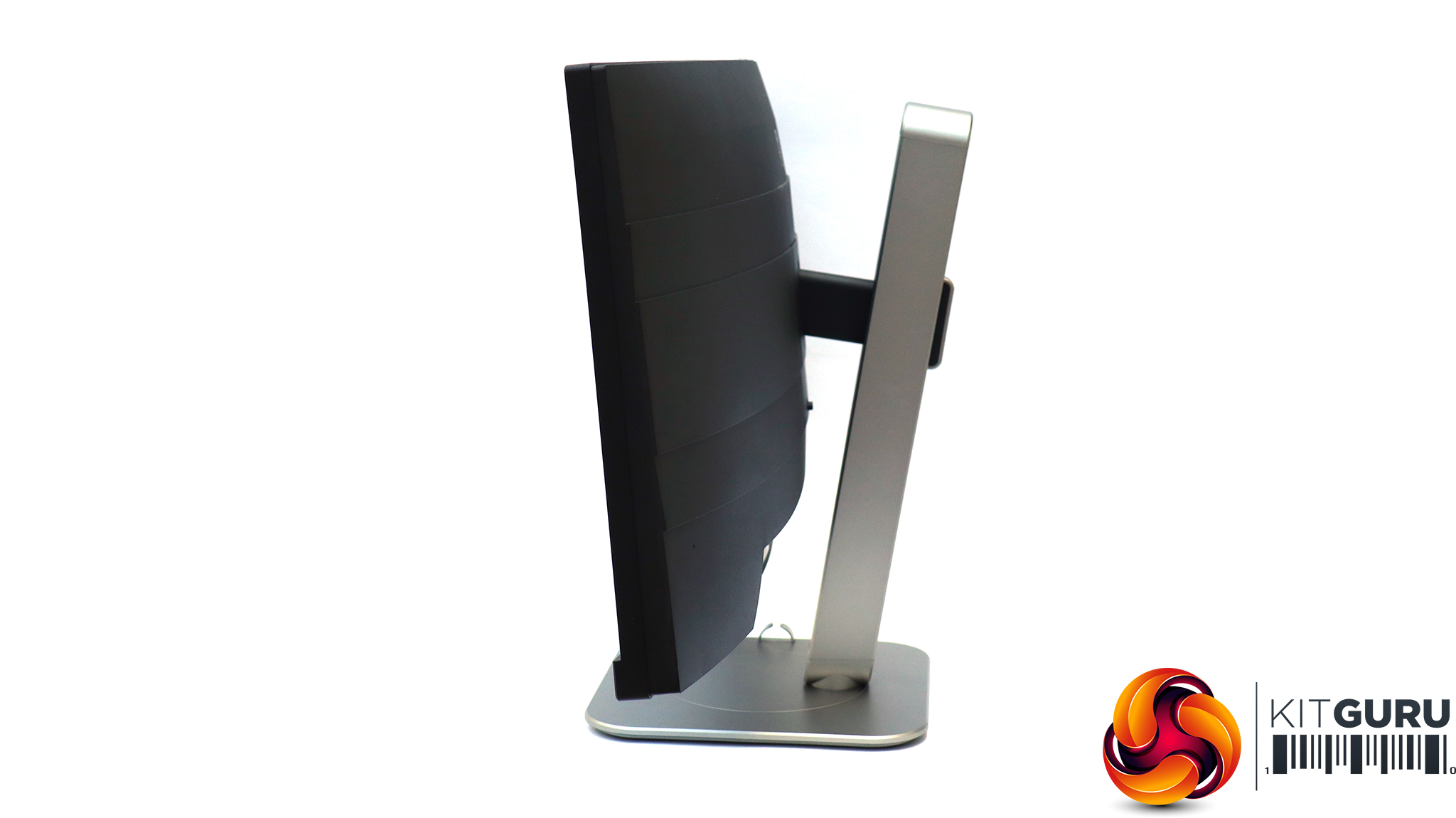
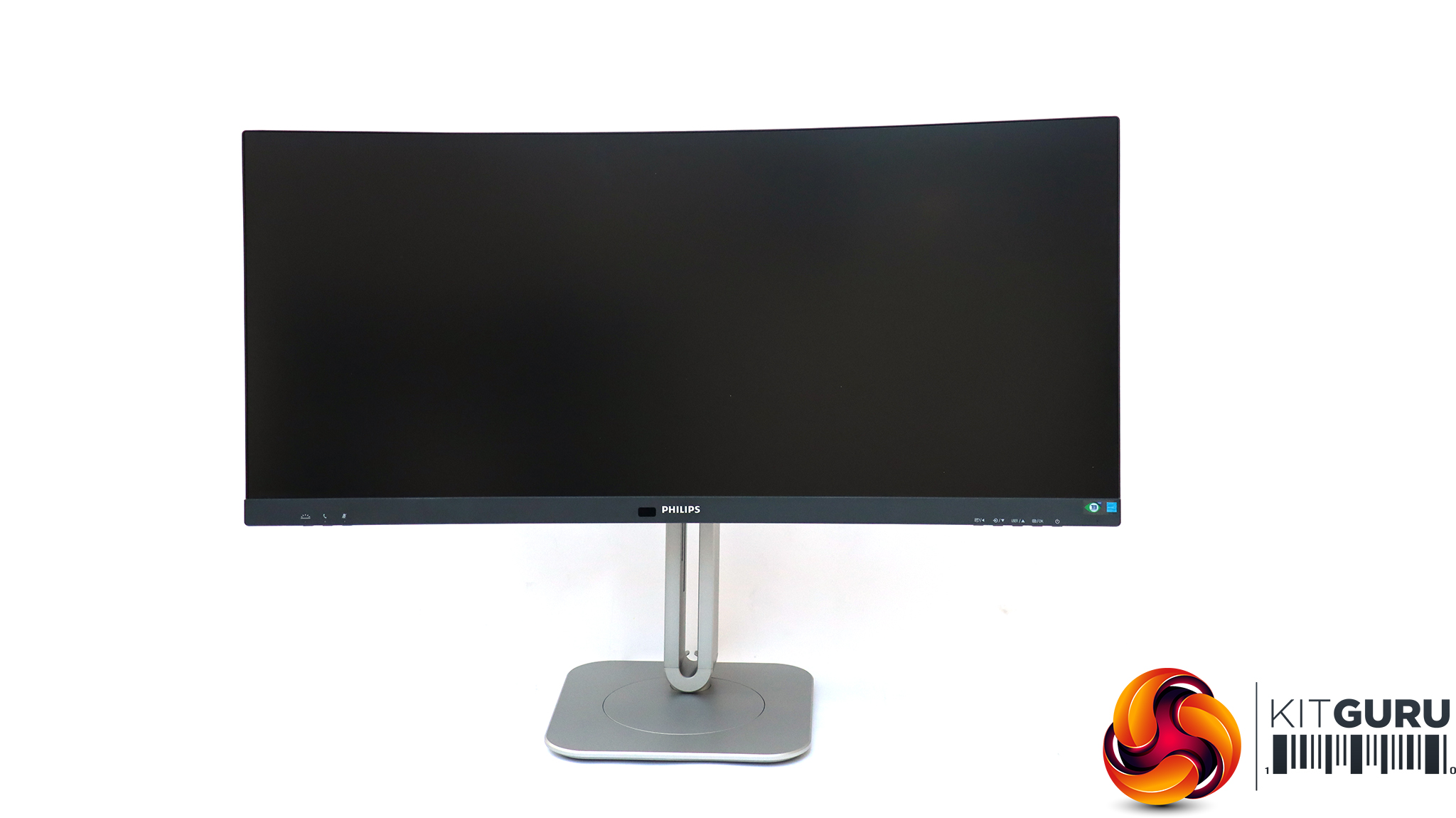
Philips lists the swivel as 180 degrees, but in reality you can spin the monitor completely around if you want. The tilt angles are quite wide, too, offering 5 degrees forward and 30 degrees backward. You can raise or lower the panel on its stand through a 180mm range, which is huge. There's no portrait mode, but we've never understood why a curved monitor would want that anyway.
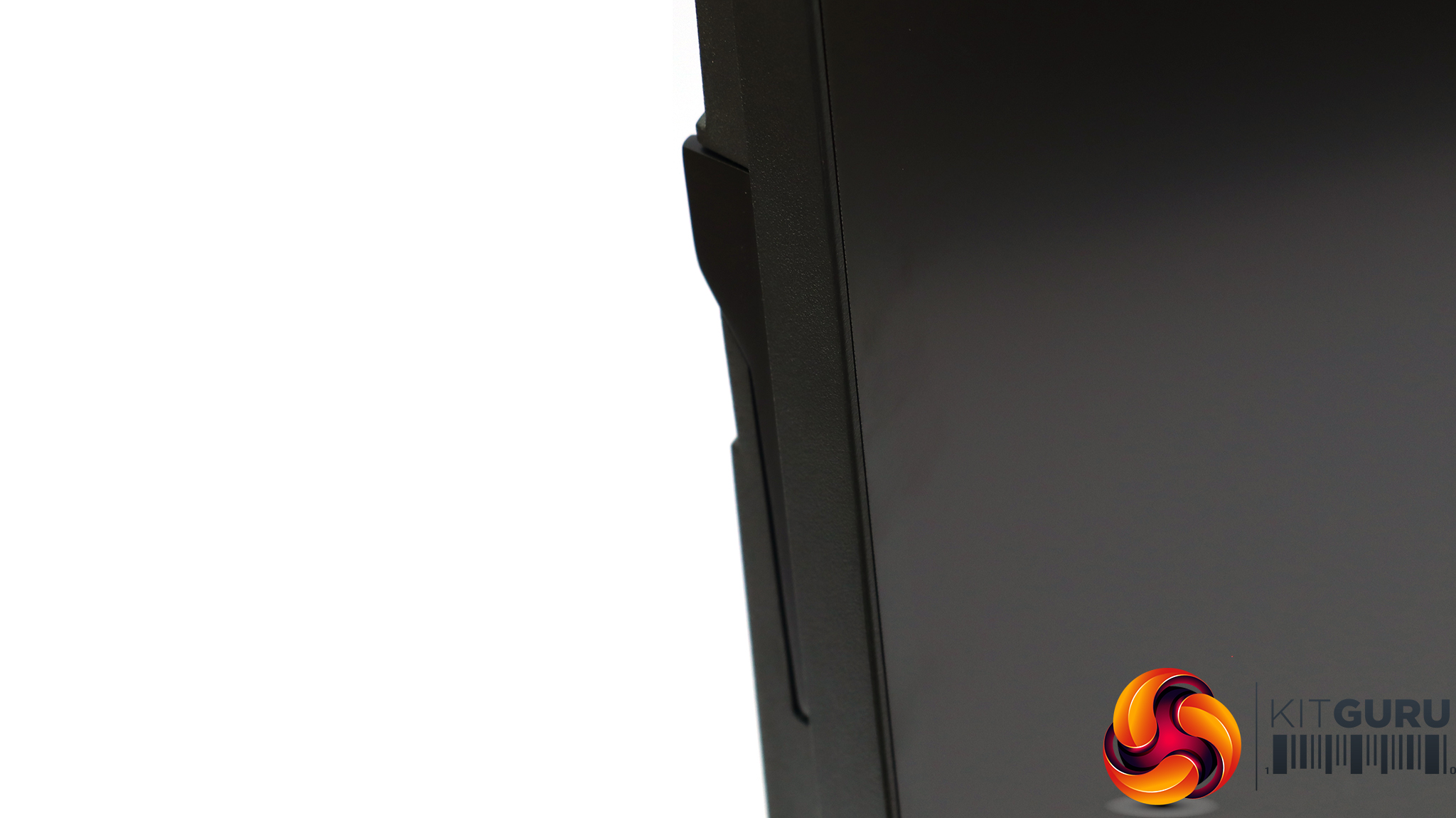
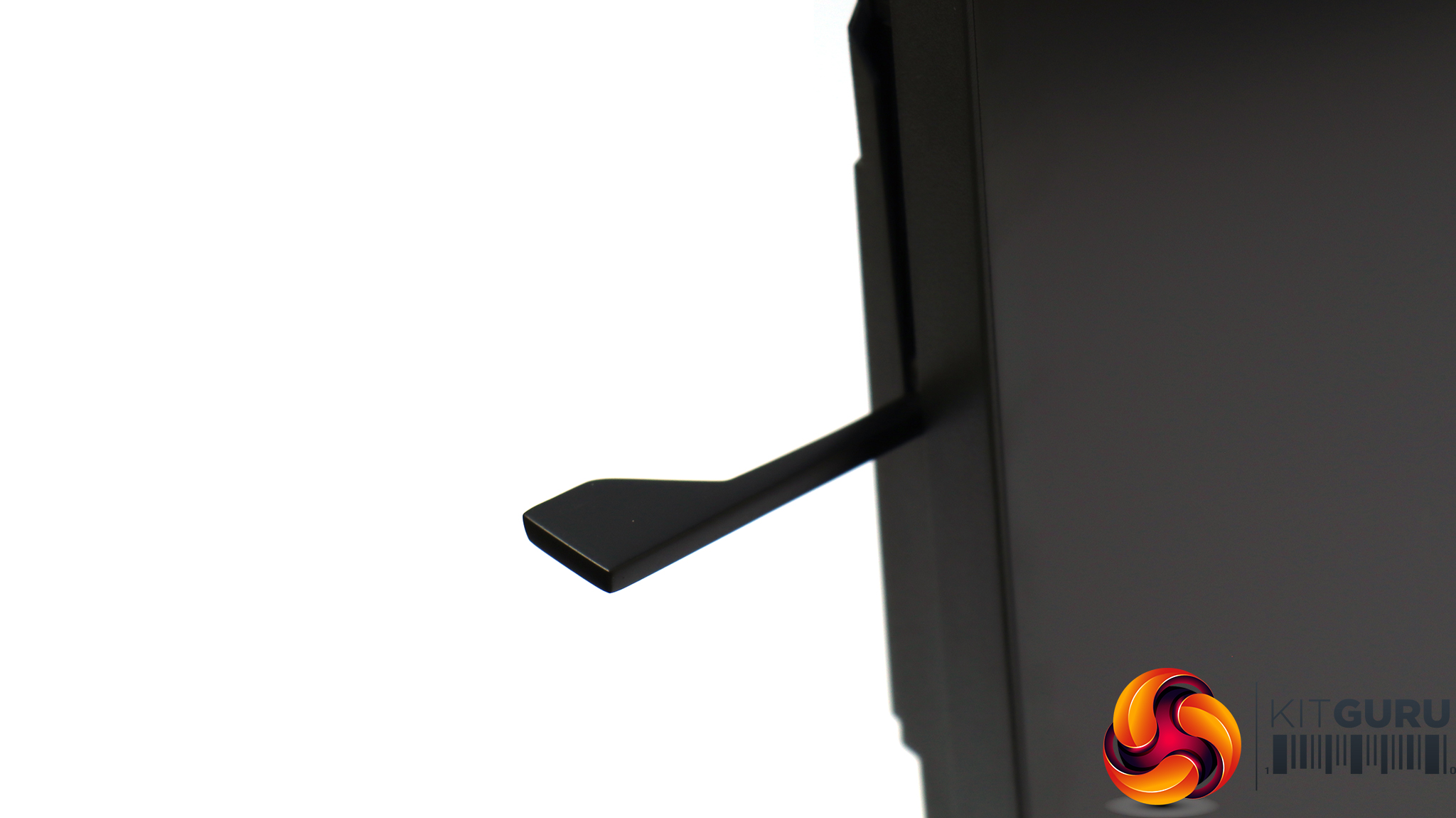
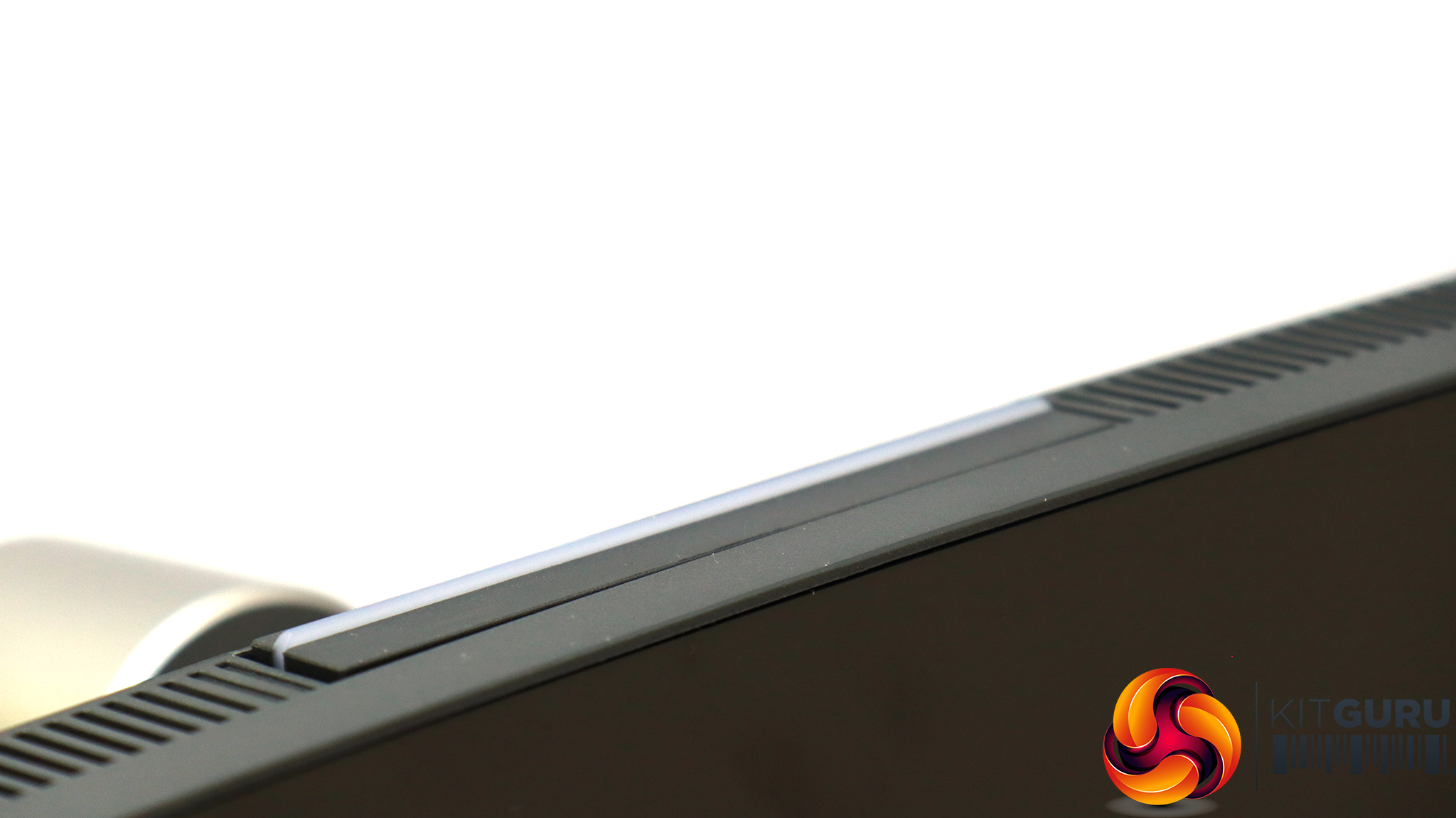
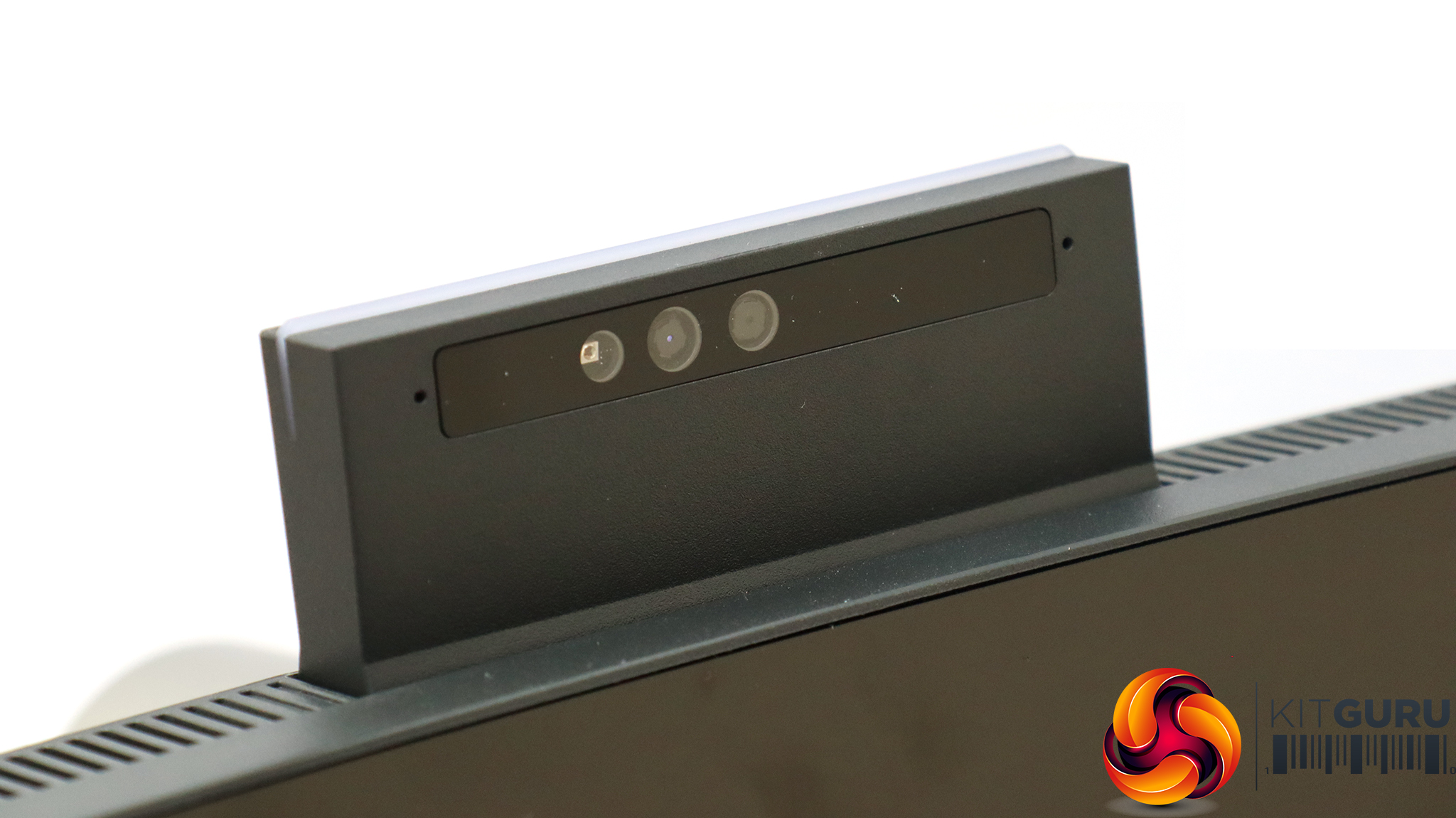
The 34B2U6603CH is packed with convenient touches, like the retractable cradle for your headset and the pop-out 5Mpixel webcam on the top bezel, with built-in microphones (one at either end). Alongside the 5W stereo speakers (which are a little more powerful than you usually get built in), there's everything you need for easy video conferencing. You can even enable a light to indicate to other office users that you're engaged in a call and not to be disturbed.
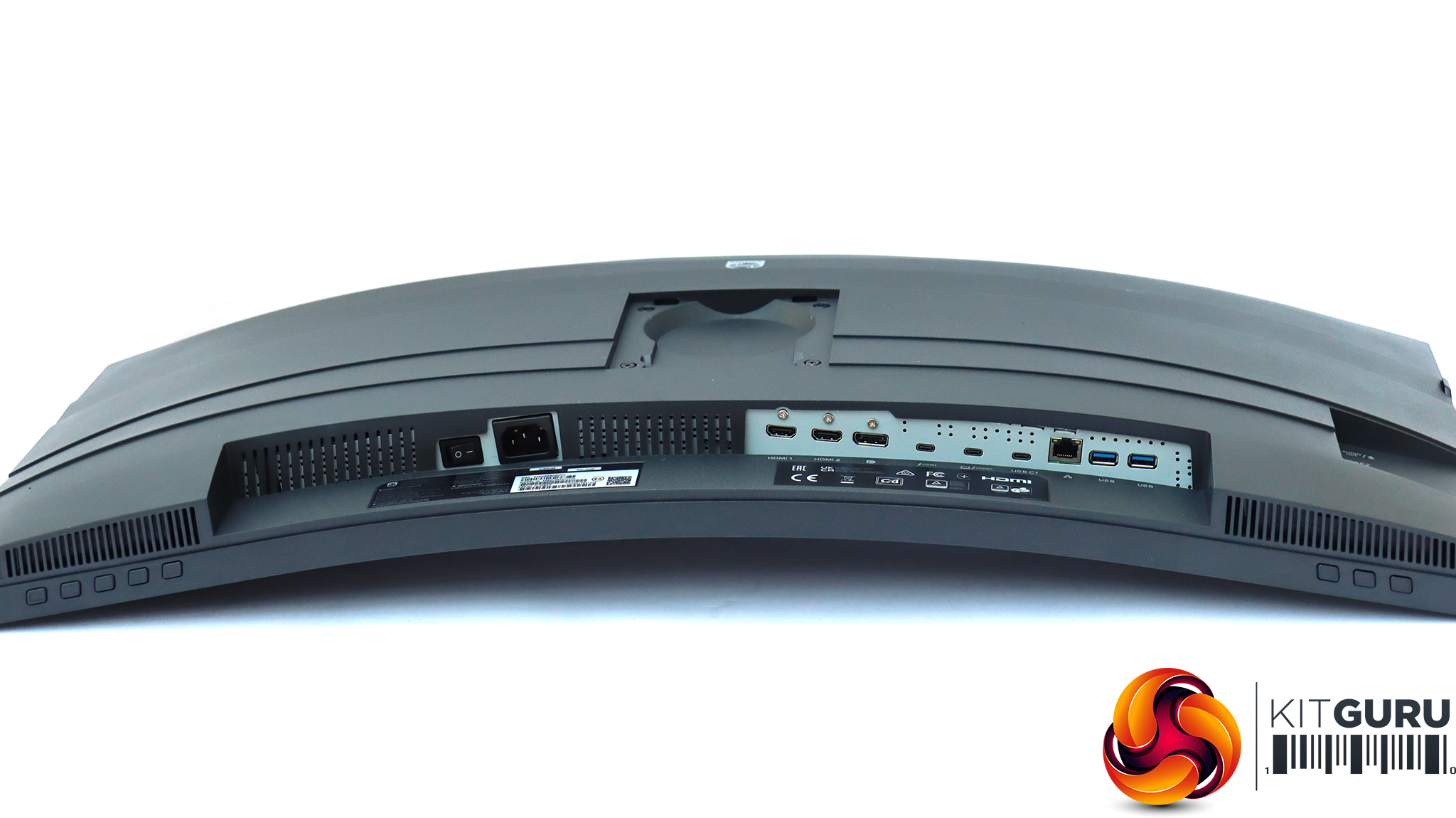
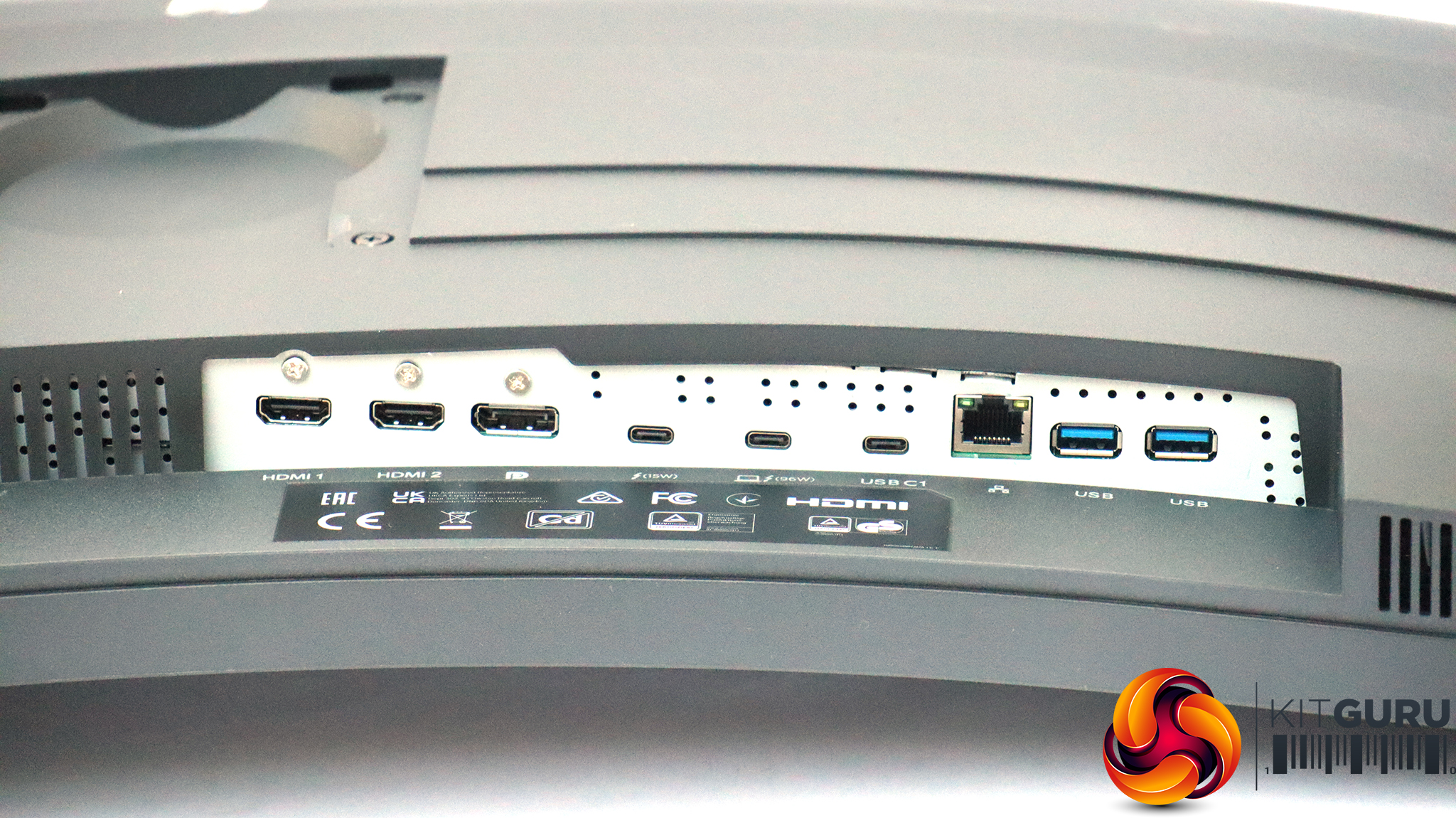
The range of ports is about the most we've ever seen on a monitor. The power input is via kettle lead, so no need to worry about mislaying a power brick. On the bottom edge, there are two HDMI 2.0 ports plus a single DisplayPort 1.4. The former only support 100Hz at the maximum resolution, while the latter goes up to 120Hz. The next two ports along are Thunderbolt 4, the first being downstream with 15W power delivery, next to an upstream port with 96W power delivery. You could attach your notebook to this, charge it, and also deliver video, network, and USB for keyboard and mouse – all in one cable. The next USB C along is an alternative USB C upstream, so you can have another device (perhaps your desktop). Then there is the 2.5Gbit Ethernet port plus two USB Type downstream ports.
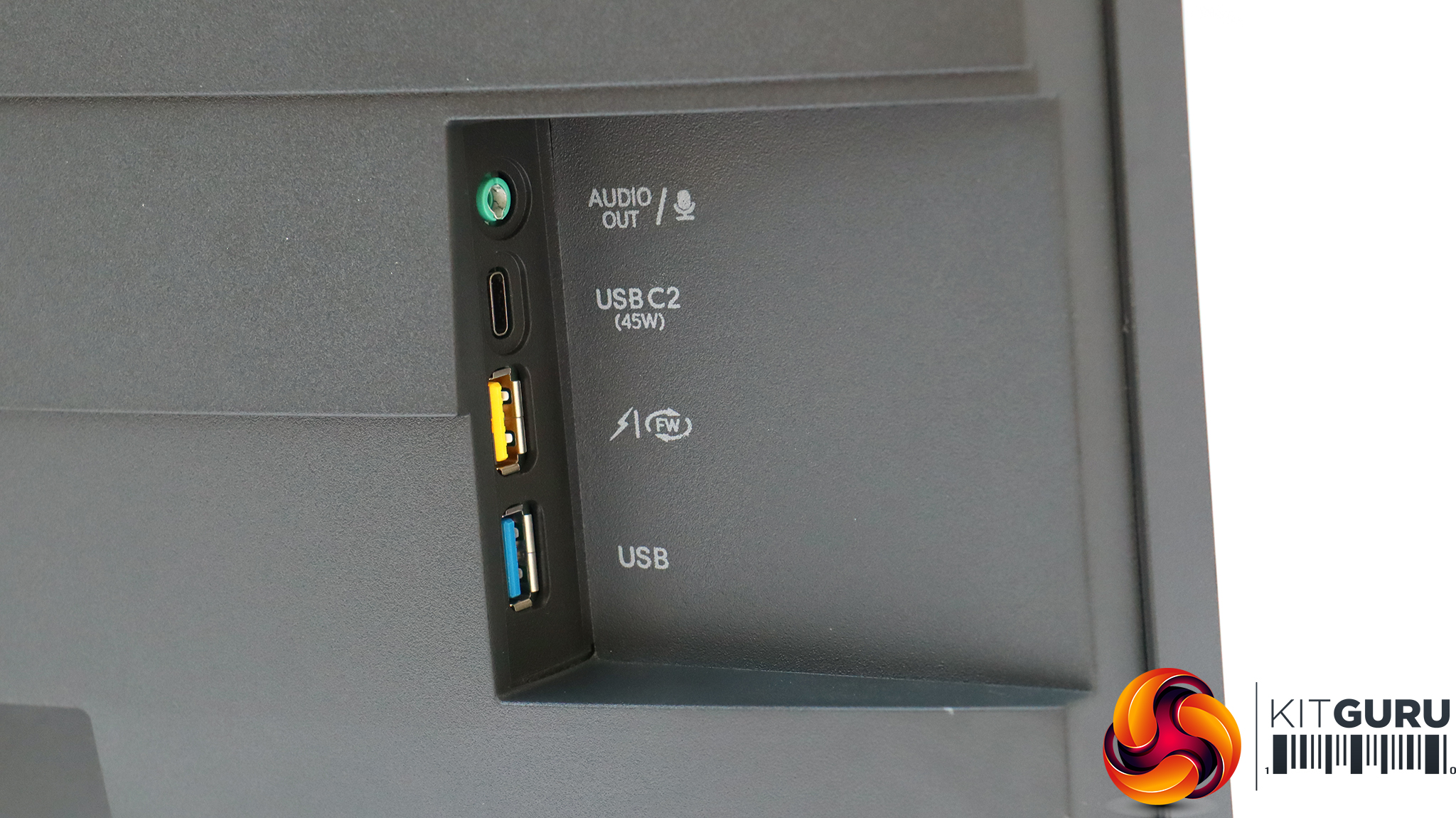
But that's not the end of the port feast. On the side you can find some more, placed conveniently for easier access. These are meant for peripherals like smartphones. The USB C port and one of the two Type A ports offer smart charging (the USB C port can deliver up to 45W). There's also a combo headphone / headset minijack.
In other words, there's not really any connection missing that we can think of.
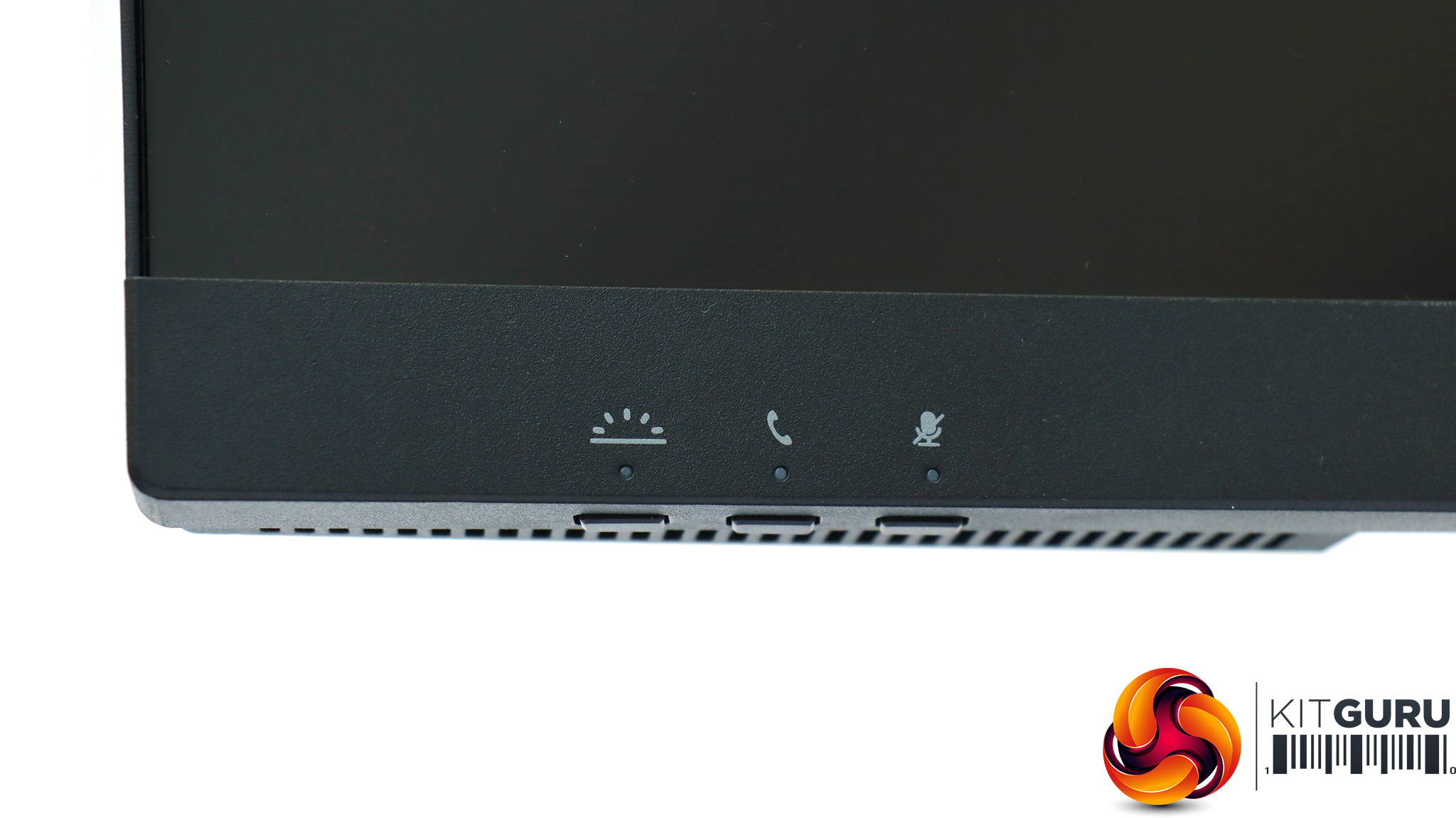
There are actually two sets of buttons on the bottom edge of the bezel. The ones on the left are for videonconferencing, with the furthest left a “Busylight” to signal that you are on a call in a busy office setting. This lights up a red strip along the top of the webcam. Then there's a button to accept or decline an incoming call invitation, plus a microphone mute key.
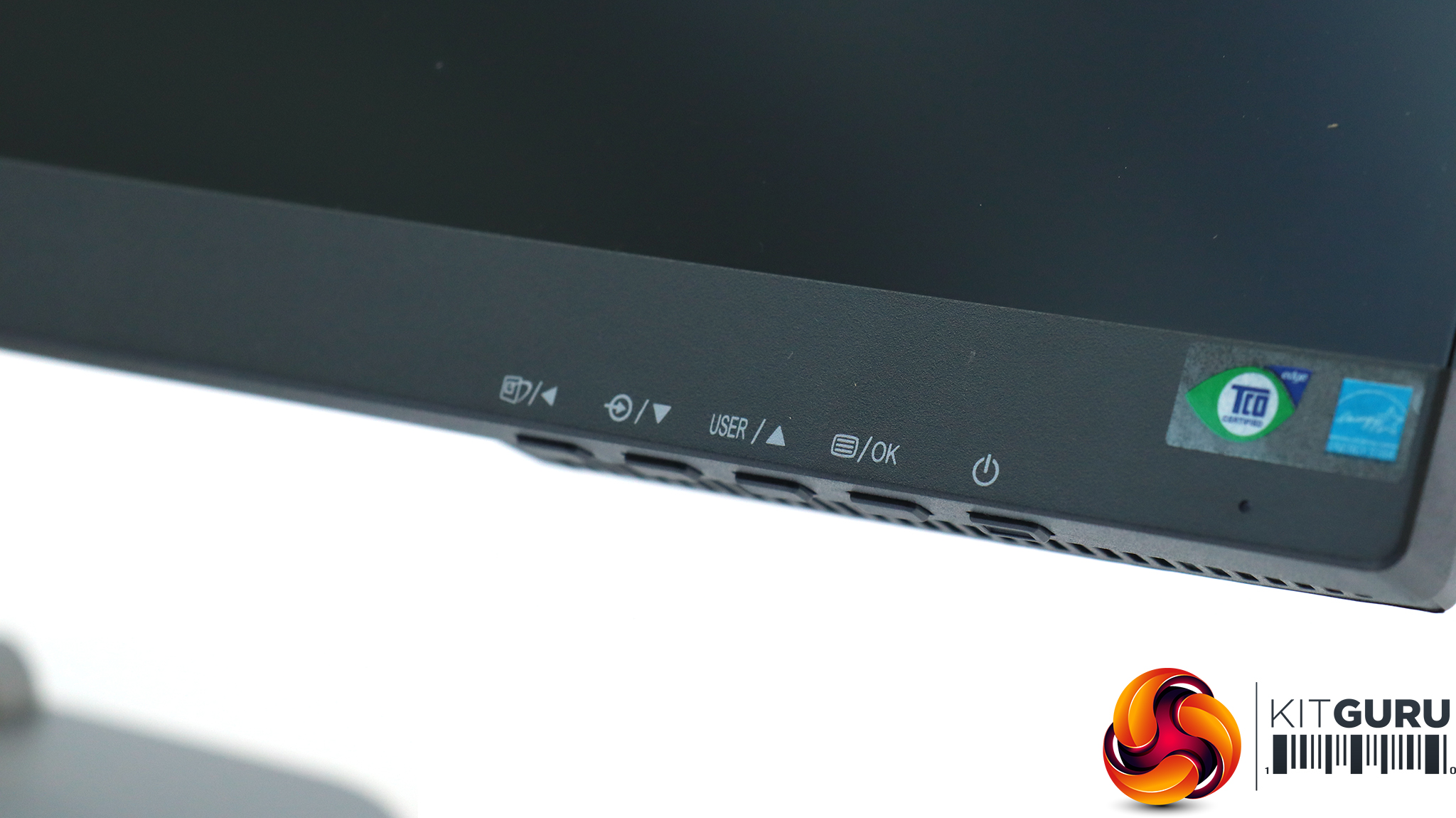
Starting from the right corner, there's a software power button (although you get a hardware switch on the bottom next to the power socket). Then you get buttons to call up and navigate the onscreen menu. The furthest left also operates the SmartImage preset modes.
The button on the furthest right toggles power.
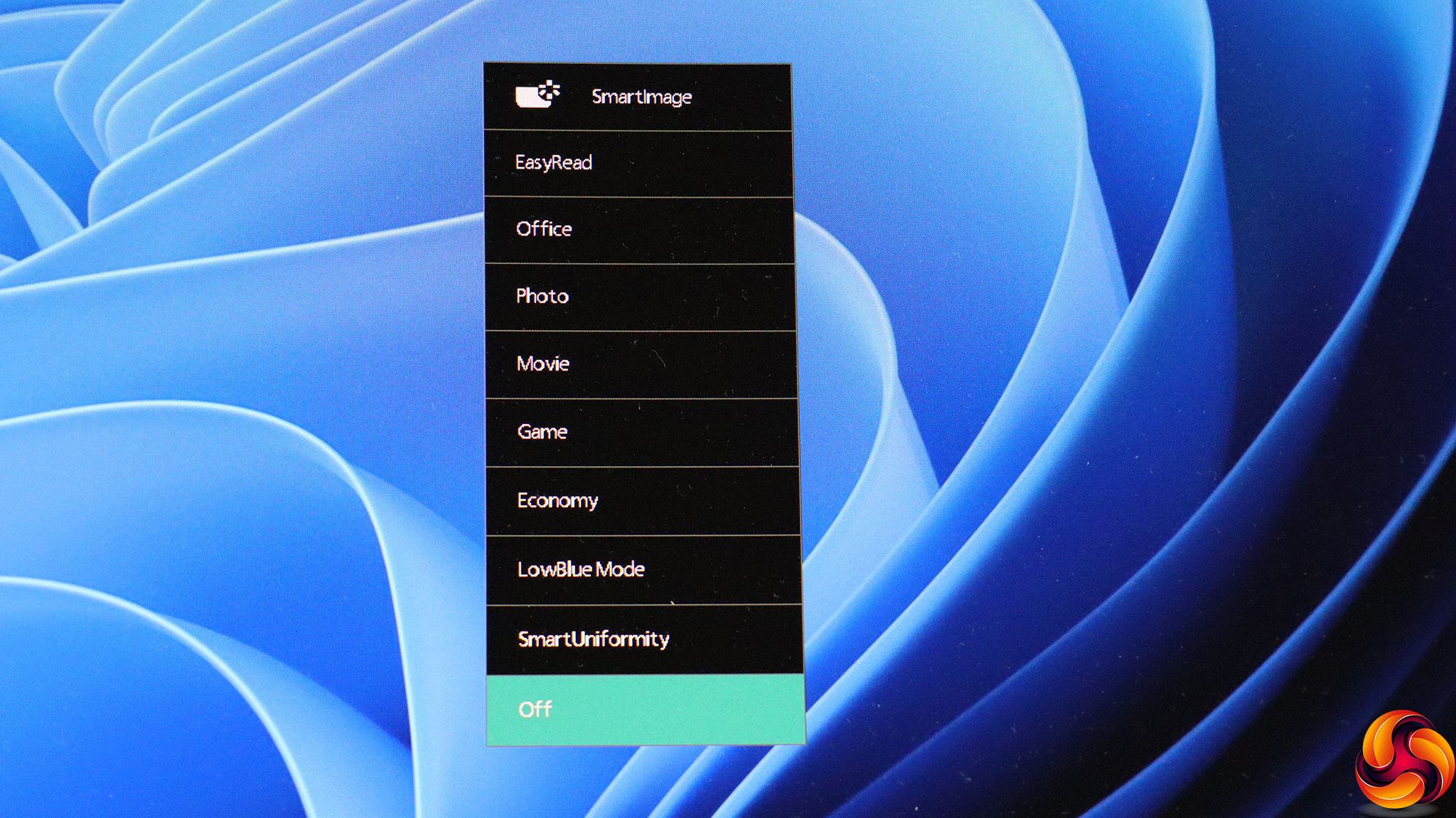
The button furthest left calls up the SmartImage presets, which include EasyRead, Office, Photo, Movie, Game, Economy, LowBlue Mode (to reduce eyestrain), SmartUniformity and the default, Off.
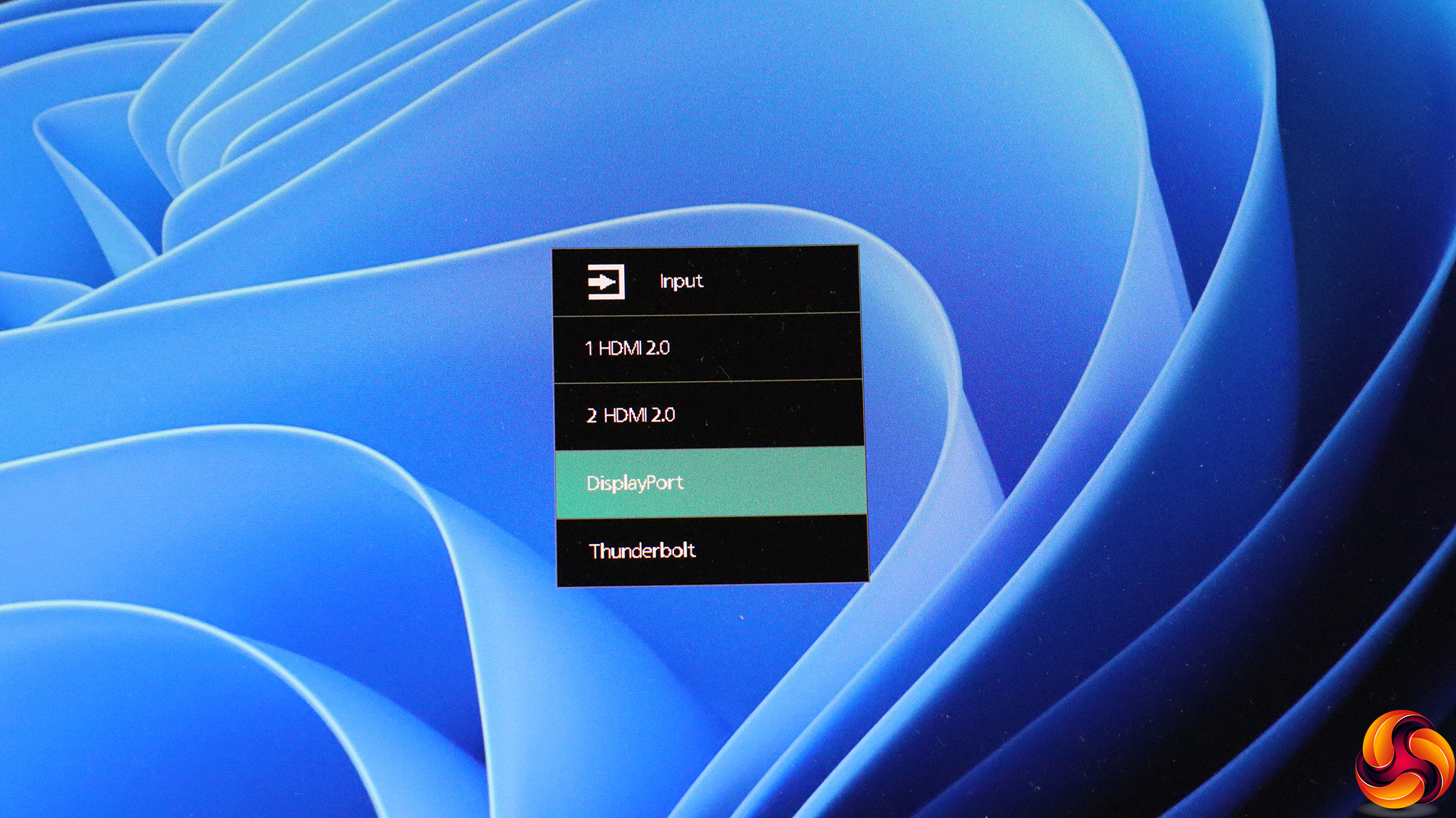
The next button from the left lets you choose between the four video input options – two HDMI 2.0, DisplayPort 1.4 and Thunderbolt 4.
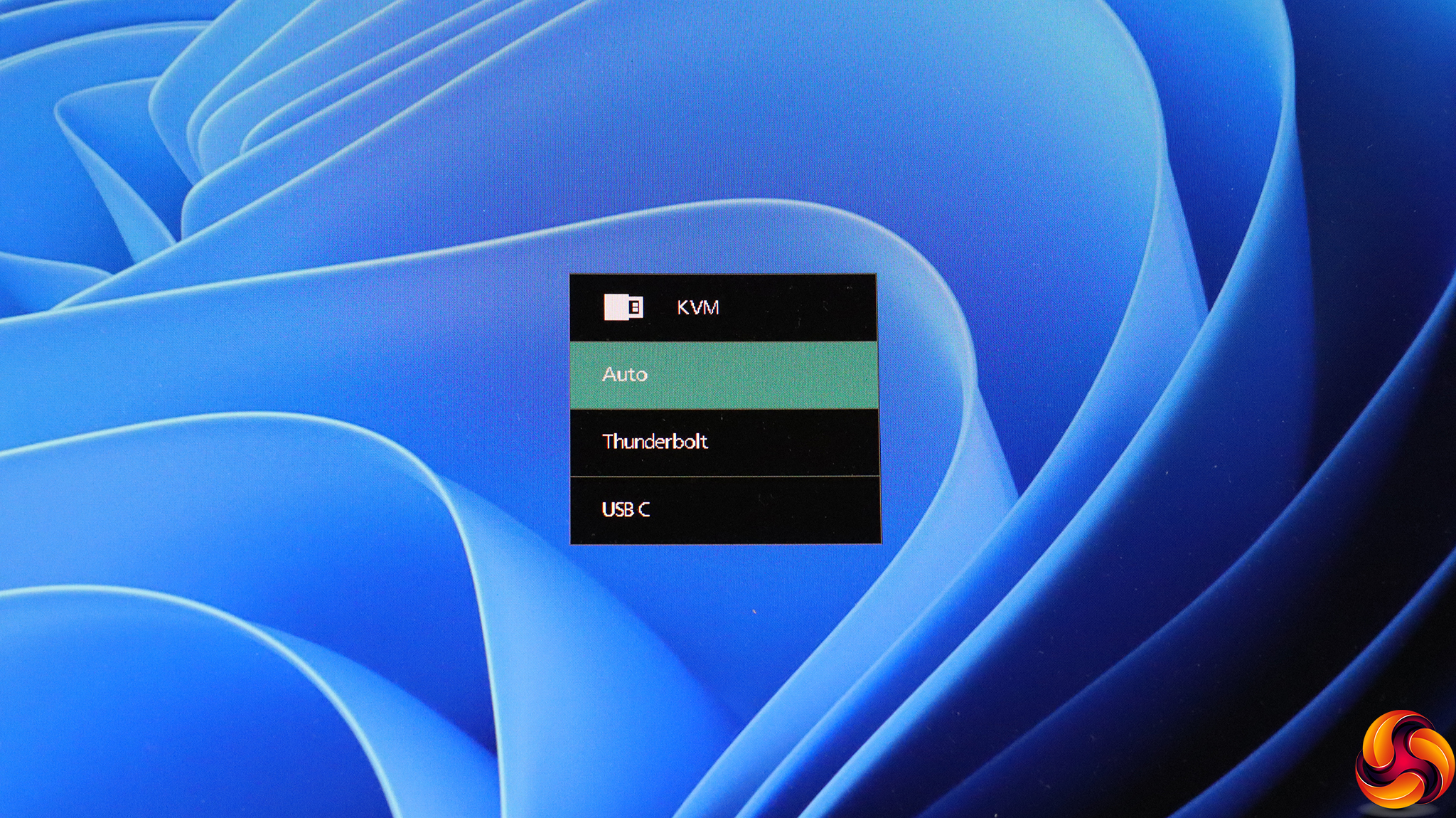
The third button along adjusts the behaviour of the KVM. Either it can automatically detect the device attached, or you can manually choose between Thunderbolt and USB C.
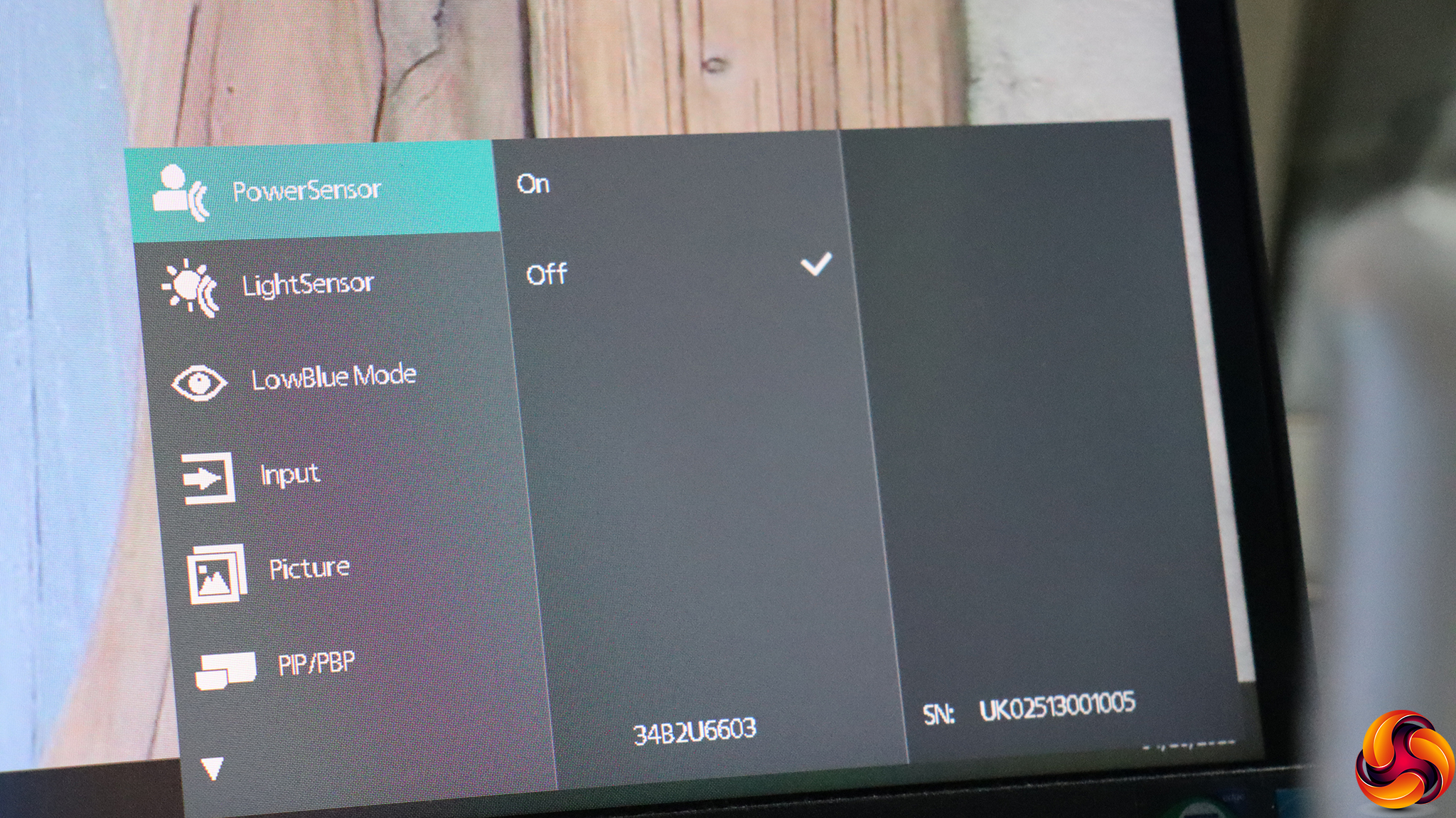
The button next to the power button calls up the main menu, which is extensive, stretching over three pages, although the last one just has a single option. First up is toggling PowerSensor. This detects the non-presence of a human in front of the monitor and turns down the backlight, returning it to full brightness when the human comes back. This has four options and a user-configurable setting.
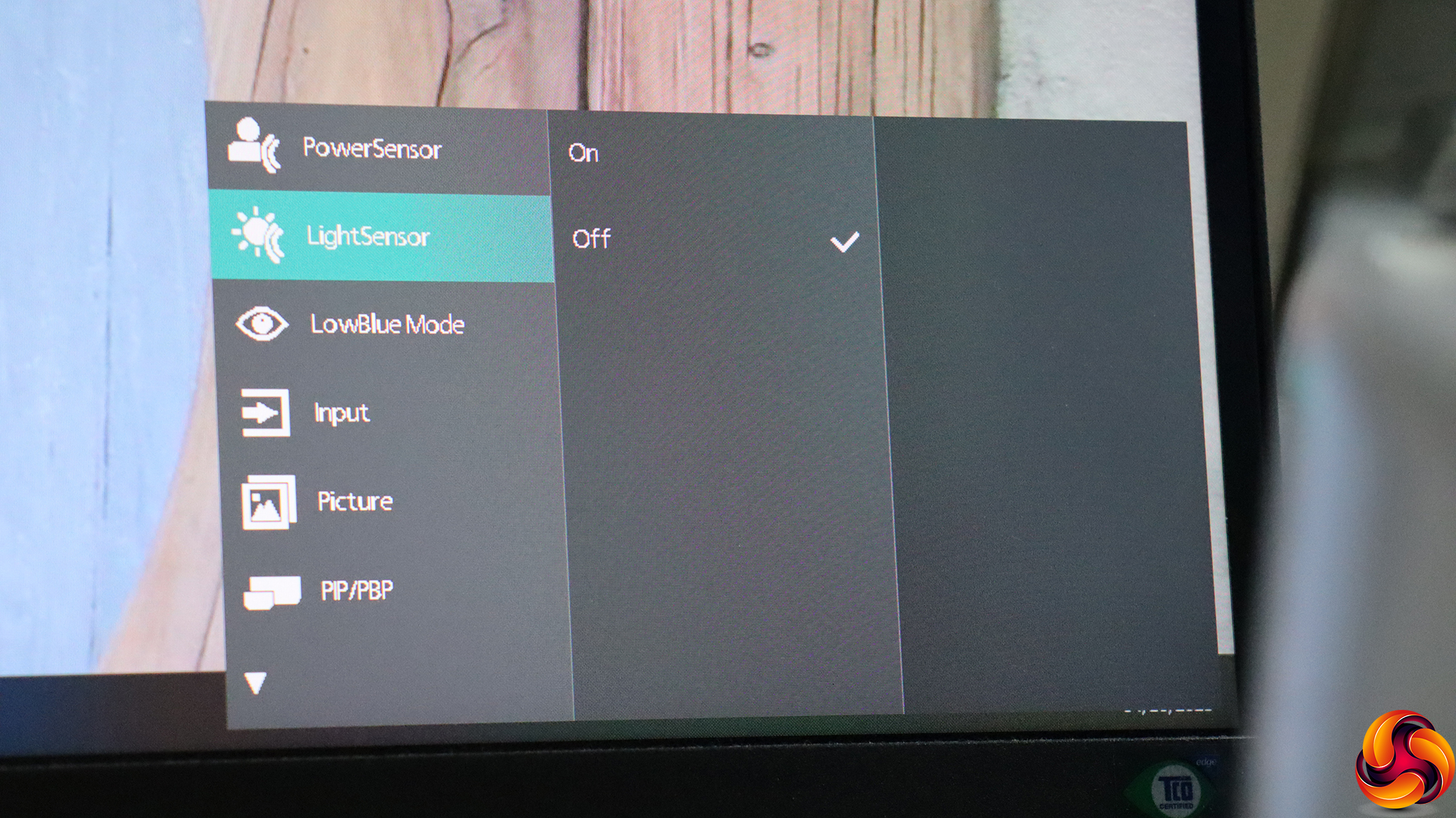
In a similar vein, LightSensor detects ambient light levels and adjusts the monitor brightness accordingly.

Next down in the main menu can be found LowBlue Mode, which has four levels.

Finally we get to a more extensive menu option, in the shape of the Picture settings. Here you can adjust the SmartImage reset, turn on Adaptive Sync, and select various Picture Format aspect ratios. You can adjust brightness, contrast, and sharpness. SmartResponse options range from Off to Fast, Faster or Fastest, which artificially improve pixel response. You can toggle Smart Contrast, choose between gamma levels from 1.8 to 2.6 in 0.2 increments, toggle pixel orbiting (to prevent static image burn-in) and enable Over Scan, which seems a bit pointless in a monitor with no analog inputs.
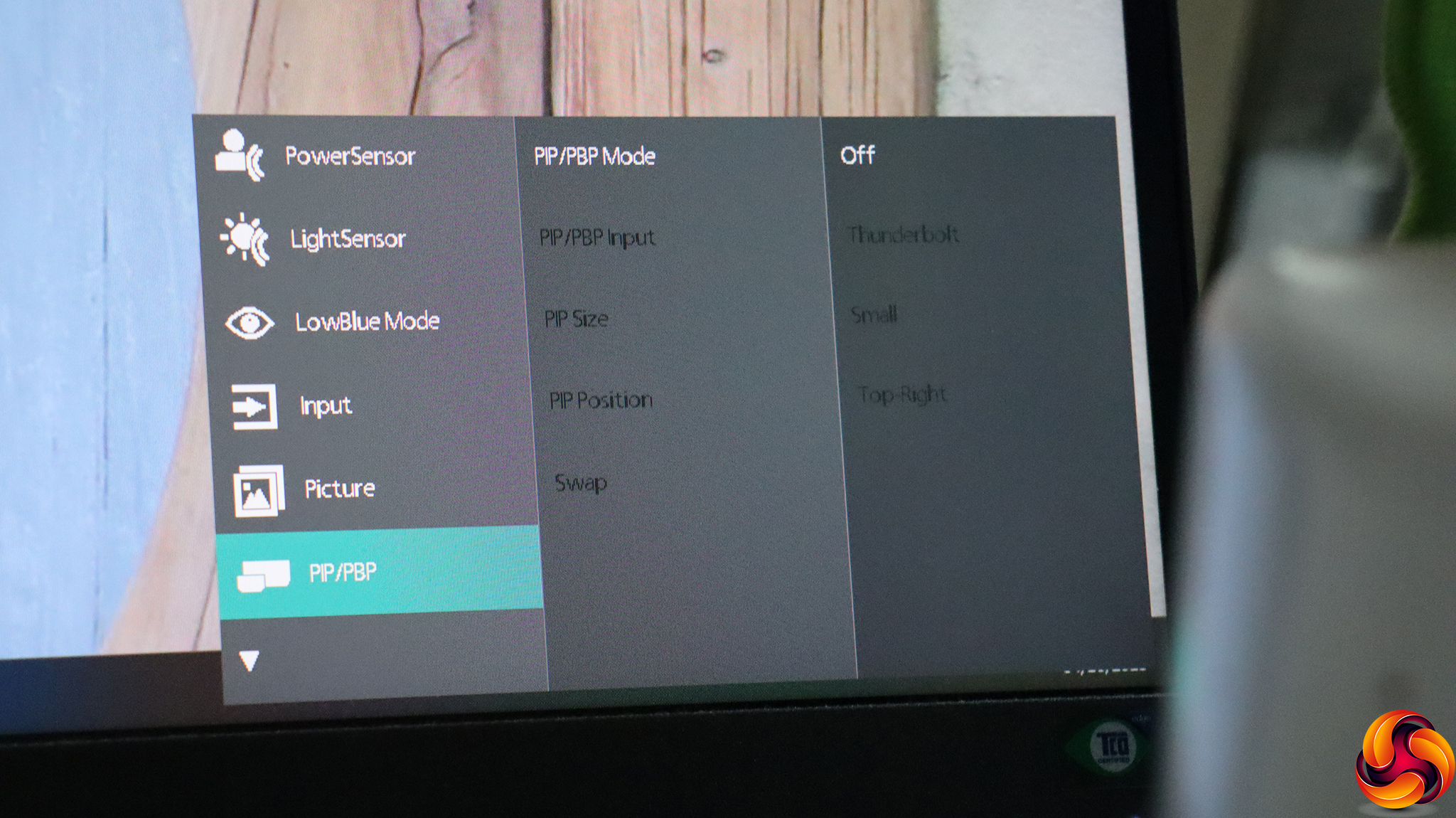
Reassuringly for such a wide monitor with so many inputs, there are picture-in-picture and picture-by-picture options so you can view multiple display signals at once on the same monitor.
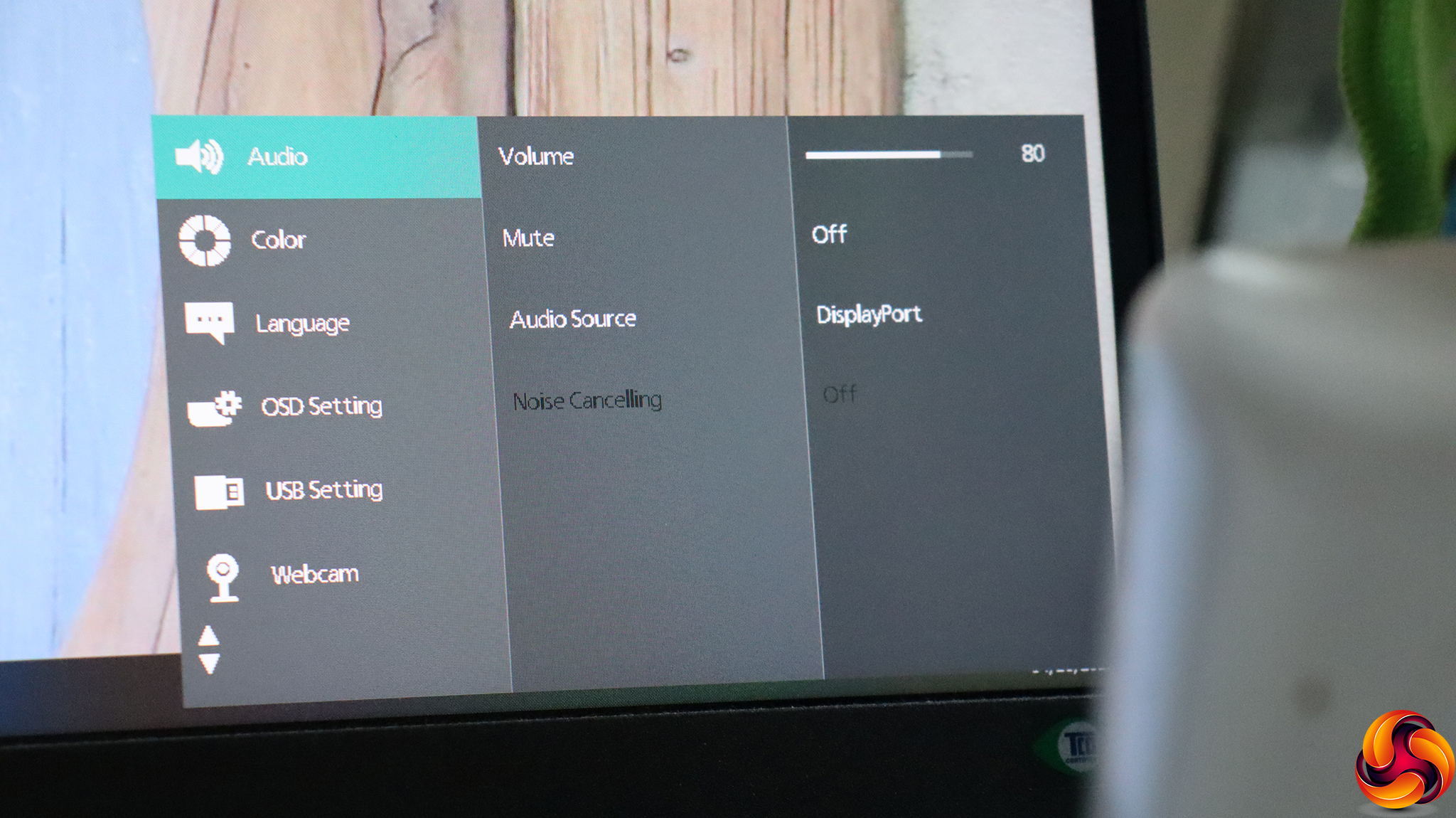
We're now on the second page of menu settings, and the first option is for audio, letting you adjust the volume, mute entirely, and choose an audio source, since most digital video inputs now also supply sound. There's also a Noise Cancelling option.

Color Temperature choices include Native, 5000K, 6500K (the default), 7500K, 8200K, 9300K and 11,500K. There's an sRGB mode or you can choose User Define to adjust red, green and blue intensities manually.
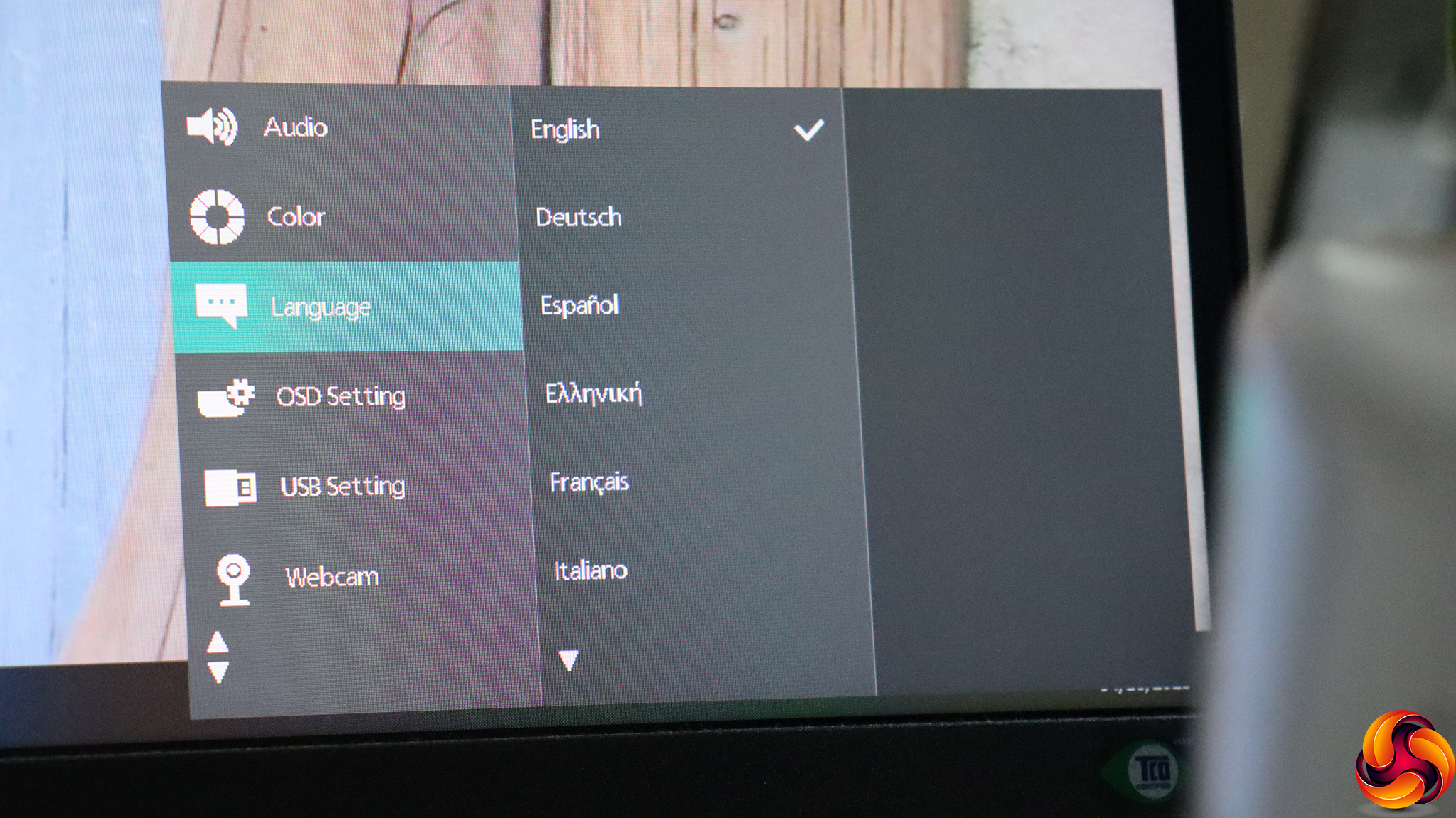
Next down are the comprehensive menu language options.
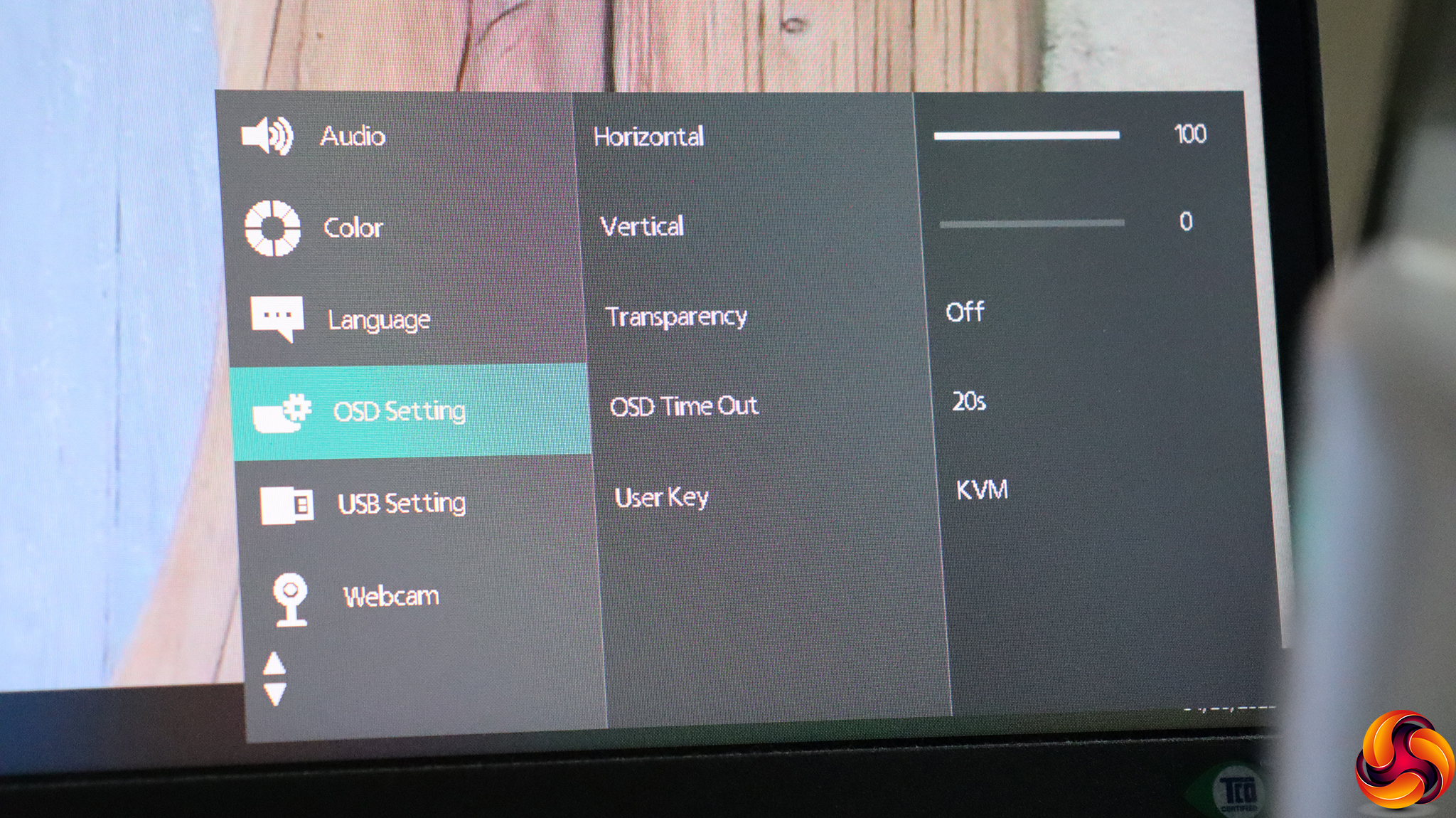
Under OSD Setting, you can choose the position of the main menu, whether it's opaque or semi-transparent, how long it stays onscreen for, and configure what the third button along from the left operates. By default, it's the KVM as described above, but you can also choose Volume, MultiView, Brightness and the PowerSensor option.
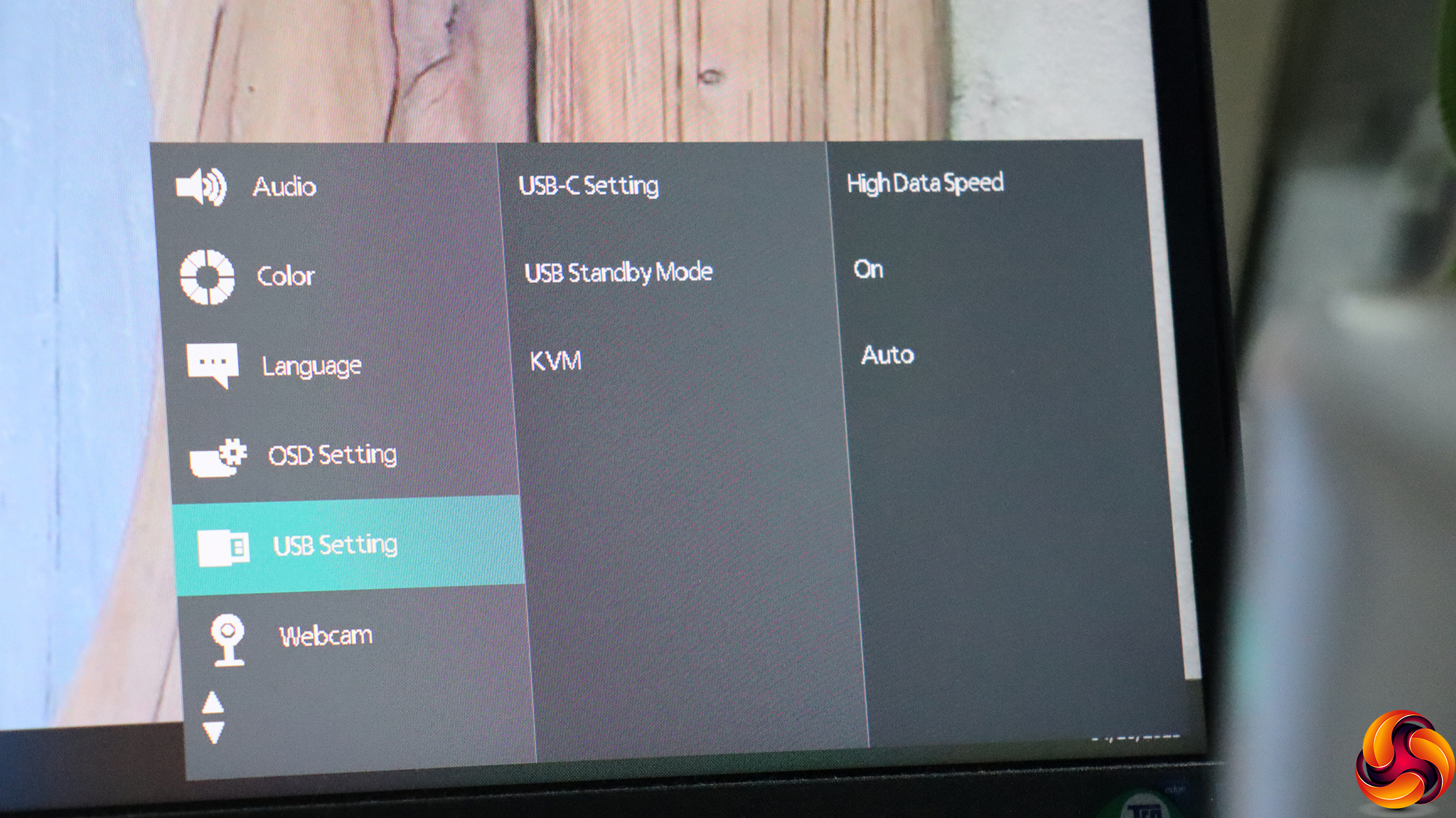
USB Setting lets you adjust the behaviour of the USB ports and the KVM.
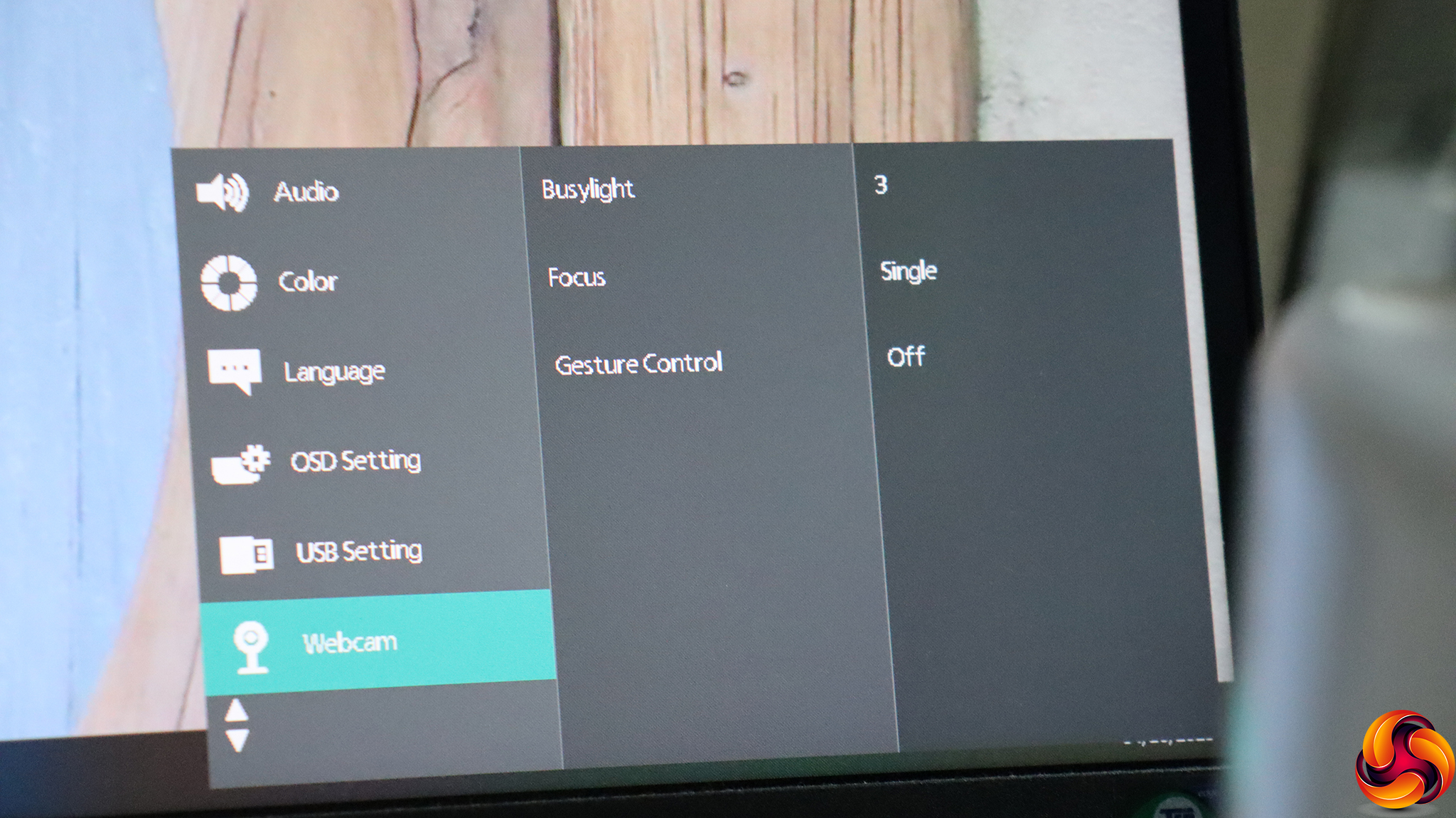
The Webcam has its own section, too, where you can choose the Busylight intensity, how focusing is performed, and whether Gesture Control is enabled.

Last but not least, as the sole occupant of page three of the menu, you can find all the other options that don't fit anywhere else, such as the intensity of the power LED and resetting everything, although the Thunderbolt options might have fitted better under USB Setting, even though it's not technically a USB port.
Overall, there is plenty of adjustment available here. The order of menu options raises the odd question, with Color quite a few clicks down. You don't get much in the way of gaming settings – but this is a professional and office monitor, not a gaming one, so that's not a surprise. Otherwise, there's plenty here for the target user.
Our main test involves using a DataColor SpyderX Colorimeter to assess a display’s image quality. The device sits on top of the screen while the software generates colour tones and patterns, which it compares against predetermined values to work out how accurate the screen is.
The results show –
- A monitor’s maximum brightness in candelas or cd/m2 at various levels set in the OSD.
- A monitor’s contrast ratio at various brightness levels in the OSD.
- The brightness deviation across the panel.
- The black and white points.
- The colour accuracy, expressed as a Delta E ratio, with a result under 3 being fine for normal use, and under 2 being great for colour-accurate design work.
- The exact gamma levels, with a comparison against preset settings in the OSD.
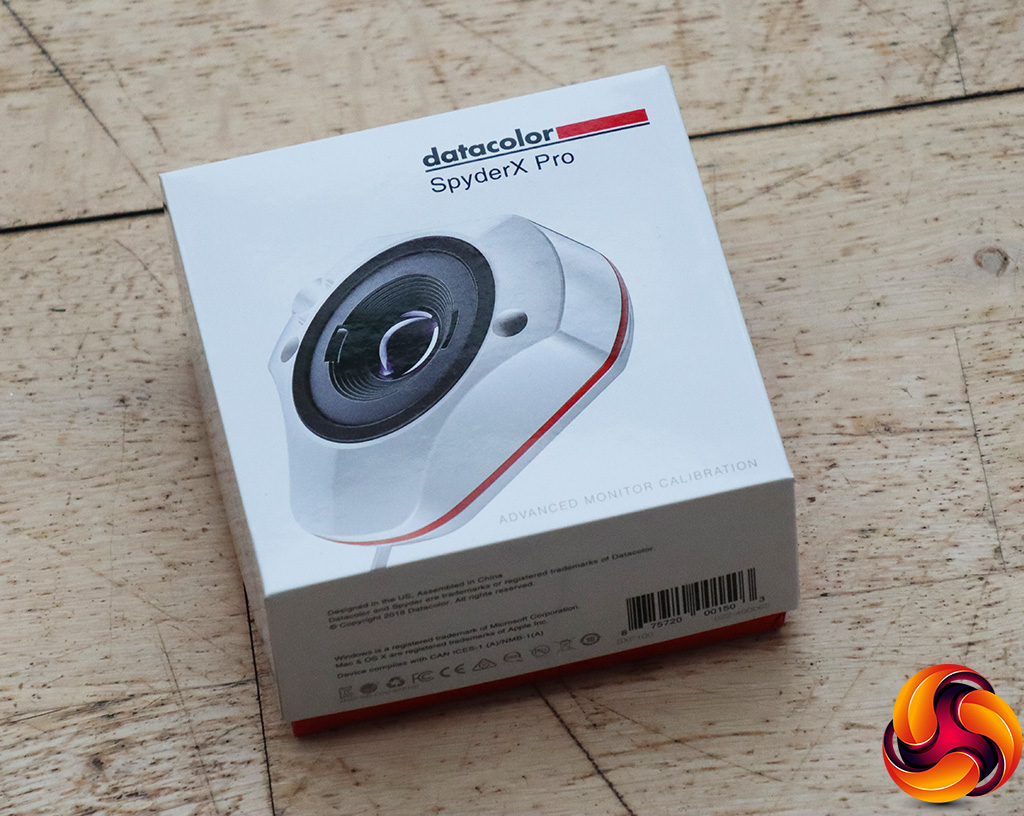
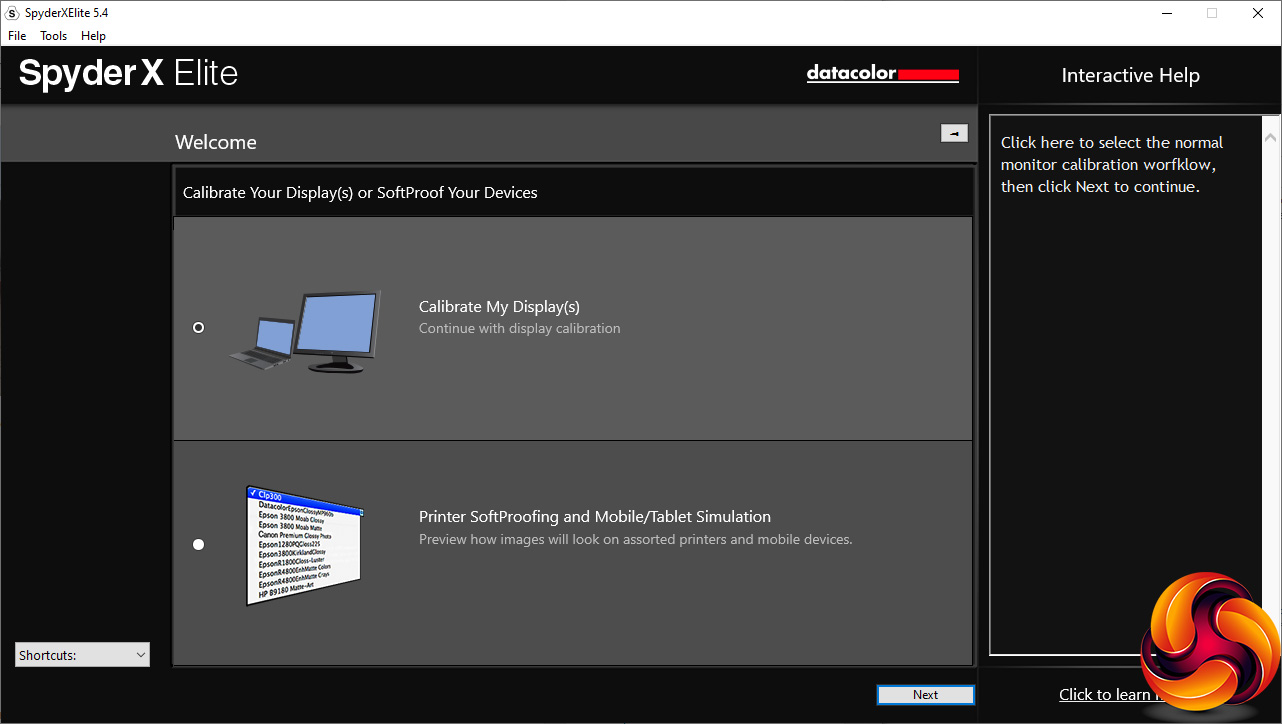
We first run this test with the display in its default, out-of-the-box state, with all settings on default. We then calibrate the screen using the Spyder software and run the test again.
We always test the display subjectively on the Windows desktop, using it for general tasks such as browsing and word processing, and with games as well, even if the display is not intended solely for that purpose.
We pay careful attention to any artefacts, ghosting or motion blur, and enable any gaming-specific features, such as adaptive-sync settings like G-Sync or FreeSync, using a compatible graphics card in our test PC.
We performed the quality tests on the Philips 34B2U6603CH at its native 3,440 x 1,440 resolution in the default mode, after resetting the OSD. Our test system was equipped with an AMD Radeon Vega Frontier Edition graphics card, which supports FreeSync.
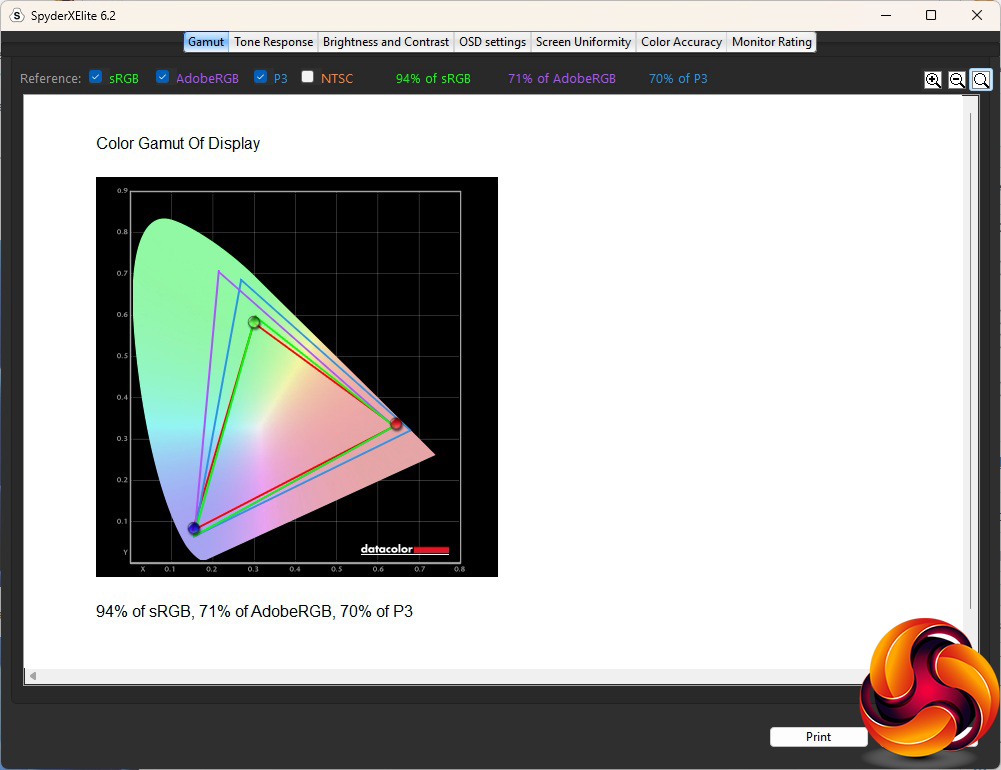
The gamut is disappointing, achieving only 94 per cent of sRGB, 71 per cent of AdobeRGB and 70 per cent of DCI-P3. These are not terrible scores, but we were expecting better from this calibre of screen and professional usage goal.
 .
.
Brightness Uniformity, in contrast (see what we did there?), is good across the entire width and height of the screen.
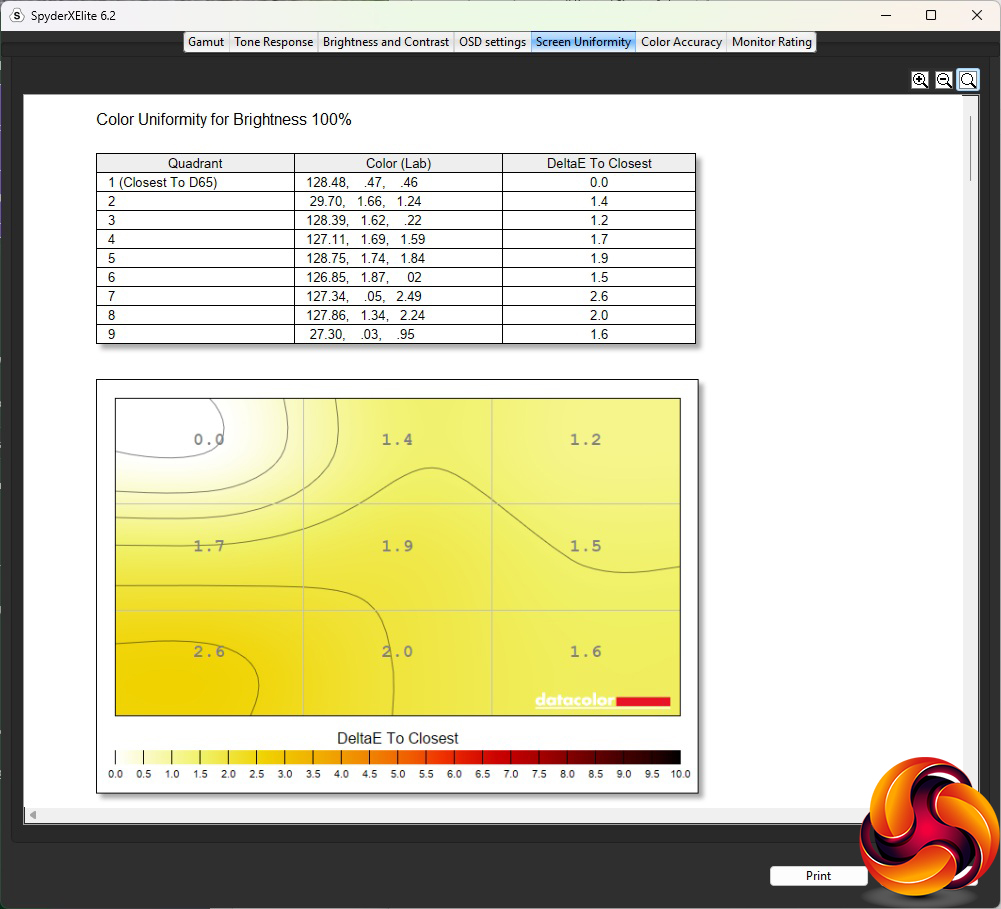
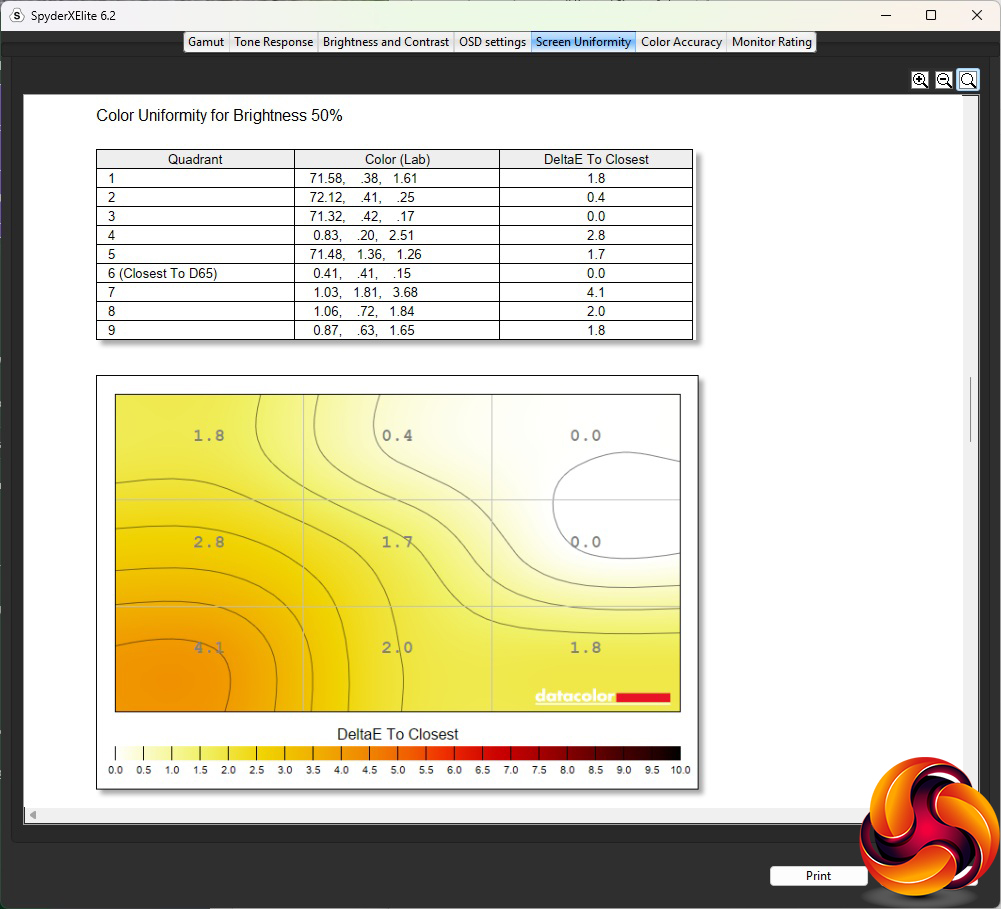
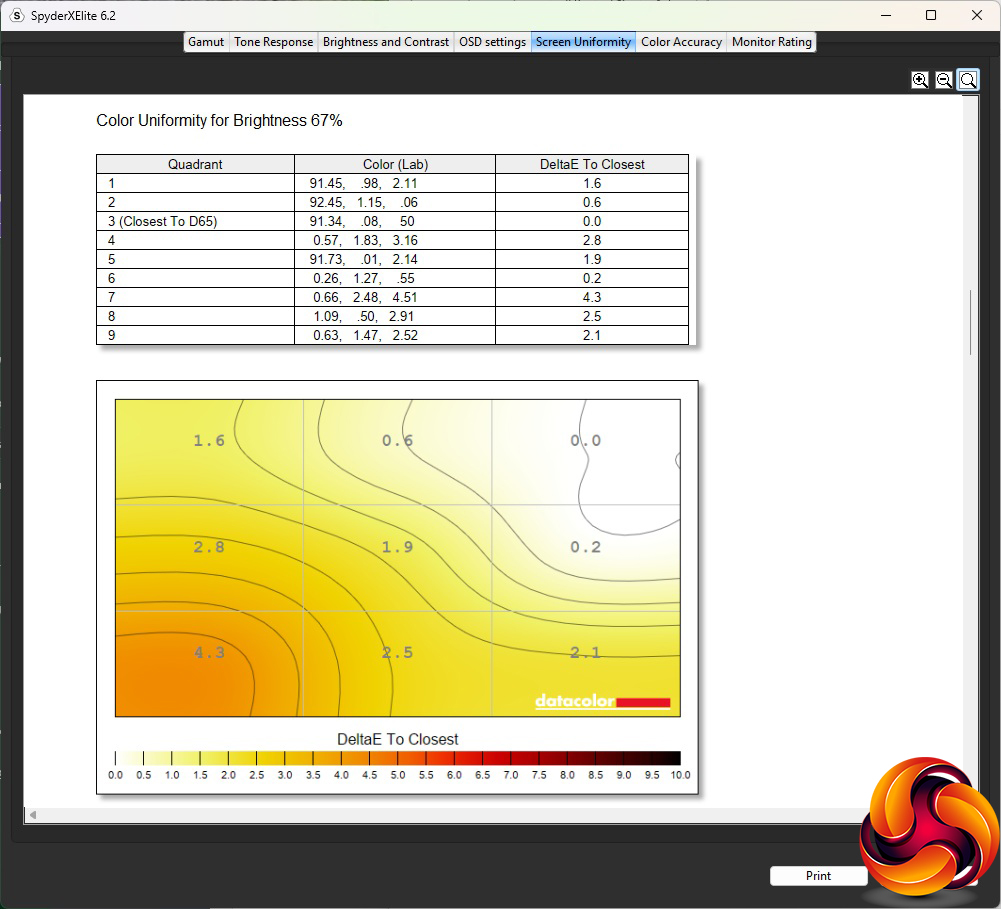
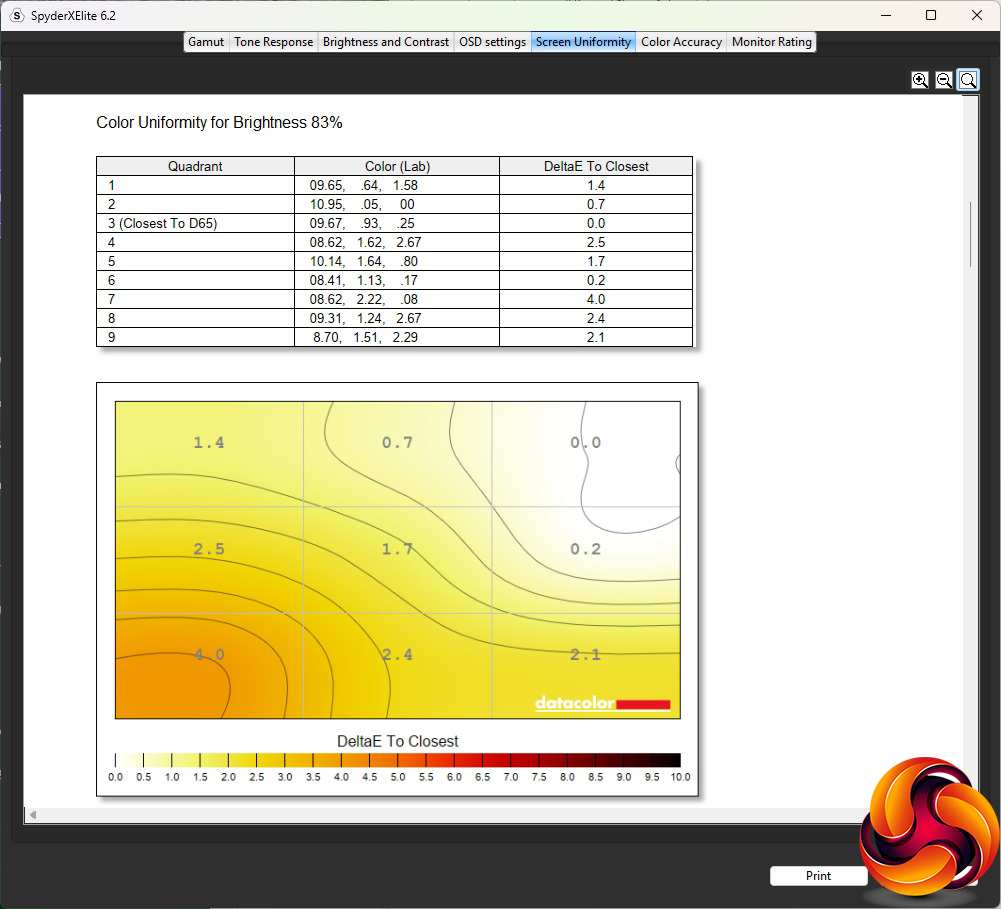
Colour uniformity is also commendable, with just a bit of aberration on the bottom left-hand corner.
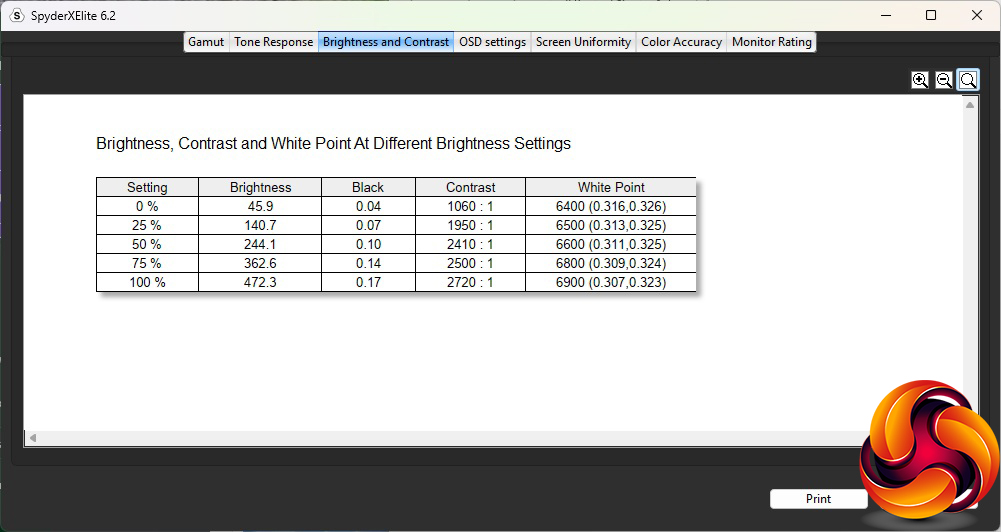
In the SDR mode we were using for testing, this panel is rated at 450cd/m2, but we found it managed 472cd/m2 at 100 per cent brightness, which is very good. We never see rated contrast levels in practice, but this screen does approach its 4,000:1 specification, reaching 2,720:1 at 100 per cent brightness. The VA panel's abilities are clearly evident, although the colour temperature does vary from 6400K at zero brightness to 6900K at 100 per cent.
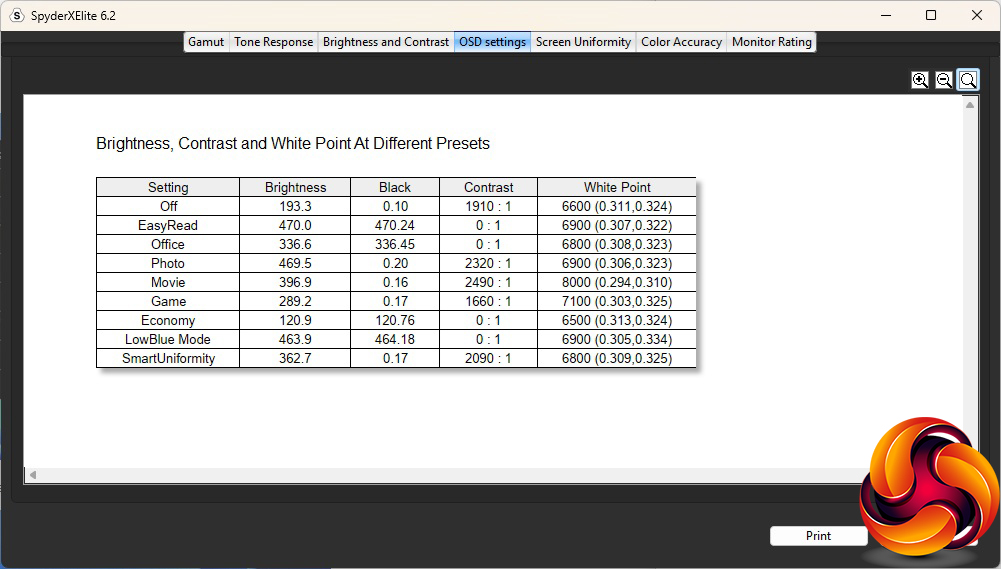
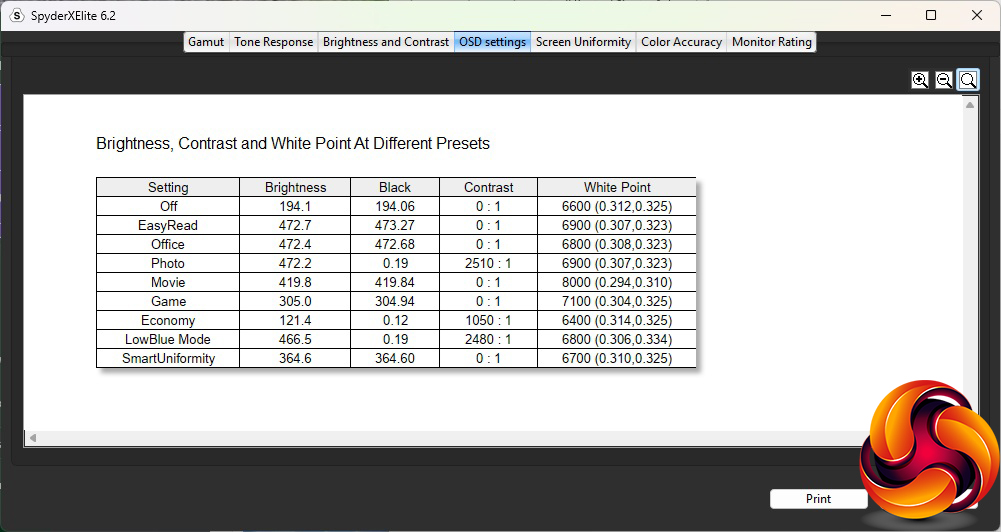
We encountered a weird bug when testing the OSD settings (SmartImage presets) with this monitor, where it wouldn't display the black screen necessary to take a contrast reading. It was intermittent, so we're showing two sets of test results that hopefully provides a decent overview of the variation between presets.
The default Off mode operates at 193cd/m2 brightness and 1,910:1 contrast, with a 6600K white point. We couldn't get the EasyRead SmartImage mode to provide a contrast reading, but brightness of 470cd/m2 is high, and 6900K white point higher than the colour temperature preset of 6500K is rated for. The Office mode brightness delivered 336Cd/m2 brightness, wouldn't record contrast, and registered a 6800K white point. Photo mode is as bright as EasyRead at 469Cd/m2, with a high 2,320:1 contrast 6900K white point.
As is typical for a Movie mode, the brightness is quite high at 397Cd/m2, with a high contrast of 2,490:1 and cool 8000K white point. Game mode is also typical, with an averagely bright 289Cd/m2 but lower 1,660:1 contrast and higher 7100K white point. Economy mode, unsurprisingly, drops the brightness right down to 121Cd/m2, with a lower 1,050:1 contrast and accurate 6400K white point. Oddly, LowBlue mode is very bright at 467Cd/m2, with a high 2,480:1 contrast, and the white point at 6800:1. We would normally expect a warmer colour temperature with blue light reduced.
Finally, SmartUniformity delivers brightness of 363Cd/m2 and a midrange 2,090:1 contrast, with a white point of 6800K.
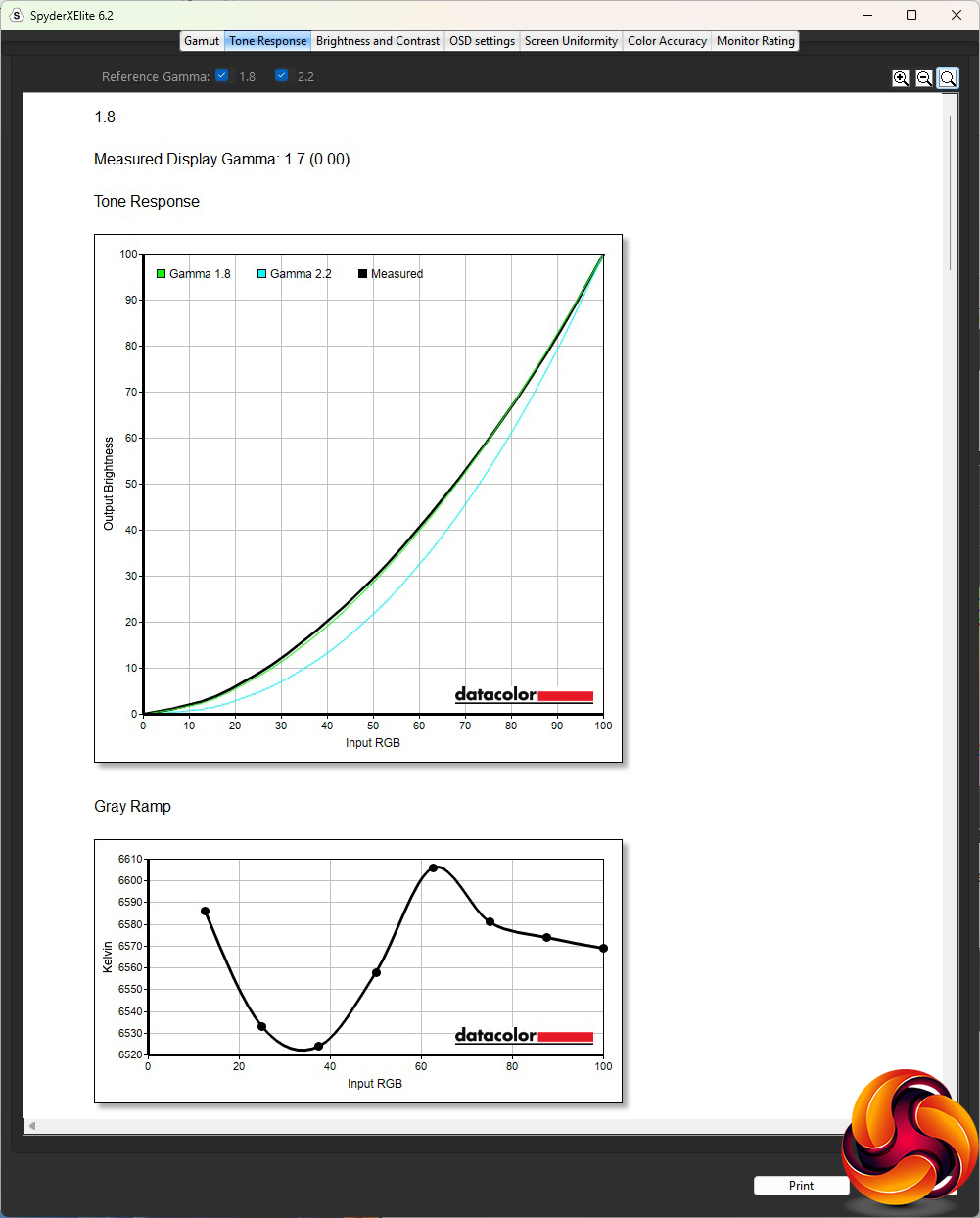
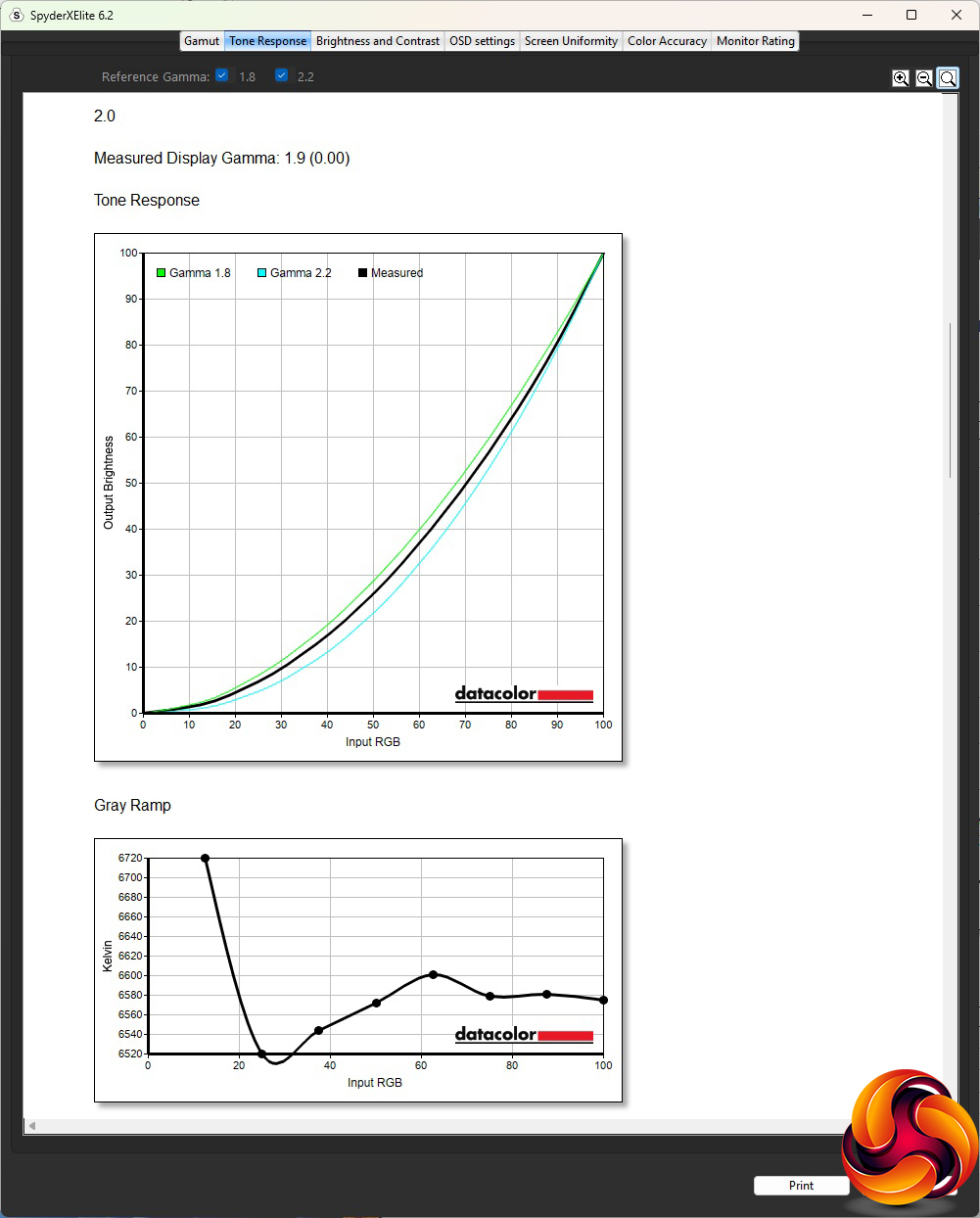
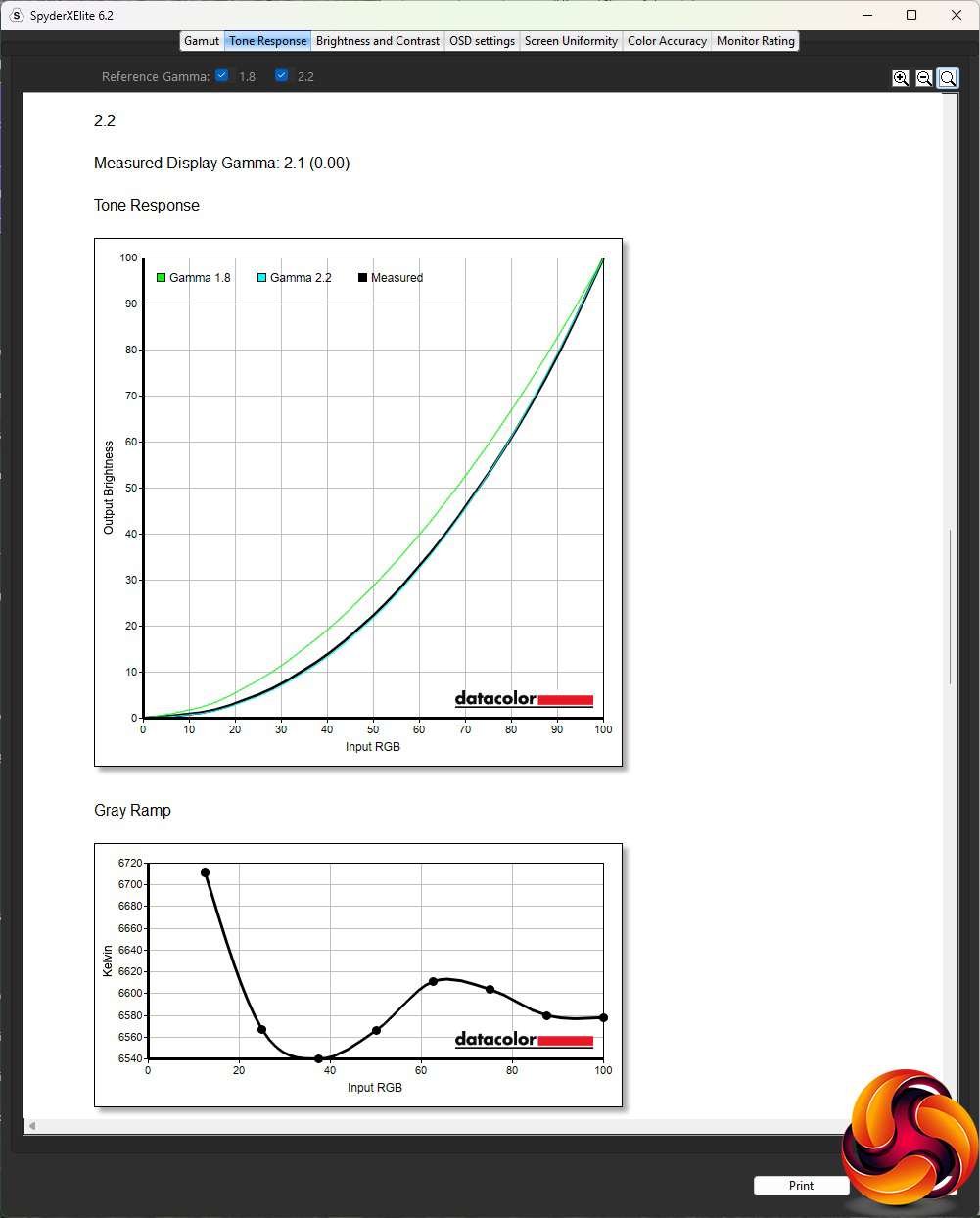
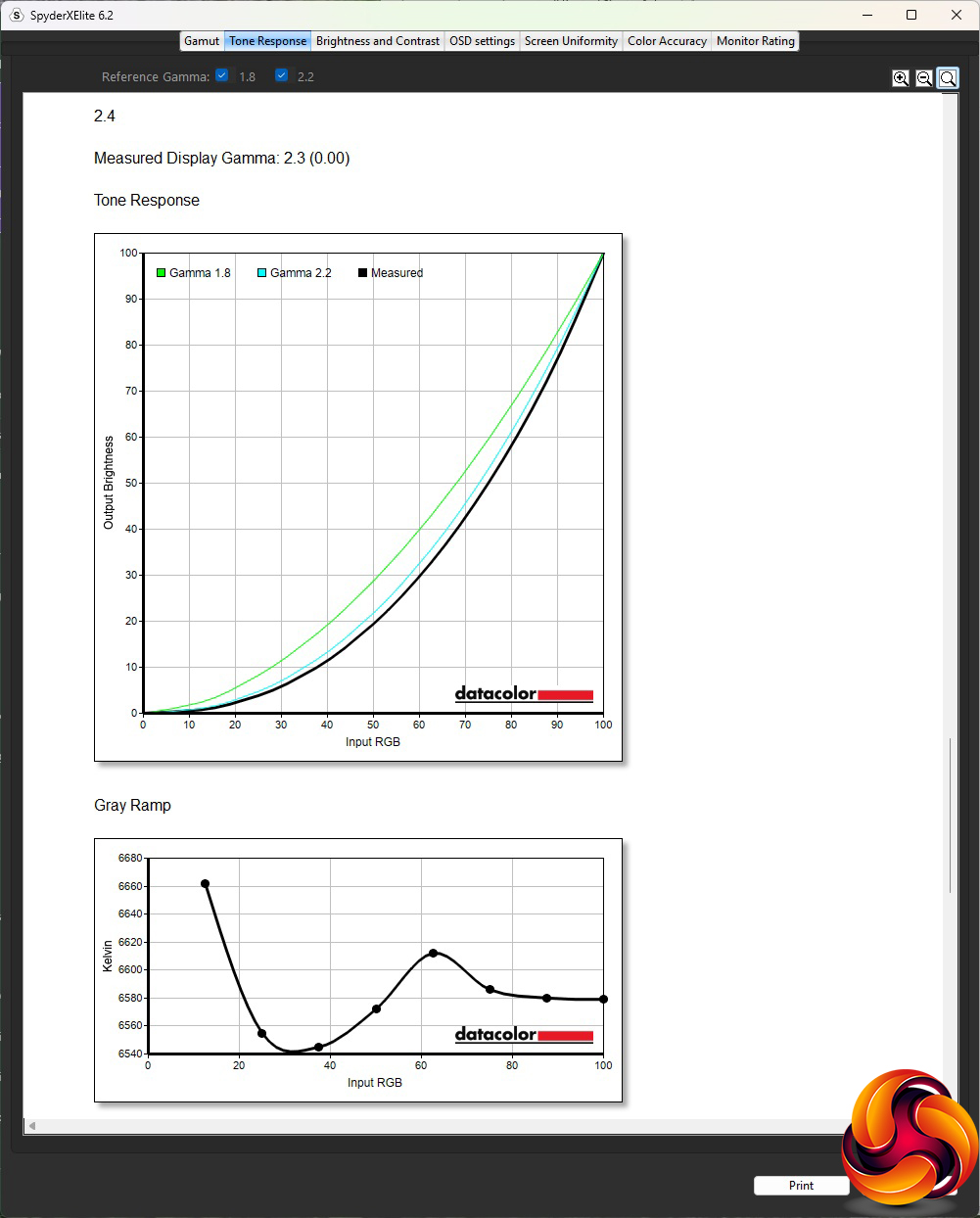
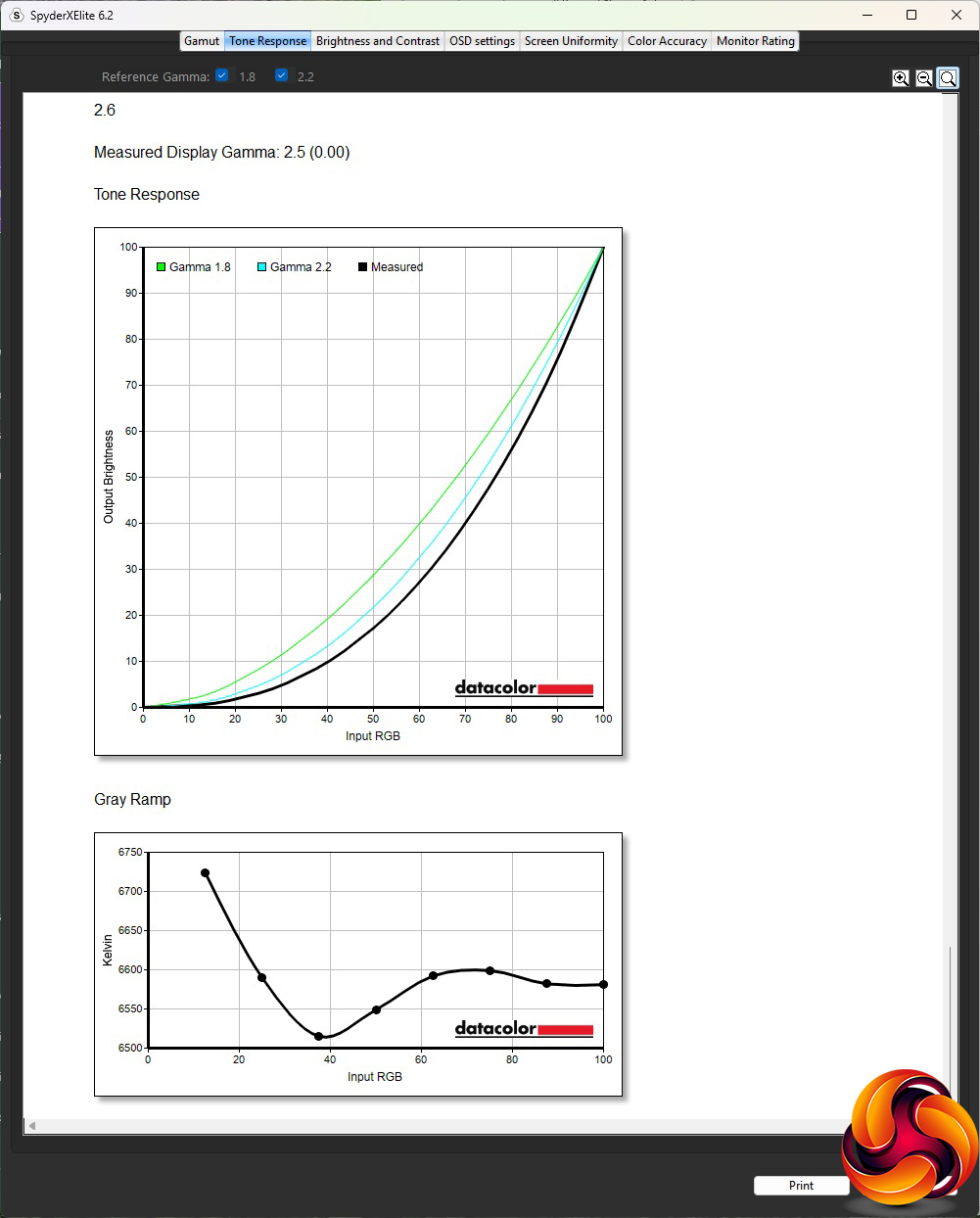
The five Gamma settings are consistently 0.1 lower than their rating, but at least that means there is an even and predictable spread across the range of options.
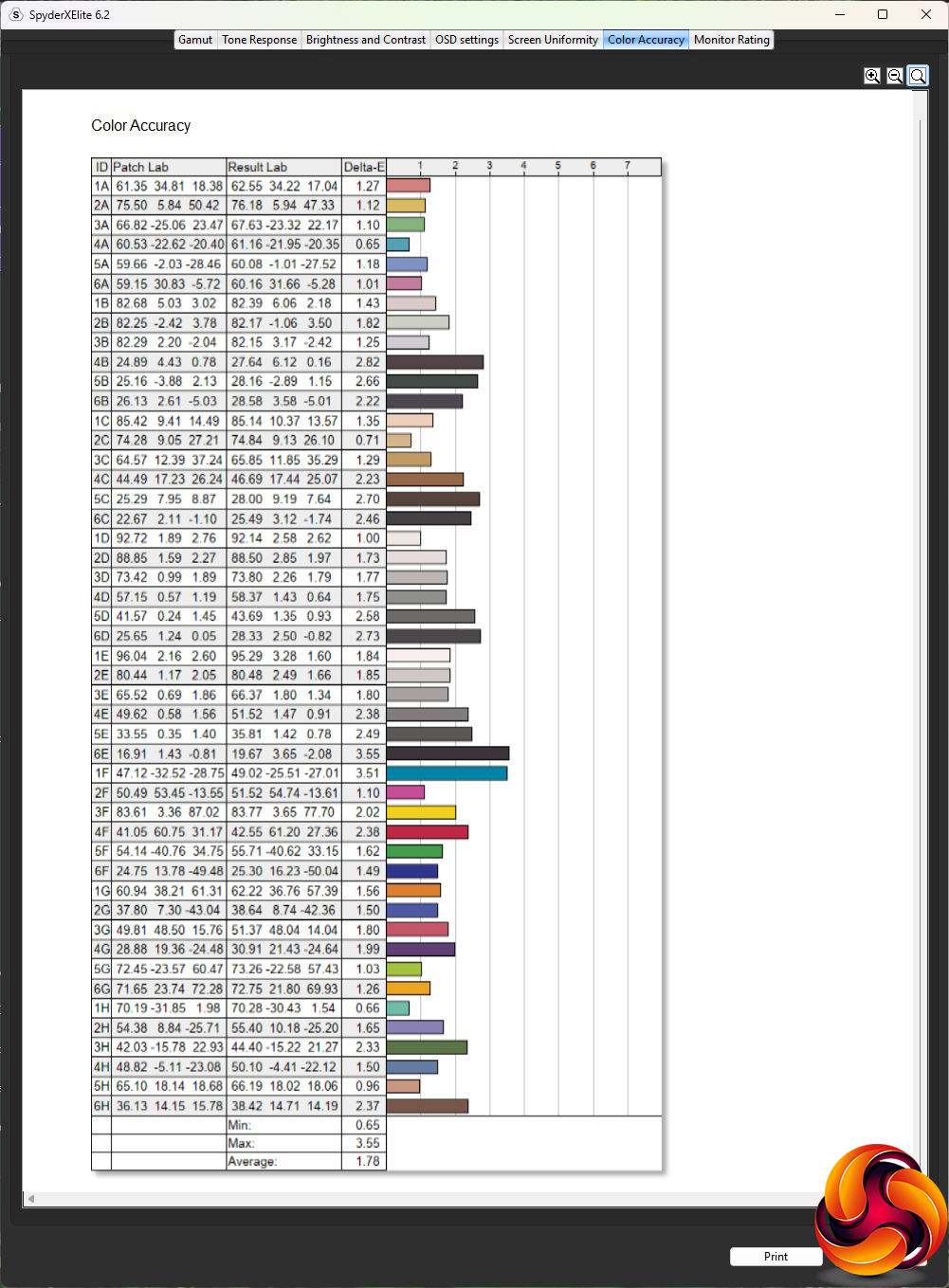
Although IPS panels have the reputation of providing the best colour accuracy, VA panels generally also perform well here. However, the Philips is a little disappointing. The average deviation of 1.78 is good, but hardly outstanding. Calibration was clearly a good idea for this screen, so we fired up the Spyder once more to do this before testing again.
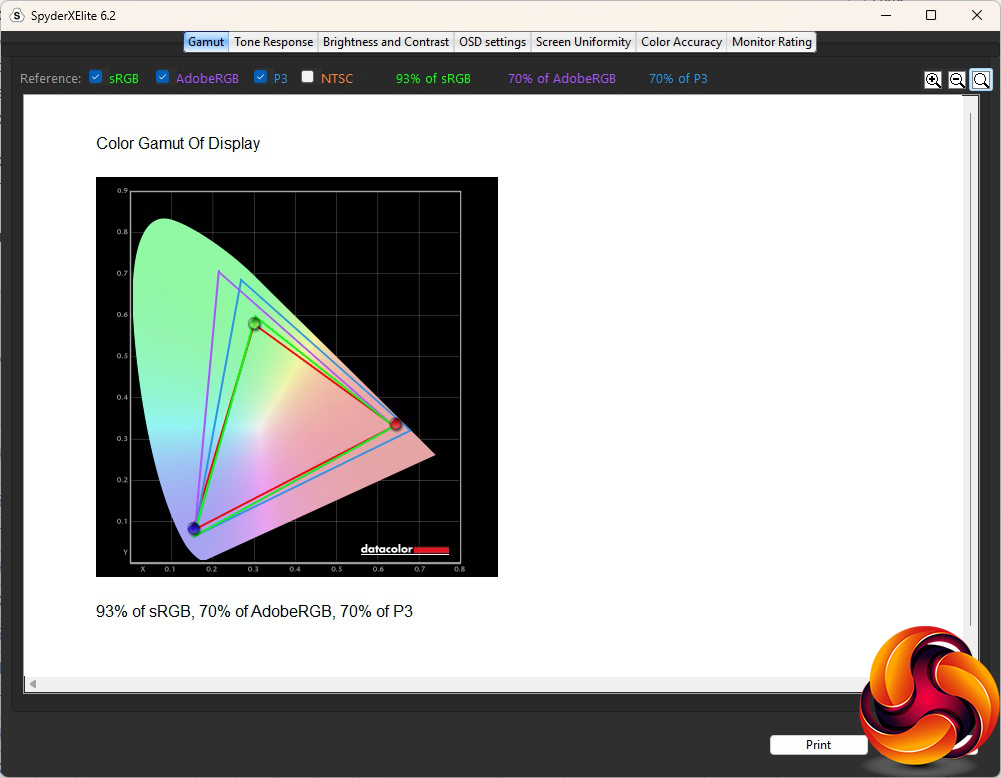
Calibration doesn't usually affect gamut, but the gamut has actually got marginally worse here, with 93 per cent of sRGB and 70 per cent for both AdobeRGB and P3.
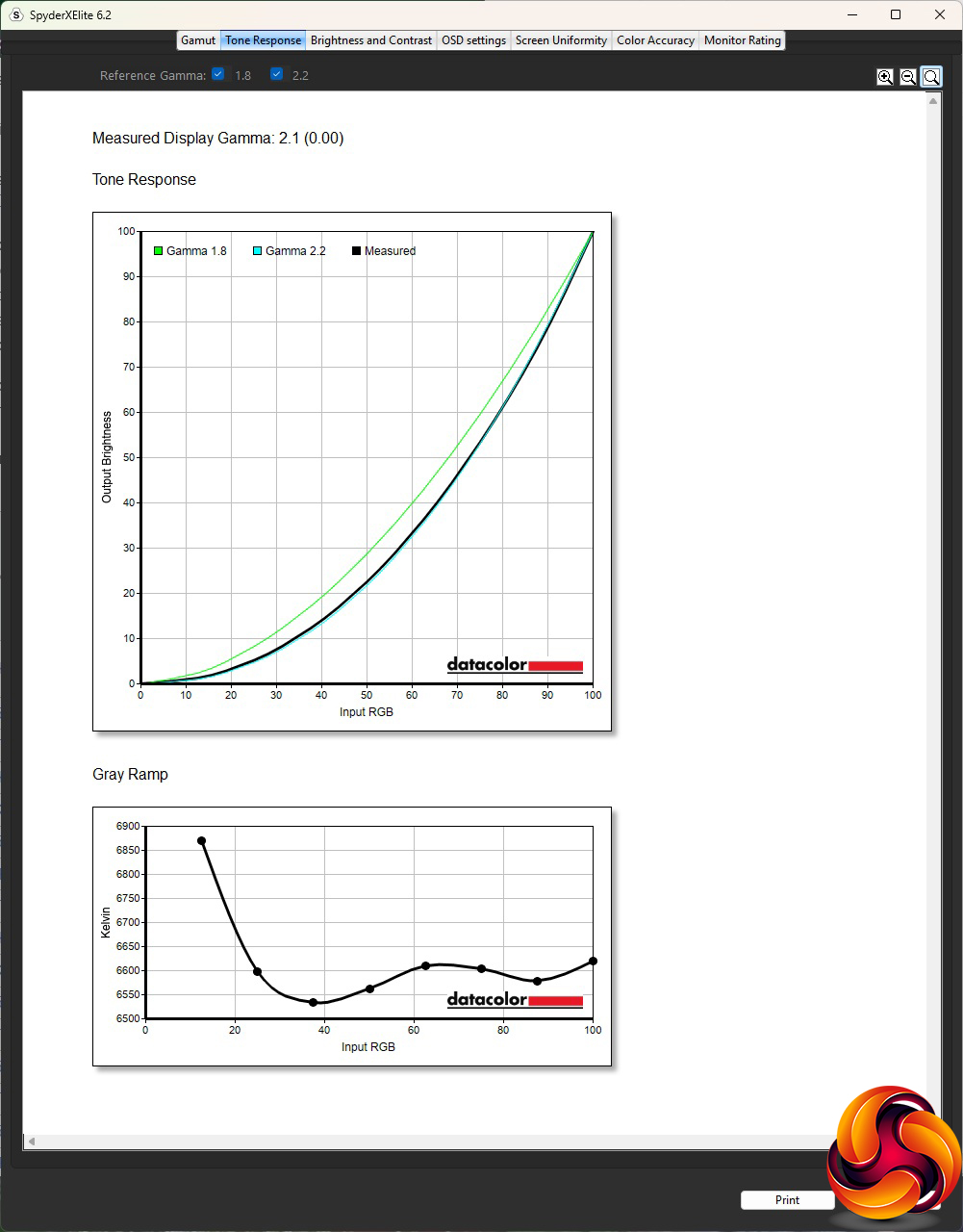
We only retested the default Gamma 2.2 setting, which retained its 2.1 value.
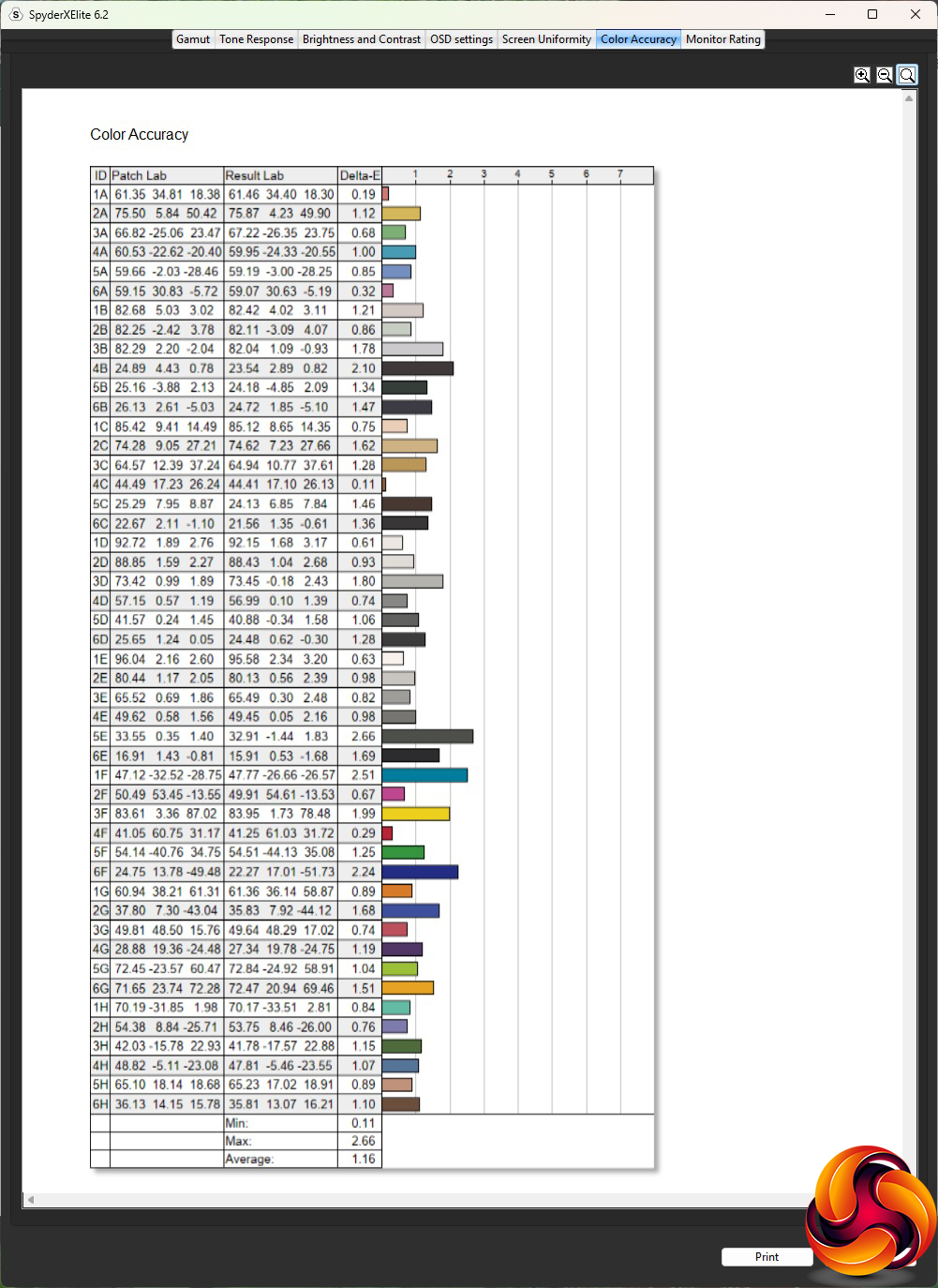
Colour accuracy has improved with calibration, to an average deviation of 1.16. That's still a way off the absolute best screens we've tested, but now within the ballpark of “very good”.
Overall, brightness and colour uniformity are excellent, accuracy good, with excellent brightness and contrast levels available. These are mostly the capabilities you'd hope for in a professional setting, although a bit more accuracy would make it even better. The gamut readings are the biggest weakness.
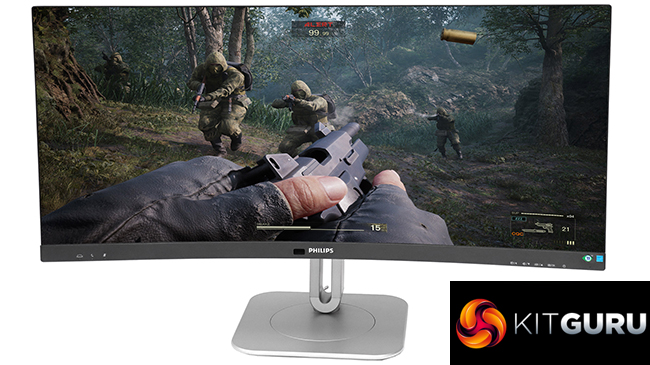
Although this is not a gaming monitor, we did turn on adaptive mode and try some games, including CS2, Rainbow 6 Siege and League of Legends. The width of the screen was great for the latter and framerates were fine, but this isn't really this monitor's forte. Video and movie watching were excellent, however.
The Philips 34B2U6603CH is packed with features that will appeal to business users. The power-delivering Thunderbolt 4 video input port with KVM capability (including wired LAN) is the highlight, making this a perfect partner for a hot desker or someone who wants to switch between using their laptop and desktop in the same office space.
The webcam and headset stand further add to the business utility, making Zoom or Teams video calls a breeze. Then there are additional, easily reached USB ports for your thumbdrive or charging your phone.
Although the colour fidelity isn't quite as brilliant as we'd have hoped, and the gamut slightly disappointing, there's plenty of brightness and contrast on offer for applications that require strong image quality. And, of course, with that 3,440 x 1,440 resolution and ultrawide aspect ratio, there is a lot of “screen real estate” if you want to keep multiple documents in view at once.
This is not a cheap monitor at over £500, and it's not an ideal screen if you also want to play high-framerate games on the side as well. But for business and professional users there's very little to fault. This is a highly capable ultrawide monitor that is sure to enhance your productivity – for a price.
You can buy the Philips 34B2U6603CH from Amazon UK over HERE for £529 inc VAT.
Pros:
- Comprehensive four video inputs including Thunderbolt 4.
- Cutting-edge KVM capabilities.
- High-speed USB hub with side ports.
- High resolution 5Mpixel webcam.
- Comprehensive ergonomic adjustment.
Cons:
- Fairly expensive.
- Mediocre gamut.
- Merely good colour fidelity.
KitGuru says: The Philips 34B2U6603CH combines a comprehensive set of business connectivity features with a solid, ultrawide curved panel. It's not a monitor for gamers, but office and professional users will find very little lacking in this premium screen.