 KitGuru KitGuru.net – Tech News | Hardware News | Hardware Reviews | IOS | Mobile | Gaming | Graphics Cards


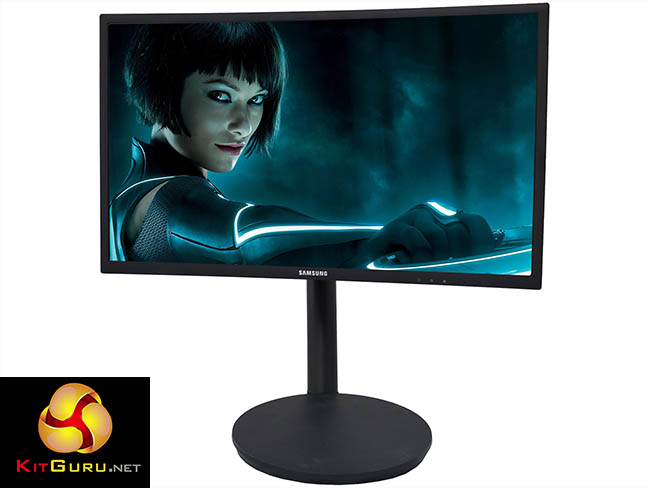
There are three main types of TFT panel in regular use – TN, IPS/PLS and VA – and none of them are perfect for every situation. Like IPS/PLS, the VA type isn’t so often found in gaming monitors because of slow pixel response and motion artefacts, although its contrast, black level and colour are generally good. But what if you could keep these strengths and fix the weaknesses? This is what Samsung has planned with the C24FG70 24in gaming monitor, and that’s not the only trick it has up its sleeve, too. It's a curved screen as well.
The most frequent panel type for gaming is TN, because a 1ms grey-to-grey is readily available, and it also happens to be the cheapest kind of panel to make. But viewing angles are poor, particularly in the vertical direction, and a colour shift is often visible at an angle, so it’s not the best choice for curved displays.
The IPS/PLS panel, on the other hand, offers wide viewing angles and more faithful colour. Thanks to its viewing angles, IPS/PLS is a much better choice for curved screens, but the greater cost compared to TN and slow pixels means these aren't optimal for gaming.
VA has traditionally been in the same boat as IPS/PLS, but Samsung is introducing a new technology that it claims counters the motion artefacts and slow pixel response of the screen technology. Samsung is has a new take on the system that used to help CRTs avoid motion artefacts. This involves a Dark Phase, where the beam is turned off between frames to eliminate the time where two consecutive frames could be partially visible at once, which is what causes the motion blur.
With the C24FG70 Samsung has updated the modern TFT version of Dark Phase, which is called Impulsive Scanning, where the backlight is turned off selectively between frames. Instead of just turning the whole screen off, Samsung’s system divides the frame into four bands and synchronises each one as the corresponding pixel areas are switched. This reduces motion blur even further, but also allows Samsung to claim a response time comparable to TN gaming panels of 1ms.
However, this isn’t grey-to-grey response time, which is the time taken to switch a pixel from 10 per cent to 90 per cent grey. Instead, Samsung’s quoted figures are based on Moving Picture Response Time (MPRT), which is the time from the point where motion blur arises until it disappears. This is essentially a measurement of how long the screen takes to react to a change in picture due to activity. So it’s not the same thing as grey-to-grey, but Samsung argues that MPRT is a better measure of responsiveness.
Aside from the reduced motion artefacts and TN-like response time, the C24FG70 also boasts a 144Hz refresh. This may not be quite as high as the most full-on overclocked panels, but it will be more than enough for most gamers, particularly as it’s partnered with FreeSync, so the panel will synchronise its true frame rate with whatever the graphics card can deliver. There’s no NVIDIA-oriented G-sync, though.
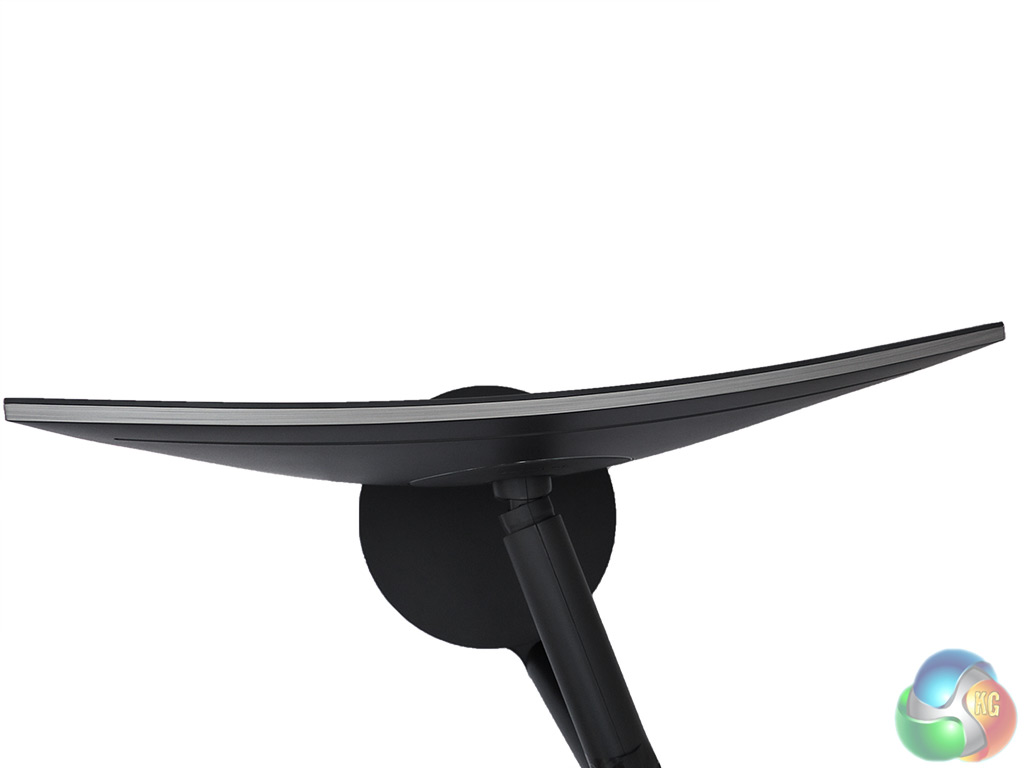
The curvature is also more pronounced than most curved panels, using a 1800R rating rather than the more usual 2000R. The arm attaching the panel to the base is more elaborate than usual, too, and there’s interactive lighting in the bottom of the bezel for greater immersion. However, whilst there is a reasonable range of inputs available, with two HDMI and a DisplayPort 1.2 input, there’s no USB hub or analog audio pass-through, although a headphone jack is available for digital audio coming in alongside the video.
Although the brightness level is fairly standard at 300cd/m2, the VA panel’s characteristically excellent contrast is in evidence, with 3,000:1 stated, which is well beyond the usual 1,000:1 of TN and IPS/PLS panels. But these aren’t the most important features about the C24CG70. This is a panel that promises the quality of VA but with the response time of TN, and expects you to pay nearly £400 for the privilege. But does it deliver on the theory?
Specification:
Screen size: 24-inch, 16:9 aspect
Native resolution: 1,920 x 1,080
Refresh rate: 144Hz
Panel type: VA
Contrast ratio: 3000:1 (typical)
Brightness: 300cd/m2
Response time: 1ms MPRT
Display inputs: 2 x HDMI, DisplayPort 1.2
USB hub: No
Tilt: Yes
Raise: Yes
Swivel: Yes
Other: Headphone jack
Retail Price: £395.40 (inc. VAT)
The C24FG70 includes a DisplayPort and a HDMI cable, alongside the manual on CD and power supply. There's also a VESA mounting bracket bundled.
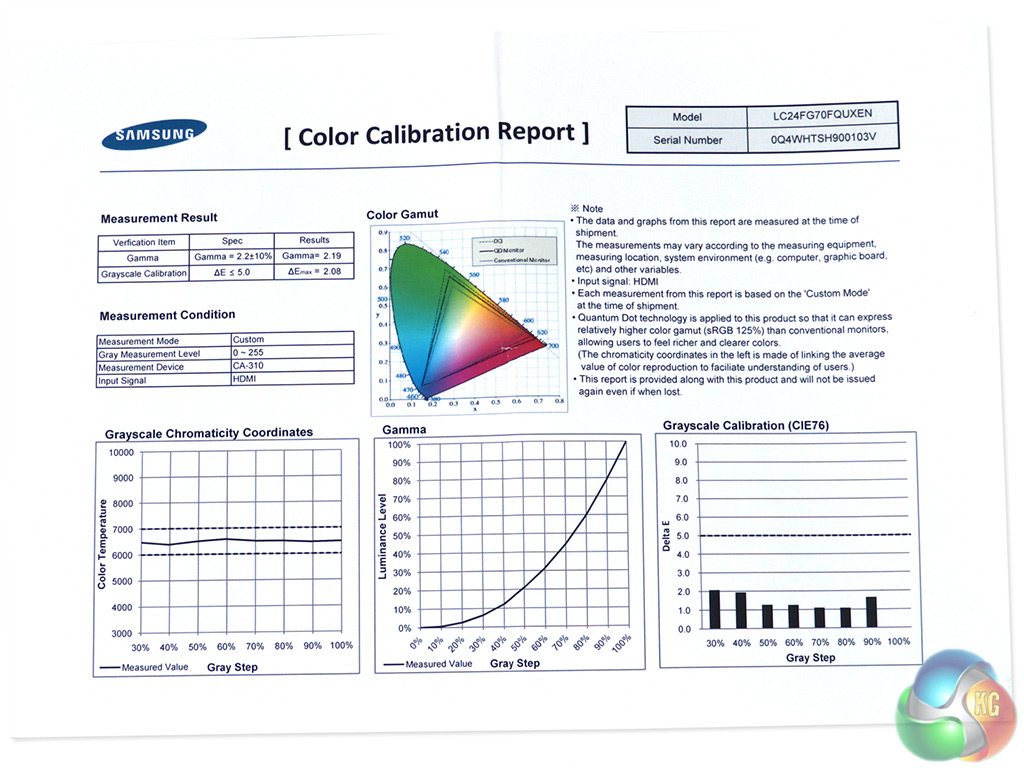
Samsung wants to hammer home the quality credentials of this monitor, so they factory-calibrate every unit before shipping, and include the certificate in the box so you know how it should perform.
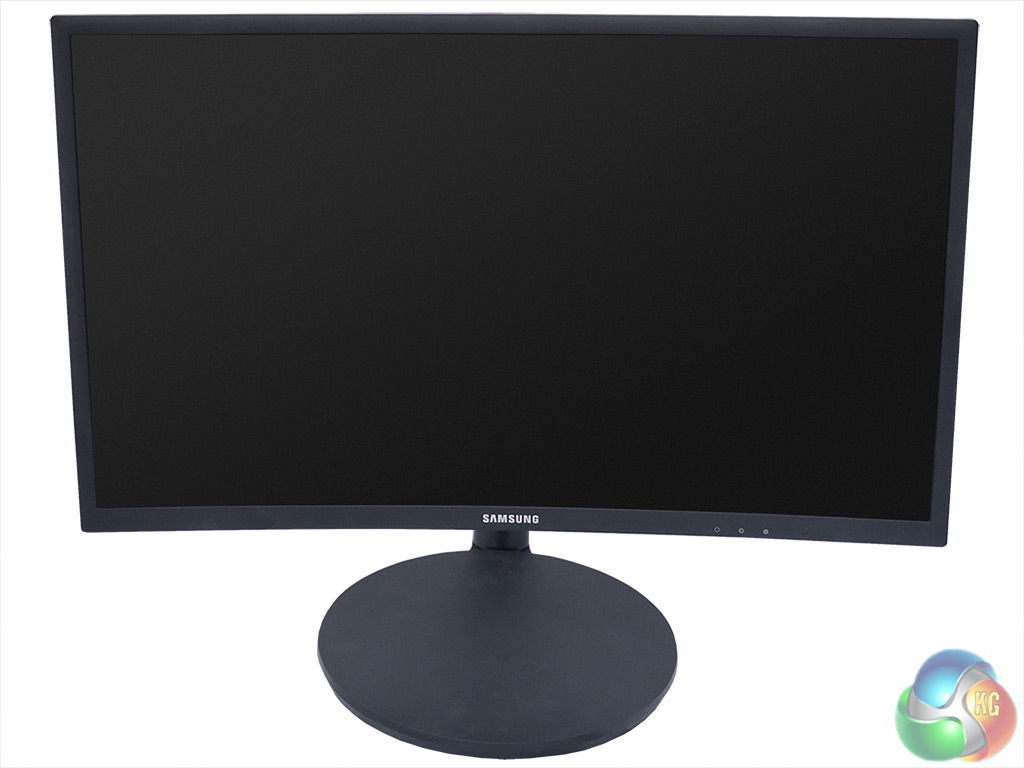
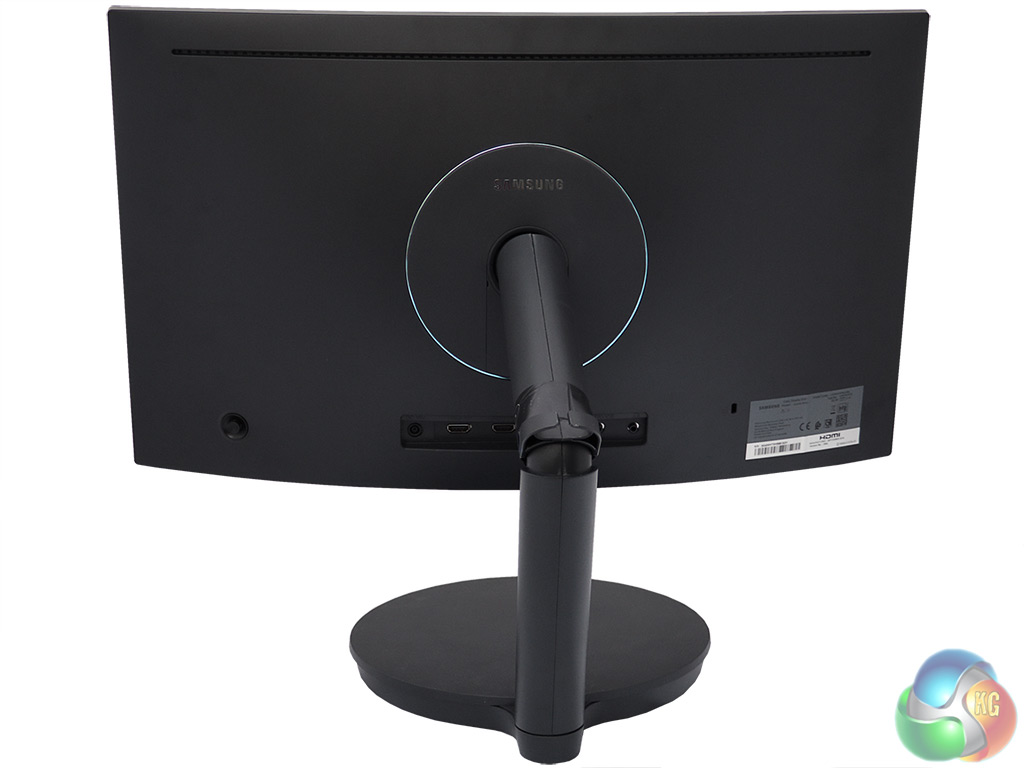
Although this is a more curvy monitor than most, thanks to the 1800R curvature when most alternatives offer 2000R, the design is somewhat understated. The most noticeable design feature is the stand, which is like the arm on an angle-poise desk lamp.
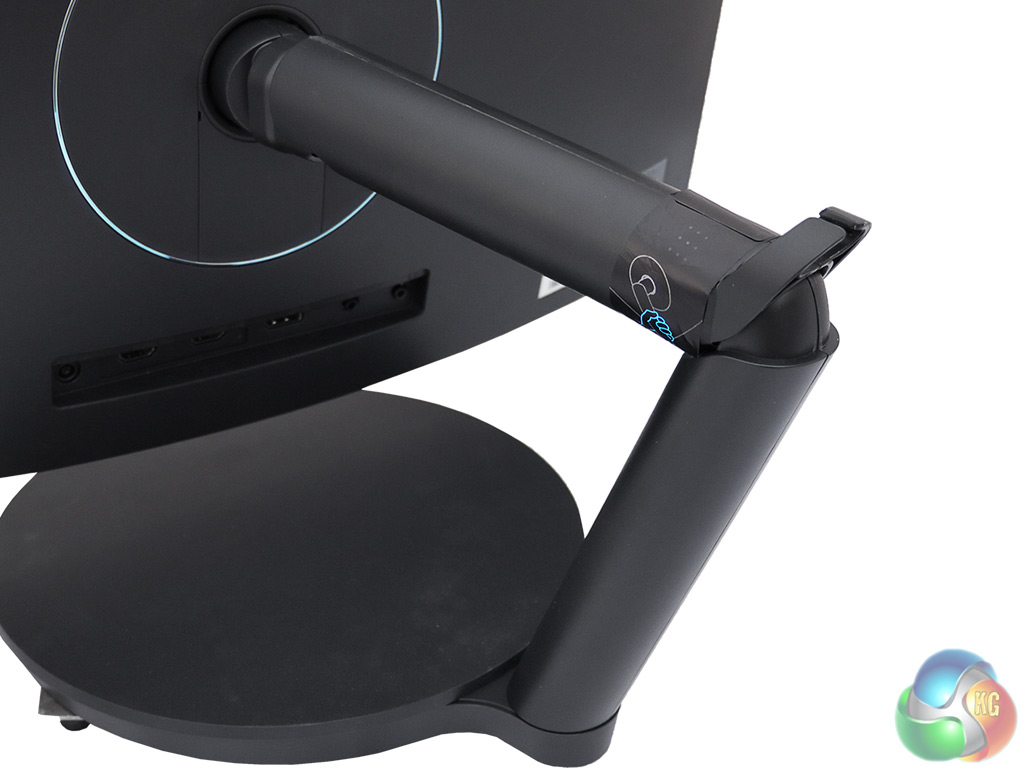
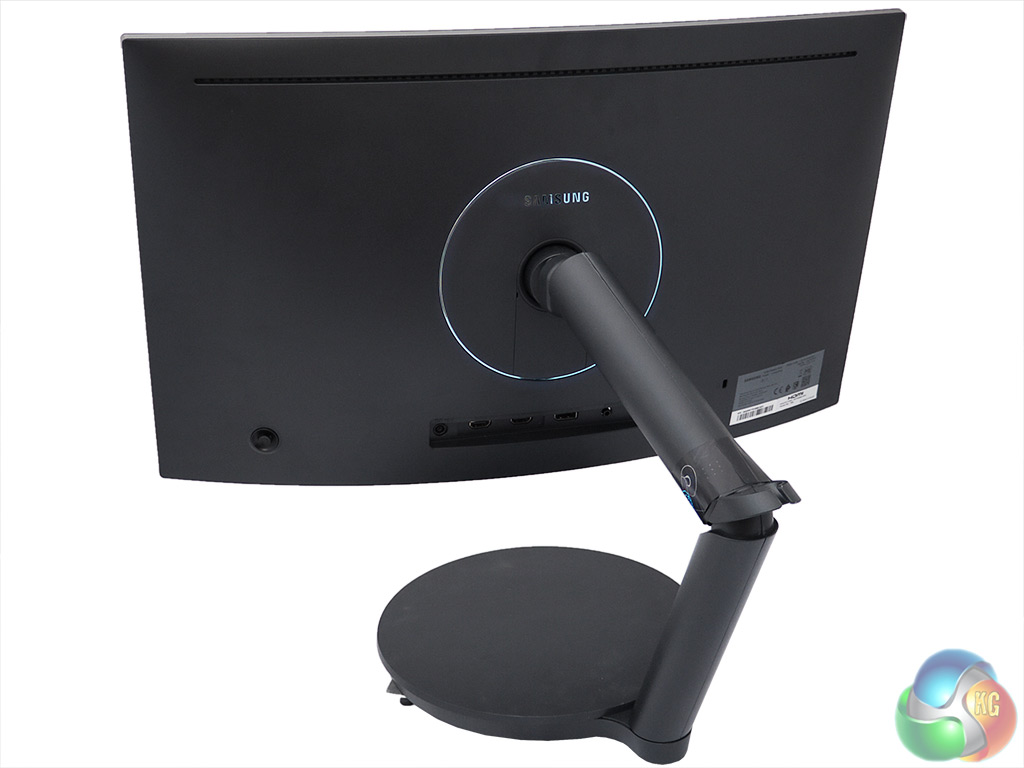
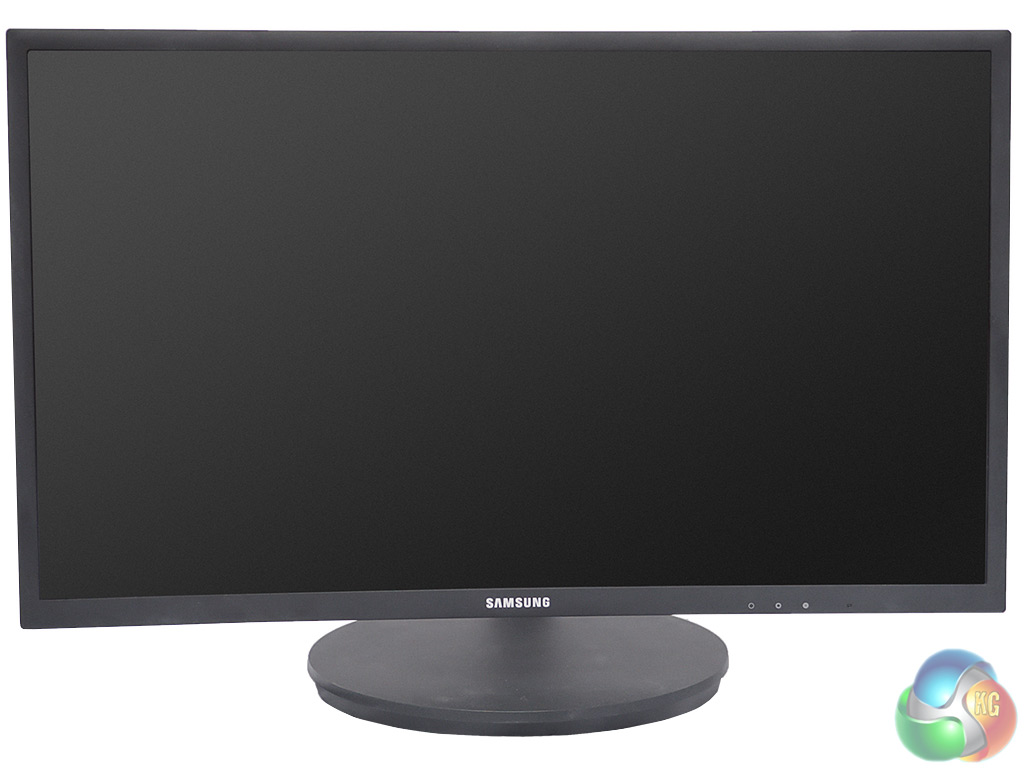
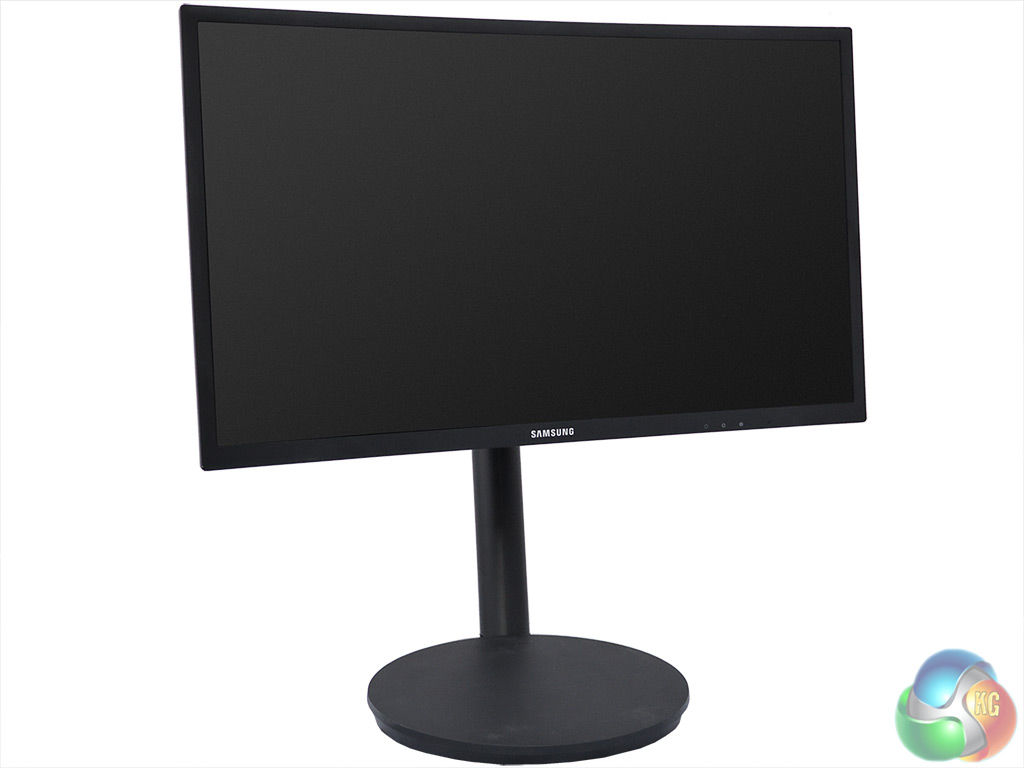
The usual abilities to rotate, tilt and angle the screen are available, but the arm makes the positioning possibilities extensive. This supplies the ability to raise and lower by 140mm, but also means you can alter how close the screen is without having to move the base. We're not sure how useful it will be to rotate a curved screen into portrait orientation, though.
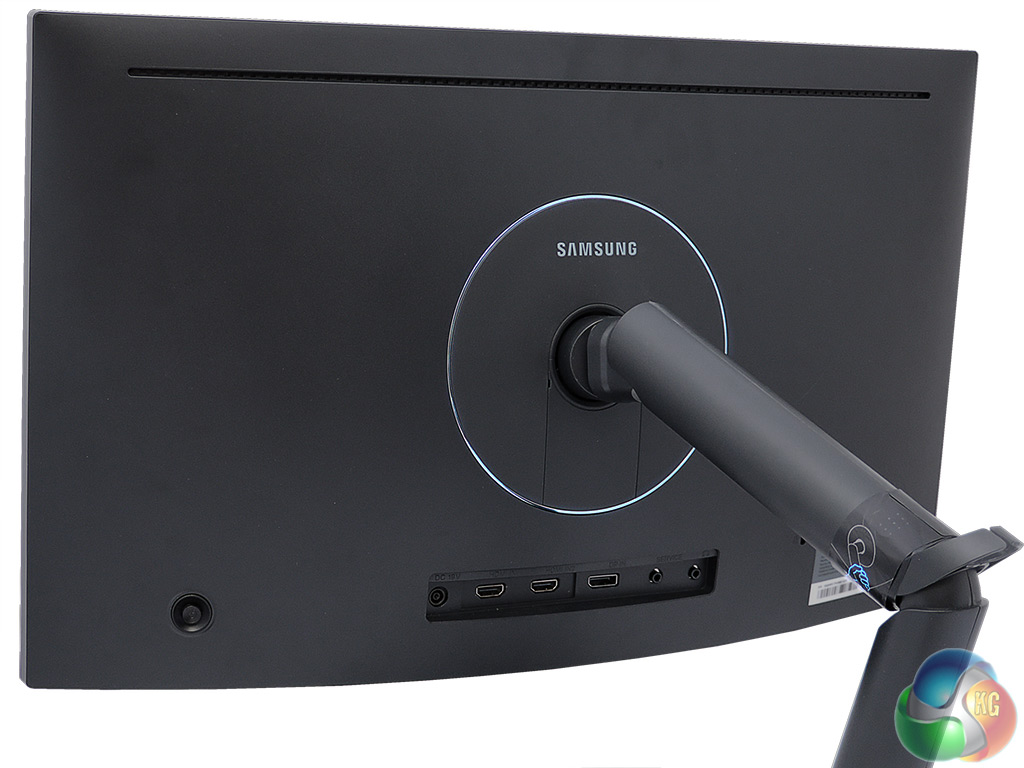
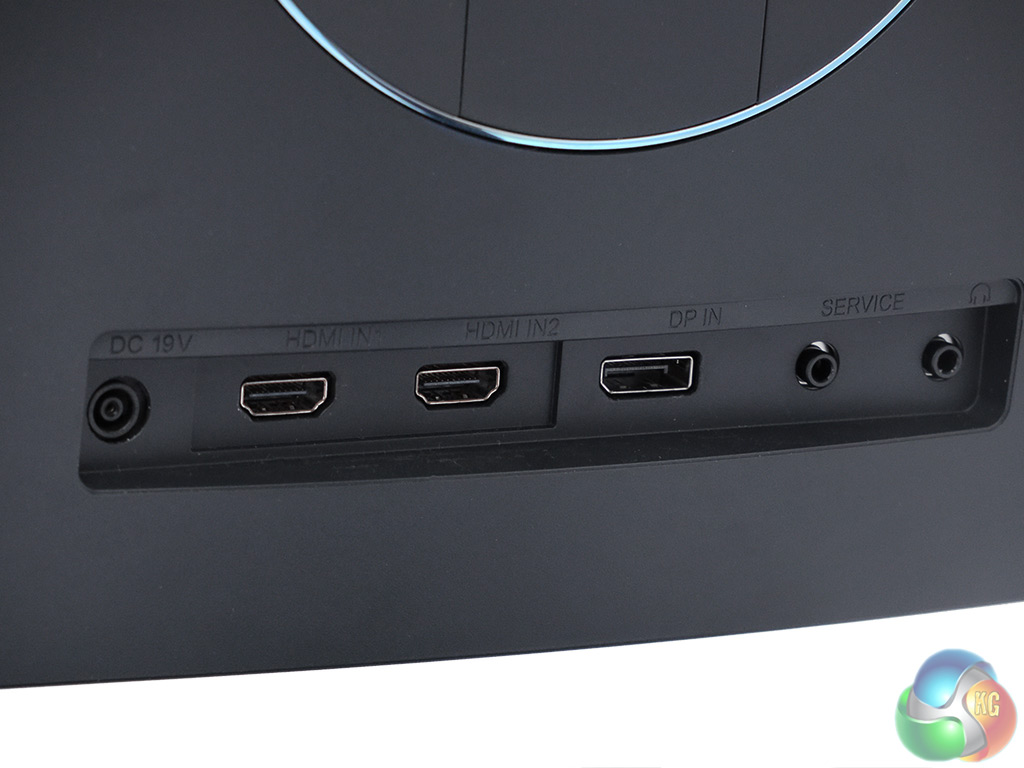
There are a couple of HDMI ports and a single DisplayPort 1.2 connection. There’s no DVI or VGA, and no USB hub, although there is a headphone jack. But the position of this jack on the rear isn’t so handy, as it will force you to reach around the back of the monitor every time you want to use it, or leave your headphones plugged in all the time.
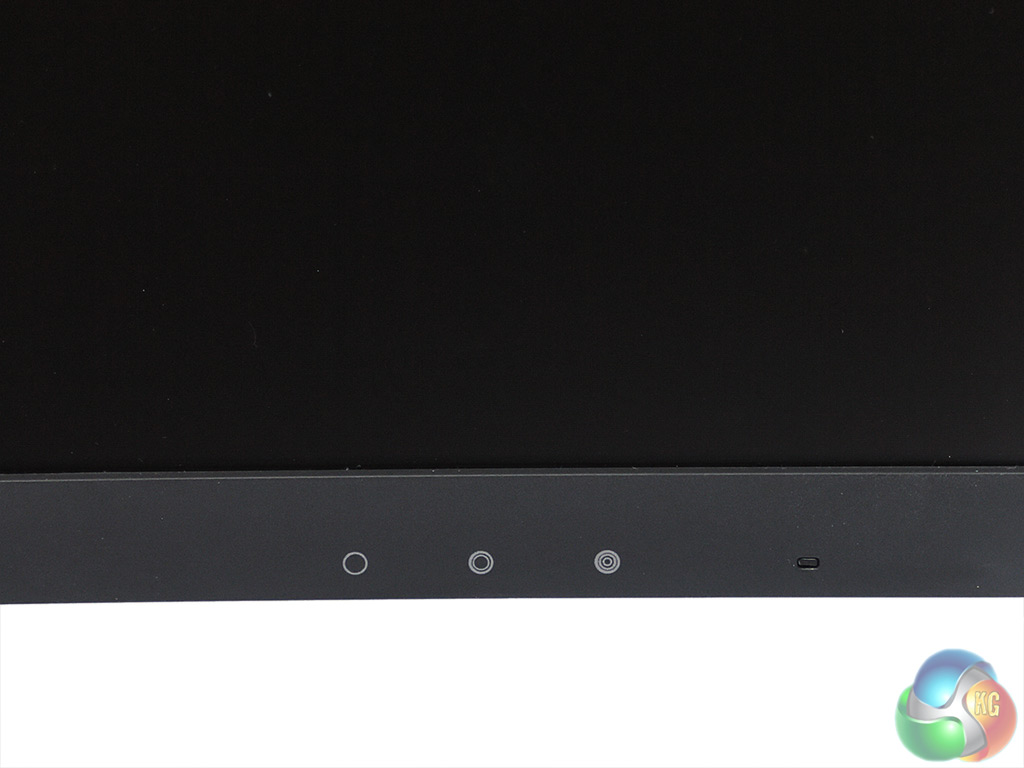
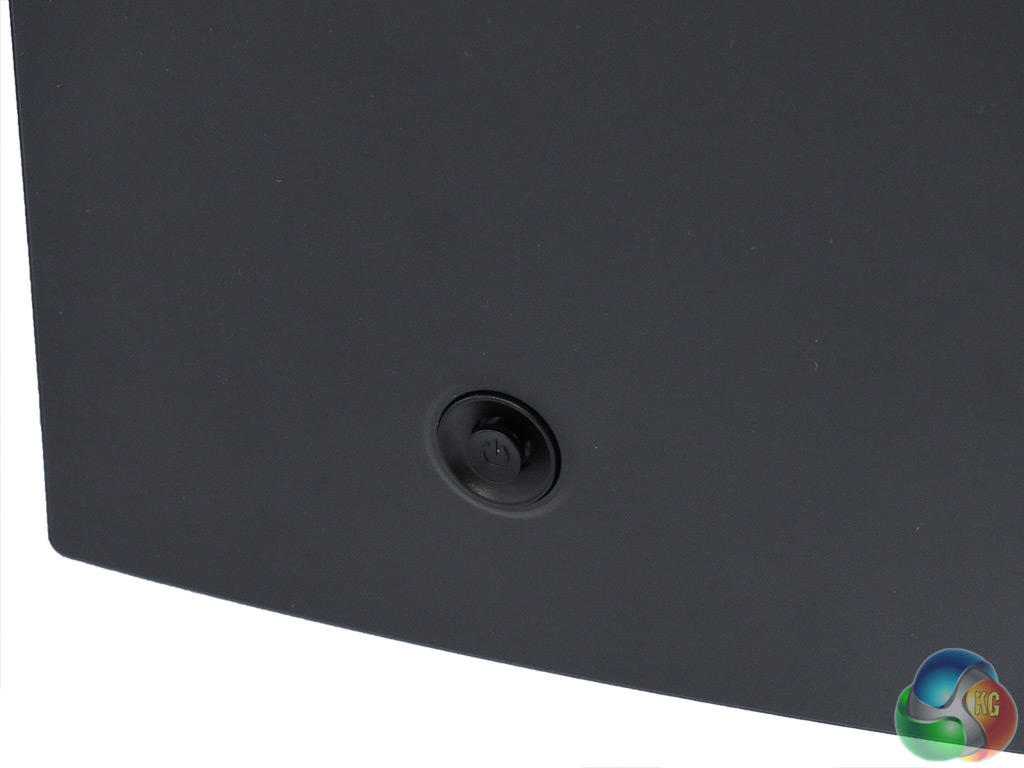
The on-screen display (OSD) menu is accessed via a joystick on the back of the screen, which is surprisingly easy to operate once you get used to it. There are also three buttons on the bottom of the bezel that call up a trio of saved gaming presets.
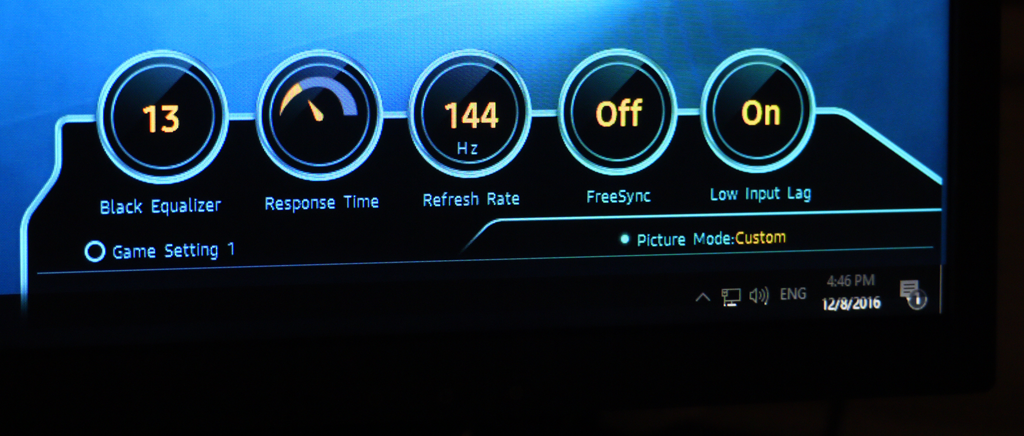
When one of the preset buttons is used, a display pops up showing the settings that are associated with that button.
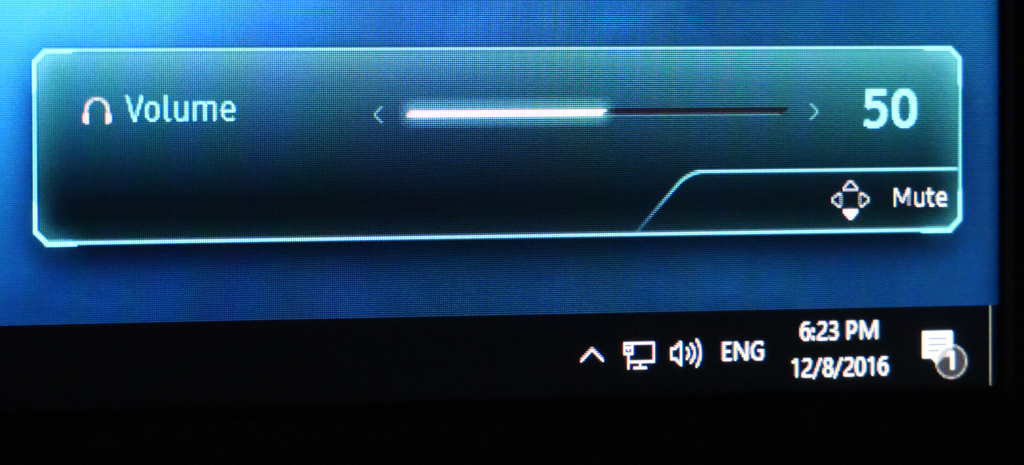
Press the joystick left or right and a volume control appears.
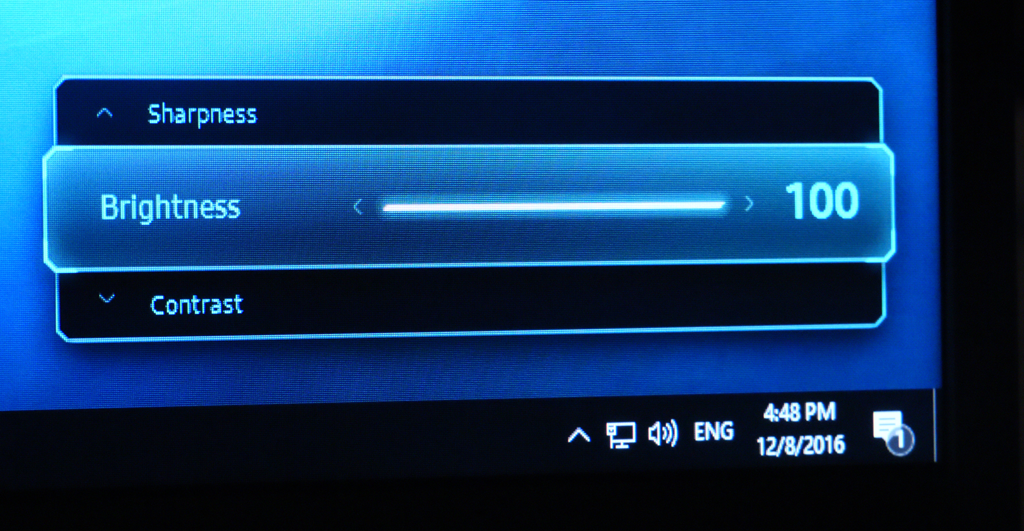
Press the joystick up or down, and you get quick access to brightness, contrast and sharpness.
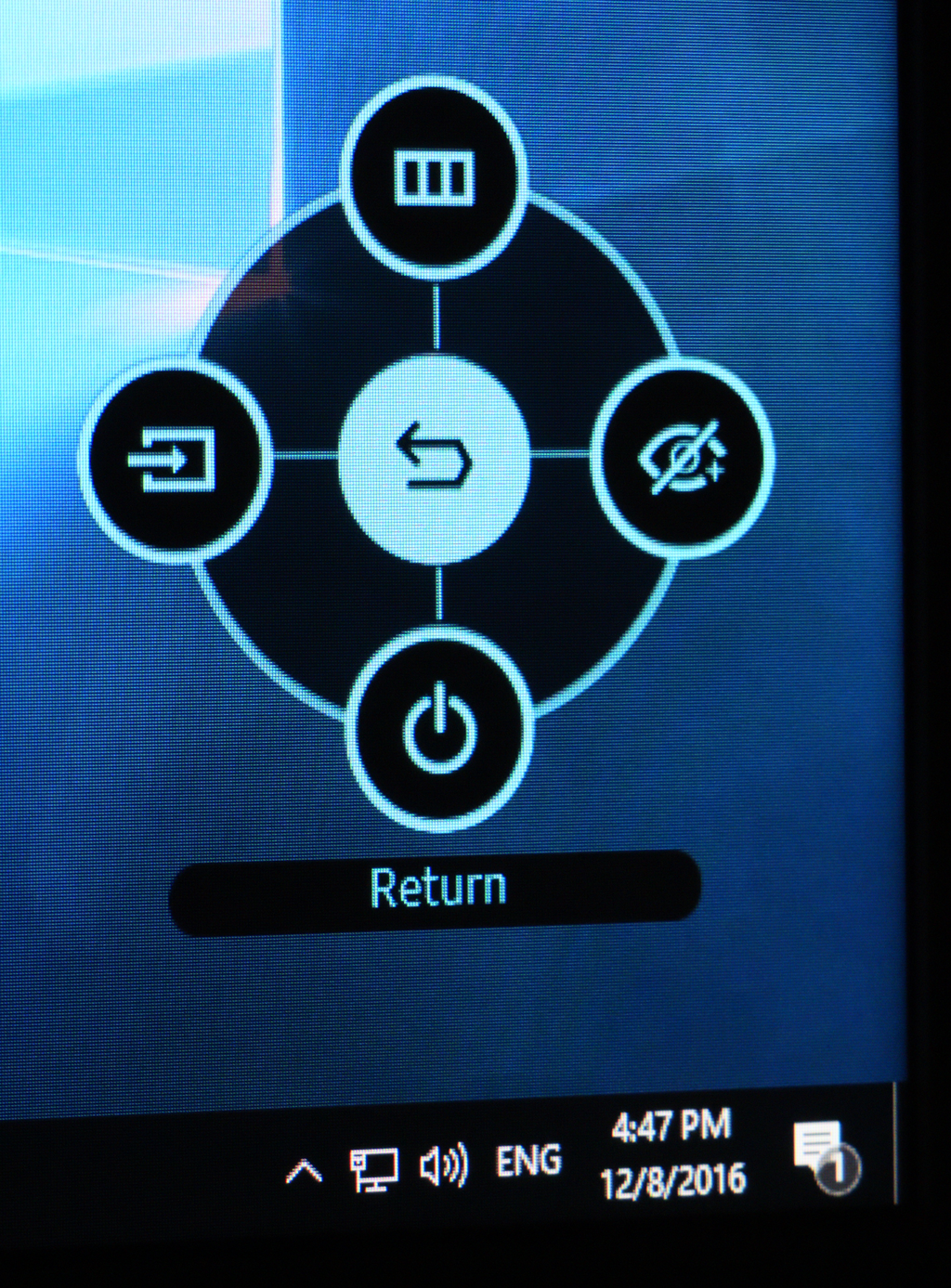
Press the joystick in and the primary menu appears. You can select input source on the left, turn Eye Saver mode on or off to the right, and turn the monitor off downwards. But pushing upwards takes you to the detailed settings menu.
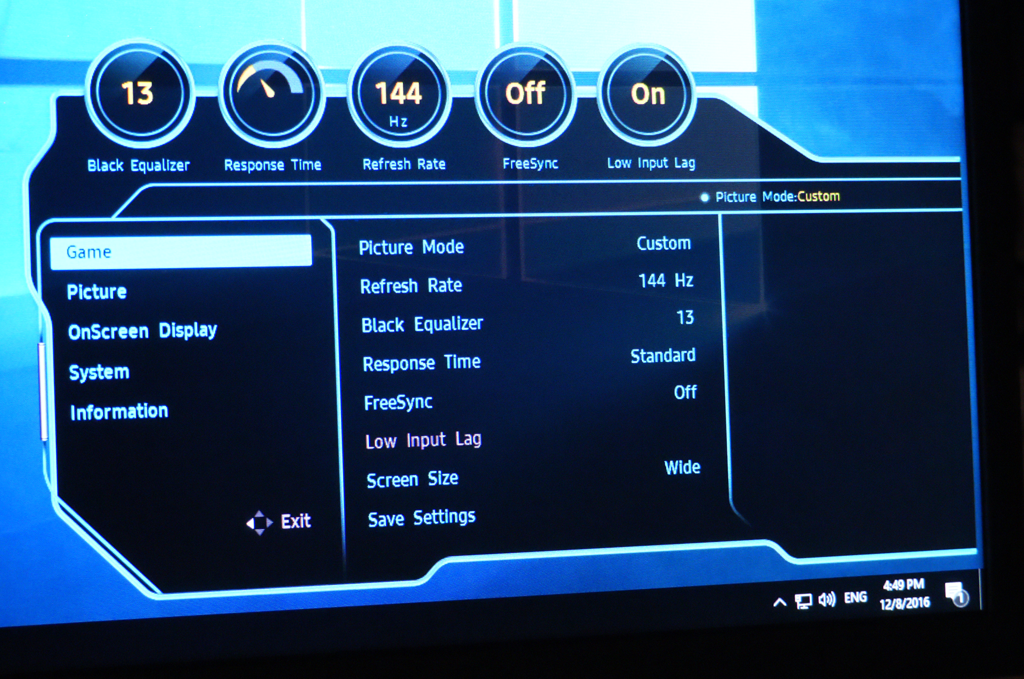
The full OSD provides five submenus – Game, Picture, OnScreen Display, System and Information. The Game menu lets you choose the Picture Mode presets, change the refresh rate from the default 144Hz, select the Black Equalizer setting, choose a Response Time of Normal, Faster, or Fastest, toggle FreeSync and Low Input Lag, or alter the aspect ratio of the frame. You can then save all these settings into one of the three preset slots that are activated by the buttons on the bottom of the bezel.
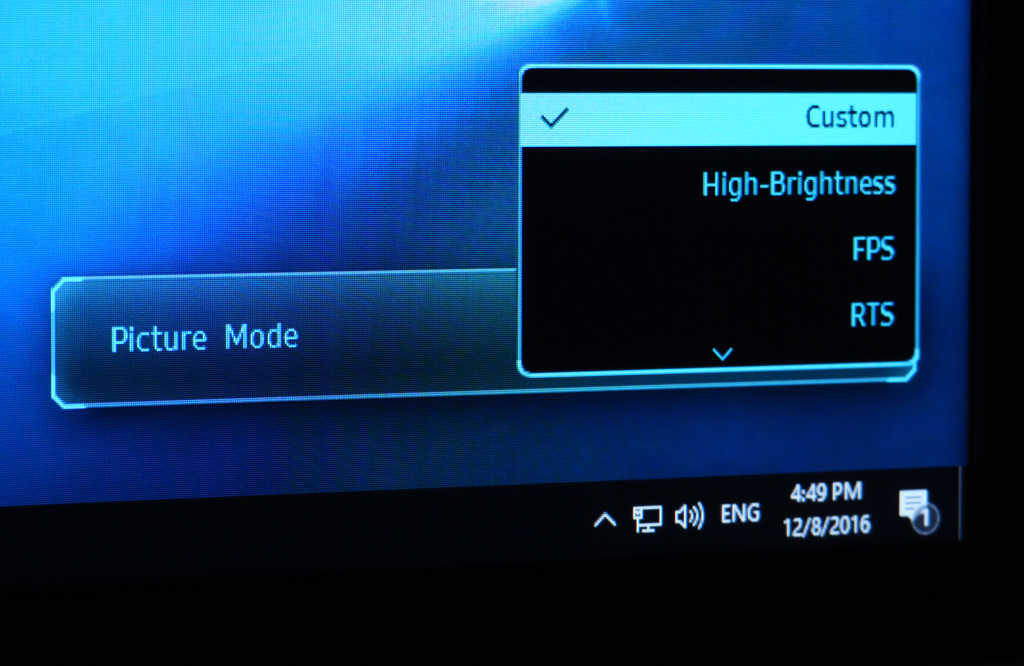
Both the Game and Picture submenus let you change the Picture Mode. There is a plethora of presets here for the main genres of game, including FPS, RTS, RPG and AOS (like DotA and LoL). There's also a High-Brightness option, sRGB and Cinema.
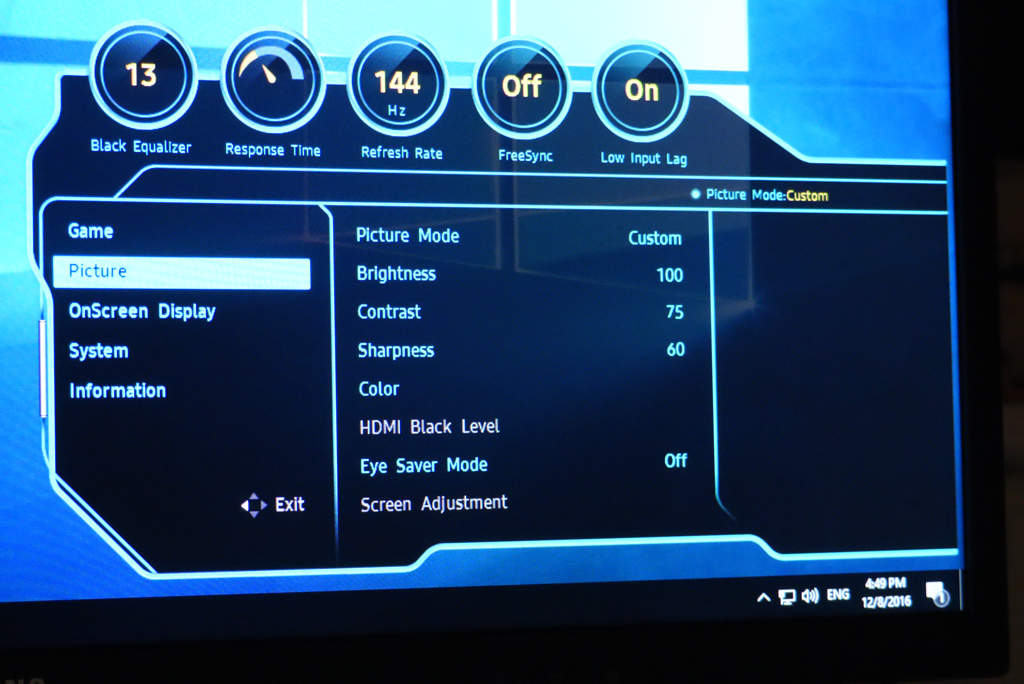
The Picture Menu provides access to the Picture Modes, plus Brightness, Contrast, Sharpness, Color, HDMI Black Level, and toggling the Eye Save Mode. Depending on the connection type, you can also configure HDMI Black level and adjust the screen positioning.
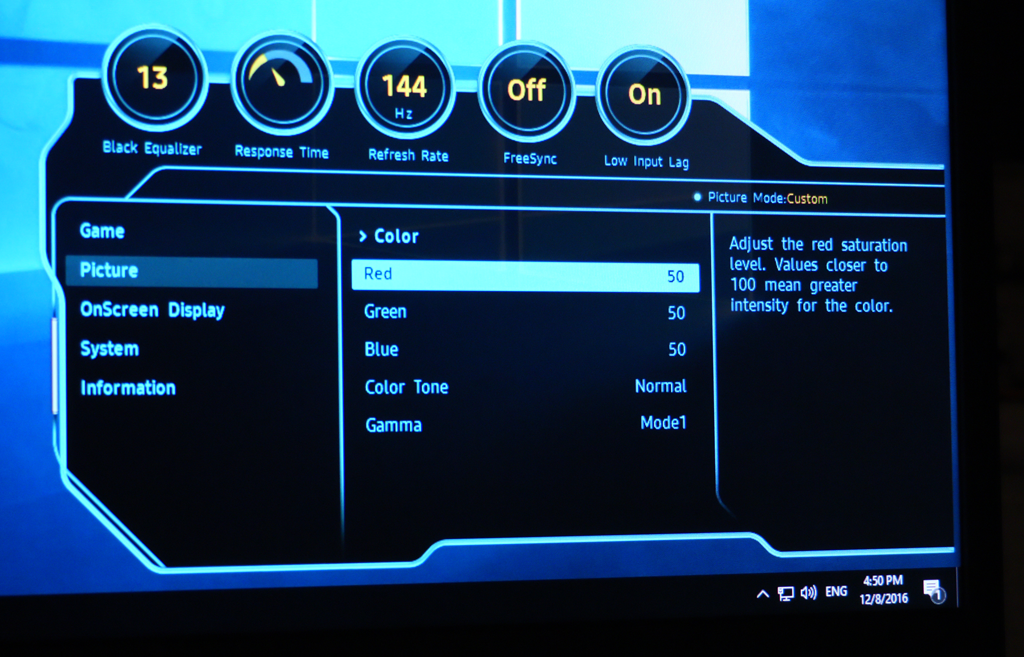
The Color configuration includes red, green and blue adjustment, plus three Gamma modes, and five presets for Color Tone (also known as colour temperature). The Custom Color Tone is simply when you have changed the RGB settings from a preset. The one thing missing is a direct control over colour temperature K-values.
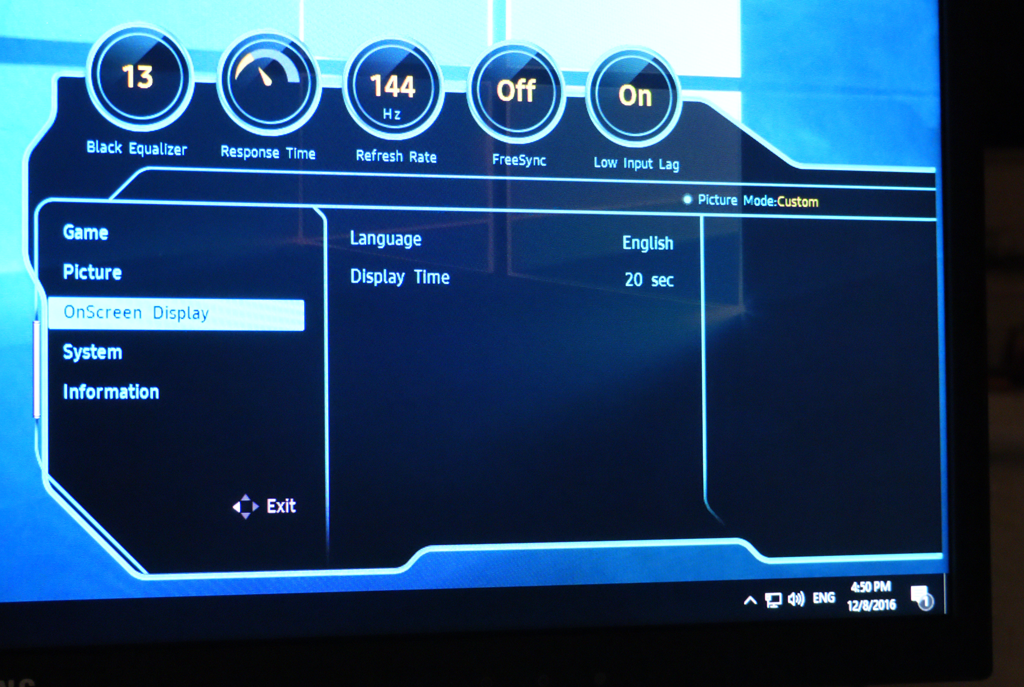
There aren't very many options for the OSD, just the ability to change the language and how long it stays onscreen before disappearing.
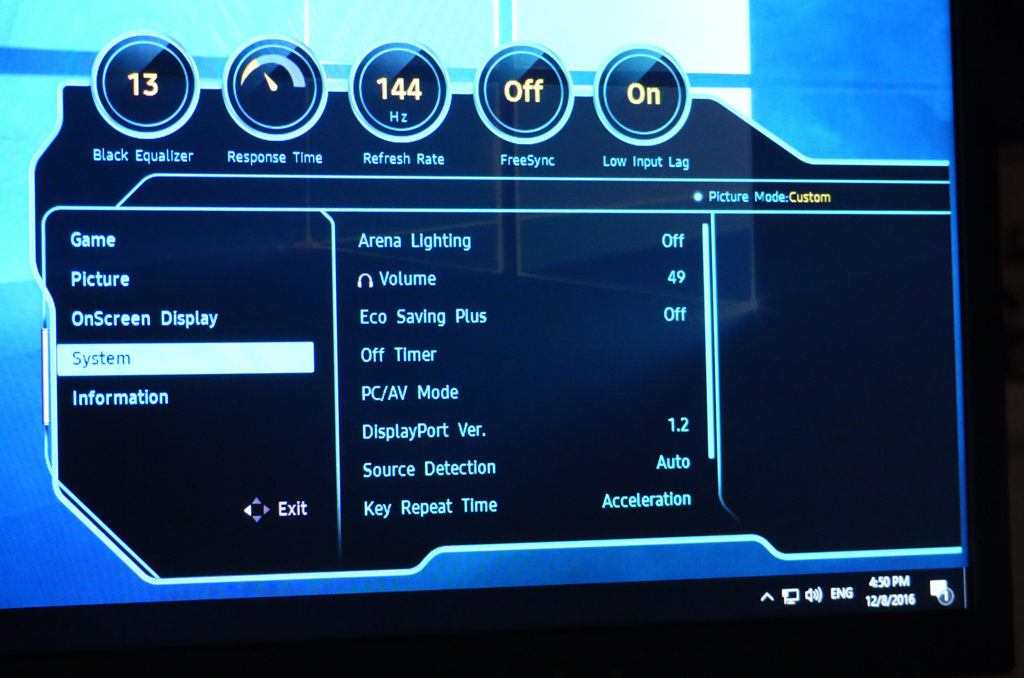
Sundry settings can be found in the System menu. The most interesting thing here is the Arena Lighting, which can be set to Blinking or Interactive. This is a light on the bottom of the screen that can add some extra immersion. In Blinking mode it just pulsates.
But in Interactive mode it will react to the sound volume coming in alongside the video signal, so that explosions will cause a rapid change in brightness. It's actually quite fun, although currently only uses white light.
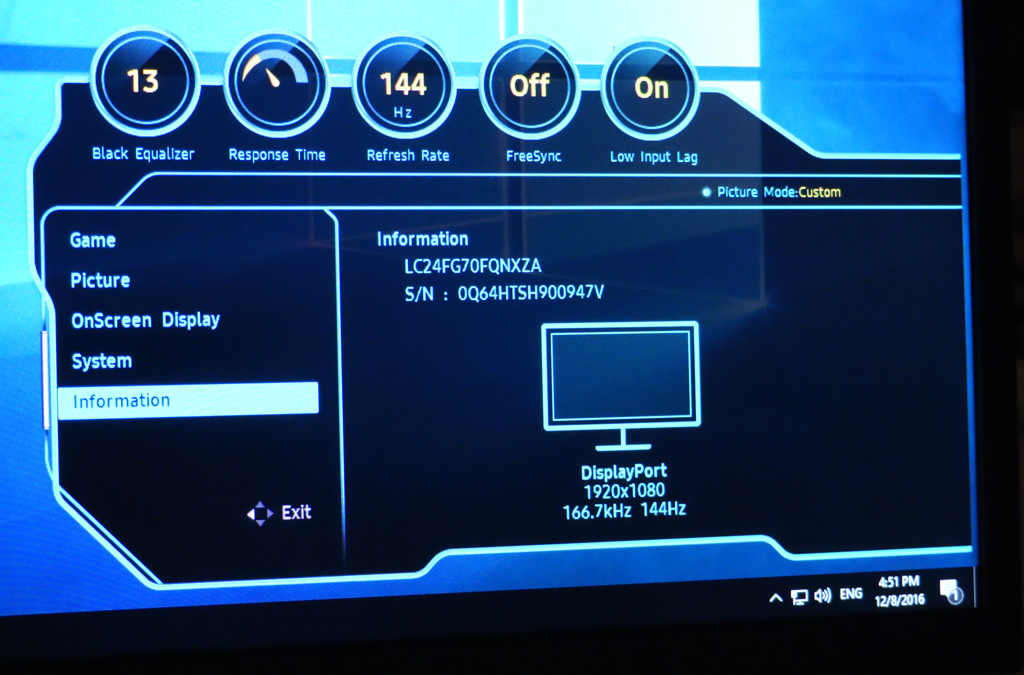
The Information menu, unsurprisingly, just includes some information. There is the full model number, the unit serial number, and the current connection, resolution and scanning frequencies.
Overall, the OSD provides pretty much all the controls you will need. There is a good range of presets for gaming, entertainment and serious activities, plus plenty of configuration should you want to customise behaviour. The joystick makes these relatively painless to access, too.
Our main test involves using a DataColor Spyder Elite 5 Colorimeter to assess a display’s image quality. The device sits on top of the screen while the software generates colour tones and patterns, which it compares against predetermined values to work out how accurate the screen is.
The results show –
- A monitor’s maximum brightness in candelas or cd/m2 at various levels set in the OSD.
- A monitor’s contrast ratio at various brightness levels in the OSD.
- The brightness deviation across the panel.
- The black and white points
- The colour accuracy, expressed as a Delta E ratio, with a result under 3 being fine for normal use, and under 2 being great for colour-accurate design work.
- The exact gamma levels, with a comparison against preset settings in the OSD.
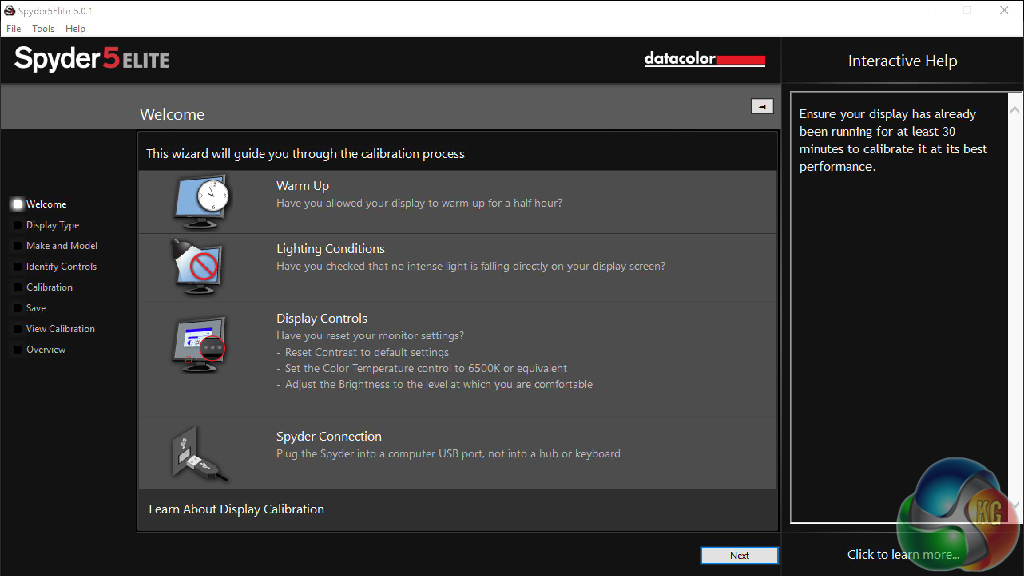
We first run this test with the display in its default, out-of-the-box state, with all settings on default. We then calibrate the screen using the Spyder software and run the test again.
We always test the display subjectively on the Windows desktop, using it for general tasks such as browsing and word processing, and with games as well, even if the display is not intended solely for that purpose. We pay careful attention to any artefacts, ghosting or motion blur, and enable any gaming specific features, such as adaptive-sync settings like G-Sync, using a compatible graphics card in our test PC.
In the case of the Samsung, we performed the primary testing at the native 1,920 x 1,080 resolution in the default Custom preset mode. We also left the monitor at 60Hz (which is not the default – this is 144Hz) because higher refresh rates can affect colour performance. Our test system was equipped with an NVIDIA Quadro K2200. Note that the screenshots below have the wrong Display Name at the bottom. They were not the results of the ASUS ROG SWIFT PG248Q, but for some reason the Spyder system insisted on keeping that monitor name from a previous test.
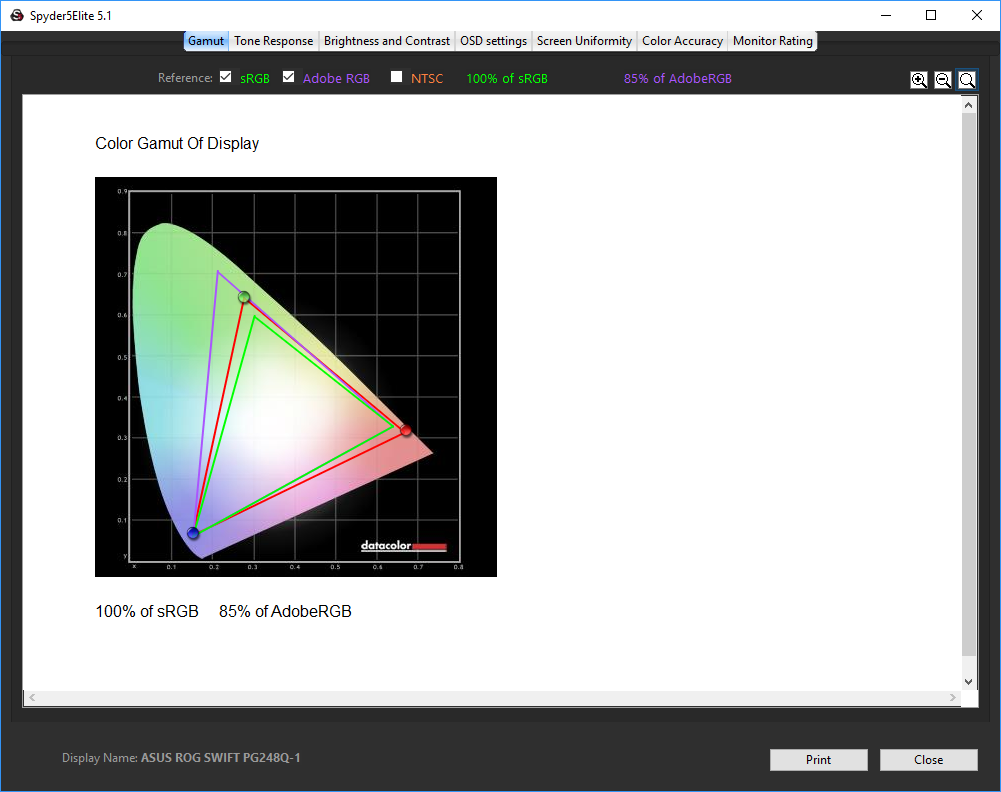
The uncalibrated results show a commendable gamut, with 100 per cent sRGB coverage and very good 85 per cent Adobe RGB. Samsung has claimed higher figures, but this is above most TN panels, albeit behind top-end IPS panels like the Philips Brilliance 275P4VYKEB. So far, so good.
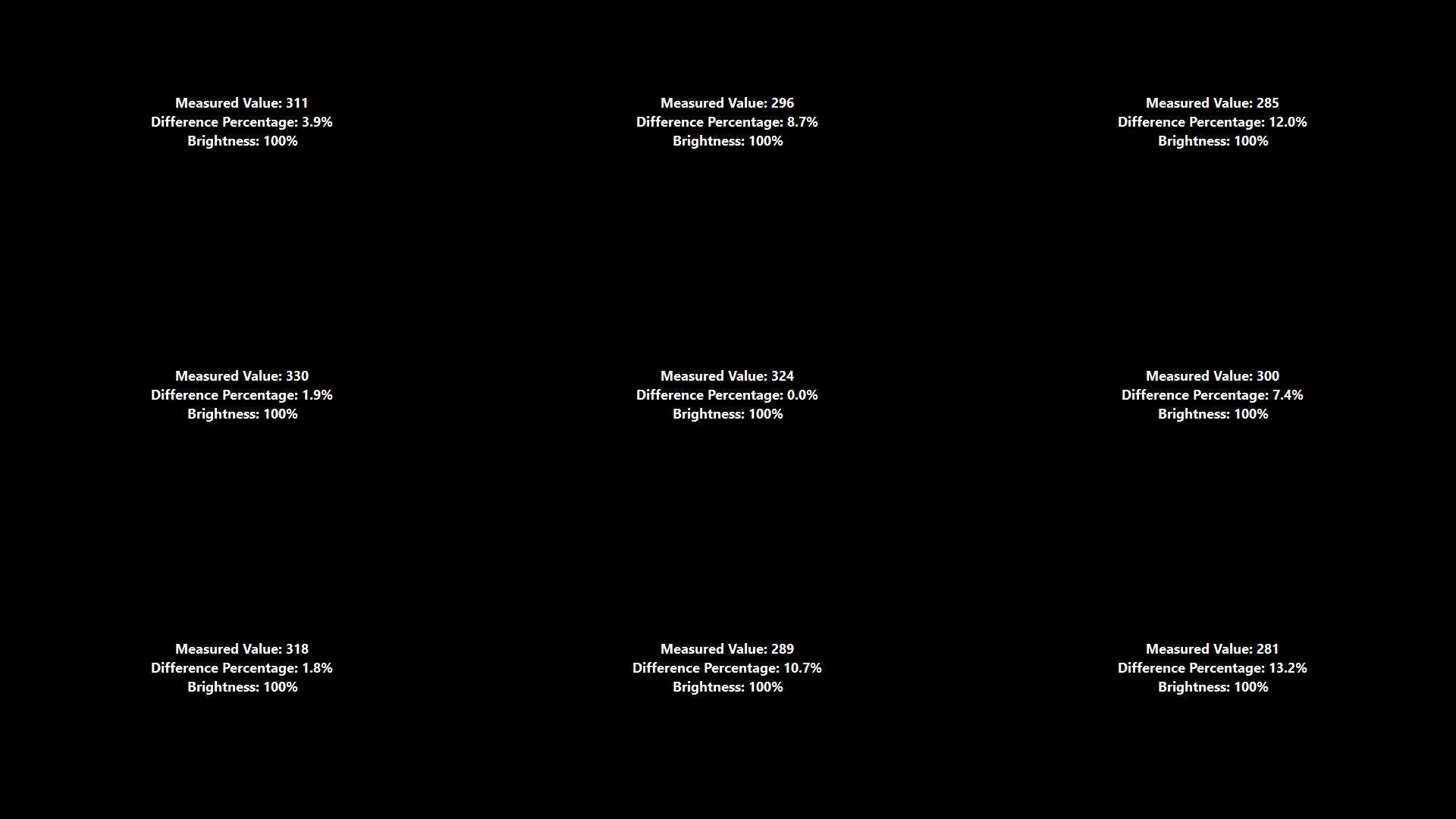
Brightness uniformity is not the best we've seen, however, with a particular issue down the right-hand side.
But it's also not the worst we have seen in recent months.
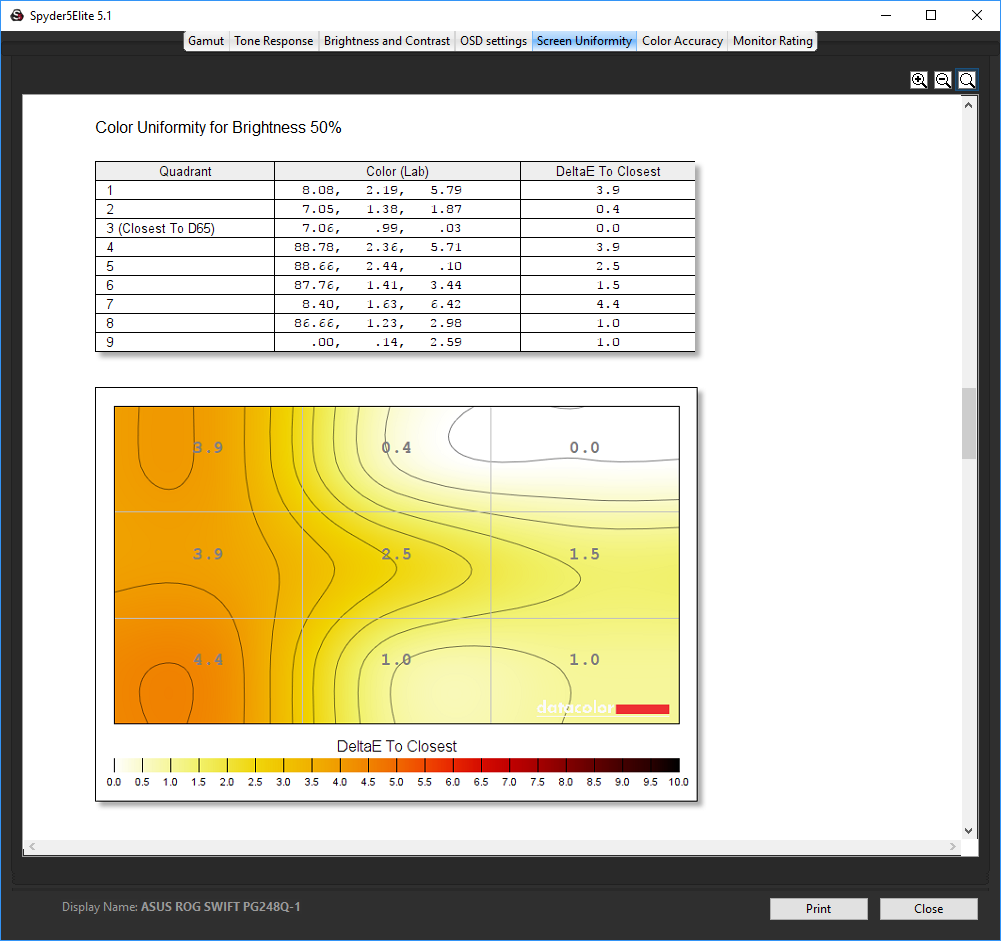
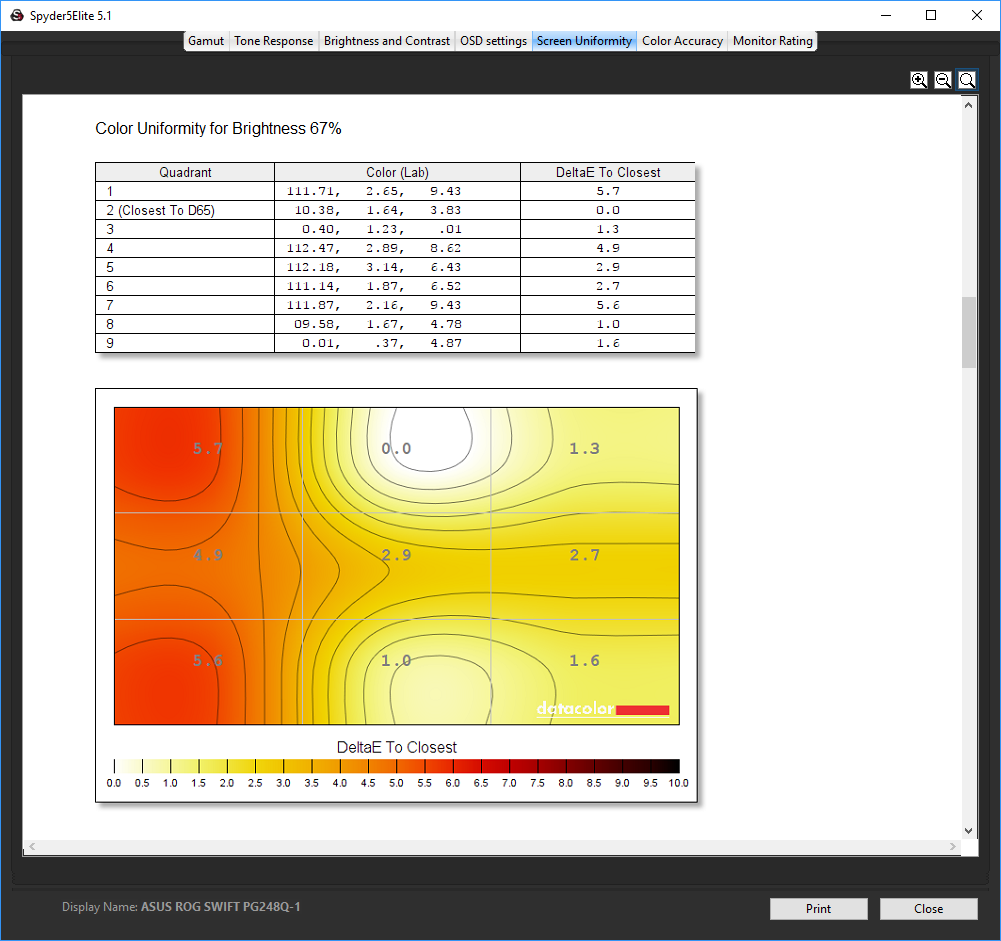
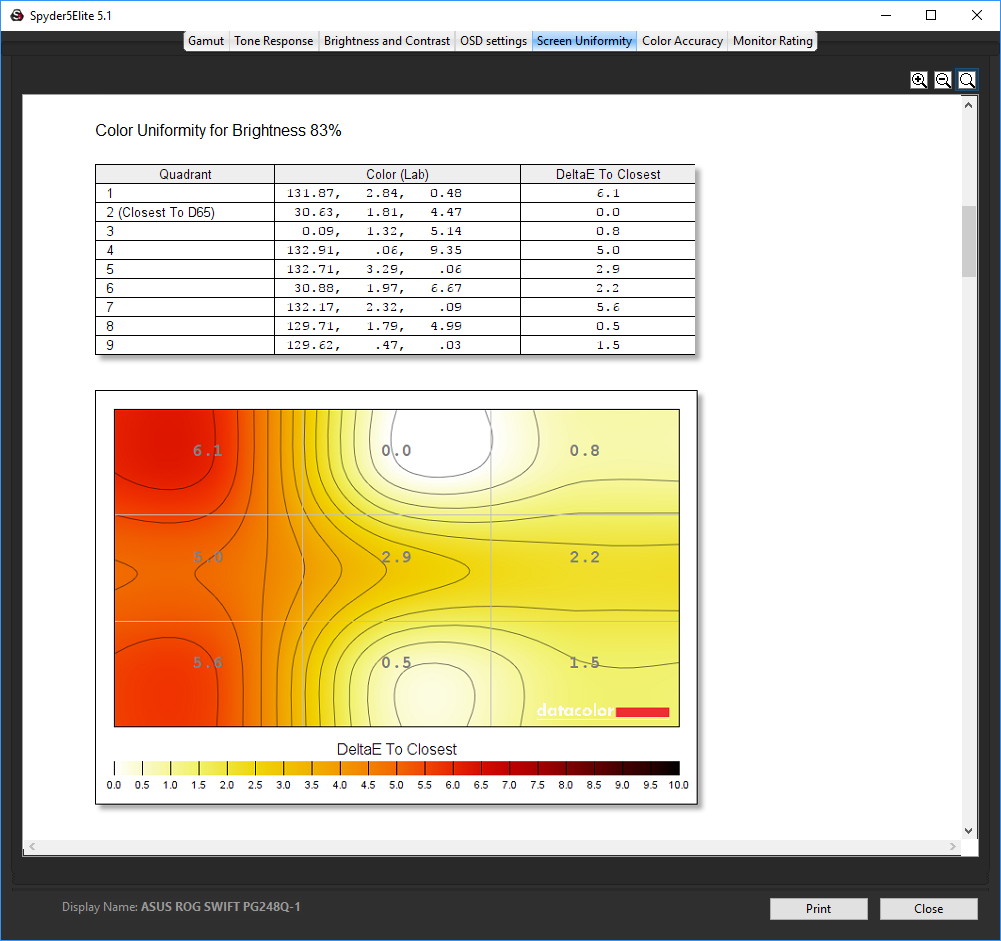
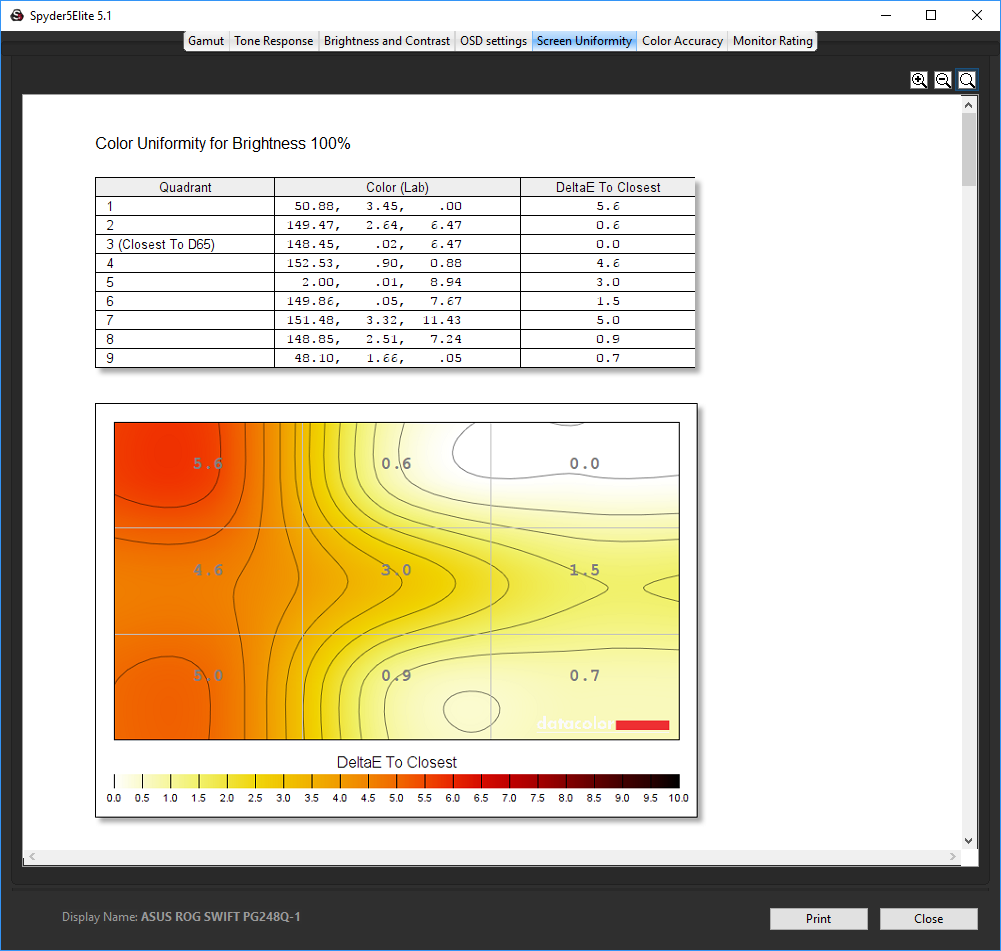
Colour uniformity isn't exceptional either, getting progressively more aberrant on the left-hand side around 83 per cent brightness.
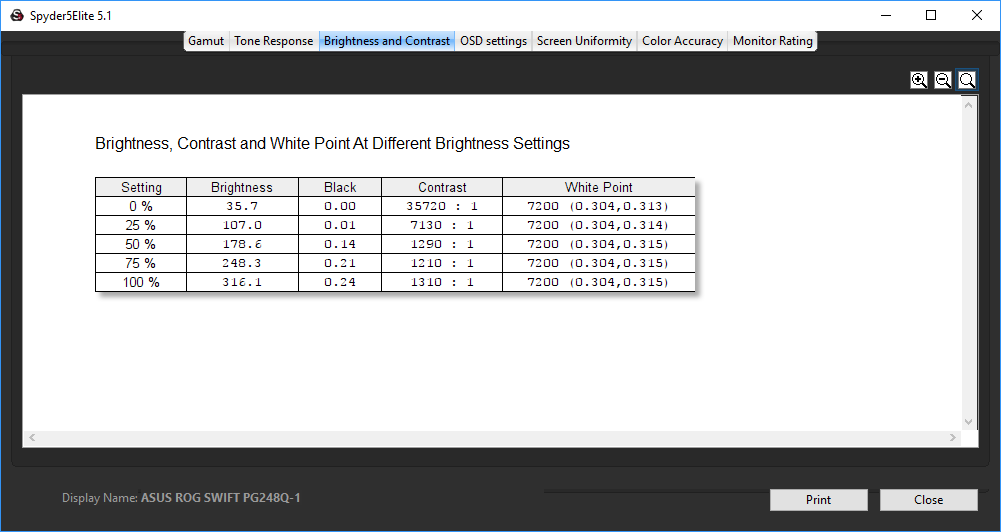
Performance picks up from here onwards. Considering that this screen is only rated at 300cd/m2, the brightness results are pretty much on the money, hitting a little over 315cd/m2 at 100 per cent.
Contrast is quite consistent above 50 per cent brightness and illustrates one of the strengths of VA, being always well over 1000:1, and getting steadily higher as you drop the brightness below that level. However, the most gratifying aspect is how consistent the white point is – spot on 7200K across the brightness levels.
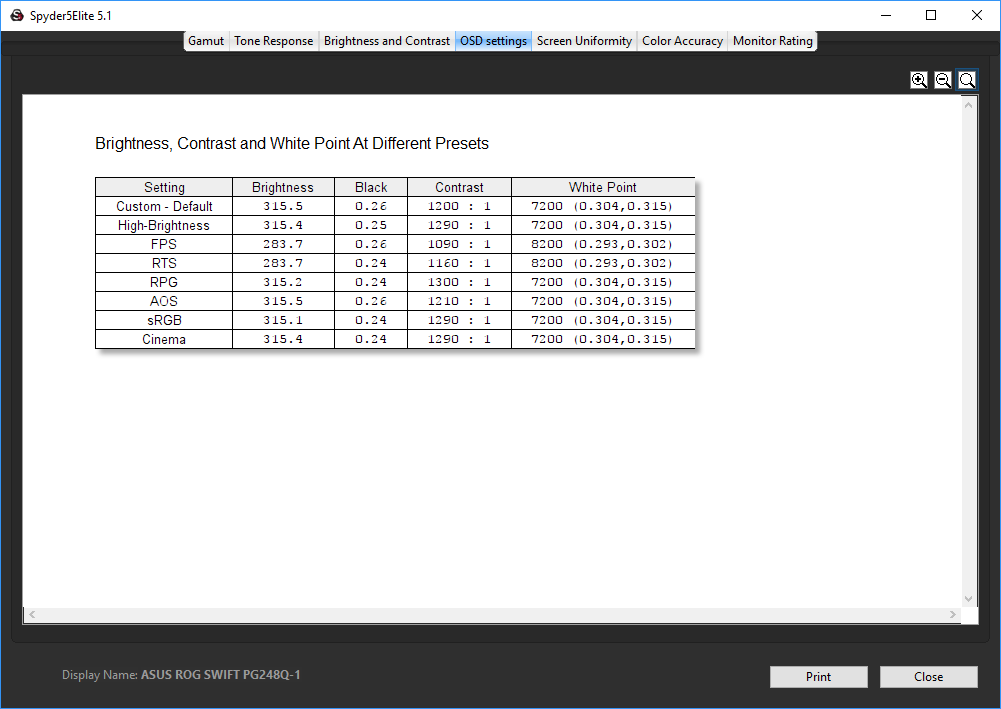
The plethora of OSD settings show mostly subtle differences. The default settings for the Custom adjustments are very similar to the High-Brightness preset, with maximum brightness of 315cd/m2 and just a subtle difference in contrast, plus 7200K white point. The FPS mode drops brightness and contrast down a little, but takes colours to a cooler 8200K.
The RTS mode is almost identical, with just a slightly higher contrast and lower black point. The RPG mode is very similar to High-Brightness, as is AOS, with the latter just taking contrast down a notch. The sRGB and Cinema modes are indistinguishable with these tests too.
It's quite strange that the presets provided are all so similar in end result, although they also include other settings that aren't picked up by the Spyder tests. Interestingly, the black point is nearly identical across all the presets.
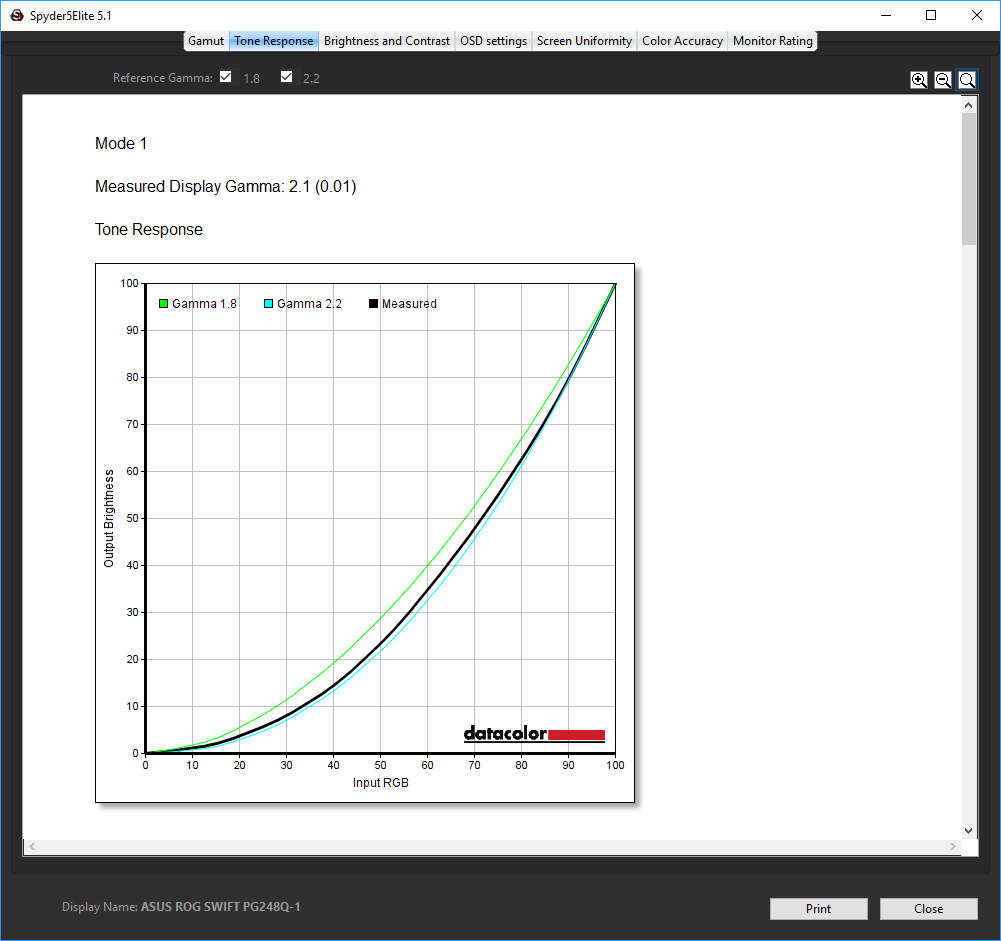
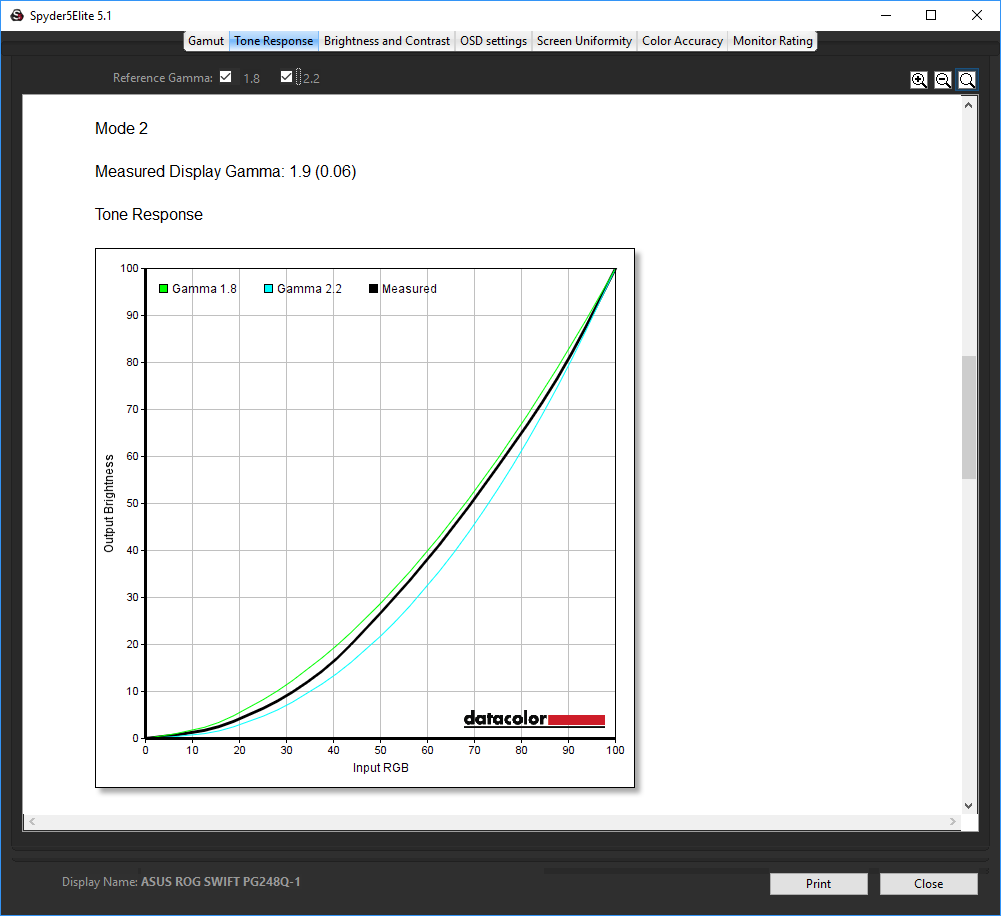
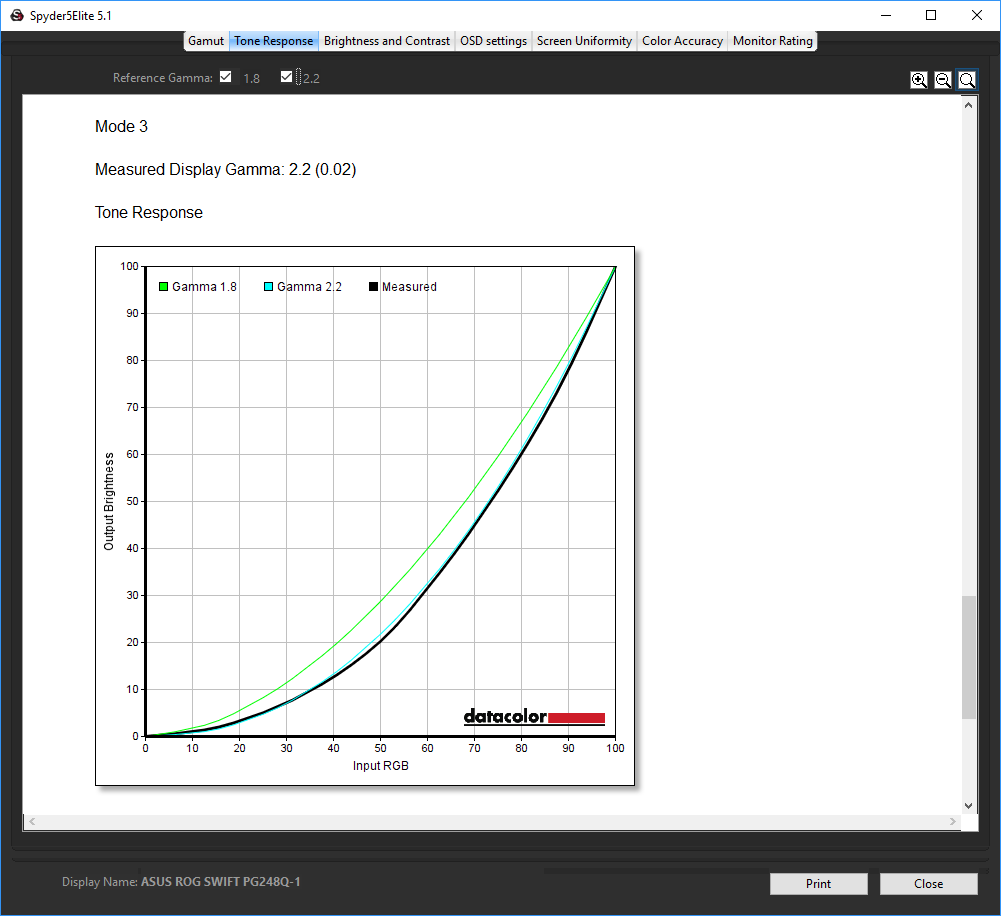
The Mode 1 gamma setting is equivalent to 2.1, whilst Mode 2 is 1.9 and Mode 3 very close to 2.2. So there isn't a wide range of gamma values available.
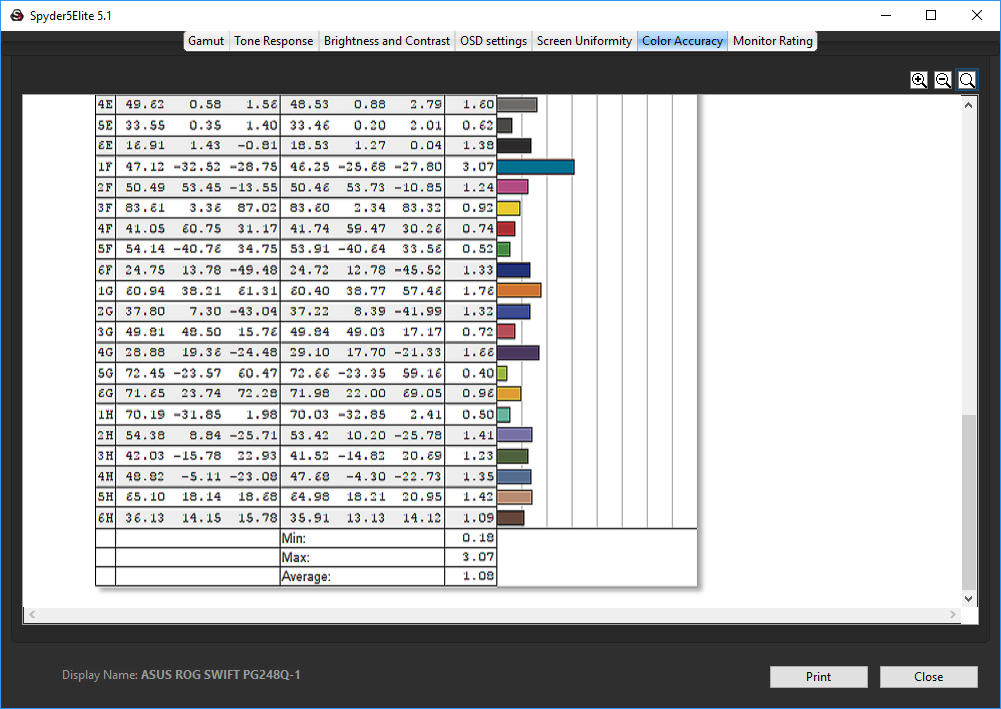
The factory calibration has clearly worked a treat, with an excellent 1.08. We have only seen a couple of results better than this, in particular the ASUS ROG SWIFT PG248Q (when calibrated), and Dell's UltraSharp 24 InfinityEdge U2417H was close too. But out of the box this is an amazing result.
Next we calibrated the screen using the Spyder to see if this could improve matters.
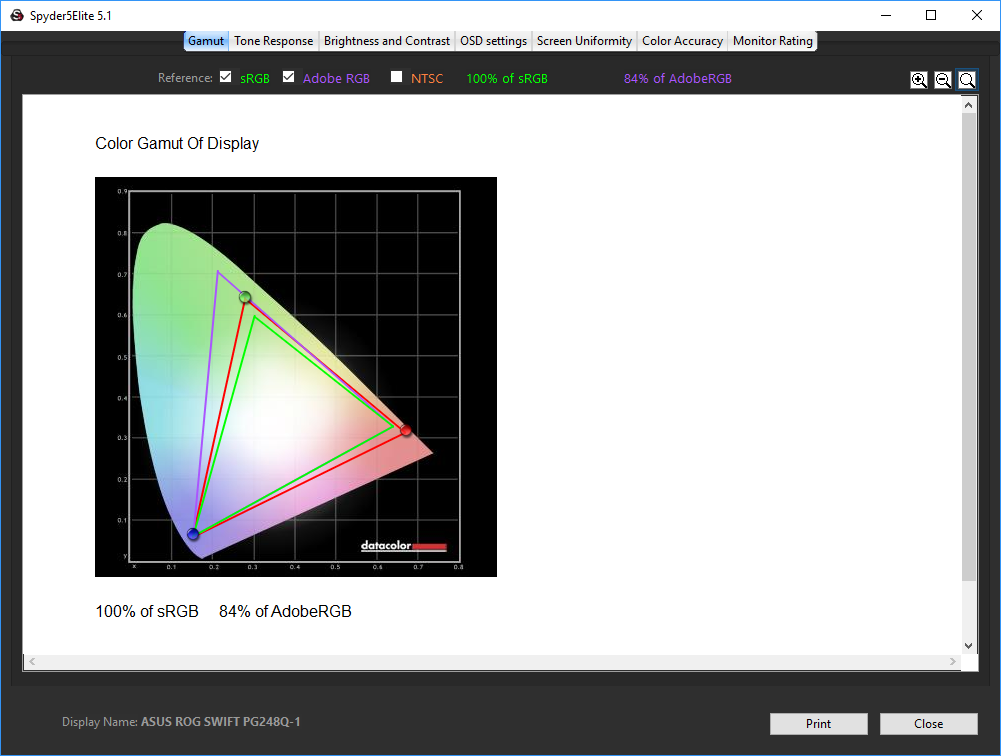
The colour gamut is actually slightly worse, with 100 per cent of sRGB visible, and 84 per cent of AdobeRGB – but nothing to get worried about.
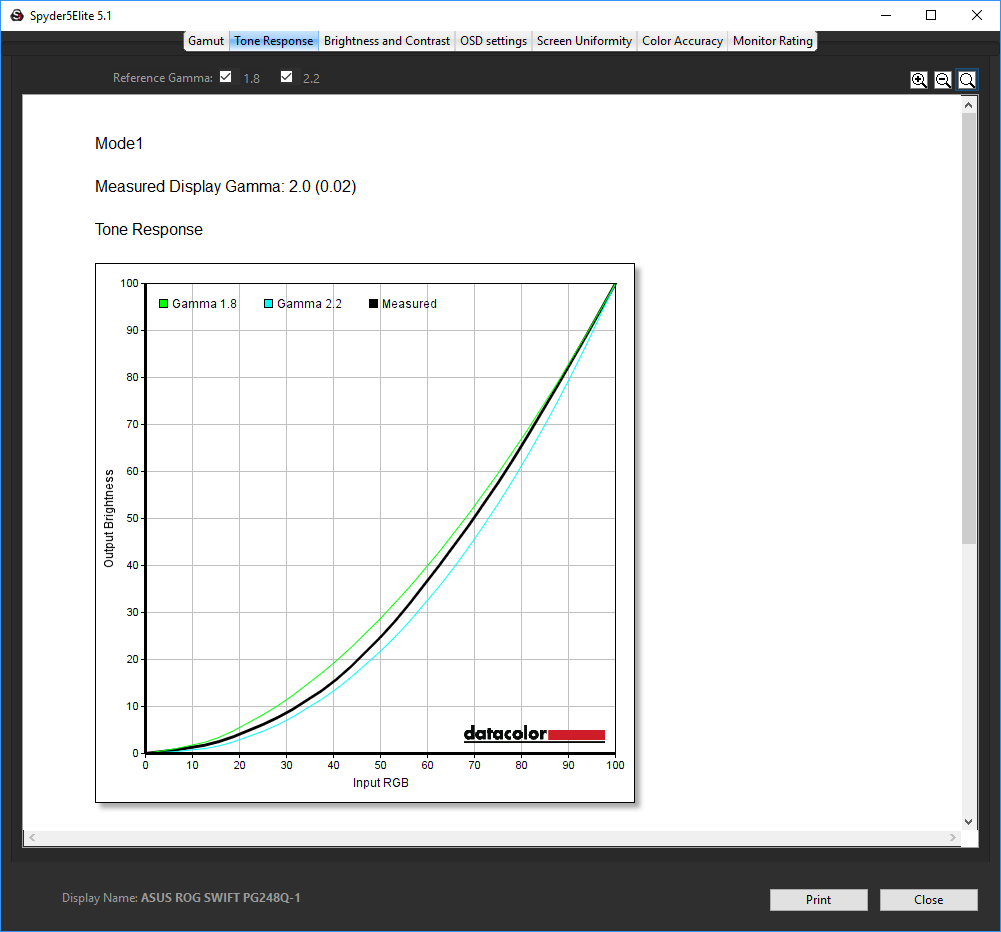
Gamma Mode 1 has now dropped a little to 2.0.
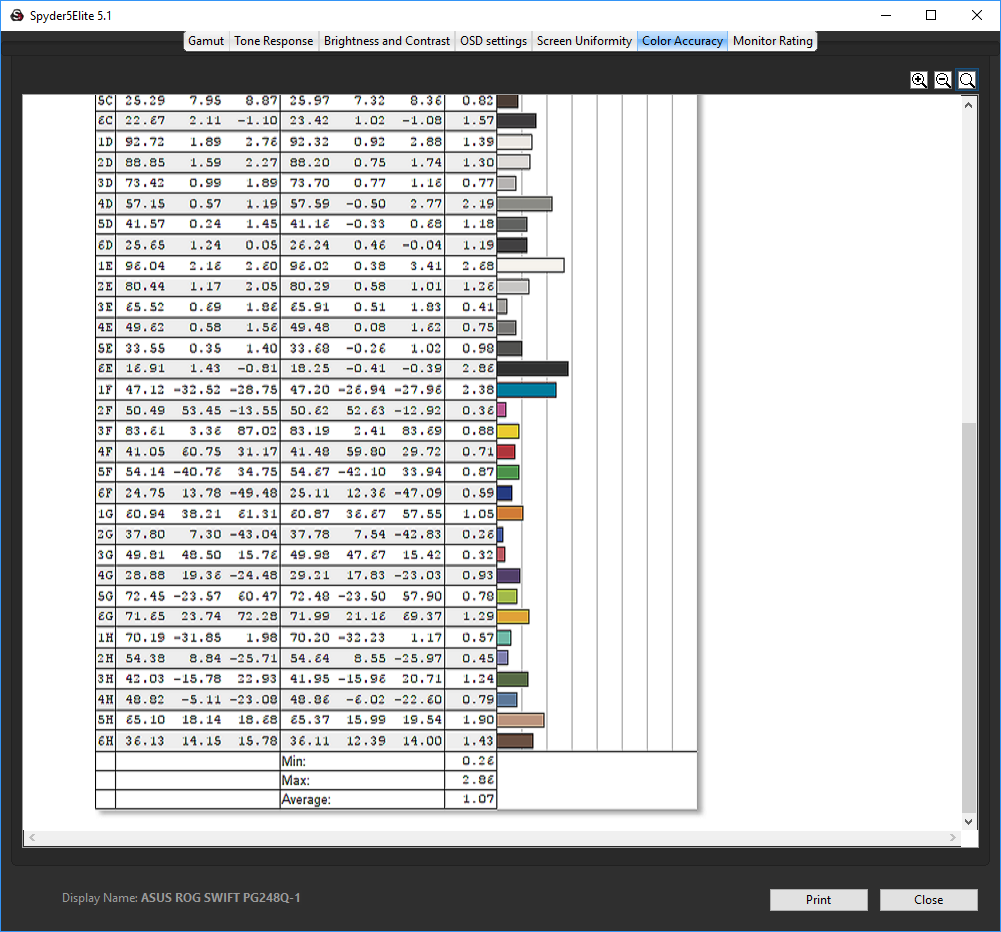
It was never going to be easy to improve on the brilliant colour accuracy of this screen, but we managed it… by 0.01! This was hardly worth the effort. You don't really need to calibrate this monitor, since Samsung did the hard work for you at the factory.
Overall, image quality is really excellent, a close match to the best IPS and PLS panels. There is a slight concern over brightness and colour uniformity, but only a slight one.
Otherwise, the C24FG70 lives up to Samsung's billing as a gaming monitor that doesn't sacrifice quality for gaming responsiveness, as is very often the case with TN panels. We put the screen through a variety of subjective gaming and motion tests and found the experience comparable to or better than a 1ms TN gaming panel. The anti-motion blur technology appears to work as claimed.
The Samsung C24FG70 is expensive for a 24in Full HD panel, but it has plenty on offer to justify the extra price. With the slight caveat about brightness and colour uniformity, image quality is brilliant, and the combination of high refresh with Samsung’s anti-motion blur technology make the responsiveness for games that require maximum high-speed frame rate sharpness on par with the best TN gaming screens.
We’re not sure of the benefits of the curved screen in a 24in display, but you don’t lose anything by it (other than the price) and if it does increase your sense of immersion then it’s good to have. Likewise, the interactive lighting is fun, although we would like to see colours other than white used in future versions. The adjustment arm extends the positioning possibilities.

There is a lot to like about the C24FG70, and every little to dislike, apart from how much it costs. We would have liked a USB hub, as those are always handy, and connections for routing non-digital audio would have been useful too. But these would have been merely added bonuses. The core capabilities of this monitor are superb whether you are gaming, watching movies or doing something more work oriented. This is definitely a screen worth saving up for.
The Samsung C24FG70 is available on Amazon UK. and directly from the Samsung store HERE.
Discuss on our Facebook page, over HERE.
Pros:
- Amazing pre-calibrated colour fidelity.
- Commendable colour gamut.
- 144Hz refresh.
- Anti-motion blur technology provides TN-like response time.
- 1800R curve.
- Plenty of adjustments in OSD.
Cons:
- Expensive.
- Brightness and colour not entirely uniform across screen.
- No USB hub.
Kitguru Says: The Samsung C24FG70 may cost a lot for a 24in screen, but it offers brilliant image quality and responsiveness plus a delectably curvy surface.


A nice monitor for those who wish to game at 1920 x 1080 but more and more gamers are moving to 2K and 4K gaming.
if i want to buying a monitor i prefer a 2k , because games look great in that monitor , thanks alot
I moved to 1440p and as a high refresh rate gamer, immediately wish I hadn’t due to being unable to keep up the framerate with a 1080 even.
I’ll be purchasing this monitor if I can due to the vast colour gamut advantage it has at 125% of sRGB and the fact the contrast ratio is immensely better than any other panel besides OLED.
1080P is 2K aswell
Google is paying 97$ per hour! Work for few hours and have longer with friends & family! !mj328d:
On tuesday I got a great new Land Rover Range Rover from having earned $8752 this last four weeks.. Its the most-financialy rewarding I’ve had.. It sounds unbelievable but you wont forgive yourself if you don’t check it
!mj328d:
➽➽
➽➽;➽➽ http://GoogleFinancialJobsCash328MediaInfoGetPay$97Hour… ★★✫★★✫★★✫★★✫★★✫★★✫★★✫★★✫★★✫★★✫★★✫★★✫★★✫★★✫★★✫★★✫★★✫★★::::::!mj328d:….,…..
there is not much difference at all between 1080p and 1440p except it eats a lot of FPS. You can see as much on 1080p as you can on 1440p. Tho you will have to drop those eye candy options for 1440p if you want 100+ fps. That’s why you’re getting 1440p 144hz right?
Nah… That ain’t true. 1440p and 4k are still pretty much useless. You can’t even game proper even on gtx 1080. In order to playo n those resolutions at a decent frame of 100 you need to wait perhaps next generation of GPUs even then they won’t be able to run it on 1440p as much as the graphical fidelity will always increase as well. So 1080p is going to be the main resolution for years to come mate. 🙂
But what were the calibrated color settings? I’ve been trying to find some color settings for this but can’t find anything.
Same issue. Like why not post what you enhanced.