KitGuru KitGuru.net – Tech News | Hardware News | Hardware Reviews | IOS | Mobile | Gaming | Graphics Cards


Corsair has been the market leader in the AIO liquid cooling market for a number of years offering a really varied range of not only smaller coolers for small form factor builds, but also much larger 280mm and 360mm variants for those chasing best performance.
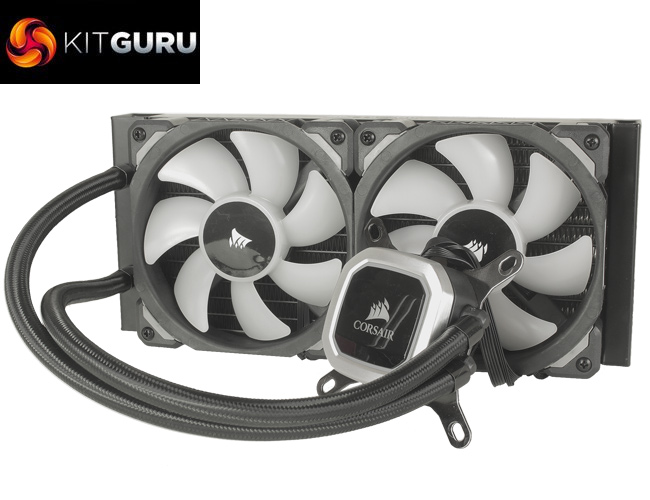
Lots of manufacturers are packaging LEDs, and RGB functionality into their cooler, Corsair being no exception, but the new Corsair Hydro Series H100i adds to their product ”Platinum” which as with power supplies suggests an air of supremacy. Two versions are available – the 240mm H100i priced at £124.99, and 280mm at £139.99 but with slightly better compatibility. We decided to take a look at the H100i, so let's see how it holds up in our testing.
Specification:
- Model: Hydro Series H100i RGB PLATINUM 240mm
- Radiator Material: Aluminum
- Radiator Dimensions: 277 × 120 x 27mm
- Tubing Length: 350mm
- Fan Dimensions: 120 x 120 x 25 mm
- Fan Speed: 400 – 2,400 RPM (PWM)
- Fan Air Flow: 75 CFM (Max)
- Fan Noise Level: 25 dBA
- Fan Connector: 4-Pin (PWM)
- Pump Connector: SATA Power, 3-Pin Pump tach cable
- iCUE Connector: Micro USB to USB 2.0 header
- Intel socket compatibility: Intel LGA 115x, LGA 2011, LGA 2066
- AMD socket compatibility: AMD AM4, AM3+, AM3, AM2+, AM2, TR4


Packaging follows the same trend as many recent Corsair products, primarily black with yellow accenting and the front H100i image highlights the RGB functionality with the cooler shown with lots of bright colours. The rear of the box highlights a few of the H100i's core features, such as the 16 individual LED pump/CPU block, and the included RGB ML Pro fans. Specs and dimensions of the radiator are also present to help with compatibility.
In the box we find the cooler itself, along with a few additional mounting brackets for AMD mounts, a bag of screws and the micro USB to USB 2.0 internal header cable which is required to link the cooler to the Corsair iCUE software. You also get a couple of the ML-Series 120mm fans and a few pieces of documentation, Warranty and instruction manuals.
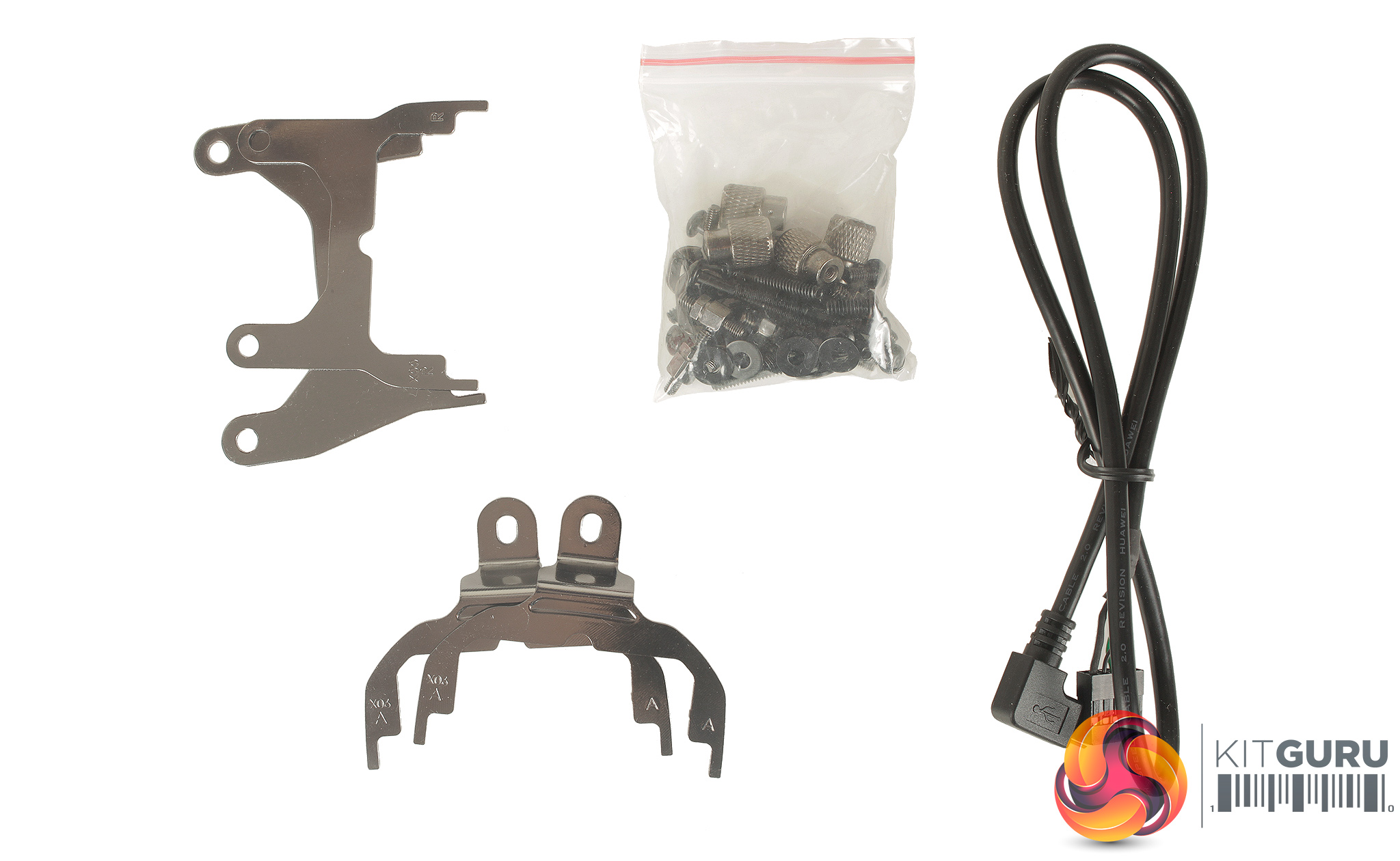
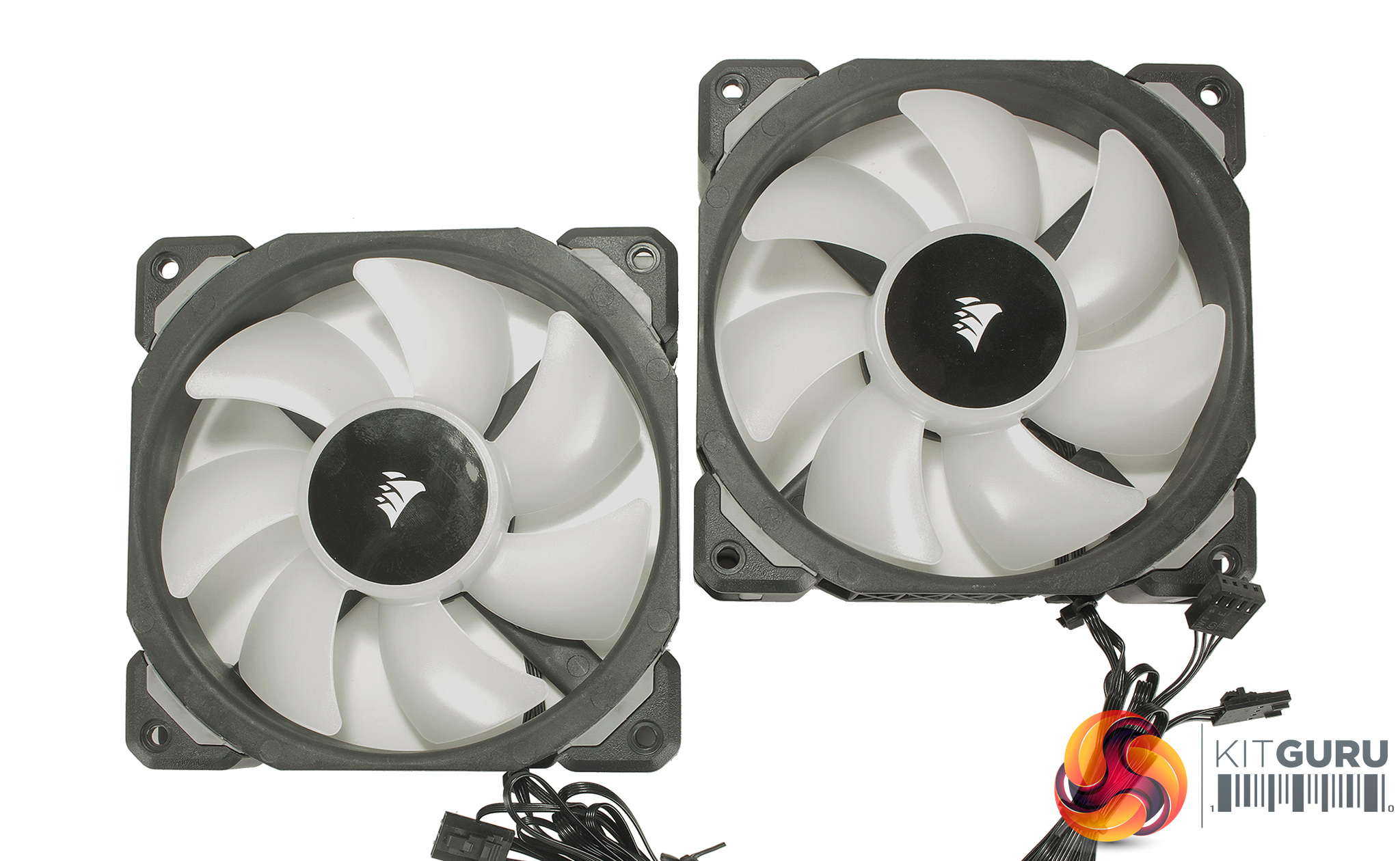
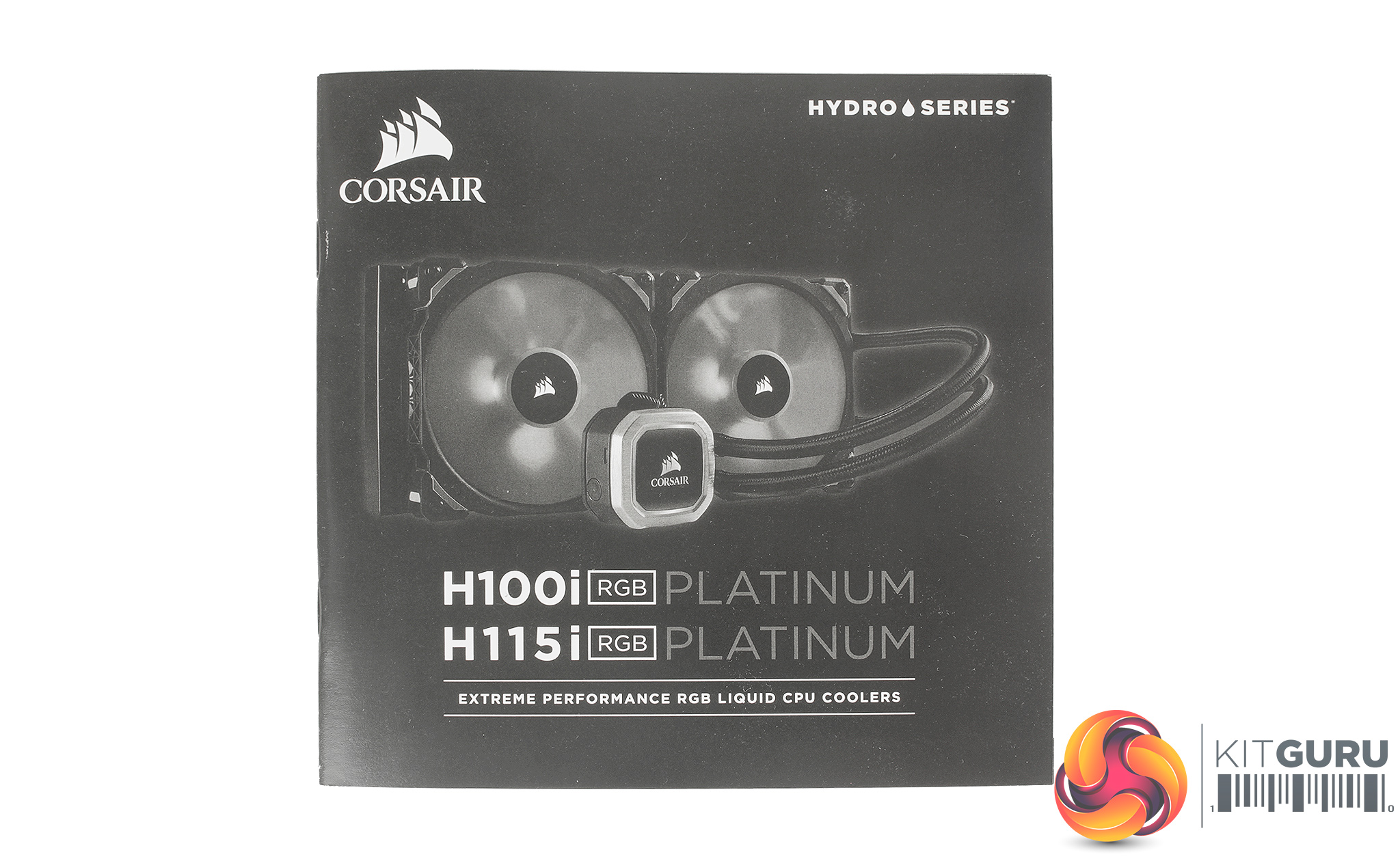
The slightly smaller accessories pack is nice to see, as the CPU block carries a number of connection cables for not only the fan 4 Pin PWM connections but also the RGB lighting cables and power.
Its all relatively self-contained which does from the outset suggest a relatively quick installation process, without the need for attaching lots of controllers boxes or cables. The screws, however, are all bagged and jumbled together, which is a little different to Corsair coolers of the past with all mounting hardware separately bagged and labeled.
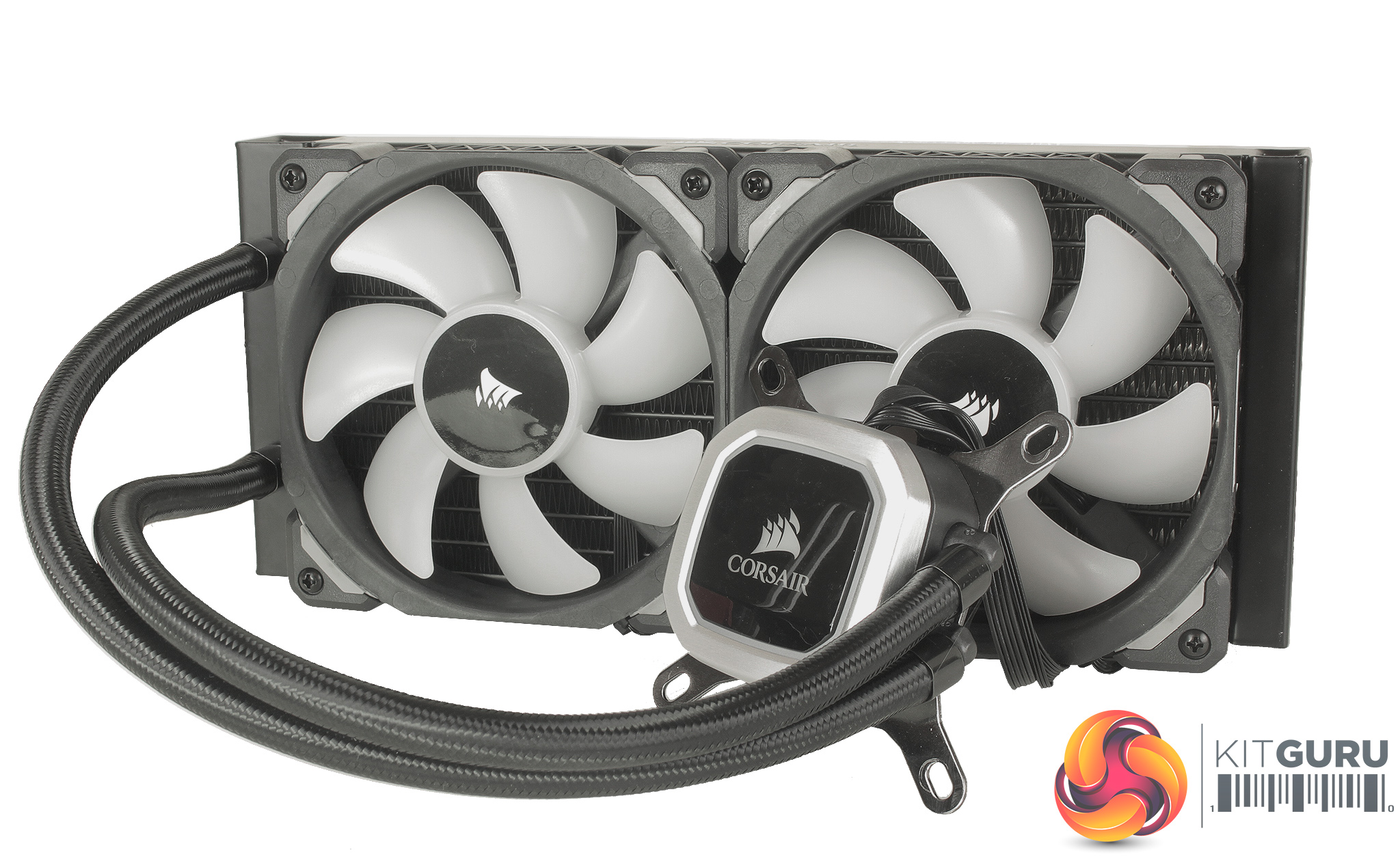
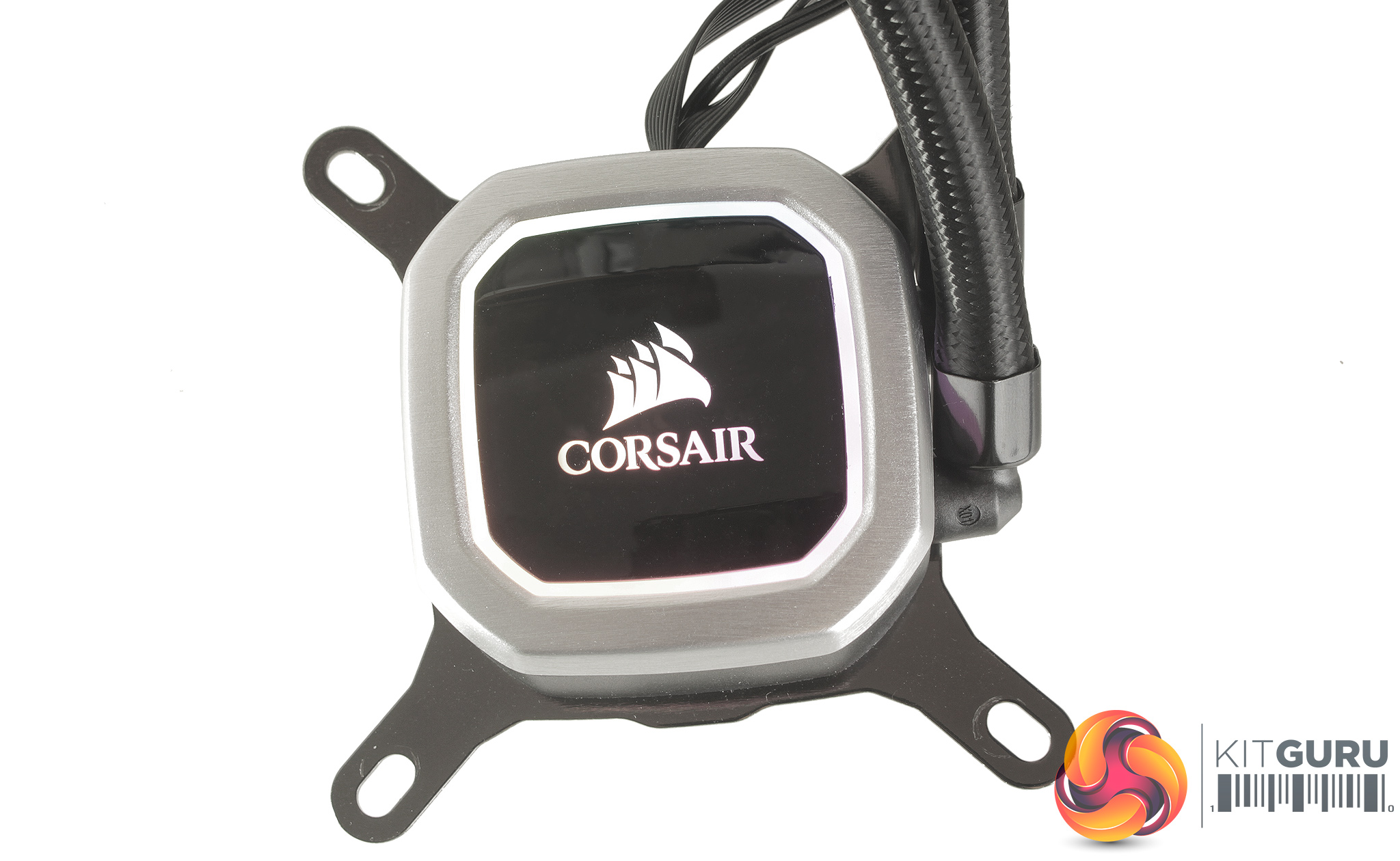
The cooler itself, just as other current Corsair coolers feels super solid and very premium. The tubing is mesh-braided but still nice and flexible, and at 350mm long, there shouldn't be any problems with the radiator reaching the top or front of your case for installation. The block features an almost identical aesthetic to the Corsairs Pro line of coolers although it does carry more individually addressable LEDs.
The mounting bracket for Intel platform is also installed as standard, which again should really help speed up the process. The pump features connections for all the fan cables, both the 4 pin PWM connections and the RGB connections, as well as a SATA power connection, a 3 pin fan cable. On the block, there is a connection for attaching the micro USB to internal USB header cable, but that’s basically it.
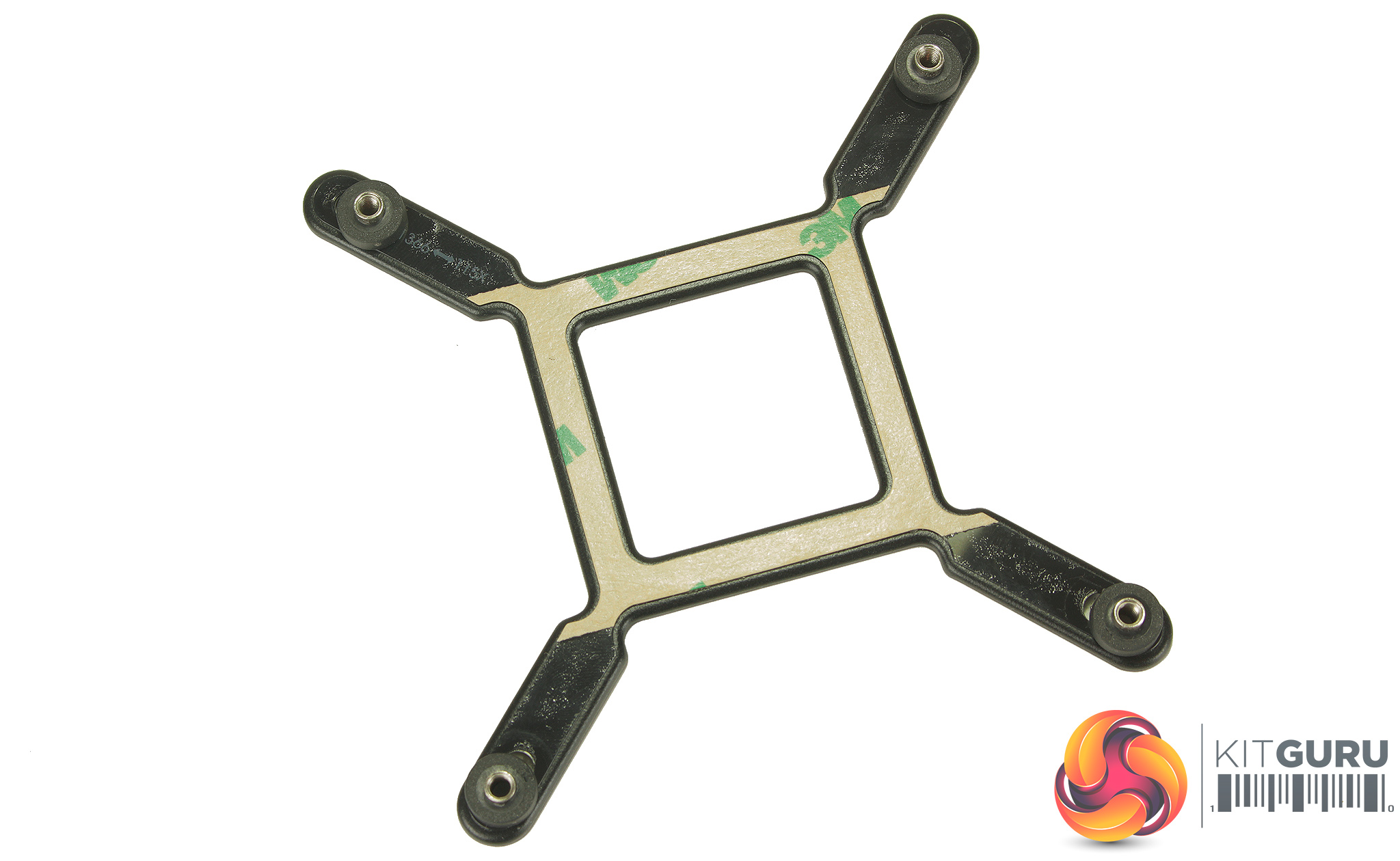

As we test on the Z170 platform, and the LGA1151 socket installation is an absolute breeze. Firstly if you are installing a cooler for the very first time, it's great to see that the instructions include super large, easy to follow images, and clearly marked stages.
The required back plate is basically pre-setup with slidable motherboard pass-through’s, so you simply need to adjust them to fit. An adhesive pad is also there to hold the back plate in place when flipping the motherboard over.
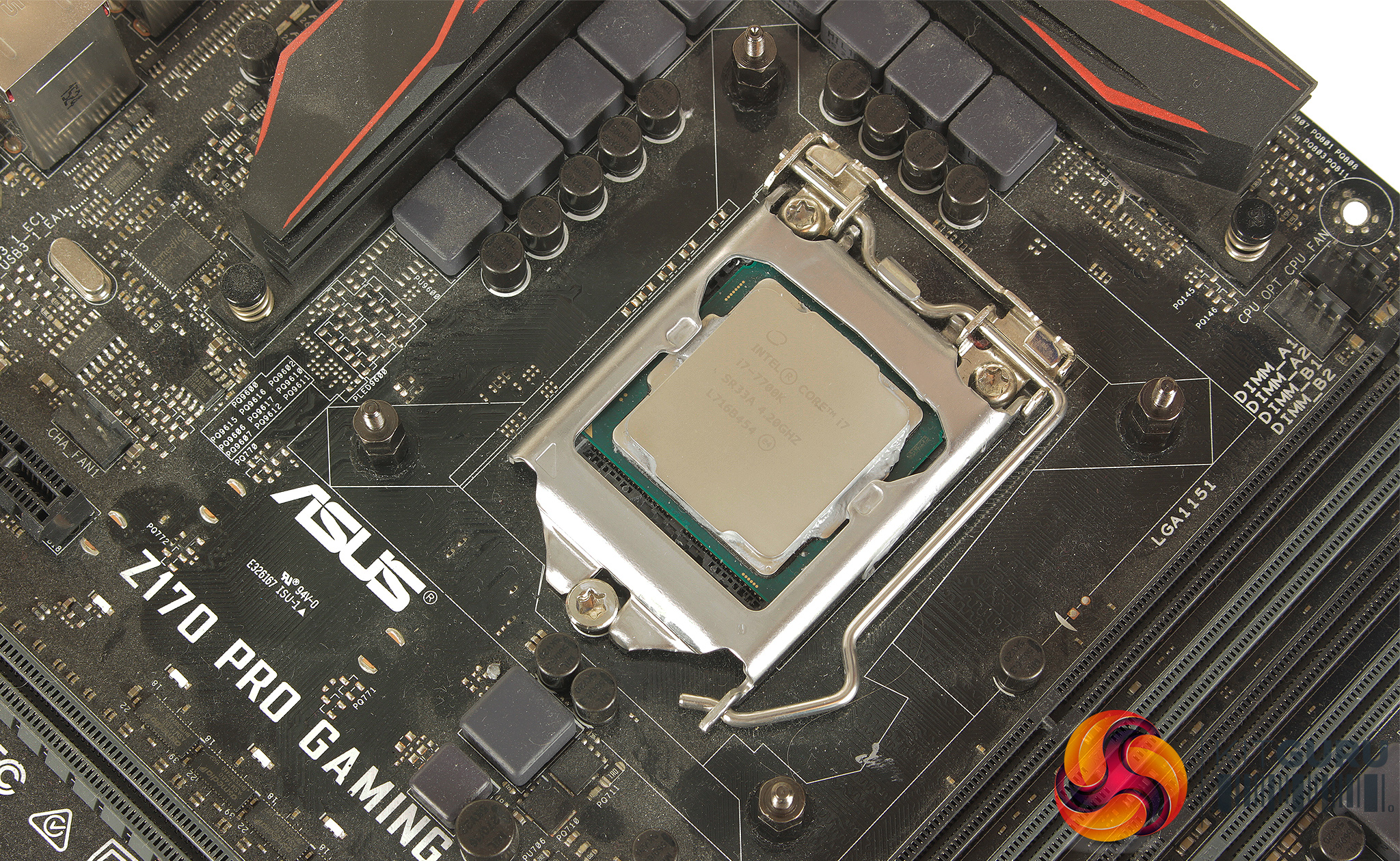
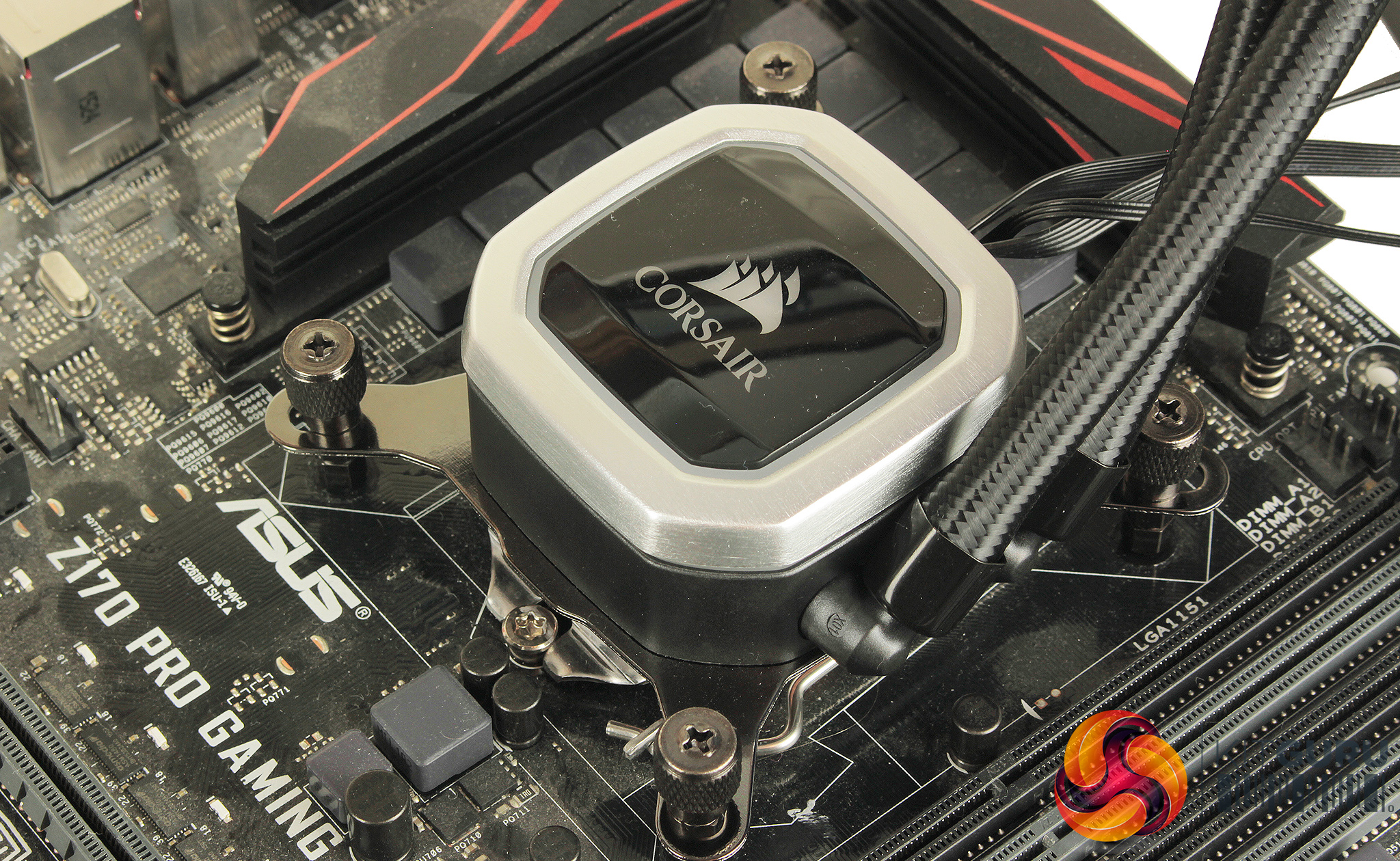
With the backplate installed, there are four double threaded standoffs which need to be screwed into place, and then you’re basically set to mount the CPU block. Thermal compound can be added (not necessary if you are sticking with the pre-applied) and the block can then be placed over the CPU, and mounted using the four large thumb screws.
If you’re planning on installing the H100i platinum on a socket other than LGA1151 there is a bit more work required. For 2011 it's simply a case of skipping the back plate and using a separate set of standoffs that screw directly into the socket and for AMD mounts, you will need to utilize the standard motherboard mounts and swap a couple of clips that attach to the block.
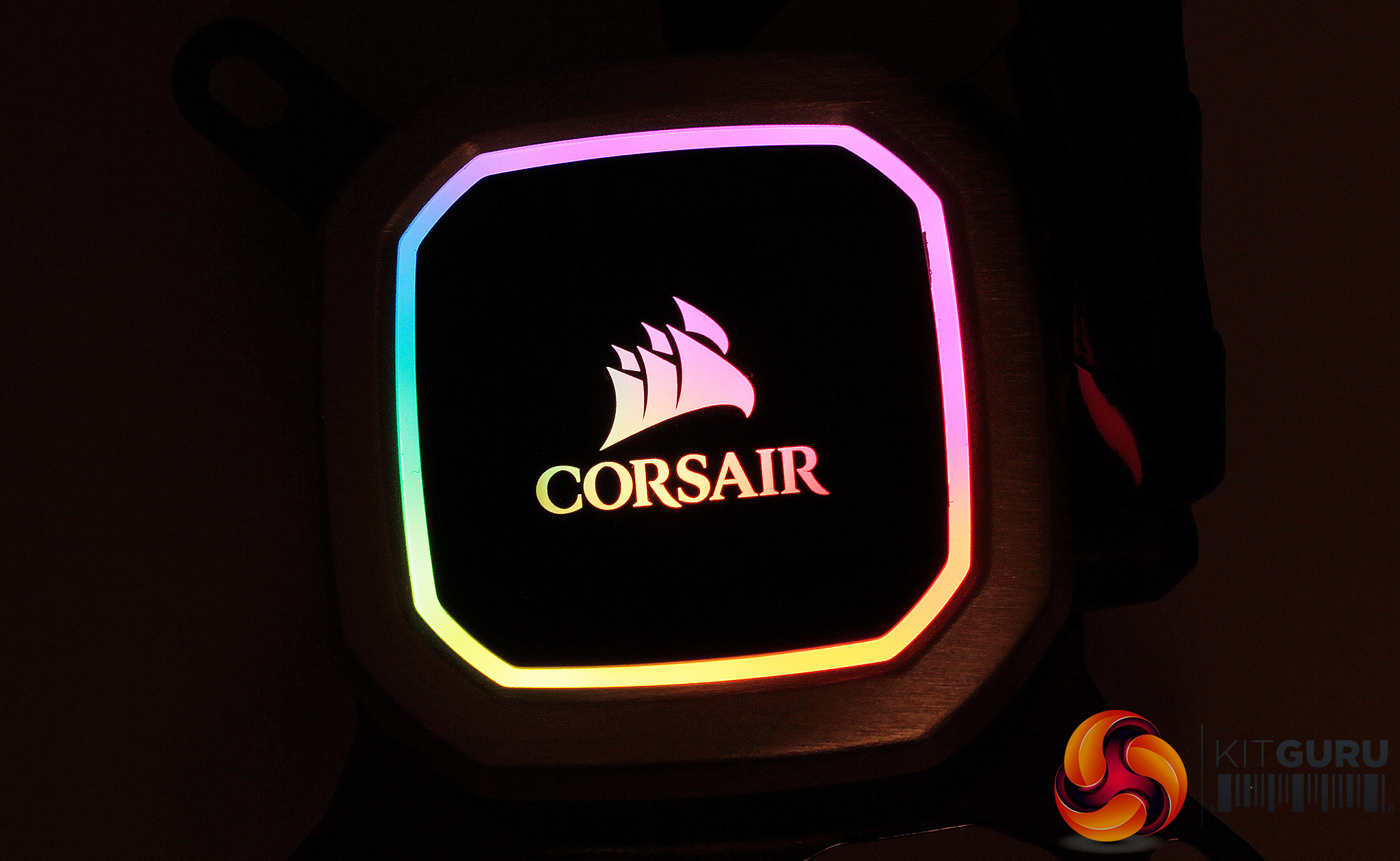
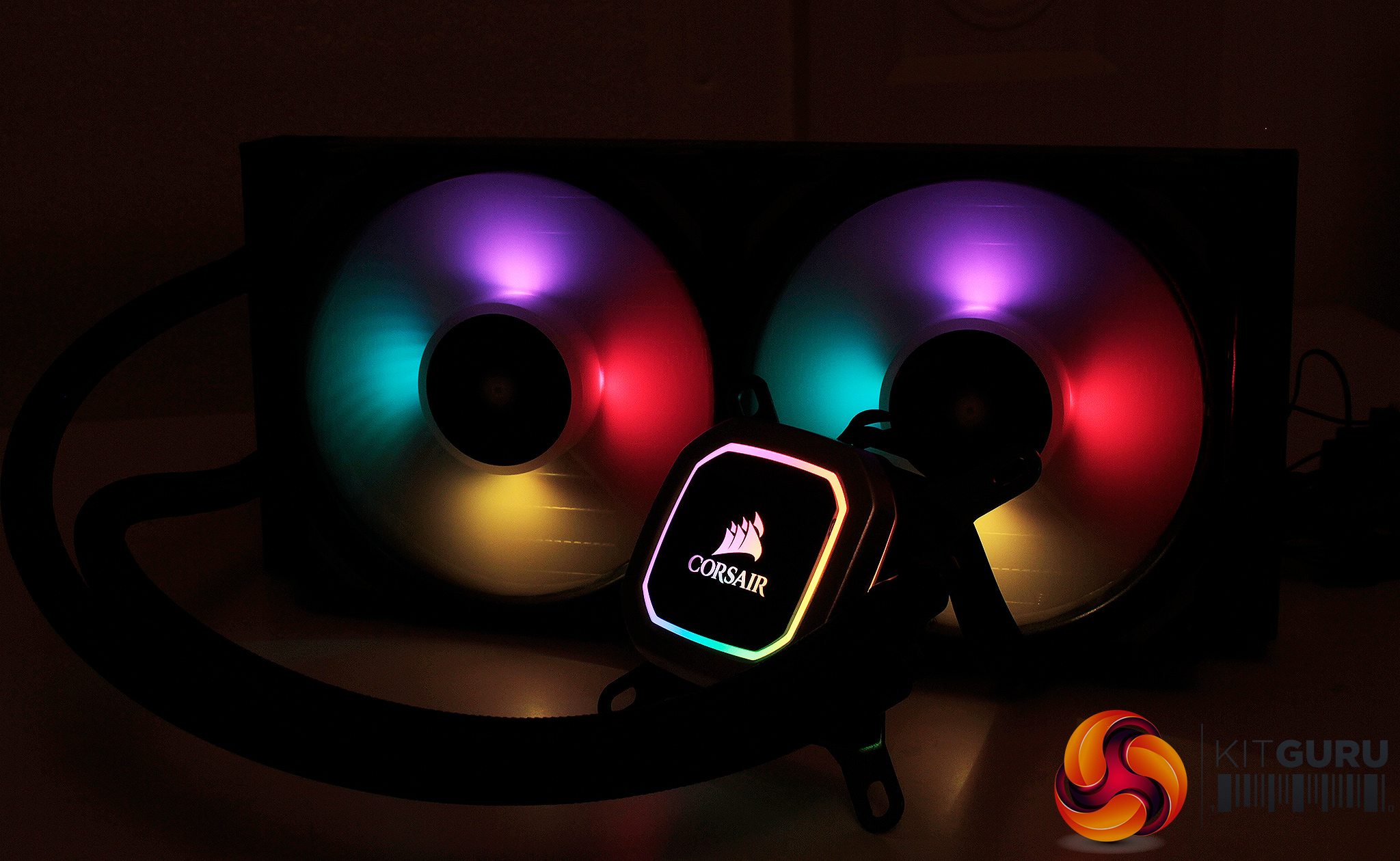
Installation is basically too less with the exception of mounting the included fans. After connecting both fans RGB connections and 4 pin PWM cables to the CPU block, plugging the SATA power connection in, and 3 pin fan cable to your motherboard you can power the cooler up where the RGB LED lighting kicks into gear.
Lighting is controlled by the iCUE software suite, and there is a massive range of customization available for not only lighting but also fans speeds and profiles. Each of the H100i's LEDs is addressable so you can really fine tune effects and colours to match your existing peripherals.
With the cooler installed, and our test rig powered up, It is time to see if the Corsair H100i's performance is as “platinum” as its name suggests.
To test all CPU coolers, we devised an easily repeatable test with no variables other than the coolers themselves. This ensures that figures from every cooler we test are comparable with each other.
Test rig
At KitGuru we have recently updated our testing setup, and now test temperatures on the Z170 platform. For the CPU we are testing with the Intel Core i7-7700K installed in a ASUS Z170 Pro Gaming motherboard. For RAM we have a single 8GB stick of Geil EVO X RGB for some added bling running at 3200MHz, and storage is handled by a 120GB SanDisk SSD Plus. Powering our bench is a Seasonic Prime Platinum 650W PSU.
The test process
For testing, we run a number of tests including 4 separate temperature readings per cooler. We first measure the idle temperature of the i7-7700K locked in at 4.0GHz before measuring its temperature under load at the same frequency.
For a representation of overclocks, we run the i7- 7700K at 4.5GHz with a 1.275 Vcore applied both at idle and load. The temperatures we present are temperature deltas, where the ambient temperature of the testing environment is deducted from the temperature taken from the CPU for both idle and load. We are aware that a 4.5GHz overclock with a 1.275 Vcore applied is not representative of the best setting possible for the i7-7700k, but this does allow us to simulate performance of coolers whether you are using a less powerful CPU such as an i3 or i5 processor, or a more powerful hotter CPU like our overclocked i7-7700k.
An idle reading comes from leaving Windows on the desktop for 15 minutes. A load reading comes from running Prime95’s (version 26.6) Small FFTs test for 15 minutes – enough time for temperatures to plateau. We use HWInfo64 v5.82 to measure temperatures.
Noise output
We measure noise levels with our sound meter positioned 1 foot away from the test bench. The peak noise level is presented. We have measured the noise floor (i.e. ambient noise levels of the room) to be 34 dBa, and when tested at stock clocks, the vast majority of coolers do not emit noise levels above this figure. Thus, we present one chart with noise levels taken during our overclocked CPU test run.
Temperatures
All temperature charts are sorted with lowest load temperatures at the top.
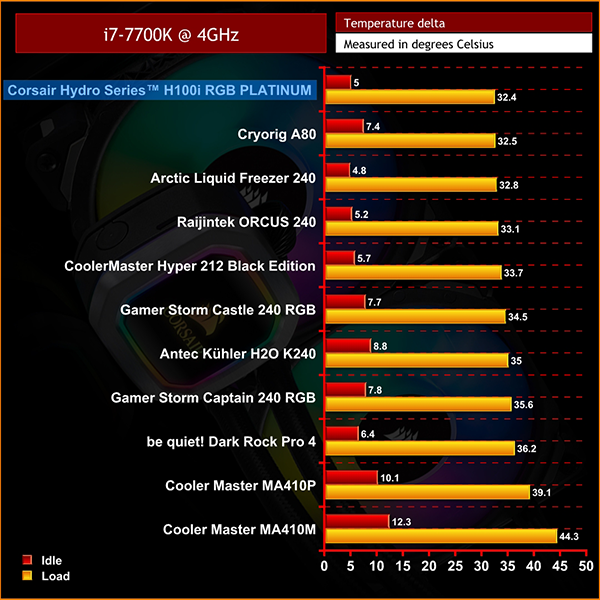
It is worth mentioning that to ensure consistency in our testing we elected not to connect the included fans to the iCUE software rather directly to our test motherboard with a 4 Pin PWM splitter. This is to ensure that our testing is as fair as possible, and more consistent with previously tested coolers which do not depend on software.
At 4Ghz locked in the coolest cooler tested, even compared to the 280mm Cryorig A80, and generally the lowest temps across the board. This is quite staggering, and after a number of passes to ensure the accuracy of these results they came back the same with maybe a degree or so of difference.
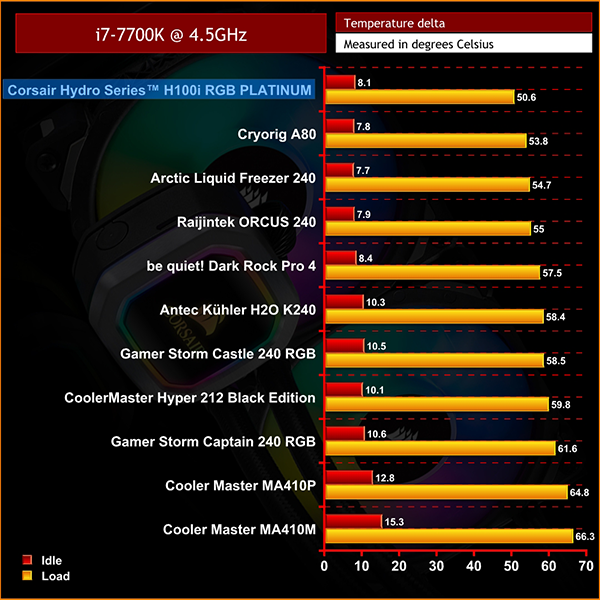
Moving up to our 4.5GHz overclock, the same results follow. Even when overclocking the Intel 7700K, we still see super low temps, just above 50 degrees at full load.
Our idle temps are a little higher at both 4GHZ and 4.5GHz but it's really hard to excuse these load temps. For performance the H100i Platinum is the best for temperatures for both at stock, and when overclocking.
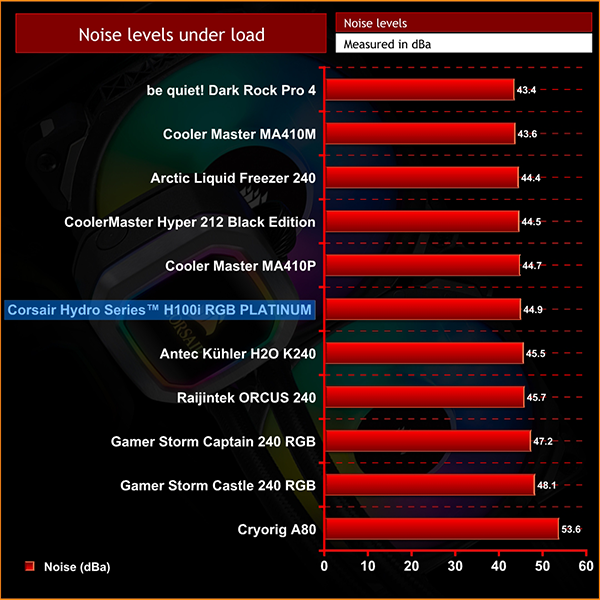
Temperatures may be great but at the sacrifice of lower audible noise. The H100i although great with temperature, is a little louder than previously tested coolers at 44.9 DBA. In my testing, I will admit that at idle, the H100i was barely audible, and actually had me running over to our bench on a couple of occasions to make sure it was still on.
Overall, the Corsair H100i Platinum RGB is pretty astounding. Cooling performance is some of the best we've seen on our new test setup, and although not the quietest cooler tested, results are still pretty remarkable on this front with the H100i sitting in the middle of the pack.
The H100i's cooling performance was so impressive that I thought something was wrong, but with further testing and re-testing, the H100i proved to be one of the best AIO coolers we have tested. Further customization of fan profiles will likely bring noise levels down, with only a small sacrifice in performance. As there is so much flexibility within the iCUE software it would be relatively simple to fine-tune temperature against noise, to your preference.
The RGB lighting is great and the ML pro fans look amazing. We like the subdued appearance of the the block and the software support is faultless. The Corsair IQ software is a massive feather in the cap, and it really is a great ecosystem. Compared to some other AIO 240mm coolers the £124.99 asking price may seem a little on the high end, but you do get a whopping amount of value for your money. The icing on the cake is that the build quality is also stellar.
The Corsair H100i Platinum RGB is genuinely impressive considering the great performance, and massive lighting flexibility. If you want total control of a cooler both for temperatures, and aesthetics, it’s definitely comes very recommended.
The Corsair H100i Platinum RGB is currently available directly from Corsair for £124.99 inc. VAT HERE.
Pros
- Super easy installation.
- Brilliant customizable RGB lighting backed up by great software.
- Great performance and temperatures even when overclocking.
Cons
- Not the quietest cooler tested.
- The CPU block cover could be a little more open, to improve illumination further.
KitGuru says: If you are considering an AIO liquid cooler that offers a massive range of configurable lighting and great cooling performance the H100i Platinum RGB is an educated purchase. At £124.99 it is a little more expensive than some other RGB 240mm coolers – however the ease of installation, clean aesthetic, brilliant lighting, and amazing performance make the Corsair H100i Platinum RGB one of the finest coolers we have tested.