KitGuru KitGuru.net – Tech News | Hardware News | Hardware Reviews | IOS | Mobile | Gaming | Graphics Cards


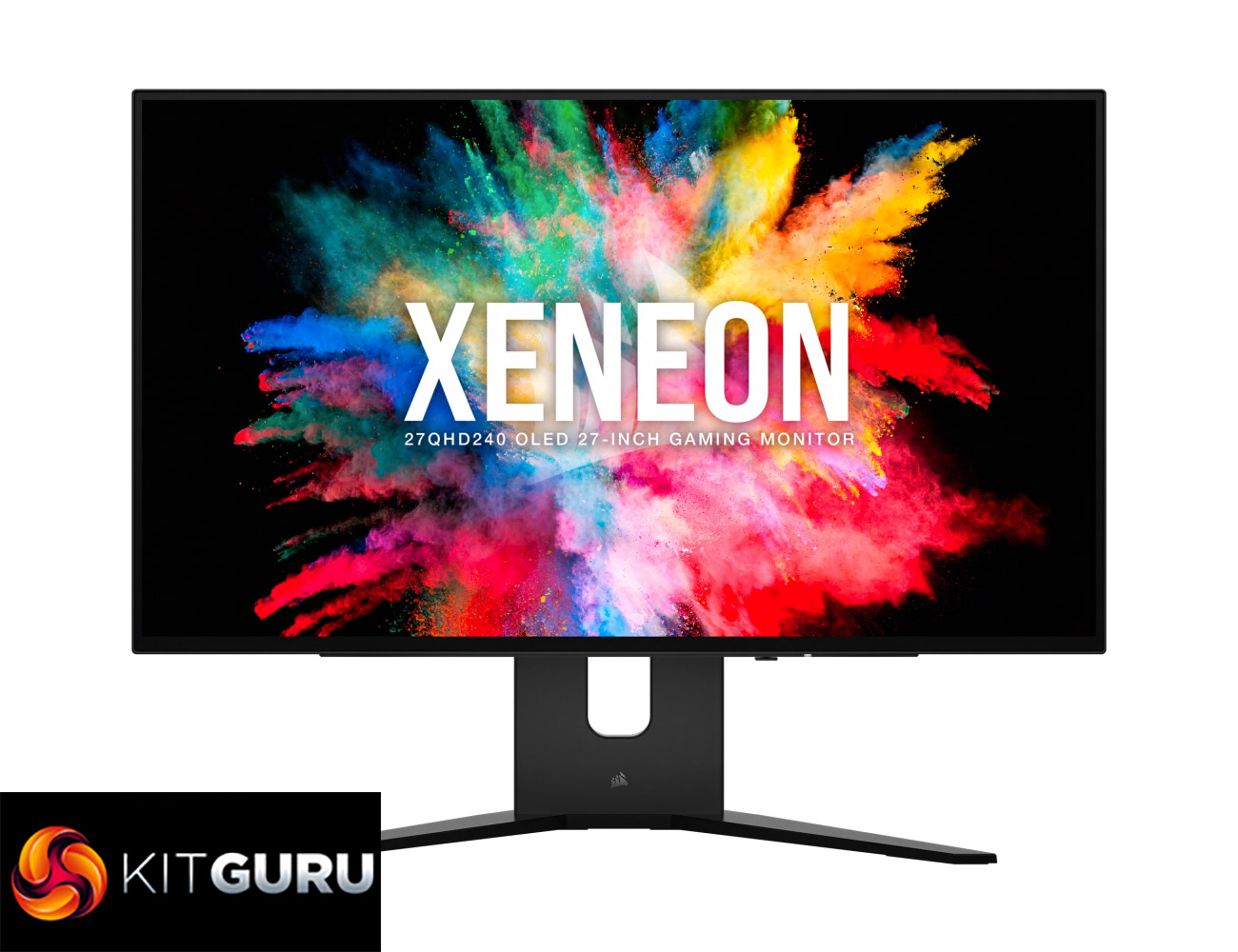
Corsair announced itself in the high-end monitor market with the launch of the monstrous 45in Xeneon Flex OLED last year. Today we're following up on something slightly more conventional, but still impressive – a 27in 1440p OLED display with a 240Hz refresh rate. Promising excellent HDR, infinite contrast and effectively instant response times, we put the Xeneon 27QHD240 through its paces and find out if it's worth the £1000 asking price.
Utilising an OLED panel manufactured by LG, the Corsair Xeneon 27QHD240 is a very attractive monitor on paper. We know how good OLED screens are for gaming, and driving competitive multiplayer titles at 240Hz doesn't require that much GPU horsepower either. Let's see what this screen can do.
Specification:
- Native Resolution: 2560×1440 (16:9)
- HDR Certification: None
- AC Adapter: 180W
- Display Technology: OLED
- Flicker Free: Yes
- Display Inputs: 2x HDMI 2.1, 1x DisplayPort 1.4, 1x Type-C DP Alt-Mode
- Display Surface: Non-Glare
- Display Colors: 1.07B (10-bit RGB)
- Static Contrast Ratio: 1,500,000:1
- Peak Brightness: 450 nit peak brightness, 800 nit @10%APL, 1,000 nit@3% APL
- Color Gamut: 98.5% (DCI-P3), 100% (sRGB)
- Response Time: GtG 0.03ms
- Adaptive Sync: NVIDIA G-Sync Compatible;Yes
- Screen Size: 27”
- Refresh Rate: 240Hz
- Max Resolution: 2560×1440 (16:9)
- Warranty: 3 Years / Zero Dead Pixels
- Adjustable Height: 100mm
- Weight: 9.1kg
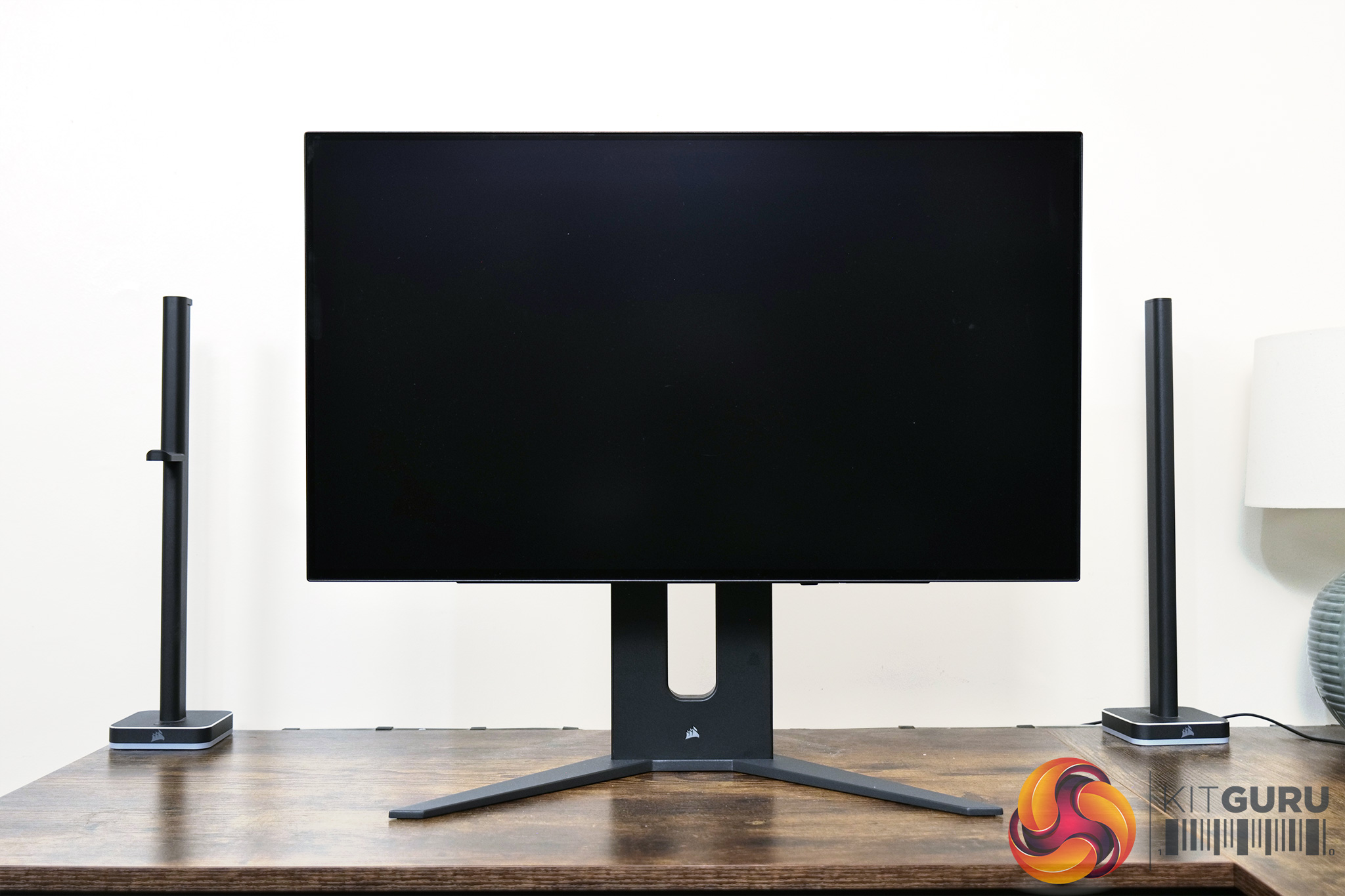
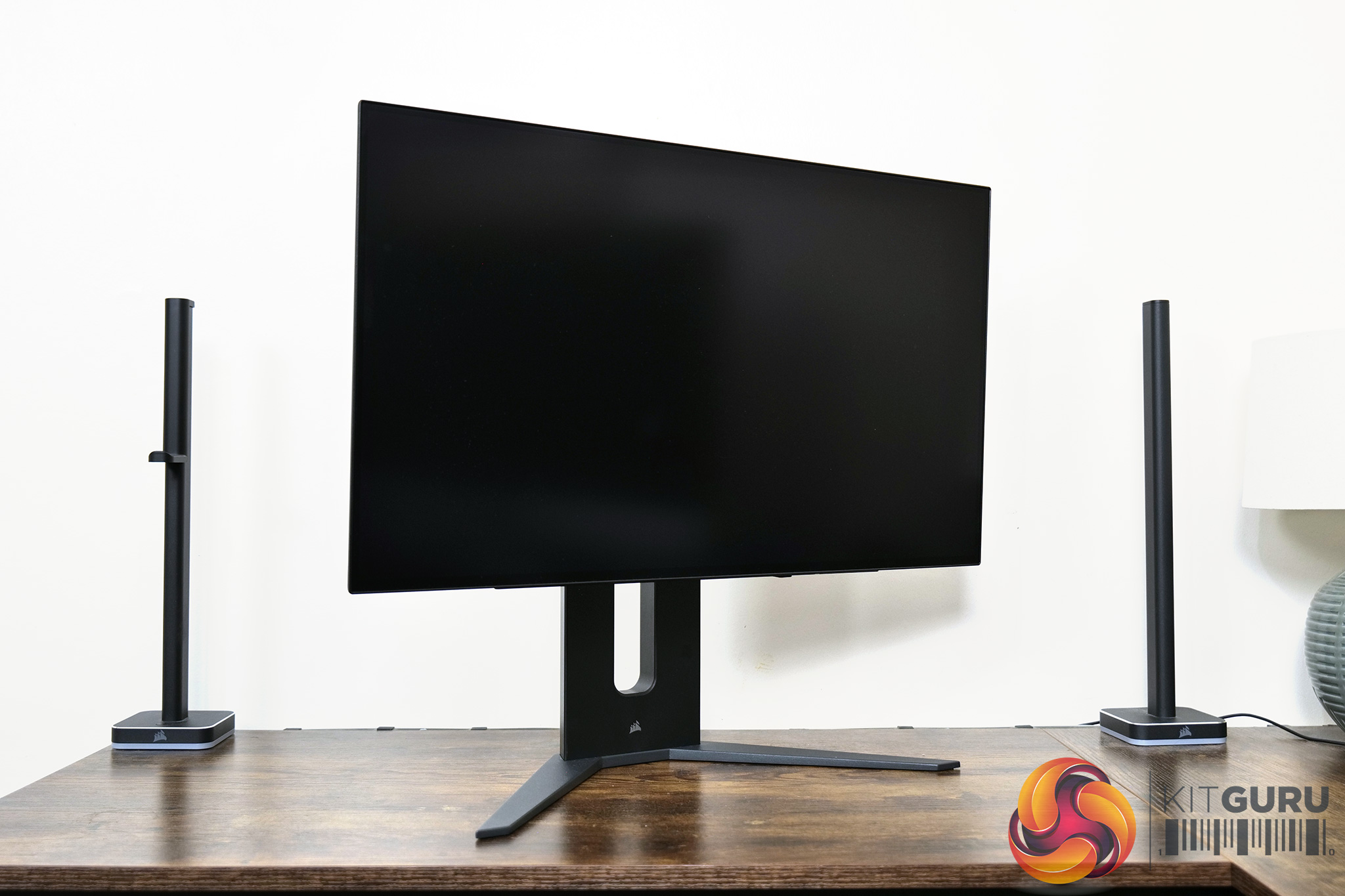

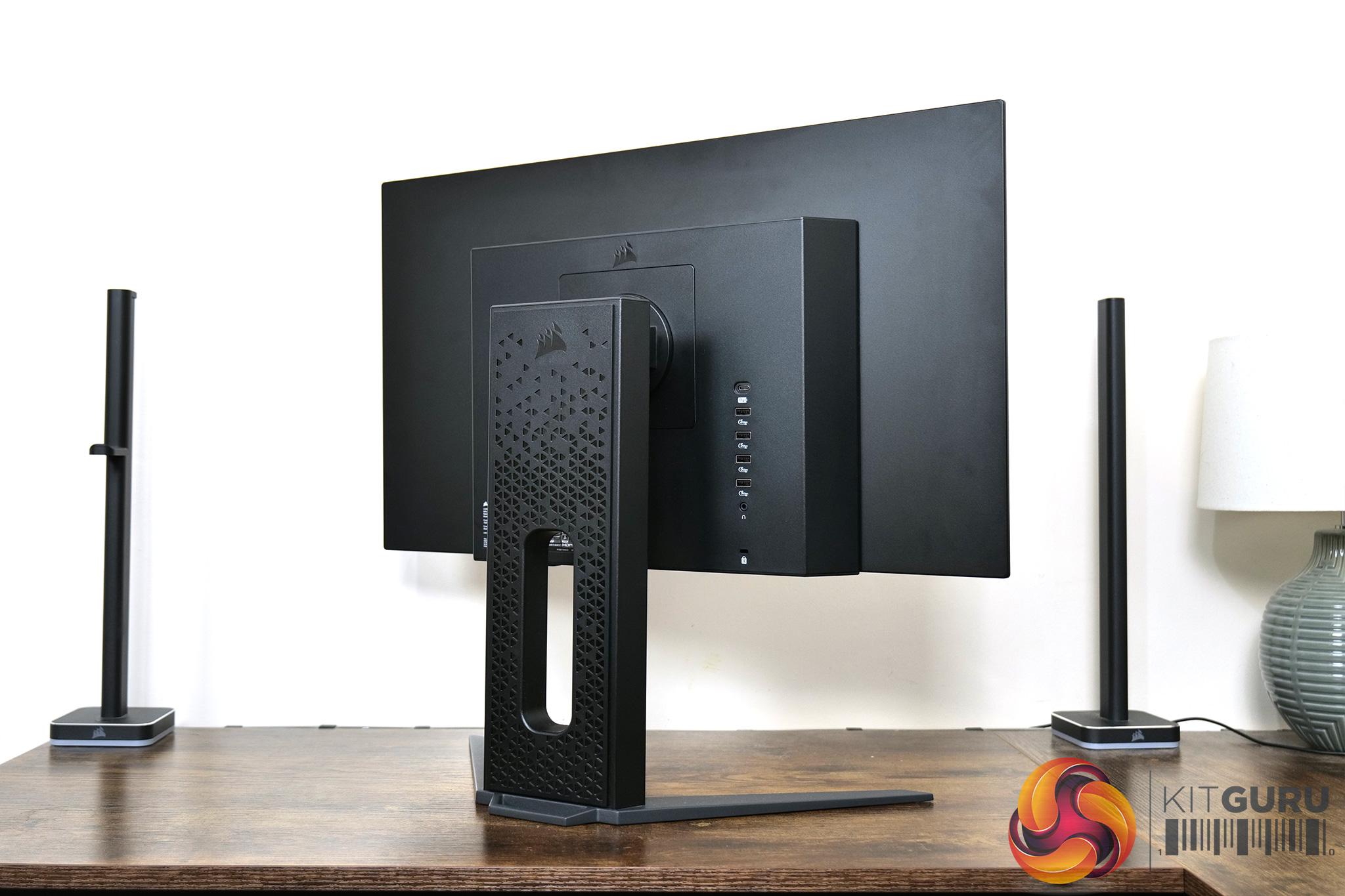
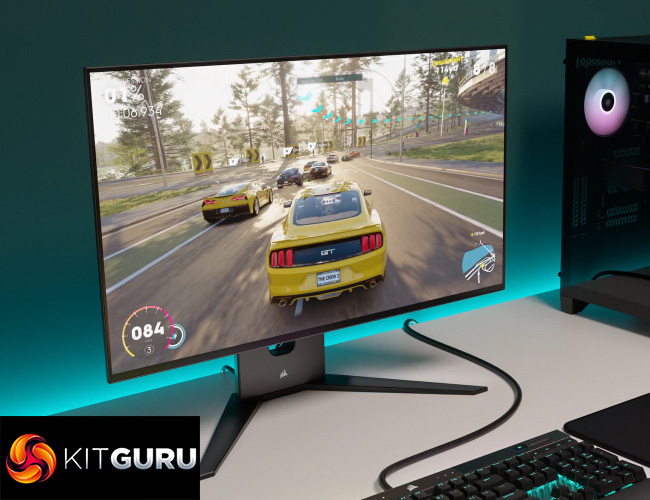
Starting with a look at the design of the Xeneon 27QHD240, Corsair has gone for a slightly different direction compared to its earlier models like the 32QHD165. Gone is the massive, and dare I say garish, stand and instead we have something sleeker, with a metallic v-shape foot that measures 46cm across, while the screen bezels are now barely noticeable on all four sides.
The front is devoid of any branding, save for a very small Corsair logo at the base of the stand. Round the back there are a couple more glossy Corsair sails logos, while the stand is covered with Corsair's signature triangle design accents.
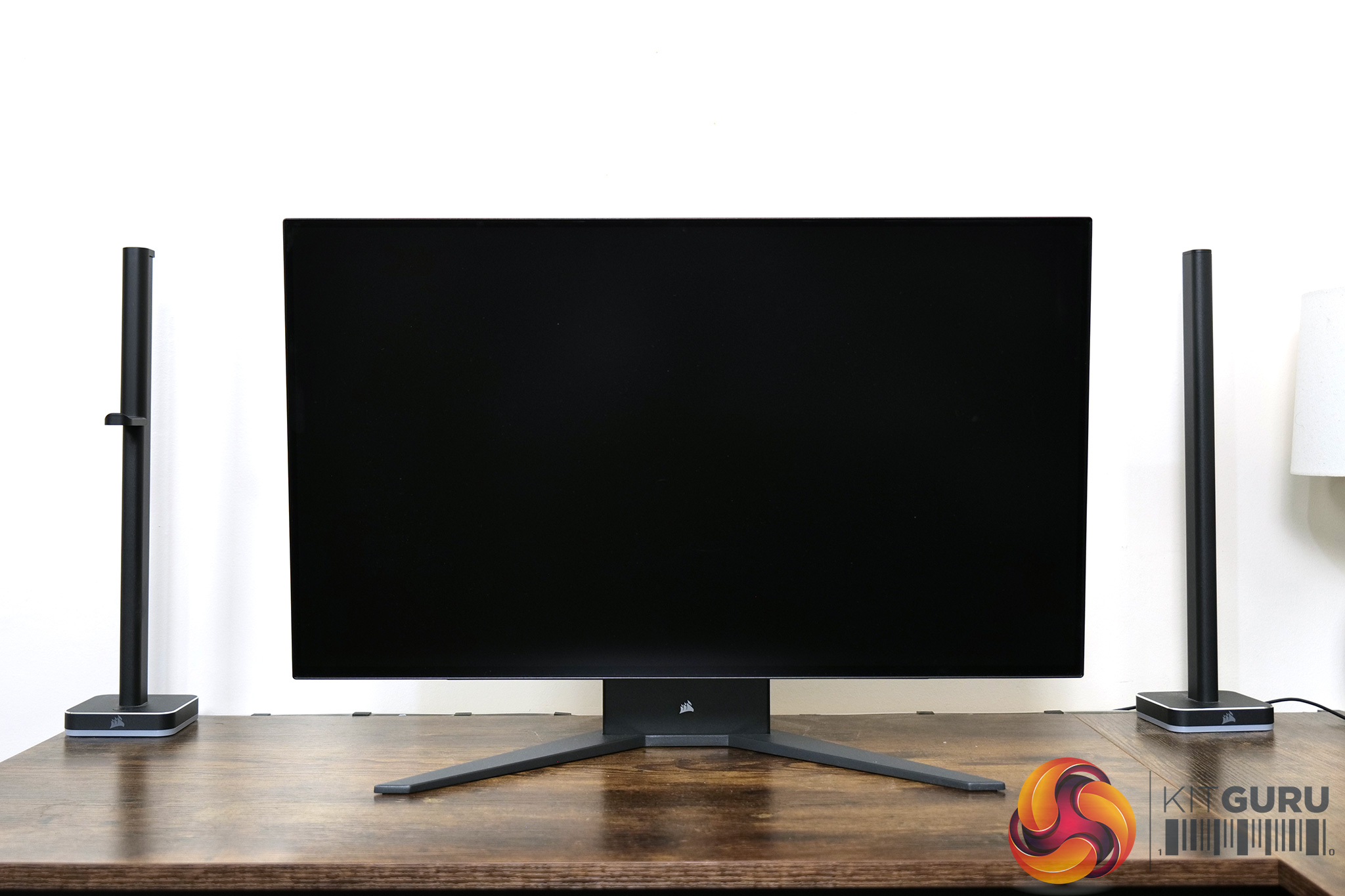
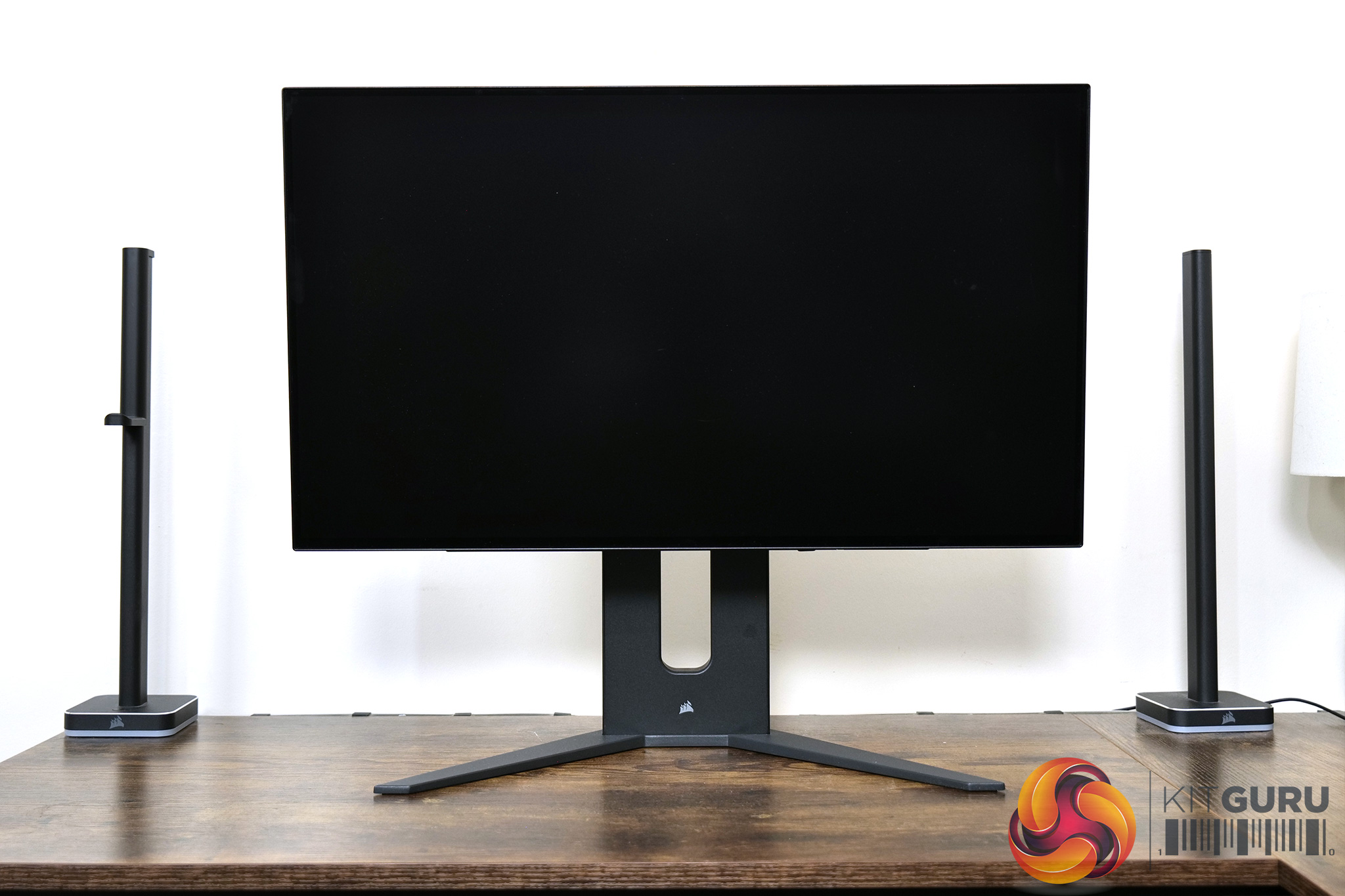
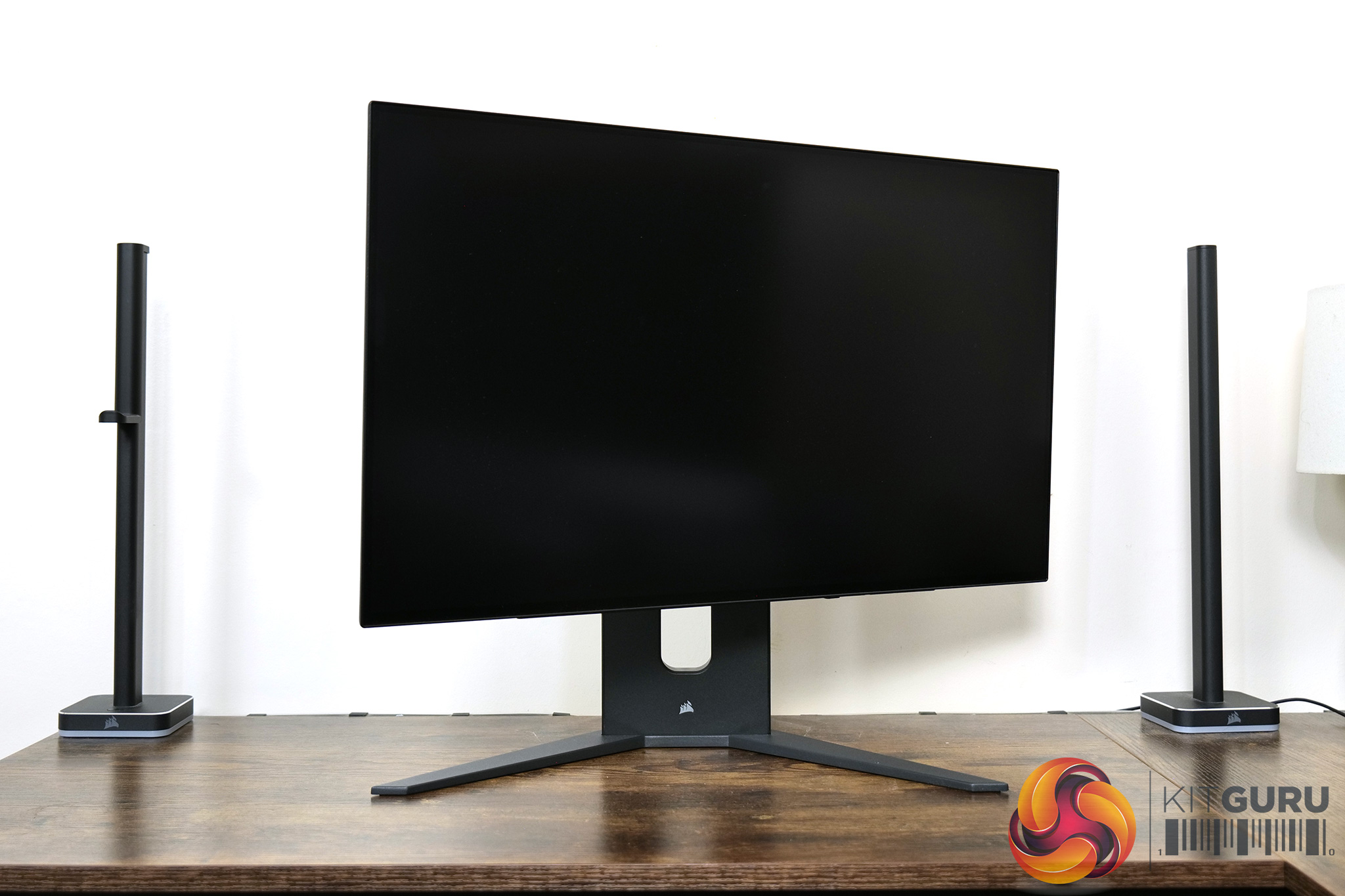
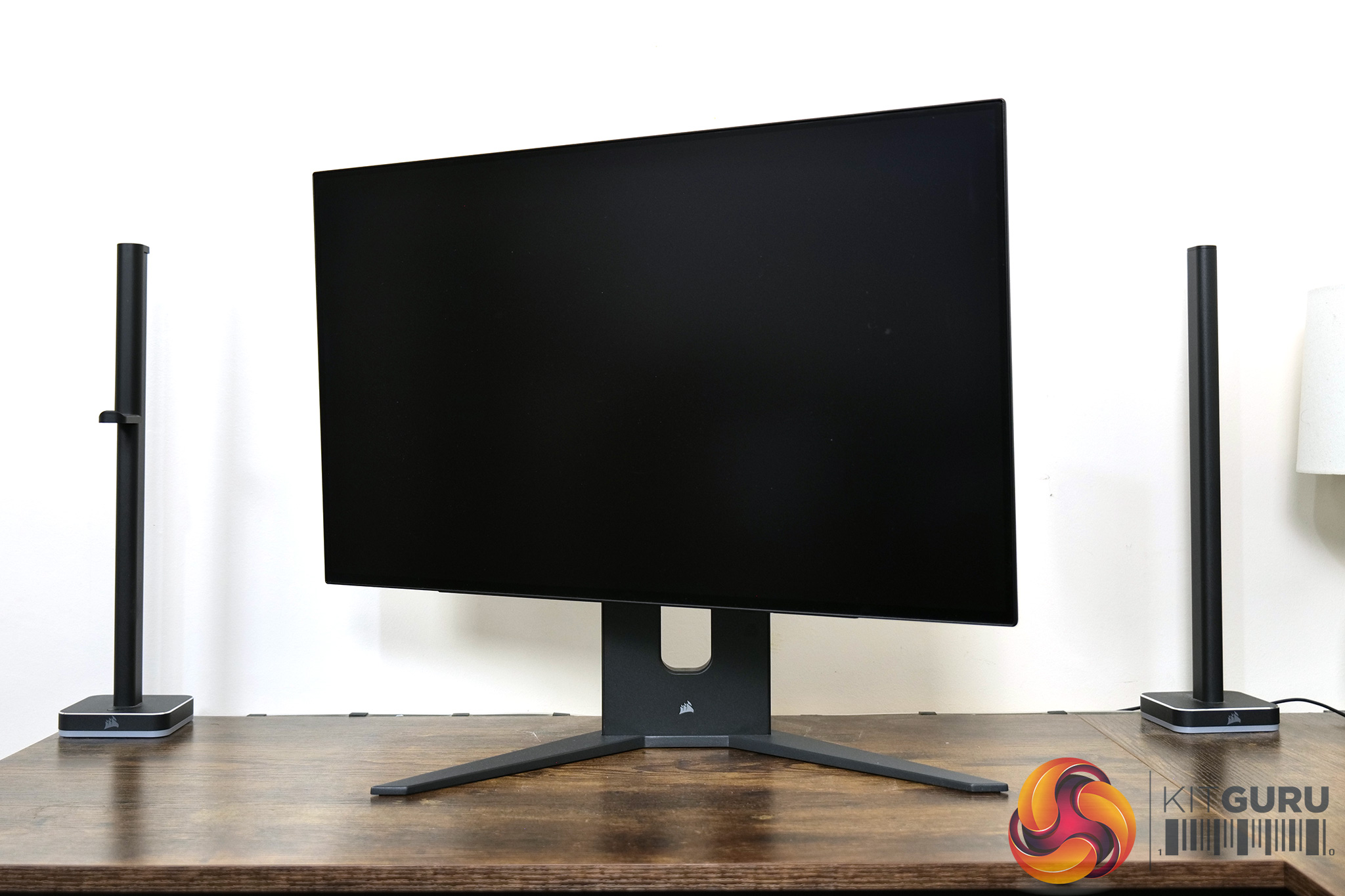
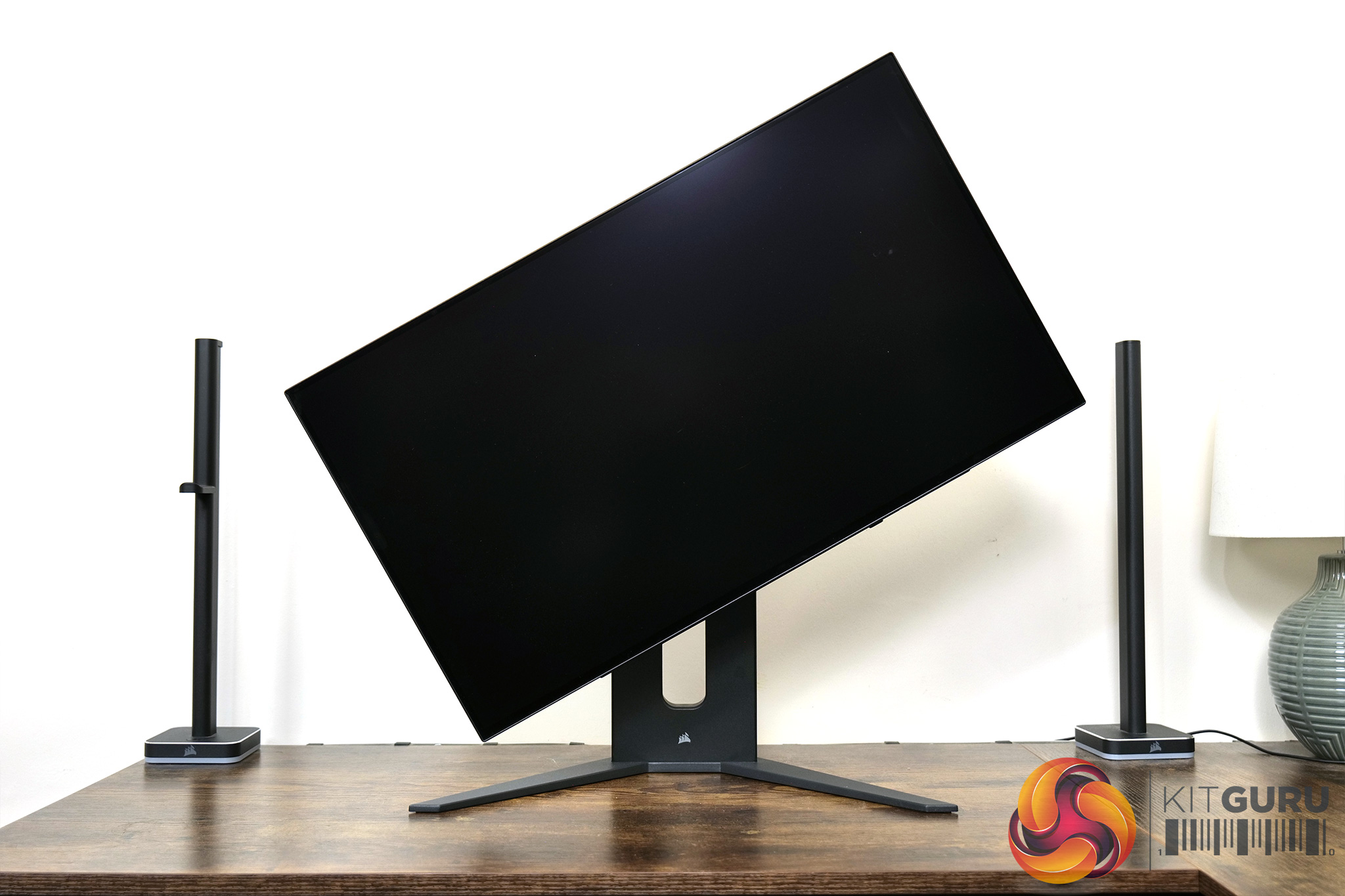
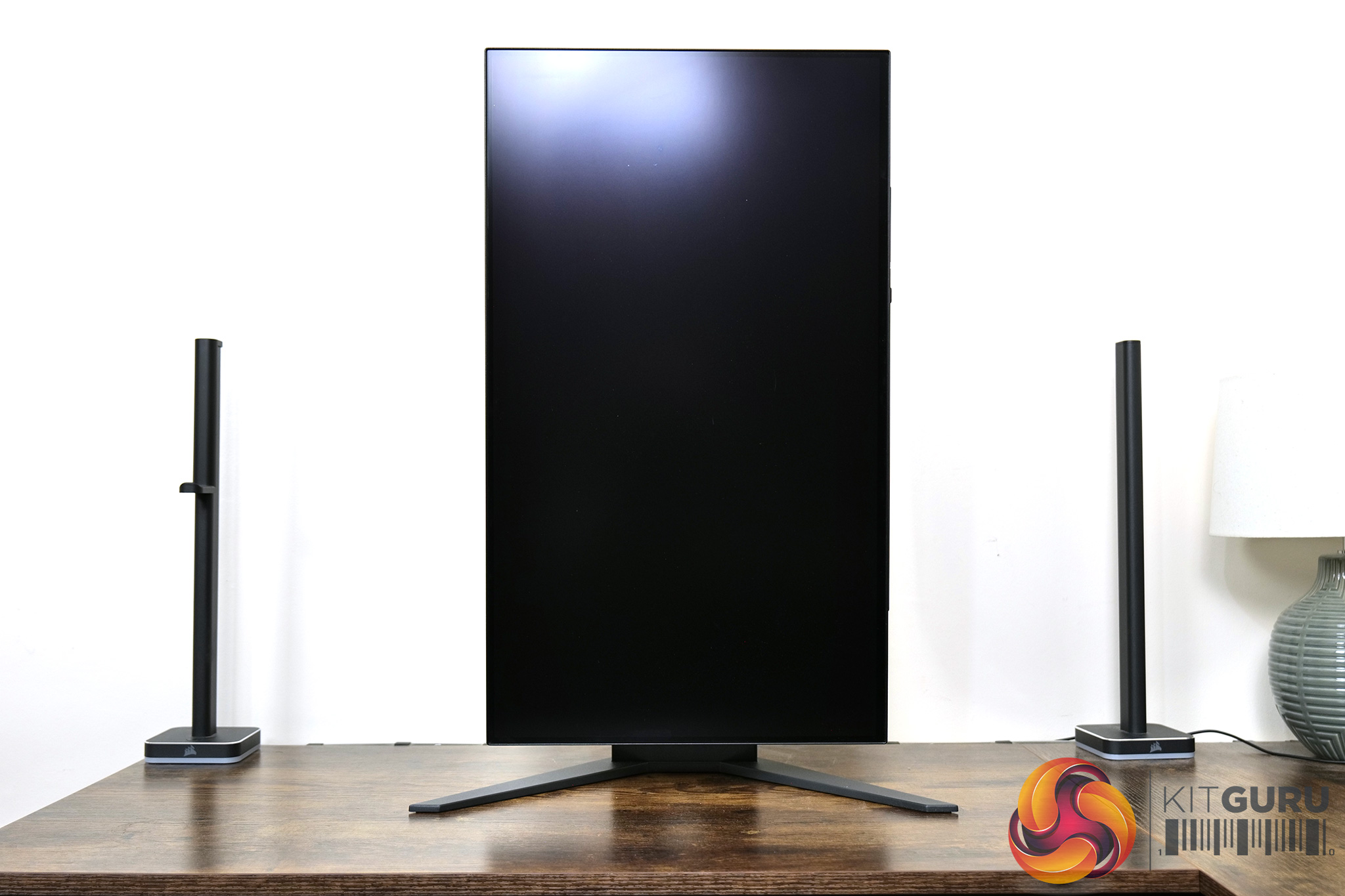
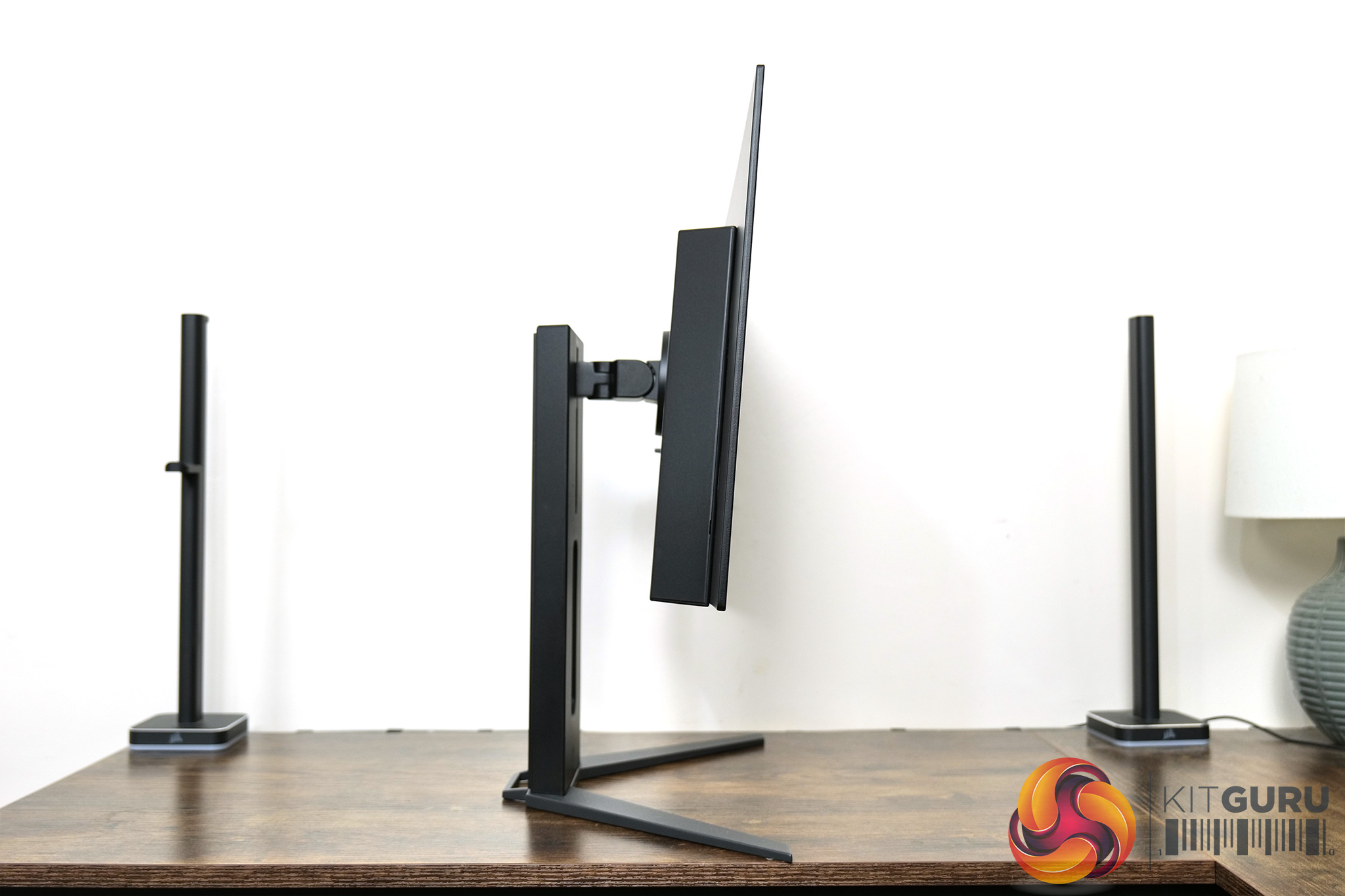
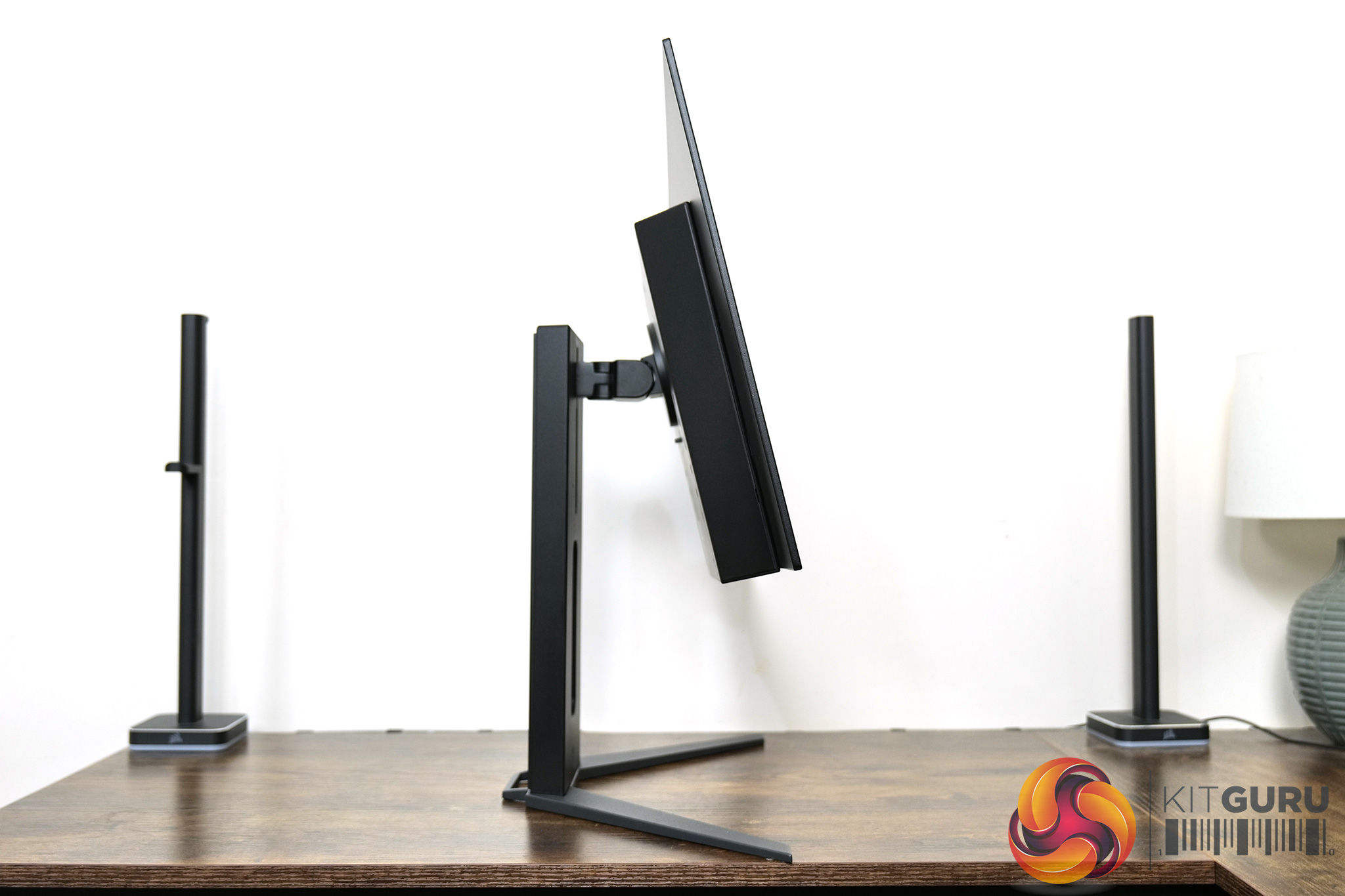
Speaking of the stand, this offers the full array of ergonomic adjustments. That includes up to 100mm of height adjust, 30 degrees of swivel both left and right, tilt from 7 degrees downwards to 15 degrees upwards, and even 90 degree pivot, so you can use this vertically if you want to. Third-party Vesa 100×100 mounts are also supported.
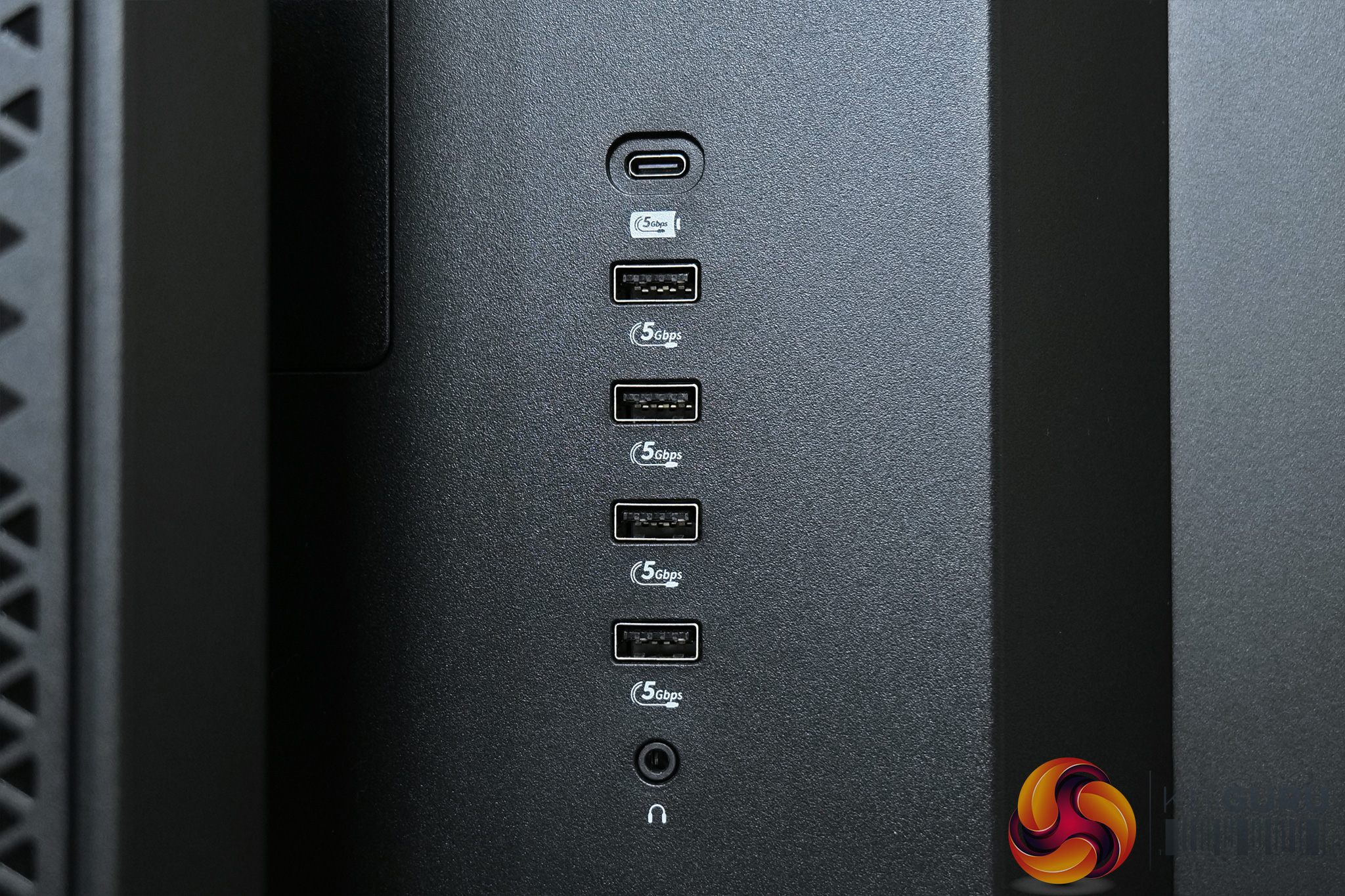
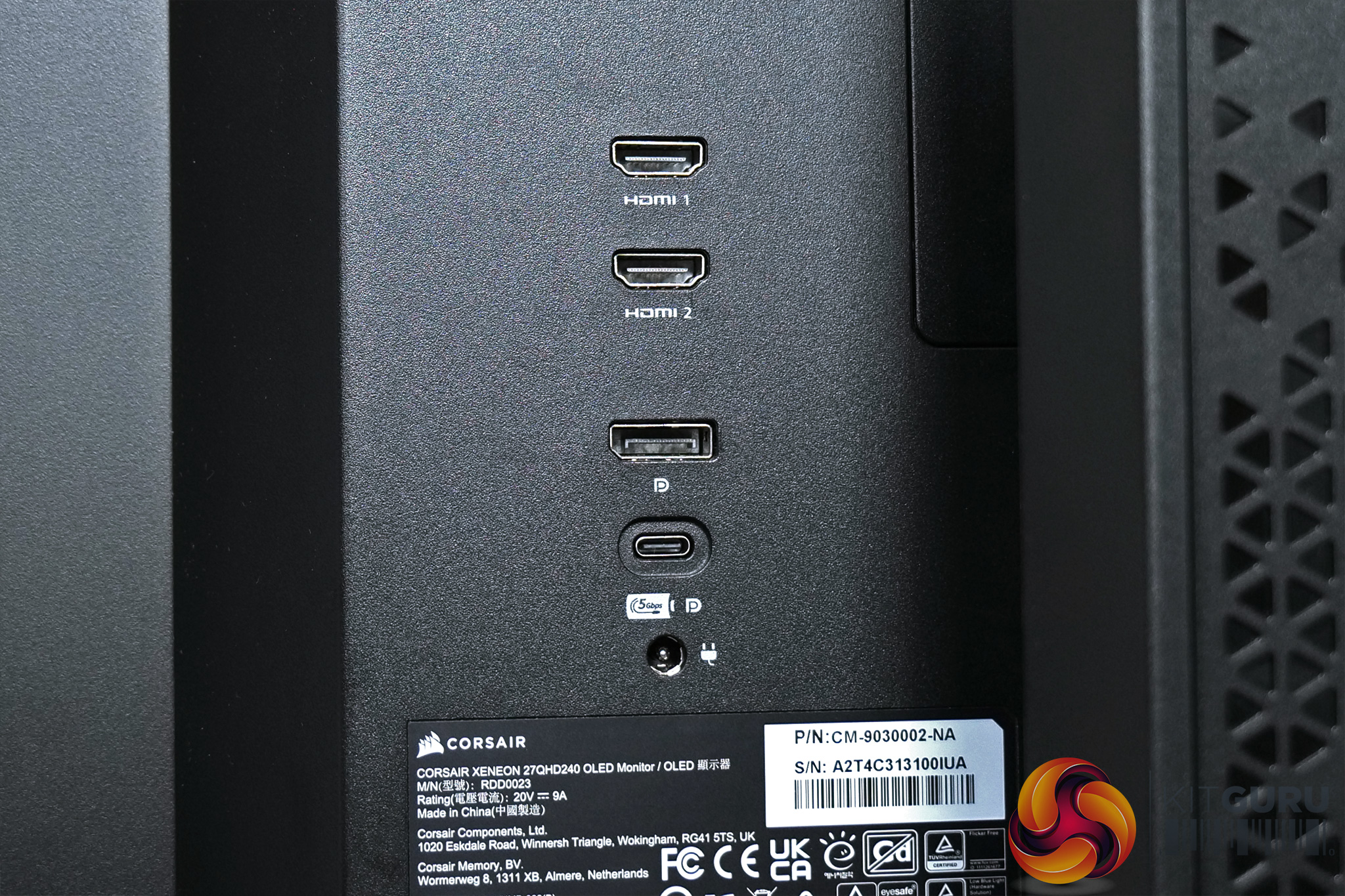
Unlike most monitors which fit the connectors facing downwards, the 27QHD240 has positioned all of its ports right on the back of the screen so they face outwards. They're split into two sections – on the left we find the USB hub, with a USB-C upstream cable and then 4x USB type-A downstreams (5Gbps) as well as an audio jack. On the right hand side we have the power input, a USB-C that offers 65W charging and DP-Alt mode, a full-size DisplayPort 1.4 connector and then 2x HDMI 2.1 ports.
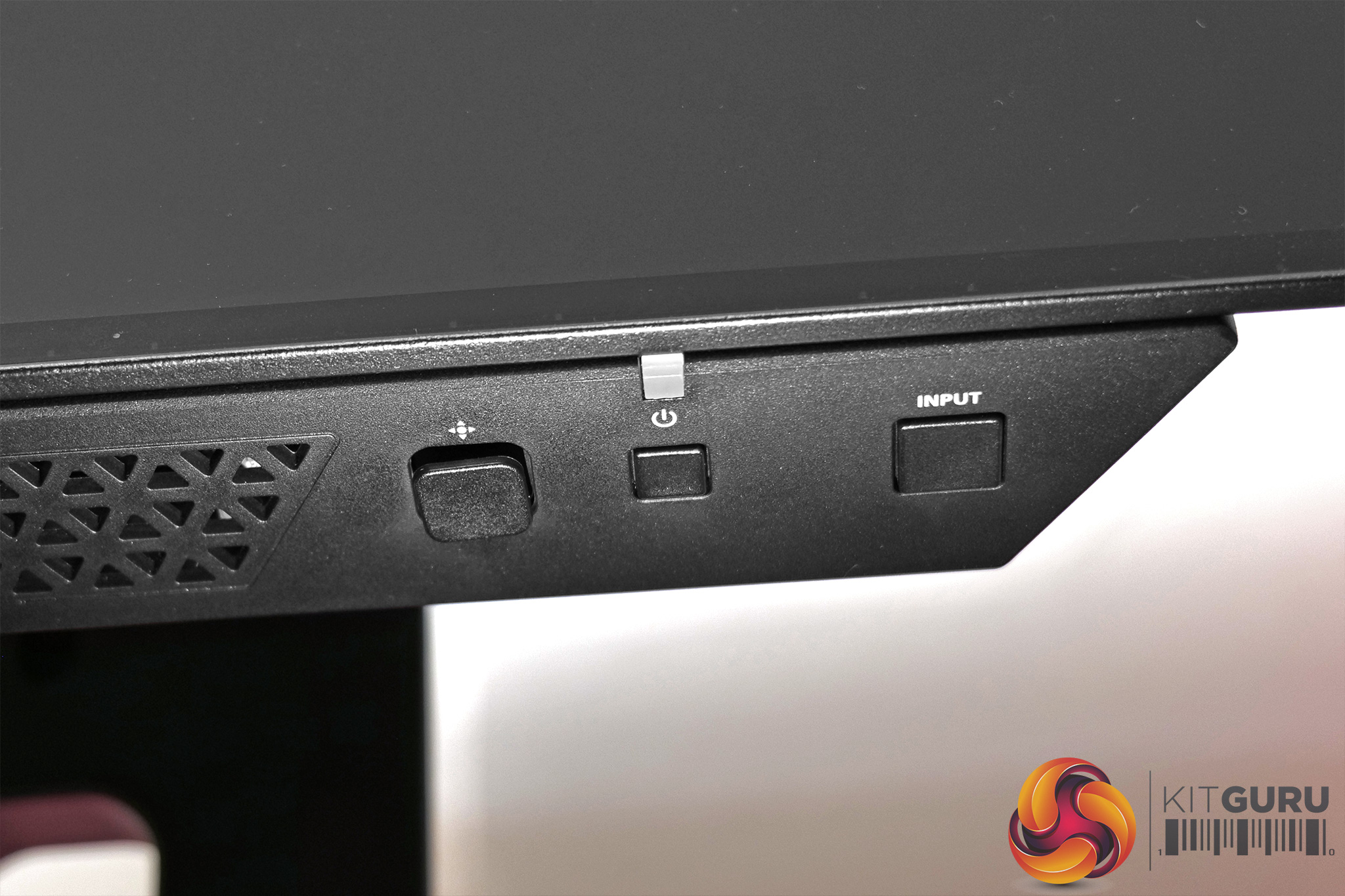
Lastly, on the underside of the front panel, we find three small buttons. One selects the display input, one is a power button, and there's a 5-way joystick used to navigate the OSD.
The OSD is split into seven main tabs – Picture, PIP/PBP, OSD Setting, System Setting, Audio, Input Source, Information:
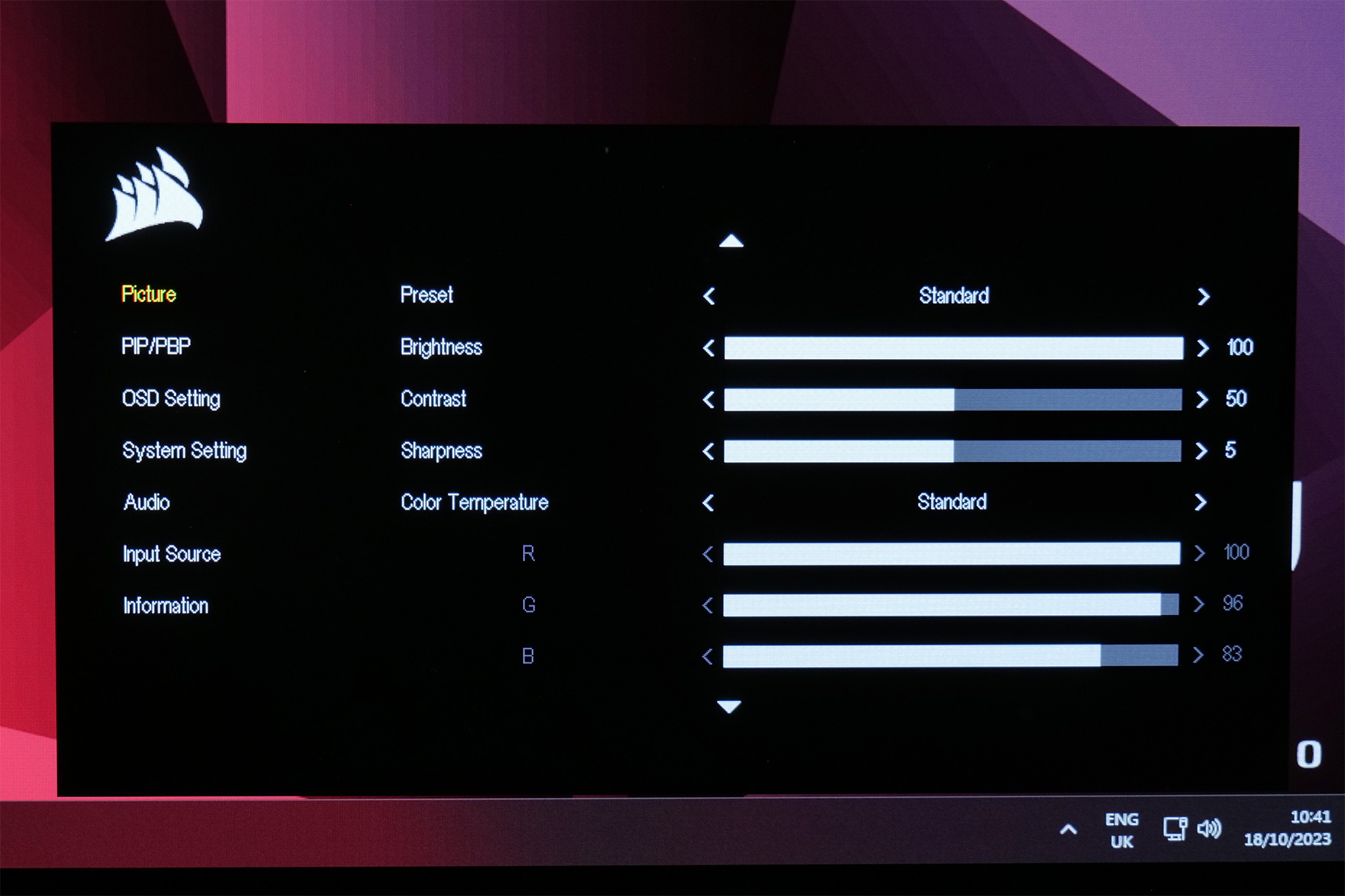
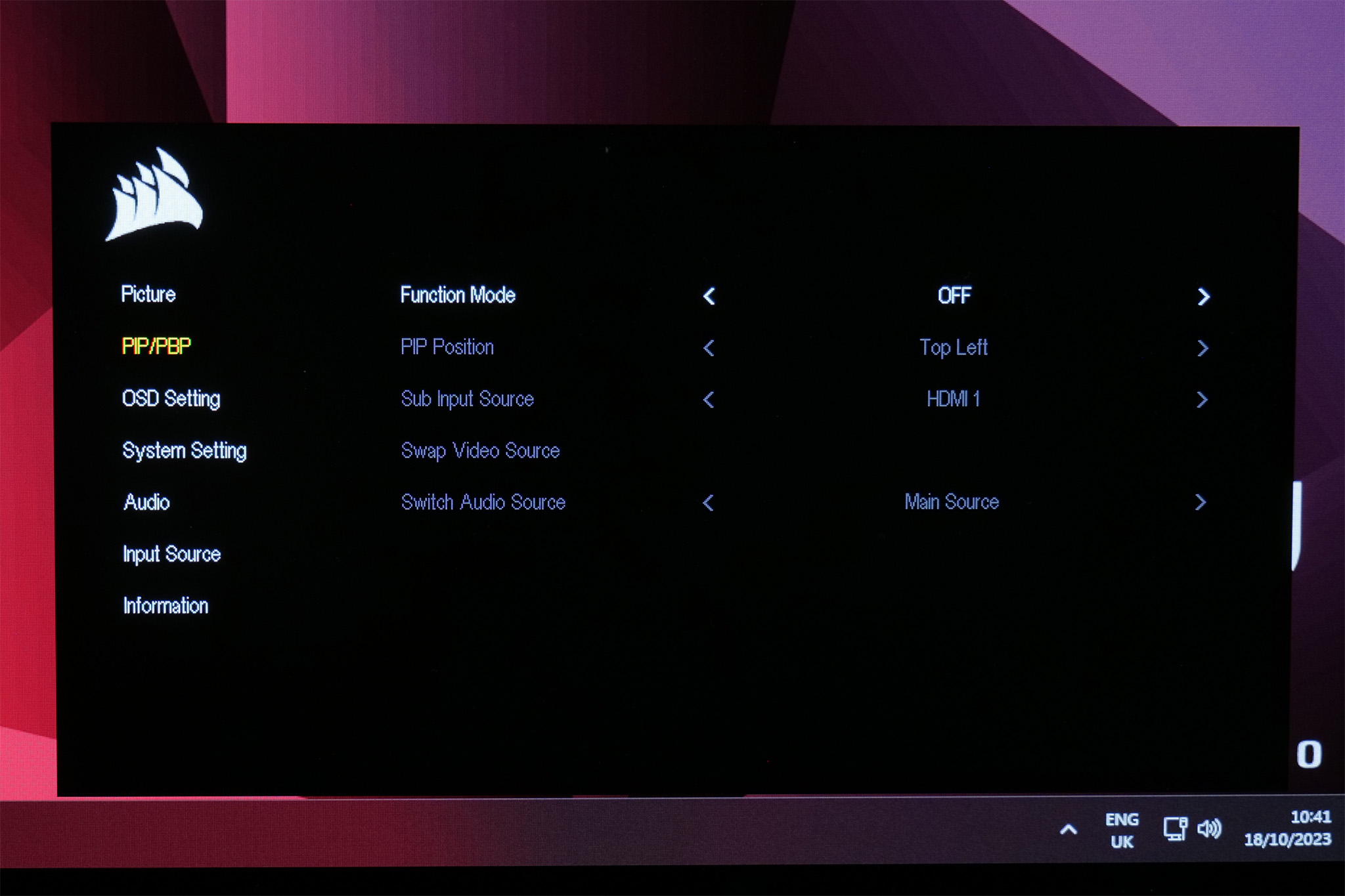
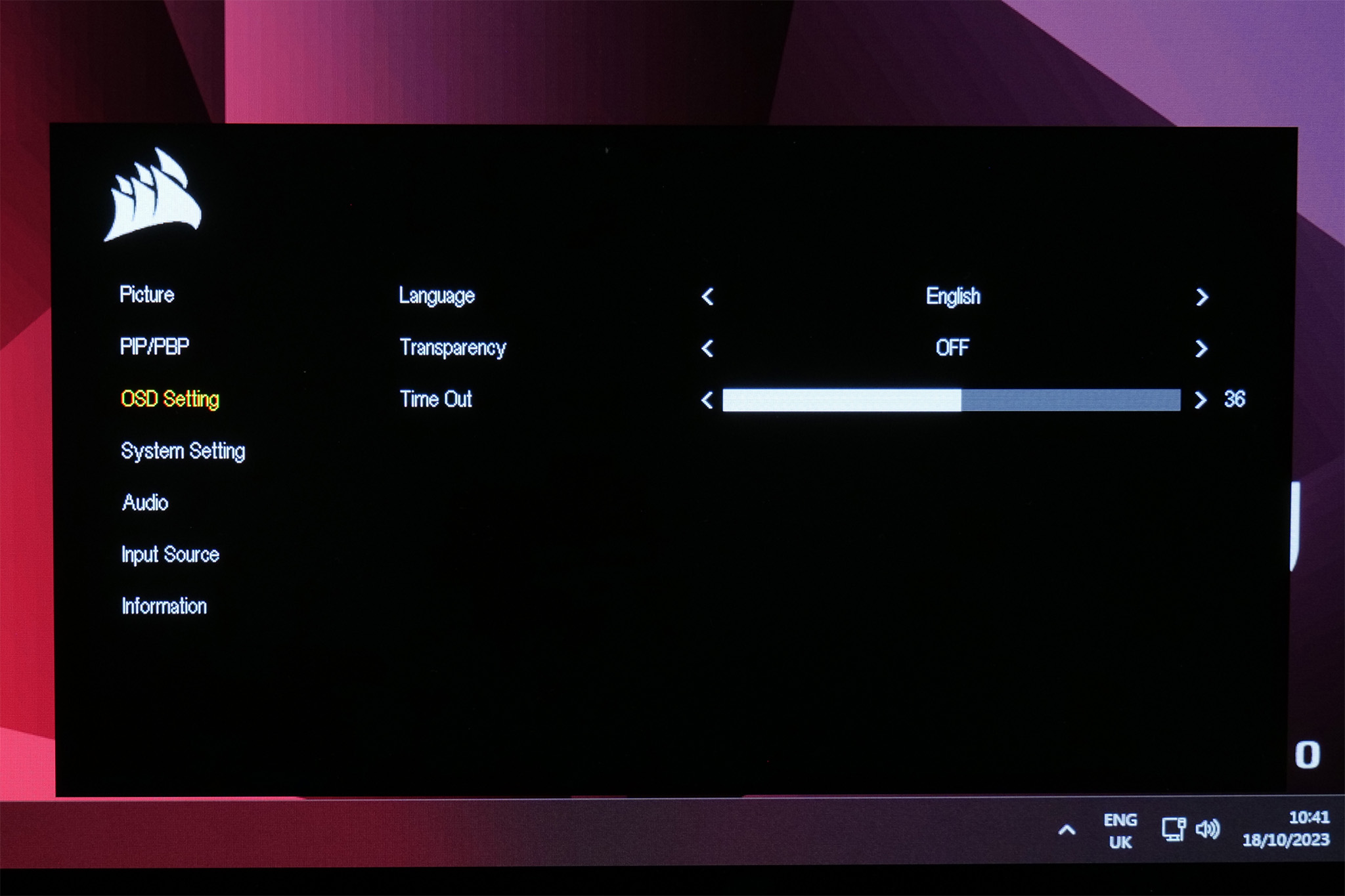
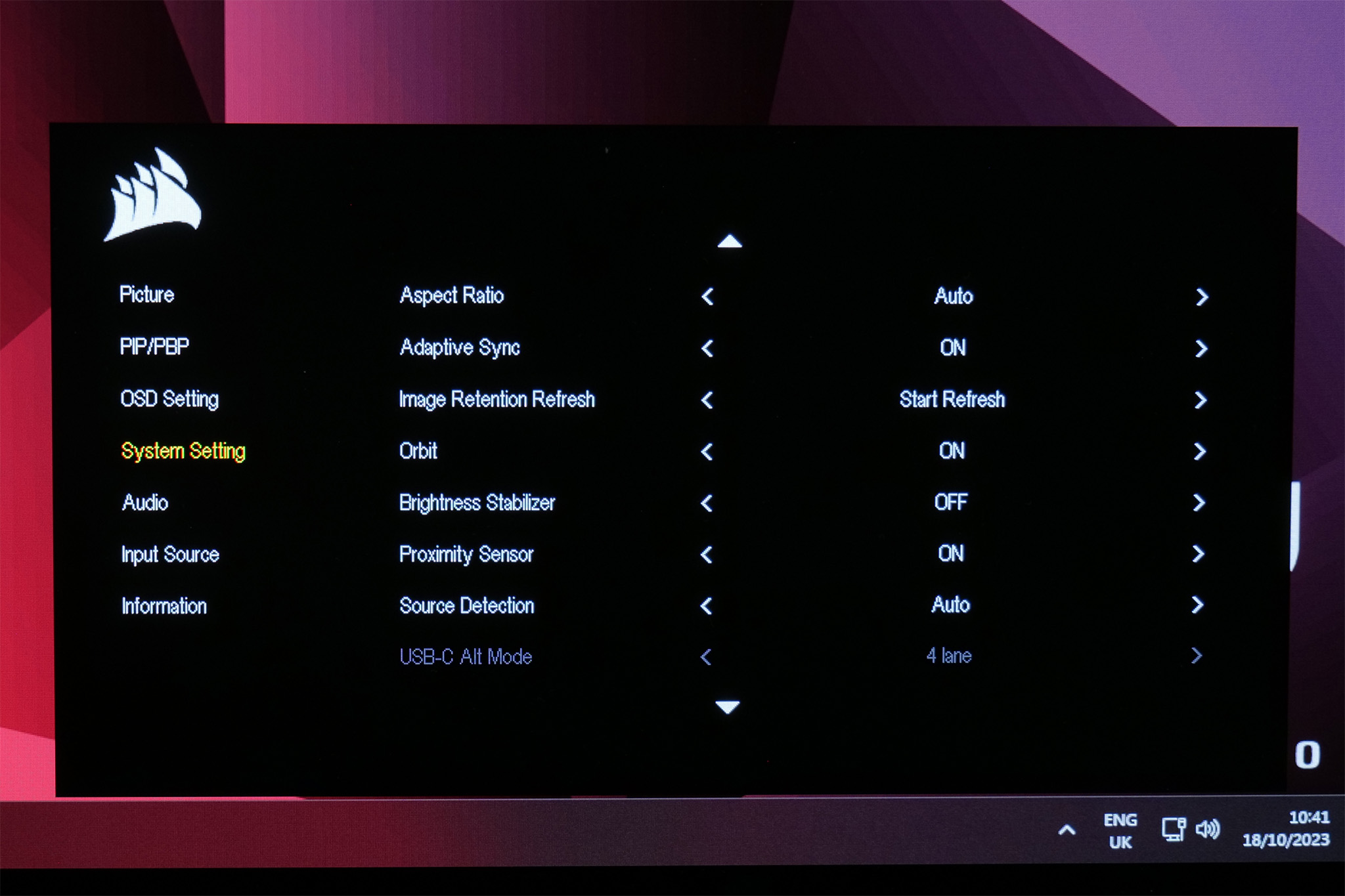
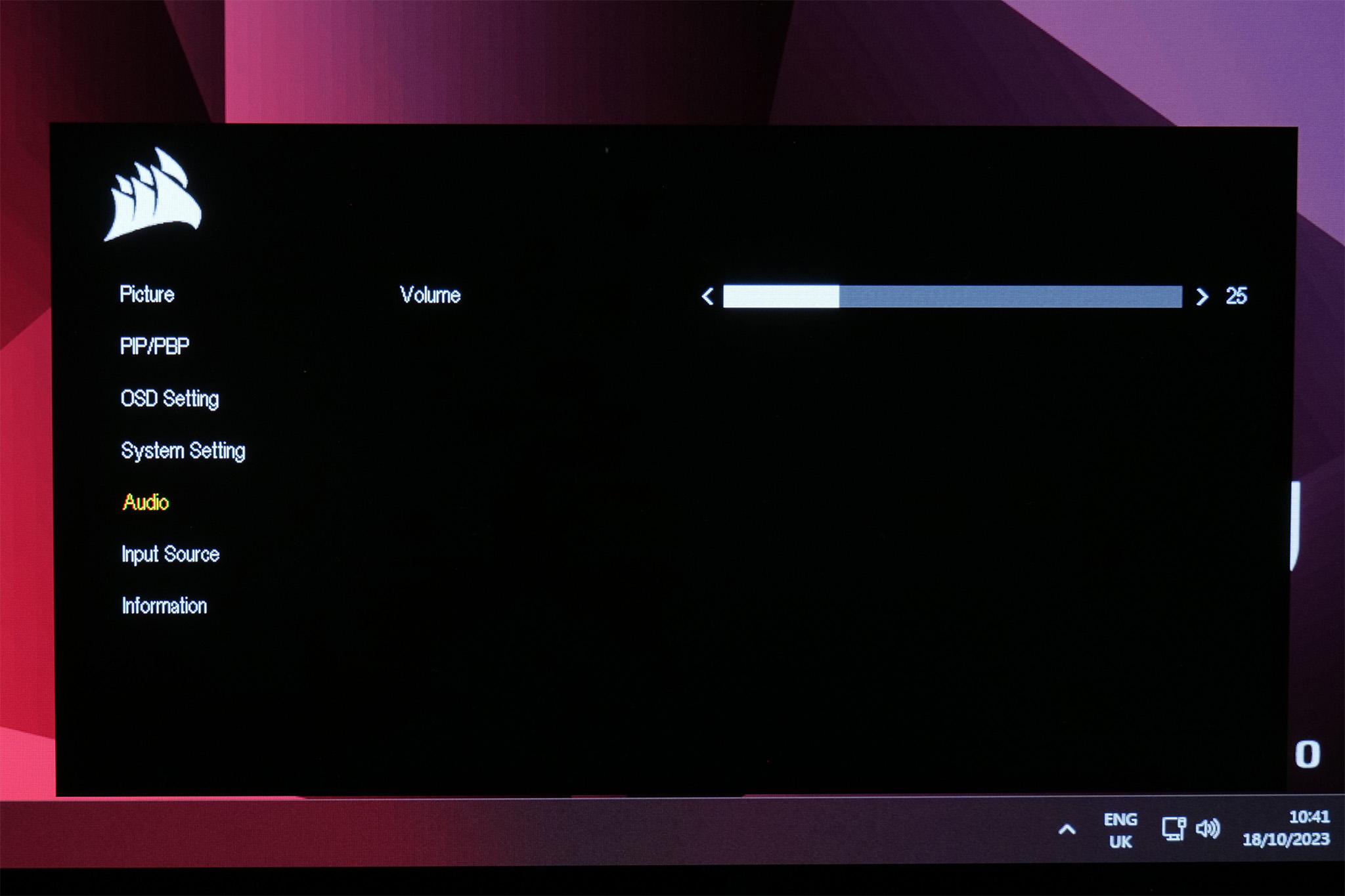
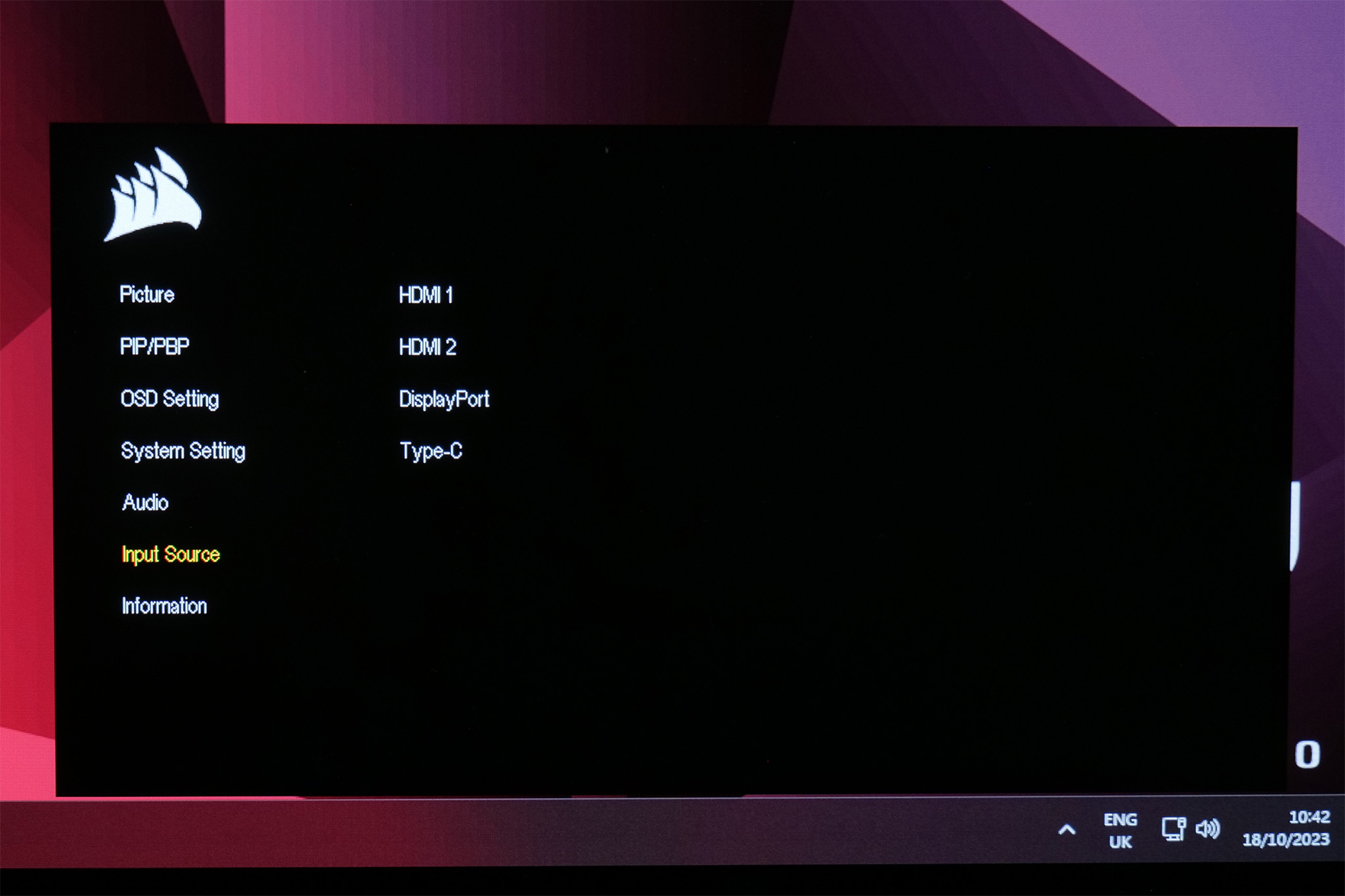
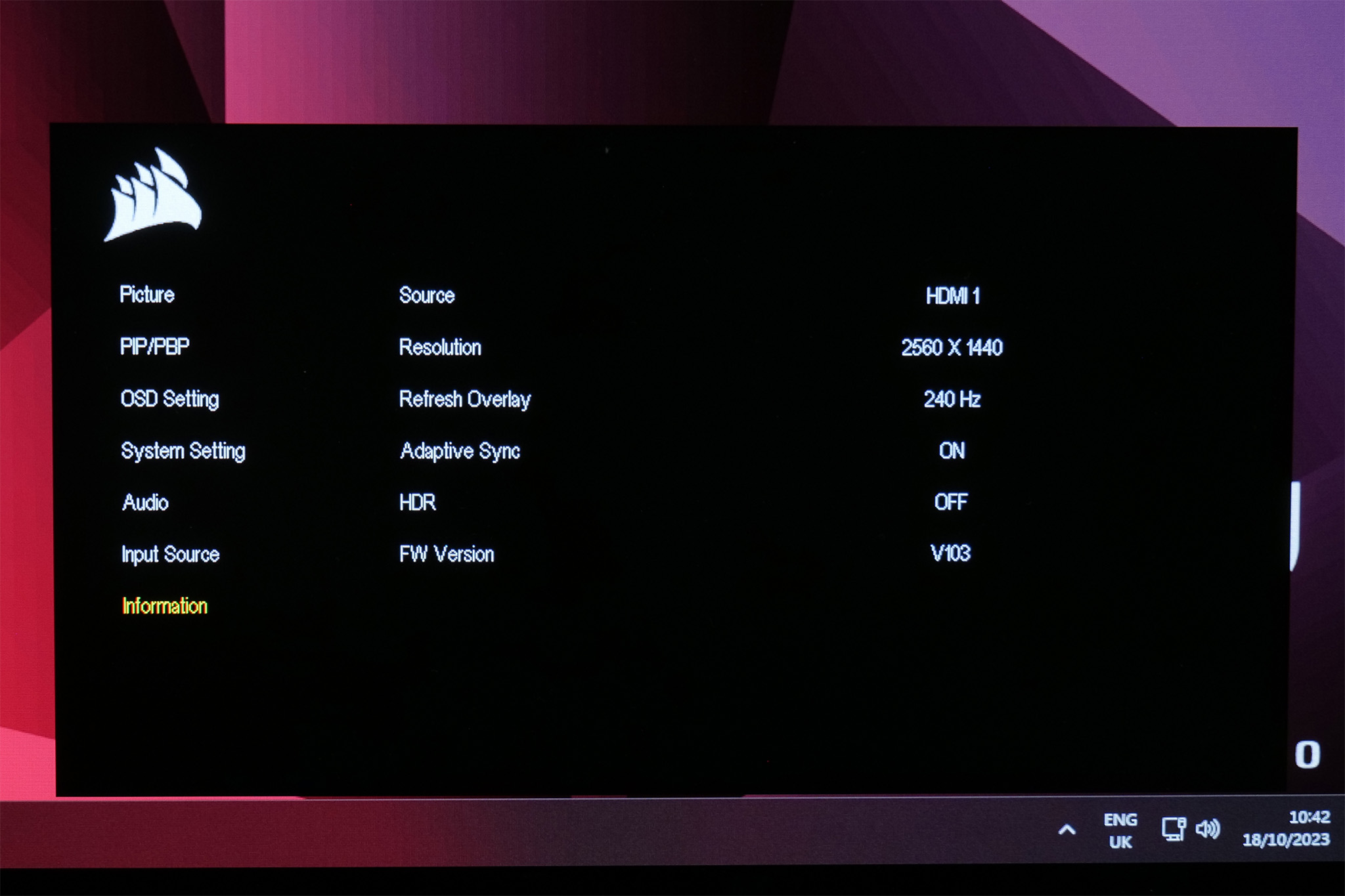
The OSD itself is very similar to what we saw with the Xeneon Flex. It's entirely text-based and while it may not offer as much control as some more feature-rich gaming OSDs, it offers all the core functionality you'd expect and is dead easy to navigate with the joystick. I do think it's a shame that iCUE isn't supported however – this is something that was offered by Corsair's earlier monitors, we've asked if there's a particular reason for the omission and will update the review if we hear back.
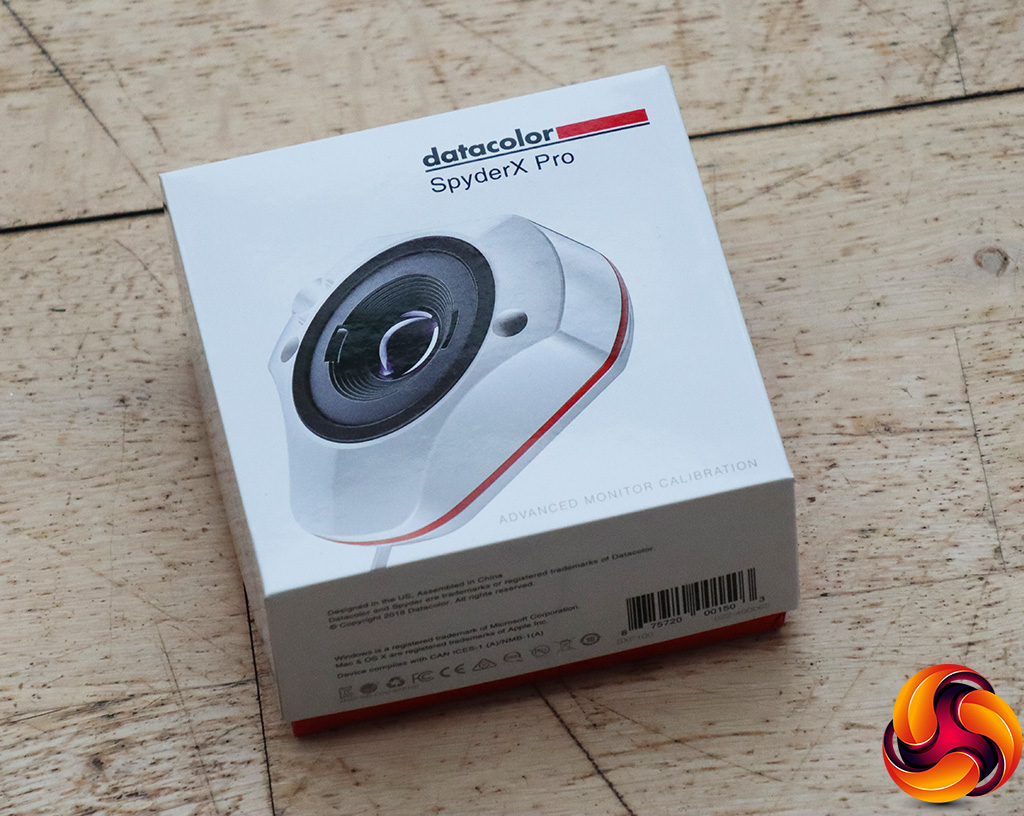
Our main test involves using a DataColor SpyderX Colorimeter to assess a display’s image quality. The device sits on top of the screen while the software generates colour tones and patterns, which it compares against predetermined values to work out how accurate the screen is.
The results show –
- A monitor’s maximum brightness in candelas or cd/m2 at various levels set in the OSD.
- A monitor’s contrast ratio at various brightness levels in the OSD.
- The brightness deviation across the panel.
- The black and white points.
- The colour accuracy, expressed as a Delta E ratio, with a result under 3 being fine for normal use, and under 2 being great for colour-accurate design work.
- The exact gamma levels, with a comparison against preset settings in the OSD.
We first run this test with the display in its default, out-of-the-box state, with all settings on default. We then calibrate the screen using the Spyder software and run the test again.
Pre-calibration
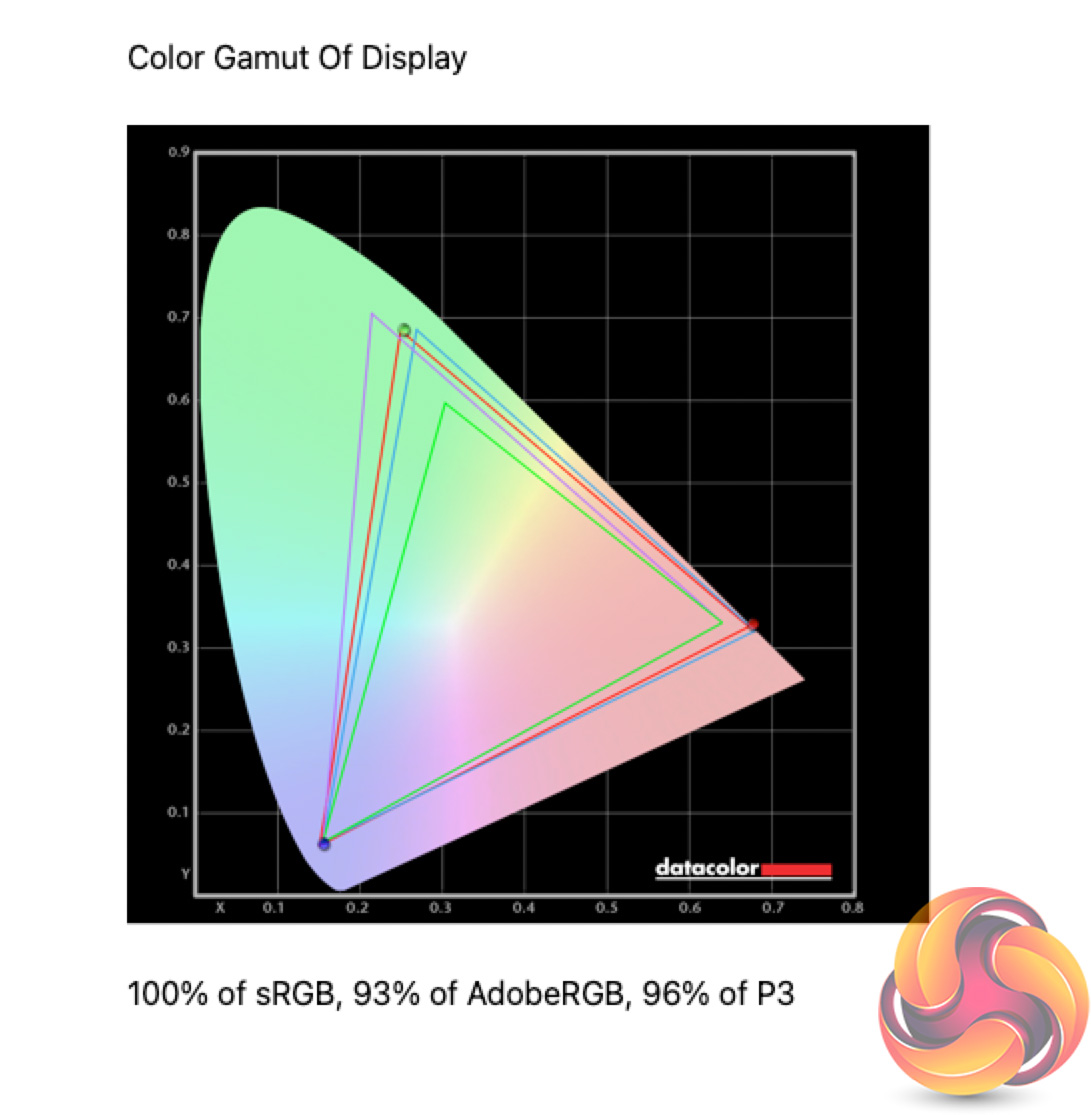
Gamut performance is strong, with the 27QHD240 offering 100% sRGB, 93% AdobeRGB and 96% DCI-P3 coverage. It's not quite the claimed 98% P3 gamut but it's still very good.
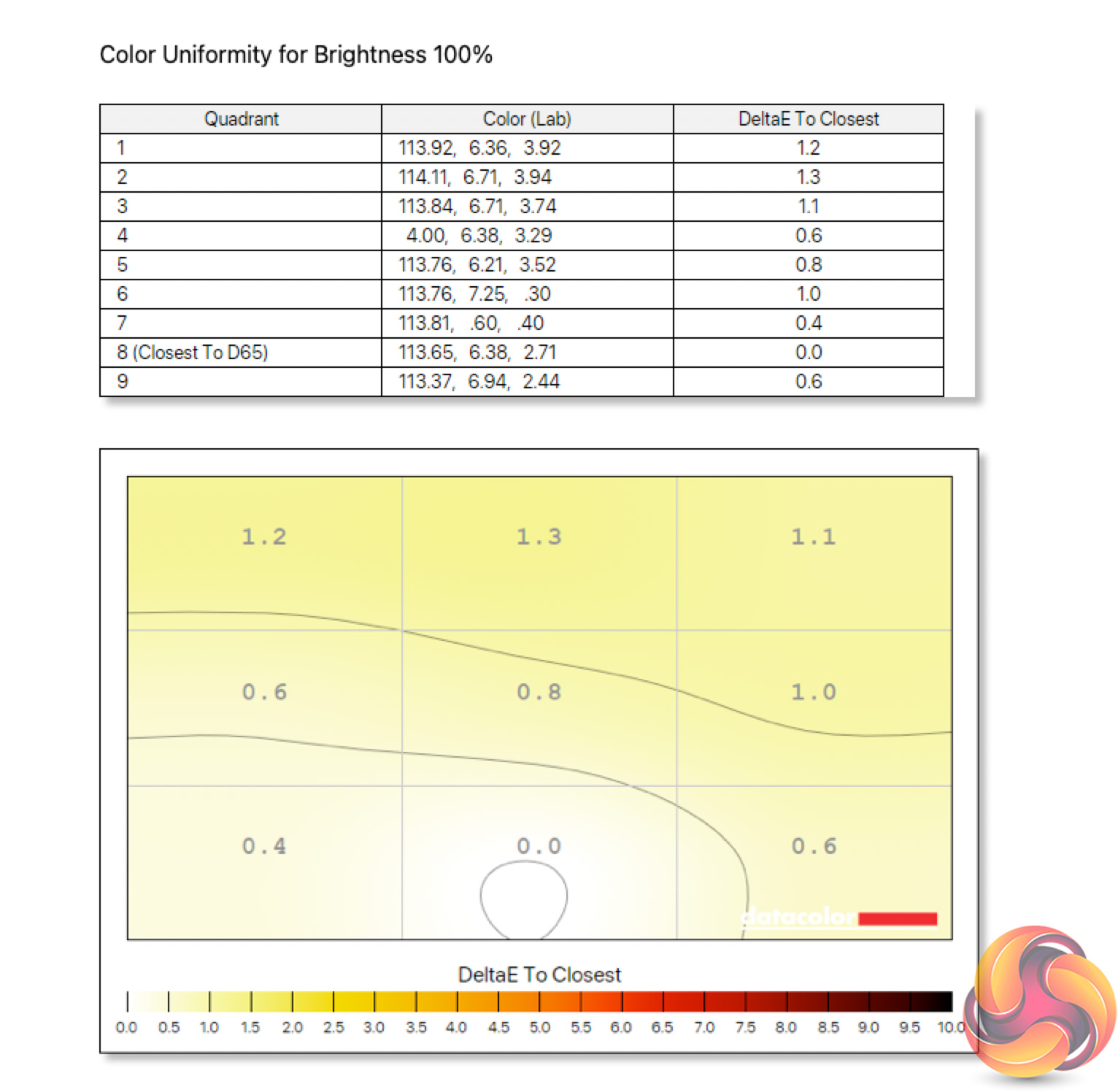
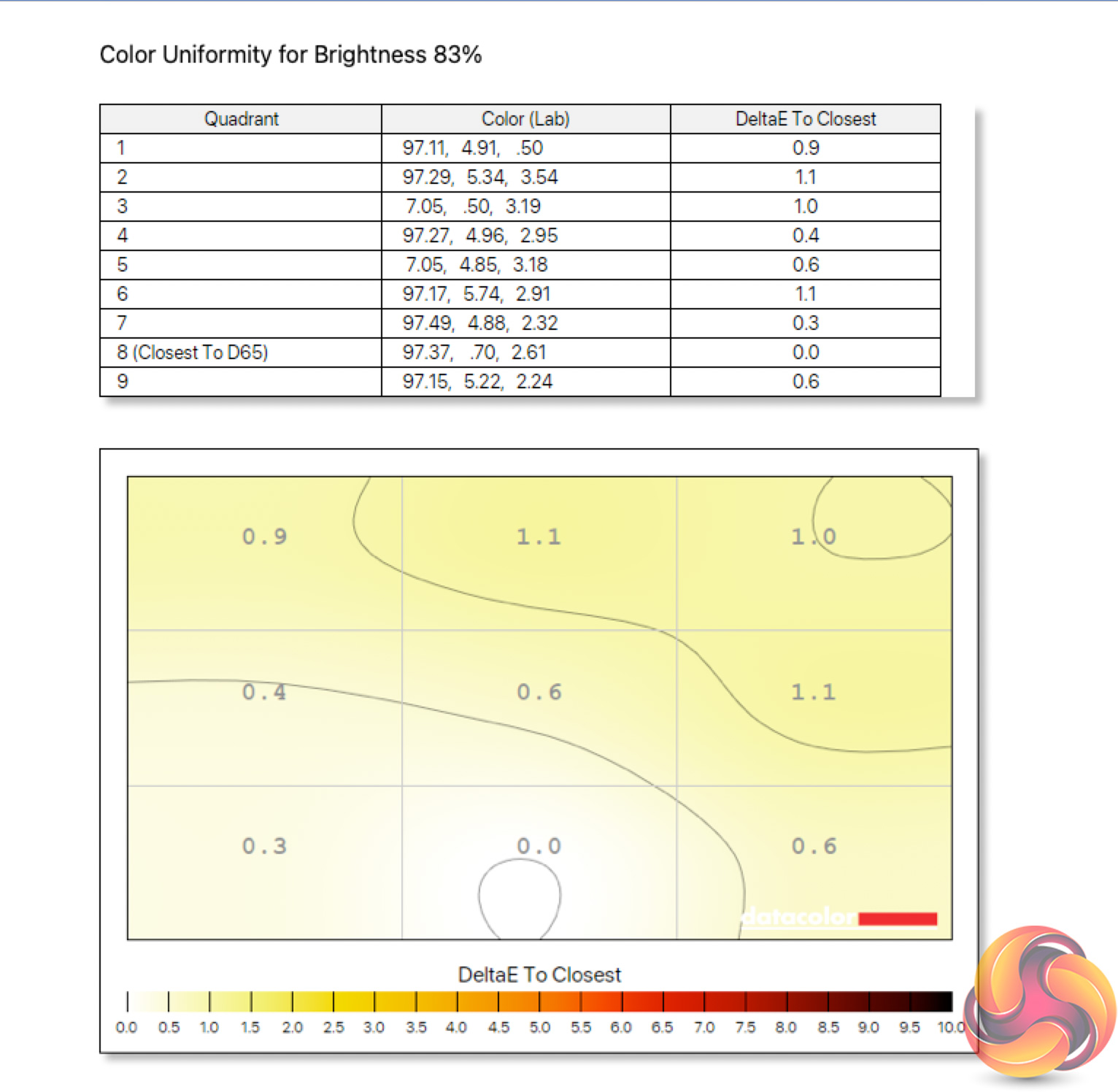
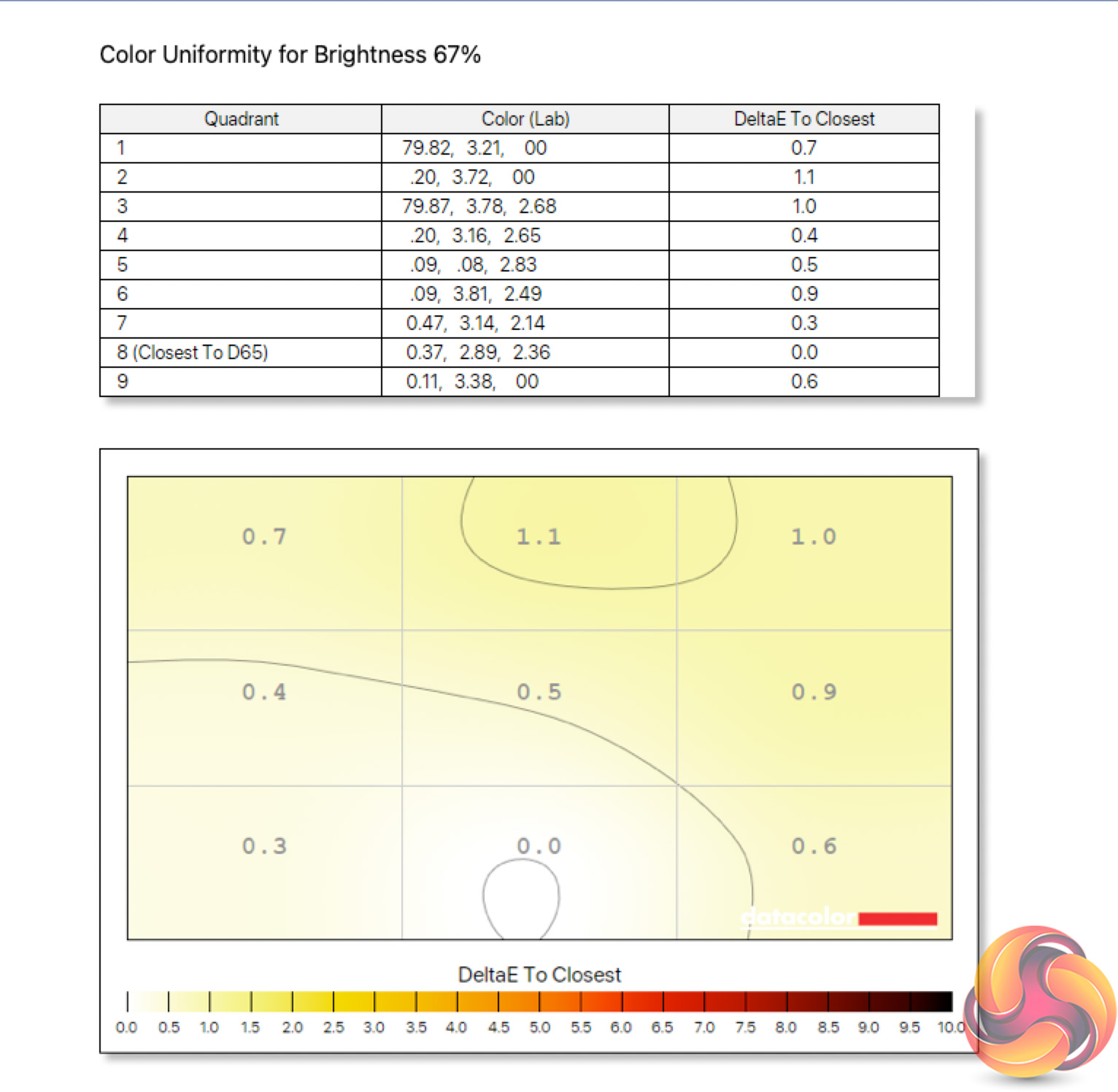
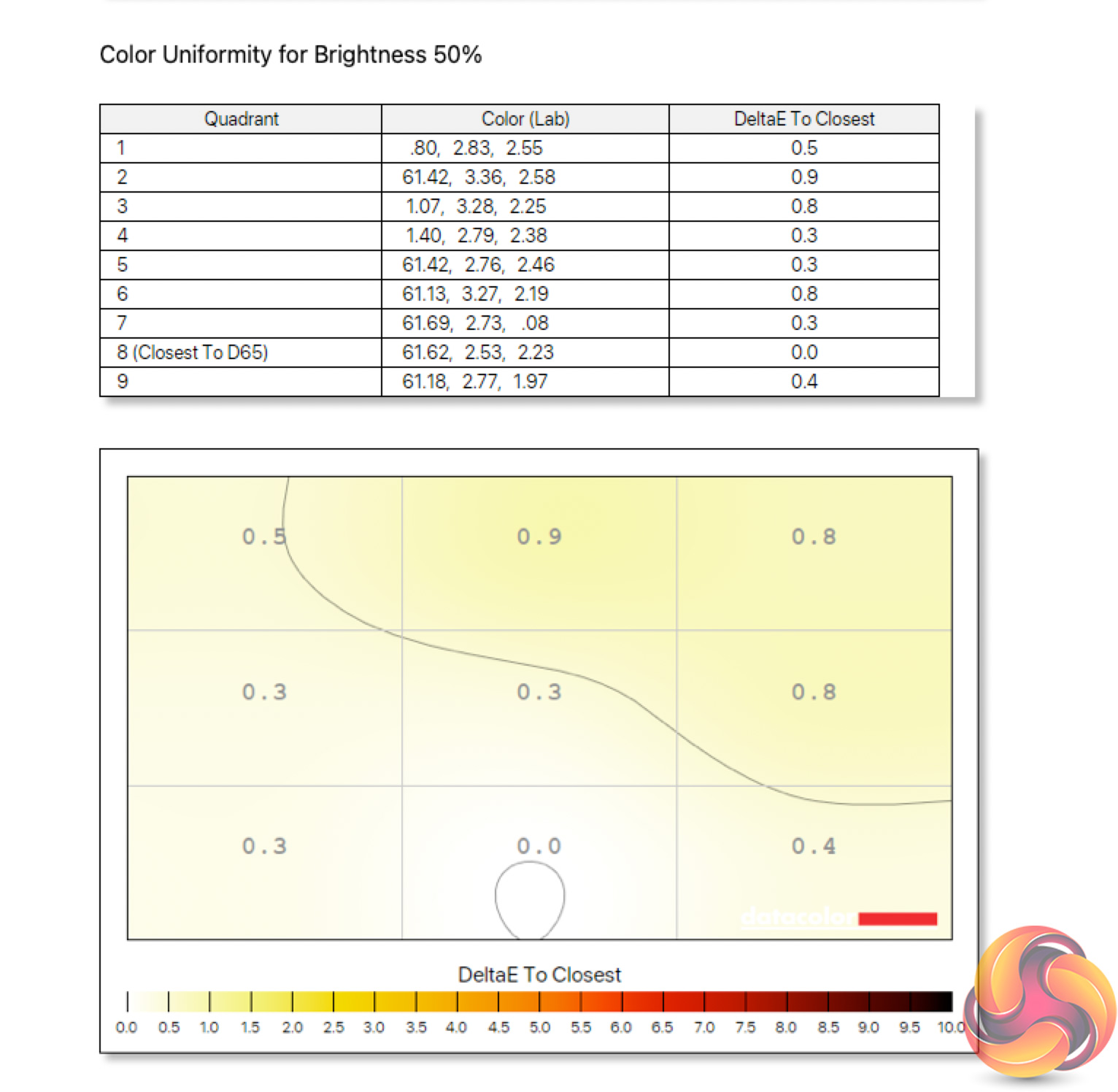
Colour balance uniformity is top-drawer, too. This is one of the more under-rated aspects of an OLED monitor – the lack of a backlight stretched across the entire panel, and the self-emitting nature of OLED pixels, results in superb uniformity.
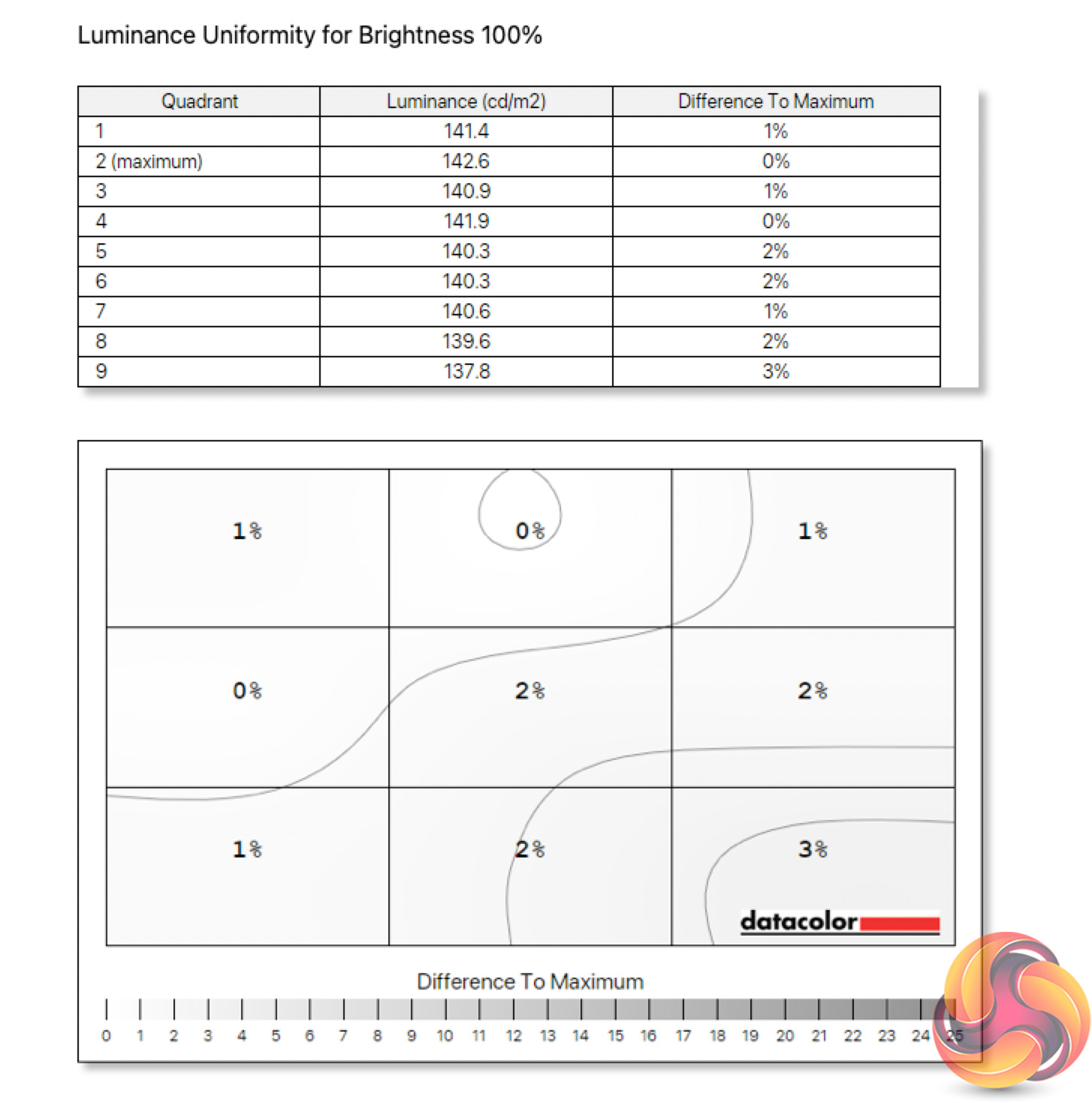

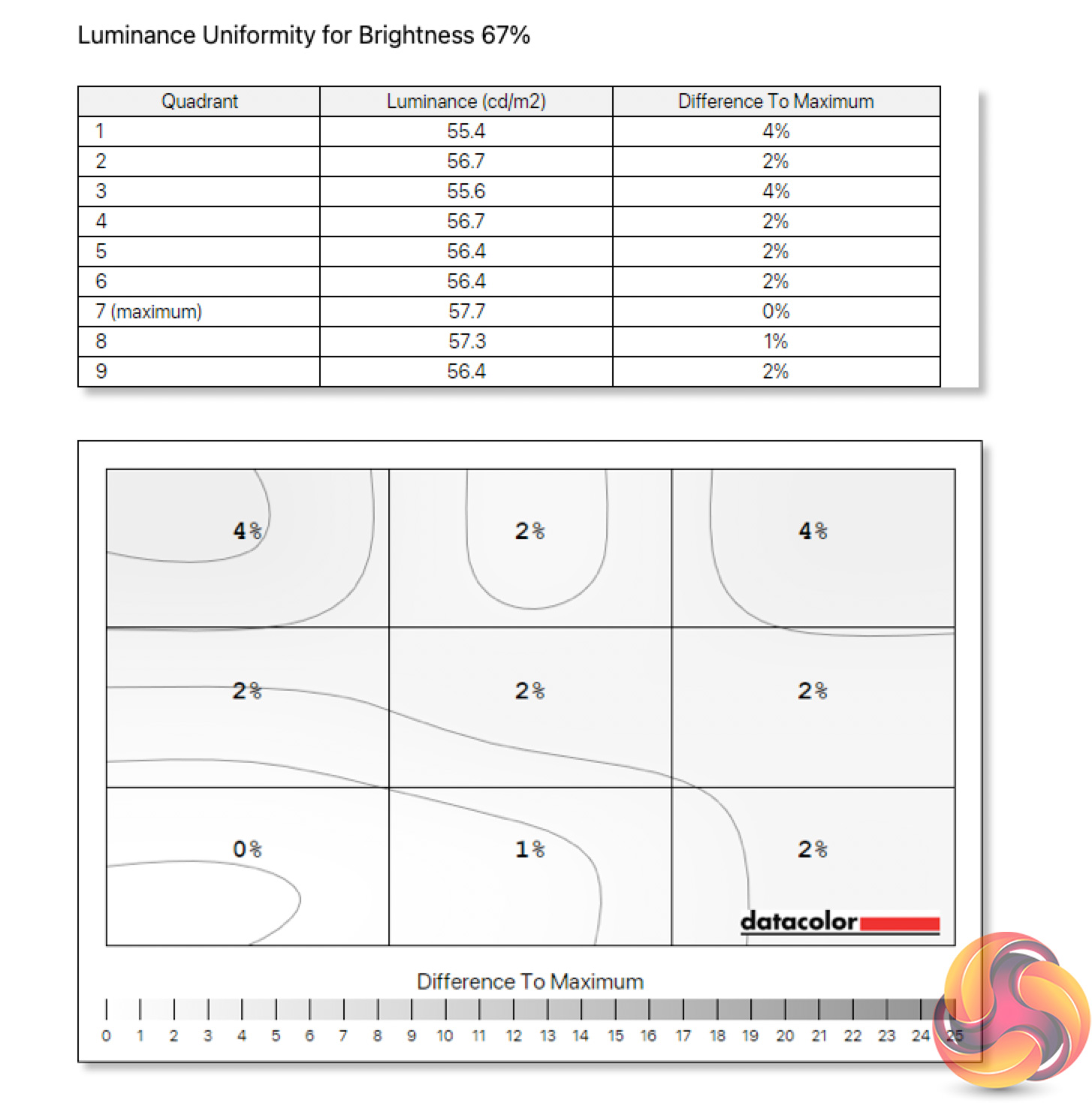
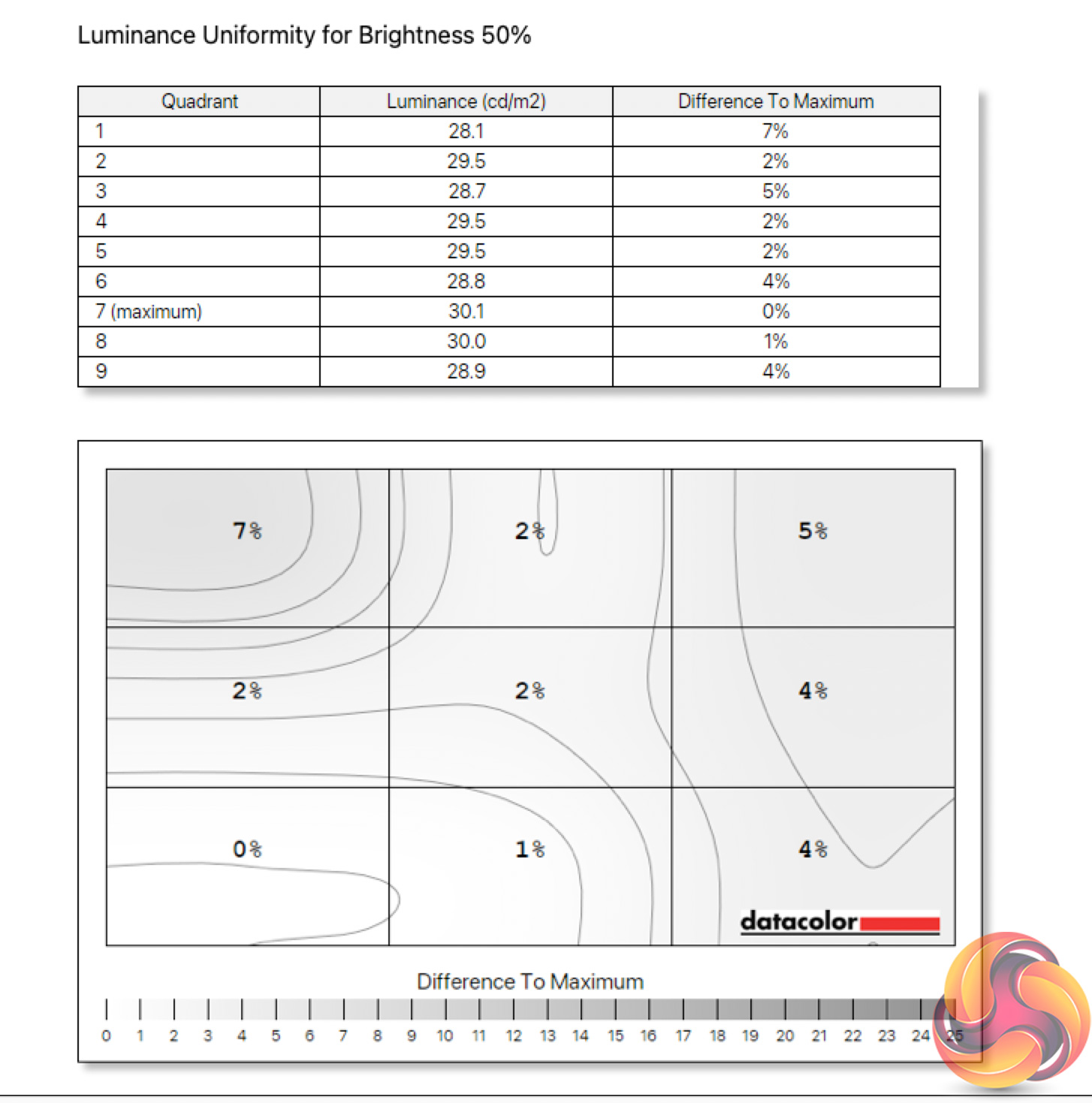
The same goes for brightness uniformity too, with just a 3% maximum aberrance at 100% brightness.
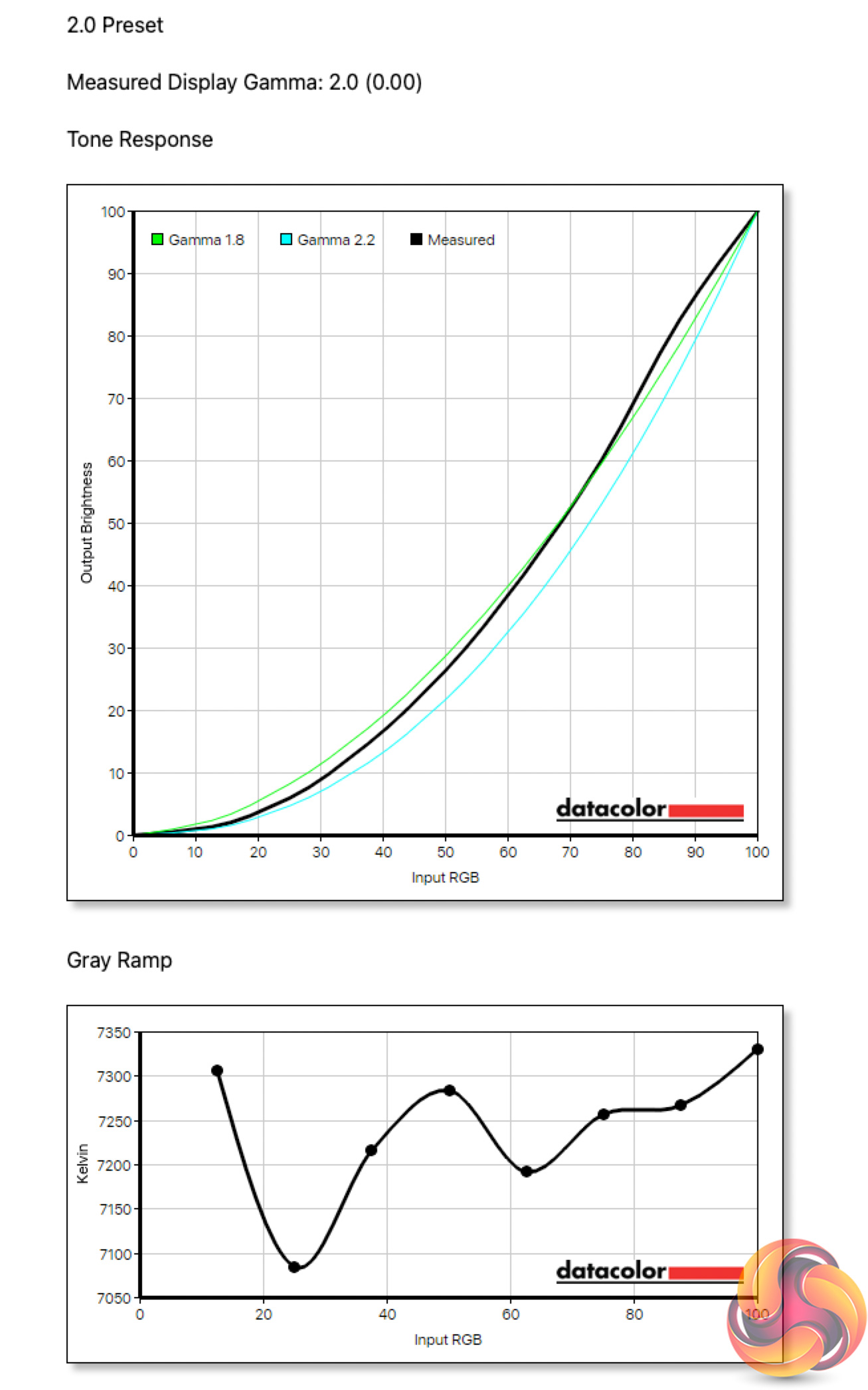
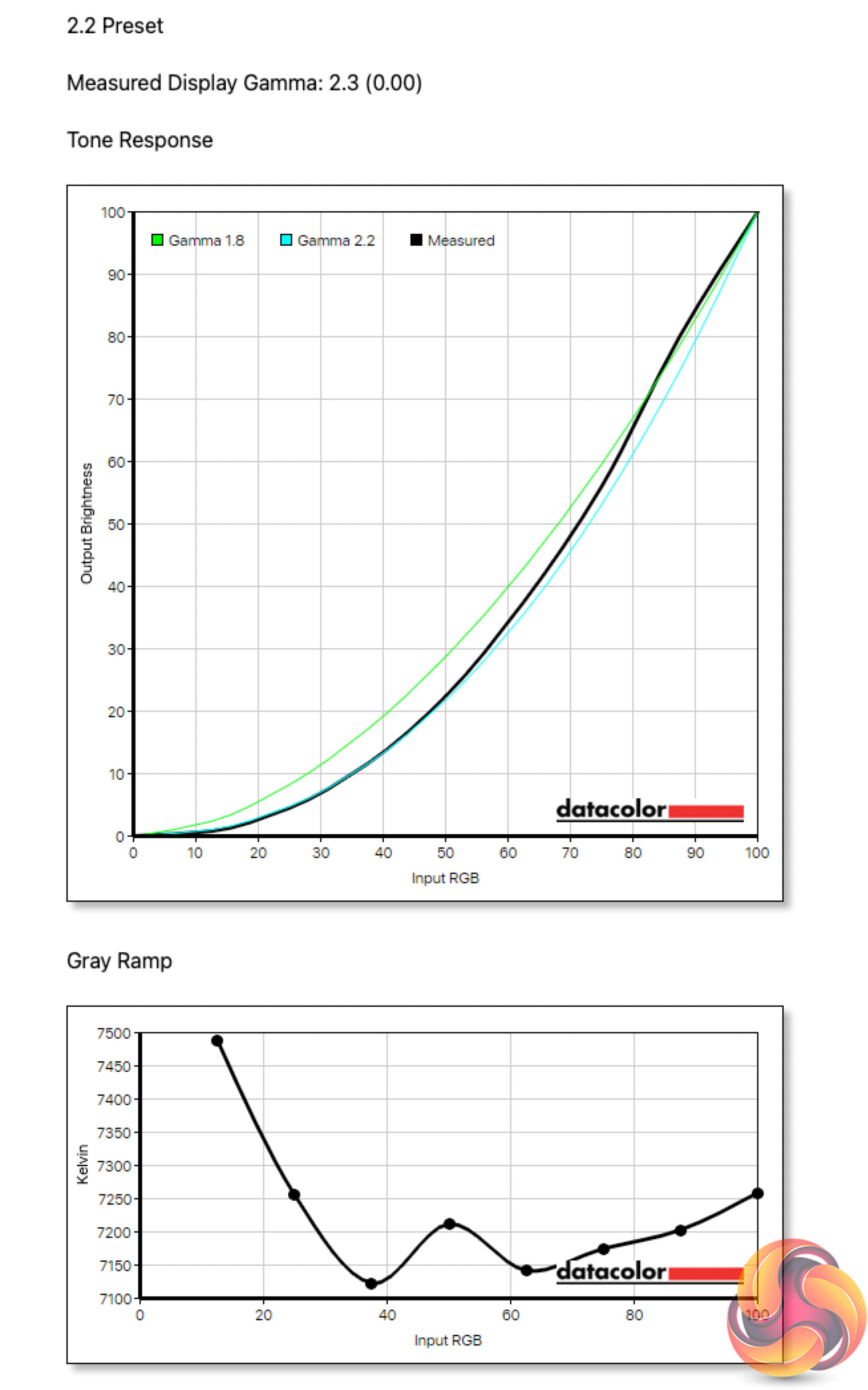
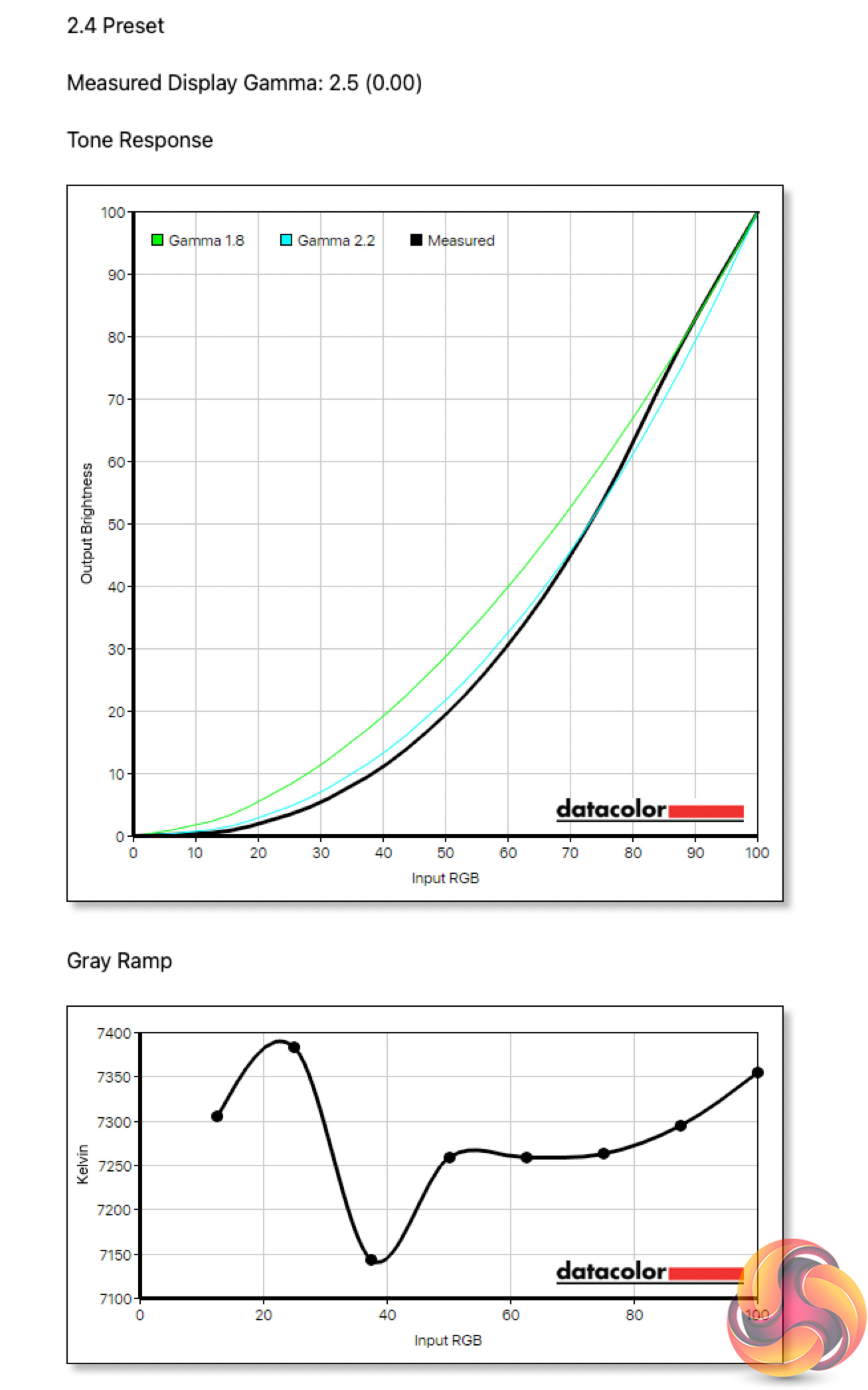
Gamma results are fine too. The default 2.2 preset does record an average gamma of 2.3 so it's a hair off but nothing awful.
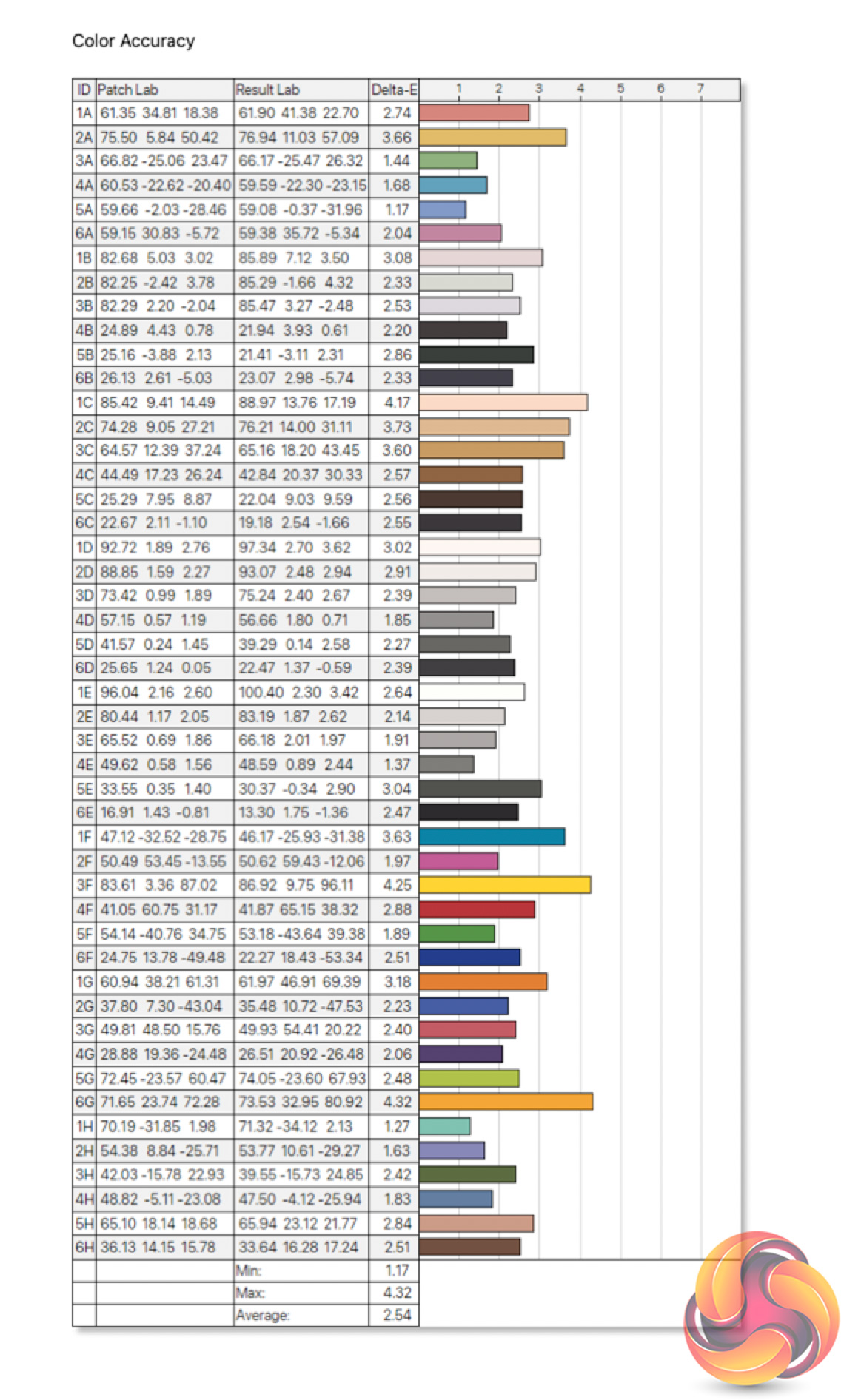
Out of the box colour accuracy is decent but not mind-blowingly good. We see an average deltaE of 2.54 and a maximum of 4.32. As a general rule of thumb, a deltaE of less than 3 is considered imperceptible to the human eye, so we are nitpicking here, but we have seen better results from other screens.
Post-calibration
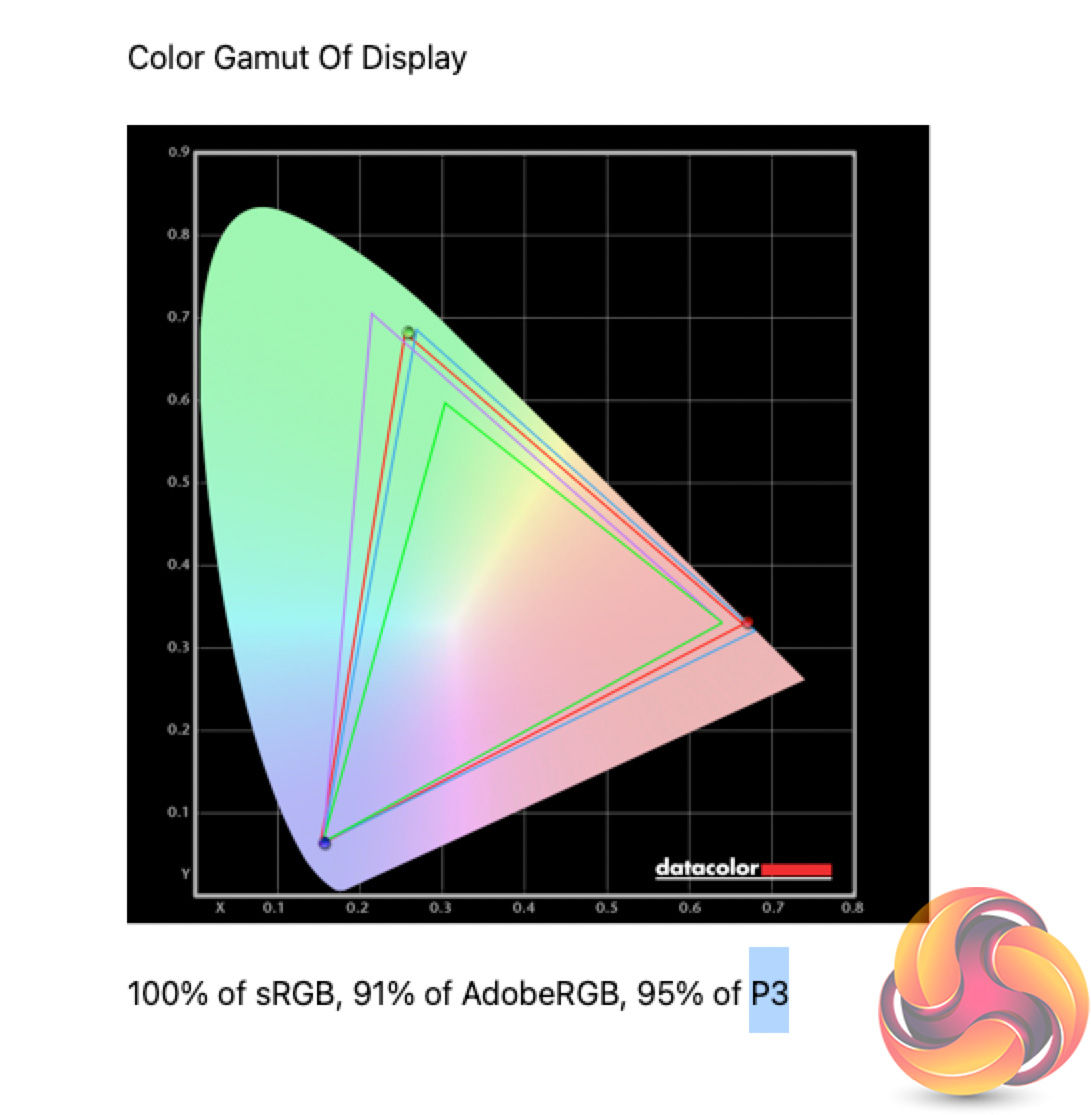
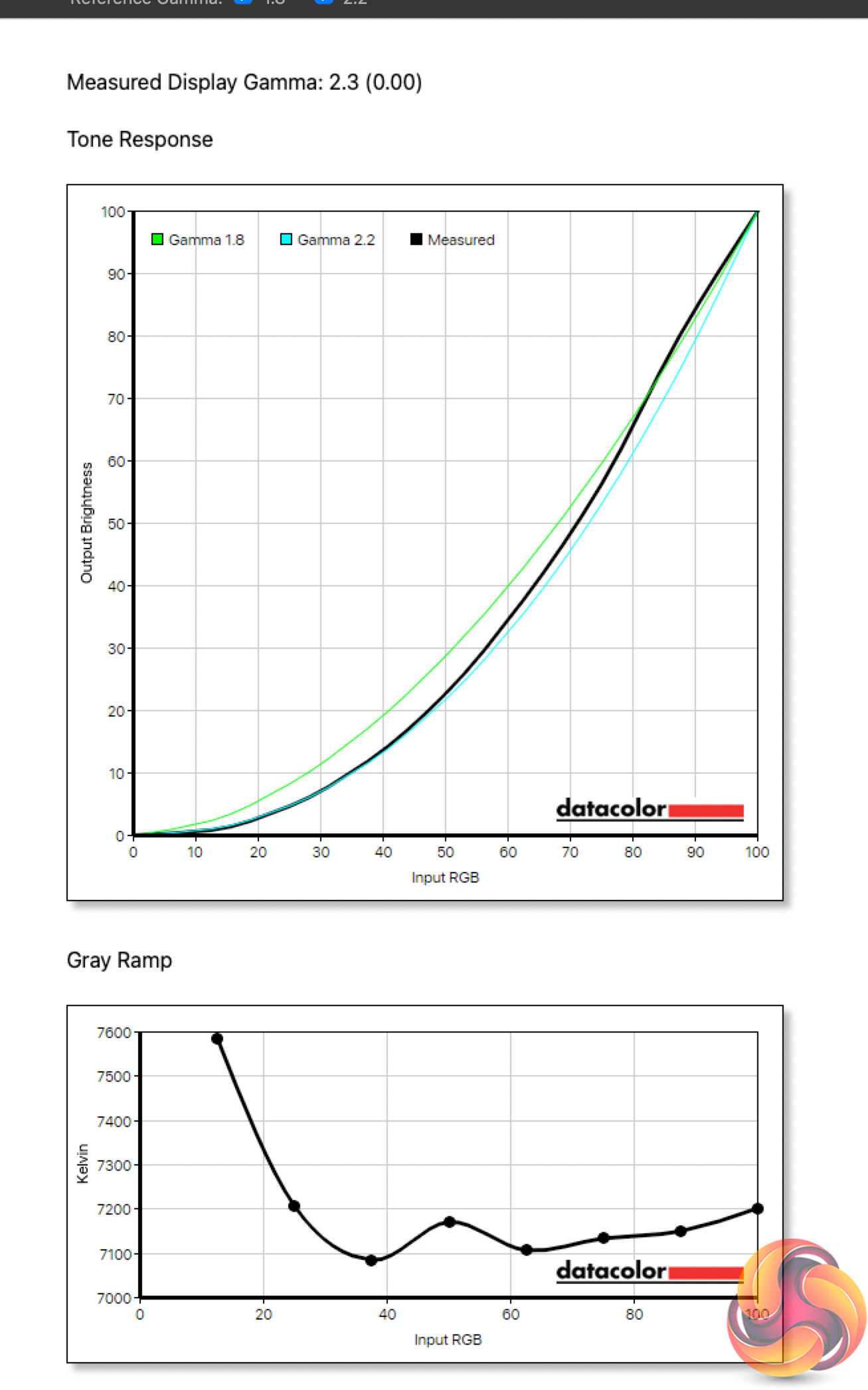
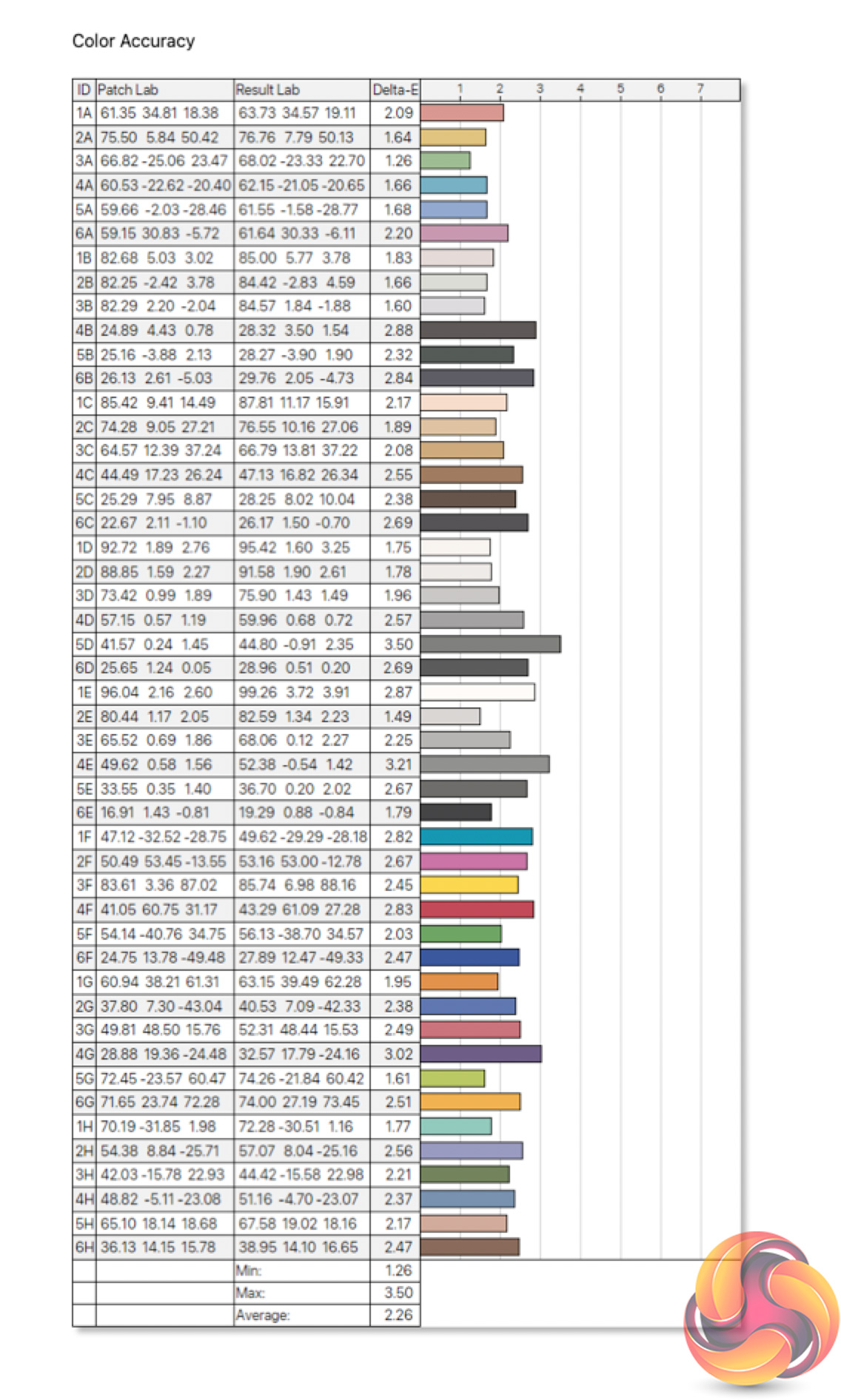
As such, we decided to fire up the SpyderX and calibrate the display. This didn't affect gamut or gamma results, though colour accuracy improved slightly. Not by a whole lot, as the new average deltaE is just 2.26, but the worst offenders have improved, and the maximum deltaE is now just 3.5. If gaming is your top priority, it's probably not worth doing.
Luminance/APL
The APL, or Average Picture Level, is something we don't usually test, but as the 34M2C8600 is an OLED screen, this is quite an important aspect when using the monitor on a daily basis. APL refers to how much of the screen is displaying a light image, versus a dark image. This is important as the lighter an image on screen, the more pixels have to turn on at higher power levels, resulting in a dimmer image.
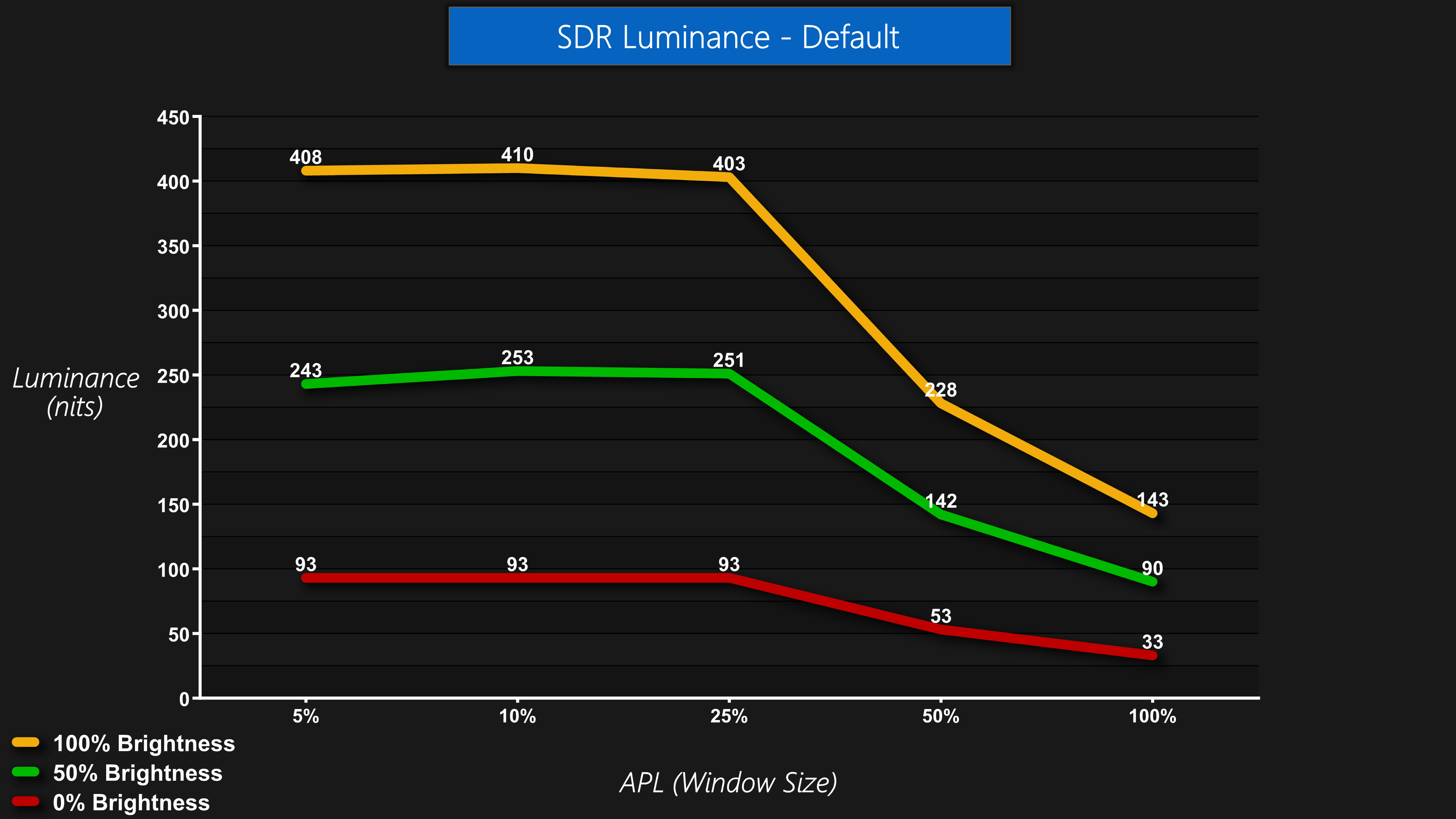
Unfortunately, one of the weak points for the 27QHD240 is its rather aggressive Auto Brightness Limiter (ABL). Panel brightness drop off sharply when displaying a full-screen white image for instance – with a 100% APL, we measured luminance at just 143 nits, compared to 403 nits with a 25% APL. This behaviour is consistent across the board regardless of how high you set the brightness in the OSD.
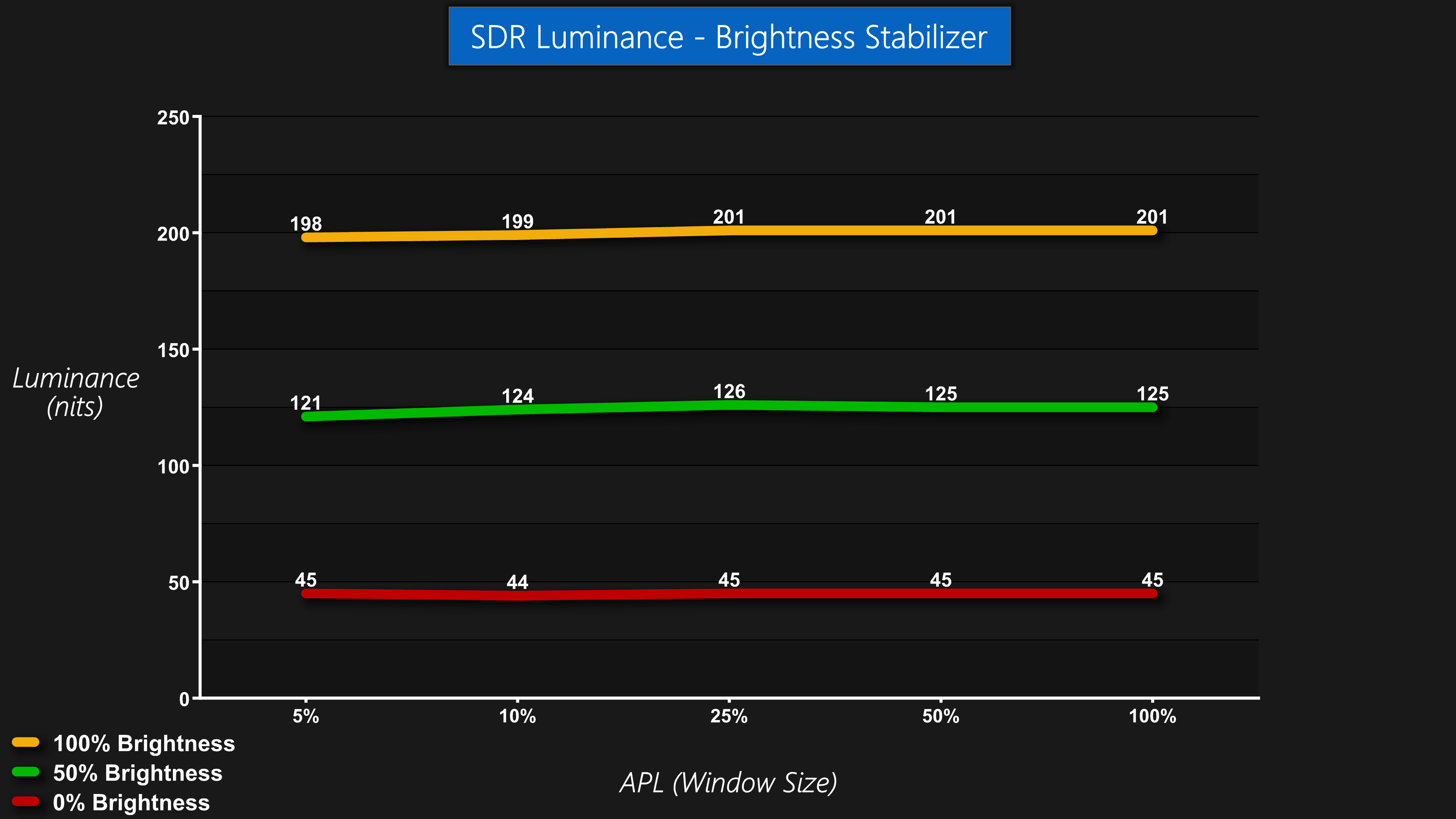
There is a setting that can alleviate this problem however, called ‘Brightness Stablizer' which is enabled under the System Settings section of the OSD. This aims to mitigate any fluctuations in brightness due to the ABL, by dimming the entire screen. It is effective as we measured next to no difference in luminance regardless of APL with it enabled. The obvious downside is that enabling this setting reduces total brightness considerably, to just 200 nits at the maximum setting. That could be OK for some who use their PC in darker environments, but in a well lit room that will likely prove a challenge.
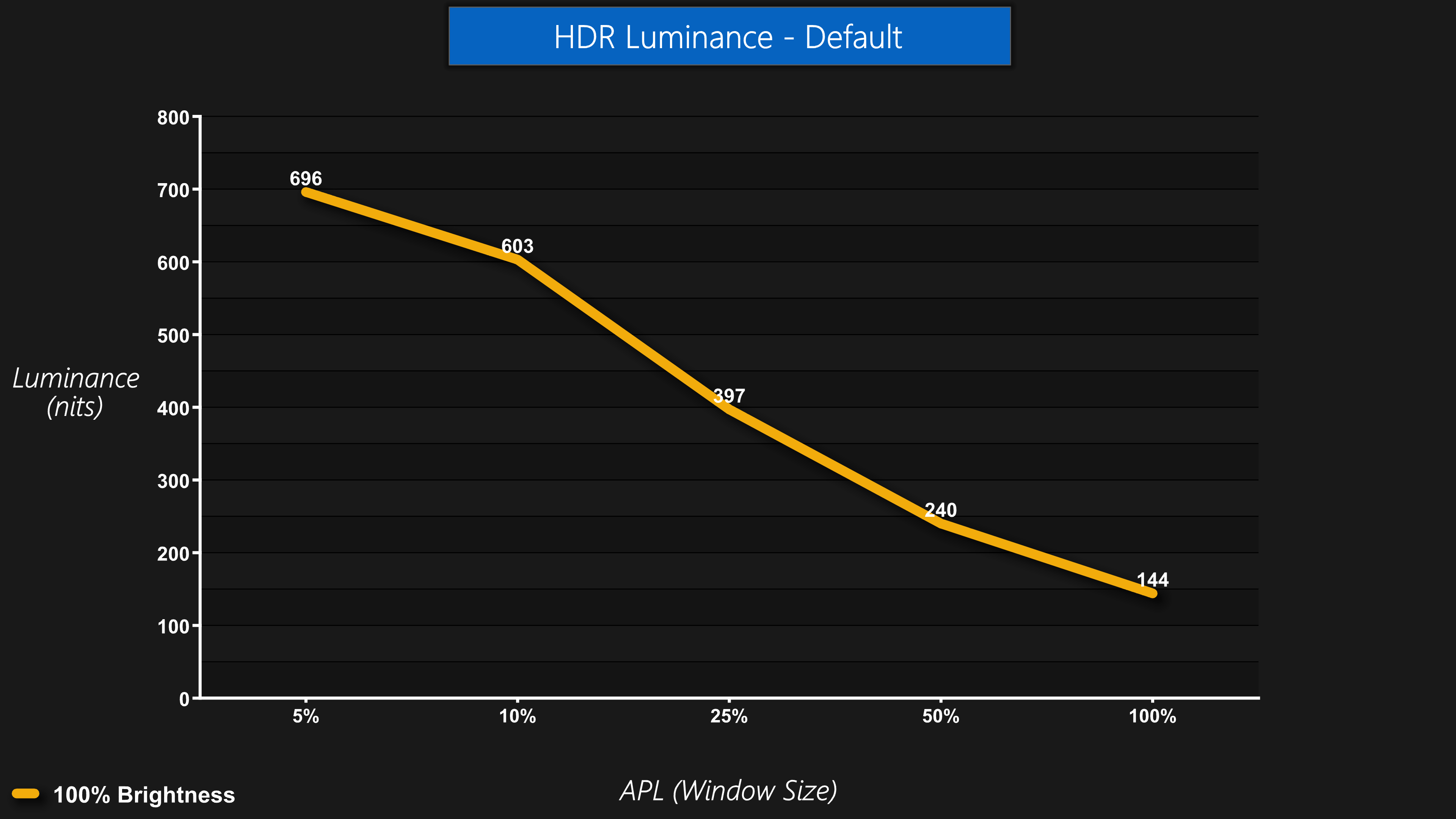
When enabling HDR, we measured a peak of just below 700 nits for a 5% APL. Corsair does claim 800 nits for a 10% APL and 1000 nits for 3% APL, but we are unable to to test such a small window with our current hardware – something we hope to change soon! Once more though, brightness does drop off quickly below a 10% APL, hitting 397 nits at 25% APL and just 144 nits at 100% APL.
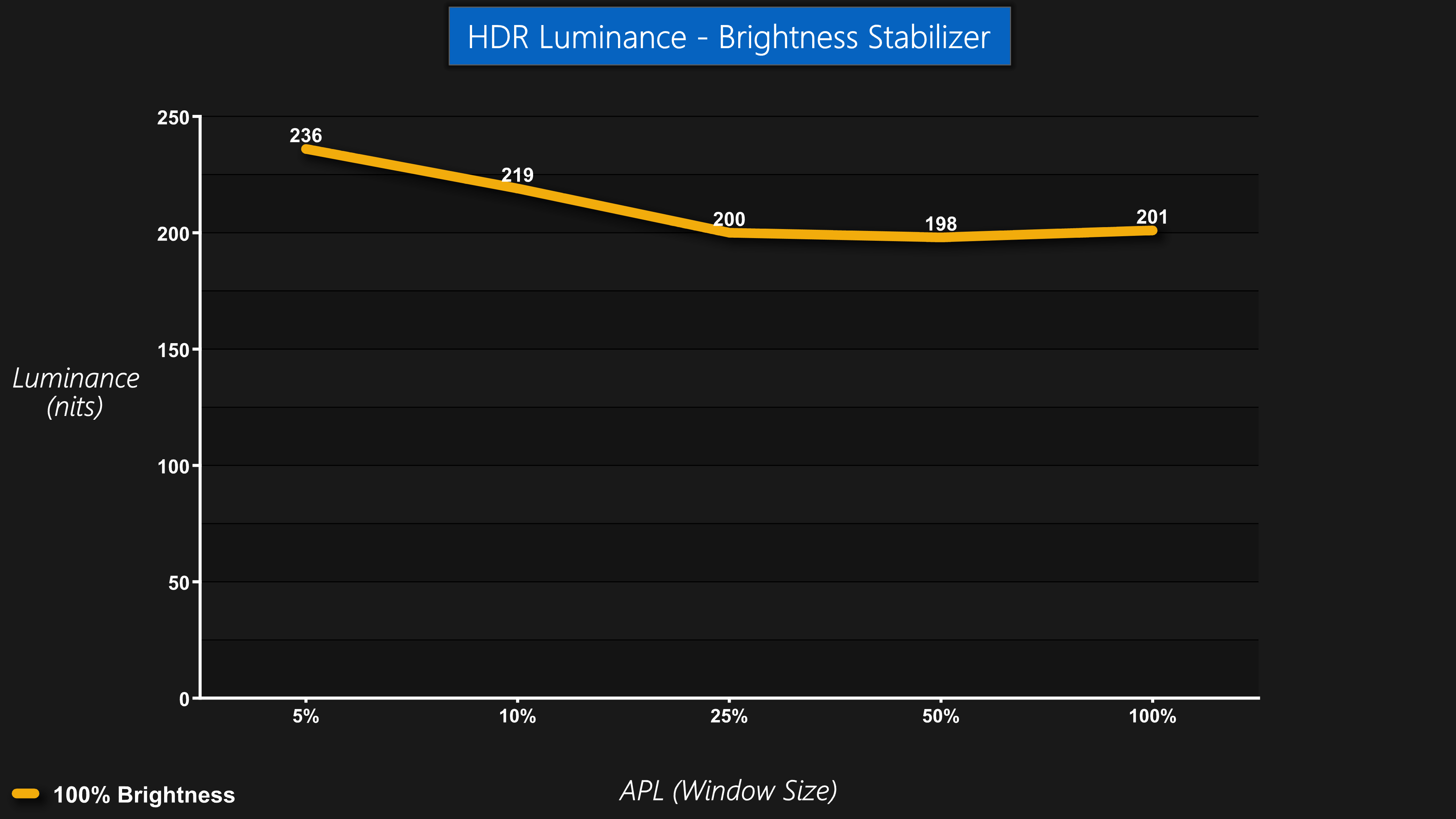
You can still enable Brightness Stabilizer with HDR engaged but I'm not sure what the point is – this caps brightness to 200-235 nits, not exactly a great ‘HDR' experience.
Monitor response time testing is a new addition to our reviews, where we use the Open Source Response Time Tool (OSRTT), developed by TechTeamGB. This measures grey-to-grey response times and presents the results in a series of heatmaps, the style of which you may be familiar with from other reviews.
Initial Response Time is the time taken for the panel to transition from one colour to another, where lower values are better. We present the initial response time, so overshoot is not taken into account and is measured separately. We use a fixed RGB 5 tolerance for each transition.
Overshoot is the term given for when a monitor's transition exceeds or goes beyond its target value. So if a monitor was meant to transition from RGB 0 to RGB 55, but it hits RGB 60 before settling back down at RGB 55, that is overshoot. This is presented as RGB values in the heatmaps – i.e. how many RGB values past the intended target were measured.
Visual Response Rating is a metric designed to ‘score' a panel's visual performance, incorporating both response times and overdrive. Fast response times with little to no overshoot will score well, while slow response times or those with significant overshoot will score poorly.
We test the 27QHD240 at 240Hz, 120Hz and 60Hz. There are no user-configurable overdrive modes for this monitor.
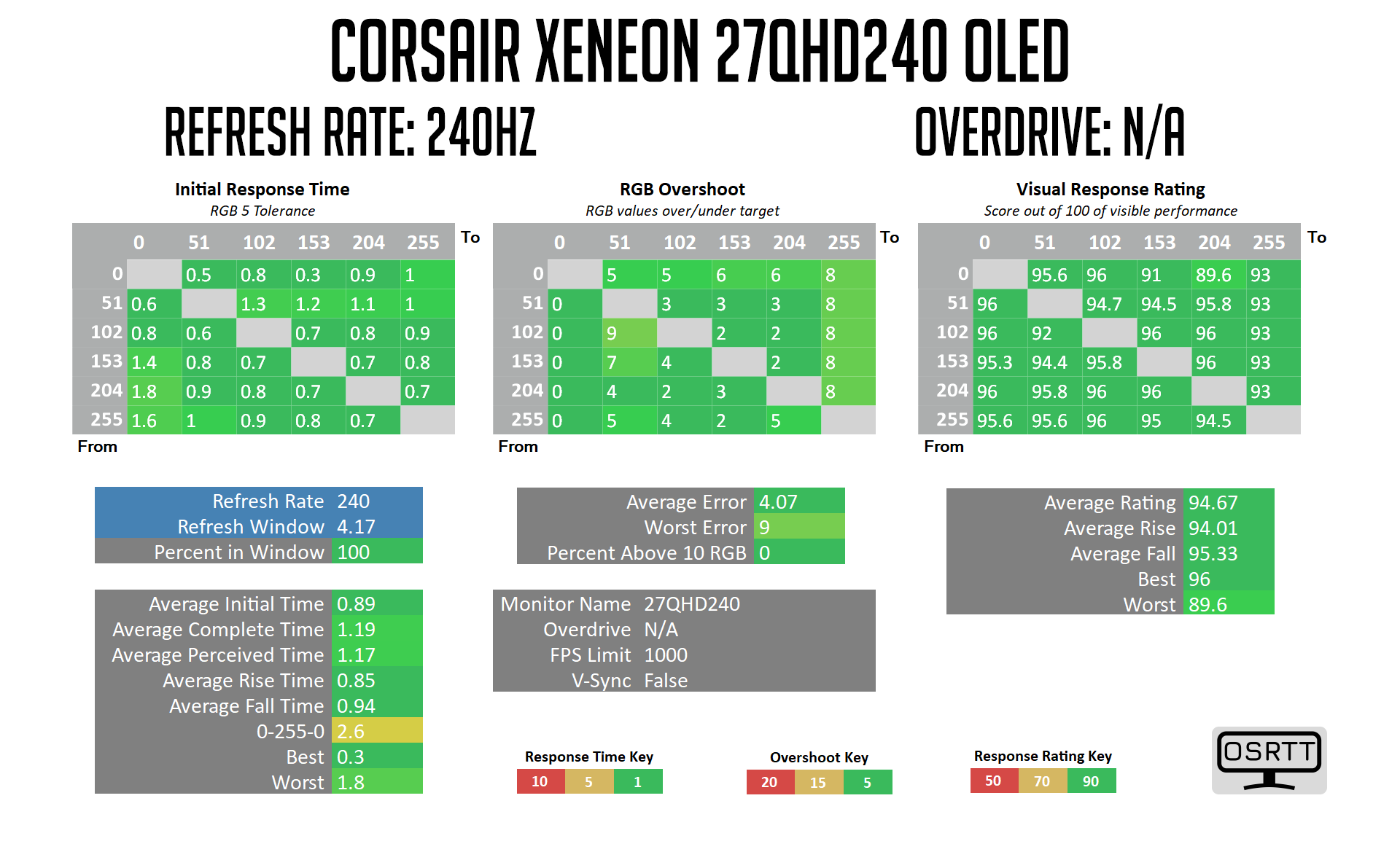
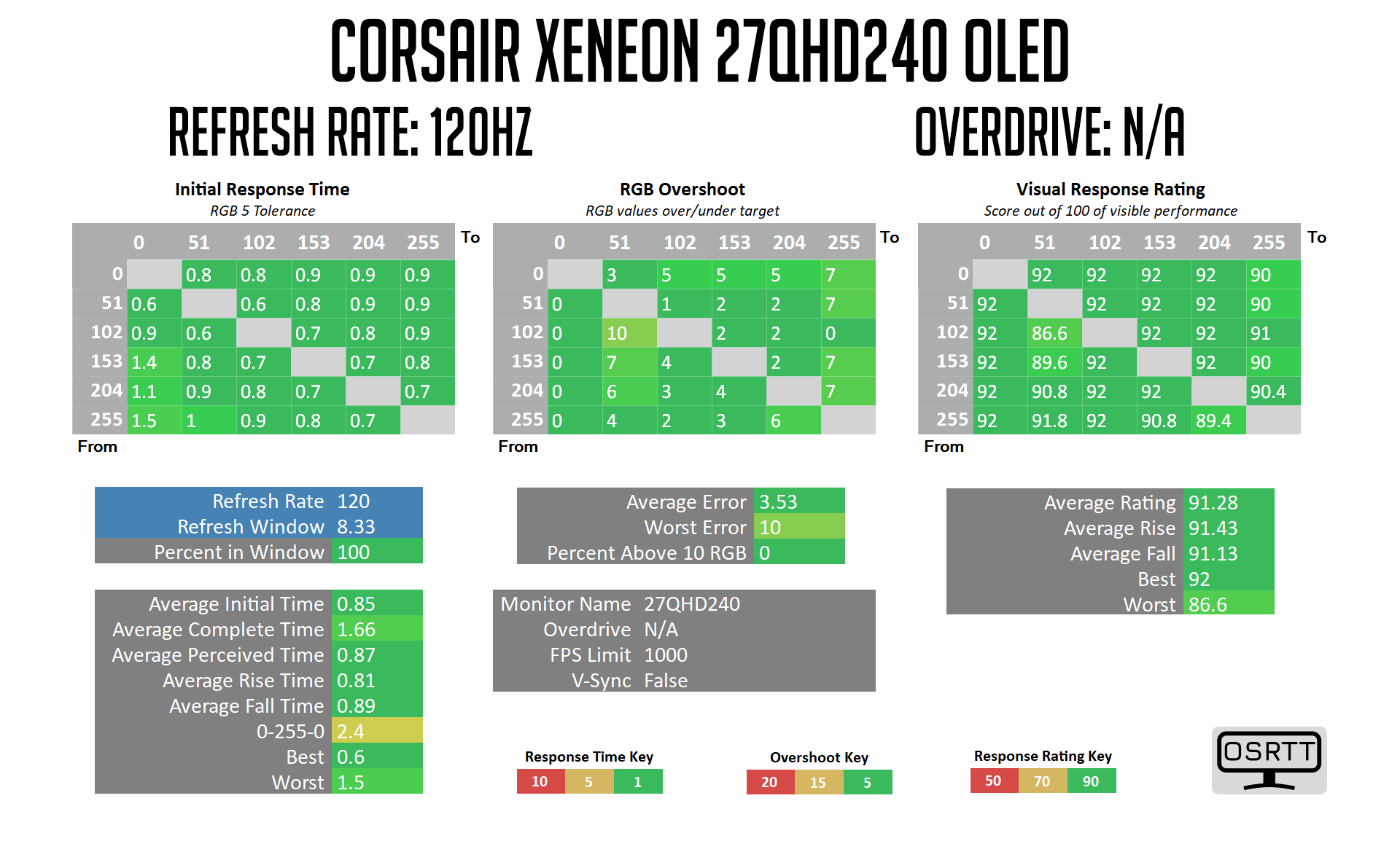
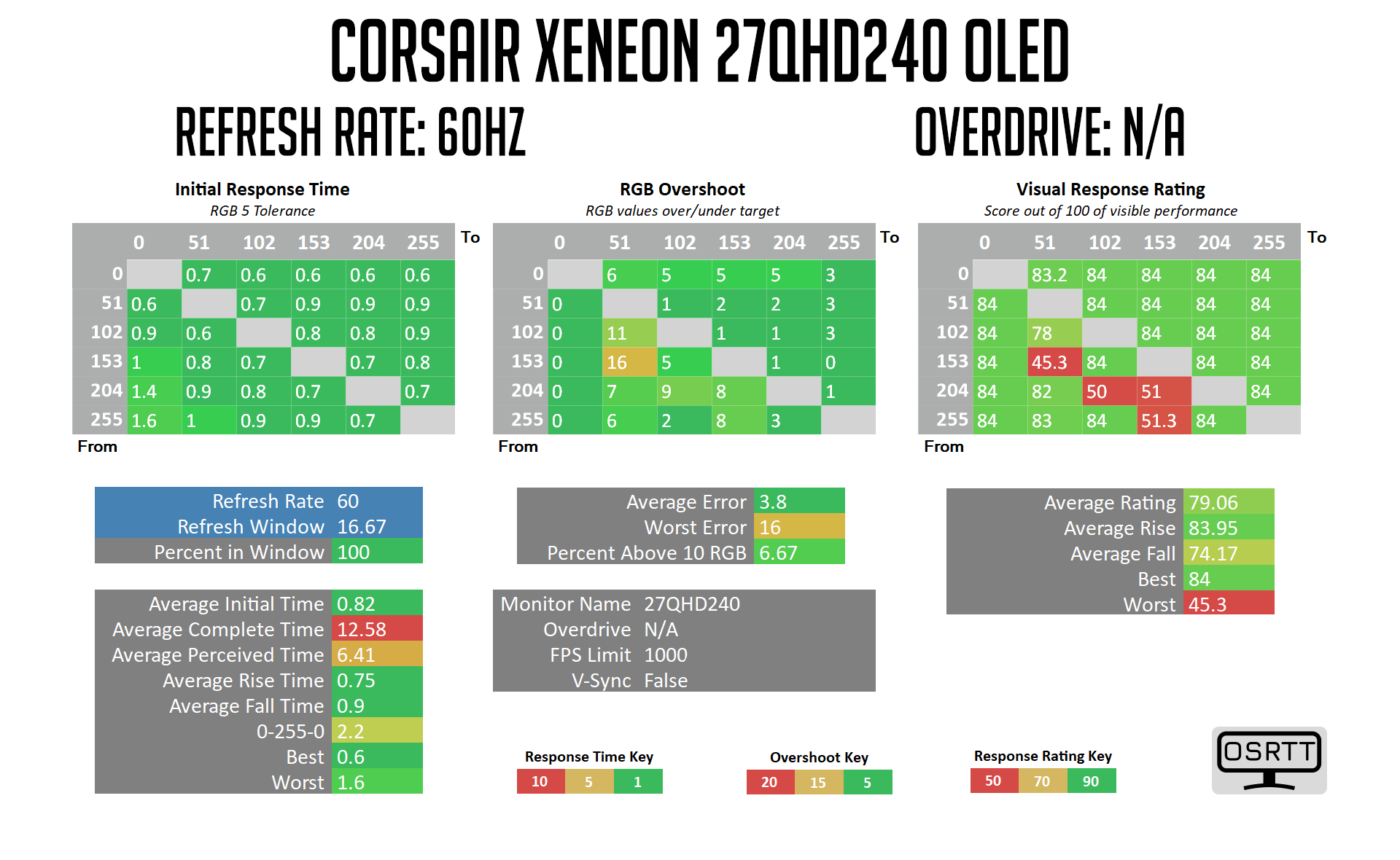
As expected from an OLED monitor, response times are stellar across the board. At every resolution tested we're seeing average grey-to-grey response times below 1ms, with minimal overshoot – some of which can be explained by luminance variation anyway, which is typical of OLED monitors.
Of course, these response times don't mean there won't be any motion blur at lower refresh rates – if you're playing a game that's locked to 60FPS for instance you will still experience blur due to the grab-and-hold nature of OLED displays, but for competitive multiplayer games where you can hit 240Hz, the overall clarity of the image is absolutely fantastic.
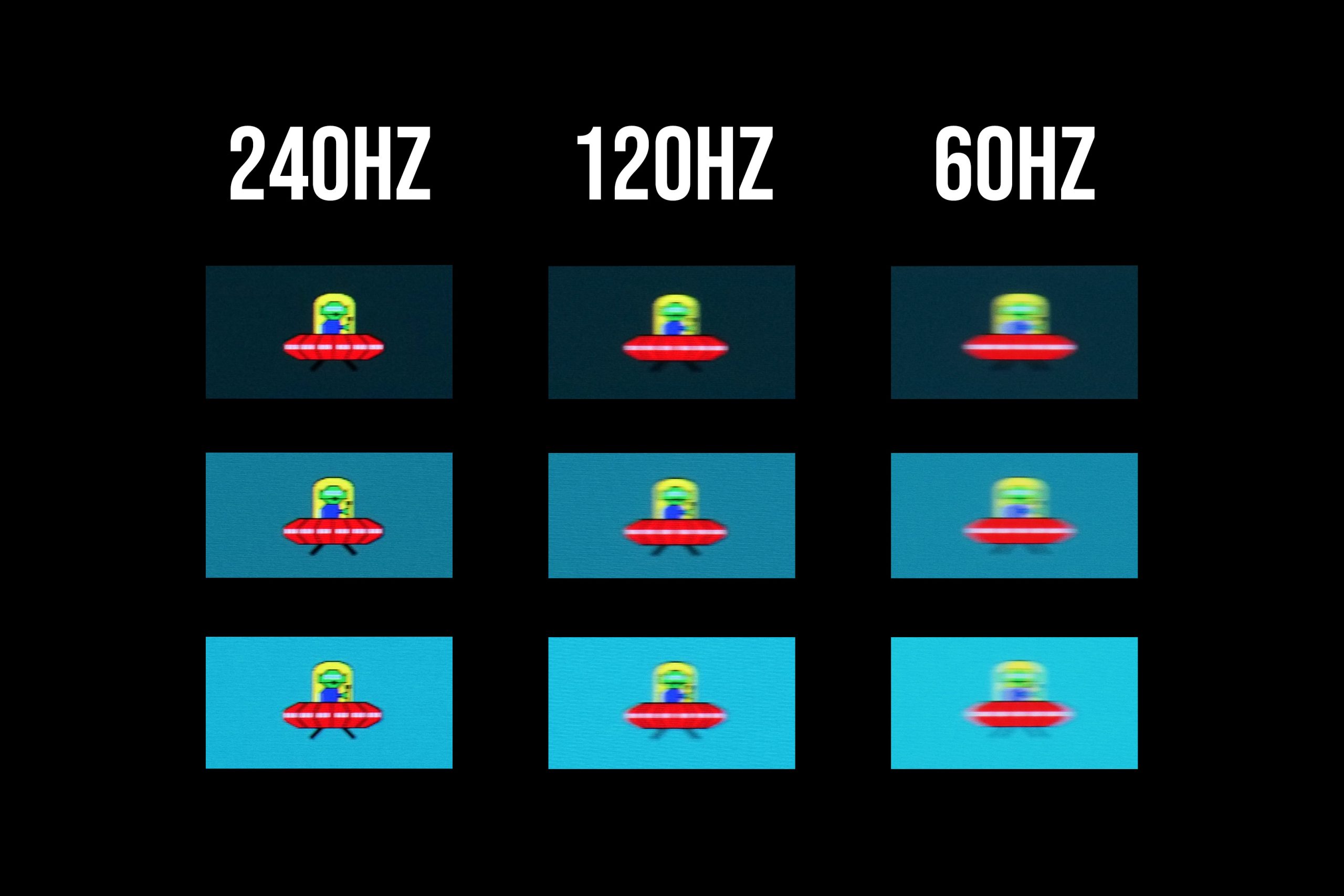
That's illustrated by the above pursuit camera images, using the Blur Busters UFO test. There's a noticeable increase in clarity at 240Hz, even compared to 120Hz, while 60Hz looks distinctively less lucid – despite the response times being near-enough identical at all three refresh rates.
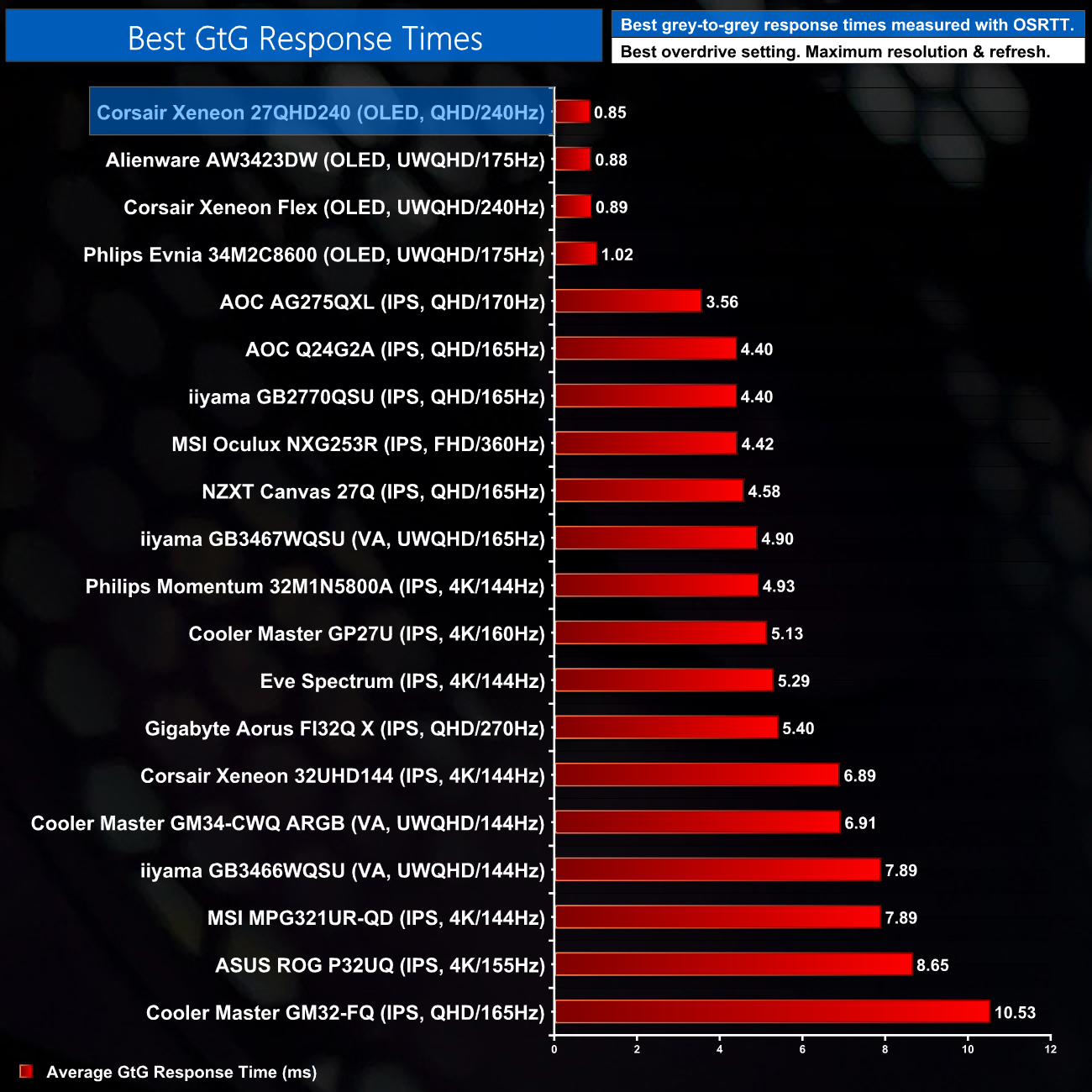
Putting those results into context, the 27QHD240 sits right at the top of our response time chart, grouped closely with the other OLED monitors we've tested. The next-best LCD is over three times slower, which goes to show the inherent advantage OLED screen can offer in the gaming market.
Display latency is another area of our testing, where we use Nvidia’s Latency and Display Analyzer Tool (LDAT V2) to measure display latency. Display latency is the signal processing delay of a display from when a frame starts scanning out on the GPU to when the screen responds. LDAT detects the first observable change (6% increase from the initial brightness).

Display latency is no issue for the 27QHD240 either, improving on the result of the Evnia 32M2C8600 by 1ms – which may not sound like much, but it's a reduction of almost 30%.
The Corsair Xeneon 27QHD240 is the fourth OLED screen we've reviewed over the last year and it's another impressive piece of kit. It may not be without its flaws, but depending on your use case, there is certainly a lot to like here.
Primarily, we know by now what an OLED panel can offer in terms of its gaming prowess, and that presents in two key ways – unmatched response times and highly impressive HDR. Both are on show here, as we measured sub-1ms response times across the refresh range, while per-pixel dimming results in an impressive HDR experience.
Factor in the vibrant and punchy display, with OLED's infinite contrast ratio lending an incredible depth to the image, and we have a very good looking screen indeed.
There are issues, however, with overall brightness being a concern. You either have to contend with a very aggressive ABL, resulting in noticeable changes to overall brightness depending what is being shown on screen – or you have to settle for a rather dim 200 nits brightness when using the Brightness Stabilizer mode. Neither is ideal – in practice I found myself using Brightness Stabilizer when browsing the web, but disabling it every time I played a game, which got a bit annoying after a while.
For those who use a single monitor for multiple purposes – i.e. those who don't solely game on their monitor – the text fringing could also be a problem. This is inherent to LG's WOLED displays, and while you may get used to it after a while, I still found myself getting slightly irritated by the fringing even after having the 27QHD240 on my desk for over a month. If you only game on your monitor then it's not a problem, but if you work from home for instance and do a lot of text-based work, then I personally think I'd struggle to deal with the fringing day in, day out.
As good as the HDR is too, it's not as good as we've seen from some other OLED displays. We measured a peak of below 700 nits for a 5% APL, when other screens are close to 800 or even 900 nits for a similar window size. Don't get me wrong, even at this brightness level the HDR still looks great and is a mile above anything you'd get from an LCD, but equally I have used brighter screens.
For a monitor that costs over £1000 depending where you look, those issues do get amplified. I maintain the Corsair Xeneon 27QHD240 is worth buying, especially if you only use your monitor to play games and want to max out the 240Hz refresh rate in fast-paced multiplayer games. The annoying ABL and fringing, however, could dissuade a chunk of the audience, so it will be interesting to see what 2nd Gen OLED monitors can bring to the table.
We did see the 27QHD240 for £920 from Amazon UK HERE though the price has since gone up. It's available from Overclockers UK for £1049.95 HERE.
Discuss on our Facebook page HERE.
Pros
- Gorgeous panel with perfect contrast.
- Sub-1ms response times.
- Superb motion clarity at 240Hz.
- OLED is great for HDR with per-pixel dimming.
- Two HDMI 2.1 ports.
- Integrated KVM.
Cons
- Aggressive ABL results in noticeable changes to brightness depending on what's on screen.
- HDR brightness isn't the highest we've seen.
- Colour fringing around text may be noticeable for some.
KitGuru says: It's a great gaming display and excels if you can push the framerate close to the 240Hz refresh. There are some downsides though, with the limited brightness being the main drawback.