KitGuru KitGuru.net – Tech News | Hardware News | Hardware Reviews | IOS | Mobile | Gaming | Graphics Cards



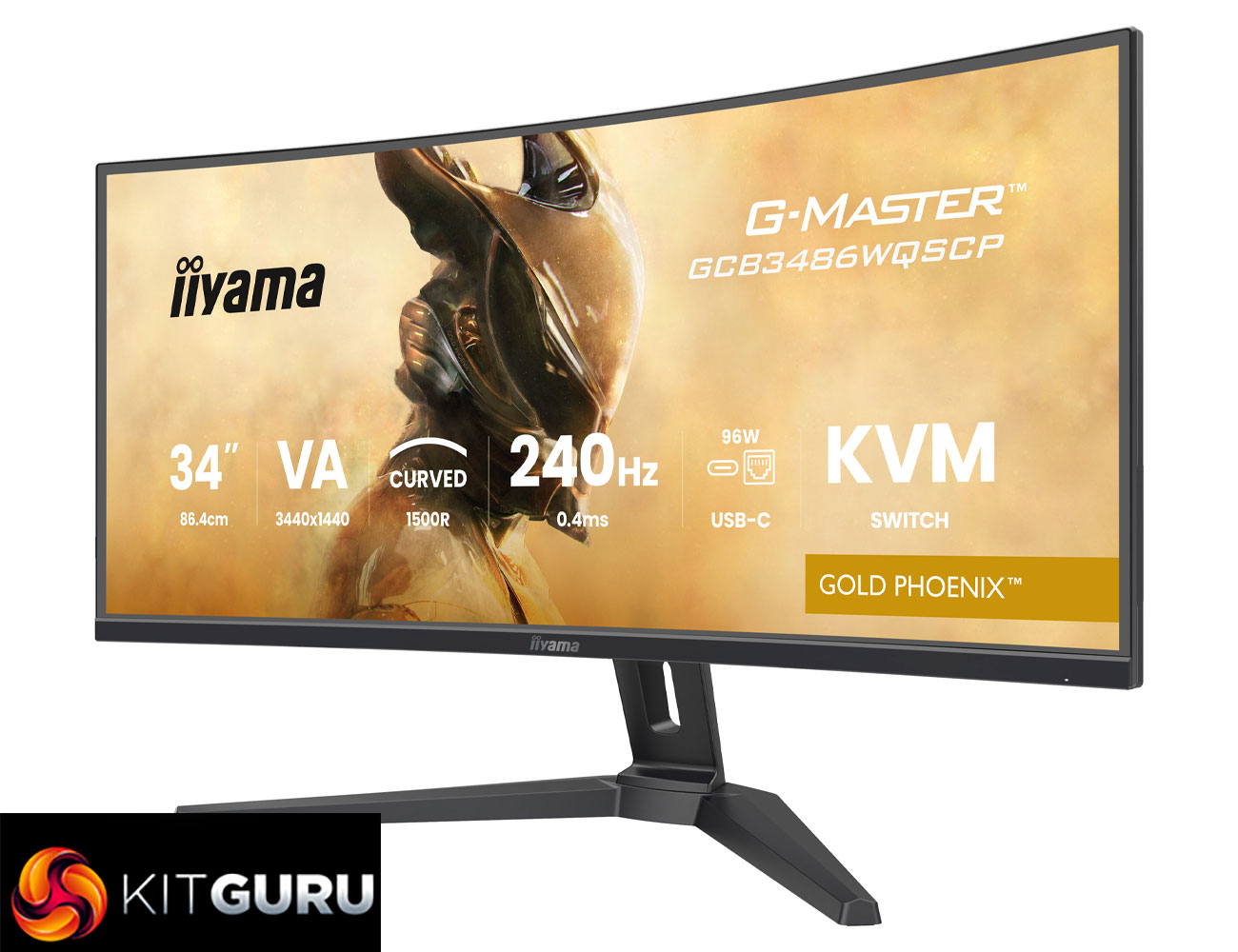
Today we are checking out a very interesting ultrawide monitor from iiyama. The GCB3486WQSCP may not have the catchiest name going, but it offers a curved 34in 3440×1440 VA panel that's clocked at 240Hz. That's alongside a claimed 4000:1 contrast ratio, 0.4ms MPRT response time and 500 nits of brightness… all for just £350. It certainly looks good on paper, but let's see how it performs in the real world.
iiyama has developed a solid reputation for delivering affordable gaming monitors, and we've reviewed a few VA ultrawide screens from the company over the years. The GCB3486WQSCP we are looking at today only launched back in June, and is currently listing on both Amazon and Scan at the £350 asking price.
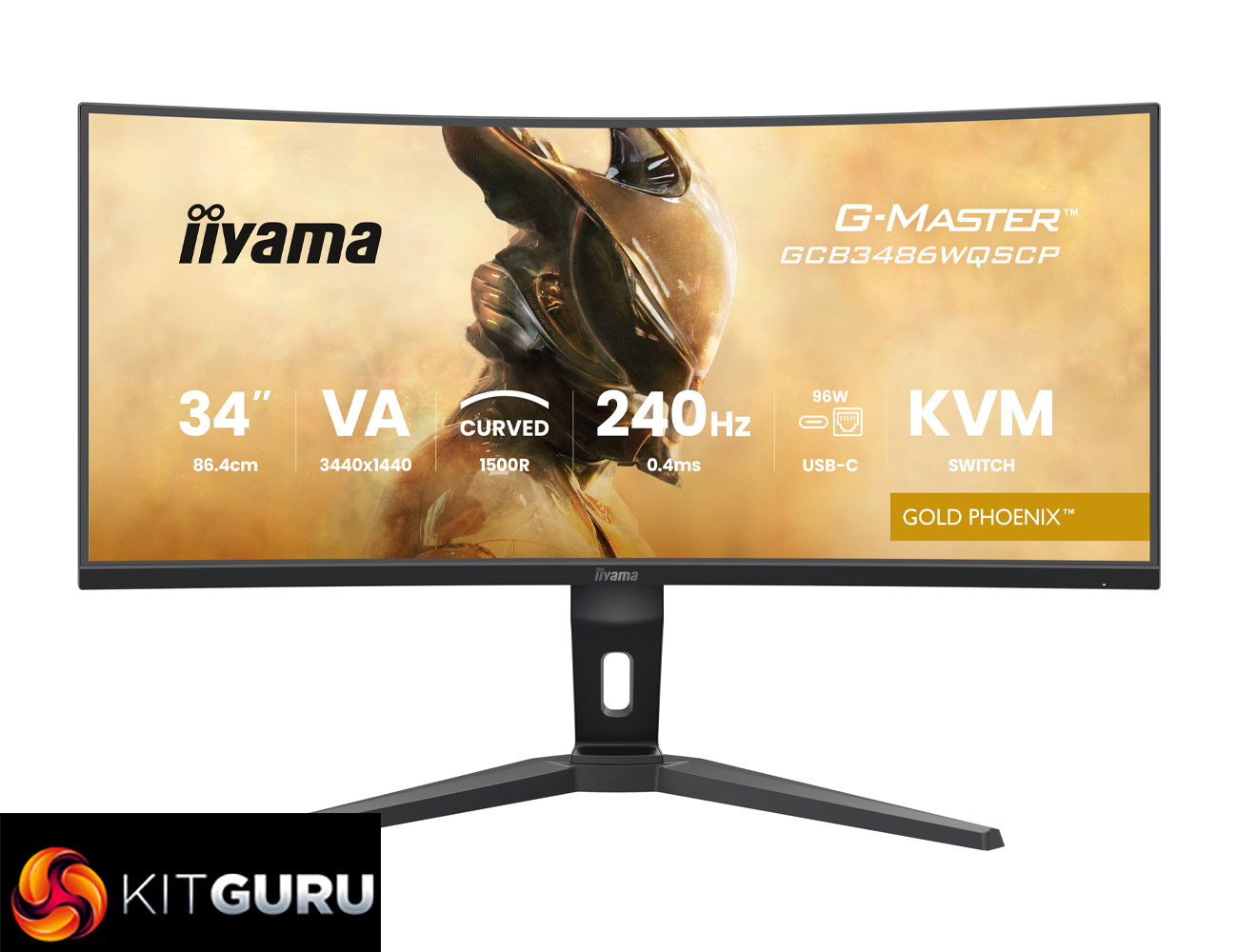
Specification:
- Design: Curved
- Diagonal: 34″, 86.4cm
- Panel: VA
- Curved: 1500R
- Native resolution: 3440 x 1440 @240Hz (4.9 megapixel UWQHD, DisplayPort)
- Aspect ratio: 21:9
- Panel brightness: 500 cd/m²
- Static contrast: 4000:1
- Advanced contrast: 80M:1
- Response time (MPRT): 0.4ms
- Viewing zone: horizontal/vertical: 178°/178°, right/left: 89°/89°, up/down: 89°/89°
- Colour support: 16.7m 8bit (sRGB: 99%; NTSC: 72%)
- Horizontal Sync: 24 – 360kHz
- Viewable area W x H: 797 x 334mm, 31.4 x 13.1″
- Pixel pitch: 0.232mm
- Colour: Black
- Signal input:
- HDMI x2 (v.2.1 3440×1440 @240Hz)
- DisplayPort x1 (v.1.4, 3440 x 1440 @240Hz)
- USB HUB x3 (2x Type A v.3.2 Gen 1 (5Gbps, 4.5W), 1x Type C (5Gbps, 10W)
- USB-C DOCK x1 (Power delivery 95W, LAN, USB v.3.2 (Gen 1, 5Gbit)
- HDCP: Yes
- Headphone connector: Yes
- RJ45 (LAN): x1
- KVM switch: Yes
- Blue light reducer: Yes
- Flicker free: Yes
- Adaptive Sync support: FreeSync Premium – HDMI: 3440 x 1440 @48-240Hz, DP / USB-C: 3440 x 1440 @48-240Hz, VRR / ALLM
- HDR: HDR400
- OSD languages: EN, DE, FR, ES, IT, RU, JP, CZ, NL, PL
- Height adjustment: 130mm
- Tilt angle: 18.5° up; 3.5° down
- VESA mounting: 100 x 100mm
- Cable management system: Yes
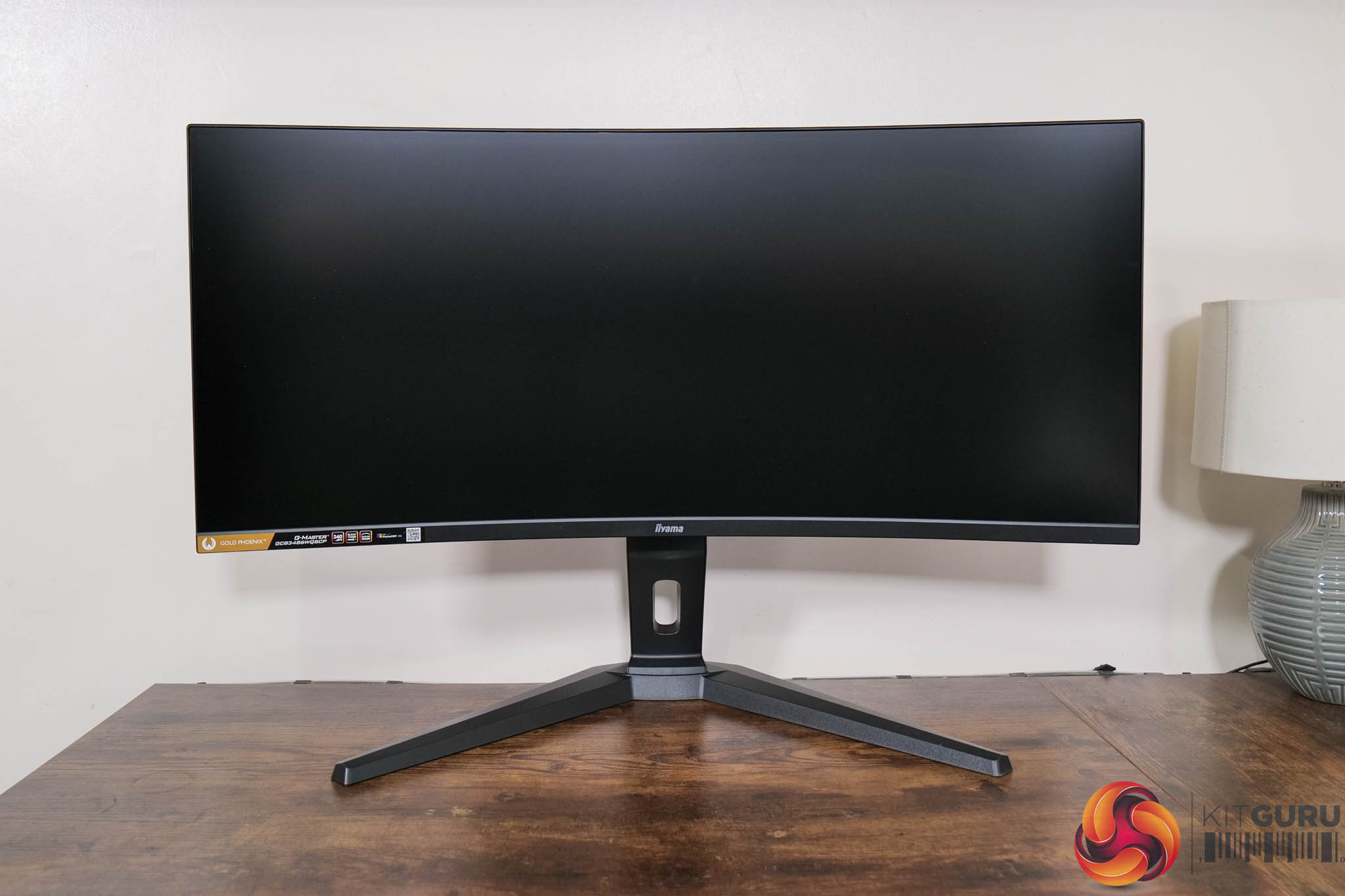
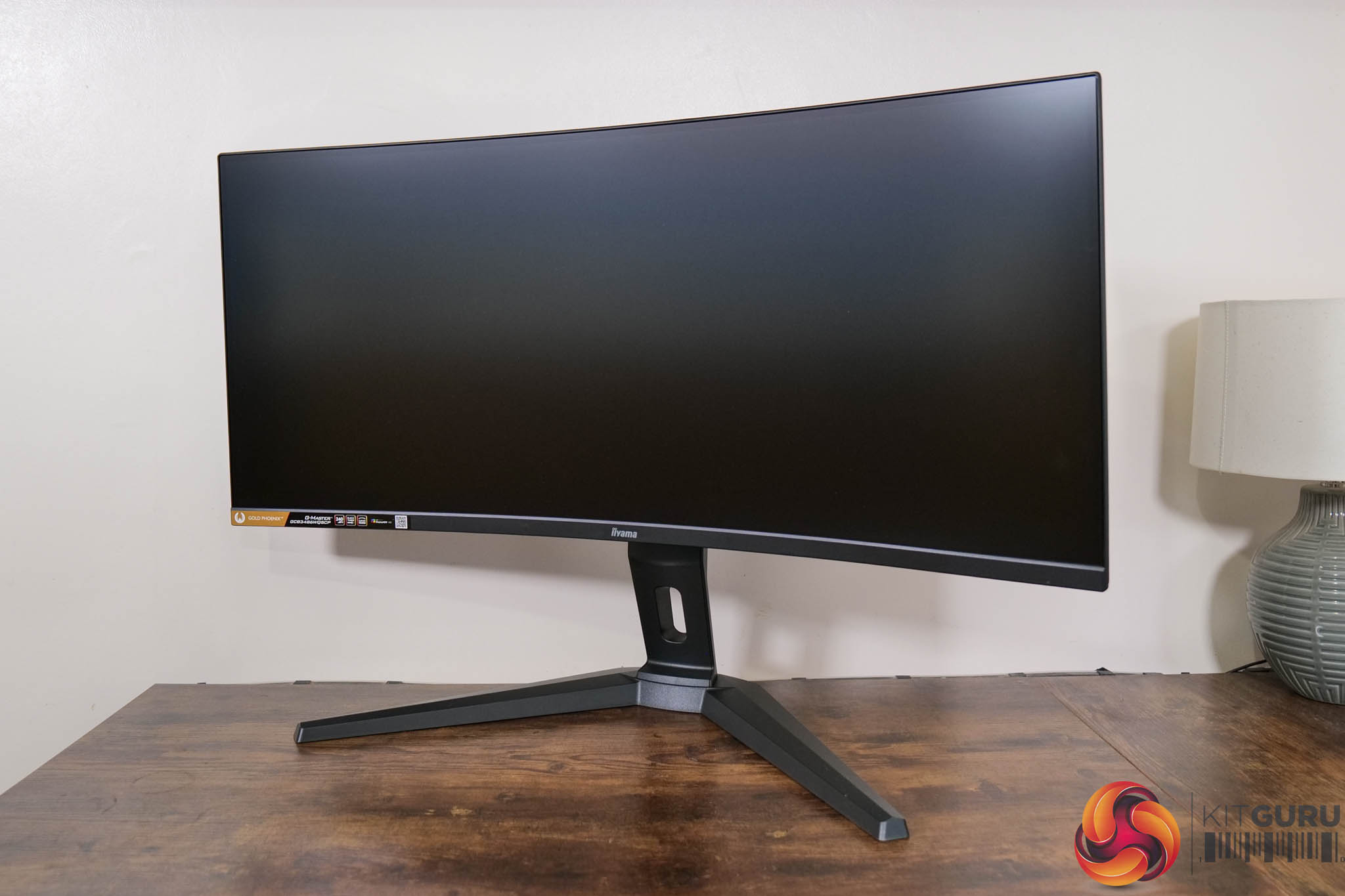
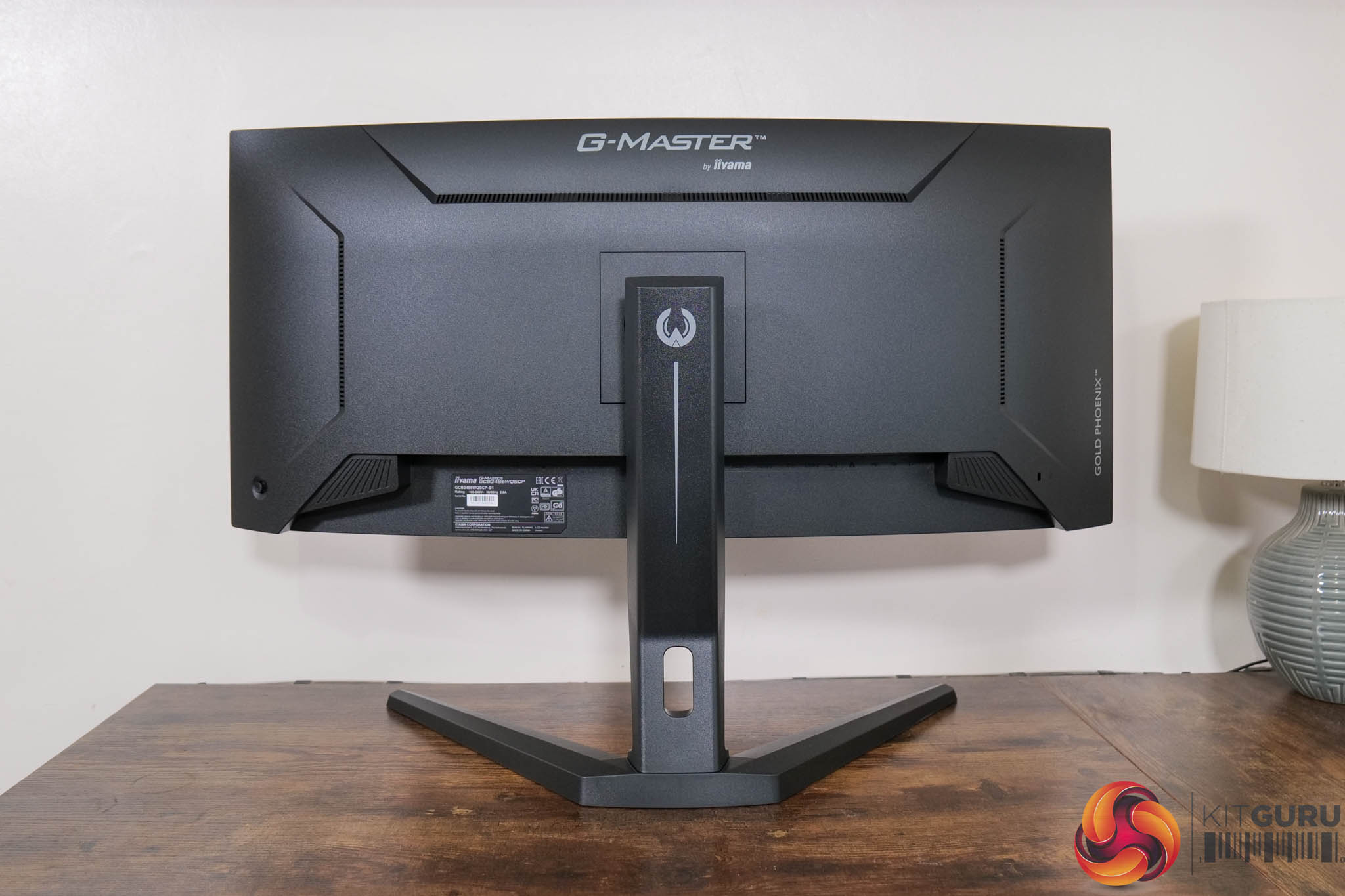
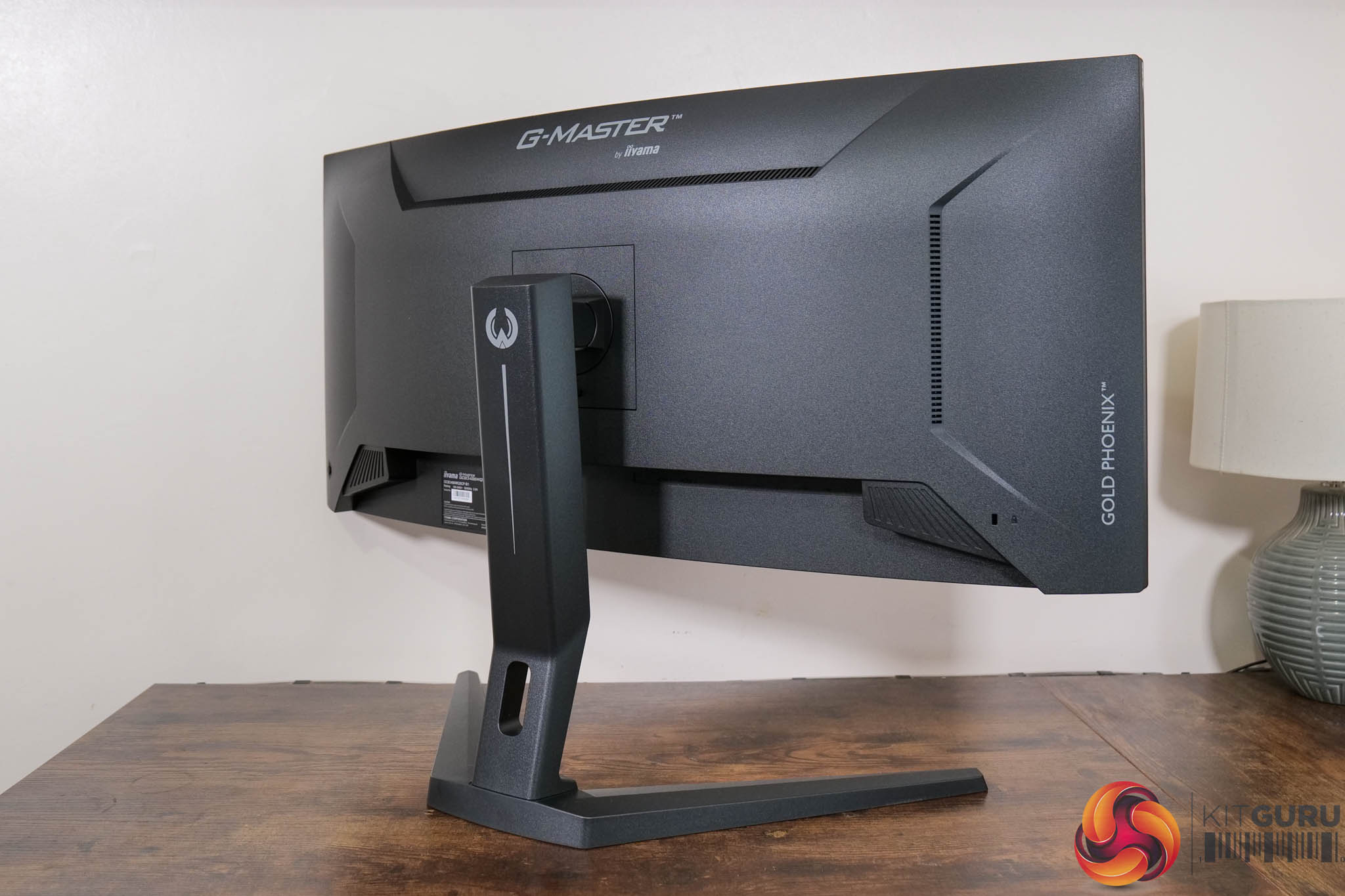
Starting with the design, the GCB3486WQSCP carries on the hallmark of iiyama monitors – they're understated, almost entirely matte black, and don't do anything flashy. I have absolutely nothing against that and think it looks fine – yes, the build is on the plasticky side, but we can't forget that this is just £350.
iiyama is also using a V-shaped foot, which isn't usually my preference but makes sense considering this is a 34in ultrawide panel. It measures approximately 54cm across.

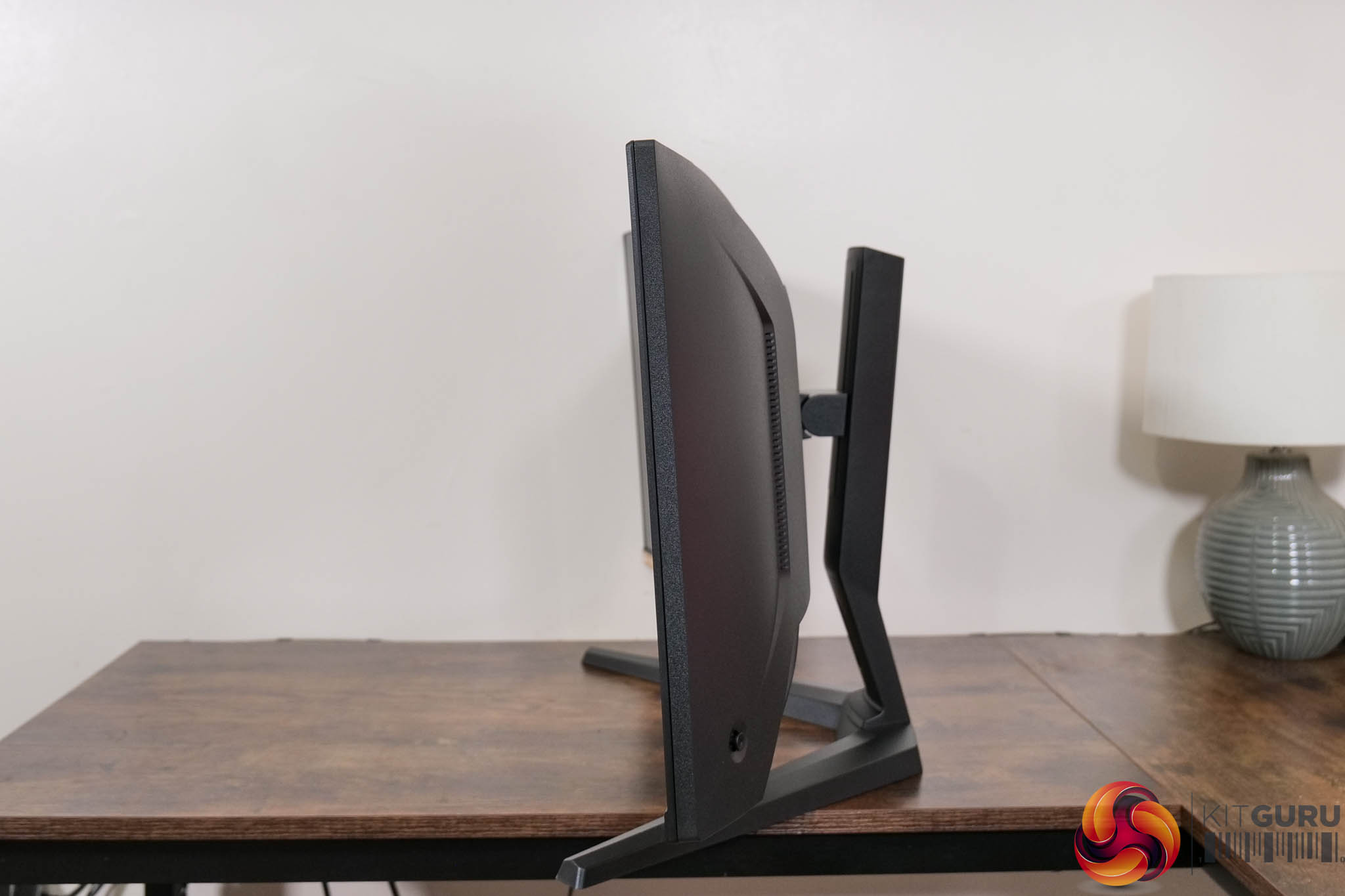
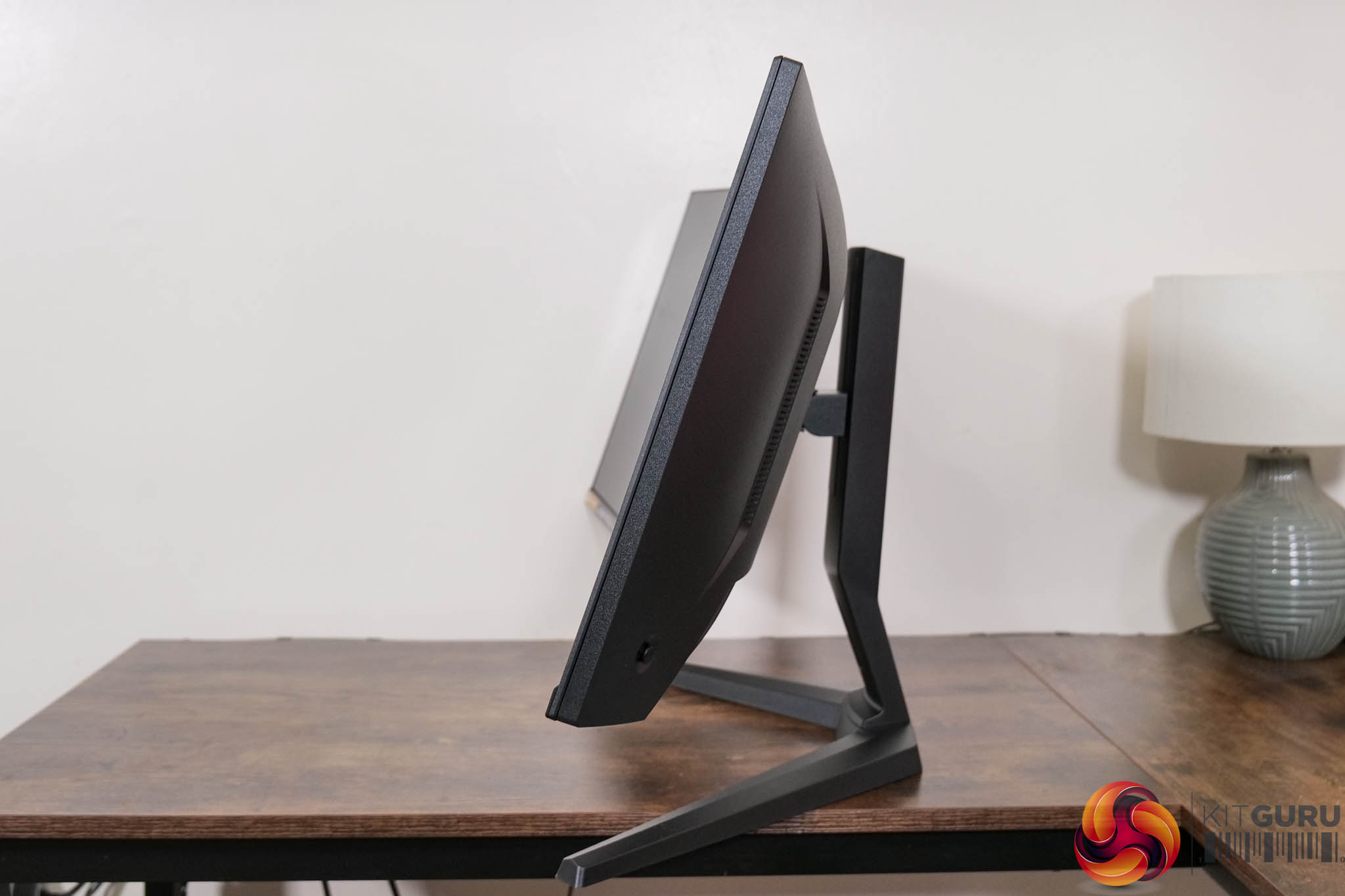
The included stand offers some ergonomic adjustment, with up to 130mm height adjustment, and then tilt from -3.5 to +18.5 degrees. Interestingly, despite not being listed in the official spec sheet, I found out by pure accident that pivot functionality is also present, while third-party VESA 100×100 mounts are supported too.
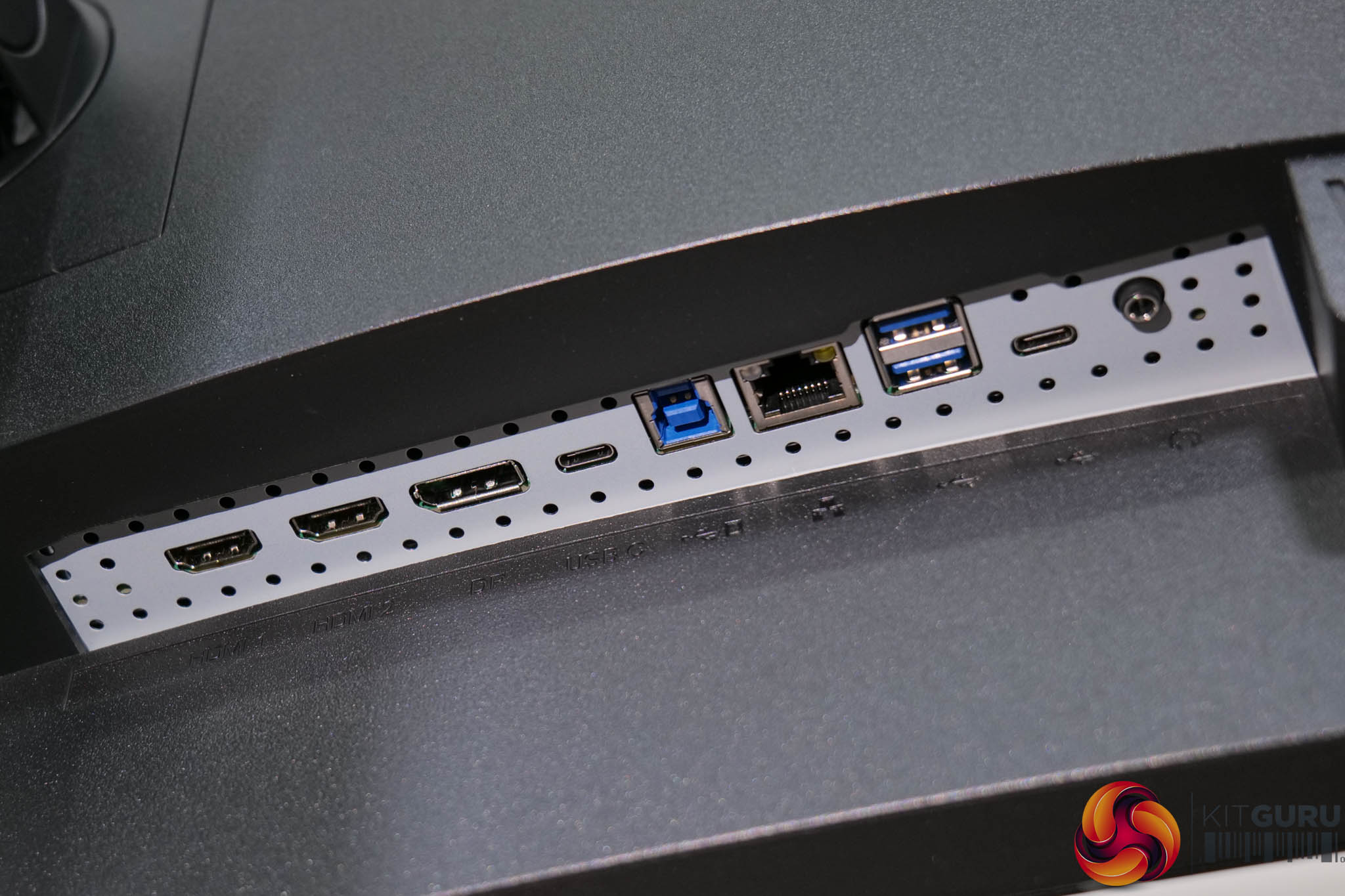
There's loads of connectivity options too, with 2x HDMI 2.1, 1x DisplayPort 1.4 and a USB-C port that offers 95W power delivery, plus DP-Alt mode. There's also a Type-B upstream port that feeds two Type-A and one USB-C downstream ports, while you also get the sense iiyama is targeting more than just gamers with the inclusion of an Ethernet port, alongside built-in KVM functionality.
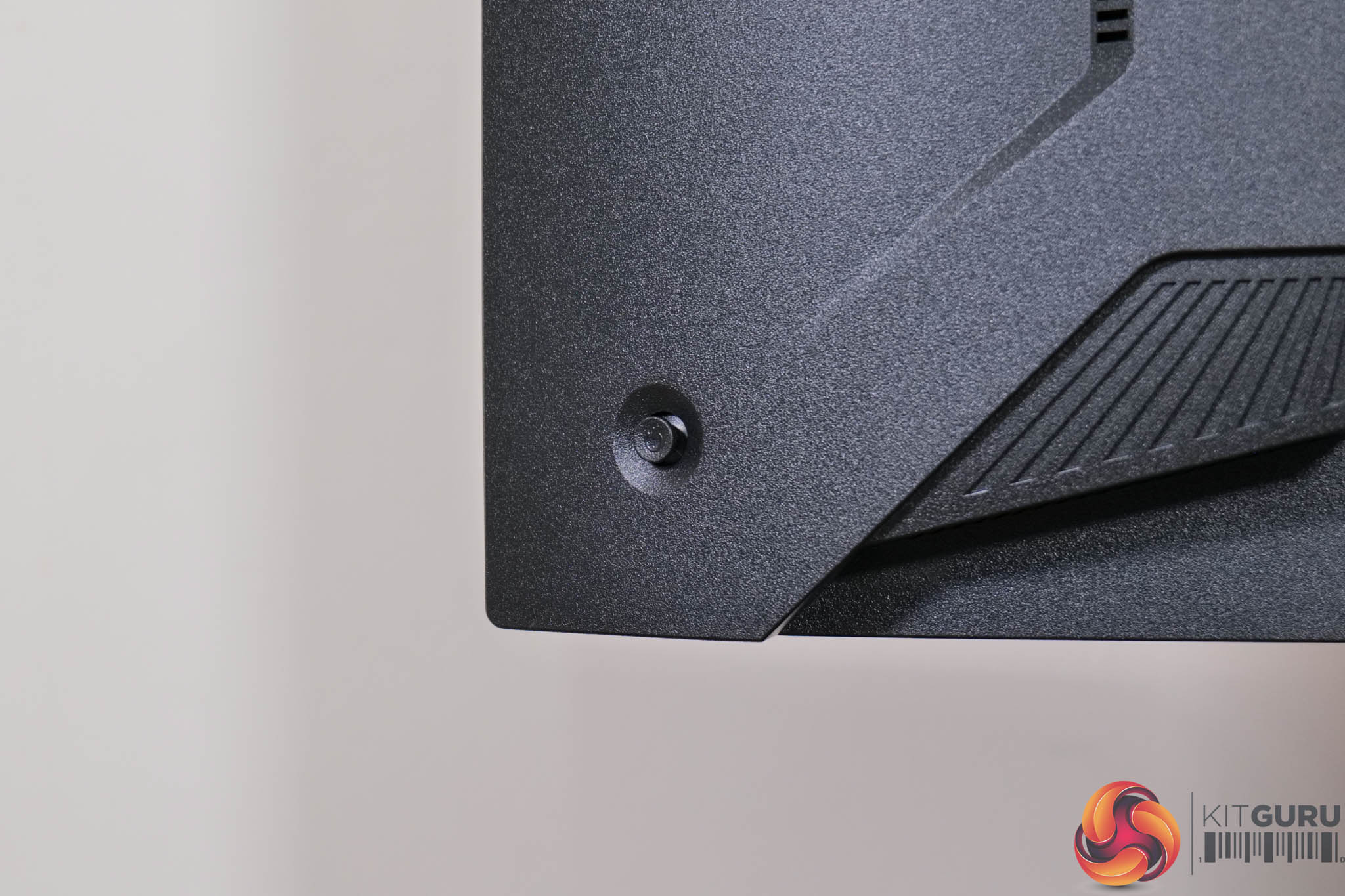
Regular readers will know I was very glad to see a joystick which is used to navigate the OSD, as opposed to those small, fiddly buttons.
The OSD itself is split into ten main tabs:
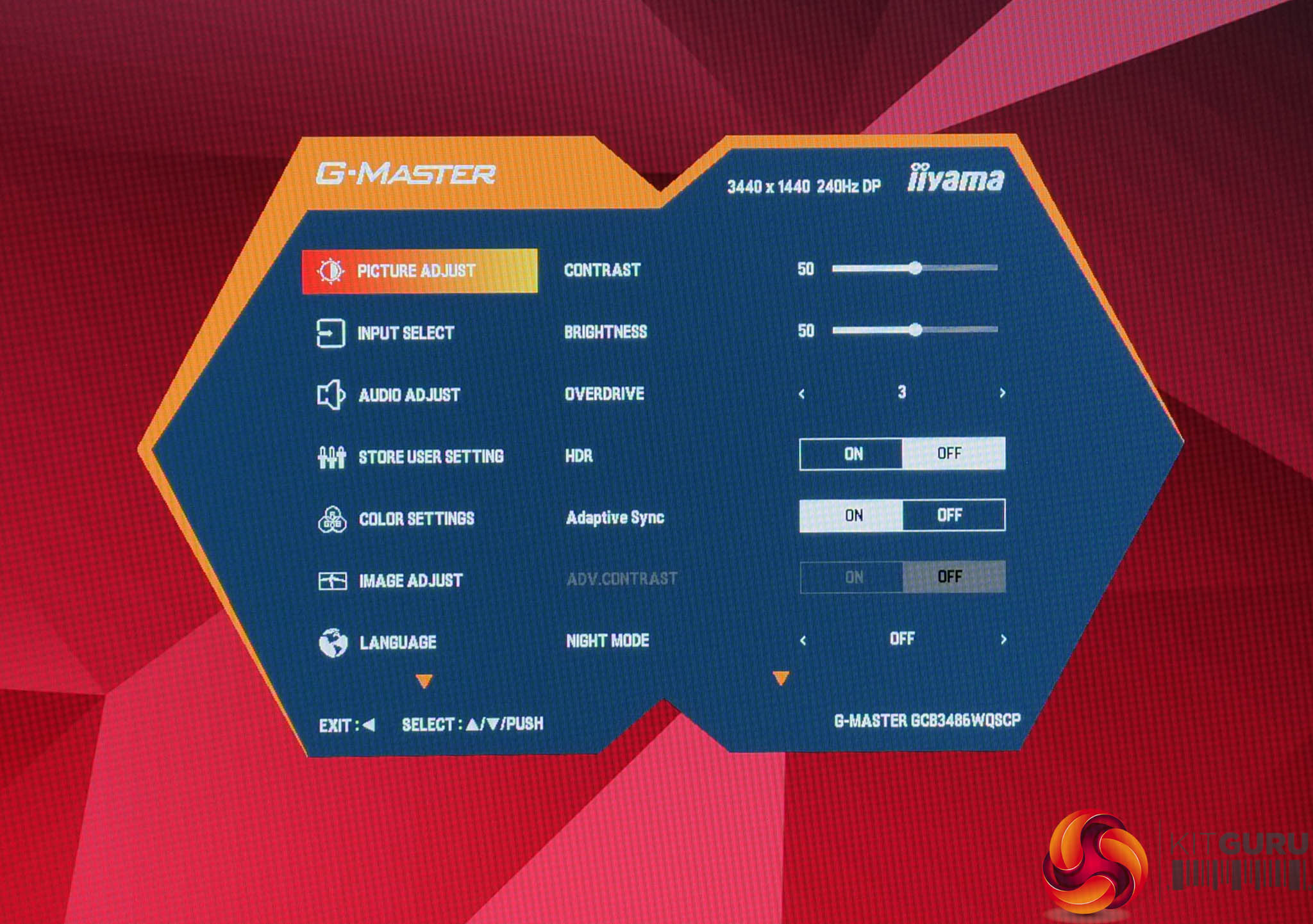
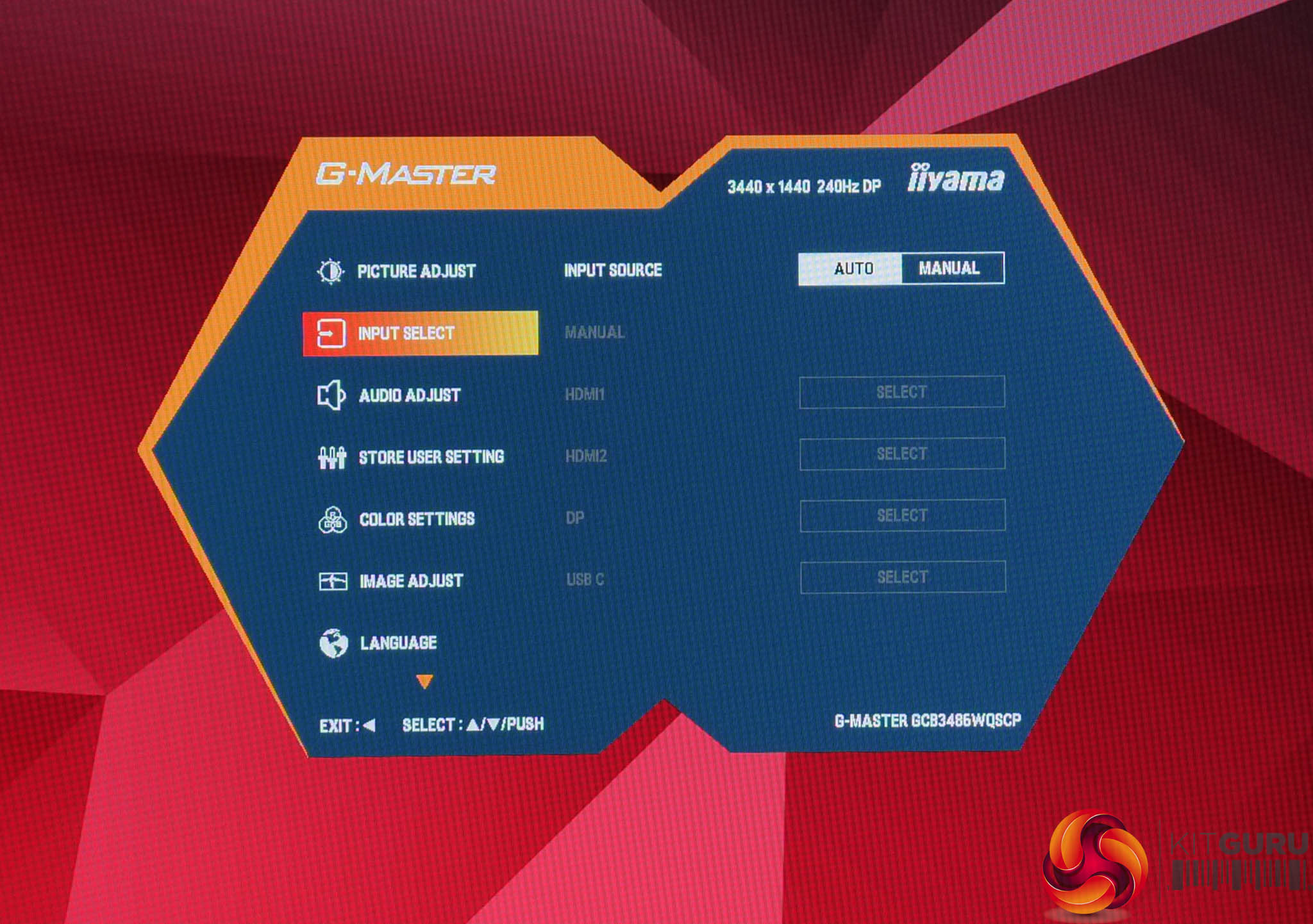
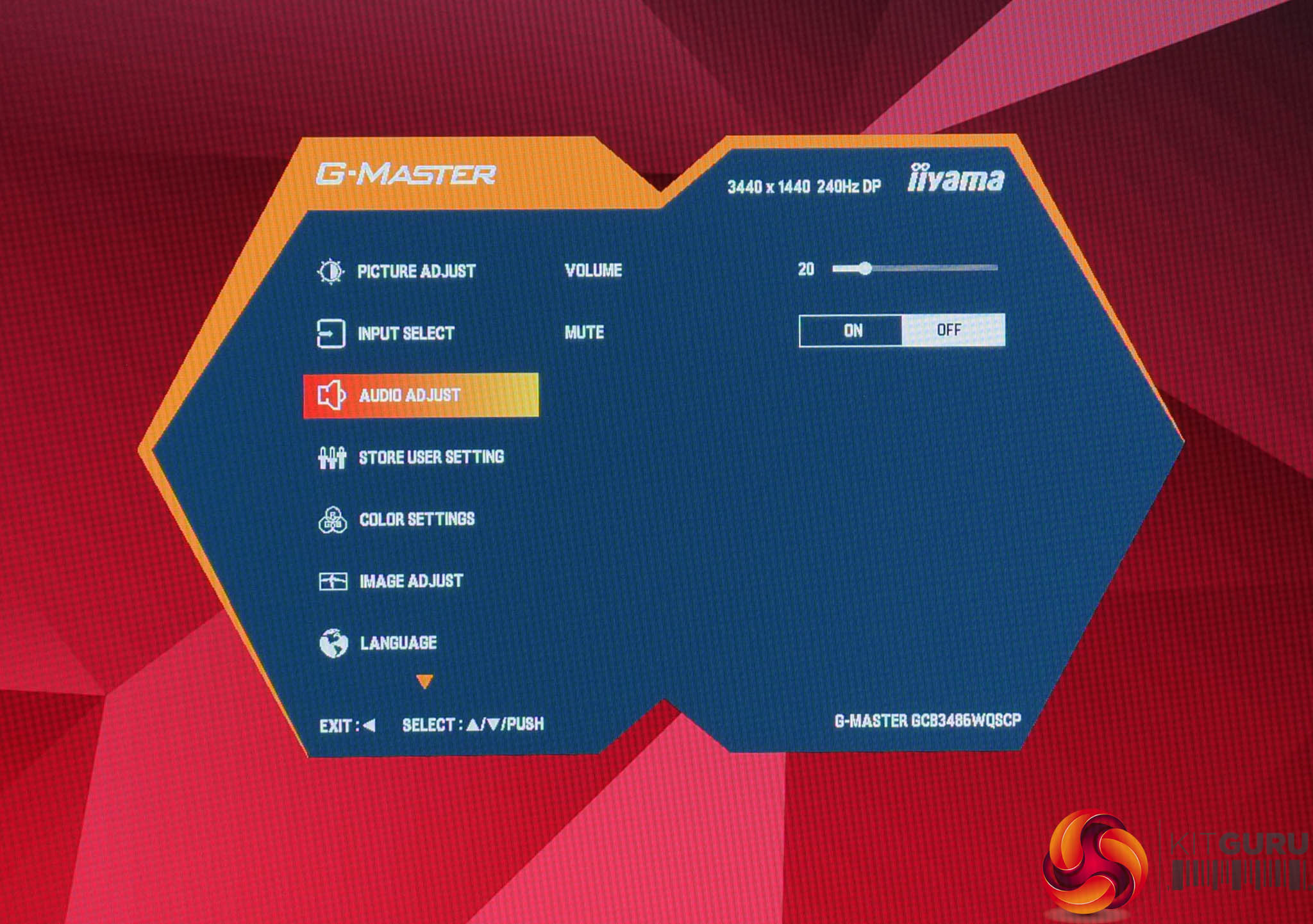
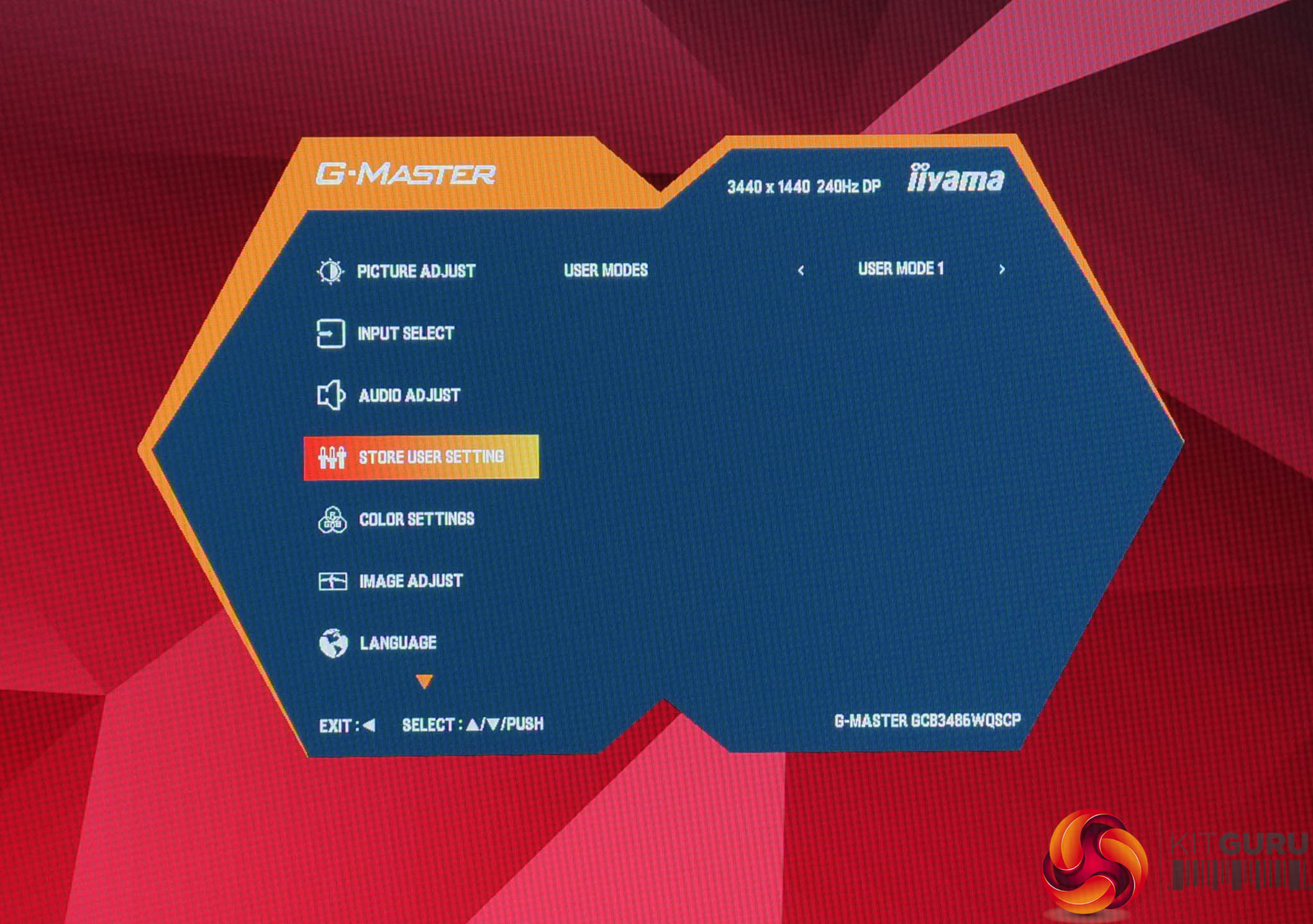
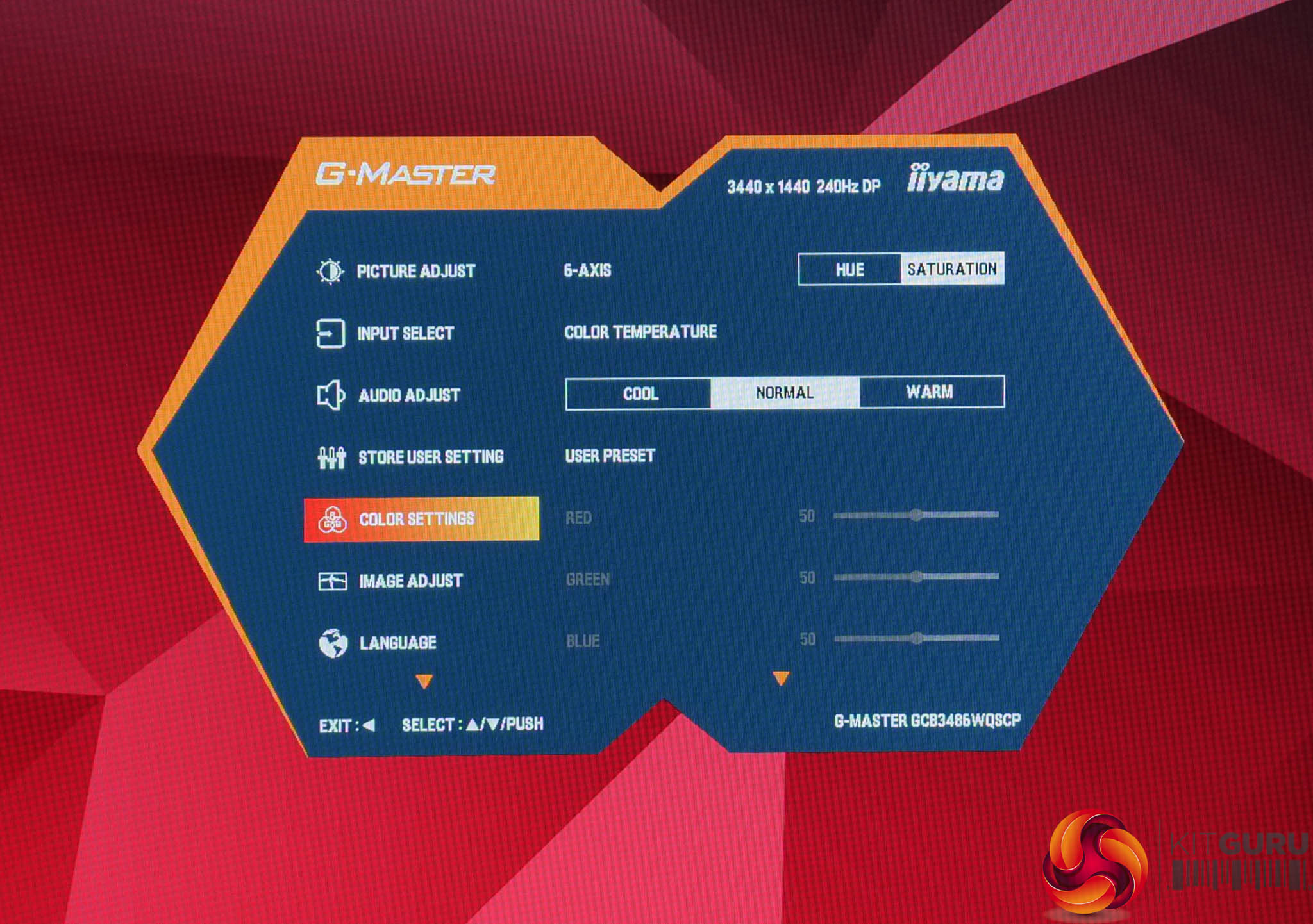
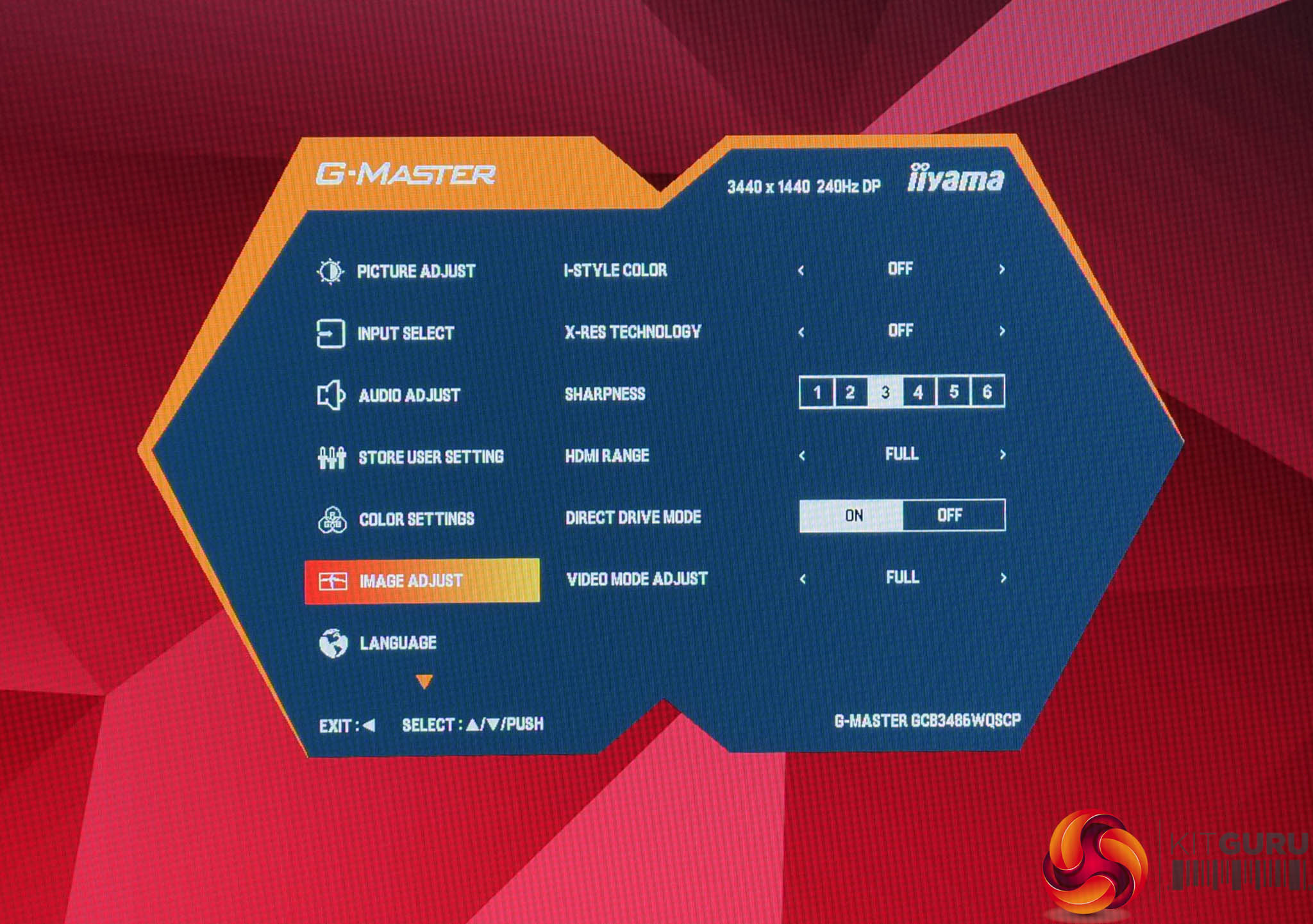
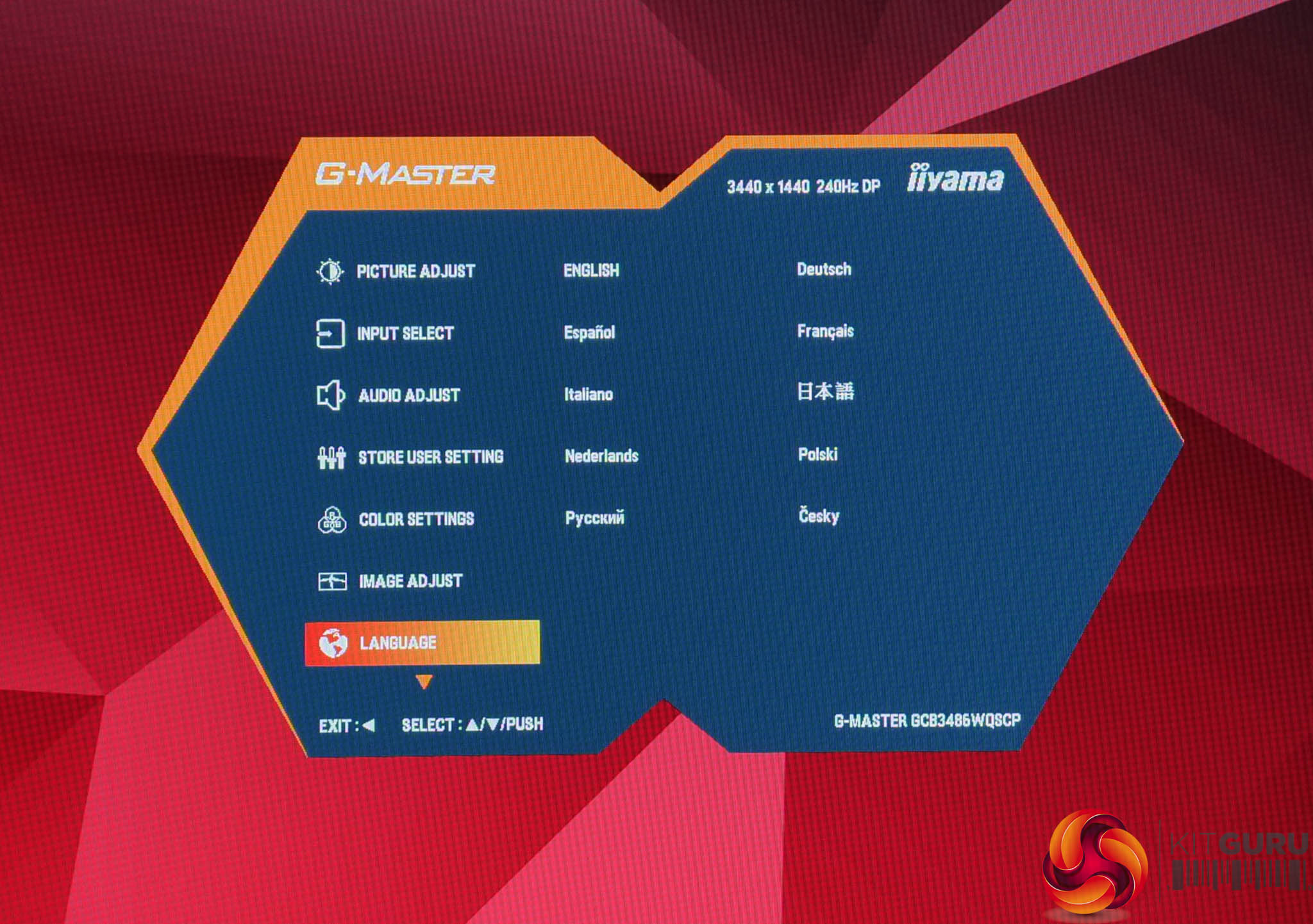
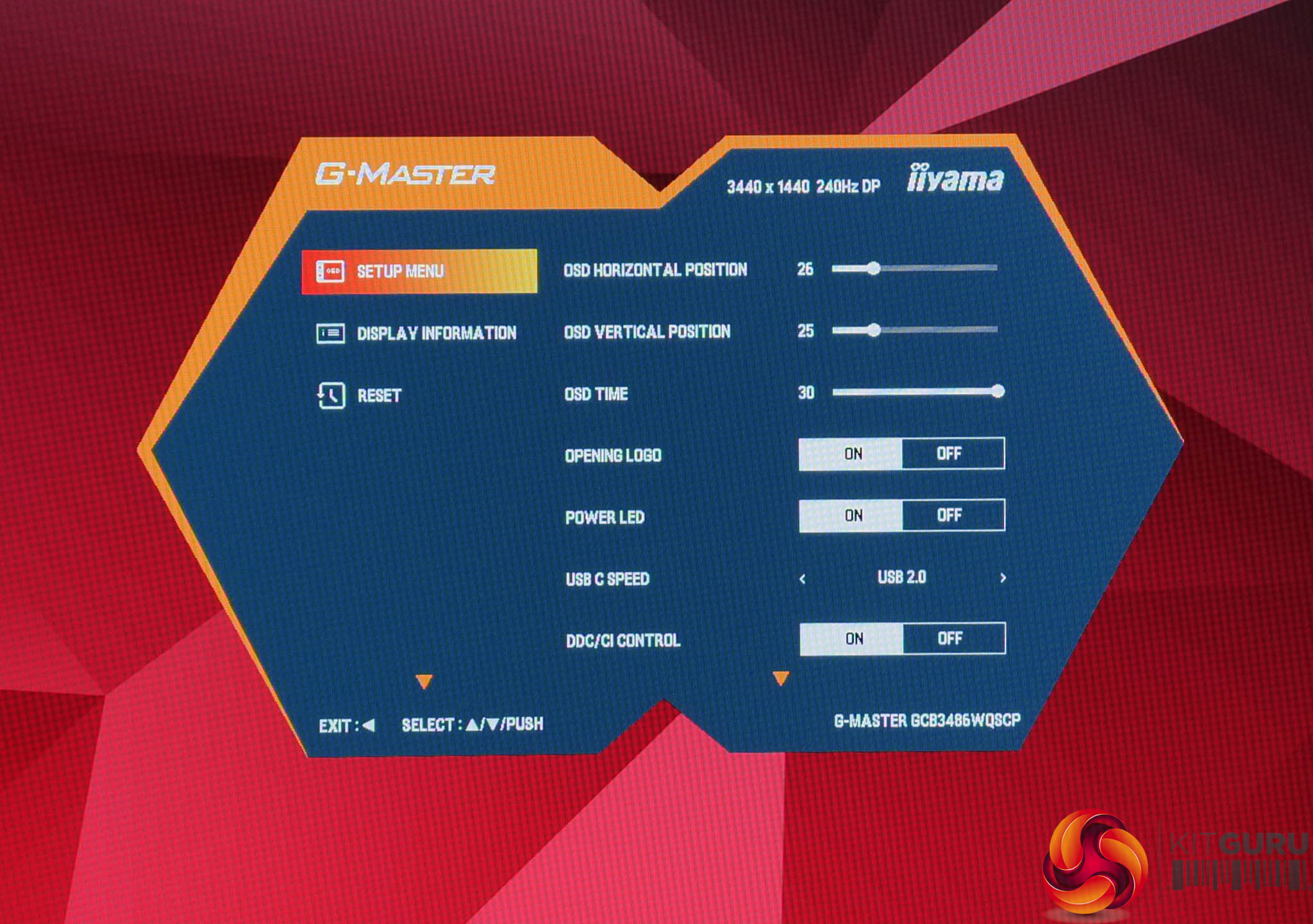
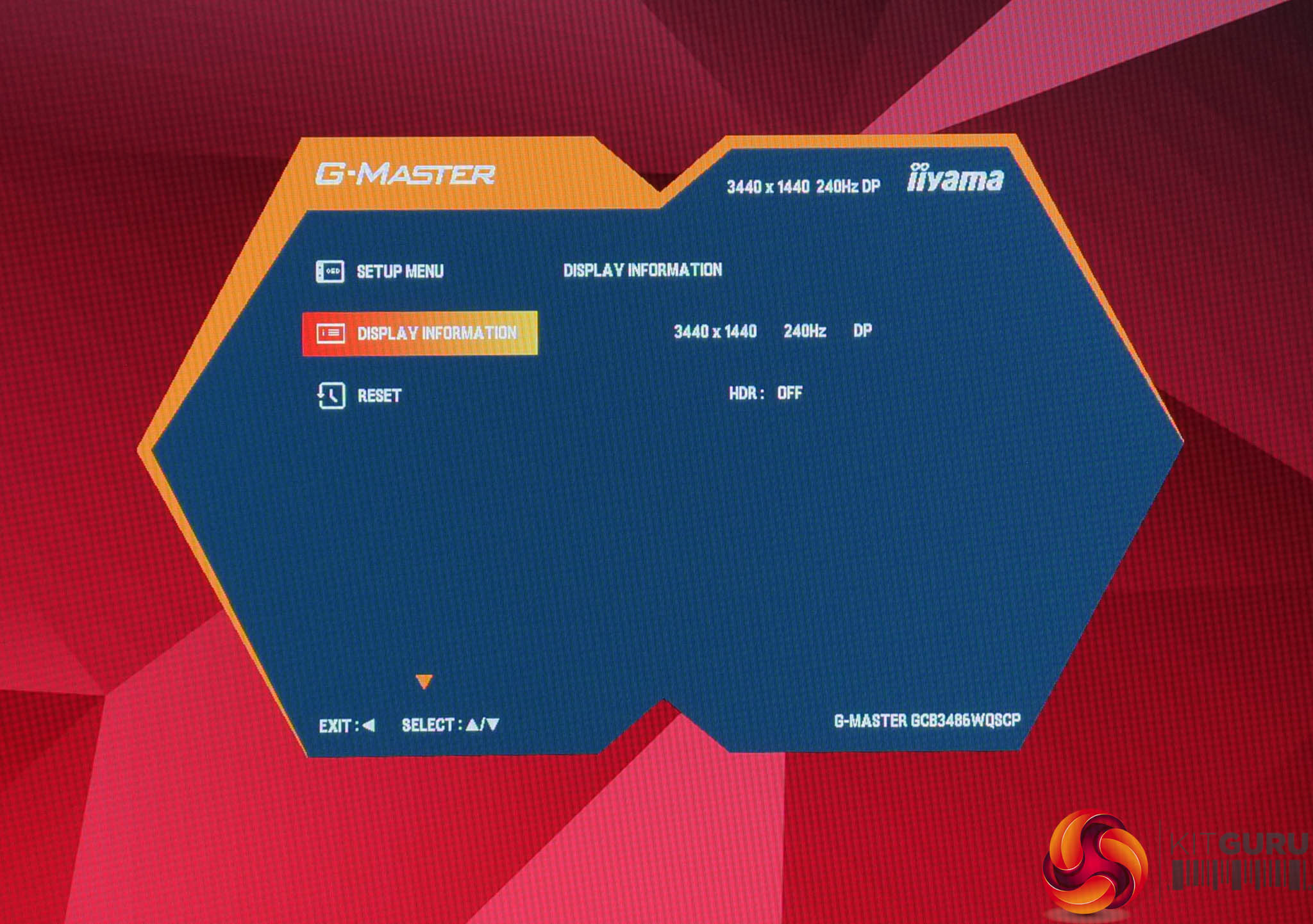
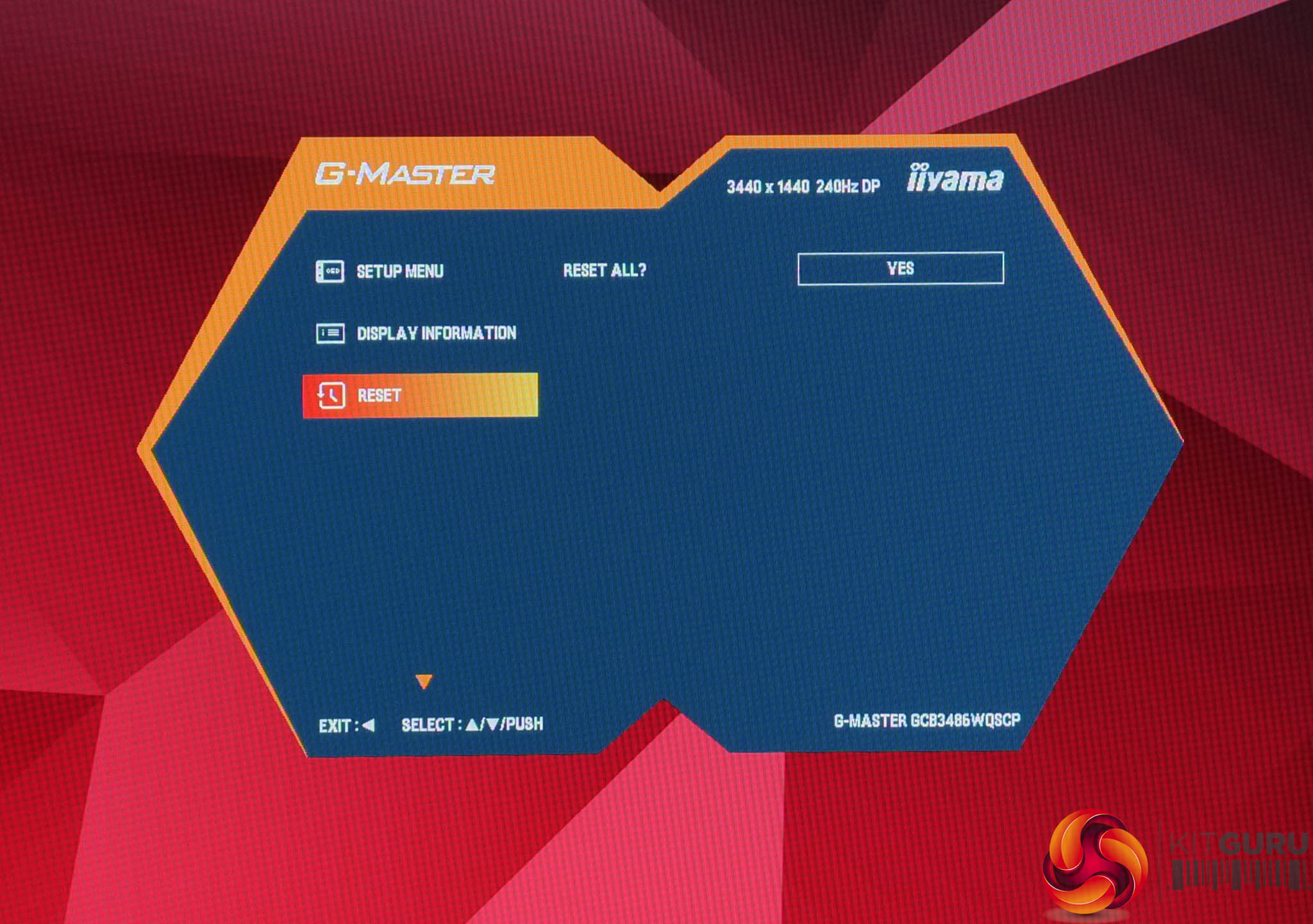
As for the OSD itself, this has a received a much-needed face lift since we last reviewed an iiyama monitor. The core feature-set and functionality appears similar, but it's now presented in a much cleaner overall package. It's also dead-easy to navigate thanks to the joystick – my only real gripe is the lack of any colour space modes, so there's no sRGB emulation mode, but otherwise I haven't got any major complaints.
Our main test involves using an X-Rite i1 Display Pro Plus colorimeter and utilising Portrait Display's Calman Ultimate software. The device sits on top of the screen while the software generates colour tones and patterns, which it compares against predetermined values to work out how accurate the screen is.
The results show:
- A monitor’s maximum brightness in candelas or cd/m2 at various levels set in the OSD.
- A monitor’s contrast ratio at various brightness levels in the OSD.
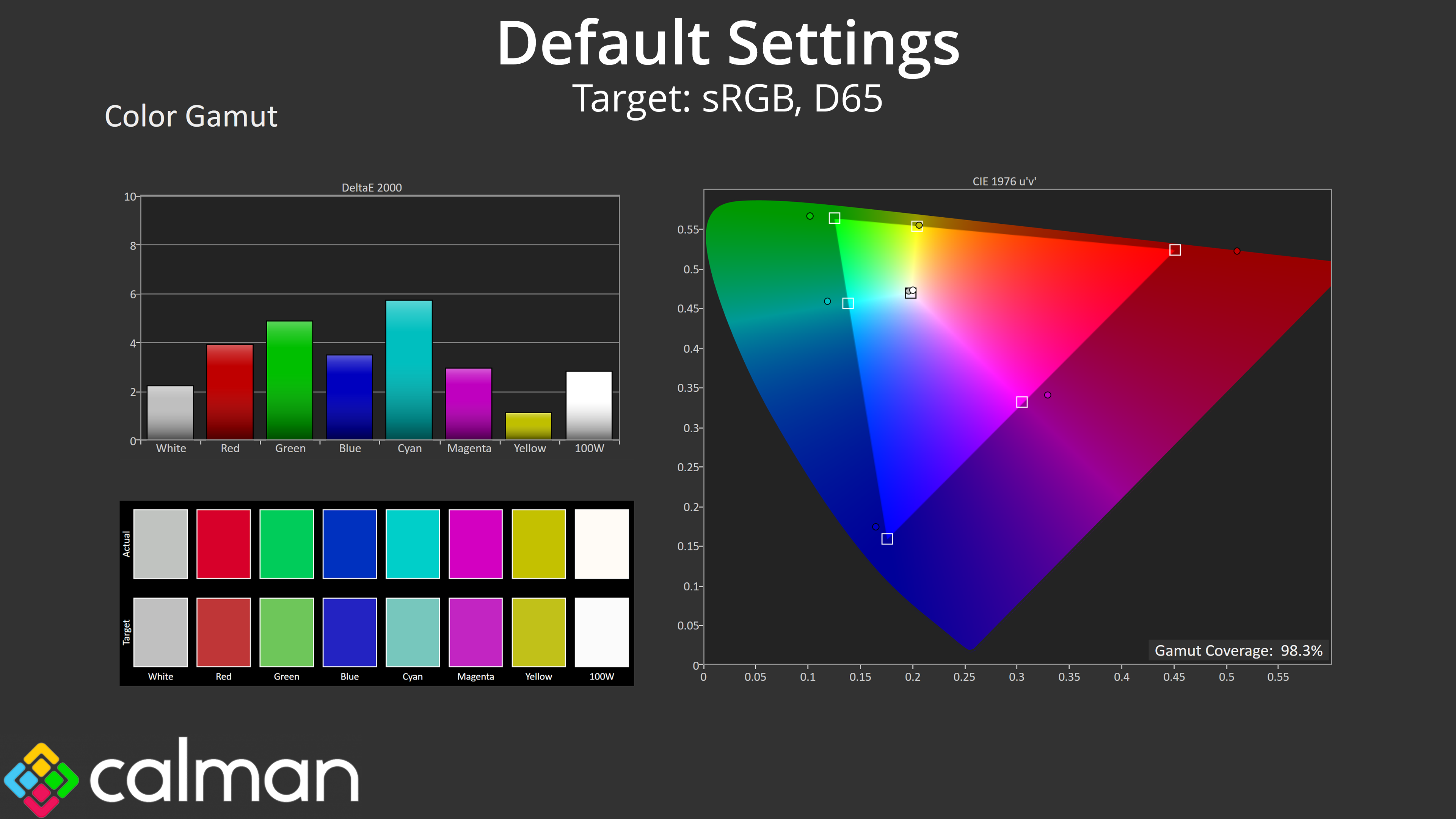
- Gamut coverage, primarily focusing on sRGB and DCI-P3 colour spaces.
- Greyscale accuracy, measured across 20 shades, with an average colour balance reported.
- The exact gamma levels, with a comparison against preset settings in the OSD.
- The colour accuracy, expressed as a Delta E ratio, with a result under 3 being fine for normal use, and under 2 being great for colour-accurate design work.
We first run these tests with the display in its out-of-the-box state, with all settings on default. If there is an sRGB emulation option or other useful mode then we may test that too. We then calibrate the screen using the Calman Ultimate software and run the tests again.
You can read more about our test methodology HERE.
Default settings
Brightness and Contrast (Full Screen)
| OSD Brightness | White Luminance (cd/m2) | Black Luminance (cd/m2) | Contrast Ratio |
| 0% | 68.7 | 0.023 | 2950:1 |
| 25% | 169.4 | 0.057 | 2981:1 |
| 50% | 265.5 | 0.089 | 2988:1 |
| 75% | 419.7 | 0.141 | 2982:1 |
| 100% | 565.5 | 0.19 | 2982:1 |
| Adv. Contrast | 126.8 | 0.041 | 3102:1 |
Starting testing with brightness and contrast, the GCB3486WQSCP gets very bright indeed, peaking at almost 570 nits – well over iiyama's claimed 500 nit figure. The minimum brightness of 69 nits isn't super-low, but it's passable. However, contrast does fall short of iiyama's claims, given we saw more like 2980:1, instead of the stated 4000:1 ratio.
I did try the advanced contrast option in the OSD, which improves things slightly, to around 3101:1, but it also caps brightness at under 130 nits, so probably isn't worth using.
Gamut (CIE 1976)

| Colour space | Coverage (%) |
| sRGB | 98.3 |
| DCI-P3 | 93.4 |
| Adobe RGB | 92.7 |
| Rec.2020 | 70.5 |
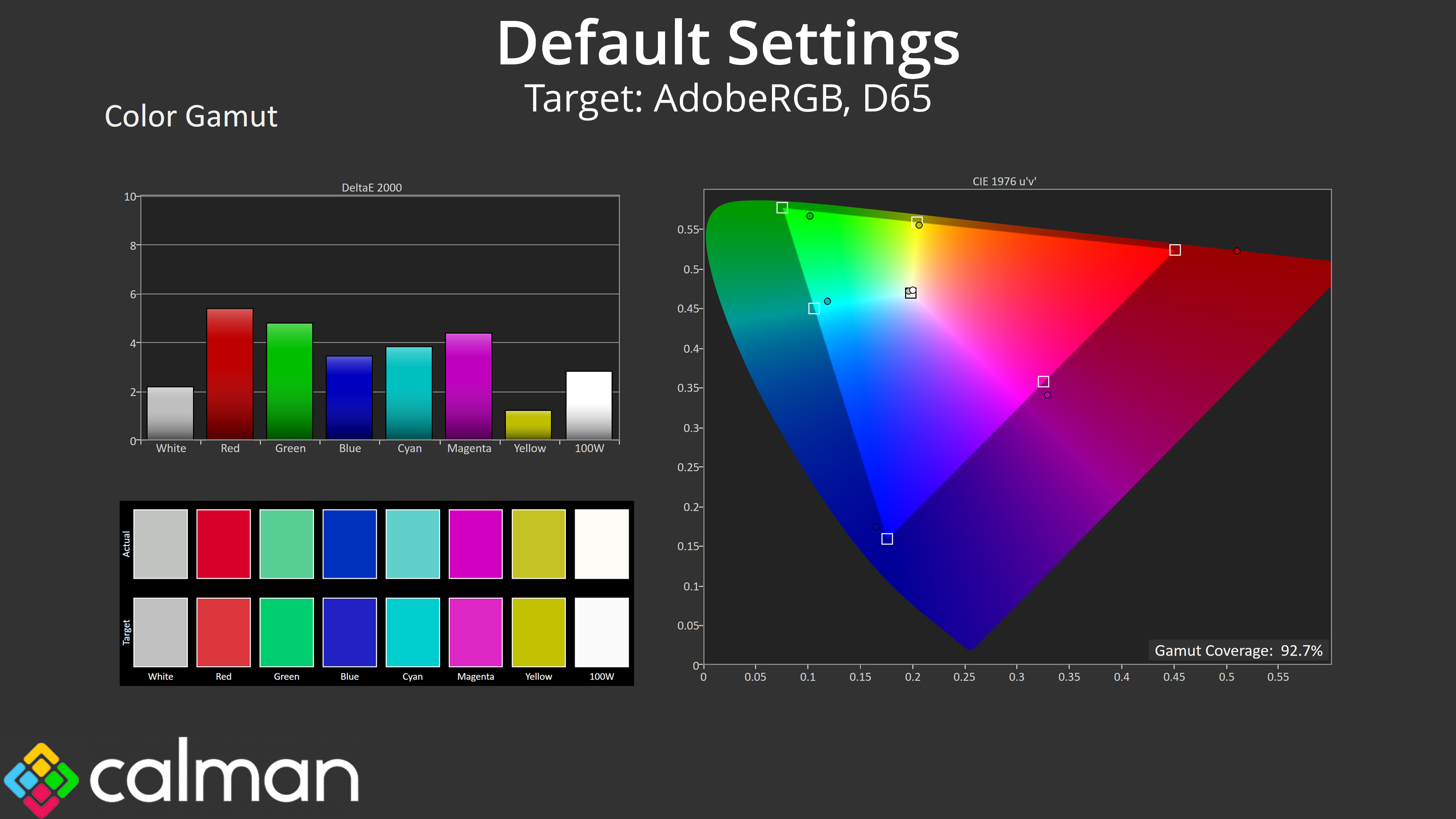
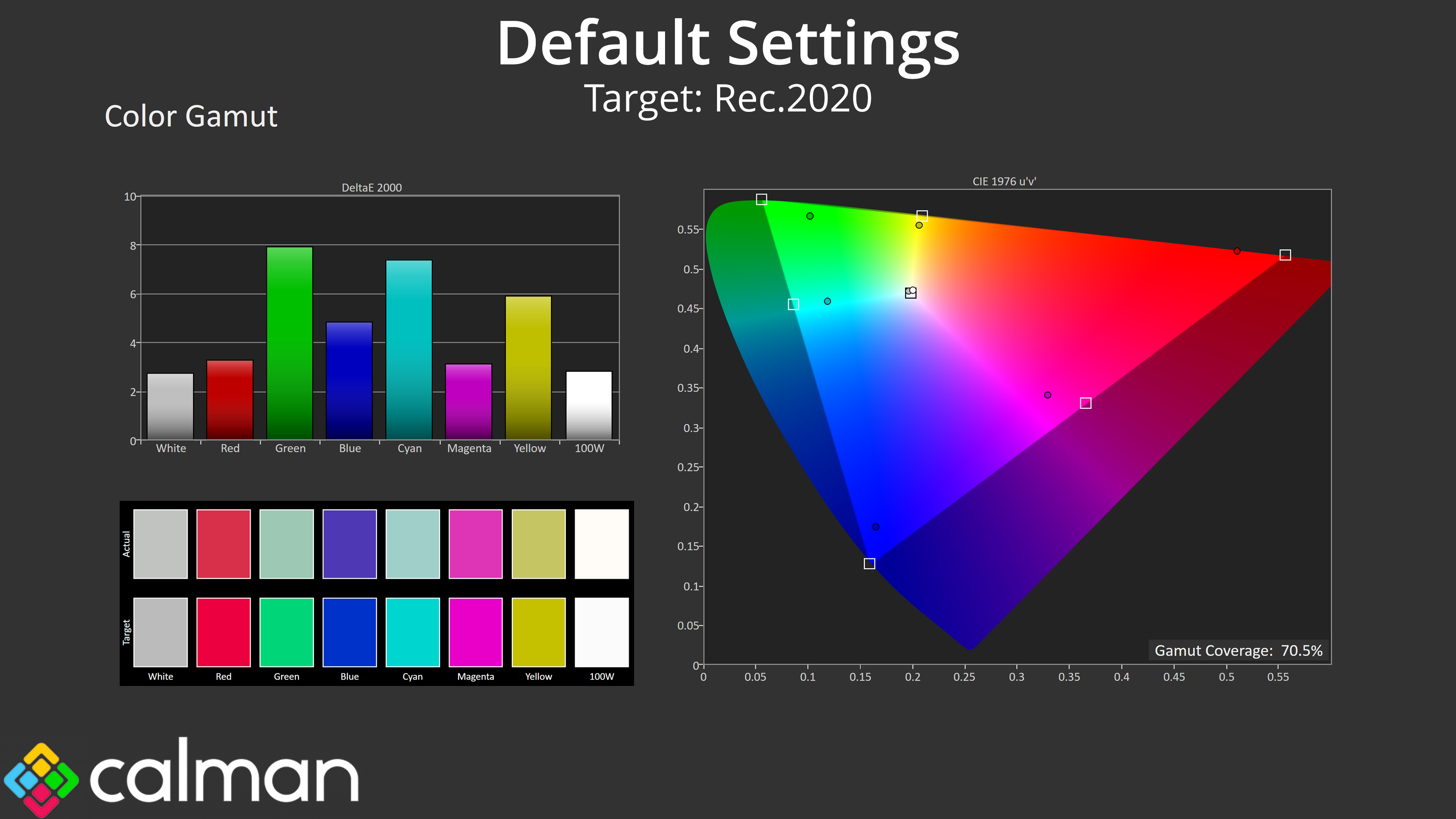
Moving on, we can see iiyama is using a wide-gamut panel, generally exceeding the sRGB space and offering 93.4% coverage for DCI-P3, alongside 92.7% reporting for Adobe RGB, and then 70.5% coverage for Rec.2020. Not bad at all considering the price.
Greyscale

Default greyscale is also generally well configured from the factory. The average colour balance of 6435K is very good, though the green channel is just a little stronger than the rest, but we're talking very small margins here. Gamma is also a touch low in the darker shades, but picks up towards the end of the curve.
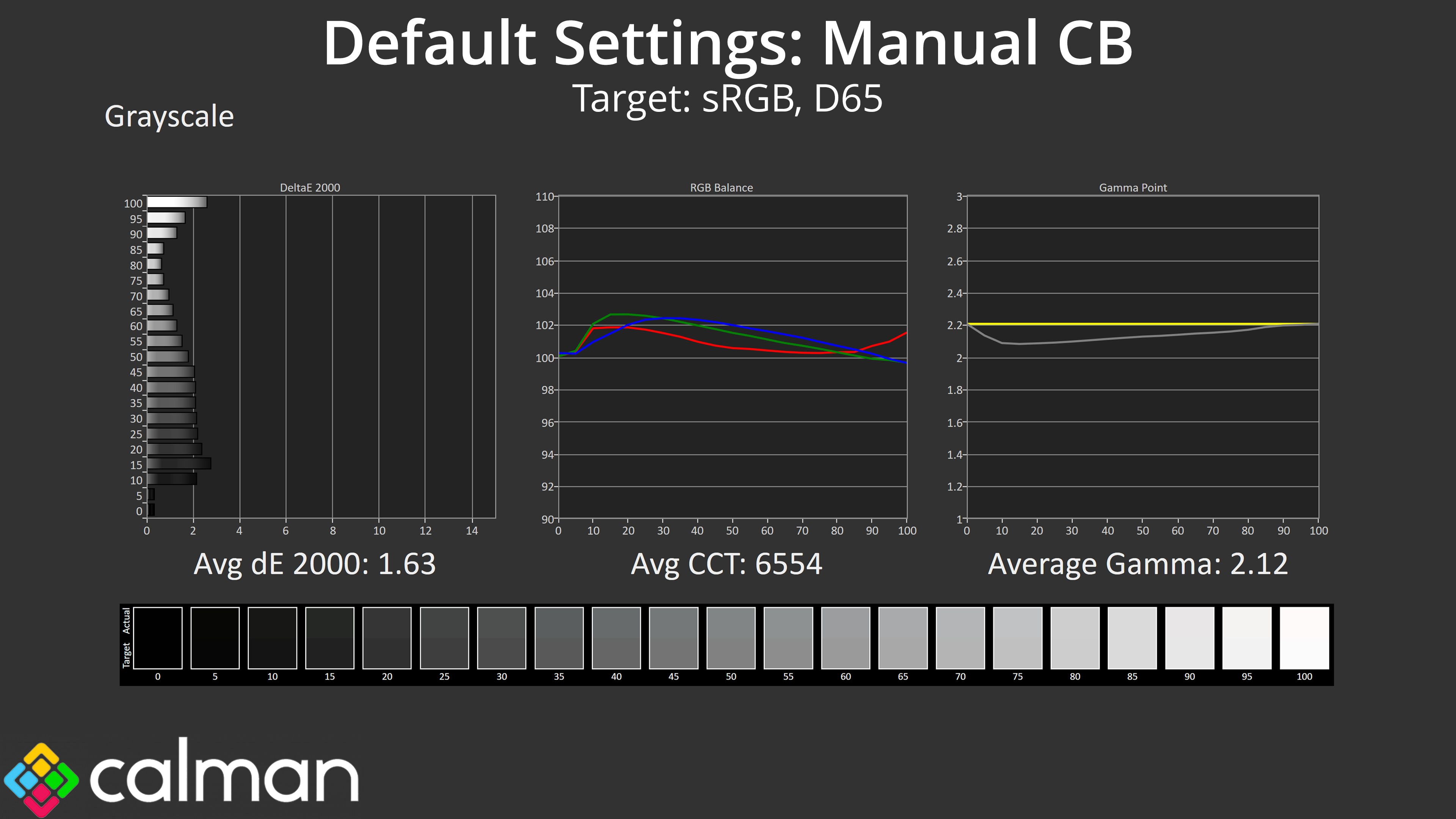
Just to see if we could improve things, I set a manual colour balance in the OSD, leaving the Red channel at 50 but knocking both Green and Blue down to 49. This is admittedly a minor change, but it did help make the colour balance that bit more accurate, improving the greyscale average dE 2000 to just 1.63.
Saturation
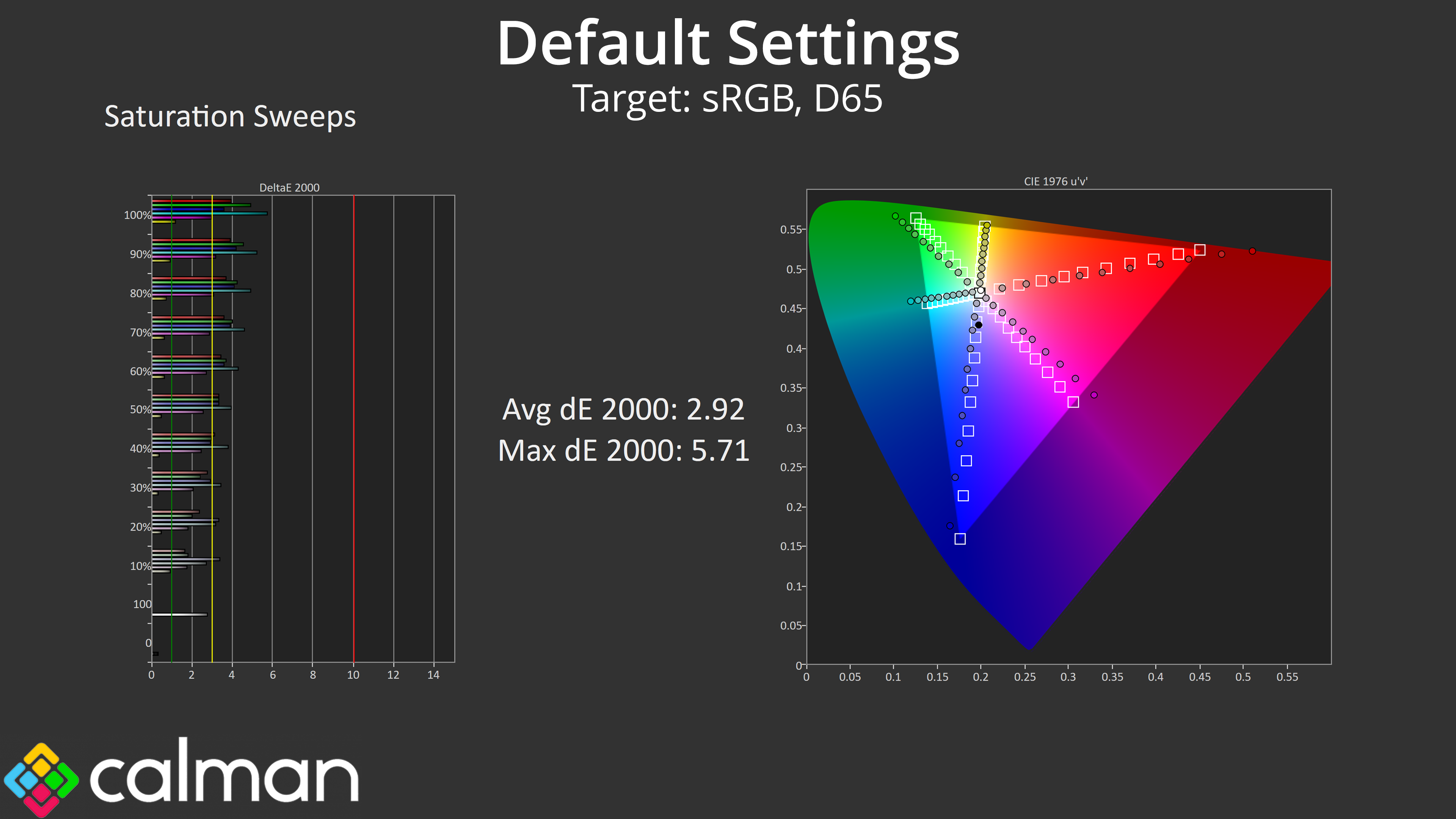
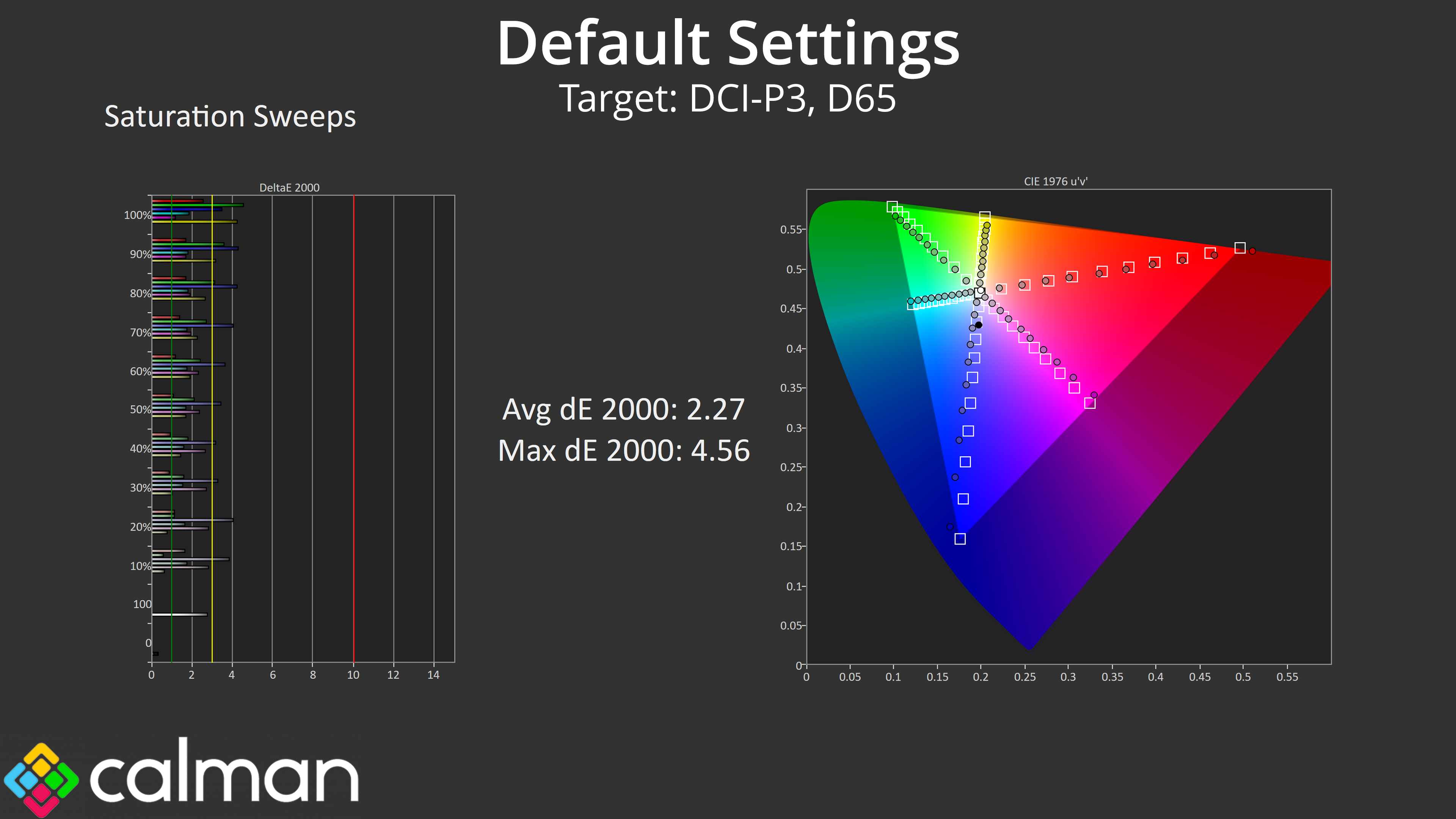
Meanwhile, our saturation sweeps a typical of a wide-gamut monitor, given we see a fair amount of oversaturation relative to sRGB, though things do improve when we compare against the DCI-P3 space.
Colour Accuracy
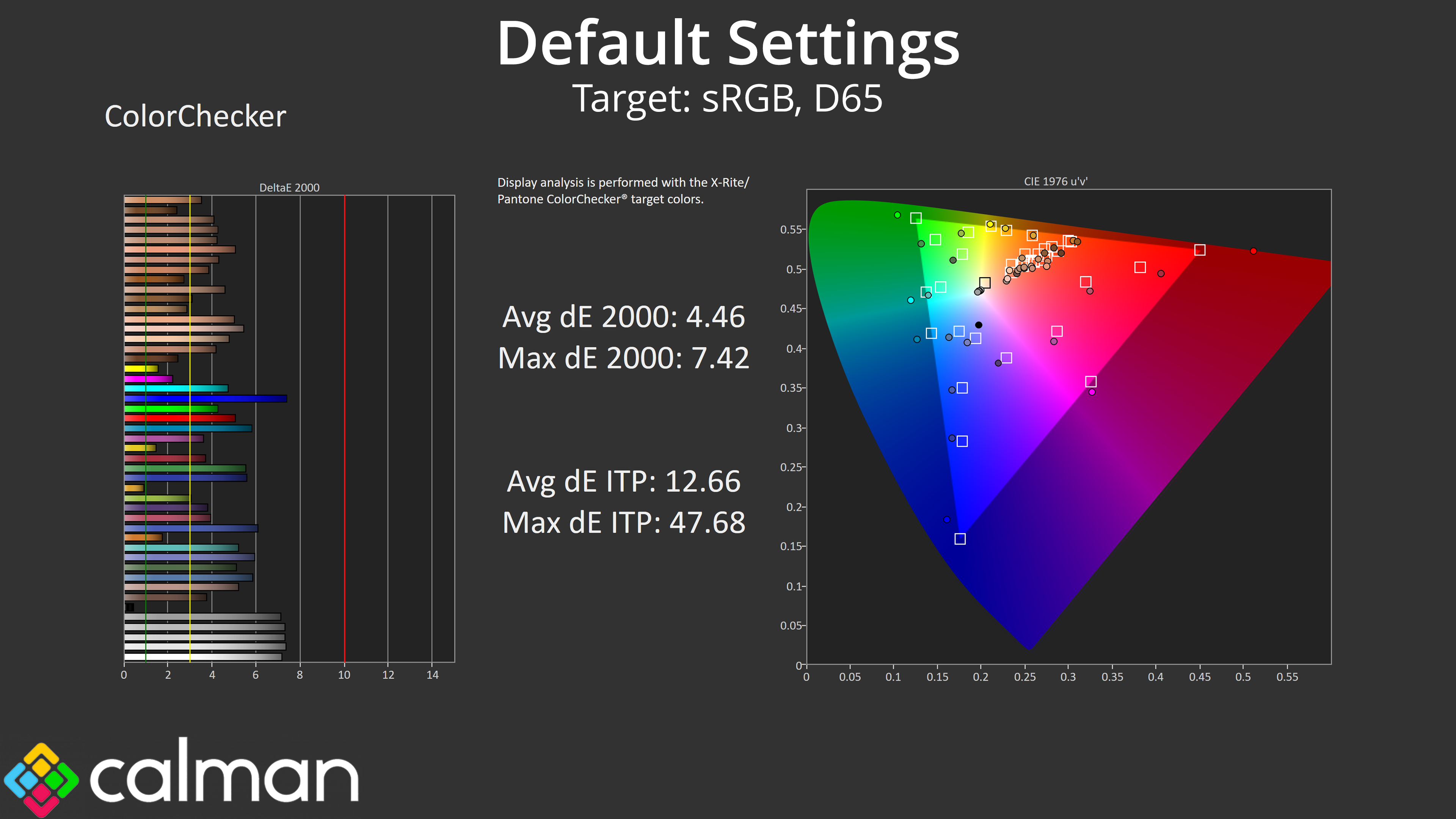
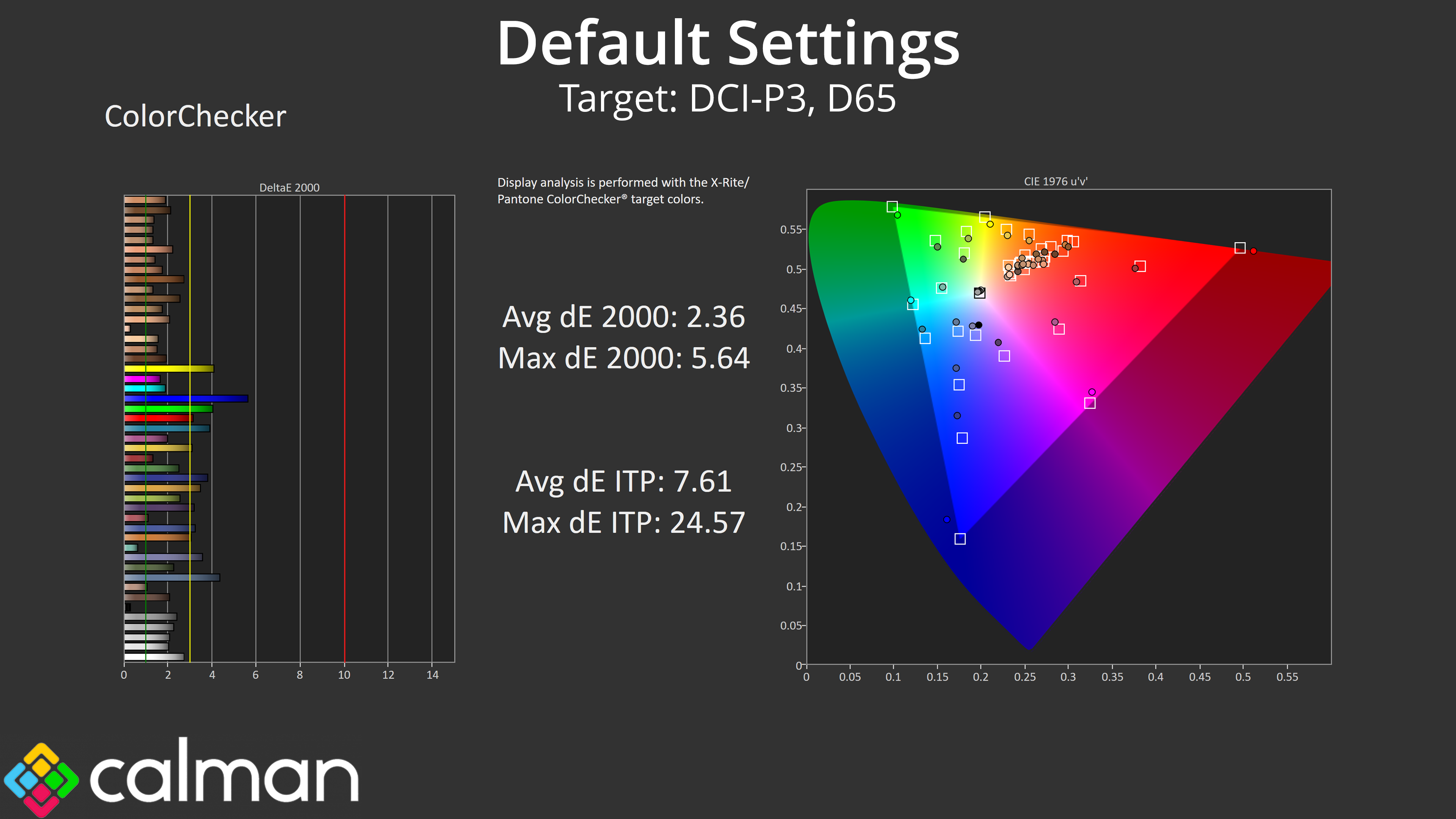
The same also goes for colour accuracy. Against the sRGB space, the high levels of oversaturation means overall accuracy is poor, averaging a dE 2000 of 4.46. Comparing against DCI-P3 though, this improves to 2.36.
Calibrated Results
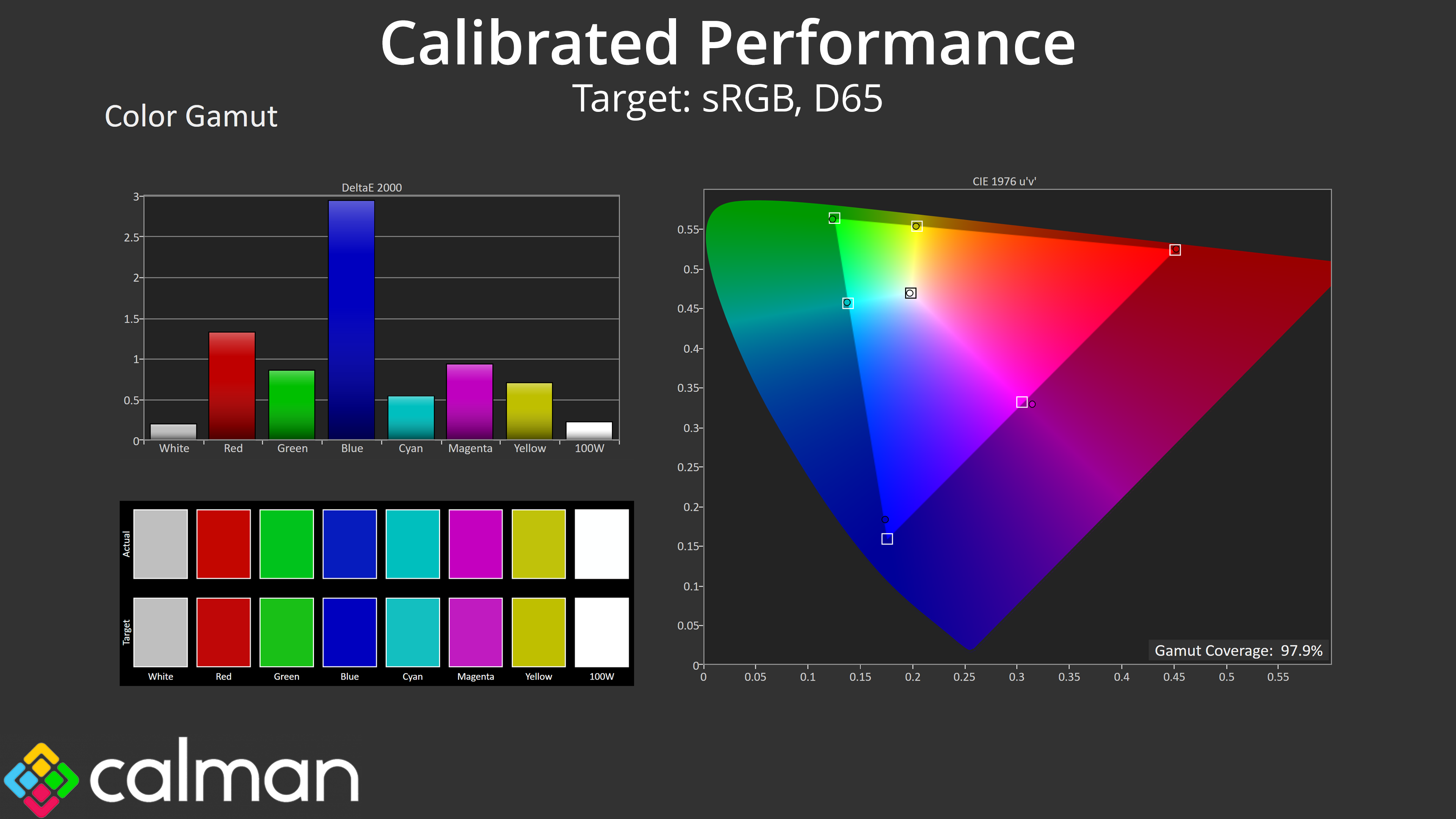
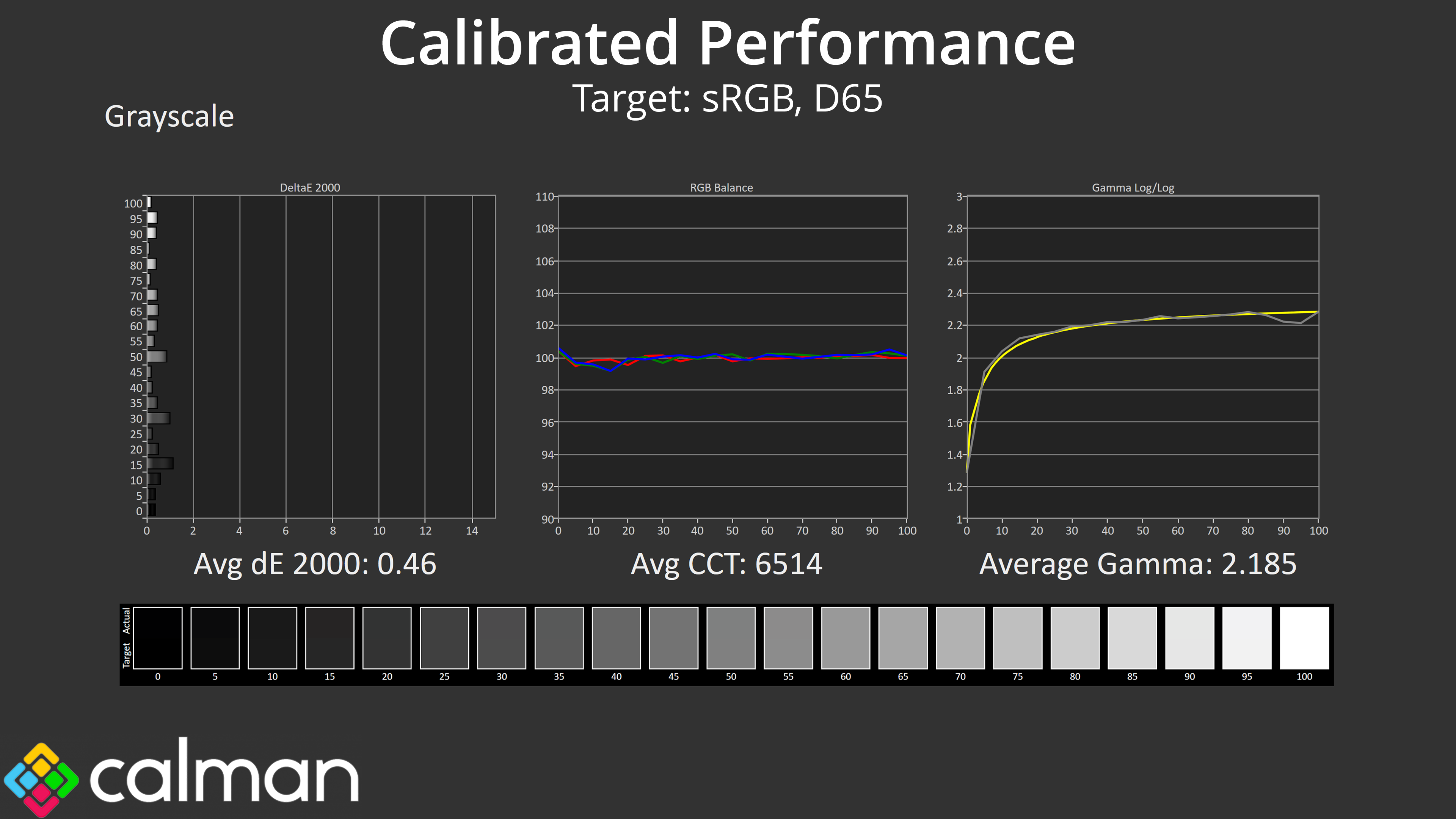
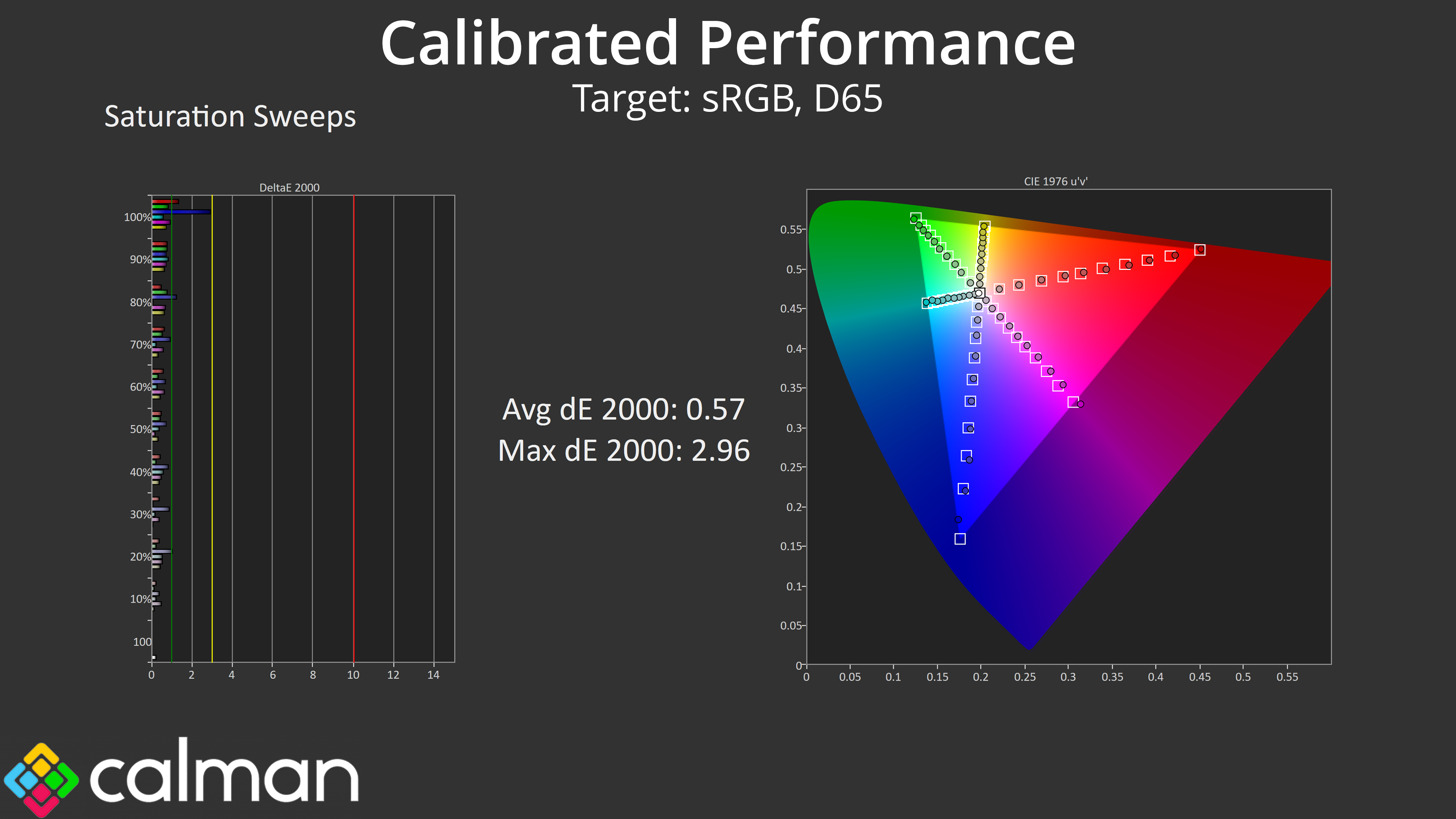
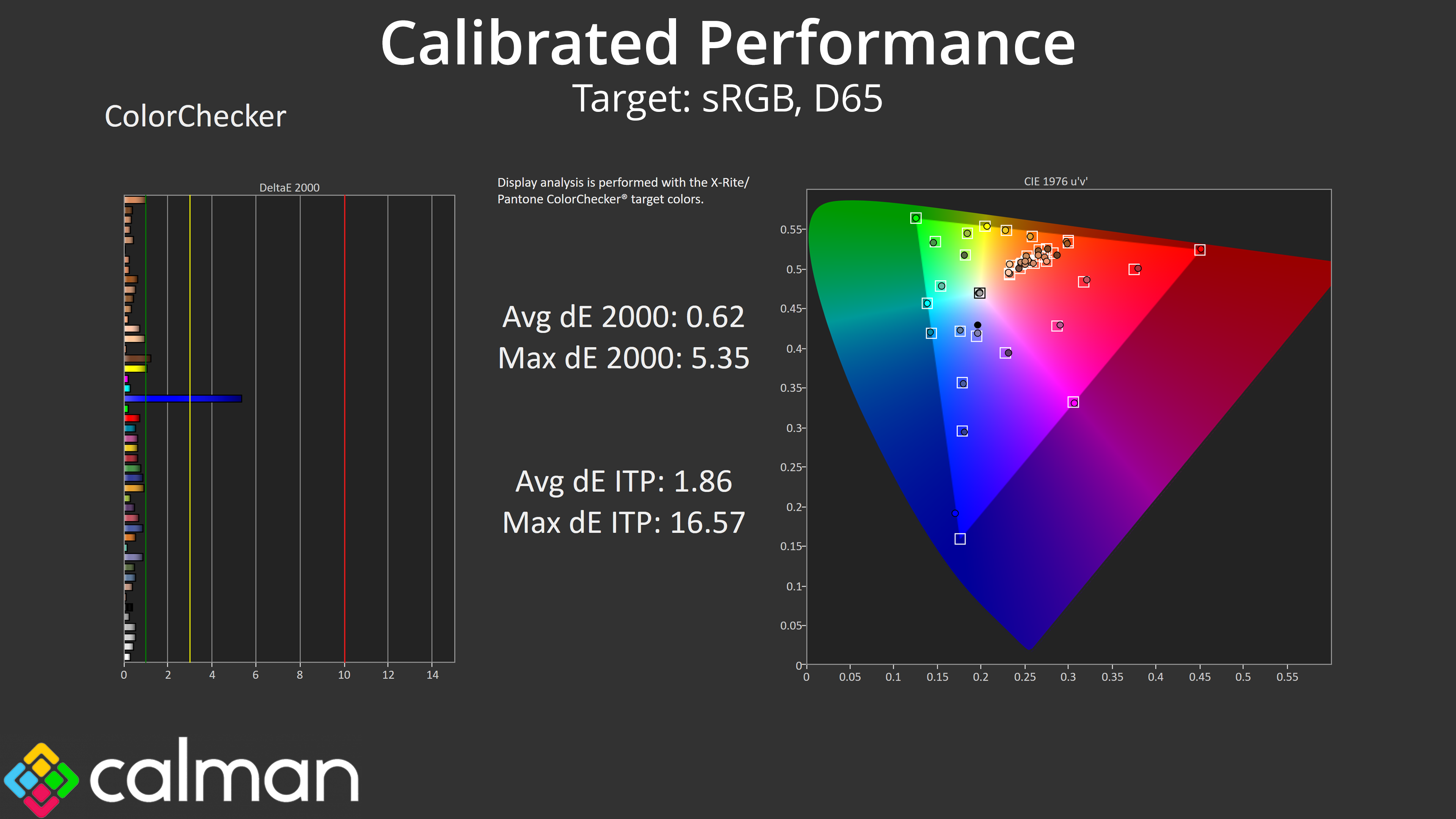
Unfortunately, iiyama has not included an sRGB mode in the OSD, so we can't clamp the gamut to reduce oversaturation. Instead, to get the most accurate results we'd have to manually calibrate the screen, and in fairness to iiyama, the results are very good indeed, with colour accuracy improving hugely – the only slight aberration being the 100% blue channel which isn't quite covered by the screen's native gamut. However, I do think an sRGB should be included as standard in this day and age, so hopefully iiyama can take that on board for the next revision.
We use the Open Source Response Time Tool (OSRTT), developed by TechTeamGB, for our response time testing. This measures grey-to-grey response times and presents the results in a series of heatmaps, the style of which you may be familiar with from other reviews.
Initial Response Time is the time taken for the panel to transition from one colour to another, where lower values are better. We present the initial response time, so overshoot is not taken into account and is measured separately. We use a fixed RGB 5 tolerance for each transition.
Overshoot is the term given for when a monitor's transition exceeds or goes beyond its target value. So if a monitor was meant to transition from RGB 0 to RGB 55, but it hits RGB 60 before settling back down at RGB 55, that is overshoot. This is presented as RGB values in the heatmaps – i.e. how many RGB values past the intended target were measured.
Visual Response Rating is a metric designed to ‘score' a panel's visual performance, incorporating both response times and overdrive. Fast response times with little to no overshoot will score well, while slow response times or those with significant overshoot will score poorly.
We test the GCB3486WQSCP at 240Hz, using the three best overdrive settings found within the OSD.
240Hz
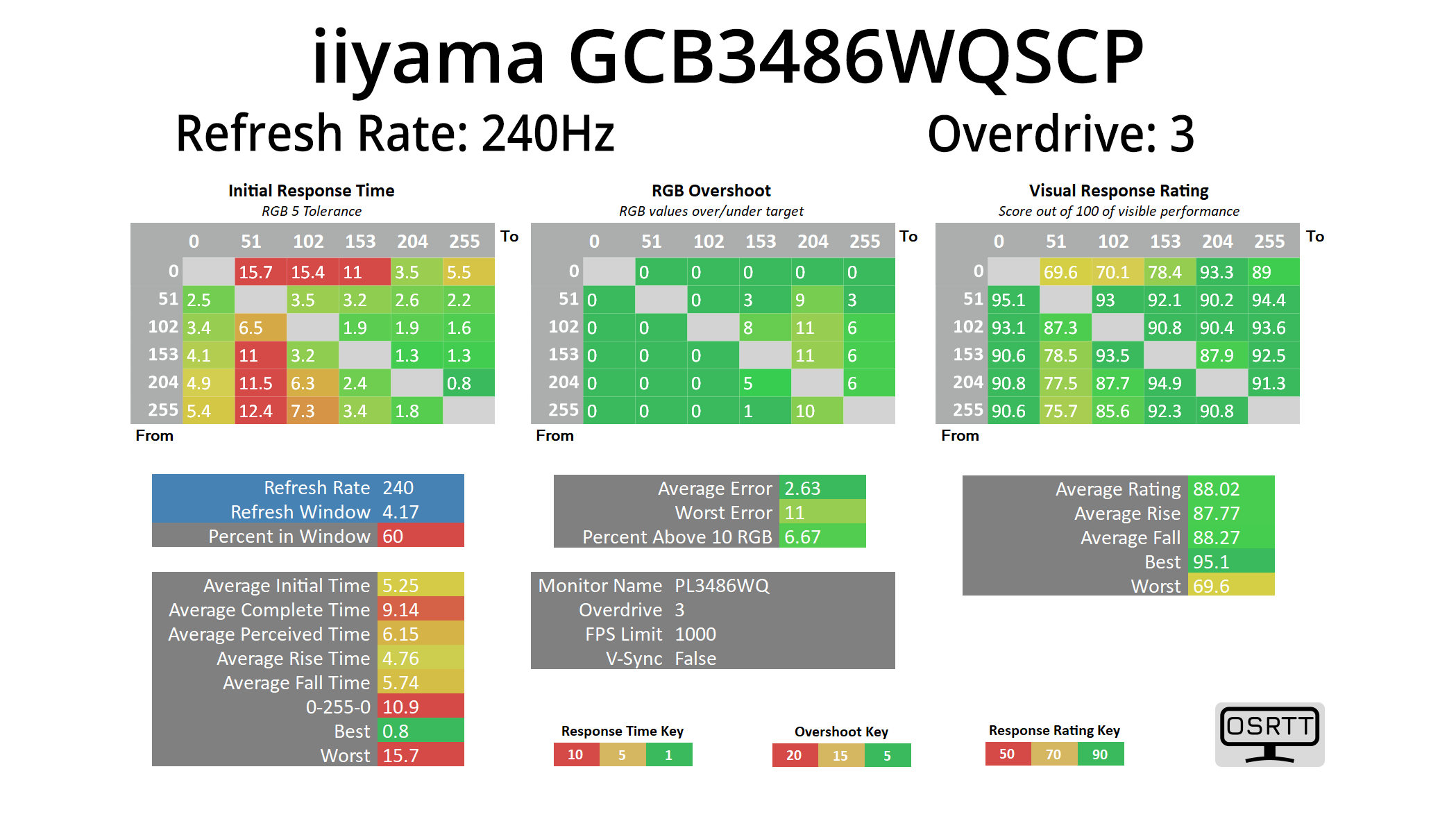
In terms of response times, I've actually skipped over the overdrive off mode, along with settings 1 and 2, as they are just a bit too slow. Overdrive setting 3 is the first one that's worth using and it does deliver solid results, averaging 5.25ms. There's still some slower transitions, with the results in the top row indicating some dark-level smearing which is typical of a VA panel, and we can see refresh rate compliance is hitting 60%, or 70% if we give an extra 1ms leeway. However, there's also very little overshoot, so let's see what setting 4 can do.
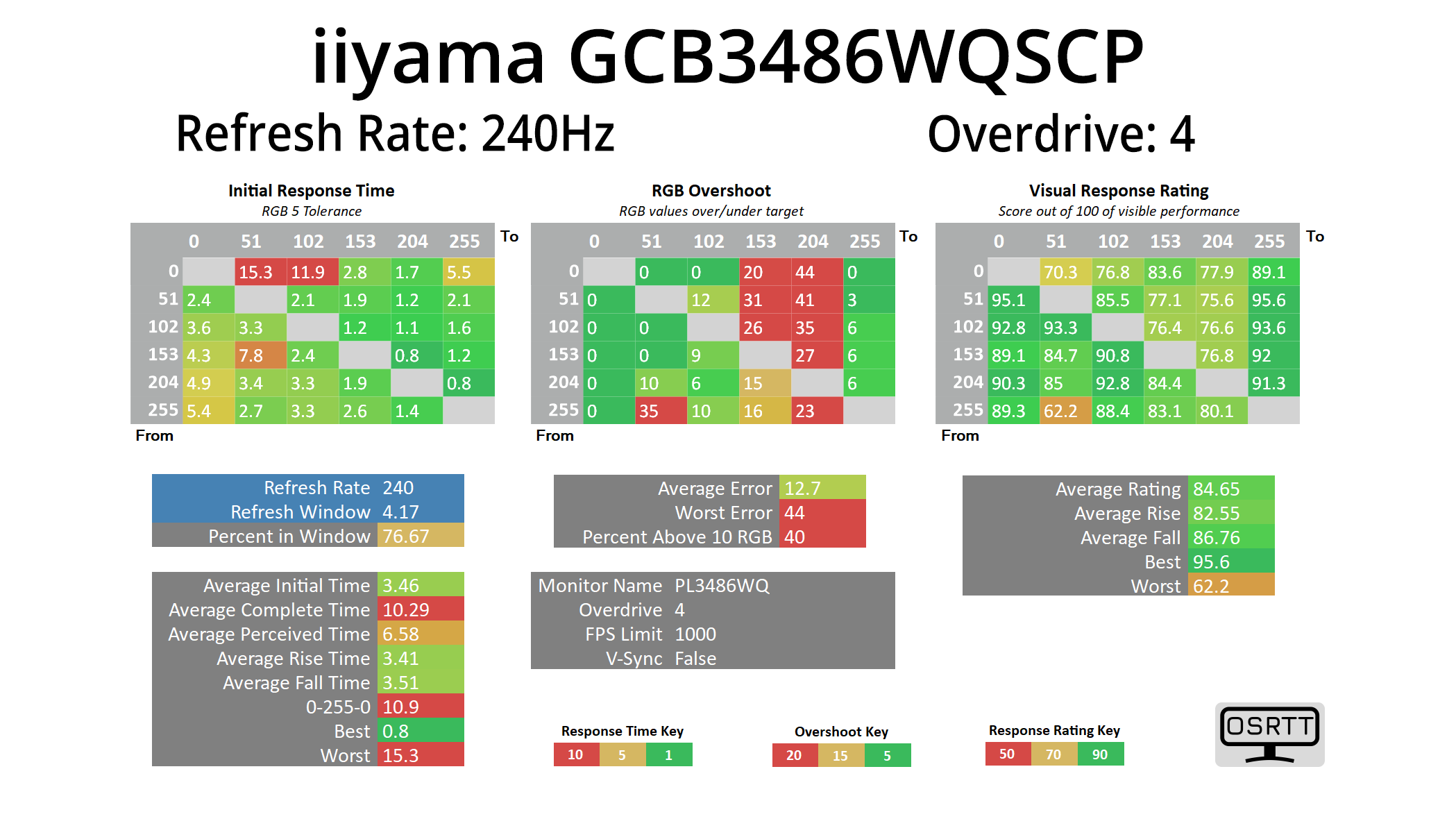
This does improve response times a good chunk, with the average now at 3.46ms, while the rise times from dark shades are much improved. However, this does come at the cost of some overshoot – the average error of 12.7 RGB values isn't terrible, but it does result in some visible overshoot as we'll see shortly.
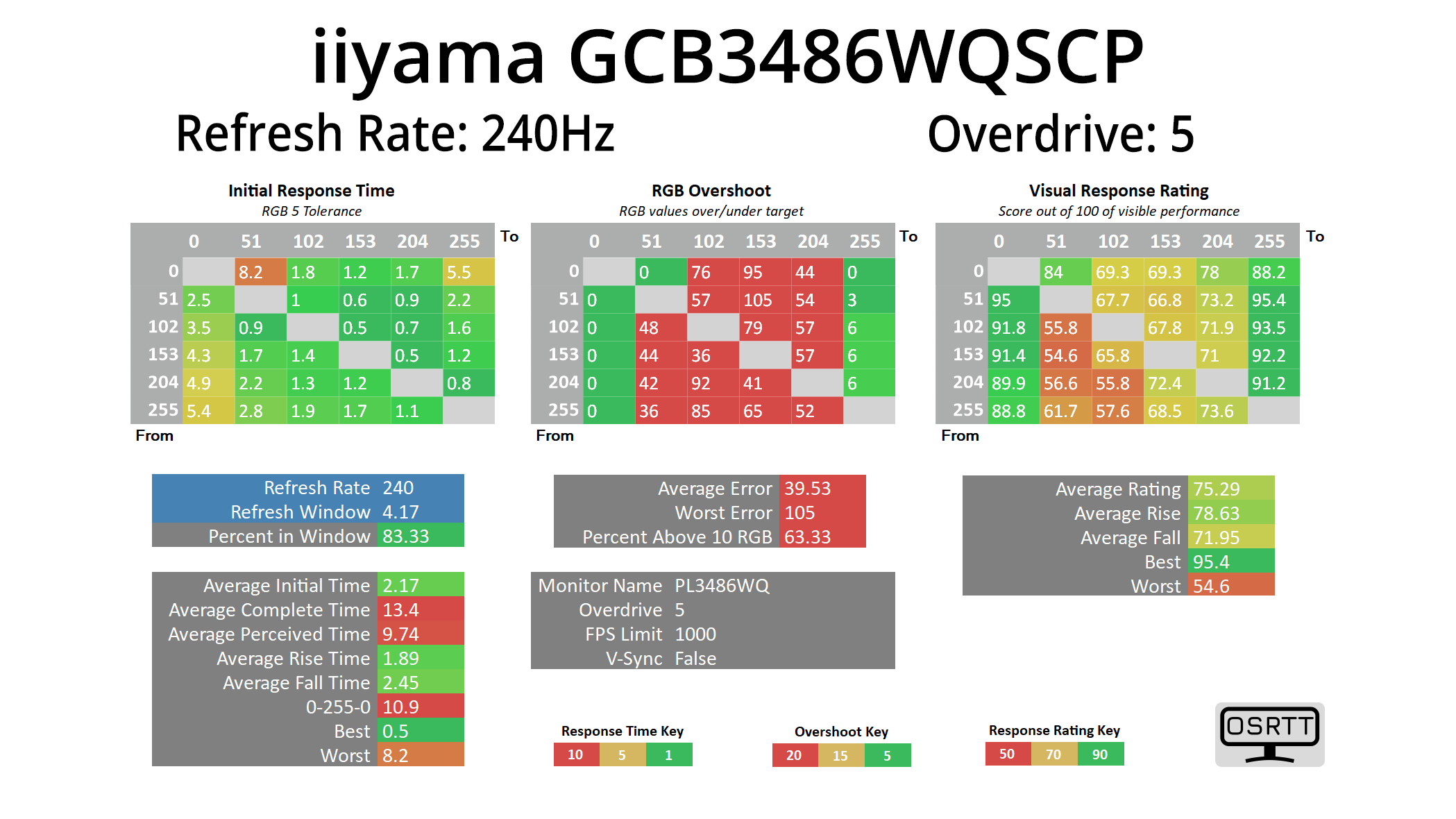
Lastly, overdrive setting 5 can also be ignored as the overshoot is pretty horrible.
Variable Overdrive?
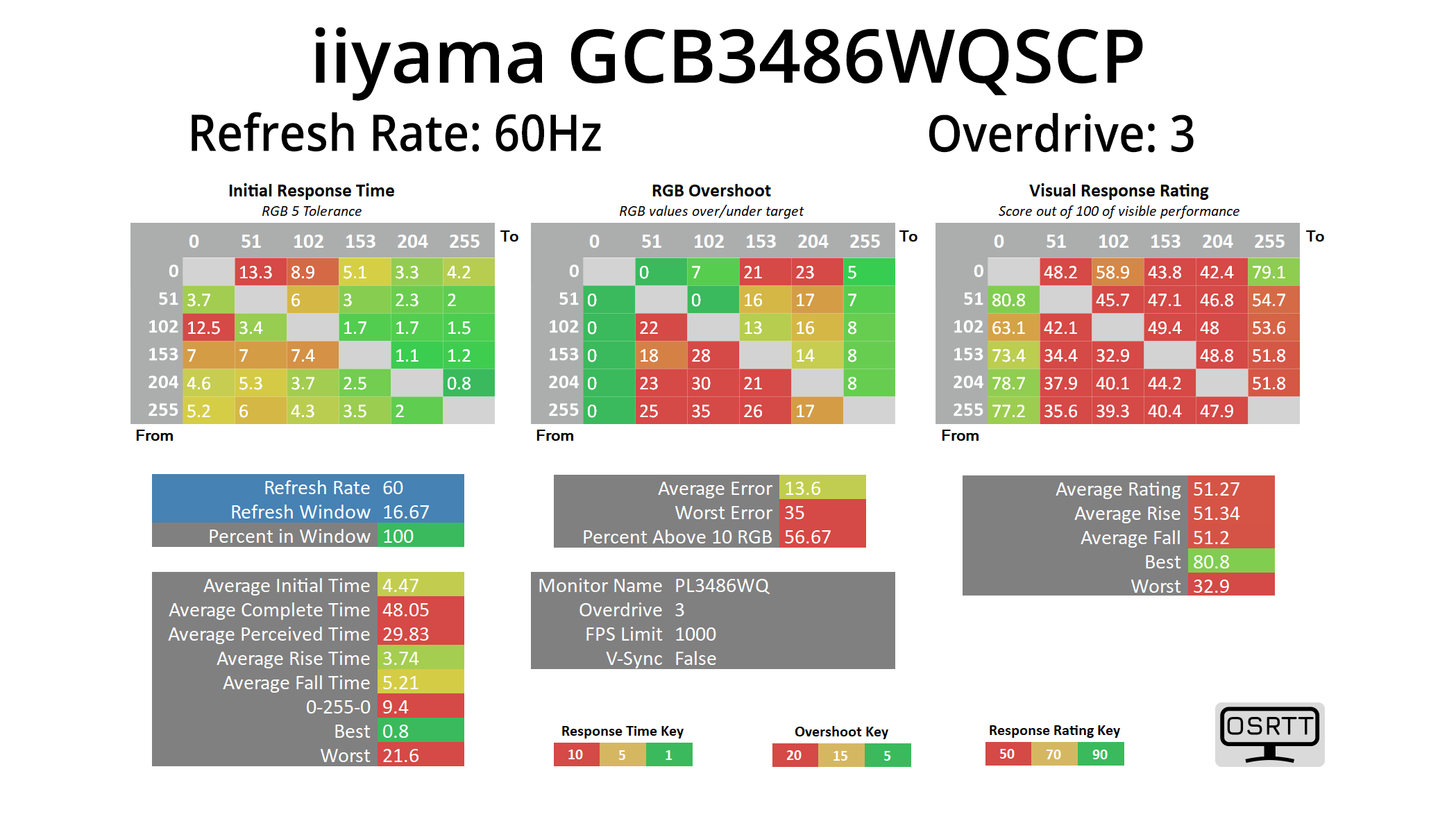
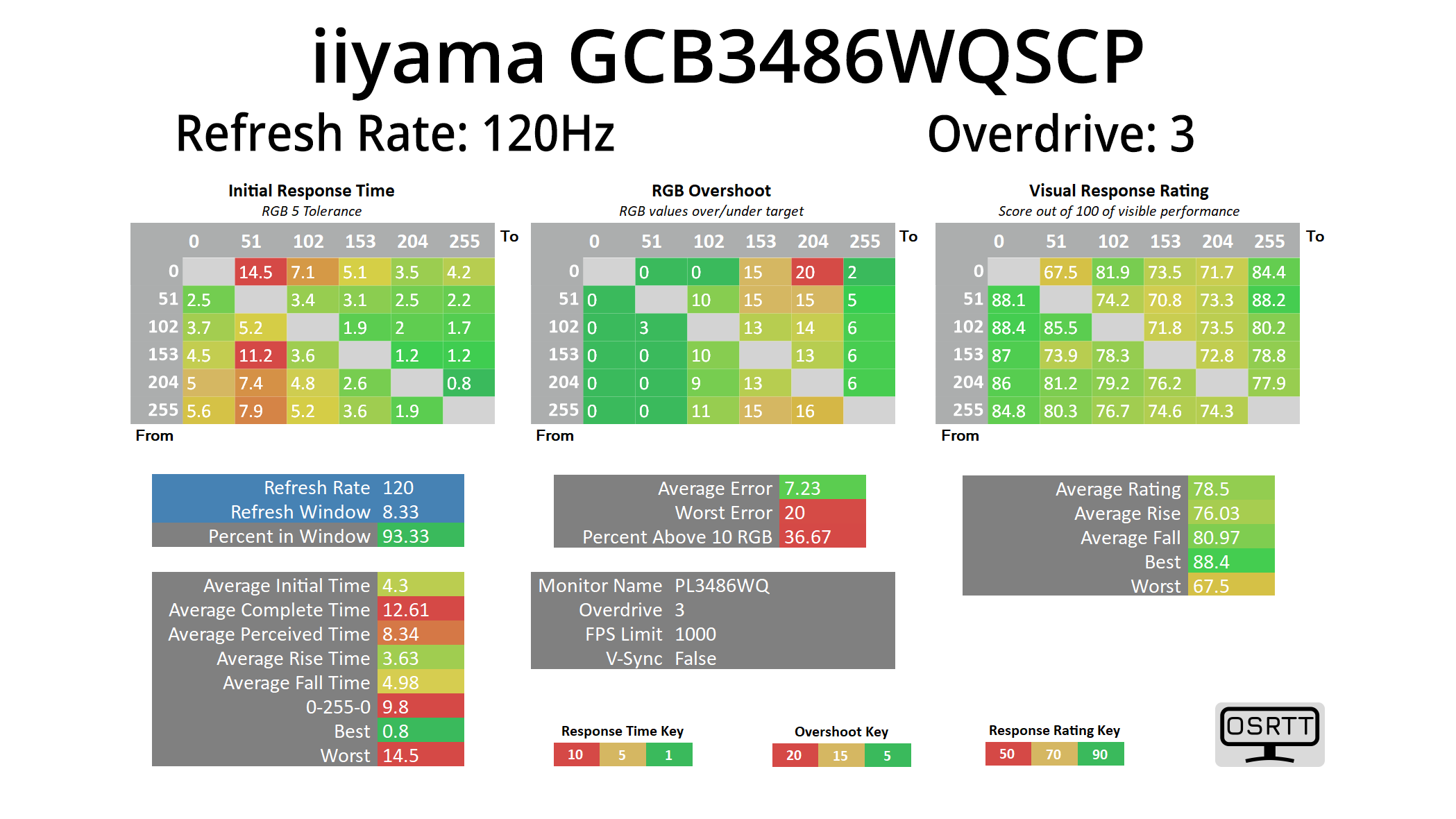
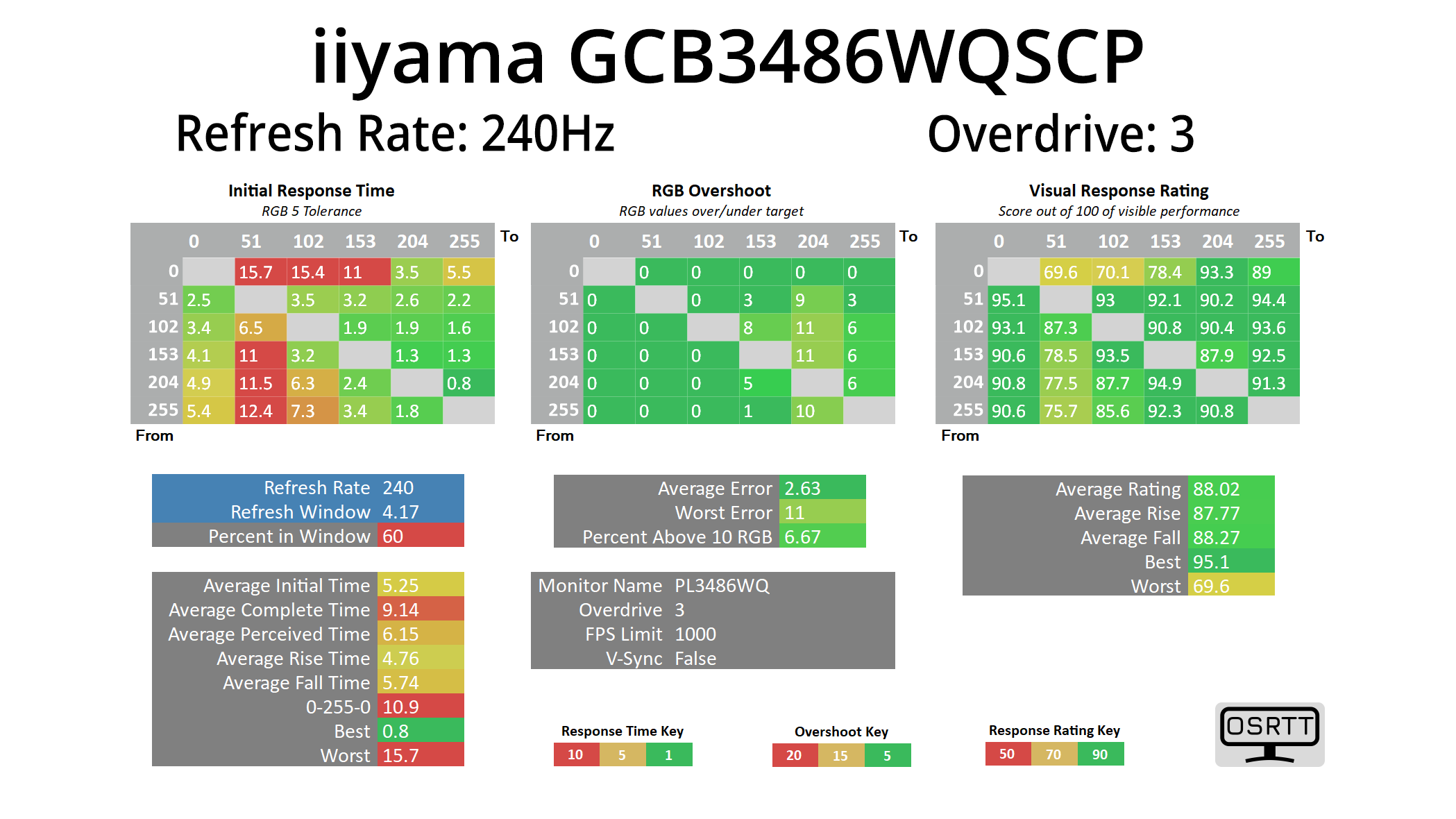
I personally think setting 3 is the most well-balanced, but the bad news is that iiyama hasn't configured it to behave differently at lower refresh rates – it's fine down at 120Hz, but at 60Hz the overshoot is pretty significant, so it's not an ideal solution if you are an adaptive sync gamer.
Best results compared
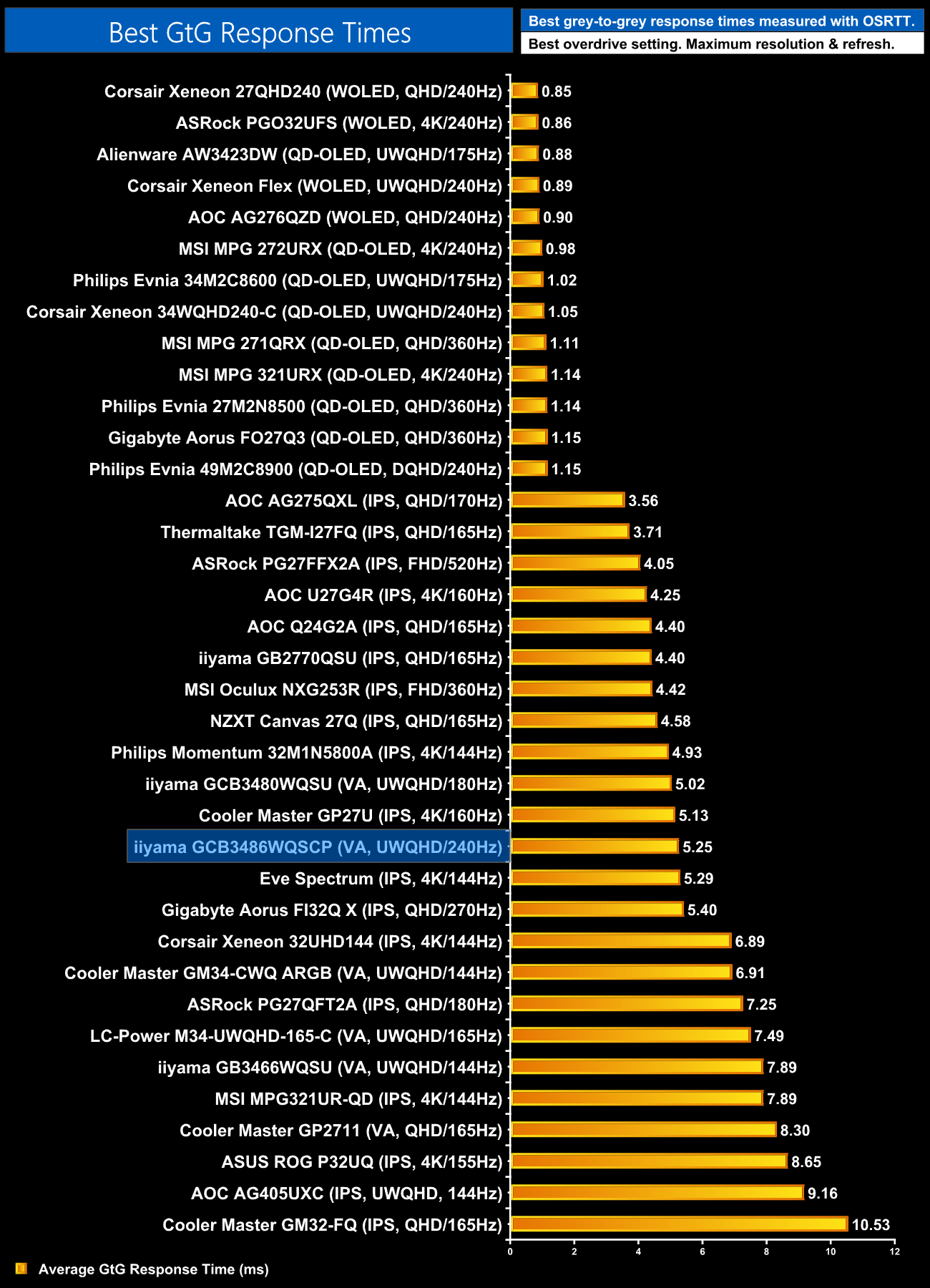
In terms of how these results stack up to the competition, if we ignore OLED, it's pretty middle-of-the-road for an LCD monitor – we have seen faster, but we also have to remember the price is just £350.
Motion clarity
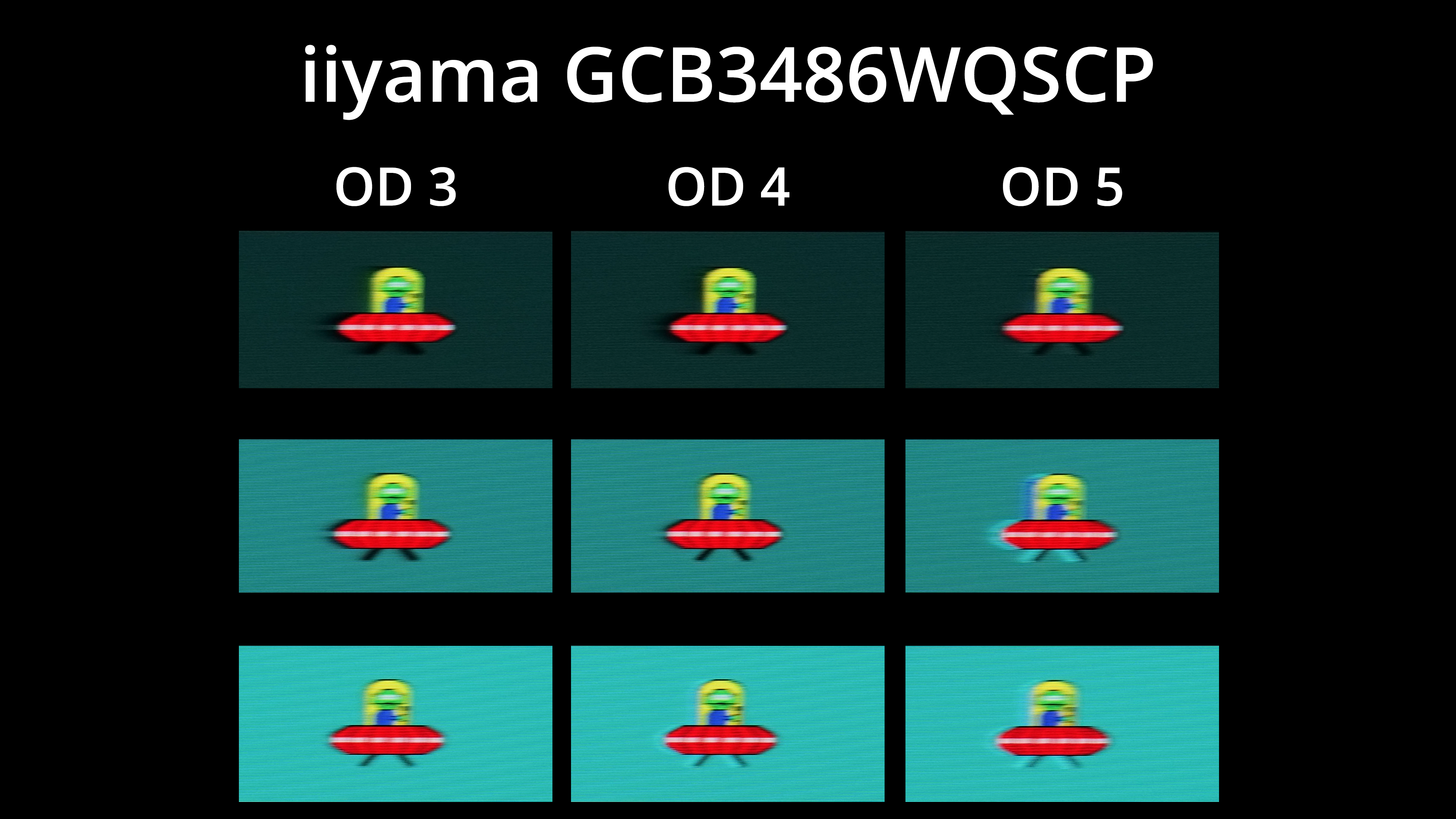
Here we can see a visual representation of those overdrive modes – setting 4 does clean up a good amount of the dark smearing we see on setting 3, but you can also see the overshoot that's introduced on the bottom image. Some people may be fine with that, but I personally find it a little distracting. You can also see why setting 5 is one to avoid!
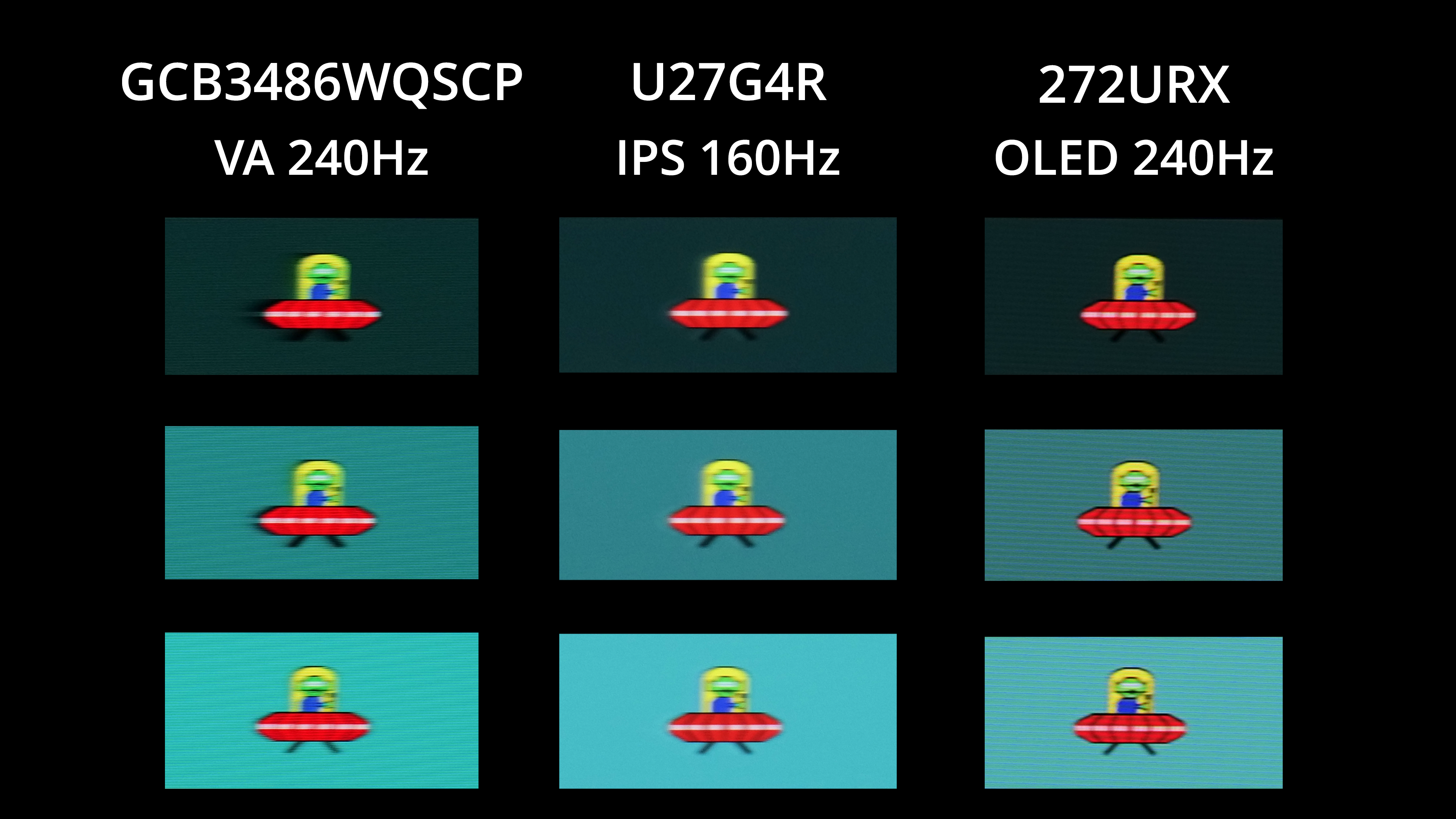
For some comparisons then, I've roped in the AOC U27G4R we reviewed recently, and despite the iiyama monitor offering a higher refresh rate, motion clarity is fairly similar between the two, though you can clearly see the difference the dark-level smearing makes versus an IPS panel which doesn't have that issue. Just for fun, I also included the MSI 272URX, a 240Hz OLED monitor which is setting the standard for motion clarity and response times – though it also costs over twice as much as the iiyama!
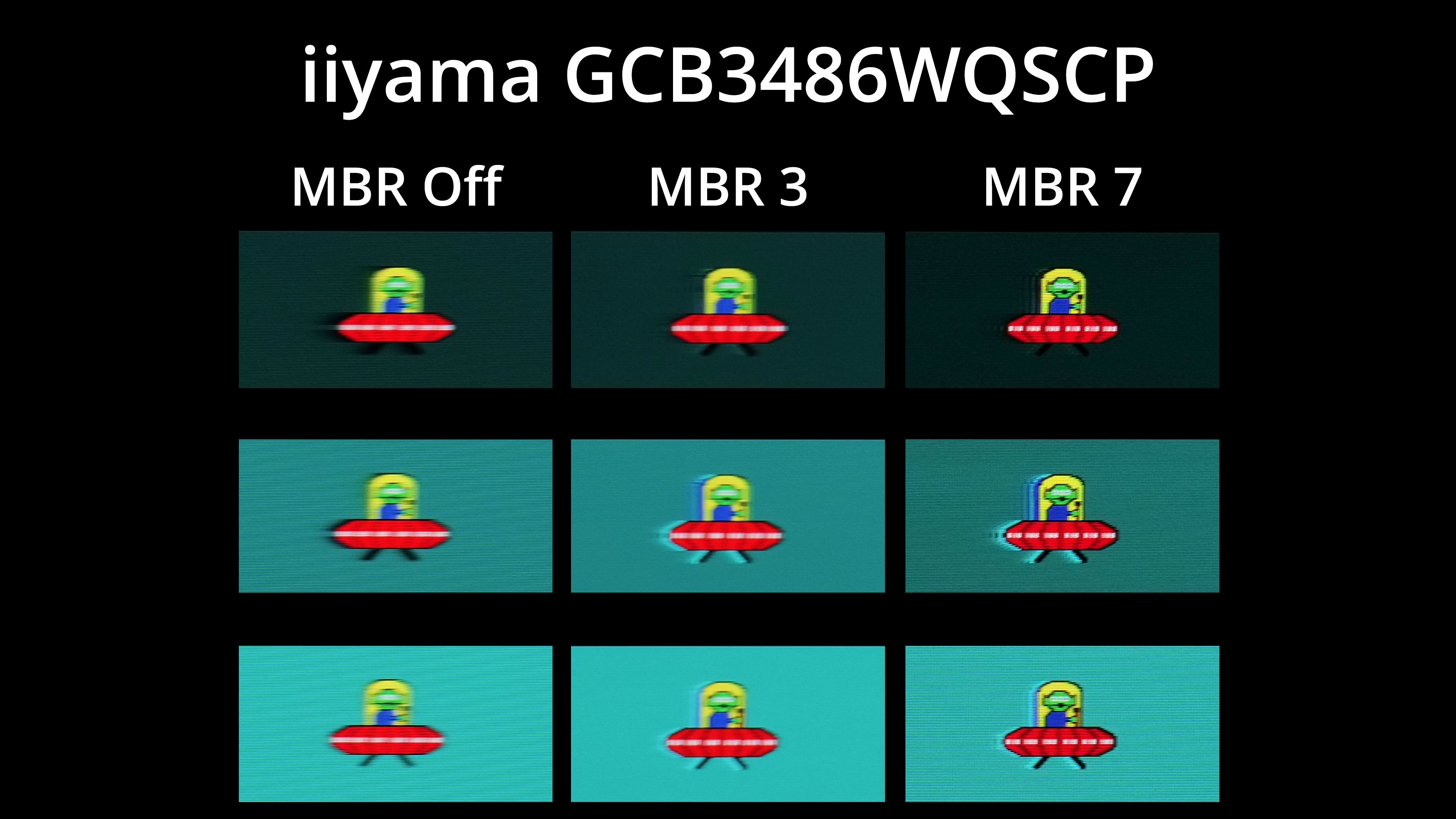
iiyama does have one final setting to try and improve things though, that being Motion Blu Reduction, AKA backlight strobing. There's seven different settings to try, but there's a few clear downsides so ultimately I don't think MBR is worth using. For one, it forces the overdrive setting 5, resulting in a lot of overshoot, which I don't quite understand, while there's also some visible signal cross-talk, resulting in a double-image effect. On top of that, the MBR 7 setting offers the best clarity, but it also caps brightness at below 140 nits and it cannot be used with adaptive sync, so I think that will rule it out for a lot of people.
We again use the Open Source Response Time Tool (OSRTT), developed by TechTeamGB, to report monitor input latency.
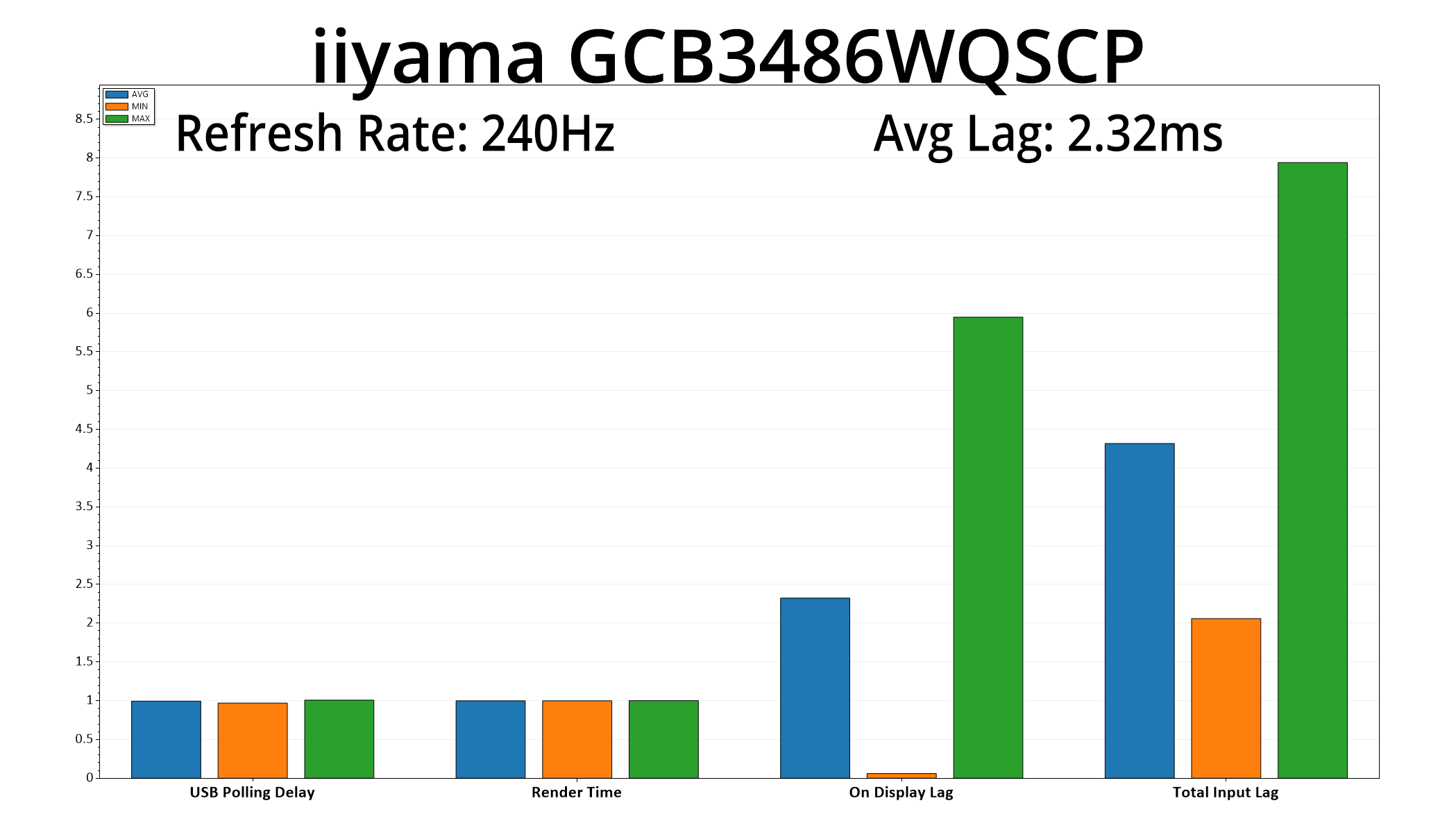
There's very little in the way of latency though, with the screen averaging 2.32ms, so that works out at a little over half a frame at 240Hz, which is nothing to worry about.
Having been left a little disappointed the last time we reviewed an iiyama ultrawide, it's safe to say the GCB3486WQSCP has gone a long way to rectifying that experience. That's not to say it doesn't have its own flaws, but for £350, there is a lot to like here.
That starts with the factory calibration, which is solid. Colour balance comes very close to the 6500K target, and while gamma is a little low, we are being quite picky. It also gets very bright indeed at almost 570 nits, though contrast is closer to 3000:1 than the claimed 4000:1 ratio. It's just a shame iiyama hasn't included an sRGB mode, as we think that's a valuable feature in 2025.
iiyama has also revamped its OSD menu system recently, making it much cleaner and modern-looking, while there's a number of features – including built-in ethernet, 95W USB-C power delivery and KVM functionality – which make me think the company is targeting more than just gamers with this screen.
Speaking of gaming though, the core experience is solid, though iiyama could improve a few things for the next revision. Fundamentally though, motion clarity is decent at 240Hz, though given it's a cheaper VA panel, there is some dark-level smearing visible at times. iiyama also offers a motion blur reduction (MBR) mode, but it has a number of drawbacks as detailed earlier in the review, so that's definitely something we'd like to see tweaked going forward.
I do like the 1500R curvature though, and when you consider the solid response times alongside the wide gamut and punchy VA contrast, you can see why this monitor will appeal, particularly to those seeking immersion above all else.
So no, iiyama's GCB3486WQSCP isn't perfect, but at the £350 asking price, many of its flaws can be forgiven. It'd be great to see the response times and MBR modes refined in a future model for even better motion clarity, but even as things stand, it's worth buying if you want a high refresh rate ultrawide that won't break the bank.
We found it listed on both Amazon and Scan at the £350 asking price.
Pros
- Well priced for a curved, high refresh rate ultrawide.
- Generally solid response times and motion clarity.
- Wide gamut.
- Factory calibration is good.
- Gets very bright at almost 570 nits.
- Contrast, while not as high as advertised, is still much better than an IPS panel.
- Supports USB-C, KVM and built-in ethernet.
- Pair of HDMI 2.1 ports.
- Simple, inoffensive design (though it's perhaps slightly bland for some).
Cons
- Some dark-level smearing is visible, as is typical of a VA panel.
- Motion blur reduction mode has significant drawbacks.
- No sRGB emulation mode.
- We couldn't hit the claimed 4000:1 contrast ratio.
- Gamma is a little low, but nothing terrible.
KitGuru says: iiyama's GCB3486QWQSCP is a solid ultrawide gaming monitor. It's not perfect, but it offers good value for money at the £350 asking price.