KitGuru KitGuru.net – Tech News | Hardware News | Hardware Reviews | IOS | Mobile | Gaming | Graphics Cards


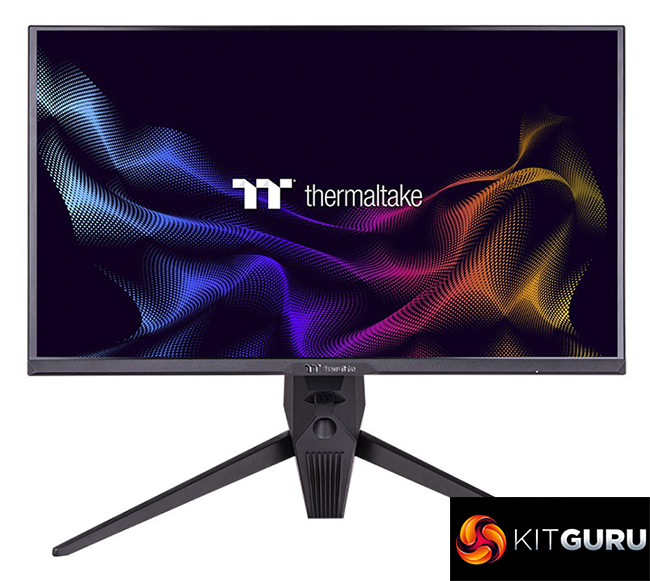
We've looked at plenty of products from Thermaltake over the years, from peripherals to cases and coolers. But we've never taken a look at a Thermaltake monitor – until now, that is, with this review of the TGM-I27FQ. Packing a 1440p IPS panel that runs at a native 165Hz refresh rate, this screen is both FreeSync and G-Sync certified and offers modern-day features like RGB lighting, USB-C and KVM functionality. Priced at £320, let's find out if it's any good.
Timestamps
00:00 Intro
00:56 Design overview
02:11 Stand ergonomics
02:34 Connectivity options
03:00 OSD system
03:56 Brightness/contrast + gamut
04:59 Greyscale – colour balance options tested
07:05 sRGB mode
07:31 Manual calibration
07:58 Viewing angles, backlight bleed
08:29 Response times
09:47 BlurBusters UFO images
10:20 More response time testing
12:04 Real-world gaming experience
12:54 Closing thoughts
As one of two Thermaltake monitors on the market, the TGM-I27FQ is currently listed on Scan for £319.99. It's not quite as affordable as the recently-reviewed ASRock PG27QFT2A, but the TGM-I27FQ does pack in considerably more features and is clearly targeting the mid-range, rather than entry level, monitor segment.
For those interested, the company's other screen is the TGM-V32CQ which is a 32in 170Hz VA panel, though we've not found this one on sale in the UK.
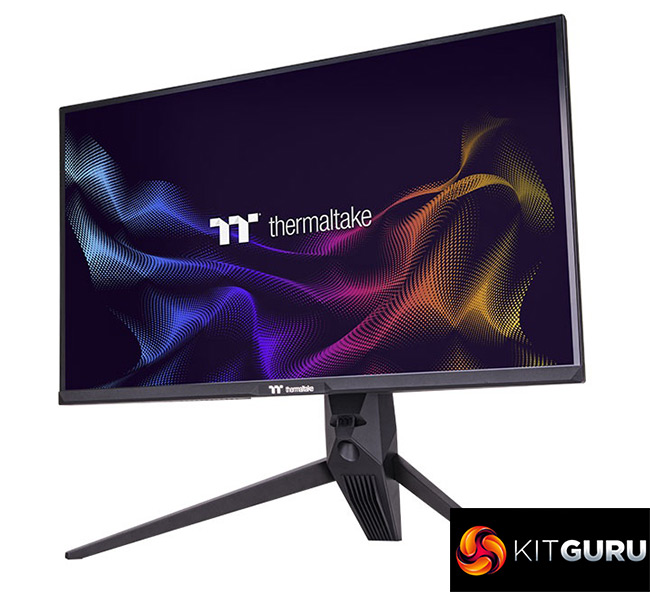
Specification:
- Display size : 27″ Diagonal White LED-Backlight
- Brightness(Typical) : 400nits
- Color Gamut : DCI-P3 95%
- Contrast(Typical) : 1000:1 (Typical)
- Active Area(mm) : 596.736(H) x 335.664(V)
- Pixel Pitch(mm) : 0.2331(H) x 0.2331(V)
- Resolution (H x V) : 2560*1440
- Aspect Ratio : 16:9
- Response Time(Typical) : GTG 1ms
- View Angles LR,UD(CR>10) : H 178°/ V 178°
- Panel Surface : Anti-glare
- Display Colors : 1.07B(8 bit + FRC)
- VRR Technology : FreeSync Premium, FreeSync Range: Yes, G-Sync Range: Yes
- Interface:
- Input 1 : HDMI 2.0x 2
- Input 2 : DP 1.4 x1
- Input 3 : Type-C x1(PD 15W)
- Input 4 : USB-A x 2
- USB : USB-B x 1
- Earphone : Audio out x 1
- Speaker(Typic ) : N/A
- Physical Dimension (W*D*H): 613.5*262.9*543mm
- Packing Dimension (W*D*H): 708*270*470mm
- Net Weight: 6.1kg
- Gross Weight: 8.45kg
- Tilt: -5°±2°~ 20°±2°
- High Adjustable Arm: 80 ± 3mm
- Swivel: -30°(+/-2°) ~+30°(+/-2°)
- Pivot: -90°(+/-2°) ~+90°(+/-2°)
- Kensington Lock: YES
- VESA Mounting: 75 x 75mm
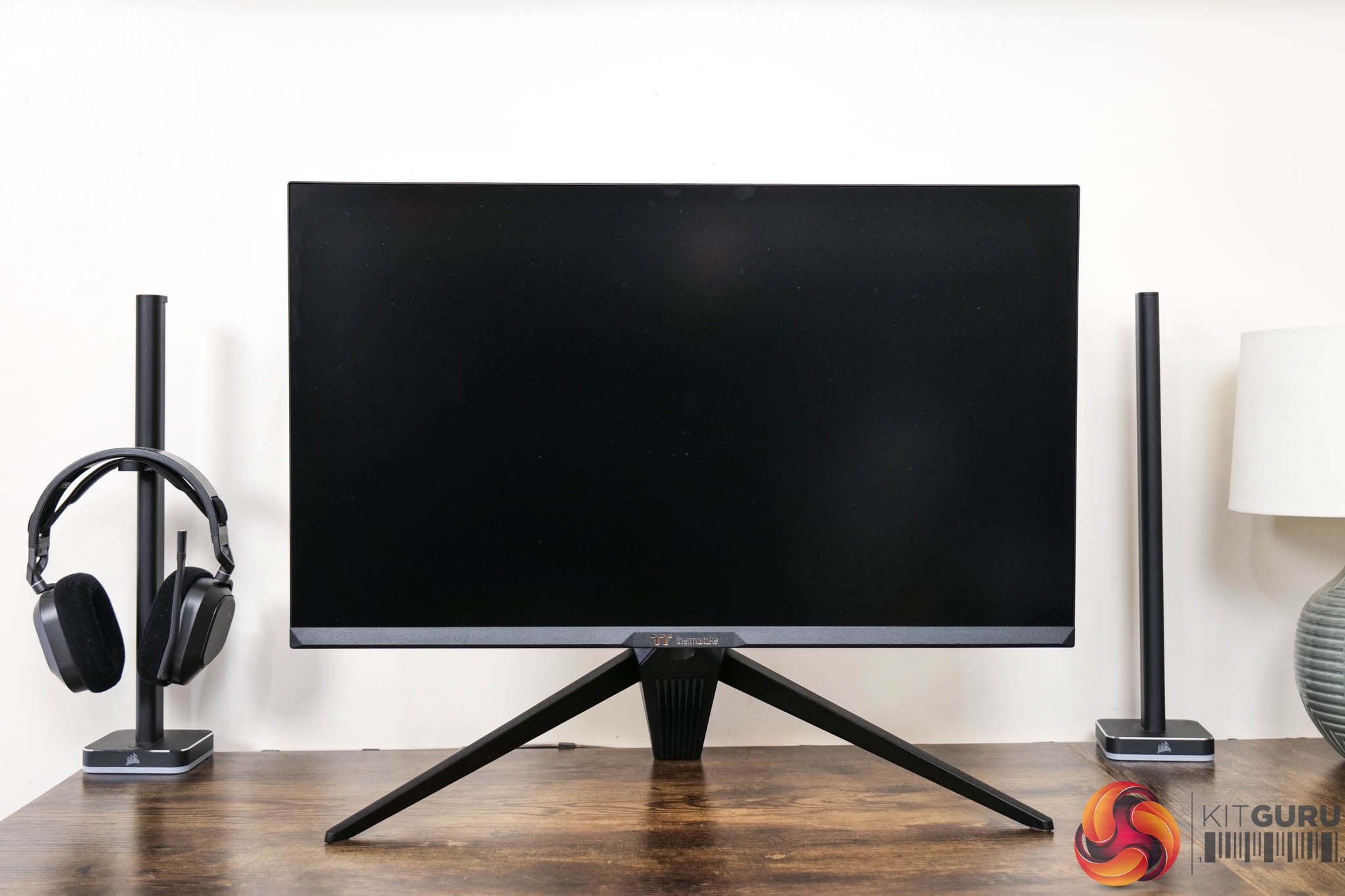
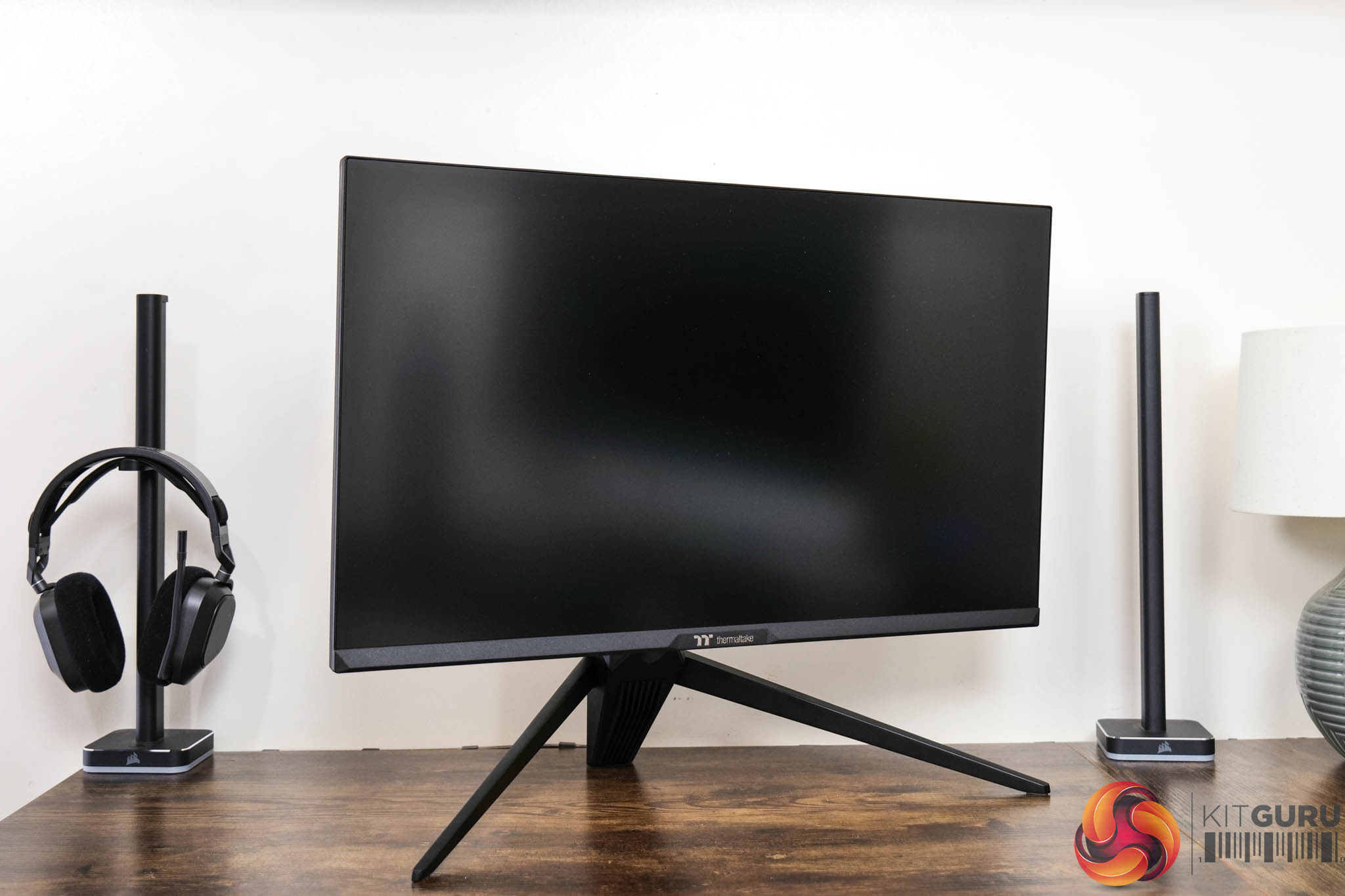
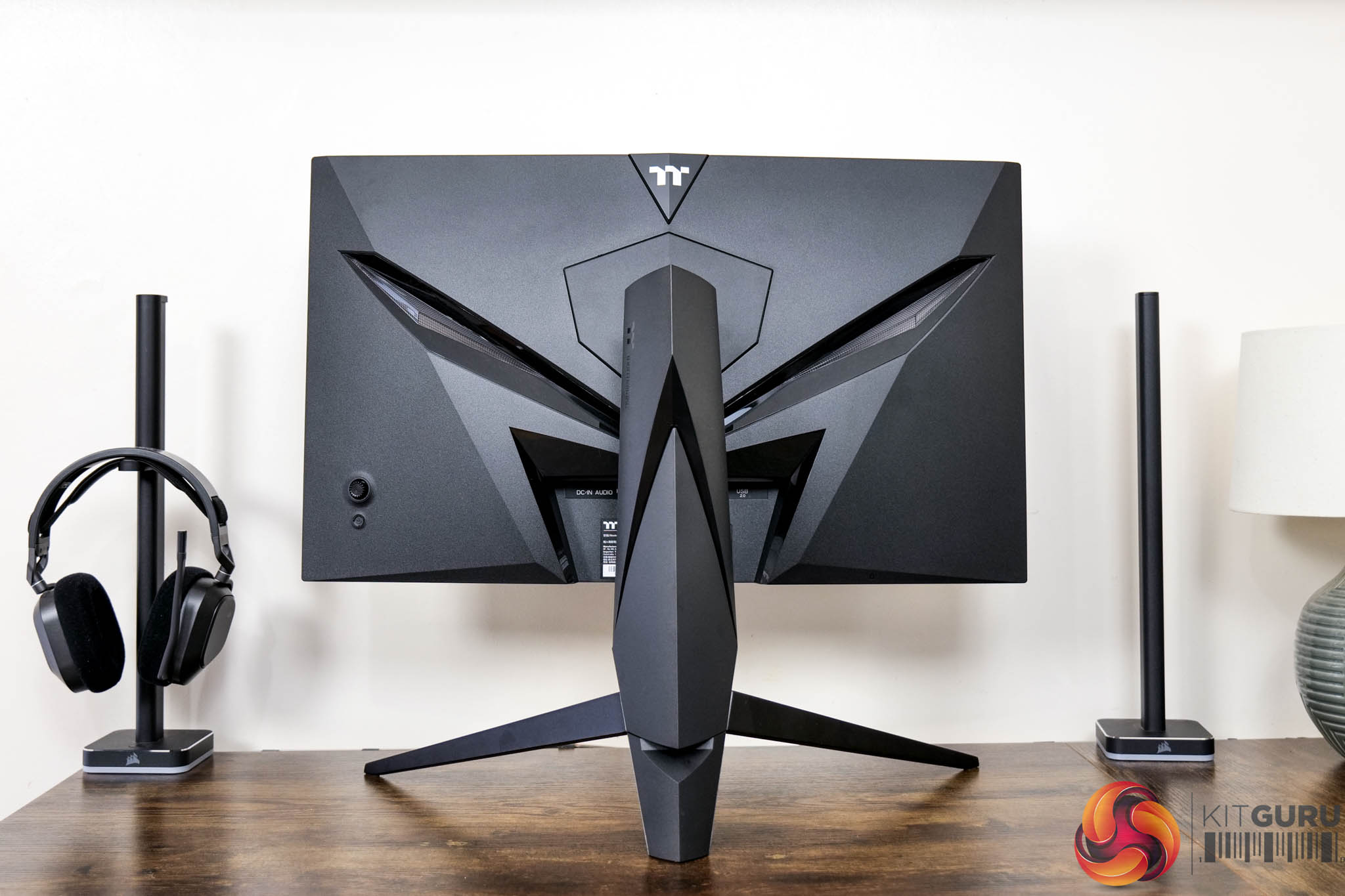
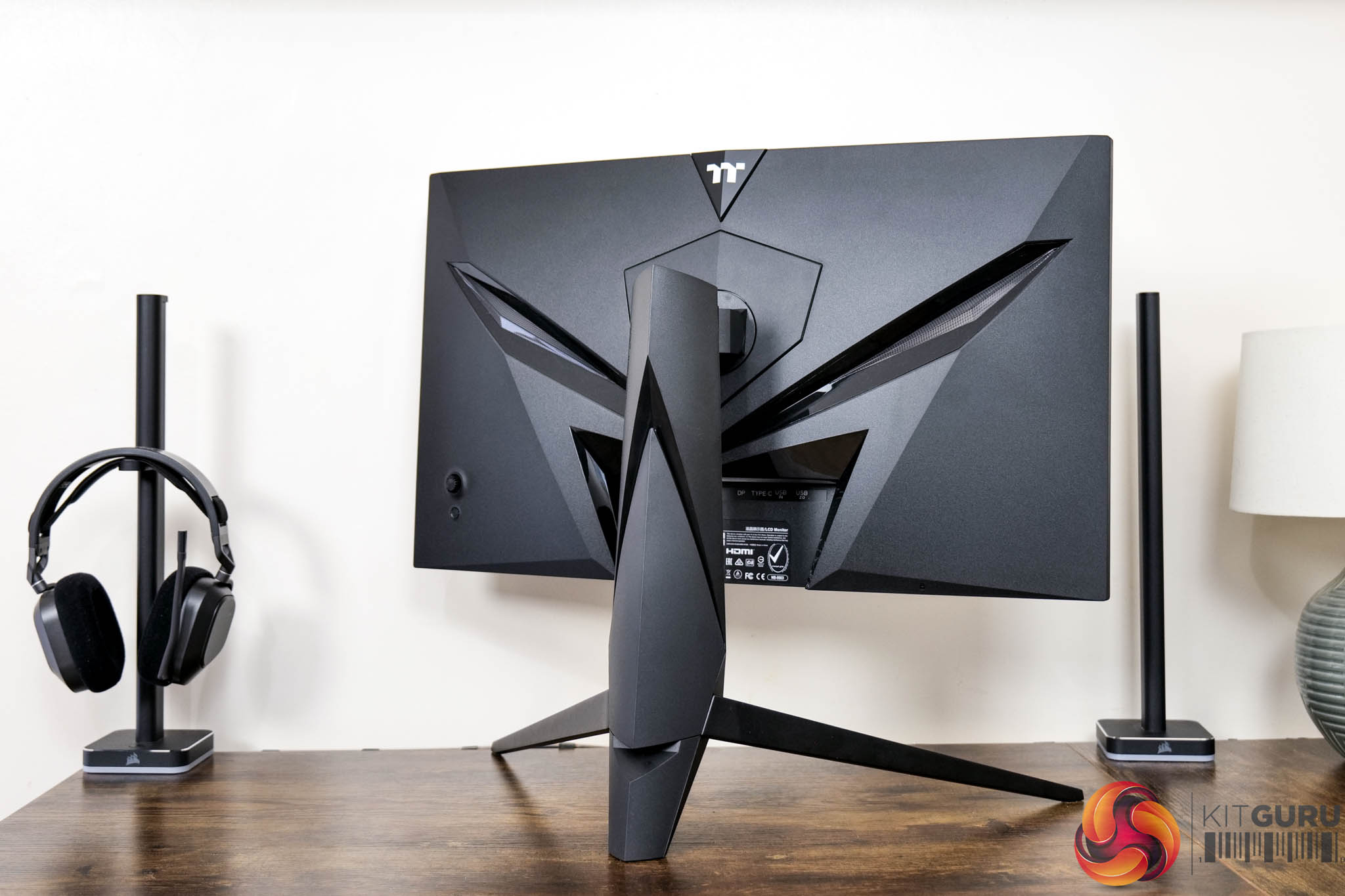
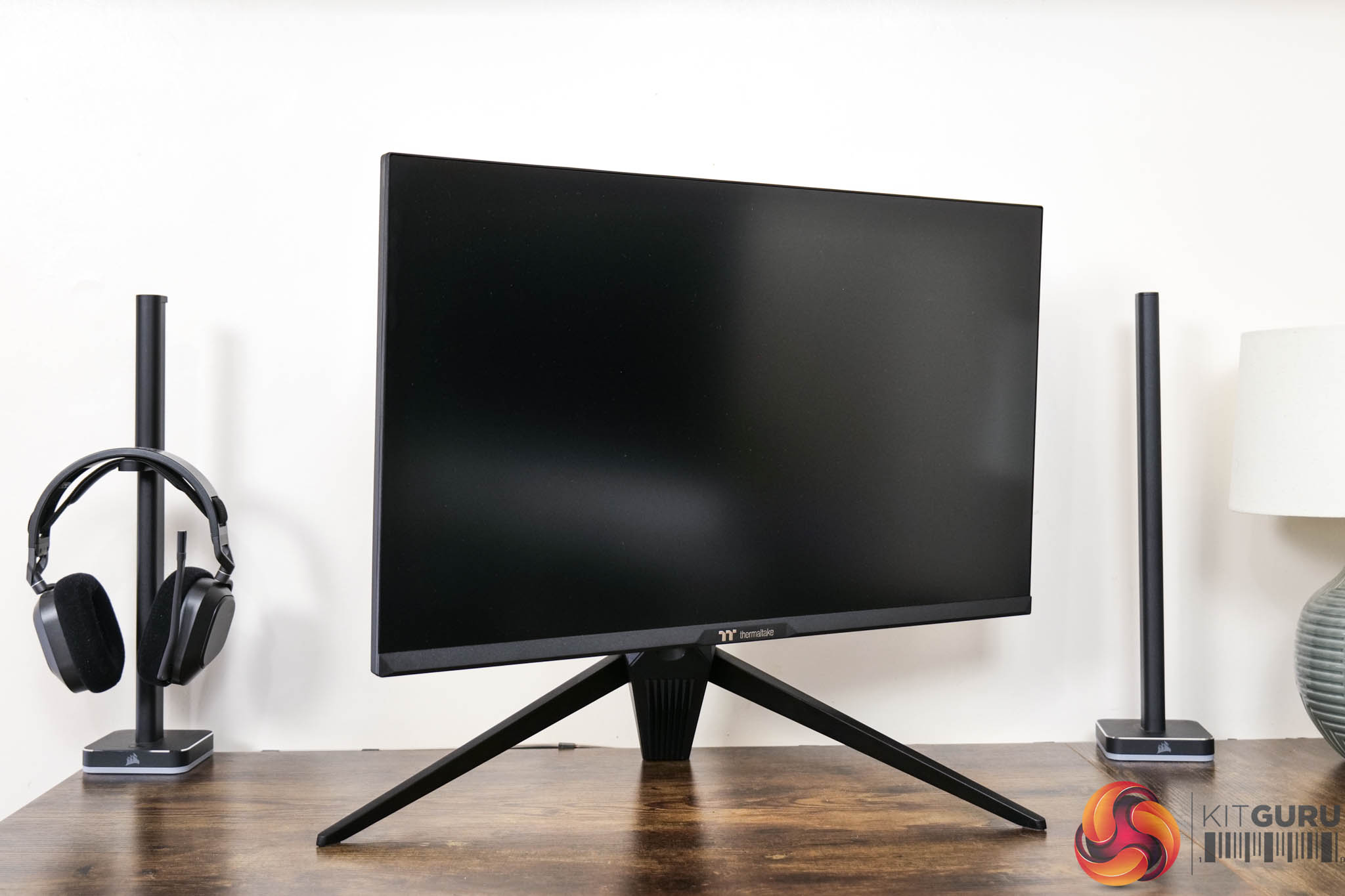
Kicking off with the design of the Thermaltake TGM-I27FQ, it is clearly aimed to be attention grabbing rather than something understated and minimalistic. That starts with the angular appearance to the back of the screen and continues down to the aggressive-looking stand and large V-shaped foot.
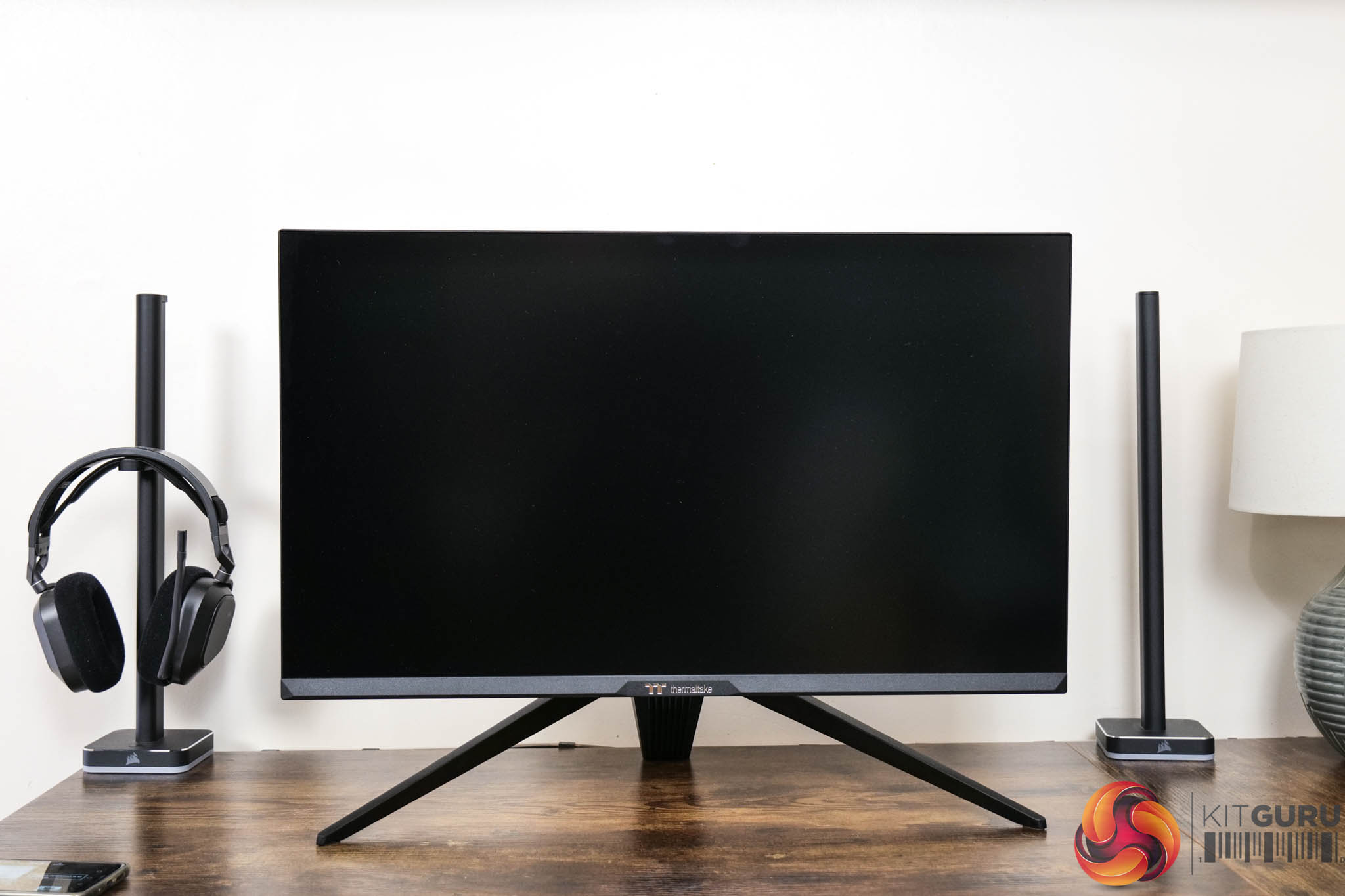
The stand does have a removable section for cable management, and the front is relatively conventional with a three-sides frameless design and a chin that measures approximately 20mm thick.
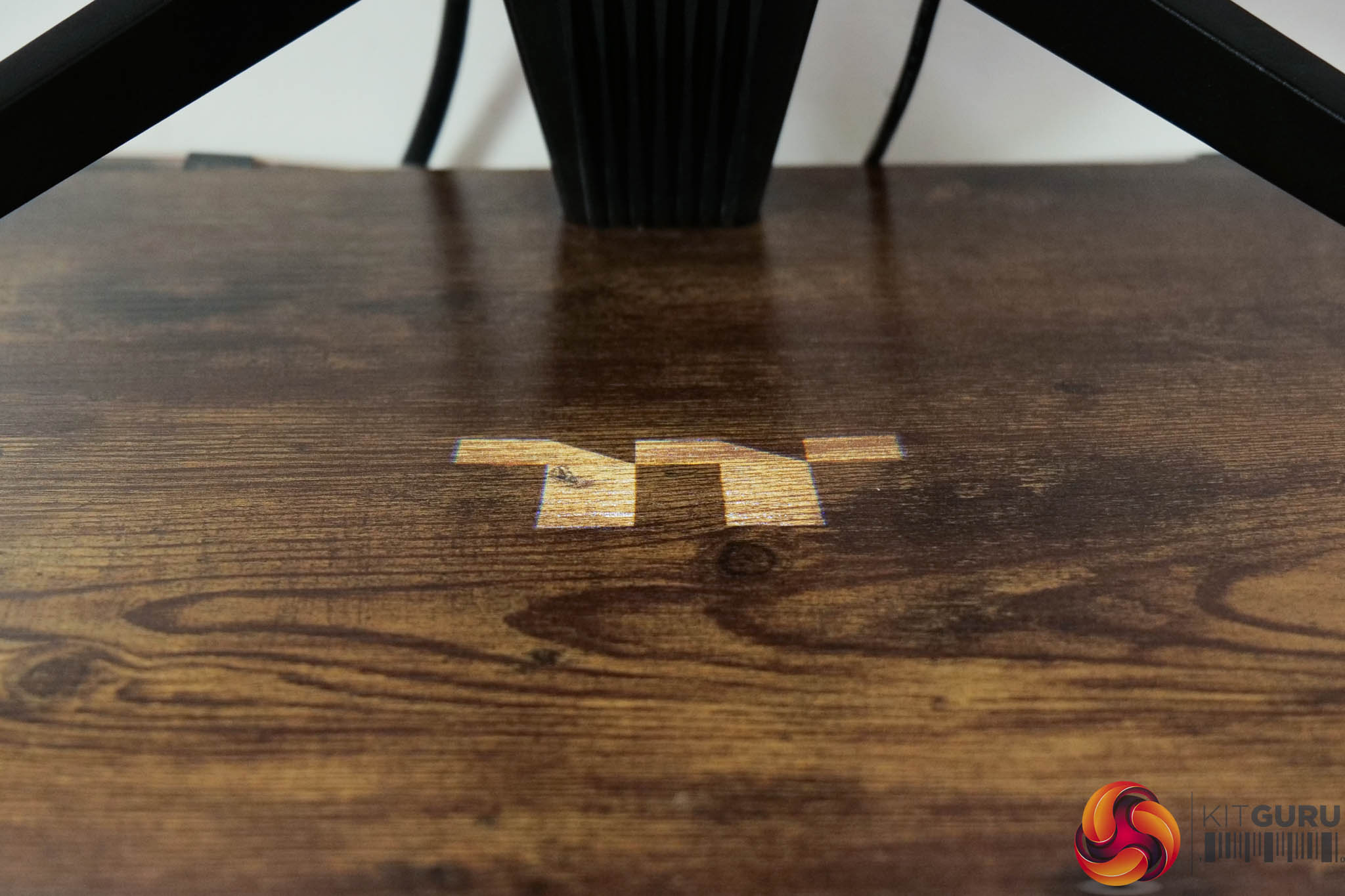
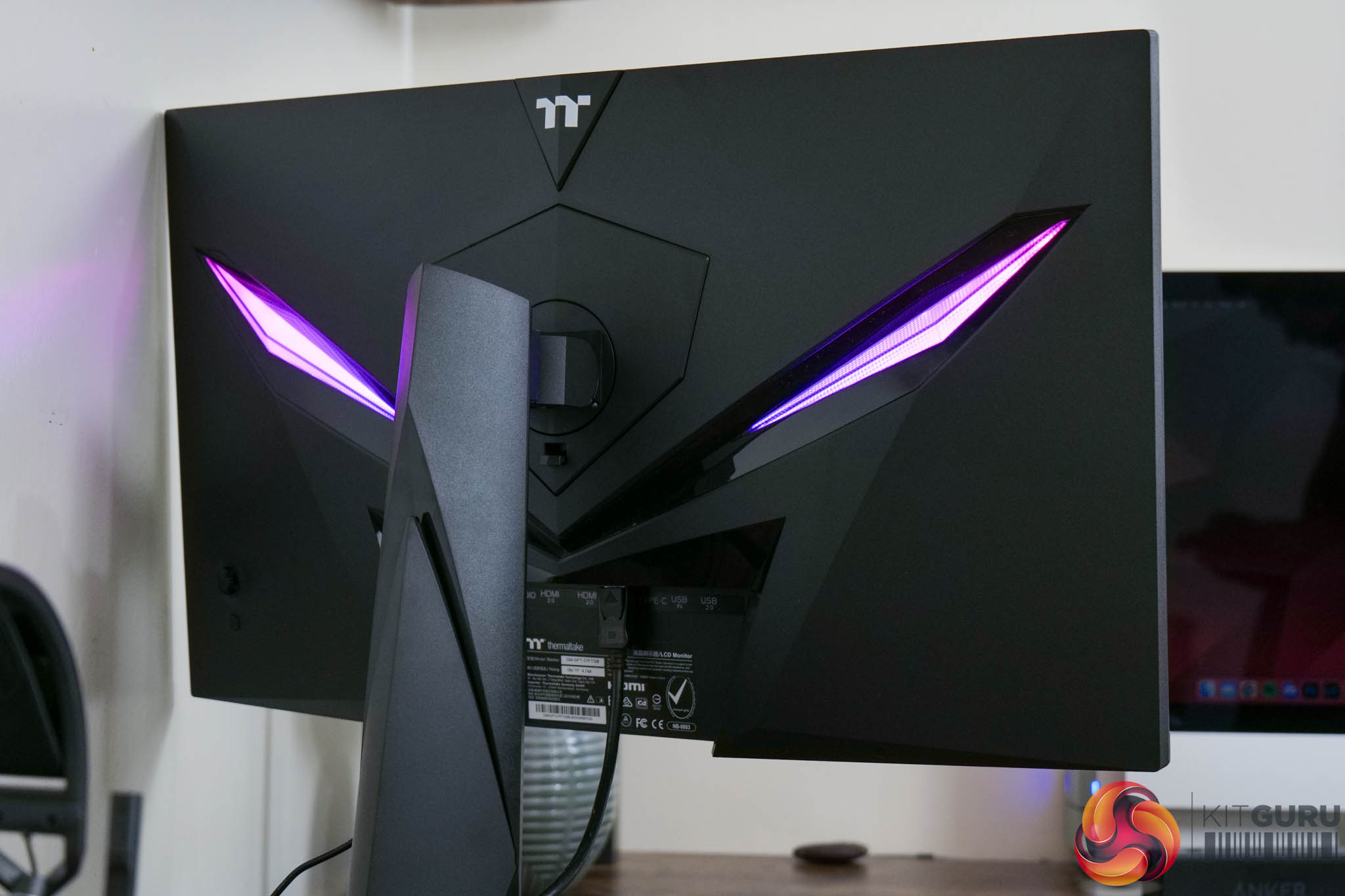
There is also a built-in mini projector that fires the TT logo downward onto your desk, something I've never quite understood the appeal of, but it can be disabled within the OSD. We also get a look at the RGB lighting on the back of the screen, with a few effects to choose from in the OSD.
The overall aesthetic is not my cup of tea, to me it's reminiscent of ASUS ROG and some of their screens. It's of course all personal preference, but I do find the stand and its foot quite large for a 27in screen as it comes in at about 54cm across, and 31cm front to back.
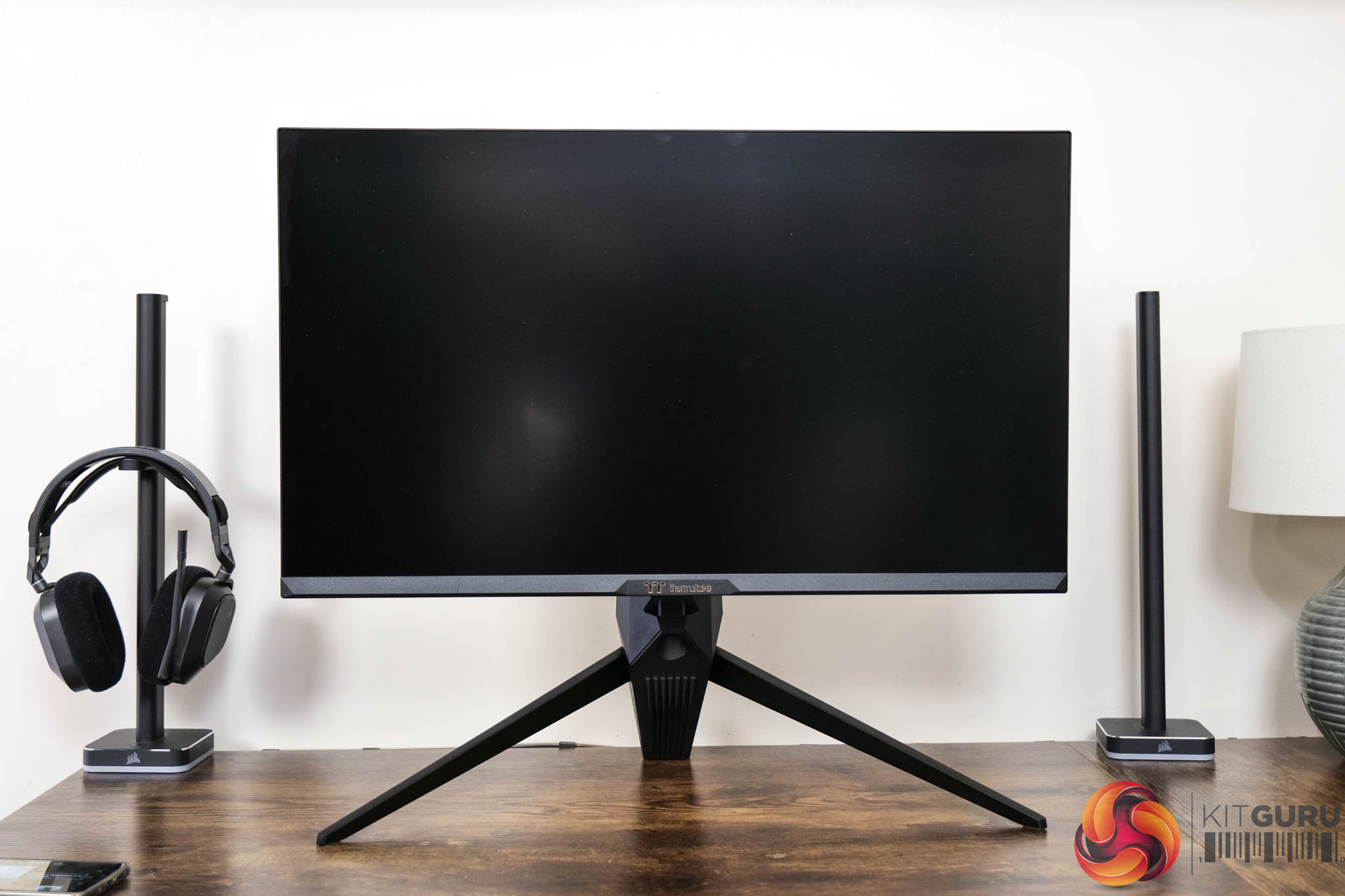
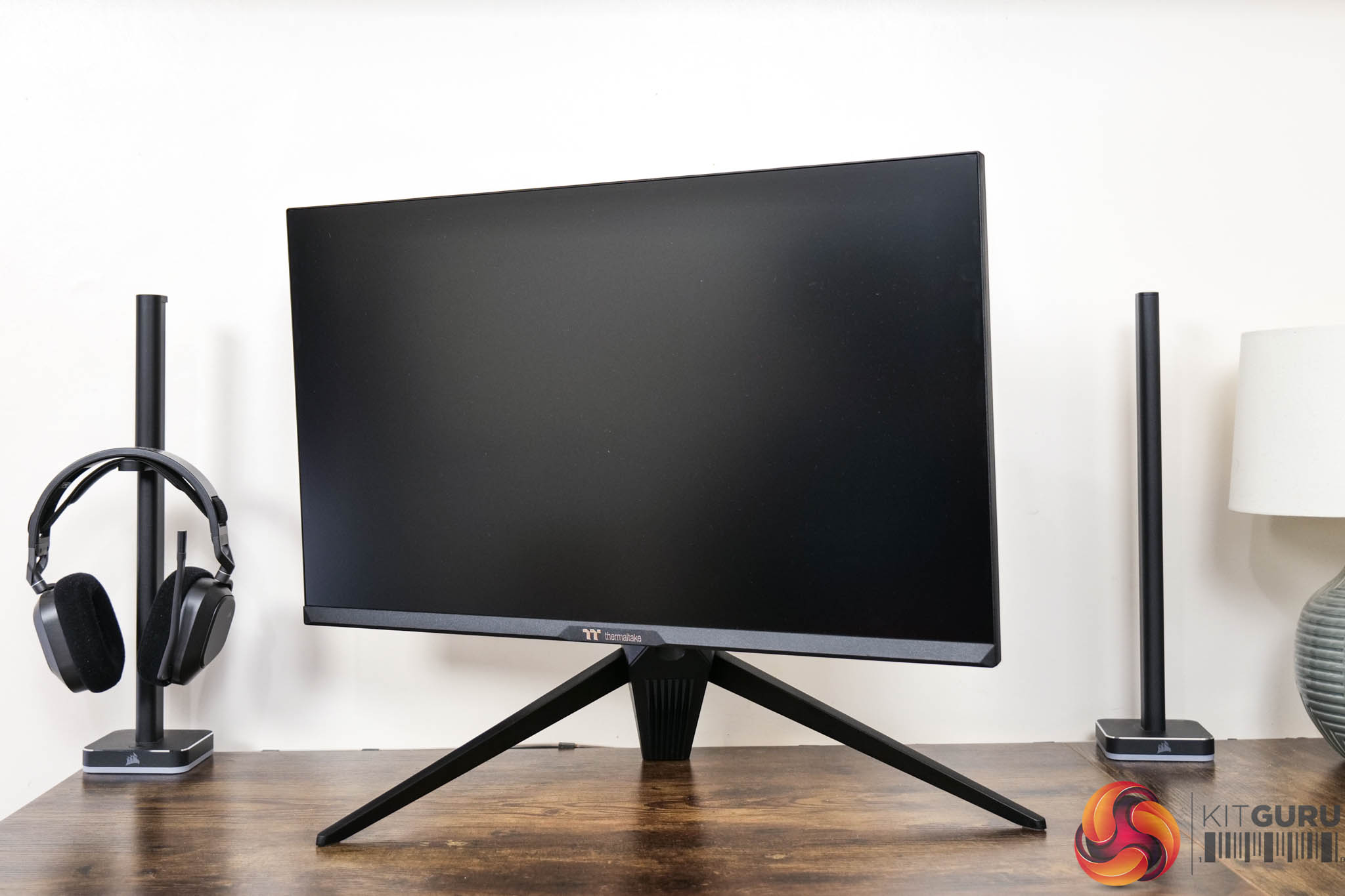
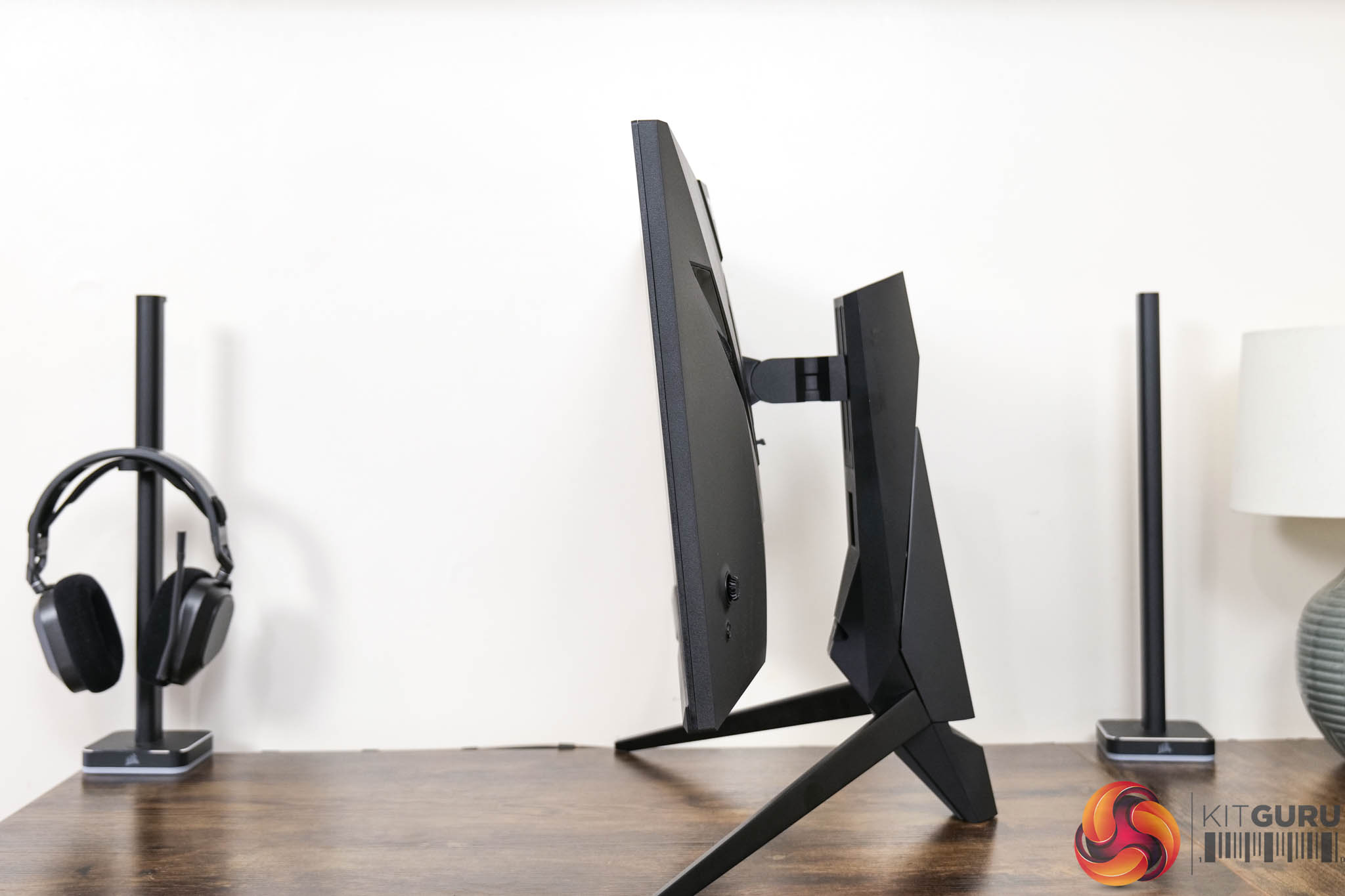
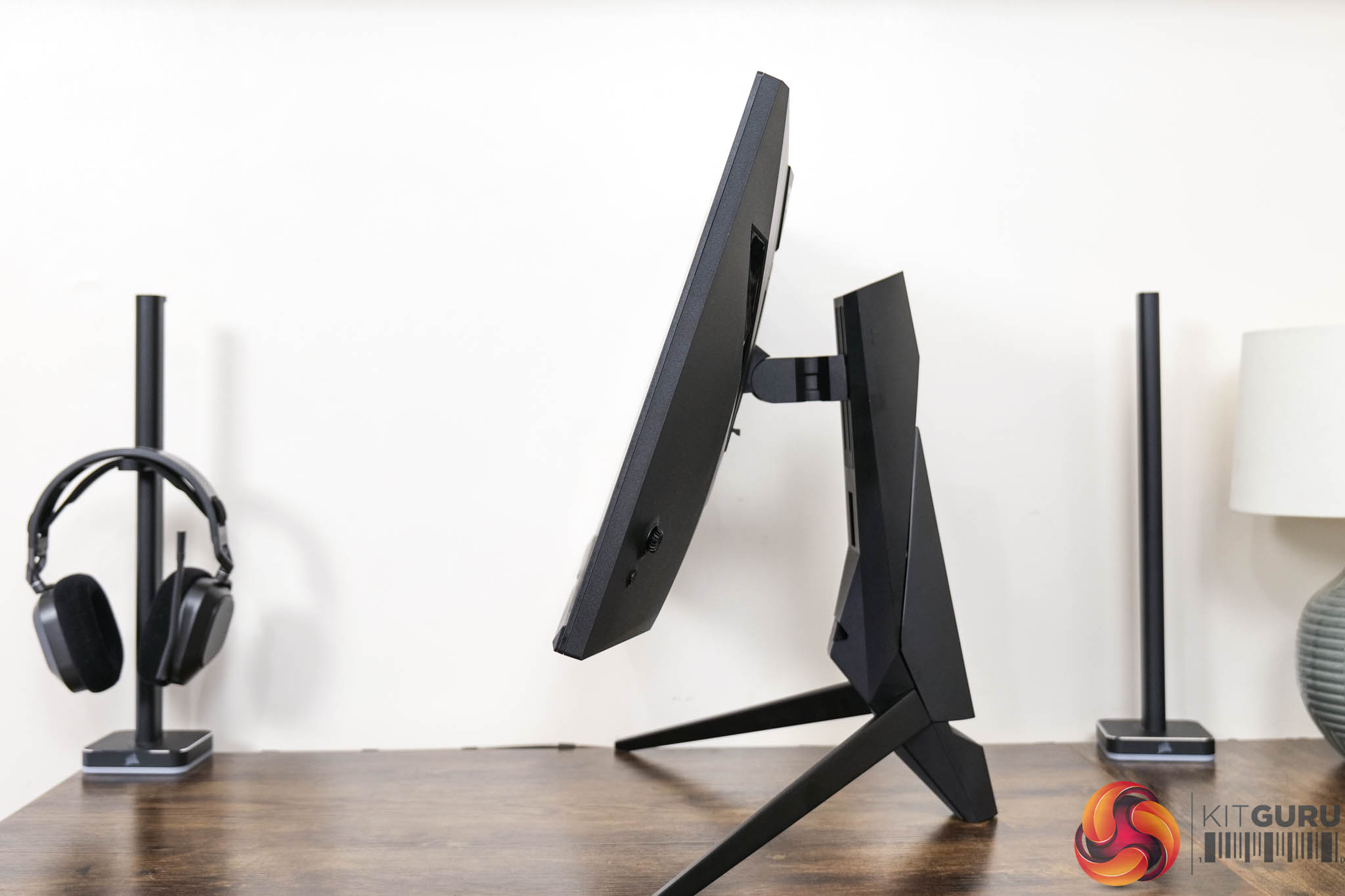
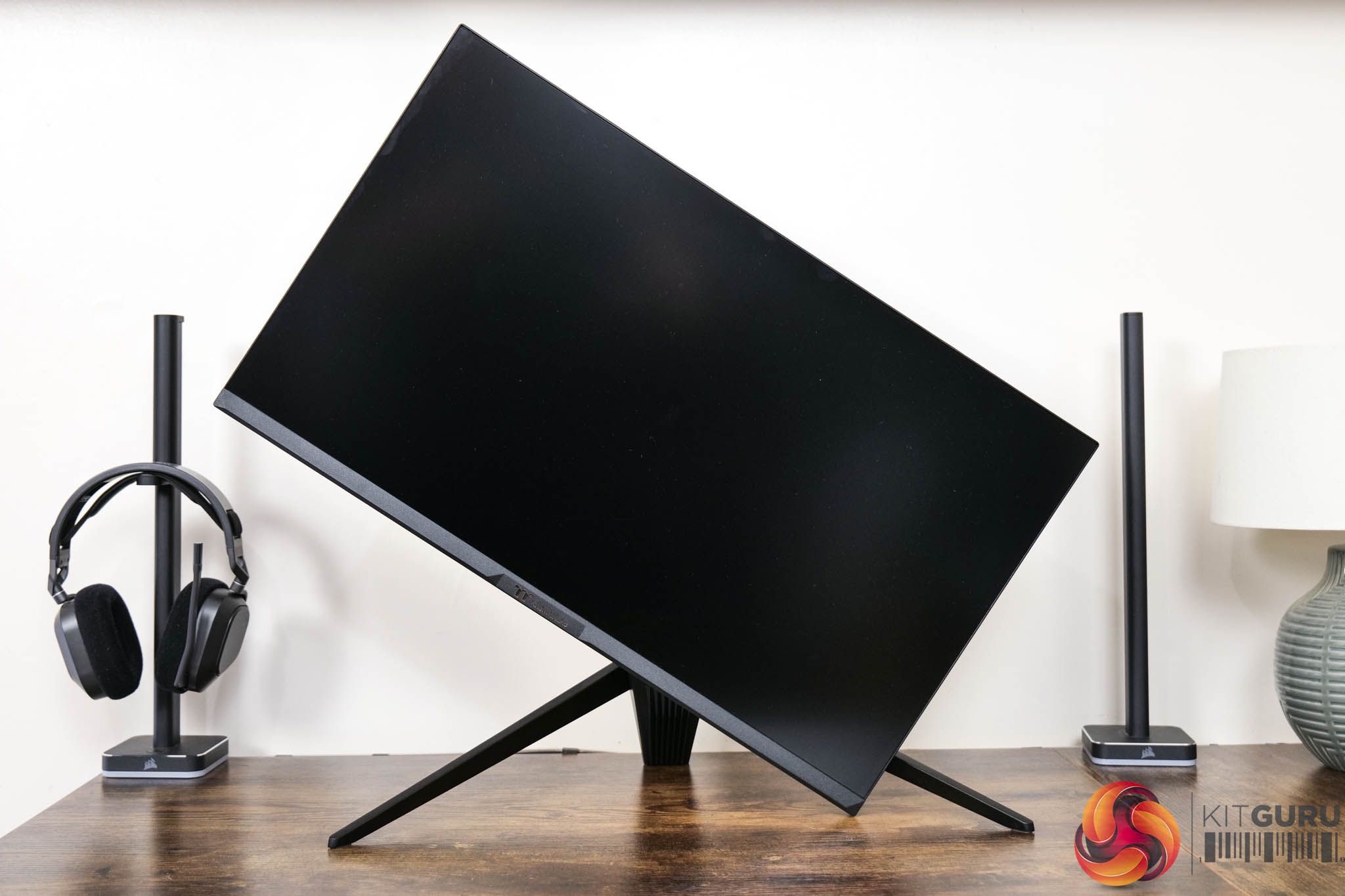
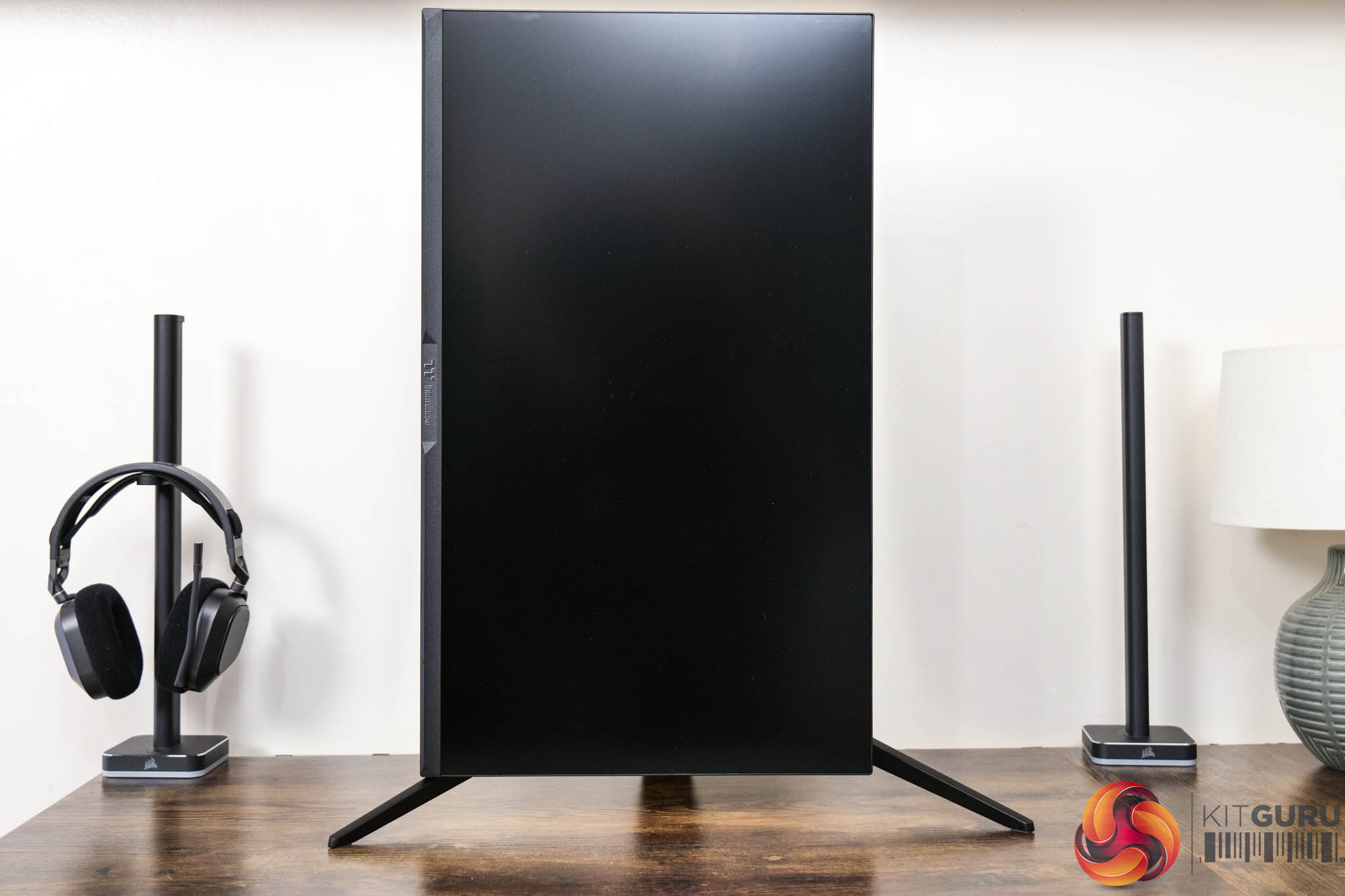
Still, the stand does off a full array of ergonomic adjustments, though height adjust is limited to 80mm which is a little on the low side. We also find 30 degrees of swivel in both directions, tilt from -5 to +20 degrees, alongside 90 degree pivot functionality. Third party VESA 75×75 mounts are also supported.
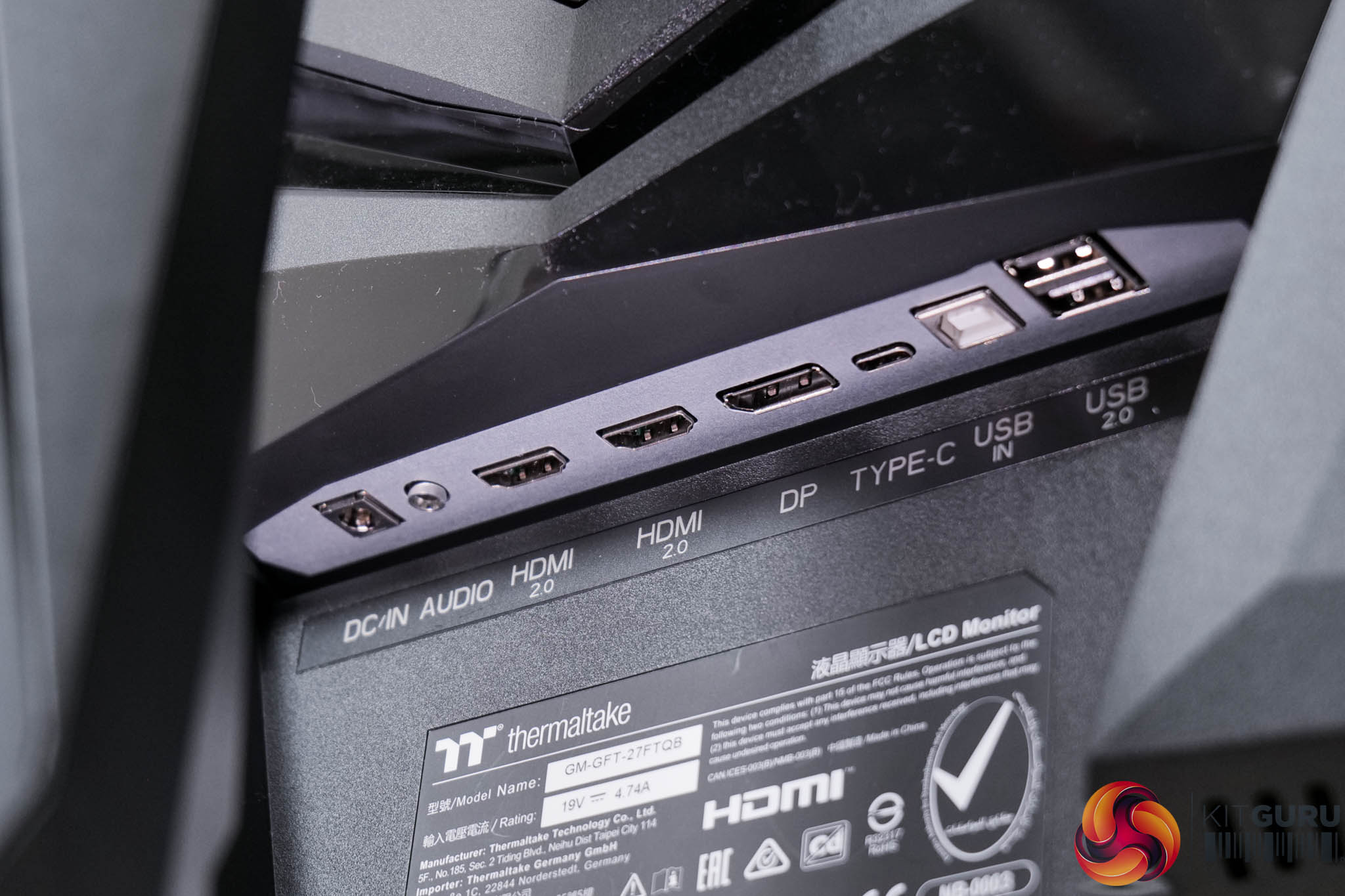
Round the back, we find a solid selection of ports and connectors. There's 2x HDMI 2.0 (though these are limited to 144Hz), 1x DisplayPort 1.4 and 1x USB-C, the latter supporting 15W power delivery. We also find a 2-port USB hub fed by a USB-B upstream cable, and both the USB-C or USB-B ports can be used for KVM functionality.
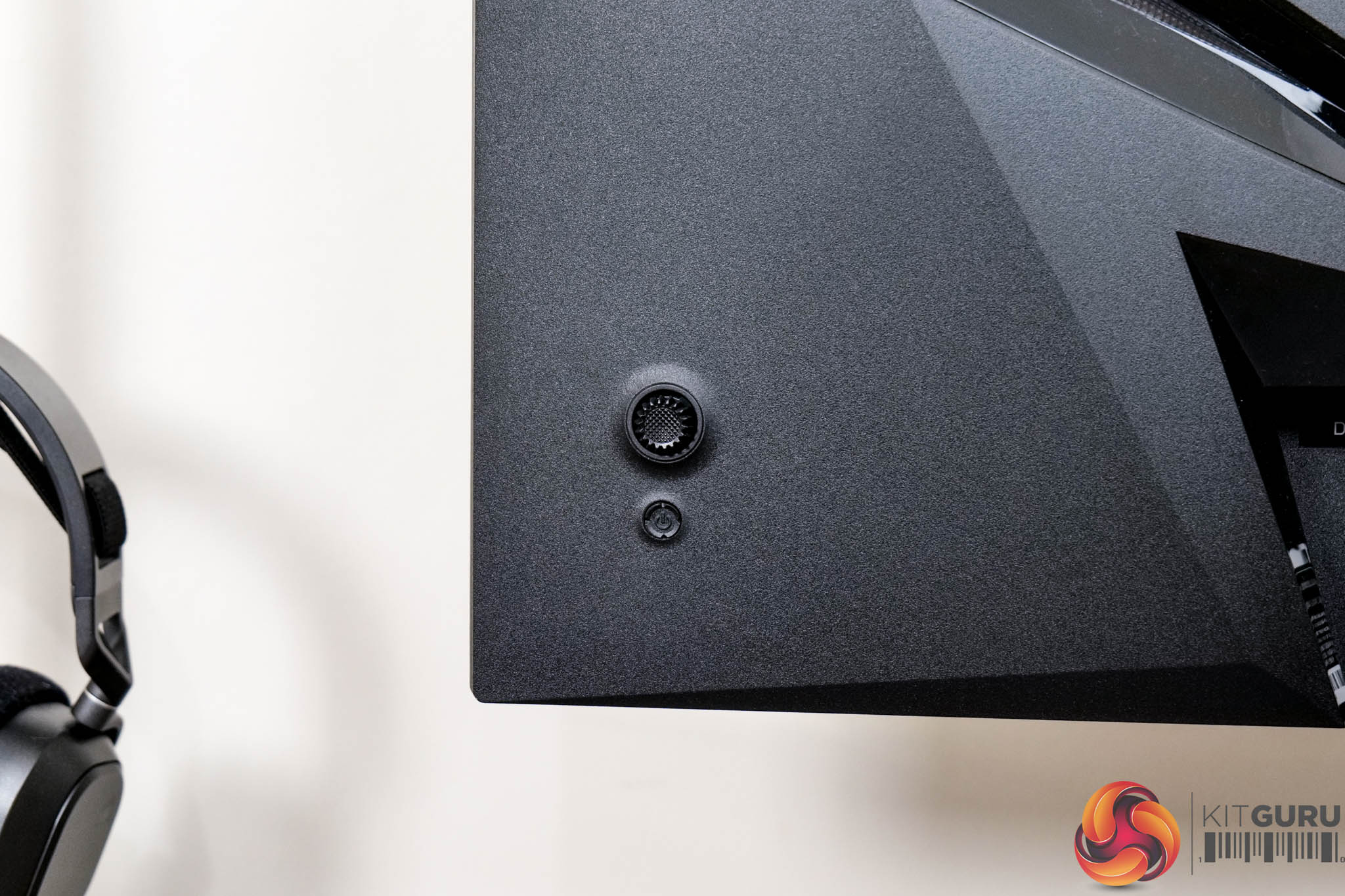
Lastly, the monitor is controlled using a small joystick found on the lower right-hand corner, with a power button positioned just below.
Thermaltake's OSD system is split into seven main tabs, as you can see here:


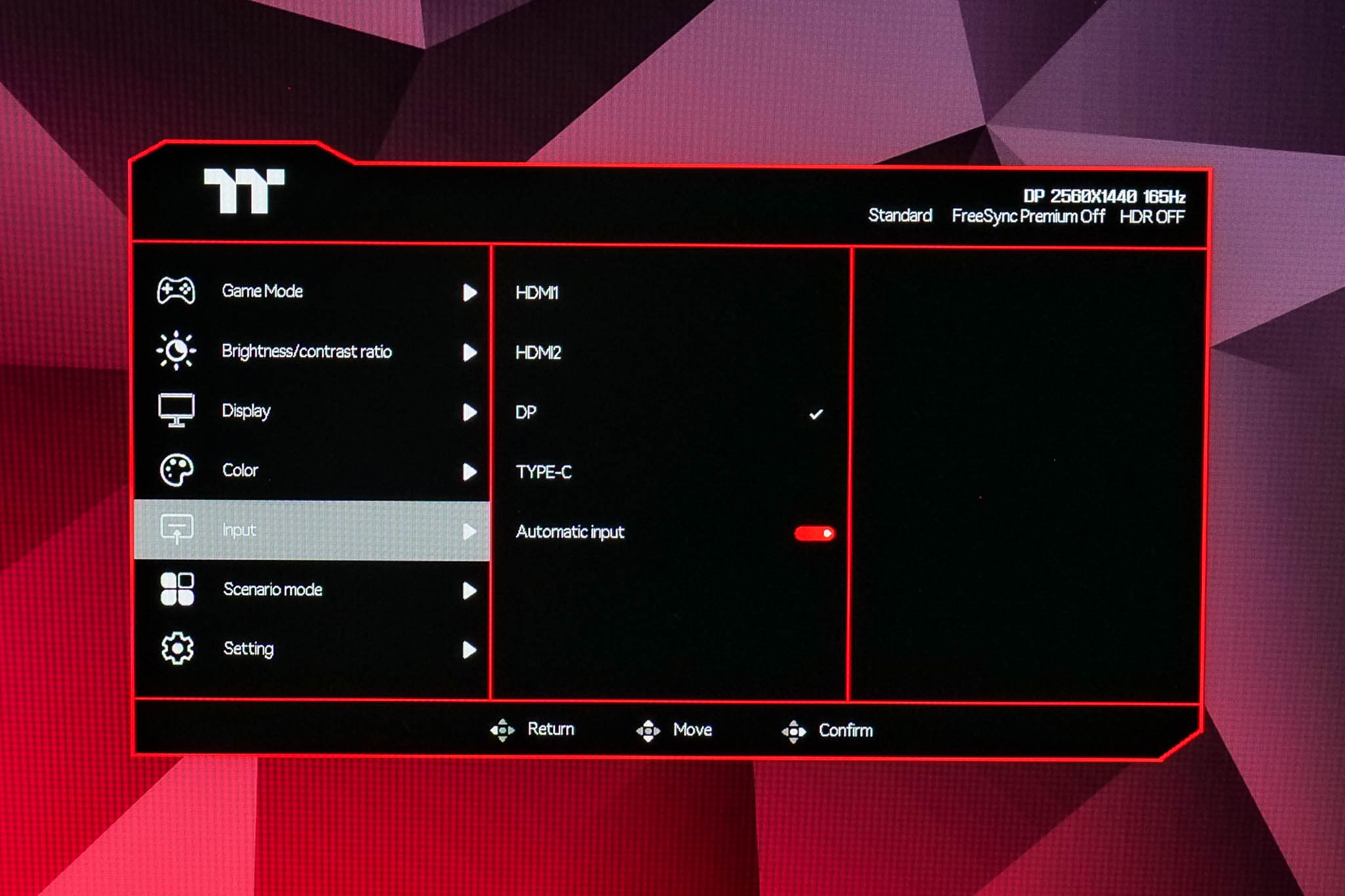
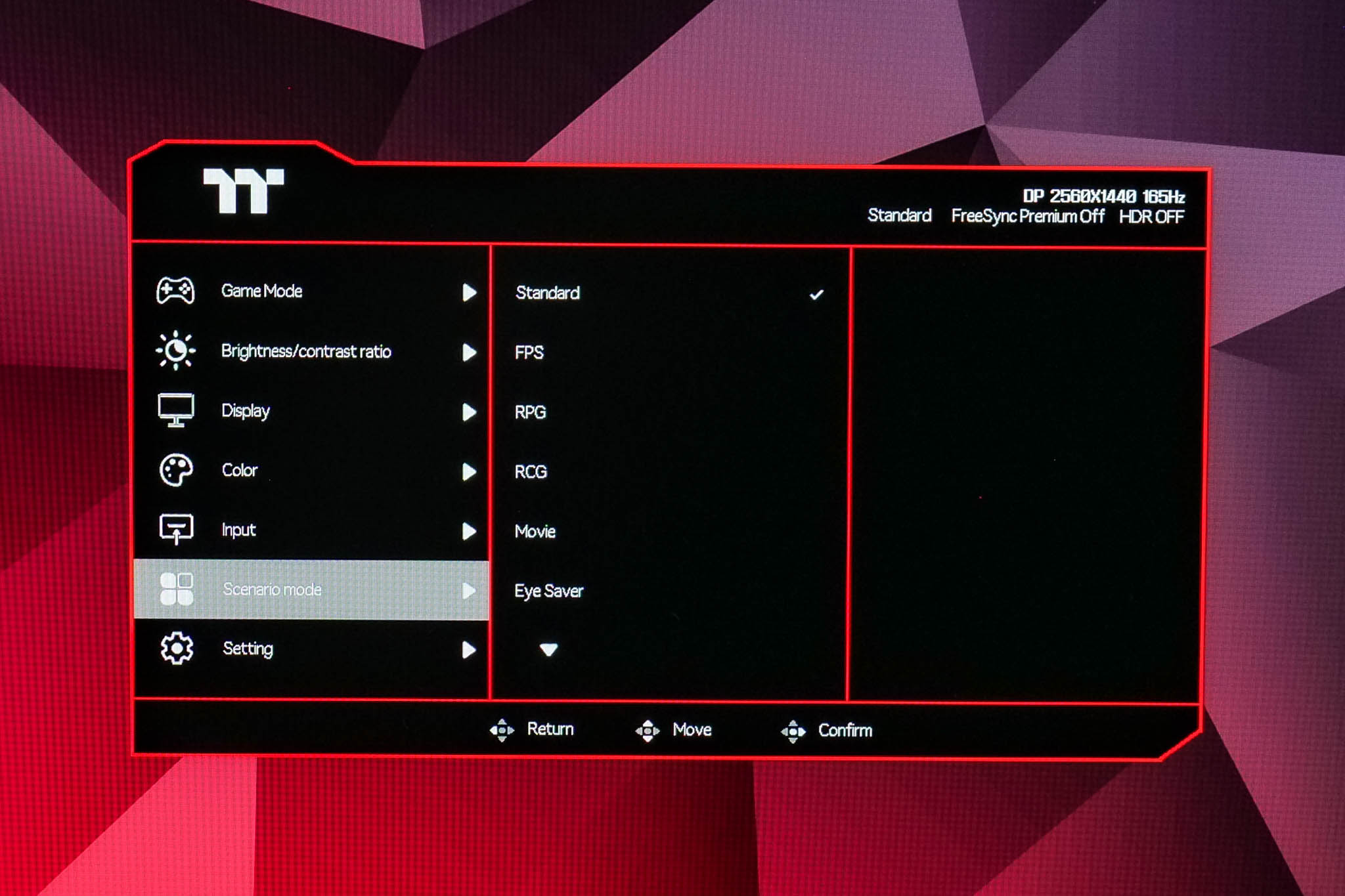
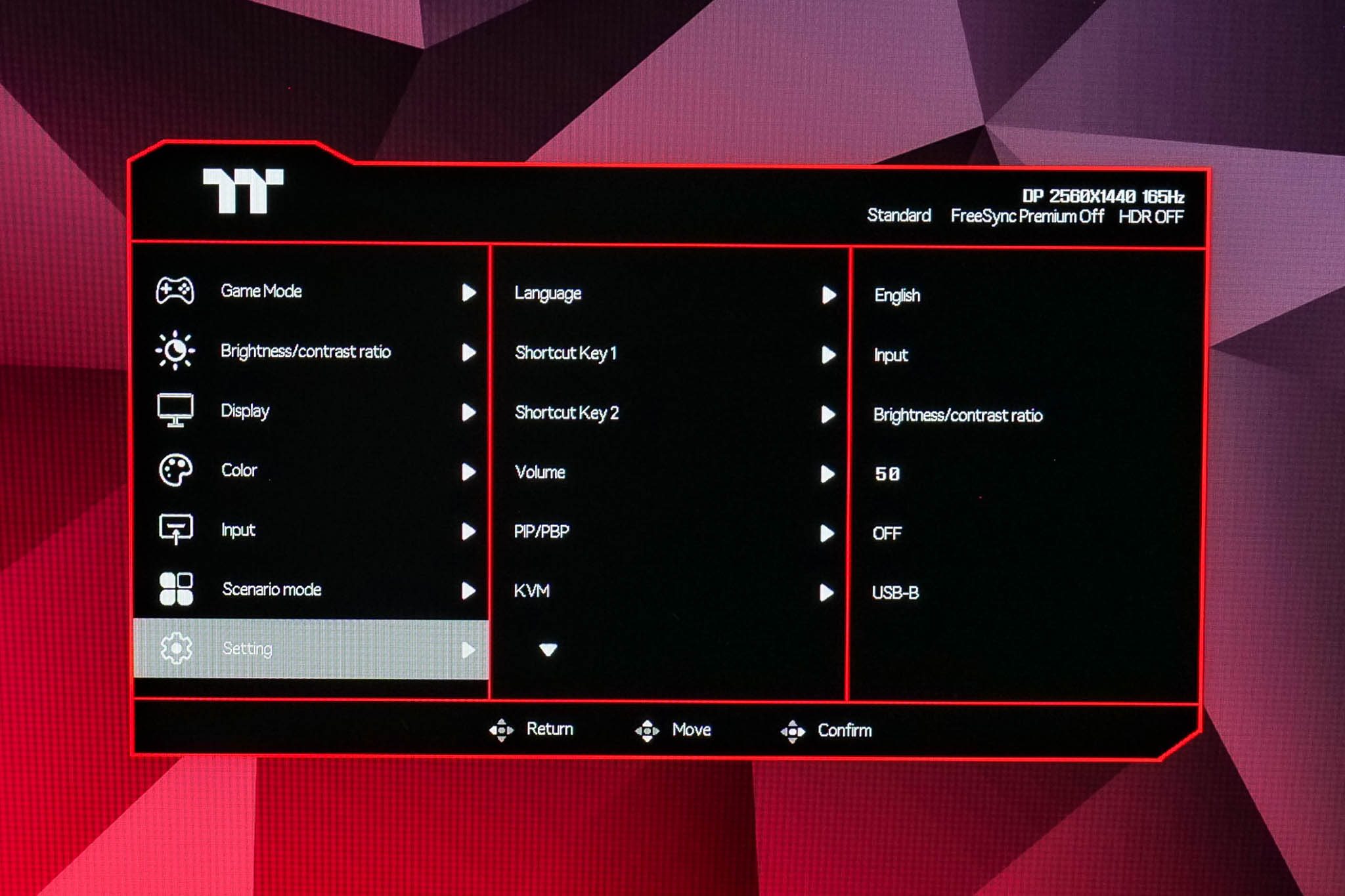
Being the first Thermaltake monitor I have reviewed, I wasn't sure what to expect from it. No doubt about it, it's very plain, being almost entirely text-based and looking somewhat dated. Despite that, it is reasonably well featured with options for sRGB emulation, three different overdrive modes, user adjustable colour balance, on screen crosshairs and so on. My main criticism is honestly that you can't actually adjust the position of the OSD itself – it comes up smack bang in the centre of the screen and cannot be moved, which is less than ideal if you want to quickly make some changes on the fly without pausing your game or workflow. So overall, it's not quite as polished as something from MSI, but I have definitely seen worse first efforts!
Our main test involves using an X-Rite i1 Display Pro Plus colorimeter and utilising Portrait Display's Calman Ultimate software. The device sits on top of the screen while the software generates colour tones and patterns, which it compares against predetermined values to work out how accurate the screen is.
The results show:
- A monitor’s maximum brightness in candelas or cd/m2 at various levels set in the OSD.
- A monitor’s contrast ratio at various brightness levels in the OSD.
- Gamut coverage, primarily focusing on sRGB and DCI-P3 colour spaces.
- Greyscale accuracy, measured across 20 shades, with an average colour balance reported.
- The exact gamma levels, with a comparison against preset settings in the OSD.
- The colour accuracy, expressed as a Delta E ratio, with a result under 3 being fine for normal use, and under 2 being great for colour-accurate design work.
We first run these tests with the display in its out-of-the-box state, with all settings on default. If there is an sRGB emulation option or other useful mode then we may test that too. We then calibrate the screen using the Calman Ultimate software and run the tests again.
You can read more about our test methodology HERE.
Default settings
Brightness and Contrast (Full Screen)
| OSD Brightness | White Luminance (cd/m2) | Black Luminance (cd/m2) | Contrast Ratio |
| 0% | 84.6 | 0.084 | 1014:1 |
| 25% | 129.9 | 0.131 | 992:1 |
| 50% | 175.3 | 0.176 | 995:1 |
| 75% | 294 | 0.297 | 989:1 |
| 100% | 407.1 | 0.412 | 989:1 |
Starting our panel analysis with brightness, the TGM-I27FQ is fairly typical of a mid-range IPS panel, hitting up to 407 nits at maximum. Its minimum of 85 nits is higher than I'd like, but it's passable overall. I was, however, slightly disappointed to see the contrast ratio hovering around the 1000:1 mark – modern IPS panels have been capable of hitting over 1300:1 for a while now, even 1500:1 in the case of the ASRock PG27QFT2A, so this does feel like a bit of a backwards step.
Gamut (CIE 1976)
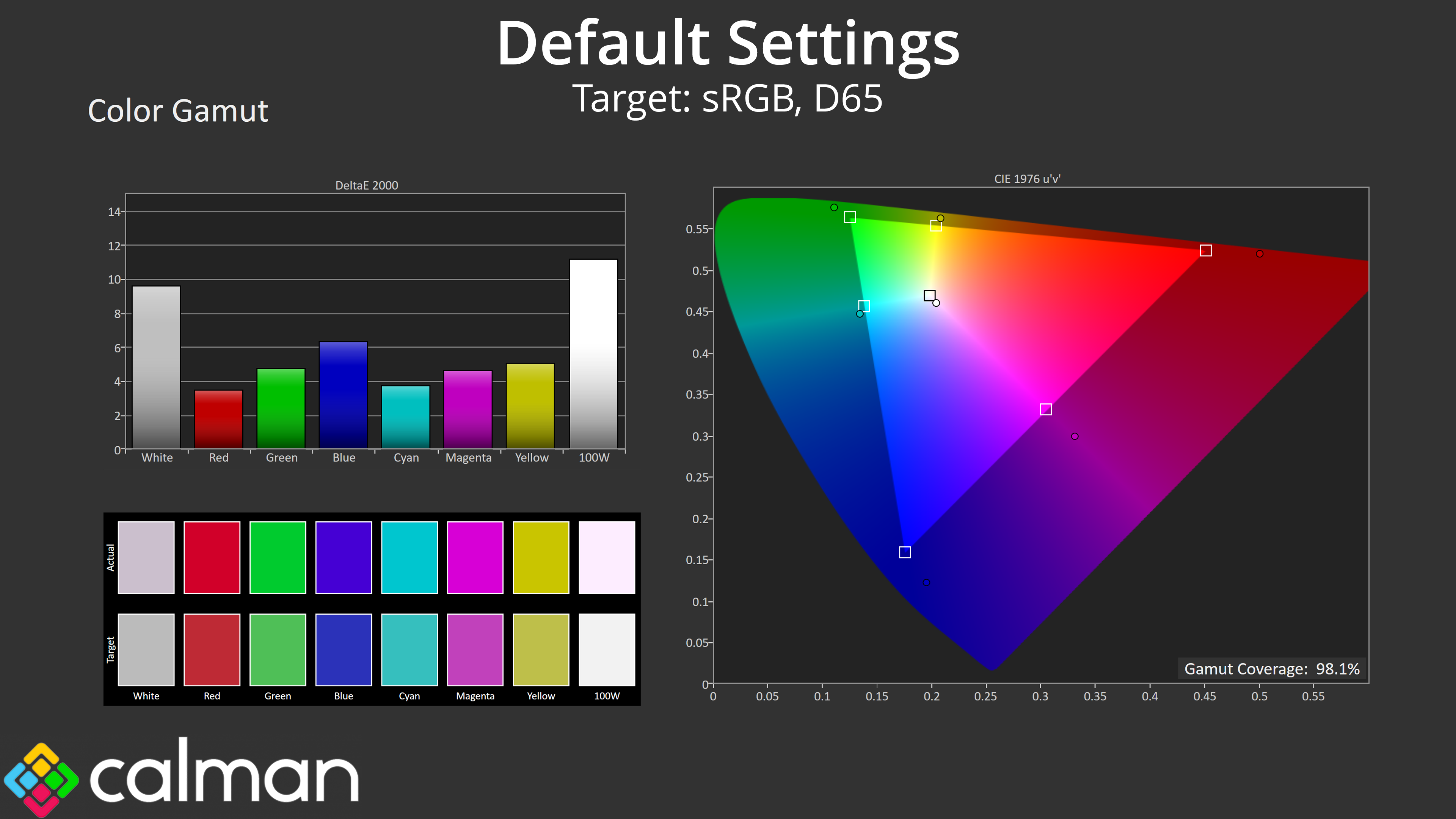

| Colour space | Coverage (%) |
| sRGB | 98.1 |
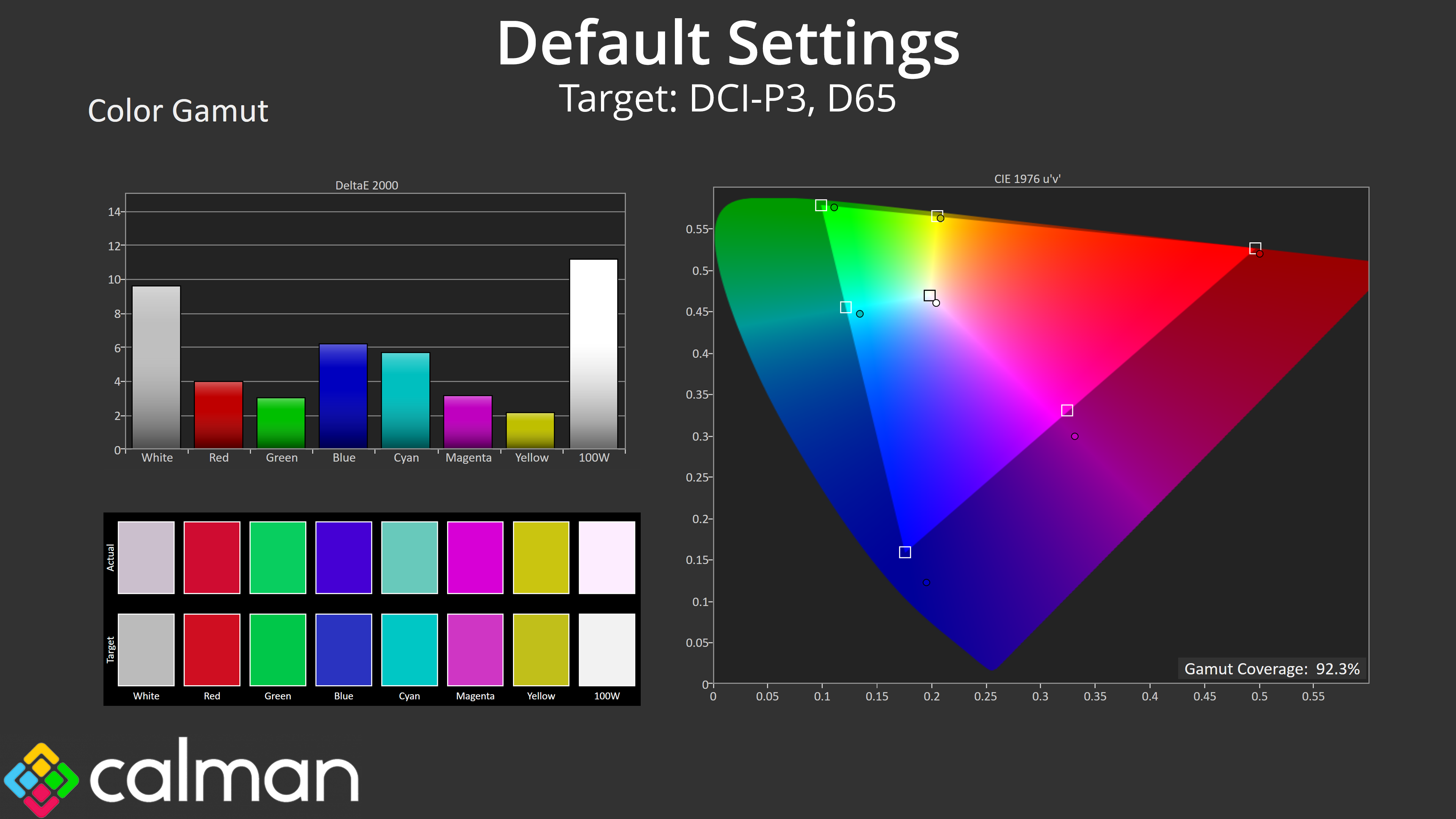
| DCI-P3 | 92.3 |
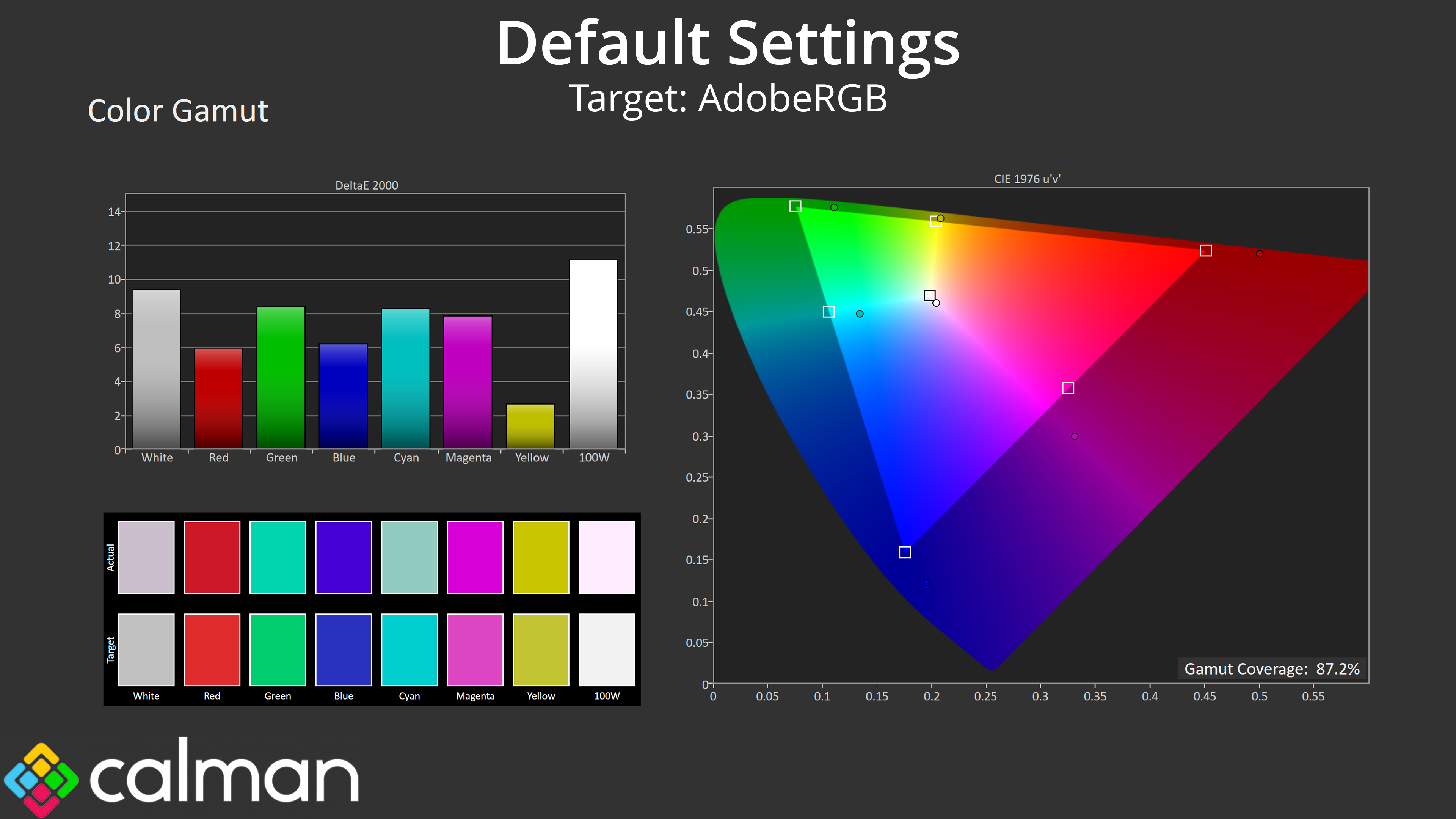
| Adobe RGB | 87.2 |
| Rec.2020 | 74.7 |
Gamut coverage is more as expected from this calibre of screen however, generally exceeding the sRGB space and hitting 92.3% DCI-P3 coverage, 87.2% AdobeRGB and then 74.7% reporting of the Rec.2020 colour space.
Greyscale
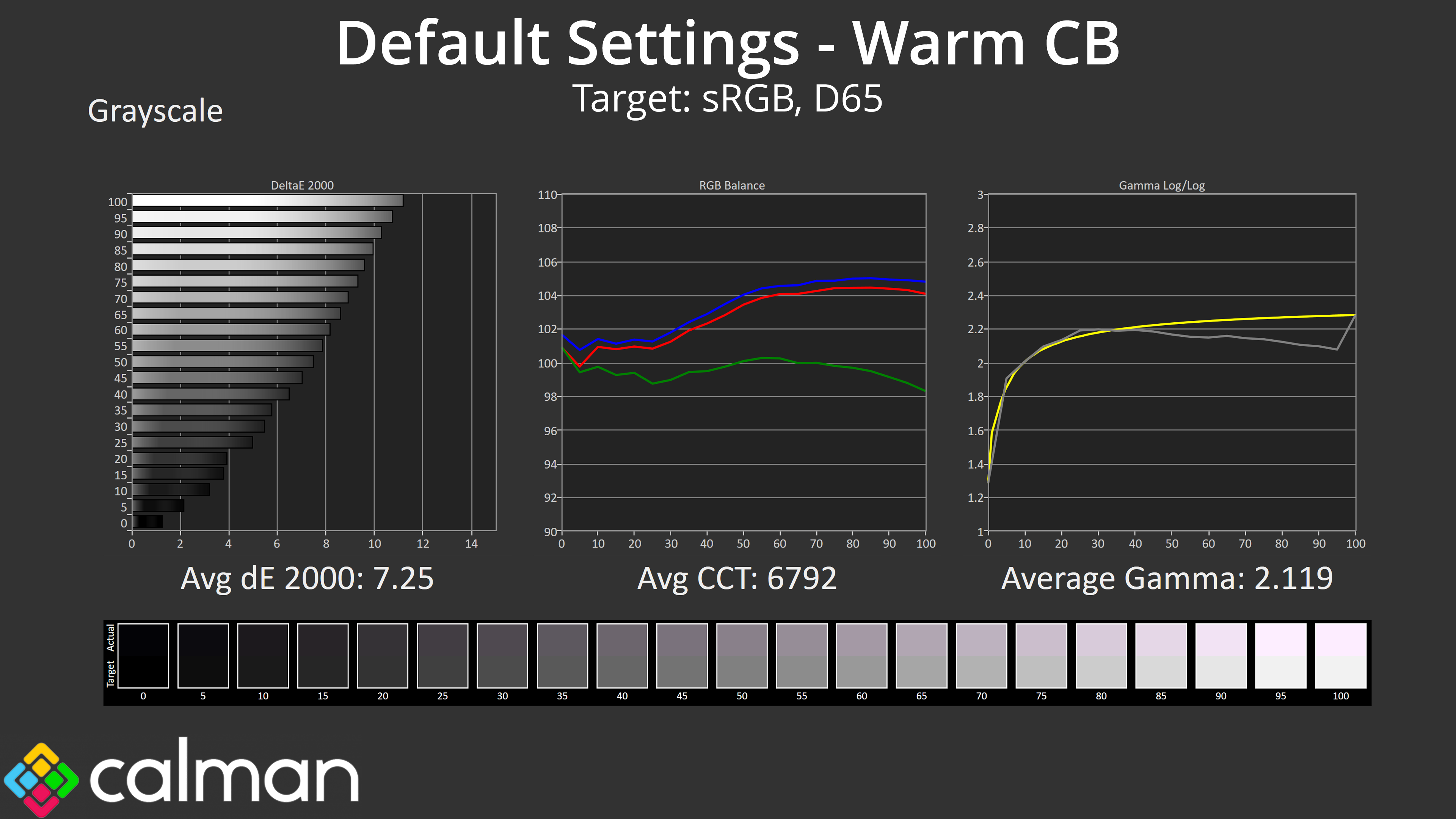
As for greyscale, we are starting using completely stock settings, and that includes the Warm colour balance mode. As you can see, greyscale deltaEs are alarmingly high as the colour balance is considerably out of whack. The average CCT (correlated colour temperature) of 6792K doesn't sound too bad, but the red and blue channels are raised significantly relative to the green channel, and that gives the screen a distinct pinkish/purpley hue.
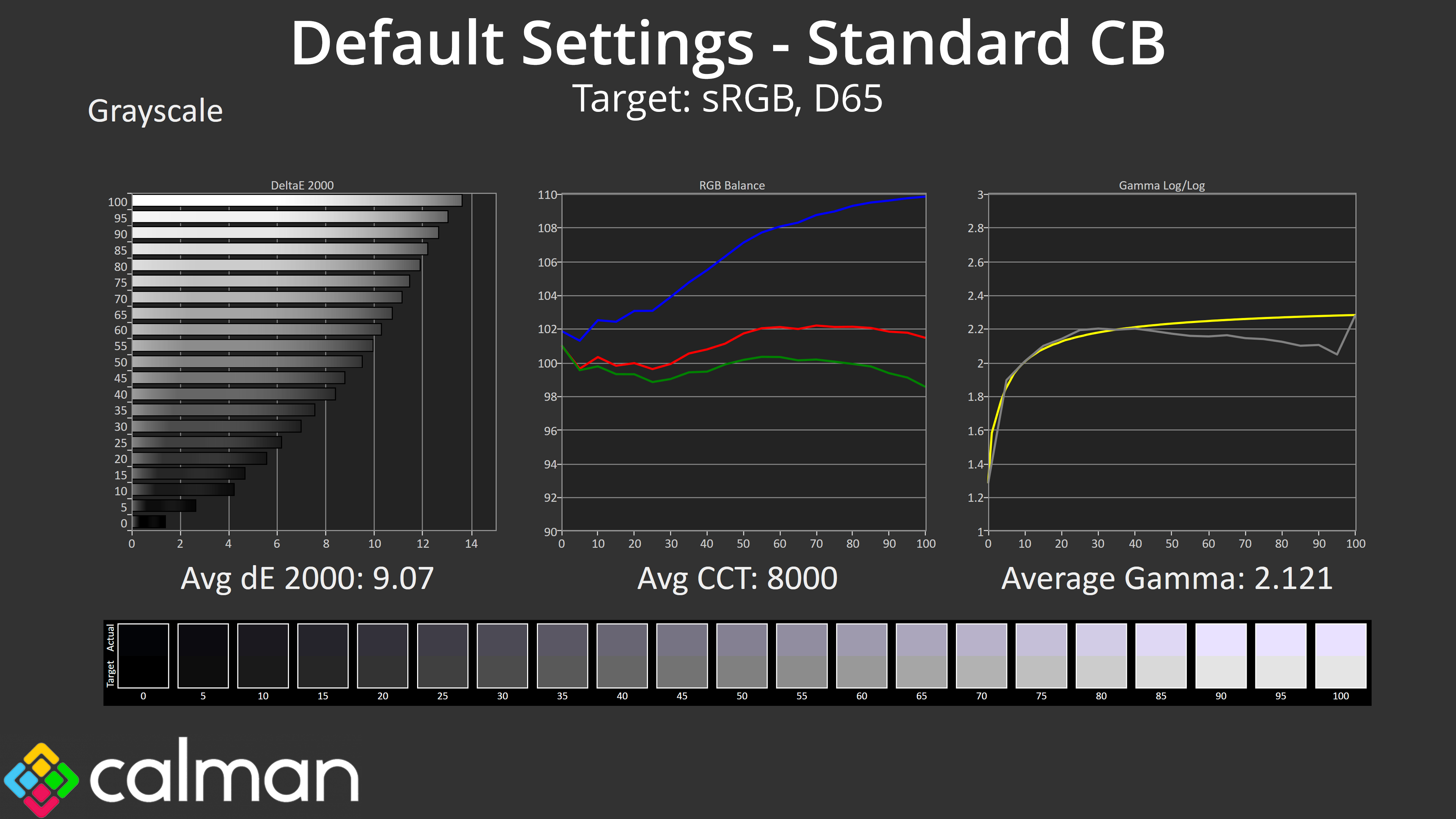
I next tried the Standard colour balance setting, but this was even worse, being significantly cooler to the point we saw an average CCT of 8000K, so this mode is not recommended.
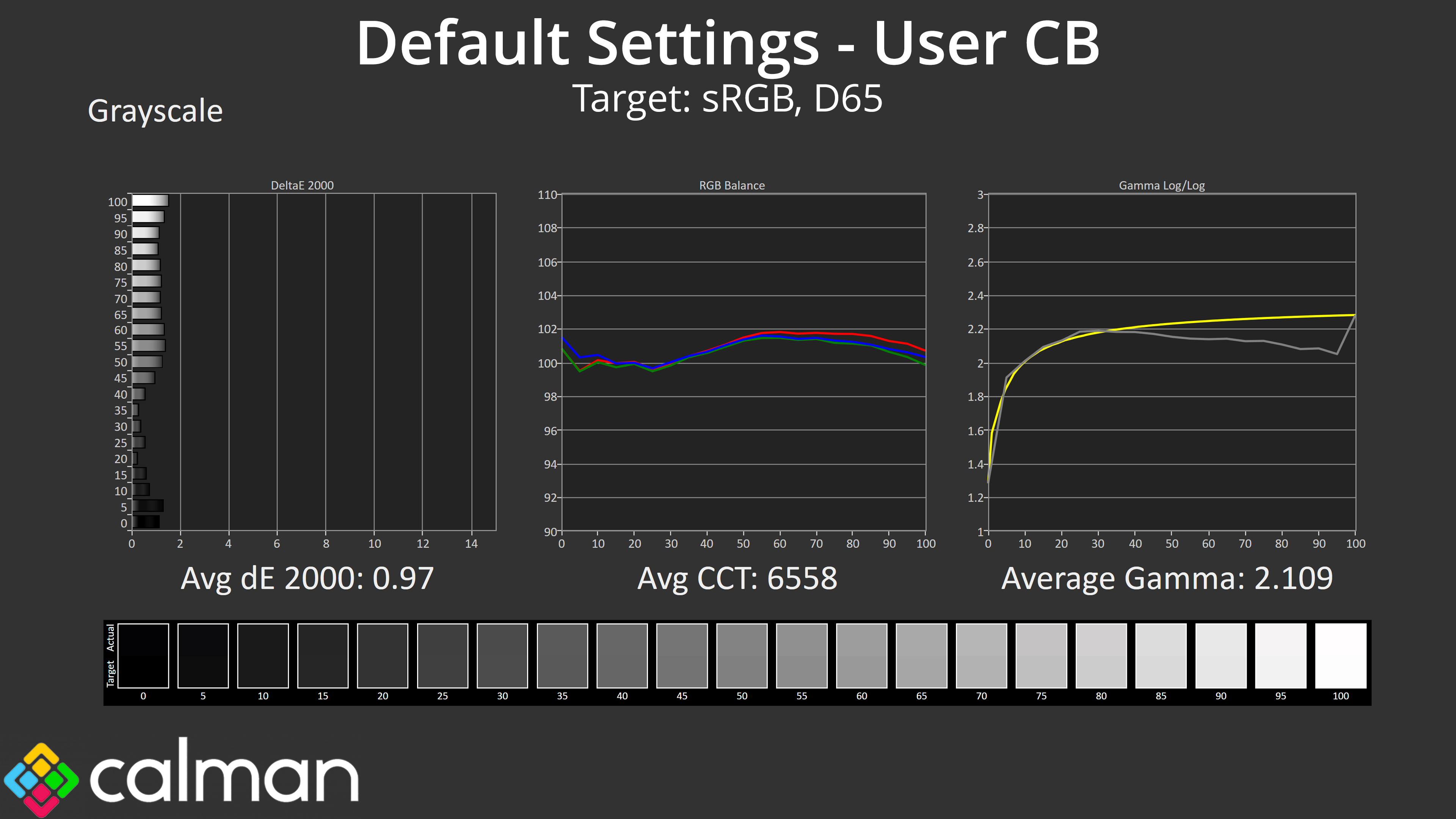
Thankfully, there is user adjustable colour balance and I dialled in the following settings – Red channel: 46, Green channel: 49 and Blue channel: 50. That improved things hugely, with a new average dE 2000 of just 0.97, and a near-perfect average CCT of 6558K. It's good that this option is available, but it's a shame the default presets are so inaccurate, as most users wouldn't have the necessary tools to accurately test any manual adjustments.
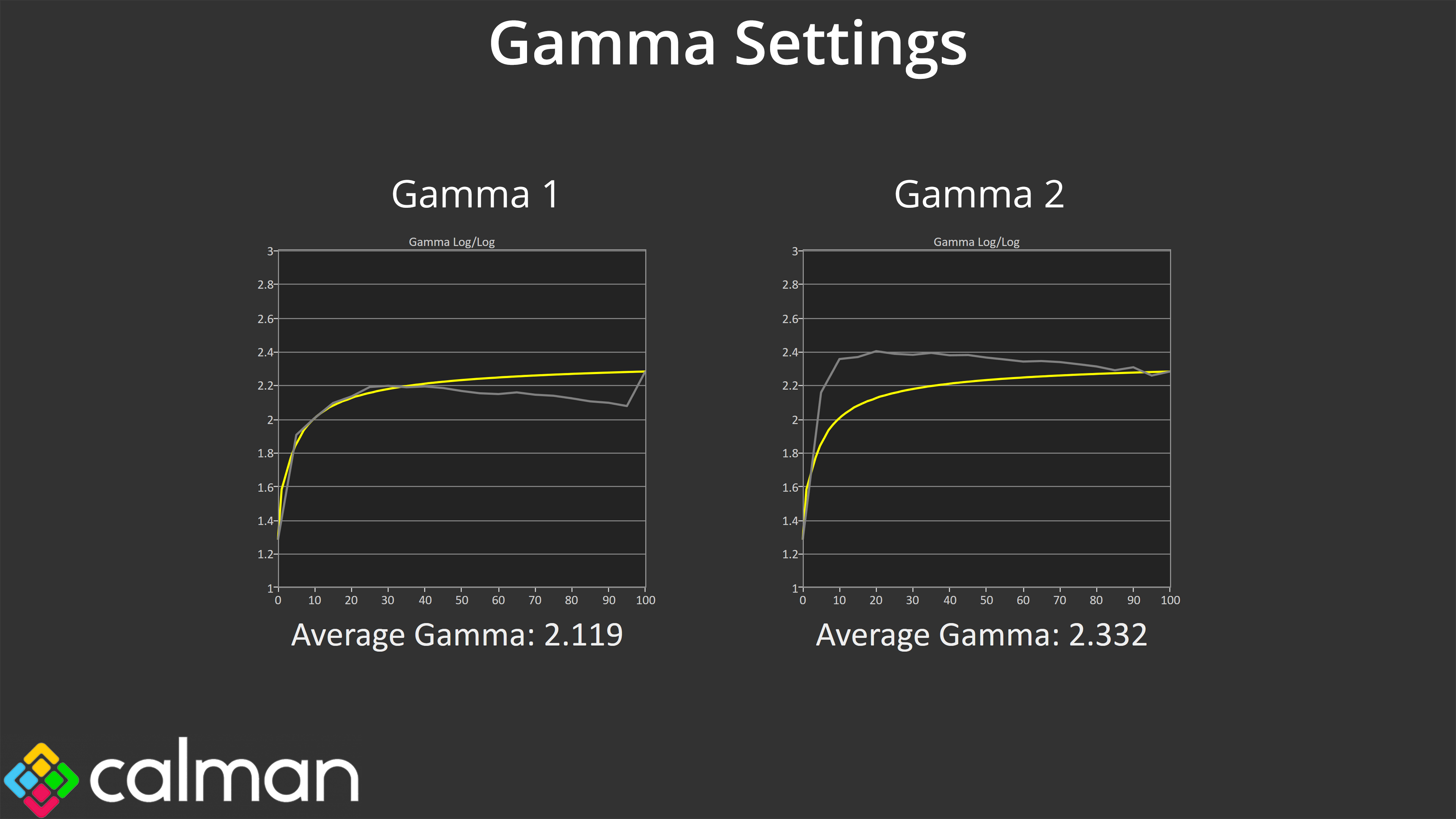
I've not mentioned gamma yet either, and things are not quite ideal here either. The TGM-I27FQ features two gamma settings, 1 being the default – it's mostly accurate but does dip slightly towards the mid and upper end of the curve, averaging 2.119. Gamma 2 starts off higher but then drops as the curve goes on, averaging 2.332.
Saturation
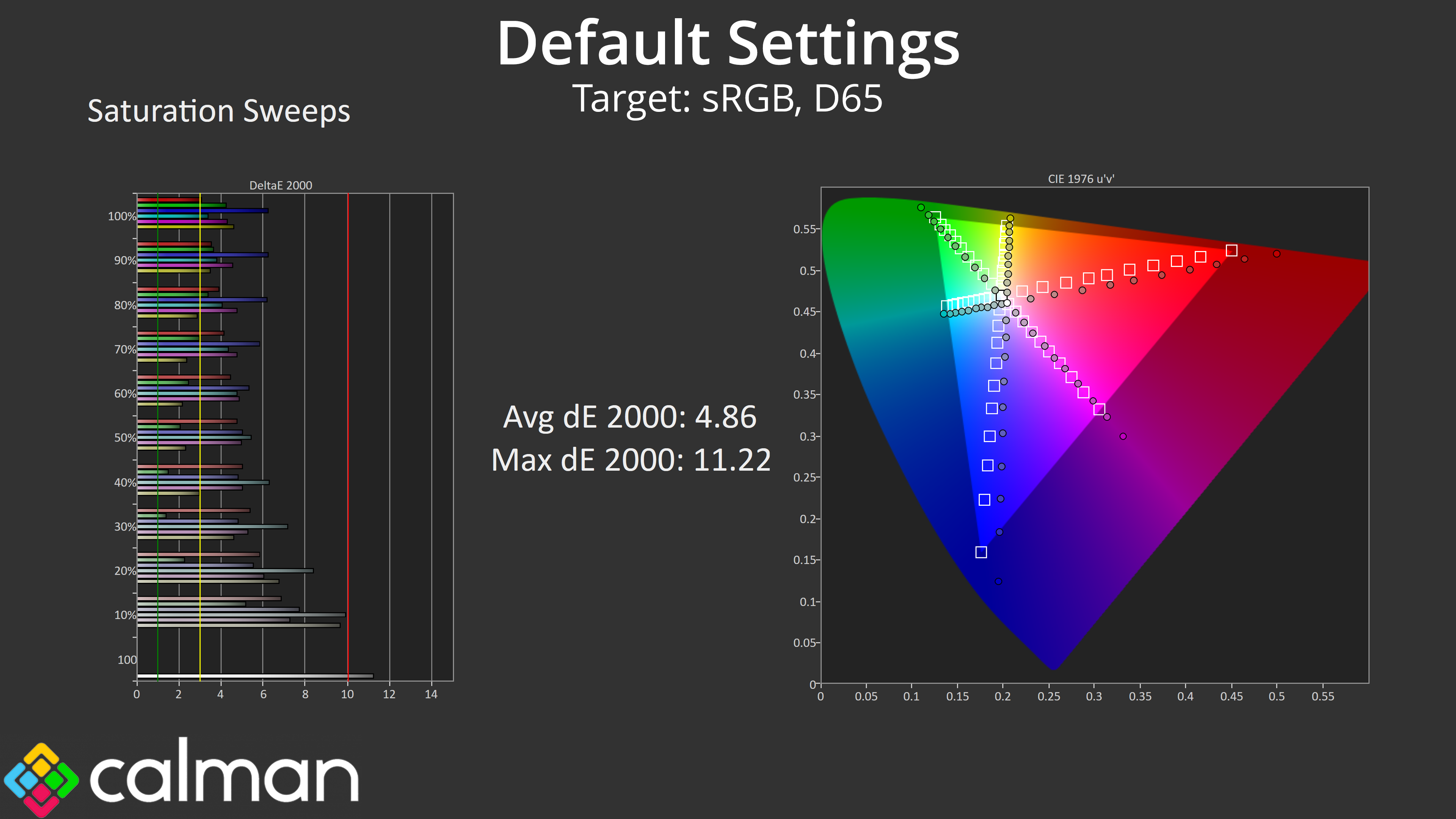
Next we come to saturation and we do see a fair amount of over-saturation here relative to the sRGB space, resulting in an average dE 2000 of 4.86.
Colour Accuracy
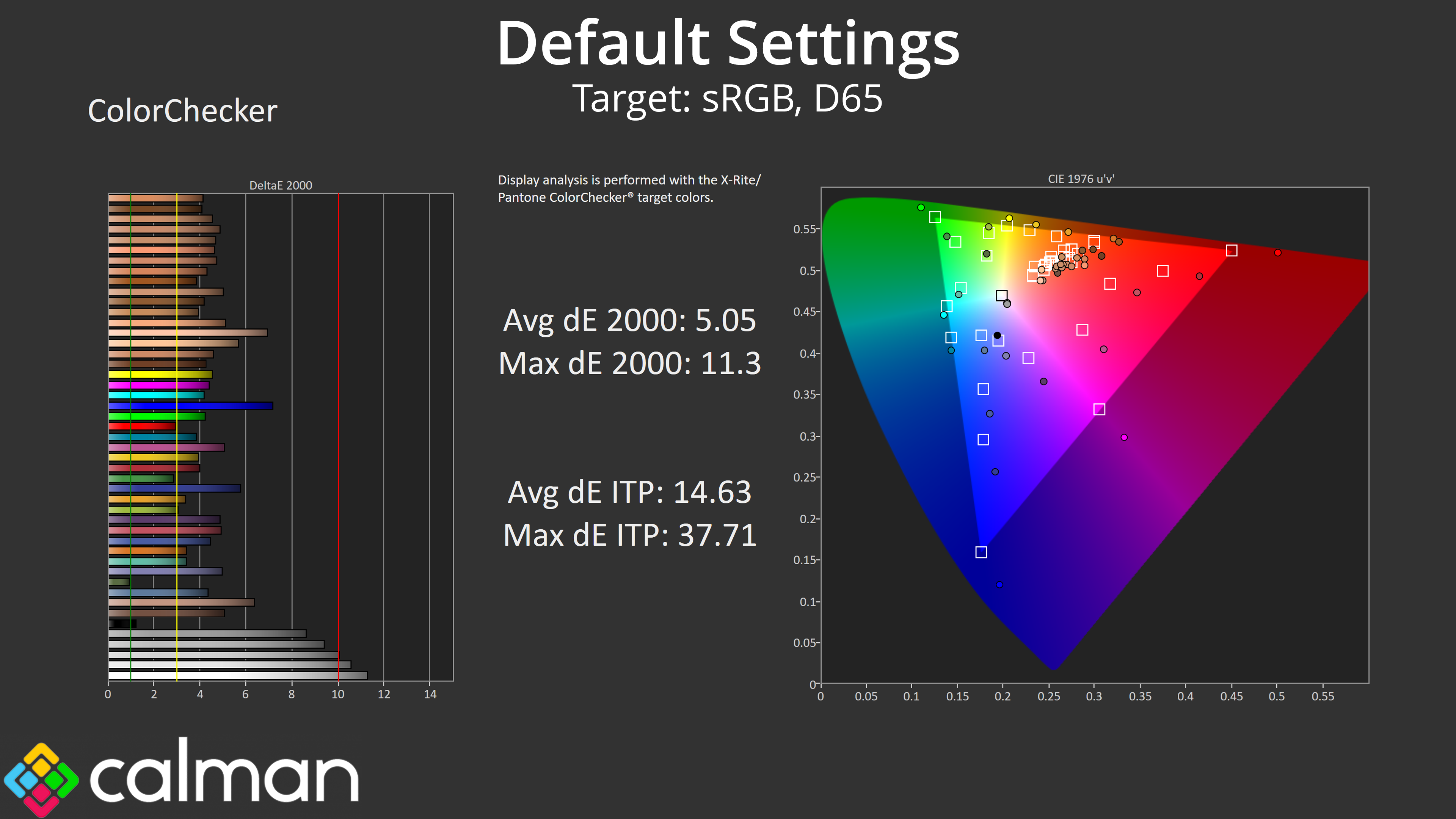
Colour accuracy is also poor out of the box. No doubt a large part of this is due to the default Warm colour balance setting being so inaccurate, but we see an average dE 2000 of 5.05.
sRGB Emulation Mode
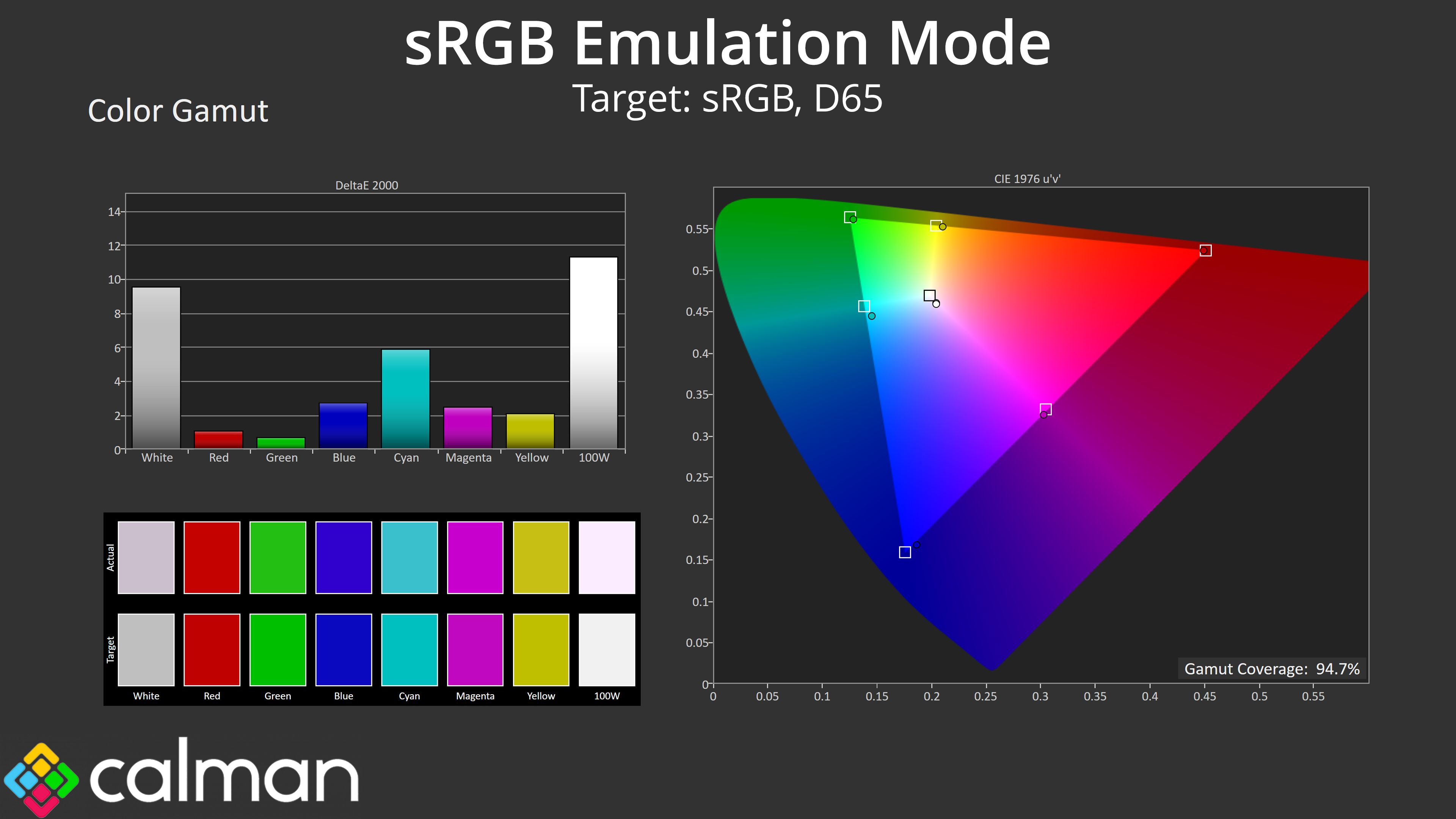
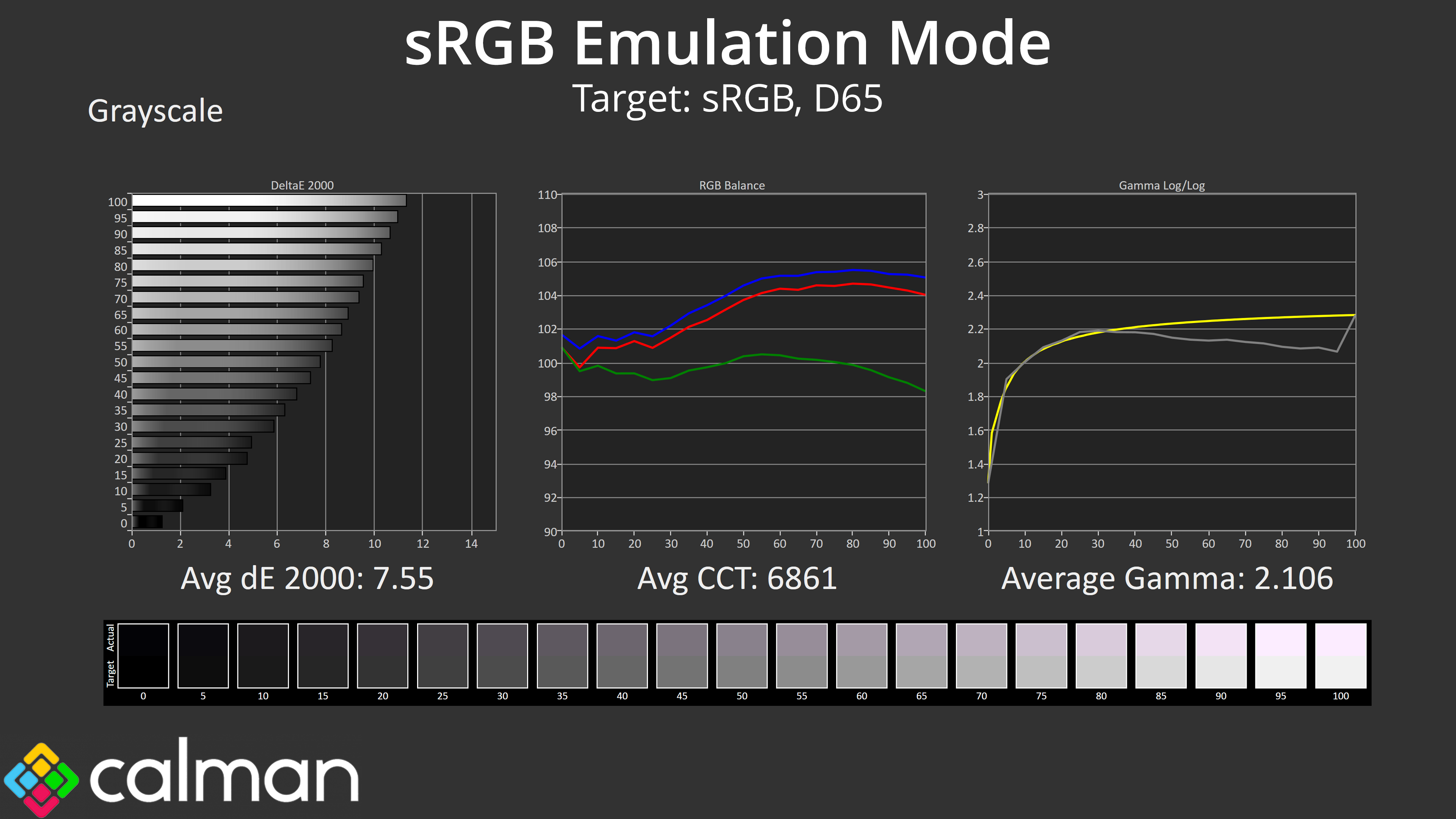
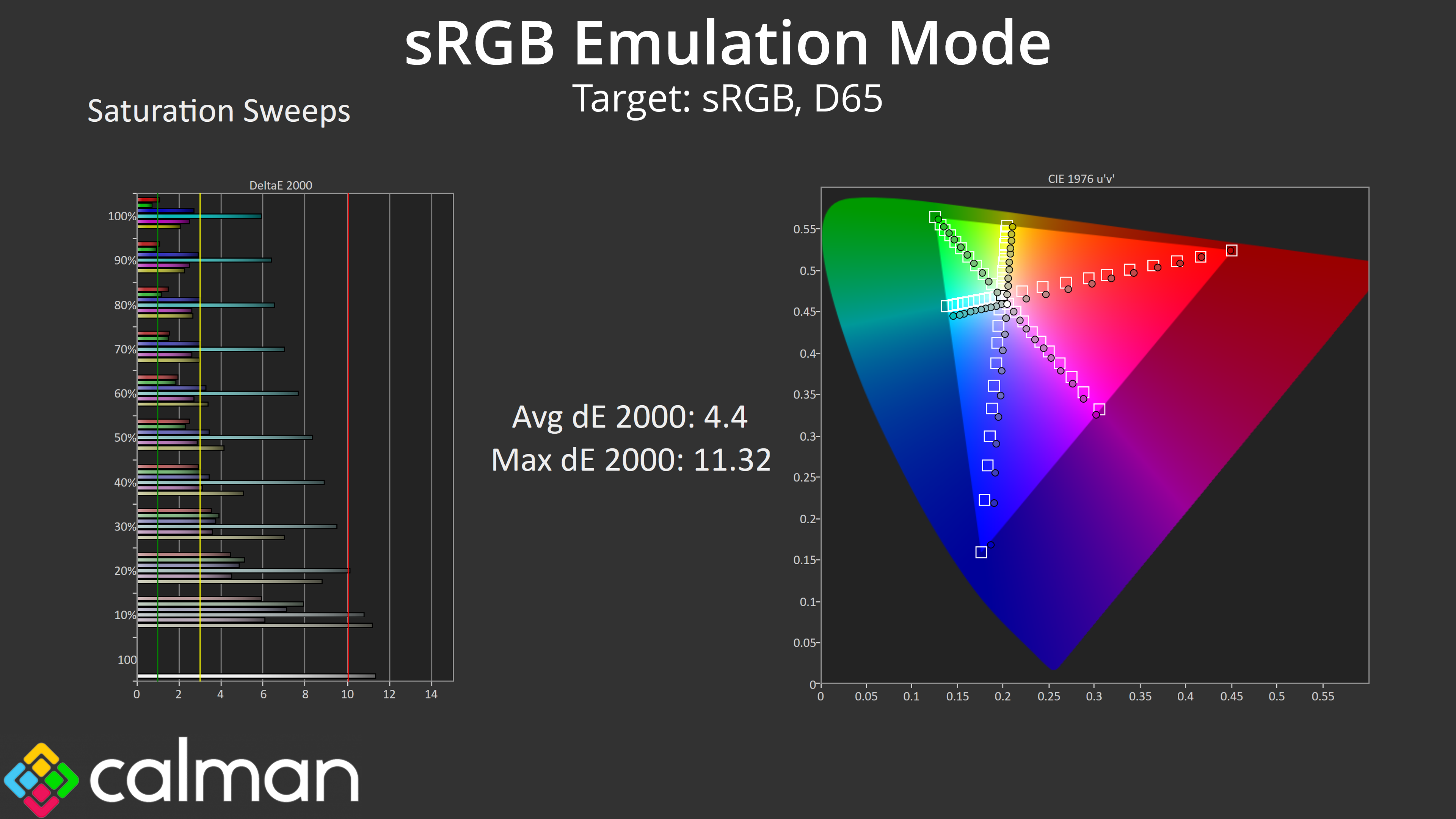
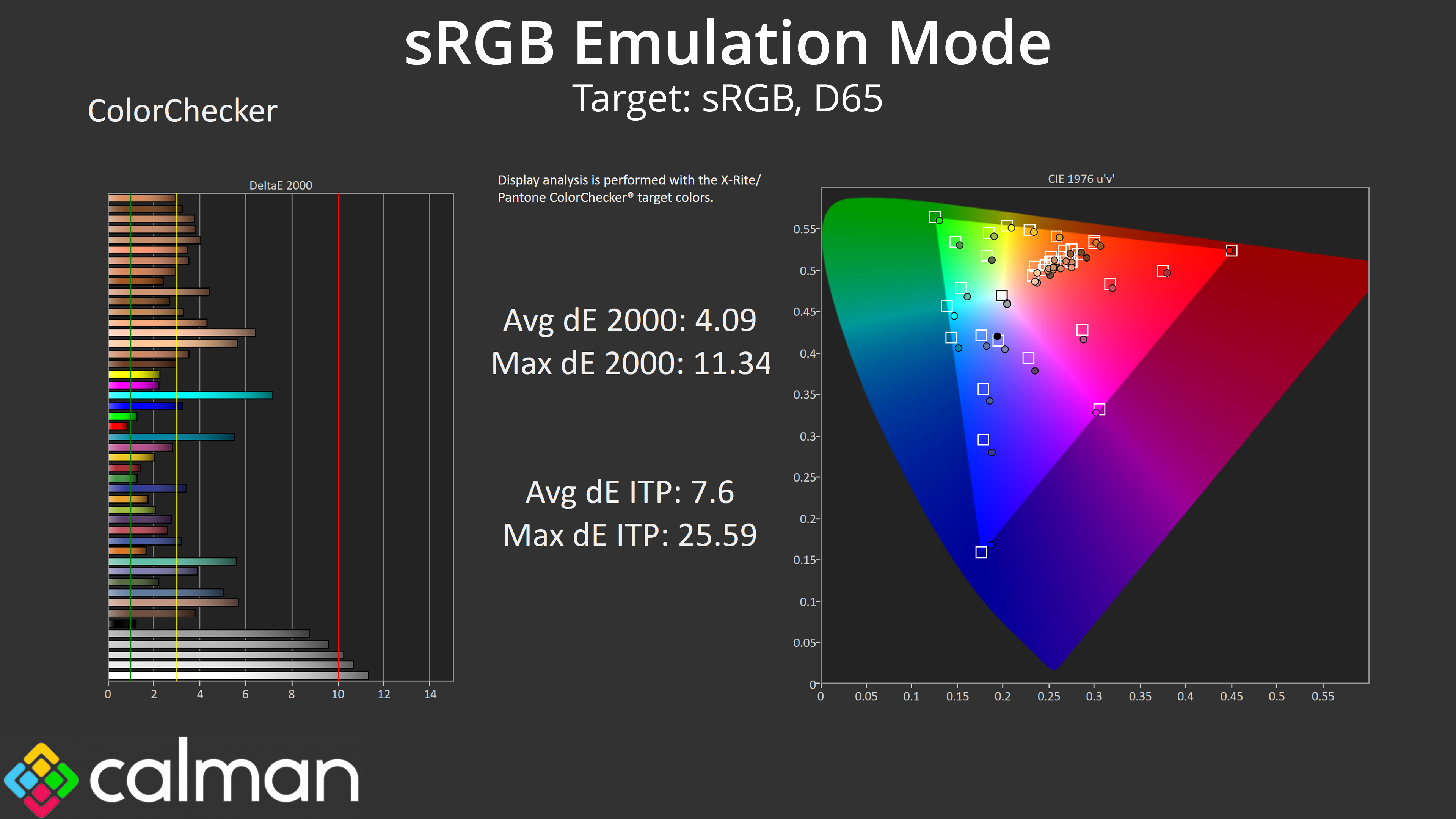
Thermaltake does provide an sRGB emulation, but unfortunately it is not great. It does clamp the gamut down reasonably successfully, but it still uses the Warm colour balance mode and users cannot manually adjust colour balance when using this sRGB mode. As a consequence, we only see minor improvements to saturation and colour accuracy, but it's certainly not a great option to have.
Calibrated Results
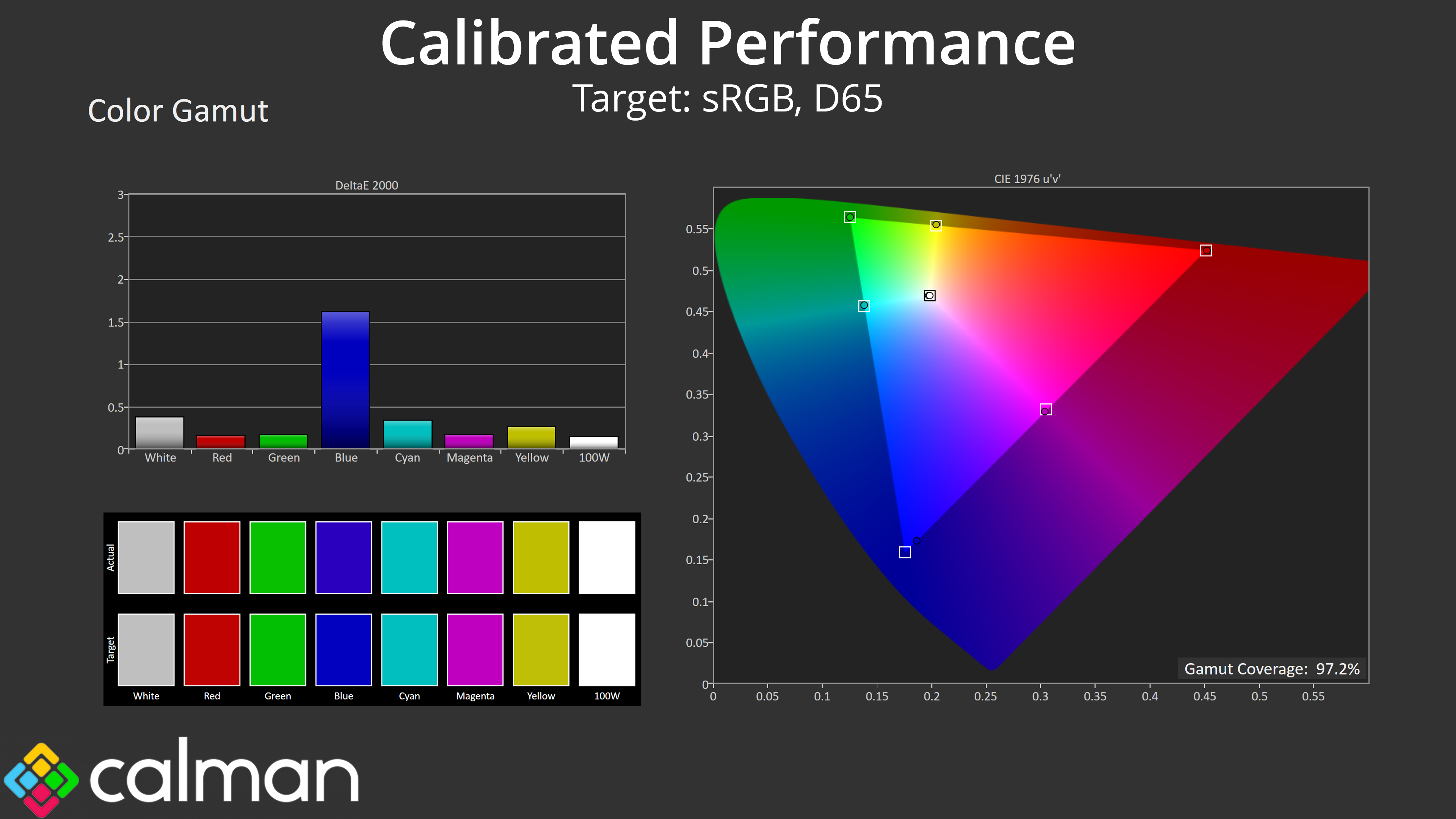
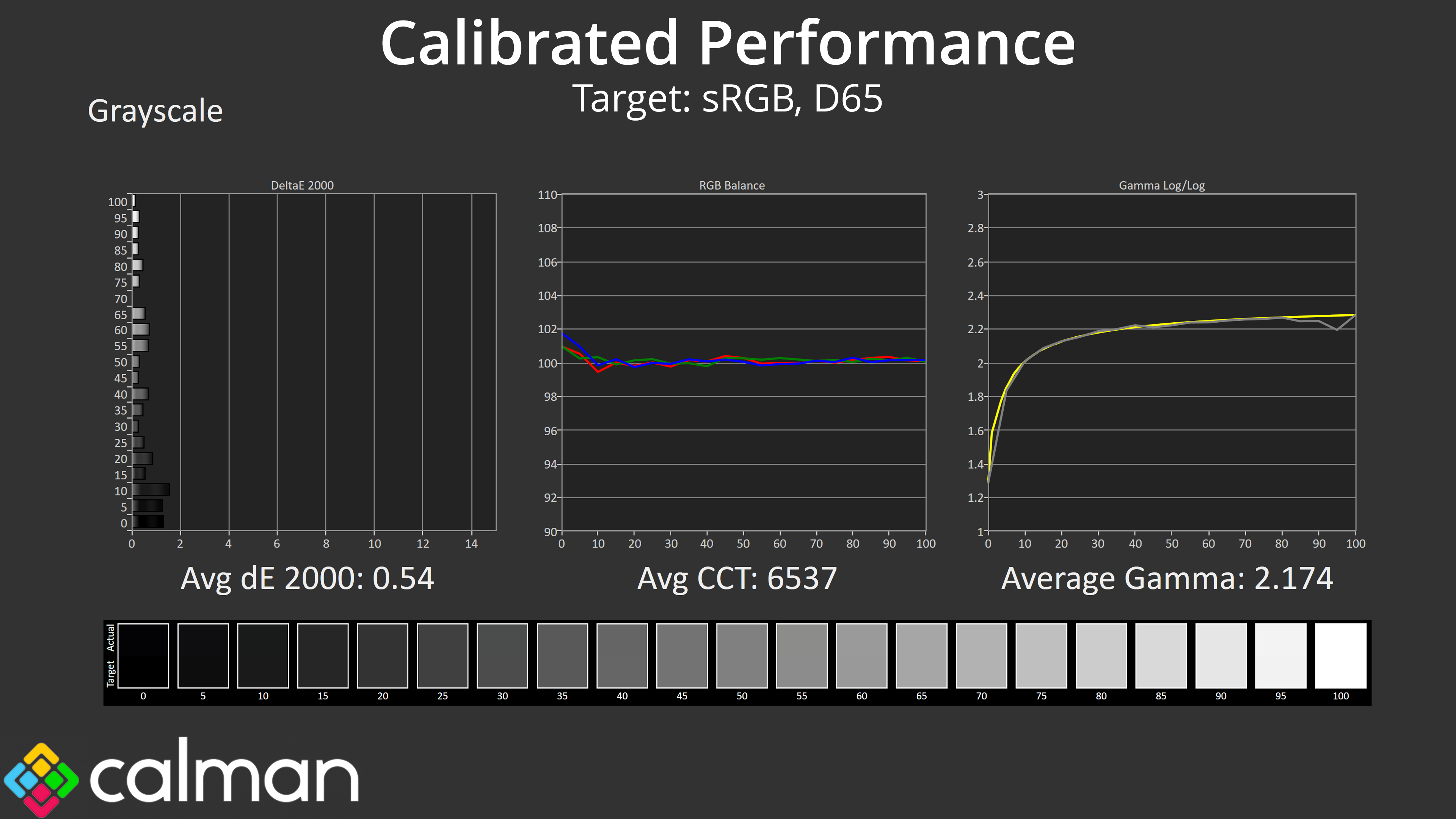
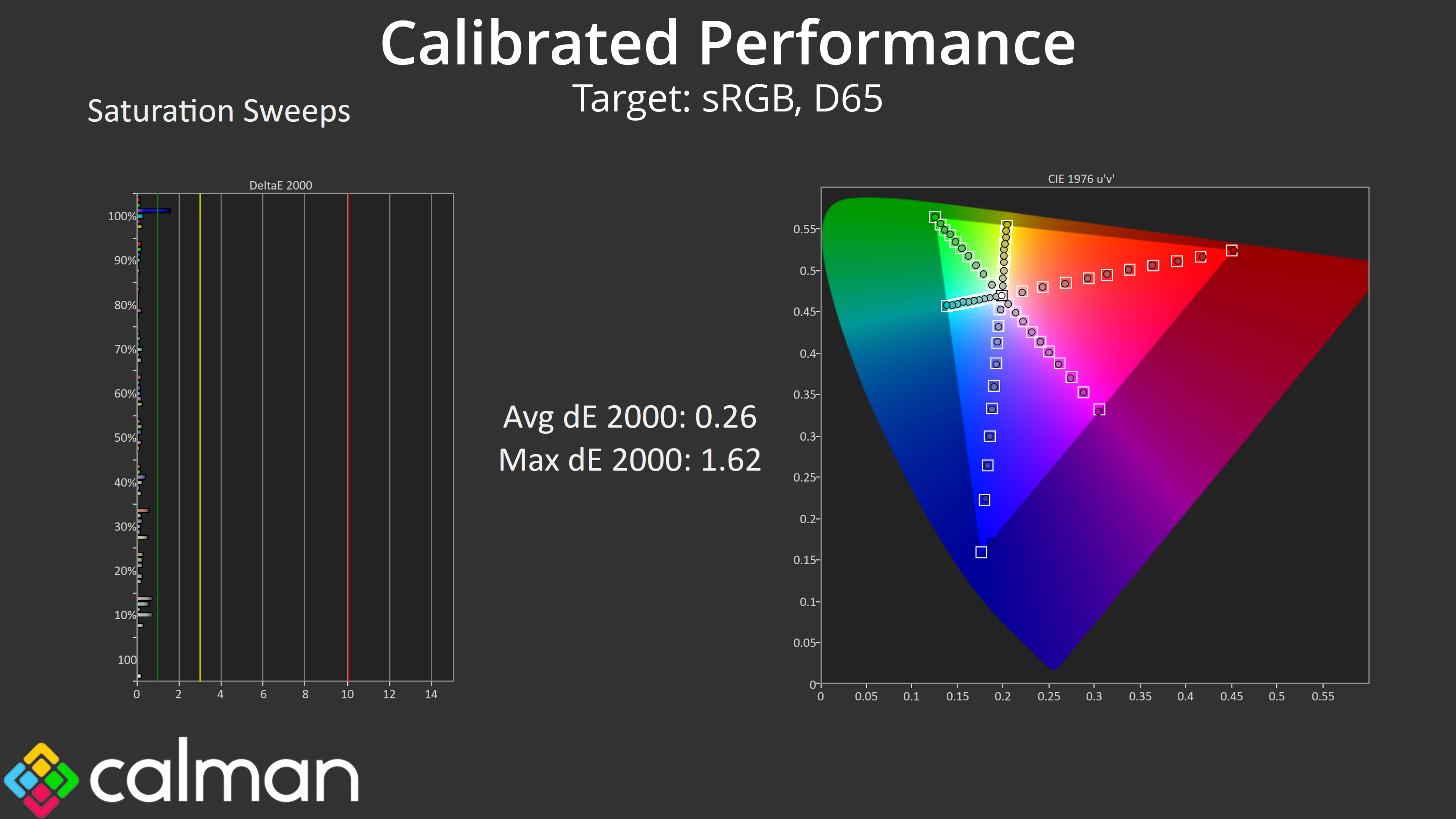
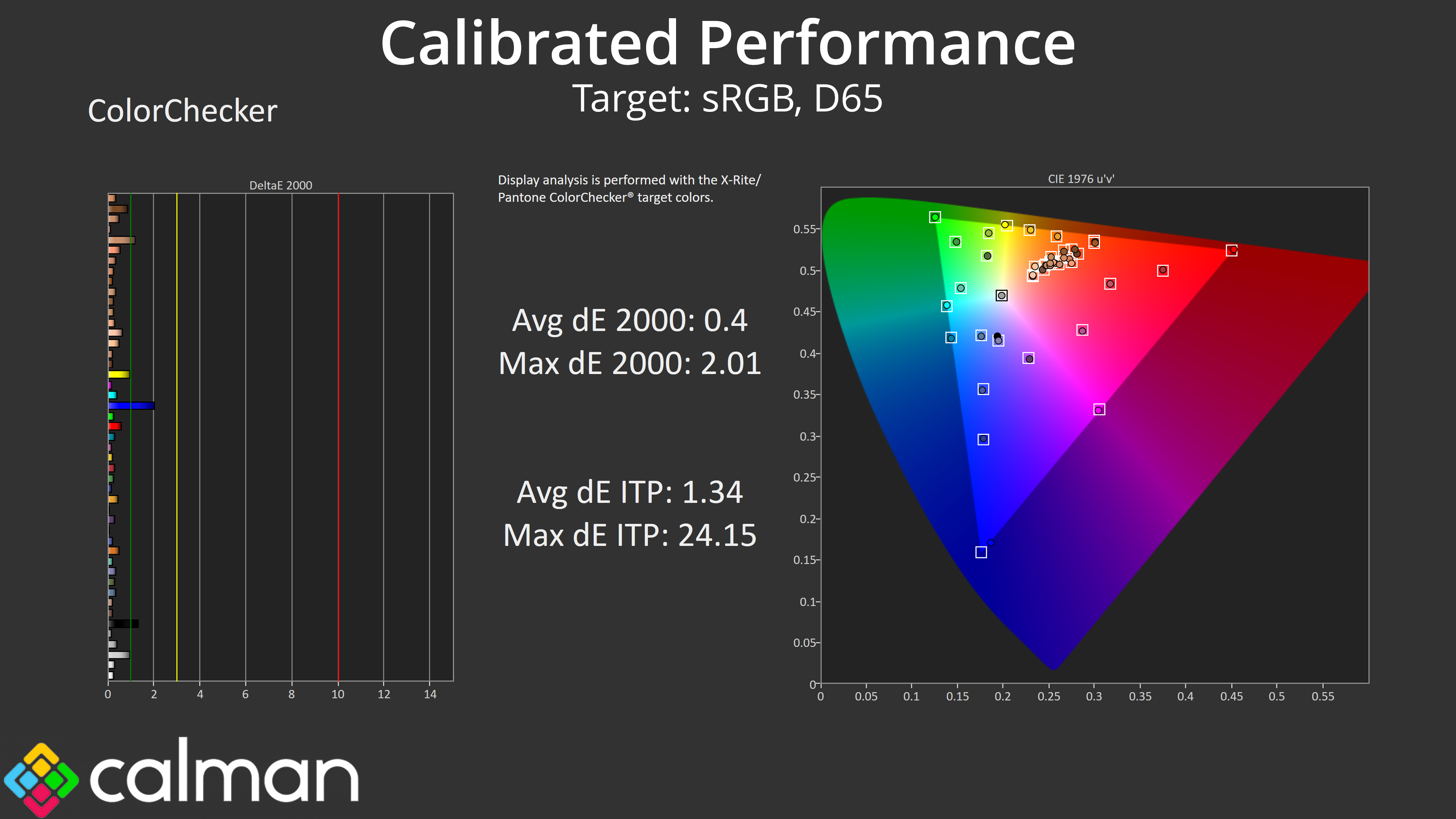
We did of course run through a full manual calibration using Calman Ultimate software. This fixed up all of our issues tremendously well, with near-perfect colour balance and gamma tracking. Saturation accuracy also improved to ridiculously good levels, as did our colour accuracy. The panel used here is clearly capable, it's just a shame the factory calibration – in particular the default colour balance presets – are lacklustre.
Monitor response time testing is a new addition to our reviews, where we use the Open Source Response Time Tool (OSRTT), developed by TechTeamGB. This measures grey-to-grey response times and presents the results in a series of heatmaps, the style of which you may be familiar with from other reviews.
Initial Response Time is the time taken for the panel to transition from one colour to another, where lower values are better. We present the initial response time, so overshoot is not taken into account and is measured separately. We use a fixed RGB 5 tolerance for each transition.
Overshoot is the term given for when a monitor's transition exceeds or goes beyond its target value. So if a monitor was meant to transition from RGB 0 to RGB 55, but it hits RGB 60 before settling back down at RGB 55, that is overshoot. This is presented as RGB values in the heatmaps – i.e. how many RGB values past the intended target were measured.
Visual Response Rating is a metric designed to ‘score' a panel's visual performance, incorporating both response times and overdrive. Fast response times with little to no overshoot will score well, while slow response times or those with significant overshoot will score poorly.
We test the TGM-I27FQ at 165Hz, using all three of the overdrive settings found within the OSD.
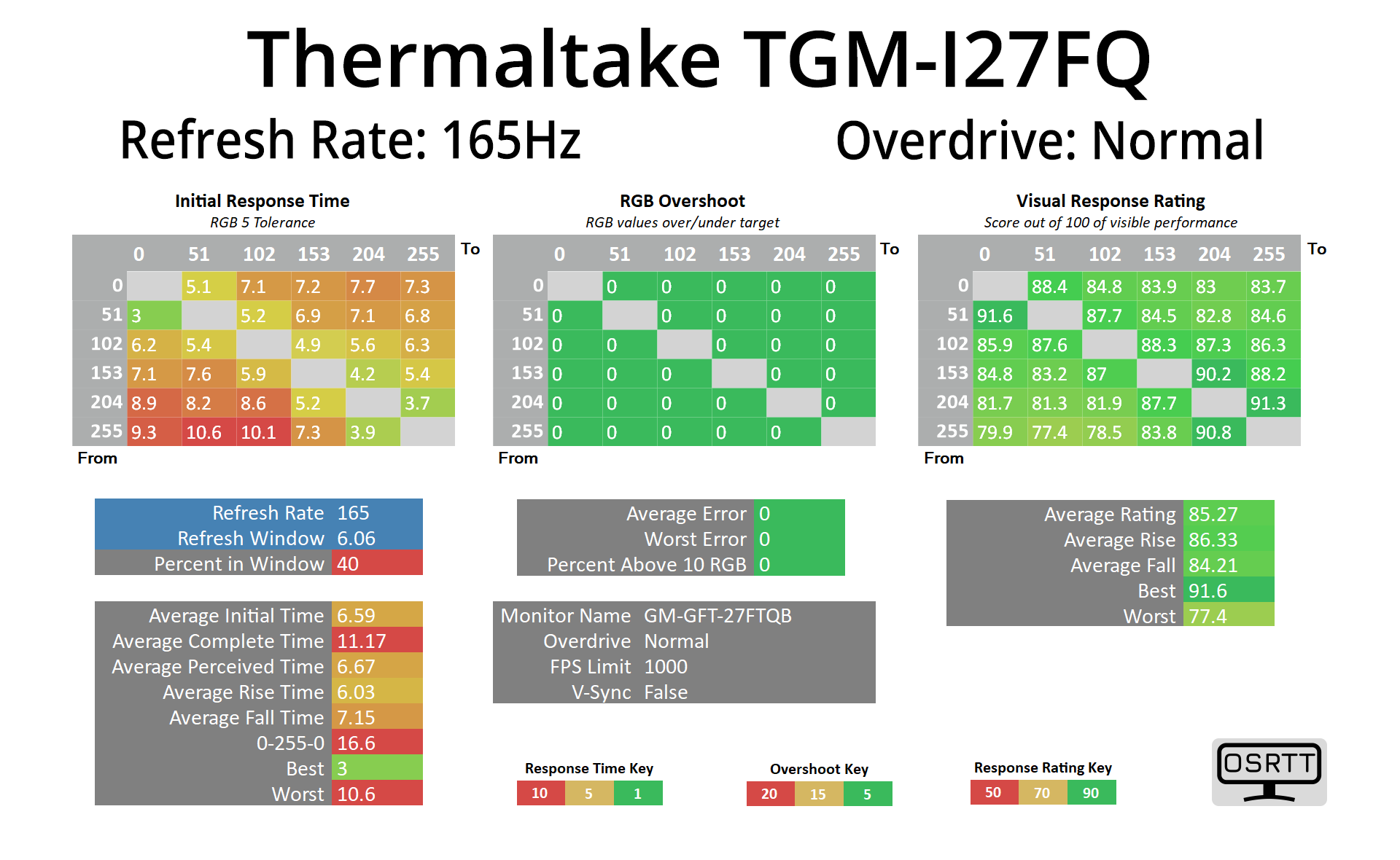
Starting first with the Standard overdrive mode, results here are not too bad, with an average response time of 6.59ms and zero overshoot. Only 40% of transitions are within the 6.06ms window required for 165Hz, but hopefully things improve once overdrive is cranked up…
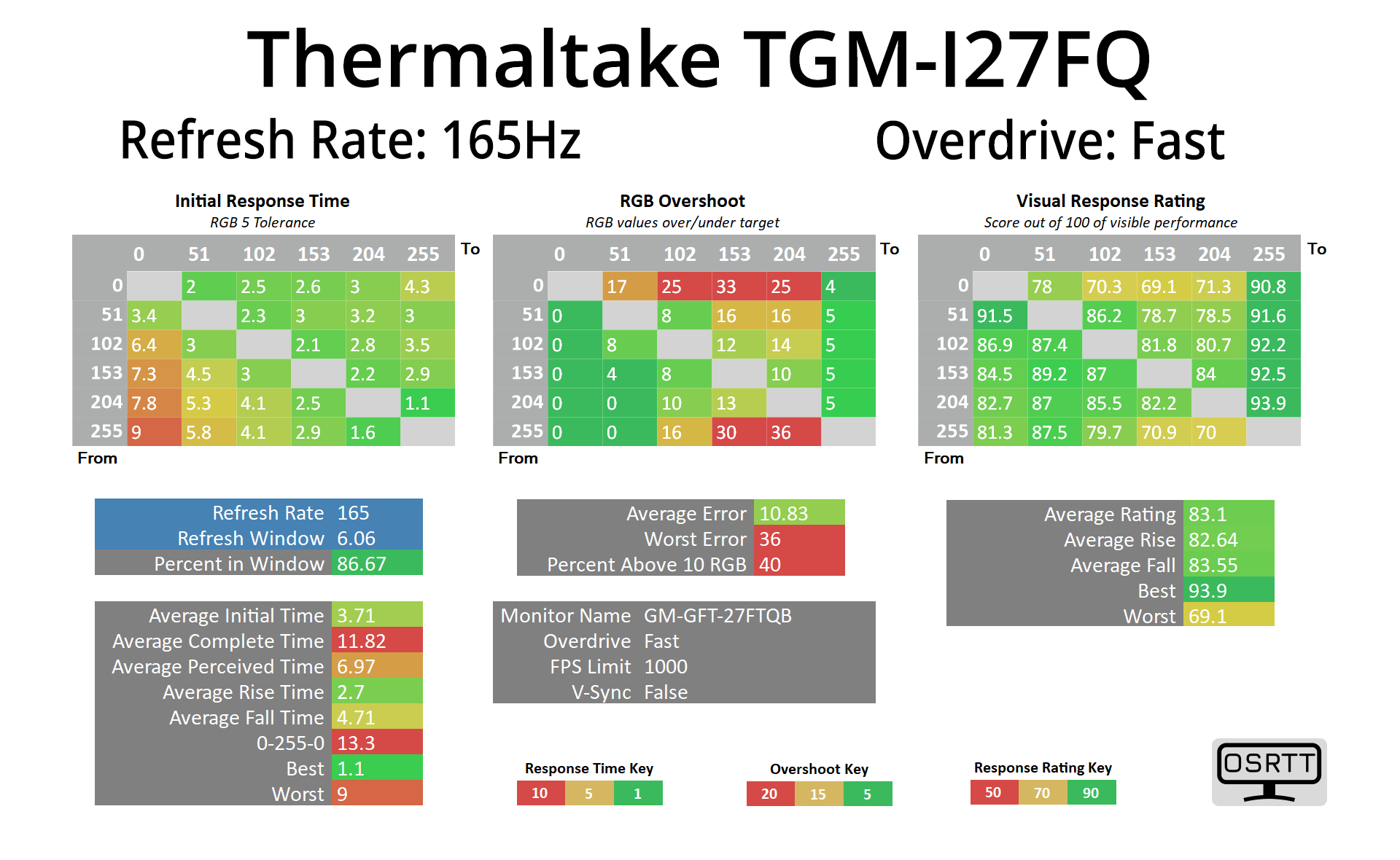
Enabling the Fast overdrive mode really does quicken up those transitions, with a new average of 3.71ms. Fall times from light shades to black (on the left-hand column) are the slowest, but the overall speed here is great. There is, however, a fair bit of overshoot now introduced, with 40% of transitions exceeding their target by more than 10 RGB values. It sounds bad on paper, but as we will see below, in practice the overshoot isn't really that noticeable at all.
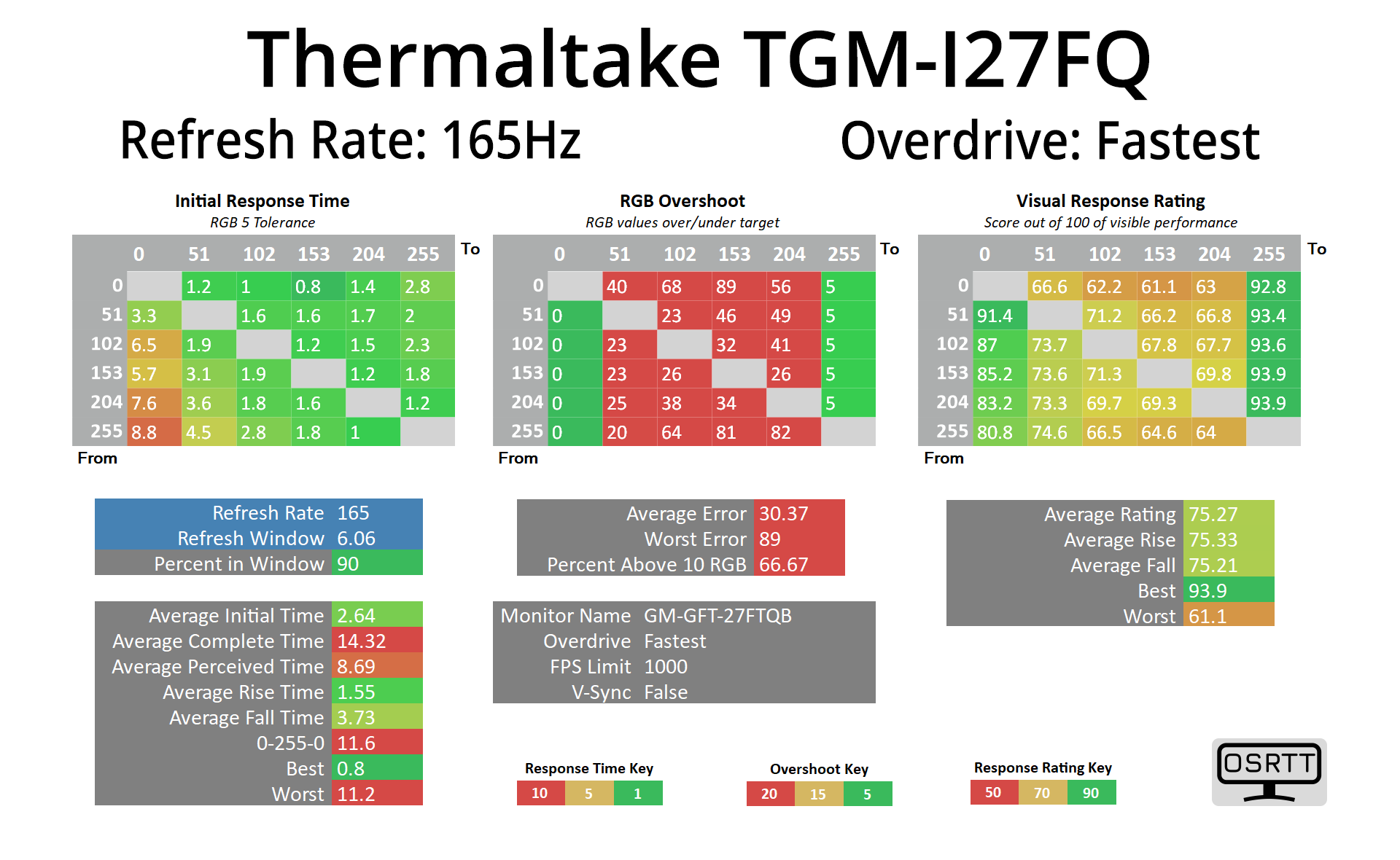
It is very noticeable with the Fastest mode however, and I would not recommend this setting at all.

For a visual perspective then, here we can see pursuit camera images using the BlurBusters UFO test. Normal overdrive looks OK but clarity isn't great, with only 40% refresh rate compliance at 165Hz as we noted earlier. The Fast mode does look better to my eye and I can't say the overshoot appeared overly visible – there is a small amount, but I'd be very happy to use this mode myself. The Fastest mode, however, is not really necessary in my opinion.
Single overdrive mode?
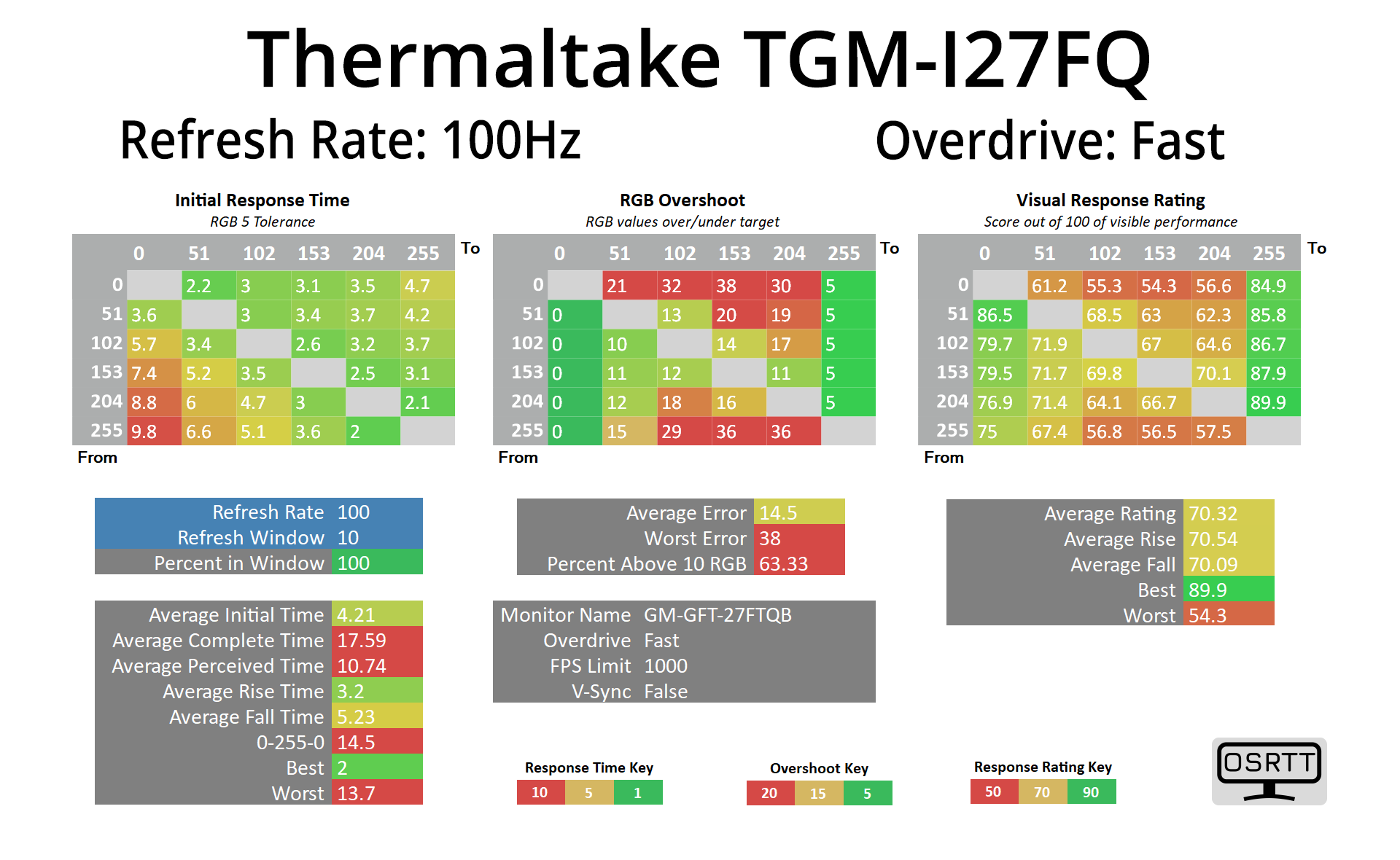
Unfortunately, the Fast overdrive mode doesn't work so well at lower refresh rates. At 100Hz for instance, overshoot increased significantly, as we saw 63% of transitions exceeding their targets by 10 RGB values, with an average error rate of 14.5.
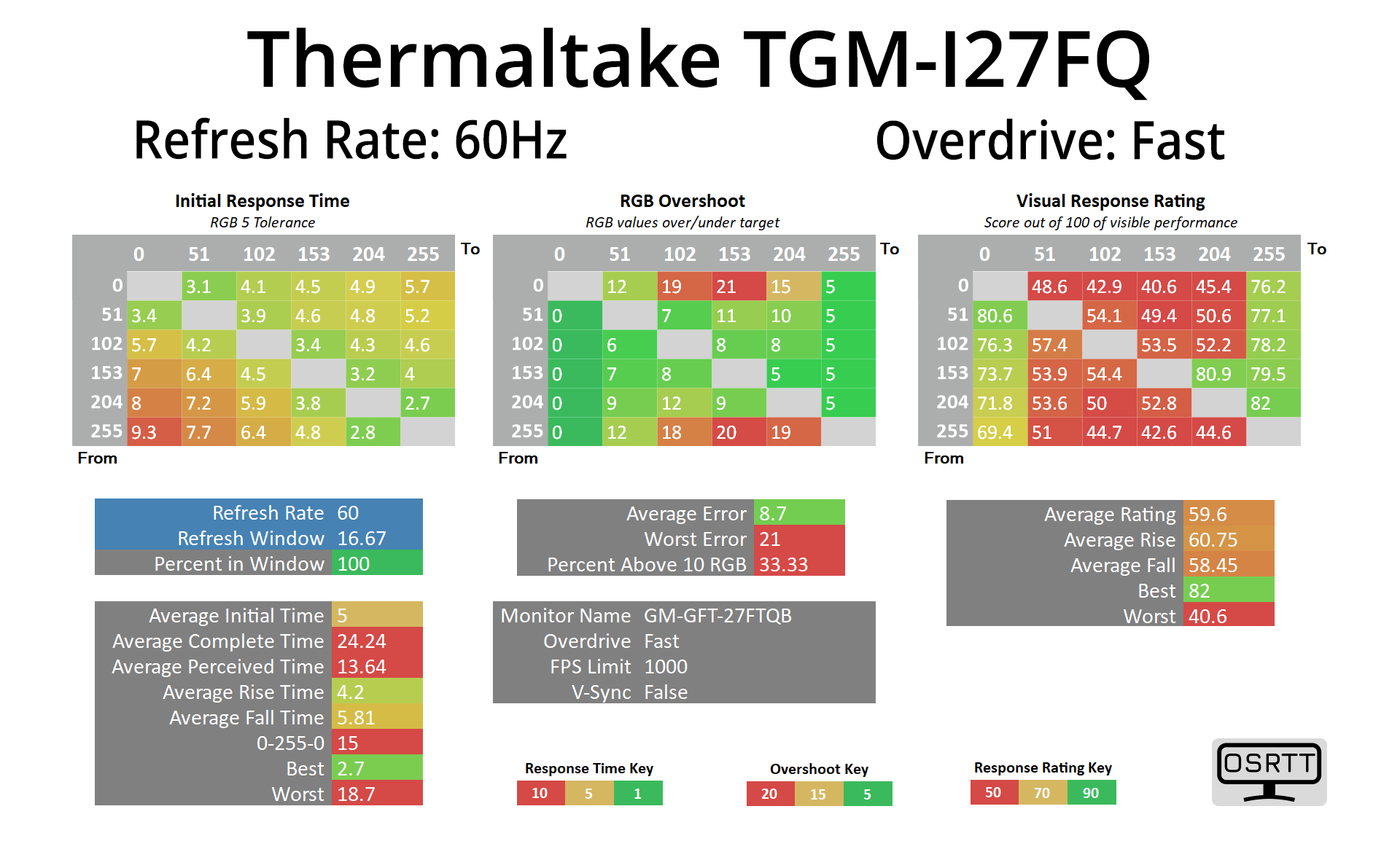
Interestingly however, at 60Hz the behaviour does revert slightly – slowing down response times but avoiding as much overshoot, with an average error of 8.7. So it does look like the TGM-I27FQ is trying to ease up on overshoot at lower refresh rates, but perhaps only past a certain threshold.
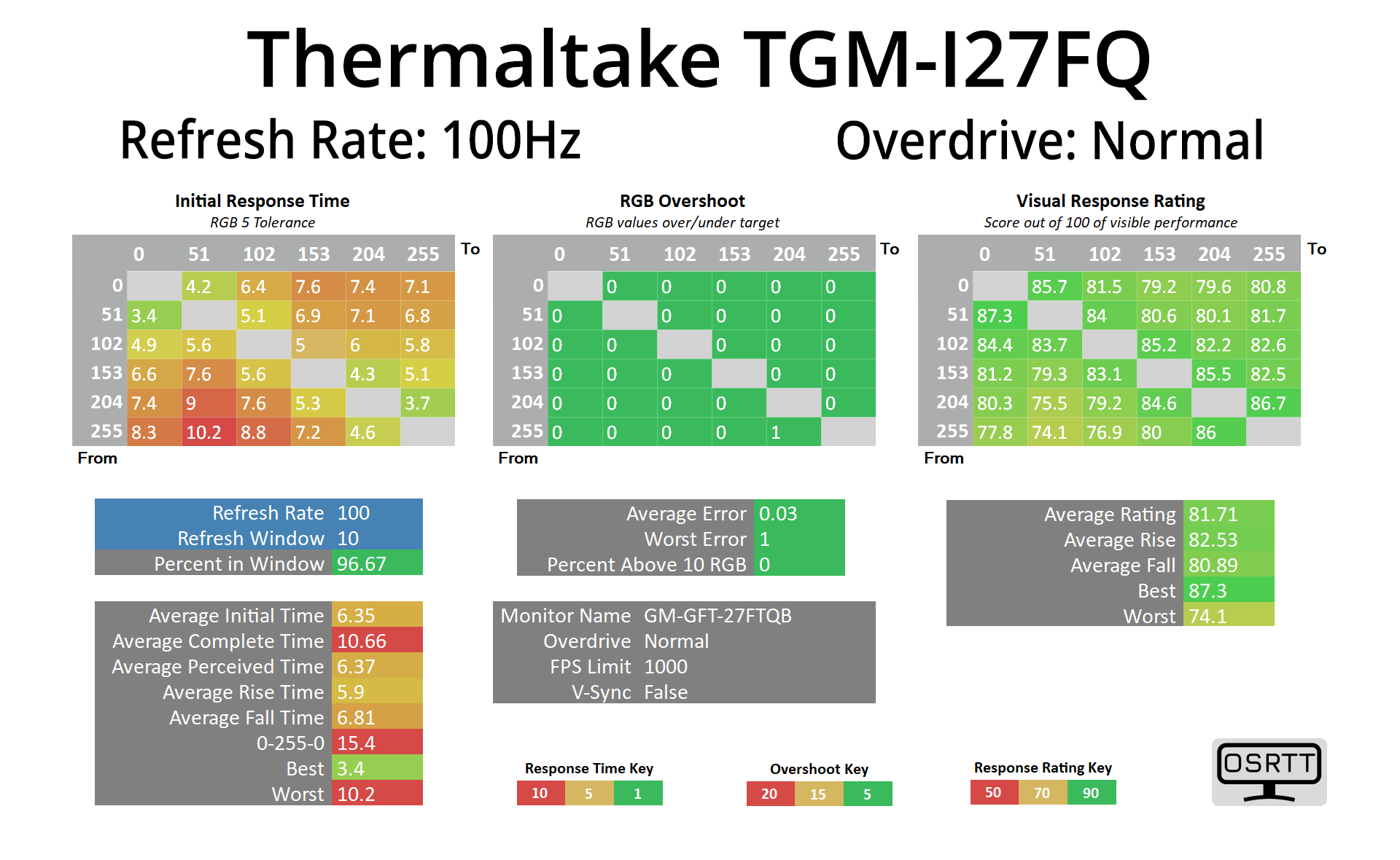
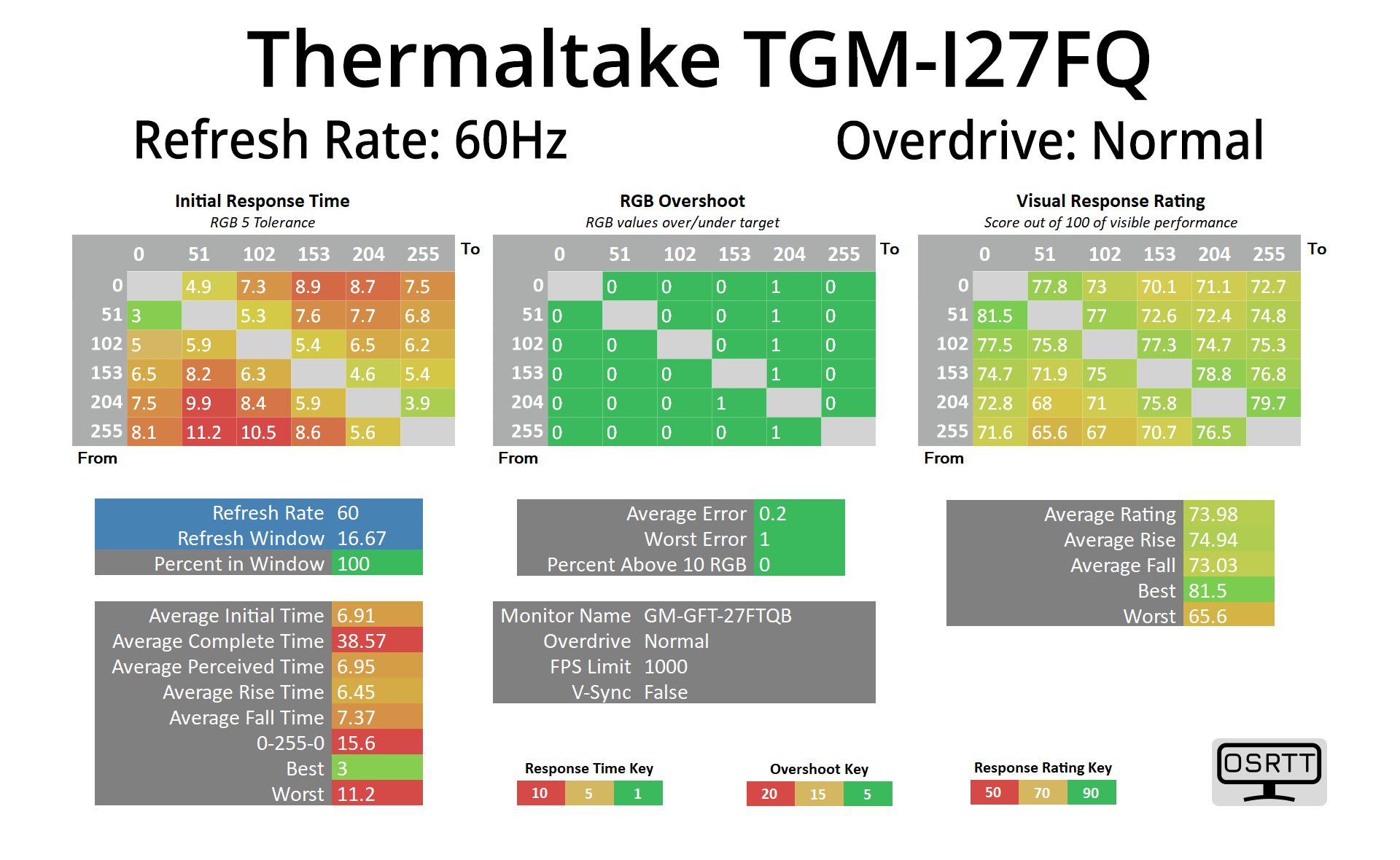
The Normal overdrive mode does work as expected at 100Hz and 60Hz though. Response times aren't as fast, but they're fast enough to be comfortably inside the refresh rate windows, with no visible overshoot either.

We do also get a backlight strobing mode with the TGM-I27FQ, named MPRT. With most modes like this, it disables overdrive options and adaptive sync, while also dimming the display – hitting 242 nits, down from 407 maximum. However, motion clarity is noticeably improved, with only a small amount of cross-talk , so this mode could be viable for some.
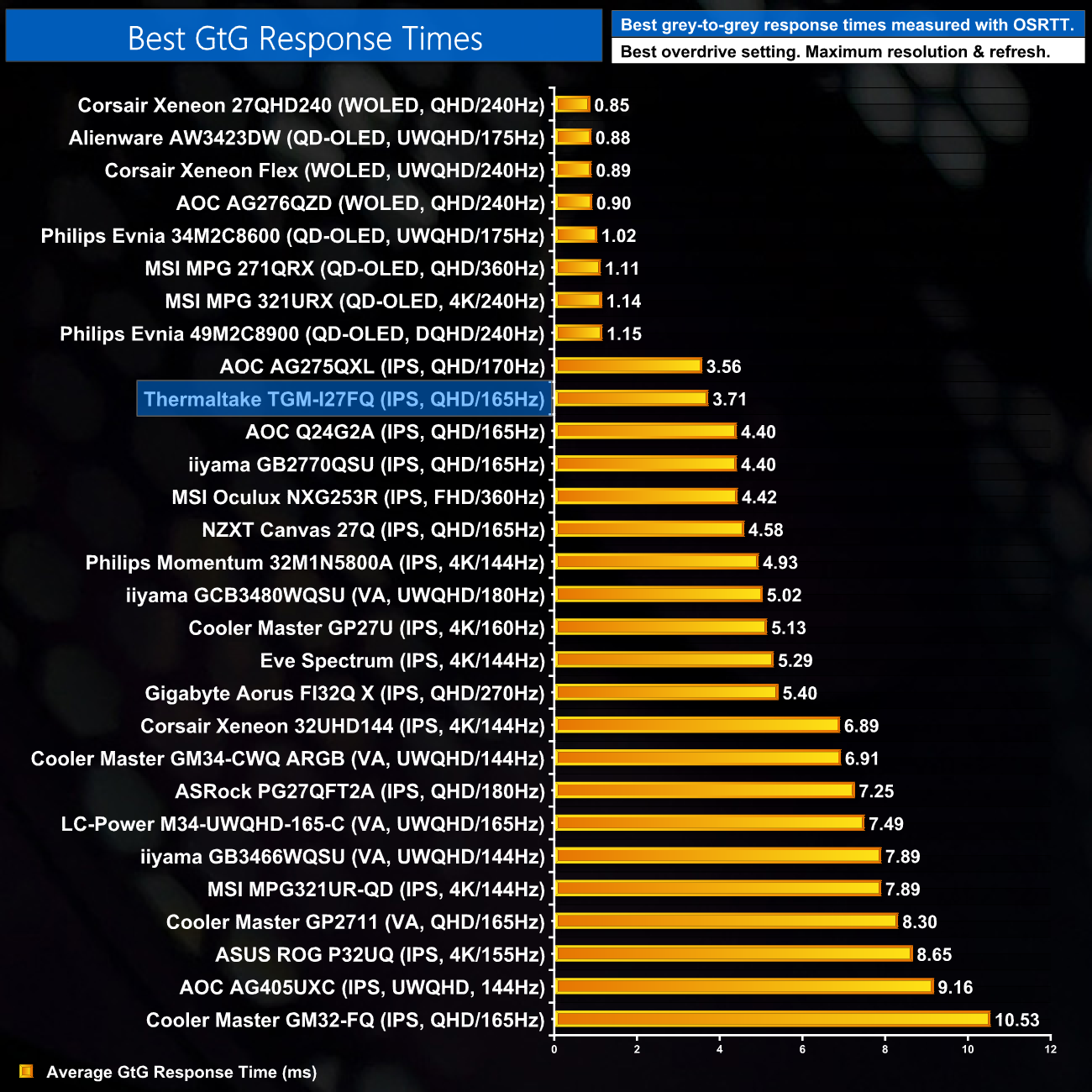
Putting the results into context then, using the Fast overdrive mode, the average response time of 3.71ms is really good. If we ignore the top 8 results (which are all OLEDs), the TGM-I27FQ actually ranks as the second fastest LCD we have tested, so that is very good going.
We again use the Open Source Response Time Tool (OSRTT), developed by TechTeamGB, to report monitor input latency.
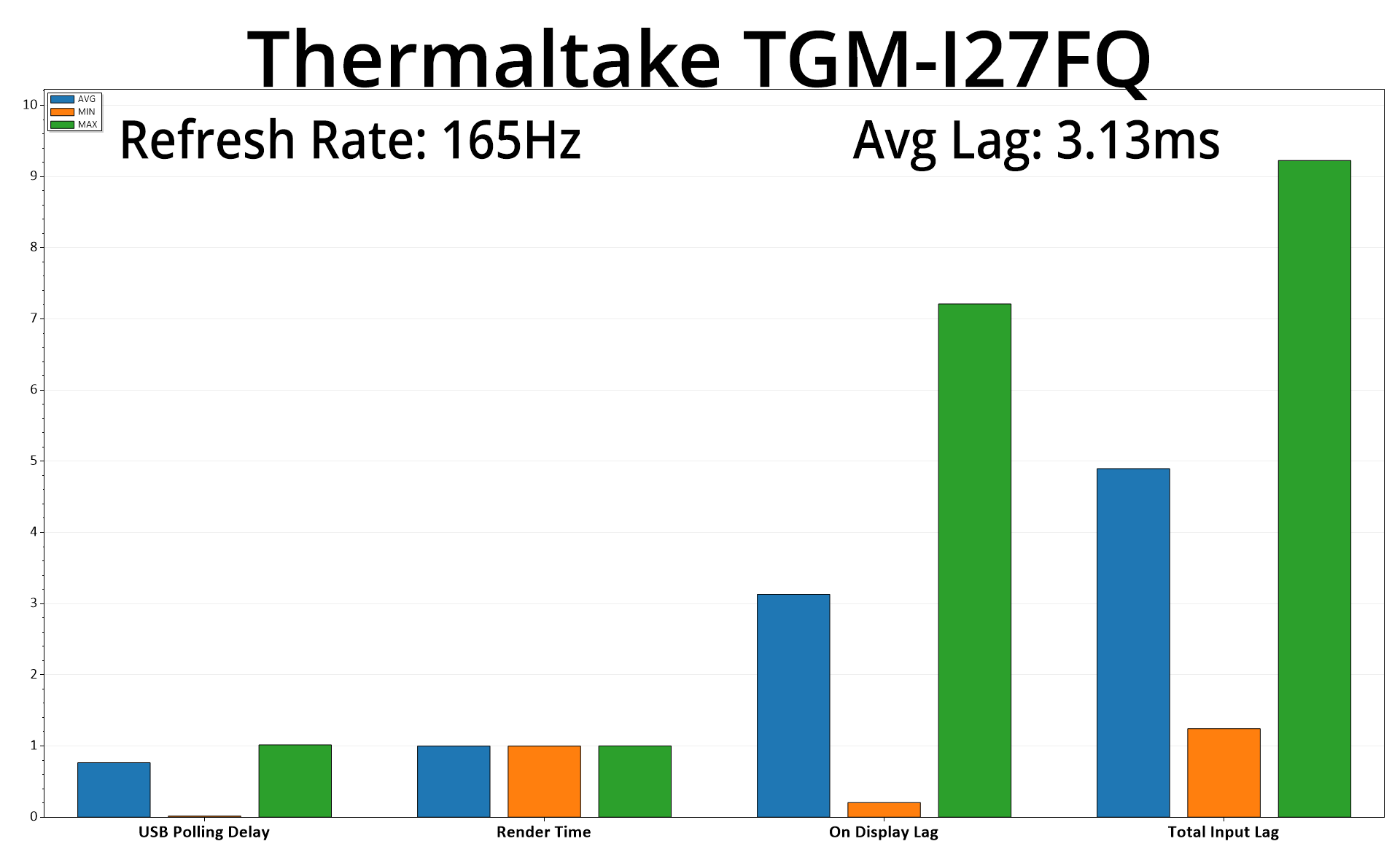
A quick word on input lag too, as this is no problem – an average on display lag figure of 3.13ms is barely more than half a frame (6.06ms) at 165Hz, so nothing at all to worry about.
It's always interesting when companies branch out into new product areas, and I really didn't know what to expect from the Thermaltake TGM-I27FQ – the first monitor we have seen from the Taiwanese manufacturer that made its name in the case and cooler markets.
As you might expect, there's some positive areas, and then some areas that definitely need work. Starting with the latter, I have to be honest, the overall design language is not for me – this is of course subjective, and it might appeal to some, but I find it a bit bulky considering it's only a 27in screen.
Factory calibration – in particularly, the default colour balance – also needs work. Out of the box, there is a noticeable pink/purplish hue using the Warm colour balance setting, and while there is the option for a user-defined colour balance, most users won't be able to verify the accuracy of any manual adjustments. Because of that, using default settings, we saw relatively poor results for colour accuracy and saturation, which would have been improved with more accurate greyscale performance.
However, Thermaltake has done a good job at getting things ship shape for gaming, which I'd say is the most important area for a screen of this price point. The Fast overdrive setting, for instance, produced great results at 165Hz – actually making it the second fastest LCD we have tested to-date in terms of its grey-to-grey response times. It also sports an impressive backlight strobing mode, and latency is nice and low too.
On top of that, there's a good variety of features that some monitors might have ignored around this price point – the option for KVM functionality over both USB-C and USB-B is great, and we appreciate the two-port USB hub, relatively well-featured OSD system and OSD joystick. I'm not personally interested in RGB lighting on my monitor, but it's included here too.
So no, the TGM-I27FQ isn't perfect, but overall I think this is a good first entry into the monitor market, and hopefully Thermaltake can continue to build on this as a foundation.
We found the monitor on sale for £299.99 (reduce from £319.99 at the time of publication) from Scan HERE.
Discuss on our Facebook page HERE.
Pros
- Fast response times for an LCD.
- Backlight strobing mode works well.
- Peaked at 407 nits brightness.
- KVM functionality over both USB-C and USB-B.
- 2-port USB hub.
- Well featured, if not somewhat dated-looking, OSD system.
- Aggressive design may appeal to some.
- Certified G-Sync Compatible.
Cons
- Default colour balance presets are inaccurate.
- Contrast is relatively low by modern standards, at 1000:1.
- Aggressive design may not appeal to some.
- sRGB emulation mode doesn't work particularly well due to the inaccurate colour balance.
KitGuru says: There's room for improvement, but as a gaming monitor, the TGM-I27FQ is a solid offering from Thermaltake.