KitGuru KitGuru.net – Tech News | Hardware News | Hardware Reviews | IOS | Mobile | Gaming | Graphics Cards


The growth in the curved gaming screen market has been phenomenal over the last few years, averaging 25 per cent a year, although this segment of monitor sales is still quite small – around ten per cent of the total. But with the growth and premium attached to this format, it's no surprise to see an increasing abundance of options. That said, the ASUS ROG Strix XG32VQR isn't just a ‘me-too' entry into the realm of curvaceous displays, but has plenty of serious gaming credibility as well.
For a start, this is a 144Hz screen with AMD FreeSync adaptive synchronisation, which is even more useful now that NVIDIA graphics cards also support it. This is a 31.5in VA panel, which is the preferable technology for a curved screen. This has the usual strengths of VA with 3,000:1 contrast and a bright 450cd/m2 maximum illumination, but also the usual weakness of 4ms Grey to Grey pixel response. The native resolution of 2,560 x 1,440 is also the current sweet spot for gaming beyond Full HD.
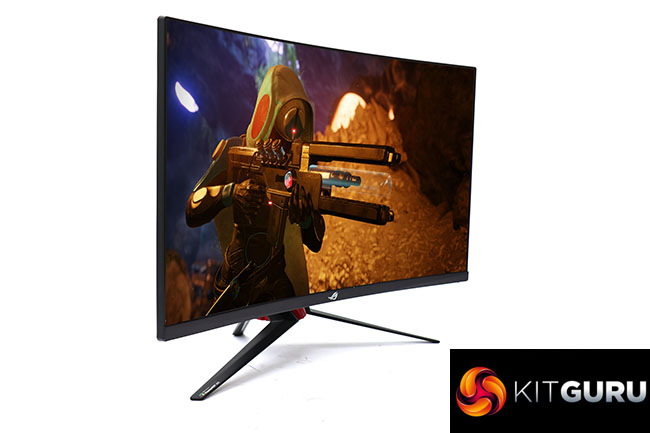
The design is typically ROG Strix badass style, mostly revolving around black but with some red elements on the stand. The latter also incorporates ASUS's Aura Sync ambient lighting. There are two HDMI 2.0 inputs plus a single DisplayPort, but no legacy video or USB C connectivity. There is a USB 3.0 hub with two ports, but no built-in speakers, although there is a minijack to route digital audio from a digital video connection to speakers or headphones.
You get the full range of adjustments, with tilt, swivel, and height adjustment available. There is also a wealth of gaming-focused control available in the OSD menu. However, you do pay a considerable premium for all this high-end gaming ability, with the ASUS ROG Strix XG32VQR coming in at over £550. For that kind of money, this needs to be a seriously top-end screen in every respect. Let's find out how it fares.
Specification:
- Screen size: 31.5-inch, 16:9 aspect
- Native resolution: 2,560 x 1,440
- Refresh rate: 144Hz, AMD FreeSync 2
- Panel type: VA
- Contrast ratio: 3,000:1 (typical)
- Brightness: 450cd/m2
- Response time: 4ms Grey-to-Grey
- Display inputs: 2 x HDMI 2.0, DisplayPort
- USB hub: Yes, 2 x USB 3.0
- Tilt: 5 degrees forward, 20 degrees backward
- Raise: 100mm
- Swivel: 50 degrees left and right
- Portrait: No
- Other: Audio output
Retail Price: £569.99 (inc. VAT)
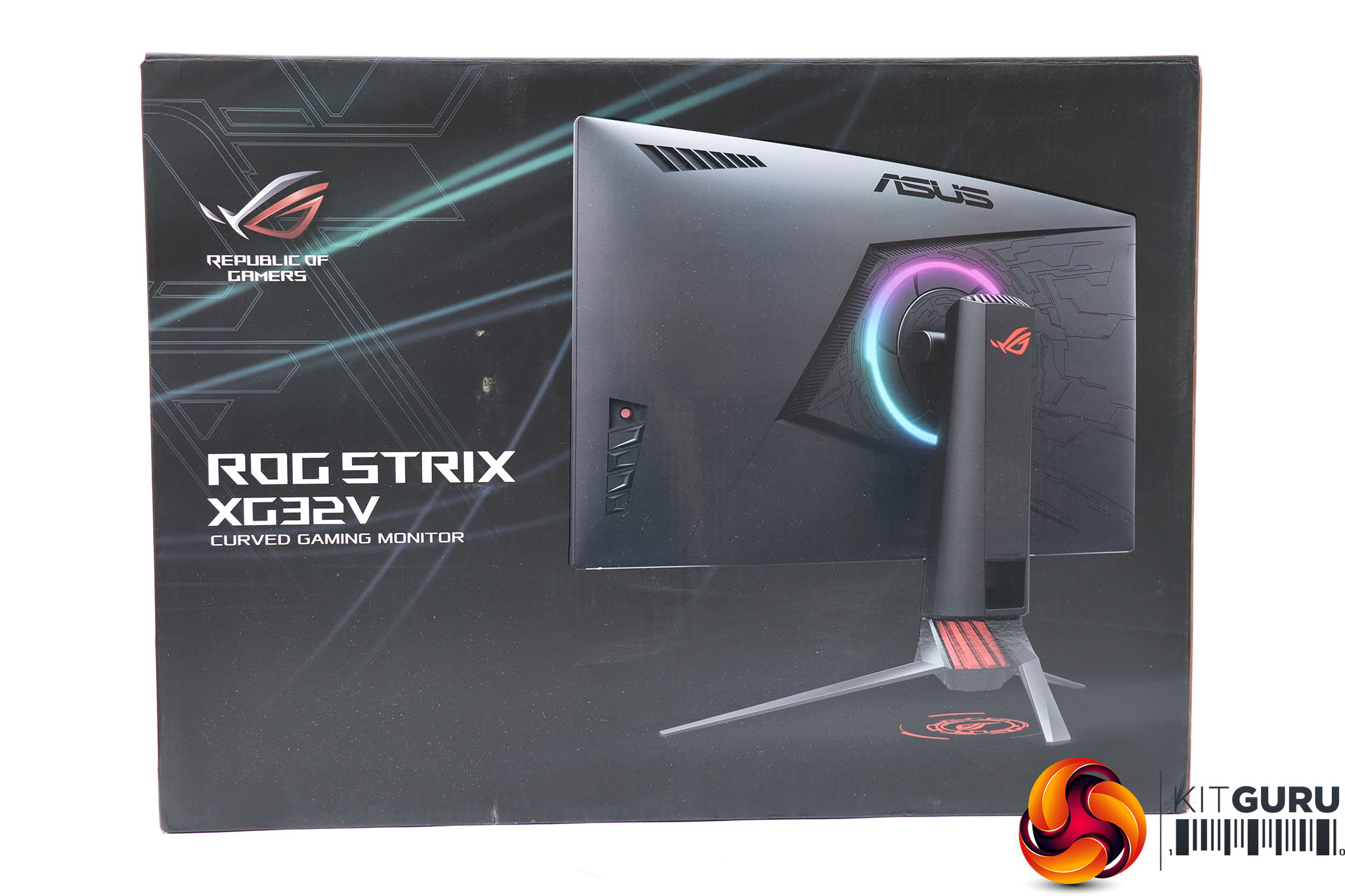
The ASUS ROG Strix XG32VQR comes in an enticingly illustrated box, where the monitor has turned its back on us to reveal the bling lighting on the rear and projecting from the bottom.
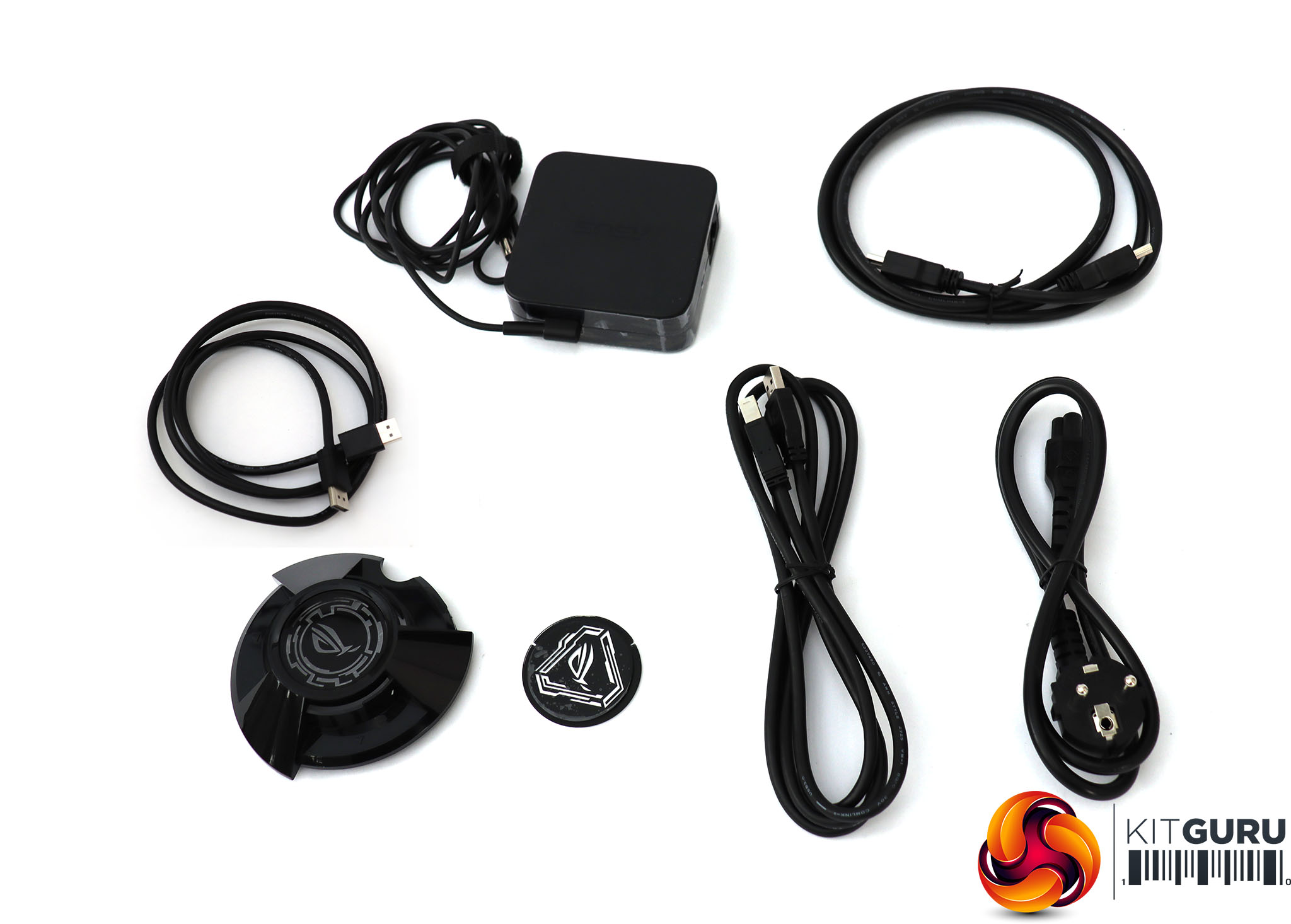
Somewhat unusually, the power supply for this screen is external, which does have the advantage of keeping the EMF interference from an AC power supply at bay. You also get DisplayPort and HDMI cables in the box, plus an upstream cable for the USB 3.0 hub. The plastic lenses are for the lighting on the bottom of the stand, giving you various options for what shapes you want to be projected.
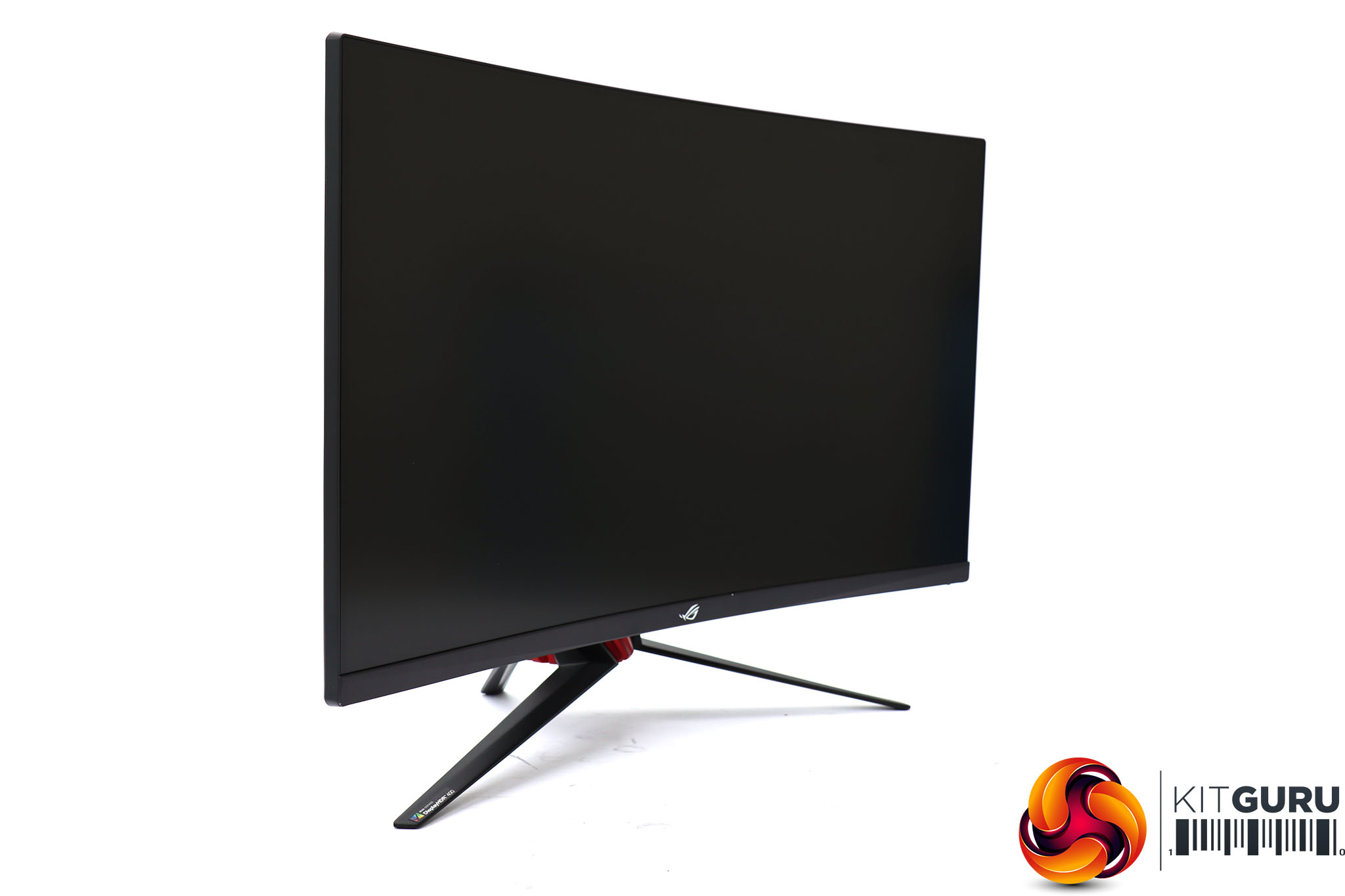
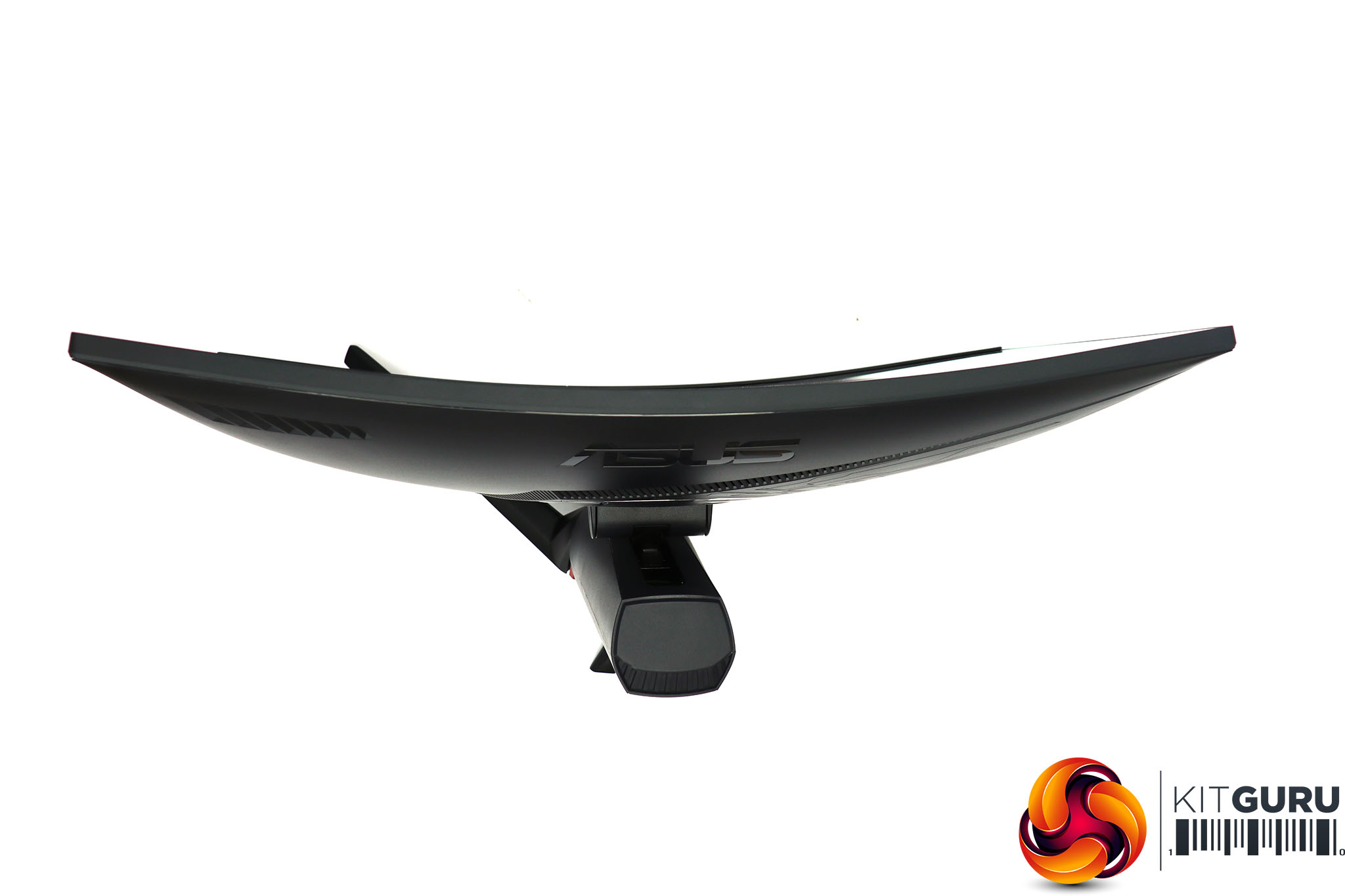
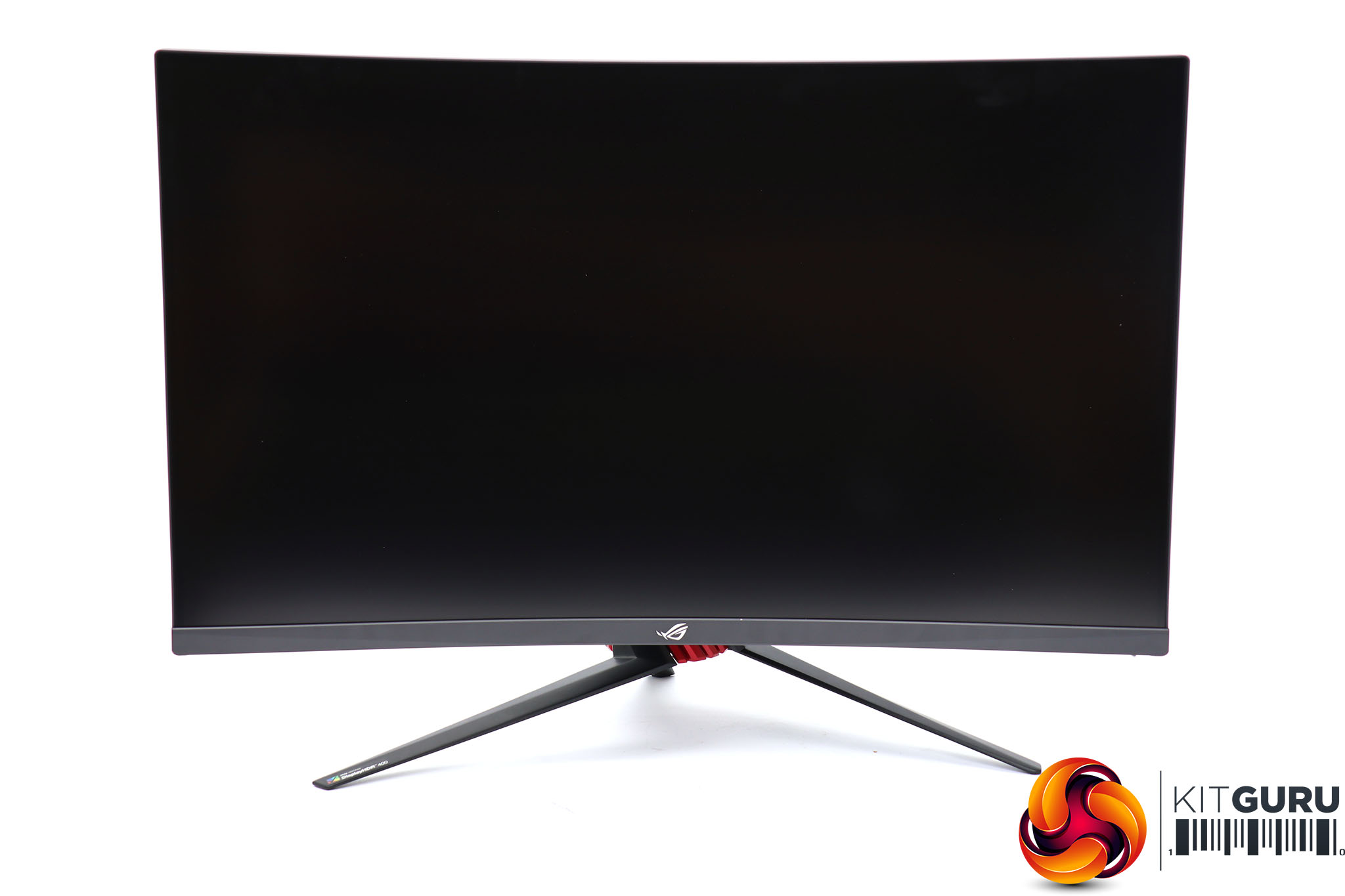
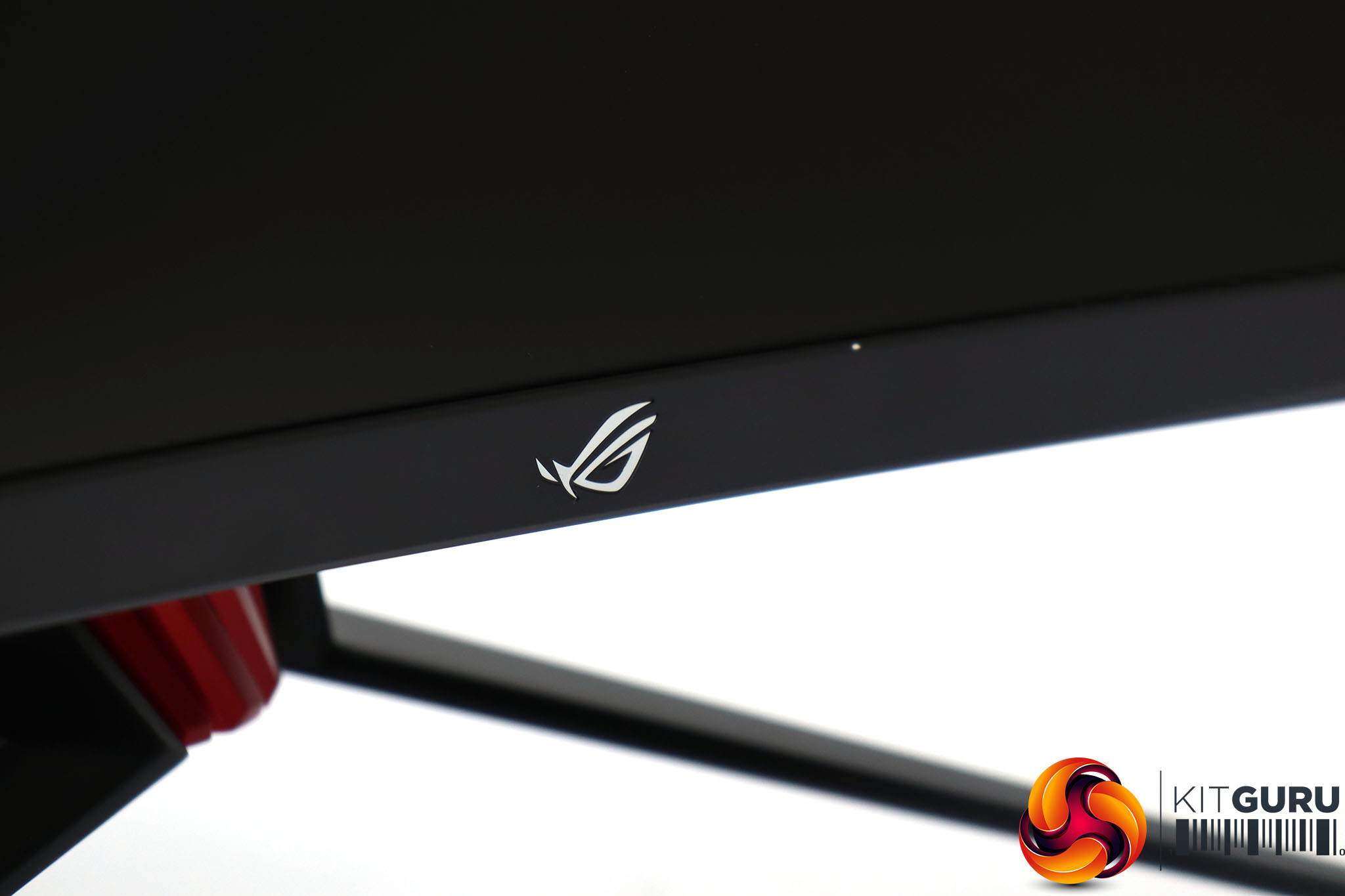
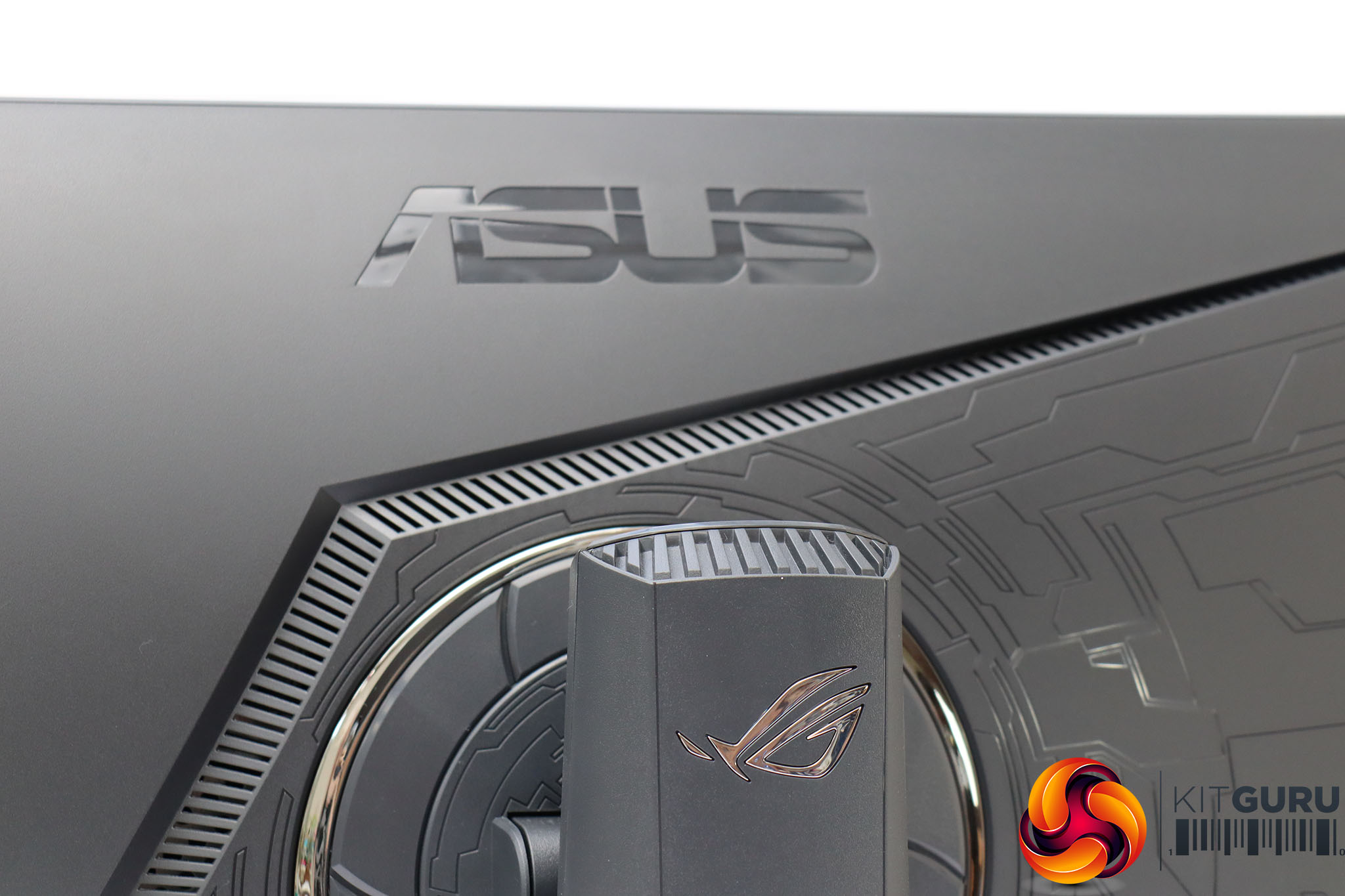
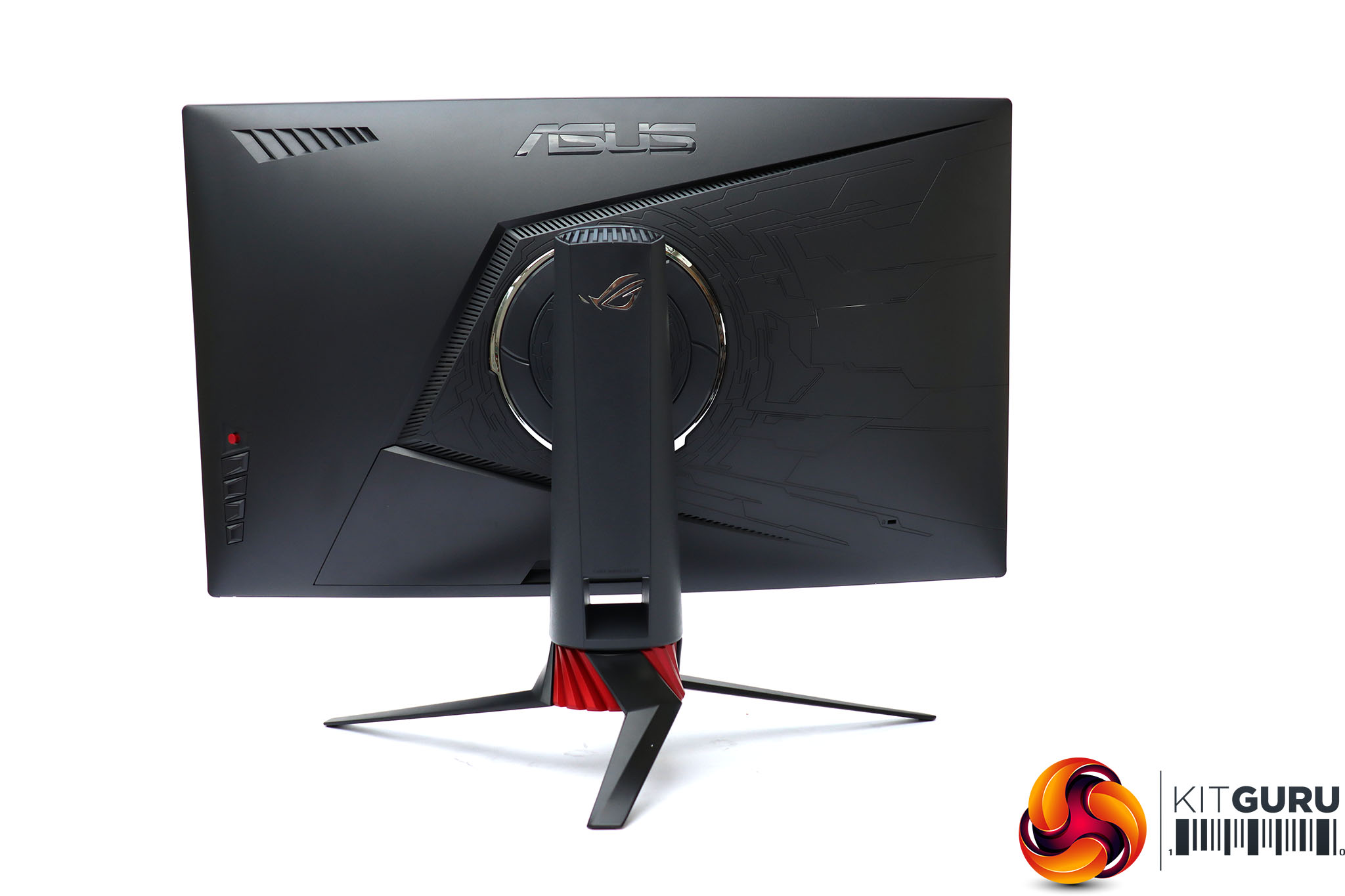
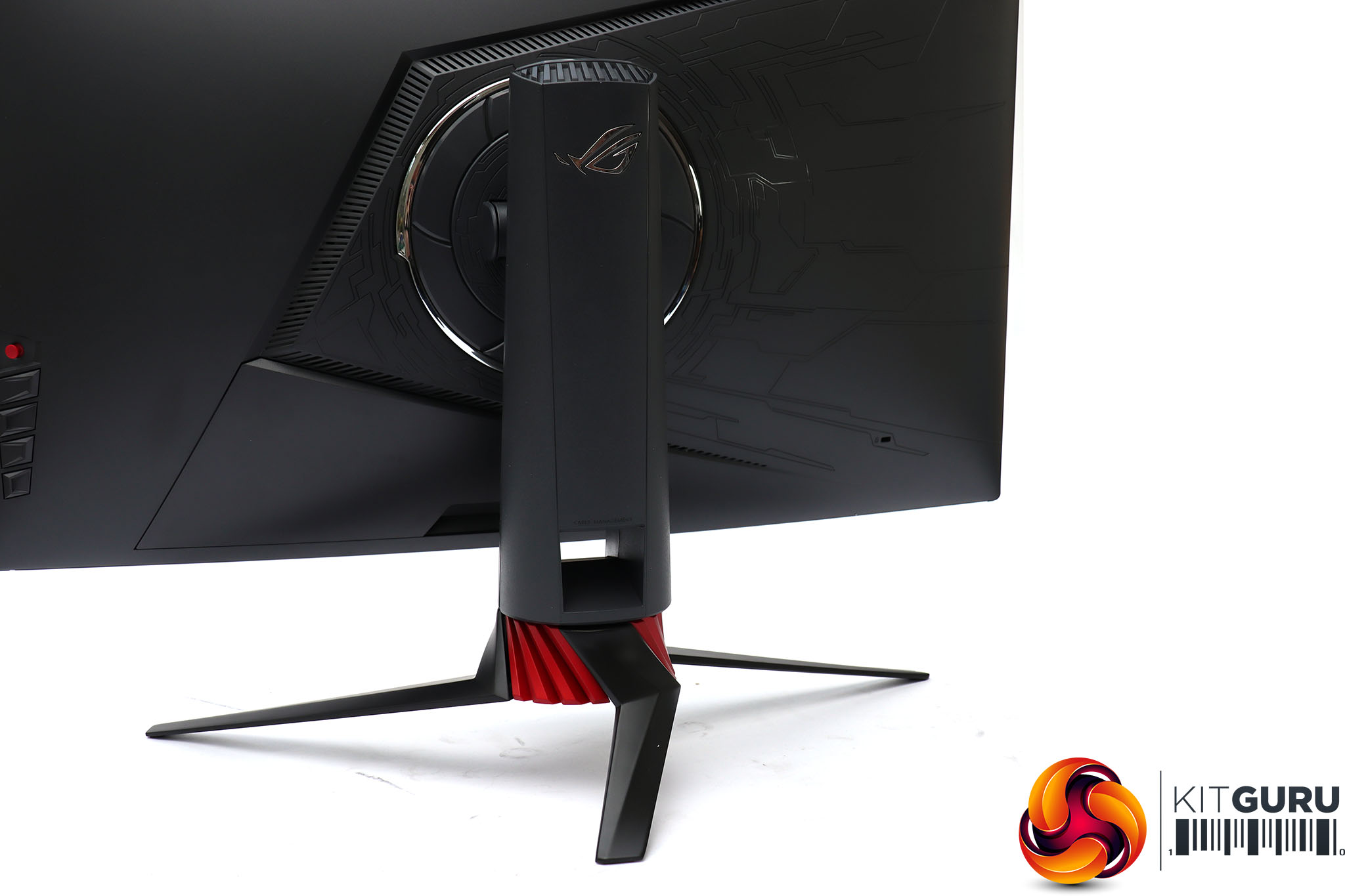
The styling maintains the ASUS ROG Strix screen DNA, with asymmetric motifs, which is particularly noticeable with the stand. The curvature is 1800R, which is fairly standard for a screen this size. The supplied transparent discs fit on the bottom of the main stand and light passes through to the space beneath. There is also an illuminated ring on the rear, which you won't be able to see from the front, but will be visible from behind or on a wall if this is close by the rear of the screen.
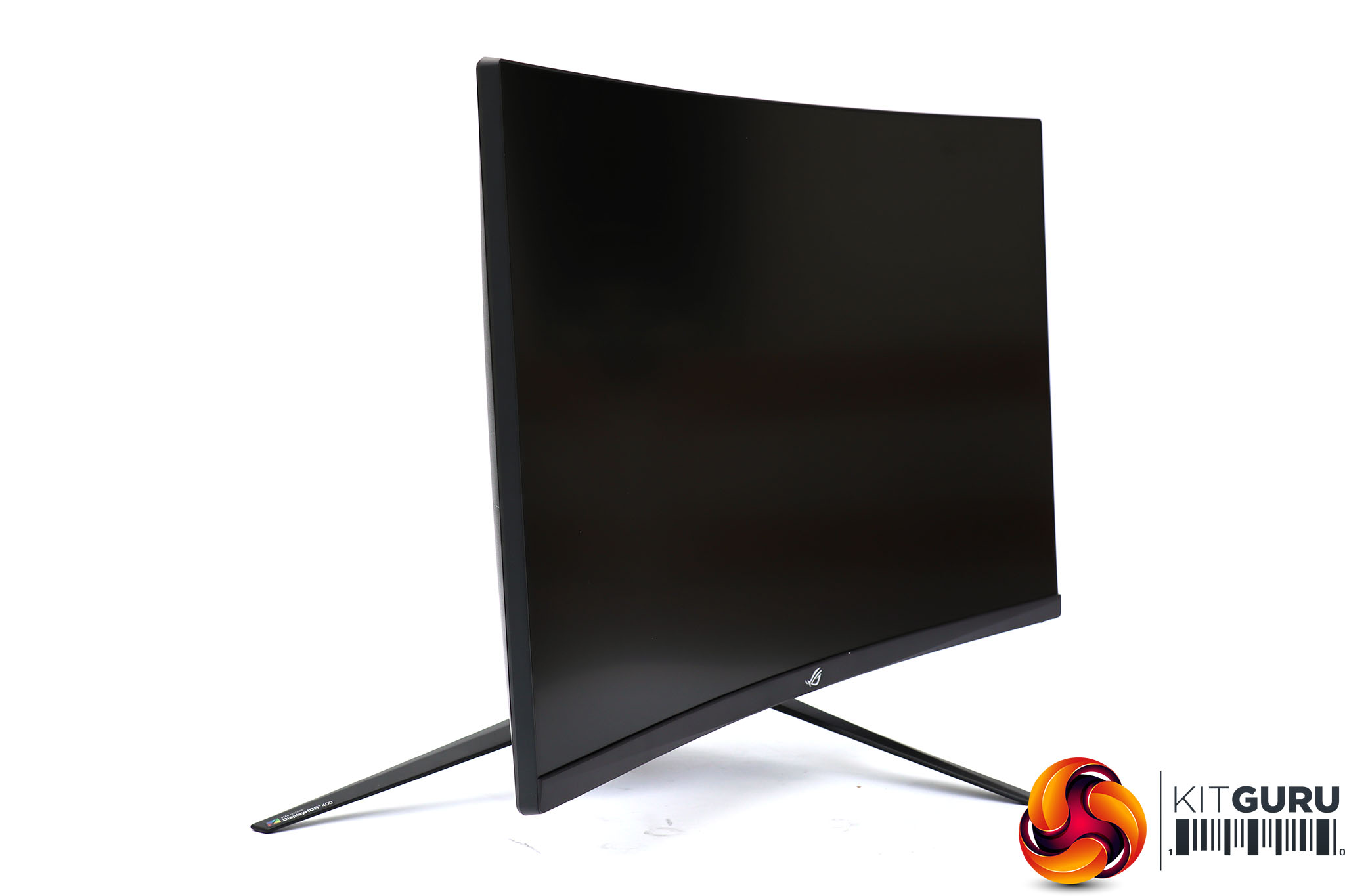
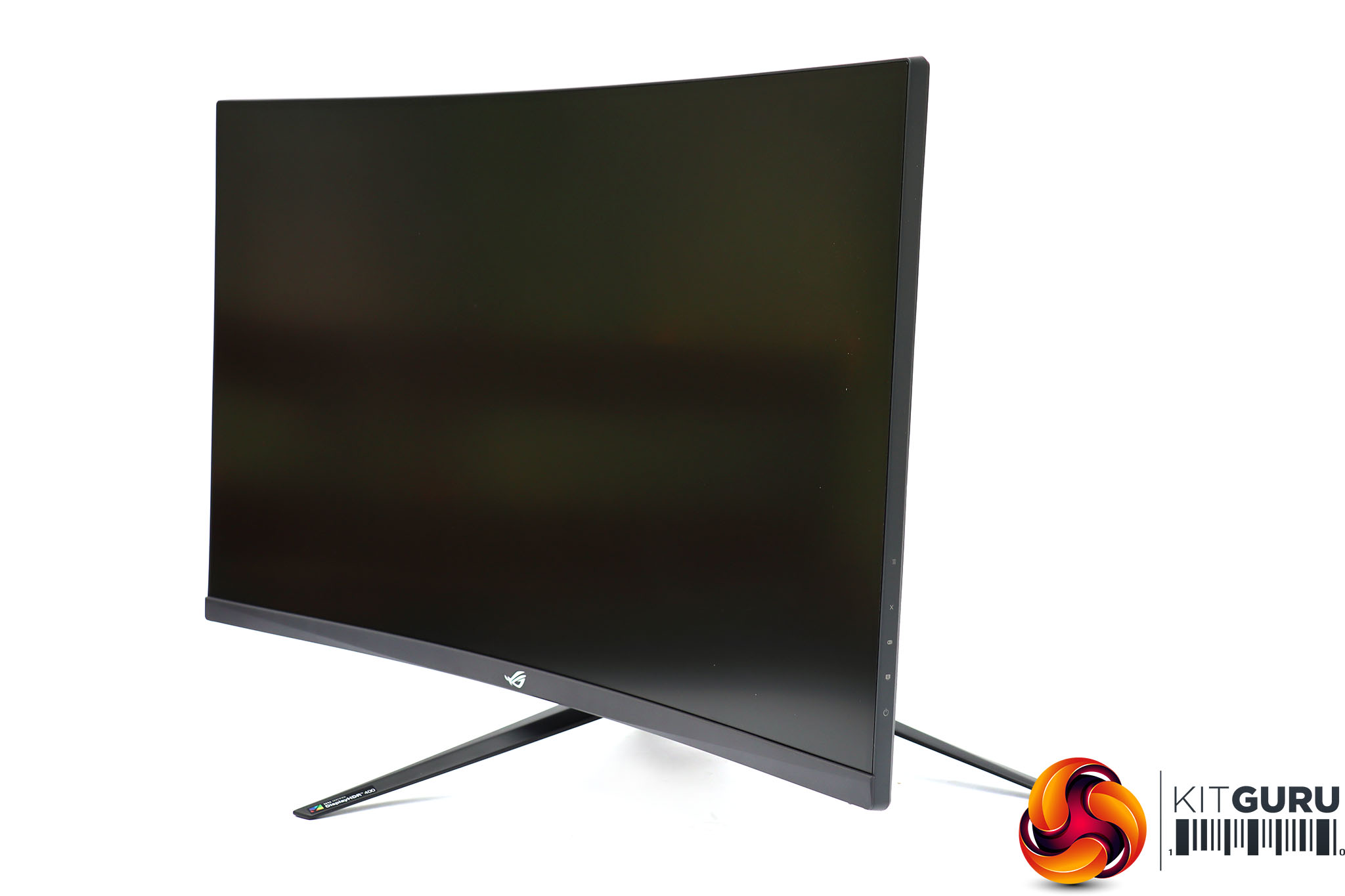
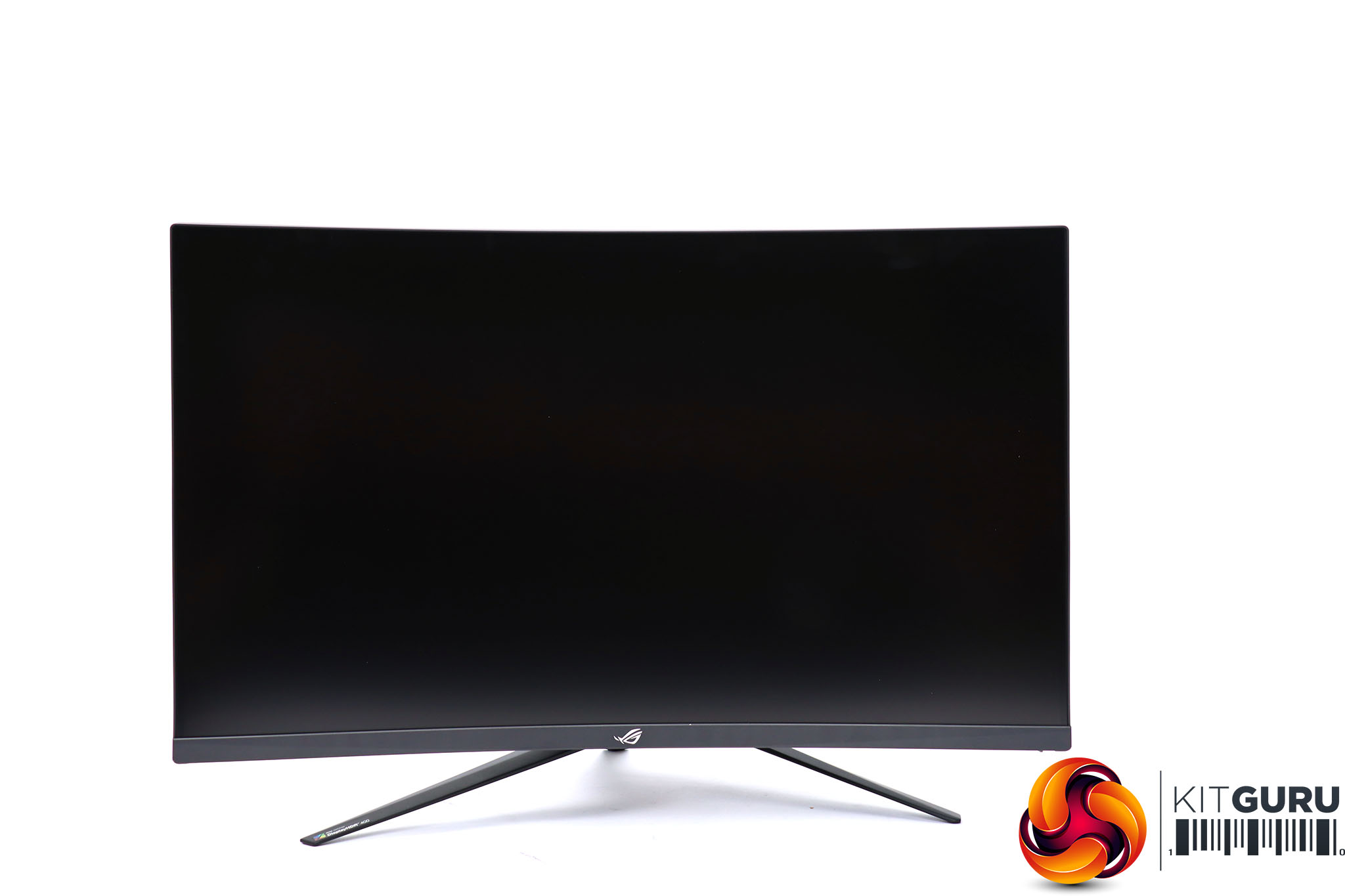

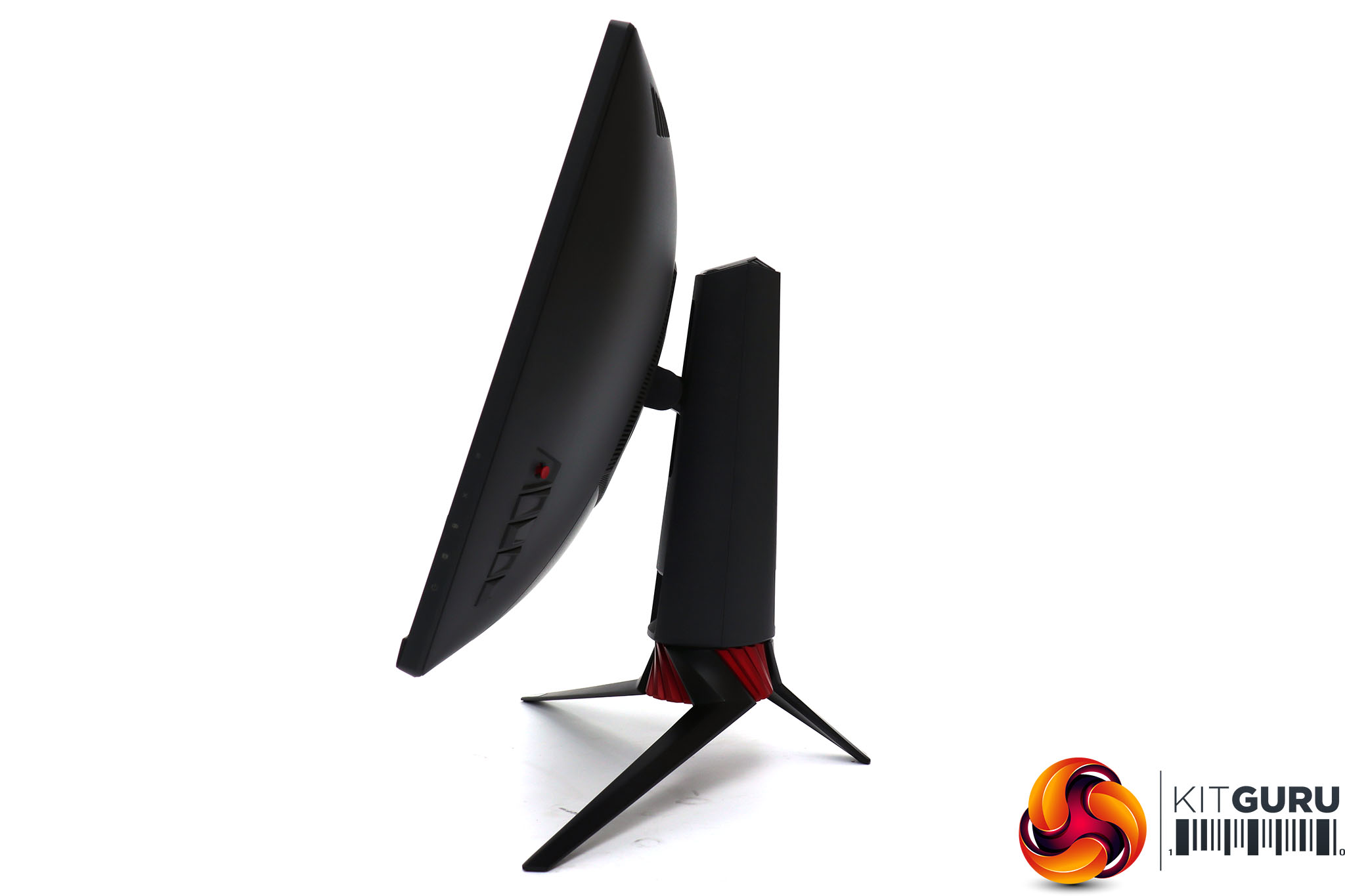
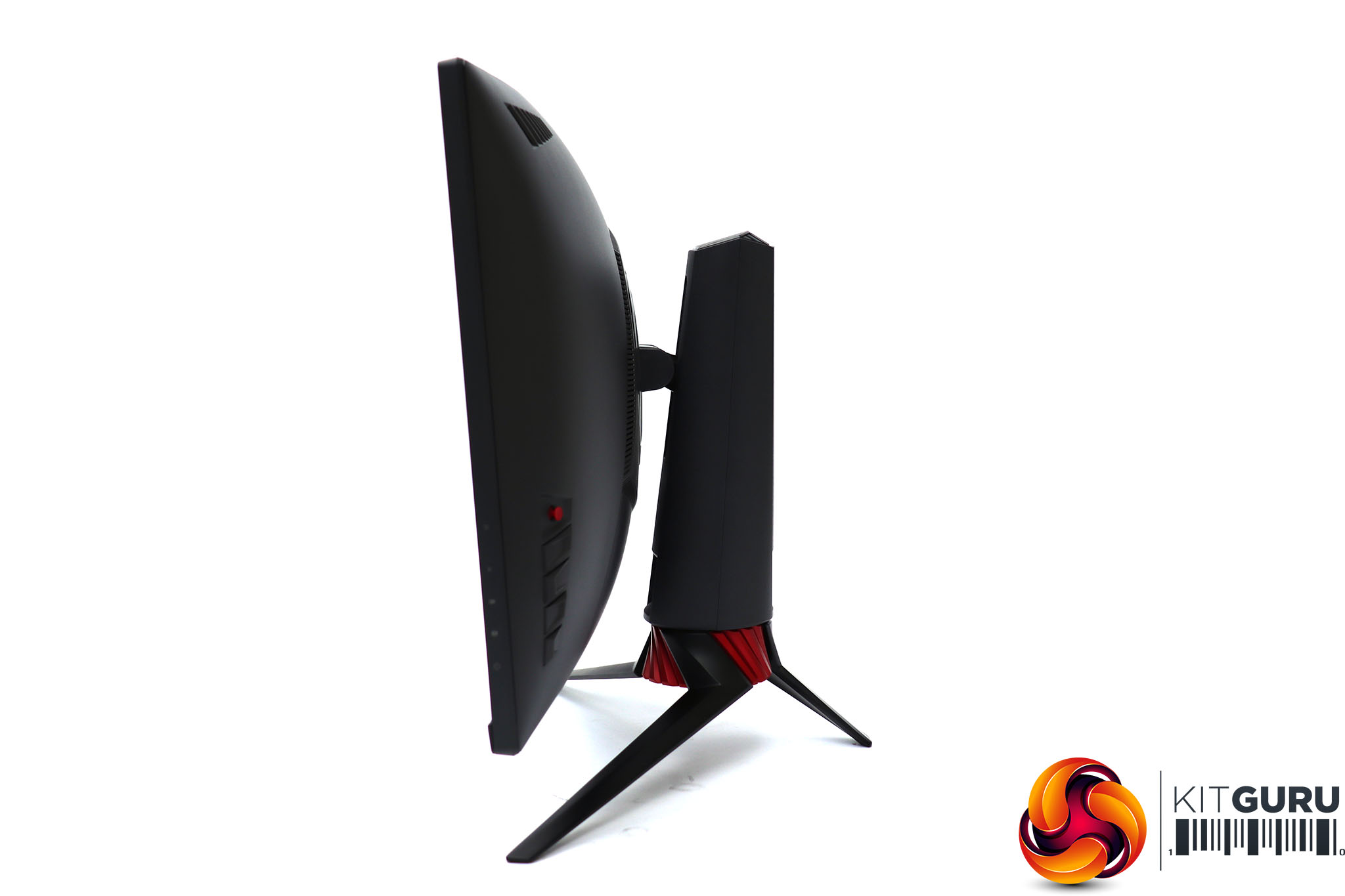
There are quite a few adjustment options. The screen can be rotated 50 degrees left or right, and raised through 100mm. It can also be tilted 5 degrees forward or 20 degrees backward. So finding the optimum positioning should be easy.

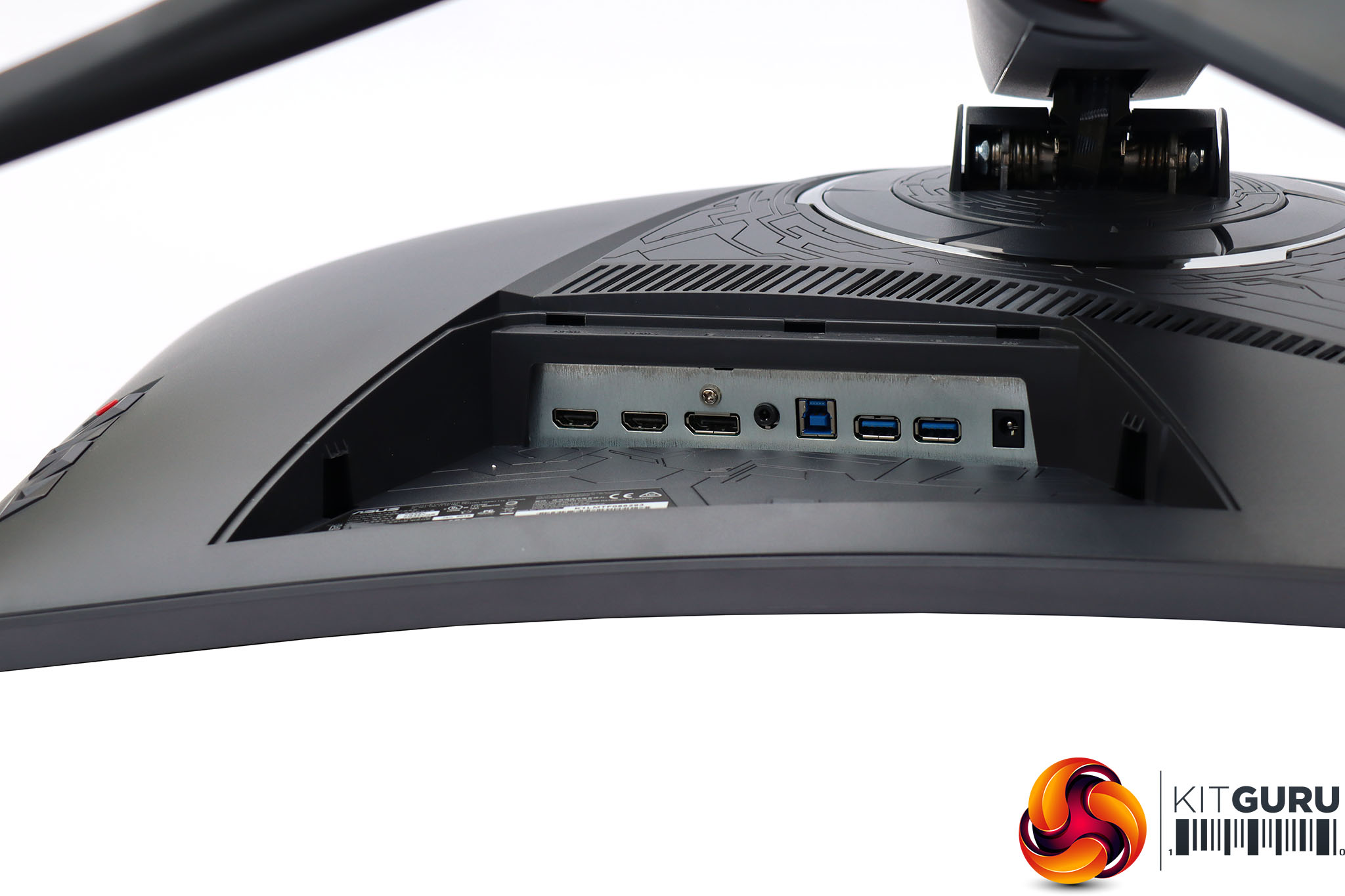
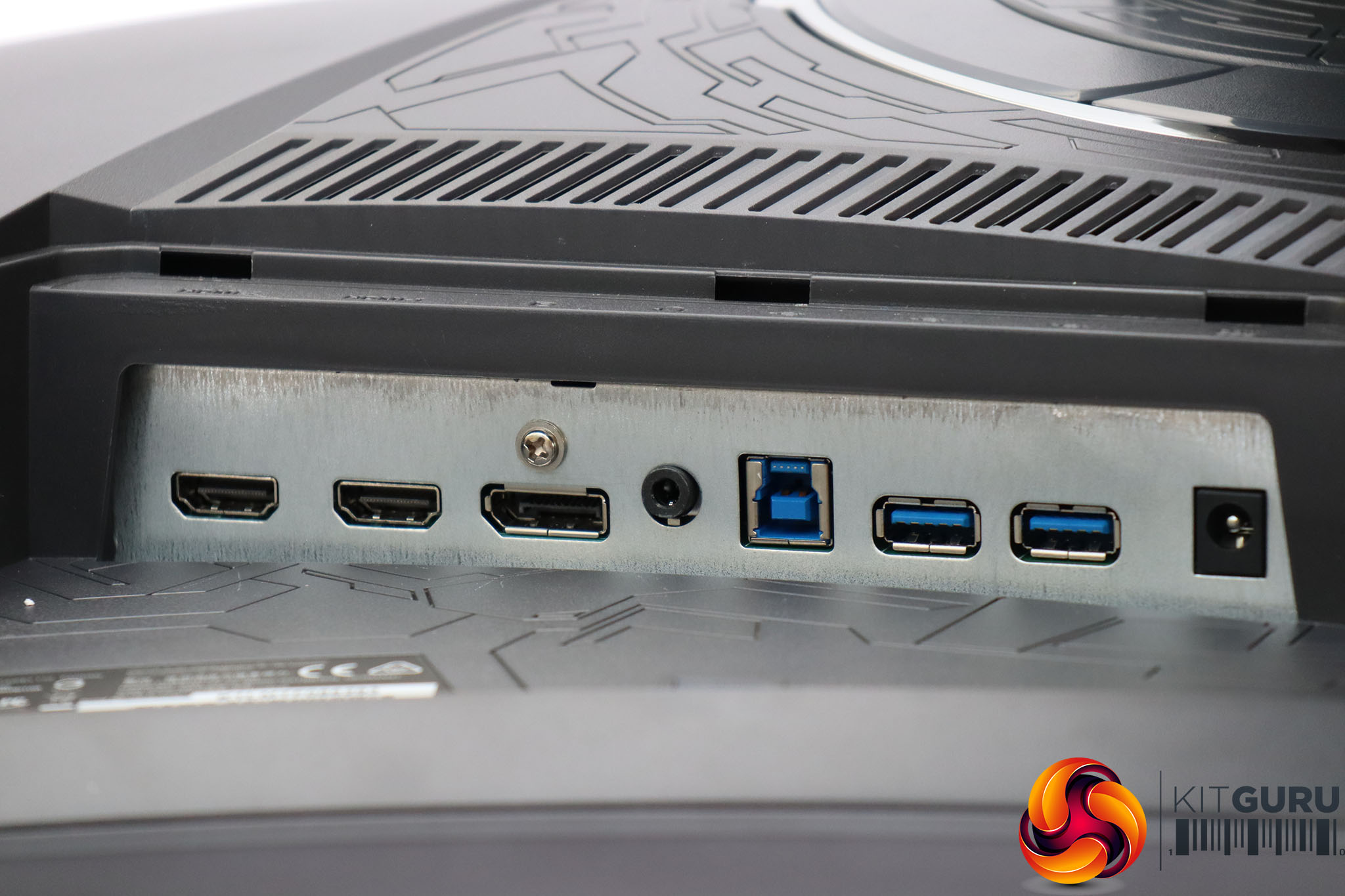
The connection ports are kept hidden by a removable plastic panel, which will be particularly inconvenient for the USB ports. These are clearly aimed at permanent attachments such as keyboard and mouse, rather than the occasional insertion of USB storage.
Next to the USB hub is the minijack analog audio output for headphones or speakers, which again will be impossible to reach with the plastic cover in place. Then comes the DisplayPort connection and two HDMI 2.0 ports.
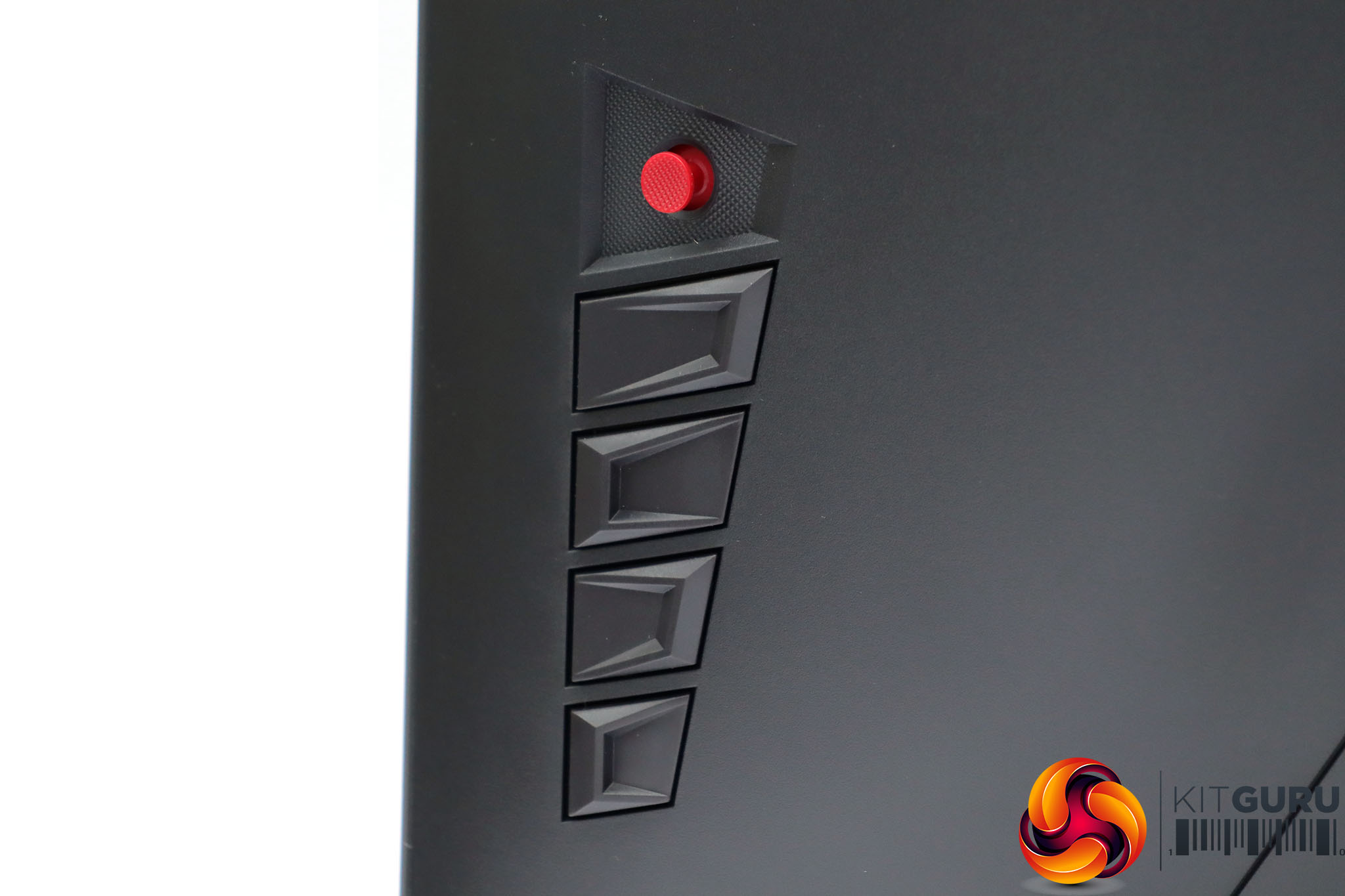
The onscreen menu is controlled by a joystick on the rear, although this is also accompanied by a quartet of buttons beneath.
The functions of the buttons are mysterious until you press one of them. Then the menu clearly shows an icon next to each one illustrating what they do. The bottom one merely toggles power.
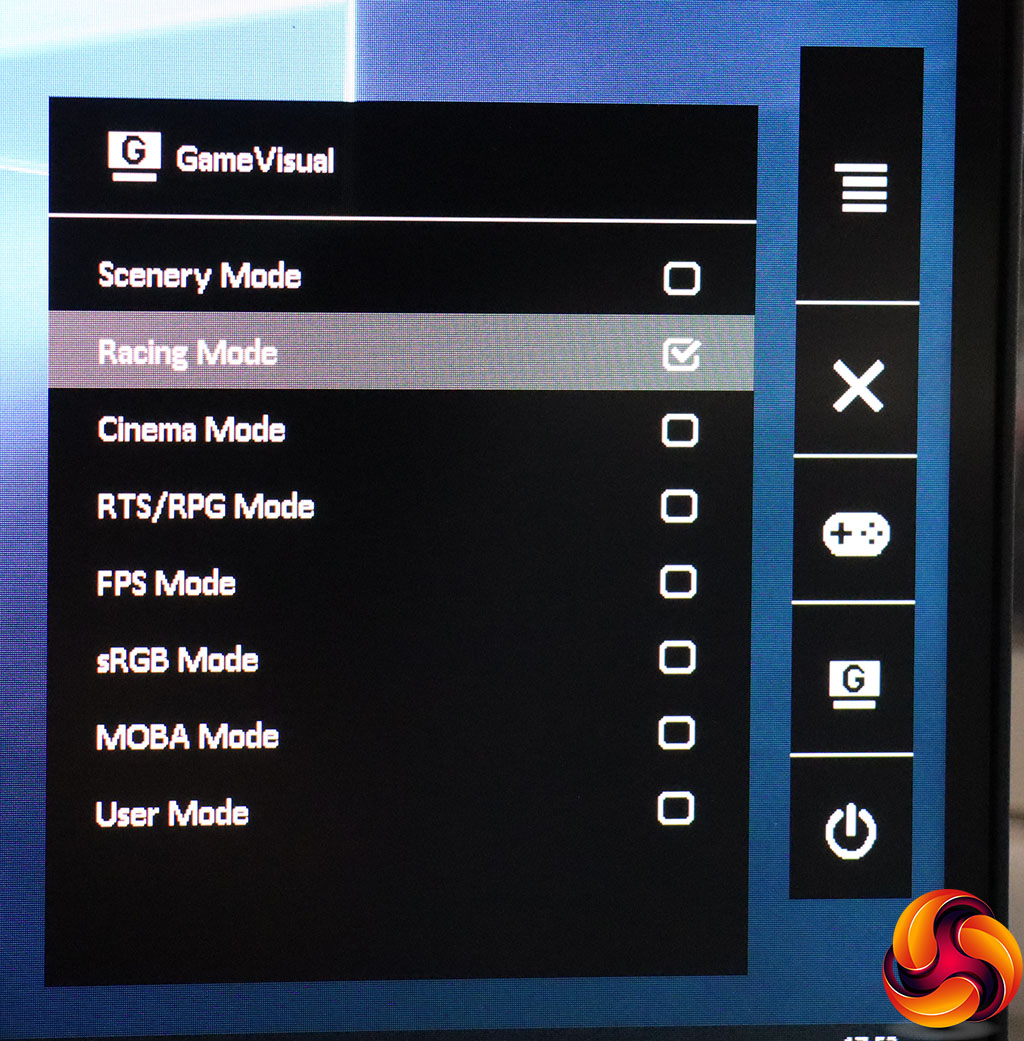
The next button up triggers the GameVisual preset menu, which you can then navigate with the joystick (or use the top button to cancel). The modes available include Scenery, Racing, Cinema, RTS/RPG, FPS, sRGB, MOBA and one User-configurable option.
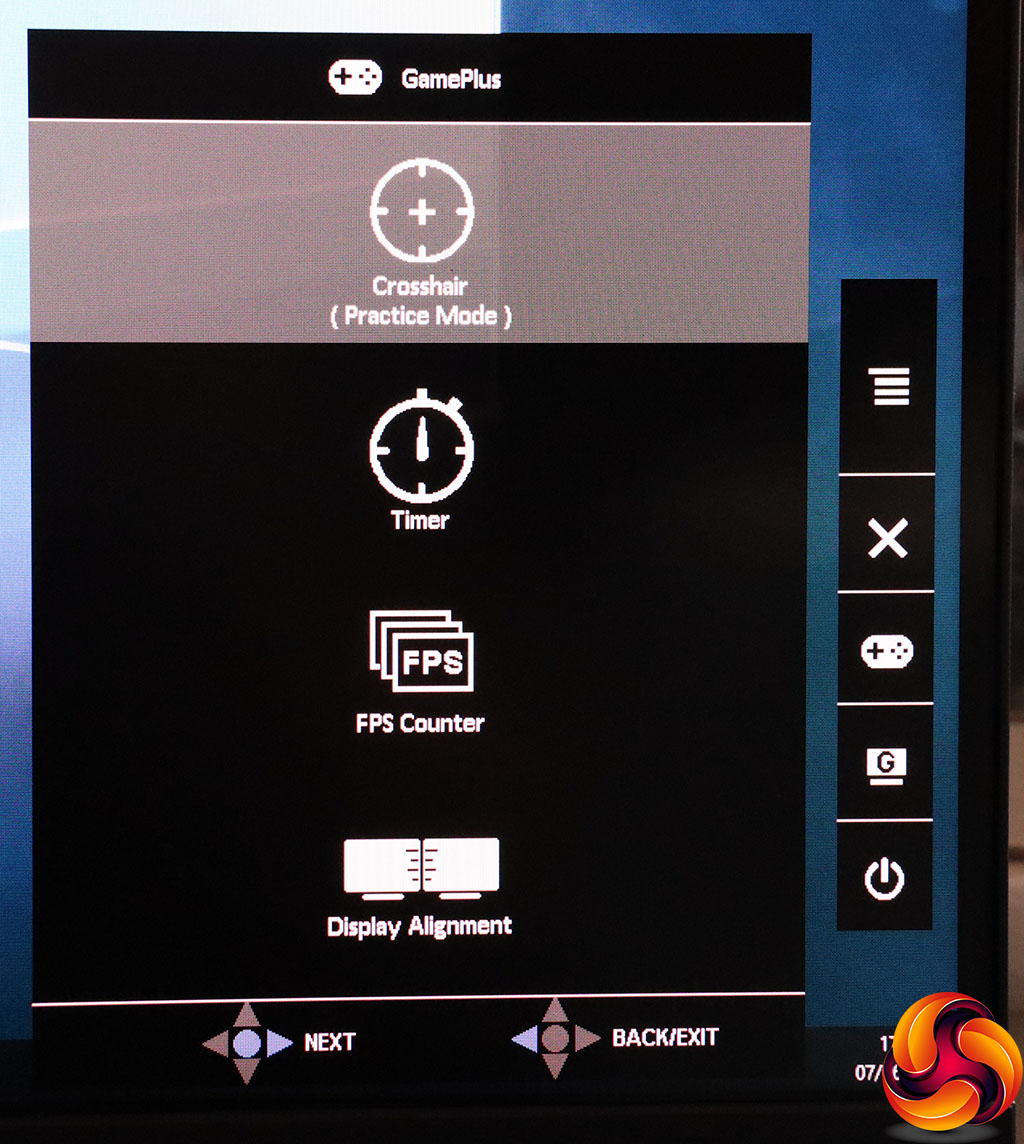
The third button from the bottom provides access to the GamePlus options, which superimpose various things oncreen, including a crosshair, a timer, a frames-per-second counter, and some guide lines to help you ensure your multi-screen setup is properly aligned.
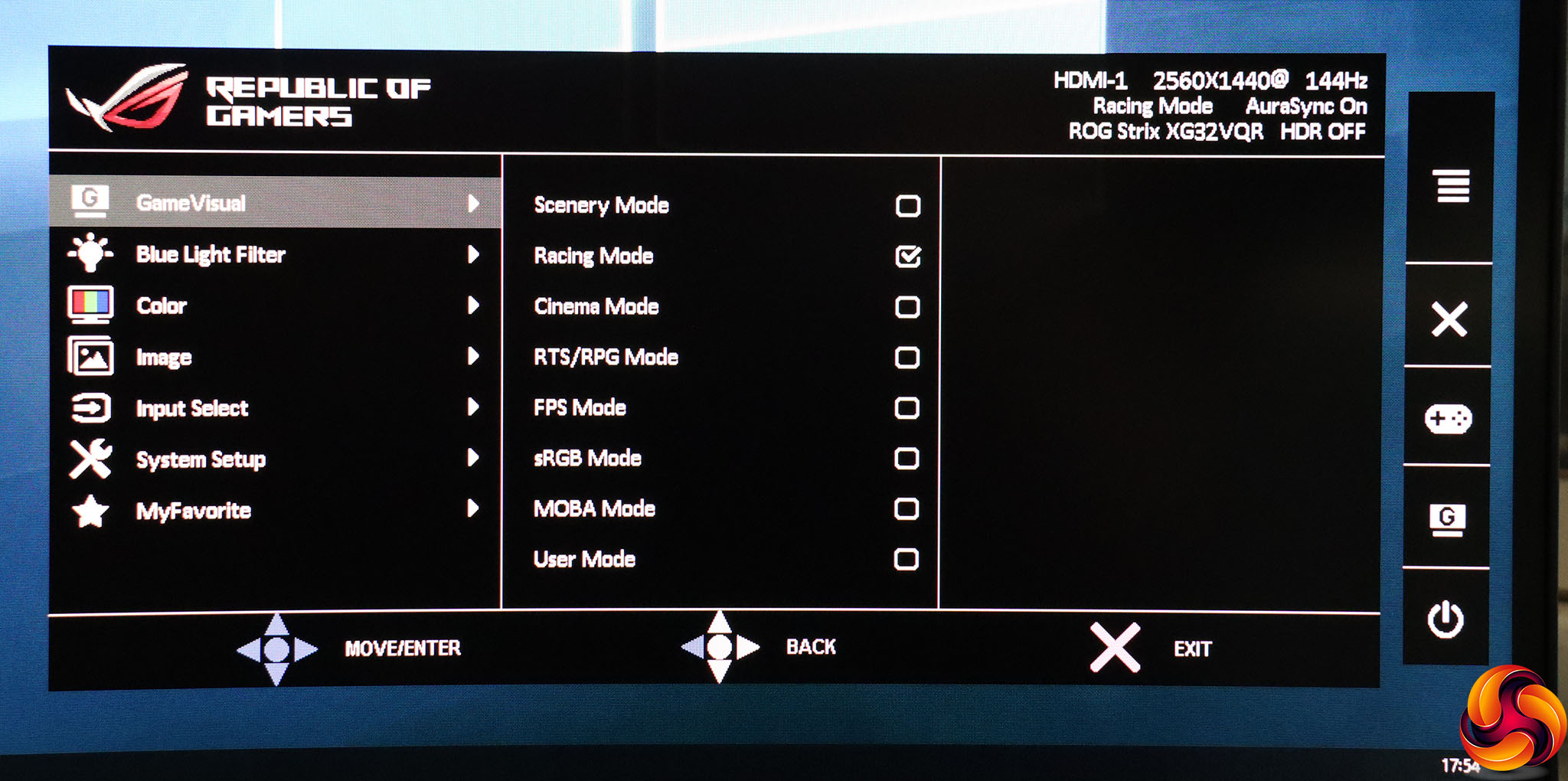
The final button merely exits the other menus, so next we move up to the joystick. If you press that, the main menu appears, and the default initial entry is the GameVisual menu, showing the same options as the quick version.
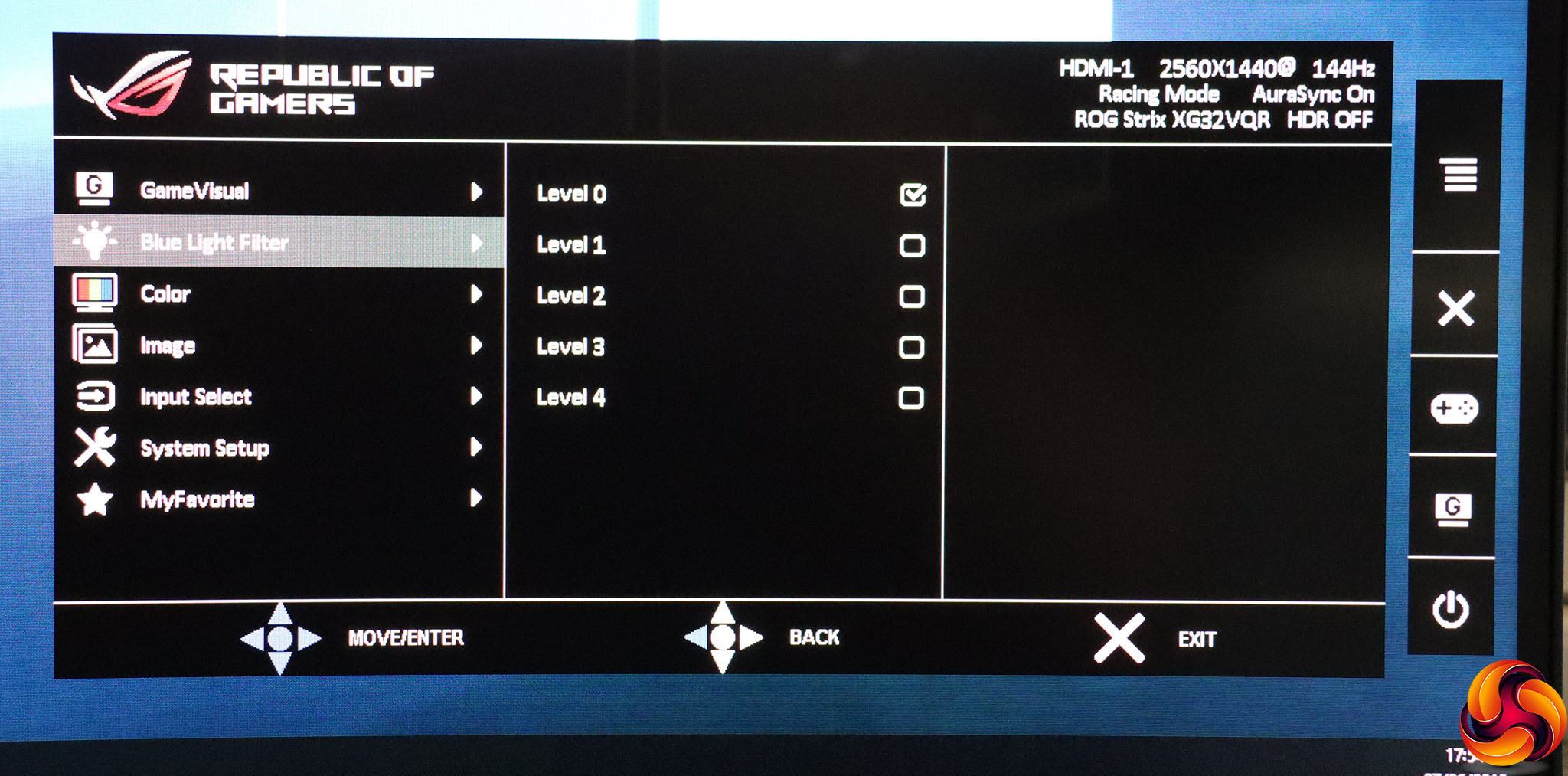
Next down in the main menu is the Blue Light Filter section for reducing eyestrain by removing blue hues from the picture. This has four levels as well as Level 0, which means it's off.
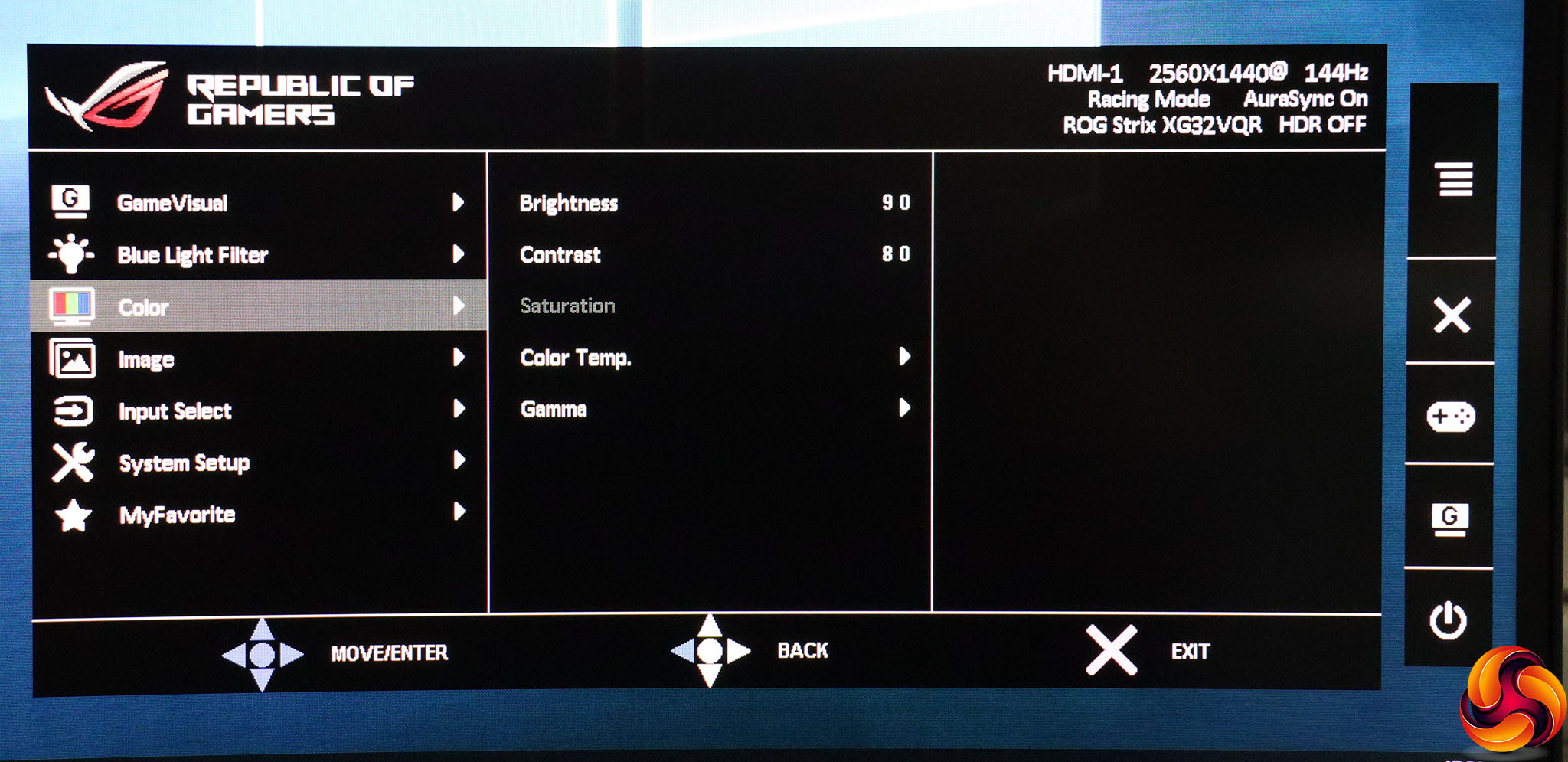
The Color menu includes Brightness, Contrast, Color Temperature and Gamma. The Saturation option is greyed out if you're using a GameVisual mode. Color Temperature options include Cool, Normal, Warm or User Mode, where you get direct access to red, green and blue levels. The Gamma settings are a little unusual, as they include 1.8, 2.2 and 2.5, which aren't evenly spaced.
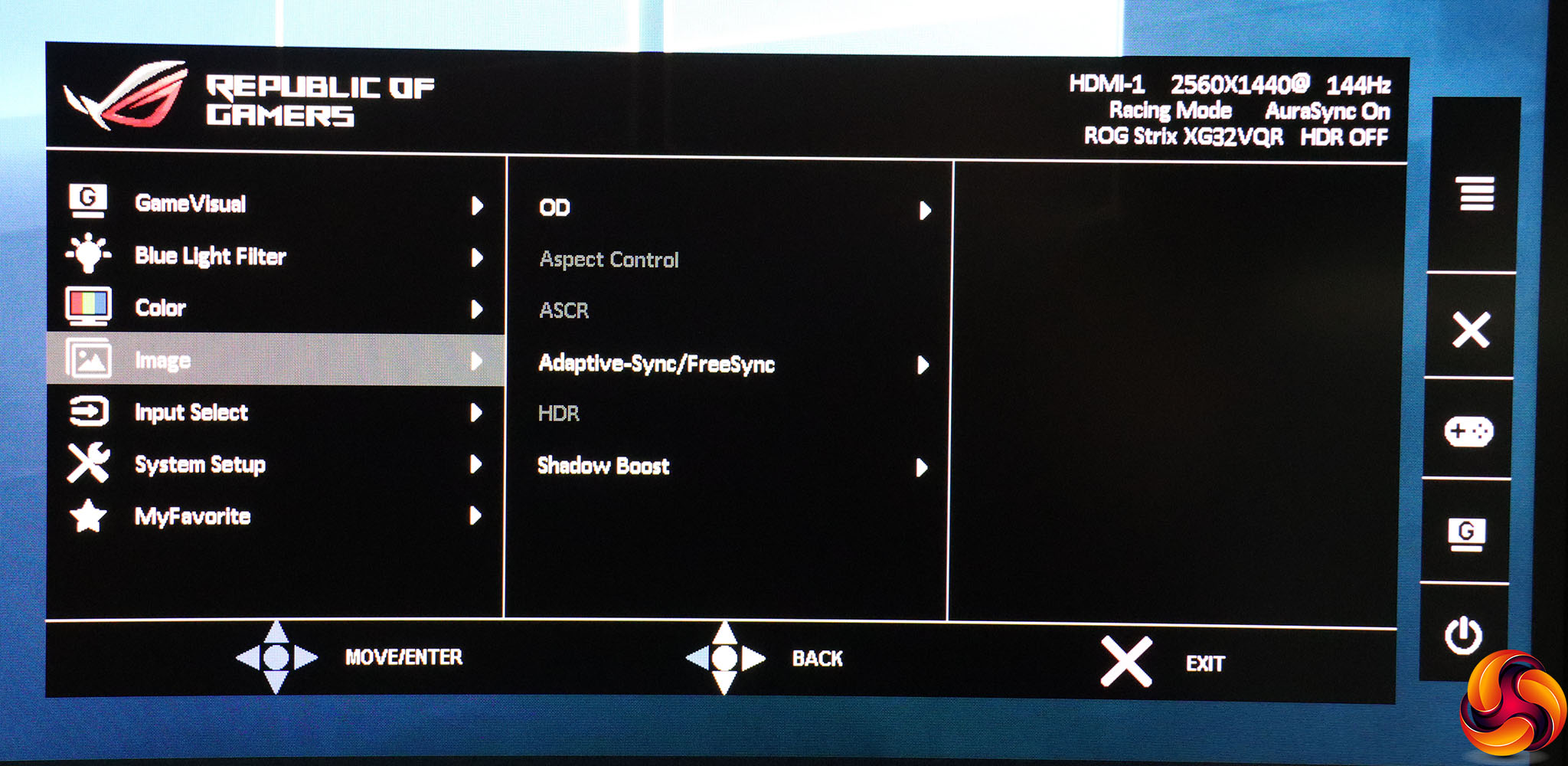
The Image section includes OD, which is a pixel overdrive mode with five levels. ASCR is a smart contrast option that varies the backlight to provide a wider perceived contrast than the panel is actually capable of. The Adaptive-Sync/FreeSync section enables this function. Finally, Shadow Boost brings out detail in dark areas, and has three levels or off. The HDR mode will only be available when your video source can supply it.
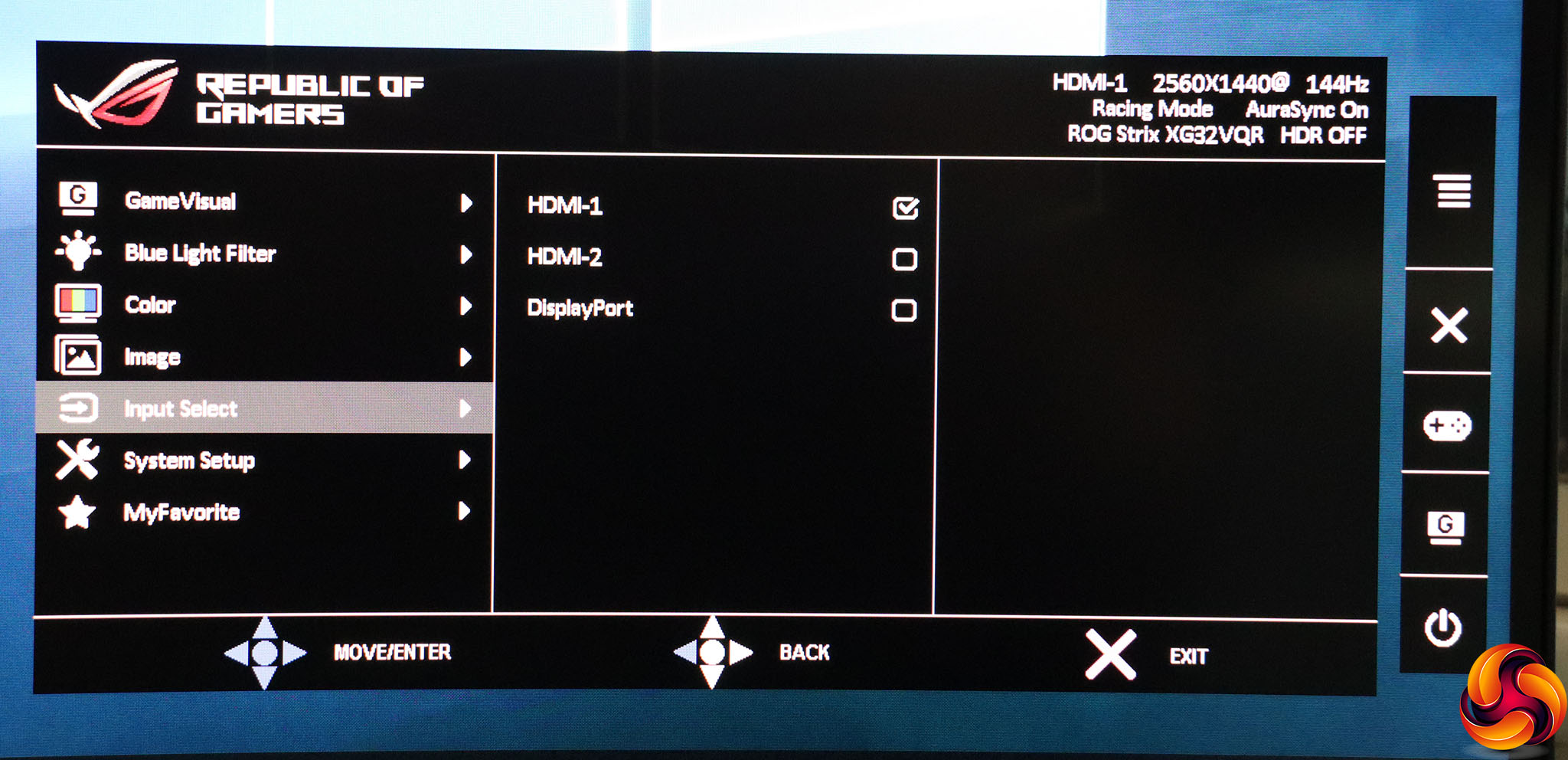
Input Select merely lets you choose which video connection to use manually.
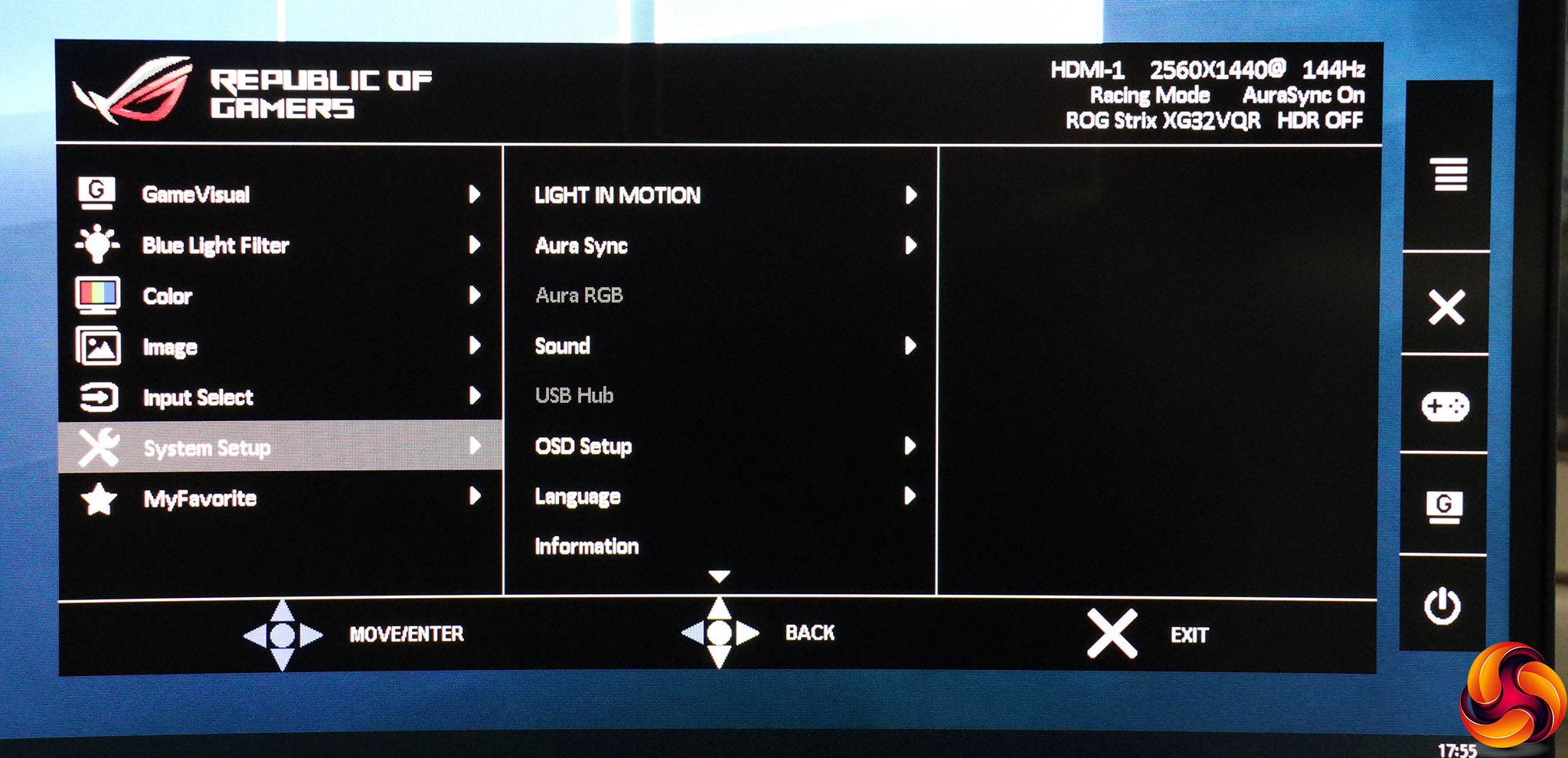
The System Setup section is quite packed, although you probably won't access it that often. The LIGHT IN MOTION, Aura Sync and Aura RGB all configure the various aesthetic lighting options on the screen's stand. You can choose a separate sound source from the current video source, and you can change the language used by the OSD. Scroll down further and options to lock the buttons and toggle the power LED are revealed, alongside the ability to reset to defaults.
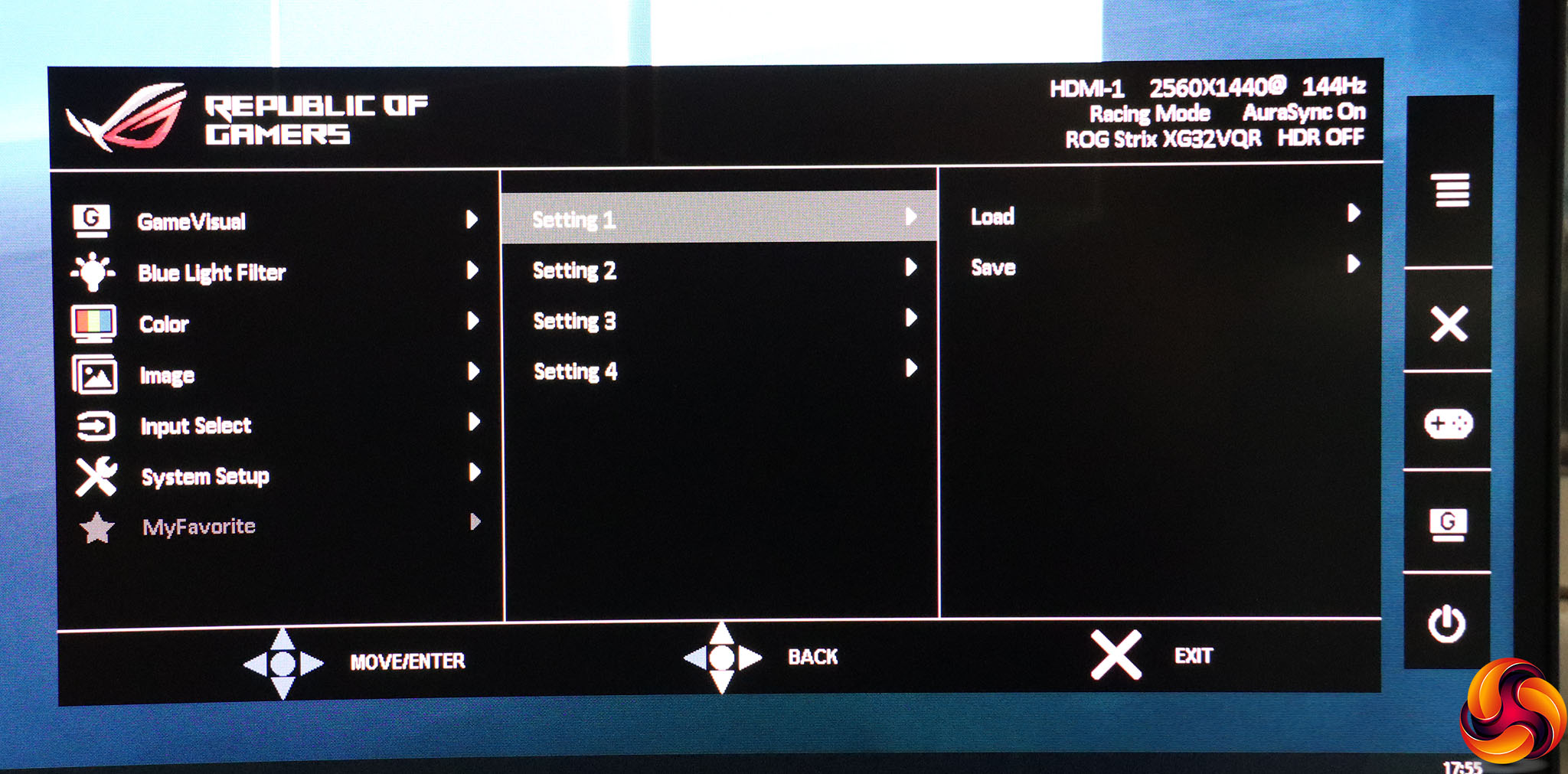
Finally, there are four MyFavorite slots for saving custom configurations.
Overall, while not the most comprehensive OSD ever, there's plenty here for the serious gamer. You get useful presets for the main activity types, plus handy extras including crosshairs and a hardware FPS counter. The joystick and buttons put the functions easily at your fingertips.
Our main test involves using a DataColor Spyder Elite 5 Colorimeter to assess a display’s image quality. The device sits on top of the screen while the software generates colour tones and patterns, which it compares against predetermined values to work out how accurate the screen is.
The results show –
- A monitor’s maximum brightness in candelas or cd/m2 at various levels set in the OSD.
- A monitor’s contrast ratio at various brightness levels in the OSD.
- The brightness deviation across the panel.
- The black and white points.
- The colour accuracy, expressed as a Delta E ratio, with a result under 3 being fine for normal use, and under 2 being great for colour-accurate design work.
- The exact gamma levels, with a comparison against preset settings in the OSD.
We first run this test with the display in its default, out-of-the-box state, with all settings on default. We then calibrate the screen using the Spyder software and run the test again.
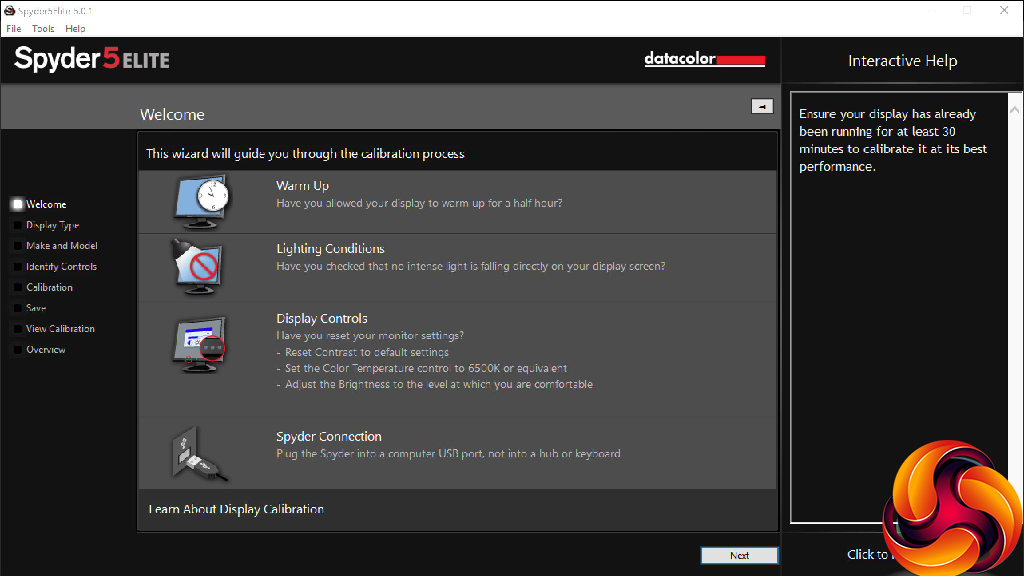
We always test the display subjectively on the Windows desktop, using it for general tasks such as browsing and word processing, and with games as well, even if the display is not intended solely for that purpose.
We pay careful attention to any artefacts, ghosting or motion blur, and enable any gaming-specific features, such as adaptive-sync settings like G-Sync or FreeSync, using a compatible graphics card in our test PC.
We performed the quality tests at the native 2,560 x 1,440 resolution in the default mode, after resetting the OSD, which uses a 144Hz refresh. Our test system was equipped with an AMD Radeon Vega Frontier Edition graphics card, which also supports FreeSync.
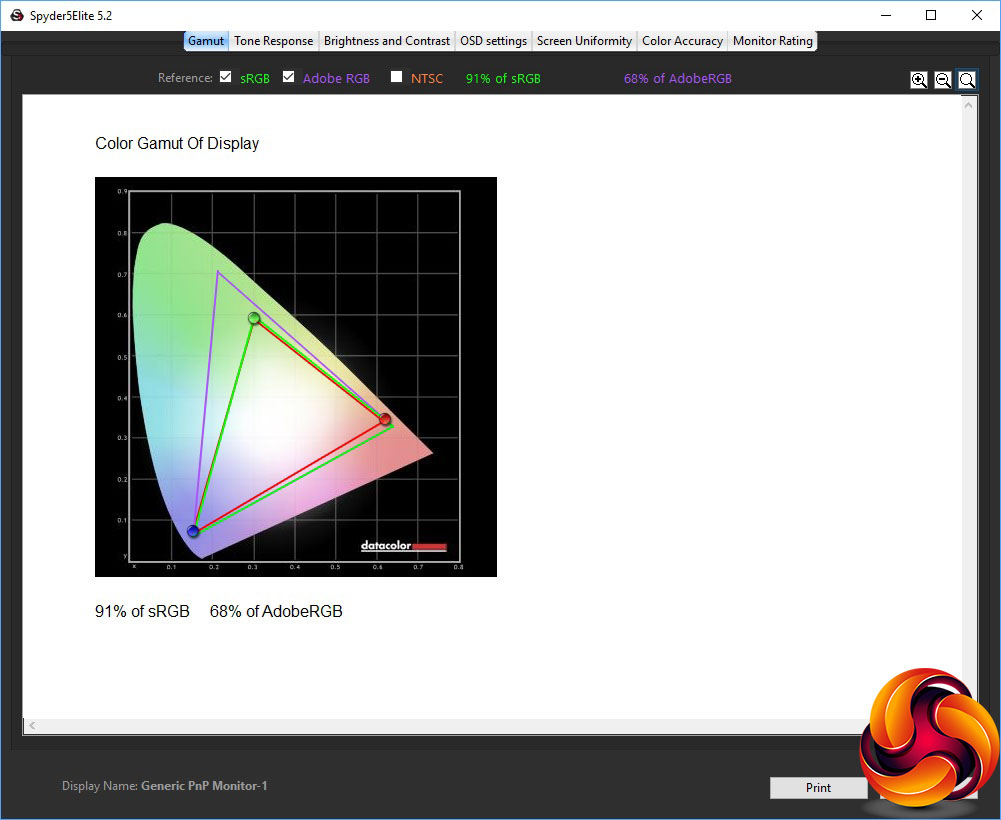
Things don't get off to a great start, with the gamut only registering as 91 per cent of sRGB and 68 per cent of AdobeRGB. We were expecting much better, particularly as ASUS claims 125 per cent sRGB.
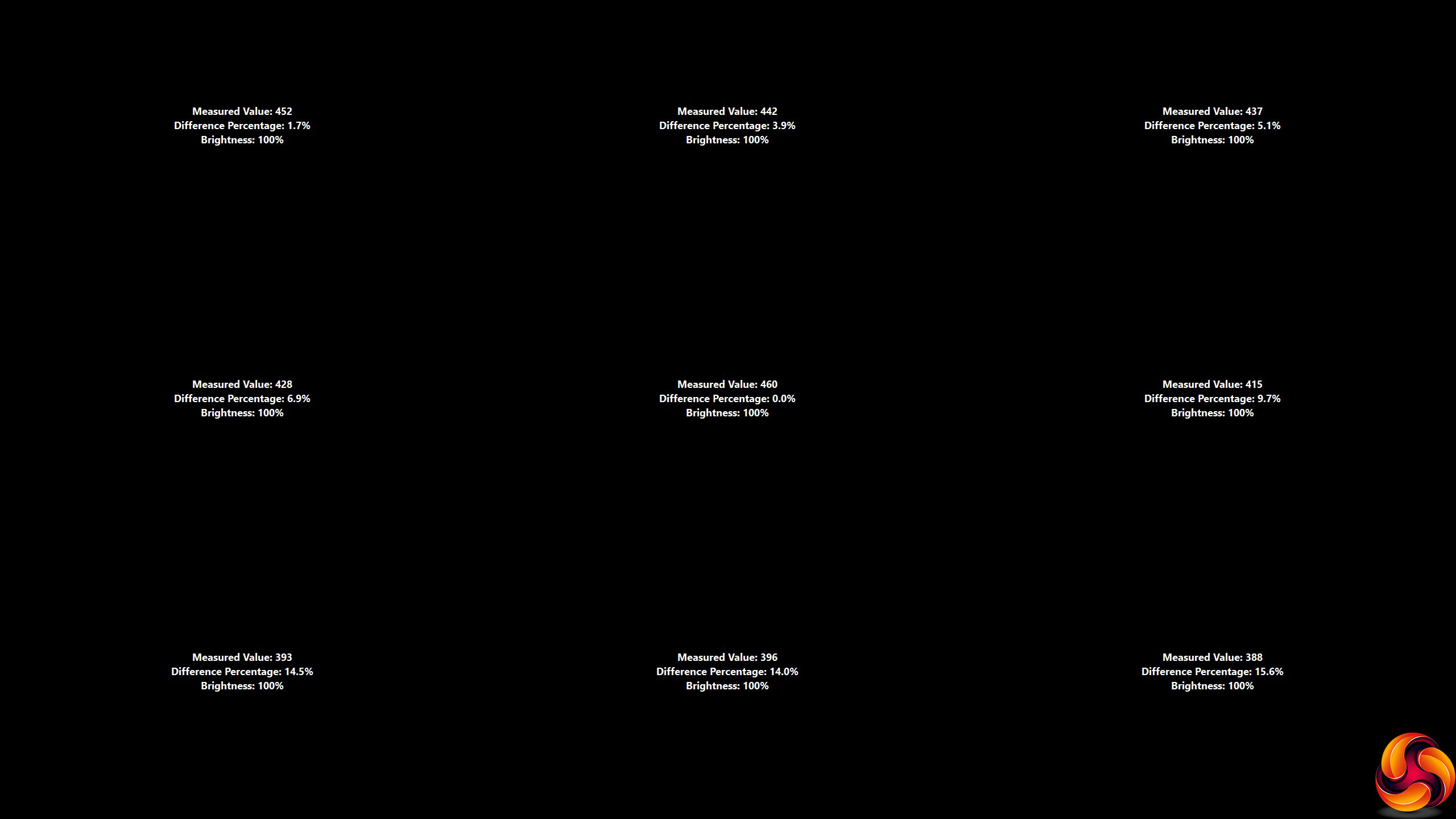
Brightness uniformity isn't that stunning either, with the bottom of the screen being particularly divergent from the centre.
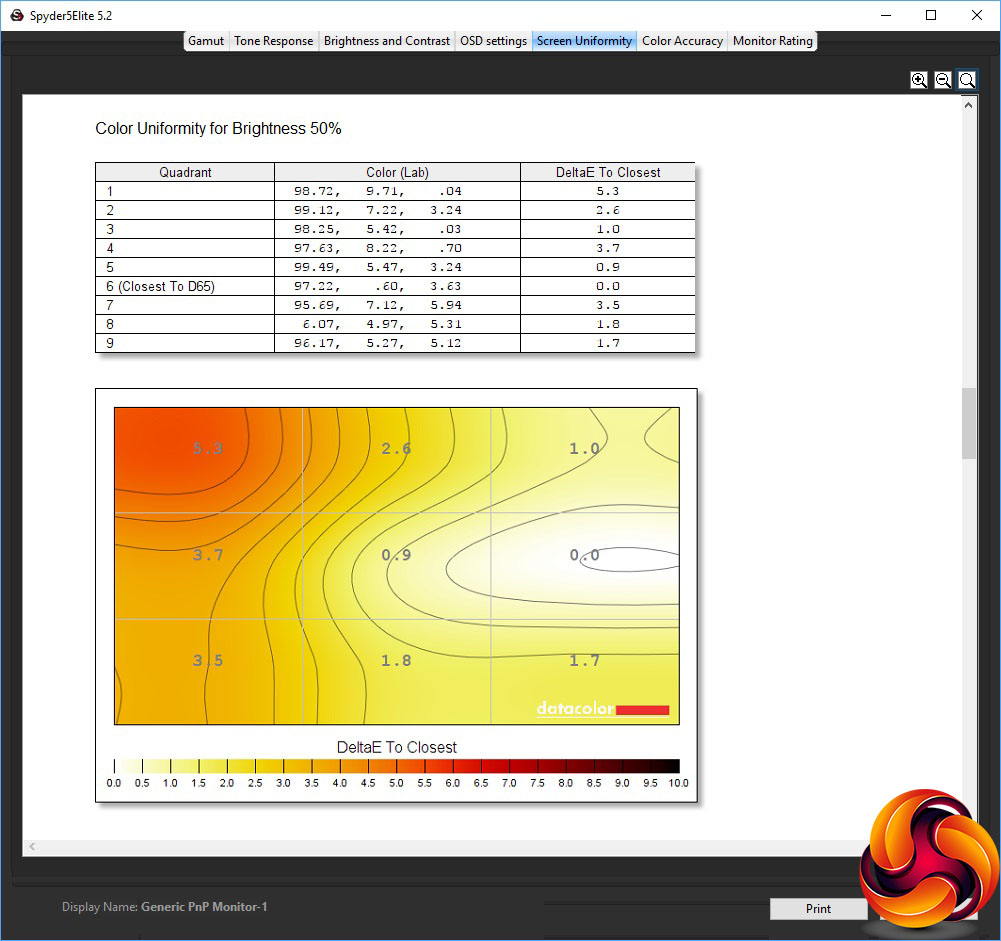
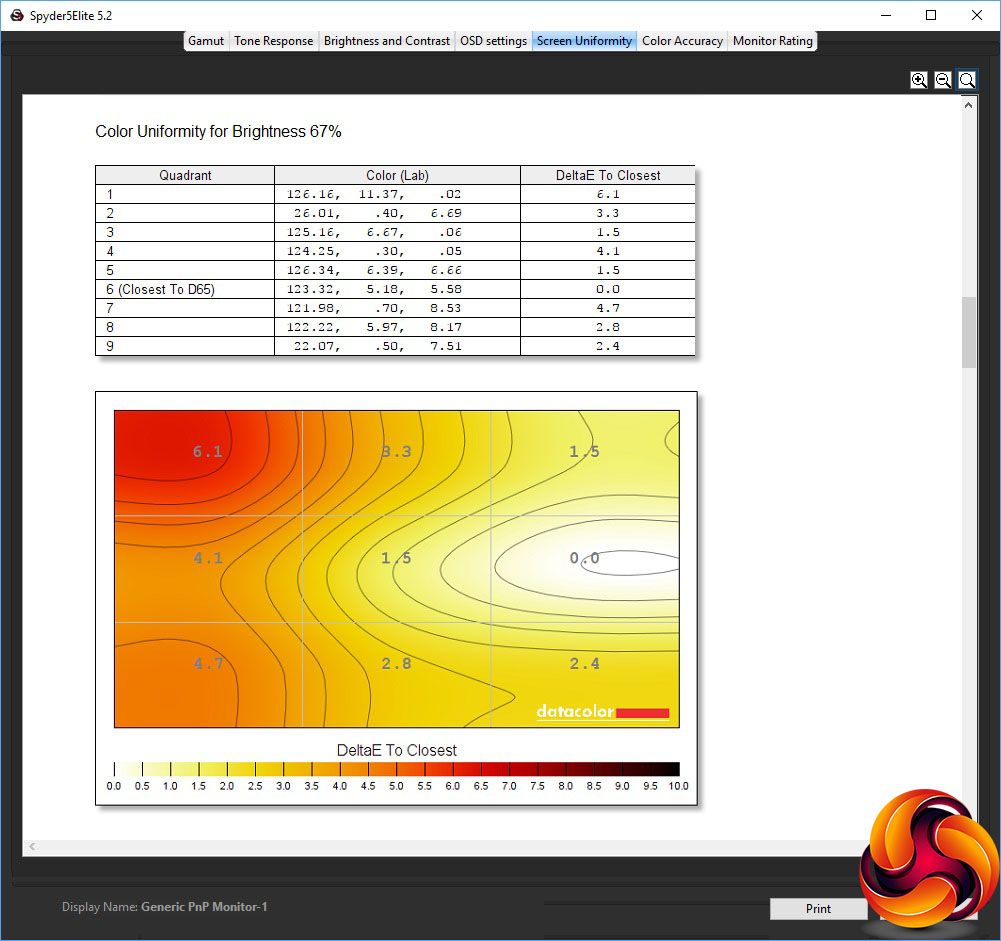
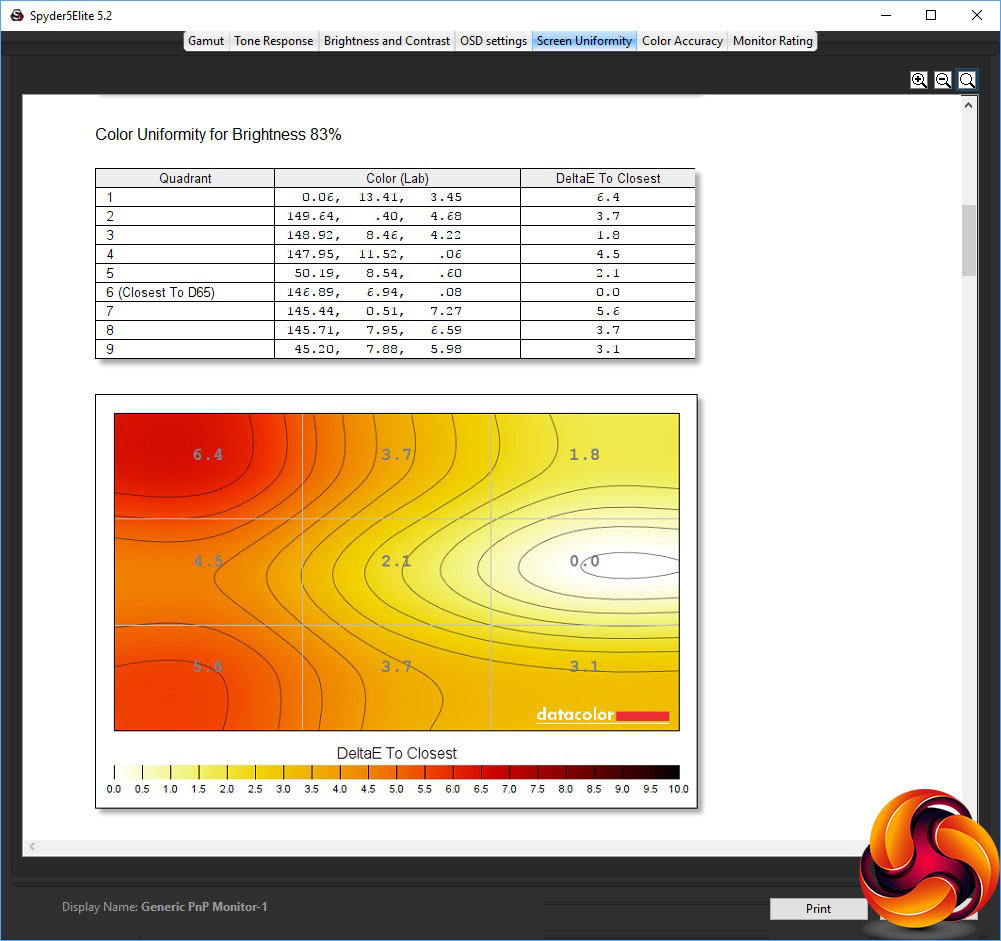
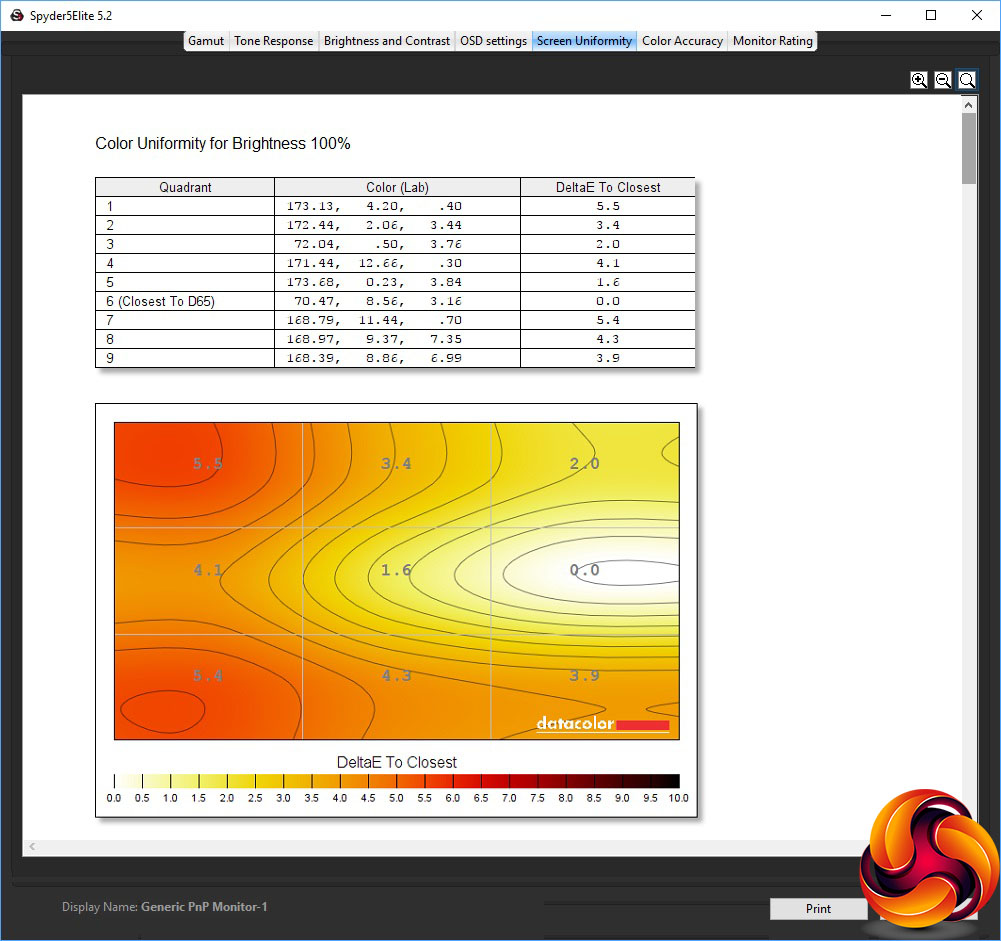
Colour uniformity is a little better, but still not outstanding.
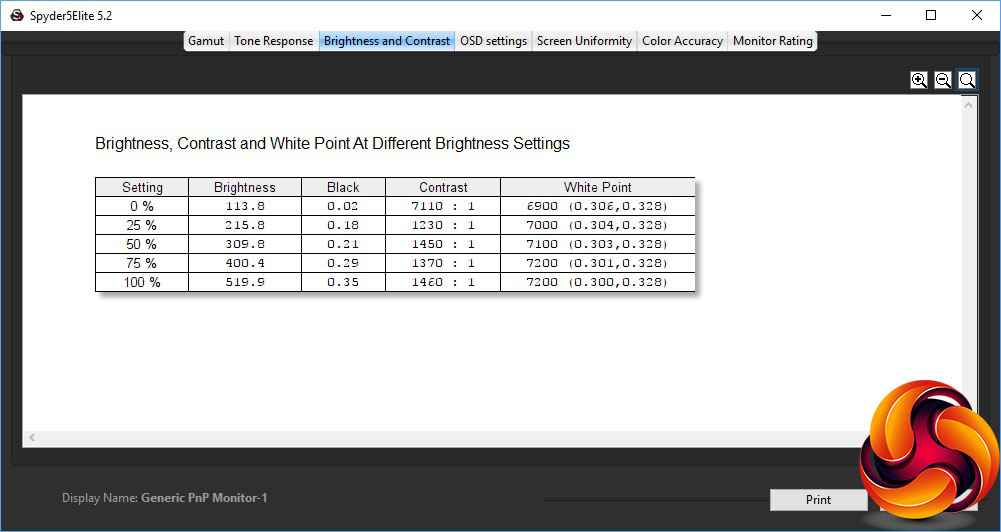
This XG32VQR is a lot brighter than its rating, however, hitting 519.9cd/m2 at its 100 per cent setting. The brightness levels are quite evenly distributed throughout the range, and contrast reassuringly high, hitting 1,460:1 at 100 per cent brightness, as expected from a VA panel. The 0 per cent reading is, as usual, a bit misleading. The white point isn't entirely consistent, ranging from 6900K at 0 per cent brightness to 7200K at 75 per cent brightness and above.
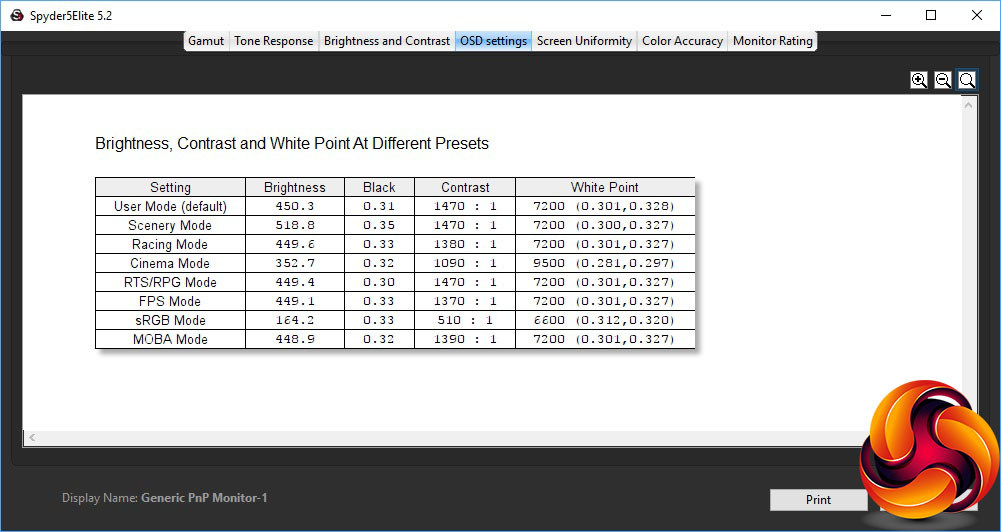
There are lots of different OSD presets for different types of game, and the variation between them will include differences that aren't recorded directly here, such as pixel overdrive level. As you can see, the default mode, which uses a 90 per cent brightness level, conforms exactly to the rating with 450.3cd/m2. The white point of 7200K is shared by Scenery, Racing, RTS/RPG, FPS and MOBA modes – so basically all the game mode types.
Scenery Mode pushes the brightness to the maximum with 518.8cd/m2, with the highest contrast of 1,470:1. Racing mode is similar to the default, but with a slightly lower 1,380:1 contrast. Cinema Mode, however, uses a lower 352.7cd/m2 brightness, lower 1,090:1 contrast, and much cooler 9500K white point. RTS/RPG is virtually the same as Racing mode, apart from having a higher 1,470:1 contrast, and FPS mode is the same apart from a slightly lower 1,370:1 contrast, which could easily be a variation in measurement. Likewise, MOBA Mode is scarcely different to Racing or FPS Modes.
The sRGB Mode is the most unique, with a much lower 164.2cd/m2 brightness, much lower 510:1 contrast, and warmer 6600K white point. The black points are virtually the same for all the presets. One notable absence, however, is an economy or reading mode.

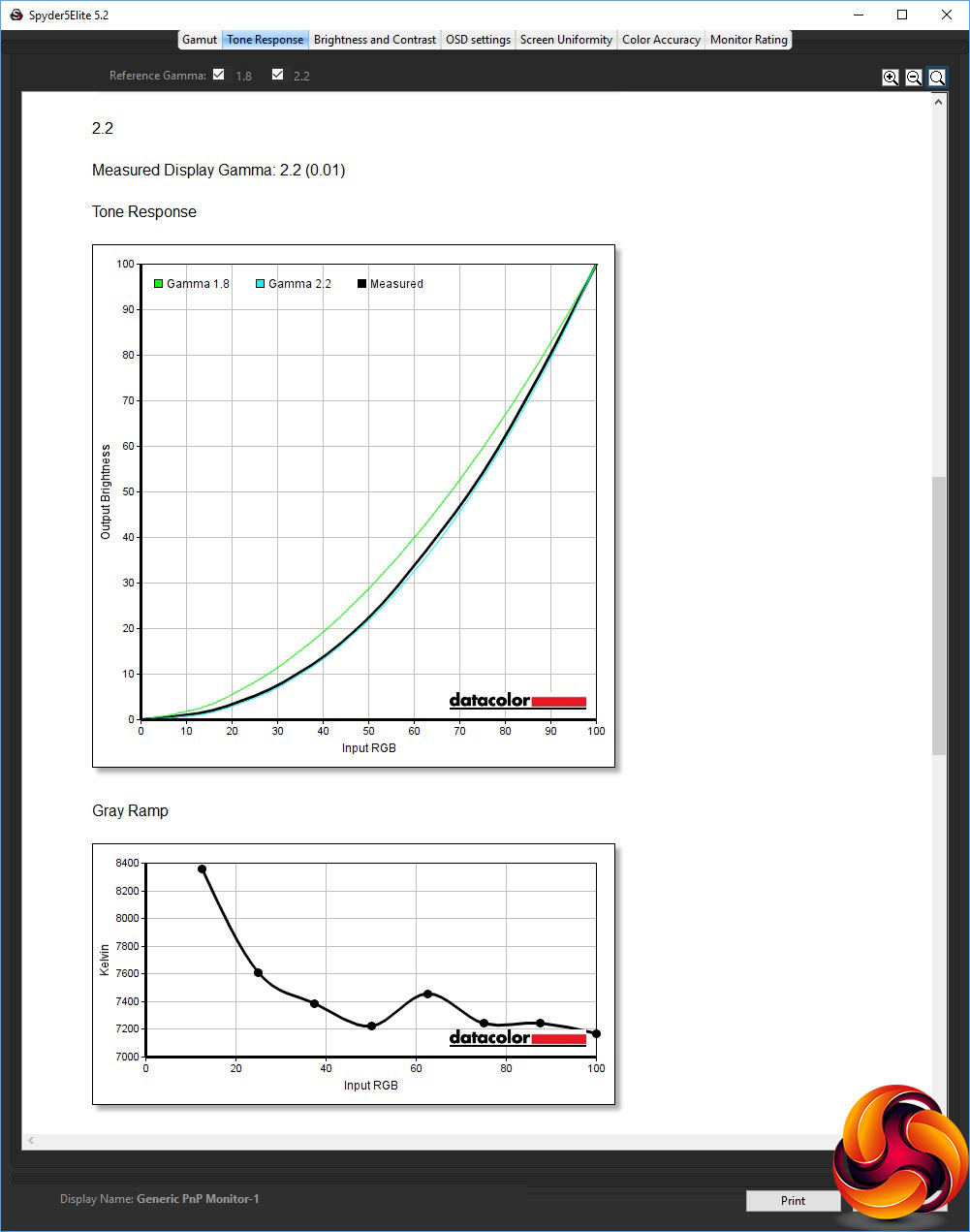
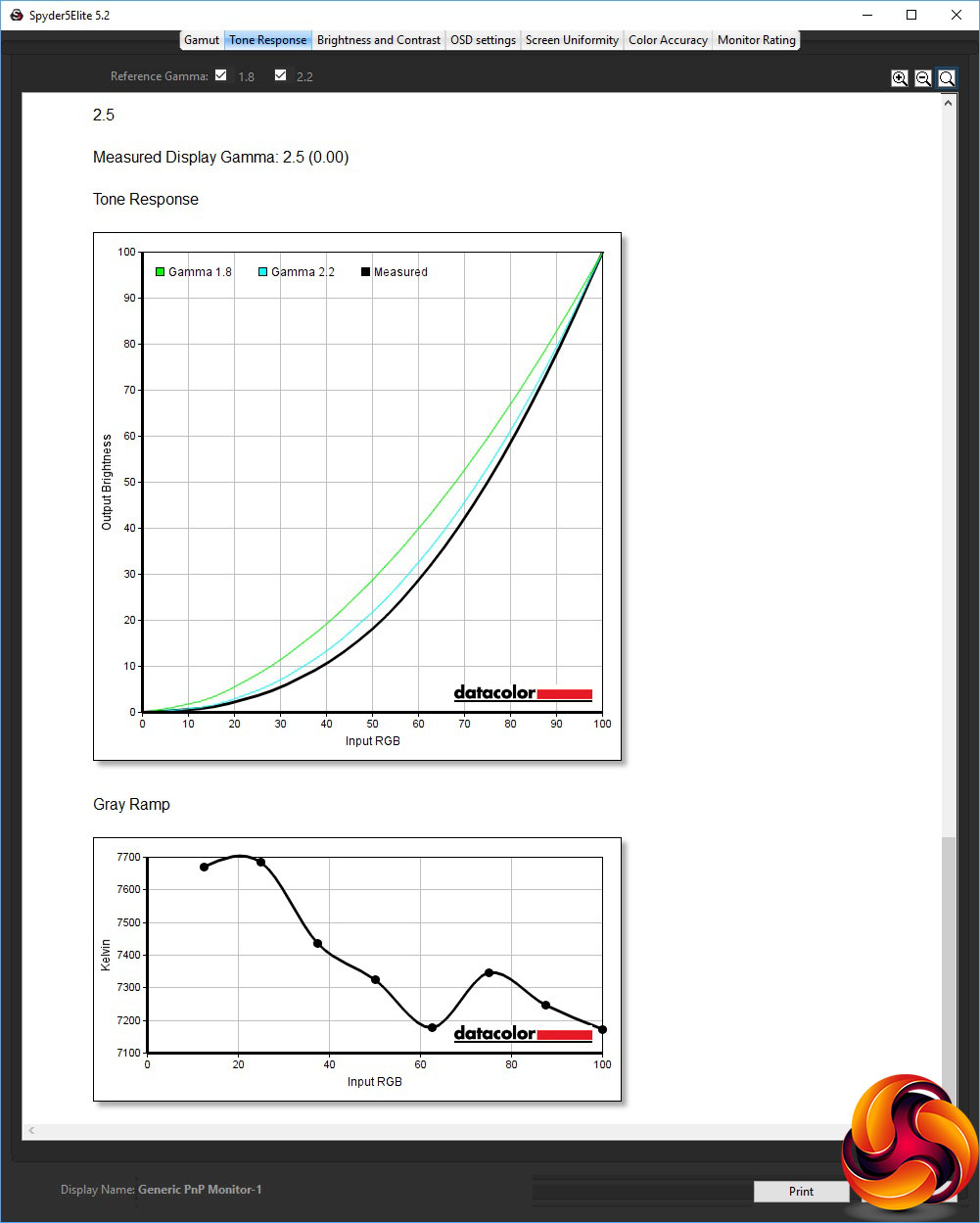
The gamma modes may be a bit unevenly spaced, but they are completely accurate, with 1.8 measuring as 1.8, 2.2 as 2.2, and 2.5 as 2.5.
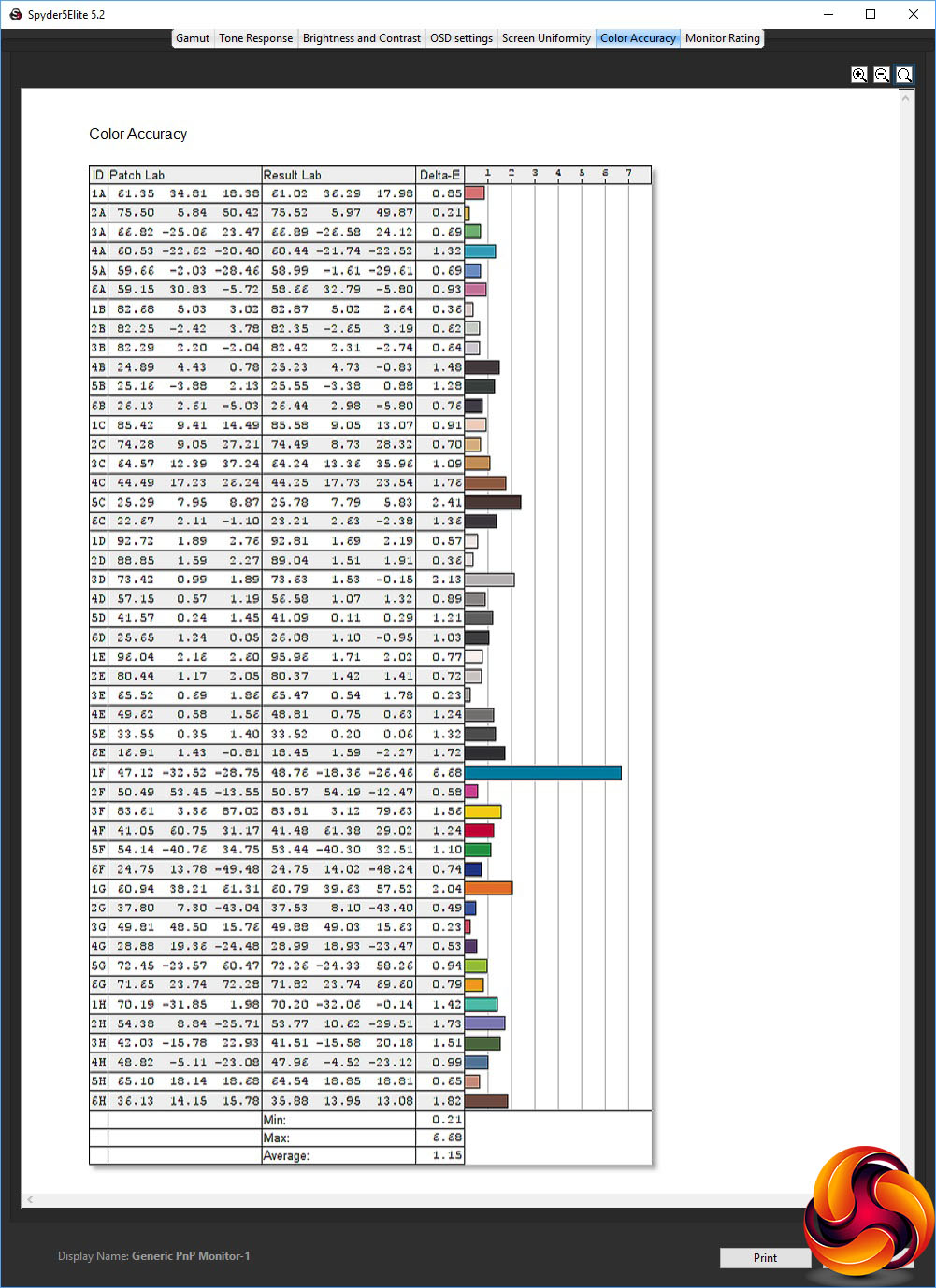
The XG32VQR may not have impressed with its gamut or uniformity, but its colour accuracy is spot on. The average deviance of 1.15 is very good indeed, and wouldn't necessarily need calibrating for improvement. But we did this anyway, using the Spyder, because we always like to see if we can do better.
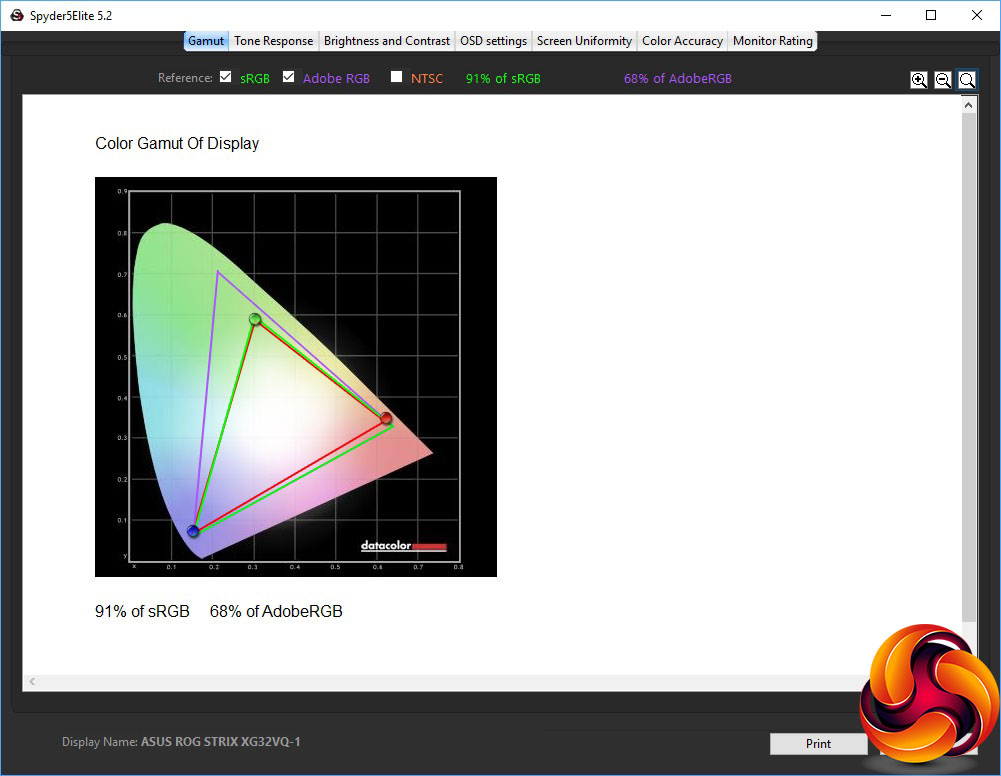
The gamut is just as disappointing as before, with 91 per cent of sRGB and 68 per cent of AdobeRGB.
However, we were subsequently informed by ASUS that this screen has a gamut issue with AMD drivers, and switching these from Auto colour to 6500K fixes this.
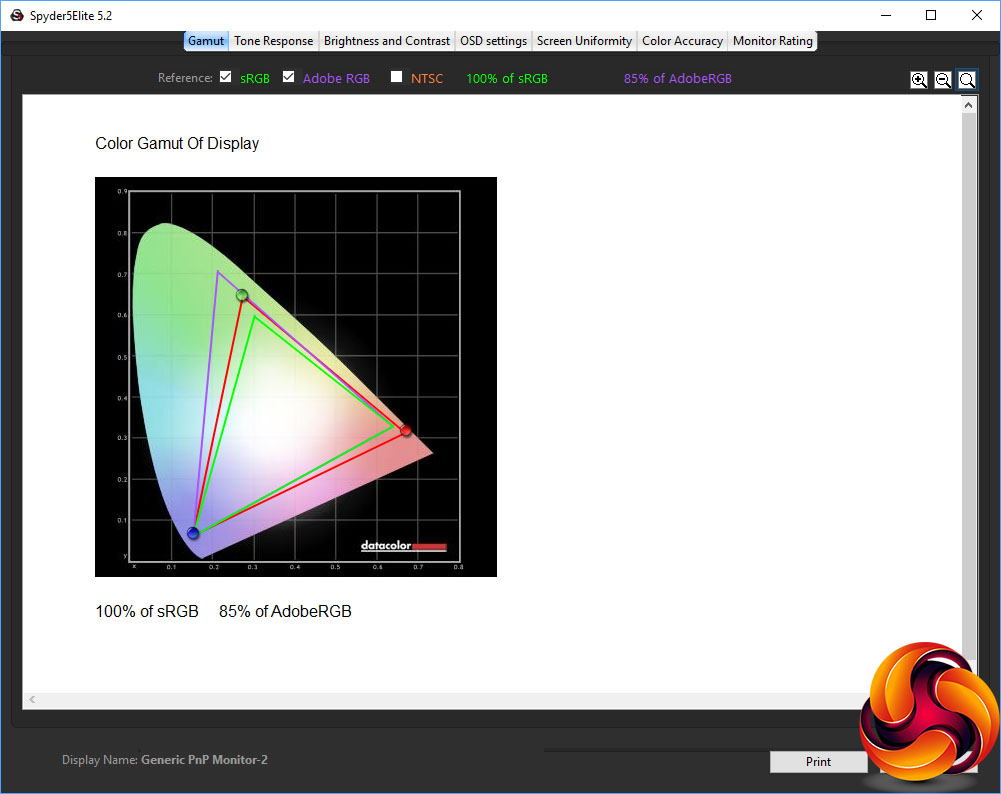
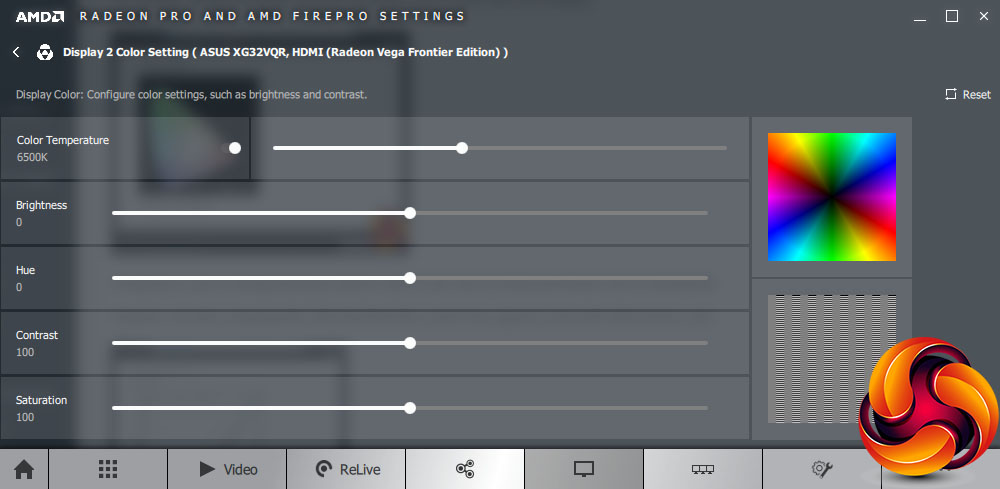
As you can see, the gamut has improved considerably, to reach 100 per cent sRGB (the highest the Spyder can record) and 85 per cent AdobeRGB, which is a much better result.
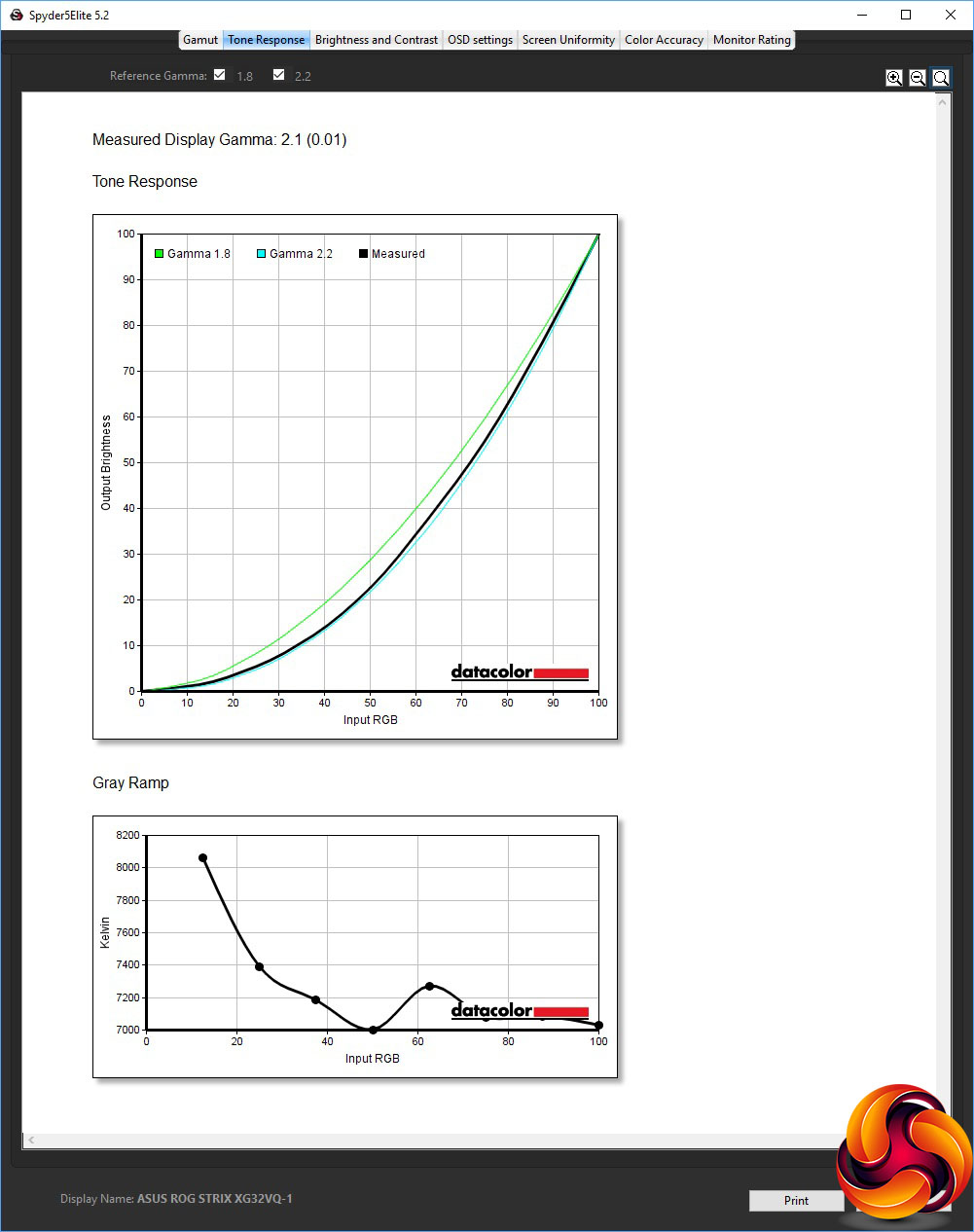
We only retested the default 2.2 gamma preset, which has now dropped to 2.1.
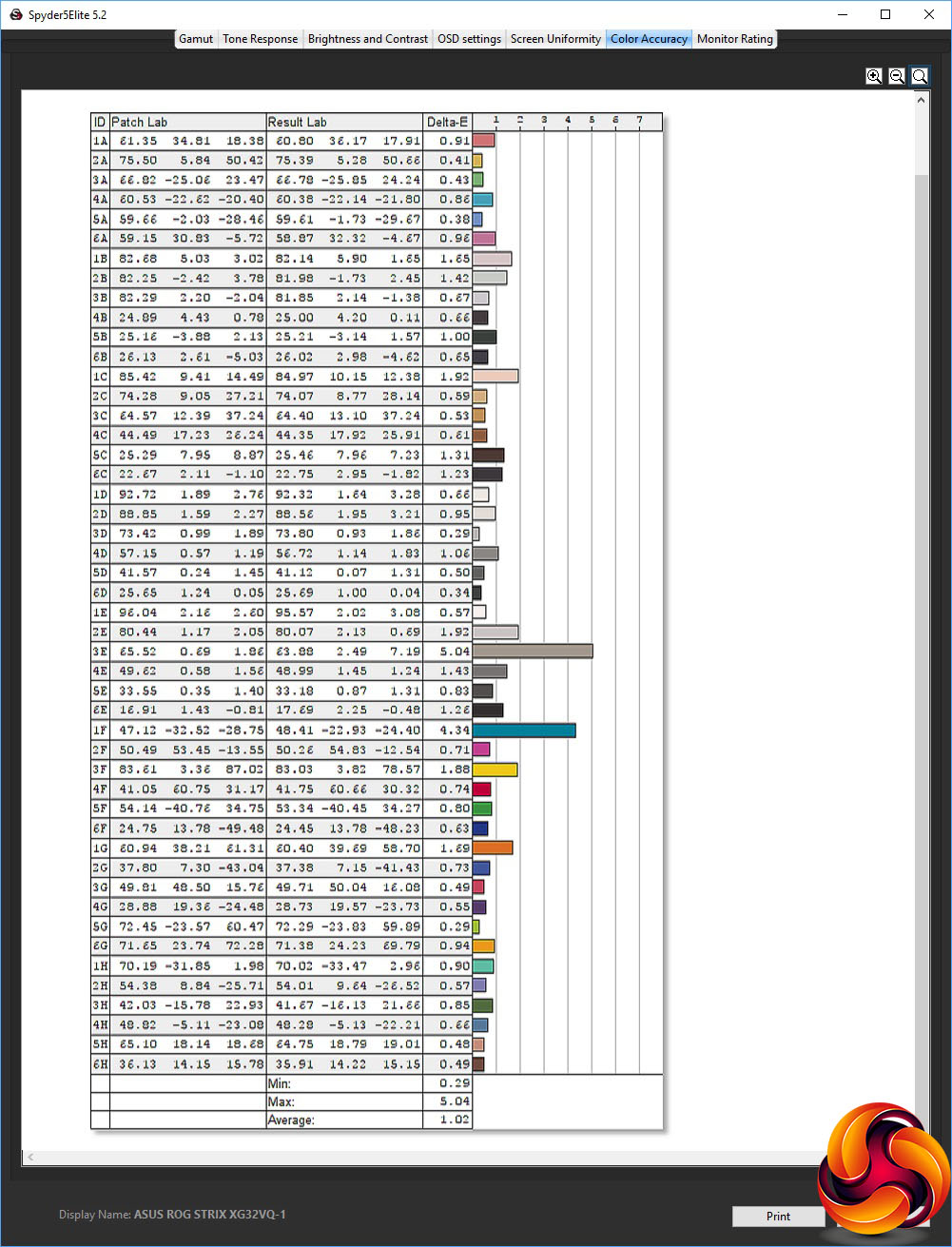
Colour accuracy has improved a little to an even more stunning 1.02 average variation.
We also tested the XG32VQR with a variety of games, using OSD presets where appropriate. We tried CS:GO, Shadow Warrior 2 and Rainbow Six Siege with the FPS present, and League of Legends with the MOBA preset. The experience was great in every case
Overall, whilst this screen does have uniformity limitations, and the weird gamut problem with AMD drivers is something to bear in mind, its colour accuracy is great, making for a slightly mixed bag of performance results, although for its target gamer audience it has plenty to commend it.
The ASUS ROG Strix XG32VQR comes close to fulfilling our dreams as the perfect 32in curved gaming screen. The gamut and uniformity issues take some of the shine off its abilities. But there's still a lot to like about this screen if you're serious about your game experience. The colour accuracy is great and it's reassuring that you have so much brightness on hand.
You don't have to sacrifice a high 144Hz refresh or FreeSync to go curved, either. There are presets for the main game types and useful extras like hardware crosshairs and a frames-per-second display. The resolution of 2,560 x 1,440 is also a current sweet spot for what graphics hardware can deliver smoothly.
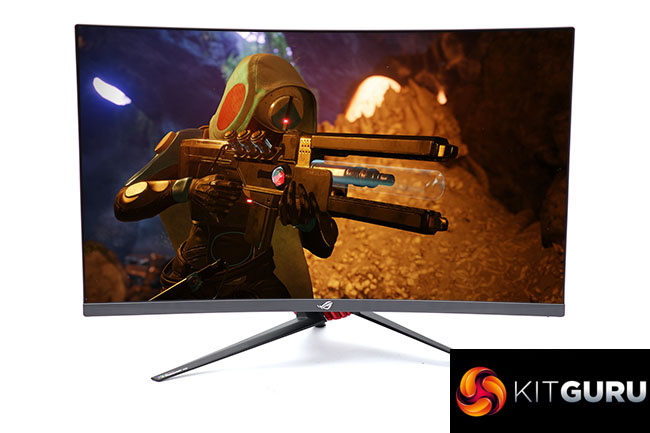
The customisable lighting adds some welcome bling, and the USB 3.0 hub is useful for centralising your keyboard and mouse connections, although their inaccessibility will make their use for Flash memory drives less convenient. The number of video inputs is reasonable, too, and the menu system easy to operate with the joystick.
Overall, the ASUS ROG Strix XG32VQR is a very good gaming screen, despite a few quality issues. However, you are paying a significant premium for these features and abilities. So whilst this monitor is well worth buying, it's not quite the absolute must-have in its class.

The ASUS ROG Strix XG32VQR is available from Overclockers UK for £569.99.
Pros:
- Great colour accuracy, and even better when calibrated.
- 144Hz refresh-rate.
- Curved panel.
- Very bright.
- FreeSync adaptive frame rate synchronisation.
- Lots of options via well designed OSD.
- Useful extra gaming functions including crosshairs.
- Comprehensive physical adjustment.
- USB 3.0 hub.
Cons:
- Gamut needs 6500K colour setting with AMD drivers.
- Mediocre brightness and colour uniformity.
- Expensive.
KitGuru says: The ASUS ROG Strix XG32VQR has great colour accuracy and excellent gaming features. Although it's pricey, this is still a great choice for big-screen curved entertainment.