KitGuru KitGuru.net – Tech News | Hardware News | Hardware Reviews | IOS | Mobile | Gaming | Graphics Cards


MSI is continuing to expand its professional monitor line-up, and latest to hit the KitGuru test bench is the Modern MD272QP Ultramarine. This is a screen with no pretensions of crossing over into gaming. While it does support AMD FreeSync, it is built around an IPS panel that will be much better suited to productivity than entertainment applications, although it has strengths when watching video. This screen also offers USB-C video input and KVM capabilities, giving it potential for hot-desk workers.
The MSI Modern MD272QP Ultramarine has a decent if not particularly eye-catching specification. This is a 27in panel with a native resolution of 2,560 x 1,440. The maximum refresh rate is 75Hz. No mention is made of the maximum brightness, but the contrast is 1,000:1, which is typical for an IPS panel. MSI only claims an sRGB colour gamut of 95 per cent, which is a bit of a surprise for a professionally focused screen. Pixel response is also the typical 4ms grey-to-grey of IPS.
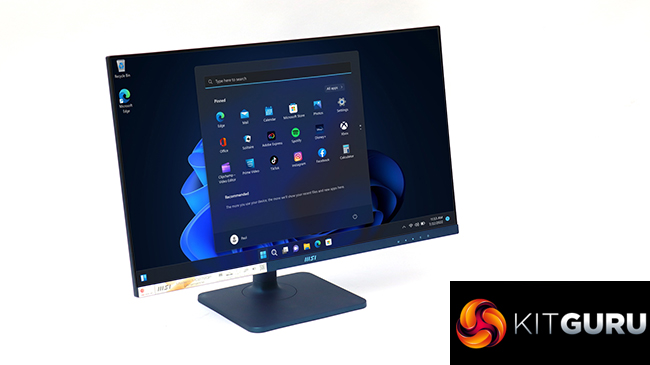
All the important video inputs are present, although only one of each. Alongside HDMI and DisplayPort is USB-C. With a secondary USB Type B connection and the ability to switch between them, this screen offers KVM functionality. There is a minijack audio output plus built-in 2W speakers. Physical adjustments are comprehensive, including tilt, swivel, raising and lowering, plus the ability to rotate into portrait orientation.
On paper, the MD272QP ticks all the boxes for workplace usage, and for a penny under £270 it's not too expensive, but does it go beyond this? We put the screen through its paces to find out.
Specification:
- Screen size: 27-inch, 16:9 aspect
- Native resolution: 2,560 x 1,440
- Curvature: No
- Refresh rate: 75Hz, AMD FreeSync
- Panel type: IPS
- Contrast ratio: 1,000:1 (typical)
- Brightness: Not stated
- Response time: 4ms Grey to Grey
- Display inputs: HDMI 1.4b, DisplayPort 1.2 x 1, USB-C x 1 (with 65W power delivery)
- USB hub: Yes, Type B or USB-C input, 2 x USB 2.0 outputs
- Tilt: 5 degrees forward, 20 degrees backward
- Raise: 110mm
- Swivel: 30 degrees left or right
- Portrait: Yes
- Other: Audio output minijack, 2W stereo speakers
Retail Price: £269.99 (inc. VAT)
The MSI Modern MD272QP Ultramarine is a business screen, so the packaging is quite sober.
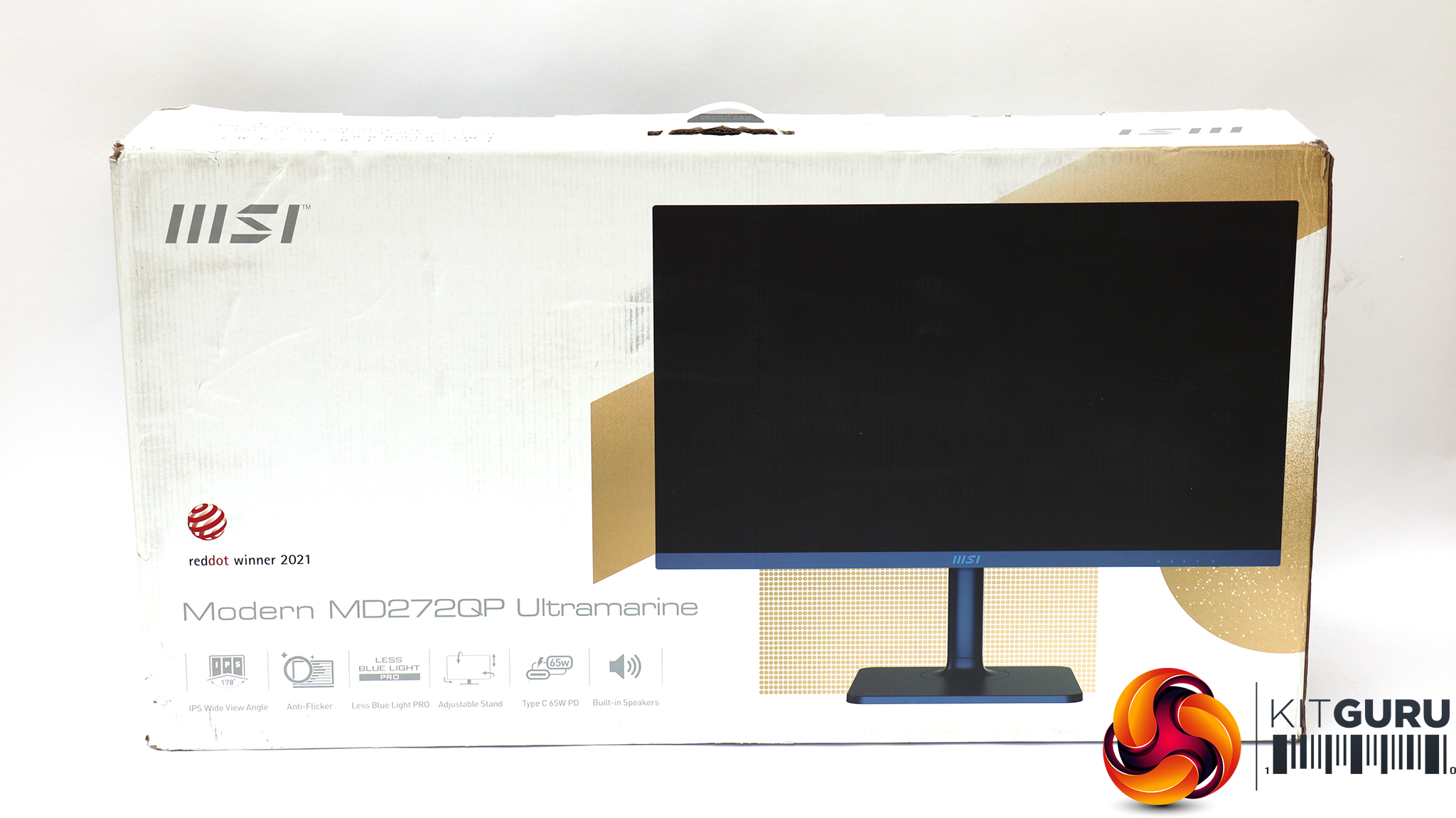
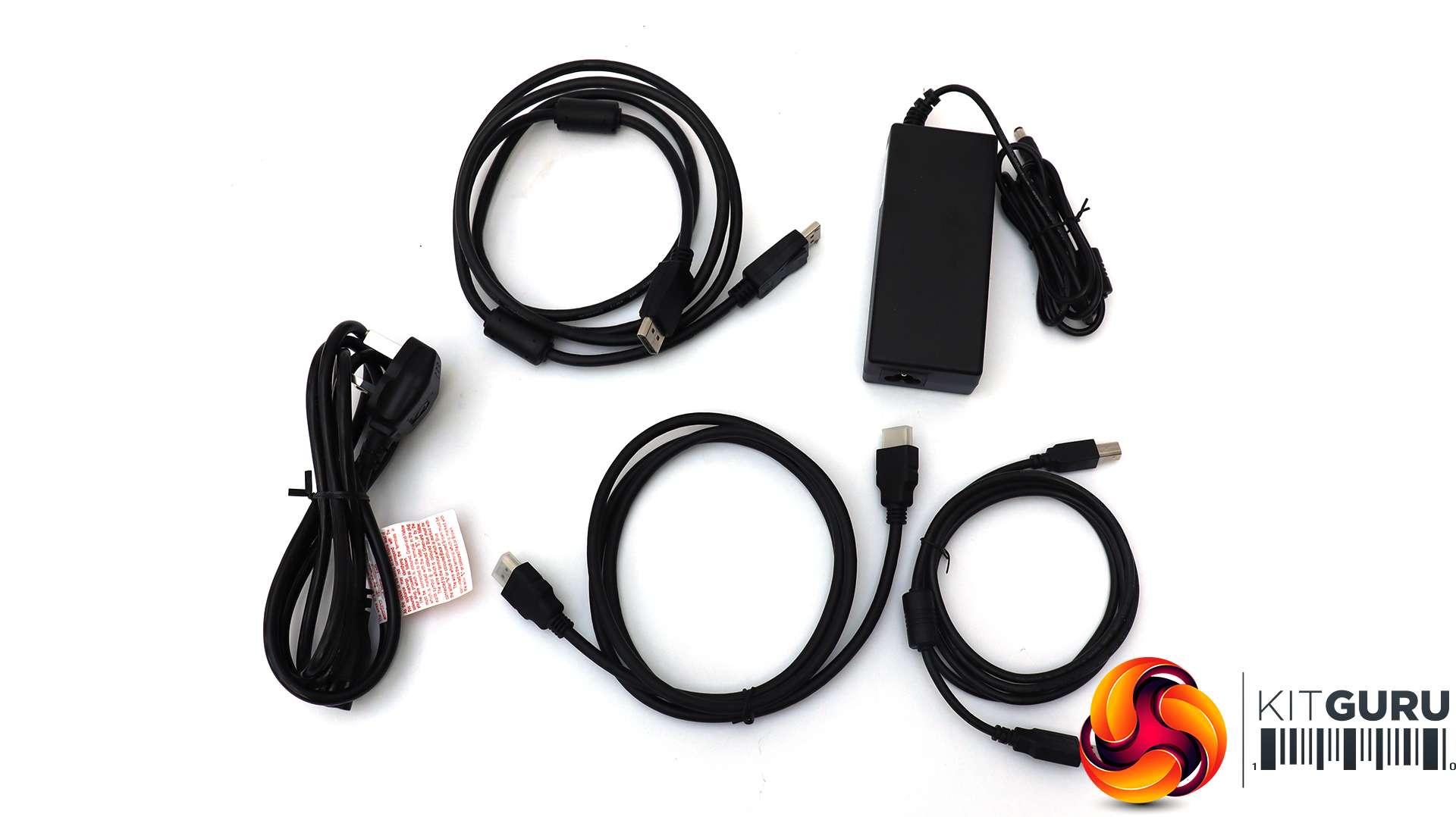
Inside there are cables for DisplayPort, HDMI, and USB Type B upstream cables, but sadly not USB C, so you will need to supply this yourself. There's also a power brick and the requisite mains cable to go with it..
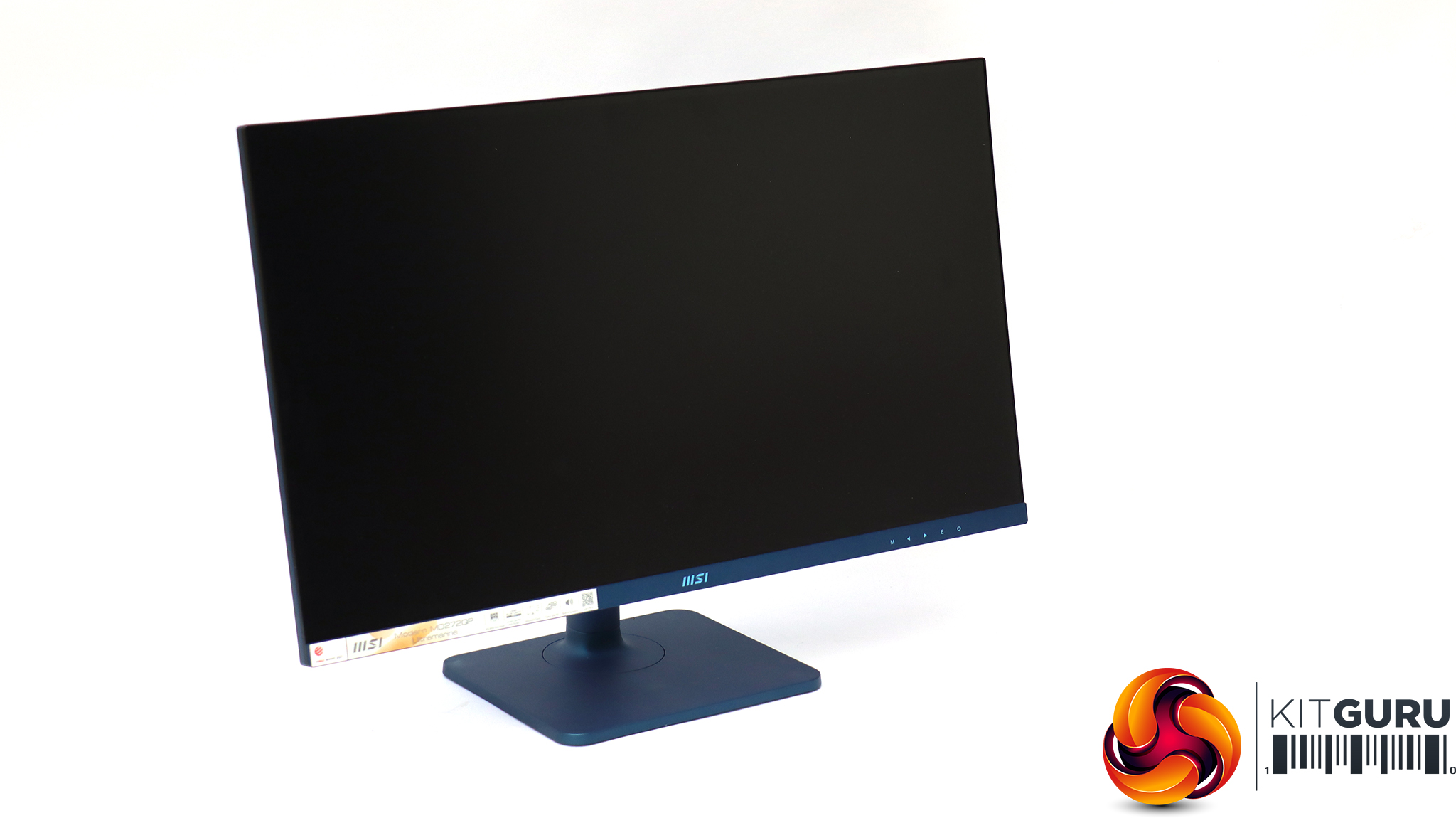
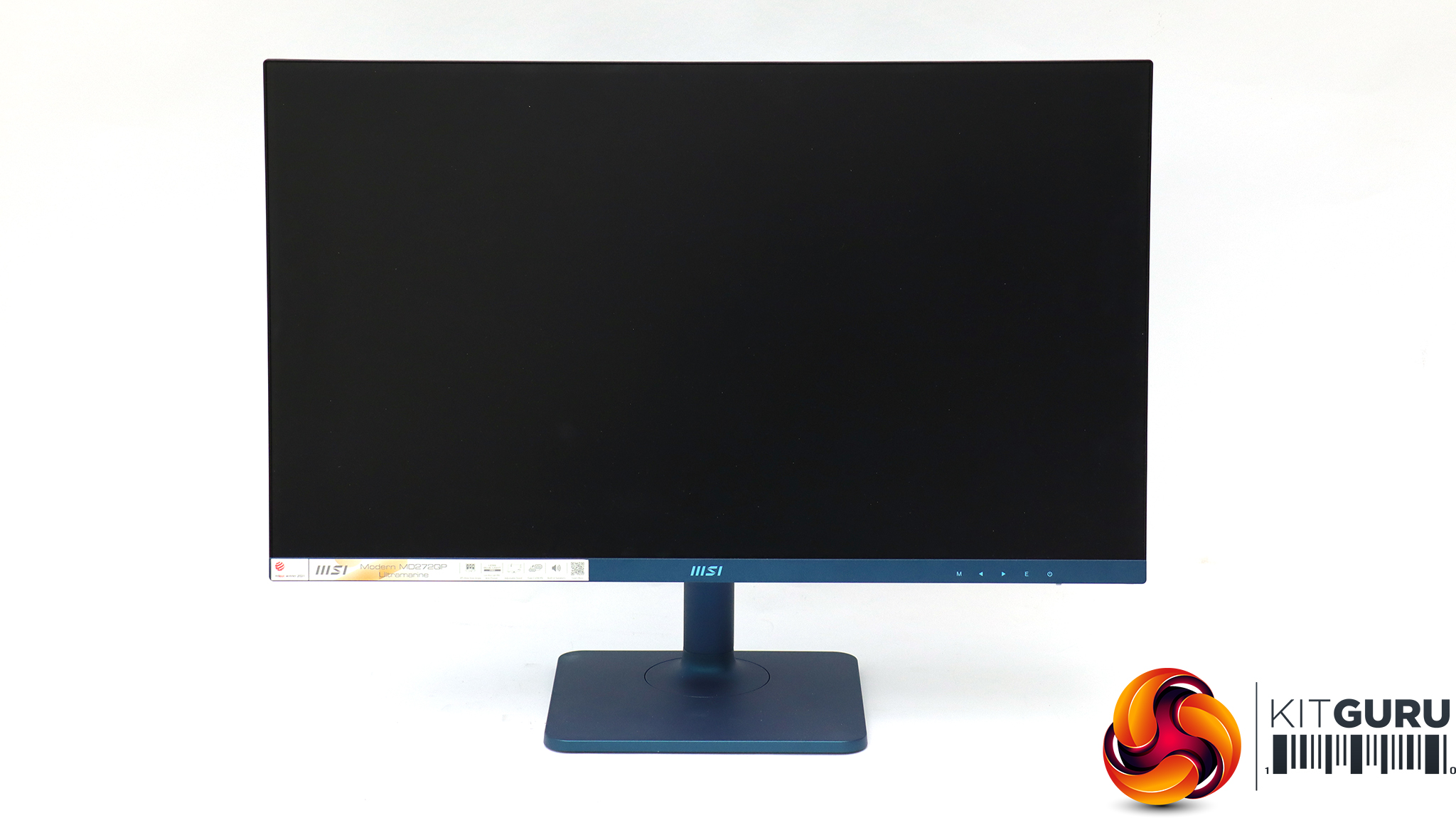
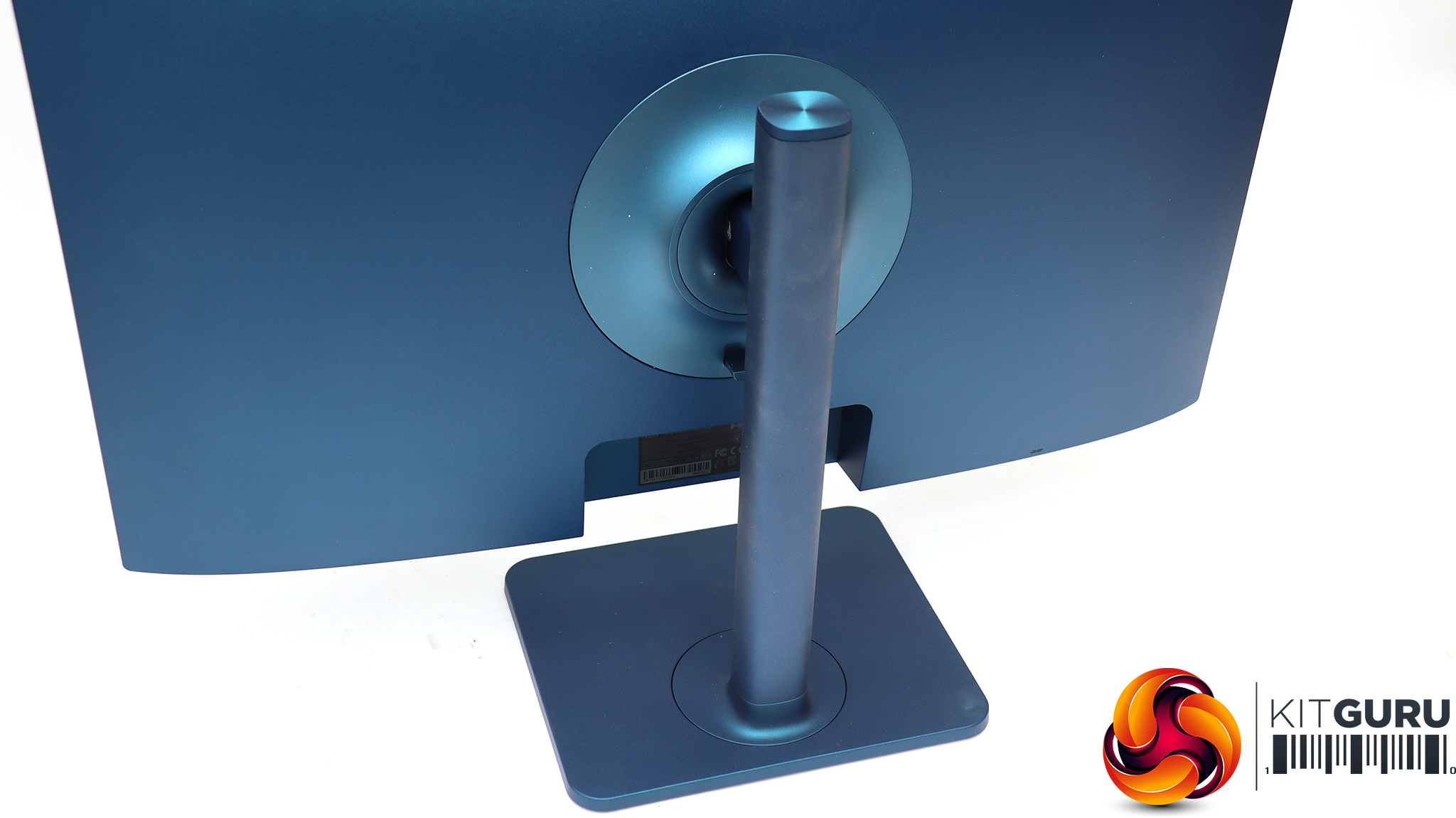
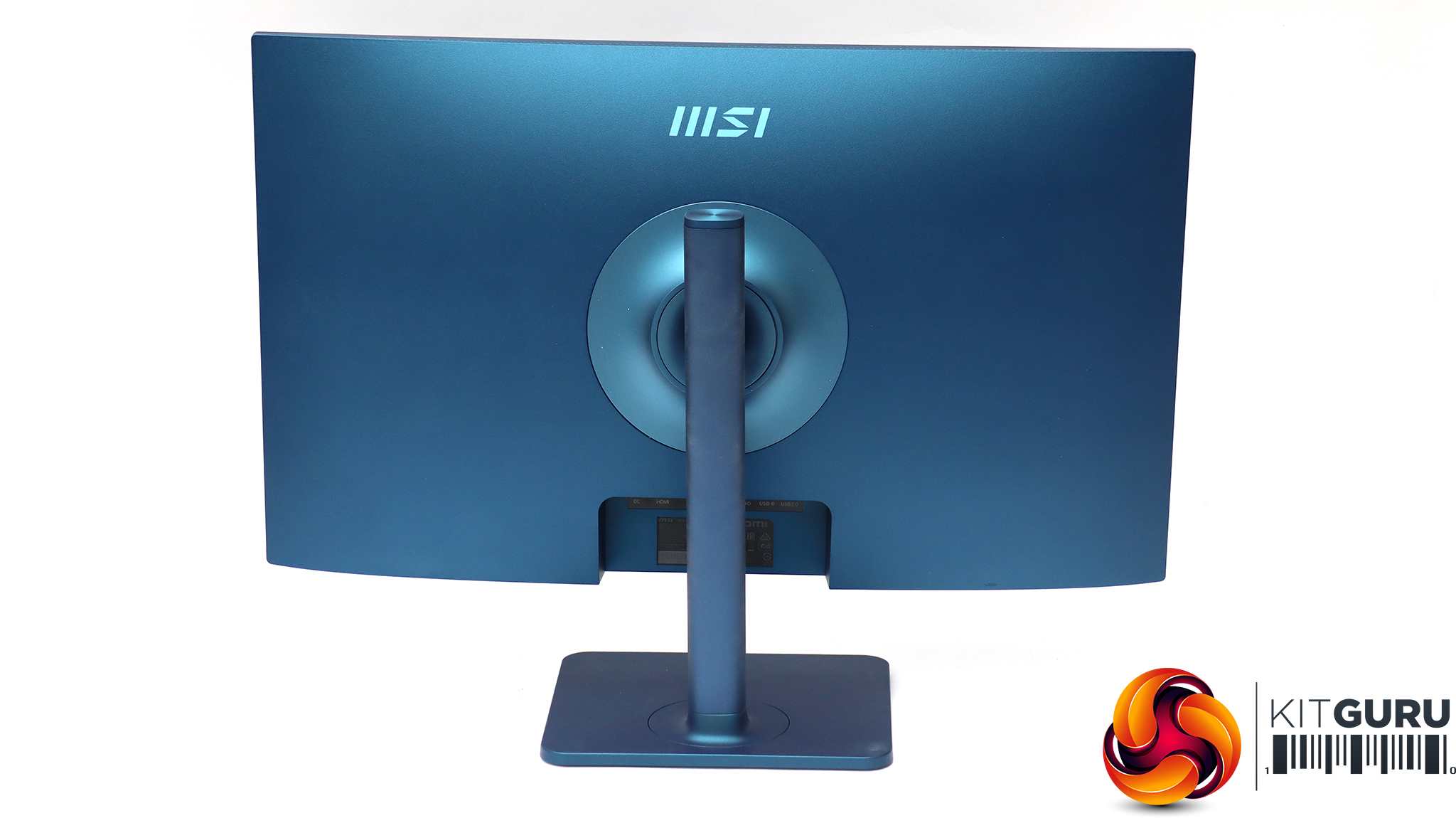
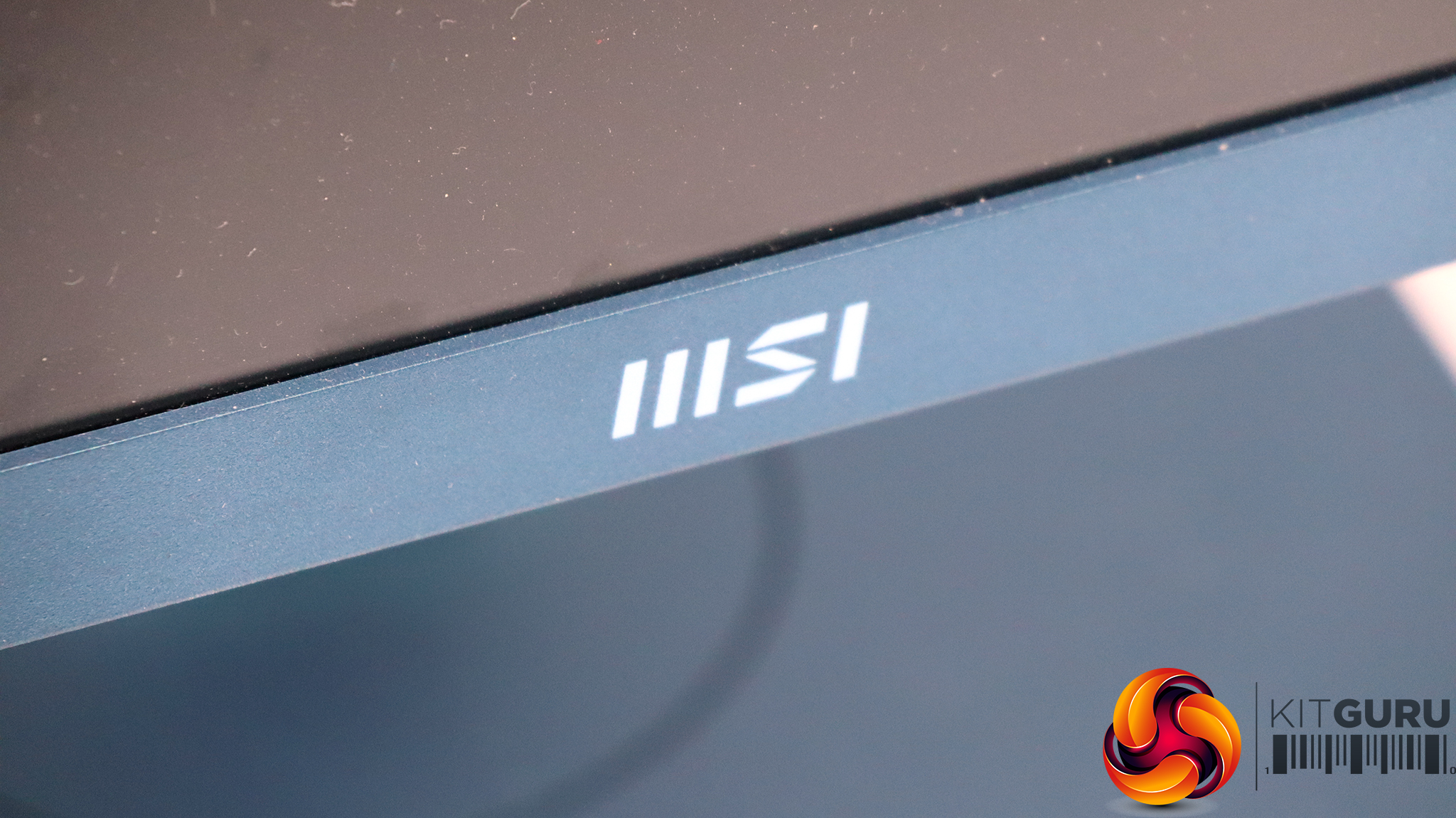
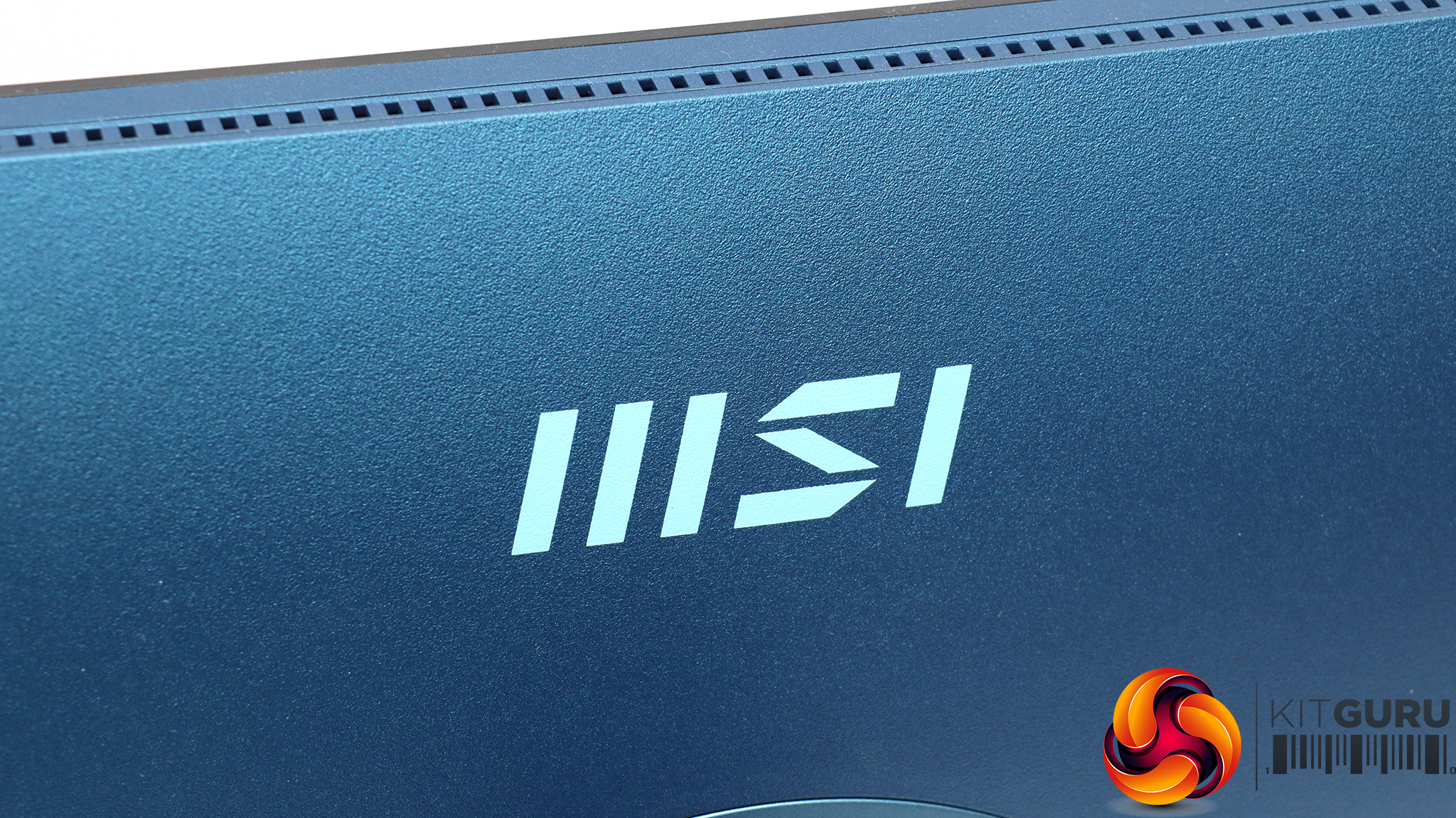
The “Ultramarine” part of the MD272QP's name clearly refers to the main colour of the monitor, which is a bright metallic blue. It's not quite the classic ultramarine blue made from lapis lazuli, but this is without doubt a handsome screen. The overall build has a quality feel as well.
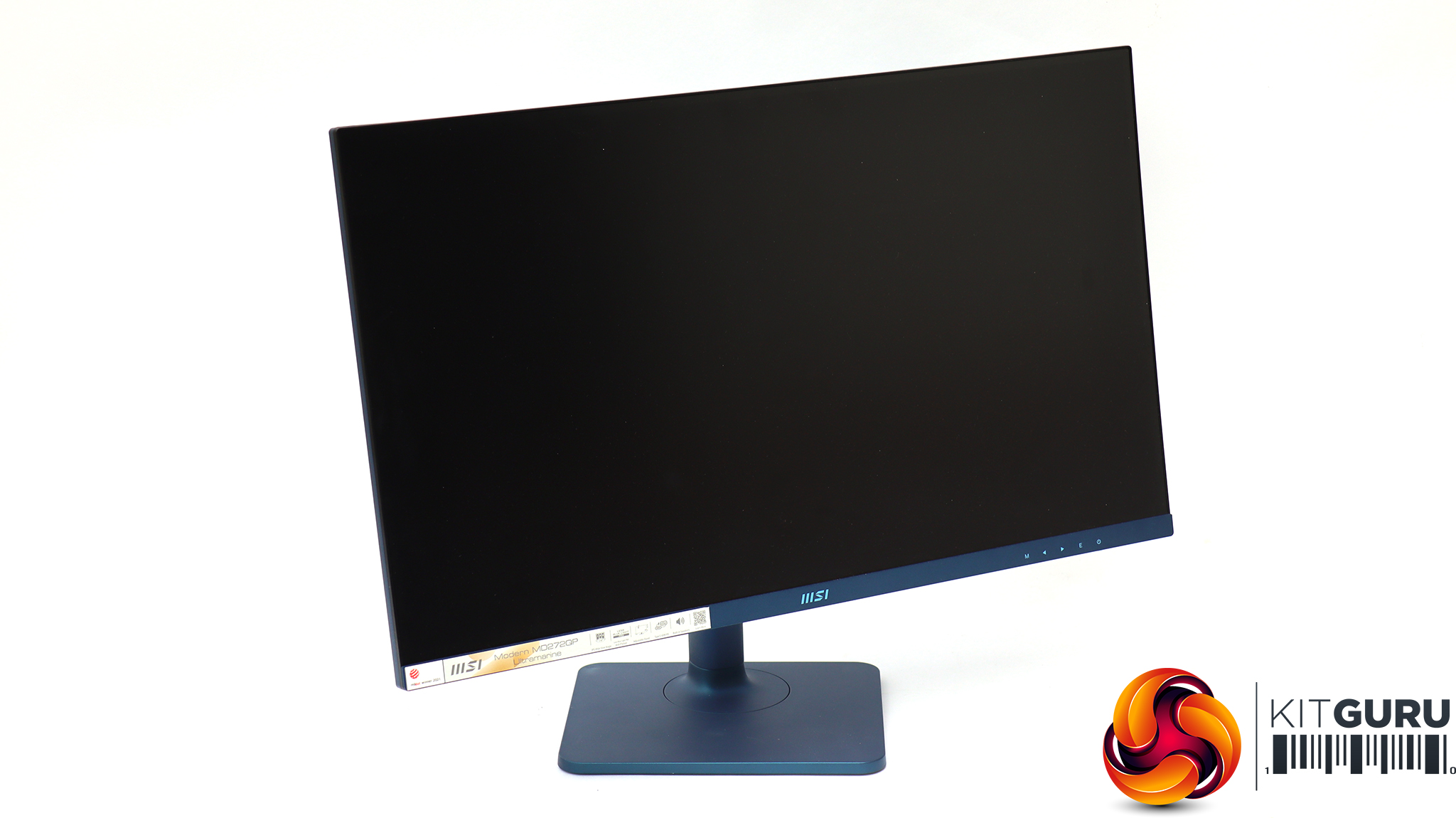
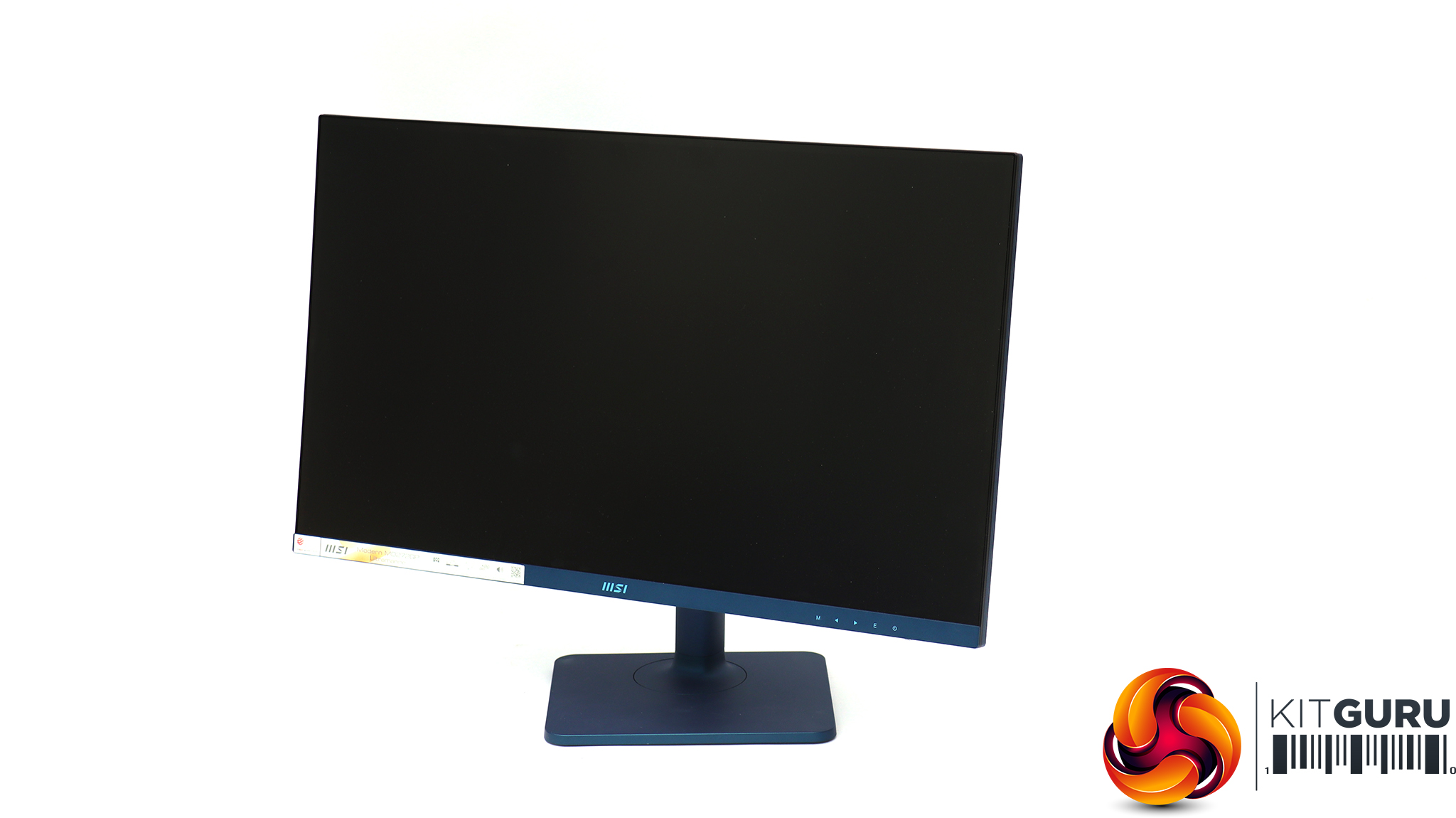
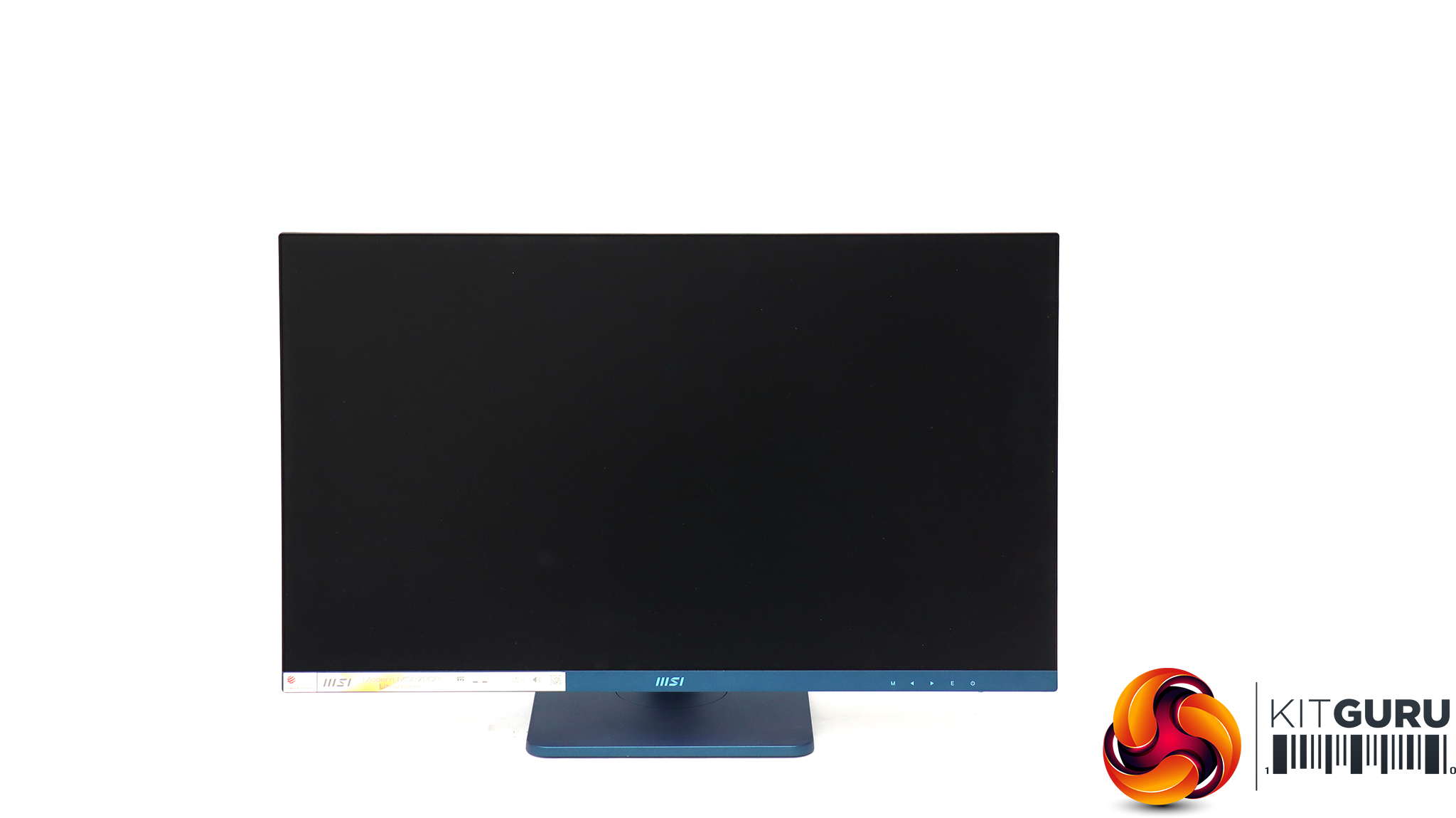
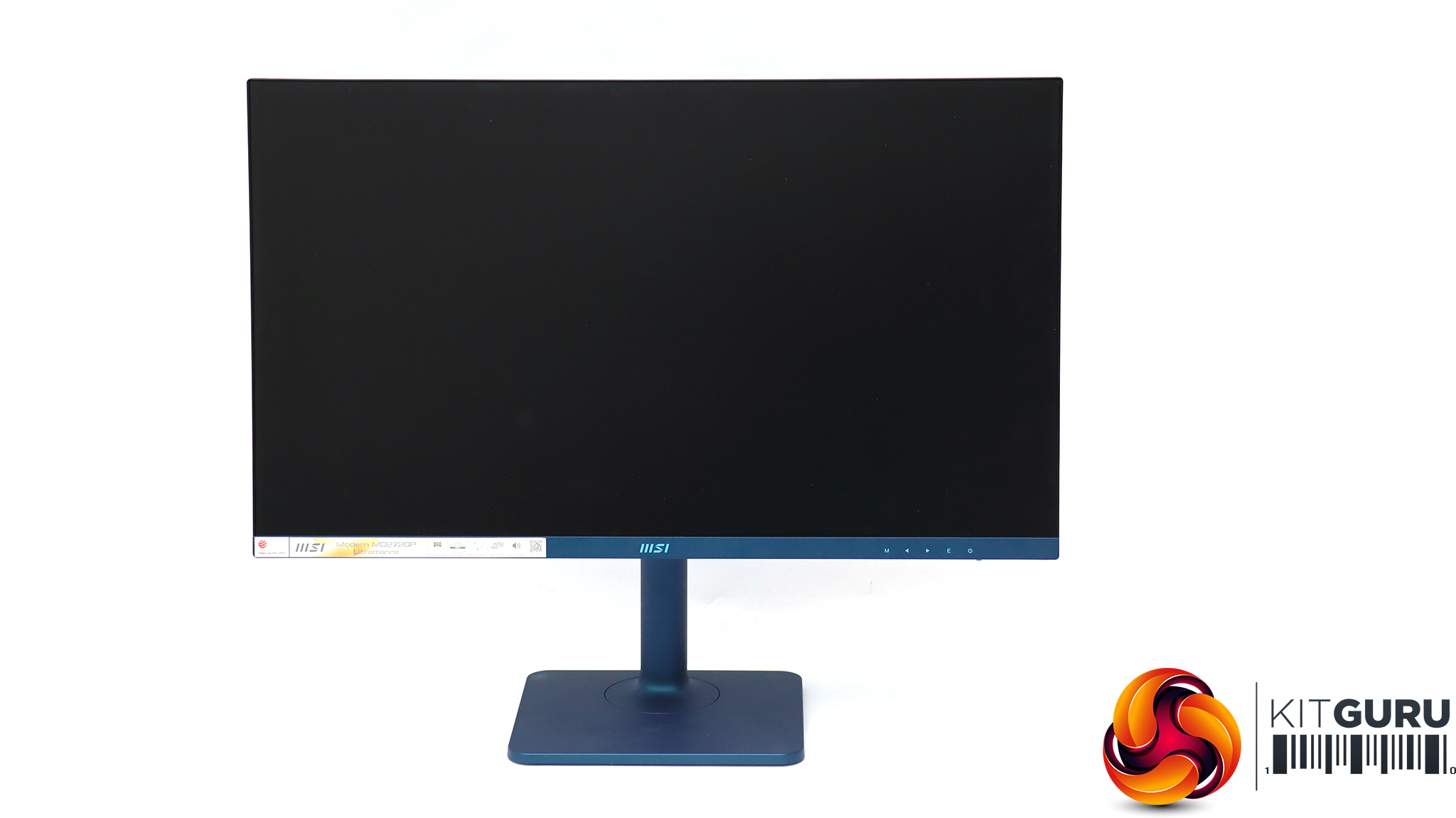
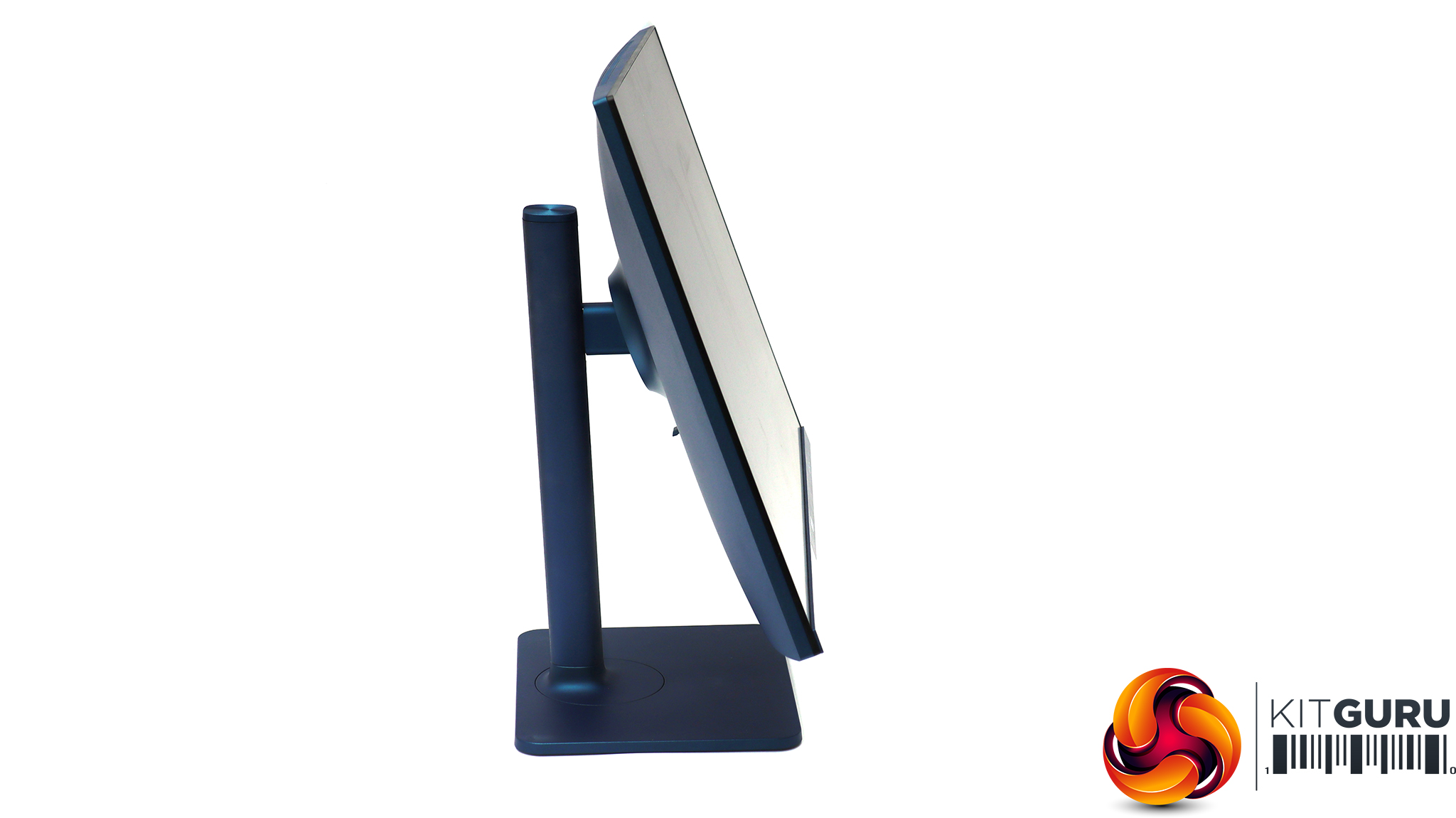
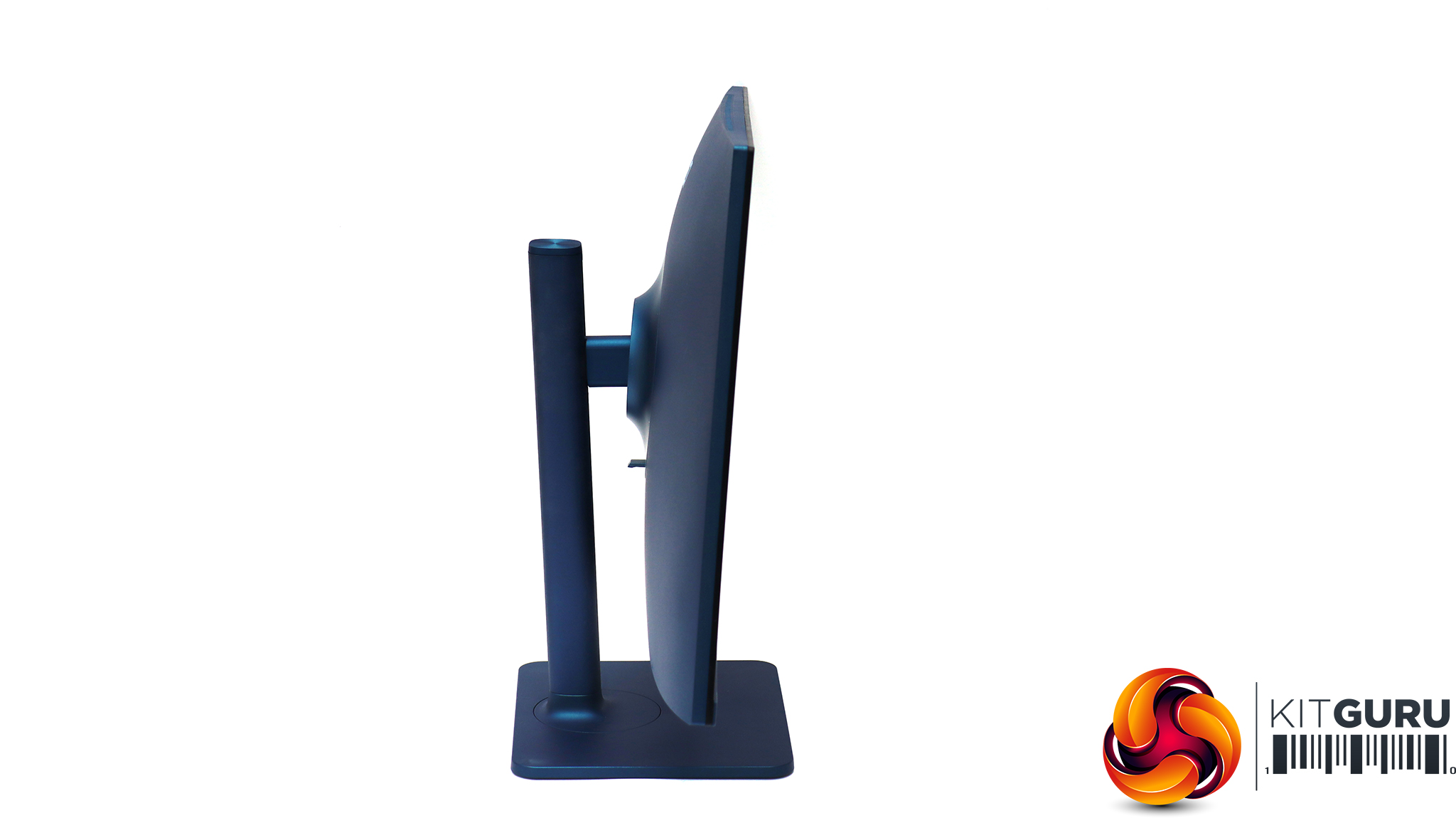
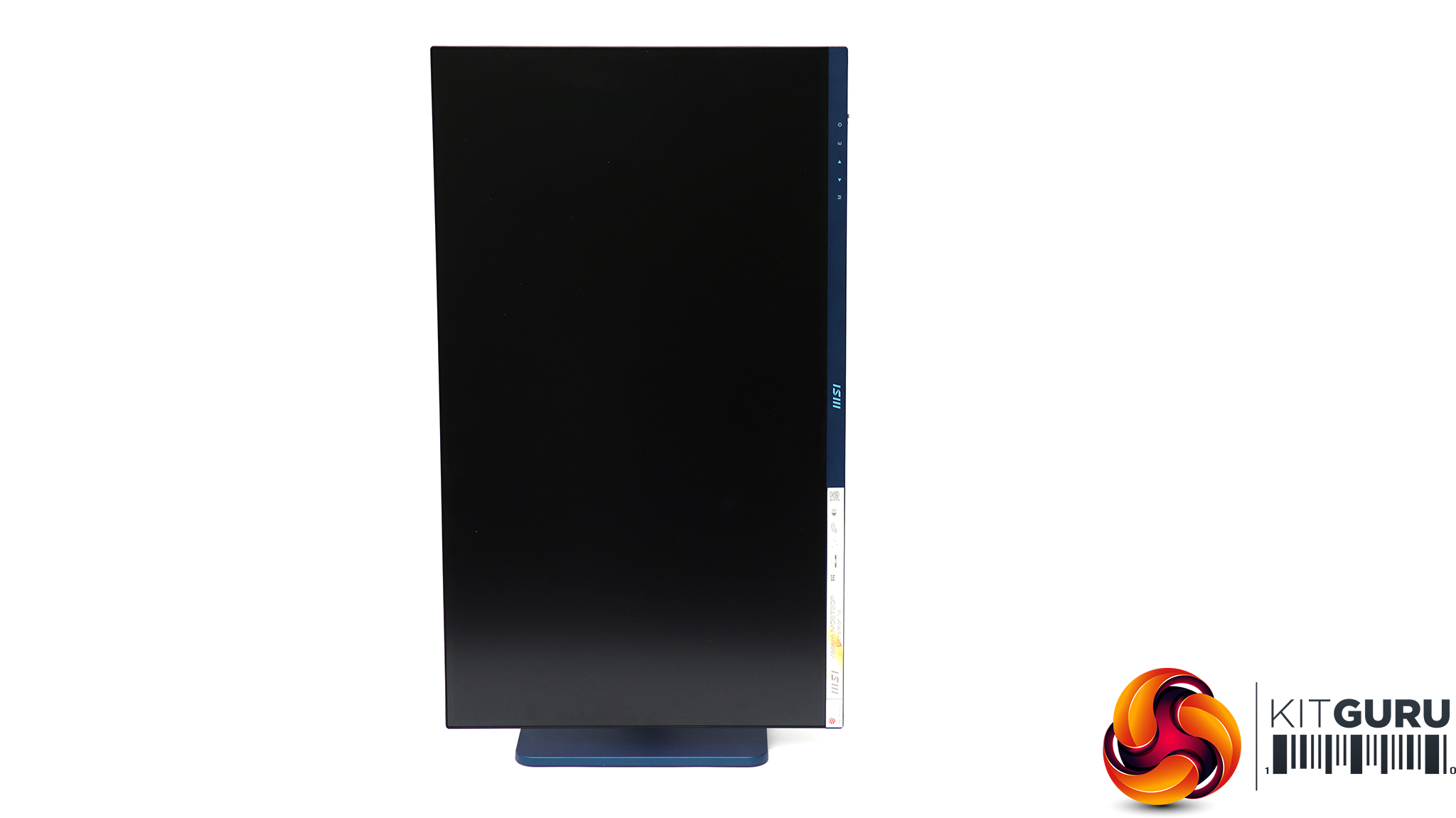
All the requisite adjustments are available. You can swivel the screen 30 degrees in either direction, or raise and lower it through a 110mm range. Tilt angles are 5 degrees forward or 20 degrees backward. You can also rotate the panel by 90 degrees into a portrait orientation.
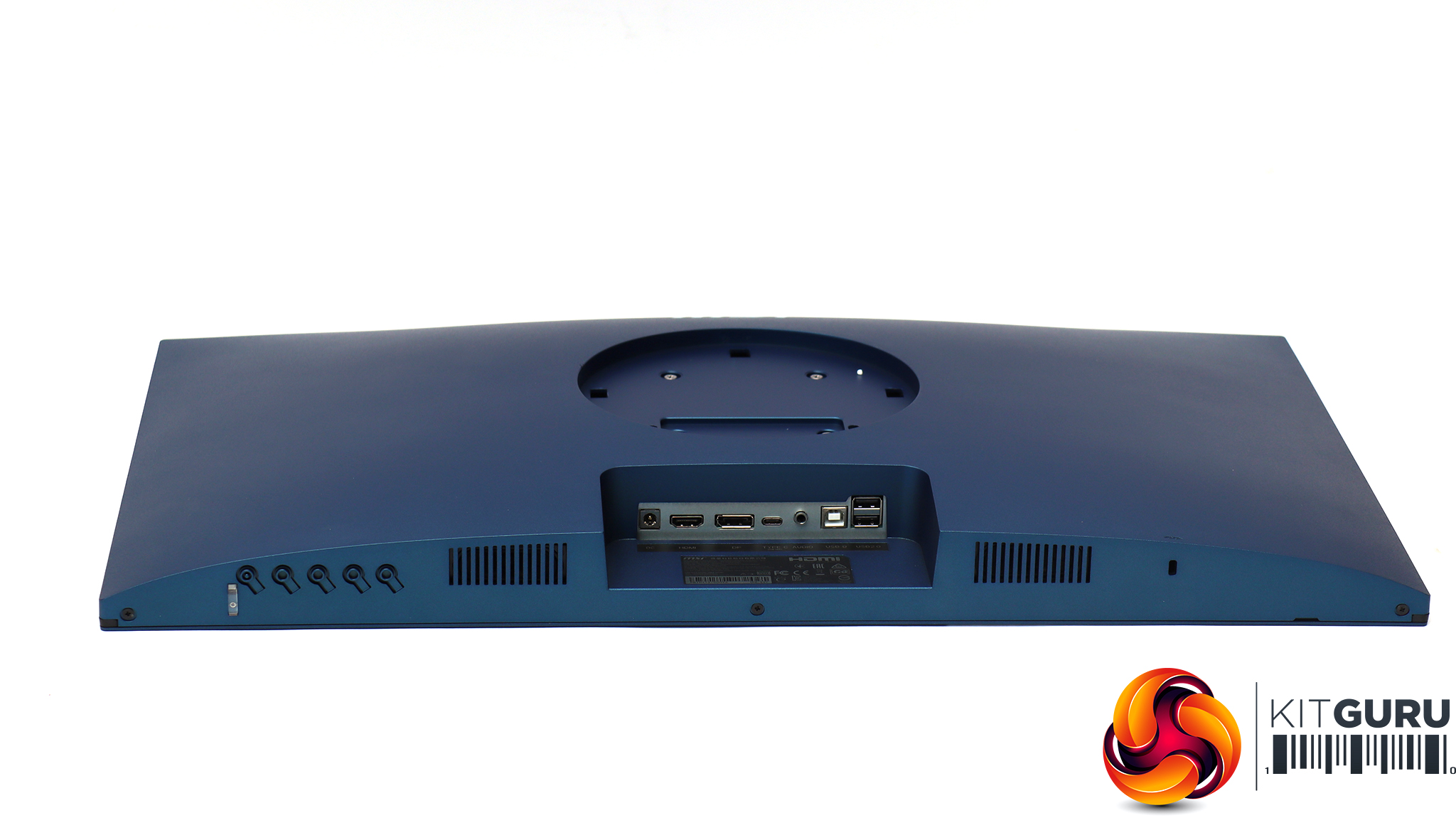
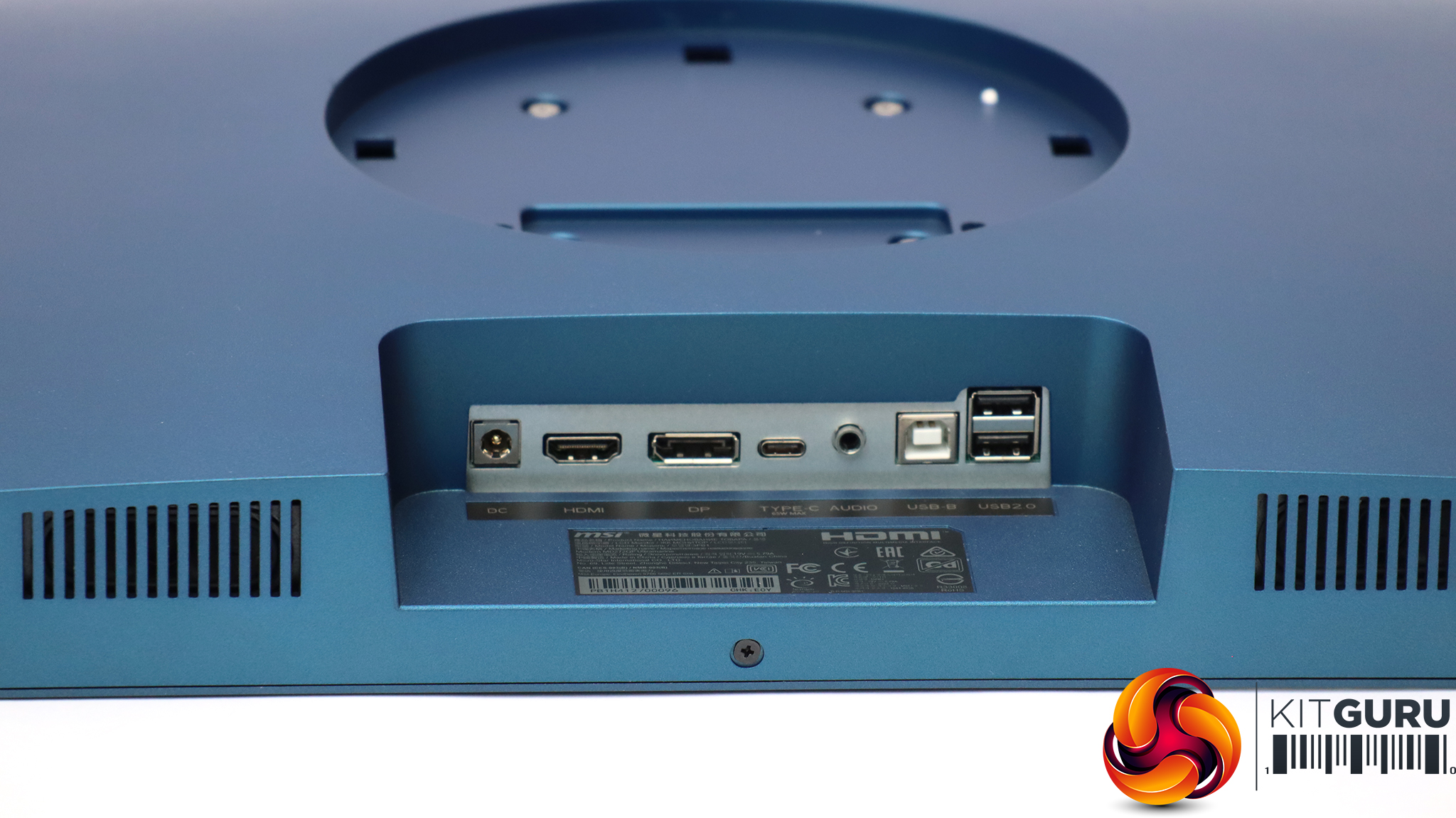
The port allocation is comprehensive, although there is only one example of each type. Next to the input for the power from the external supply is a single HDMI 1.4b port. The DisplayPort is only 1.2 level, although that will be sufficient for the resolution and refresh rate available. The USB-C port supports DP Alternate and can supply up to 65W. This means that a compatible notebook will only need one cable to receive power while delivering video and USB connectivity to the screen.
Next along is a minijack for analog audio output, aimed at headphones, although there are also stereo 2W speakers built in. Then there is USB Type B 2.0, which is clearly only intended for keyboard and mouse, as the two Type A ports are also only 2.0 level. However, since this screen supports KVM functionality, you can attach a keyboard and mouse to these two ports, with a desktop PC attached via HDMI or DisplayPort and the Type A USB. You could then attach your notebook via a single USB C cable and switch the screen, keyboard and mouse to driving that – a handy capability for some business users.
It is a shame that there are no USB 3.0 ports, however, because it's always handy to have these on a screen for quick attachment of external storage devices such as Flash memory drives.
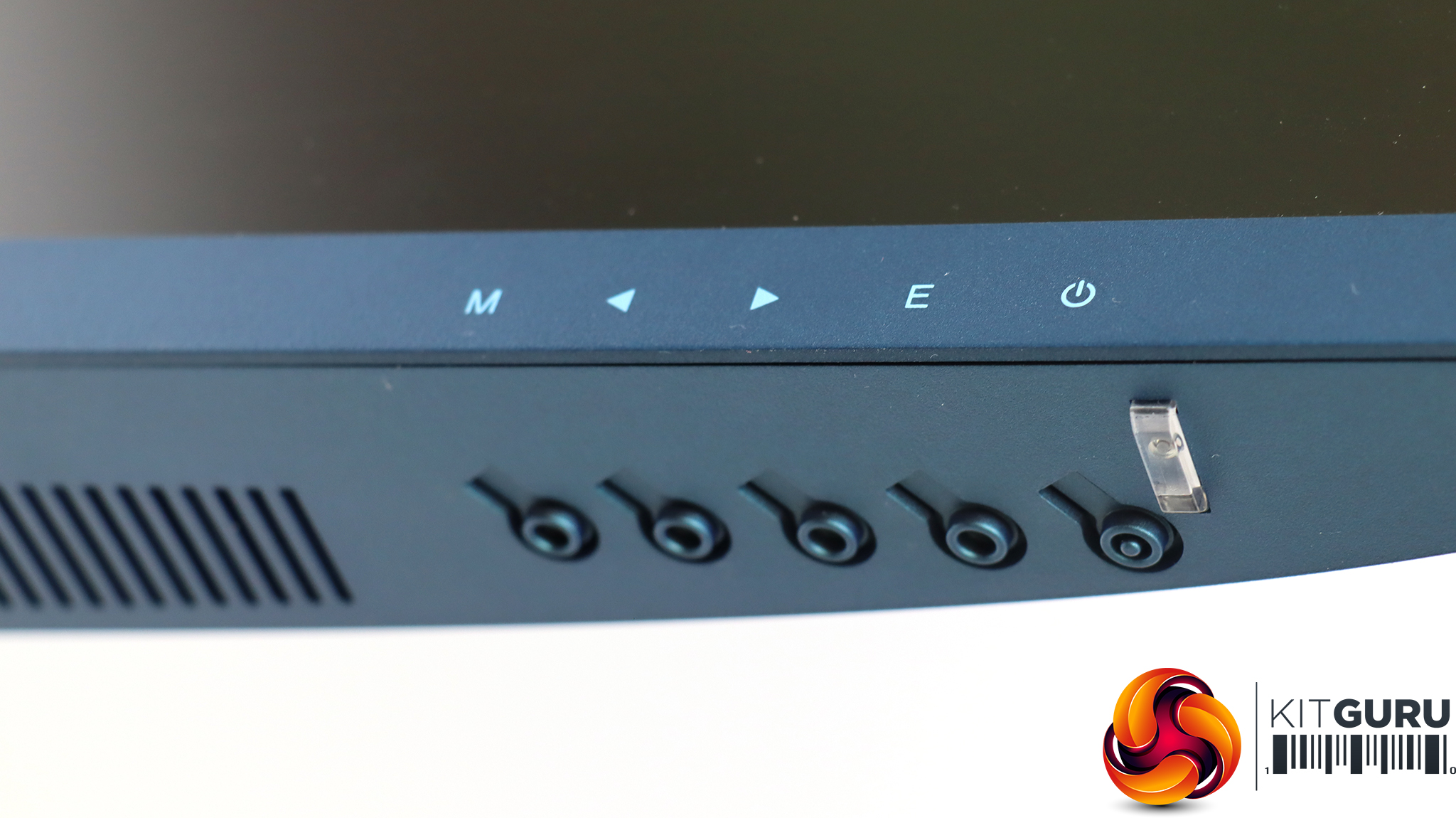
Five buttons along the bottom of the screen bezel on the right operate the settings for the OSD, which we will turn to next.
Starting from the right, the first control button turns the monitor off and on. The other buttons have double functions, calling up quick options and then providing navigational features.
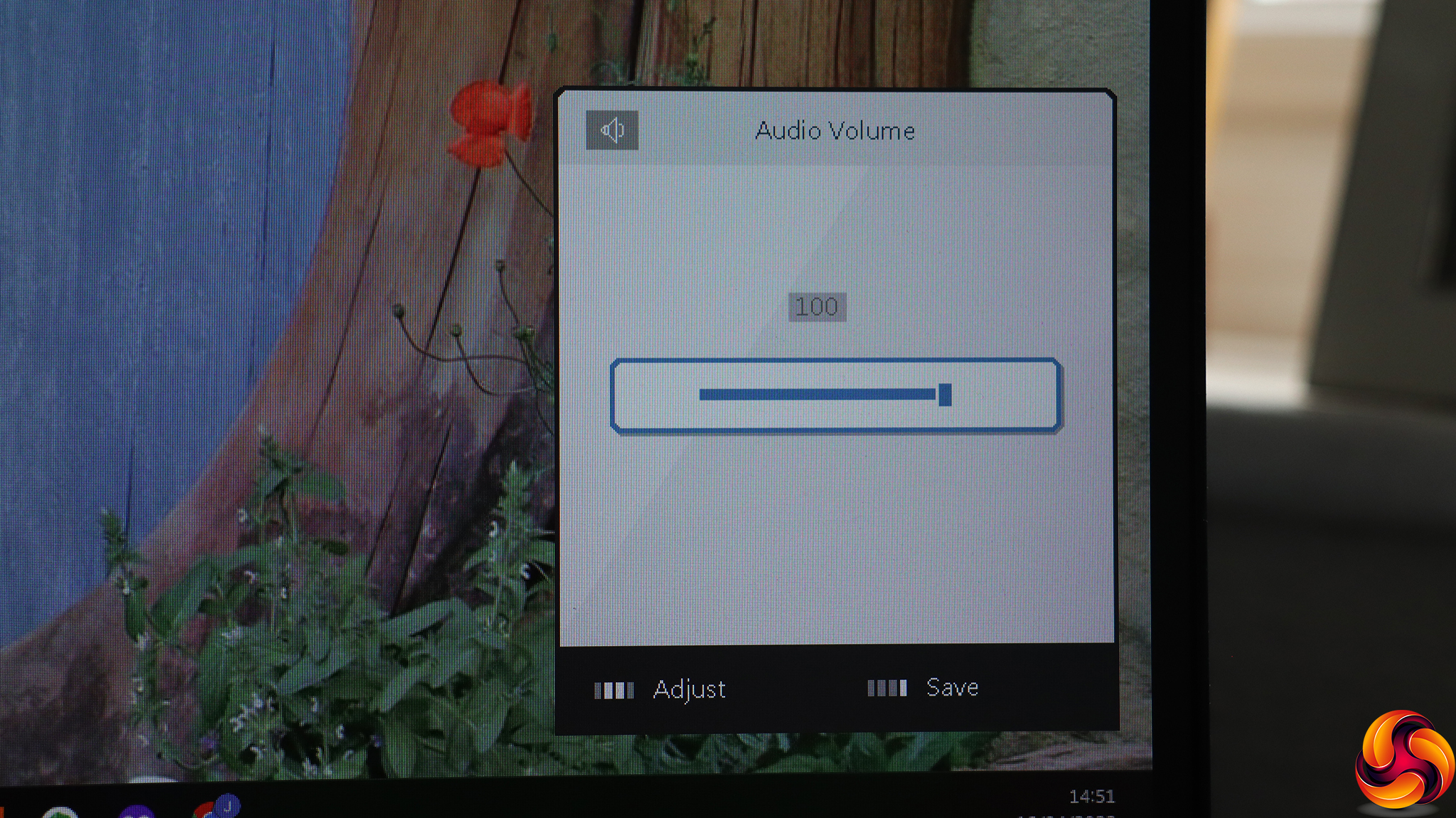
Pressing the next button along, labelled E, calls up a volume control for the built-in speakers (or attached headphones).
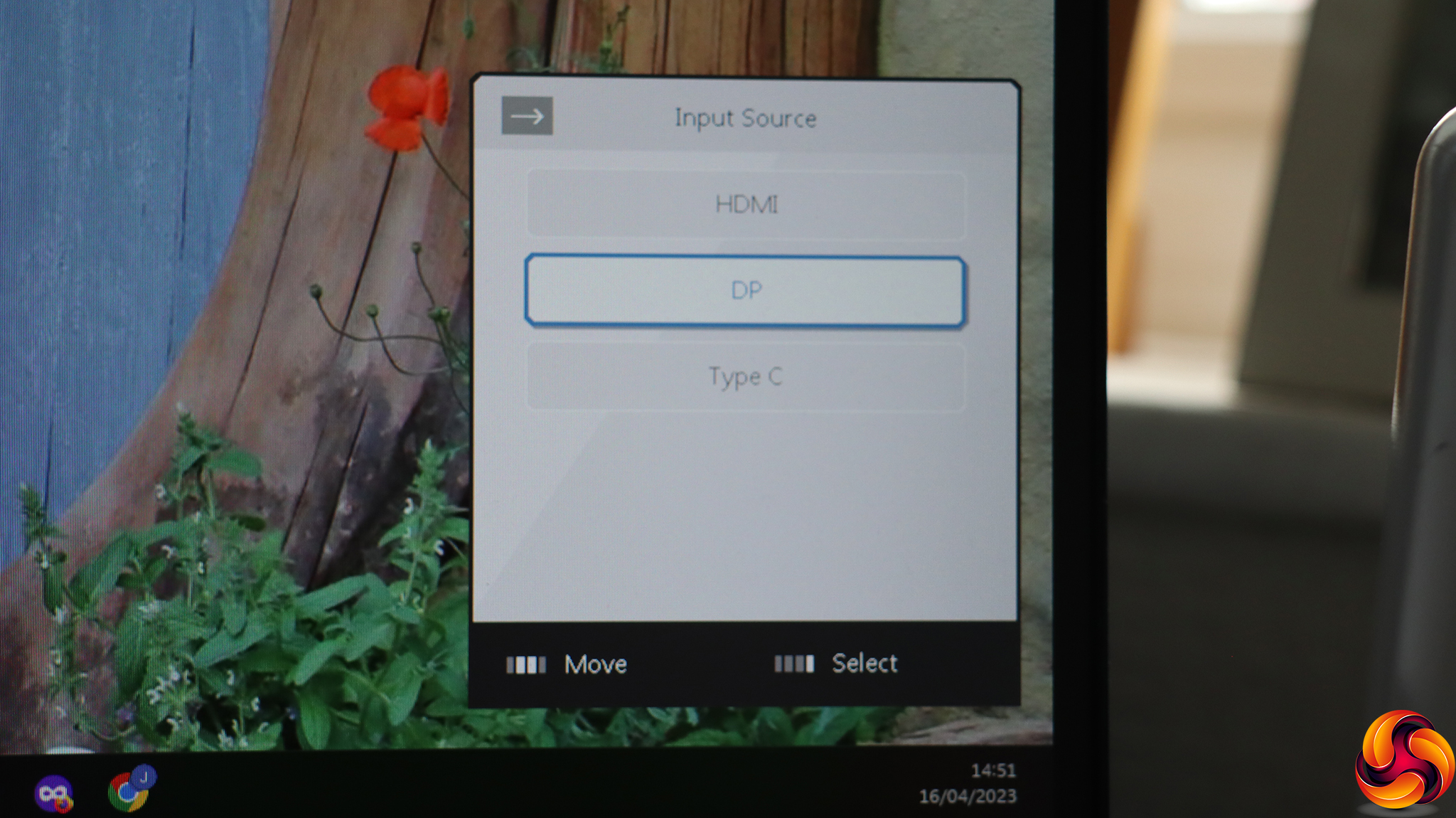
Pressing the next button along, represented by an arrow pointing right, let's you choose between the three video inputs – HDMI, DisplayPort or USB Type C.
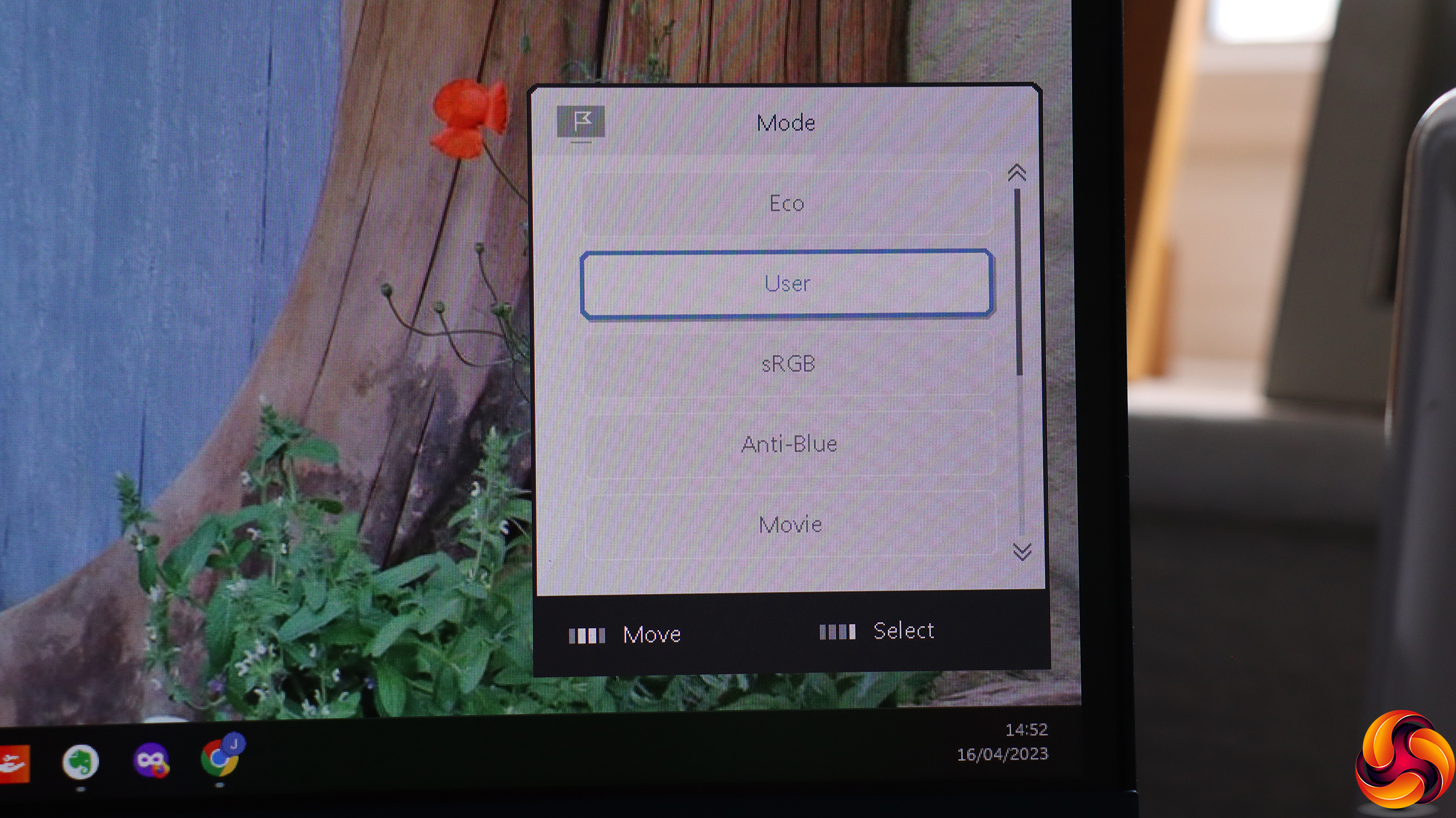
The third button along, with an arrow pointing left, calls up the Mode presets. Aside from the default User option, these include Eco, sRGB, Anti-Blue, Movie, Office, and Black-White. Note that there are no gaming-focused presets here, because that's not the target audience for this screen.
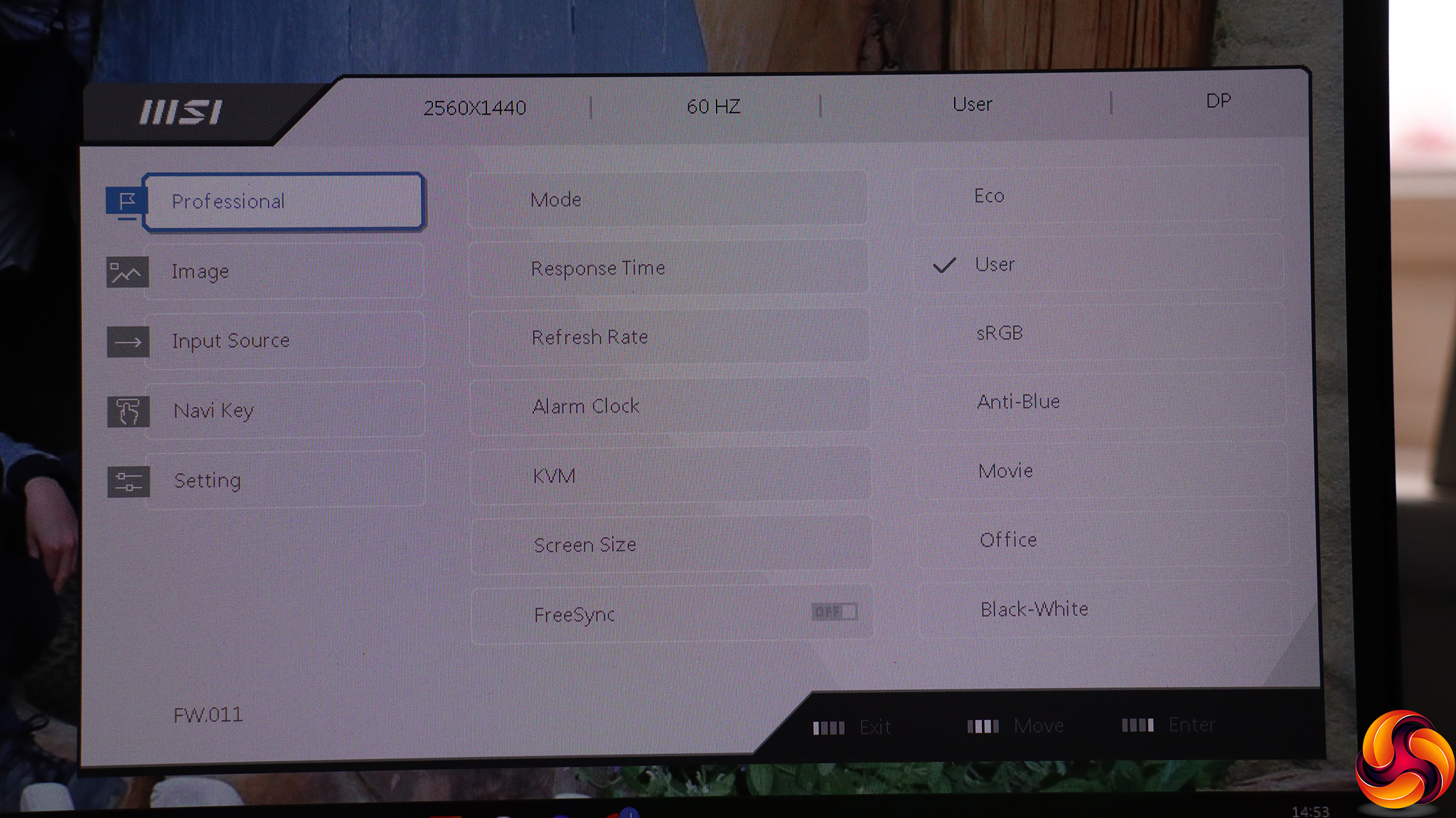
The left-most button, labelled M, calls up the main menu. The default submenu that appears is called “Professional”. Here you can choose the Mode preset, select between Normal, Fast or Fastest pixel response, and display the current refresh rate in one of the corners. We're not sure how this is useful in a monitor not aimed at gamers. The Alarm Clock lets you set a timer, which could be more useful if you have a fixed period to complete a task or need to take screen breaks, with intervals up to 100 minutes available.
The KVM option is for choosing whether the Type A Upstream port or Type C drives the USB ports, enabling a quick switch between two different attached PCs. You can choose a Screen Size of 4:3 or 16:9, and toggle AMD FreeSync support.
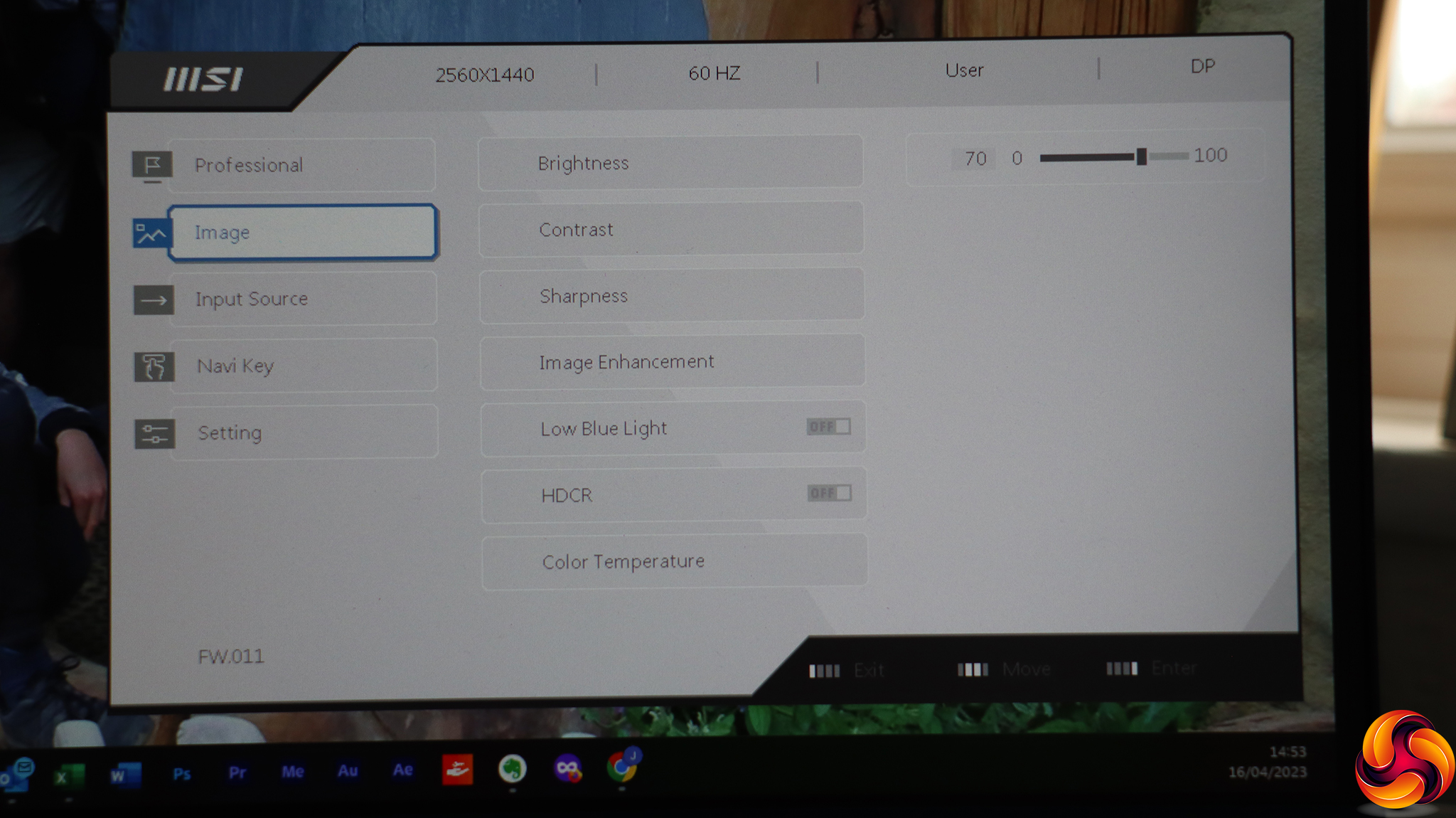
The next submenu controls the Image functions. These include Brightness, Contrast, Sharpness and Image Enhancement. The latter is a special version of sharpening focused on object edges. You can also use Low Blue Light to protect your eyes from strain during extended screen usage periods. HDCR is an artificial contrast enhancer. Finally, you can select Cool, Normal or Warm Color Temperature presets, or manually vary red, green and blue signals.
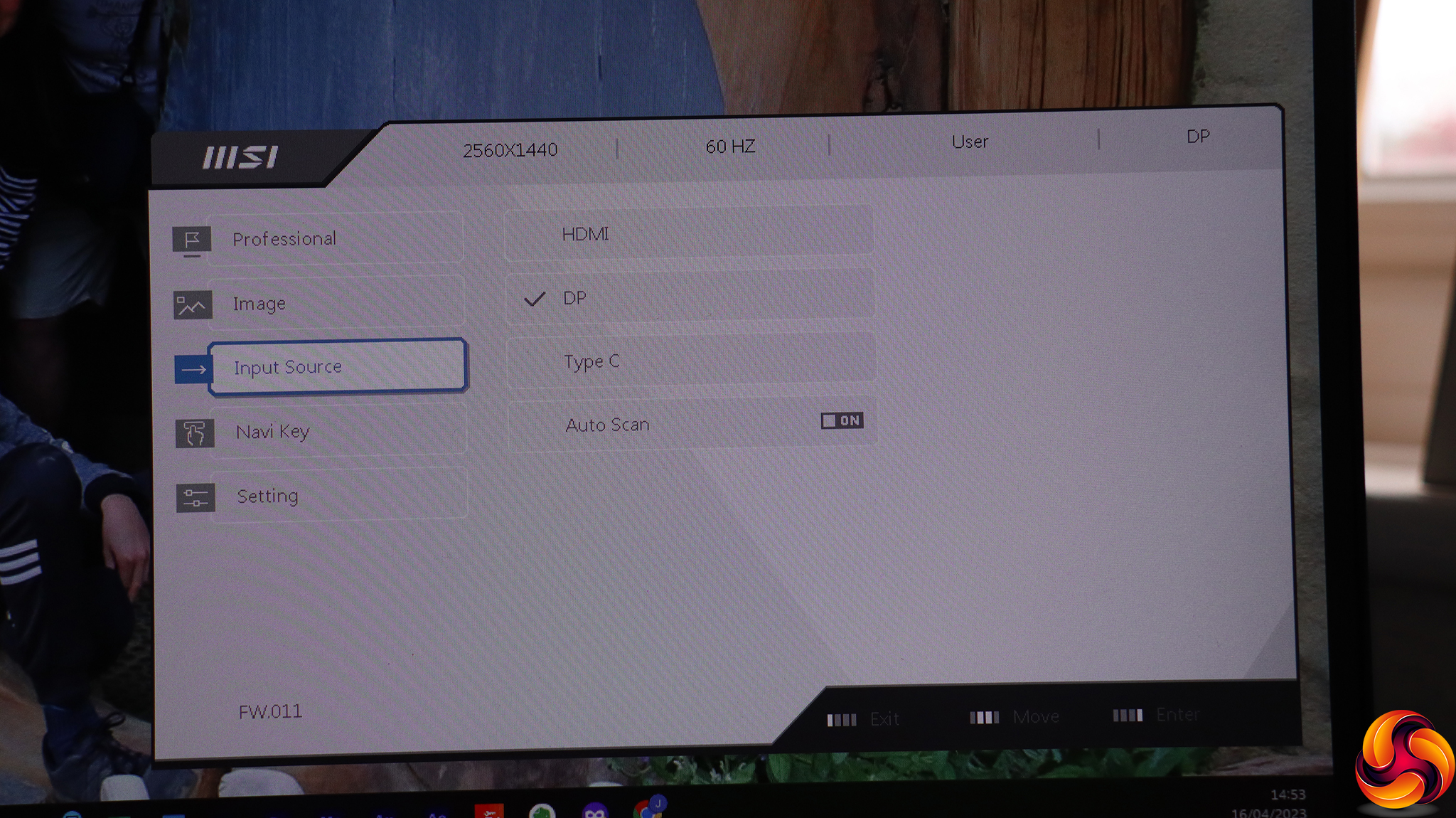
The third submenu is for selecting from the three video Input Sources, presumably in case you took this off the quick options.
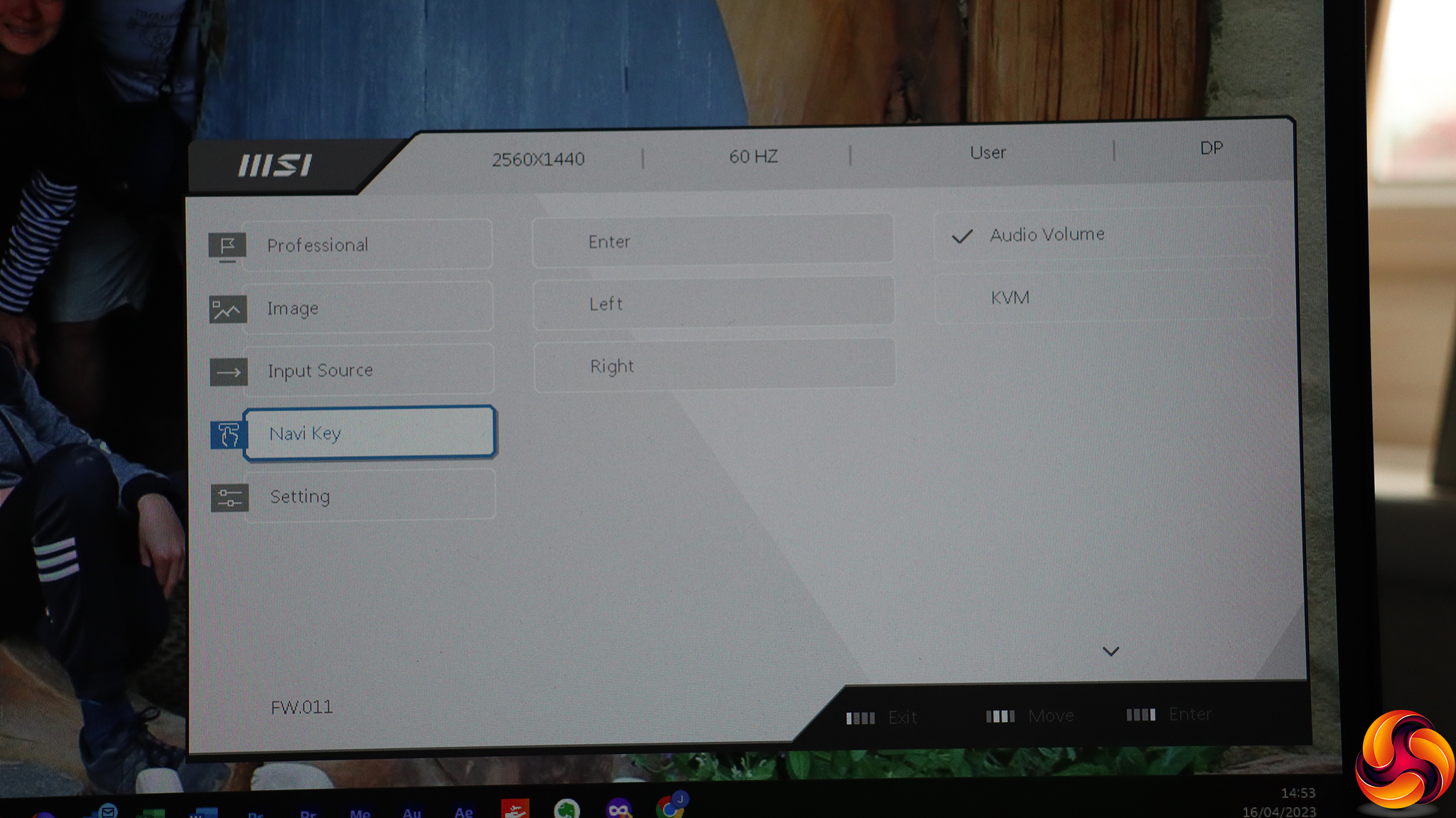
Speaking of changing the quick options, the fourth submenu, Navi Key, is where you do this. The E (enter) button only has KVM as an alternative choice, but the arrows can be configured with Brightness, Mode, Alarm Clock, Input Source, Refresh Rate, Info, Audio Volume, and KVM.
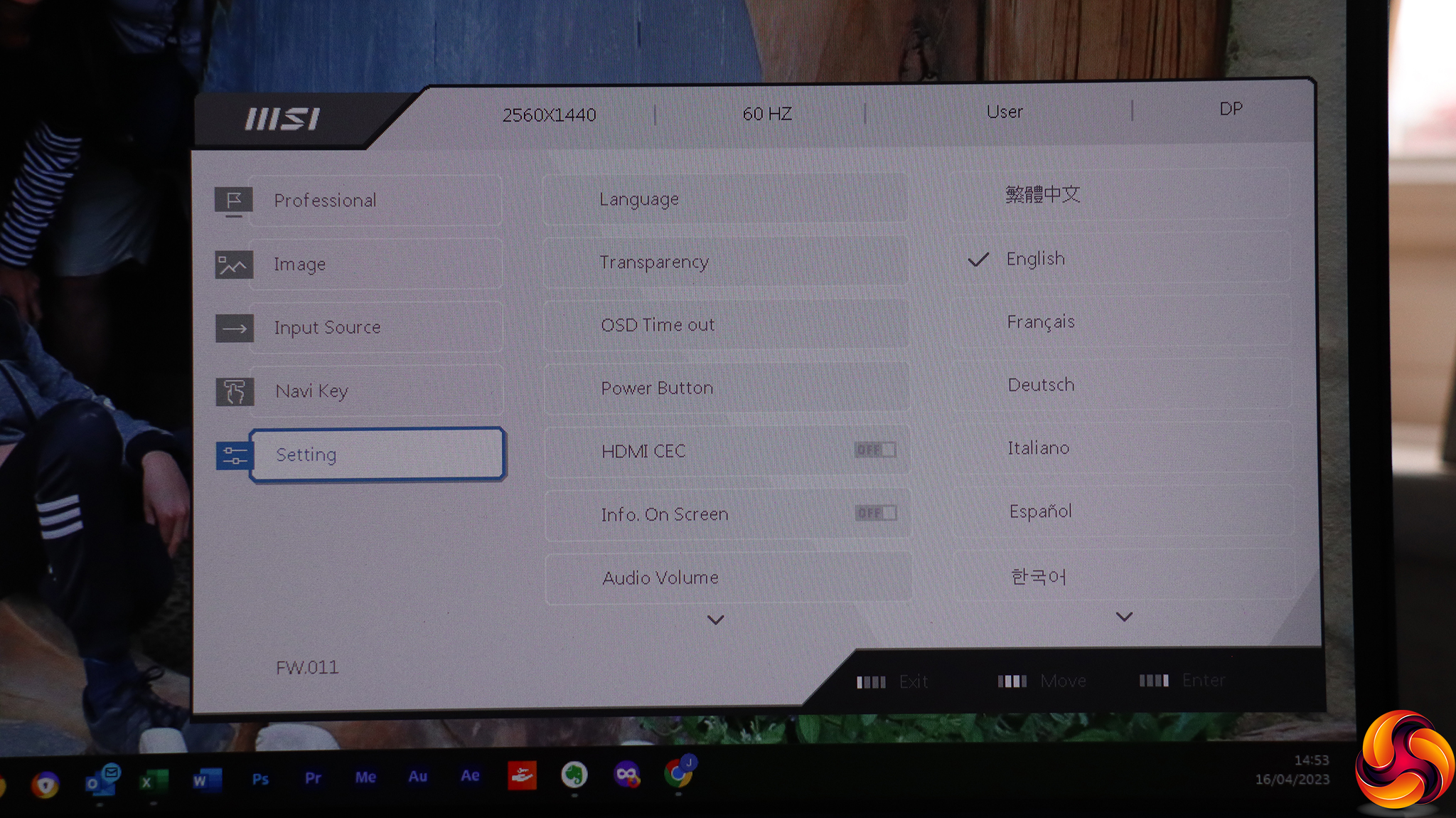
Finally, the Setting section is for altering the OSD behaviour, such as language used, transparency and time out.
Overall, while there is enough here for an everyday professional monitor, there are a few omissions. With a 2,560 x 1,440 resolution, there are enough pixels for picture-in-picture, which is an option on some MSI screens. There also doesn't appear to be any way to choose a different audio source from the one supplying the video input. There are no gamma options, either.
Our main test involves using a DataColor SpyderX Colorimeter to assess a display’s image quality. The device sits on top of the screen while the software generates colour tones and patterns, which it compares against predetermined values to work out how accurate the screen is.
The results show –
- A monitor’s maximum brightness in candelas or cd/m2 at various levels set in the OSD.
- A monitor’s contrast ratio at various brightness levels in the OSD.
- The brightness deviation across the panel.
- The black and white points.
- The colour accuracy, expressed as a Delta E ratio, with a result under 3 being fine for normal use, and under 2 being great for colour-accurate design work.
- The exact gamma levels, with a comparison against preset settings in the OSD.
We first run this test with the display in its default, out-of-the-box state, with all settings on default. We then calibrate the screen using the Spyder software and run the test again.
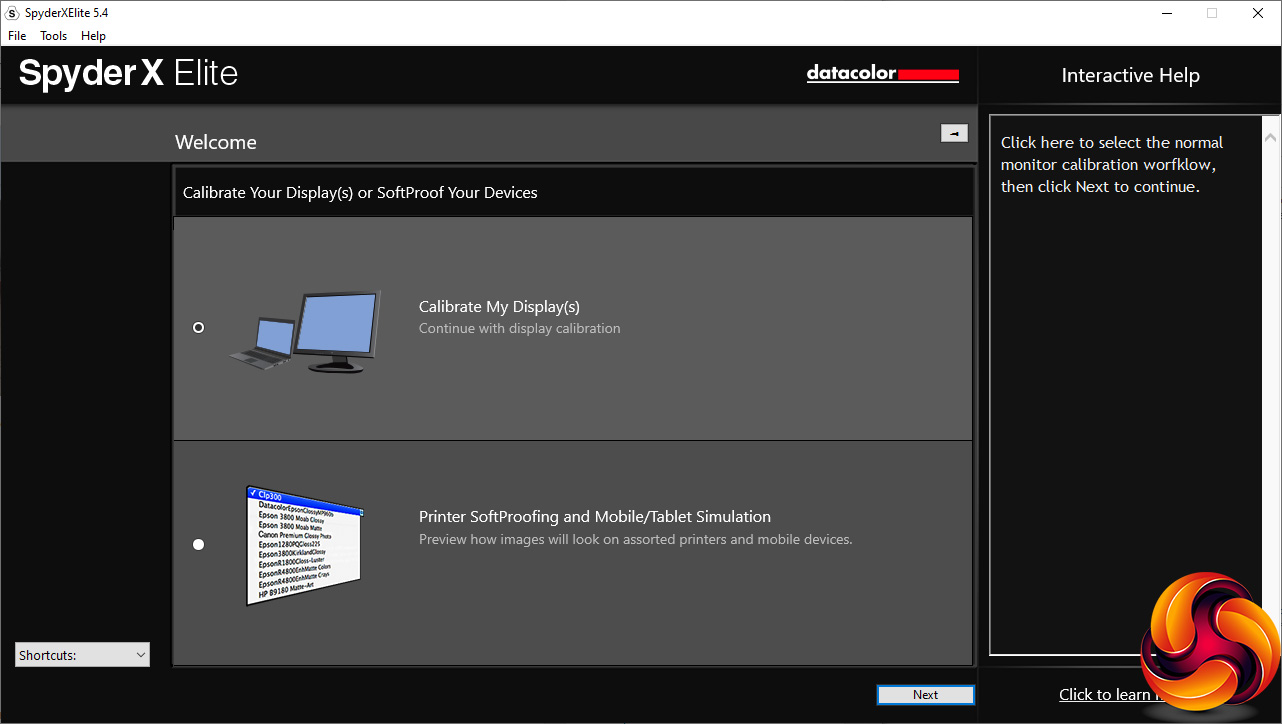
We always test the display subjectively on the Windows desktop, using it for general tasks such as browsing and word processing, and with games as well, even if the display is not intended solely for that purpose.
We pay careful attention to any artefacts, ghosting or motion blur, and enable any gaming-specific features, such as adaptive-sync settings like G-Sync or FreeSync, using a compatible graphics card in our test PC.
We performed the quality tests on the MSI Modern MD272QP Ultramarine at its native 2,560 x 1,440 resolution in the default mode, after resetting the OSD, which sets the refresh to 60Hz. Our test system was equipped with an AMD Radeon Vega Frontier Edition graphics card, which supports FreeSync, but not G-sync, obviously, because it isn't made by NVIDIA.
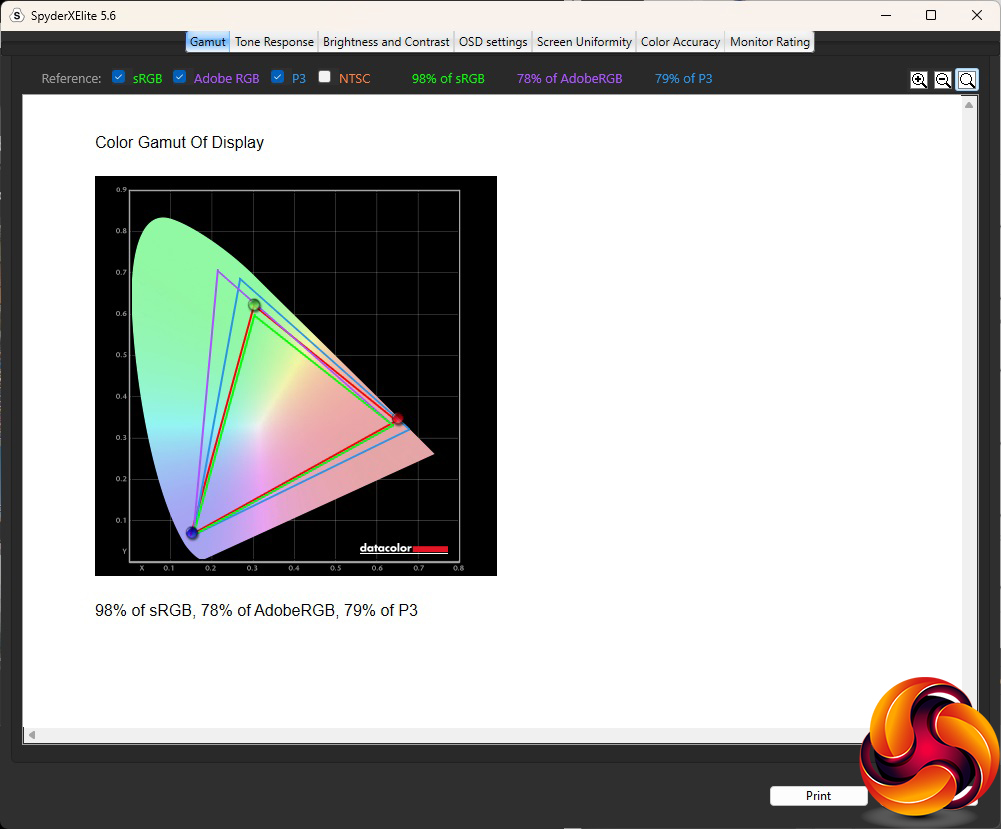
The gamut scores are a little disappointing. We expect all monitors to deliver 100 per cent sRGB nowadays, but the MD272QP only managed 98 per cent. The results of 78 per cent AdobeRGB and 79 per cent P3 are both also a little under par. It's worth nothing that MSI only specifies this screen for 95 per cent sRGB.

Brightness uniformity is okay in the top 2/3rds of the screen, but the bottom third is a bit more deviant.
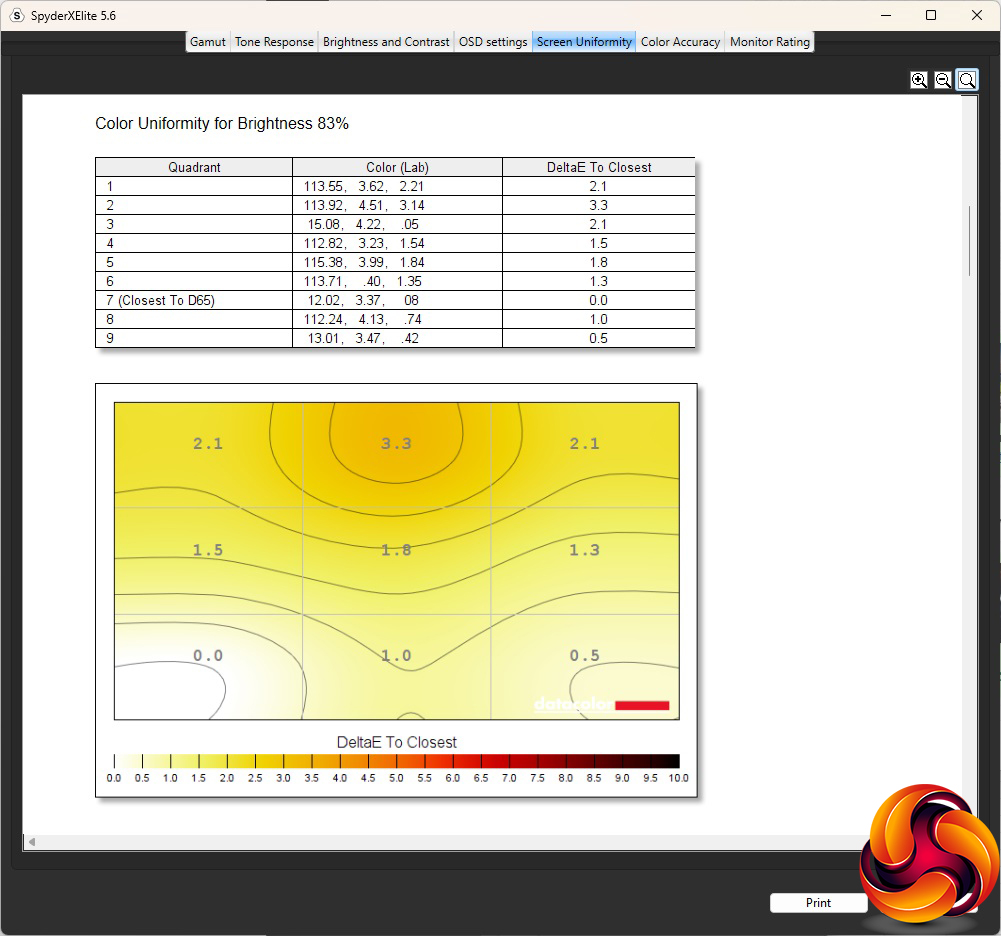
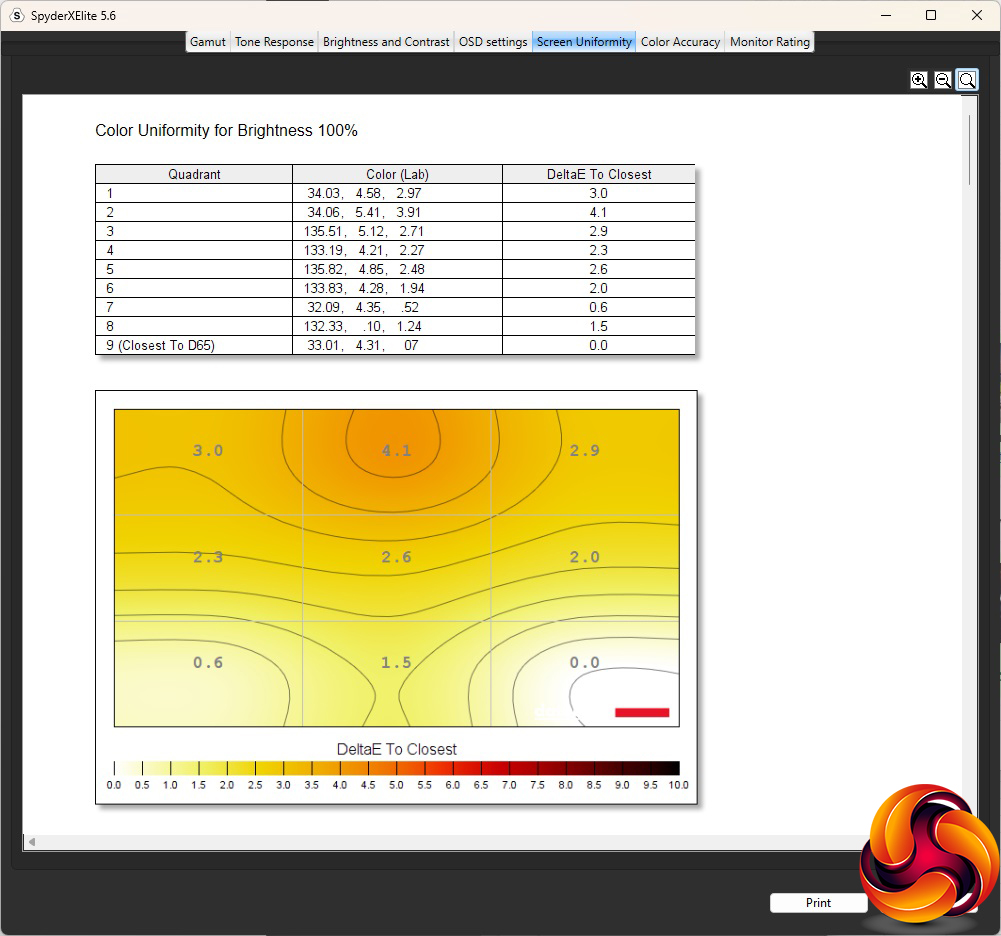
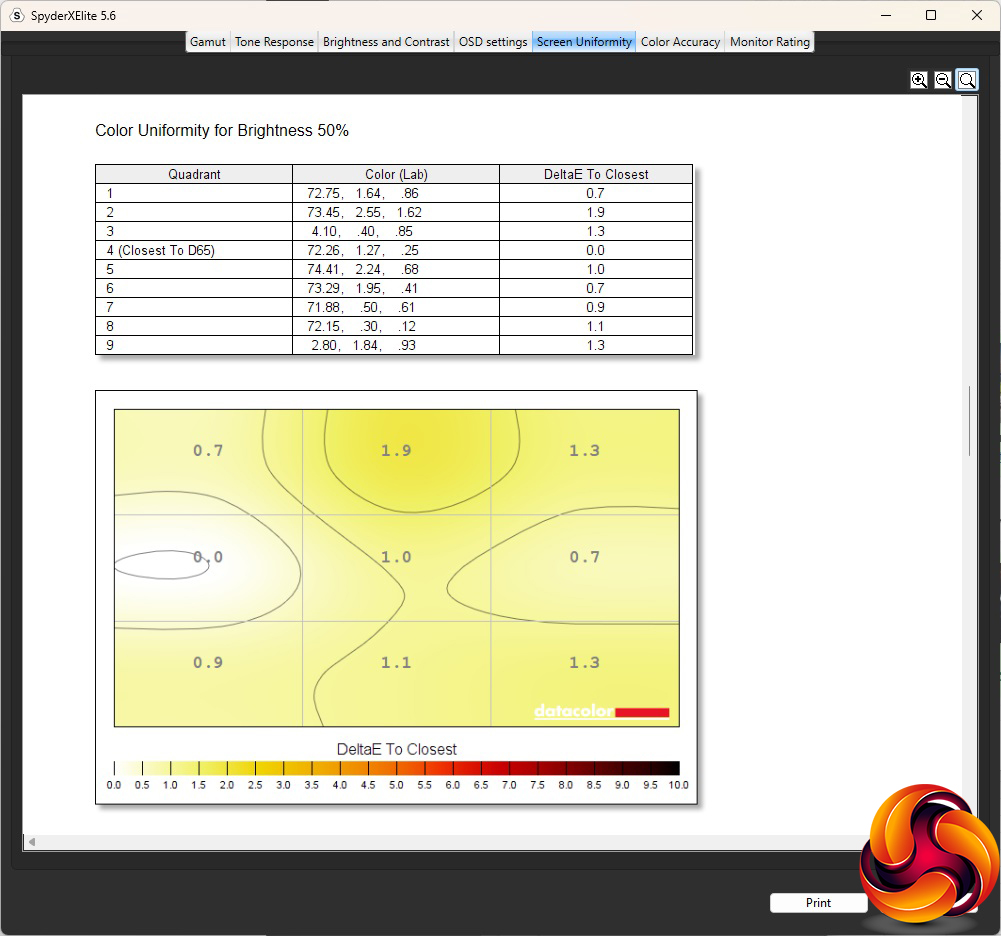
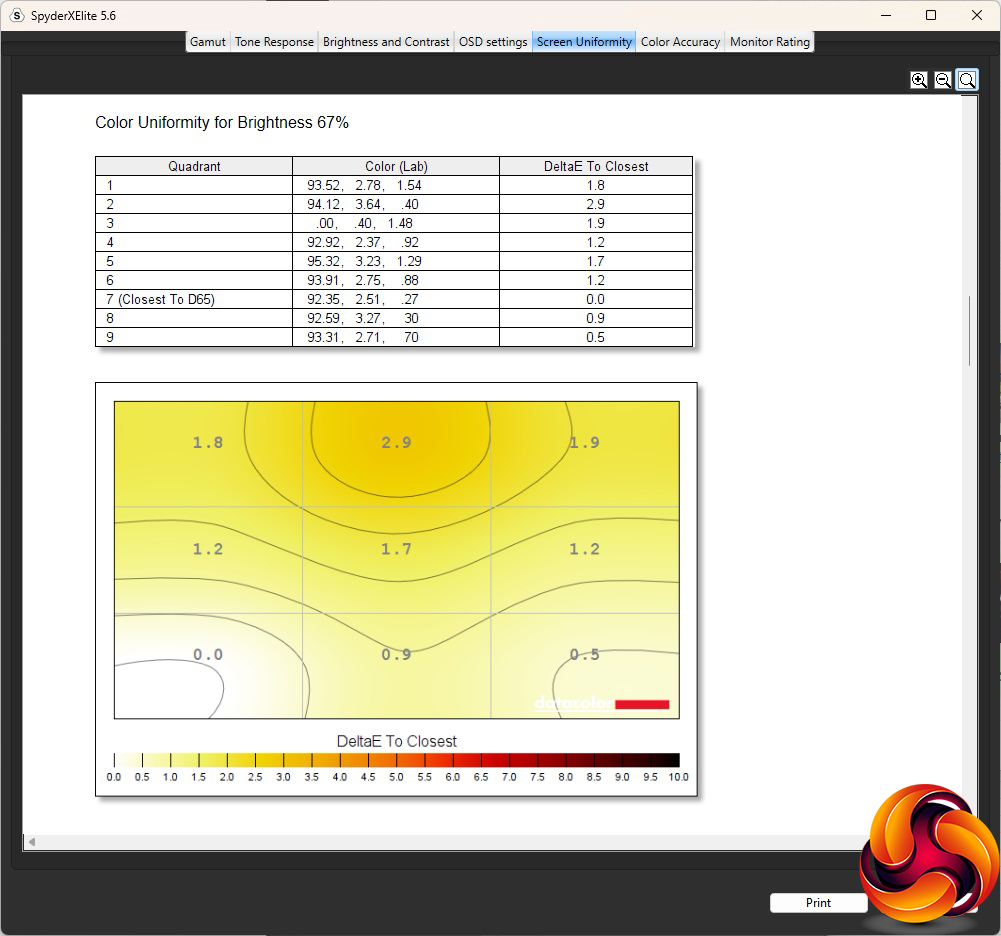
However, colour uniformity is excellent across the full range of brightness levels.
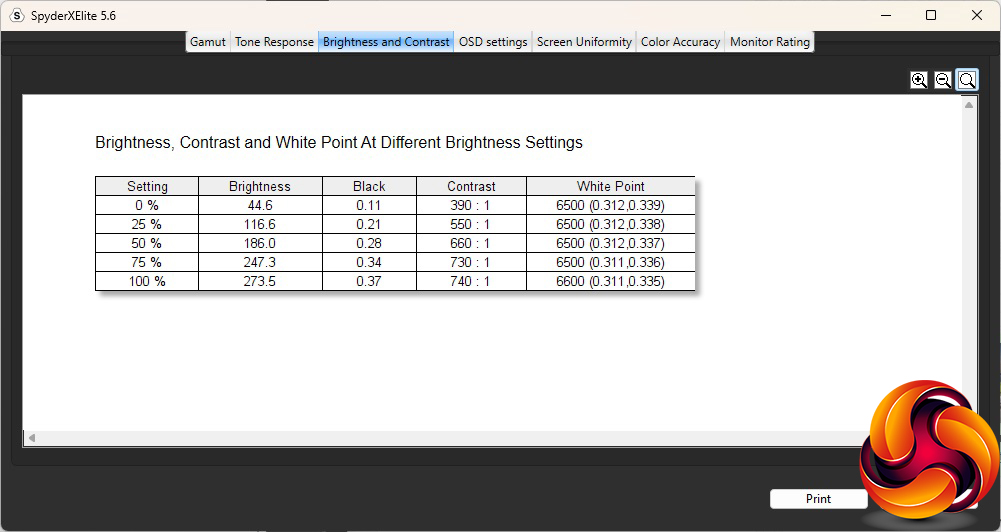
The fact that MSI didn't rate this panel for brightness in its specifications makes sense when you see how it scores in this area. Even at 100 per cent, the MD272QP only managed 273.5cd/m2, which is rather low even for an IPS display. Contrast maxes out at 740:1, which is also low even for IPS. However, the white point is absolutely spot on 6500K across the range, which is exactly what it is supposed to be.
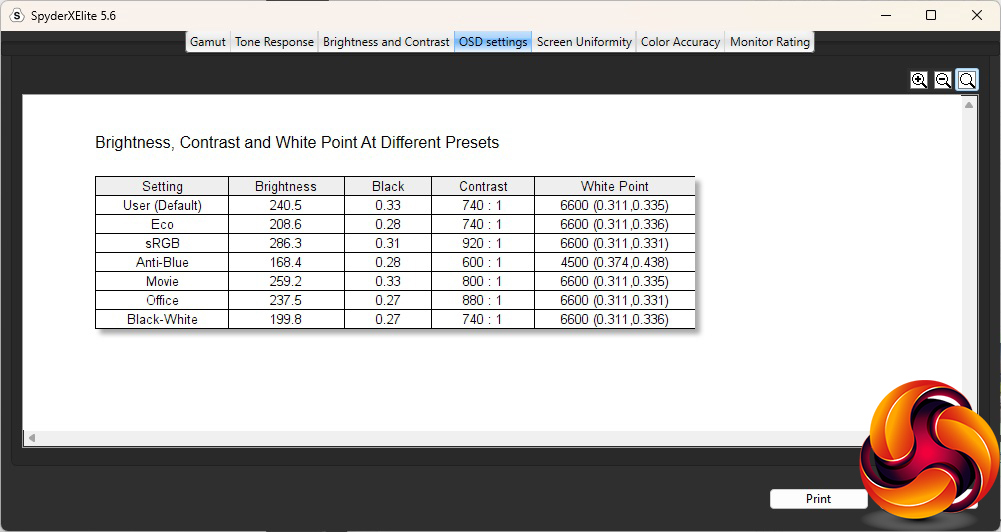
The default User mode has a 70 per cent brightness, which equates to 240.5cd/m2, with 740:1 contrast and a 6600K white point (strangely 100K up from when we tested brightness and contrast). The sRGB mode is brighter at 286.3cd/m2, and has a better 920:1 contrast, but the same 6600K white point. Eco naturally drops the brightness to 208.6cd/m2, but with the same 740:1 contrast and 6600K white point. Anti-Blue uses the lowest 168.4cd/m2 brightness, with just 600:1 contrast. Naturally, the white point is much warmer at 4500K, because there is less blue light.
Movie mode has a relatively high (for this monitor) brightness of 259.2cd/2 alongside a higher 800:1 contrast than default, but the same 6600K white point. We often see movie modes employing a cooler colour balance. Office has a similar 237.5cd/m2 brightness as default and the same 6600K white point, but with a higher 880:1 contrast. Finally, Black-White opts for 199.8cd/m2 brightness, 740:1 contrast and the same 6600K white point. But this is a greyscale view, with all the colour removed.
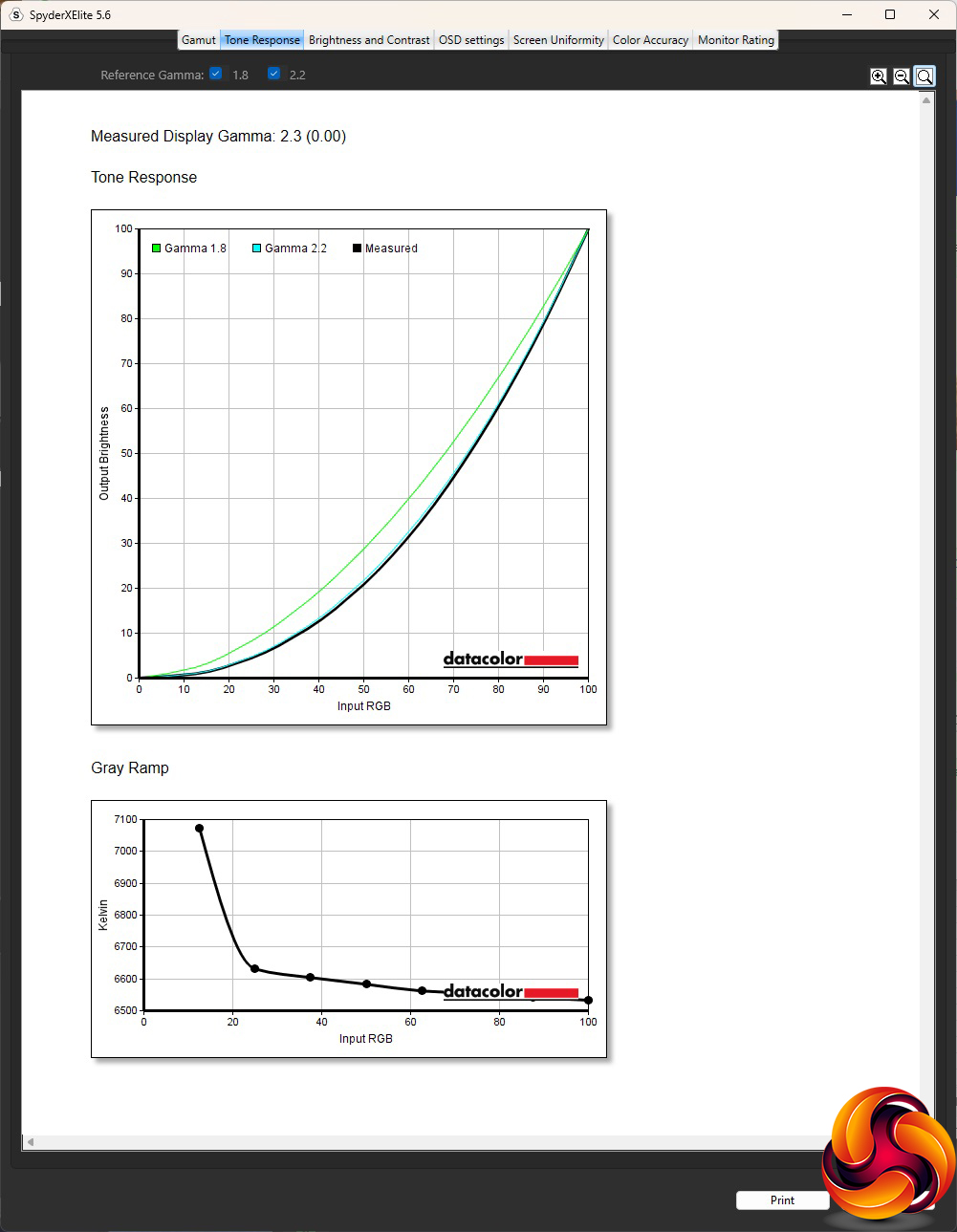
There is only one gamma setting, but at least it's just about where it should be, delivering a recorded level of 2.3.
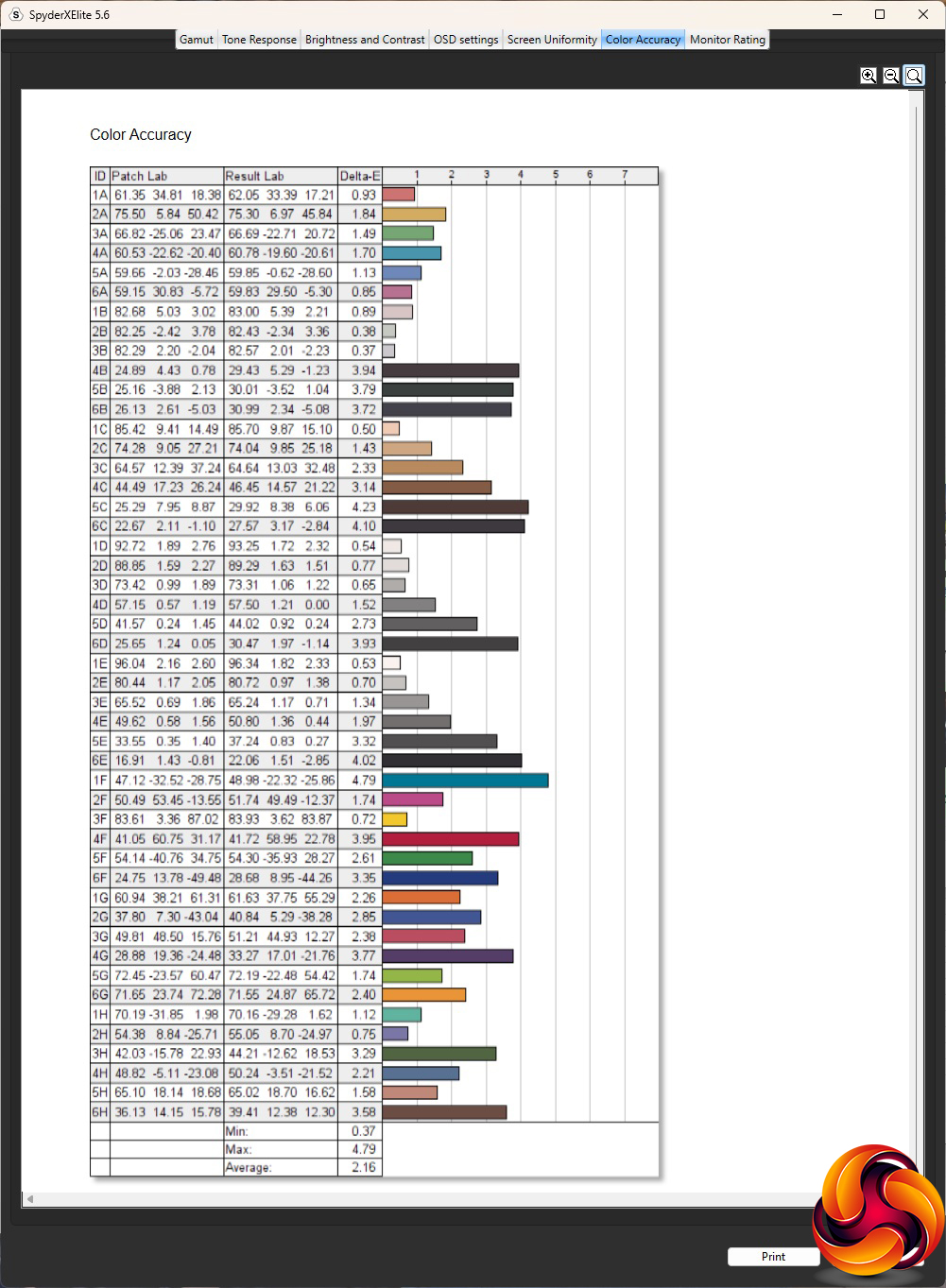
Since this is a professionally oriented screen with an IPS panel, we expected strong colour accuracy. However, by default the performance is merely okay, with an average deviation of 2.16. So although we often don't see a huge benefit from calibration with contemporary monitors, we fired up the SpyderX once more to see if we could improve things in this area.
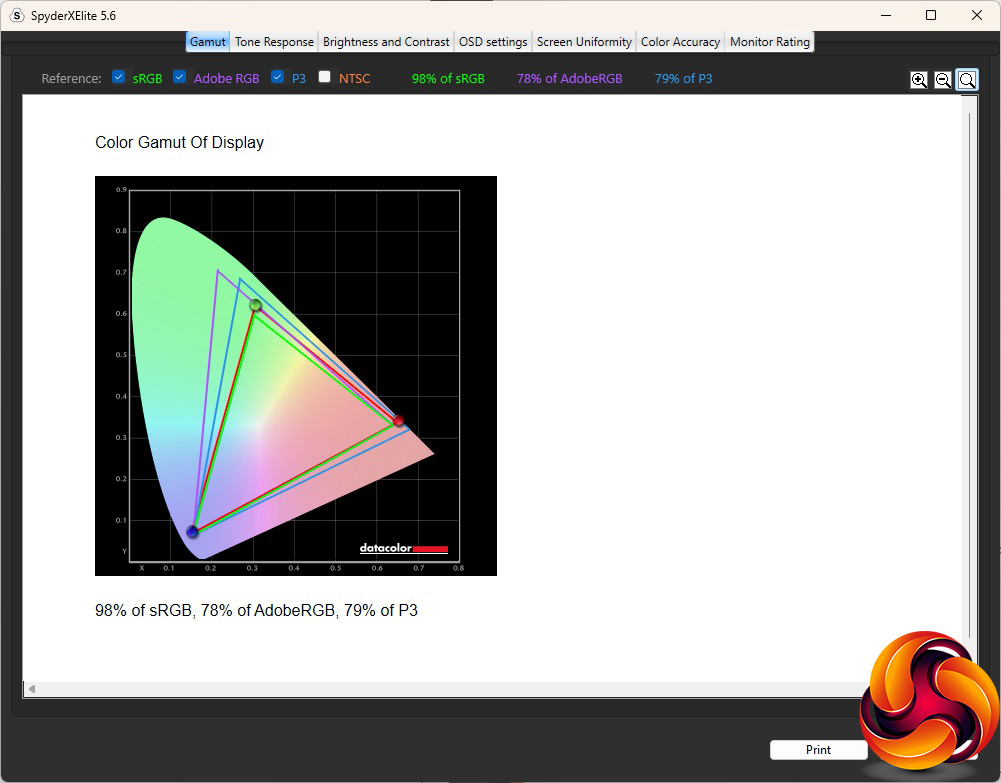
After calibration, the Gamut was as mediocre as before, with a disappointing 98 per cent sRGB, 78 per cent AdobeRGB, and 79 per cent of P3.
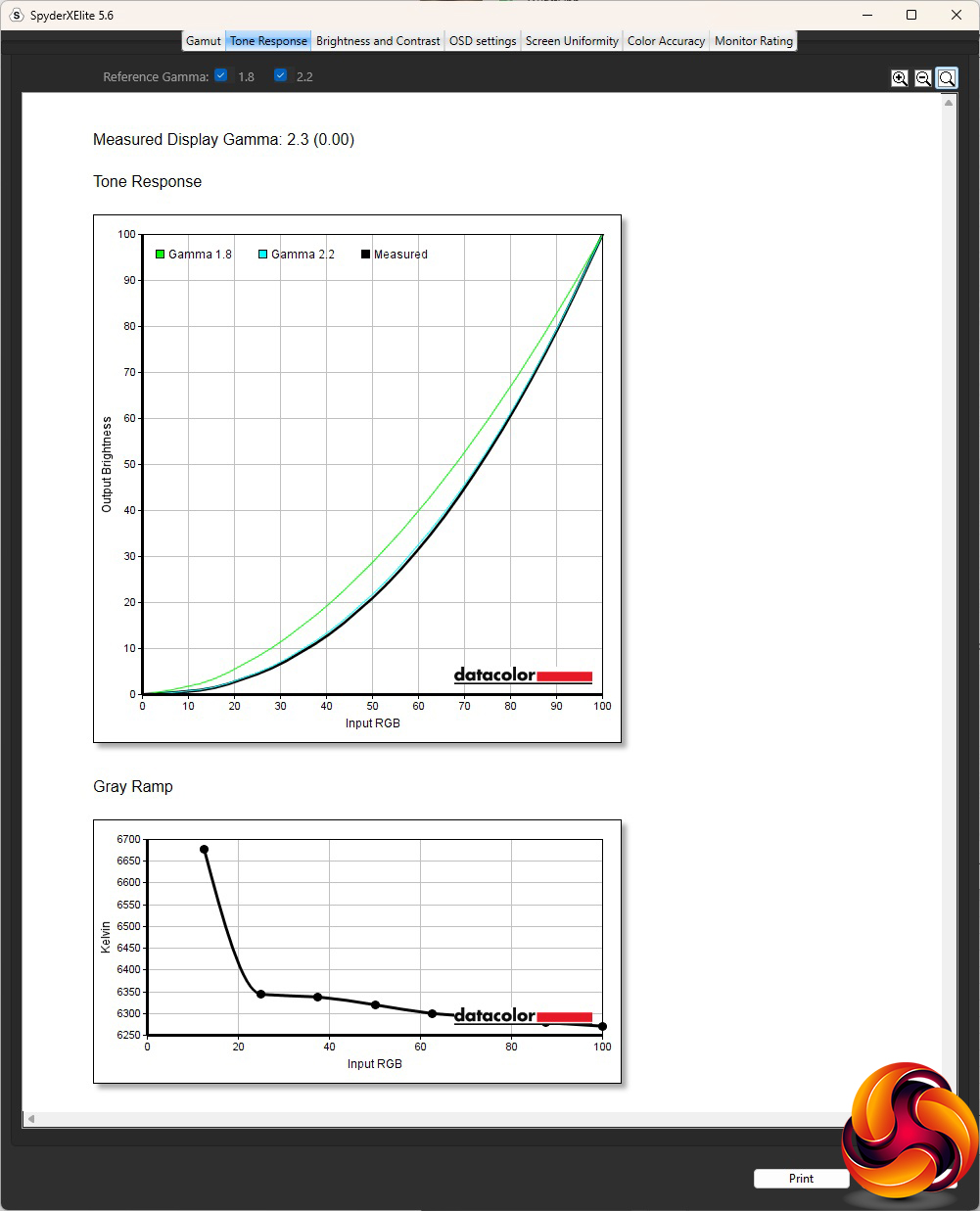
As usual, the gamma remained unchanged by calibration, hitting the same 2.3 as before.
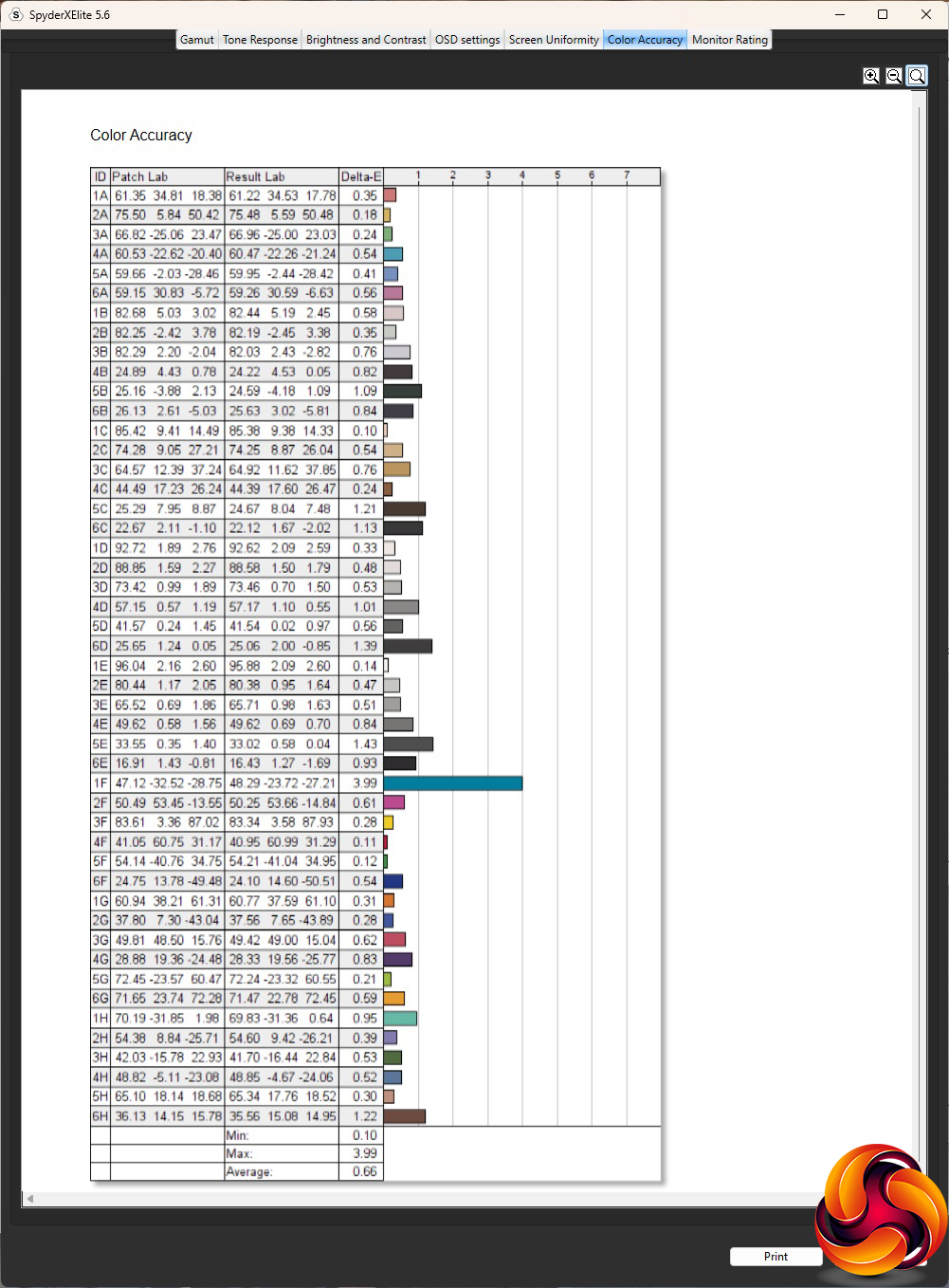
Calibration was clearly worth the effort when it came to colour accuracy, however. The average deviation dropped to 0.66, which is one of the best scores we've seen. Clearly, this panel is capable of great things – but you need to adjust it properly to get the most out of it.
As this isn't in any shape or form a gaming screen, we didn't test any games on the MD272QP. But we did fire up Netflix, switched to Movie mode, and tried out an episode of The Witcher, which looked pretty good.
The MSI Modern MD272QP Ultramarine is a decent business monitor. With calibration, it's capable of excellent colour accuracy. Colour uniformity is commendable, too. The gamut is more suspect, however, and the maximum brightness is not particularly high.
The KVM capabilities could be really useful if you switch between a desktop PC and a notebook on the same desk, or if a desk is shared between an office resident and a more mobile employee. With a compatible USB-C-enabled portable, hooking the latter to this screen should be a doddle. However, only having USB 2.0 ports will limit the ability to use these for external storage.
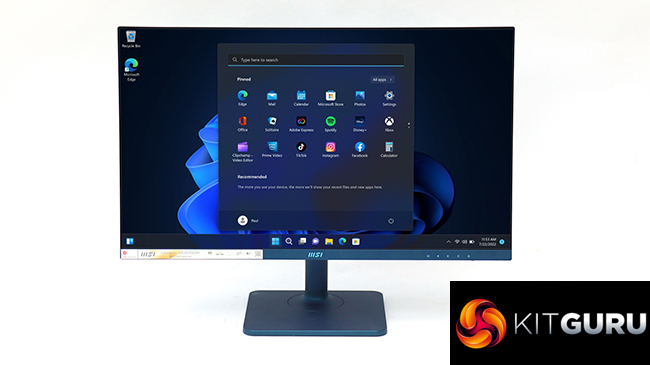
The range of adjustments is excellent, however, and the price isn't extortionate for a screen this size, with this resolution. Overall, if you're after an attractively styled, competent monitor primarily for business activities including occasional graphics work, the MSI Modern MD272QP Ultramarine would make a decent choice.
 You can buy the MSI Modern MD272QP Ultramarine from Overclockers UK over HERE for £269.99 inc VAT.
Pros:
- Excellent colour fidelity, once calibrated.
- USB-C video input with 65W power output.
- Two-port USB hub with two-input KVM switch including Type C.
- Comprehensive ergonomic adjustments.
Cons:
- Only mediocre colour fidelity, when not calibrated.
- Disappointing gamut.
- USB ports merely 2.0.
KitGuru says: The MSI Modern MD272QP offers a decent set of features for business users, and excellent colour accuracy if you calibrate it, making this a decent choice for workplace activities.