KitGuru KitGuru.net – Tech News | Hardware News | Hardware Reviews | IOS | Mobile | Gaming | Graphics Cards


WiFi 6 has been out in the wild for a few years now, and has finally become a standard feature on notebooks. Previously it was a luxury if you could afford it, but now you will be risking obsolescence by not going for WiFi 6. Luckily, brands like Synology that know how to provide all the features you need for a keen price, have options for you. The RT6600ax is a tri-band WiFi 6 router, but it costs less than £300.
The Synology RT6600ax incorporates three radios. The main 5GHz one offers 4,800Mbits/sec throughput, then a secondary 5GHz radio provides 1,200Mbits/sec, while the final 2.4GHz waveband operates at 600Mbits/sec. Since they can all be used simultaneously, the sum makes up the AX6600 rating. The antennas have a 4 x 4 MIMO configuration for the main 5GHz radio, and 2 x 2 for the secondary radios.
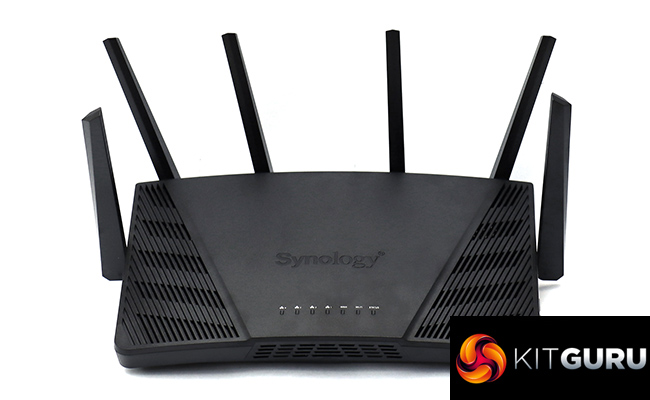
Wired connectivity is pretty typical for a mainstream router, with a dedicated Gigabit Ethernet WAN connection, plus four more for wired devices, and a USB 3.2 Gen 1 port for peripherals. However, the LAN ports have a couple of tricks up their sleeve we will discuss shortly.
Although you can pick up decent 802.11ac / WiFi 5 routers for well under £200, WiFi 6 still commands a considerable premium. However, the Synology RT6600ax's sub-£300 price makes it more expensive but affordable for the latest technology, in roughly the same price bracket as NETGEAR's similarly specified Nighthawk AX12.
Specification:
- Wireless protocols: MU-MIMO with 802.11b/g/n 2.4GHz, 802.11a/n/ac/ax 5GHz
- Performance: AX6600 (4,800 + 1,200 + 600 Mbits/sec)
- Antenna Configuration: 4×4 External Antennas for 5GHz; 2×2 External Antennas for 2.4/5GHz
- Ports: 4 x Gigabit Ethernet (including 1 x 2.5G), 1 x Gigabit Ethernet WAN, 1 x USB USB 3.2 Gen 1
- Modem Support: VDSL/ADSL 2+ or cable
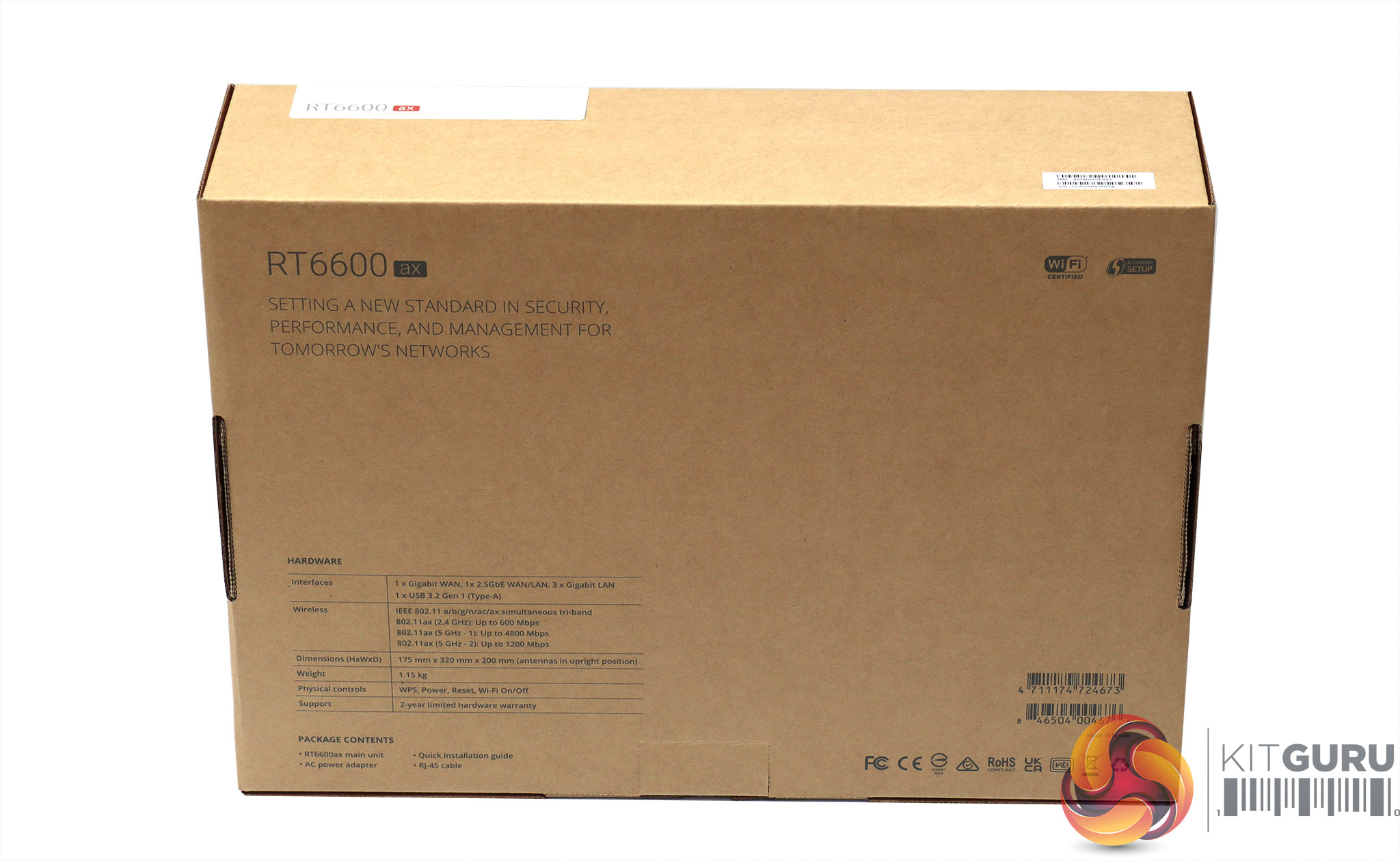
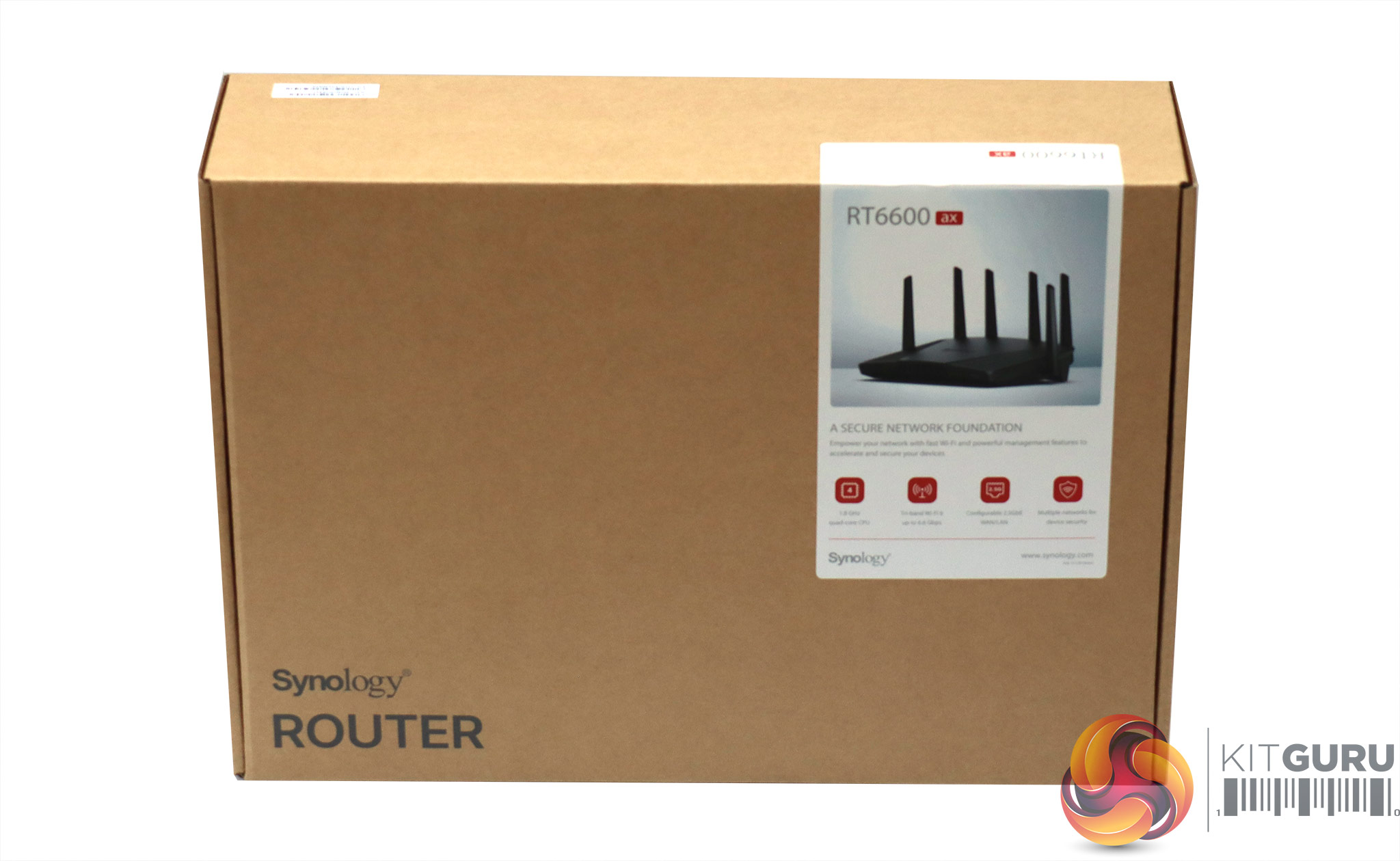
If you buy your router based on the excitement of the packaging, you'll probably be passing Synology by, because this brown box is about as featureless as, well, a brown box.
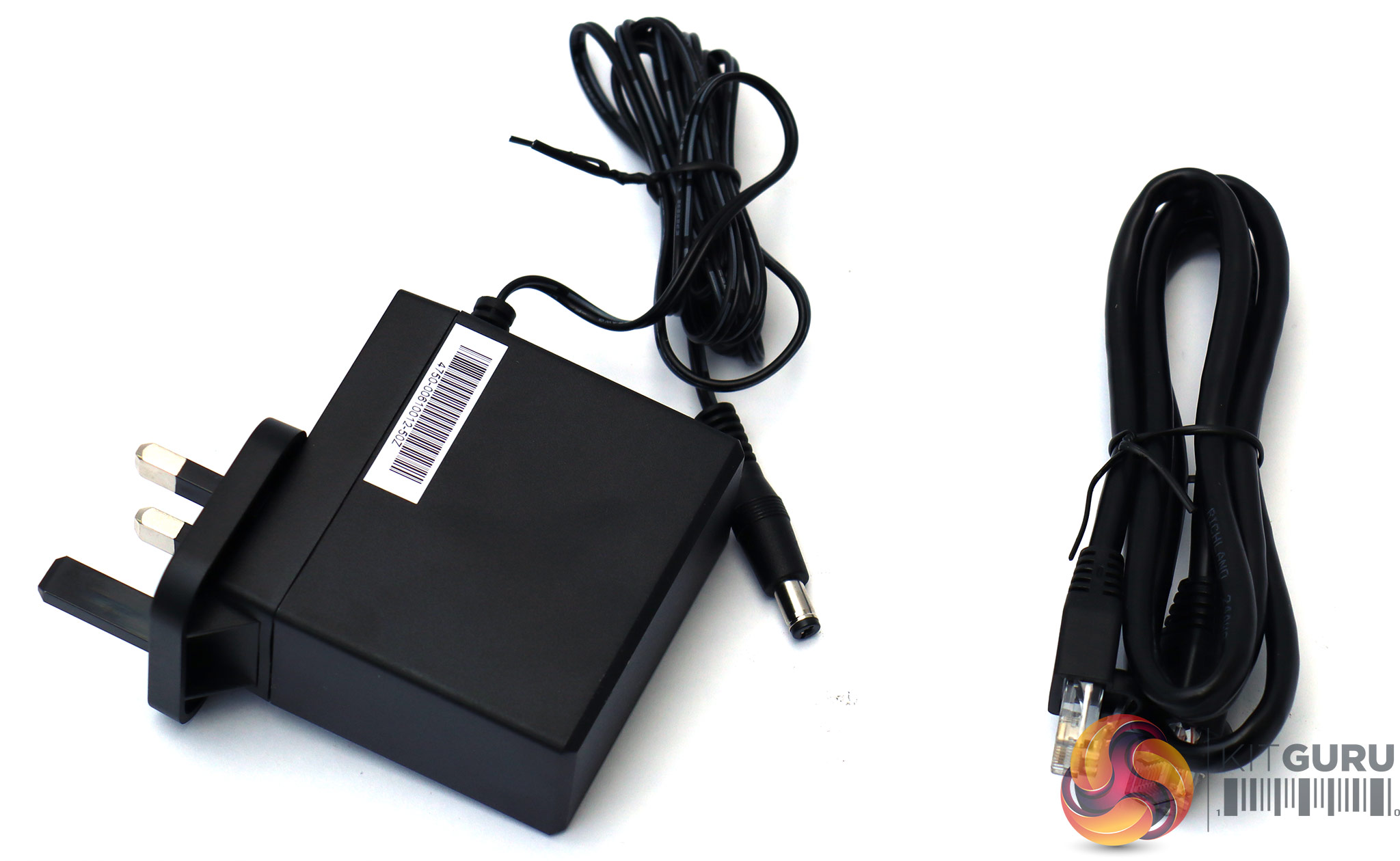
The box contents aren't much more exciting, with just a LAN cable and power adapter inside.
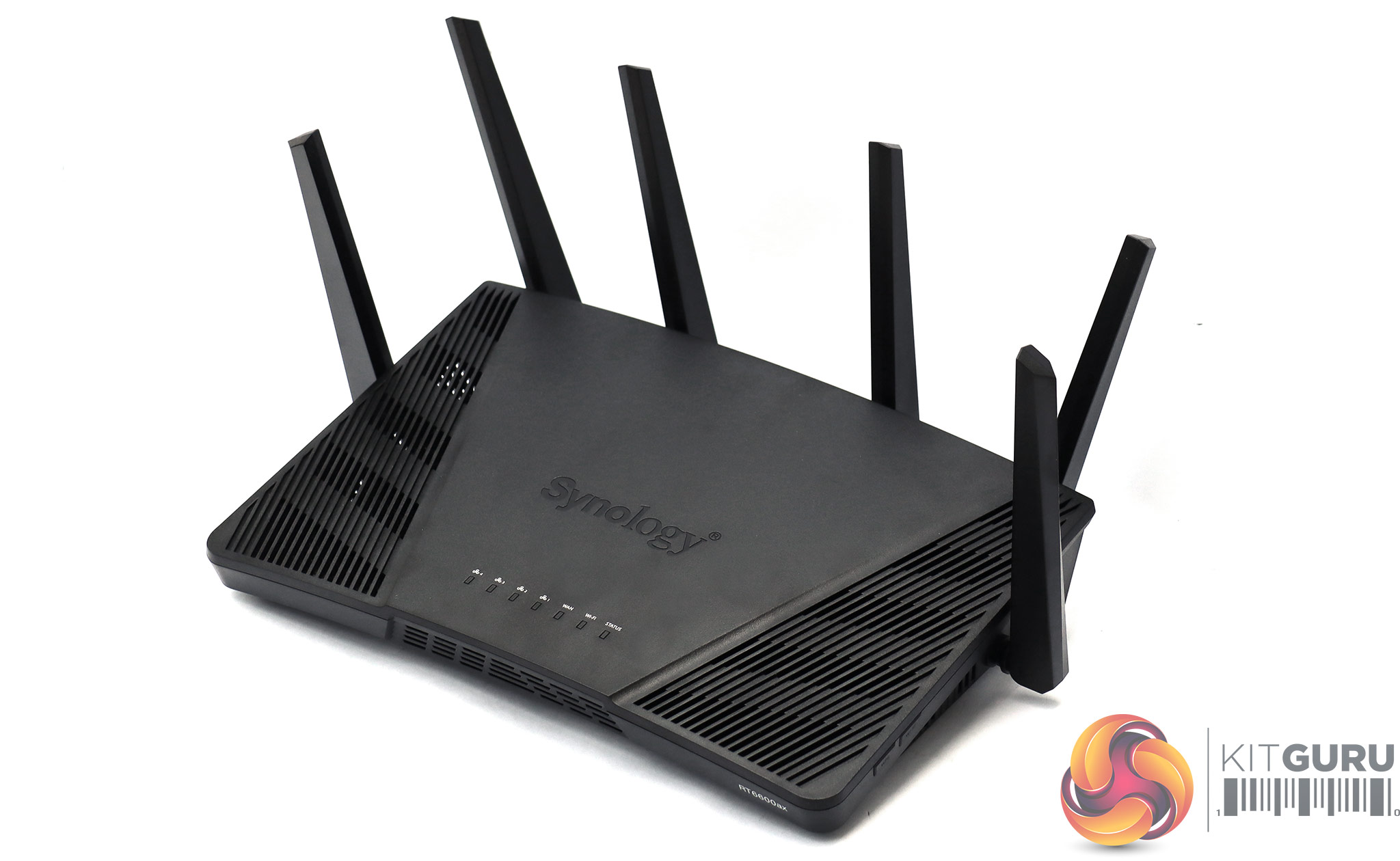
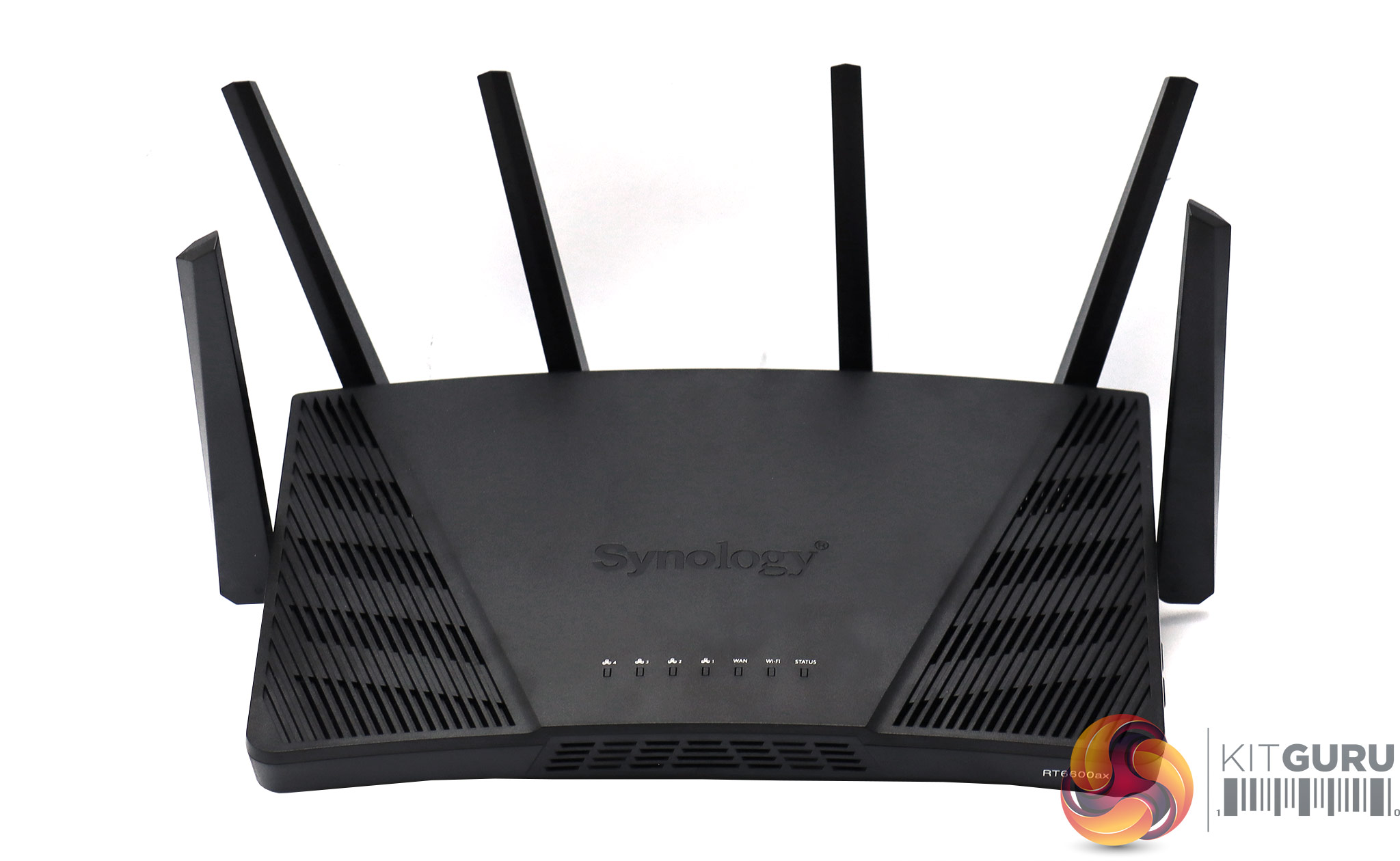

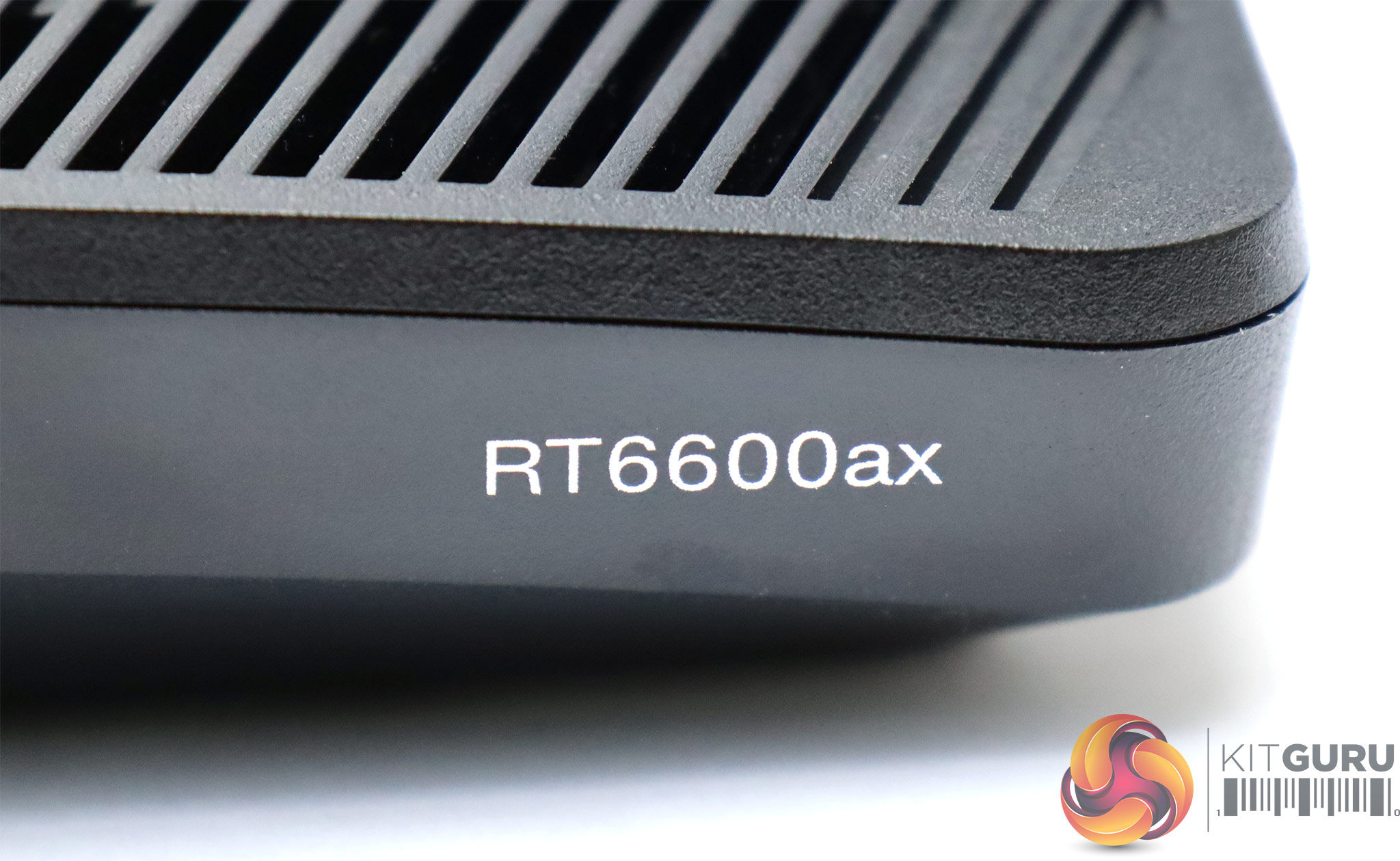
Synology routers always have rather sober designs, too. The RT6600ax feels solid, though, with a thick plastic casting that looks like it will resist any knocks with ease. There are six built-in external antennas – four on the rear and two on the side.
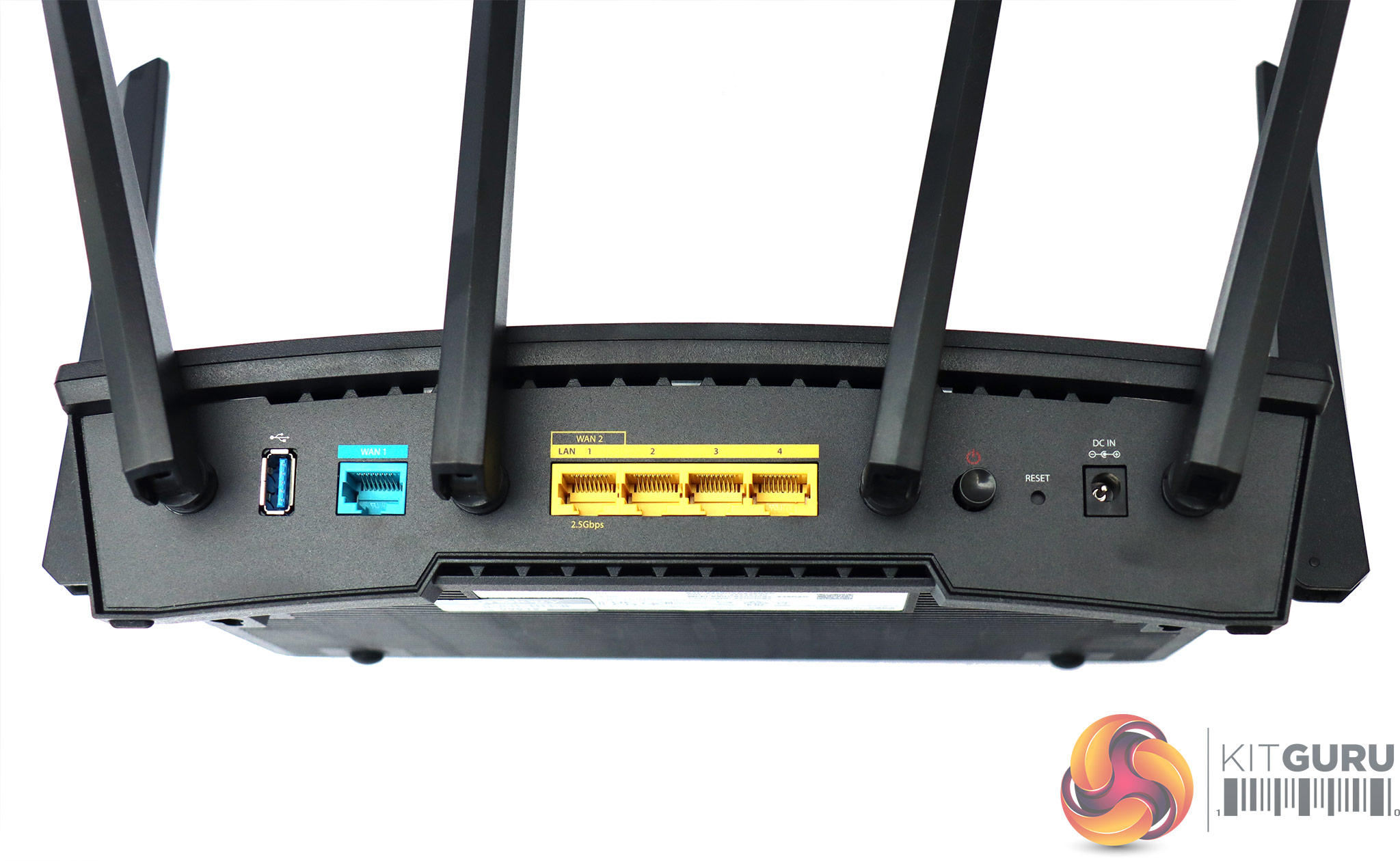
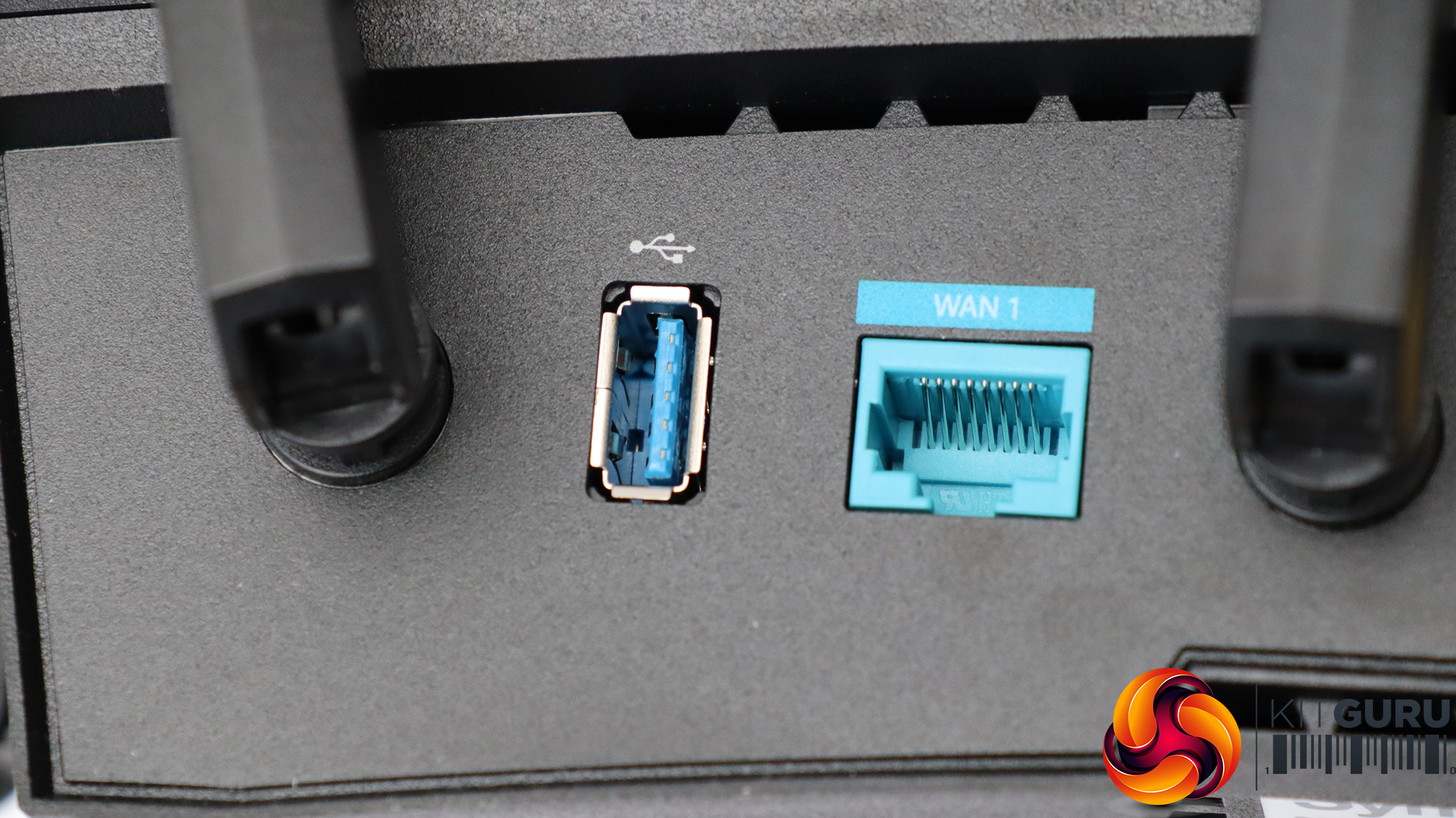
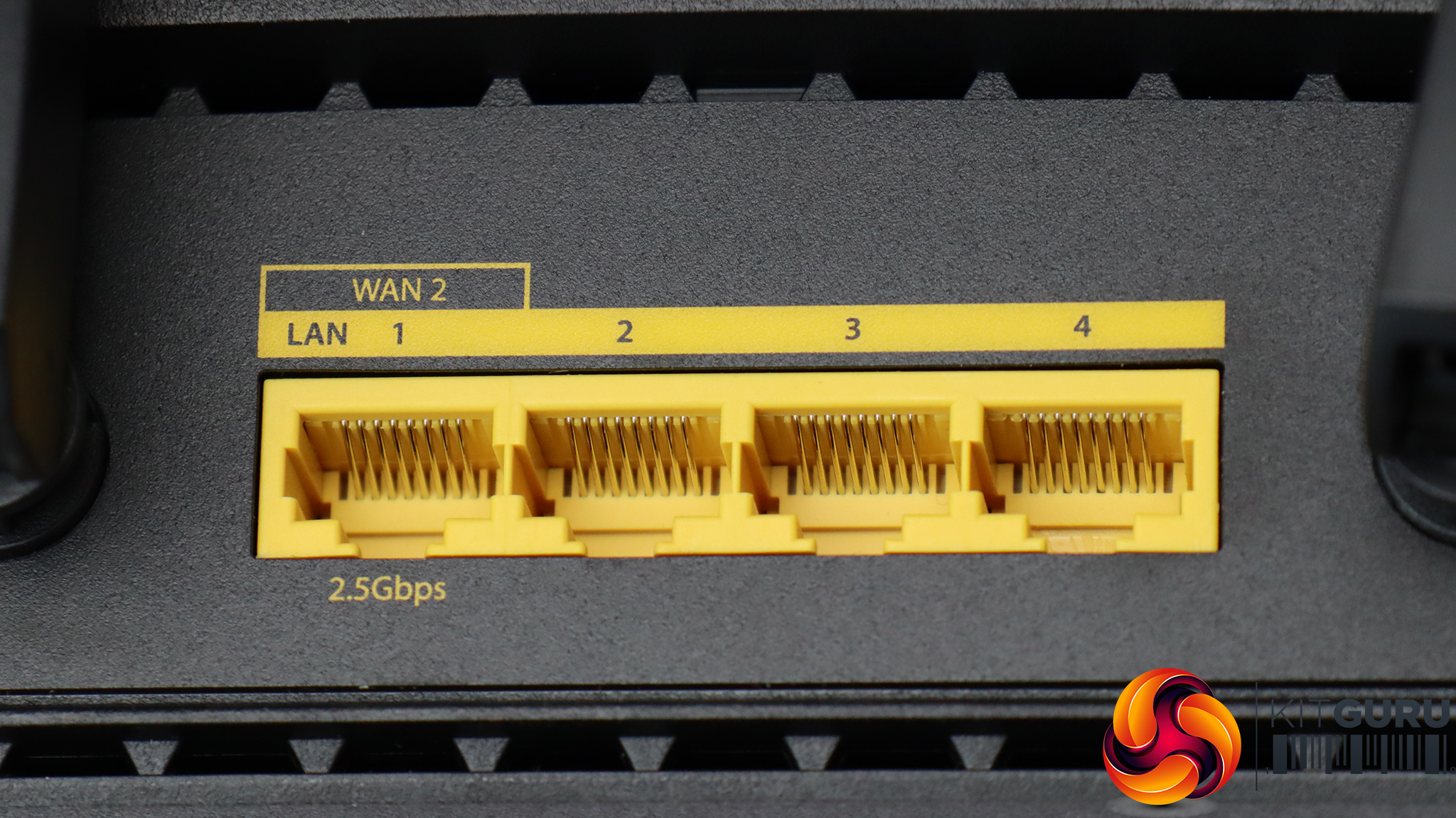
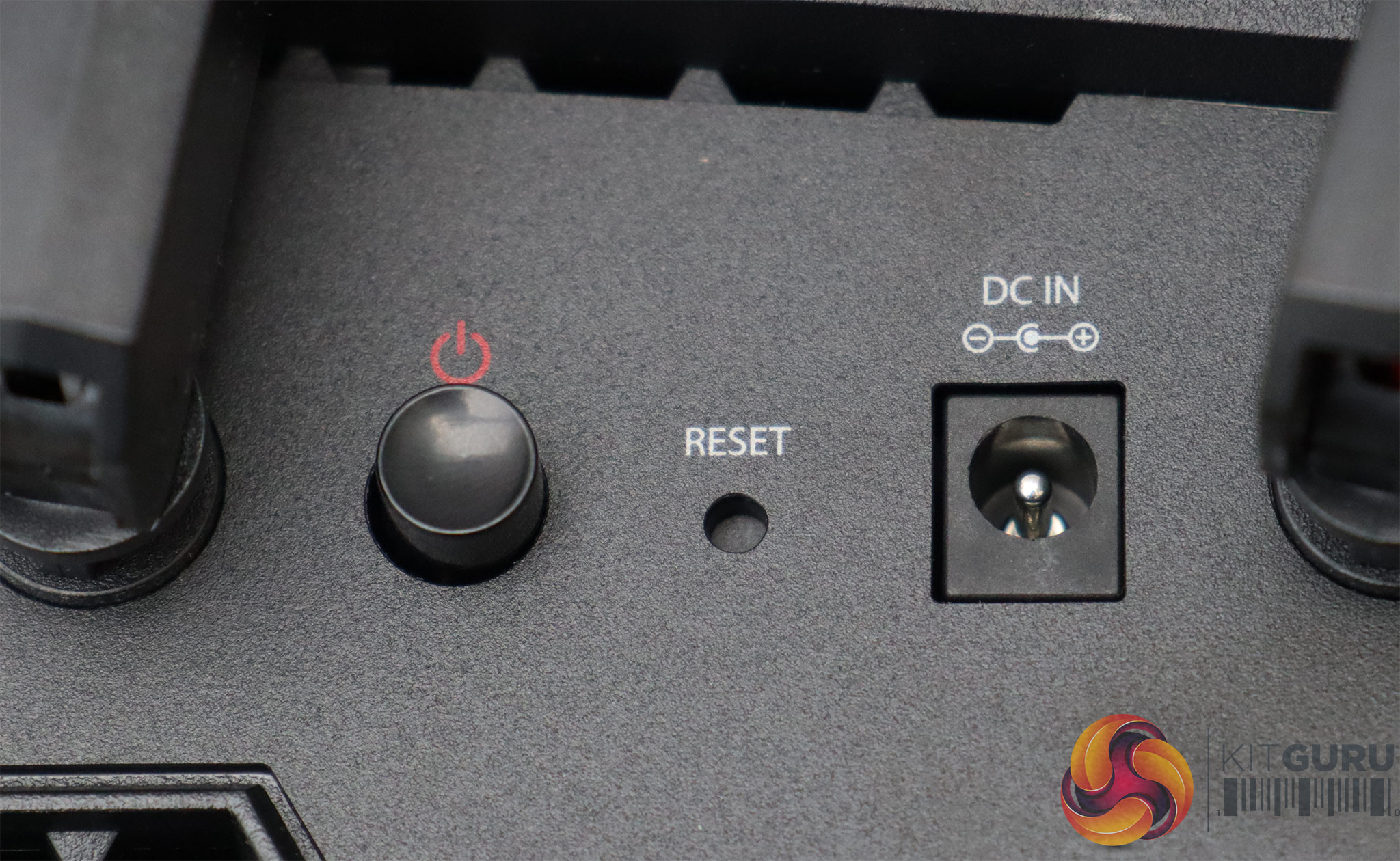
Starting from the left, the port allocation begins with the USB 3.2 Gen 1 connection, which allows external storage or a printer to be connected for network access, as well as a mobile data dongle. Next along is the dedicated Gigabit Ethernet port for WAN connection to broadband. Then there is the four-port Gigabit hub for attaching devices with wired networking.
Look closer, however, and you will notice that the first port of the quartet is also labelled WAN 2 and 2.5Gbps, because it supports the higher bandwidth and can be enlisted to be a secondary WAN connection if you are connecting to a faster flavour of broadband or an extra Internet connection for resilience. Finally, there is a physical power button, a recessed reset button, and the connector for the power adapter.
One thing you don't get with this router, which previous Synology routers have offered, is a built-in SD card reader. Hardly essential, but it would have been nice to have nonetheless.
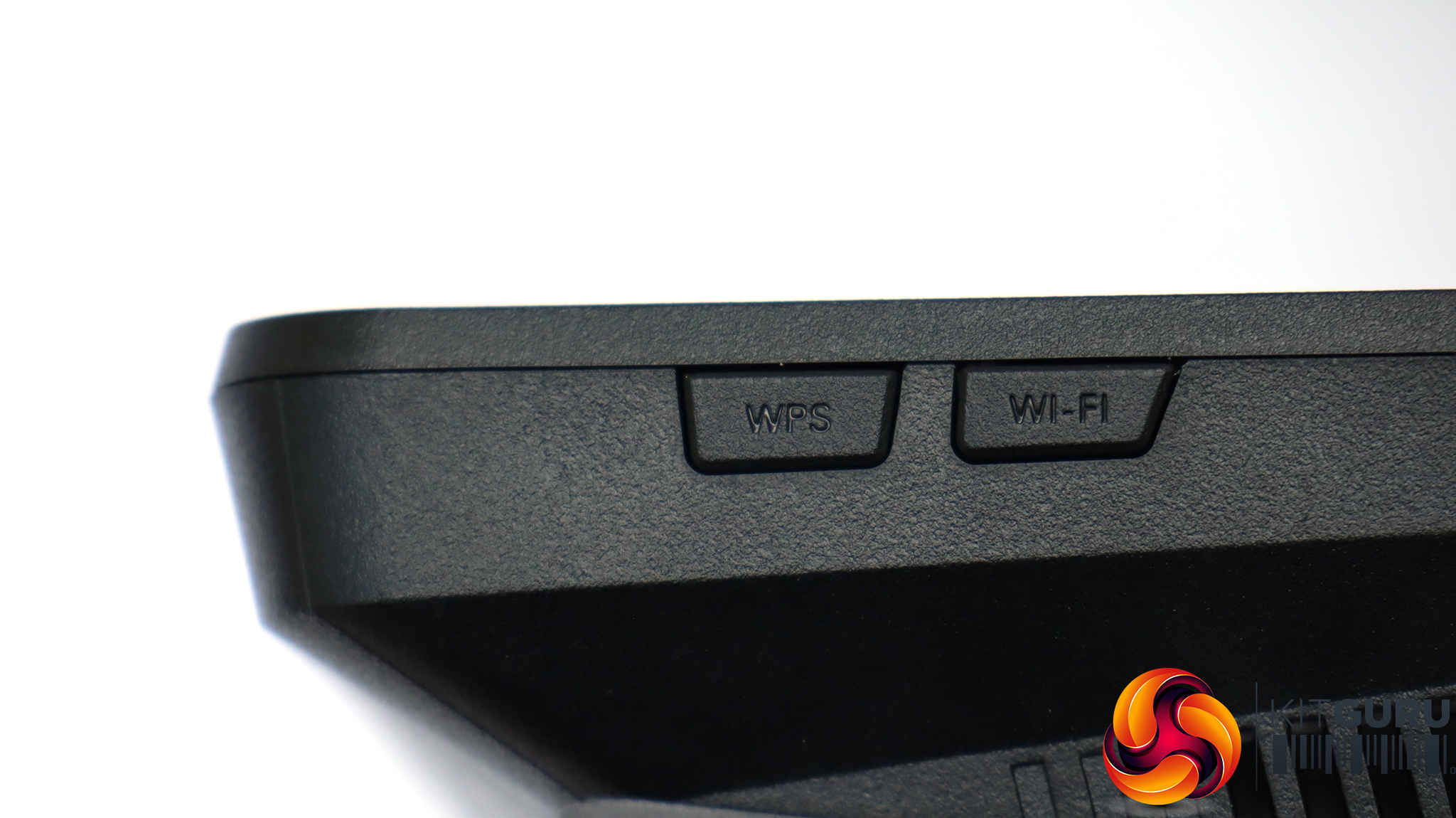
On the right-hand corner are two buttons for triggering WPS client setup, and toggling the WiFi radios if you want to turn them off while leaving the rest of the router active.
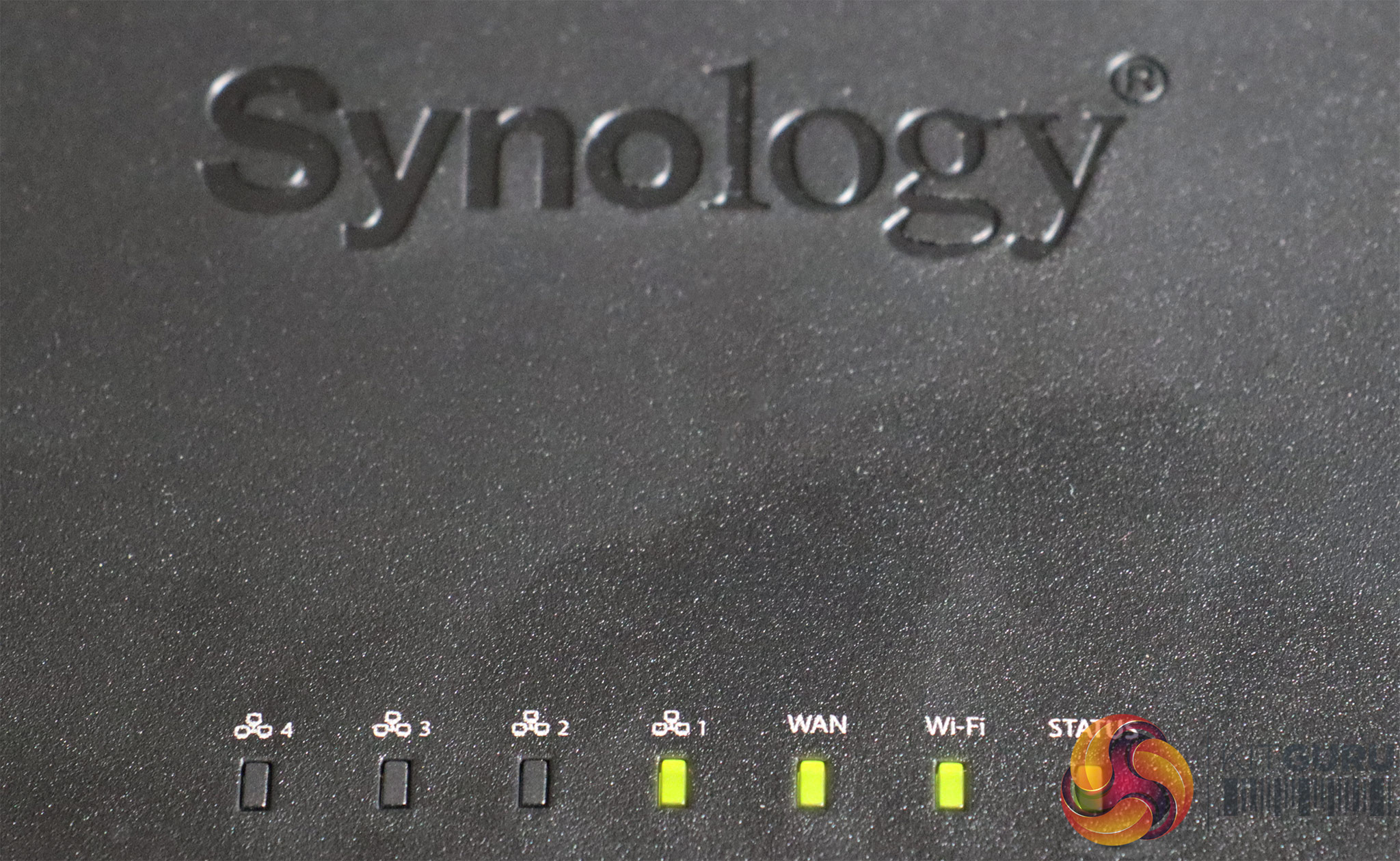
Seven lights on the top of the device near the front show status, including one for each LAN port, one for WAN, one for the WiFi radios, and a power LED.
Overall, this is a pretty standard physical specification, with the 2.5Gbps port and secondary WAN option the most unusual extras, and the USB a welcome inclusion too. However, the similarly-priced NETGEAR Nighthawk AX12 includes a four-port Gigabit Ethernet hub, with two ports that can be aggregated, a separate 5Gbps LAN port with WAN capability, and two USB ports.
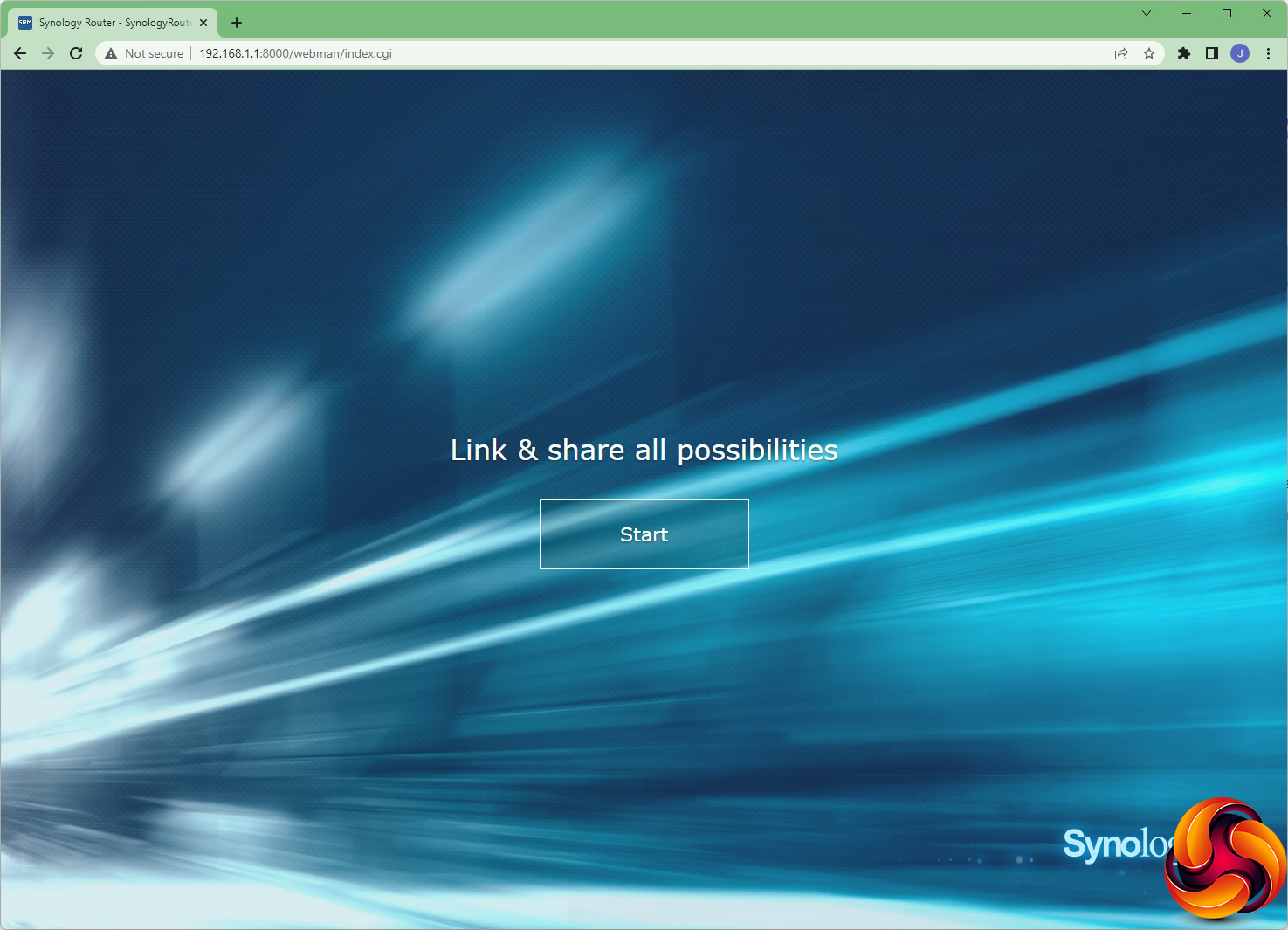
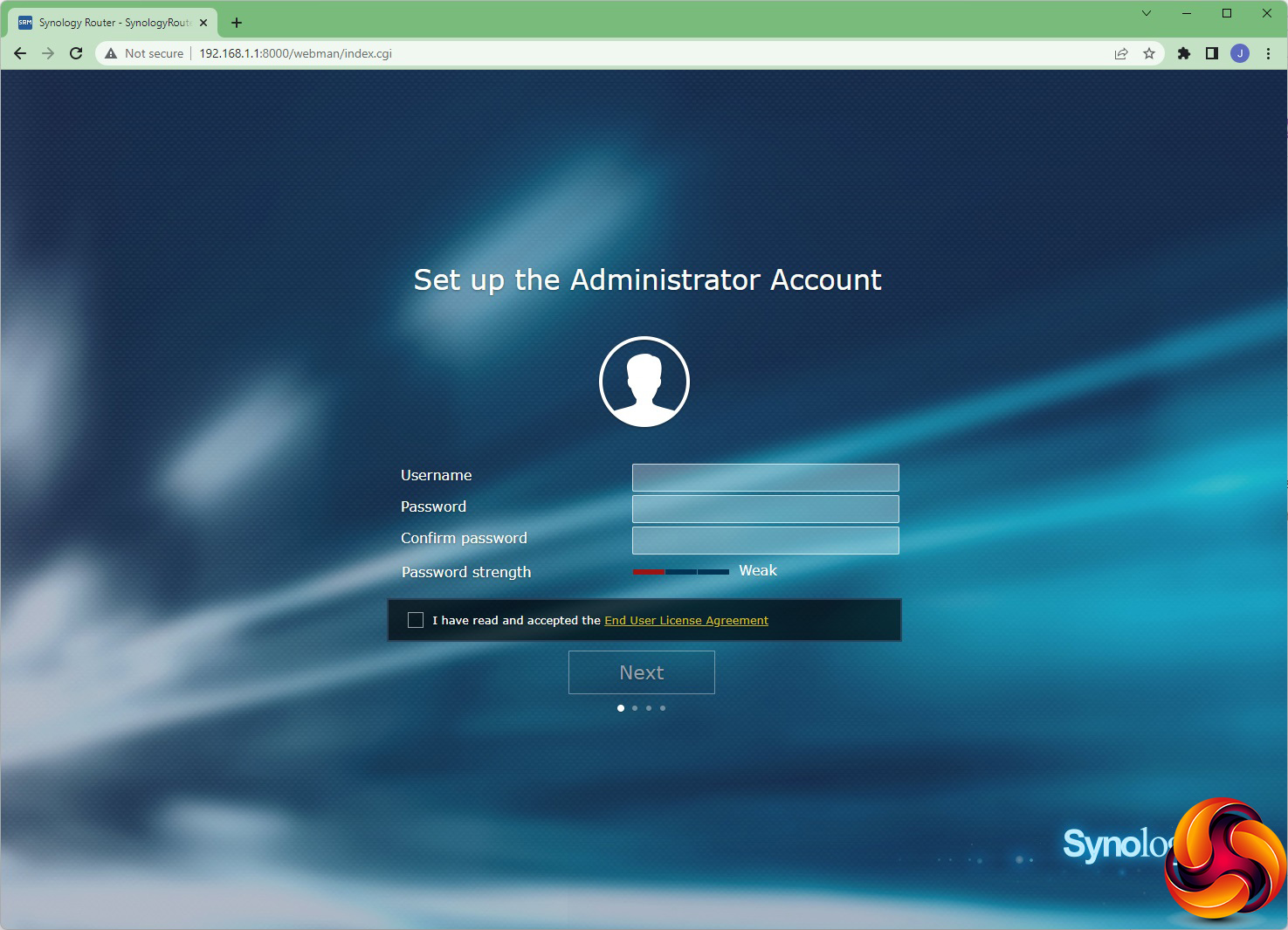
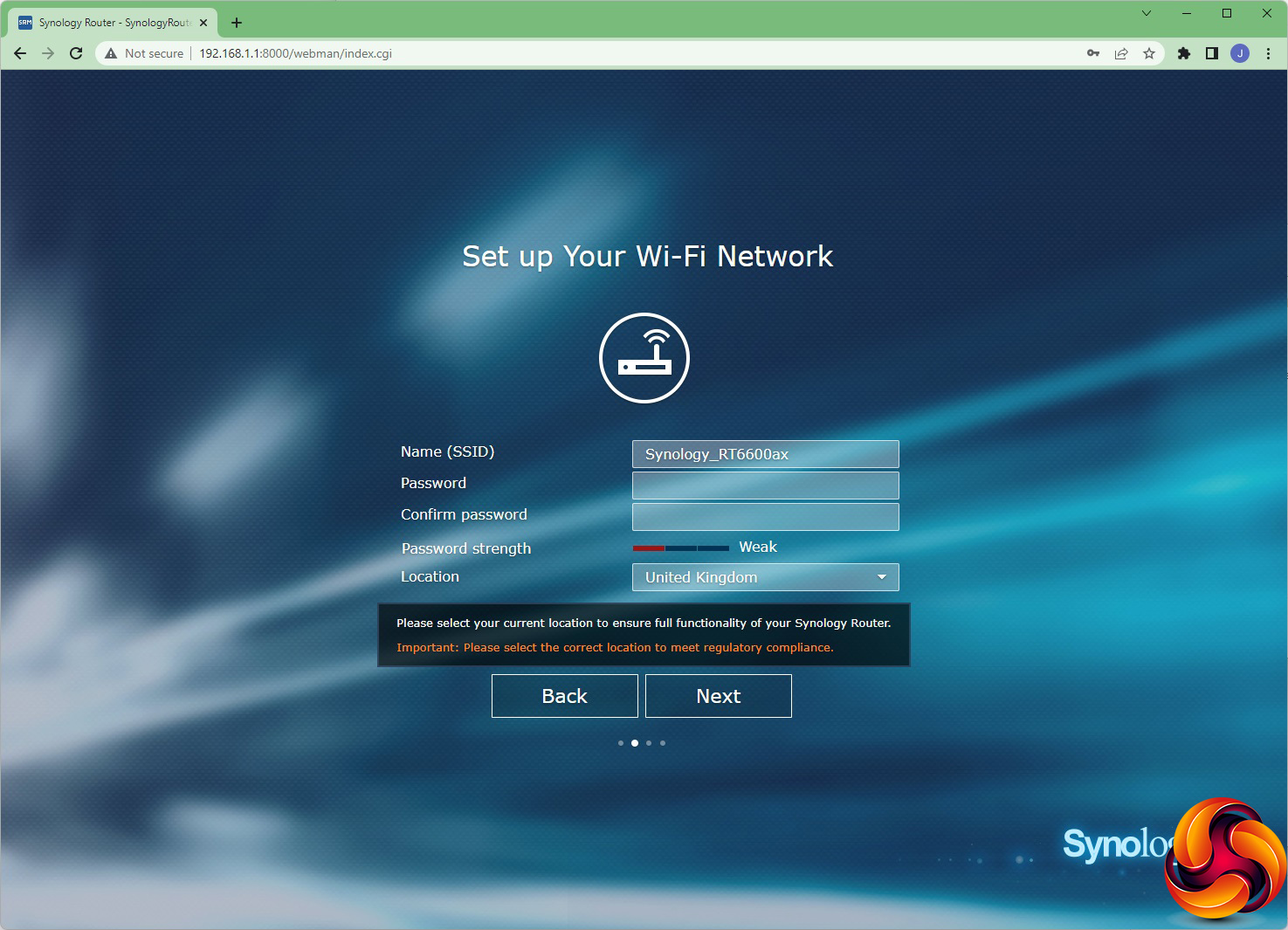
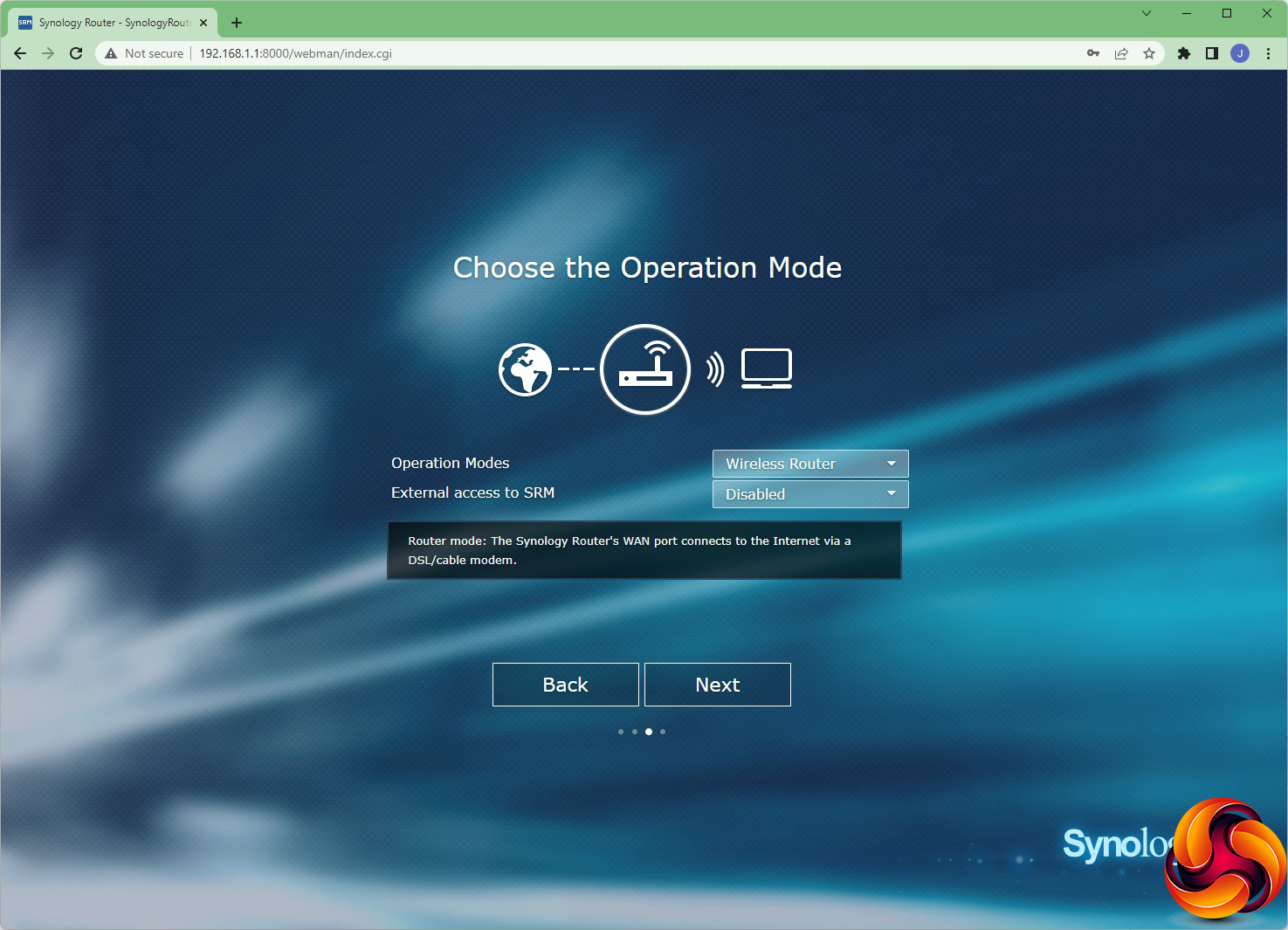
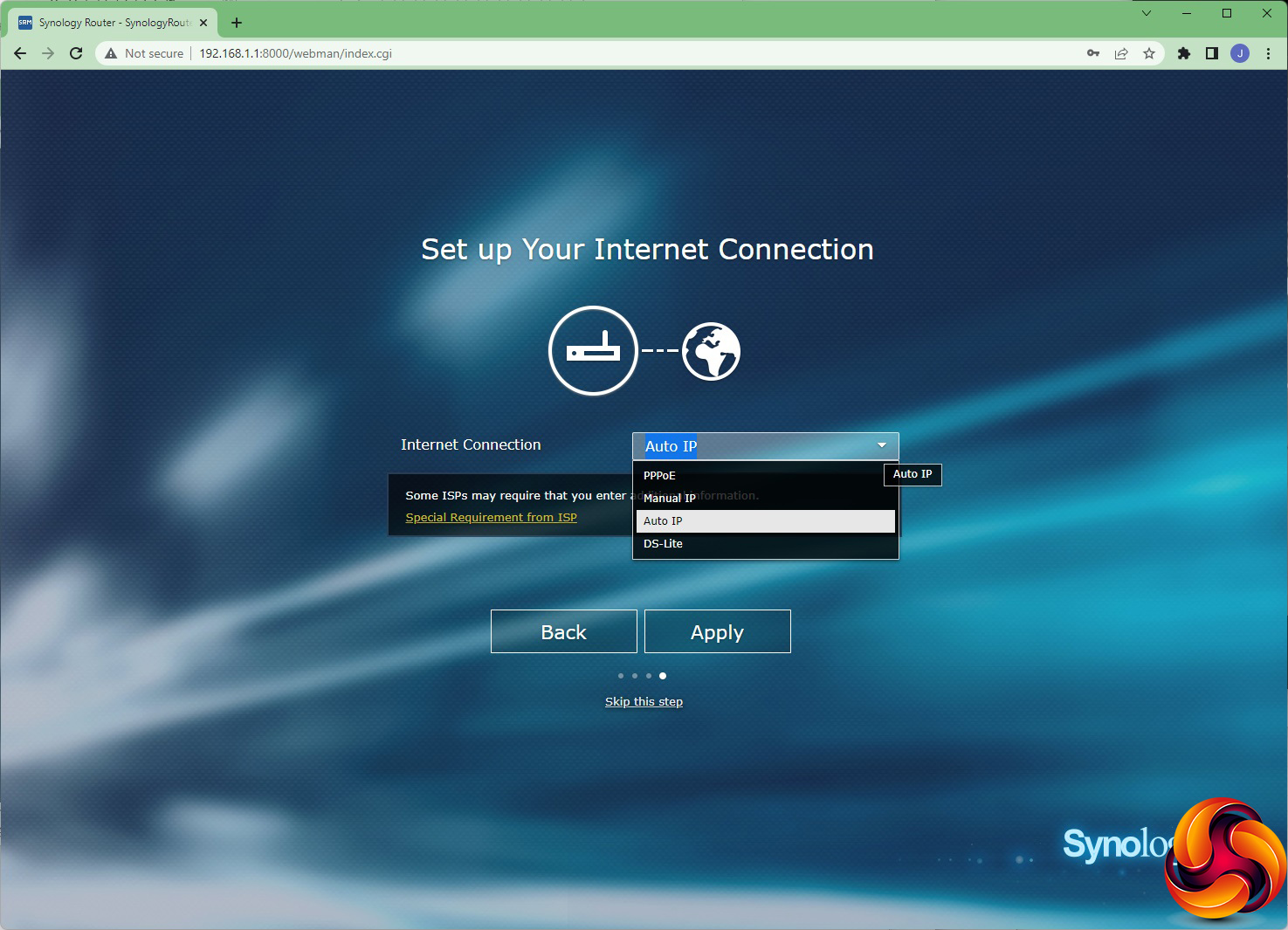
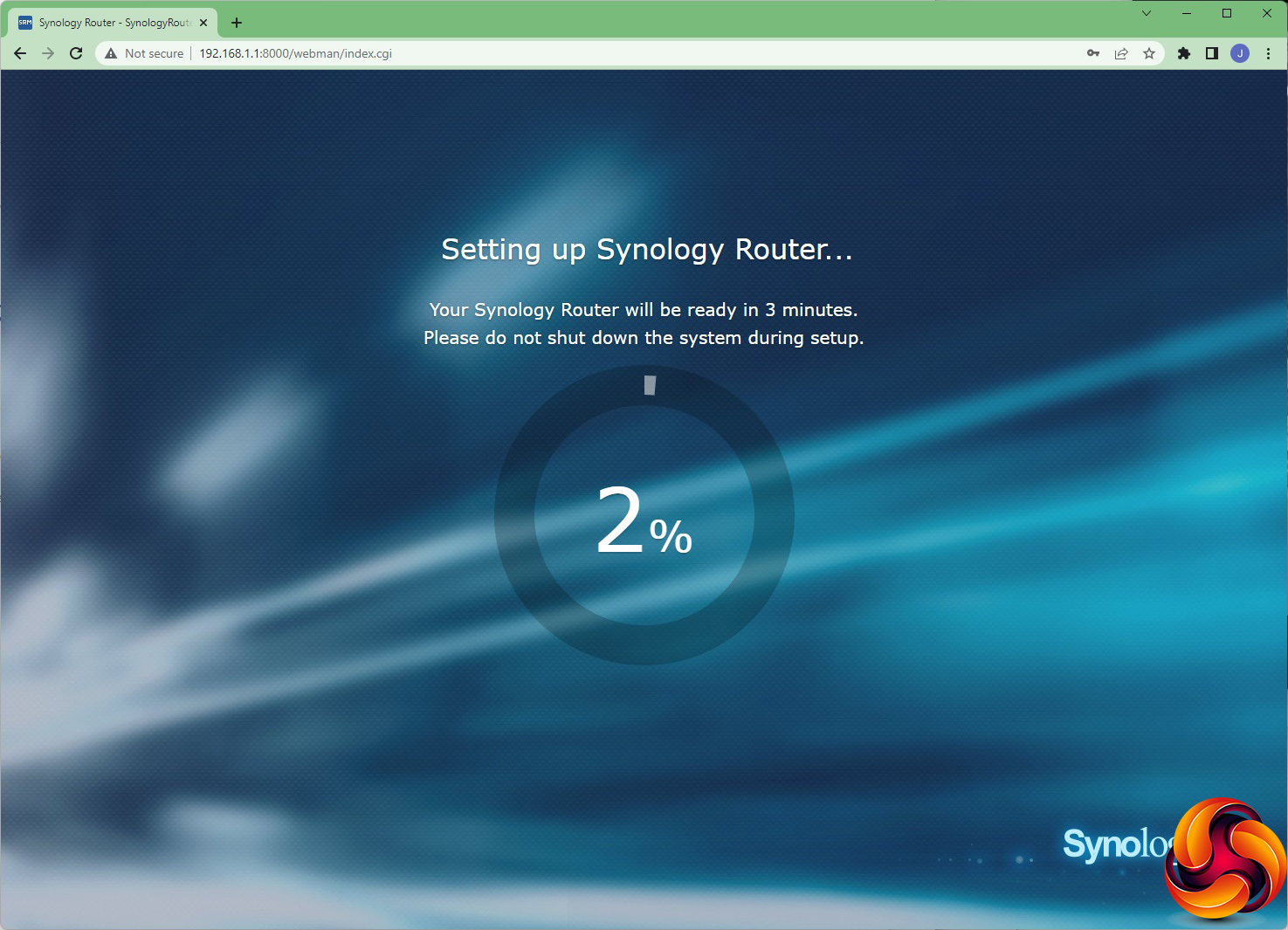
Once you've physically set the router up and allowed it to boot, you can start the setup wizard process. This can be performed with a smartphone app as well as the Web interface shown here. You follow stages configuring the admin login and password, WiFi network settings, operation mode (router or access point) and whether the management interface will be accessible externally. Finally, once you've chosen the kind of Internet connection you're using, the router will reboot again, taking another five minutes or so.
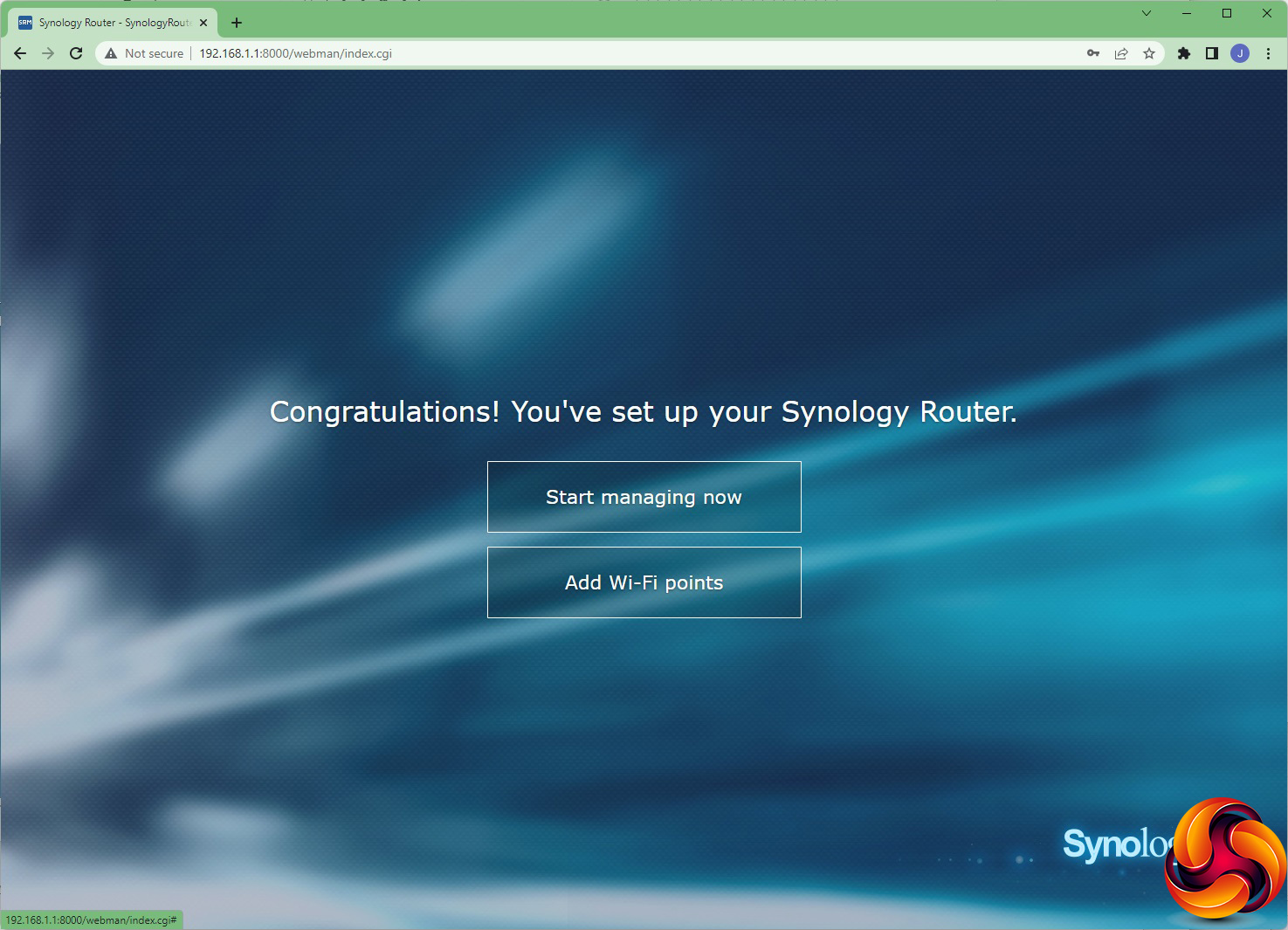

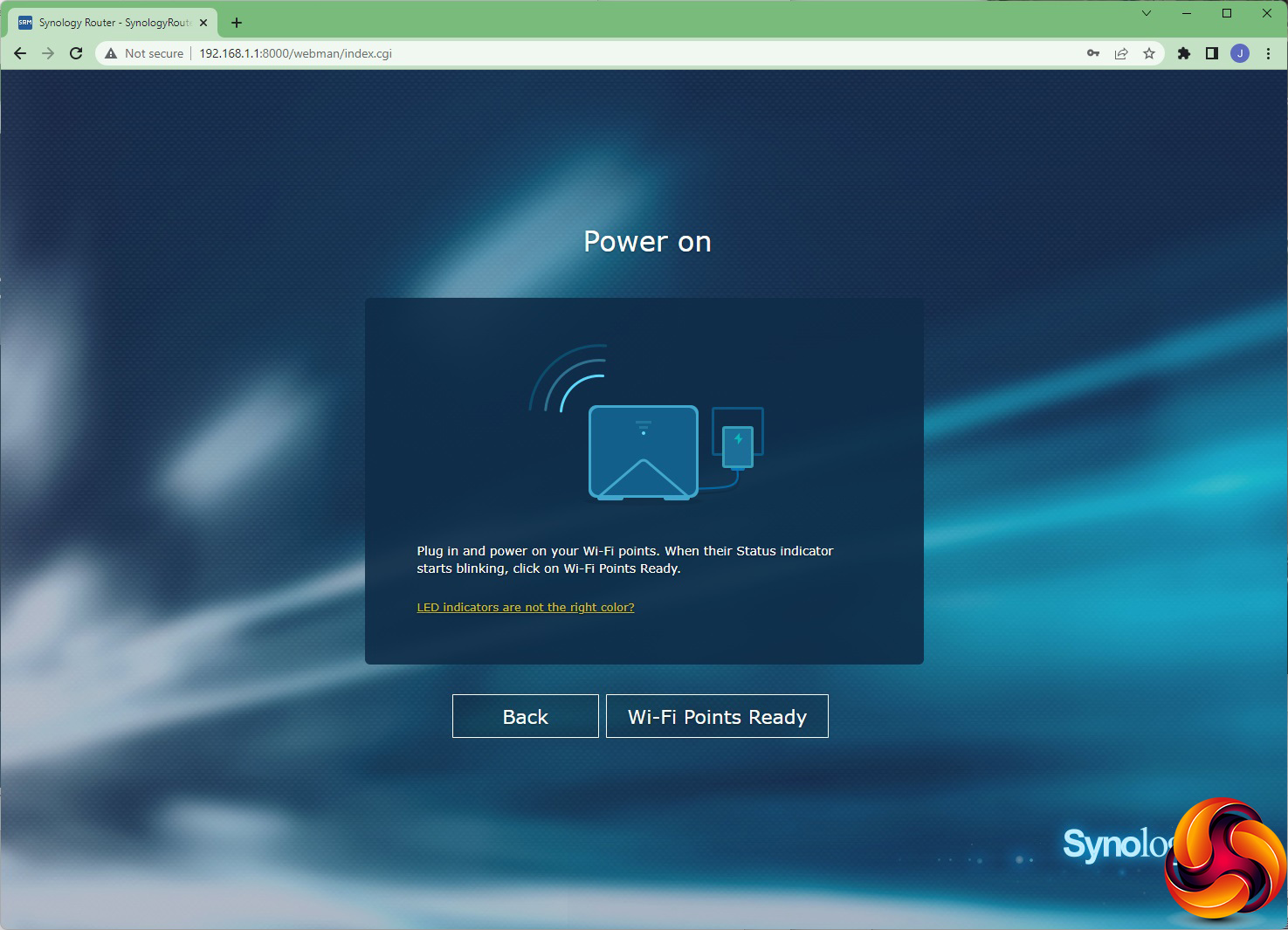
Once the router is rebooted you can log in, and the first time you do this you will be given the option either to go straight to the management interface, or add further WiFi points as part of a mesh network. This is one of the special features of the Synology RT6600ax. It's a regular router, but you can add other compatible Synology devices to form a mesh, increasing the possibilities and potential WiFi coverage.
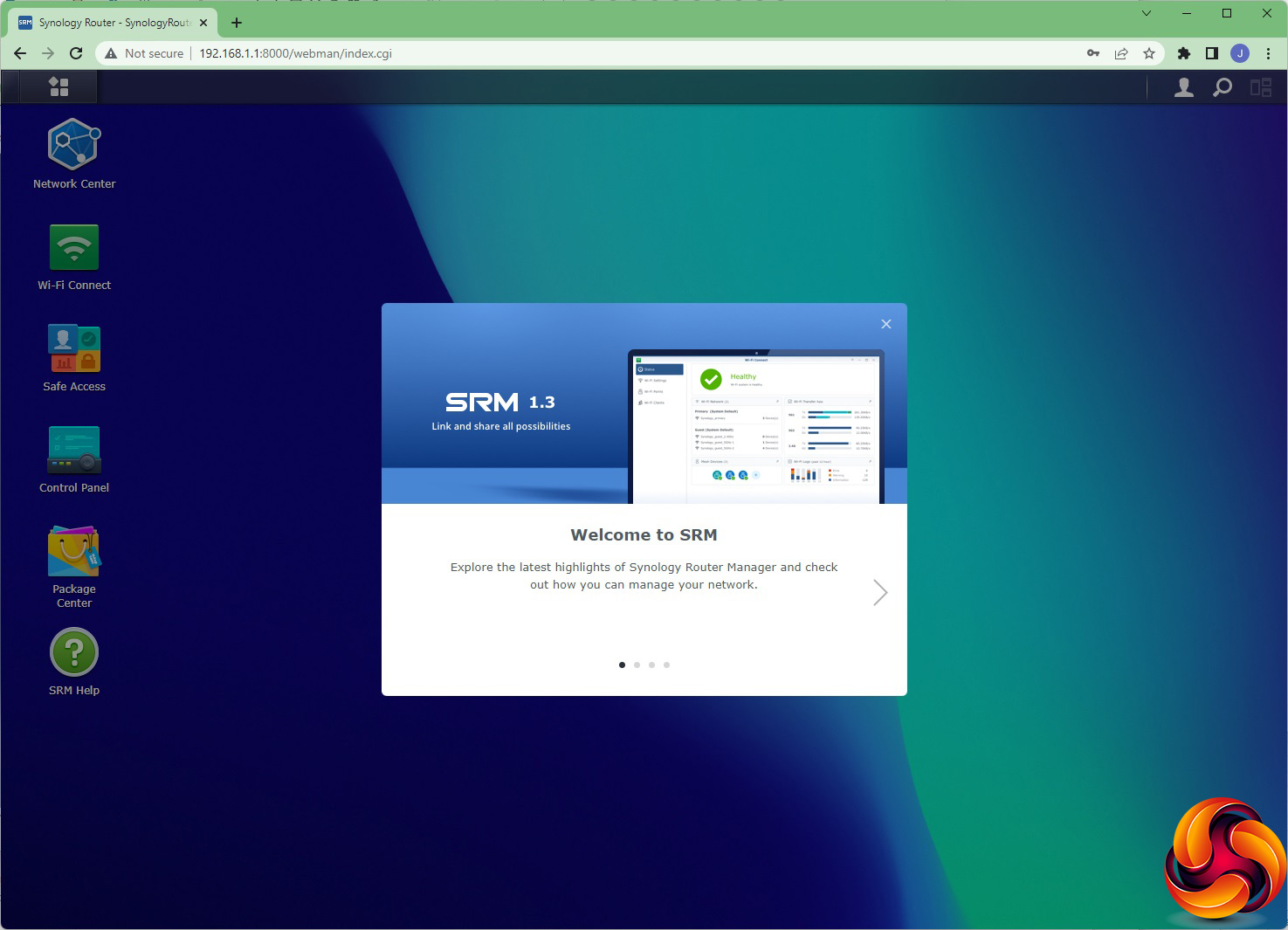
Once you're inside the management interface you get a quick walkthrough of the interface features and the option to let Synology monitor your pageview analytics.
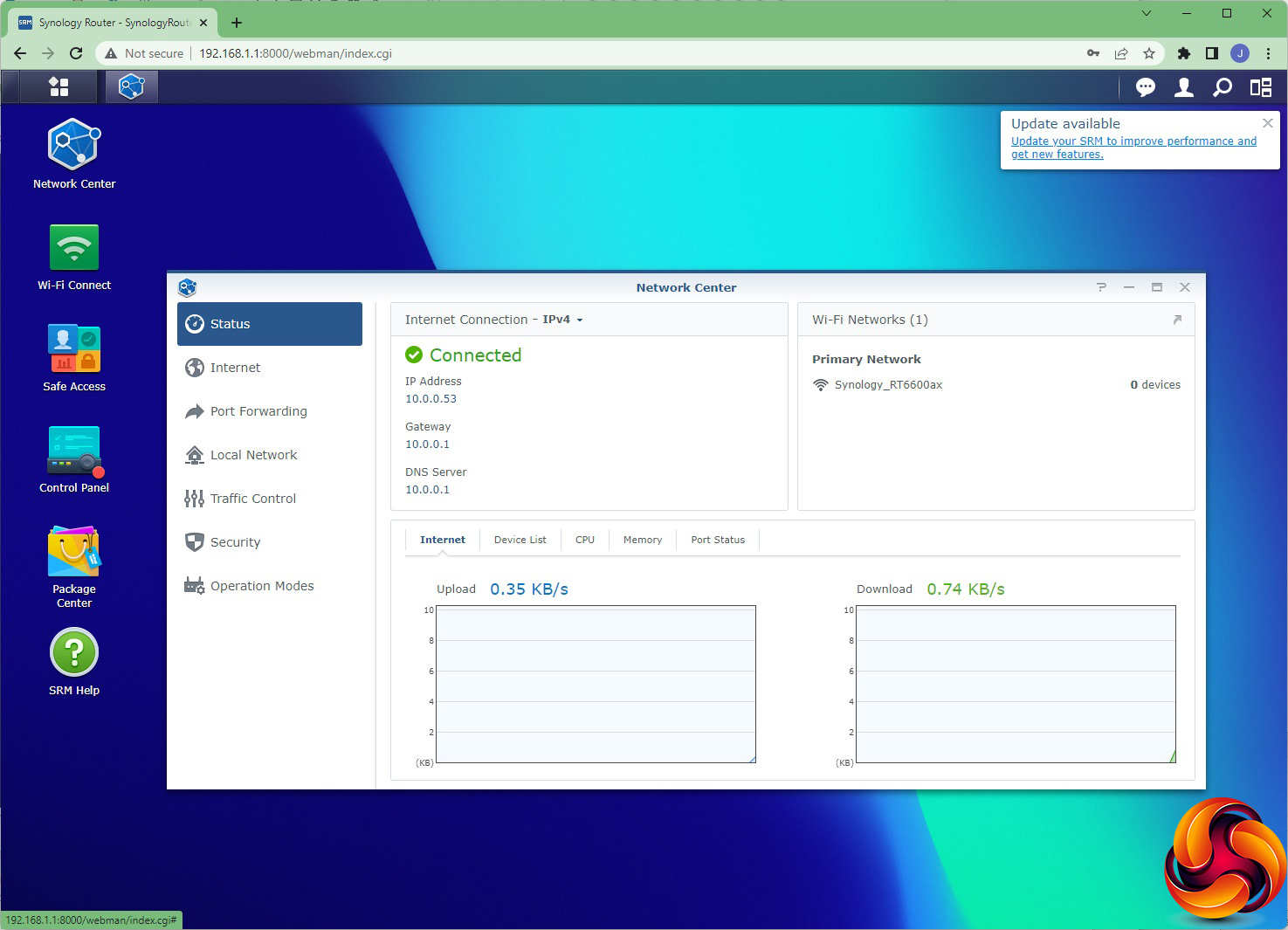
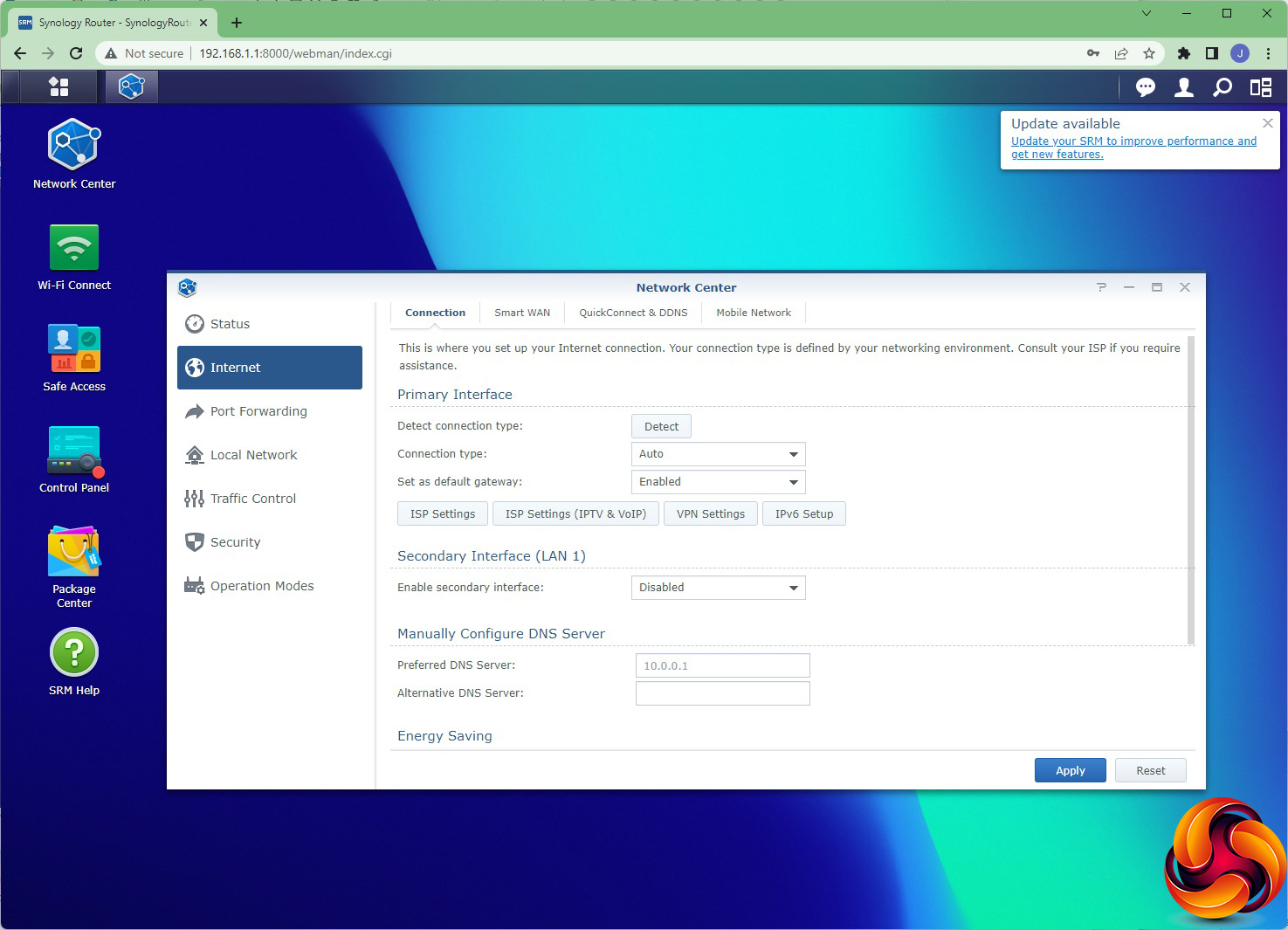
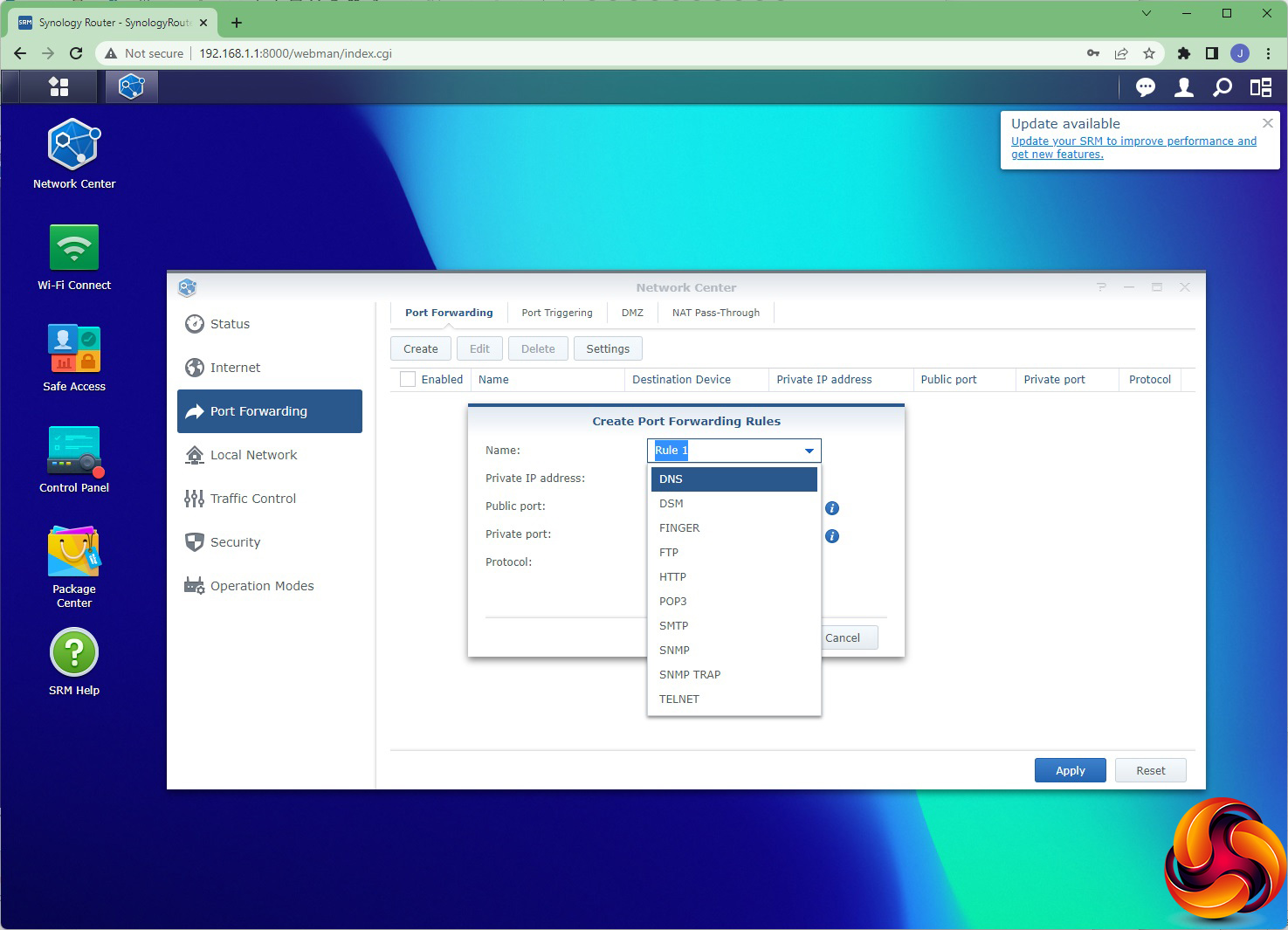
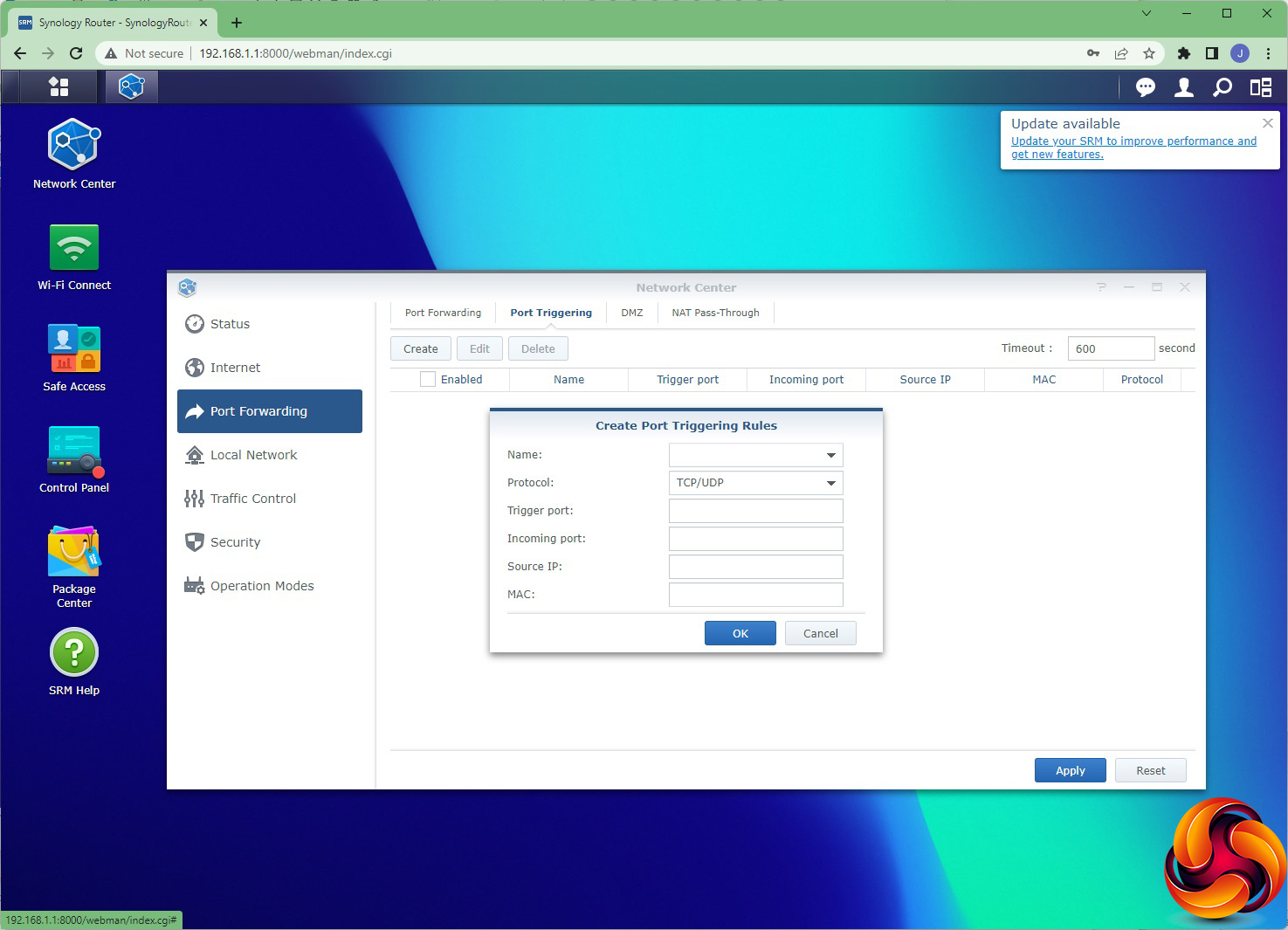
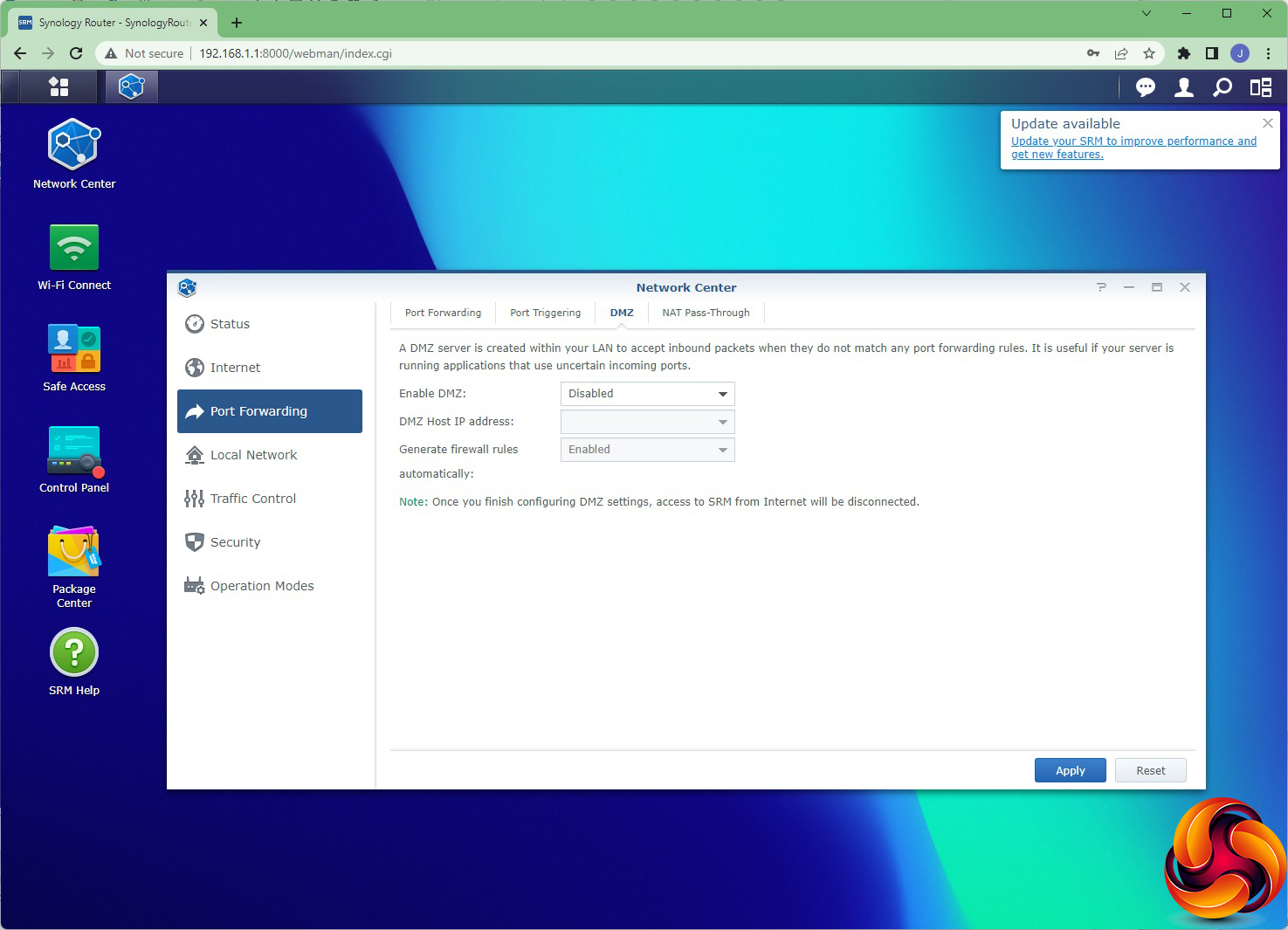
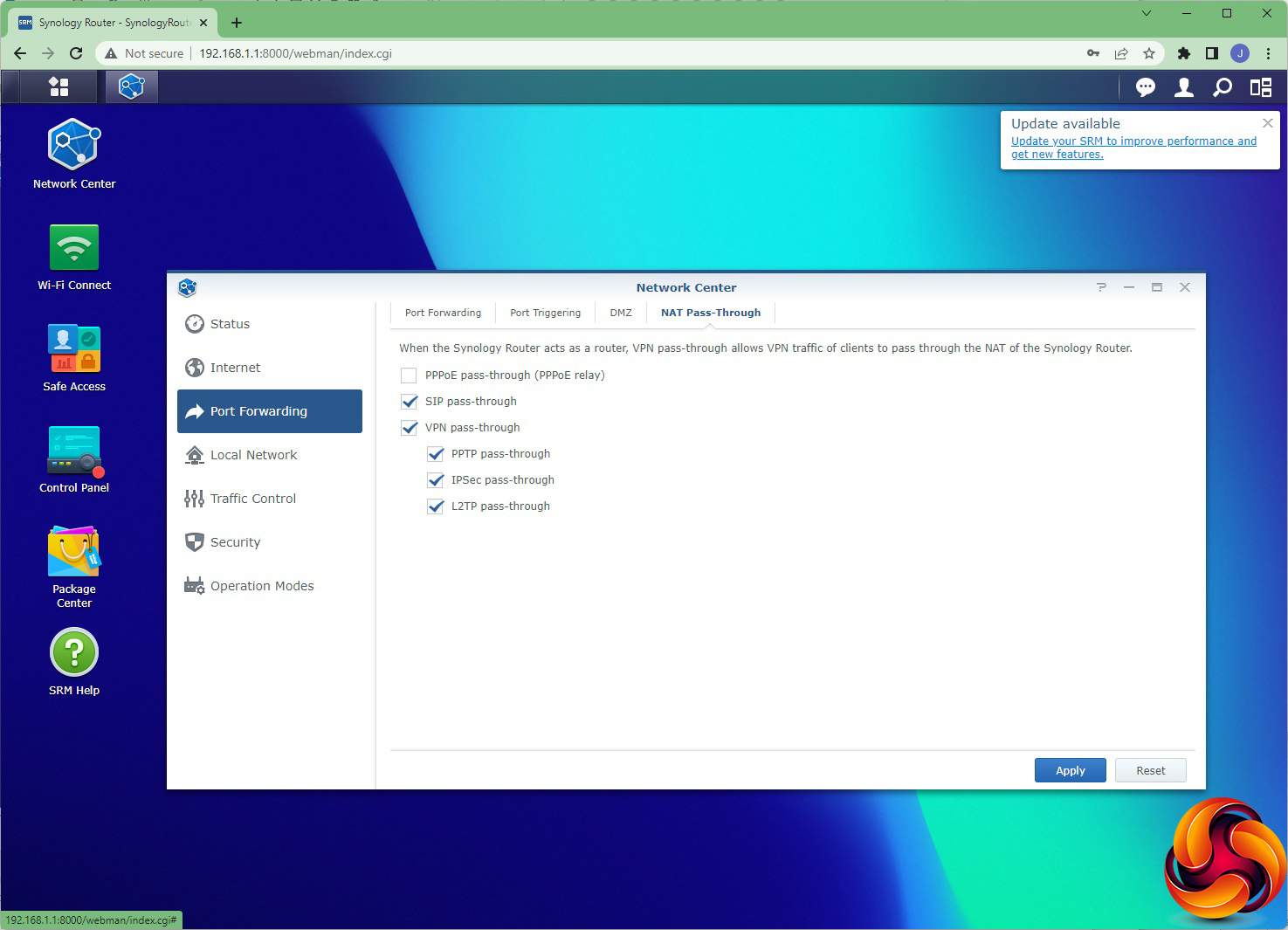
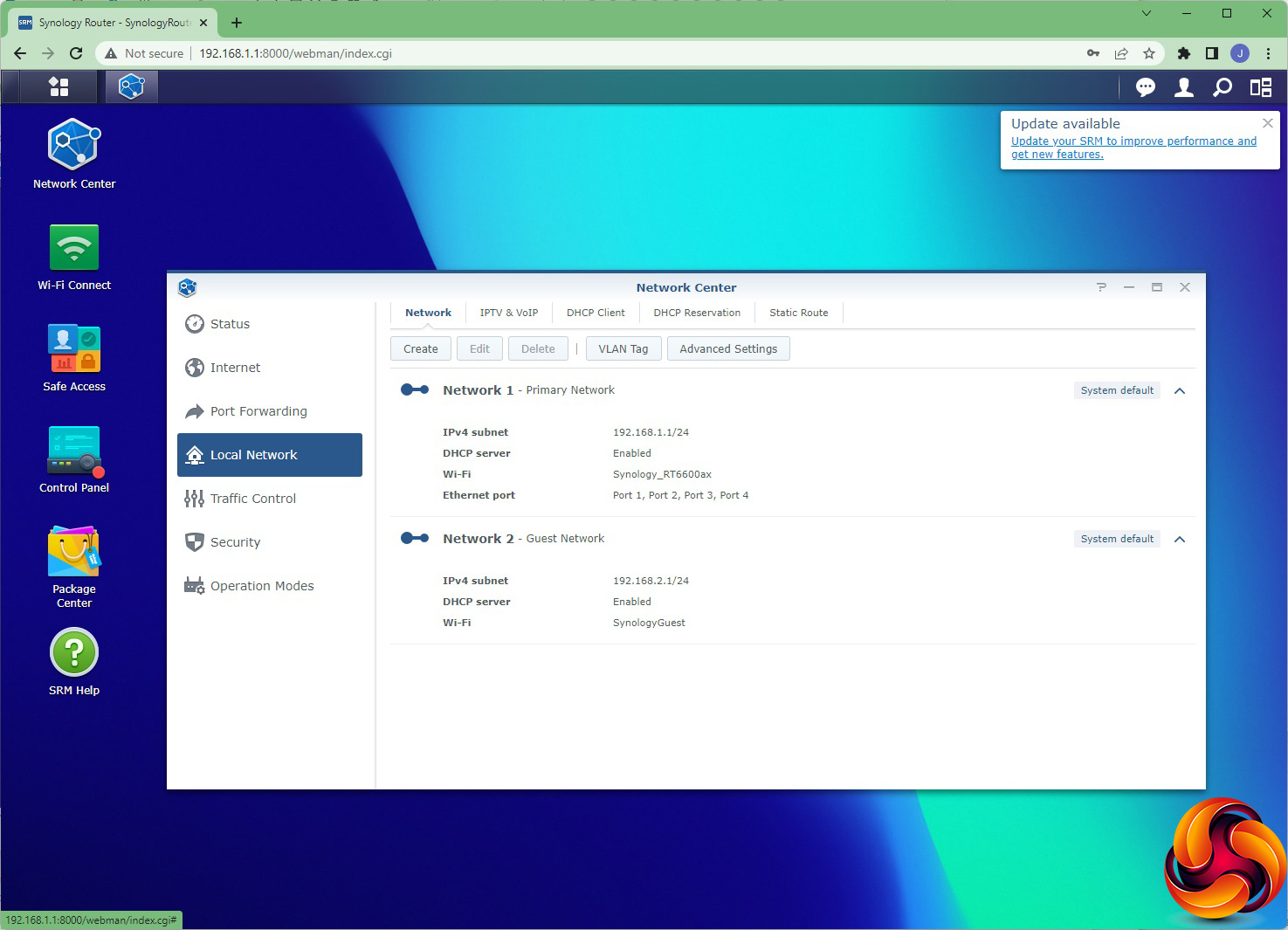
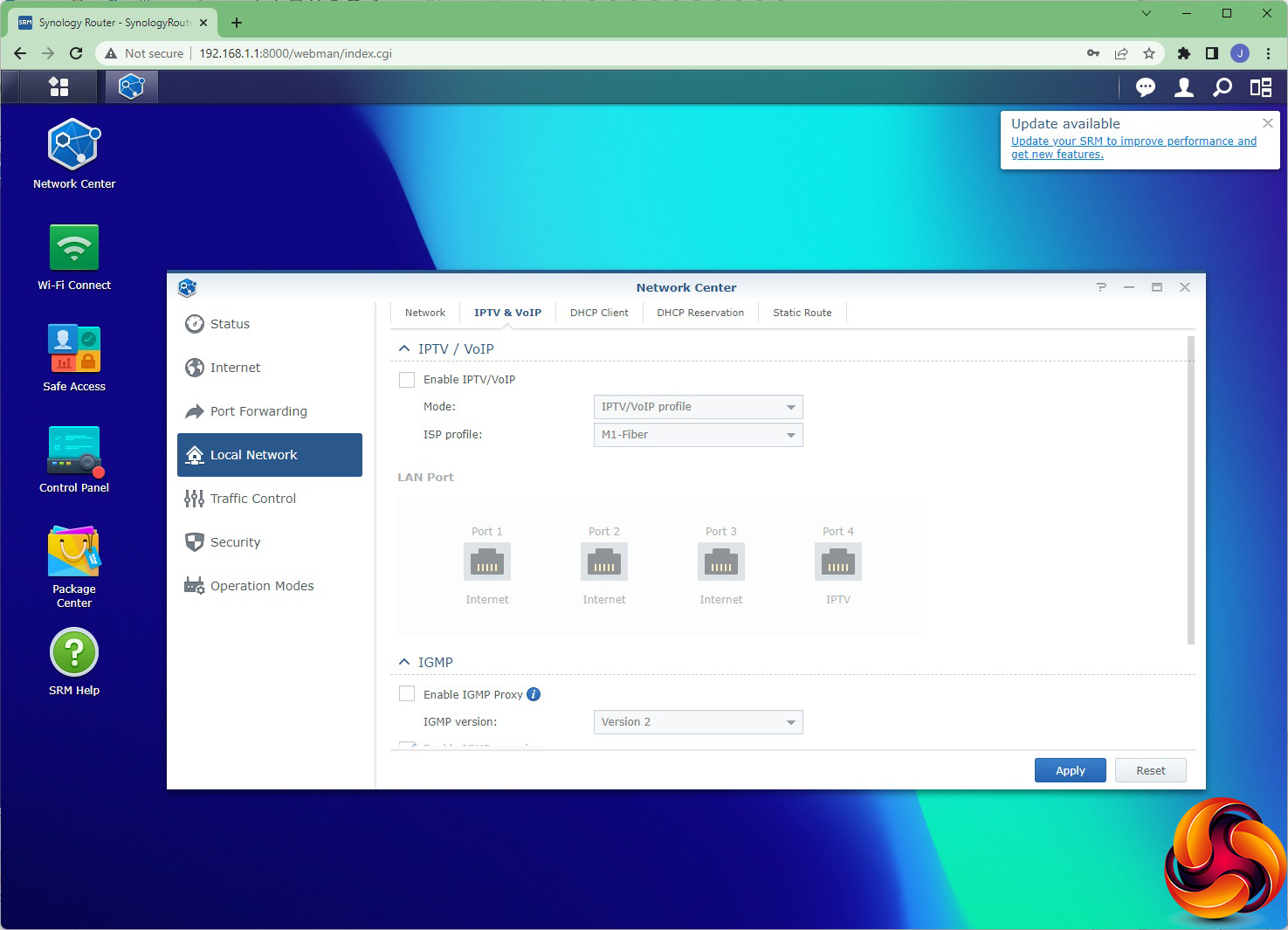
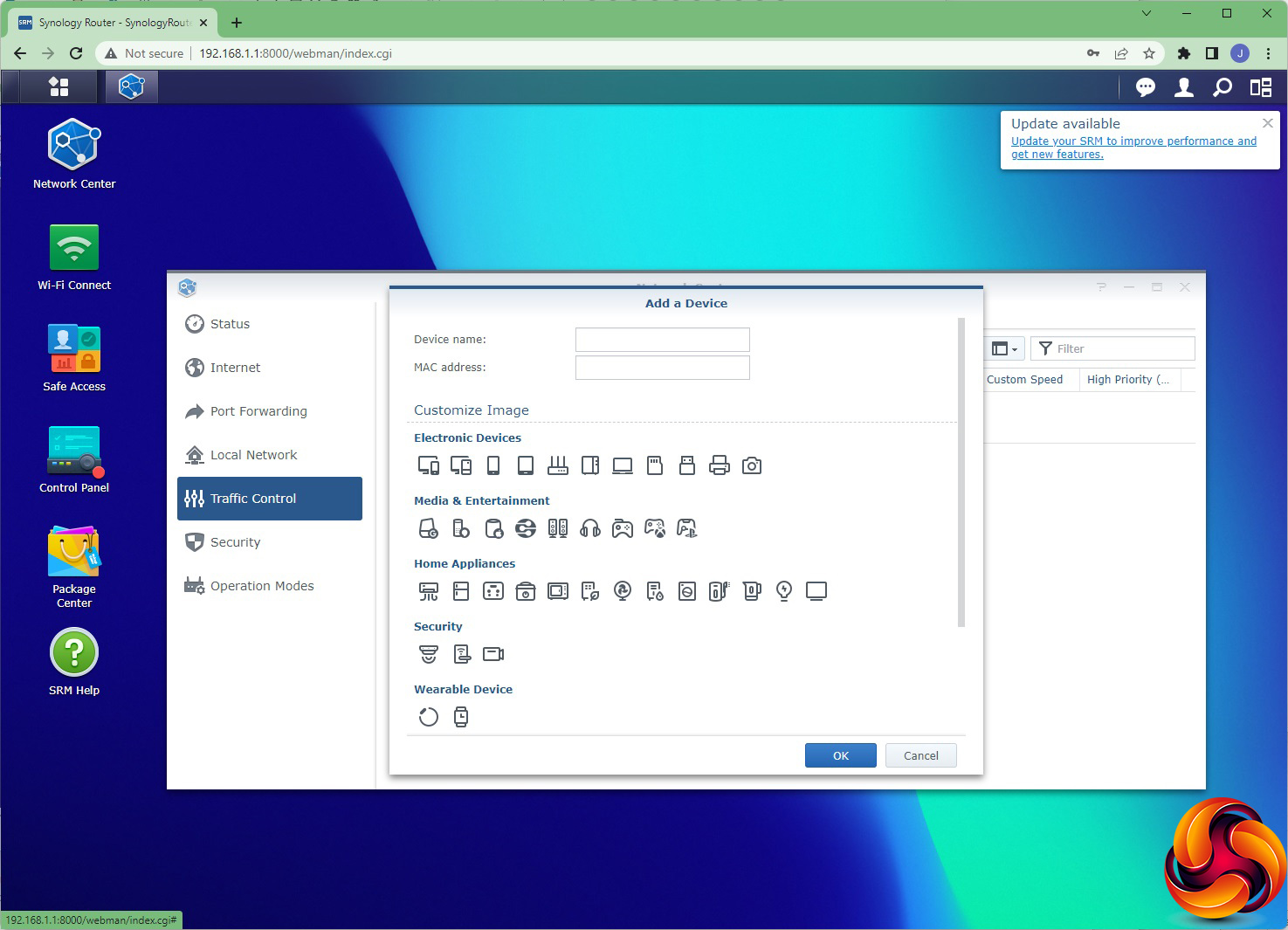
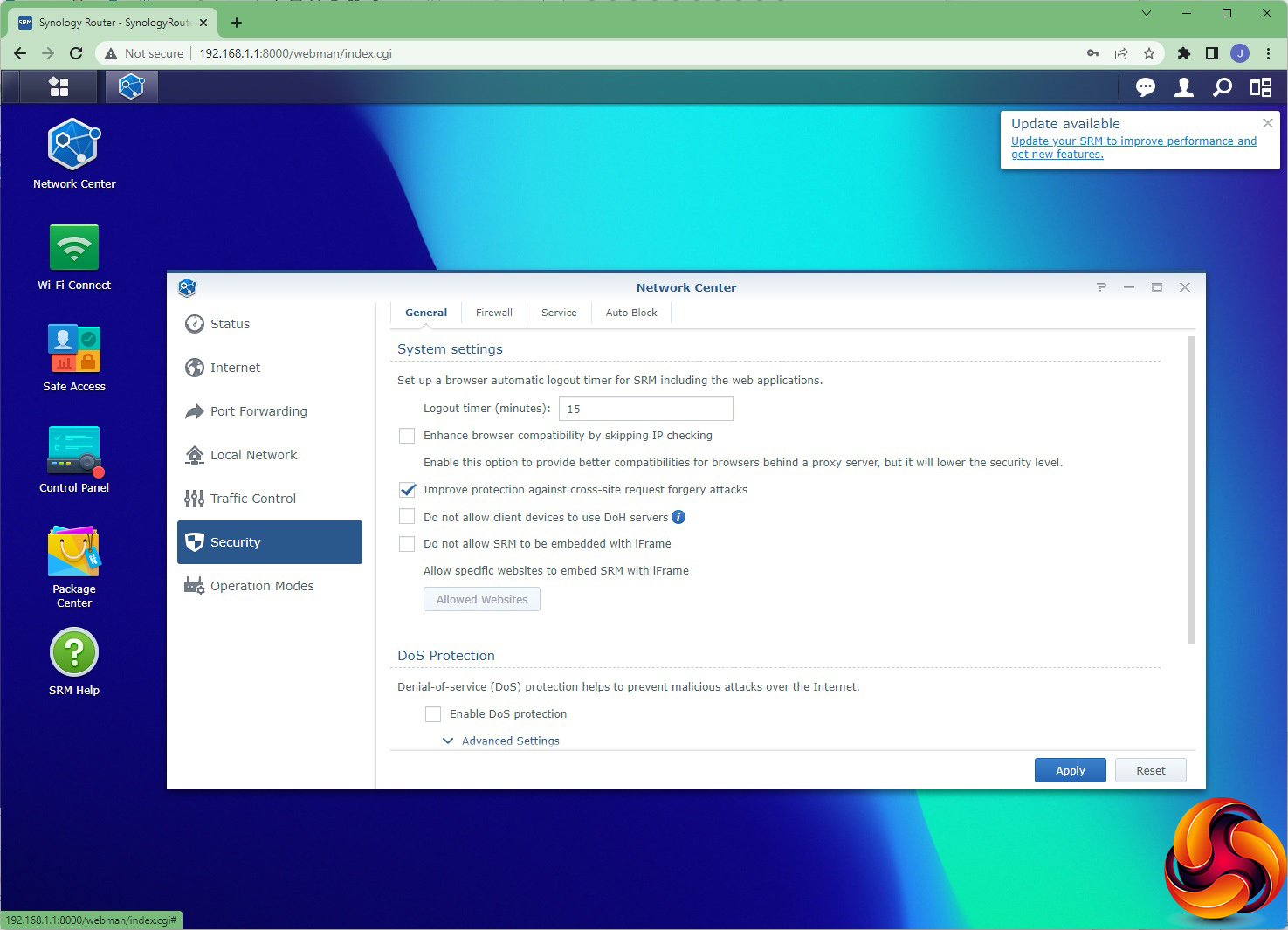
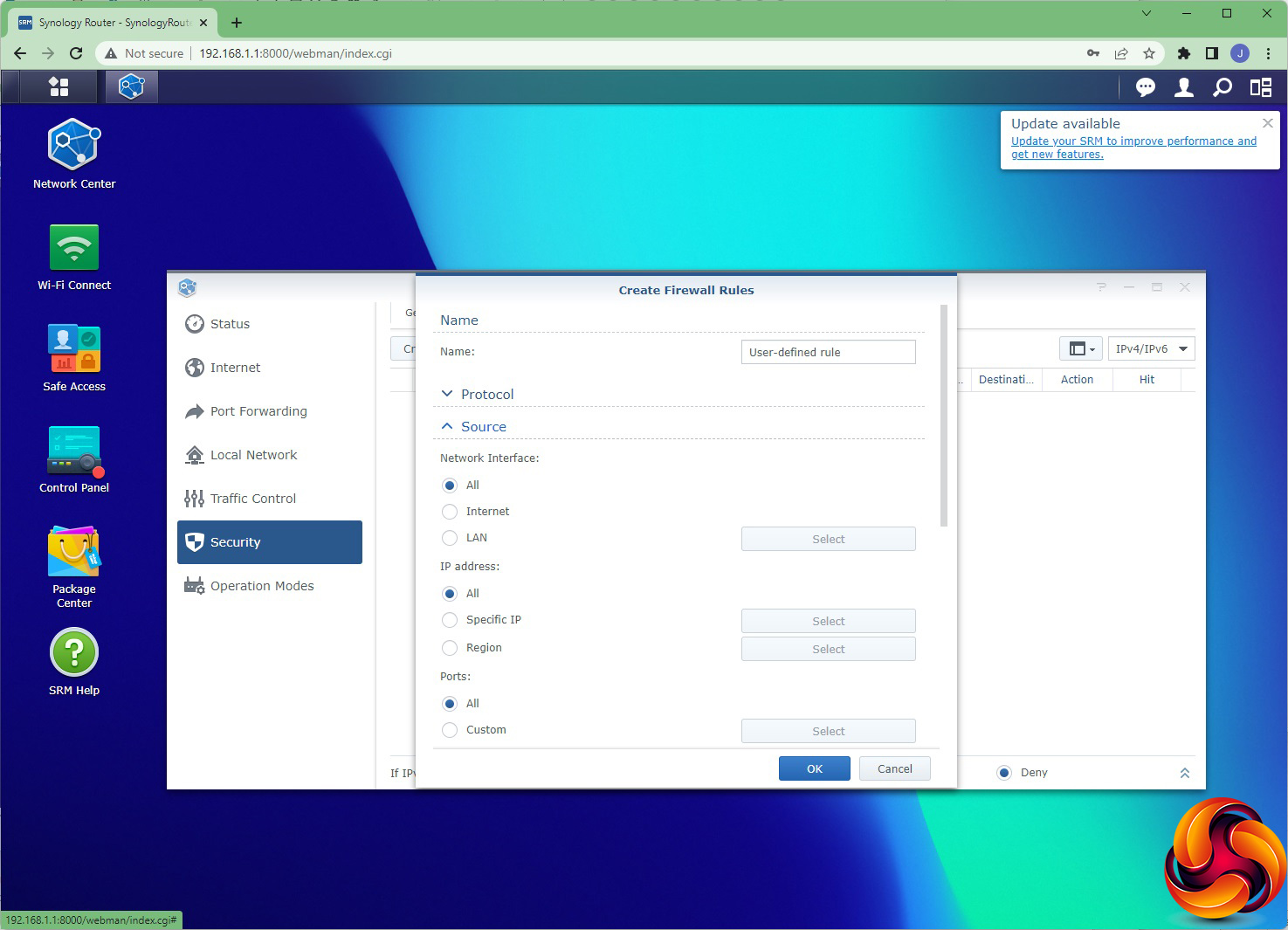
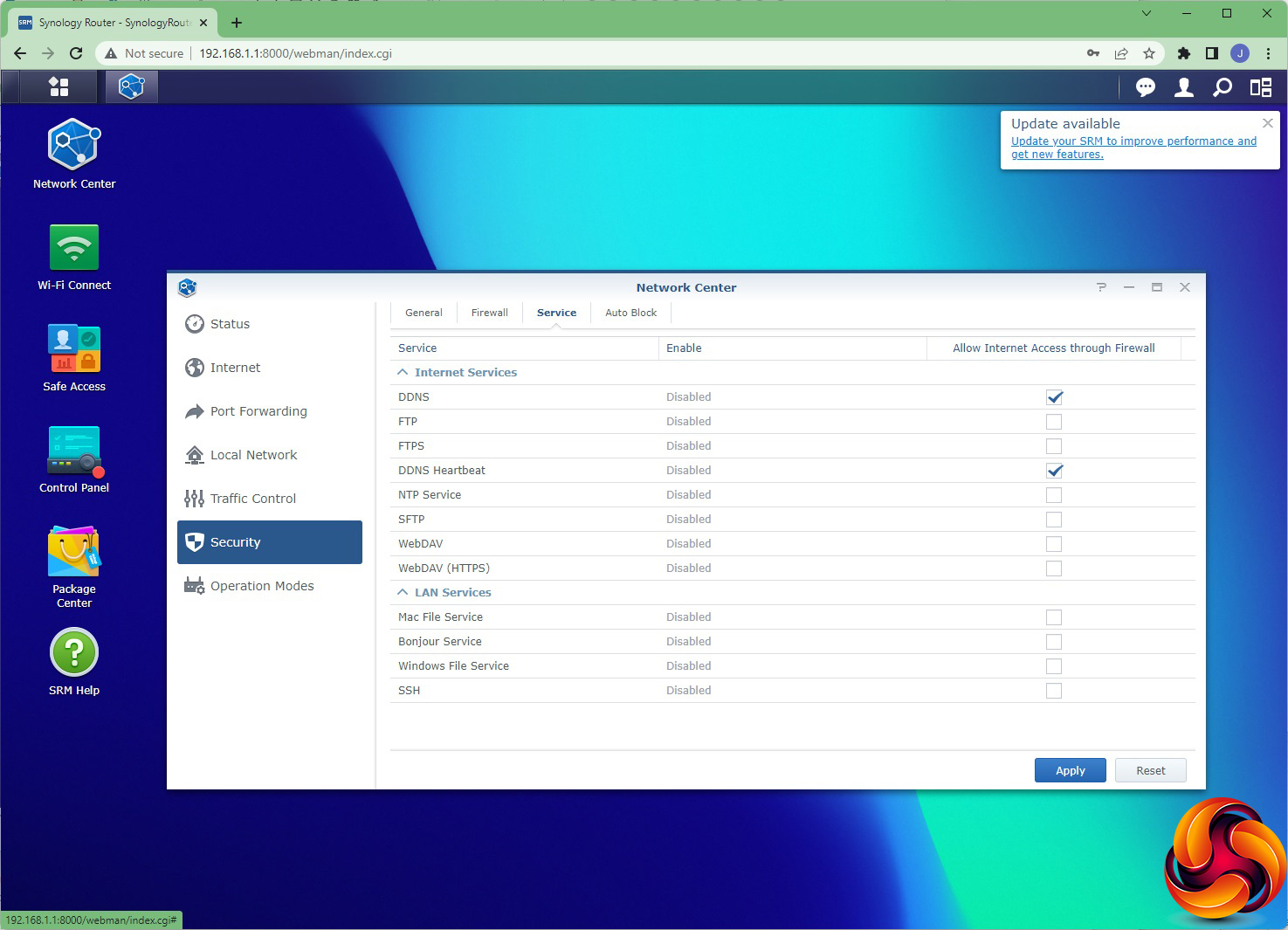
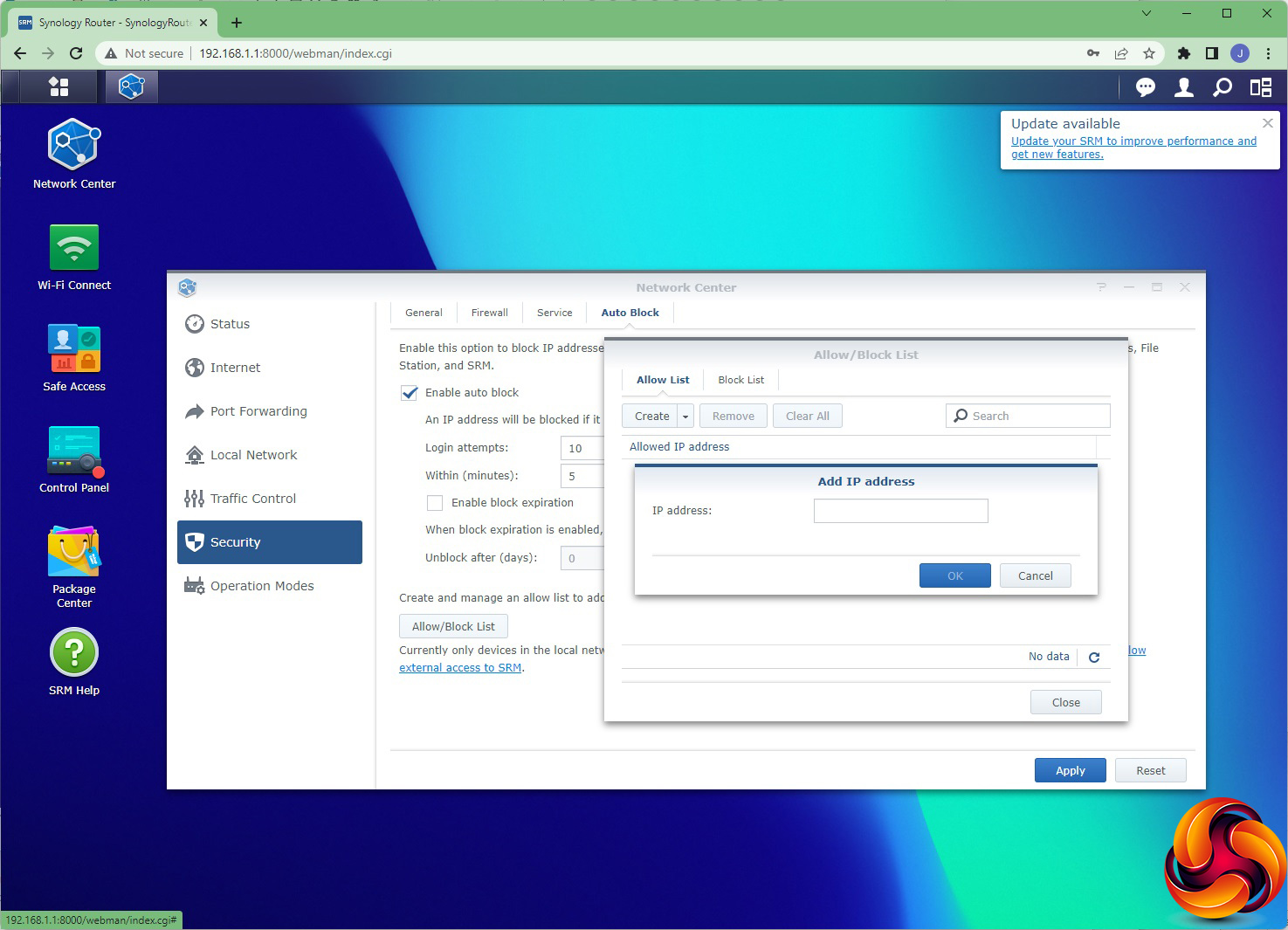
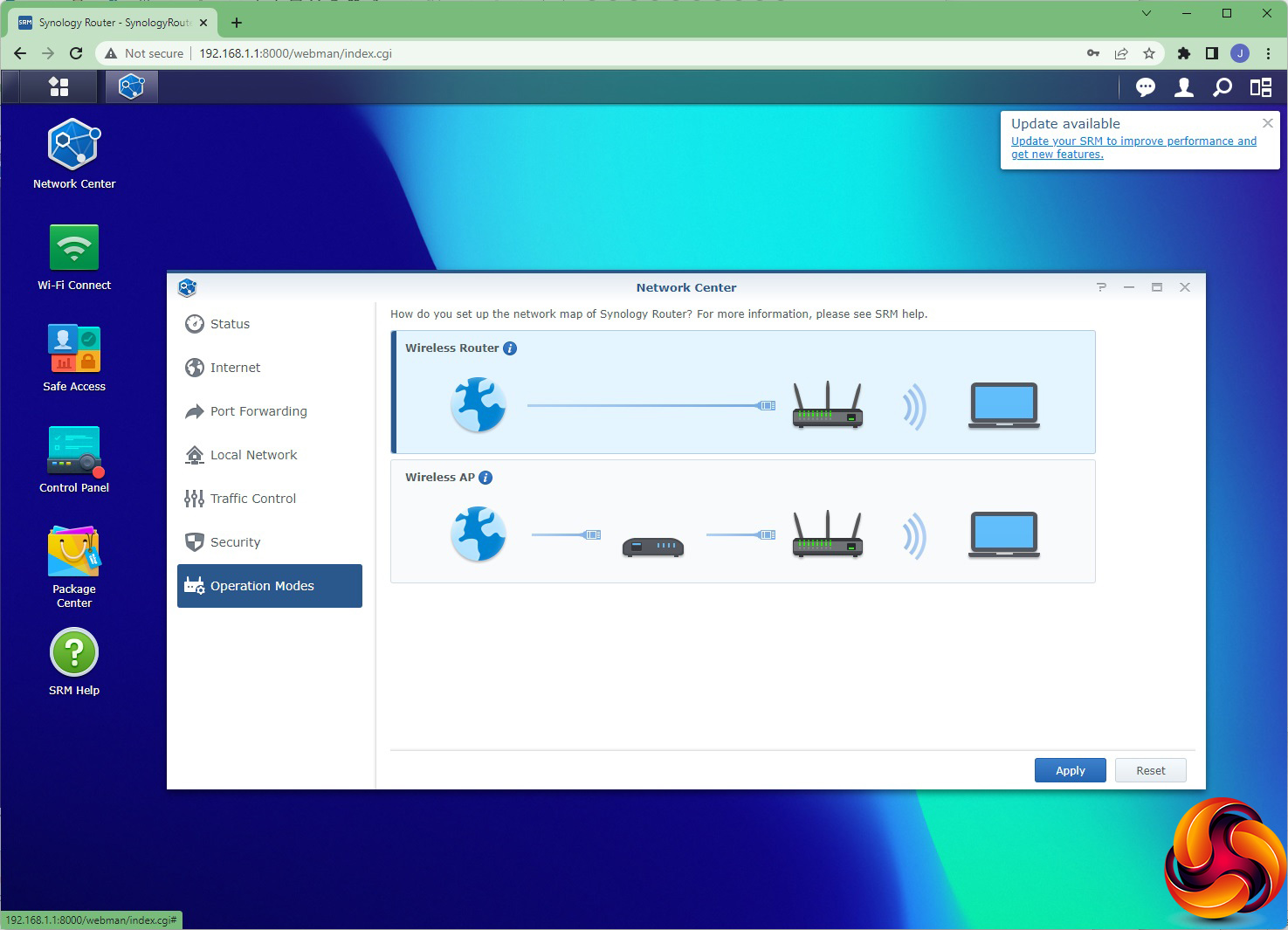
The Network Center is absolutely packed with features. The initial Status screen gives you information about the router and bandwidth performance. In the Internet section, you can change how the router connects to your broadband, and configure the secondary LAN port for WAN usage as well. You can then use the Smart WAN tab to choose whether the second WAN connection is used for failover or load balancing as well as failover – very useful for adding resiliency via a secondary broadband connection. Using LAN 1 for WAN means you can also have a 2.5Gbps WAN connection. There's an option to use a USB-based mobile data dongle as well. This includes iPhones, although you have to turn off WiFi and turn on Personal Hotspot on the phone to get this to work. We tried with an iPhone 12 and it functioned well.
This section is also where you can configure Port Forwarding and Port Triggering to expose services on devices on the internal network to external access, such as game servers. You can also set up a DMZ on one device and NAT Pass-Through for VPN traffic. The Local Network tab lets you define primary and guest networks, with VLANs, and enable specific support for IPTV and VoIP services. You can also manage DHCP devices and Static Routes. The Traffic Control section lets you limit the throughput for various devices, although this isn't quite as feature-rich as a full QoS system that can be used to prioritise certain traffic by type, such as specific games. You can add devices by type, such as games consoles and network speakers.
The Security tab includes Denial of Service protection (off by default) and you can create custom Firewall rules. You can also enable access for services through the Firewall. Finally, this section is also were you can switch the Operation Mode between Router and Access Point.
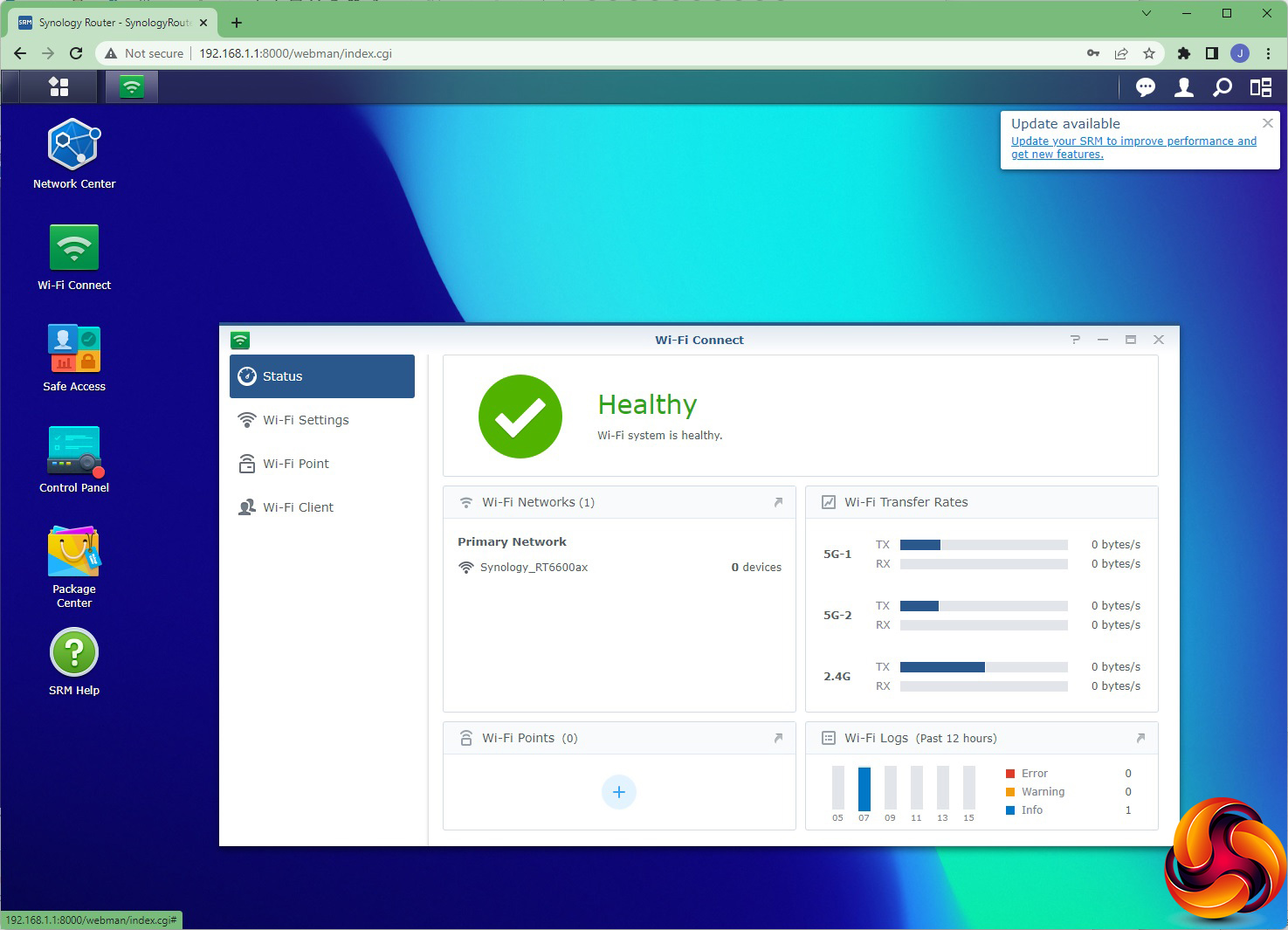
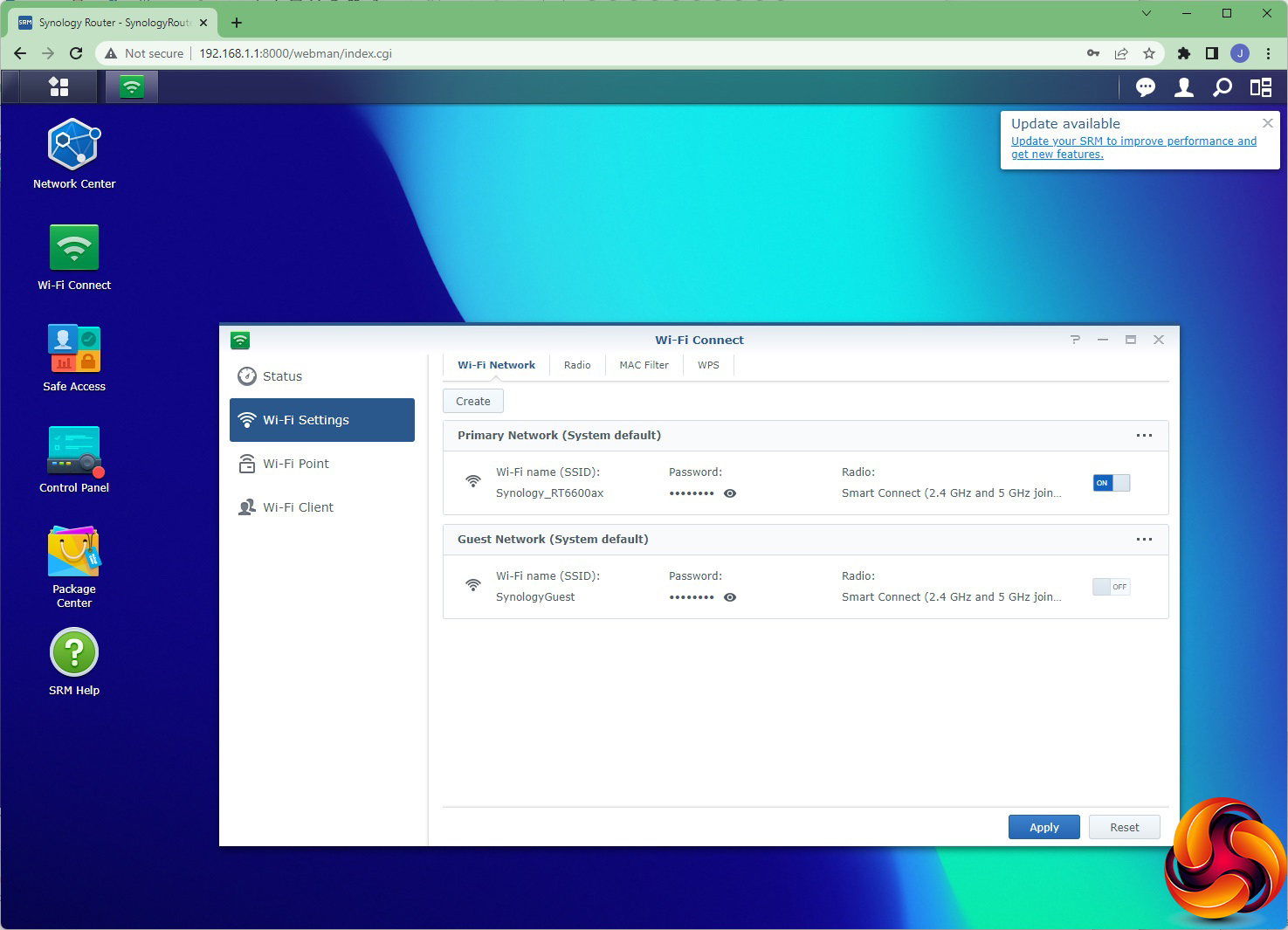
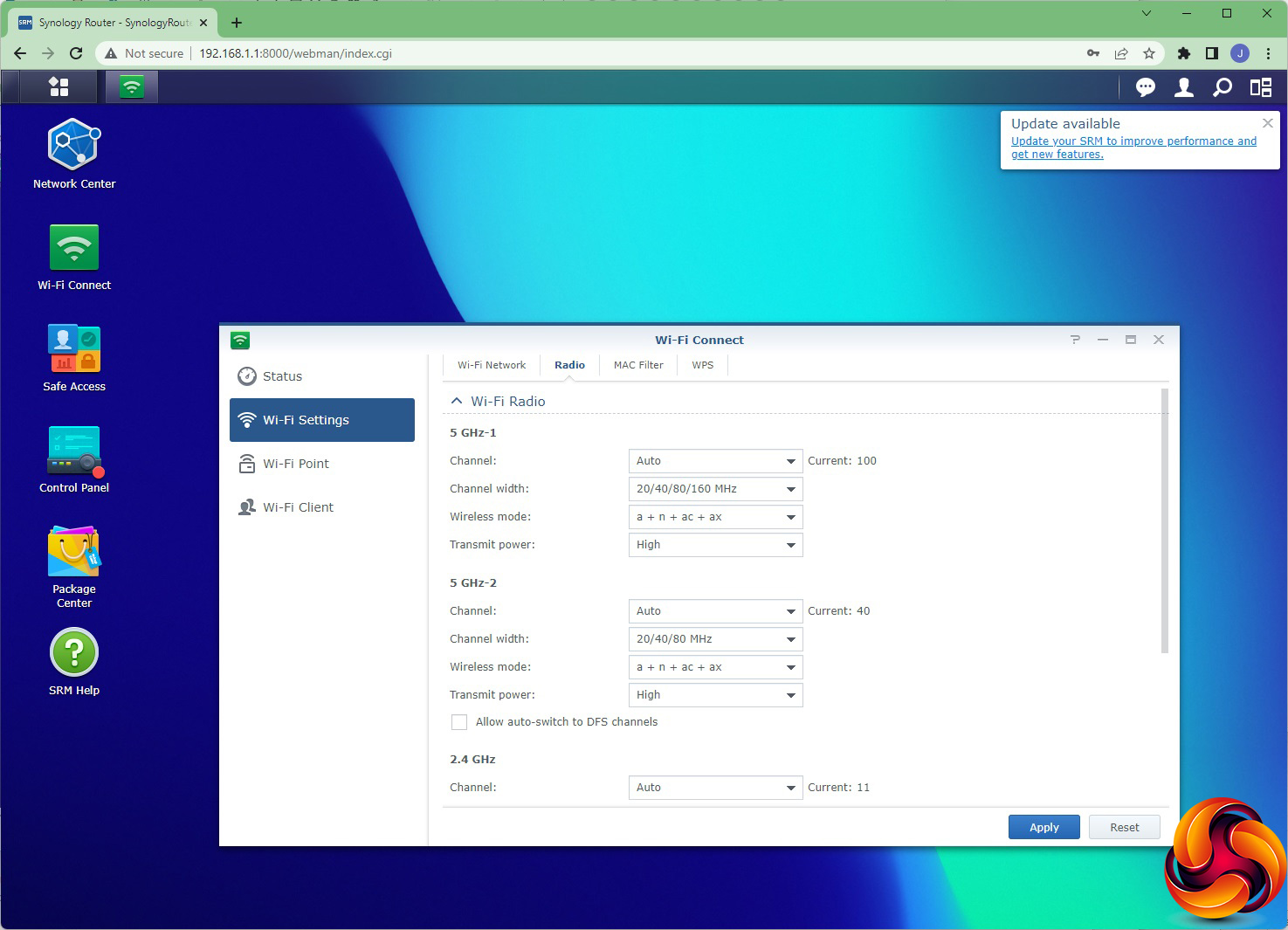
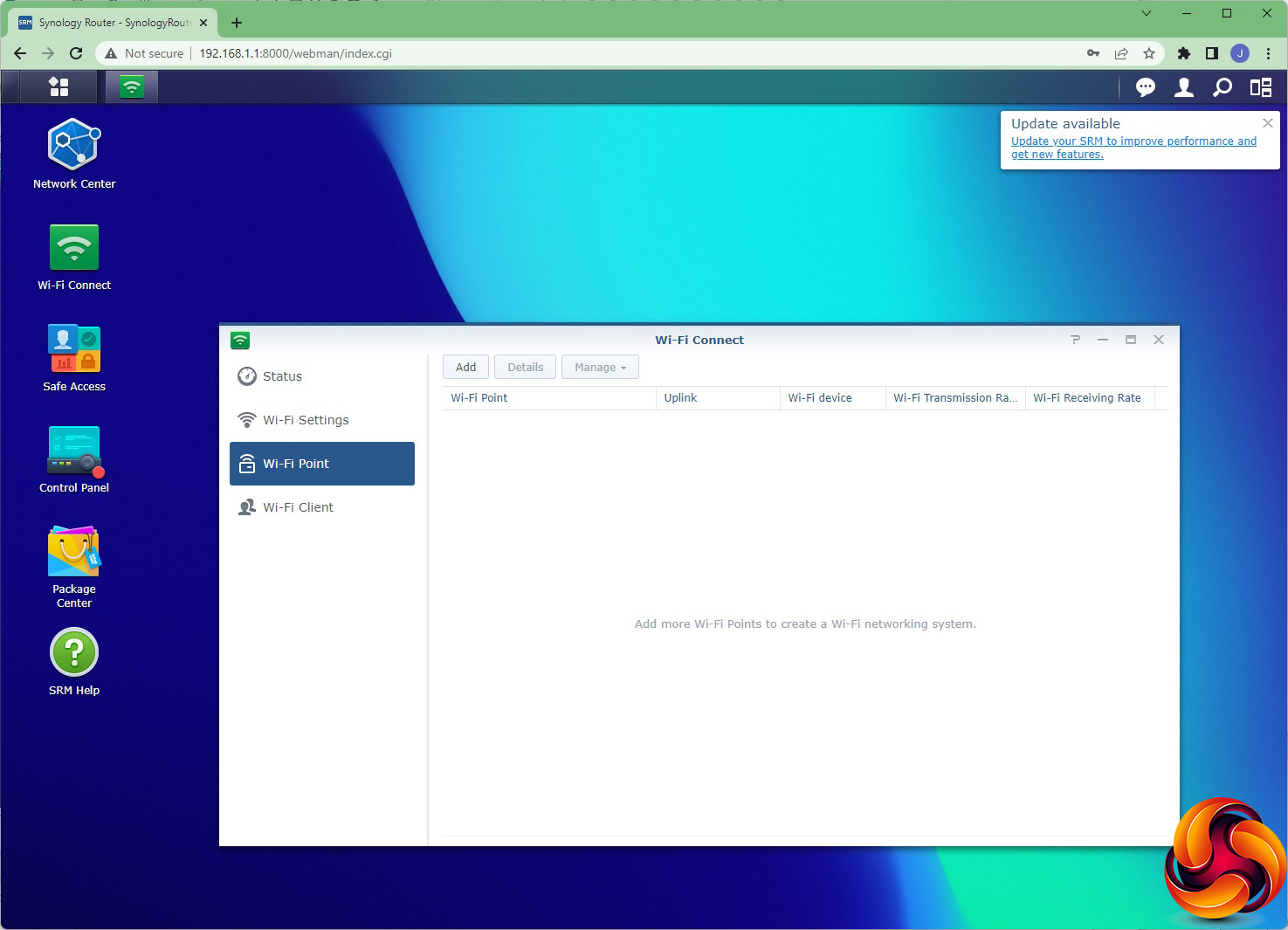
The WiFi Connect section lets you monitor the health and throughput of the wireless network. You can configure a guest network and alter how the radios behave. The primary 5GHz radio supports channel widths up to 160 MHz, but the secondary one only offers 80 MHz. You can add MAC Address Filters and trigger automated WPS setup here (although there's a physical button on the device to do this too). This section also enables you to add more mesh WiFi devices to extend the coverage, as well as monitor or disconnect WiFi clients.
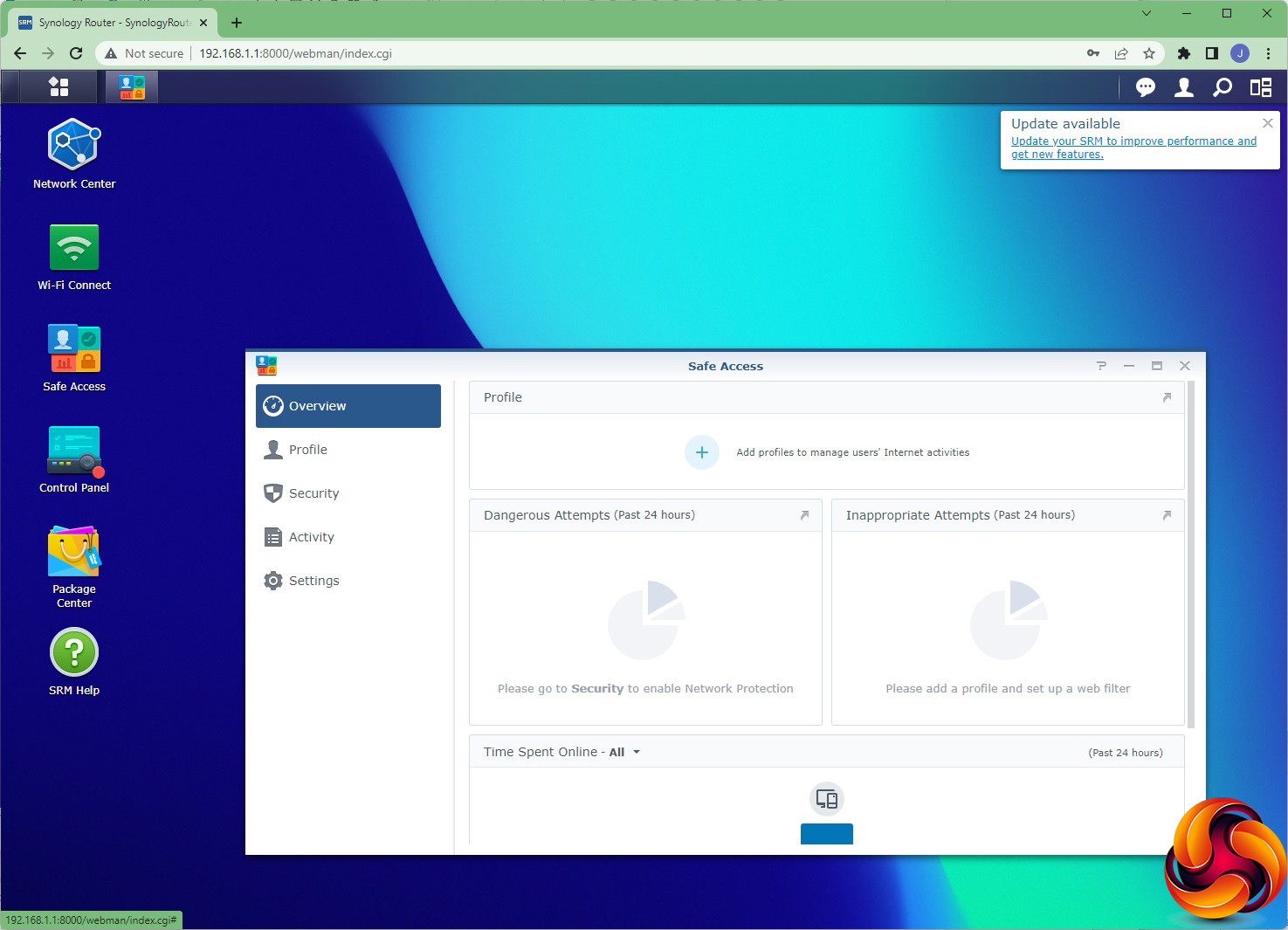
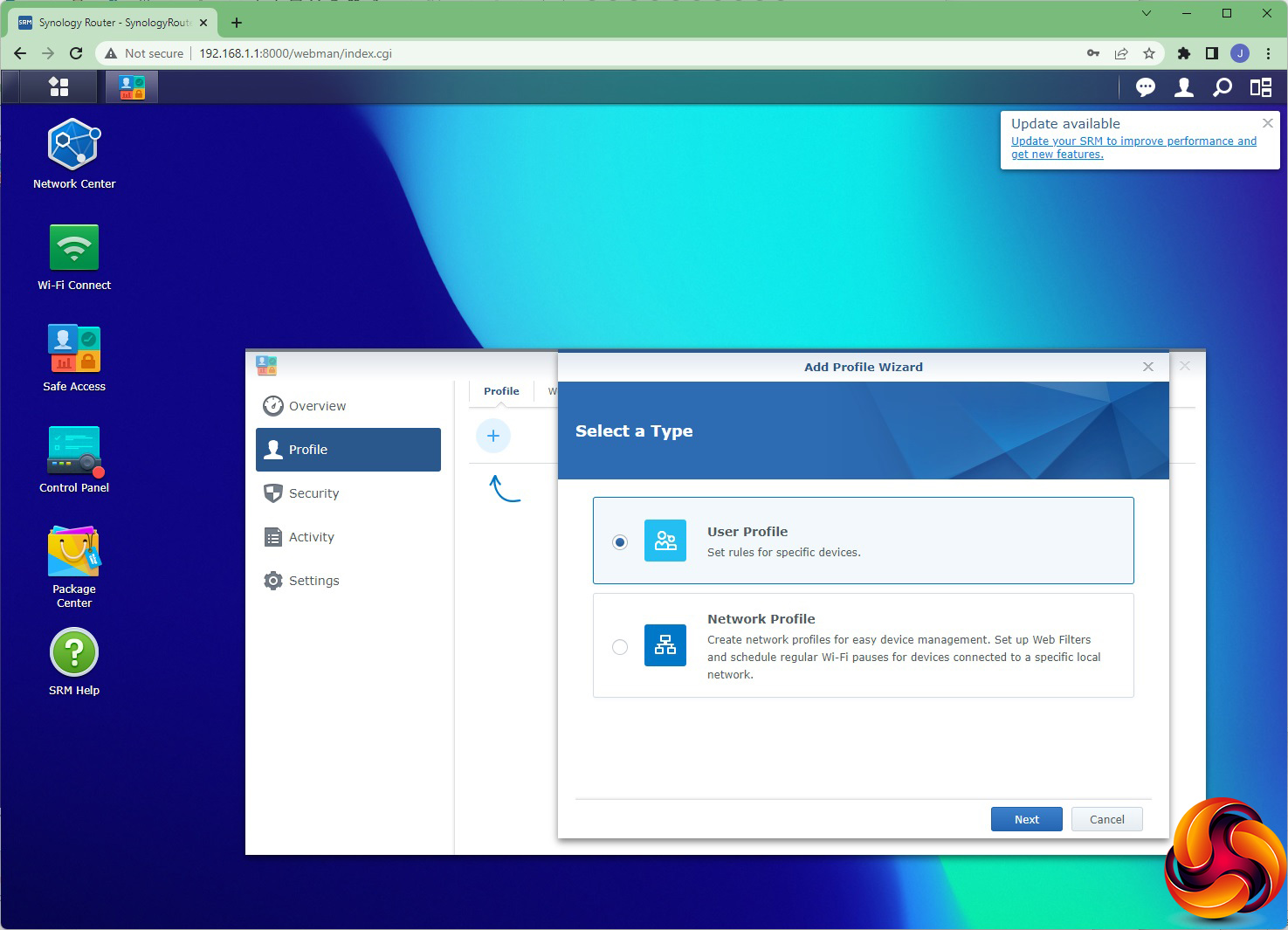
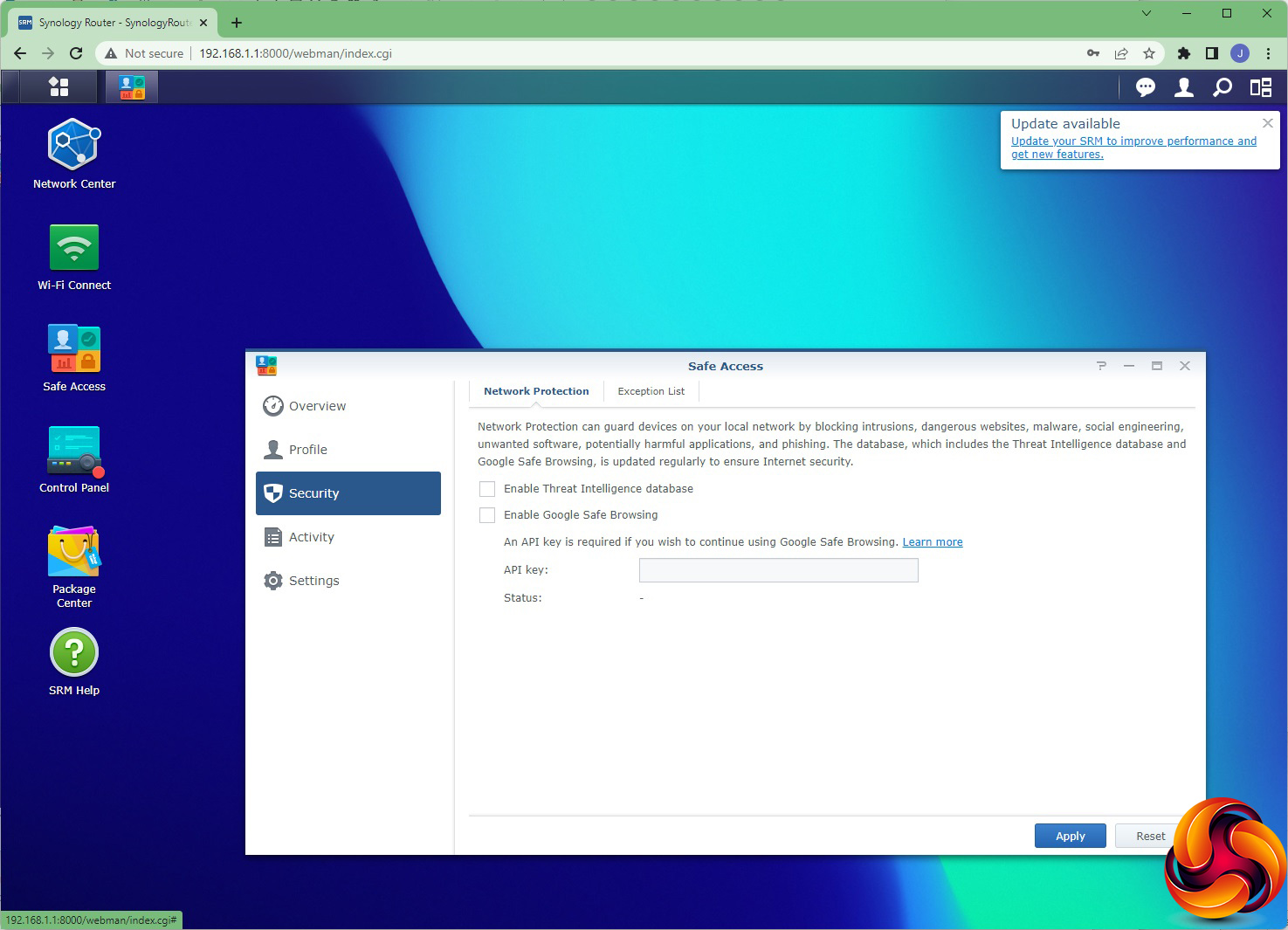
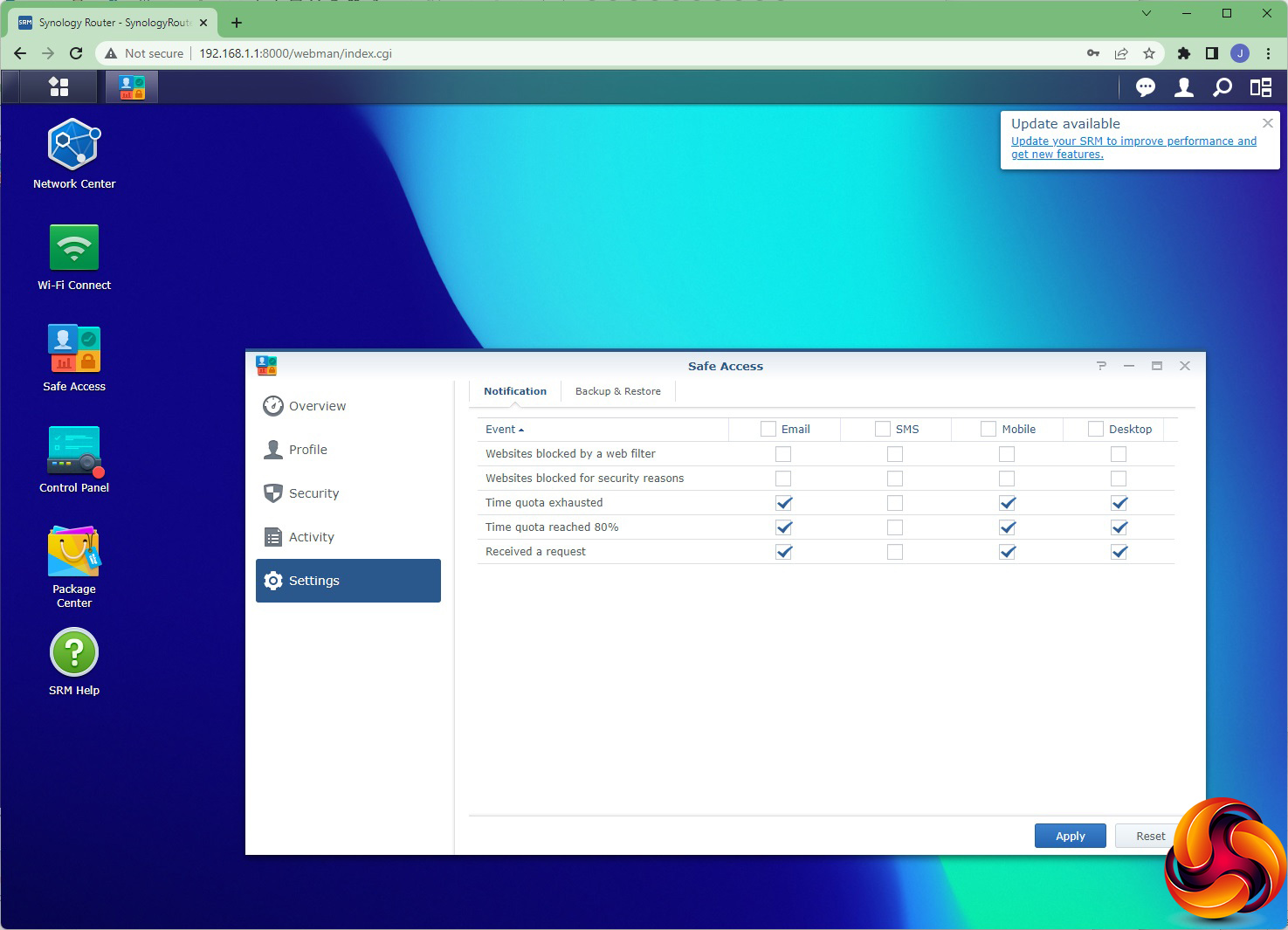
Safe Access is Synology's advanced security system. You can monitor network users' activity, as well as the usage of a particular service. The user monitoring is a bit creepy, and could easily be used to spy on your kids (presumably one of the functions it's aimed at). There is also support for a Threat Intelligence database and Google Safe Browsing, although the latter requires an API key. You can whitelist certain IP addresses. You can also set up some notifications via email, SMS, mobile or desktop alert for things like time quotas for users. Again, parents could love this, but their kids not so much.
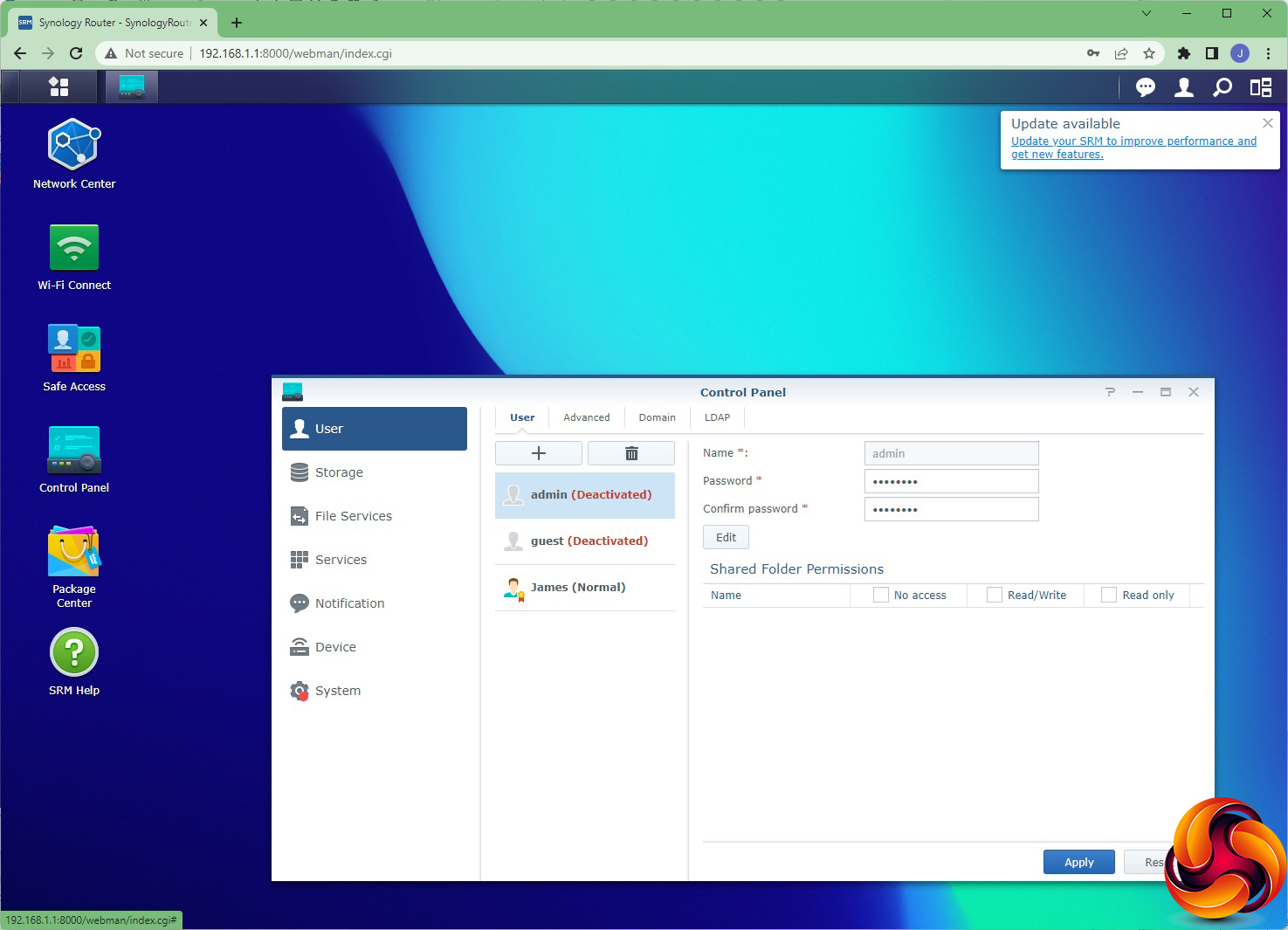
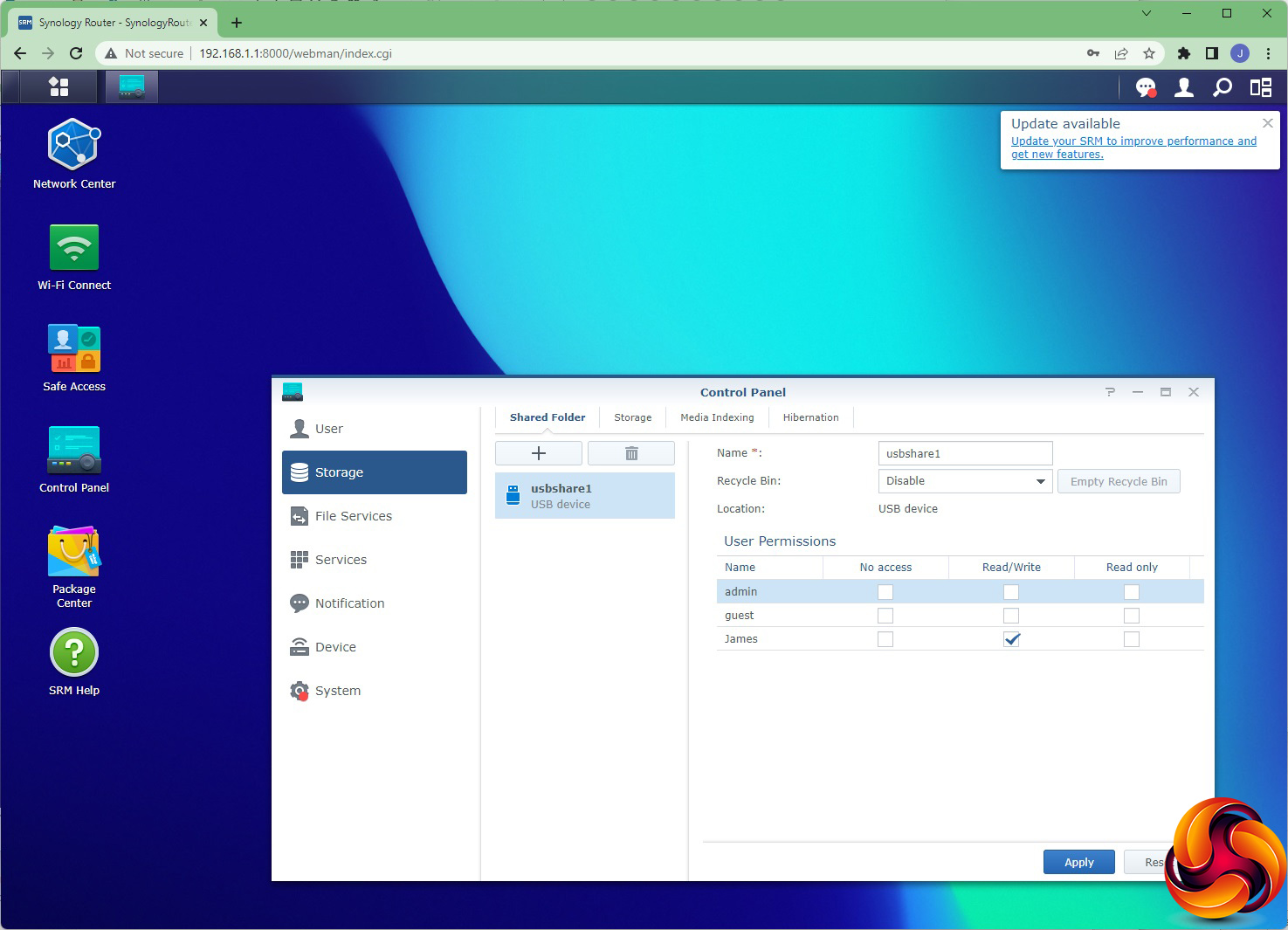
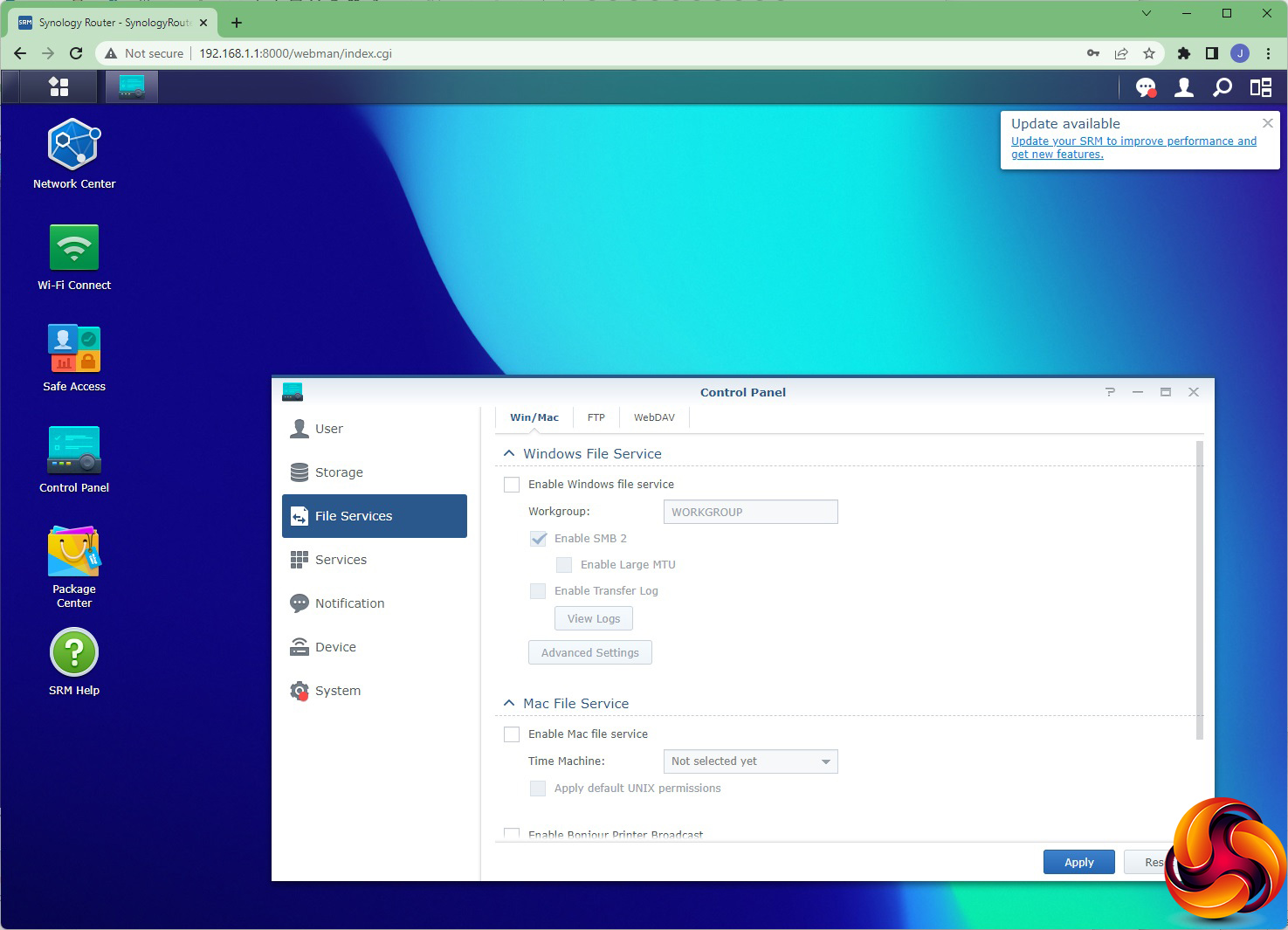
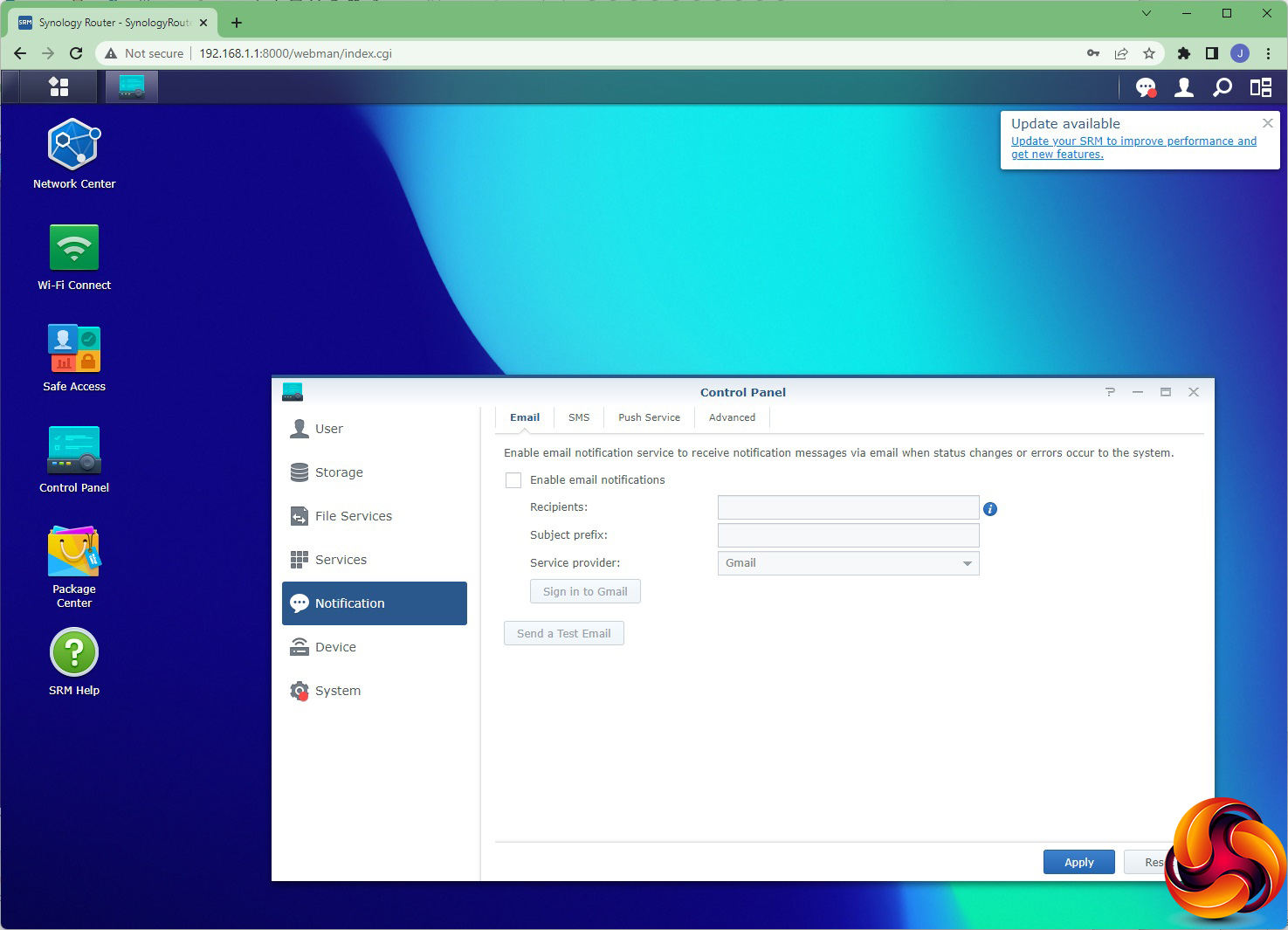
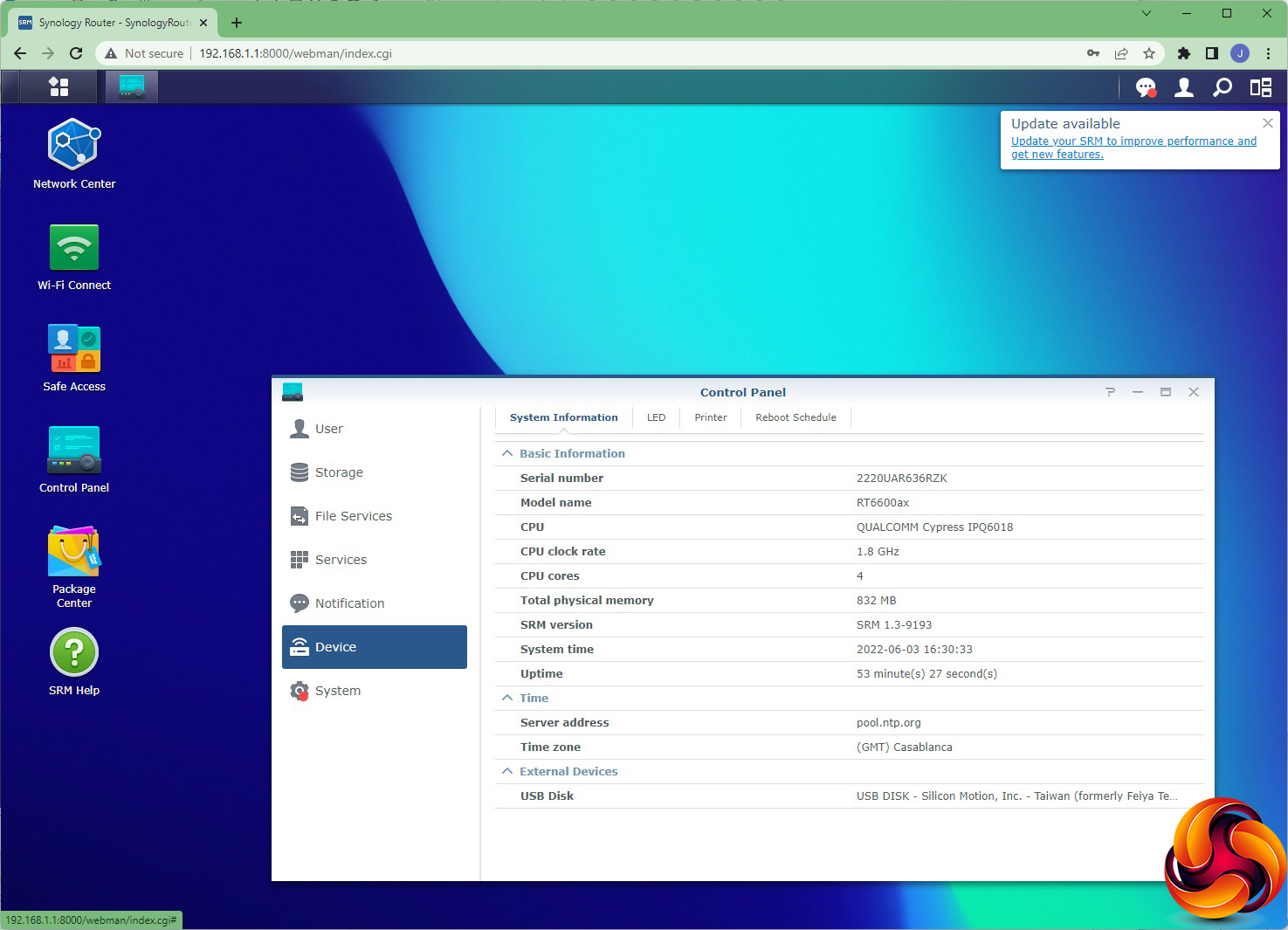
The Control Panel section is another part of the interface with a lot of features. You can set the admin username and password, and an advanced feature here is support for LDAP servers to provide network perimeter security via username and password login. You can add a USB-based storage device and then choose how that is shared across the network. You can configure automatic media indexing and auto-hibernation of USB-attached hard disks. If you want to share files outside the local network, both FTP and WebDAV are available.
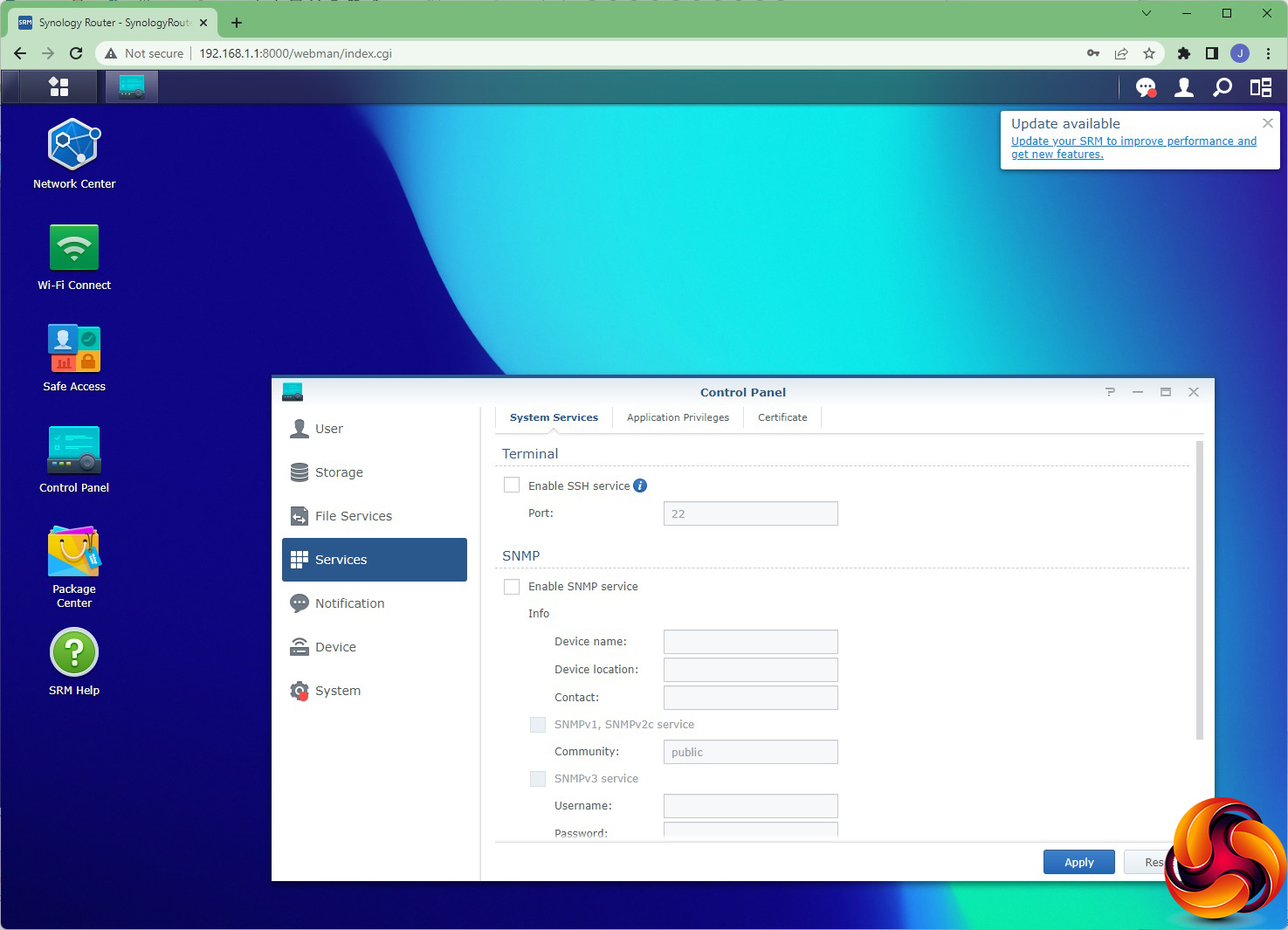
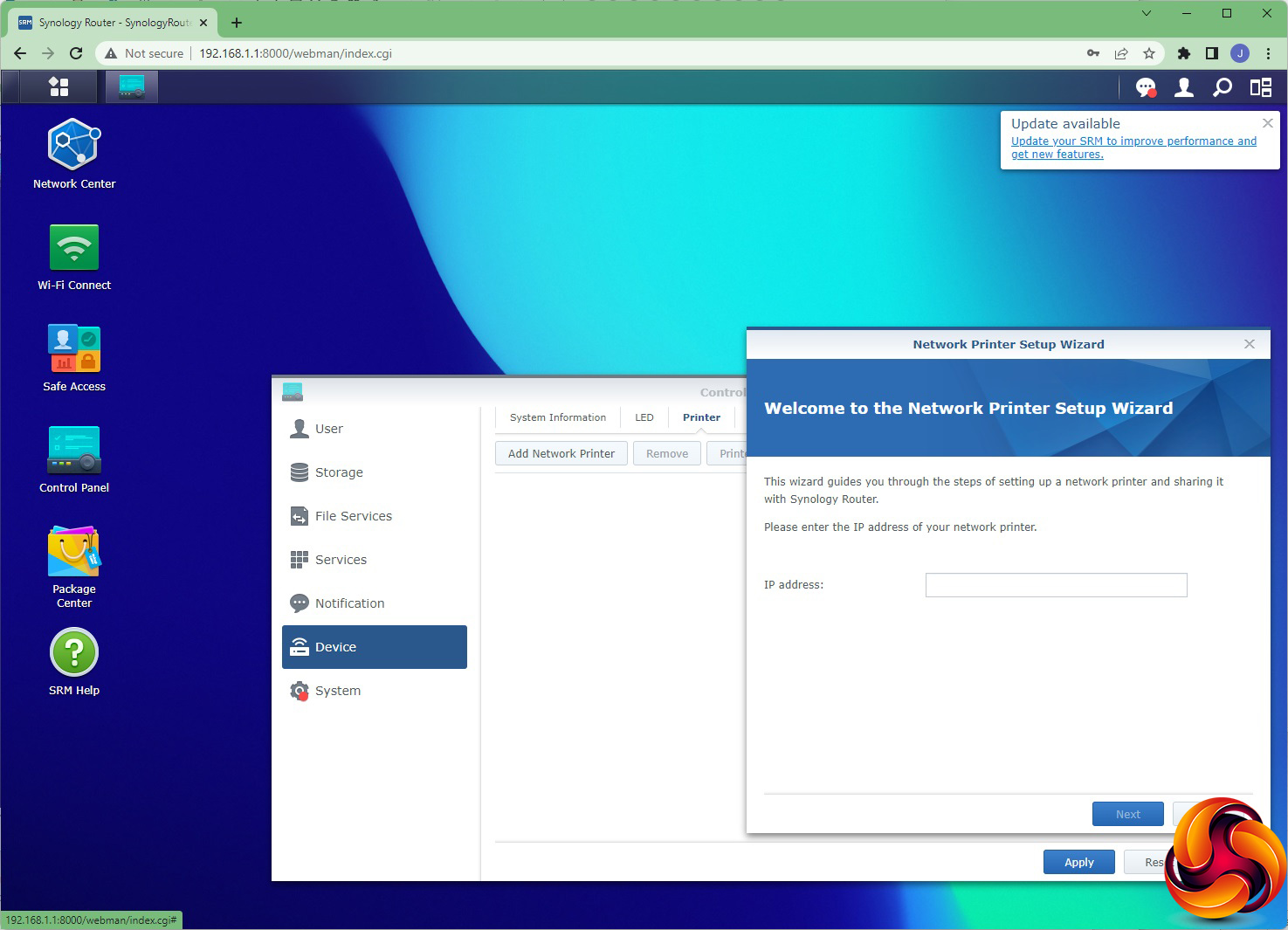
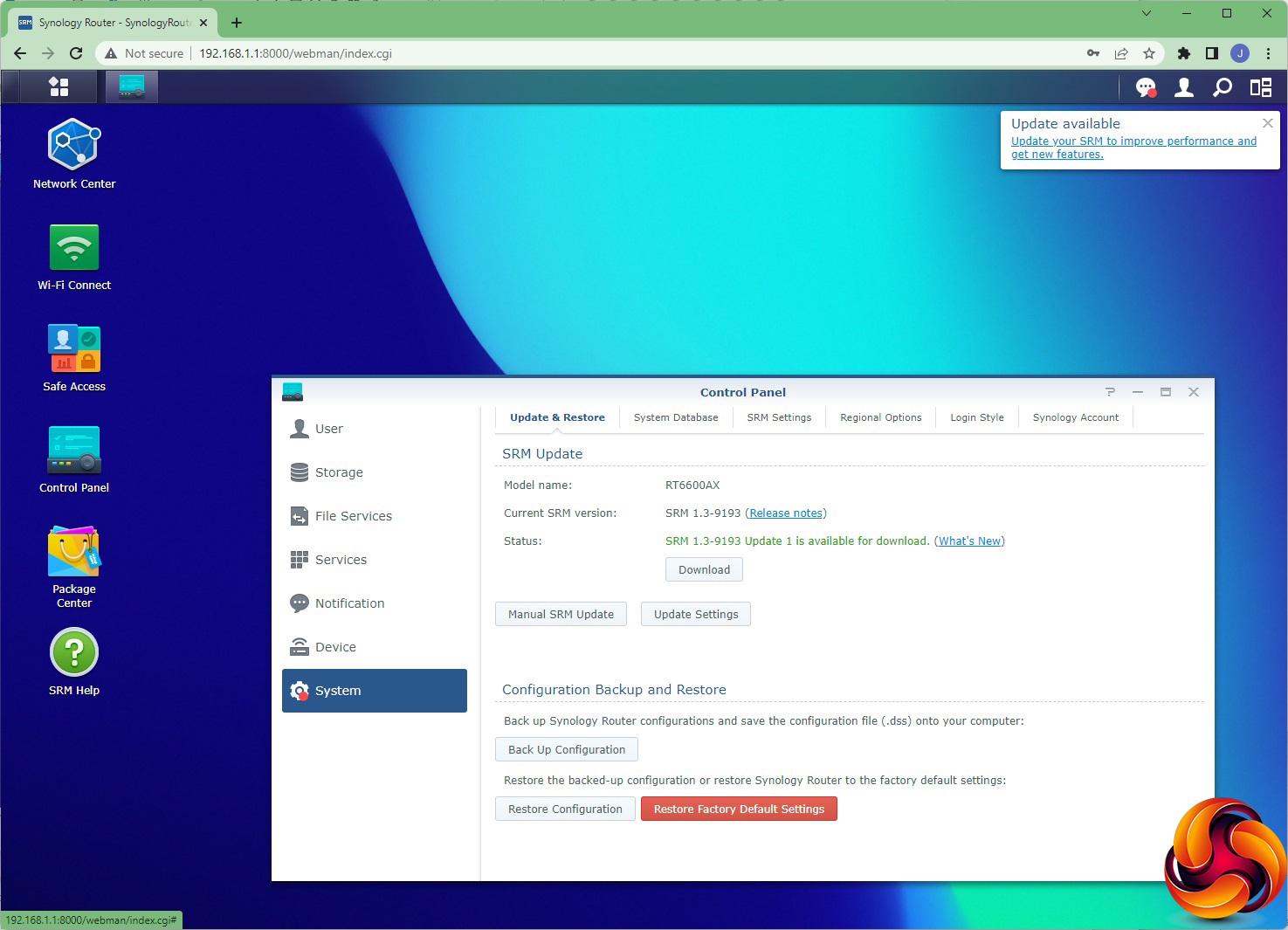
This section is also where you enable services such as SSH, SNMP and NTP. You can use Synology's own service to create an encryption security certificate, or import your own. Notifications can be configured via email and SMS (using the clickatell service). Under Device you can configure a reboot schedule, change when the router's LEDs are visible, and enable the RT6600ax to share a network printer. The System tab is where you update firmware and databases for things like geolocation and threat detection. You can also update and restore settings.
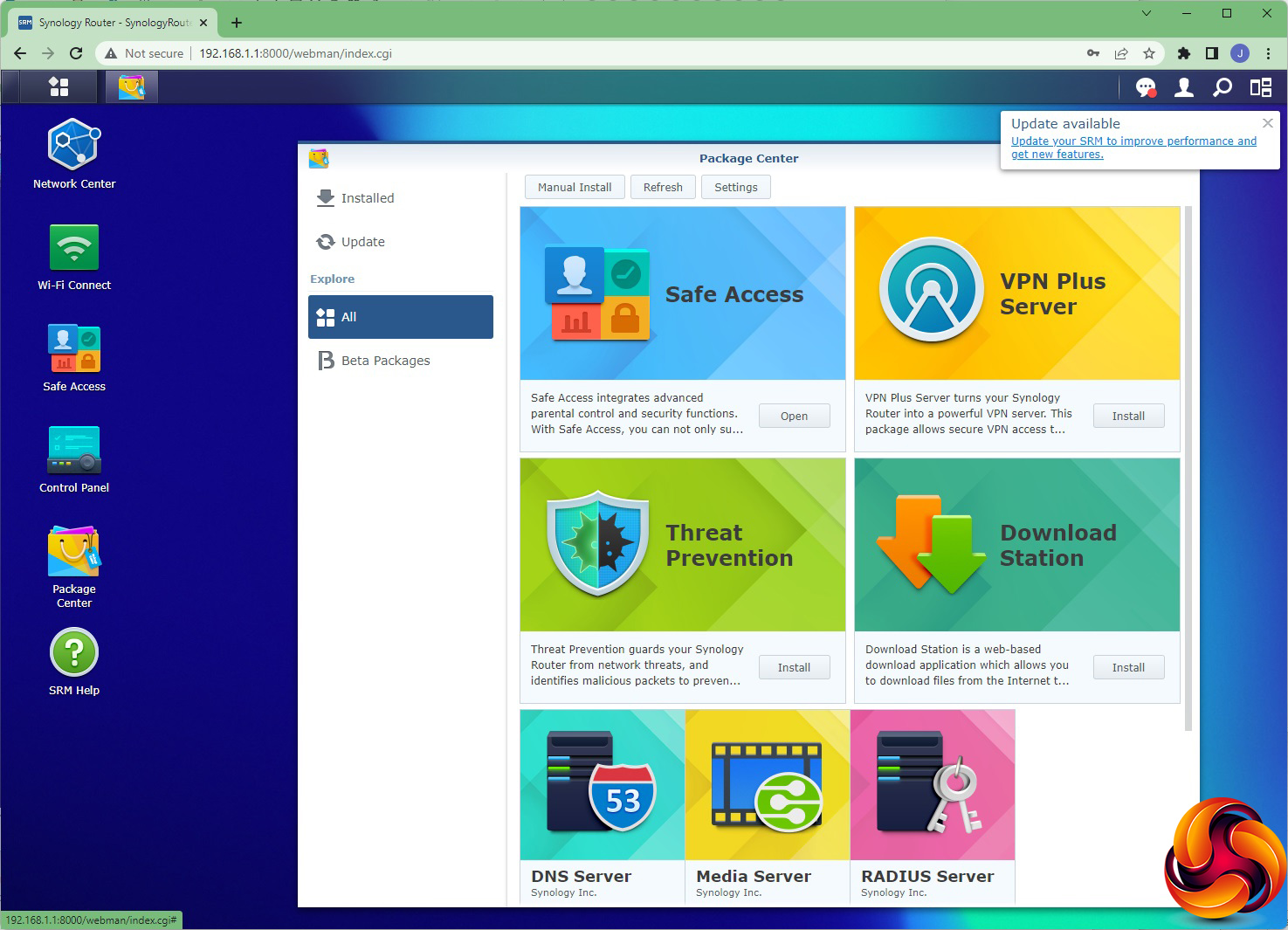
You can add extra applications to the RT6600ax via the Package Center. However, you need to have a USB storage device attached to host the code (so you can't use this at the same time as a USB mobile data dongle). Options include a VPN server, more stringent Threat Prevention, and a Download Station (so you can automatically BitTorrent on the device itself). You can also serve media via DNLA to a compatible device like a TV, and even enable the RT6600ax to act as a RADIUS server for corporate-level sign-in security. However, cloud synchronisation has been available with previous Synology devices so we're sad not to see that available here.
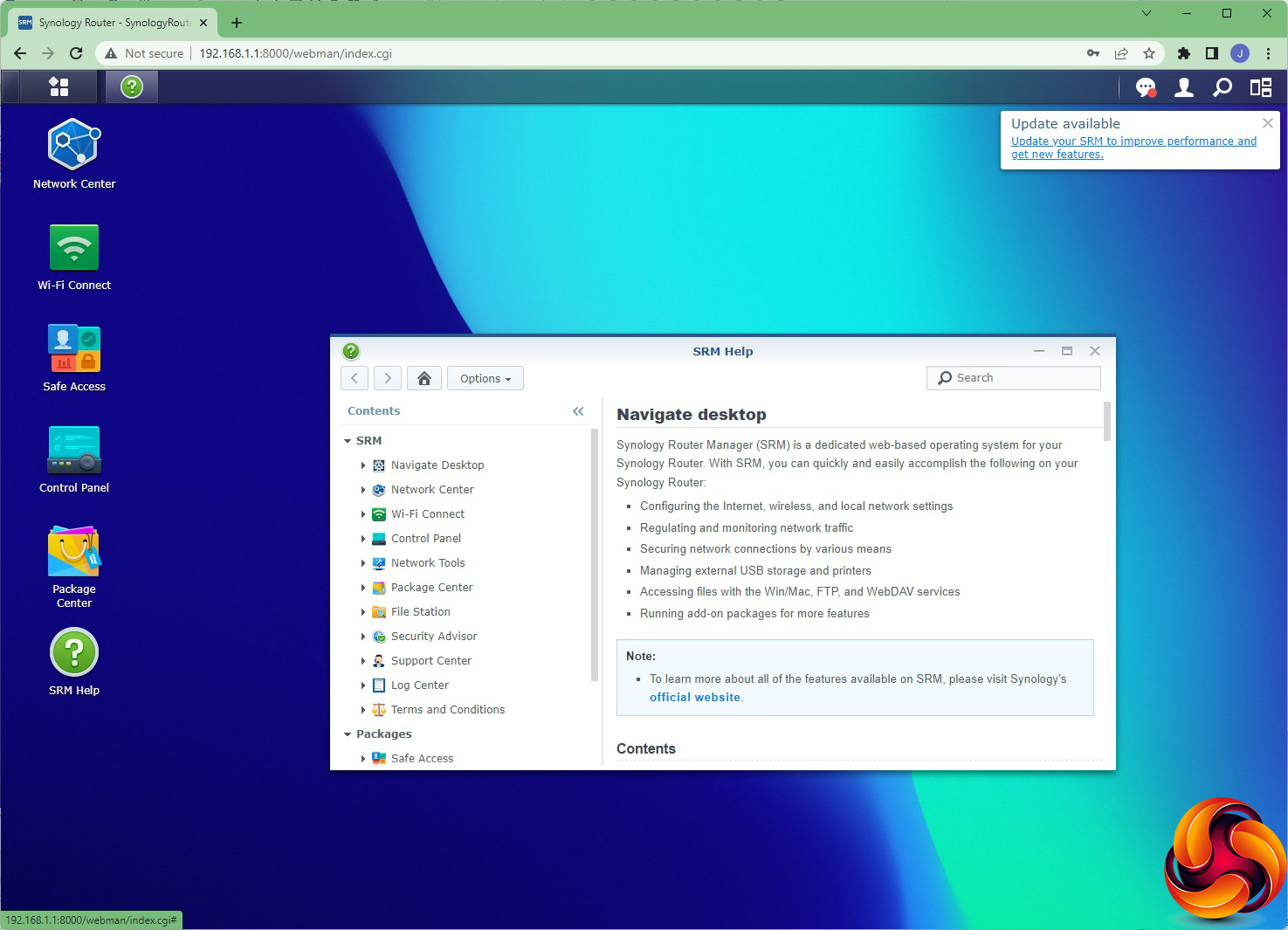
There's a full help system built into the device.
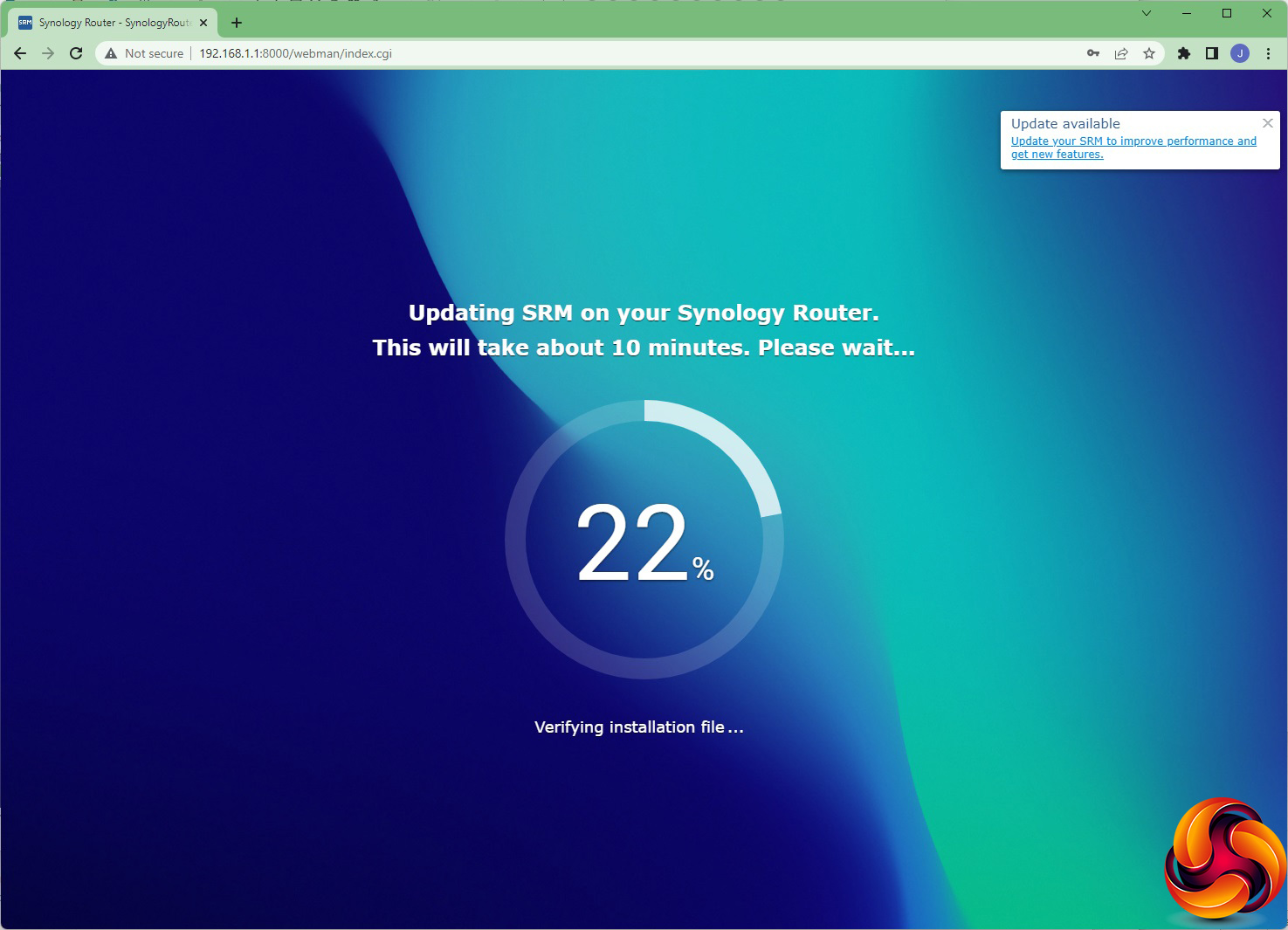
Updating the firmware takes 10 minutes, but was painless when we tried it.
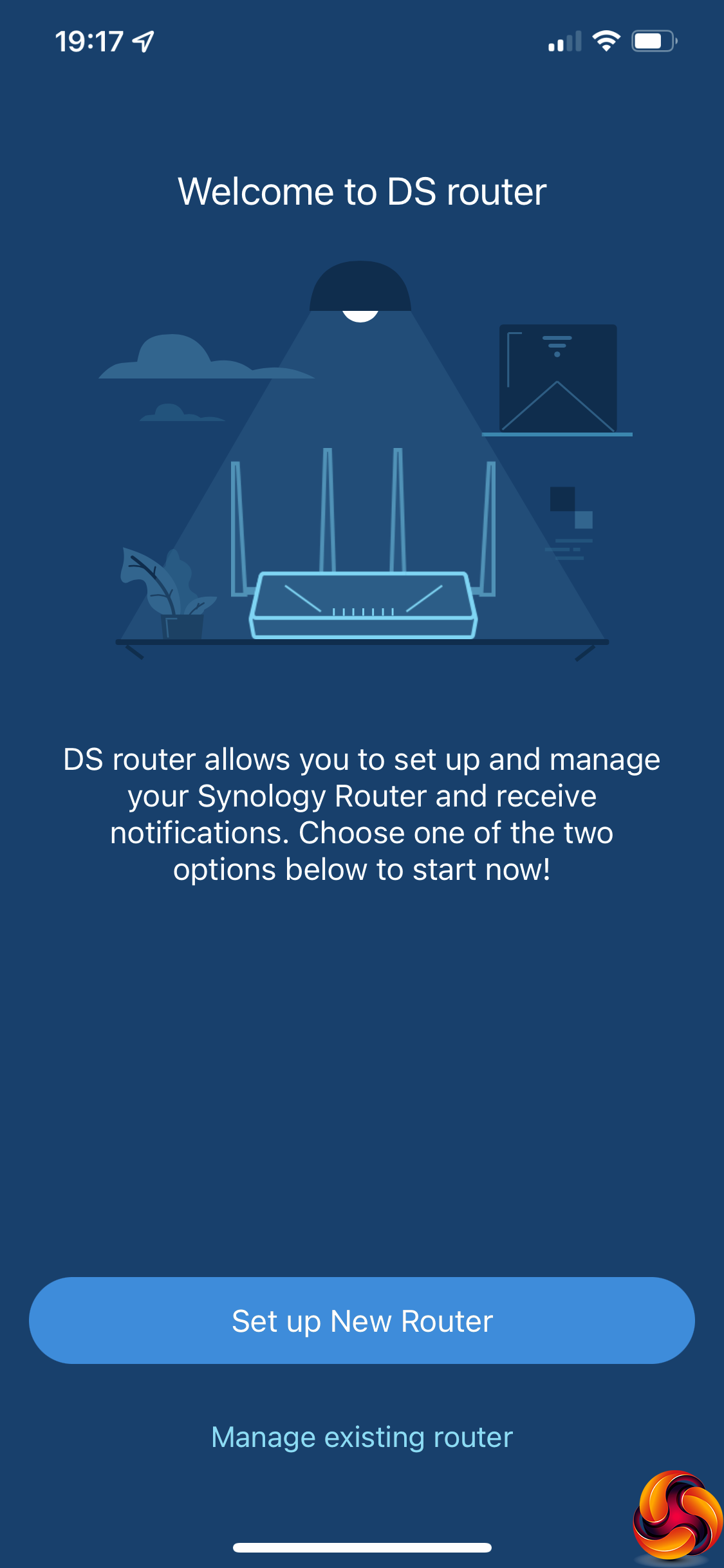
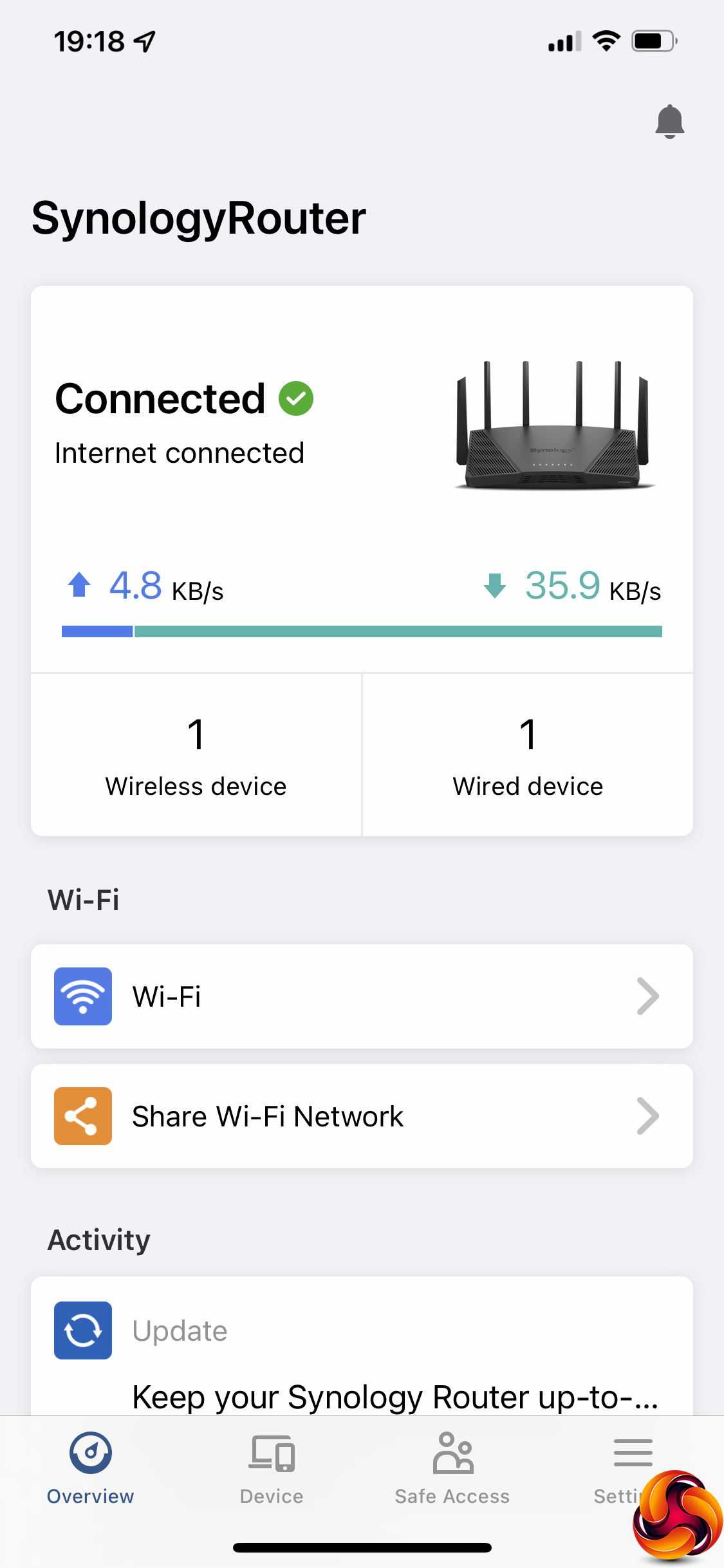
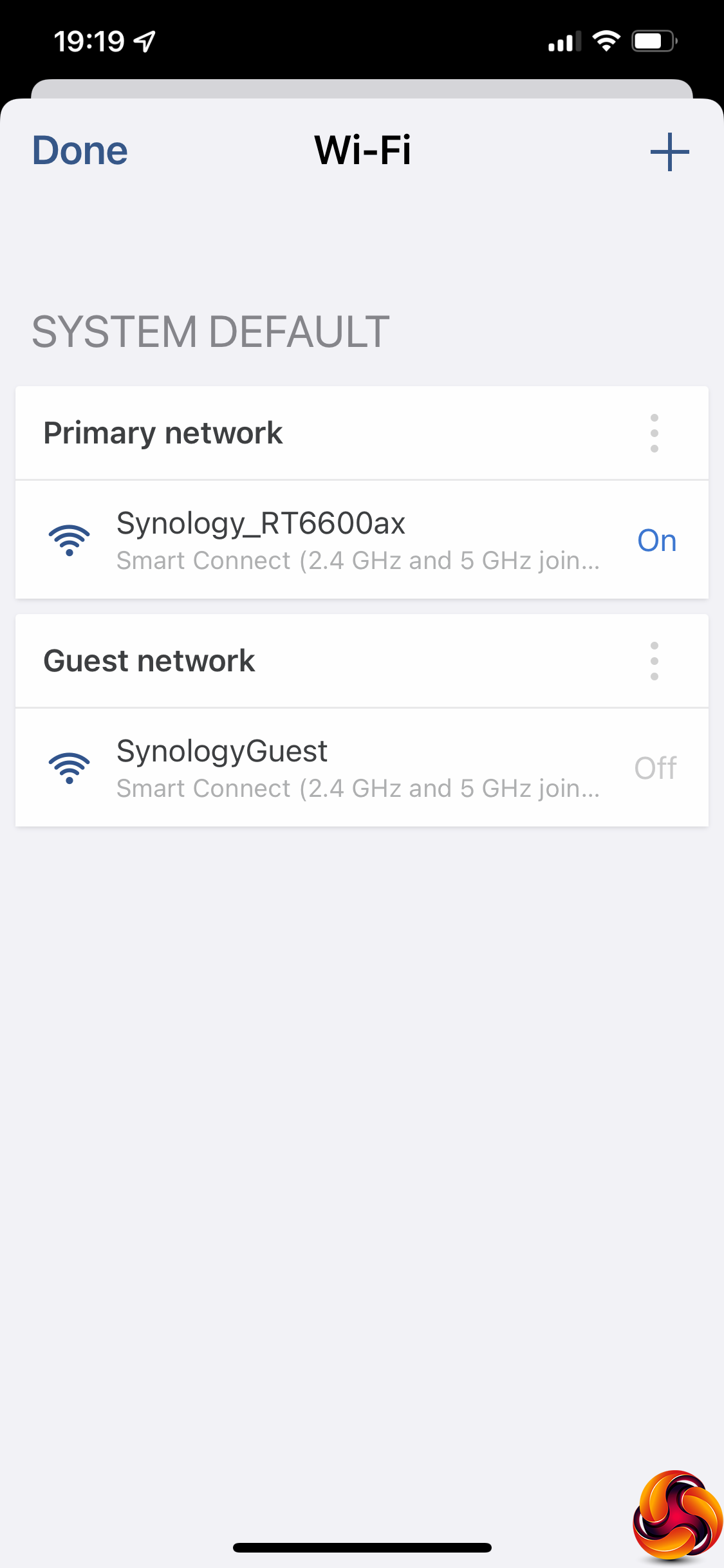
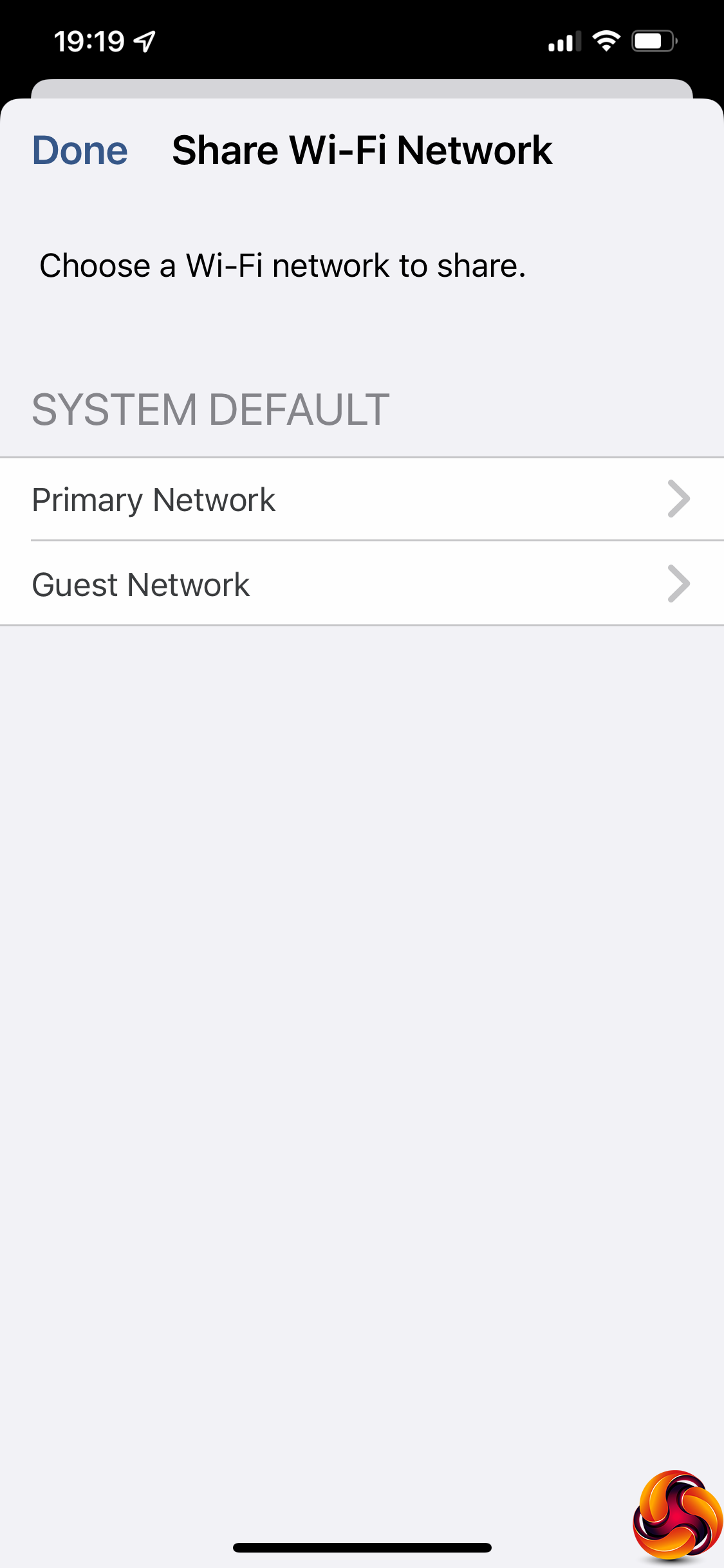
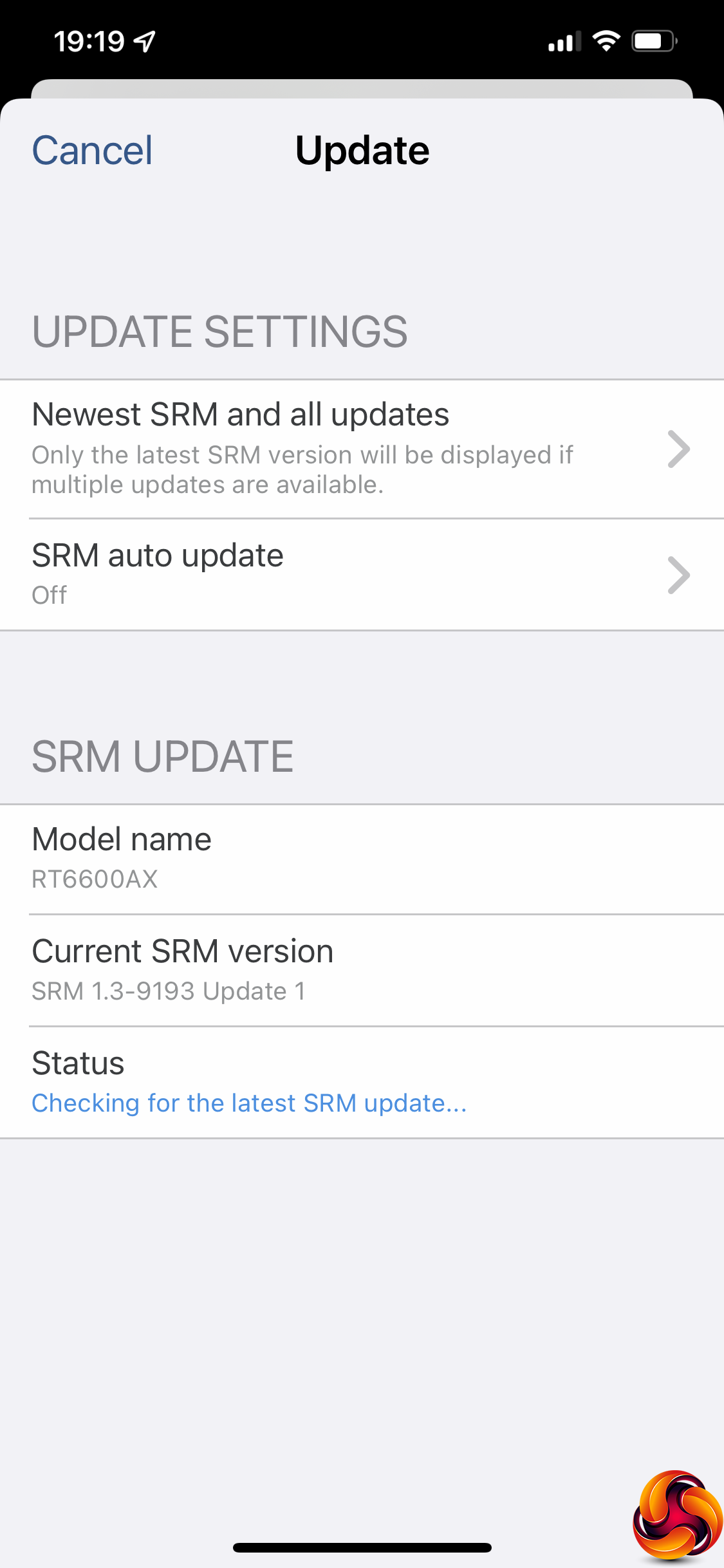
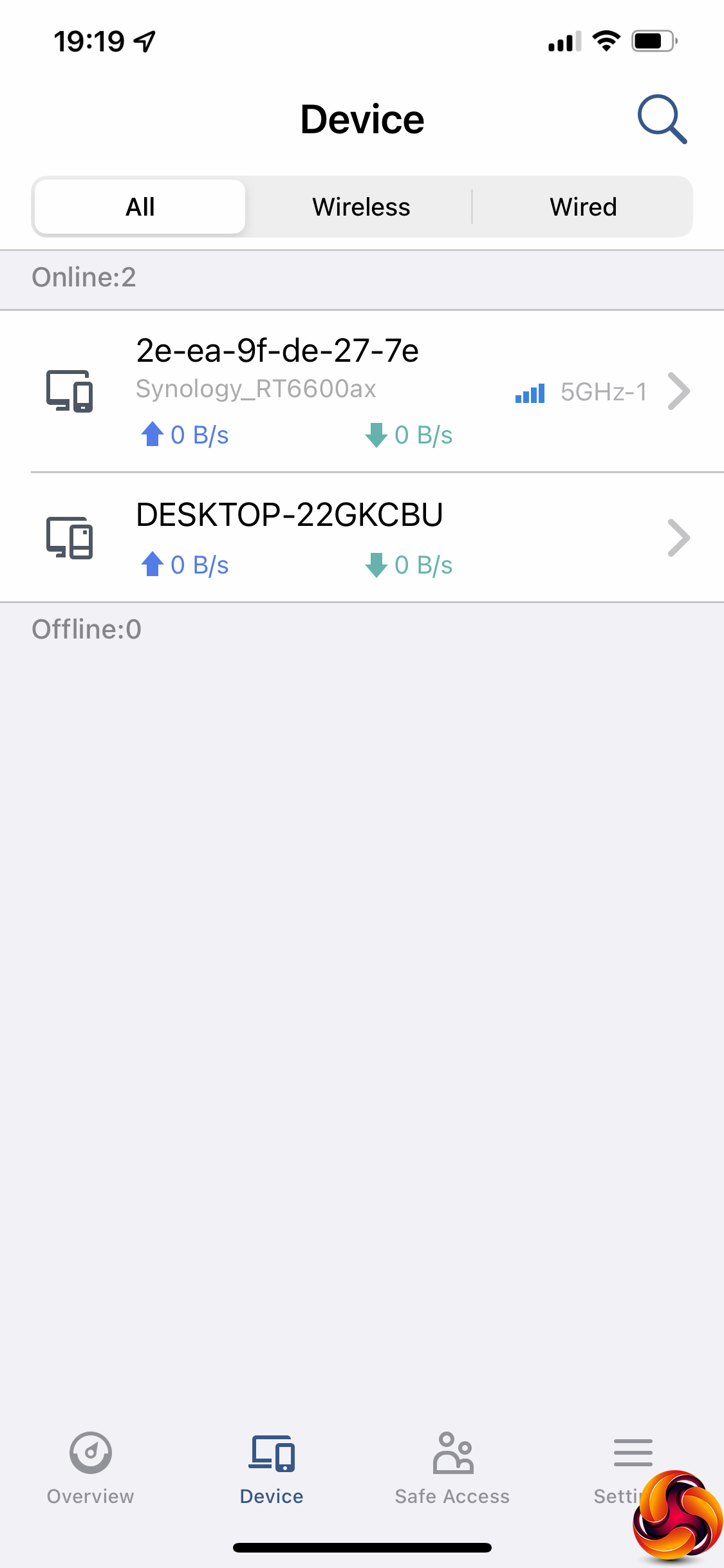
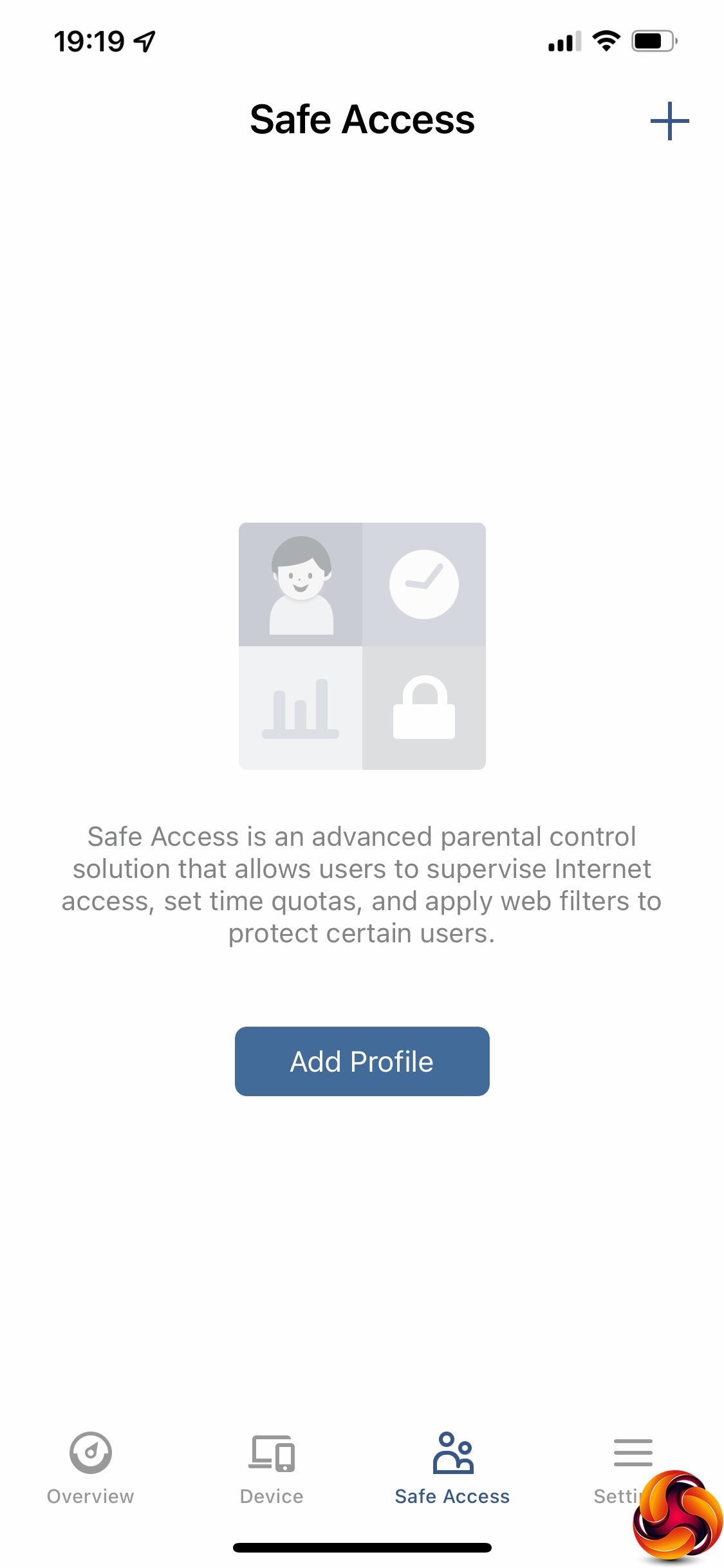
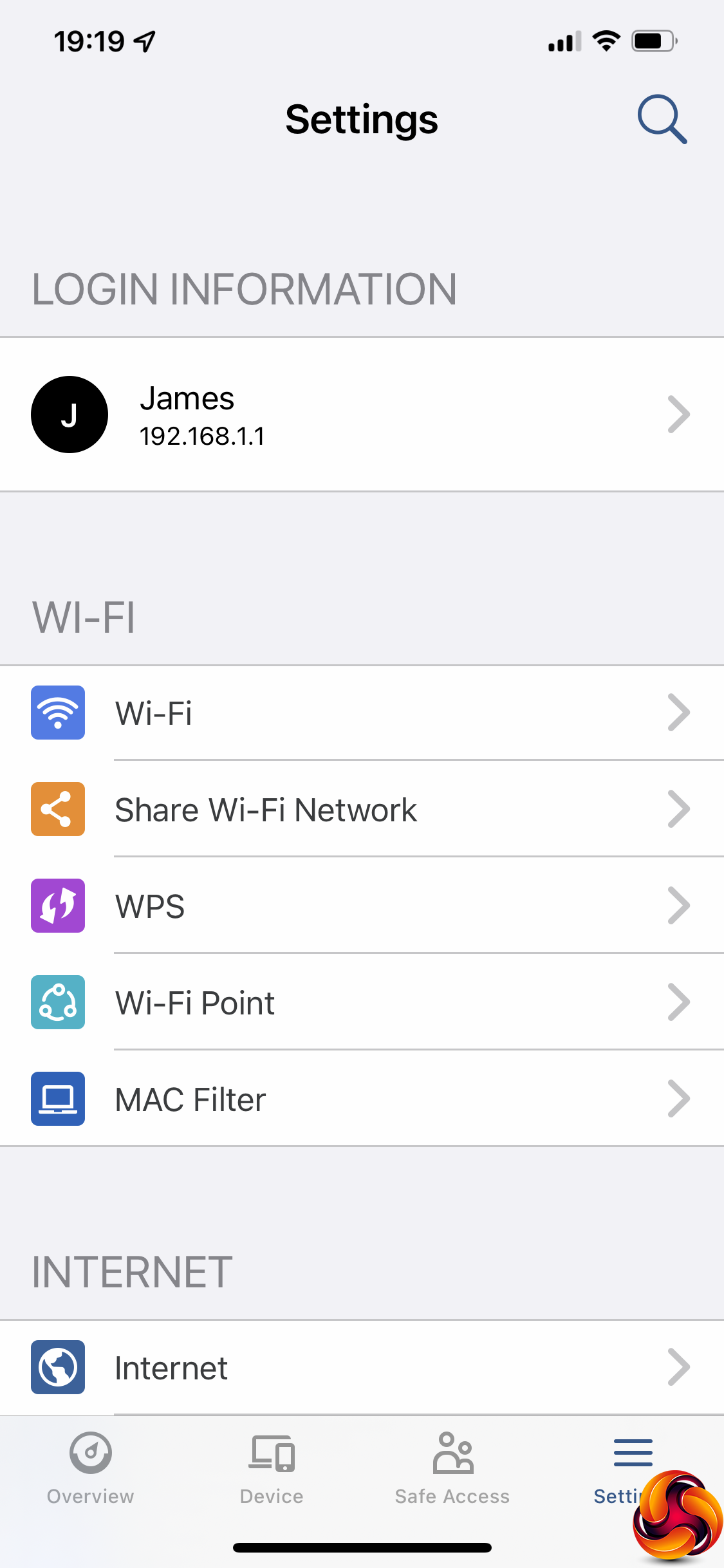
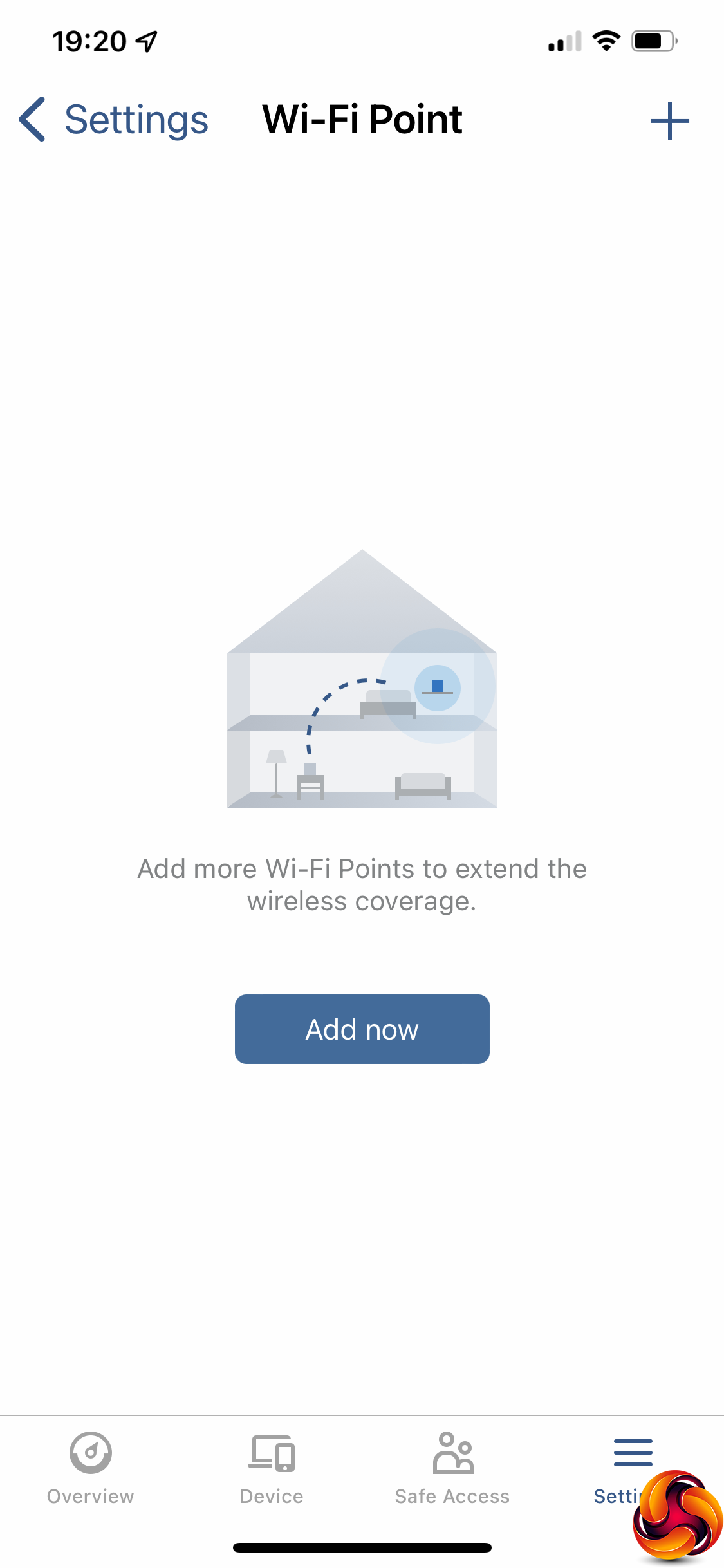
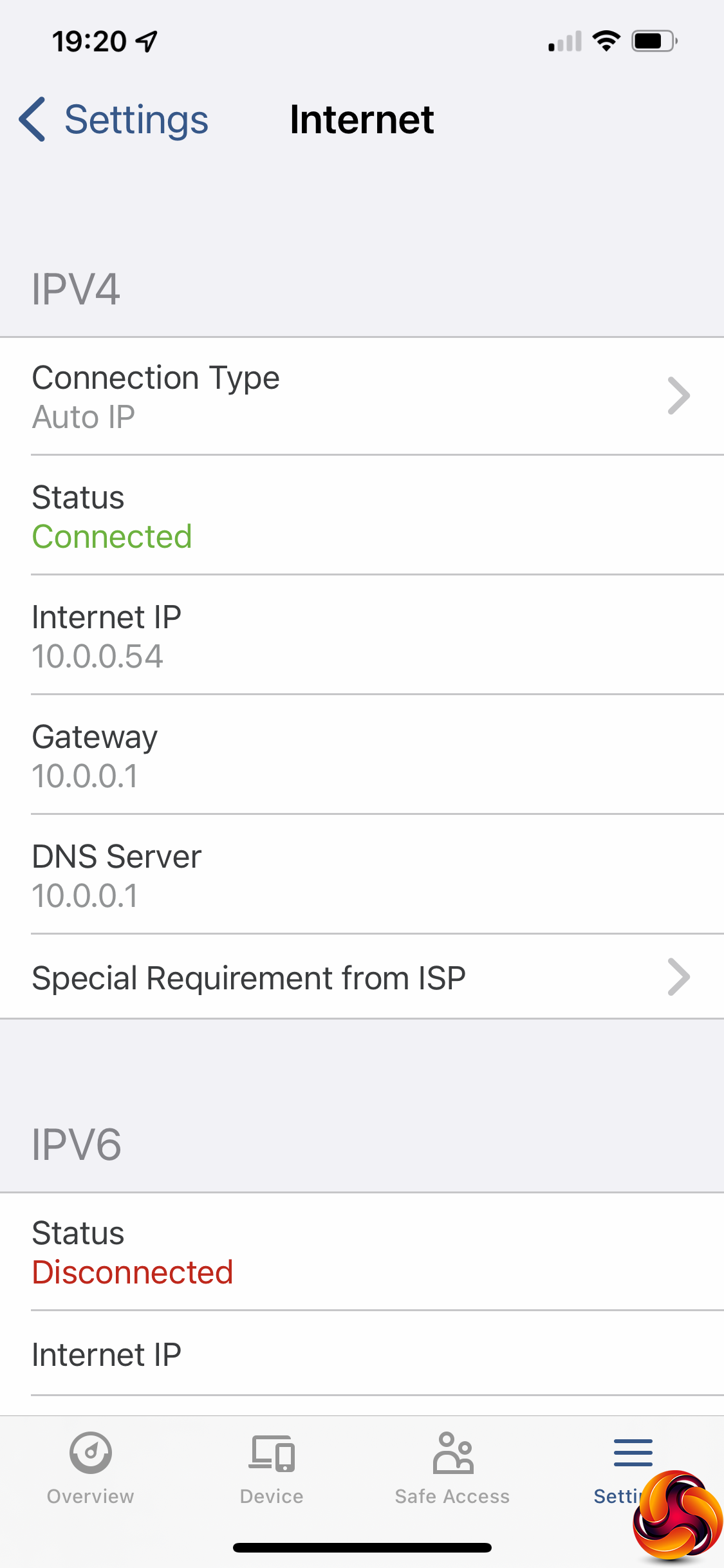
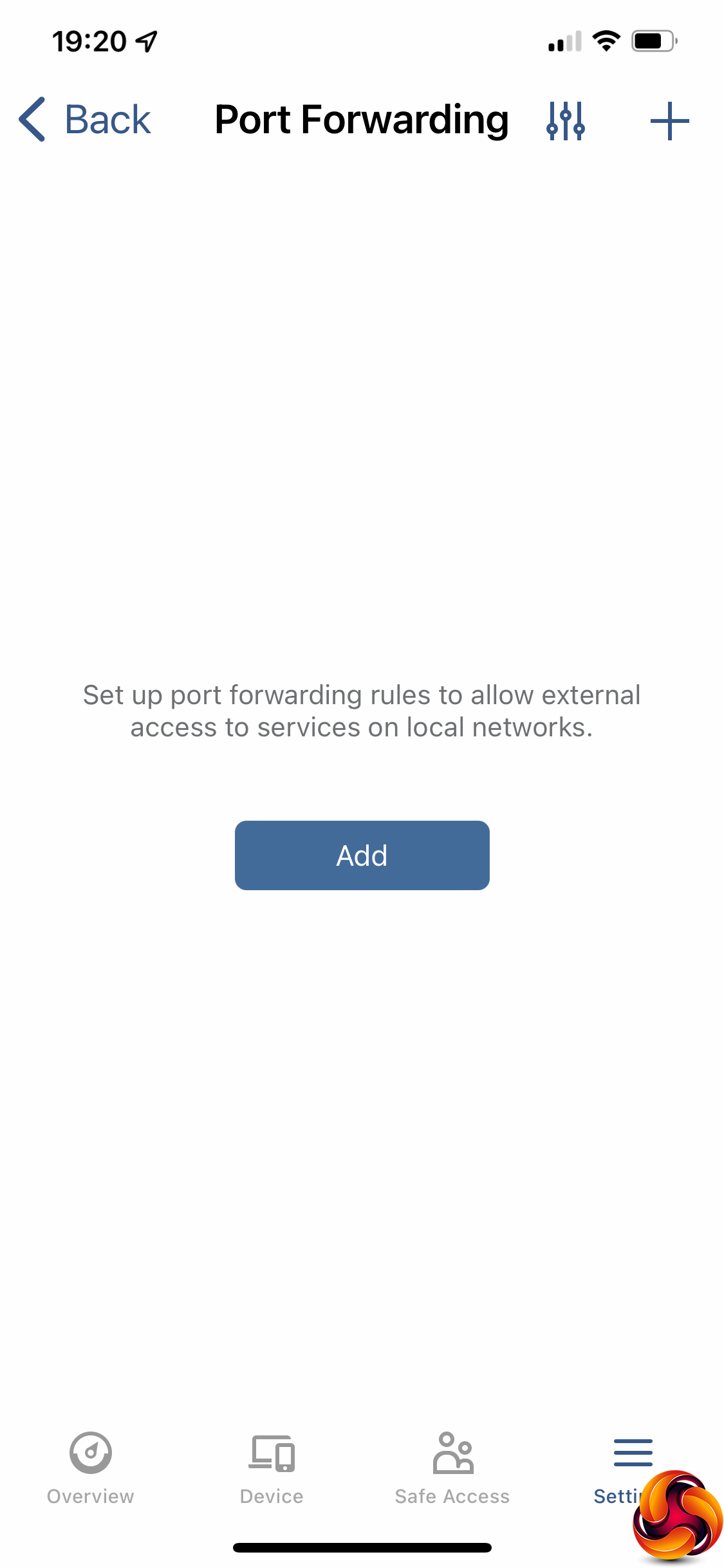
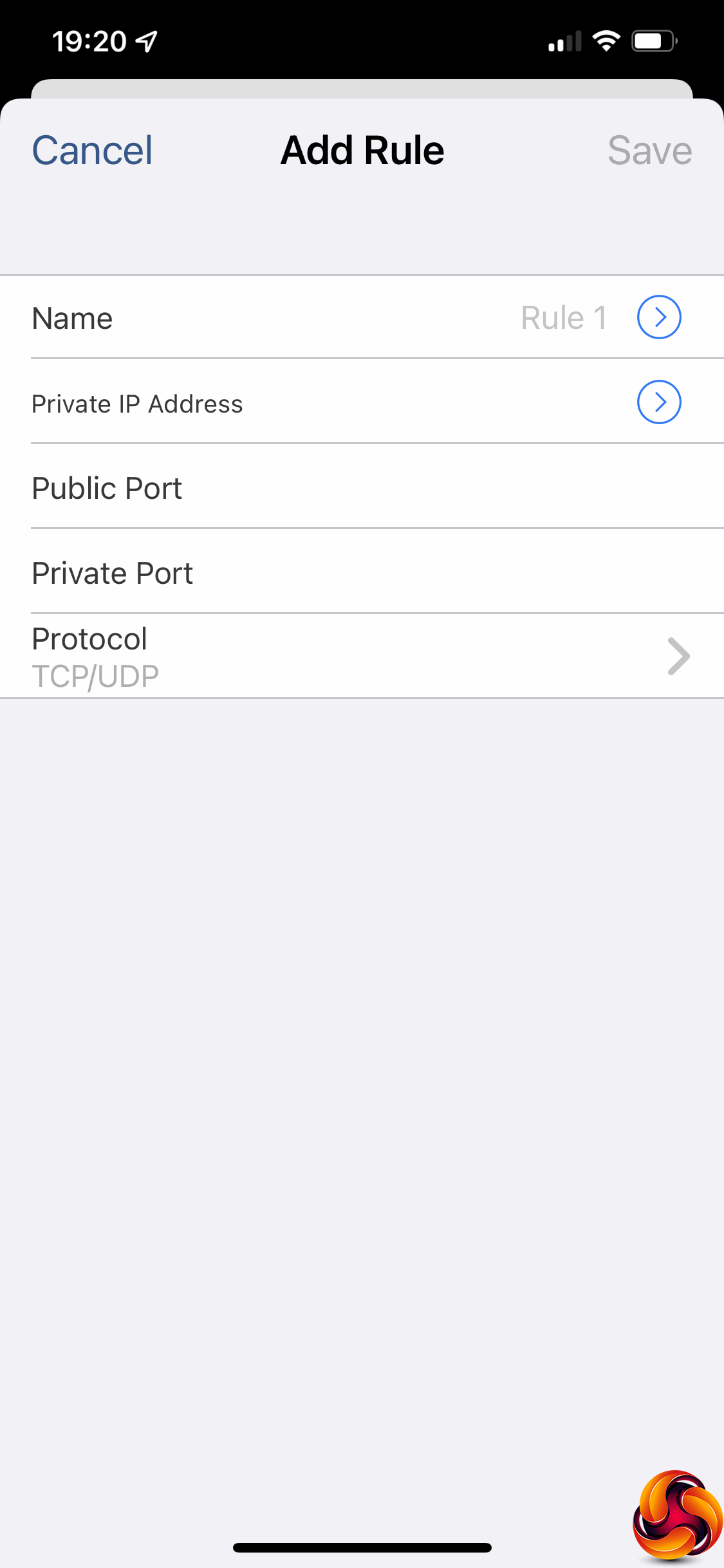
As already mentioned, you can set up the router with the smartphone app as well. This has a decent subset of the Web interface's features, including monitoring and WiFi configuration. You can add WiFi mesh devices, and configure profiles for the Safe Access system.
Overall, the Web management interface has lots of features, with the Packages allowing you to add even more utility, such as enabling the RT6600ax to become a fully fledged media-serving NAS with an attached USB storage device. The ability to use a secondary broadband connection for failover and load balancing is excellent, as is the ability to hook up your iPhone for an impromptu mobile data connection if your broadband goes down. If you're a gamer, the features focused on this area by ASUS and NETGEAR routers might tempt you away, but otherwise the Synology RT6600ax is extremely well specified.
We tested the raw throughput of the Synology RT6600ax across the three different WiFi standards it supports – 802.11ax, 802.11ac and 802.11n.
We used the open-source iPerf 3.1.3 software, which can simulate multiple clients streaming at once. Four Windows systems were used. One was an Armari 32-core AMD Ryzen Threadripper workstation running Windows 11, another an ASUS ROG Swift Scar 17 notebook (with WiFi 6), a third was an MSI WS63-7RK (802.11ac) notebook, and finally an HP Folio 3 notebook (802.11n only). The ASUS was running Windows 11 but the other two notebooks were Windows 10-powered.
For all tests, the workstation was connected to one of the RT6600ax's Gigabit Ethernet ports, and the notebooks via various WiFi connections (802.11ax for the ASUS, 802.11ac for the MSI, 802.11n for the HP). The notebooks were then placed in four different locations – within 1m of the router, approximately 5m away with a wall in between, 10m away and on a lower floor (with multiple walls and a floor in between), and then 15m away on the same lower floor. We tested all four distances with the three WiFi standards.
With each WiFi standard and distance, we took 60 readings of throughput at one second intervals and calculated the average (iPerf does this automatically). We tested the RT6600ax against the Linksys WRT3200ACM, NETGEAR's Nighthawk X10 R9000, Synology RT2600ac, NETGEAR Nighthawk XR500, NETGEAR Nighthawk XR700, and NETGEAR Nighthawk AX12.
802.11ax 5GHz (WiFi 6)
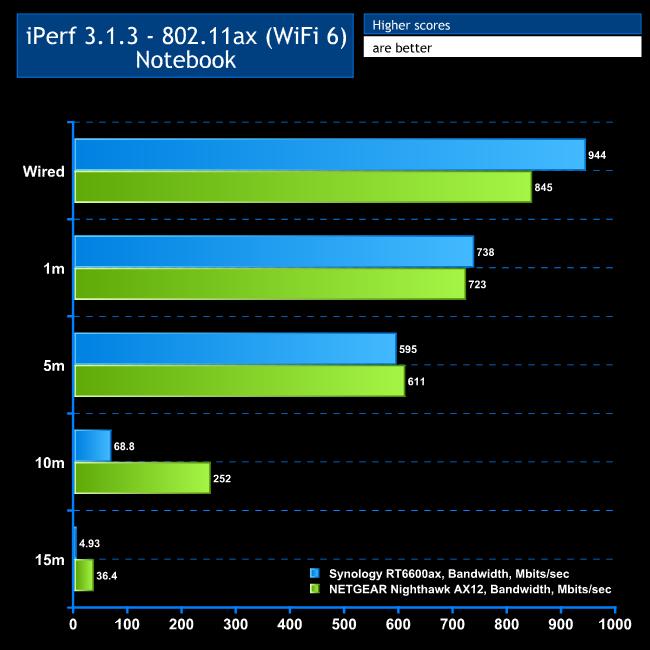
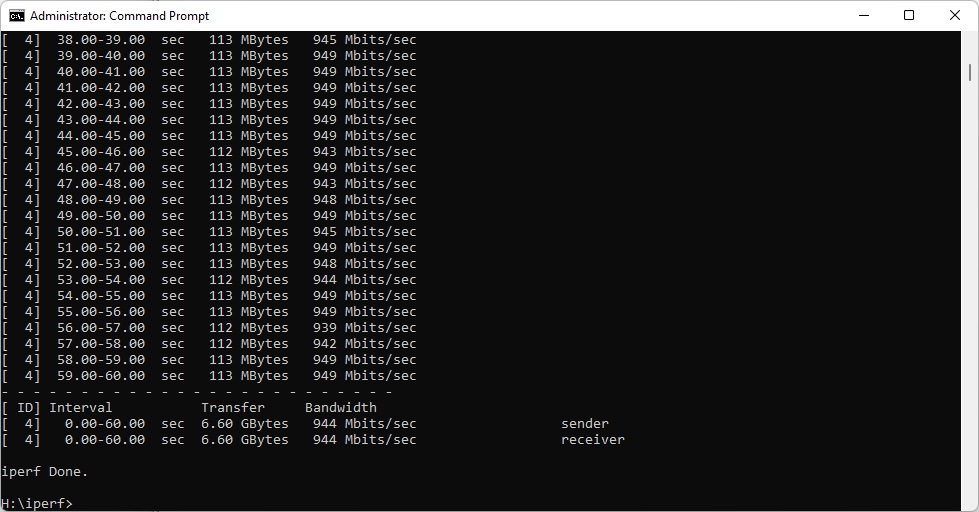
As a control, we attached the ASUS notebook to one of the wired LAN connections (both support 2.5Gbps LAN). The desktop was only attached via Gigabit Ethernet, but you can see that you are getting close to wire speed with the RT6600ax, hitting 944Mbits/sec.
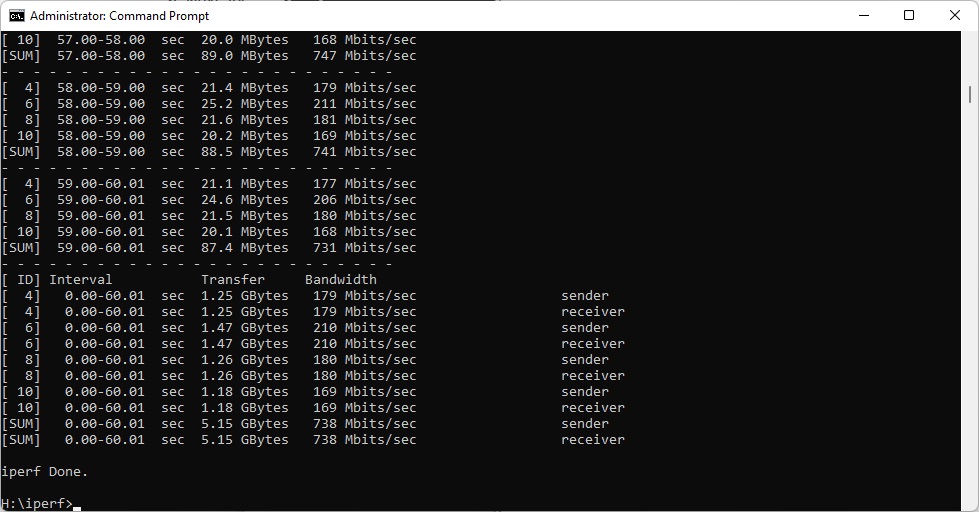
WiFi 6 performance at close range is impressive too, with the RT6600ax beating the NETGEAR Nighthawk AX12 with 738Mbits/sec – not far off wired Gigabit LAN speed.
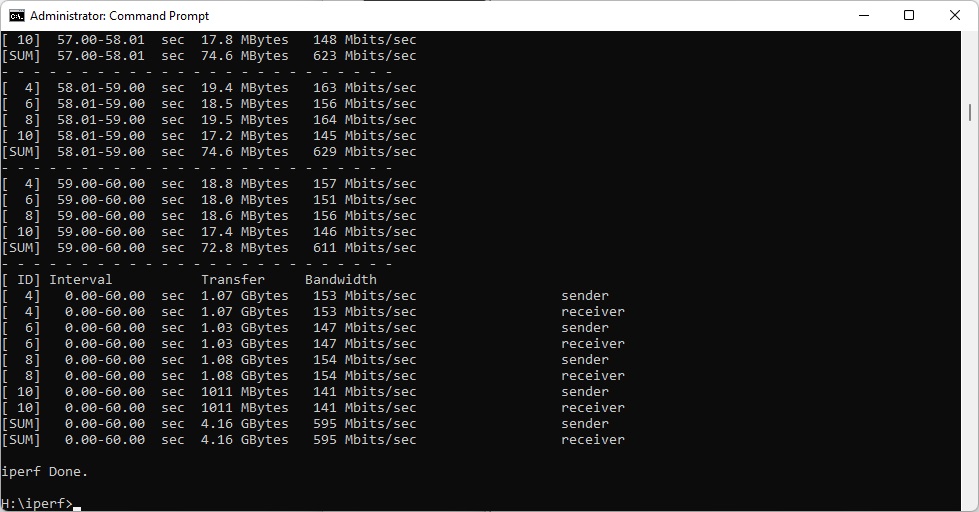
At 5m, the Synology was still going strong, managing 595Mbits/sec, although this was a fraction behind NETGEAR.
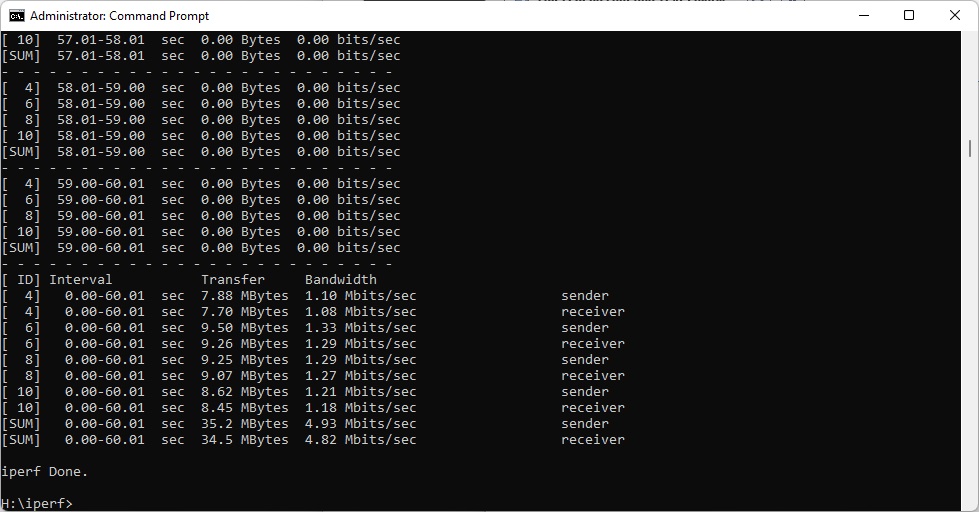
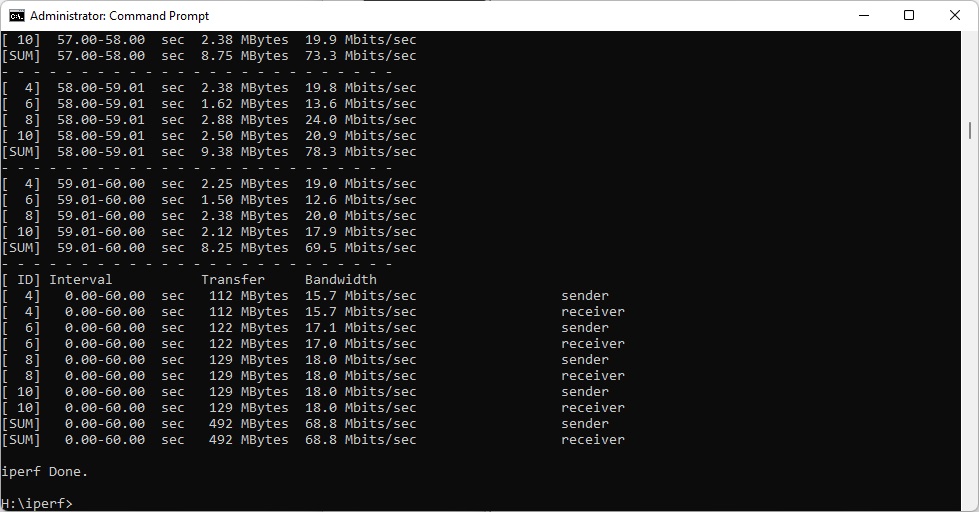
However, once more distance and obstructions were introduced, the RT6600ax's performance dropped considerably, going down to 68.8Mbit/sec at 10m and just 4.93Mbits/sec at 15m. In contrast, the NETGEAR router was still very fast at 10m and much more usable at 15m, too.
802.11ac 5GHz
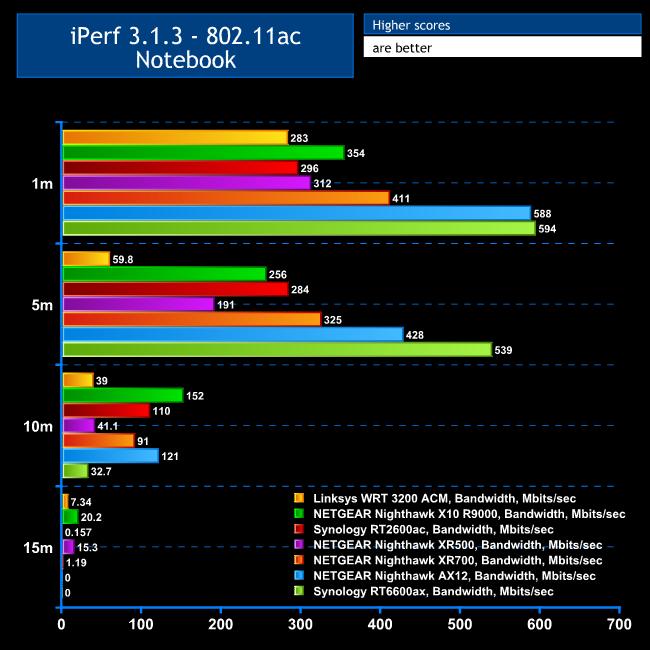
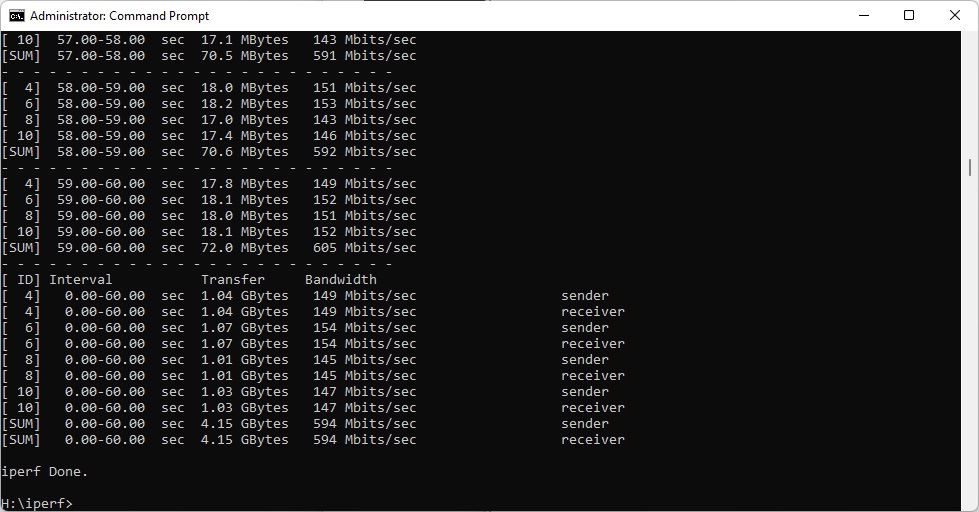
It's a similar range story with 802.11ac. Up close, the RT6600ax managed a very credible 594Mbits/sec – a little faster than the NETGEAR Nighthawk AX12 and notably ahead of other routers. It was also extremely impressive at 5m, hitting 539Mbits/sec, which was way ahead of the NETGEAR.
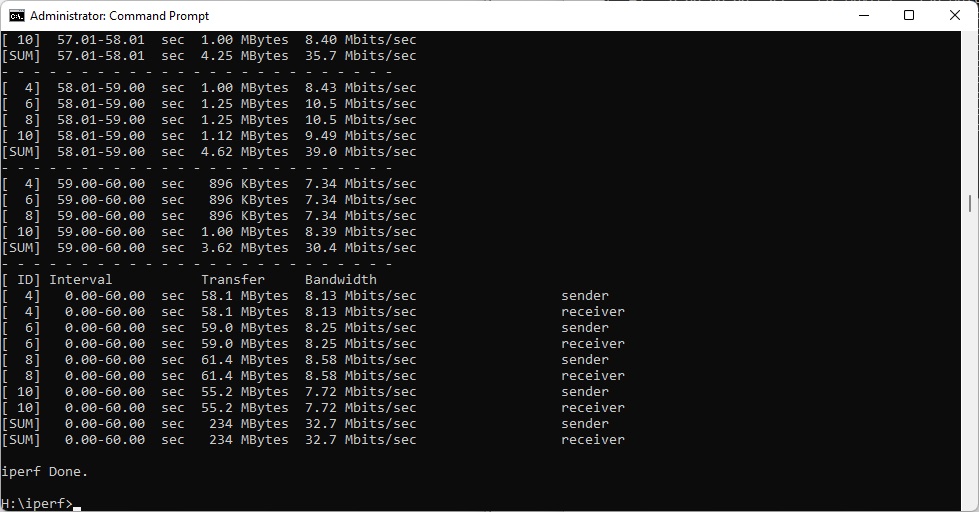
However, once more distance and obstructions were introduced, performance dropped like a stone to 32.7Mbits/sec at 10m and the throughput failed at 15m, although this was the same story for the NETGEAR Nighthawk AX12.
802.11n 2.4GHz
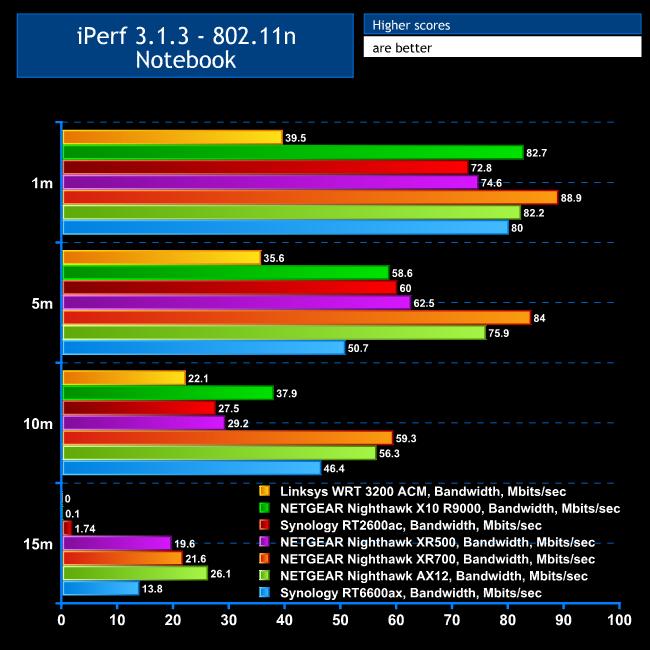
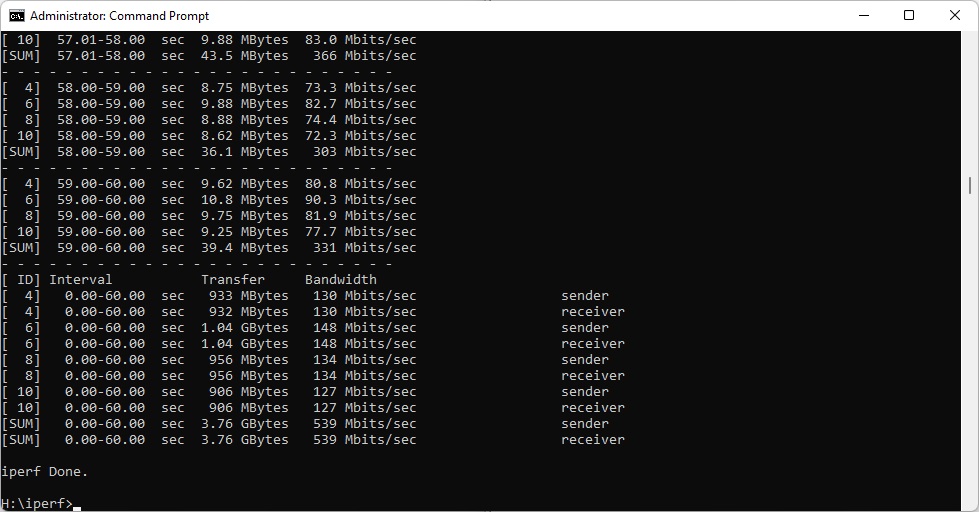
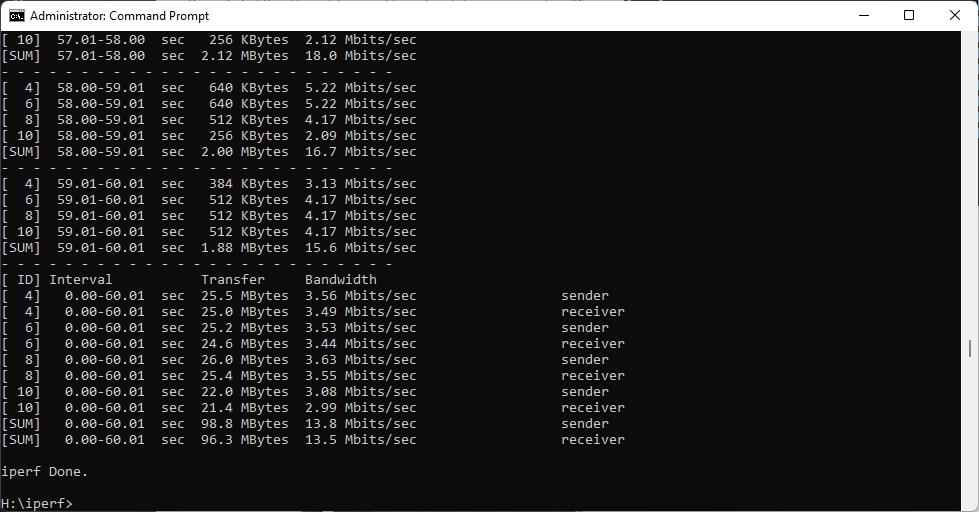
Performance with 802.11n is more credible with range. At 1m, you're getting 80Mbits/sec, which is around the same as other routers. This does drop a fair bit to 50.7Mbits/sec at 5m, and then to 46.4Mbits/sec at 10m, but only premium NETGEAR routers are competing at this range. You still get a usable throughput at 15m of 13.8Mbits/sec, although the NETGEAR routers are notably ahead here, even if no other brands are.


Overall, while performance in close proximity with the RT6600ax is excellent, it does drop off beyond 5m and with obstacles in the way. The radio signal strength is clearly lower than with NETGEAR routers. Adding a mesh would improve this greatly, so if you are looking to cover a wide space we would recommend taking advantage of this feature.
The Synology RT6600ax is a mixed bag. The management features are excellent, unless you're looking for gaming-specific QoS optimisation. Performance in close proximity is also up with the best routers we have tested. The ability to add further devices to form a mesh extends the utility, as does the ability to install apps.
If you want a router that can double as a DLNA media-playing NAS as well, Synology has you covered. The 2.5G network port and ability to load balance a second broadband connection or create a failover are excellent. And being able to tether your phone if your broadband fails could well come in handy as well.
However, the range capabilities are not up with NETGEAR's similarly-priced AX12, which is therefore a better choice if you are looking for the simplicity of a single router that can cover your entire home on its own with WiFi 6. You will still need to consider a mesh for a larger location, which Synology will facilitate. But NETGEAR has the edge in a single-device scenario.
Considering that the Synology RT6600ax is almost exactly the same price as the NETGEAR Nighthawk AX12, the choice comes down to whether you need the better range of the latter, or the expansion features of the former. If you're covering a smaller space and want app expandability, the Synology RT6600ax makes a solid choice.
You can buy from Scan for £279.98 HERE.
Discuss on our Facebook page HERE.
Pros:
- Reasonable price.
- Excellent short-range performance.
- Four-port Gigabit Ethernet switch.
- 2.5G LAN port.
- Load balance / failsafe with secondary broadband connection.
- Support for USB mobile data or smartphone USB tethering.
- USB 3.2 Gen 1 for storage and printer sharing.
- Extensible features via package download.
- Comprehensive configuration via Web interface.
Cons:
- Performance drops off at 10m.
- Limited gaming features.
KitGuru says: The Synology RT6600ax includes lots of great features, and is very fast in close proximity, but performance drops noticeably at longer ranges.