KitGuru KitGuru.net – Tech News | Hardware News | Hardware Reviews | IOS | Mobile | Gaming | Graphics Cards


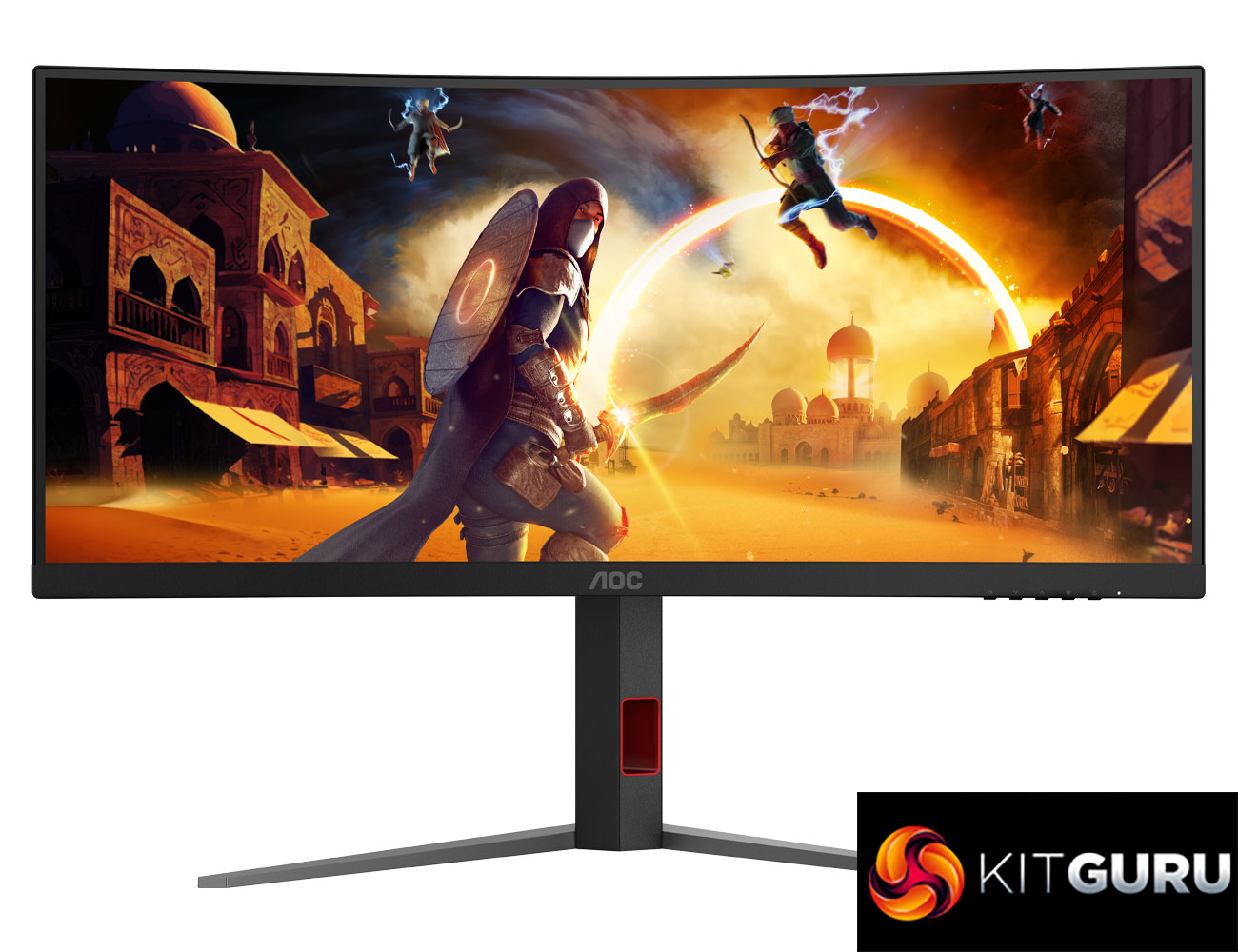
There’s no doubt that being a PC enthusiast has had its challenges in recent years, with shortages, skyrocketing prices and a general slowdown in innovation, but it’s been great to see the gaming monitor segment bucking that trend and going from strength to strength. Today’s monitor is a great example of that, with the AOC CU34G4Z offering a curved 34in 3440×1440 ultrawide panel clocked at 240Hz, for less than £300. It certainly sounds good on paper, so let’s dive in and see what it’s like to use in the real world…
Timestamps
00:00 Intro
01:00 Pricing and key info
01:47 Design, first impressions
02:35 Connectivity + OSD
04:06 Factory calibration analysis
06:25 sRGB mode + calibration
07:09 Backlight bleed, viewing angles
07:25 Response time performance
09:34 Motion clarity examples
10:58 Real-world gaming experience
12:58 Closing thoughts
Just for some context around the pricing, right now AOC’s CU34G4Z is listed at £280 on Amazon and Currys, and while that does appear to be a Black Friday special at the time of writing, PCPartPicker price tracking reveals it’s been selling for under £300 since September anyway, so we’re only talking a £10-20 difference.
That’s still a great price for a curved ultrawide with these specs, too. It was only back in mid-2020 I myself spent £500 on the AOC CU34G2X, also a curved ultrawide but with a slower 144Hz refresh rate – and let me tell you now, the response times on that screen were nowhere near as good as they are with the CU34G4Z!
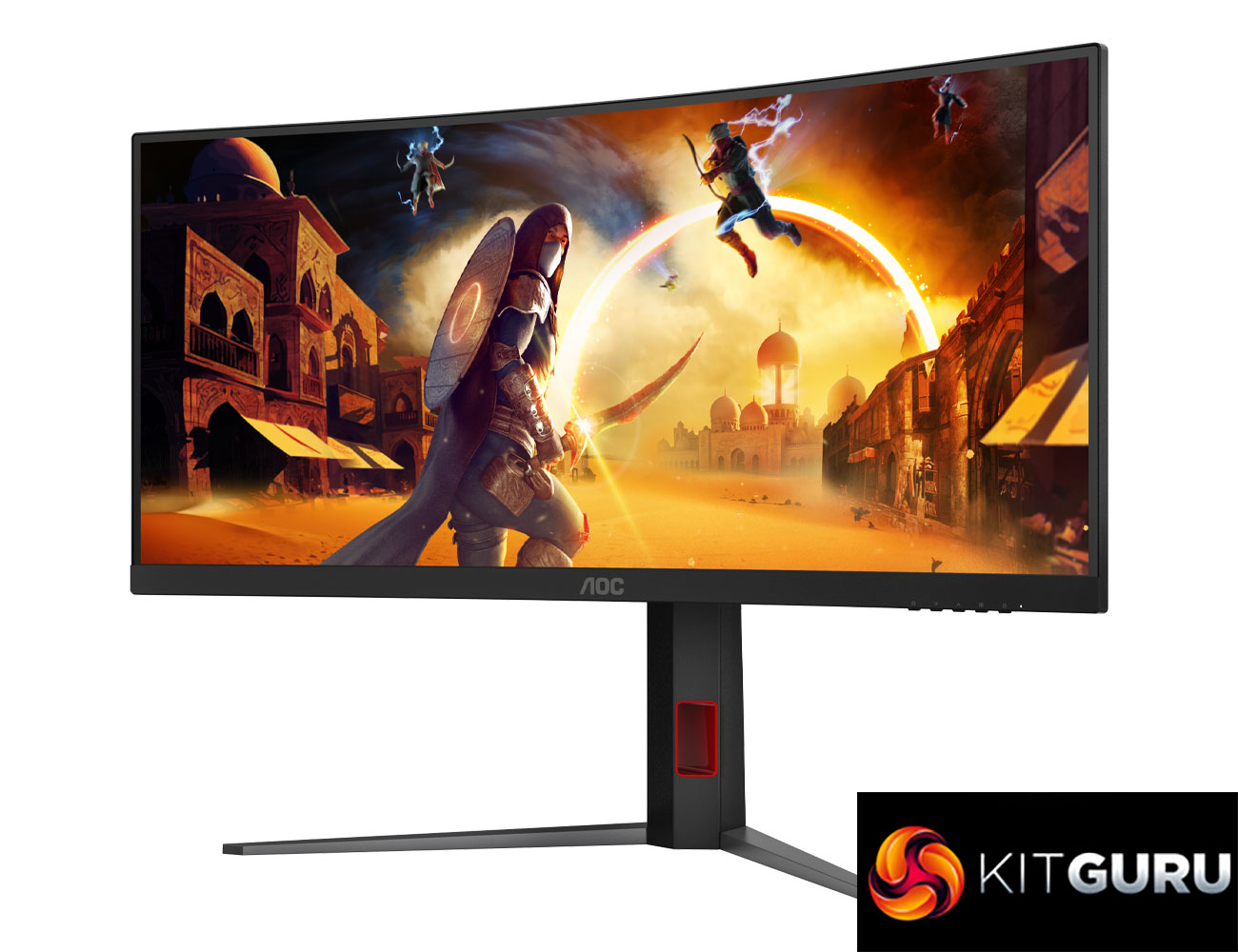
Specification:
- Screen size (inch): 34
- Screen size (cm): 86.4
- Flat / Curved: Curved
- Curvature radius: 1500R
- Panel treatment: Antiglare (AG)
- Pixels per inch: 109
- Panel resolution: 3440×1440
- Resolution name: WQHD
- Aspect ratio: 21:9
- Panel type: Fast VA
- Backlight type: WLED
- Max refresh rate: 240 Hz
- Response time (GtG): 1 ms
- Response time (MPRT): 0.3 ms
- Static contrast ratio: 2500:1
- Viewing angle (CR10): 178/178
- Display colours: 1.07 Billion
- Brightness in nits: 450 cd/m²
- Sync technology (VRR): Adaptive Sync
- Sync range: 48–240
- Colour space (sRGB) CIE 1976 %: 130.3
- Colour space (DCI-P3) CIE 1976 %: 94
- Colour space (Adobe RGB) CIE 1976 %: 88.7
- Flicker-free: Flicker Free
- Bezel type (front): 3-sided frameless
- Bezel colour (front): Black
- Bezel finishing (front): Matt
- Cabinet colour (backside): Black, Red
- Cabinet finishing (backside): Matt
- Removable stand: ✓
- Kensington lock: ✓
- VESA wallmount: 100×100
- Tilt: 3.5° ±1.5° ~ 21.5° ±1.5°
- Height adjust (mm): 130 mm
- Swivel: 20° ±2° ~ 20° ±2°
- HDMI: HDMI 2.1 x 2
- DisplayPort: DisplayPort 1.4 x 1
- USB hub: ✓
- USB generation: USB 3.2 (Gen 1)
- USB type downstream: 2
- Audio output: Headphone out (3.5mm)
- Warranty period: 3 years
Firmware tested: V1.03
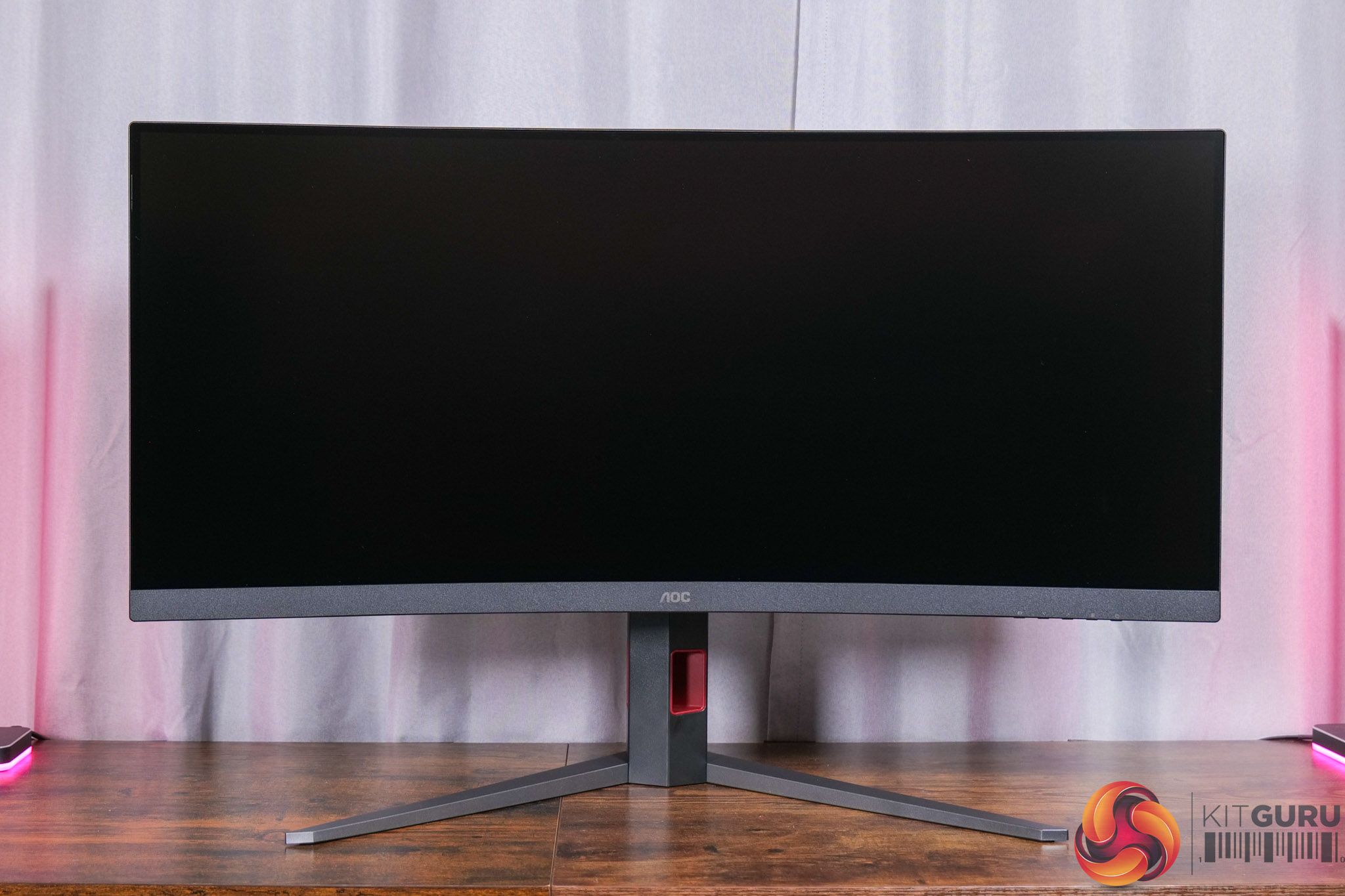
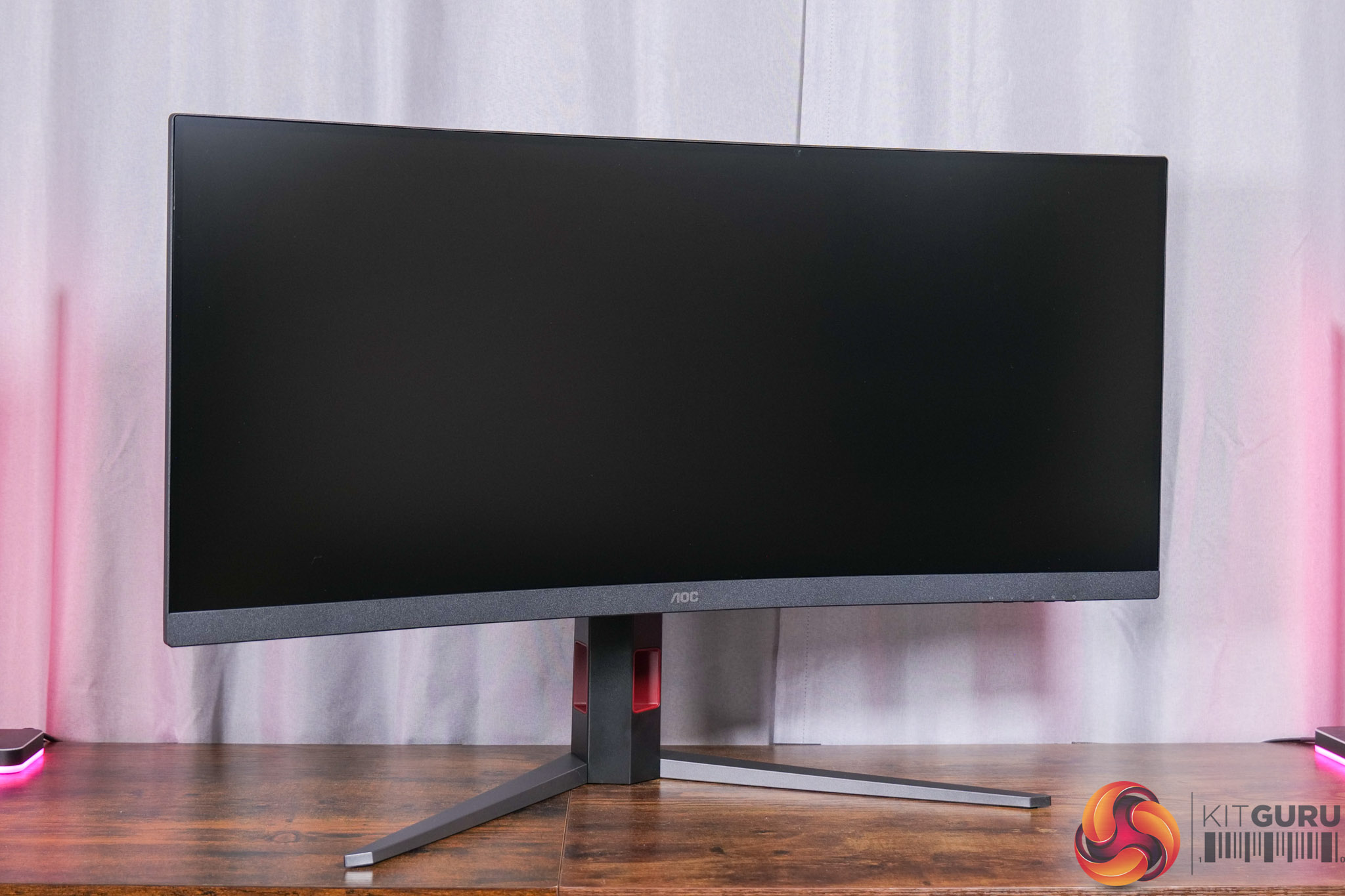
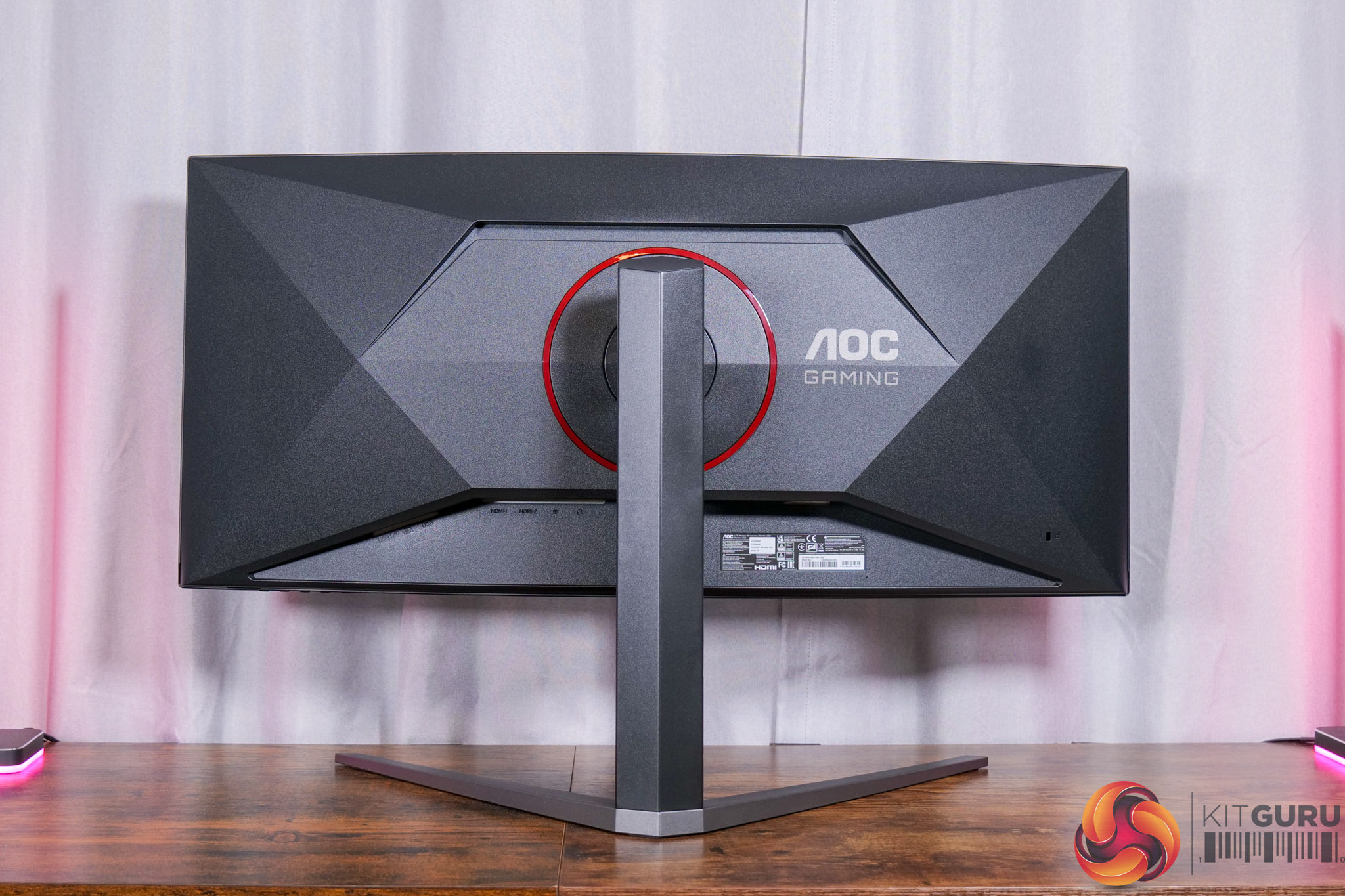
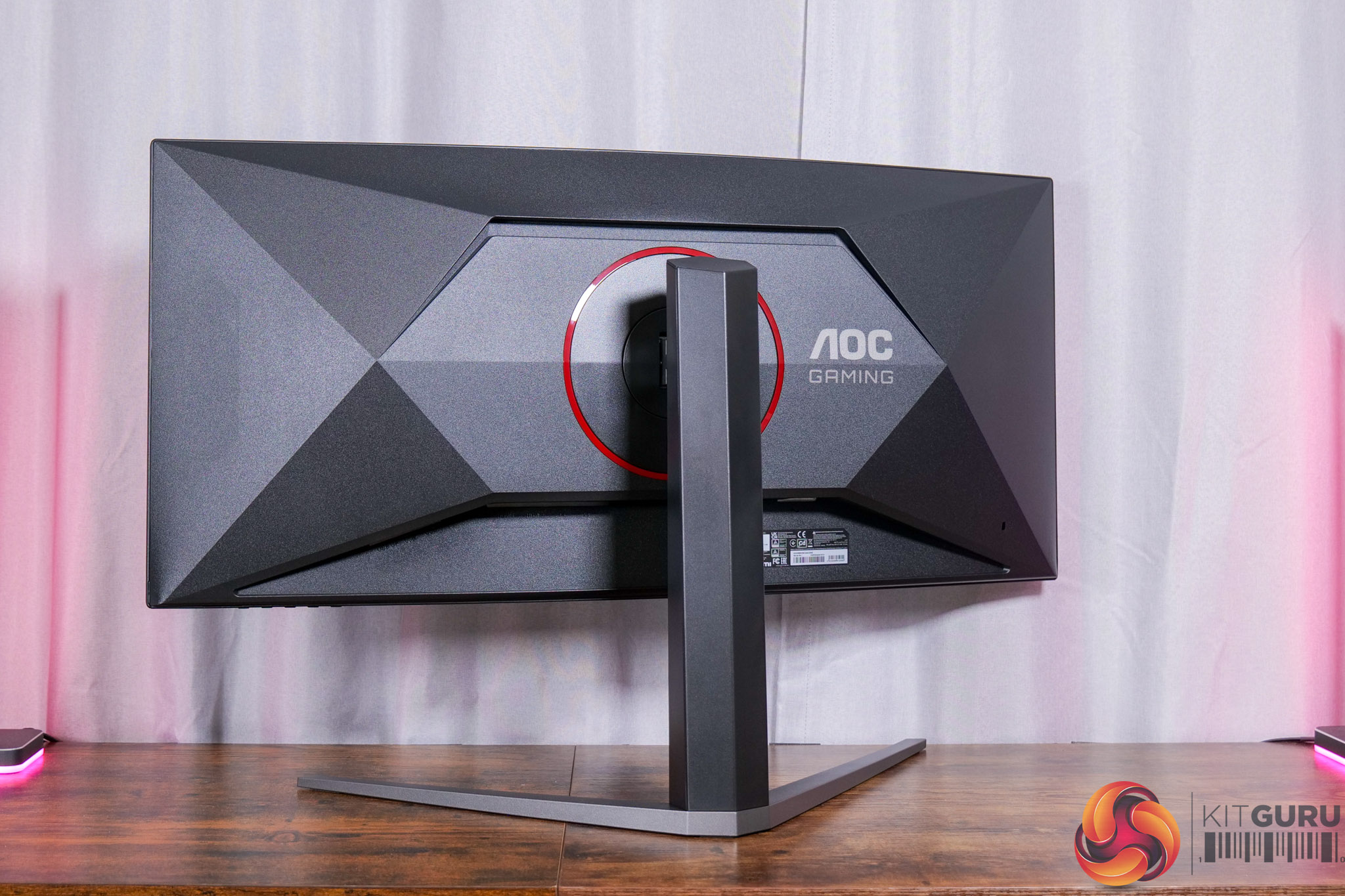
In terms of the design of the monitor, AOC’s G series all have a fairly similar aesthetic and the CU34G4Z is no different. It’s almost entirely matte black, with the angular rear giving it a slightly aggressive gamer aesthetic, but from the front it looks more laid-back. It’s sporting a grey v-shaped foot, and this measures 56cm wide, so it isn’t overly large as ultrawides go.
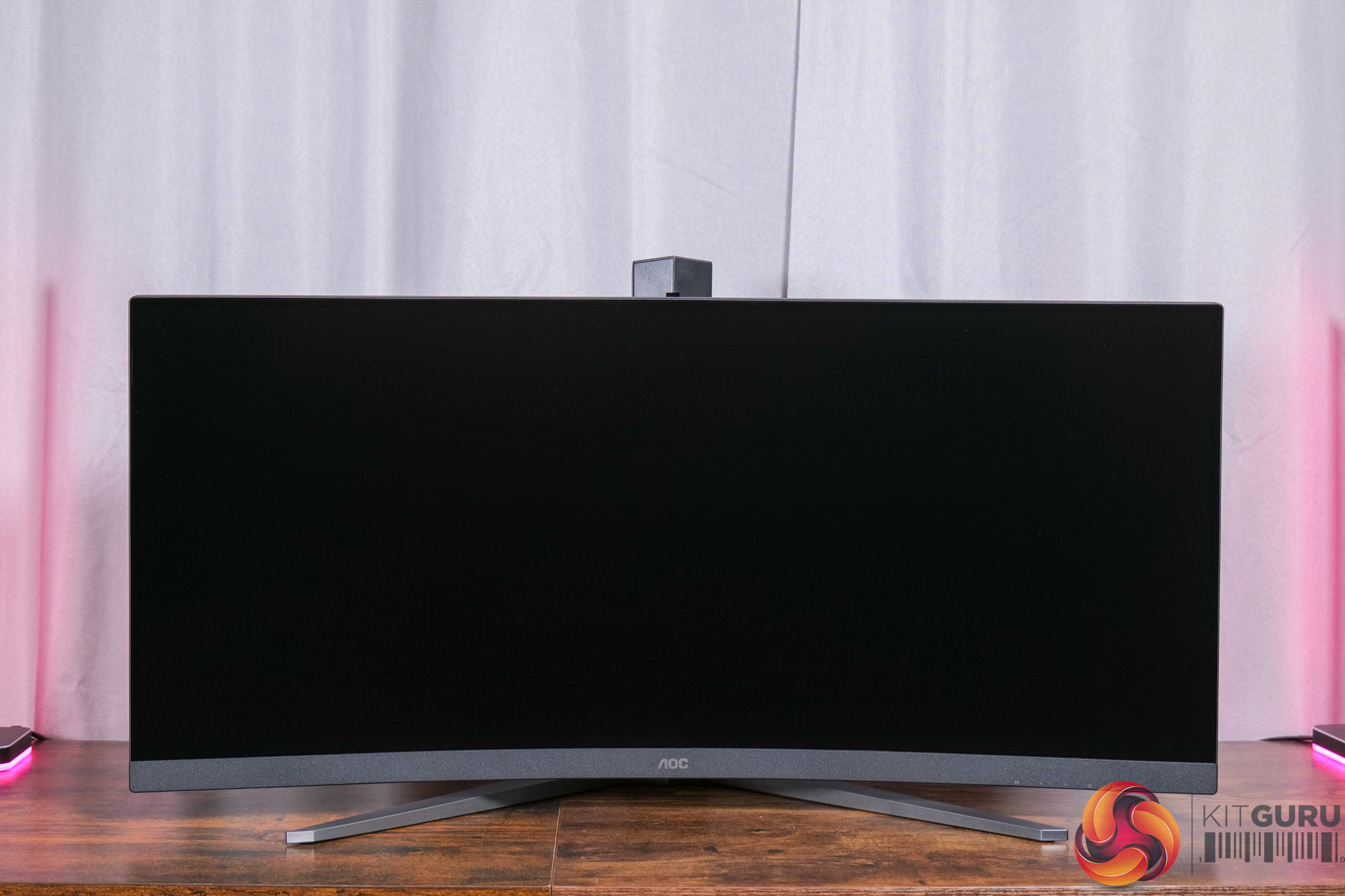
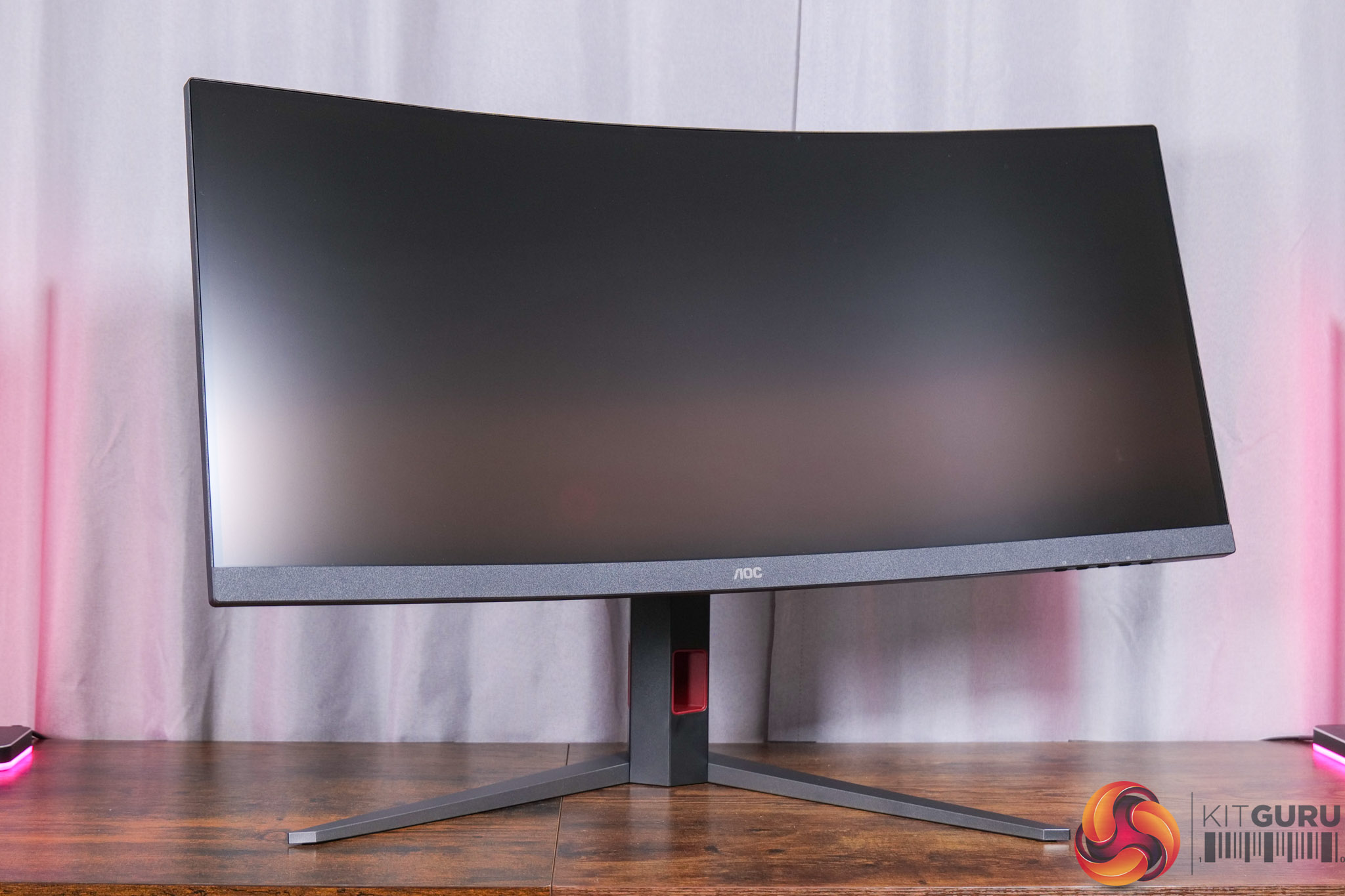
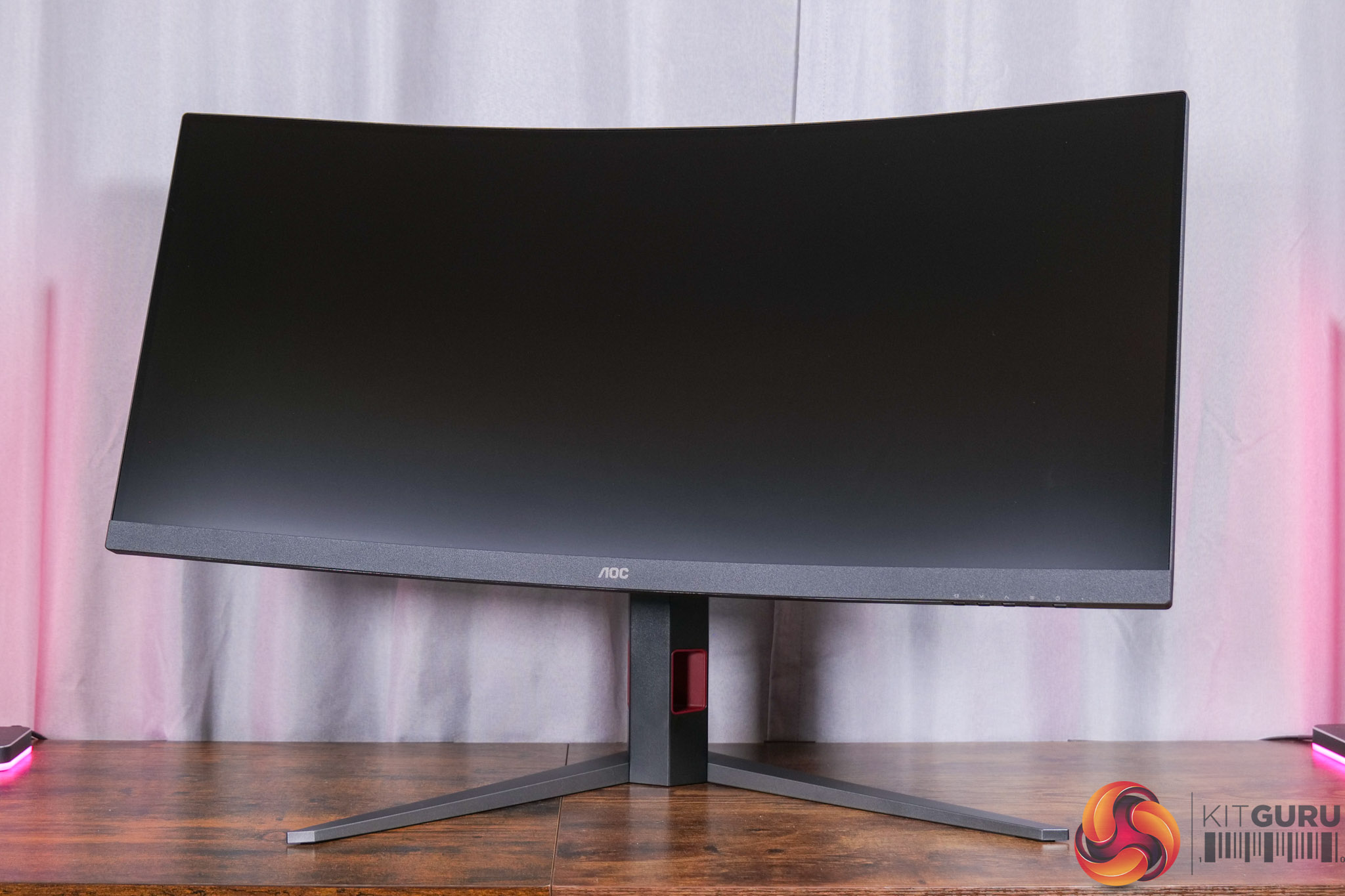
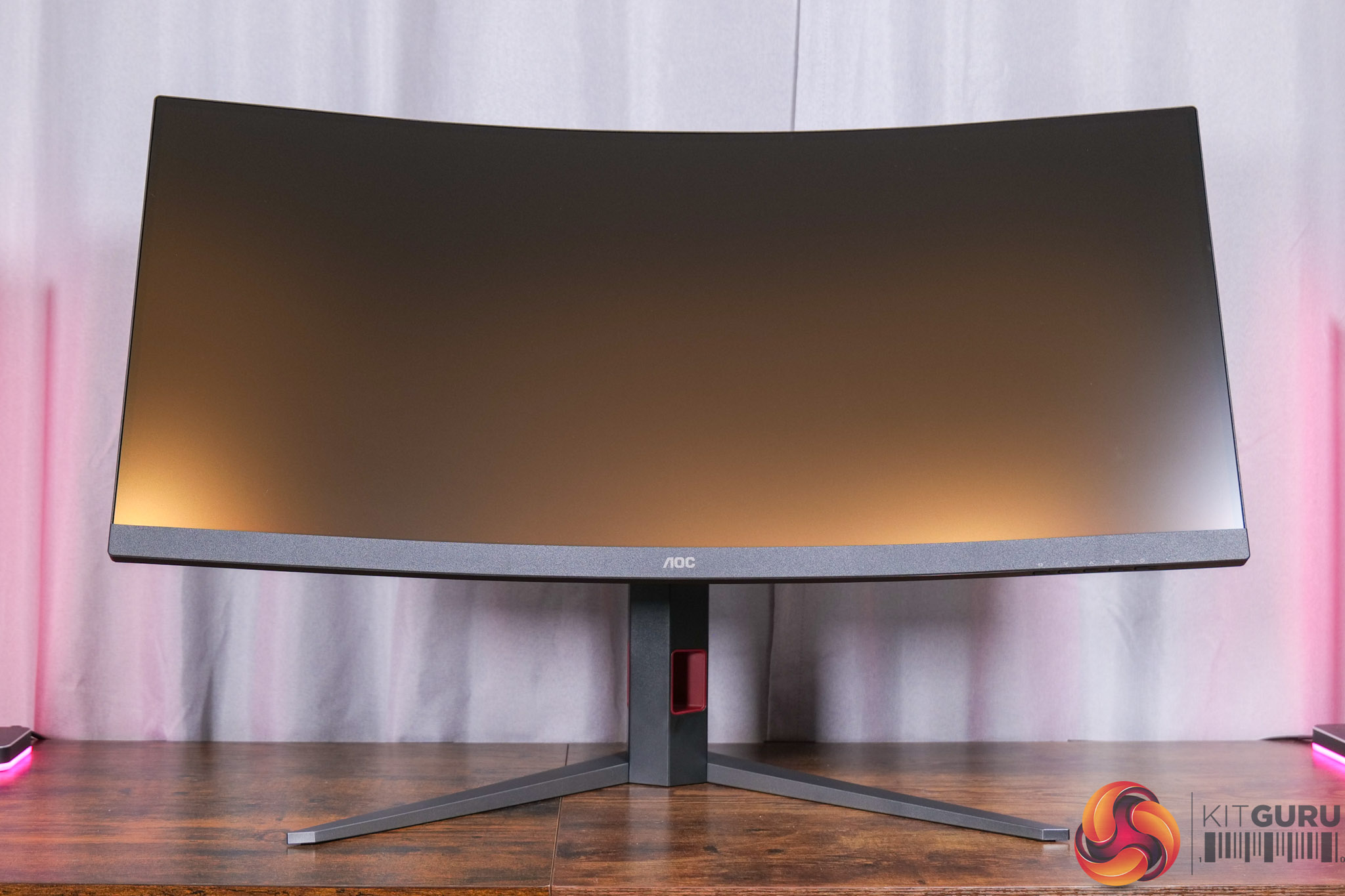
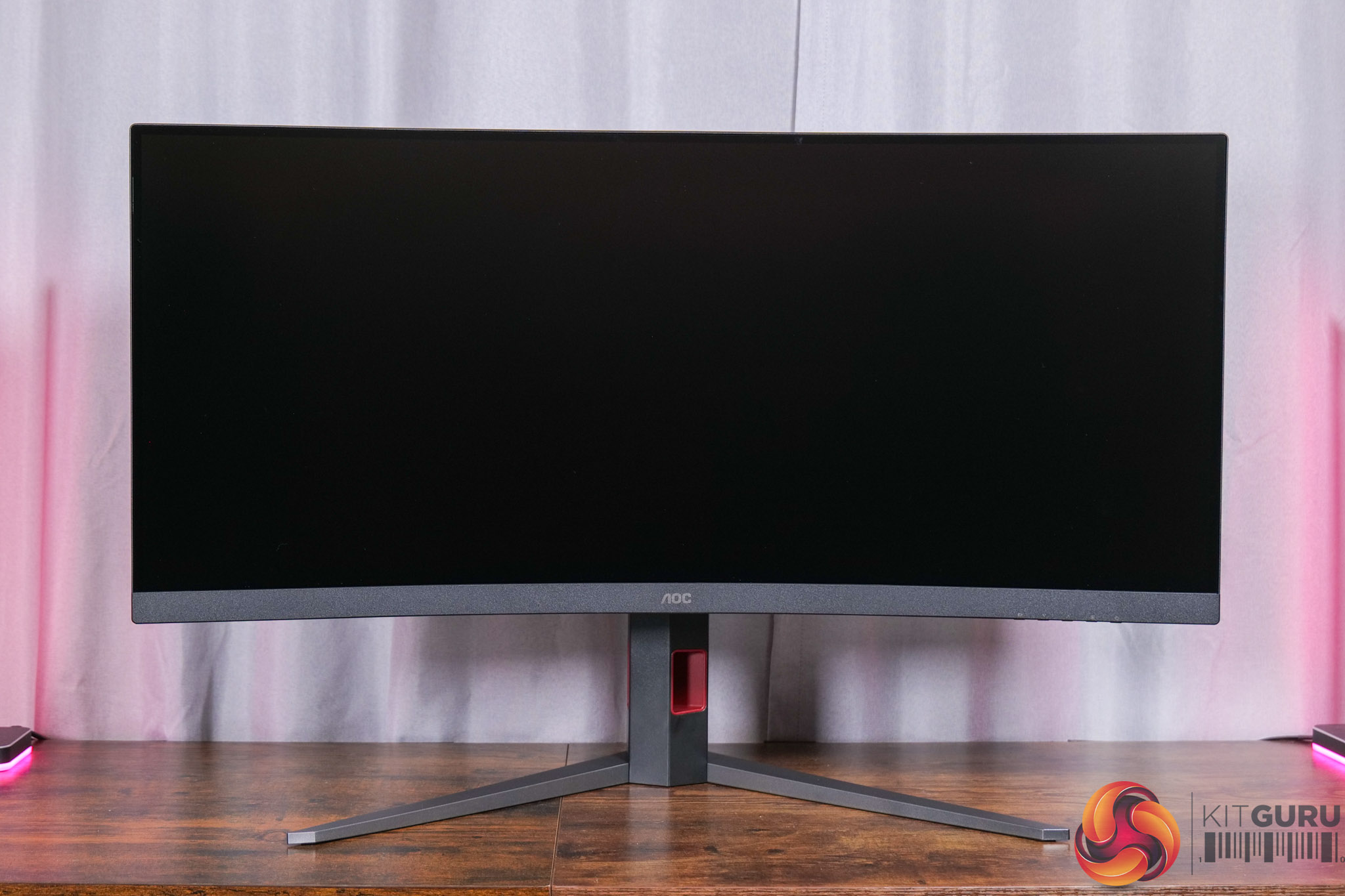
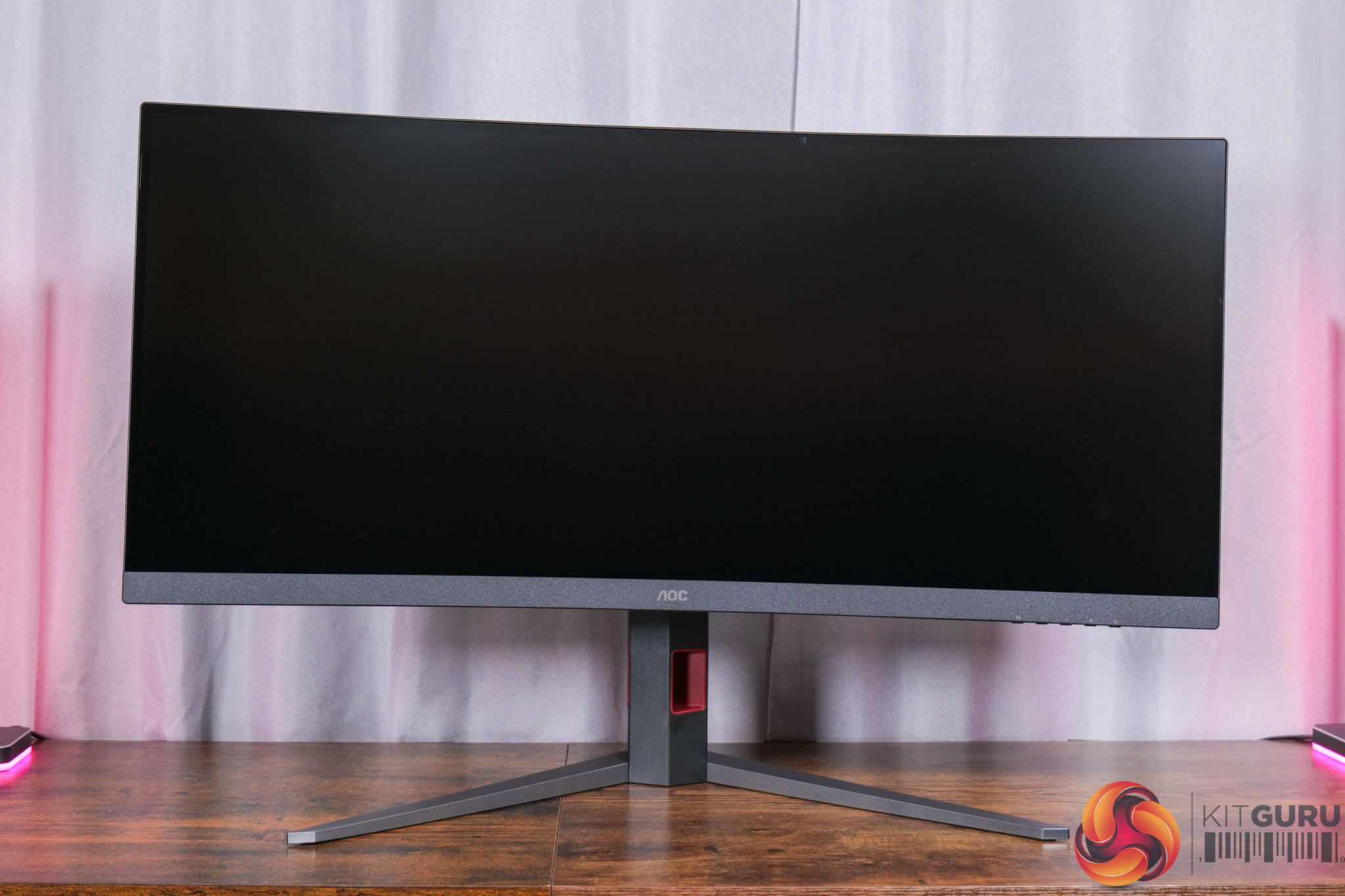
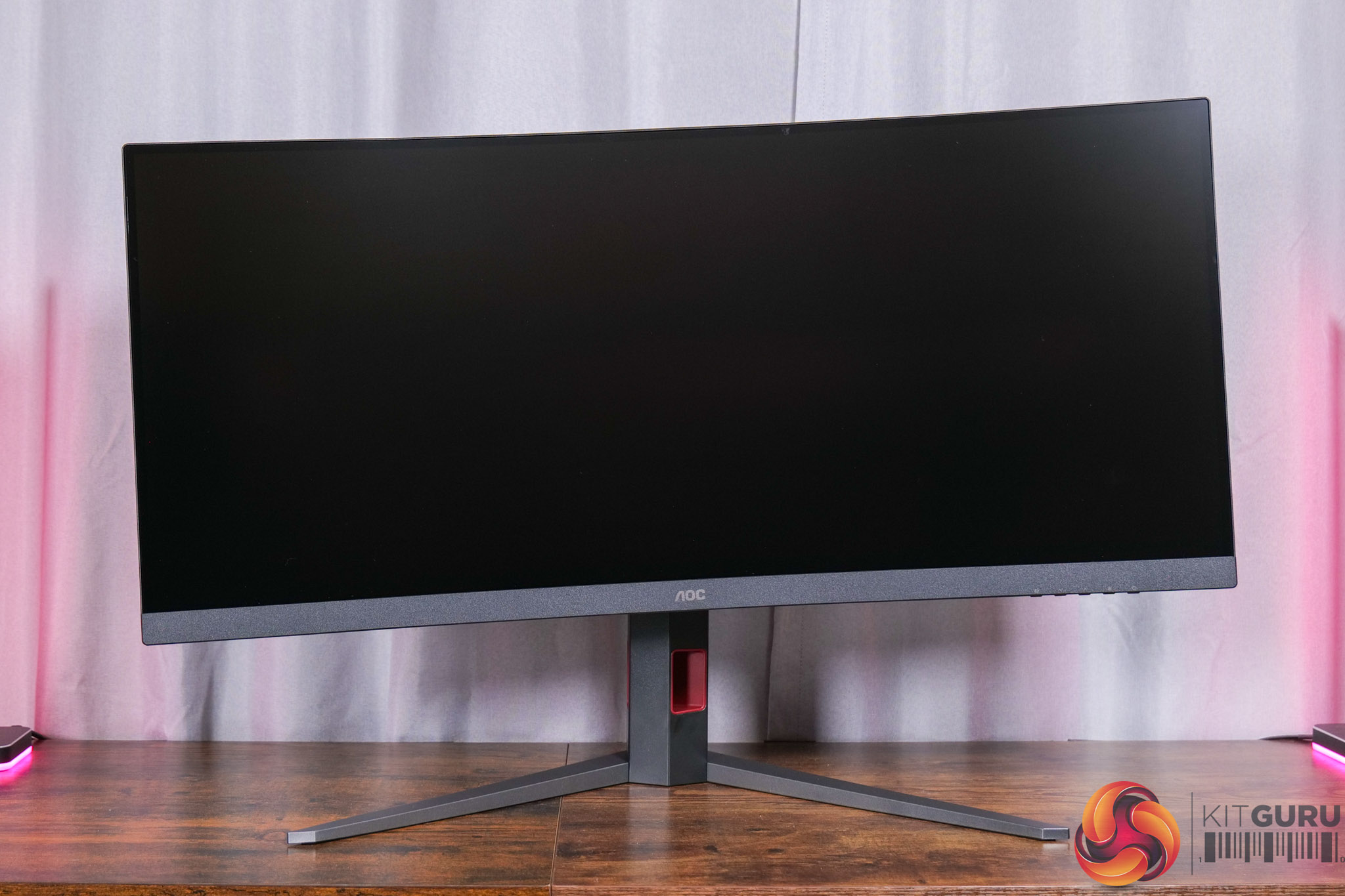
The built-in stand also offers a good variety of ergonomic adjustments. We find up to 130mm height adjustment, 20 degrees of swivel both left and right, along with tilt from +20 to +3.5 degrees. Pivot isn’t officially supported but there is a little play in the stand so you can rotate it just a little bit as you can see above. VESA 100×100 mounts are also supported, while you can get an idea of the 1500R curvature from these photos, too.
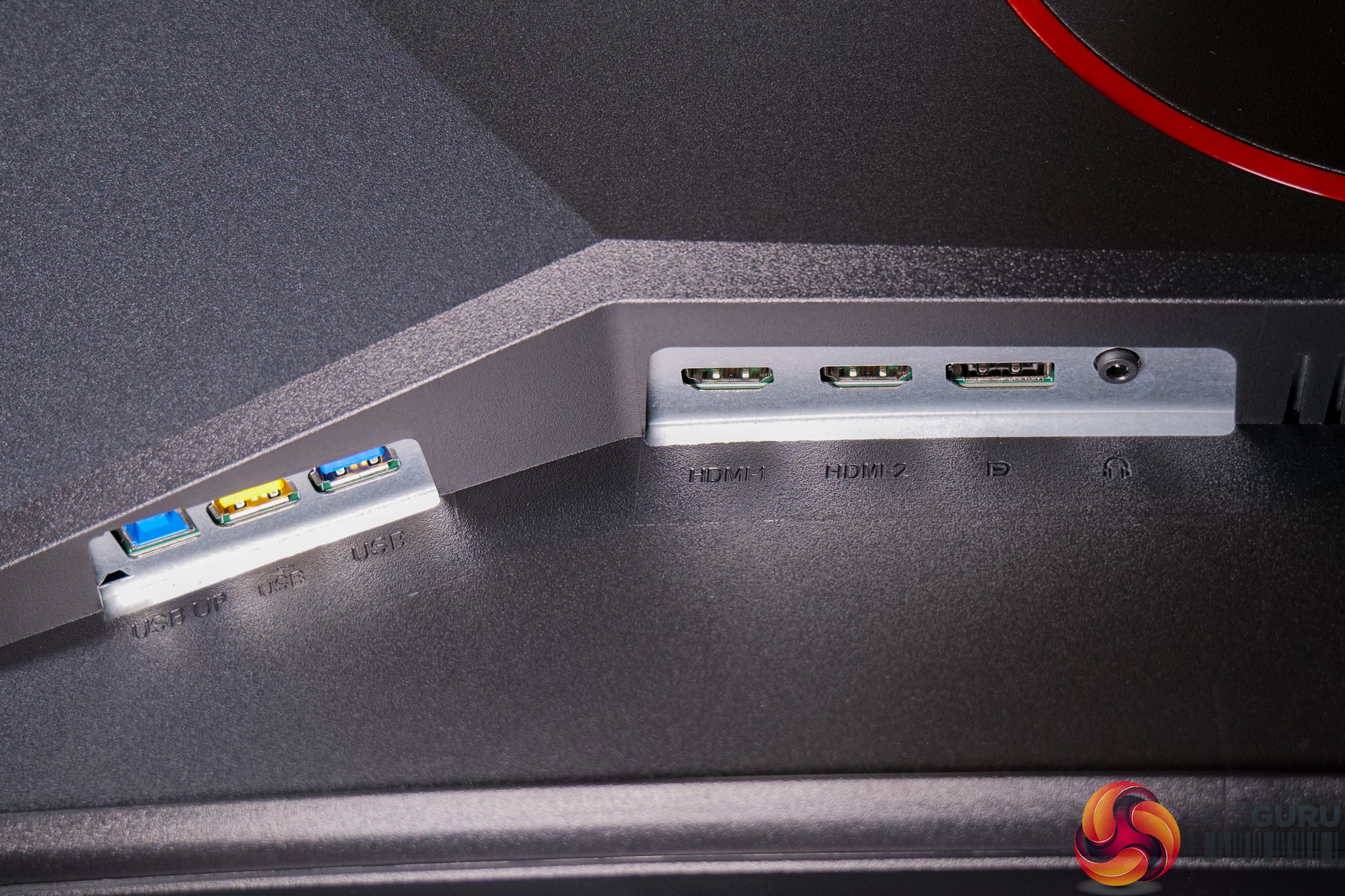
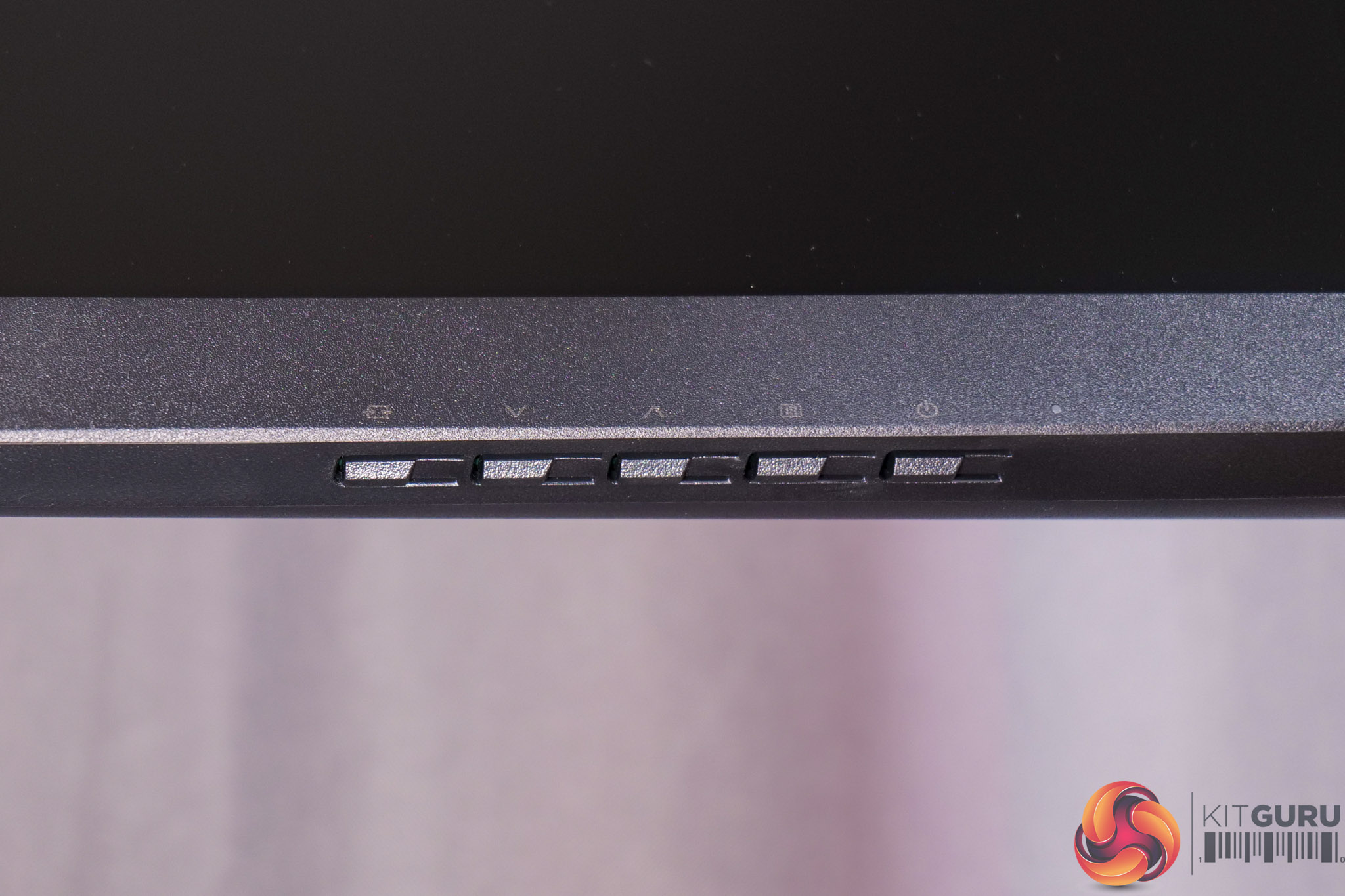
As for connectivity, we find a total of three video inputs – one DisplayPort 1.4, and then two HDMI 2.1, so there’s no issues getting the full refresh rate on any of those ports. Then there’s also a small two-port USB hub, but that’s it – so no USB-C or KVM functionality, which is a slight shame but it’s not really a surprise given the price point.
I am slightly disappointed to find 5-way button controls used to navigate the OSD, as opposed to a joystick, but again this likely just comes down to cost.
AOC recently overhauled its OSD system, offering settings that are split over seven main tabs:
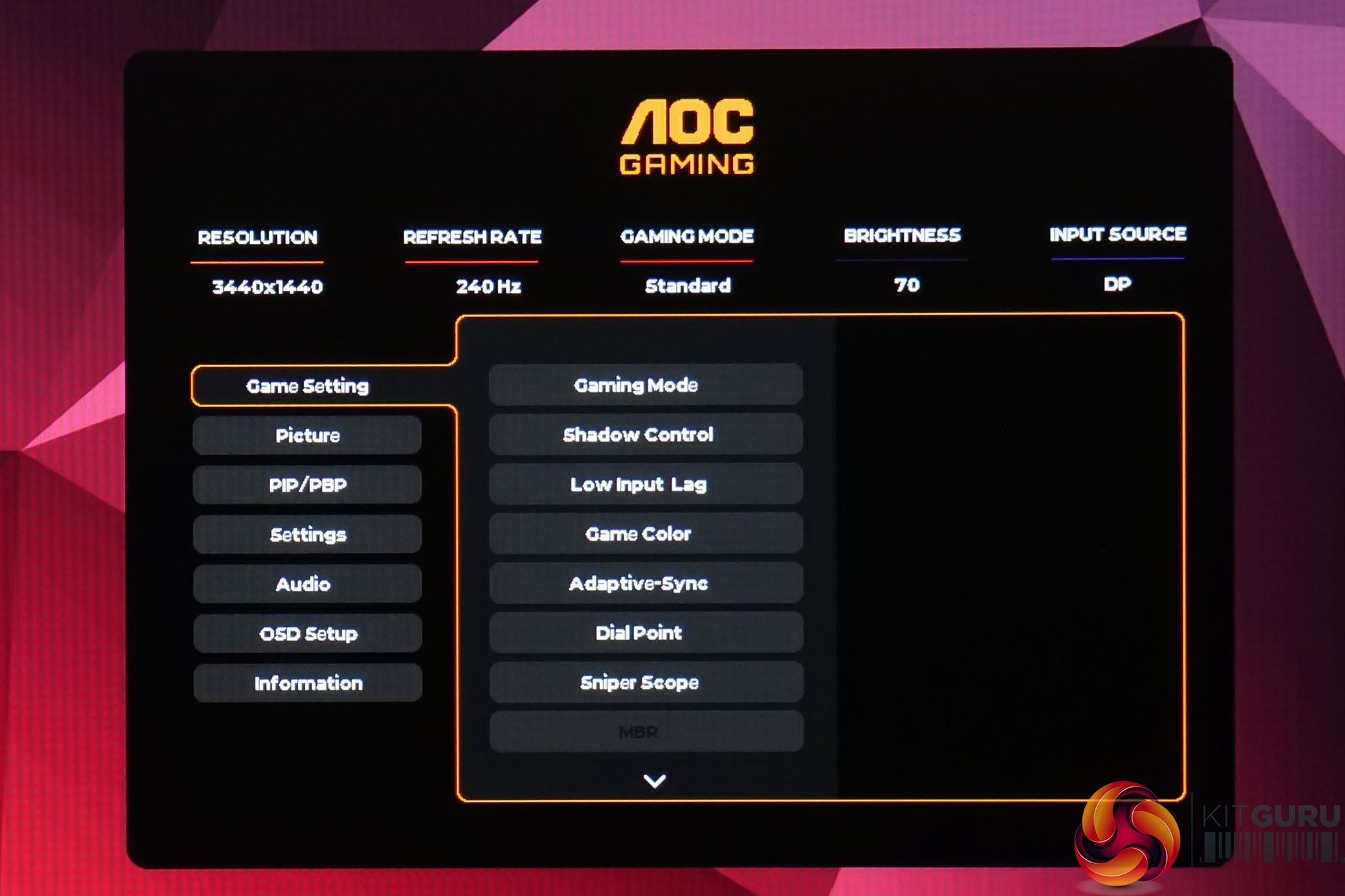
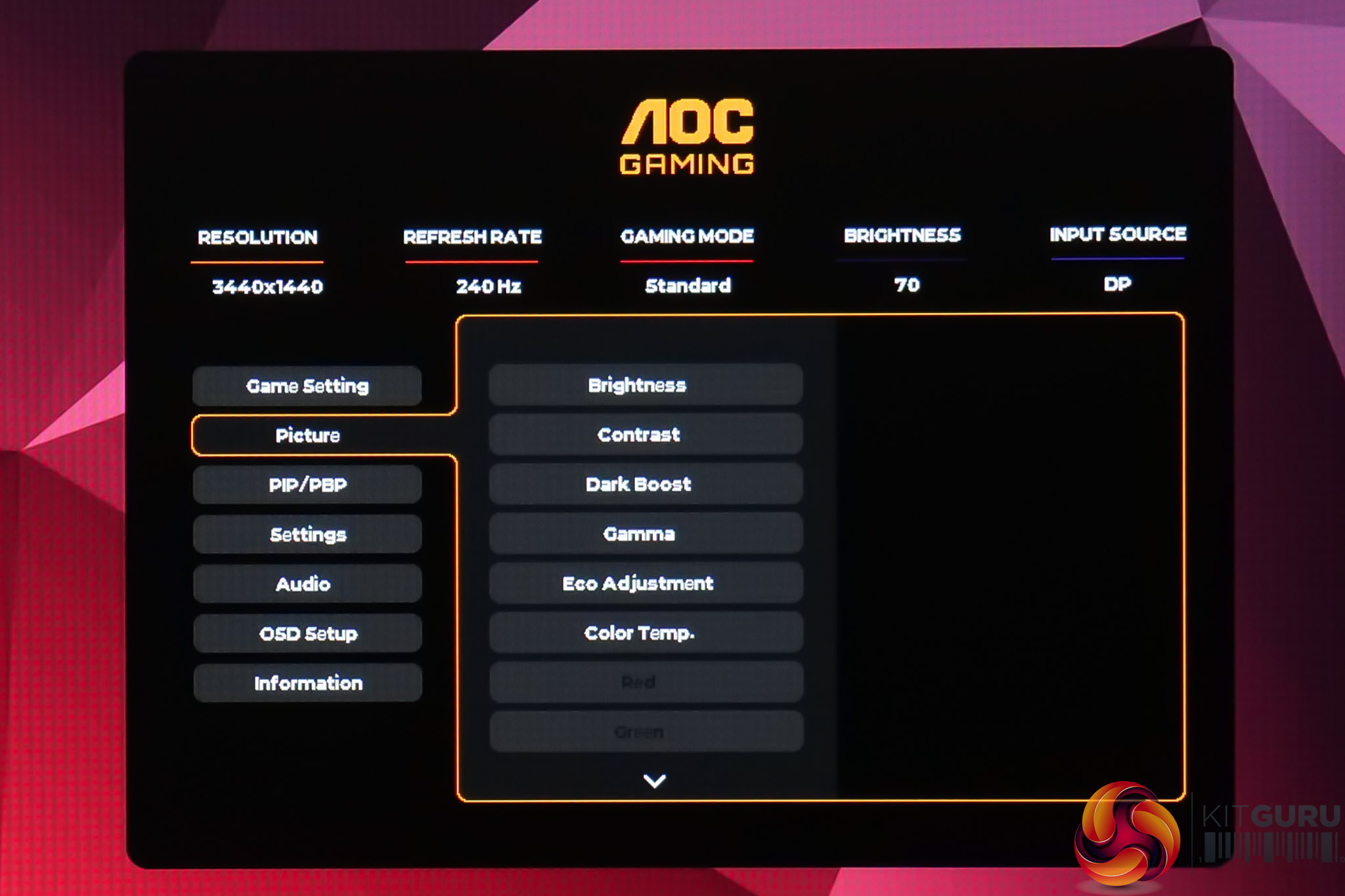
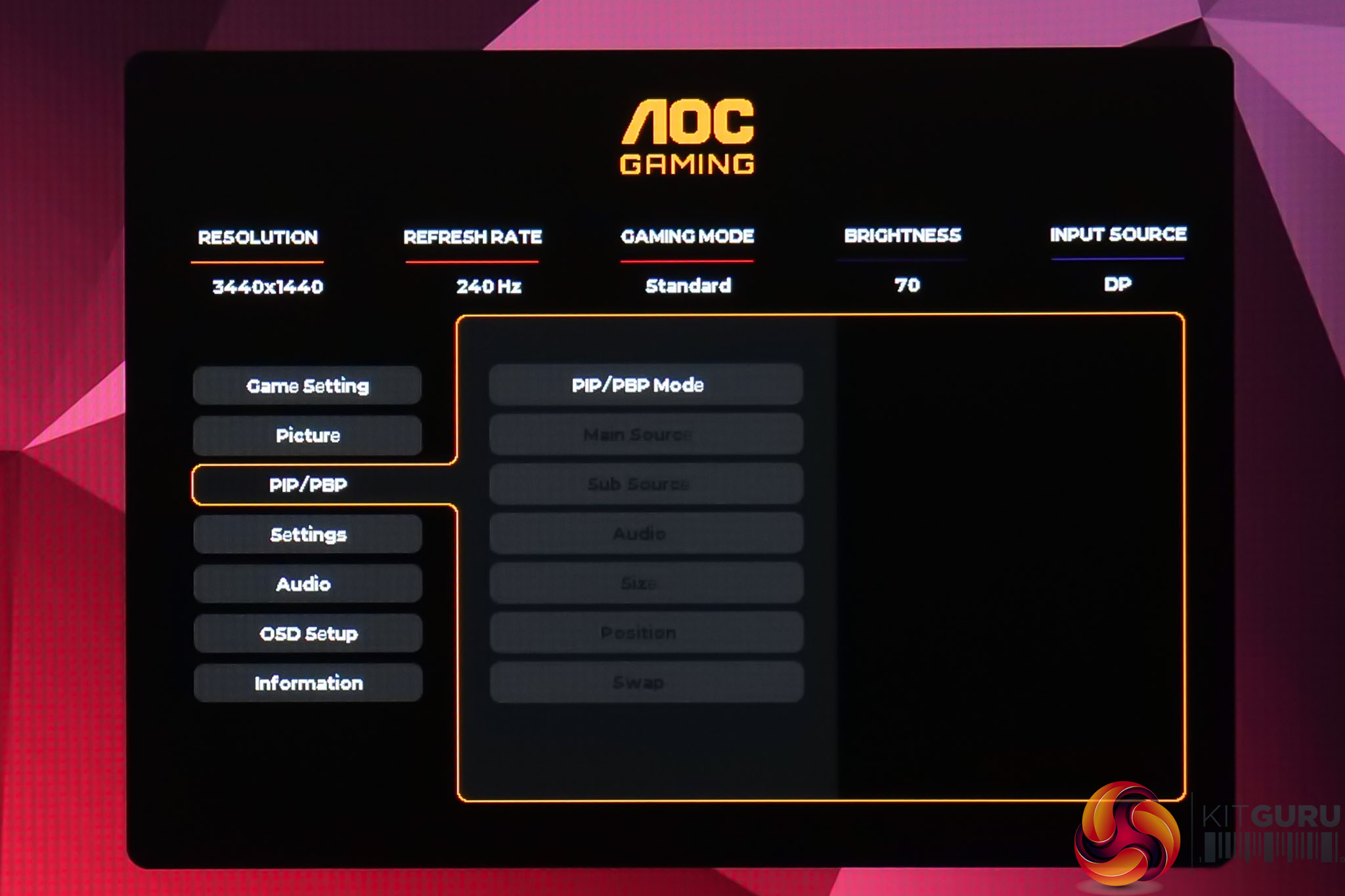
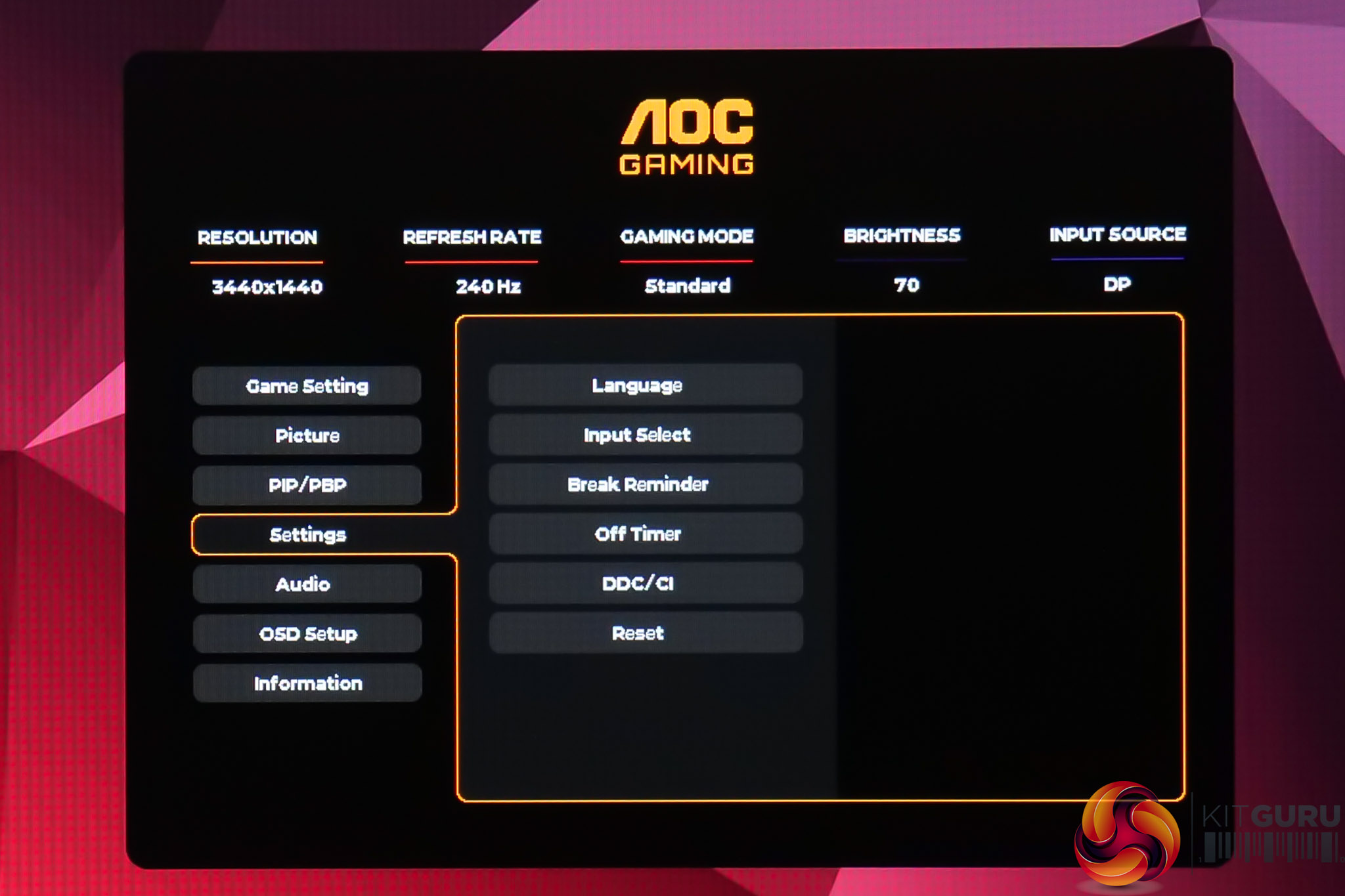
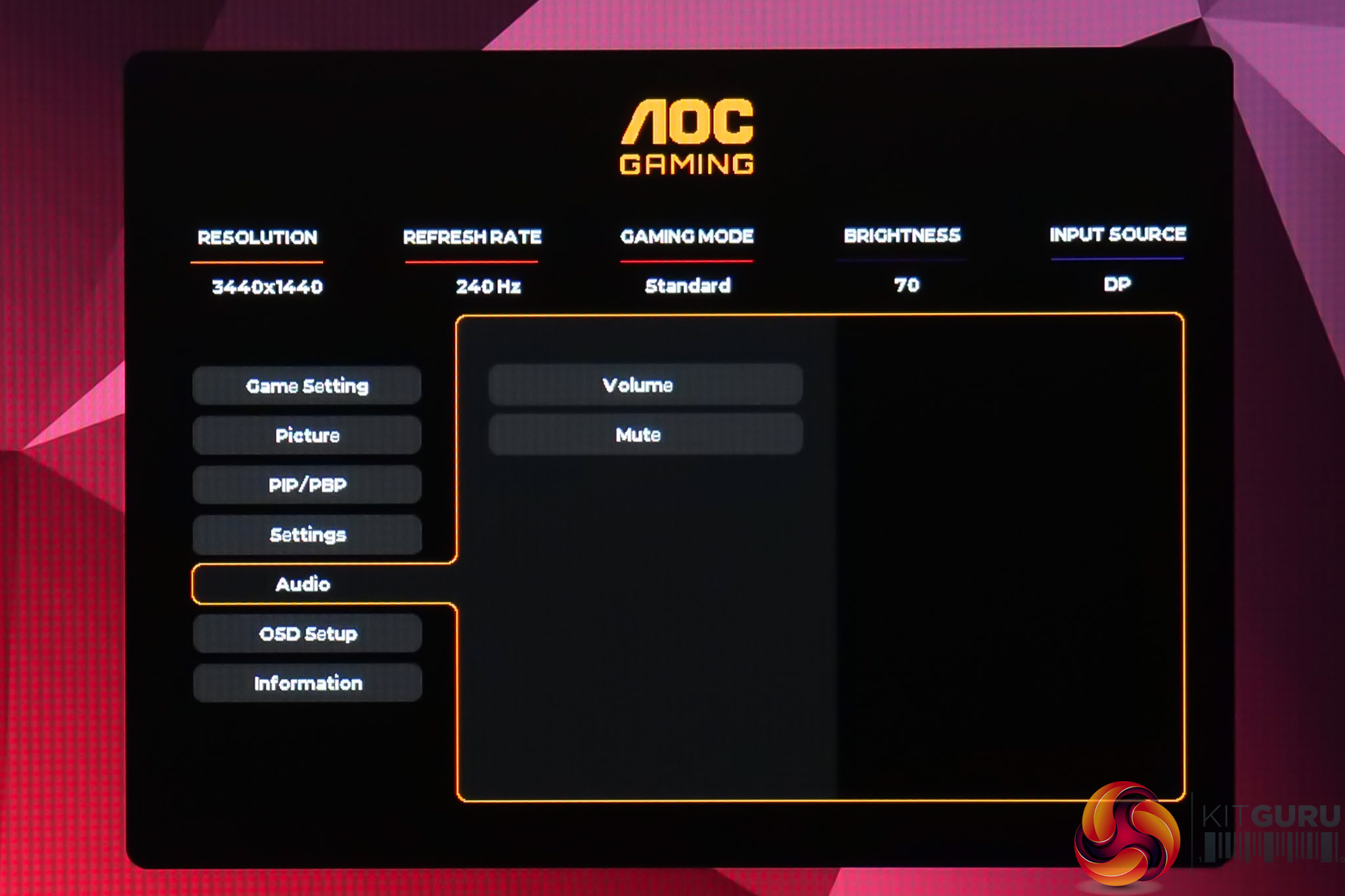
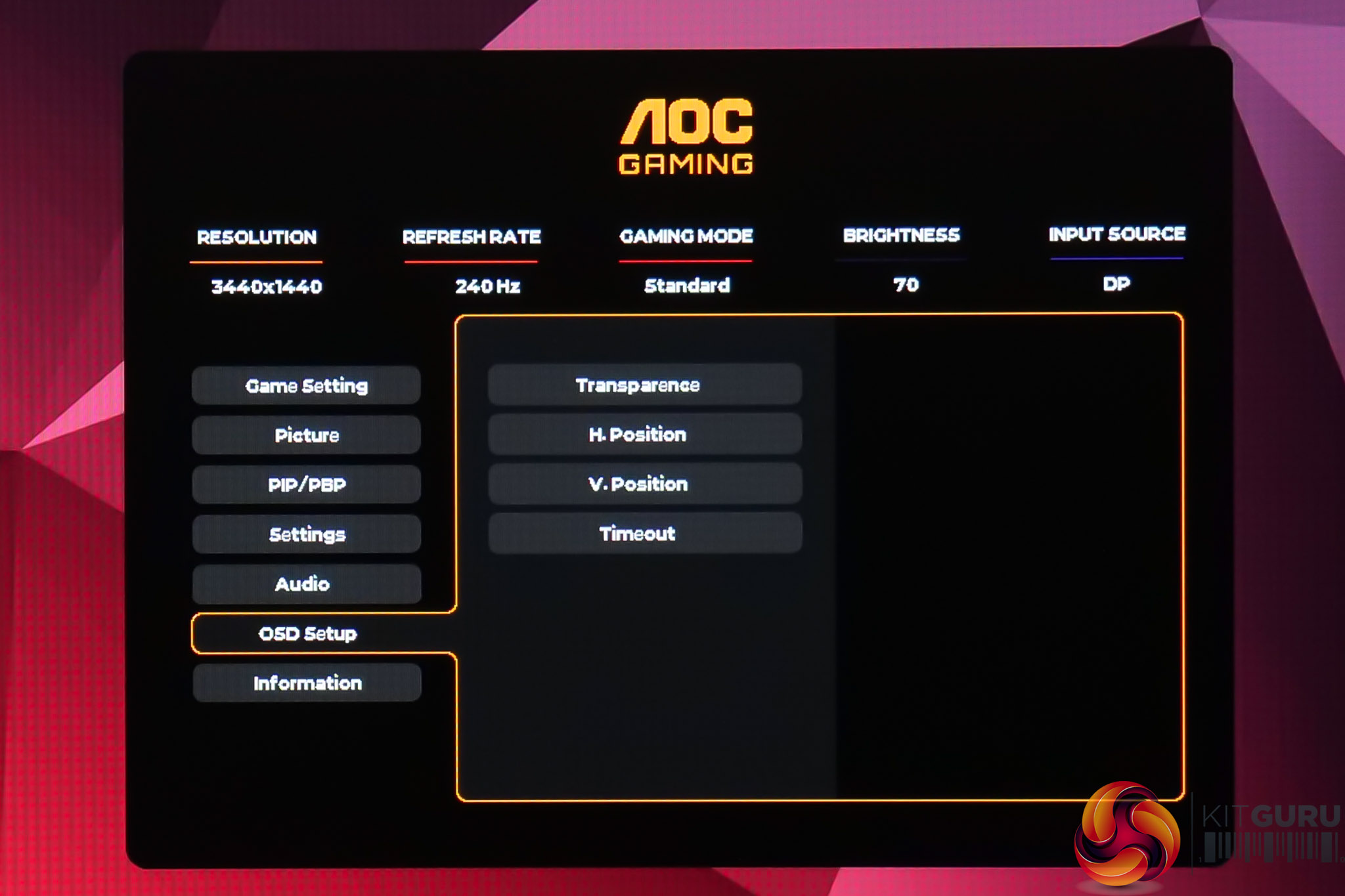
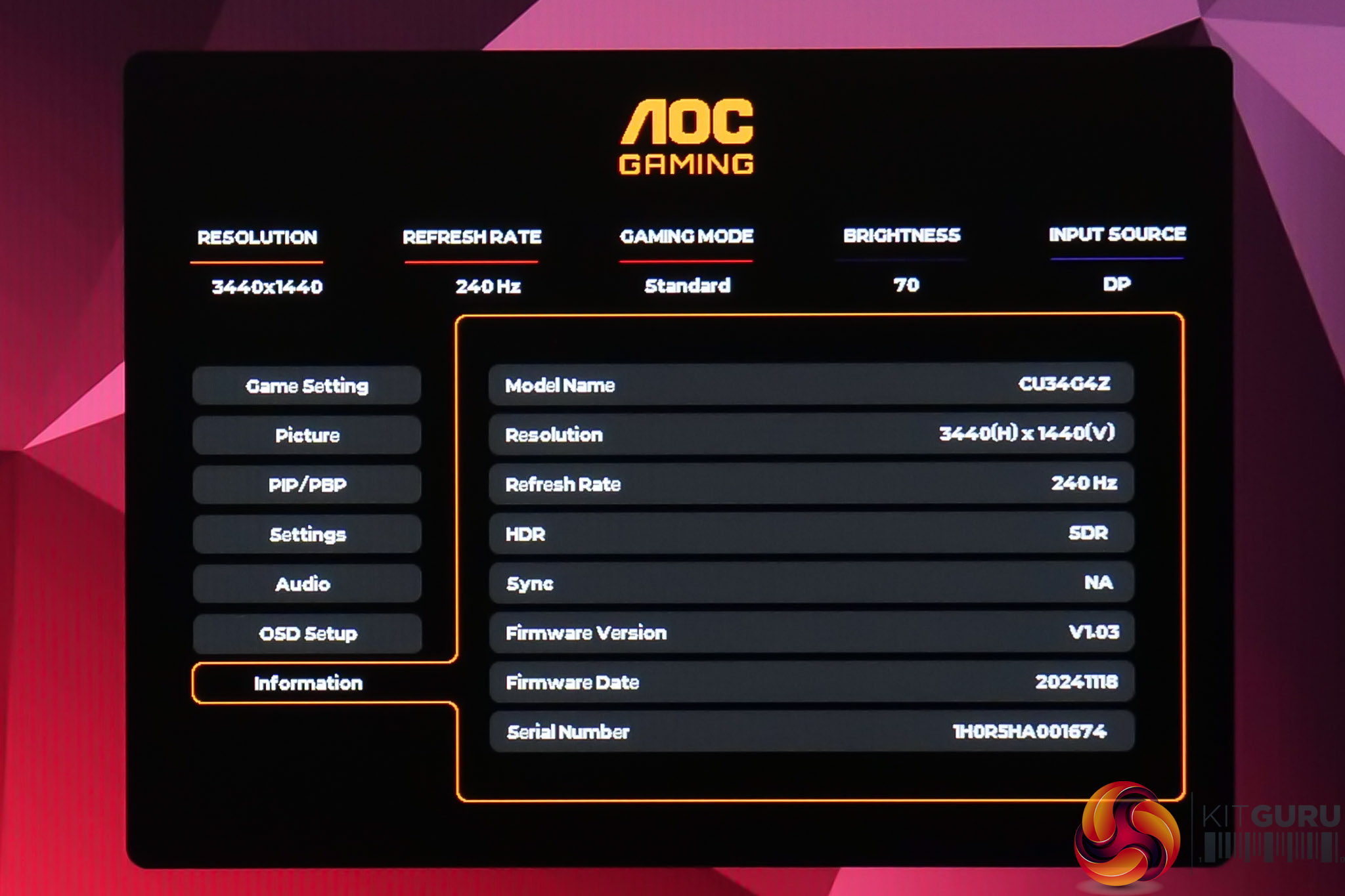
We've seen AOC's new OSD system a couple of times now and it is worlds better than its older menu UI from previous screens we've reviewed – everything is cleanly and clearly laid out, there's plenty of features for gamers, plus an sRGB colour mode too. I do find it very annoying using the 5-way button controls to navigate the menus though, as I frequently turn the screen off by accident, but it is what it is.
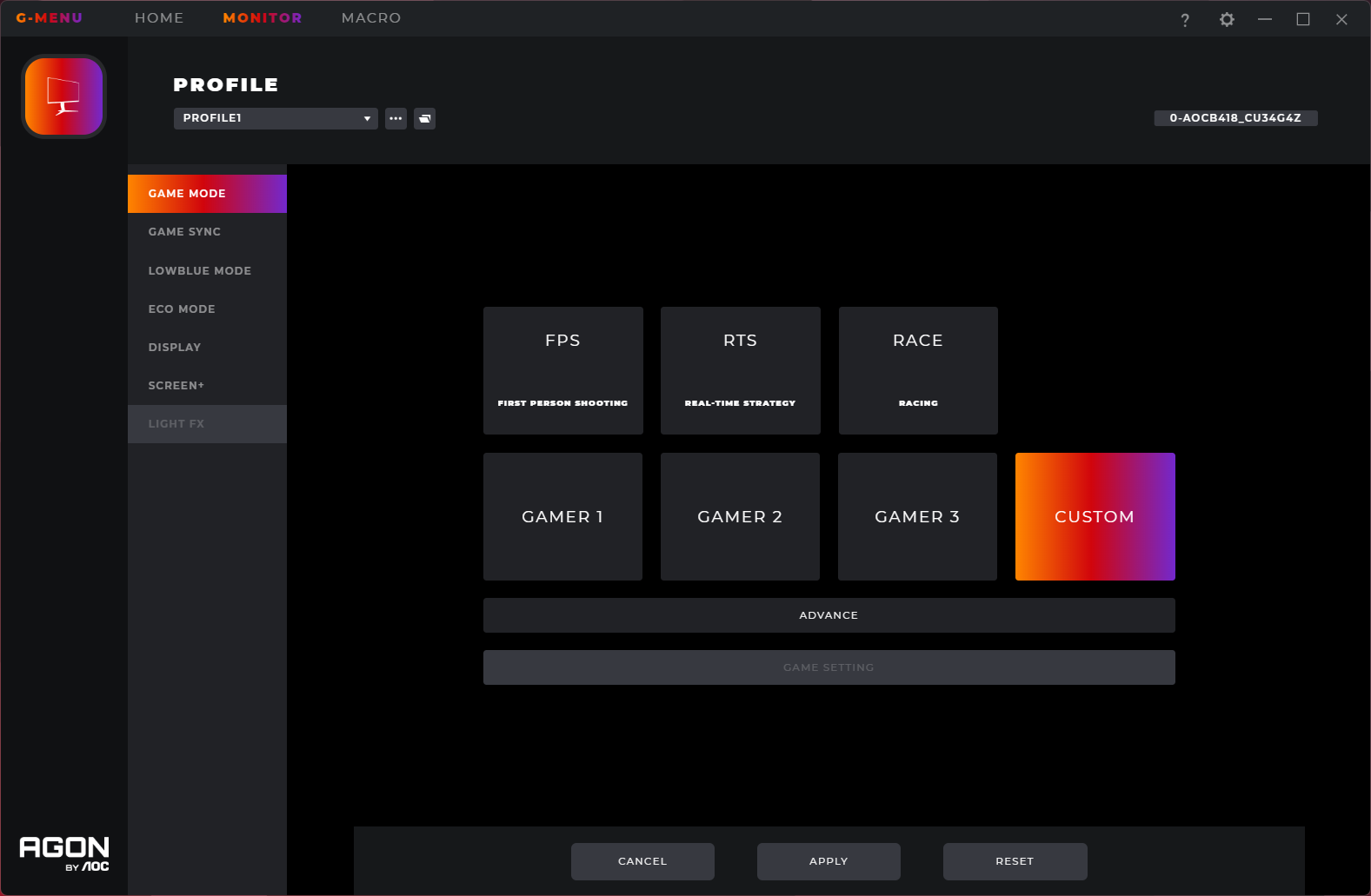
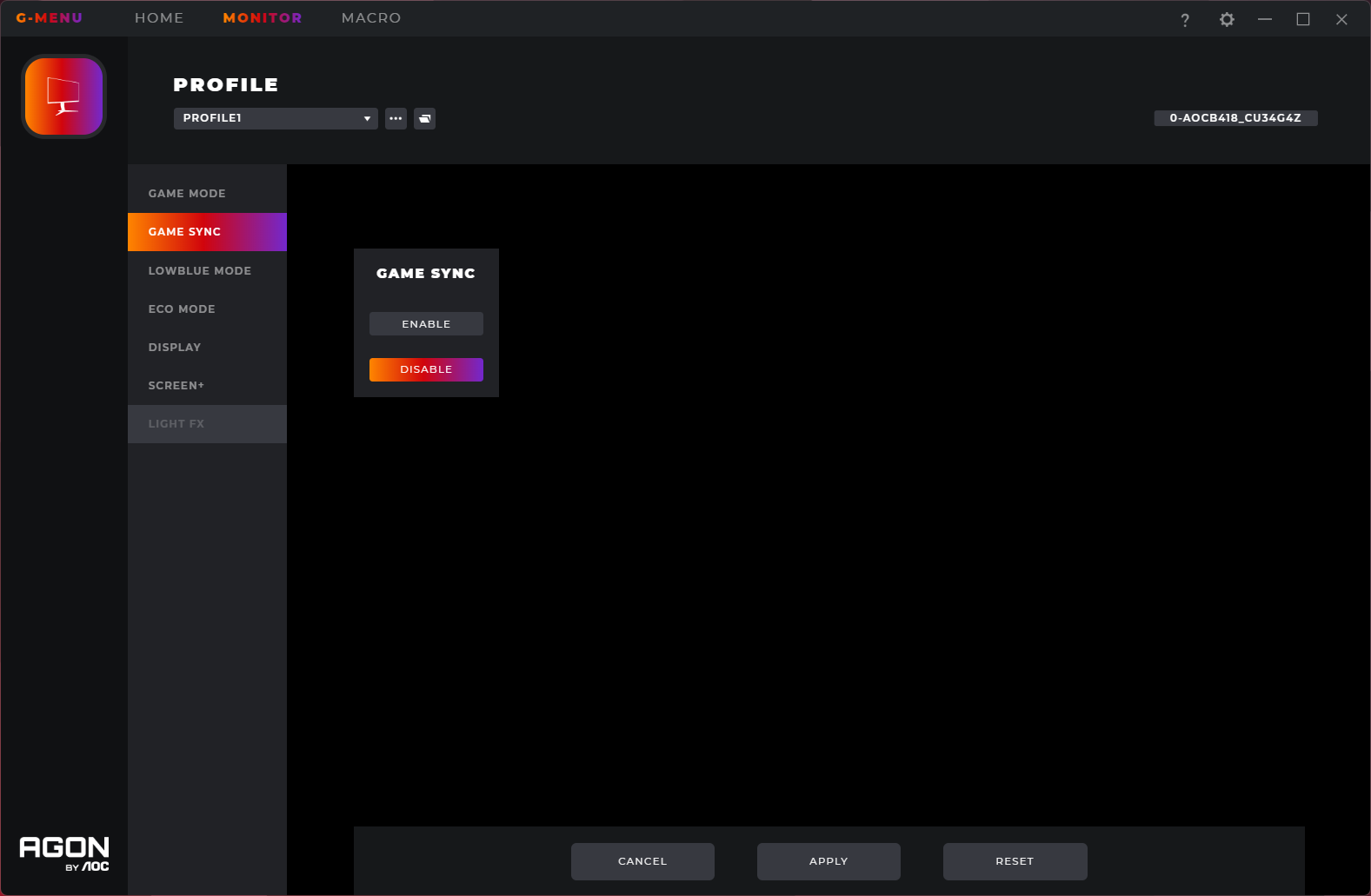
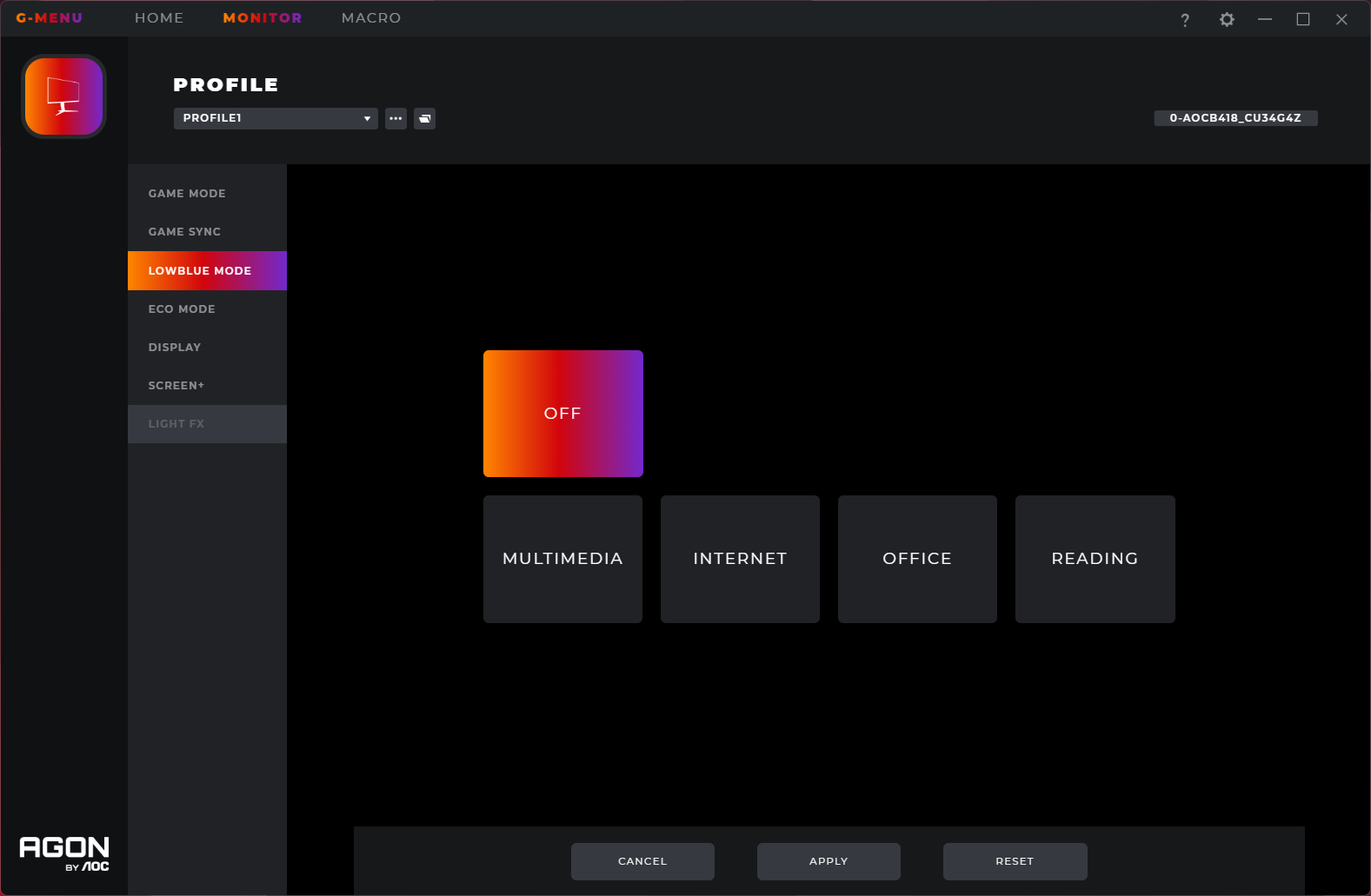
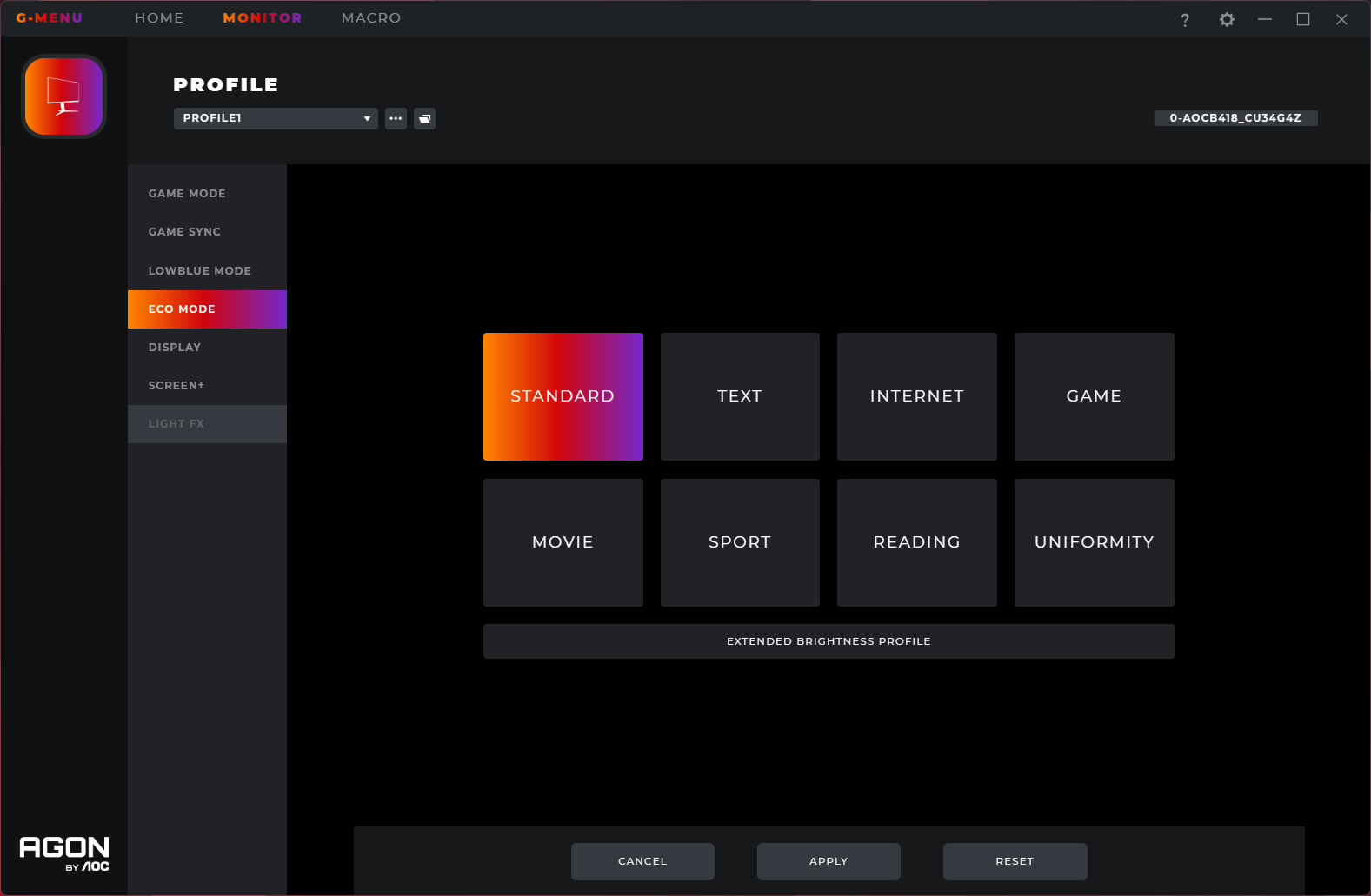
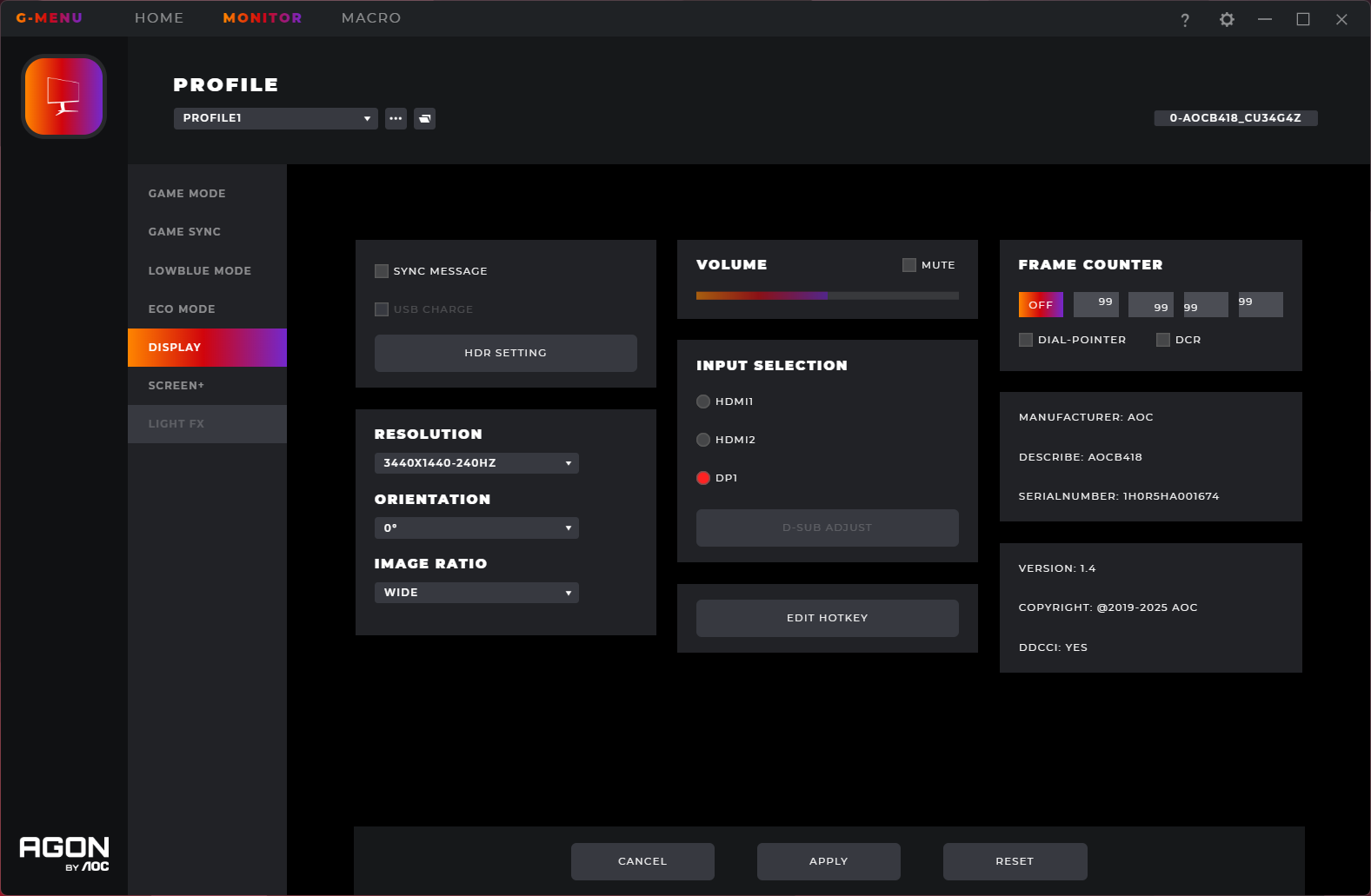
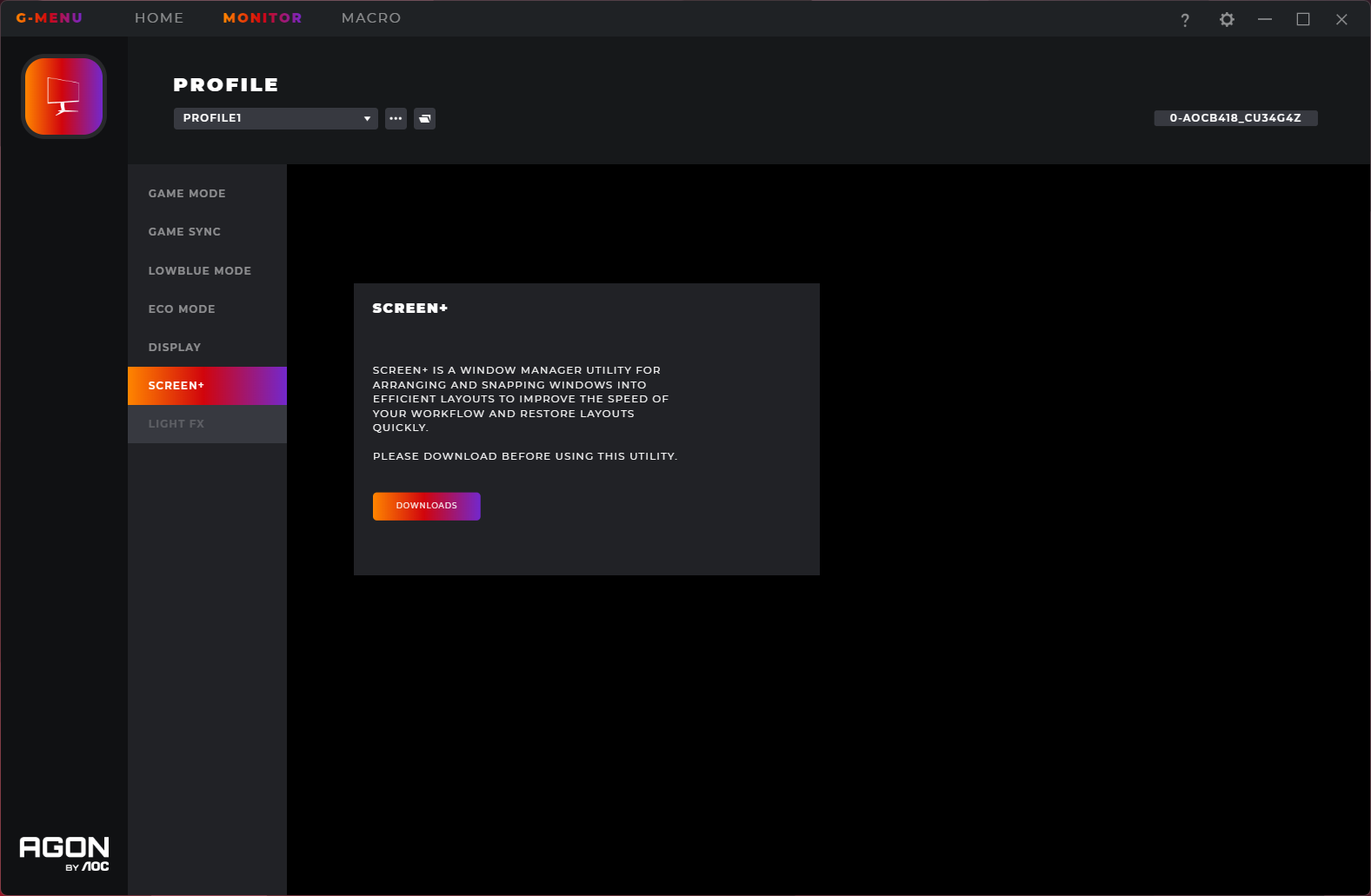
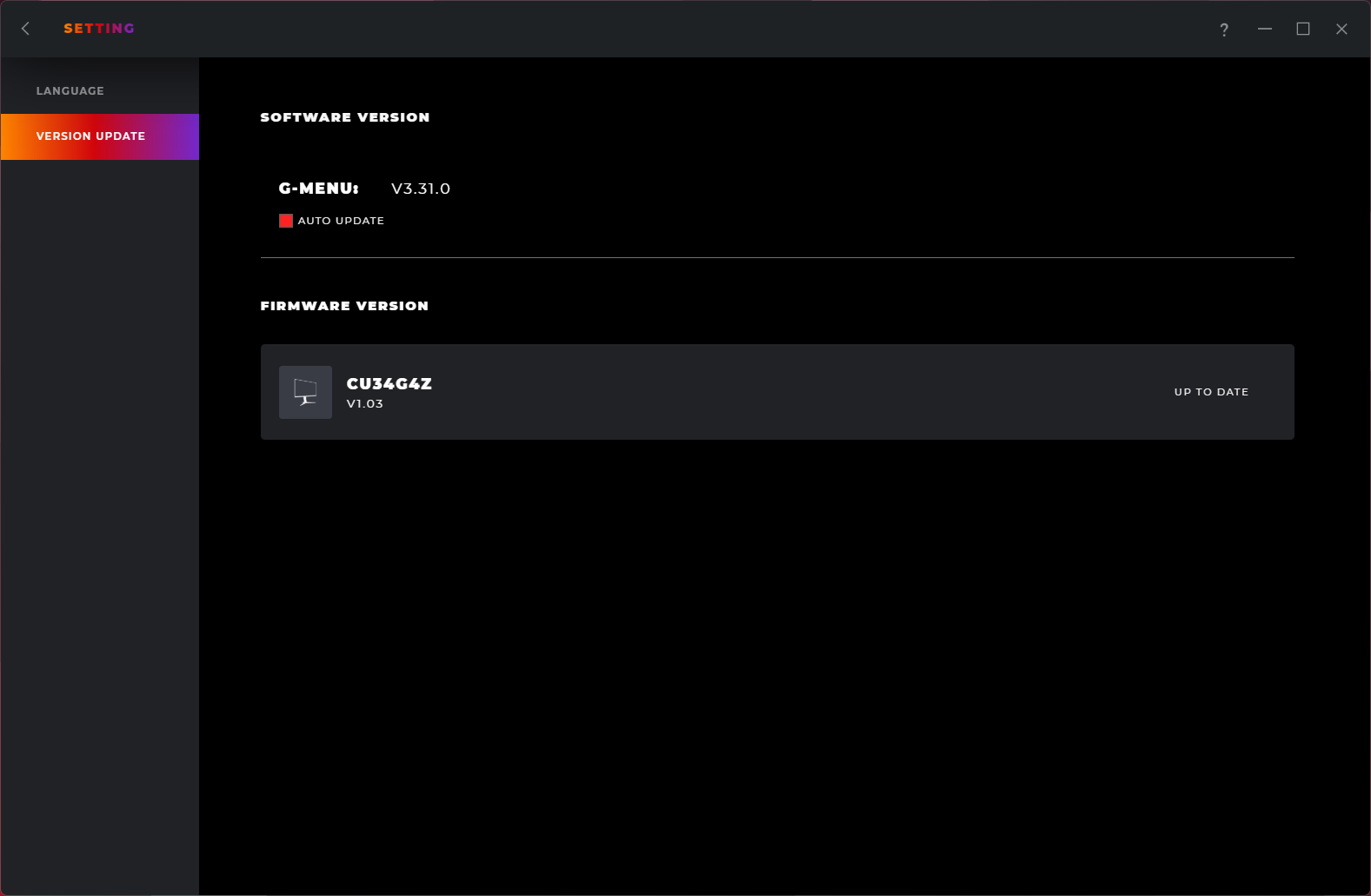
AOC also offers its GMenu software for use with the CU34G4Z, providing the same controls as the OSD, but for use directly from the desktop – a nice addition. It can also be used to update the monitor's firmware, a feature I always like to see included, so credit to AOC there.
Our main test involves using an X-Rite i1 Display Pro Plus colorimeter and utilising Portrait Display's Calman Ultimate software. The device sits on top of the screen while the software generates colour tones and patterns, which it compares against predetermined values to work out how accurate the screen is.
The results show:
- A monitor’s maximum brightness in candelas or cd/m2 at various levels set in the OSD.
- A monitor’s contrast ratio at various brightness levels in the OSD.
- Gamut coverage, primarily focusing on sRGB and DCI-P3 colour spaces.
- Greyscale accuracy, measured across 20 shades, with an average colour balance reported.
- The exact gamma levels, with a comparison against preset settings in the OSD.
- The colour accuracy, expressed as a Delta E ratio, with a result under 3 being fine for normal use, and under 2 being great for colour-accurate design work.
We first run these tests with the display in its out-of-the-box state, with all settings on default. If there is an sRGB emulation option or other useful mode then we may test that too. We then calibrate the screen using the Calman Ultimate software and run the tests again.
You can read more about our test methodology HERE.
Default settings
Brightness and Contrast (Full Screen)
| OSD Brightness | White Luminance (cd/m2) | Black Luminance (cd/m2) | Contrast Ratio |
| 0% | 55.2 | 0.019 | 2862:1 |
| 25% | 139.5 | 0.048 | 2916:1 |
| 50% | 221.5 | 0.076 | 2914:1 |
| 75% | 297.9 | 0.102 | 2921:1 |
| 100% | 371.6 | 0.127 | 2918:1 |
Kicking off with brightness testing, we can see the monitor range from 55 nits up to 372 nits for a full screen white – AOC claims up to 450 nits, so our testing is a little below that figure, but it's still passable in 2025. Contrast is actually slightly higher than AOC claimed 2500:1 ratio, given we saw it hovering around 2900:1, so a good bit higher than your typical IPS panel, which we would expect from a VA monitor.
Uniformity
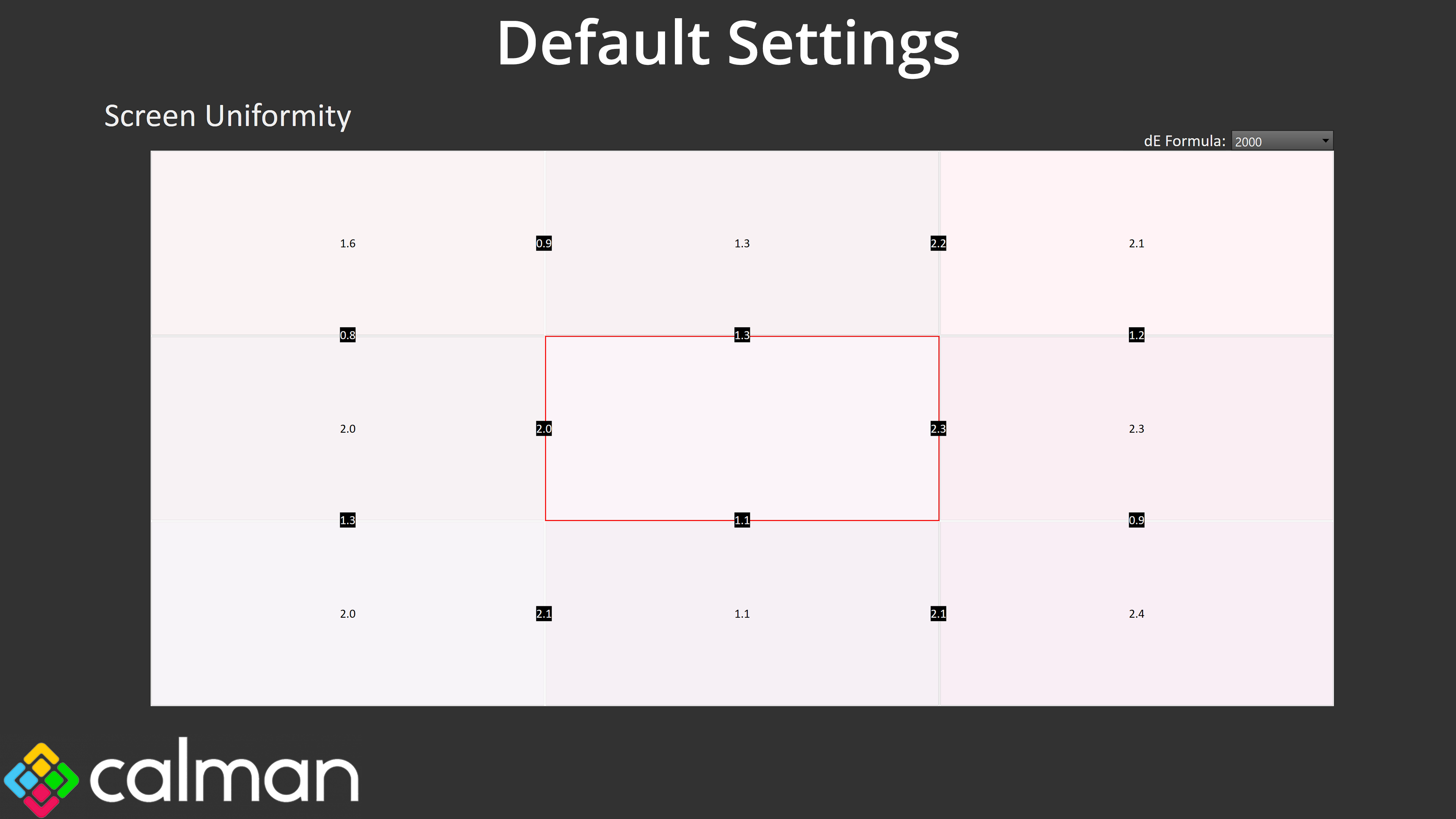
Screen uniformity is a new addition to our test suite – or rather, it has been reinstated after some viewer feedback. This test asks us to split the monitor into a 3×3 grid and measure the white balance of each section. The numbers reported are the deltaE figures relative to the very centre of the display, with lower being better. The results here are certainly nothing to worry about – there is some deviation across the panel, but the highest reading didn’t exceed a deltaE 2000 of 2.4 and it wasn’t something I noticed in day to day use, so that’s definitely a good thing.
Gamut (CIE 1976)
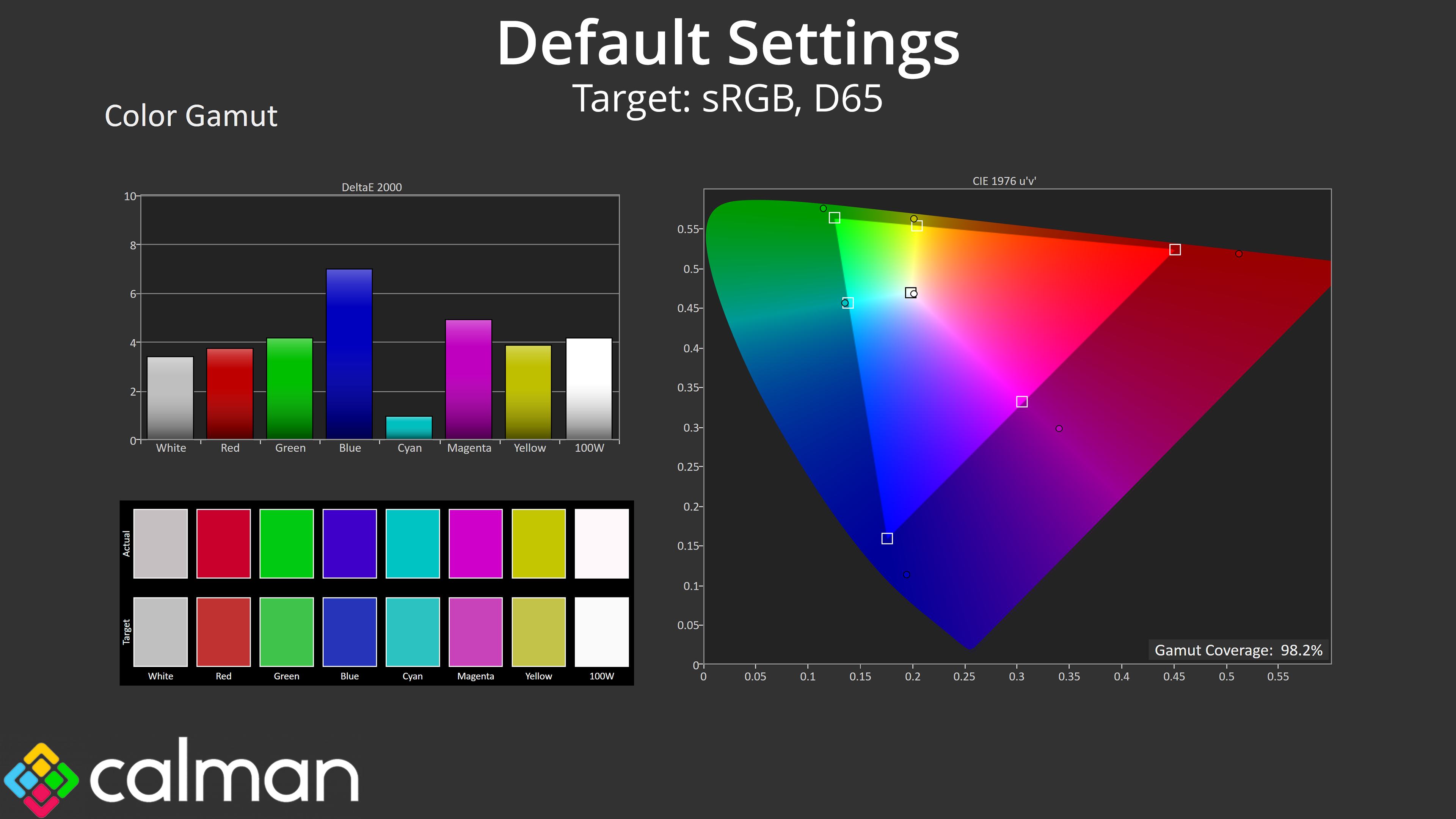
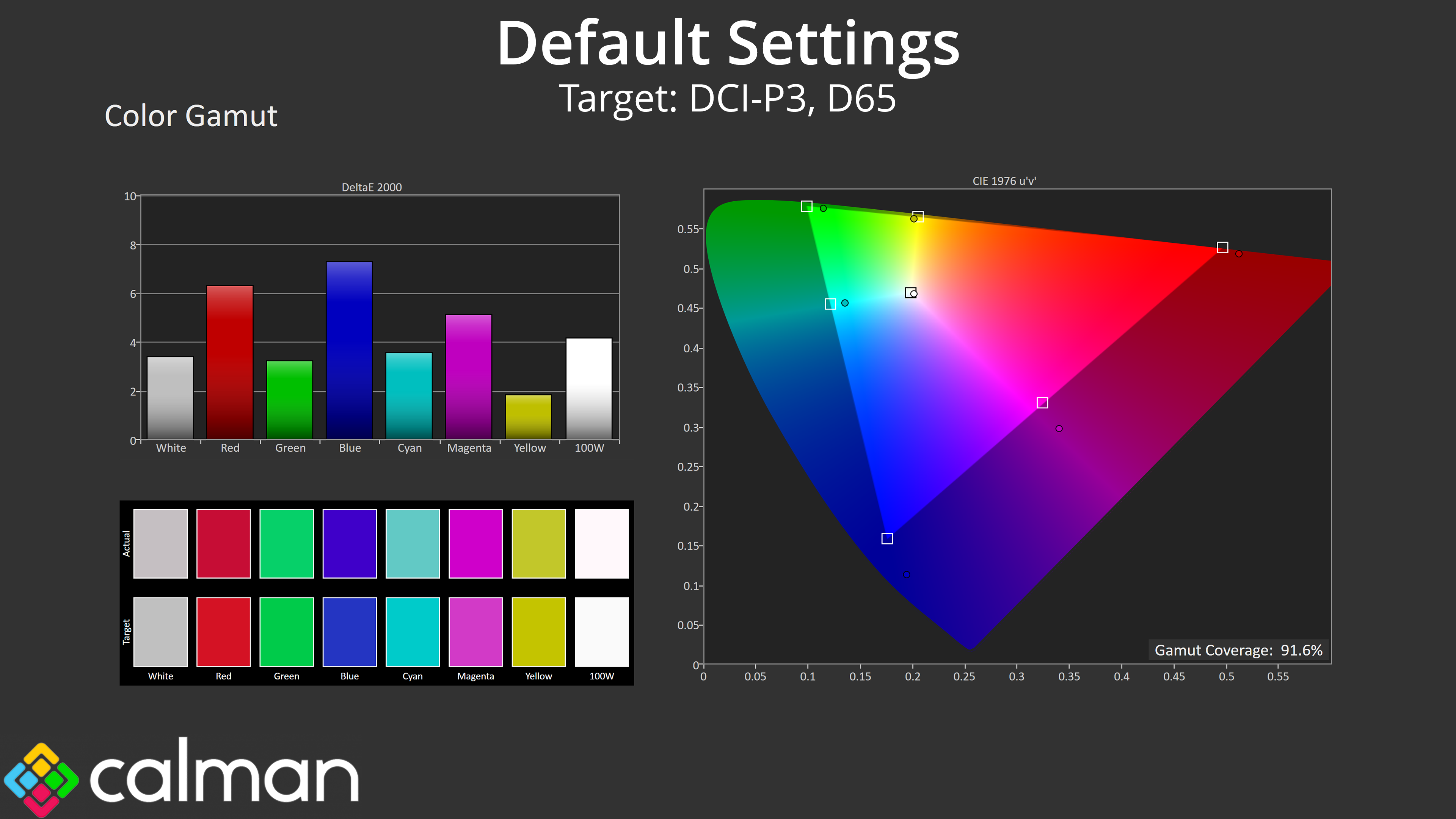
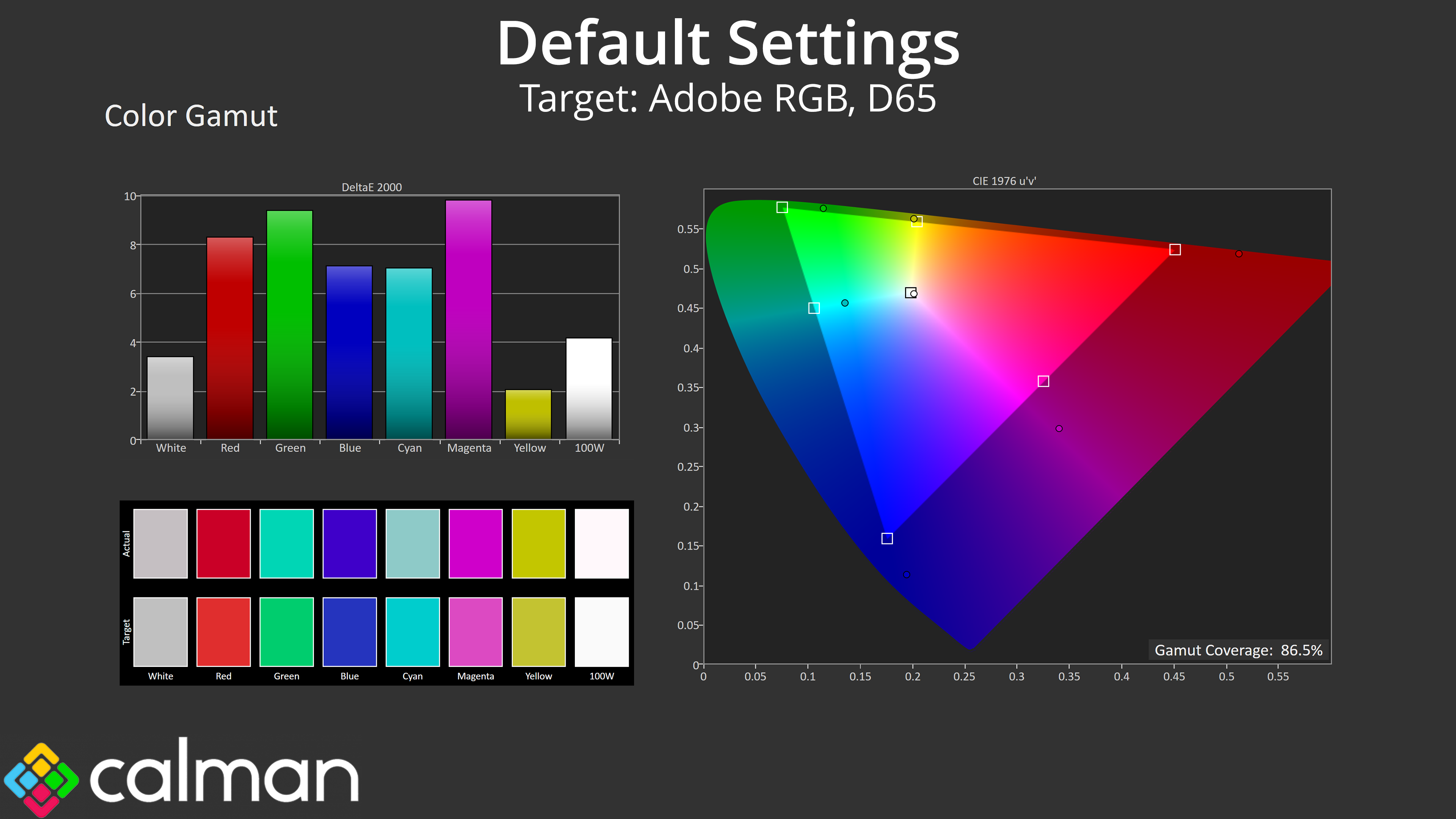
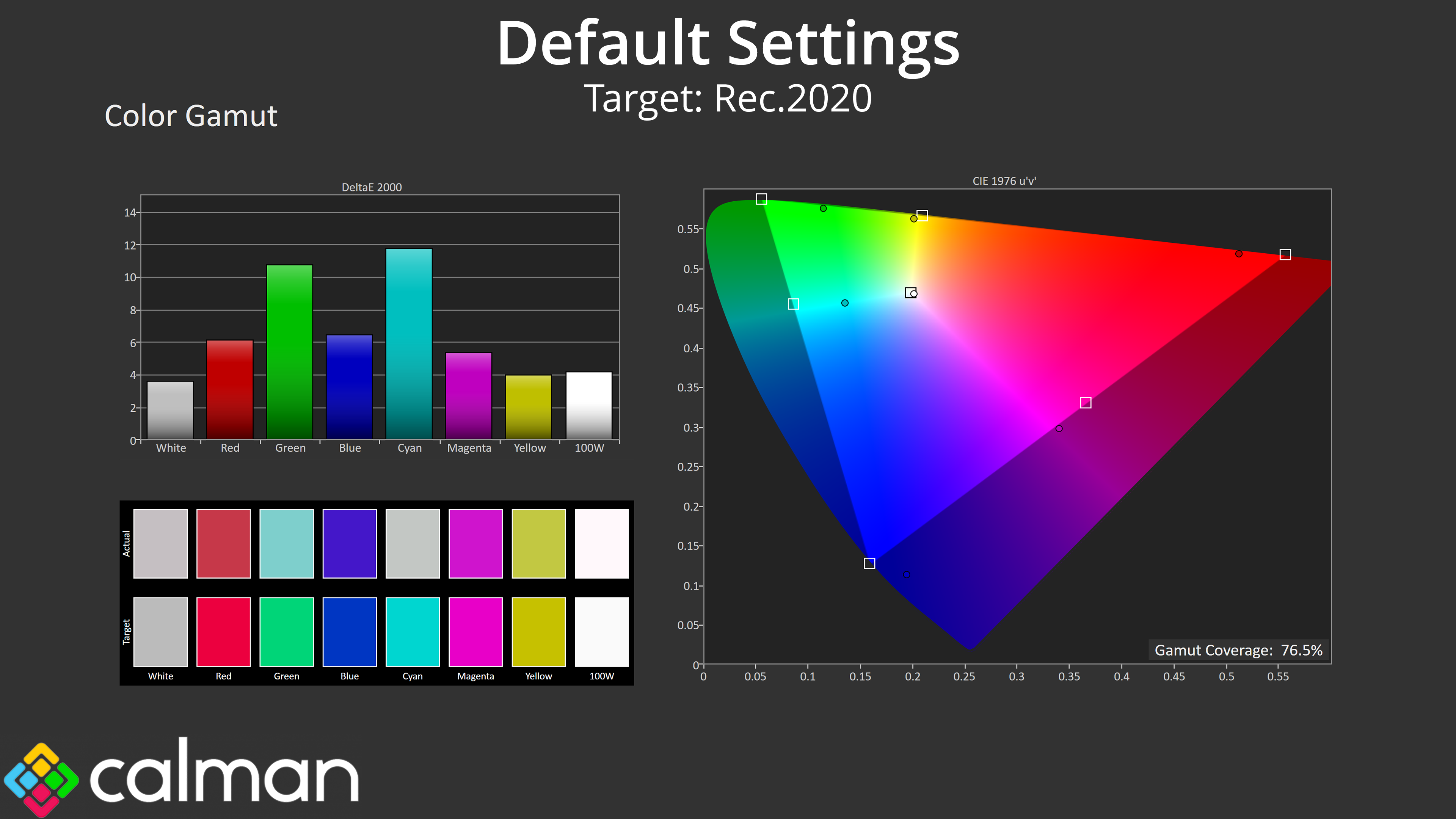
| Colour space | Coverage (%) |
| sRGB | 98.2 |
| DCI-P3 | 91.6 |
| Adobe RGB | 86.5 |
| Rec.2020 | 76.5 |
Gamut is also fairly wide, generally surpassing the sRGB space and offering 91.6% DCI-P3, 86.5% Adobe RGB and 76.5% Rec.2020 coverage.
Greyscale
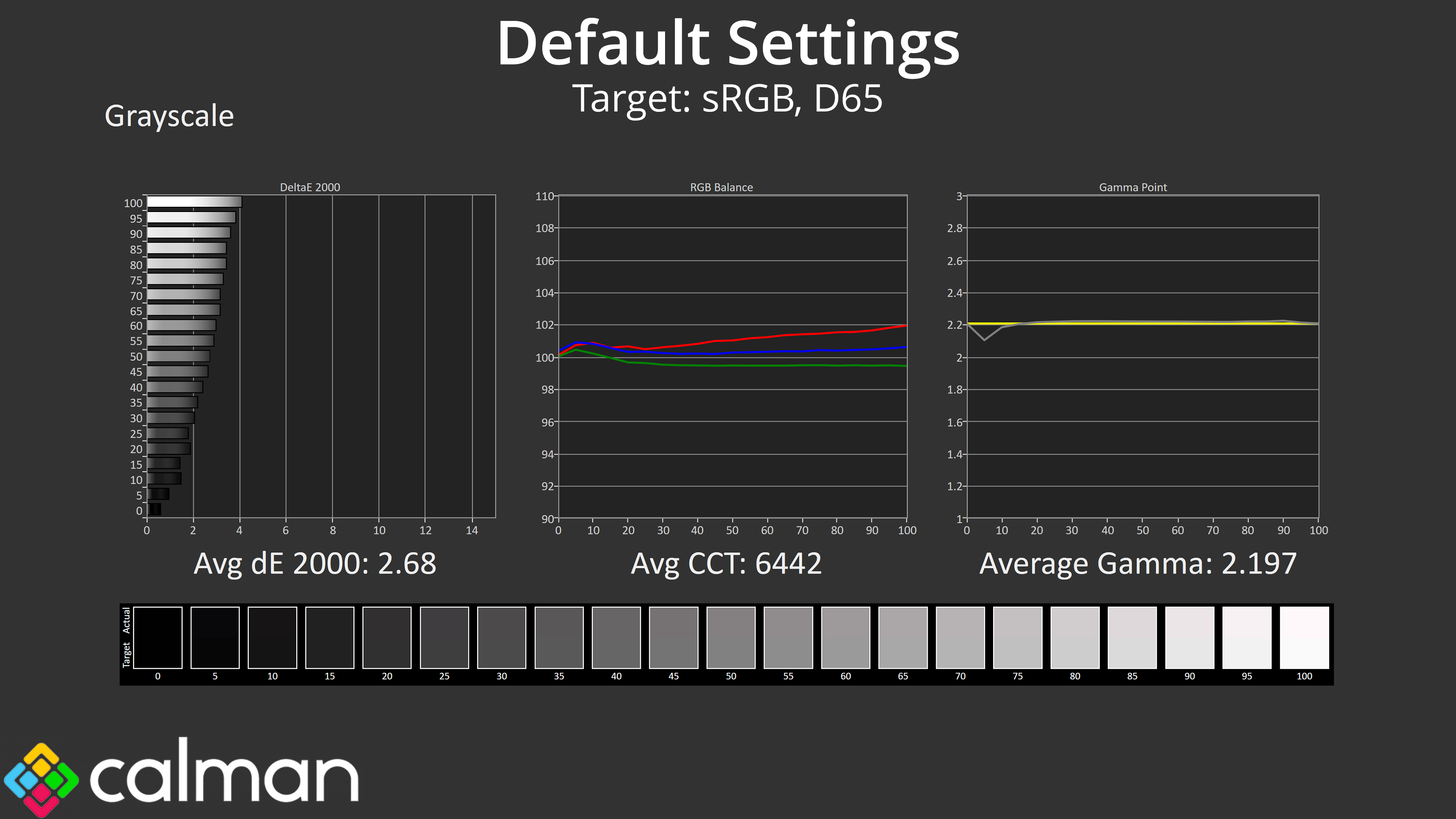
I’m pleased to say factory calibration is solid, too. Default colour balance is very good, averaging 6442K – you can see the red channel is slightly stronger than the others, giving just the faintest of warm tints, but it’s hardly noticeable unless you were directly comparing to a reference colour balance. Gamma is basically flawless, too, hugging the 2.2 target incredibly closely. That results in a greyscale deltaE 2000 of 2.68, not bad at all for a monitor at this price.
Saturation
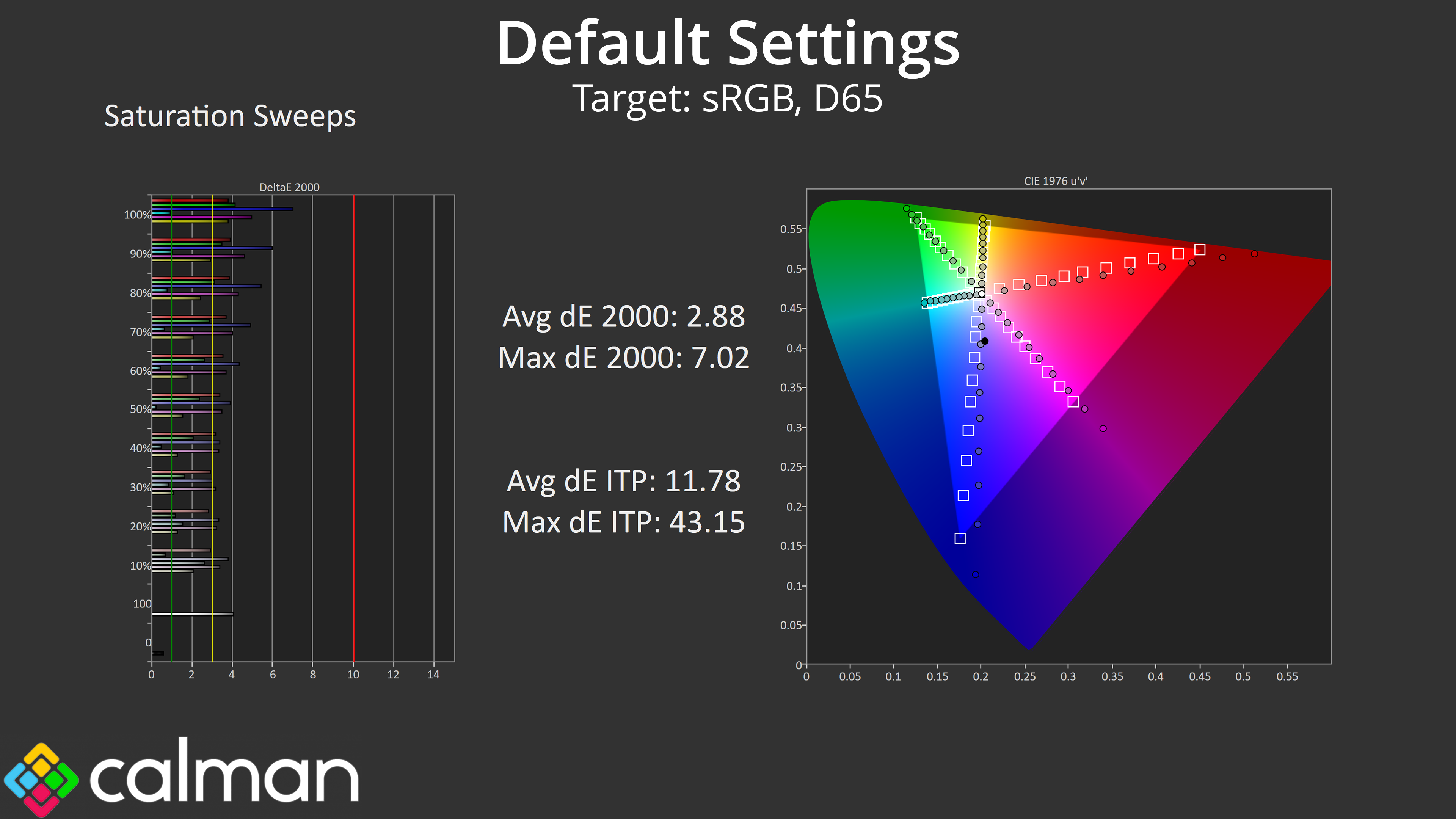
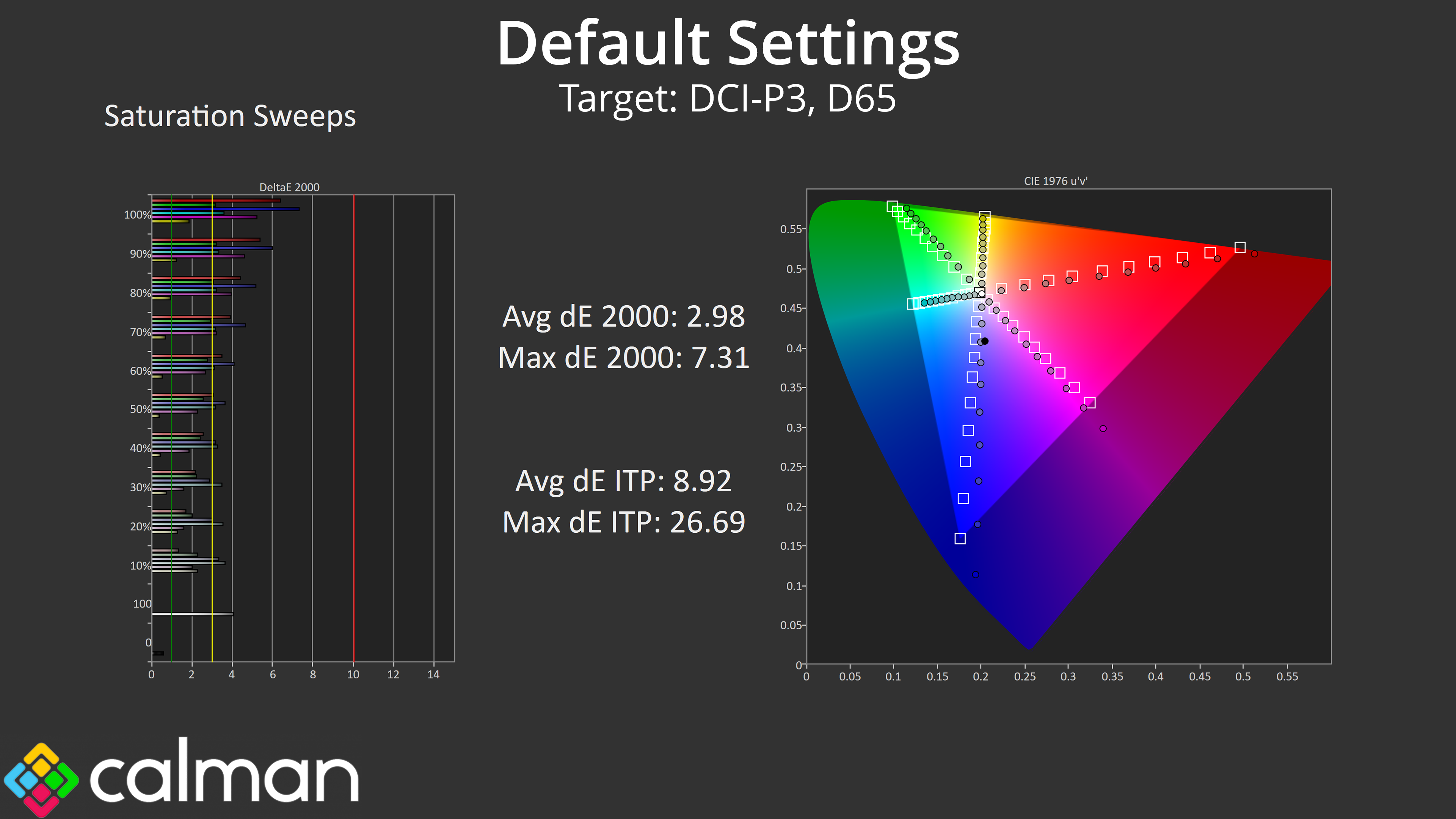
Saturation sweeps do show a degree of inaccuracy due to the unclamped gamut, and overall behaviour is similar regardless if you are targeting the sRGB or DCI-P3 spaces.
Colour Accuracy
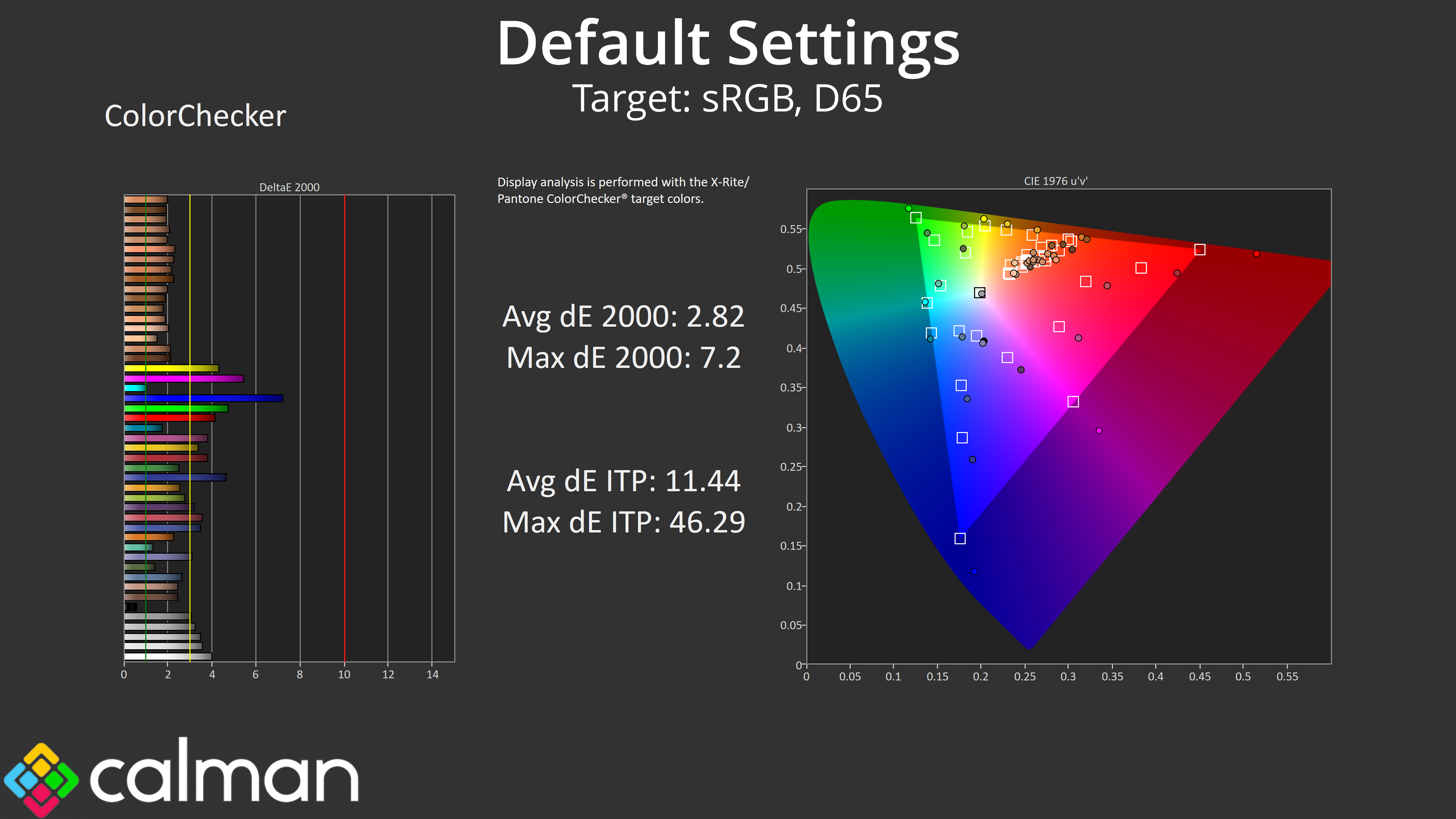
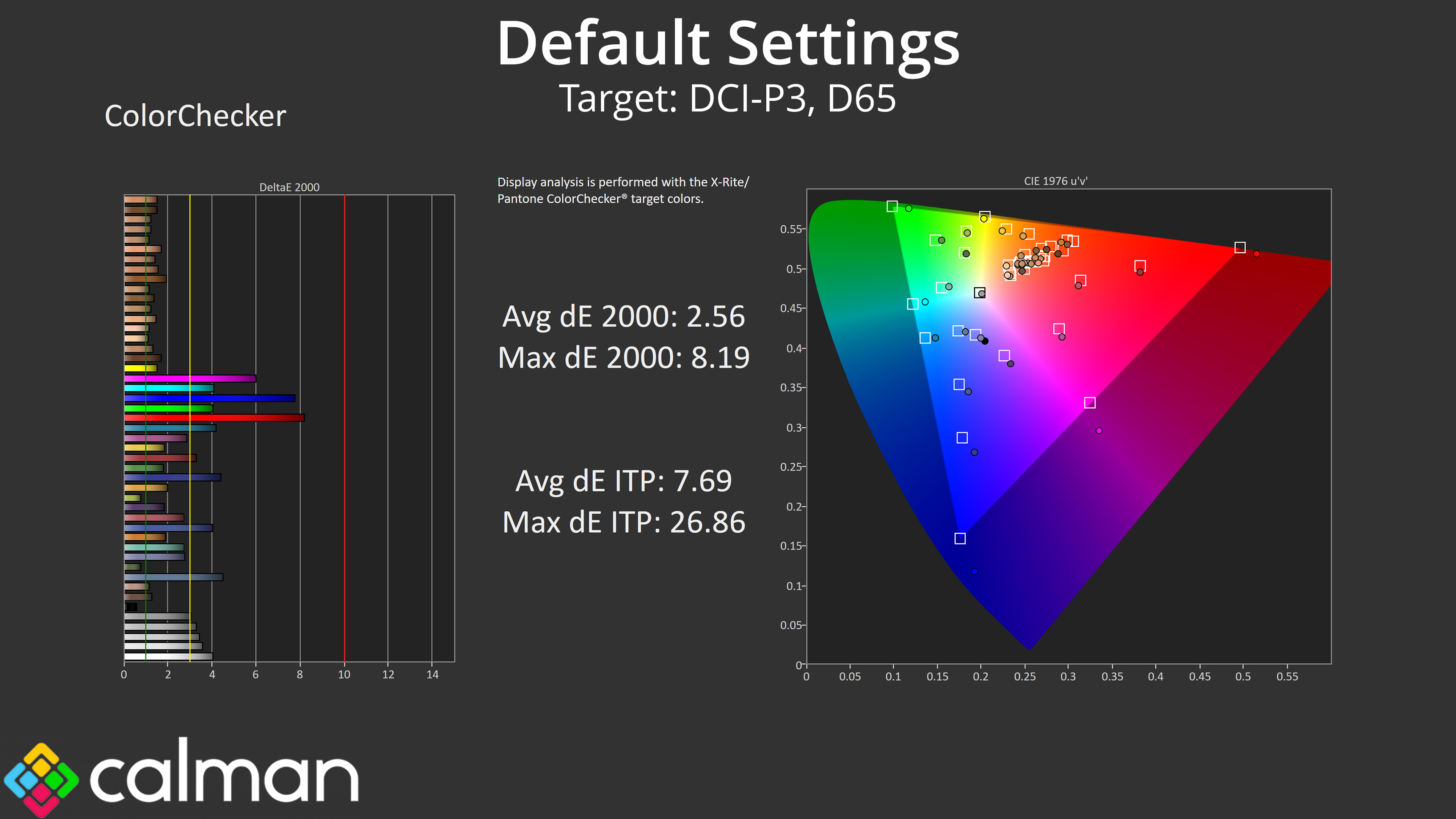
Colour accuracy tells a similar story, too, with the oversaturation leading to some inaccuracy, evident when looking at the 100% blue and magenta channels, though overall accuracy is still decent, averaging a deltaE 2000 of 2.56 relative to the DCI-P3 space.
sRGB Emulation Mode
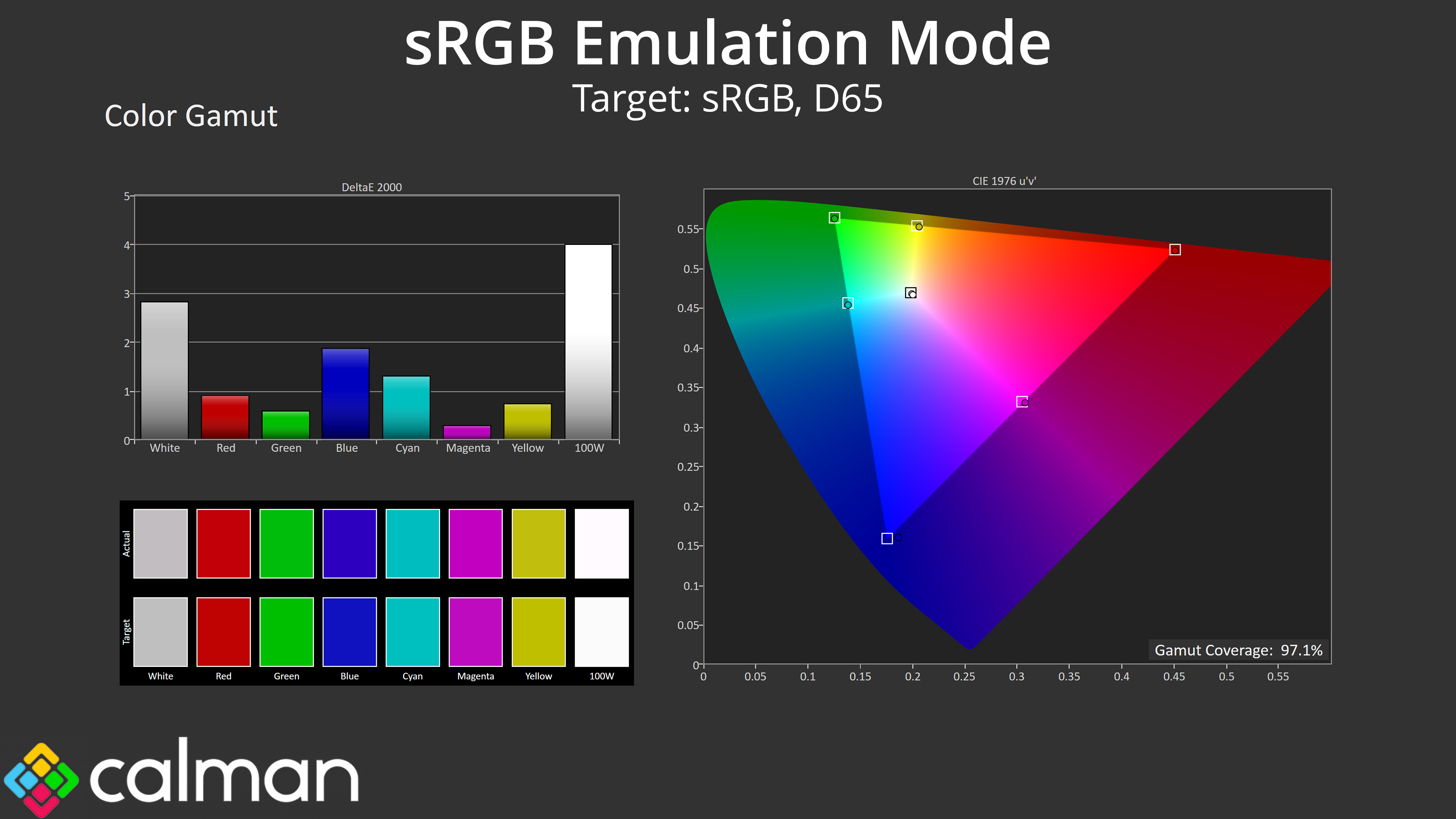
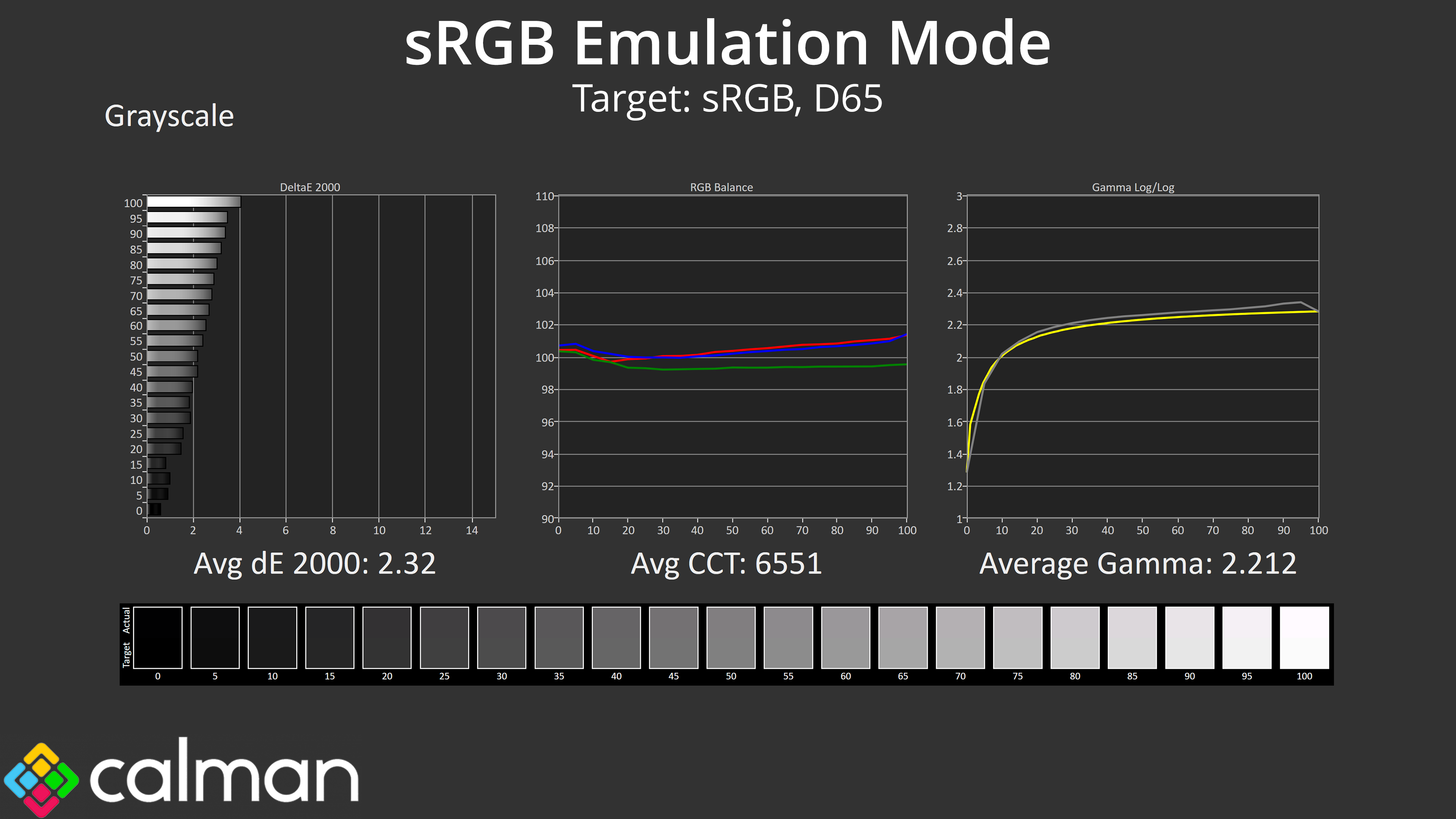
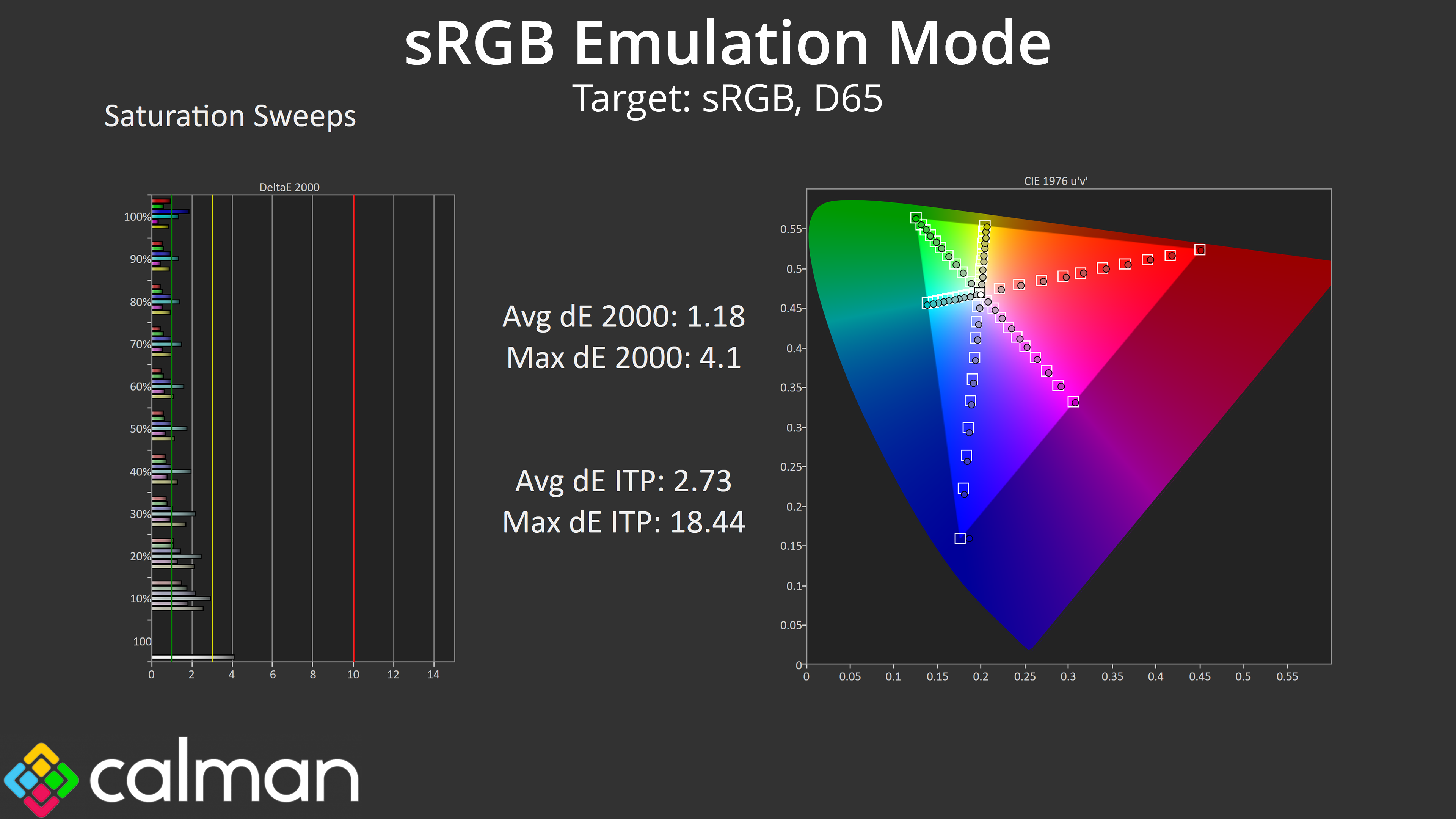
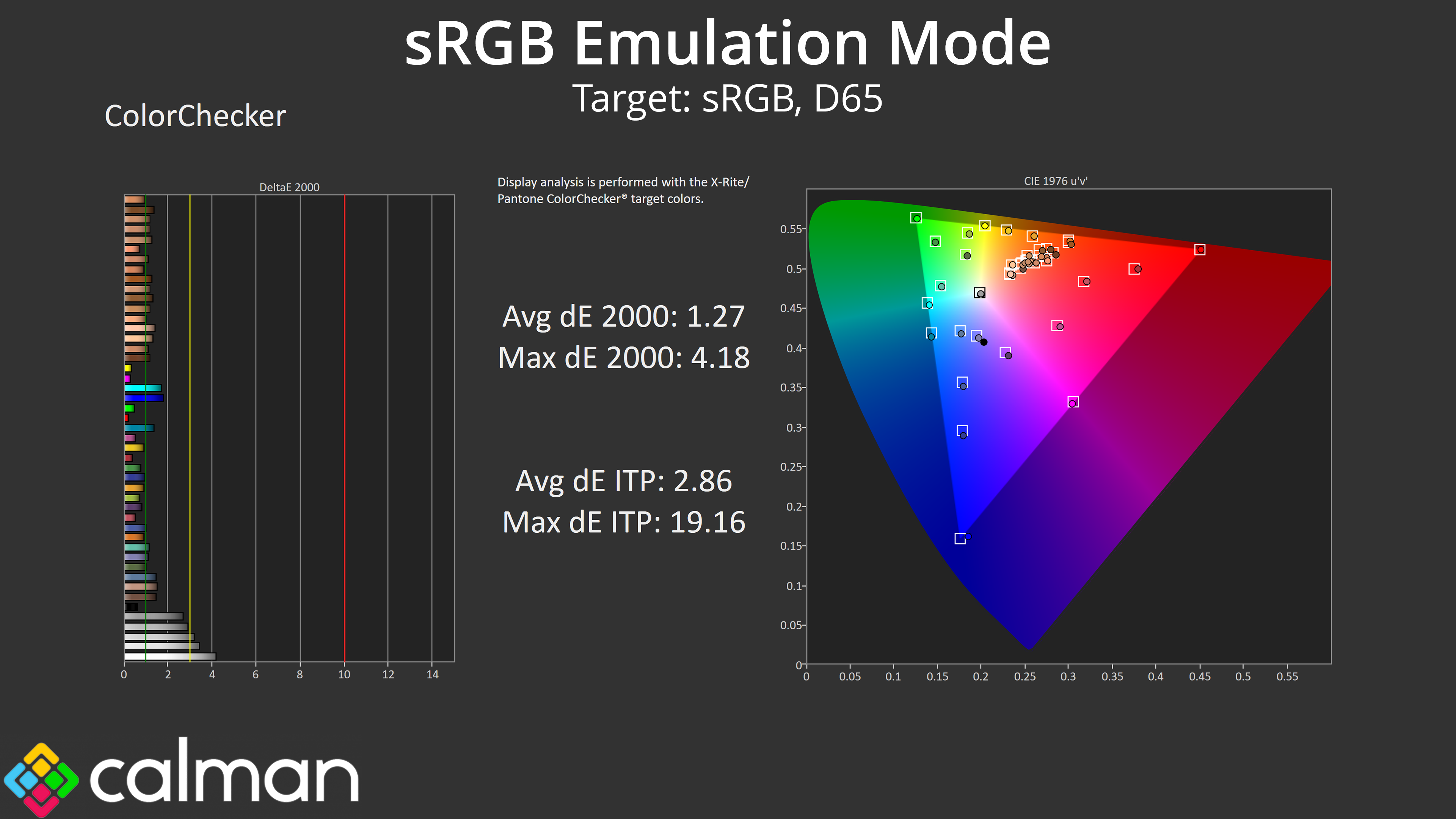
There is a colour space toggle in the OSD to enable sRGB emulation though, and this does a good job at clamping the gamut to prevent oversaturation. It also delivers a slight improvement to colour balance, while gamma tracking remains near-flawless. As such, we see much improved saturation and colour accuracy average deltaEs, with both sets of results hovering just a little over 1.1, indicating high levels of accuracy – so good job AOC for that.
Calibrated Results
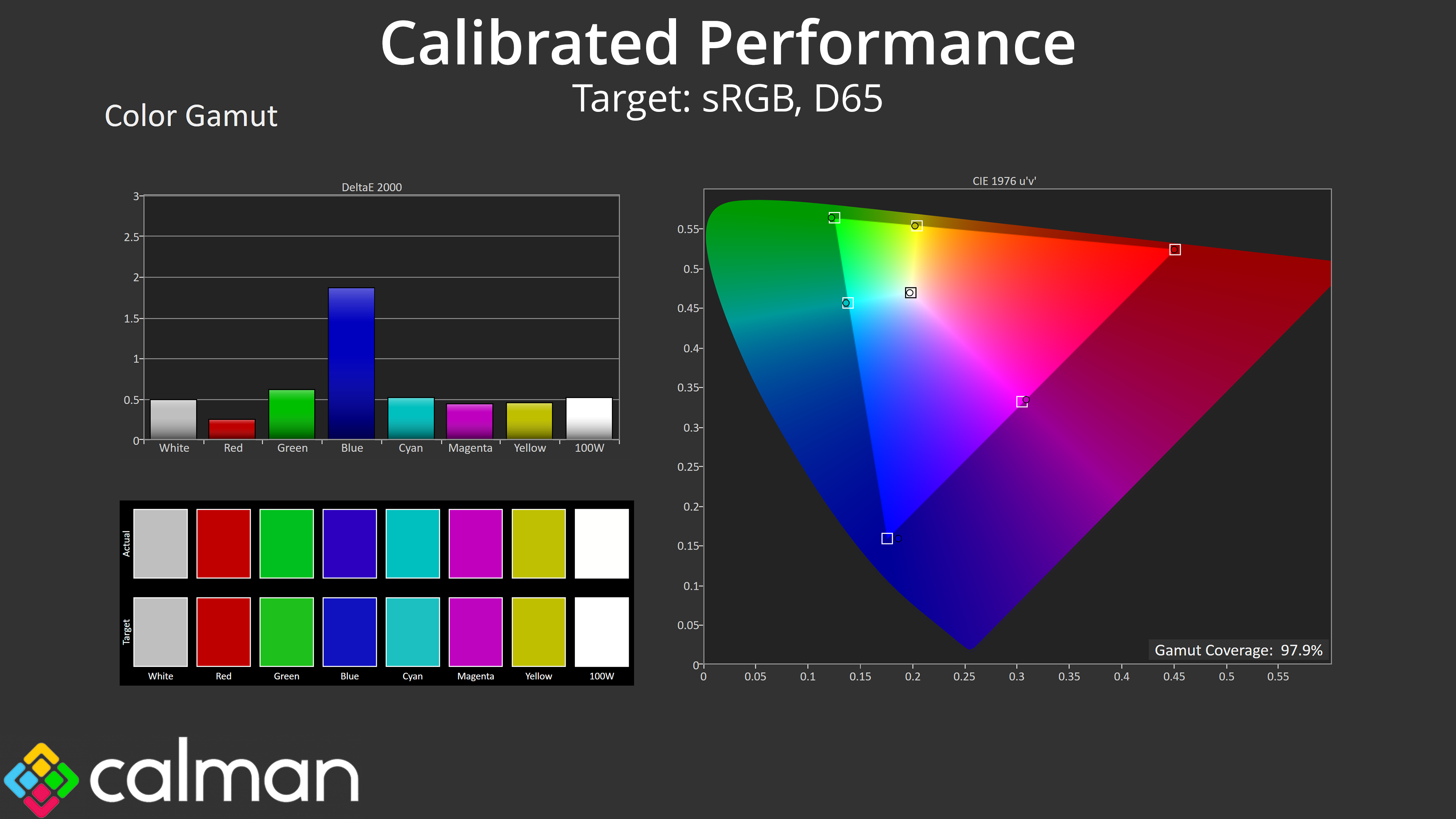
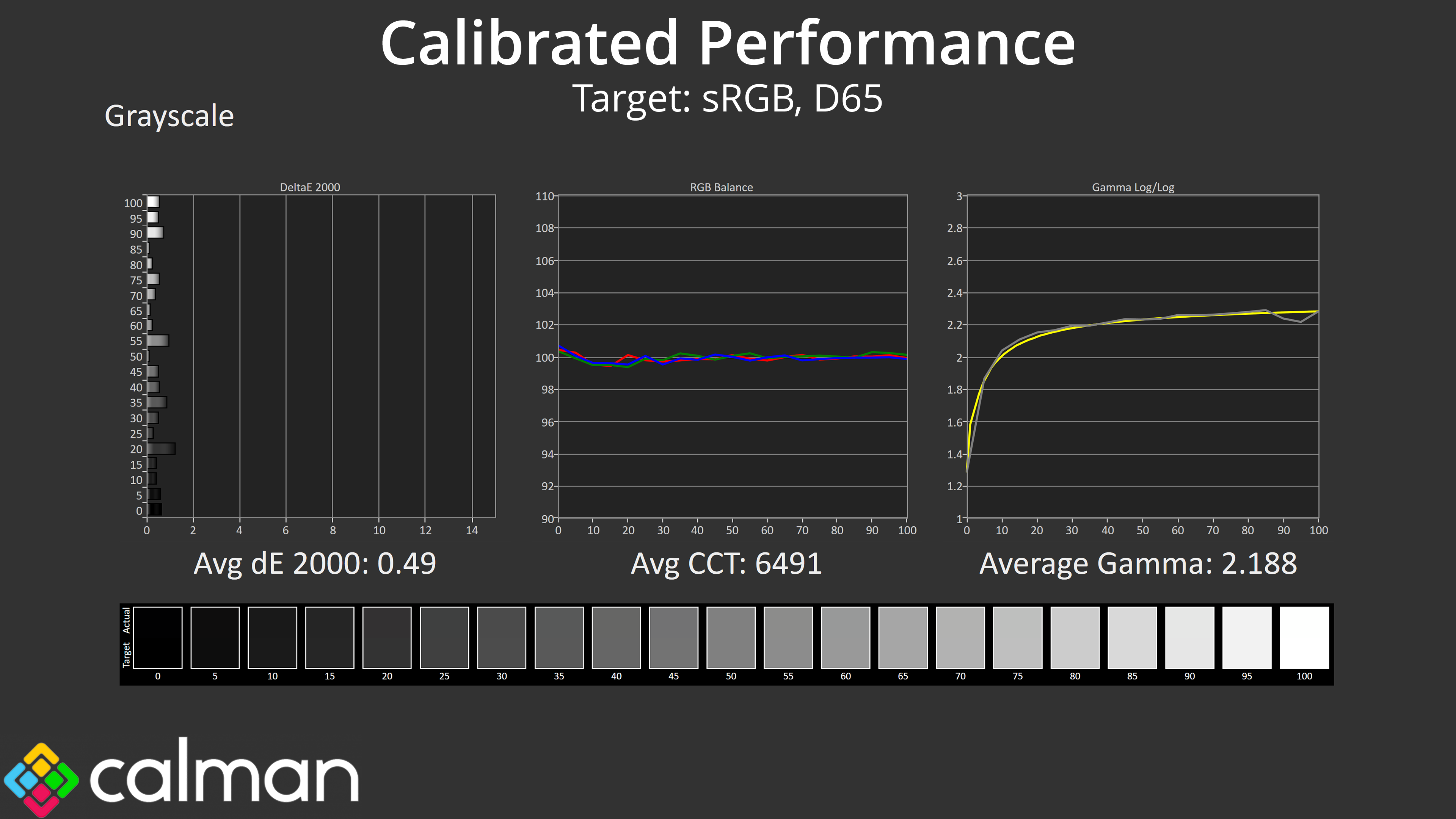
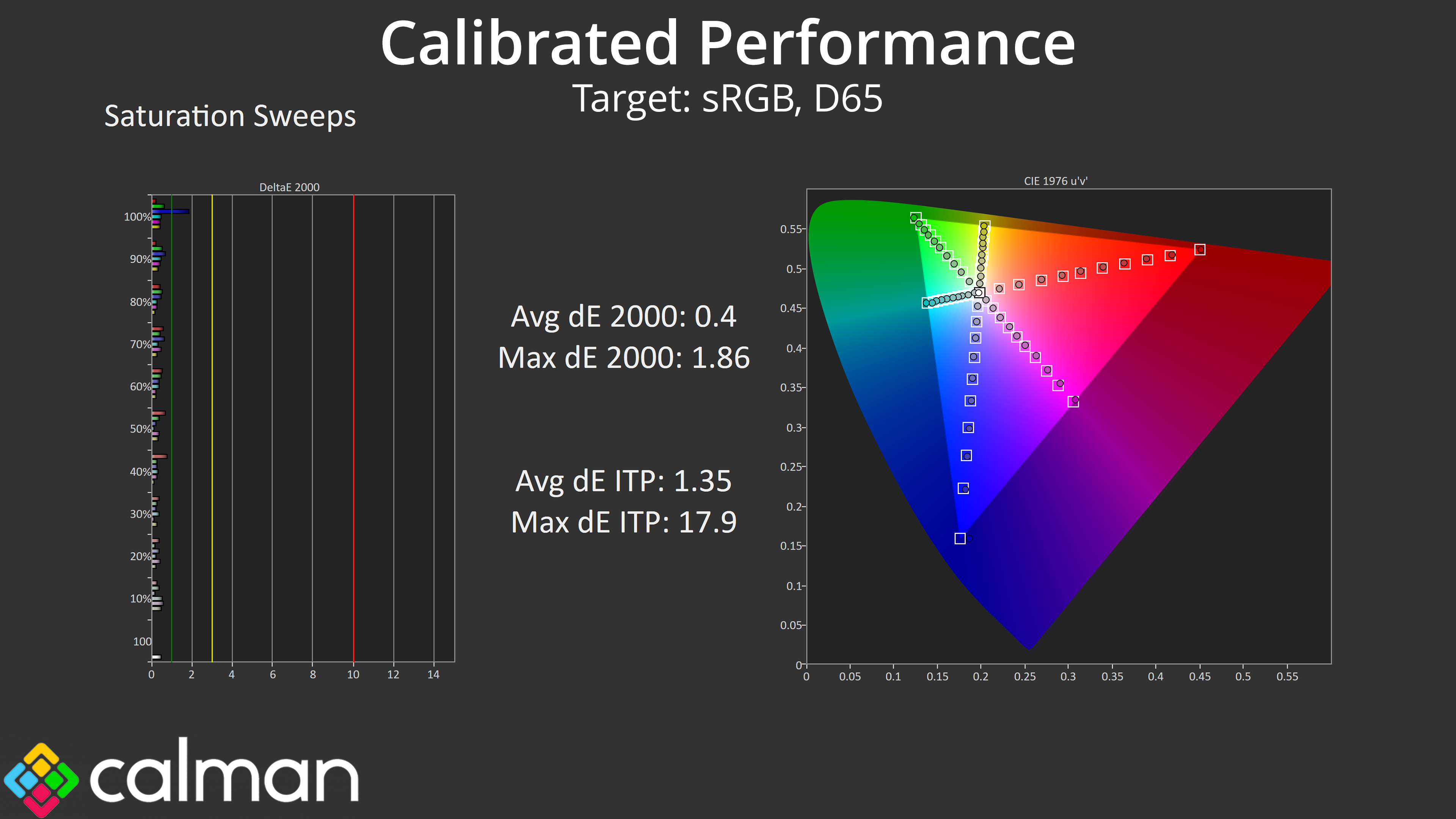
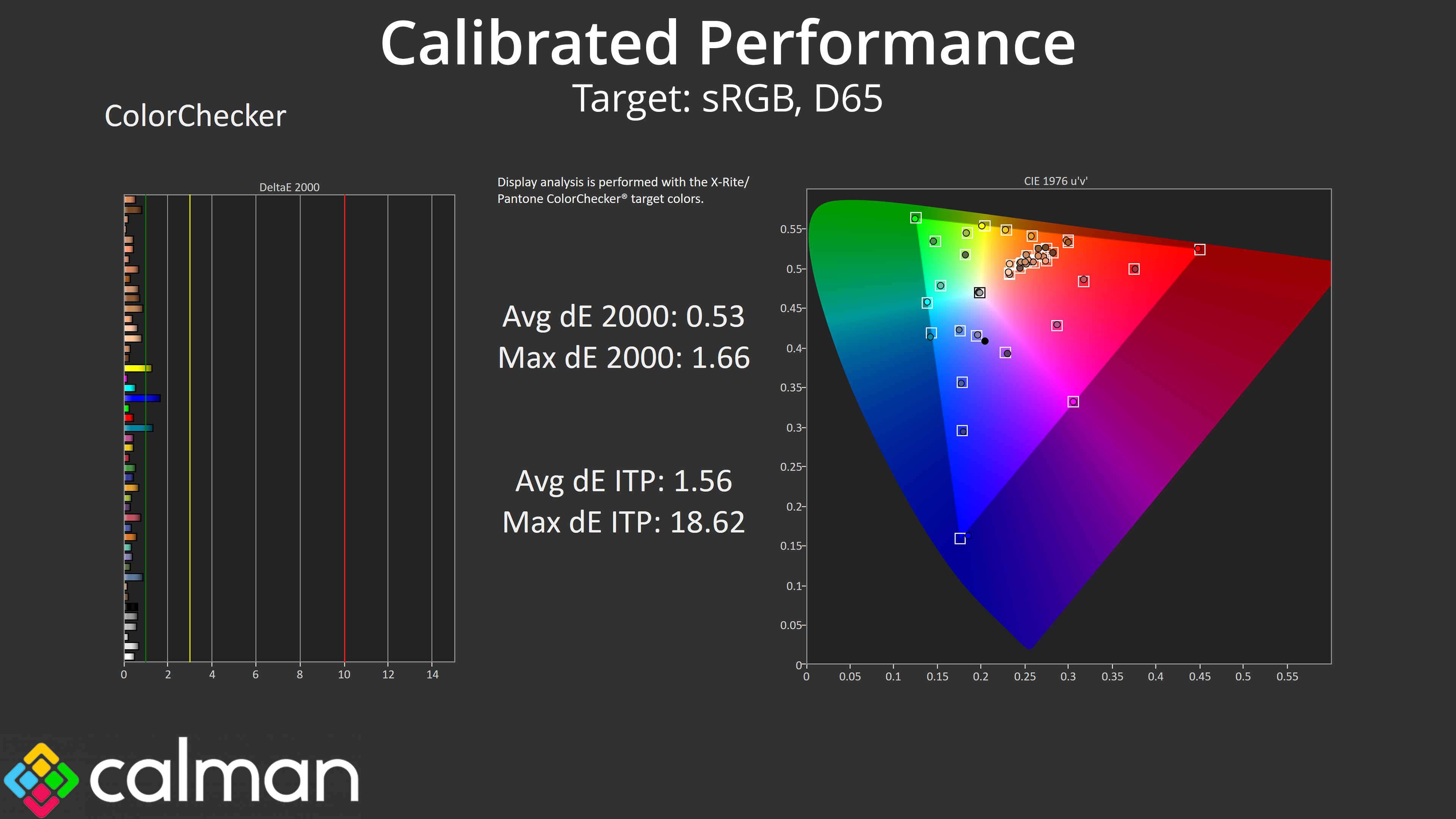
Lastly, I did also do a full calibration – perhaps not a realistic scenario for a £280 gaming monitor, but the results do go to show what is possible if you have the required software and hardware tools. Though I’d wager the sRGB mode is good enough for 99% people who end up using this monitor!
We use the Open Source Response Time Tool (OSRTT), developed by TechTeamGB, for our response time testing. This measures grey-to-grey response times and presents the results in a series of heatmaps, the style of which you may be familiar with from other reviews.
Initial Response Time is the time taken for the panel to transition from one colour to another, where lower values are better. We present the initial response time, so overshoot is not taken into account and is measured separately. We use a fixed RGB 5 tolerance for each transition.
Overshoot is the term given for when a monitor's transition exceeds or goes beyond its target value. So if a monitor was meant to transition from RGB 0 to RGB 55, but it hits RGB 60 before settling back down at RGB 55, that is overshoot. This is presented as RGB values in the heatmaps – i.e. how many RGB values past the intended target were measured.
Visual Response Rating is a metric designed to ‘score' a panel's visual performance, incorporating both response times and overdrive. Fast response times with little to no overshoot will score well, while slow response times or those with significant overshoot will score poorly.
OD Modes
As we have come to expect from AOC displays, there are four different overdrive modes – Normal, Fast, Faster and Fastest.
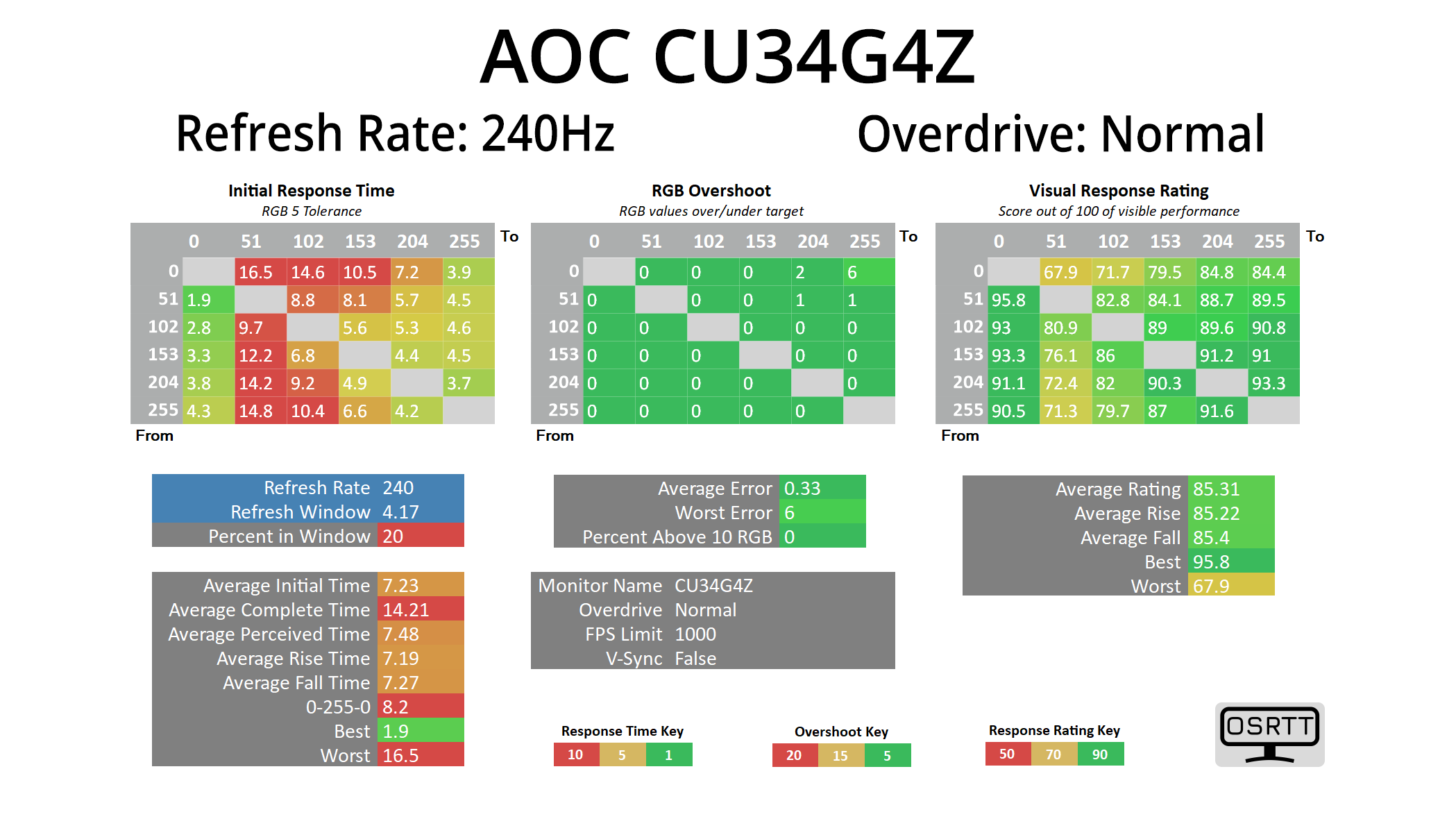
Starting off with the Normal mode at 240Hz, it isn’t actually that slow for what is effectively no overdrive being applied, with its average of 7.23ms, so that bodes well for the other modes.
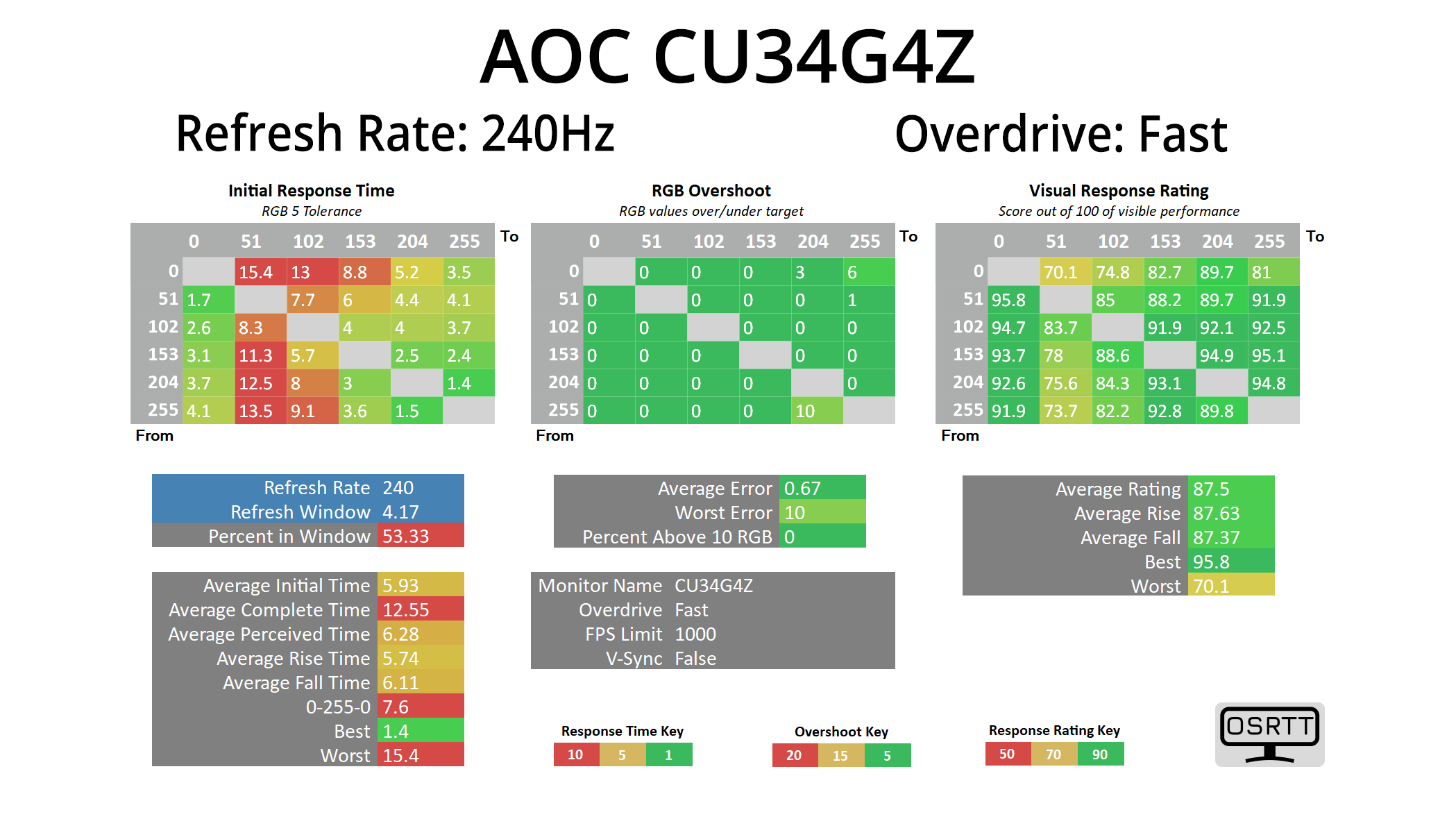
Fast is indeed faster, as we’d expect, increasing the average response time to 5.93ms while there’s still no overshoot of any significance.
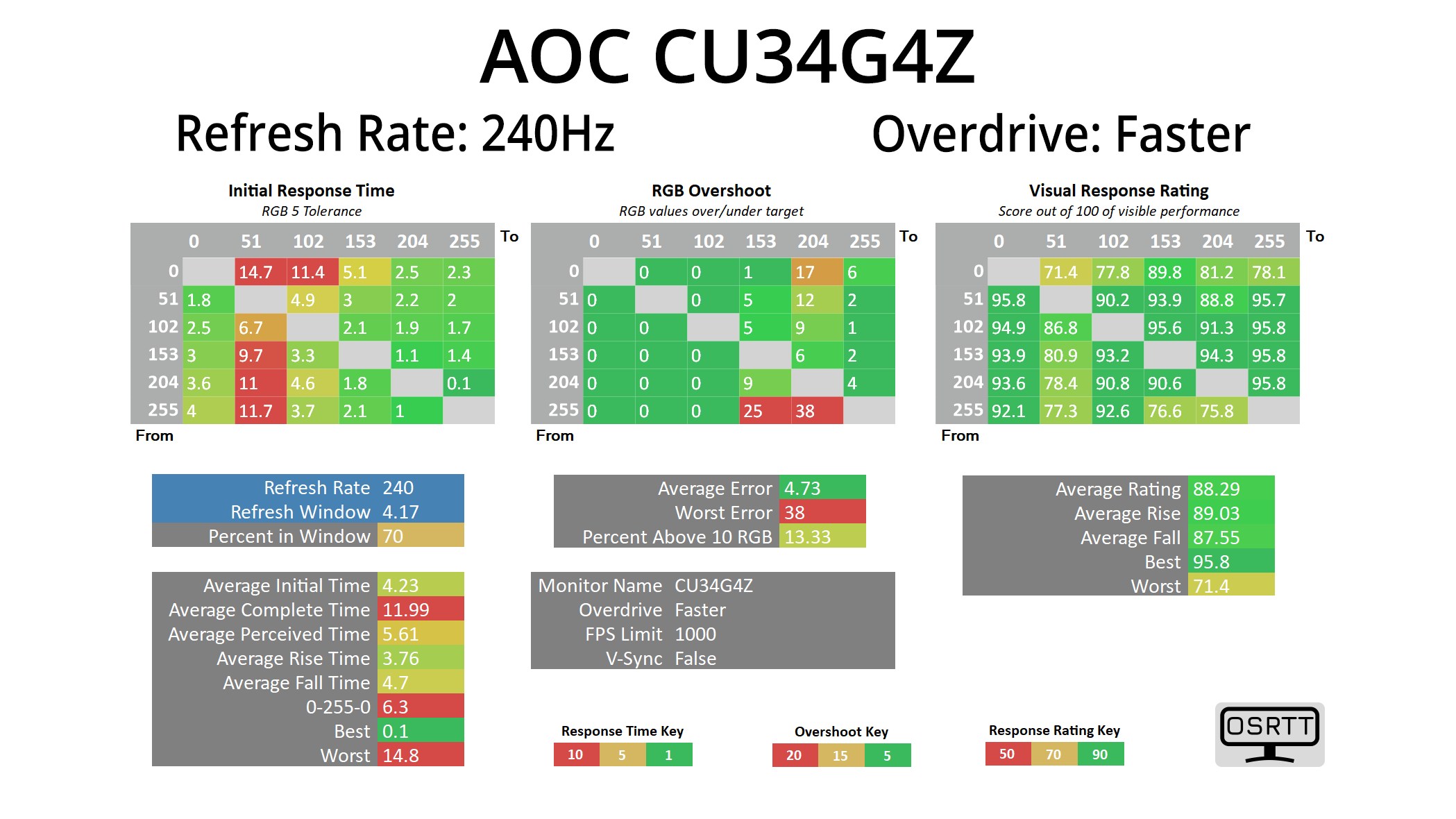
Faster takes things up a level, this time delivering an average response of 4.23ms. There are still a handful of slower transitions, particularly the fall times from RGB 255 which we’d expect from a budget VA, as this indicates some dark-level smearing, while a couple of rise times from RGB 0 (being a black screen) are also quite slow. But overall, for a VA at this price point, the results are very good indeed.
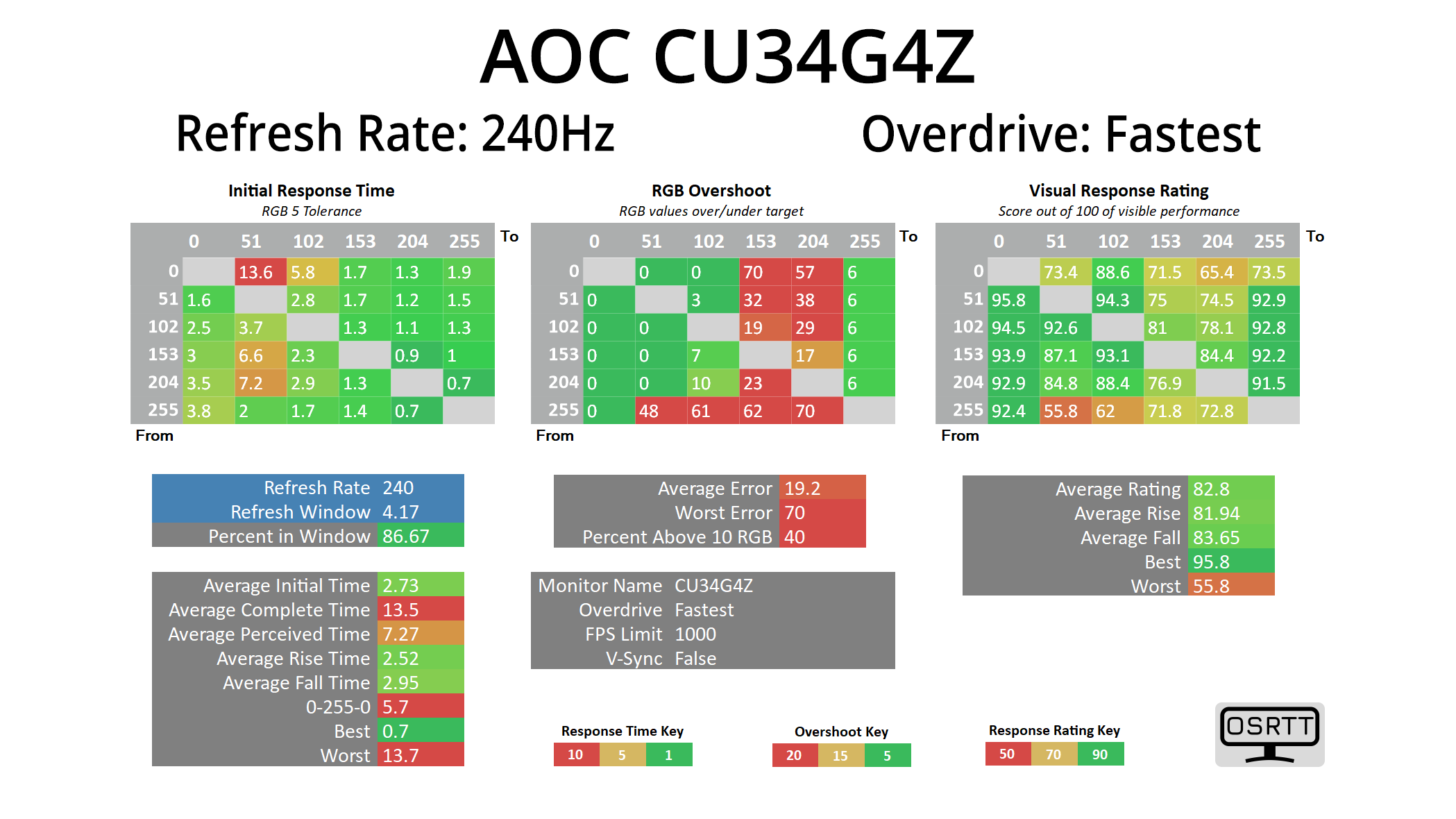
There is also the Fastest mode which speeds things up even more, now delivering an average response time of 2.73ms, though it does add in a fair bit of overshoot – though as we will see shortly, it wasn’t actually that bad, but I’d still stick to the Faster mode personally.
Variable Overdrive
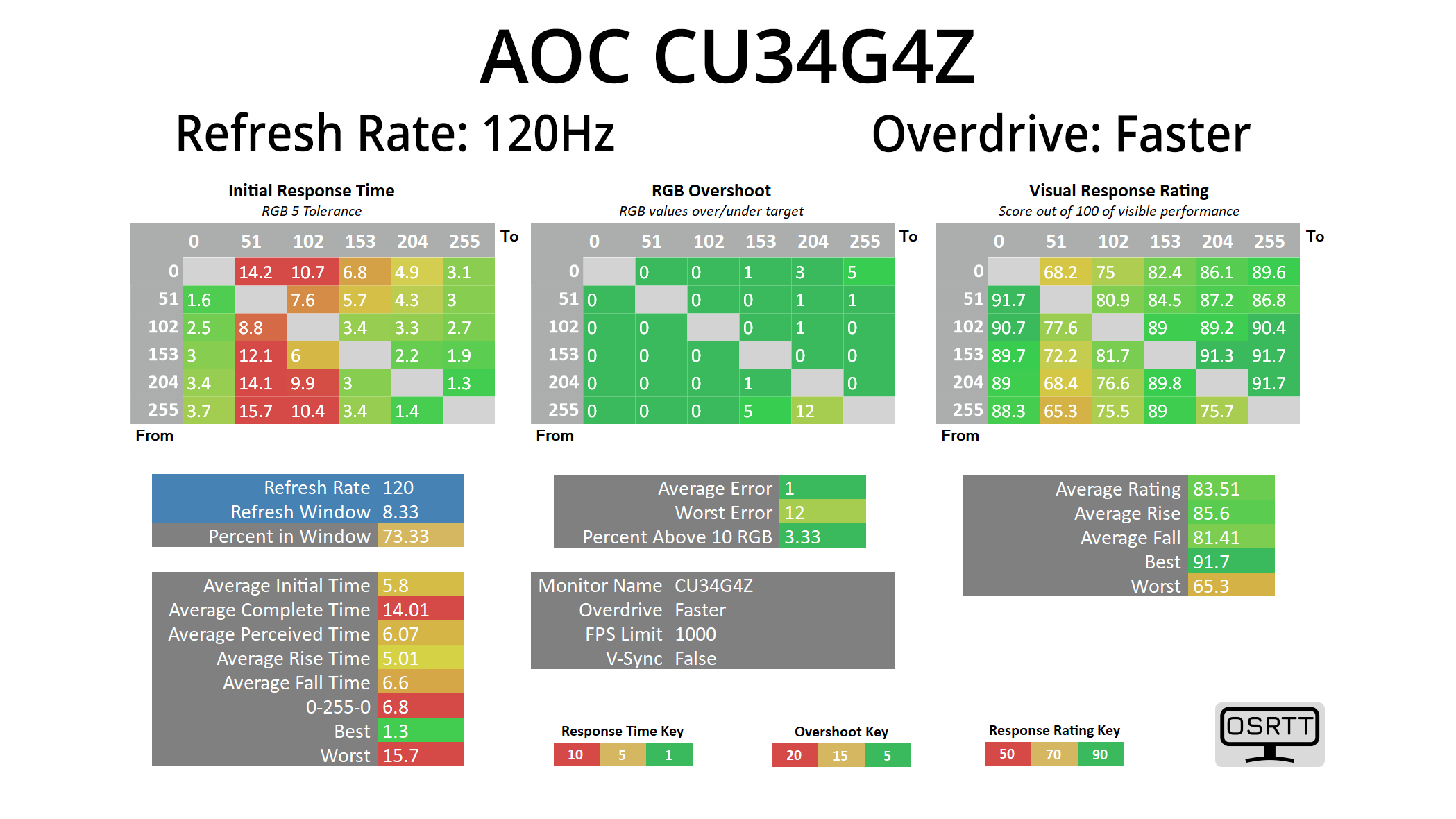
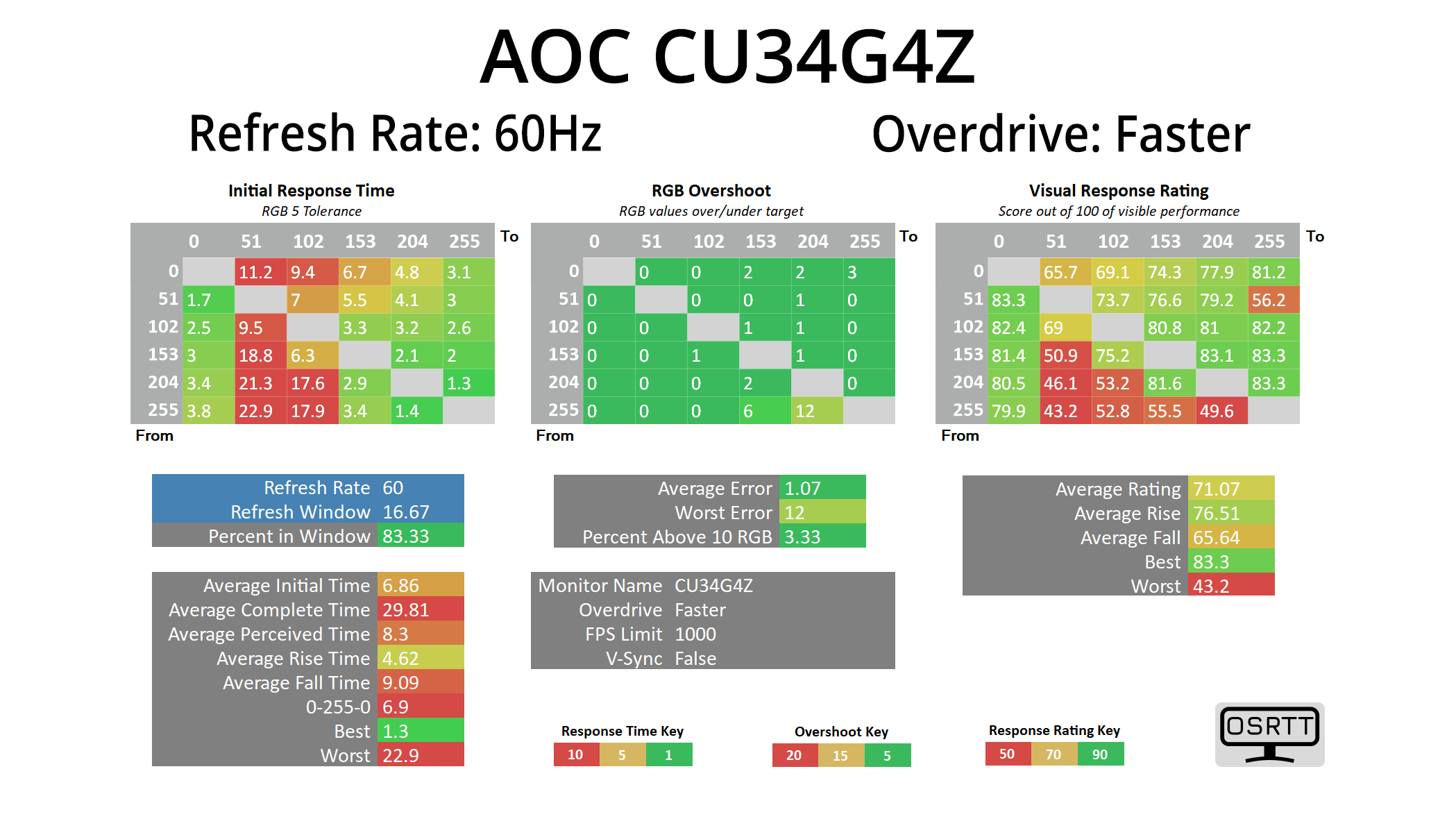
Having established that the Faster mode is the most optimal choice, it’s also good to see that AOC has indeed implemented variable overdrive. This means as the refresh rate lowers, the overdrive eases off, as we can see from the results at 120Hz and 60Hz. If this wasn’t implemented, you’d get more and more overshoot at lower refresh rates which would mean manually adjust the overdrive mode depending on the frame rate you get – but that isn’t needed here, and that is always a good thing.
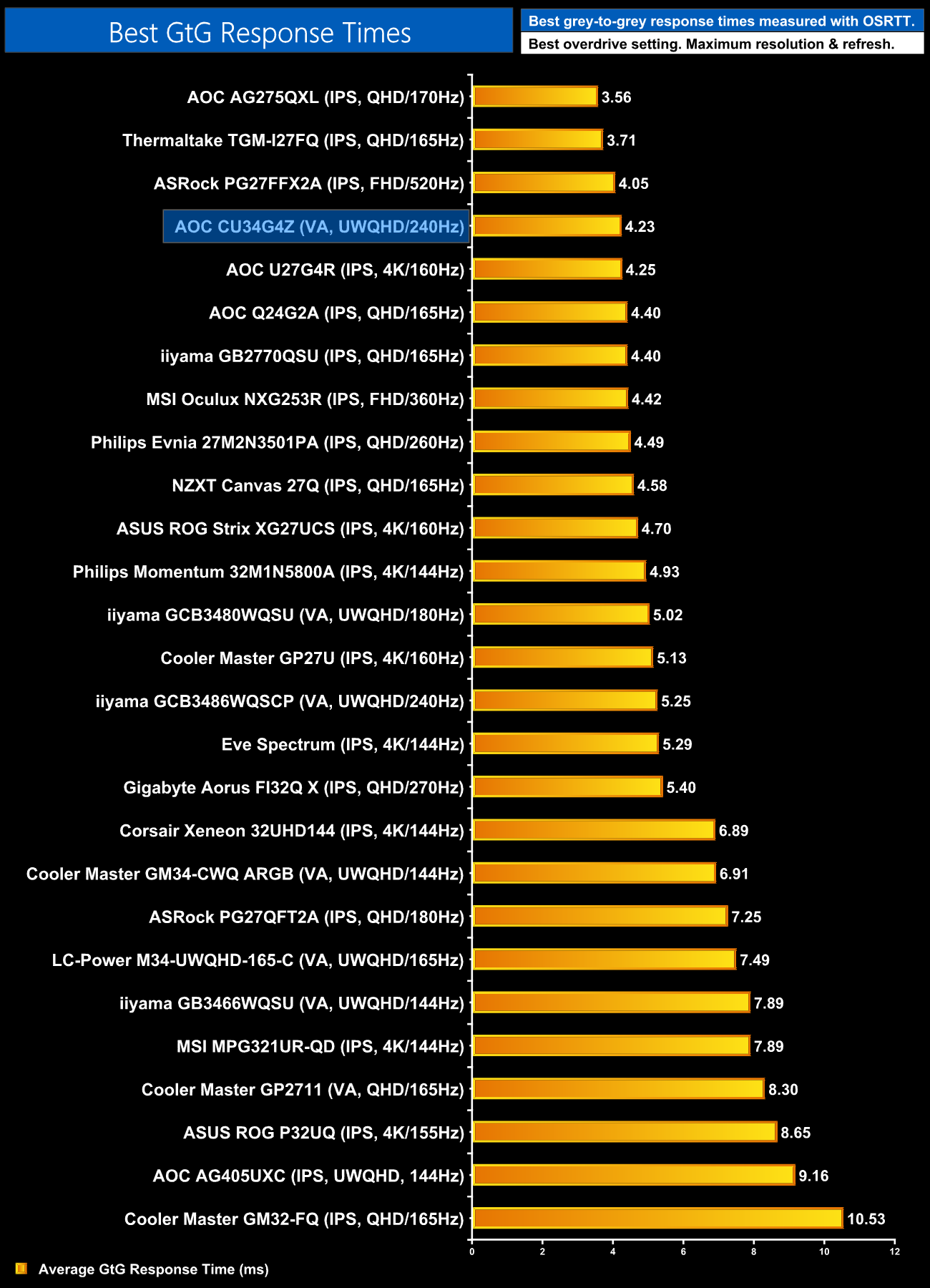
Just to confirm the overall performance then, the CU34G4Z is one of the faster LCDs we have tested in the last couple of years – not bad going considering it’s a budget VA panel! Notably it’s a good millisecond or-so faster than the iiyama GCB3486WQSCP that I reviewed in August, a similarly-specced ultrawide that costs around £350.
Motion clarity
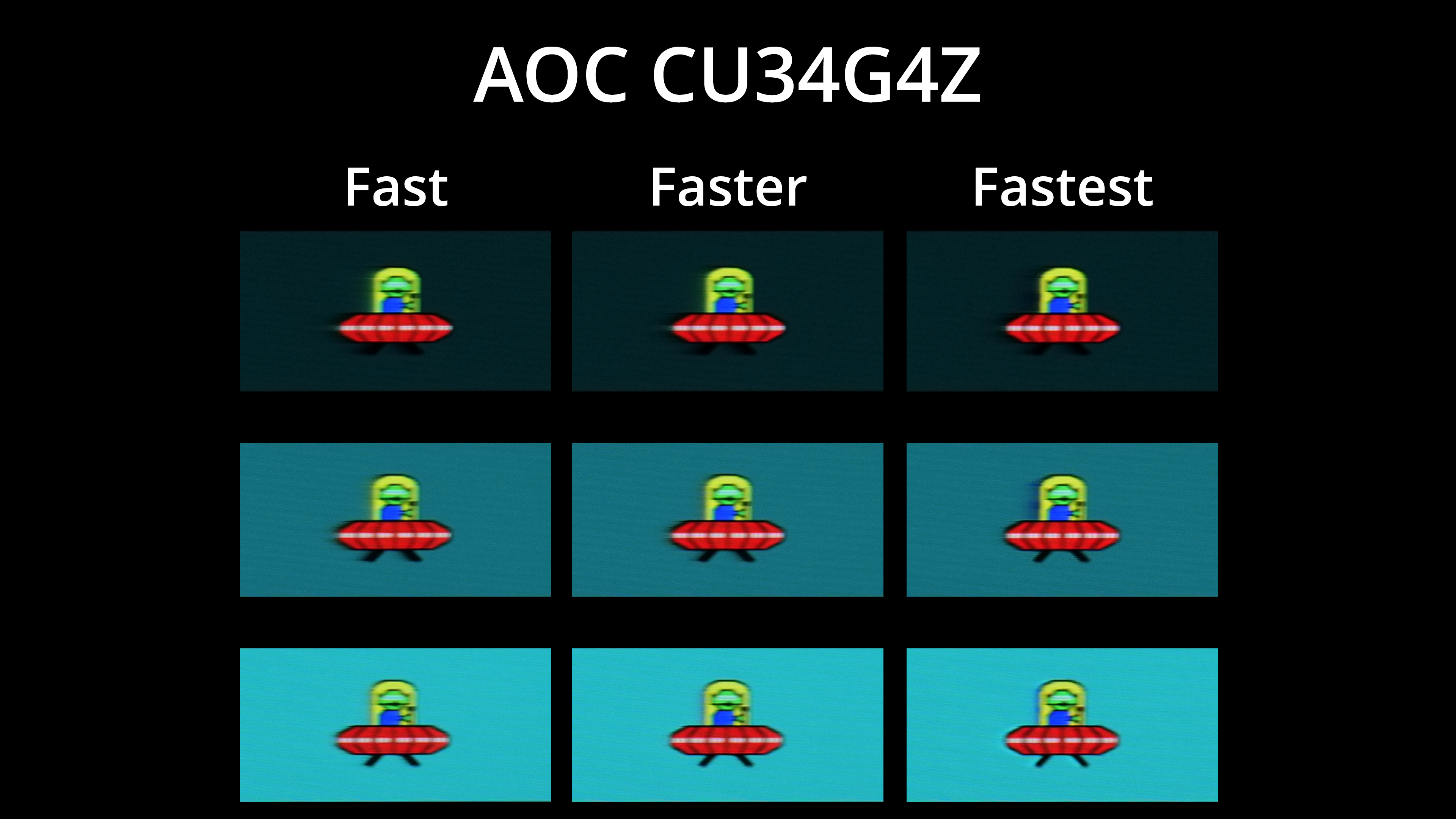
For a visual example we are using the BlurBusters UFO test, and I’ve compared the Fast, Faster and Fastest overdrive modes. Fastest isn’t actually too bad as we mentioned, but you can see the blue overshoot that isn’t there on the Faster mode. General motion clarity is pretty good though, certainly better than I was expecting at this price.
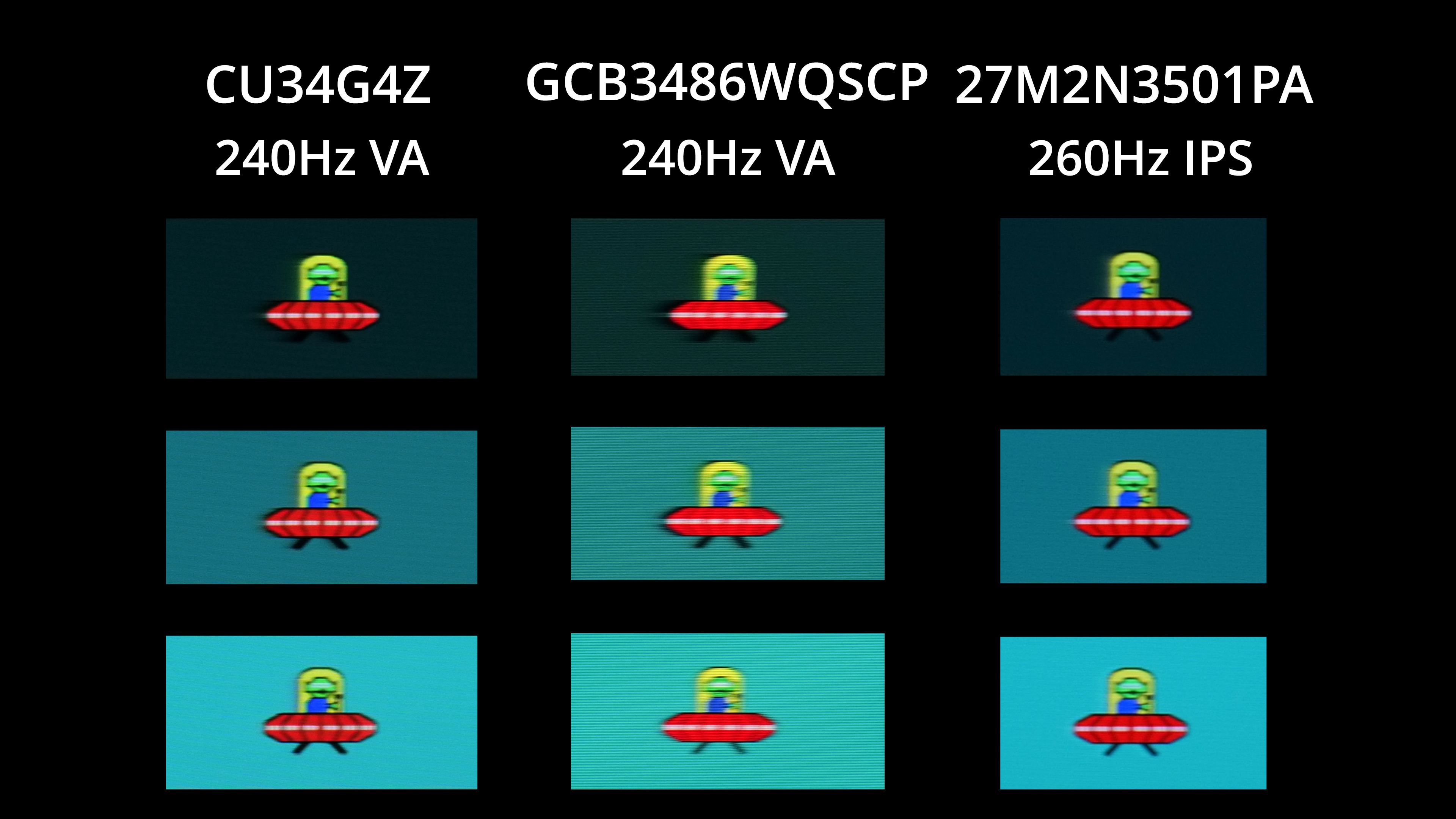
In fact, it’s even better than the iiyama GCB3486WQSCP, despite the spec being basically identical. There’s less dark-level smearing, too, though if we compare against the Philips 27M2N3501PA, a budget 260Hz IPS panel, we can see there is still some dark-level smearing with the CU34G4Z, but it’s not nearly as much of a problem as it has been in the past for cheaper VA panels.
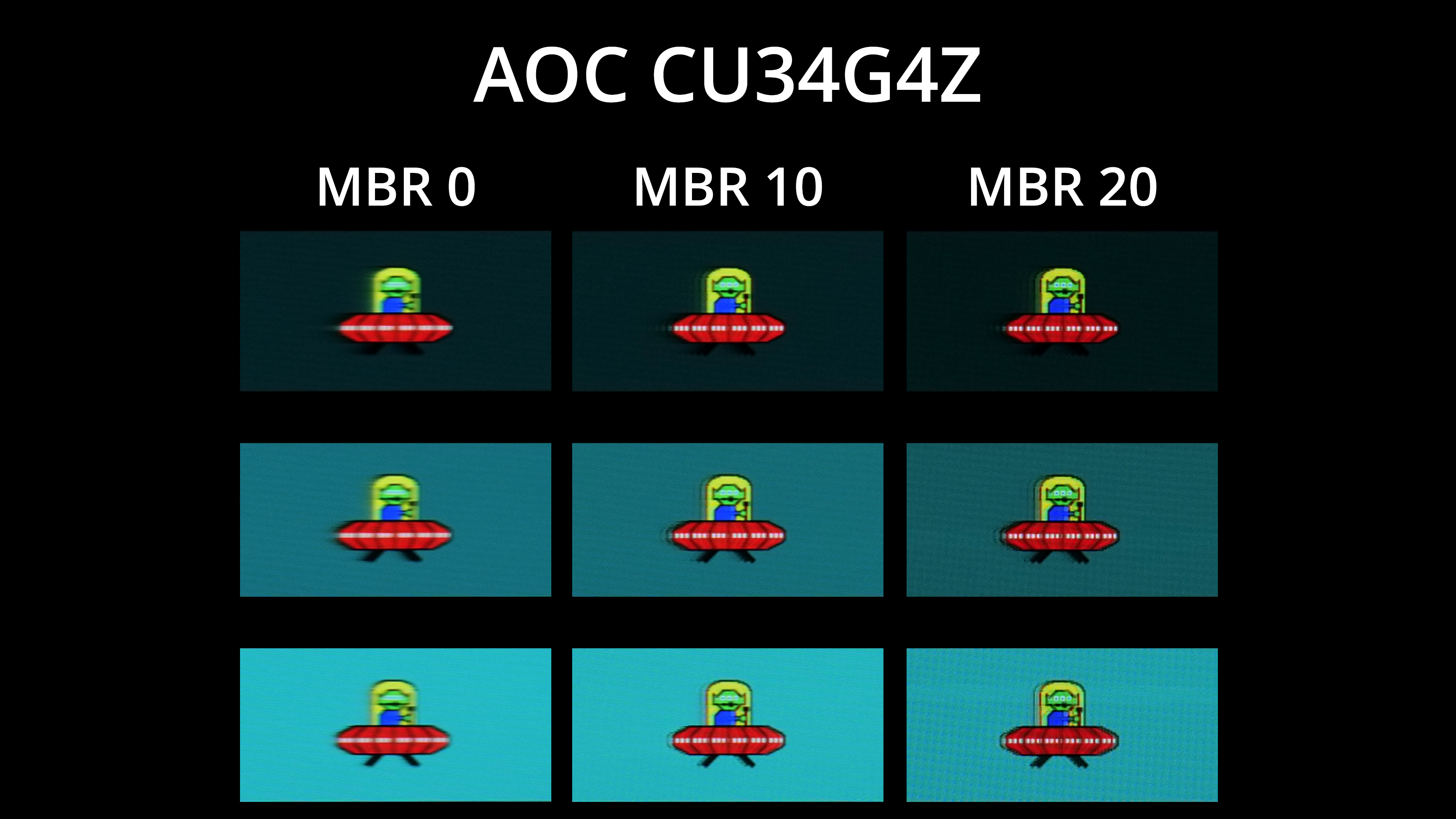
AOC does also offer a backlight strobing mode, called MBR, though this is not MBR Sync, so you have to disable adaptive sync for it to show up. You can configure it from 0 to 20, with 20 being the strongest, though brightness does dim as you turn MBR up – we saw 372 nits with MBR off, then a reduction to 258 nits with MBR 10, while MBR 20 hits just 76 nits. Still, you can see a good boost to overall motion clarity and there’s only a small amount of signal crosstalk at MBR 10, so if you don’t mind losing adaptive sync functionality, it works pretty well.
We again use the Open Source Response Time Tool (OSRTT), developed by TechTeamGB, to report monitor input latency.
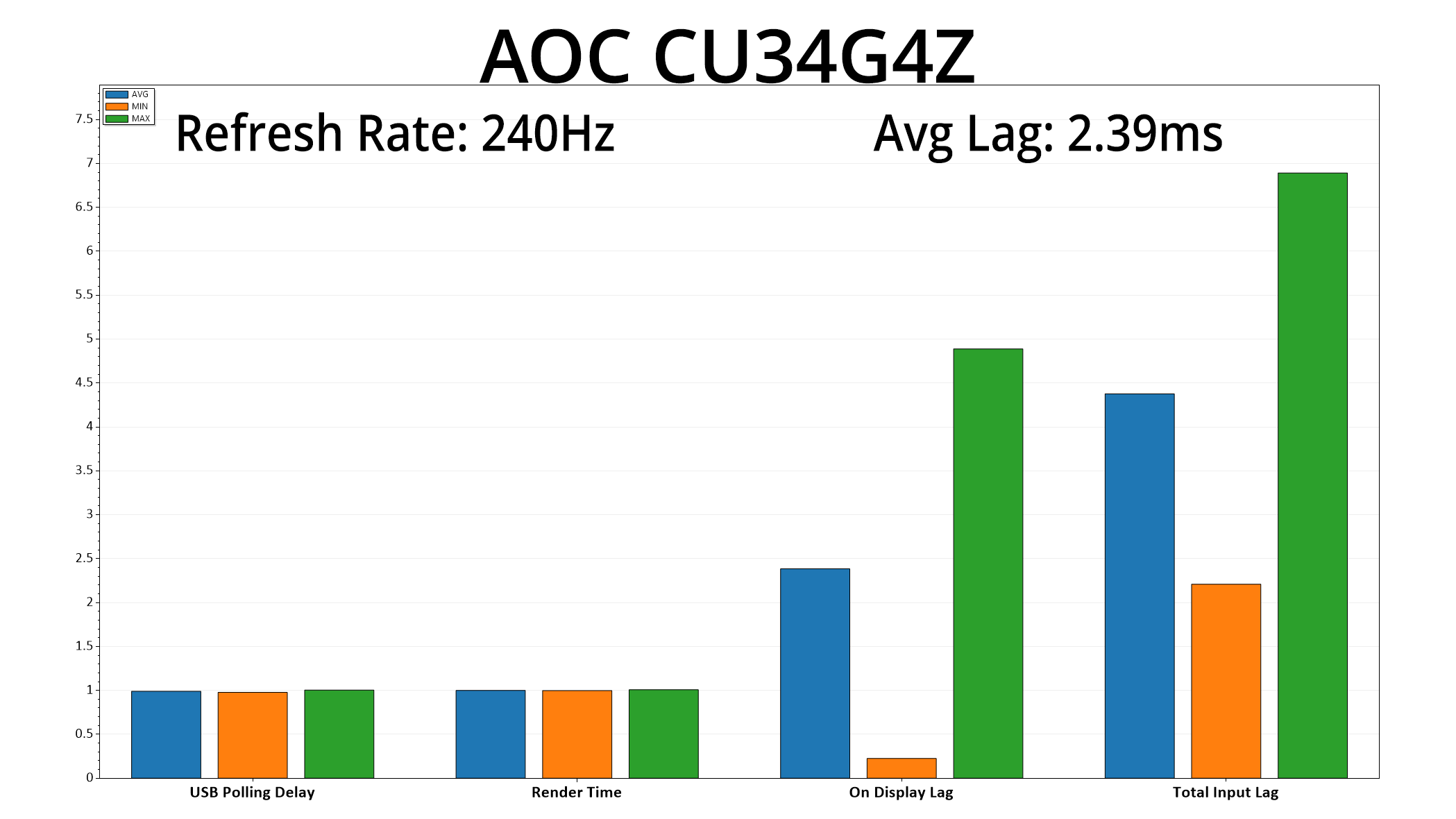
Rounding out our testing with input lag, we see an average on display lag of 2.39ms, barely more than half a frame at 240Hz, so nothing to worry about there.
As far as affordable ultrawide gaming monitors go, I think AOC's CU34G4Z is up there with some of the best I have tested.
That starts with the factory calibration where AOC does not disappoint – colour balance is accurate, gamma is near-flawless, and if you want to clamp the gamut to avoid the panel's native oversaturation, the sRGB mode has been very well configured.
What impresses most, though, is just how good this screen is for gaming. We know that 21:9 ultrawides can offer that extra immersion factor, but cheaper VA screens usually suffer from poorer motion clarity and excessive dark-level smearing. Not so the CU34G4Z, with our BlurBusters UFO pursuit camera tests indicating strong motion clarity at the price – better even than the more expensive iiyama GCB3486WQSCP. Dark-level smearing, while not completely absent, is also kept to a reasonable level, while input latency stays nice and low, too.
Some corners have been cut to achieve this price-point, though, and they include the lack of USB-C or KVM functionality, while I personally find the absence of a joystick to control the OSD a bit frustrating. Brightness hitting 372 nits is generally fine, but some way below AOC's claimed 450 nit figure, so some extra oomph in that department wouldn't go amiss. Lastly, while it does offer a good MBR mode, sadly MBR Sync is lacking, so you have to choose between adaptive sync or increased motion clarity, another slight shame.
Considering the current price of £280, and the fact that this monitor has been under £300 since the start of September, we can certainly look past most of those issues. The bottom line is this is one of the fastest VA panels we have tested, and also one of the most affordable ultrawides I've ever reviewed, making this well worth buying if you want a well-balanced gaming ultrawide.
We found it listed for £280 on Amazon and Currys.
Pros
- Very well priced for a curved, high refresh-rate ultrawide.
- Fast response times for a VA panel, minimising dark-level smearing.
- Motion clarity is also impressive considering the price.
- Good MBR mode (though it doesn't work with adaptive sync).
- sRGB mode delivers very impressive results.
- Wide gamut.
- Factory calibration is solid with basically perfect gamma tracking.
- Contrast exceeds AOC's claims.
- Pair of HDMI 2.1 ports.
- Supports firmware updates.
Cons
- Motion blur reduction mode doesn't work with adaptive sync.
- Brightness, while fine at 373 nits, is below AOC's claimed 450 nit figure.
- Lacks USB-C and KVM support.
- 5-way button control is fiddly.
KitGuru says: There's some room for improvement, but at under £300, the CU34G4Z is a very tempting option for those looking to get into the world of ultrawide gaming.