KitGuru KitGuru.net – Tech News | Hardware News | Hardware Reviews | IOS | Mobile | Gaming | Graphics Cards


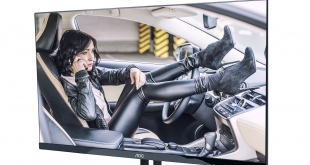
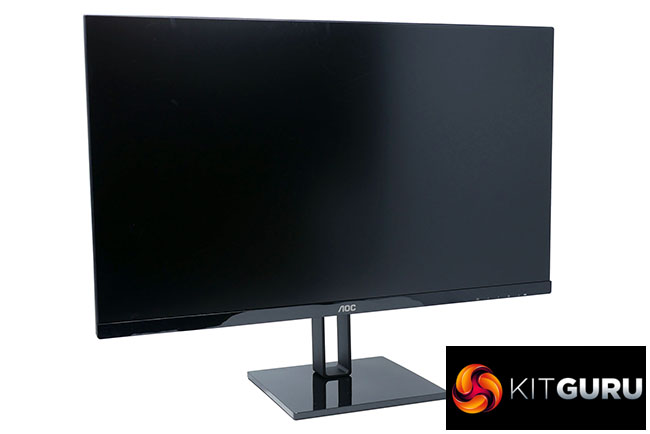
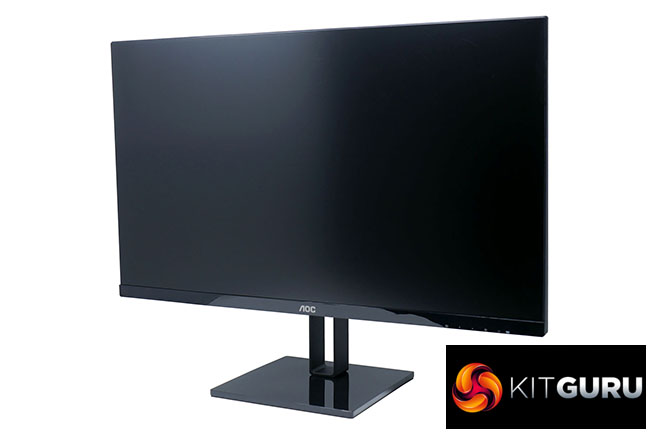
The AOC 27V2Q is a monitor with a very simple premise: it’s really thin. The LCD panel is just 7.9mm at its top edge and expands to only 18mm at its bottom edge. Combined with impressively narrow bezels round the screen, this makes for a very svelte looking device.
It also boasts a feature list that should appeal to a broad selection of buyers. The 27-inch display has a resolution of 1920 x 1080 pixels, it uses an IPS type LCD for good viewing angles and colour accuracy, and you get some modest gaming credentials too.
A maximum refresh rate of 75Hz is a nice little bump over 60Hz screens while a 5ms response time is a bit better than some IPS displays. There’s Freesync support too.
All this for about £165 seems like a potential bargain, so let's dig a little deeper to see if it delivers where it counts.
Specifications:
- Screen size: 27-inch, 16:9 aspect
- Native resolution: 1,920 x 1,080
- Refresh rate: 75Hz
- Panel type: IPS, 6-bit+FRC
- Contrast ratio: 1,000:1 native
- Brightness: 250cd/m2
- Response time: 5ms grey-to-grey
- Adaptive sync: Fresync
- Display inputs: DisplayPort, HDMI
- USB hub: No
- Audio: No speakers, 3.5mm headphone port
- Tilt: Yes
- Raise: No
- Swivel: No
- Pivot: No
- VESA: No
- Warranty: 3 years
Retail Price: £166 (inc. VAT)
The slimness of this monitor is striking. We’ve only ever seen OLED displays this thin before and it really does make a difference to the feel of having a large display on your desk, especially when combined with the very narrow, low-profile bezels.
The rest of the design is smart too. The bottom bezel and base have a simple glossy black finish while the stand just consists of two slim metal uprights. Meanwhile, round the back you get a matt black finish to the rear of the screen and the rest of the very simple metal stand.
The styling really is top notch with a refined minimalism that’s sure to help smarten up any desk space. That said, the build quality isn’t all that amazing.
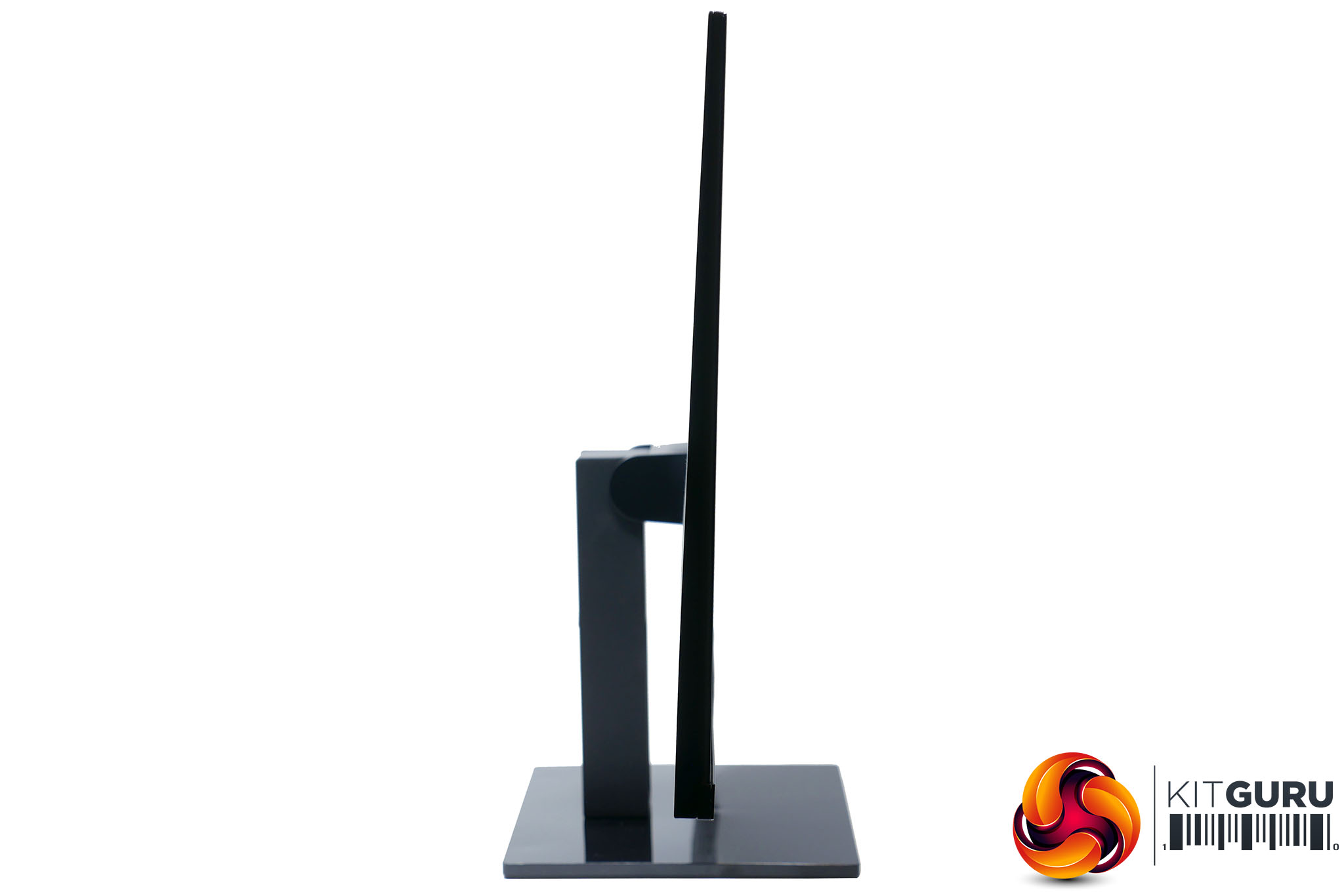
The glossy black plastic for the base and bottom bezel looks nice enough but is going to scratch very easily and show the dust, too. Meanwhile both the glossy and matt plastic finishes suffer from being such large, flat expanses. Because there are no natural curves to break up the lines, it’s obvious when you get a slight wobble to the surface.
By and large you won’t notice these issues but considering how design-focussed this display is, it’s worth noting – you’re unlikely to mistake this display for something truly high-end.
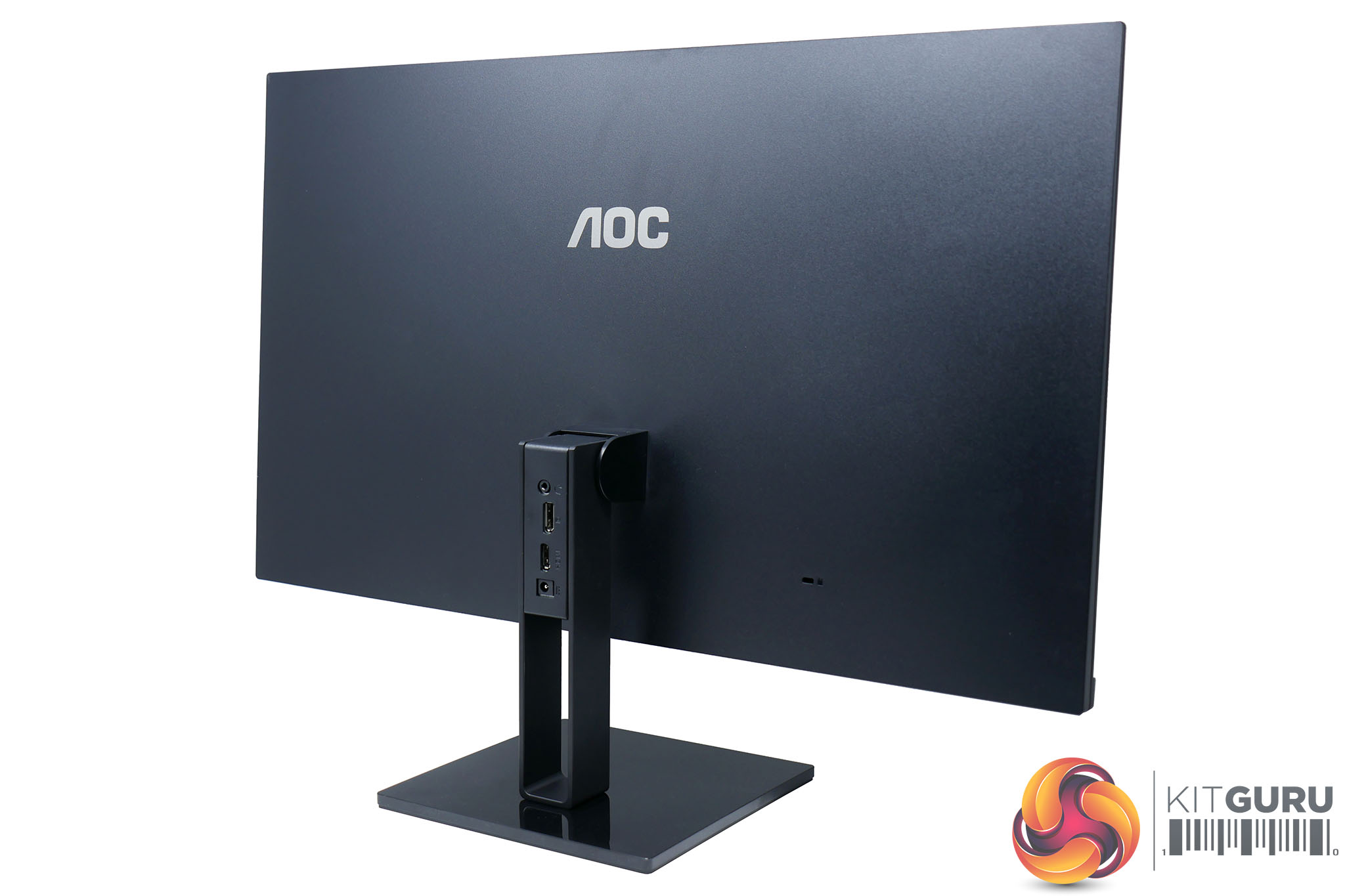
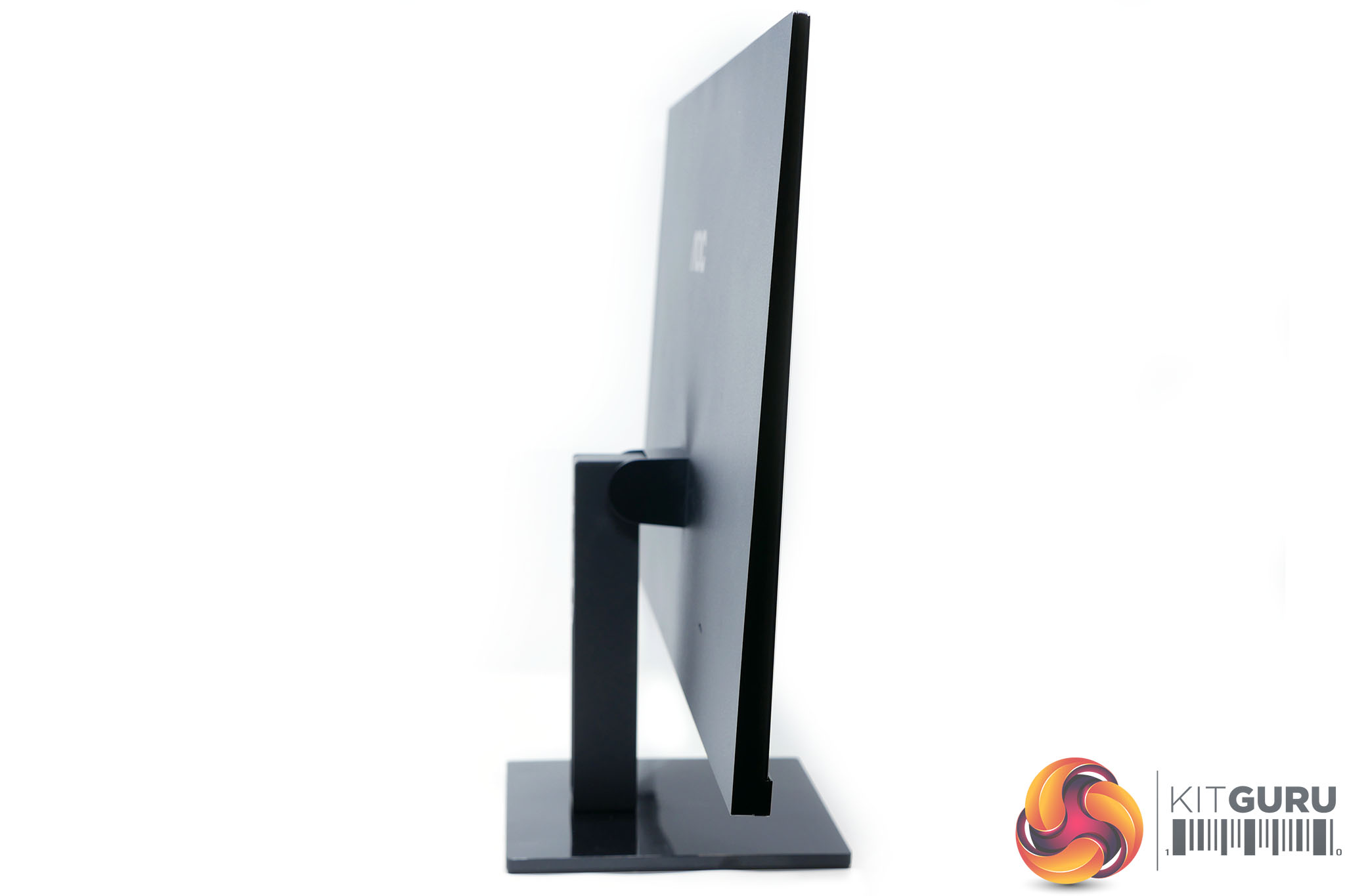
Perhaps the biggest compromise with this monitor is its lack of options for positioning the display. The stand only offers tilt adjustment, with height, rotation and pivot movements all unaccounted for. Moreover, there’s no option to remove the stand and fit an alternative monitor mount either. Such is the price of going for such a thin screen design.
There’s a good reason for this, though, which is that in order to make the screen so thin, AOC has had to move all the display’s connectivity onto the stand. Here you’ll find the power, video (1 x DisplayPort, 1 x HDMI) and headphone sockets with their connection to the display running up through the centre of the stand.
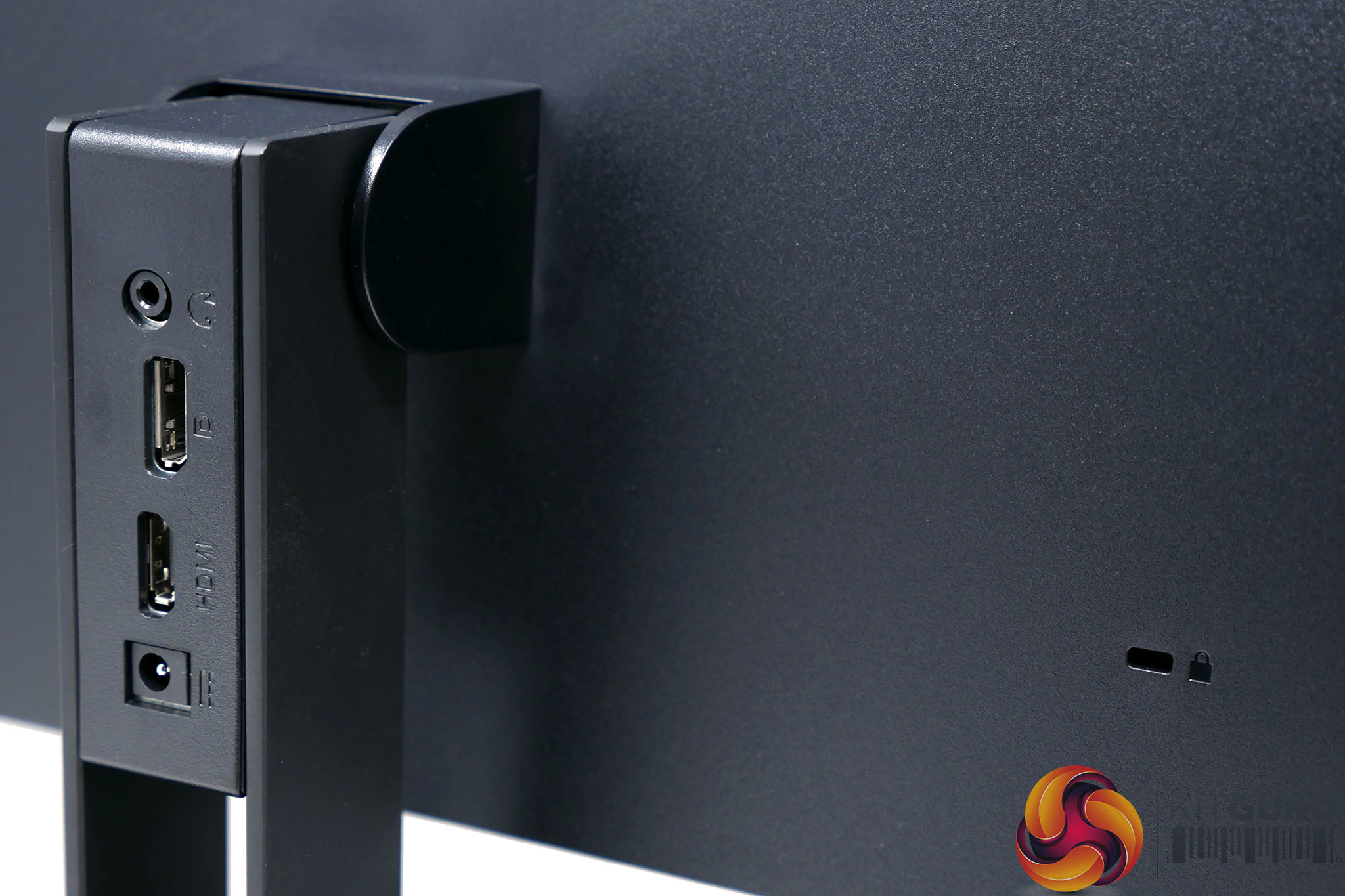
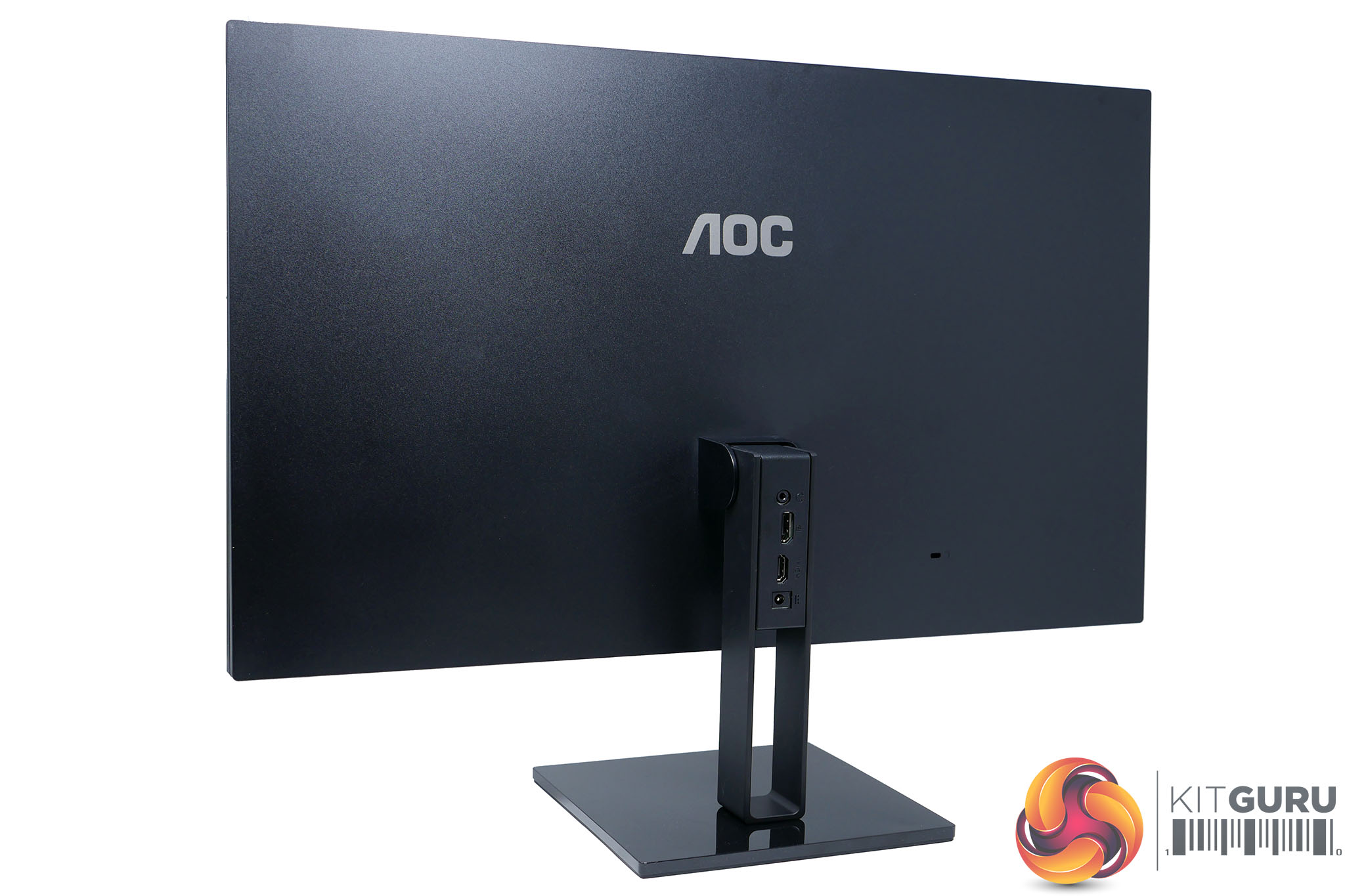
It’s a neat solution that also makes it much easier to keep your cabling tidy, though inevitably this does mean you miss out on any extras such as a USB hub or second HDMI socket. You’ll also not be surprised to learn there are no speakers in this monitor.
Another compromise of the slim design is that the power supply has had to be moved outside the monitor. So, instead of a three-pronged kettle lead mains connection, the display has a small barrel connection for power and an external power brick that is thankfully small.
The only features you’ll find on the screen itself are a Kensington lock slot on the back and the OSD and power buttons under the bottom bezel.
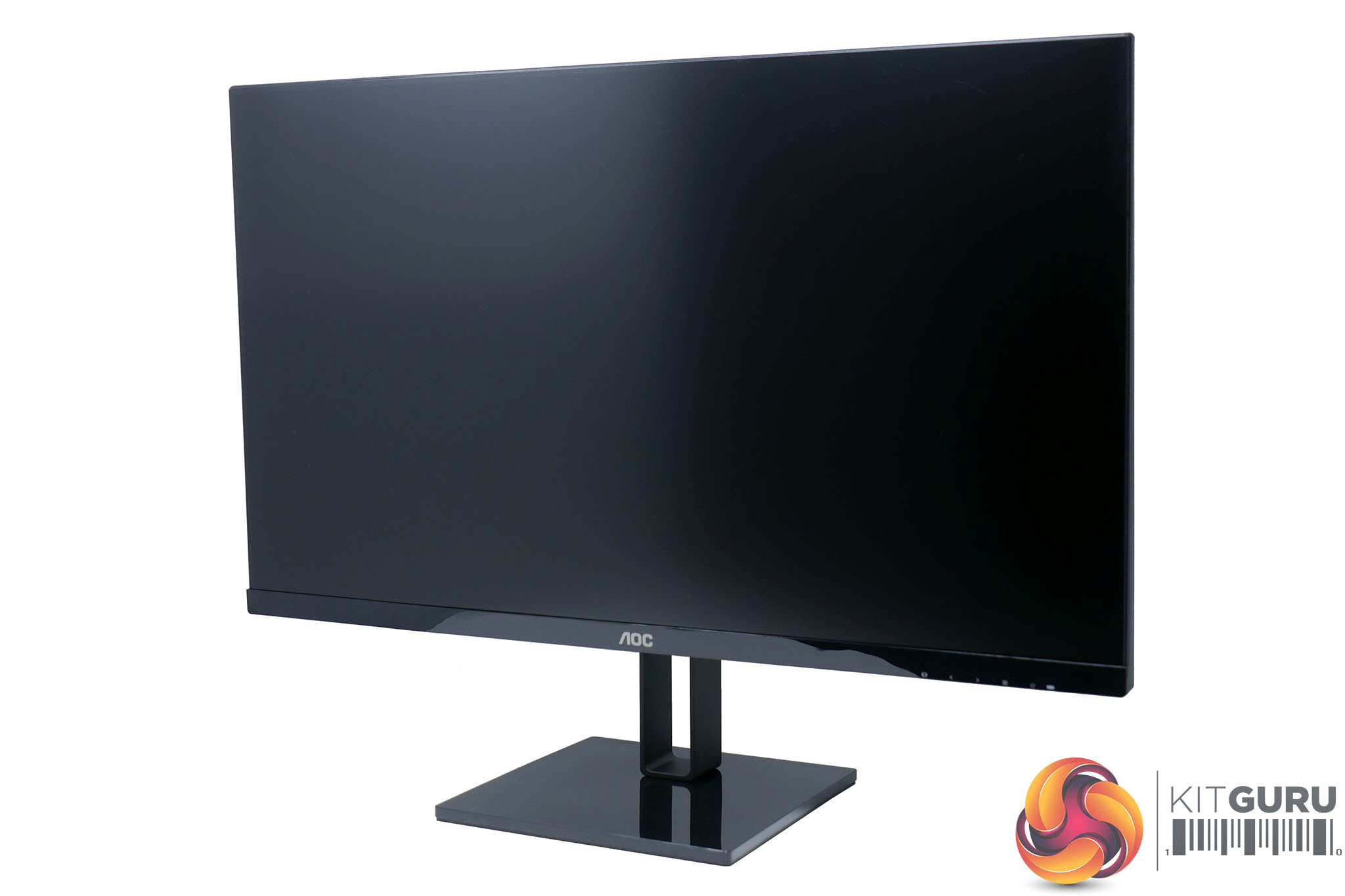
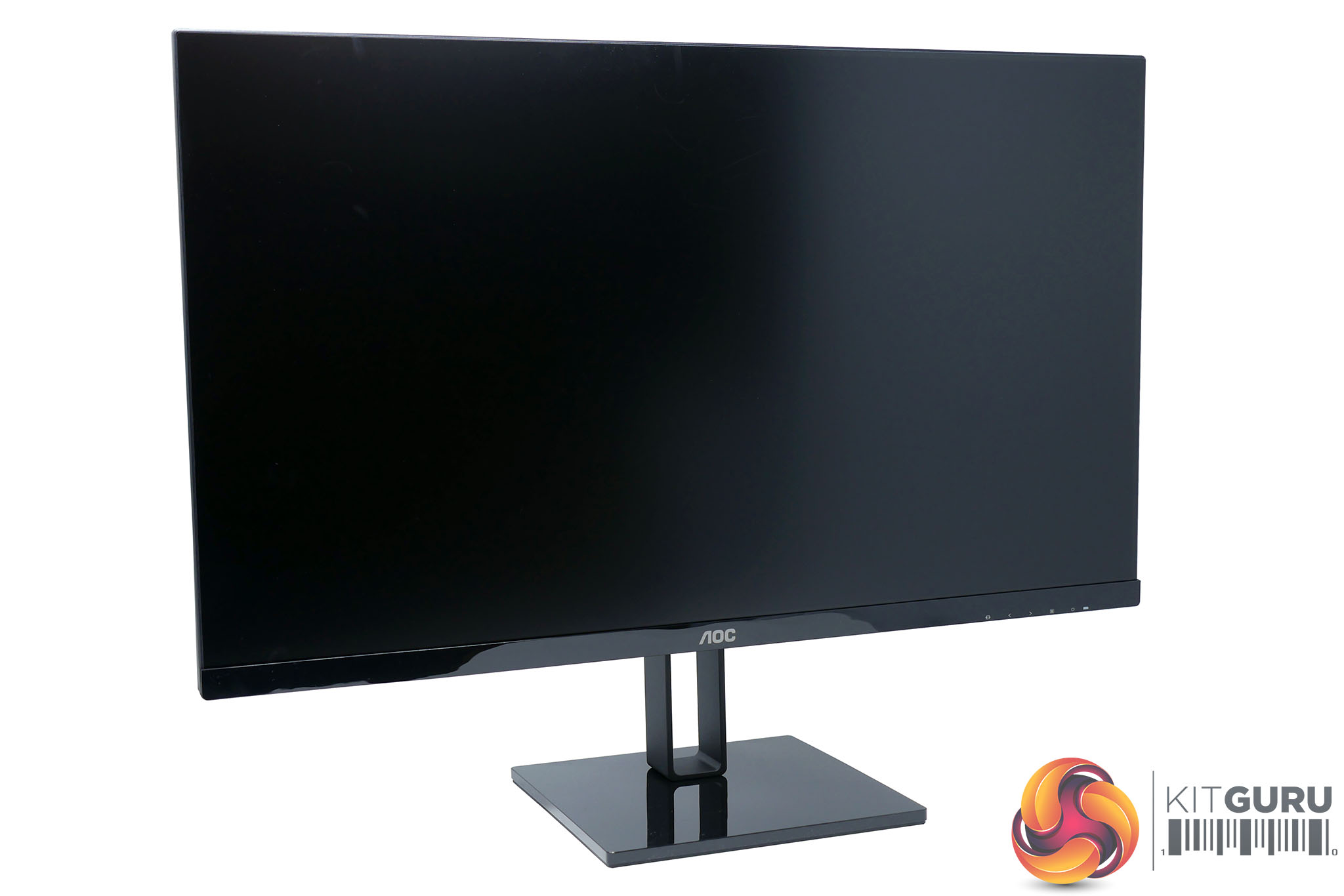
As for the LCD panel, it’s 27-inches from corner to corner and has a 1080p resolution. This may be a bit of a sticking point for some buyers, as a higher 1440p resolution is common for a screen this size and is the size/resolution that we’d normally opt for. The greater number of pixels makes for a sharper image and a larger desktop area to work on.
However, some users are happy with, or actively prefer, a lower resolution so we’ll leave the judgement up to you. For reference, a 27-inch display with a 1440p resolution has a pixel density of 110ppi whereas here it’s 82ppi.
Meanwhile, the use of an IPS panel should ensure good viewing angles and better colour reproduction than cheaper TN panels, though if high contrast is your thing you may prefer to seek out a VA panel. The panel uses 6-bit colour processing with FRC, so won’t offer quite the colour fidelity of true 8-bit panels but it should be fine for general use – if you’re looking for a professional quality display for image and video editing, this won’t be an ideal choice.
With a native 75Hz refresh rate, the 27V2Q offers a slight boost in gaming performance over bog standard screens. You also get Freesync for eliminating screen tear and stutter when used with AMD graphics cards.
One thing that AOC regularly seems to slip up on is the ease of use of its OSD system, and once again that is the case here. The OSD is laid out horizontally and it uses four buttons to move around it: back, left, right and select.
On a certain level it feels intuitive enough. You simply keep tapping right or left until you get to the option you need, hit select to highlight it then move left or right to change it. Tap the back button and you can move around the rest of the menu again.
However, it just doesn’t feel as intuitive as vertical layouts and is a far cry from systems that use a four-way mini joystick for navigation.

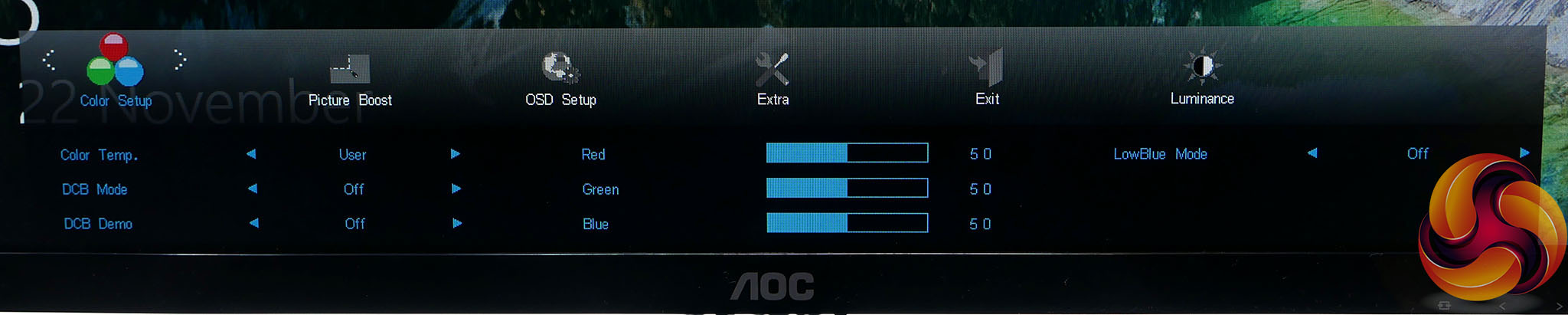
Nonetheless, the OSD has all the options you should need and is quick to respond, so it’s by no means a dead loss.
The first menu is Luminance, which is where you can alter the brightness, contrast, gamma, dynamic contrast and overdrive. Dynamic contrast is where the brightness of the backlight is altered in accordance with the image on screen and it is how monitor companies get to claim contrast ratios of 1,000,000:1 and more. We never recommend using this feature.
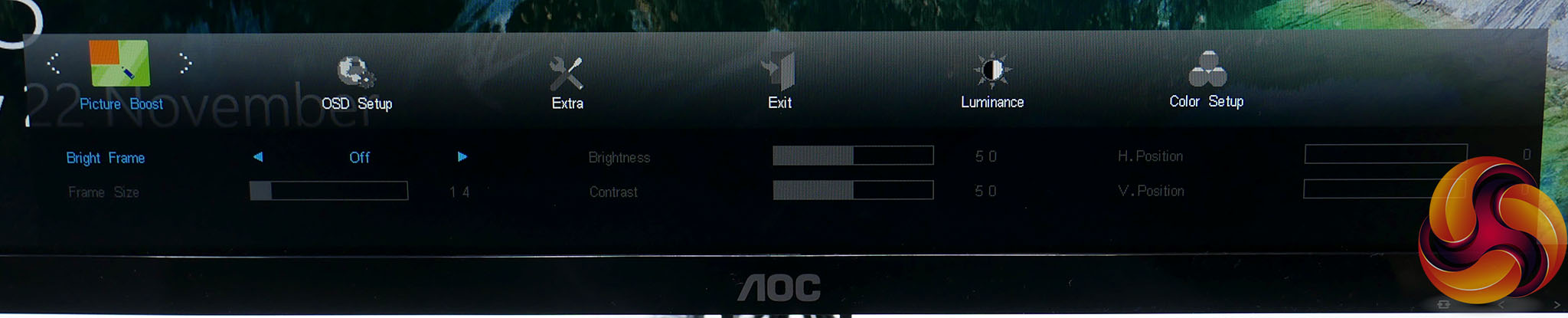
Next up is Color Setup where you can choose the colour temperature (Warm, Normal, Cool, sRGB, User), alter the RGB colour balance and enable low blue light mode.
In the Picture Boost menu is just one option: Bright Frame. This is a strange AOC-unique addition to some of its monitors and it allows you to specify a rectangle of the screen to have a different brightness and contrast setting to the rest of the screen. You can change the size and position of the rectangle, though we still aren't use what you would want to use it for.
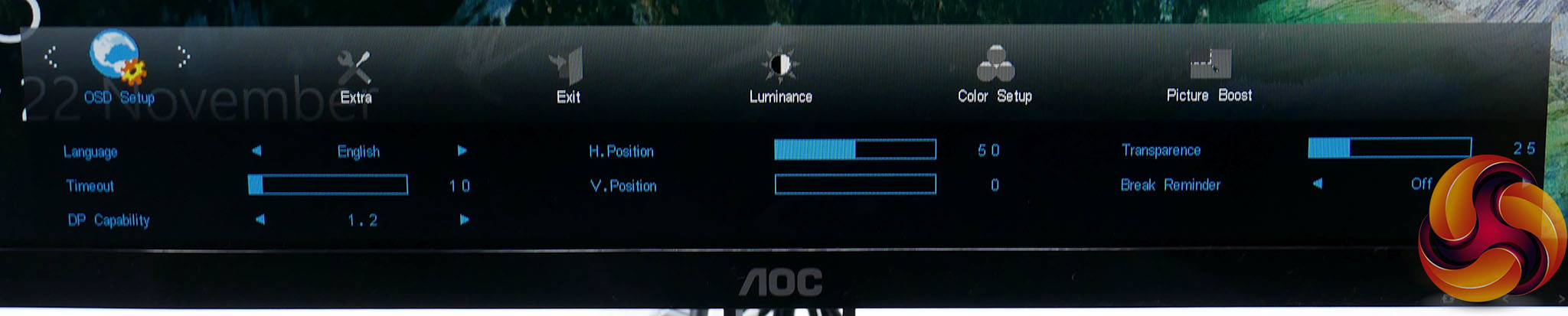
Next up is OSD Setup and it’s here you can change the language, timeout, position and transparency of the OSD. You can also change the DisplayPort to operate in v1.1 or v1.2 modes.

The Extra menu includes options such as input selection, an off timer for the display and an OSD menu reset.
As well as the main menu, which is accessed via the select button, there are also shortcuts for the other three buttons. Tap the back button and it opens an input selection option, the left button lets you enable Clear Vision (essentially a sharpness setting) while the right button is for adjusting the headphone output volume.
Starting with our initial subjective image quality impressions, as soon as you fire up the AOC 27V2Q it’s obvious you’re getting a decent quality display. Colours are punchy but accurate, there’s a decent level of contrast and viewing angles are good.
There are just two obvious downsides. The first is the resolution. The low pixel density means you can clearly see each individual pixel from a normal viewing distance – a retina display this isn’t.
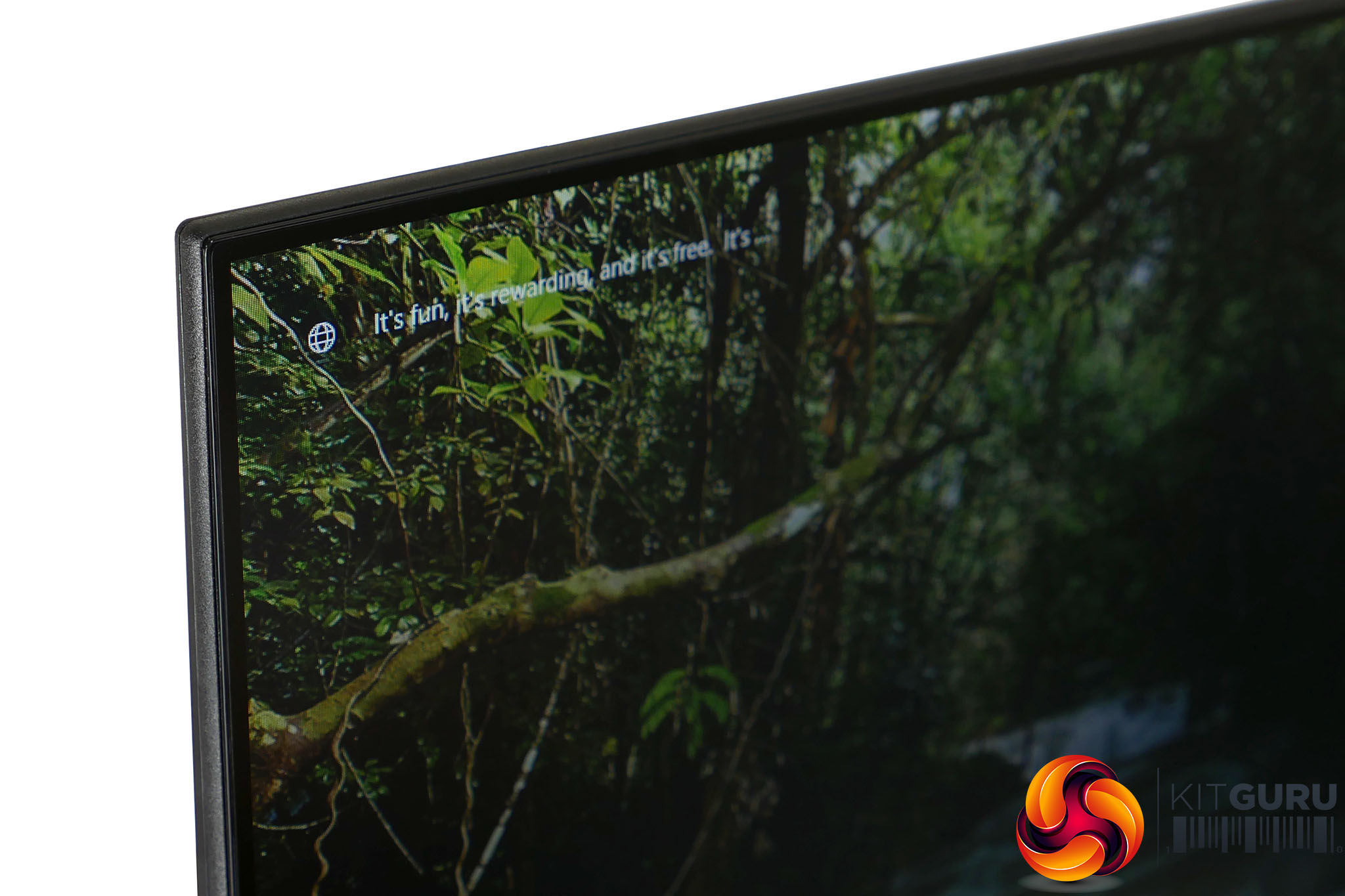
However, if you have your display set a little further back on your desk or you just prefer the extra readability of larger pixels then it’s fine.
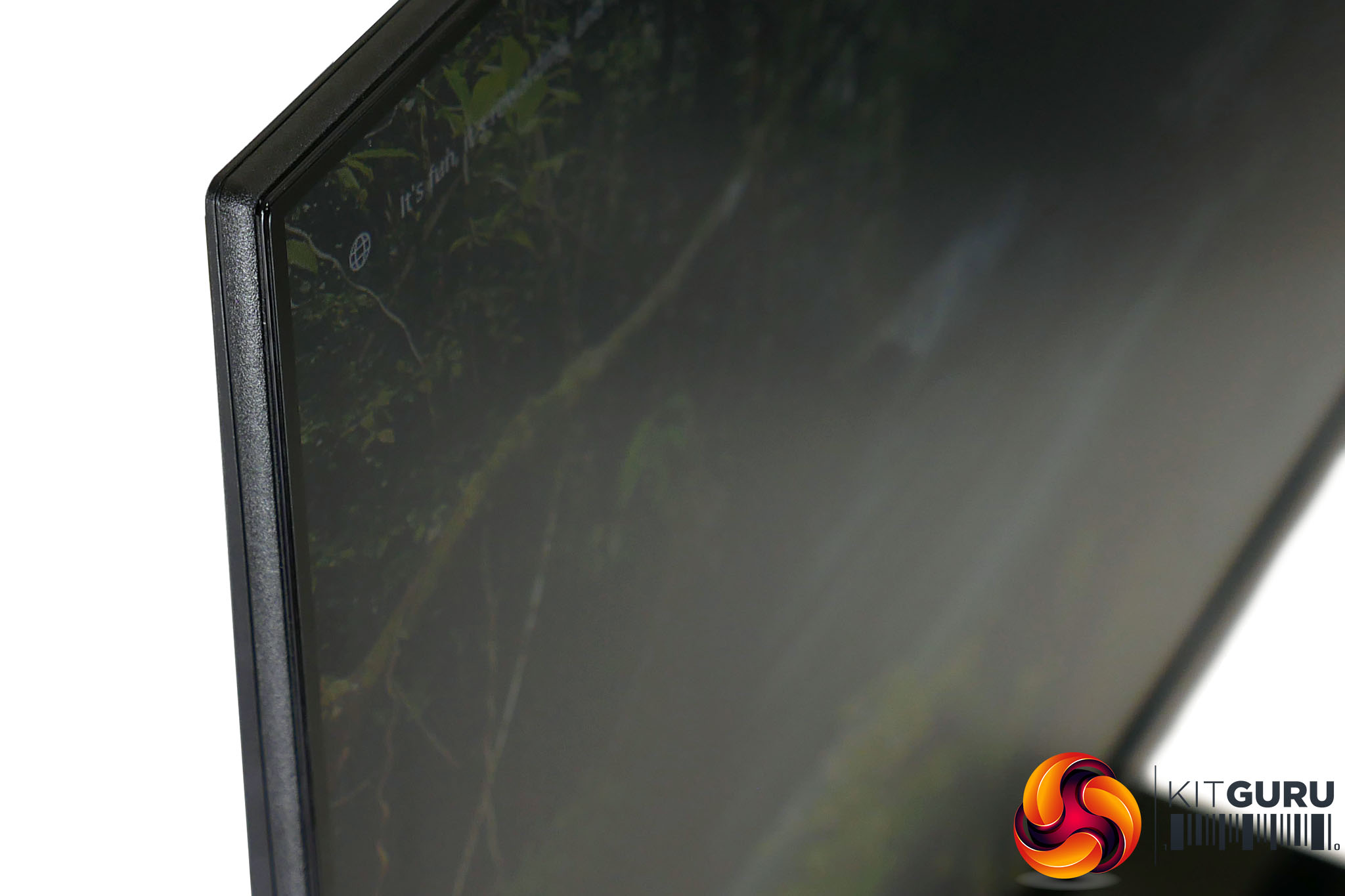
The other issue is IPS glow. This is where the backlight of the display shines through somewhat, making for a slightly washed out, grey looking image. This tends to only be visible when viewing the screen from a certain angle, such that it can sometimes be seen in the corners of a display when sat at a normal viewing distance. That’s also the case here but the extent to which it shines through is higher than with better quality panels.
The monitor is also very prone to the backlight bleeding through when touched or moved around, due to it being so thin. In general use neither is a major issue but again it’s something where higher quality displays do better.
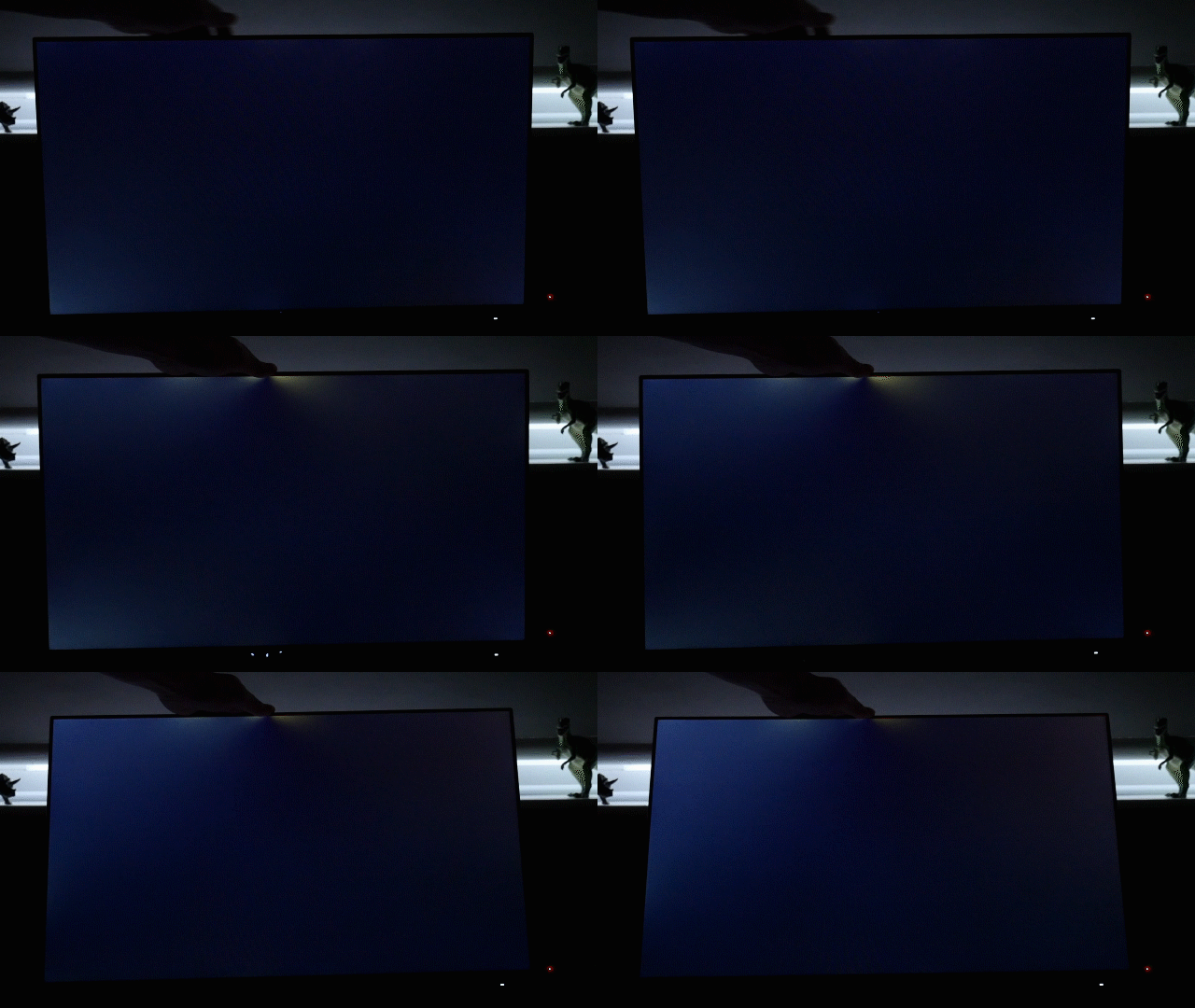
With the ISO on our camera cranked up you can clearly see the IPS glow and backlight bleed as the display is moved around
Moving onto our objective testing and the 27V2Q doesn’t disappoint. We use two colorimeters for testing displays: the Xrite iDisplay Pro and Spyder5Elite. These are devices that are placed in front of the screen to measure the display’s output.
We start our testing with the Xrite iDisplay Pro colorimeter, which is used in conjunction with a piece of software called DisplayCal. We use this setup to test for contrast levels as the Spyder5Elite under reports this figure.
The 27V2Q managed a contrast ratio of 943:1, which is exactly in line with the 1000:1 contrast we’d expect of an IPS display. Some IPS displays can push a little higher than this (up to around 1200:1) but by and large you’re only going to get higher by opting for a VA panel or a display with a multi-zone backlight.
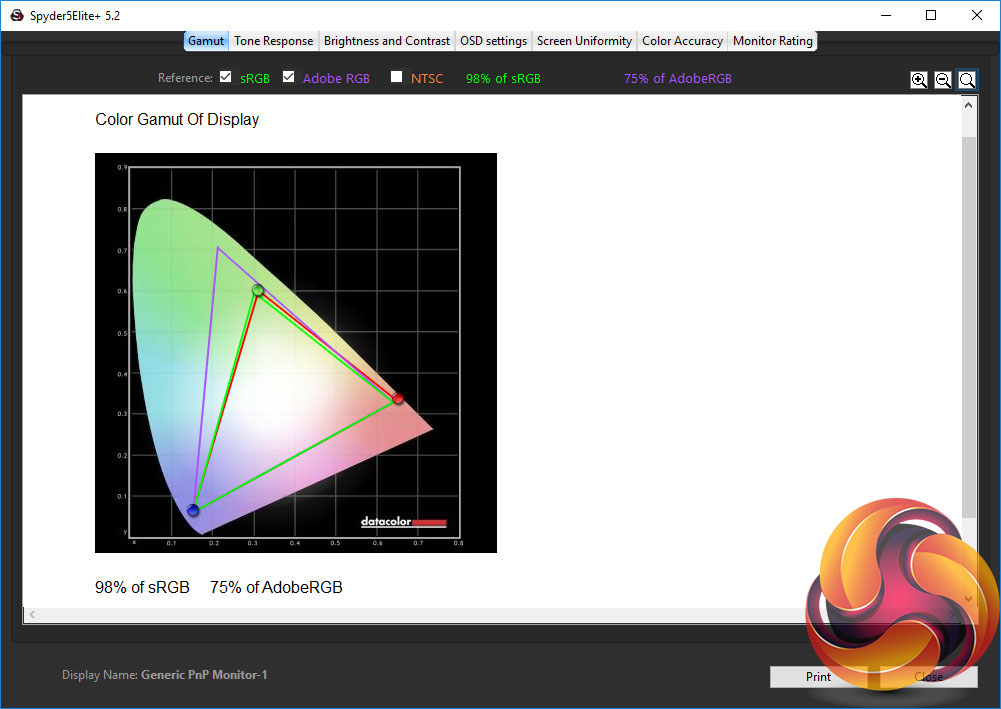
The rest of our objective image quality testing is done with the Sypder5Elite colorimeter and software, and the first test it performs is to see how much of the standard colour spaces a display covers. Ideally a display like this should cover 100% of the sRGB colour space (the standard for Windows PCs) and we can see that the 27V2Q manages 98%, which is a smidge less than we’d hope for.
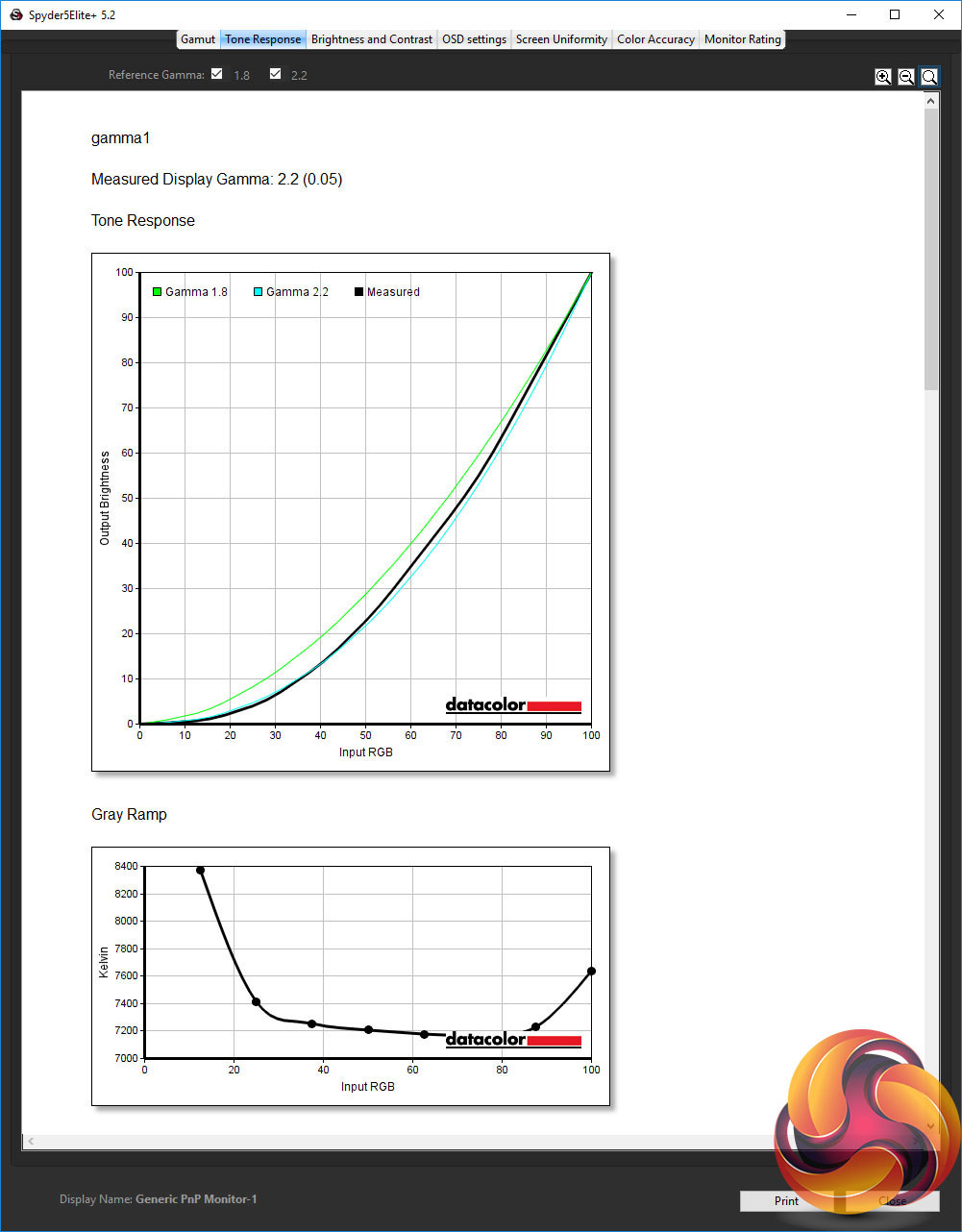
The next test checks for the gamma performance of the display. Gamma is a measure of the rate of change from light to dark such that a high gamma results in an image that looks darker, while a lower gamma results in a lighter-looking image. The standard for Windows PCs is 2.2 and, as we can see from our tests, the default gamma1 setting on the 27V2Q is a very close match.
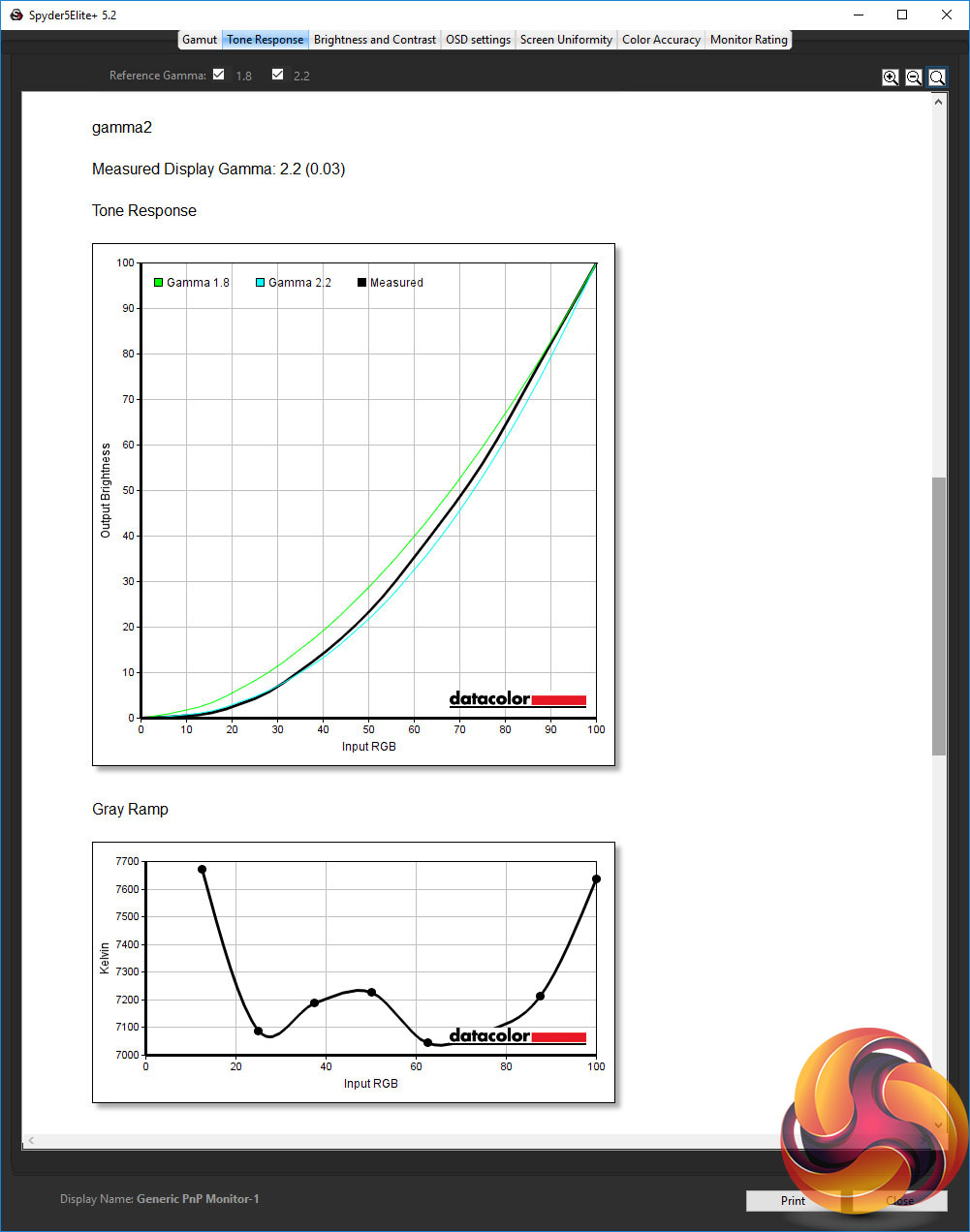
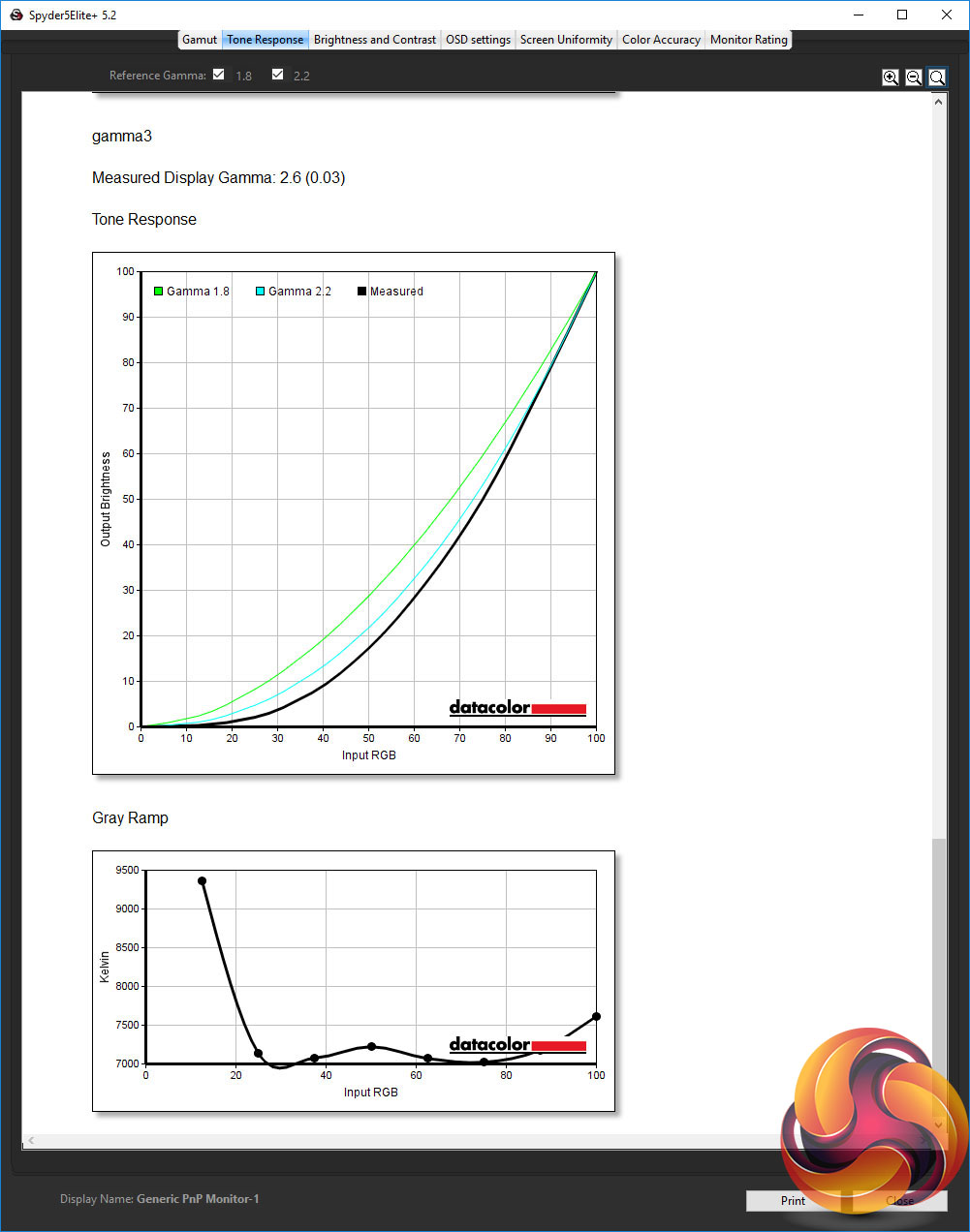
We also tested the gamma2 and gamma3 settings that were available in the OSD. Gamma2 was also reported as 2.2 but it’s clear from the graph and the change in the monitor’s image quality that this is meant to offer a slightly lower gamma option, with a resultant brighter image.
Meanwhile the gamma3 option does the opposite, with a measured gamma of 2.6 and a correspondingly darker looking image. In other words, just stick to the default gamma1 setting and you’ll be fine.
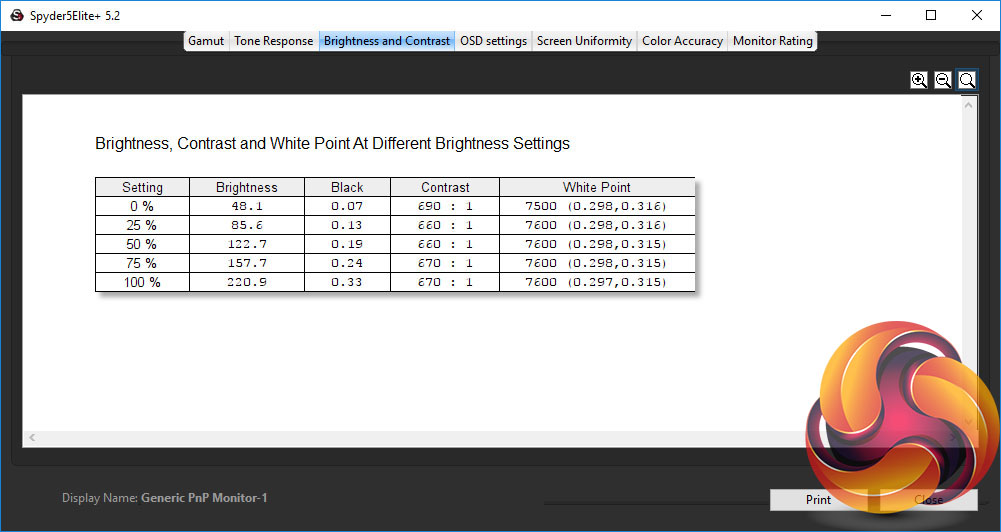
The brightness and contrast test shows us that the display offers a nice linear change in brightness as you ramp up the brightness setting. However, you’ll also note the maximum brightness isn’t very high. Most desktop monitors hit around 300nits maximum whereas this display tops out at 220nits.
This is still more than enough for most circumstances but if your desk happens to be in a particularly bright office – i.e. with direct sunlight shining on it – you may find the maximum brightness available here a bit limiting.
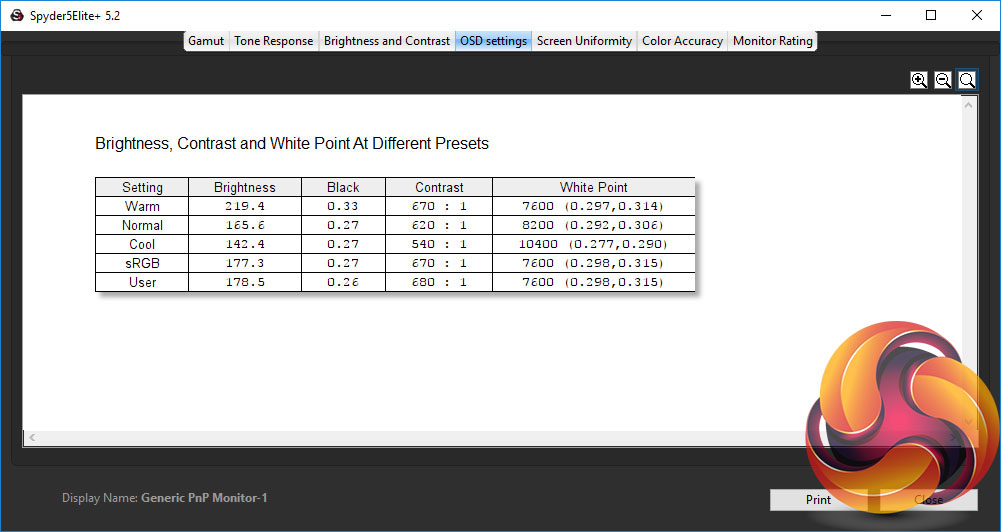
The OSD settings test allows us to test how the different colour profiles available in the display’s OSD affect image quality, and the main figure we’re looking at is the White Point. Here we’re normally looking to find a display delivers a White Point of 6500K by default, as this is the standard for Windows PCs.
Instead we can see that the default Warm colour setting, the sRGB setting and the User setting are all the same and are all a bit high. This results in the default image quality of this display being a bit on the blue side.
Opt for the Normal colour setting and the image gets even more blue, while the Cool option stretches this even further – we wouldn’t recommend opting for these. Opt for the User colour option and drop the blue channel just a touch and you should have perfect colour balance.
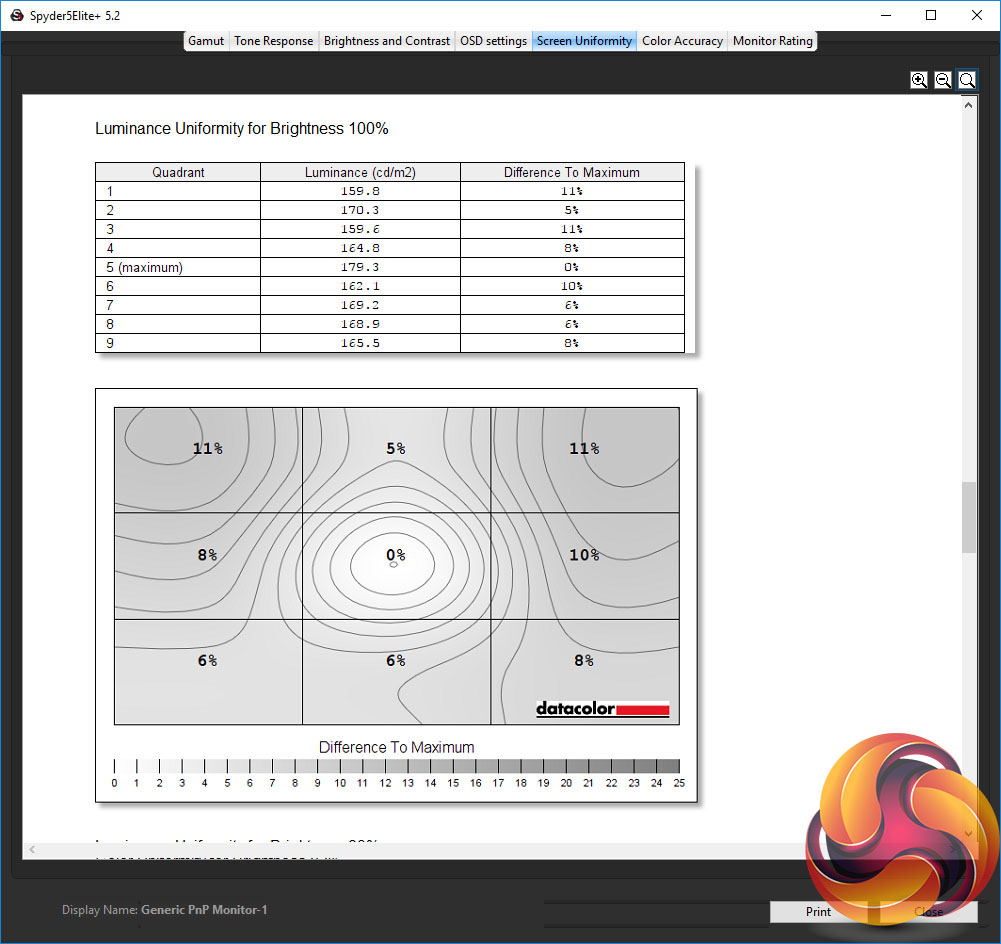
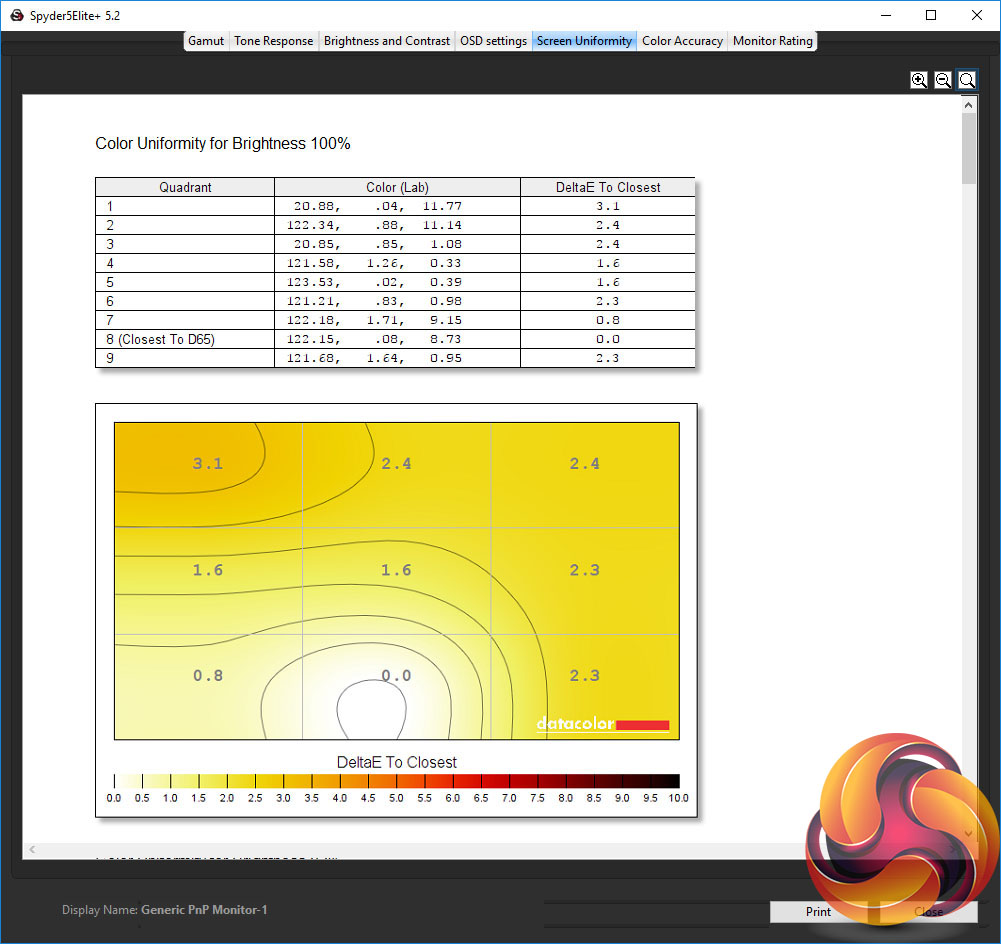
Our penultimate test is a crucial one for very thin screens like this: uniformity. Being able to provide a consist, uniform backlight from such a thin display is tricky, but the 27V2Q has largely managed it. The top corners are a little darker than ideal but an average brightness variance of 7.2% isn’t too bad.
Likewise colour varies by an average Delta E of just 1.8 so colours by and large look the same across the whole surface.
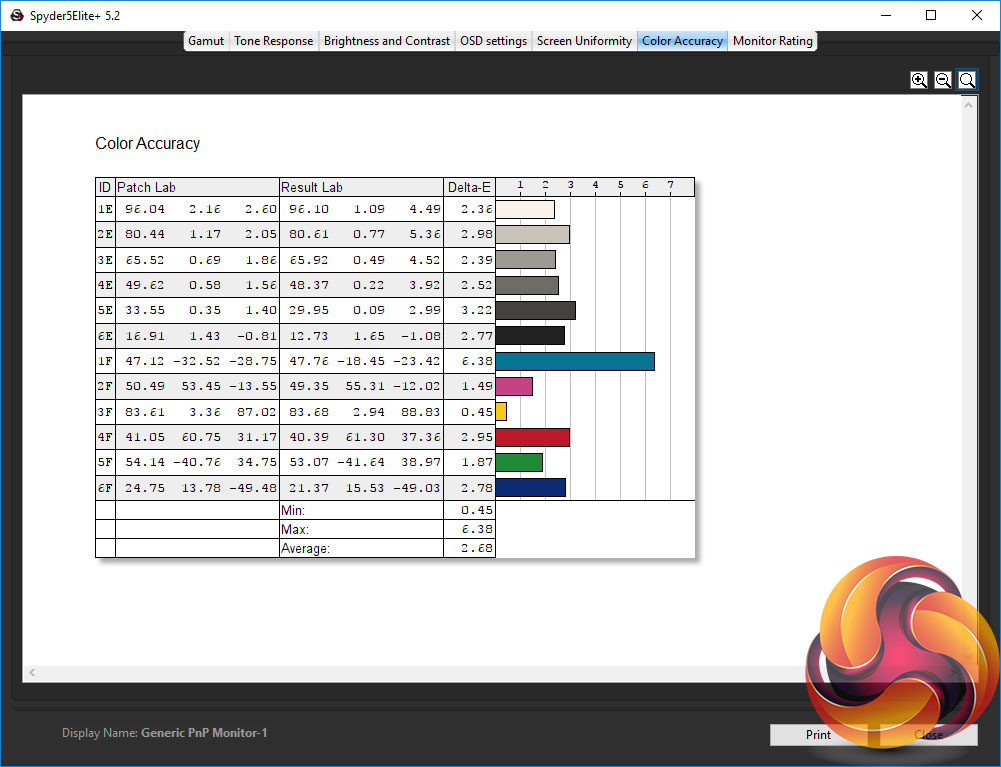
As for overall colour accuracy, this is an area where this display shows its more budget leanings. With an average Delta E of 2.68 and maximum of 6.38, this panel isn’t the best at differentiating between fine changes in colour, as we’d expect given the 6-bit panel. With better quality displays we’d hope for closer to 1 and 3 respectively for these figures.
All told, while we’ve picked out a few areas where this display isn’t perfect, by and large it delivers an image that’s perfectly usable right out the box. Professional image and video editors will want to opt for something a little more capable but for general use it is fine.
To try and get the very best image quality possible from this display we also calibrated it. This is a two step process where we use a colorimeter to measure the display’s performance then adjust the screen’s settings to get as close as possible to ideal settings. We then let the software do the rest of the correction – software calibration measures the output of a screen against the signal it’s sent and adjusts the signal such that the resultant colour from the display looks as it should.
Adjusting the screen, we changed the user colour mode’s RGB values from 50x50x50 to 50x49x45. This resulted in improved colour balance. We then ran a software calibration and received the below results.
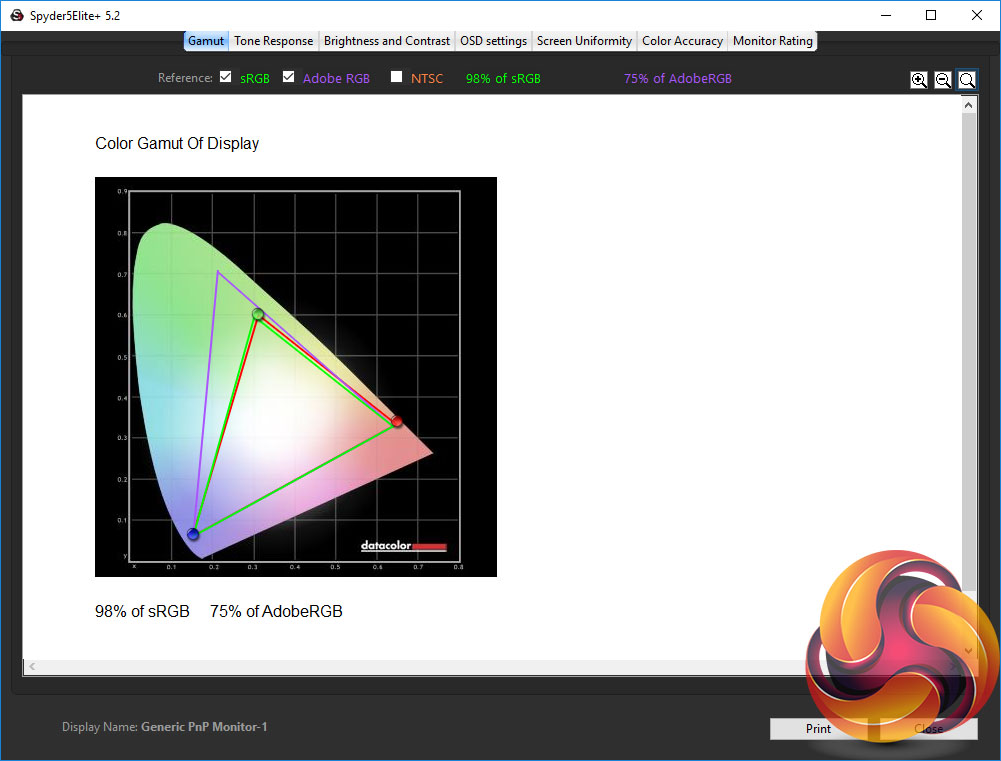
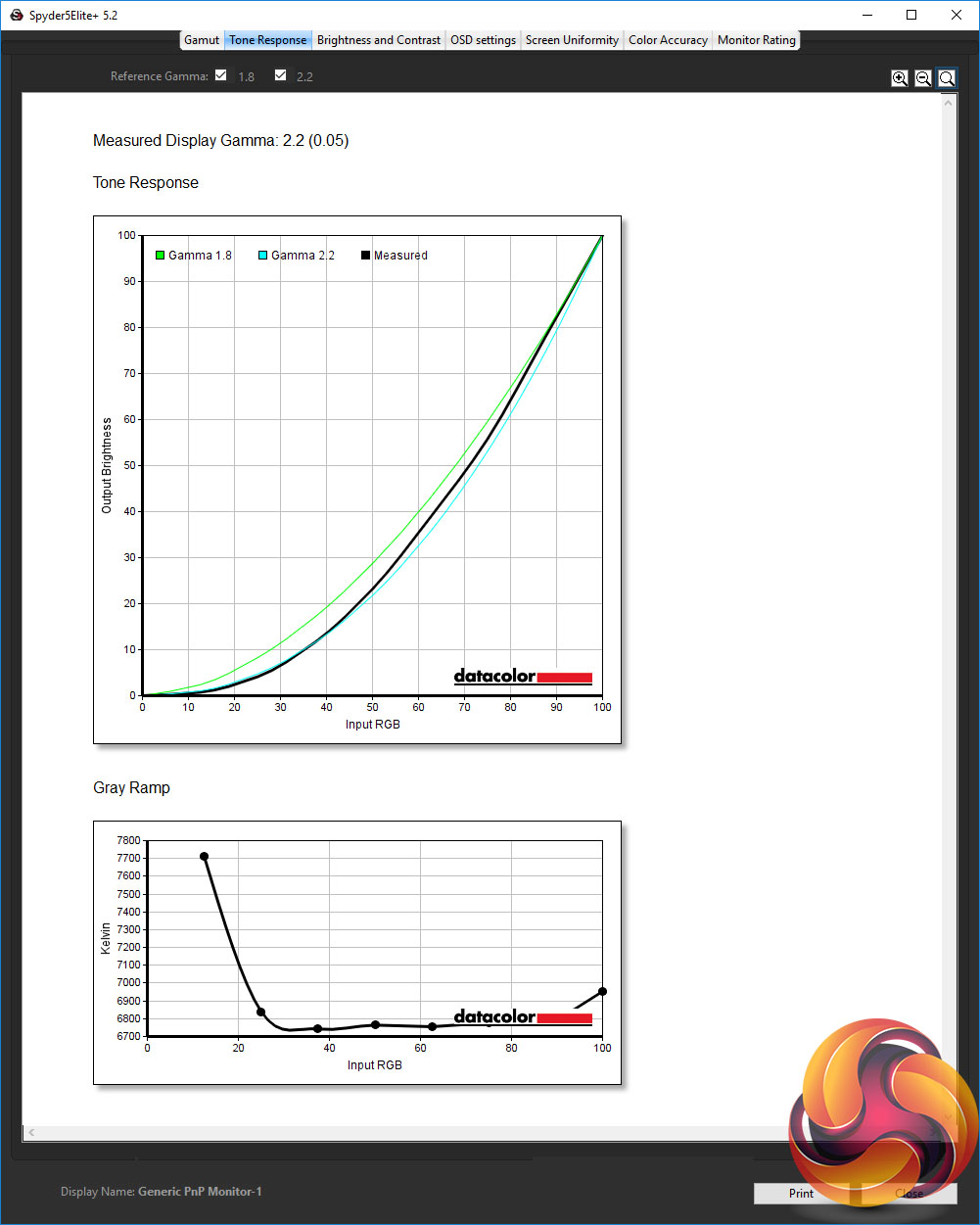
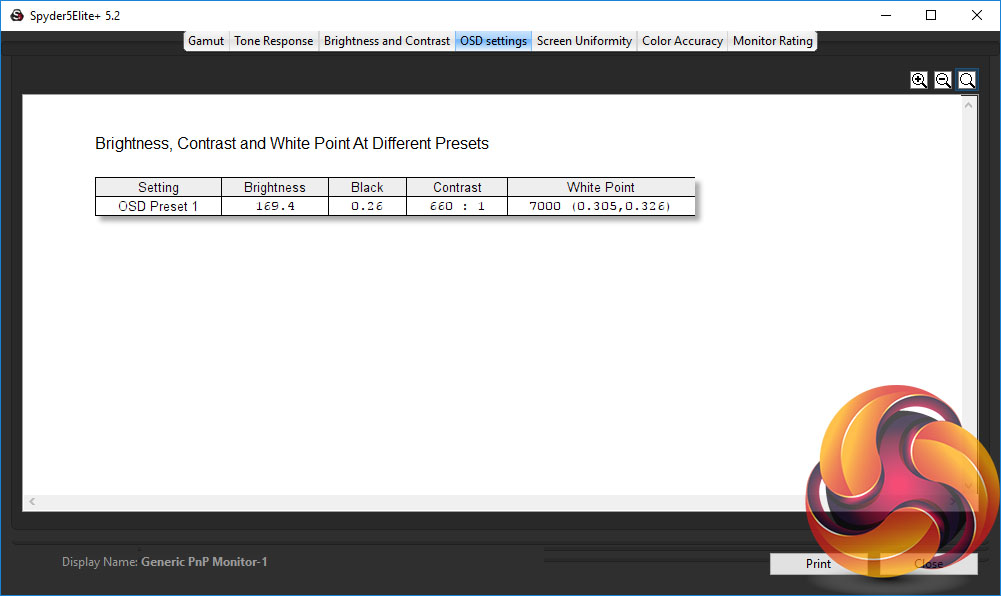
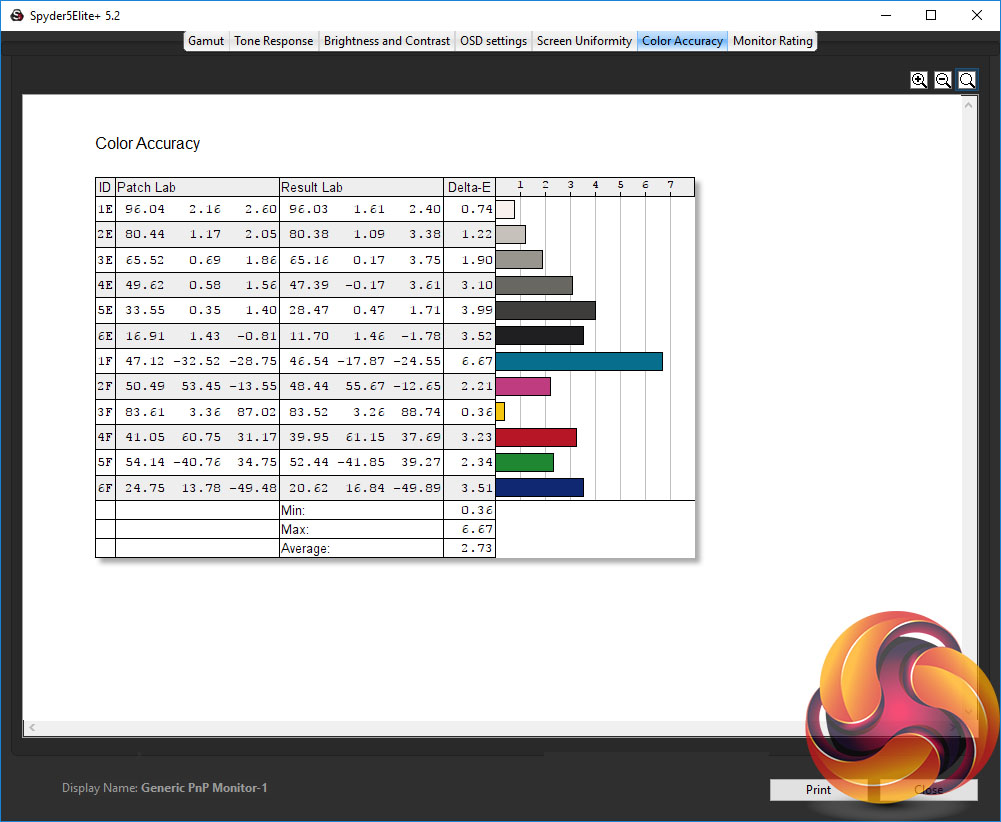
As you can see, most results didn’t change a huge amount but the colour balance improved.
Gaming
The 27V2Q has a refresh rate of 75Hz, which offers a small improvement over typical 60Hz screens when it comes to gaming performance, and improves the general smoothness of the image when on the desktop, too.
The difference is small but noticeable. It’s probably not going to make the difference between you making a shot or not, but it does make gaming just a little more enjoyable, especially with the addition of Freesync to help smooth out tearing and stutter – assuming you’ve got a compatible AMD graphics card.
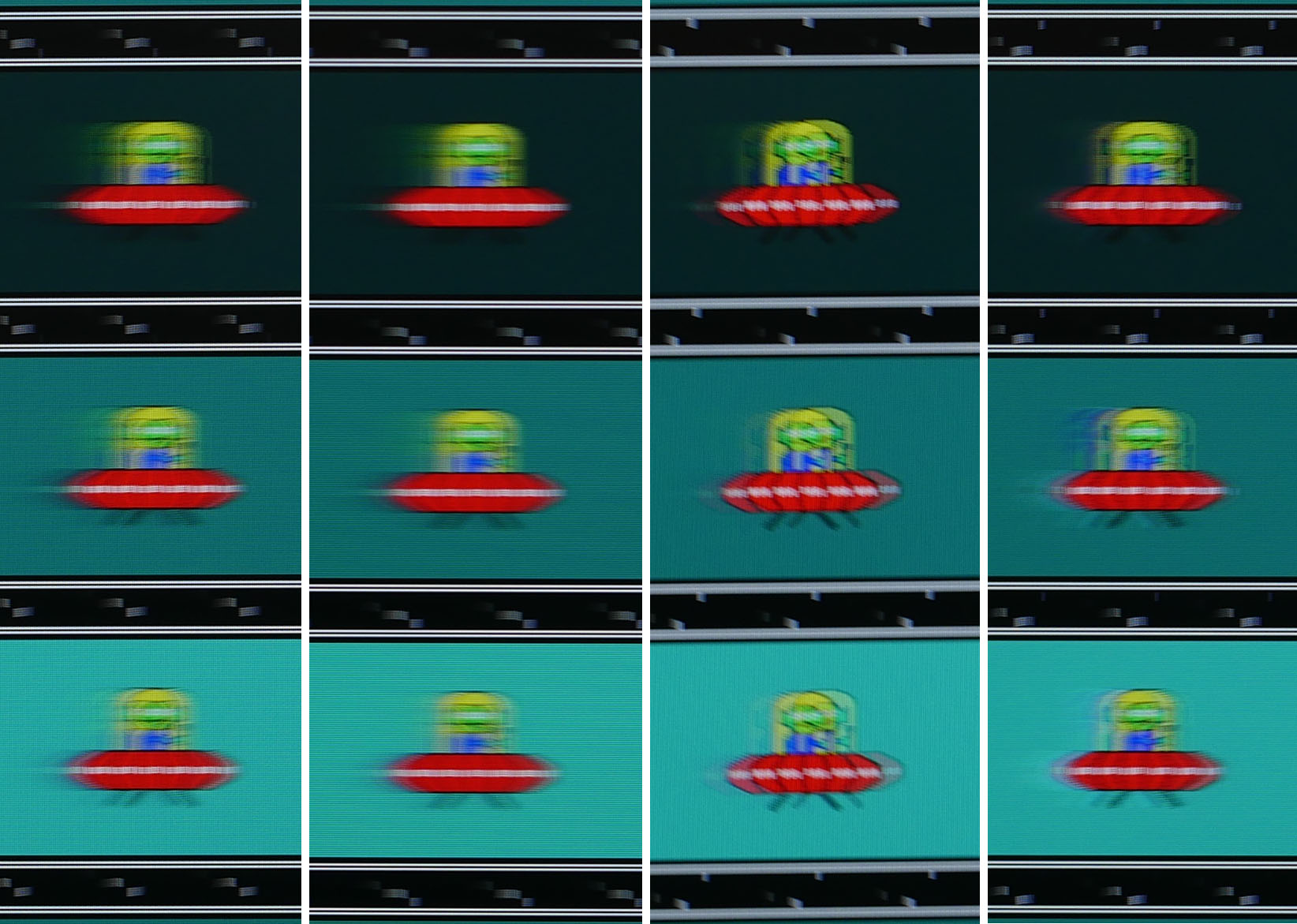
The BlurBusters ghosting test with the four different overdrive settings: Off, Low, Medium, Strong
The only notable adjustable setting on the display in regards to gaming is overdrive. This offers a reasonable range of options, from no overdrive where the image looks very soft, through to a strong setting that's much sharper but introduces really obvious inverse ghosting. Opting for the Medium setting provided a nice balance between the two.
The AOC 27V2Q is great entry level monitor. It offers a stylish design, good image quality and adequate gaming performance for a price that’s very competitive.
You can hardly buy a cheaper IPS display than this and yet you’re still getting a large 27-inch screen size, a 75Hz refresh rate and again that impressive slim design.
Compared to more expensive IPS screens, fine colour fidelity isn’t quite as good, but overall it still offers a more than satisfying image with good colour balance, viewing angles and contrast.
Likewise the move up to proper 144Hz gaming displays makes a big difference to your overall gaming experience, but again you’ll be paying a significant chunk more.
There are just a few caveats to recommending this display. The first is the basic stand, which doesn’t offer height or rotation adjustment, and you can’t actually remove the original stand and replace it with a more capable one, too. The other downside to mention is the fairly noticeable IPS glow present with this panel.
Still, for £170 we can't expect a perfect display, and overall the AOC 27V2Q hits a good balance of performance, aesthetics and price.
You can buy the 27V2Q for £166.45 from CCL HERE.
Pros:
- Slim, stylish design.
- Good overall image quality.
- Low price.
- 75Hz better than 60Hz for gaming.
Cons:
- Basic gaming performance.
- Low brightness.
- Only 1080p resolution.
KitGuru says: A slim, stylish design, good image quality and a few gaming extras make this a great entry level monitor.