KitGuru KitGuru.net – Tech News | Hardware News | Hardware Reviews | IOS | Mobile | Gaming | Graphics Cards


The on-screen display follows a familiar Philips blueprint. That means you get a system that’s easy to navigate – but not an OSD that looks particularly smart.
The OSD is managed using a small joystick that sits behind the bottom-right corner of the screen. It’s a little flimsy, but it’s light and easy to use.
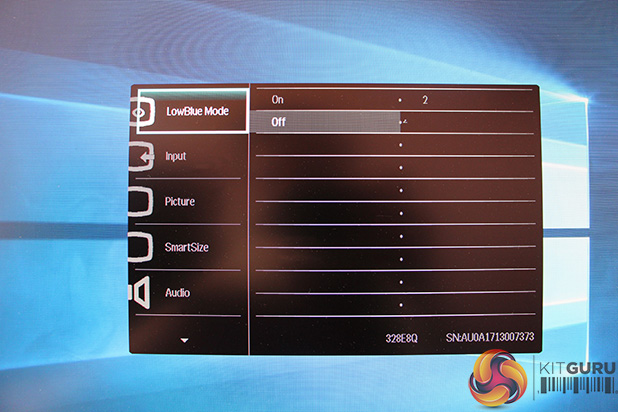

Tapping the joystick to the right opens the main menu. The first menu has an easily accessible option for the low blue light mode, while the second allows for switching between display inputs.
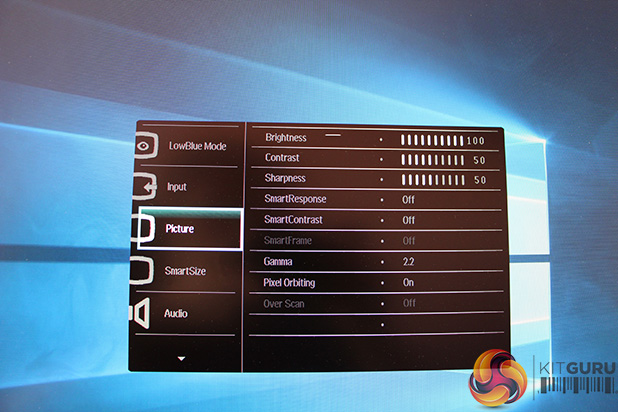
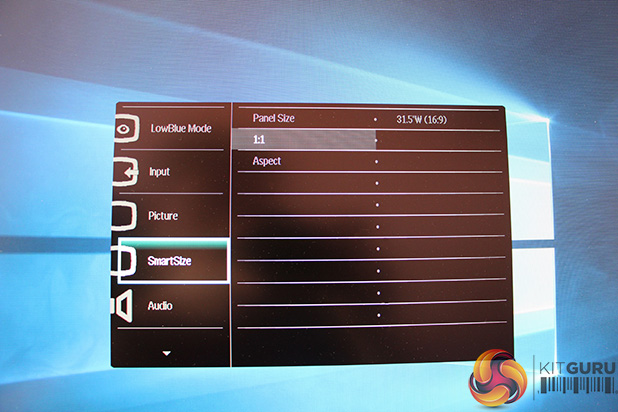
The third menu has meatier options. This screen has options to tweak the brightness, contrast and sharpness, along with settings for dynamic contrast and gamma adjustment. After that you’ve got the SmartSize screen, which allows for panel size and aspect ratio tweaks.
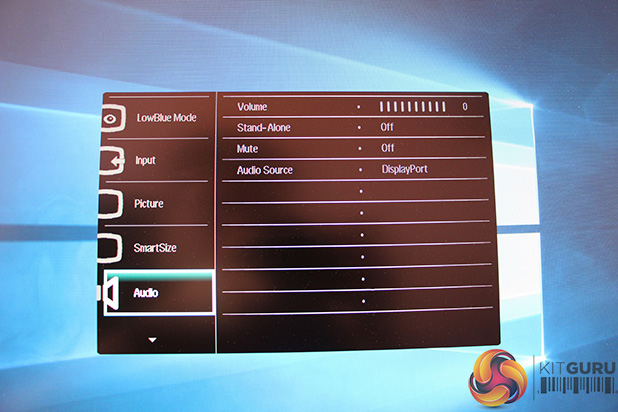
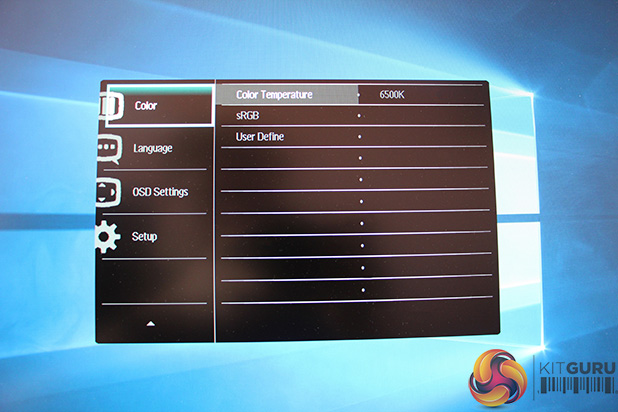
The audio menu has basic options for volume, source and muting, and the colour menu allows users to choose their colour temperature or customise the screen’s RGB levels.
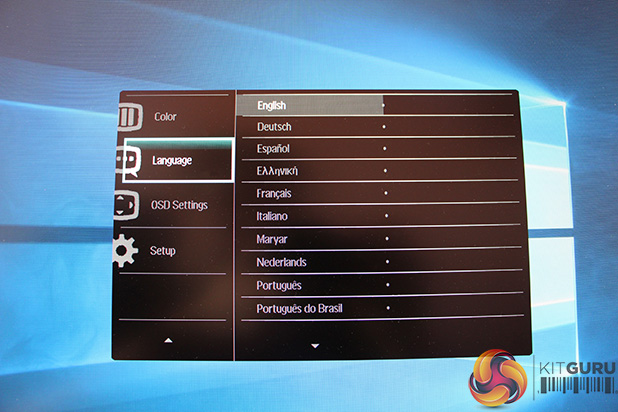
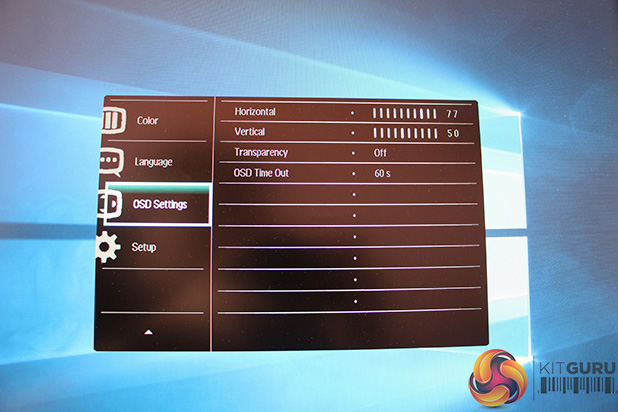
Finally, you get language options, a menu to alter the time-out length and position of the OSD, and the setup menu, which lets users reset the screen and access other options.
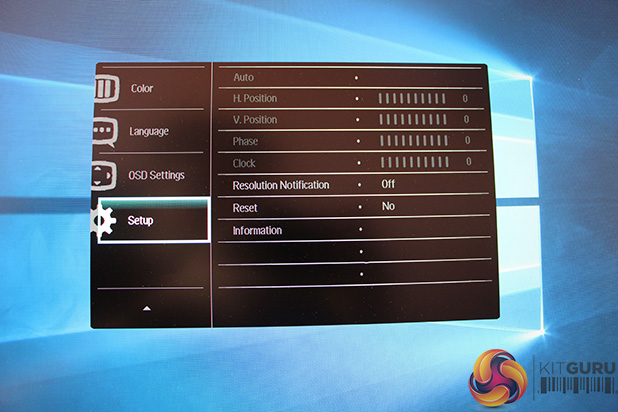
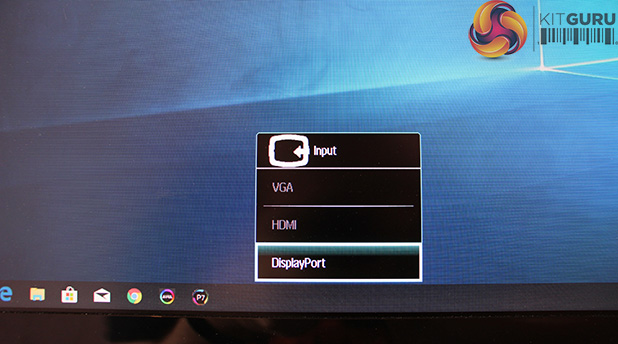
Tapping the joystick to the right may open up the main menu but moving it in other directions unveils a handful of accessible options.
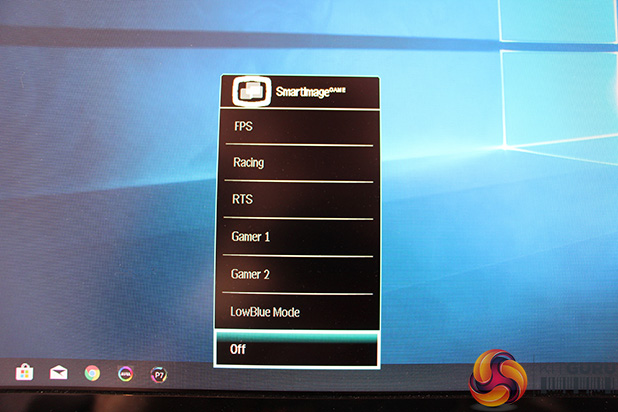
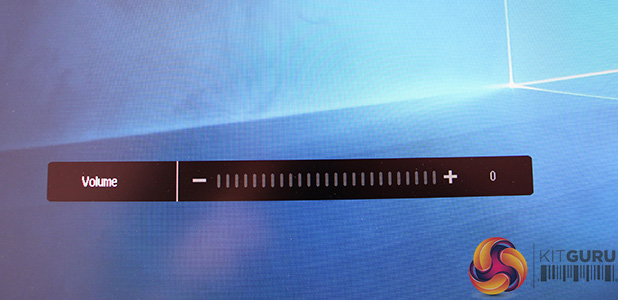
Pressing the joystick upwards allows for quick input switching, and pressing it down loads a volume menu. Tapping to the left reveals a menu for switching between screen modes.
The Philips menu is fine, even if it does have a couple of foibles that you’ll need to get used to. For instance, adjusting the Philips’ horizontal sliding scales requires you to move the joystick up and down – a disarming navigational quirk.