KitGuru KitGuru.net – Tech News | Hardware News | Hardware Reviews | IOS | Mobile | Gaming | Graphics Cards


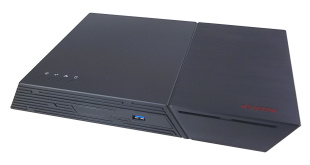
Asustor's second-generation Flashstor 6 NAS is a much more capable beast than the original. It brings much more capable hardware, with upgrades to the CPU, LAN, memory, and SSD architecture capabilities. It also sees improvements made to USB support. Today we find out if it is worth the £979 asking price.
The original Flashstor 6 is powered by an Intel Celeron N5105, a quad-cored CPU clocked at 2GHz (2.9GHz boost). For the new Gen 2 version, Asustor has moved over to AMD as the NAS is powered by a Ryzen Embedded V3C14 processor. The V3C14 is built on a 6nm process and has 4 cores, 8 threads and supports up to 20 lanes of PCIe Gen4. Two 10GbE ports and a pair of USB 4.0 ports are also supported. The V3C14 is rated at up to 2.3GHz (3.8GHz boost).
As for memory support, the FlashStor 6 Gen 2 comes with 8GB of DDR5-4800 which is an impressive upgrade on the original FlashStor 6's 4GB of DDR4-2933. The Gen 2 supports up to 64GB of memory via two SO-DIMM slots. Asustor has also improved SSD support with the Gen 2 as it now supports Gen4 SSDss rather than the Gen3 of the original units.
Physical Specifications
- Processor: AMD Ryzen V3C14 (2.3GHz burst up 3.80 GHz).
- Memory: 8GB DDR5-4800.
- Gigabit Ethernet Ports: 1 x 10GbE.
- Rear panel connectors: 1 x 10GbE RJ45, 2 x USB 3.2 Gen 2, 2 x USB 4.0.
- Front panel connectors: 1 x USB 3.2 Gen2.
- RAID support: JBOD, RAID 0,1,5,6 and 10.
- Cooling: Active, 1 x 80mm system fan, 1 x CPU fan.
- Drive Bays Supported: 6 (Gen4 SSD).
- Internal File System support: EXT4, Btrfs.
- Dimensions (D x W x H): 193 x 308.26 x 48.3 mm.
- Weight: 1.4kg.
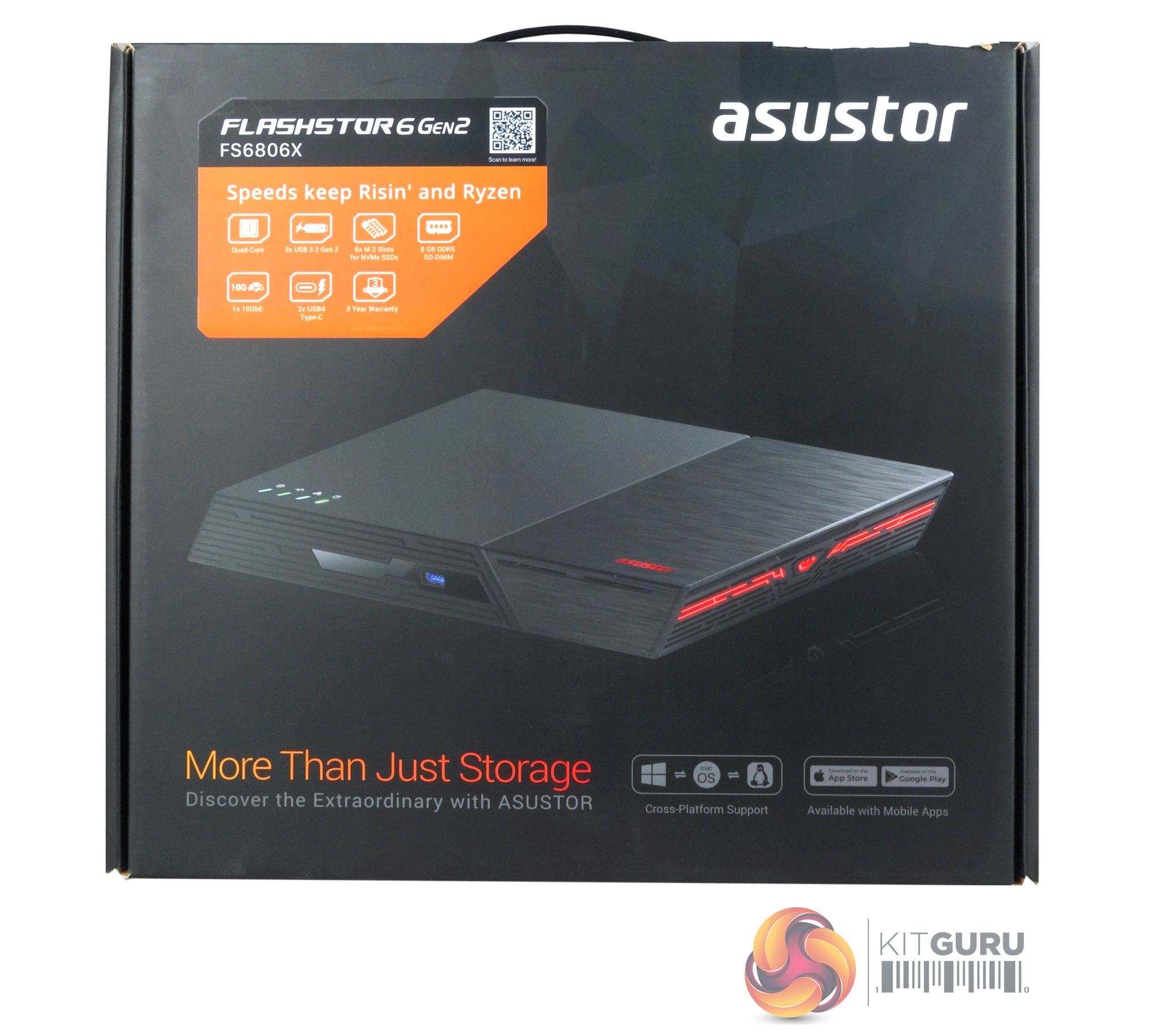
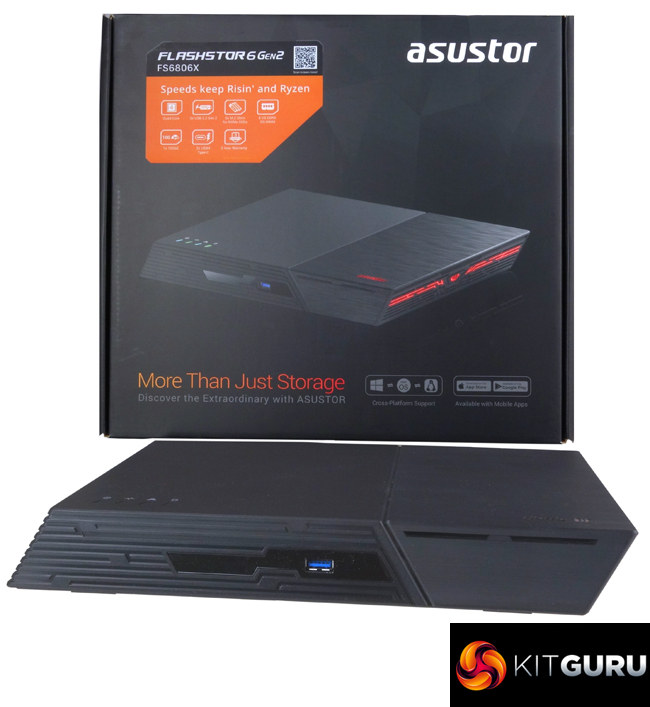
The Flashstor 6 Gen 2 comes in a fairly compact box complete with a carrying handle. On the front is a 3/4 front view image of the unit. Above the image is a label displaying logos of the headline features of the NAS; Quad-core CPU, two USB 4.0 ports, three USB 3.2 Gen 2 ports, 6 NVMe M.2 slots, 8GB of DDR5 memory, 10GbE port and a three-year warranty. Under the image there are two groups of icons, three represent the platforms that the Flashstor 6 supports – Windows, Mac OS and Linux and two for the Apple and Android mobile app support. The image also shows how one side lights up when the power is on.
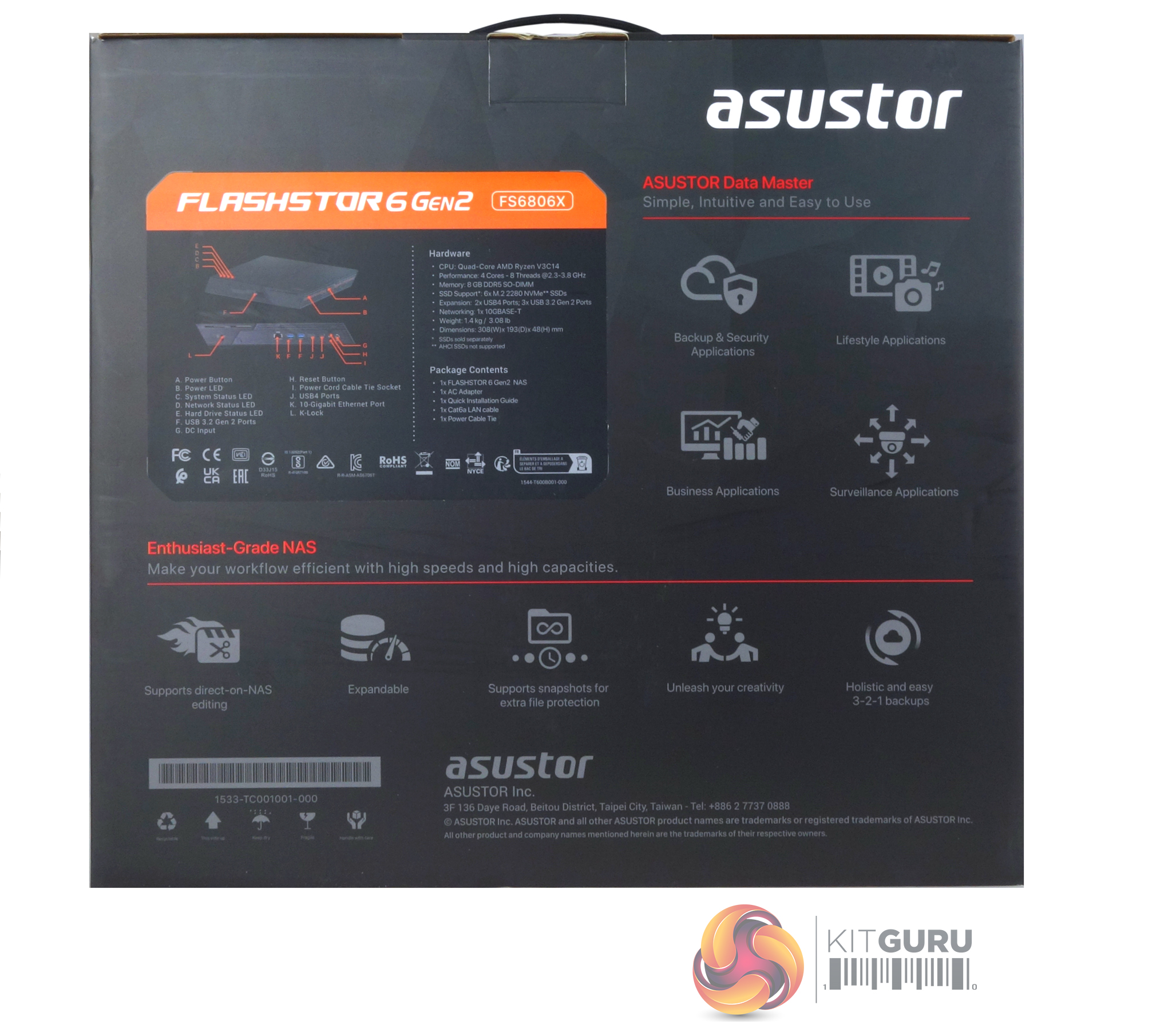
A similar label sticker is on the back of the box but on this one, there are two images of the Flashstor 6, one describing the features on the top and front of the unit while the other one is the rear of the unit pointing out the ports. Next to the image are two lists, one for the hardware and the other for the box bundle.
Next to this label is a group of icons showing features of the ADM (Asustor Data master) OS; Back up & Security, Lifestyle, Business and Surveillance apps. Under the label is another of row of icons displaying some of what the NAS can do such as direct-on- NAS editing, snapshot file protection, easy backups and storage expandability support.
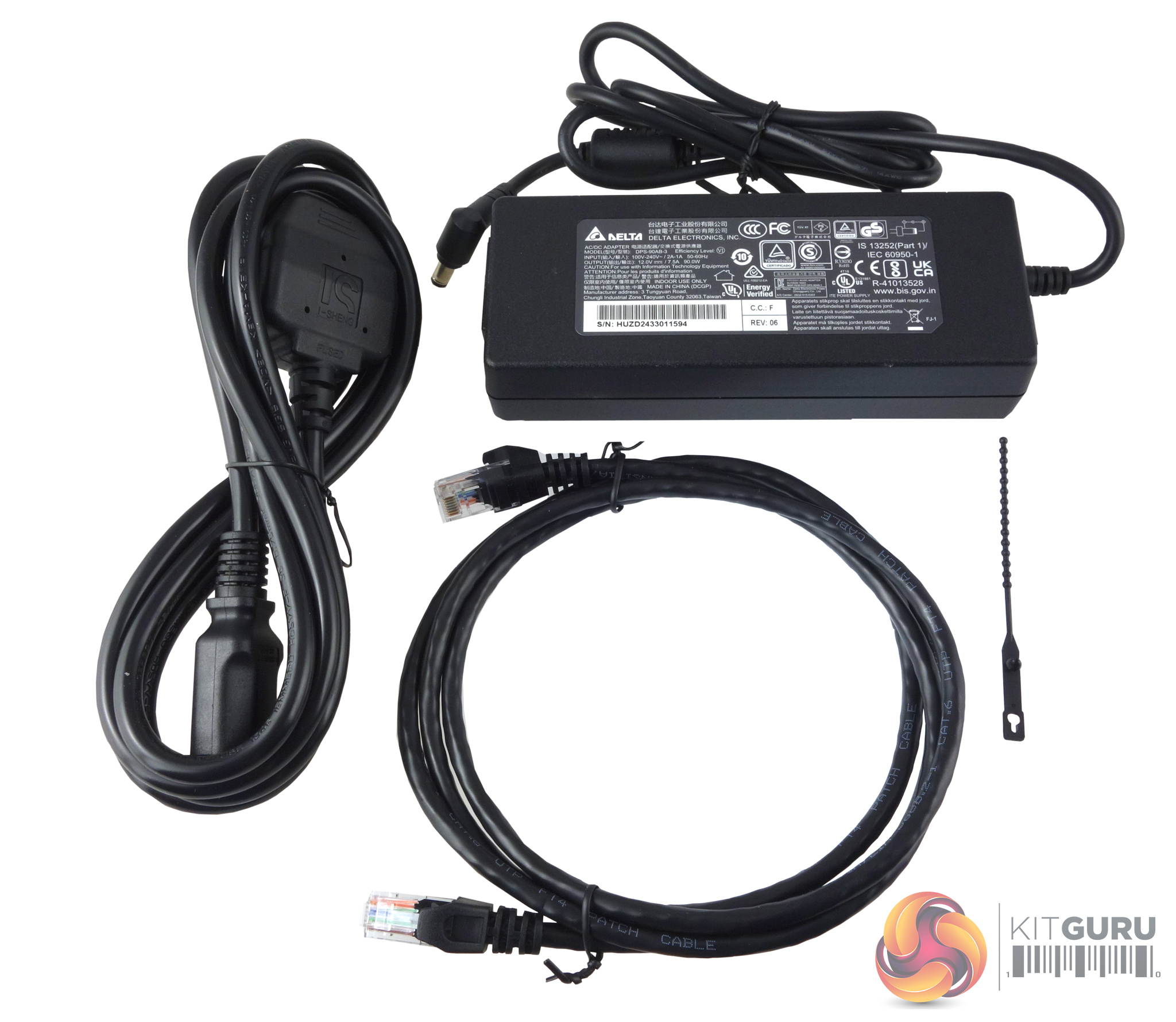
The box bundle for the Flashstor 6 Gen 2 contains a 90W power adaptor (Delta DPS-90AB-3), a 10GbE Cable (Cat6a), a power cord tie and a QIG (Quick Installation Guide).
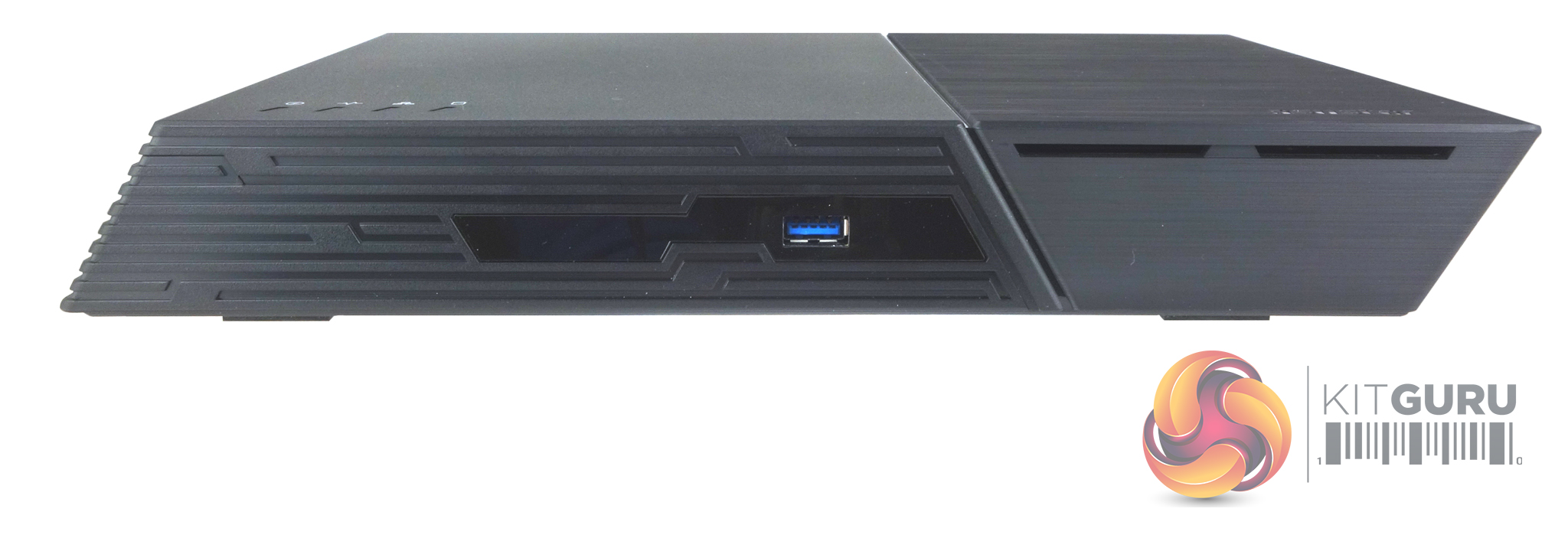
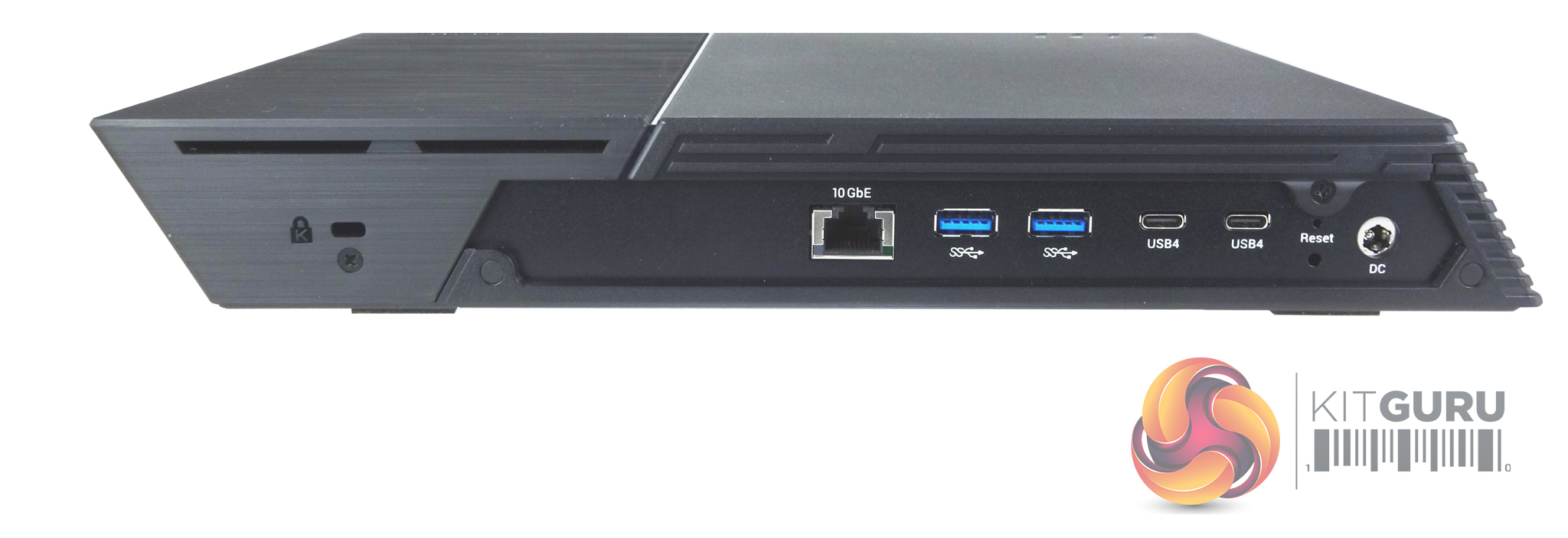
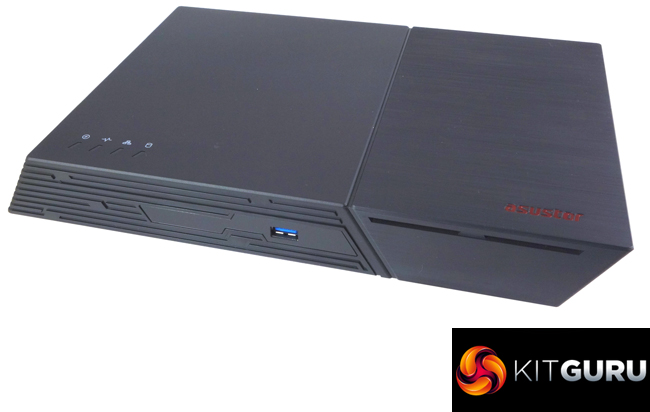
If you don't have to cater for 3.5in disks – or 2.5in ones for that matter! – then you design a NAS that doesn't look like one. Asustor's Flashstor 6 Gen 2 looks a million miles away from the normal-looking NAS box, more like a digital media player or gaming system rather than a boring old cube. It measures just 48.3mm high (with a width of 308.26mm and 193mm deep) and weighs in at 1.4 kg. The four system LEDs are all in the top panel of the unit; Power (blue/orange), System Status (green), Network(blue/purple) and Drive Indicator (green).
The front panel is home to one of the three USB 3.2 Gen 2 ports supported by the NAS, and that's it for the front panel ports. Everything else is in the back panel; a 10GbE port, two USB 4.0 (40GB/s) Type-C and two USB 3.2 Gen 2 Type-A ports.
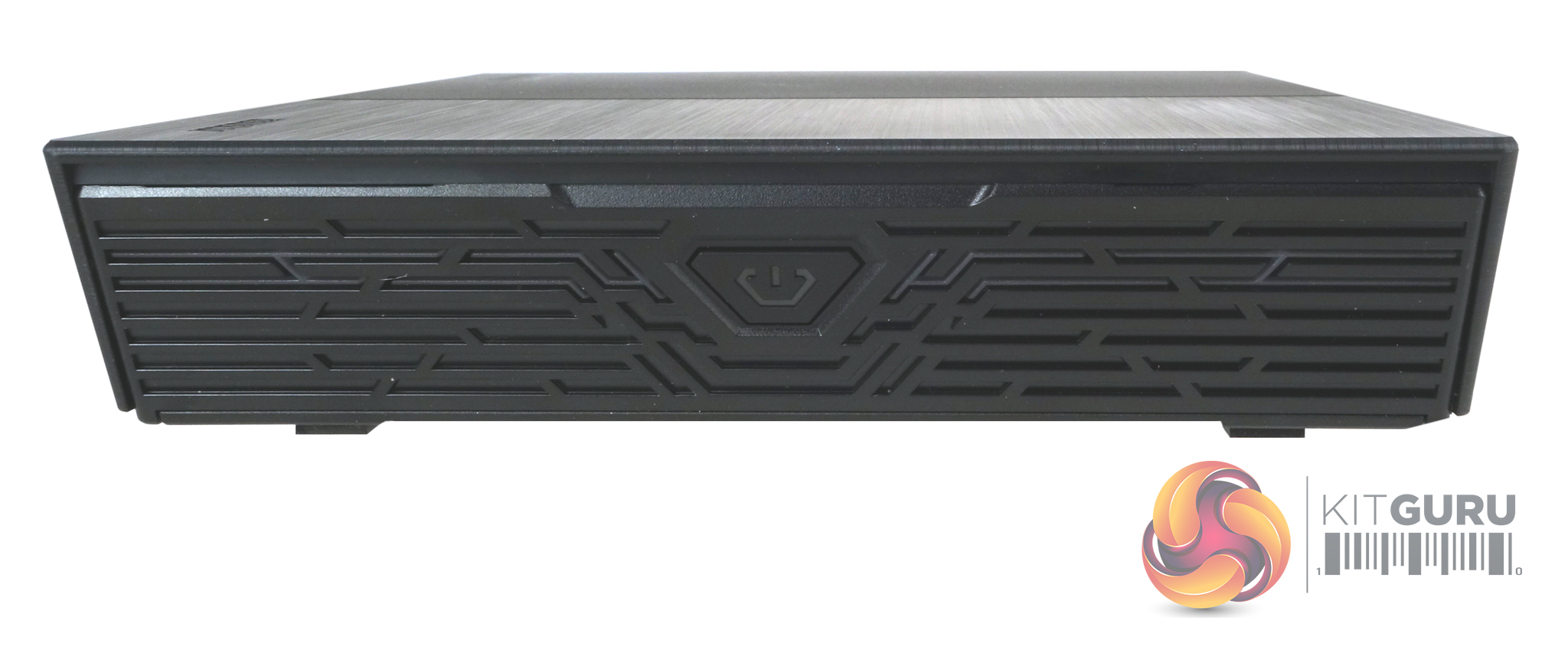
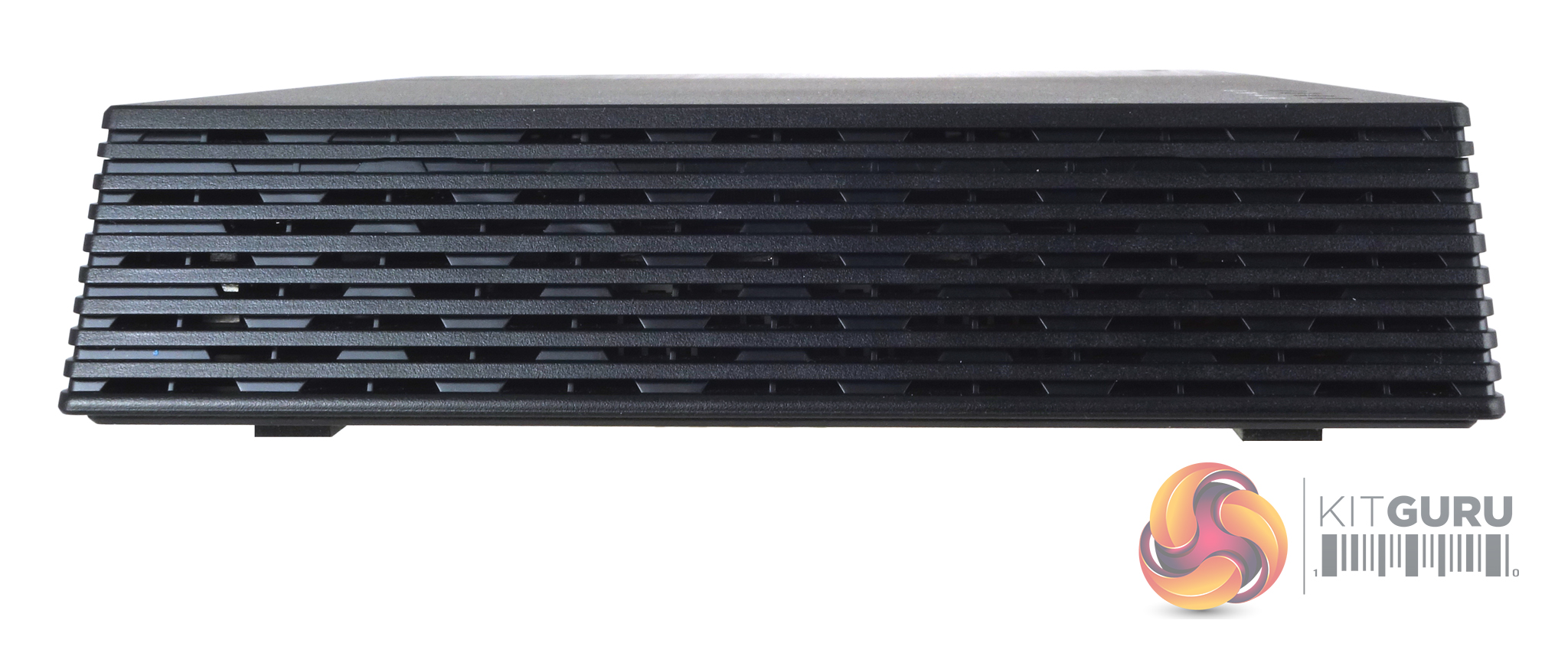
The power button is built into the right-hand side panel and the whole panel glows red when the Flashstor 6 Gen is working.
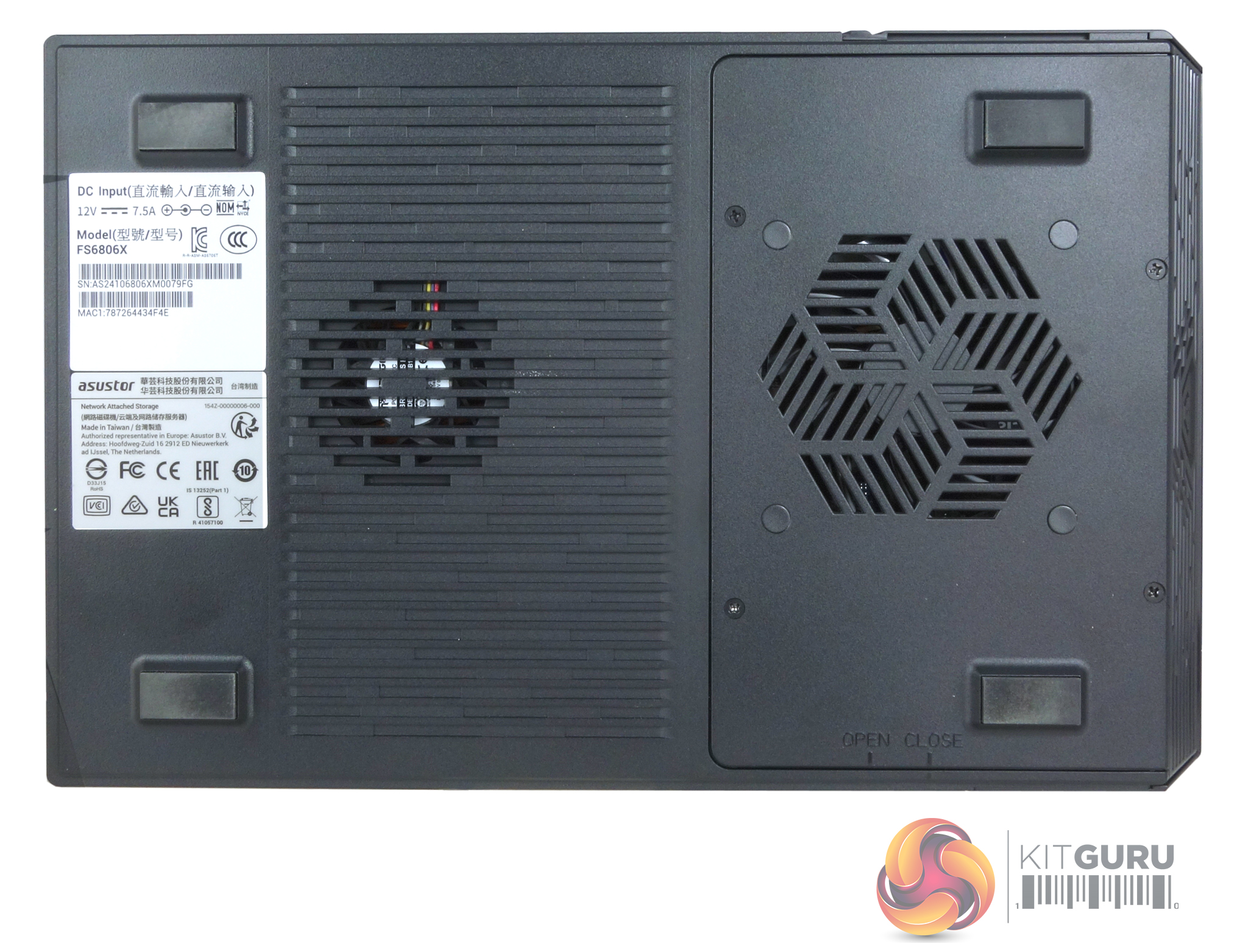
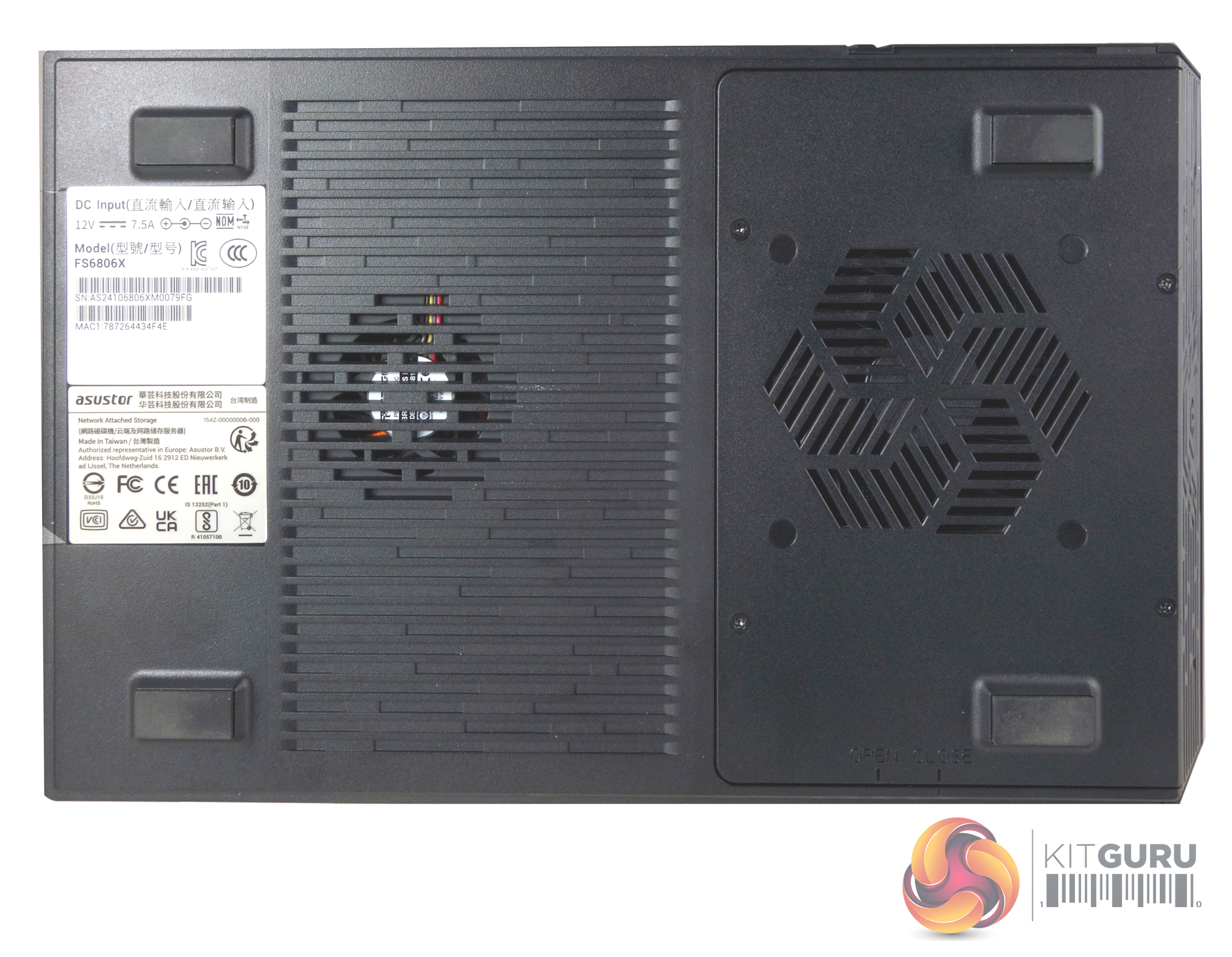
The base of the NAS is dominated by cooling grills for the two cooling fans. The smaller of the two is for the Power logic PL807016B12H 70mm 4,500rpm blower fan that cools the CPU. The second is for the Everflow R128010BU 80mm 4,200rpm fan that helps cool the SSDs. The speed of the SSD cooling fan can be controlled via the ADM OS.
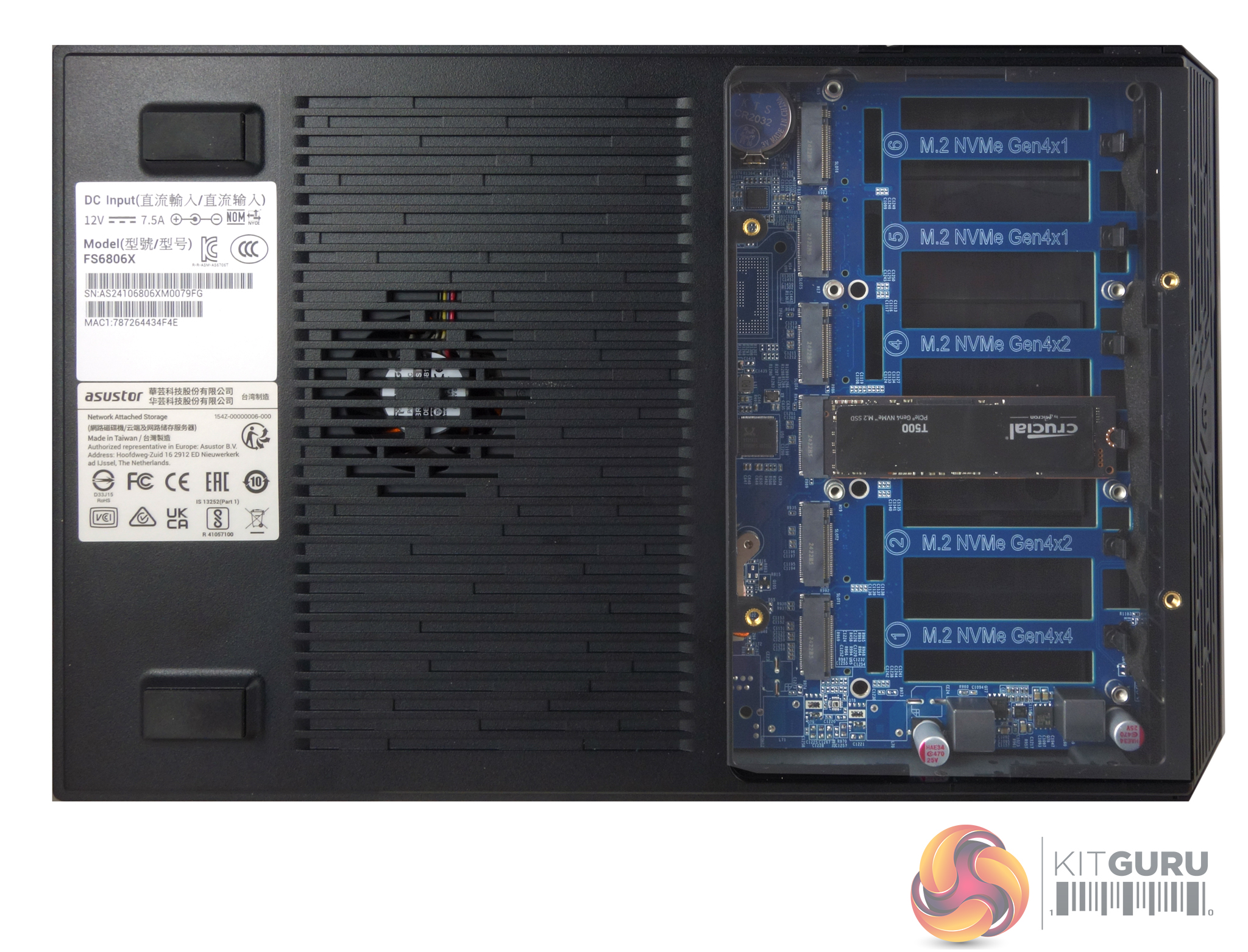
To access the six M.2 SSD slots (2280 only) you have to remove the four screws in the base around the bigger of the two fan grills. Then slide the cover off to reveal the slots. The slots are tool-free using a simple latch-like device to hold them in place. We used mainstream drives for testing and just used the cooling fan to keep the drives cool but if you want to use high-end drives or are planning on using the NAS for very high throughput work then we would advise buying the optional Asustor heatsinks.
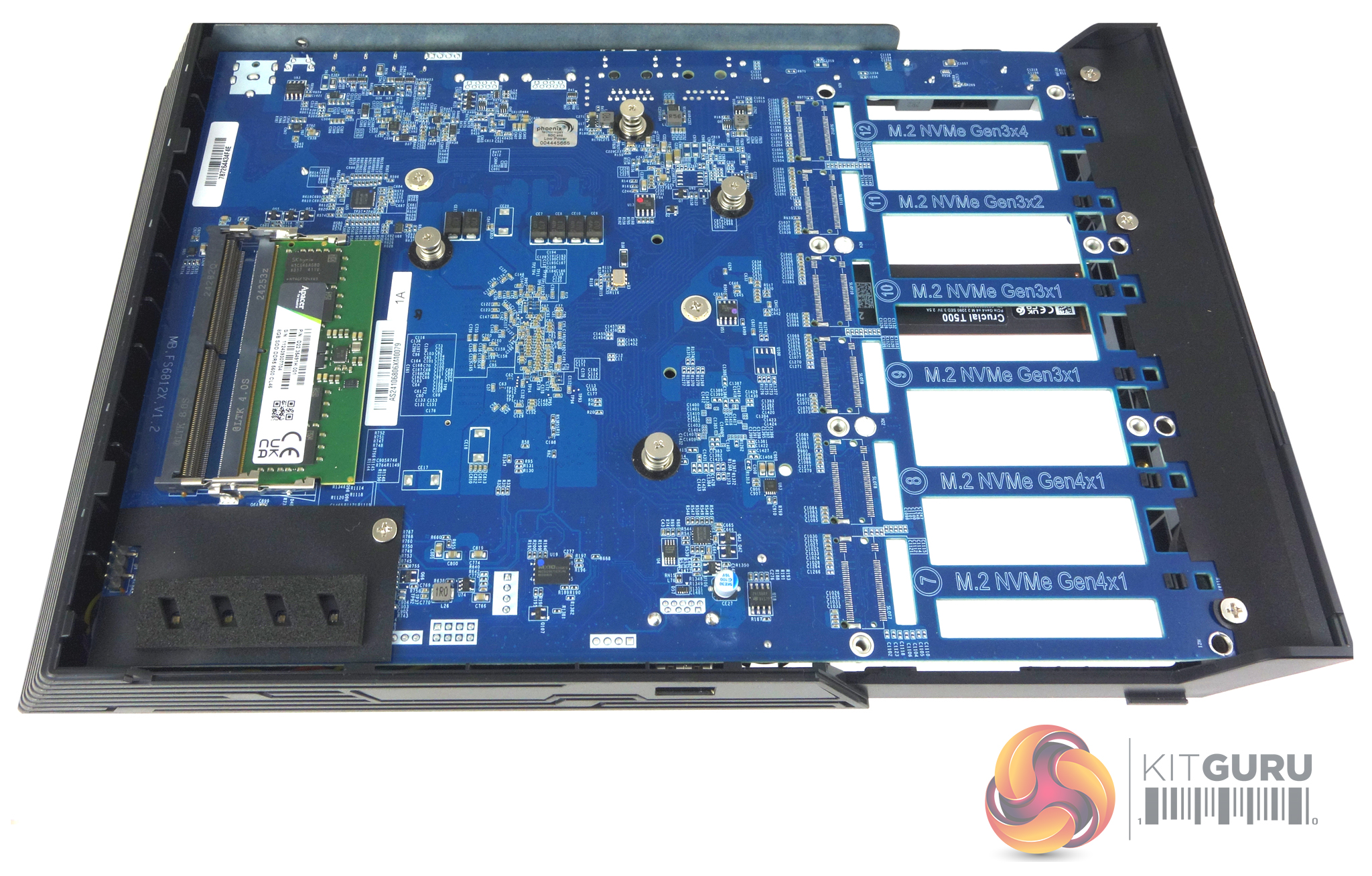
The Flashstor 6 Gen 2 comes with a single 8GB ECC DDR5-4800 SO-DIMM installed but supports up to 64GB of memory via two DIMM slots. To access the memory you remove two screws in the back of the unit (one below the Kensington Lock Slot and one above the rest button and slide the top of the unit off.
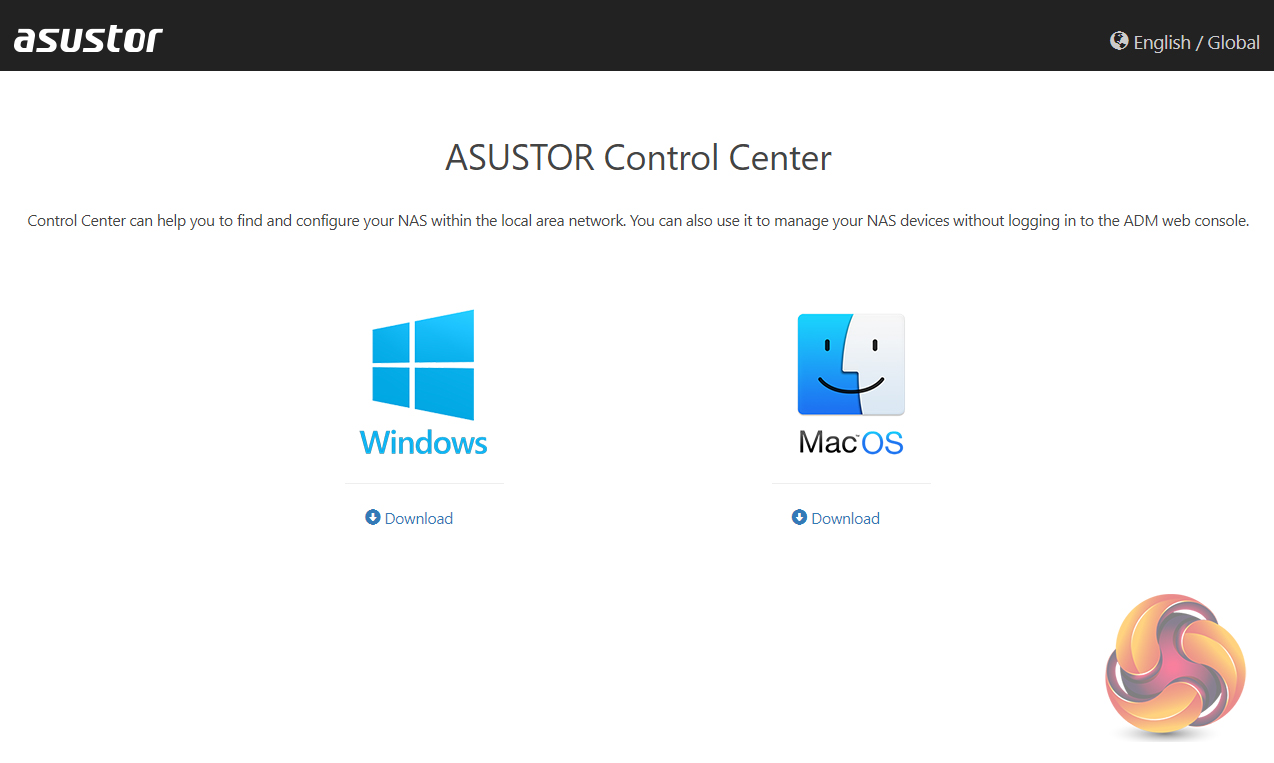
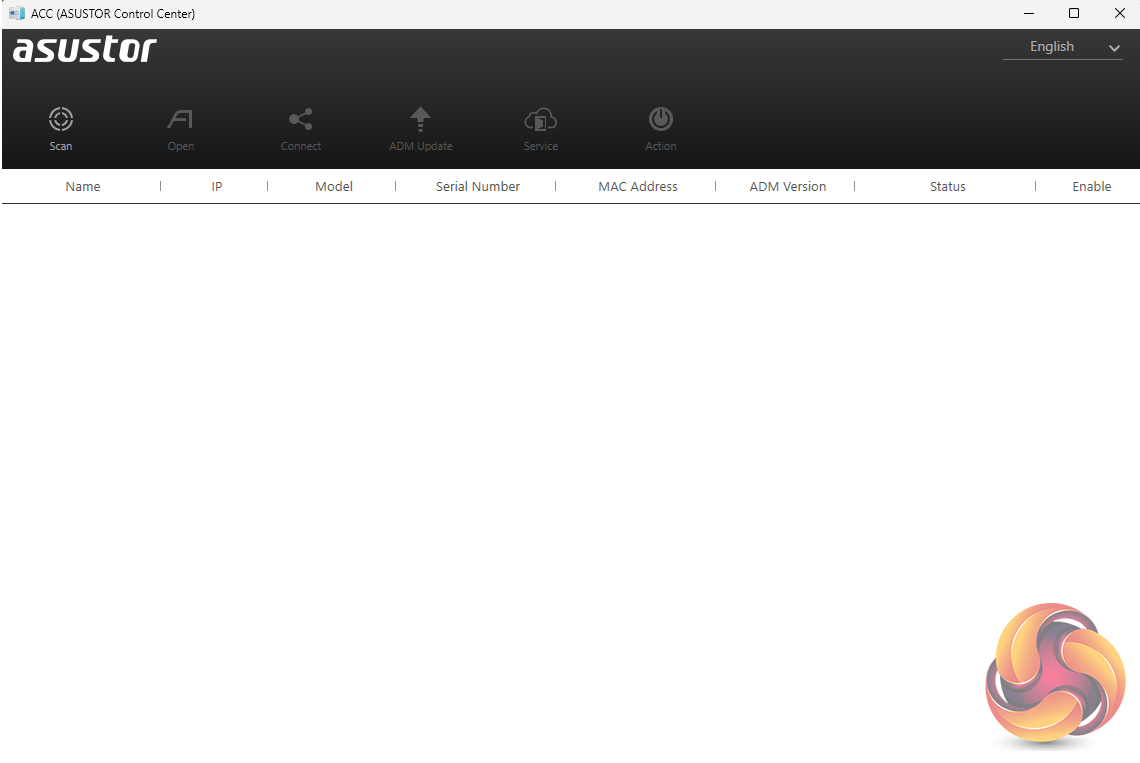
Setting up the Flashstor 6 Gen 2 is a straightforward and pretty painless task. The first job is to download the Asustor Control Center from the Asustor website. This app will search your network to find any Asustor NAS units on the network.
Actually, the ACC can do a whole lot more than just finding a particular NAS on the network. There are six menu buttons on the top of the GUI; Scan, Open, Connect, ADM Update, Service, and Action. The first two are pretty self-explanatory, Scan for the NAS and Open which opens a web browser and connects to ADM. Clicking on the connect button gives you three options to connect to the data on the NAS; map a shared folder, create a remote file folder (via WebDAV or FTP) or connect via FTP.
The ADM Update button checks for ADM updates and if there are any starts the upgrading as soon as you’ve logged into the NAS. The Service button provides a shortcut to Photo Gallery and/or Surveillance Center if you have either of them installed. The final Action button provides access to power controls; Wake-on-LAN, Find Me, Night Mode, Sleep Mode, Restart, and Shut Down but only after logging in administrator details.
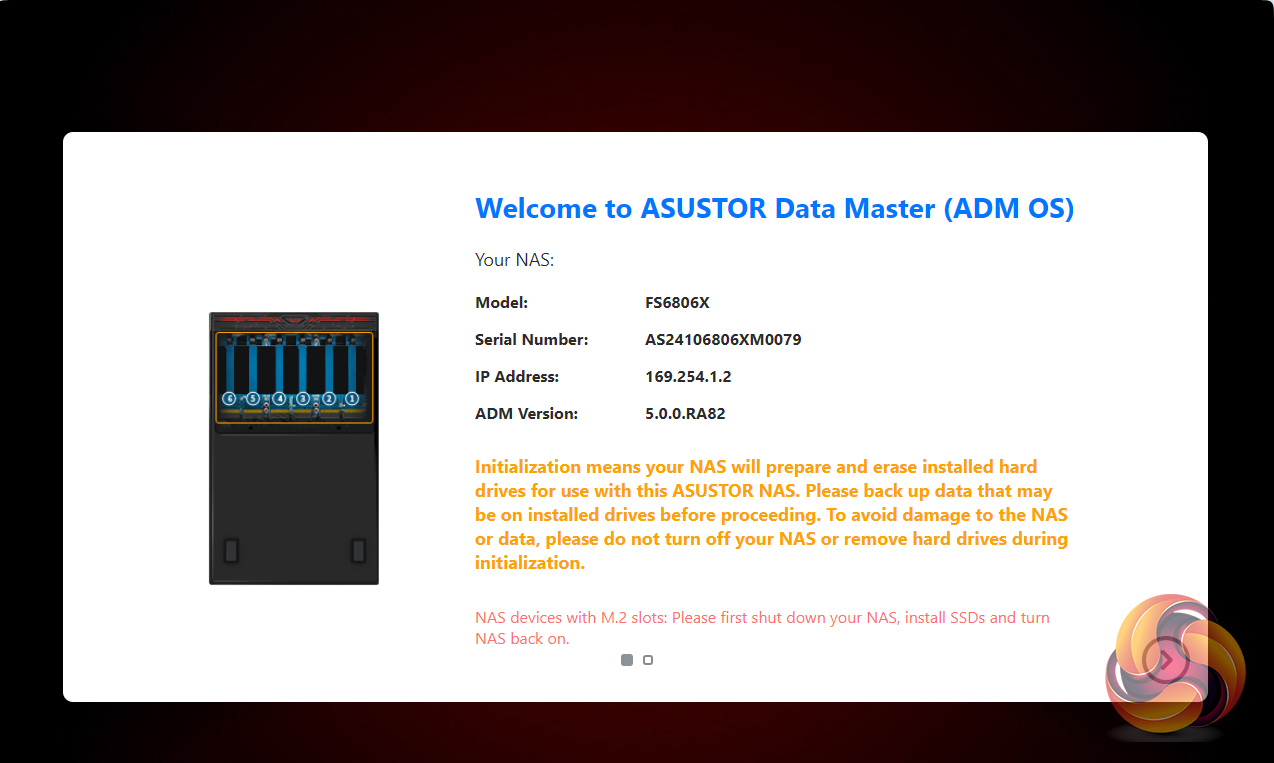
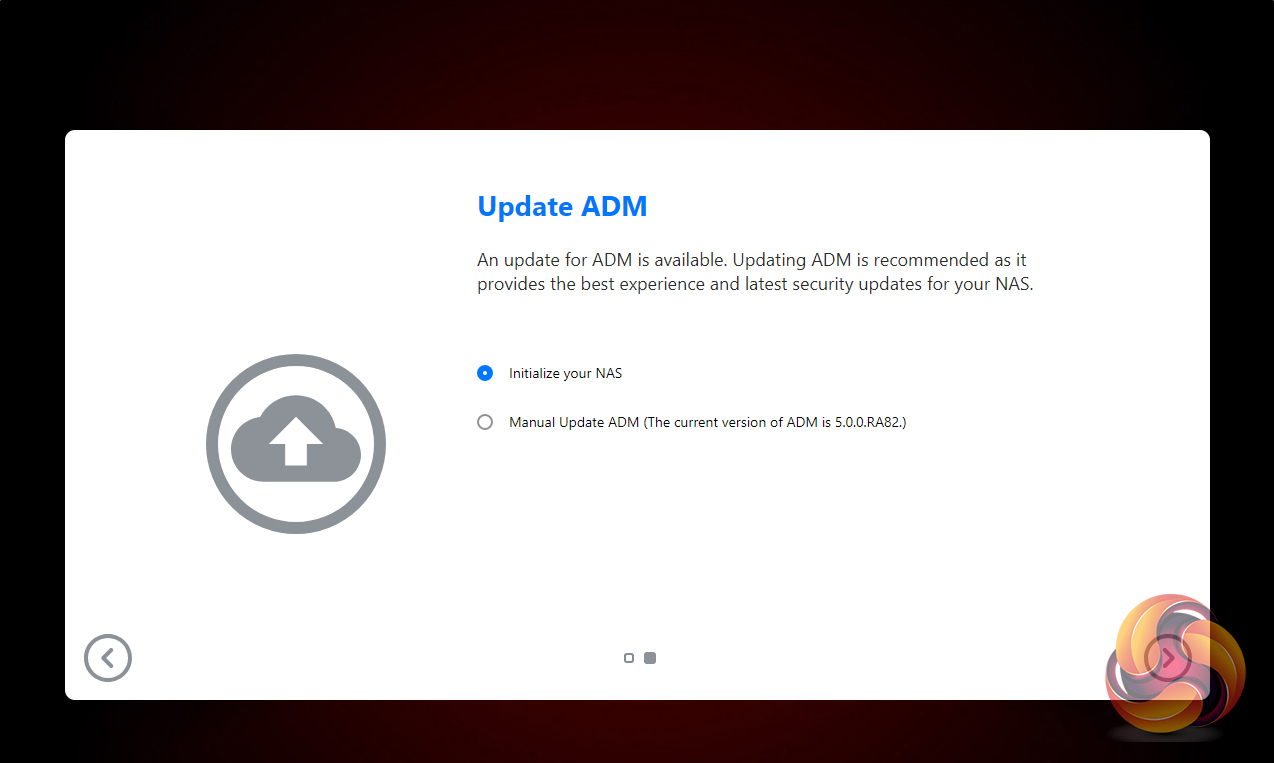
Once the ACC has located the NAS and you select it, the welcome screen appears. There are two ways to set up the device; 1-Click Setup and Custom. With the 1-Click method, you simply enter a name for your NAS, choose a password and then select how you want the storage to be set up and that’s about it. The Custom method gives you more detailed choices as can be seen from the screens below. It only takes around 10 minutes to load the OS and get the unit ready for use, although waiting for the disks to fully synchronise obviously takes a while longer, e.g. around 2.5 hours for a RAID 5 and 6 array's but RAID 10 synchronisation took nearer seven hours.
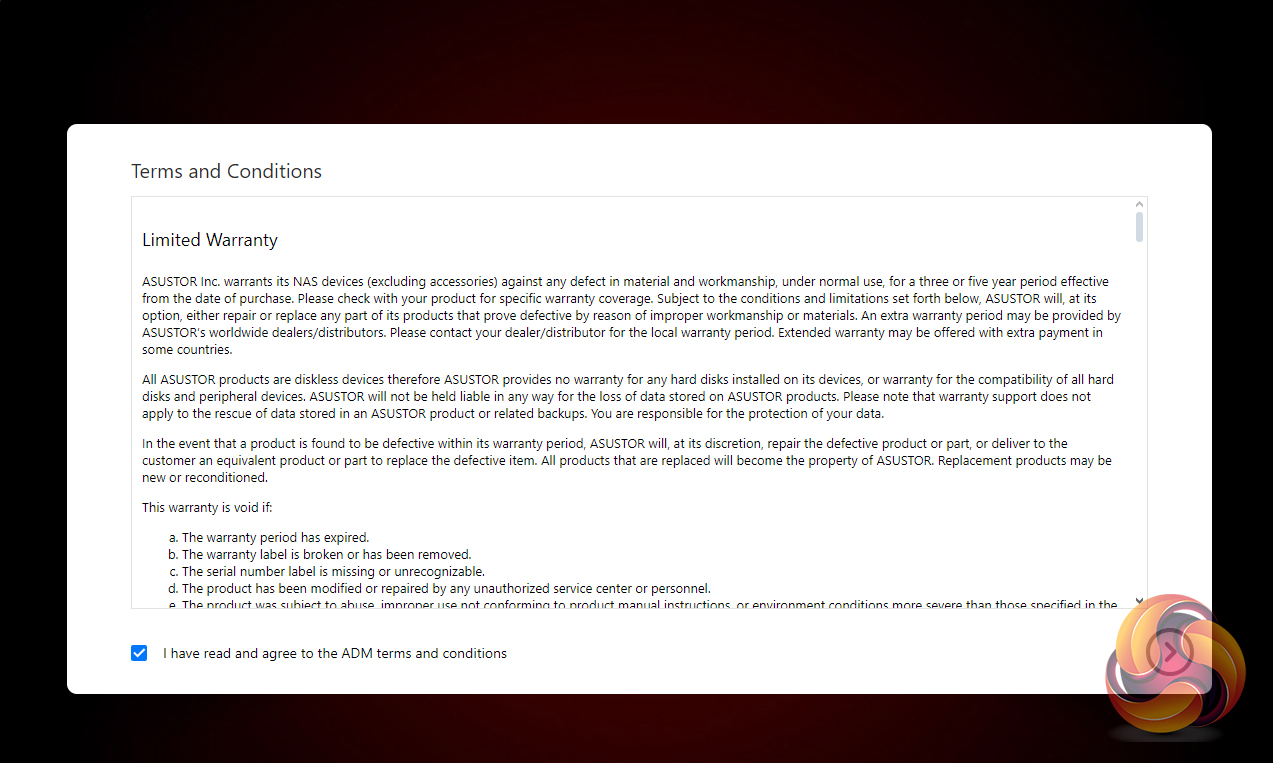
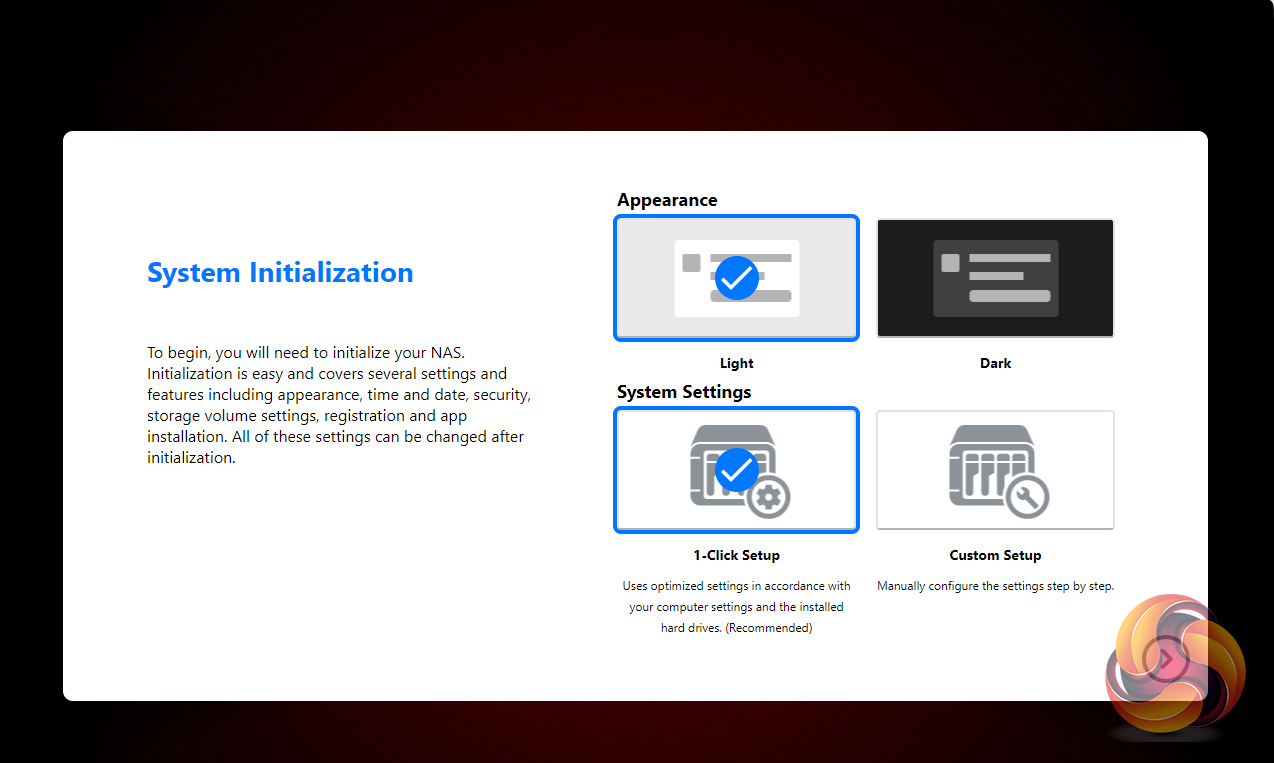
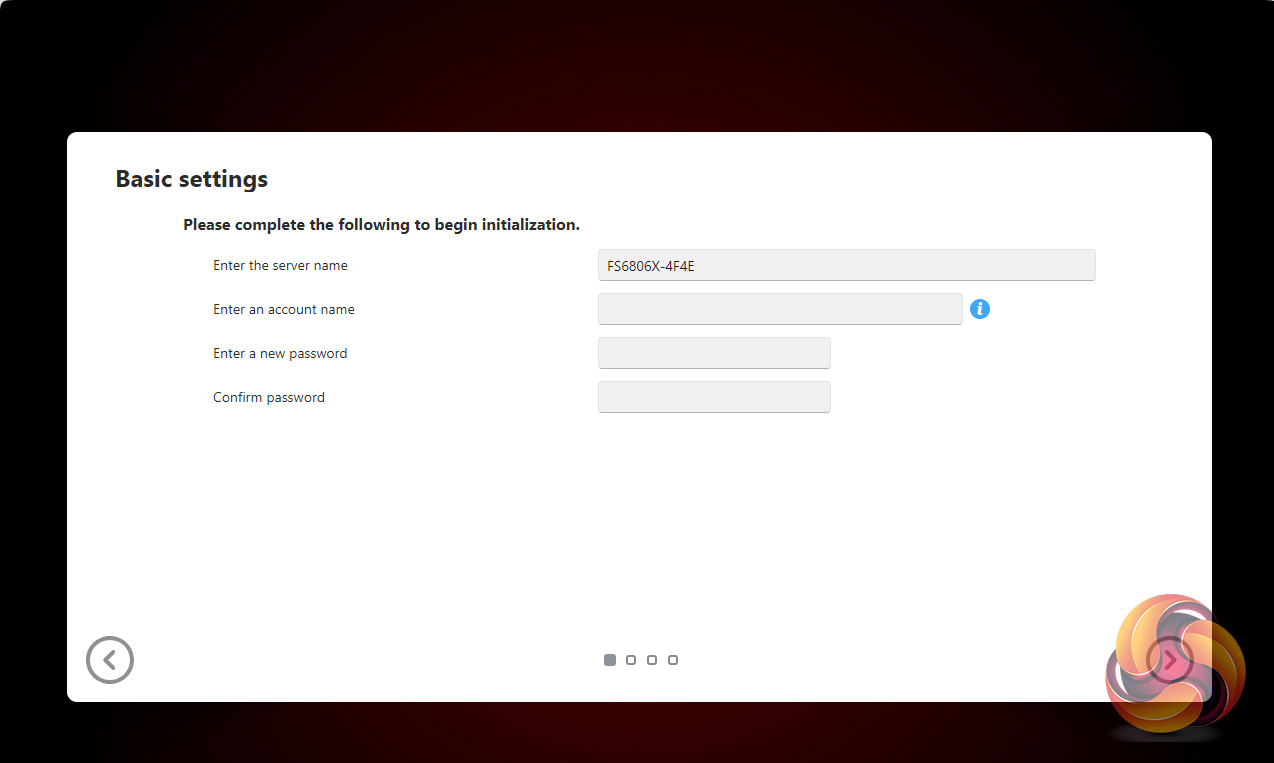
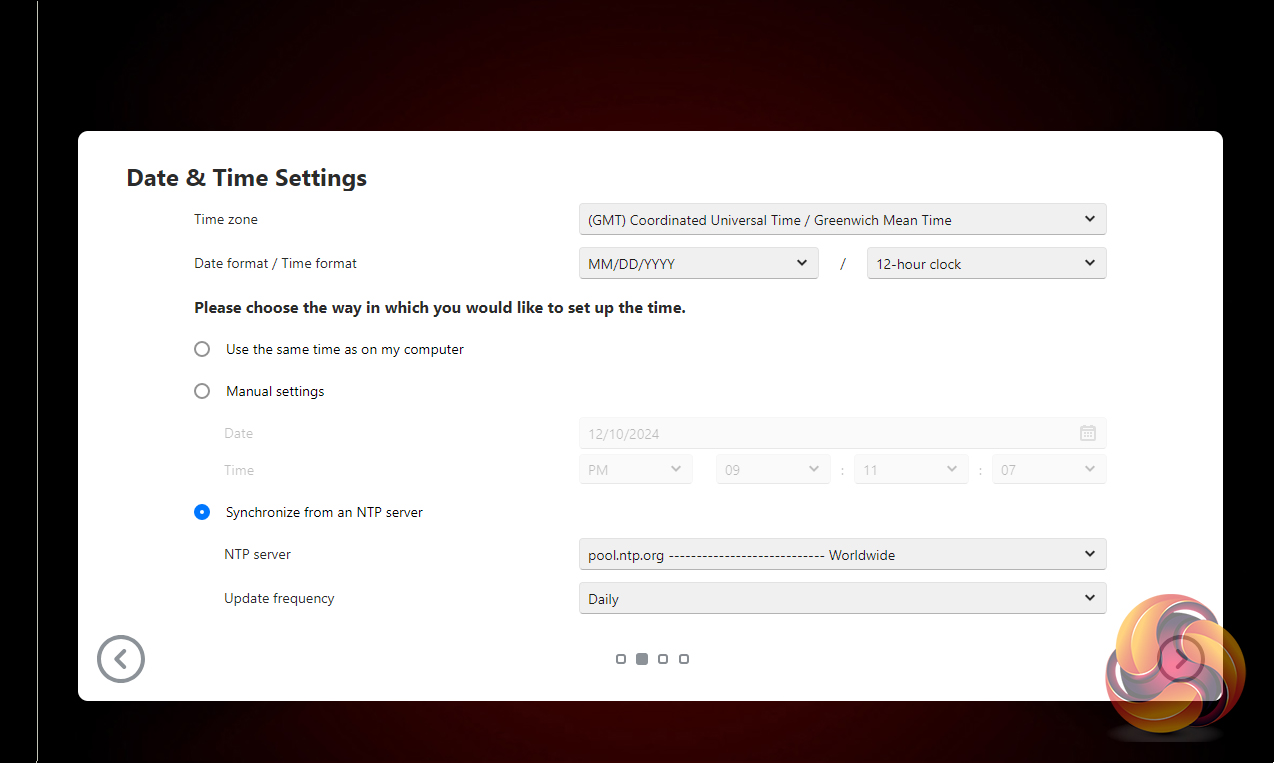
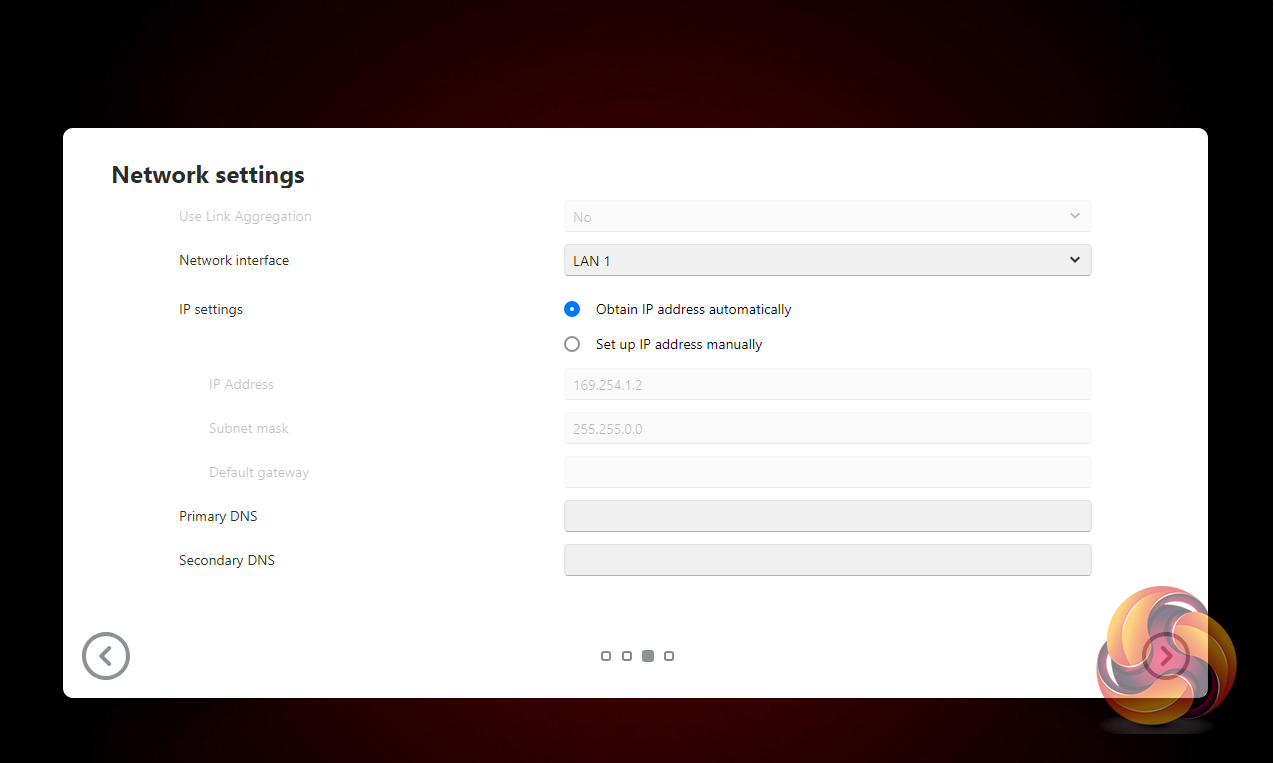
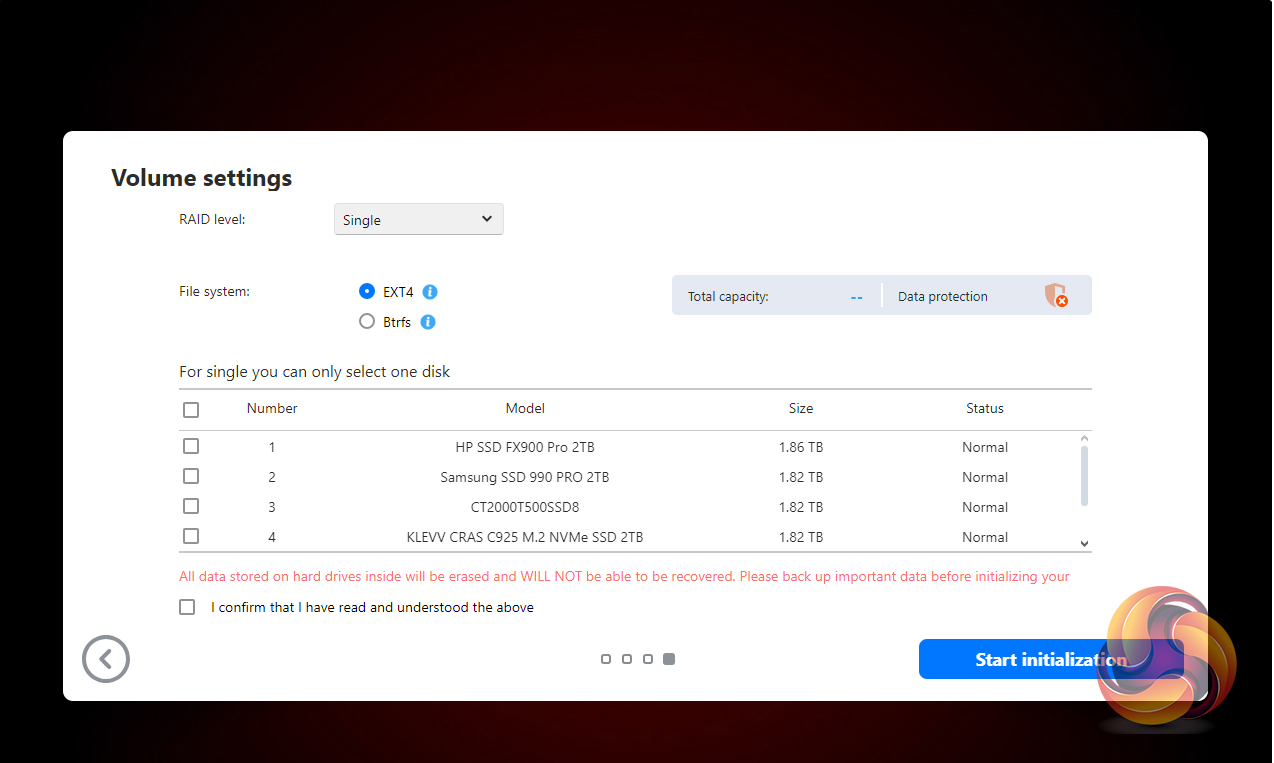
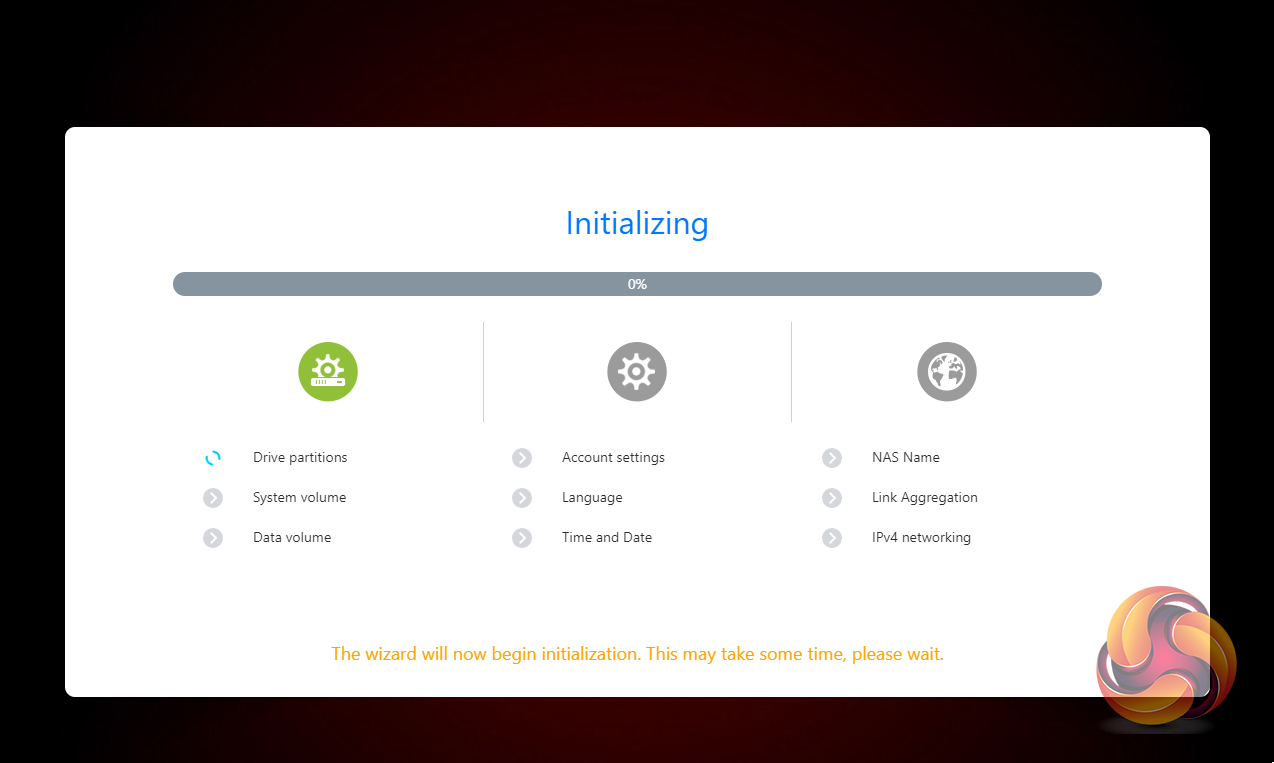
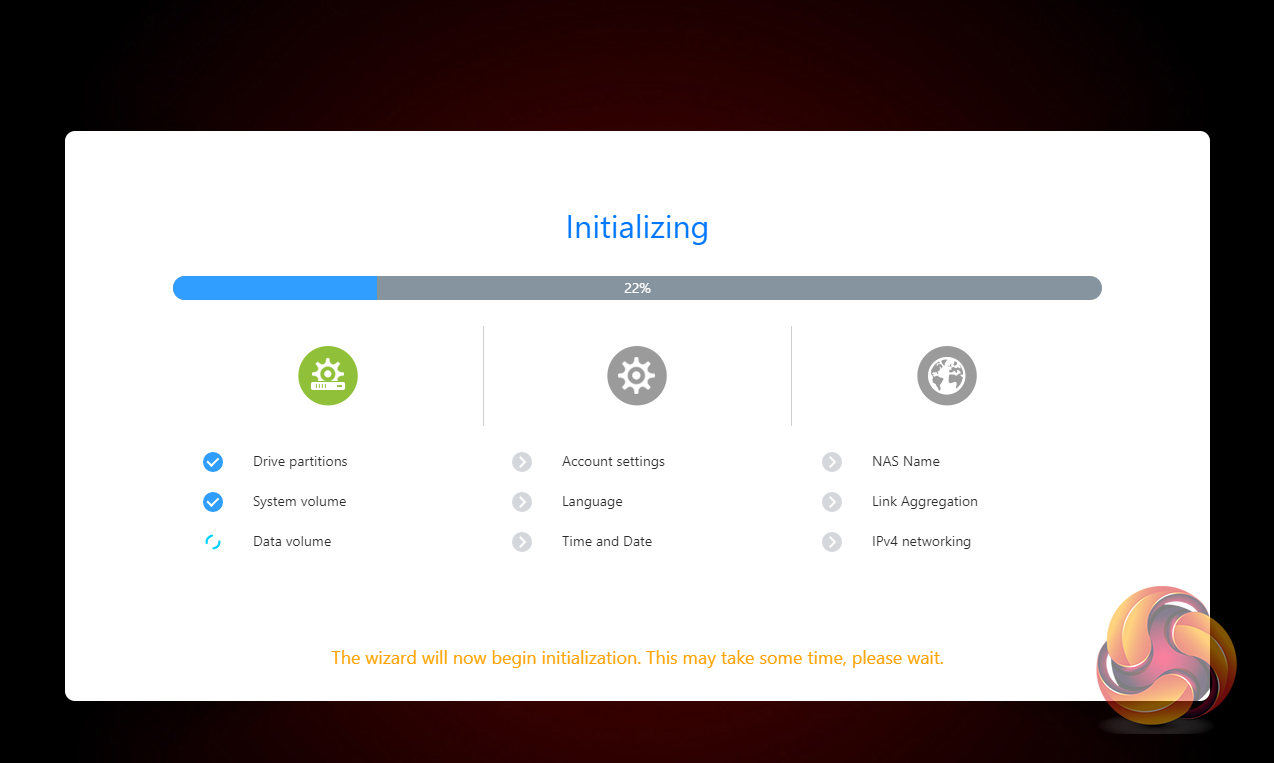
Whichever method you choose to set the NAS up, each stage along the installation process is checked off on the initialisation page so you always know what’s happening during the install procedure which is very helpful.
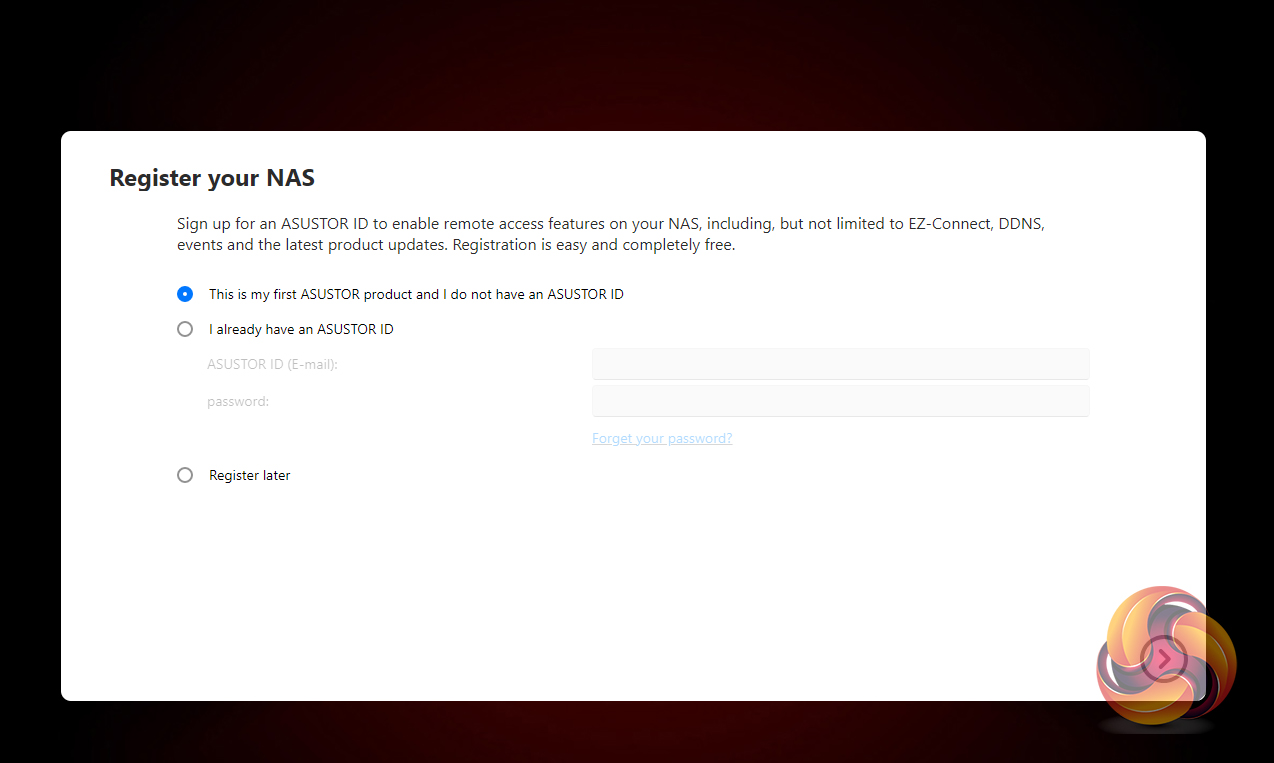
The last job is the register the NAS. Registering it provides an Asustor ID which you will need to download apps from App Central. It will also be needed if you should require the technical support centre.
You can also set up the NAS without using a PC. With Asustor’s AiMaster app on your smartphone or tablet (Android and iOS), you can find the NAS on a network, configure it and initialise it.
With AiMaster you can remotely control most aspects of your NAS usage; managing any installed apps, backup operations etc. These operations can be carried out securely as Asustor mobile apps support HTTPS encrypted connections.

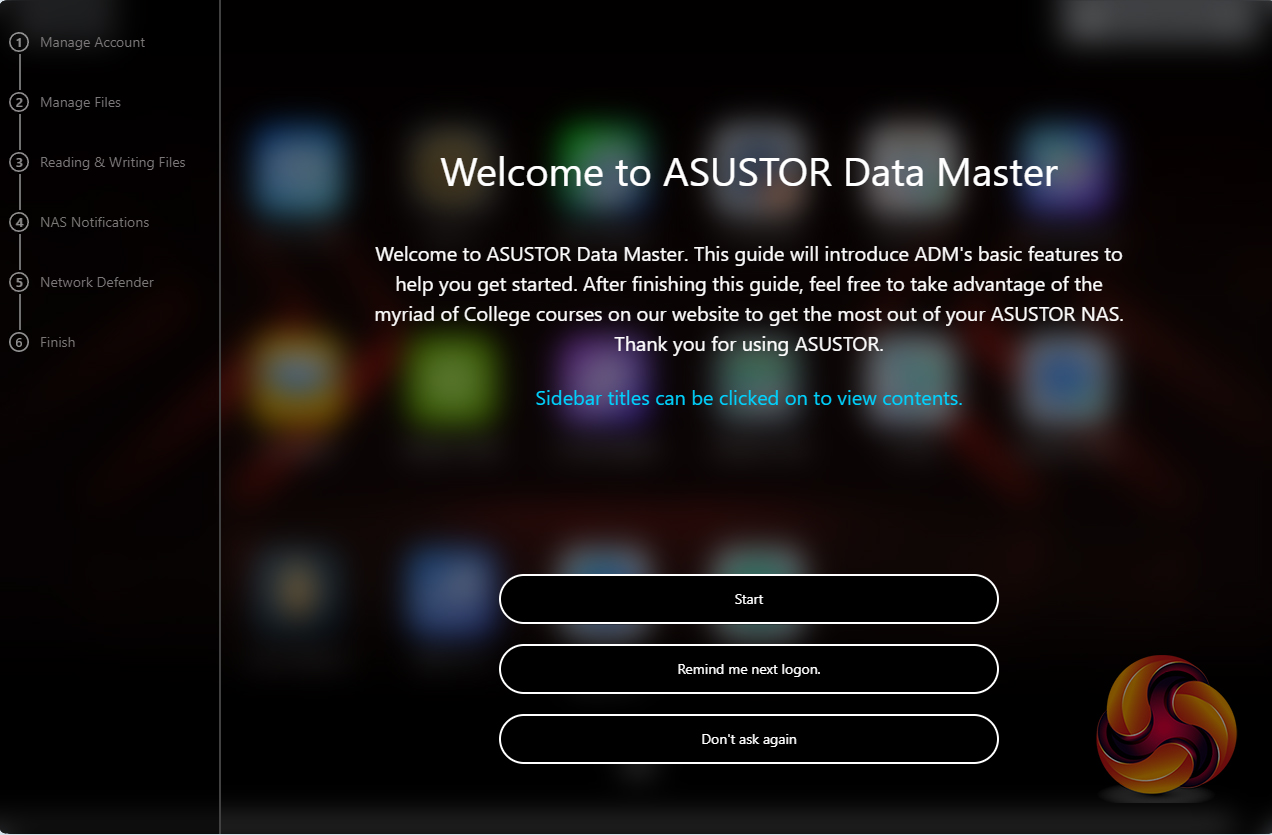
When you log in to the NAS for the first time you are met by the Asustor Data Master (ADM) walk through guide which takes you through some aspects of using the NAS; managing accounts and files, reading and writing files, NAS notifications and Network Defender. Asustor’s ADM (Asustor Data Master) OS is a constantly evolving GUI. The latest version, version 5.0 (we tested the Flashstor 6 Gen 2 with version 5.0.0.RA82) is a major upgrade on previous generations so you won’t be able to roll back the software after upgrading.
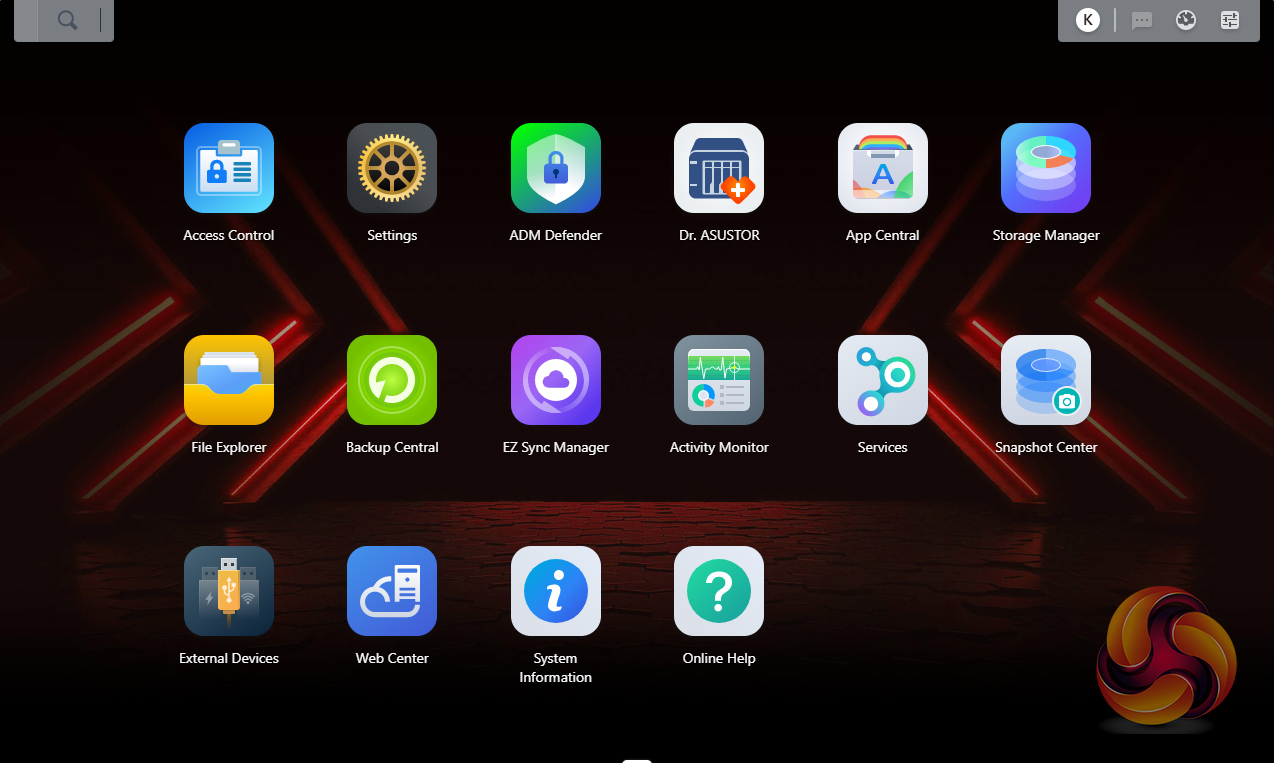
The main ADM page shows the major sections of the OS. At the top of the main menu window are five icons; To the right there is admin, system announcements, tools and preferences, the search function is on the left had side. The admin drop-down has four options; personal, restart, power off and sign out. The personal section is where you can configure the account password, E-mail address, description, ADM language. In this section, you can also set the theme the NAS uses. Selecting the Tools option drops down a window that can display various NAS functions for easy monitoring. These include Storage Manager, Activity Monitor, Users and important log events. The search icon links to Searchlight, Asustor’s own search tool, designed for running fast and precise searches for files on the NAS.
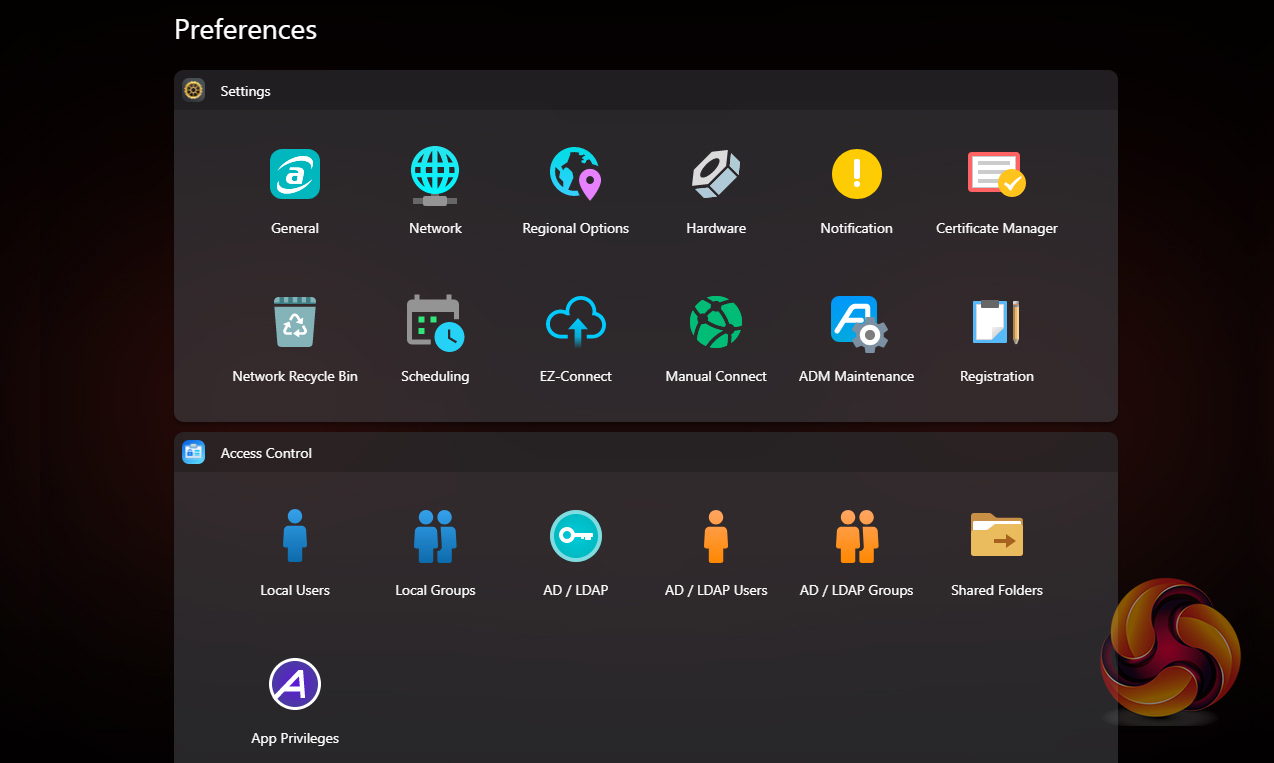
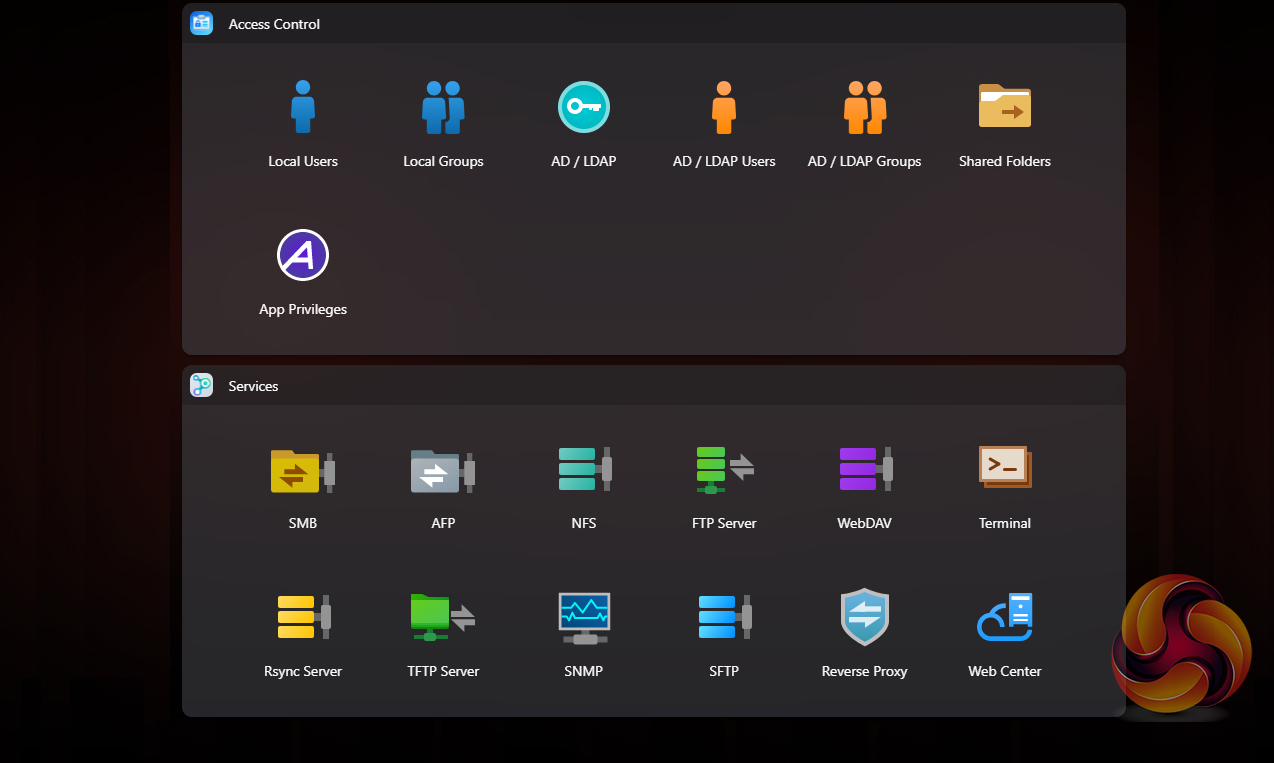
The Preference button gives you easy access to most aspects of the NAS functions. It's divided into three sections; Settings, Access Control and Services.
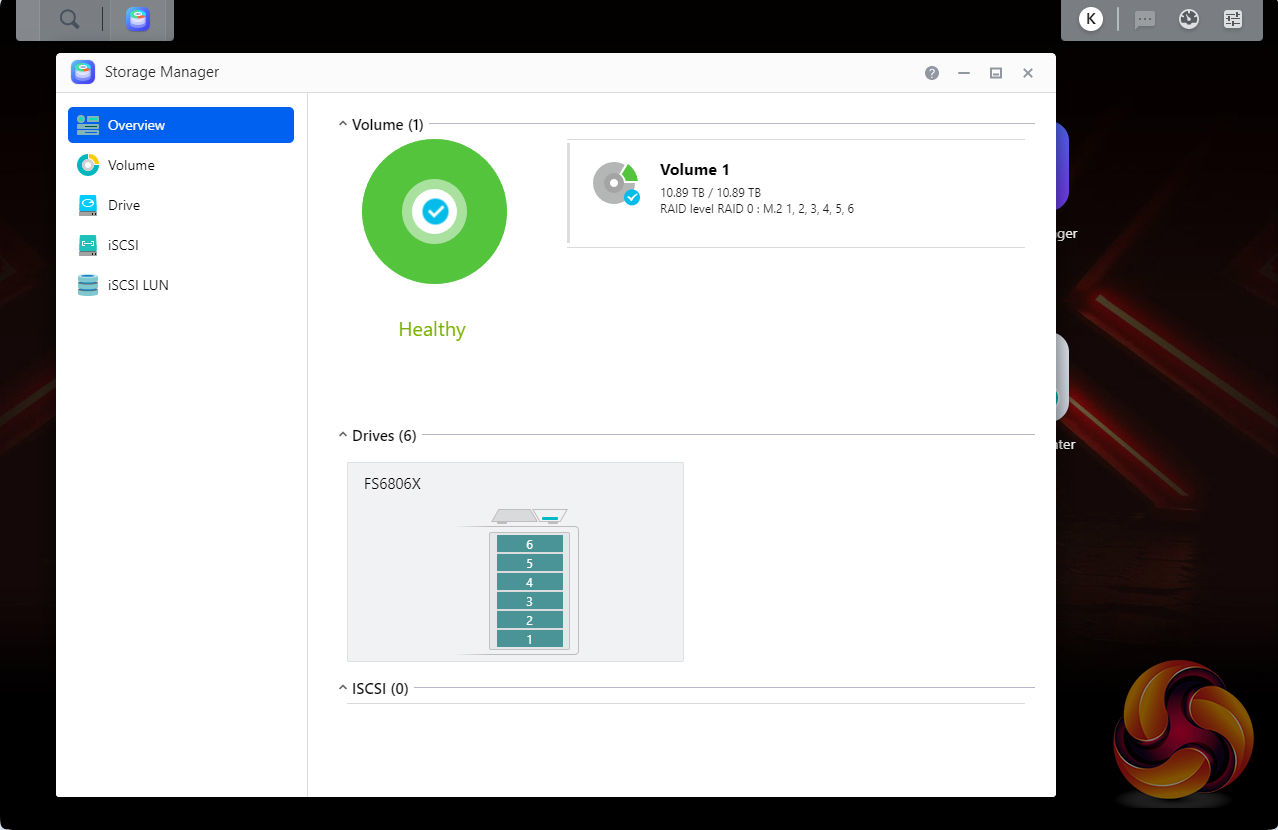
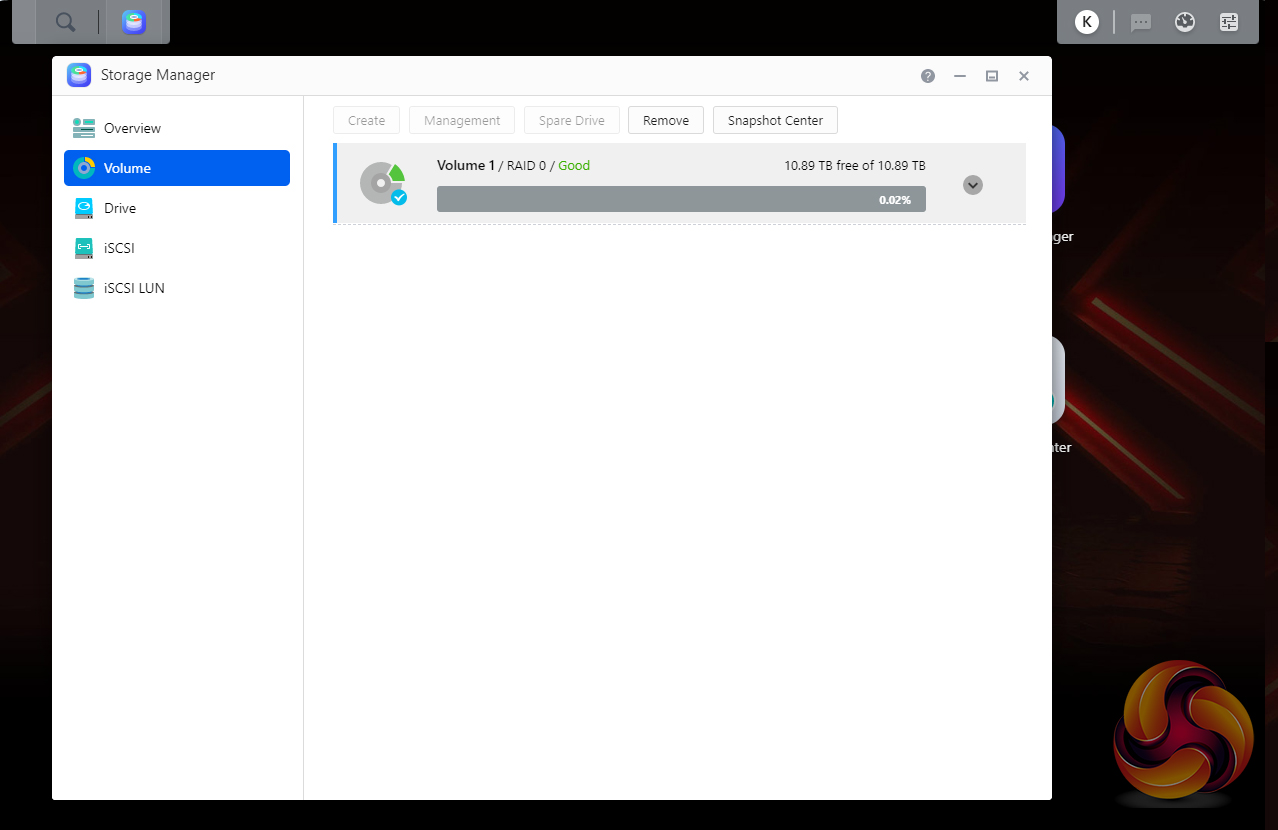
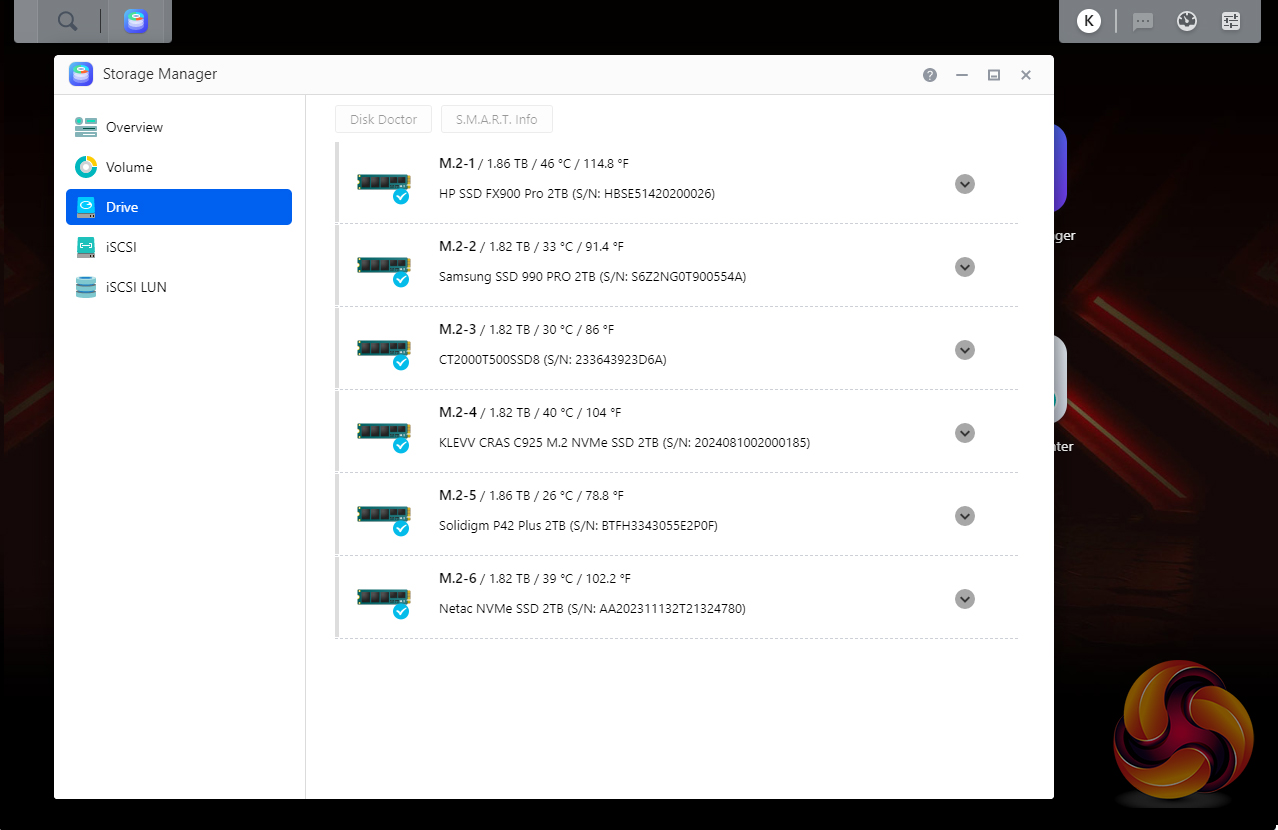

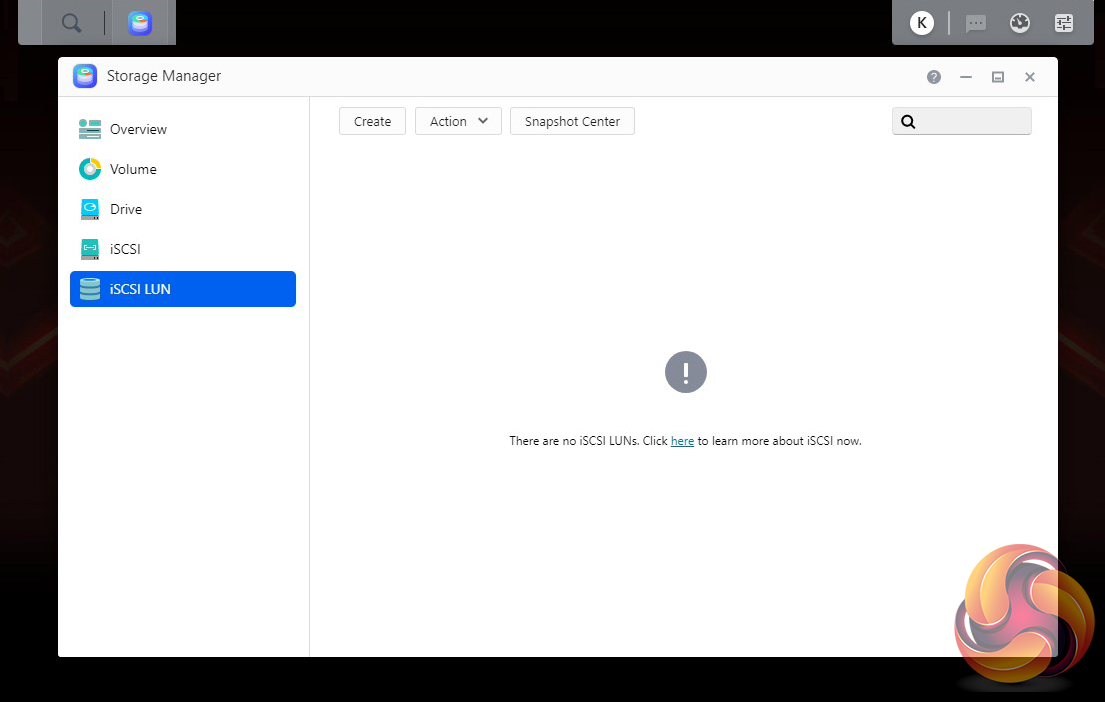
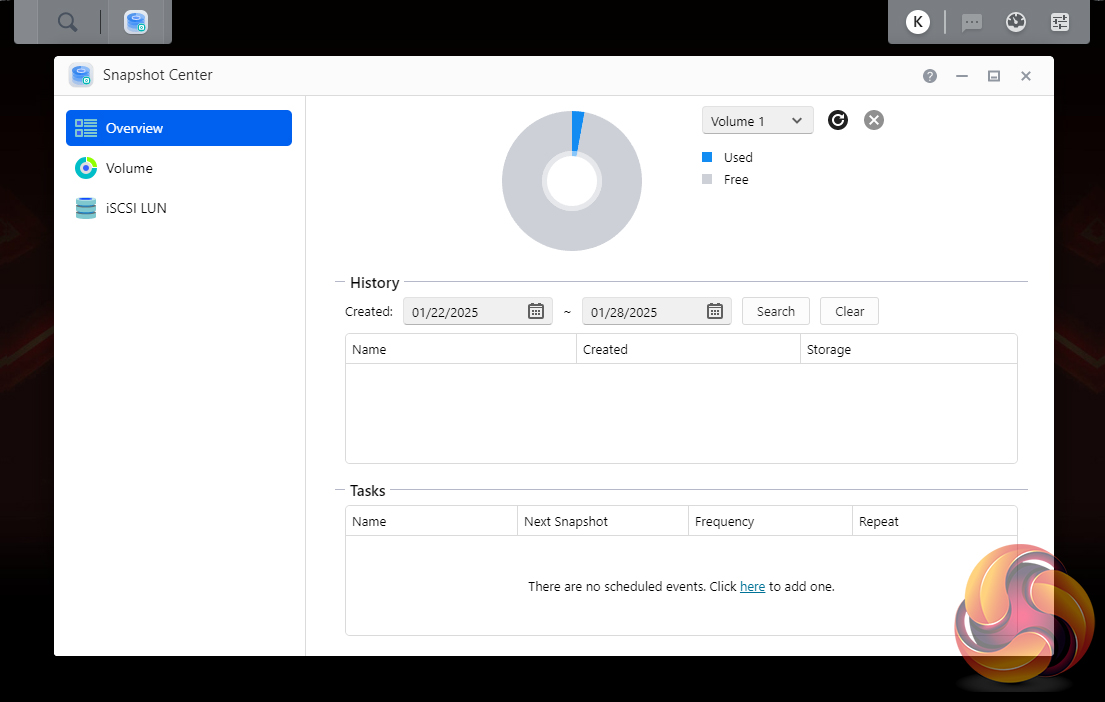
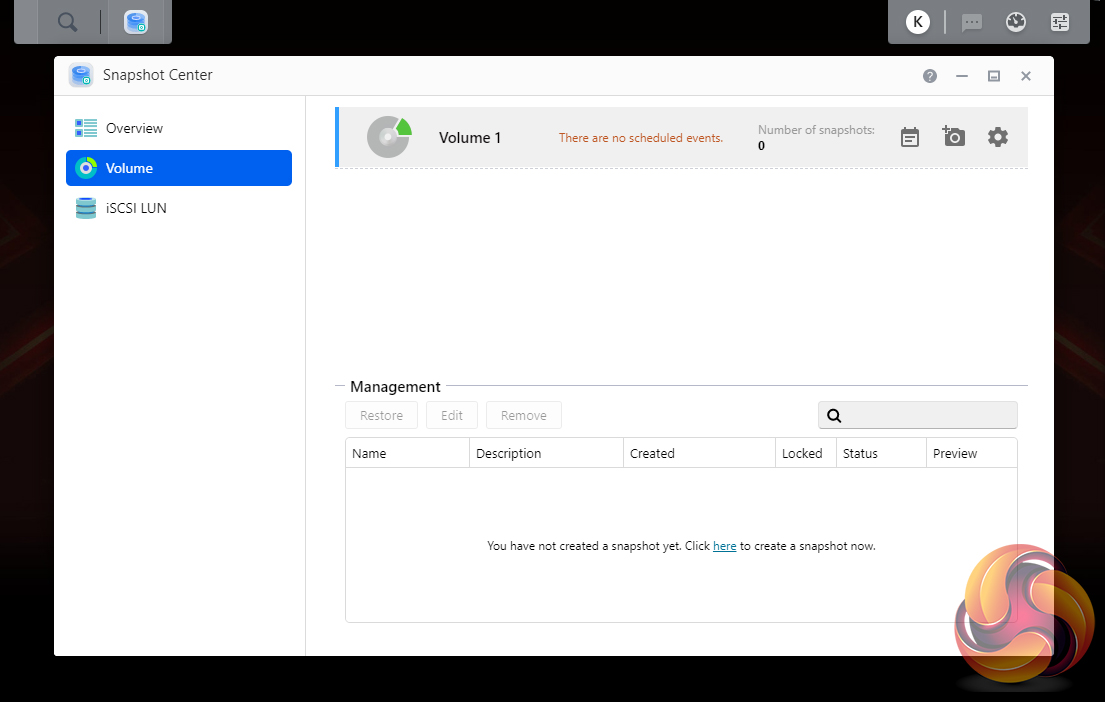
As with any NAS, disk management, RAID and volume creation are at the heart of things. Storage Manager looks after all things disk related including iSCSI LUN creation and snapshot management.
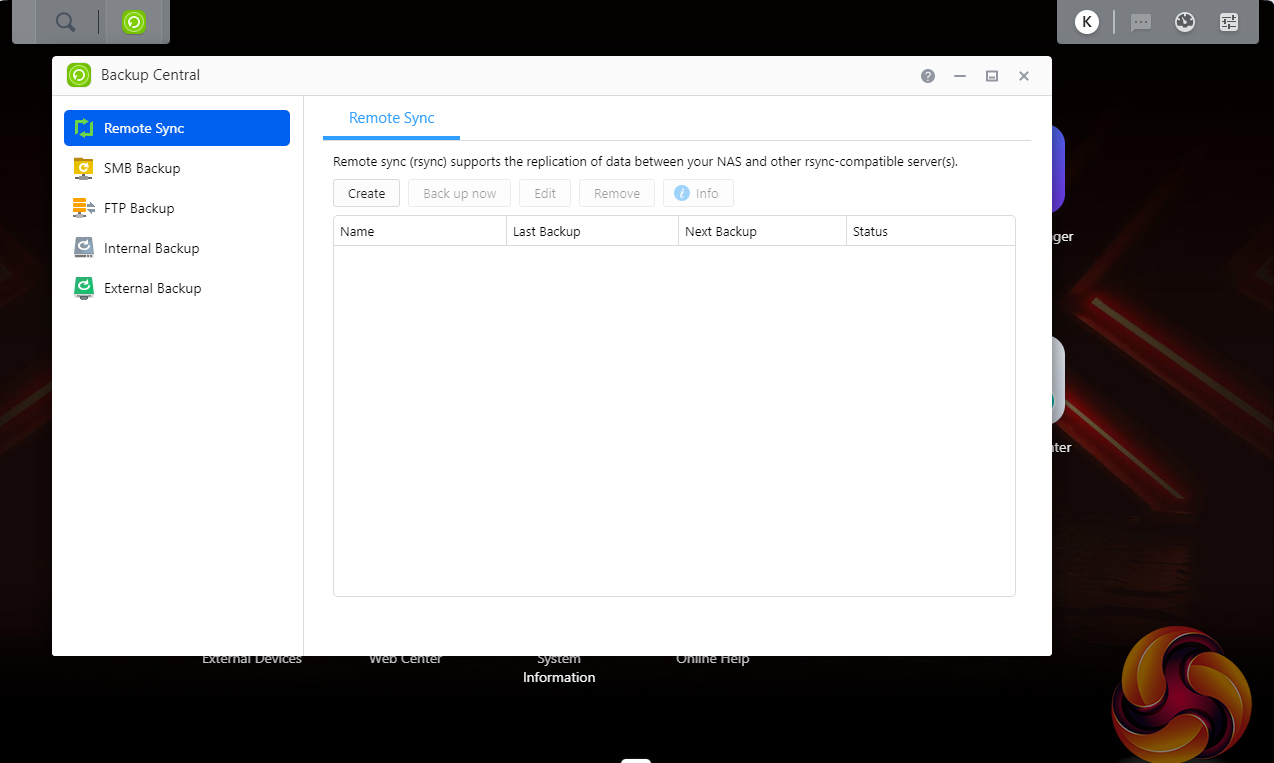
ADM provides the Flashstor 6 Gen 2 with a pretty comprehensive set of backup options, to say the least, all handled by Backup Central. Data can be backed up remotely (either as a backup source or destination), via FTP, internally, externally and to the cloud.
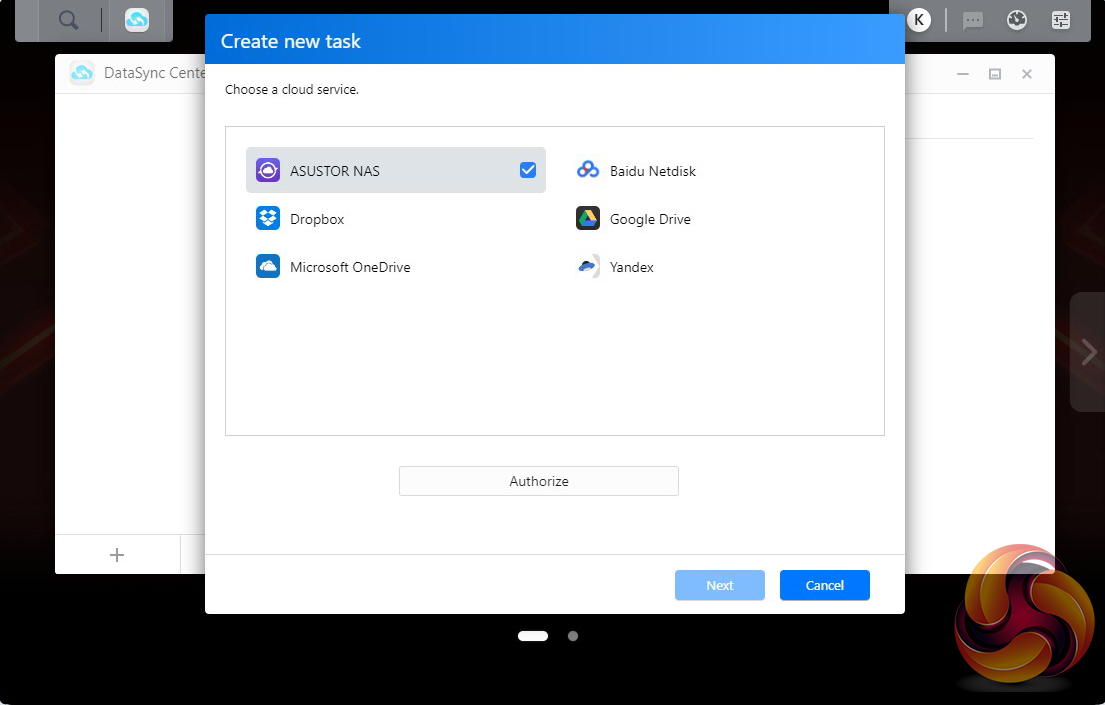
DataSync Center simplifies backing up to multiple cloud services (including Onedrive, Dropbox, Google Drive, Baidu Netdisk and Yandex) by combining them into a single app. It supports multitasking and multiple accounts and allows the creation of a hybrid cloud to keep data safe offline as well as on.
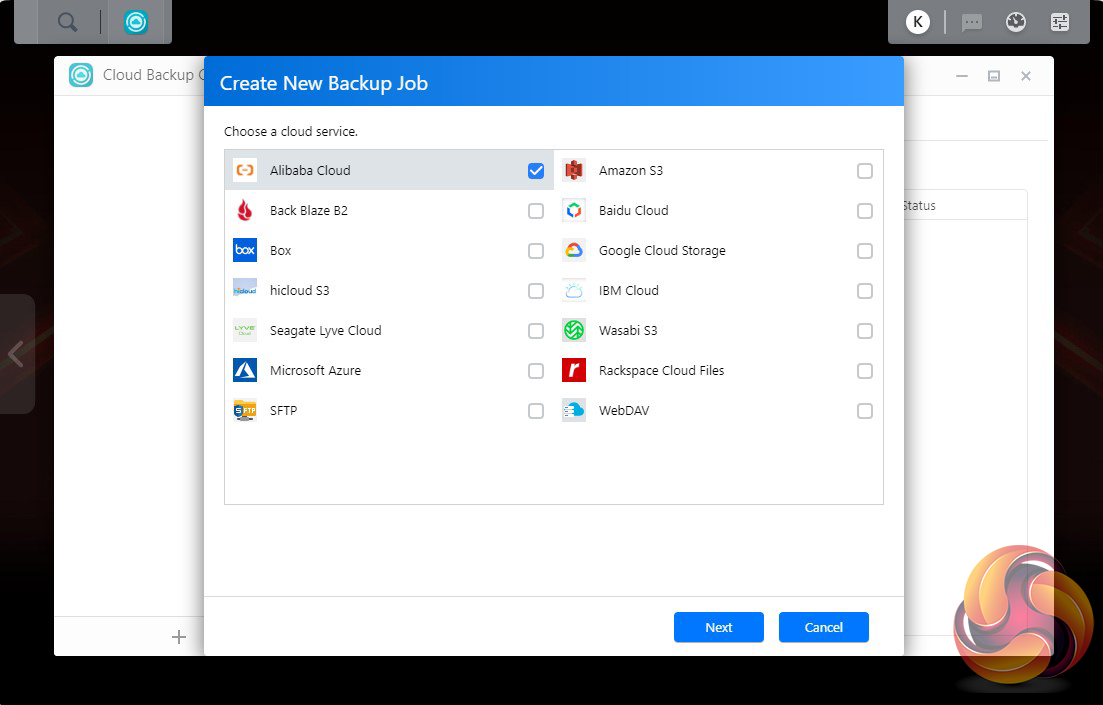
Cloud Backup Center supports instant and/or scheduled backups to fourteen (at the time of writing) business cloud services including Microsoft Azure Blob Storage, Alibaba Cloud, Rackspace Cloud Files and Backblaze B2. Cloud Backup Center can also be used to create hybrid clouds.
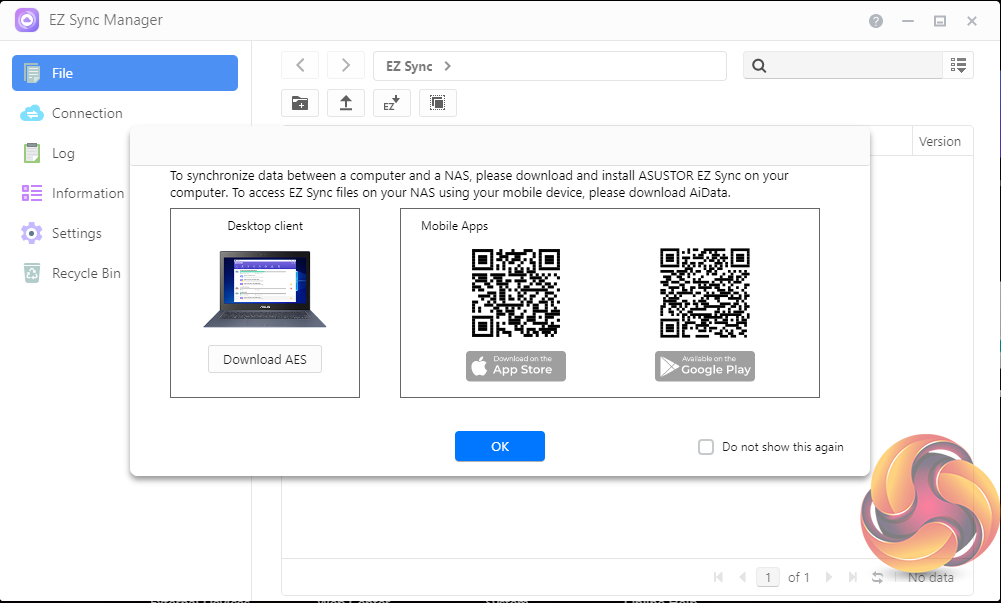
Asustor EZ Sync Manager makes it easier to connect to the NAS on a home or local network from anywhere at any time.

Photo Gallery 3 includes a host of features including new photo modes, custom folder selection, timelines and smart albums.
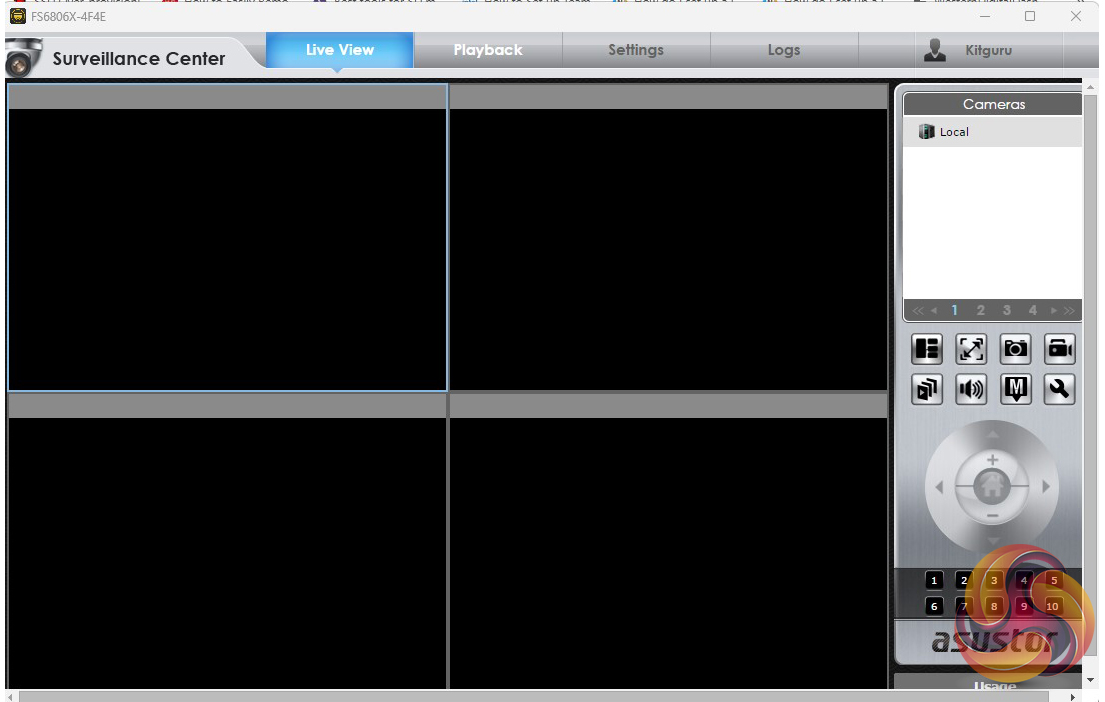
Asustor's Surveillance Center enables the management of a group of IP cameras with features such as Live View and Playback. You can view live feeds from up to 4 cameras (4 camera licences come for free, and more channels are supported via additionally purchased licences). It supports a huge range of IP cameras, a list of which ones can be found on the Asustor website.
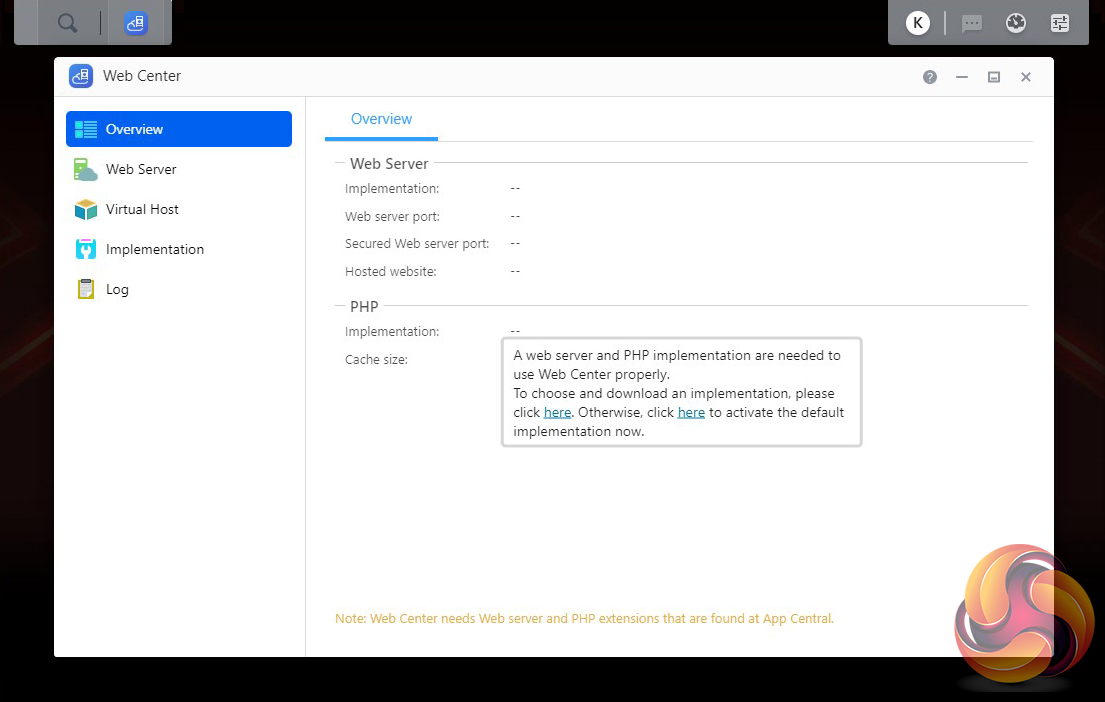
Web Center makes setting up a web server easier. It loads the Apache HTTP server and PHP 7 packages by default, but more options and packages will be added as future developments occur.
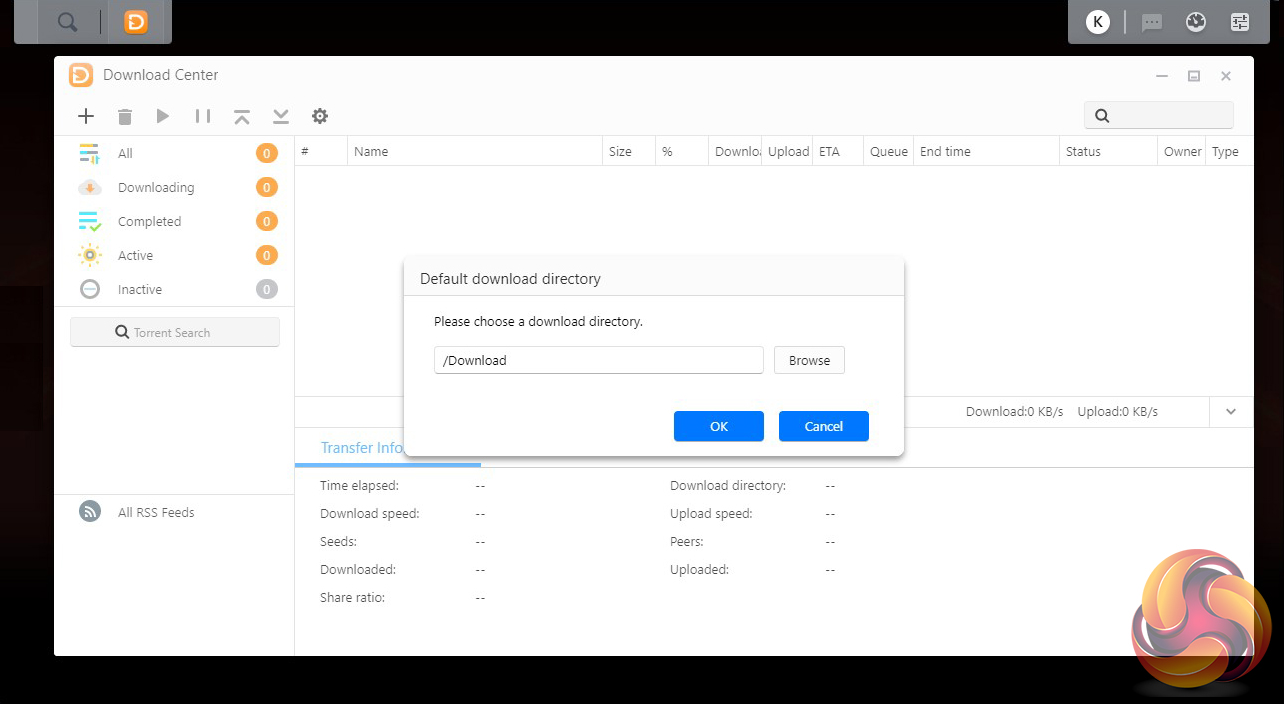
Download Center makes downloading easier and faster. It supports HTTP, FTP, and BitTorrent downloads which can be scheduled. A neat feature is that Download Center allows selective downloading when using BitTorrent downloads – you have the ability to select only the files you need from the torrent.
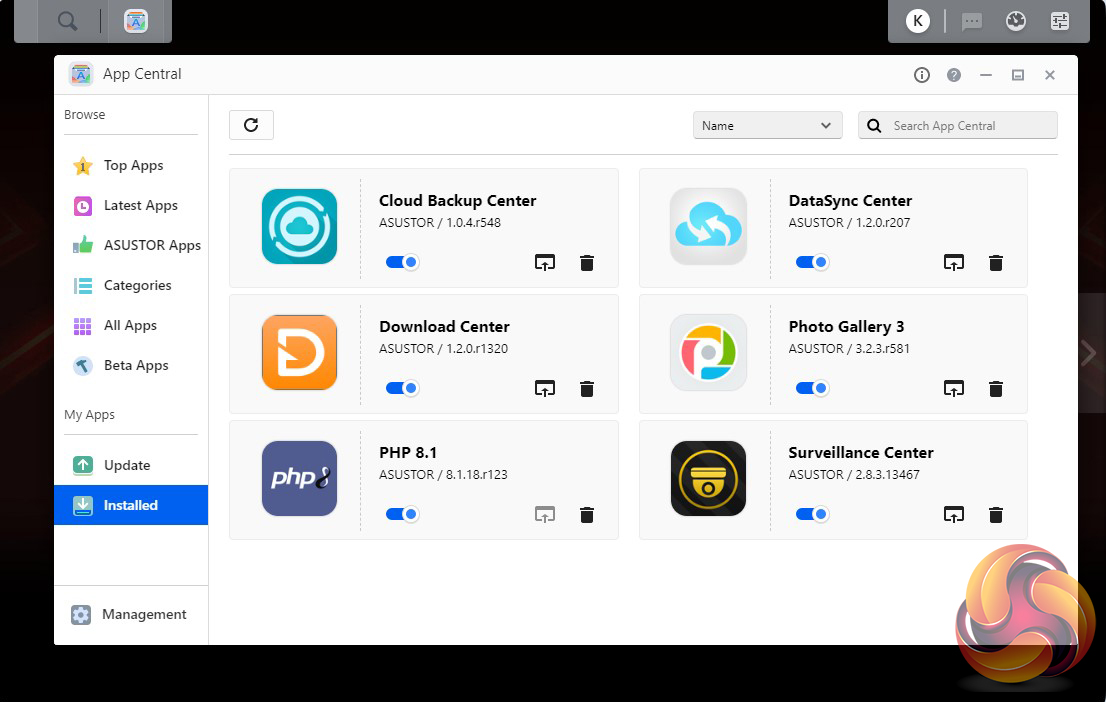
According to Asustor's App Central web page, there are 724 apps (and counting) for most if not all NAS models so you can personalise your system to get the most out of it.
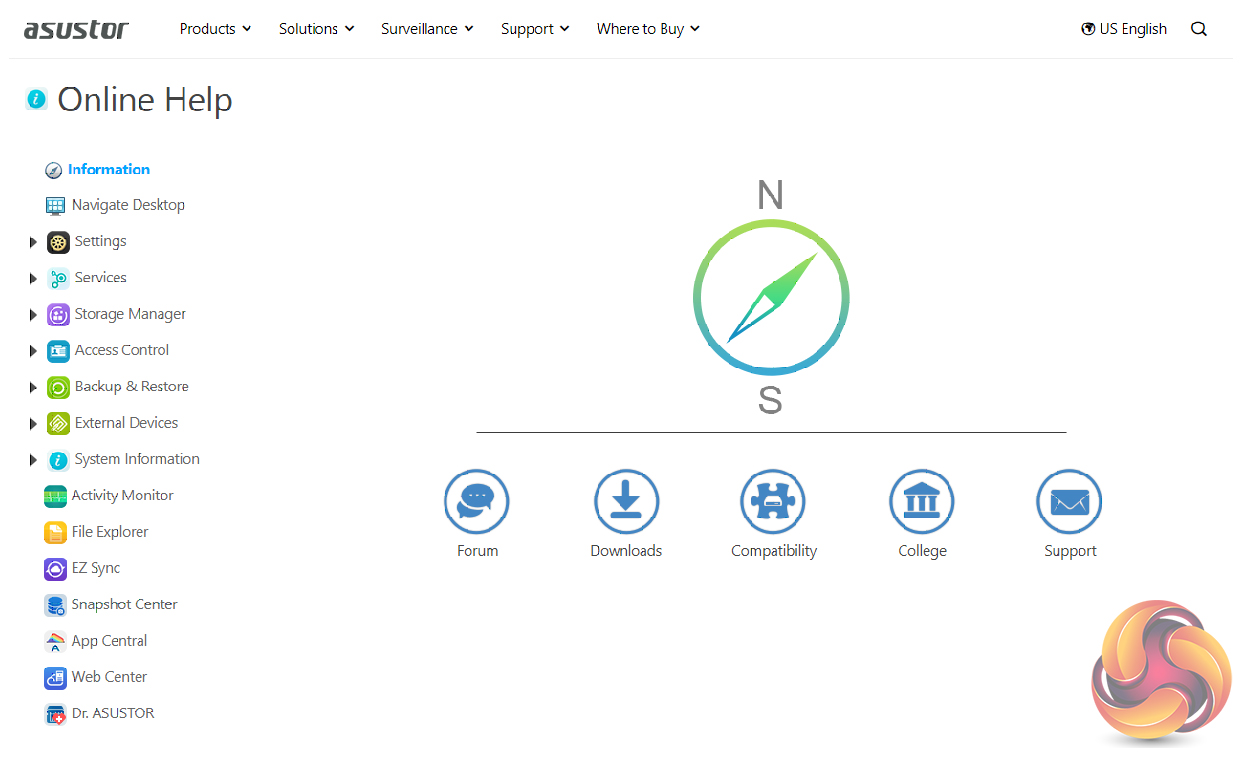
The ADM Help page has five links to various parts of the Asustor website where you can find help and advice if you have problems with the NAS. The Forum button takes you to the Asustor online forum and Downloads is a direct link to the download pages. Compatibility is a useful addition as it takes you to the Asustor Compatibility page, a very handy selection of hardware compatibility tables. Another useful link is to the Asustor College. Here you will find a collection of online easy-to-follow courses to learn all aspects of the NAS and its functions. The final link takes you directly to the Asustor online Support Center.
To test the Flashstor 6 Gen 2 we used a mix of Gen4 2TB SSDs; Netac NV7000-t, Klevv CRAS C925, Crucial T500, Solidigm P41 Plus, HP FX990 PRO and a Samsung 990 PRO. We built the drives into RAID 0, 5,6 and 10 and tested each array. To connect to the Flashstor 6 Gen 2 we used a Gigabyte GG-AQC107, 10Gbe card. Thanks to Gigabyte for their support with this. You can see more information on this card on the Gigabyte site, over HERE.
Software:
- Atto Disk Benchmark.
- CrystalDiskMark 8
- Intel NASPT.
- UL Benchmarks PCMark 10 Data Drive Benchmark.
The ATTO Disk Benchmark performance measurement tool is compatible with Microsoft Windows. Measure your storage systems performance with various transfer sizes and test lengths for reads and writes. Several options are available to customize your performance measurement including queue depth, overlapped I/O and even a comparison mode with the option to run continuously. Use ATTO Disk Benchmark to test any manufacturers RAID controllers, storage controllers, host adapters, hard drives and SSD drives and notice that ATTO products will consistently provide the highest level of performance to your storage.
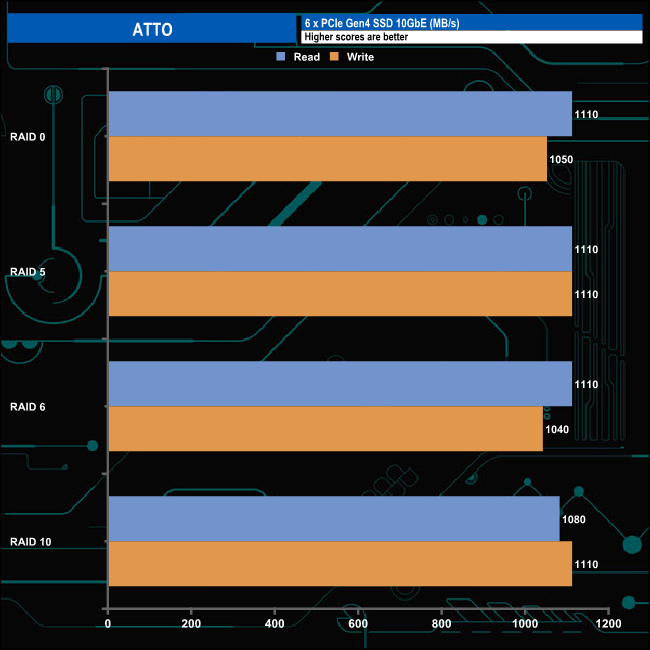
Asustor quotes sequential performance figures for the Flashstor 6 Gen 2 of 1,179MB/s for reads and 1,181MB/s for writes in a RAID 5 array using a 10GbE connection. Using the ATTO benchmark the results we saw in RAID 5 (10GbE) were a little shy of the official figures but at 1,110MB/s for both reads and writes were certainly in the ballpark.
CrystalDiskMark is a useful benchmark to measure the theoretical performance levels of storage devices. We are using v8.0.5.
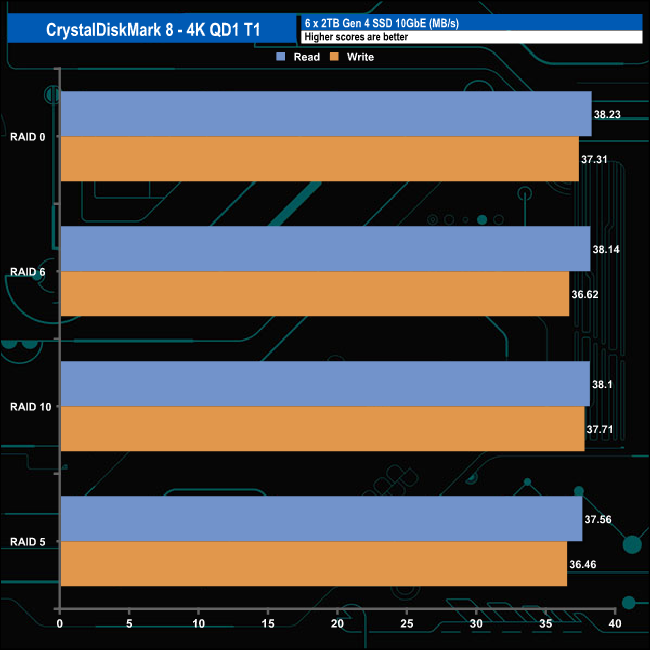
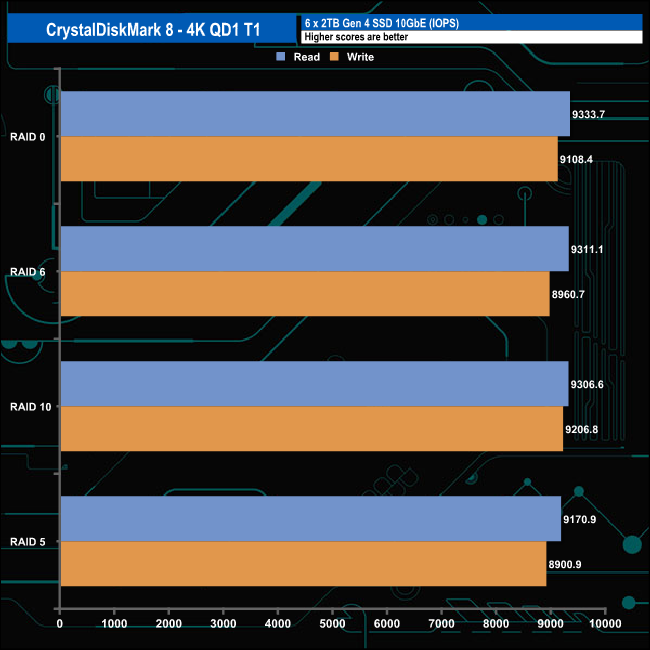
Using CrystalDiskMark 8 at the default 4K QD1 T1 settings the Asustor Flashstor 6 Gen 2 showed very consistent performance for both reads and writes.
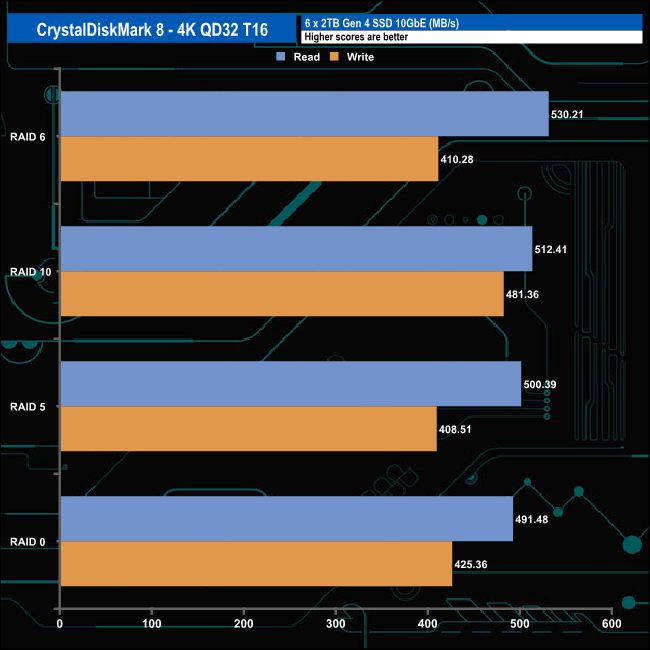
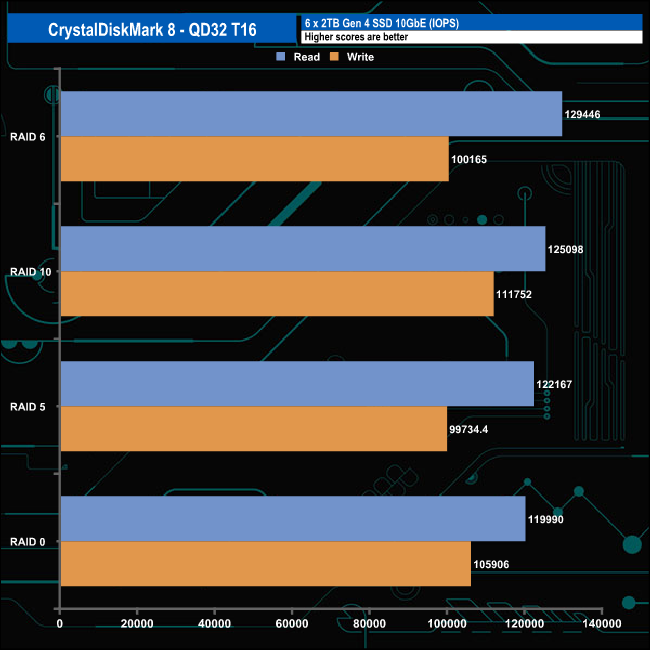
Switching up to the default Performance Profile tests (QD32 T16) we saw a bit more variation in the scoring with the fastest read performance coming from RAID 6 (530.21MB/s) with the best write figure of 481.36MB/s coming from a RAID 10 array,
Intel’s NASPT (NAS Performance Toolkit ) is a benchmark tool designed to enable direct measurement of home network attached storage (NAS) performance. NASPT uses a set of real-world workload traces (high-definition video playback and recording, video rendering/content creation and office productivity) gathered from typical digital home applications to emulate the behaviour of an actual application.
We’ve used some of the video and office apps results to highlight a NAS device’s performance.
HD Video Playback
This trace represents the playback of a 1.3GB HD video file at 720p using Windows Media Player. The files are accessed sequentially with 256kB user-level reads.
4x HD Playback
This trace is built from four copies of the Video Playback test with around 11% sequential accesses.
HD Video Record
Trace writes an 720p MPEG-2 video file to the NAS. The single 1.6GB file is written sequentially using 256kB accesses.
HD Playback and Record
Tests the NAS with simultaneous reads and writes of a 1GB HD Video file in the 720p format.
Content Creation
This trace simulates the creation of a video file using both video and photo editing software using a mix of file types and sizes. 90% of the operations are writes to the NAS with around 40% of these being sequential.
Office Productivity
A trace of typical workday operations. 2.8GB of data made up of 600 files of varying lengths is divided equally between read and writes. 80% of the accesses are sequential.
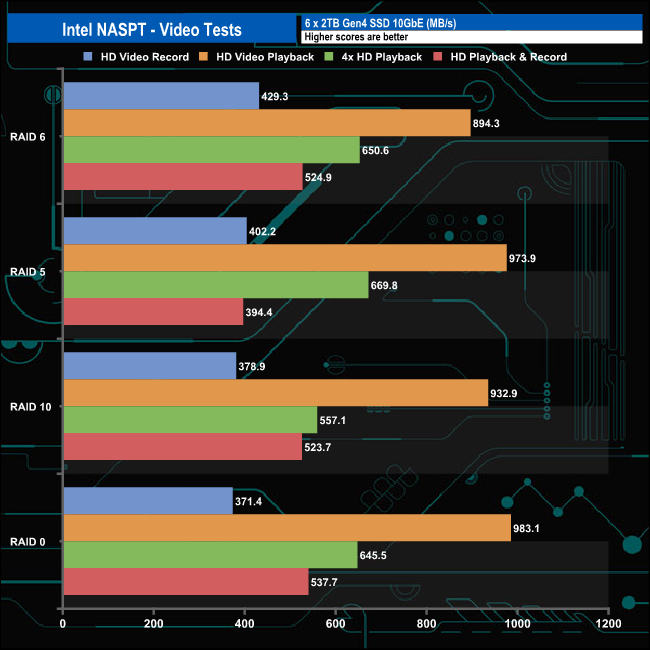
In the video tests of Intel’s NASPT benchmark, the Flashstor 6 Gen 2 showed strong performance, getting close to 1GB/s for a couple of tests. The fastest performance, 983MB/s, came from the HD Video Playback test trace while the drives were in a RAID 0 array.
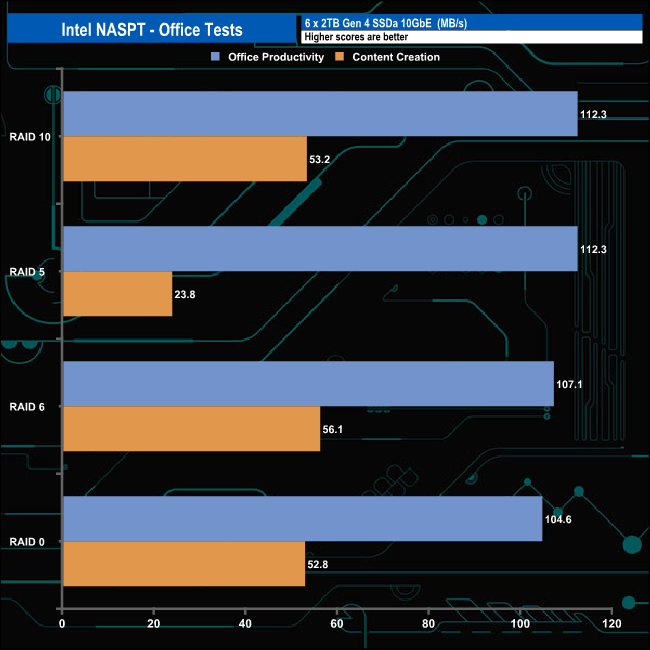
In the office tests, the NAS showed pretty strong performance across the tested arrays for both tests, apart from the Content Creation test with the drives in a RAID 5 array which for some reason caused the Flashstor 6 some problems looking at the score.
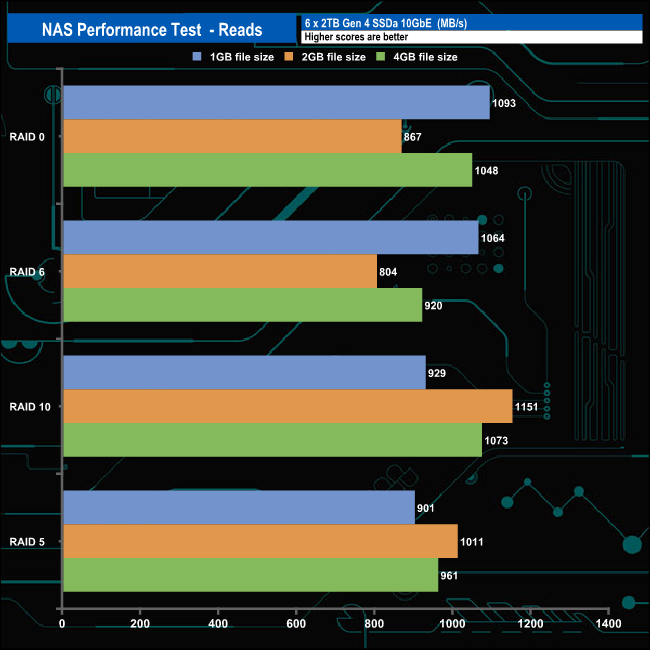
In the NAS performance read tests the RAID 0 array was the fastest when handling the 1GB file test while the RAID 10 array was the fastest dealing with the 2GB and 4GB file tests.
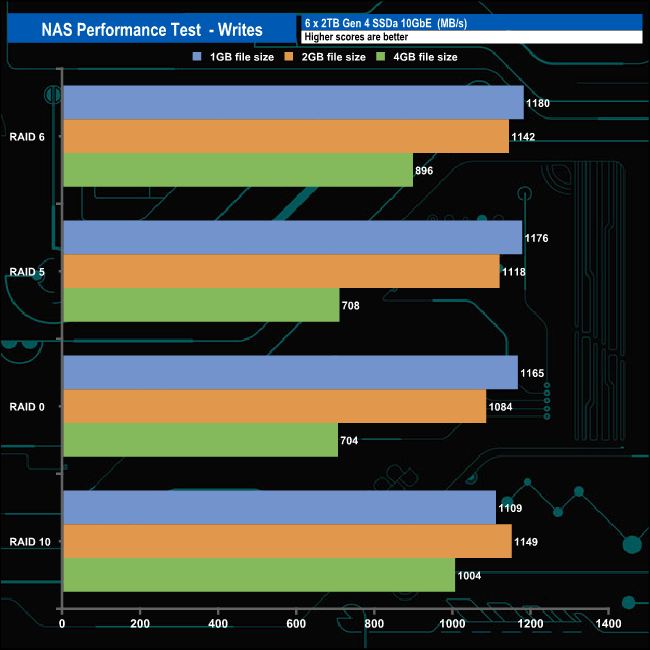
In the write tests, there wasn't much to choose between RAIDs 6, 5 and 10 when dealing with the 1GB file. The best performance when handling the 2GB and 4GB file tests came with the drives in a RAID 10 array.
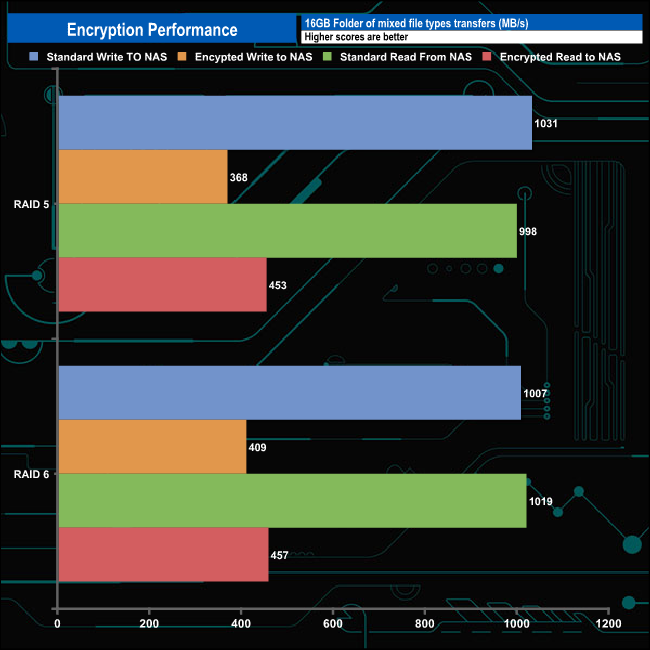
The built-in hardware encryption engine doesn't seem to be that efficient for either reads or writes looking at the effects of dealing with a 16GB folder of encrypted data compared to the same folder without encryption.
We tested the Asustor Flashstor 6 Gen 2 with a number of scenarios that it may face in the real world. The settings for these scenarios are as follows.
File Server
512MB file size, 16KB Block size, 80% Read 20% Write 100% Random, I/O queue depth 128
Web Server
1GB file size, 16KB Block size, 100% Read 0% Write 100% Random, I/O queue depth 64
Workstation
Transfer Size: 8K Reads: 80% Writes: 20% Random: 80% Boundary: 8K Outstanding IO: 64 Threads/Workers 4
Database
2GB file size, 4KB Block size, 90% Read 10% Write, 90% Random, 10% Sequential, I/O queue depth 128
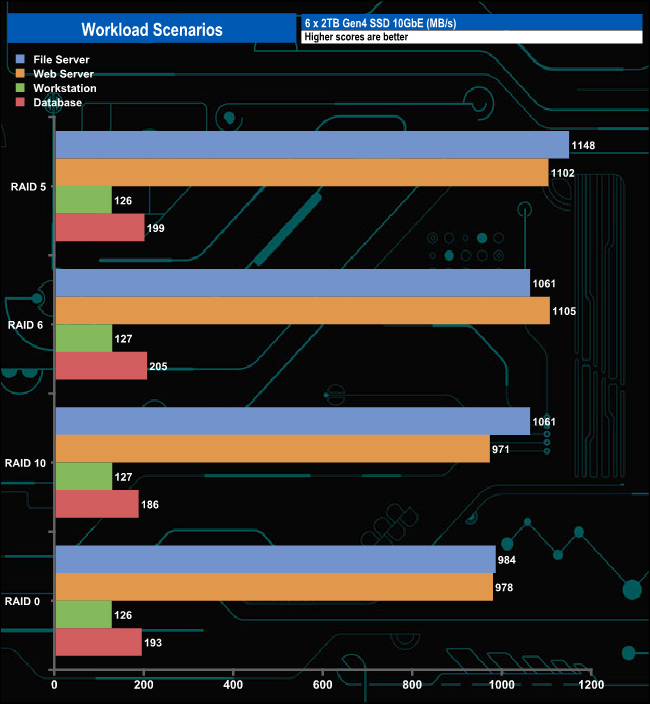
We also tested the NAS in a few scenarios it might be used for in an office environment. The best performance with all the tested arrays came via the File Server test with the fastest speed of 1,148MB/s coming from the RAID 5 array closely followed by the Web Server scenario in a RAID 6 array with a speed of 1,105MB/s.
The PCMark 10 Data Drive Benchmark has been designed to test drives that are used for storing files rather than applications. You can also use this test with NAS drives, USB sticks, memory cards, and other external storage devices.
The Data Drive Benchmark uses 3 traces, running 3 passes with each trace.
Trace 1. Copying 339 JPEG files, 2.37 GB in total, in to the target drive (write test).
Trace 2. Making a copy of the JPEG files (read-write test).
Trace 3. Copying the JPEG files to another drive (read test)
Here we show the total bandwidth performance for each of the individual traces, the total average access time and the overall bandwidth result for the test run.
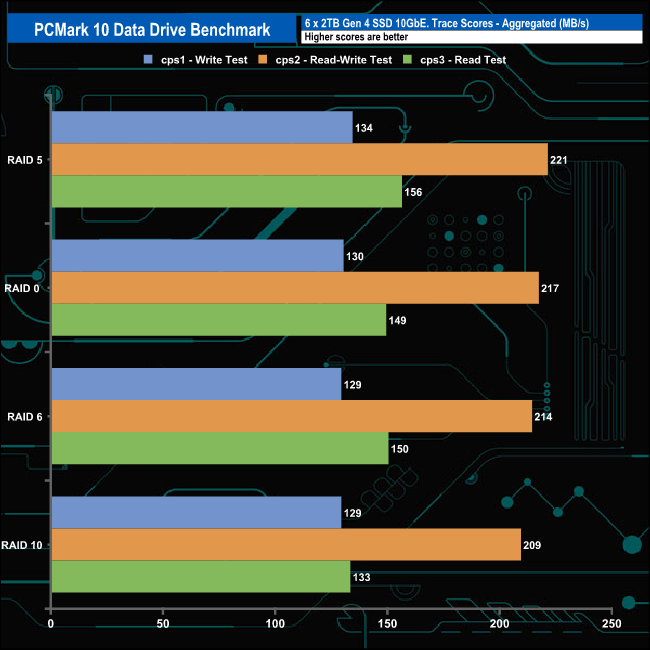
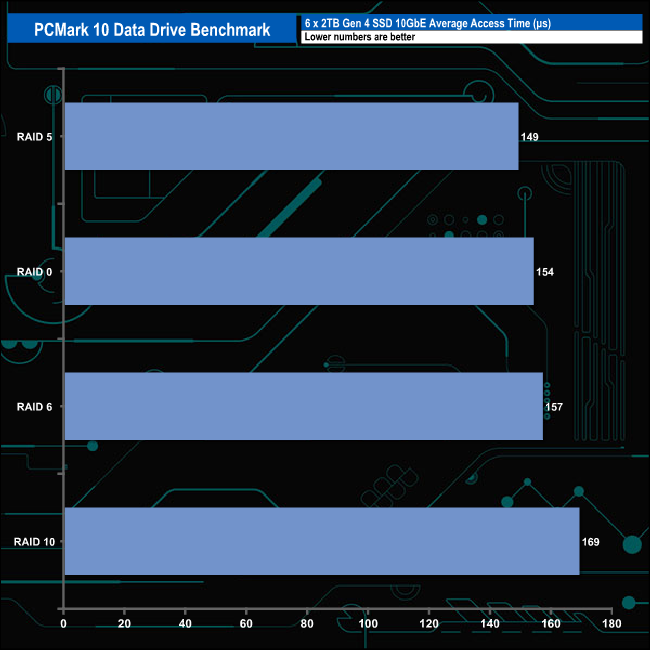
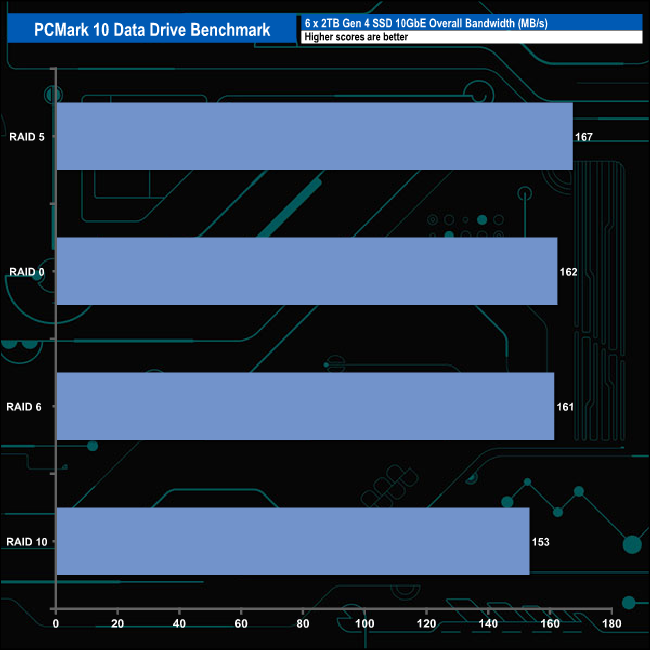
The Flashstor 6 Gen 2 handles PCMark's 10 Data Drive Benchmark very well. There isn't much to choose between any of the arrays in the three individual test traces and that pans out looking at the overall bandwidth figures for the test with only 14MB/s separating the fastest array (RAID 5) from the slowest (RAID 10).
To test real-life file/folder performance we use a number of different file/folder combinations to test the read and write performance of the NAS device. Using the FastCopy utility to get an MB/s and time taken for each transfer, the data is written from and read back to a 2TB Gen 4 SSD.
Transfer Details
- Data file – 100GB.
- Windows 11 iso – 5.4GB.
- File folder – 50GB – 28,523 files.
- Movie demos 8K – 21GB – (11 demos).
- Raw Movie Clips 4K – 16GB – (9 MP4V files).
- Single large image – 5GB – 1.5bn pixel photo.
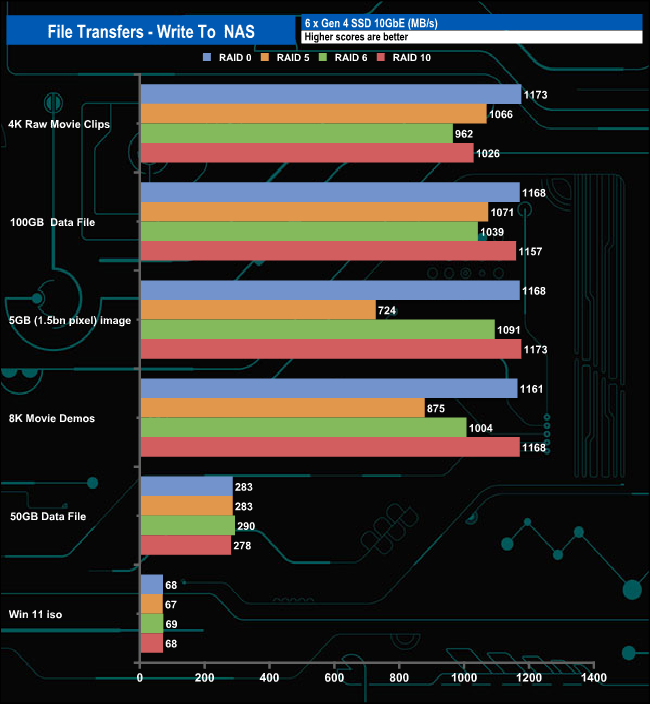

When dealing with the Real Life File transfer the Flashstor 6 Gen 2 is for the most part pretty consistent when writing the files, with 13 transfers over 1GB/s. The fastest speed we saw was 1,173MB/s for the 4K Movie folder transfer (RAID 0) and the 8K Movie folder (RAID 10),
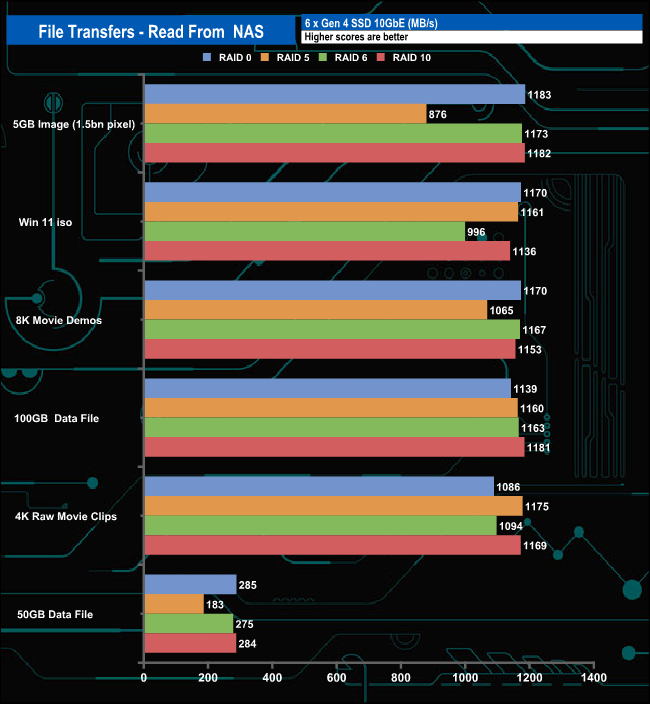
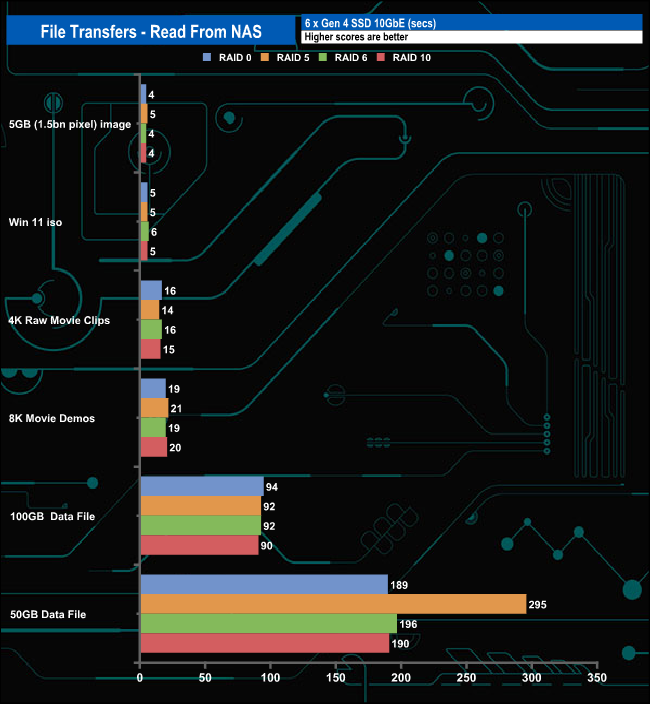
When it came to reads the 5GB photo transfer just came out on top with the fastest performance coming from the RAID 0 array at 1,183MB/s just ahead of the RAID 10 and RAID 6 arrays.
We tested the peak power consumption of a NAS at the wall during a run of CrystalDiskMark 8.0.4 as this version of the benchmark runs the read and write benchmark suites separately so its easier to monitor what power the device is using during each function.
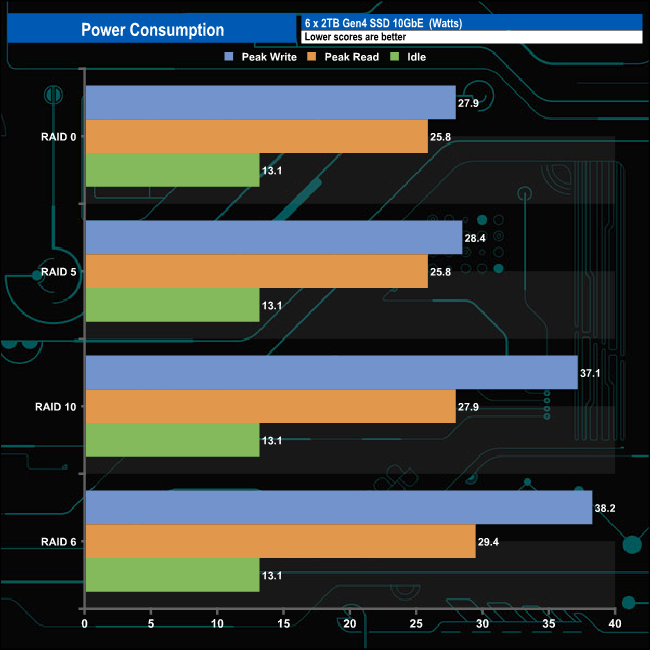
Asustor quotes power consumption figures for the Flashstor 6 Gen2 of 17.9W (Operation) and 1.2W (Sleeping). With the mix of disks we used, we saw an average of 27.2W for active reads, 32.8W for active writes and 13.1W idle.
The latest Gen2 version of Asustor's Flashstor 6 sees a whole raft of improvements over the previous generation model. The original Flashstor 6 (FS6706T) used an Intel Celeron N5105, but the new unit sees a switch to AMD power in the shape of a Ryzen V3C14 processor running at 2.3GHz (boosting up to 3.80GHz). The memory support sees an upgrade from DDR4 to DDR5-4800 with increases in the pre-installed size from 4GB to 8GB, and maximum memory support rises from 16GB to 64GB via a pair of SO-DIMM slots.
The Flashstor 6 Gen 2 supports 6 PCIe Gen 4 x4 M.2 2280 NVMe SSDs. The drive slots are a tool-less design using a simple lock but unfortunately, you still need a screwdriver to remove a cover in the base of the unit to get to them.
If you do away with having to house hulking great 3.5-inch, or even 2.5-inch drives, then a NAS enclosure can be far more interesting to look at than the usual cube. The Flashstor 6 certainly falls into this category – it looks more like a game console or digital media player than a multi-disk storage unit. Although the new unit is identical in size to the original, it has put on a little bulk as it weighs in at 1.4kg compared to the 1.35kg of the first generation. The power requirements have also increased so the bundled power adaptor is 90W compared to the previous 65W one.
The original Flashstor uses a pair of 2.5GbE ports for network connections, these have been replaced in the Gen 2 with a single 10GbE RJ45 port. The USB support has been tinkered with as well so instead of the pairs of USB 3.2 Gen 2 (10Gbps) and USB 2.0 ports, there are now a couple of USB 4.0 (40Gbps) ports along with three USB 3.2 Gen 2 ports.
The latest version (5.0) of Asustor’s ADM (Asustor Data Master) OS is a significant upgrade from previous generations, using Linux Kernel 6.6 LTS. The upgrade in kernel means you won’t be able to roll back the software after upgrading. Kernel 6.6 LTS brings with it an improvement in security features. ADM 5.0 also brings with it the new ADM Defender which provides both preset and custom firewall profiles and features intelligent security protection to protect the NAS from suspicious IP addresses.
Should you find yourself running out of storage space, the NAS supports up to a maximum of 18 drive bays via Asustor's AS5004U (USB 3.2 Gen 2 Type C) or AS6004U (USB 3.1 Gen1 Type A ) expansion units which support standard 3.5in drives and 2.5in SSDs
We found the Asustor Flashstor 6 Gen2 (FS6806X) on Amazon UK for £979 HERE.
Pros
- 10GbE networking.
- Gen4 x4 M.2 SSD support.
- ADM software.
- Fast performance.
Cons
- Expensive.
KitGuru says: The latest version of Asustor's Flashstor 6 has significant upgrades from the original model, in almost every area where it matters – CPU, memory and drive support – but those upgrades don't come cheap.