KitGuru KitGuru.net – Tech News | Hardware News | Hardware Reviews | IOS | Mobile | Gaming | Graphics Cards


Newly arrived into the highly competitive NAS market, Ugreen has launched a range of six devices ranging from a 2-bay model up to an eight-bay unit. The four-bay NASync DXP4800Plus sits in the mid-range and uses an interesting choice of hardware.
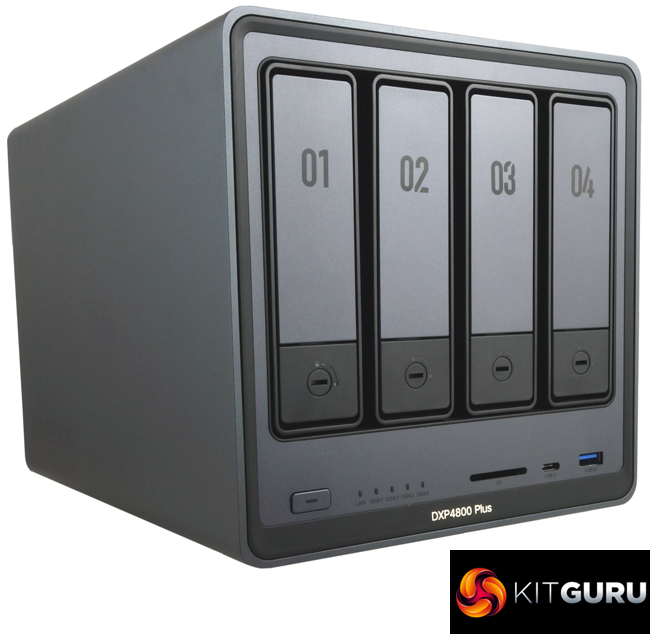
Powering the DXP4800 Plus is an interesting choice of CPU as Ugreen has opted for an Intel Pentium Gold 8505 as it's a 12th Gen processor compared to the standard DXP4800 which uses a 13th generation Intel Processor N. Although a generation older the 8505 has a better feature set than the N series; 64GB of memory support (as opposed to 16MB), better graphics and perhaps most importantly it supports PCIe Gen 4 and provides 20 PCIe lanes compared to the 9 lanes of PCIe Gen 3 that the N supports.
The NAS comes with 8GB of DDR5 installed and supports up to 64GB via a pair of SO-DIMM slots. Another interesting feature is that the DXP4800 Plus (and the devices above it in the range) don't use a flash memory system disc but instead uses an actual SSD with 128GB capacity. Ugreen also provide the DXP4800 with a pair of NVMe PCIe 4.0 slots for caching or extra storage duties.
The DXP4800 Plus is the only NAS in the current lineup that has a choice of two different speeds of Ethernet connection, 10GbE and 2.5GbE. Ugreen back the NAS with a 2-year warranty.
Physical Specifications
- Processor: Intel Pentium Gold 8505 (4.40 GHz).
Memory: 8GB DDR5-4800. - Gigabit Ethernet Ports: 2, 10GbE & 2.5GbE.
- Rear panel connectors: 1 x USB 3.2 Gen 1 Type-A, 2 x USB 2.0 Type-A, 1 x HDMI 2.0b (4K 60Hz).
- Front panel connectors: 1 x USB 3.2 Gen 2 Type-C, 1 x USB 3.2 Gen 2 Type-A, SD 3.0 Card slot.
- RAID support: JBOD / Basic / RAID 0, 1, 5. 6. 10.
- Cooling: Active, 1 x 140mm fan.
- Drive Bays Supported: 4
- Maximum hard drive size supported: 22TB
- Maximum Capacity: 88TB.
- NVMe slots: Y, 2 x M.2 2280 PCIe 4.0.
- Internal File System support: Btrfs, ex4.
- Dimensions (D x W x H): 257.5 x 178 x 178mm.
- Weight: 3.9kg (empty).
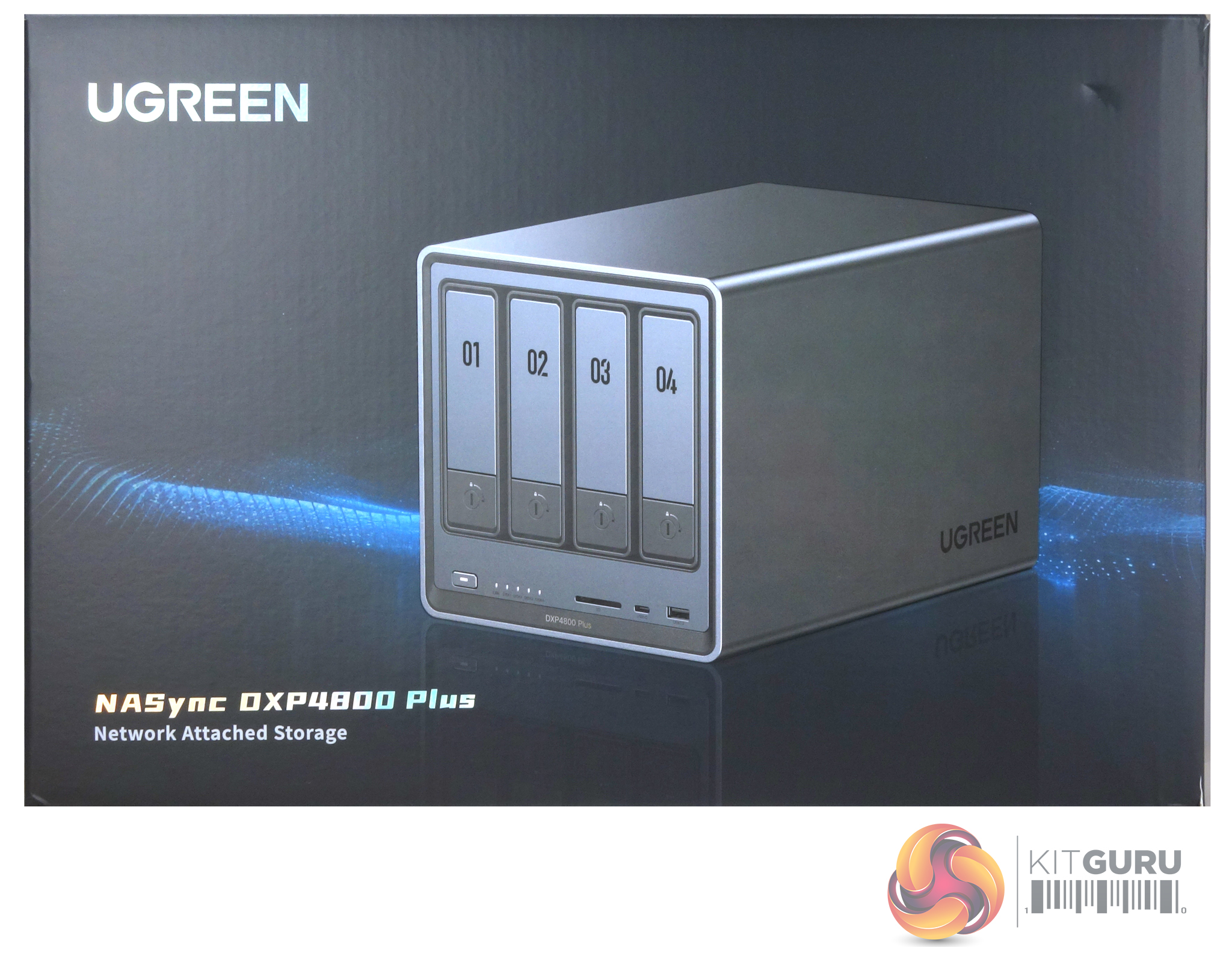
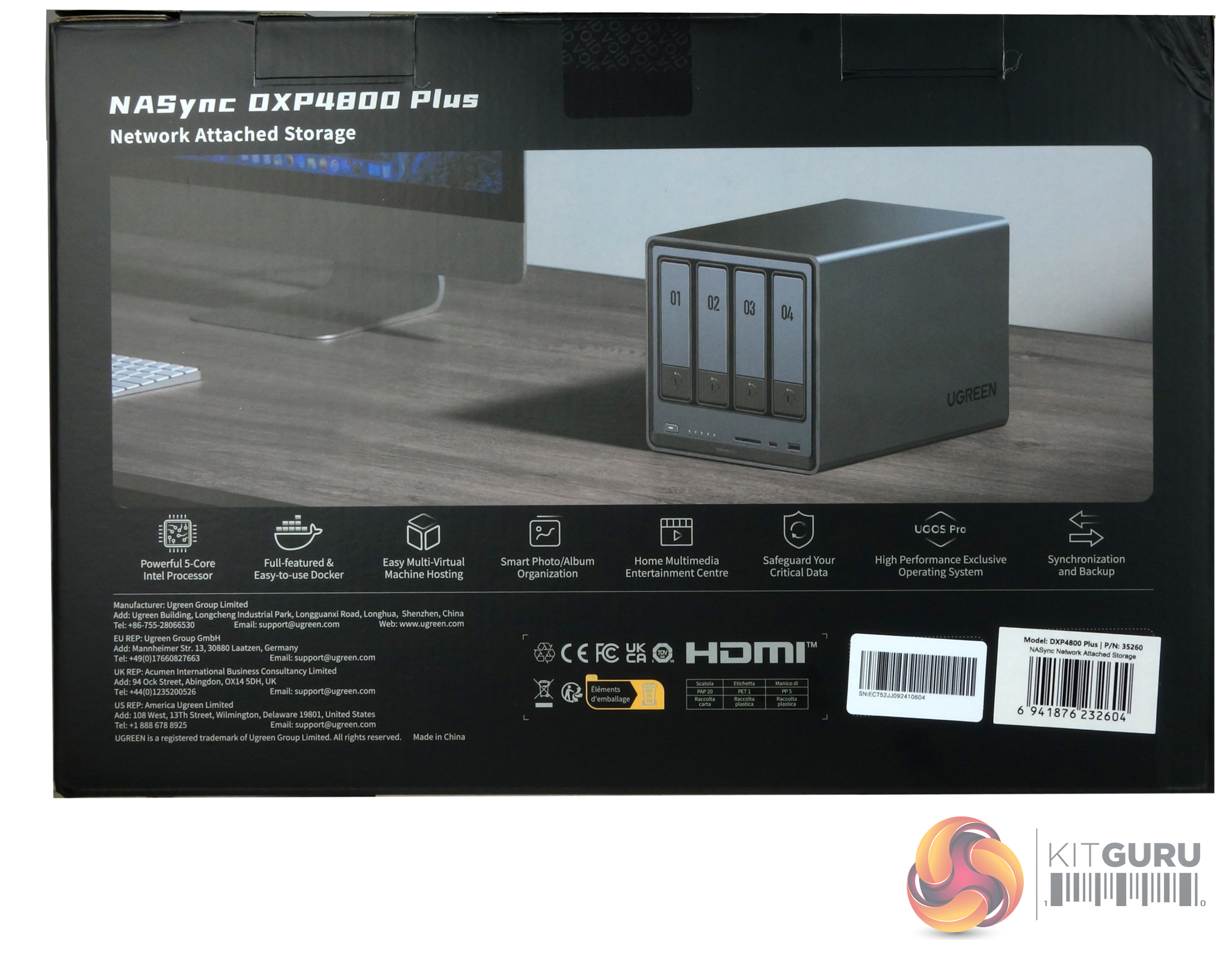
The NASync DXP4800 Plus comes in a compact box. The front of the box has a large image of the NAS on it. The rear of the box has another smaller image of the unit under which there is a row of icons displaying some of its features; 5-core Intel Processor, Fully featured Docker, Virtual Machine Hosting, Smart Photo, Home Entertainment centre, Data safeguard, exclusive operating system and Synchronization and backup.
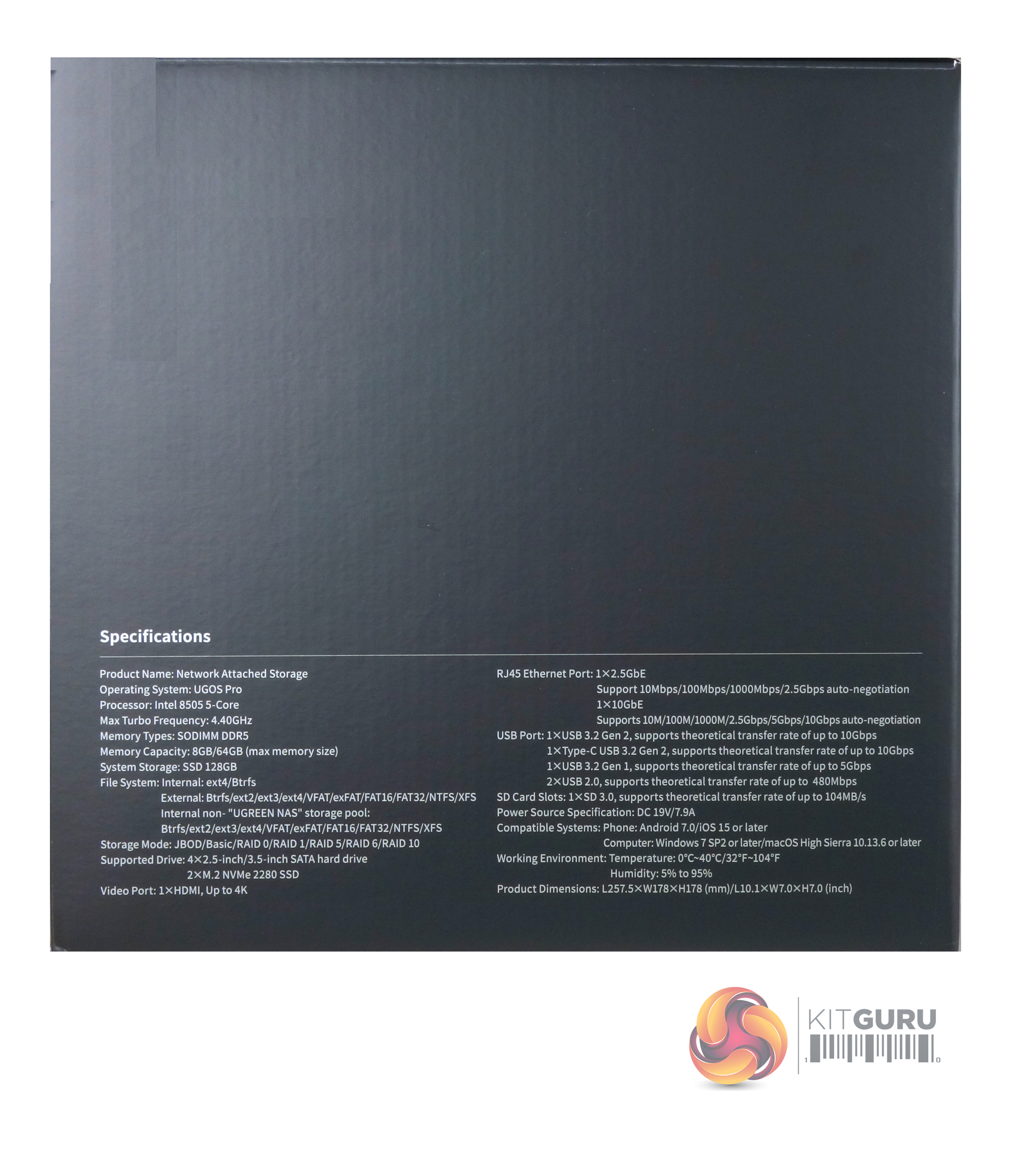
One end panel of the box has a list of the DXP4800 Plus specs.
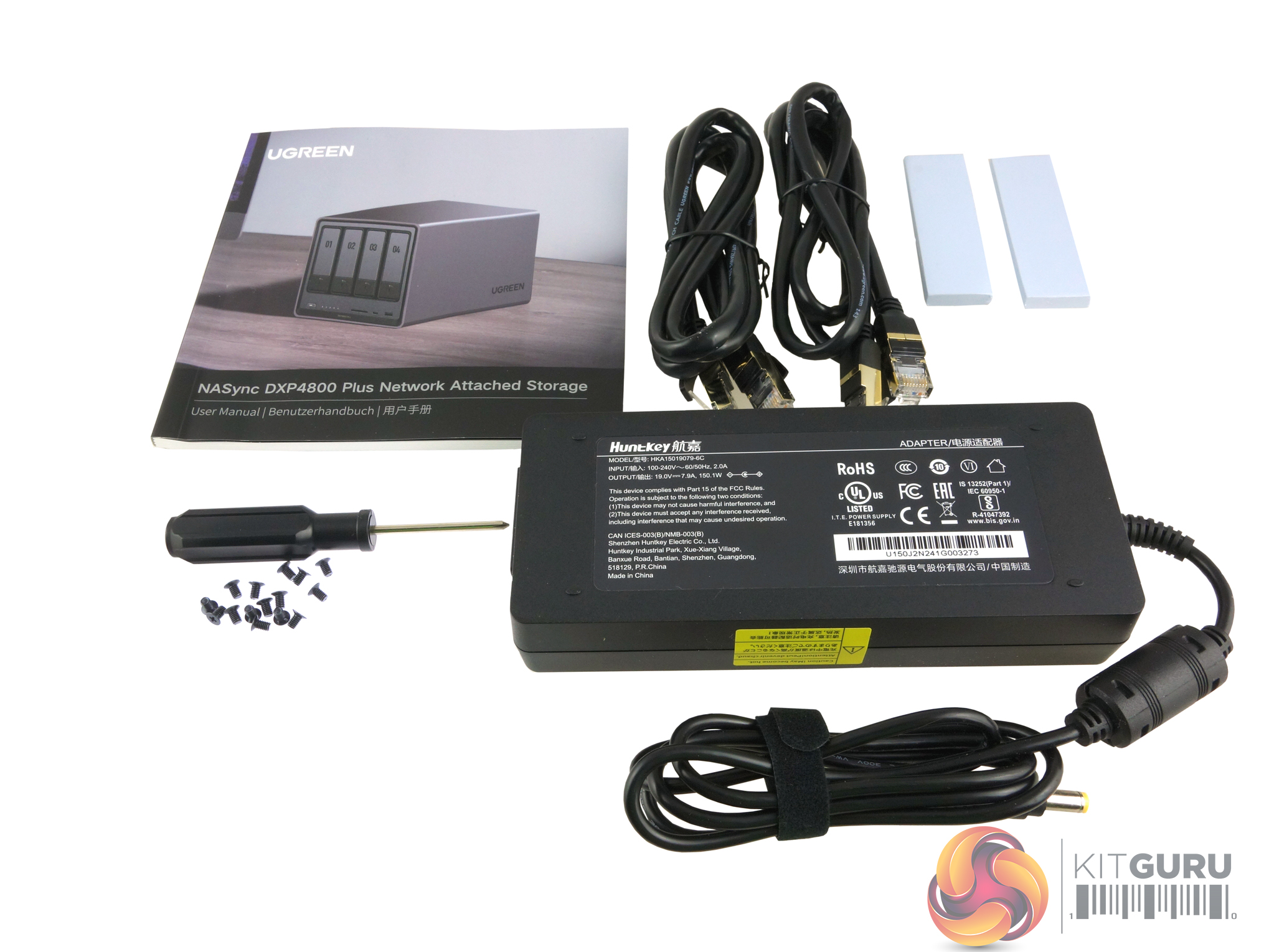
A quick shout-out to Ugreen on the quality of the box and how the DXP4800 Plus is packed, and protected by foam inserts. Even the box with all the accessories is classier than the normal box with clear labelling as to what's in it. Bundled with the DXP4800 Plus are all the bits and bobs you need to get started; a pair of Cat7 ethernet cables, a power adapter (HuntKey, HKA15019076-6C, 150.1 W, 19.0 V), screws (for 2.5in drives), small screwdriver, two thermal pads ( for any M.2 SSDs you may want to install), a pair of keys to secure the drive bay doors and a very good manual.
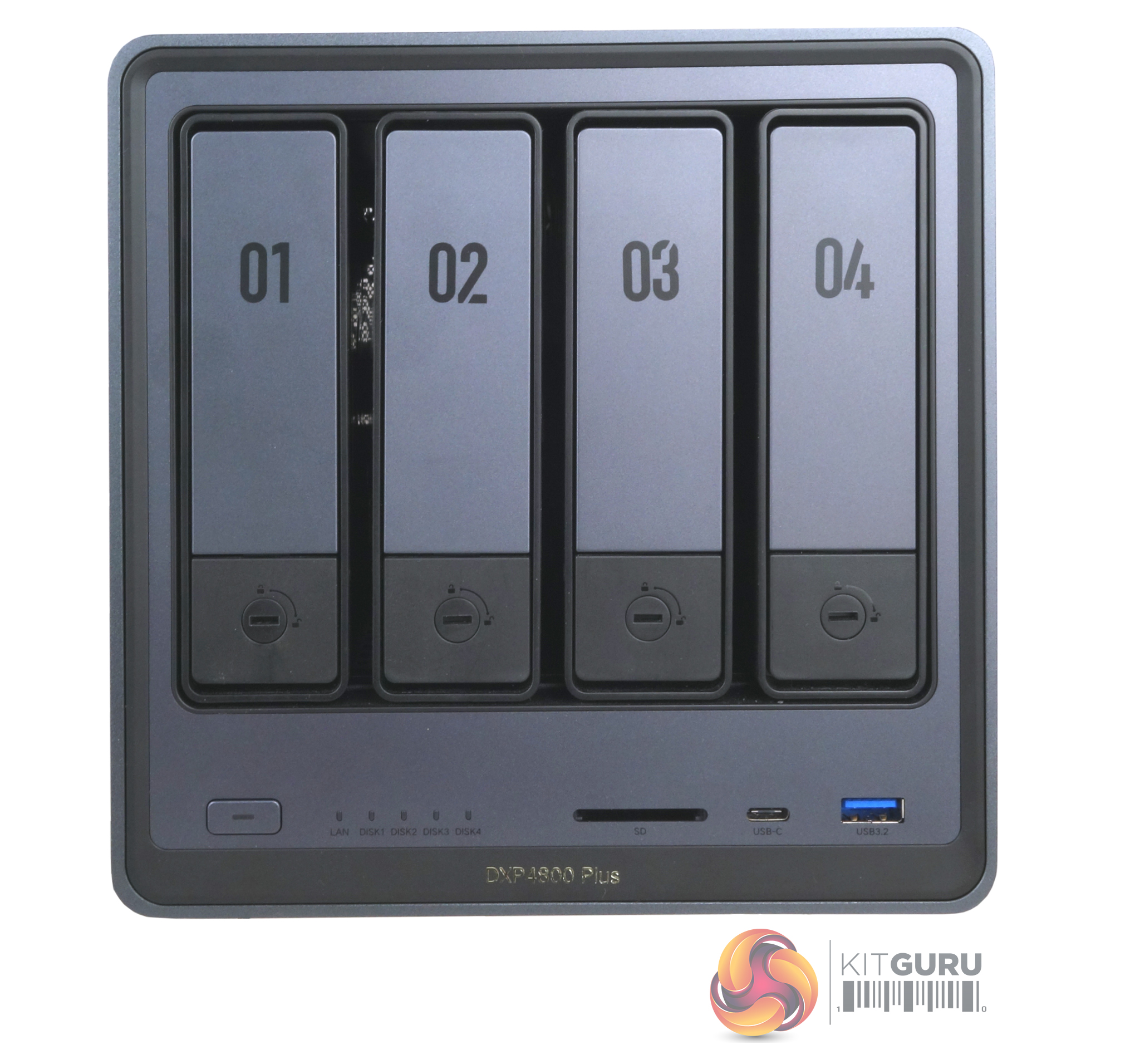
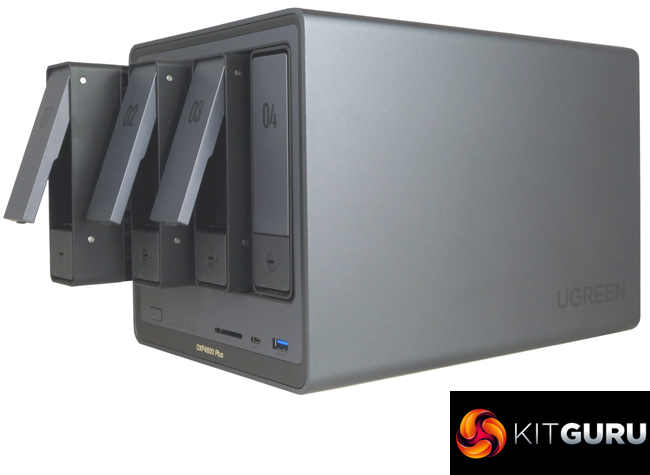
The Ugreen NASync DXP4800 Plus is a compact 4-bay NAS using a metallic grey plastic external enclosure over an aluminium alloy internal frame. The system LEDs are all in a line at the bottom of the front panel next to the power button. There are five of them, one for the LAN connectivity and the rest for disk activity. Next up is an SD 3.0 Card slot and then two USB 3.2 Gen 2 (10 Gbps) ports, one Type-C and the other Type-A.
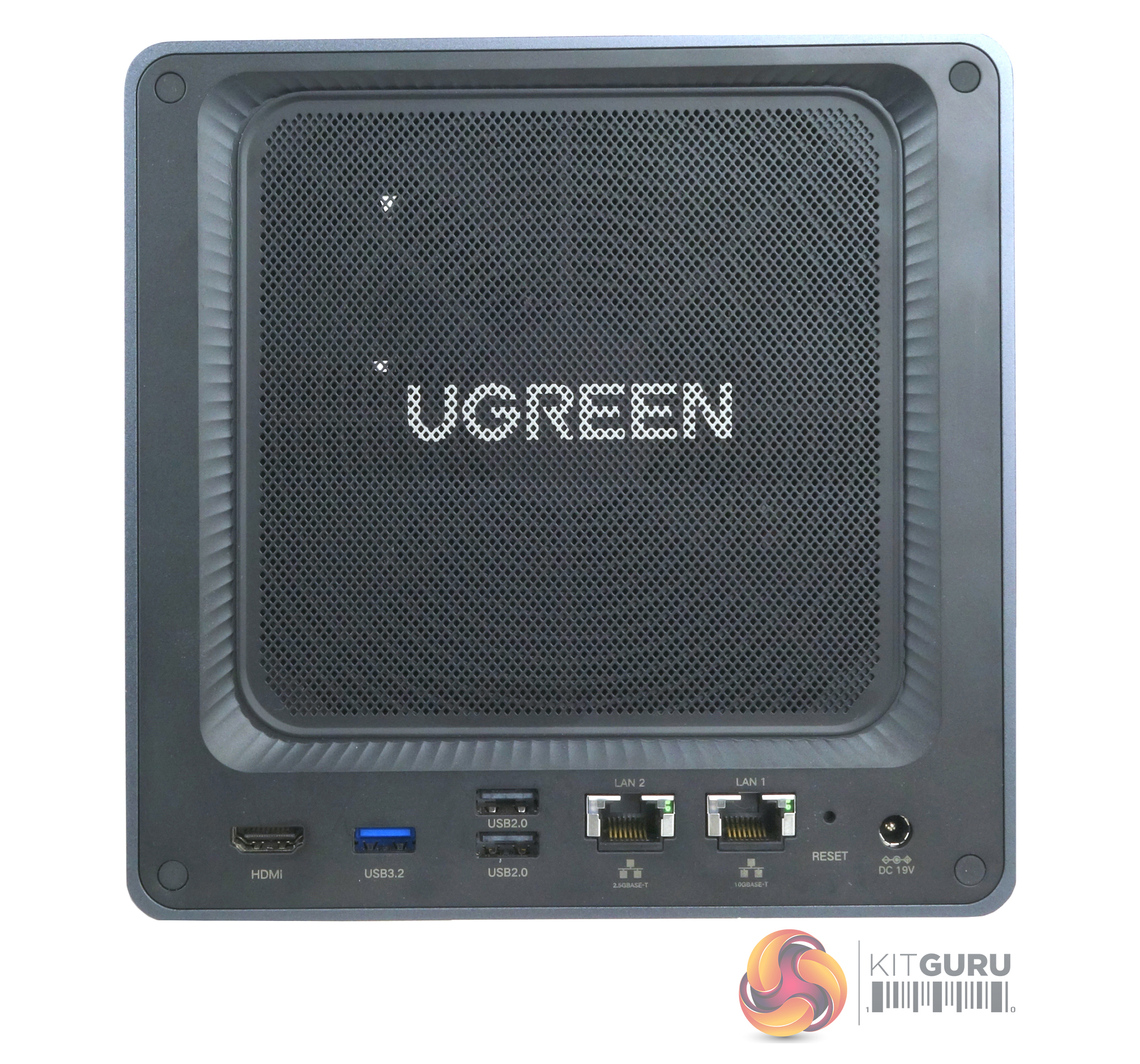
The rear panel of the unit is dominated by the cover for the 140mm cooling fan (the speed can be set in the OS). Full marks to Ugreen on the cover as it's a magnetic dust filter – other NAS manufacturers please take note. Under this sits the rear ports, and here Ugreen has made some interesting choices. First up is a 4K 60Hz capable HDMI port followed by a single 3.2 Gen 1 Type-A port and two stacked USB 2.0 ports. Then comes the big surprise as the DXP4800 Plus has not one but two Ethernet ports, one 2.5GbE, the other 10GbE. Next to these ports are the reset button and the power connector.
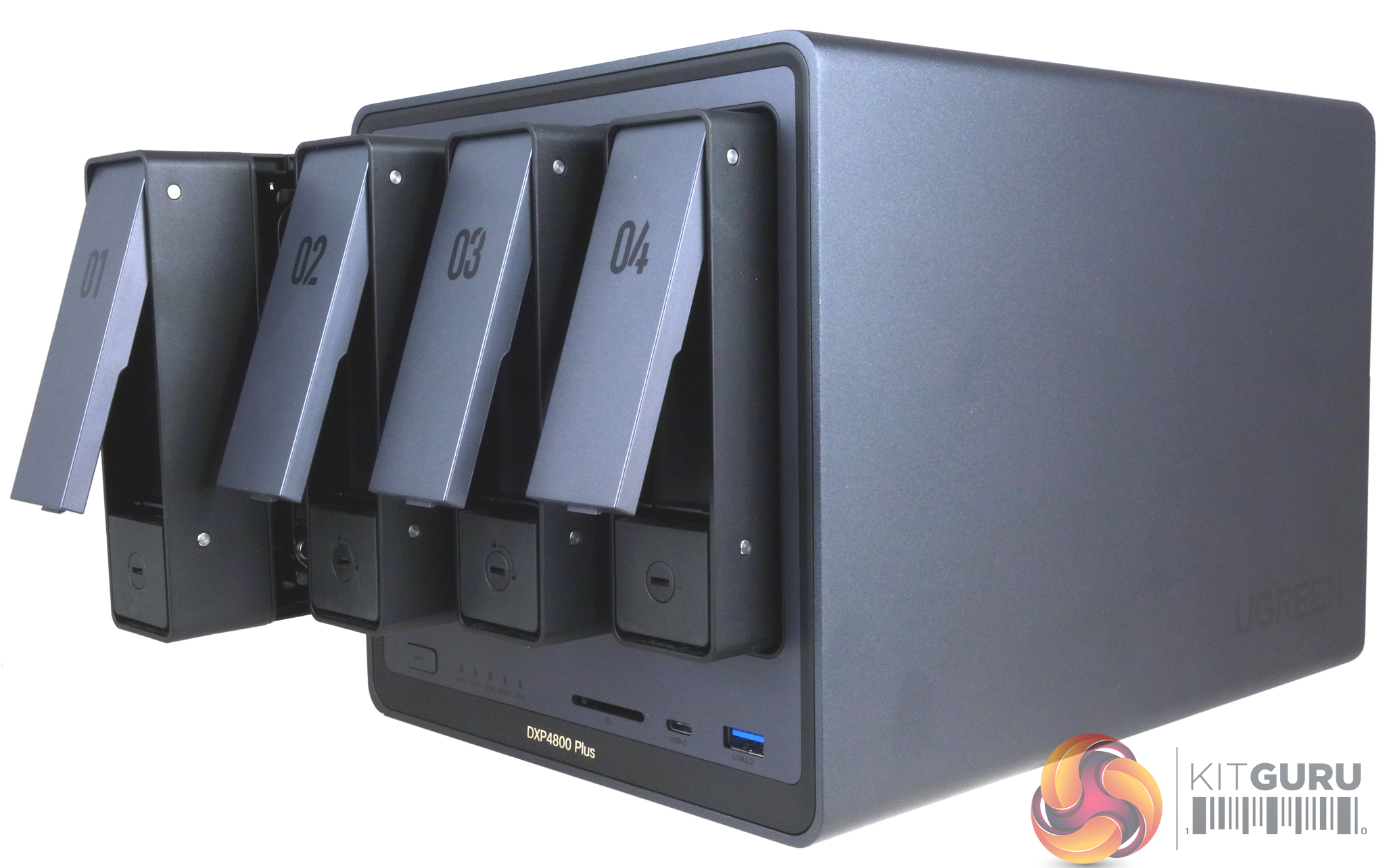
The bay doors have locks built into them and Ugreen supplies a couple of plastic keys but locks are not true locks and if you lose the keys a flat-bladed screwdriver will work. They are clearly numbered making sorting out any problems a lot easier.
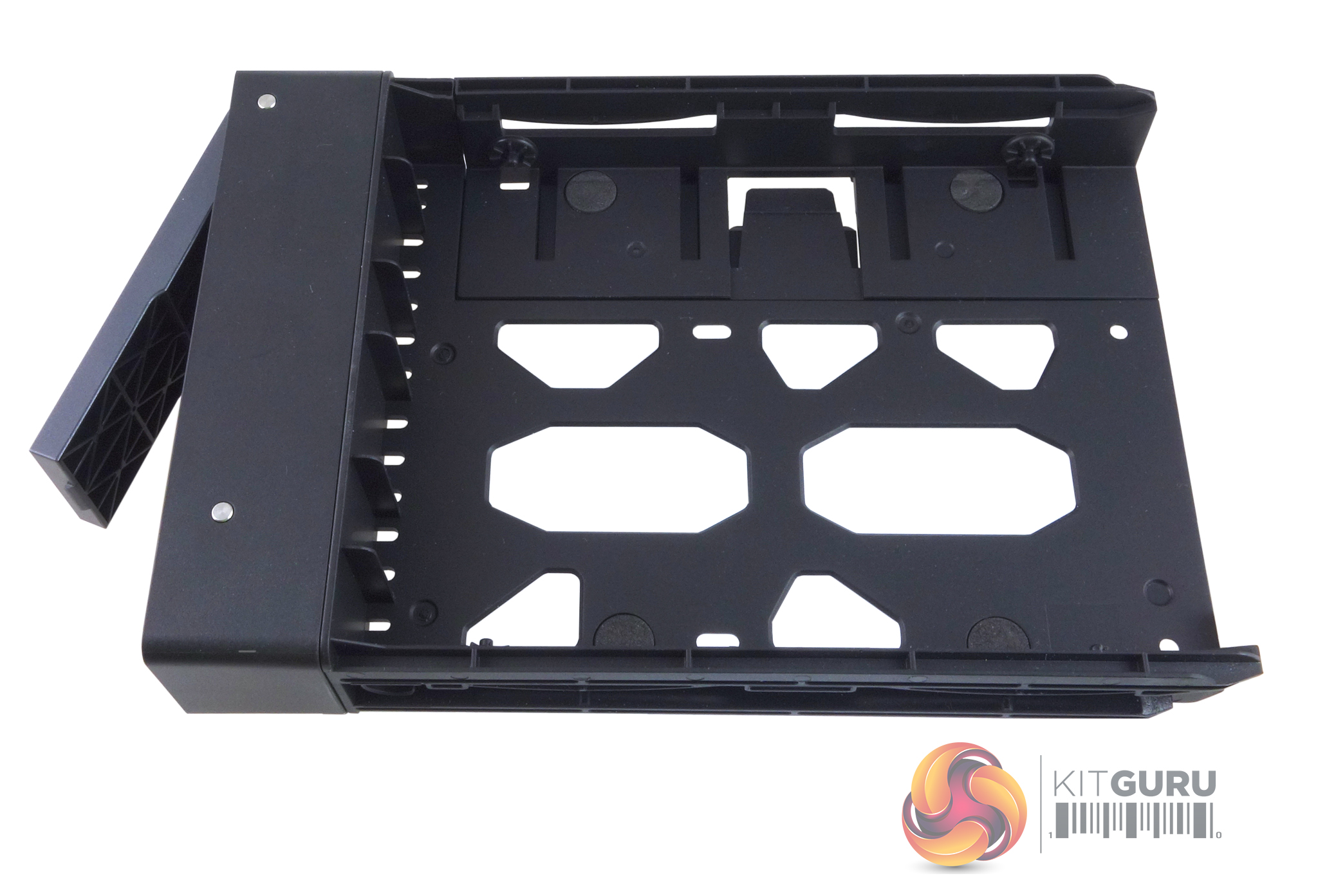
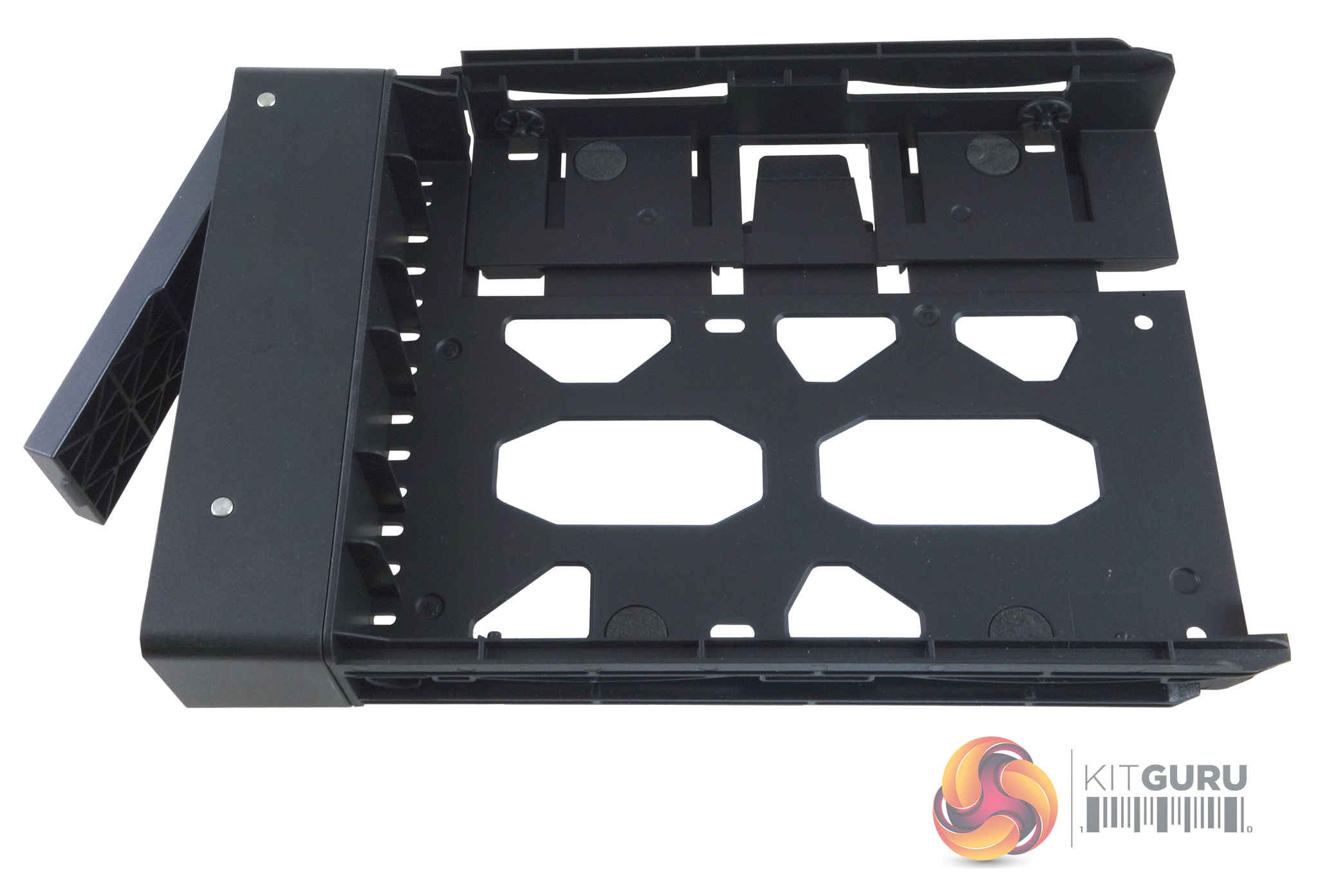
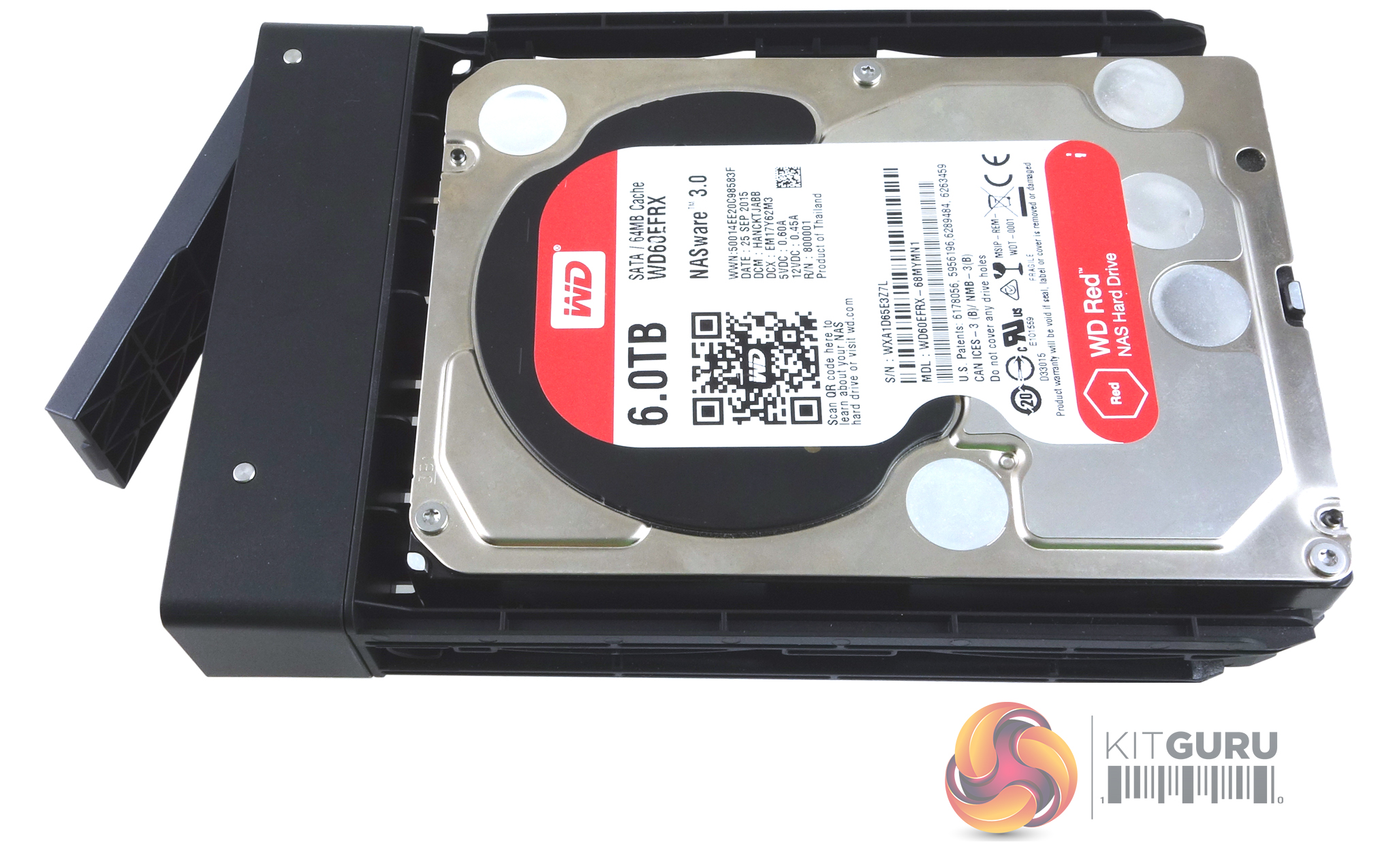
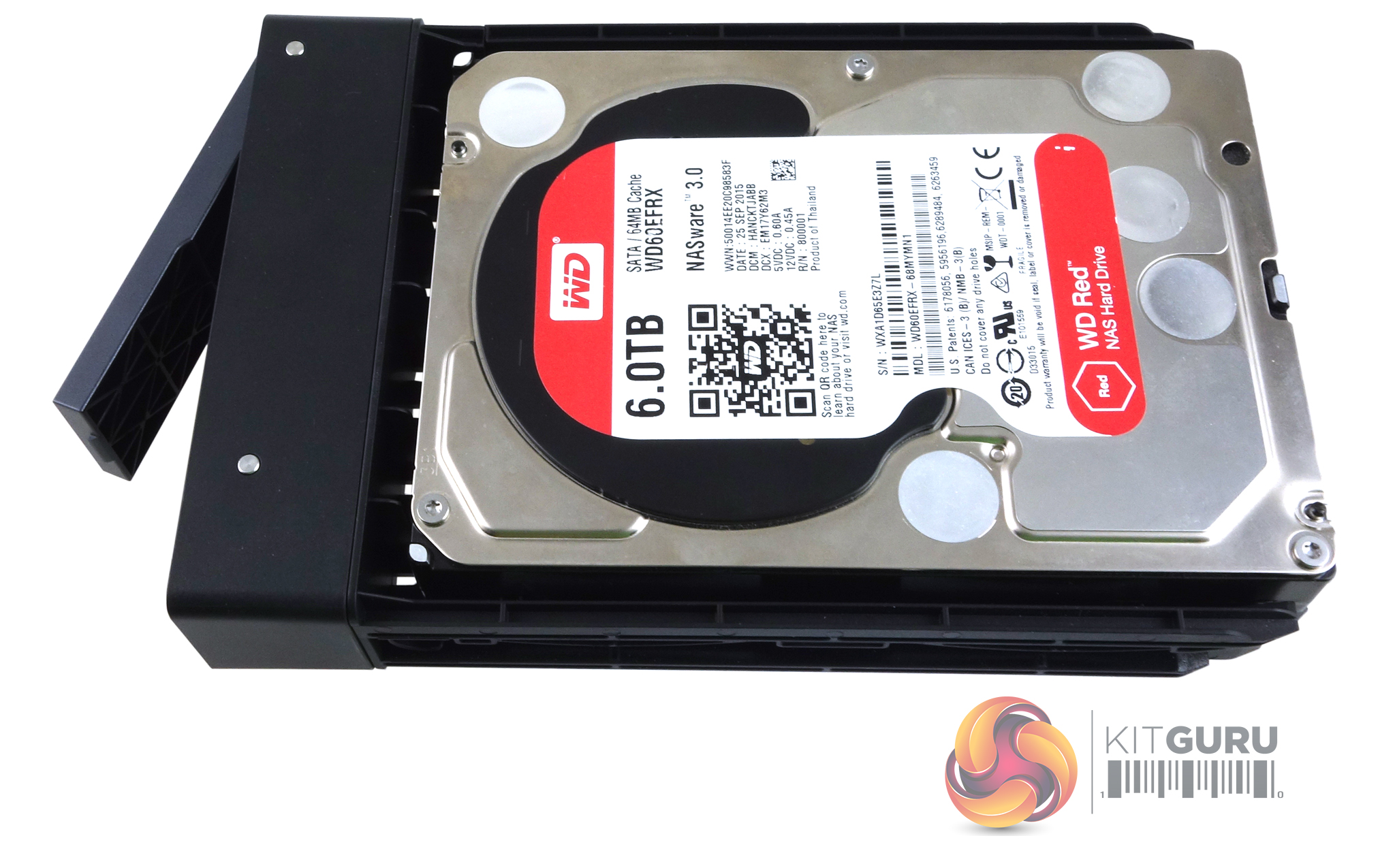
The 3.5-inch drive trays are tool-free and use a novel approach to securing the drives in place. Releasing a latch on the base of the tray allows the side to slide out, the drives positioned on the pegs in the tray sides and then the sliding part is slid back in place to lock the drive. If you want to use 2.5in drives then these have to be fixed in place with screws (supplied in the box bundle) in the base of the tray.
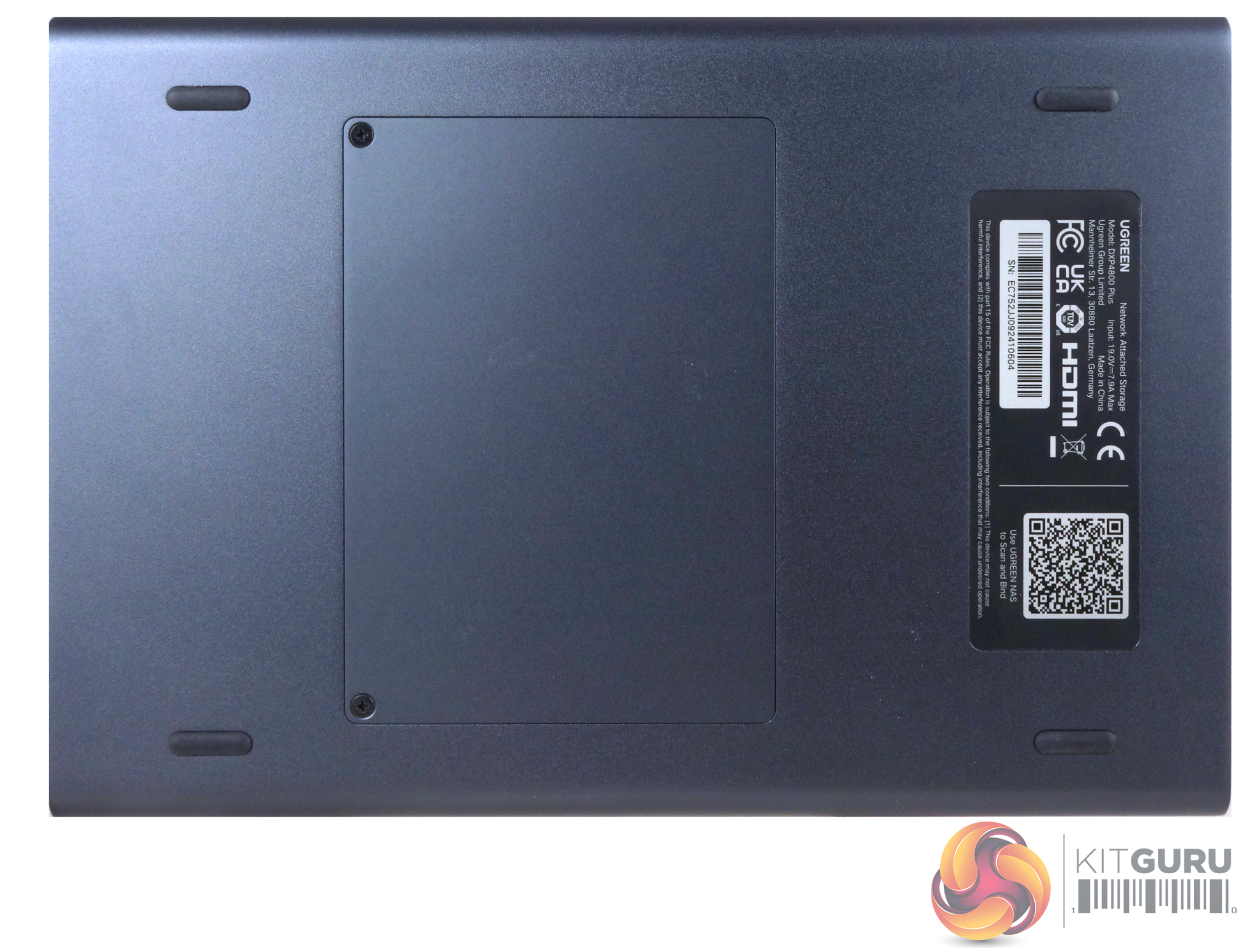
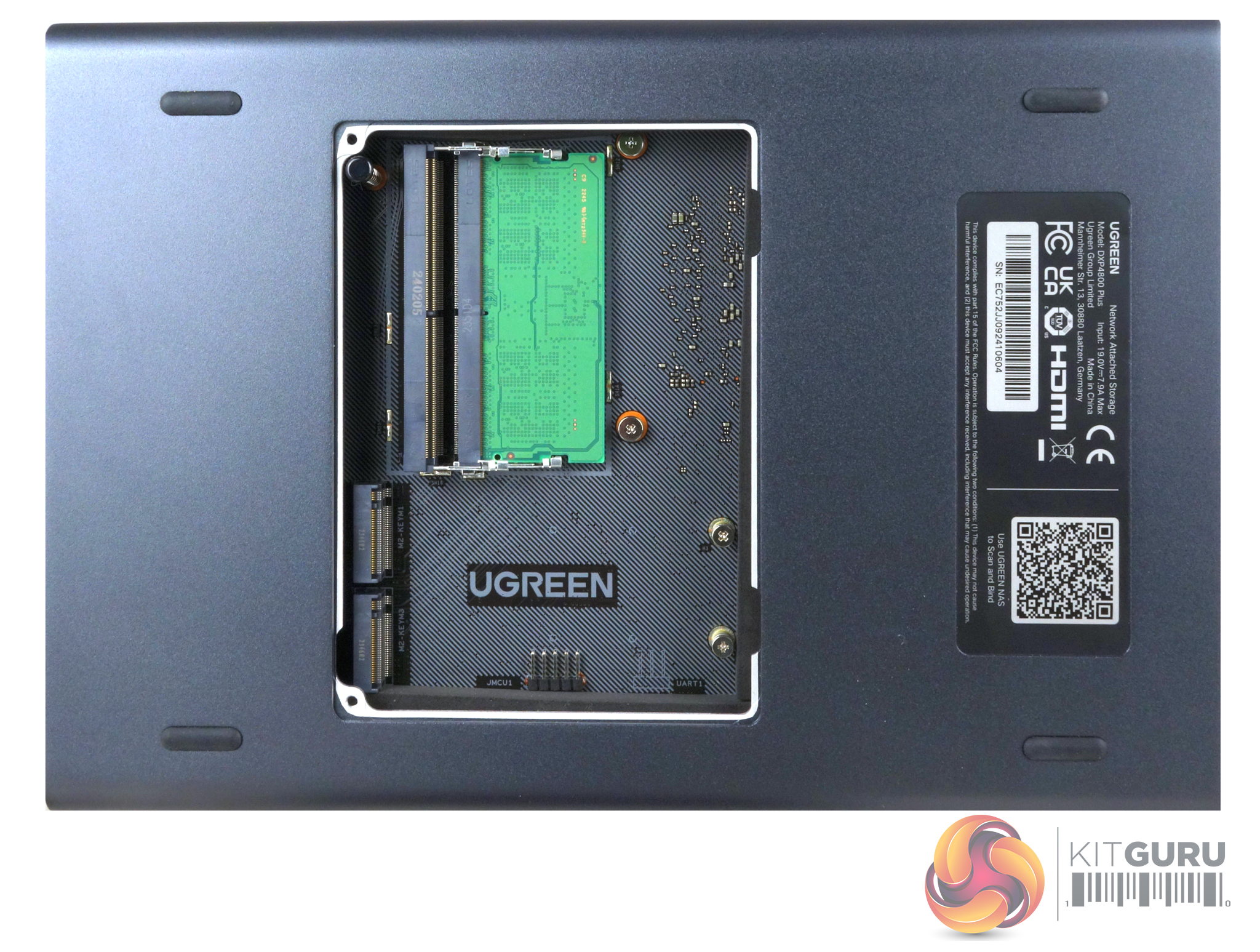
The mainboard of the NASync DXP4800 Plus supports up to 64GB of DDR5-4800 memory via two SO-DIMM slots. To access these slots you first have to remove a panel in the base of the unit. Next to the memory slots are the two M.2 PCIe 4.0 ports, which only support 2280 format drives
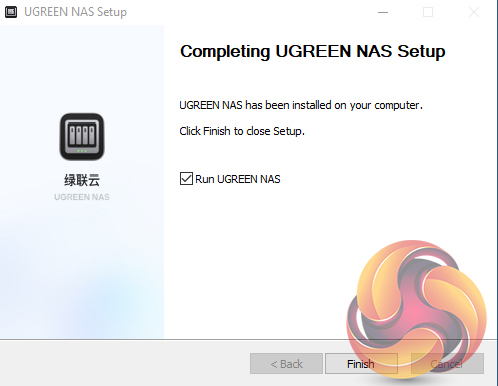
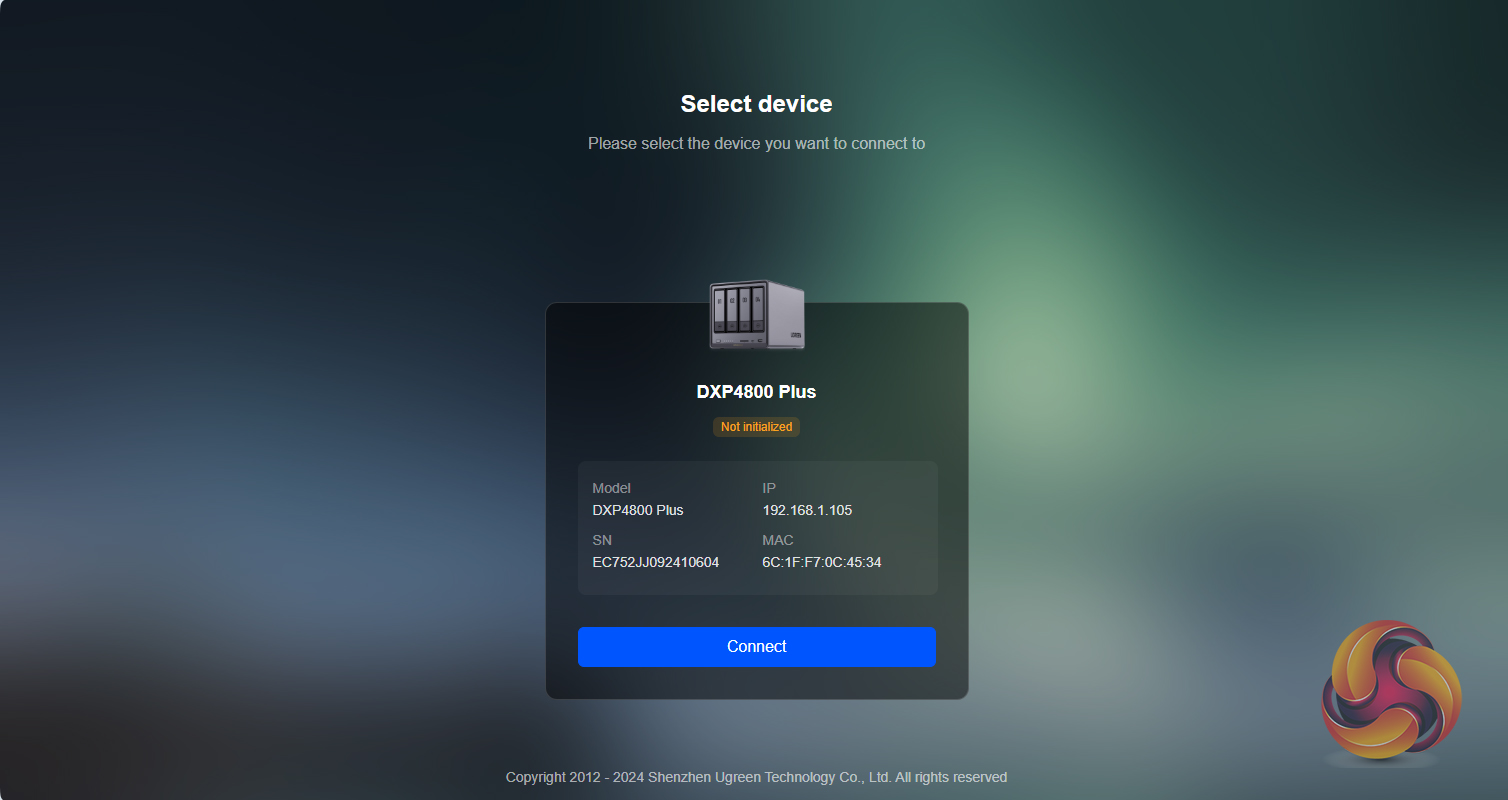
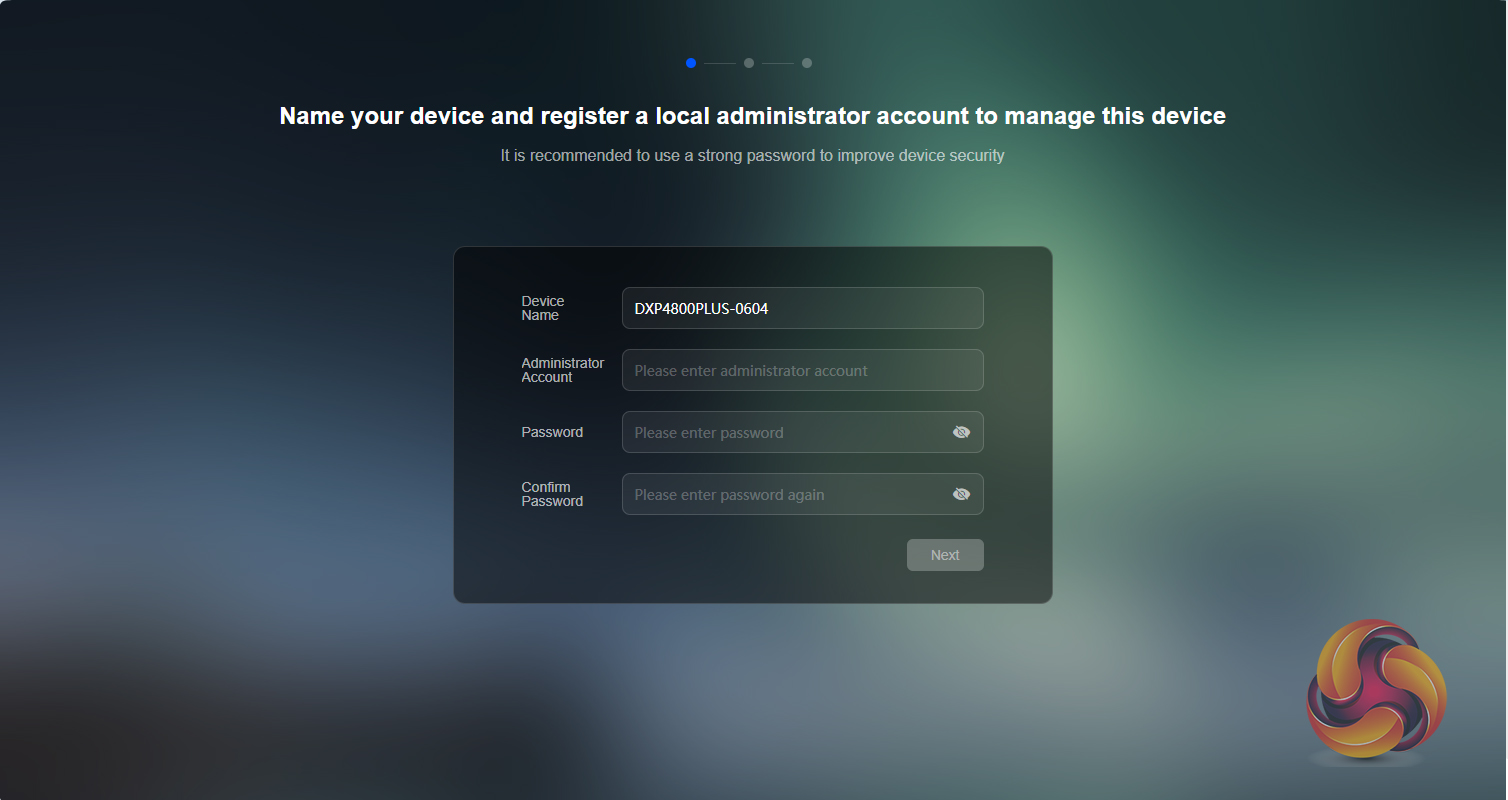
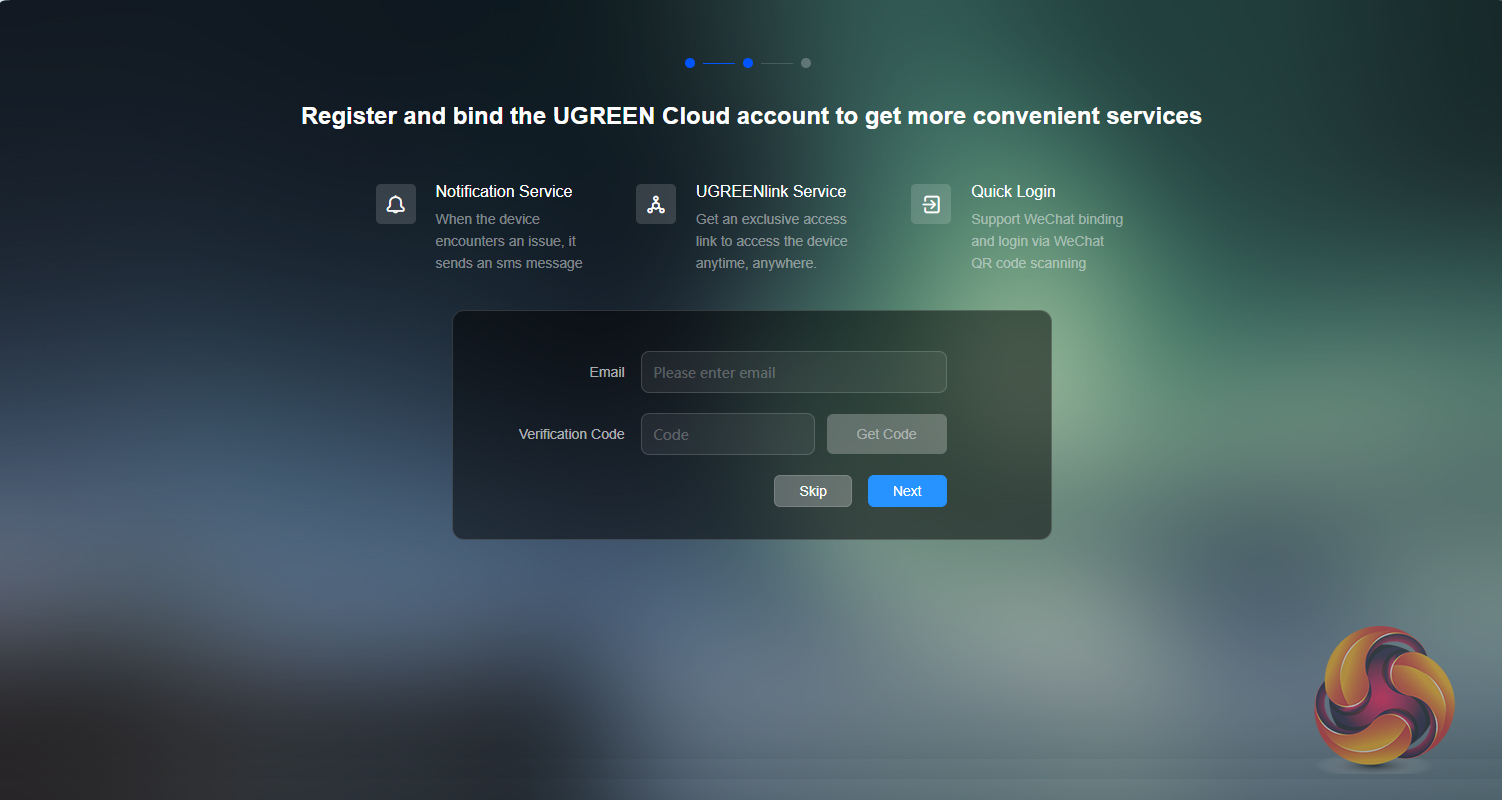
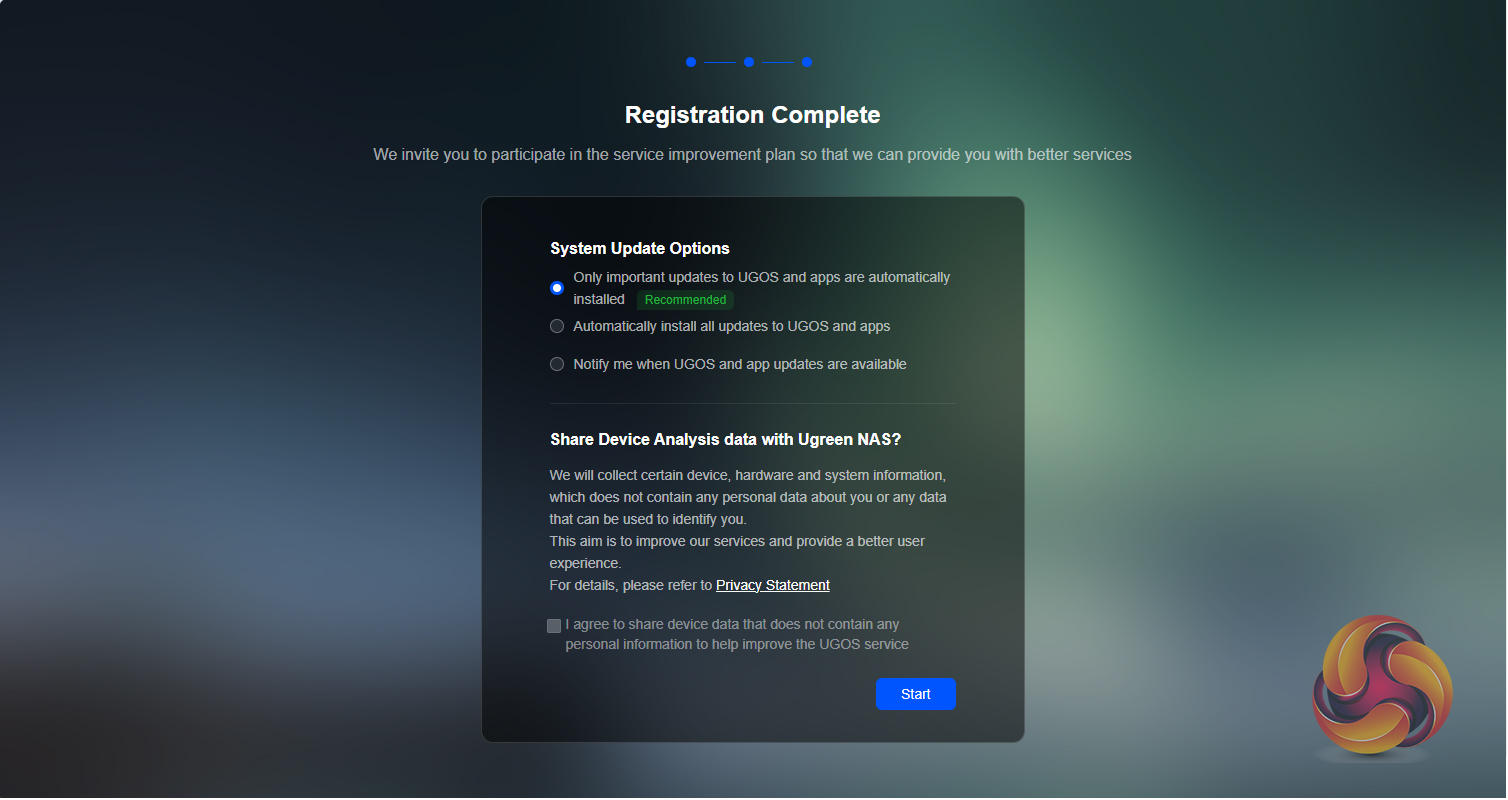
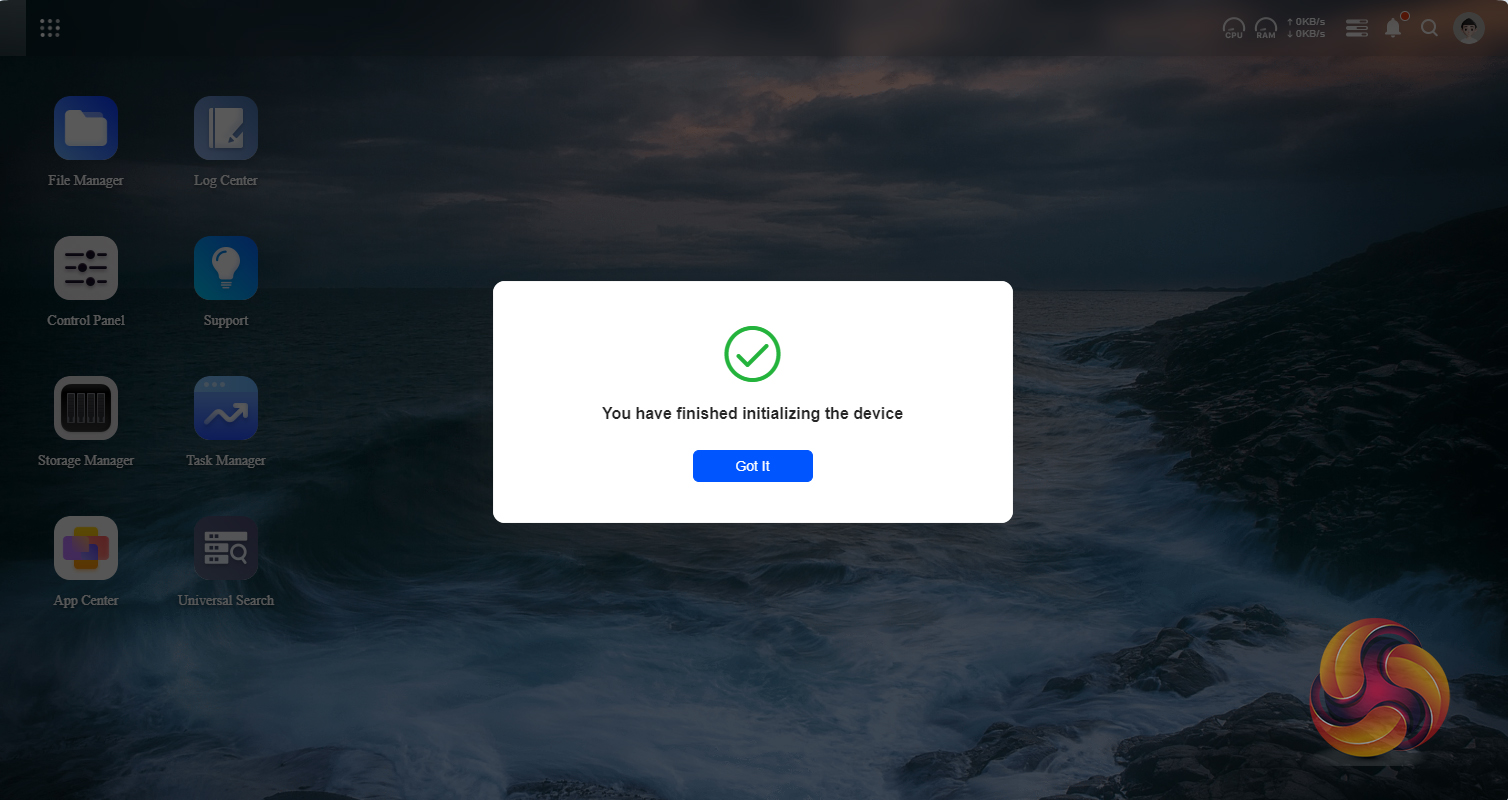
Ugreen uses UGOS Pro as the OS for the NAS. UGOS Pro is an in-house operating system based on Debian 12 (we used version 1.0.0.0437 to test the DXP4800Plus). There's a choice of ways of doing the initial set-up of the unit either by a Windows-based app or via a web interface. We had problems using both initially with the NAS telling us that it and the PC it was plugged into, were not on the same network, which was odd. We pugged it straight into a router which was connected to the internet and we got it to work. After this initial niggle there were no more connection problems during the testing.
The setup is via an easy-to-follow wizard allowing you to set up an admin account, the way updates are dealt with and the Ugreen cloud service and the whole setup takes hardly any time to get up and running.

The initial screen is uncluttered and has a familiar look to it, especially if you used one of its potential competitor's products. The top right of the main window is a taskbar with seven icons. The first two display CPU and memory usage (moving the mouse over them reveals the actual speeds). Next to these are the network speeds and then a shortcut to the Task Center. The bell icon opens up the Notification Center, this can be customised to show only the ones required. The next one is for the Search function and the final one is for the Admin Account.
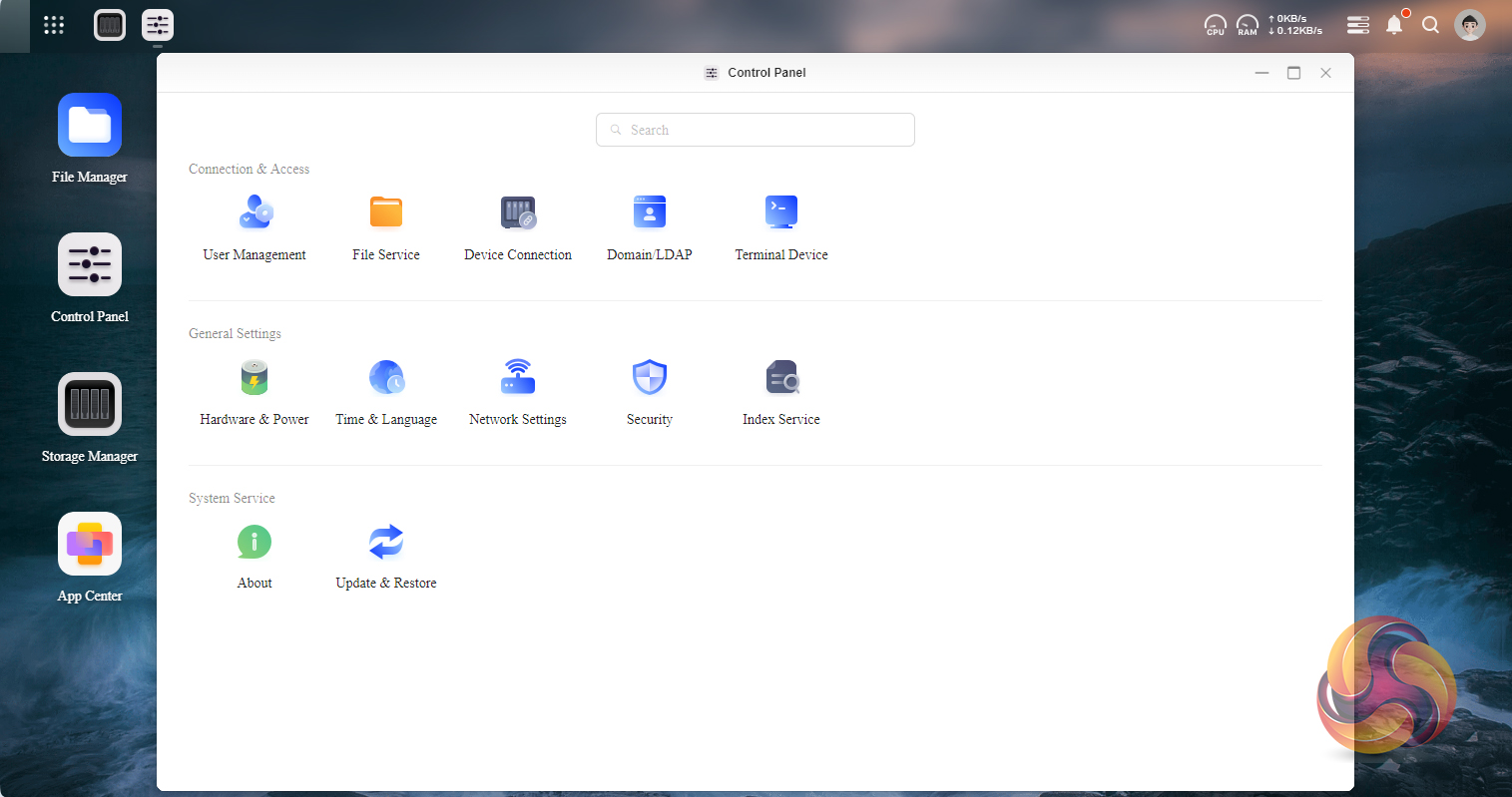
As it is early days for the OS, the control panel looks quite sparse in comparison to some of its competitors but on closer inspection, most of what you need to keep the NAS up and running smoothly is all there.
Storage Manager – Creating a storage pool.
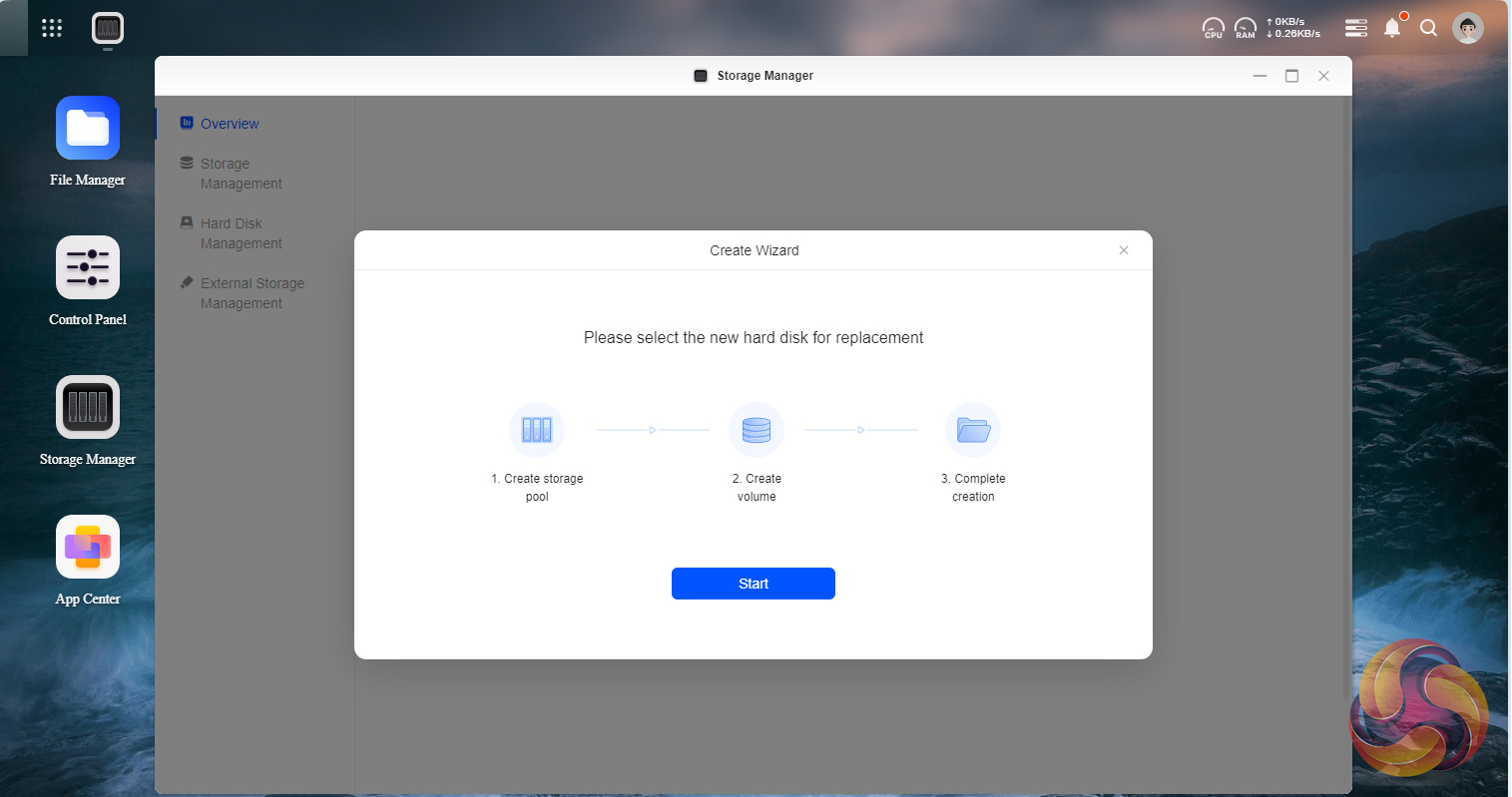
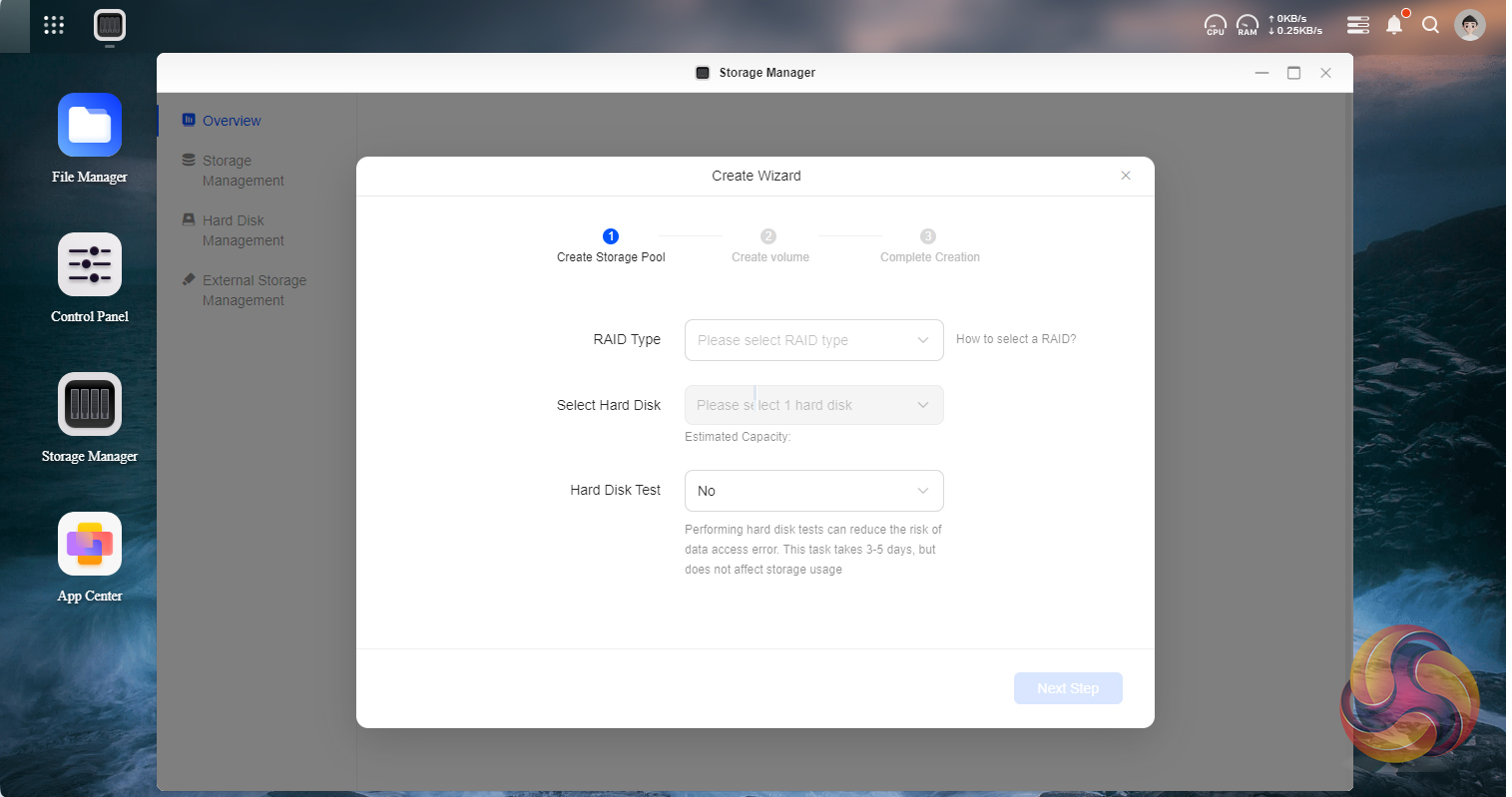
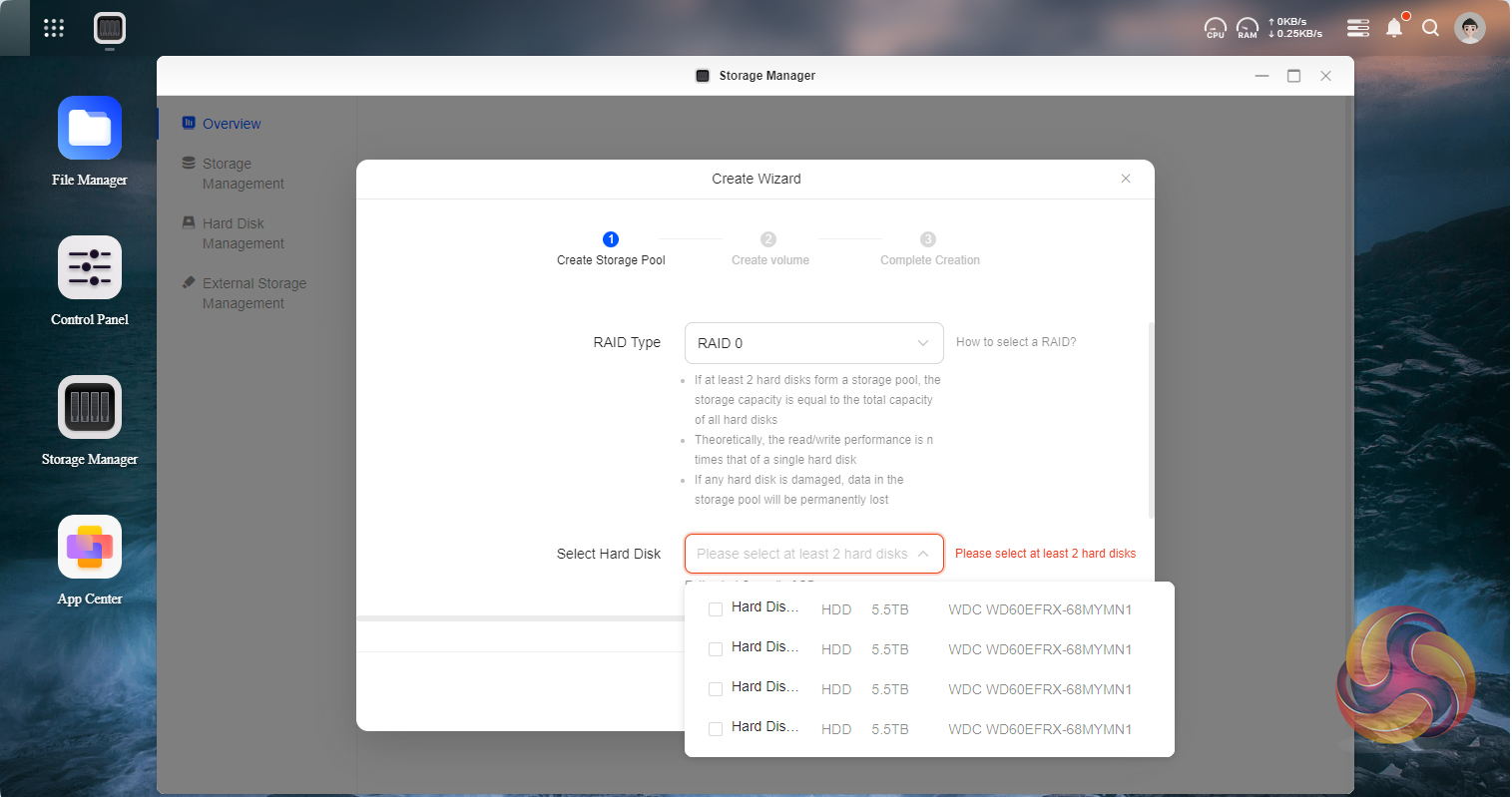
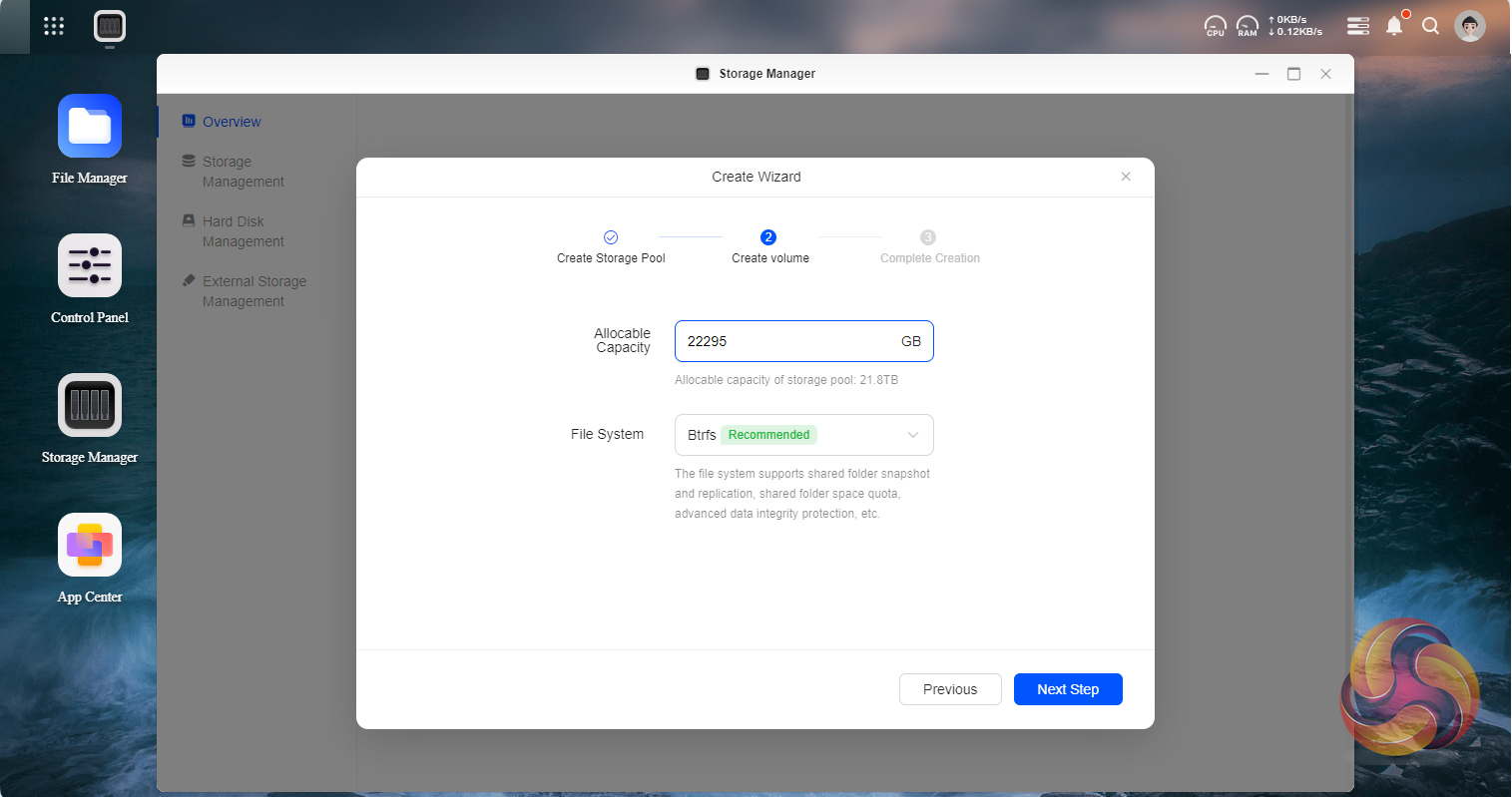
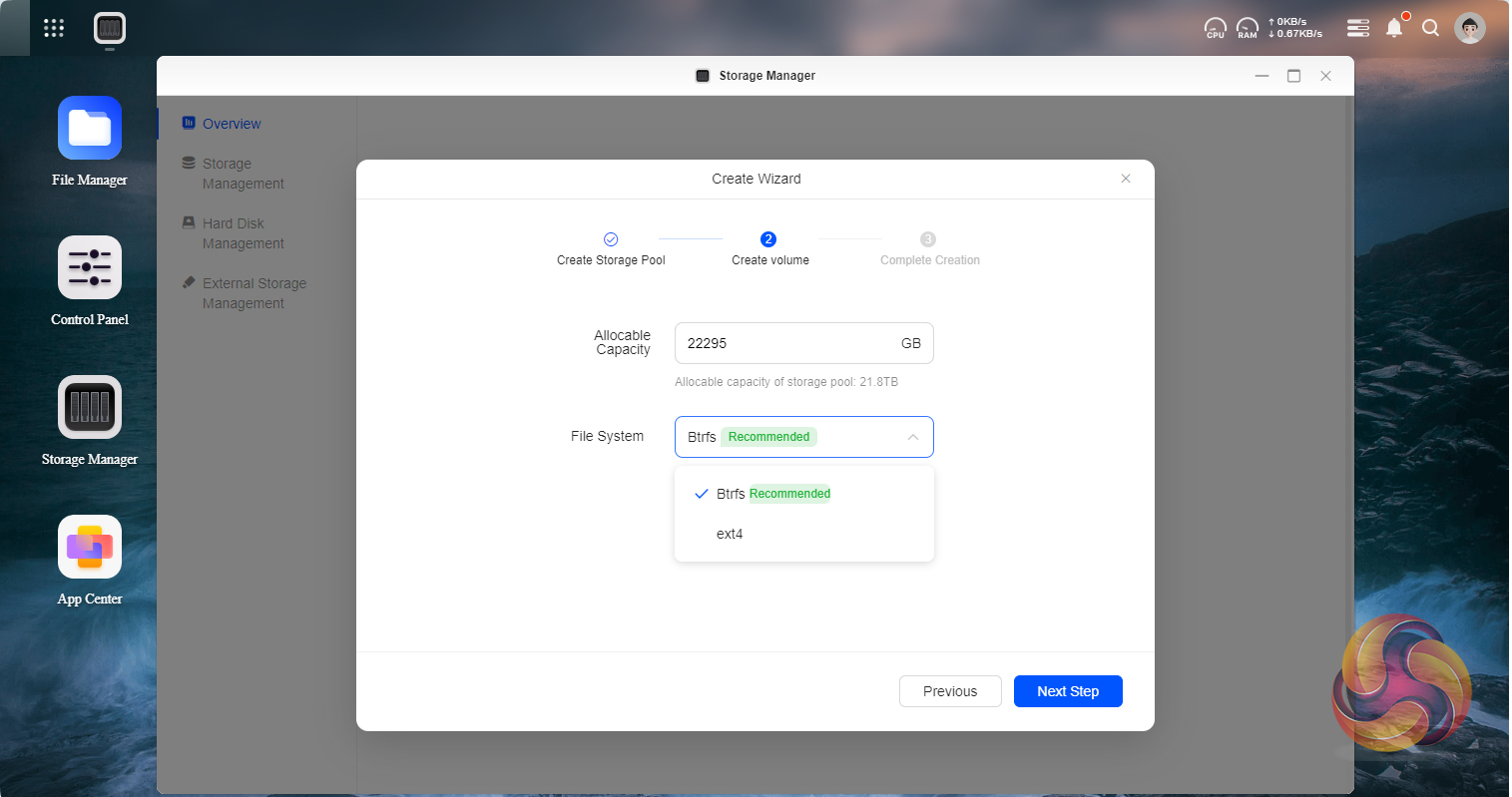
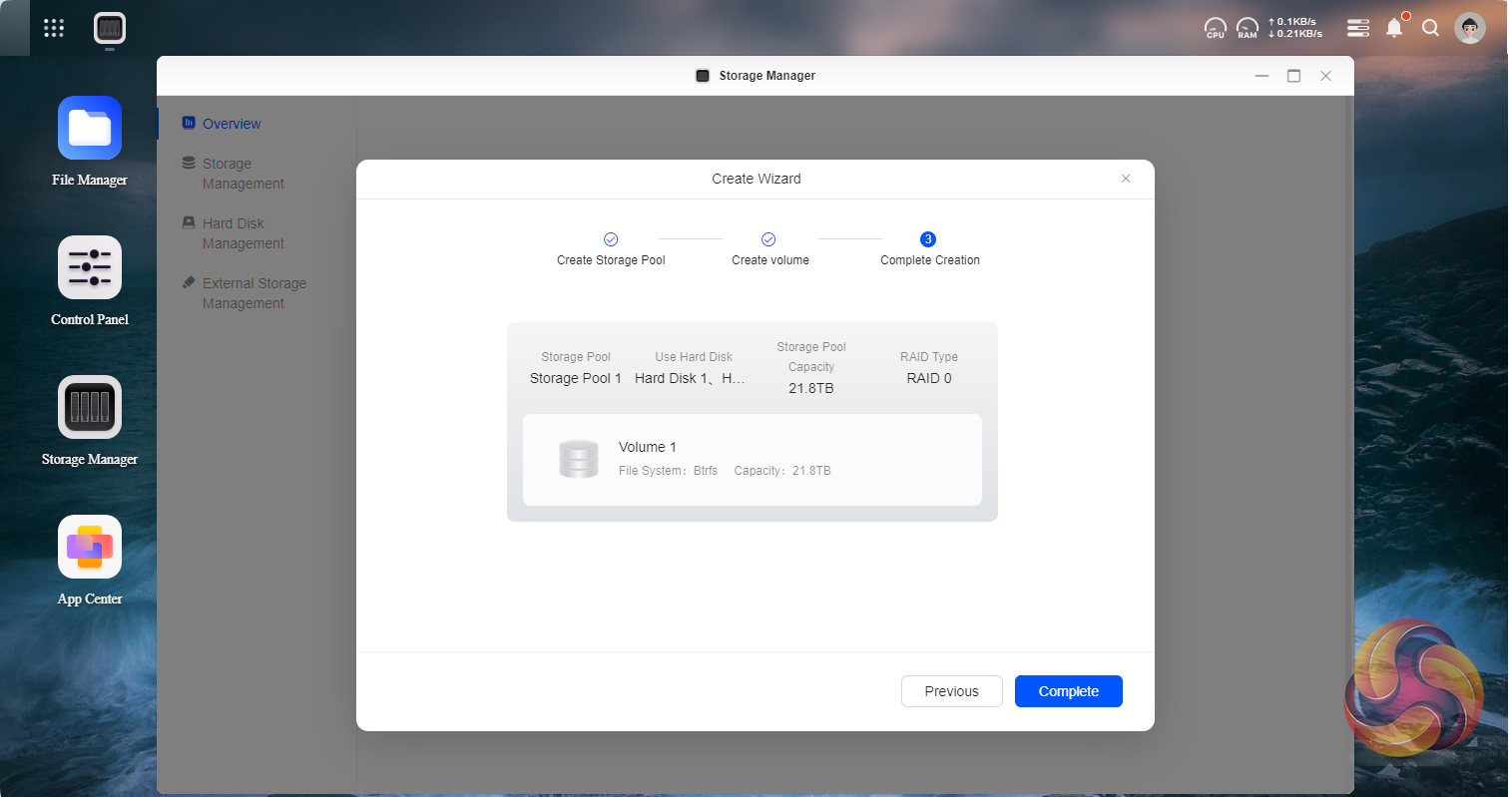
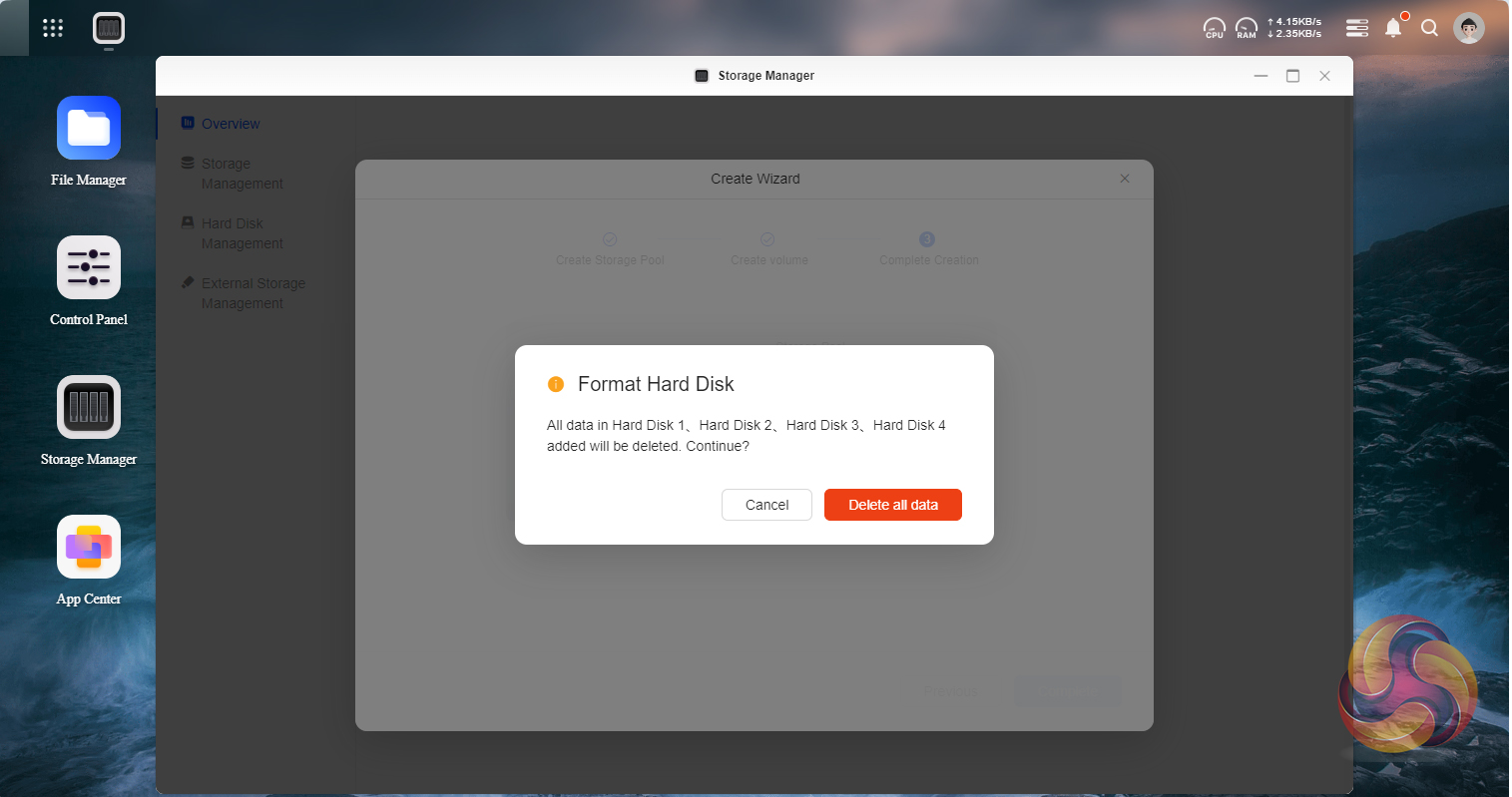
Setting up a storage pool and volumes is straightforward and quick on the DXP4800Plus thanks to the wizard-based walk-through. RAID 5 is the default option but the DXP4800Plus supports JBOD / RAID 0, 1, 5. 6. 10 and something Ugreen calls Basic which is just each drive accessed as a single unit. The default file system offered is Btrfs with ext4 the only other option. Although the RAID setup is quick, it takes up to 24 hours for drive synchronisation, but you can still use the NAS in the meantime.
Storage Manager
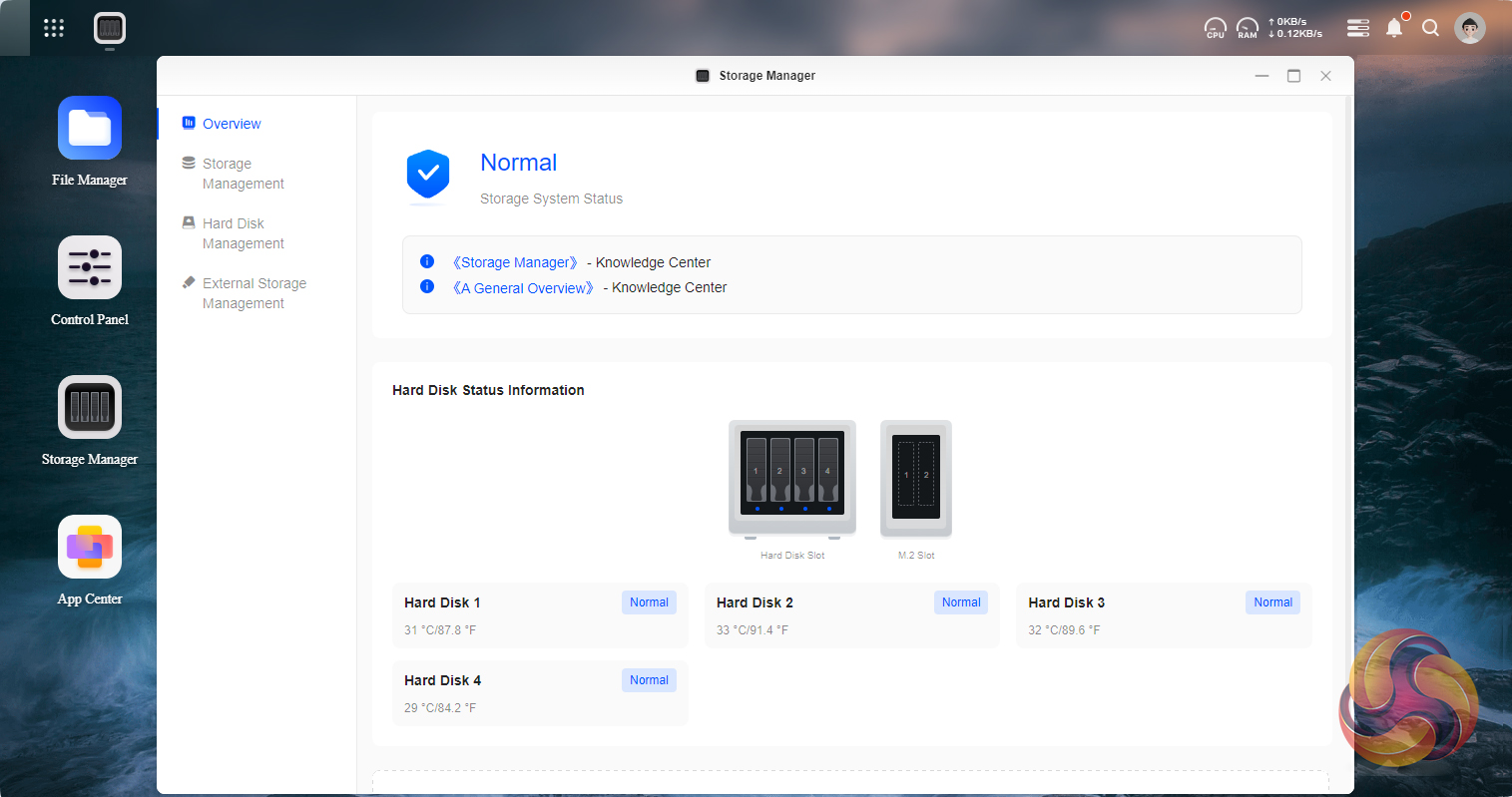
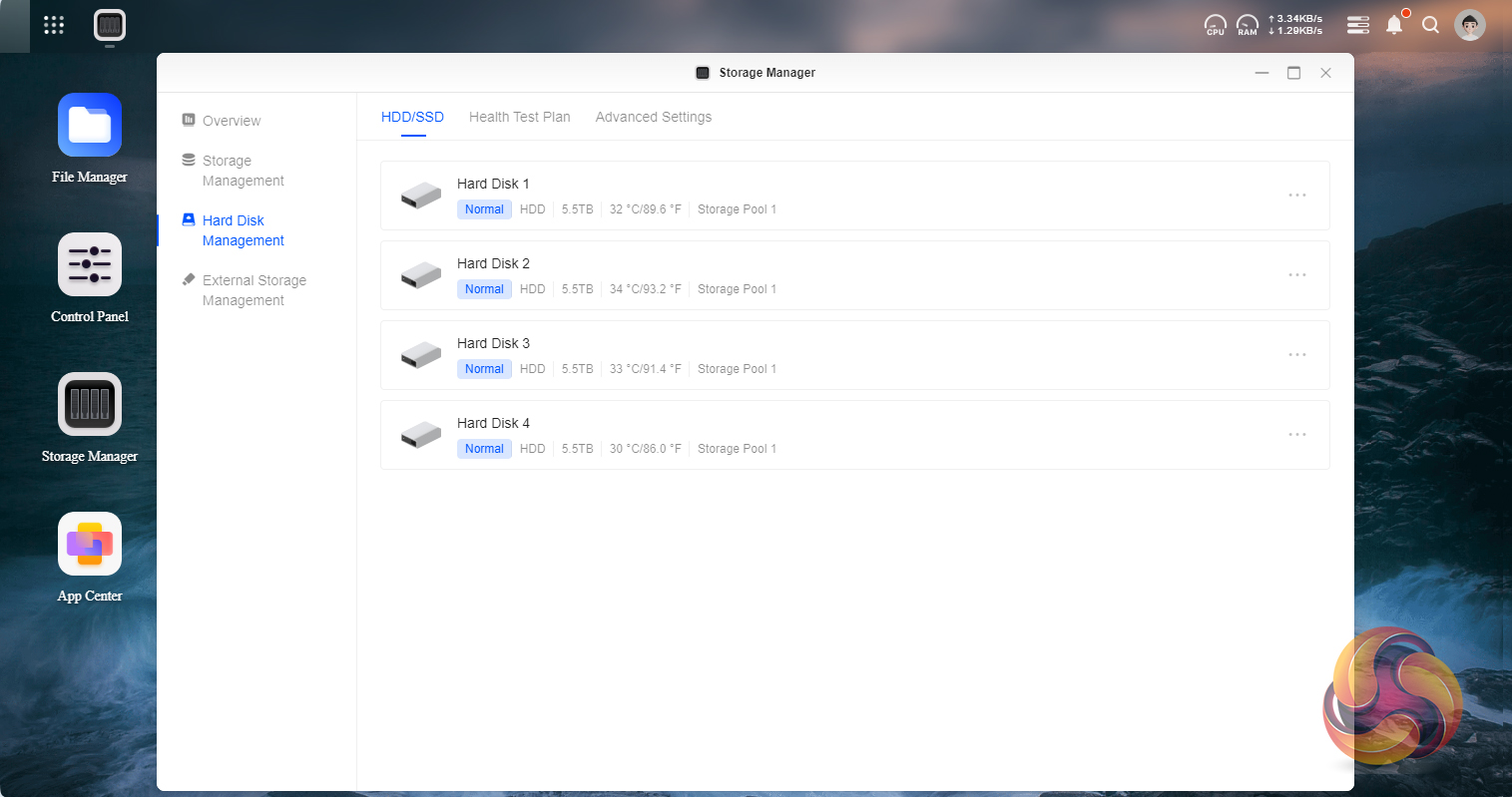
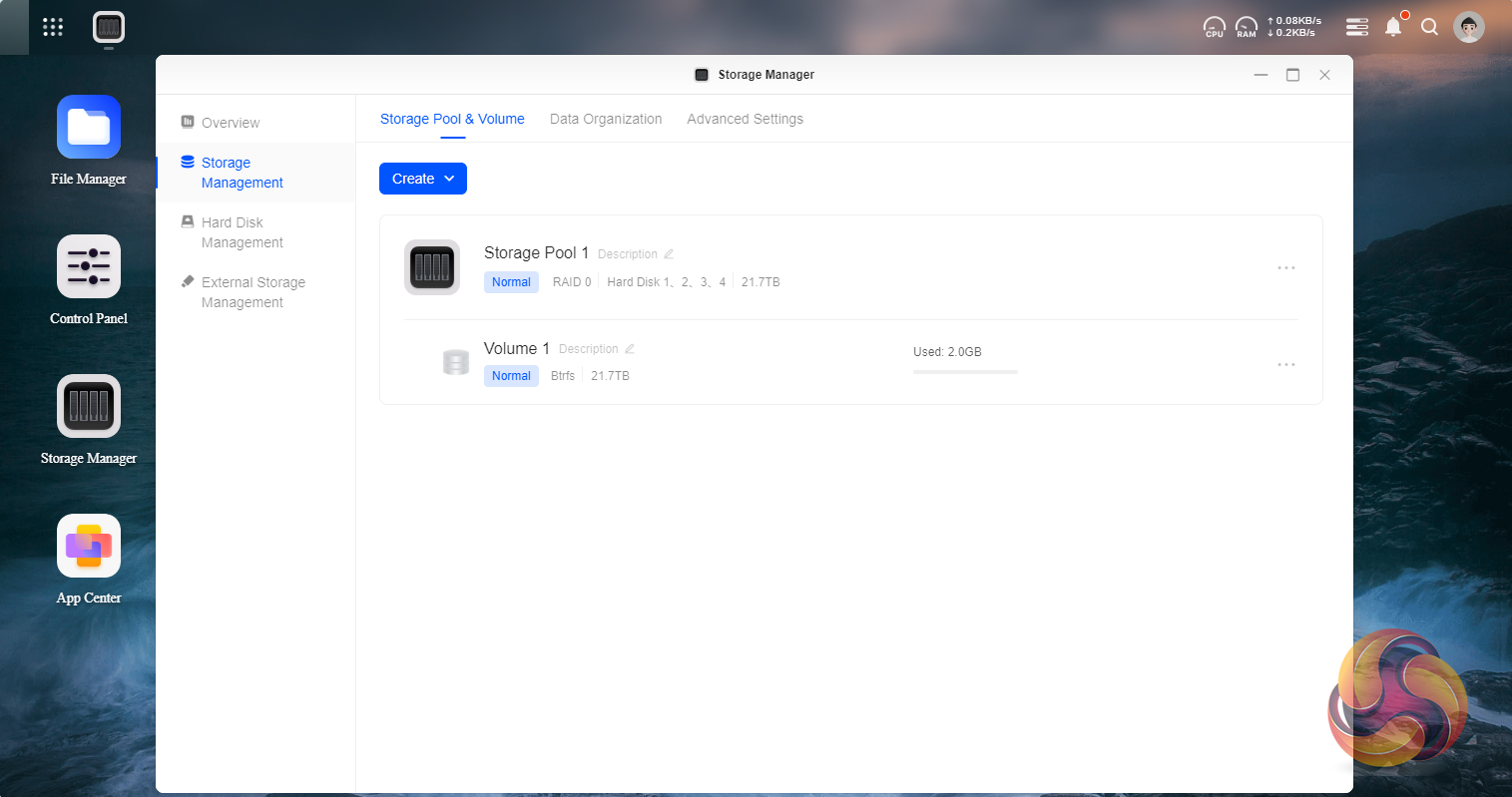
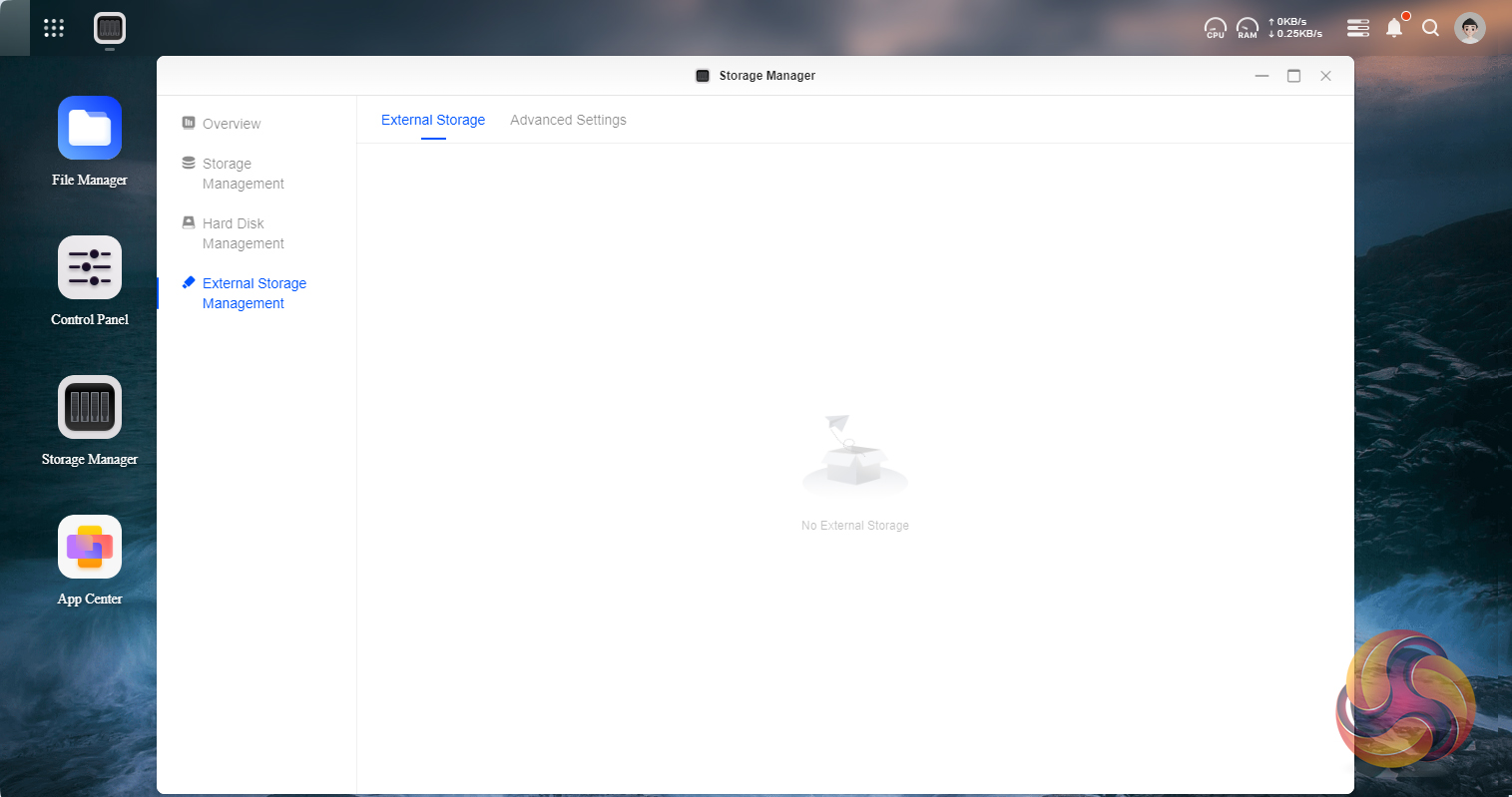
Storage Manager is central to the NAS as it's where all things storage are looked after, from storage pool and volume creation to drive health, setting up SSD cach and looking after any external drives that are plugged into the DXP4800Plus.
File Manager
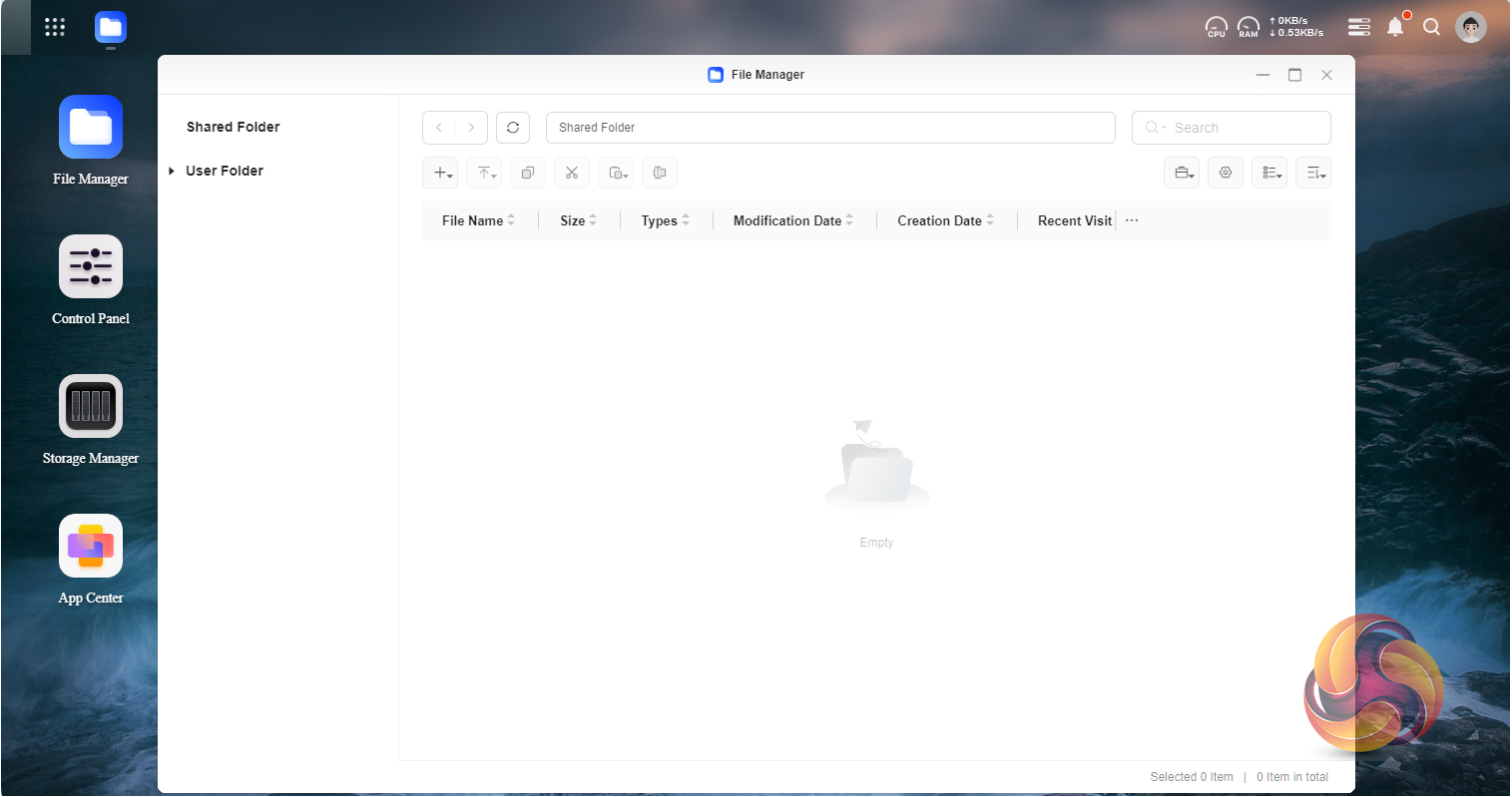
File Manager as the name suggests is where you can setup file folders, file sharing and manage all the files on the system.
File Service
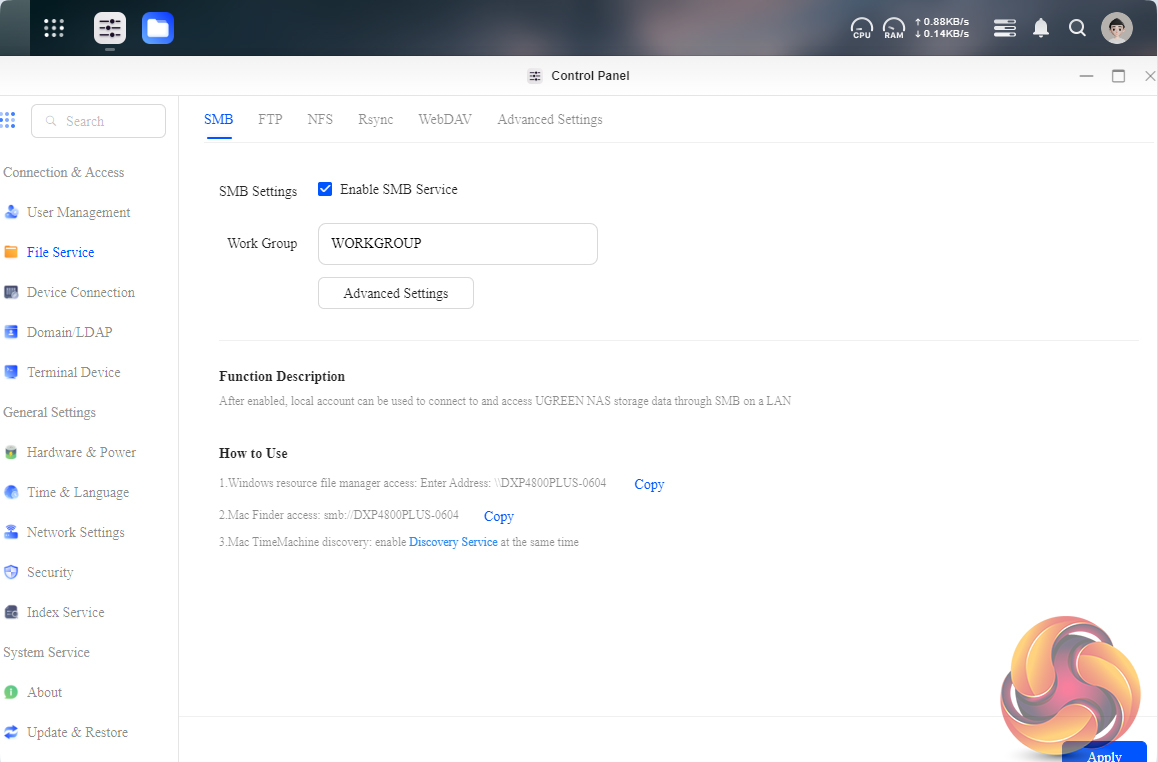
The UGOS OS supports SMB, FTP, NFS, Rysnc, WebDAV and UPnP Discovery. It also supports the Bonjour Service so a Time Machine folder can be set up for Apple users.
Task Manager
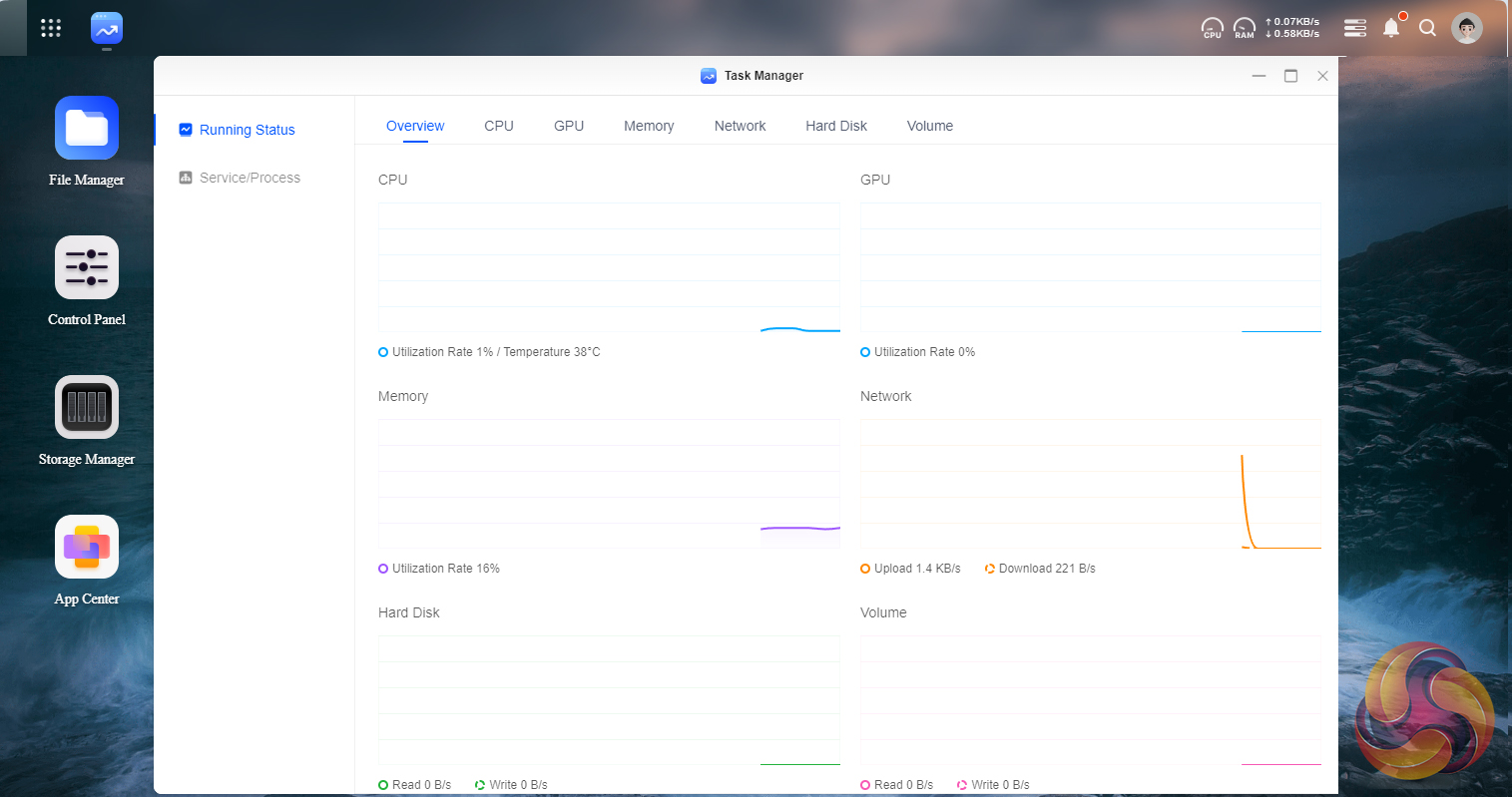
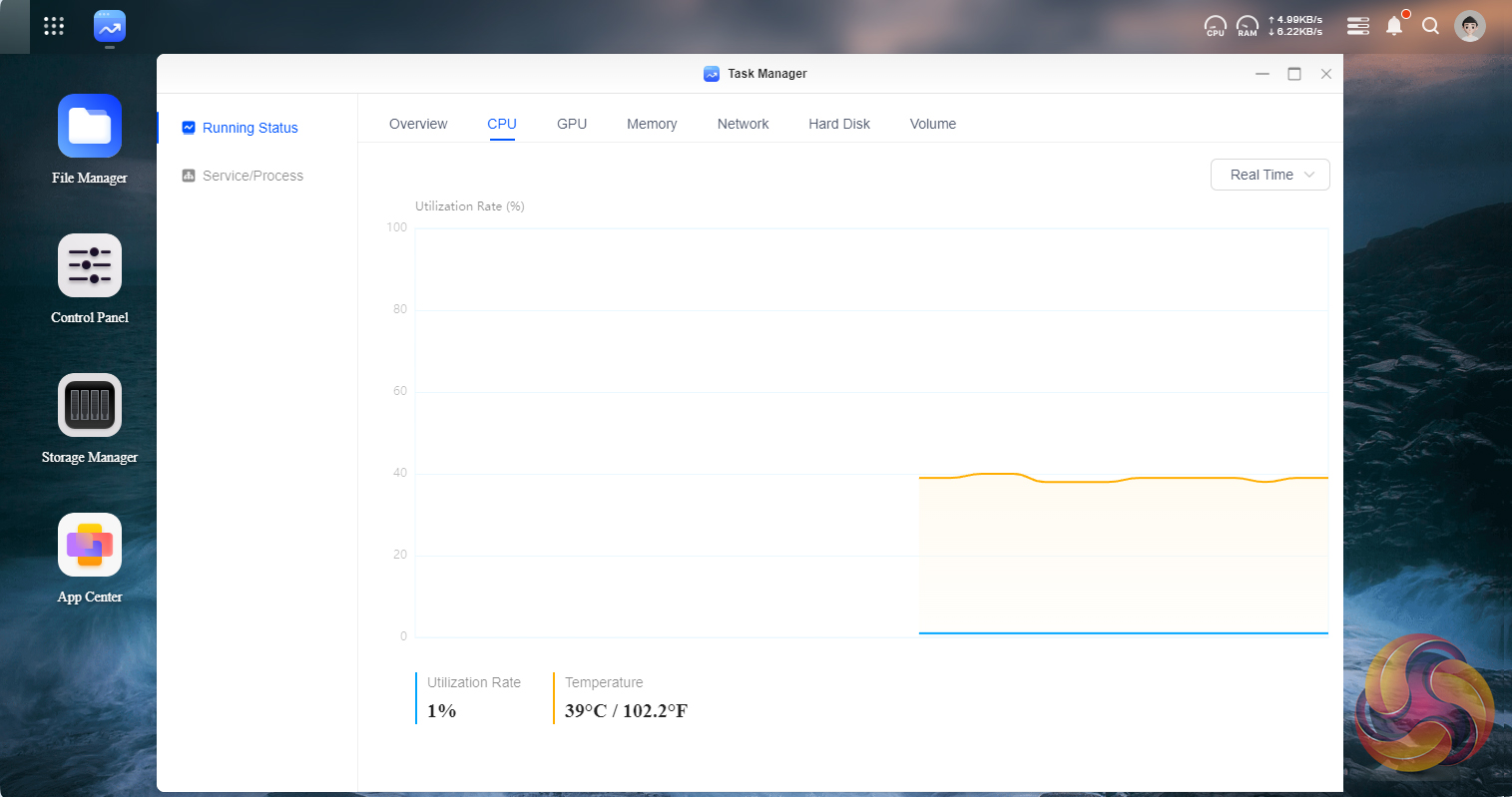
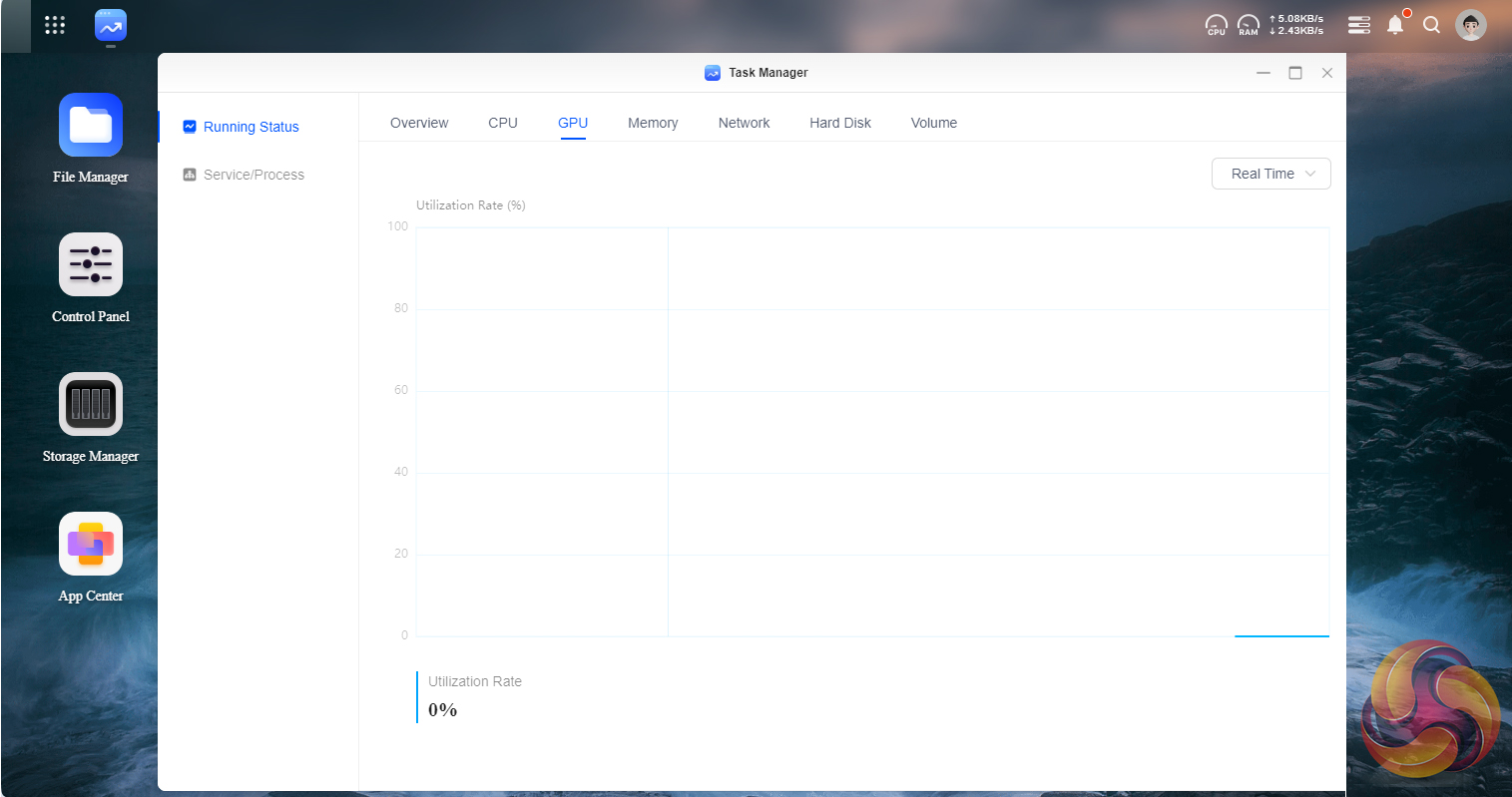
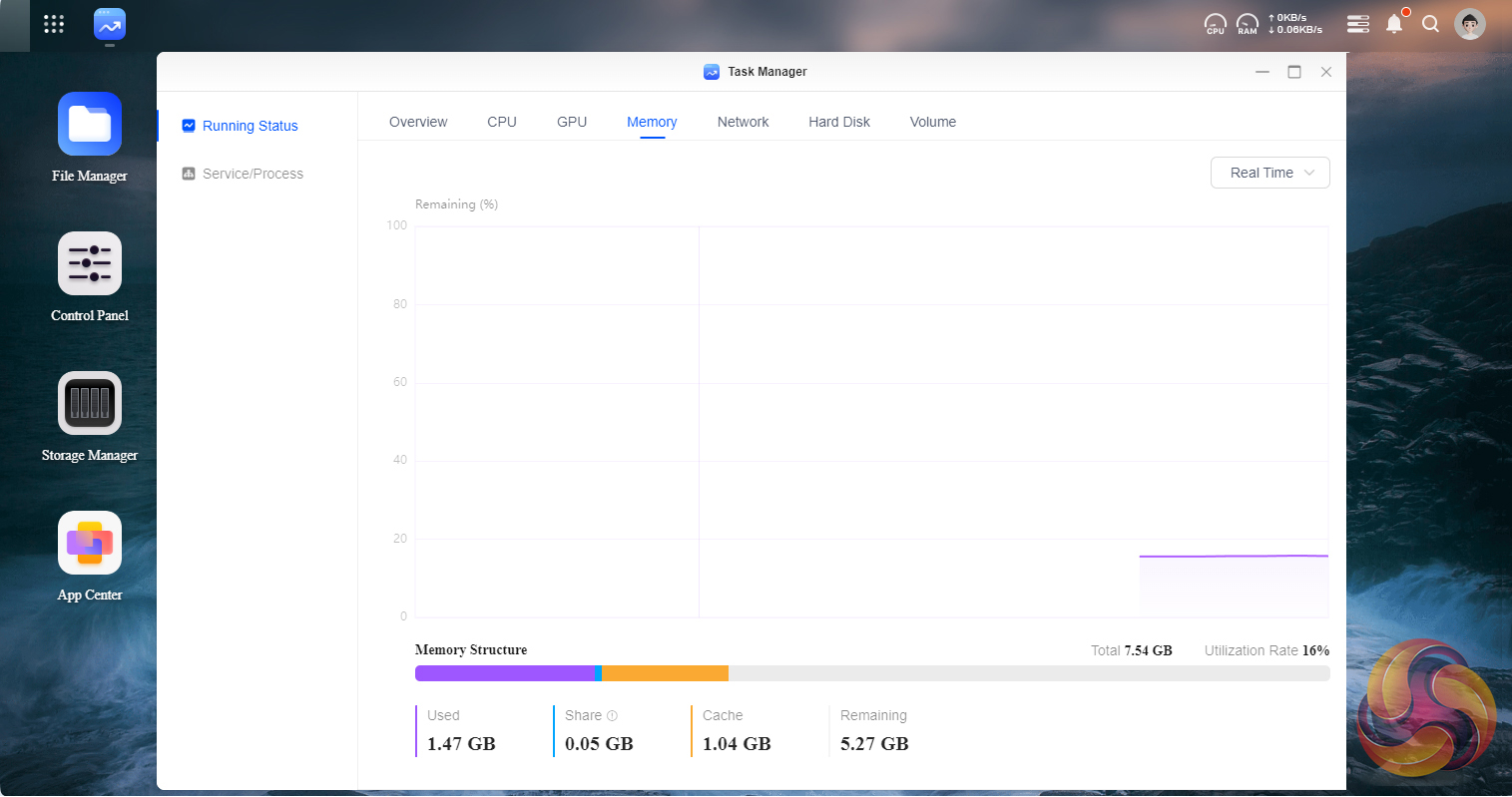
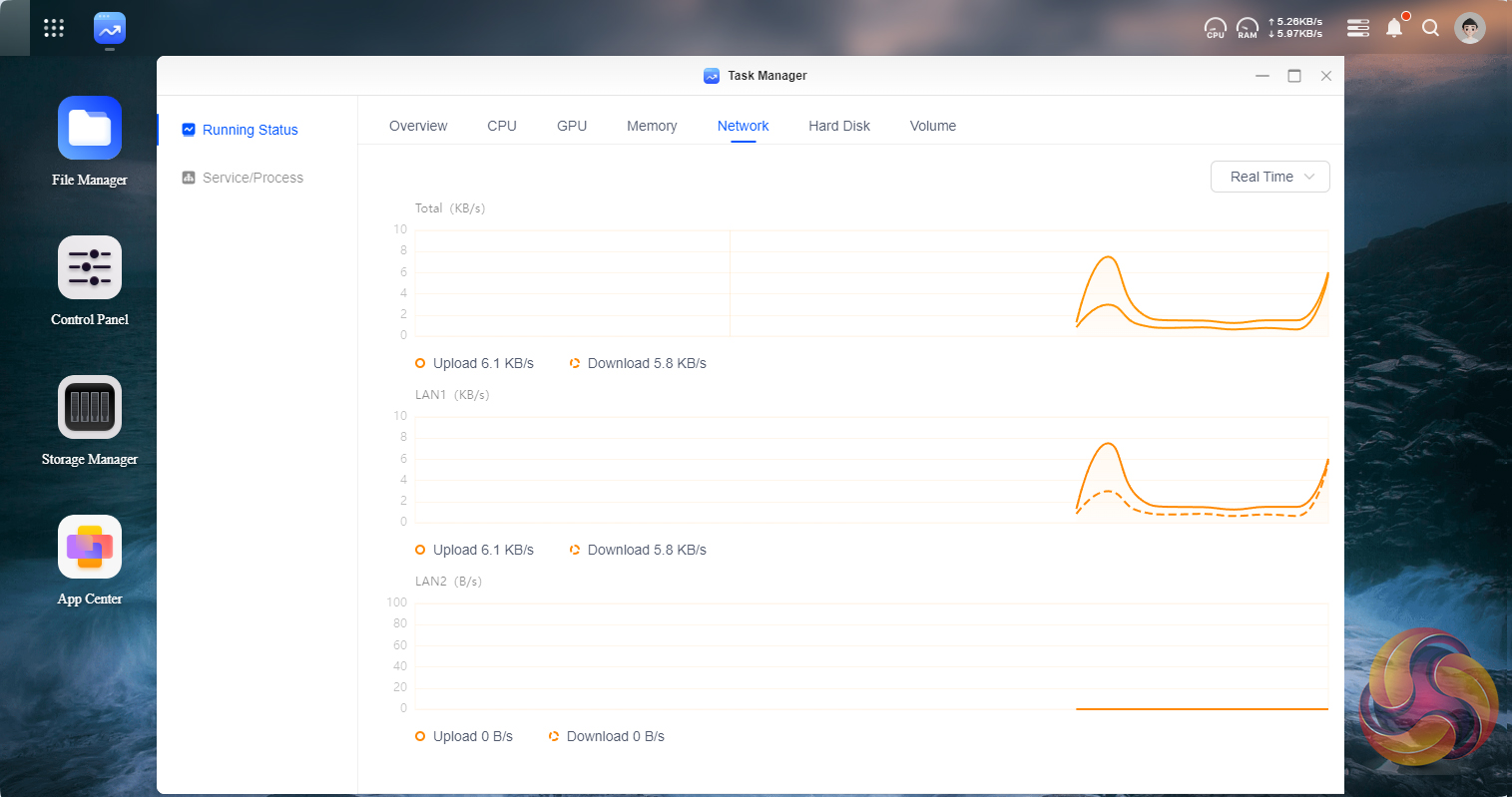
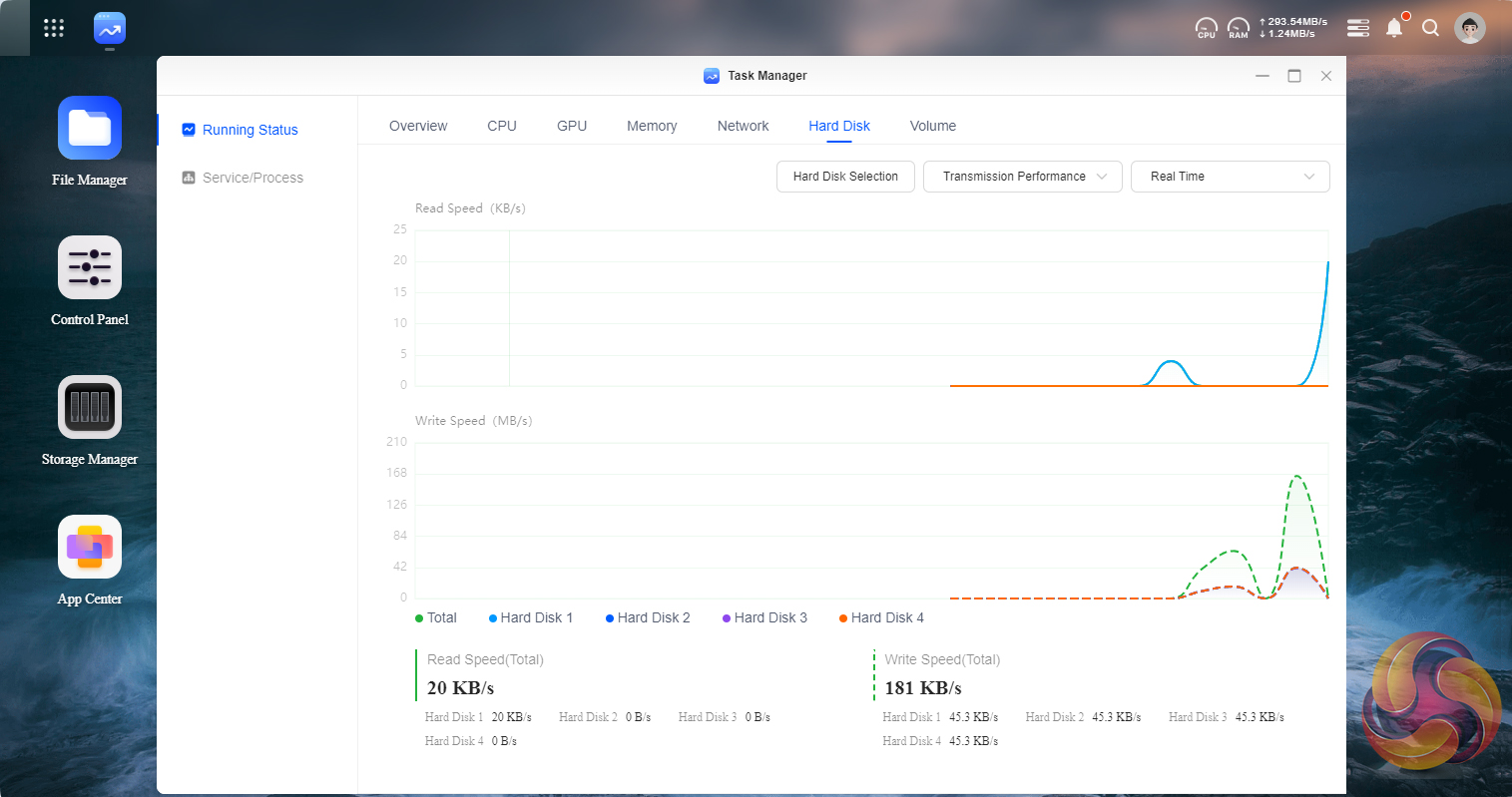
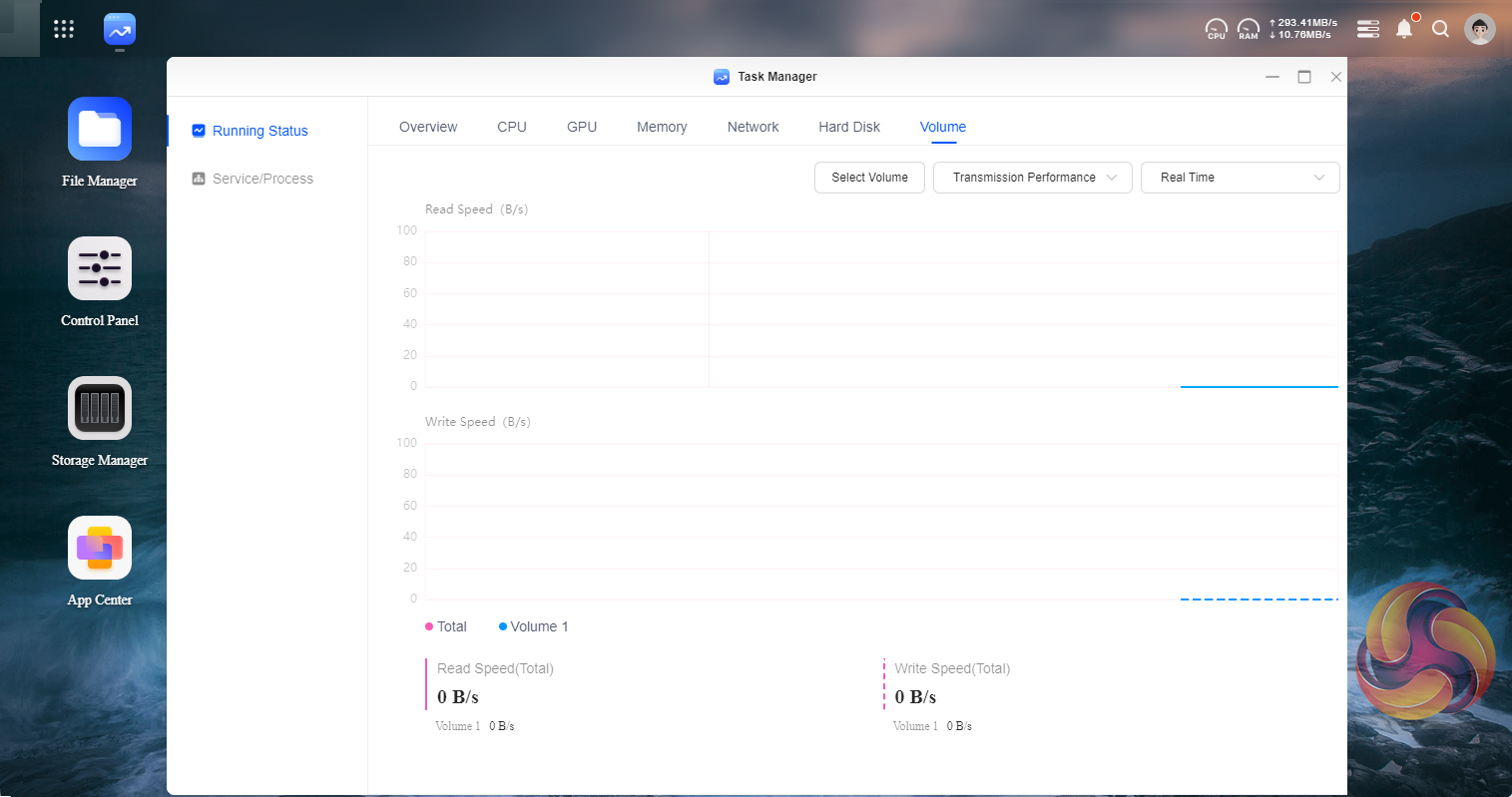
Task Manager lets you keep an eye on how the NAS is performing. It has two main elements Running Status and Services/Processes. Running status displays how the CPU, GPU, Memory, Network, Hard Disks and Volumes are running either all on a single page (Overview) or as separate pages.
App Center
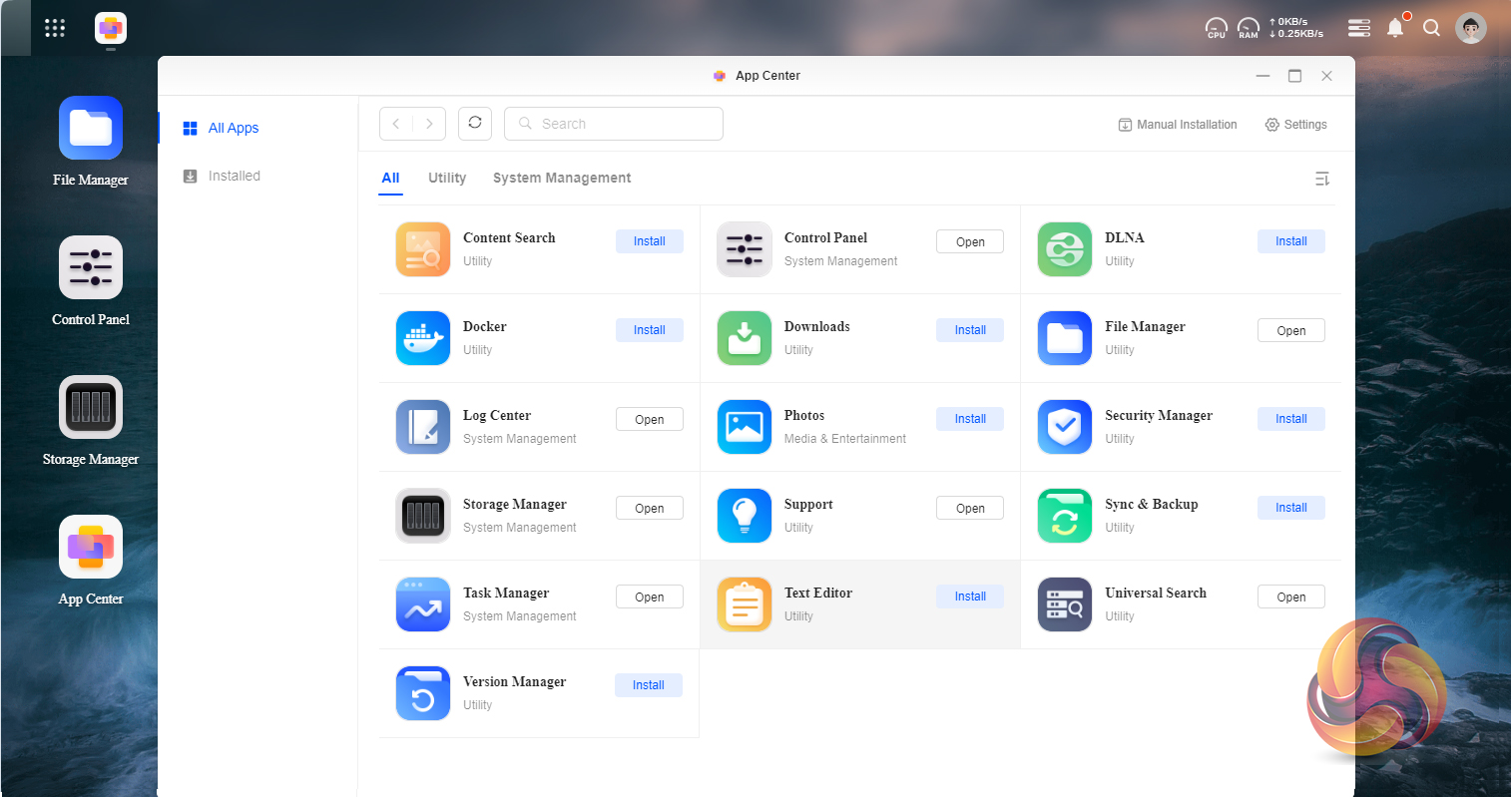
Another sign that the OS is in its early days of development is by looking at the App Center. Compared to its much more established competitor's apps listings, it's very sparsely populated currently.
Support
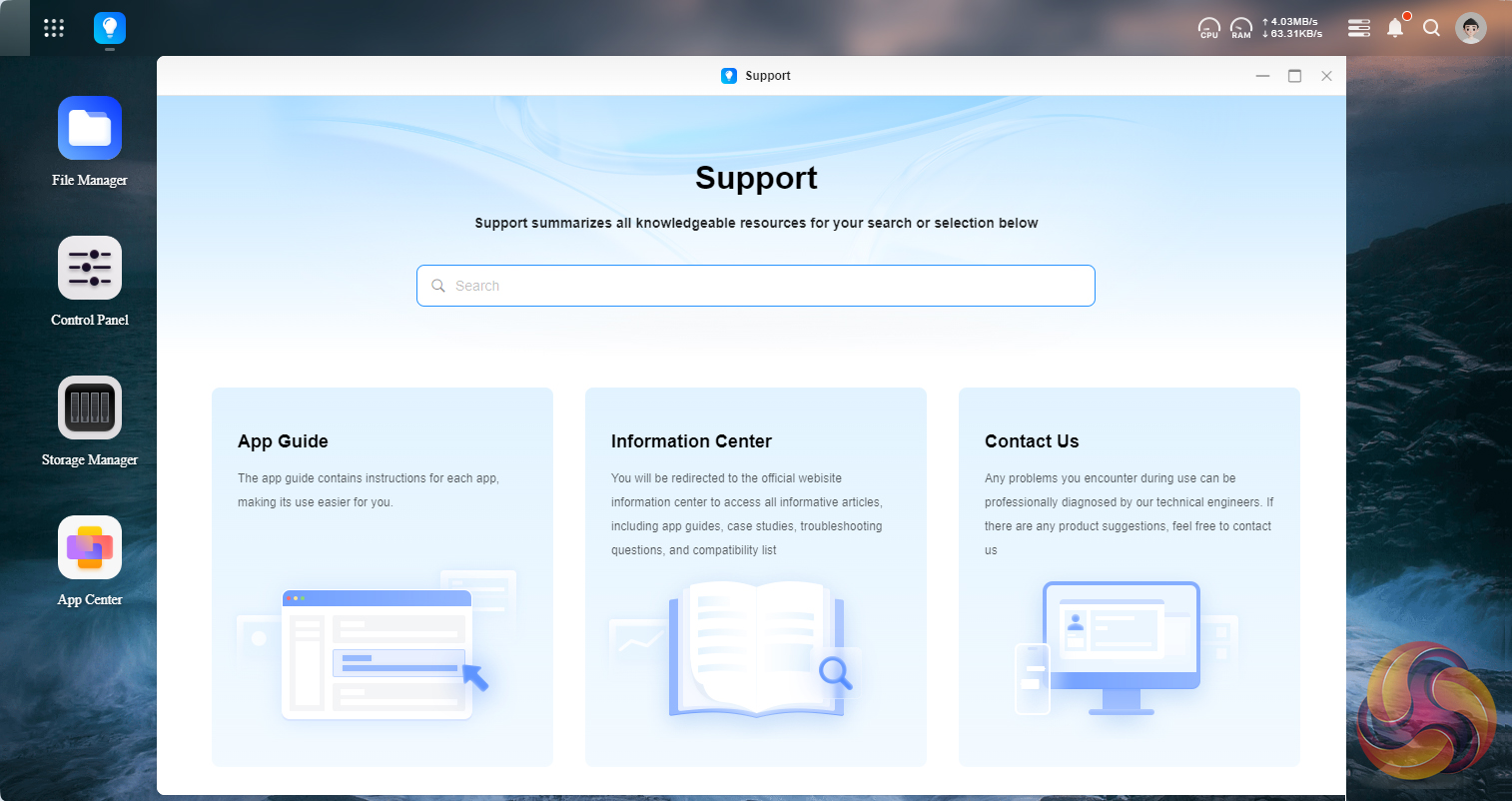
The Support page currently offers three choices of support; Apps Guide, Information Center and if all else fails Contact Ugreen. The Apps Guide contains instructions for each app helping you get the most out of them. The Information Center links out to the official Ugreen information page on their website which gives access to app guides troubleshooting questions, compatibility lists and case studies. If all else fails then there is a contact link out to Ugreen's technical engineers including the ability to allow them remote access to the NAS.
To test the Ugreen DXP4800Plus we used four 6TB Red drives (WD60EFRX, 5,400rpm class, 64MB cache), built into RAID 0, 5, 6 and 10 arrays and then tested.
We used a Gigabyte B550 AORUS Master motherboard for testing which has 2.5GbE connectivity on board and to test the DXP4800Plus at 10GbE we used a Gigabyte GG-AQC107, 10Gbe card. Thanks to Gigabyte for their support with this. You can see more information on this card on the Gigabyte site, over HERE.
Software:
Atto Disk Benchmark.
IOMeter.
Intel NASPT.
The ATTO Disk Benchmark performance measurement tool is compatible with Microsoft Windows. Measure your storage system performance with various transfer sizes and test lengths for reads and writes. Several options are available to customize your performance measurement including queue depth, overlapped I/O and even a comparison mode with the option to run continuously.Use ATTO Disk Benchmark to test any manufacturer's RAID controllers, storage controllers, host adapters, hard drives and SSD drives and notice that ATTO products will consistently provide the highest level of performance to your storage.
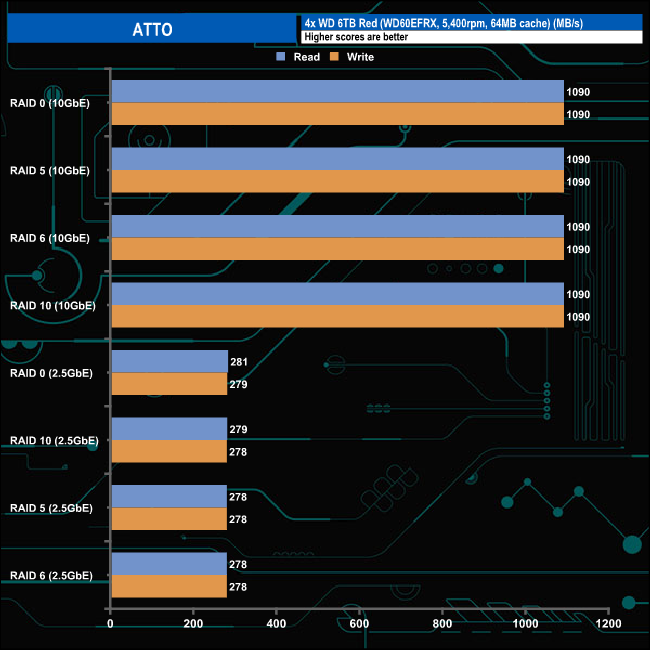
We ran the ATTO benchmark on the DXP4800Plus at both 2.5GbE and at 10GbE and it is remarkably consistent at both speeds through all the tested RAID arrays.
Crystalmark is a useful benchmark to measure the theoretical performance levels of various storage devices. We are using version 8.
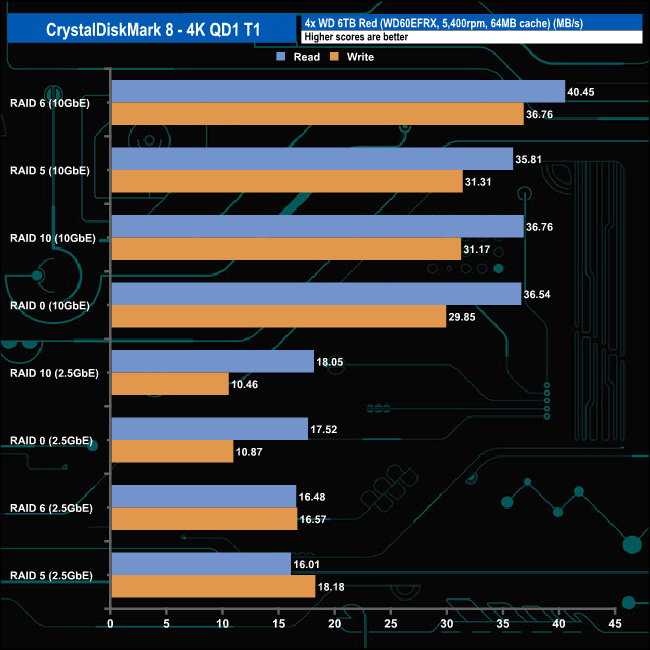
Using the default CrystalDiskMark 8 benchmark via 10GbE the fastest 4K QD1 T1 speeds came in RAID 6 with a read figure of 40.45MB/s and writes at 36.76MB/s. At 2.5GbE the fastest read speed was with disks in a RAID 10 array at 18.05MB/s while the fastest write figure of 18.18MB/s came with the drives in a RAID 5 array.
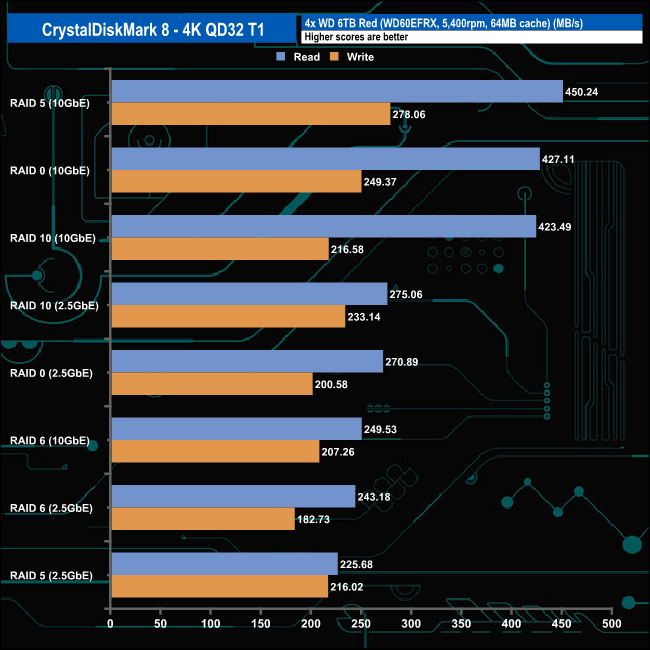
Turning to the 4K QD32 T1 test the best performance came with the drives in a RAID 5 array with reads of 450MB/s and writes at 278MB/s. The NAS didn't handle this test too well when the disks were in a RAID 6 array with reads down at 243MB/s and writes even slower at 207MB/s. As with the QD1 T1 test at 10GbE, RAID 10 provided the fastest performance (275M/s reads, 233MB/s writes) at 2.5GbE.
Intel’s NASPT (NAS Performance Toolkit ) is a benchmark tool designed to enable direct measurement of home network attached storage (NAS) performance. NASPT uses a set of real-world workload traces (high-definition video playback and recording, video rendering/content creation and office productivity) gathered from typical digital home applications to emulate the behaviour of an actual application.
We’ve used some of the video and office apps results to highlight a NAS device’s performance.
HD Video Playback
This trace represents the playback of a 1.3GB HD video file at 720p using Windows Media Player. The files are accessed sequentially with 256kB user-level reads.
4x HD Playback
This trace is built from four copies of the Video Playback test with around 11% sequential accesses.
HD Video Record
Trace writes an 720p MPEG-2 video file to the NAS. The single 1.6GB file is written sequentially using 256kB accesses.
HD Playback and Record
Tests the NAS with simultaneous reads and writes of a 1GB HD Video file in the 720p format.
Content Creation
This trace simulates the creation of a video file using both video and photo editing software using a mix of file types and sizes. 90% of the operations are writes to the NAS with around 40% of these being sequential.
Office Productivity
A trace of typical workday operations. 2.8GB of data made up of 600 files of varying lengths is divided equally between read and writes. 80% of the accesses are sequential.
Photo Album
This simulates the opening and viewing of 169 photos (aprrox 1.2GB). It tests how the NAS deals with a multitude of small files.

In the video tests of Intel’s NASPT benchmark, the fastest performance, 527MB/s, came using the HD Playback & Record test trace while the drives were in a RAID 0 array followed very closely by the 526MB/s produced using a RAID 5 array.
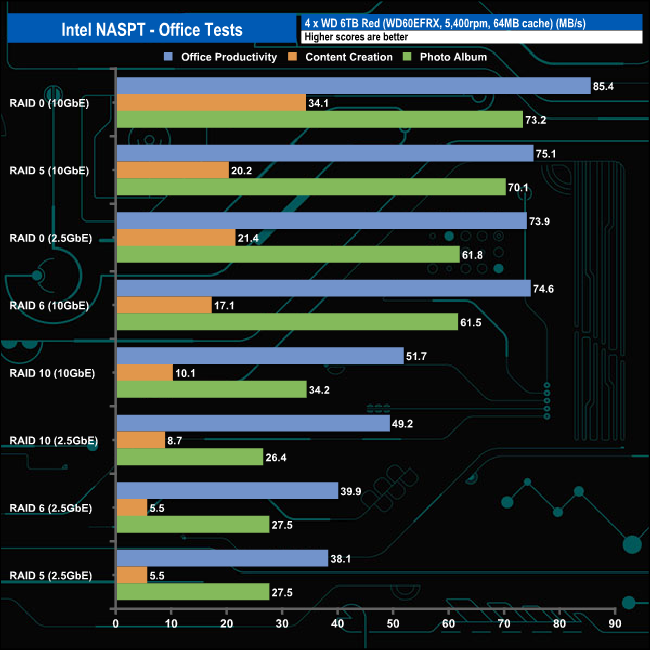
In the office tests, the NAS displayed pretty strong performance for all the tests. The fastest performance came from the Office Productivity trace (RAID 0 10GbE) at 85.4MB/s, and perhaps just as impressive was the 73.9MB/s figure in the same RAID configuration at 2.5GbE.
When dealing with the multitude of small files that make up the Photo Album test it averaged 59.75MB/s using a 10GbE connection and 35.8MB/s at 2.5GbE. The more arduous Content Creation trace test produced an average of 20.37MB/s at 10GbE and 10.27MB/s at 2.5GbE.
For our Backup / Restore test we transferred a 118GB Windows 10 backup folder to and from the NAS.
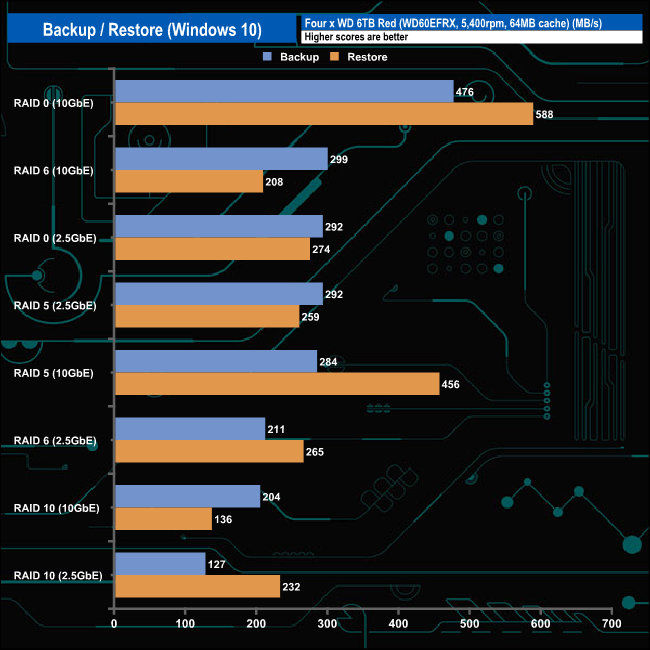
In our backup/restiore test the NASync DXP4800Plus averaged 297MB/s backing up the data using a 10GbE connection and averaged 347MB/s reading the data back. Using a 2.5GbE connection the NAS averaged 230MB/s for writes and 257MB/s for reads. Oddly the DXP4800Plus seems to struggle in this test at both connection speeds when the drives are built into a RAID 10 array.
We tested the Ugreen DXP4800Plus with a number of scenario’s that it may face in the real world. The settings for these scenarios are as follows.
File Server
512MB file size, 16KB Block size, 80% Read 20% Write 100% Random, I/O queue depth 128
Web Server
1GB file size, 16KB Block size, 100% Read 0% Write 100% Random, I/O queue depth 64
Workstation
Transfer Size: 8K Reads: 80% Writes: 20% Random: 80% Boundary: 8K Outstanding IO: 64 Threads/Workers 4
Database
2GB file size, 4KB Block size, 90% Read 10% Write, 90% Random, 10% Sequential, I/O queue depth 128
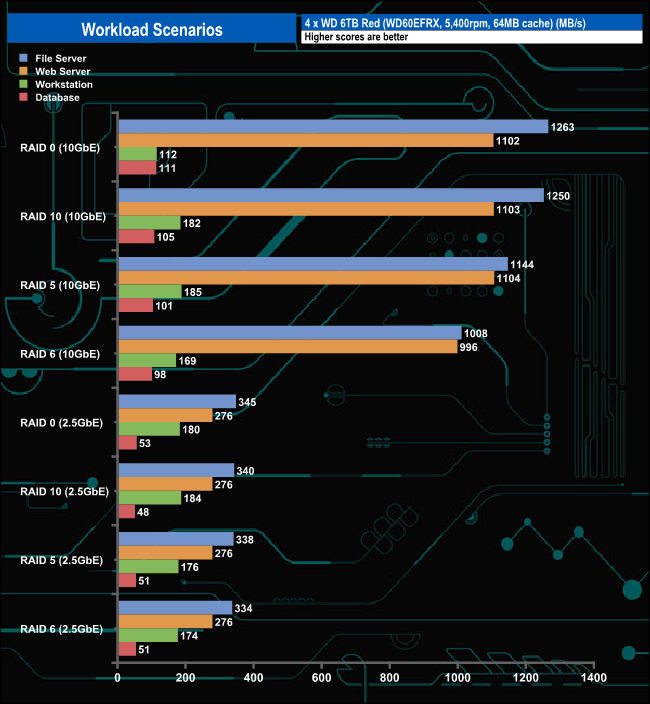
We also tested the NAS in a few scenarios it might be used for in an office environment. Using a 10GbE connection it produced average bandwidth speeds of 1,166.25MB/s and 1,076.25MB/s for the File Server and Web Server tests respectively For the Workstation trace it averaged 162MB/s and for the Database trace the four types of array averaged 103.75MB/s.
Switching to a 2.5GbE connection the DXP4800Plus is very consistent in each of the four tests. It averages 330.25MB/s for the File Server test, 276MB/s and 178.50MB/s for the Web Server and Workstation traces respectively and 50.75MB/s for the Database trace.
The PCMark 10 Data Drive Benchmark has been designed to test drives that are used for storing files rather than applications. You can also use this test with NAS drives, USB sticks, memory cards, and other external storage devices.
The Data Drive Benchmark uses 3 traces, running 3 passes with each trace.
Trace 1. Copying 339 JPEG files, 2.37 GB in total, in to the target drive (write test).
Trace 2. Making a copy of the JPEG files (read-write test).
Trace 3. Copying the JPEG files to another drive (read test)
Here we show the total bandwidth performance for each of the individual traces.
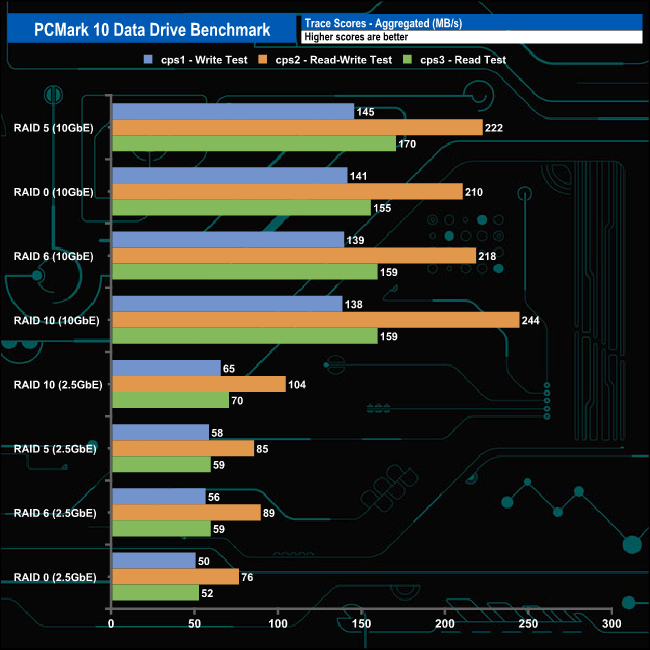
The fastest performance from the test traces came using a RAID 10 array at 10GbE and the cps2 Read-Write test with a test result of 244MB/s. For this test, the drive averaged 223.5MB/s using the 10GbE connection and 88.5MB/s with the NAS connected at 2.5GbE.
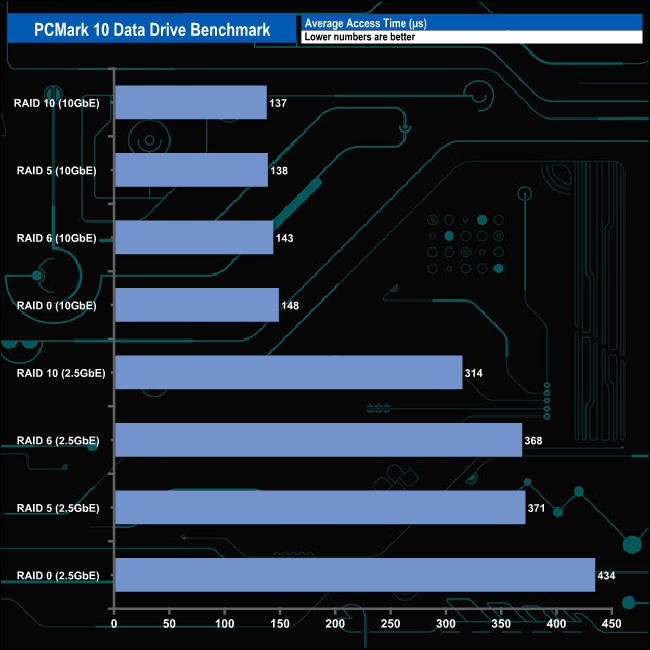
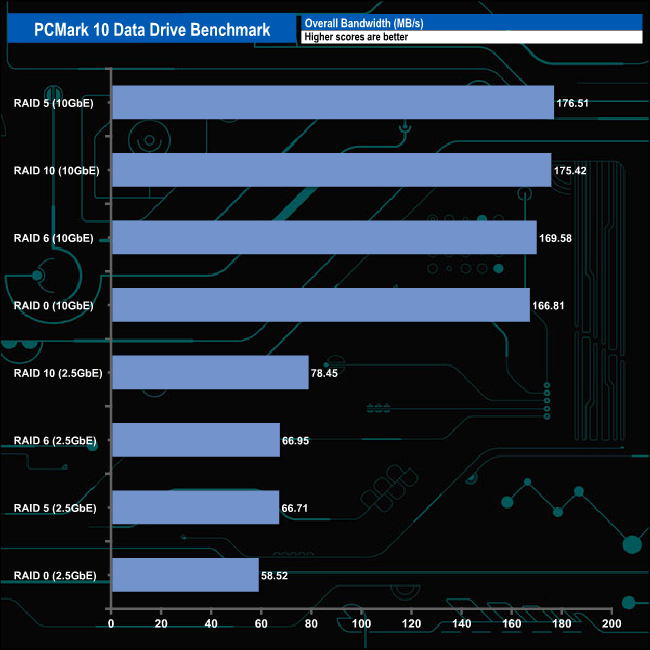
When it comes to the Overall Bandwidth result, the NASync DXP4800Plus averaged 172.08MB/s using a 10GbE connection and 68.15MB/s using 2.5GbE.
To test real-life file/folder performance we use a number of different file/folder combinations to test the read and write performance of the NAS device. Using the FastCopy utility to get an MB/s and time taken for each transfer, the data is written from and read back to a 2TB Seagate FireCuda 510 NVMe SSD.
- Windows 10 backup – 118GB.
- Data file – 100GB.
- BluRay Movie – 42GB.
- Windows 11 iso – 5.4GB.
- File folder – 50GB – 28,523 files.
- Steam folder – 222GB (8 games: Alien Isolation, Battlefield 4, BioShock Infinite, Crysis 3, Grand Theft Auto V, Shadow Of Mordor, Skyrim, The Witcher3 Wild Hunt).
- Movie demos 8K – 21GB – (11 demos).
- Raw Movie Clips 4K – 16GB – (9 MP4V files).
- Movie folder – 12GB – 15 files – (8 @ .MKV, 4 @ .MOV, 3 @ MP4).
- Photo Folder – 10GB – 304 files – (171 @ .RAW, 105 @ JPG, 21 @ .CR2, 5 @ .DNG).
- Audio Folder – 10GB – 1,483 files – (1479 @ MP3, 4 @ .FLAC files).
- Single large image – 5GB – 1.5bn pixel photo.
- 3D Printer File Folder – 4.25GB – (166 files – 105 @ .STL, 38 @ .FBX, 11 @ .blend, 5 @ .lwo, 4 @ .OBJ, 3@ .3ds).
- AutoCAD File Folder – 1.5GB (80 files – 60 @ .DWG and 20 @.DXF).
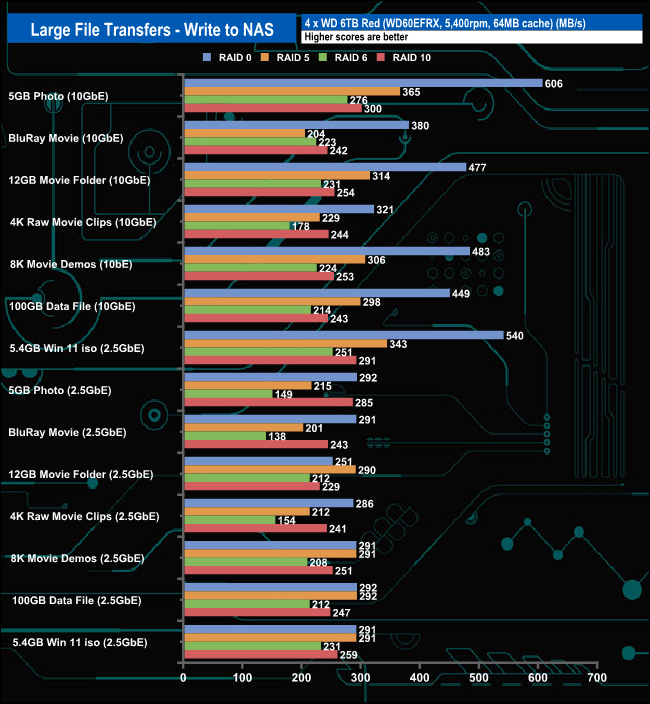
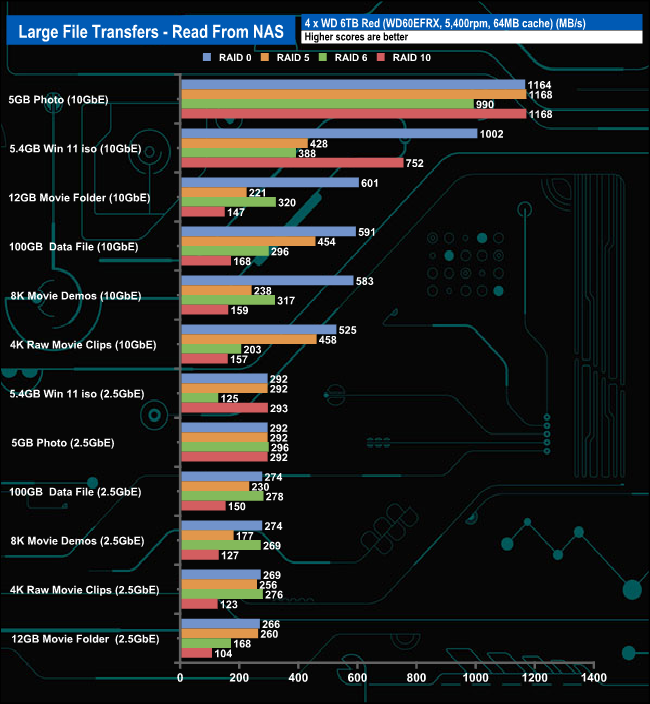
The fastest write transfer we saw from the DXP4800Plus when dealing with the larger files was 606MB/s using a 10GbE connection with the drives in a RAID 0 array, dealing with the 5GB photo. With a 2.5GbE connection, the fastest write speed was 540MB/s for the Windows 11 iso transfer. When it came to reads the 5GB photo transfer was again in top spot with three of the arrays (RAID 0, RAID5 and RAID10) all over the 1GB/s mark.
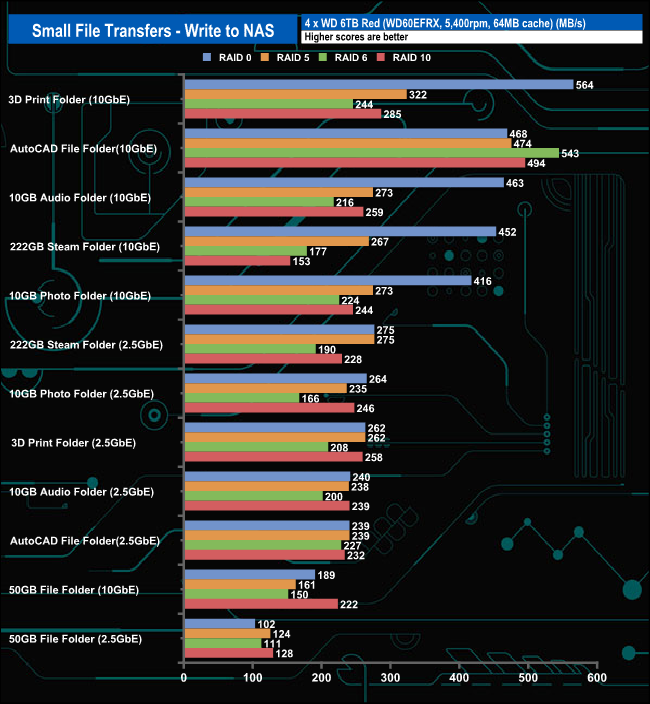
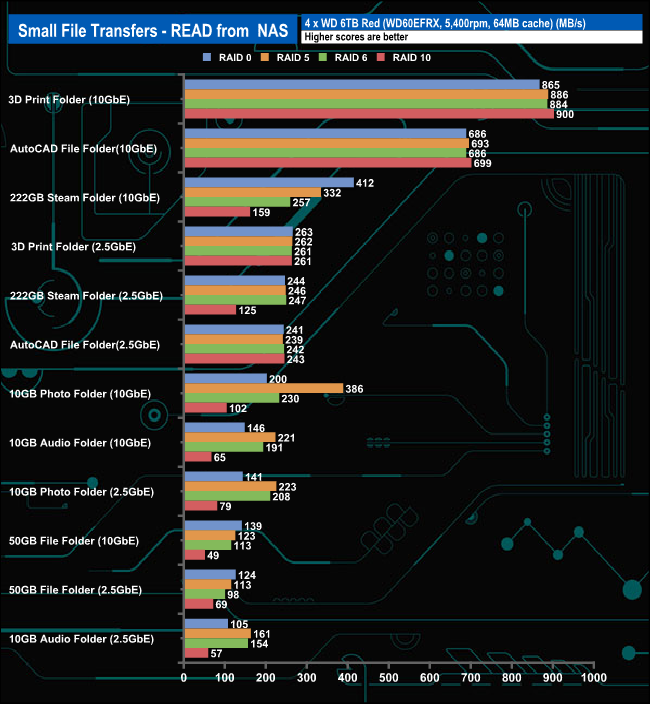
When it came to writing smaller files, the fastest we saw using a 10GbE connection was the 3D Print folder (RAID 0) at 564MB/s. The second best was the 543MB/s from the AutoCAD folder transfer with the drives in a RAID 6 array. With a 2.5GbE connection, the faster writes (275MB/s) came from the Steam folder transfer using either RAID 0 or 5
As with writes the fastest read speed was from the 3D Print Folder (10GbE), this time at RAID 10, 900MB/s. In fact, there is only a 35MB/s spread between the arrays for this transfer from the slowest 865MB/s (RAID 0) to the RAID 10 figure.
We tested the peak power consumption of a NAS at the wall during a run of CrystalDiskMark 8.0.4 as this version of the benchmark runs the read and write benchmark suites separately so it's easier to monitor what power the device is using during each function.
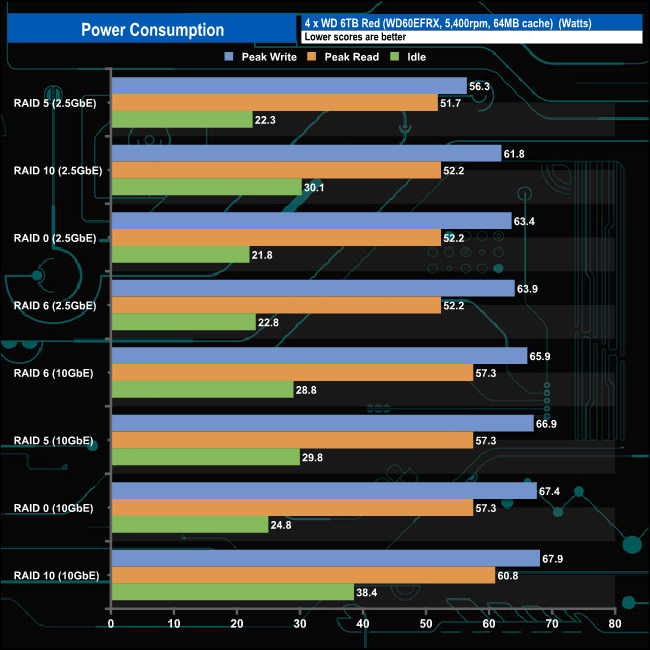
The NASync DXP4800Plus uses an Intel Pentium Gold 8505 CPU which has a base power rating of 15W rising to 55W at maximum turbo power, The WD Red (WD60EFRX) drives we used for testing have an active power rating of 5.3W with an idling figure of 3.4W. The NAS averaged 24.25W in idle mode with a 2.5GbE connection rising to 30.45W using 10GbE. Peak reads with a 2.5GBbE connection averaged 52.07W and 58.17W using 10GbE. Peak writes using a 2.5GbE connection came in at 61.35W while with 10GbE they averaged 67.02W.
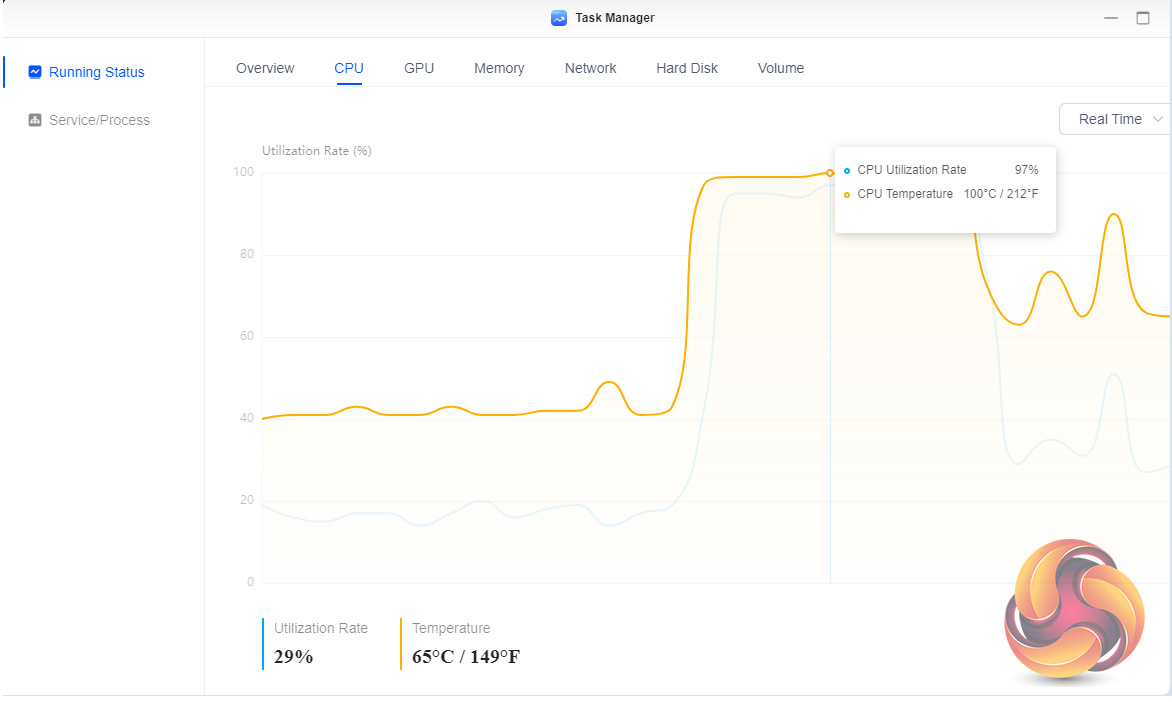
For the most part, the NASync DXP4800Plus is pretty quiet in operation but during some of the testing, particularly during some of the larger real-life file transfers, the CPU utilisation reached nearly 100% and the CPU temperature reached 100° C causing the 140mm cooling fan to roar into life and it is very loud. Hopefully, Ugreen can look into doing something with the thermal profile of the unit.
Ugreen may be a new name to some but the Chinese manufacturer has been in the electronic devices and accessories business since 2012 with a portfolio that includes GaN charging devices, power banks (including solar ones) and a range of accessories for computers and mobile-phones.
Now they have branched out into the storage market with a six-model NAS range called the NASync series – with a single 2-bay model, two four-bay models, six and eight-bay devices and an all-flash-based NAS, the DXP480T Plus. The NAS we are looking at here, the four-bay NASync DXP4800 Plus, sits in the middle of the range.
At the heart of the NASync DXP4800 Plus is an Intel Pentium Gold 8505 (code name Alder Lake-U). Built on a 10nm process the 8505 is a 12th Gen processor running at 1.2GHz (turbo boost 4.4GHz) and has five cores and six threads. This is an interesting choice as the standard NASync DXP4800 uses a 13th Gen Intel Processor N, but the reason is quite simple, the 8505 has a better feature set; 64GB memory support, better-integrated graphics and maybe most important of all 20 lanes of PCIe Gen 4 rather than the 9 lanes of PCIe Gen 3 that the N supports. This is backed by 8GB of DDR5-4800 memory. The motherboard in the DXP4800 Plus provides two SO-DIMM slots that support up to 64GB of memory.
The rest of the hardware package of the DXP4800 Plus is pretty impressive. There are two RJ-45 ports, one 2.5GbE and the other 10GbE. There are two M.2 slots behind a hatch in the base of the unit. These are PCIe 4.0 that only support 2280 format drives. Next to these slots are the two SO-DIMM memory slots. When it comes to USB support the DXP4800 Plus has two 3.2 Gen 2 ports, one Type-A and the other Type-C. There's a single USB 3.2 Gen 1 Type-A port and a pair of USB 2.0 Type-A ports. Finally, there is an HDMI port and somewhat of a surprise, an SD 3.0 card slot.
The NASync DXP4800 Plus is a well-built, clean design NAS with an aluminium alloy chassis. The four vertically mounted drive bays have lockable doors but these aren't conventional locks so if you lose the bundled keys a flat-bladed screwdriver should open them. The drive bays are tool-free (for 3.5in. drives), with the base of the tray sliding open a little way allowing the drive installation. Also, a neat design touch is that the dust filter for the cooling fan on the back panel of the NAS is magnetic, something other NAS manufacturers might like to think about adopting.
So what about the OS? Well, it's being developed in-house by Ugreen. Based on Debian 12, UGOS Pro is what the company has named the software and being developed are the keywords here as it's not the finished article yet as there are some features missing. Having said that it is easy to use and the initial screen has, if you are a regular user of a certain brand of NAS devices, a very familiar look.
Just one glance at the App center shows you that we are dealing with a new kid on the block. If you are used to what companies like Synology or Qnap offer as apps then you will be in for a shock as currently the UGOS Pro app center is very sparsely populated although one very recent addition is welcome as now there is support for Docker. Although it's still being developed, the OS shows great potential and fingers crossed that Ugreen keep updating the software as time passes.
Originally the Ugreen NASync DXP4800 Plus was only available on Kickstarter and then only in the US and Germany – which is a bit of a kick in the teeth for the rest of the world. You can learn more on Ugreen's website HERE.
Discuss on our Facebook page HERE.
Pros
- Choice of hardware.
- 2.5GbE and 10GbE connectivity.
- Can support up to 64GB of DDR5 memory.
- Two 2280 PCIe Gen4 NVMe SSD slots.
- Magnetic dust filter.
- OS on dedicated SSD.
Cons
- UGOS Pro OS is in its early stages and needs development.
- Occasional thermal concerns.
- Cooling fan can get very noisy.
- 2-year warranty only.
KitGuru says: A new brand in the NAS marketspace is always welcome and although it's early days, devices like the NASync DXP4800 Plus show plenty of promise for Ugreen in the market segment. If – and it a pretty important if – Ugreen keeps developing the hardware and more importantly the UGOS Pro OS, then the established NAS manufacturers will have to face some stiff competition in the future.