 KitGuru KitGuru.net – Tech News | Hardware News | Hardware Reviews | IOS | Mobile | Gaming | Graphics Cards


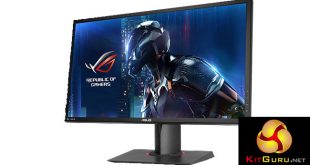
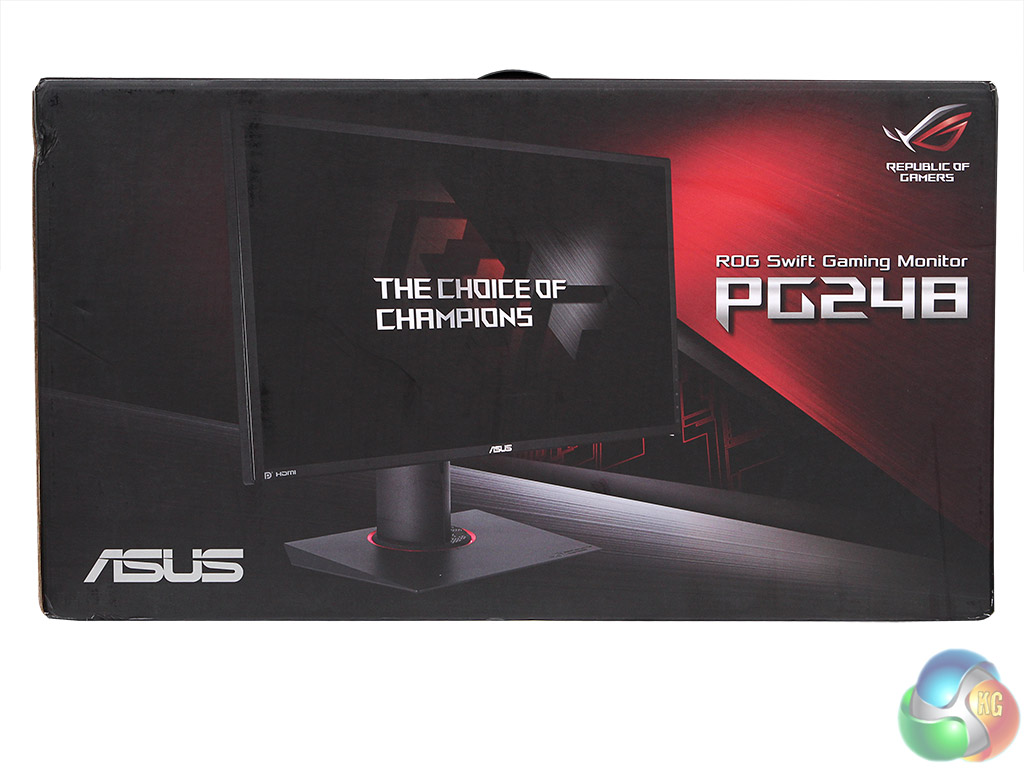
The ASUS ROG SWIFT PG248Q is very much a gaming monitor, and ASUS even claims it is targeting the e-sports community. It comes with the bells and whistles a dedicated gamer will hanker for – presets for specific game types, an overclockable refresh rate, and support for NVIDIA G-Sync. But does all that mean this 24in screen warrants its hefty £400 price?
As with most gaming-oriented displays, this is a TN panel, and the resolution is the usual 1,920 x 1,080, not 4K. The maximum brightness is a healthy 350cd/m2, with a fairly standard 1000:1 contrast ratio. So, on paper, the main specifications are nothing to write home about. The extra details are where this screen is aiming to set itself above the pack.
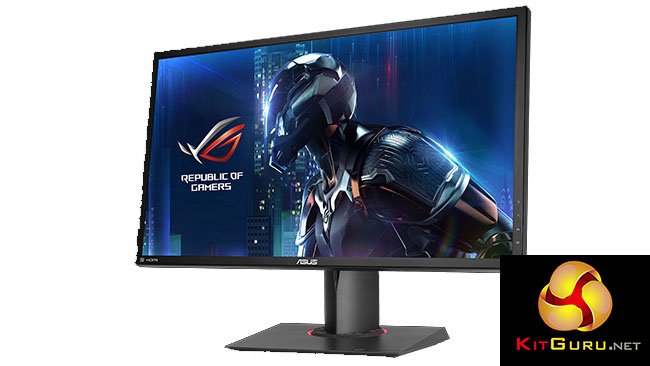
The headline detail is the refresh rate. As standard, the maximum is 144Hz. But you can also invoke an overclocked mode which can be varied up to 180Hz. This means that you can leave V-sync on, avoid tearing, and still have frame rates up to 180 per second. Even without overclocking, the native 144Hz is very high. For players of FPS, racing, or other types of games where the smoother the motion, the better, the high refresh will be a boon.
Complementing the high refresh rate is the support for NVIDIA G-sync. So if you're the owner of a compatible NVIDIA graphics card, which is most of the recent models from GeForce GTX 650Ti BOOST, and most of the recent professional Quadro models too, you can enjoy a monitor refresh that varies with the frame rate provided by the graphics card.
There's the requisite 1ms response time to go with the rapid refresh, for really snappy on-screen motion.
Other tempting features include the GameVisual preset modes, which range from Scenery, Racing, and Cinema to RTS/RPG, FPS, and sRGB, with the latter included just in case you foolishly want a preset for some serious work on the monitor. There are also GamePlus modes for added gaming goodness, including built-in crosshairs, timer, and frames per second.
Turning to the physical specification, there are inputs for HDMI and DisplayPort, but only one of each, plus a built-in USB hub, and headphone output so you can make use of the sound feed from a screen connection that includes this.
Orientation adjustments include tilt, swivel, pivoting 90 degrees into portrait mode, and height. But is this screen all flashy features or does its performance match the gaming extras? Let's find out.
Specification:
Screen size: 24-inch
Native resolution: 1,920 x 1,080
Refresh rate: 144Hz (Normal mode); 180Hz (Overclocked) – DisplayPort only
Panel type: TN
Contrast ratio: 1000:1 (typical)
Brightness: 350 cd/m2
Response time: 1ms
Display inputs: DisplayPort 1.2, HDMI 1.4
USB hub: 2x USB 3
Tilt: Yes
Raise: Yes
Swivel: Yes
Other: Headphone jack
Retail Price: £399.98 (inc. VAT)
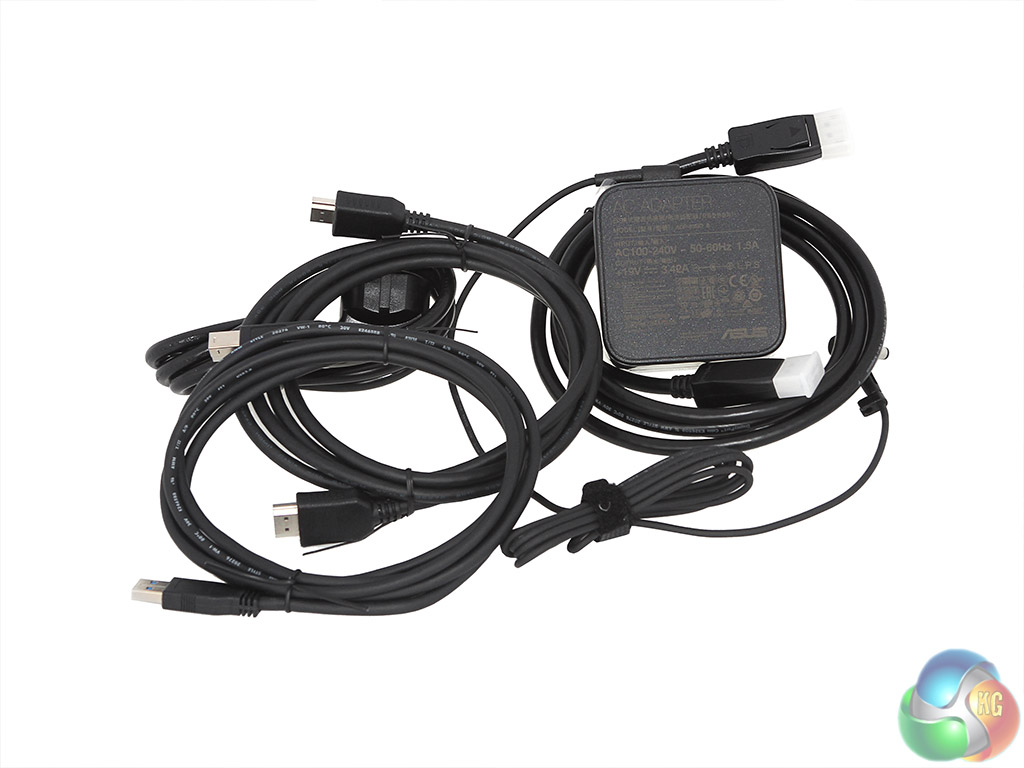
The Asus PG248Q comes with a decent selection of cables. Both full-sized DisplayPort and HDMI are included, plus an upstream USB cable for the monitor's built-in hub. The power supply is external, and uses the slightly less common C5 three-pin connection.
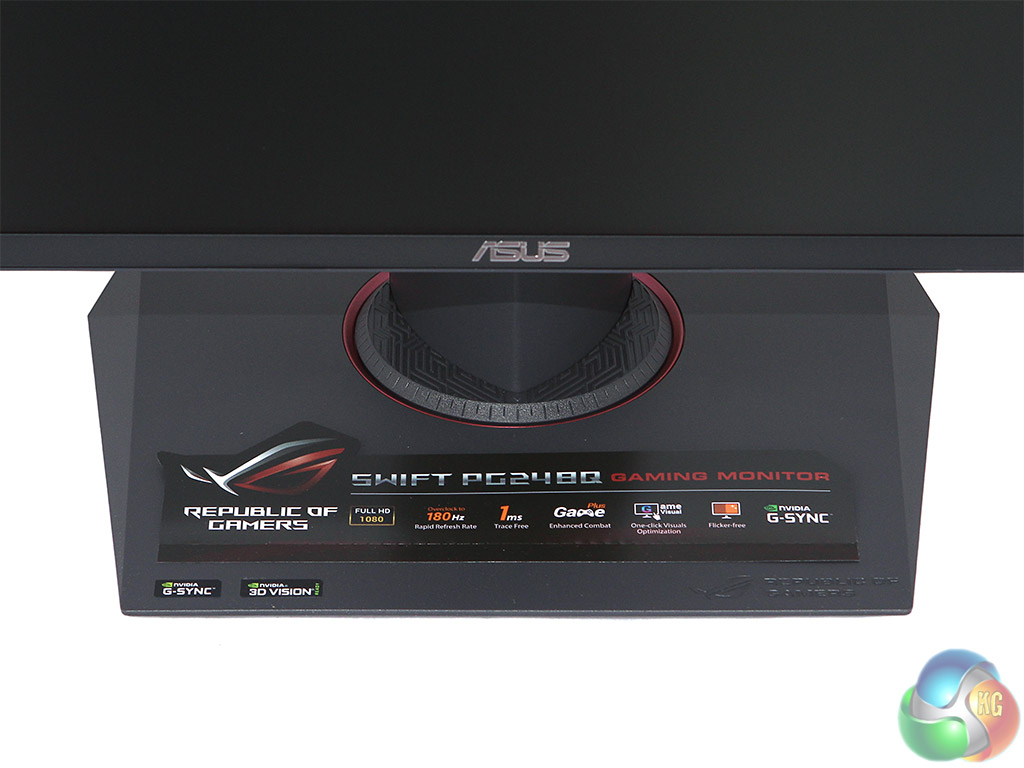
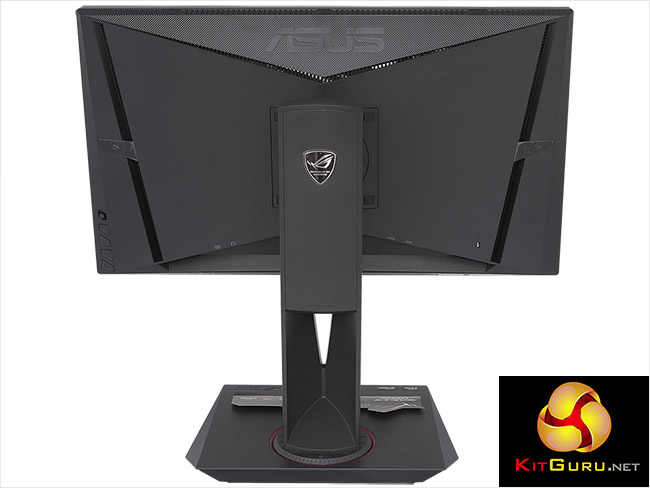
The monitor's base proudly boasts about its main features, including the 180Hz overclocked refresh, 1ms response rate, game modes, and NVIDIA G-Sync support. Fortunately, this is a removable sticker, so you can enjoy the monitor's graphite blackness. There's a flashing LED ring around the rotating base, too, for added bling.
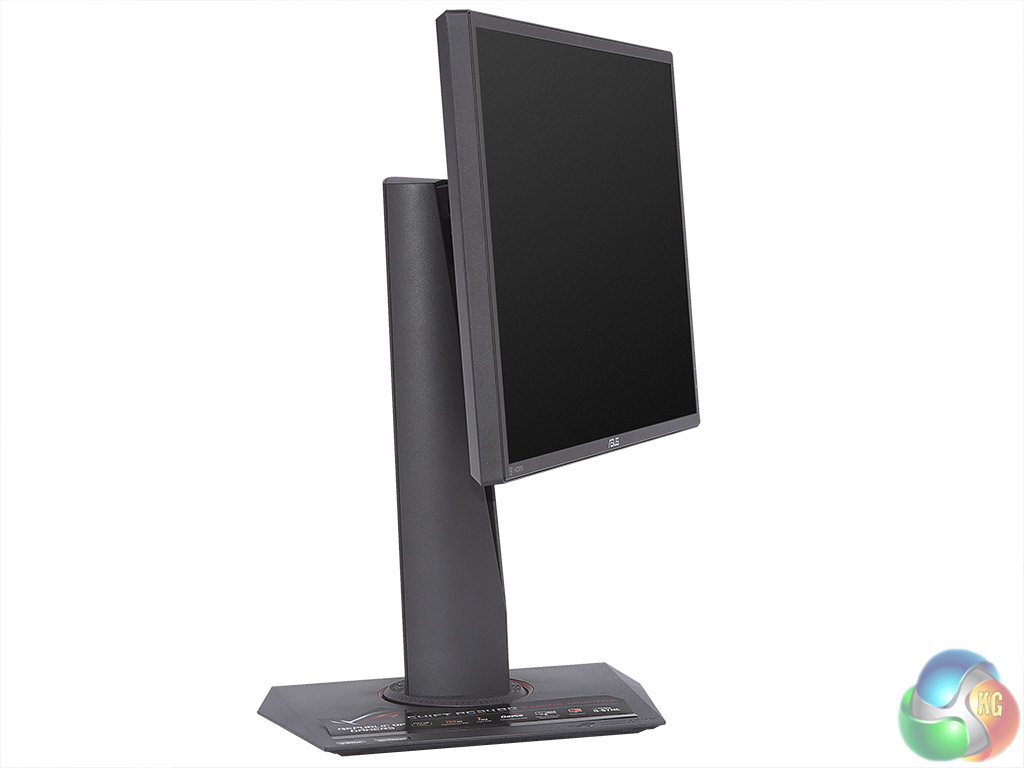
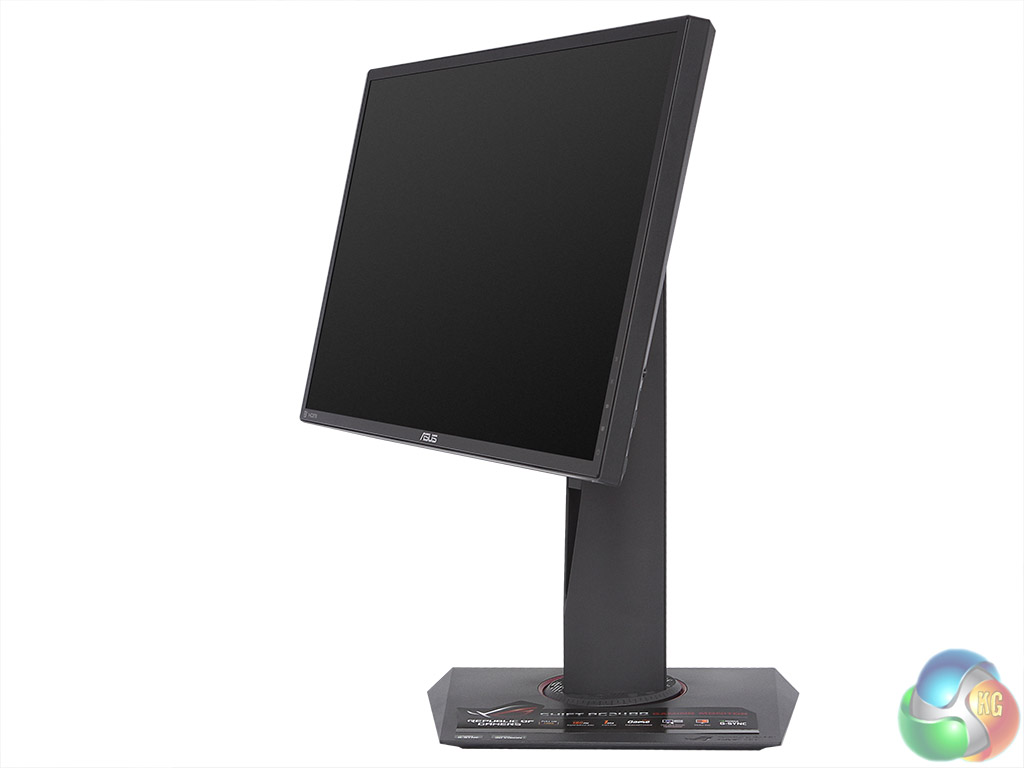
The screen can swivel 60 degrees each way. Combined with the 170-degree angle of view, there are plenty of options for observing the screen away from full frontal.
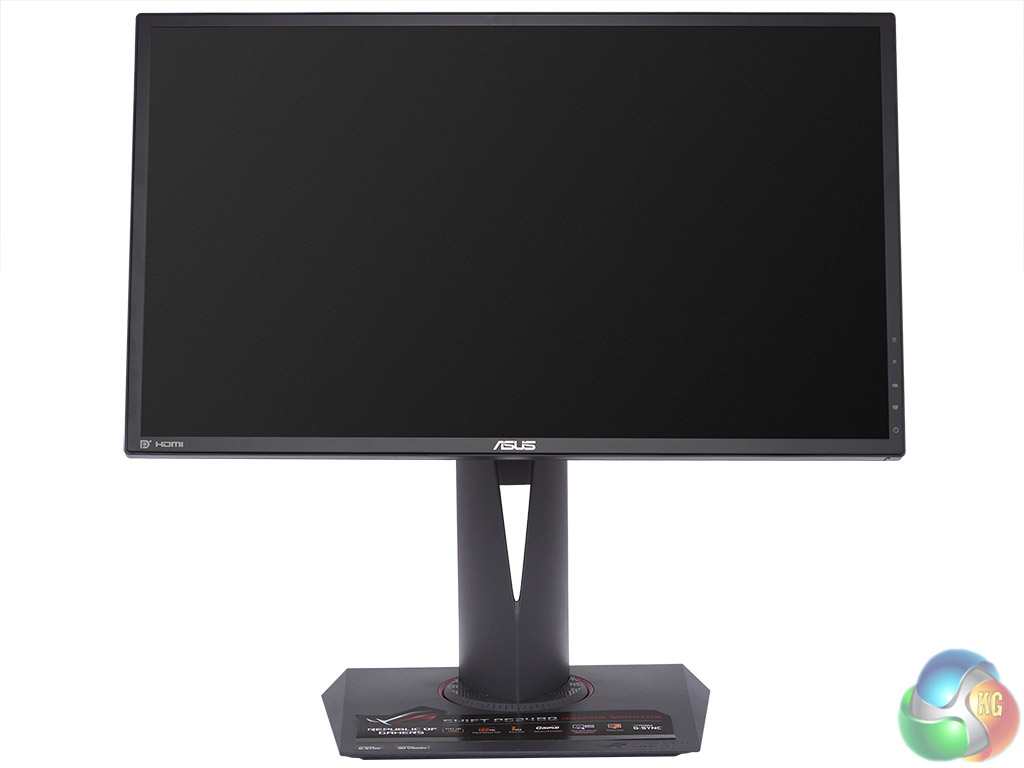
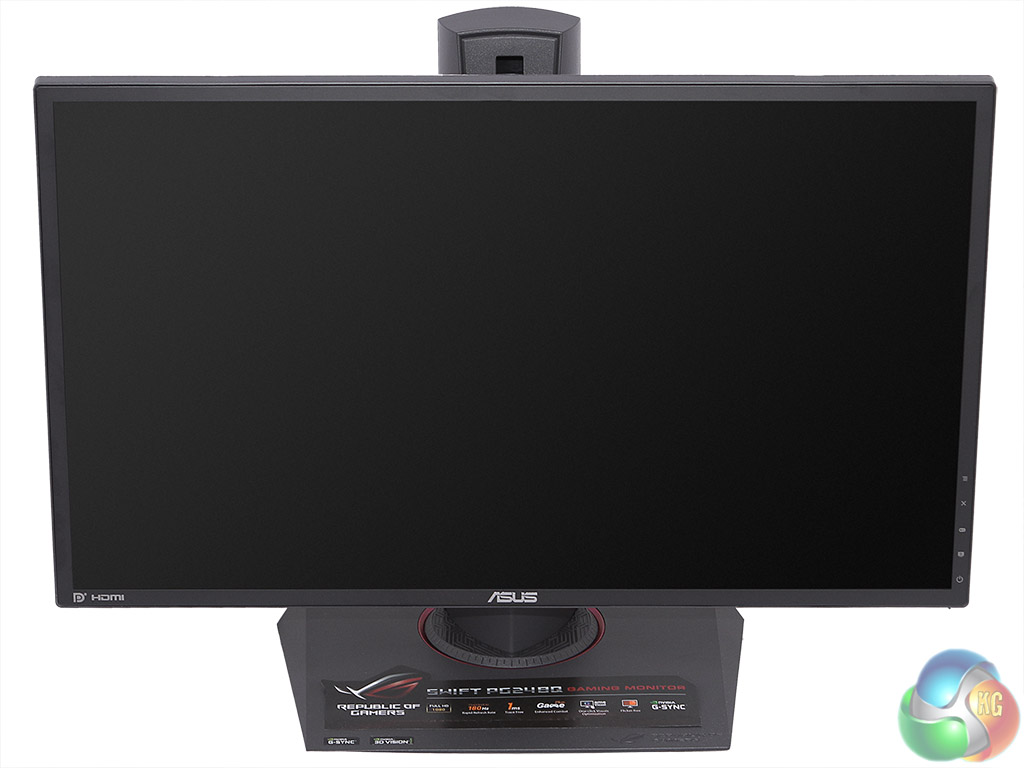
There's a good amount of height adjustment available, up to 120mm from the bottom position.
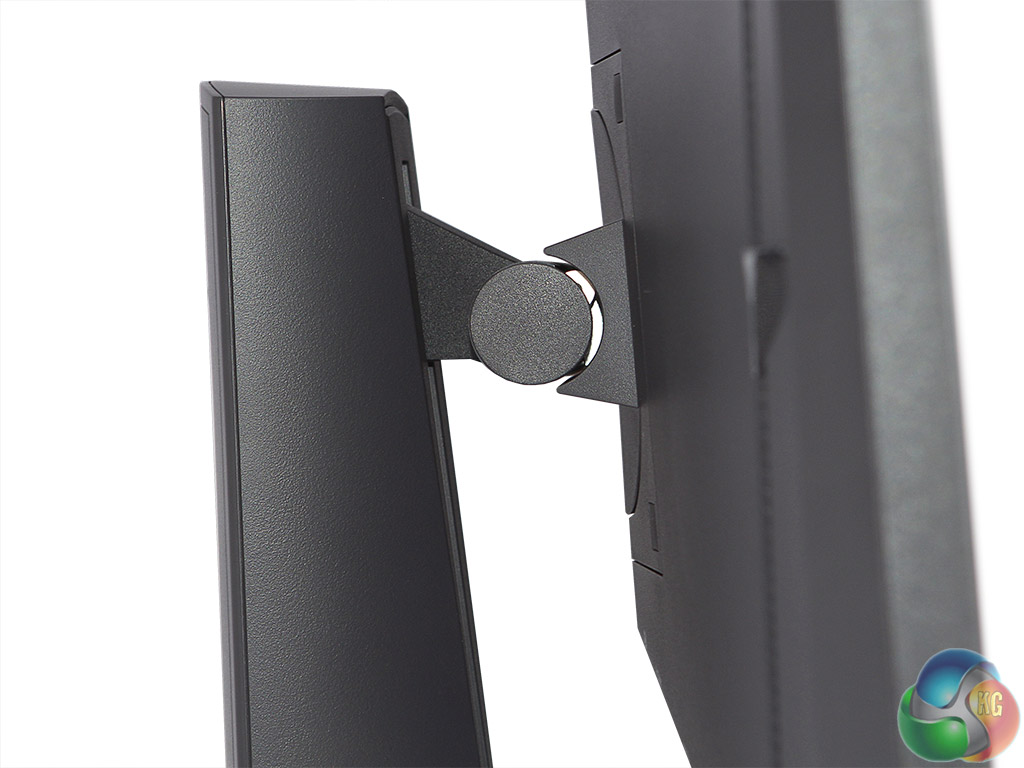

You can tilt the screen 20 degrees backwards and 5 degrees forwards for more comfortable viewing. The stand is attached to the screen via the usual 100mm VESA mount, although it comes in the box with the stand already attached.
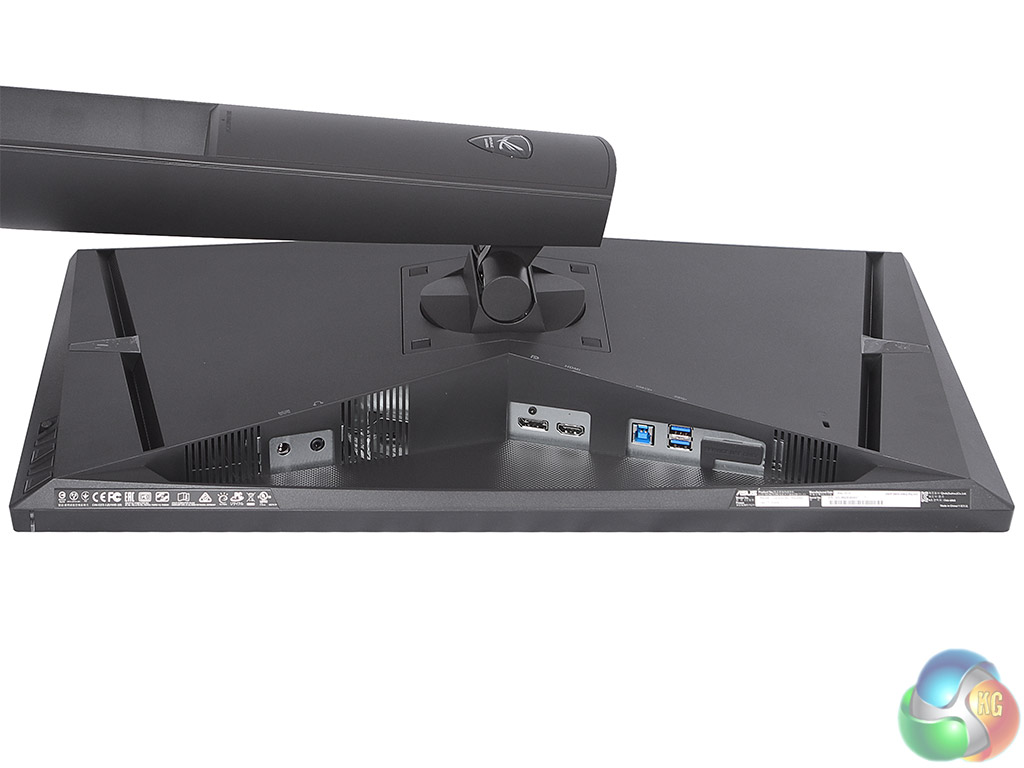
The ports are arranged at a strange angle towards the centre, with most of them on what is the left-hand side from the front. In practice, the angle doesn't cause any problems, although it is a little fiddly inserting monitor cables because they don't insert straight up.
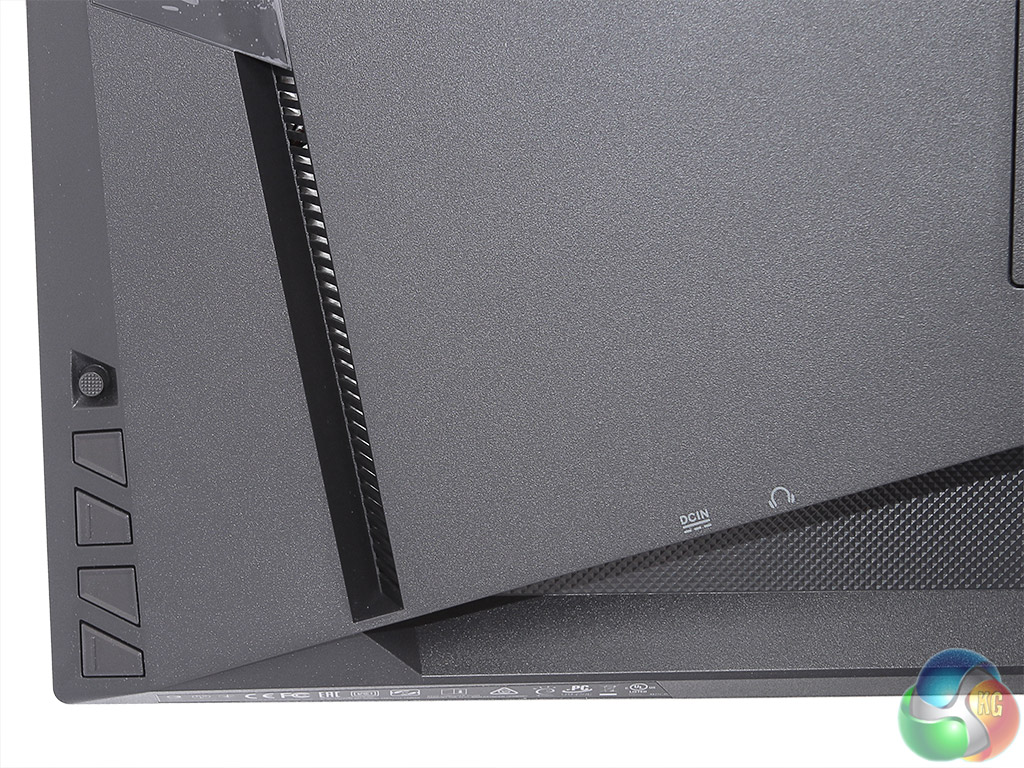
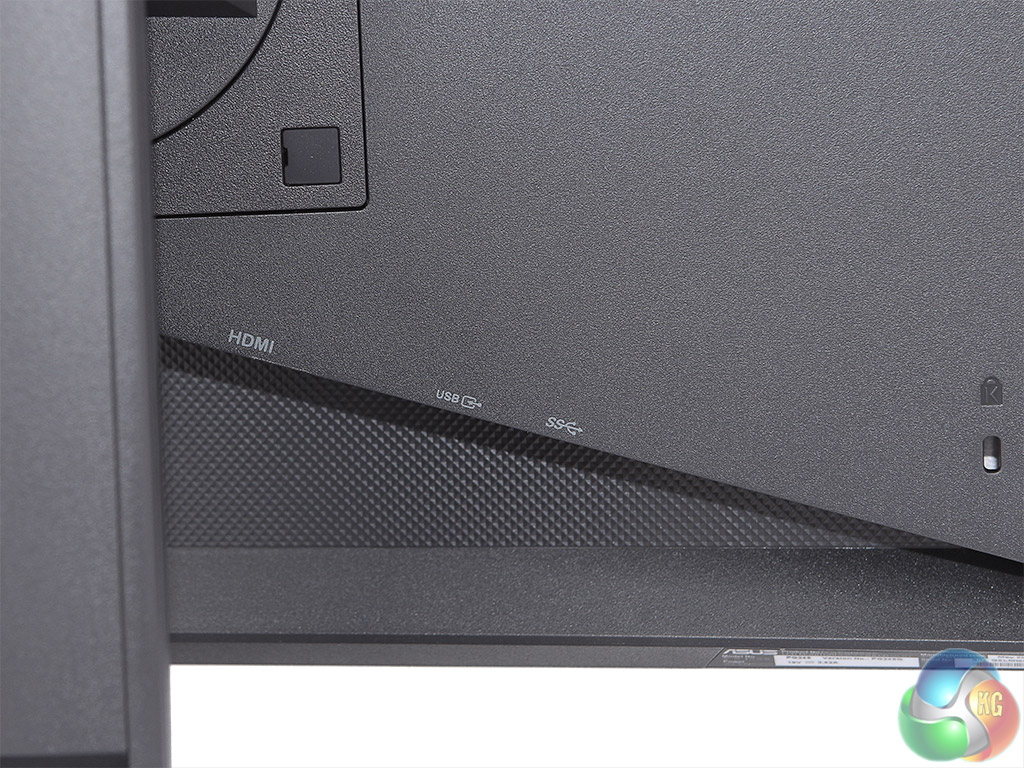
The power and headphone jacks are on one side, whilst the other side hosts the HDMI 1.4 port, DisplayPort 1.2, upstream USB 3.0 and two downstream USB 3.0.
It's a shame there are only two USB ports, and they are hidden at the back rather than being situated on the side for convenience of access. There's another port here, but apparently that's only for service use.
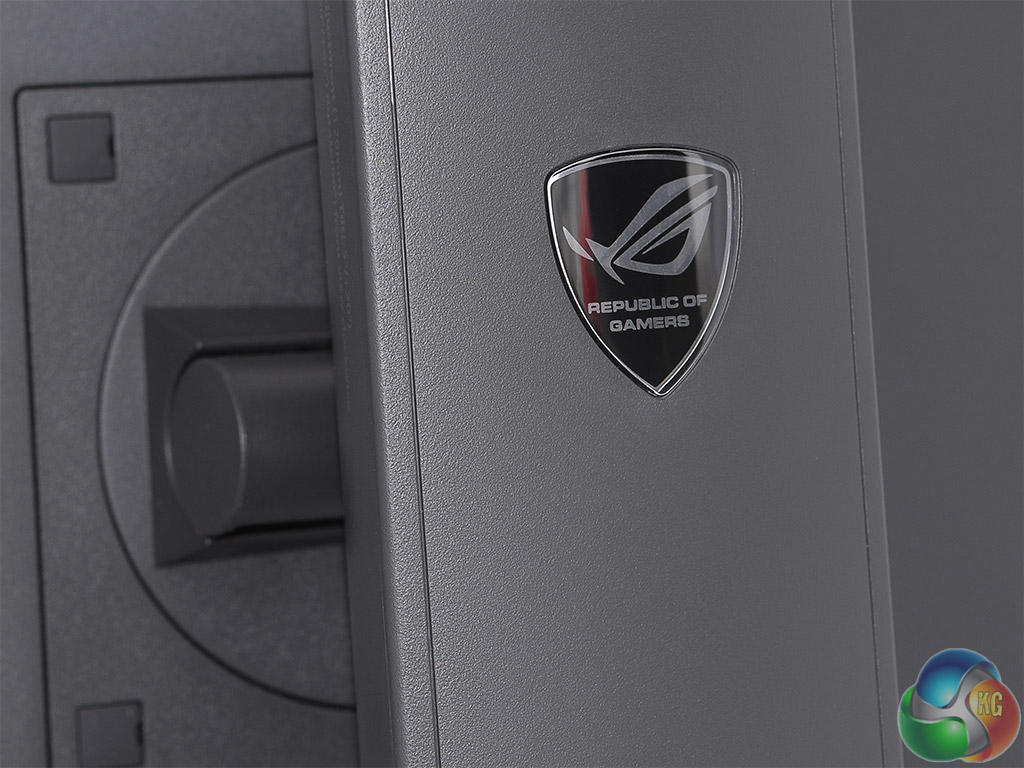
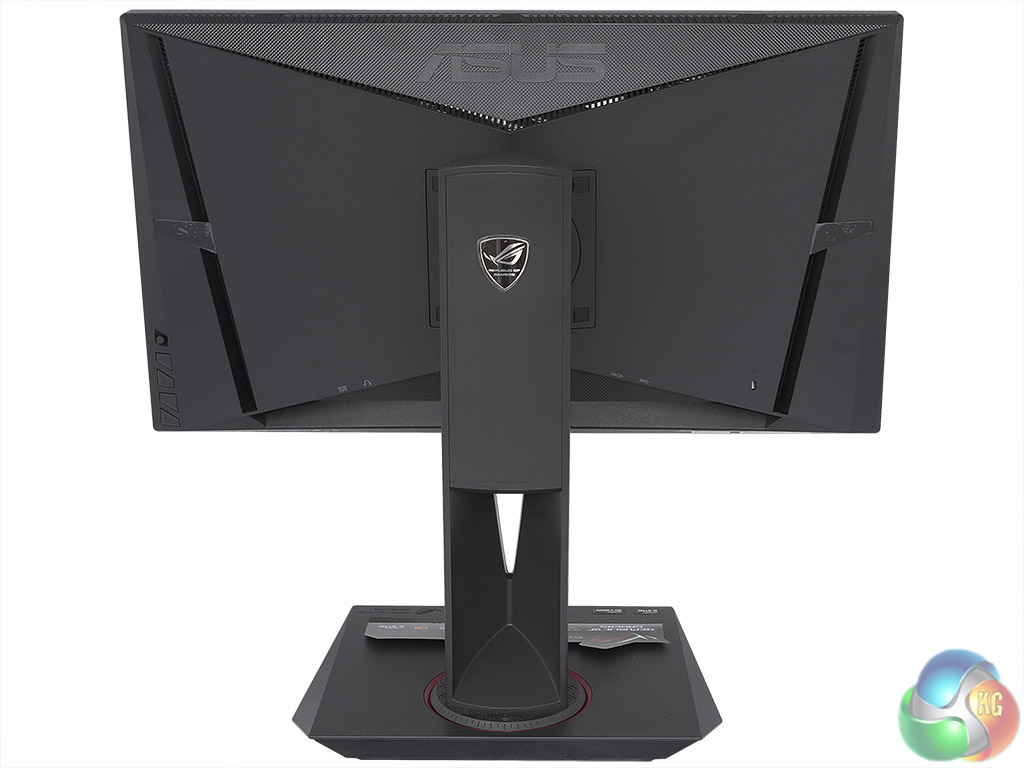
A Kensington lock slot is also available on the rear, which might actually come in handy to tie this monitor down when it's being used for competitive public e-sports.
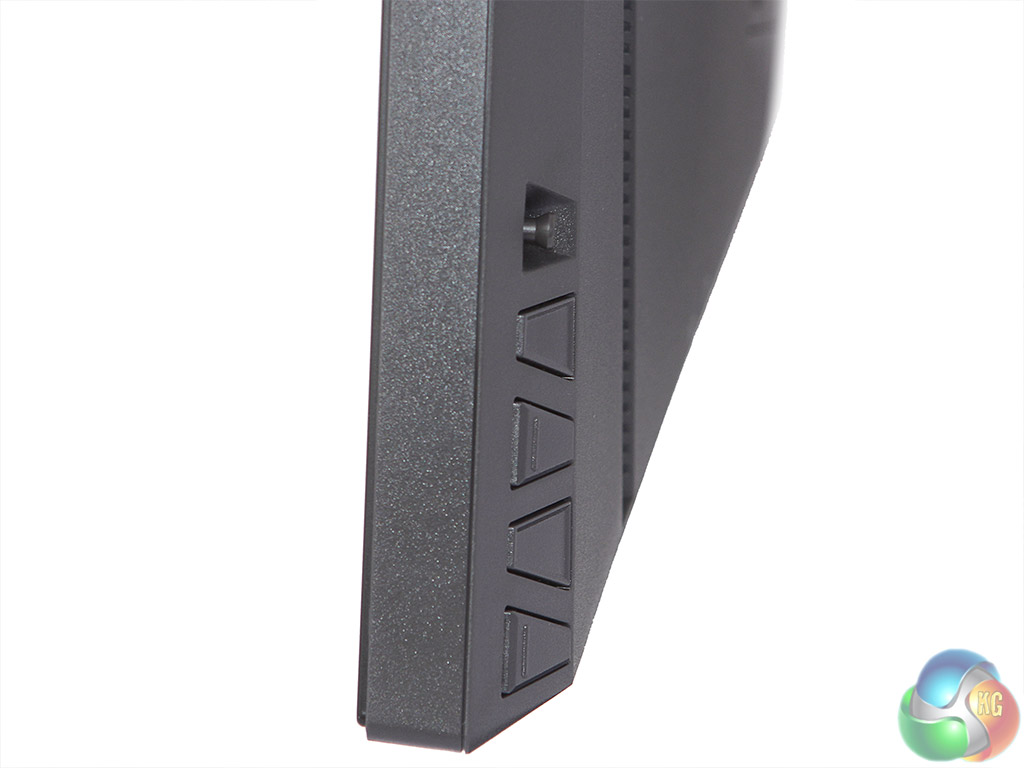
The control buttons for the OSD are on the right-hand side. Because they alternate the angle of the trapezoid shaping, these buttons take a little getting used to. But the joystick at the top does make navigating the menu more fluid than some interfaces, which feel like you have been pressing buttons for most of your life to get to some of their settings.
There are faint grey icons on the right-hand bottom corner of the screen to tell you what the buttons hidden behind do.
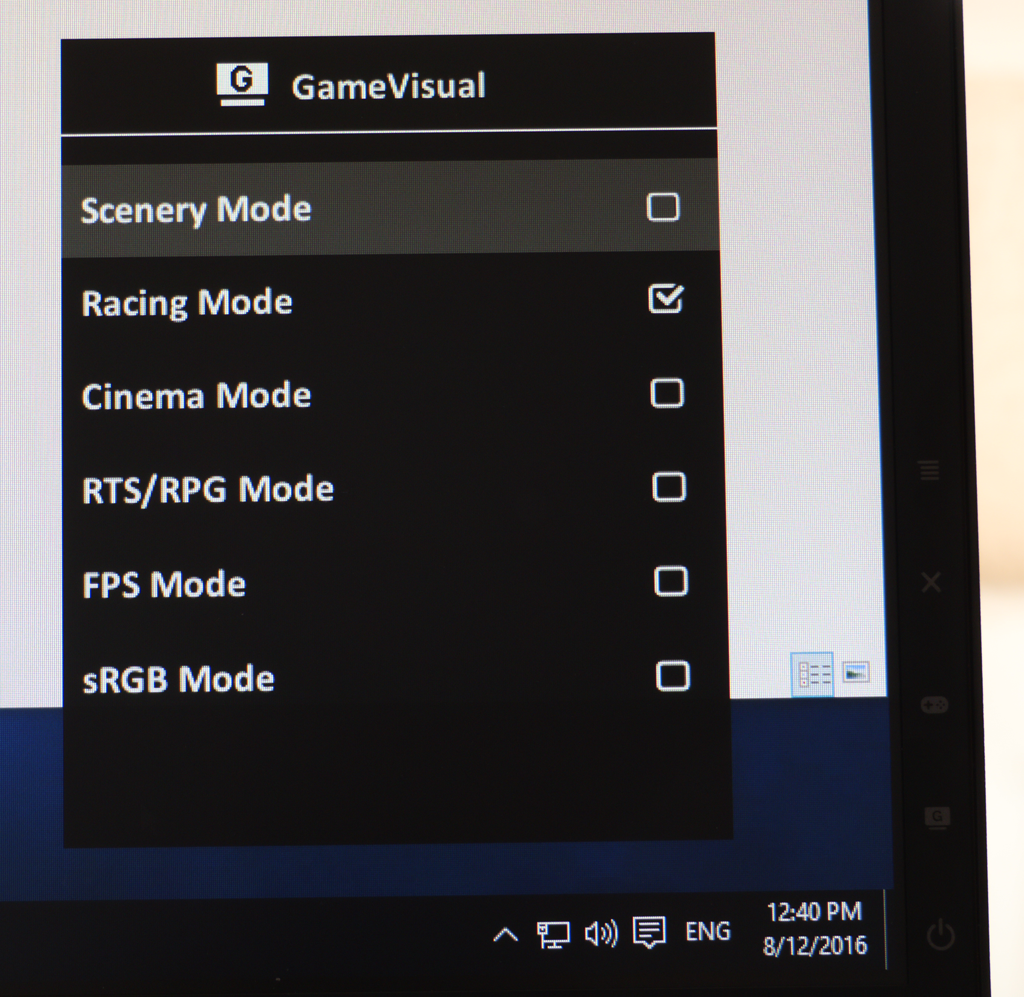
The first button above the power button calls up the GameVisual presets. These include Scenery Mode, Racing Mode, Cinema Mode, RTS/RPG Mode, FPS Mode, and sRGB mode. Their titles are fairly self explanatory of what their intended usage will be.
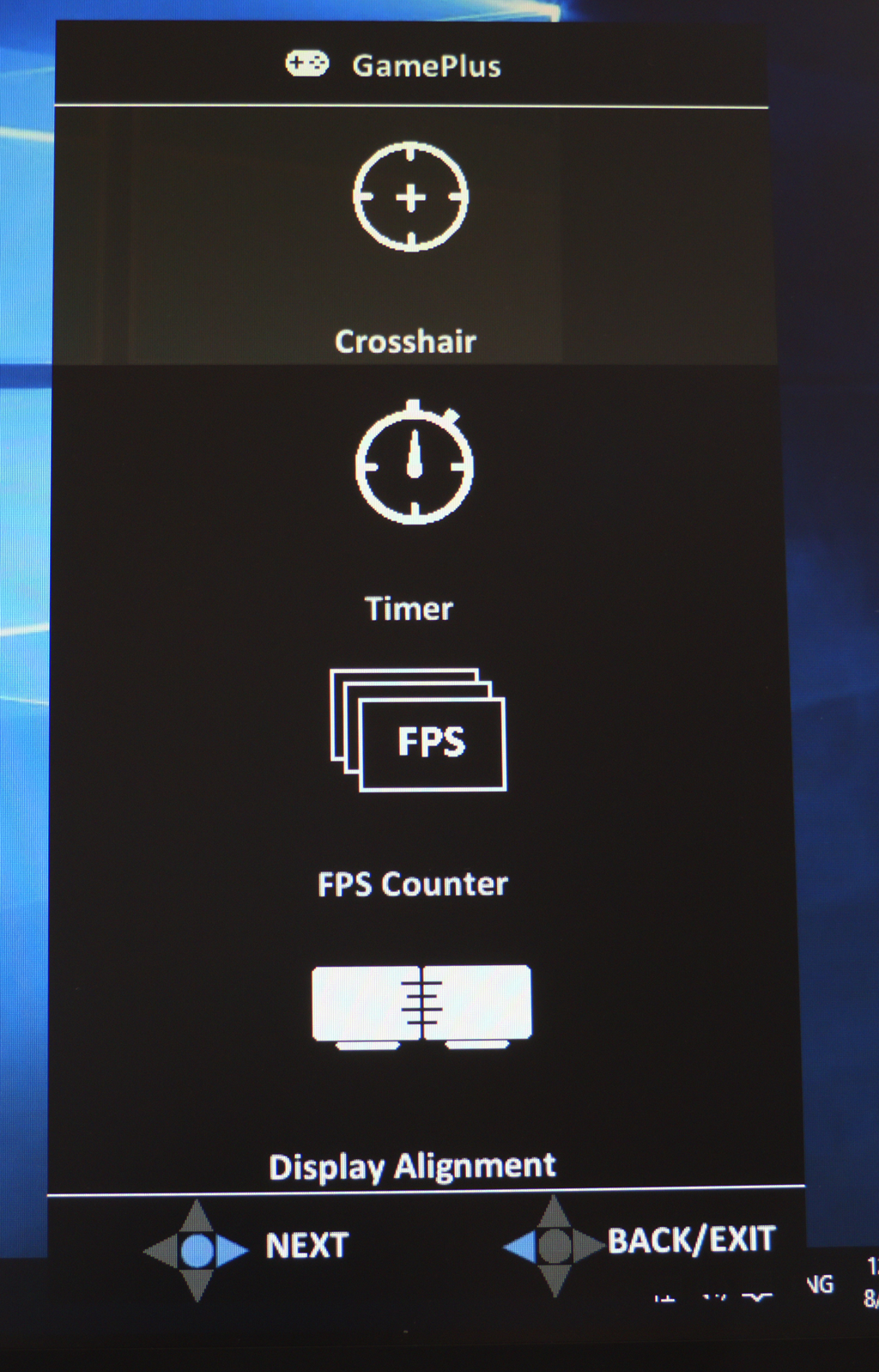
The GamePlus widgets are even more focused on gaming than the GameVisual presets. You can add in crosshairs, start a timer, show your FPS, and put a Display Alignment graphic onscreen.
The latter includes lines on all four edges that you can use to ensure two screens are precisely next to each other pixel for pixel – but only two ASUS screens with this feature.
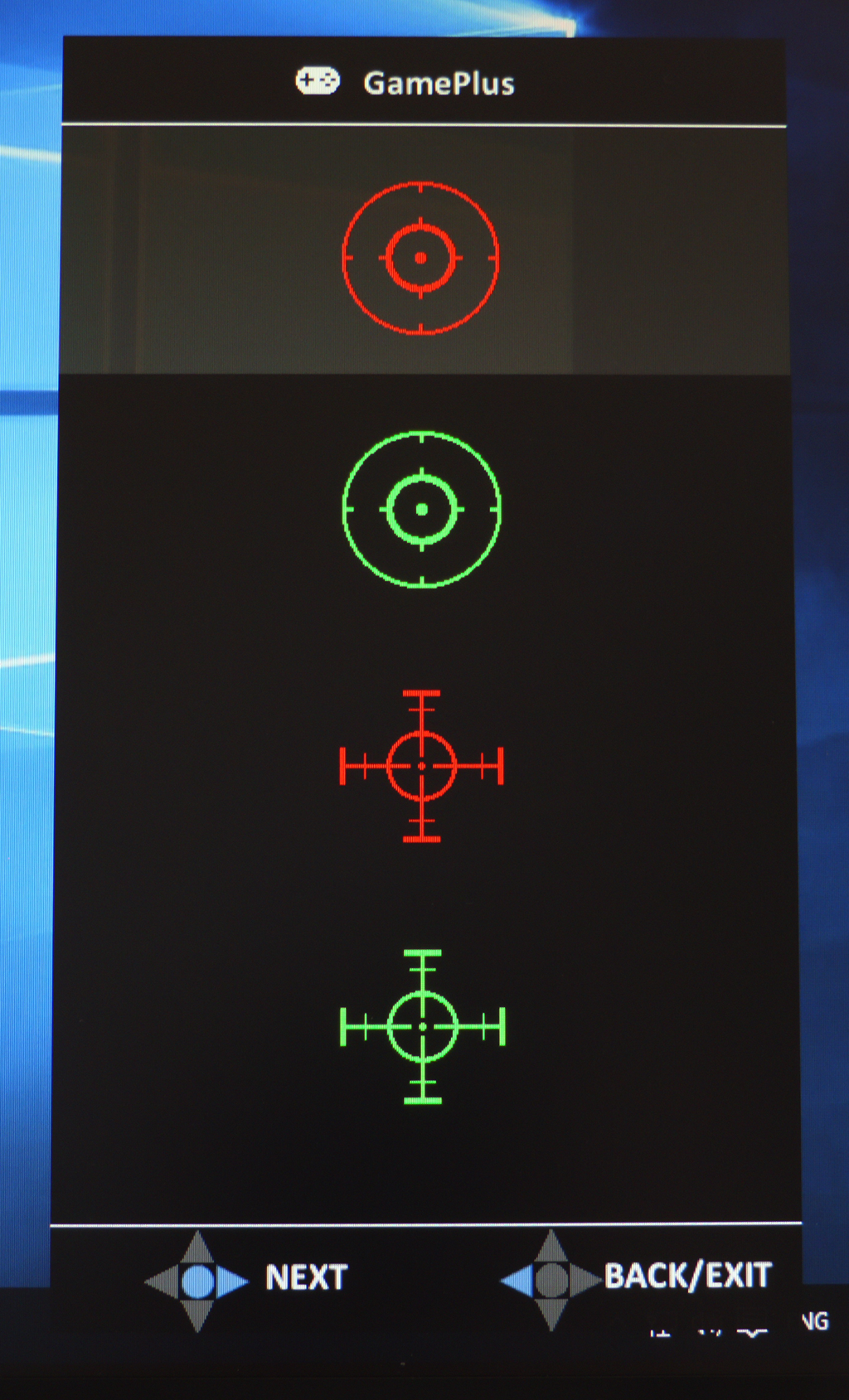
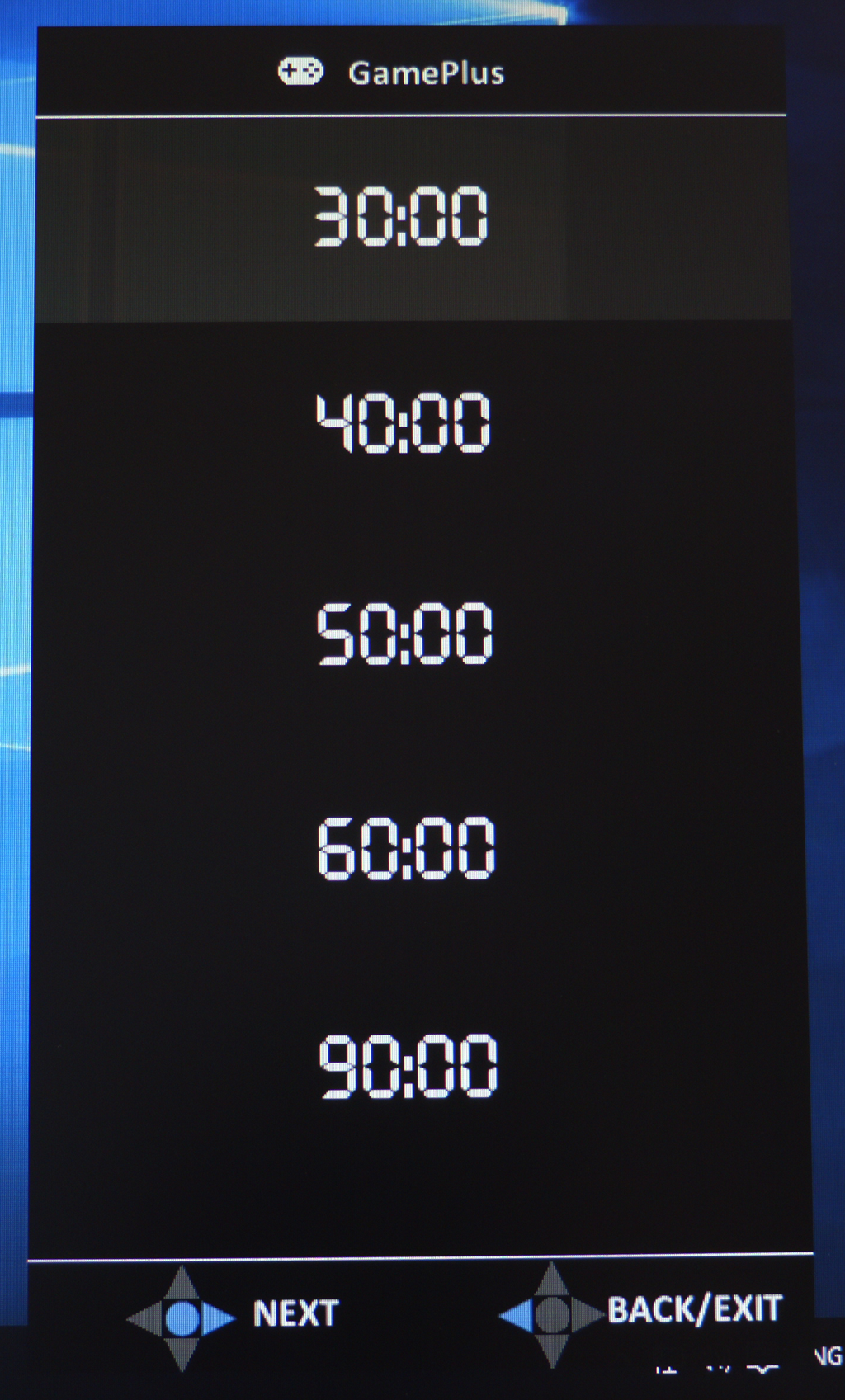
There are four different crosshair types available. Timers can be set up to 90 minutes.
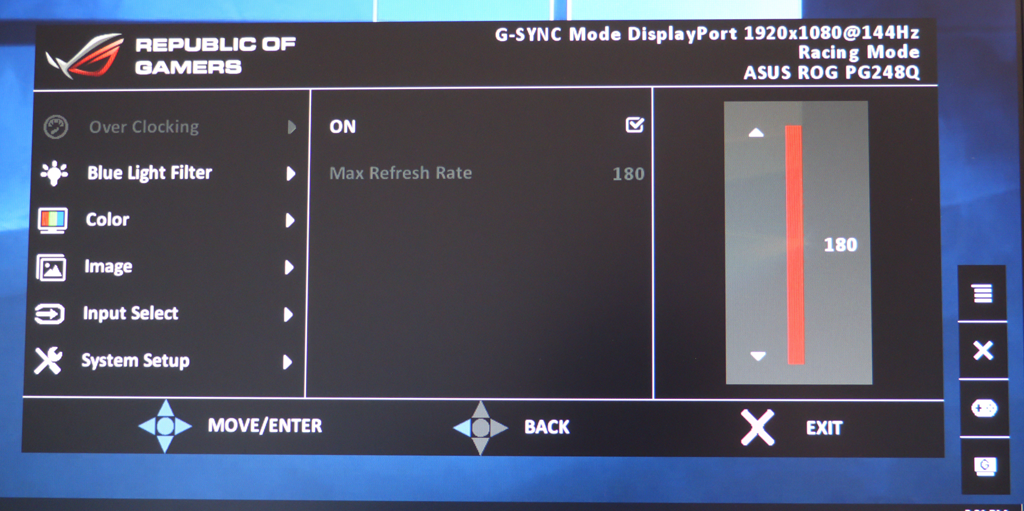
The main menu is called up by pressing the joystick. At the top is the overclock setting, which when enabled allows you to choose 160, 170 or 180Hz options.
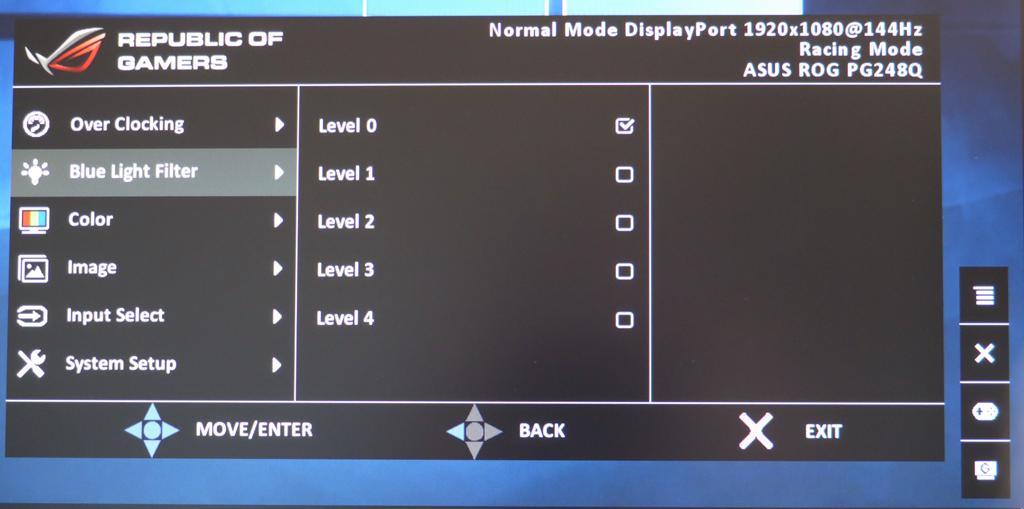
There are blue light filters available with four strengths, to protect your eyes from harm.
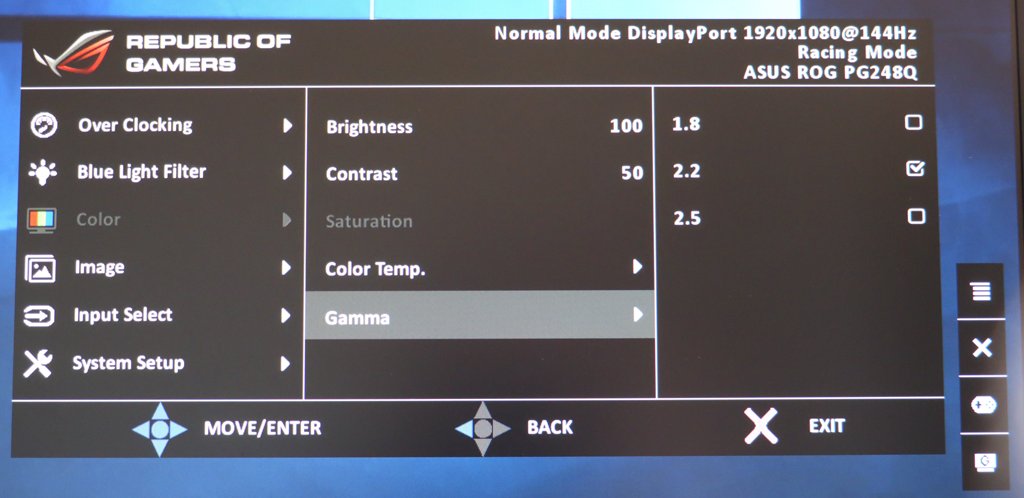
The Color option is where you find Brightness, Contrast, Saturation, Color Temperature and Gamma, although not all options will be available, depending on how you have set up the monitor elsewhere.
Brightness and contrast are percentage sliders from 0 to 100 per cent, Color Temperature includes three presets and a user mode, which allows you to adjust R, G and B values manually, but doesn't tell you what these represent in K terms. Gamma options include 1.8, 2.2 and 2.5, with 2.2 being the default.
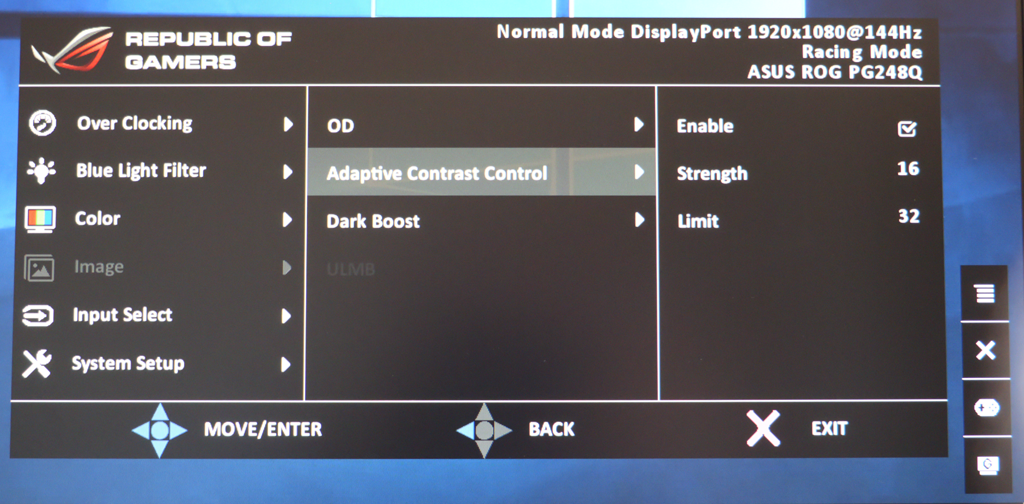
The Image menu lets you Overdrive the pixel response rate, a mysterious option that we didn't see any noticeable benefit from. There's Adaptive Contrast Control, with configurable Strength and Limit, plus a Dark Boost that makes blacks blacker.
The ULMB (ultra-low motion blur) mode reduces tearing in a similar fashion to NVIDIA G-Sync, but only works at certain refresh rates (not 60 or 144Hz) and isn't as good as G-Sync or compatible with it.
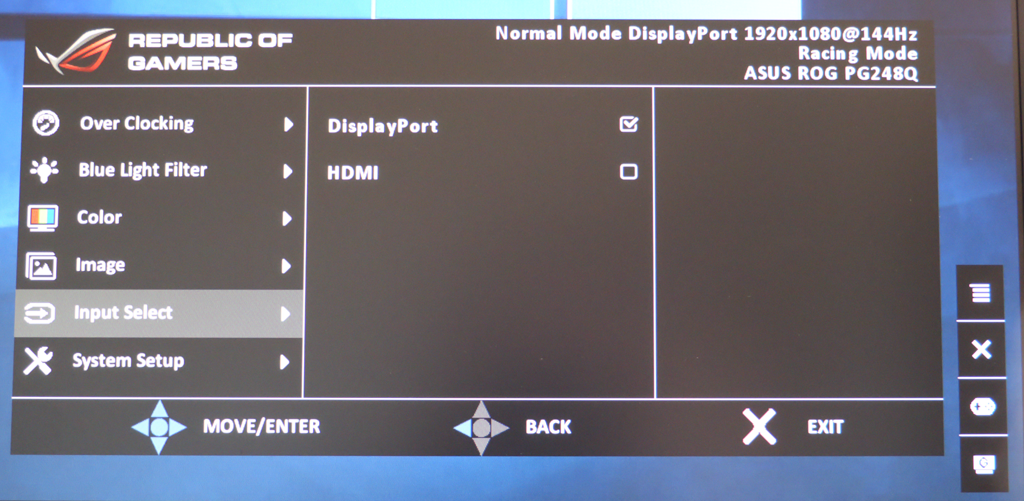
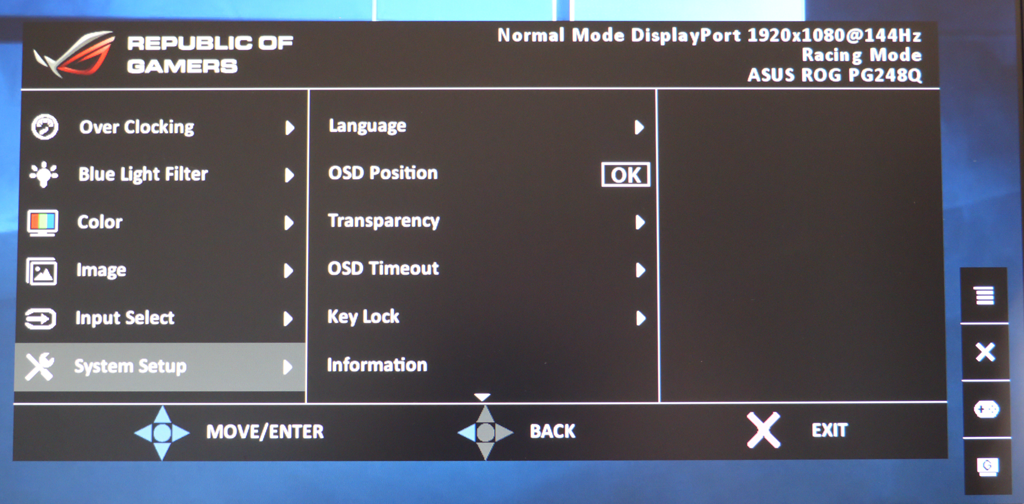
You can change the input via the main menu, and in System Setup you can alter things like OSD position and transparency, or change the menu to Chinese to annoy a friend.
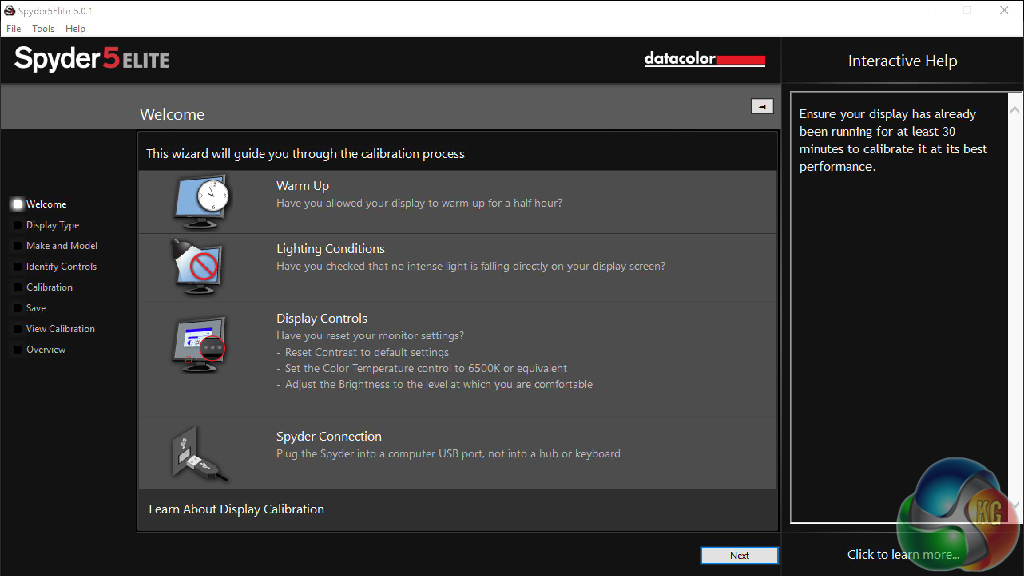
Our main test involves using a DataColor Spyder Elite 5 Colorimeter to assess a display’s image quality. The device sits on top of the screen while the software generates colour tones and patterns, which it compares against predetermined values to work out how accurate the screen is.
The results show –
- A monitor’s maximum brightness in candelas or cd/m2 at various levels set in the OSD.
- A monitor’s contrast ratio at various brightness levels in the OSD.
- The brightness deviation across the panel.
- The black and white points
- The colour accuracy, expressed as a Delta E ratio, with a result under 3 being fine for normal use, and under 2 being great for colour-accurate design work.
- The exact gamma levels, with a comparison against preset settings in the OSD.
We first run this test with the display in its default, out-of-the-box state, with all settings on default. We then calibrate the screen using the Spyder software and run the test again.
We always test the display subjectively on the Windows desktop, using it for general tasks such as browsing and word processing, and with games as well, even if the display is not intended solely for that purpose. We pay careful attention to any artefacts, ghosting or motion blur, and enable any gaming specific features, such as adaptive-sync settings like G-Sync, using a compatible graphics card in our test PC.
In the case of the ASUS, we performed all testing in Scenery preset mode.
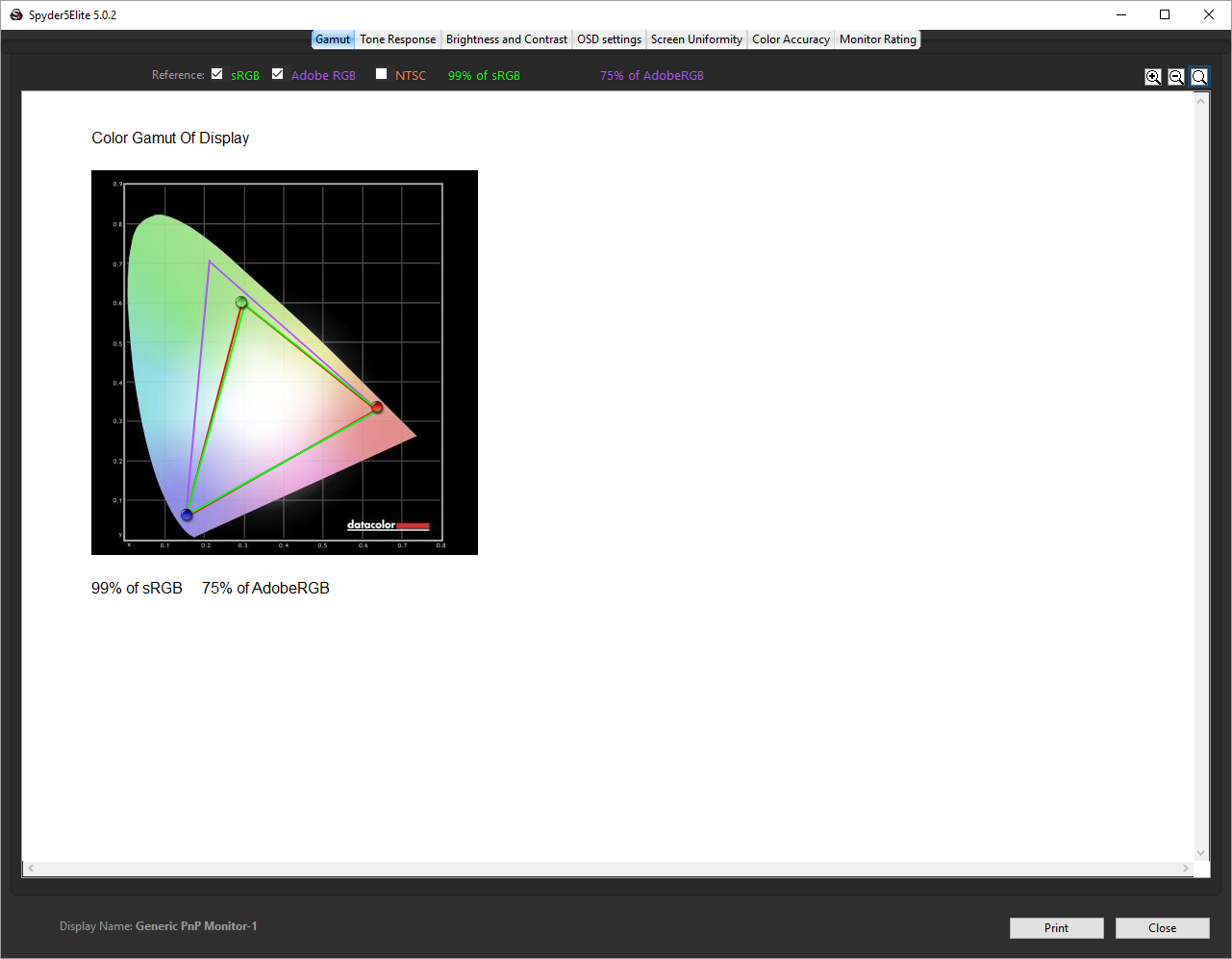
First off, the uncalibrated results show a decent gamut, with a respectable 99 per cent sRGB coverage and acceptable 75 per cent Adobe RGB.
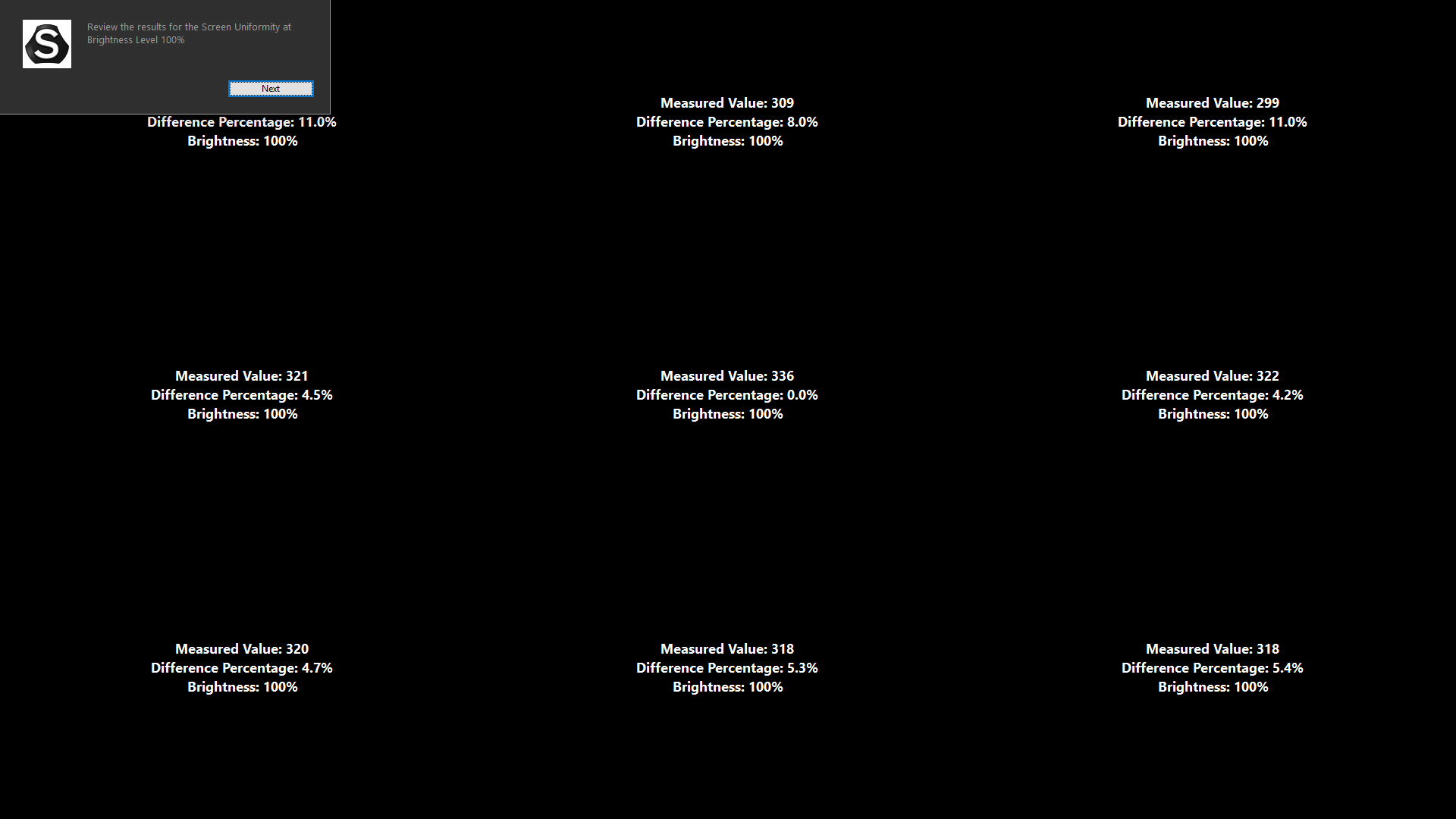
The panel shows only passable brightness uniformity, with the maximum deviation across the panel being 11 per cent in the two top corners, and 8 per cent in the top at the middle. The Viewsonic XG2700-4K, for example, is much better.
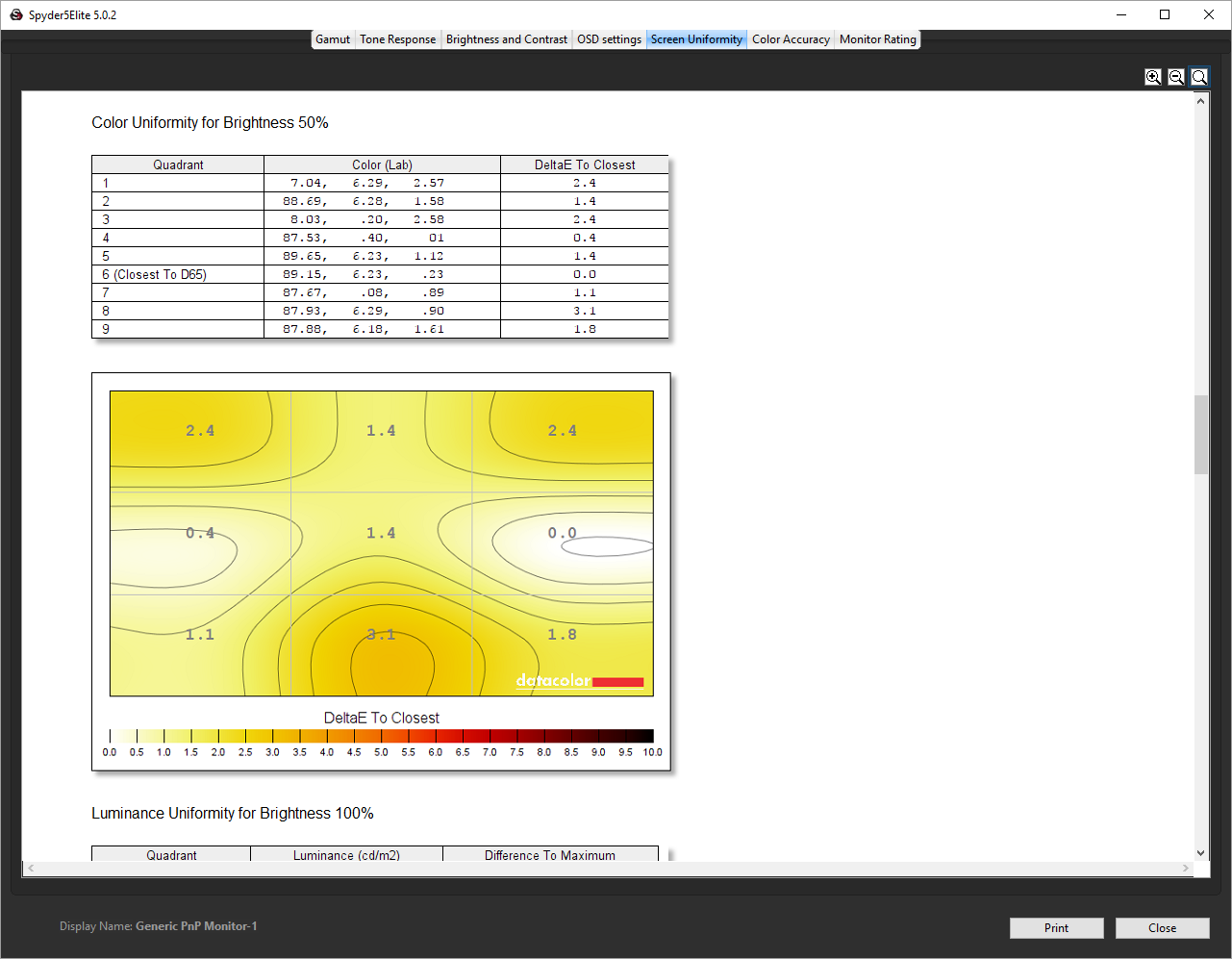
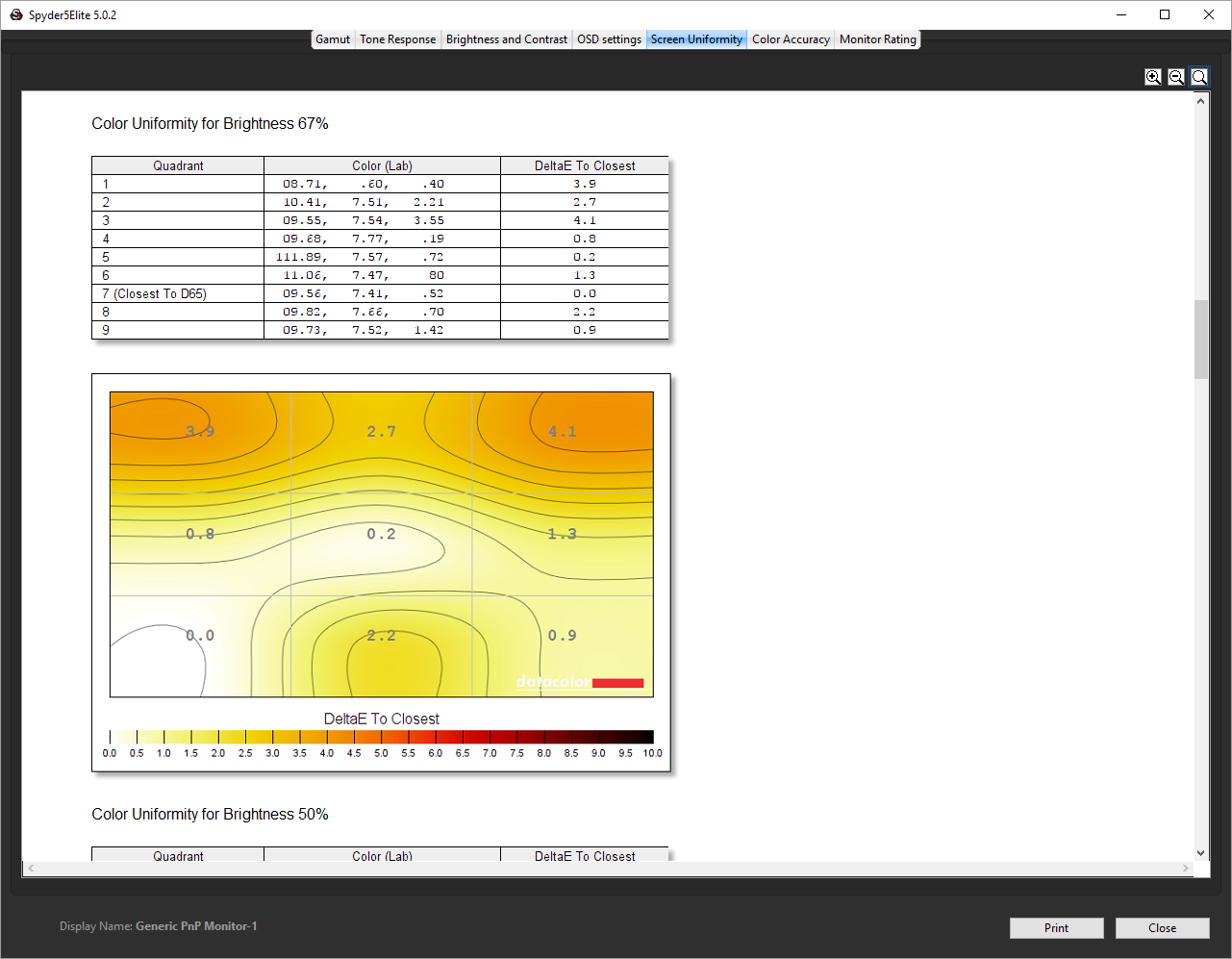
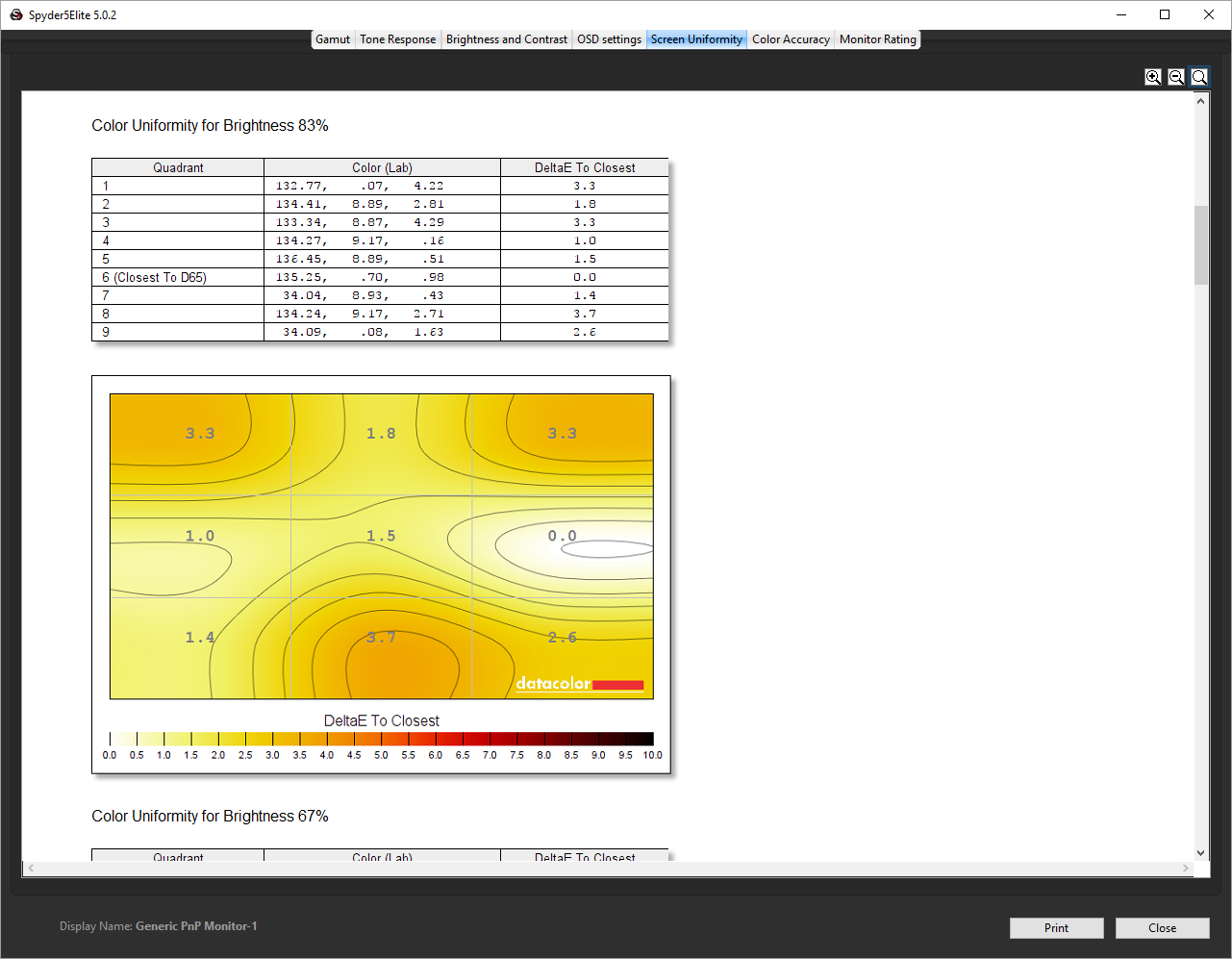
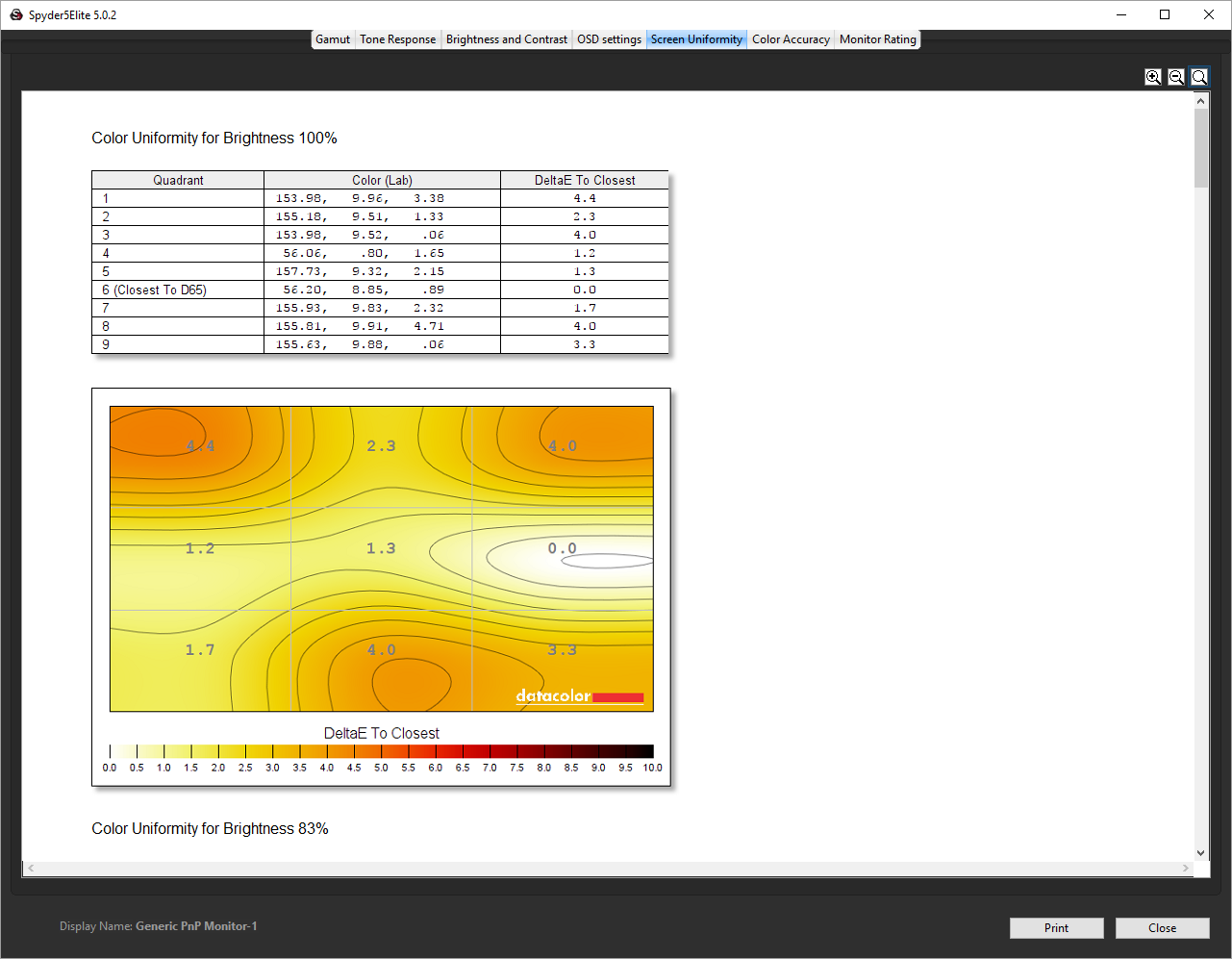
But colour uniformity is much better across the range of brightness from 50 to 100 per cent.
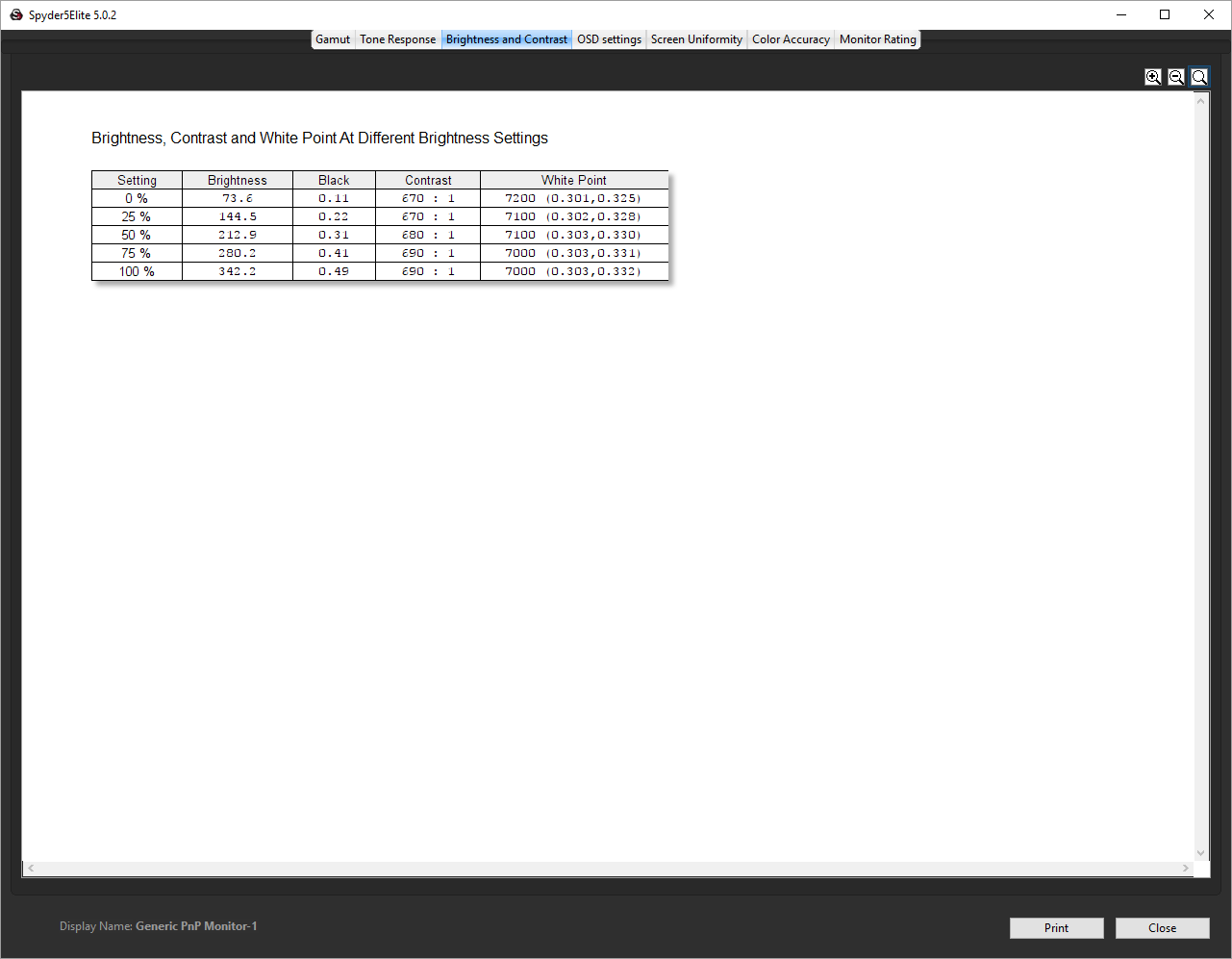
The brightness level gets very close to the specified 350cd/m2 at 100 per cent brightness, and you can still obtain a very respectable 212.9cd/m2 even at 50 per cent, so there are plenty of brightness levels to choose from.
The contrast of between 670:1 and 690:1, which quite a long way off the 1000:1 rating. However, contrast is set to 50 per cent by default, so higher ratios will be possible if required.
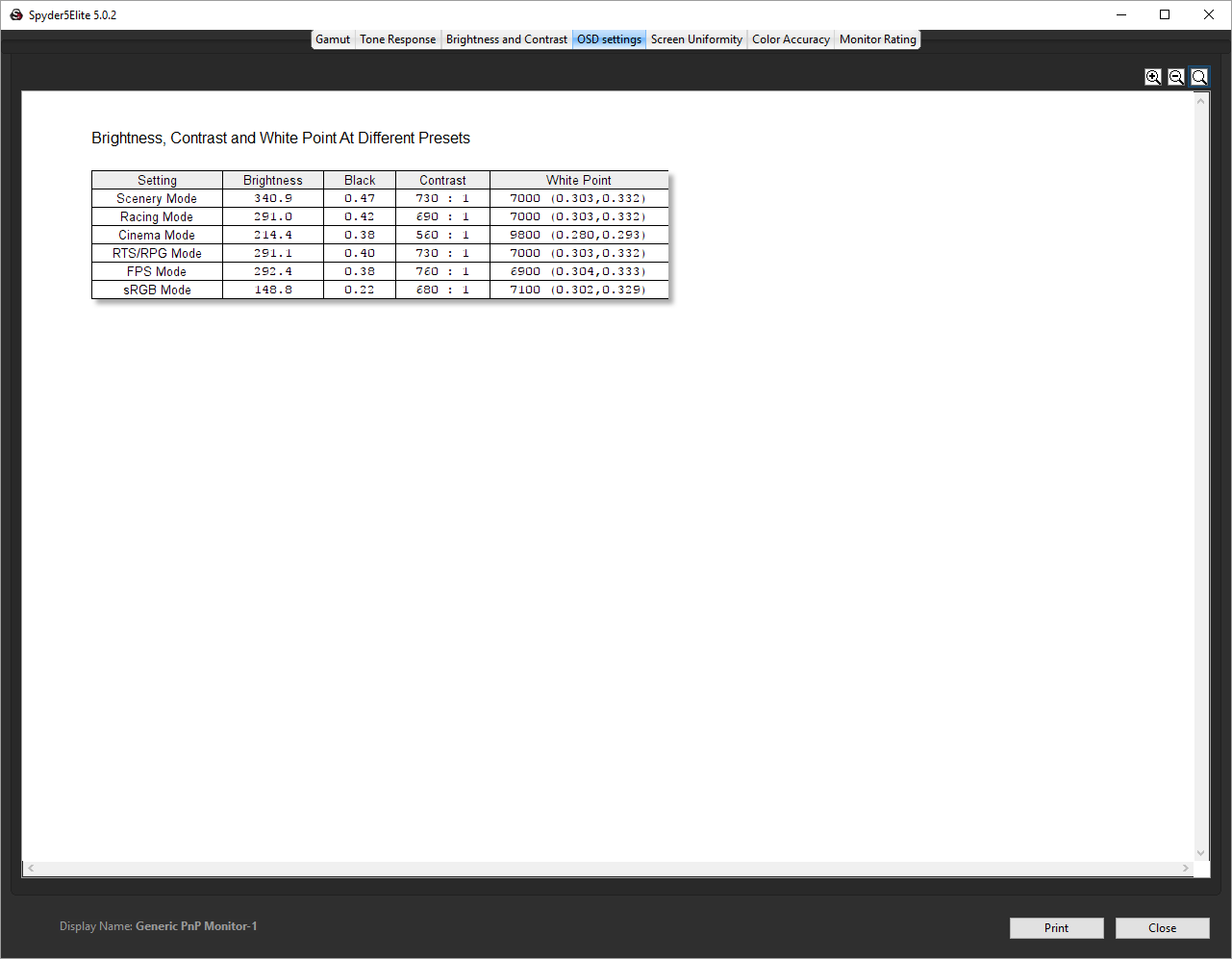
Quite a range of brightness levels and contrast are available from the presets. Scenery mode is the brightest, with a 7000K colour temperature. The three gaming options – Racing, RTS/RPG, and FPS – are all very similar. All offer brightness around the 292cd/m2 mark, but with contrast ranging from 690:1 to 760:1 for FPS mode.
Cinema mode goes for a middling 214.4cd/m2 brightness but contrast is the lowest at 560:1, with a very high 9800K colour temperature – as you would expect for a mode that is aiming for colour vibrancy. The sRGB mode uses the lowest brightness of 148.8cd/m2, middling 680:1 contrast, and middling 7100 colour temperature.
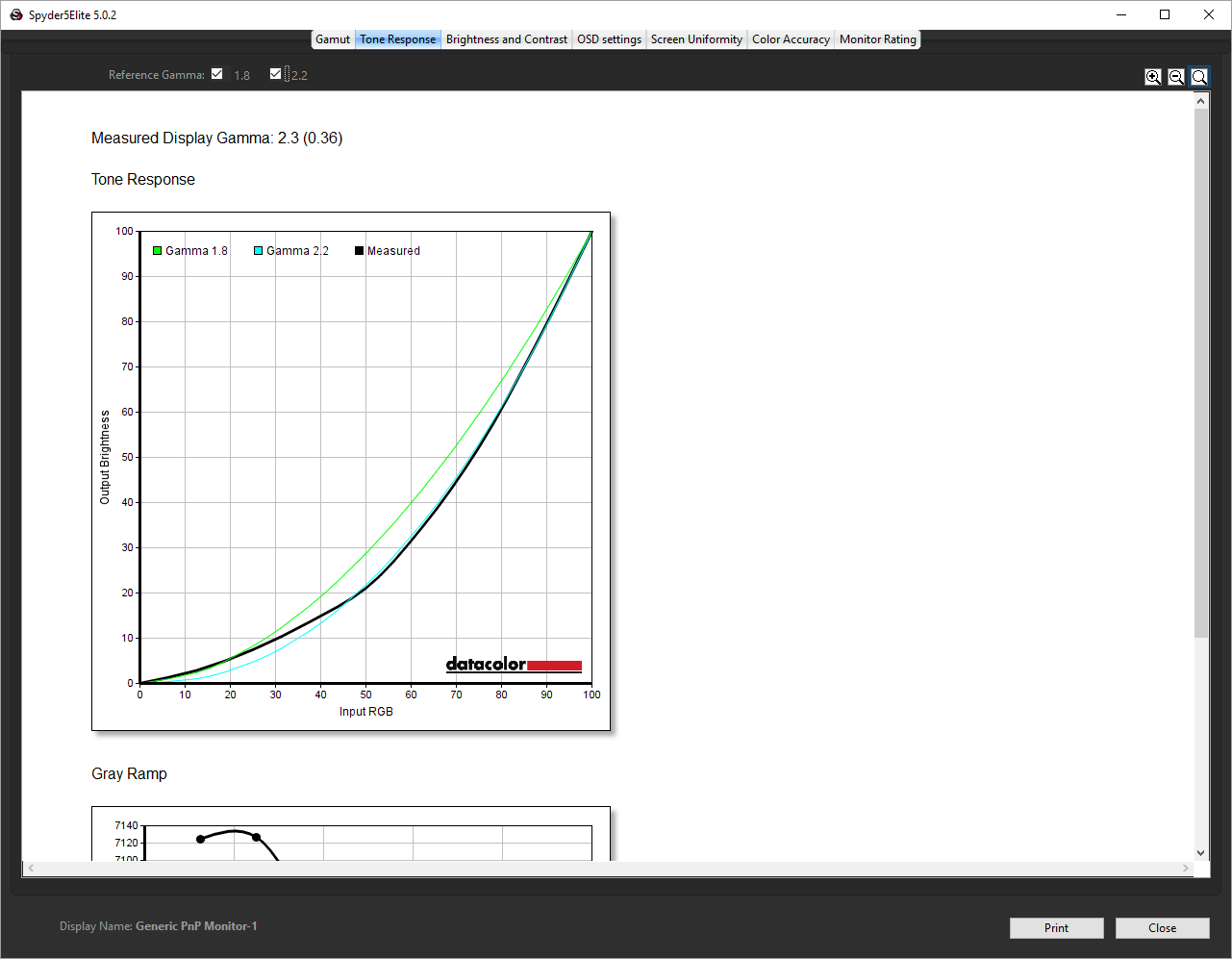
Although there are gamma settings on this TFT, they weren't available in Scenery mode, so there was only one gamma mode to test. The curve registers this as 2.3.
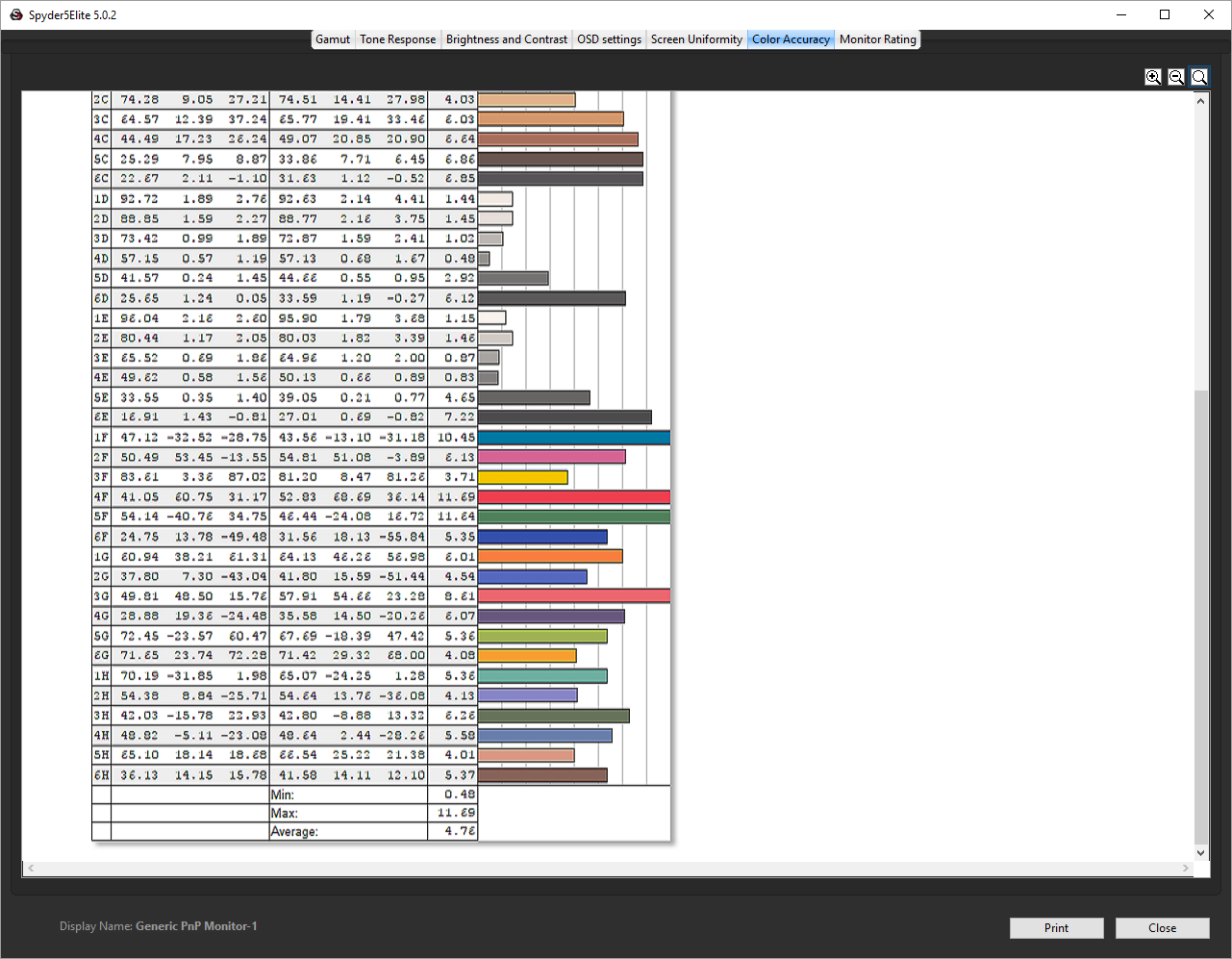
The overall colour accuracy of 4.78 is not that great. But let's see how we can improve things with calibration.
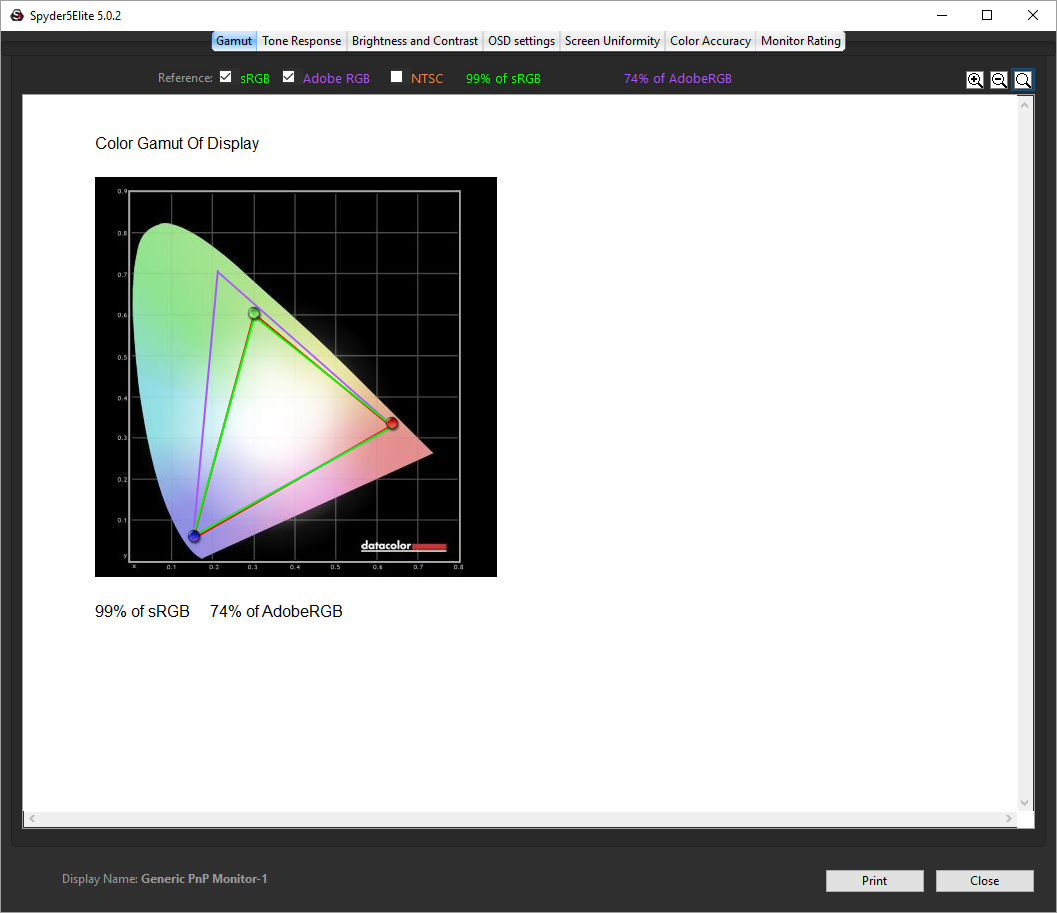
Unsurprisingly, the sRGB gamut is identical, but the Adobe RGB result has dropped a little to 74 per cent.
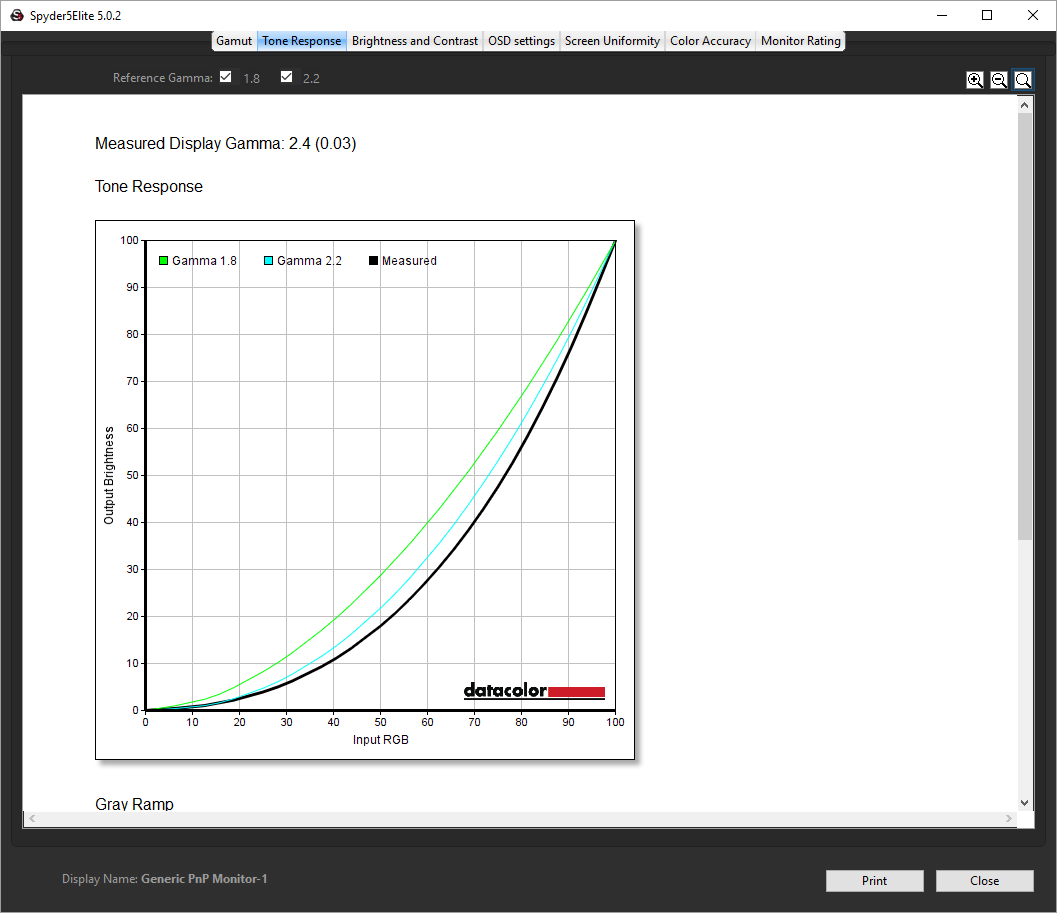
Gamma levels have increased to a clear 2.4.
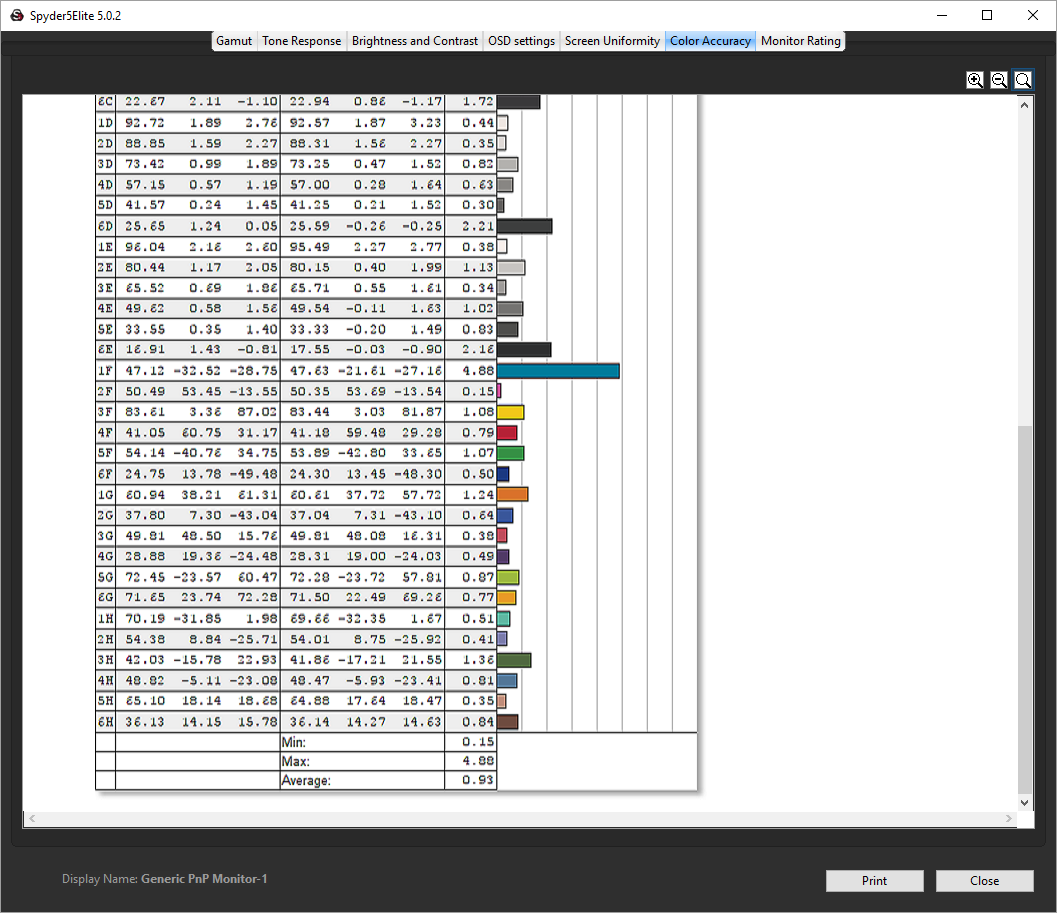
But colour accuracy has increased markedly to an excellent 0.93 (lower is better with this score). We mostly used the RGB sliders in the Color OSD option to achieve this result, which shows what a bit of calibration can do.
The PG248Q has an Adaptive Contrast Control, which we then enabled on the calibrated screen to see what effect it would have on brightness and contrast as well as uniformity.
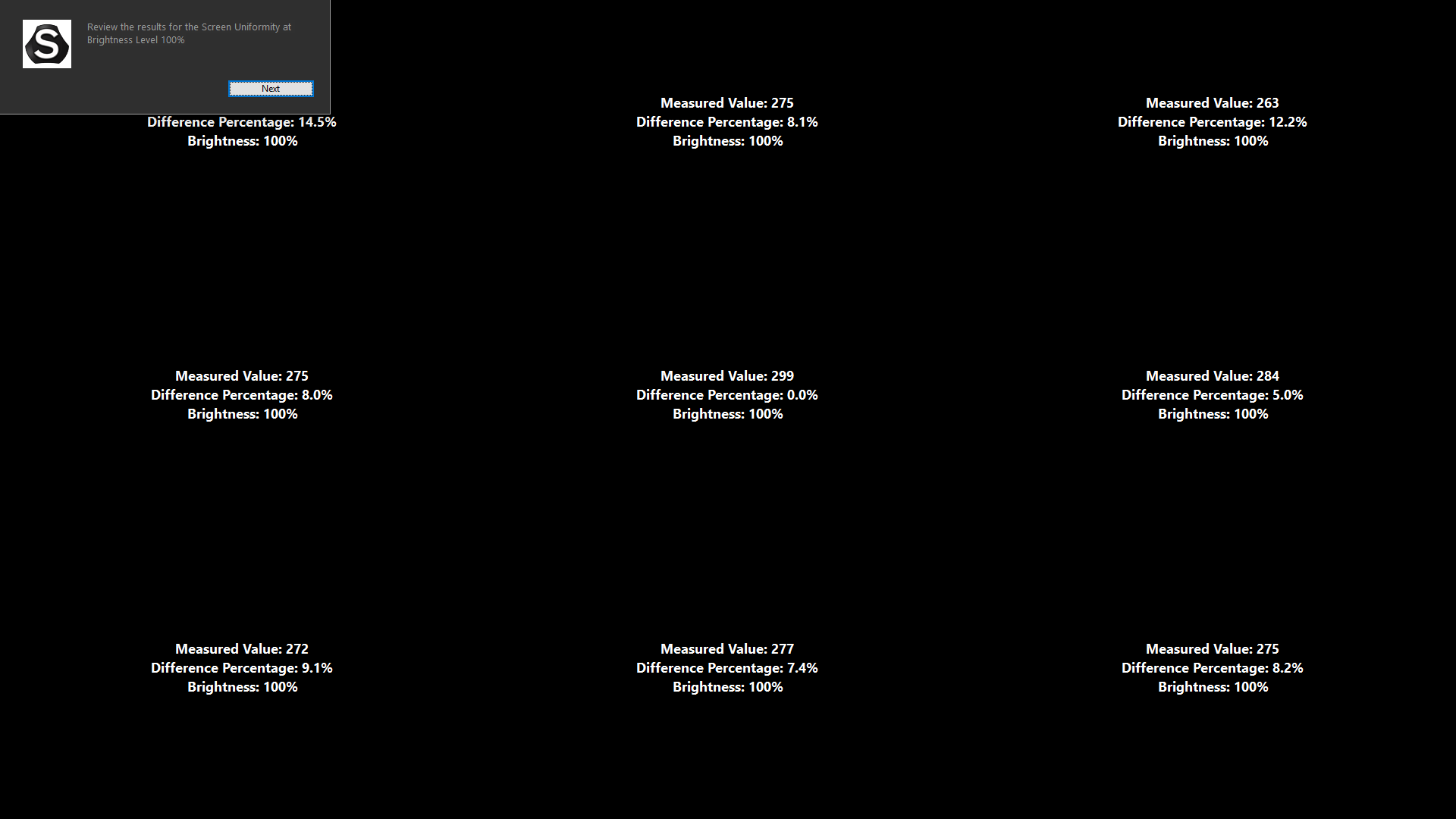
The brightness uniformity has dropped even further, which is a disappointment.
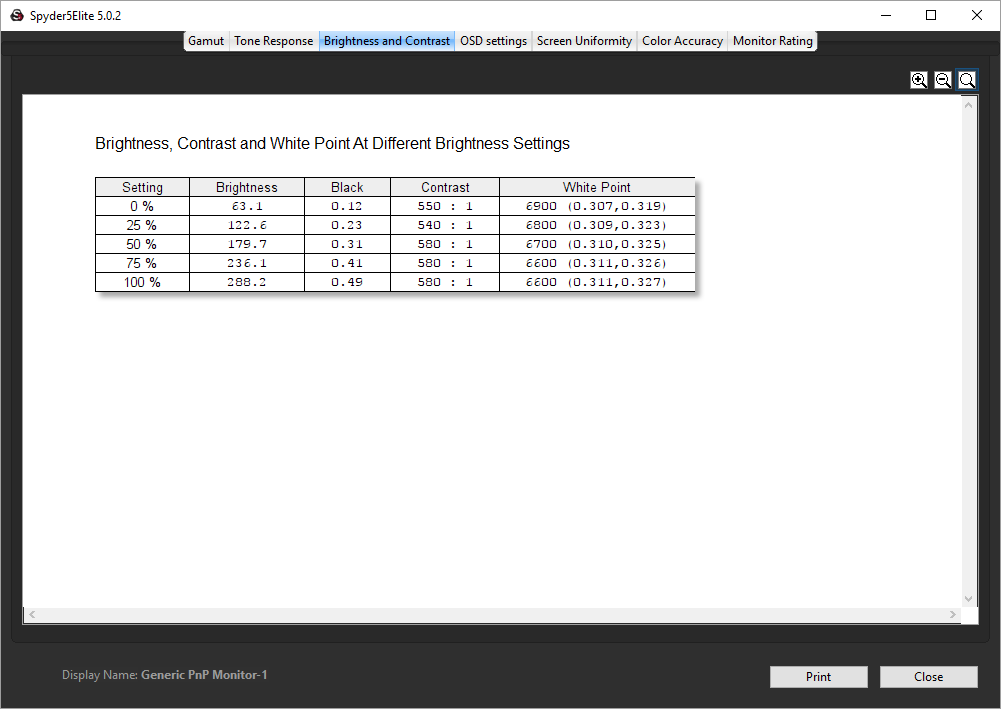
Brightness and contrast have both actually gone down on the calibrated screen, too. So the Adaptive Contrast Control might be a feature you want to leave turned off.
In games, the responsiveness of the monitor was noticeable when we switched from 60Hz to 144Hz, although the difference between this and 180Hz wasn't so obvious. The refresh rate really is the killer feature of this TFT, though, and the primary feature you pay the (considerable) extra money for.
Overall, these results underline the focus of the monitor. Excellent colour accuracy is possible with careful calibration. But gamers can get a performance that fits their needs using the presets, and the refresh rate is amazing.
The ASUS ROG SWIFT PG248Q really is full of bells and whistles, and is also capable of great colour accuracy when calibrated properly. The lack of brightness uniformity is a bit of a concern, but the extremely high refresh rate and support for NVIDIA G-Sync will be a real boon when playing games where as many non-blurry frames per second as possible are a competitive advantage, such as FPS, racing or sports.
The GameVisual presets will be popular for those who don't want to spend time messing around with settings, but there are plenty of configuration options available when you do delve into the OSD, enough to set up very good colour accuracy, up there with an IPS panel, although the actual gamut visible is quite a bit less.
The big issue with the ASUS ROG SWIFT PG248Q is the price. For a 24in display, £400 is a lot to pay, when 4K screens are available for less. This is a great screen for e-sports, despite the cost and brightness uniformity issue. But you will have to be very serious about your gaming to make it worth the money.
Discuss on our Facebook page, over HERE.
Pros:
- 144Hz refresh in normal mode, 180Hz when overclocked.
- NVIDIA G-Sync support.
- GameVisual presets optimised for different game types.
- Extra GamePlus widgets including crosshairs, frame rate and timer.
- Great colour accuracy when calibrated.
Cons:
- Very expensive.
- Brightness isn't very uniform.
Kitguru Says: The ASUS ROG SWIFT PG248Q boasts a humungous 180Hz refresh when overclocked and lots of great features for gamers, but it is one of the most expensive 24in Full HD panels on the market.

Save

I make approximately 6.000-8.000 bucks /a month doing an online job. If you are prepared to complete simple computer-based work for few hours /a day at your house and get valuable income for doing it… Try this work UR1.CA/pm79v
vfr61
Did you noticed yellowish tint in upper left corner on white background? This is reported by numerous users for this monitor…
Yes! I can report the same yellowish tint on top of the monitor!
Uniformity is not one of this monitor’s strongest points, although it’s pretty awesome in most other respects.
Even though I know thatevery monitor has slight tolerances regarding colors: what where your OSD color settings? I’m currently using R 100 G 90 B 83 at 20 brightness and 50 contrast to get a sRGB like color profile.
I found the fix. As default the monitor is in racing mode. Go change it to cinema mode and it’s gone
Change the monitor to cinema mode and it should be gone