 KitGuru KitGuru.net – Tech News | Hardware News | Hardware Reviews | IOS | Mobile | Gaming | Graphics Cards



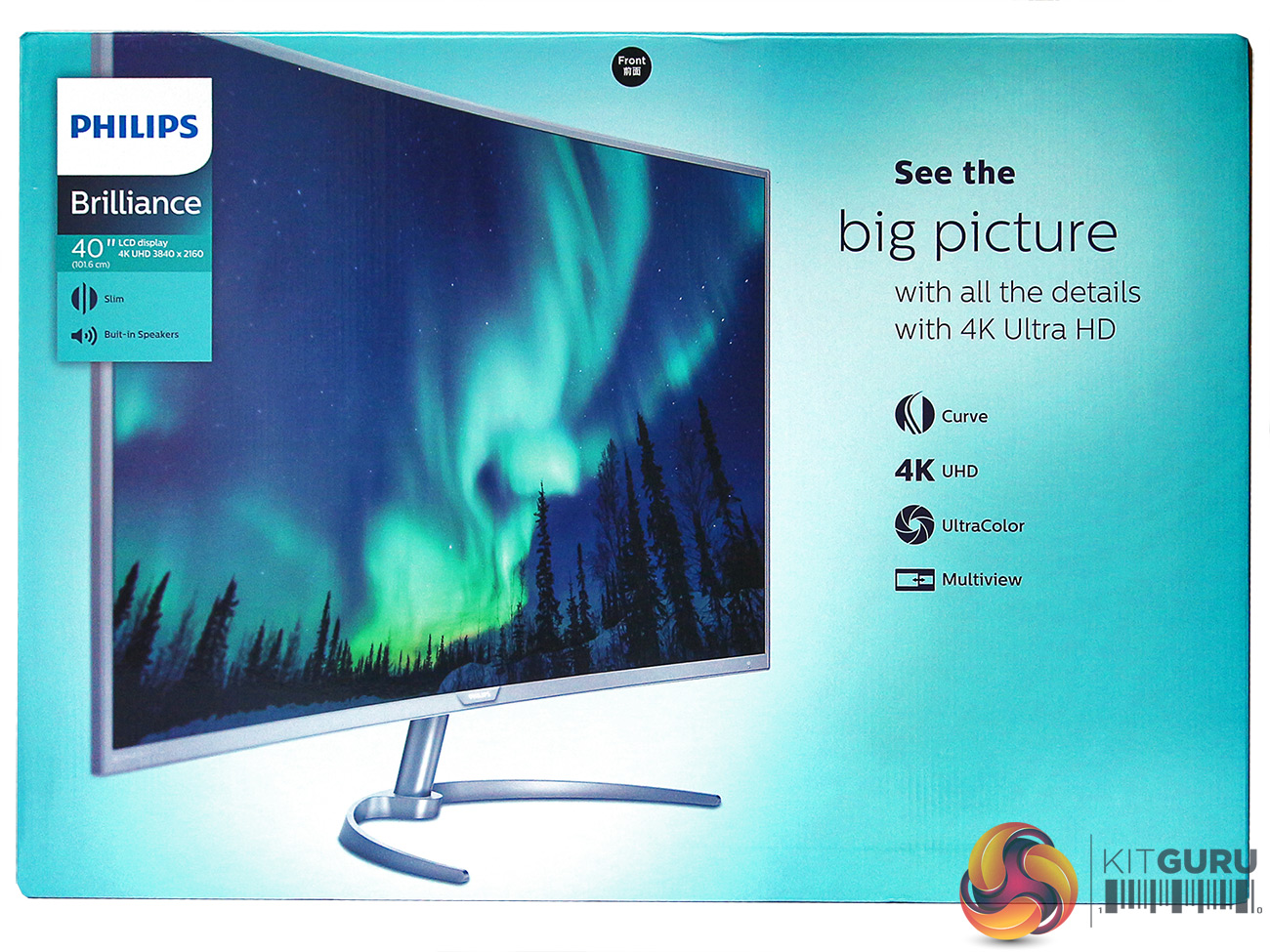
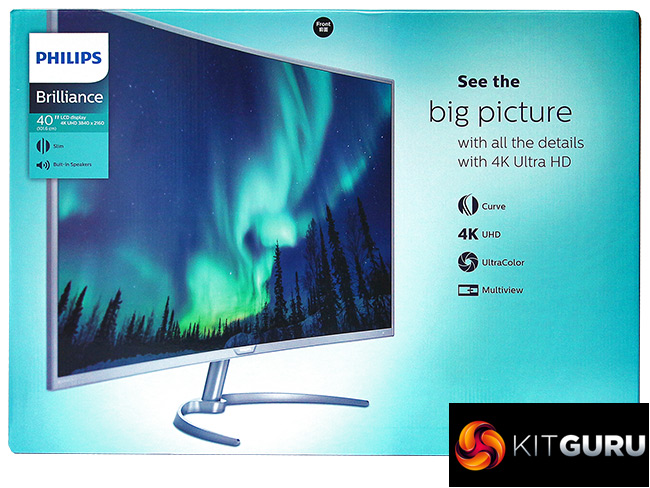
Let nobody try to convince you otherwise: size matters. Bigger is usually better, even with smartphones, but it's particularly true with monitors. So the Philips BDM4037U promises a huge experience with its gigantic 40in diagonal and 4K resolution. But that’s not all – it’s a curved screen as well.
The Philips BDM4037U cuts few corners (and that’s not a pun about the curvy surface). From the stylishly minimal stand to the specification, this is a distinctly high-end display. The TFT technology used is VA, so it has the potential for great image quality. Although the stated brightness is a fairly normal 300cd/m2, the contrast is 4,000:1, with a ludicrous 20,000,000:1 in SmartContrast mode (a dynamic system that varies backlight brightness to extend the range). So this should be good for viewing images and video.
However, this isn’t a display particularly aimed at gaming, more general entertainment. As with many VA screens, the response rate is just 4ms grey-to-grey, which isn’t terrible but won’t do you any favours next to a 1ms screen with latency-reducing enhancements. The maximum refresh is also 60Hz, with no overdriven option or adaptive sync functionality. If you’re a serious gamer, this probably isn’t the massive 4K screen for you.

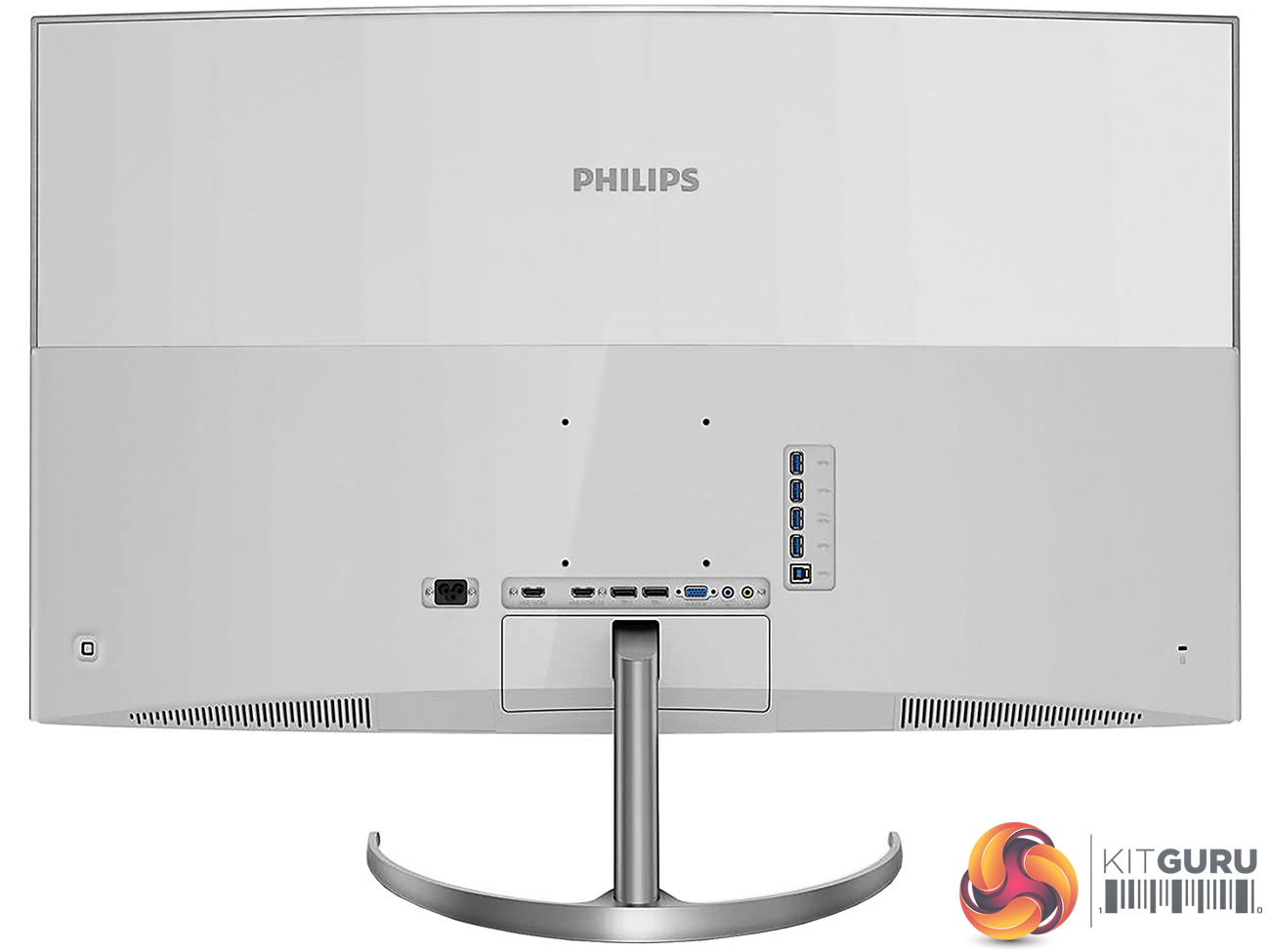
There’s a reasonable selection of inputs including twin DisplayPort 1.2a, HDMI 2.0 and HDMI 1.4 (both with MHL support), but also legacy VGA, although not DVI. A USB 3.0 hub is built in with a quartet of downstream ports, and there is both an analog audio input and a headphone output, although all of these are on the back of the unit so not quite as convenient as side-placed ports. There are also precious few adjustments available – no swivel, no height alteration and just a little tilt.
Can the screen quality deliver on the promise of the dimensions? Let’s find out if Philips is ahead of the curve.
Specification:
Screen size: 40-inch, 16:9 aspect
Native resolution: 3,840 x 2,160
Refresh rate: 60Hz
Panel type: VA
Contrast ratio: 4000:1 (typical)
Brightness: 300cd/m2
Response time: 4ms
Display inputs: 2 x HDMI (one HDMI 2.0 only, one HDMI 1.4, both MHL compatible), 2 x DisplayPort 1.2a, D-Sub
USB hub: Yes
Tilt: Yes
Raise: No
Swivel: No
Other: No
Retail Price: £596.28 inc vat
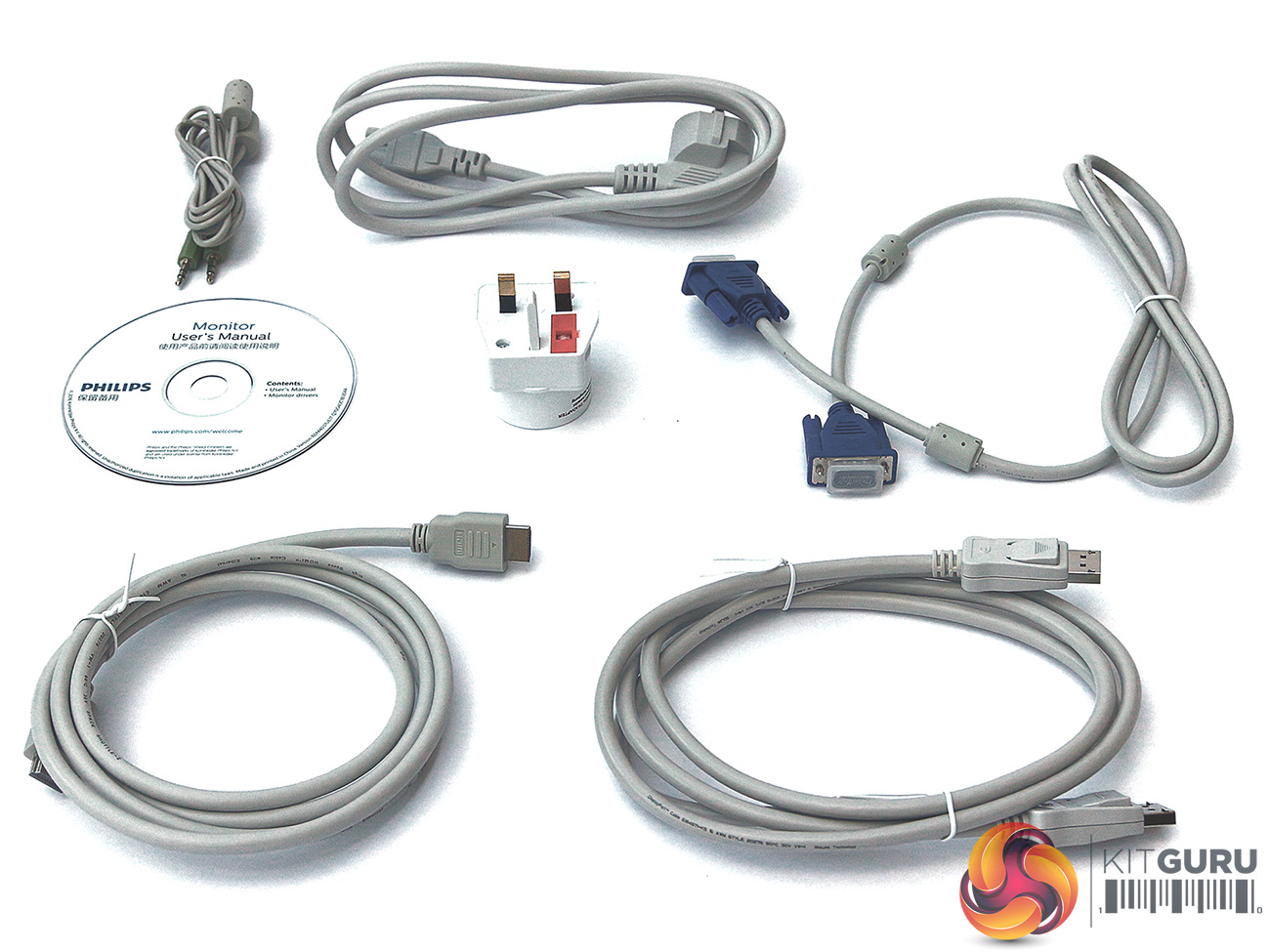
The Philips BDM4037U comes with what could be described as the bare essentials in cabling. There’s a DisplayPort cable, a VGA cable (should you ever need one again), and an audio cable to pass analog sound from your PC. The latter is supplied because the screen has a pair of 5W speakers built in, just in case you’re not too bothered about the quality of sound from the system.
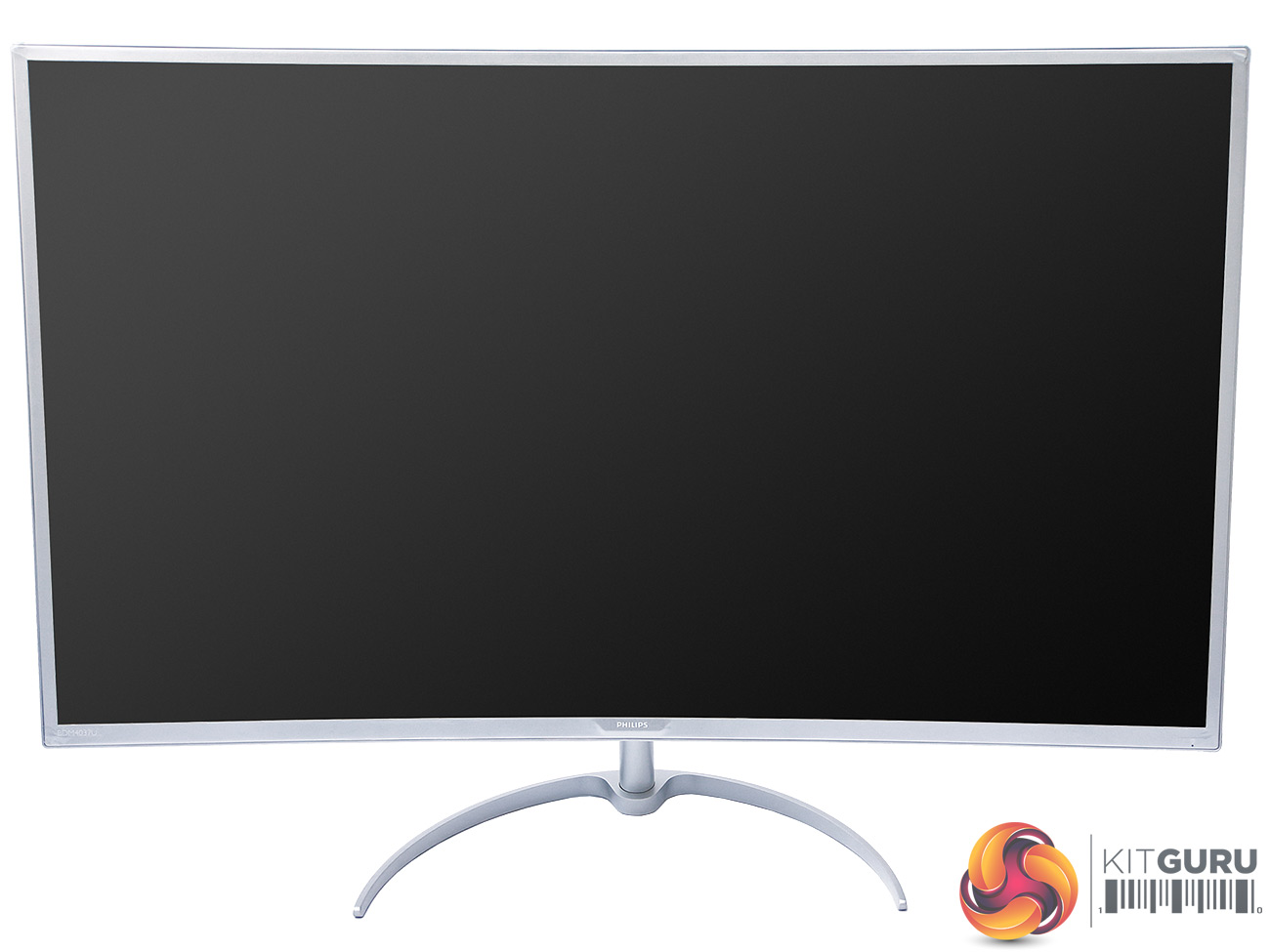
A photo doesn’t do justice to just how huge this screen is. A 40in diagonal might be becoming relatively normal, or maybe even a bit small, for a lounge TV, but sitting at your desk with this thing in front of you is another matter entirely. It is truly immersive, with the edges very much in the periphery of your vision. The 3000R curvature further accentuates this sense of being submerged in your screen.
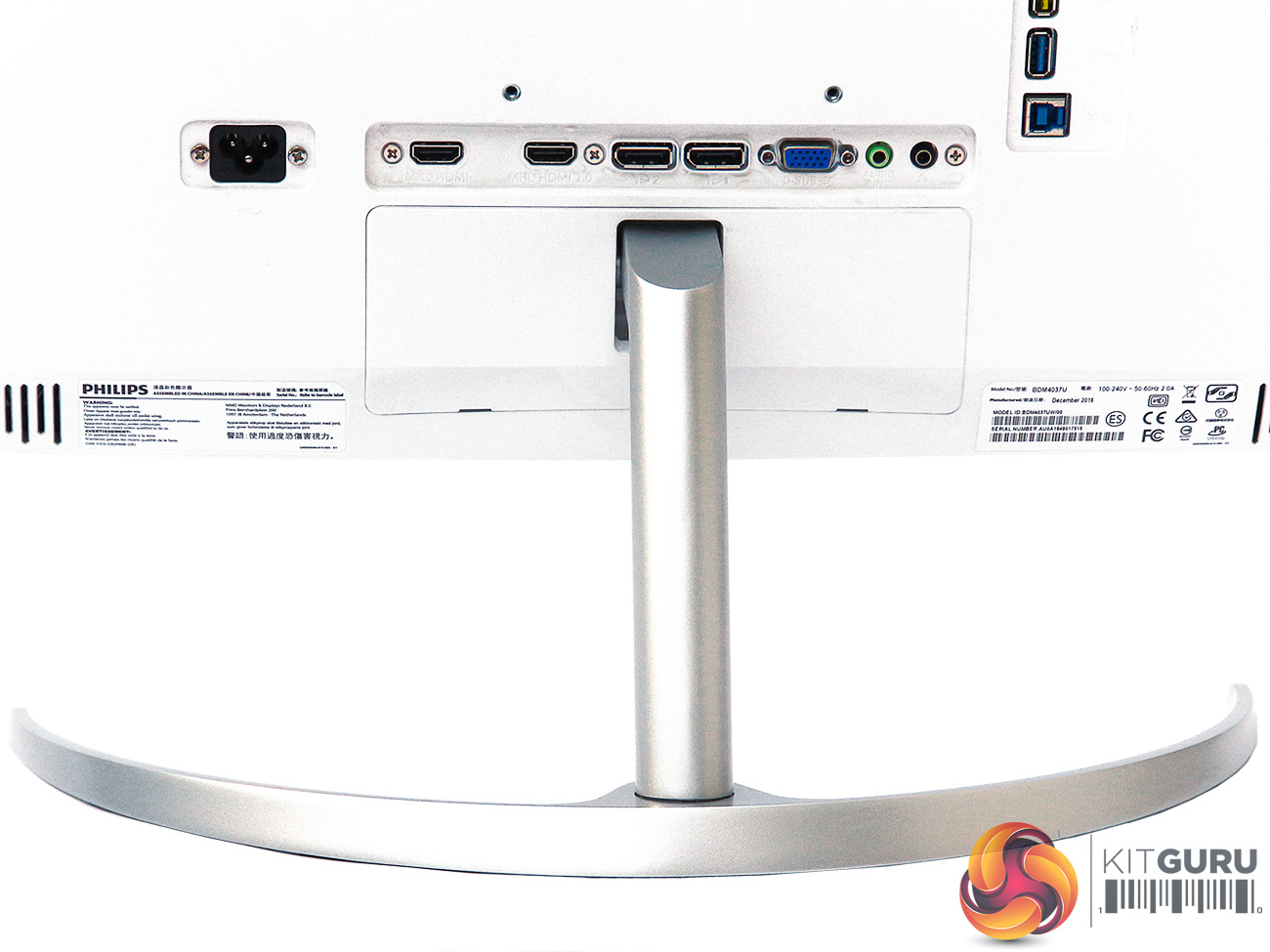
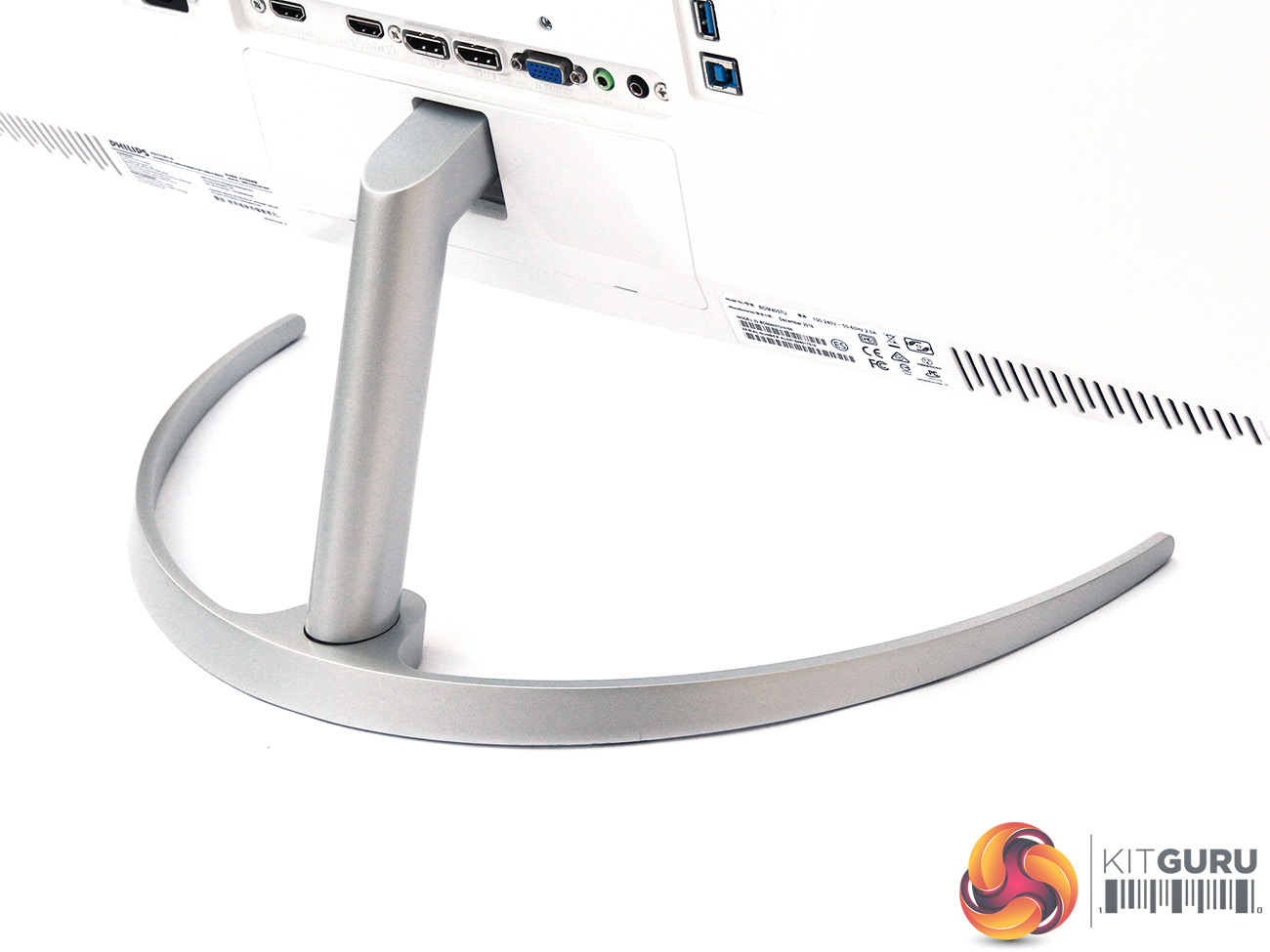
The stand is almost entirely fixed. We wouldn’t expect the ability to rotate into portrait mode in a curved monitor (that would be a bit silly, although we have seen it), but a bit of swivel and height adjustment might have been useful. Instead, there is just a smidgen of tilt, with 10 degrees backwards and 5 degrees forwards available.
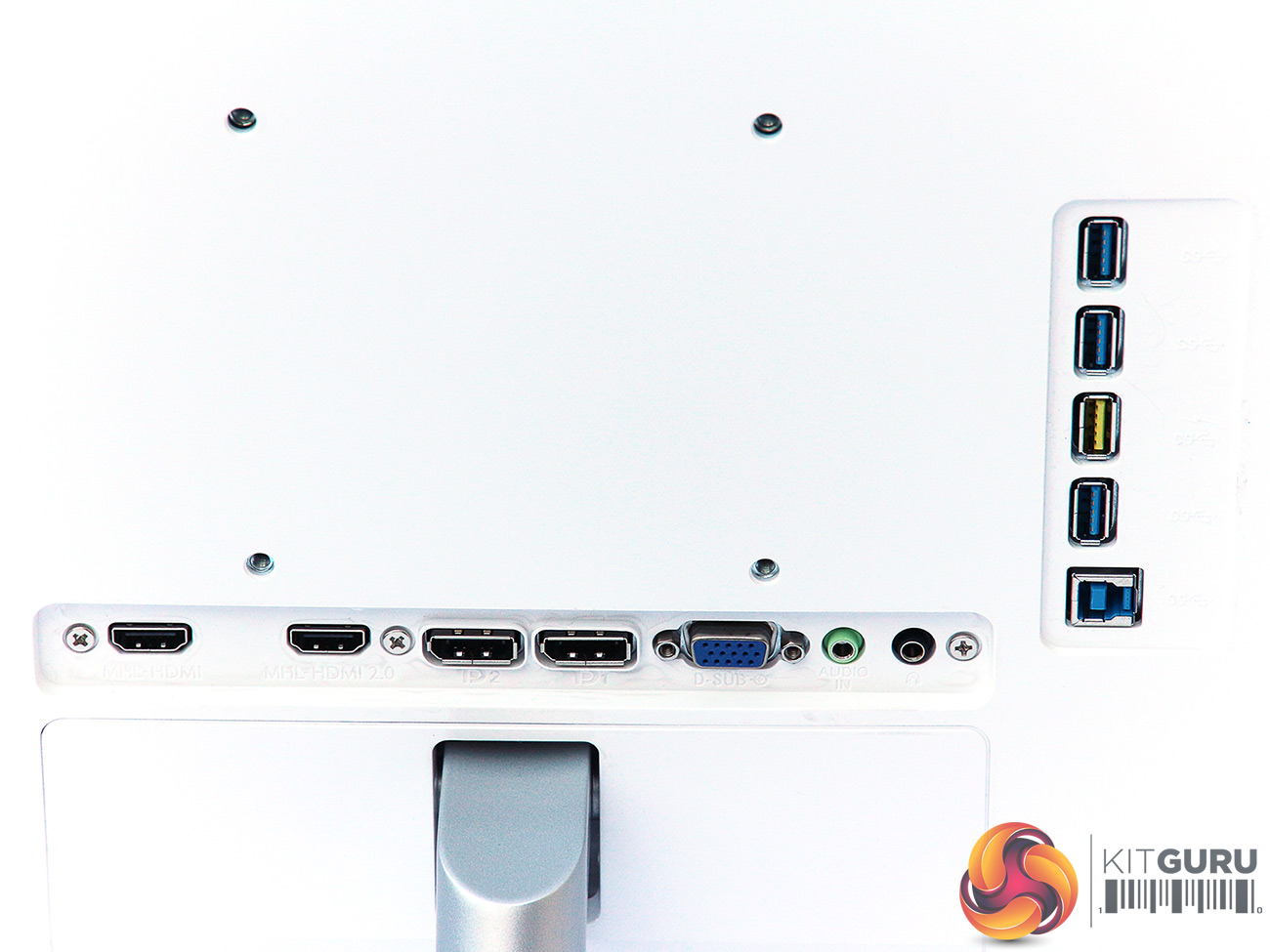
There’s a good range of ports available. Two DisplayPort 1.2a connections are included, plus a pair of HDMI – one for 2.0 signals, one for 1.4 only, with both supporting MHL, for connecting mobile phones and tablets. There’s also a VGA connection, which presumably has been included for reasons of nostalgia rather than any likelihood that you will use it very often.
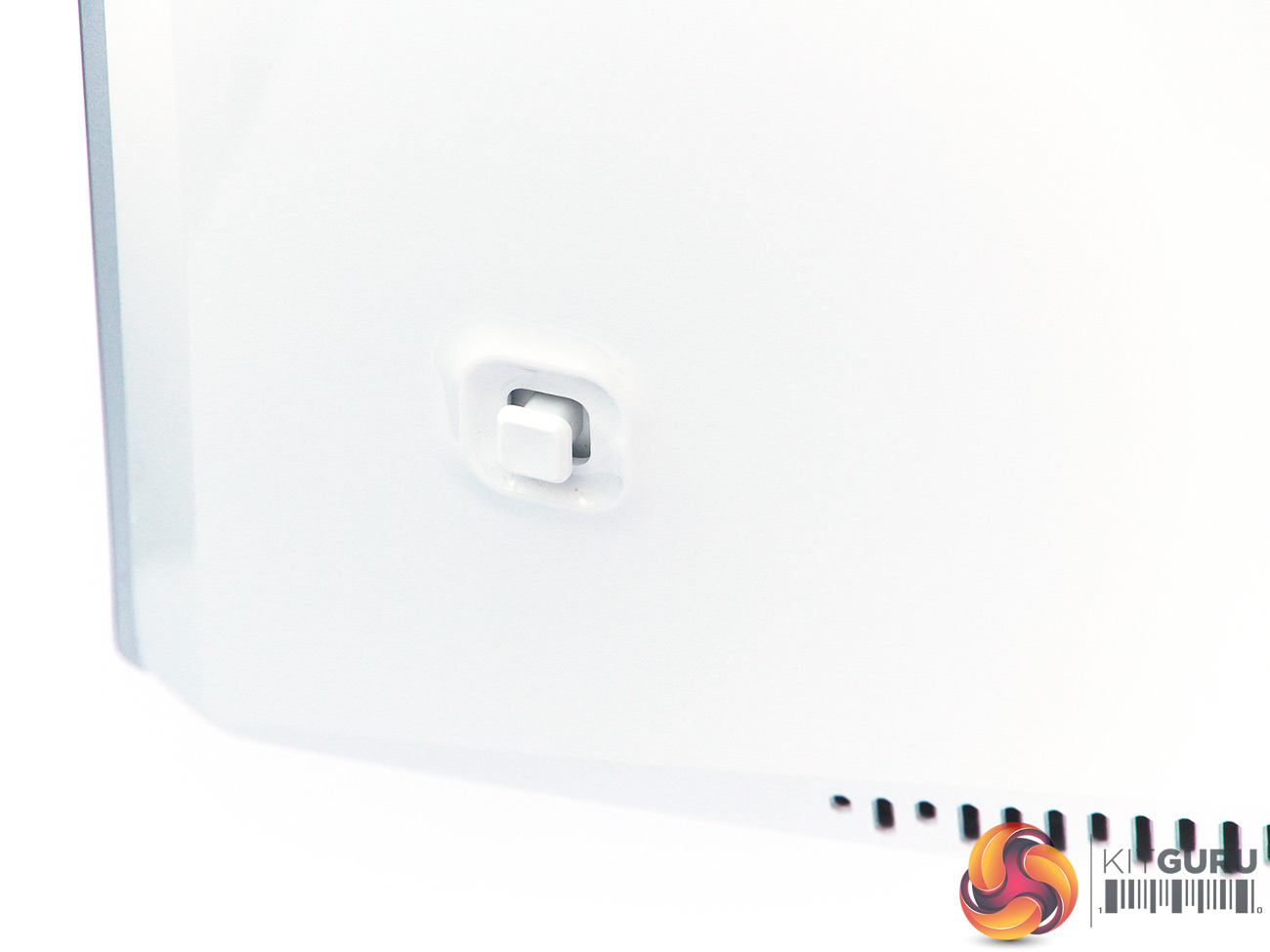
The menu is controlled by a joystick on the rear of the panel. This keeps the front fascia clear of buttons, which is aesthetically pleasing. But having to reach around behind the screen isn’t the most ergonomic system compared to the external control devices we have seen from some premium gaming screens recently.
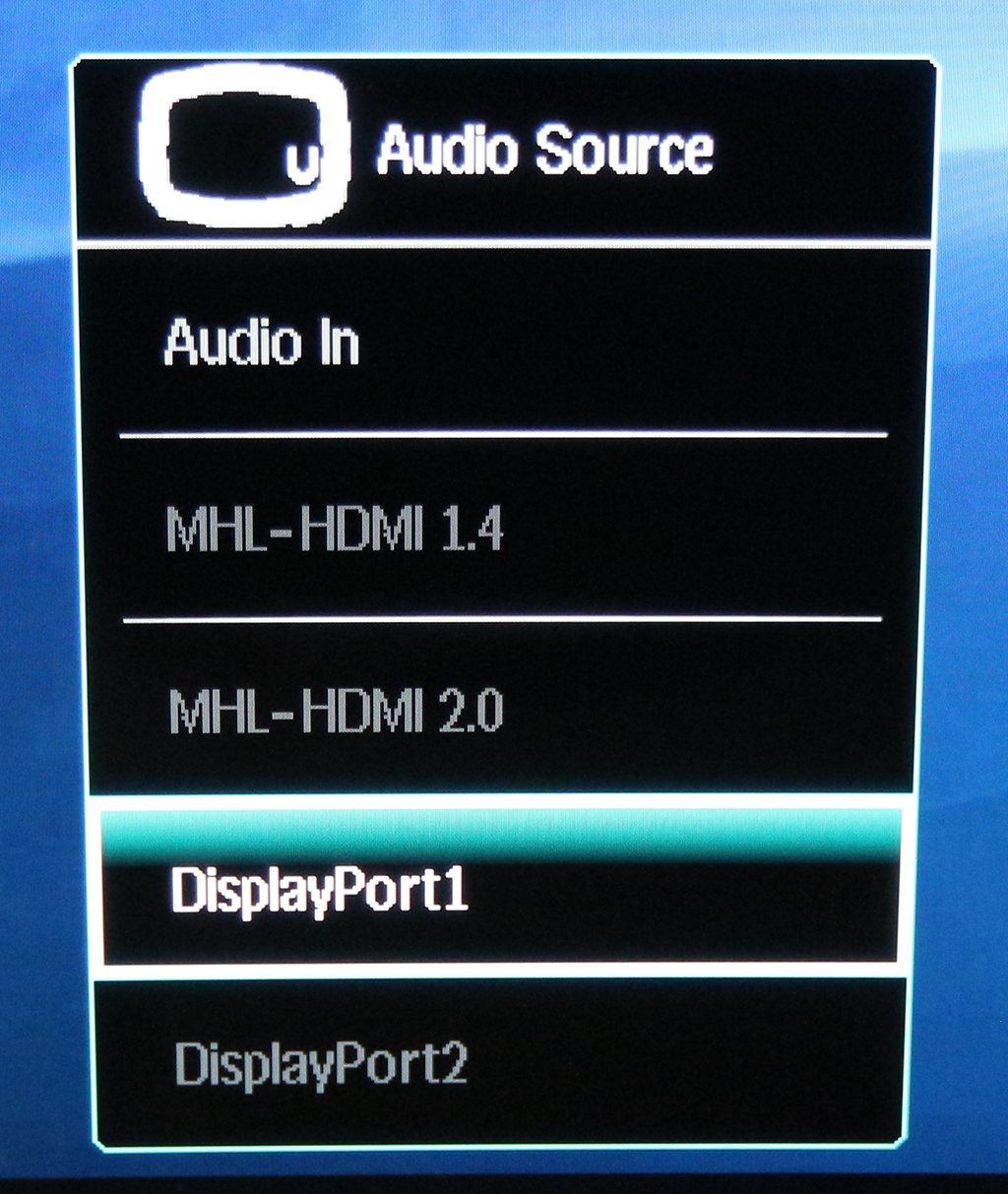
Pulling the joystick on the back downwards lets you choose which audio source to use – either one of the digital video inputs, or the analog audio minijack.
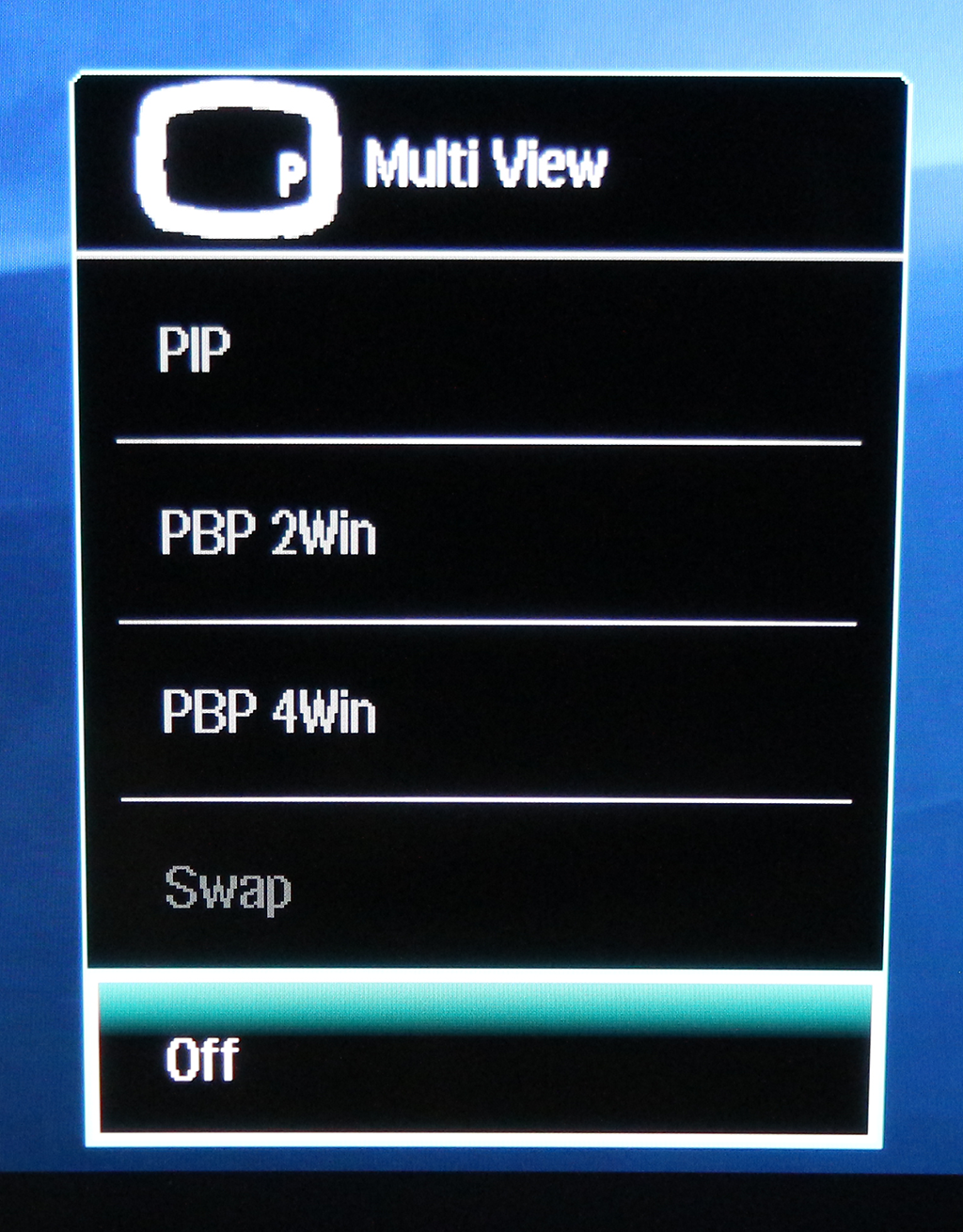
Pushing the joystick upwards calls up the Multi View options, where you can have multiple inputs onscreen at once. With a screen this huge and with 4K at your disposal, you could conceivably have four Full HD inputs onscreen at once and still be able to see what’s going on with all of them quite clearly. Potentially useful, if not every day.
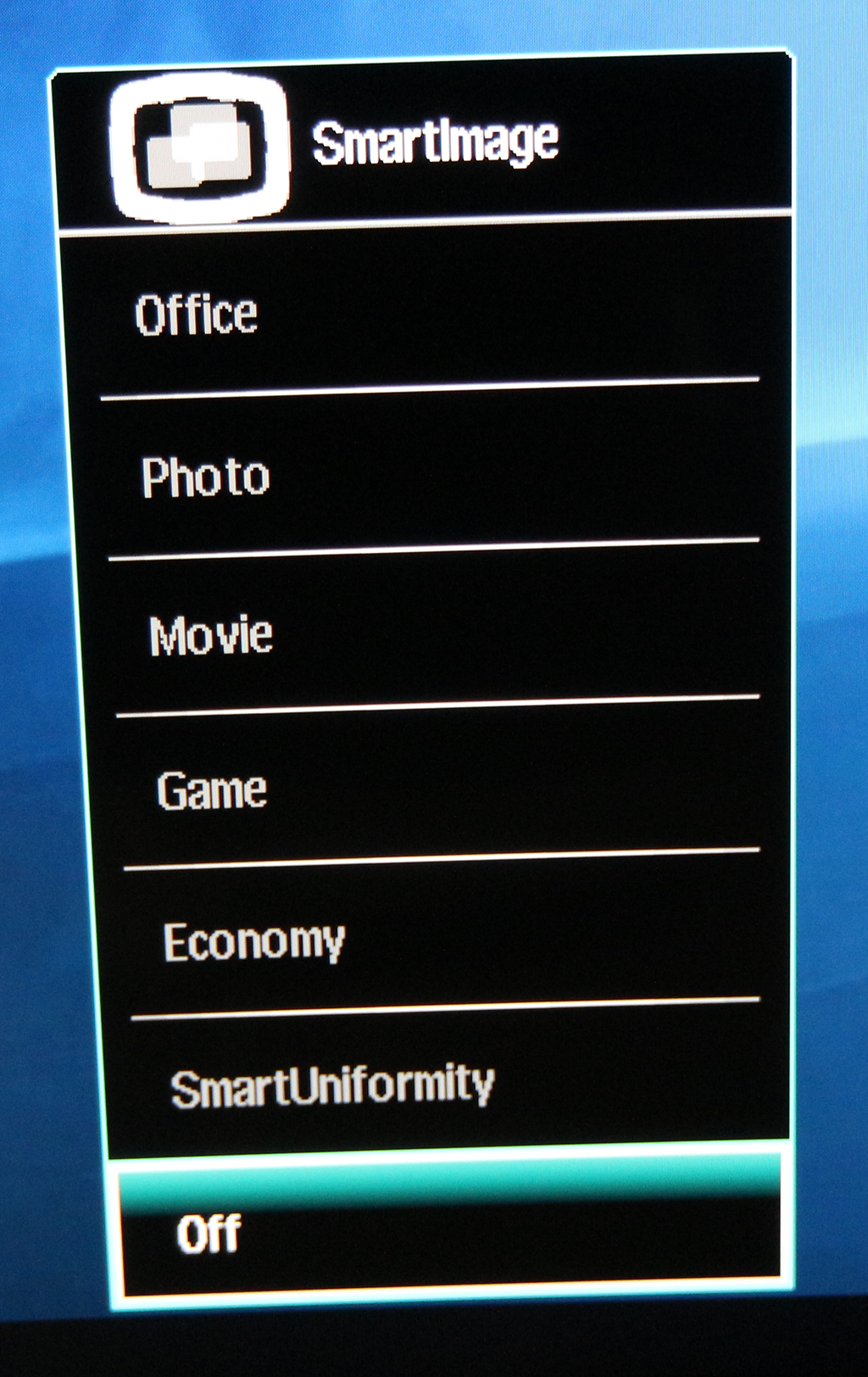
The range of SmartImage presets available is broad, and varied in focus. We did most of our testing in Off mode, but you also get options for Office, Photo, Movie, and Game activities. There’s an Economy mode to save on power, and SmartUniformity to smooth out the brightness across the panel.
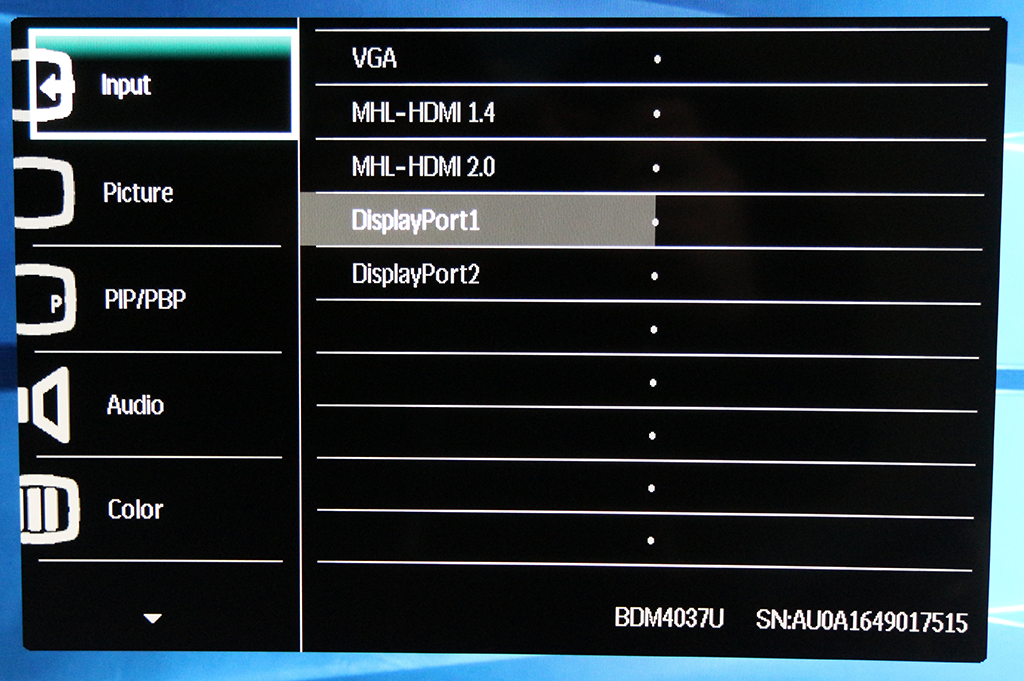
Pressing the joystick right calls up the main menu, with the first option being input selection.
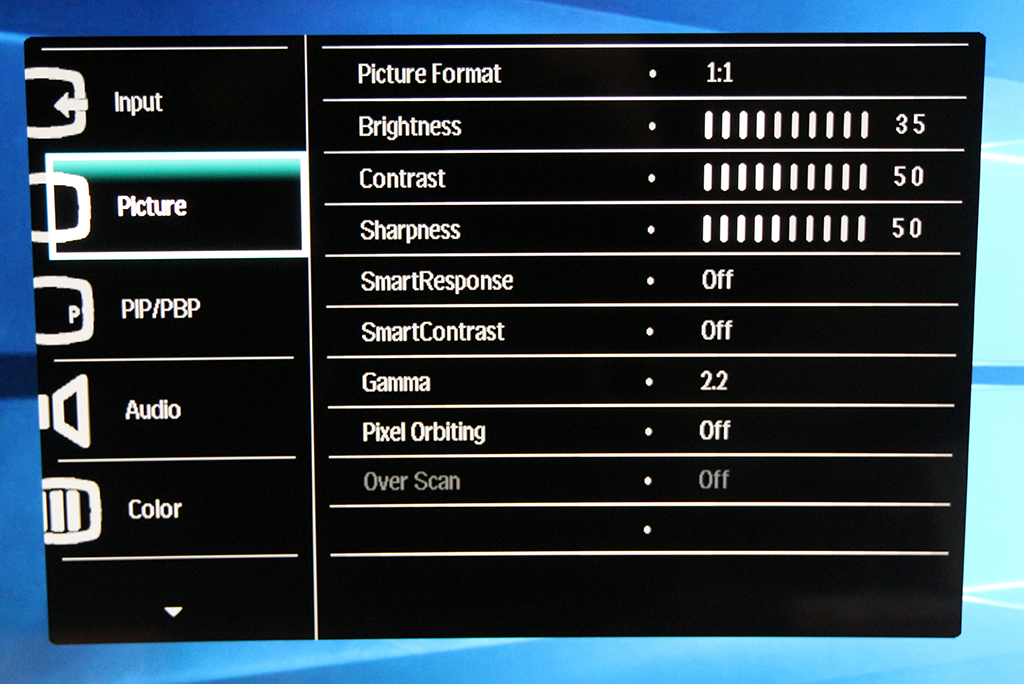
Next down in the main menu can be found the Picture settings. You can change whether the picture is shown pixel-for-pixel or stretched to fit, as well as adjust the brightness, contrast and sharpness. SmartResponse is an overdrive system that reduces blur, with off, fast, faster, and fastest settings. SmartContrast is a dynamic contrast system that allows Philips to claim its rather ridiculous 20,000,000:1 ratio, as this also varies brightness to boost contrast.
The Gamma options range from 1.8 to 2.6 in 0.2 increments, and pixel orbiting is a technology for reducing the effects of image burn in. Over Scan is only relevant with a VGA input that has junk around the edges you want to remove.
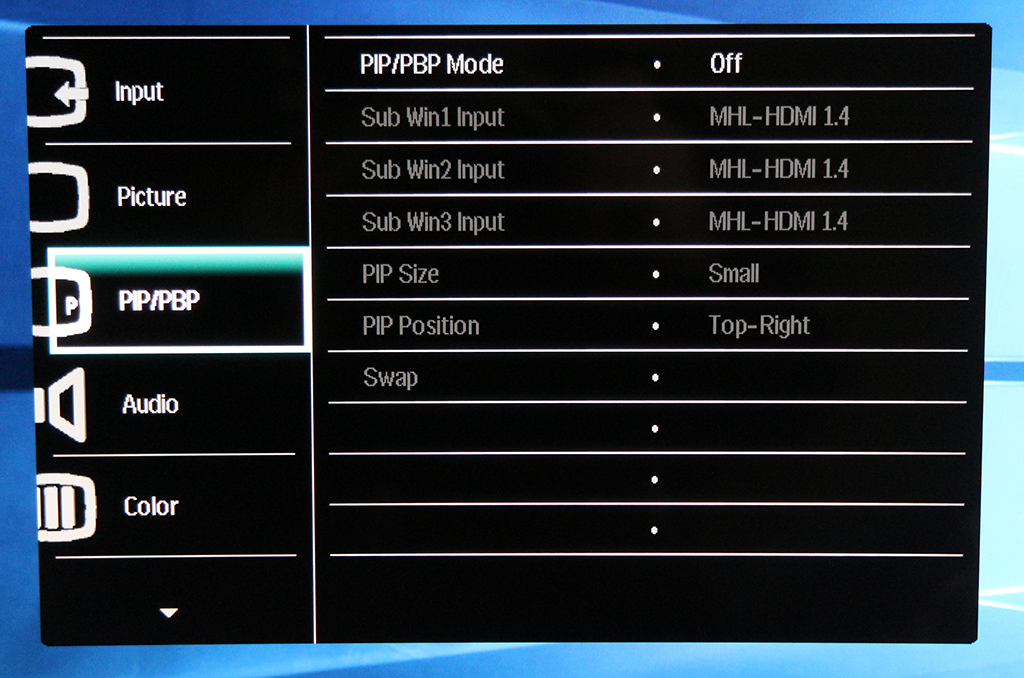
The PIP/PBP section essentially expands on the options available from the quick joystick menu.
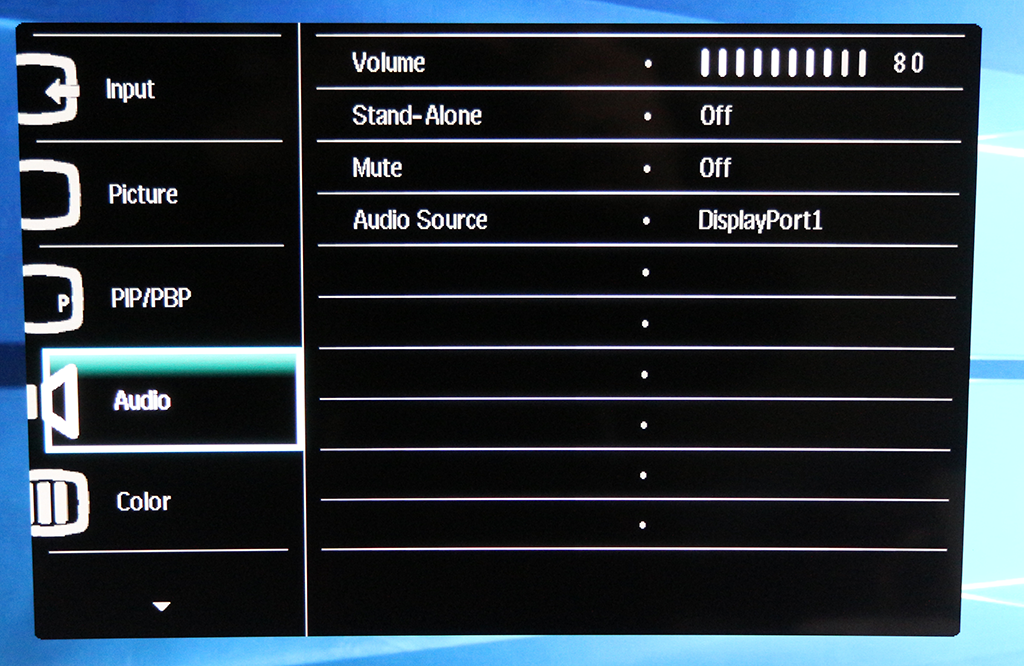
The Audio section provides a volume control, mute button, and a further method for choosing which input is the audio source.
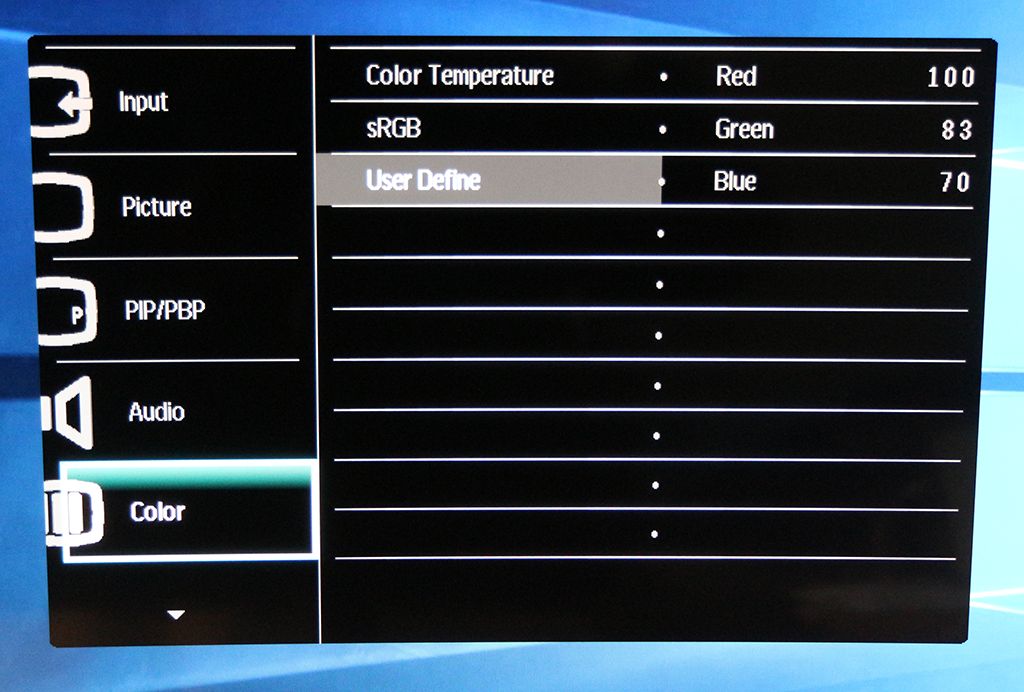
The Color section lets you choose a colour temperature in K, sRGB, or a user-defined setting via RGB sliders.

You can switch the monitor to Greek with the Language section, if you want to play a joke on a friend, or confuse yourself.
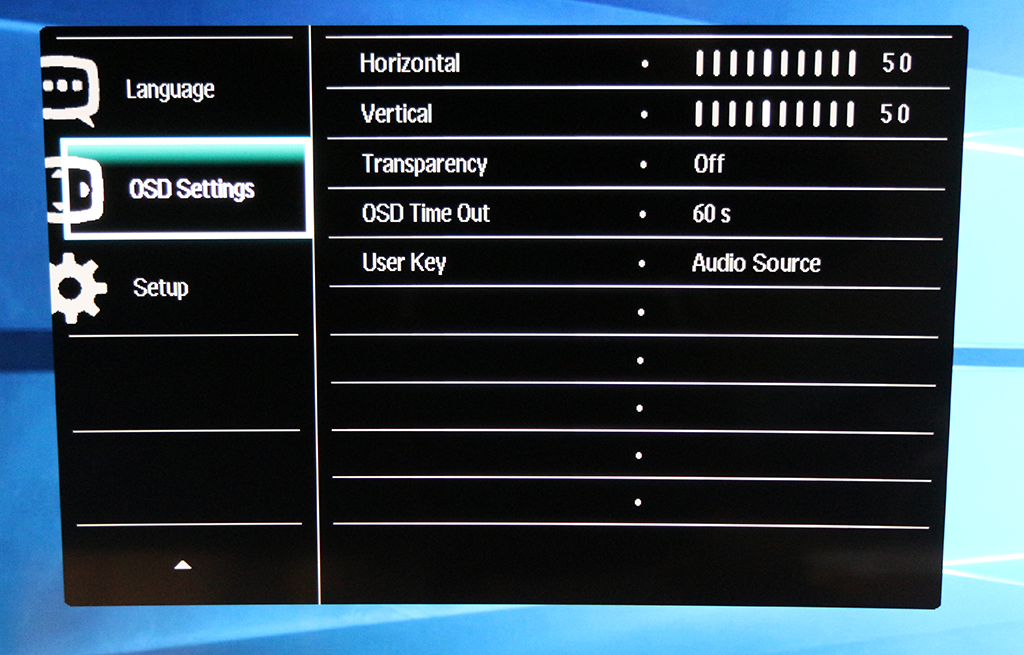
The OSD settings let you adjust the location and appearance of the main menu, but not the quick menus that appear for other functions.
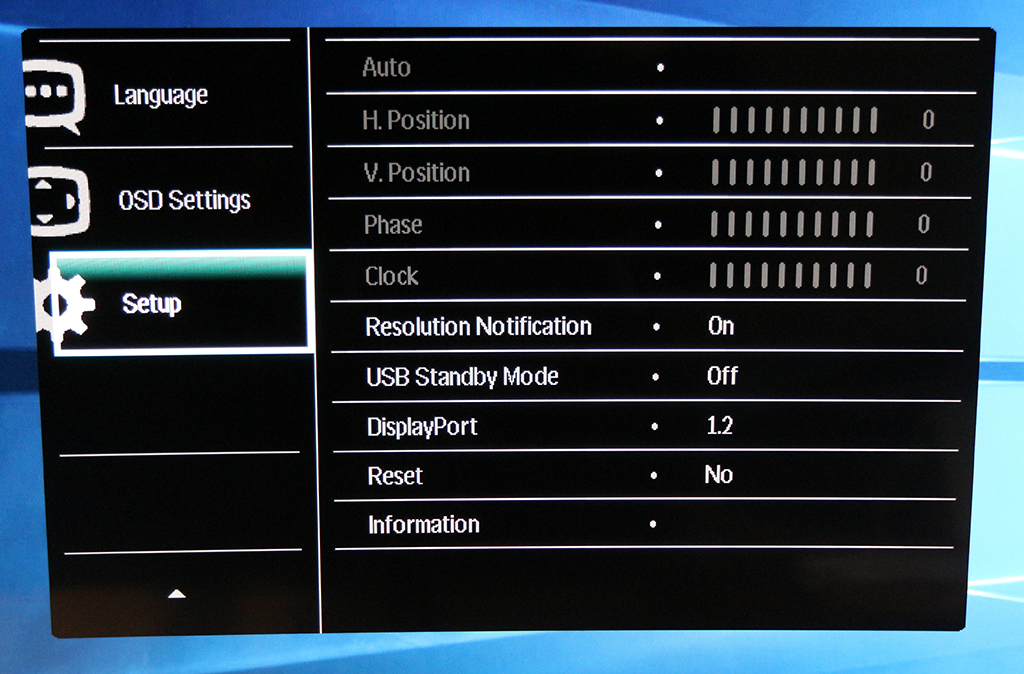
The Setup section gives you sundry configuration options, such as which DisplayPort standard to use and the ability to reset everything to default.
Overall, the range of options is good for a general-purpose monitor, but there won’t be enough here for ardent gamers (if the refresh and pixel response didn’t already scare them off). The menu is a little unwieldy using the joystick, and it would have been good to have things like brightness and contrast more readily accessible, but there’s enough here to set things up as desired, outside of hardcore gaming.
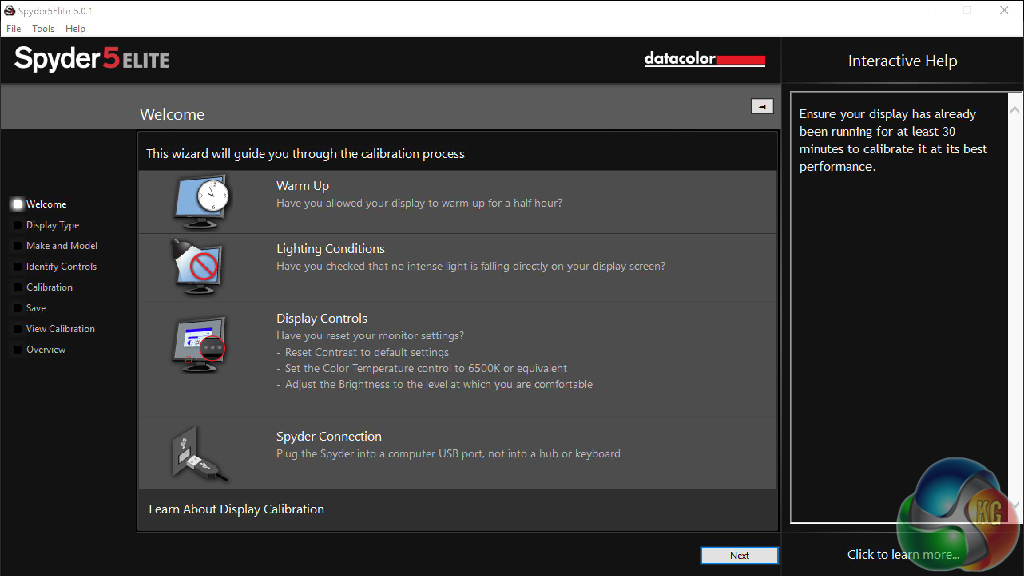
Our main test involves using a DataColor Spyder Elite 5 Colorimeter to assess a display’s image quality. The device sits on top of the screen while the software generates colour tones and patterns, which it compares against predetermined values to work out how accurate the screen is.
The results show –
- A monitor’s maximum brightness in candelas or cd/m2 at various levels set in the OSD.
- A monitor’s contrast ratio at various brightness levels in the OSD.
- The brightness deviation across the panel.
- The black and white points
- The colour accuracy, expressed as a Delta E ratio, with a result under 3 being fine for normal use, and under 2 being great for colour-accurate design work.
- The exact gamma levels, with a comparison against preset settings in the OSD.
We first run this test with the display in its default, out-of-the-box state, with all settings on default. We then calibrate the screen using the Spyder software and run the test again.
We always test the display subjectively on the Windows desktop, using it for general tasks such as browsing and word processing, and with games as well, even if the display is not intended solely for that purpose. We pay careful attention to any artefacts, ghosting or motion blur, and enable any gaming specific features, such as adaptive-sync settings like G-Sync, using a compatible graphics card in our test PC.
In the case of the BDM4037U, we performed the primary testing at the native 3,840 x 2,160 with the preset modes disabled, and gamma at the middle 2.2 setting. We also left the monitor at the default 60Hz, which is also the maximum. Our test system was equipped with an NVIDIA Quadro K2200.
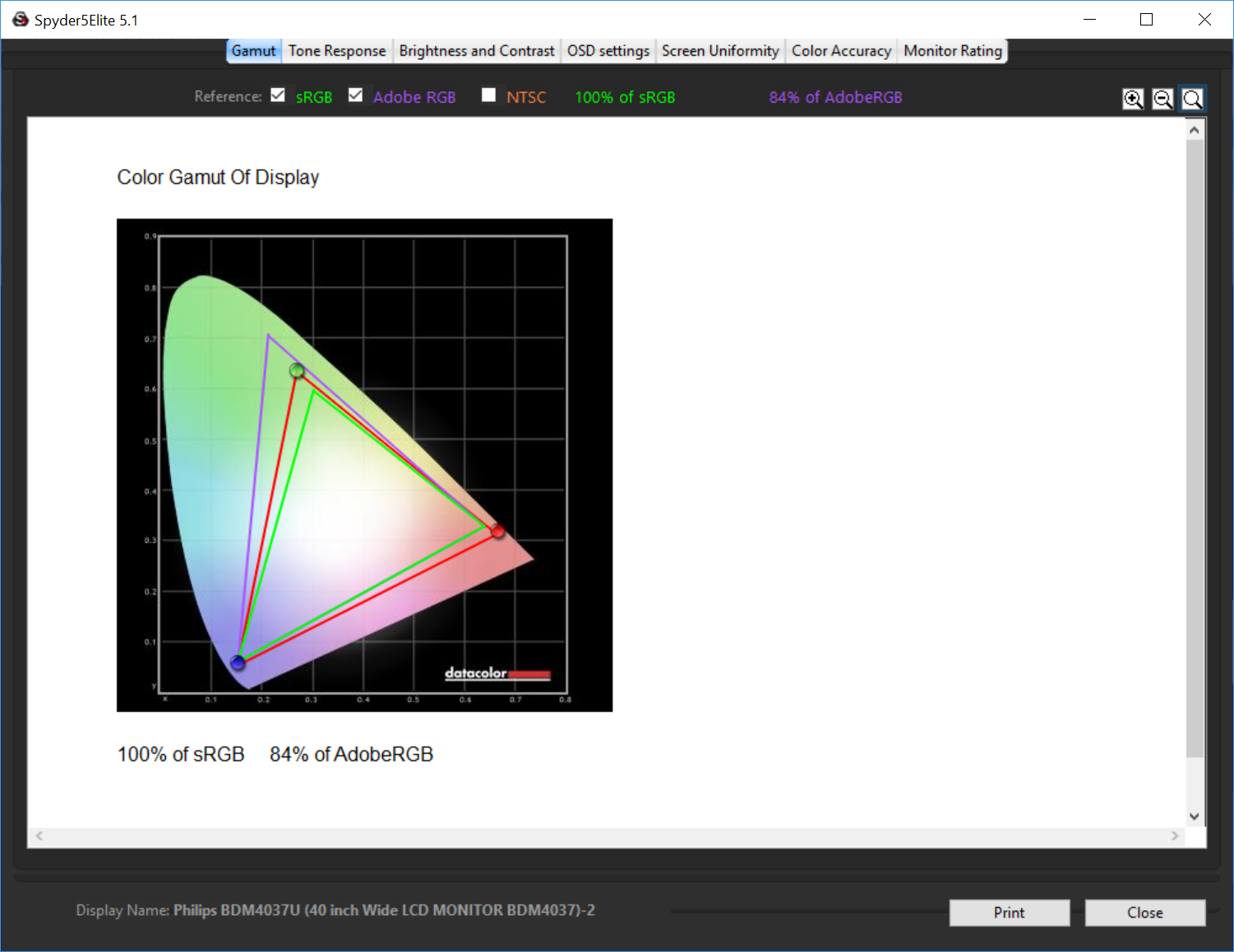
Gamut is very good, with 100 per cent of sRGB and a commendable 84 per cent of AdobeRGB – not the very best we have seen, but well above average.

Brightness uniformity is not quite as rock solid as the included calibration document claims. In fact, it's quite variable, particularly along the top. However, the SmartUniformity setting could help here, so we also tried this test with that preset enabled.

With SmartUniformity enabled, the screen is now really uniform across the entire top two thirds, although the bottom has become less uniform. Still, this setting clearly works pretty well.
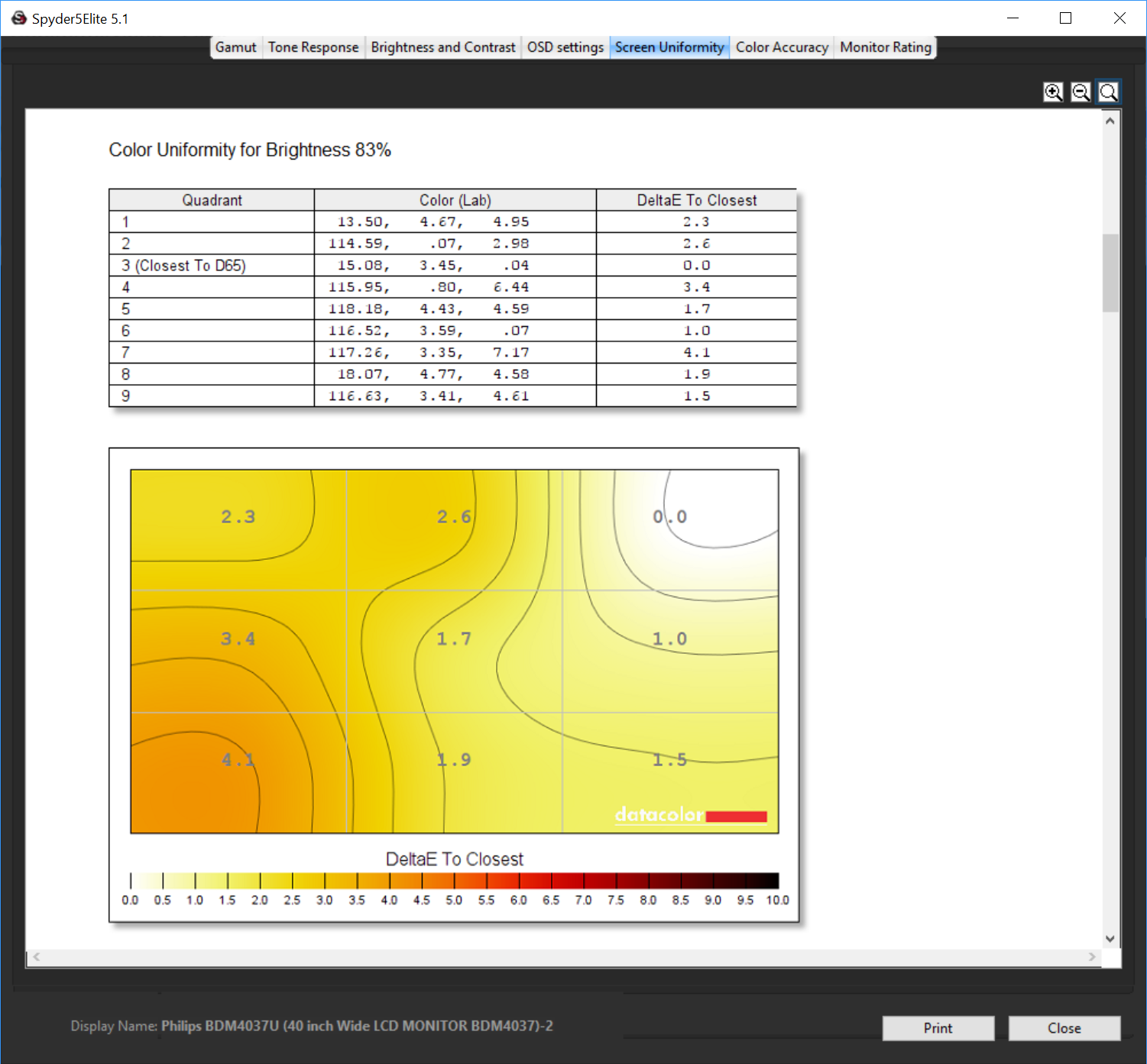
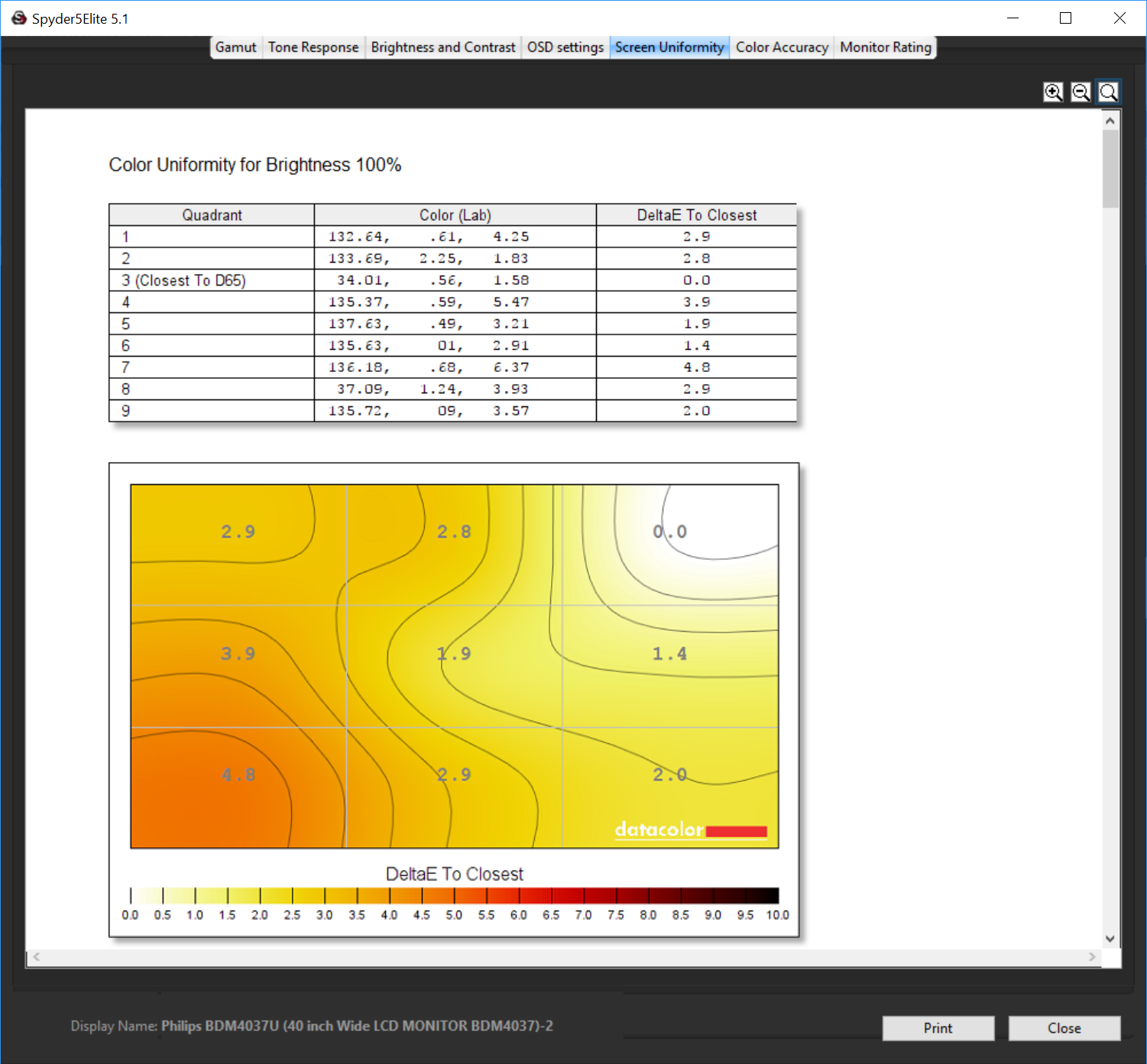
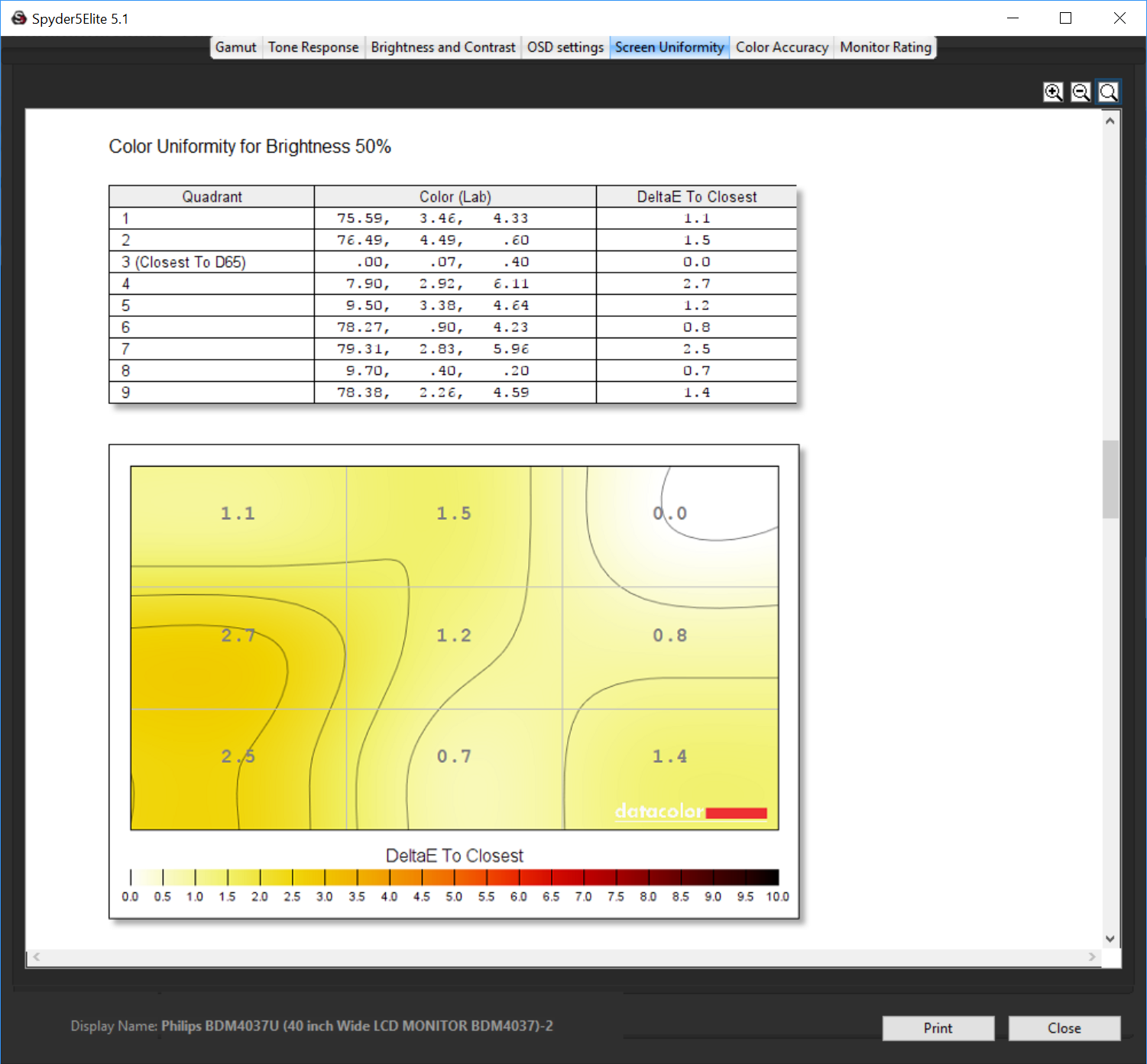
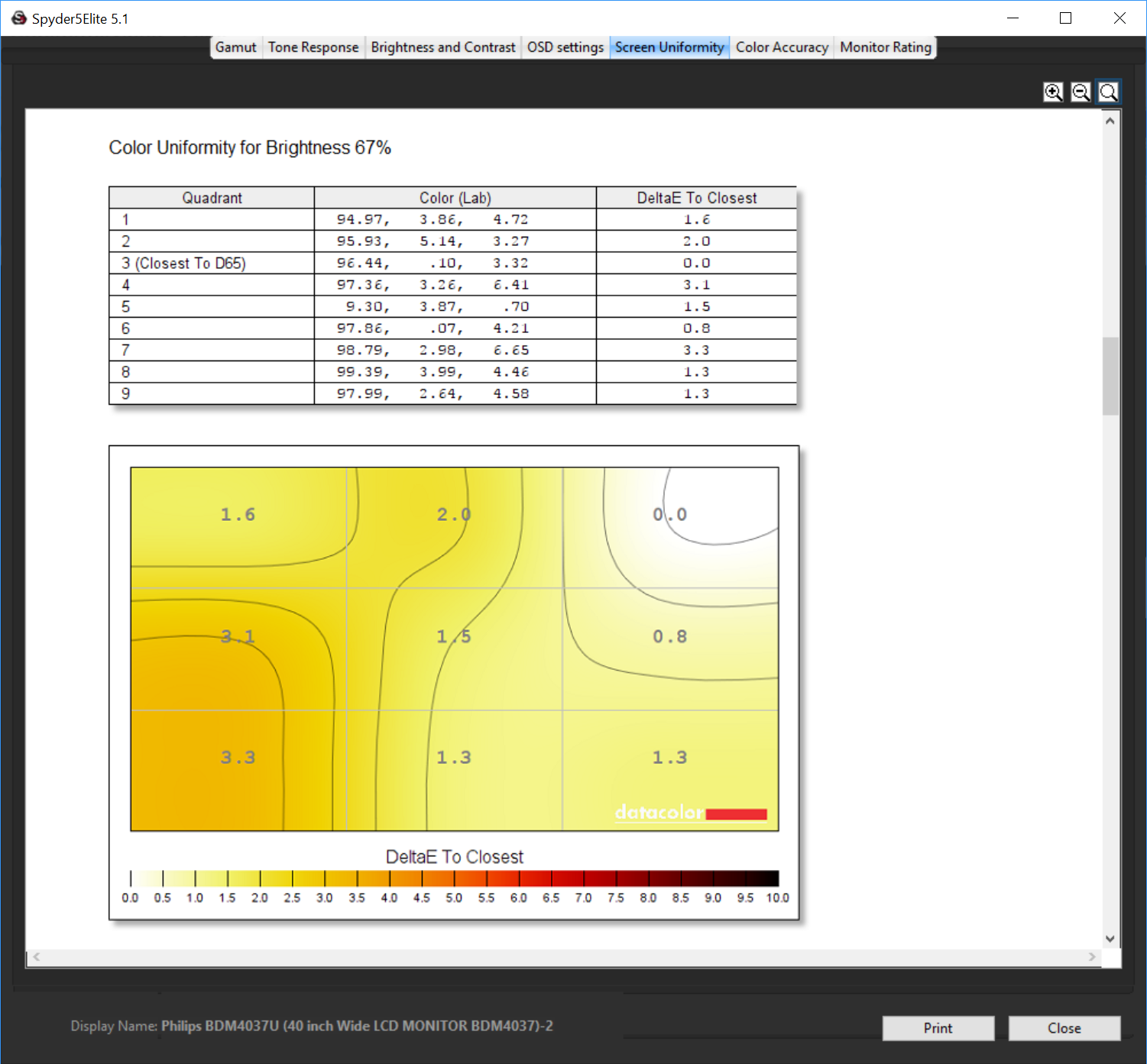
Colour uniformity is decent at all brightness levels, if not absolutely outstanding.
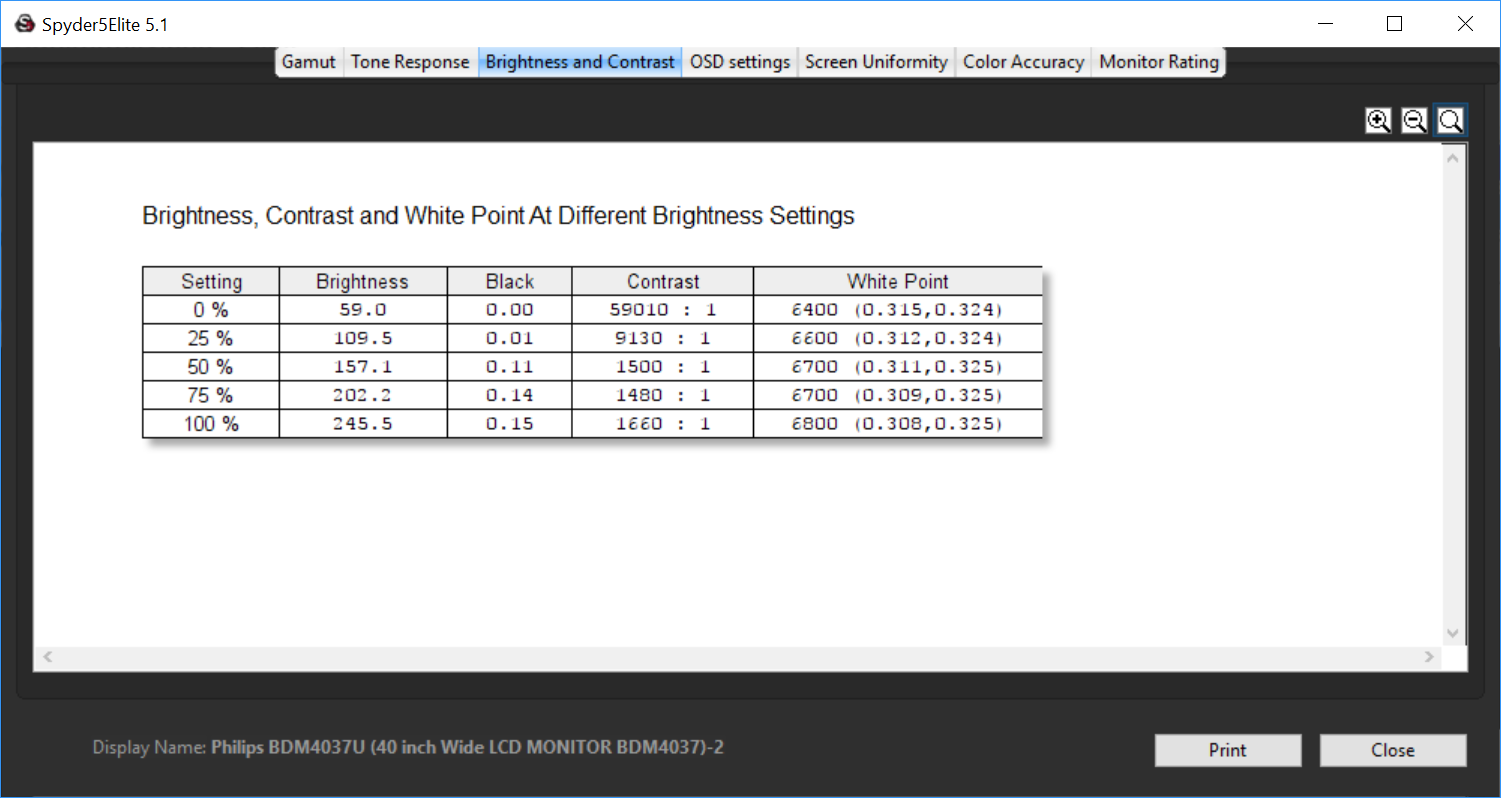
Brightness appears to go up in a relatively uniform way as the percentage is increased, although it doesn't reach the specified 300cd/m2 in the default Off preset mode. Contrast also doesn't reach the specification of 4,000:1 at sensible brightness settings.
It goes well beyond that at 25 per cent and 0 brightness, but it is still high at higher brightness levels, hitting 1,660:1 at 100 per cent. The white point varies between 6,400K and 6,800K, but most significantly is quite stable at 6,700 or 6,800 at 50 per cent brightness and above. So in that crucial 50-100 per cent brightness range this monitor keeps contrast and white point decidedly uniform.
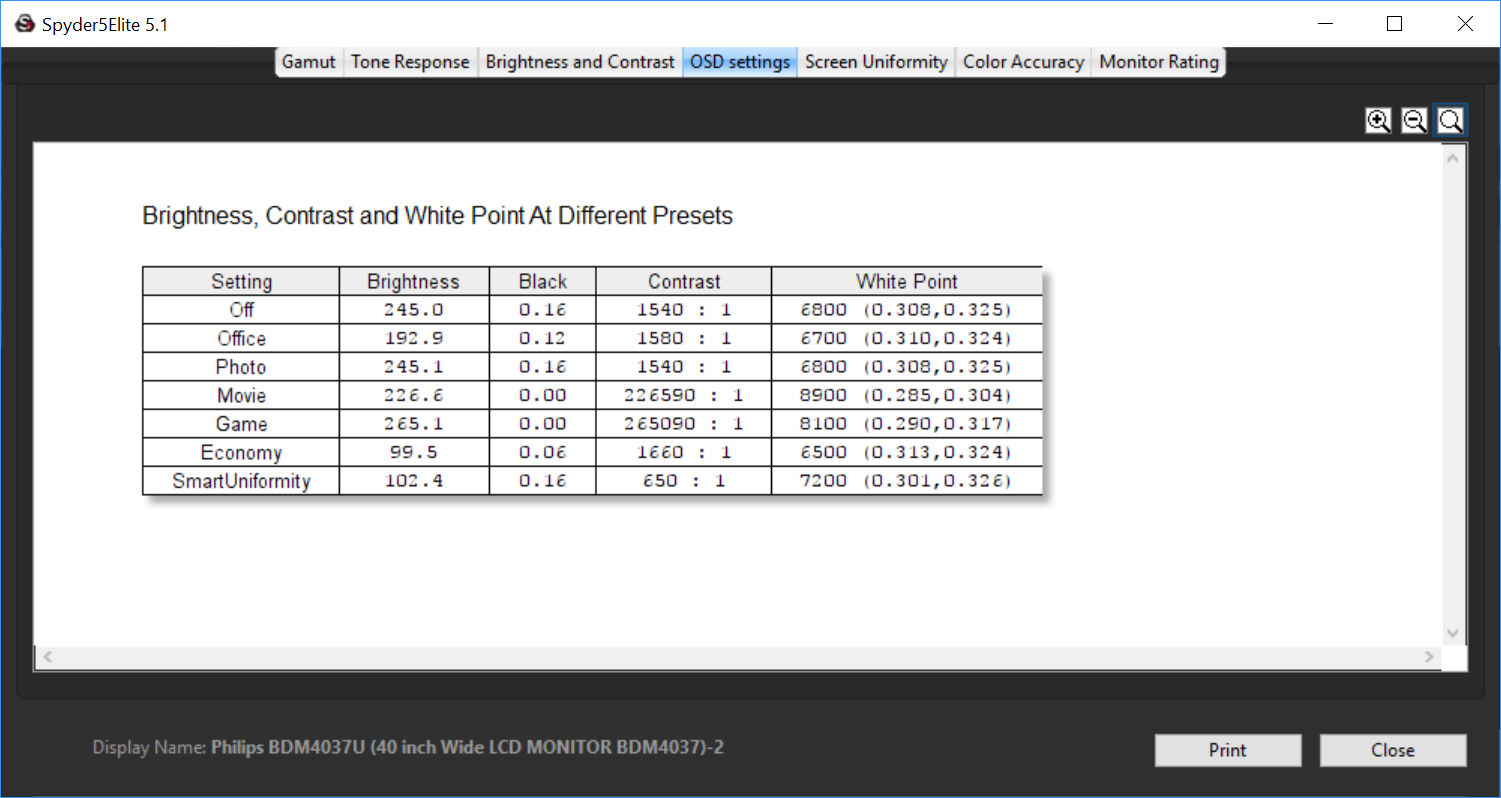
The Office SmartImage preset has similar contrast and white point to the off mode, but drops brightness down below 200cd/m2. Photo mode, on the other hand, is almost indistinguishable from Off. Movie mode is notably different, with a little less brightness, but an absolutely massive contrast range and a very cool white point of 8,900K.
Game mode has a similarly ludicrous contrast, but ups the brightness to 265cd/m2, whilst providing a warmer image with 8,100K white point. Economy mode, unsurprisingly, drops brightness right down to below 100cd/m2, but still maintains good contrast, with the warmest image here at 6,500K. SmartUniformity mode has a similar brightness, but a much reduced contrast of 650:1, and a mid-range 7,200K white point. So lots of variation here with plenty to choose from for different usage scenarios.
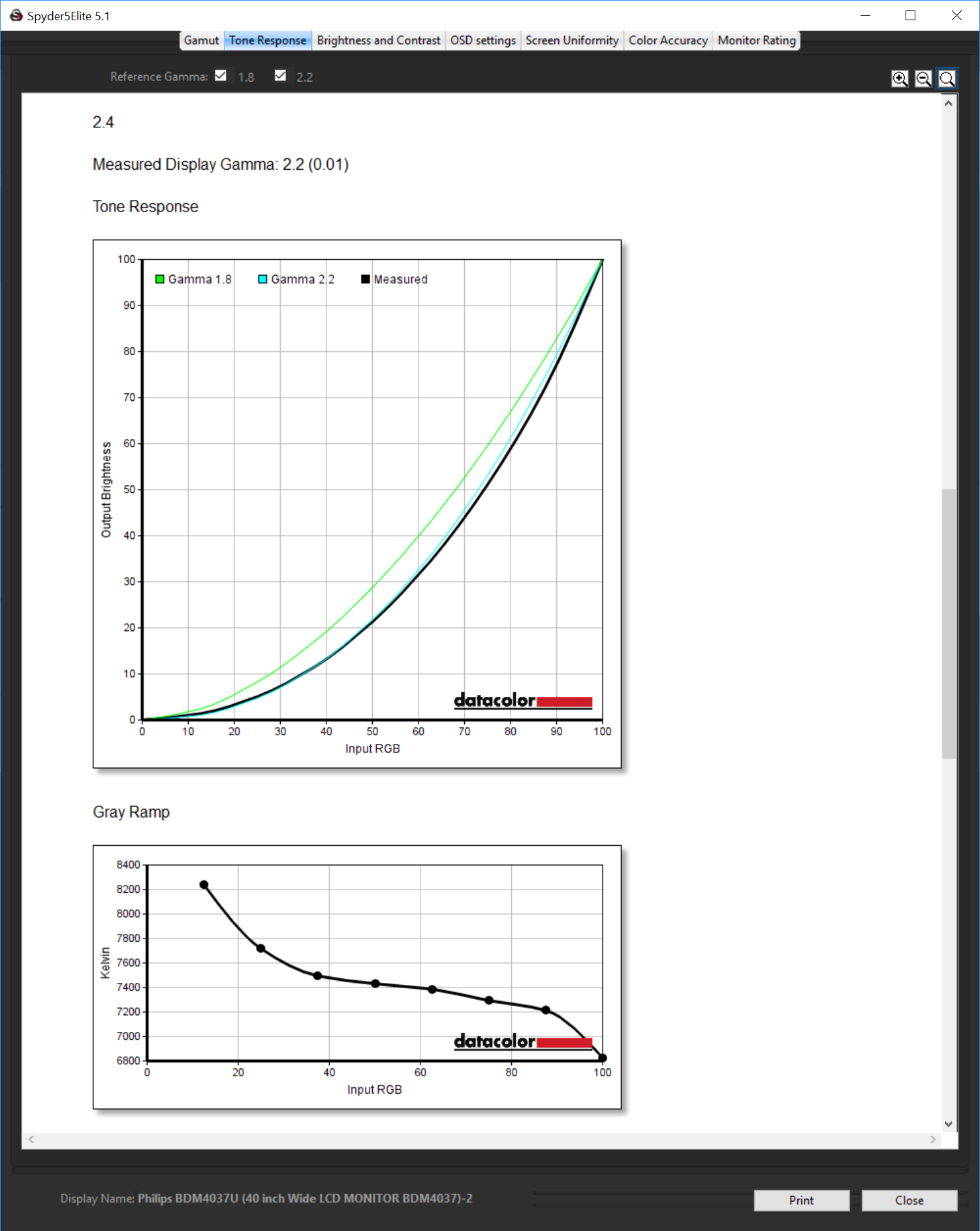
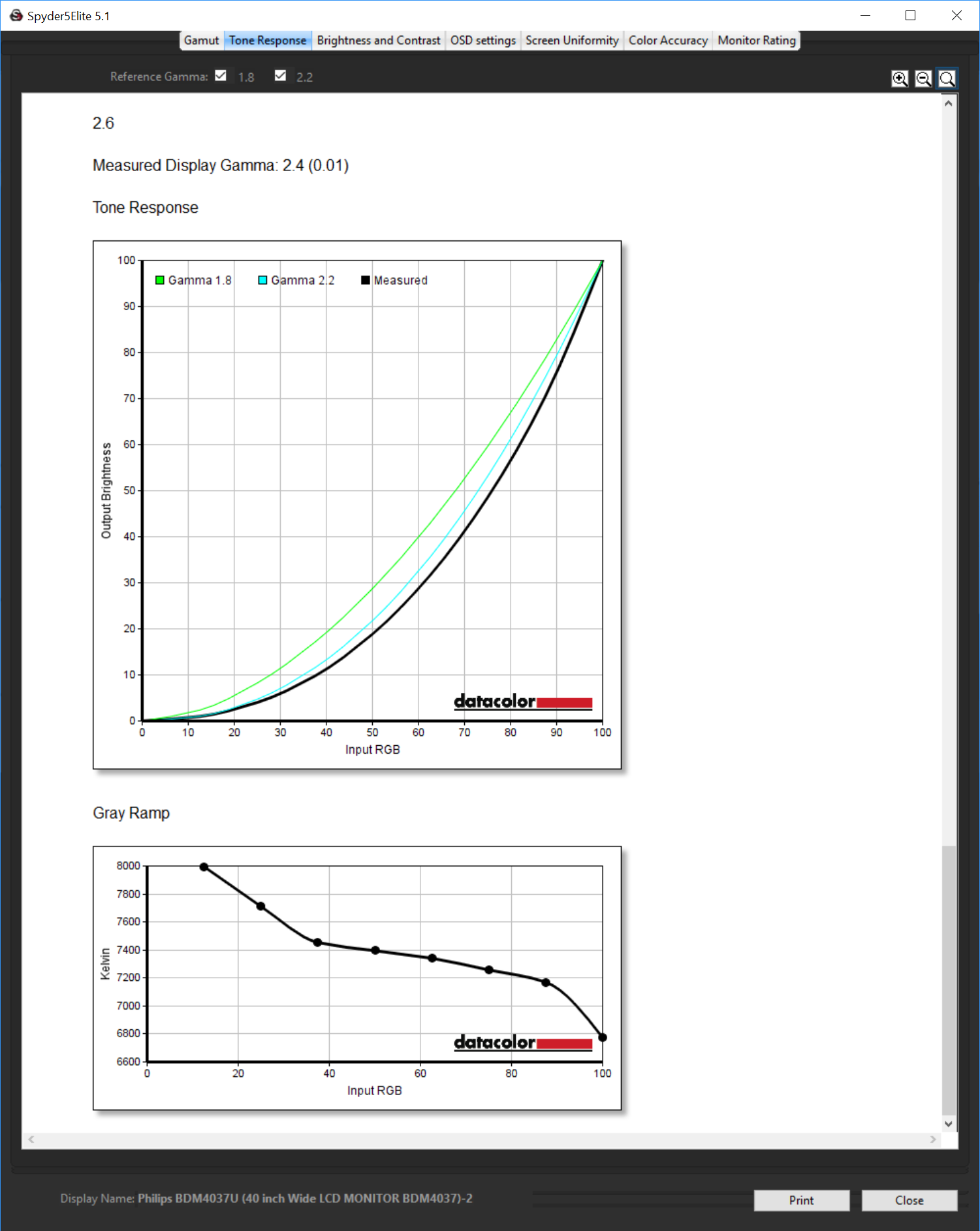
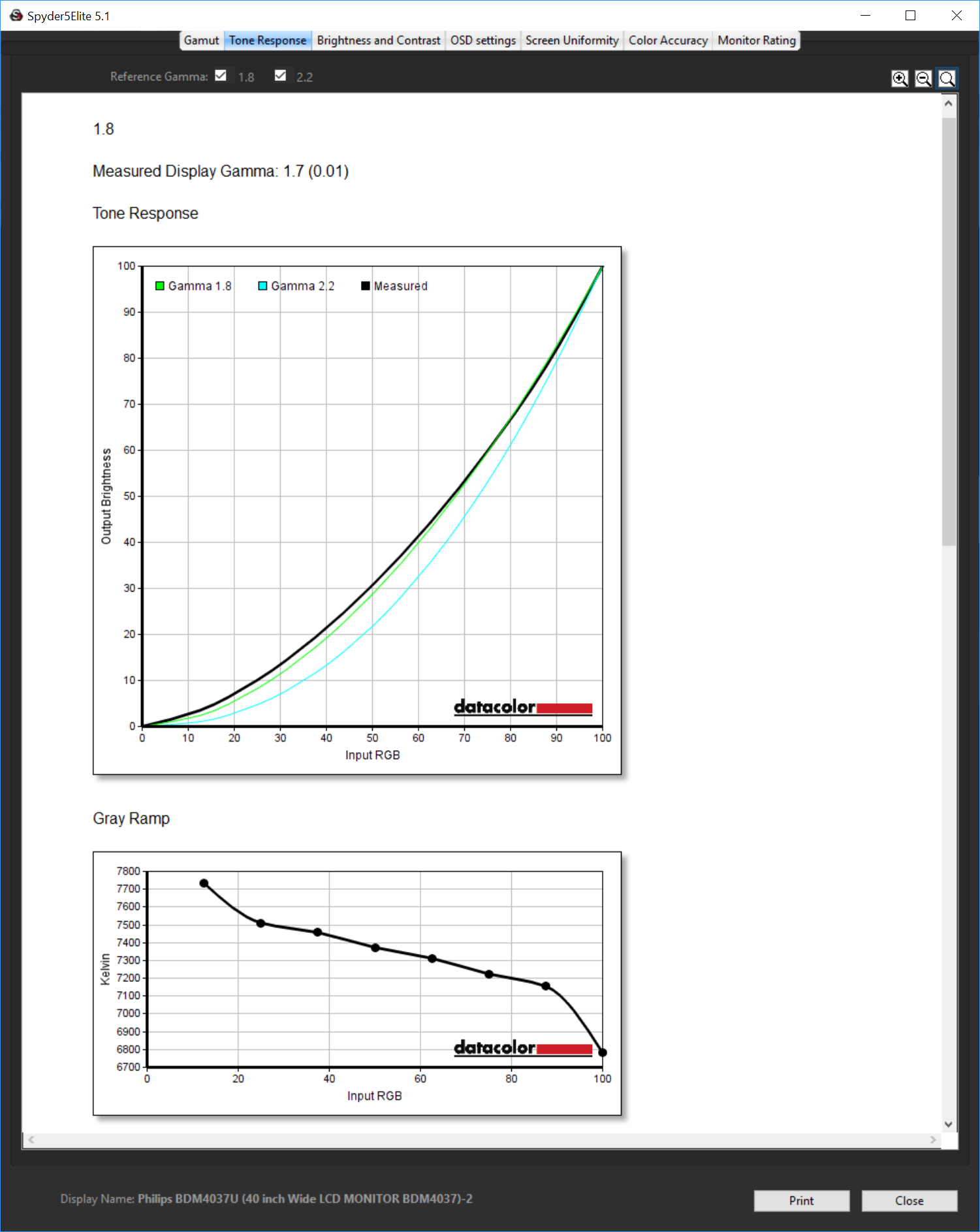
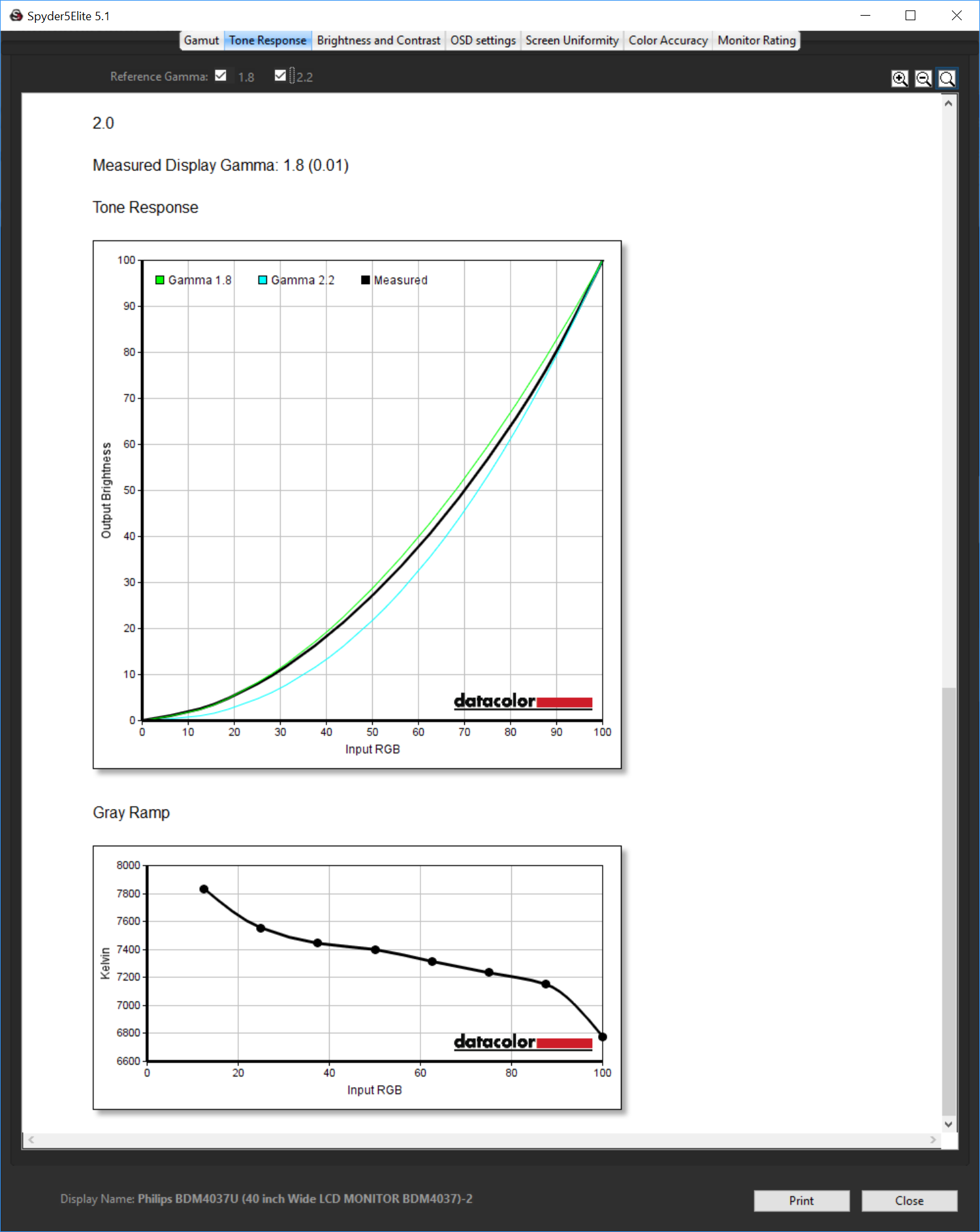
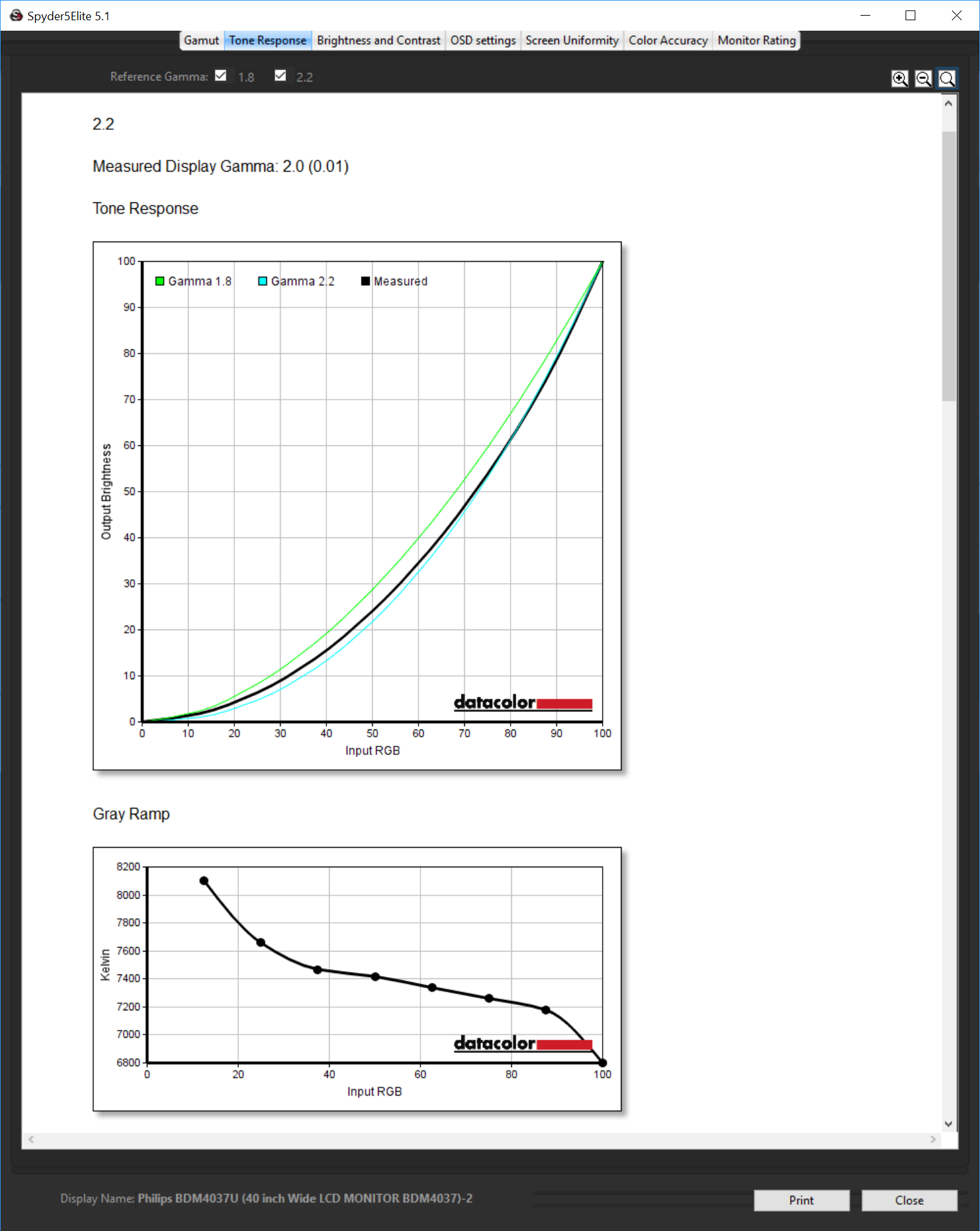
The gamma modes are all a bit below what they should be. The 1.8 mode is more like 1.7, the 2.0 setting comes out at 1.8, 2.2 registers as 2.0, 2.4 as 2.2, and 2.6 as 2.4. So you can basically add 0.2 to the desired gamma and choose that setting to get what you want.
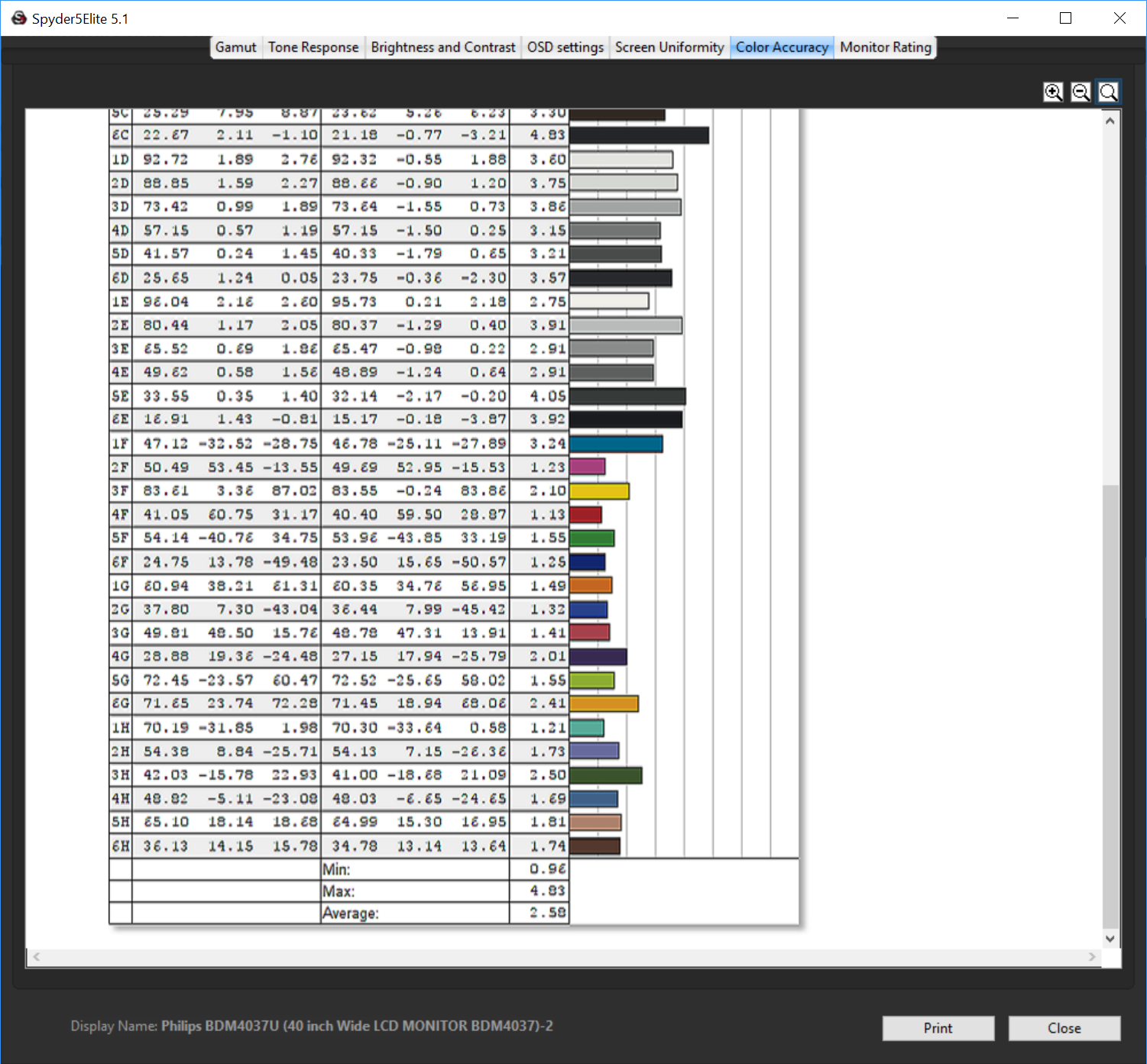
The colour accuracy reading of 2.58 is good but not as outstanding as some of the monitors we have tested recently. This screen clearly has the potential to benefit from calibration, so let's see how it fares after we have used our Spyder to do this.
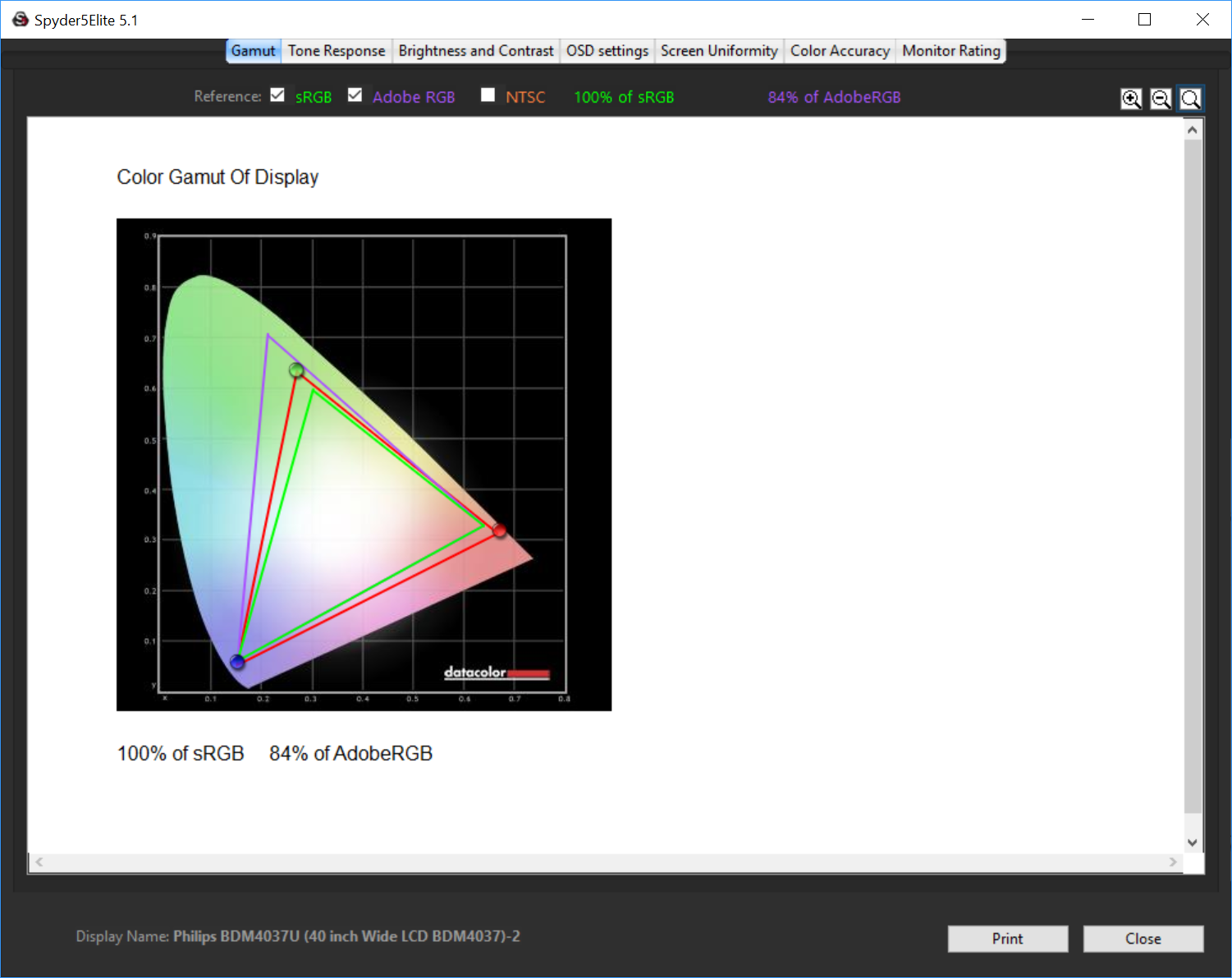
No change where the gamut is concerned.
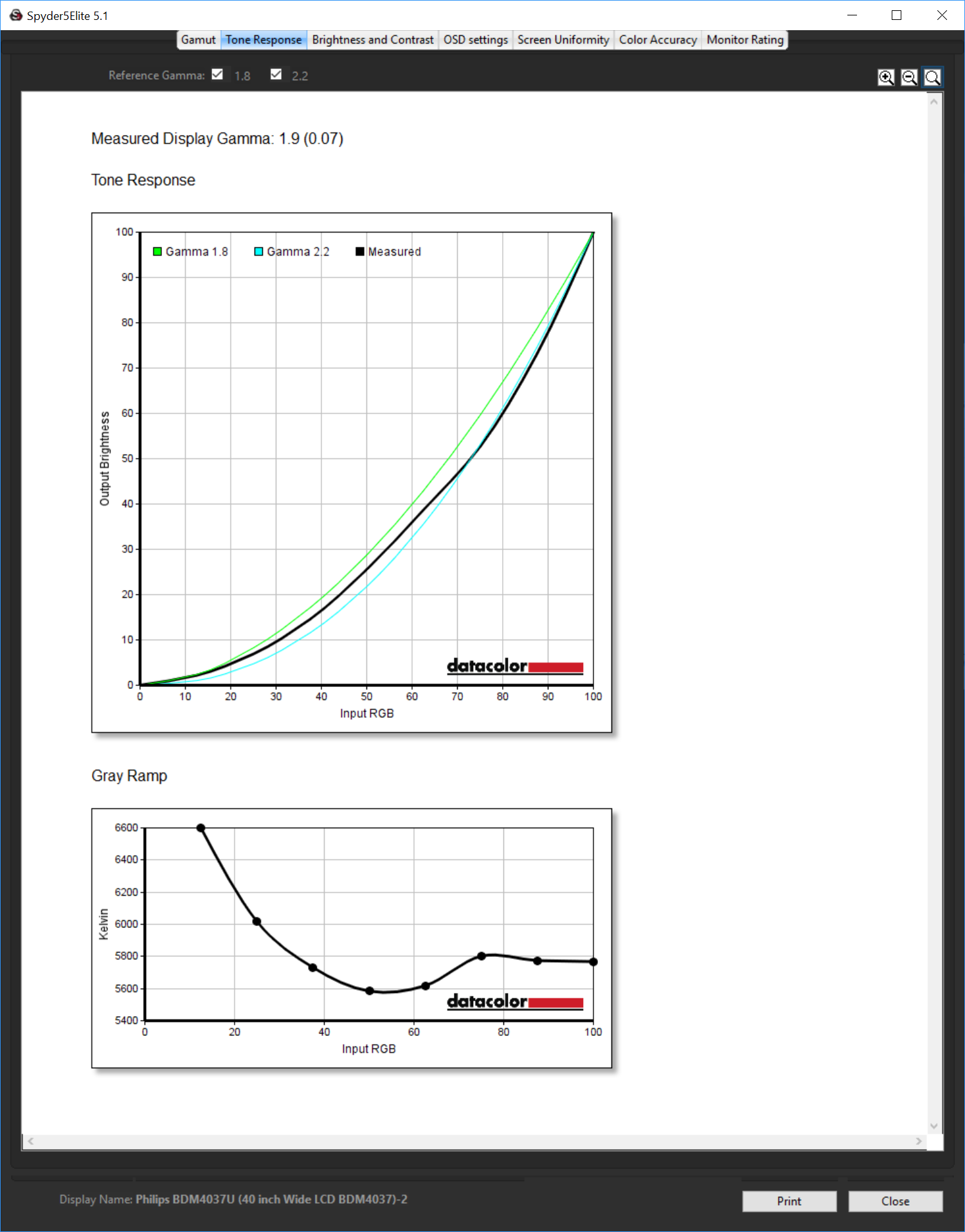
We retested with the gamma set to 2.2, and it was even more out of whack, now registering as 1.9.
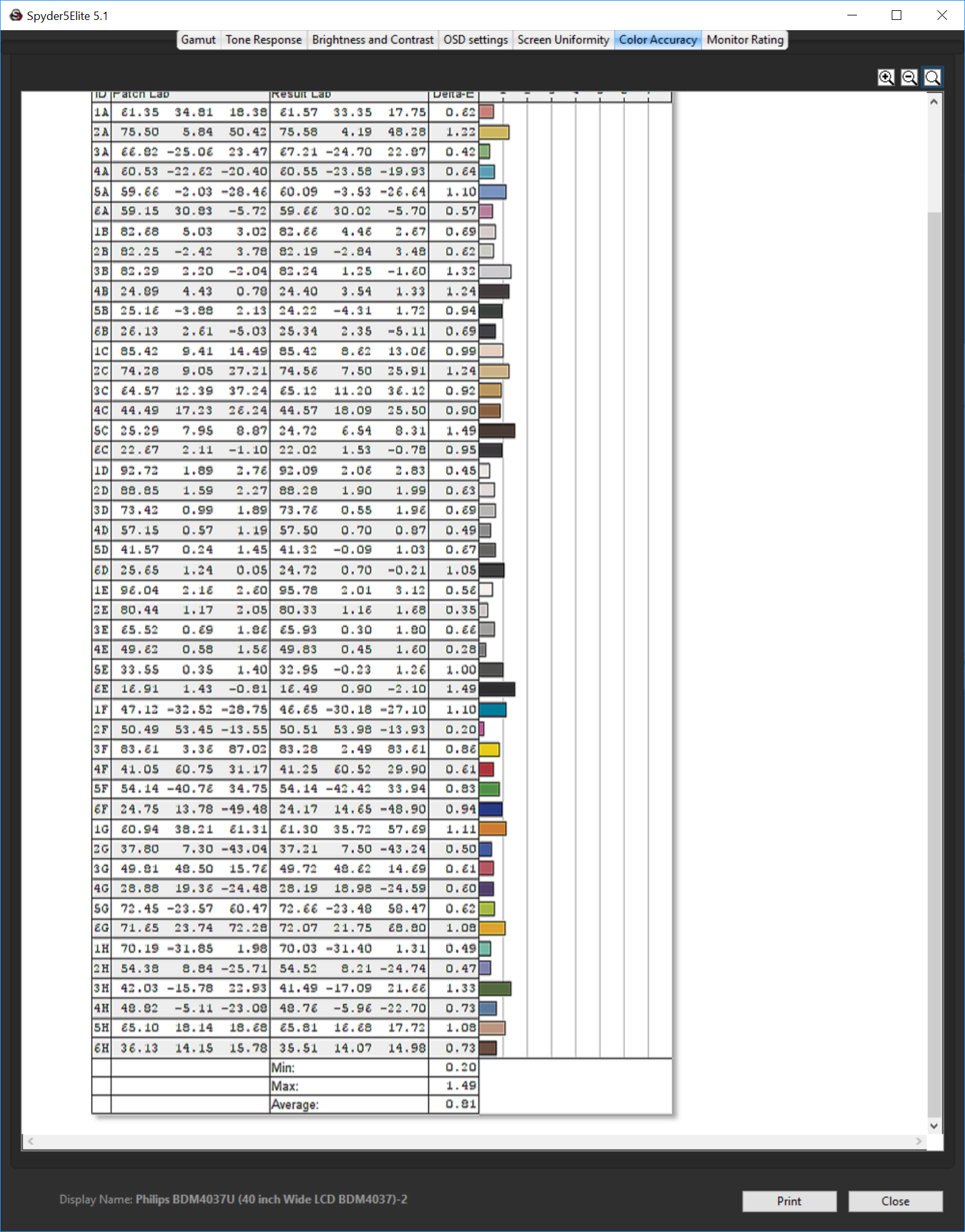
Colour accuracy, however, has improved immensely to 0.81, showing that this screen is capable of very faithful colour if you take the time to set it up properly. This was quite involved for this monitor, with lots of changes necessary to the RGB sliders. But the effort was clearly worth it.
Overall, the Philips BDM4037U lives up to its billing. You can set it up for very accurate colour, and although the gamma is a little off the quoted levels, the screen performs well.
The Philips BDM4037U is certainly a desirable piece of kit. The size, design and resolution inspire awe, and the image quality can be adjusted to very impressive effect. There is a good range of inputs, and these can be combined using the Multi View mode into a video wall of two or four feeds. Plenty of configuration is available, too, allowing adjustment for a wide range of uses.
The uses range from image editing and video viewing or editing to office work and casual gaming. However, this isn't a screen for the ardent gamer. There is the option to overdrive the pixel response, but other than that this area will be held back by the 60Hz refresh, 4ms response time, and lack of adaptive sync.
Still, for more general entertainment and business uses it's got a lot on offer. It may be big and quite expensive, but it has the curves in all the right places, so long as you're not too serious about gaming.
The Philips BDM4037U is available on the BT Shop store for £596.28 inc vat HERE.
Discuss on our Facebook page, over HERE.
Pros:
- Huge 40in size.
- 3000R curve.
- 4K resolution.
- Great image quality (with adjustment).
- Plenty of inputs.
- Multi-screen modes.
Cons:
- Expensive.
- 60Hz only.
- 4ms pixel response.
- Only limited concessions to gaming.
KitGuru Says: The Philips BDM4037U is a huge, high resolution screen with good image quality available, although it's more for general multimedia than gaming in particular.

Please, please, please, can we have some monitors for doing real work on. Not this wide screen format but 4:3 or even 1:1. Many of us never play games or really watch movies on PC’s, other than some YouTube or similar. I want a monitor that’s 4000 by 3000 pixels wide and tall, so I can fit spreadsheets and databases on it. Something with a 32″ diagonal would be nice.
You want a surface studio then.
Google is paying 97$ per hour! Work for few hours and have longer with friends & family! !mj173d:
On tuesday I got a great new Land Rover Range Rover from having earned $8752 this last four weeks.. Its the most-financialy rewarding I’ve had.. It sounds unbelievable but you wont forgive yourself if you don’t check it
!mj173d:
➽➽
➽➽;➽➽ http://GoogleFinancialJobsCash173TopTechGetPay$97Hour… ★★✫★★✫★★✫★★✫★★✫★★✫★★✫★★✫★★✫★★✫★★✫★★✫★★✫★★✫★★✫★★✫★★✫★★::::::!mj173d:….,…..
VA… No Variable Refresh… 60Hz… NOPE, That’s not for me! I will be buying this Acer XR38CQK – 37.5 inch IPS, yes it is $1300, but it is a freaking IPS! 75Hz and with a FreeSync. No thanks Philips.
I have ordered one, getting it next week. I am only going to use it for programming. Hope that text are sharpe and that the overall picture quality is good enough for web design
So, not a single comment about 8.5 stars under a photo of Amber Heard? But..why?
*faaaaaaaaaaaaaaaap*
I have the LG 38UC99. You’ll love the Acer 😉 B|
Idk how an aspect ratio would stop you from viewing spreadsheets….
38 inch 21:9 vs 40 inch 16:9…quite a difference tbh, hard to compare.
The contrast results are nonsense.
The Spyder device is incapable of correctly measuring black levels, get something from X-Rite instead.
The contrast is around 3650:1 across the entire brightness range.
Well, Zero, let me give you a bit on a look of things – first BOTH of those monitors have THE SAME pixels per inch. I am not joking. Go to http://isthisretina.com/ and check it out. However this is what I found:
4K (3840×2160) at 40″ = 110ppi <== those are not really for gaming…more of business
WQHD (3840×1600) at 37.5" = 110ppi <== this is Acer XR38CQK and LG 38UC99
WQHD (3440×1440) at 34" = 109ppi <== very high-end ultrawide gaming monitors
4K (3840×2160) at 32" = 137ppi <== 4K high-end gaming monitors (ex. Acer, LG)
4K (3840×2160) at 27" = 163ppi <== 4K high-end gaming monitors (ex. Acer, ROG)
QHD (2560×1440) at 27" = 108ppi <== high-end gaming monitors (ex. ROG)
And now the cheaper ones:
WFHD (2560×1080) at 25" = 111ppi <== ultrawide gaming monitor
WFHD (2560×1080) at 29" = 95ppi <== ultrawide gaming monitor
FHD (1920×1080) at 24" = 91ppi <== standard gaming monitor (most people use this)
I honestly think this 110ppi is the best you would really get, before you run into scaling issues. So they are comparable, and there are many Korean 40" 4K monitors, and they are as good as a 27" 2560x1440p monitor. Same ppi, but bigger. I do not really consider anything below 30" to be any beneficial out of 4K, it's pointless and a waste. That's why I chose this ultrawide monitor. $1300 is sure steep but this is basically the BEST I could get, that is both CLOSE to 4K resolution and at the same time, to have a higher than 60Hz refresh rate (75Hz) – AWESOME! After 75Hz, the difference starts to diminish. However going from a 60Hz to a 75Hz is significantly noticeable. I just hope that Vega 10 will give me the power to drive such FPS.
Well, did it arrive, and what do you think of it (I’m also looking for a large curved monitor for programming, and am wondering if the response time is a factor for me)
The Philips was the second monitor I tried in my search for a new monitor. Before the Philips I had the Dell U3417W 34″ monitor for a week. It was OK but colours was dull and the contrast was not very good.
But it convinced me that widescreen monitors was the way to go.
When I heard about the Philips I just hade to try it at work so I ordered one. It was BIG but was looking very good. very nice design. Text was clear, colours out of the box not so good. But for me the big turn of was that colours in front of you was OK but when looking down or to the side the colours was washed out. thats the weakness of a VA panel.
Another thing is that the screen is just to high. You will get pain in the neck if you try to read from the top or the bottom of the screen. After a day I found that I was placing my program in a stripe across the screen not using the top / bottom 10-15 cm. So I was using it as 21-9 widescreen.
It was interesting to test out the screen but I returned it.
A few weeks after I bought the AOC U3477PQU and it’s a keeper. It is the best monitor I have ever had in my 23 years as a programmer. The uniformity, sharpness and colours are just amazing It like reading from a pice of paper.
Interesting feedback.
One of the points of the 3840×2160 is the extra height that’s gained – but your comments about 21:9 do raise some points (even if they may just be personal preference)
The VA panel always looked to be the weak point, so I guess I’m now looking for an IPS panel, at least – just need to decide if 3180×1440 is enough height. Would like to see one in the flesh before committing funds, though, and that could be tricky until they become more commonplace.
Thanks
It has to do with your eyes. You see more in horizontal. 16:9 is tall enough anyway and no one forces you to buy ultrawide.
WARNING: if you buy this monitor in the hopes that the EDID works in WIN2/WIN4 mode (multi-monitor) – you are out of luck. The monitor will identify itself as 4k no matter what mode it is in.
Why is this bad? Because Windows, NVidia and all other programmes and drivers that uses the monitor and its resolution will think it is 4k. They will allow you to set WAY too high resolutions, that is not supported by the 1080p screens that the BDM4037 makes. Also, NVidia “Surround” – will NOT work. Let me repeat: You WILL NOT be able to make the two bottom screens into one wide-screen replacement, and the top two single monitors. The faulty EDID will make sure of this.
Philips has so far done nothing to correct this.