KitGuru KitGuru.net – Tech News | Hardware News | Hardware Reviews | IOS | Mobile | Gaming | Graphics Cards


We know, many KitGuru readers build their own gaming systems. It is the best way to get a new rig exactly the way you want it. You can hand select every part yourself, get the best possible price by scouring etailers and auction sites and then you can tailor the appearance to your own personal preference. But what if you want something specific that you can't buy in a store? A system with a very small footprint, but crammed with the fastest hardware on the market?
There is no doubt the Corsair One is targeting a very niche audience, but when the latest models were announced this year i was so interested in the system I asked Corsair if I could get a look at the systems on long term loan. To play with them for months and get a handle on all the strengths and weaknesses. This is a KitGuru review today, but it is a different style for us. I paired the systems up with an Alienware AW3418DW 34 inch curved Ultrawide monitor, running at 3440×1440 @ 120hz. How does this system shape up as a daily, flagship, high refresh gaming system?
No doubt about it, these are expensive systems. The Corsair i140 (HERE) is priced at £2,849.99 in the UK and it includes an Intel Core i7 9700k, Nvidia RTX 2080, a 480 GB M.2 boot drive, and a 2TB HDD, with 32GB of DDR4 memory.For £550 extra you can get the Corsair i160 (HERE), which gets you an Intel Core i9 9900k and an Nvidia RTX 2080 ti upgrade. Both processor and graphics card are liquid cooled. There is however no doubt £3,399.99 will make a significant dent in your bank balance.
You can see these systems on the Corsair website over HERE.
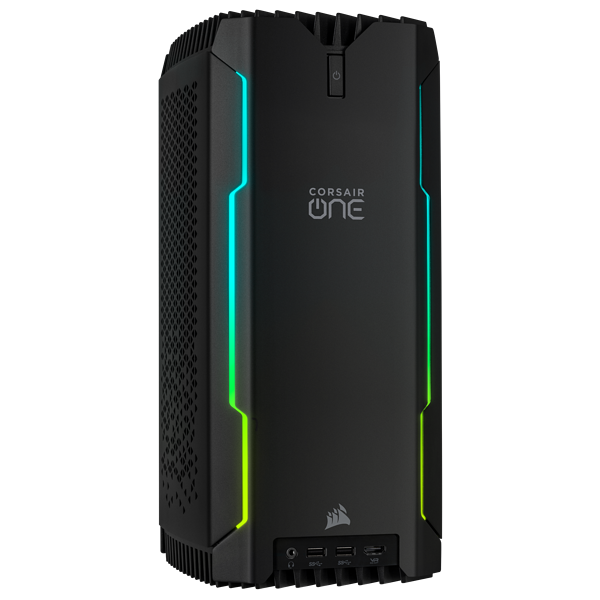
Both systems are installed inside a beautiful 2mm bead blasted aluminum shell, its a minimalist fully RGB capable form factor designed to sit on the desk beside you on full view. When I was using these systems over the last couple of months, I was able to tuck them in behind the gargantuan Alienware 120hz gaming panel – which gave me so much room on my desk. That is one of the benefits of the Corsair One.
Before we continue it is worth pointing out that Corsair do currently sell an even higher specification i180 ONE (HERE) which includes a 12 core (24 thread) 9920X Intel processor and a larger 960GB M.2 NVMe SSD. It is priced at a staggering £4,749.99.
Lets take a closer look inside.
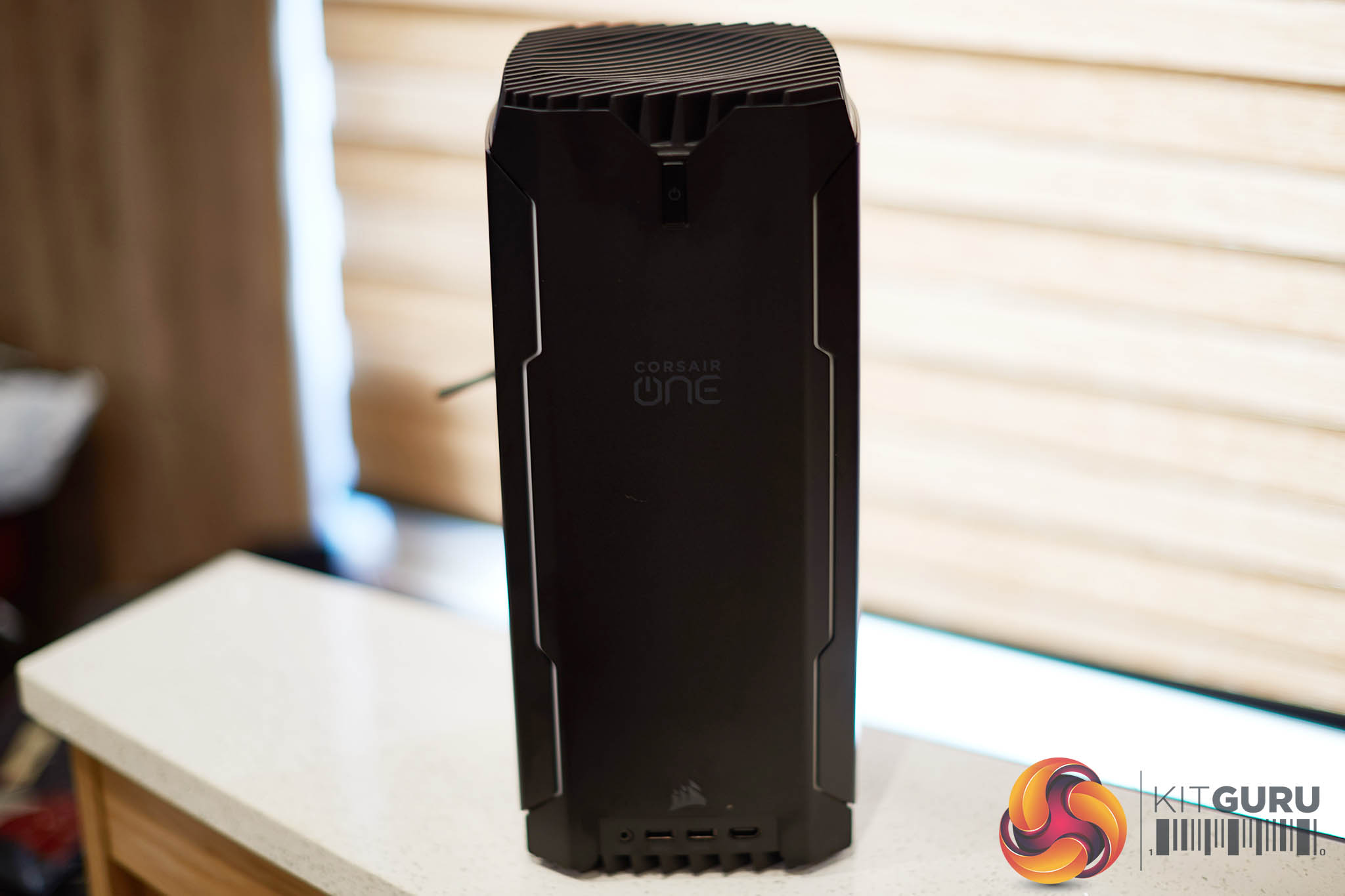
The Corsair one arrives in a plain box which contains nothing but the unit itself, a power cable and two wireless antenna which you screw into position on the I/O backplate. The case itself is tiny – it measures only 200mm x 176mm.
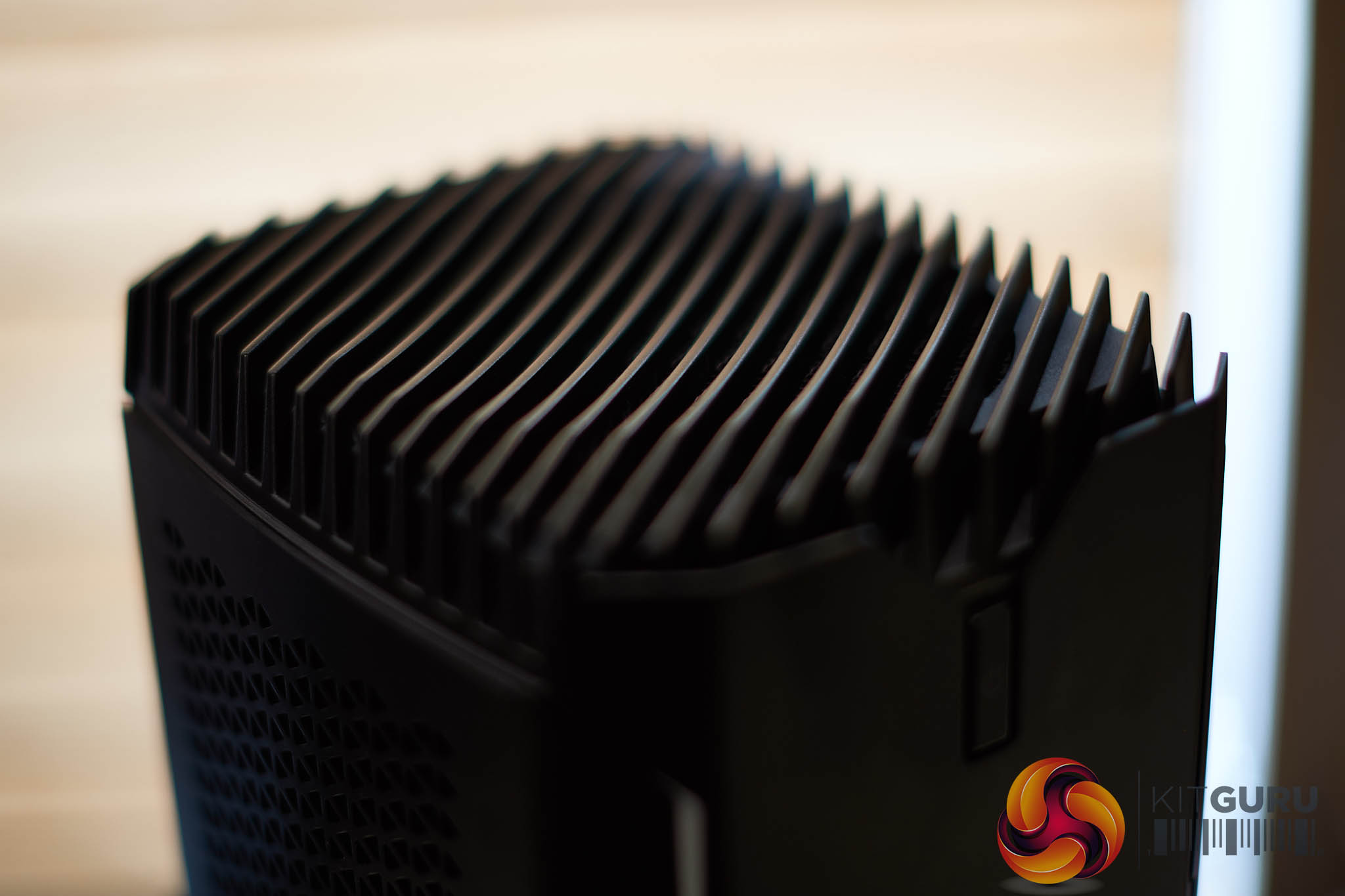
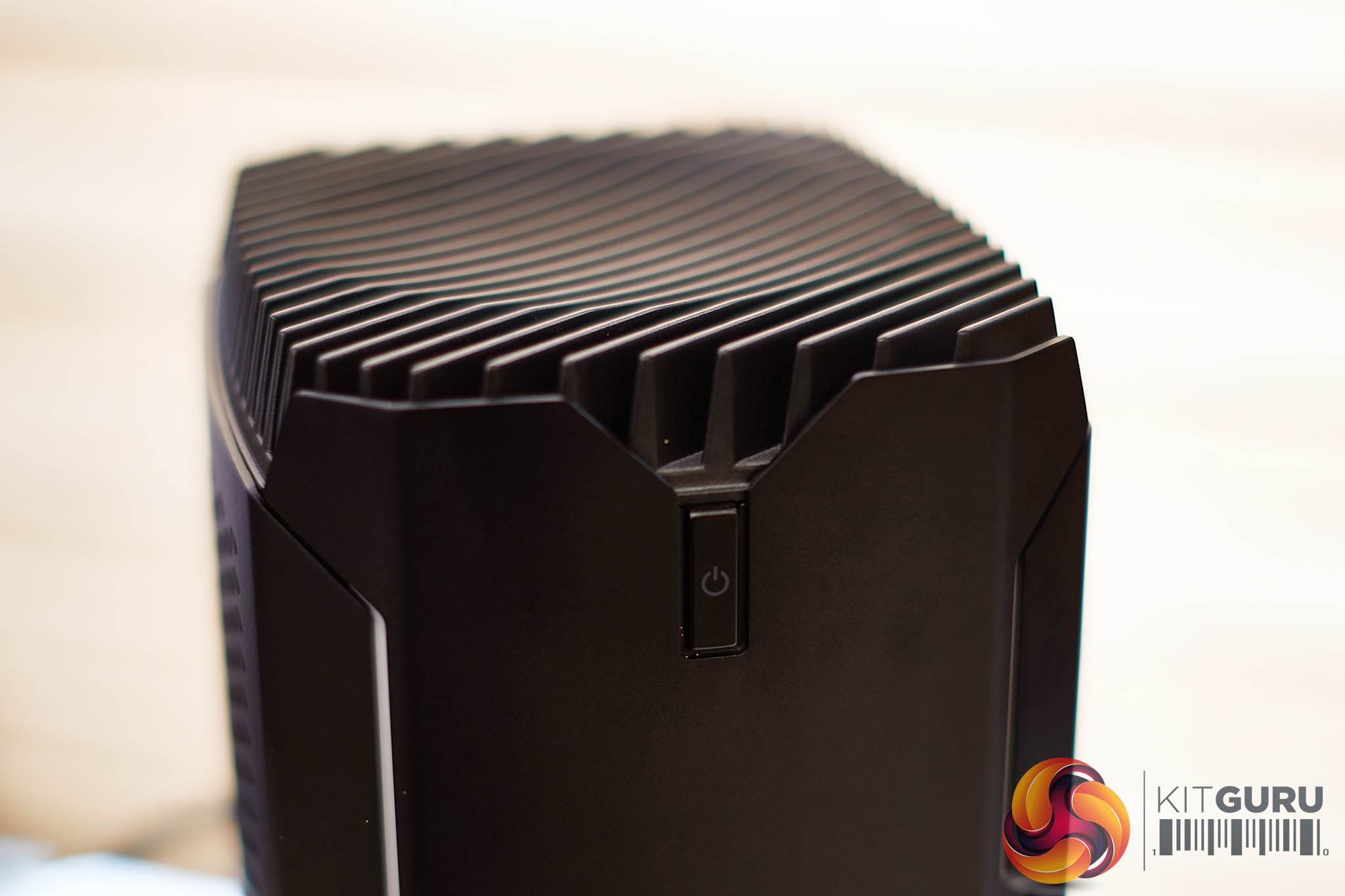
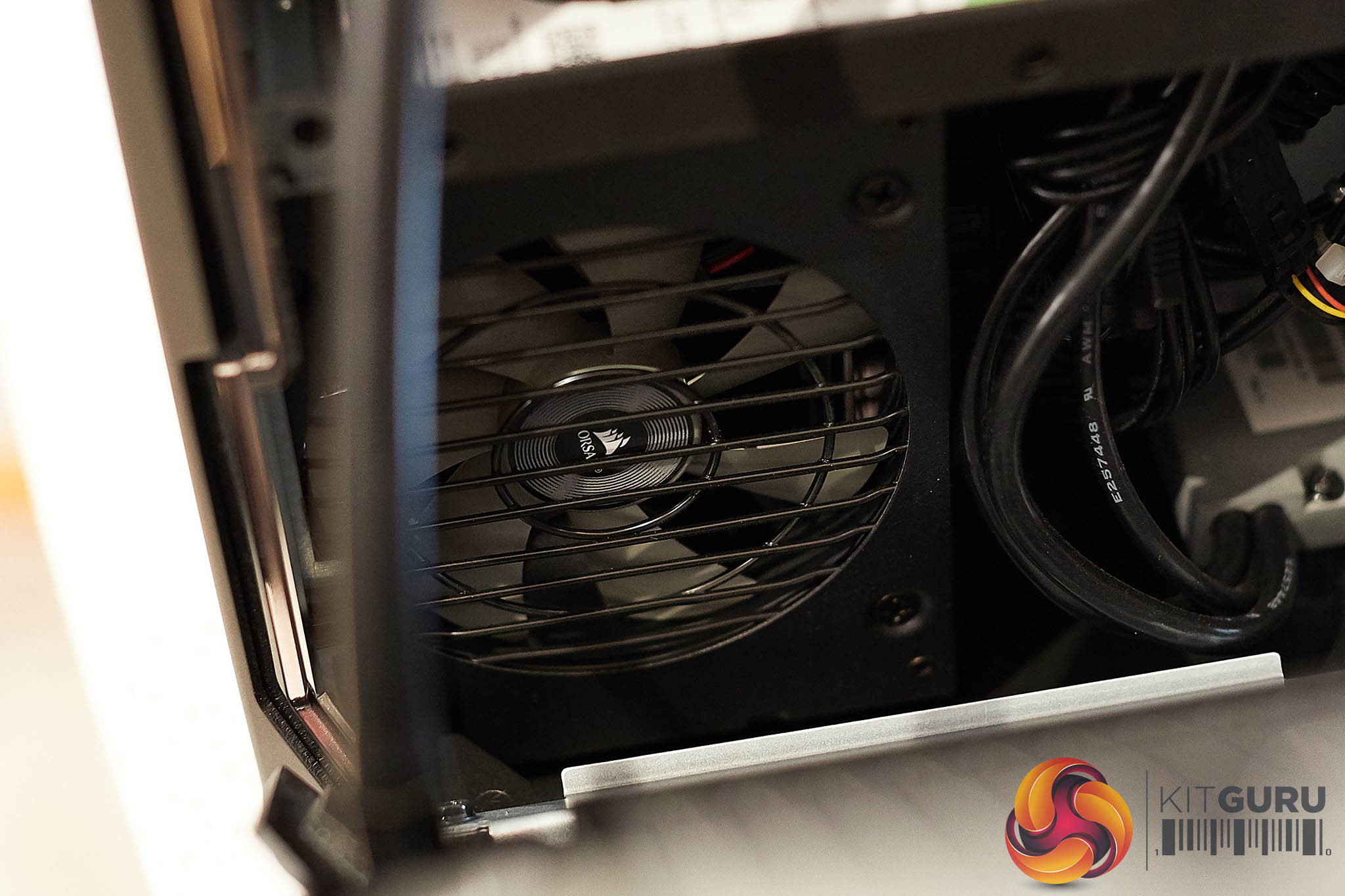
The Corsair One case design really is quite beautiful. The chassis is aluminium, ridged, and the top is air vented to work on the basic principle that heat rises. The large fan at the top pulls and exhausts hot air out of the case from bottom to top. We will take a look at the main cooling fan inside shortly.
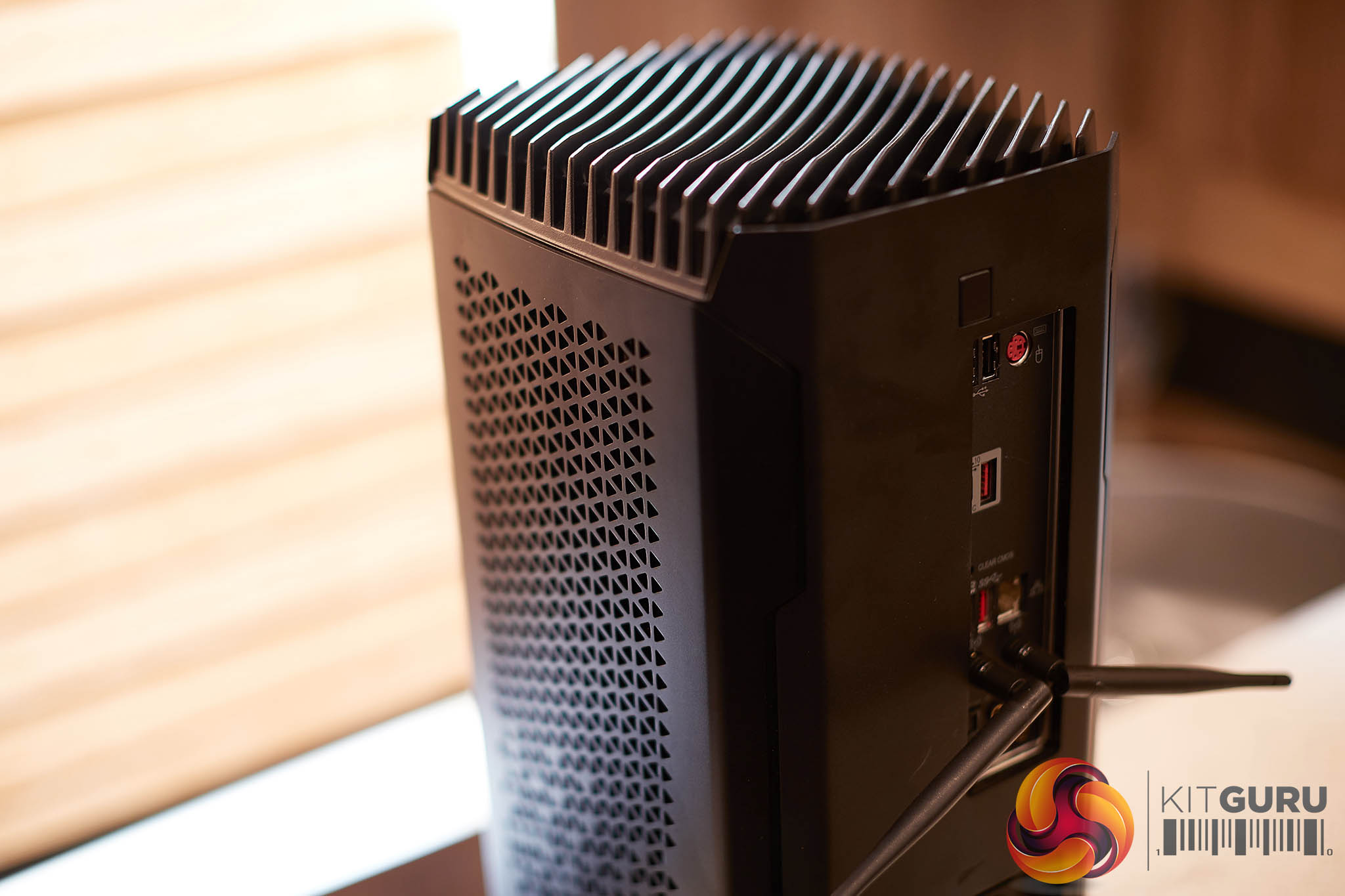
The top of the case is home to a simple power button at the front, and a quick release button on the rear, to get access to the insides. There is plenty of venting on the side panels (next to the radiators) to aid with airflow.
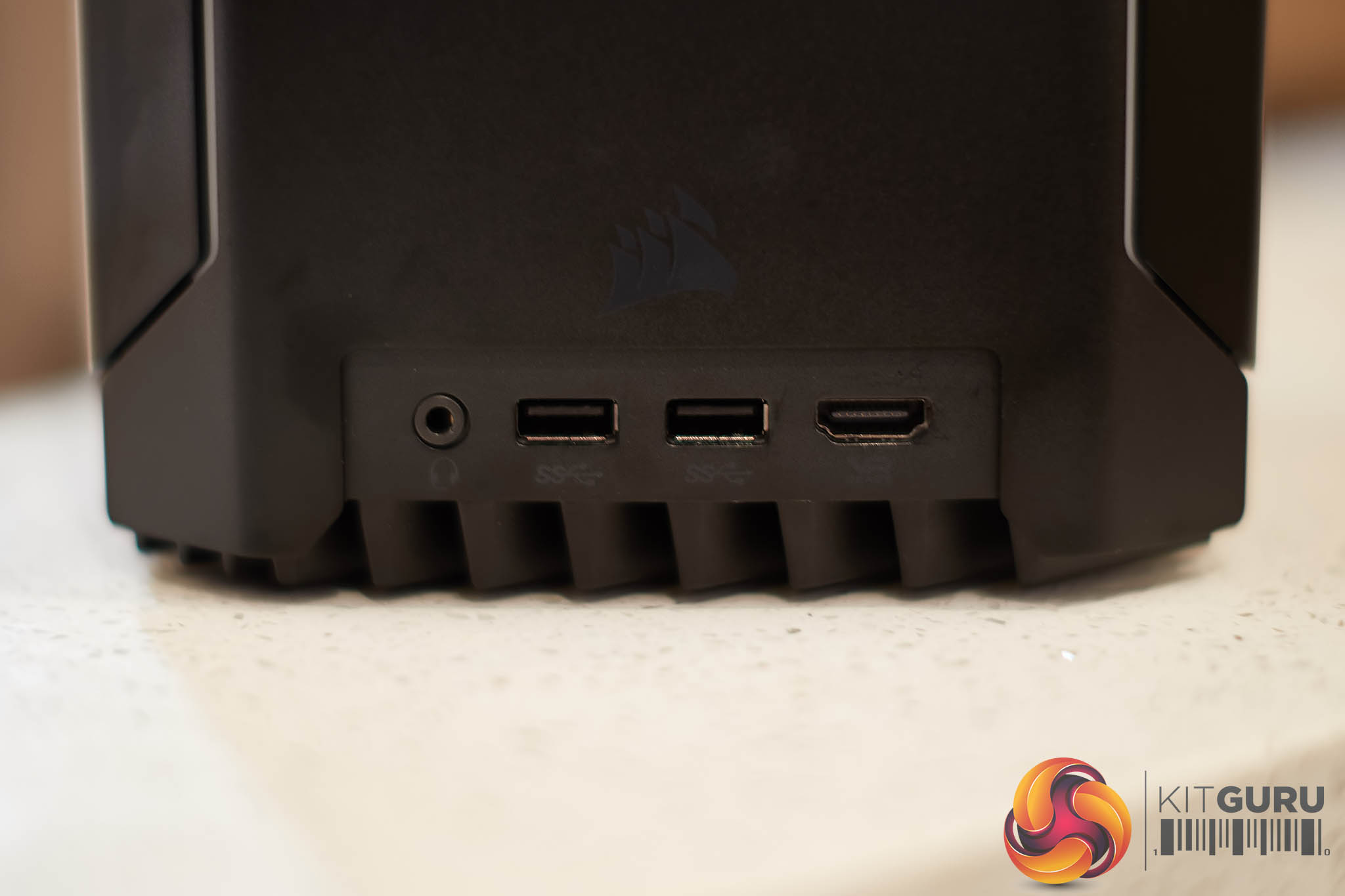
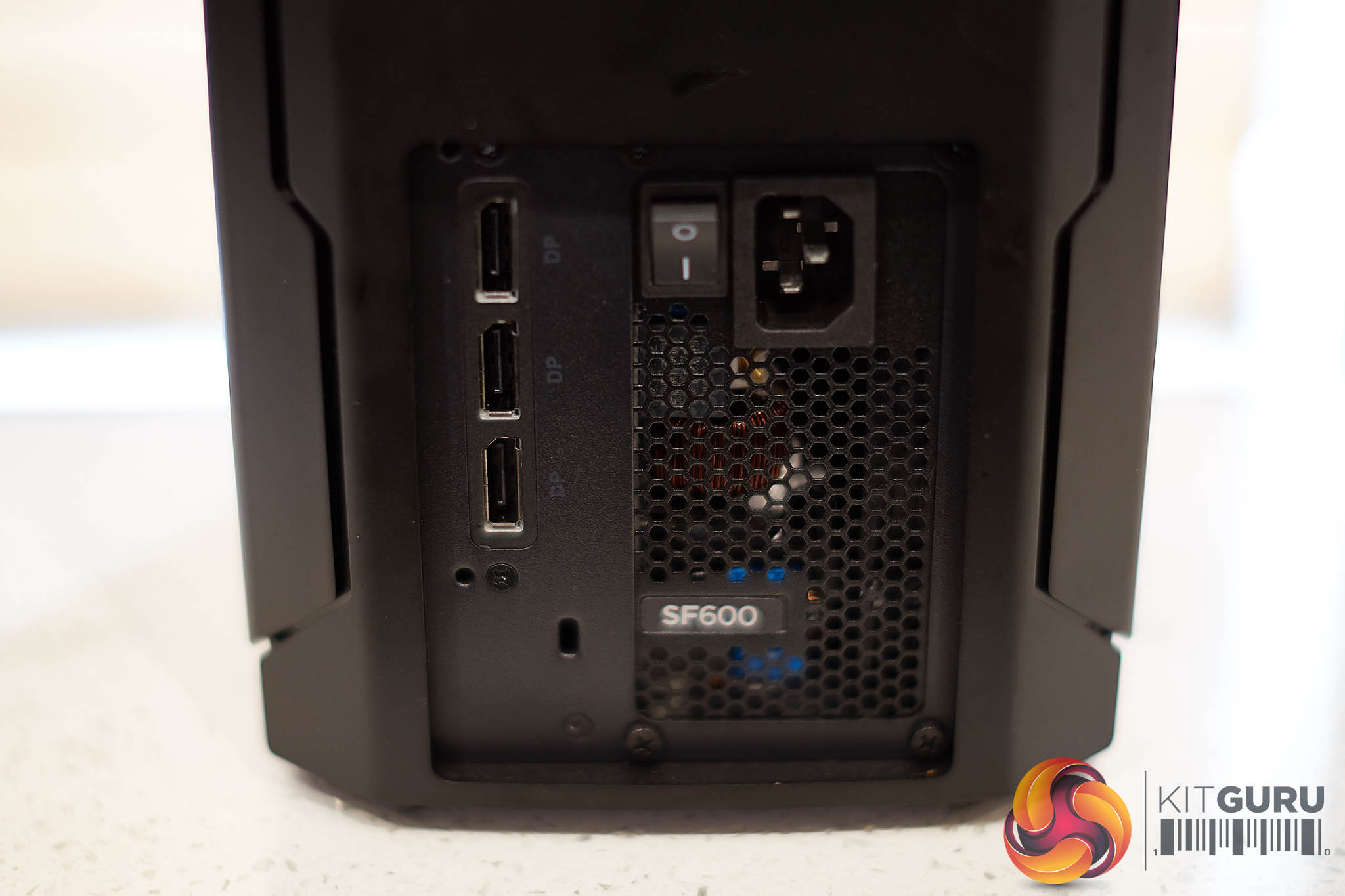
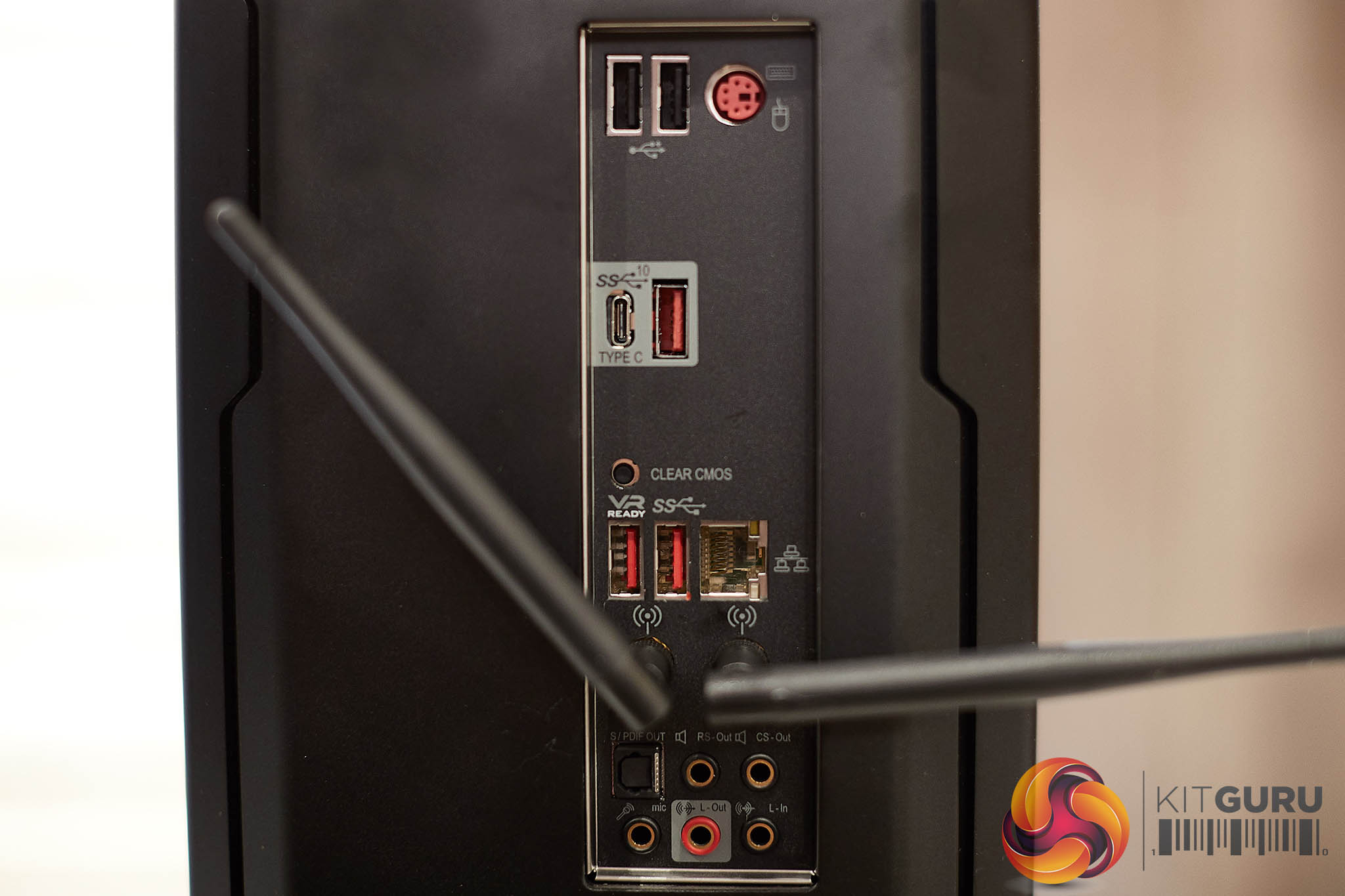
At the front of the chassis, along the bottom are a headphone port, two SS USB ports and an HDMI 2.0 connector. At the rear are two USB ports, an old serial style mouse/keyboard port, 3 high speed USB 3.1 connectors, a USB C port, a clear CMOS button, Ethernet connector, two wireless antenna connectors and a full surround panel for audio, including S/PDIF out connector.
Along the bottom at the back are three full sized Displayport connectors (1.4) and a power connector / switch. Another HDMI connector on the rear of the case would have been a welcome addition for the audience using the ONE with a HDTV. You will have to run an HDMI cable from the front of the chassis – which looks nasty IMO.
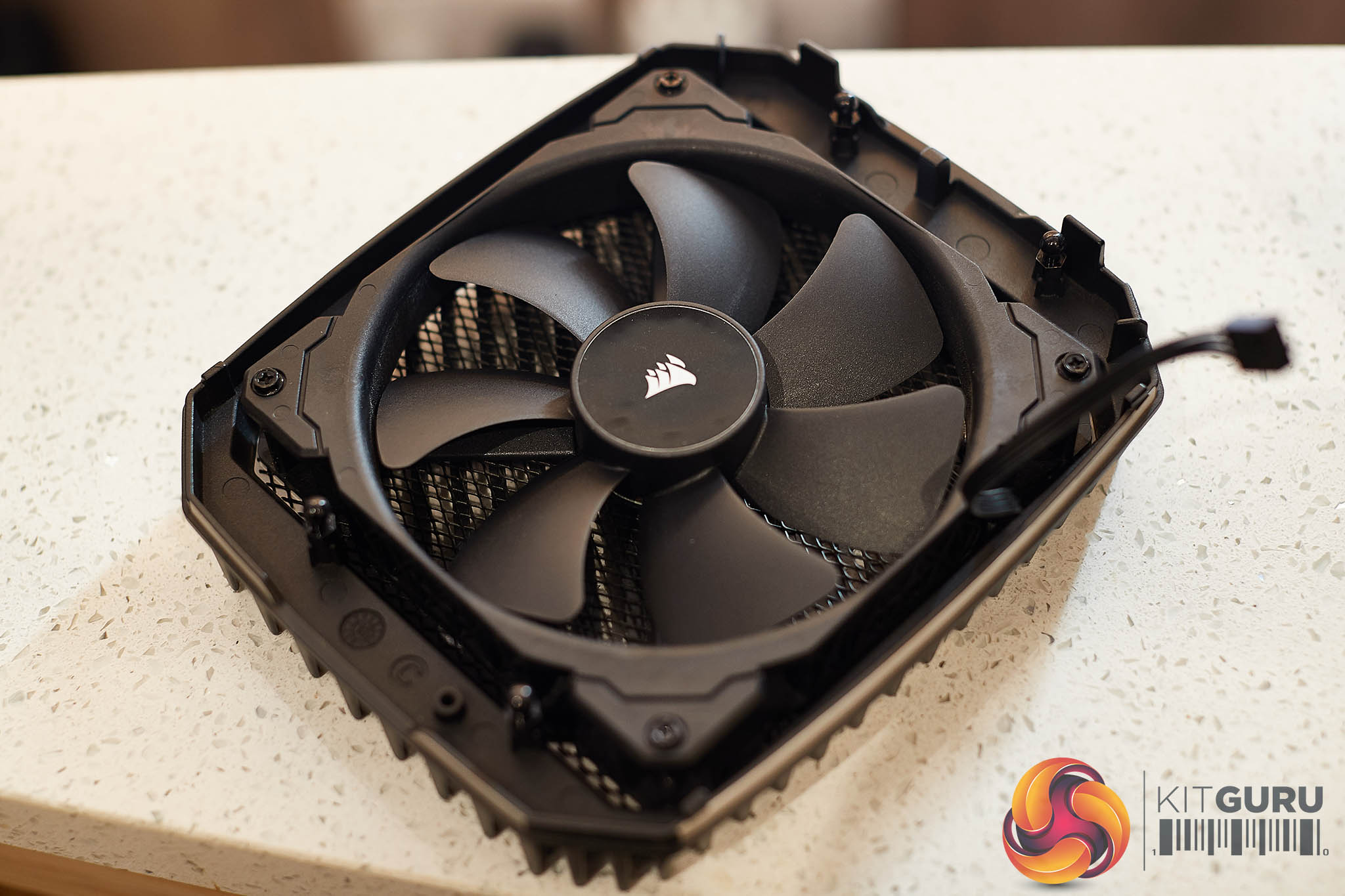
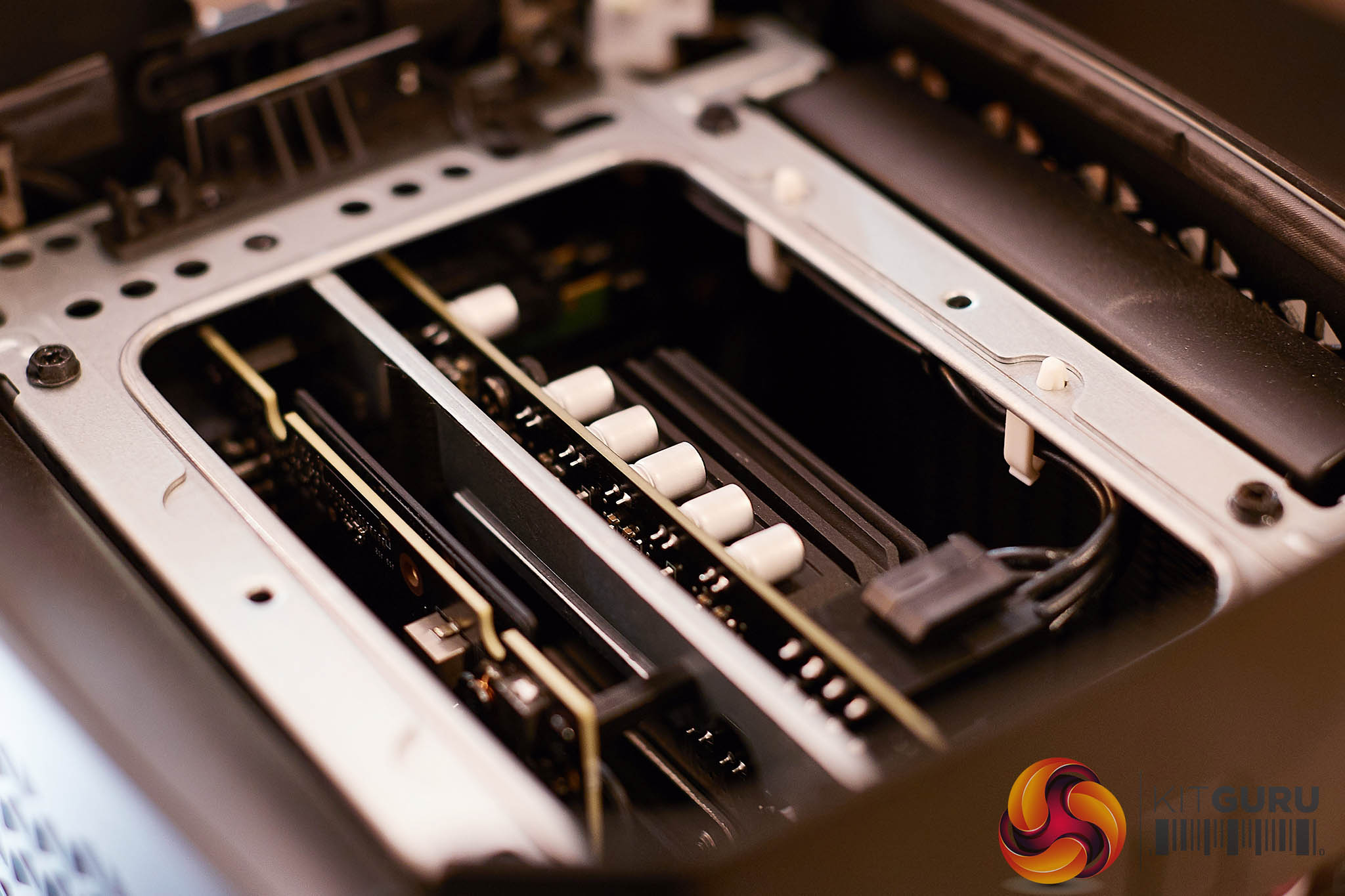
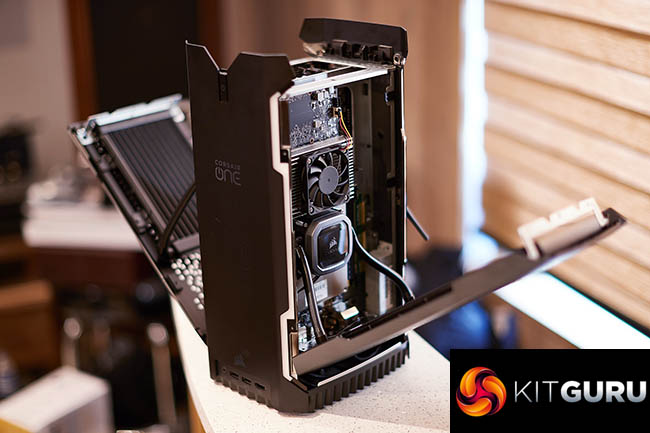
When the top fan is removed, you can get access to the insides of the chassis.
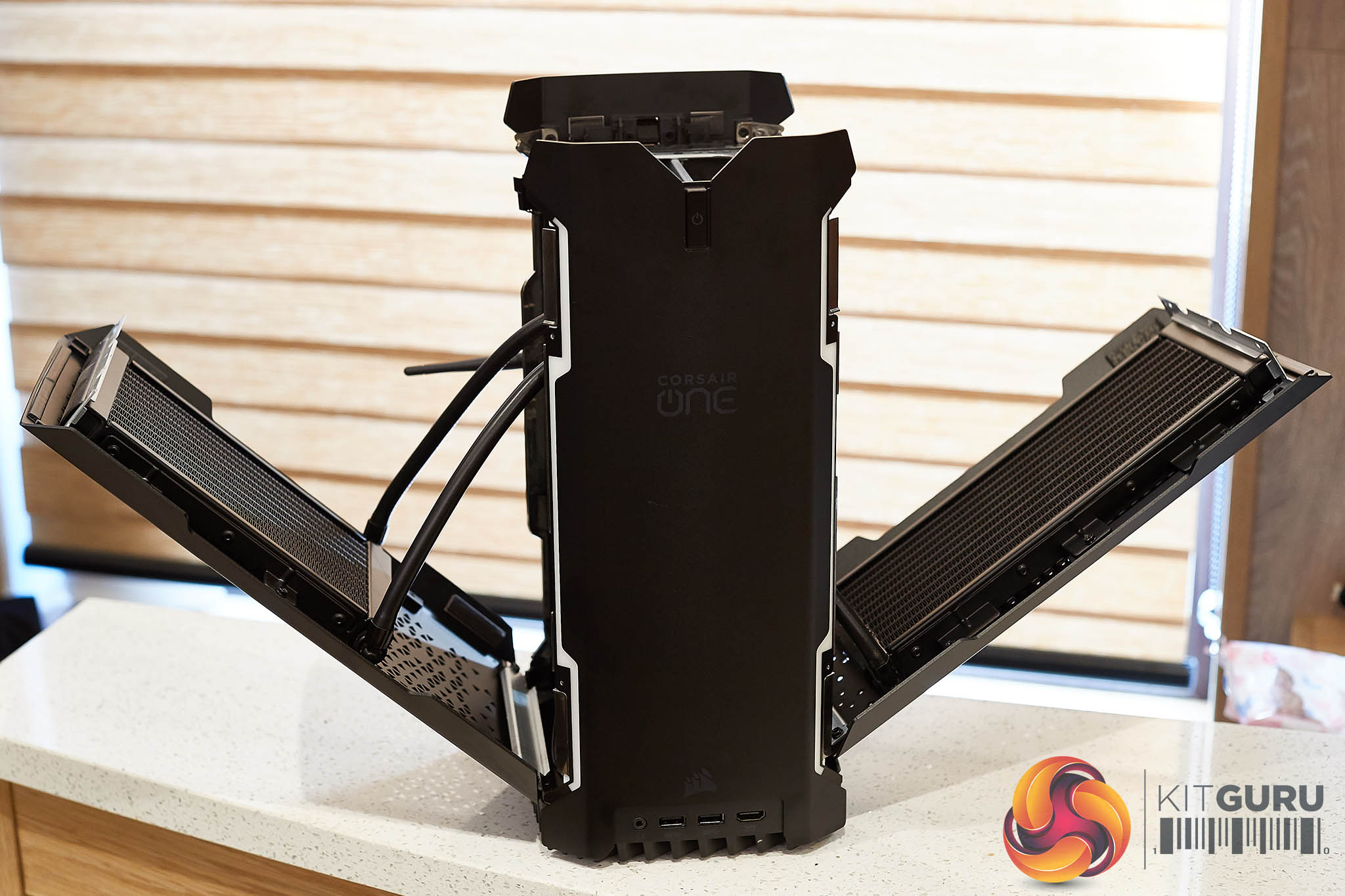
Two screws hold the side panels in place. By gently lifting the panels up a little and pulling out from the top you can get access to the main components. I really do love the look of this machine, it was why it perked my interest when Corsair announced the latest models featuring 9700k and 9900k with RTX 2080 series cards. As I get older I tend to gravitate to smaller systems for my office and gaming room – but have always had issue with the hideous noise levels normally associated with this form factor.
The RGB strips run along the sides of the chassis, and look glorious when lit up. Thankfully you get the option to turn them off in the iCue software, so if you are particularly ‘non-RGB tolerant', its not difficult at all to pretend they aren't there.
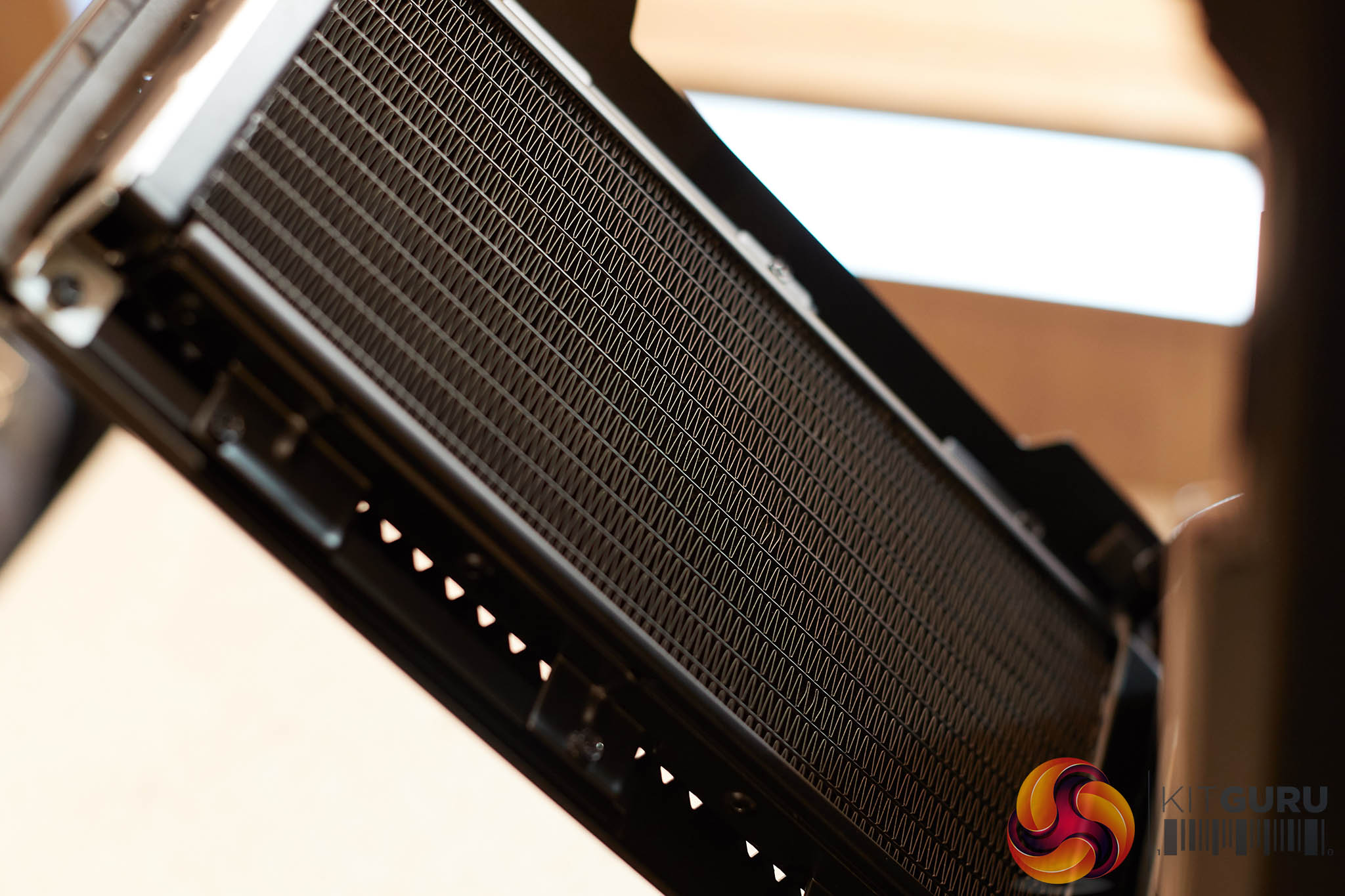
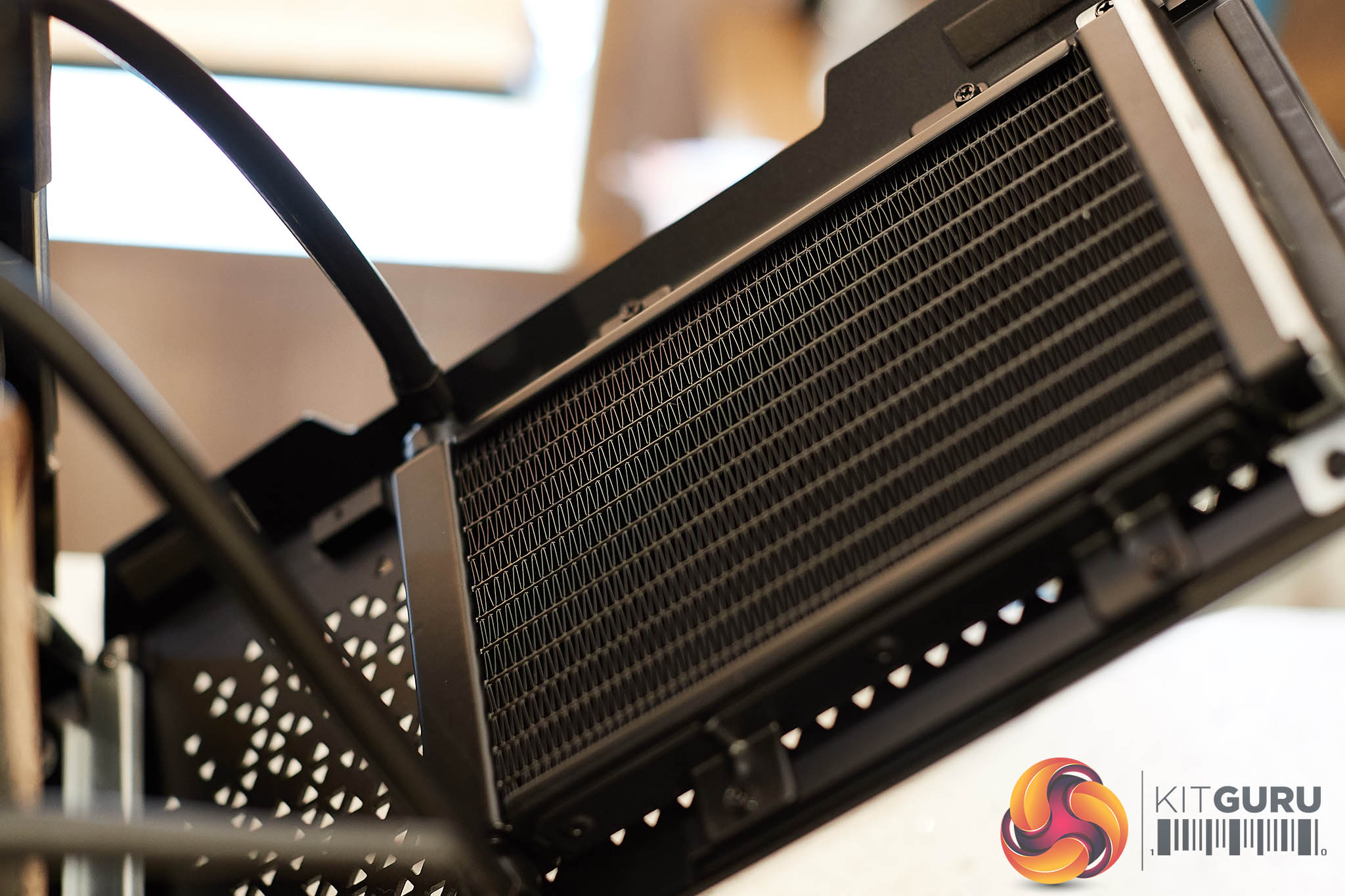
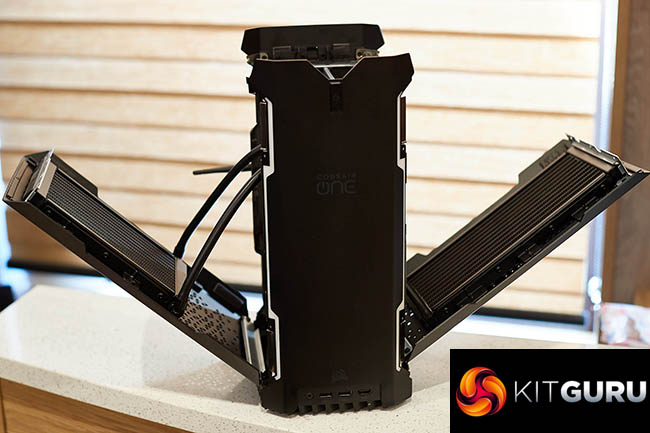
Two radiators are installed on the inside of each side panel.
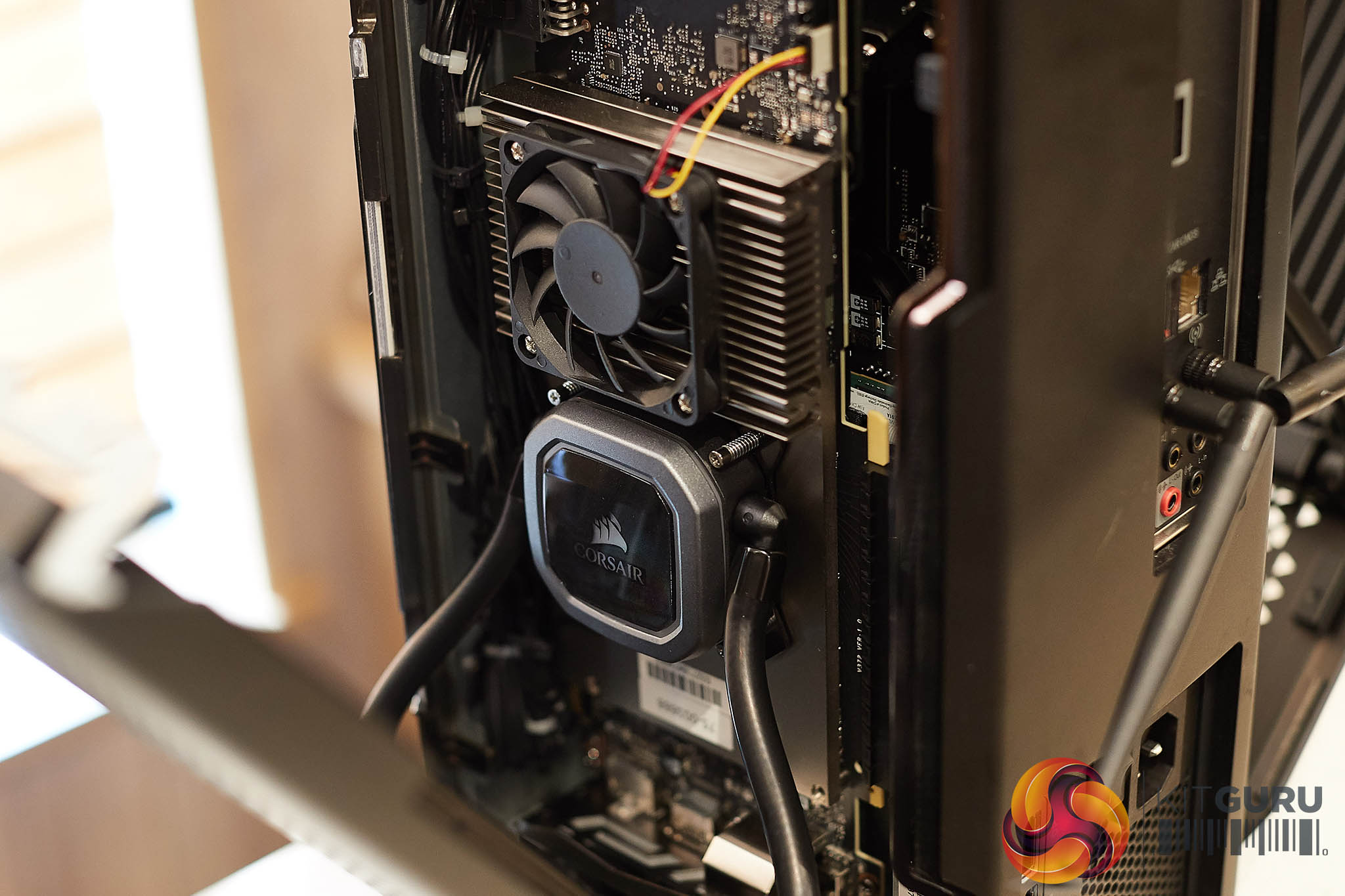
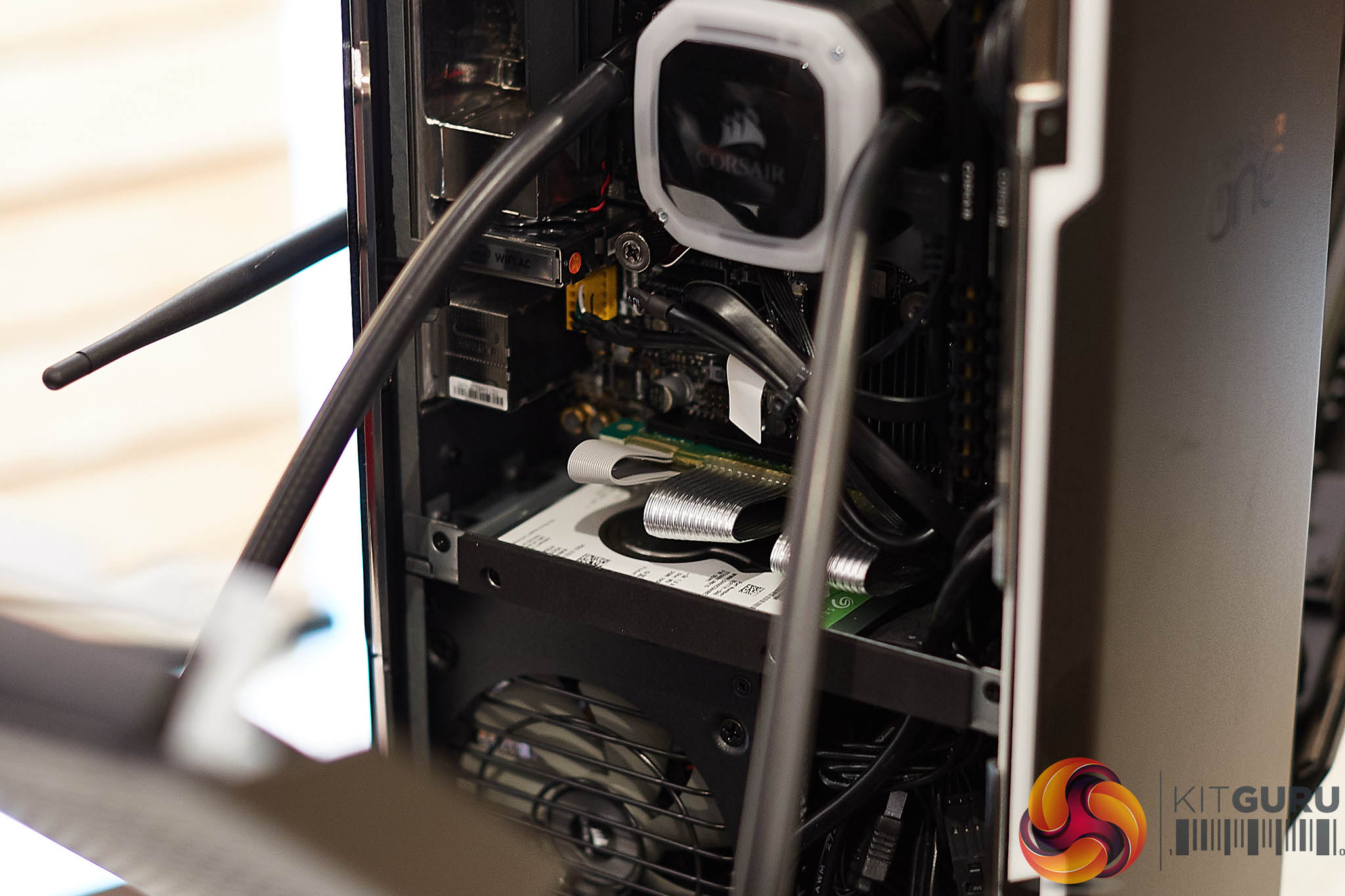
Two Corsair All In One liquid coolers are installed on each side of the system, cooling both graphics card and processor. It isn't too difficult to get access to the components, including the hard drive which is positioned between the motherboard and power supply underneath.
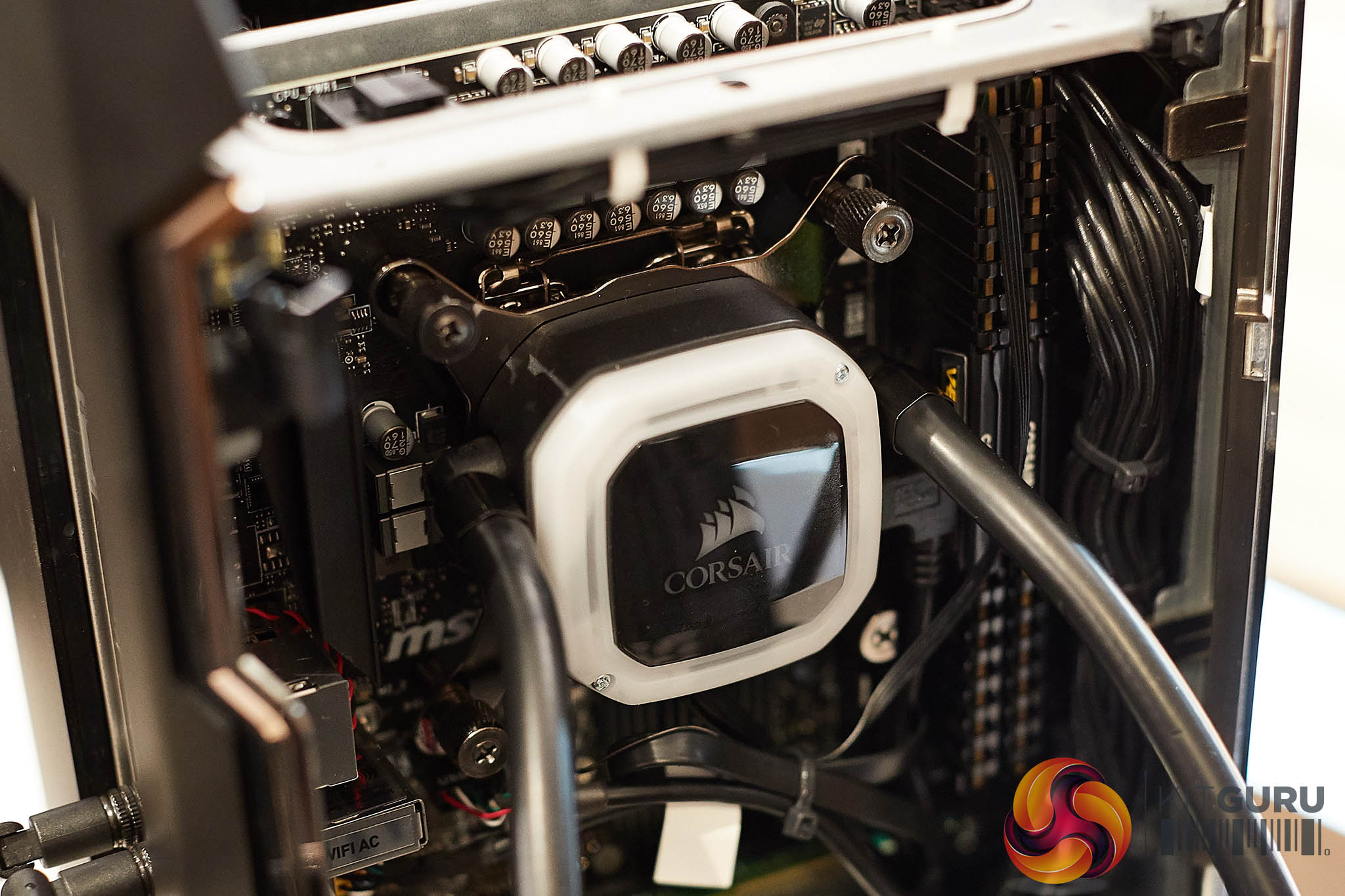
There are two 16GB sticks of Corsair Vengeance DDR4 memory installed as well – all easy to reach. Corsair do say that you can swap out components inside the machines if you wish, and i was quite surprised to see that they opted for an MSI Z370 Mini ITX motherboard, rather than say a more expensive Asus Z390 counterpart.
I also was very disappointed to note that Corsair hadn't opted for all SSD storage inside the system – a 2TB Storage drive is undoubtedly welcomed, but its only a 5,400 rpm mechanical Seagate model. For around £60 more, Corsair could have installed a 1TB basic SSD.
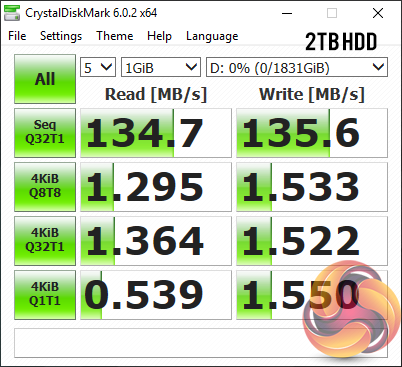
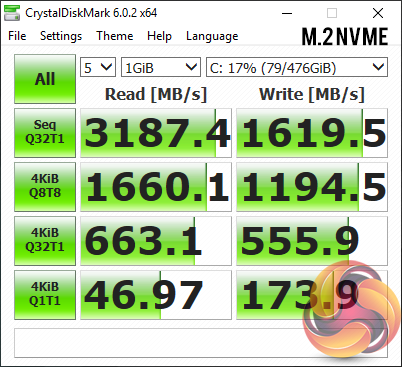
Above, performance of the two drives installed inside the Corsair One i140 and i160 systems. The M.2 NVMe boot drive is clearly very fast and means the system is responsive under all situations. Unfortunately the inexpensive Seagate 2TB 5,400 RPM Mechanical hard drive lets the side down.
Realistically most people will be wanting to install STEAM and other game libraries on the 2TB storage drive, but it does not make for a good experience at all. I found that when downloading STEAM games to this drive, it was slowing down the install procedure. After all, these game installs often require on the fly decryption. I was using a 500MBIT Virgin Media business optical connection and the 2TB drive made it all such a painful ordeal.
Ideally you will want to swap this drive out for a fast SSD, or just use it a backup drive for pictures, documents and archived driver installers, and use an SSD over a USB3 or USB C external enclosure, like I did for this review. It really makes a huge difference to the overall experience.
It is such a shame Corsair didn't opt for a slightly more expensive 1TB SSD for the storage drive (Around £50-£60 more). As we will find out during the review, it proved to be my biggest issue with both systems.
Windows 10 comes preinstalled on the Corsair One, and it is just a simple procedure of going through the initial setup before being able to get things customised to your liking. Its not different to any other system setup.
Both the Corsair One i140 and i160 Systems were supplied with different versions of the BIOS from a few months ago, so I updated both via a flash drive to the latest 2QJ BIOS recently released by Corsair on 06/05/2019 and available on their website HERE. This offers numerous performance fixes.
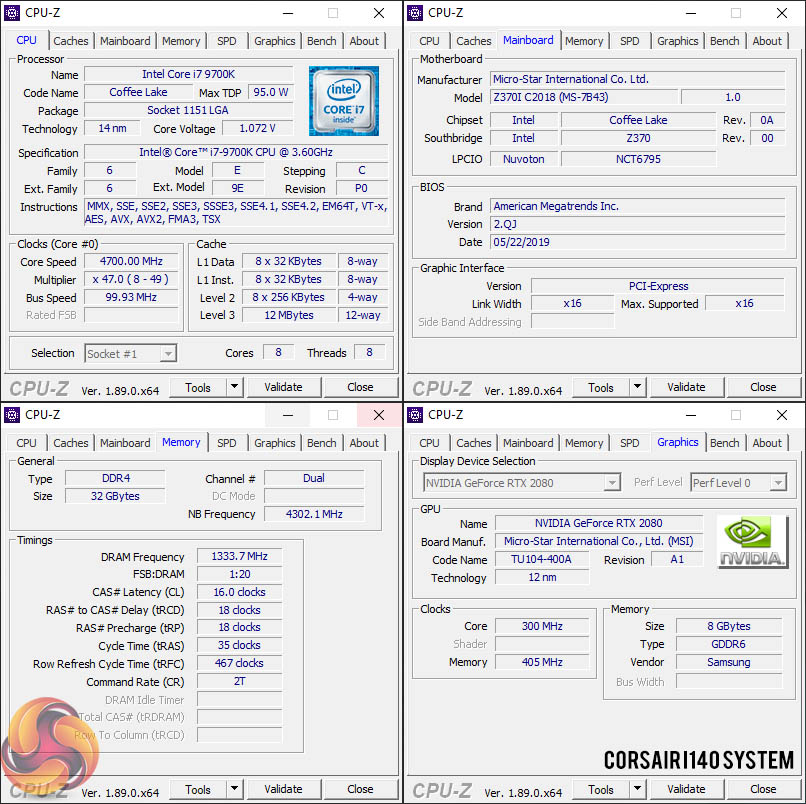
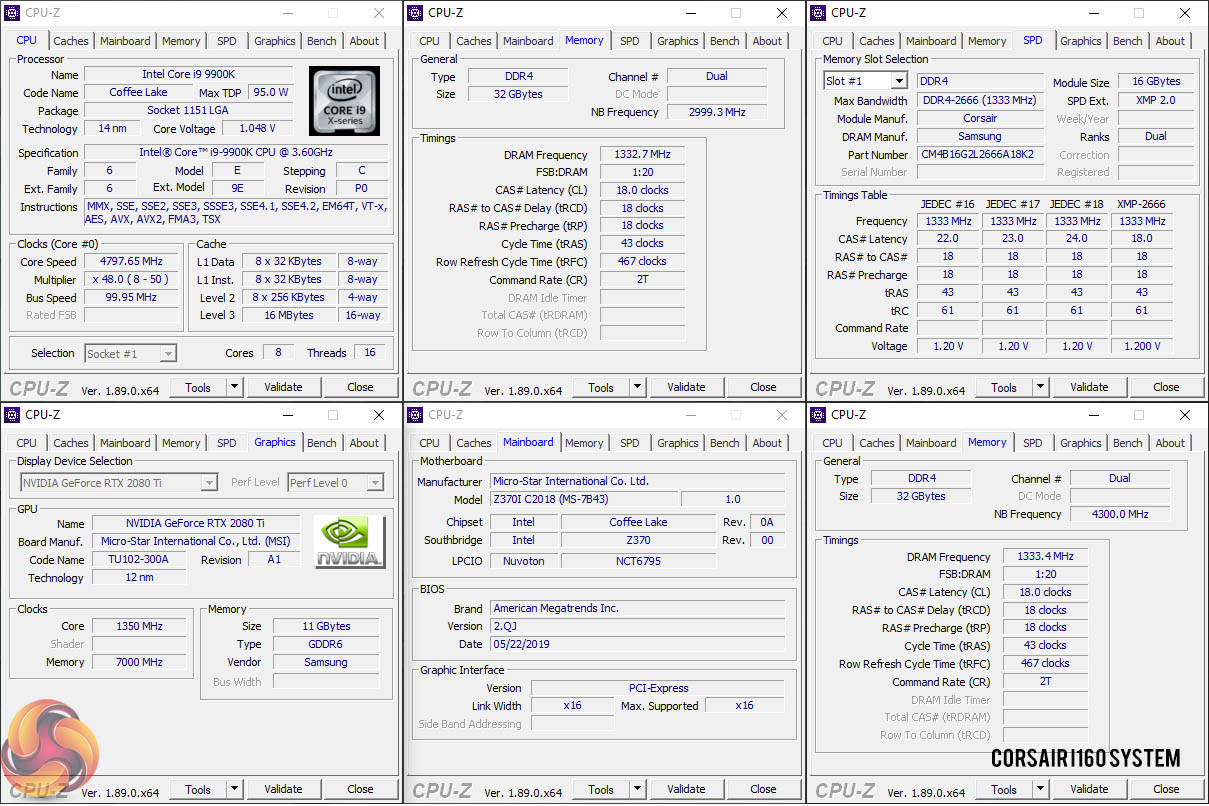
We can see that Corsair are clearly in a close partnership with MSI, using their Z370I C2018 board (MSI 7B43). I have actually already got a custom small form system at home using this board, and it has been rock solid for me. I am however a little surprised that Corsair didn't opt for one of the slightly more expensive Z390 Mini ITX boards from ASUS, but it isn't really a huge concern for me to be honest as I know this board is really solid.
Corsair are using two 16GB DDR4 memory sticks in dual channel for a total of 32GB – these are Vengeance sticks from their own range (not a surprise lets be honest!). The memory is running at 2666mhz with 18-18-18-2T timings. Both RTX 2080 and RTX 2080 ti are also manufactured by MSI and are using Samsung GDDR6 memory in 8GB and 11GB configurations respectively.
I won't be delving into a deep dive on any of the hardware in these systems, as we have covered them many times before in great detail – so check out these reviews if you wish to learn more. Intel i9 9900k review HERE, Nvidia RTX 2080 Founders Edition review HERE, Nvidia RTX 2080 ti Founders Edition review HERE.
As I mentioned earlier in the review the latest Corsair One designs incorporate full RGB lighting – rather than just simple blue strips which were installed in previous models. While RGB is seen by many as dominating the industry right now, i actually think it really works well in this system. There are many modes of colour schemes you can use and if you don't like any of them or are working at night and find it a distraction you can turn it all off completely.
Corsair iCue software has developed from a rather buggy piece of software into a rock solid highly customisable suite that is a pleasure to use.
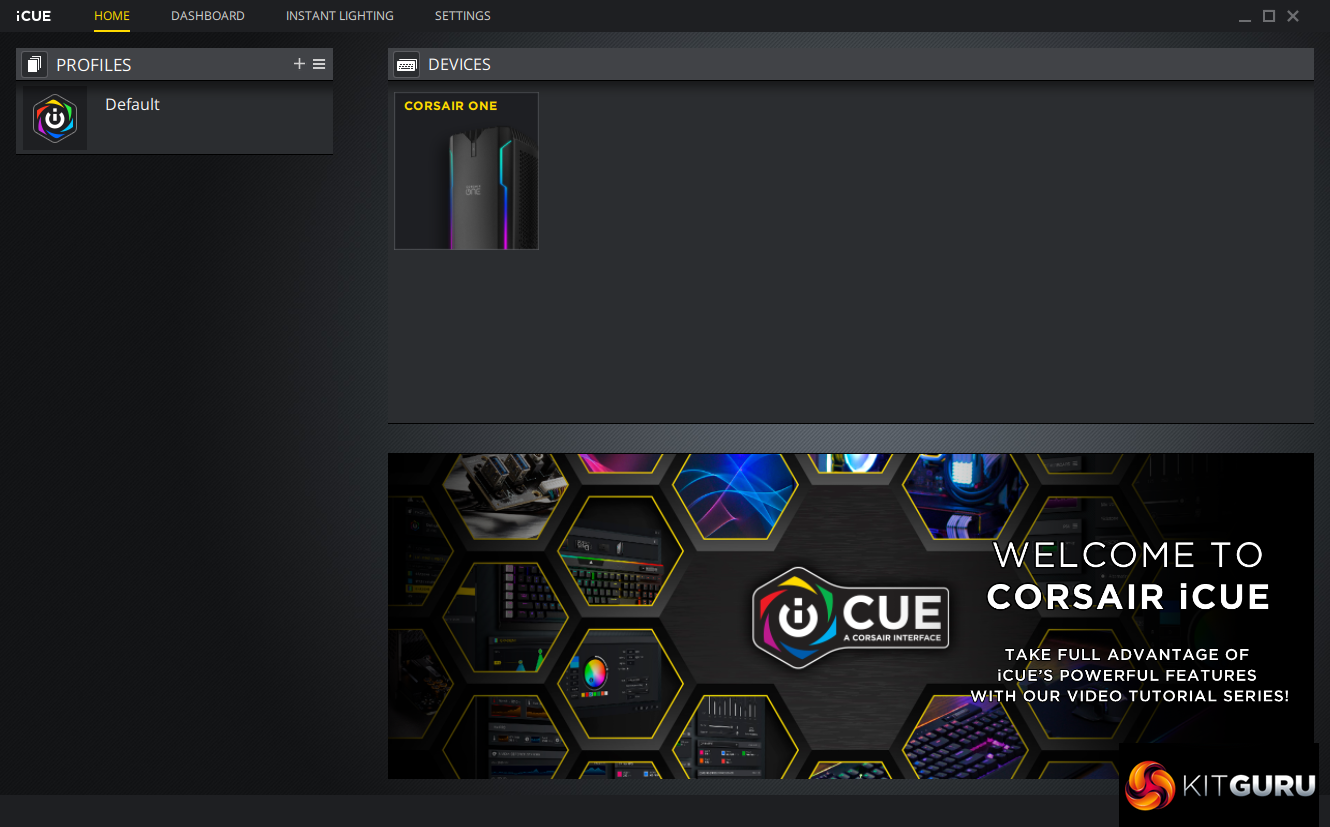
The software is easy to navigate and the Corsair One shows up immediately under devices.
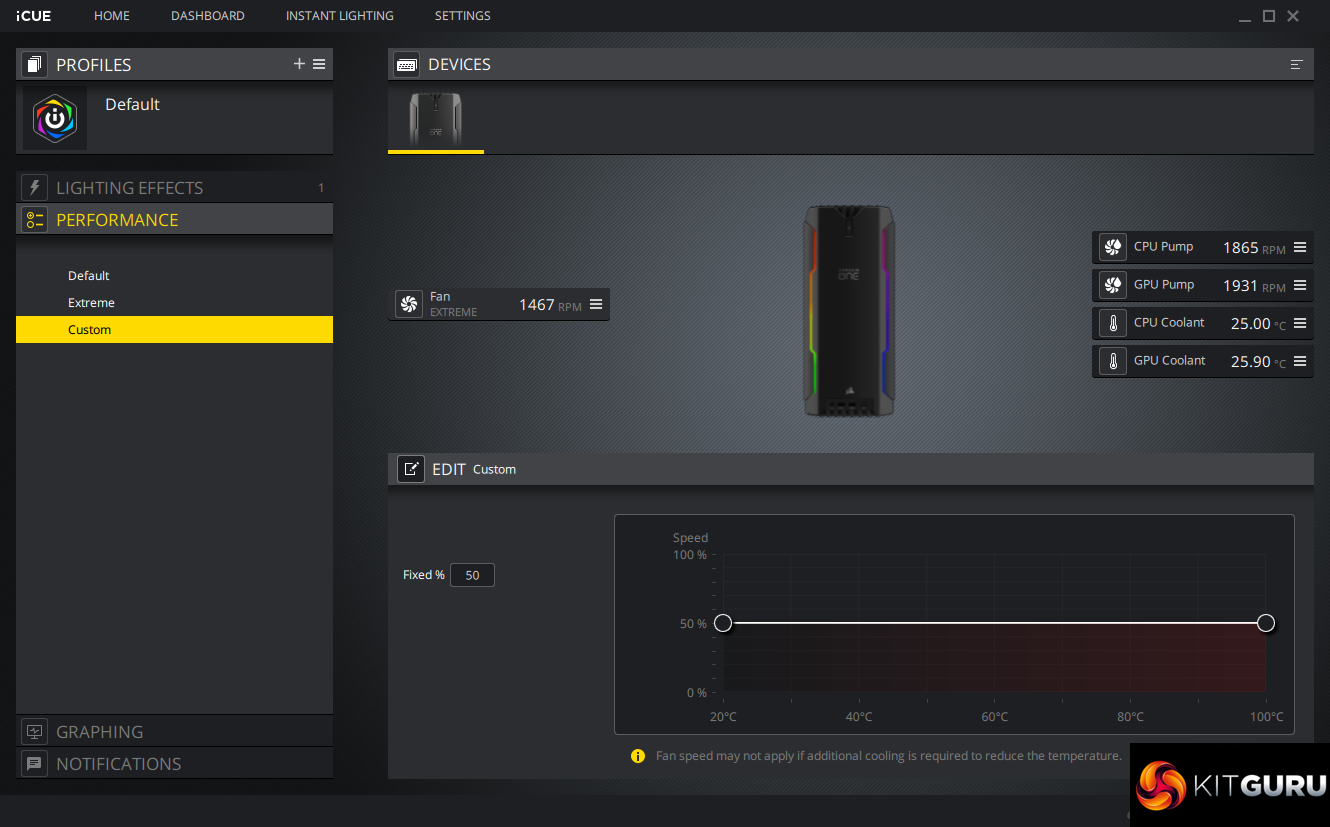
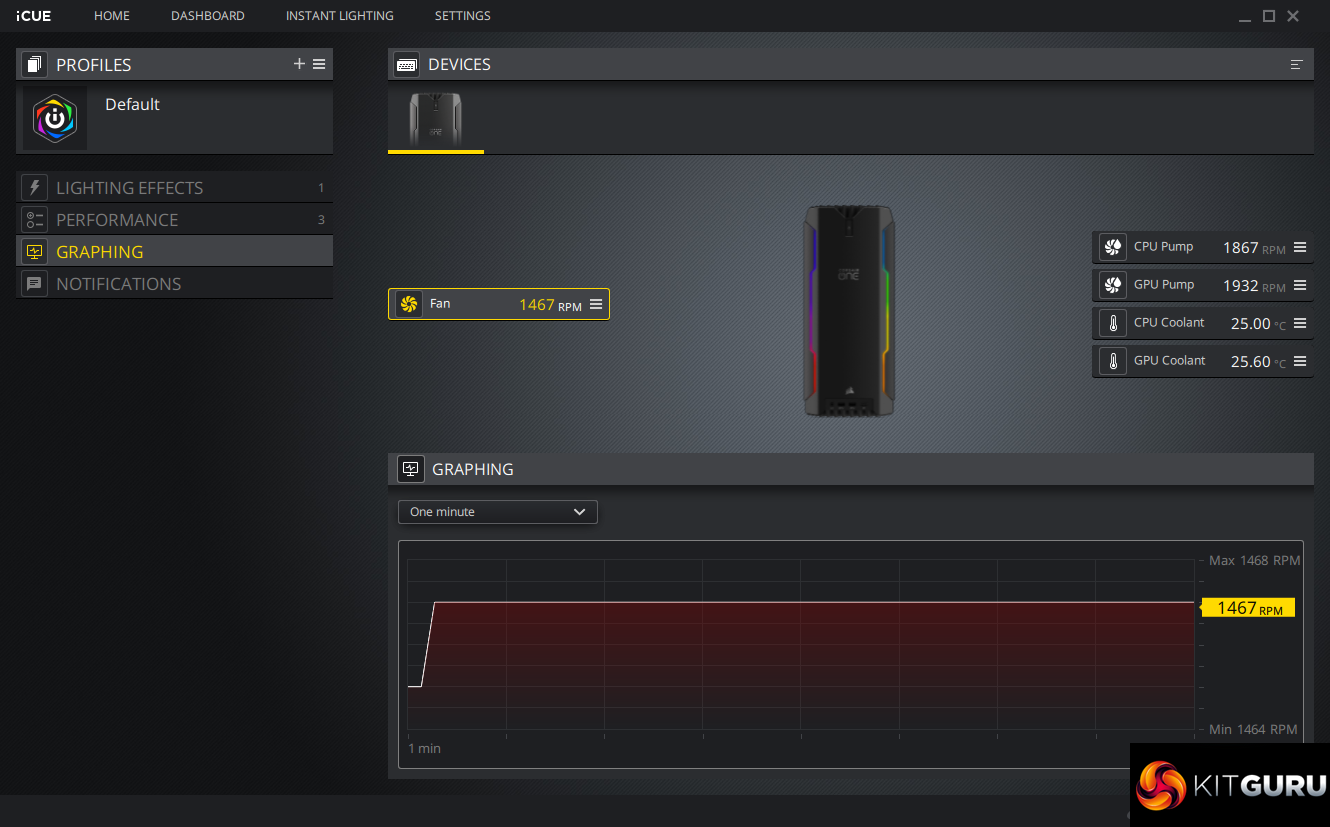
The main panel of interest is the Performance section which lets you customise the top exhaust fan speed. At ‘Default' Corsair have set the fan up to be as passive as possible. Under low and moderate load conditions the fan will not spin up at all, which might be concerning considering the high end hardware inside. The ‘Extreme' setting, pushes the fan to full speed settings – around 1,500 rpm.
There seems to be some confusion online about the custom setting. This is what it does – You can change the setting from 0-100% , but this is only the minimal speed setting. So for instance if you set it to 50%, you would be running at just under 800 rpm rather than the default setting – which turns the fan off. When the temperatures rise the fan will automatically increase above this minimal point regardless.
iCue can update itself in the setting menu – which it has done several times during my testing of these systems. Corsair are active on updating their software packages, which is always reassuring to see. There is a ‘Corsair One' firmware style update option in here, but it doesn't work – you need to download the BIOS from the Corsair support site and update it via a flash drive on post. Its pretty straightforward via the MSI motherboard and only takes a couple of minutes.
It is worth mentioning that it is possible to change the top exhaust fan in the Corsair One, and if you are happy living with a little more noise, the CO-9050045 Levitation Fan – otherwise known as the ML140 Pro is a good option – it is around £20 from Amazon right now. It has a maximum fan speed of 2,000 rpm, so additional cooling performance gains can be achieved, especially if you plan on running in an overclocked state all the time. More on this later in the editorial.
We test in an air conditioned room , with temperatures held at 22c at all times. We test with the Corsair One fans set to ‘default' and then ‘extreme' (which runs at full speed of 1,500 rpm). We loop Cinebench R20 10 times to get the maximum temperature. We run 3DMark several times to record temperatures for the RTX 2080 and RTX 2080 ti cards.
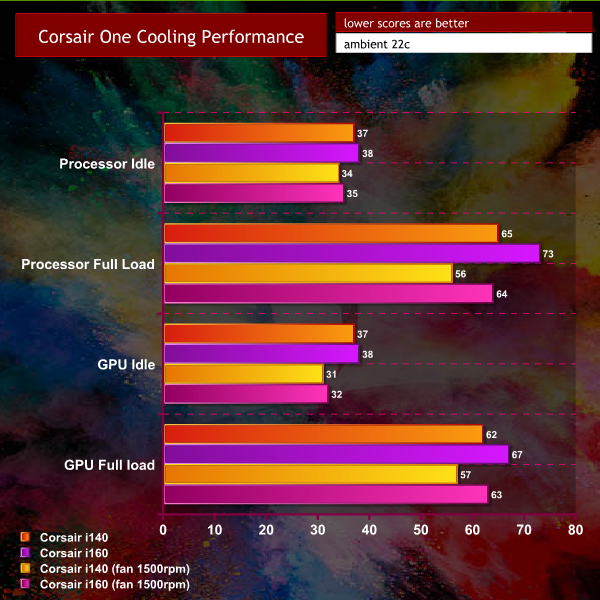
We noticed a couple of performance changes with the latest MSI motherboard BIOS – for the better. Load temperatures for both 9700k and 9900k hit 65c and 73c respectively. Putting the fan to the maximum 1,500 rpm setting reduces these to 56c and 64c respectively.
The cooler for the RTX 2080 and RTX 2080 ti performs very well indeed. Temperatures peak at 62c and 67c respectively. Cranking the fans to full speed drops temperatures to 57c under load for the RTX 2080 and 63c for the RTX 2080 ti.

At default performance settings, the fan doesn't spin up much at all, averaging around 31dB – its very quiet, even when gaming. Cranking the fan to 1,500 rpm creates more noise, but its still actually quite quiet – averaging around 37dBa according to our meter – measured from 3 feet away from the top of the case.
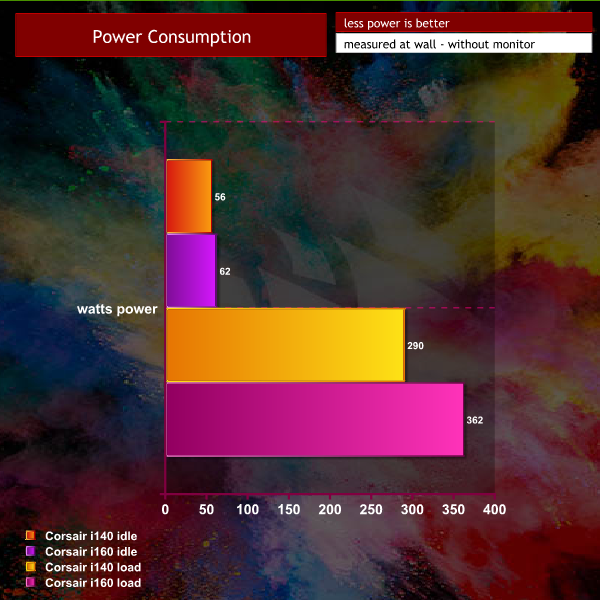
At the wall, the systems are quite efficient when idle, demanding around 60 watts each. Under load, the power demand rises to 290 watts for the i140 and 362 watts for the i160. The 600 watt SF600 will be in the peak efficiency zone when both systems are under full load.
G-SYNC and V-SYNC are disabled for all game benchmarks. Highest image quality settings are used. Resolution was set to 3440 x 1440 @ 120hz on the Alienware 3418DW 34 inch curved Ultrawide monitor.
FAR CRY NEW DAWN
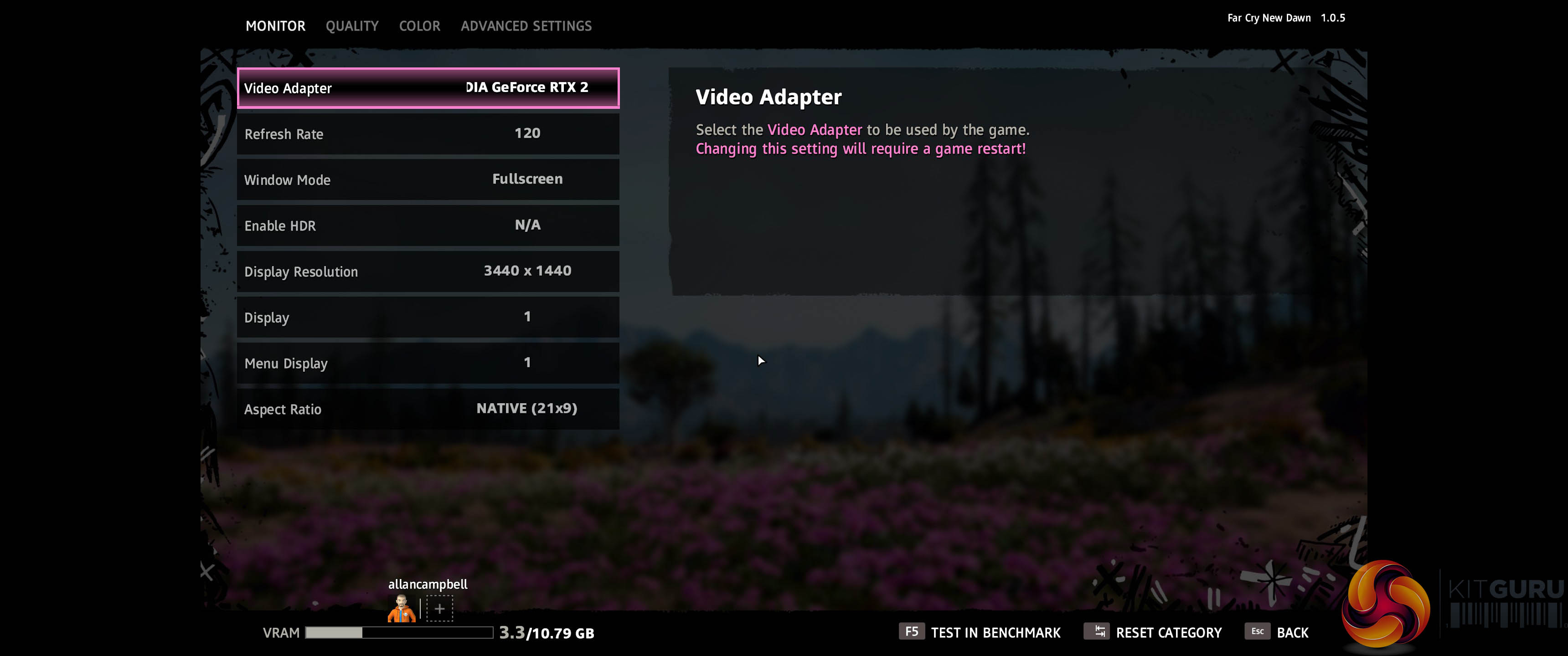
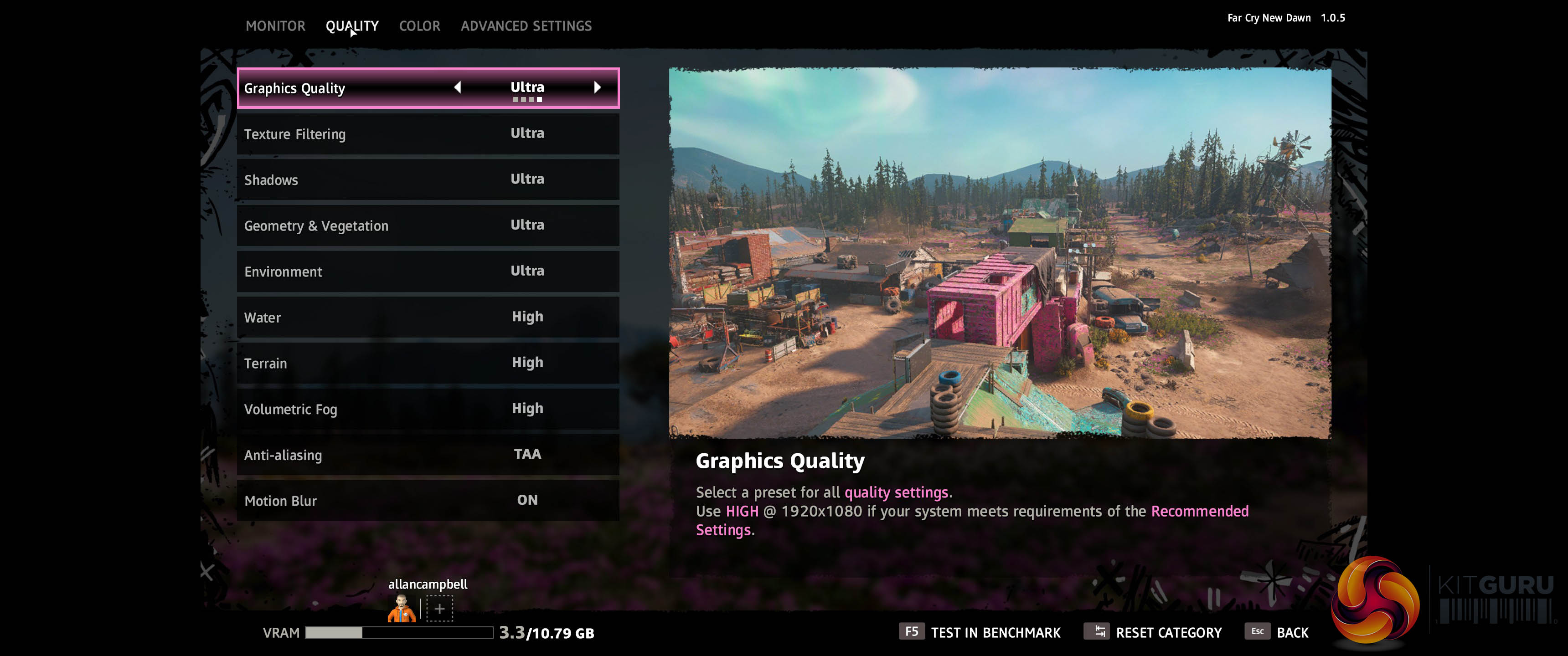
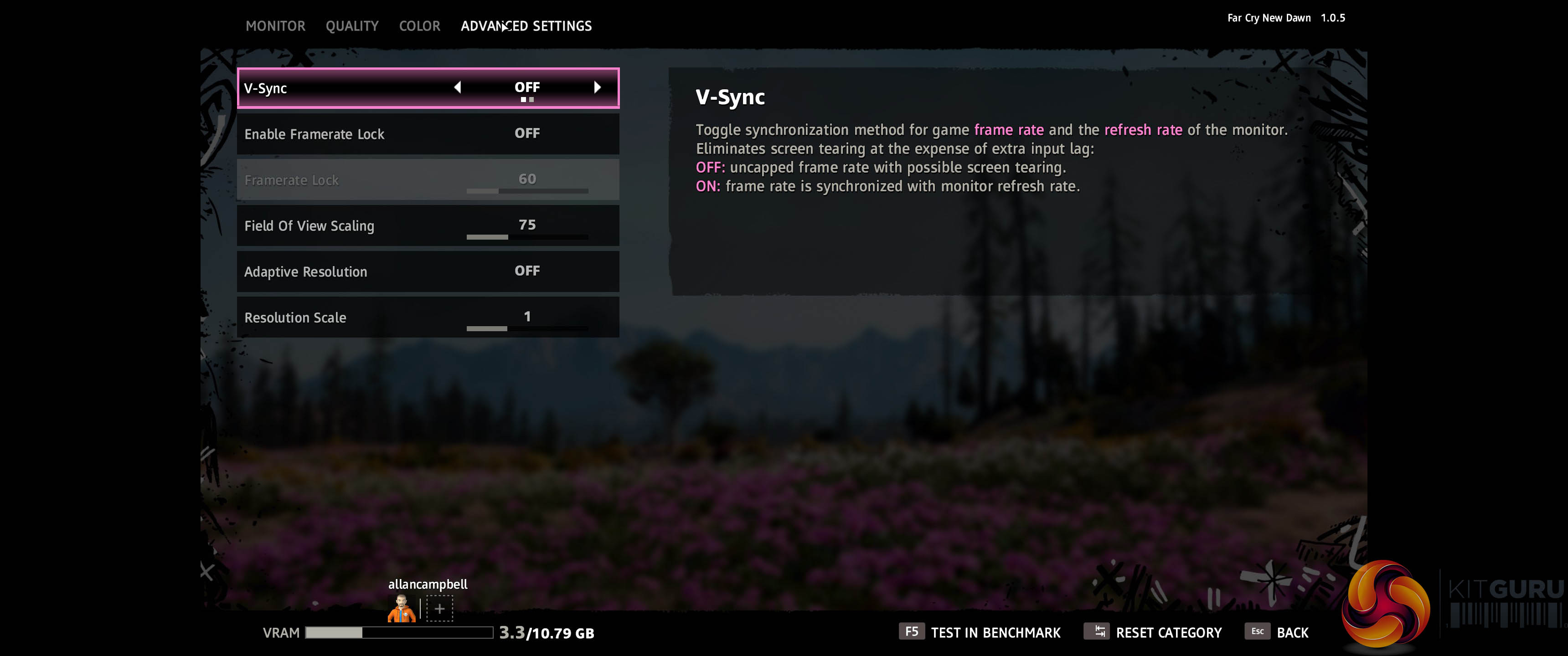
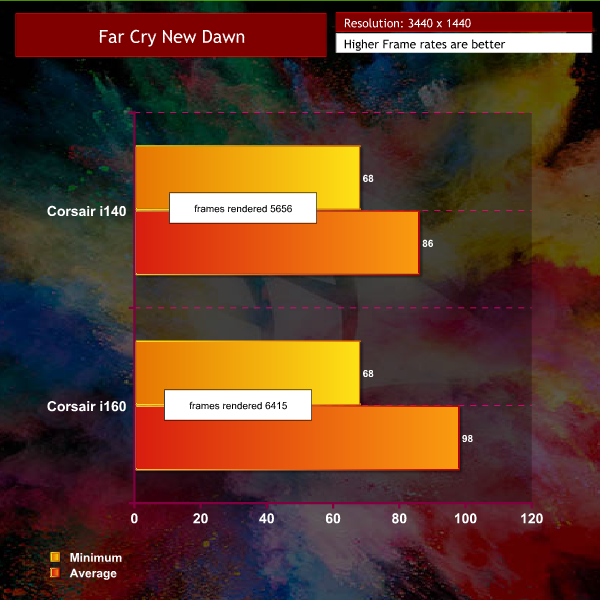
Both systems are able to maintain well over 60 frames per second at all times. For the high refresh 120hz monitor however, the 2080 ti system is able to hold figures closer to 100 fps at all times. In real world gaming terms it would be hard to tell the difference to be honest – although I would normally be running with G-SYNC turned on anyway.
SHADOW OF THE TOMB RAIDER
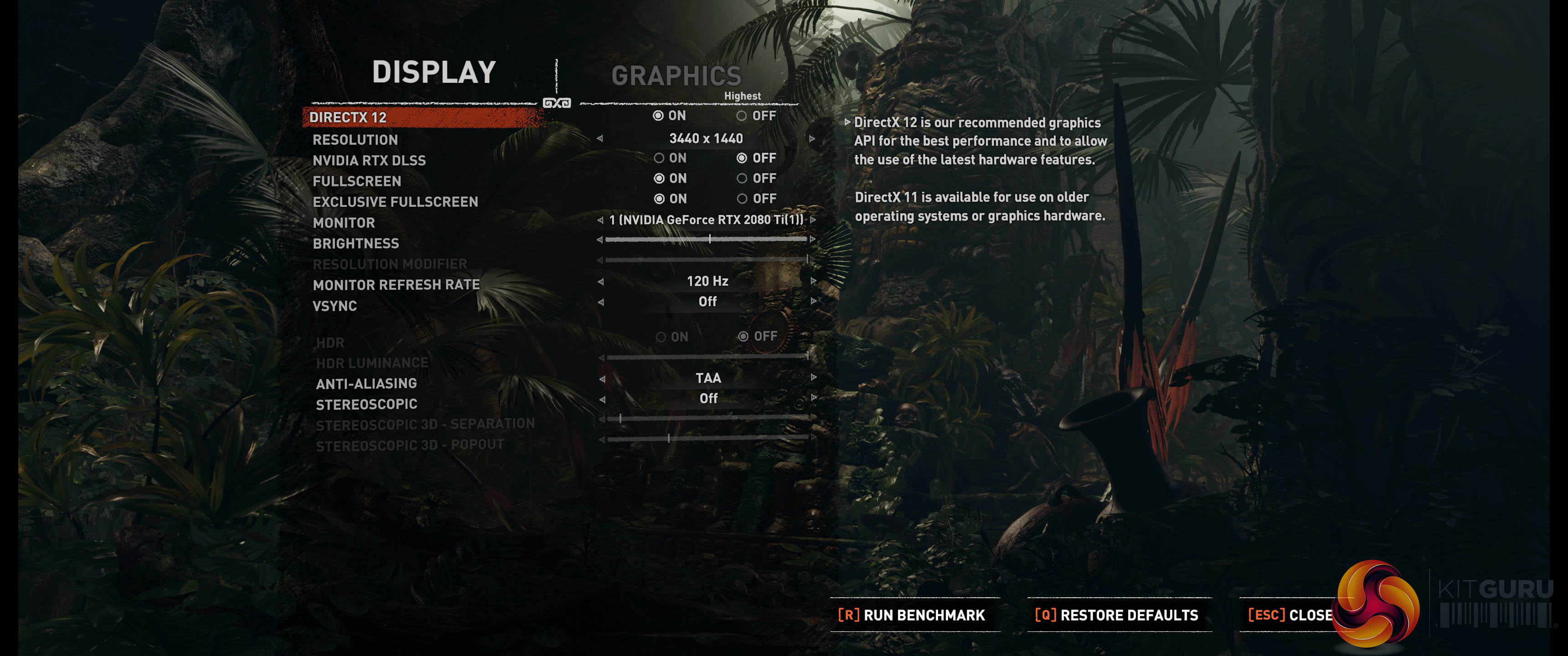
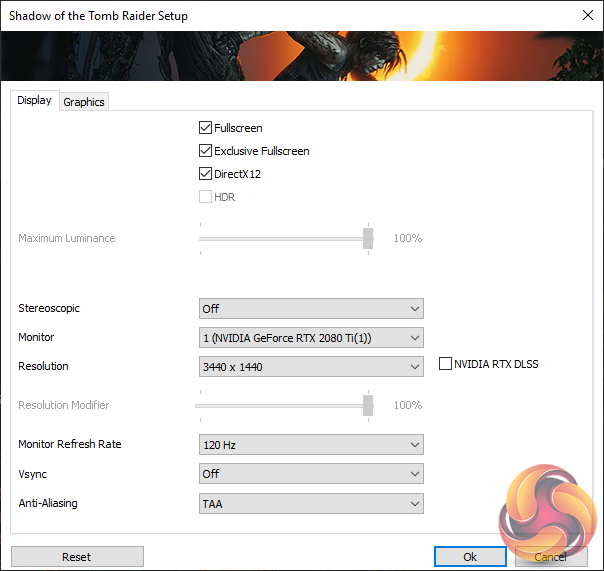
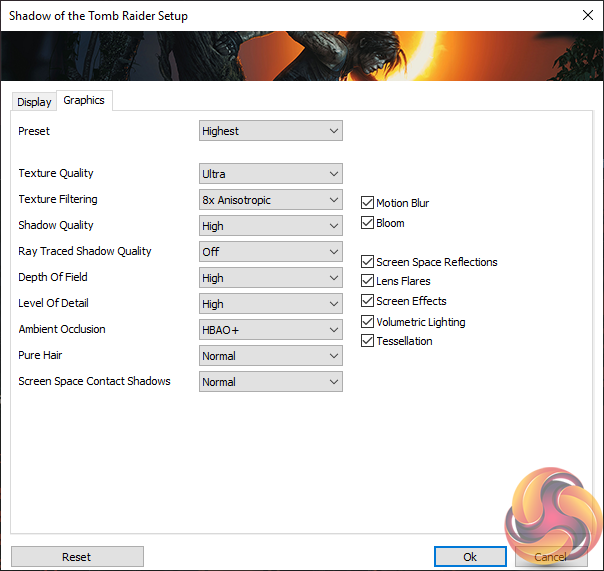
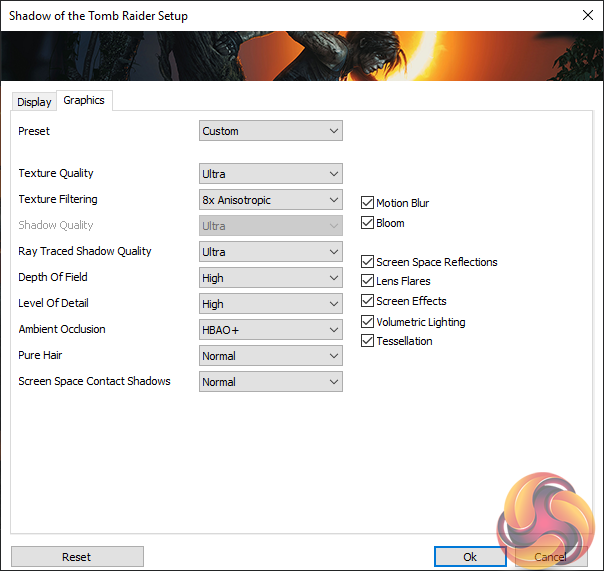
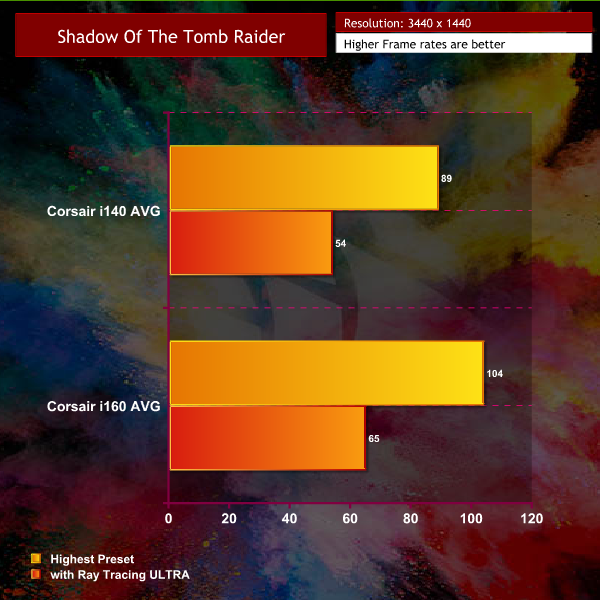
With the image quality settings on full, the RTX 2080 is able to hold an average frame rate close to 90. The RTX 2080 ti is able to push close to 105.
With RTX Ray Traced Shadow Quality set to ULTRA – the frame rate drops significantly – not an issue really on a 60hz monitor, but we want to try and get the frame rates as close as possible to 120 for the maximum gaming experience with this particular monitor.
METRO EXODUS
We test with the benchmark running at HIGH, ULTRA and EXTREME settings.
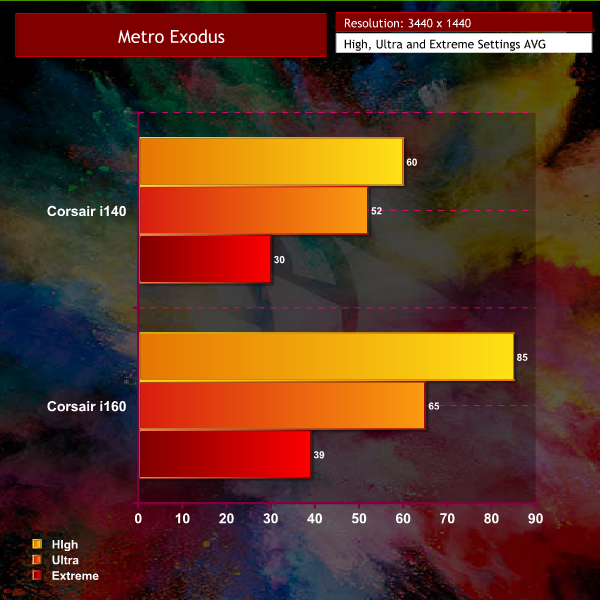
This is a very demanding engine at the default benchmark settings, not entirely indicative of real world gaming to be honest.
I decided to run more of a ‘Real world' test by using the high profile, but turning off Hairworks, and Advanced PhysX.
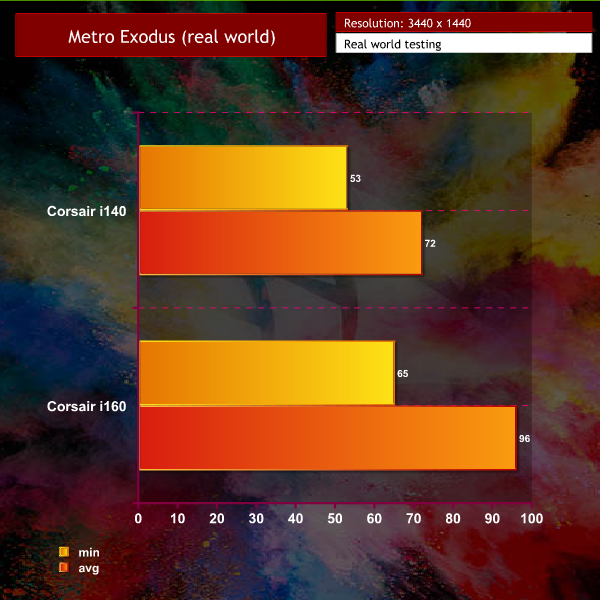
A much smoother experience and noticeably better to play on the Corsair i160 with RTX 2080 ti. If you are using a 60hz monitor, the RTX 2080 ti keeps above this sweet spot all the time.
WORLD WAR Z
All of the ingame settings were set to maximum at 3440×1440.
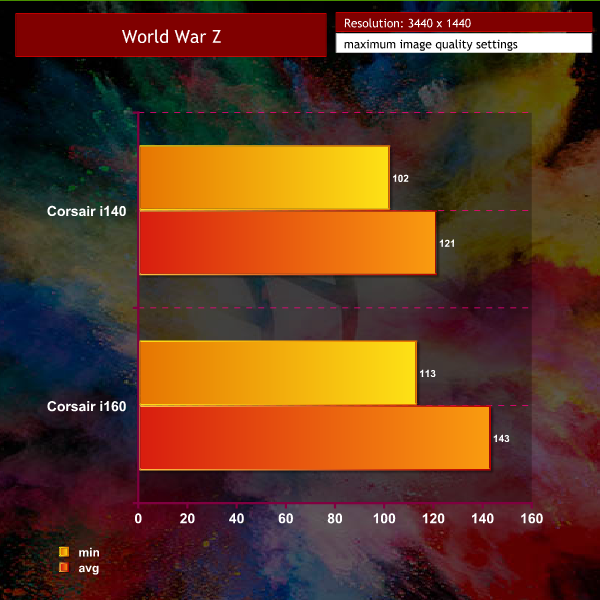
This isn't a particularly demanding engine with the Corsair i140 with RTX 2080 able to hold a frame rate over 100 at all times. The Corsair i160 with RTX 2080 ti pushes an average of over 140 frames per second and can maintain close to 120frames per second at all times. Super Smooth in the real world.
TOTAL WAR: THREE KINGDOMS
We set image quality to the maximum – the ingame ULTRA profile.
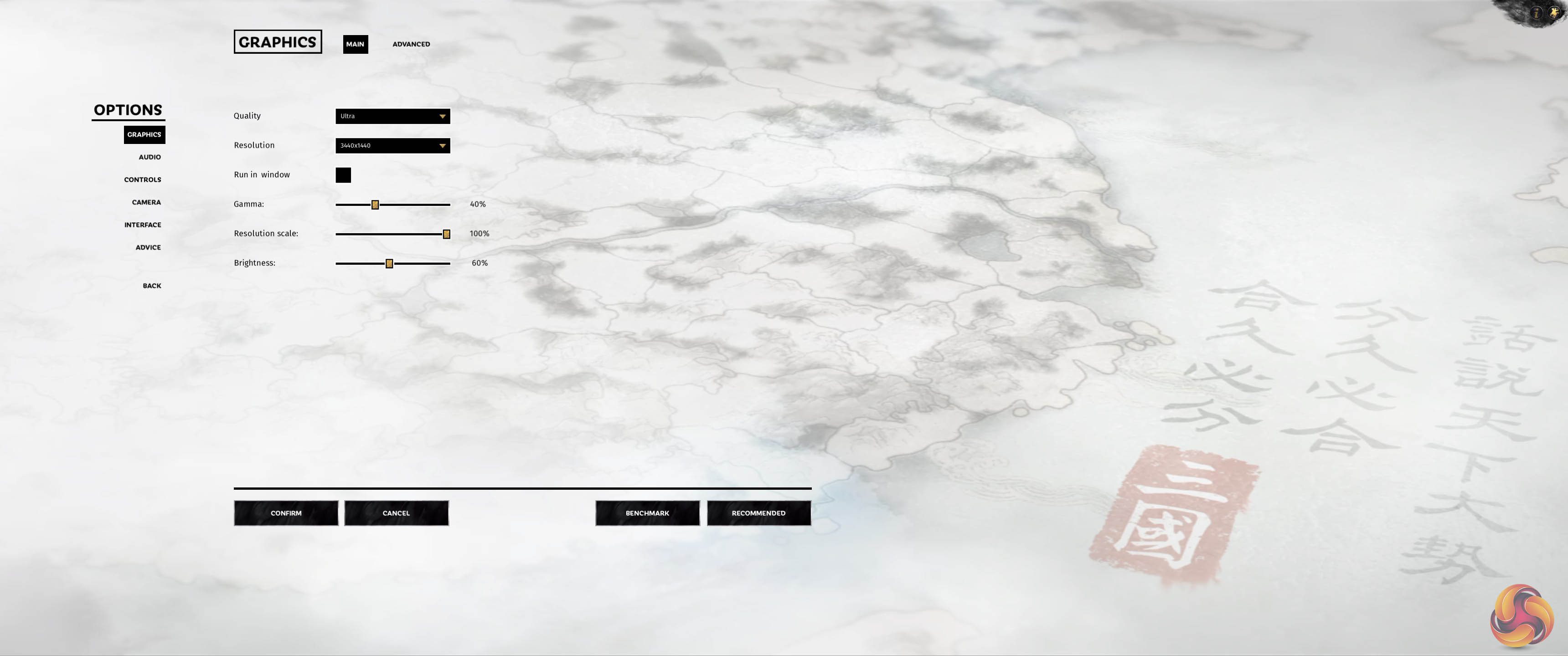
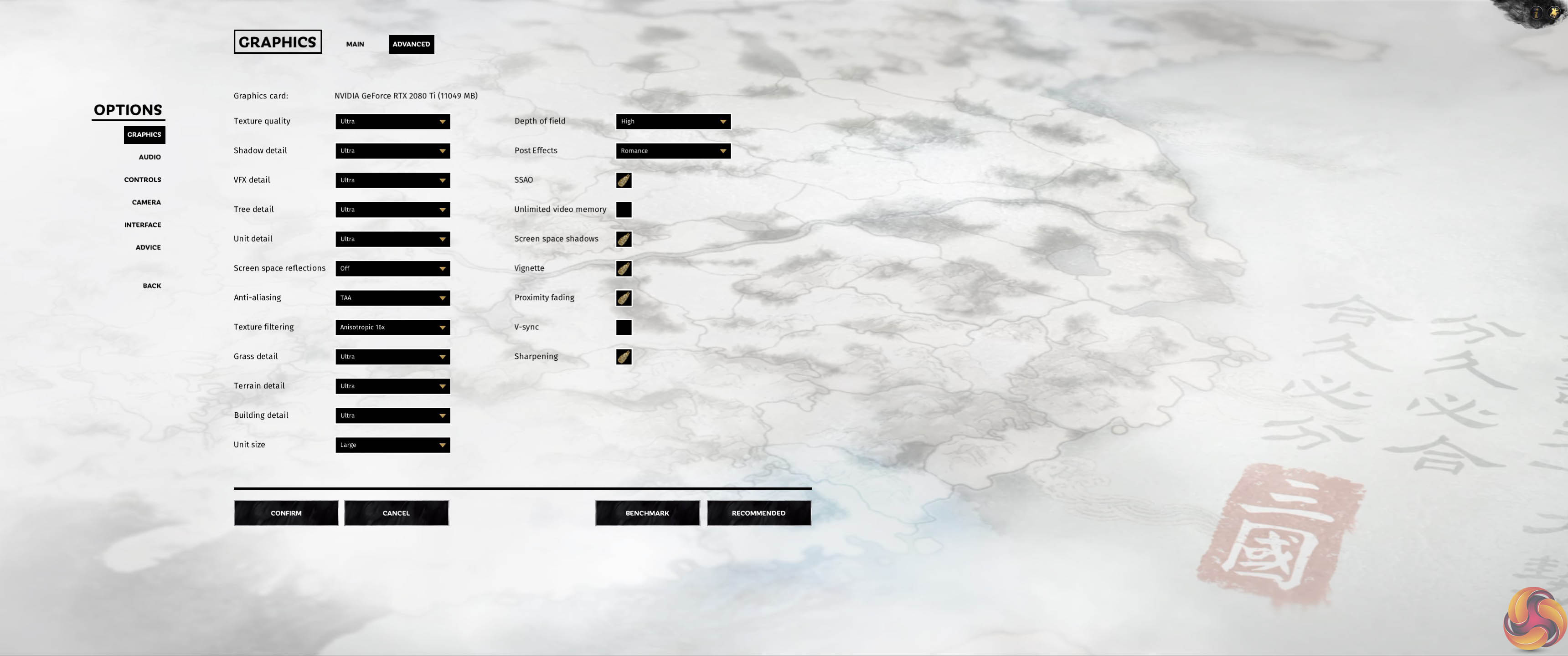
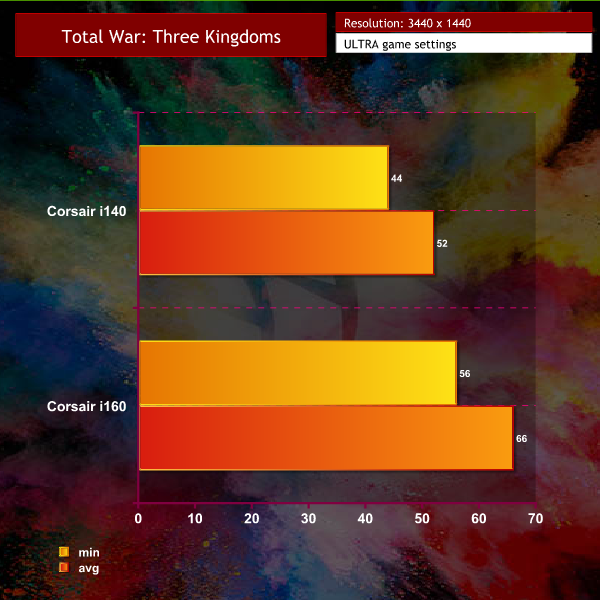
Another demanding game which would require lower image quality settings to get closer to 100fps. Still the RTX 2080 ti system maintains an average over 60 which is impressive.
DEUS EX: MANKIND DIVIDED
We are using the very high preset.
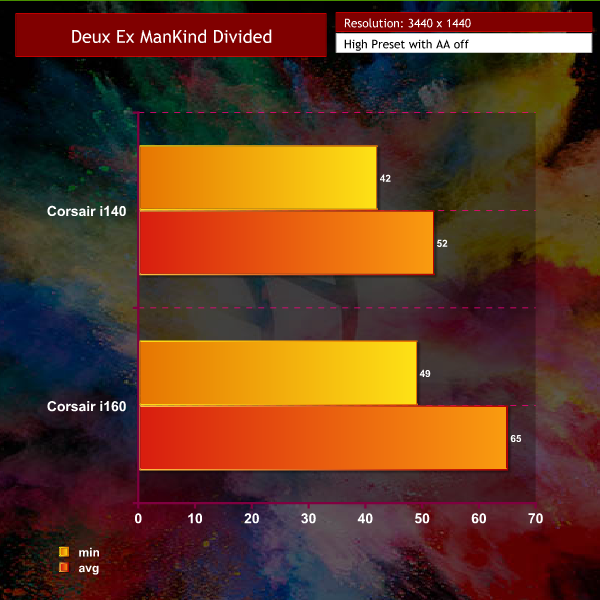
Strong all round performance at such taxing settings – still a demanding game three years after it was released.
If you are anything like myself, there will always be the temptation to push hardware a little further. In saying that, we need to be careful pushing such hot running hardware to the limits in such a restricted chassis.
The MSI bios is not the greatest for overclocking these processors to be honest and we were only able to push the hardware around 200mhz higher than default and it took some time playing with both processors and settings to remove TDP limits while ensuring the voltage remained within safe limits. I was able to push the 9700k to 5ghz but it was running a bit hot for my liking to keep 24/7. Even at full fan speed the CPU would hit high 80's under load. I would have some concerns long term and its not worth the risk for me.
At around the time i was finishing up this review last week, Intel released their new Performance Maximiser software tool which currently only works with a handful of processors. While it stated that it would only work with a Z390 motherboard, we gave it a shot with this MSI Z370 board.
The iCue EXTREME fan profile was adopted for all of this testing.
Overclocking the 9700K and 9900K
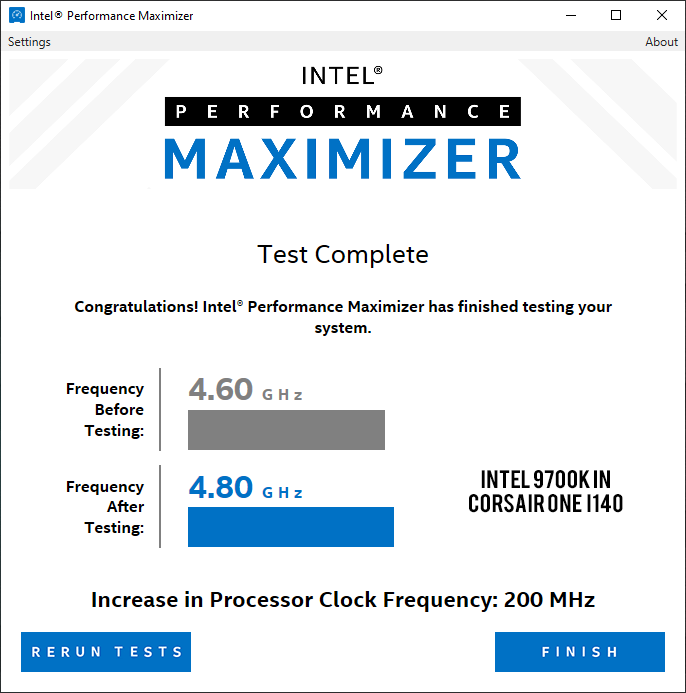

Intel's new Performance Maximiser tool creates a 16GB partition on one of the main hard drives, and it takes around an hour to run, rebooting over 20 times while adjusting settings to find out limits. It doesn't actually touch the MSI bios – creating software changes which are implemented when you boot up and start into Windows 10.
Both systems hit a maximum clock speed of 4.80ghz (the Intel tool in DOS said 4.87ghz and 4.89ghz for the 9900k and 9700k respectively). The core voltage was increased to around 1.25 in both instances. Well within safe parameters.
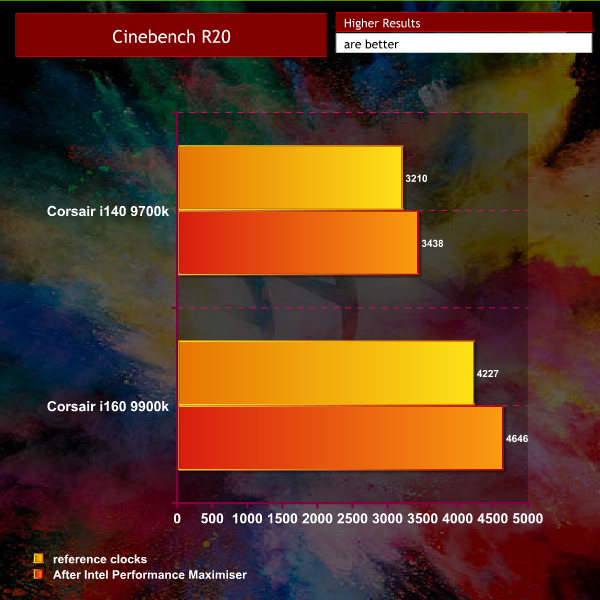
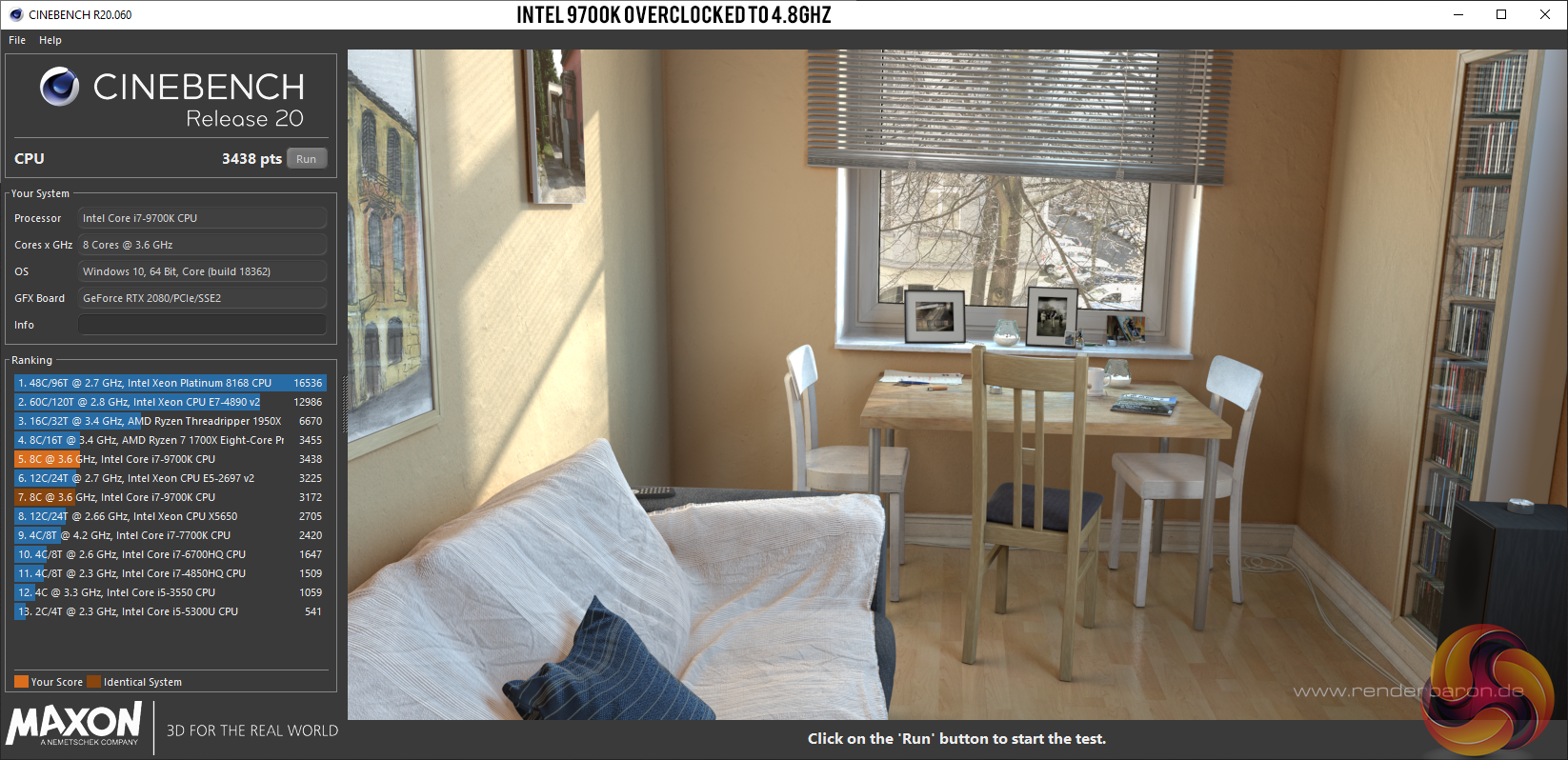

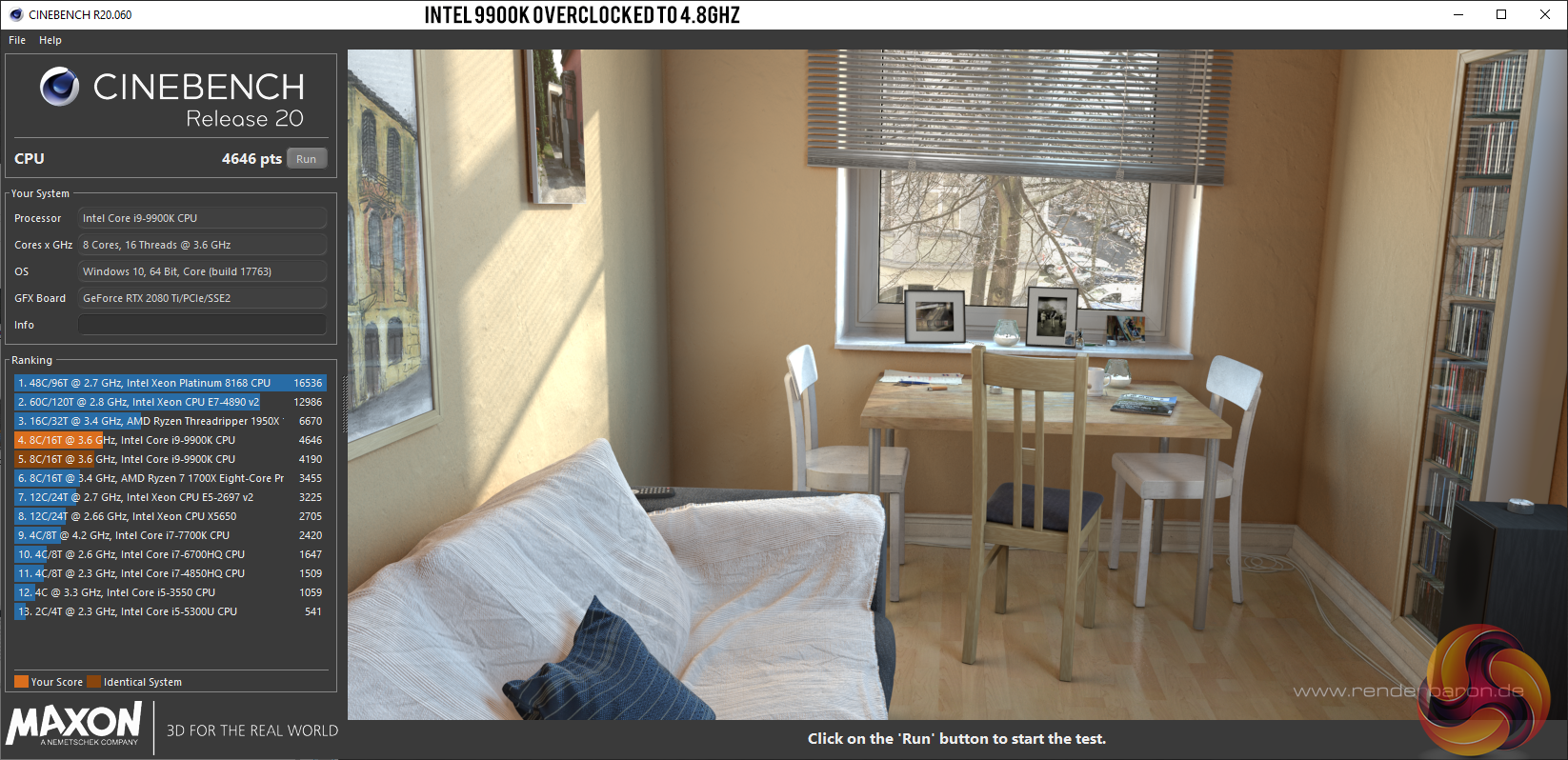
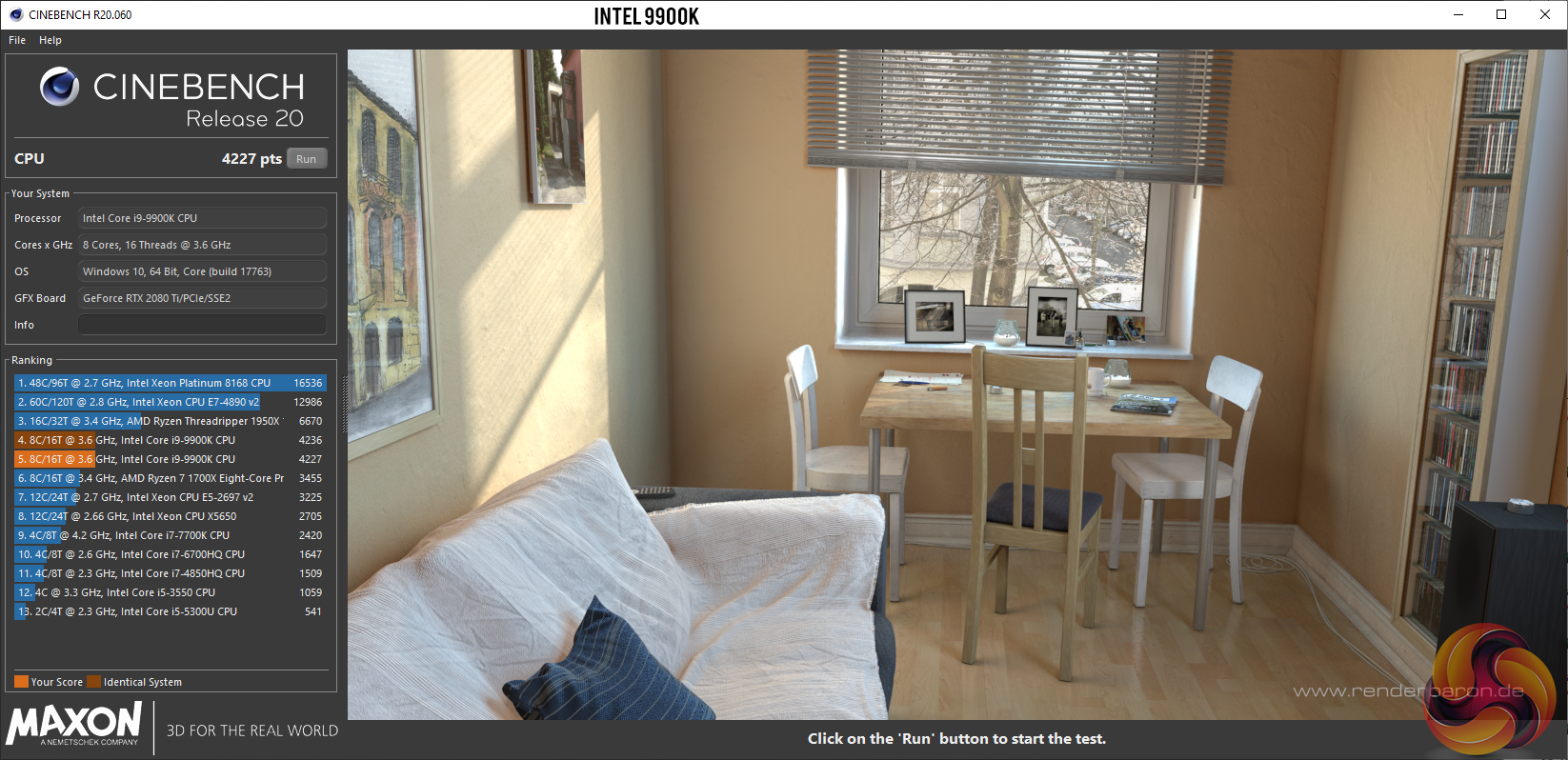
These gains are quite small, but noticeable and well worth the time involved. Go get dinner and a beer and come back when its almost over.
Overclocking the RTX 2080 and RTX 2080 ti.
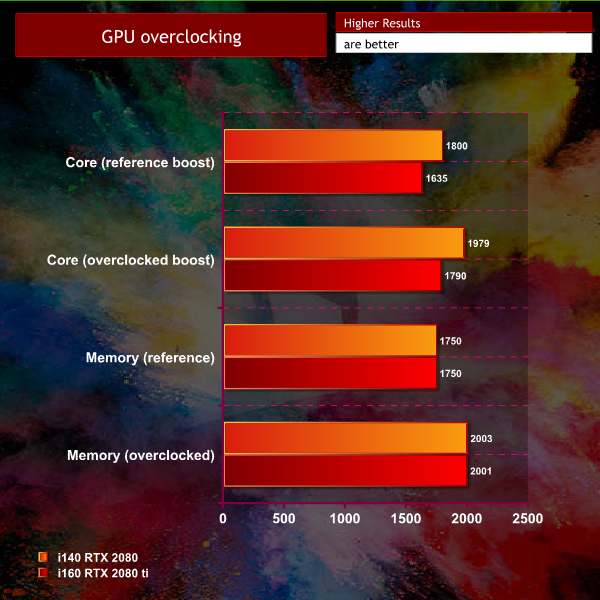
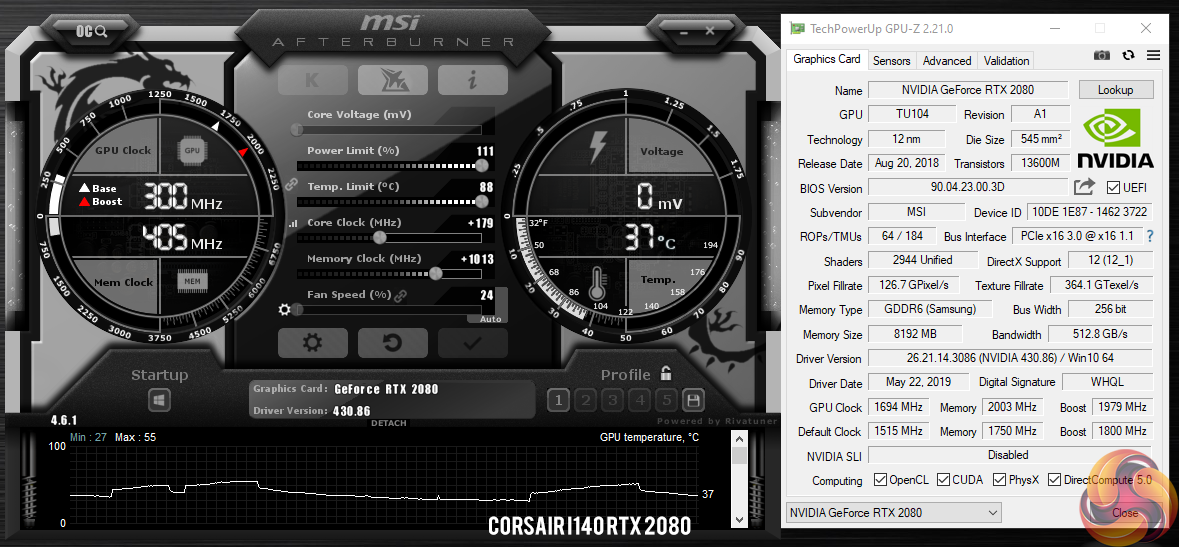
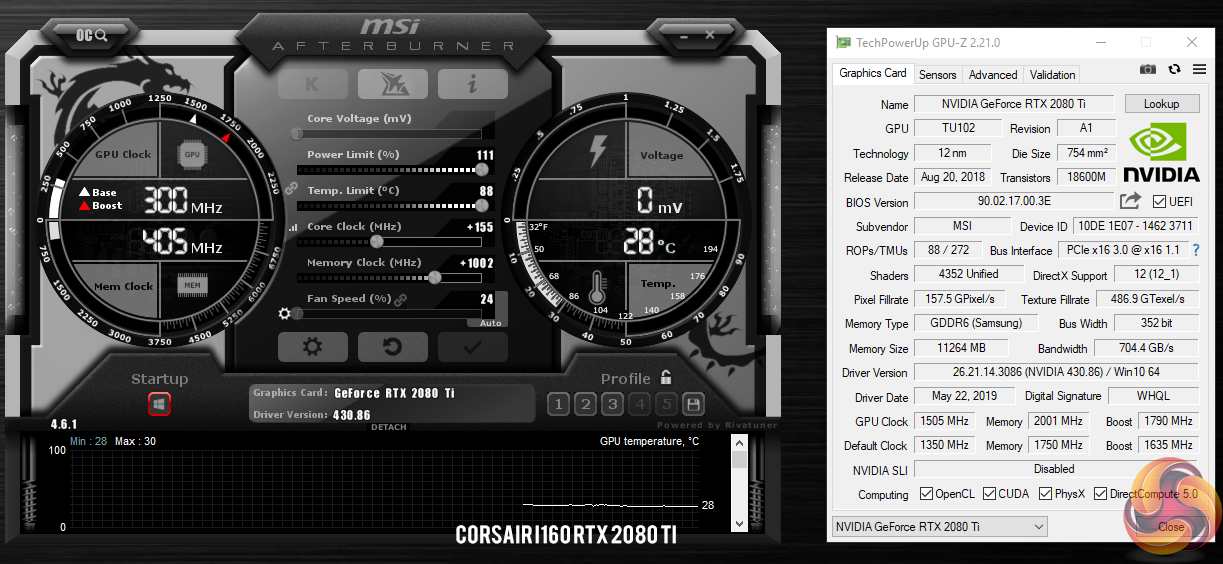
Overclocking the RTX 2080 and RTX 2080 ti proved quite straightforward, with both cards responding quite well to MSI's Afterburner software. The RTX 2080 ti peaked at around 1505mhz on the core, with a boost around 1800mhz. The RTX 2080 hit close to 1700mhz, with a boost close to 2000mhz.
Overclocking and power consumption
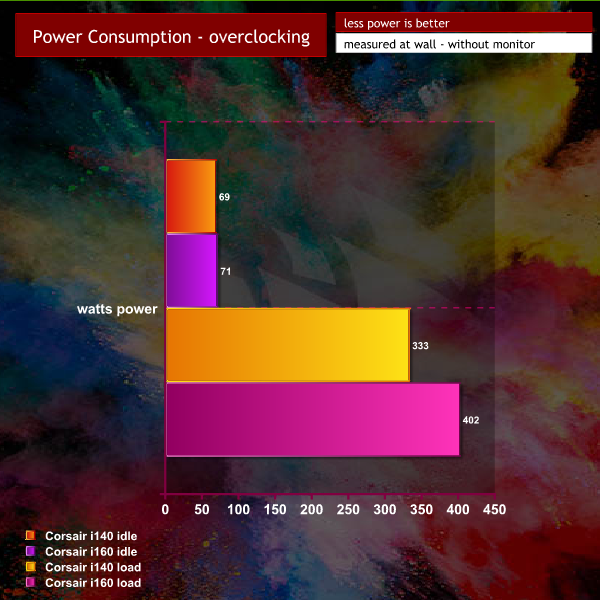
Overclocking both systems resulted in a little more power drain at the wall, although even 400 watts from the Corsair i160 is well within the 600 watt theoretical limit of the Corsair SF600 installed power supply.
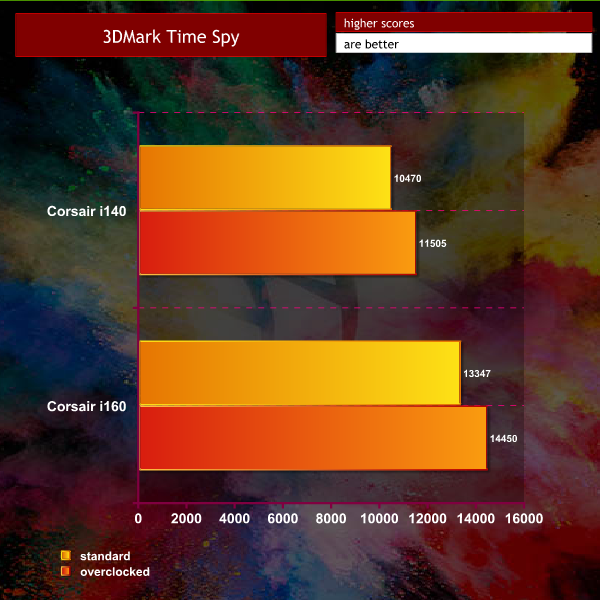

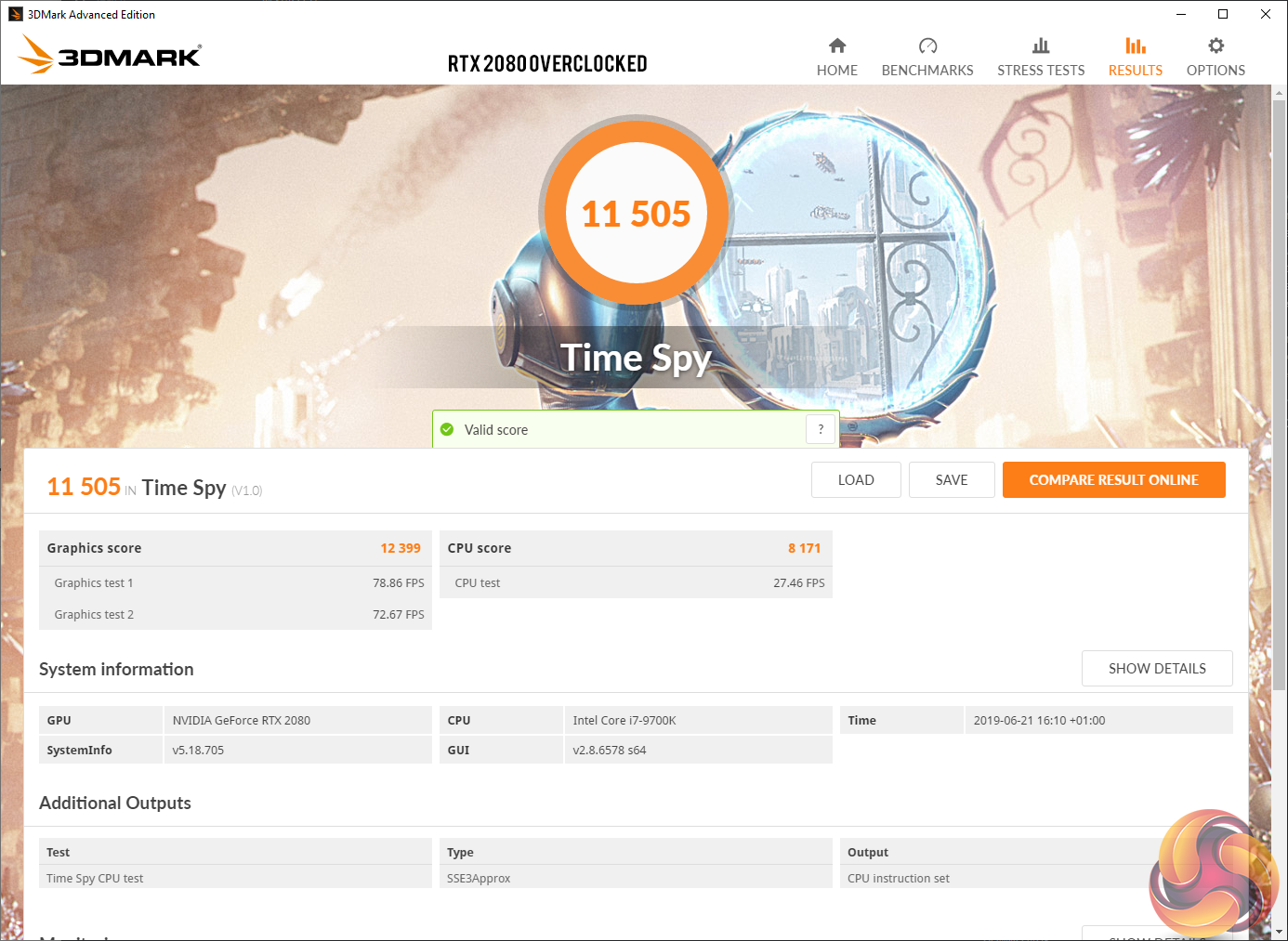
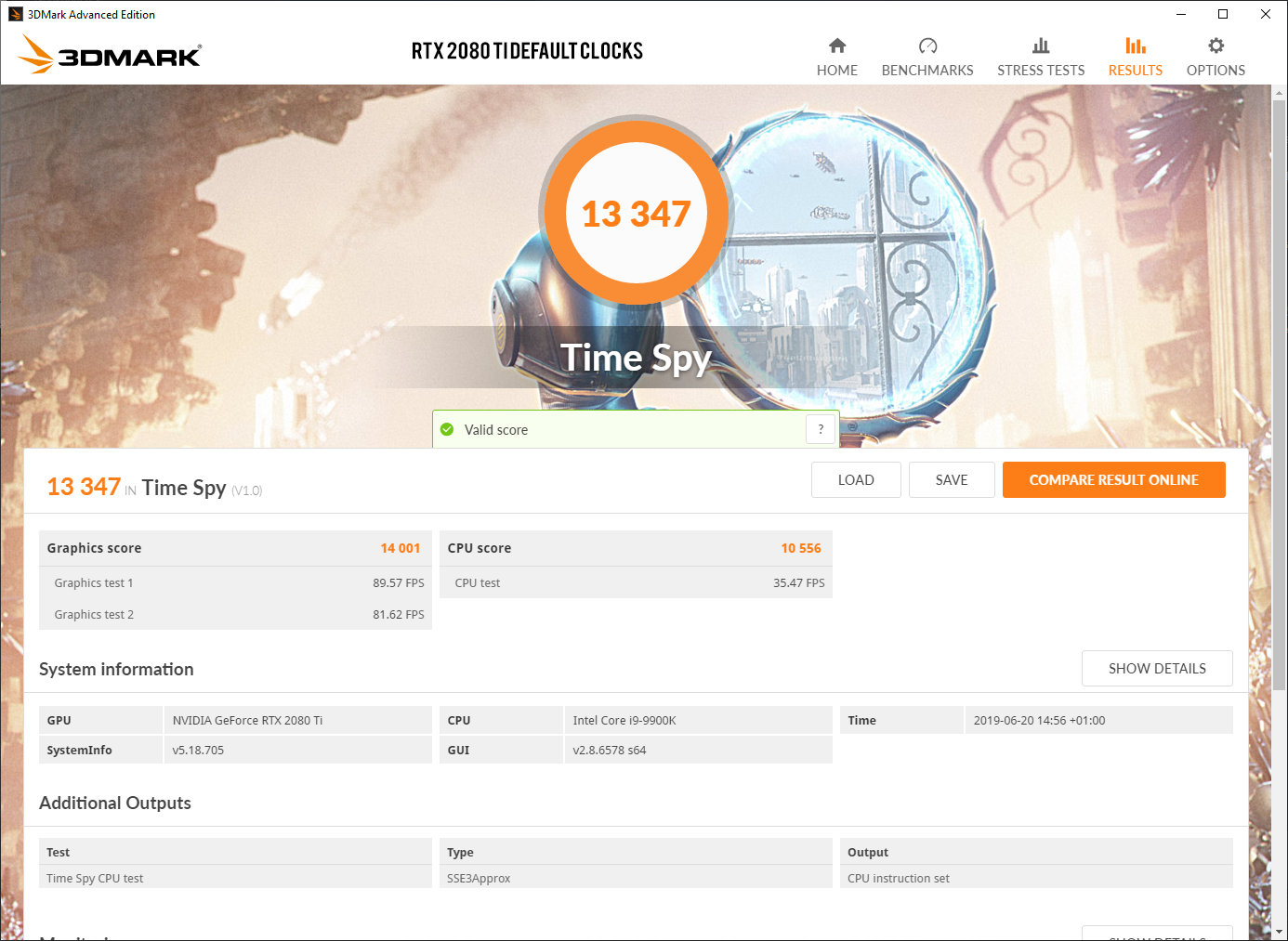
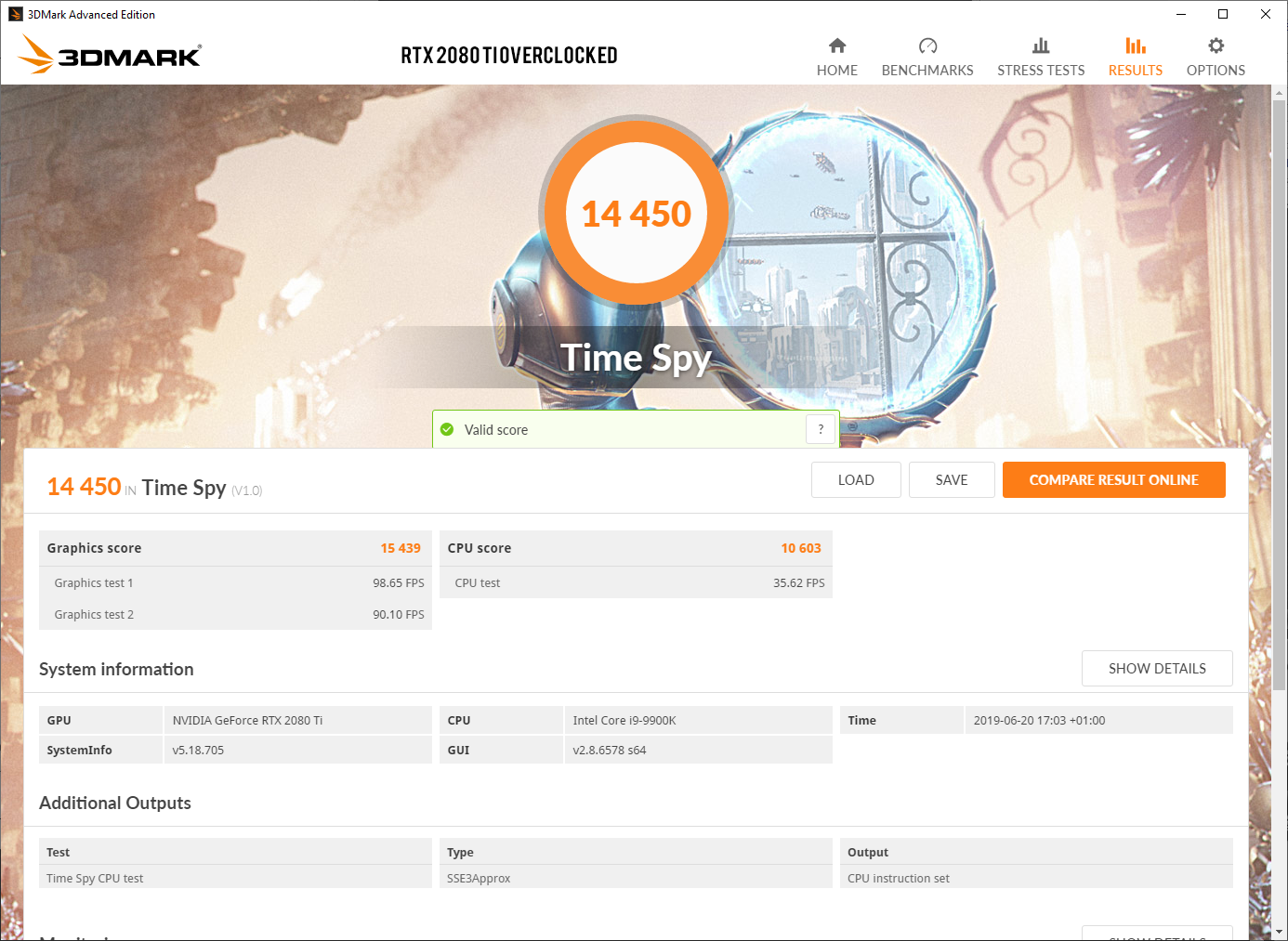
The GPU overclocks help drive performance figures higher, with the Corsair i140 system showing a 9.9% increase, and the Corsair i160 system showing an 8.3% increase.
The Corsair One has been around in various guises now for some time. The latest models for 2019 are packing the very highest levels of gaming hardware available – the 9700k and 9900k are the best gaming processors on the market today, and the RTX 2080 and RTX 2080 ti are the fastest gaming graphics cards money can buy.
So who would be interested in the Corsair One? Its fair to say by now, if you have read the review you will either hate, or love it. The tech equivalent of marmite. You will likely also admire what Corsair have managed to achieve confined inside such a diminutive chassis.
If you are in the market for a full sized desktop system and don't care about the footprint then this is likely not going to make your shortlist. If you demand a high value for money system, then neither the i140 and i160 are that system.
Personally, I feel they are both great systems. If you are pairing them up with a 1440p 120hz GSYNC monitor then the Corsair One will deliver great frame rates. I would likely opt for the more expensive RTX 2080 ti version – as it gives additional headroom to maintain 100+ frame rates in most of the games I tested.
The system itself is beautifully built and while its going to be hard for many to justify the price overhead, you are paying for the exquisite engineering of the bead blasted aluminum chassis and the fact that the dual AIO coolers on either side of the case manage to deal with the hot running components admirably well. You could buy these components online and put them into a full sized ATX case for substantially less money, but I feel thats somewhat missing the point.
The Corsair One has been designed for the end user who wants a small chassis, with a tiny footprint that can easily be placed on a desk beside a keyboard or behind a monitor. It has been tweaked to emit very low levels of noise, even under sustained load. At the default fan setting, I barely even knew it was turned on most of the time and considering the immense gaming performance, that is quite an achievement in itself.
Overclocking the system proved quite easy, and if you aren't comfortable with doing it all yourself, then the latest Intel Performance Maximiser tool works perfectly well with both i140 and i160 systems I have been using for the last month. It takes about an hour to complete, and depending on the silicon lottery you are likely to end up with around an extra 10% performance from the processors. Both RTX 2080 and RTX 2080ti graphics cards responded well to MSI's Afterburner tool and the heat levels didn't rise that much either.
While you can customise these systems yourself, its not what we would consider an easy process. Changing the top fan to a more powerful Corsair ML140 Pro will enhance the cooling – as this fan increases the maximum speeds from 1,600 rpm to 2,000 rpm (at the expense of a little extra noise). Removing the ill performing 2TB 5,400 rpm hard drive is again, straightforward enough. However changing the power supply or putting in a different graphics card is quite a bit more involved.
Corsair really should have opted for all SSD storage in these systems – replacing the 2TB mechanical drive with a 1TB SSD – it wouldn't have cost Corsair much more and it seems penny pinching to the extreme. The 480GB boot drive is very quick, but I would not be using it for my game installs, as it will fill up pretty quickly.
As I mentioned earlier in this article, the Seagate 5,400 rpm drive is terrible to install a STEAM library onto. Its painfully slow and grinds to a halt when big game installers are decrypting and expanding. I would only use this drive for file backups, installers, images and work documents. I got around the ill performing mechanical drive by hooking up a 2TB Samsung 860 Pro inside an external enclosure. It transformed the experience. But thats even more money and a little slap in the face after spending so much in the first place.
You can buy the Corsair i140 from Amazon for £2849.99 HERE
You can buy the Corsair i160 from Amazon for £3399.99 HERE
As I mentioned earlier in the review, If neither of these systems is powerful enough for you, then be sure to check out the Corsair ONE i180 (HERE), with Core i9 9920X, RTX 2080 ti and 960GB NVMe SSD – although you still get the terrible 2TB 5,400 rpm HDD – and all for £4,749.99.
In closing, the 2TB 5,400 RPM HDD is the only reason these systems didn't get our highest award today. Next time Corsair – all SSD storage please – its 2019.
Pros:
- Incredible Performance.
- Very Quiet.
- Looks fantastic.
- Tiny footprint.
- RGB lighting looks great.
- iCue software allows for custom profiles.
Cons:
- 2TB 5,400 rpm storage drive is shocking to see.
- Expensive.
- Not easy to upgrade.
KitGuru says: The Corsair i140 and i160 perform to the highest levels, they are quiet, and look incredible. Its for a niche audience, but Corsair have nailed the thermals and created something utterly unique in a very saturated market.