KitGuru KitGuru.net – Tech News | Hardware News | Hardware Reviews | IOS | Mobile | Gaming | Graphics Cards


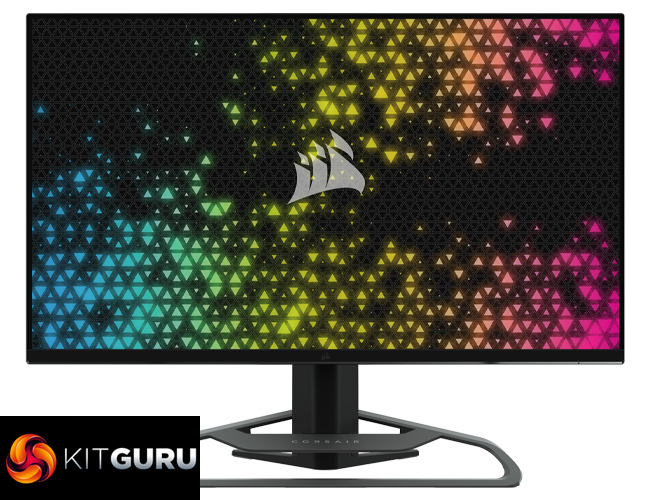
Following on from the company's debut in the monitor market late last year, today we are reviewing the latest gaming display from Corsair. Known simply as the Xeneon 32UHD144, the name tells us a lot about this screen – it's a 32in panel, offering a 4K (UHD) resolution with a 144Hz refresh rate. There's stiff competition from the likes of ASUS and MSI in this product segment though, so let's find out what Corsair can offer.
Alongside the key specs mentioned above, the Corsair Xeneon 32UHD144 offers an IPS panel with the use of Quantum Dot technology, VESA DisplayHDR 600 certification, and a bonus of two HDMI 2.1 ports – potentially making this a great screen for those with a high-end gaming PC and a PS5 or Xbox Series X.
Priced at £899.99 here in the UK, the 32UHD144 is going head-to-head with the likes of the MSI MPG321UR-QD, and the ASUS PG32UQ. Let's find out exactly how good this screen really is.
Specification:
- Panel: 32” Diagonal, IPS Quantum Dot, 16×9, Non-Glare, Flicker-Free
- Pixels per inch: 138
- Native Resolution: 3840 x 2160 @ 144Hz
- Response Time (MPRT): 1ms
- Response Time (GtG): 12ms
- Display Colors: 1.07B colors (10bit RGB)
- Viewing Angles: 178° (H) / 178° (V)
- Peak Brightness: 400 nit (SDR) / 600 nit (HDR)
- Static Contrast Ratio: 1000:1
- HDR Certification: VESA DisplayHDR 600
- Color Gamut (CIE 1976): 98% (DCI-P3), 100% (AdobeRGB), 100% (sRGB)
- Variable Refresh Rate: AMD FreeSync Premium Certified, NVIDIA G-Sync compatible
- HDMI Input: 2x HDMI 2.1
- DisplayPort Input: 1x DisplayPort 1.4
- USB-C Input: 1x DisplayPort 1.4 (USB-C Alt Mode), 15W Power Delivery, USB 5Gbps Data Upstream
- USB-C Upstream Input: 1x 5Gbps USB-C
- USB-A Output: 2x 5Gbps Type-A USB (5V/0.9A *2)
- 3.5mm Audio: Yes, passthrough from video input
- Power Consumption (On): 43W
- Power Consumption (Sleep): <0.5W
- Power Consumption (Off): <0.3W
- VESA Compatibility: 100mm x 100mm
- Dimensions: 732mm x 607mm x 316mm (W x H x D)
- Weight: 9.5kg
- Stand Tilt: -5° / +20°
- Stand Swivel:-30° / +30°
- Height Adjustment Range: 110mm
- AC Adapter: 150W
- Warranty: 3 Years / Zero Dead Pixel
- MSRP: £899.99
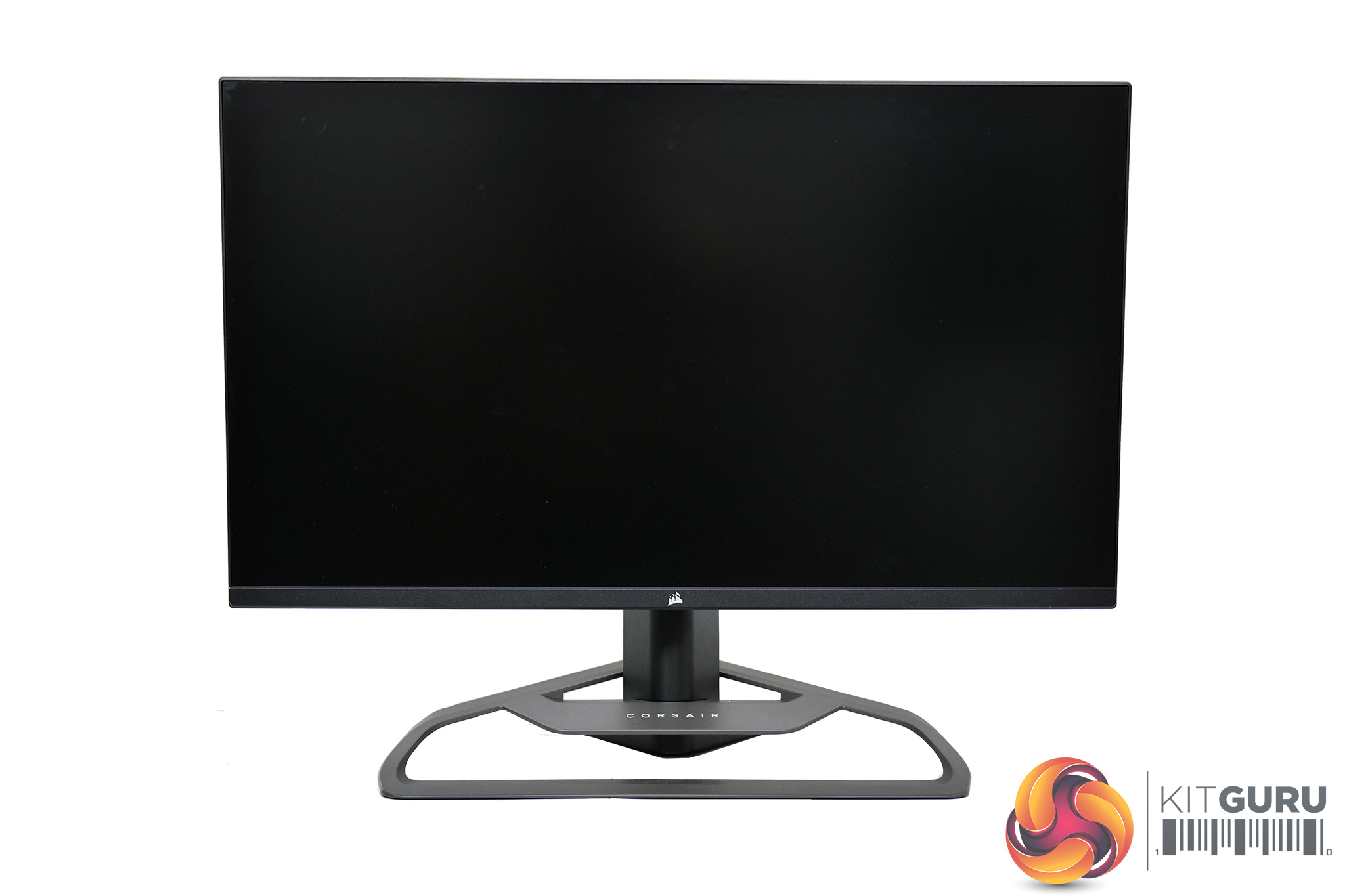
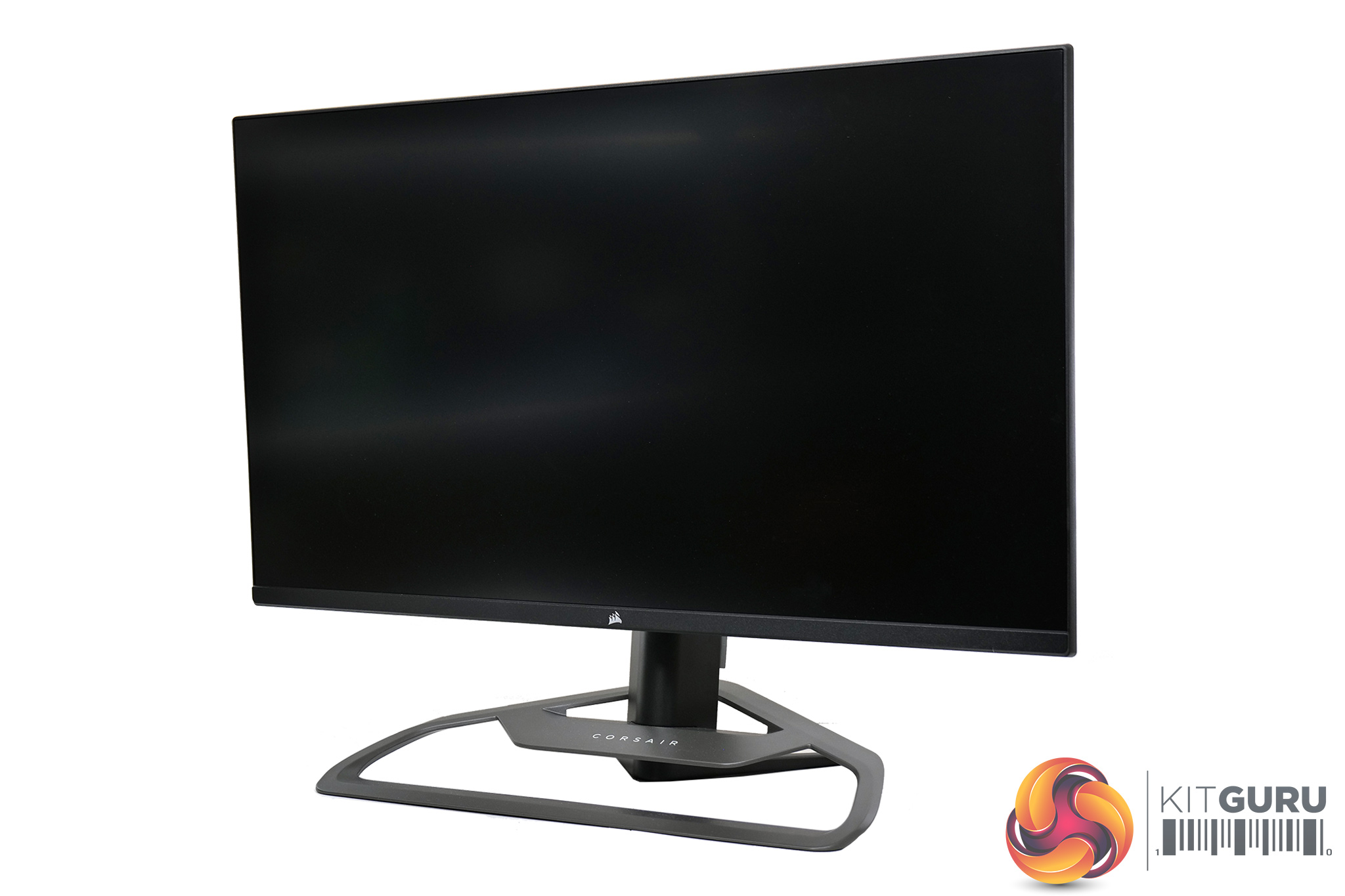
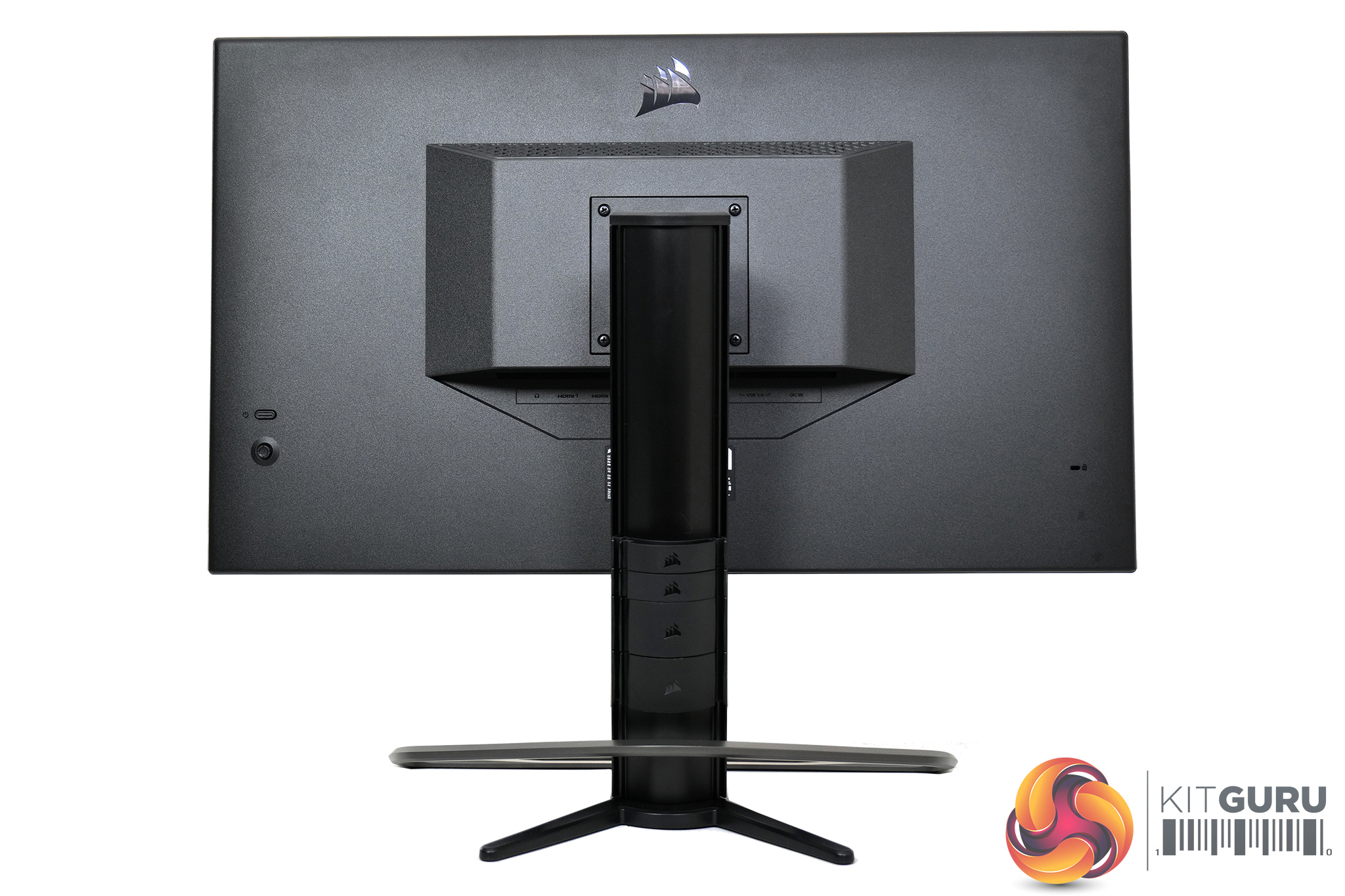
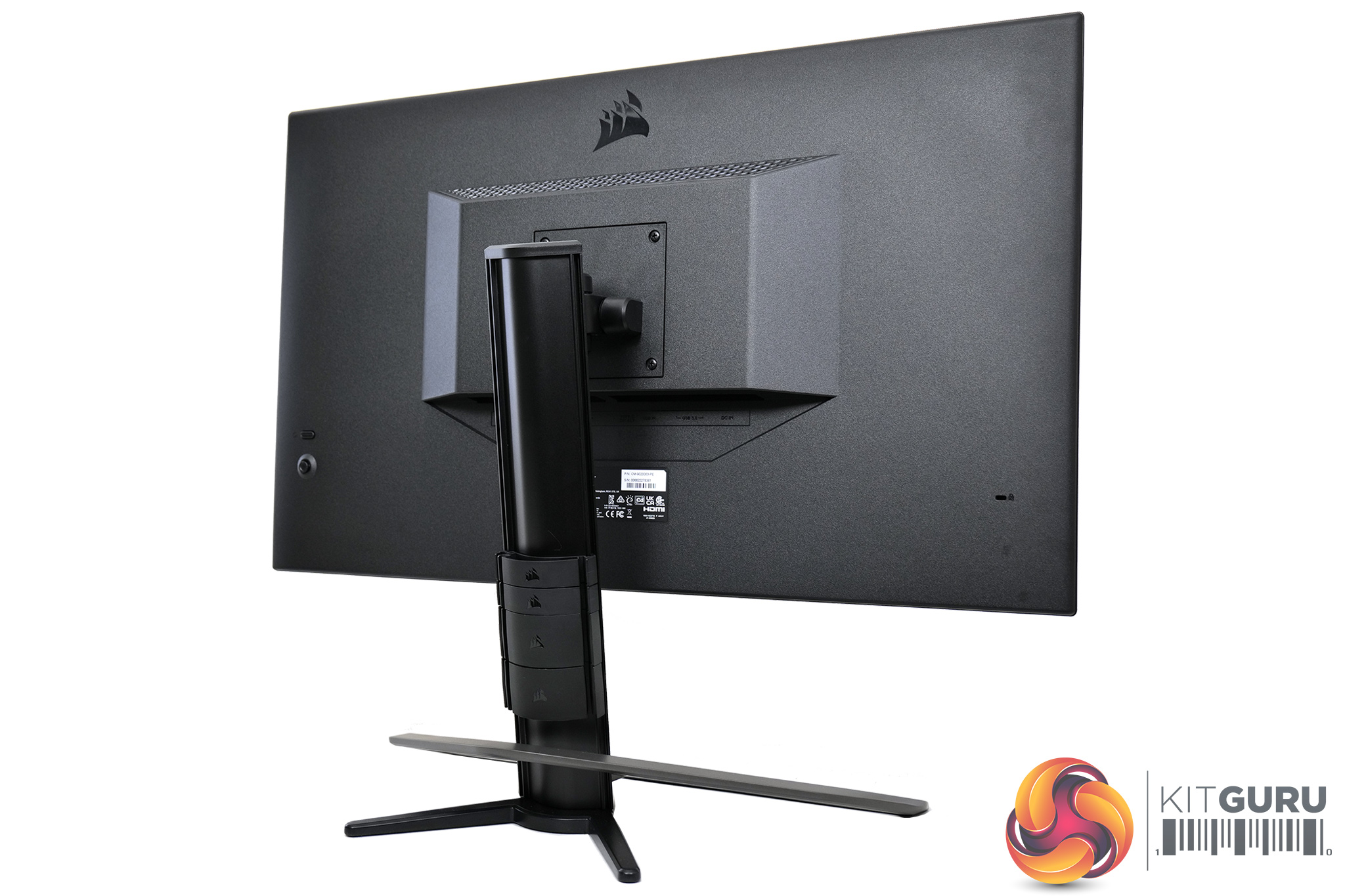
Looking first at the design of the Xeneon 32UHD144, it is immediately clear that Corsair has re-used the same frame and body from its first monitor, the 32QHD165. That's not necessarily a bad thing – likely it just helps Corsair keep the manufacturing costs down – and it's still just as eye-catching with the large metal stand, but more on that below.
The main screen area of the monitor however is very understated, with a slim ‘bezel-less' design and just a slightly thicker chin that houses a small Corsair logo.
Round the back, Corsair keeps things very understated and minimalistic. All you can really see is the textured matte-black plastic Corsair uses for the construction, and a small glossy Corsair logo at the top of the screen. There's no RGB, no gaudy design choices, nothing that really screams ‘gamer!' at you, and I have to say I really like it.
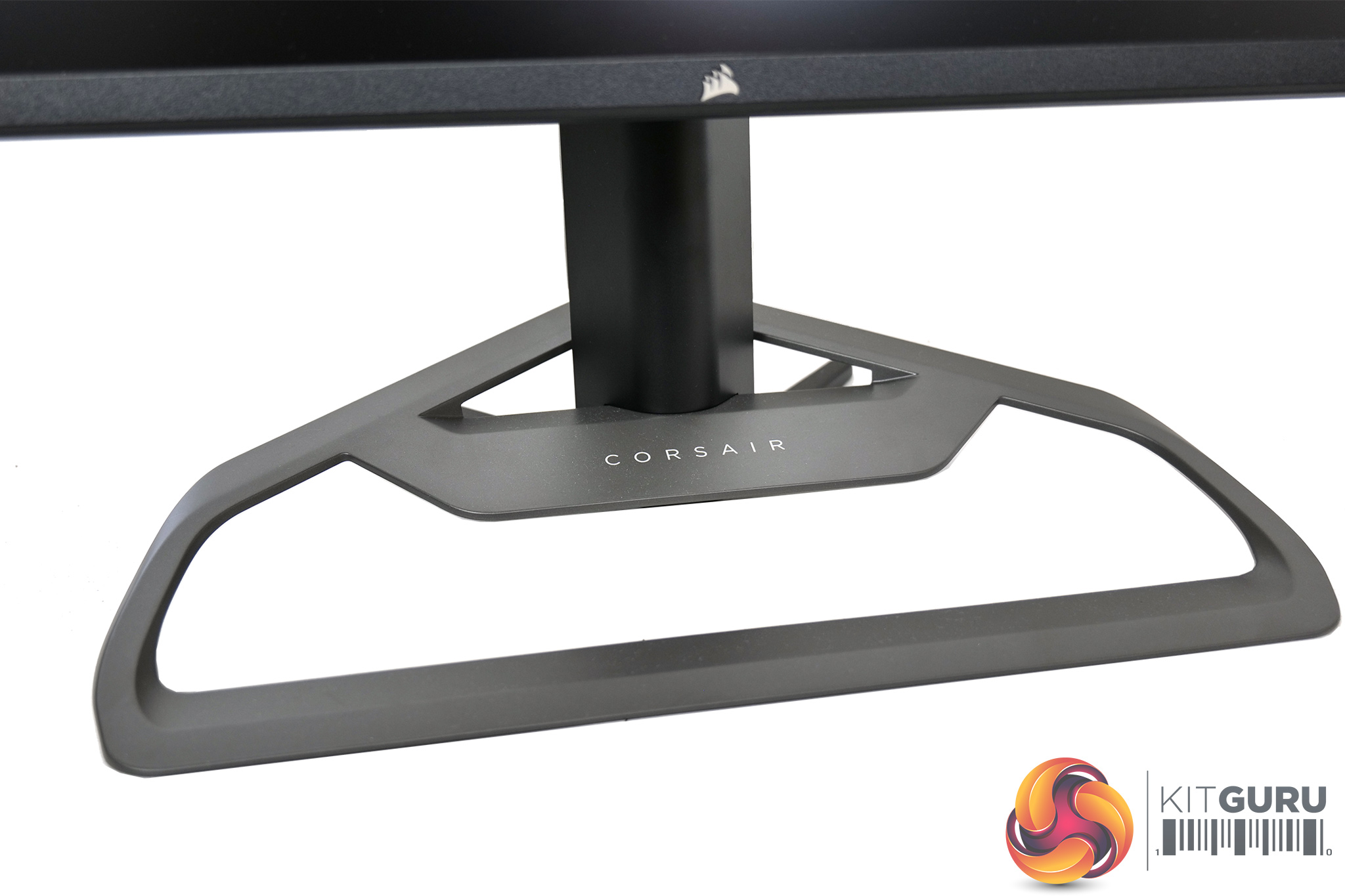
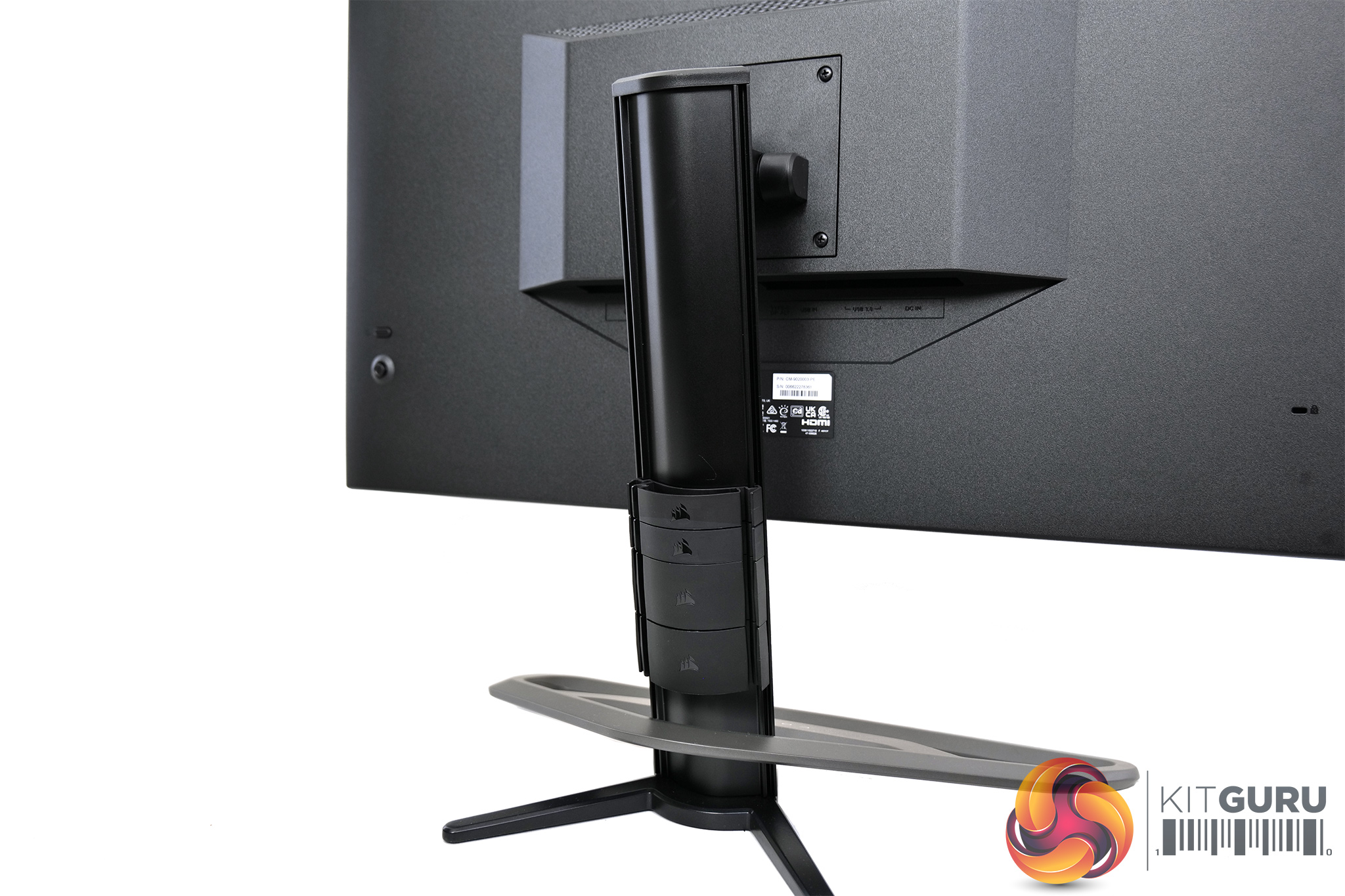
I do still find the stand to be a little much for my tastes, but it is very distinctive which is likely why Corsair has gone for this design. I find it to be a bit big for my tastes, as it measures approximately 46cm across and it's over 30cm deep, but it is a solid chunk of metal that adds a more premium feel, as the rest of the monitor is made mostly of plastic.
Corsair has also kept its ‘RapidRoute' cable management features, which means there are four clips attached to the rear of the stand which you can use to route your cables through and keep things tidy.
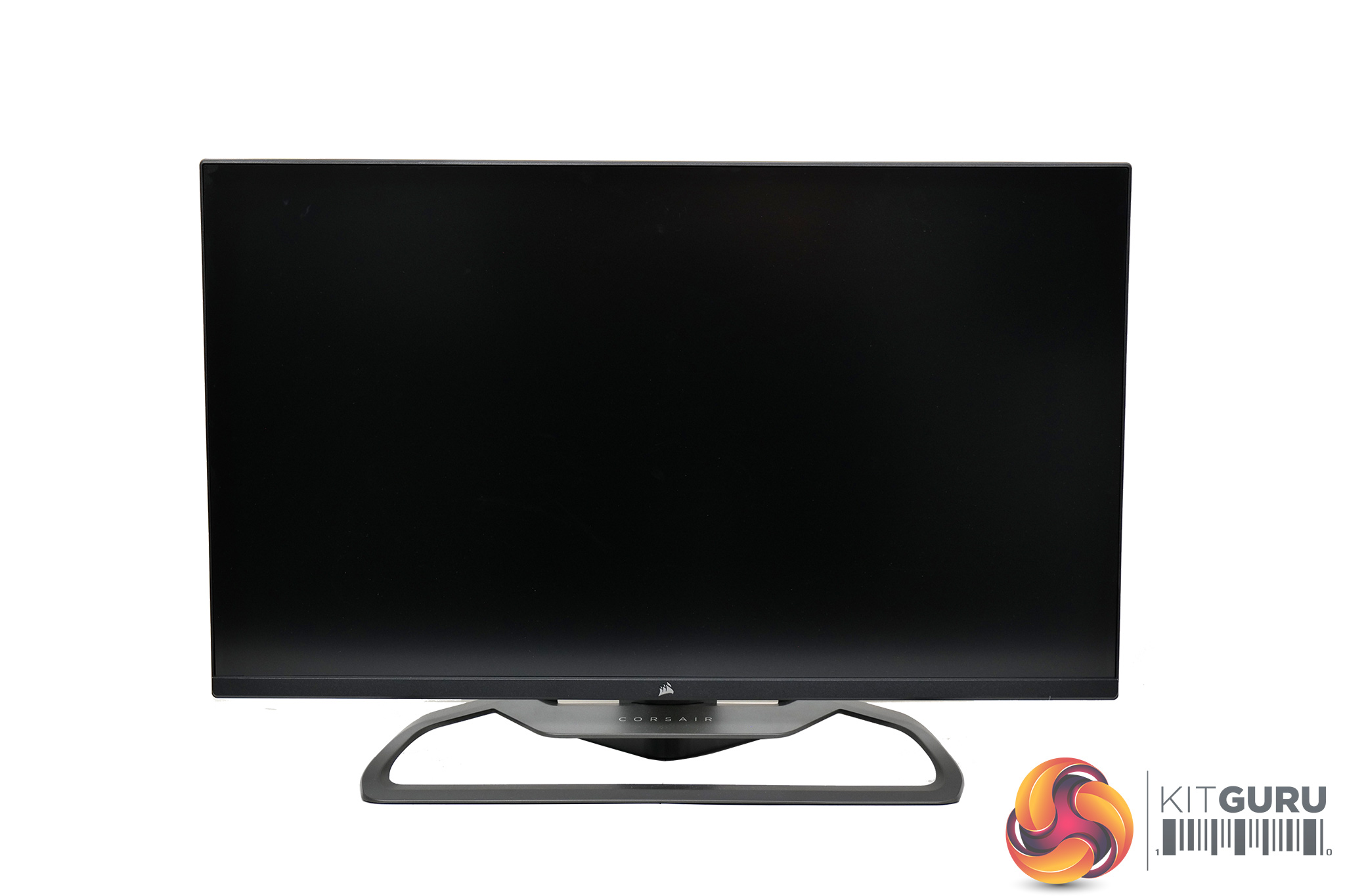
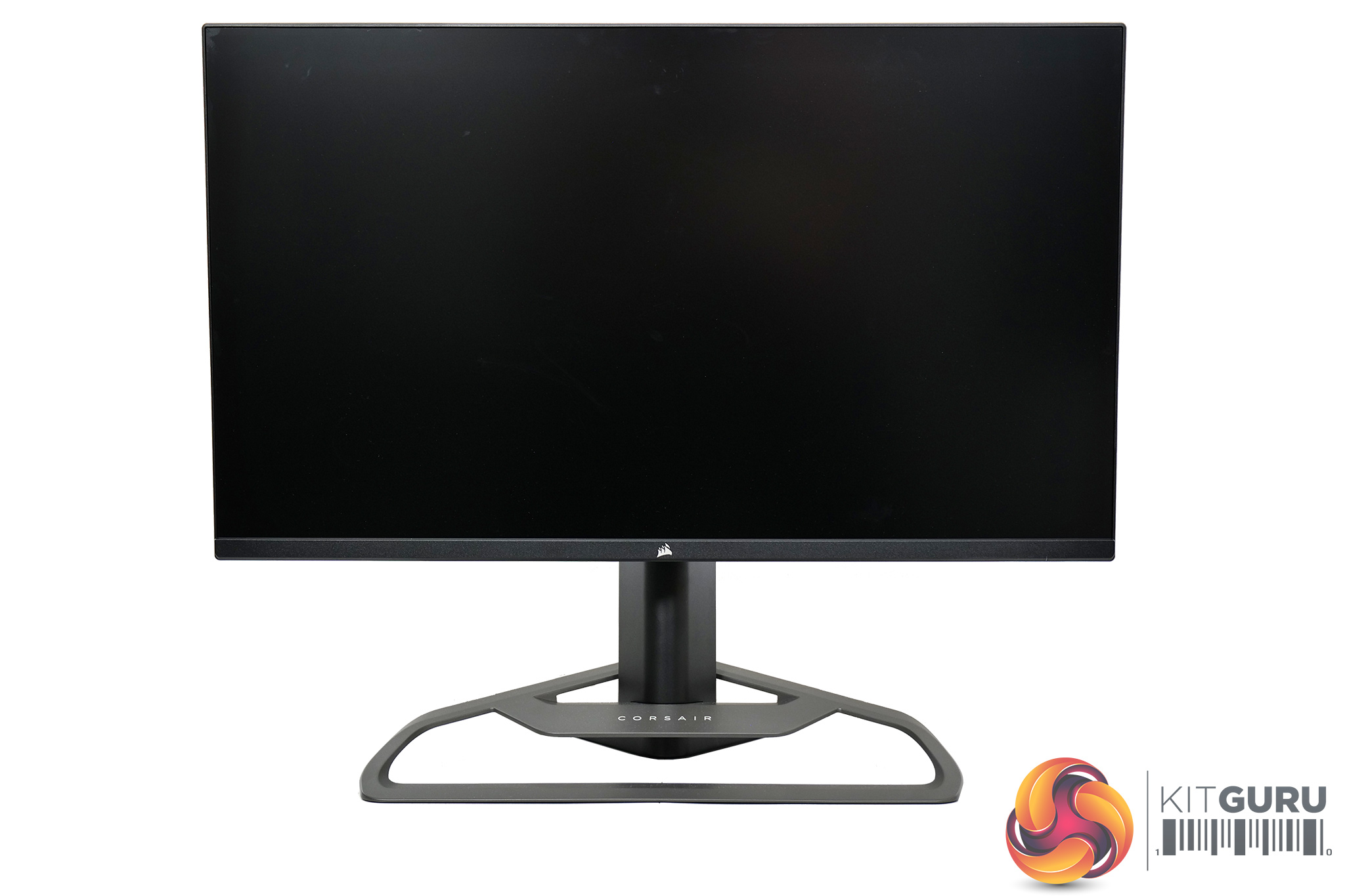
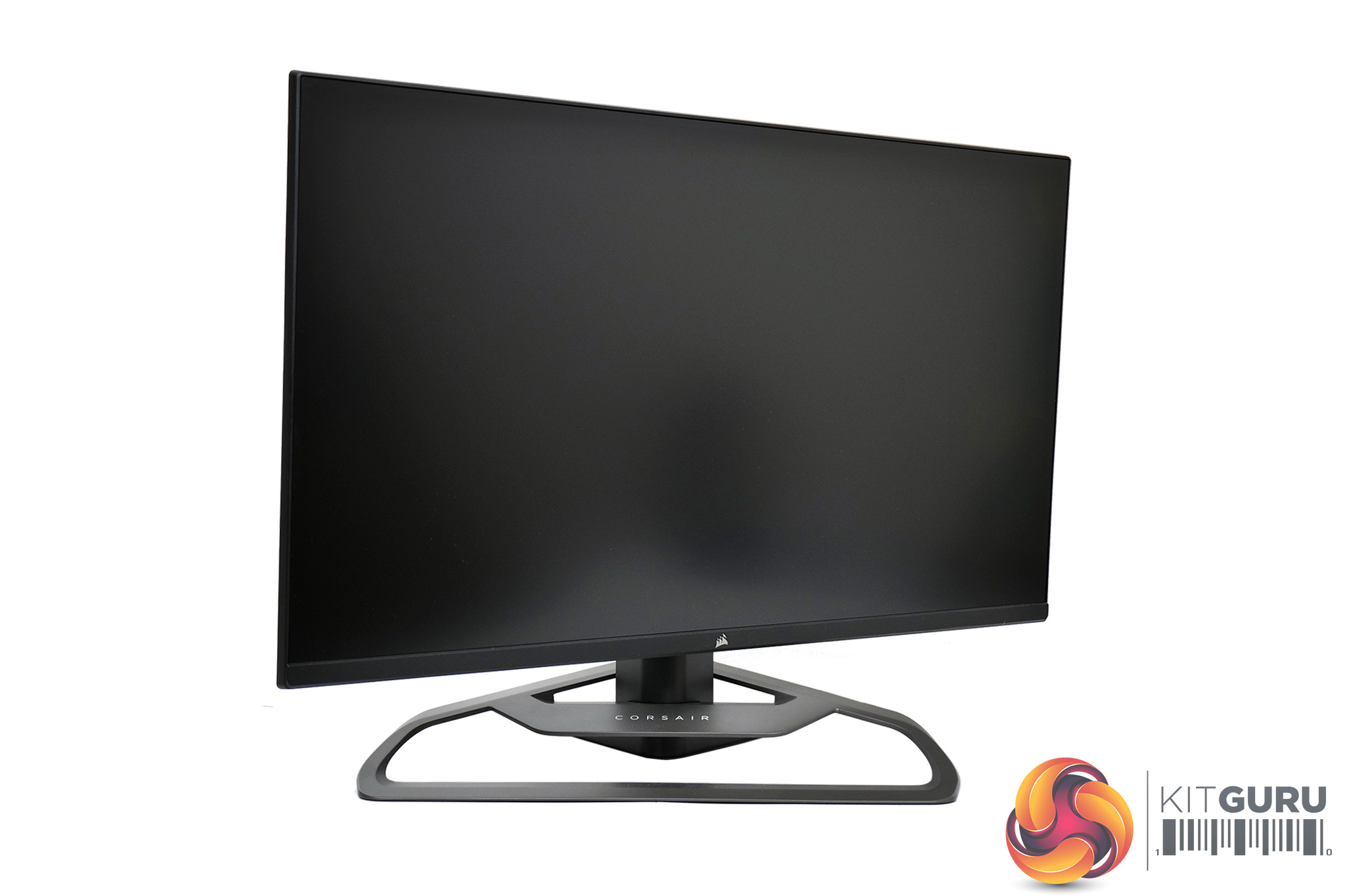
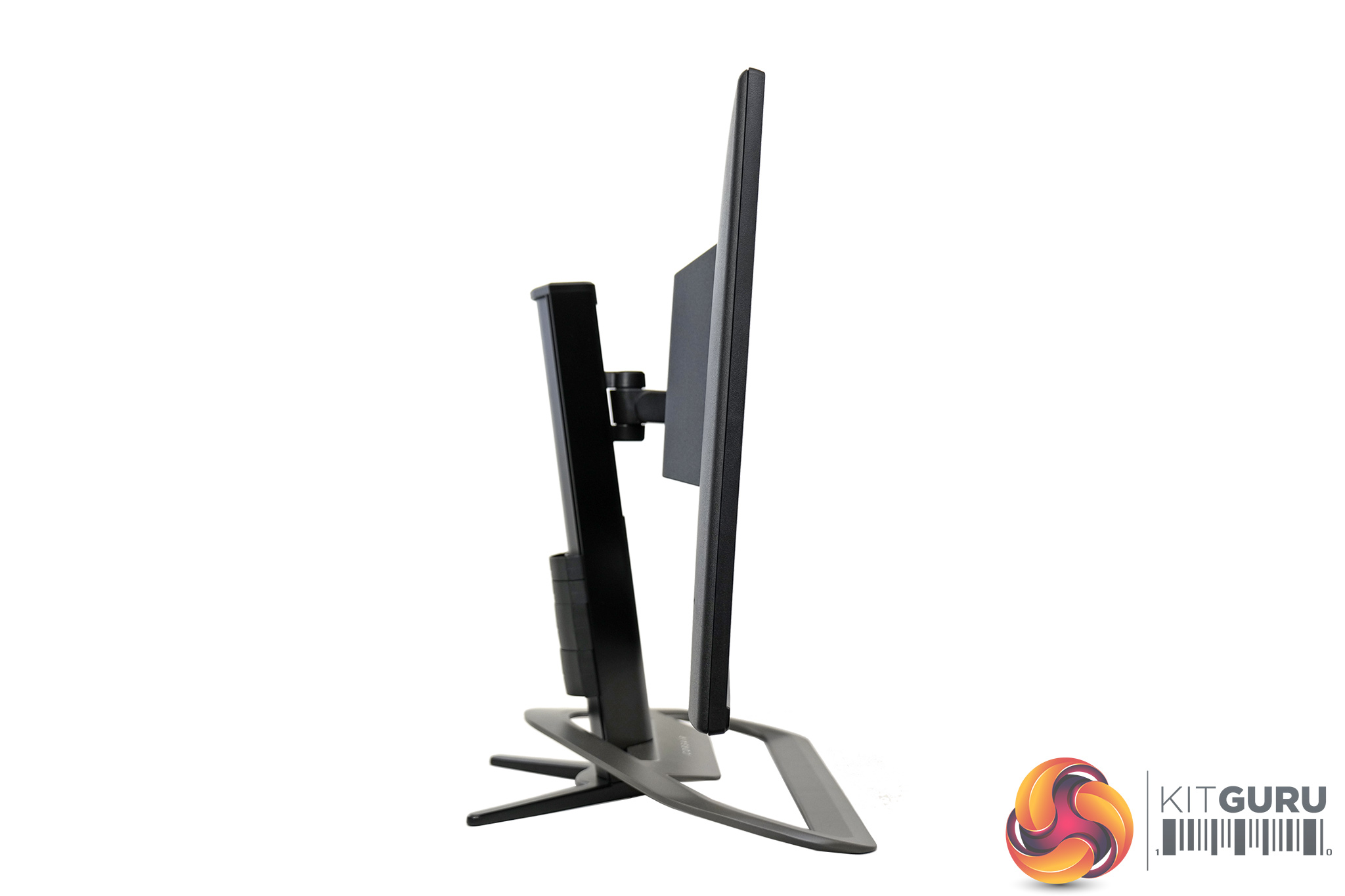
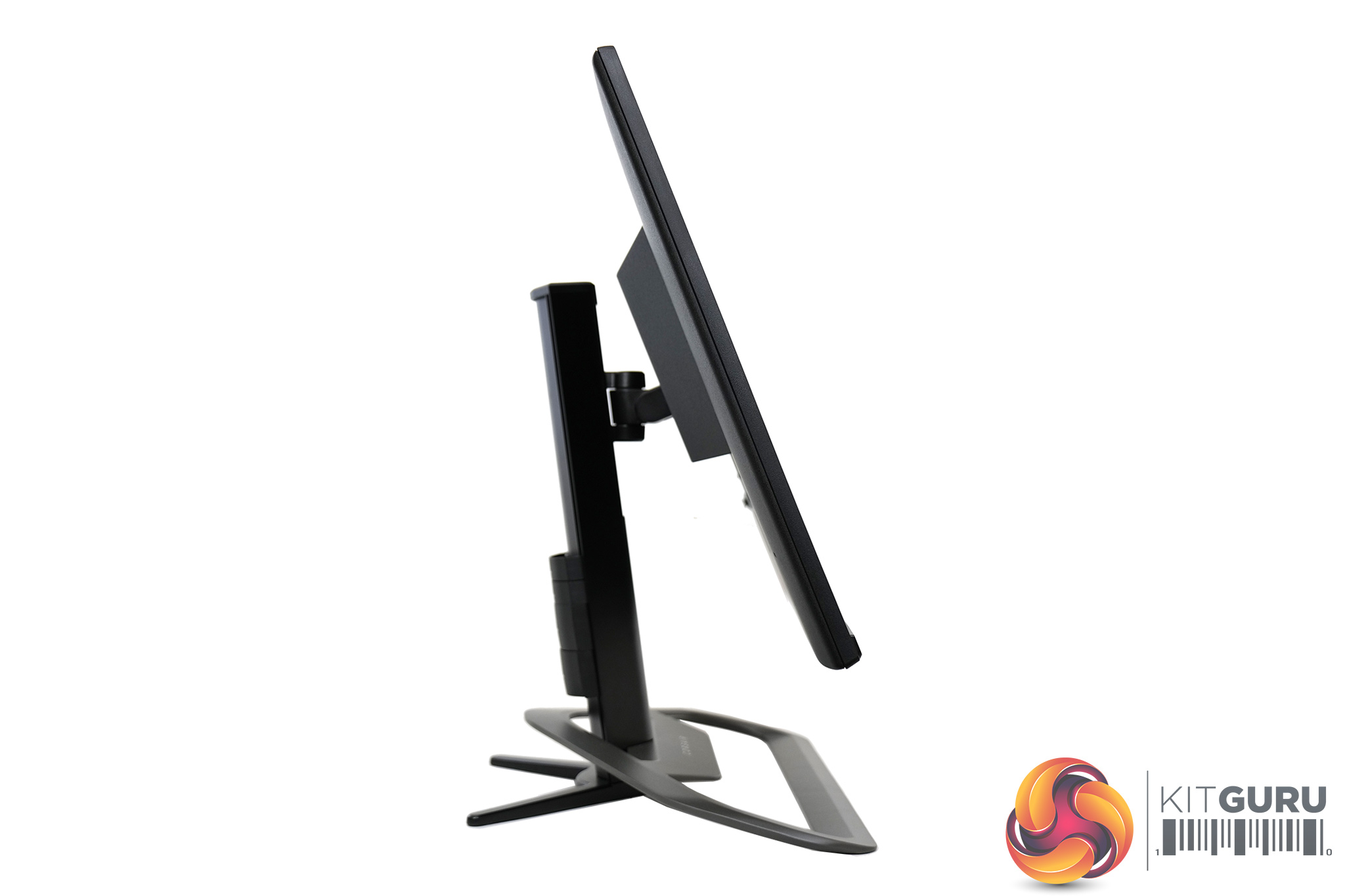
As for the stand's ergonomics, these are exactly the same as the 32QHD165. That means we get up to 110mm of height adjust, 30 degrees of swivel both left and right, alongside tilt from -5° / +20°. There's no pivot or rotation functionality here, but for such a large monitor I am not sure how much utility that would offer anyway.
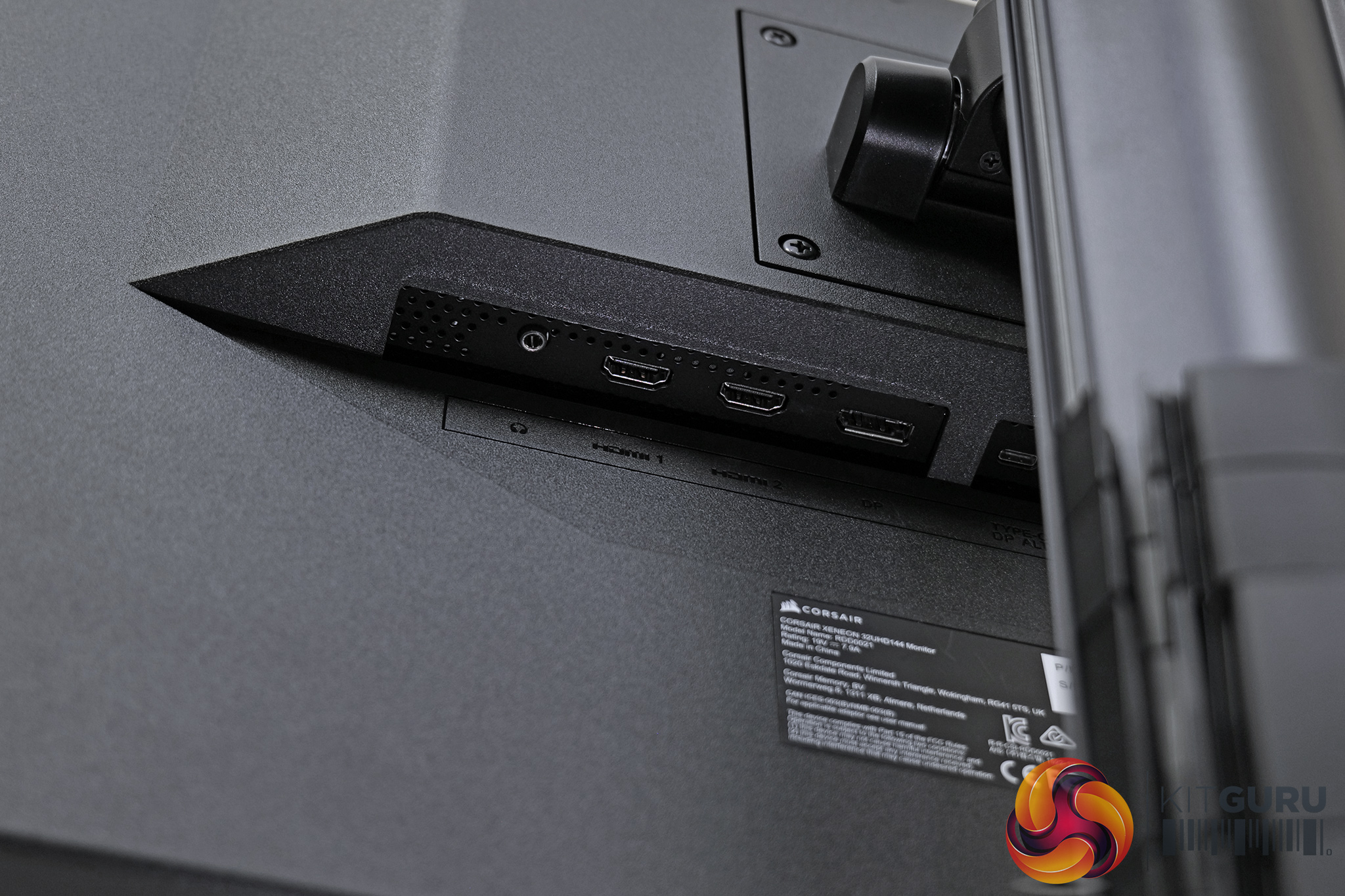
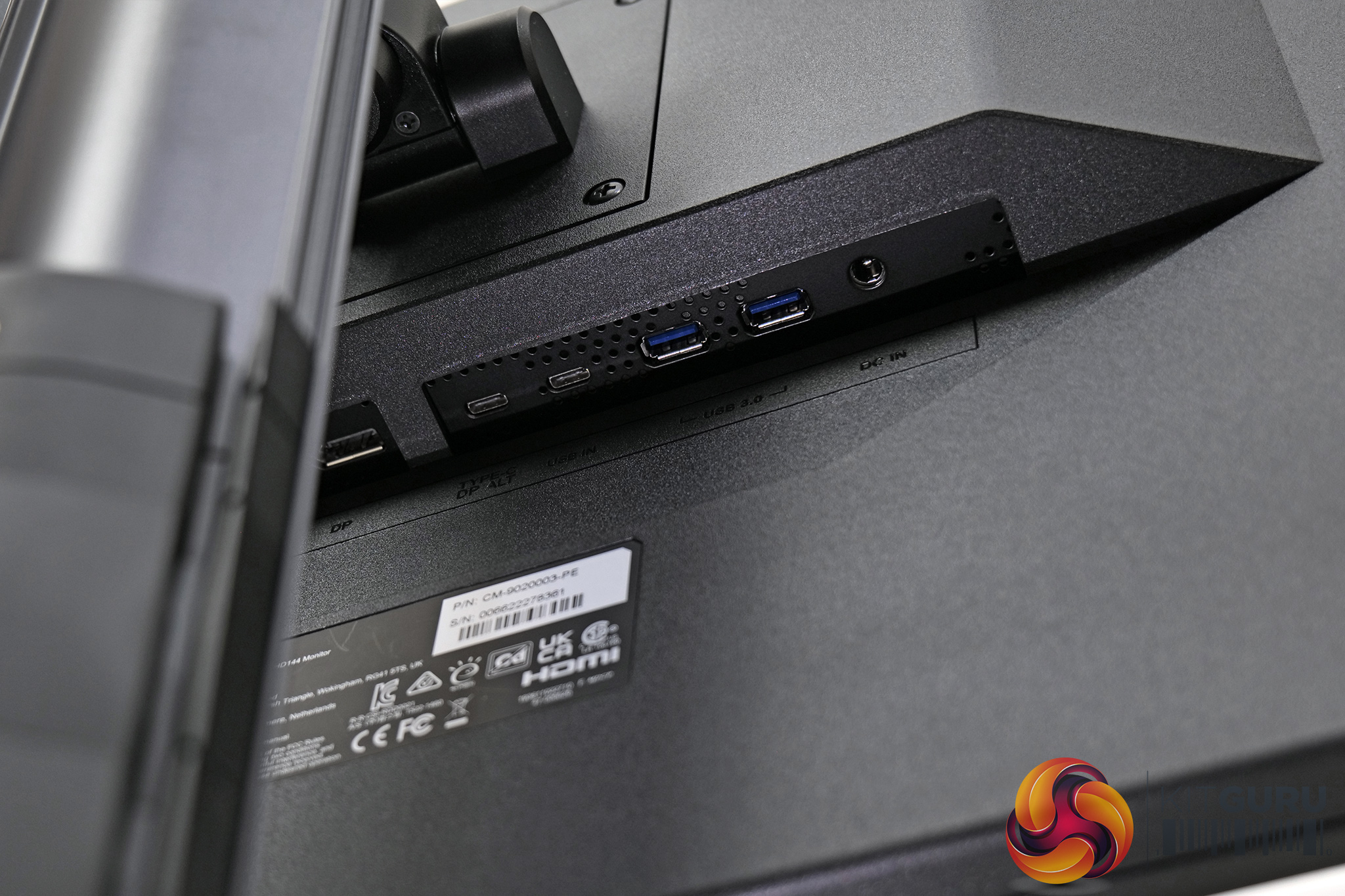
The 32UHD144 does offer a new and improved selection of ports compared to the 32QHD165 however. Video inputs include two HDMI 2.1 ports, one DisplayPort 1.4, as well as a USB-C that supports DP Alt mode. That same port also offers power delivery to charge a laptop or tablet, but only up to 15W which is fairly weak. There's another Type-C port which feeds the two USB Type-A (5Gbps) downstream ports, and you can also use this Type-C port to utilise the monitor's iCUE functionality, which we discuss on the next page.
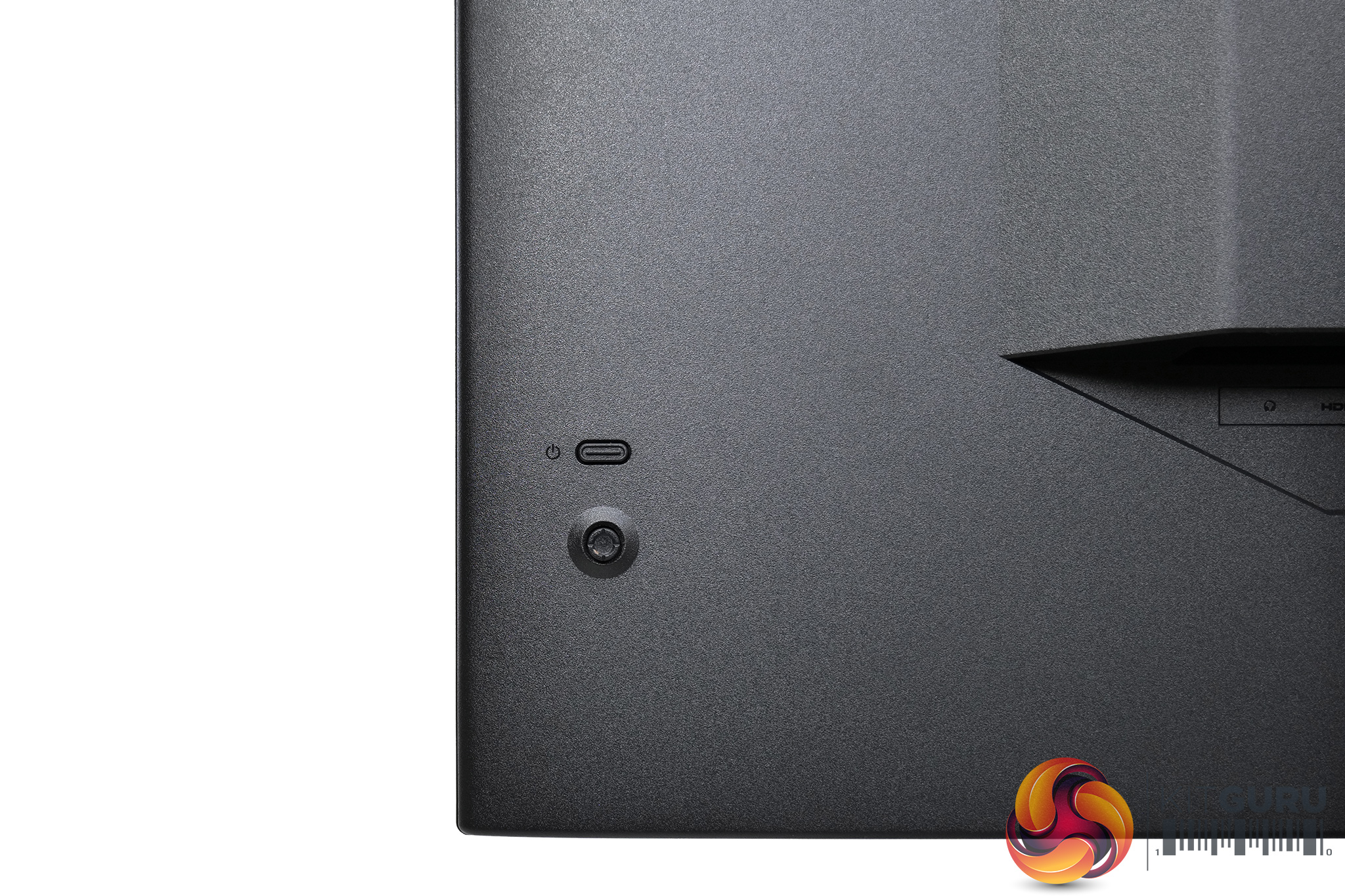
Lastly, a small joystick is positioned in the lower left corner of the display (when viewed from the back.) This controls the OSD, with a power button just above it.
Functionally, the OSD has not changed from what we saw with the 32QHD165. It is a very clean-looking menu system, without any funky GUI elements we sometimes see from other brands, and that makes it very clear and easy to navigate.
It's broken down into six main tabs – Picture, OSD Setting, System Setting, Audio, Input Source, Information:
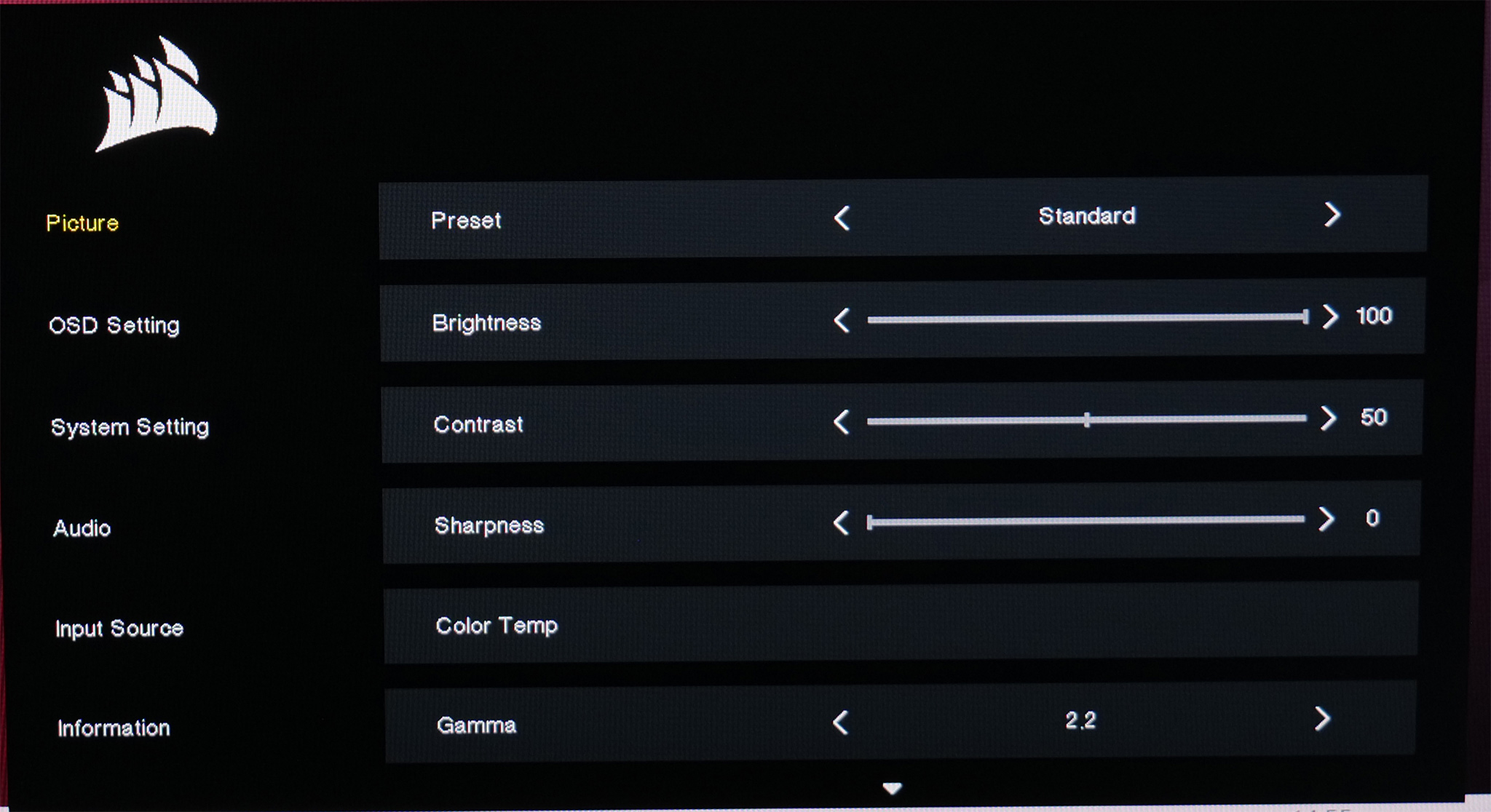
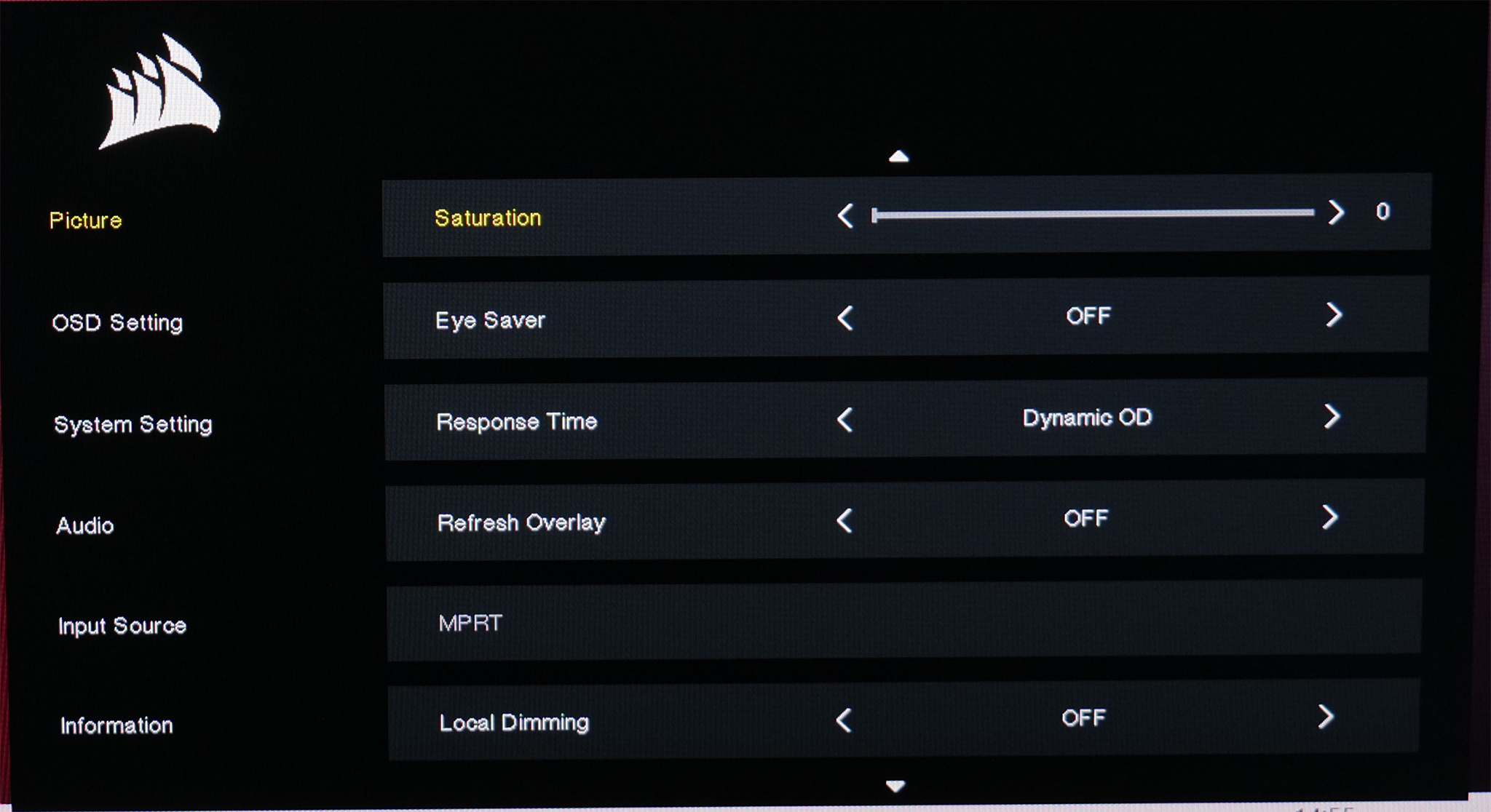
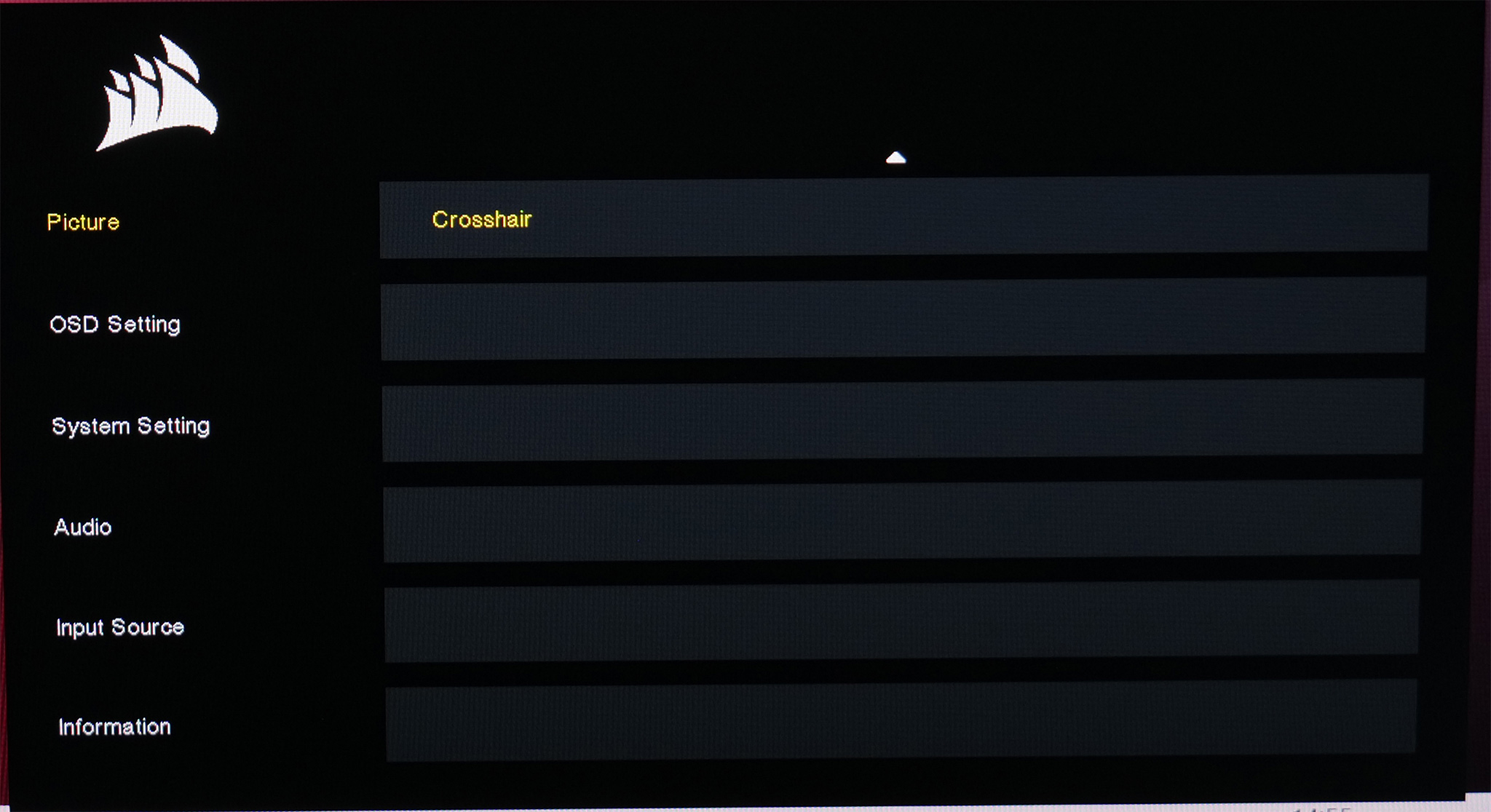
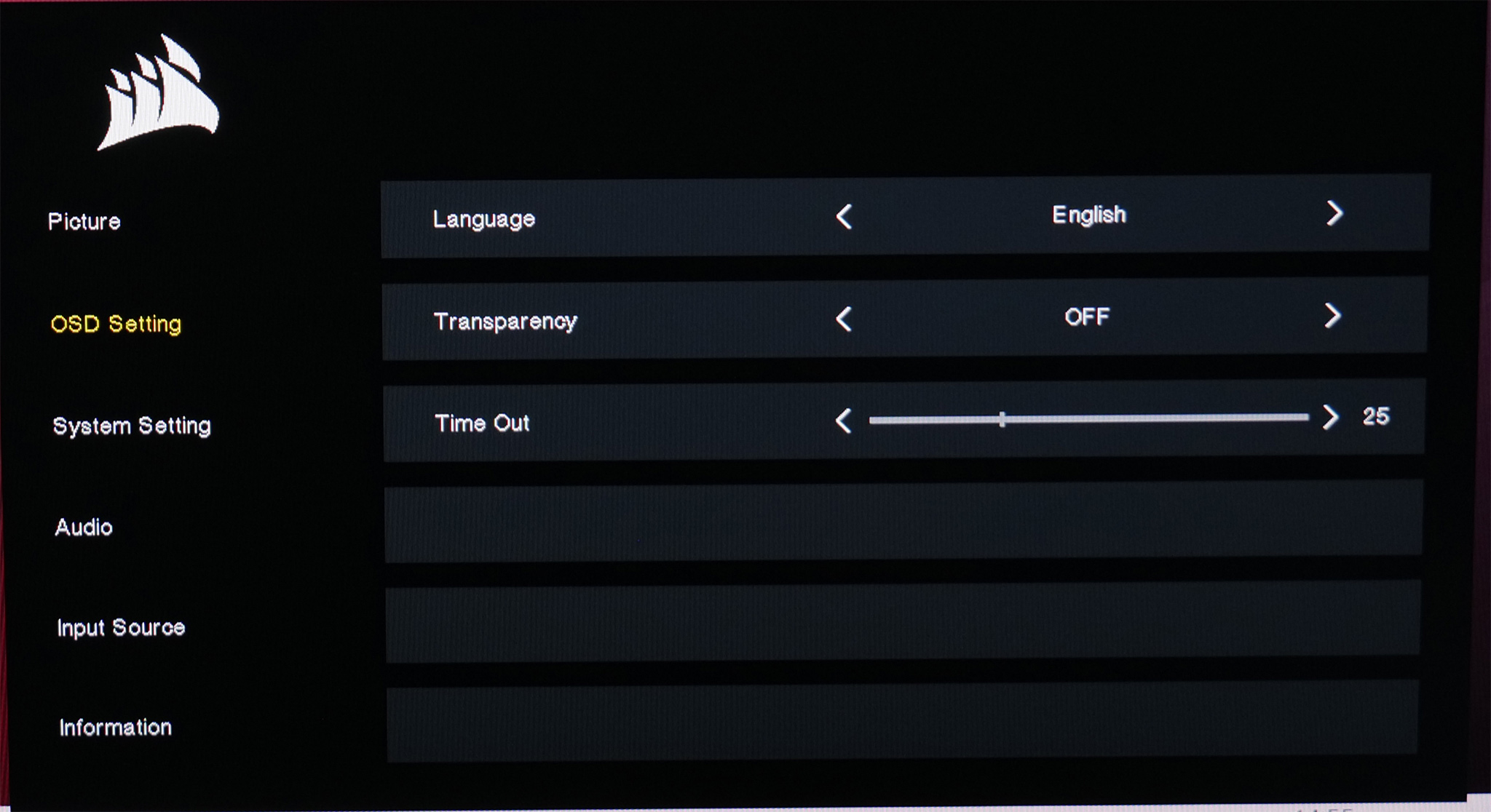
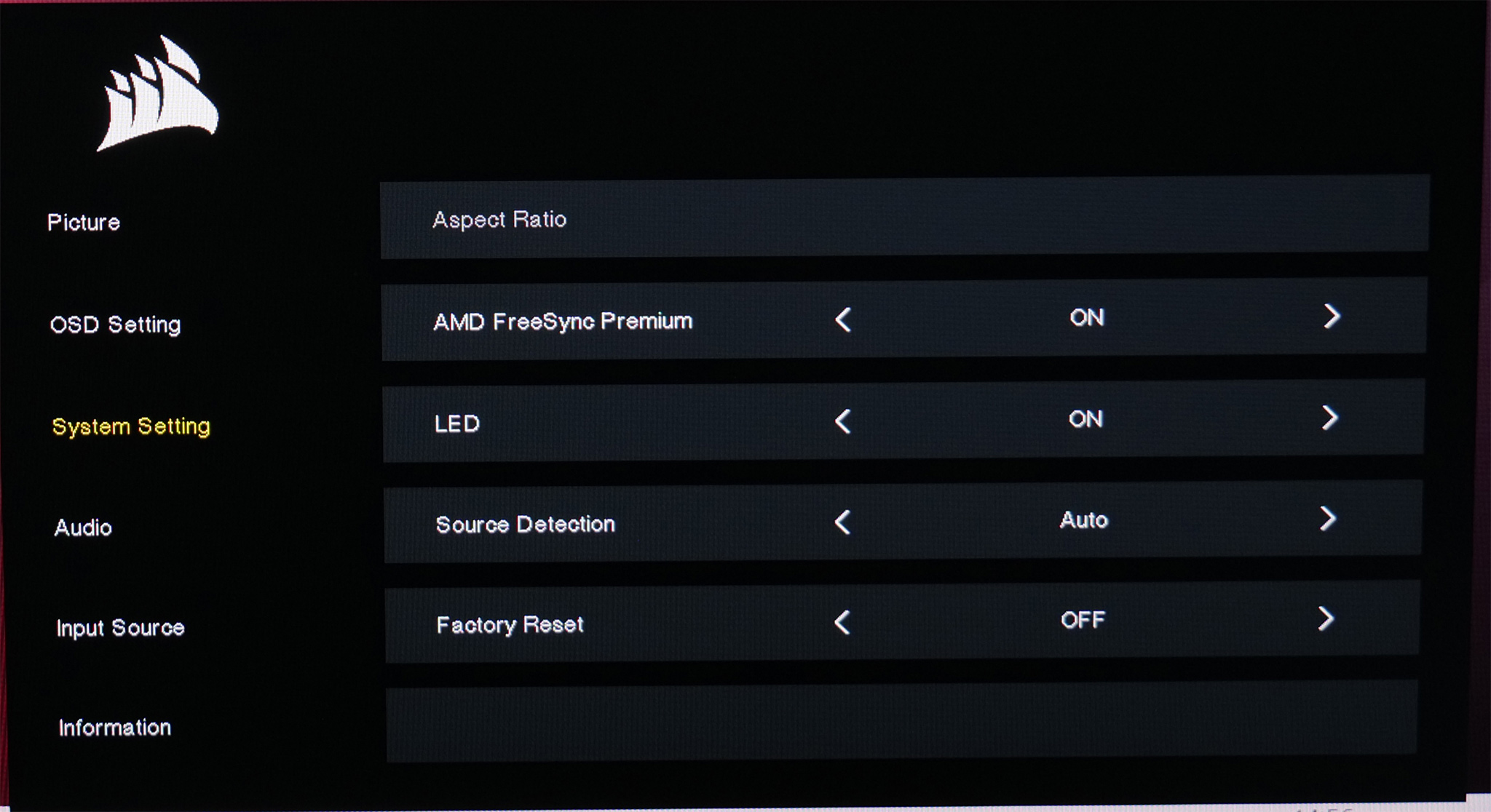
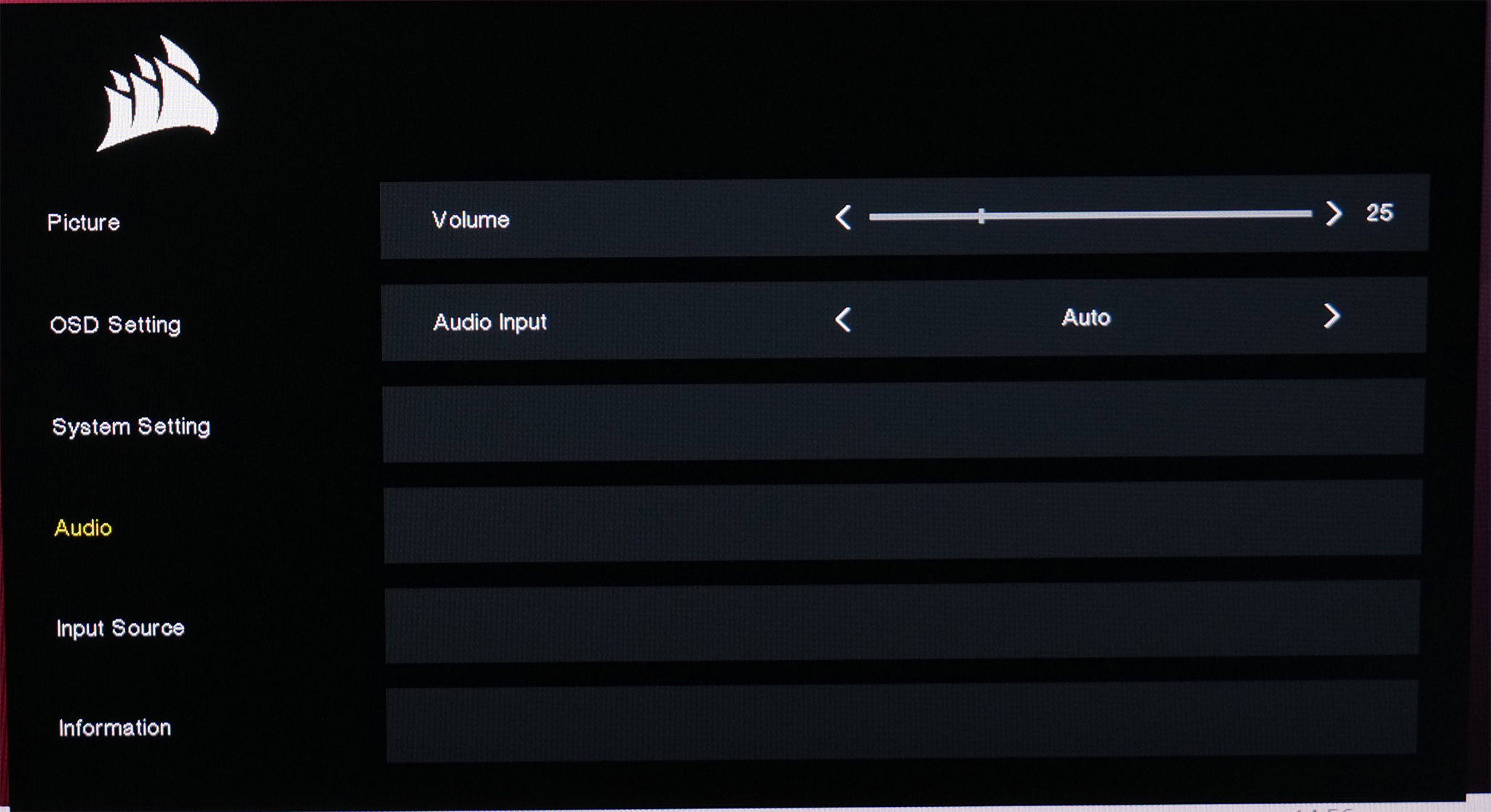
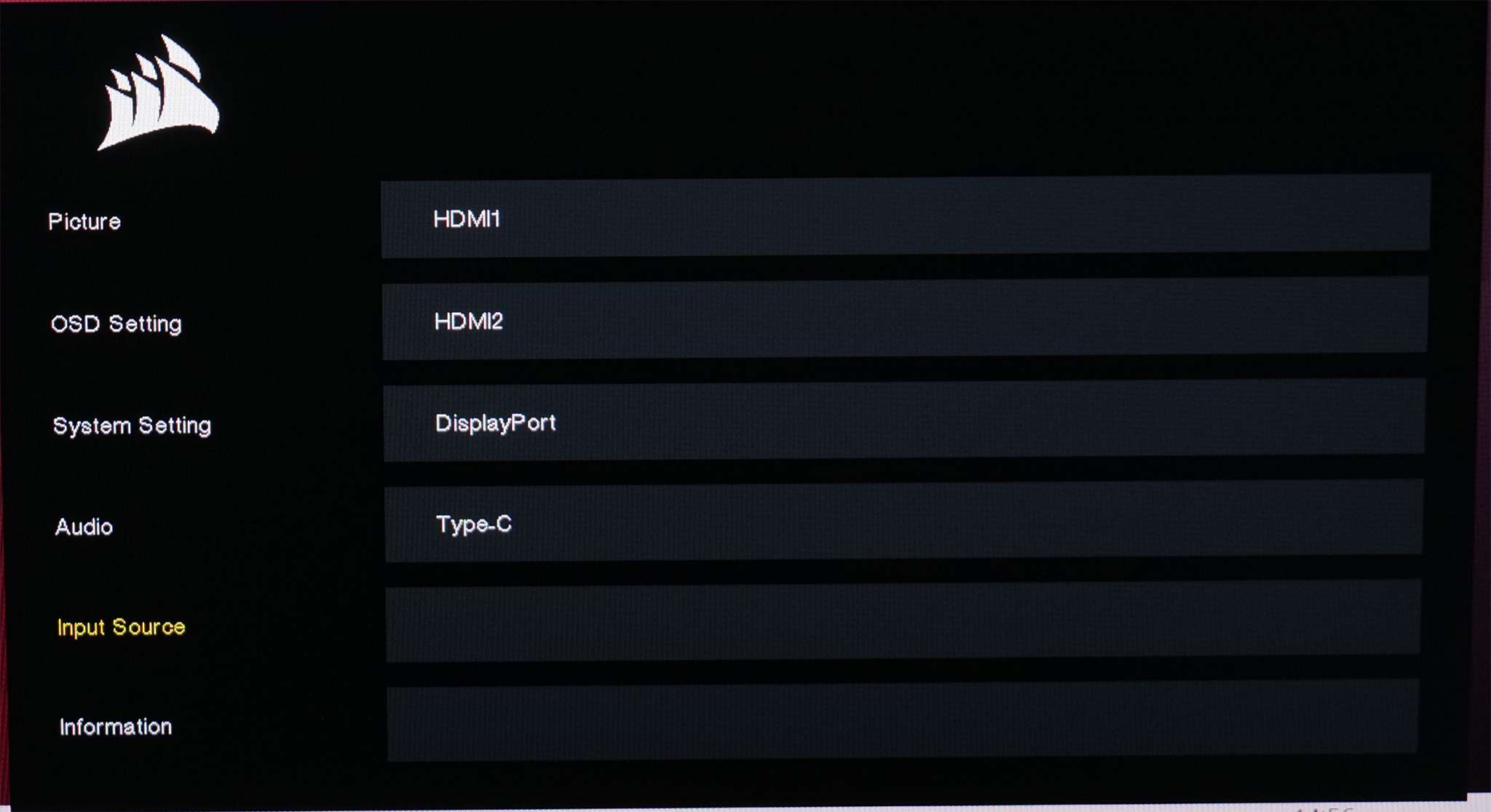
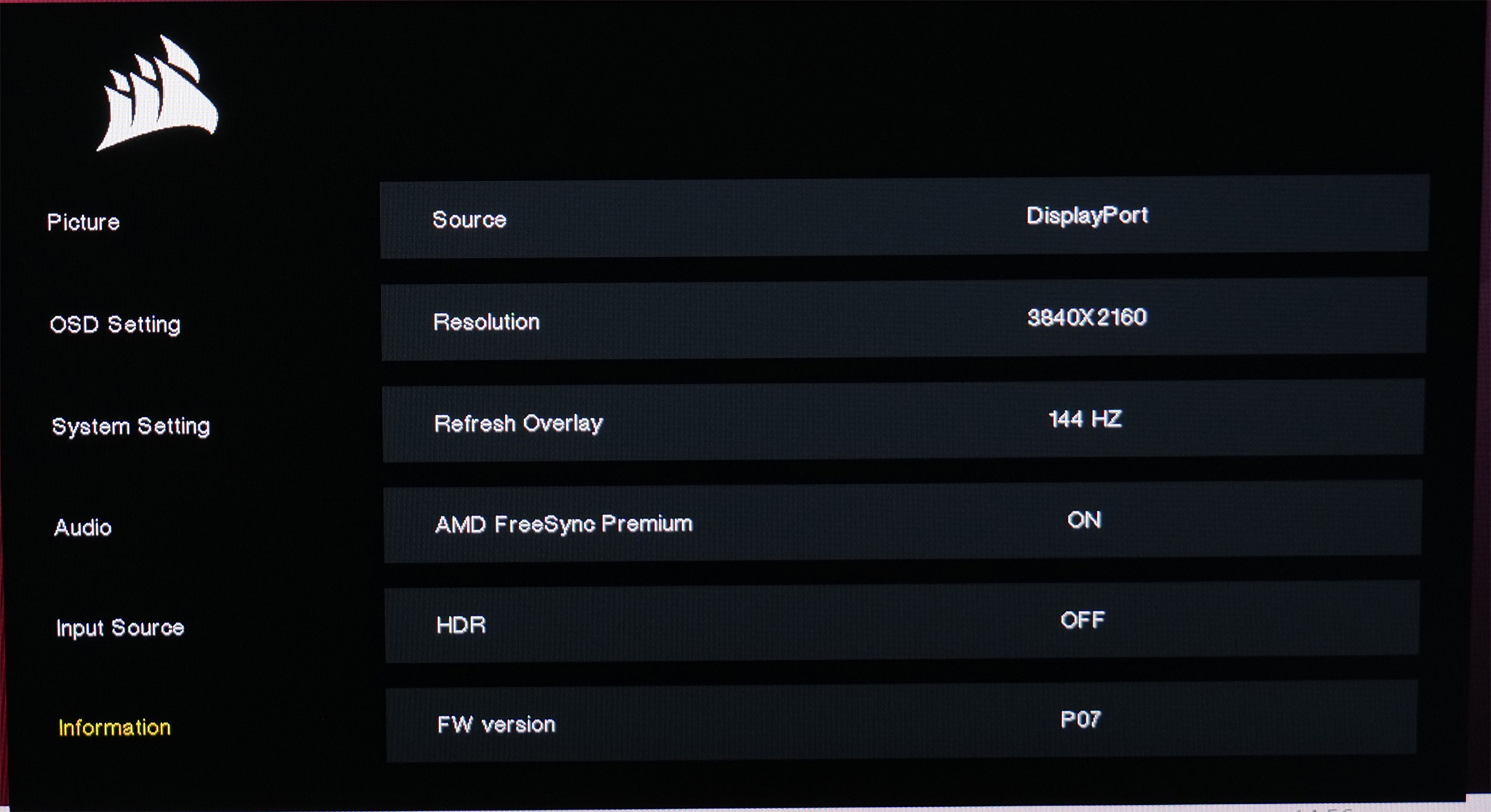
It's hard to be too critical of this OSD system, and Corsair has now added a Crosshair feature that was missing from the 32QHD165. There's still no shadow boost option, or ability to re-map the joystick shortcuts, but it's got all of the key image adjustment options we'd expect and it's dead easy to navigate with the joystick.
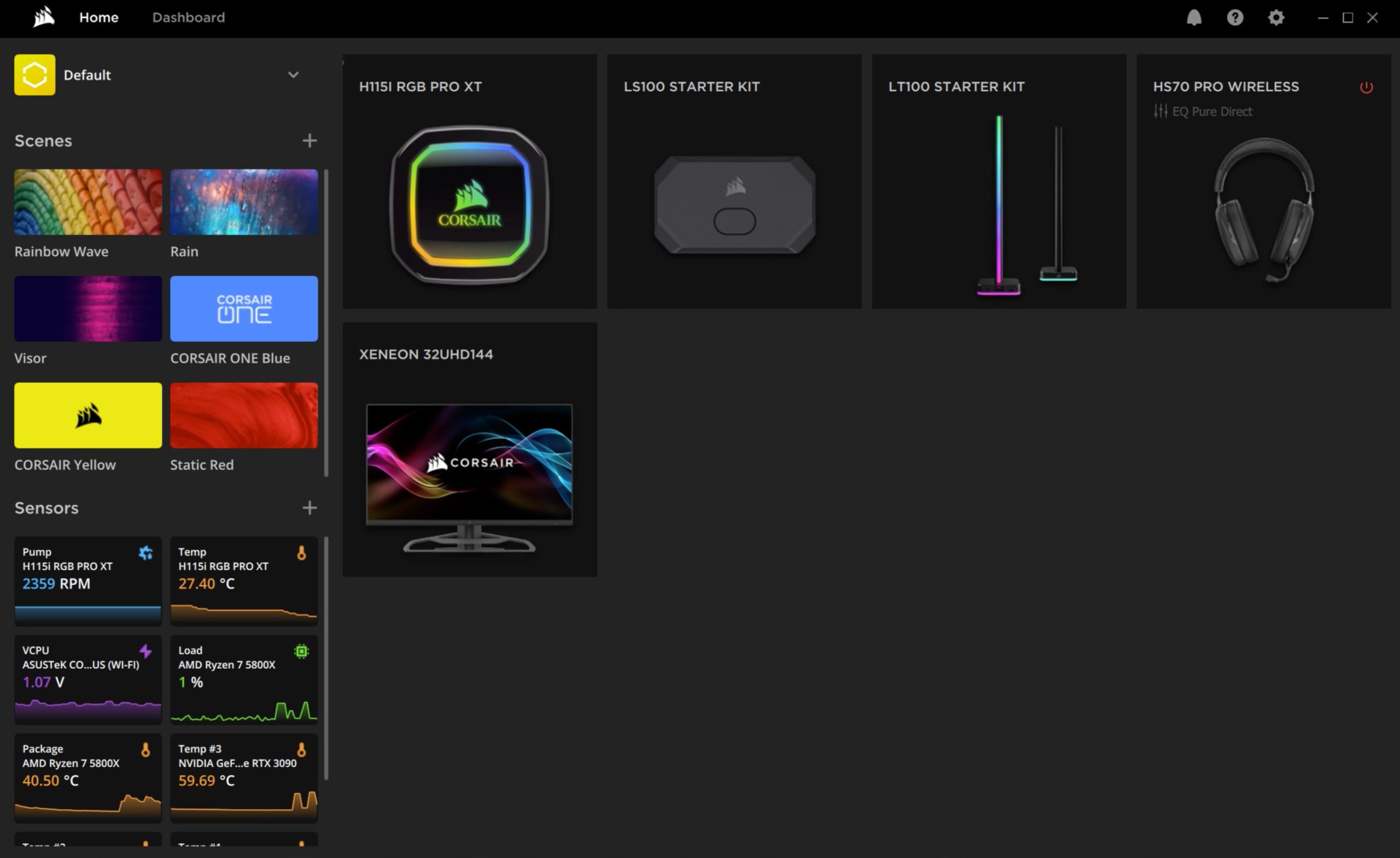
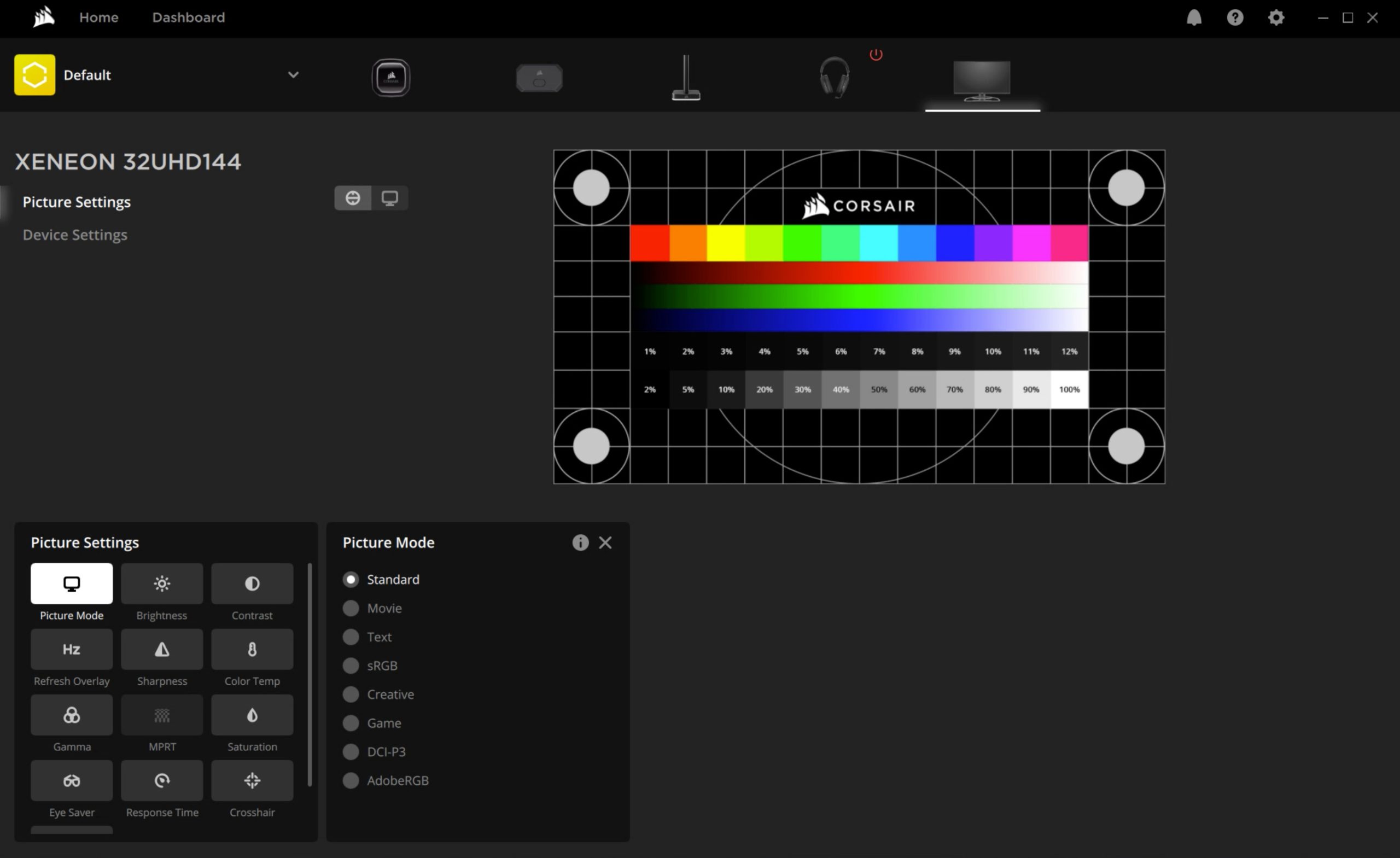
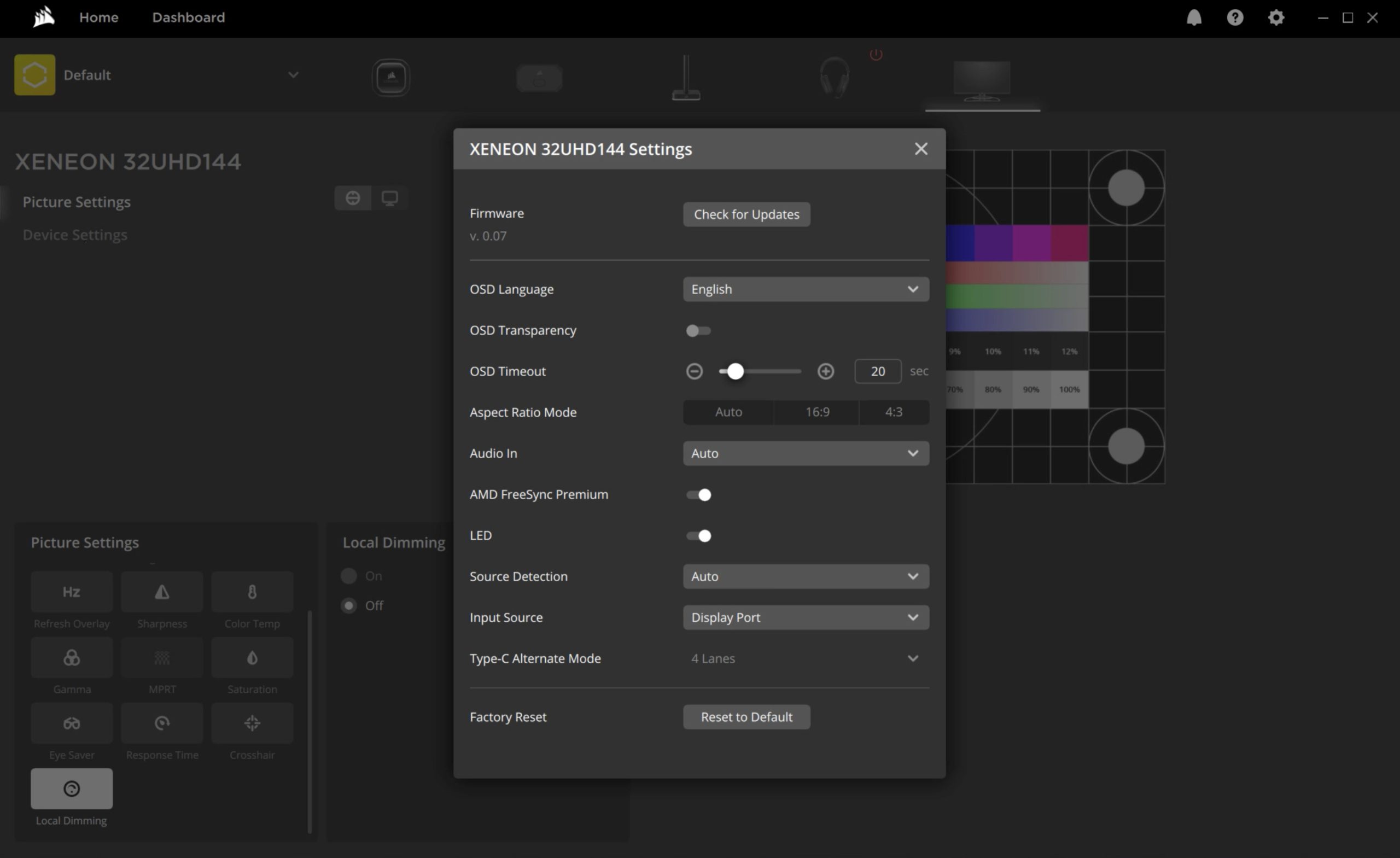
It is also possible to adjust the monitor's settings directly from your PC, using Corsair's iCUE software, provided you have connected the monitor to your PC via USB cable. This simply provides all the same settings you get from the OSD, but in software form, and you can also save different profiles and have them ready at a click of a mouse.
I do still think that Corsair could go further with this integration though by including more custom options not found within the OSD. Being able to create custom overlays or show a live read-out of system temperatures and other metrics on screen (something iCUE does already), I personally think would be very cool, as well as an option for custom overdrive settings outside of the four presets provided in the OSD.
I have asked Corsair about this and while they didn't address those features specifically, I was told that there are a lot of planned features in the works, but we were given no indication of time frame for further updates.
Our main test involves using a DataColor SpyderX Colorimeter to assess a display’s image quality. The device sits on top of the screen while the software generates colour tones and patterns, which it compares against predetermined values to work out how accurate the screen is.
The results show –
- A monitor’s maximum brightness in candelas or cd/m2 at various levels set in the OSD.
- A monitor’s contrast ratio at various brightness levels in the OSD.
- The brightness deviation across the panel.
- The black and white points.
- The colour accuracy, expressed as a Delta E ratio, with a result under 3 being fine for normal use, and under 2 being great for colour-accurate design work.
- The exact gamma levels, with a comparison against preset settings in the OSD.
We first run this test with the display in its default, out-of-the-box state, with all settings on default. We then calibrate the screen using the Spyder software and run the test again.
Pre-calibration
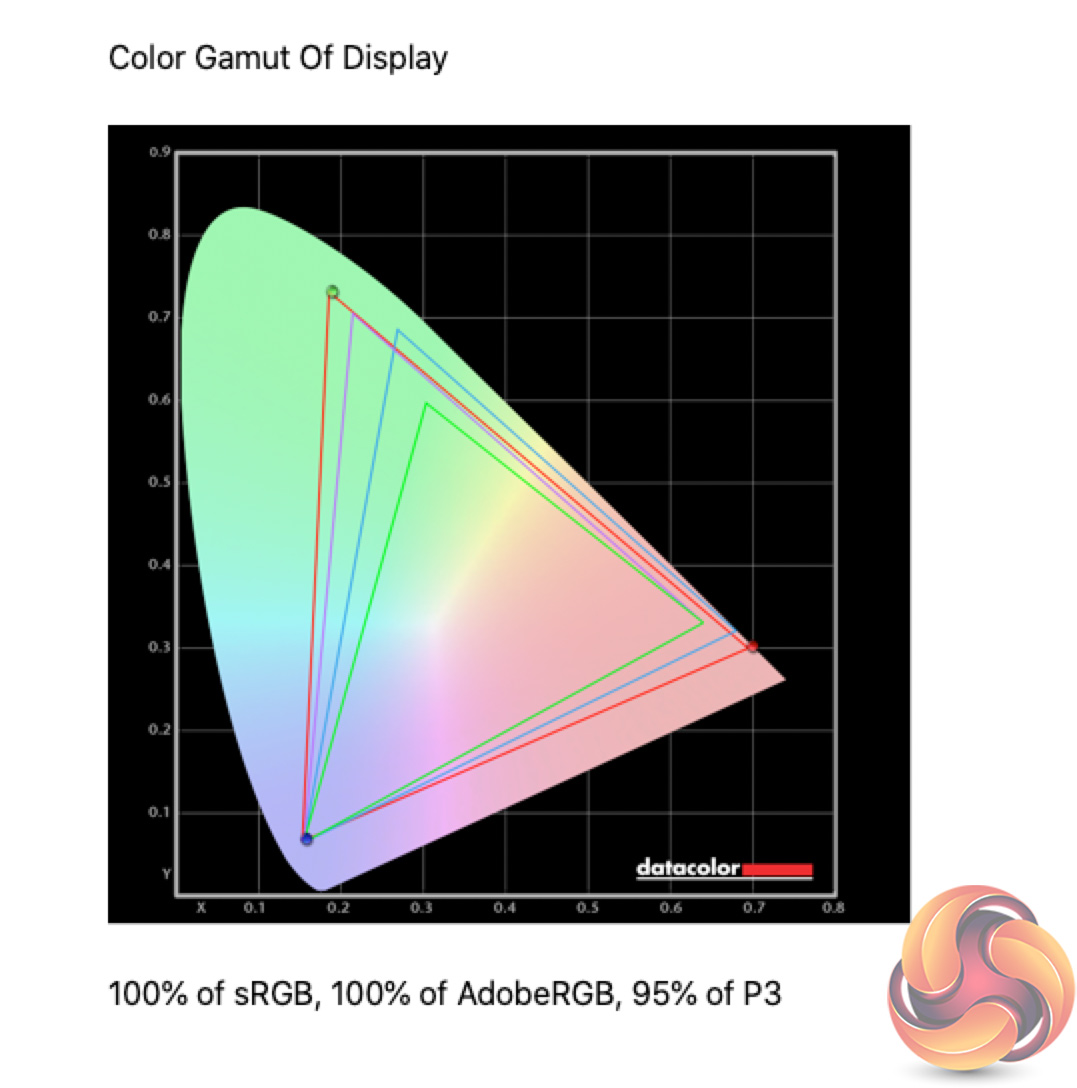
Starting off with a look at the gamut coverage, the 32UHD144 certainly impresses. The IPS panel with Quantum Dot tech helps it manage 100% sRGB and AdobeRGB coverage, and 95% of the DCI-P3 space. It's a strong start!
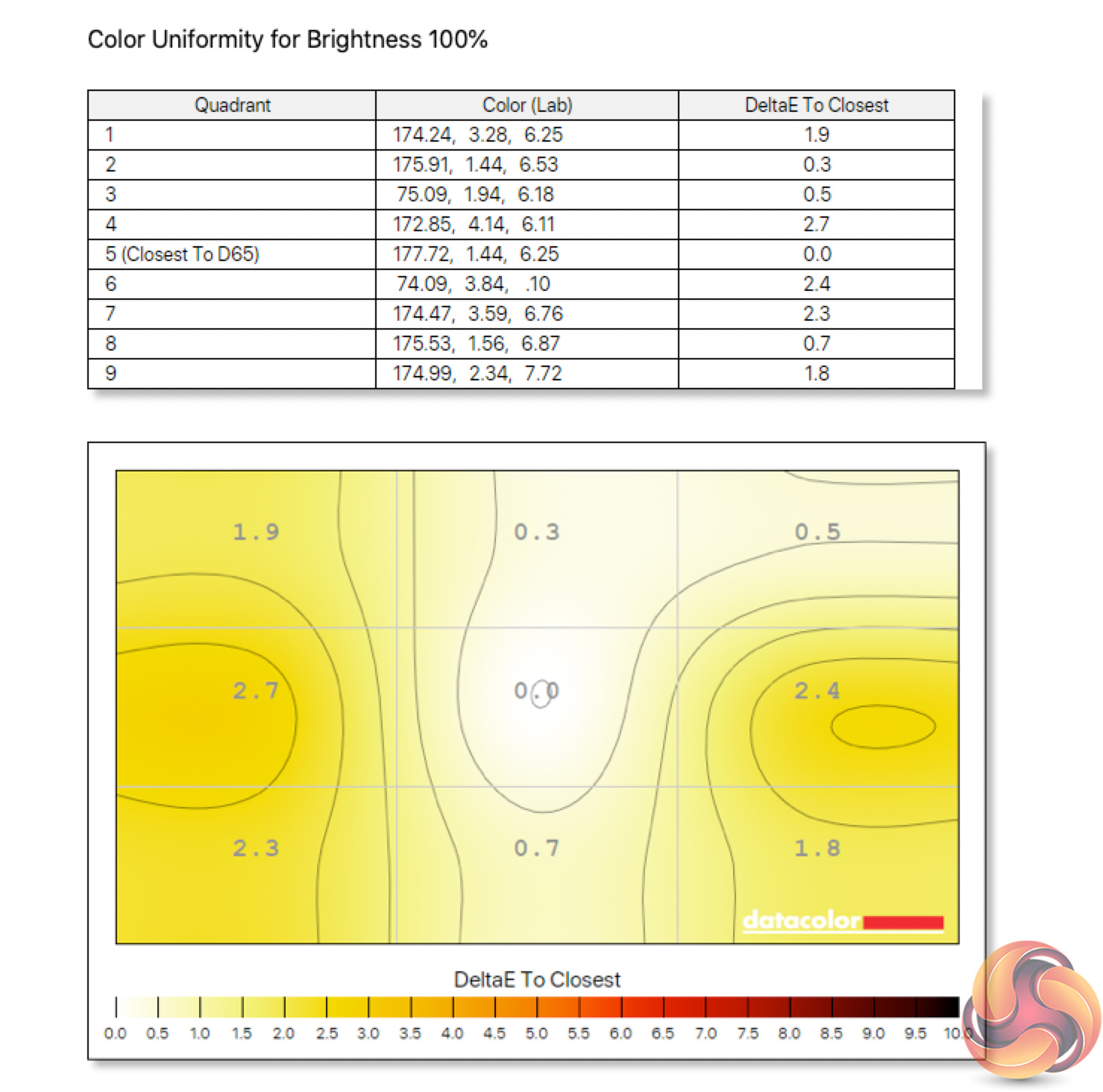
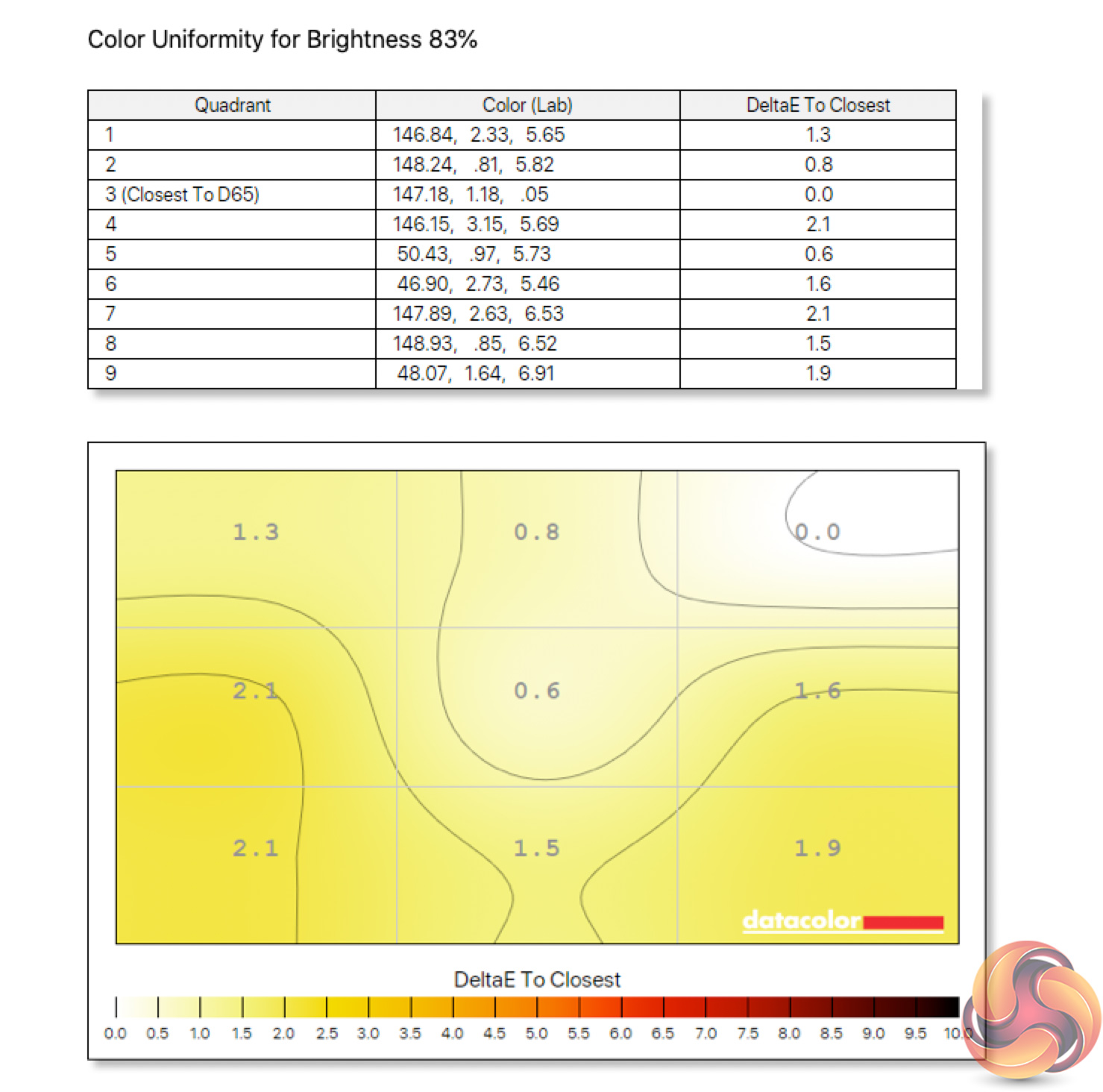
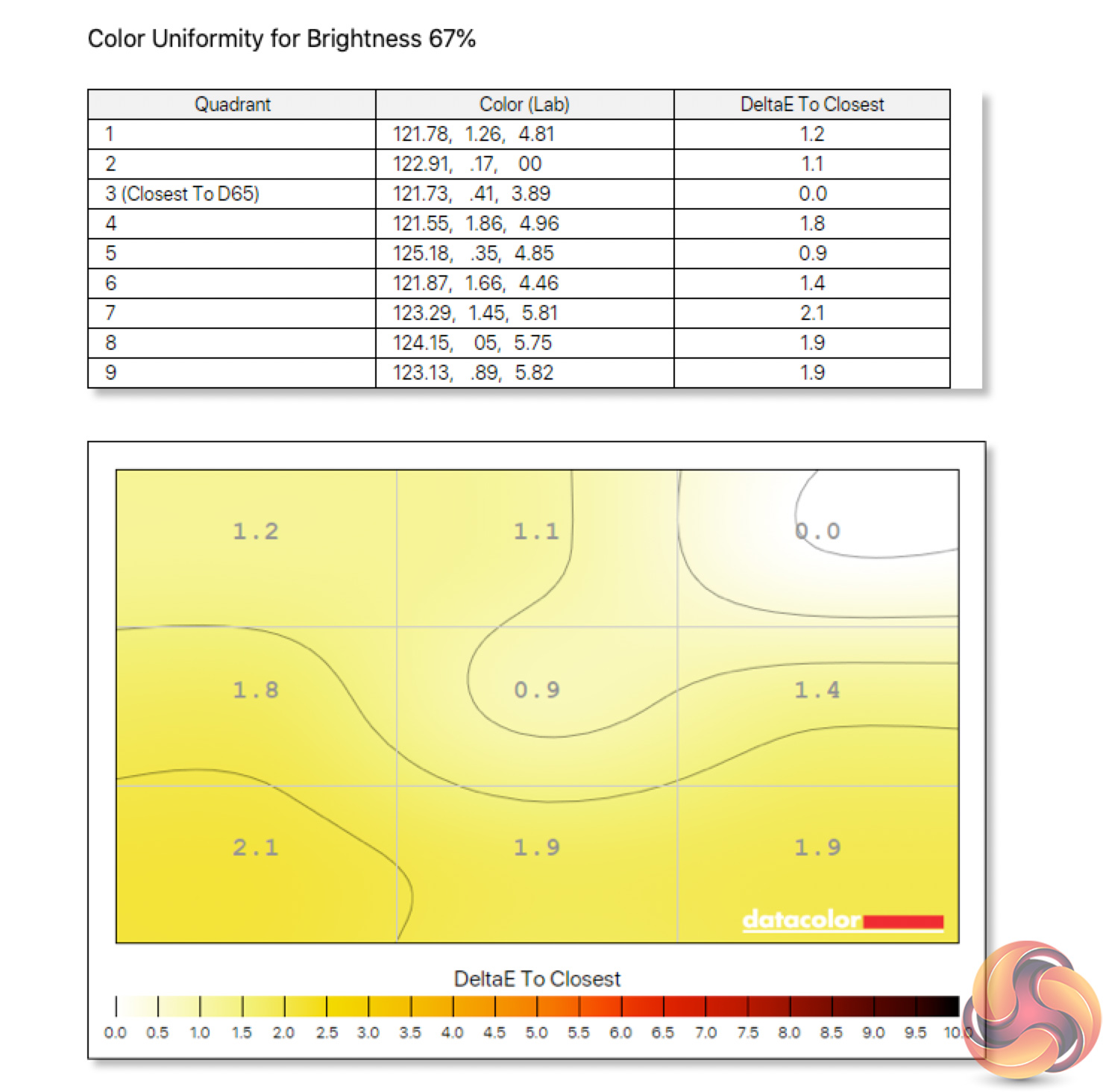
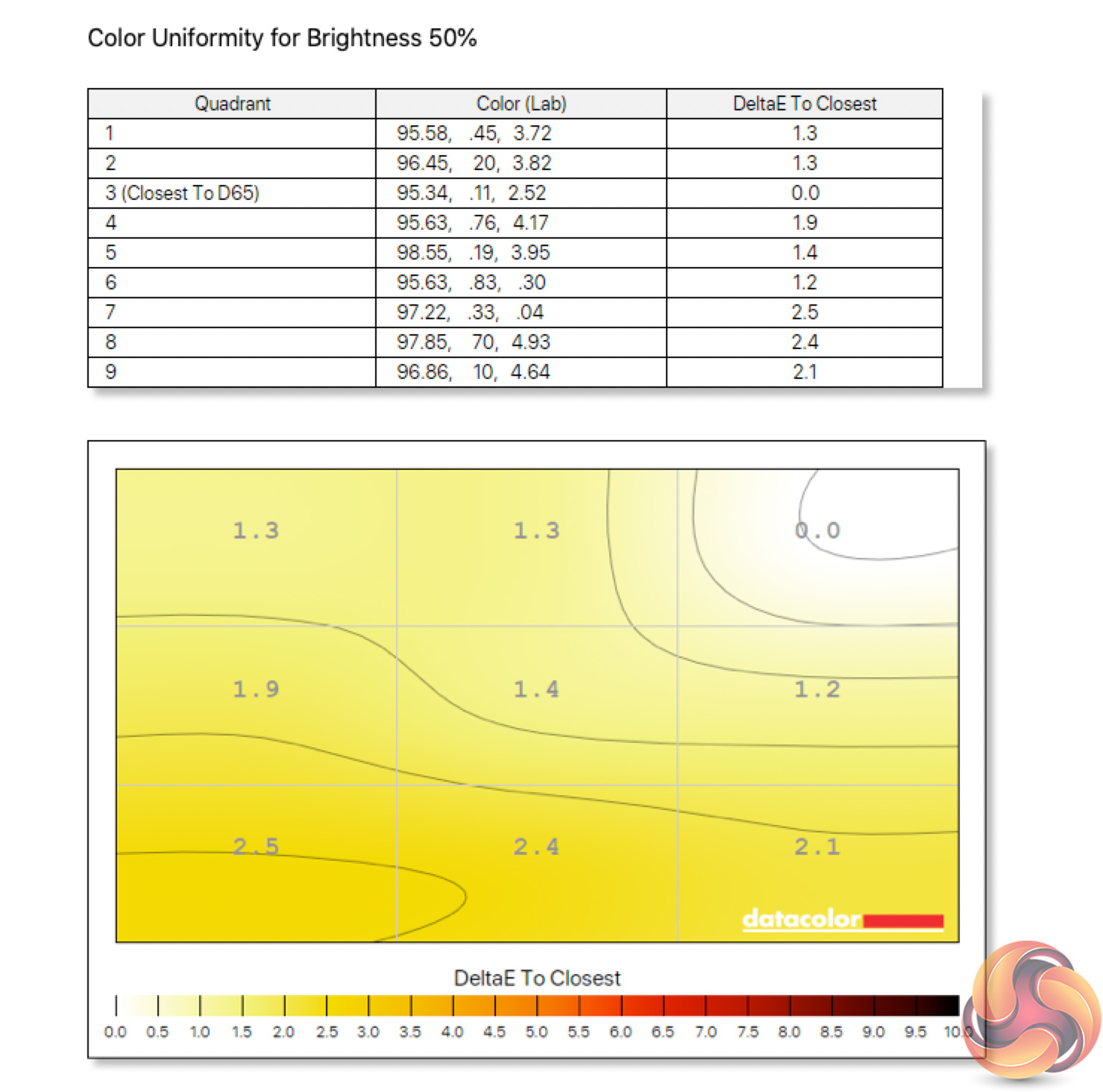
Colour uniformity is excellent too across all four brightness levels tested (100%, 83%, 67% and 50%.) There's only a minimal difference reported.
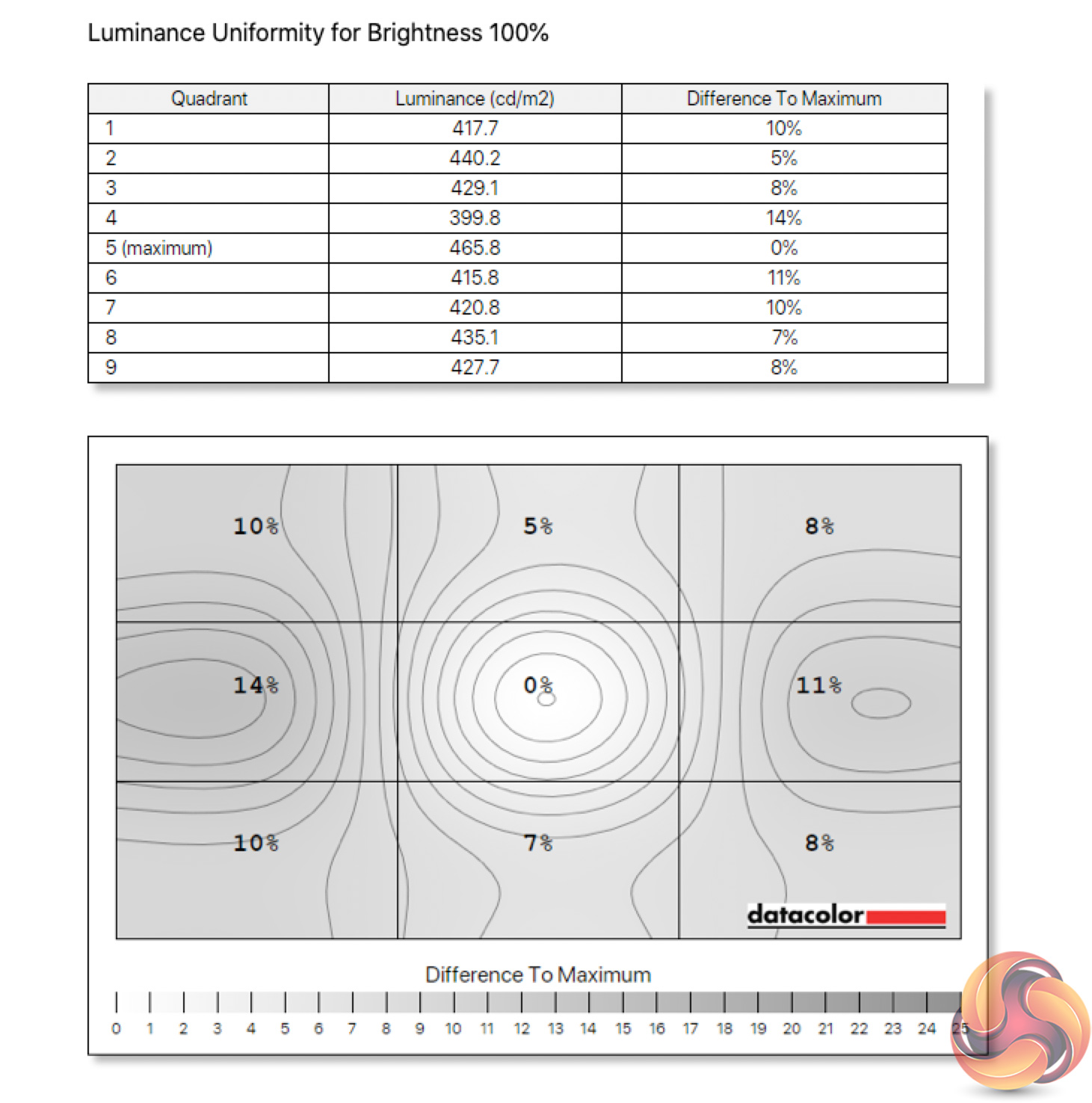
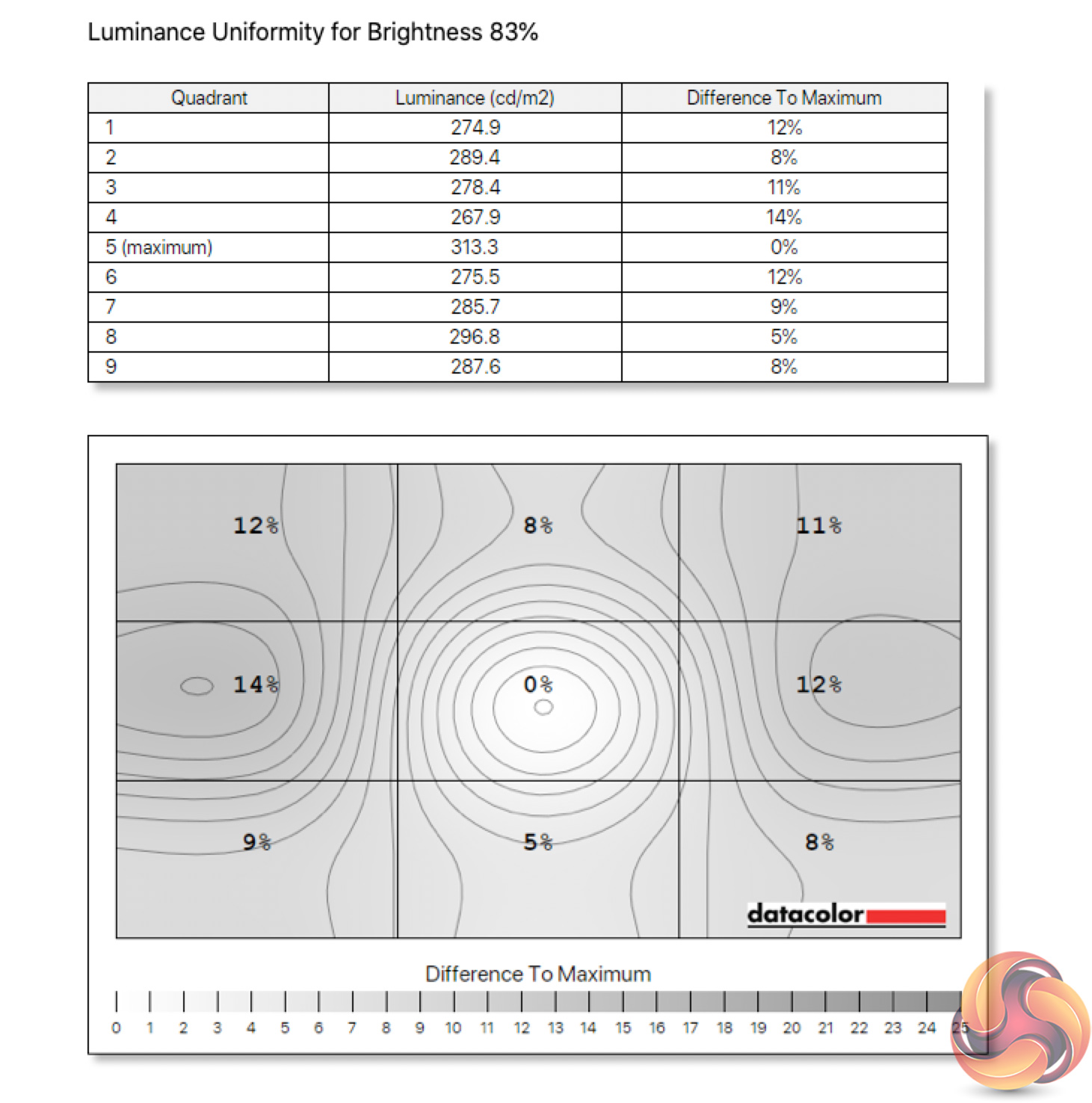
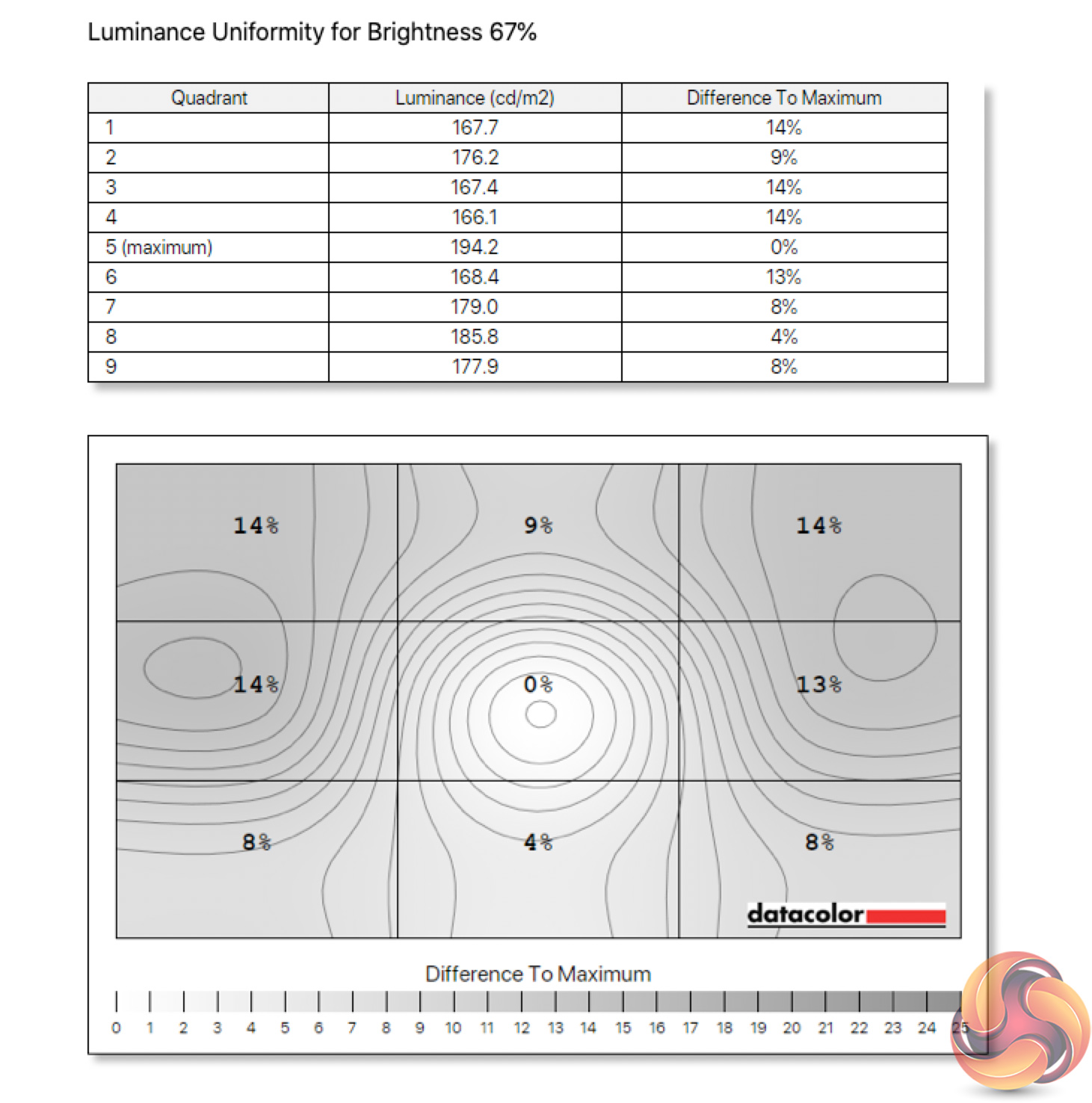
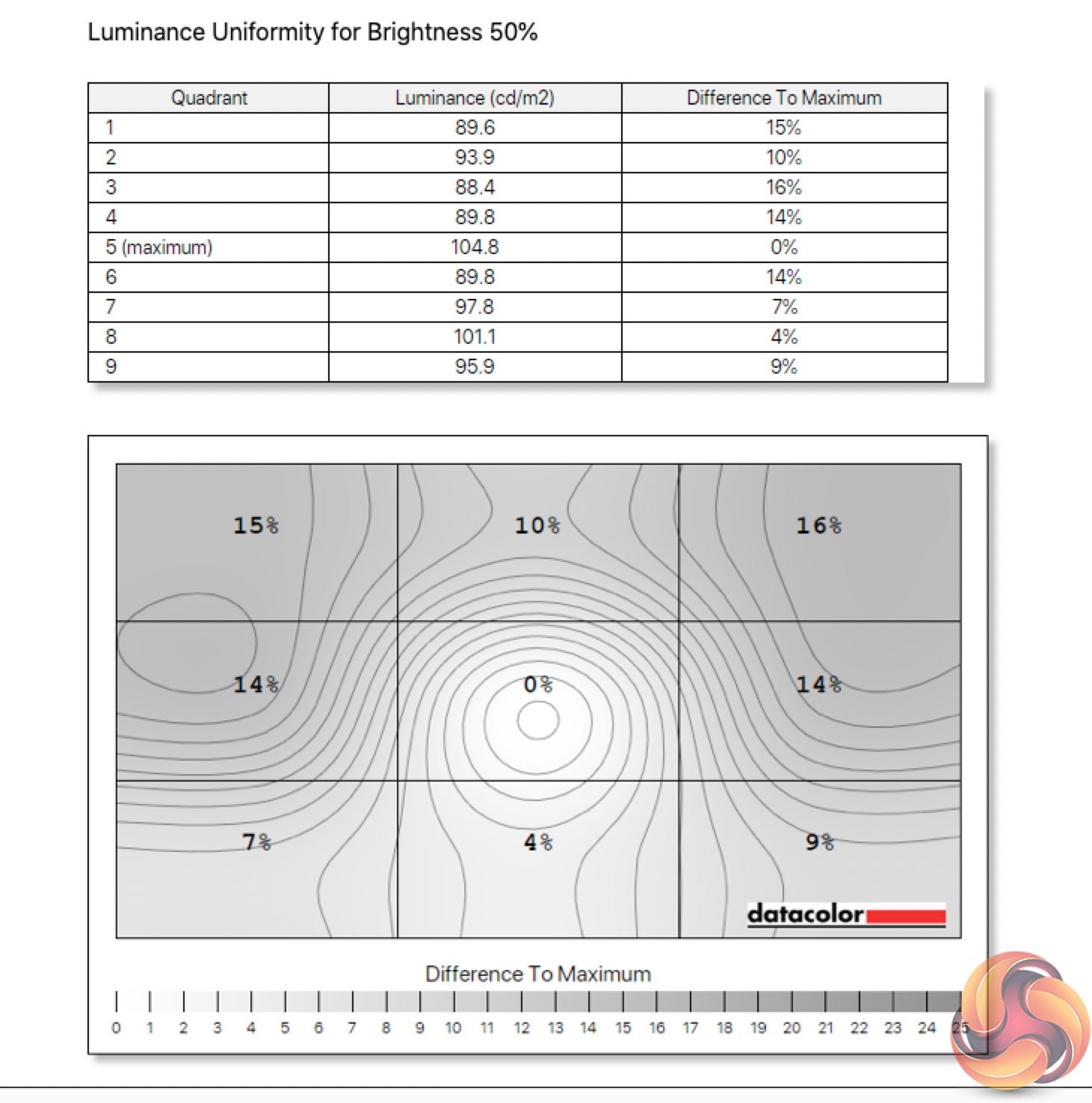
Luminance uniformity is slightly less impressive, with the left hand side deviating a little bit, but this is nothing out of the ordinary and certainly didn't bother me in use.

Brightness levels are very solid too. We see a peak reading of 466.6 nits which should be enough for almost everybody – I typically used the screen at 60% brightness. Contrast isn't great however, with a peak of just 630:1, something we also observed with the 32QHD165. I have seen reports that the SpyderX unit can under-report contrast, but for an IPS panel this was never going to be a particular high-point. We can also note a slightly warm white-point at 6100K – it's not miles off the 6500K ideal though.
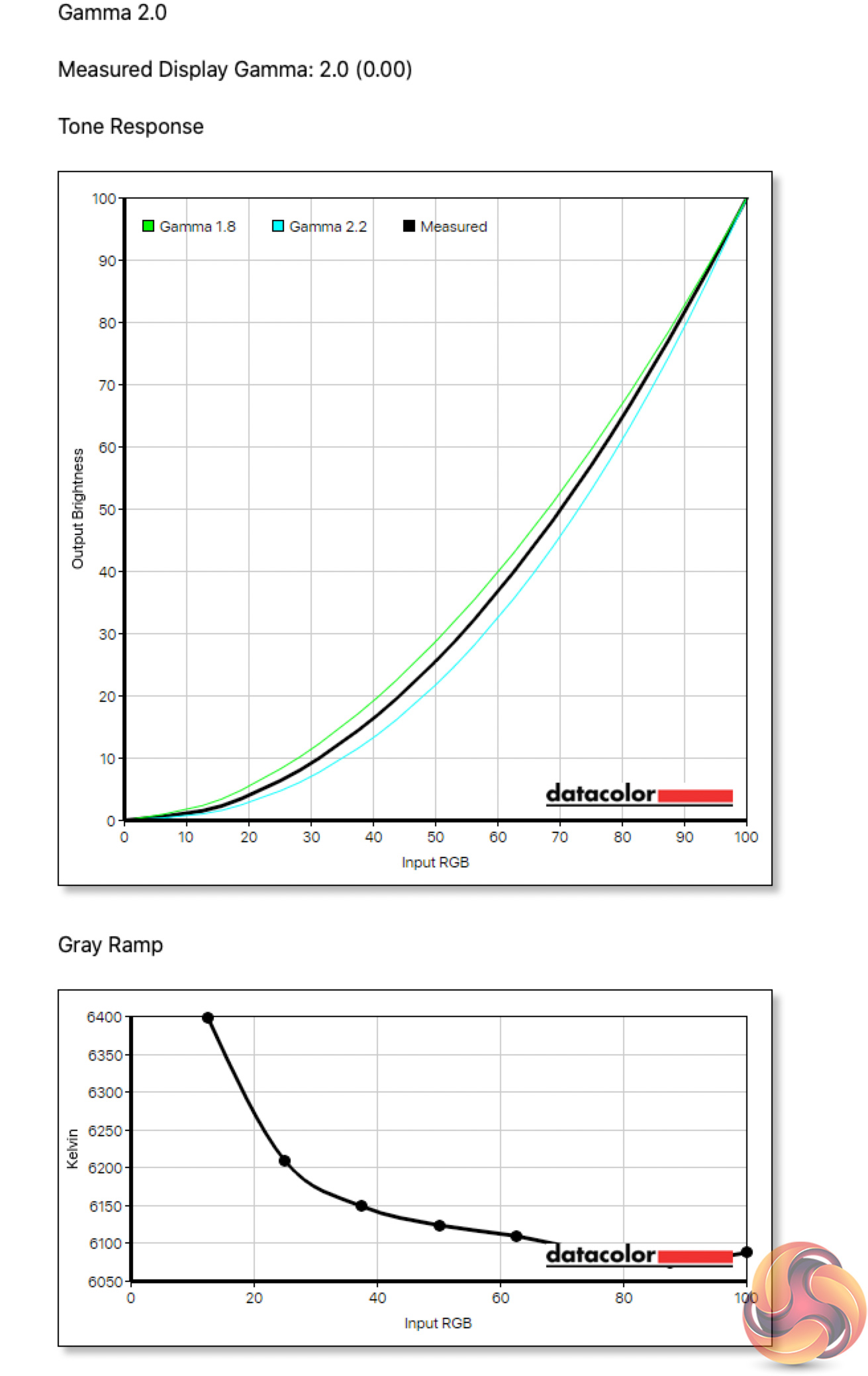
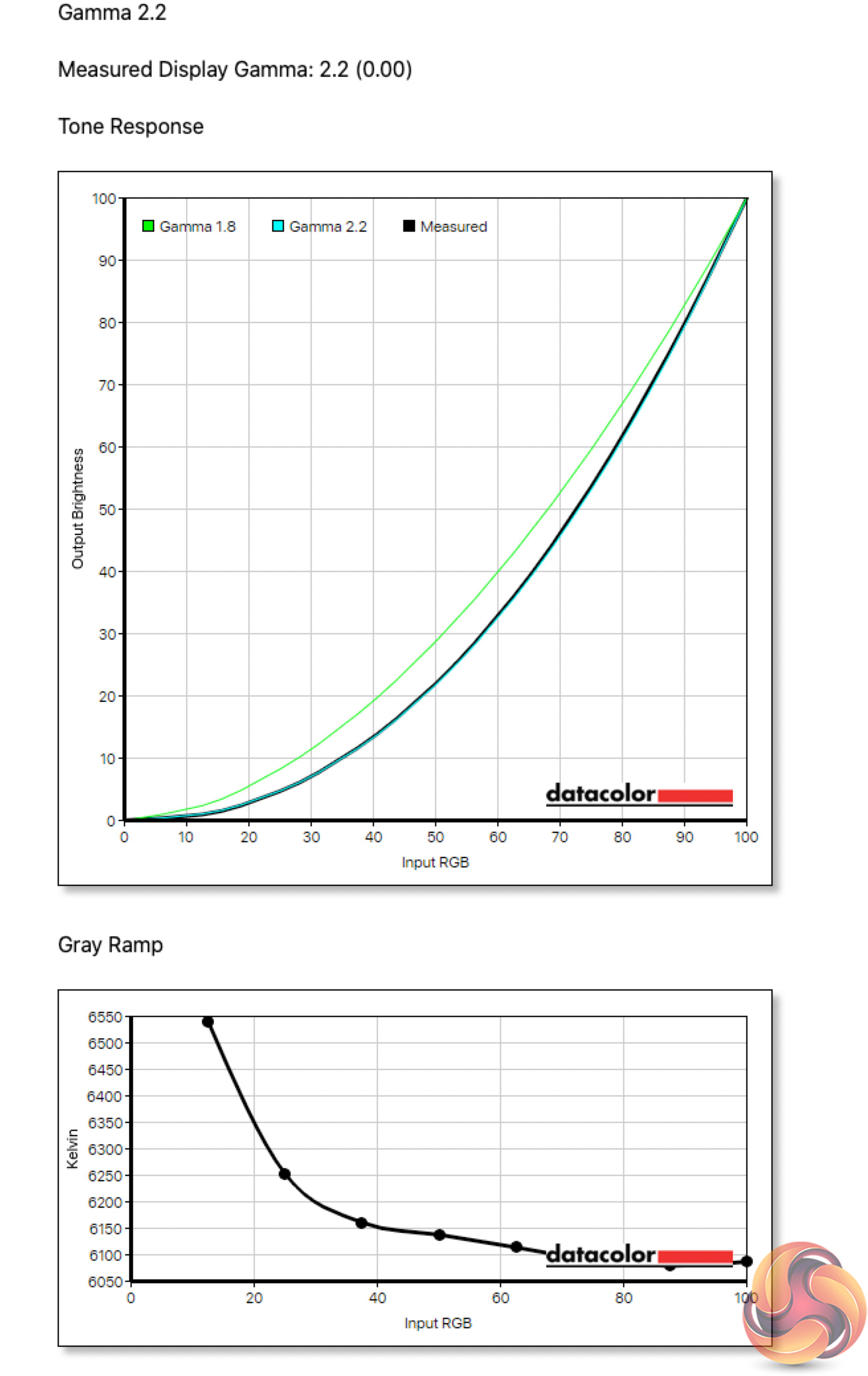
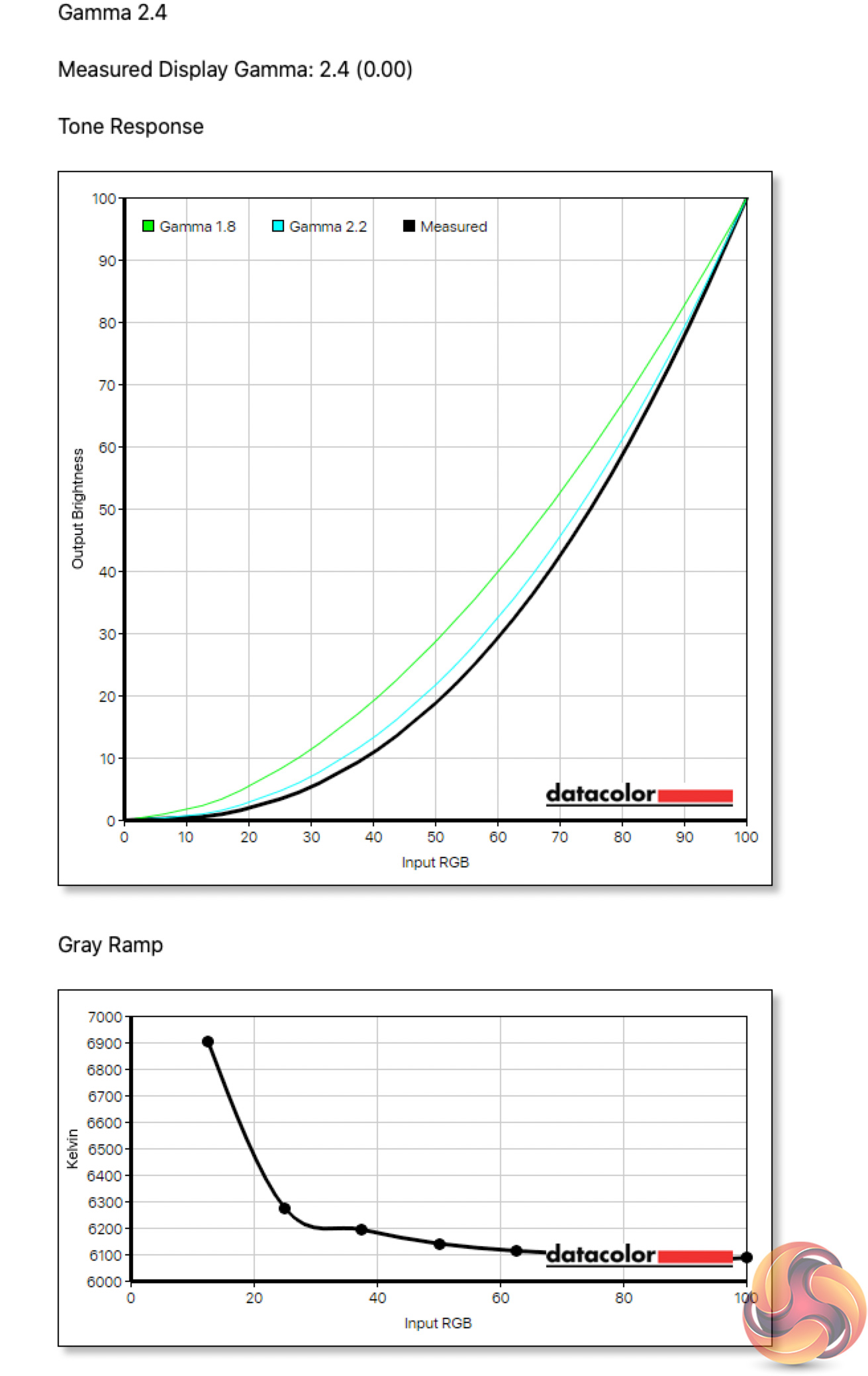
Gamma is spot on across the board, with all three settings in the OSD hitting their targets exactly – no complaints here.
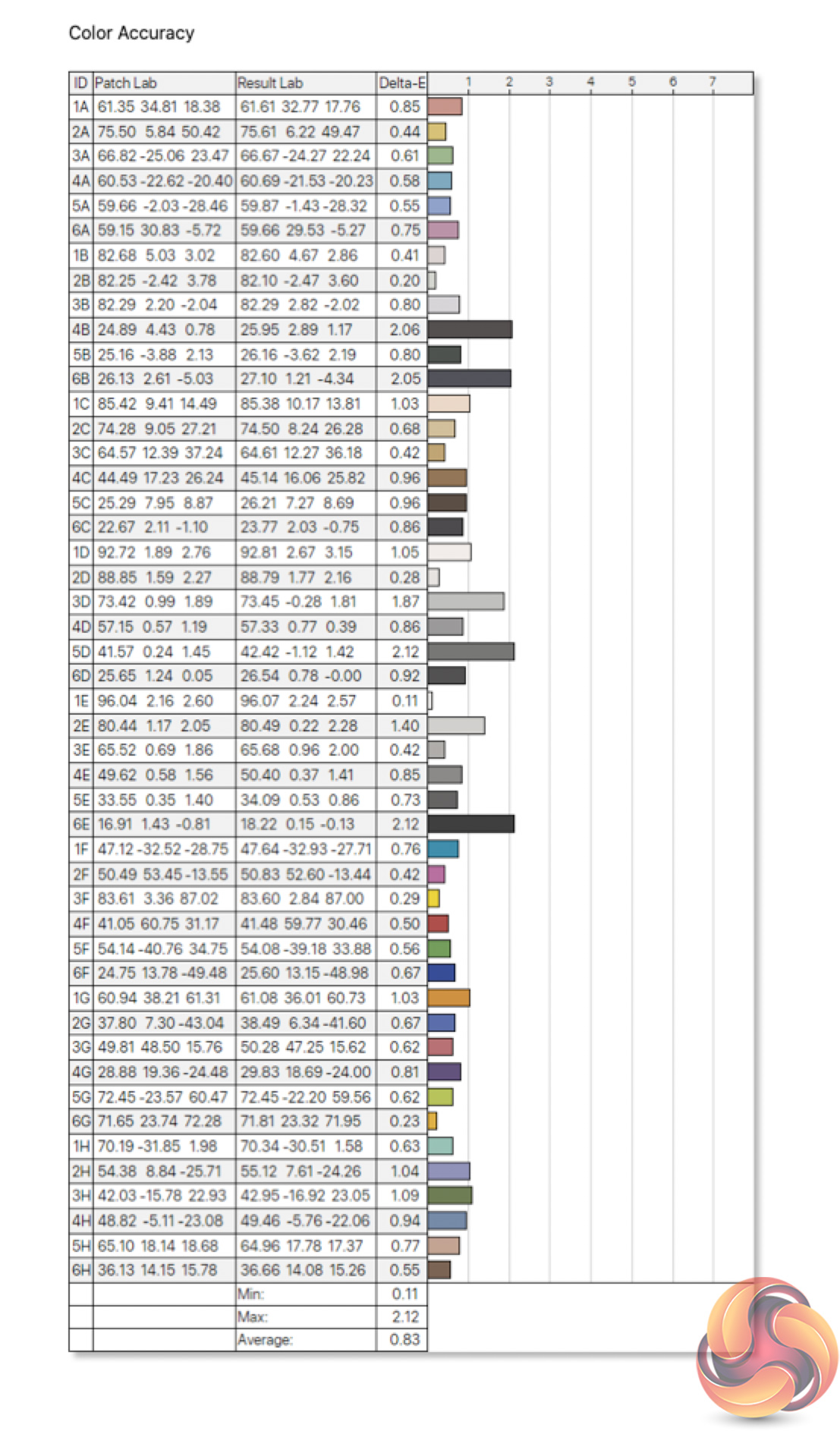
Colour accuracy is very impressive out of the box too. This is usually a strongpoint for IPS panels and before calibration we see an average deltaE of just 0.83, as well as a maximum of 2.12. This is highly impressive stuff.
Post-calibration
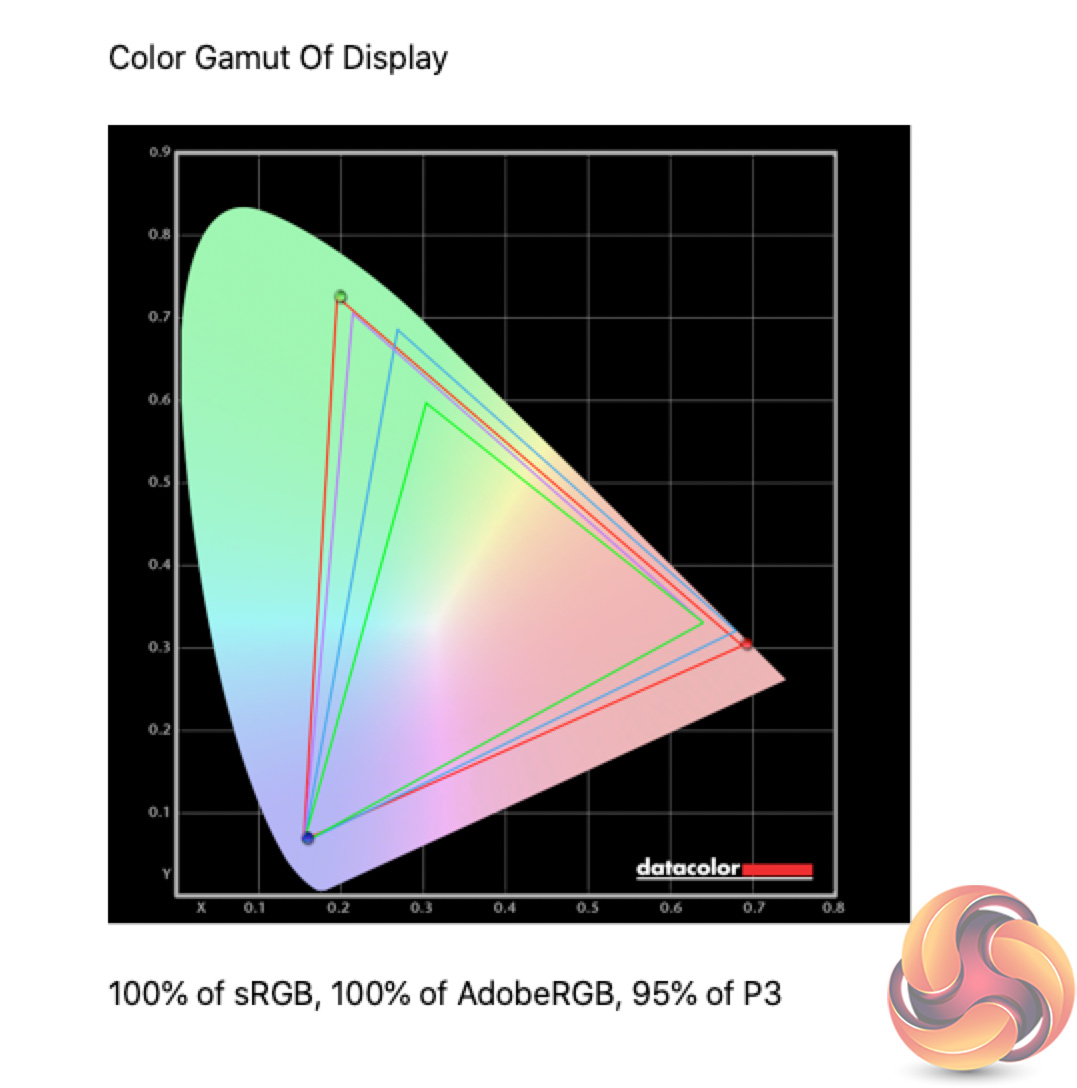
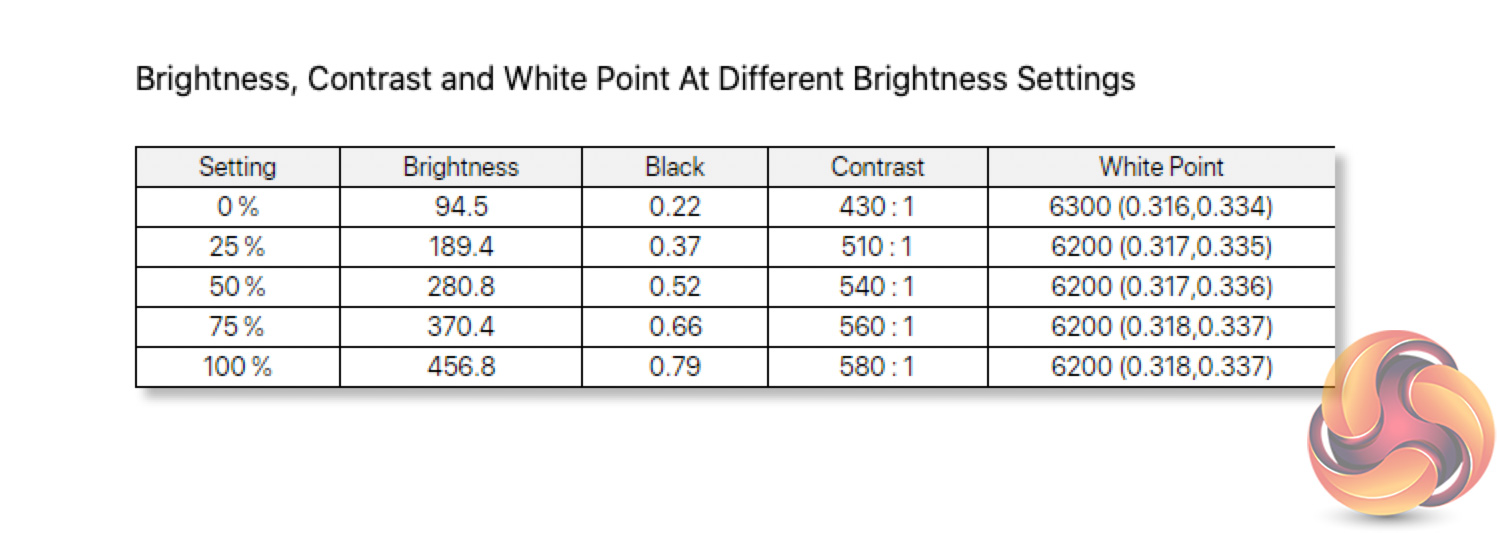
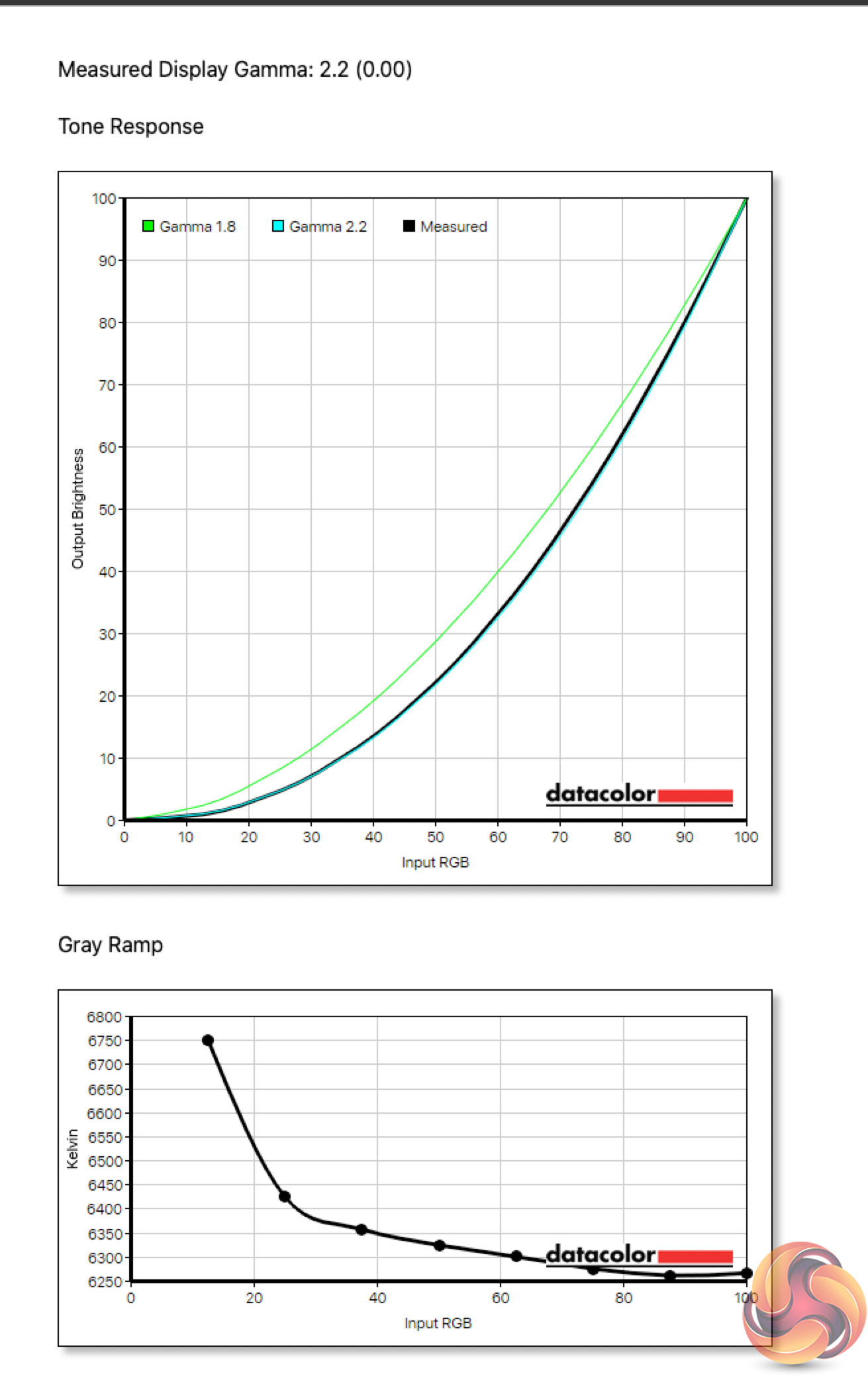
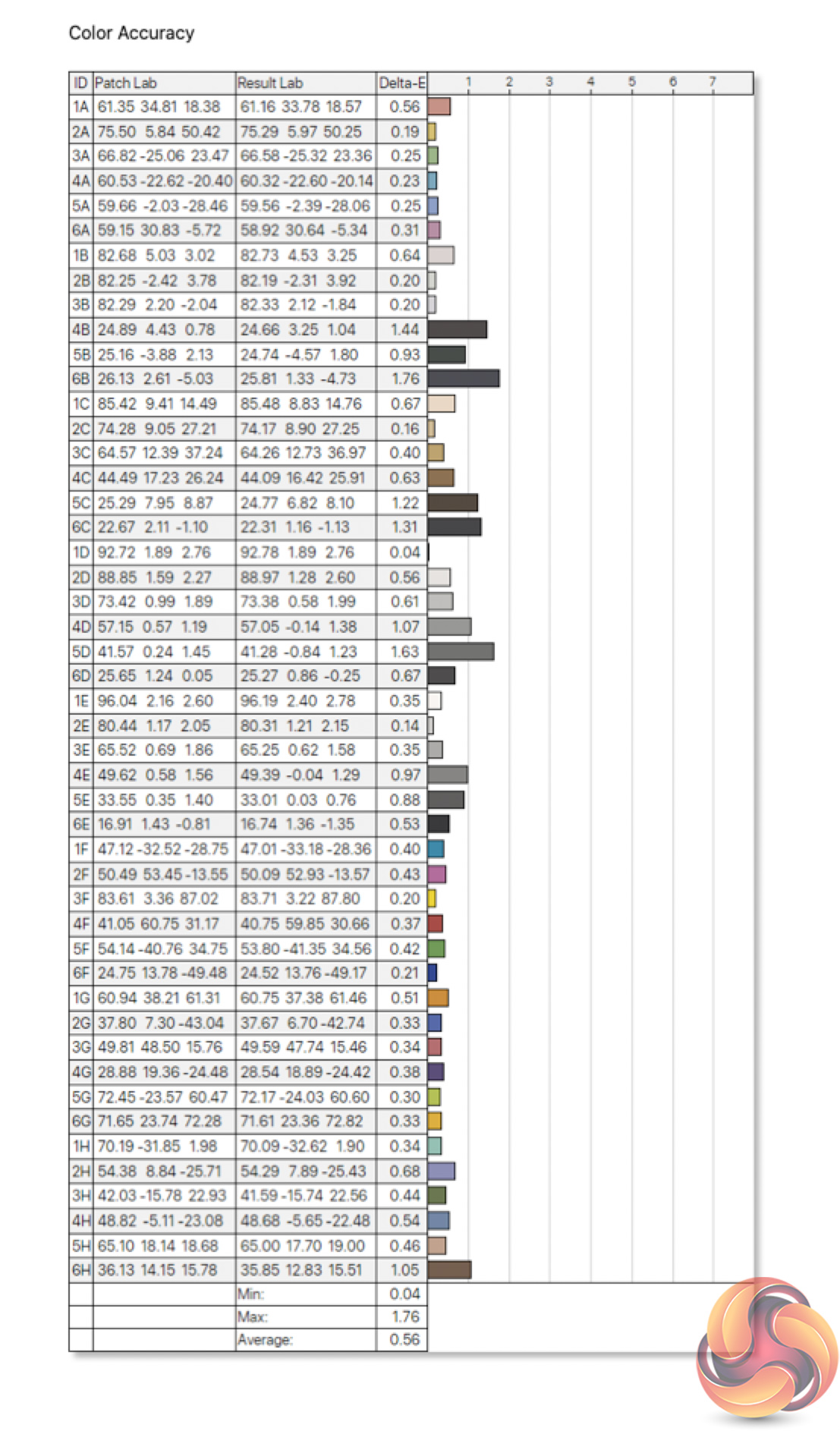
After calibration, not much changes to be honest but we were able to improve colour accuracy further, with a new deltaE of 0.56 – one of the best results we've ever seen. This is clearly a very capable panel.
Monitor response time testing is a new addition to our reviews, where we use the Open Source Response Time Tool (OSRTT), developed by TechTeamGB. This measures grey-to-grey response times and presents the results in a series of heatmaps, the style of which you may be familiar with from other reviews.
Initial Response Time is the time taken for the panel to transition from one colour to another, where lower values are better. We present the initial response time, so overshoot is not taken into account and is measured separately. We use a fixed RGB 5 tolerance for each transition.
Overshoot is the term given for when a monitor's transition exceeds or goes beyond its target value. So if a monitor was meant to transition from RGB 0 to RGB 55, but it hits RGB 60 before settling back down at RGB 55, that is overshoot. This is presented as RGB values in the heatmaps – i.e. how many RGB values past the intended target were measured.
Visual Response Rating is a metric designed to ‘score' a panel's visual performance, incorporating both response times and overdrive. Fast response times with little to no overshoot will score well, while slow response times or those with significant overshoot will score poorly.
We test the Xeneon 32UHD144 at 144Hz, using all four of the overdrive settings found within the OSD – Normal, Fast, Faster, Fastest:
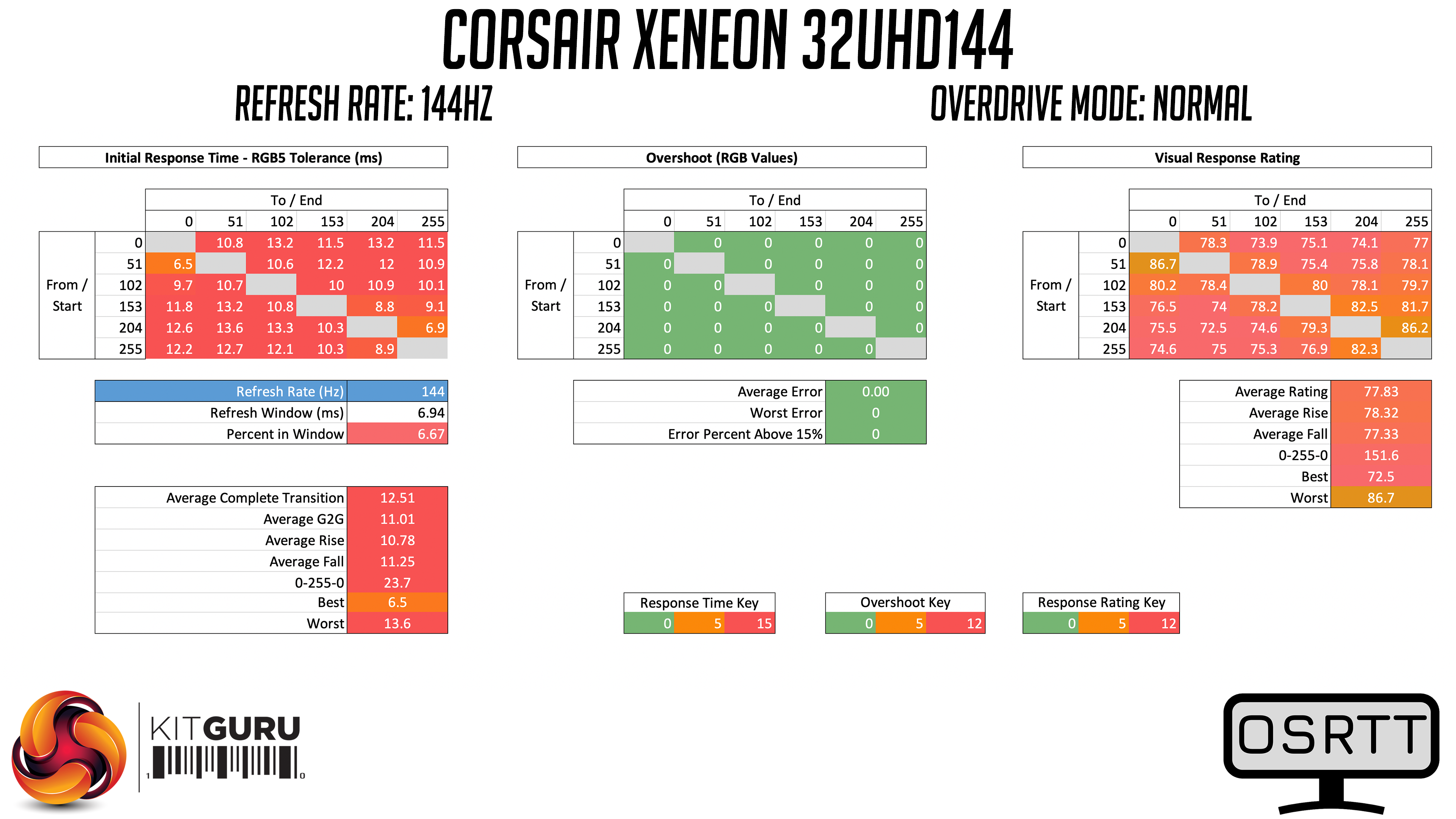
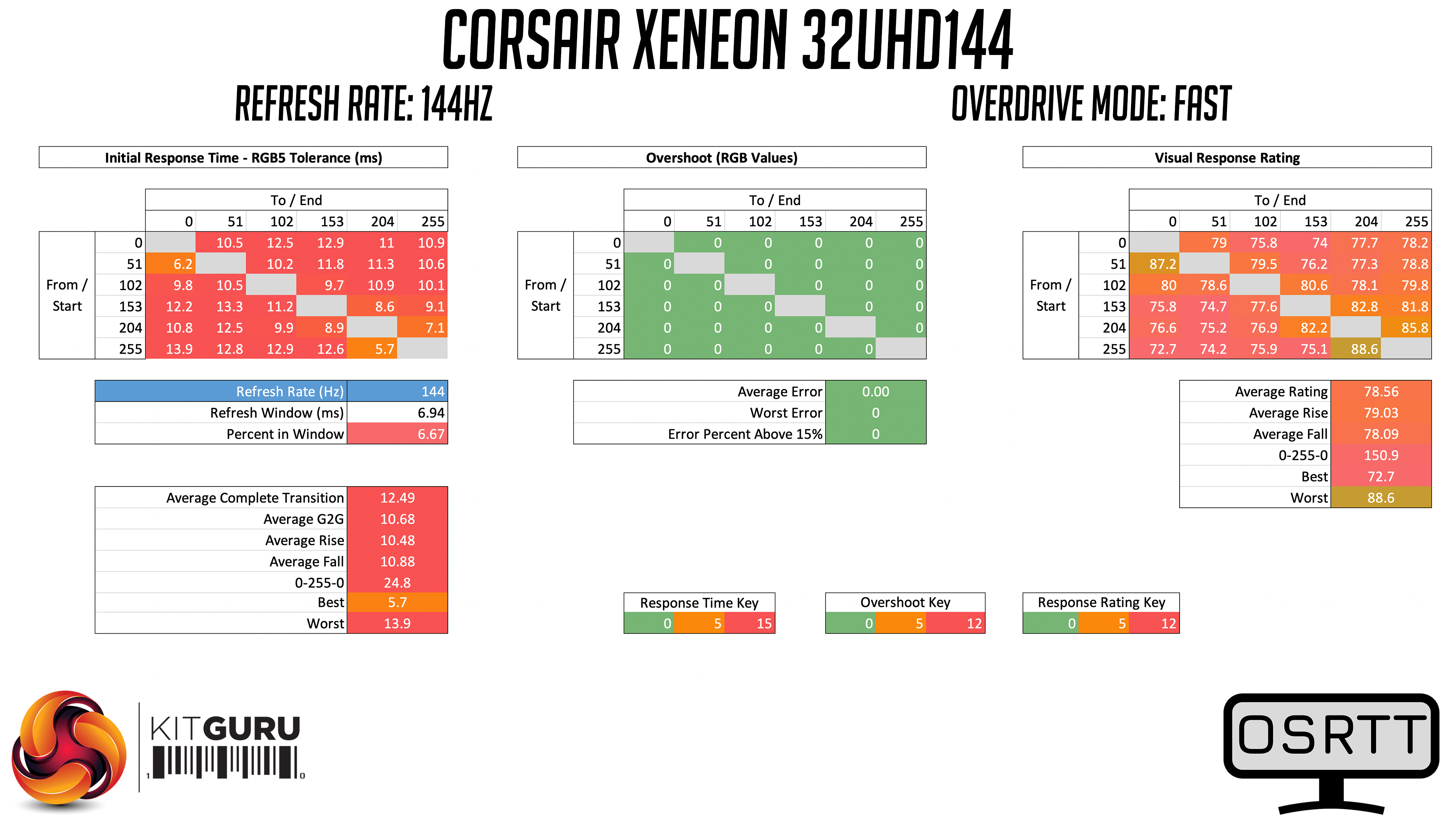
We'll briefly touch on the Normal and Fast modes, but honestly these aren't worth using – both have fairly slow response times and aren't that different from each other.
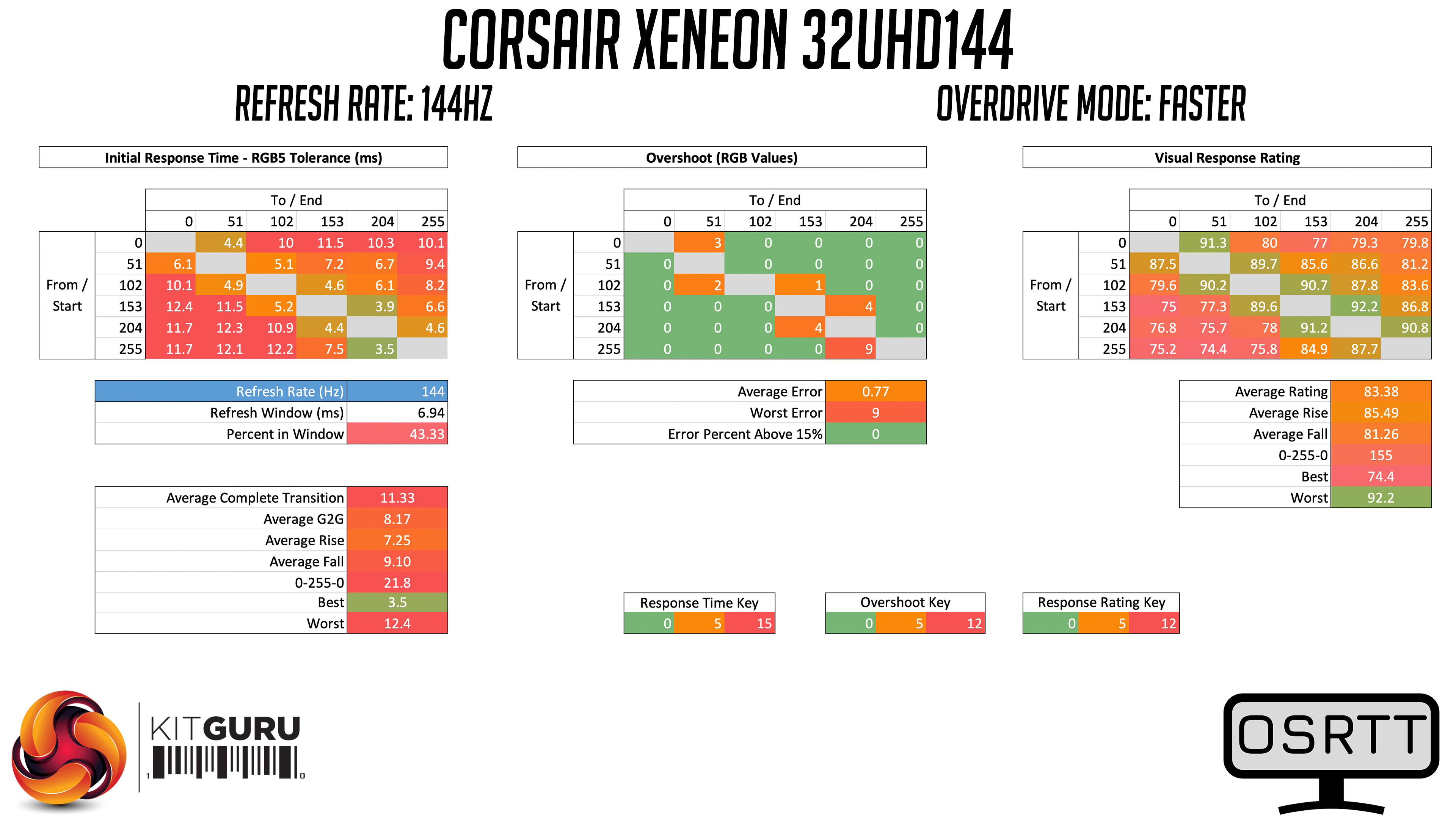
The Faster mode is where things get a bit more usable. There's only a tiny amount of overshoot introduced by this setting, and we see an average GtG transition time of 8.17ms. It's not awful but it's not super fast, and we can see some particularly slow fall times from pure white shades (along the bottom row of the heatmap).
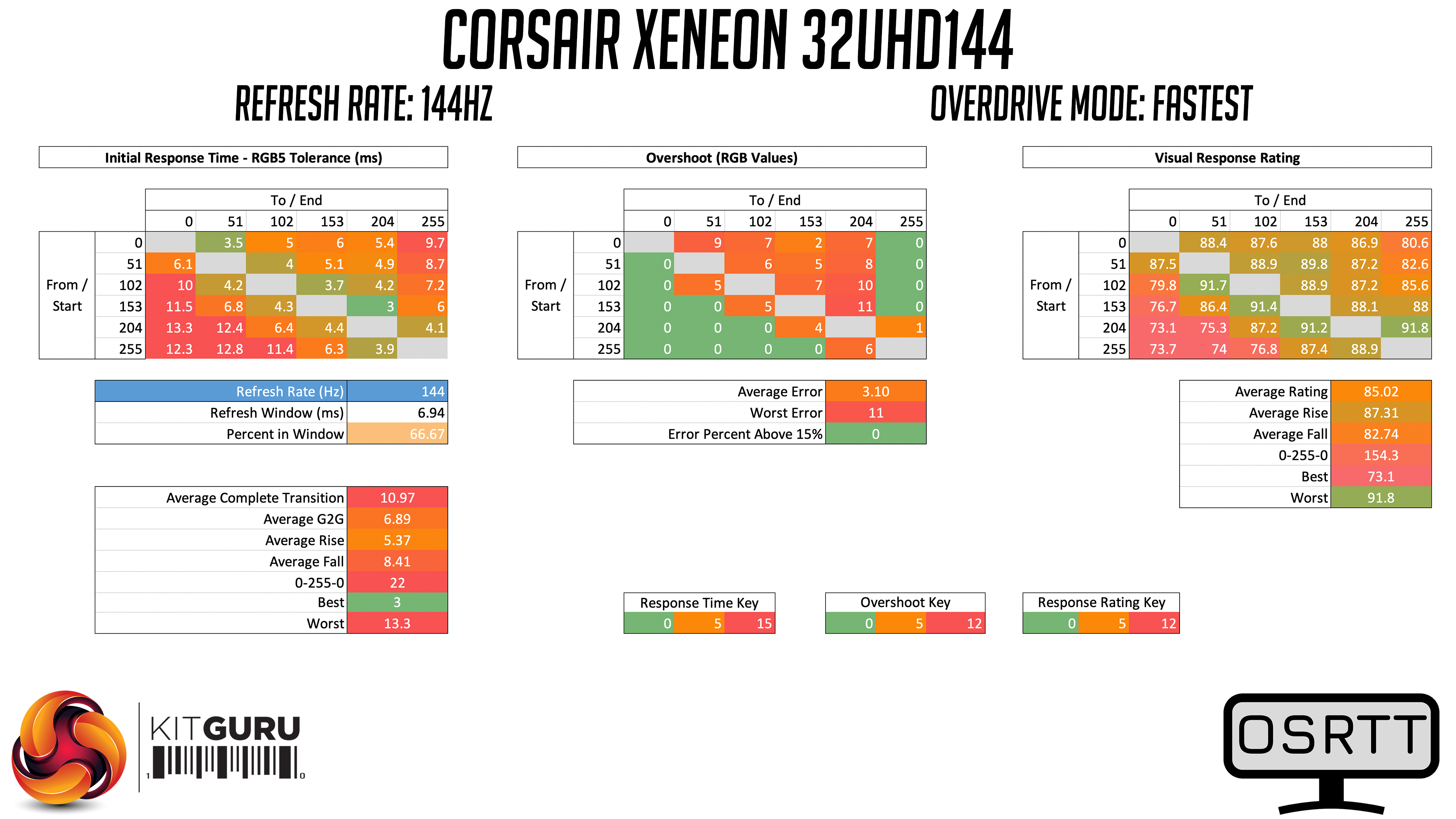
The fastest mode is the best of the lot though. It does introduce a little more overshoot, but none of the errors exceed their target by more than 15% which is good to see – in practice, the overshoot was barely noticeable to my eye, and I'm generally quite sensitive to colour fringing.
This brings the average GtG time to 6.89ms, a pretty respectable result. We're yet to see better times from a 32in 4K 144Hz panel, and while it may not be as fast as other screens we've tested, it's the best we've seen for this product class.
Dynamic OD
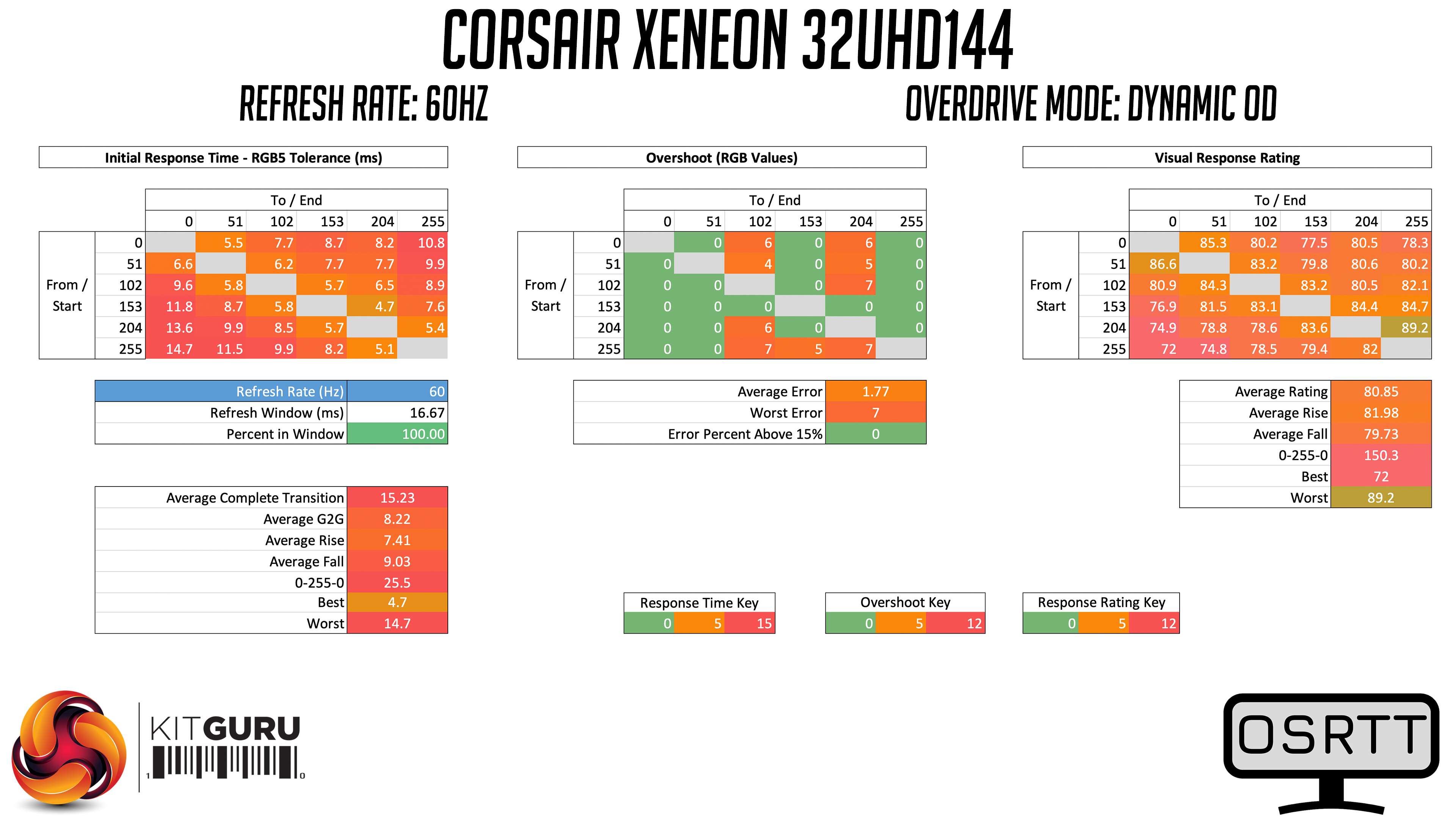
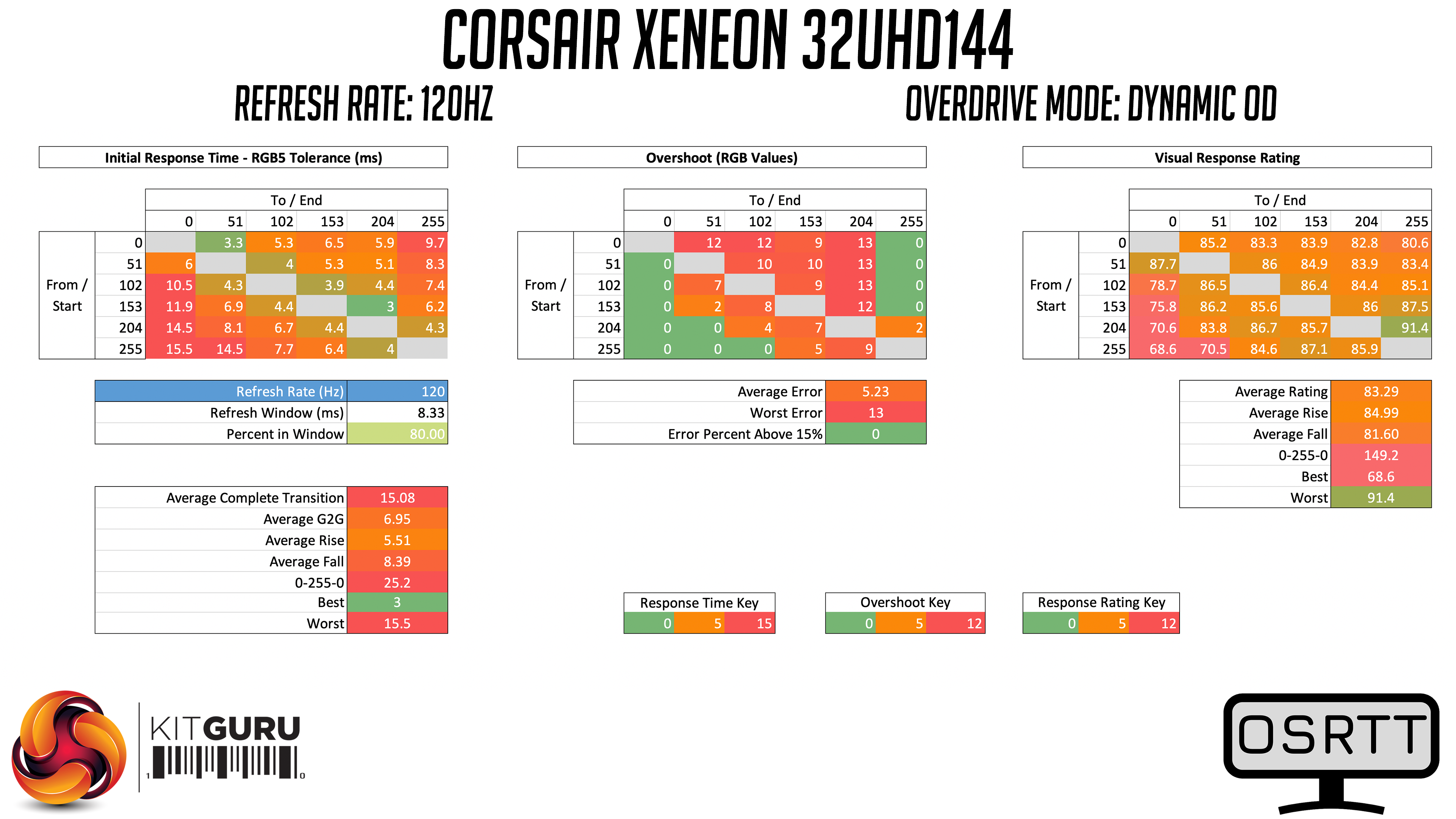
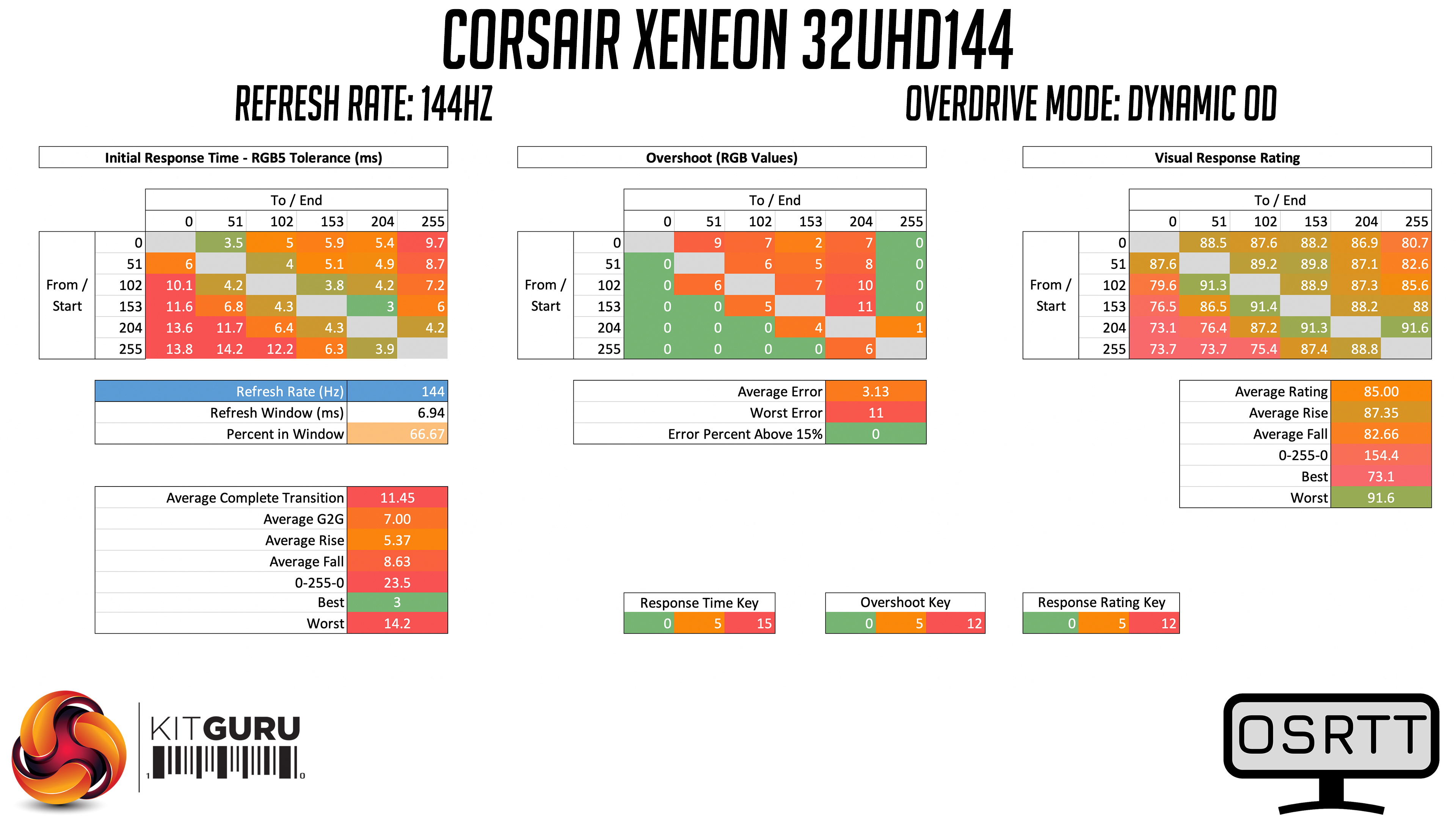
There is another overdrive setting in the OSD however – Dynamic OD. This is designed to act as a variable overdrive setting, and in practice it works well. We tested it at 144Hz, 120Hz and 60Hz, and in each instance it delivers good results. At 120Hz and 144Hz it uses the Fastest overdrive setting, which offers the best response times with only minimal overshoot, while at 60Hz it appears to use a mode between Normal and Fast. This is slightly slower at 8.22ms on average, but is 100% within the 60Hz refresh window so we have no problems recommending this mode at all.
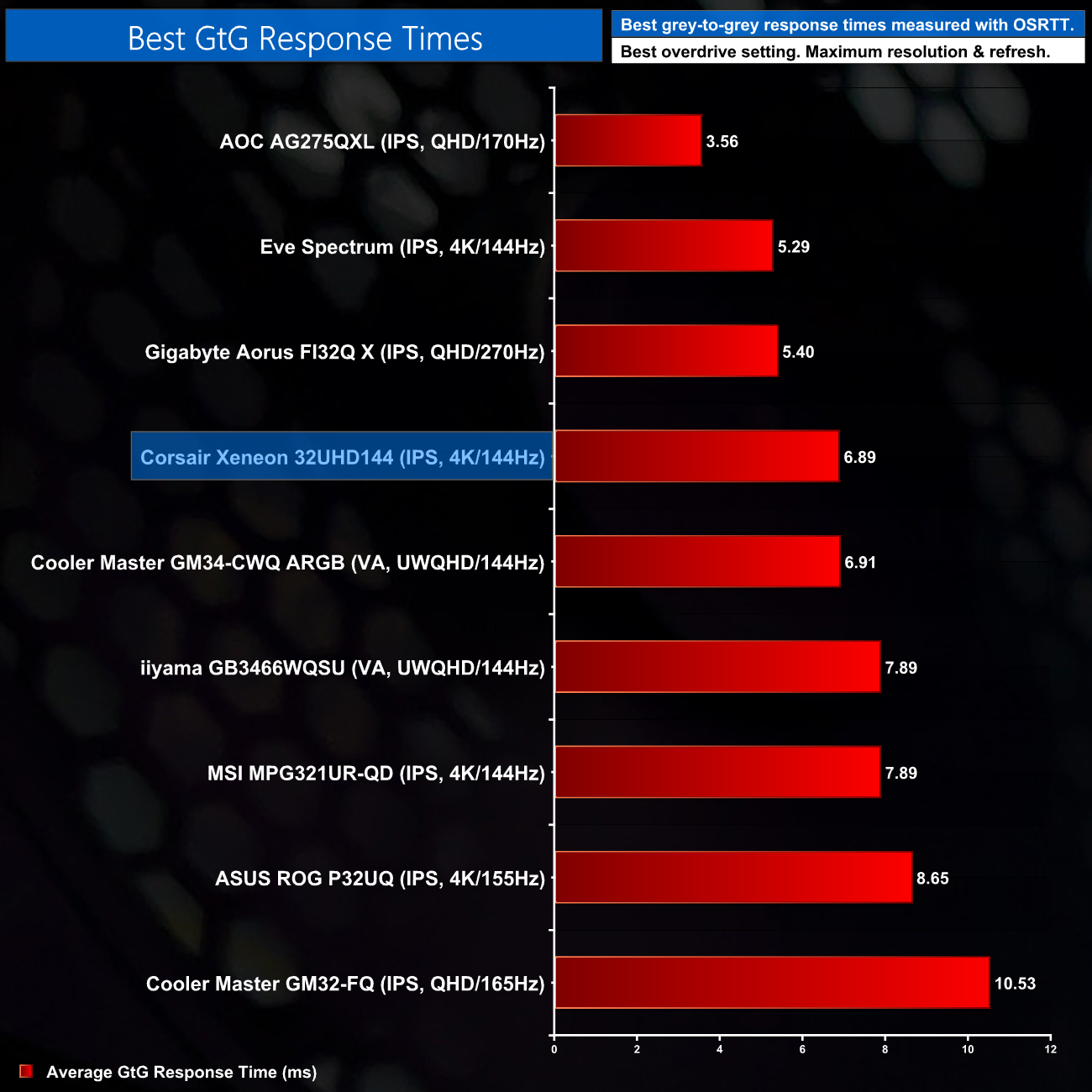
Taking a quick look at the relative performance using the 32UHD144's best result (the Fastest overdrive mode at 144Hz), it's response time of 6.89ms is certainly decent. We still need to test more screens before this chart is a bit more conclusive, but compared to the ASUS PG32UQ and MSI MPG321UR-QD – two direct competitors for the 32UHD144 – it is the Corsair screen coming out on top, proving about 1ms faster on average than the MSI screen.
System latency is another area of our testing, where we use Nvidia’s Latency and Display Analyzer Tool (LDAT) to measure end-to-end system latency. LDAT itself is a photosensor which is placed on the monitor. It has an integrated mouse button, allowing it to measure the total time taken from mouse click, to an action happening on screen, which is done by measuring a change in luminance. This data is logged to a CSV file over USB, allowing for close analysis of the data.
As this is end-to-end system latency, we are not measuring only the processing/input latency of each monitor we test. However, we can standardise the test process so the monitor is the only variable. It also gives an insight into how different refresh rates and resolutions can affect end-to-end latency, which is of course highly relevant to your purchasing decision.
We use Rainbow Six Siege for this testing.
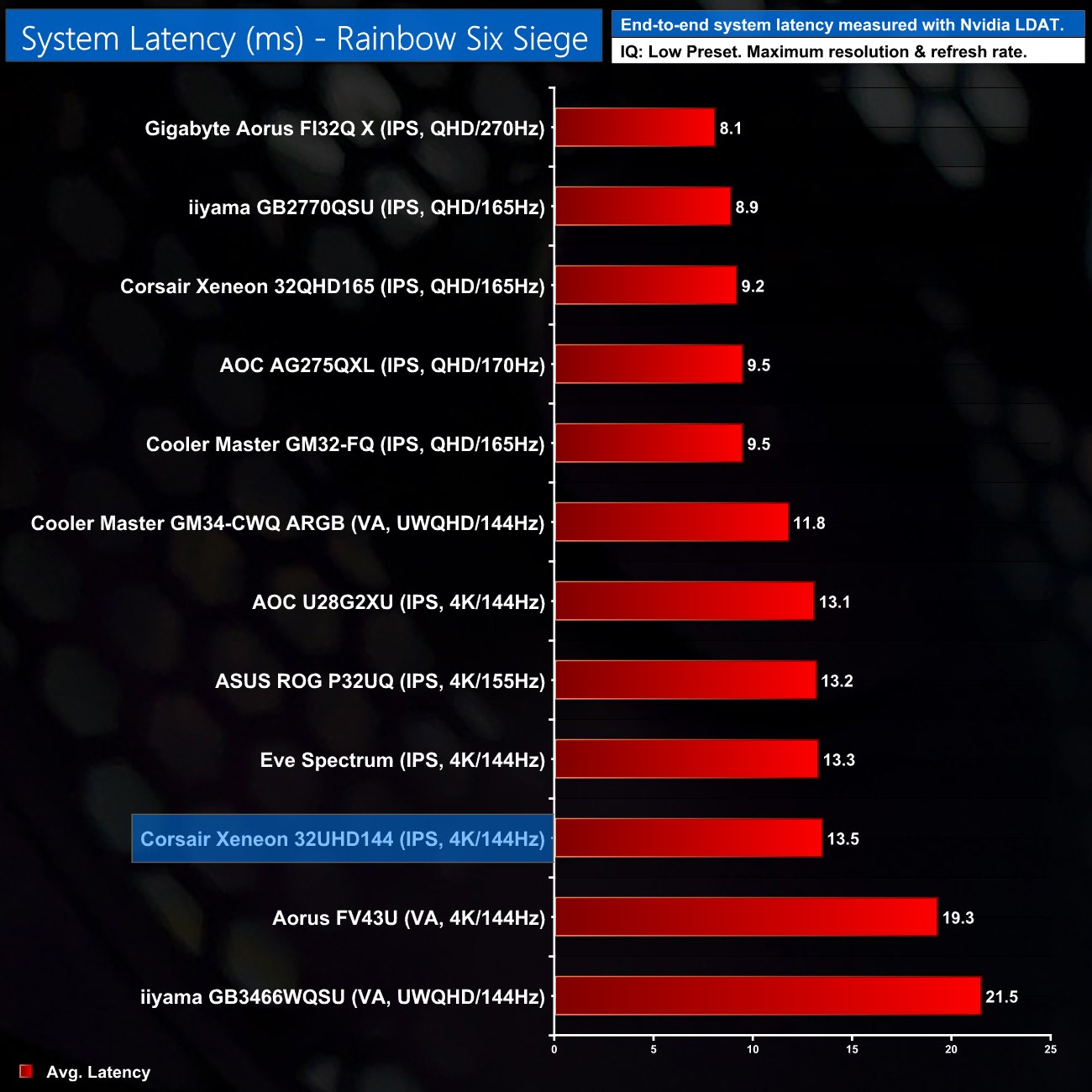
As for latency testing, this is right in the ballpark of the other 4K/144Hz monitors we've tested so we cannot complain at all. Technically the 32UHD144 has a higher latency than the likes of the PG32UQ, but we're talking a difference of 0.3ms which is certainly not perceptible to me!
After taking a look at Corsair's first ever gaming monitor in October last year, we were excited to see what would come next from the company. It turns out, the answer to that is the Xeneon 32UHD144, and we have put it through its paces today.
Essentially, Corsair has taken the same design, chassis and OSD system of the 32QHD165, and swapped out the 1440p panel for a 4K one. That's a slight over-simplification, but from a visual standpoint, the two screens are identical, as is the overall OSD system and iCUE integration.
Corsair is clearly using a high quality 4K IPS panel too, with a very wide colour gamut thanks to the Quantum Dot technology, while colour accuracy is absolutely superb out of the box. Contrast could be better, but that's never been a strong point for IPS displays.
For gaming though, it's not enough to simply have a good looking screen – it needs to be fast, too. The 144Hz refresh rate certainly ticks that box, as do the response times on offer. A best-case average response time of 6.89ms may not sound super-fast – and it isn't – but it is at least 1ms faster than both the ASUS PG32UQ and MSI MPG321UR-QD, which are direct competitors to this Corsair display. I think the response times overall will be good enough for the majority of users, too. We have seen better, but not in this specific category of 32in 4K 144Hz screens.
The HDR performance isn't great, however. The 32UHD144 offers DisplayHDR 600 certification, but it only has 16 edge-lit zones for local dimming, which make for quite an underwhelming HDR experience in my book. This is the same level of HDR as offered by the PG32UQ and MPG321UR-QD, but that doesn't make it ‘good' – especially when Sony's InZone M9 offers full-array local dimming and that entire brand only launched two months ago.
As it is, I think the whole class of 32in 4K 144Hz monitors should be better, certainly for the price. The 32UHD144 retails at £899.99, which is right in line with its competitors from ASUS and MSI. Of those three, I do feel the Corsair monitor is the strongest, largely due to its response times being the fastest, so if you are dead set on a 32in high-refresh 4K monitor, it's certainly capable. The HDR implementations needs to get better across the board though, and there is plenty of room for faster panels too.
You can buy the Xeneon 32UHD144 directly from Corsair for £899.99 HERE.
Pros
- Excellent colour accuracy.
- Very wide colour gamut (thanks to Quantum Dot).
- Best-in-class response times.
- Clean, understated design.
- Easy to use OSD, with iCUE integration.
Cons
- Disappointing HDR, especially considering the price.
- Response times, though better than the competitors, are still fairly average.
- Contrast is on the lower side.
KitGuru says: For those who have their hearts set on a 32in 4K/144Hz display, the Corsair 32UHD144 is the one we'd go for right now. There is work to be done across the board however, with this market segment lagging behind in terms of real HDR support and response times.