KitGuru KitGuru.net – Tech News | Hardware News | Hardware Reviews | IOS | Mobile | Gaming | Graphics Cards


Ultrawide gaming monitors continue to increase in popularity, and thankfully they are also getting more and more affordable. The iiyama GB3480WQSU offers a standard 3440×1440 VA panel with 1500R curvature, up to 180Hz refresh rate via overclocking, alongside adaptive sync and a claimed 4000:1 contrast ratio… all for £340. We put it through our full suite of tests to find out if it is worth buying.
It's been a while since I last looked at an iiyama monitor, especially an ultrawide – we'd have to go back to the GB3466WQSU which was a fantastic value option a few years ago. The GCB3480WQSU certainly looks like an upgrade on paper, promising higher contrast and – crucially for gamers – increased refresh rate and faster response times. We know cheaper VA panels can sometimes struggle with dark-level smearing, so let's see what this screen can do.
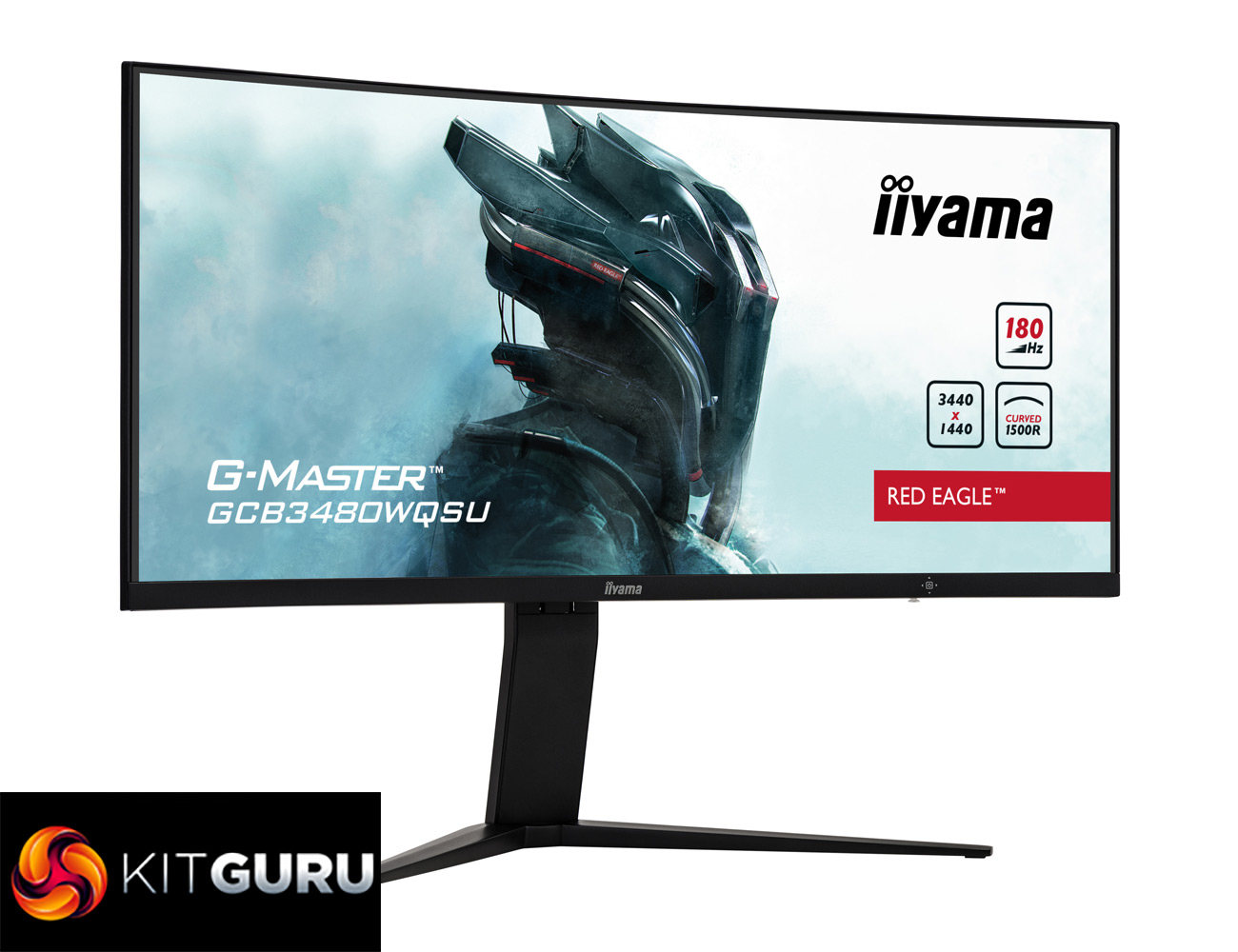
Specification:
- Diagonal: 34″, 86.4cm
- Panel: VA LED, matte finish
- Curved: 1500R
- Native resolution: 3440 x 1440 @180Hz (4.9 megapixel UWQHD, DisplayPort)
- Aspect ratio: 21:9
- Panel brightness: 420 cd/m²
- Static contrast: 4000:1
- Response time (MPRT): 0.4ms
- Viewing zone: horizontal/vertical: 178°/178°, right/left: 89°/89°, up/down: 89°/89°
- Horizontal Sync:48 – 180kHz
- Viewable area W x H: 797.2 x 333.7mm, 31.4 x 13.1″
- Pixel pitch: 0.232mm
- Colour: matte, black
- Signal input: HDMI x2 (max. 3440 x 1440 @100Hz)
- DisplayPort: x2 (max. 3440 x 1440 @180Hz)
- USB HUB: x2 (v.3.2 (Gen 1, 5Gbit; DC5V, 900mA))
- HDCP: yes
- Headphone connector: yes
- Blue light reducer: yes
- Flicker free: yes
- Adaptive Sync support; FreeSync Premium Pro – HDMI: 3440 x 1440 @48-100Hz, DP: 3440 x 1440 @48-180Hz
- HDR: HDR400
- Display position adjustments: height, tilt
- Height adjustment: 110mm
- Tilt angle: 20° up; 5° down
- VESA mounting: 100 x 100mm
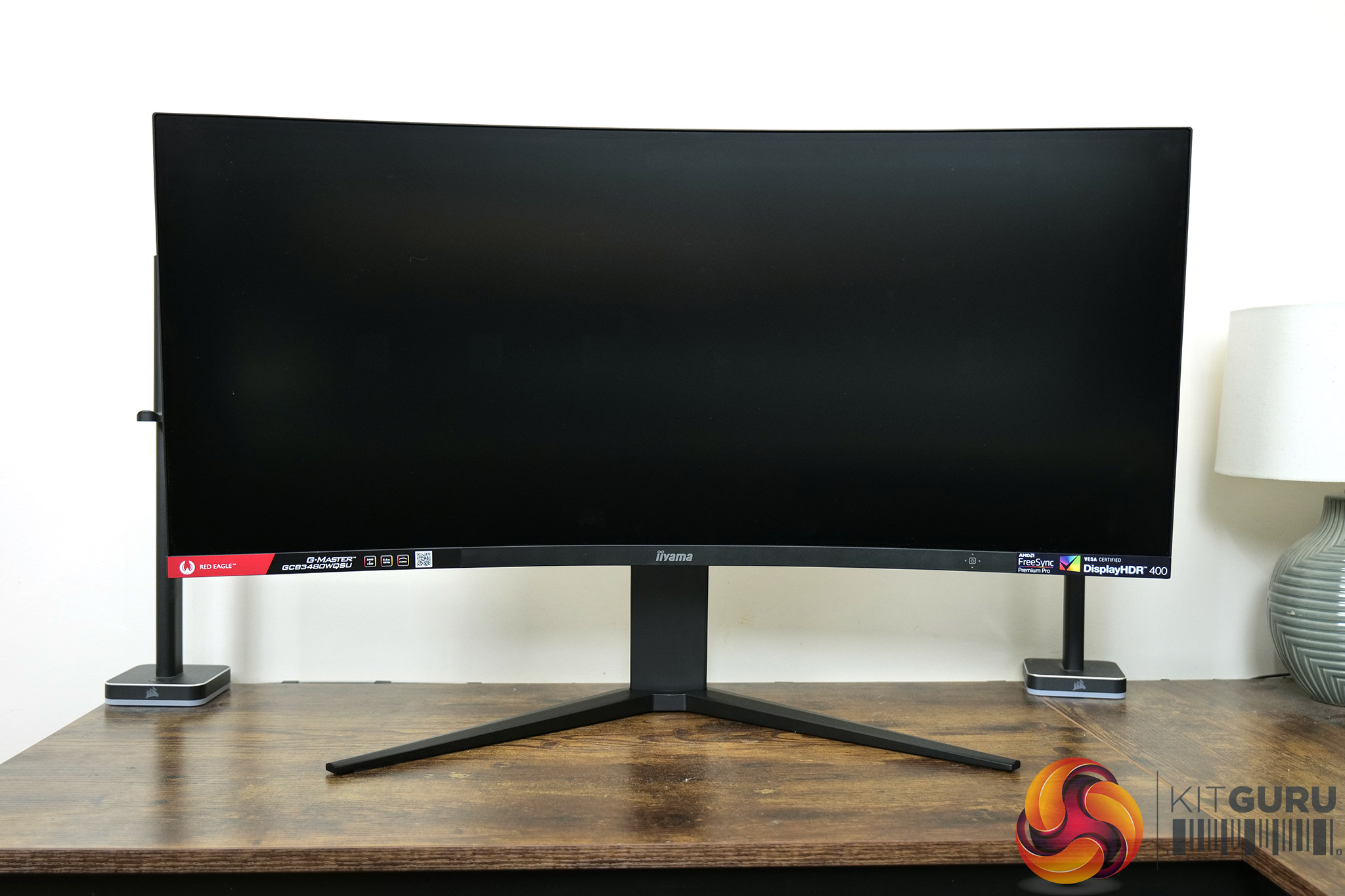
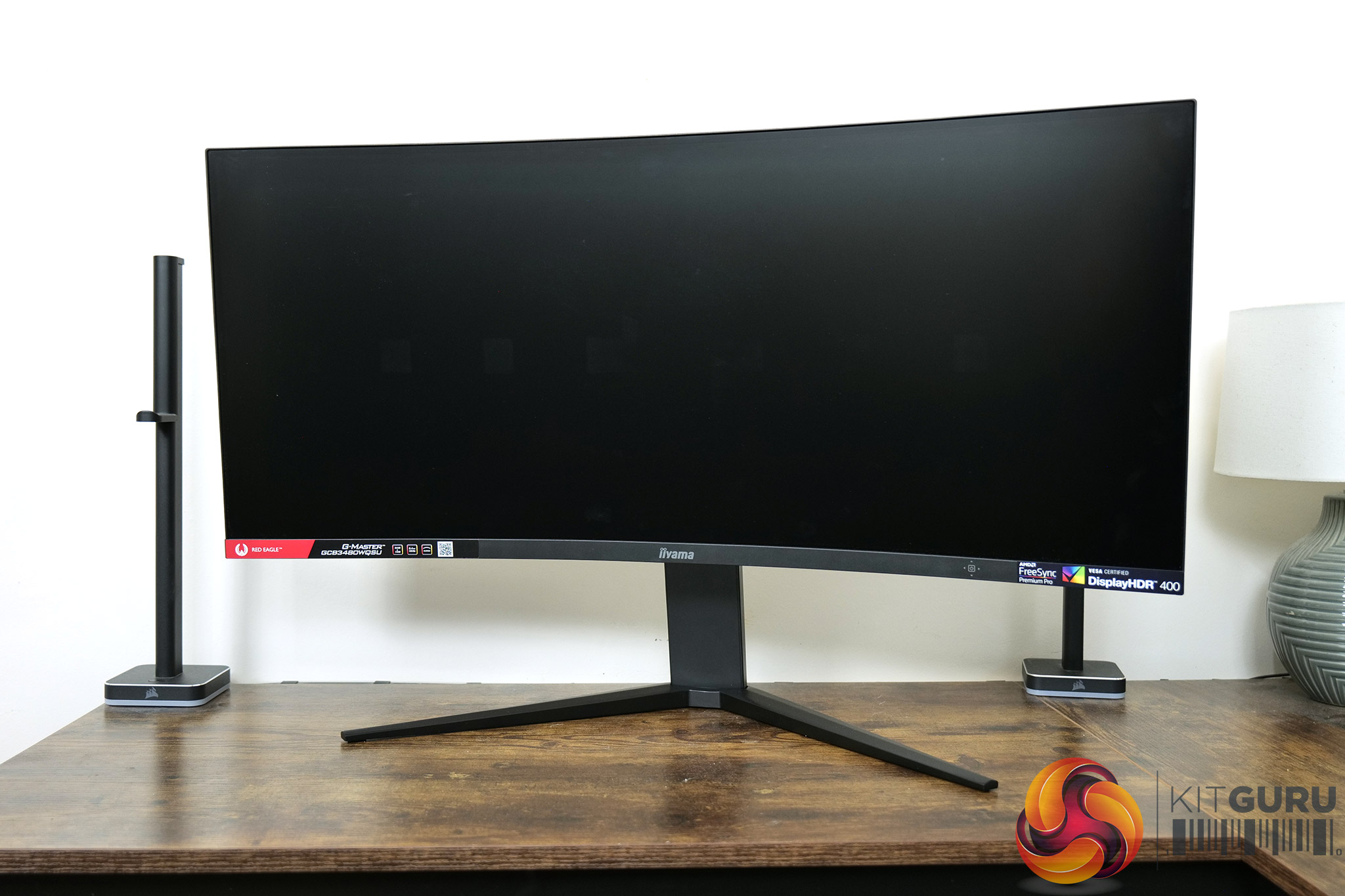
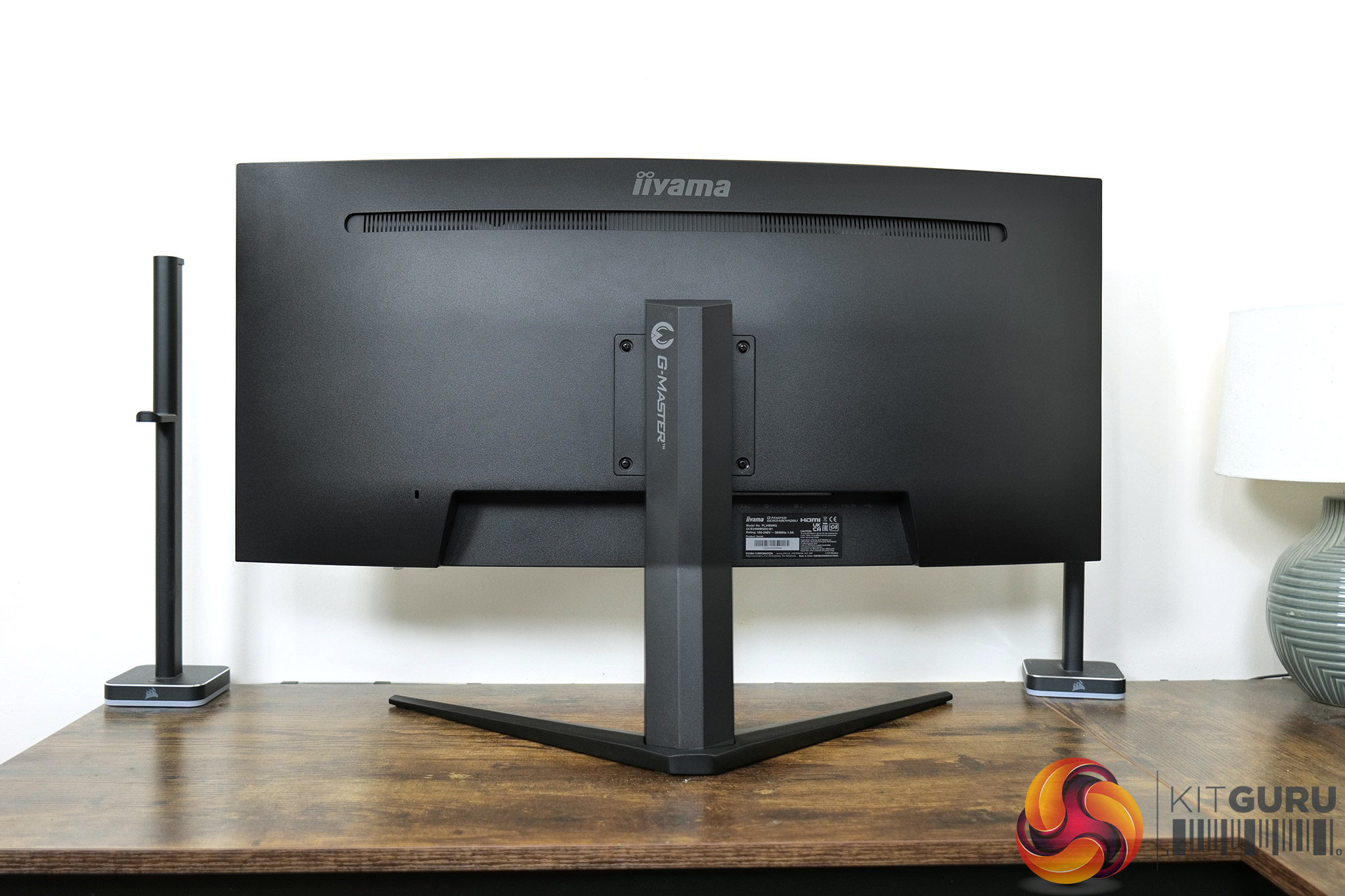
Kicking off with a look at the design of the GCB3480WQSU, in true iiyama fashion it is a very stripped back monitor. It's almost entirely made of matte black plastic, and those flashes of colour you can see on the bottom bezel are actually removable stickers. It has a 3-side frameless design, while the chin measures approximately 17mm thick.
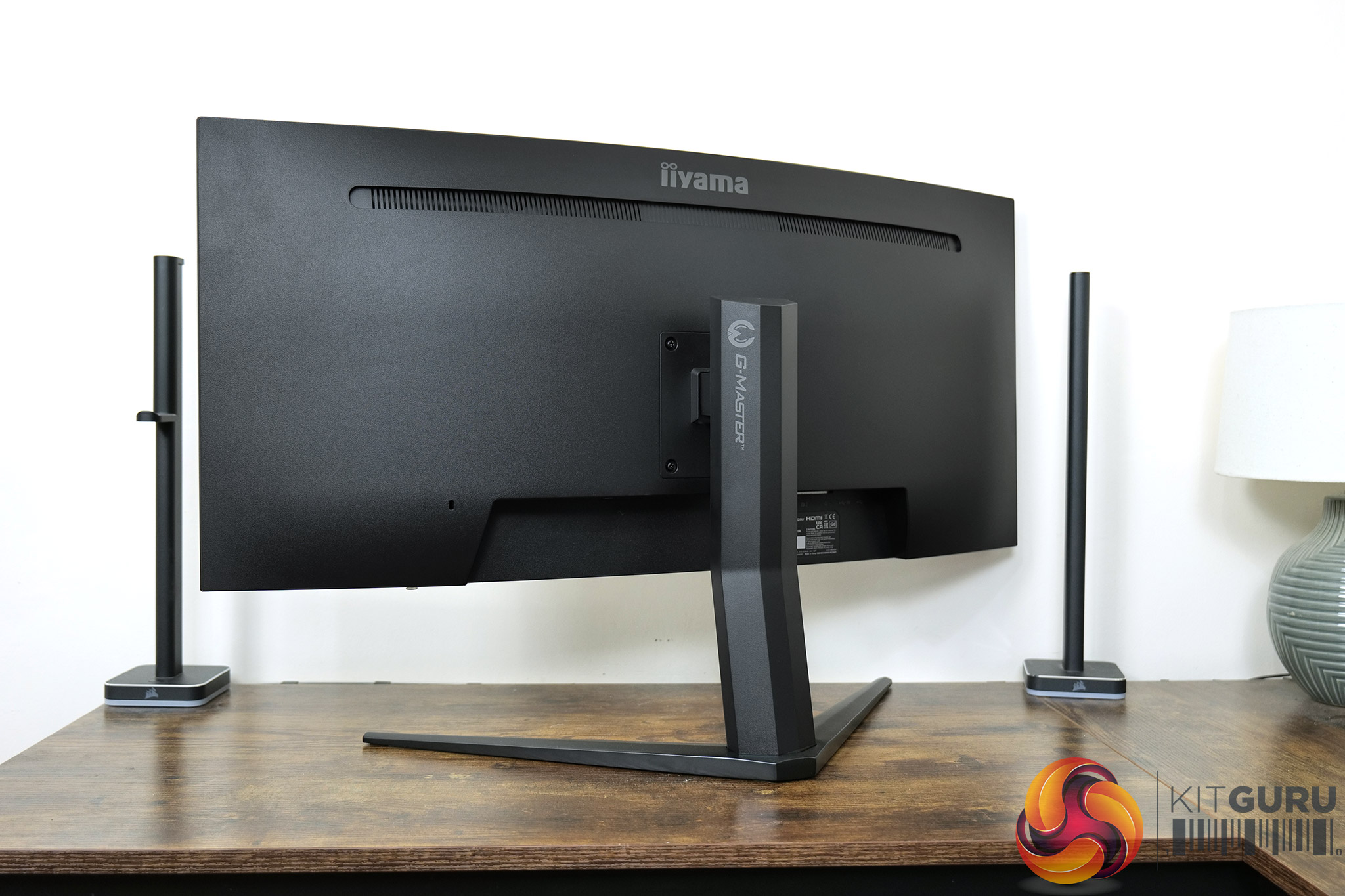
Round the back, there's more matte black plastic, with a small iiyama logo printed in grey at the top, just above some ventilation cutouts. The stand is also visible, with a v-shaped foot that is typical of most ultrawide screens.
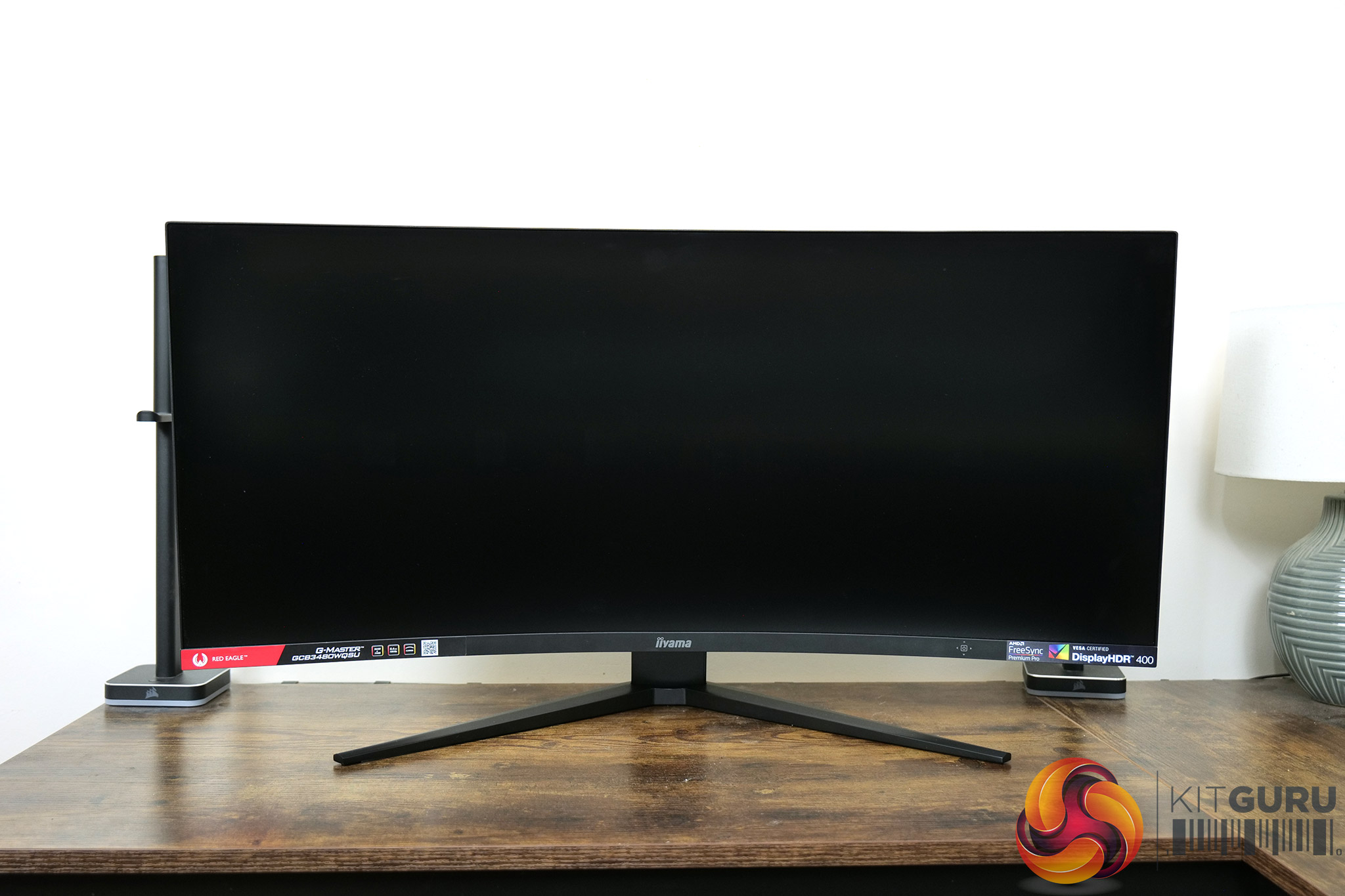
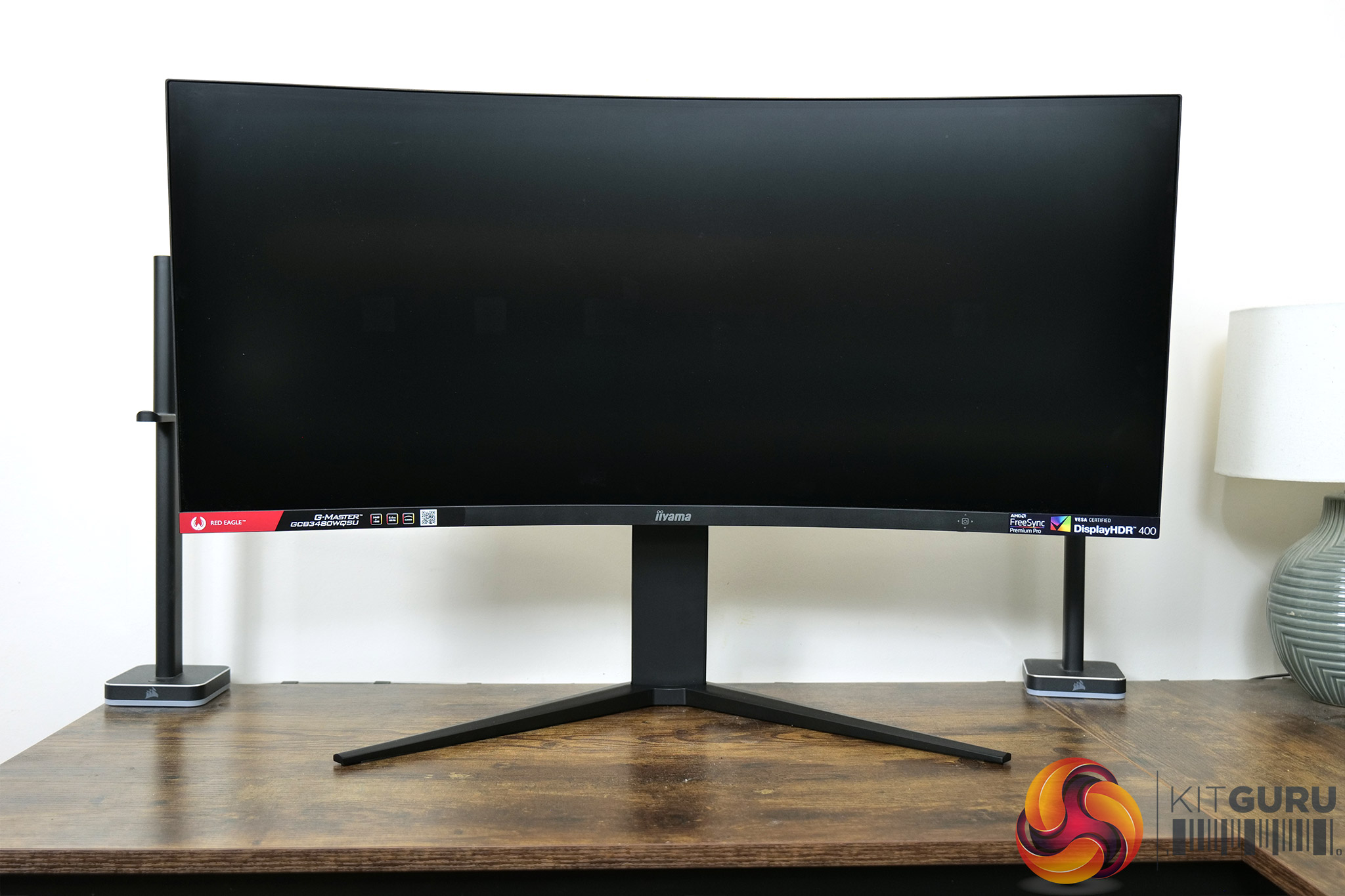
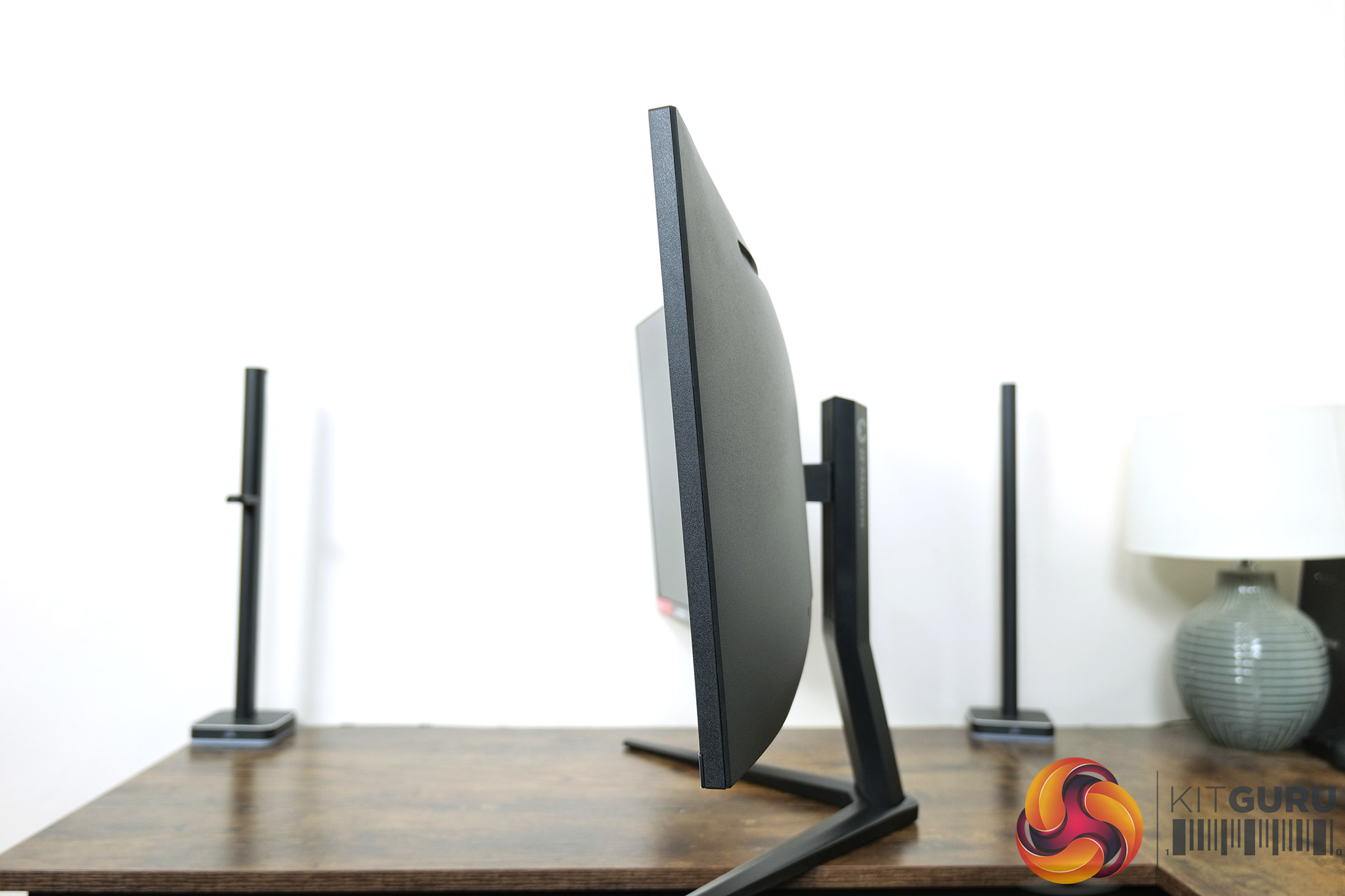
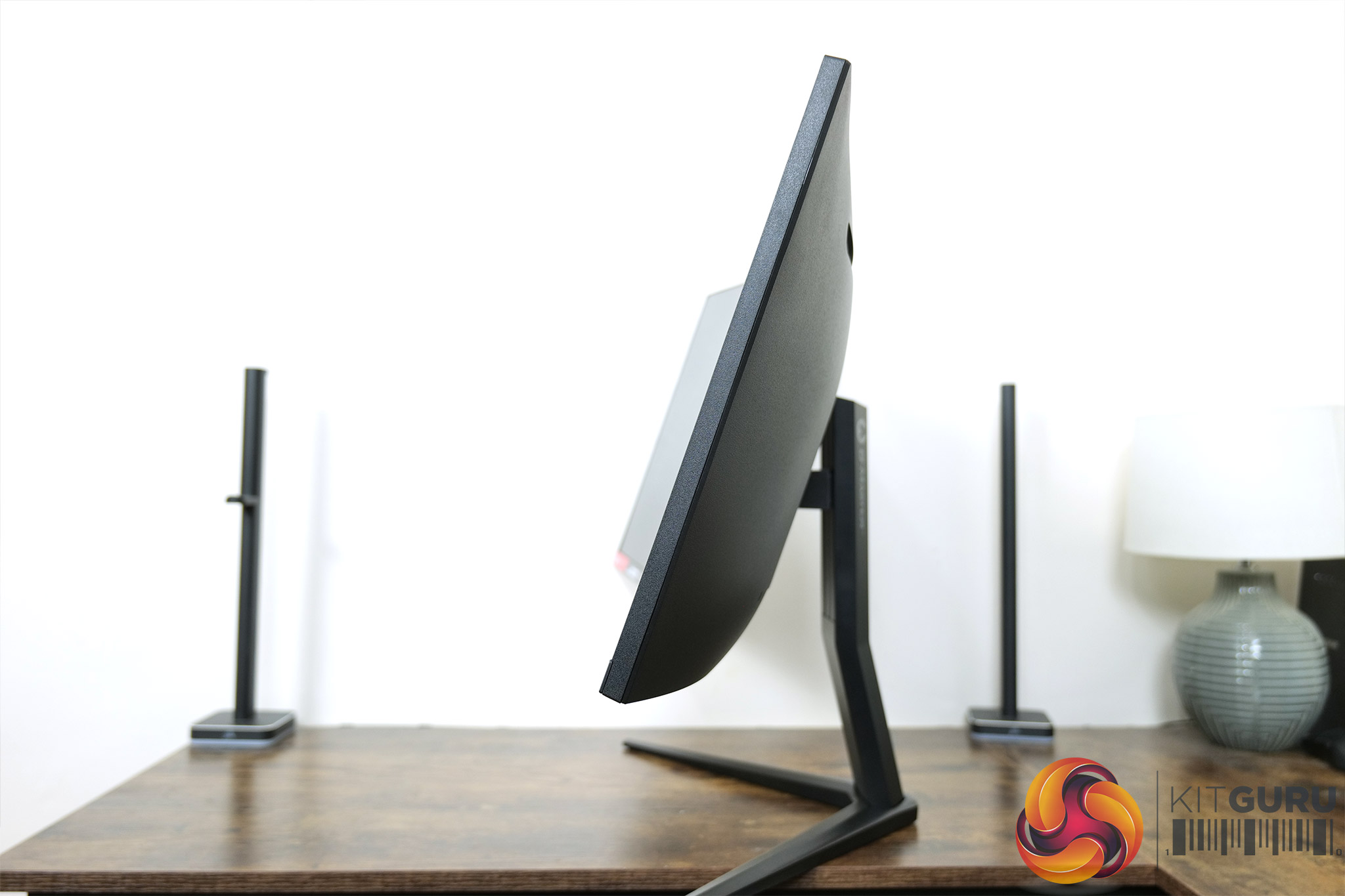
Speaking of the stand, it is fair to say it is fairly limited in terms of its ergonomic adjustments, offering just up to 110mm of height adjust, and then tilt from -5 to +20 degrees. That means no swivel or pivot, while the height adjustment itself does feel very stiff. Thankfully VESA 100×100 mounts are supported if you have a third-party stand or monitor arm.
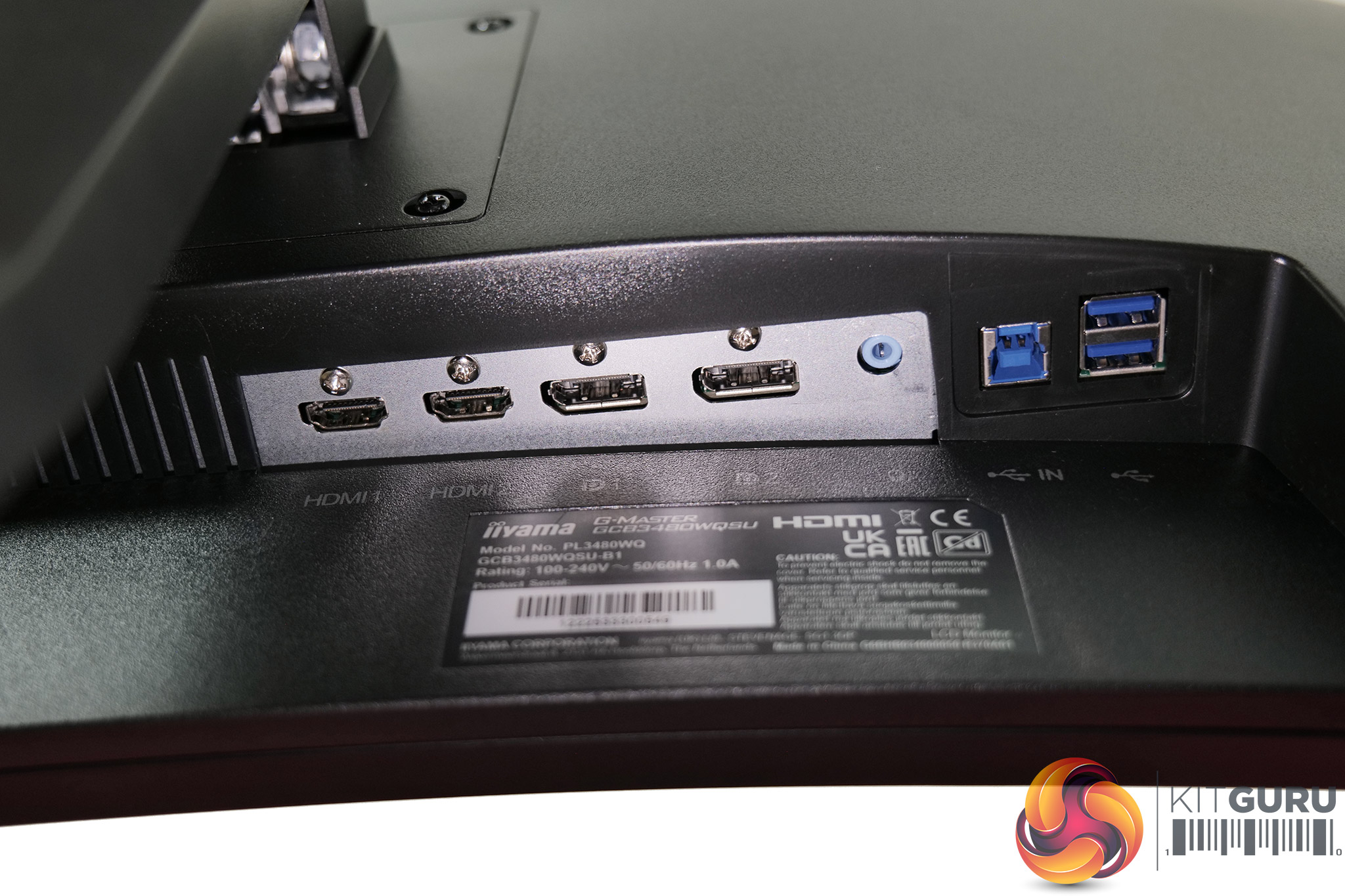
As for the ports and connectors, iiyama offers two DisplayPort 1.4 and two HDMI 2.0, though the latter will be limited to 100Hz. There's also a headphone jack and a two port USB 3.1 Gen1 (5Gbps) hub.
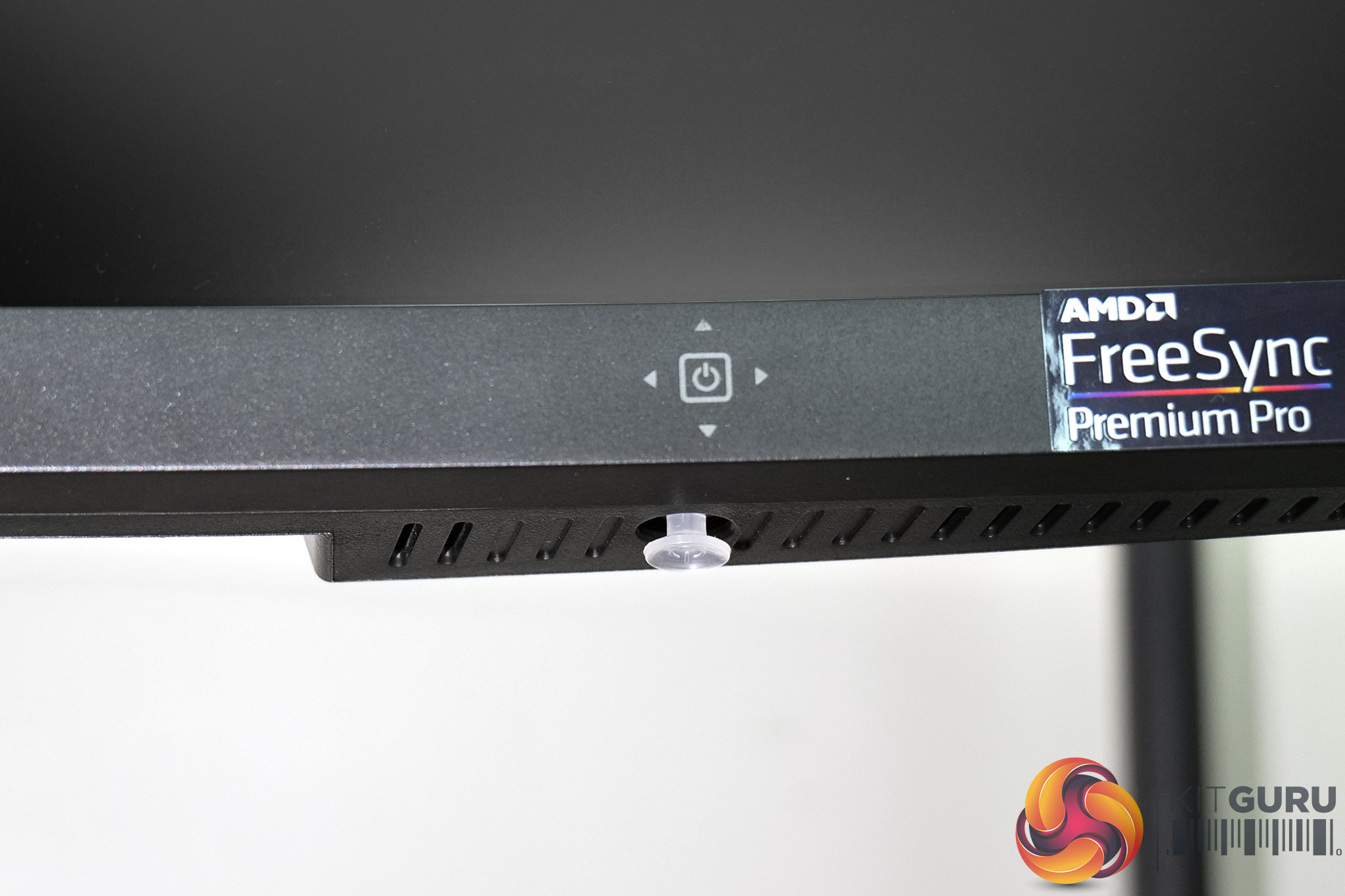
Lastly, there are no buttons on the monitor, with all control taken place via the OSD joystick which is positioned on the underside of the front chin.
The OSD is very similar to what we have seen from other iiyama monitors in the past, with all controls split into 10 main sections, as you can see here:
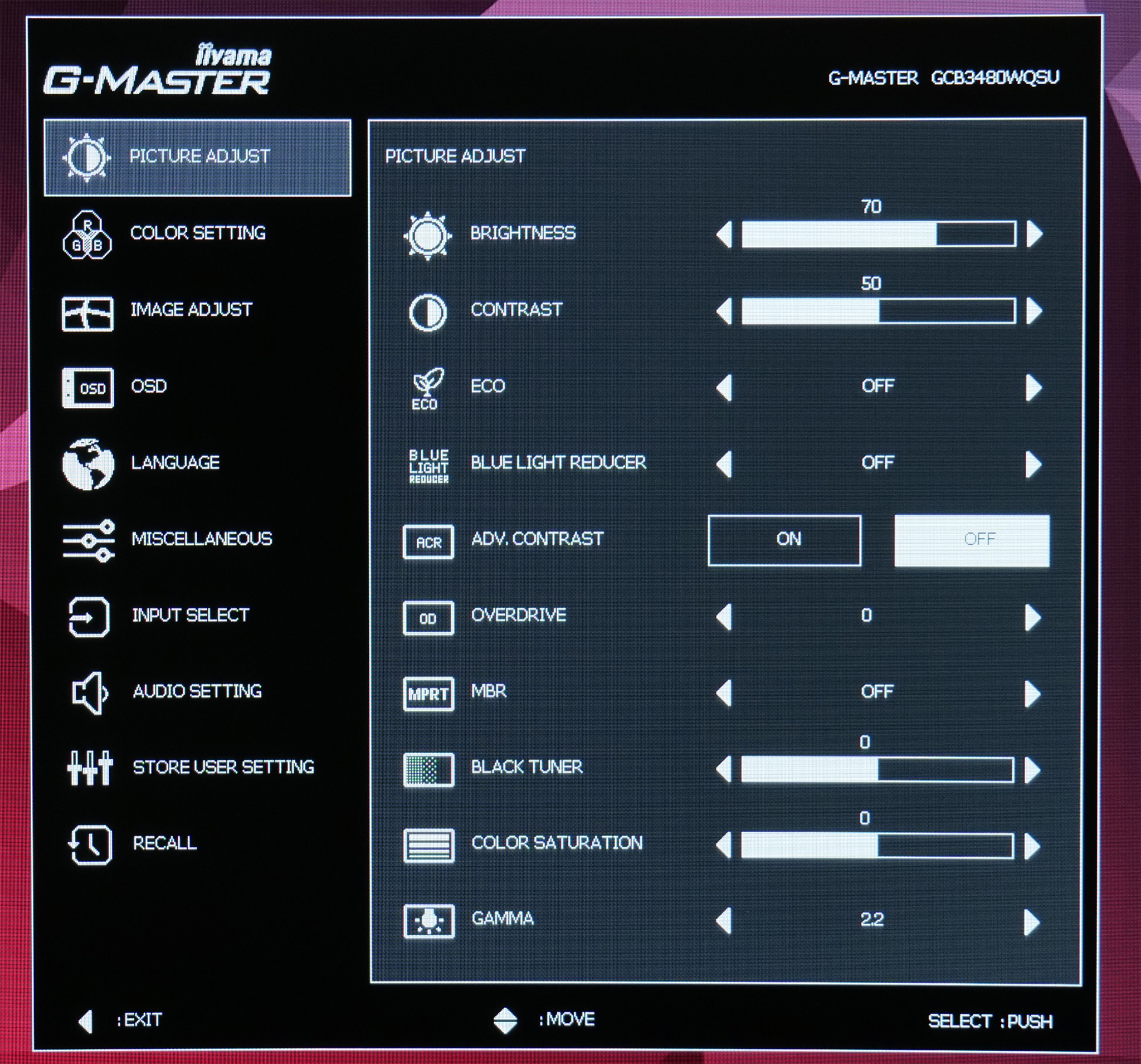
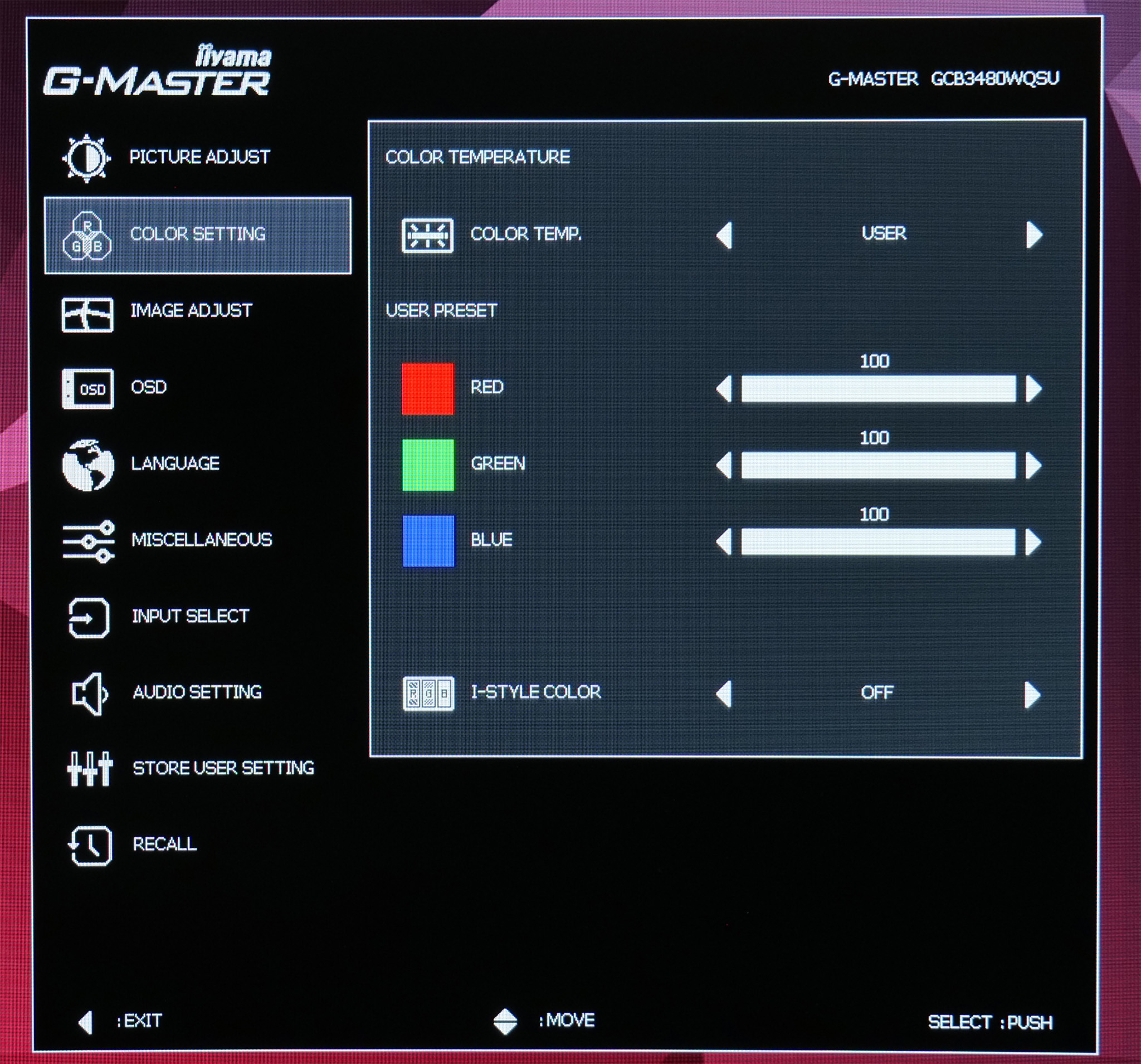
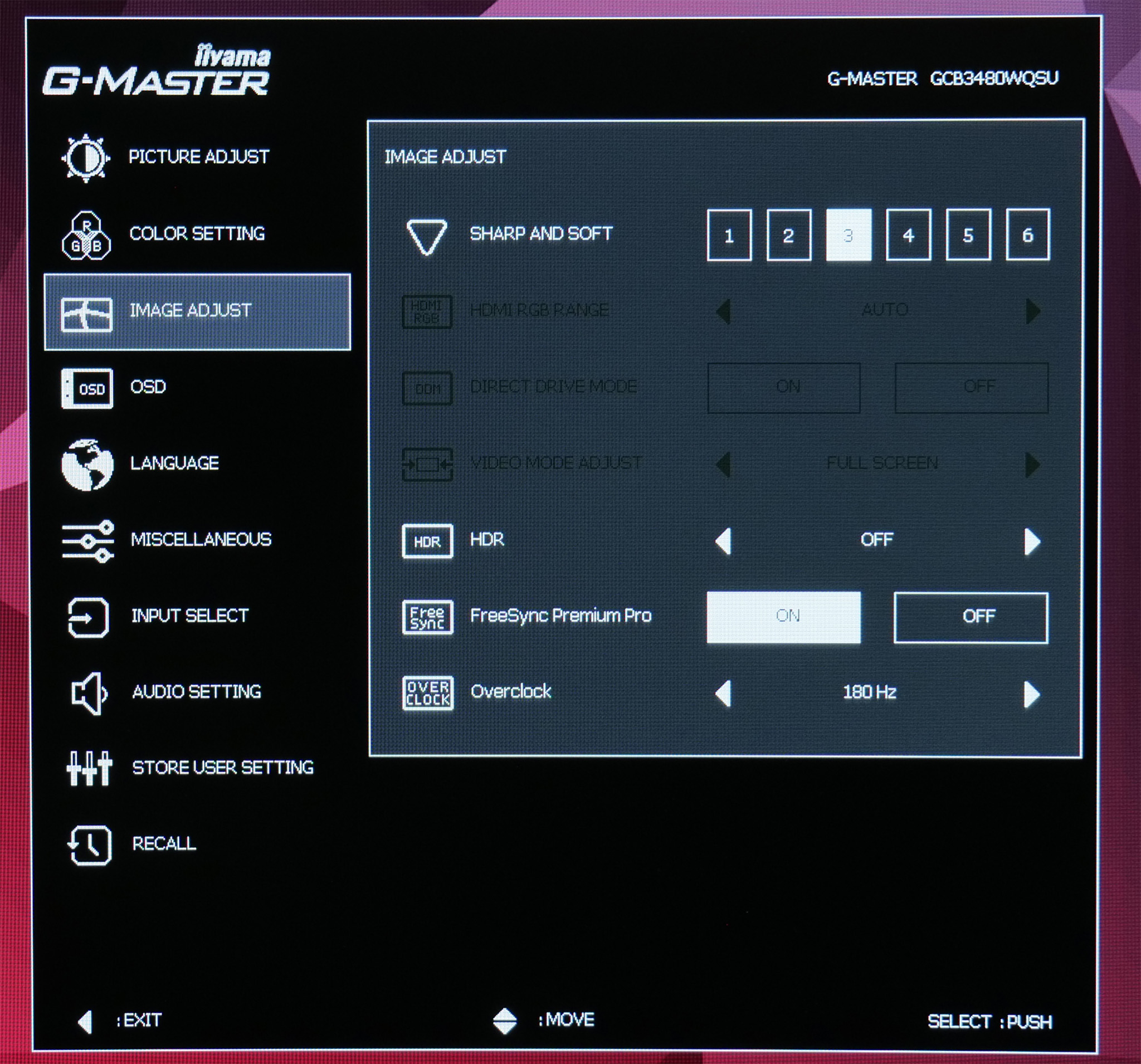
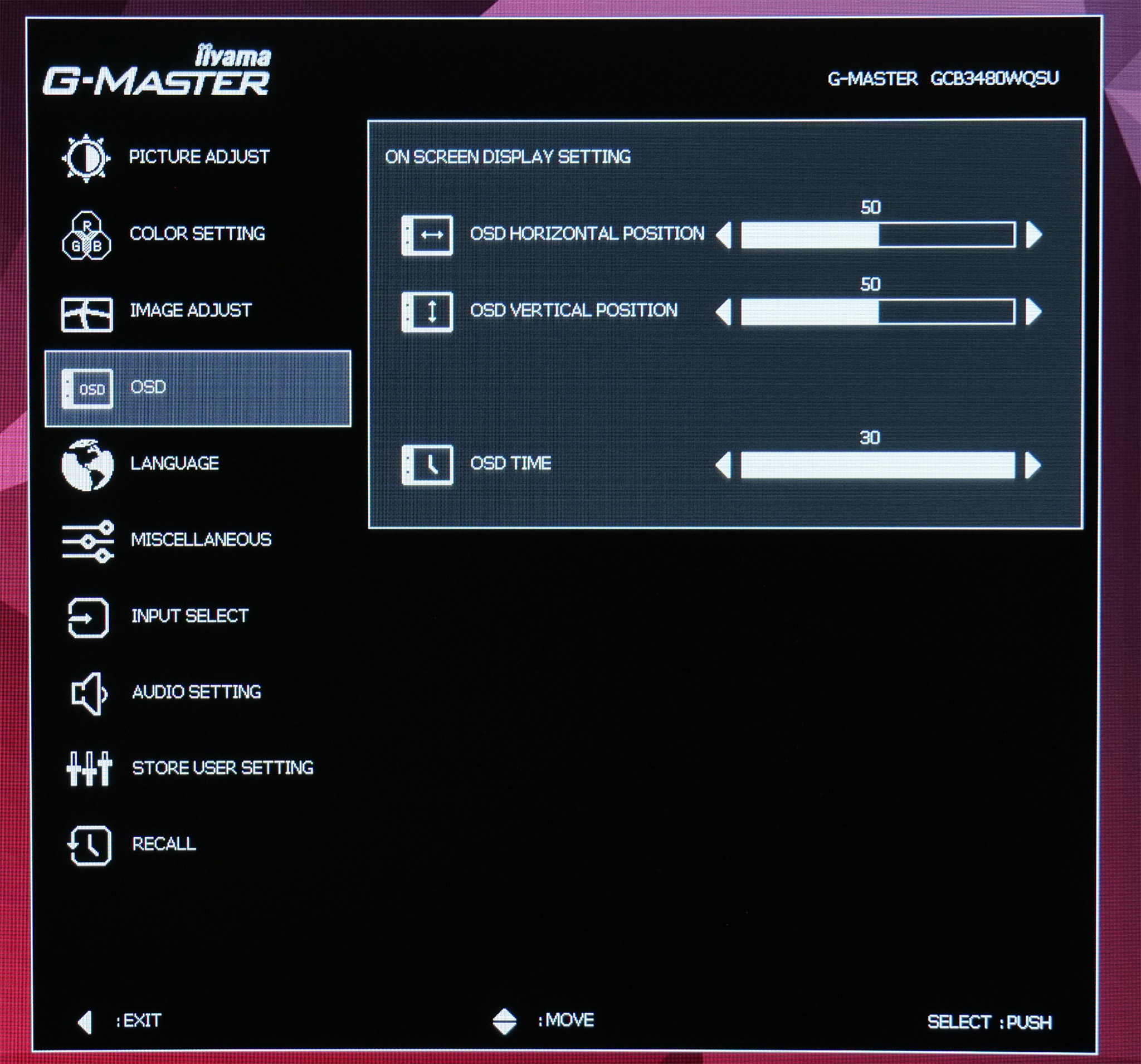
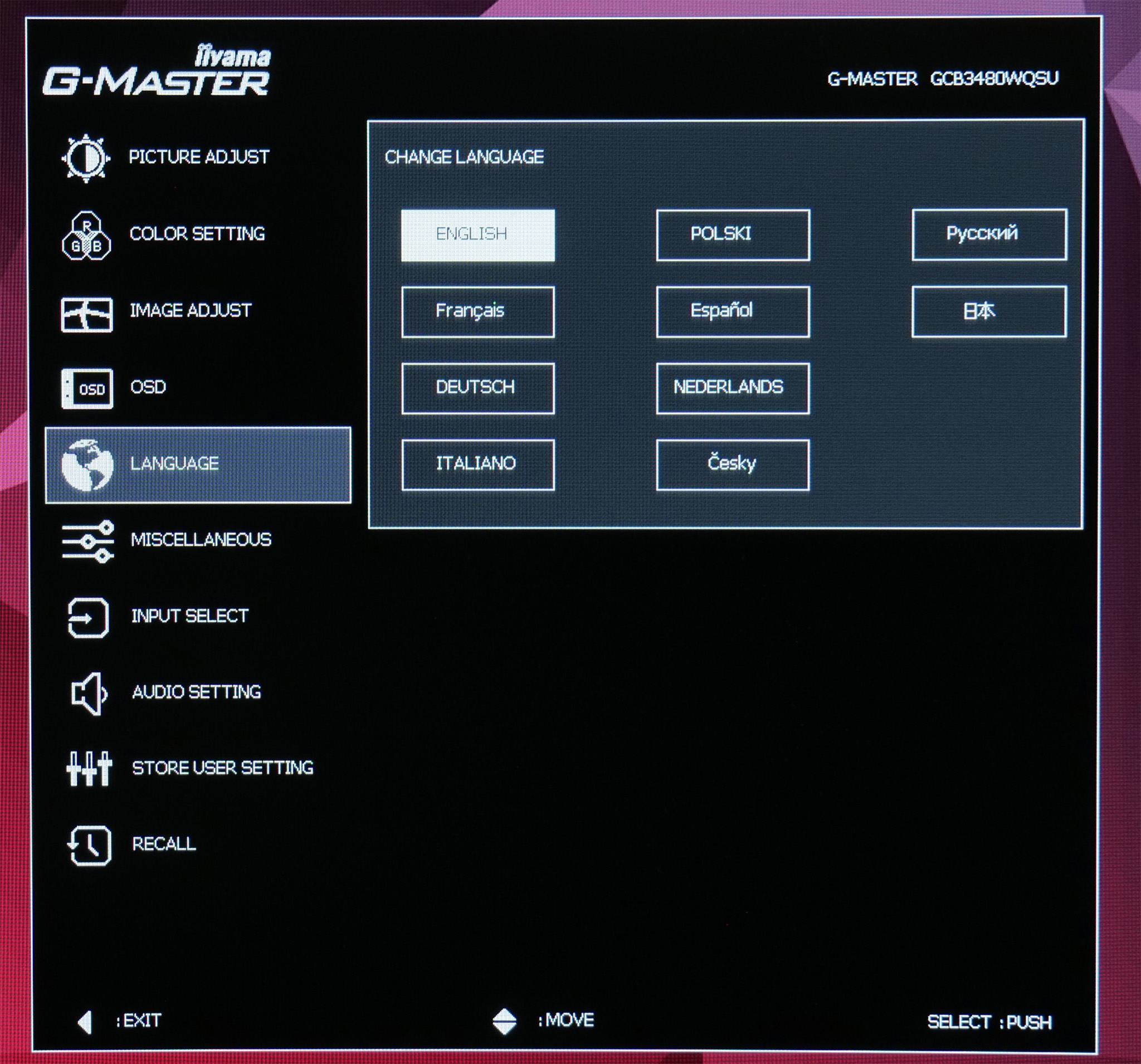
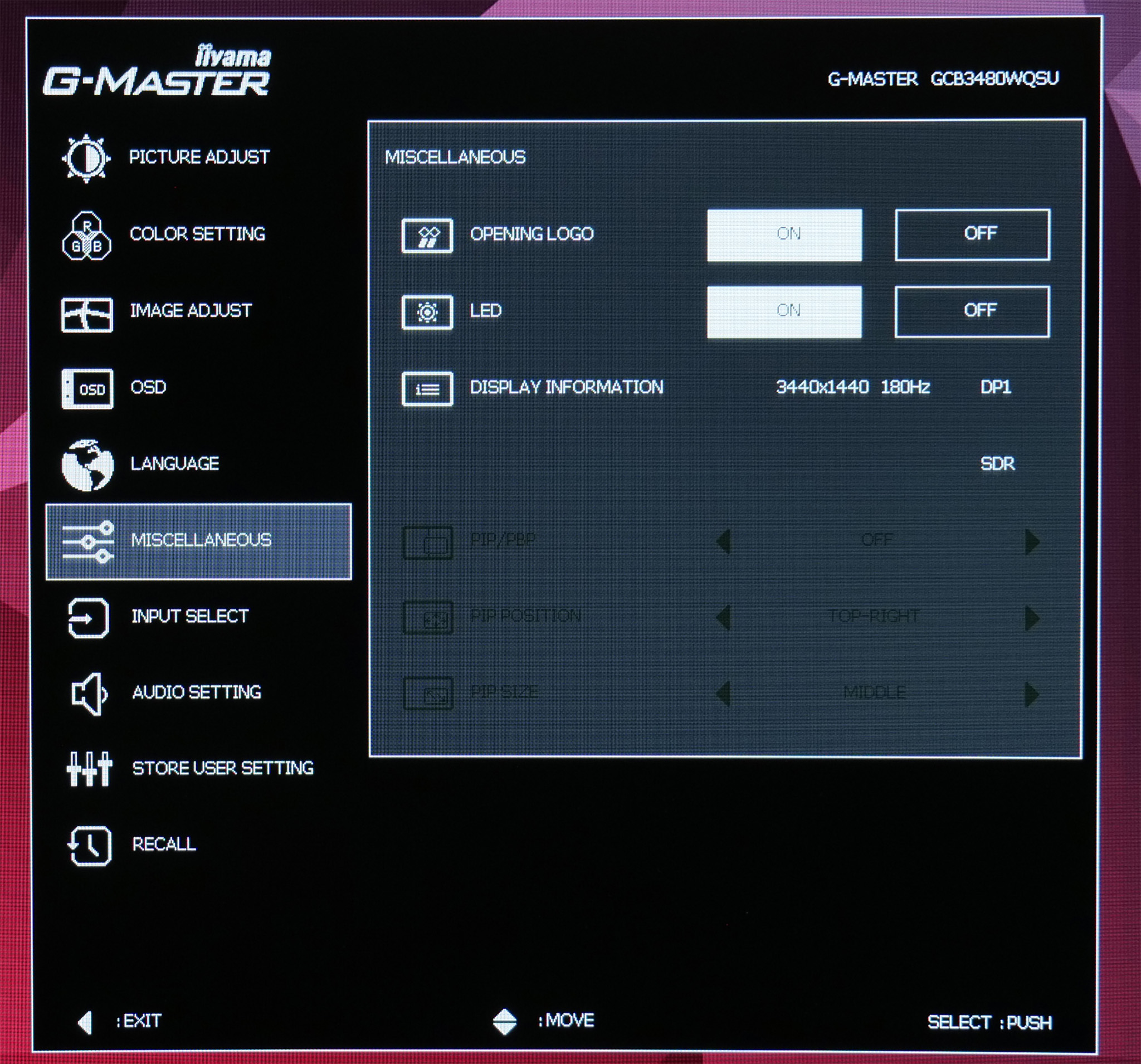
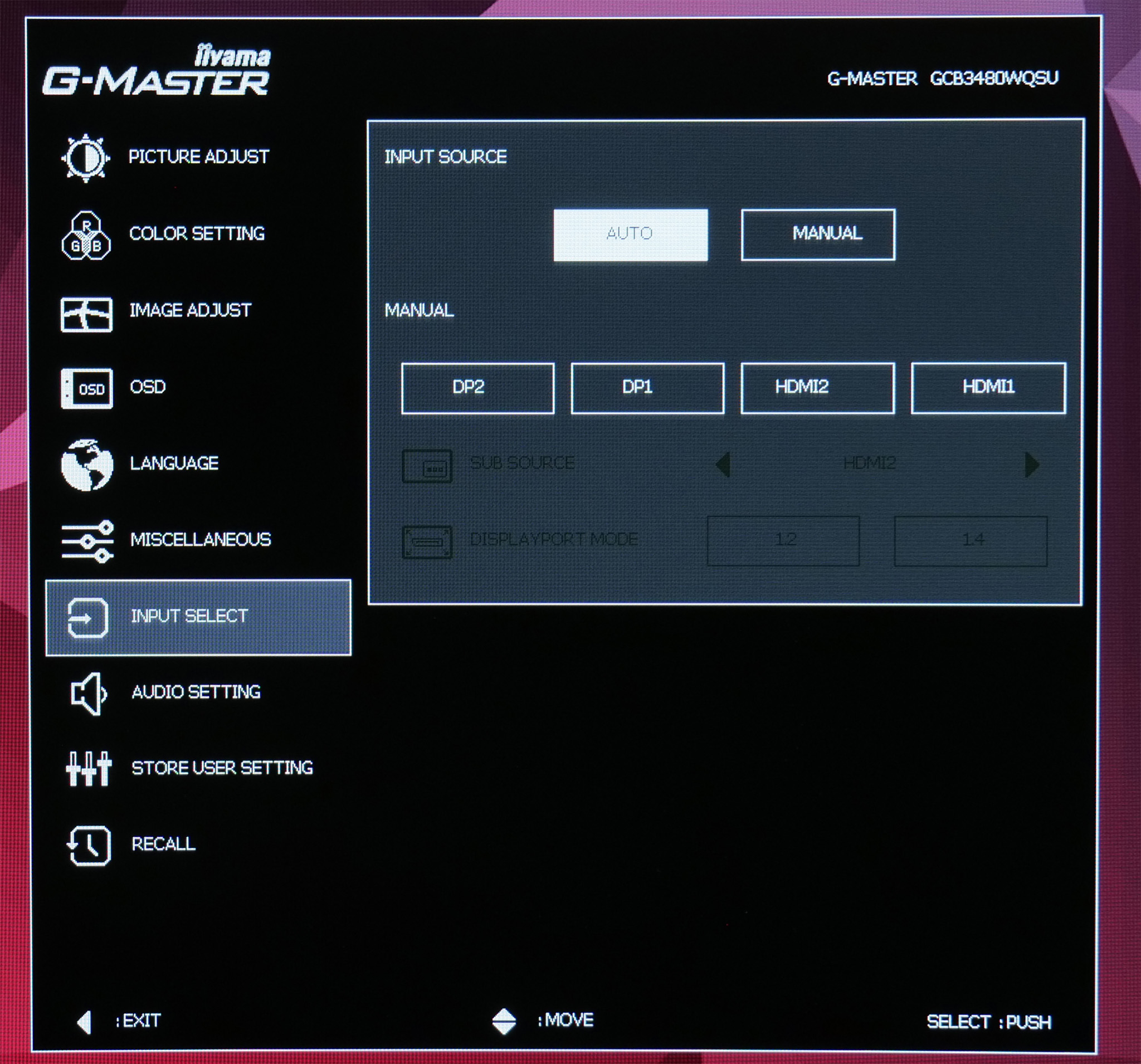
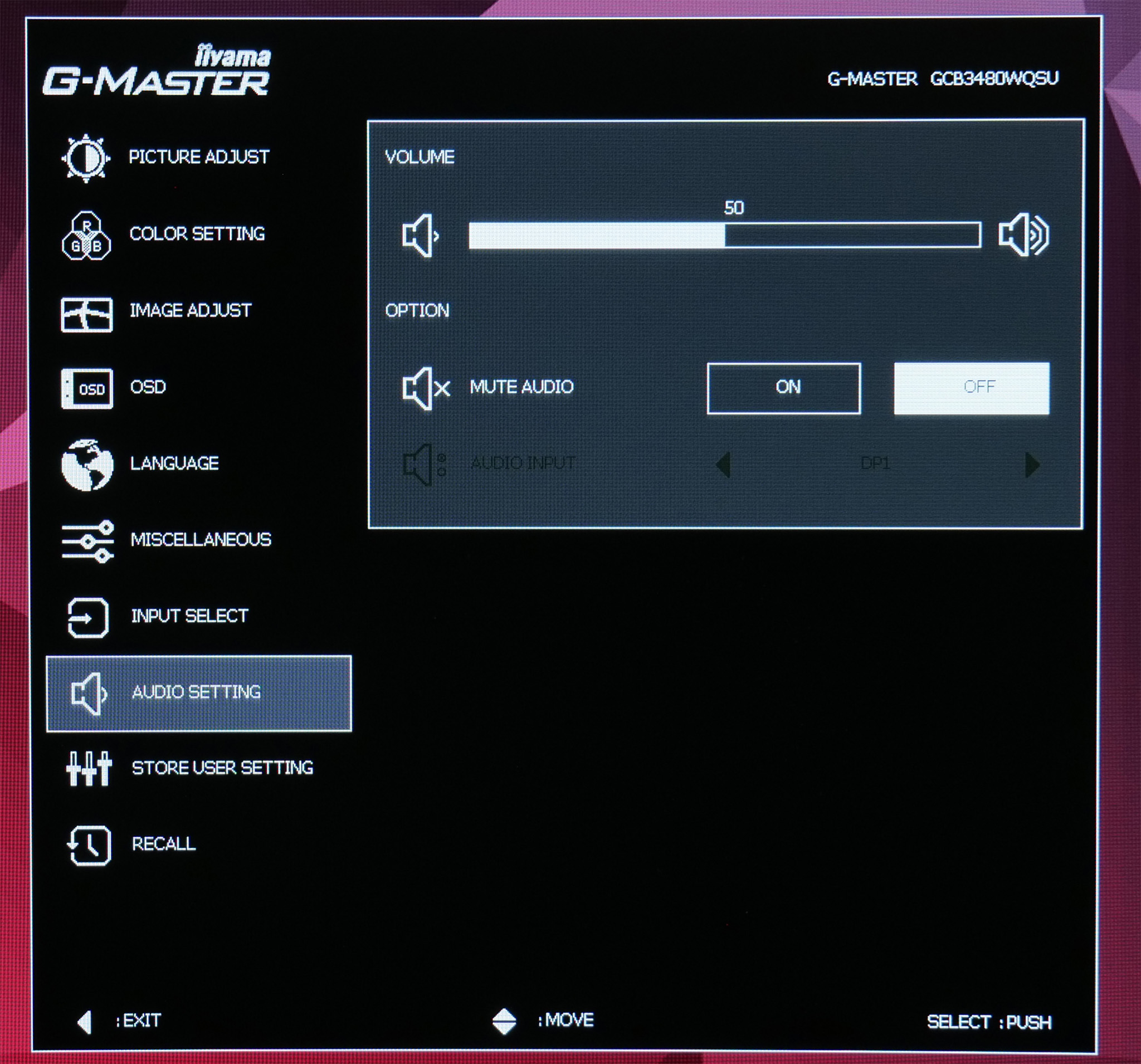
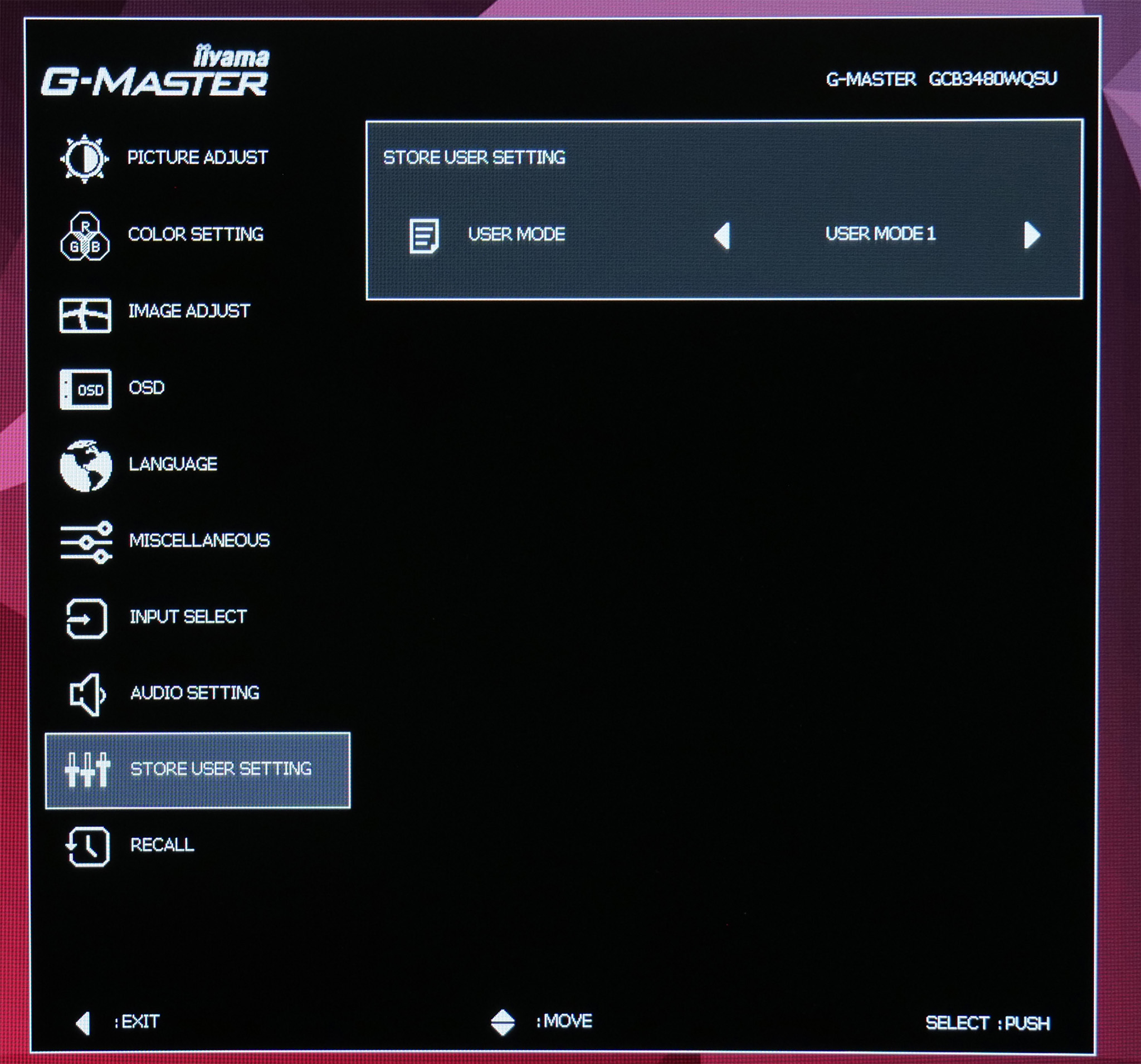
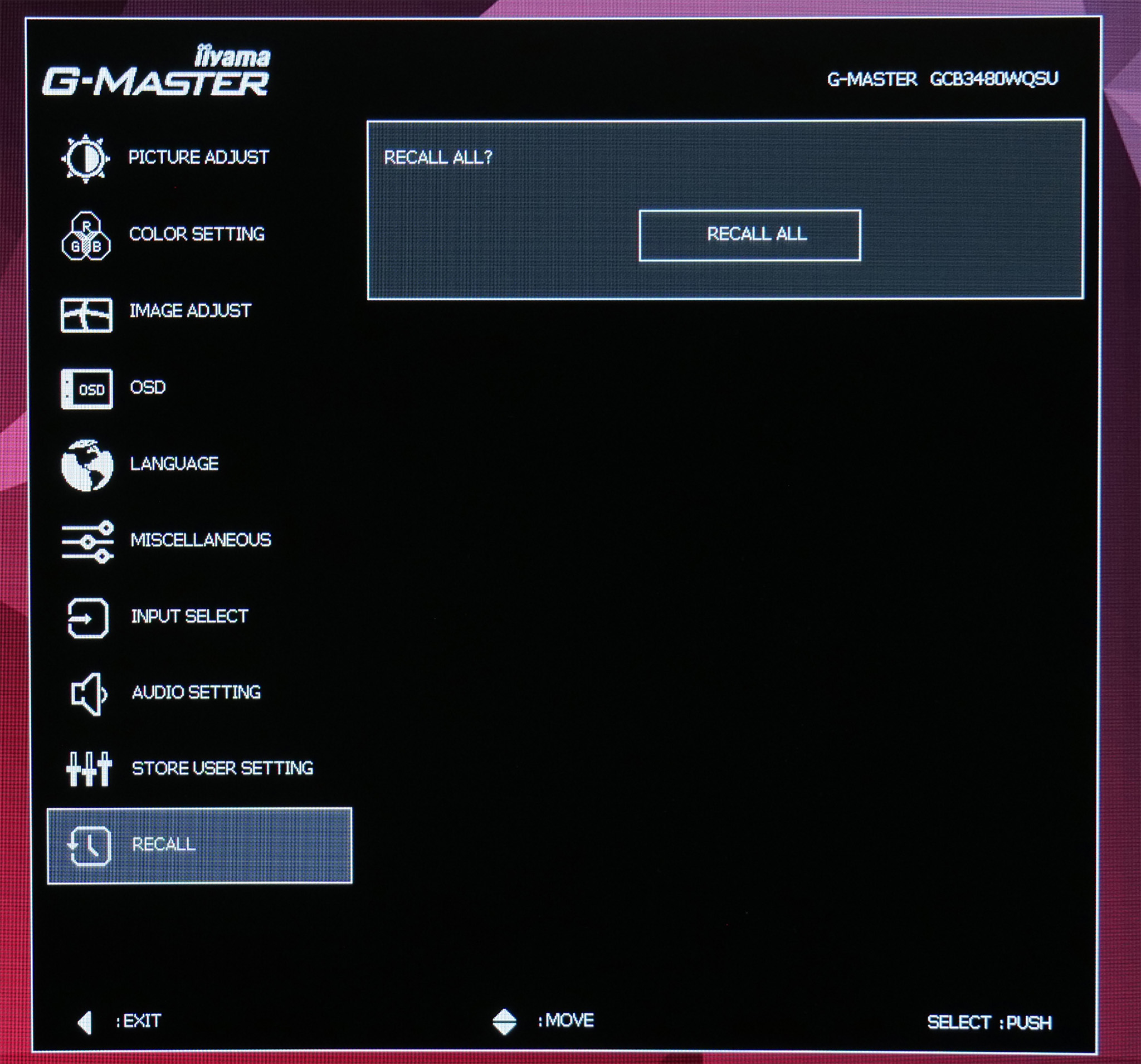
In general, the OSD is fine to use. Navigating is made easy thanks to the joystick which is nice and responsive, though the UI itself is fairly ugly and could do with a freshen up. There's plenty of adjustable settings too, including several overdrive modes and colour balance, though some gamers may miss the option for an FPS overlay or crosshair.
The only other thing to point out is that the GCB3480WQSU is advertised as a 180Hz monitor, but this does need to toggled in the OSD using the ‘overclocking' function, as natively the screen runs at 165Hz.
Lastly, iiyama doesn't currently offer a Windows-based app to adjust different settings directly from your PC, which is something we usually appreciate, but again, given the price-point we can understand the decision.
Our main test involves using an X-Rite i1 Display Pro Plus colorimeter and utilising Portrait Display's Calman Ultimate software. The device sits on top of the screen while the software generates colour tones and patterns, which it compares against predetermined values to work out how accurate the screen is.
The results show:
- A monitor’s maximum brightness in candelas or cd/m2 at various levels set in the OSD.
- A monitor’s contrast ratio at various brightness levels in the OSD.
- Gamut coverage, primarily focusing on sRGB and DCI-P3 colour spaces.
- Greyscale accuracy, measured across 20 shades, with an average colour balance reported.
- The exact gamma levels, with a comparison against preset settings in the OSD.
- The colour accuracy, expressed as a Delta E ratio, with a result under 3 being fine for normal use, and under 2 being great for colour-accurate design work.
We first run these tests with the display in its out-of-the-box state, with all settings on default. If there is an sRGB emulation option or other useful mode then we may test that too. We then calibrate the screen using the Calman Ultimate software and run the tests again.
You can read more about our test methodology HERE.
Default settings
Brightness and Contrast (Full Screen)
| OSD Brightness | White Luminance (cd/m2) | Black Luminance (cd/m2) | Contrast Ratio |
| 0% | 70.3 | 0.024 | 2892:1 |
| 25% | 118.2 | 0.04 | 2948:1 |
| 50% | 173.7 | 0.059 | 2942:1 |
| 75% | 298.1 | 0.102 | 2921:1 |
| 100% | 416.1 | 0.143 | 2904:1 |
| Adv. Contrast | 95.2 | 0.026 | 3616:1 |
Starting our testing with brightness and contrast, we see a decent enough range from the GCB3480WQSU, with a peak of up to 416 nits. The minimum figure of 70 nits could be lower, but it's passable. Black levels are perhaps a fraction higher than expected however, resulting in contrast around the 2900:1 mark, which is a bit below the claimed 4000:1 figure.
I did also test the ‘Adv. Contrast' setting in the OSD and found this did improve contrast to 3616:1. However, it also locks down a number of settings including brightness (limited to just 95 nits) and colour balance, so it won't be a realistic option for many.
Gamut (CIE 1976)
| Colour space | Coverage |
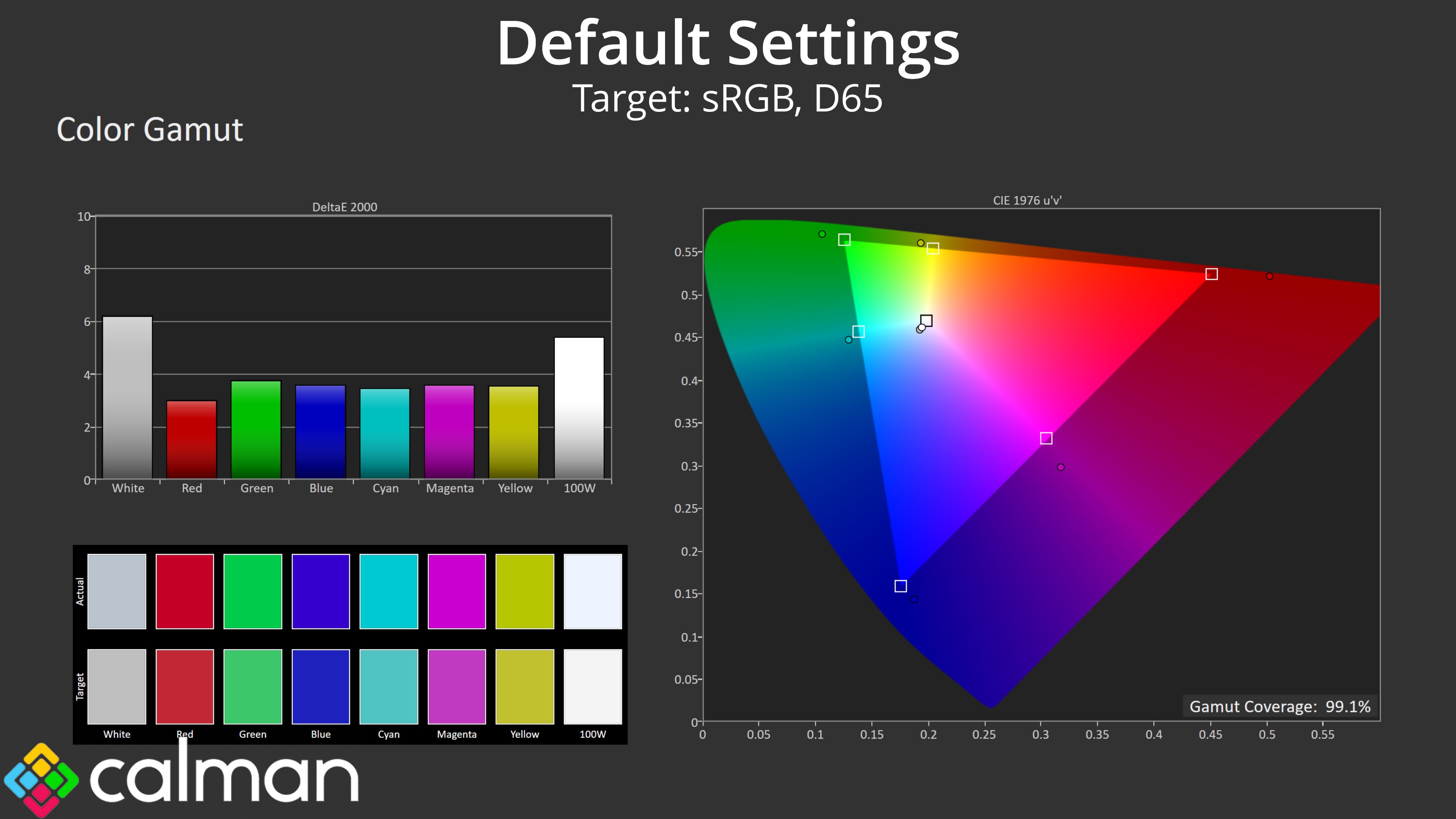
| sRGB | 99.1% |
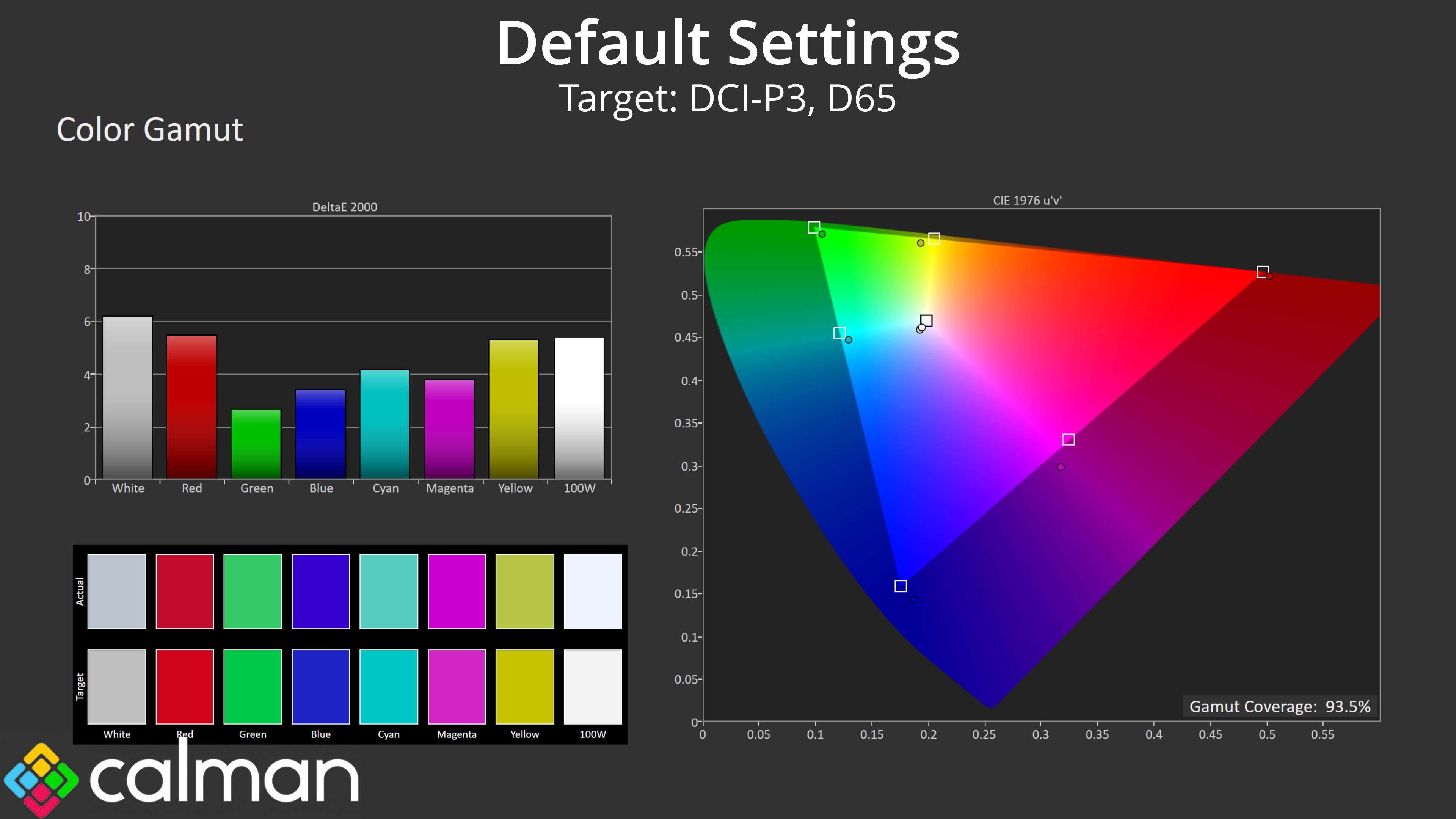
| DCI-P3 | 93.5% |
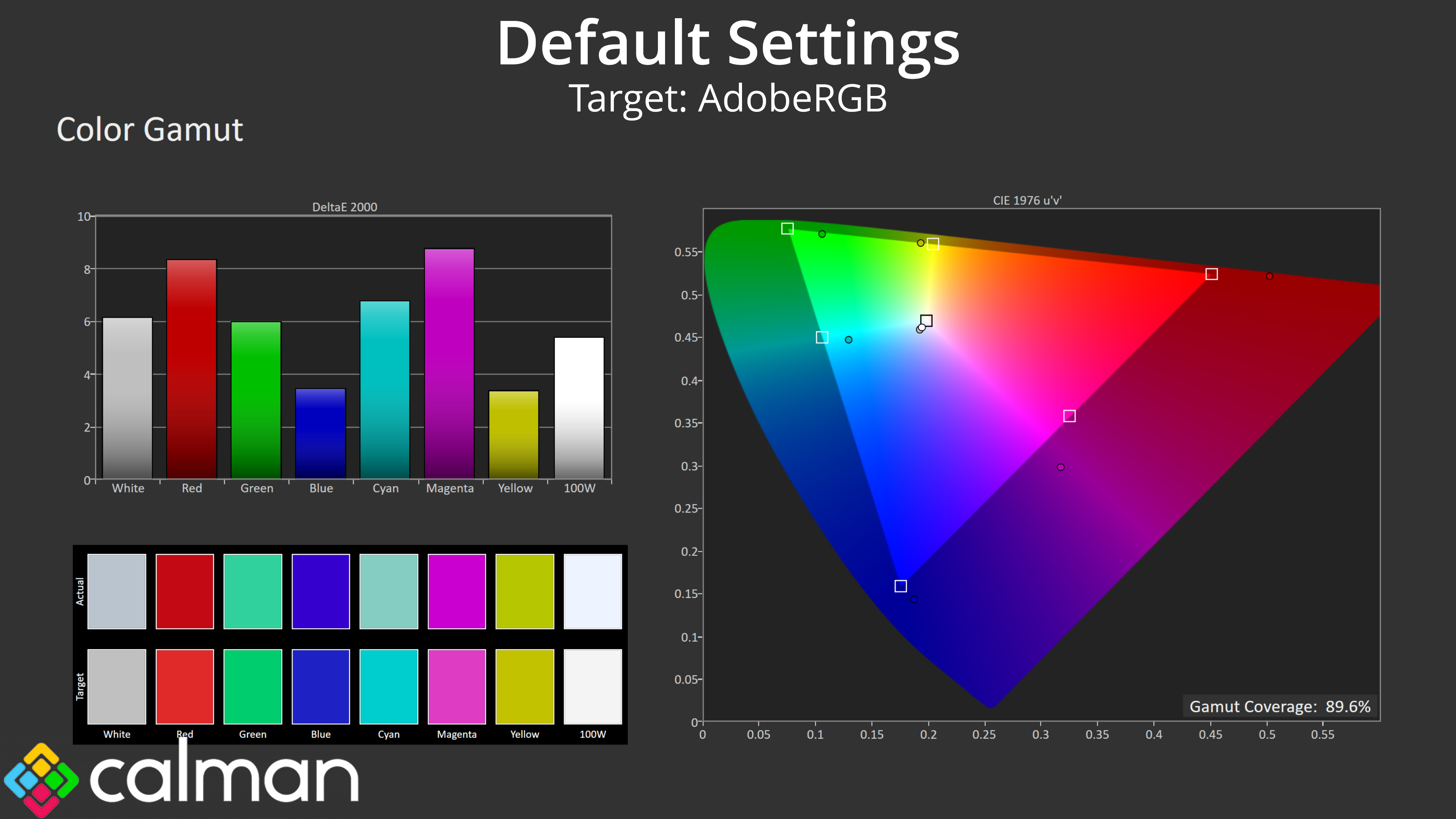
| Adobe RGB | 89.6% |
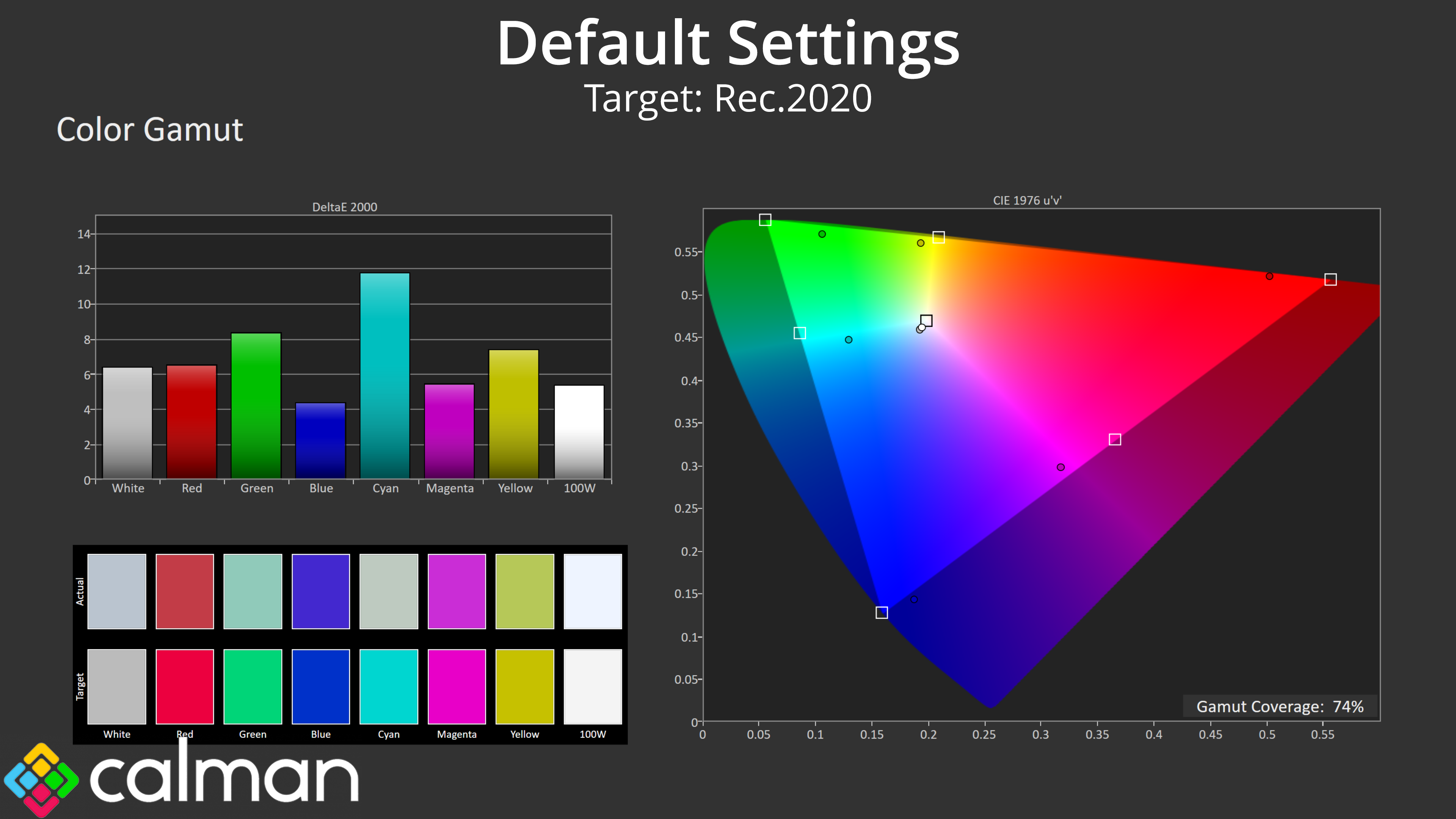
| Rec.2020 | 74% |
As for gamut, the GCB3480WQSU offers a reasonably wide colour space coverage – it's not quite at Quantum Dot levels, but 93.5% DCI-P3 and 74% Rec.2020 reporting is surprisingly decent for this calibre of monitor.
Greyscale
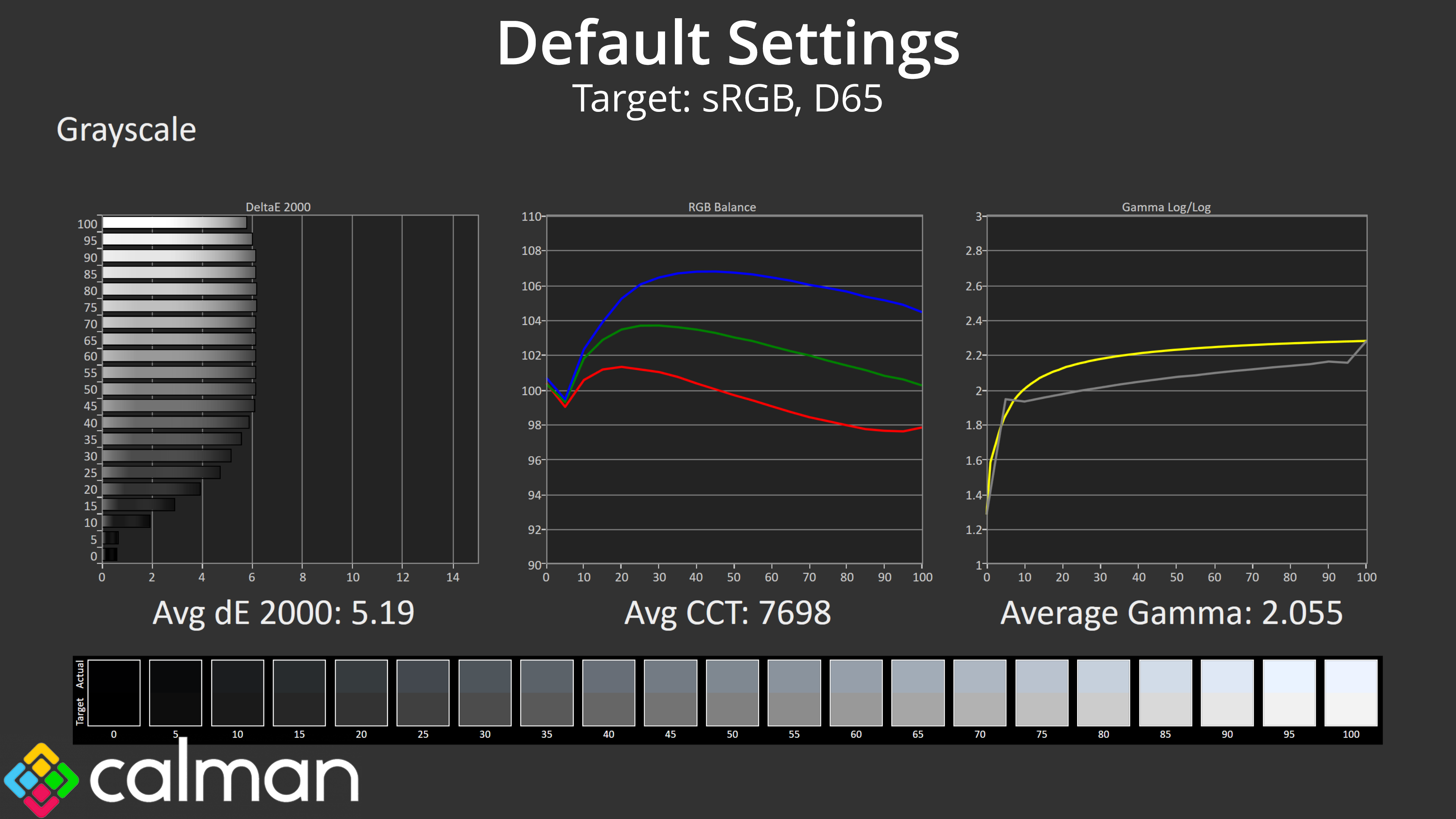
Moving onto greyscale, this is where things start to get quite dicey. You will notice how raised the blue channel is, resulting in a very cool average Correlated Colour Temperature (CCT) of 7698K, when the ideal should be 6500K – so the monitor is out by 18%.
On top of that, the default Gamma setting of 2.2 delivers results that are too low across the board, and the measured gamma level is closer to 2.0 than it is 2.2.
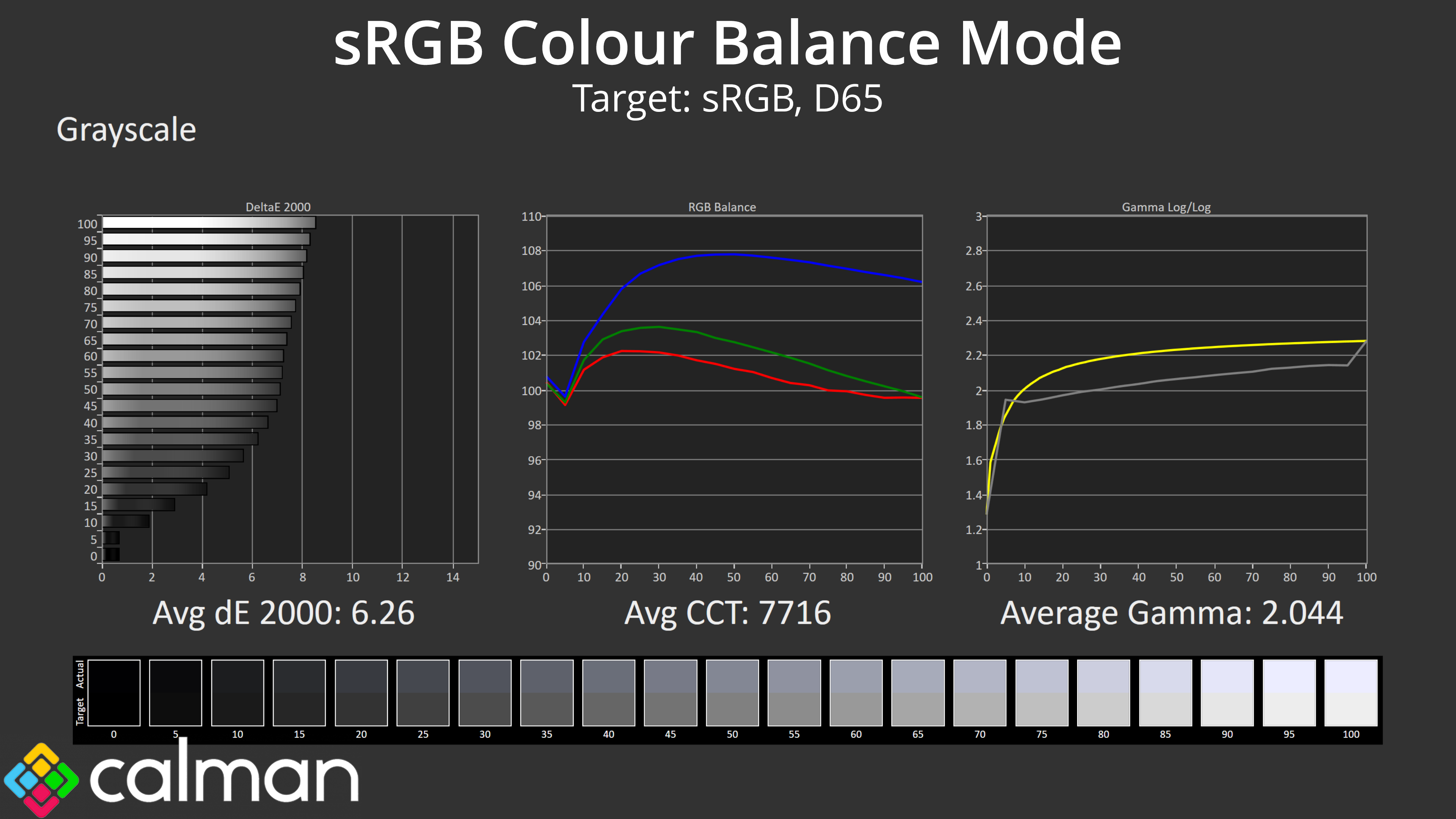
There is also an sRGB colour balance mode in the OSD, but it doesn't appear to be functioning correctly as nothing changed compared to using the default settings.
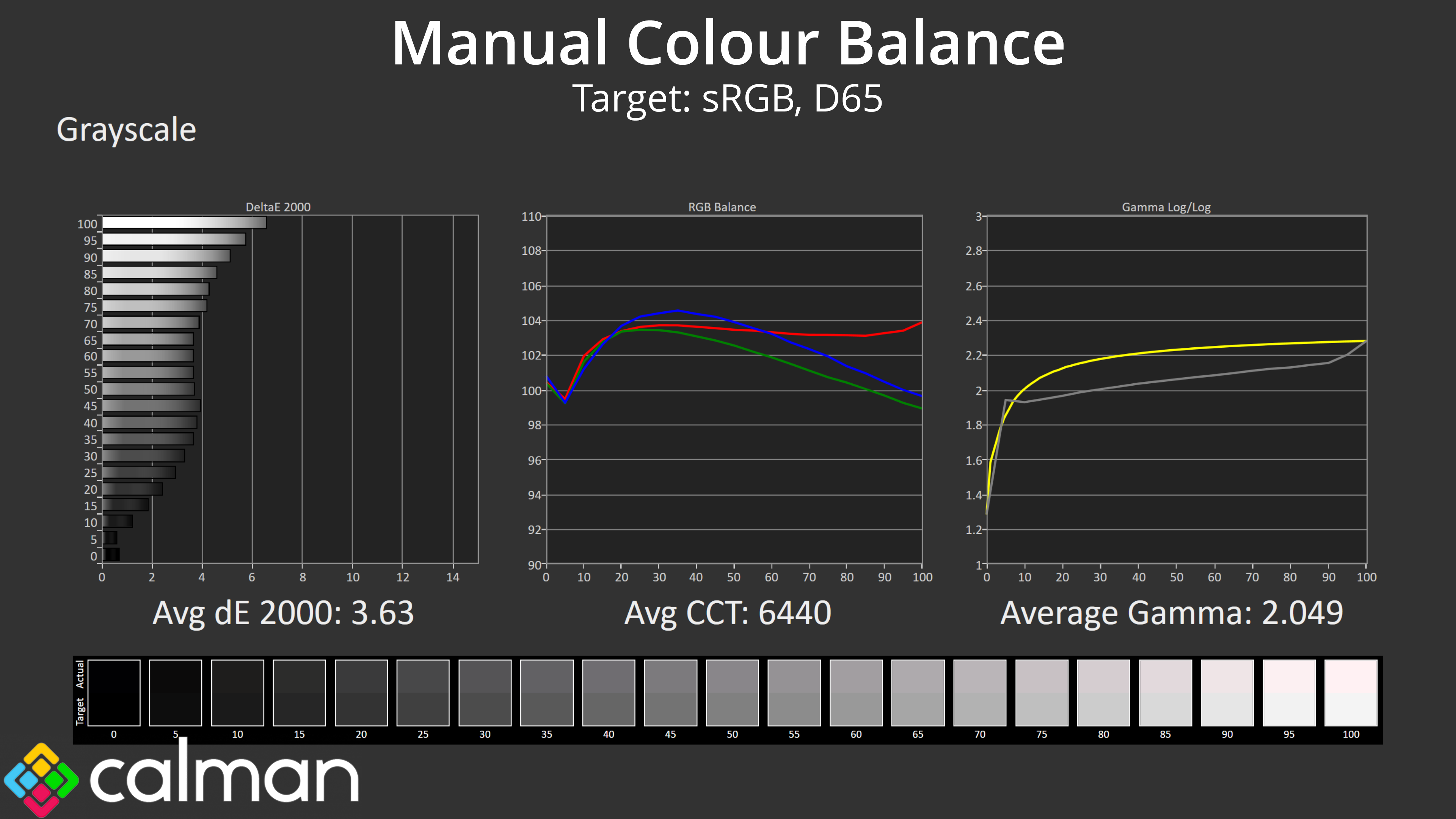
Thankfully there is user adjustable colour balance, which can go some way to correcting the issues. I actually had to set the green channel down to 90, and the blue channel to 84, leaving the red channel at 100. That produced an average CCT of 6440K, which is much more like it, though this did not affect gamma.
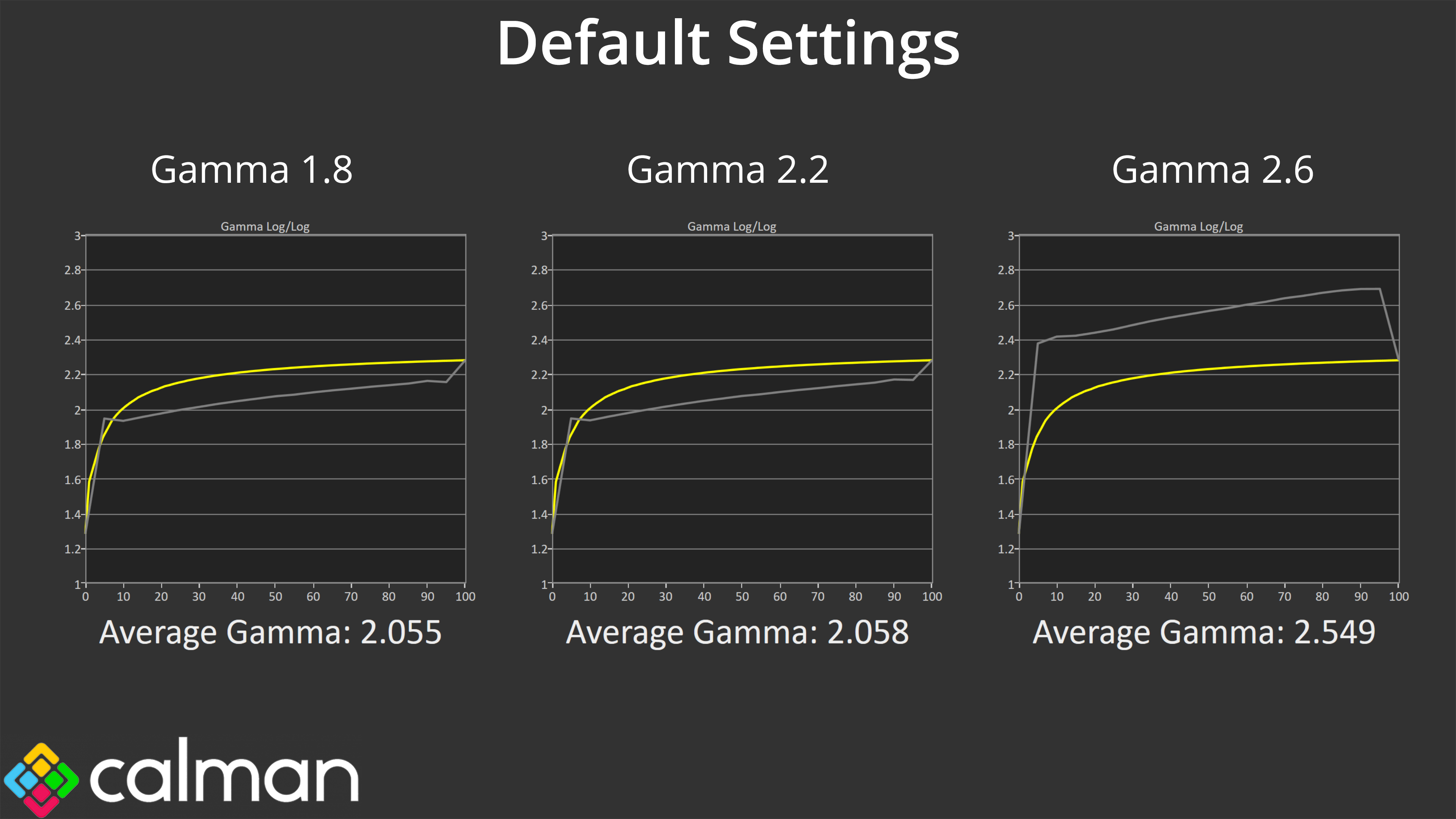
Speaking of gamma, there's three different gamma settings in the OSD – 1.8, 2.2, and 2.6. Obviously each setting is meant to target a different gamma value, but I actually found that the Gamma 1.8 and 2.2 settings both behave exactly the same way, so something is not quite right there. The 2.6 setting is closer to its target, averaging 2.549, though that doesn't help users to get a proper gamma 2.2 level out of the box.
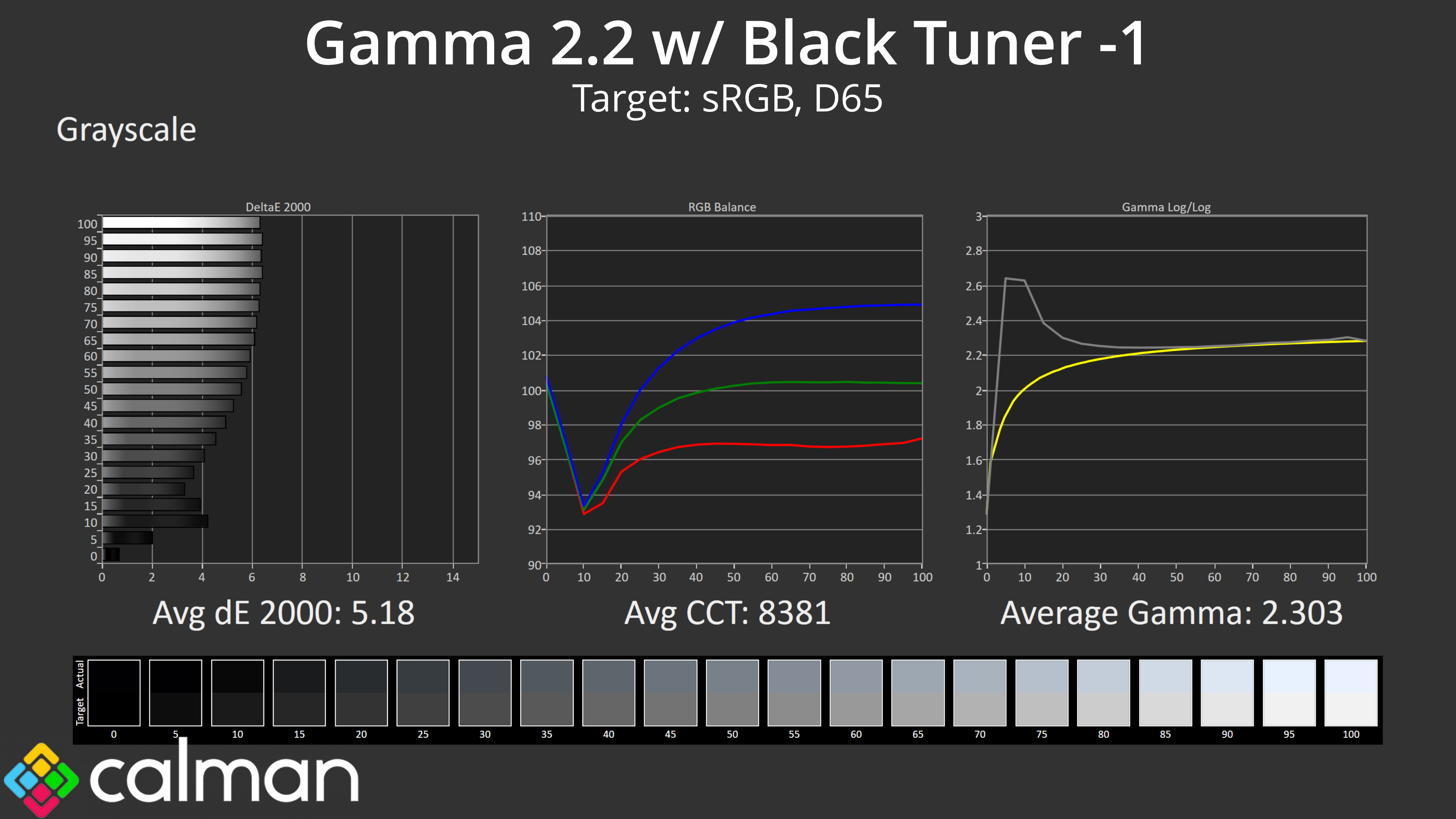
That led me to try a different setting, called black tuner – this can go up or down, so I started off by trying the ‘-1' setting which makes the image darker (lowers the black level). As you can see, this kind of helps gamma tracking, with the second half of the curve being almost perfect. The downside is enabling black tuner absolutely crushes any shadow detail in dark grey shades, with gamma hitting 2.6 at the beginning of the curve.
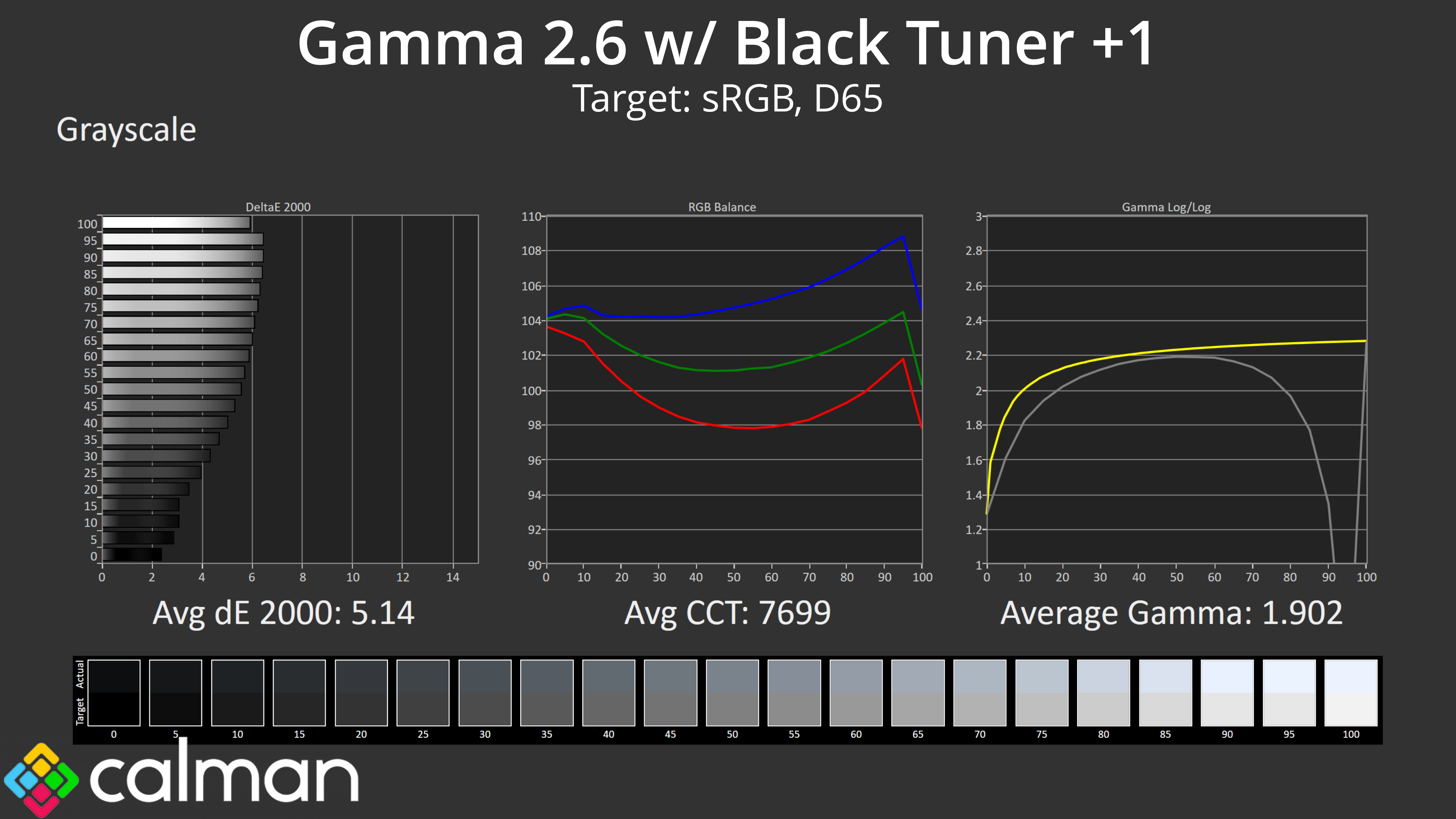
Next I thought, maybe I could go the other way – increase gamma to the 2.6 setting, and then set black tuner to +1, which should boost the black levels. Initially, I thought we might have good success, as the first half of the gamma curve looks great – but then the curve completely fell off as we hit the lighter shades, so I wouldn't recommend this mode.
Unfortunately – assuming other units behave the same way – that means it is basically impossible to hit gamma 2.2 without a proper calibration, and if you use the monitor's 2.2 setting, things will be touch brighter or more washed out than they should be.
Saturation
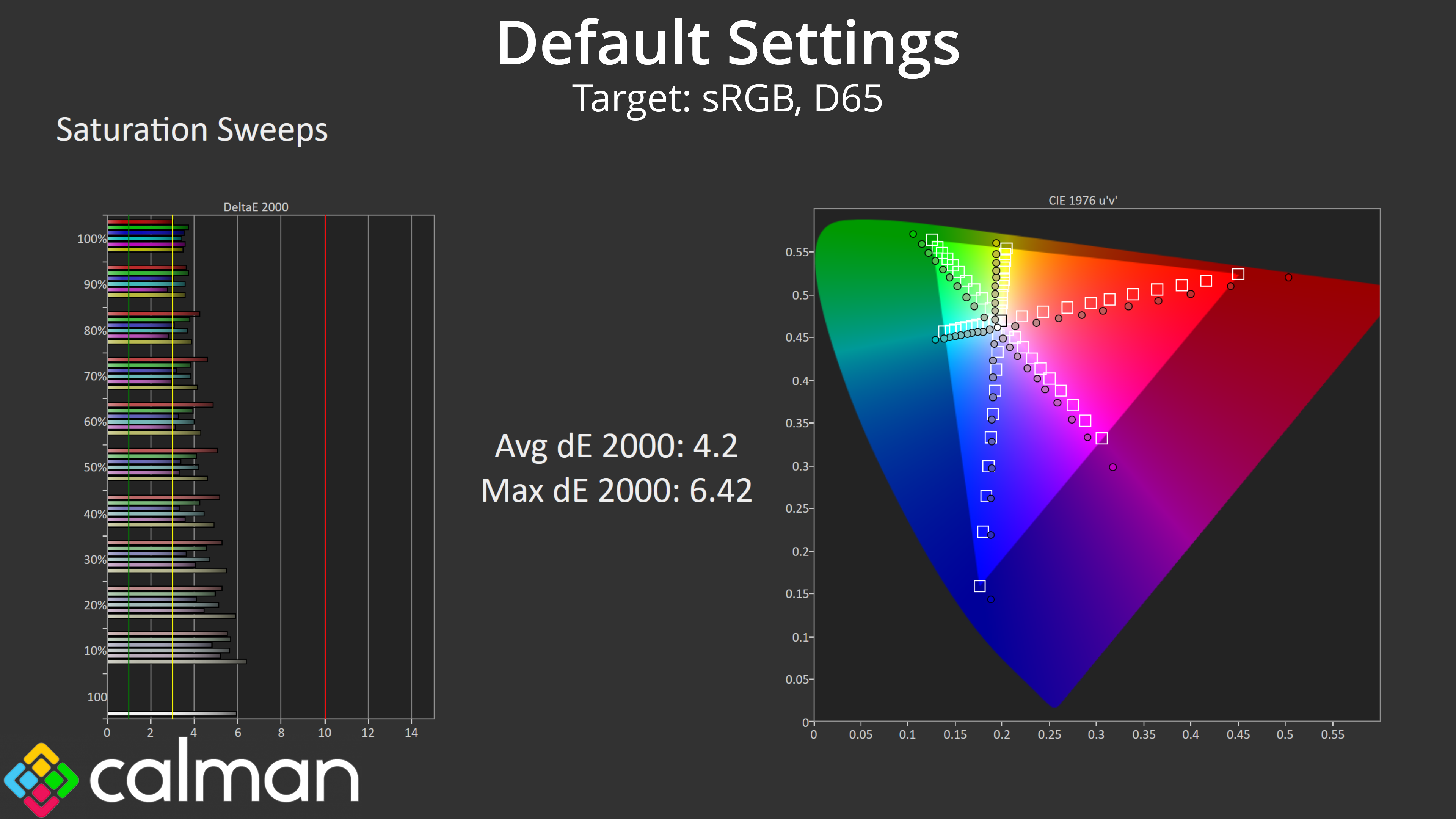
Next up we have our saturation test, and we do see a fair amount of over-saturation relative to the sRGB space, particularly from the red channel.
Colour Accuracy
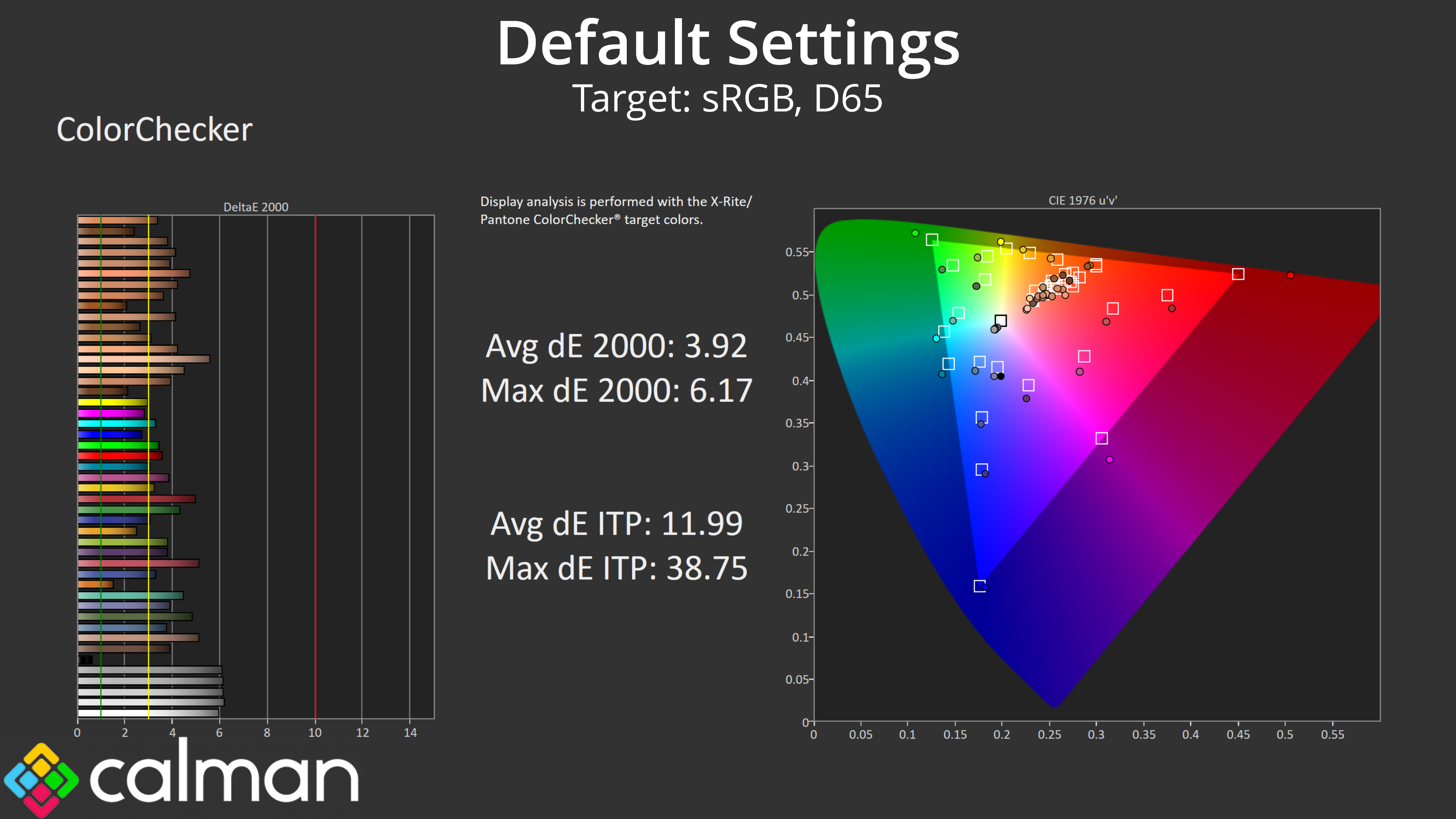
As expected from the poor greyscale results and the amount of over-saturation, out of the box colour accuracy is poor, with an average dE 2000 of 3.92, while whites and greys are even more erroneous with deltaEs of around 6.
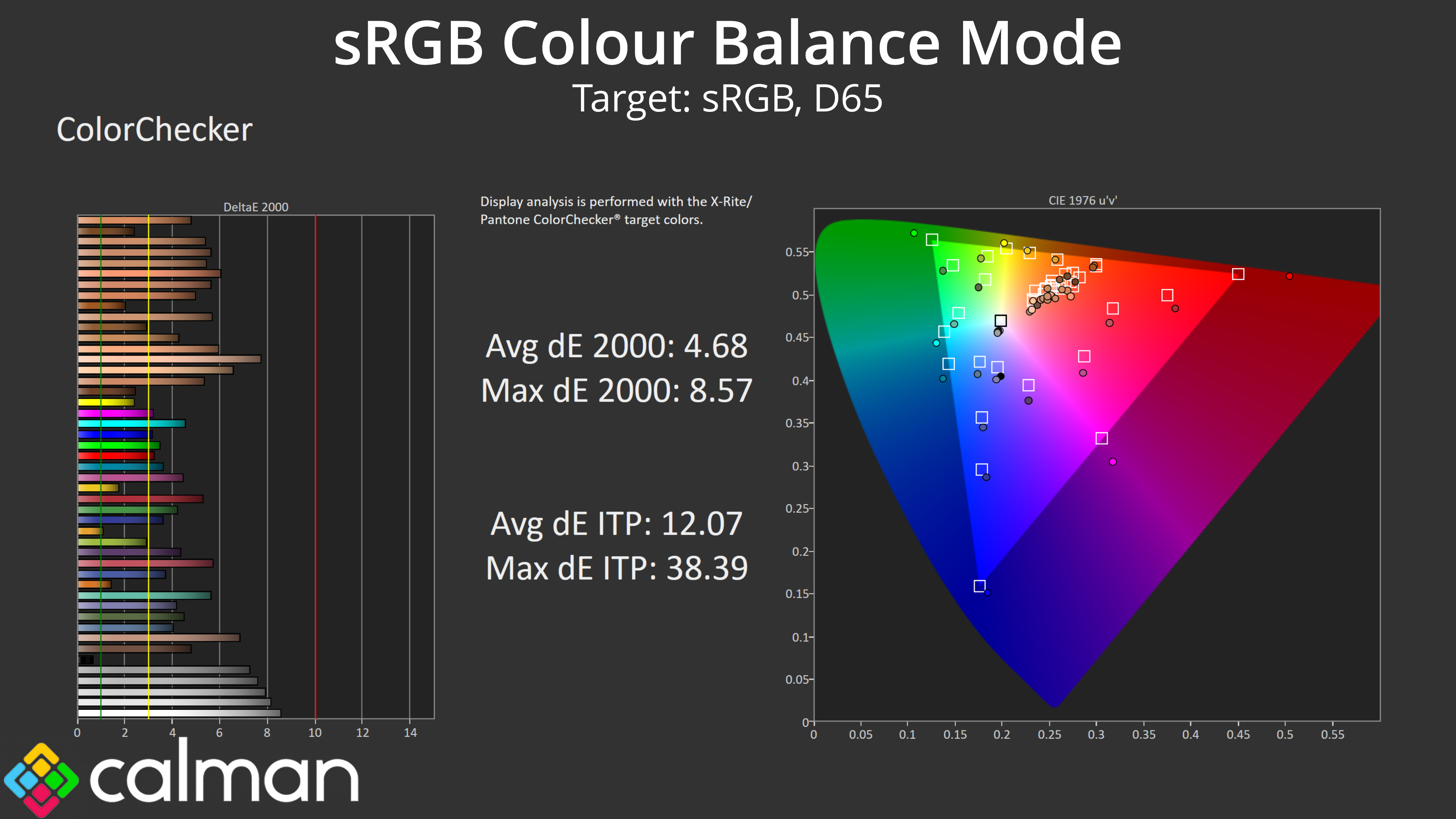
I also tried the sRGB colour balance mode again, and it actually made things worse – so this mode is clearly not working as it should.
Calibrated results
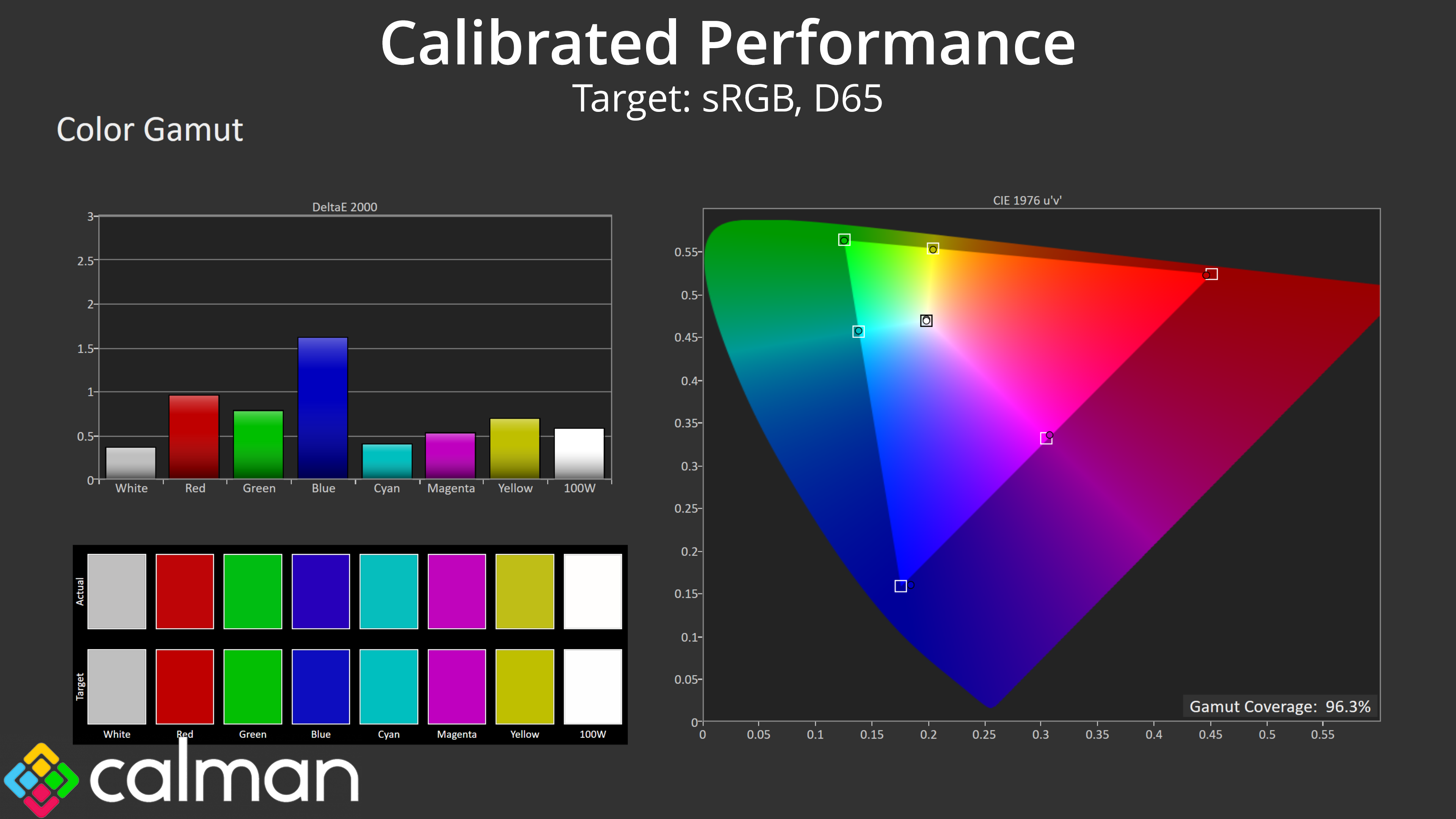
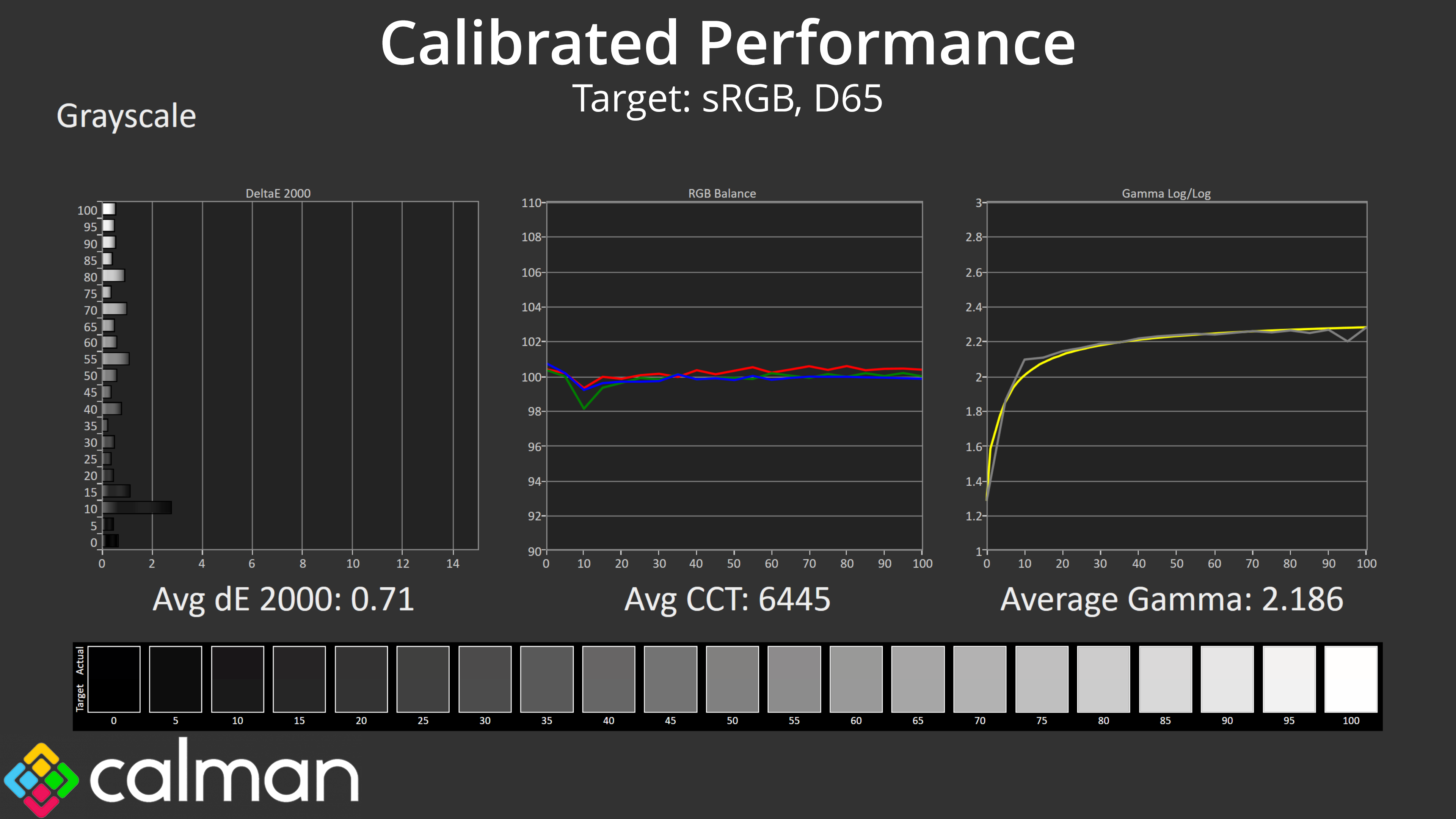
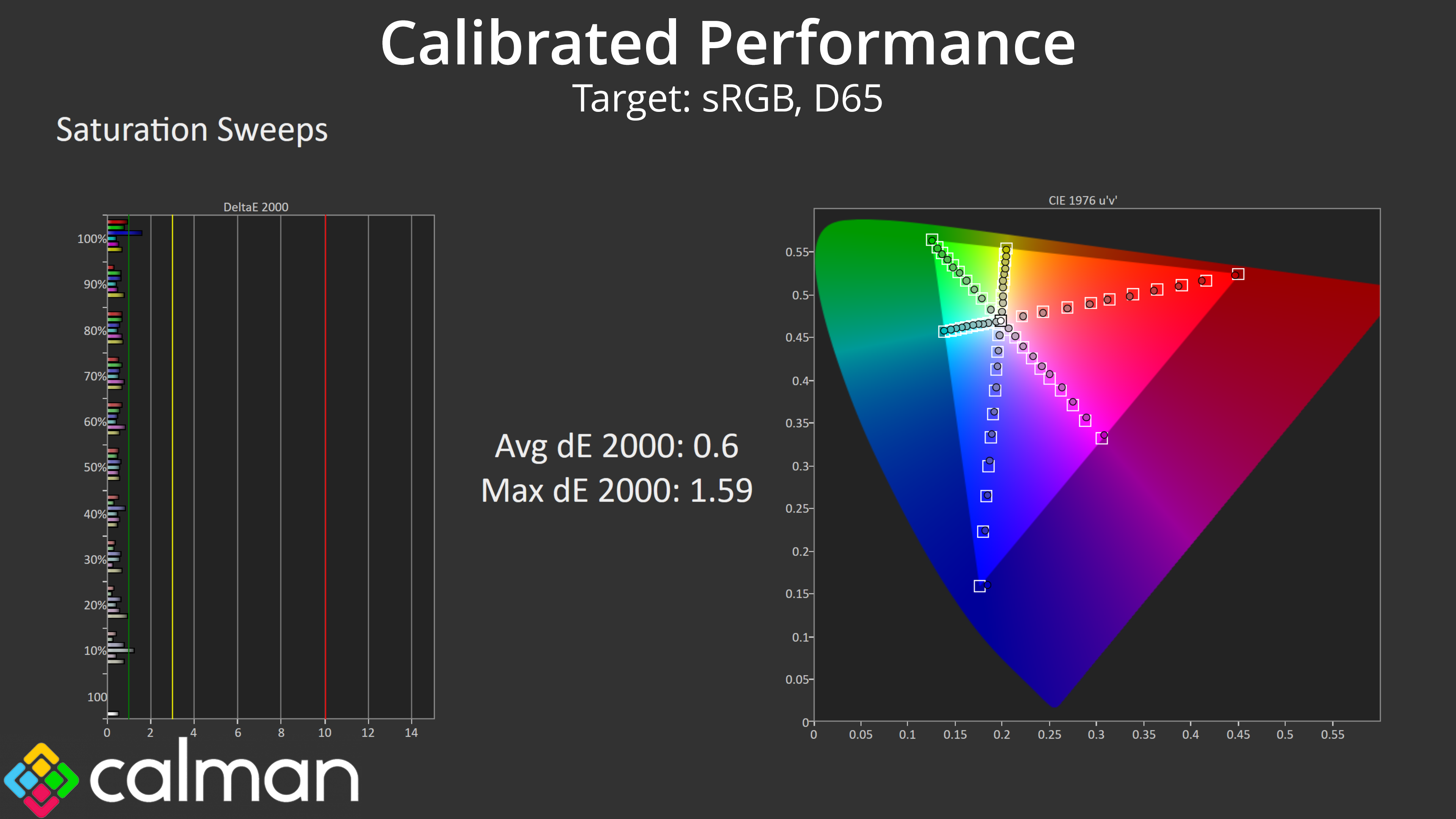
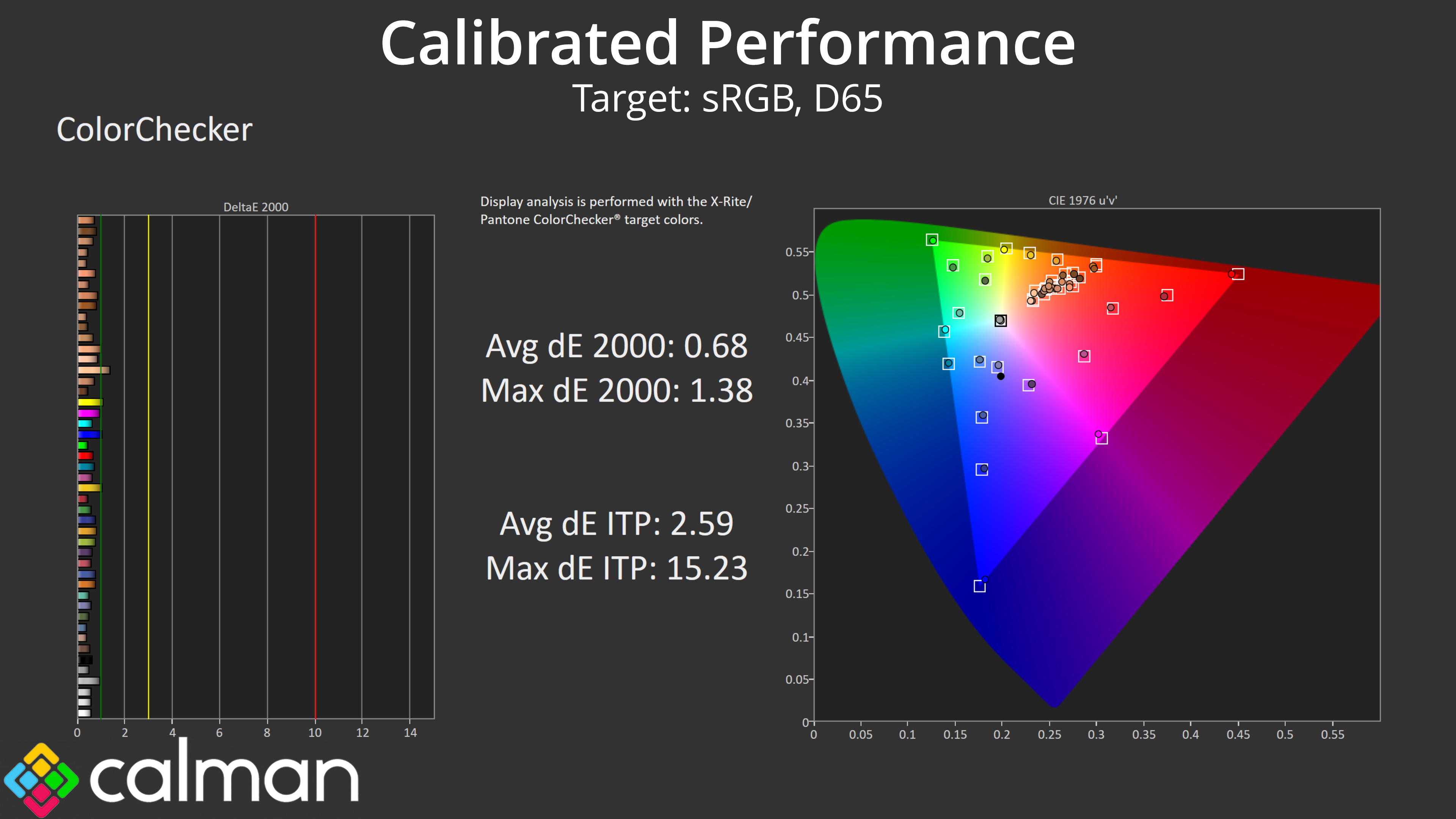
All that leaves us is to try a full calibration using Calman Ultimate. As expected, this did rectify basically all of our image concerns, with a new colour balance of 6445K and gamma at 2.186. Saturation and colour accuracy deltaEs have also improved to below 1 – so there is clearly potential with this panel, but we have to say, the factory calibration is among the worst we have ever seen.
Monitor response time testing is a new addition to our reviews, where we use the Open Source Response Time Tool (OSRTT), developed by TechTeamGB. This measures grey-to-grey response times and presents the results in a series of heatmaps, the style of which you may be familiar with from other reviews.
Initial Response Time is the time taken for the panel to transition from one colour to another, where lower values are better. We present the initial response time, so overshoot is not taken into account and is measured separately. We use a fixed RGB 5 tolerance for each transition.
Overshoot is the term given for when a monitor's transition exceeds or goes beyond its target value. So if a monitor was meant to transition from RGB 0 to RGB 55, but it hits RGB 60 before settling back down at RGB 55, that is overshoot. This is presented as RGB values in the heatmaps – i.e. how many RGB values past the intended target were measured.
Visual Response Rating is a metric designed to ‘score' a panel's visual performance, incorporating both response times and overdrive. Fast response times with little to no overshoot will score well, while slow response times or those with significant overshoot will score poorly.
We test the GCB3480WQSU at 180Hz, using all six of the overdrive settings found within the OSD.
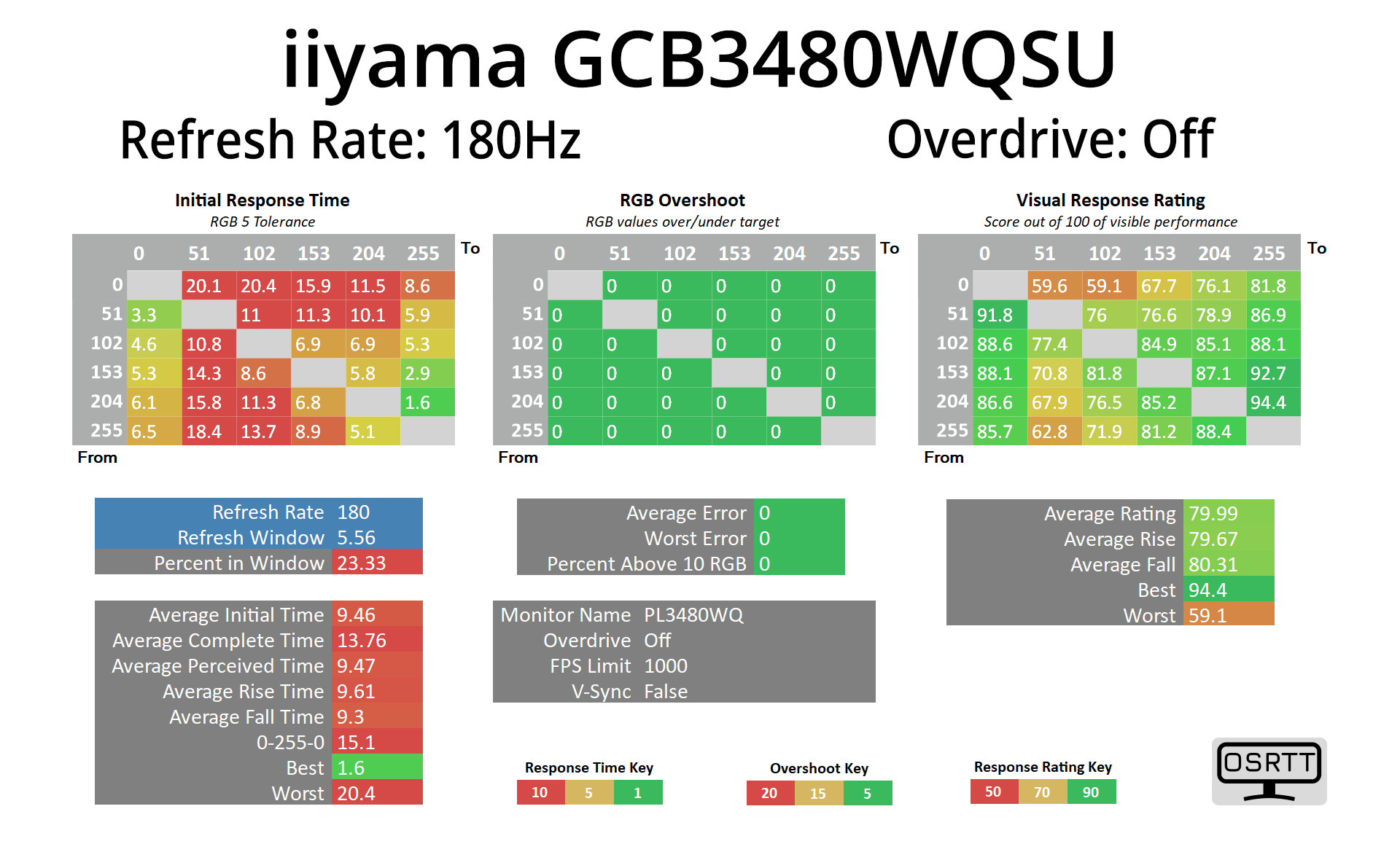
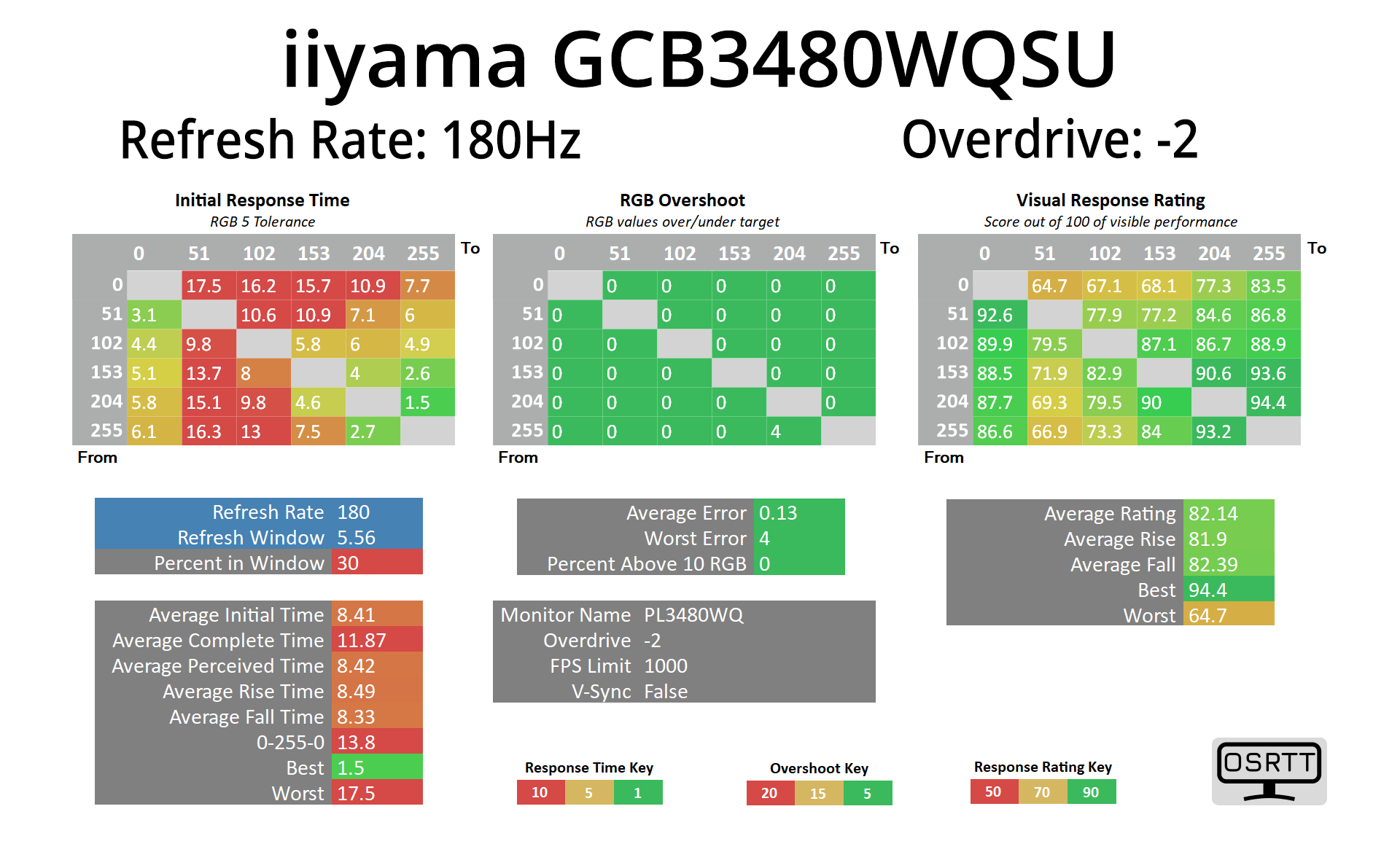
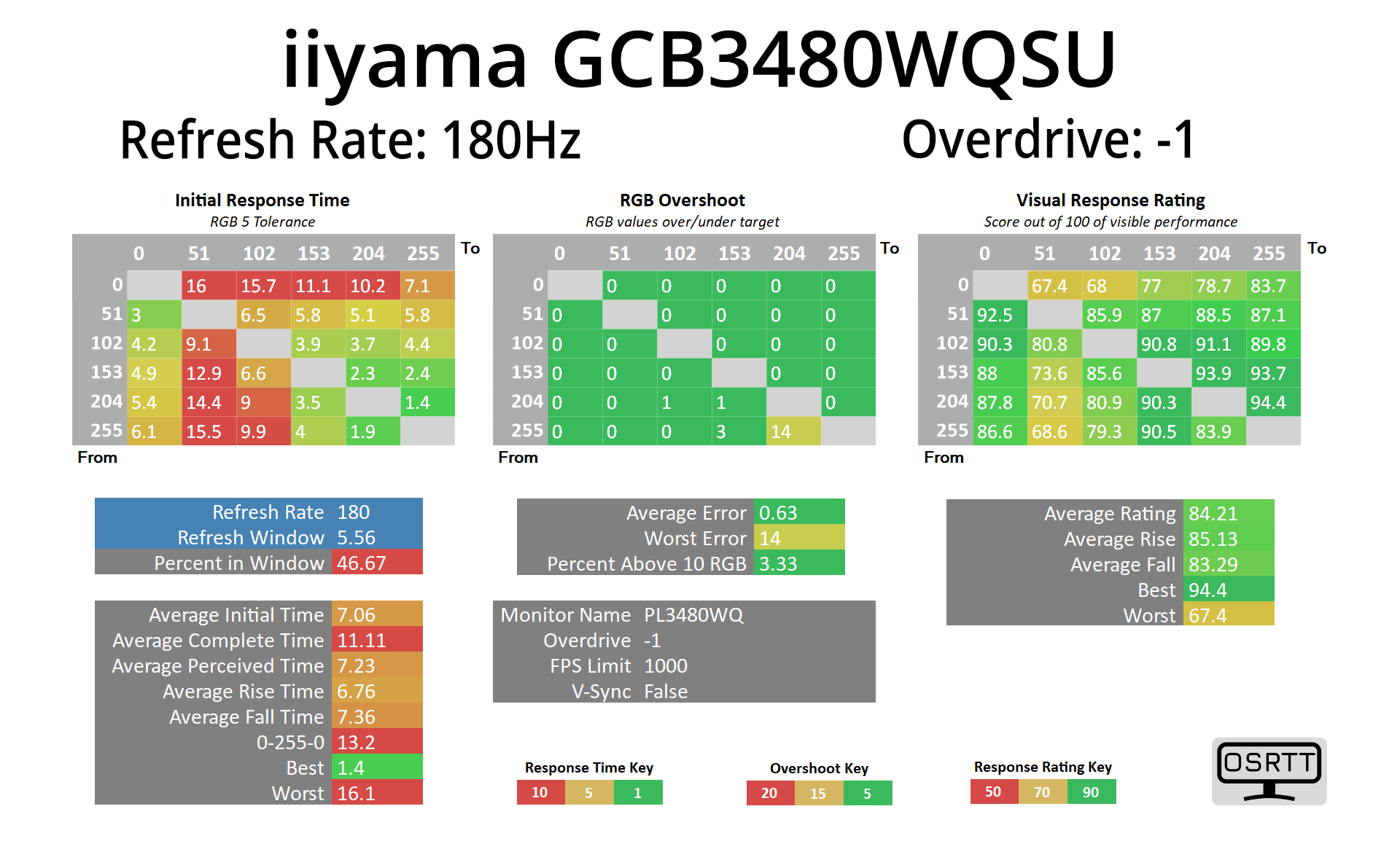
For the overdrive settings, I'm going to skip ahead to the -1 mode, as overdrive off and the -2 setting are both quite similar and slow. -1 isn't overly fast, but it has no overshoot and an average response time of 7.06ms.
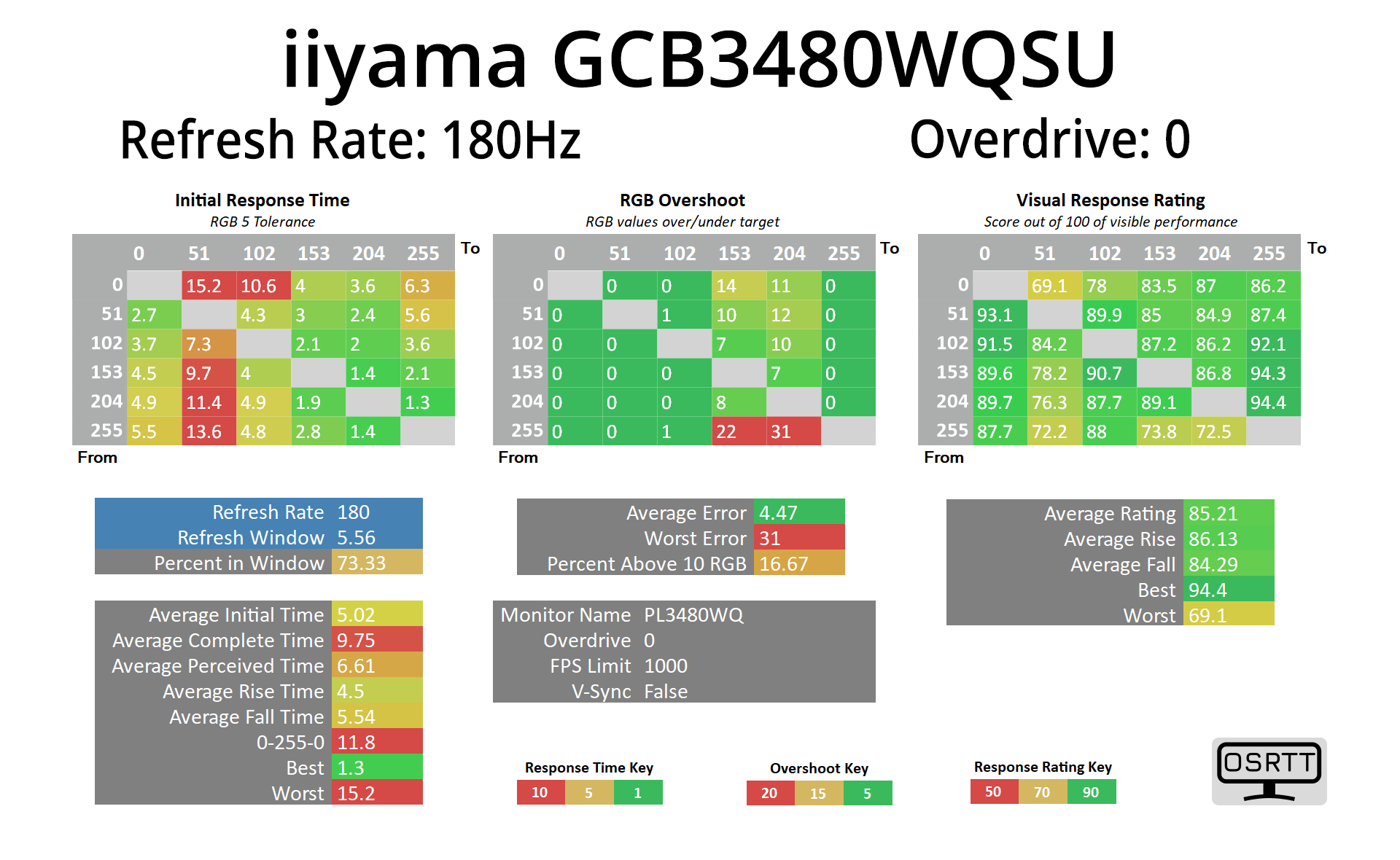
Overdrive 0 is the most optimised in my view, delivering only a small amount of overshoot, but improving response times to 5.02ms on average. There is still some dark-level smearing (as shown in the left-hand side of the top row), but it's better than a lot of other VA panels we have seen lately.
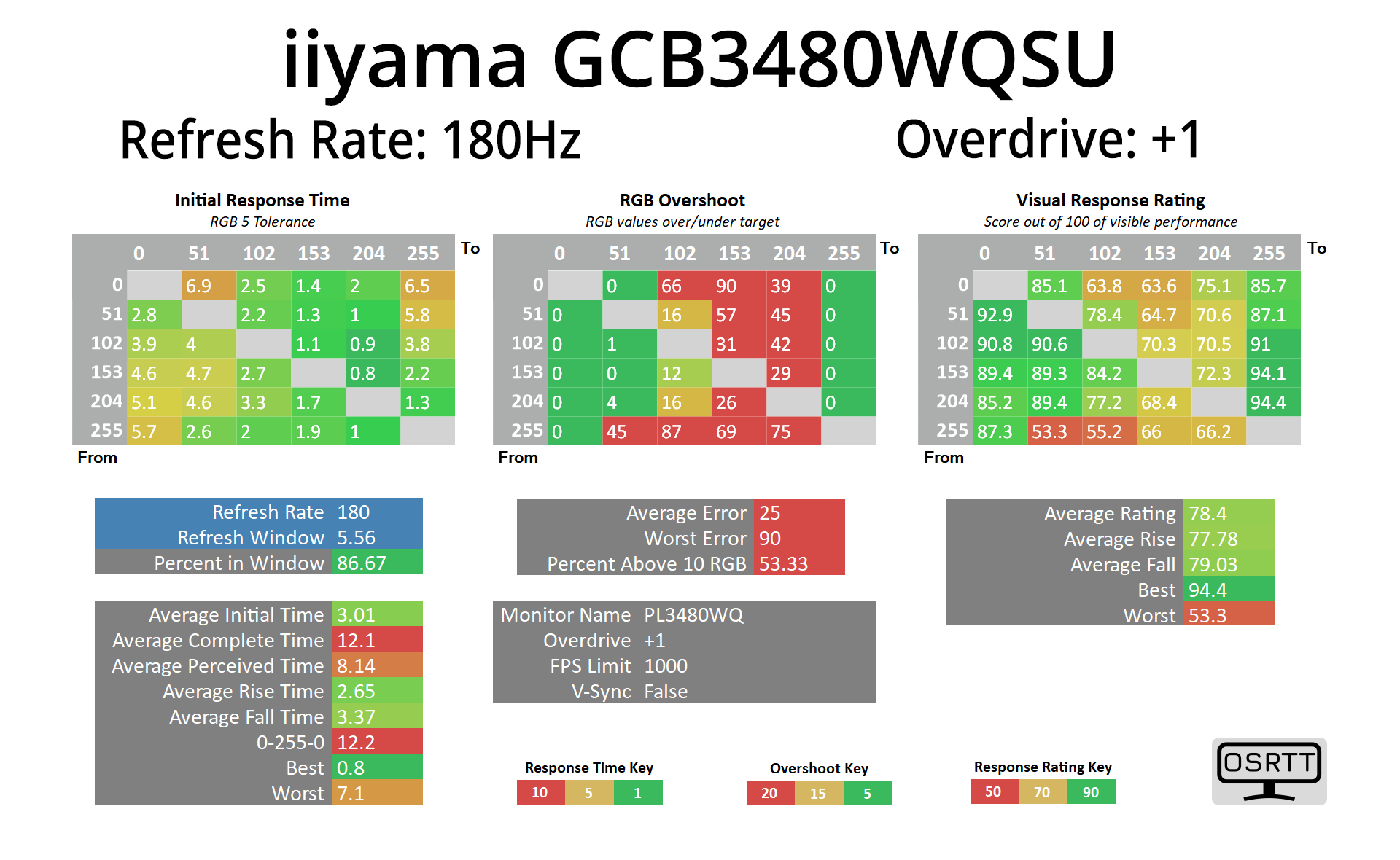
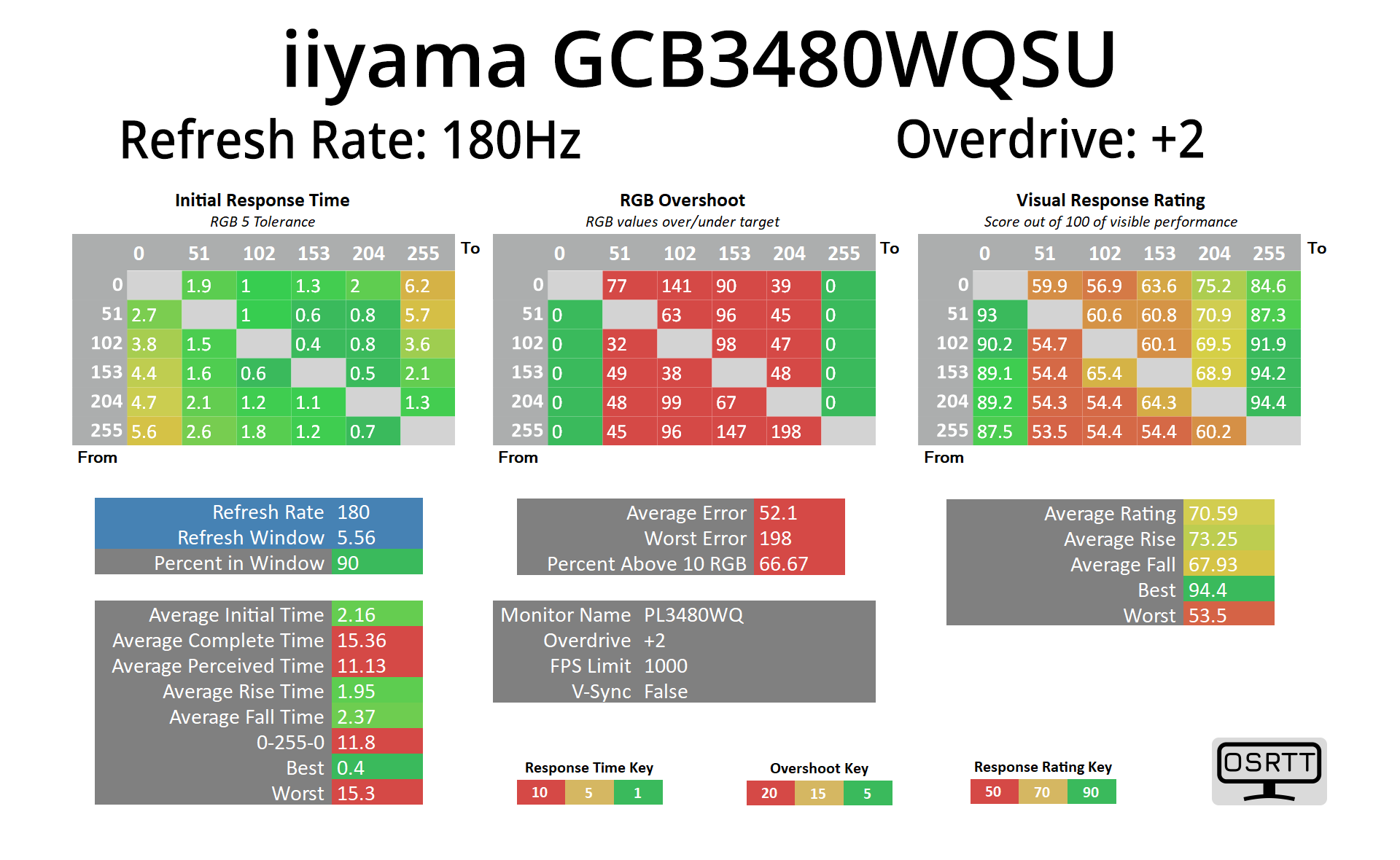
I'll also lump the +1 and +2 modes together as they crank the overdrive way too far and are not usable in my opinion.
Single overdrive mode?
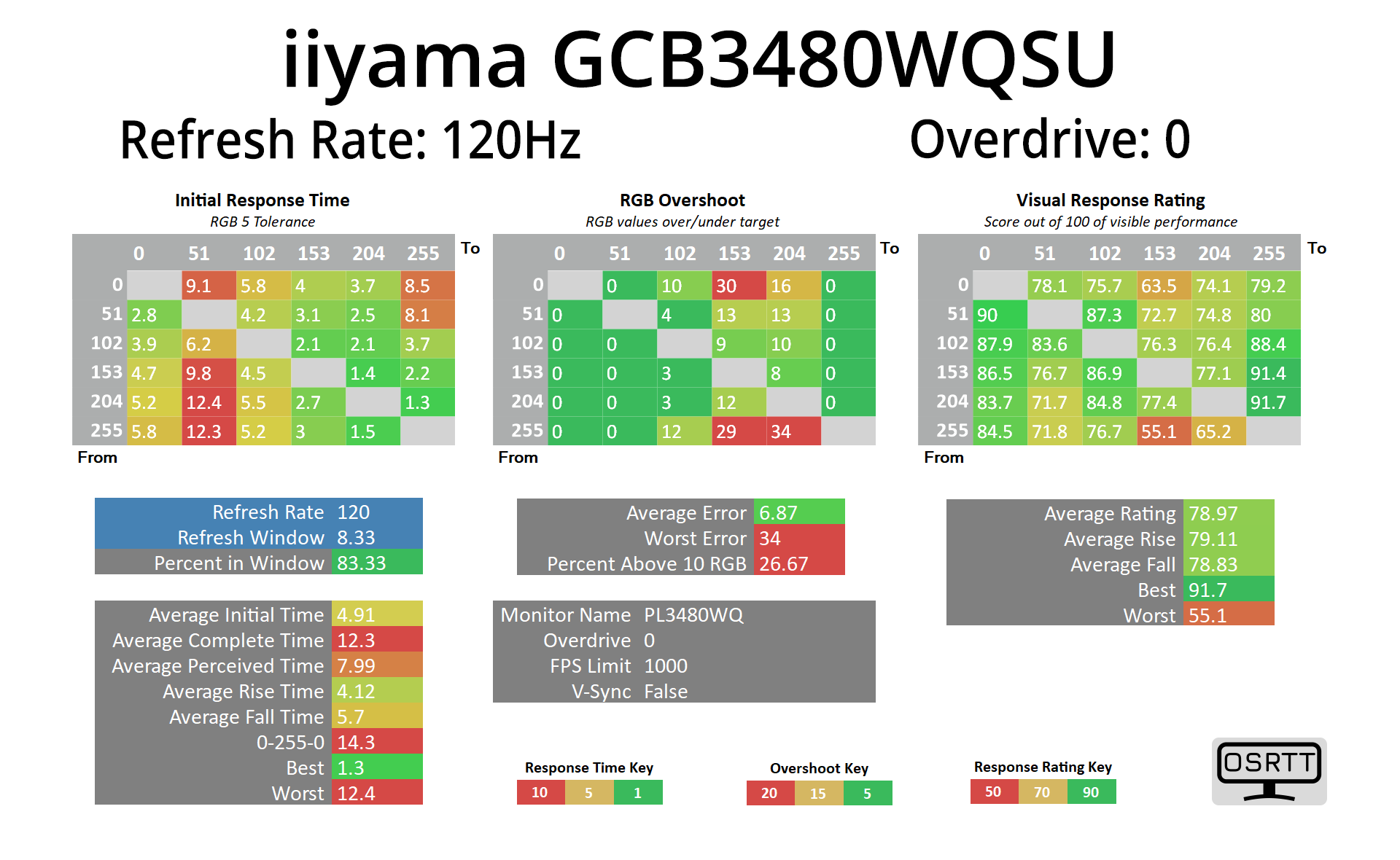
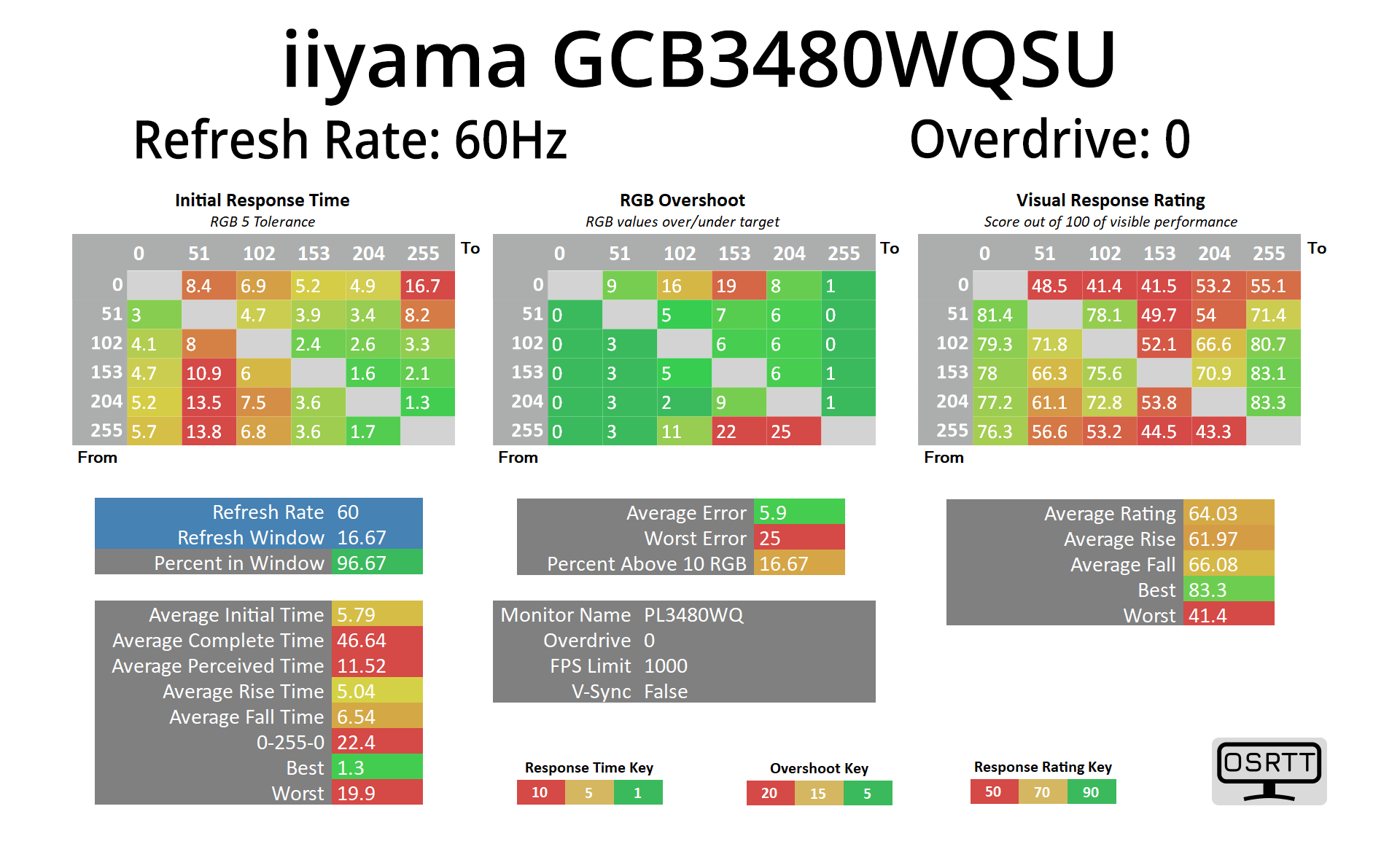
The good news is that the Overdrive 0 mode actually works relatively well across the refresh rate range. I tried it at 180Hz, 120Hz and 60Hz and results are relatively similar – overshoot does increase as you step down, but you'll get the best experience by setting the overdrive to 0 and forgetting about it.
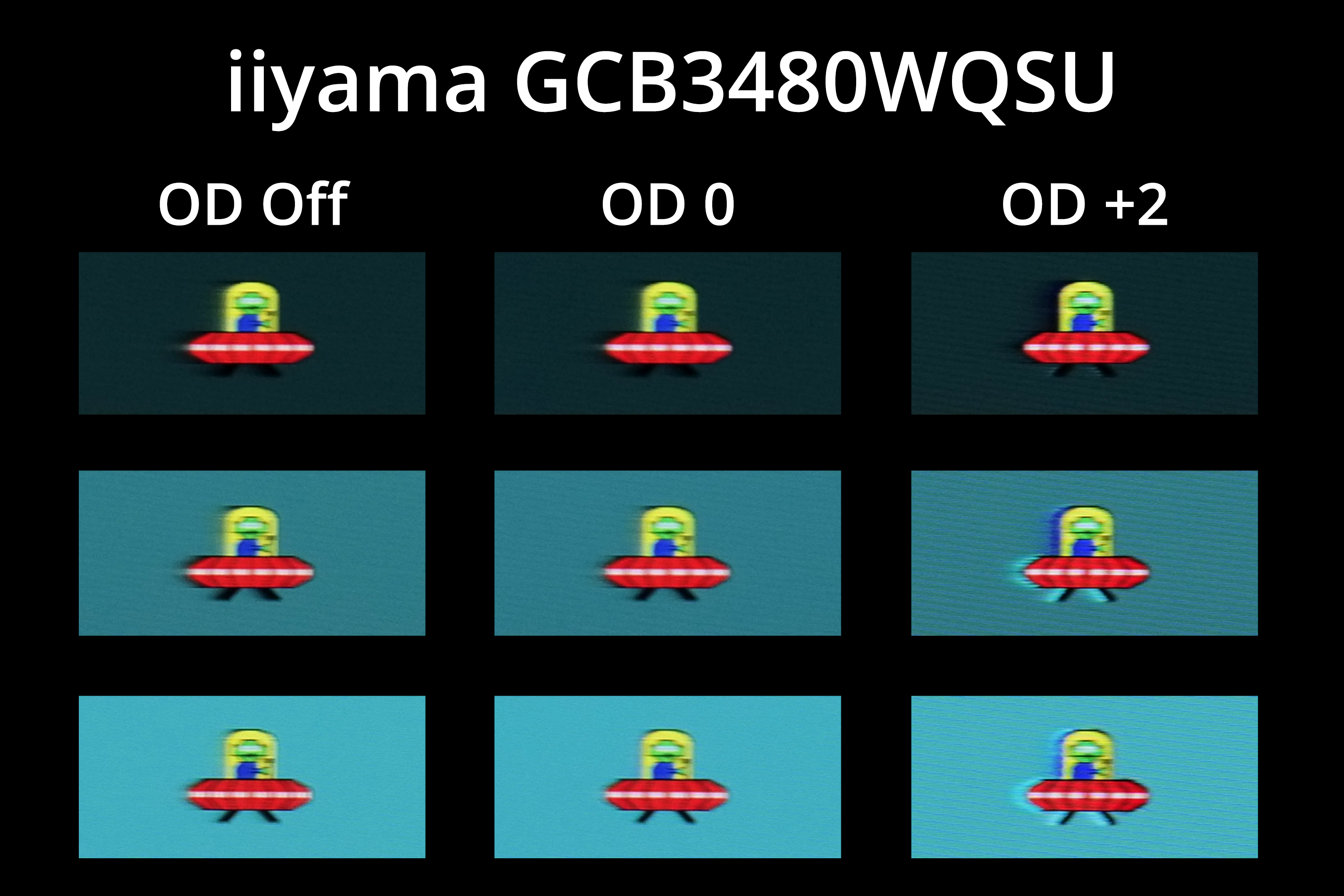
Here's a visual representation of the overdrive modes, using the BlurBusters UFO test. Even with overdrive off the image doesn't look too bad, but the amount of trailing is reduced using the overdrive 0 mode, whereas the +2 setting just has a ton of visible inverse ghosting. For a VA monitor at this price point however, the image quality from Overdrive 0 does look pretty good.
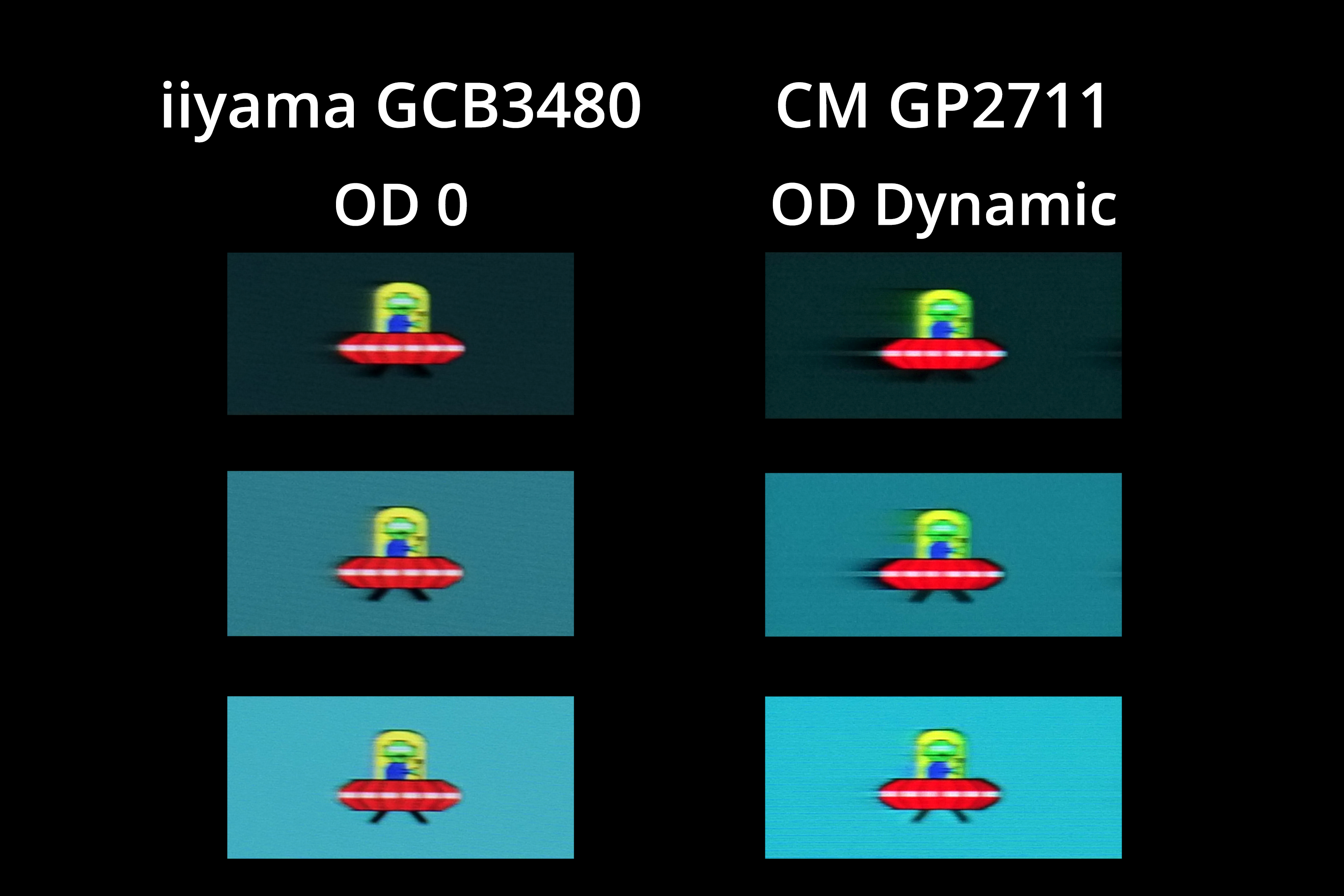
To give you an idea how much better the GCB3480 motion handling is compared to another VA panel we recently reviewed, I've compared it against the Cooler Master GP2711. Using both monitors' best overdrive settings, you can see a noticeable reduction in dark-level smearing for the iiyama, and overall motion clarity is a definite step up.
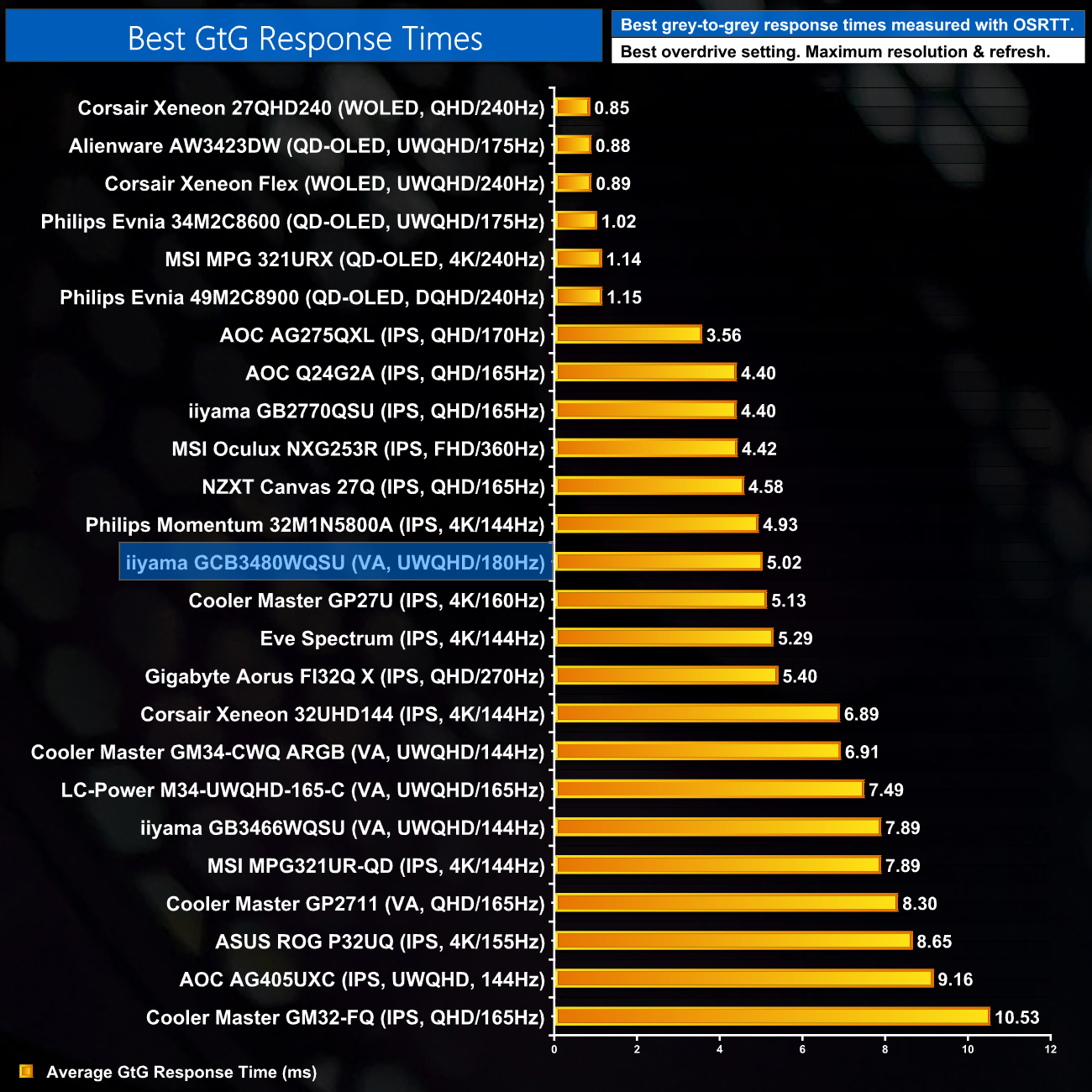
Just to put the response time results into context, the average of 5.02ms is fairly middle of the road overall – but for an affordable VA screen, we have to see it is pretty impressive indeed.
We again use the Open Source Response Time Tool (OSRTT), developed by TechTeamGB, to report monitor input latency.
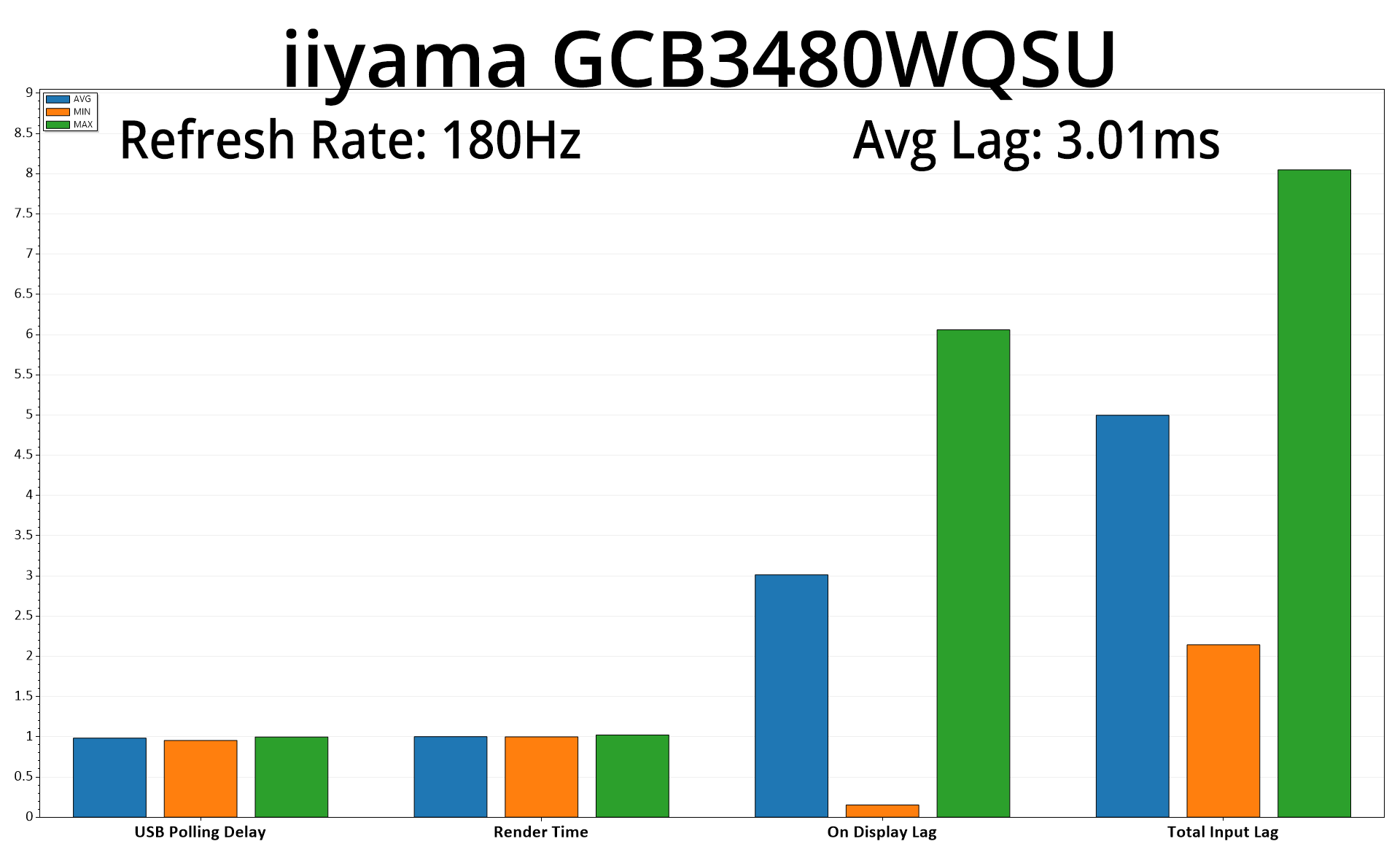
Input lag is no problem either, with our tools measuring an average lag of 3.01ms, which is equivalent to little more than half a frame at 180Hz.
There's a saying in sports about ‘a game of two halves', and that line of thinking perfectly encapsulates the iiyama GCB3480WQSU ultrawide monitor.
To be completely honest, my first impressions of this screen were very poor, simply due to the factory calibration. I can't remember testing a more inaccurate screen out of the box – the colour balance is way too cool (at 7700K instead of 6500K), and there's also no way to achieve an average gamma of 2.2, as the gamma settings do appear to be somewhat broken.
Thankfully there is user-configurable colour balance, which does help, but to get the most out of the monitor it really needs a full calibration which requires a colorimeter and proper software that most people simply won't have. Contrast is also slightly lower than advertised, at around 2900:1 instead of the claimed 4000:1, though a peak brightness of 400+ nits is decent.
Where the GCB3480WQSU impressed me, however, is with its response times and motion clarity. Now don't get me wrong, it's not a world beater, but for a VA screen at this price, I have to say I was very impressed by the level of fluidity on offer. Just take a look back on page 5 of this review and check out the BlurBusters UFO images – compared to other affordable VA panels we have reviewed over the last year, the GCB3480WQSU is streets ahead, with only a small amount of dark-level smearing.
That puts this screen in a fairly unique position where I'd only want to use it everyday if it were calibrated to fix the colour balance and gamma issues – but for gaming, it is one of the best VA ultrawide screens I have ever used. That does make it a tricky one to score, as you may not care too much about the factory calibration issues, or that could be a deal breaker for you. All I'll say is that surely – surely – with a firmware update to correct some things and give it a proper factory calibration, the iiyama GCB3480WQSU could be one of the best value gaming ultrawides on the market, but there's a way to go yet.
We found it for around £340 on Ebuyer HERE.
Pros
- Excellent response times and motion clarity for a VA panel at this price.
- Affordable.
- Decent gamut coverage.
- Low input lag.
- Increasingly popular size and format.
- Easy to use OSD.
- Great image quality once calibrated.
Cons
- Colour balance is all wrong out of the box.
- Gamma settings appear broken.
- sRGB mode is not functioning properly.
- Contrast is slightly lower than expected.
- Stand only offers basic ergonomic adjustments.
KitGuru says: This could be a seriously impressive monitor if it had a proper factory calibration.