KitGuru KitGuru.net – Tech News | Hardware News | Hardware Reviews | IOS | Mobile | Gaming | Graphics Cards


Not long ago, you'd need to spend close to a grand to get a 4K monitor. But as with all things in computing, the prices have been falling steadily. With the AOC U2790PQU you can enjoy 27in of 4K goodness for less than £300. Surely there must be a catch?
The U2790PQU certainly doesn't seem to skimp in any part of its specification. Aside from the 4K (3,840 x 2,160) resolution, the panel uses IPS technology, which usually comes at a premium. The maximum 4K refresh is just 60Hz and pixel response 5ms, but both are pretty standard for a 4K IPS panel. The maximum brightness is a reasonable 350cd/m2, and static contrast 1,000:1, again typical for IPS.
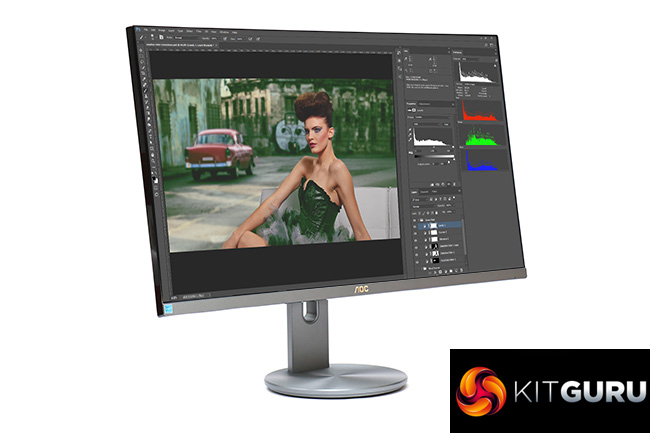
The appearance is classy and not budget at all, with a comprehensive range of adjustment. You can swivel the monitor on its base, tilt forwards and backwards, raise the screen up and down on the stand, and also pivot into portrait mode. The video inputs are reasonable, including two HDMI and DisplayPort, but no USB-C (although this usually comes with a significant extra cost, so it's an acceptable omission). You also get a two-port USB 3.0 hub and built-in stereo 2W speakers. However, there's no support for any form of adaptive sync technology, which will be a disappointment for gamers hoping for an affordable 4K entry point.
The U2790PQU is clearly more for the business user than entertainment, but there are no major features missing and with IPS panel technology, the image quality has promise too. It's not widely available yet, but we've already found sites listing this screen for as little as £280. If you were hoping to go 4K but didn't think you could afford it, this could well be the screen that changes your mind. It looks too good to be true, so read on to find out whether this really is the best value for 4K yet.
Specification:
- Screen size: 27-inch, 16:9 aspect
- Native resolution: 3,840 x 2,160
- Refresh rate: 60Hz (4K)
- Panel type: IPS
- Contrast ratio: 1,000:1 (typical)
- Brightness: 350cd/m2
- Response time: 5ms Grey-to-Grey
- Display inputs: 1 x HDMI 2.0, 1 x HDMI 1.4, DisplayPort 1.2
- USB hub: Yes, 2 x USB 3.0
- Tilt: 3.5 degrees forward, 19.5 degrees backward
- Raise: 130mm
- Swivel: 45 degrees left and right
- Portrait: Yes
- Other: Audio output, 2 x 2W speakers
Retail Price: £280.79 (inc. VAT)
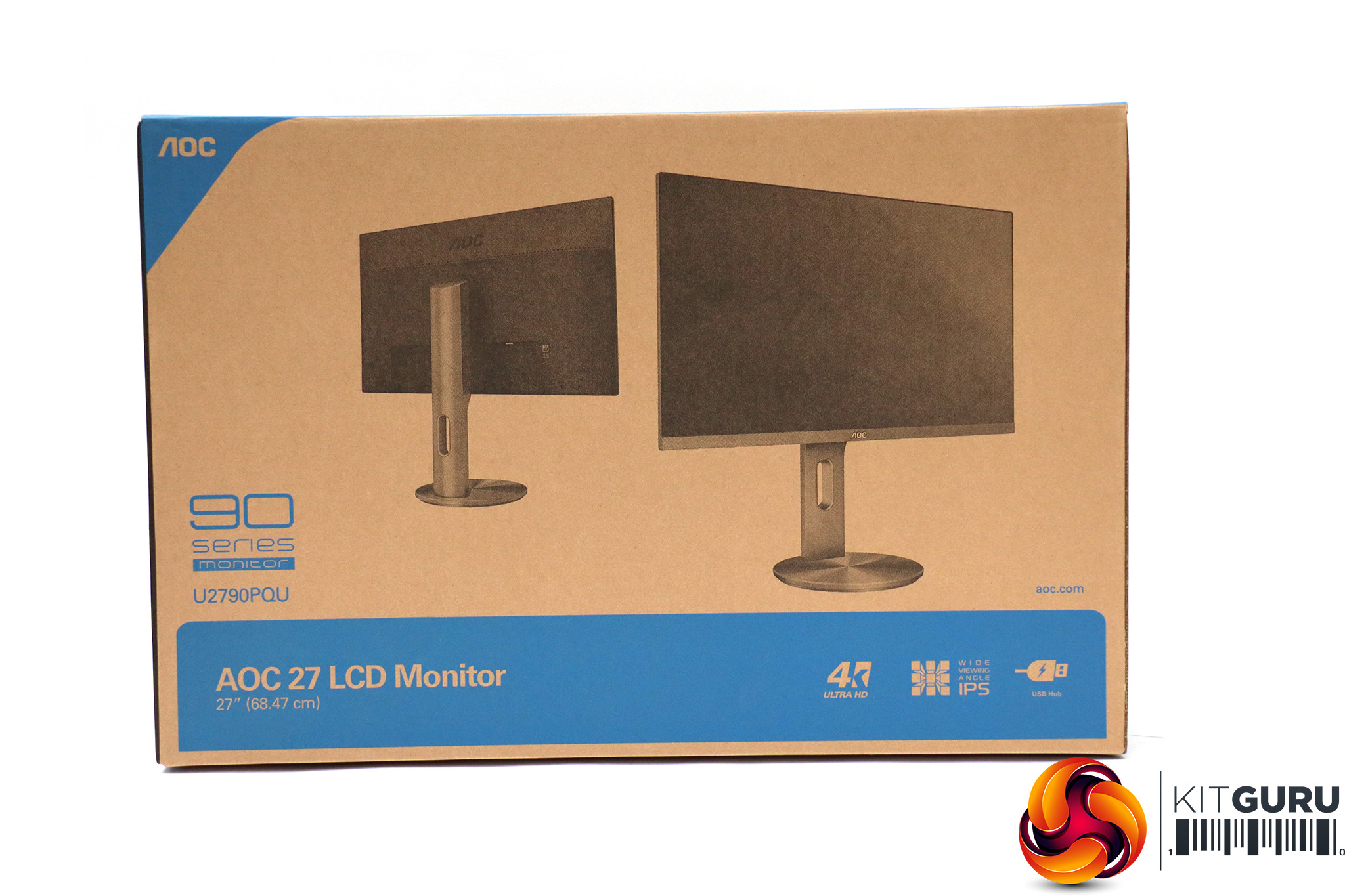
The blue and beige box the AOC U2790PPQU comes in is a bit pedestrian considering that there's a 4K monitor contained within.
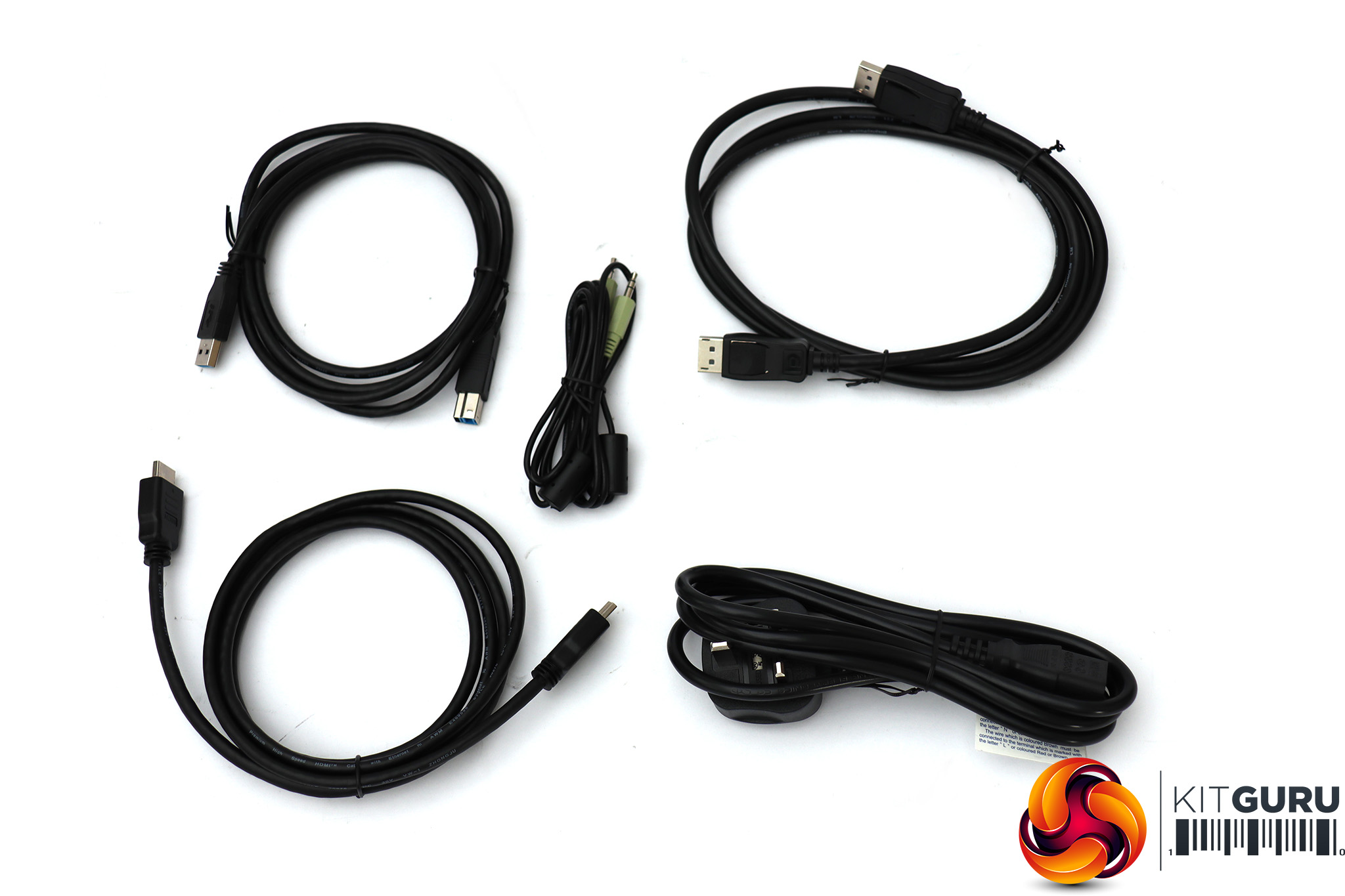
There's a comprehensive set of cables inside, including HDMI, DisplayPort, USB 3 upstream and analog audio alongside the usual power kettle lead.
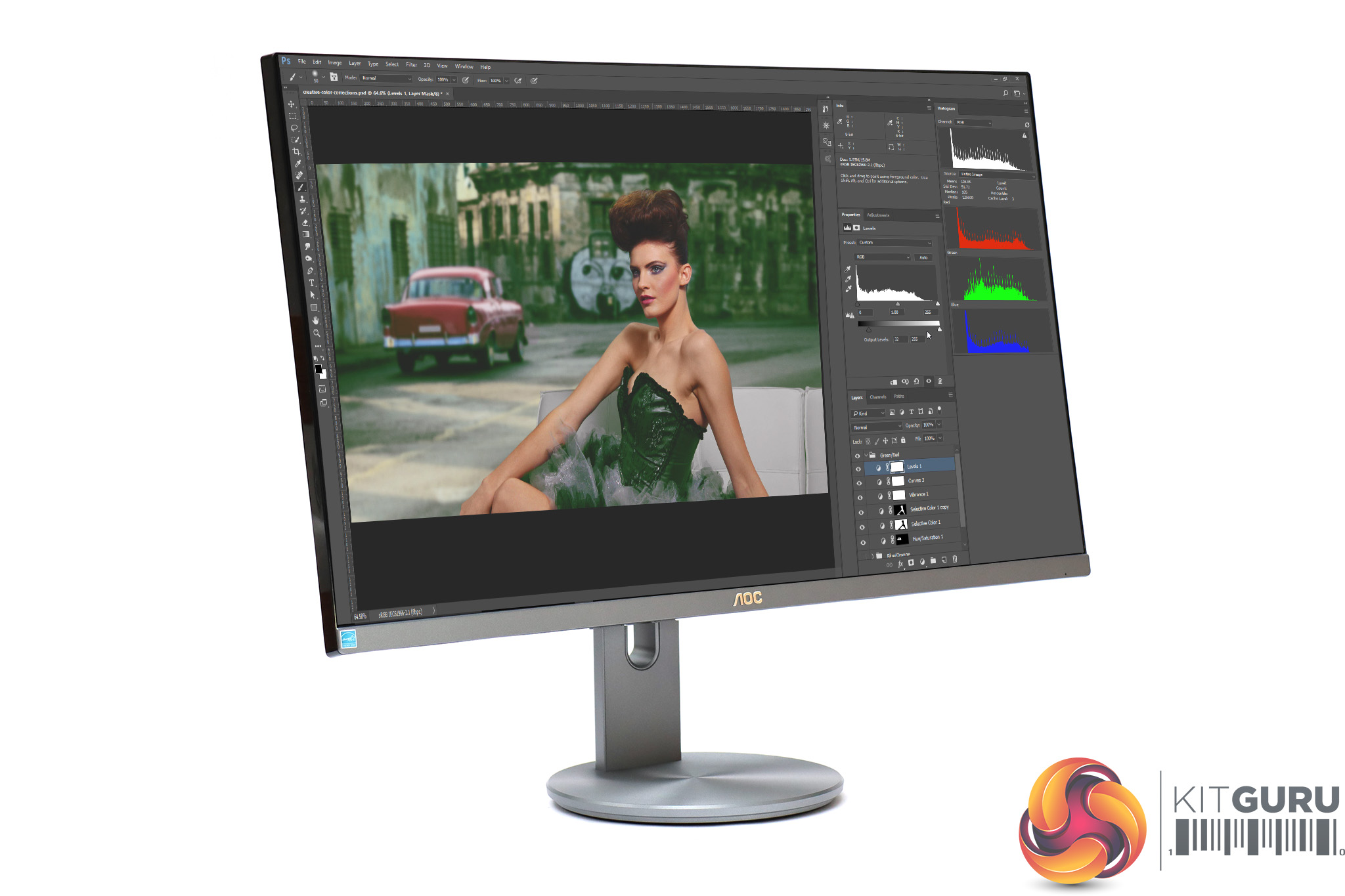
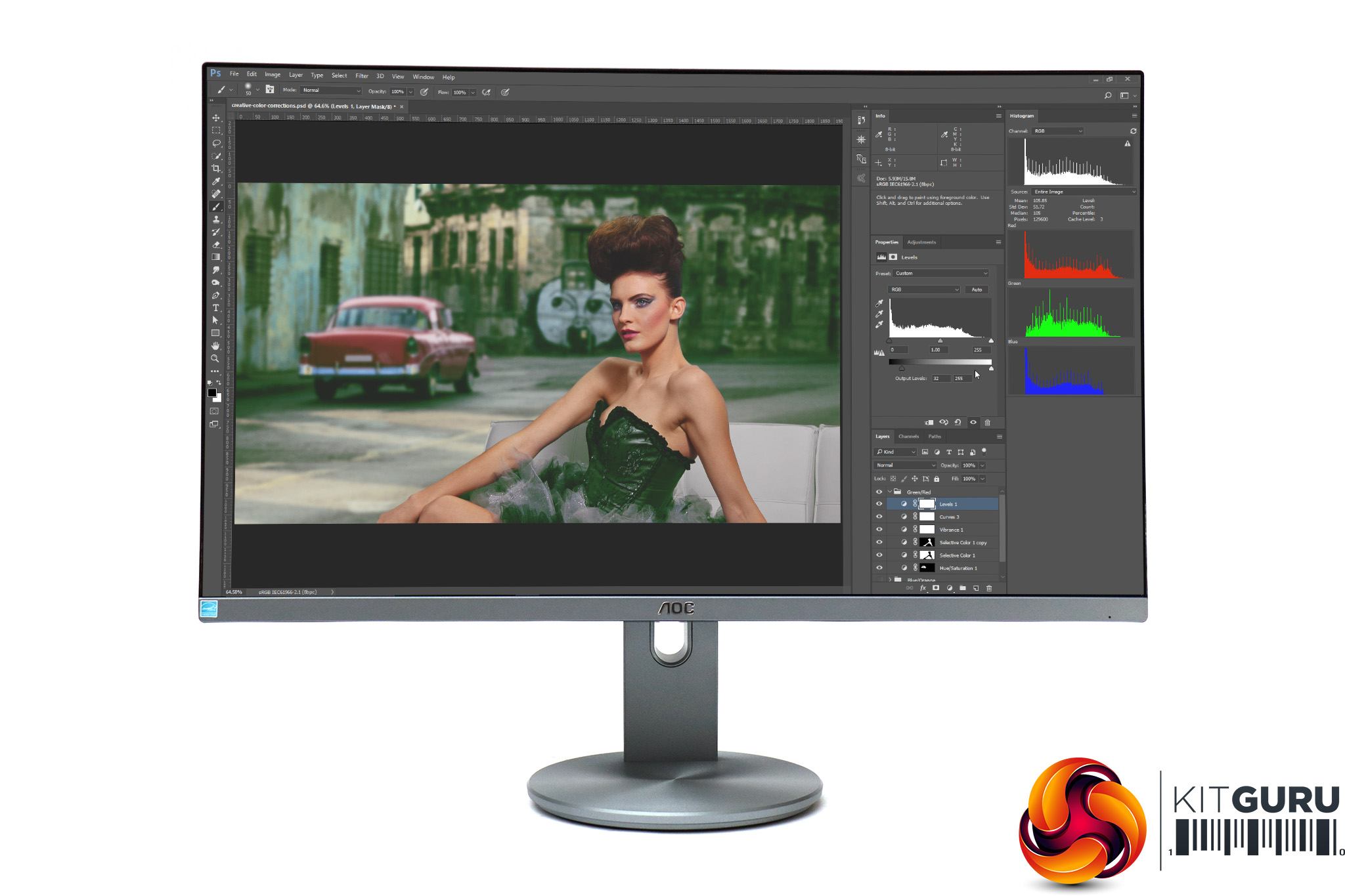
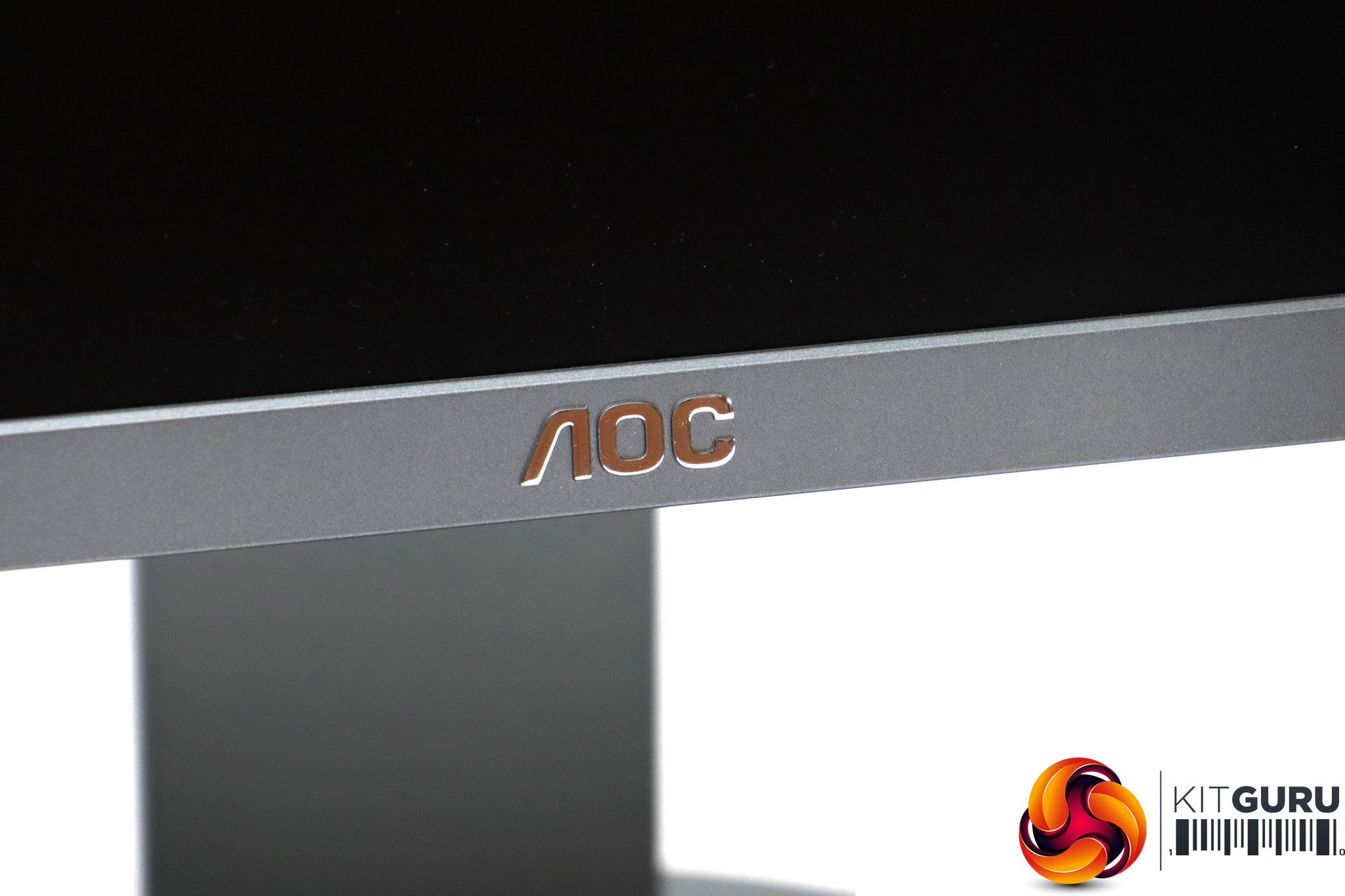
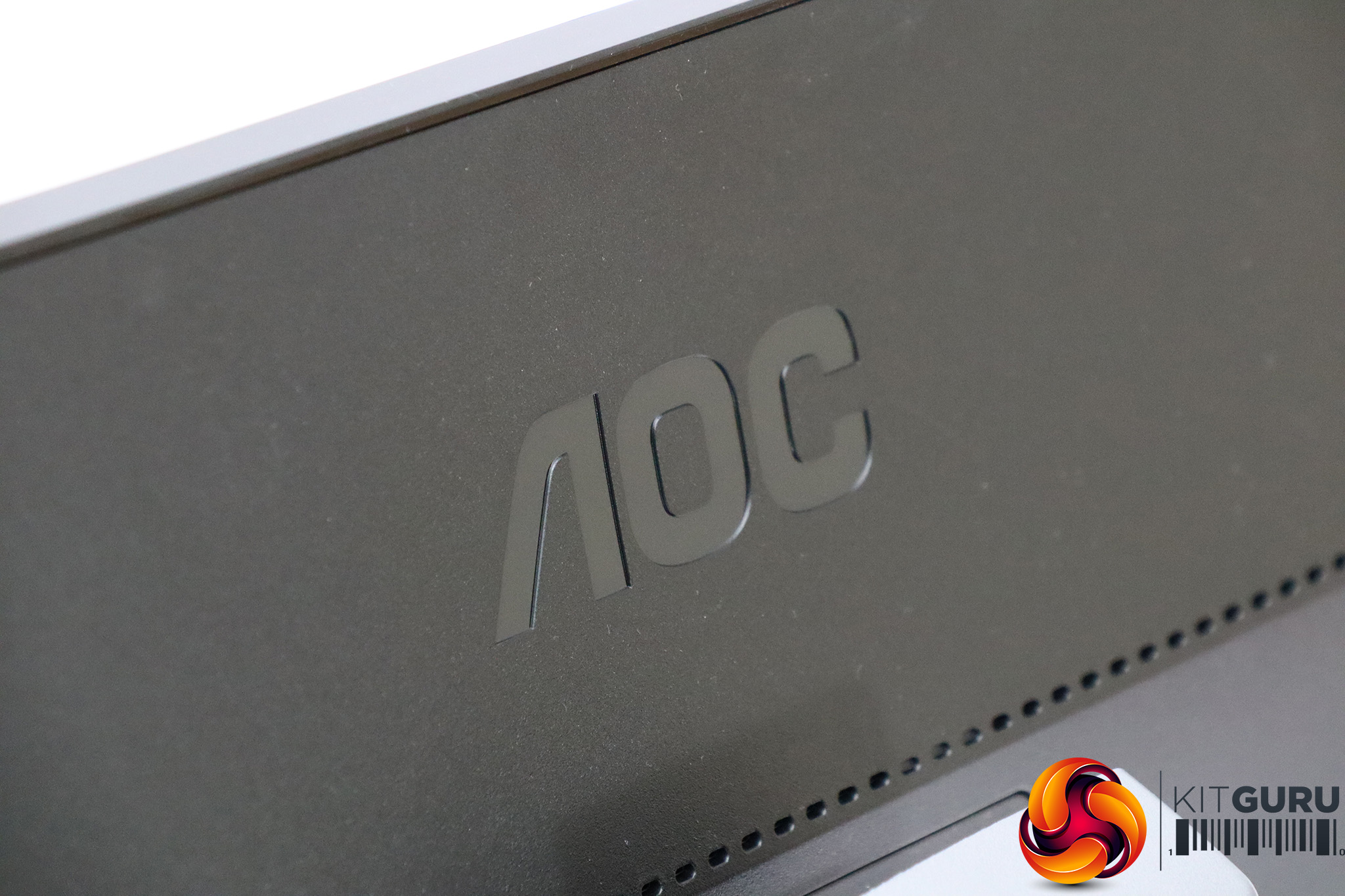
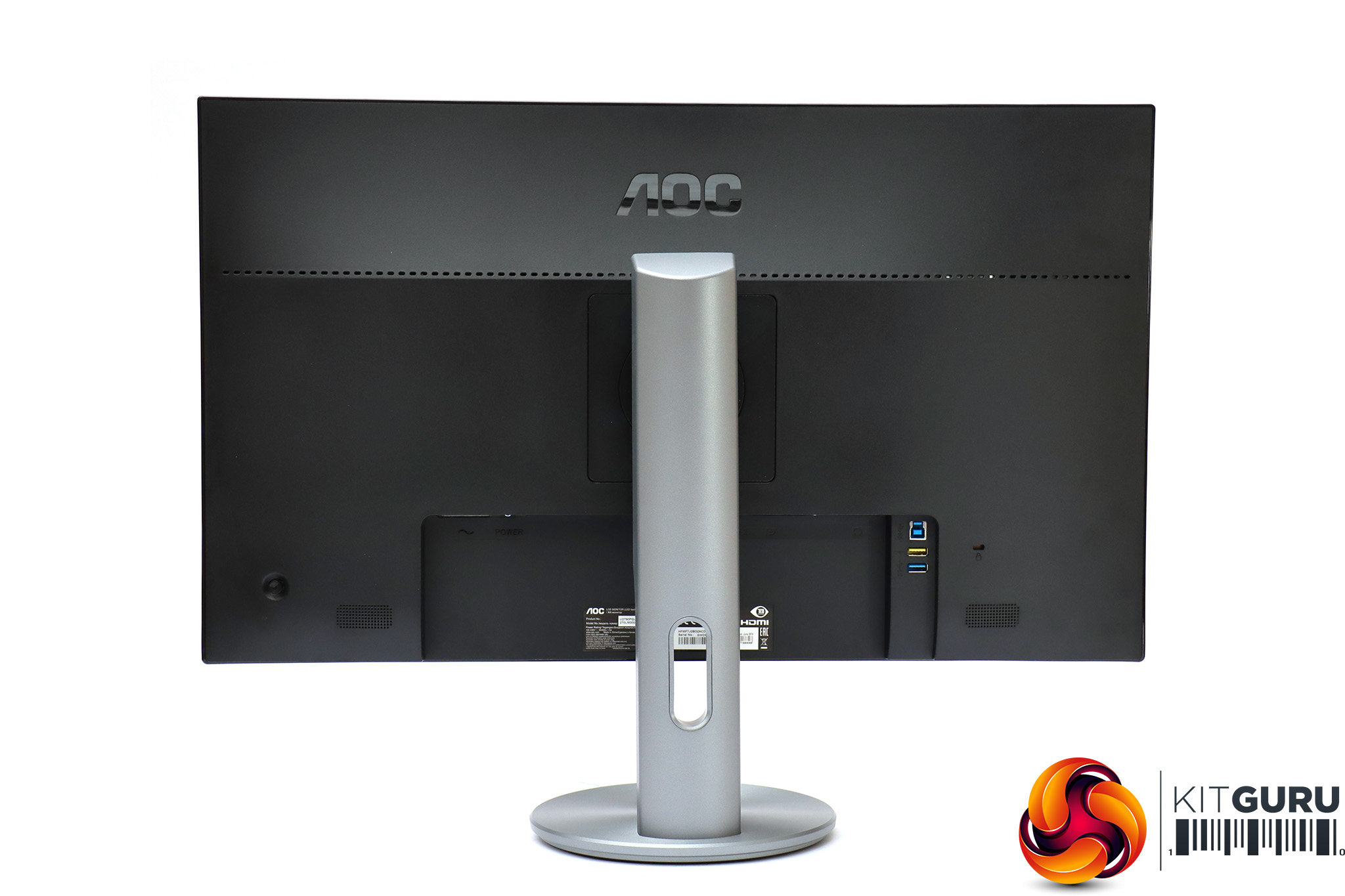
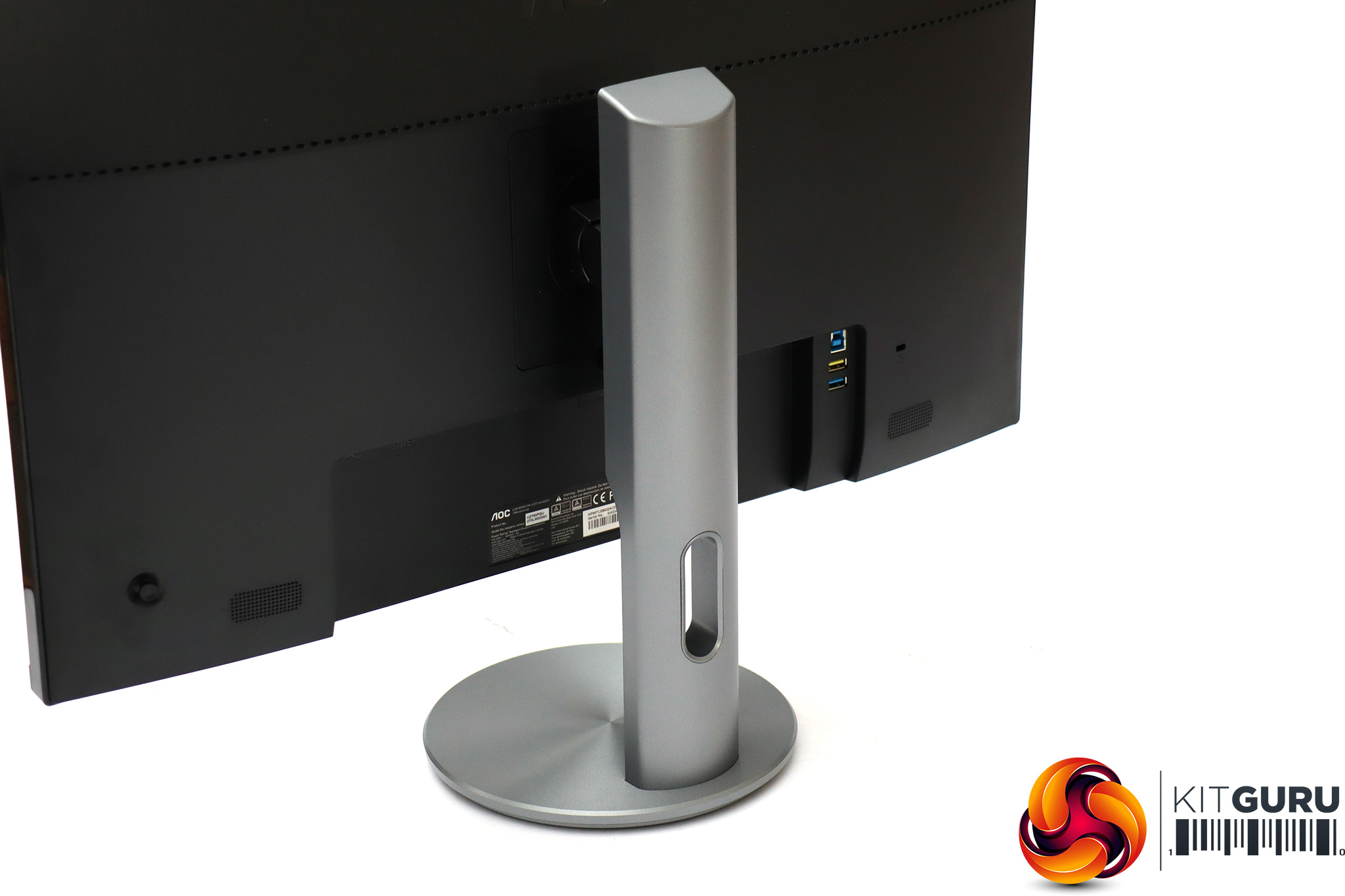
There's nothing cheap at all about the way this screen looks. In fact, we'd argue that it's decidedly classy. The invisible bezels on top, left and right combined with the dark grey brushed metal body provides a quality look, and the round base with cable tidy hole in the rear arm is sleek and unfussy.
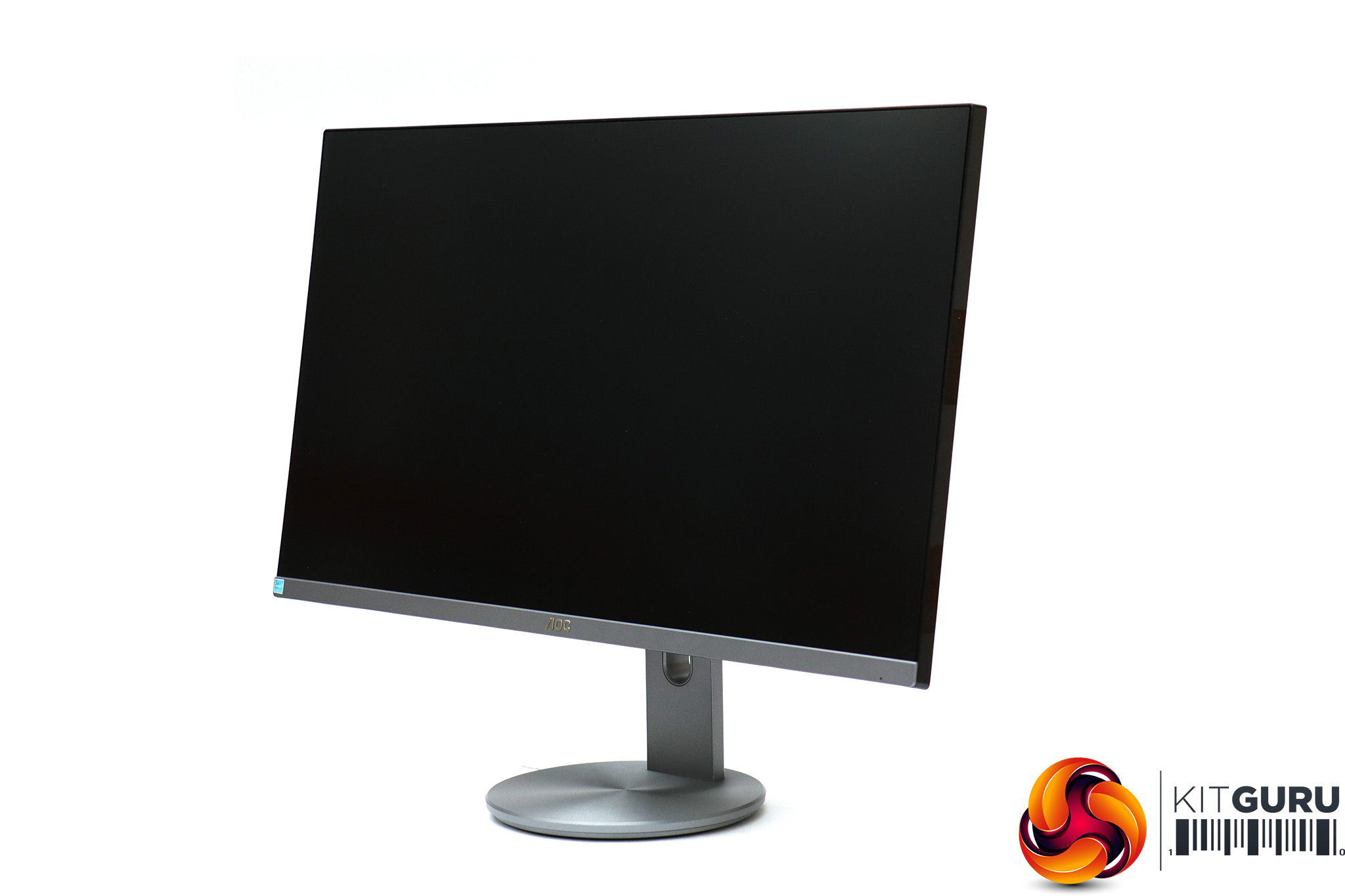
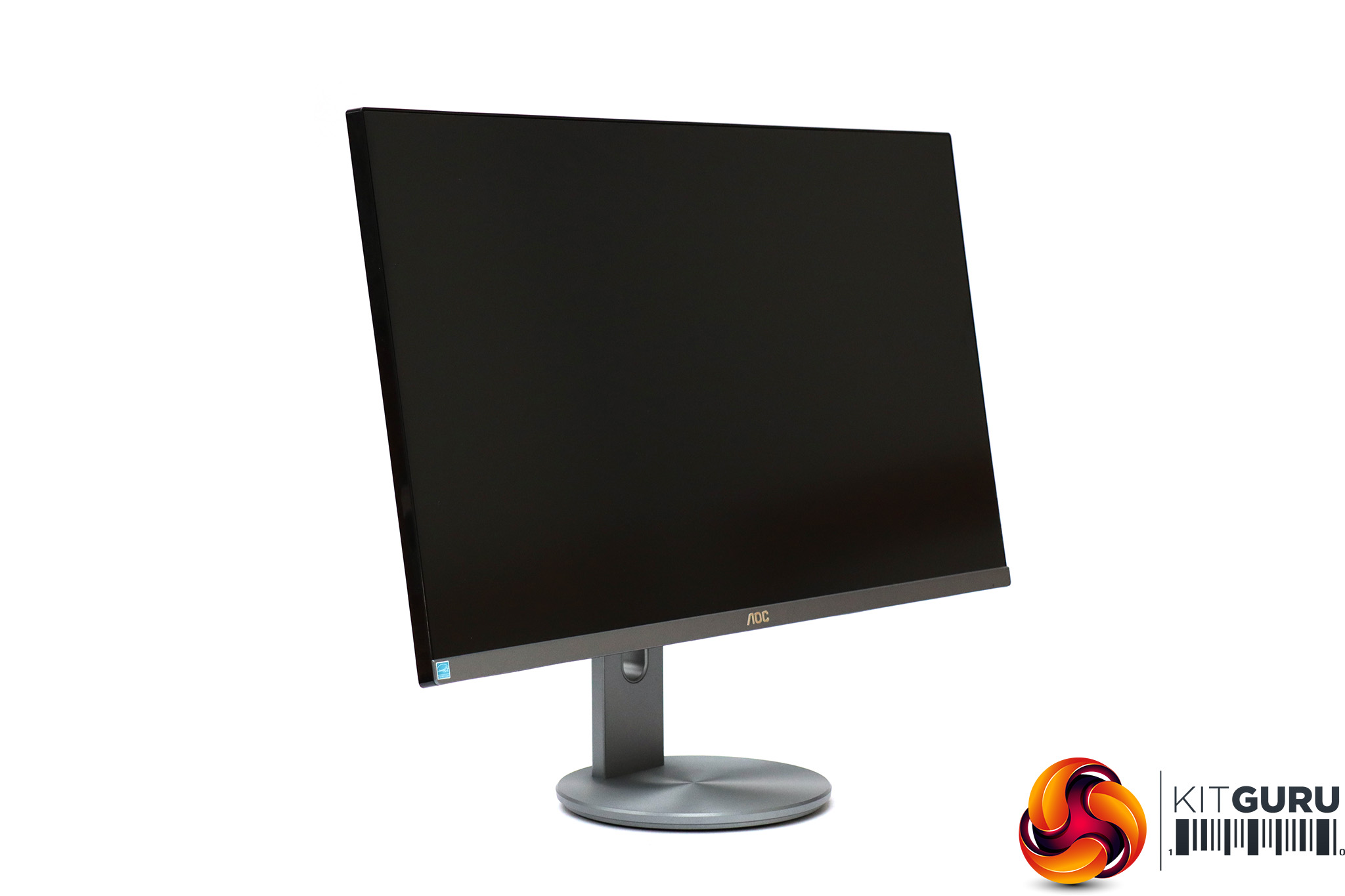
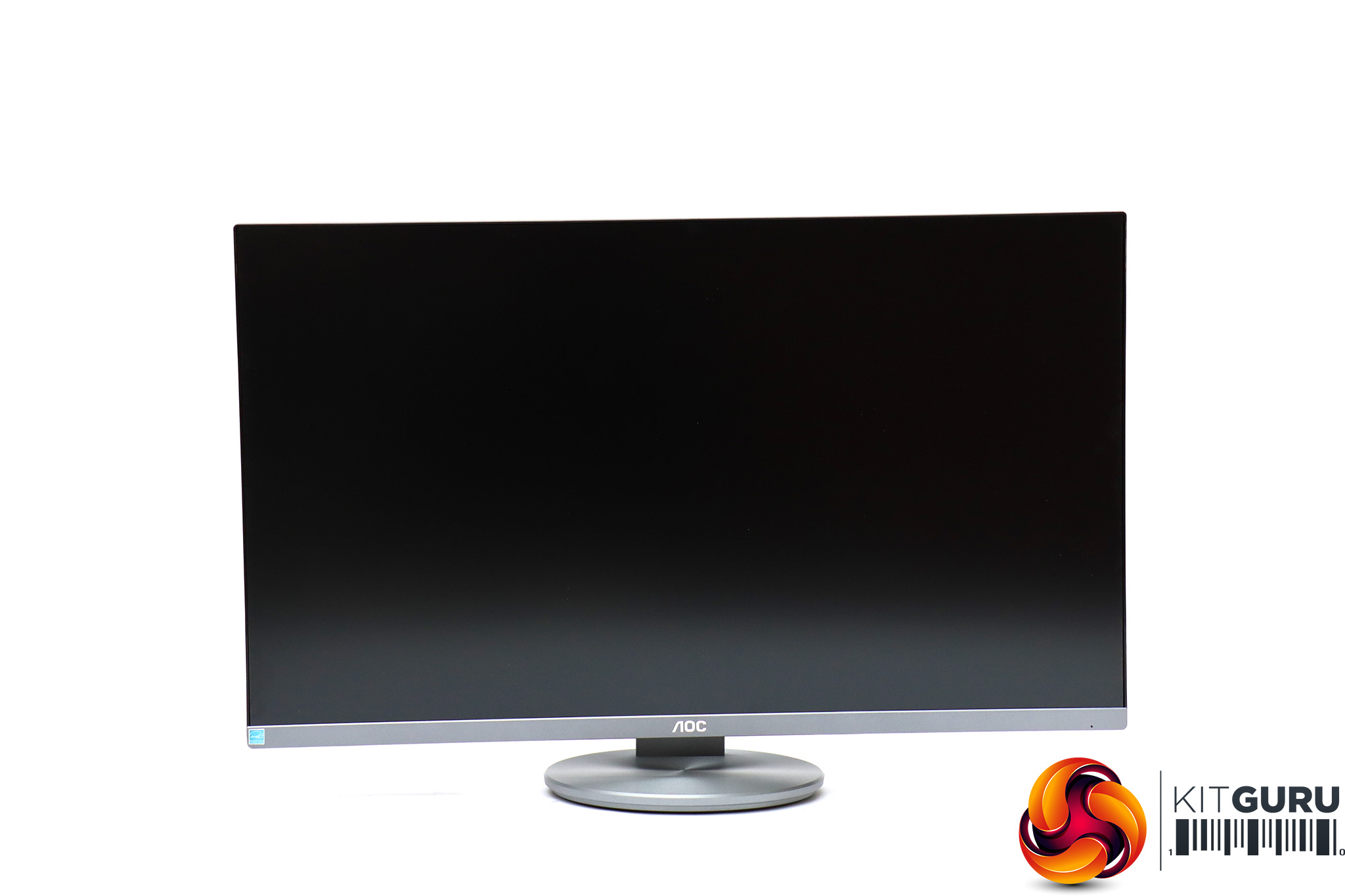
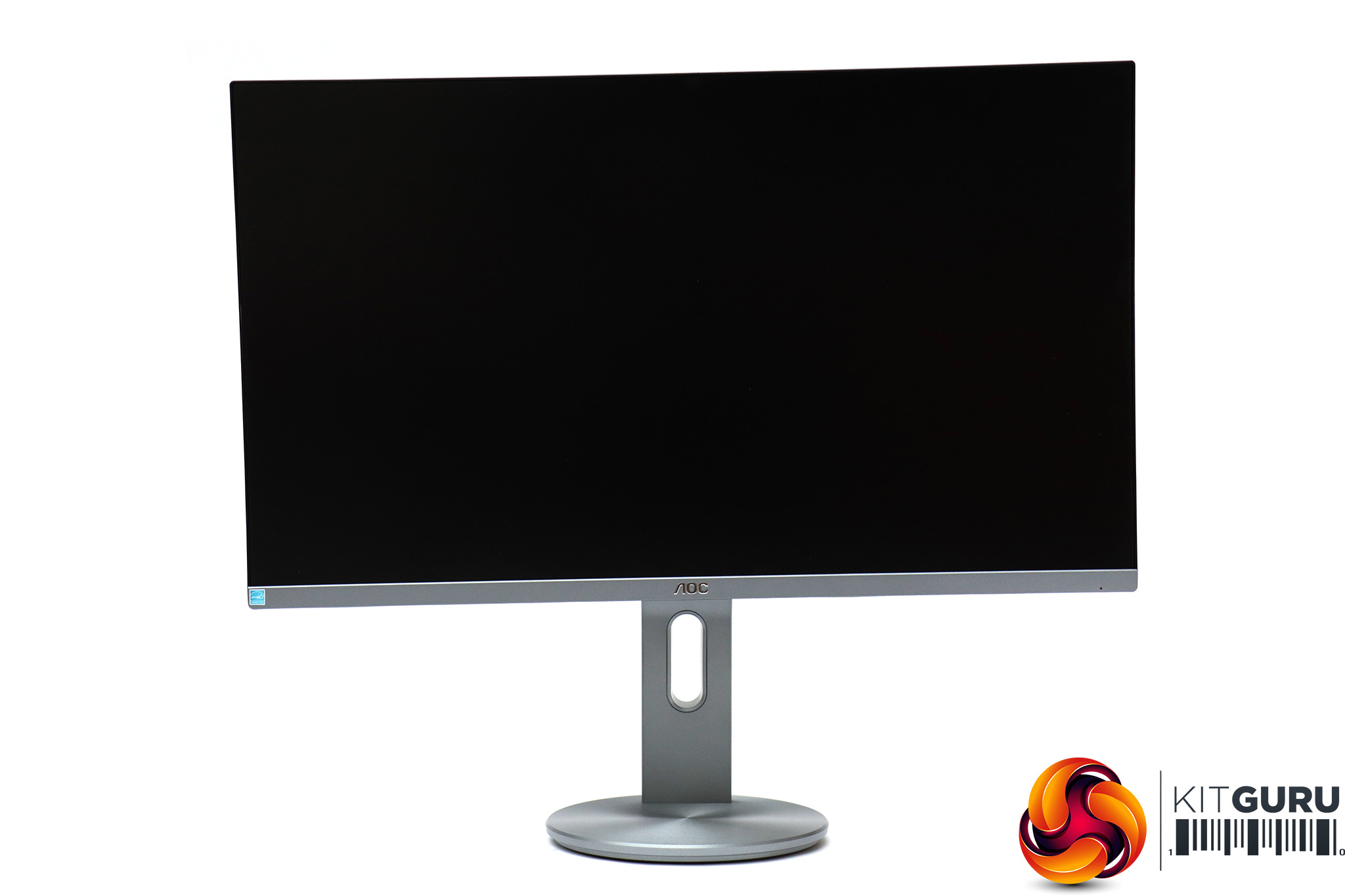
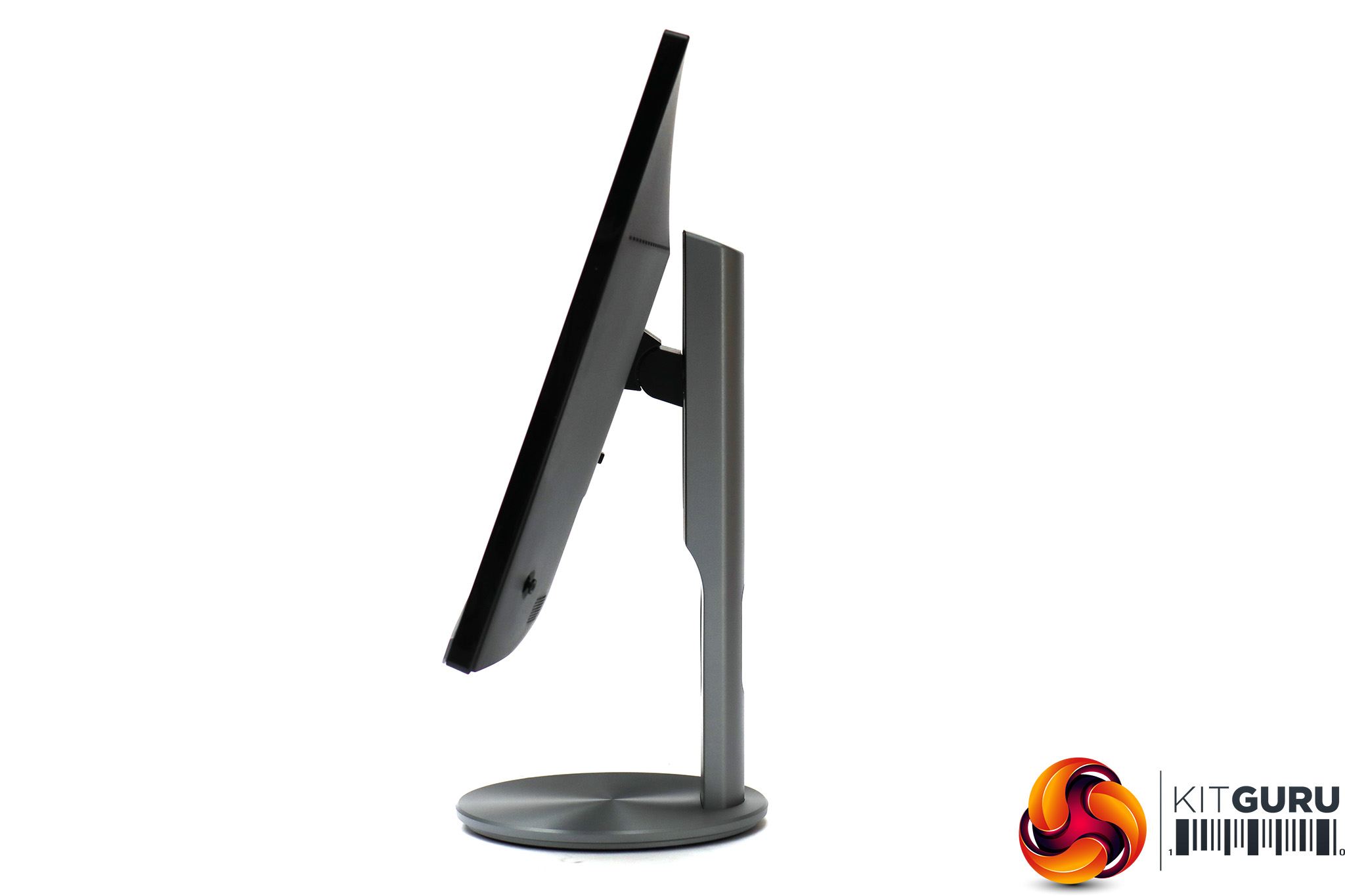
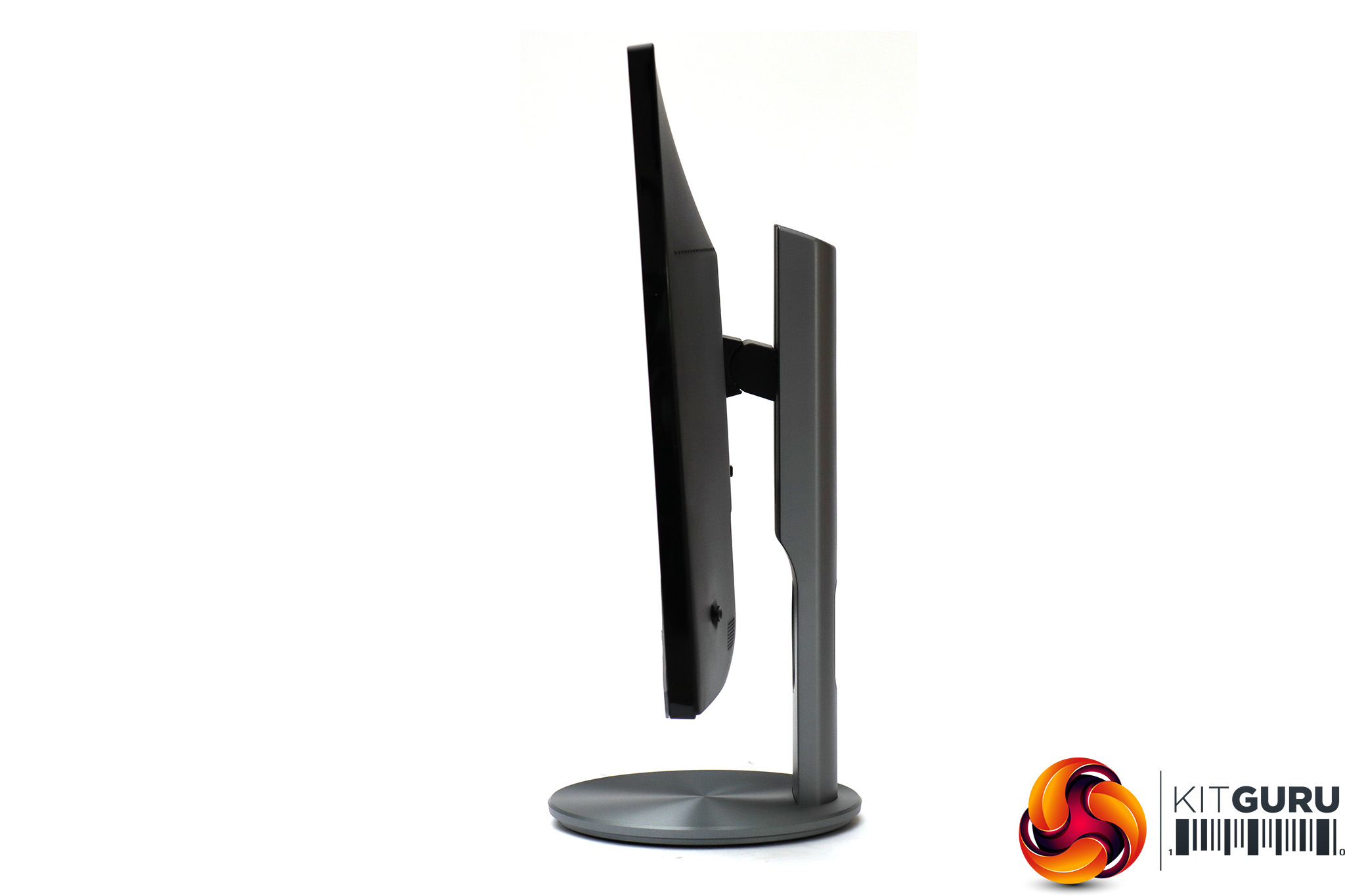
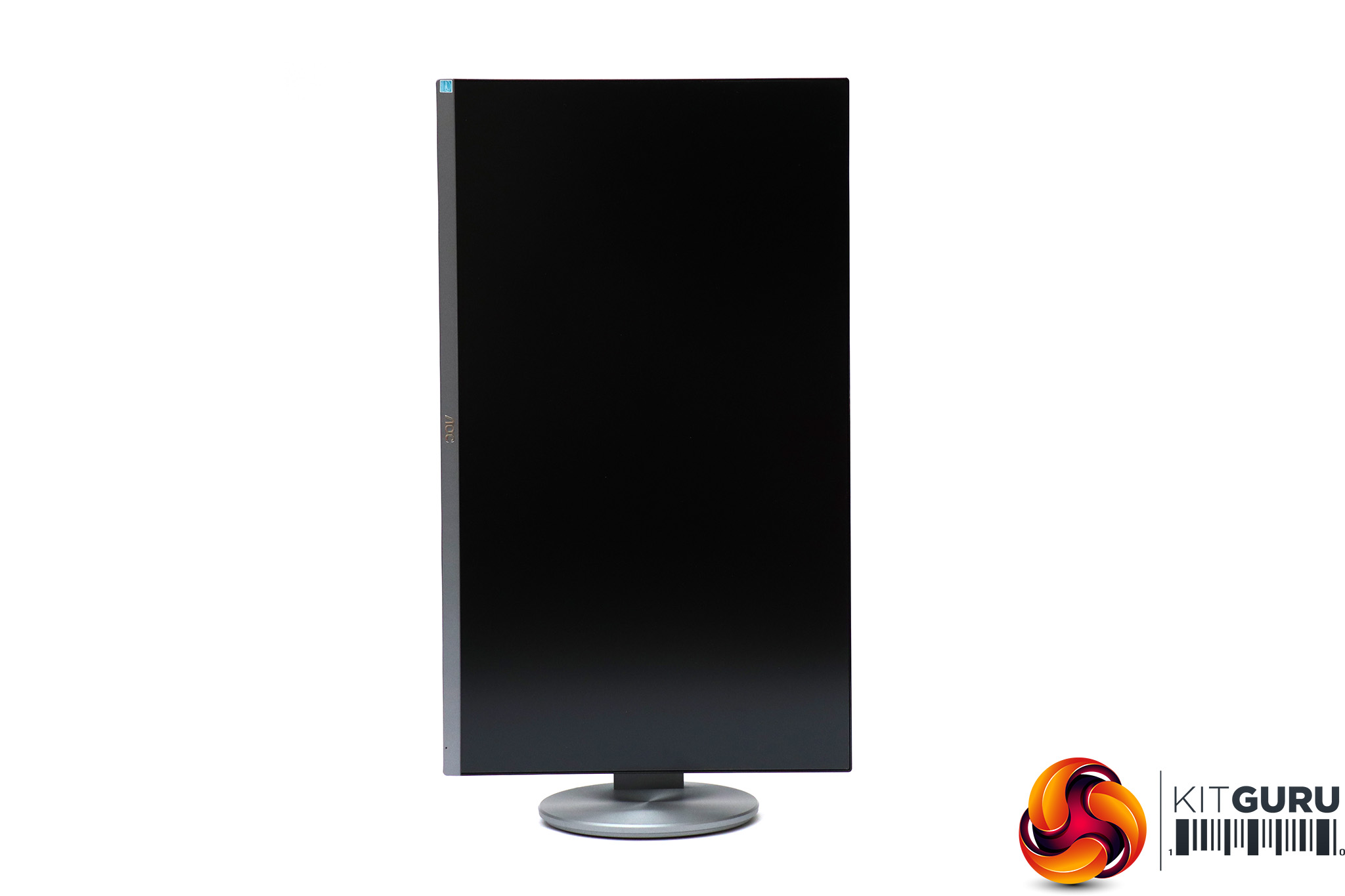
The range of adjustments is comprehensive. You can raise and lower the screen by 130mm, and swivel it 45 degrees in either direction around its base. It can be tilted 3.5 degrees forward or 19.5 degrees backwards. You can also rotate the whole screen by 90 degrees into portrait mode, which might please those working on page layouts or portrait photography.
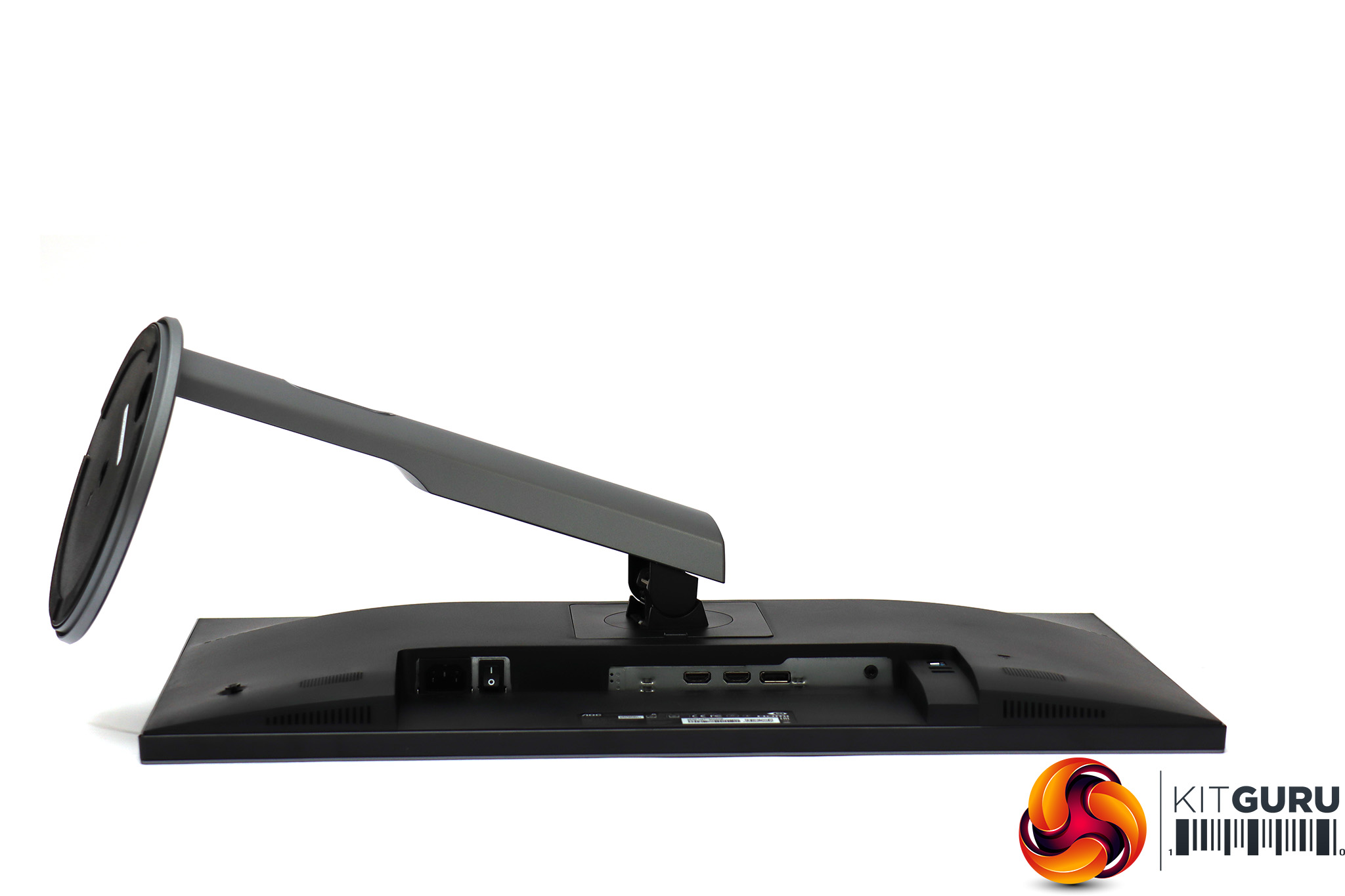
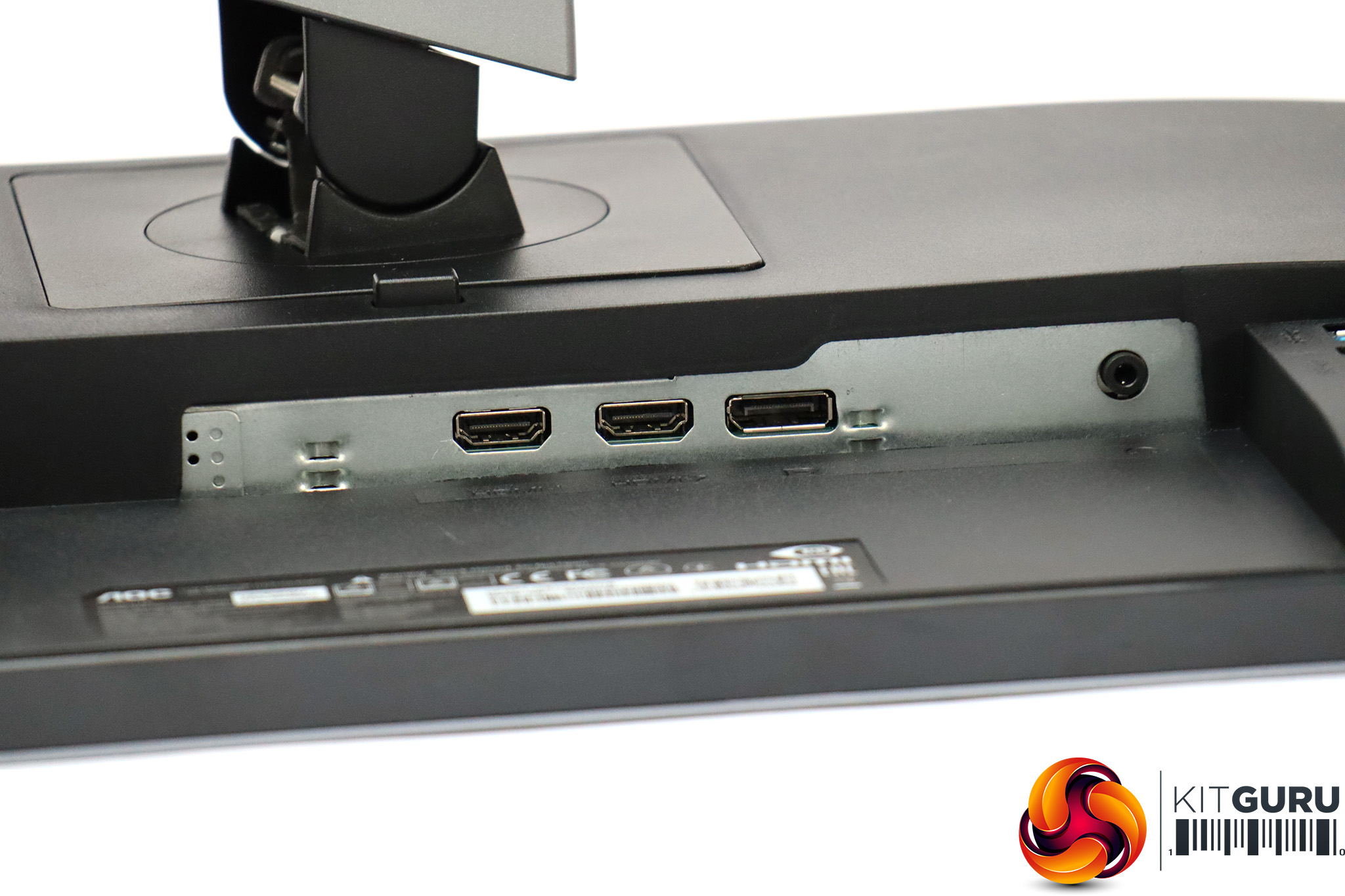
The video ports point downwards, and include two HDMI plus DisplayPort. However, the HDMI ports aren't identical – one supports 1.4, and the other 2.0, but there is no clear indication which is which, forcing you to consult documentation. The DisplayPort supports the 1.2 standard. Further along can be found the headphone minijack.
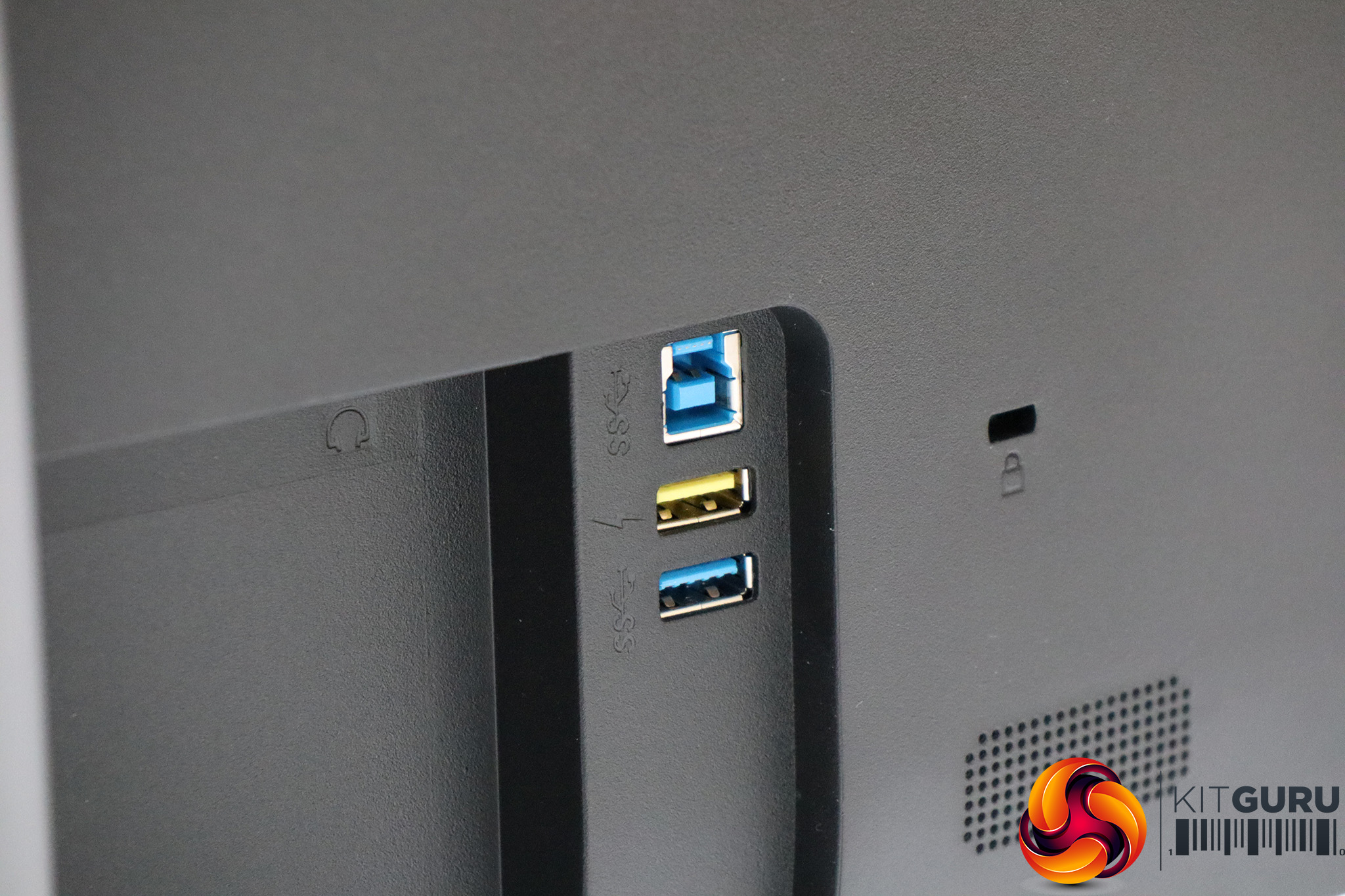
The USB ports sit on the back, facing outwards, which makes them a little easier to access, although having the upstream at the top will mean the wire could get in the way. We'd also still prefer to see these on the side for maximum accessibility.
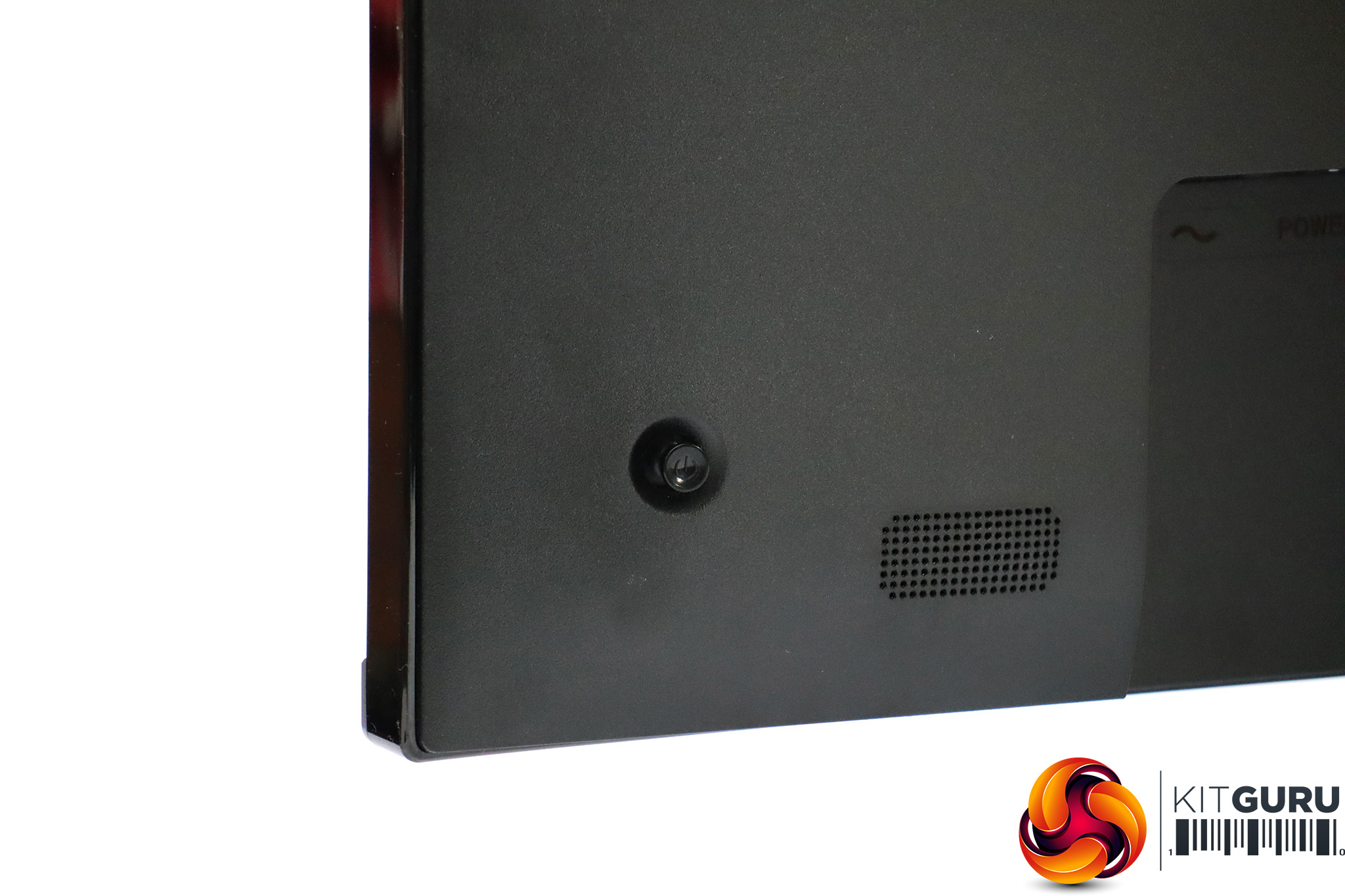
The menu is operated entirely with a joystick on the right-hand rear of the monitor.
As with most joystick control systems, pushing the joystick in turns the monitor on, whilst a long press after that turns it off again. Moving the joystick in different directions calls up a variety of functions.
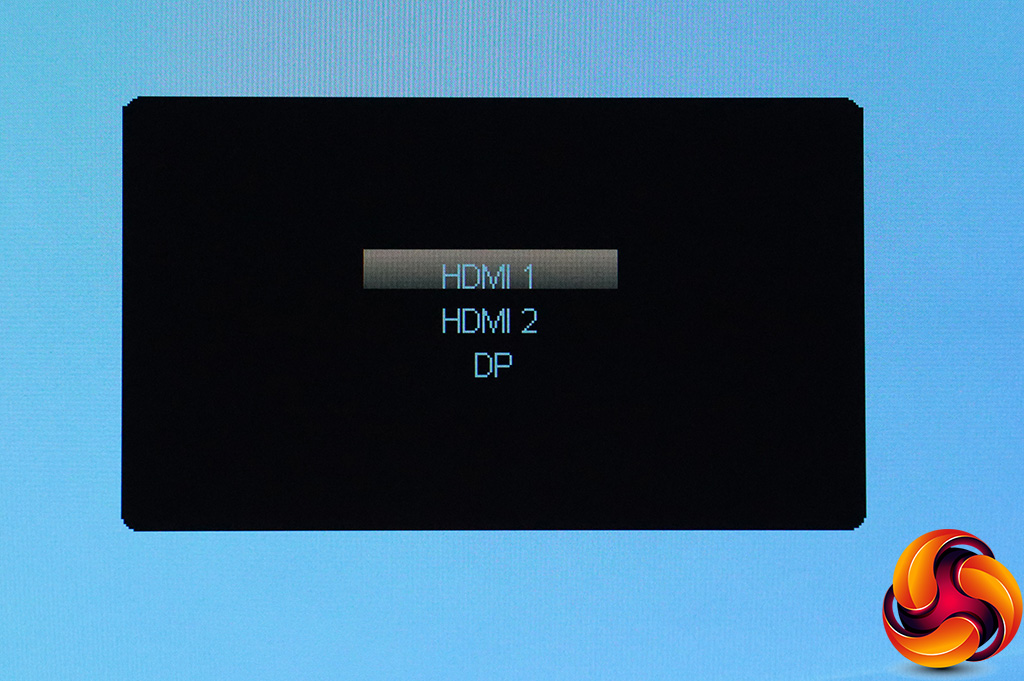
Pulling the joystick up reveals the list of inputs so you can choose between them manually.
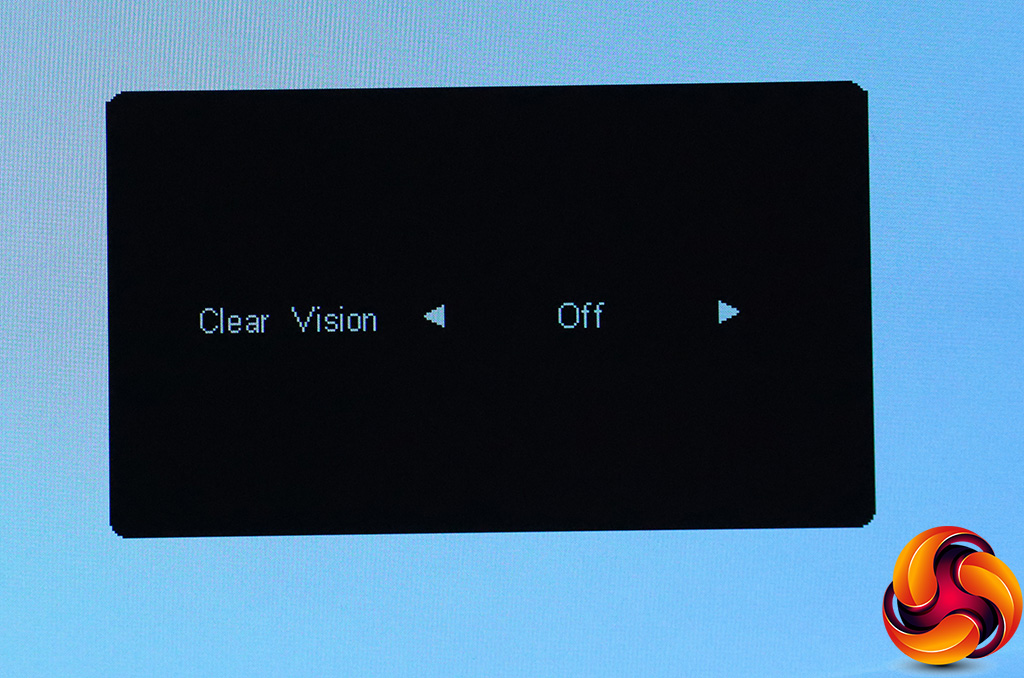
Pushing the joystick left provides access to Clear Vision, which appears to be a sharpening system with three levels, aimed at making non-4K signals look better on this 4K screen.
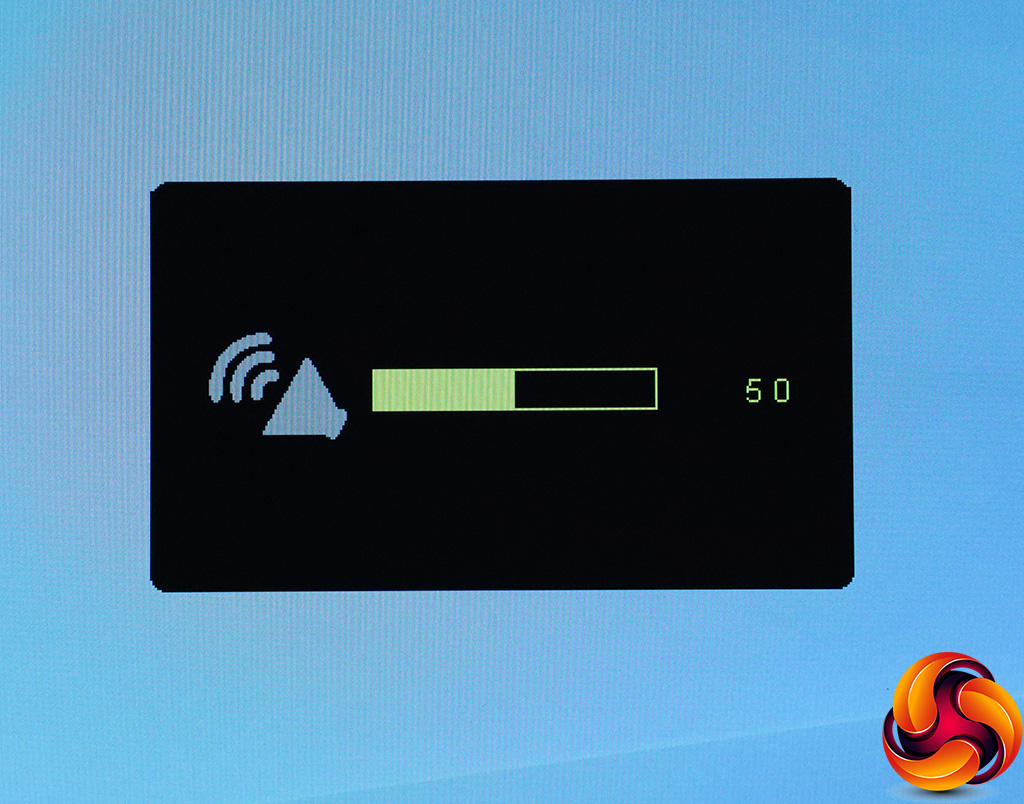
Shifting the joystick right lets you adjust the speaker or headphone volume.
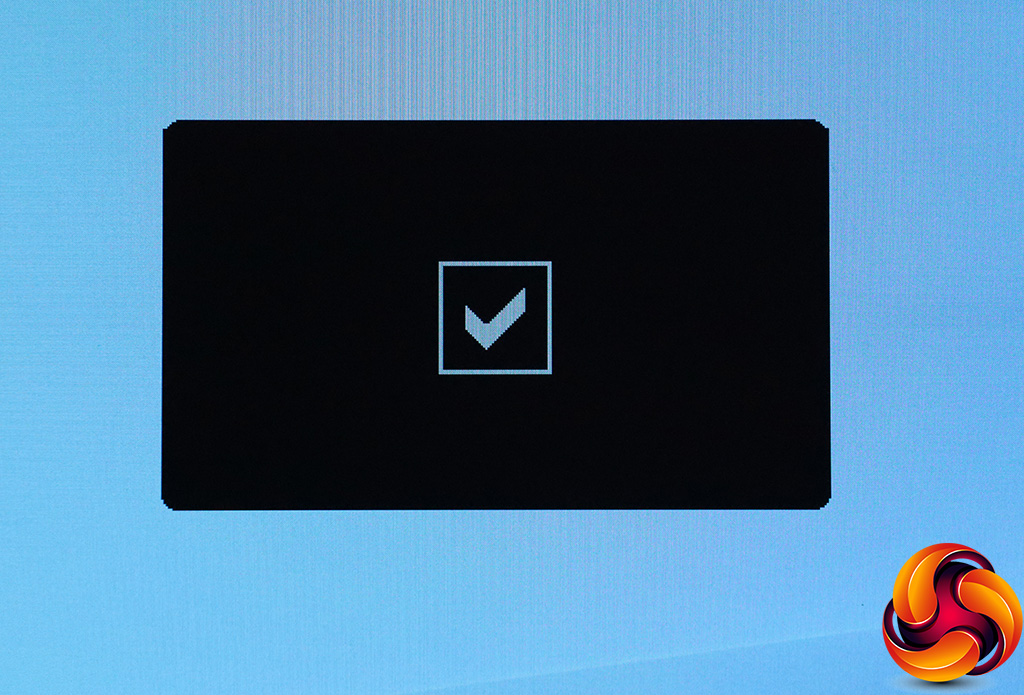
Pulling the joystick down calls up this tick symbol. We're not sure what it does, but we do find it quite reassuring.
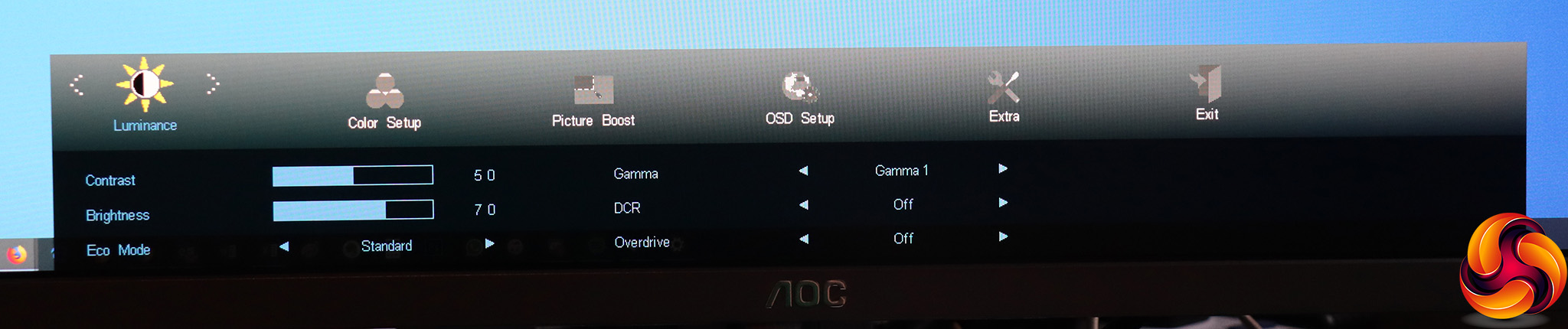
Finally, a short push of the joystick inwards reveals the main menu, with the Luminance section as the default first option. This includes controls for contrast and brightness. The Eco Modes are actually the presets, which include Standard, Text, Internet, Game, Movie, Sports and Uniformity.
There are three Gamma options, with 1 the default. You can enable dynamic contrast, as well as three levels of pixel response overdrive, although the default is to have this system off as it can affect image quality.
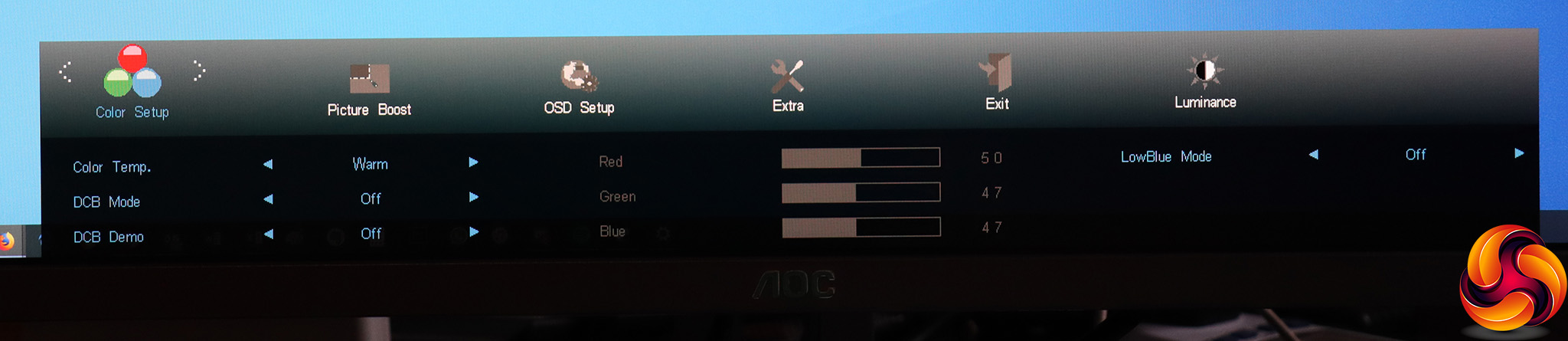
Next along is Color Setup, where you can choose between Warm, Normal, Cool, sRGB and User options. The latter enables the RGB controls to the right, and strangely Warm is the default. We would have expected this to be Normal. The DCB modes are enhancement presets, and include Full Enhance, Nature Skin, Green Field, Sky-blue, and an Auto Detect option.
The effects are relatively subtle, but essentially bring out specific colours from the range. You can also invoke a demo mode for the DCB options, and help rest your eyes with one of the LowBlue options.
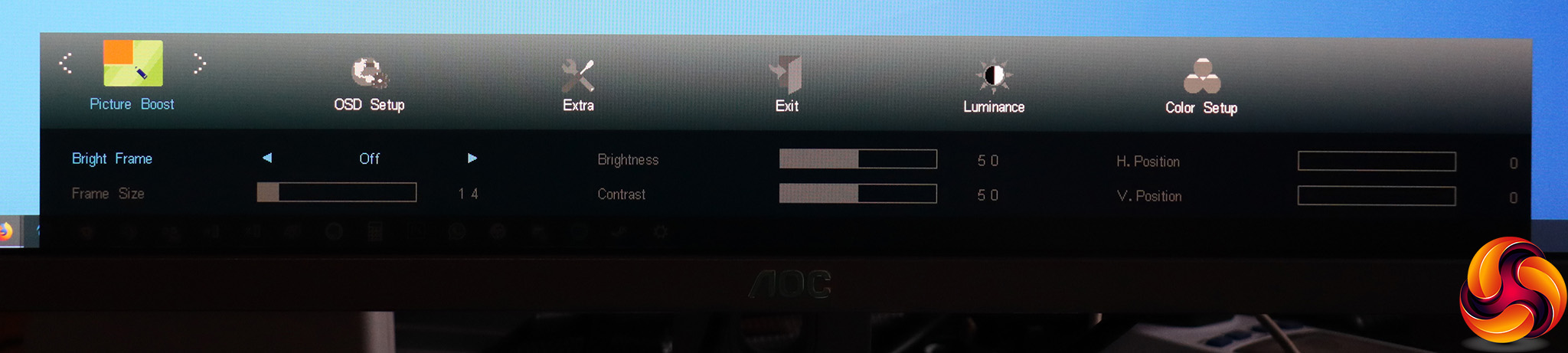
AOC's Picture Boost has always been a bit of an enigma for us. It includes a feature called Bright Frame that allows you to define a portion of the screen and apply different brightness and contrast to it compared to the rest of the screen. It feels like it could be useful, but we've never quite fathomed what that use actually is.
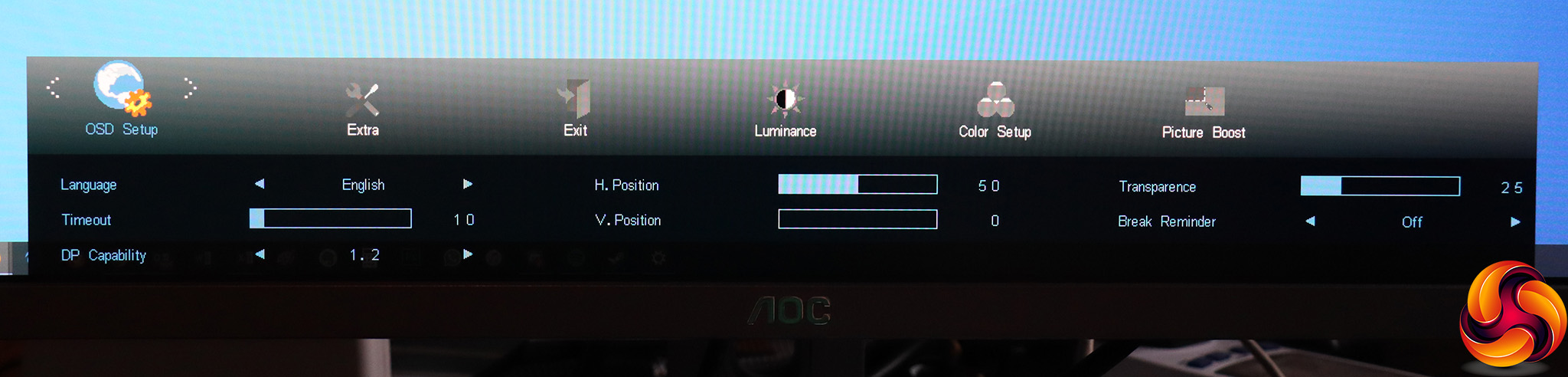
The OSD Setup section lets you configure the appearance of the OSD, including language, how long it stays onscreen, positioning, and transparency. This is also where you choose the DisplayPort support level. You can set a break reminder for the screen as well, which will tell you to go do something else for a bit for a change of scenery.
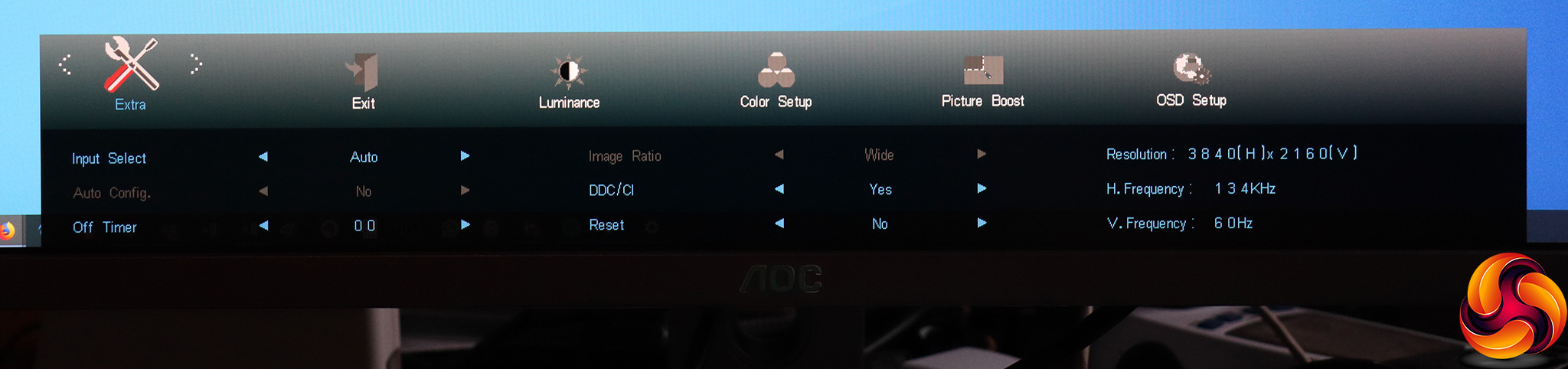
Finally, the Extra section includes sundry additional features, such as whether the input selects automatically, if DDC/CI is enabled so your graphics card can control certain features, and resetting to defaults. You also get a readout of the current input signal parameters.
Overall, there's a reasonable range of options here, but we would have liked to have seen the ability to reconfigure the quick menus, in particular to put the Eco Modes within easy reach.
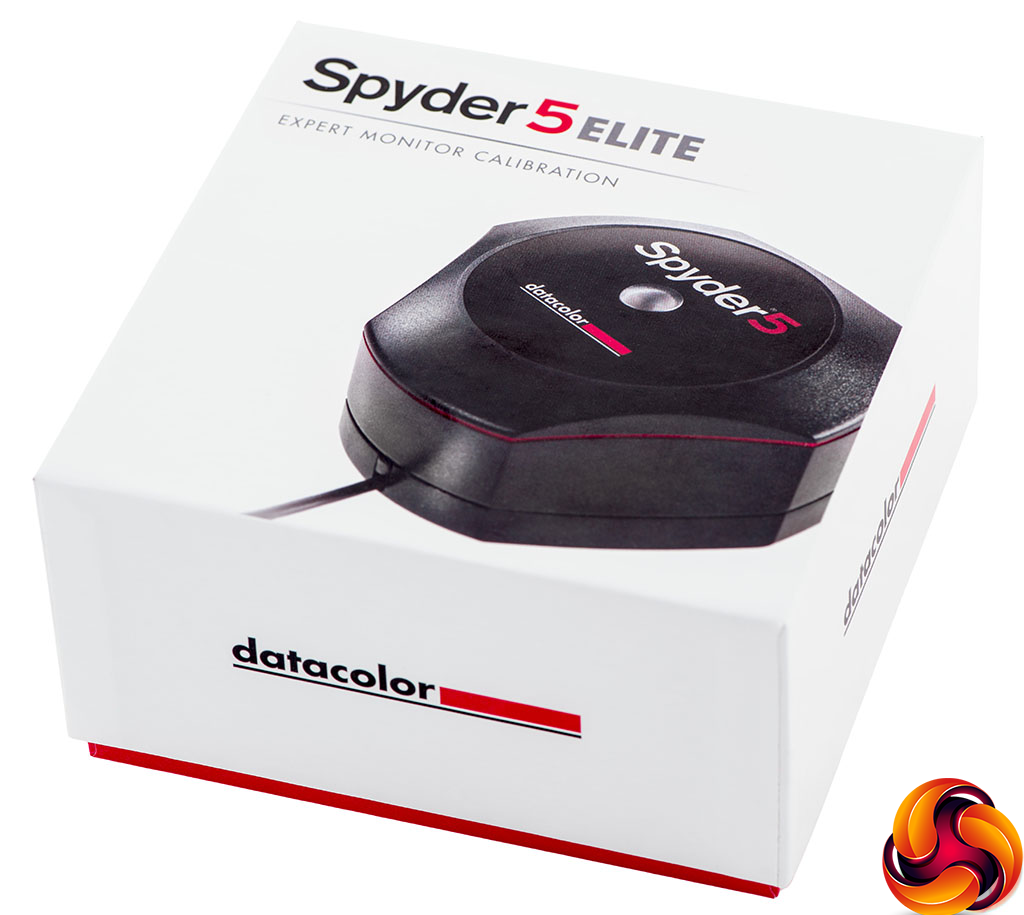
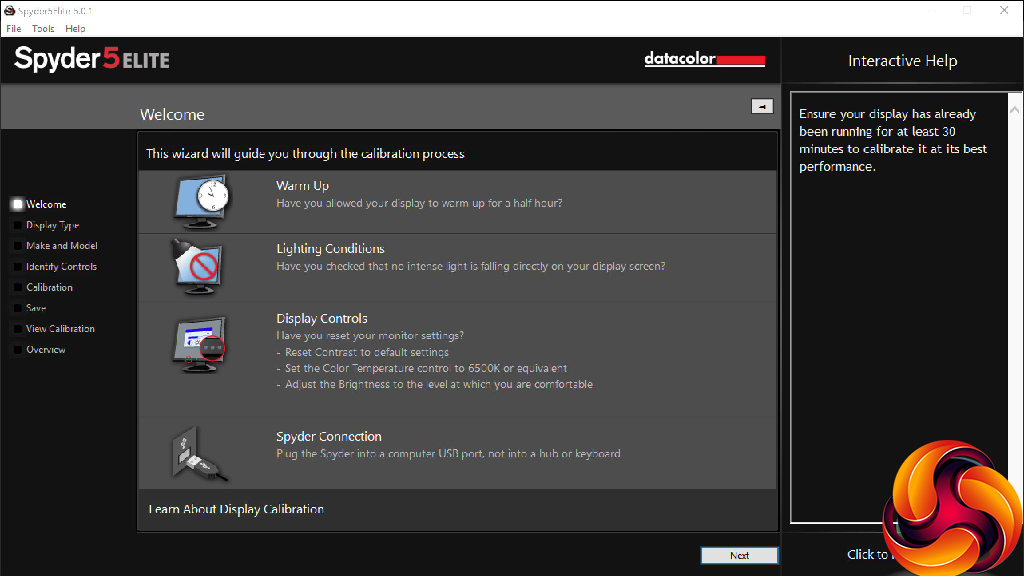
Our main test involves using a DataColor Spyder Elite 5 Colorimeter to assess a display’s image quality. The device sits on top of the screen while the software generates colour tones and patterns, which it compares against predetermined values to work out how accurate the screen is.
The results show –
- A monitor’s maximum brightness in candelas or cd/m2 at various levels set in the OSD.
- A monitor’s contrast ratio at various brightness levels in the OSD.
- The brightness deviation across the panel.
- The black and white points.
- The colour accuracy, expressed as a Delta E ratio, with a result under 3 being fine for normal use, and under 2 being great for colour-accurate design work.
- The exact gamma levels, with a comparison against preset settings in the OSD.
We first run this test with the display in its default, out-of-the-box state, with all settings on default. We then calibrate the screen using the Spyder software and run the test again.
We always test the display subjectively on the Windows desktop, using it for general tasks such as browsing and word processing, and with games as well, even if the display is not intended solely for that purpose.
We pay careful attention to any artefacts, ghosting or motion blur, and enable any gaming-specific features, such as adaptive-sync settings like G-Sync or FreeSync, using a compatible graphics card in our test PC.
We performed the quality tests on the U2790PQU at its native 3,840 x 2,160 resolution in the default mode, after resetting the OSD. Our test system was equipped with an AMD Radeon Vega Frontier Edition graphics card, which supports FreeSync.
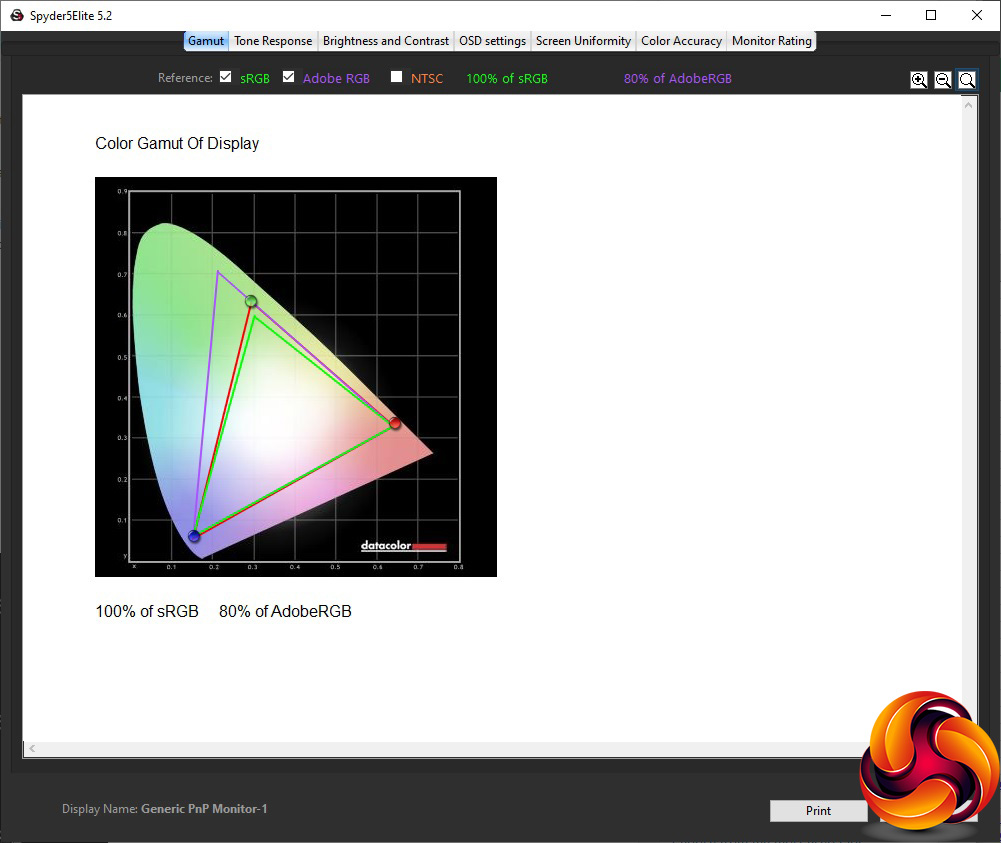
The gamut is decent if not unexceptional, with 100 per cent of sRGB and 80 per cent of AdobeRGB.

Brightness uniformity is mediocre, with the top edge notably more deviant than the bottom edge.
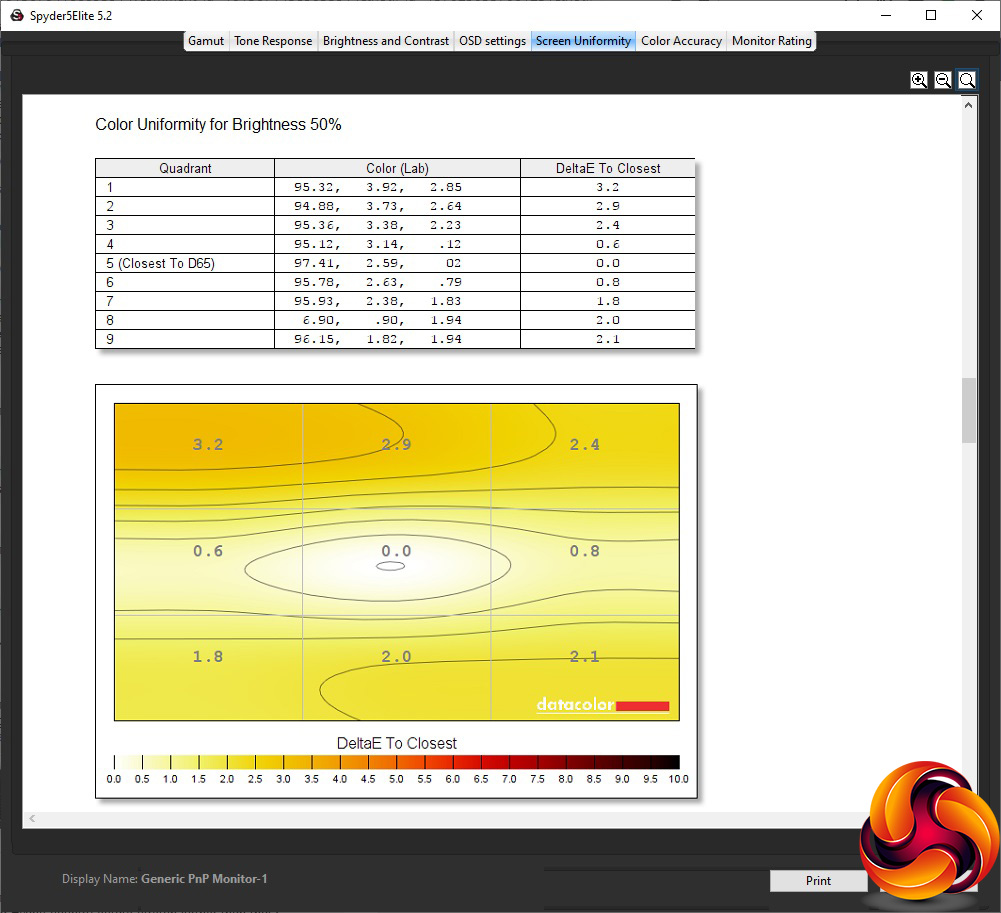
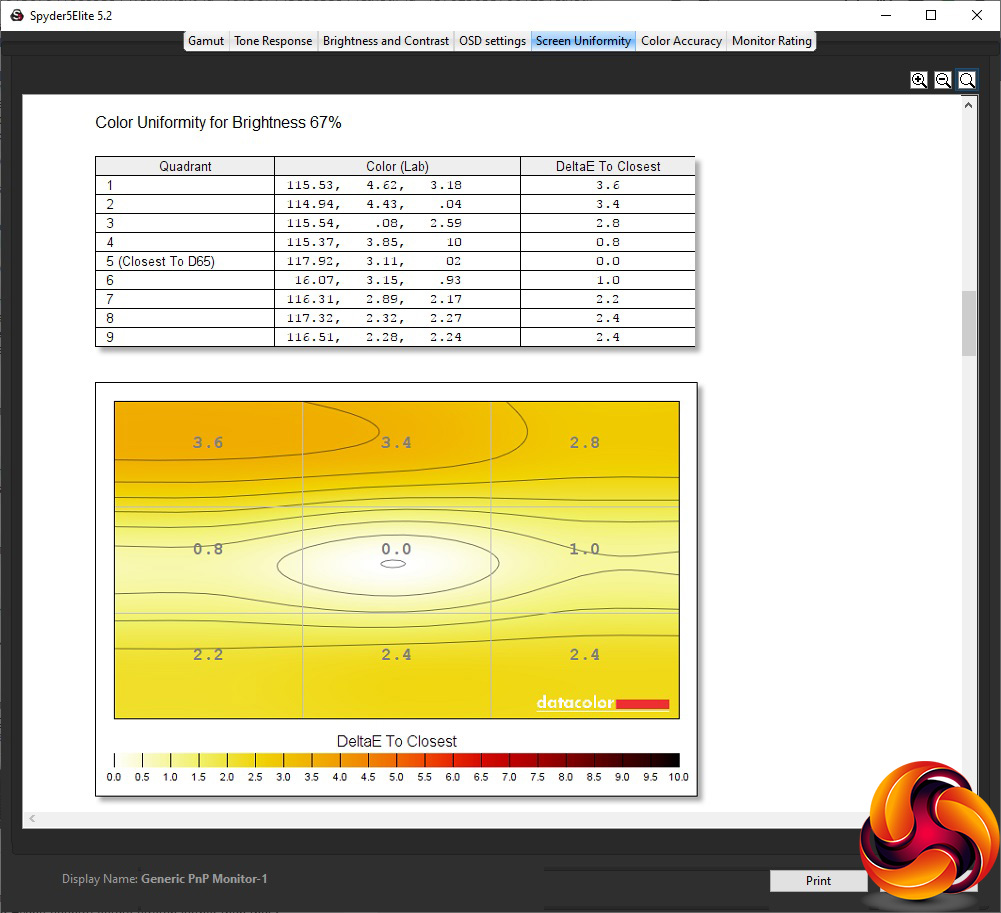
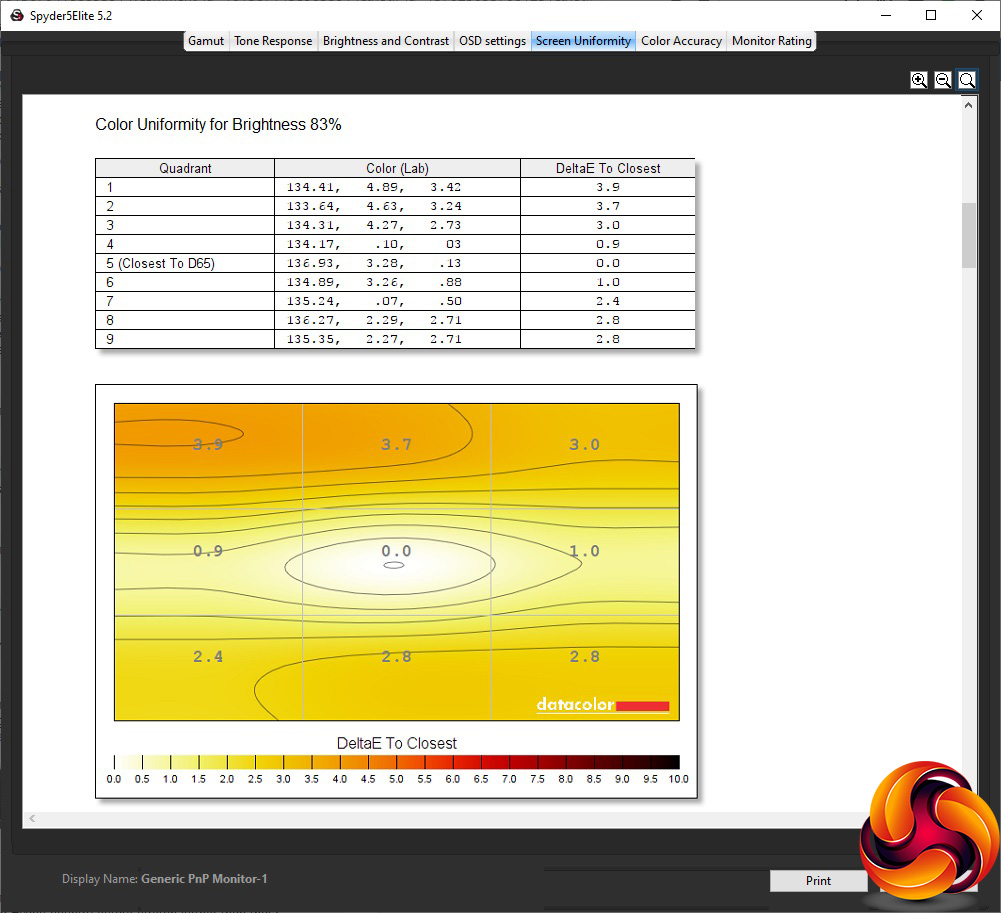

Colour uniformity is better, with the top edge only deviating noticeably once brightness goes up to 80 per cent or more.
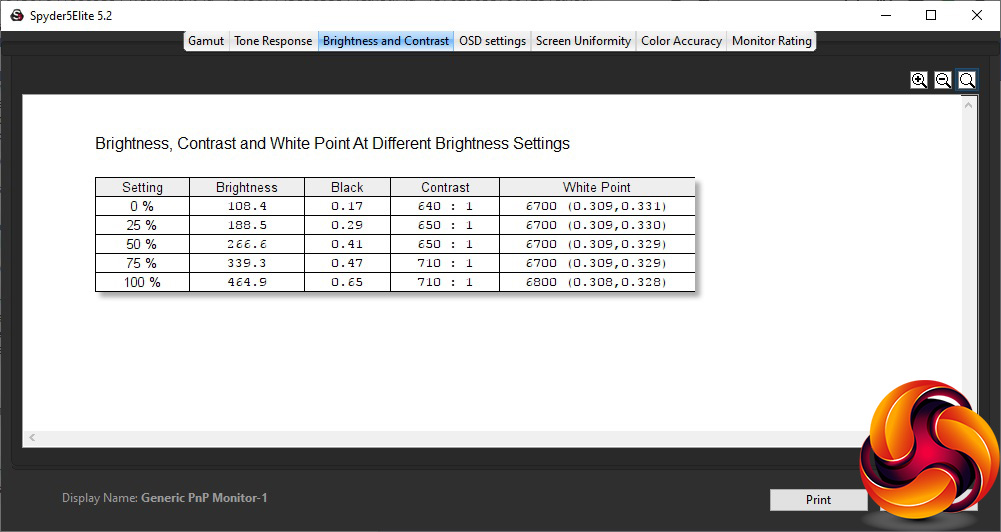
The maximum brightness is supposed to be 350cd/m2, but in fact this screen goes well beyond that, hitting 464.9cd/m2 at 100 per cent. It doesn't get particularly dark even at 0 per cent brightness, managing 108.4cd/m2. As we normally expect from an IPS screen, the contrast isn't that great, ranging from 640:1 at 0 per cent brightness to 710:1 at 100 per cent. The white point is a pretty uniform 6700K through most of the brightness range, reaching 6800K at 100 per cent.

The U2790PQU's presets are quite business focused. The Standard option (which can be adjusted, unlike the others) produces 325cd/m2 brightness, 690:1 contrast and 6800K white point by default. The Text mode is much less bright at 173.2cd/m2, with a little less contrast at 640:1 and a 6700K white point. Internet mode is very similar, but just a bit brighter at 235.8cd/m2.
All the other presets offer the same 6800K white point, which is a little surprising. We usually expect at least a movie mode to use a higher value for cooler colour. Game mode is brighter at 296cd/m2, and has a higher 710:1 contrast. Movie mode is brighter still at 353.9cd/m2, with marginally less contrast at 690:1. Sports mode is brightest of all, with the maximum 463.5cd/m2, and a high 710:1 contrast. The Uniformity mode employs 210.5cd/m2 brightness and the lowest 460:1 contrast.
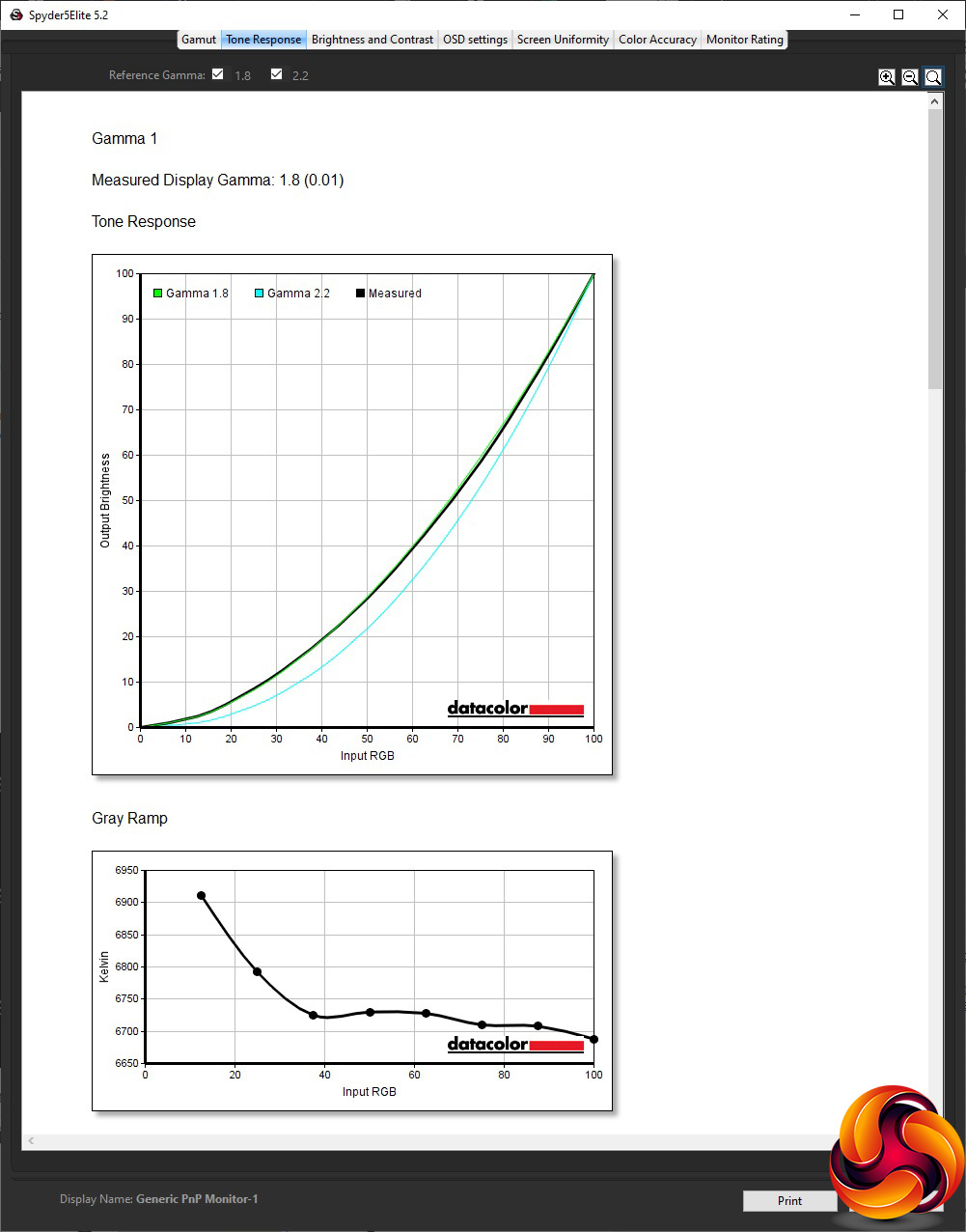
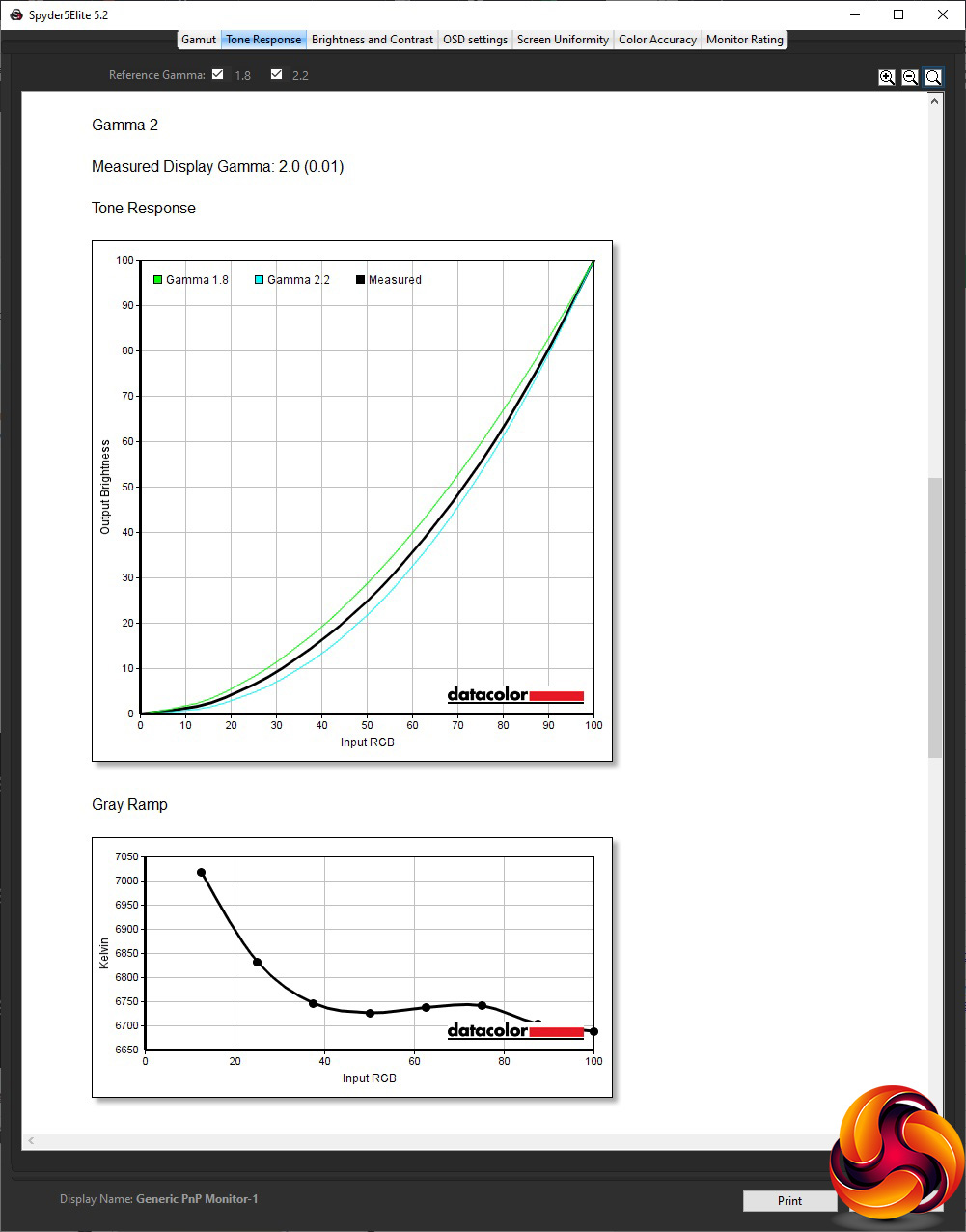
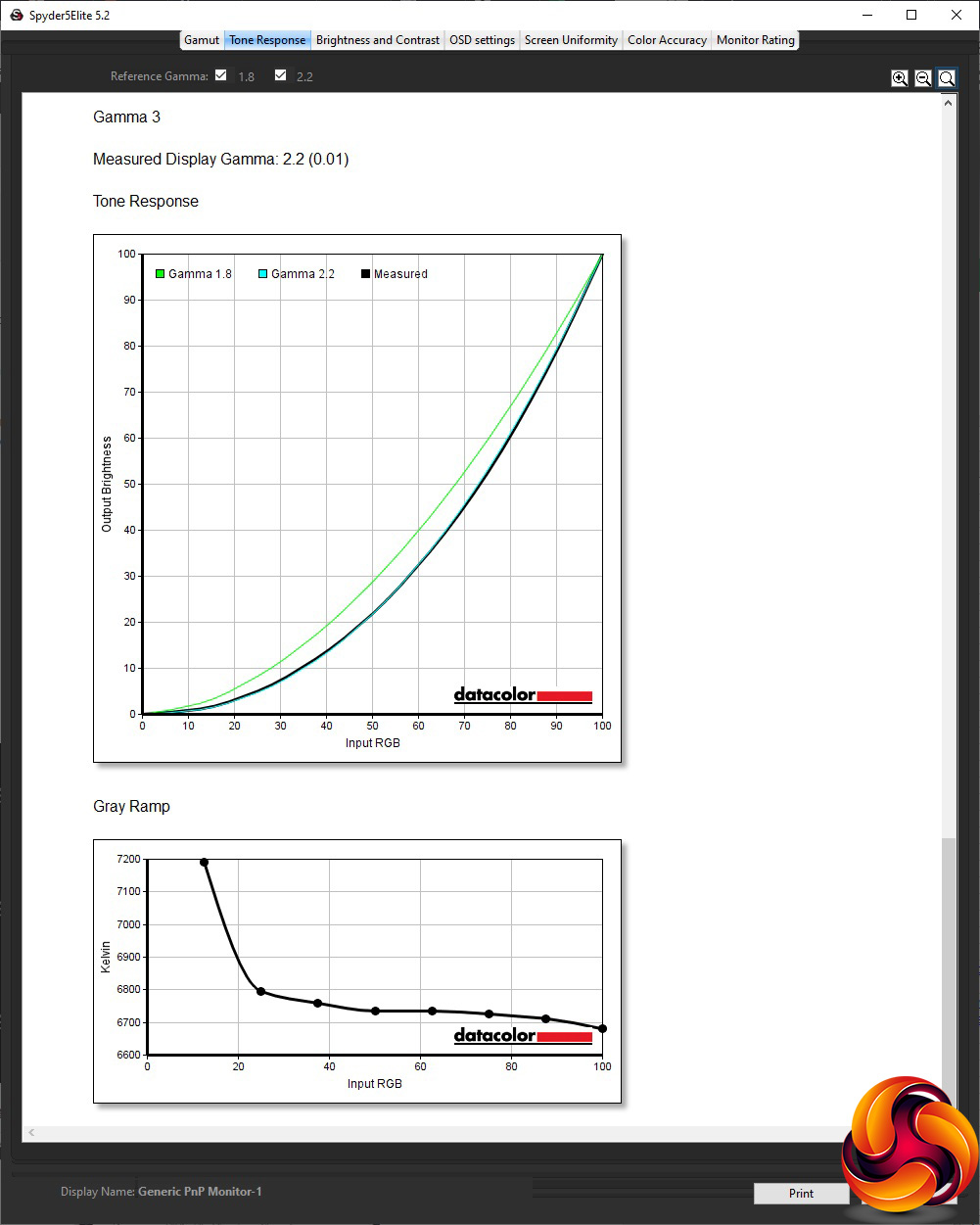
The three gamma settings are quite low. The default is just 1.8, rising to 2.0 for Gamma 2 and 2.2 for Gamma 3. At least they rise uniformly with the numbering, even if the spread is not that great.
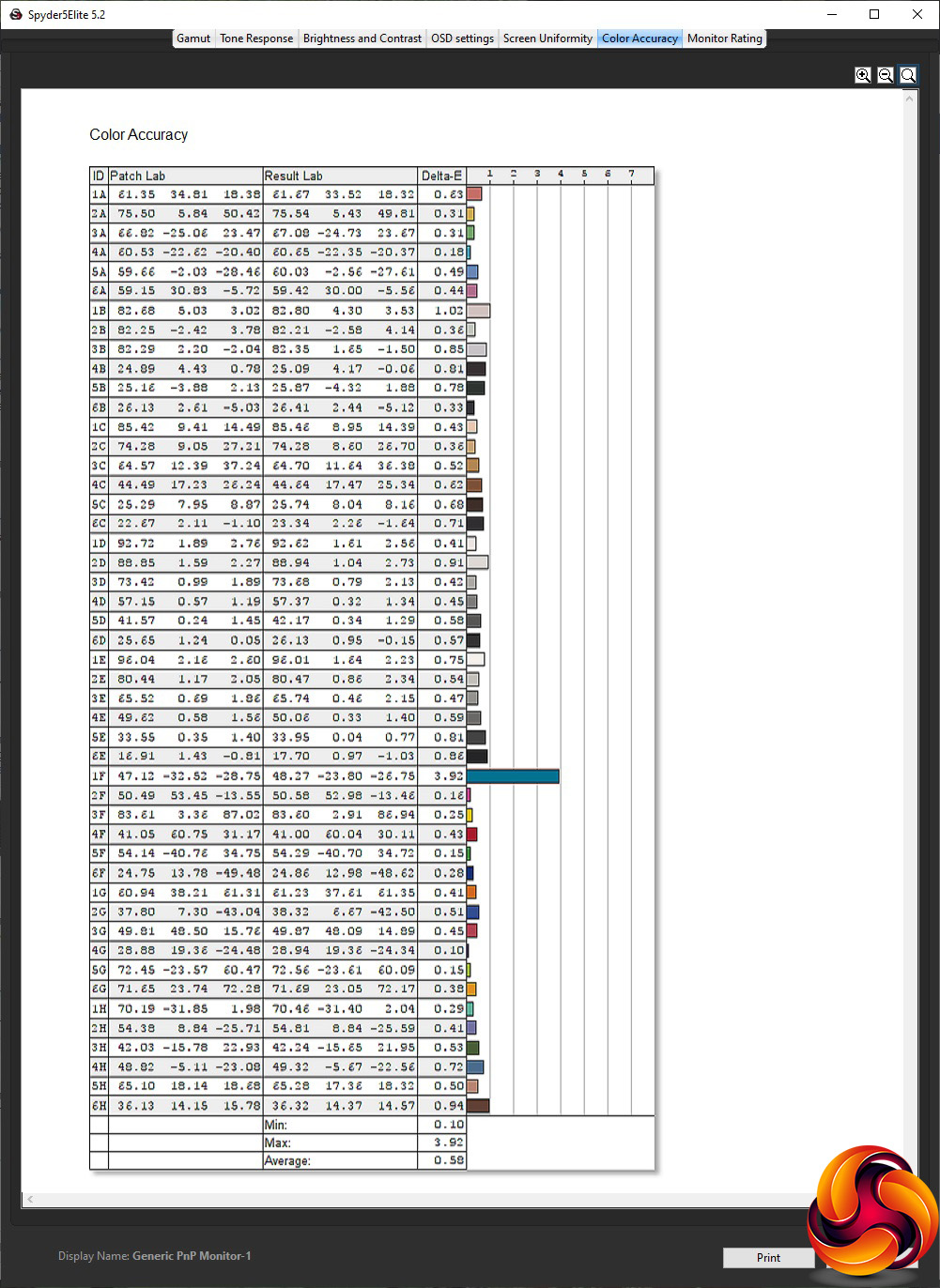
Finally, we get to colour accuracy, and here the U2790PQU is a revelation. The average deviation of 0.58 is one of the best we have ever seen, which is a huge surprise in such a reasonably priced screen. We didn't really think we could improve on this with calibration, but we thought we should try anyway. So we fired up the Spyder again to see if we could achieve even better results.
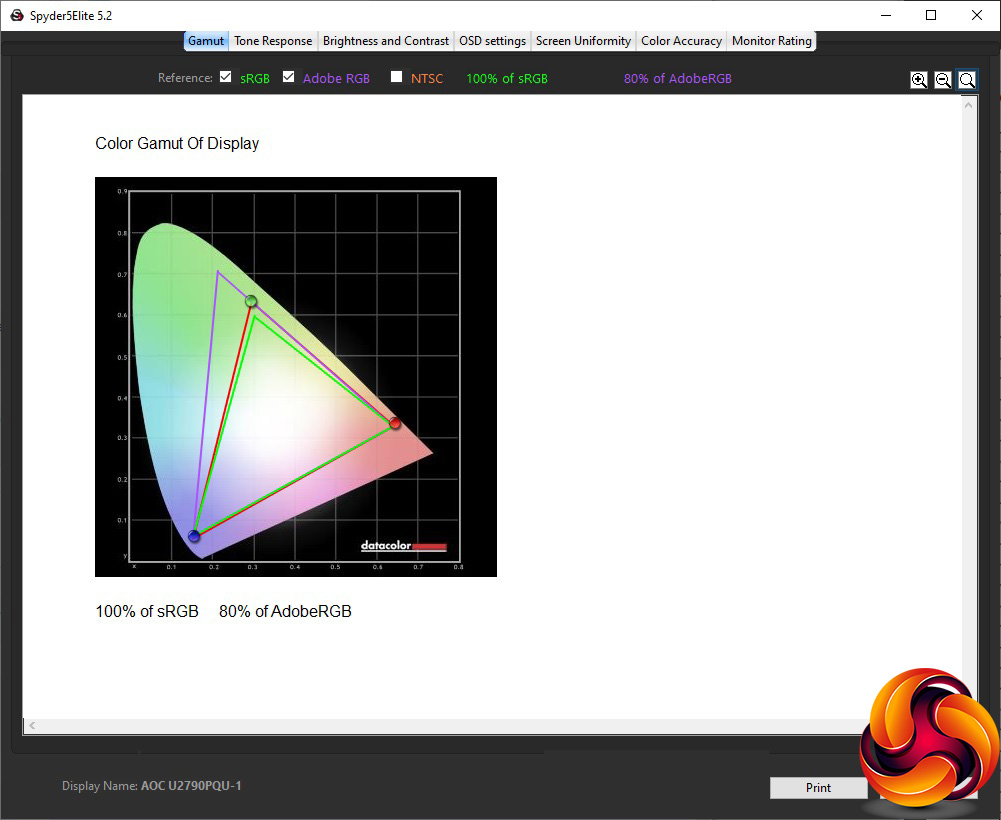
The gamut, as usual, remains unchanged with 100 per cent sRGB and 80 per cent AdobeRGB.
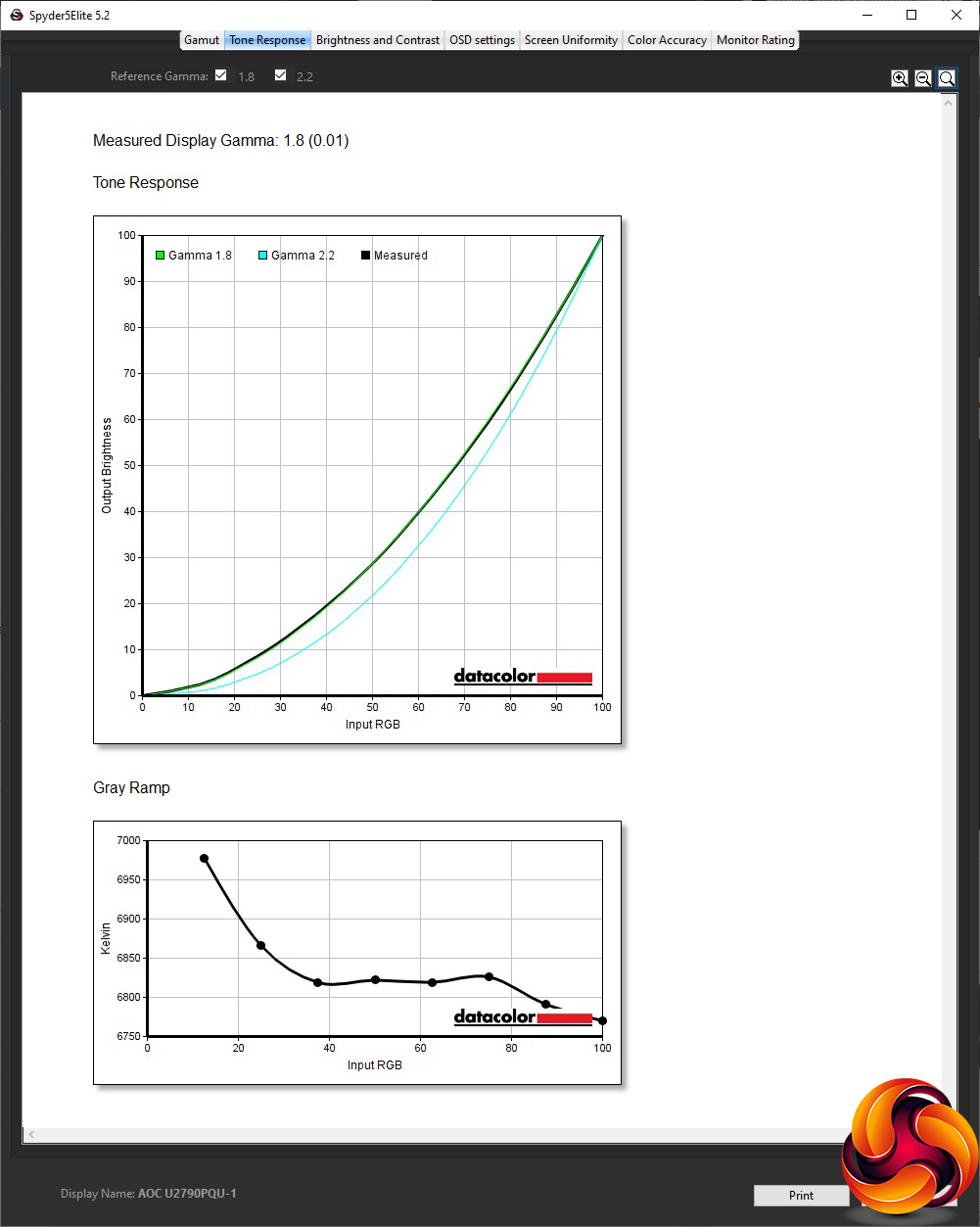
The default Gamma 1 also stays the same at 1.8.
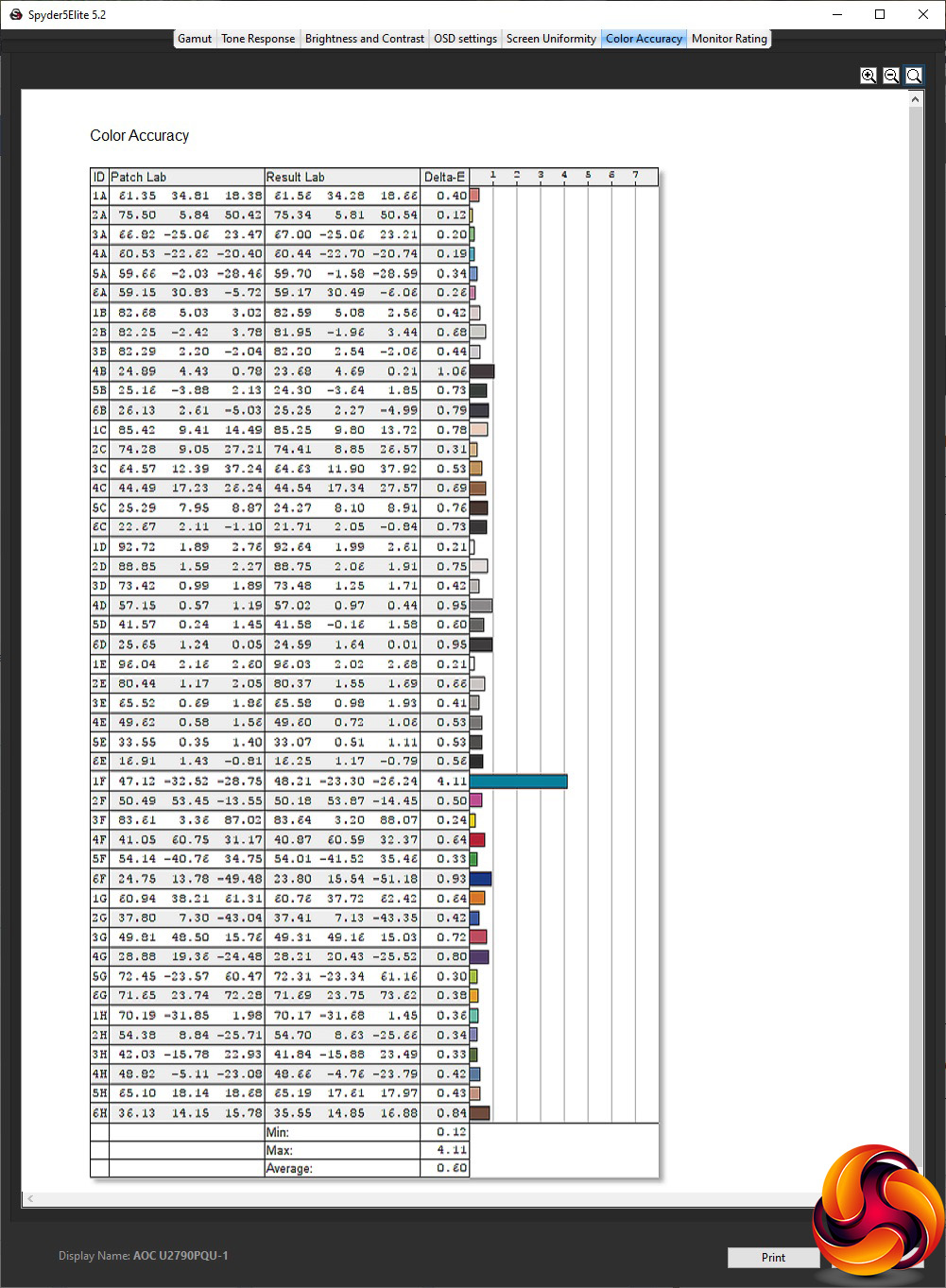
Colour accuracy is very slightly worse at 0.6 average deviation. This isn't much to worry about, but shows that the screen is extremely well calibrated out of the box.
We were wondering if AOC had made its saving with a lower-grade IPS panel, but there's nothing here to indicate that. Apart from the brightness uniformity, this is a great performer. The colour accuracy can match screens costing considerably more.
For subjective testing, we tried everyday office tasks, photo editing and video editing. This was a great screen for the image and audio-visual tasks, with superb detail and a reassuring level of colour fidelity. We did try a round or two of CS:GO, but that's not this screen's forte. It's very clearly a business and professional monitor.
The AOC U2790PQU is supposedly a budget screen. But we wouldn't really fault it even if it was quite a bit more expensive. We thought the Iiyama ProLite XUB2792UHSU was great value, but this screen from AOC offers almost the same features and better colour accuracy for even less money.
The colour accuracy from the IPS panel is the ace in the pack for this monitor. We haven't seen any screens significantly better in this respect. Only brightness uniformity lets the side down, and not by a worrying amount.
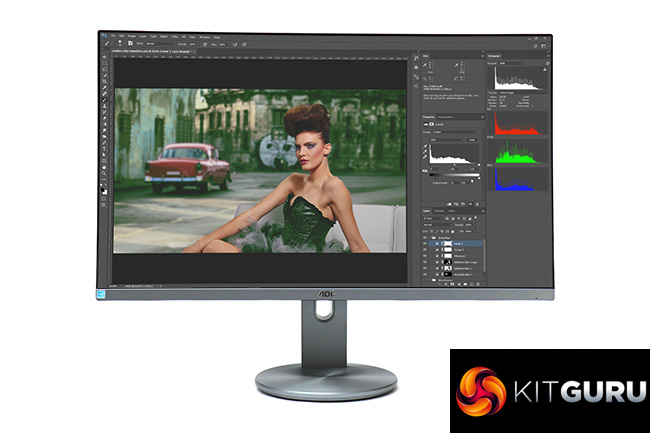
The range of features is relatively standard for a business screen, with a couple of HDMI inputs, DisplayPort and a USB 3.0 hub, plus fairly weedy 2W stereo speakers. We might have wanted a couple more USB 3.0 ports and USB-C connectivity, but the latter still currently comes with a decided premium, so we won't hold its absence against AOC in this case.
What really seals this screen's place is that incredible sub-£300 price. We're still not sure where AOC has cut corners on this monitor to achieve this low cost. If you're looking for a 4K business and professional screen, the U2790PQU is well worth buying and shows you don't need to break the bank for panel quality.
The AOC U2790PQU is available from Insight for £280.79.
Pros:
- Incredible price for a 4K screen.
- Superb colour accuracy.
- Plenty of ergonomic adjustment.
- USB 3.0 hub.
Cons:
- Mediocre brightness uniformity.
- No USB-C connection.
KitGuru says: The AOC U2790PQU brings 4K to an incredible new low price, and still delivers some of the best colour accuracy we have seen in any screen.