KitGuru KitGuru.net – Tech News | Hardware News | Hardware Reviews | IOS | Mobile | Gaming | Graphics Cards


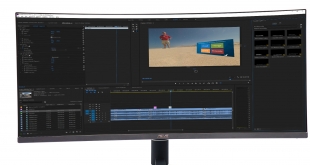
Professional screens, being a serious matter, haven't tended to offer trendy fripperies like a curved panel or ultrawide aspect ratio. But if you're creating immersive content, or need all the screen real estate you can get for your software interface, a curved 21:9 monitor with a high resolution could well be just what you're after. So ASUS' new ProArt PA34VC might be just what you're looking for. A 34in panel with 3,440 x 1,440 resolution, it's got pixels aplenty.
The PA34VC isn't the first curved screen we've seen with this size and resolution, but it's the first one aimed at professionals, and we were quite excited about the possibilities when we first heard news of it. We reviewed Samsung's CF791 over two years ago, and appreciated both the quality and the width. But that wasn't quite aimed at professionals, being more a jack of all trades with some work and entertainment combined. Being an ASUS ProArt, the PA34VC is clearly targeting content creators, and has a price in excess of £1,000 to match.
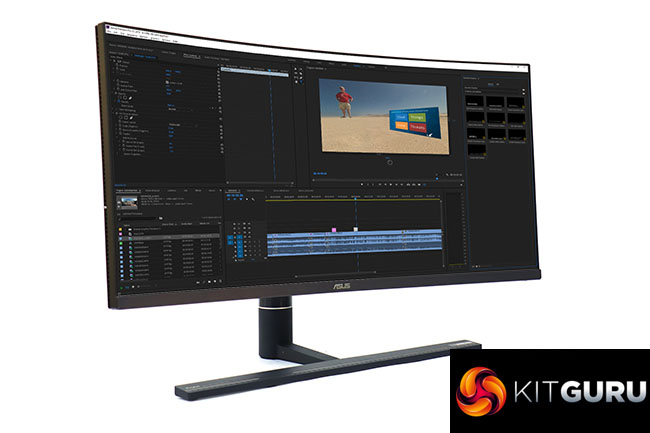
Whereas the Samsung CF791 uses a VA panel, the ASUS PA34VC opts for IPS. This provides the same 300cd/m2 brightness rating, but a lower 1,000:1 contrast and relatively relaxed 5ms grey-to-grey pixel response. The maximum refresh is the same 100Hz, and adaptive FreeSync is supported should you want to play a game or two. However, this panel isn't as curvy as Samsung's with a 1900R rating rather than 1500R.
More importantly for the professional user, the panel is rated at 100 per cent sRGB and comes factory calibrated. It also supports HDR-10, so in theory can provide a 10-bit colour depth capable of displaying the Rec.2020 colour space, which will be great for watching HDR movies, but also if you're creating content destined for this level of quality. There's also a specific Rec. 709 preset, which is the colour space for HDTV.
There are plenty of ports to play with. To start with, you get a pair of HDMI connections plus DisplayPort. But there are also two Thunderbolt 3 / USB-C ports, plus a trio of USB 3.0 Type A and an audio minijack output. You even get stereo 2W speakers.
A full range of physical adjustments are available, including tilting forwards and backwards, height adjustment, and swivelling. So this is a comprehensively specified screen at a hefty price. Whether it's worth the money depends on how well it fares in the quality stakes. Read on to find out our results.
Specification:
- Screen size: 34-inch, 21:9 aspect
- Native resolution: 3,440 x 1,440
- Curvature: 1900R
- Refresh rate: 100Hz
- Panel type: IPS
- Contrast ratio: 1,000:1 (typical)
- Brightness: 300cd/m2
- Response time: 5ms Grey-to-Grey
- Display inputs: HDMI 2.0b x 2, DisplayPort 1.2, Thunderbolt 3 USB-C x 2
- USB hub: 3 x USB 3.0 Type A
- Tilt: 5 degrees forward, 23 degrees backward
- Raise: 120mm range
- Swivel: 30 degrees each way
- Other: Audio output, 2W stereo speakers, Thunderbolt 3 USB-C output (for diasy chain)
Retail Price: £1,069 (inc. VAT)
The ASUS ProArt PA34VC comes in the usual sober white box of the professional ProArt range.
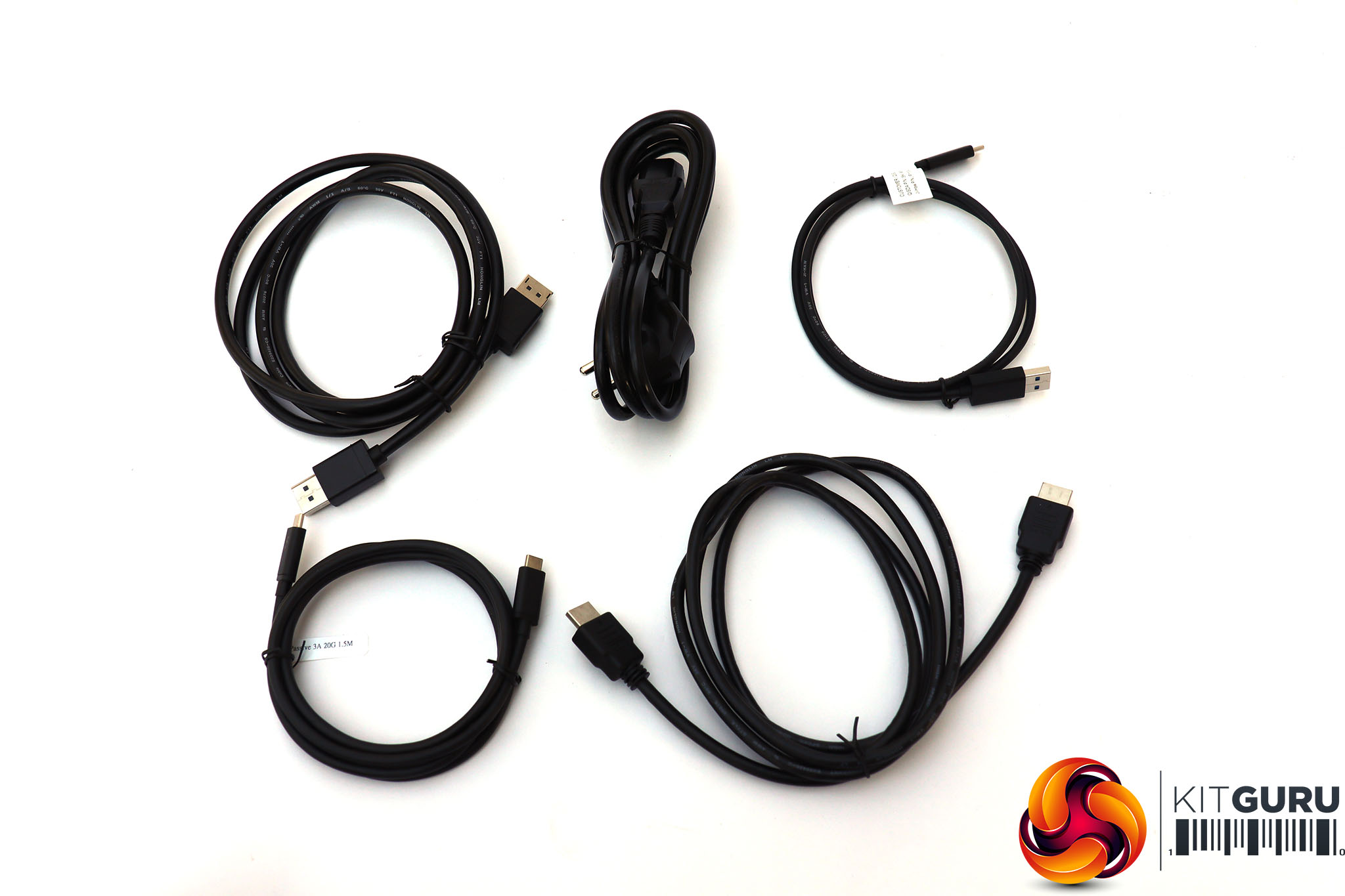

Inside is a generous range of cables. On top of the power cord are ones for DisplayPort and HDMI, plus a Thunderbolt 3 cable and USB-C to USB Type A wiring.
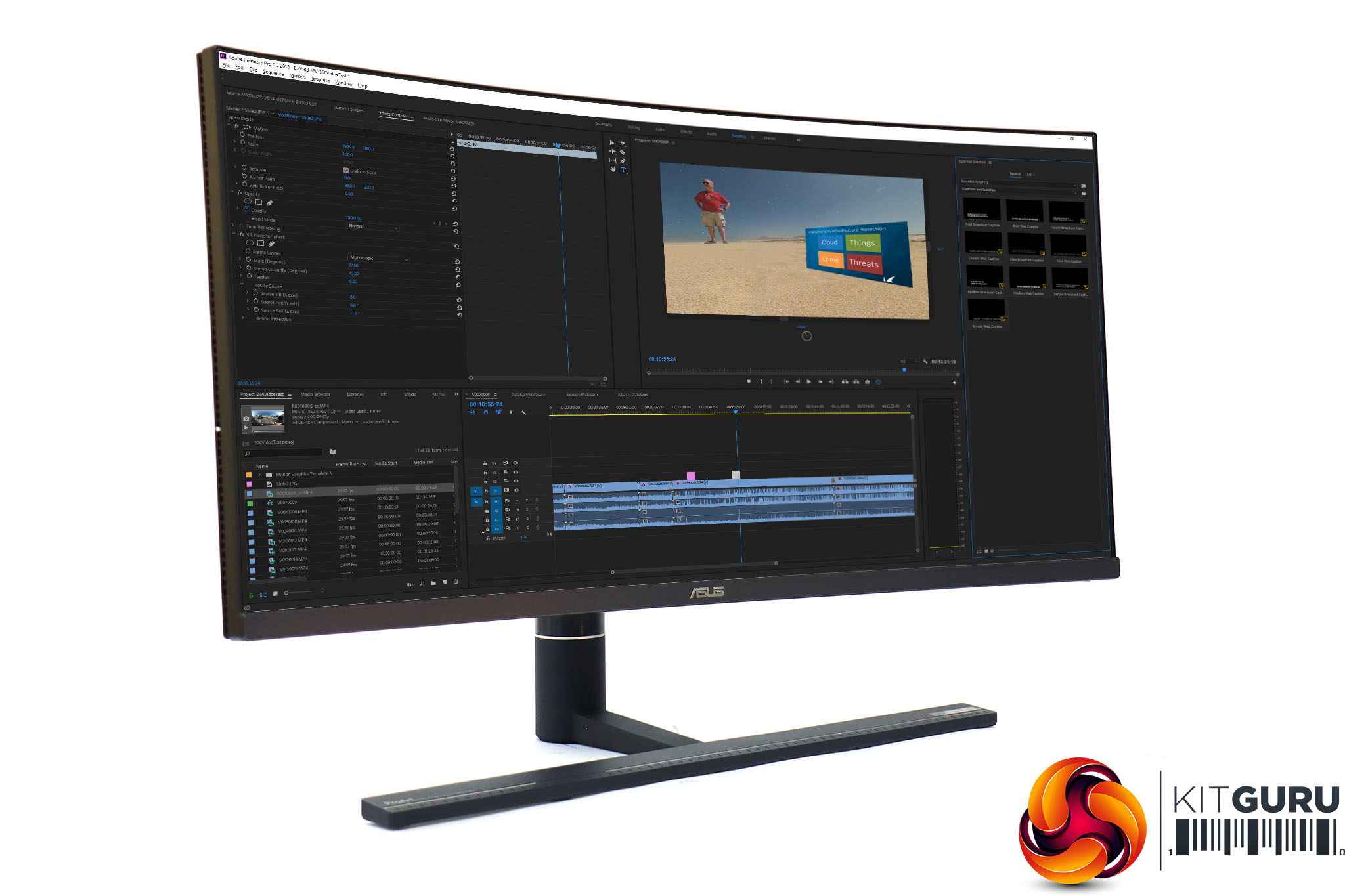
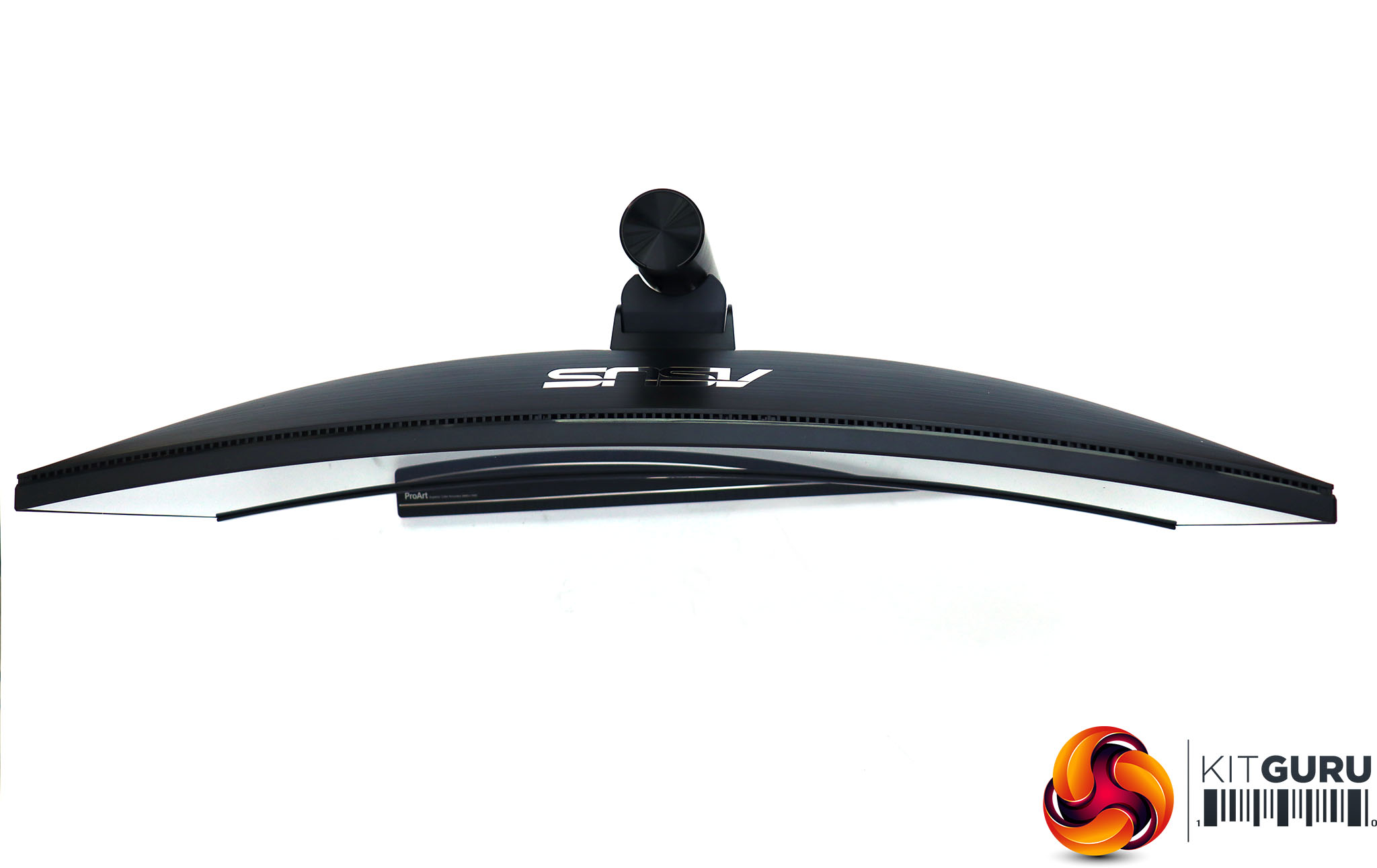
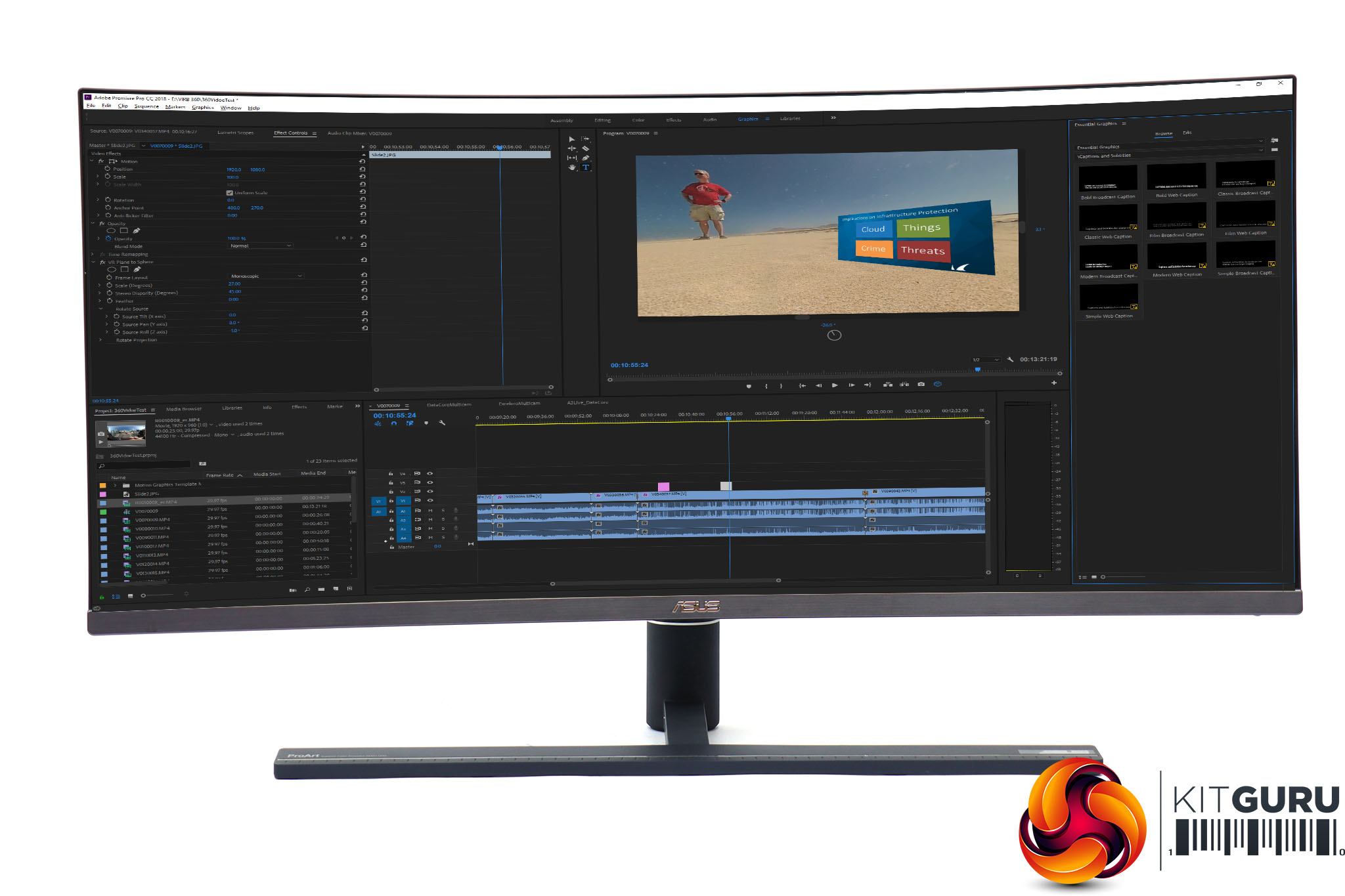
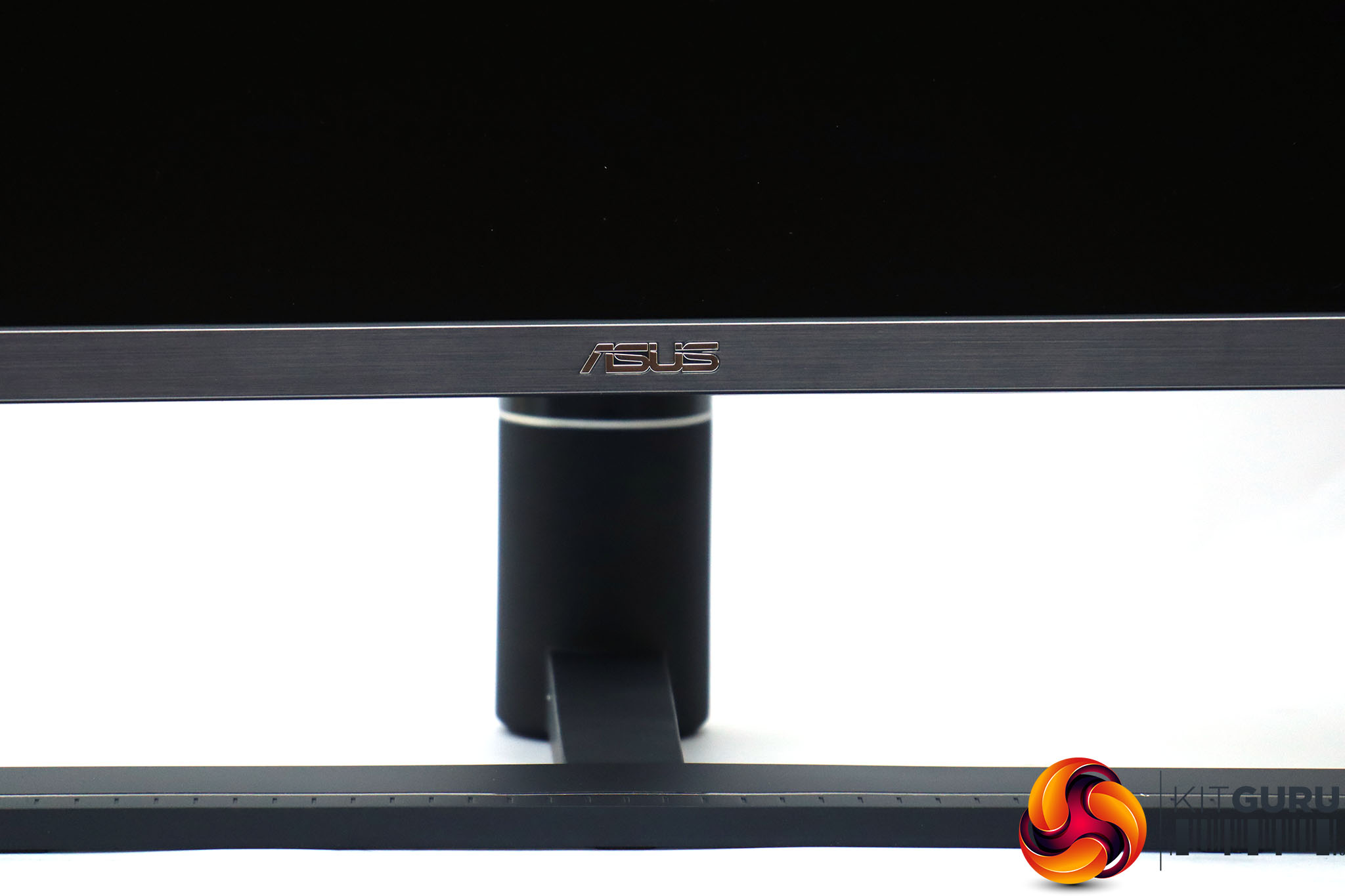
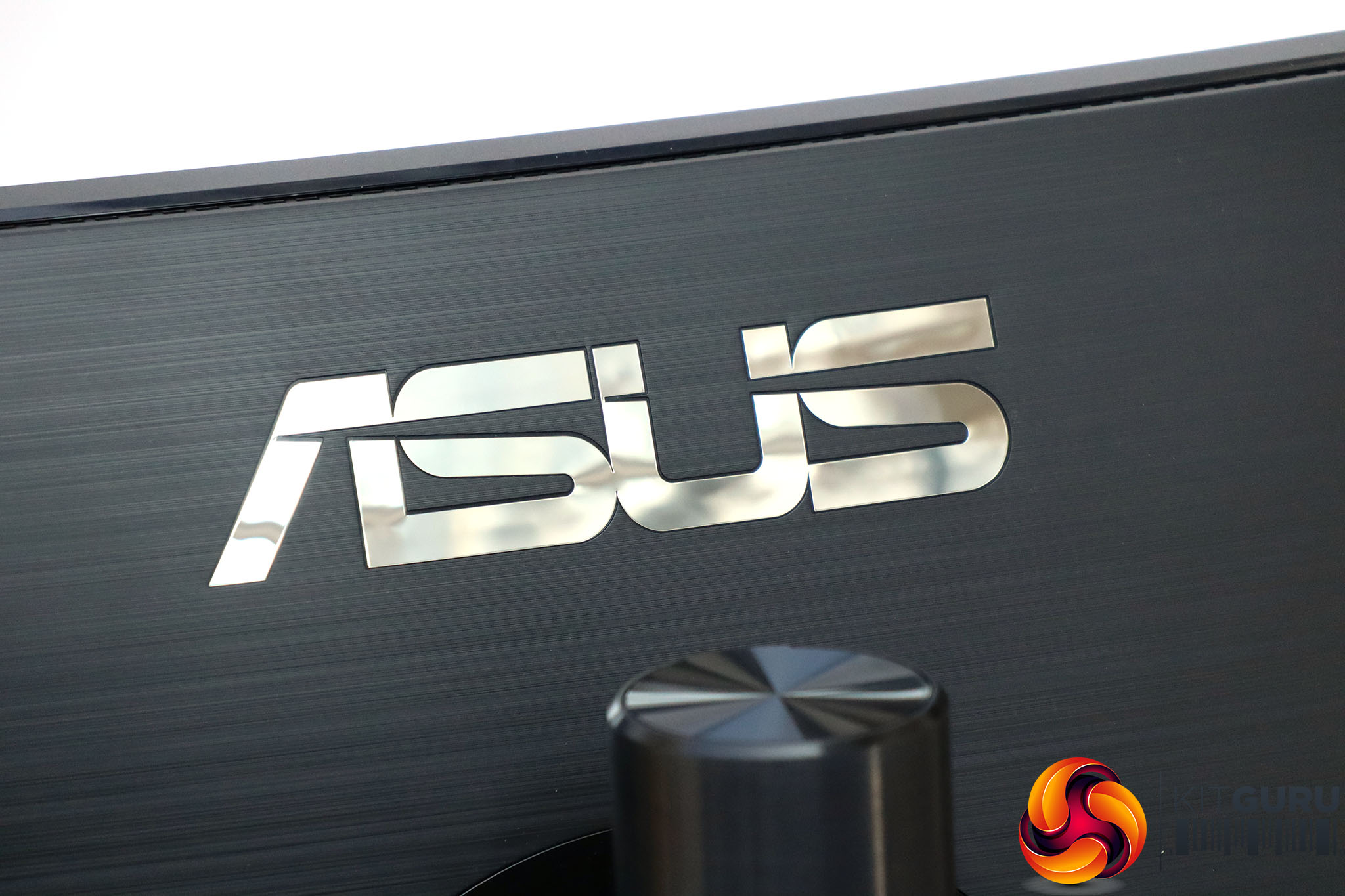
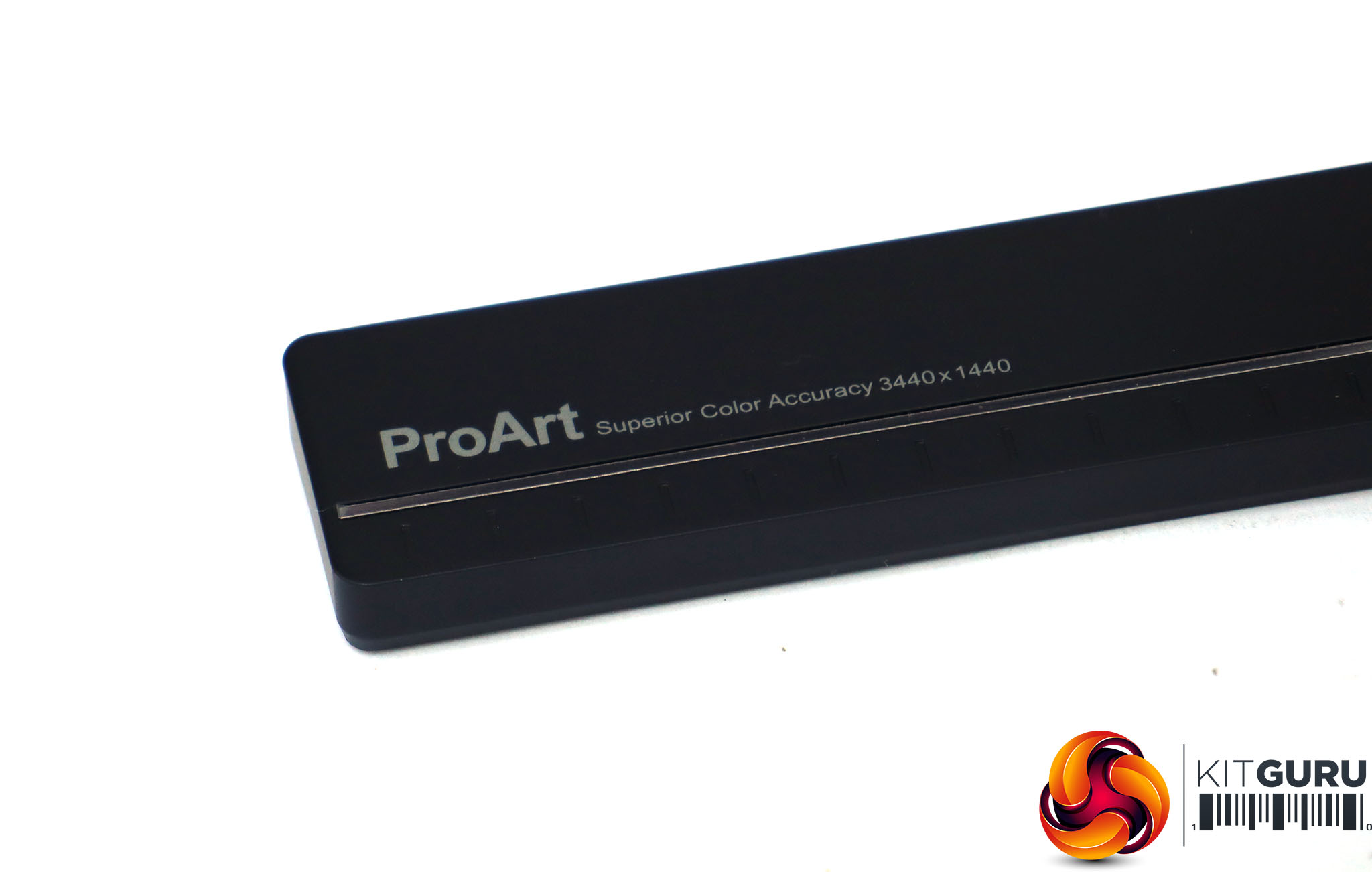
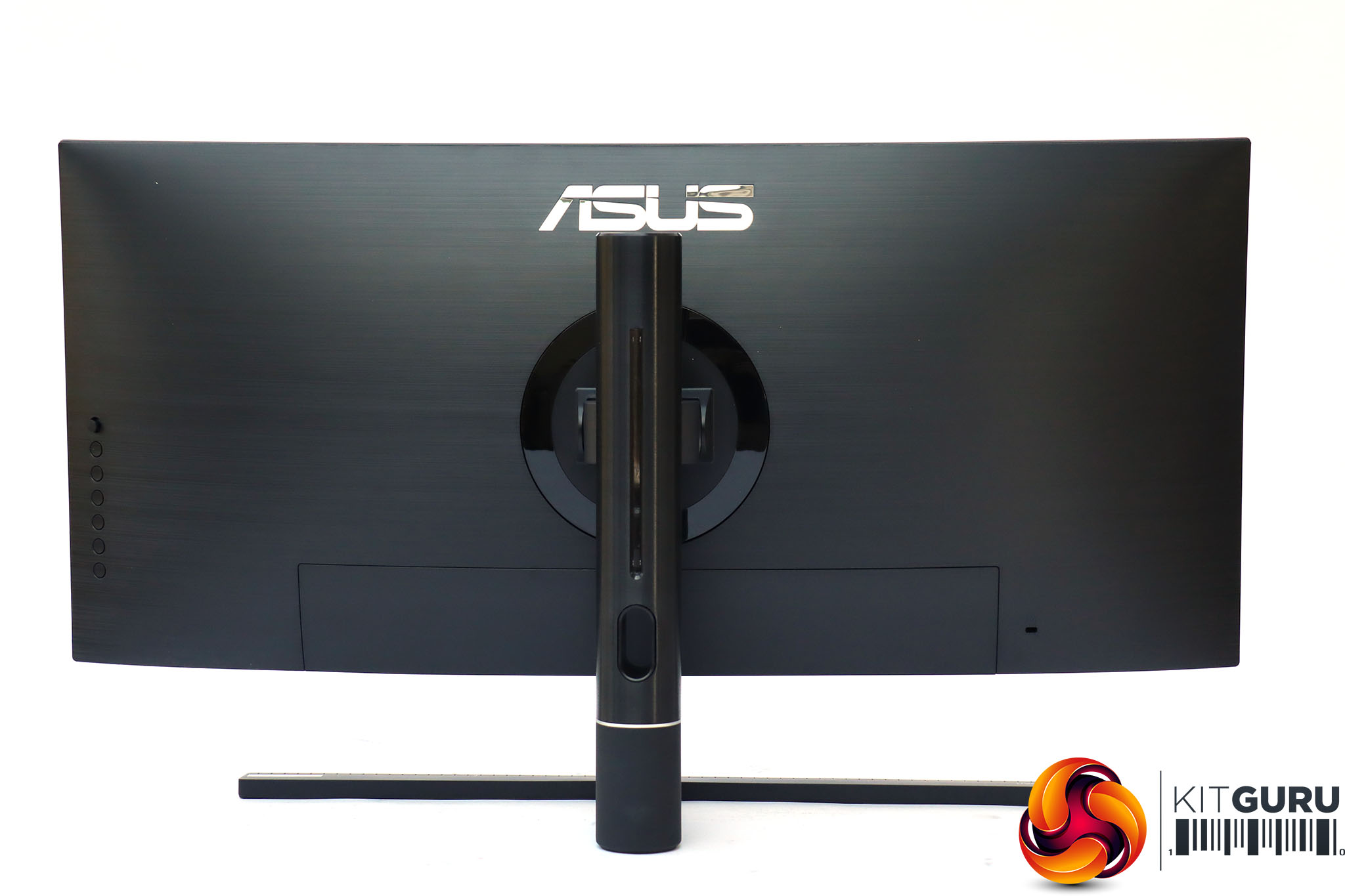
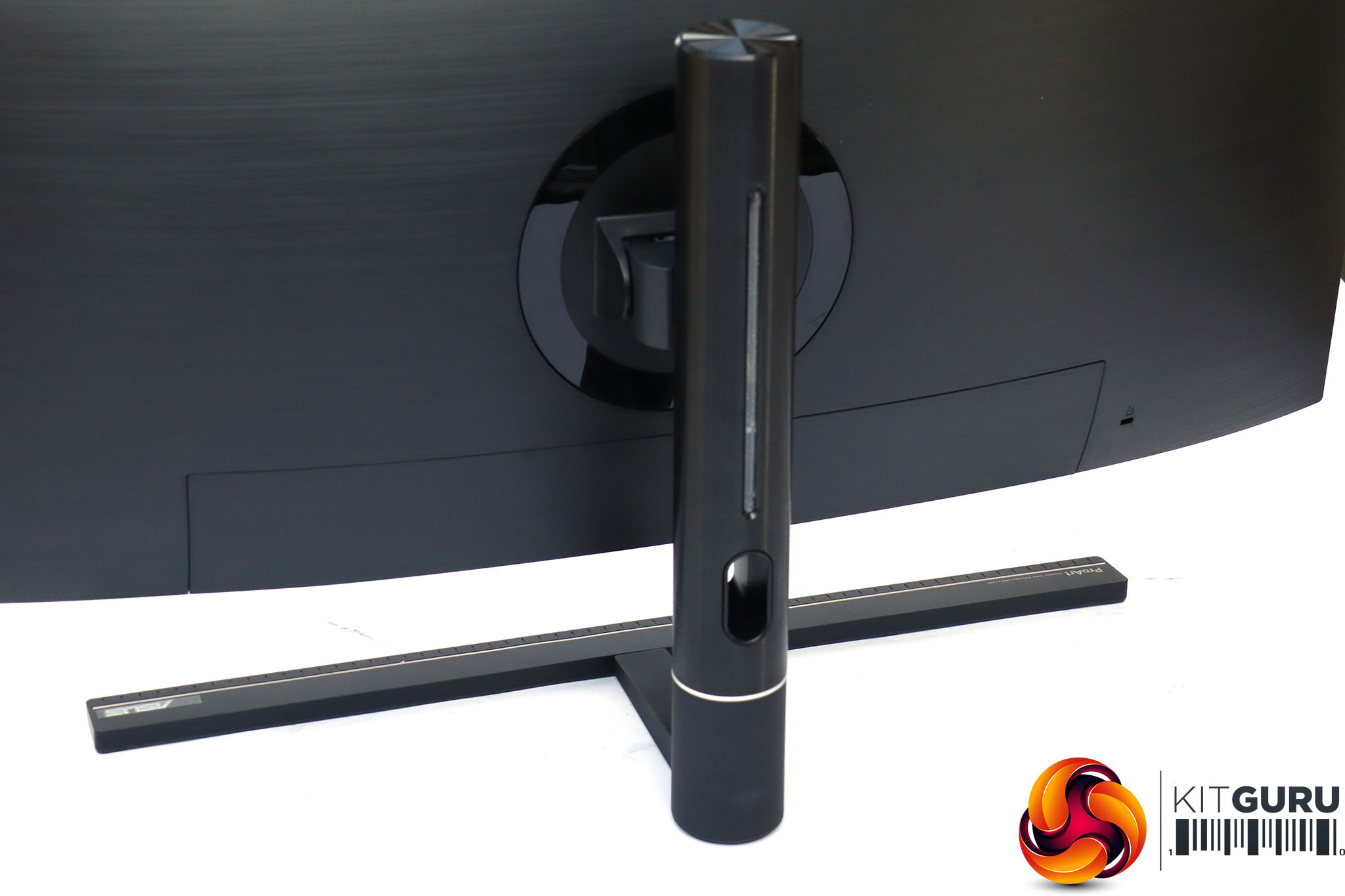
The PA34V is a solidly made piece of kit, with a robust central column to hold the panel, a dark graphite and black finish, and only subtle identification on the front. It certainly looks the business, and will sit comfortably in a design studio. However, it's worth noting that the slot within which the screen-raising arm moves has razor-sharp edges, so you will need to be careful moving this unit around your desk.
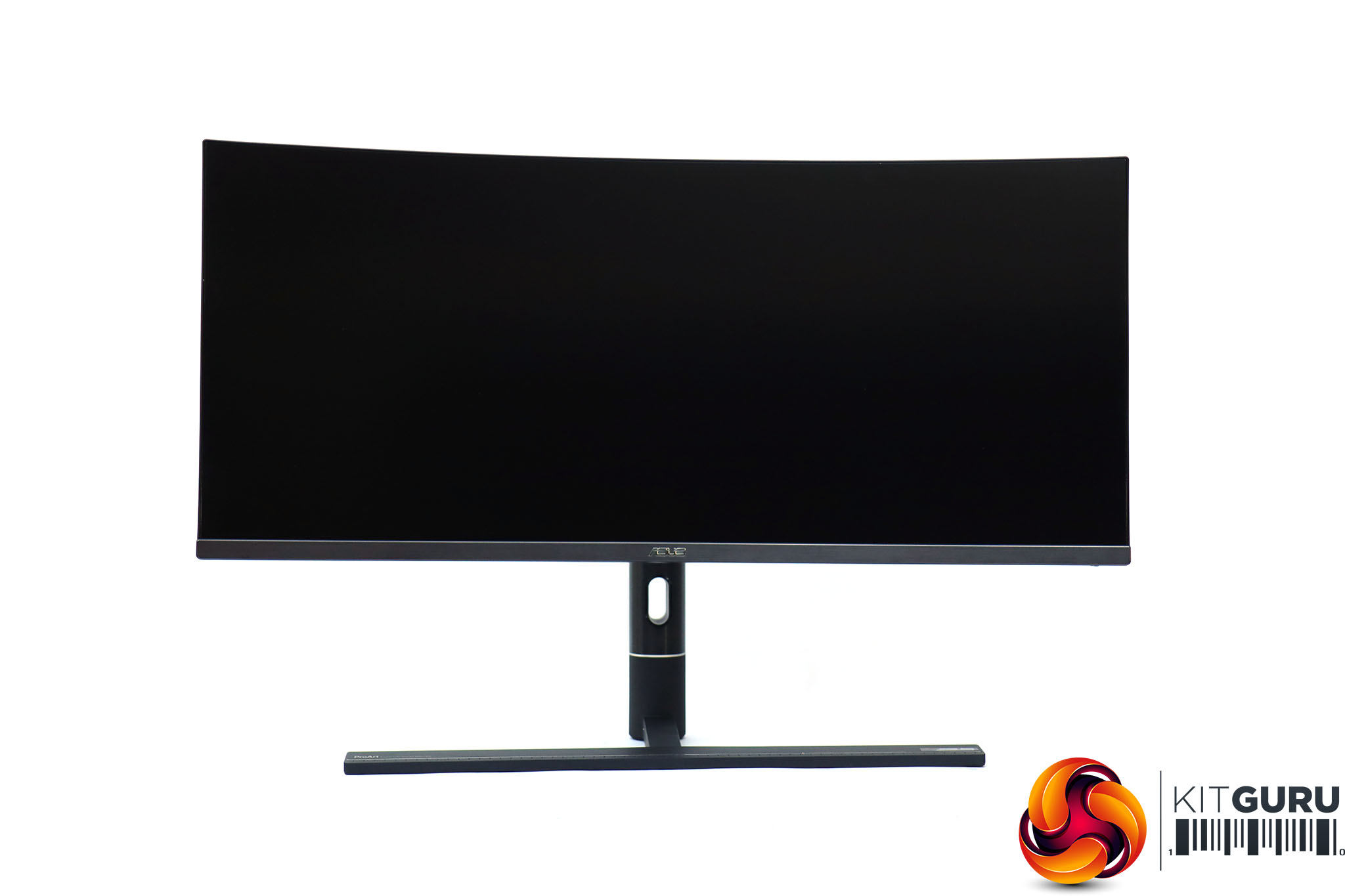
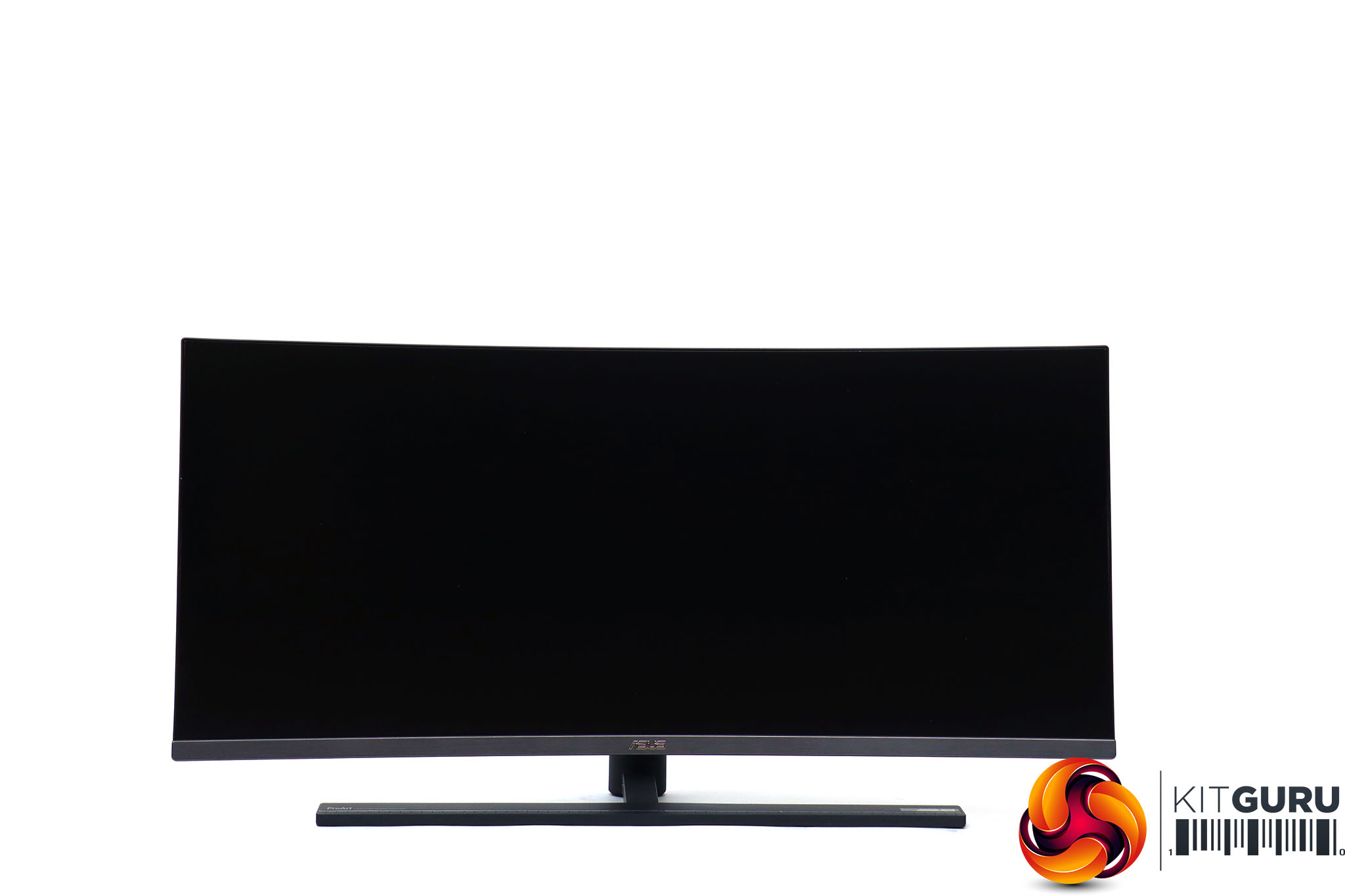
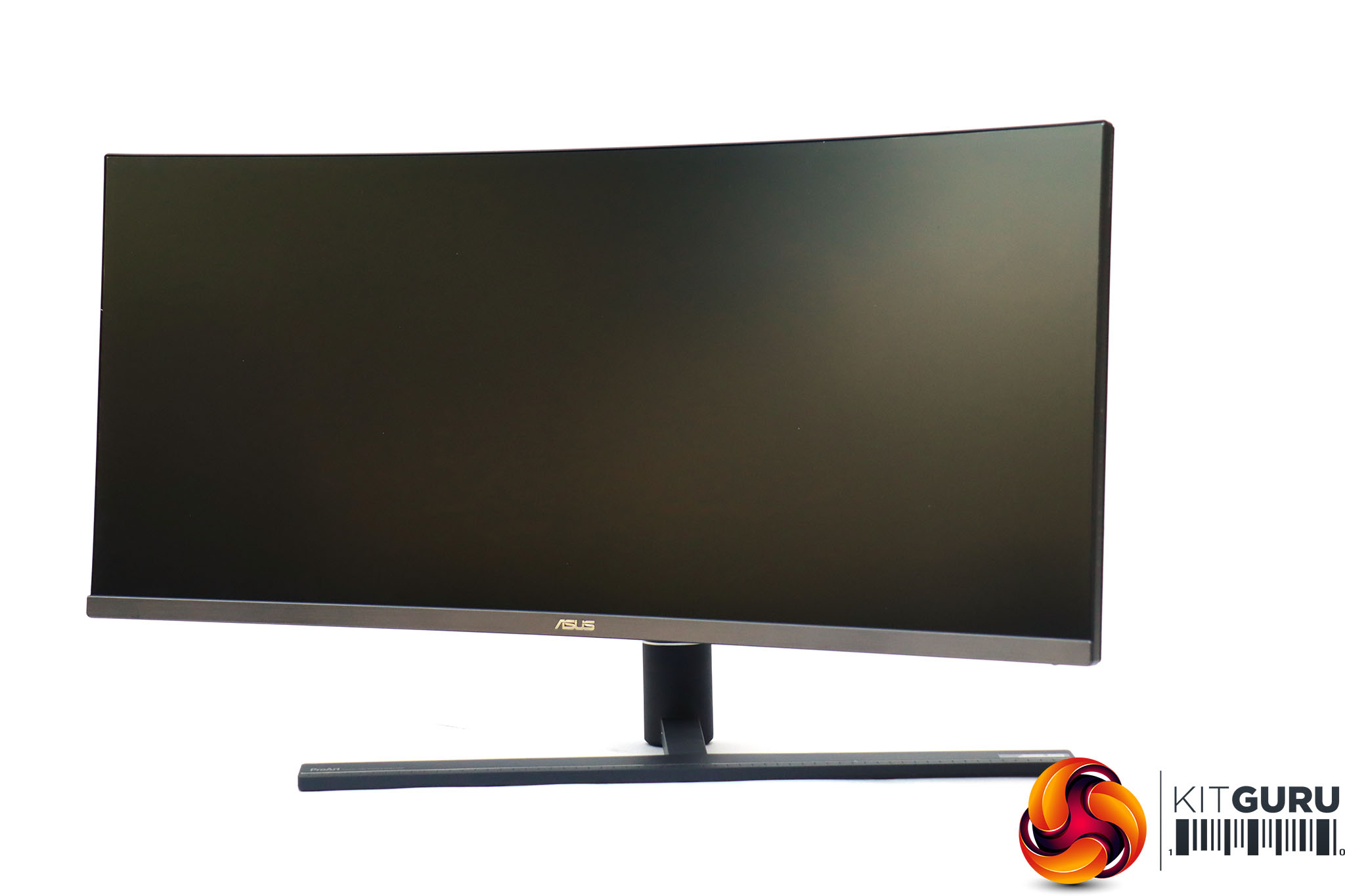
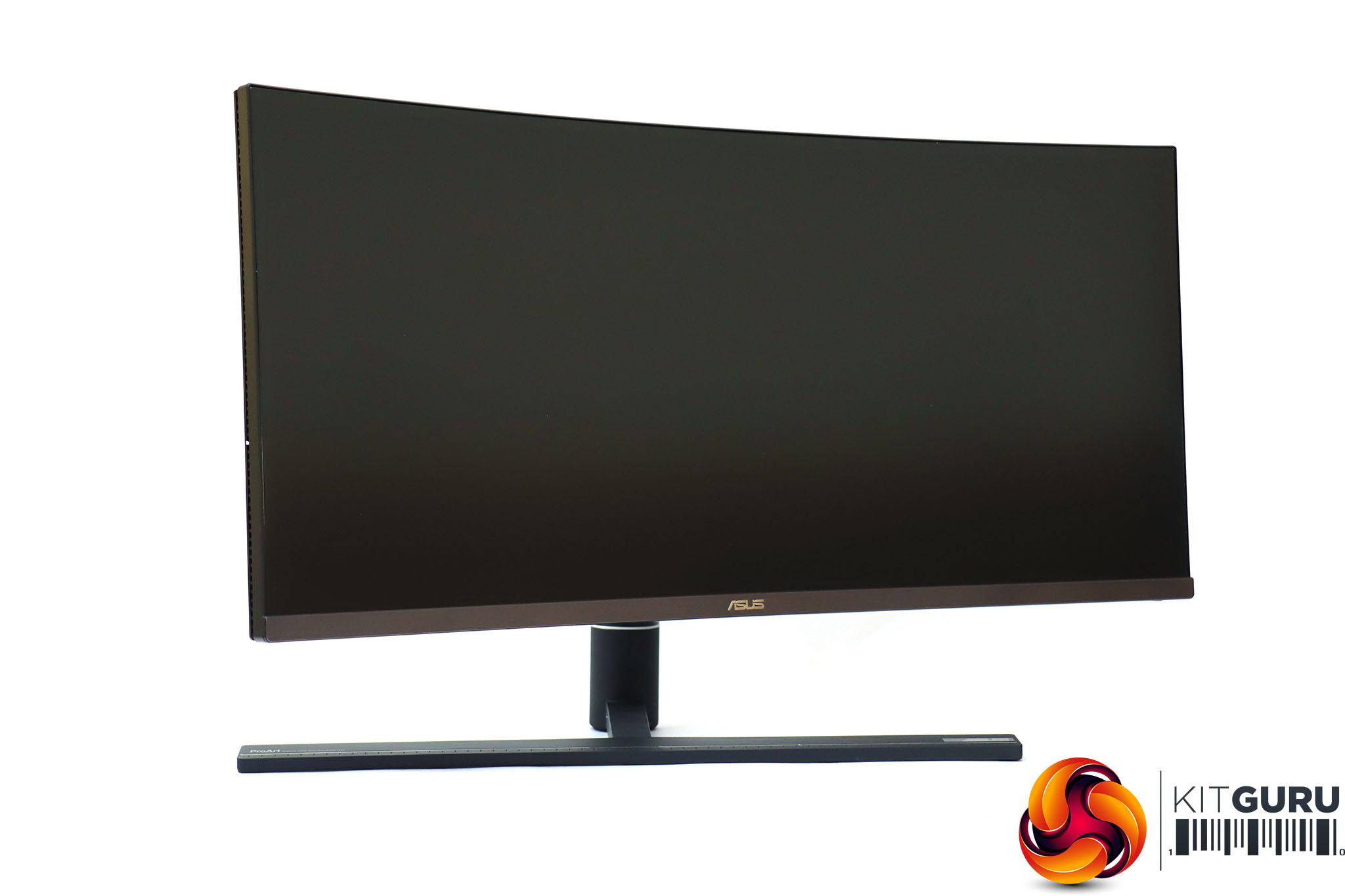
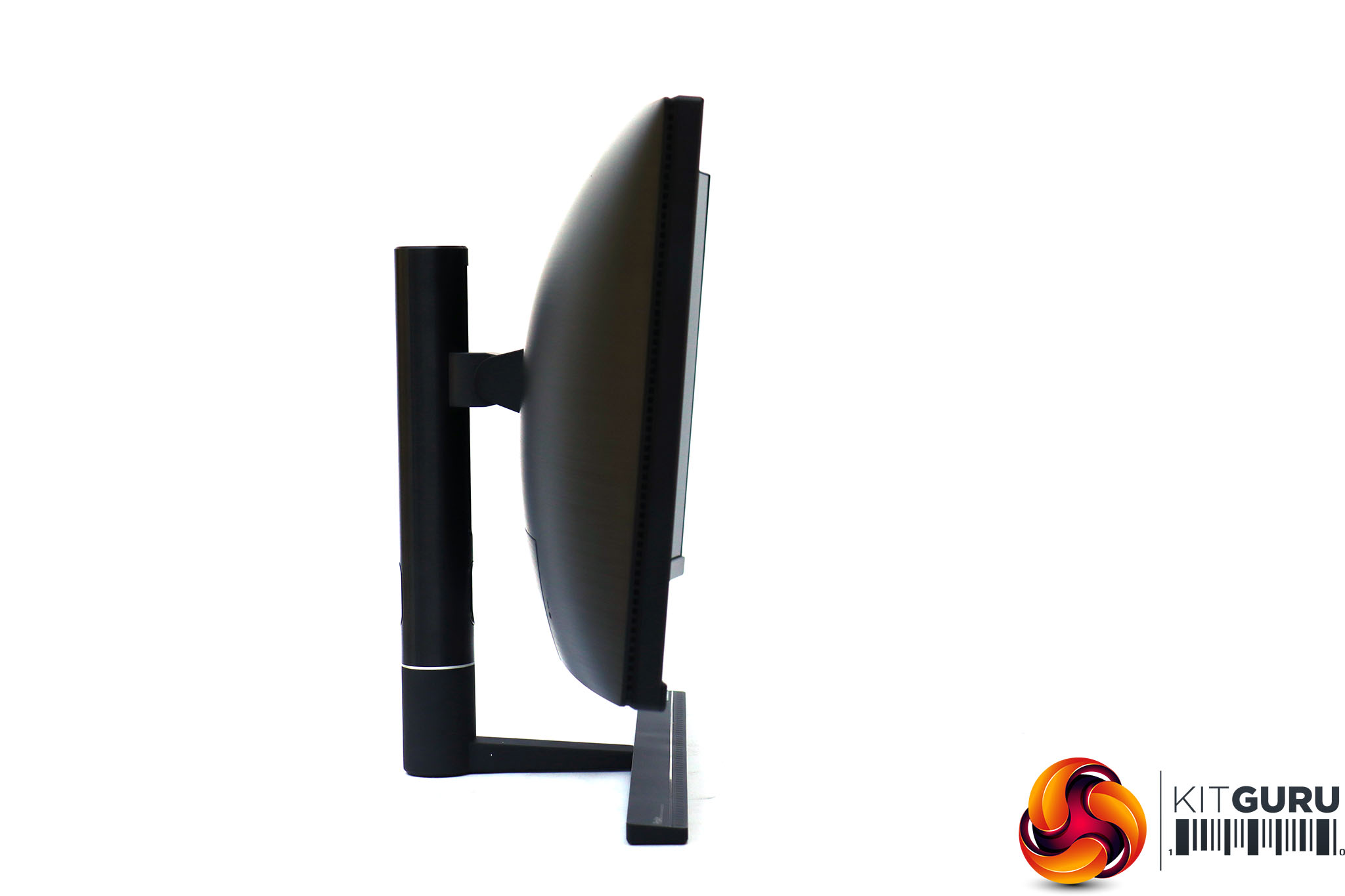
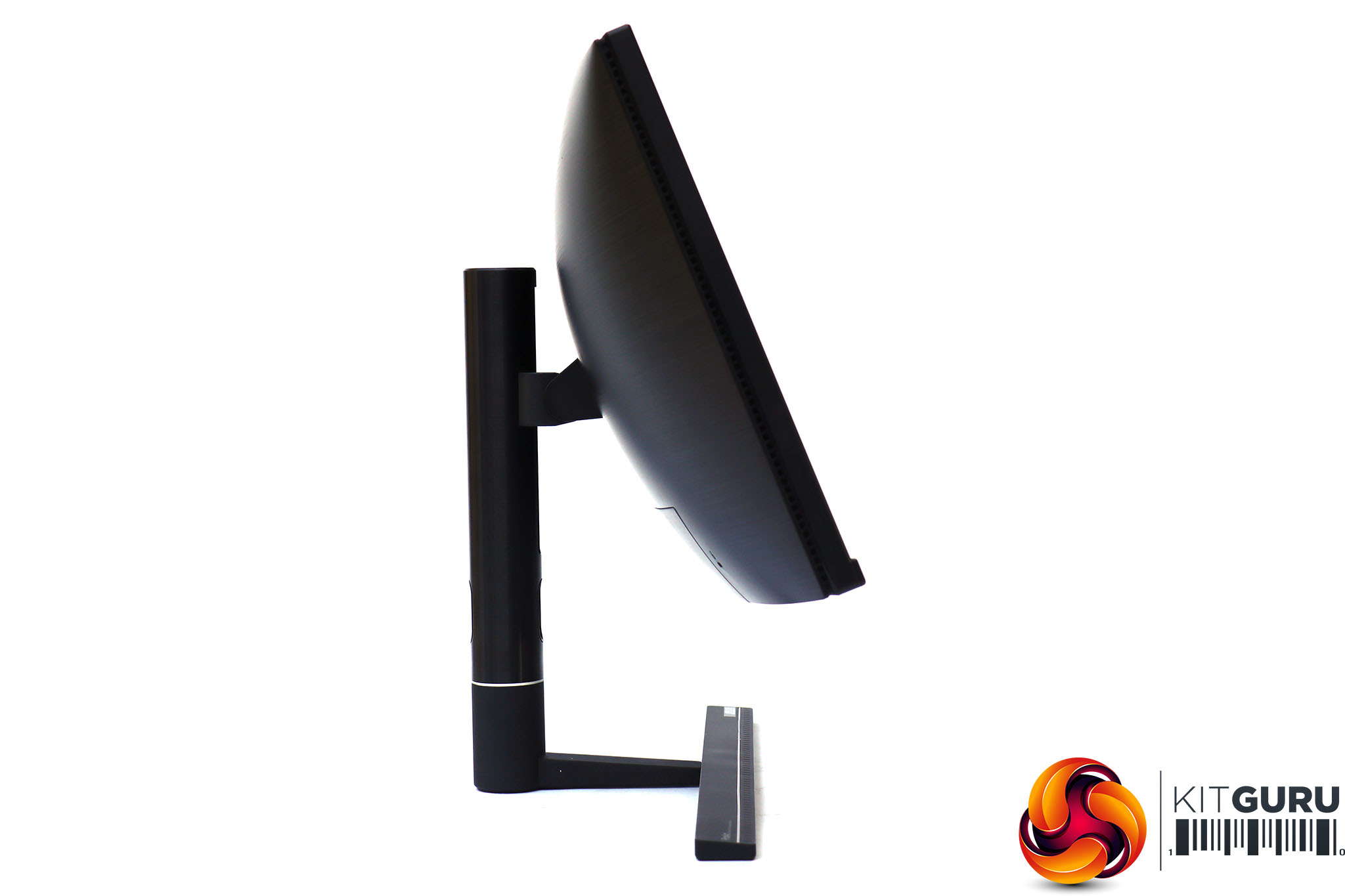
Fortunately, once you've placed this screen, you probably won't need to move the stand as the PA34V has plenty of adjustment options. It can be raised and lowered through a range of 120mm. It can swivel left and right, although only by 30 degrees. You can tilt it forward by five degrees and backwards by 23 degrees. The one thing you can't do is rotate the panel into portrait mode, but this is not a particularly useful option for a curved screen anyway.
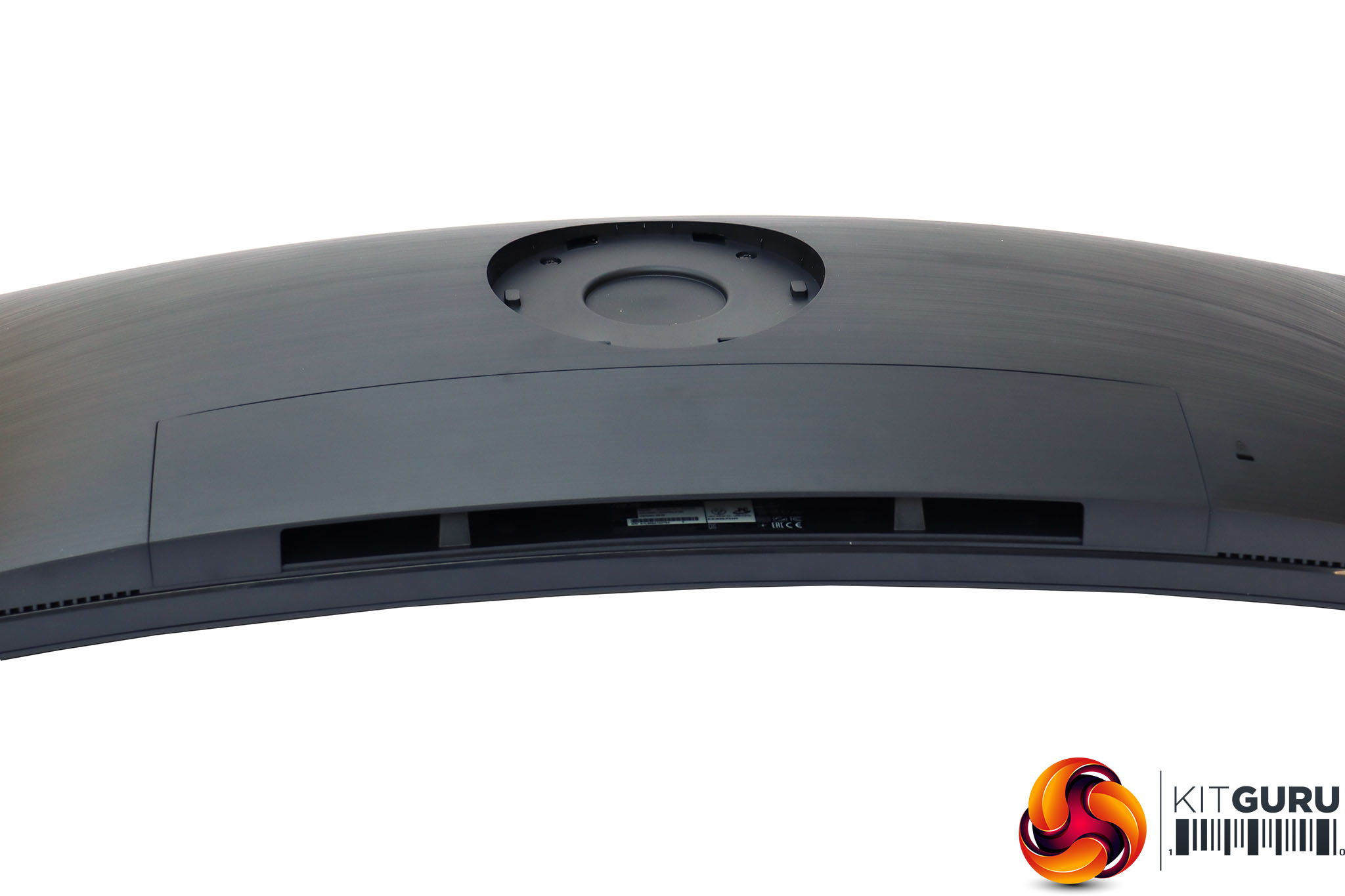
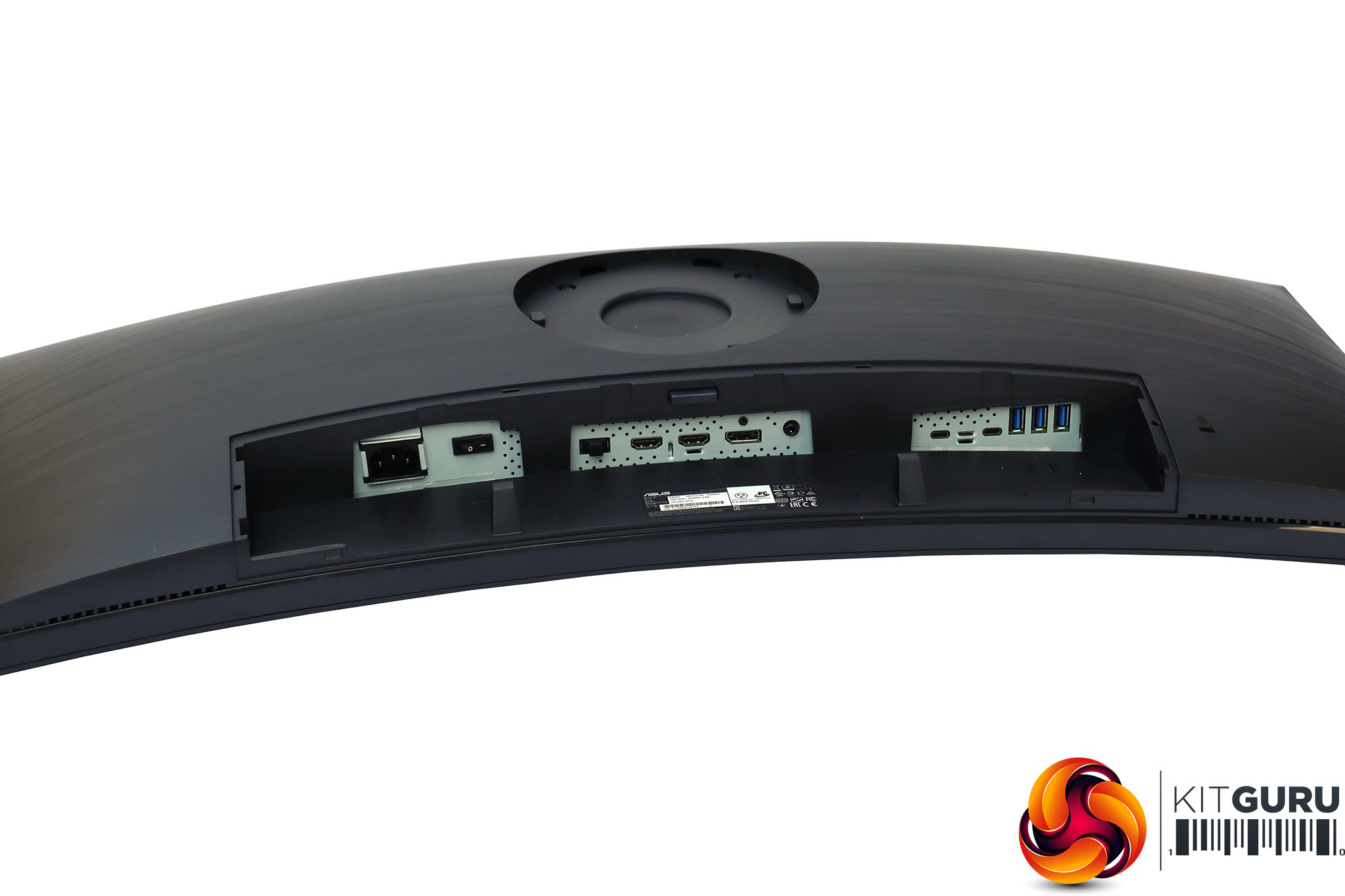
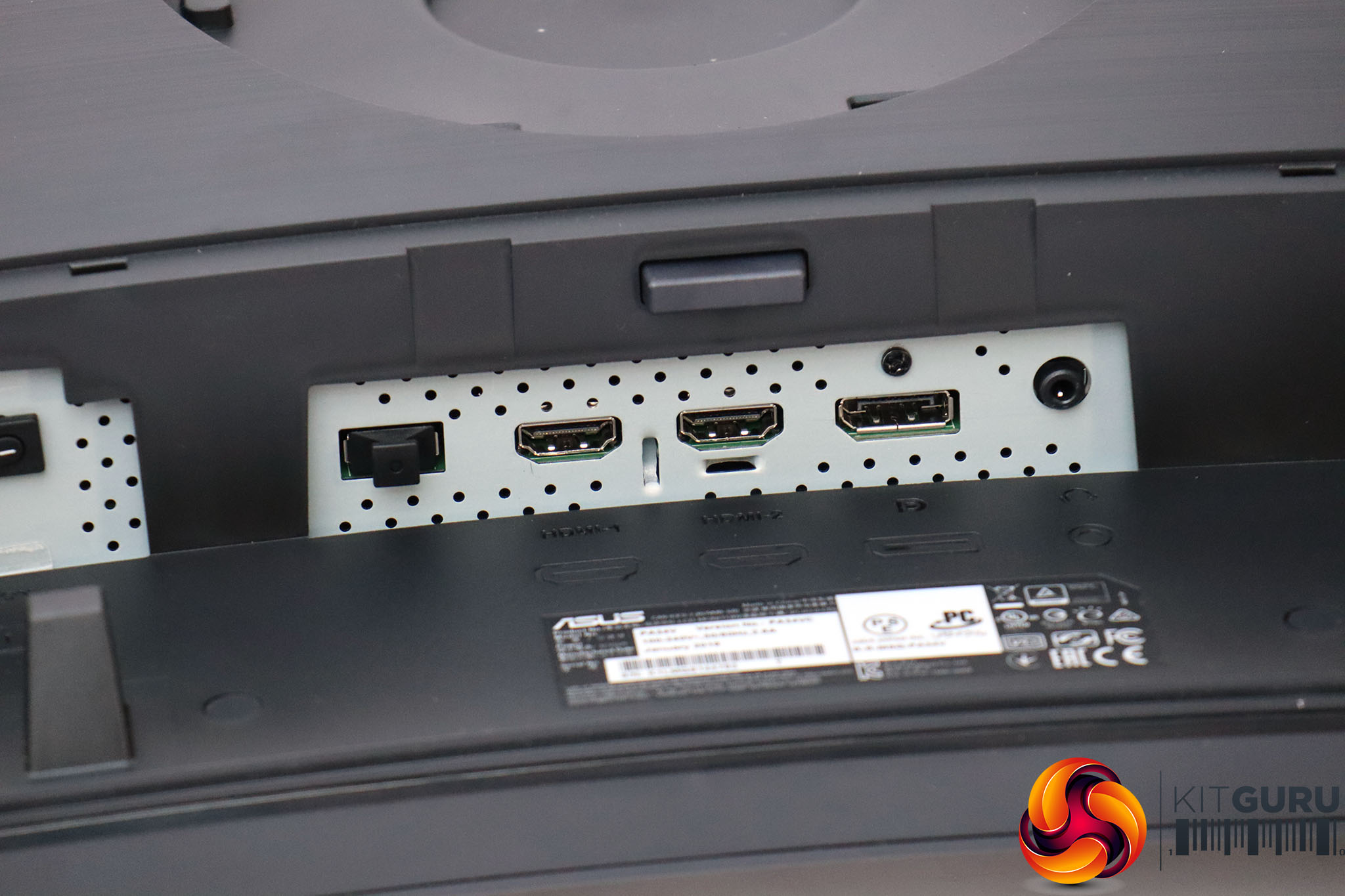
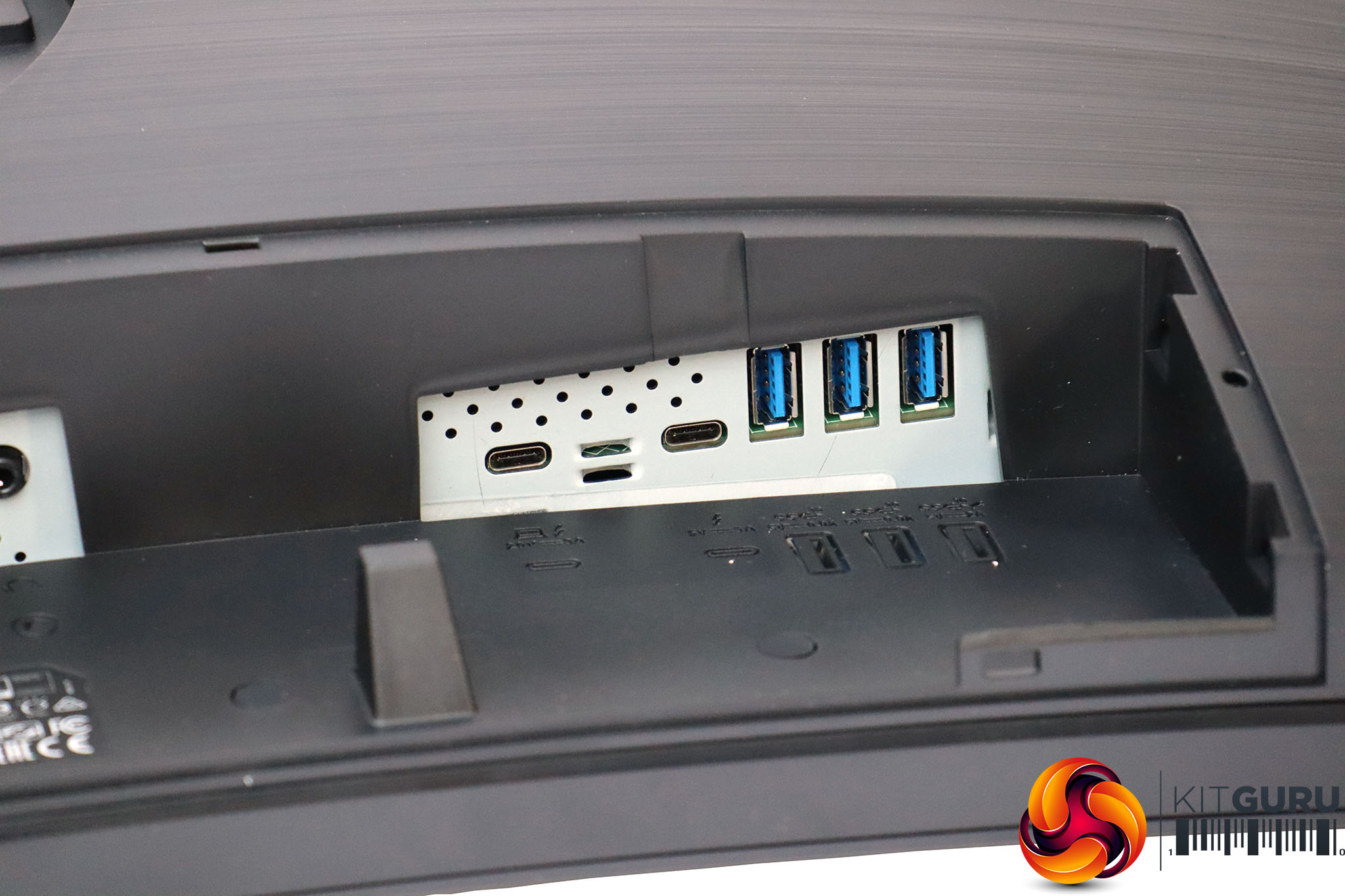
The extensive array of ports can be hidden away behind a removable plastic panel. At one end is the power plug and a physical switch. In the middle are the standard video ports, including two HDMI 2.0b and one DisplayPort 1.2. The port with the cover over it is USB 2 but is just for maintenance usage. There's a minijack audio output as well.
The final section incorporates two Thunderbolt 3 / USB C and three USB 3.0 Type A downstream ports. The Thunderbolt 3 ports behave in a fashion that needs explaining. The first one you plug in becomes the upstream, delivering the display signal and USB data for the hub. The other Thunderbolt 3 port then becomes a downstream one from which to daisy-chain another monitor. This will be very handy for a neat, single-cable multi-monitor setup. However, note that only the one on the left in the picture above can power 20V devices; the one on the right is limited to 5V.
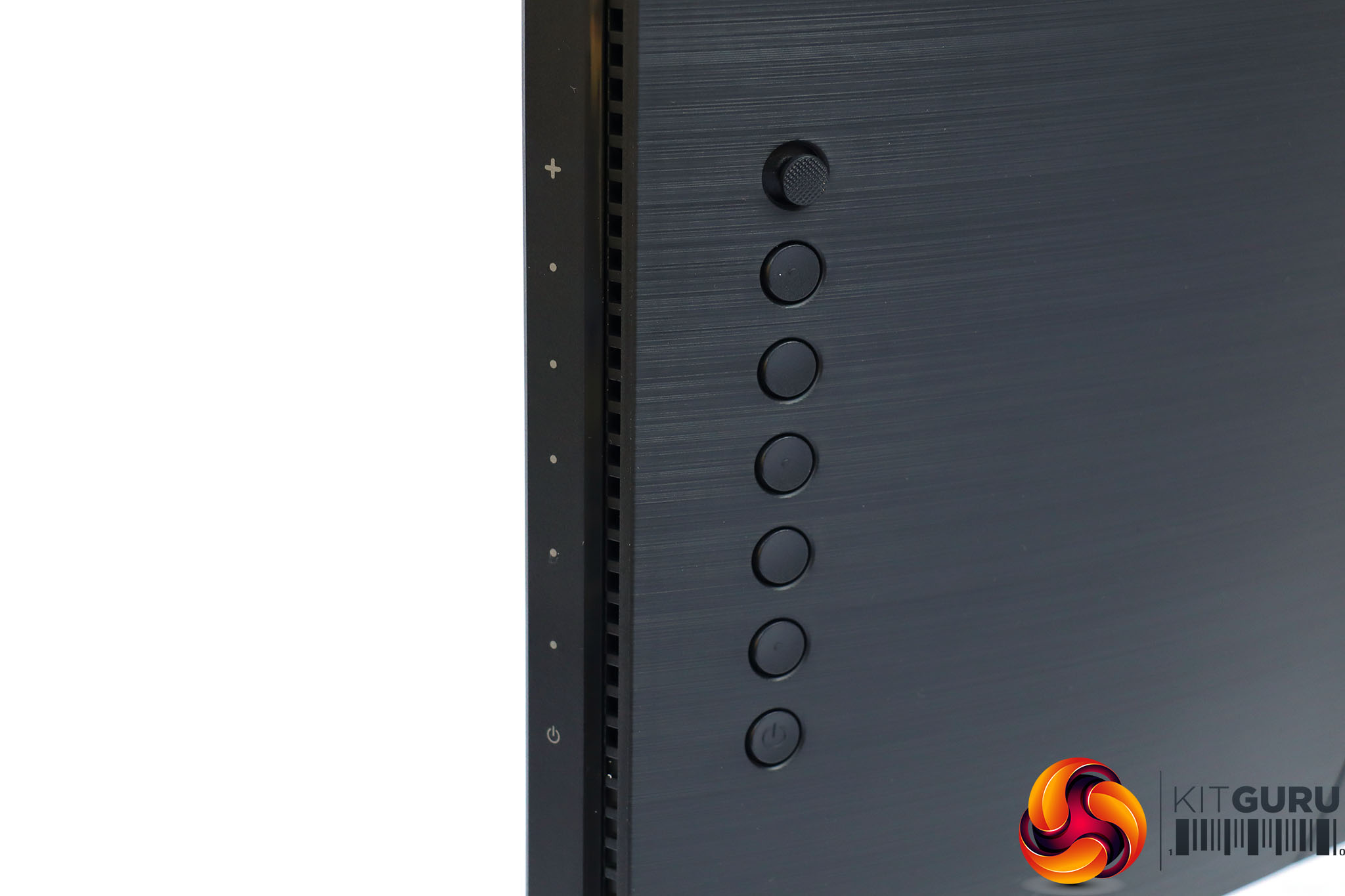
Just as the connectivity is comprehensive, so are the OSD controls. Not only do you get a joystick, but also six buttons, although the bottom one is for toggling power. The others correspond to menu control icons on the side, but also have context-sensitive functions in the menu, which appears on the screen in front of their location.
Unlike some menu systems, with the PA34VC, apart from the power button, the other buttons and joystick don't initially have different functions.
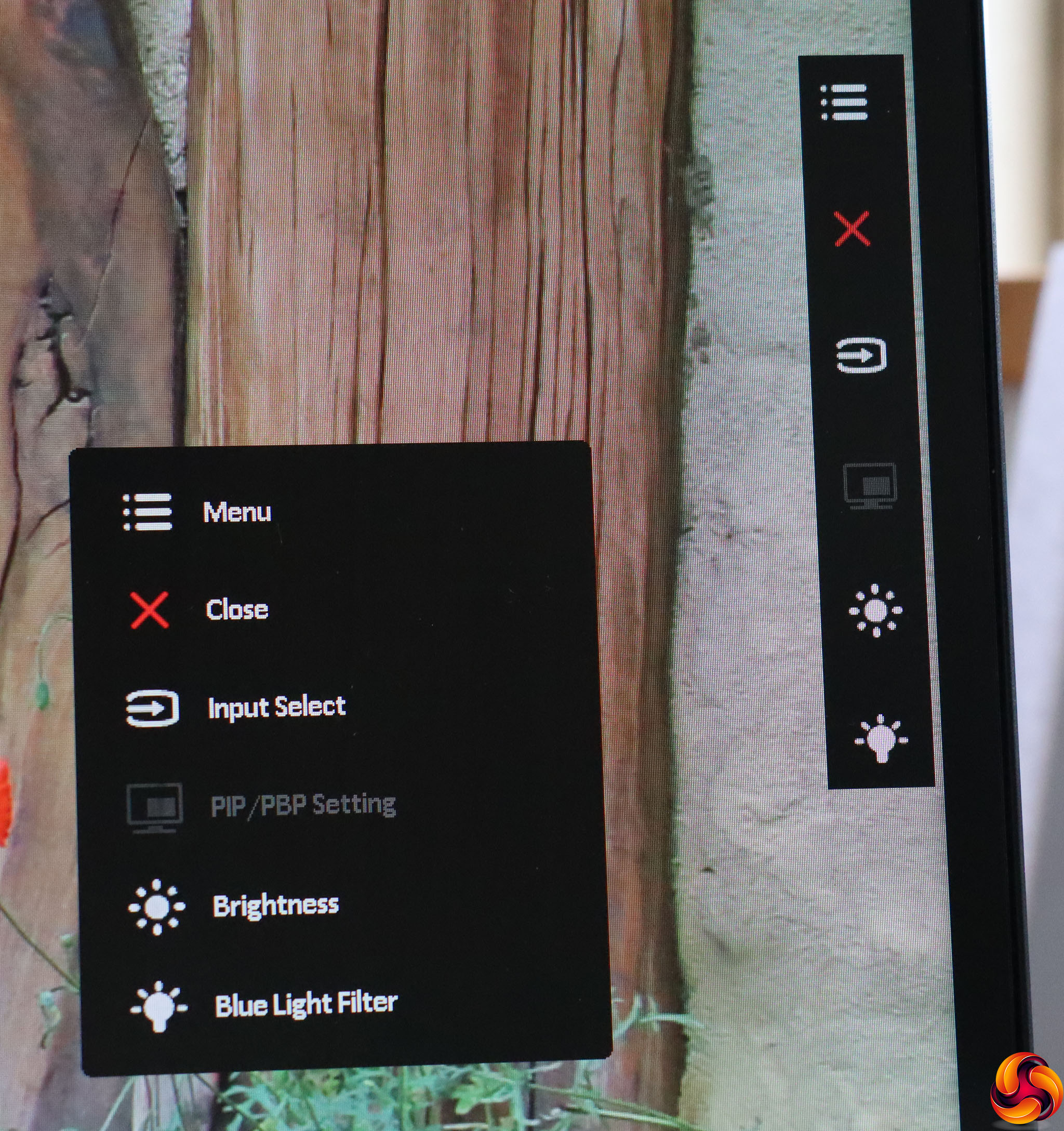
Press any one of them and you get the above, showing you what each one does. Pressing the joystick will get you to the main menu, of which more later, and the button just below the joystick closes the current menu.
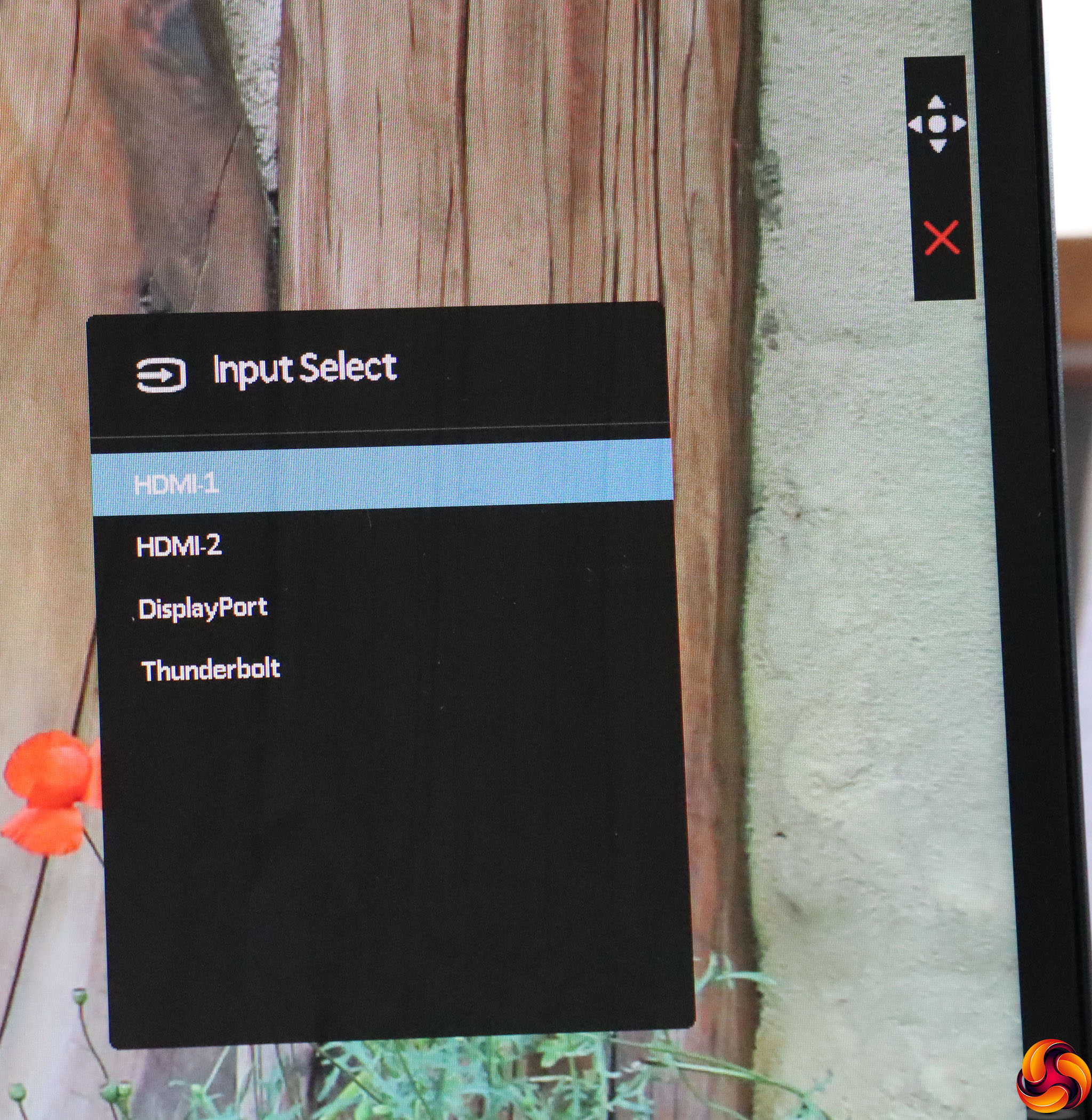
The second button down from the joystick calls up an input menu, so you can manually select which video signal to display on the screen.
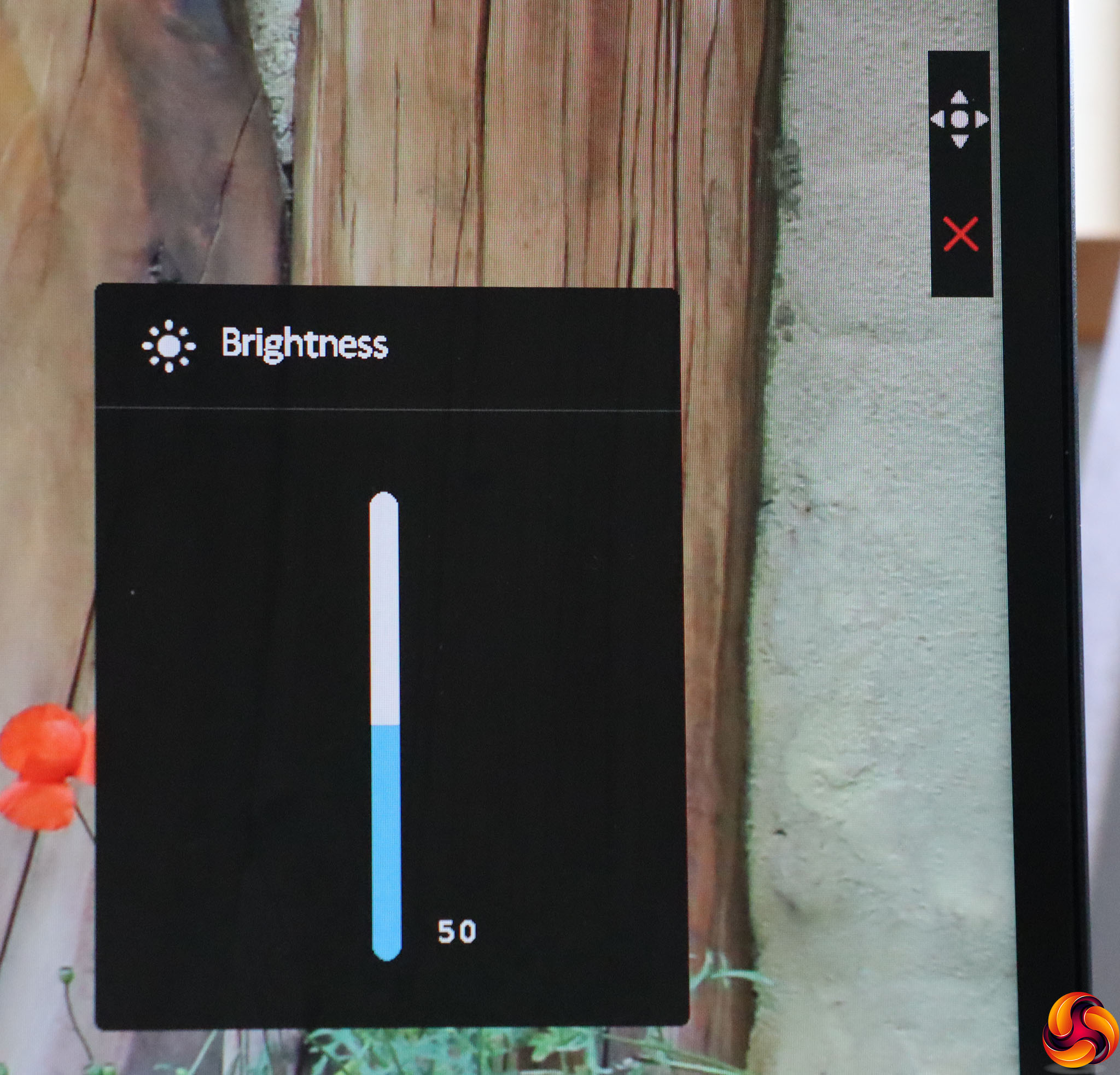
The third button down is for picture-in-picture and picture-by-picture, so is only enabled when you have multiple video inputs, which we didn't. So we shall move onto the fourth button, which by default provides rapid access to the brightness control.
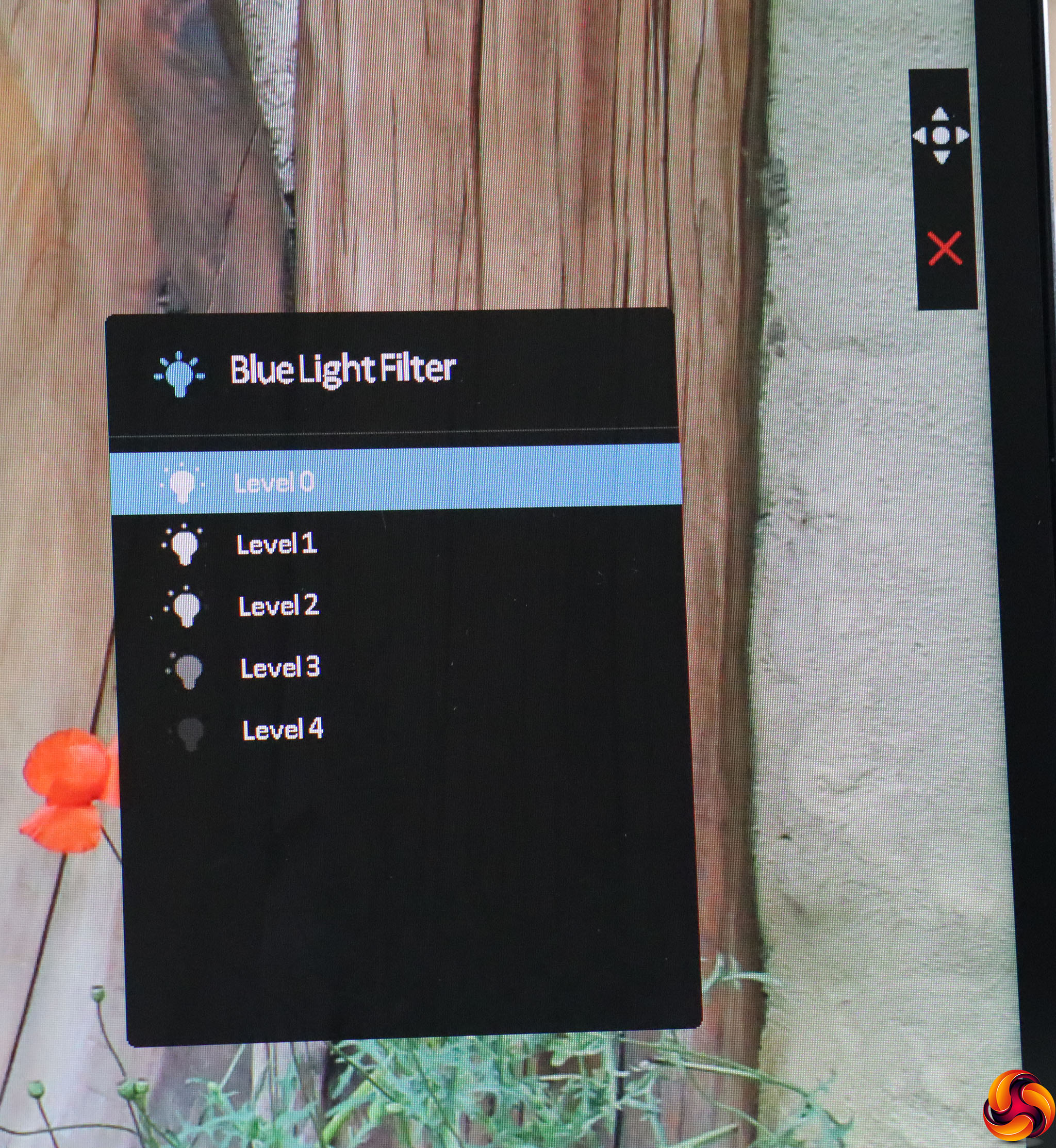
The fifth button down lets you turn on the Blue Light Filter, which has four levels of intensity. This is intended to reduce eyestrain from staring at a screen for too long.
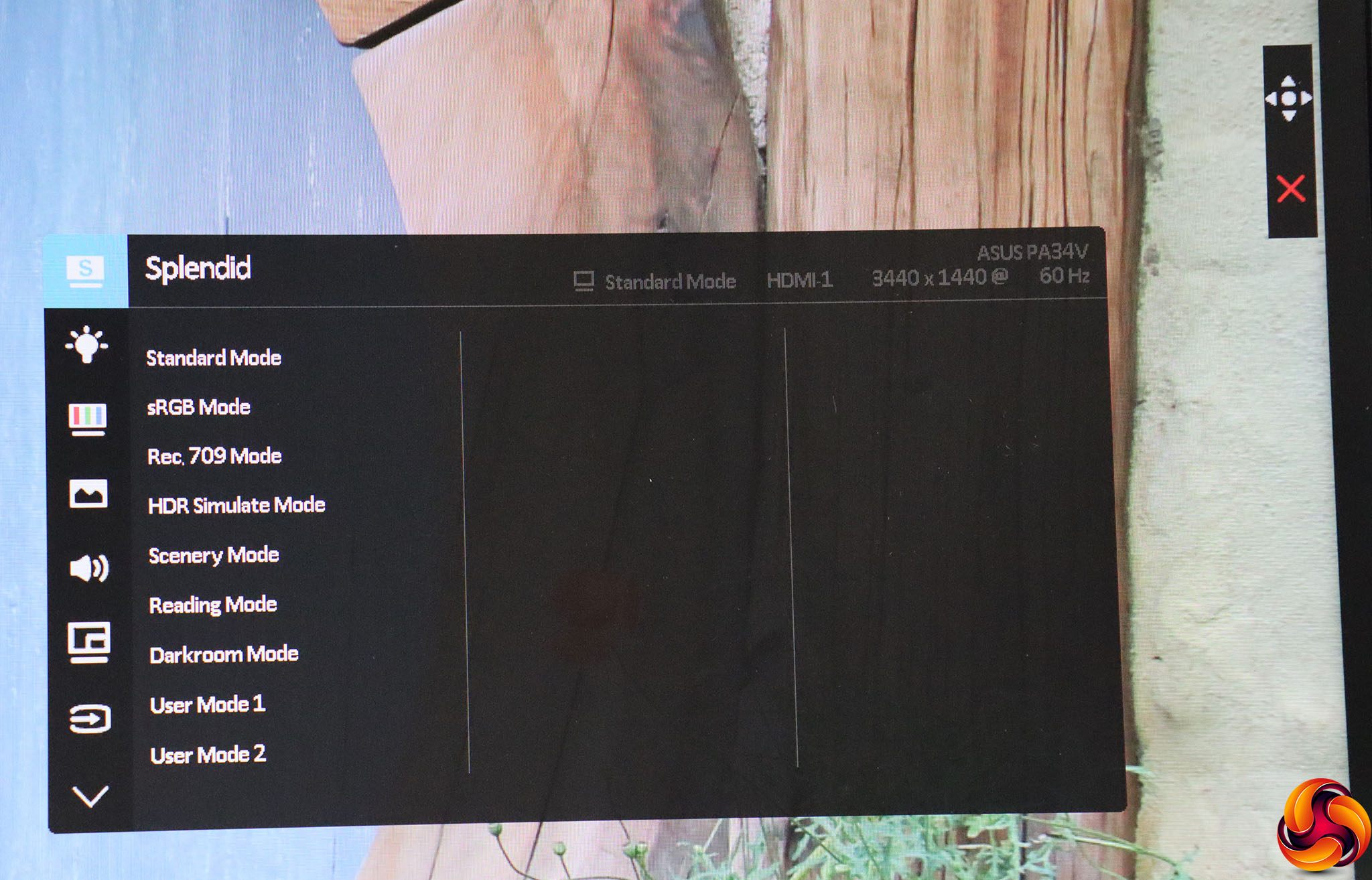
But if you want to get to the more detailed options, you have to press the joystick (or press it again if that was how you called up the quick menu system). The default submenu that appears is host to the Splendid modes, which are ASUS' presets. These include the default Standard option, plus sRGB, Rec. 709, HDR Simulate, Scenery, Reading, Darkroom, and two user-configurable options.
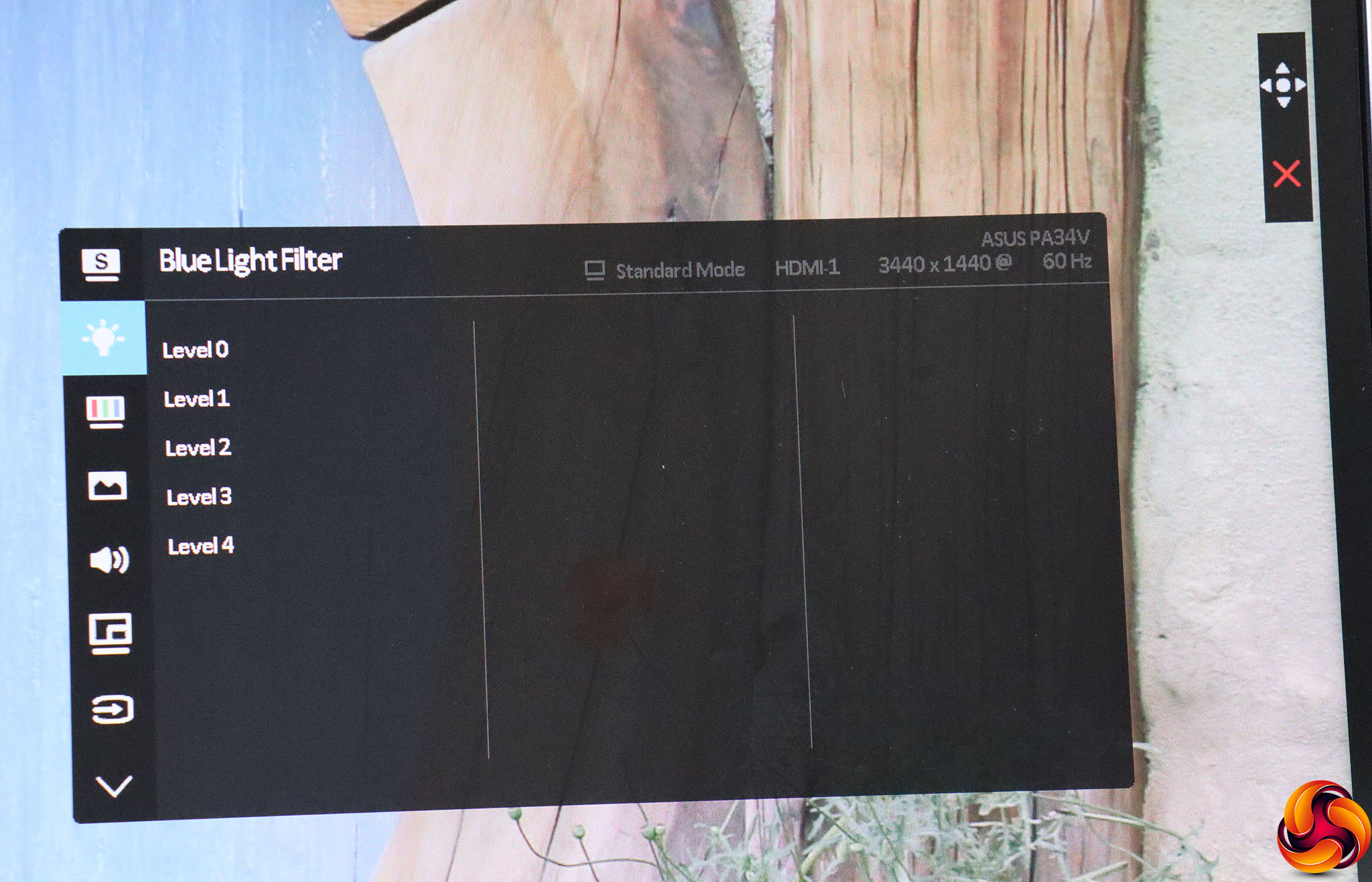
Using the joystick to go down to the next submenu reveals another route to the Blue Light Filter levels.
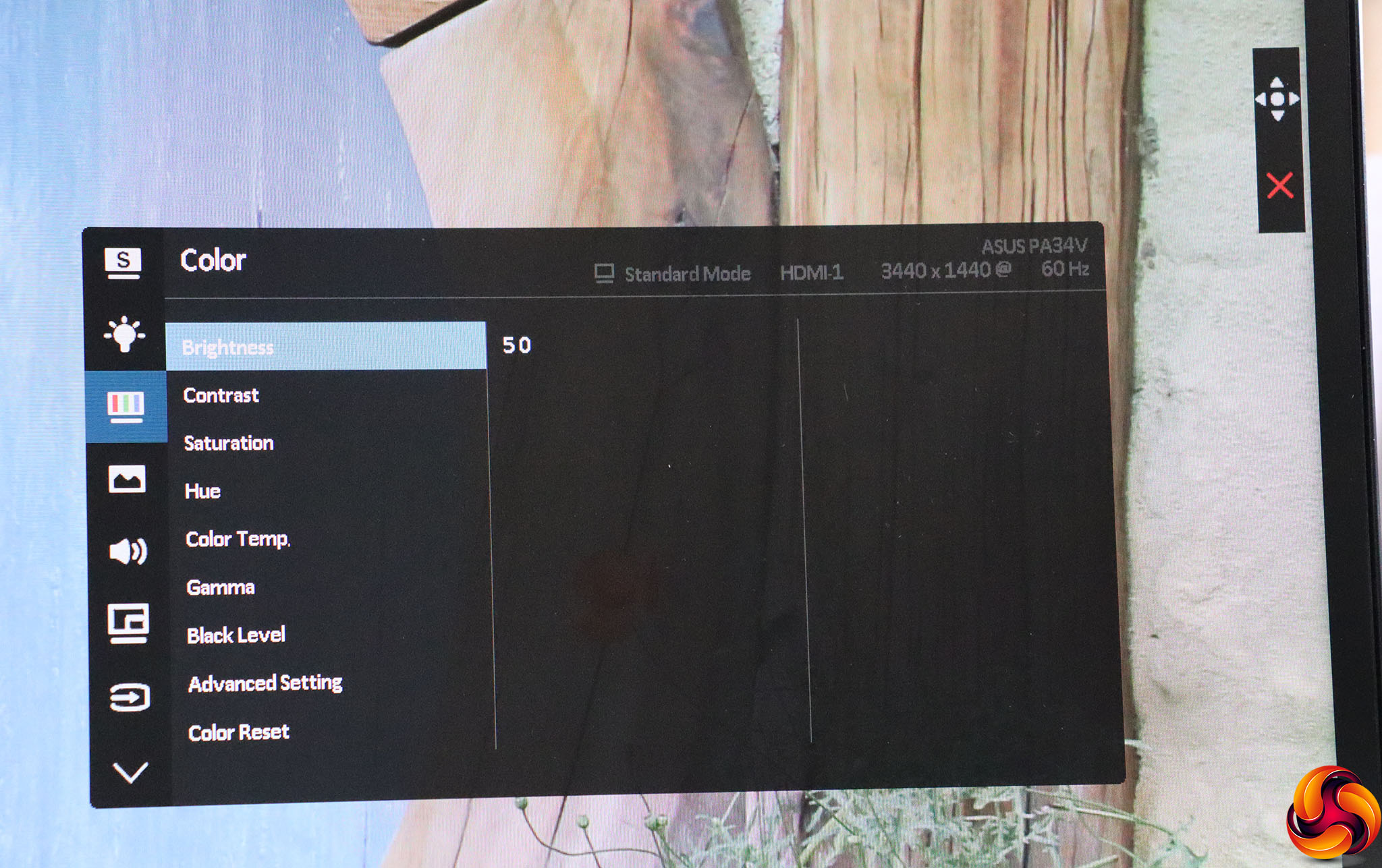
The Color menu is the next down, and much more full of options. You can adjust brightness, contrast, saturation and hue from 0 to 100. The Black Level has the same range. You can also select four Color Temperature presets – 9300K, 6500K, 5500K and 5000K. The five Gamma settings vary from 1.8 to 2.6 in increments of 0.2. Then there's even more under Advanced Setting, where you can find six-axis hue and six-axis saturation (RGBCMY), plus RGB controls under a Gain option and an Offset option, with the latter adding or subtracting from a preset level rather than replacing it. In all, a really comprehensive range of colour adjustment.
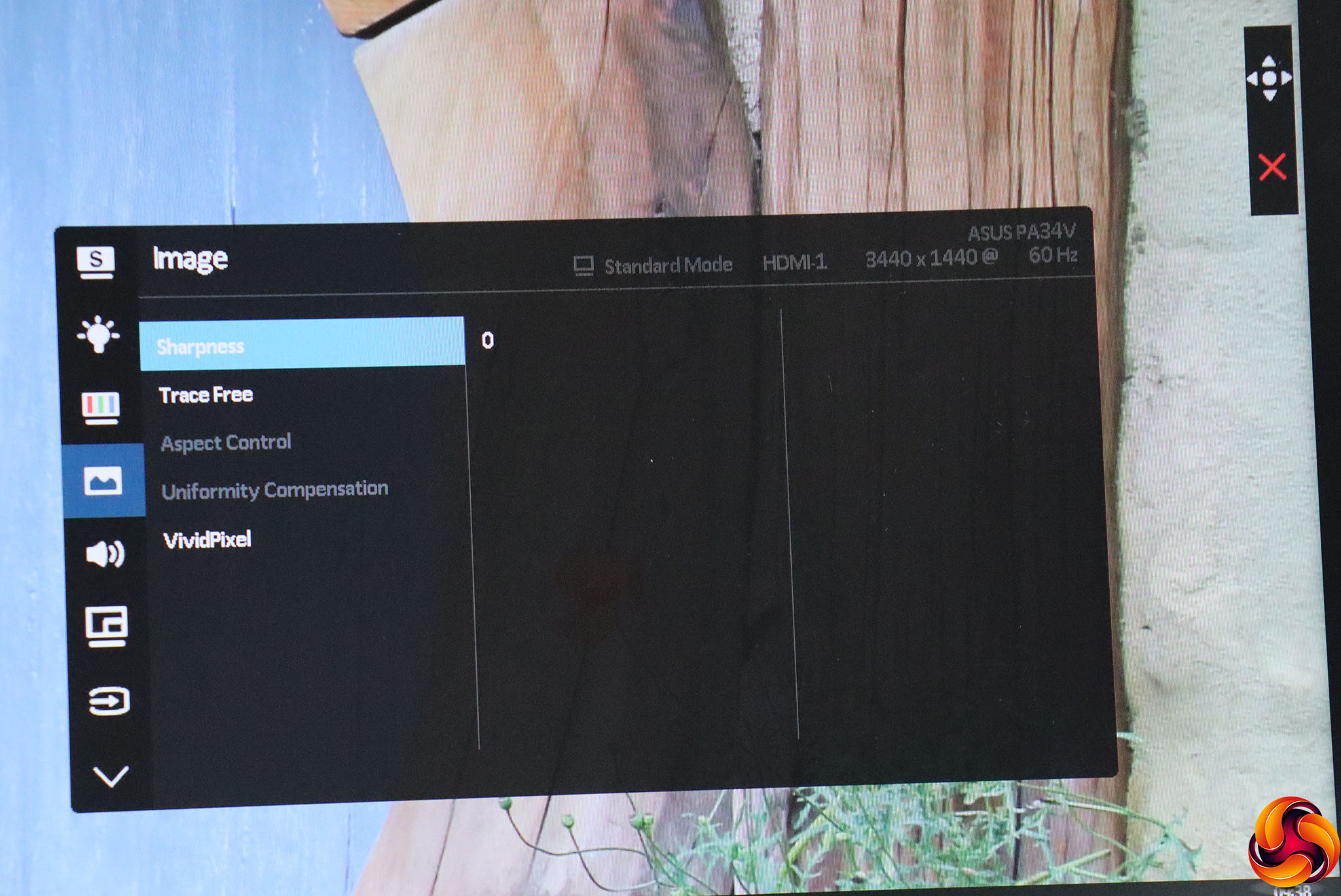
Next along is the Image Section, which includes a Sharpness setting with a range from 0 to 100. The Trace Free option is a pixel overdrive which also ranges from 0 to 100 and defaults to 60. With some sources, you can alter the viewed aspect ratio, and if you have Dynamic Dimming and HDR off you can enable uniformity compensation. Vivid Pixel is another type of edge sharpness control, with a range from 0 to 100 but in increments of 25.
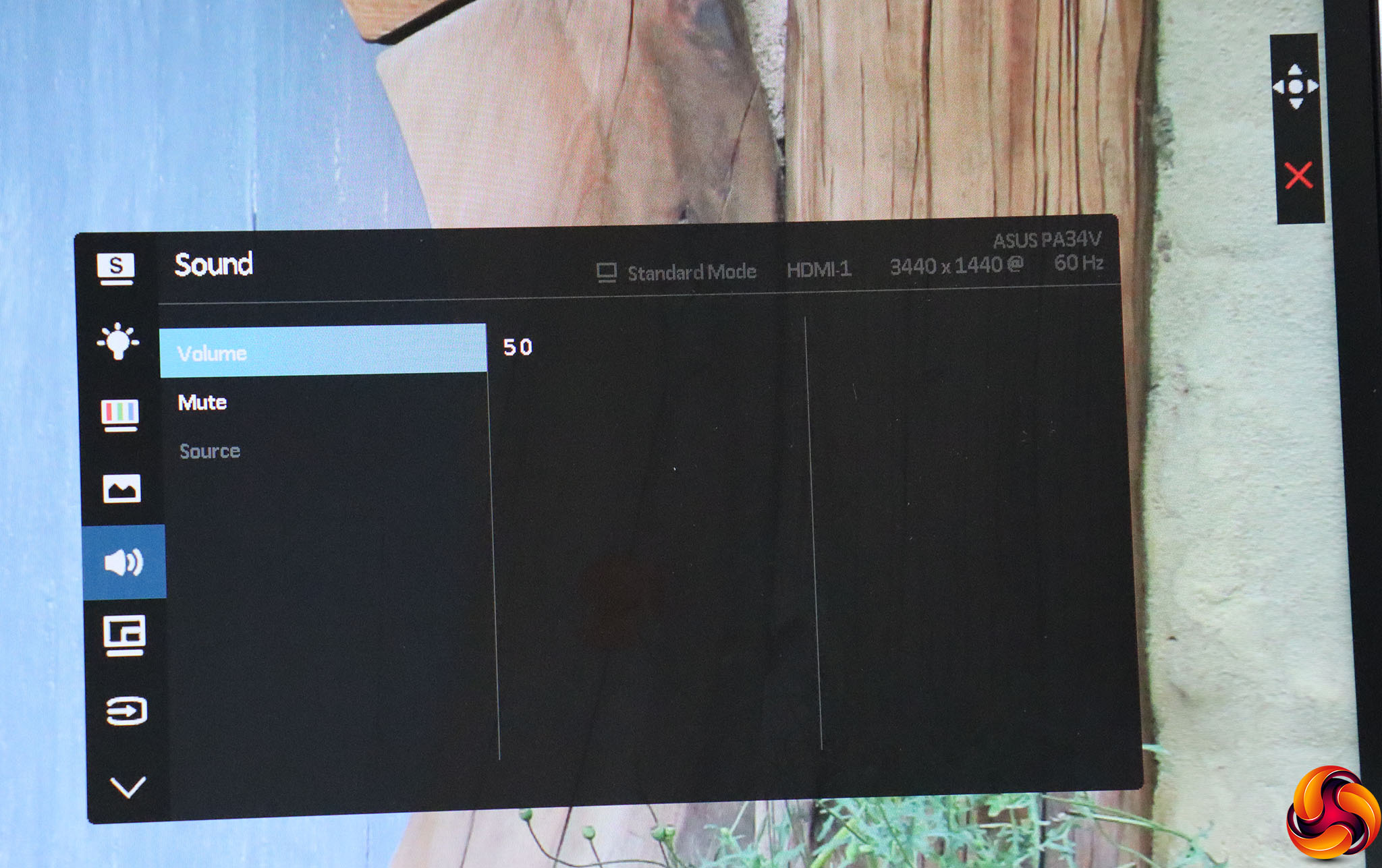
The Sound section provides volume control, the ability to mute the audio, and to choose between sources if you are getting an audio signal from multiple video inputs.
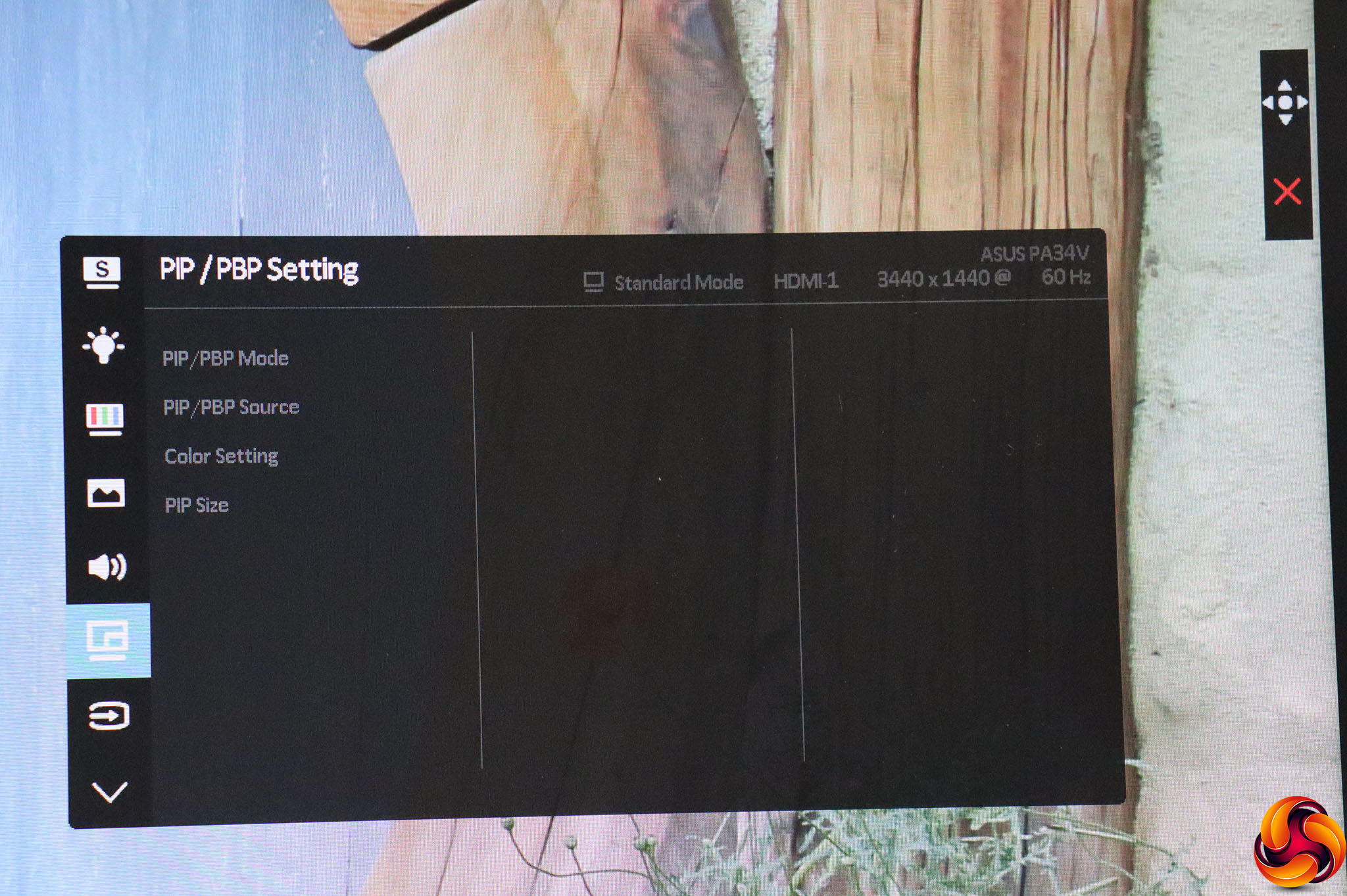
If you have multiple video sources connected, you can select a couple to have onscreen simultaneously here, and also adjust the colour differently for the secondary window. You can't display two HDMI sources at once, however, for some reason.
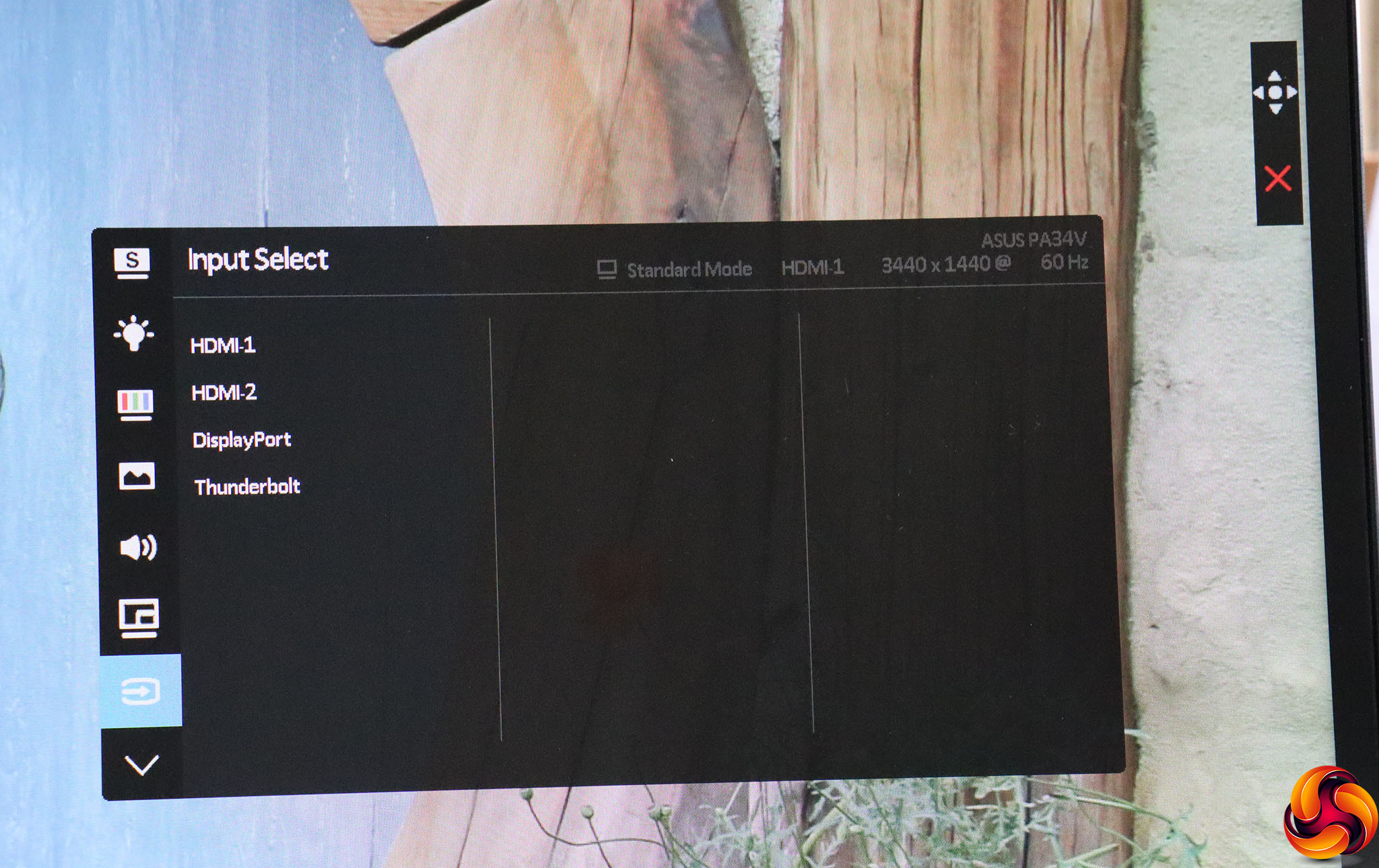
Next along is the same range of input options as the quick menu version.
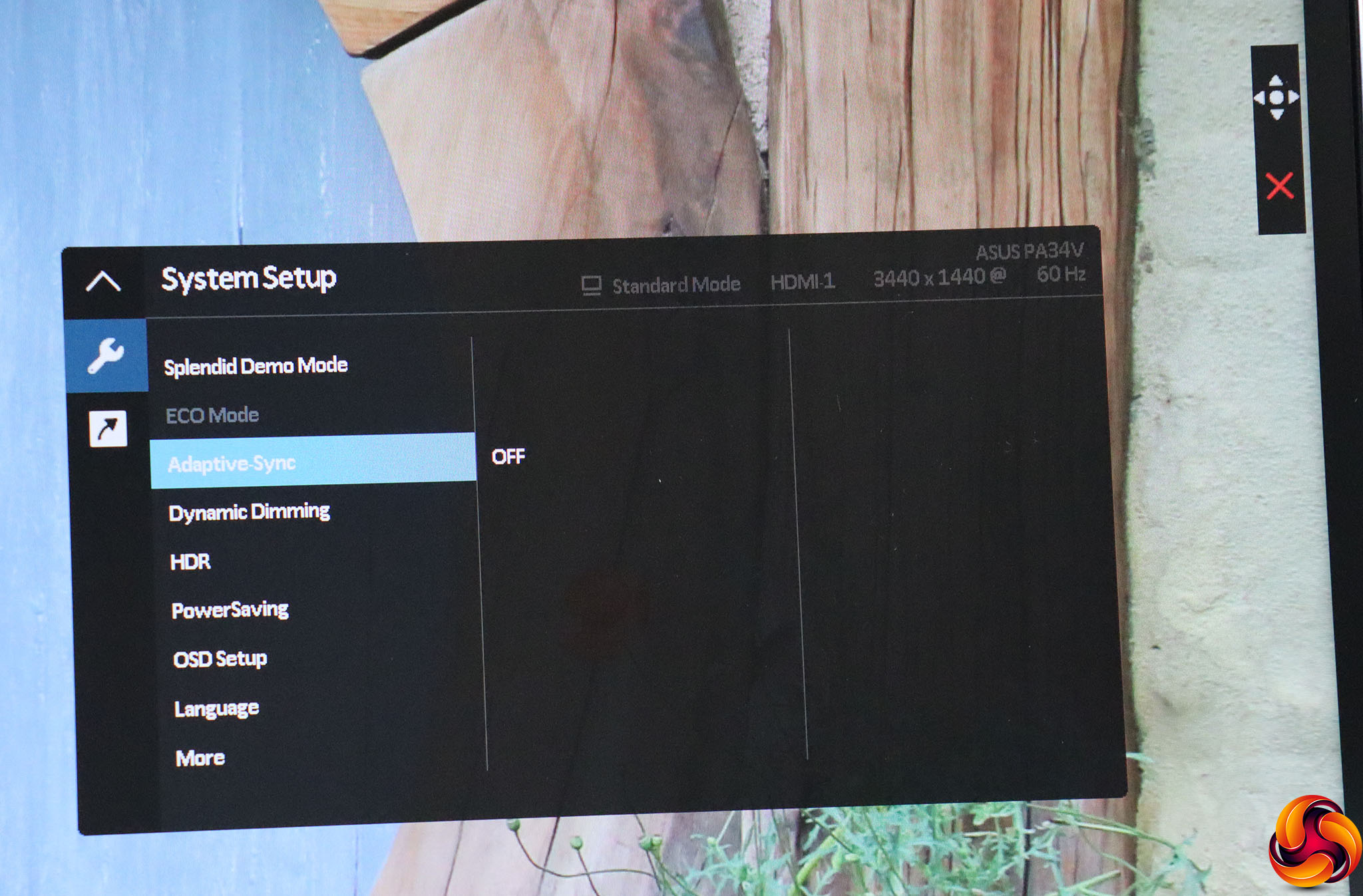
If you scroll beyond the last option on the main menu, you reveal a couple more categories. The System Setup option lets you turn on a mode to demo the Splendid presets, toggle FreeSync adaptive synchronisation, and Dynamic Dimming. You need the latter and HDR to be turned off to enable the ECO Mode for reduced power consumption, however.
The HDR options include an ASUS-exclusive setting or PQ300, which maps HDR brightnesses to the actual brightness the monitor can cope with up to the maximum (300cd/m2), then all values above that are set to this maximum.
The Power Saving mode revolves around whether you want the USB and Thunderbolt ports to supply power when the screen is in sleep mode. The OSD Setup section lets you choose timeout duration, whether DDC/CI is enabled, and how opaque the menu overlay is. You can switch between 21 different Languages for the menu, and if you scroll down to More, you can set a reminder for regular re-calibration, choose whether DisplayPort 1.2 or 1.1 is used, and lock the menu keys.
Lastly, you can toggle the power LED, call up more detailed information than is available on the top right-hand corner of the menu, and reset to defaults.
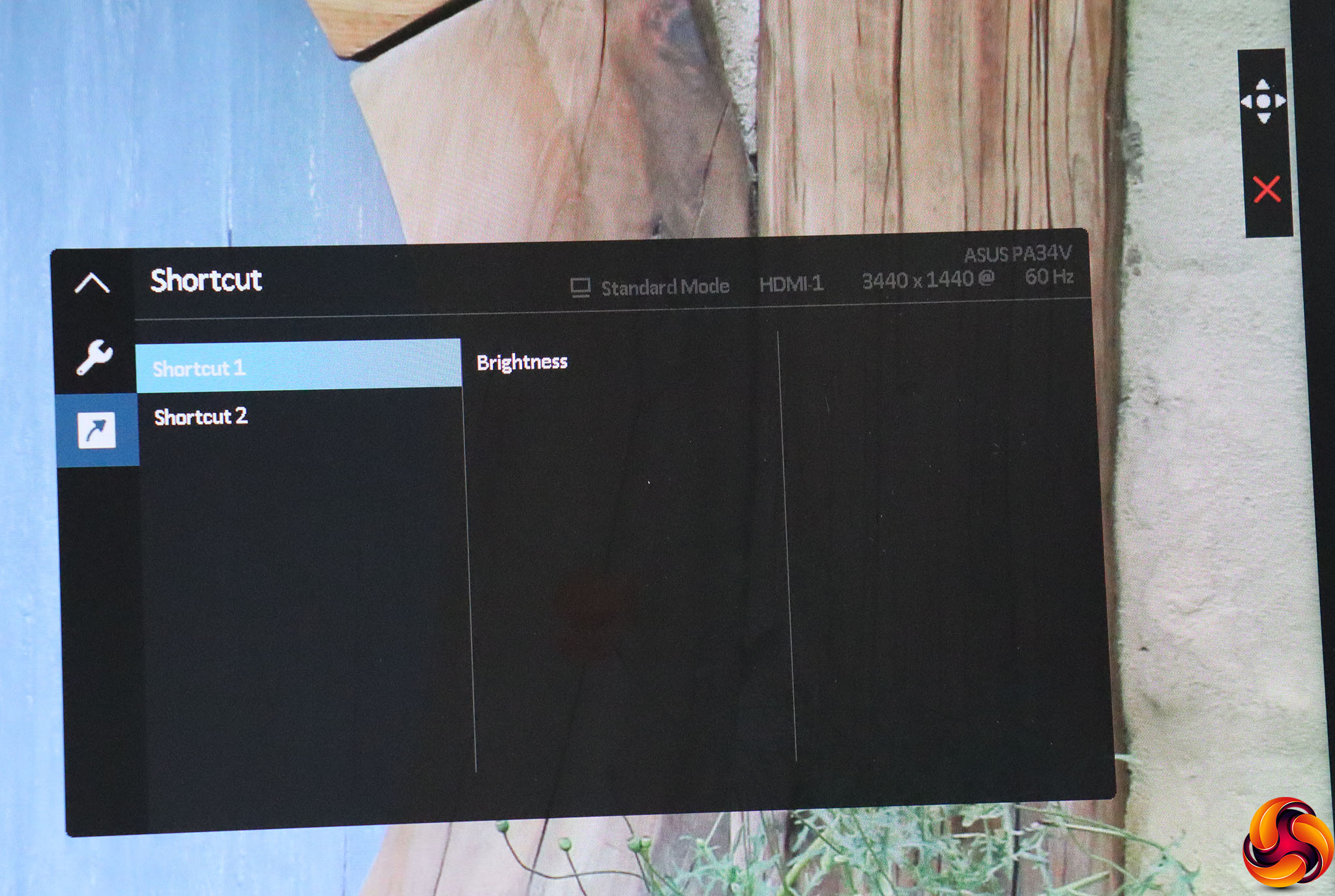
Finally, under Shortcut you can change what the bottom two quick menu options are. By default, they are Brightness and Low Blue Light, but you could also populate these with HDR mode, contrast, colour temperature, volume, or one of the two custom user preset Splendid modes. Unfortunately, the full list of Splendid presets can't be placed as a Shortcut, which would have been a very useful option.
Overall, though, there is a huge range of configurability here, as you would expect from a high-end professional screen. The ASUS ProArt menu has proven consistently comprehensive in all the models we have tested so far, which will please the intended user.
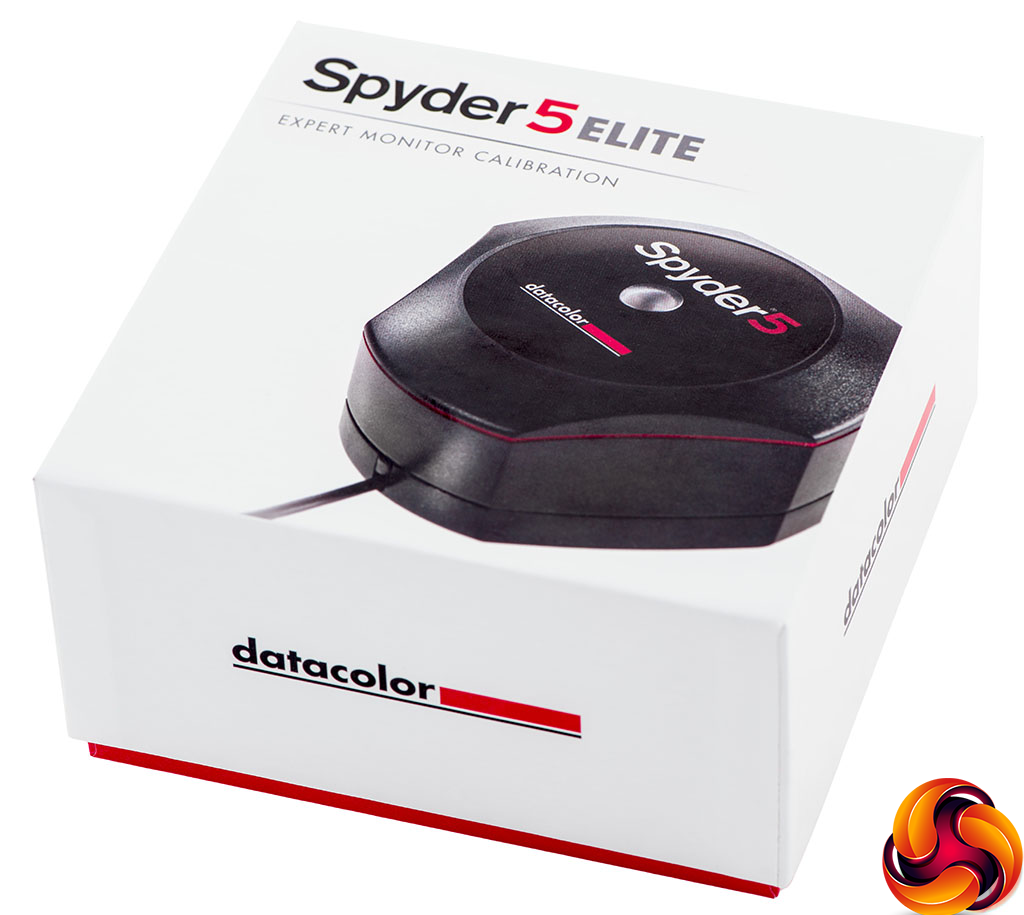
Our main test involves using a DataColor Spyder Elite 5 Colorimeter to assess a display’s image quality. The device sits on top of the screen while the software generates colour tones and patterns, which it compares against predetermined values to work out how accurate the screen is.
The results show –
- A monitor’s maximum brightness in candelas or cd/m2 at various levels set in the OSD.
- A monitor’s contrast ratio at various brightness levels in the OSD.
- The brightness deviation across the panel.
- The black and white points.
- The colour accuracy, expressed as a Delta E ratio, with a result under 3 being fine for normal use, and under 2 being great for colour-accurate design work.
- The exact gamma levels, with a comparison against preset settings in the OSD.
We first run this test with the display in its default, out-of-the-box state, with all settings on default. We then calibrate the screen using the Spyder software and run the test again.
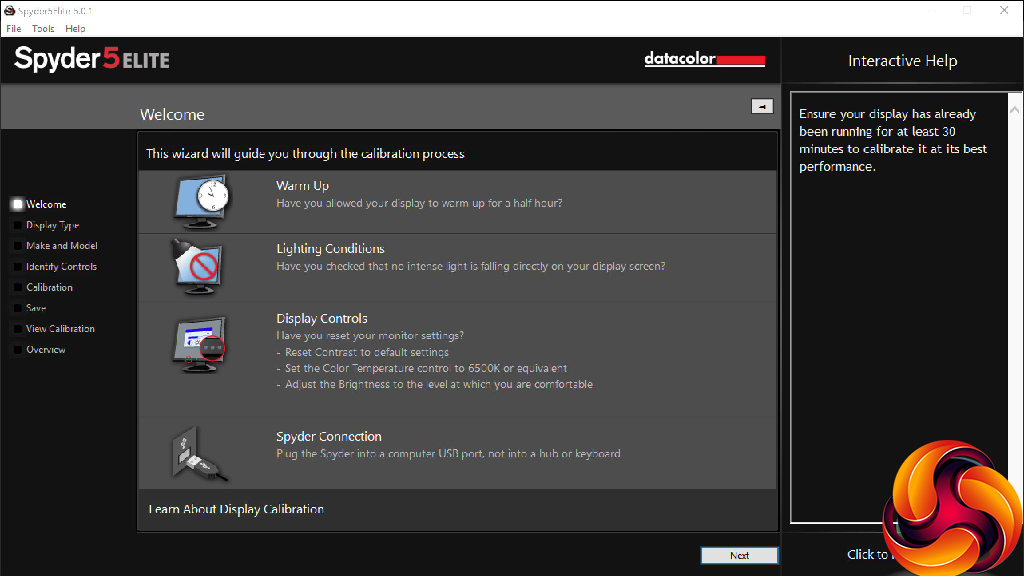
We always test the display subjectively on the Windows desktop, using it for general tasks such as browsing and word processing, and with games as well, even if the display is not intended solely for that purpose.
We pay careful attention to any artefacts, ghosting or motion blur, and enable any gaming-specific features, such as adaptive-sync settings like G-Sync or FreeSync, using a compatible graphics card in our test PC.
We performed the quality tests at the native 3,440 x 1,440 resolution in the default mode, after resetting the OSD, which uses a 60Hz refresh. Our test system was equipped with an AMD Radeon Vega Frontier Edition graphics card, which also supports FreeSync.
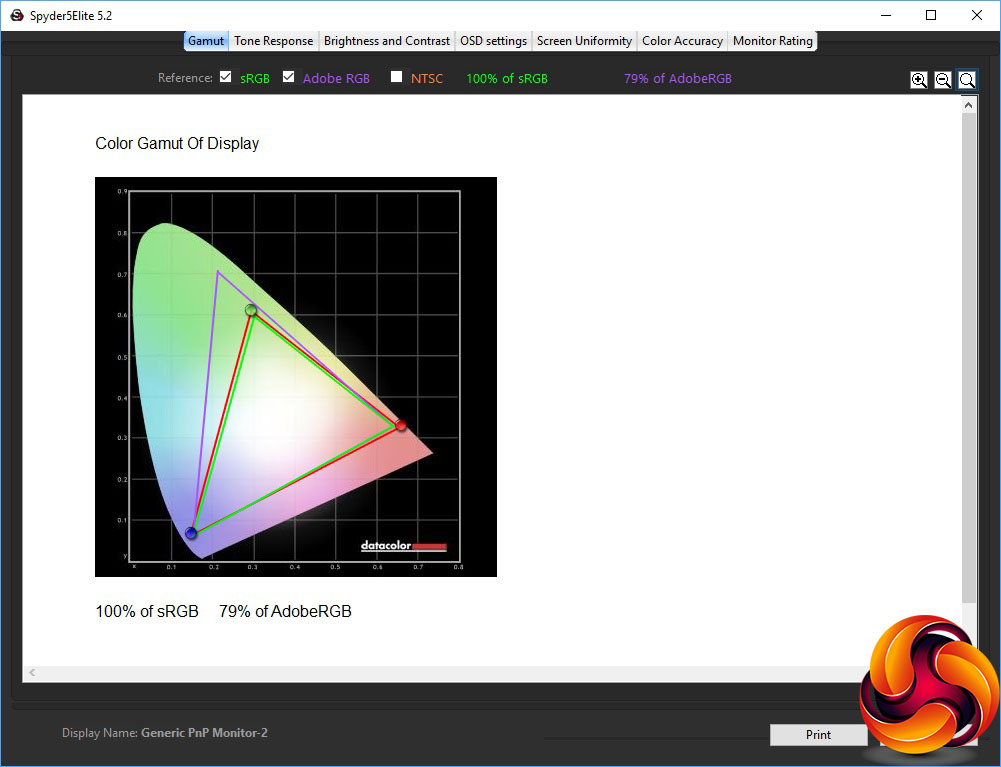
The gamut is good, offering 100 per cent of sRGB as promised and 79 per cent of AdobeRGB. But we've seen much better from ASUS's monster PA32UC, although that is twice the price, and the Samsung CF791 was slightly ahead too.
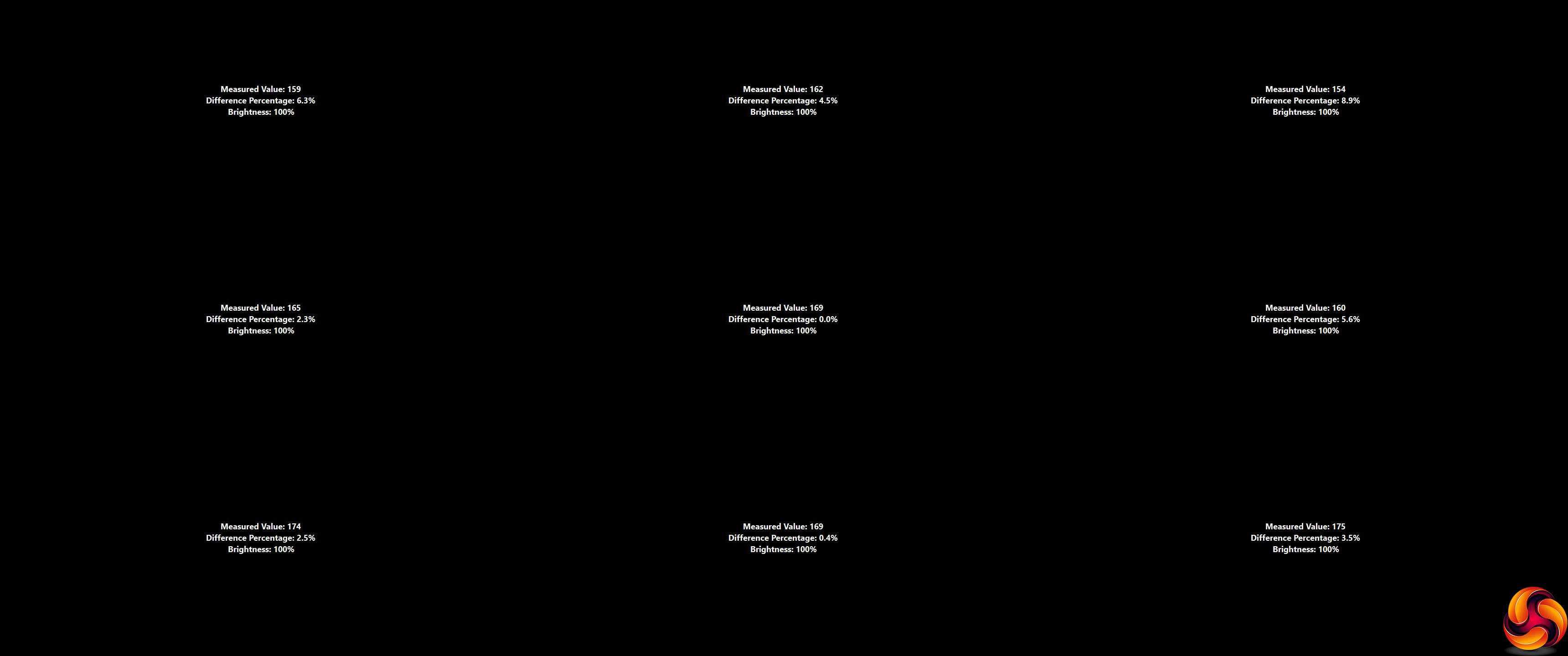
Brightness uniformity is good, with just a few per cent of variation beyond the centre, apart from the top-right corner. However, again the PA32UC was better, as was Samsung's CF791.
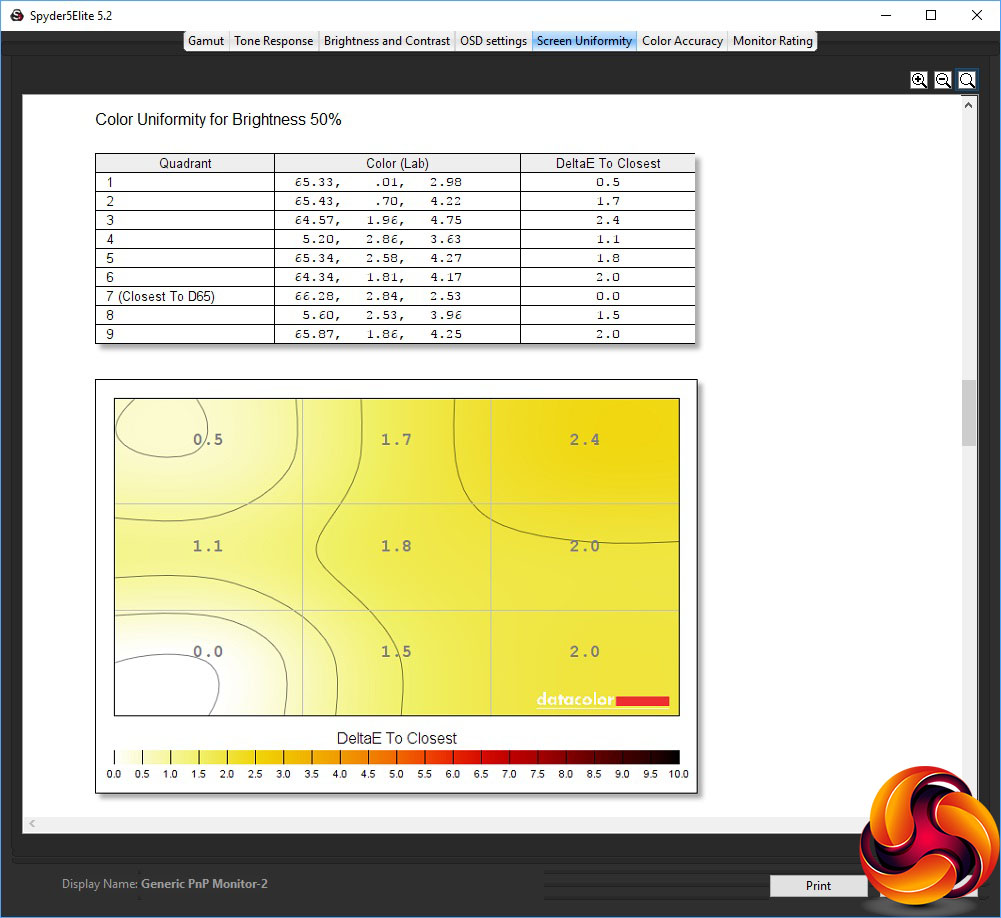
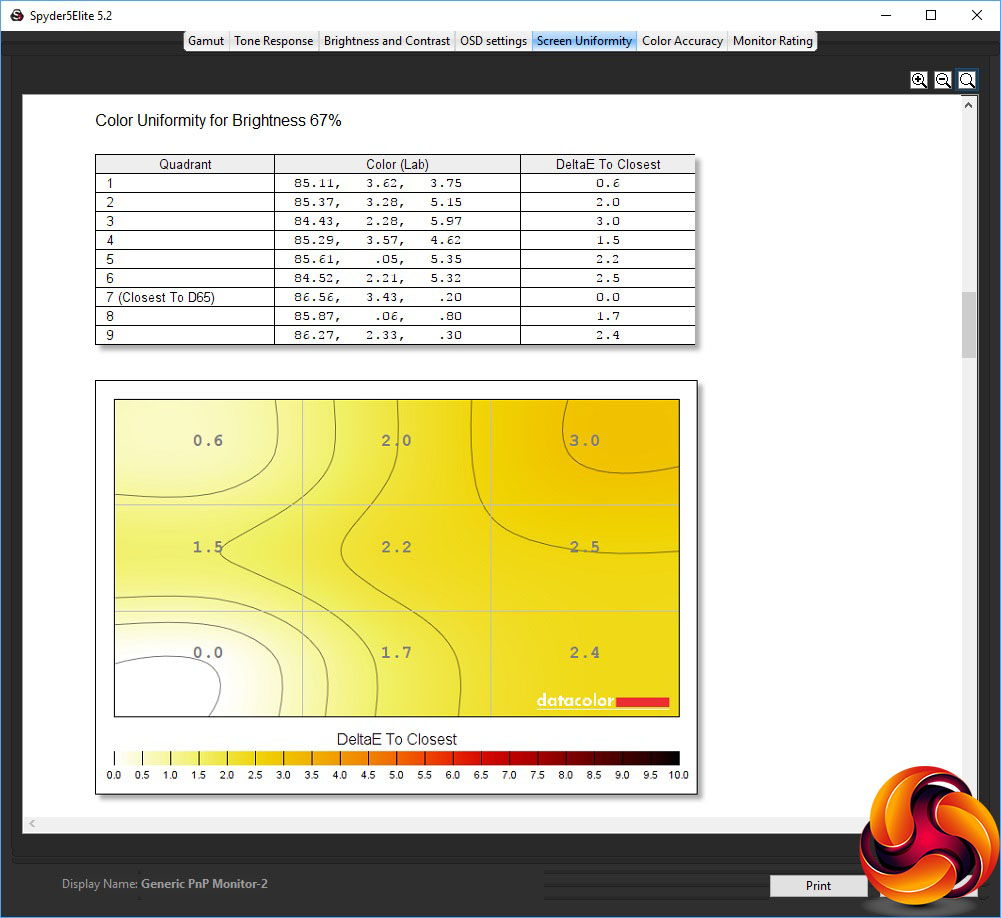
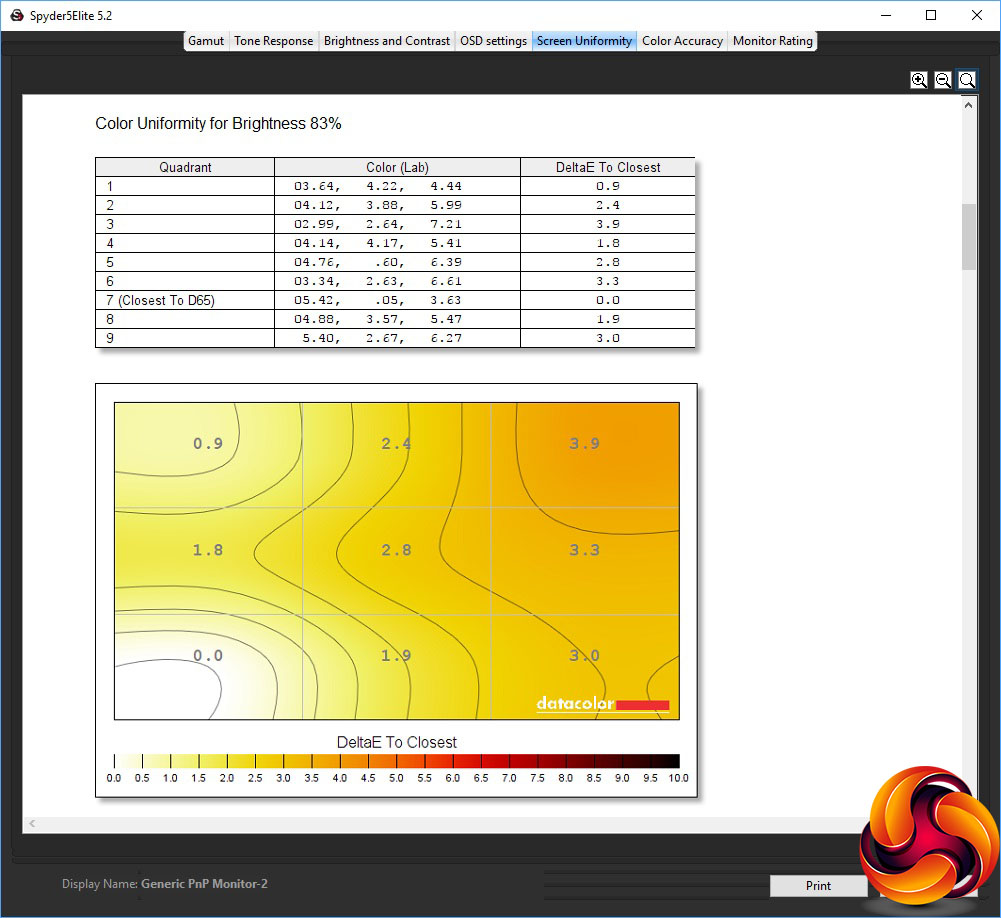
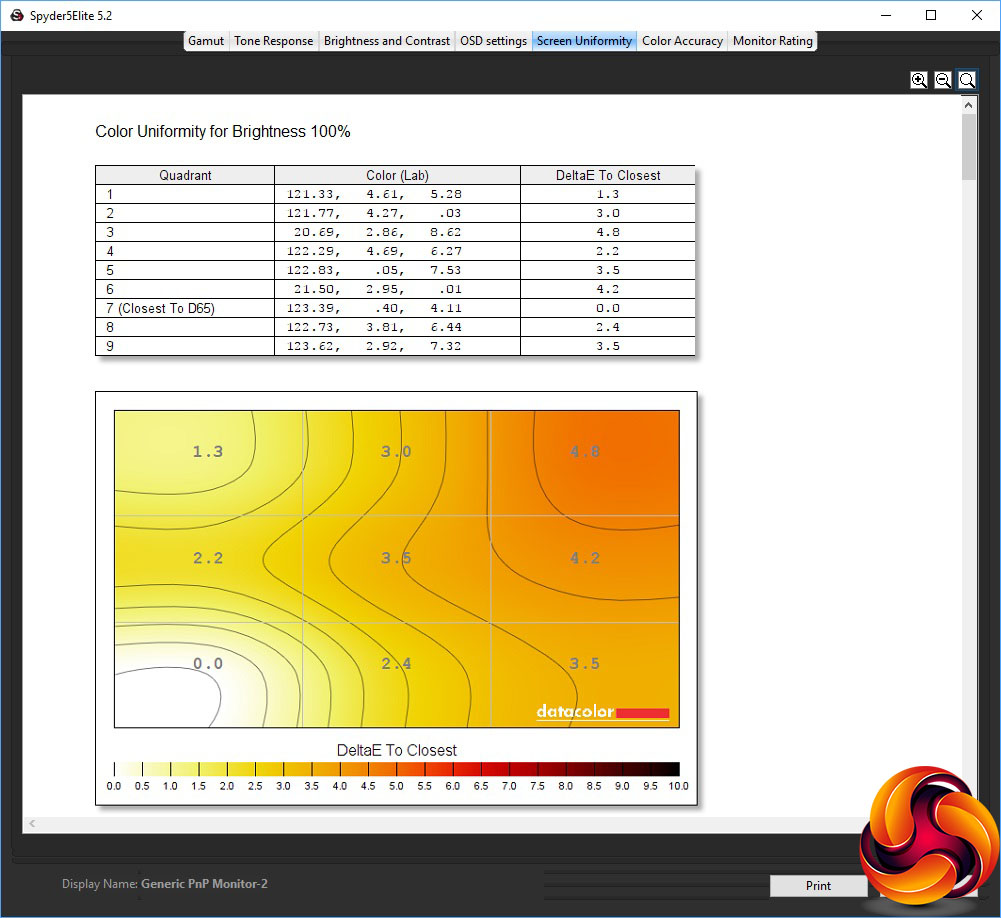
Colour uniformity is good too, with the slight exception of the top-right corner.
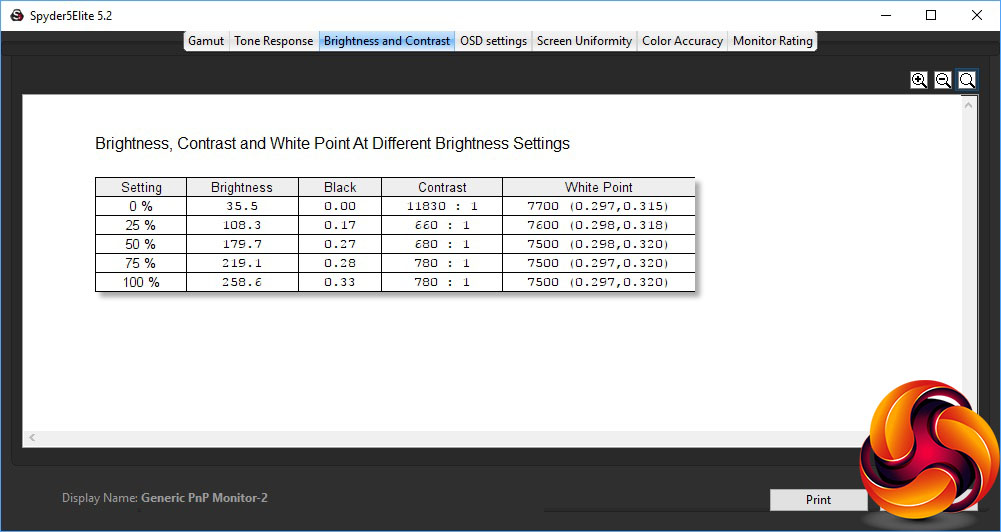
The PA34VC doesn't manage to reach its 300cd/m2 rating at its default setting, only hitting 258.6cd/m2 at 100 per cent brightness. As this is an IPS screen, it's not surprising to see mediocre contrast of up to 780:1, with the usual exception of a very high contrast at zero brightness. The white point should be 6500K, but is actually registered as 7500K from 50 per cent brightness upwards.

The “Splendid” OSD presets are somewhat unusual. All but HDR Simulate and Scenery offer a perfect blackpoint, and even Scenery is only registered at 0.01. White points don't vary that much, with Standard, sRGB, Rec. 709 and Scenery all using 7600K, and HDR Simulate a very slightly warmer 7500K whileDarkroom is a very slightly cooler 7700K. The only real difference is Reading mode, which is a noticeably warmer 6100K. However, all but the latter are supposed to be 6500K.
The brightness levels do vary a lot, however. Standard mode is 209.8cd/m2, while sRGB and Rec. 709 are lower at 167.9cd/m2 and 166.1cd/m2 respectively. HDR Simulate is the brightest at 321.5cd/m2, which is actually more than this monitor's official rating. Scenery mode is spot on the rating at 300cd/m2. Reading and Darkroom, in contrast, are very low, at 57cd/m2 and 43.7cd/m2 respectively.
As we have seen with previous ASUS ProArt screens, dynamic contrast is clearly in action by default, since all these presets offer extremely high values, with only HDR Simulate offering a fairly normal 3,220:1. But IPS panels can't natively produce even this level of contrast, so there will be some backlight intensity variation in use to achieve this.
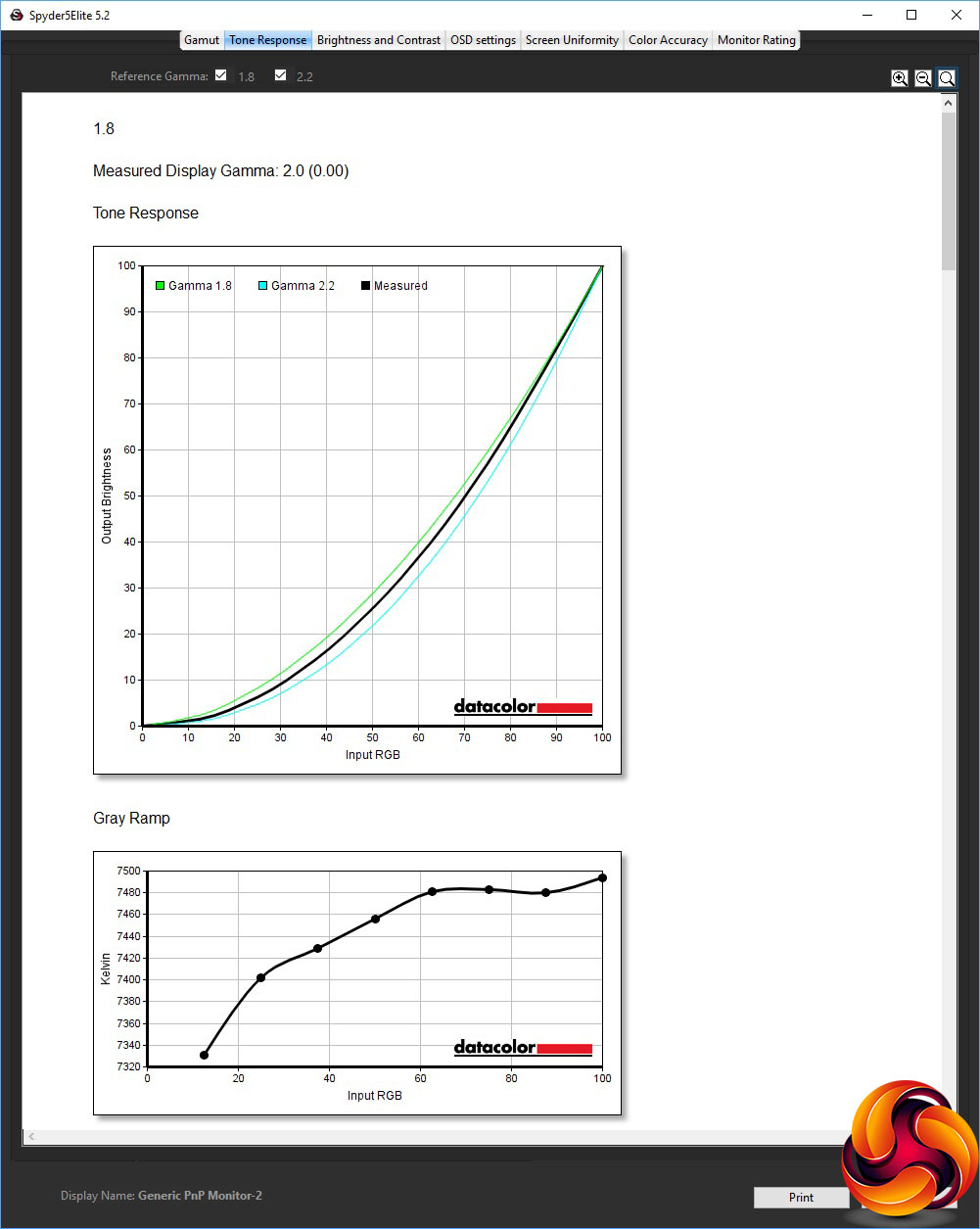
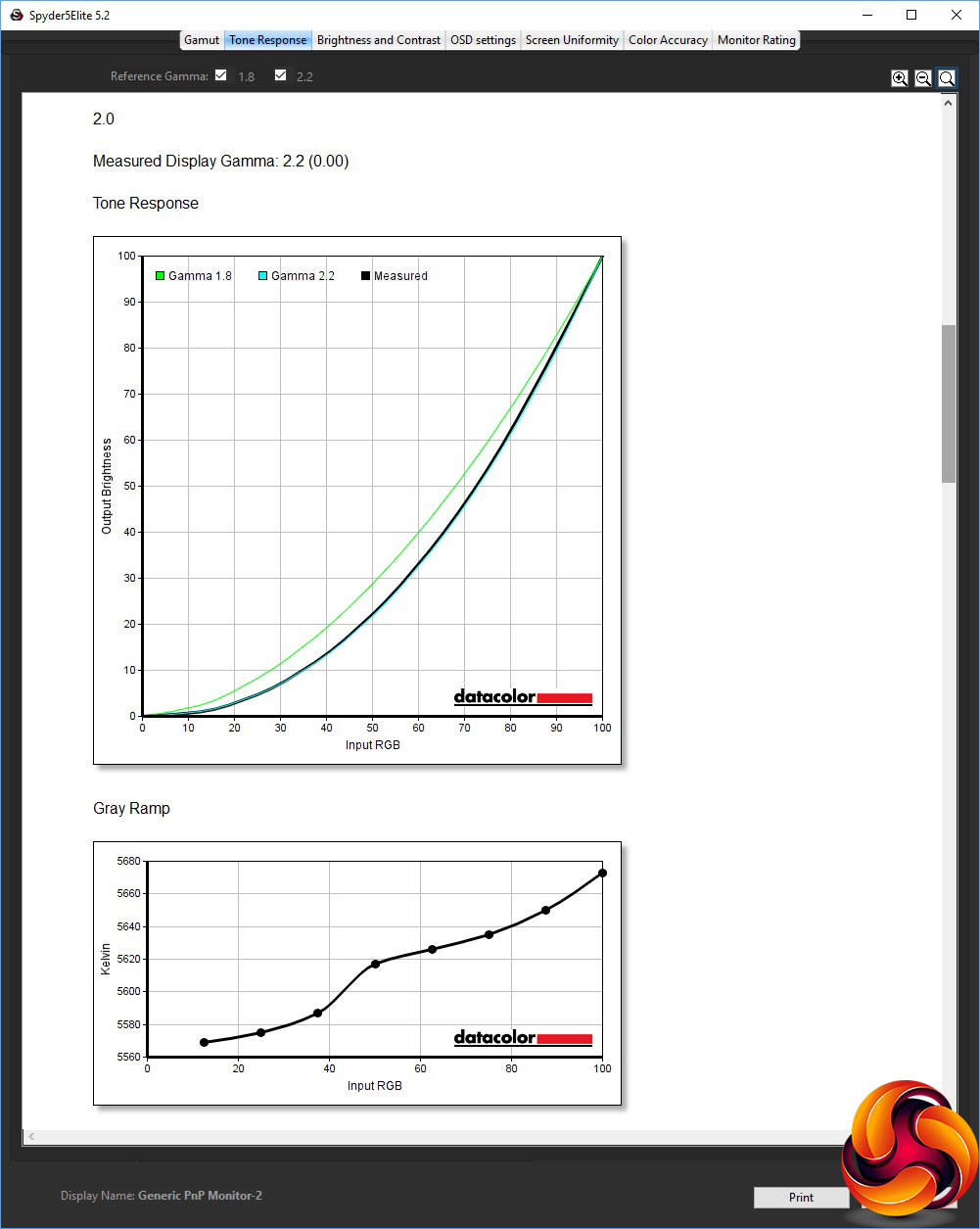
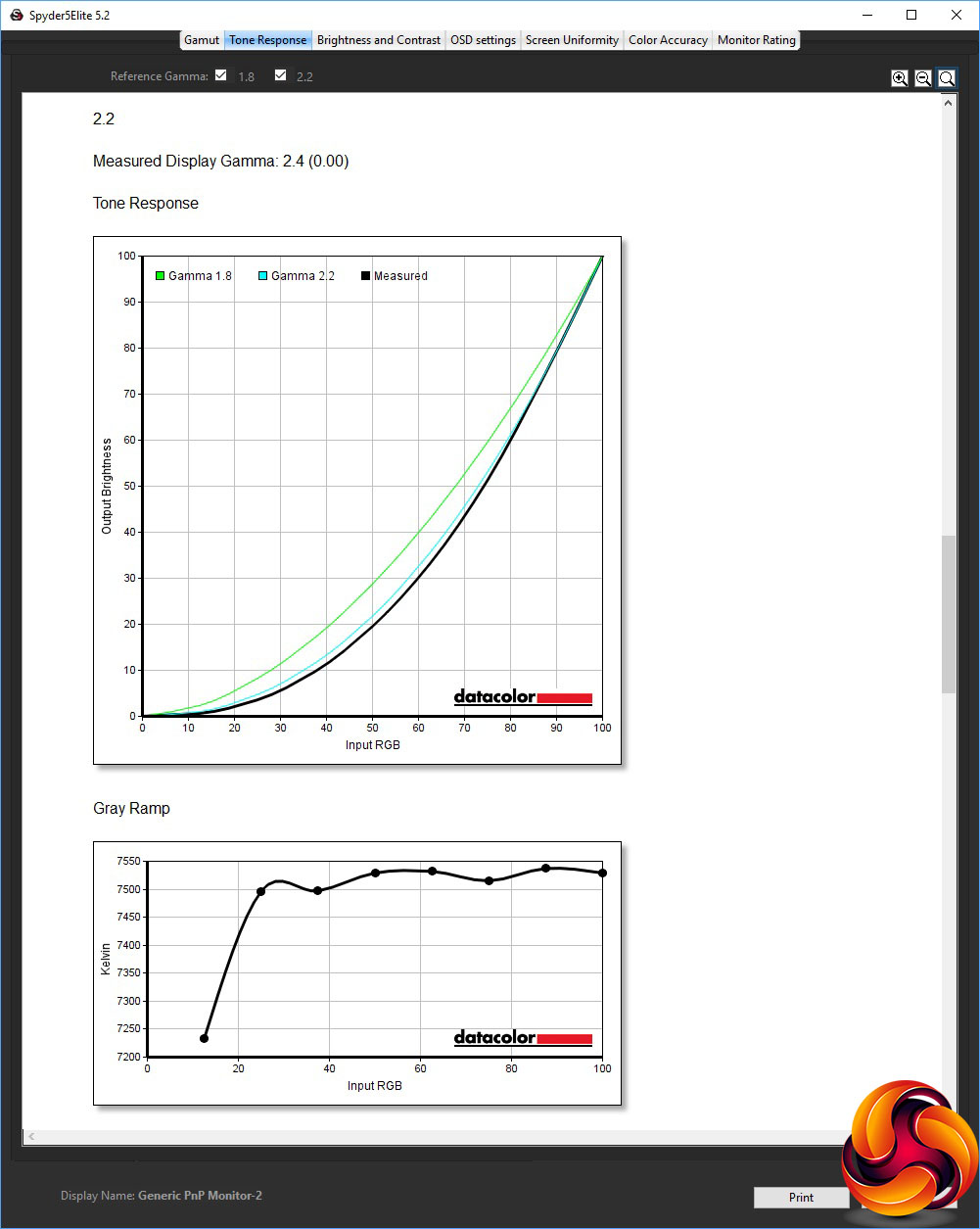
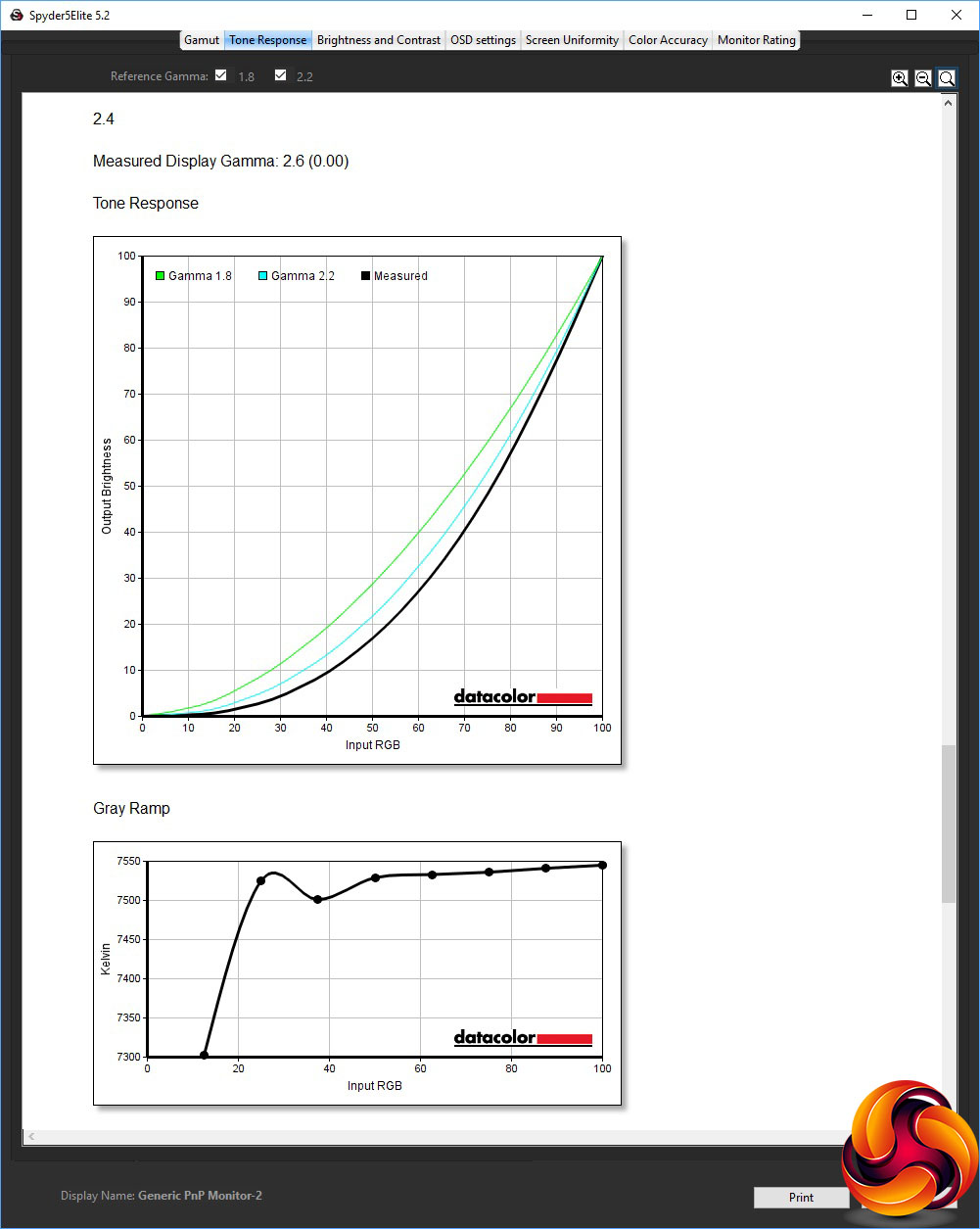
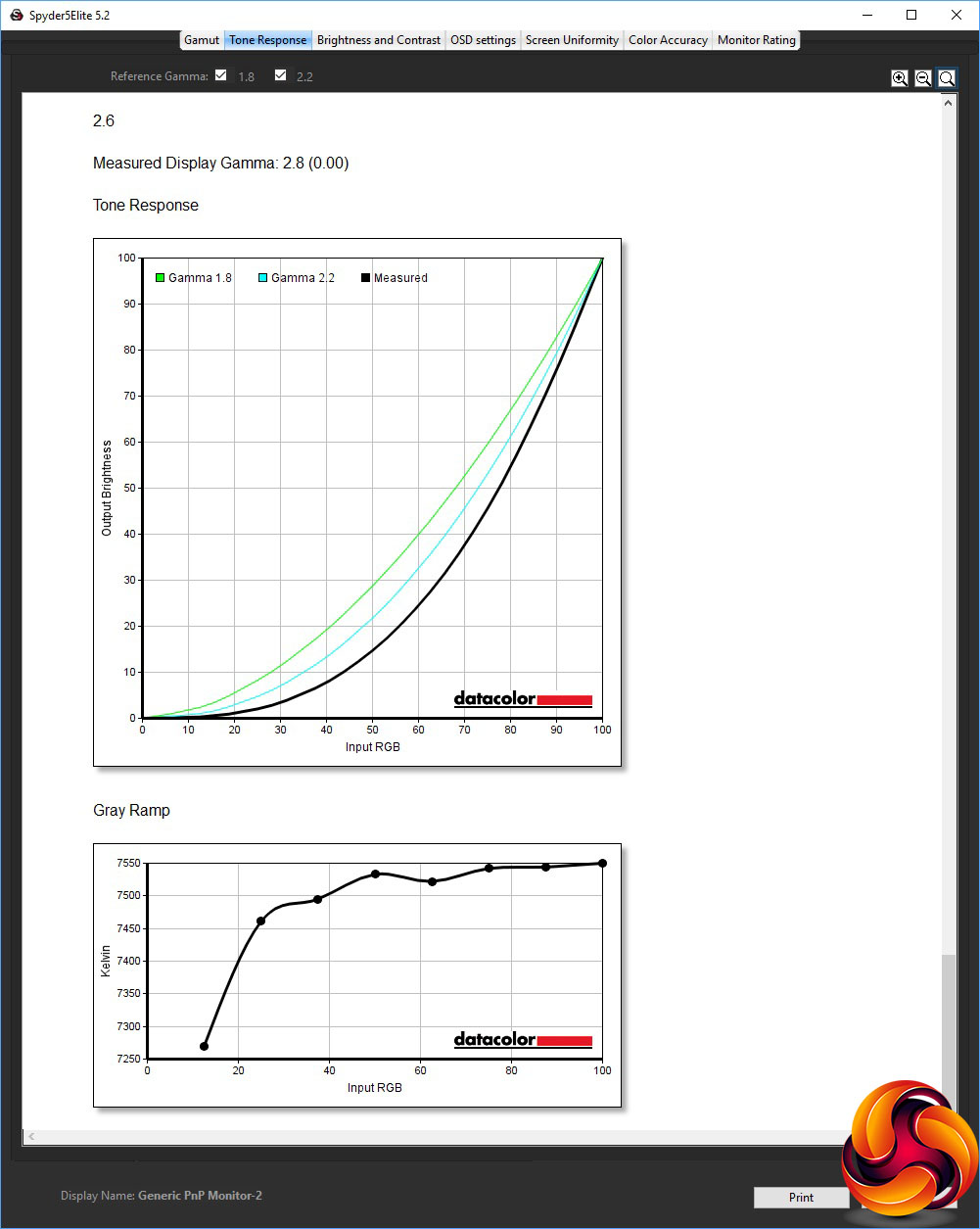
Since ASUS actually labels its gamma settings with a numerical value, you'd expect them to be close to accurate, and with the PA32UC they were absolutely spot on. However, in the case of the PA34VC they're all exactly 0.2 above what they should be. This isn't the end of the world because the consistency is impeccable. You just have to remember to set the gamma one notch higher than you actually want.
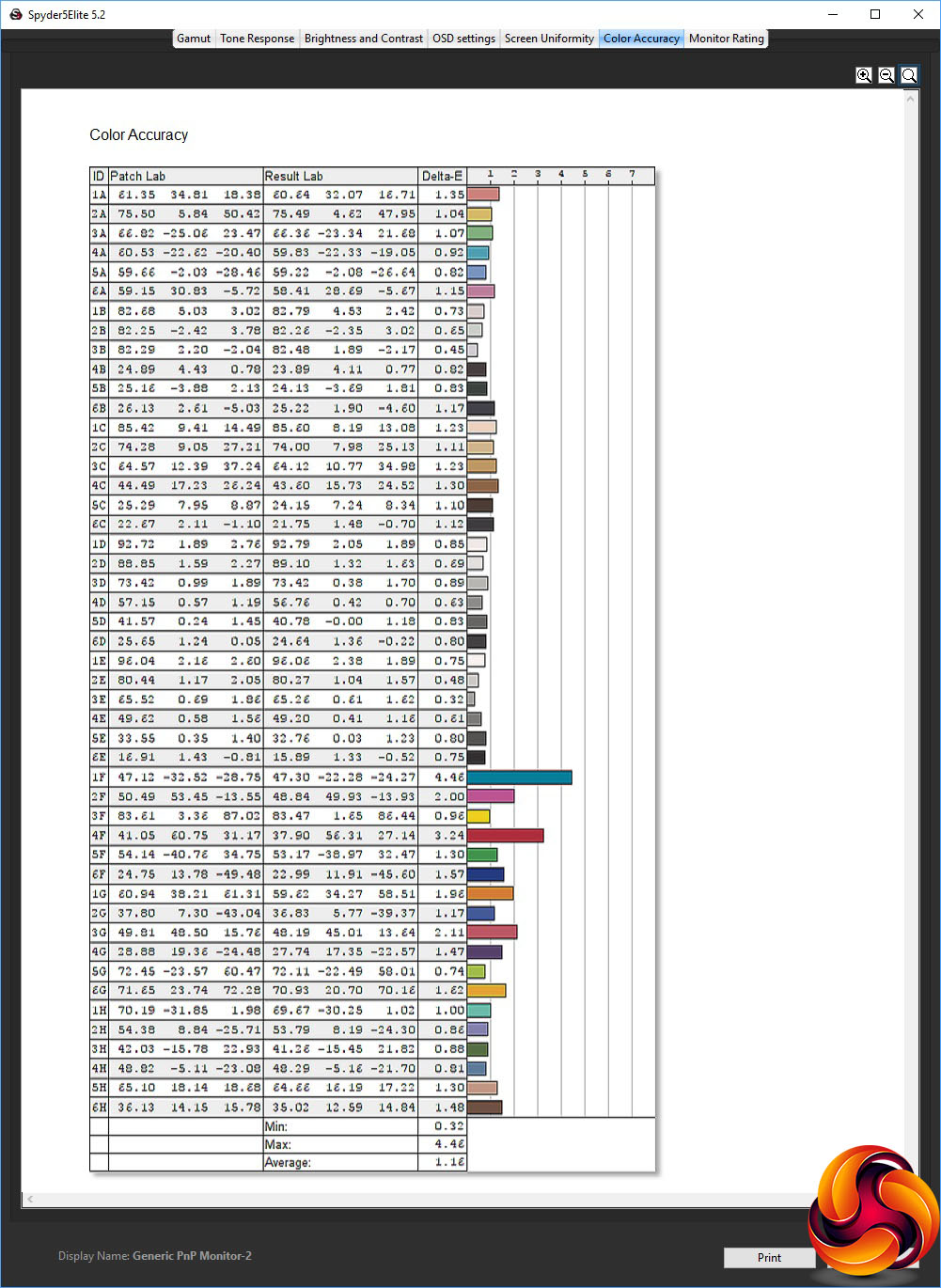
Since this monitor is factory calibrated, you would expect faithful colour – and your expectations will not be disappointed. With an average delta of 1.16, this is a very colour-accurate monitor, although not quite up with the very best we've tested (again, ASUS's own ProArt PA32UC).
Despite the PA34VC's factory calibration, we always like to see if we could improve things further with our own calibration, using the Spyder.
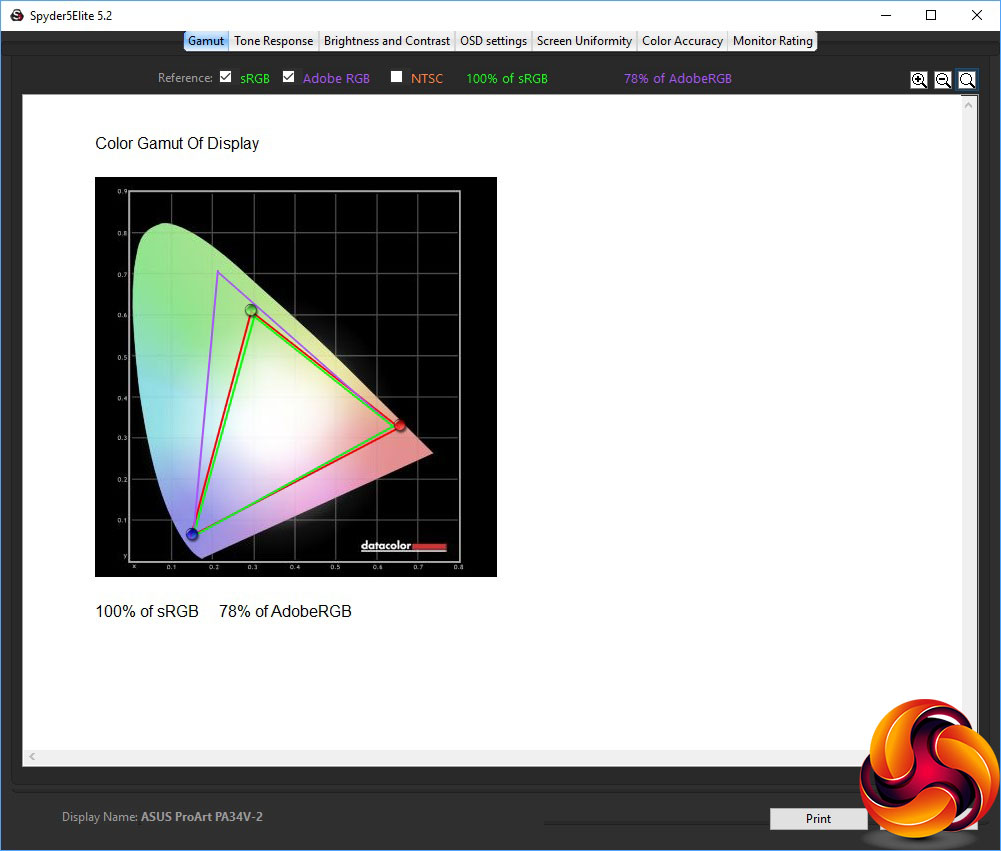
The gamut has actually gone down marginally. It's still an amazing 100 per cent in sRGB and reasonable 78 per cent in AdobeRGB.
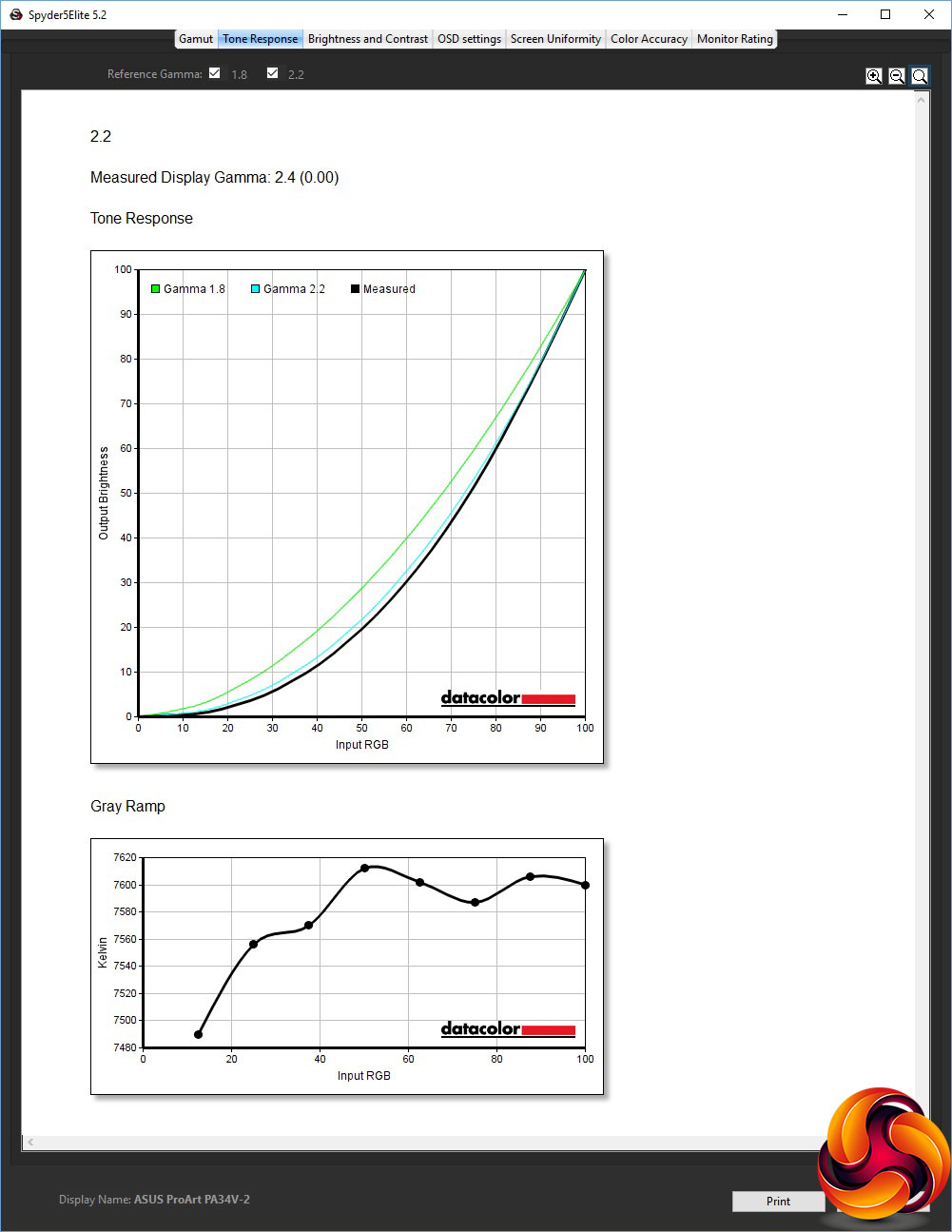
We only retested the gamma on the default 2.2 setting, and this remained 0.2 above the nominal value at 2.4.
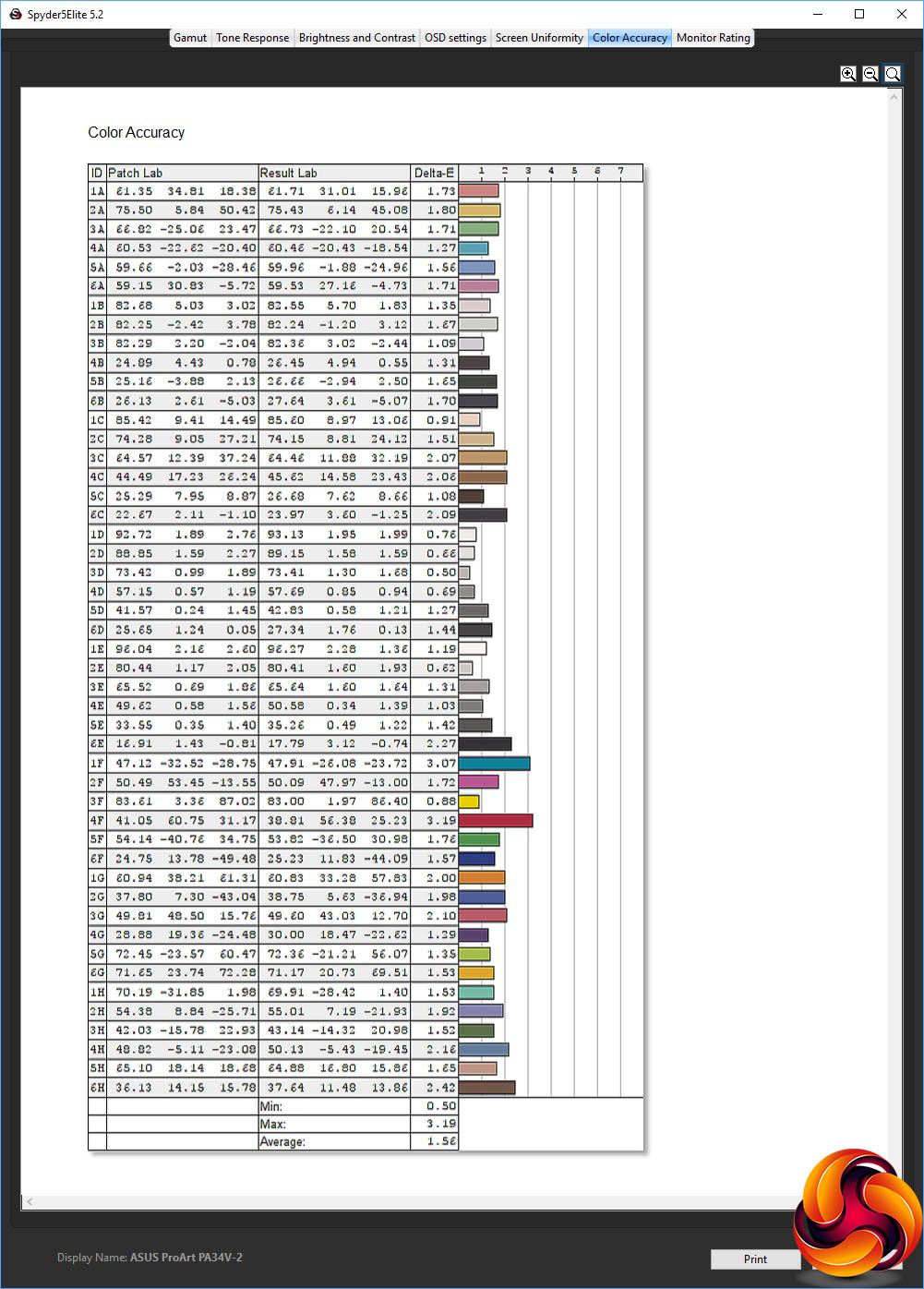
As we usually find with factory-calibrated screens, our attempts at calibration have actually made things worse. The score is still good, but has dropped to an average delta of 1.56. So you're better off leaving this screen at the settings it came out of the box with.
Overall, the PA34V is a high-quality screen. It's calibrated colour accuracy is better than Samsung's CF791 out of the box, although brightness and colour uniformity are a little behind. Nevertheless, this screen lives up to its billing for professional usage.
We also used this monitor for some professional work, primarily image editing with Adobe Photoshop and video editing with Adobe Premiere CC 2019. The latter particularly benefited from the wide aspect ratio, as it was possible to get lots of the timeline and multiple panels onscreen.
The ASUS ProArt PA34VC is a professional screen with great potential. ASUS is to be commended for taking features that are normally associated with gaming and entertainment – a 21:9 ultrawide aspect, a curved panel, and a high refresh rate with adaptive sync – and bundling these into professional package. The end result is mostly a big success.
The image performance is very good, if not perfect, with great colour accuracy and some solid abilities elsewhere. The OSD system is packed with features, and it's great to have cutting-edge Thunderbolt 3 input available, with the added benefit of a second connection that can be used to daisy-chain multiple screens via this interface.
The bonus of a three-port USB 3.0 Type A hub and built-in speakers add to the utility of this screen. Unfortunately, you do pay a notable premium for the professional orientation of the PA34VC – around £400 more than Samsung's CF791. Since it's fairly unique in specification at the moment, you may be willing to pay this premium for the quality and features. But the price will also make you want to think carefully about the decision first.
The ASUS ProArt PA34VC is available from Wex Photo Video for £1,069.
Pros:
- Very good colour accuracy.
- Professionally oriented presets for HDR and Rec. 709 colour spaces.
- Lots of video inputs, including Thunderbolt 3 / USB Type-C.
- Thunderbolt 3 / USB Type-C video output for daisy-chaining screens.
- HDR-10 support.
- Massive range of fine picture adjustments via OSD.
- USB 3.0 hub with Type-C connectivity.
- Lots of physical adjustment options.
Cons:
- Expensive.
- Small variance in brightness and colour uniformity.
KitGuru says: The ASUS ProArt PA34VC brings curved, 21:9 ultra-widescreen, high refresh monitors into the professional arena, although you do pay for the privilege.