KitGuru KitGuru.net – Tech News | Hardware News | Hardware Reviews | IOS | Mobile | Gaming | Graphics Cards


Although Iiyama is making some inroads into the gaming market, its core focus is still the professional user. The ProLite XB3288UHSU-B1 is another screen that's solidly focused on graphics work and business, with a 31.5in diagonal and 4K resolution. However, unlike most of ProLite range, it uses a VA panel rather than IPS.
The catchily-named XB3288UHSU-B1 bears the usual serious black design of Iiyama ProLite monitors. The basic specification is as expected for a VA panel, with a high 3,000:1 contrast and mid-range 300cd/m2 brightness. Pixel response is a reasonable 3ms, but this is no gaming screen – the maximum refresh at 4K is 60Hz, although you can get up to 75Hz below the native resolution, and AMD FreeSync is supported too.
While you do get two HDMI inputs and a single DisplayPort, there's no USB-C input. However, for a business environment there are built-in 3W stereo speakers as well as a minijack output for headphones. There's also a USB hub with a couple of ports on the side.

The level of adjustability is mostly comprehensive. You can vary the height, swivel the screen on its base, and tilt forwards and backwards. Surprisingly, there's no portrait mode, however. A label on the stand warns against it.
In other words, most of the basic necessities are there for the everyday professional. But most important is how well you can set this screen up for your particular activity and the image quality. So let's find out if this is another dependable professional workhorse from Iiyama.
Specification:
- Screen size: 31.5in, 16:9 aspect
- Native resolution: 3,840 x 2,160
- Refresh rate: 75Hz (60Hz in 4K), FreeSync
- Panel type: VA
- Contrast ratio: 3,000:1 (typical)
- Brightness: 300cd/m2
- Response time: 3ms Grey-to-Grey
- Display inputs: 2 x HDMI 2.0, DisplayPort 1.2
- USB hub: Yes, 2 x USB 3.0
- Tilt: 3 degrees forward, 22 degrees backward
- Raise: 130mm
- Swivel: 45 degrees left and right
- Portrait mode: No
- Other: Minijack audio output, stereo 3W speakers
Retail Price: £399.99 (inc. VAT)
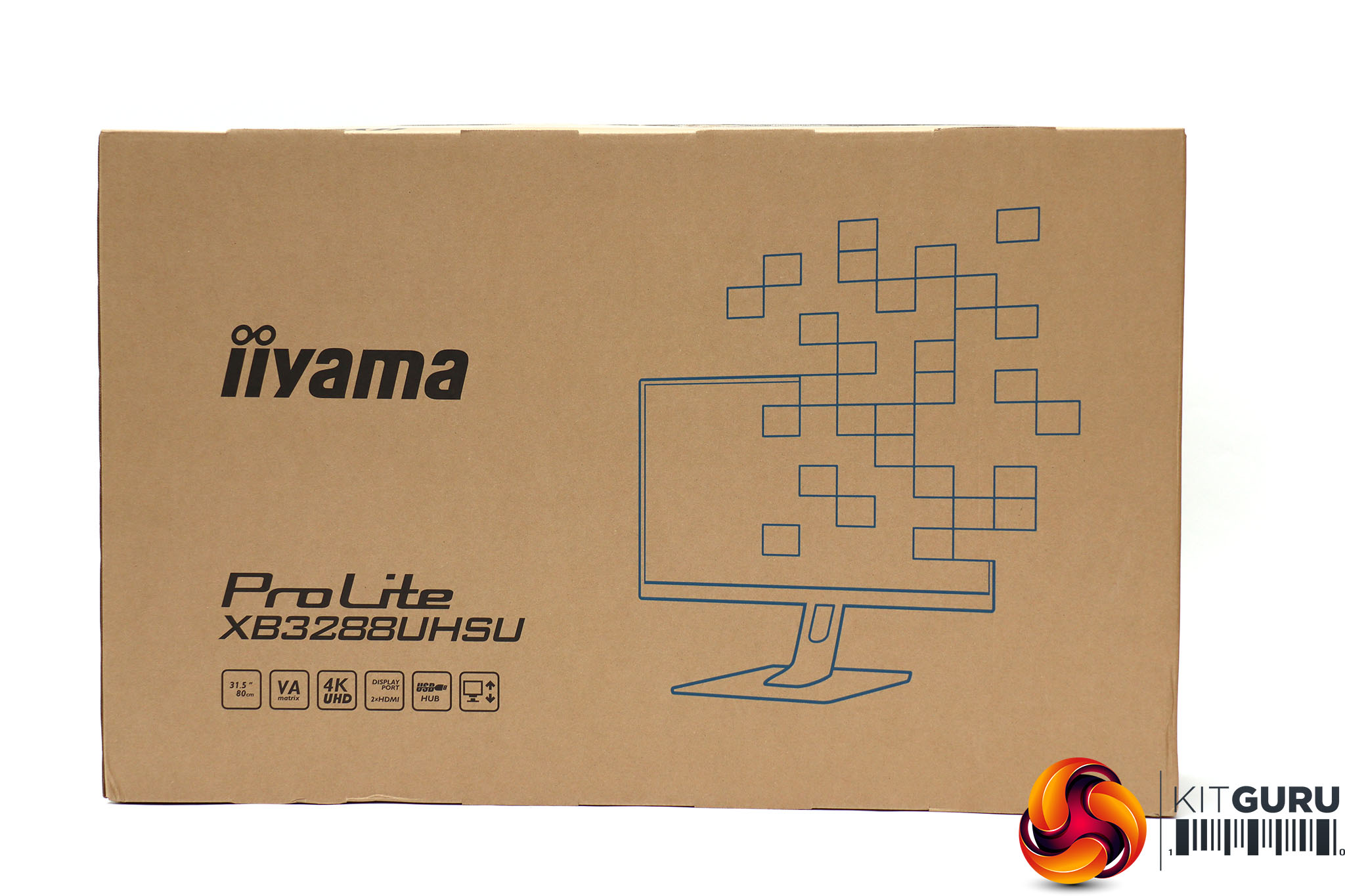
The packaging for the Iiyama ProLite XB3288UHSU-B1 doesn't exactly sing its praises – it's more like the plain brown paper bag of the box world. The phrase “no nonsense” springs to mind, although this is probably good material for recycling.
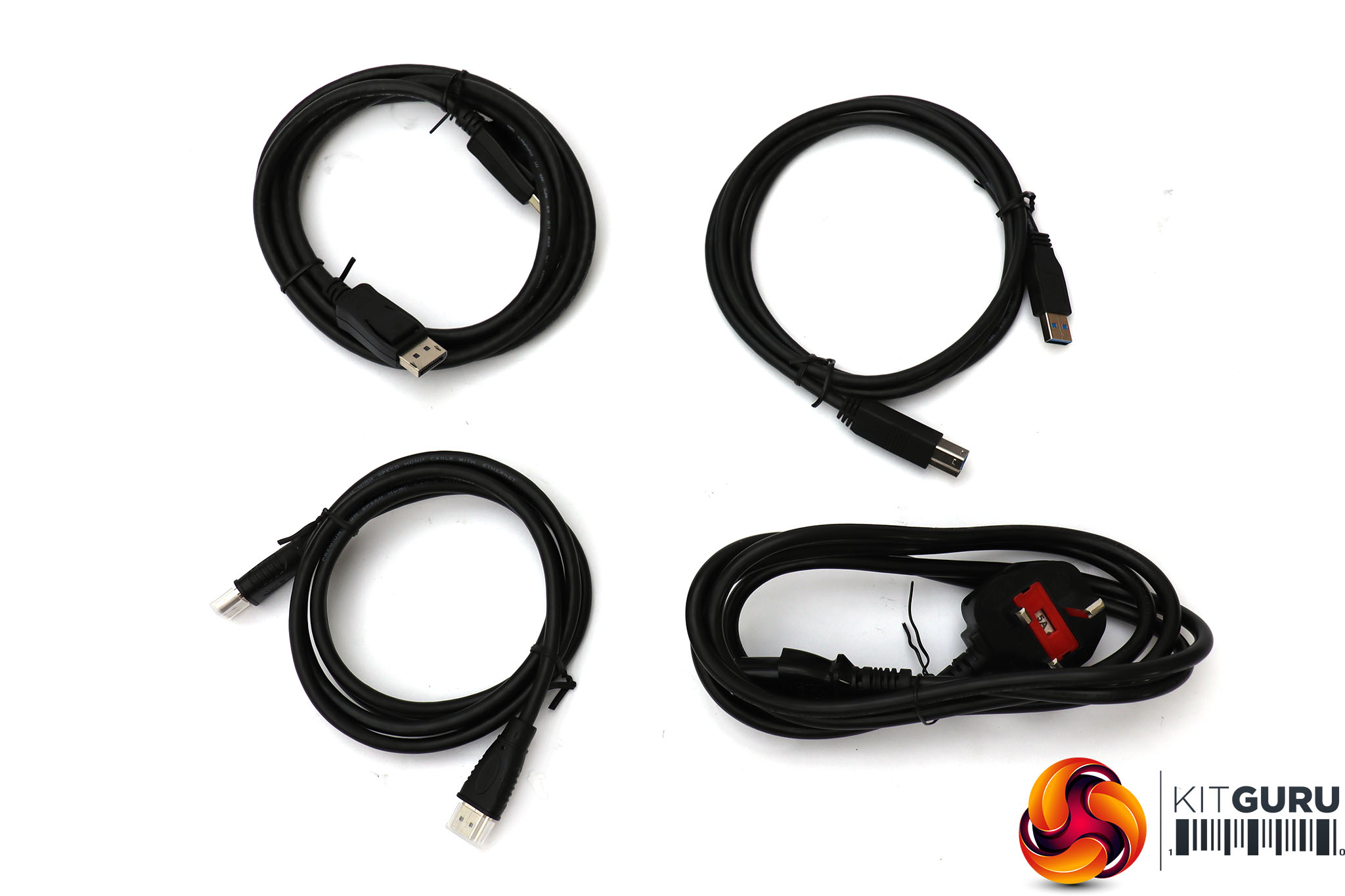
Inside, you get HDMI and DisplayPort cables, a USB upstream cable, and the usual power cord.
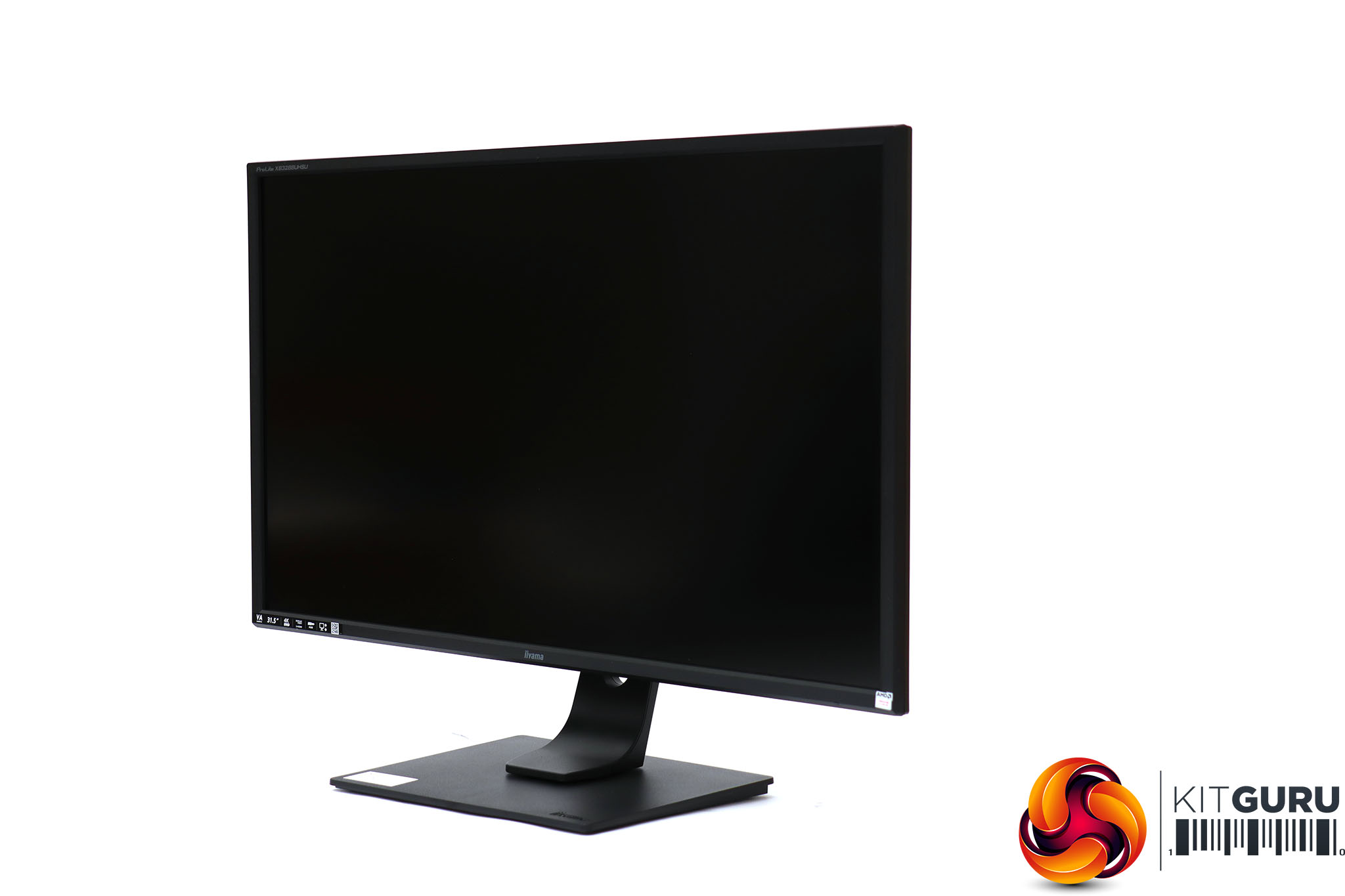
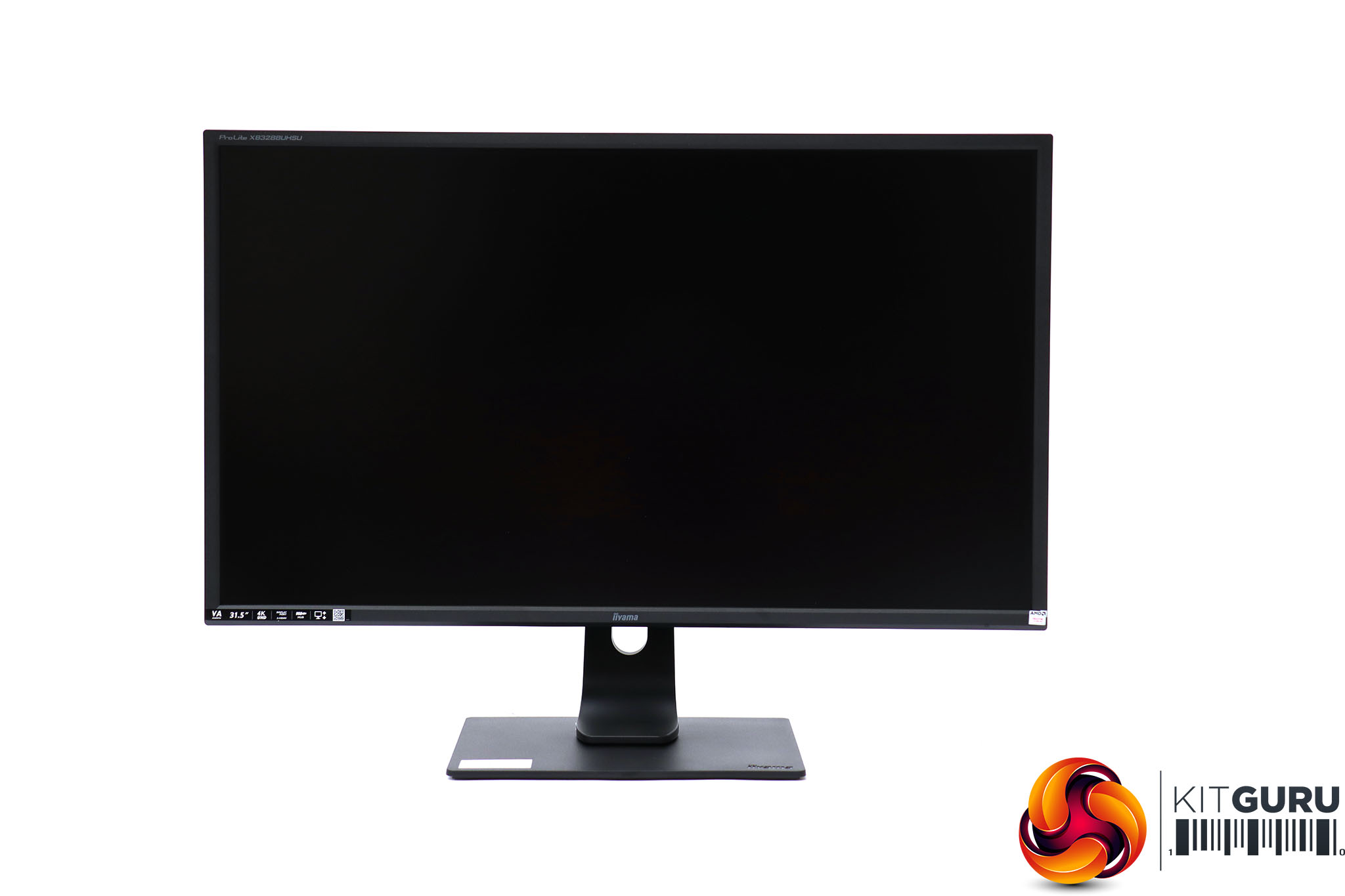
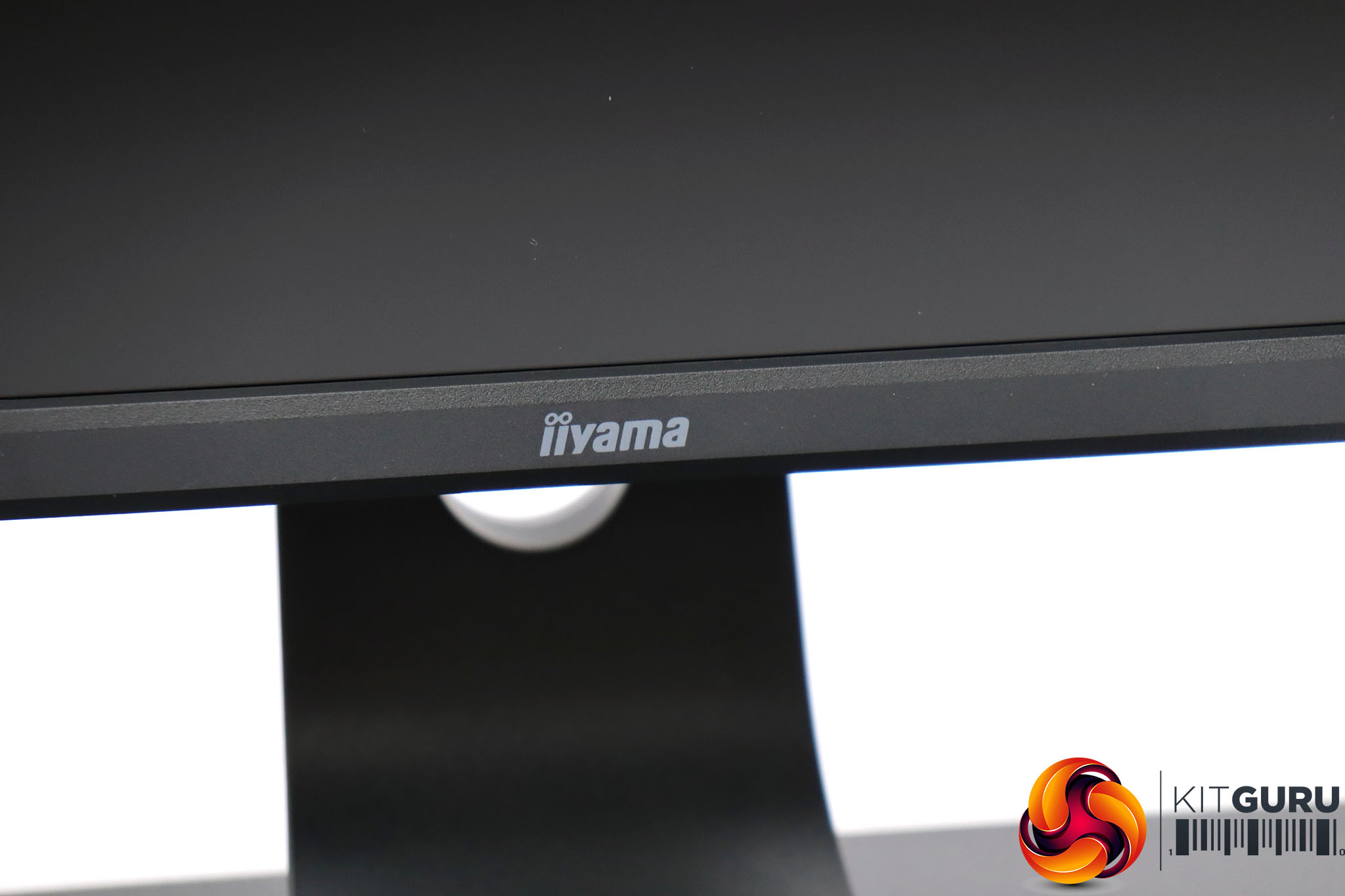
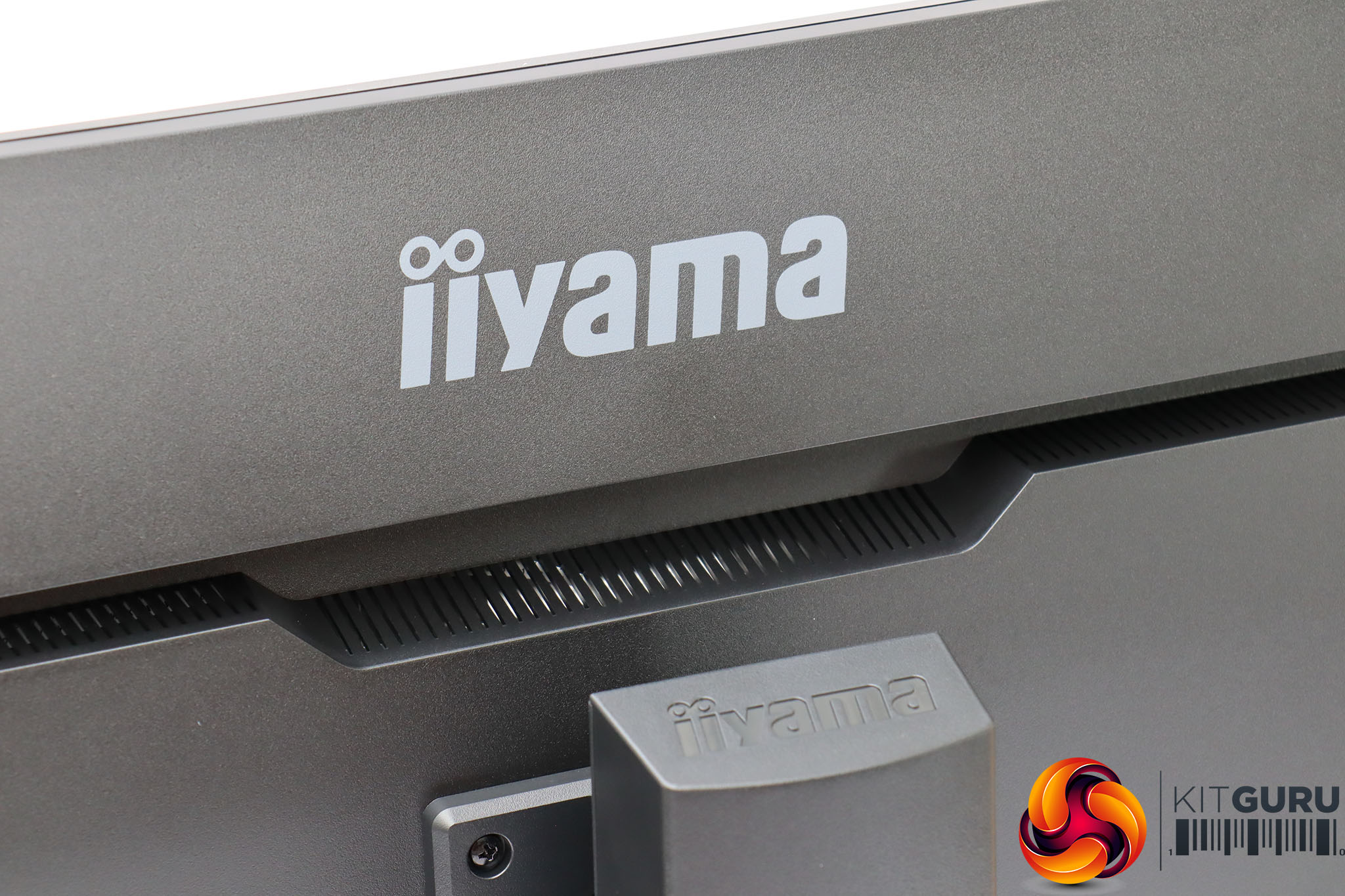
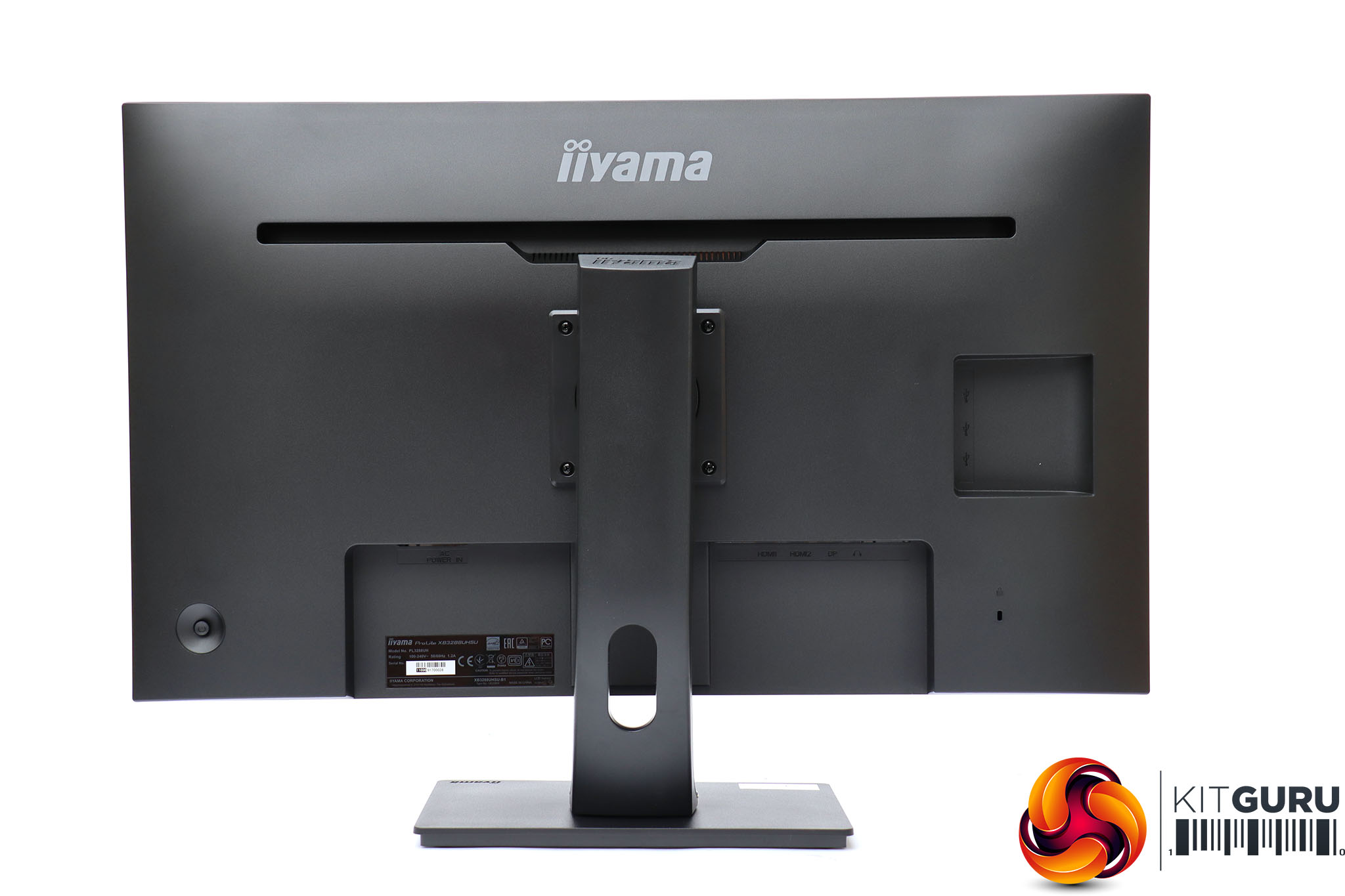
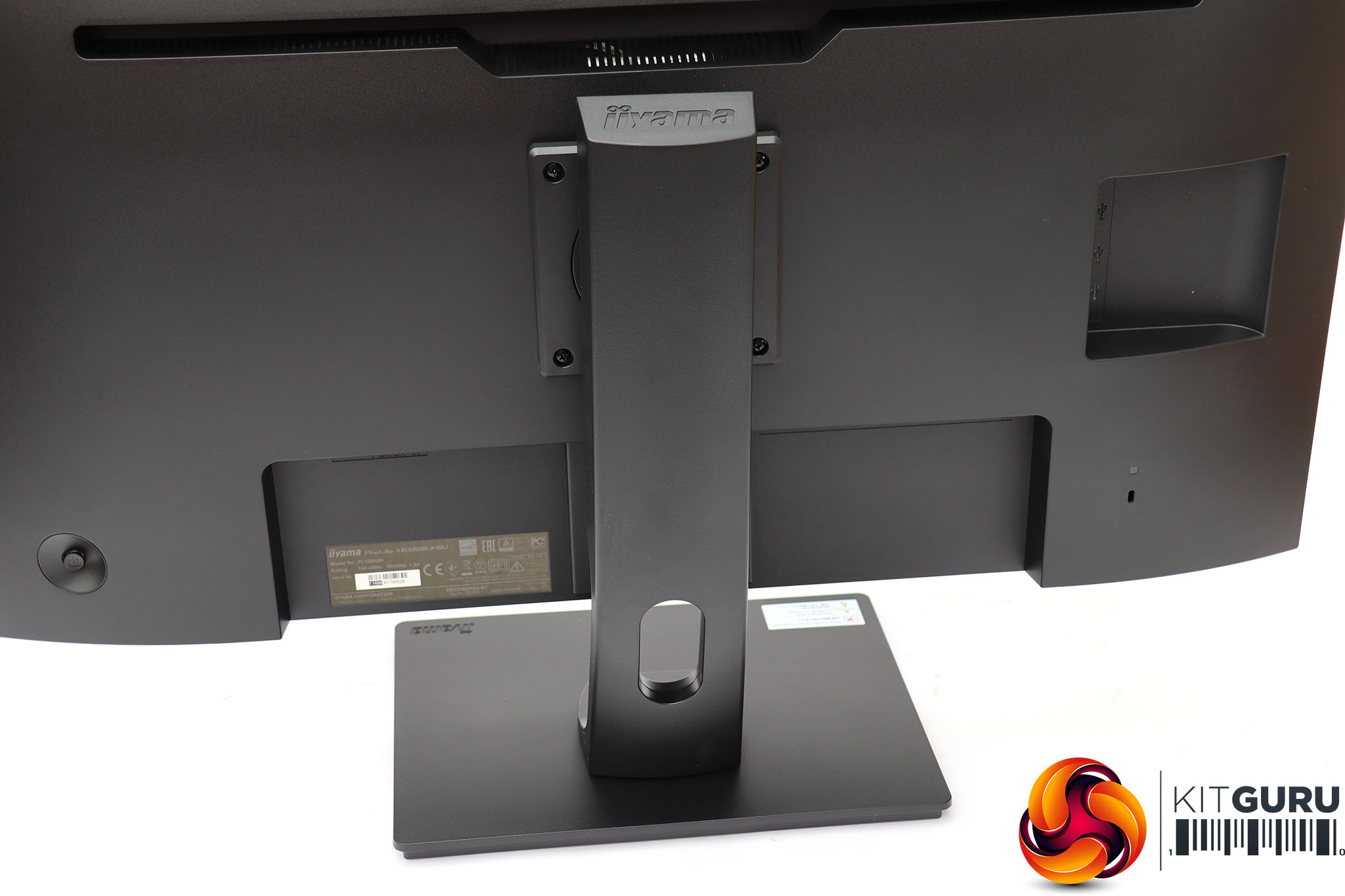
This is another matt black monitor from Iiyama. It's not an exciting look, but it does give the display an air of solid dependability, which is what you'd hope for when purchasing a screen of this type.
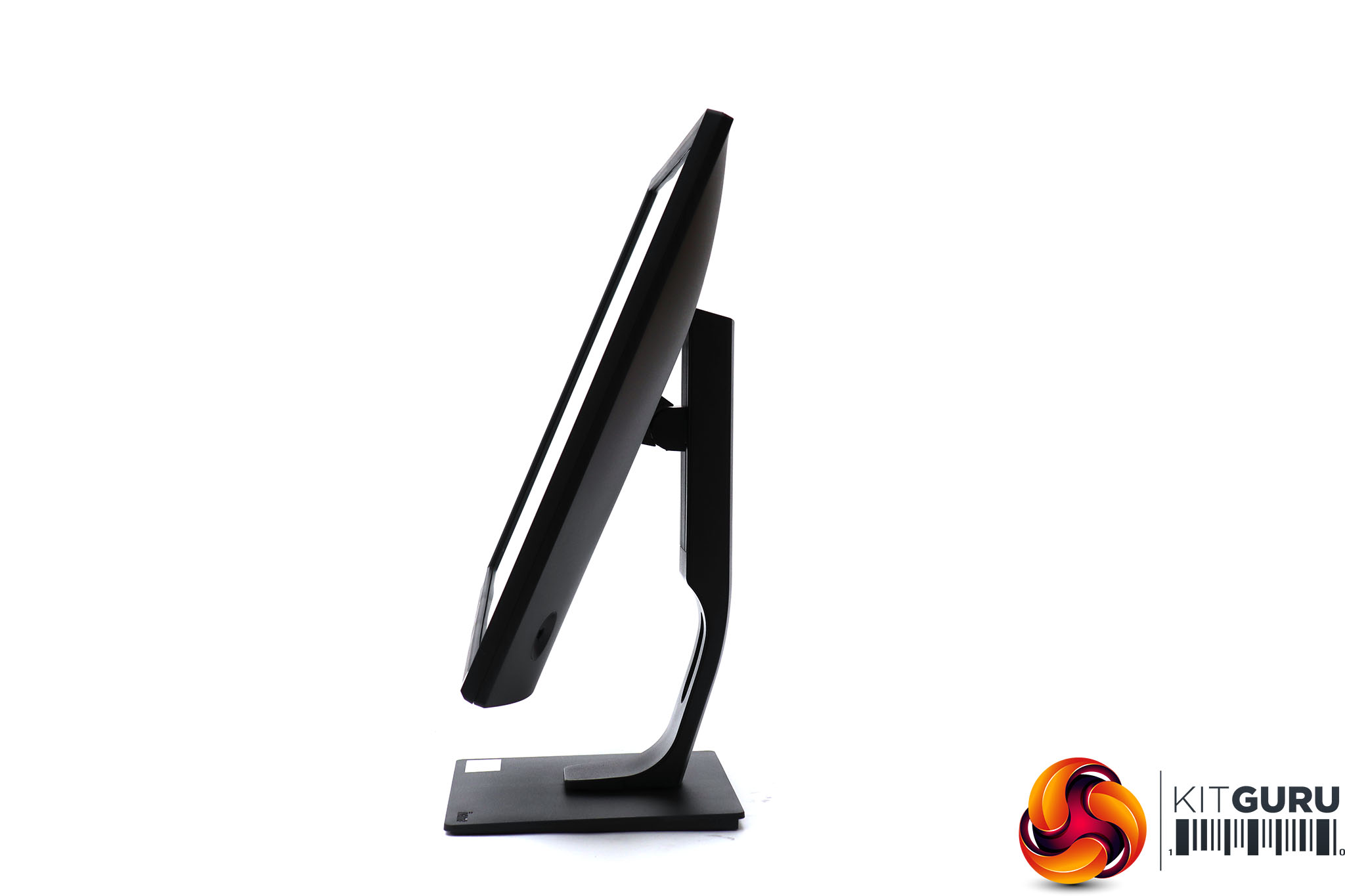
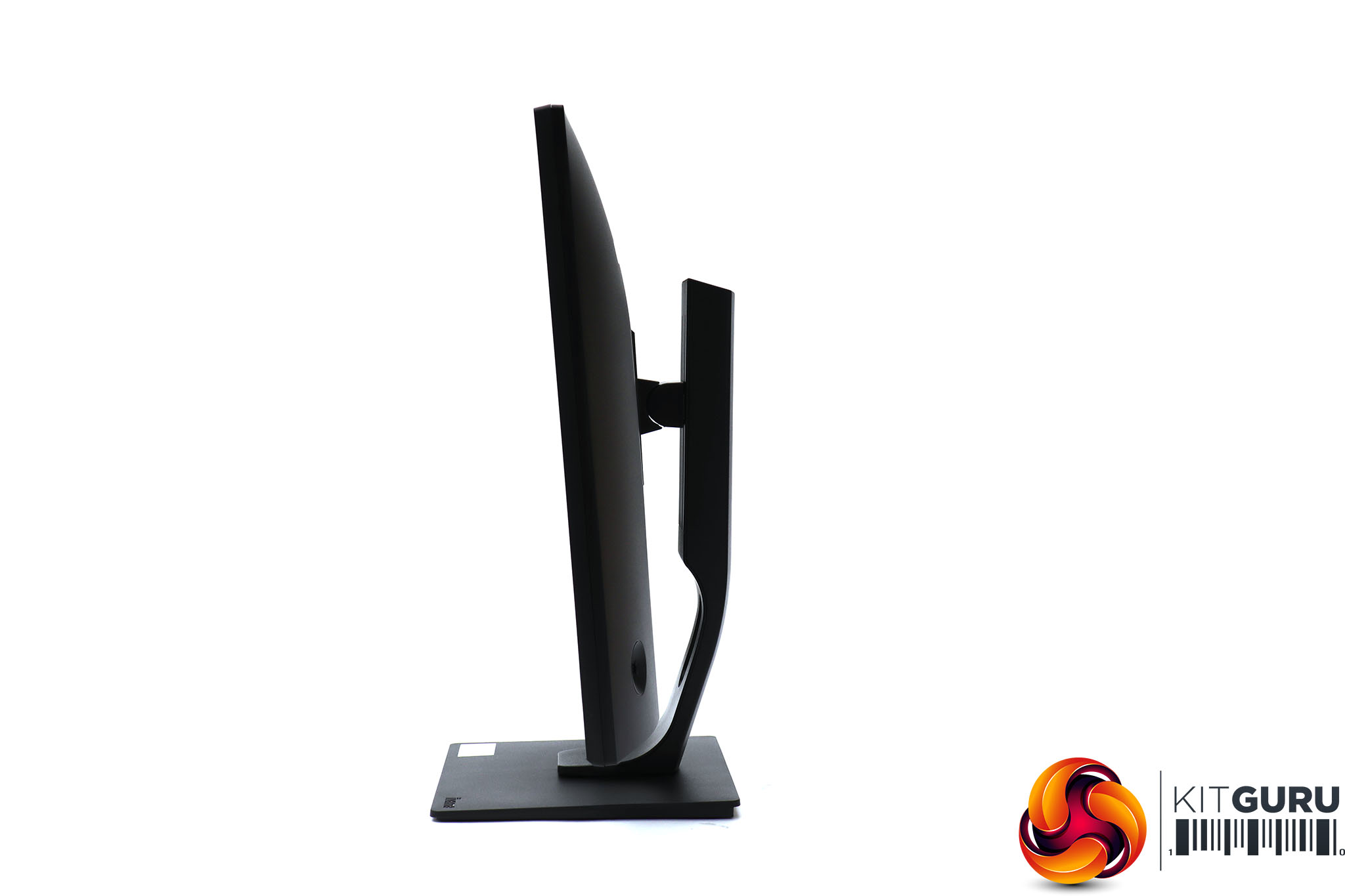
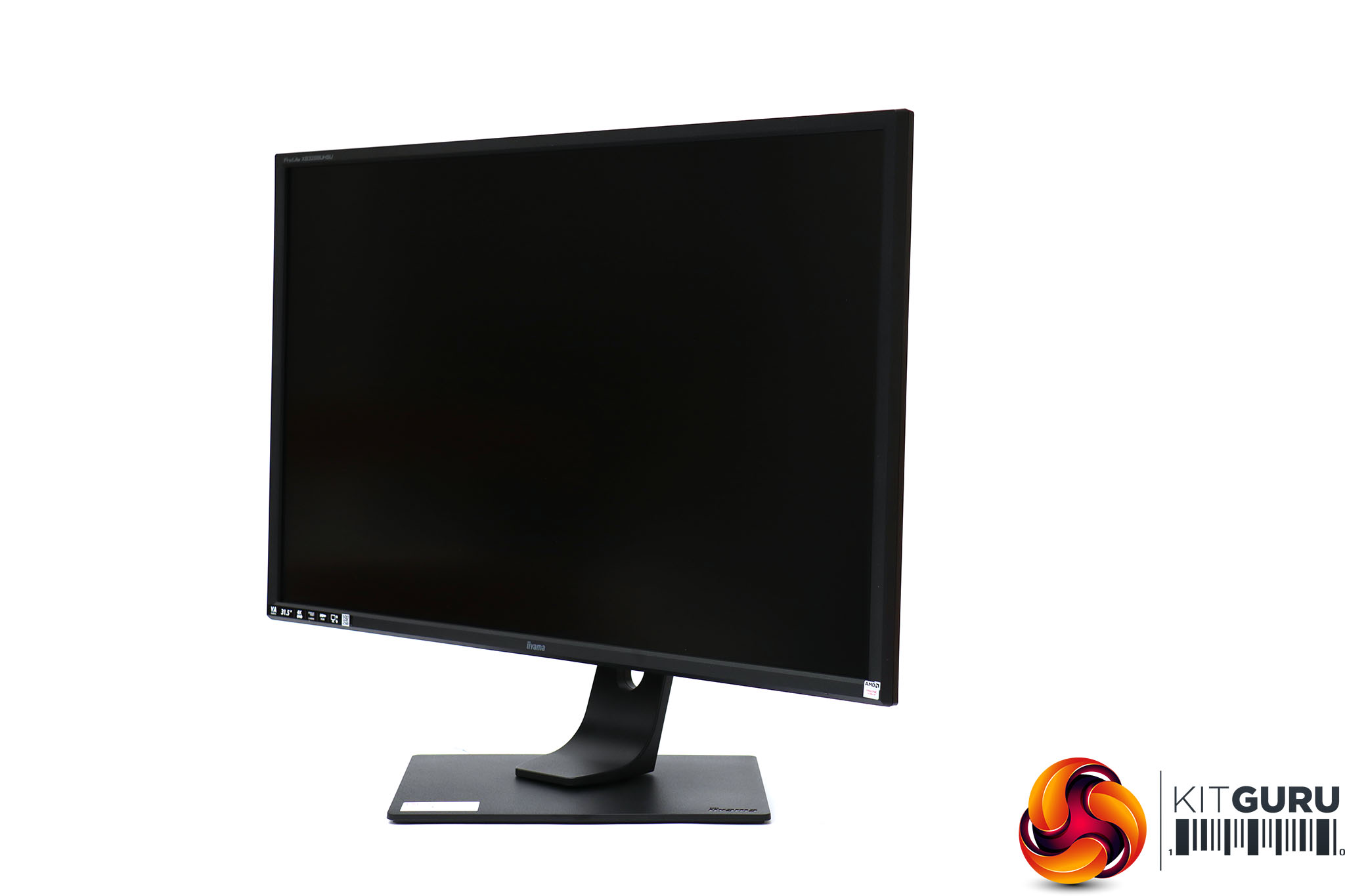
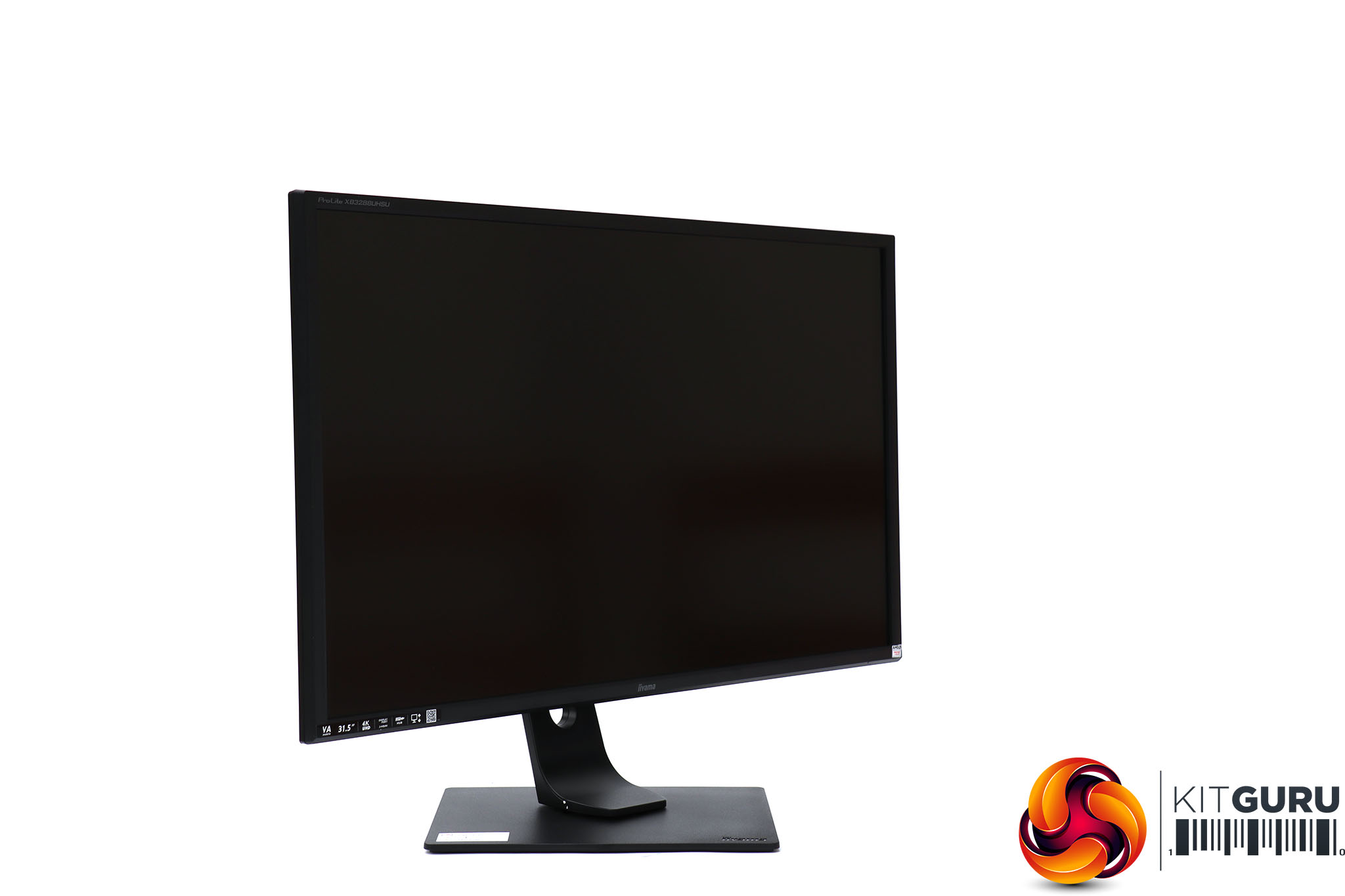
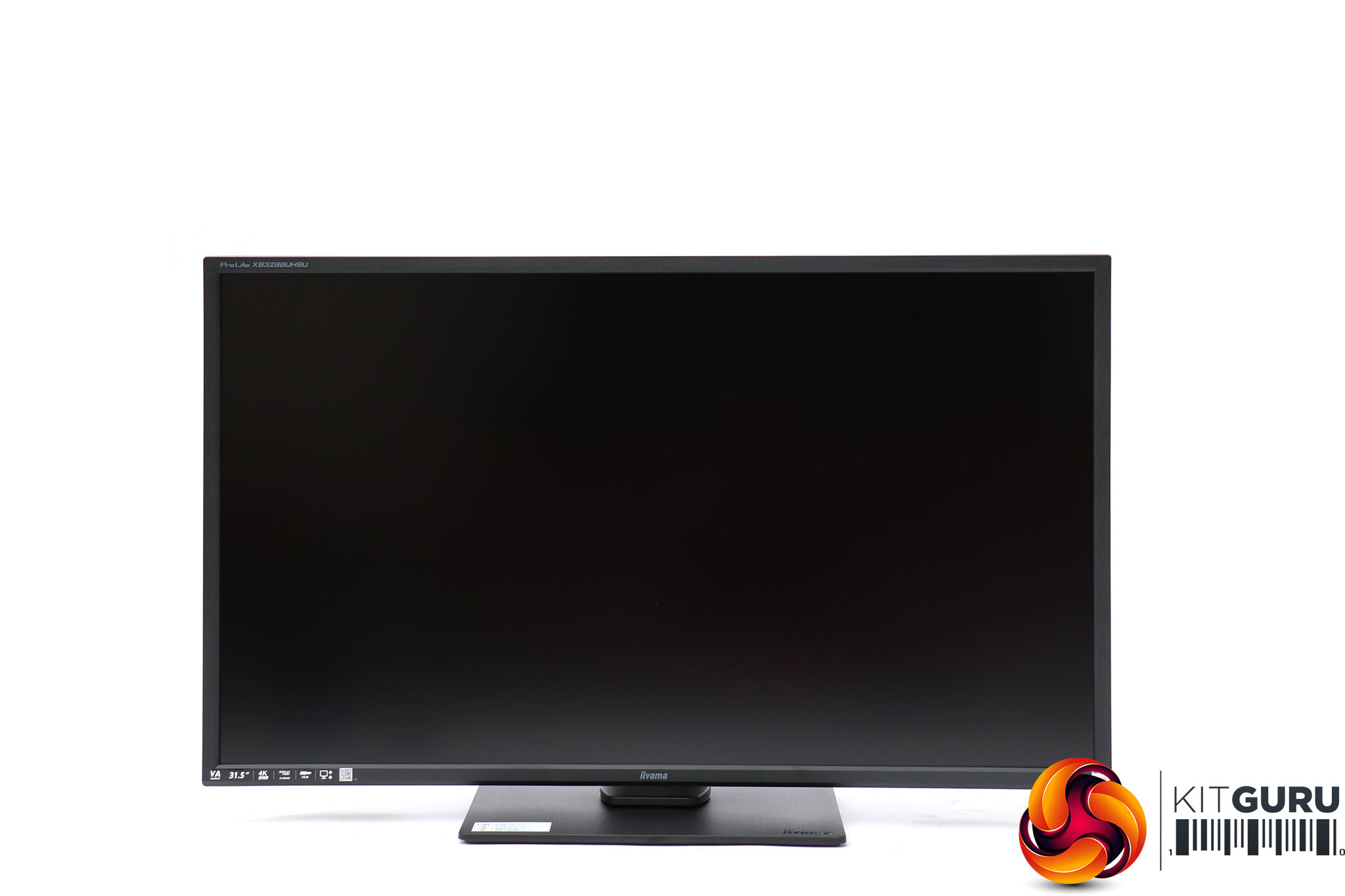
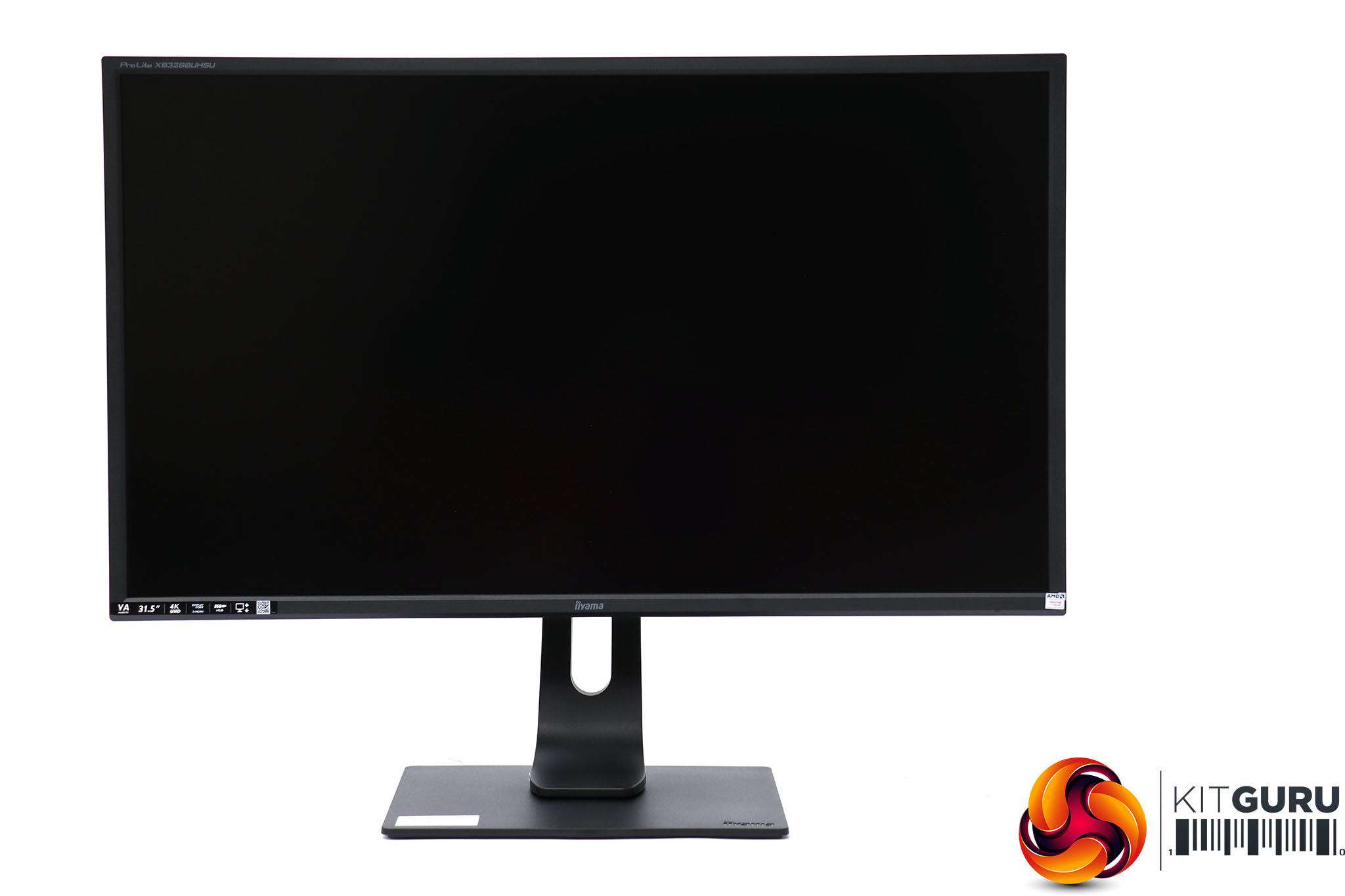
Ergonomic adjustments are (almost) comprehensive. You can tilt the screen 22 degrees forwards and 3 degrees backwards. It swivels 45 degrees left and right, which will be ample for most viewing needs. There's also a generous 130mm range for height adjustment, so you get achieve just the right eye level for comfort at your desk.
The one omission is portrait mode, which might have been handy with a regular 16:9 flat screen such as this, but the screen is large and has pixels aplenty, so you can enjoy lots of vertical resolution without rotation anyway.
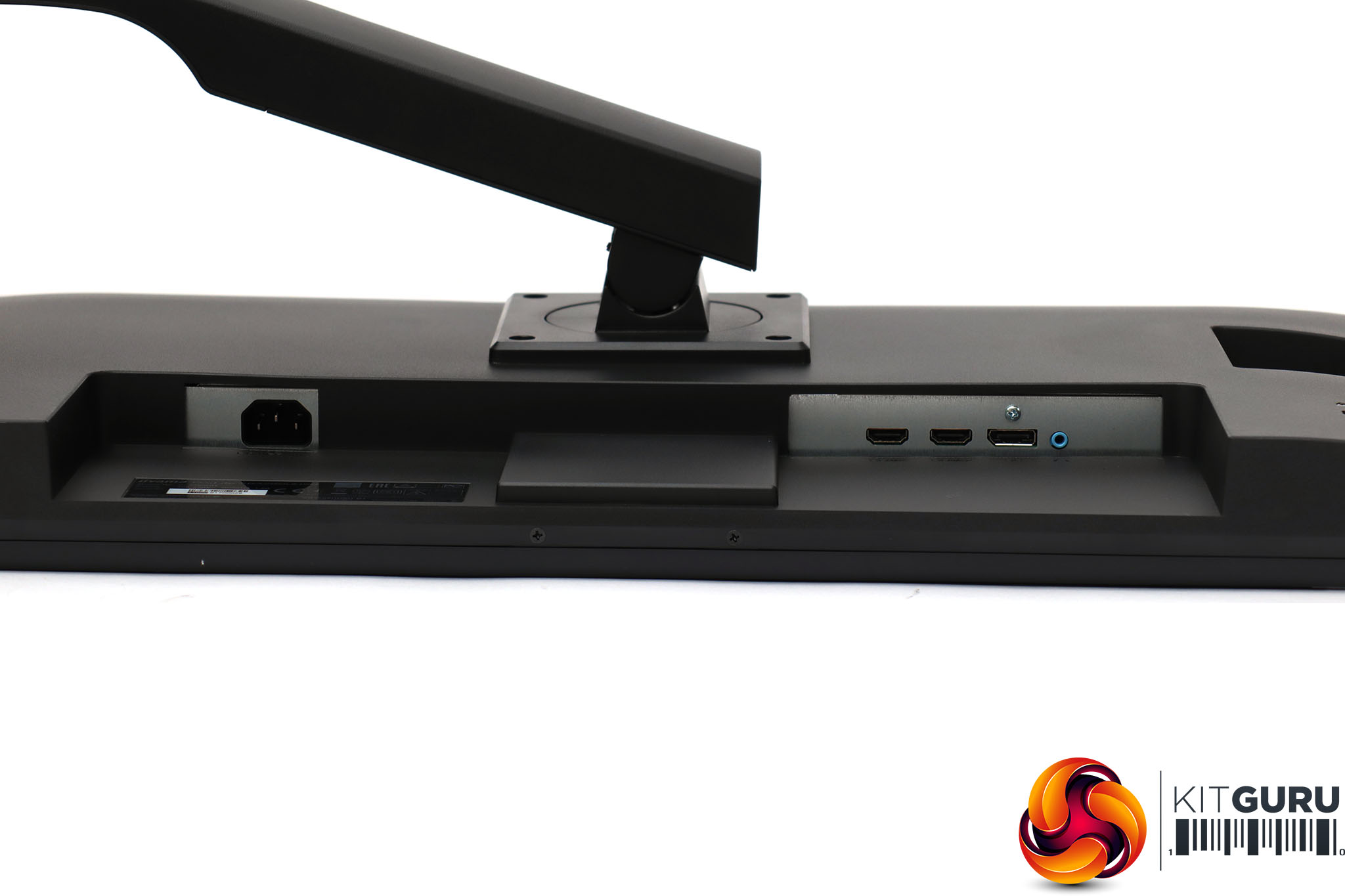
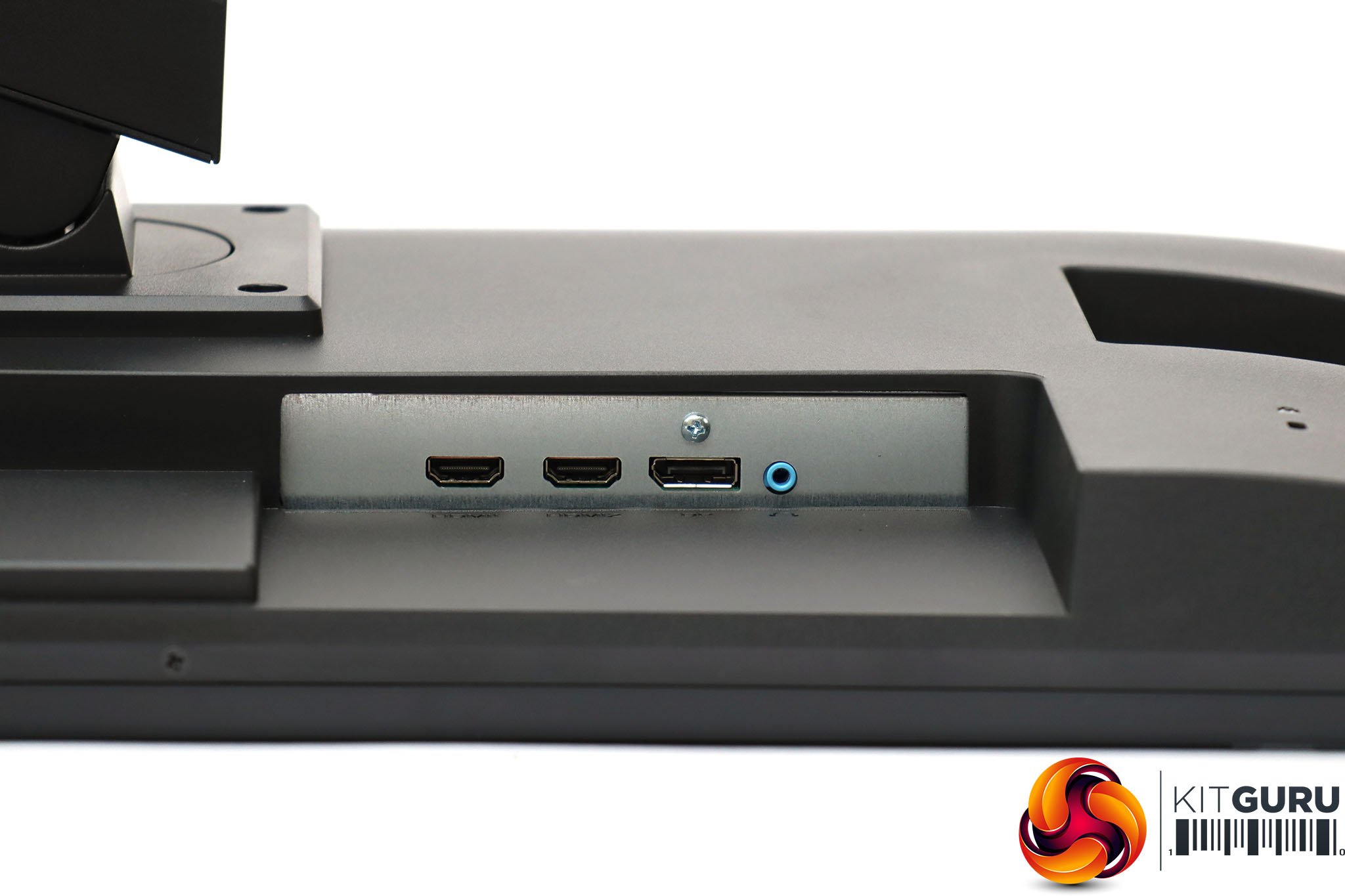
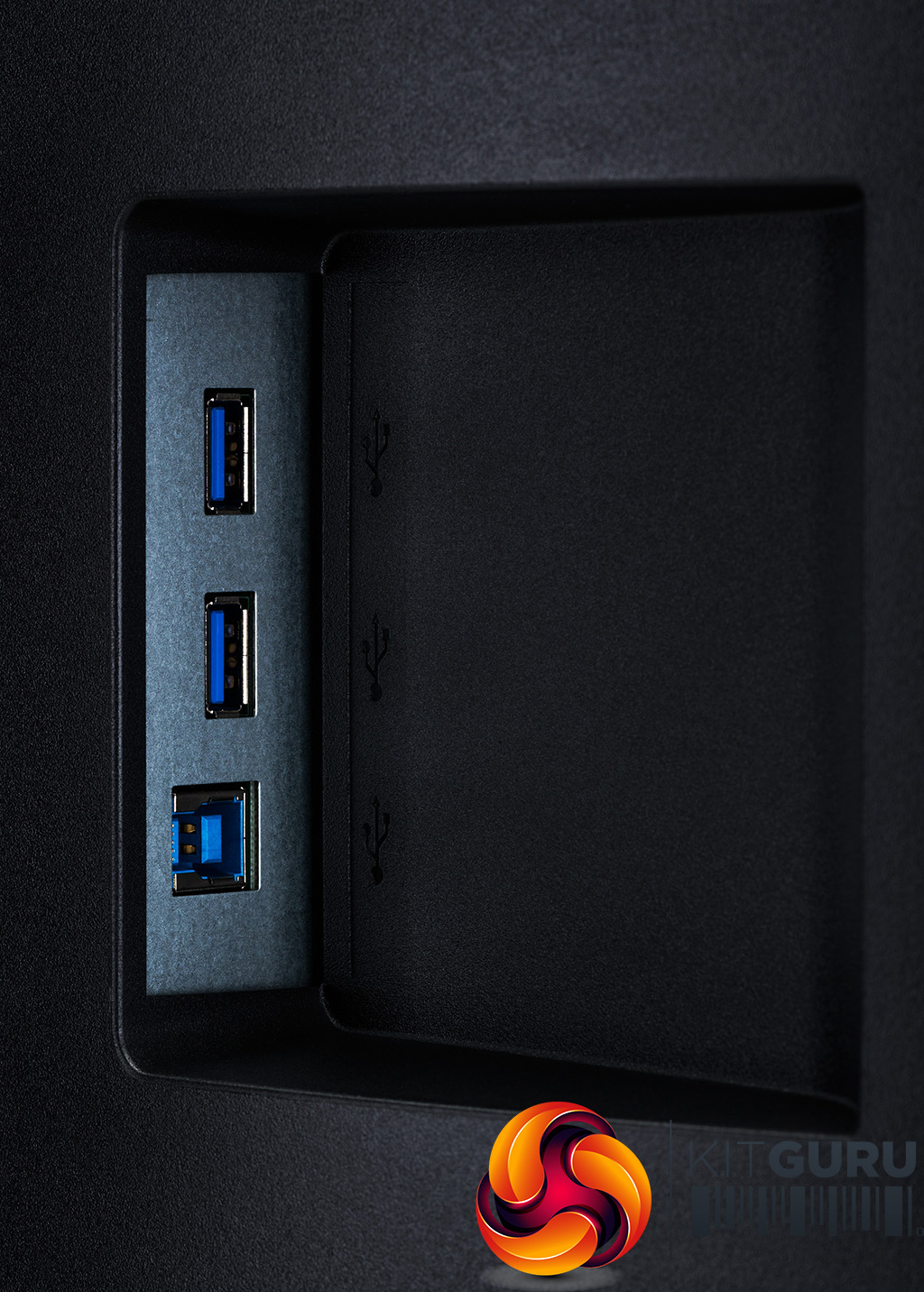
The rear underside is home to the usual kettle lead power input, plus two HDMI 2.0 connections and a single DisplayPort 1.2. On the side is the upstream connection and two downstream Type A ports for the USB 3.0 hub, one of which has fast charging.
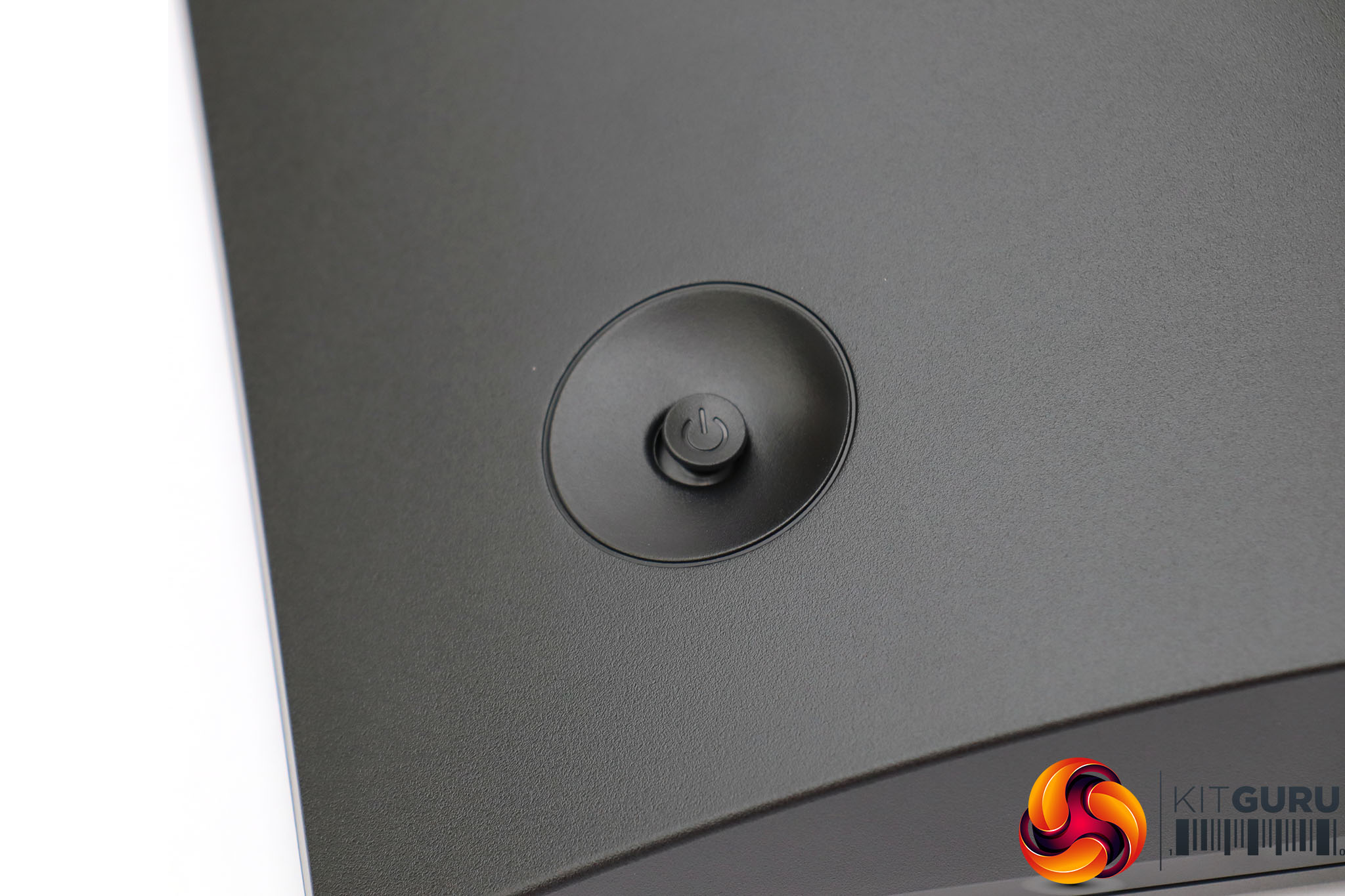
Iiyama has eschewed its normal menu control strategy of multiple buttons in favour of a single joystick on the rear. There was nothing particularly wrong with the old system, but a joystick can be quicker for getting around menus with lots of layers.
Pushing the joystick in turns the monitor power on if it's off, or calls up the main menu if it's on, which we will discuss later. You need to press the joystick in for an extended period to turn the screen off again.
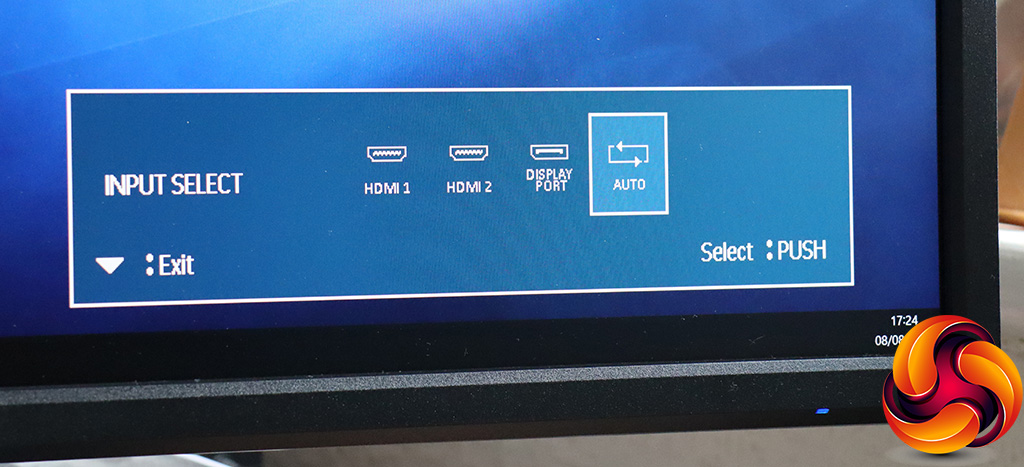
Pushing the joystick up reveals the quick menu for manually selecting from the three inputs.
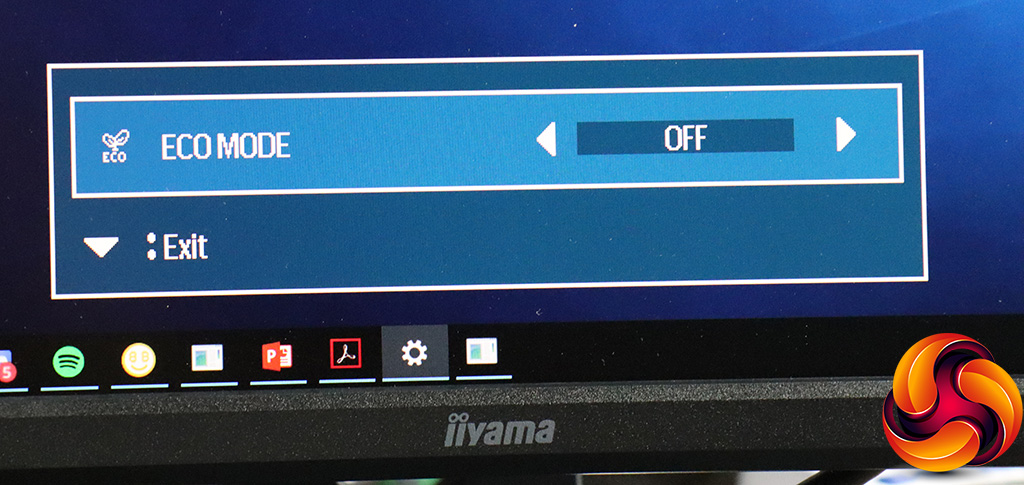
Pushing the joystick left lets you choose one of the three levels of Eco Mode, although the default is off. For some reason, the quick menus revealed by pushing the joystick left and right appear in the middle bottom of the screen rather than the bottom right corner.
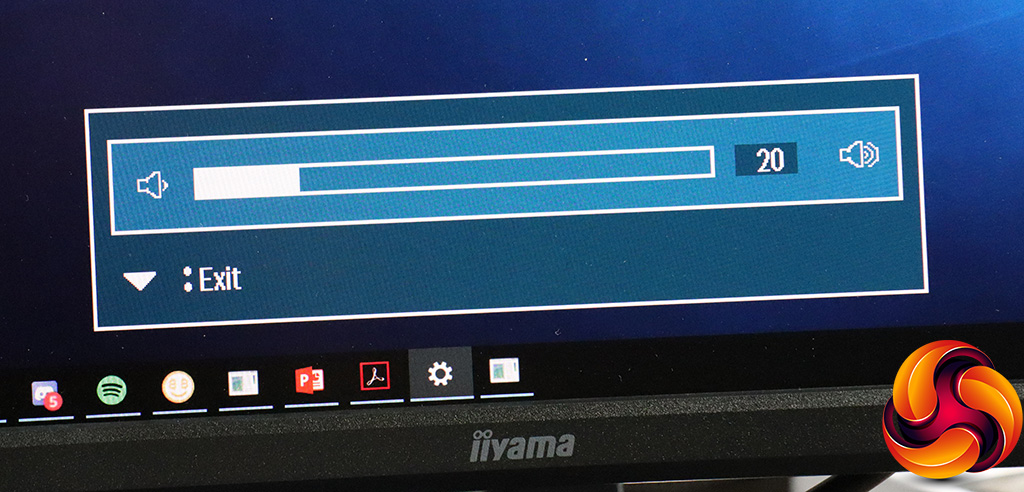
Pushing the joystick right enables a volume control for the built-in speakers.
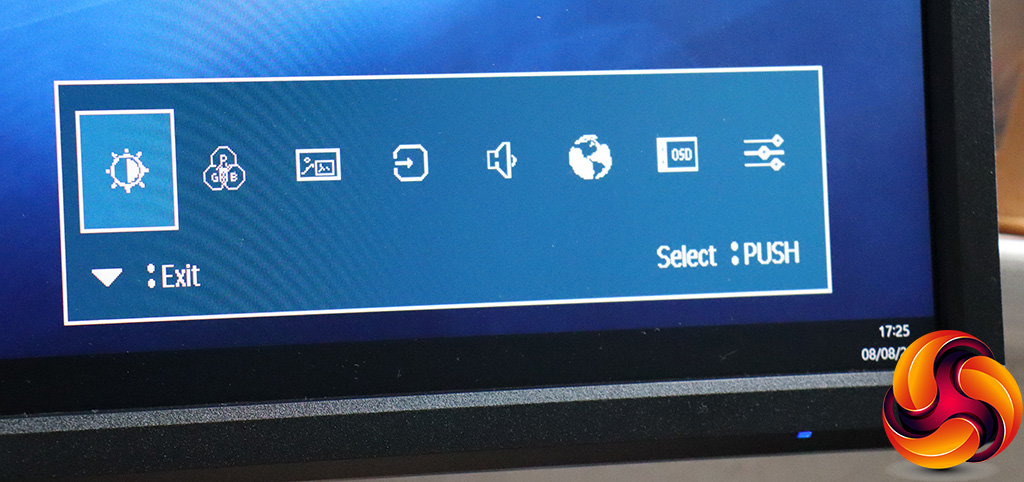
Pulling the joystick down calls up the main menu – or, at least, a series of icons that lead to it. Although this slightly speeds up getting to the submenu of your choice, it does also feel like an unnecessary extra step. The icons are also in a slightly different order to other Iiyama ProLite monitors we've tested.
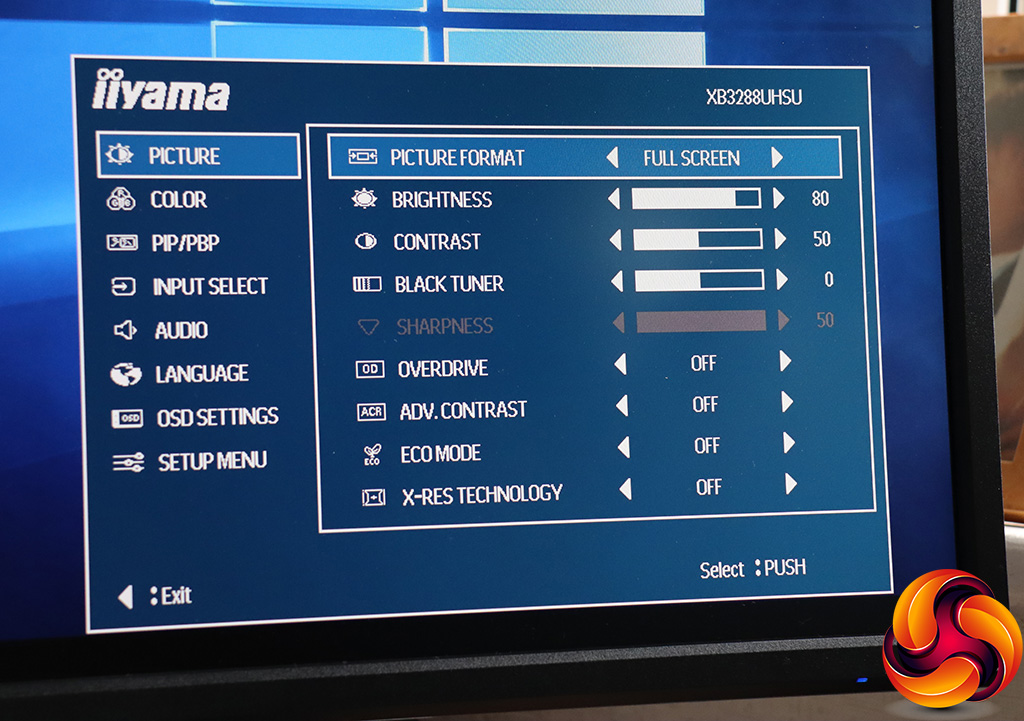
The main menu looks quite similar to previous ProLite models, but the initial Picture submenu is more packed with options. You can choose the Picture Format, which dictates whether non-native resolutions are expanded to full screen or with the correct number of pixels. You can adjust brightness and contrast here, whilst the Black Tuner adjusts brightness in the black areas only.
The Sharpness function is only available with input resolutions below 4K. The Overdrive function artificially reduces pixel response time, while Advanced Contrast artificially boosts the range between light and dark. You can access the Eco Modes here again, while X-Res Technology is a picture edge sharpening system.

Next along in the main menu is the Color submenu. This includes three colour temperature presets, whilst the User mode lets you adjust red, green and blue separately. Alternatively, you can invoke one of the I-Style Color options, which include Standard, Game, Cinema, Scenery, and Text.
Finally, the blue light reducer helps you combat eye strain by cutting down the amount of harmful blue light in the image.
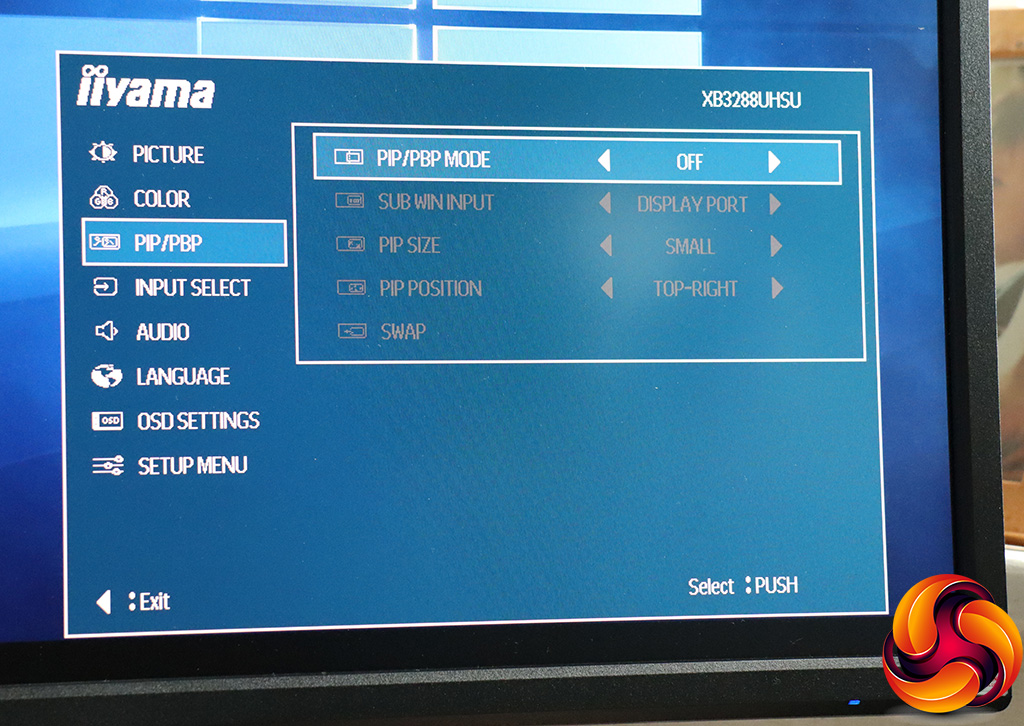
The PIP/PBP lets you display the video from a secondary input either onscreen or next to the main input.
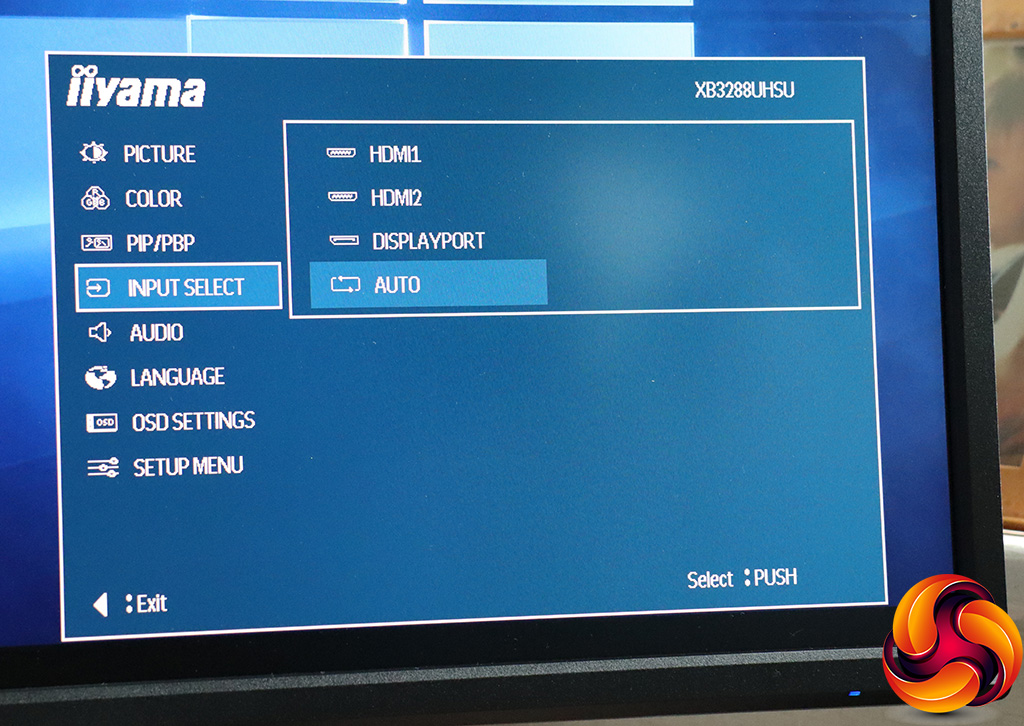
The Input Select section has the same options as the quick version.
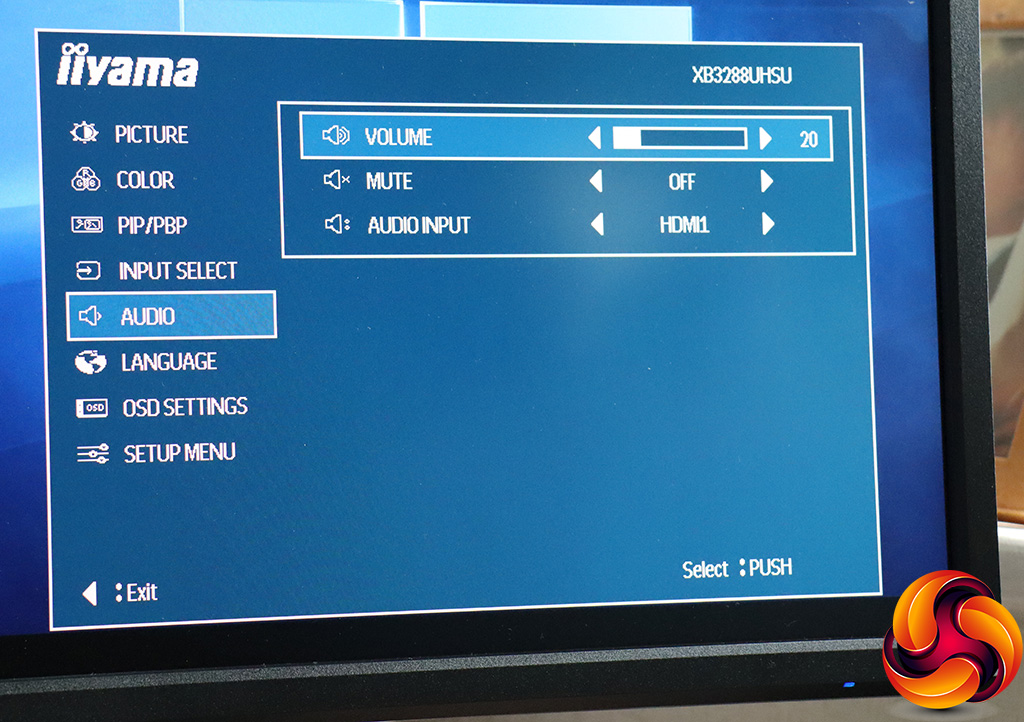
You can adjust the volume in the Audio section, but also mute the input and choose which of the video connections is supplying the sound signal.
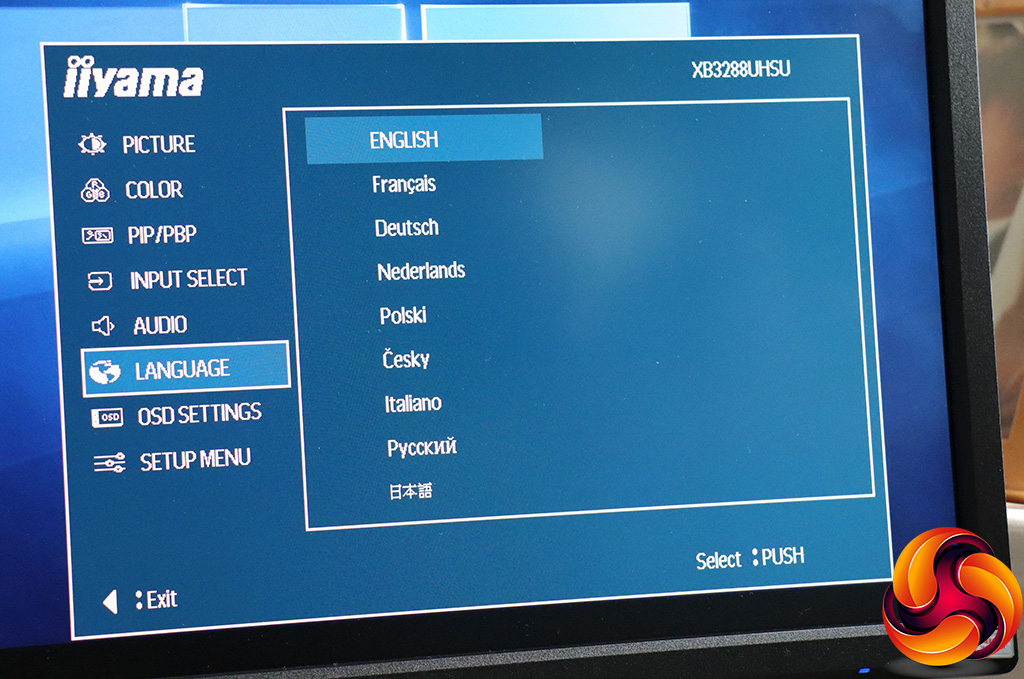
There's a decent range of OSD languages available, including Pусский and 日本人.
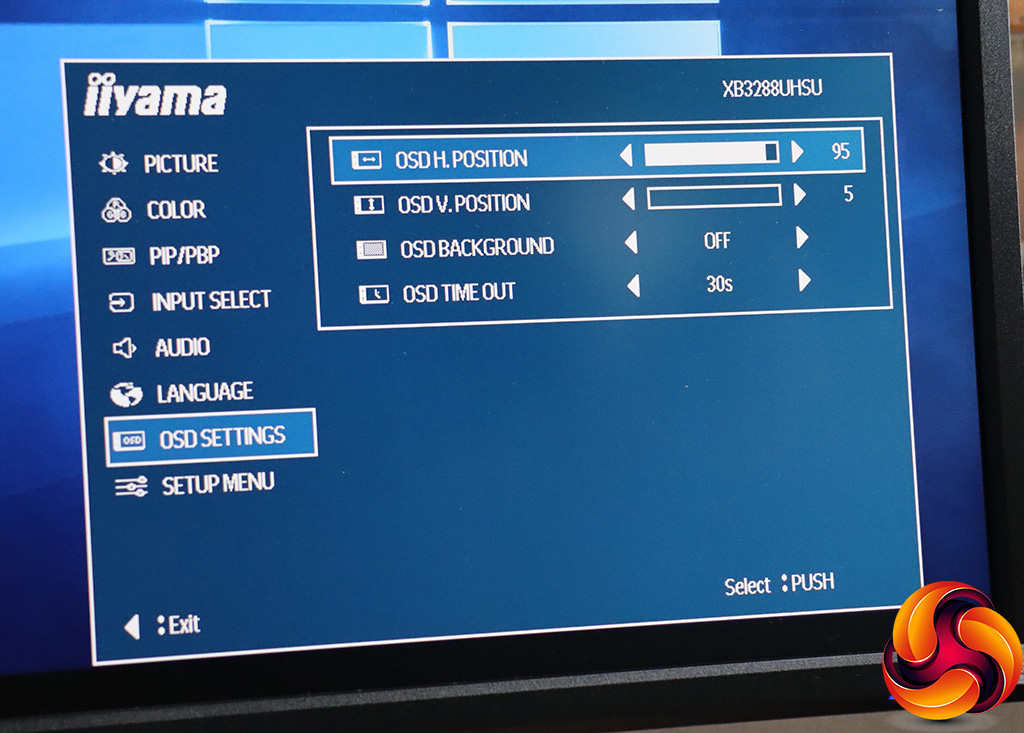
You can adjust the position and appearance of the OSD in the OSD Settings section, although this only seems to apply to the main menu and quick input menu – the Eco Modes and volume quick menus appear in the middle whether you like it or not.

Finally, all the sundry other options can be found in the Setup Menu, including changing the format support of the DisplayPort input, the RGB range for an HDMI input, and turning on HDR. You can also enable support for AMD FreeSync, configure whether the Iiyama logo appears when you turn the monitor on, and whether the power LED is lit. You can configure the monitor to turn itself off automatically after a certain period of time, and reset everything to default. The information section tells you details of the current video input signal.
Overall, this is a pretty standard OSD for an Iiyama ProLite, with a few extra options under Picture. However, we're surprised there doesn't appear to be any way to change the functions of pressing the joystick left and right – you might have preferred to have the I-Style Color modes rapidly available rather than audio volume, for example.
There are no gamma adjustments, either, which is not what we'd expect from a professional screen. We might also have liked temperature-based presets with actual K values, and finer tuning than just RGB. But this screen might not need a lot of adjustment to deliver a good image, as it's from Iiyama. So next let's find out if this is true.
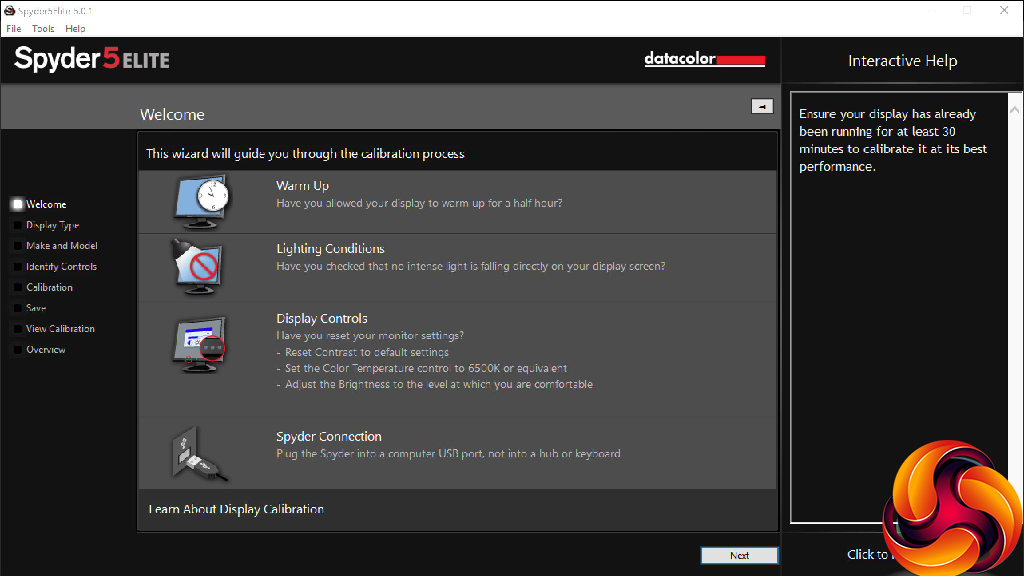
Our main test involves using a DataColor Spyder Elite 5 Colorimeter to assess a display’s image quality. The device sits on top of the screen while the software generates colour tones and patterns, which it compares against predetermined values to work out how accurate the screen is.
The results show –
- A monitor’s maximum brightness in candelas or cd/m2 at various levels set in the OSD.
- A monitor’s contrast ratio at various brightness levels in the OSD.
- The brightness deviation across the panel.
- The black and white points.
- The colour accuracy, expressed as a Delta E ratio, with a result under 3 being fine for normal use, and under 2 being great for colour-accurate design work.
- The exact gamma levels, with a comparison against preset settings in the OSD.
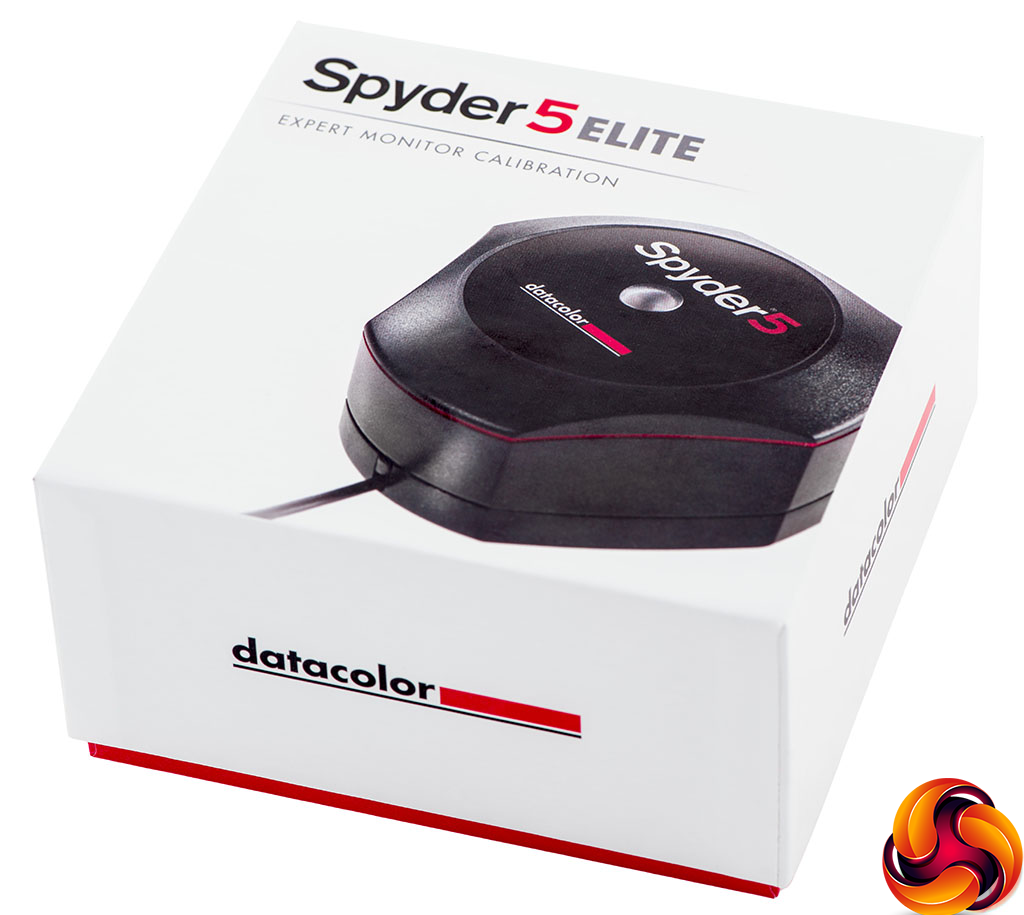
We first run this test with the display in its default, out-of-the-box state, with all settings on default. We then calibrate the screen using the Spyder software and run the test again.
We always test the display subjectively on the Windows desktop, using it for general tasks such as browsing and word processing, and with games as well, even if the display is not intended solely for that purpose.
We pay careful attention to any artefacts, ghosting or motion blur, and enable any gaming-specific features, such as adaptive-sync settings like G-Sync or FreeSync, using a compatible graphics card in our test PC.
We performed the quality tests on the XB3288UHSU-B1 at its native 3,840 x 2,160 resolution in the default mode using the HDMI connection. Our test system was equipped with an AMD Radeon Vega Frontier Edition graphics card.
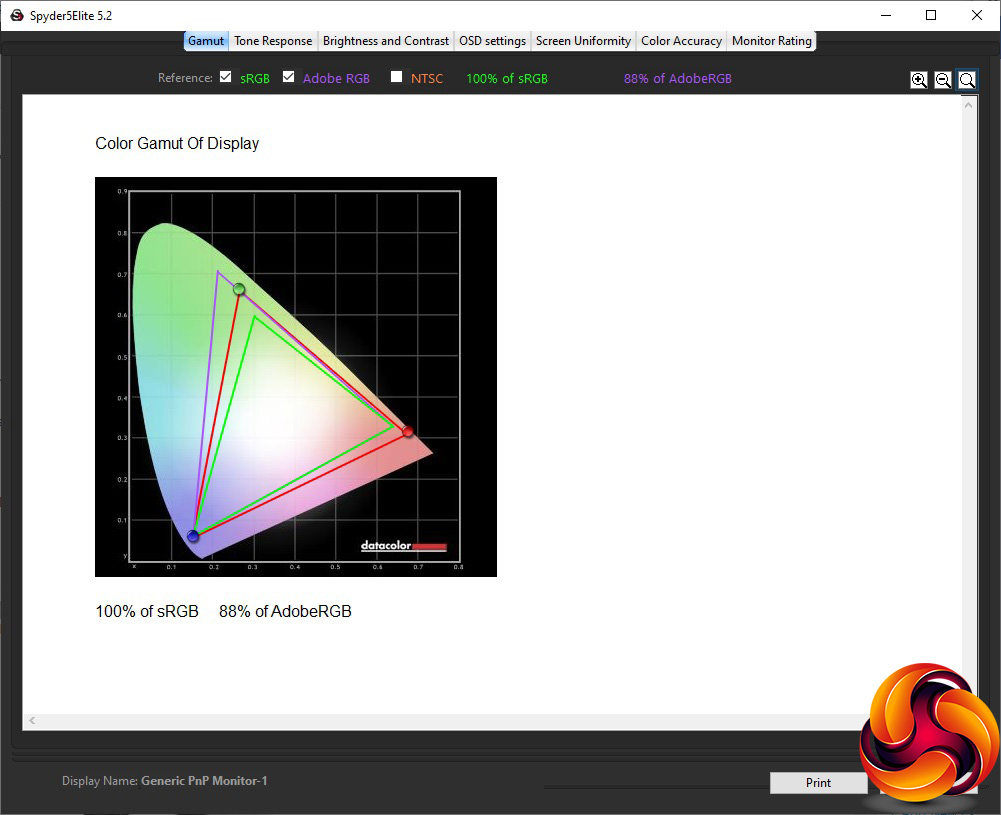
Things get off to a great start with an impressive gamut reading of 100 per cent sRGB and 88 per cent of AdobeRGB.
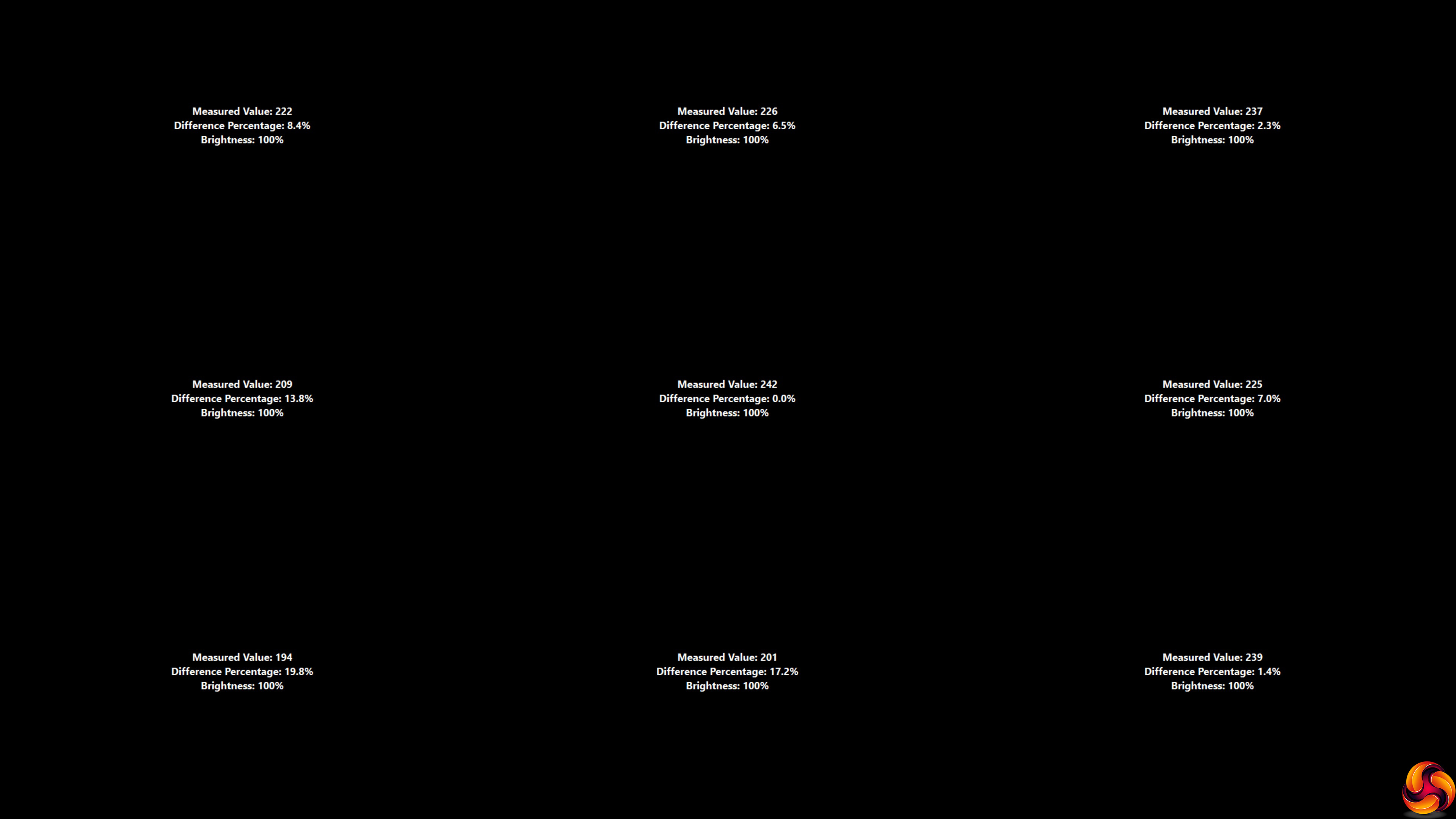
Brightness uniformity is not so commendable, with the bottom left corner and bottom centre being particularly aberrant.
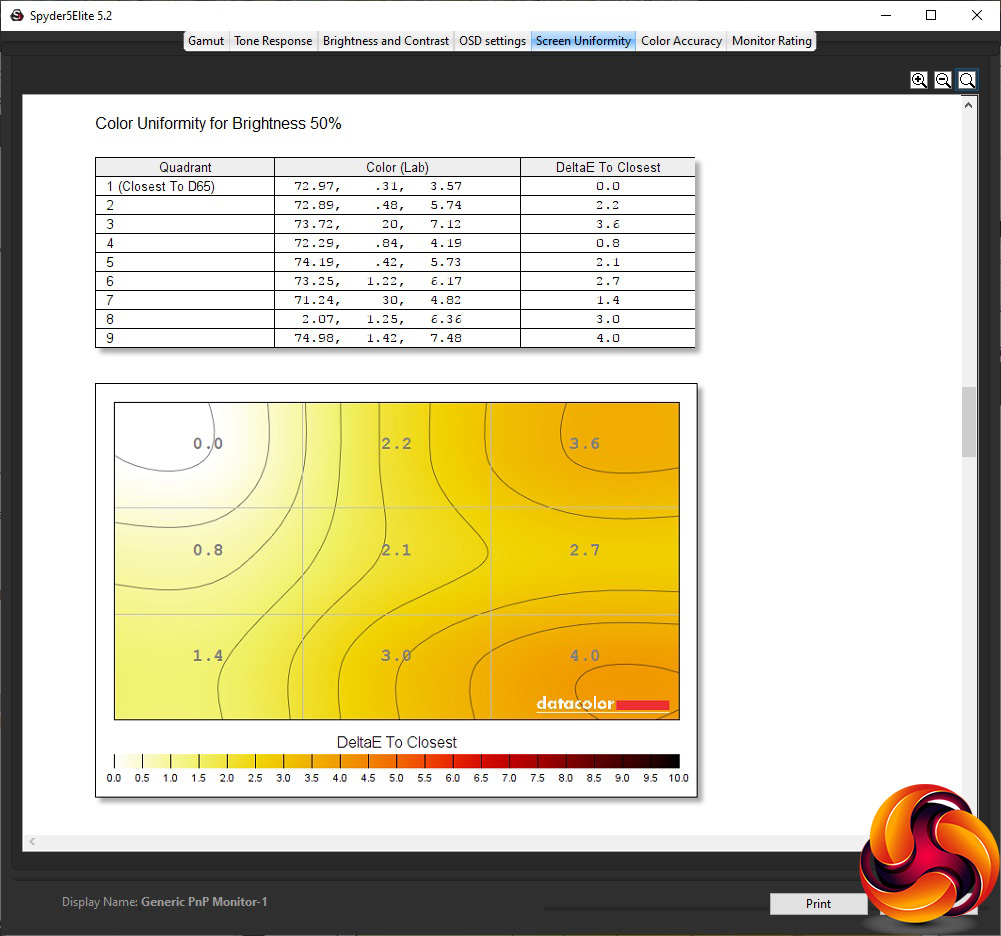
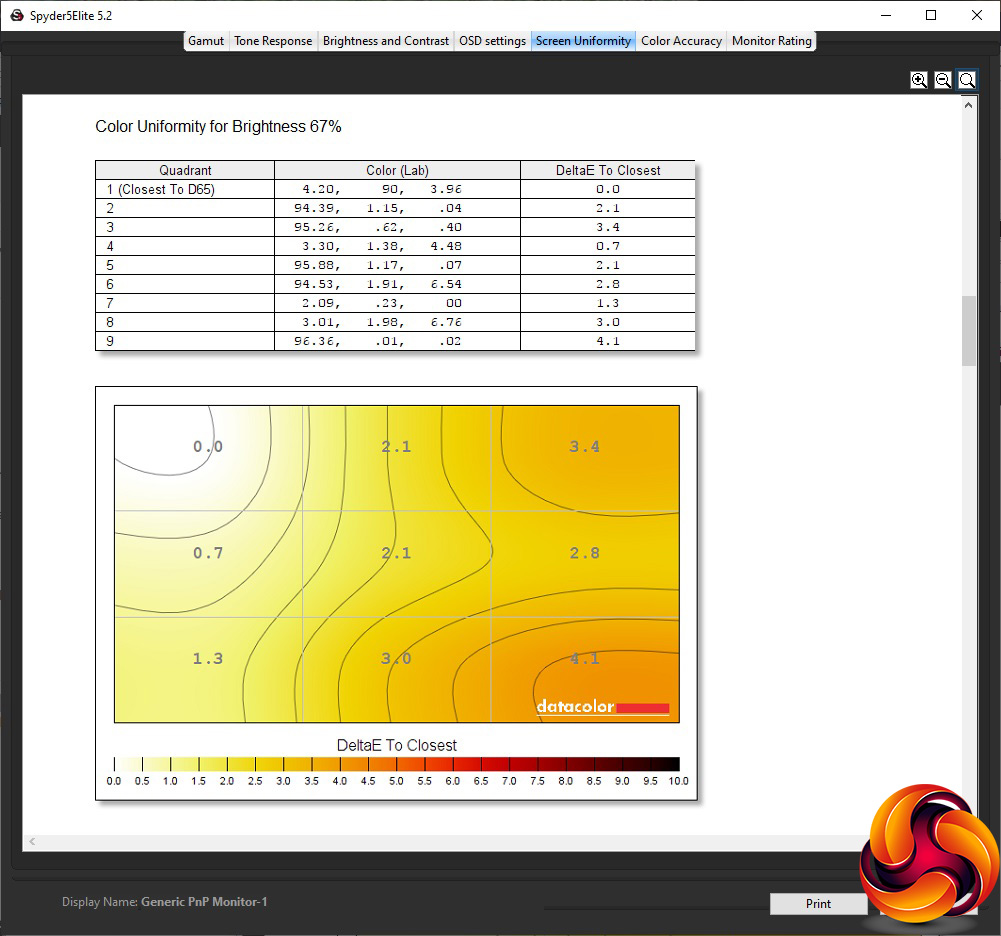
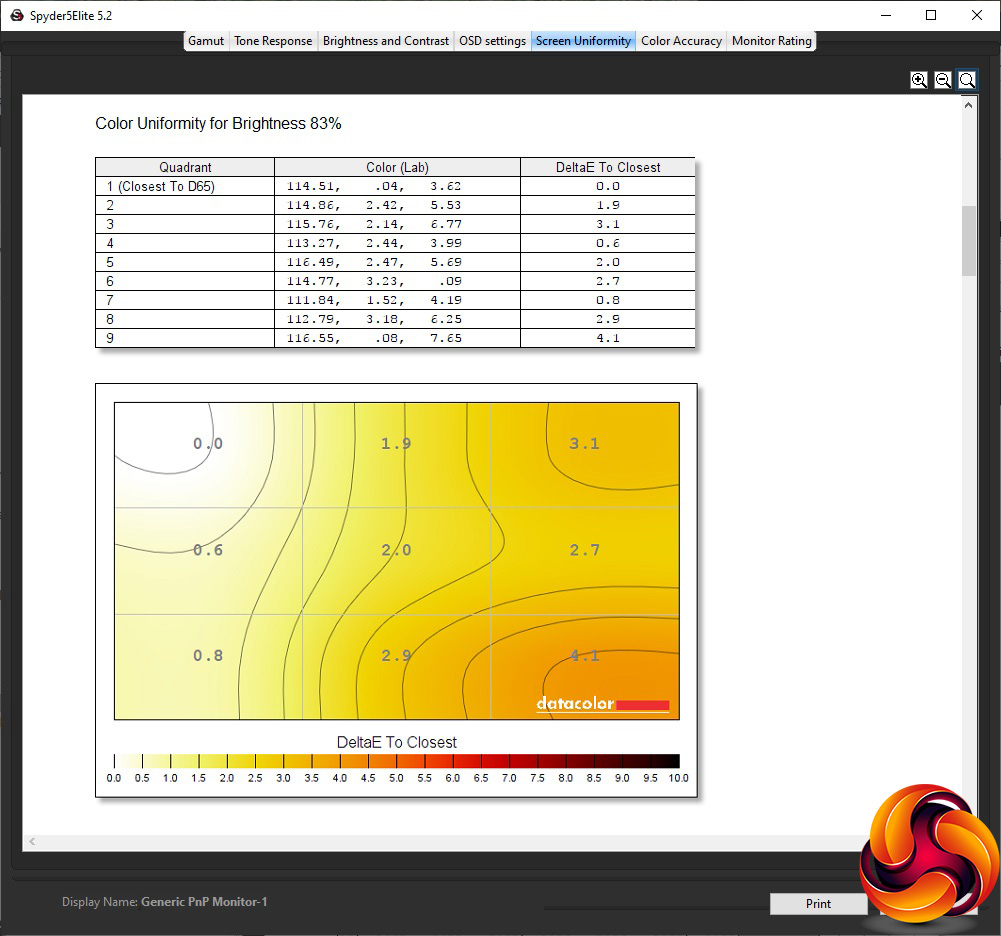
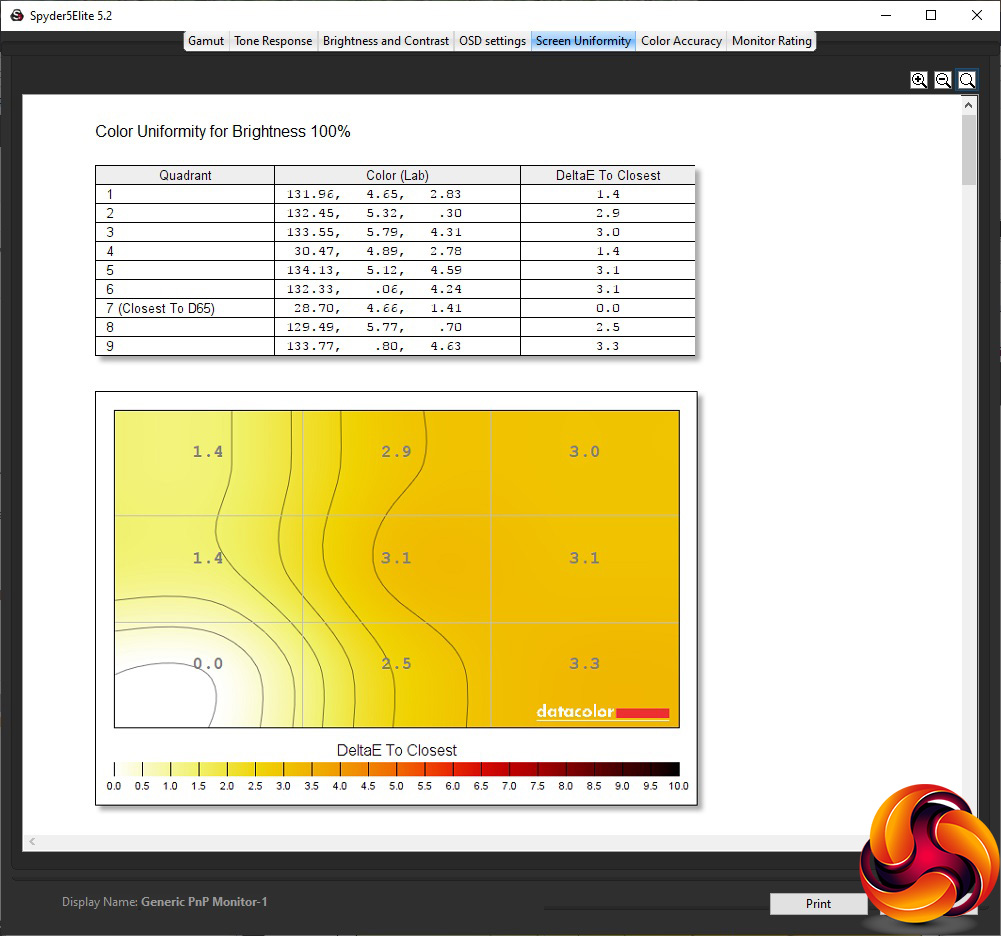
Fortunately, colour uniformity is a little more promising, although the bottom right corner can be a little deviant.
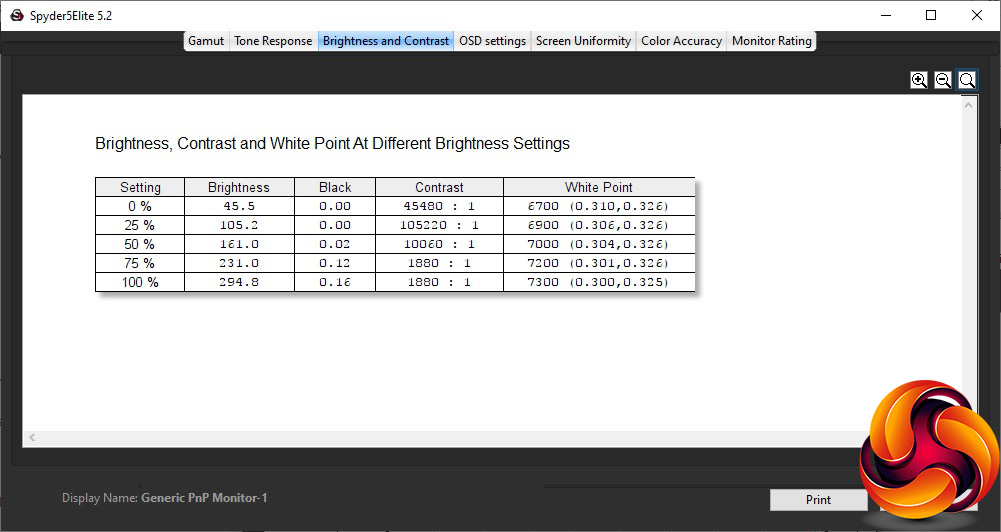
This monitor pretty much hits its maximum brightness spot on at 100 per cent, managing 294.8cd/m2. The contrast is a commendable 1,880:1 with a 7300K white point. At zero per cent, the monitor is still a fairly bright 45.5cd/m2, with the levels fairly evenly spaced above that. However, the contrast is obviously showing some signs of dynamic backlight adjustment at 50 per cent or below, and it's disappointing to see the white point so variable through the brightness range.
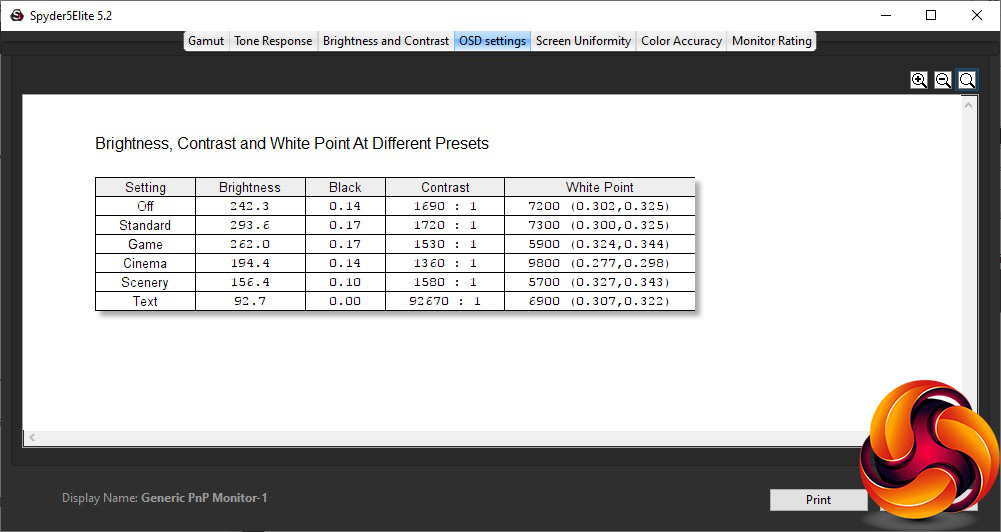
The I-Style Color presets may be few, but they cover the general tasks that you're likely to be using this monitor for, and are well differentiated. The default Off position consists of a 242.3cd/m2 brightness, 1,690:1 contrast and 7200K white point. Standard mode clearly bumps brightness up to 100 per cent, as this is recorded as 293.6cd/m2, with a 1,720:1 contrast and 7300K white point.
Game mode offers a brightness somewhere between Off and Standard of 262cd/m2, but slightly lower contrast of 1,530:1 and relatively warm 5900K white point. Cinema mode takes the usual strategy of a preset aimed at movie watching by offering a much cooler 9800K white point, lower 1,360:1 contrast, and lower 194.4cd/m2 brightness.
Scenery mode drops the brightness still lower to 156.4cd/m2, and with the warmest 5700K white point, but a mid-range 1,580:1 contrast. Finally, text mode is predictably the least bright at 92.7cd/m2, but with a mid-range 6900K white point and very high contrast that reads as 92,670:1 but probably involves some backlight variation to increase the perception of different levels of shade.
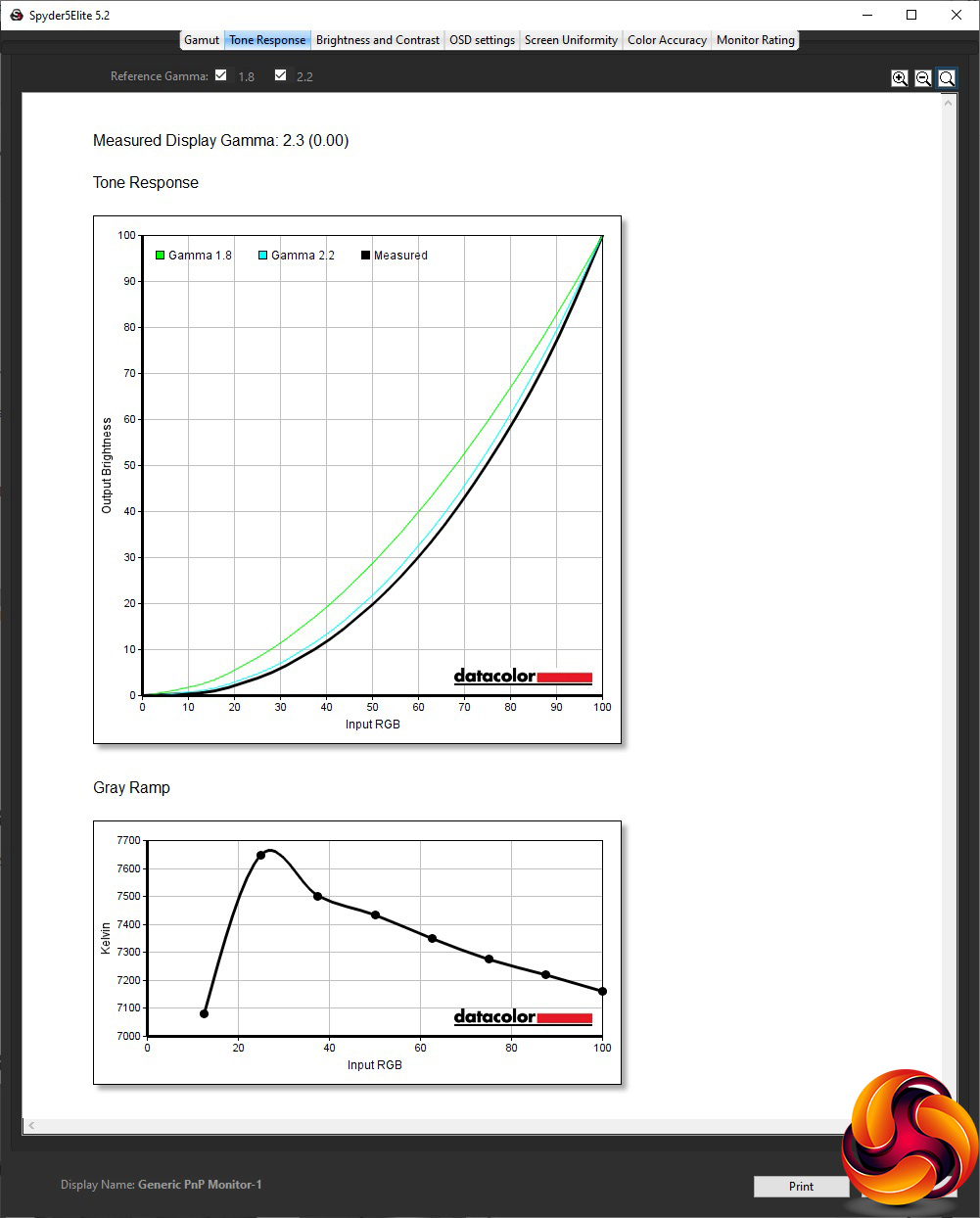
Since there are no gamma options, it's reassuring that the default equates to a midrange 2.3, although 2.2 would have been better and having some alternative options even better.
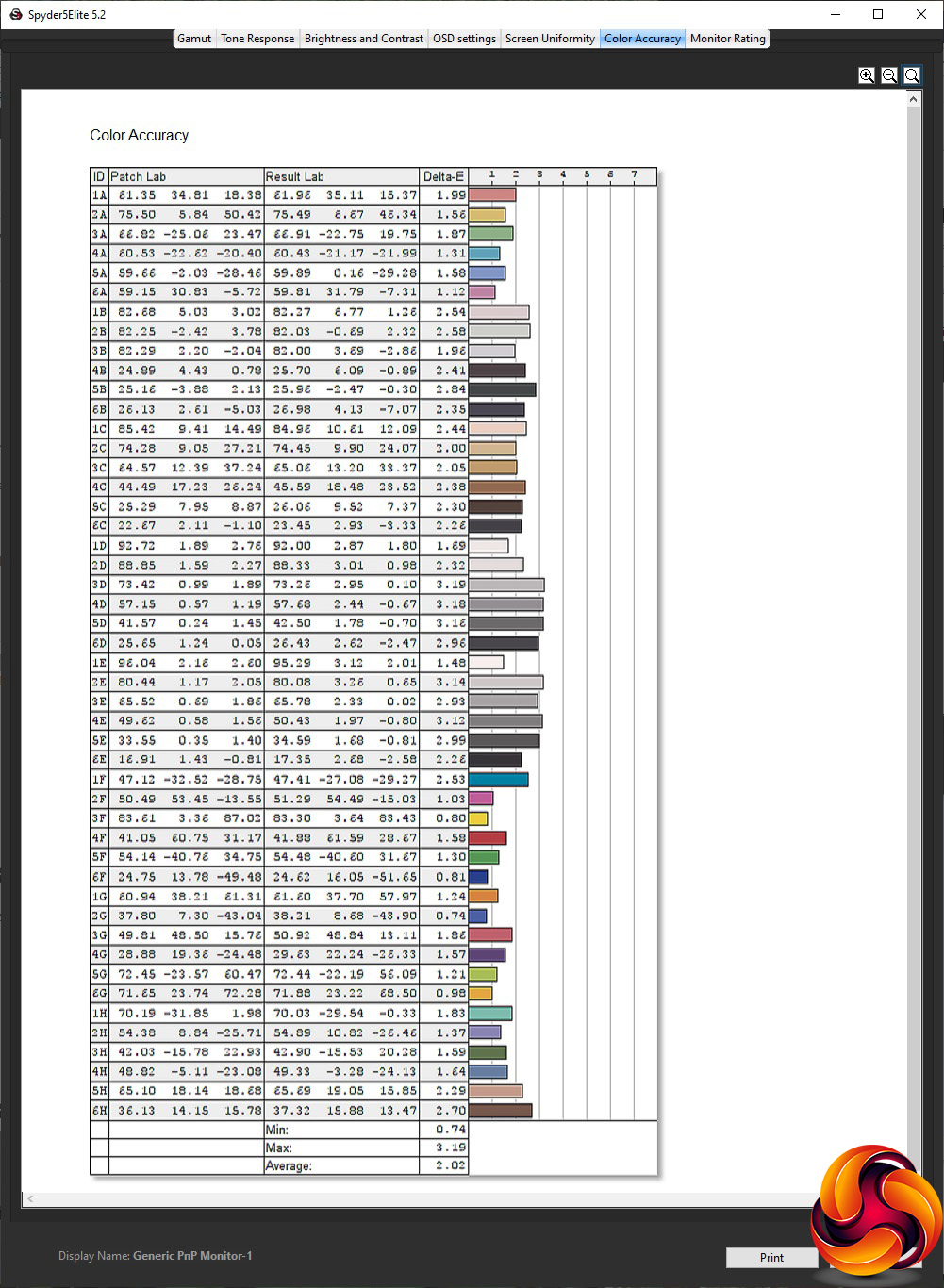
Colour accuracy is one of the most important features for a professional monitor, and the average deviation score of 2.02 is very good – but not excellent. So this screen was a particularly obvious candidate for calibration. We called upon the Spyder's system to see if improvements could be made.
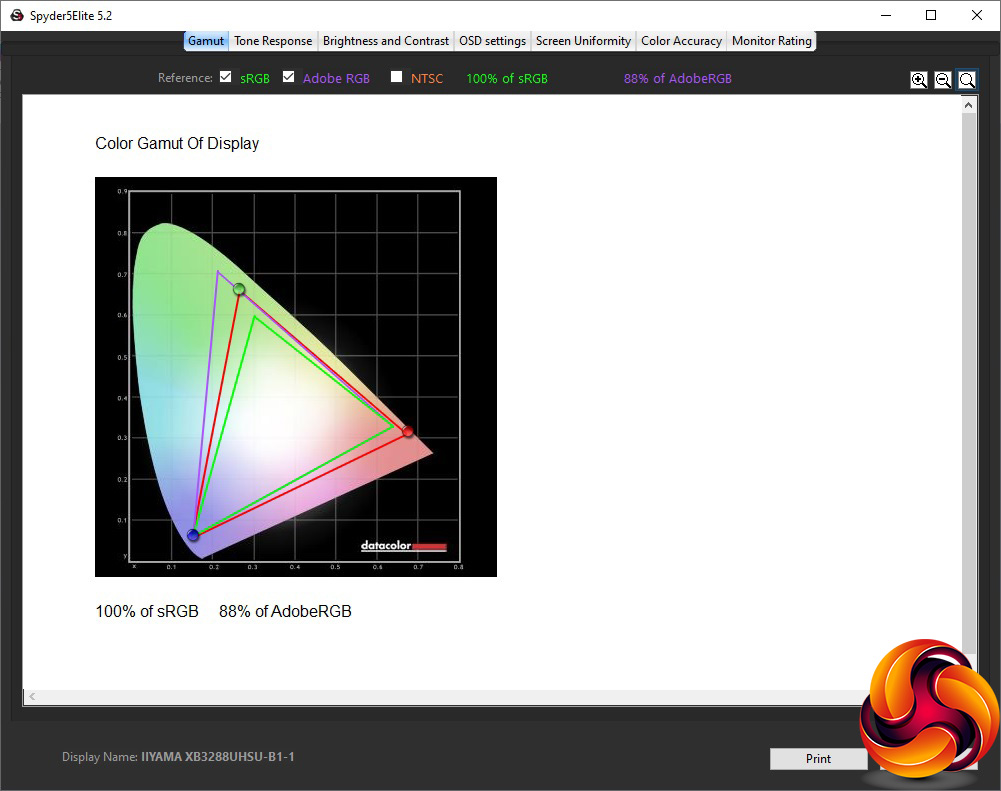
As is almost always the case, the gamut is unchanged, staying at the excellent 100 per cent sRGB and 88 per cent AdobeRGB.
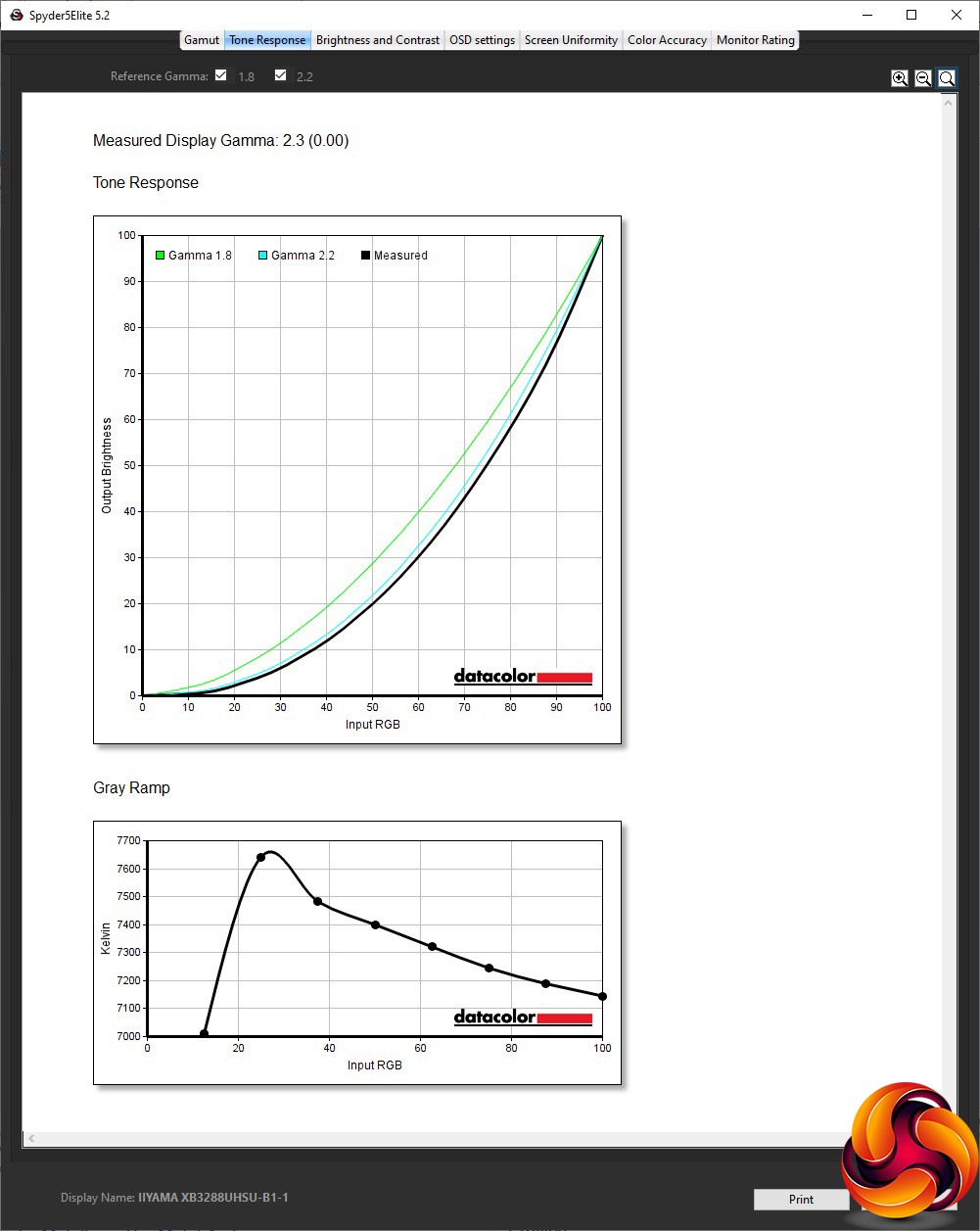
The gamma is also unchanged at 2.3.
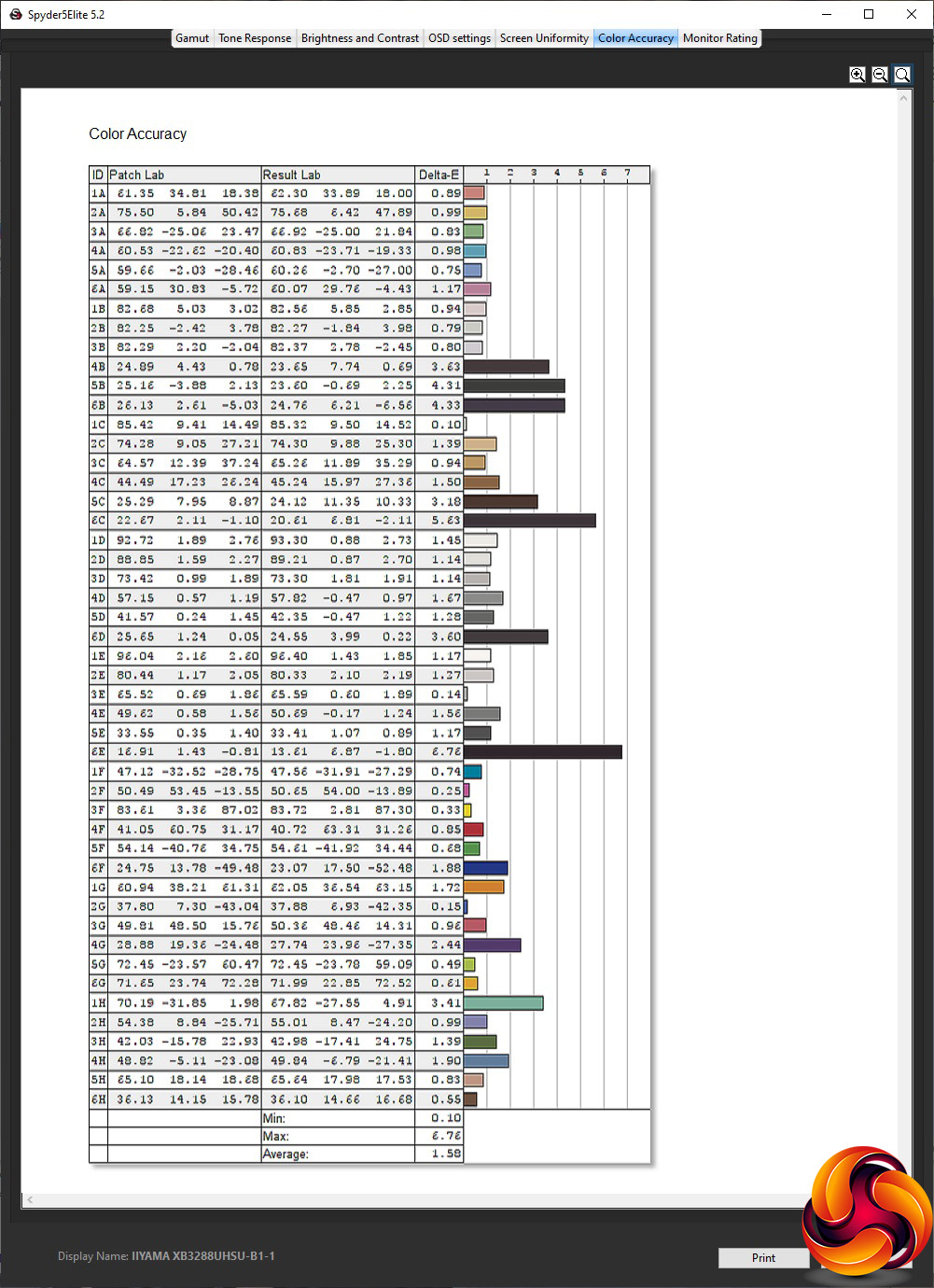
Colour accuracy, however, has improved, moving from the very good 2.02 to the almost excellent 1.58. This is still not amongst the very best we've tested, but it's in the right ballpark of what you need for serious professional work.
Overall, performance is very good, with just the brightness uniformity a blot on its copybook that's worth talking about.
After testing and calibrating the screen, we tried a few professional tasks such as image editing with Photoshop and video editing with Adobe Premiere Pro CC 2019. The size and pin-sharp accuracy were spot on for this kind of activity, and it was reassuring to know that colours would be pretty close to those intended.
The Iiyama ProLite XB3288UHSU-B1 is another typically competent professional monitor from the company. There's nothing radically special about it; it just does its job well. The very good colour accuracy and wide gamut make graphics work its particular forte.
The disappointing brightness uniformity and lack of gamma adjustments are the only major downsides. We would also have liked to see USB-C as a video input option. Otherwise, there's nothing major missing for the target business audience, with the USB hub and built-in speakers adding convenience for this market.
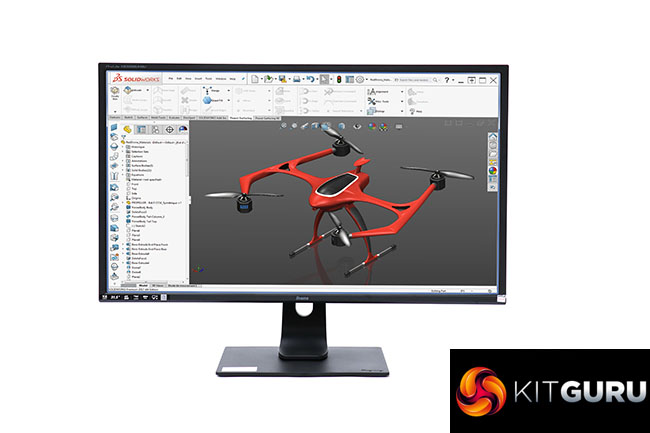
The XB3288UHSU-B1 may seem a little pedestrian after the recent slew of gaming ultrawide screens we've reviewed, despite its 4K resolution. But if you're after a solid workhorse 31.5in 4K screen for everyday business and professional graphics work, this is a monitor with plenty to commend it, and the £400 price is quite reasonable too.
The Iiyama ProLite XB3288UHSU-B1 is available from Box for £399.99.
Pros:
- Very good colour accuracy out of the box, even better when calibrated.
- Wide colour gamut.
- Reasonable price for a 4K 32in screen.
- USB 3 hub with convenient side ports.
- Built-in speakers.
Cons:
- Mediocre brightness uniformity.
- No gamma settings.
- No USB-C video input.
KitGuru says: The Iiyama ProLite XB3288UHSU-B1 is a solid 31.5in 4K monitor for business and professional graphics use, with very good colour accuracy and a wide gamut.