KitGuru KitGuru.net – Tech News | Hardware News | Hardware Reviews | IOS | Mobile | Gaming | Graphics Cards



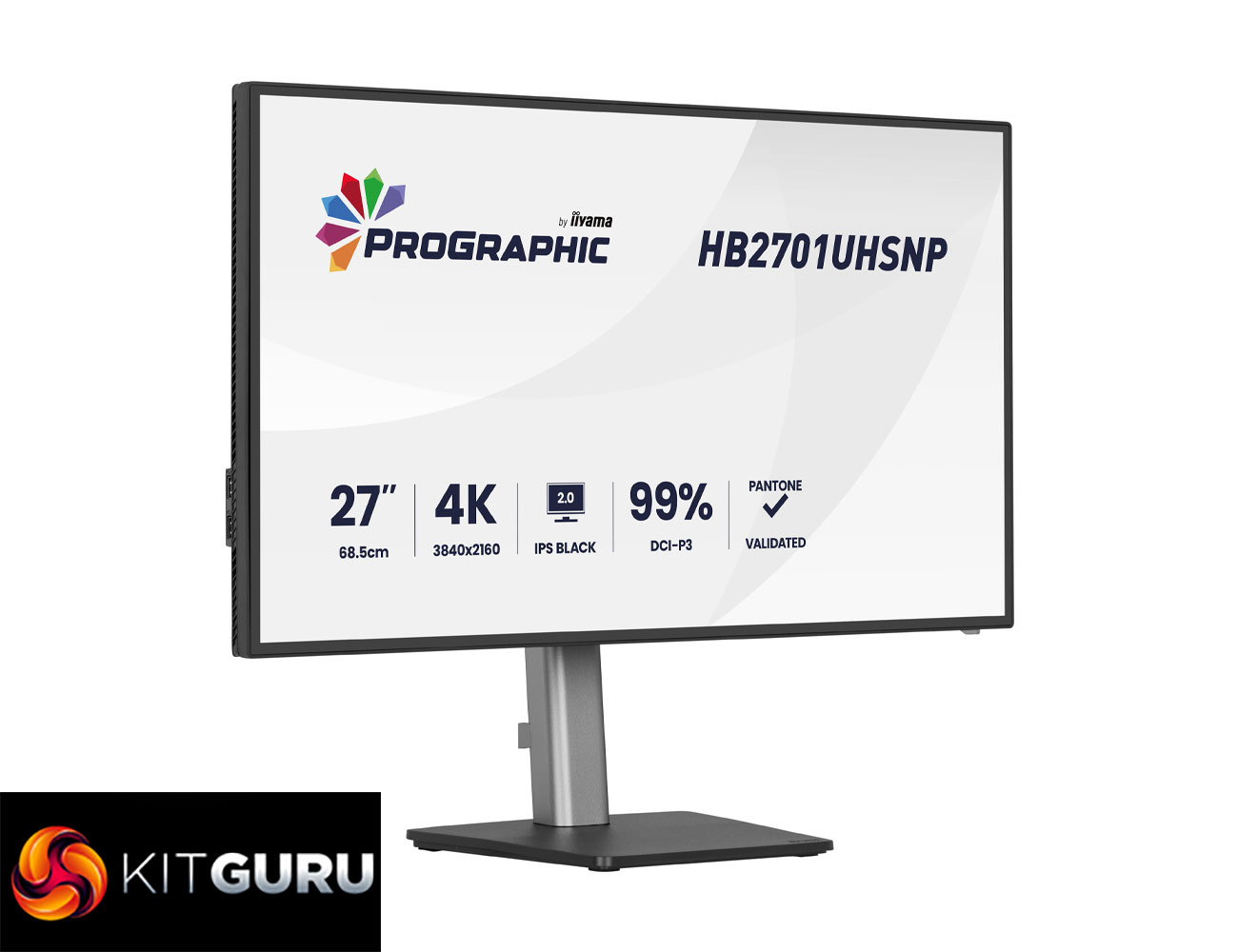
Today we're checking out a monitor from iiyama's new ProGraphic lineup. As the name suggests, it's a family of displays geared towards professionals and creatives, rather than the gaming audience that we'd associate with the company's G-Master range. Specifically, we are analysing the HB2701UHSNP, sporting a 27in diagonal and 4K resolution. It's also packing in one of LG's new IPS Black 2.0 panels, designed to increase contrast, while iiyama also claims 99% DCI-P3 coverage.
Right now, iiyama's ProGraphic lineup consists of two models – the HB2701UHSNP we are reviewing today, along with the HB3201UHSNP. Both are very similar overall, built on IPS Black 2.0 technology with a wide colour gamut, but the latter is slightly larger at 32in.
On top of the new IPS panel technology, iiyama highlights wide colour gamut, Pantone Validated colours, sharp visuals thanks to the UHD resolution, alongside an anti-glare screen coating and useful features like a KVM switch.
Here in the UK, the HB2701UHSNP is retailing for just under £500, so let's see what it can bring to the table.
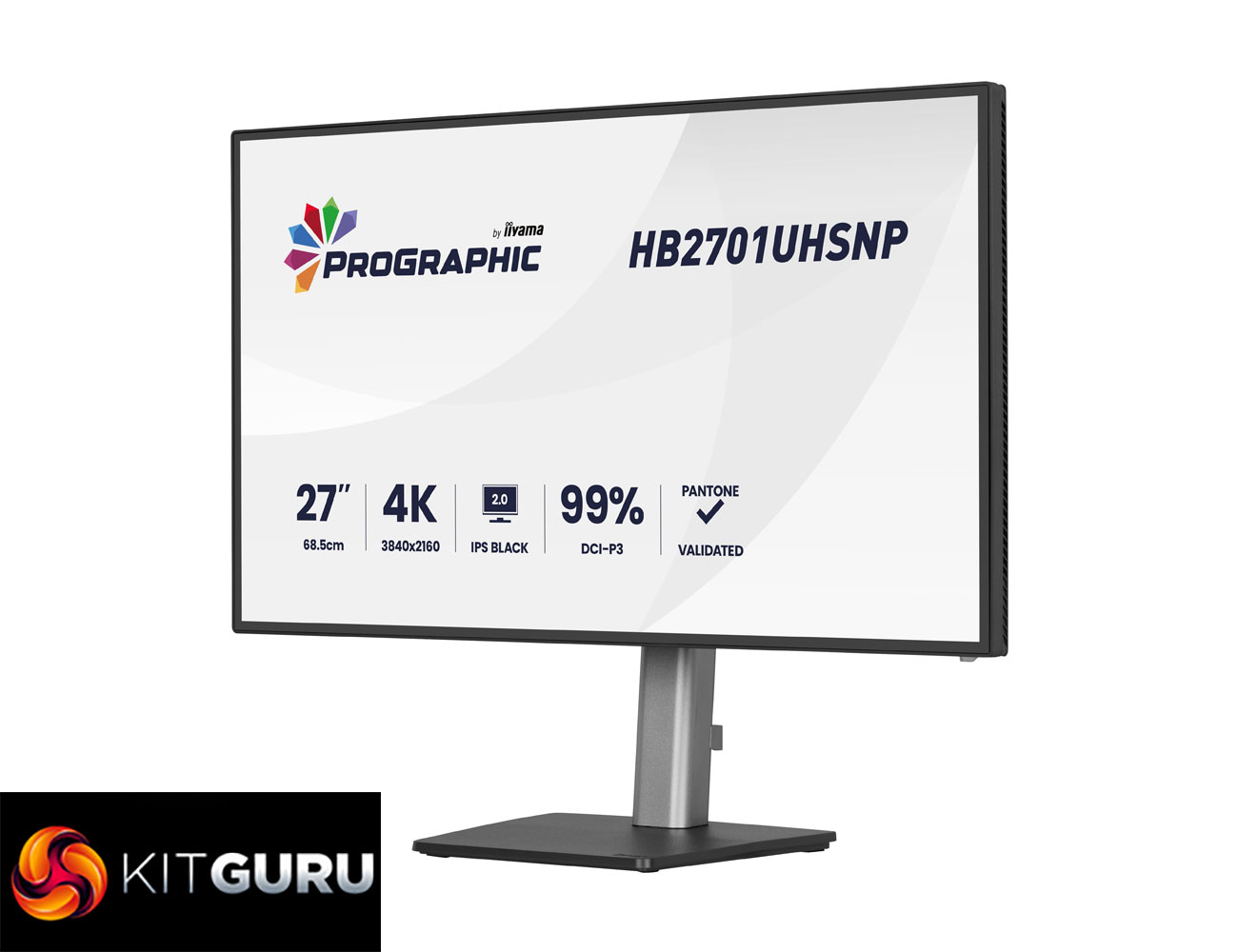
Specification:
- Design: 4-side edge-to-edge
- Diagonal: 27″, 68.5 cm
- Panel: IPS Black 2.0, matte finish
- Native resolution: 3840 x 2160 @60Hz (8.3 megapixel 4K UHD)
- Aspect ratio: 16:9
- Panel brightness: 450 cd/m²
- Static contrast: 3000:1
- Advanced contrast: 80M:1
- Response time (GTG): 4 ms
- Viewing zone: horizontal/vertical 178°/178°, right/left 89°/89°, up/down 89°/89°
- Colour support: 1.07B 8-bit (DCI-P3 99%, sRGB 100%, NTSC 72%)
- Horizontal sync: 30 – 140 kHz
- Viewable area (W x H): 596.7 x 335.7 mm (23.5 x 13.2″)
- Pixel pitch: 0.155 mm
- Colour: matte black
- Signal input: HDMI x1 (v2.0), DisplayPort x1 (v1.2), USB-C x1 (Power Delivery 96W)
- Signal output: DisplayPort x1 (Daisy Chain MST up to 3840 x 2160)
- USB hub: 4x (3x USB 3.2 Gen1 Type-A 5Gbps 4.5W, 1x USB Type-C 5Gbps 15W)
- USB-C dock: 1x (Power Delivery 96W, LAN, DP out, USB 3.2 Gen1 5Gbps; not supported on Mac)
- HDCP: Yes
- Headphone connector: Yes
- RJ45 (LAN): 1x
- KVM switch: Yes
- Blue light reducer: Yes
- Flicker free: Yes
- Extra features: Delta E <2.0, EyeComfort, Low Blue Light panel, Eyesafe® Certified, Pantone Validated™, AGLR polarizer (anti-glare low reflective)
- HDR: HDR400
- Speakers: 2 x 2W
- Convenience: Kensington-lock™ prepared, DDC/CI, DDC2B
- Display position adjustments: height, swivel, tilt, pivot
- Height adjustment: 150 mm
- Rotation (pivot): 90°
- Swivel stand: 360° (180° left / 180° right)
- Tilt angle: 23° up / 5° down
- VESA mounting: 100 x 100 mm
- Cable management system: Yes
Firmware tested: V101
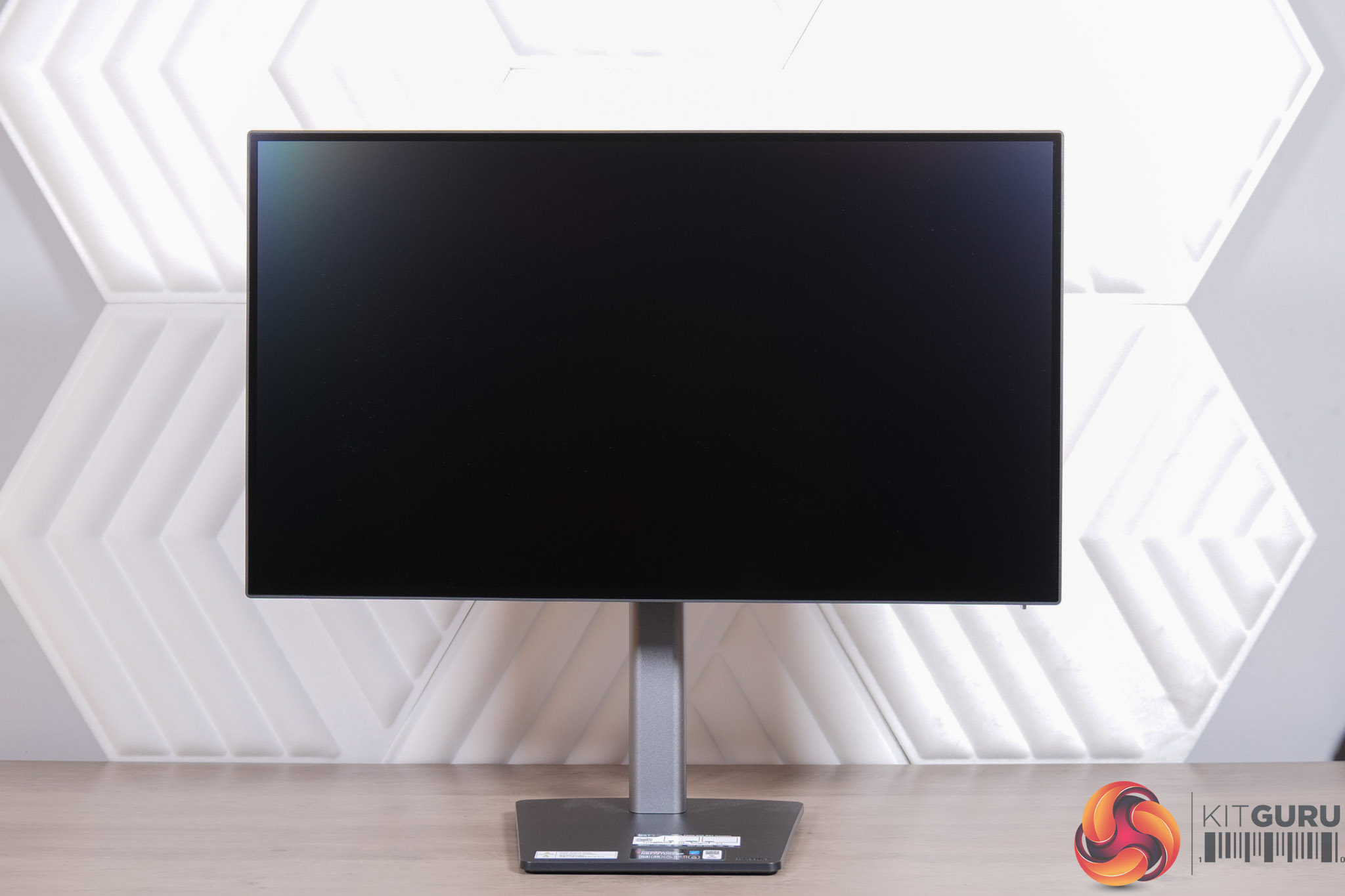
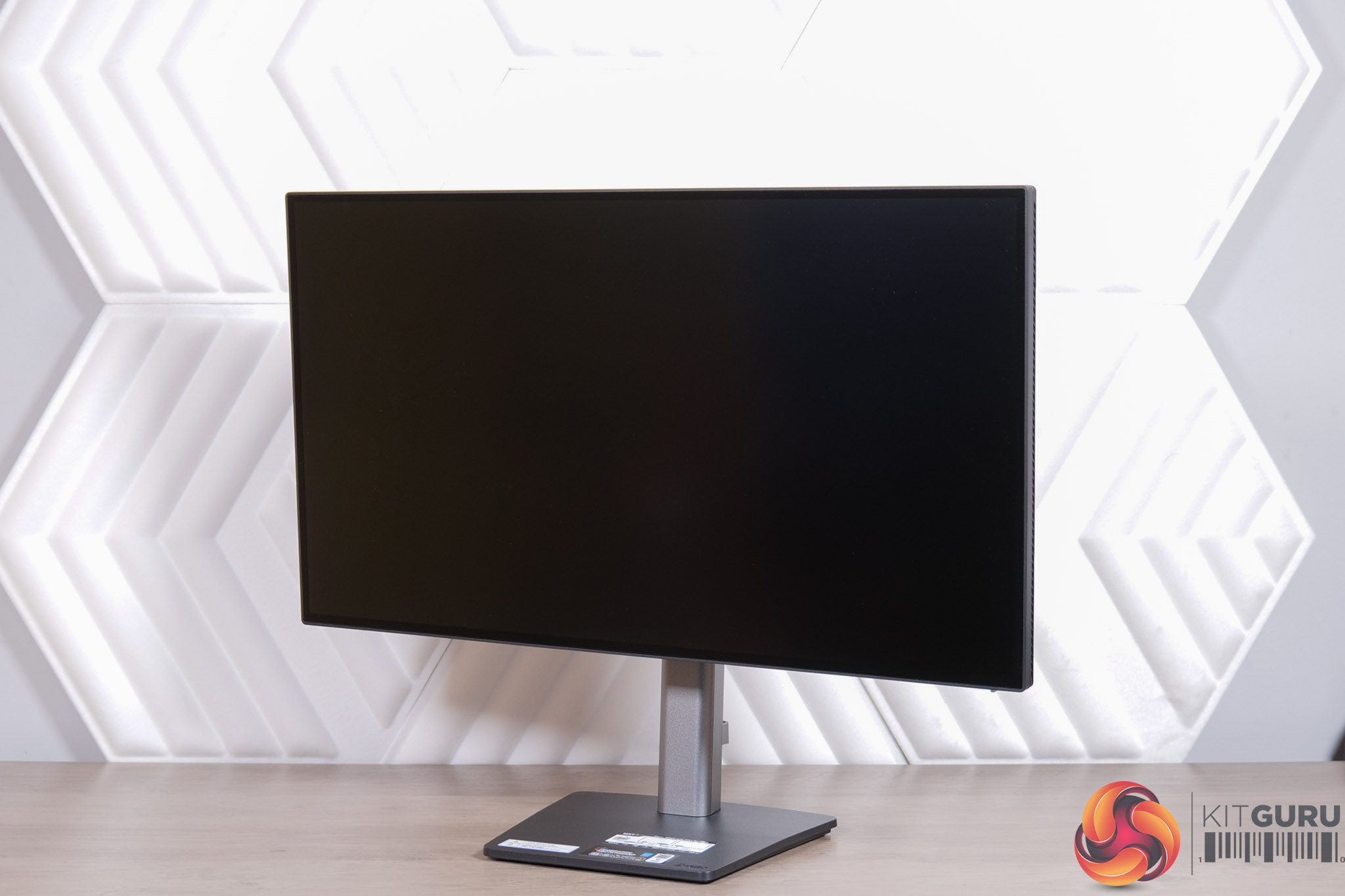
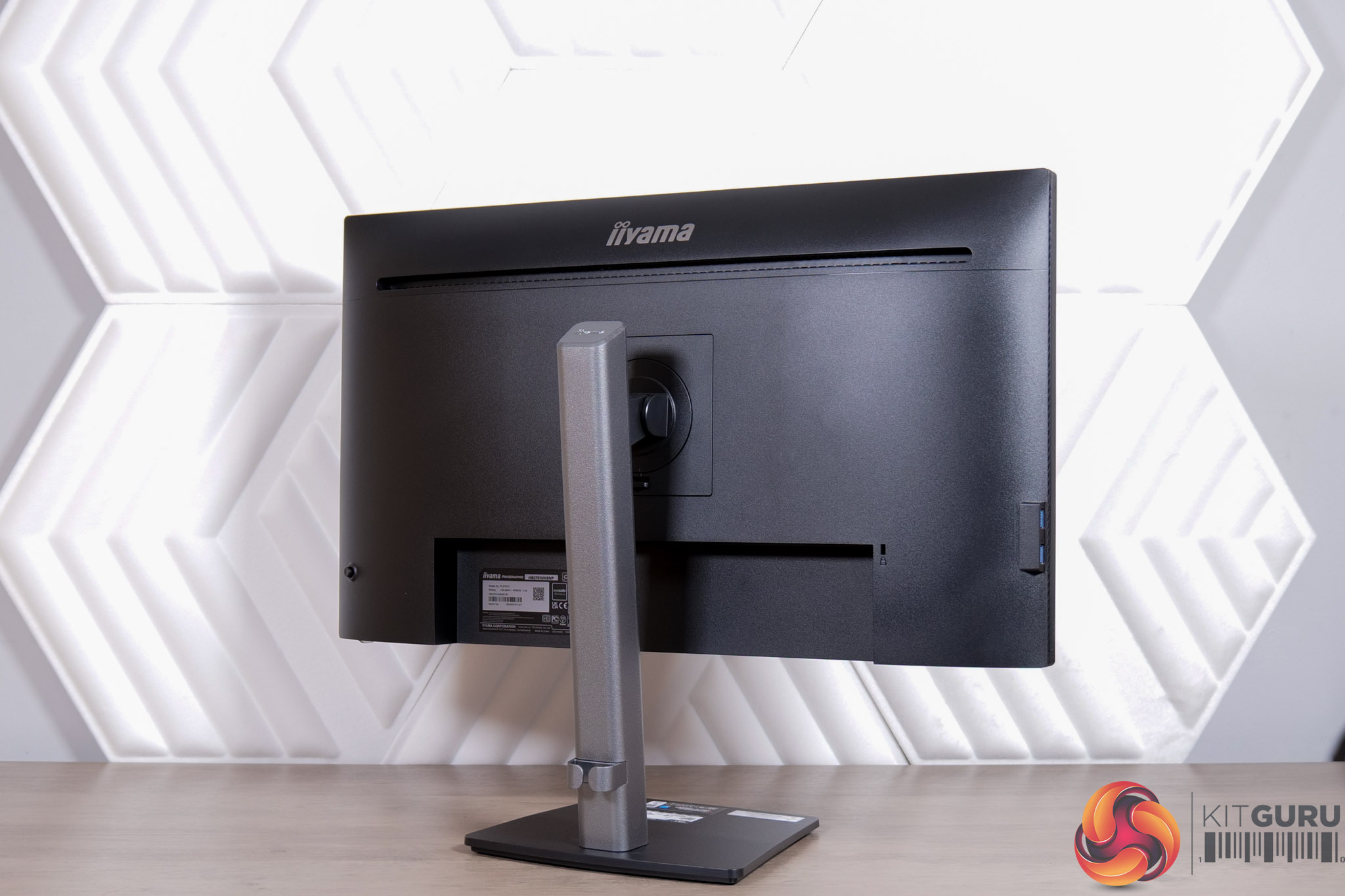
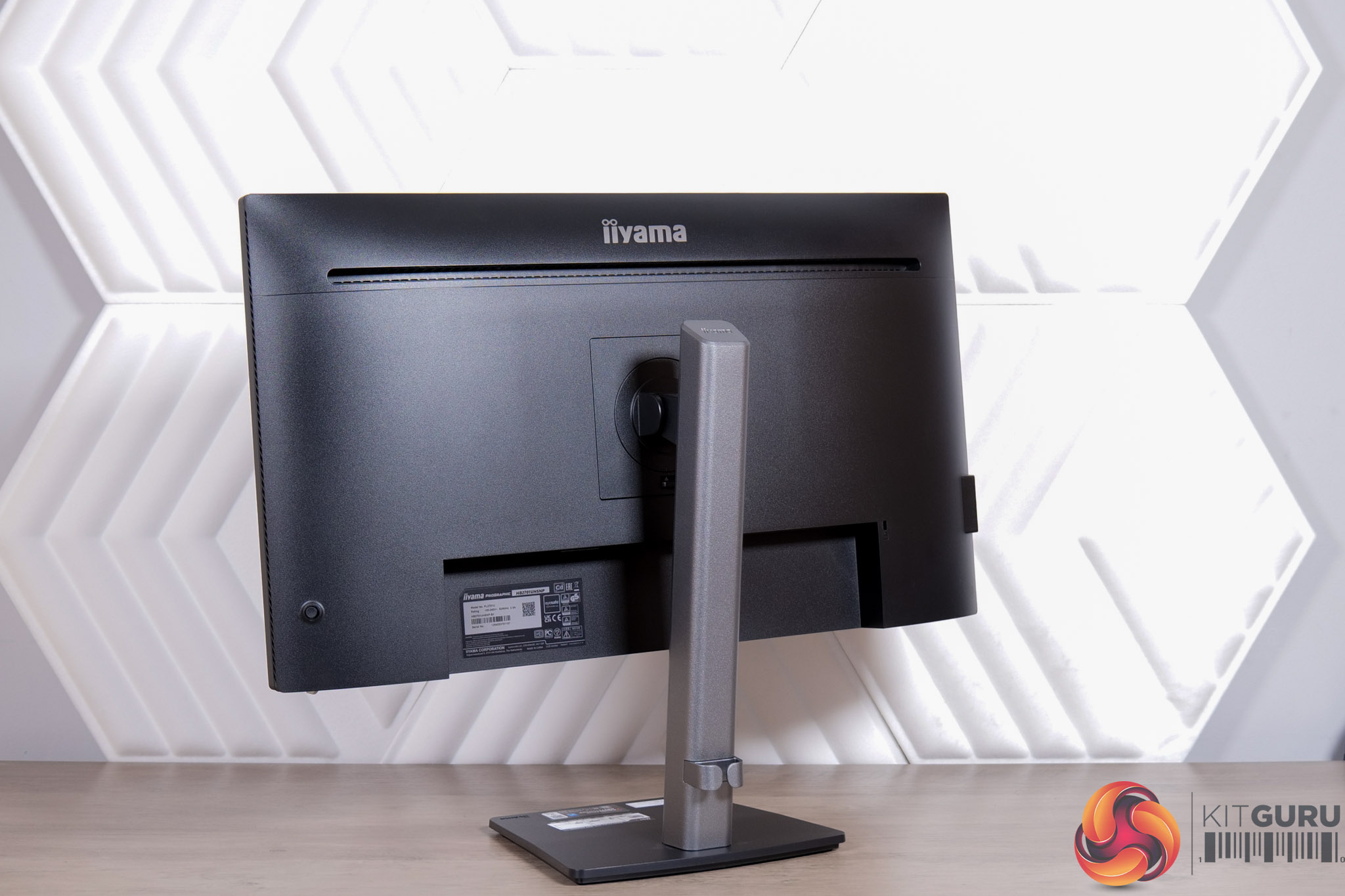
In terms of design of the HB2701UHSNP, it's a clean and understated monitor. It's worlds apart from iiyama's gaming monitors, but the contrast of the grey stand and black frame means it isn't totally boring either, while the four-sided frameless design round the front looks very stealthy.
I like to see a compact, square foot to avoid taking up unnecessary room on your desk, while there's little obvious branding, too.
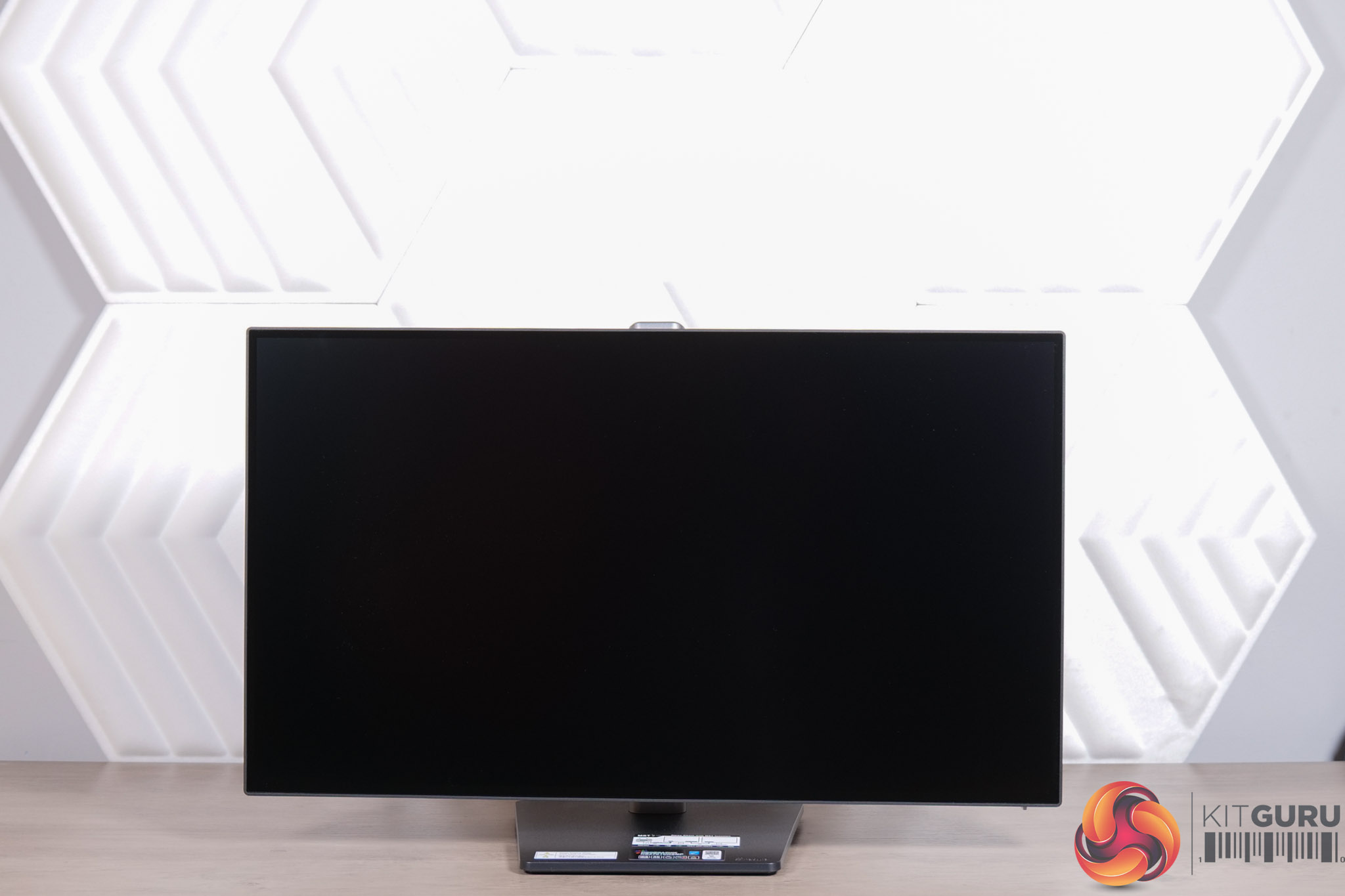
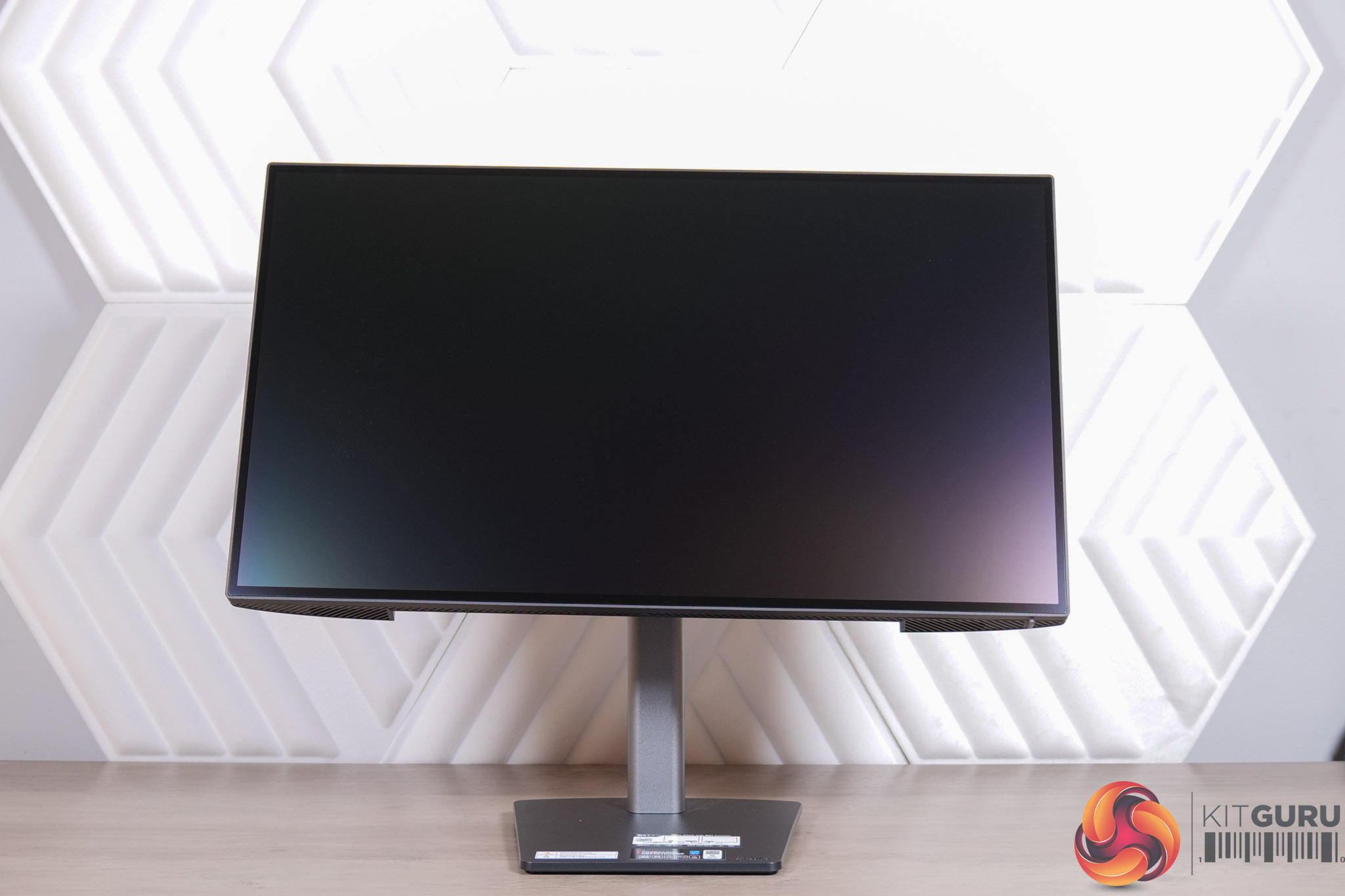
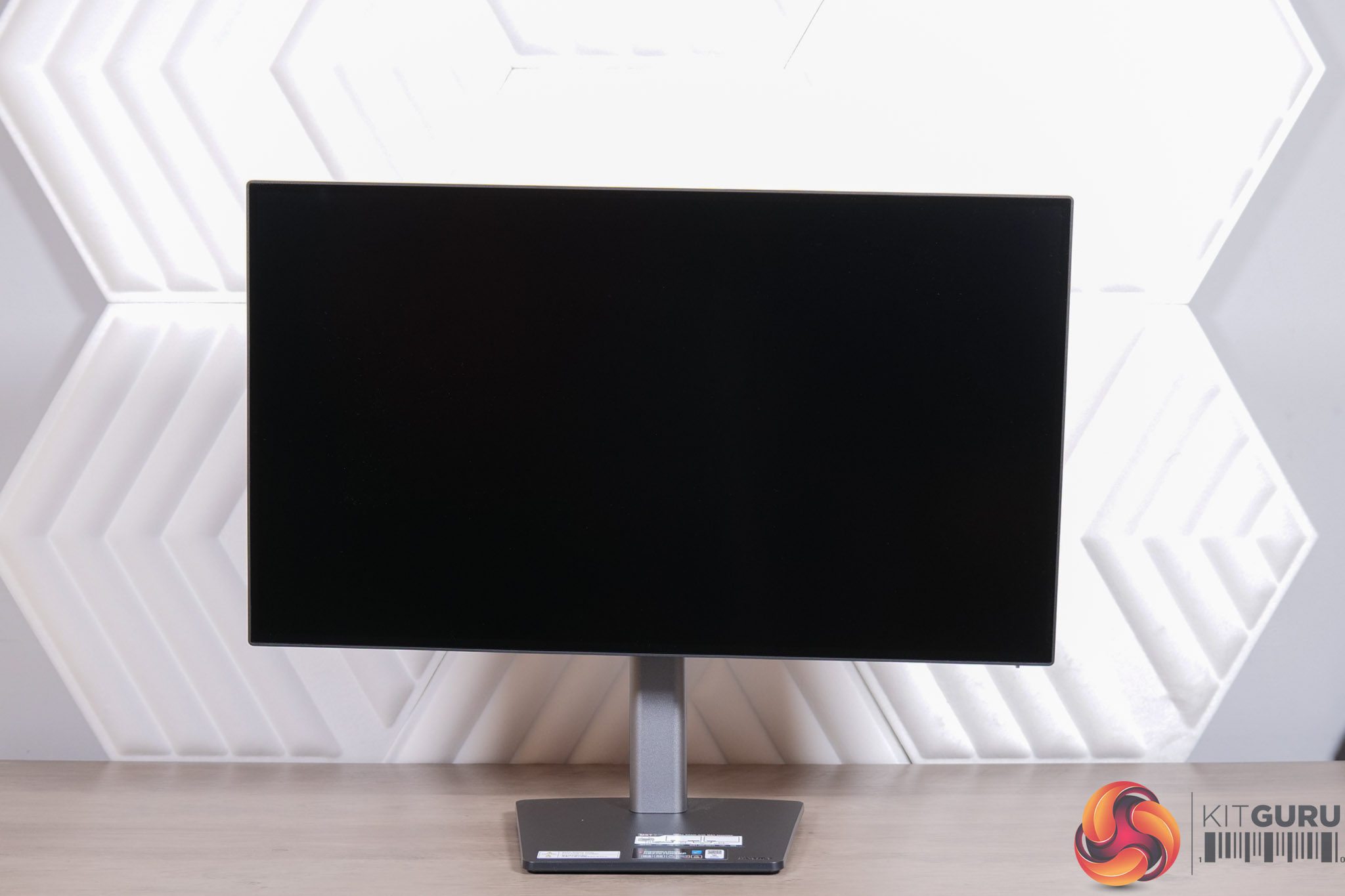
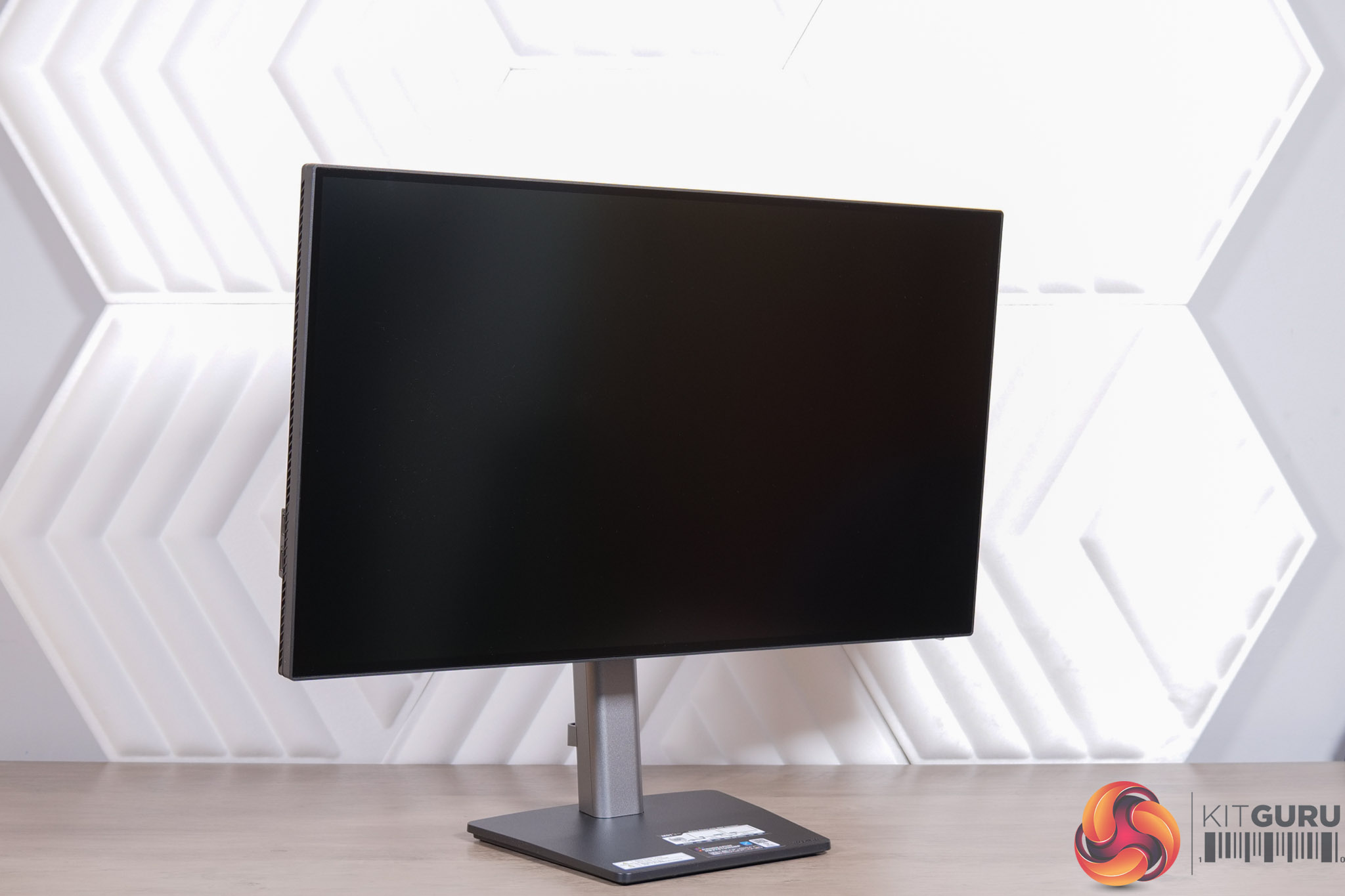
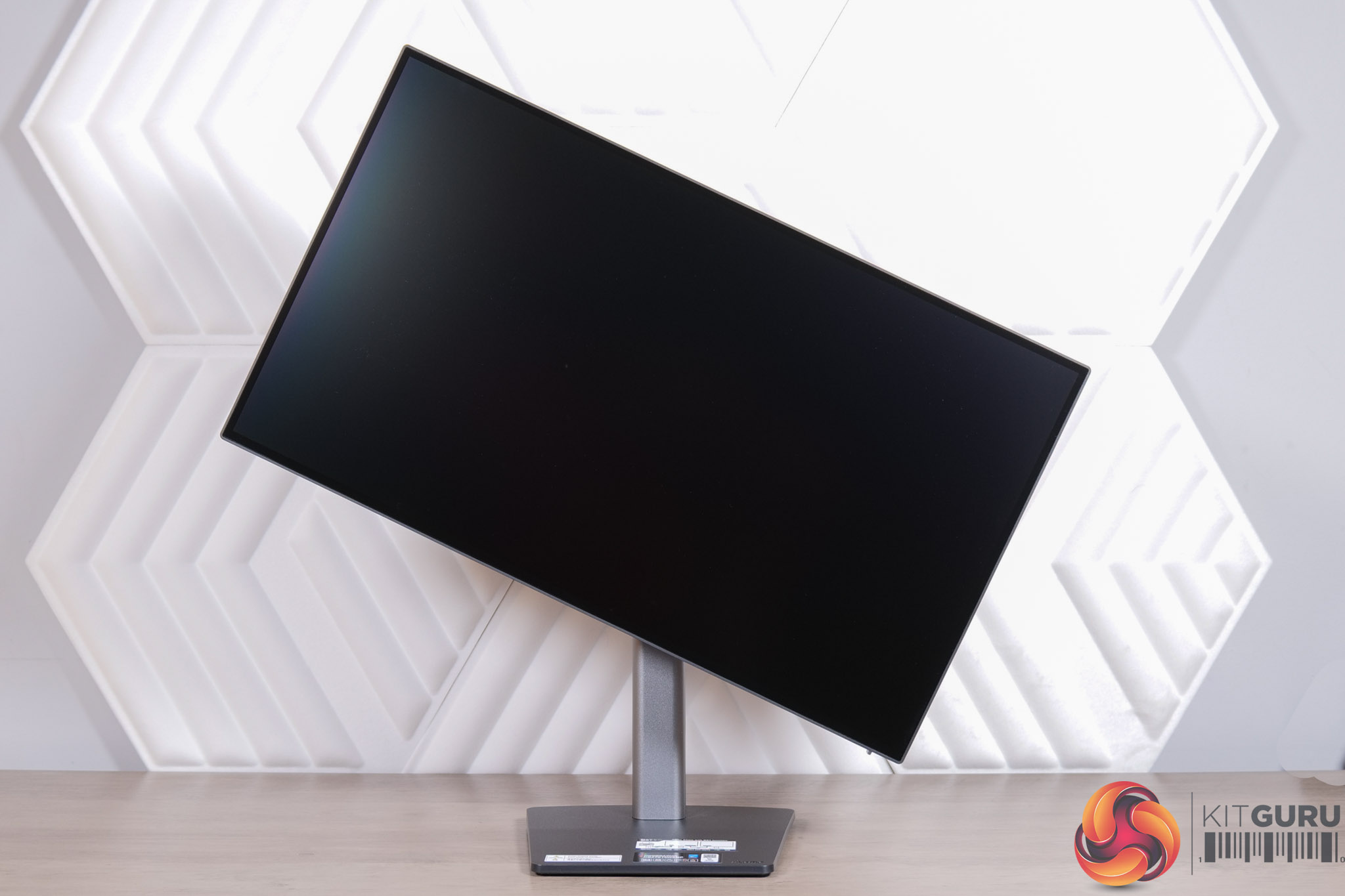
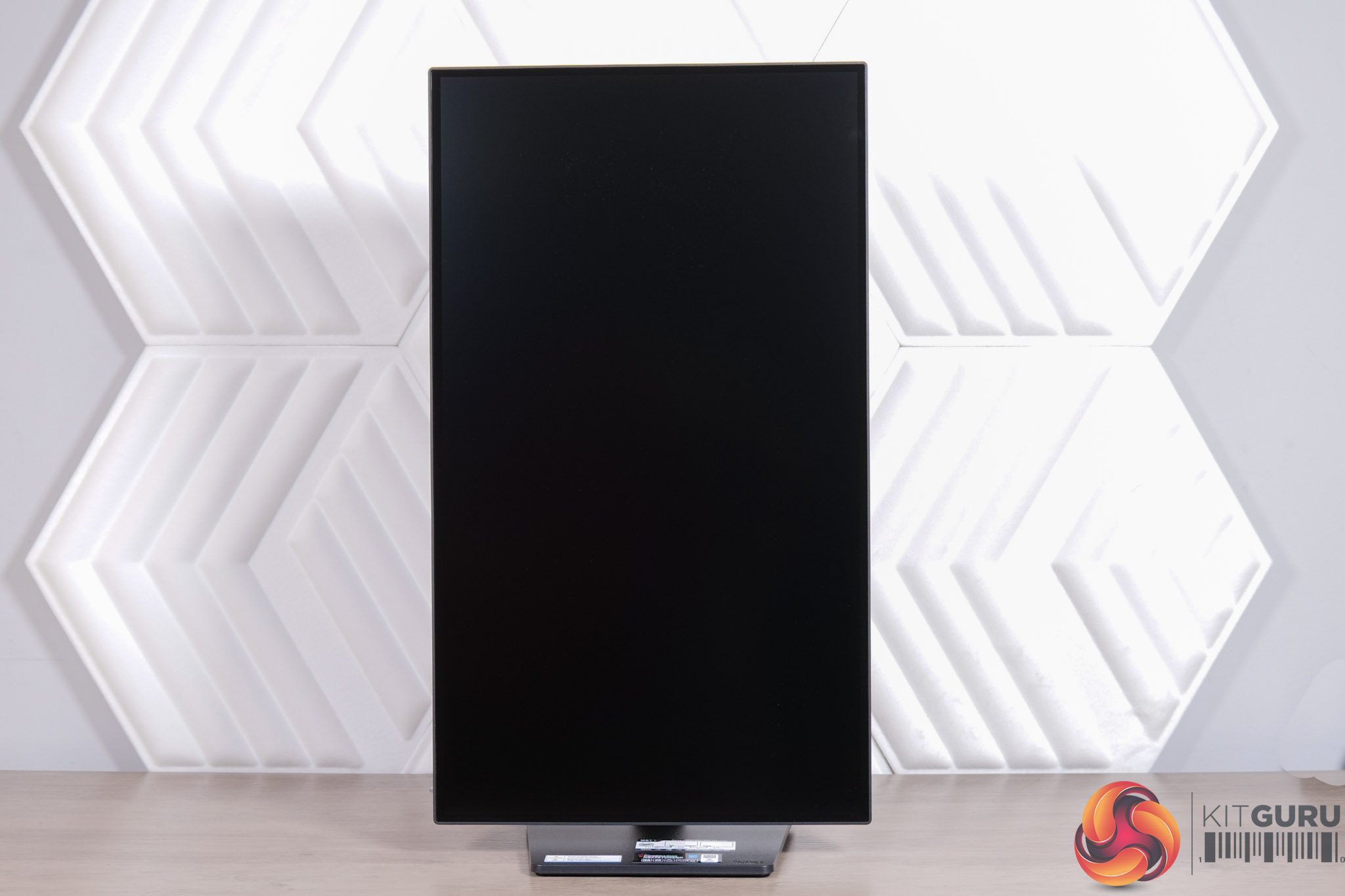
The stand packs in a great variety of ergonomic adjustments. We find up to 150mm height adjustment, tilt from -5 to +23 degrees, 90 degree pivot functionality, as well as 360-degree swivel – though do note this is achieved via a rotating disc in the base of the stand, so the whole thing moves on its axis, rather than just the panel itself swivelling left or right.
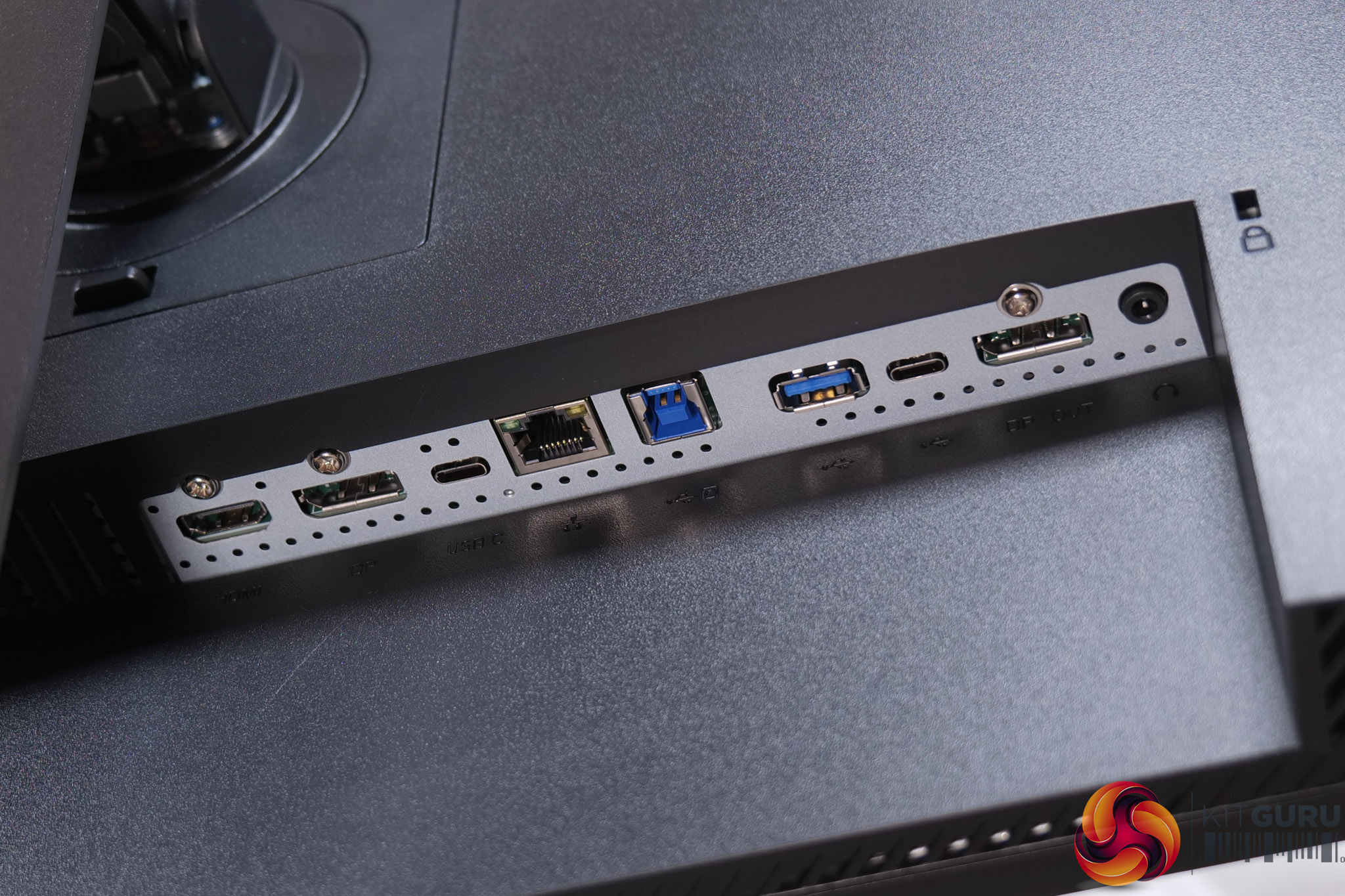
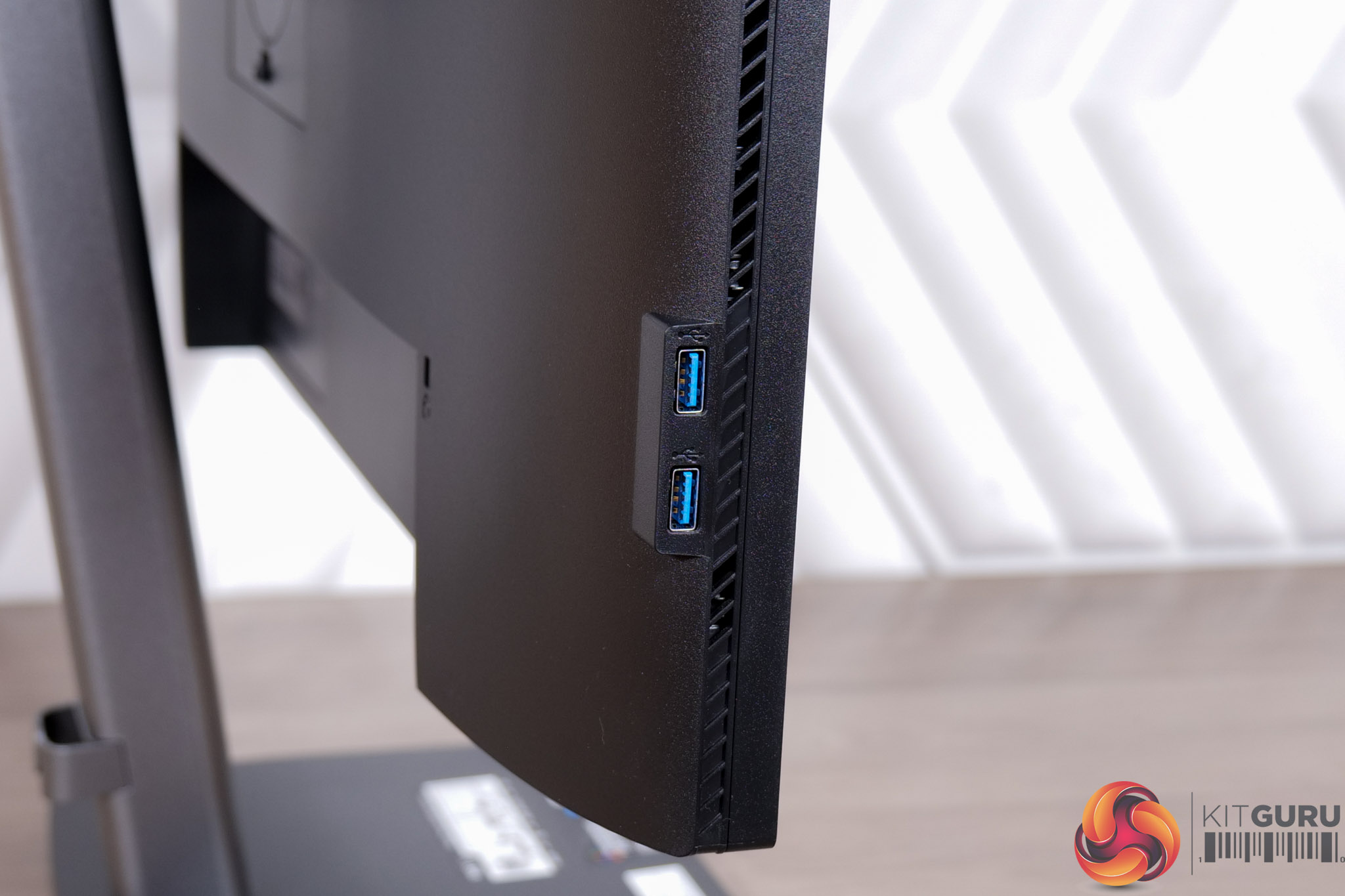
There's a healthy selection of ports, too. Video inputs consist of 1x HDMI 2.0 and 1x DisplayPort 1.2 – not the newest standards, but both deliver enough bandwidth for 4K at 60Hz. Then there's a USB-C that also supports DP-Alt mode, along with 96W power delivery.
That USB-C port also acts as a USB dock, providing both Ethernet and a DP out connection, while there's a total of four USB downstream ports across the monitor – one Type-A and one Type-C (15W capable) on the rear, with another two Type-A on the left-hand edge.
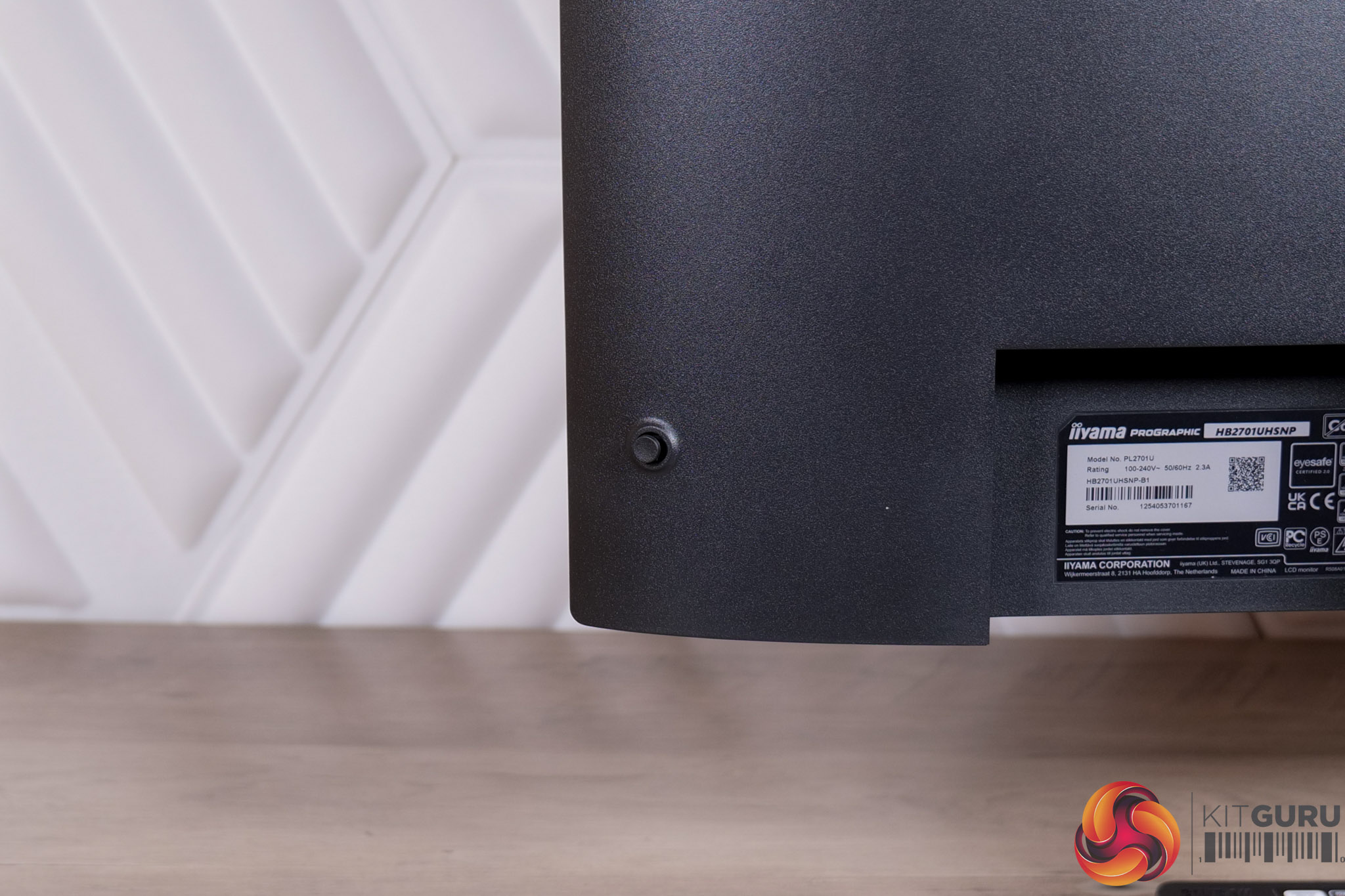
Meanwhile, a small joystick is the only way to control the monitor, and this is positioned in the right-hand corner.
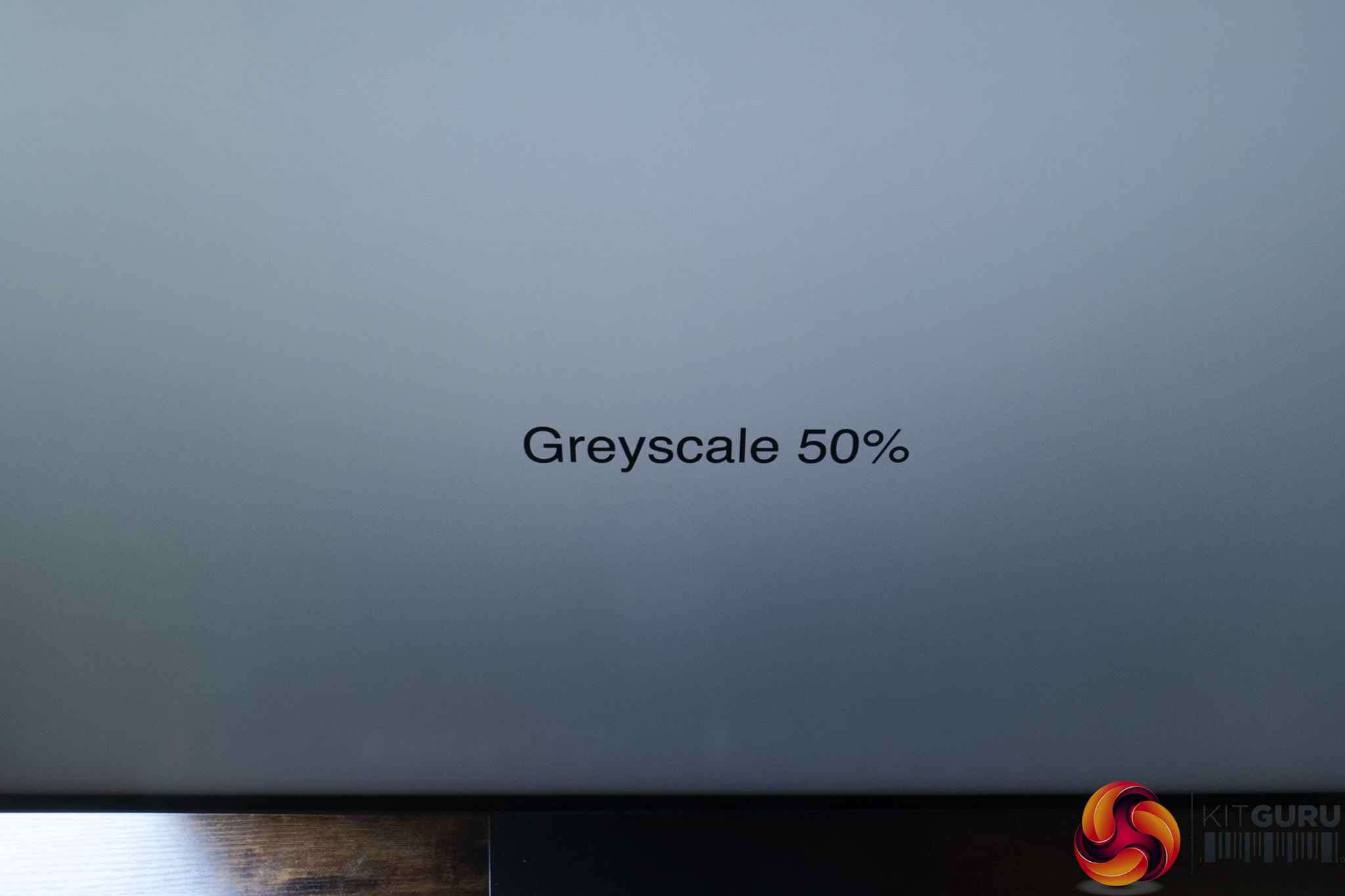
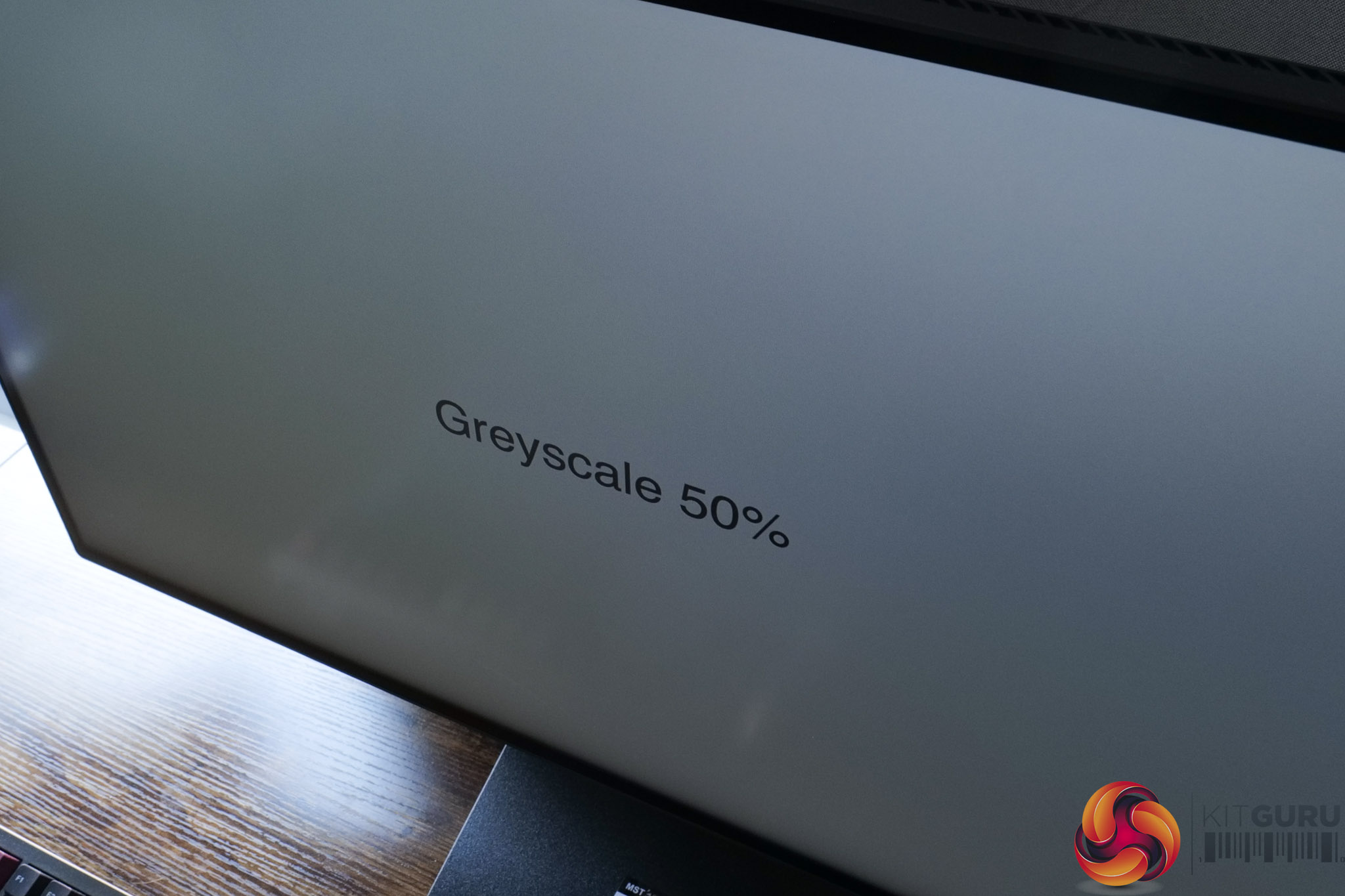
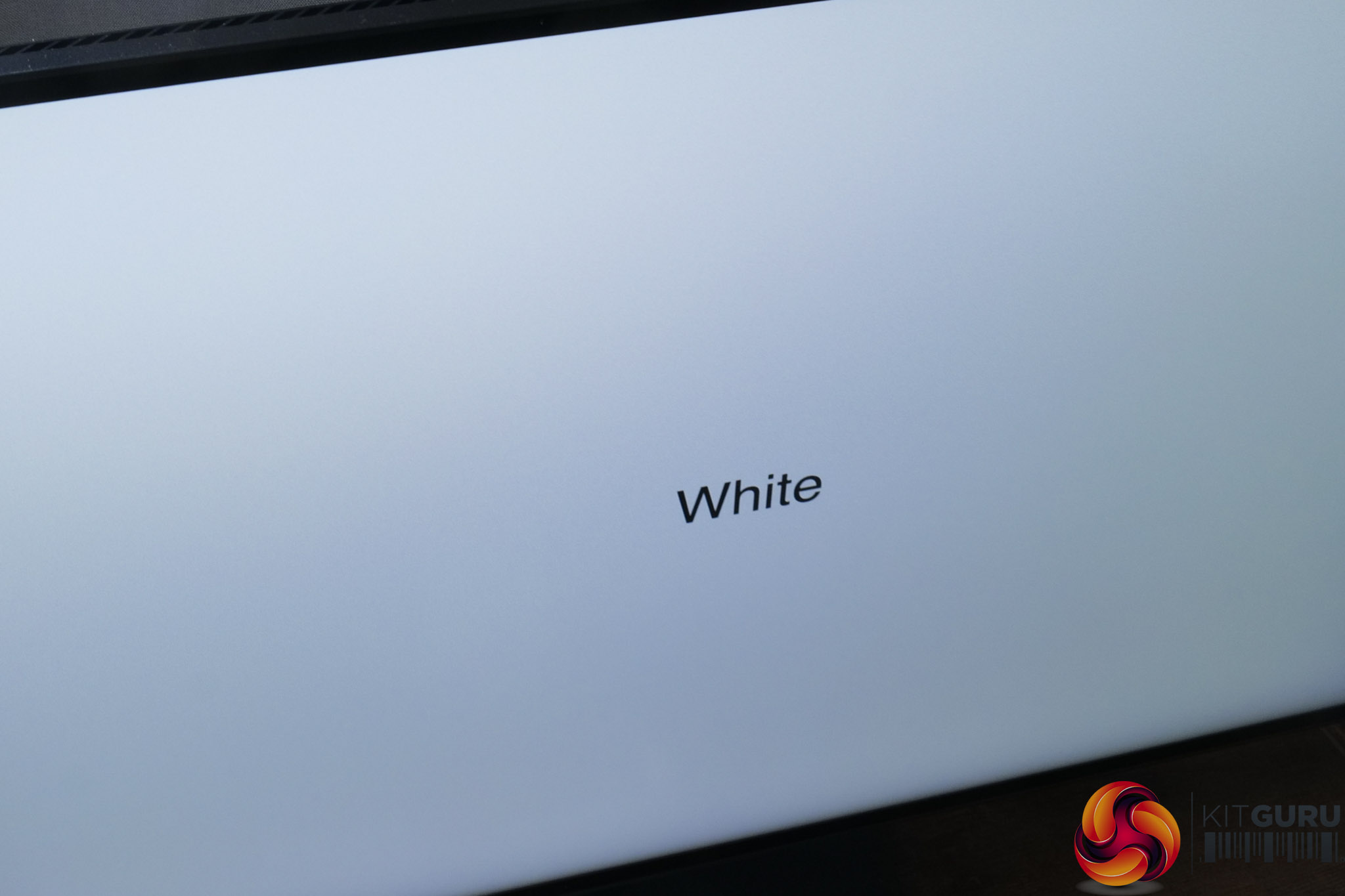
Just before moving on, it is worth highlighting the anti-glare coating used. It's what I'd call a fairly typical matte coating, in that it does add some coating grain which I have tried to show in the images above. It's not nearly so noticeable as the ASUS ProArt PA27JCV, but it's not grain-free either.
The OSD is broken down into ten main tabs, which you can see below:
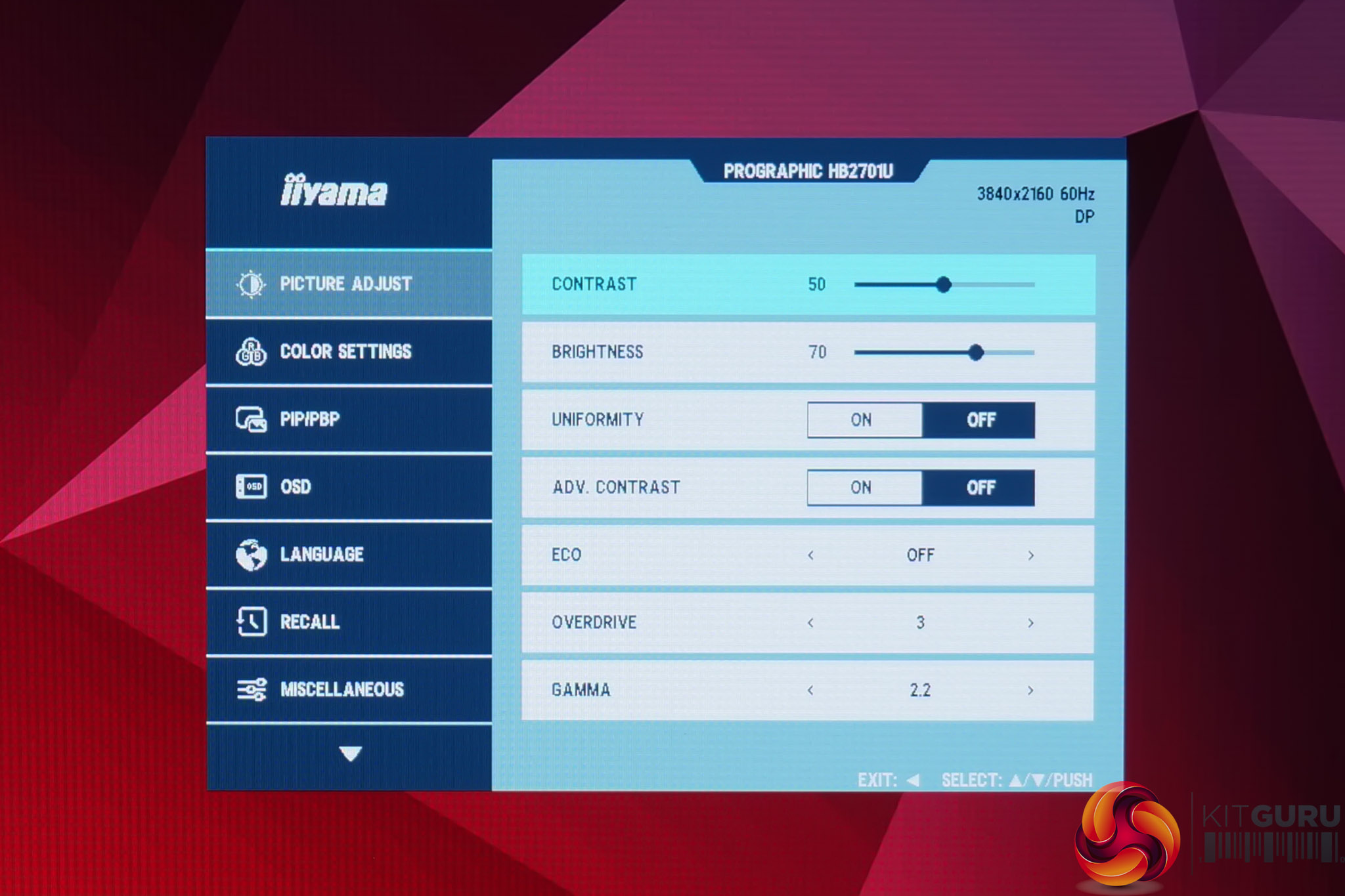
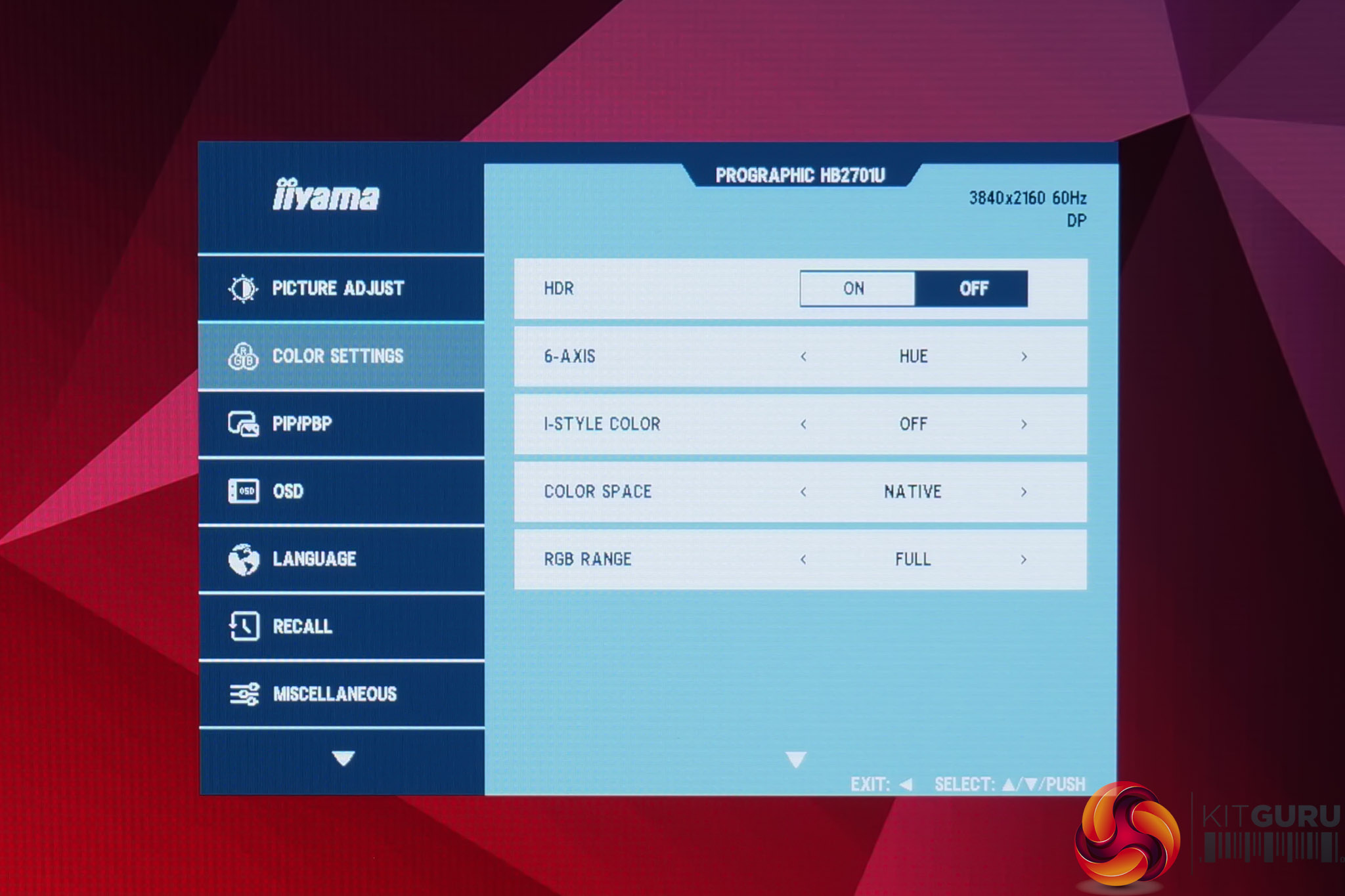
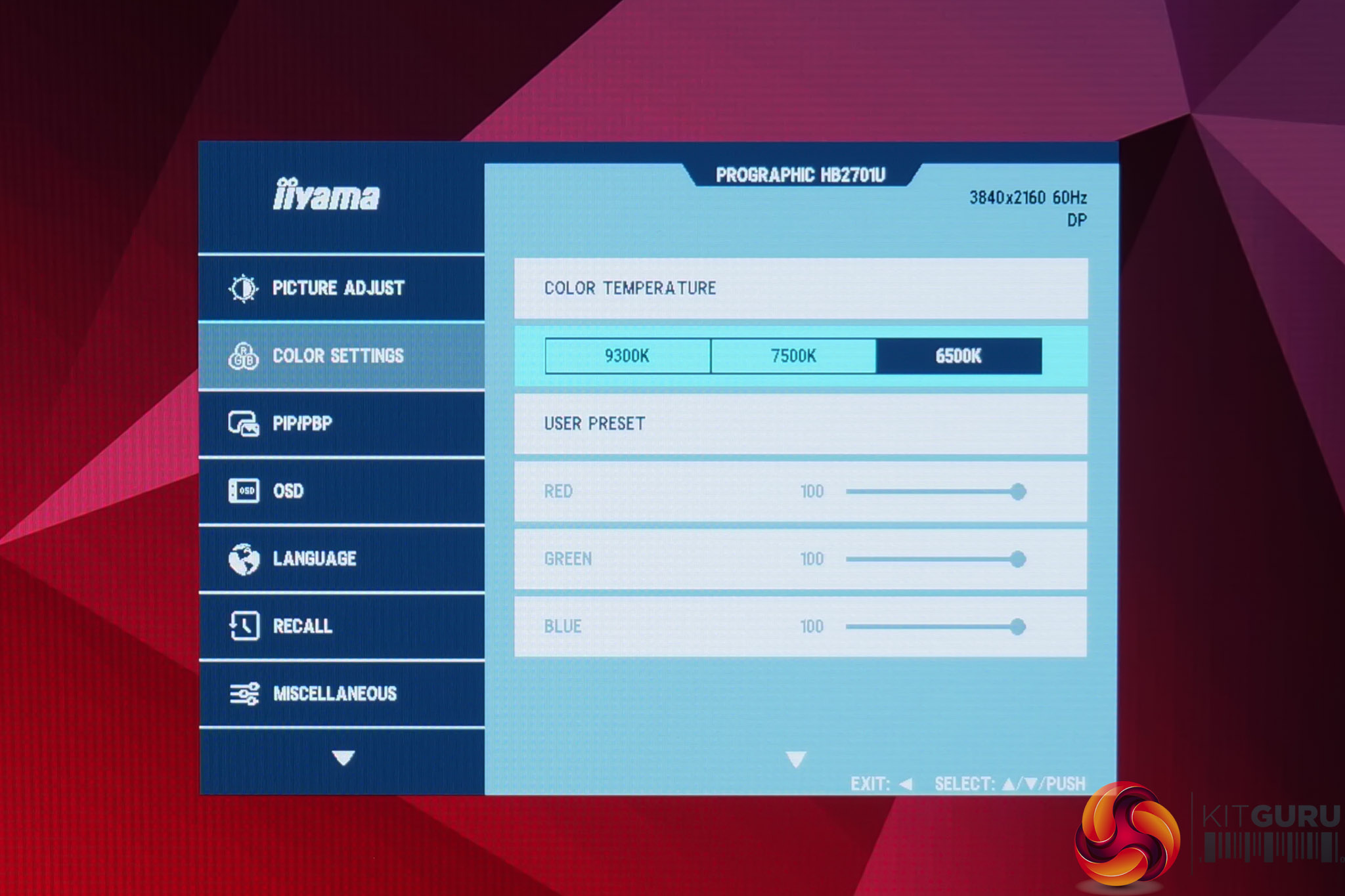
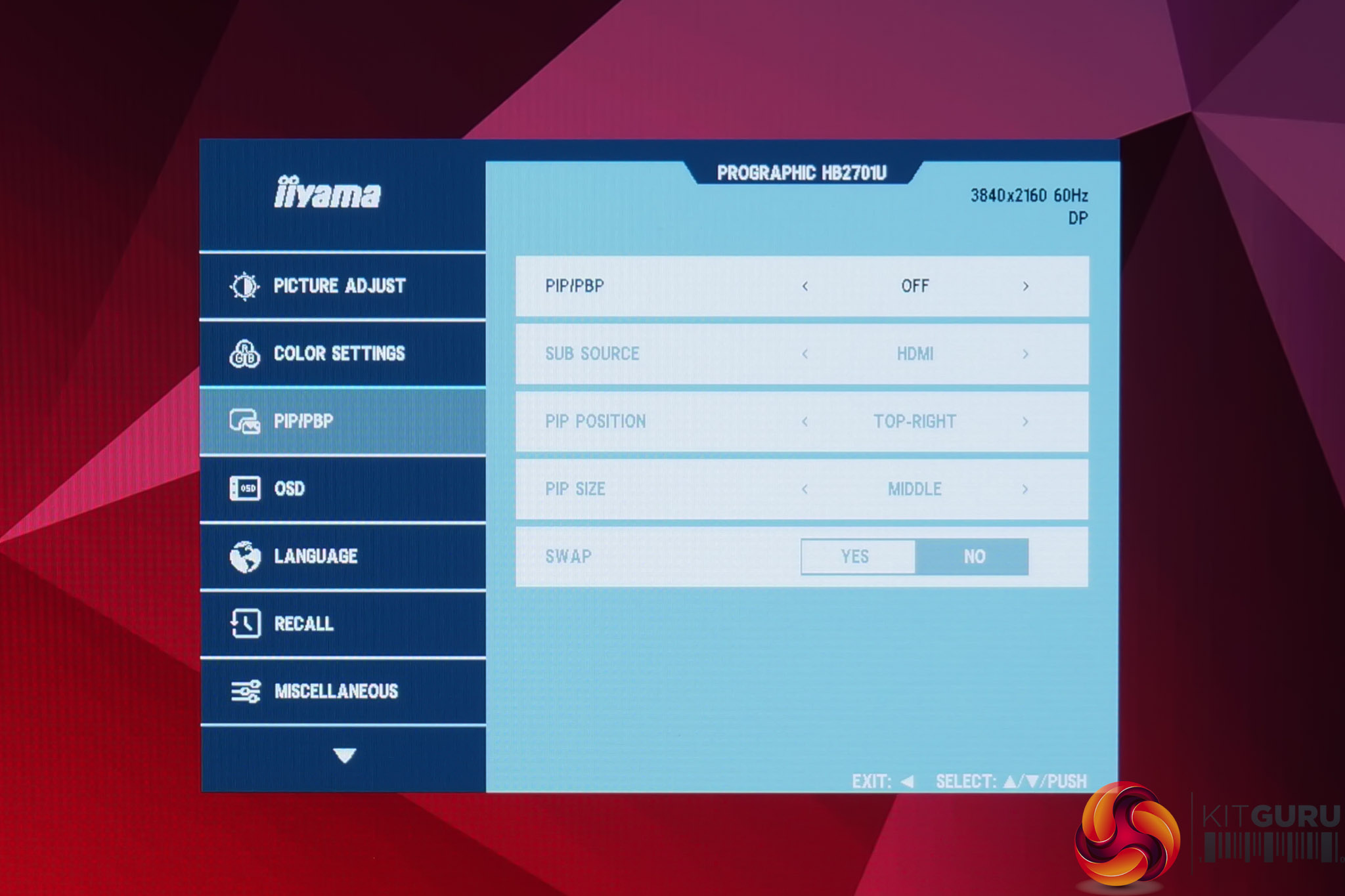
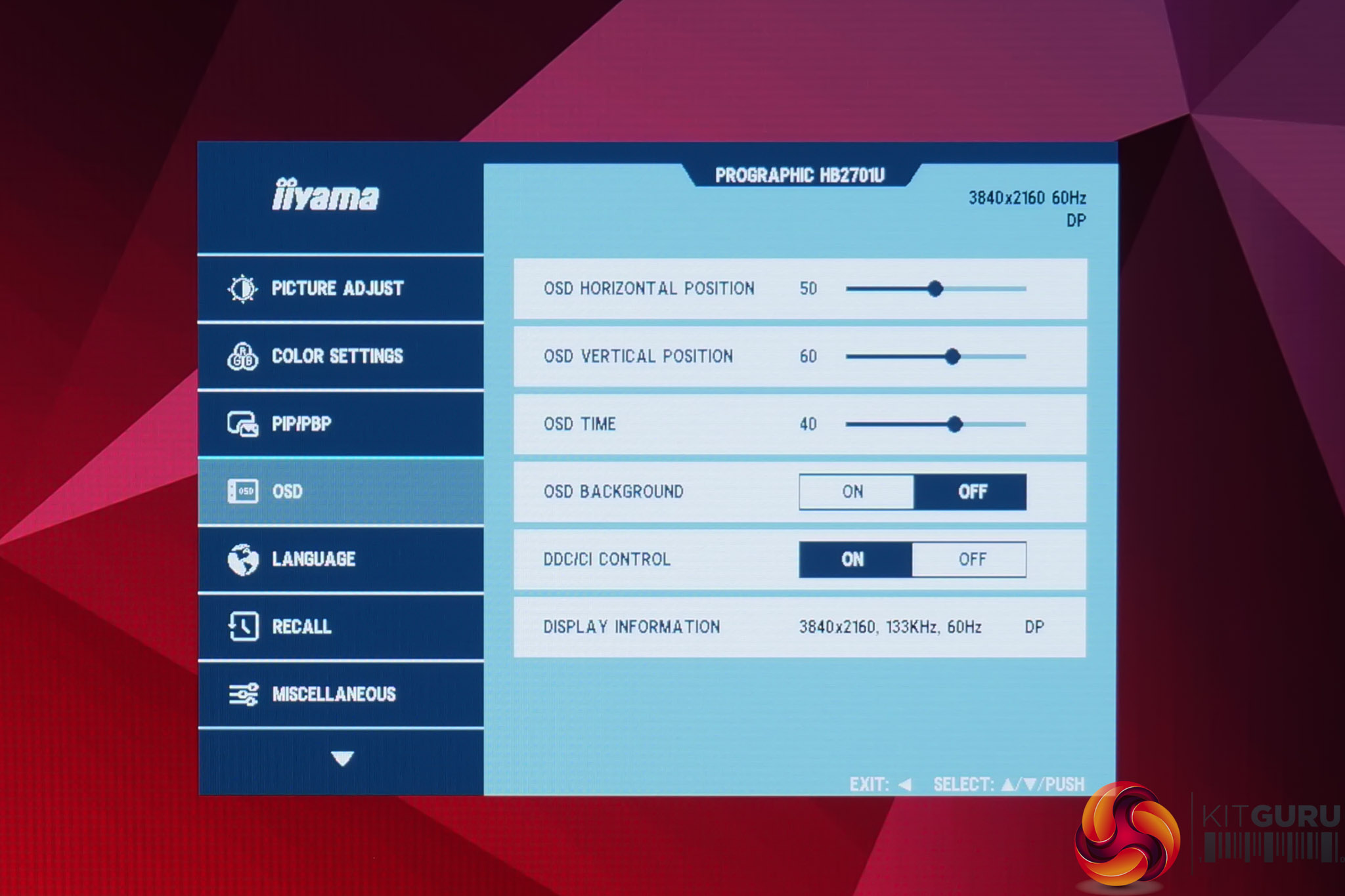
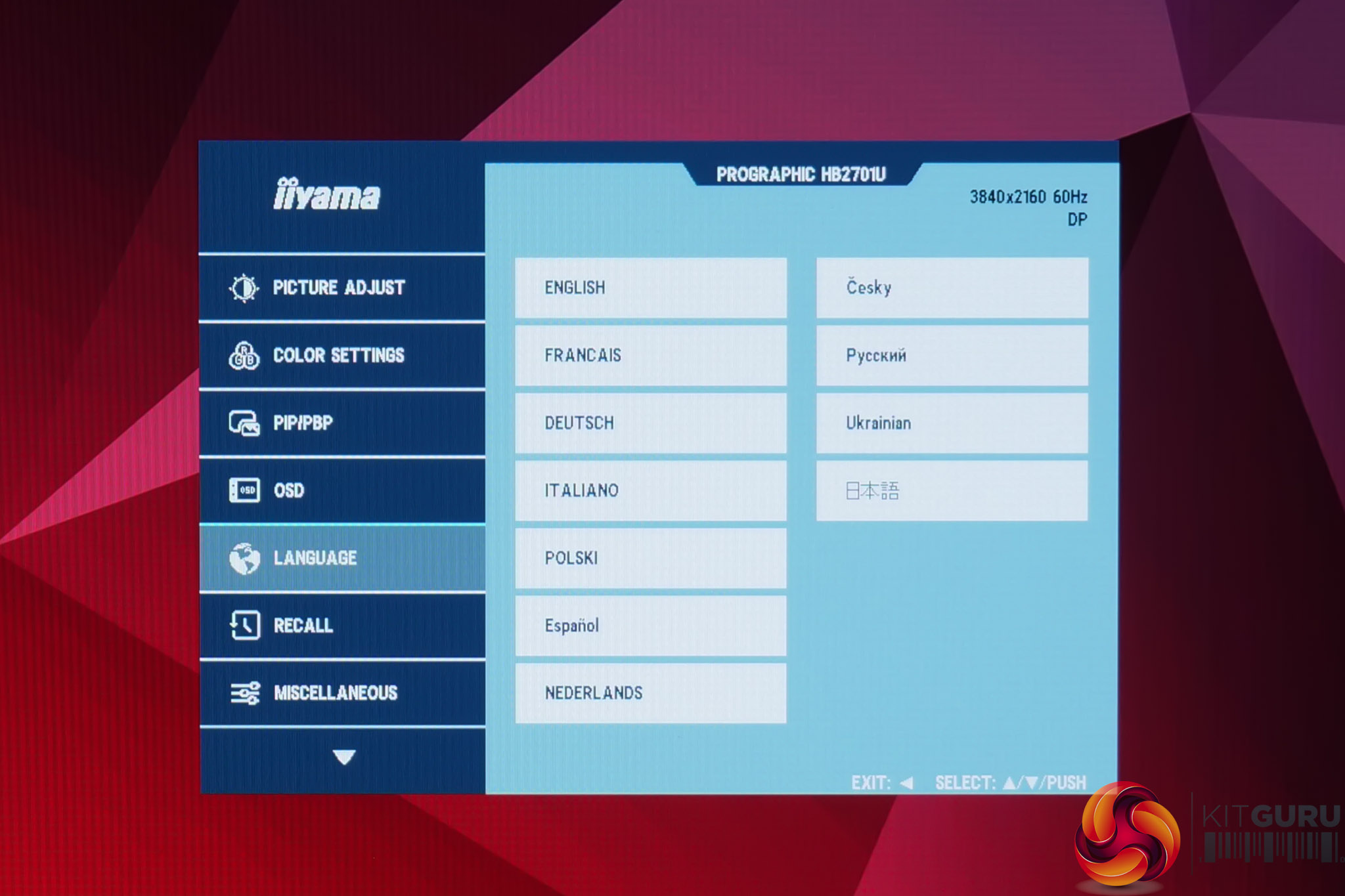
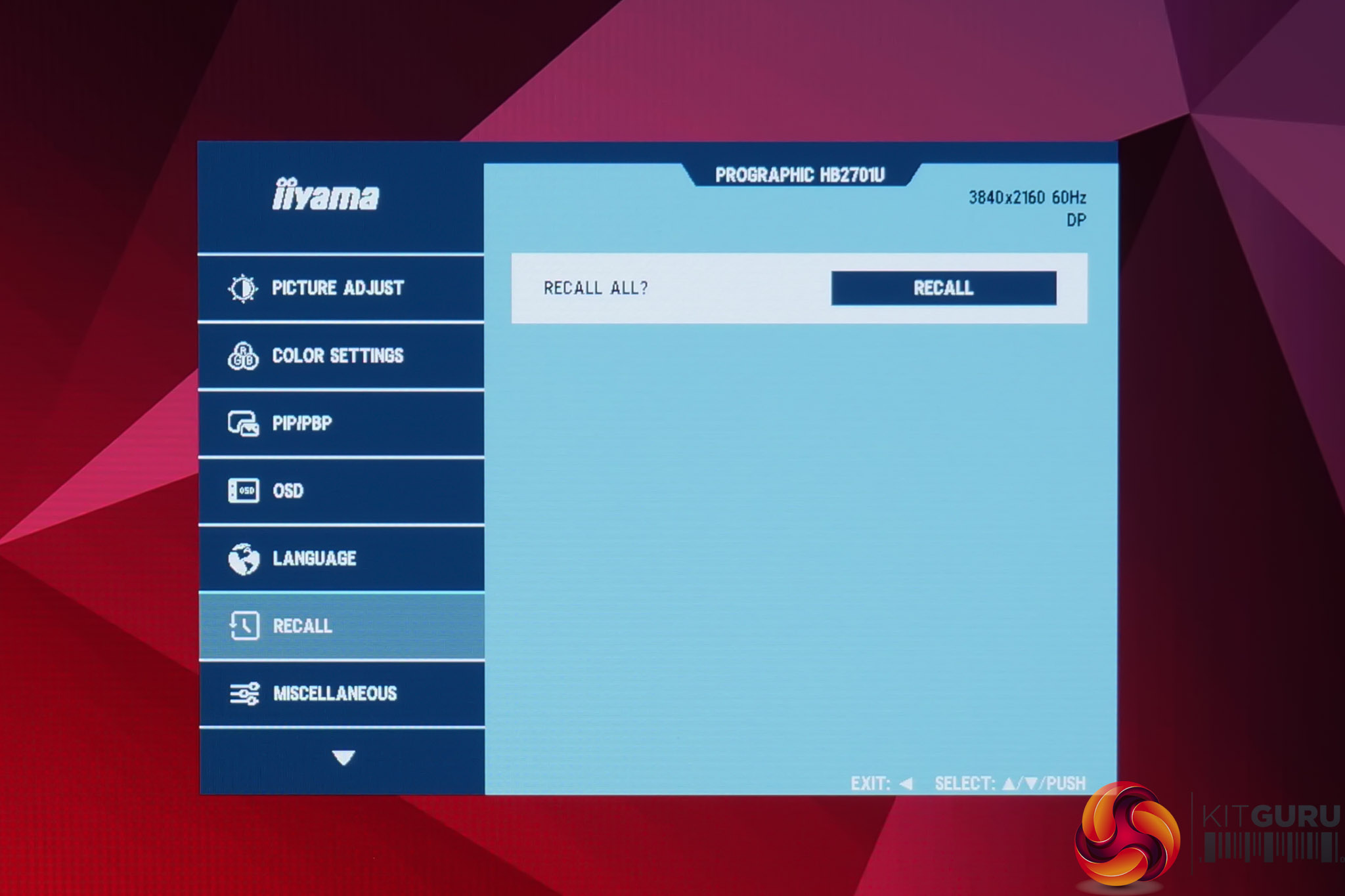
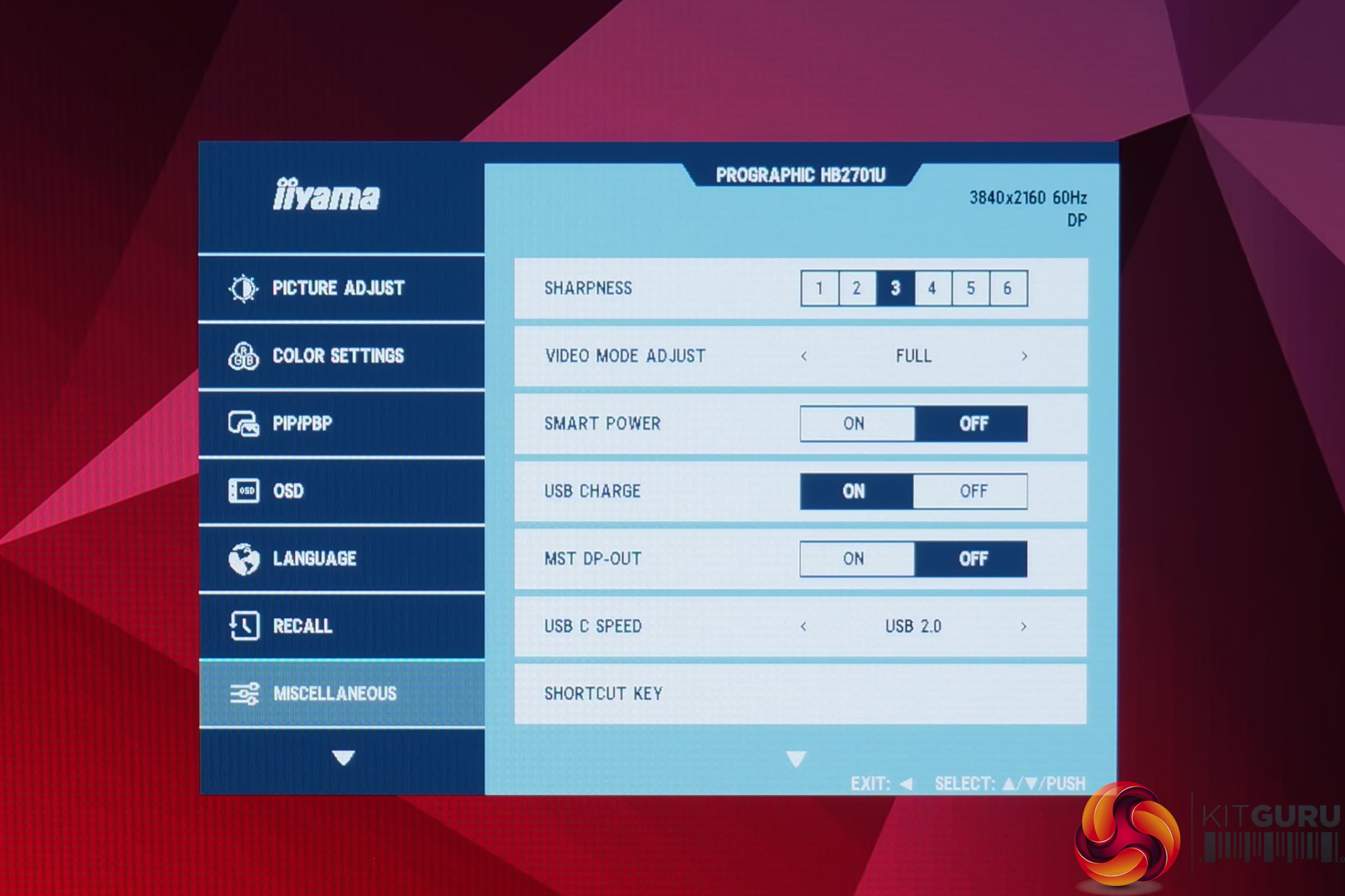
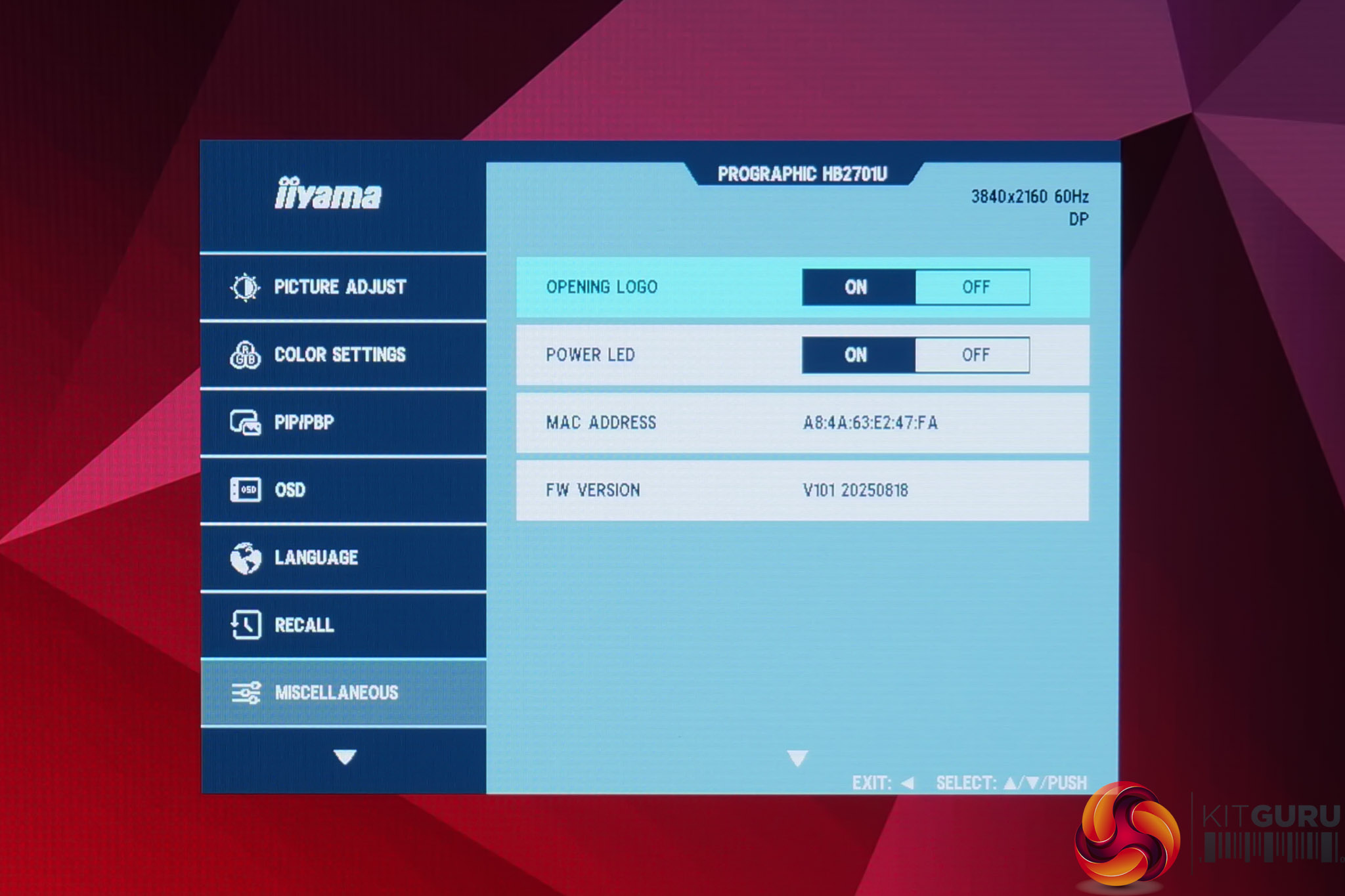
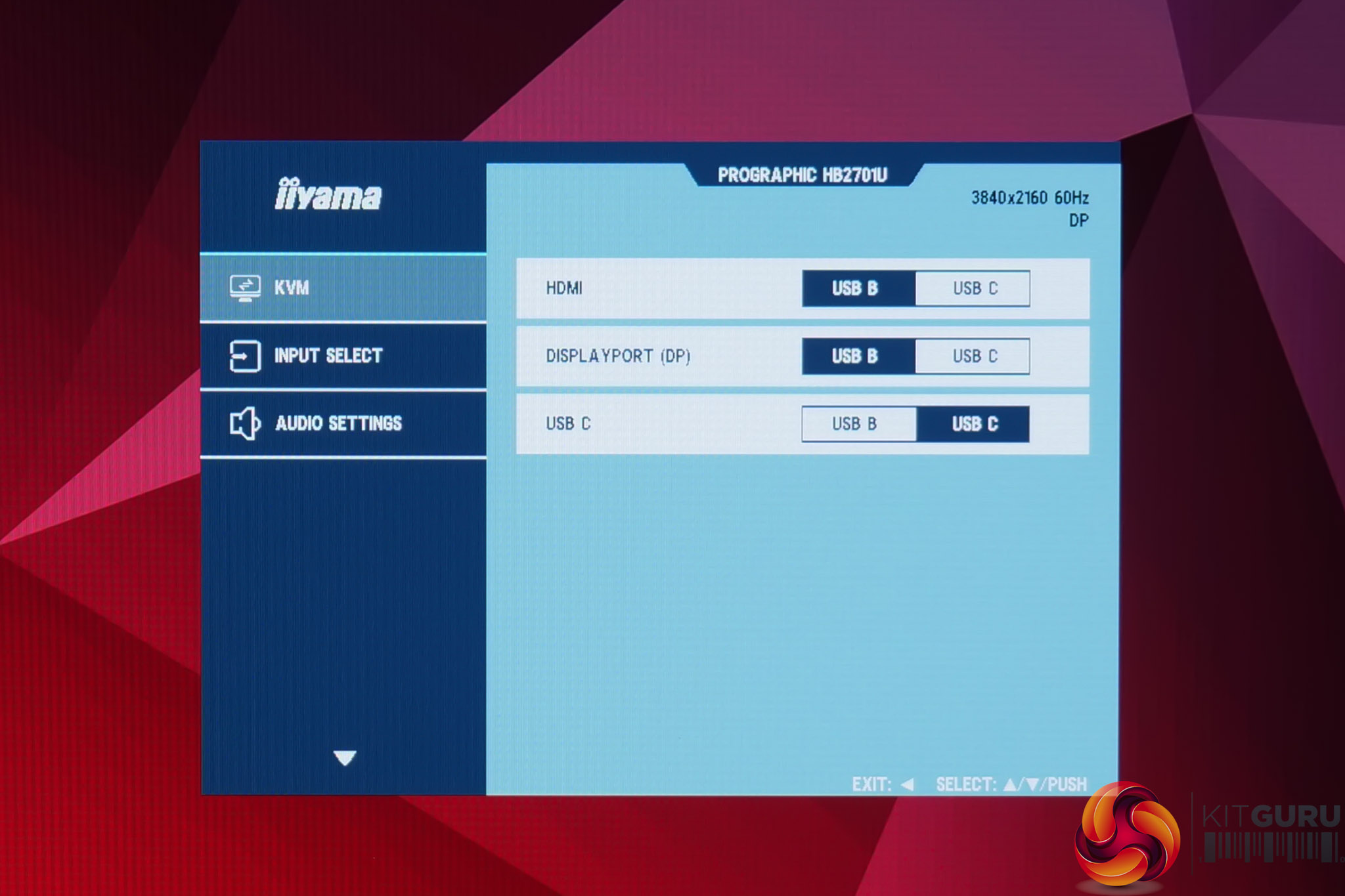
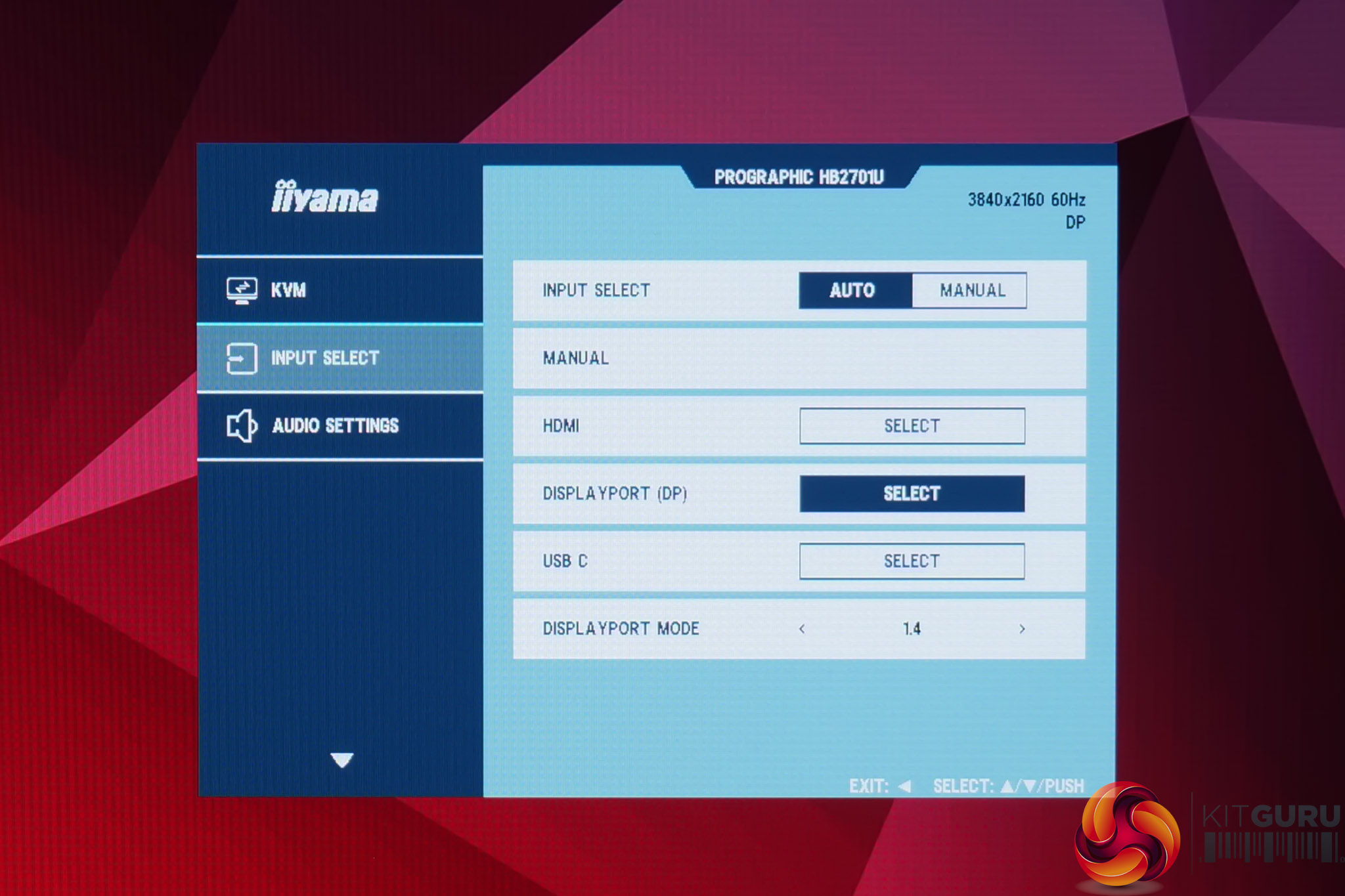
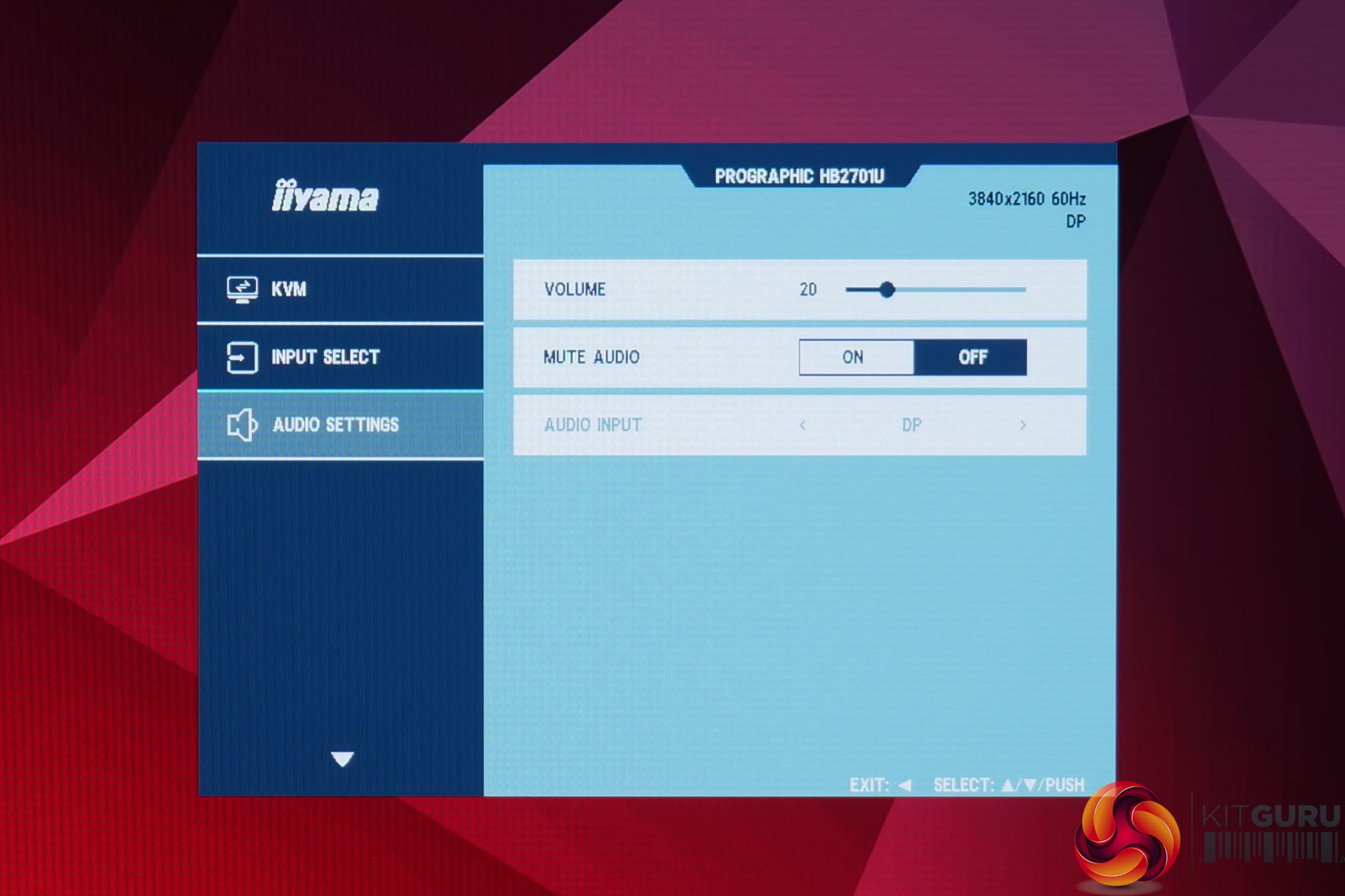
iiyama's OSD system is fine, though I do find it a little ugly compared to the cleaner designs used by ASUS and AOC's pro-grade screens, to give a couple of examples. It does have a good amount of features, including a variety of colour space modes, while you can also configure the KVM functionality, USB upstream settings, colour temperature and so on.
Our main test involves using an X-Rite i1 Display Pro Plus colorimeter and utilising Portrait Displays' Calman Ultimate software. The device sits on top of the screen while the software generates colour tones and patterns, which it compares against predetermined values to work out how accurate the screen is.
The results show:
- A monitor’s maximum brightness in candelas or cd/m2 at various levels set in the OSD.
- A monitor’s contrast ratio at various brightness levels in the OSD.
- Gamut coverage, primarily focusing on sRGB and DCI-P3 colour spaces.
- Greyscale accuracy, measured across 20 shades, with an average colour balance reported.
- The exact gamma levels, with a comparison against preset settings in the OSD.
- The colour accuracy, expressed as a Delta E ratio, with a result under 3 being fine for normal use, and under 2 being great for colour-accurate design work.
We first run these tests with the display in its out-of-the-box state, with all settings on default. If there is an sRGB emulation option or other useful mode then we may test that too. We then calibrate the screen using the Calman Ultimate software and run the tests again.
You can read more about our test methodology HERE.
Default settings
Brightness and Contrast (Full Screen)
| OSD Brightness | White Luminance (cd/m2) | Black Luminance (cd/m2) | Contrast Ratio |
| 0% | 42 | 0.019 | 2225:1 |
| 25% | 108.2 | 0.048 | 2272:1 |
| 50% | 173 | 0.076 | 2275:1 |
| 75% | 265.4 | 0.116 | 2283:1 |
| 100% | 462.9 | 0.203 | 2284:1 |
Starting our testing with brightness and contrast, brightness range is good – iiyama claims 450 nits and we hit just over 460, while the minimum of just 42 nits is also nice and comfortable for darker/nighttime environments.
Contrast is slightly more nuanced. On the one hand, a ratio of almost 2300:1 is incredibly good by typical IPS standards and is noticeably better than something with, say, a 1200:1 ratio. However, IPS Black 2.0 claims a 3000:1 ratio, which our unit falls some way short of.
Screen Uniformity
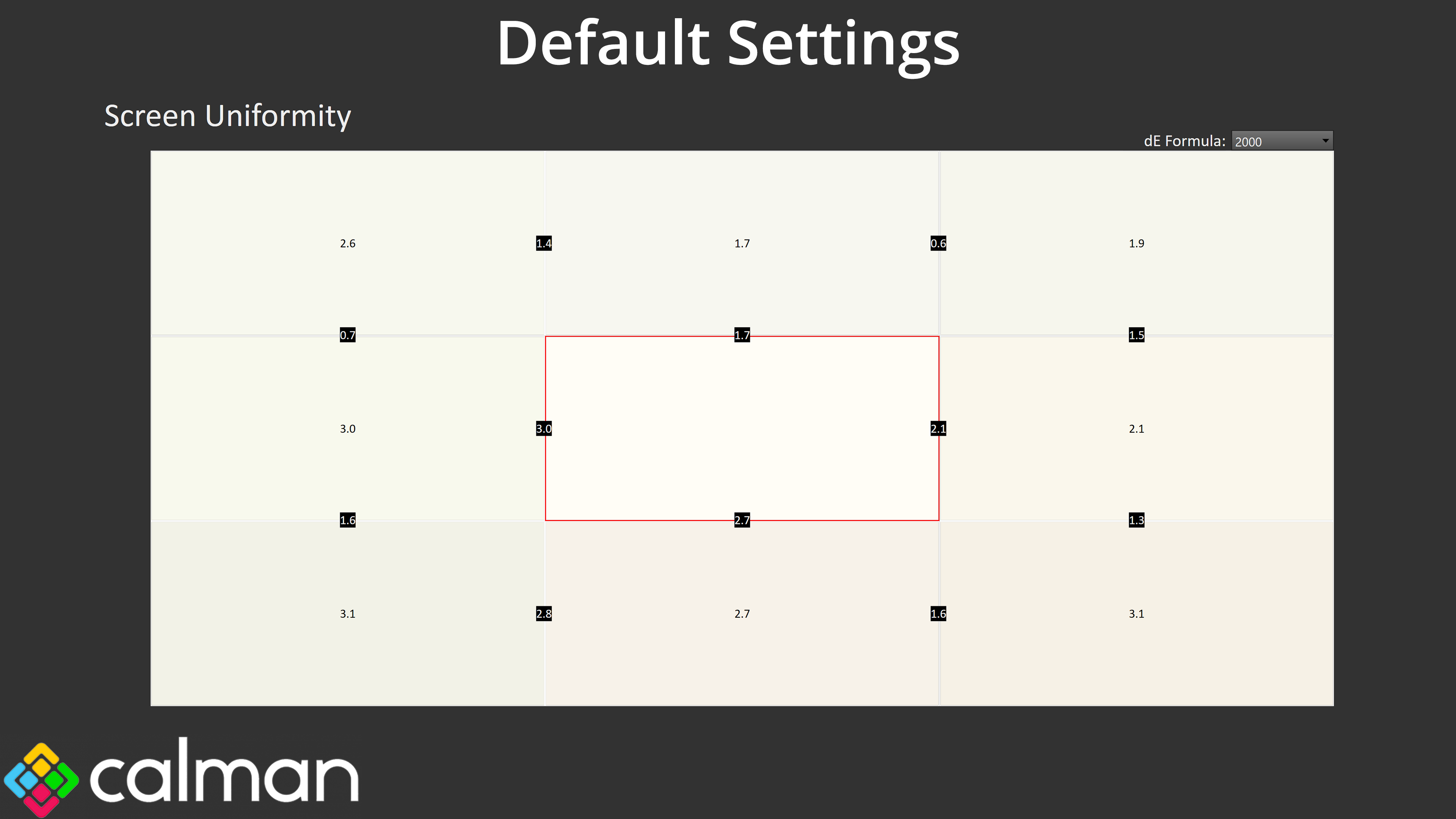
Uniformity also leaves a little to be desired. Deviation is never too significant, with the worst error being a deltaE 2000 of 3.1, but there are a few sections that come close to that level of aberration, when we'd hope for more from a pro-grade screen.
Gamut (CIE 1976)
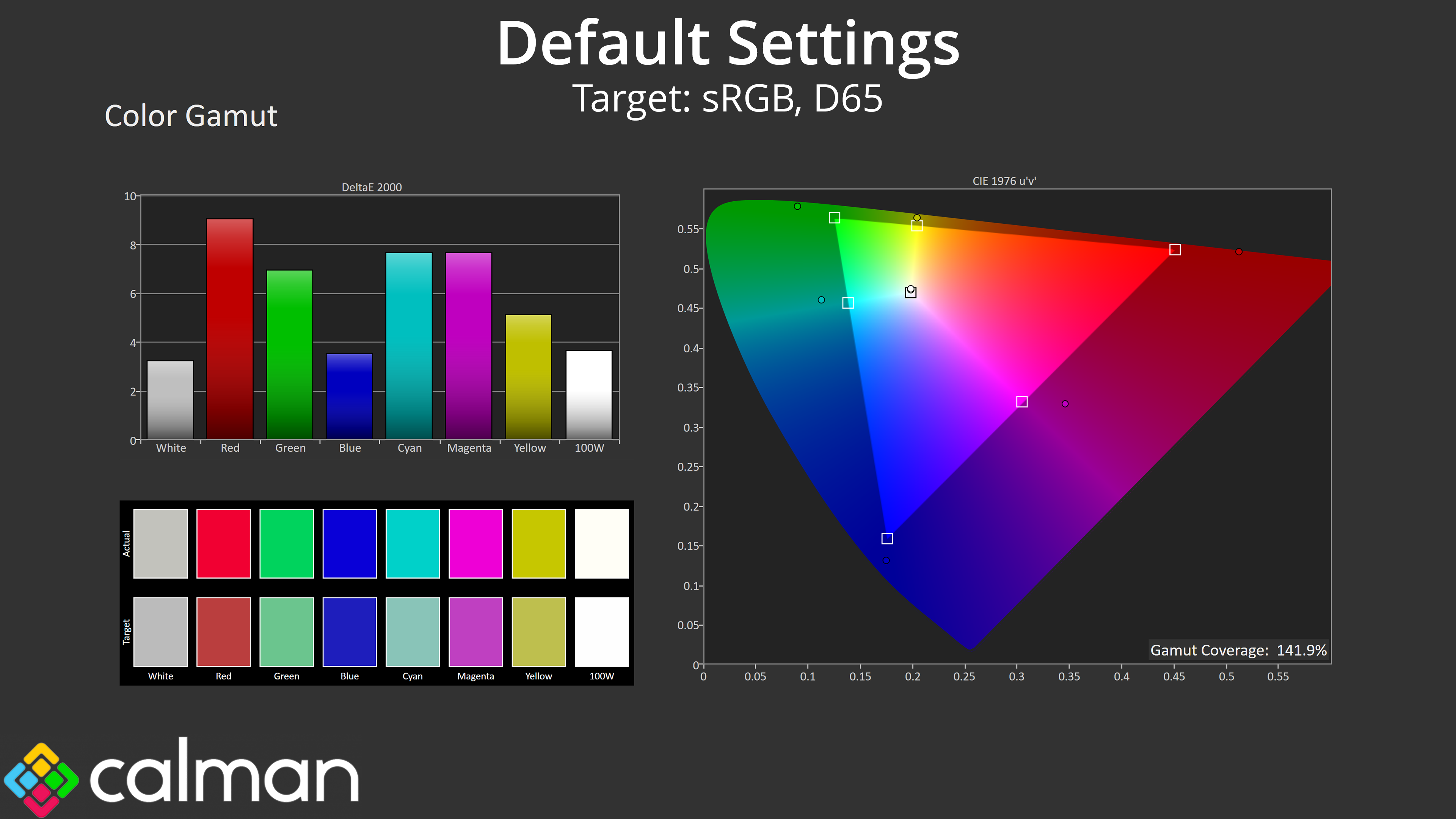
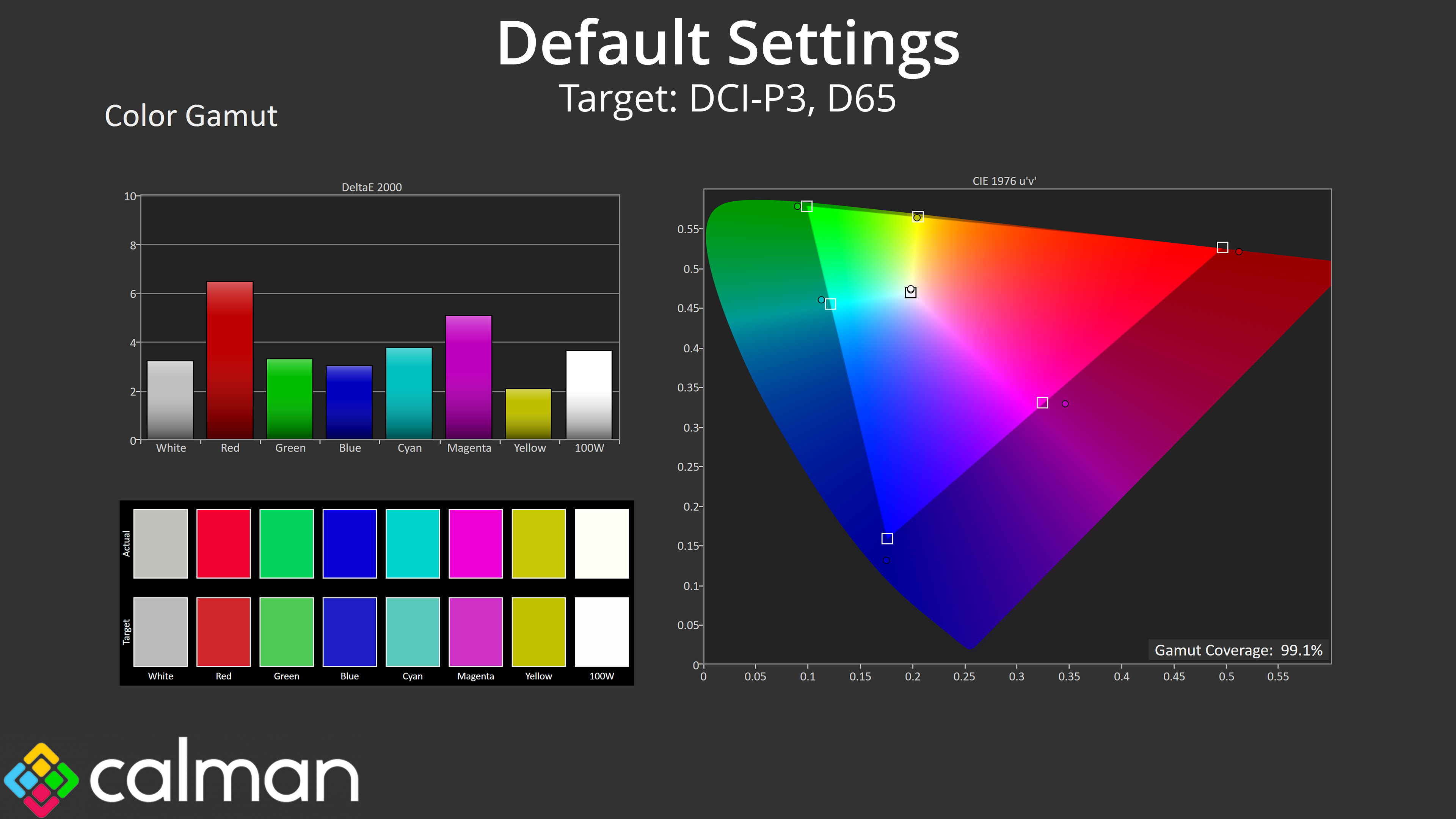
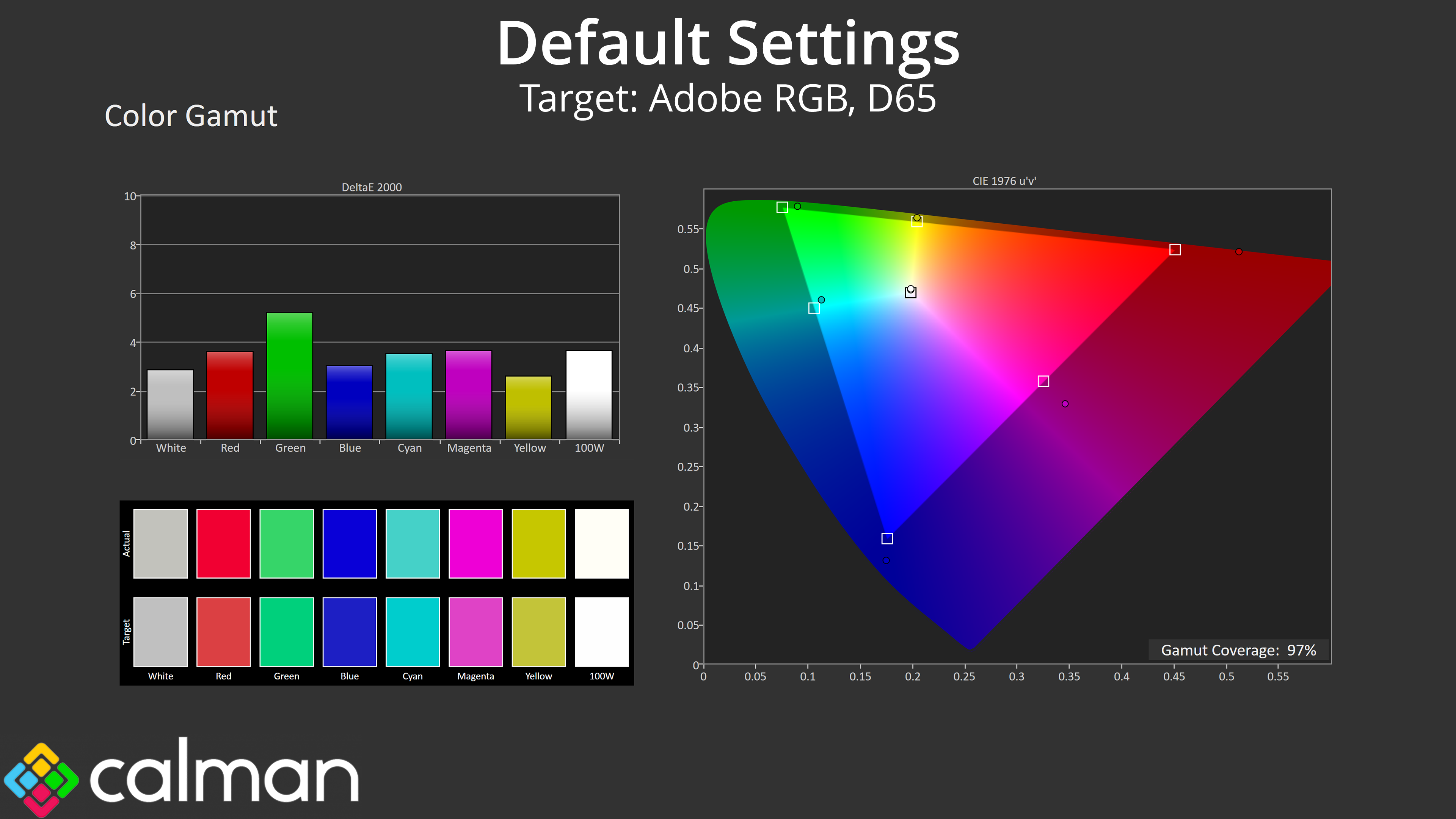
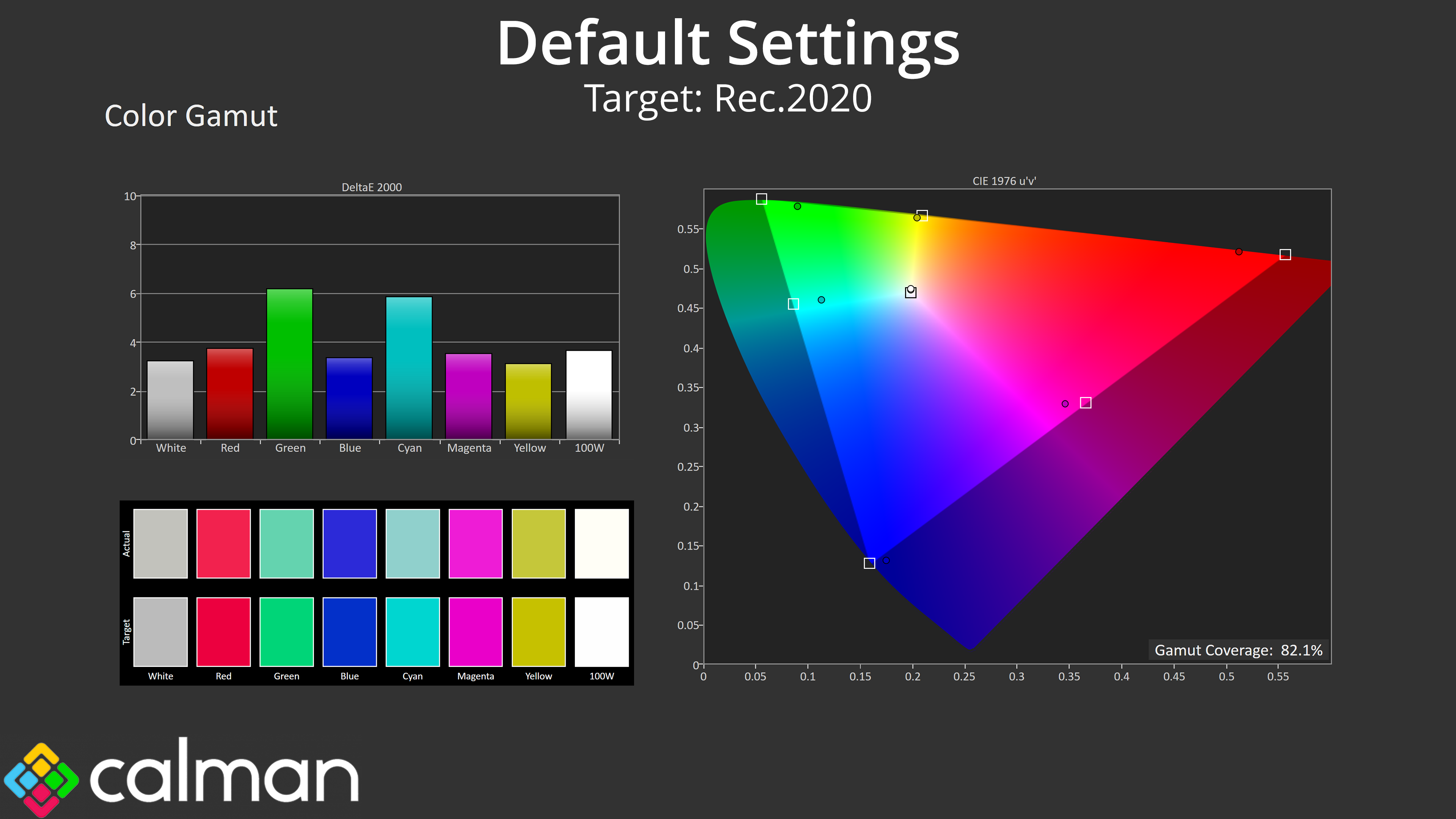
| Colour space | Coverage (%) |
| sRGB | 141.9 |
| DCI-P3 | 99.1 |
| Adobe RGB | 97 |
| Rec.2020 | 82.1 |
Gamut is very wide, however, far exceeding the sRGB space and delivering on iiyama's claim of 99% DCI-P3 coverage – we measured 99.1%. We also saw 97% Adobe RGB and 82.1% Rec.2020. These are very impressive figures and go to show what IPS Black 2.0 can do in regards to gamut.
Greyscale
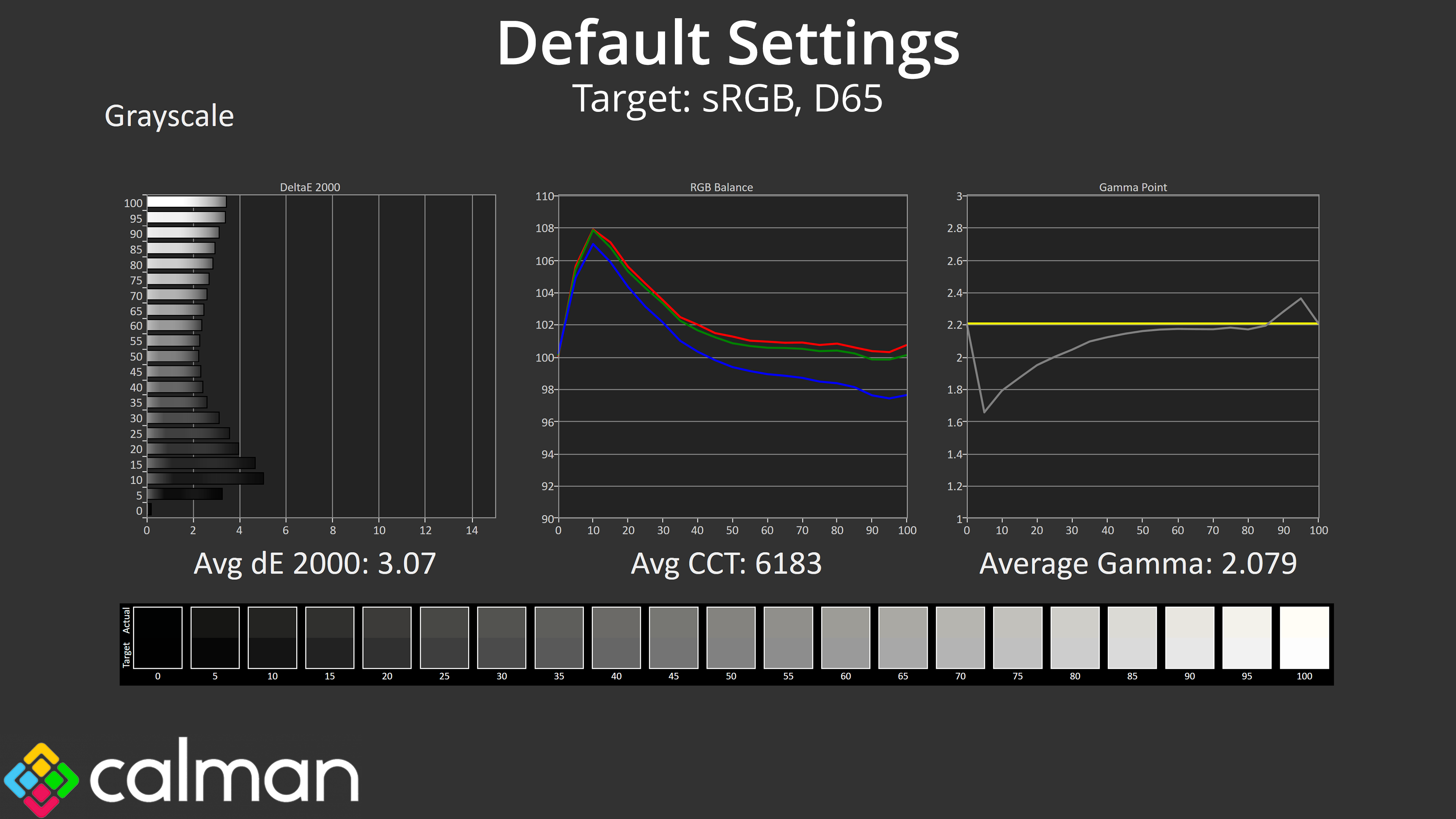
Factory greyscale performance does leave a bit to be desired, to put it mildly. Colour balance isn't terrible – there is a slight imbalance, resulting in an average CCT of 6183K, but that's only a 5% deviation from the 6500K target and can be easily remedied via a manual colour balance.
Gamma is a much bigger issue though, as it is far too low across the darker and mid-to-dark shades of grey, resulting in a washed out appearance for those shades.
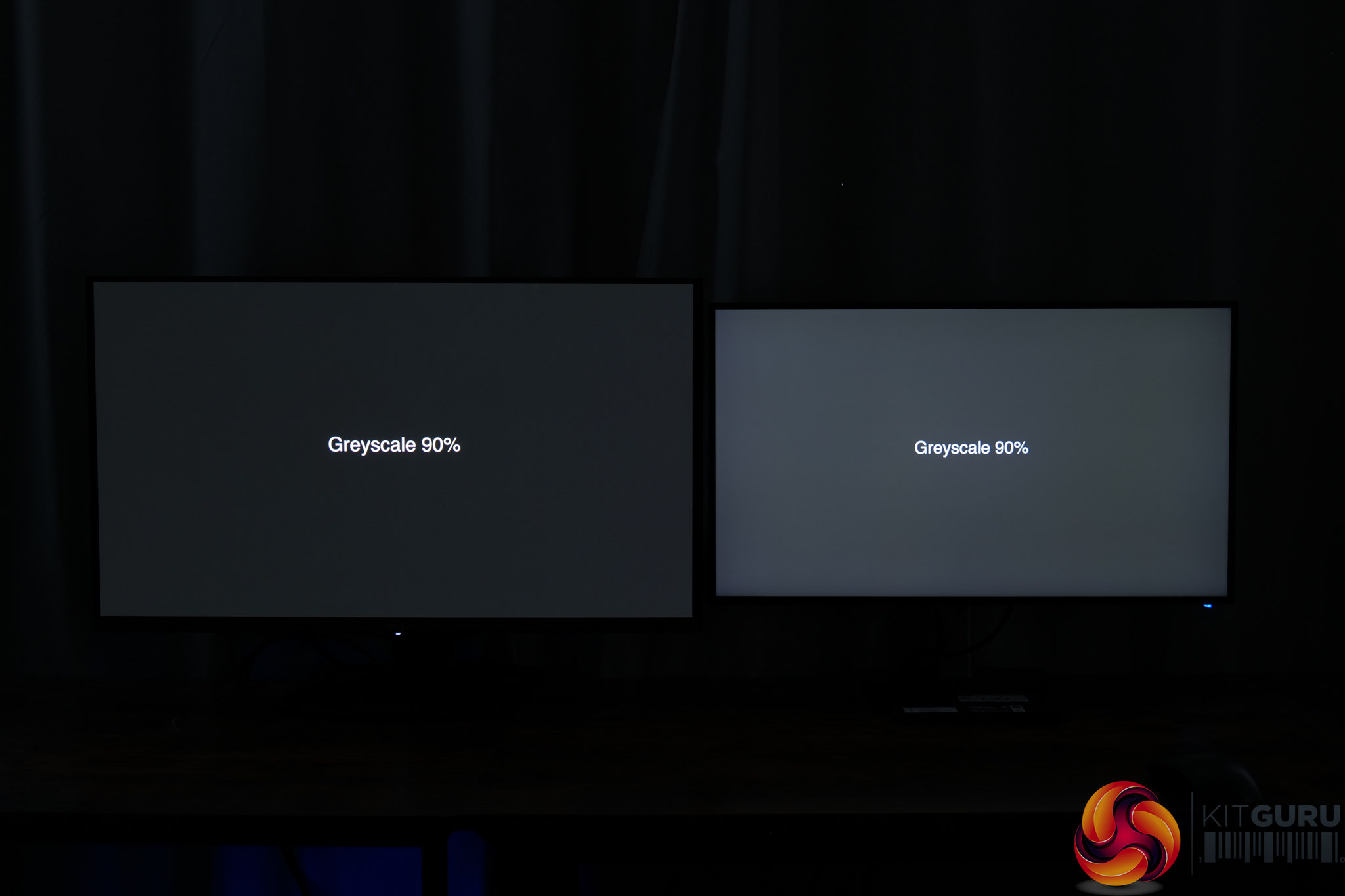
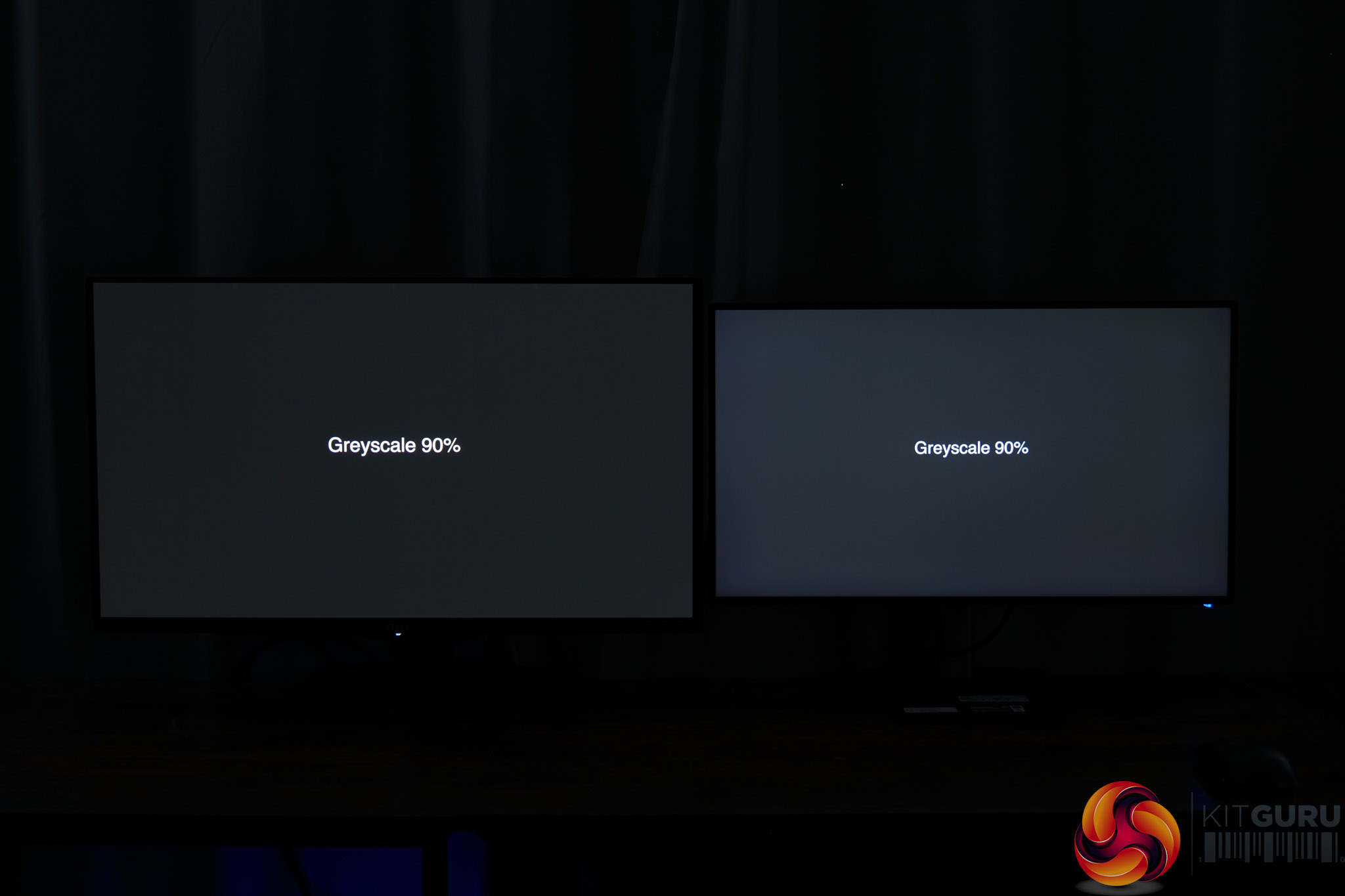
To illustrate this, I took two photos with the HB2701UHSNP side-by-side with a quality QD-OLED monitor. Out of the box, the iiyama monitor looks significantly brighter than it should when showing a 90% greyscale. Once we calibrated the HB2701UHSNP (and more on that below), the difference becomes much less apparent and the image is much darker.
Saturation
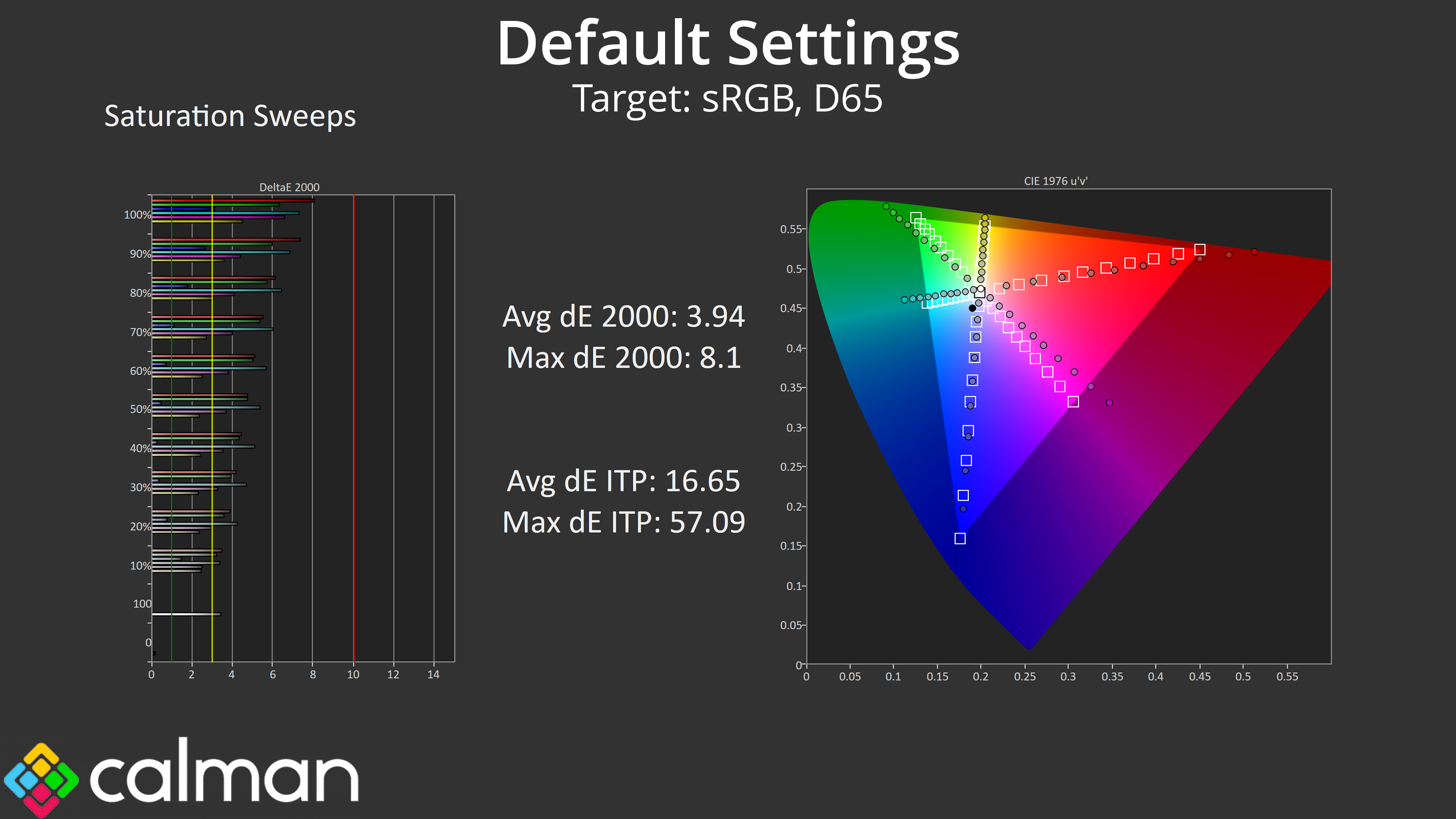
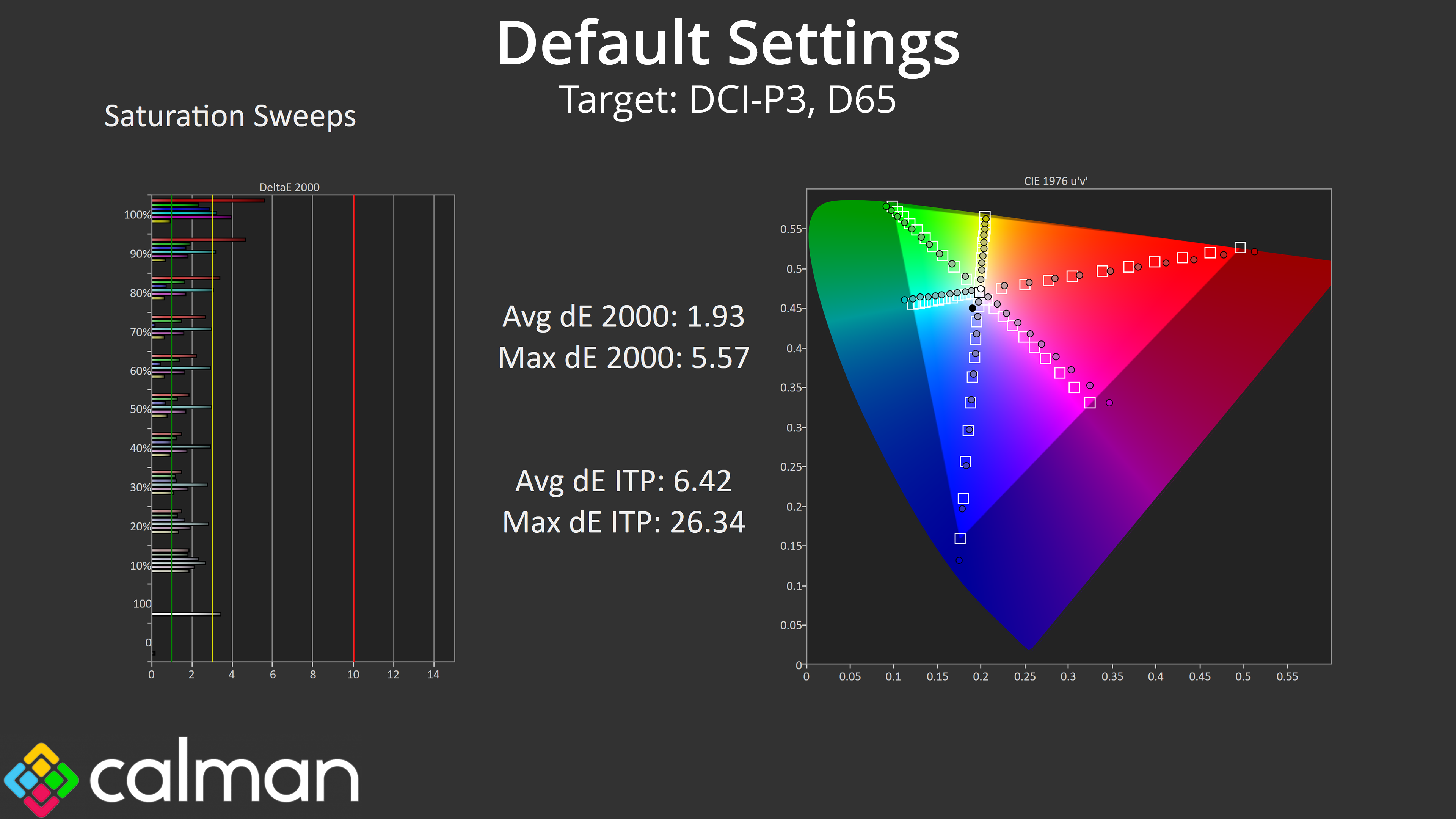
Saturation sweeps indicate performance that's about as expected – the very wide gamut means a lot of oversaturation relative to sRGB, though this improves significantly when compared against the DCI-P3 space.
Colour Accuracy
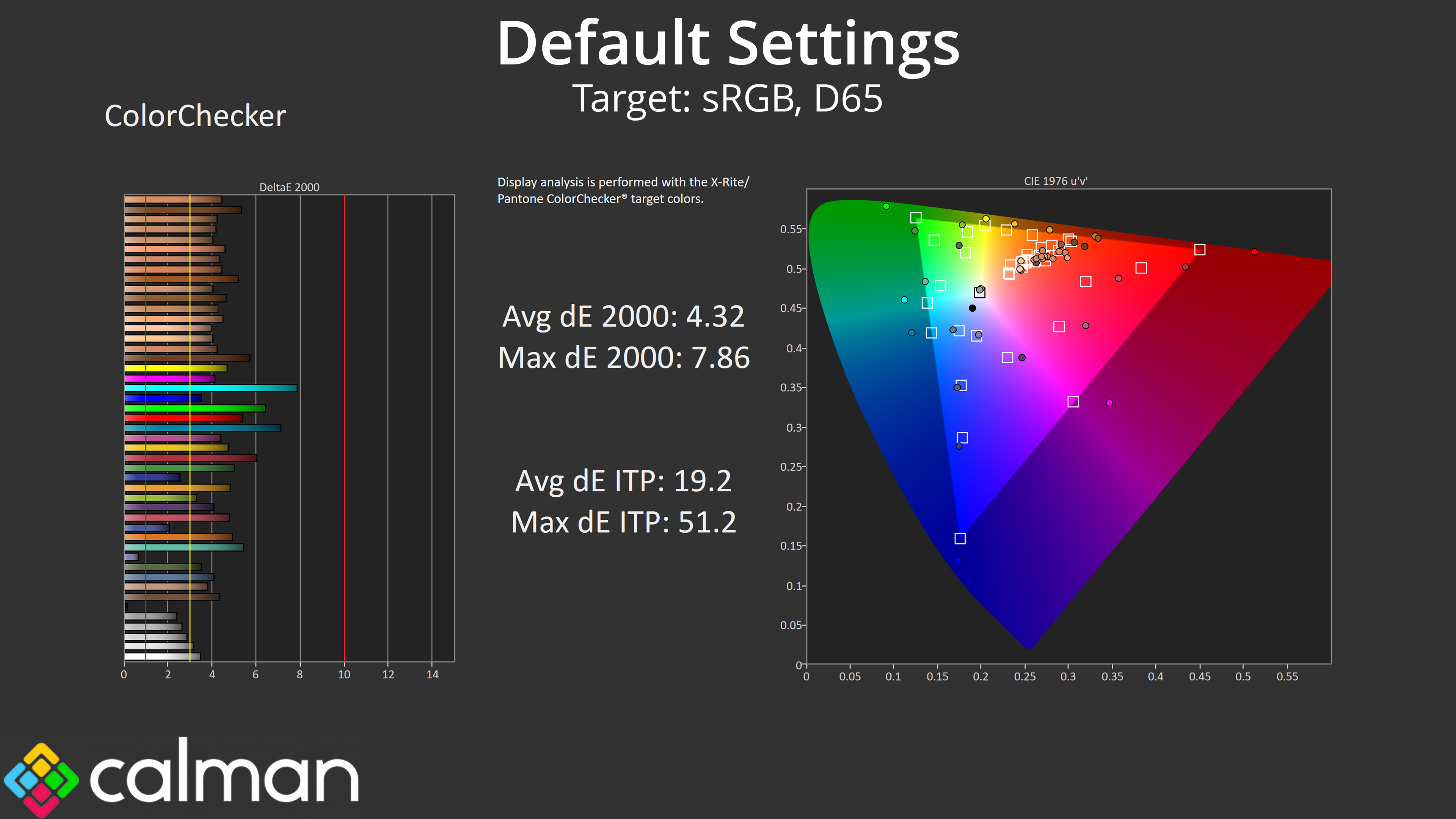
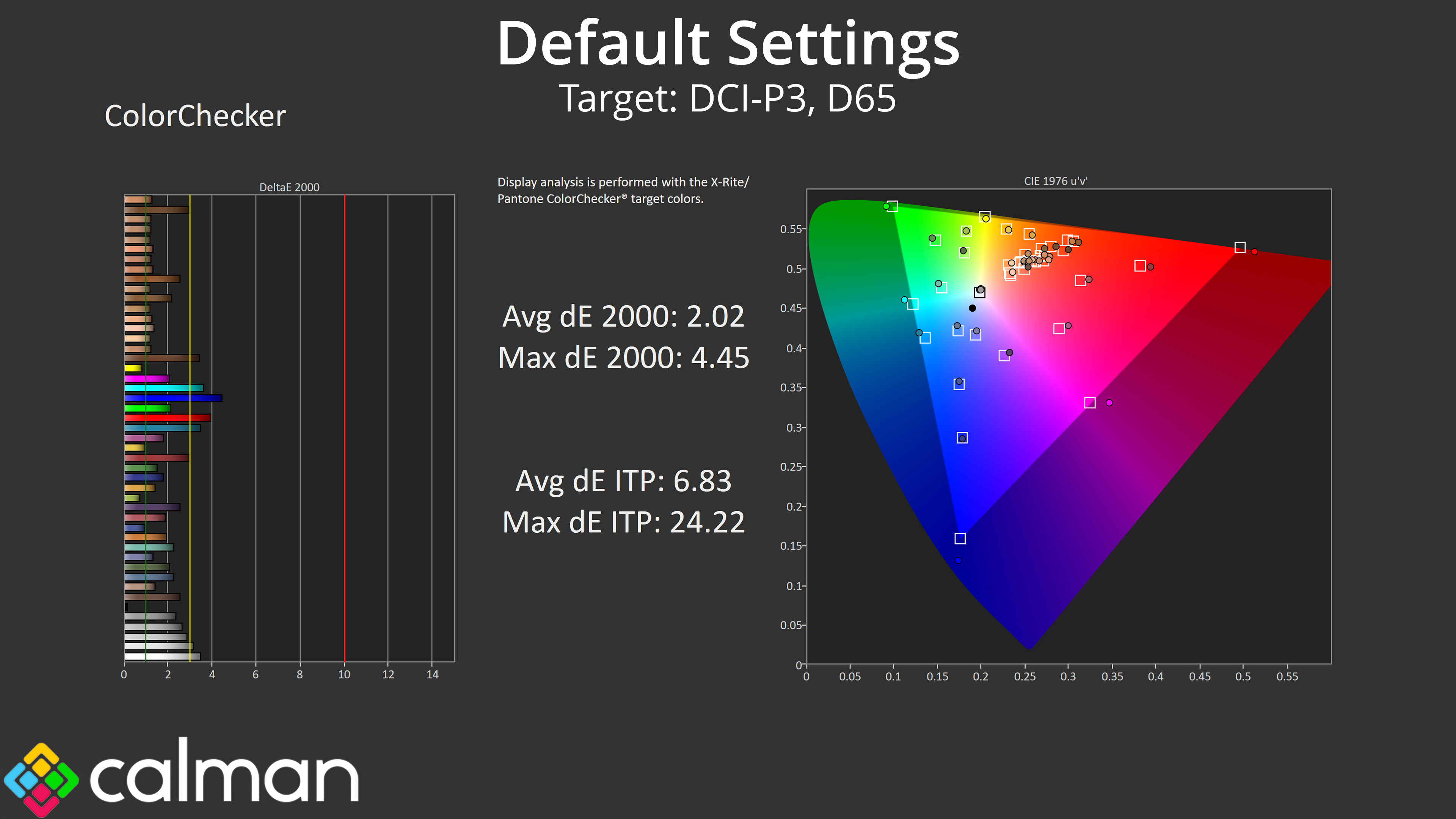
The same goes for colour accuracy, with an average dE2000 of 4.32 relative to the sRGB space, though this improves to an average deltaE of 2.02 when looking at the DCI-P3 results.
sRGB Emulation Mode
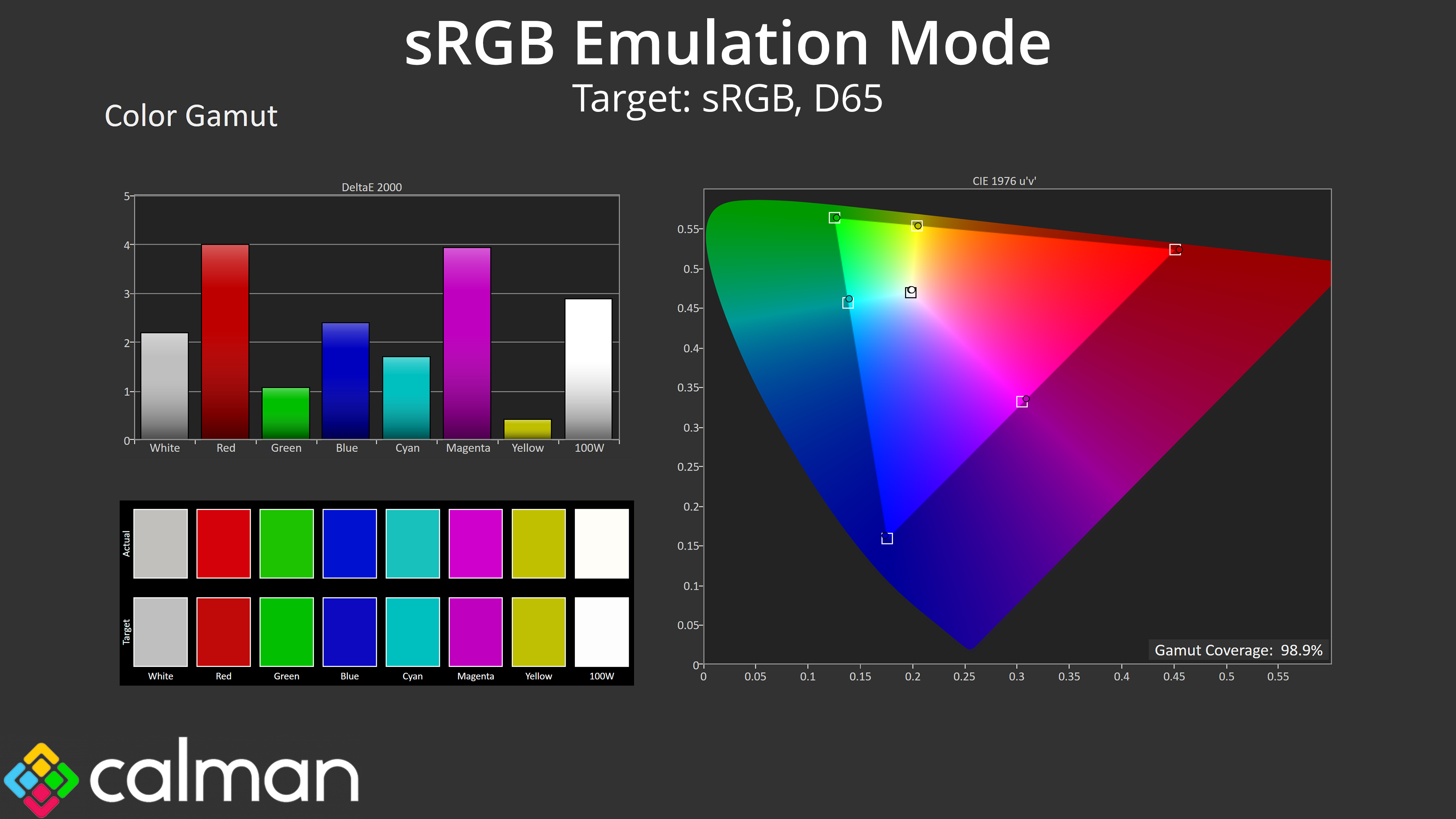
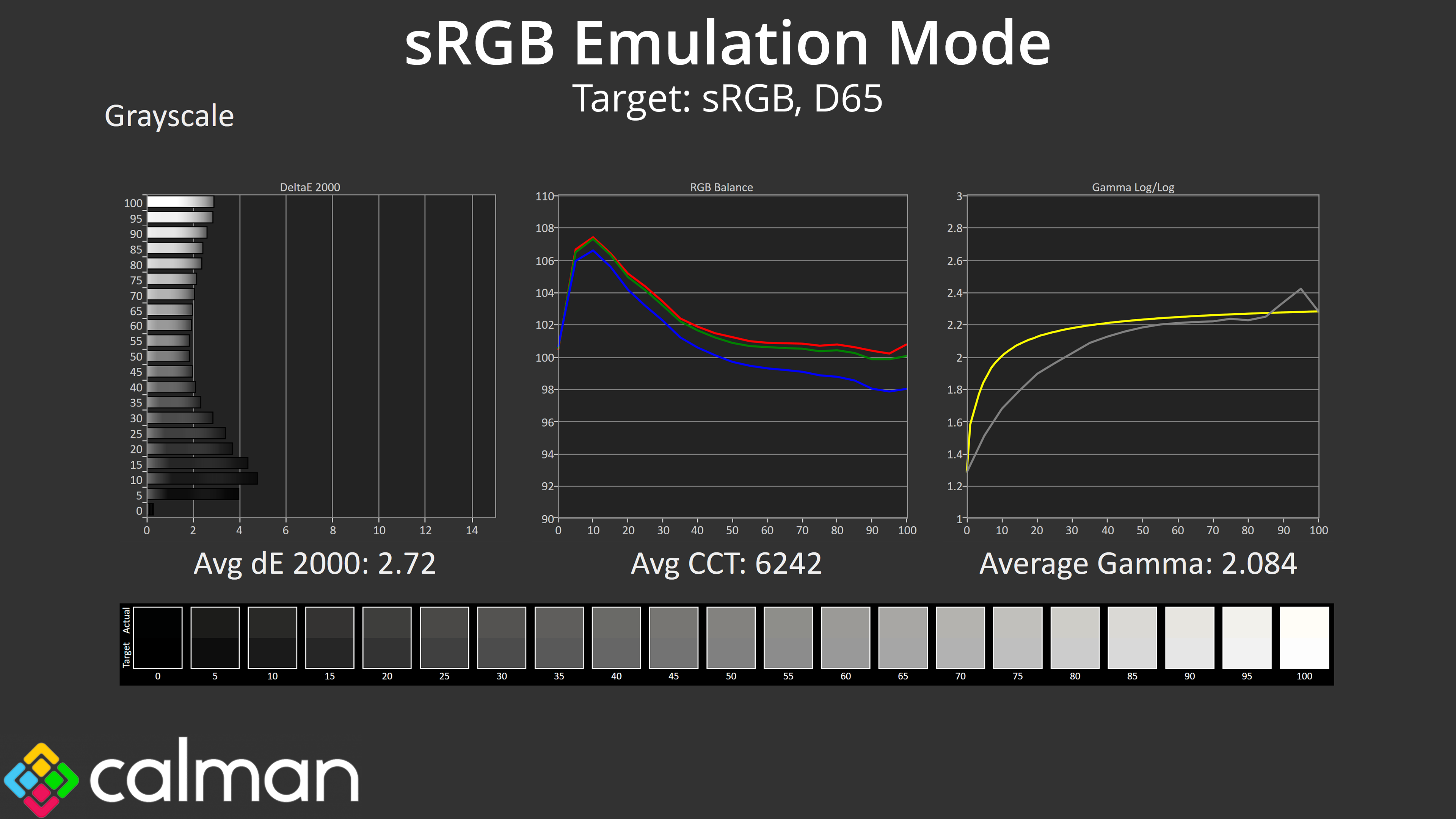
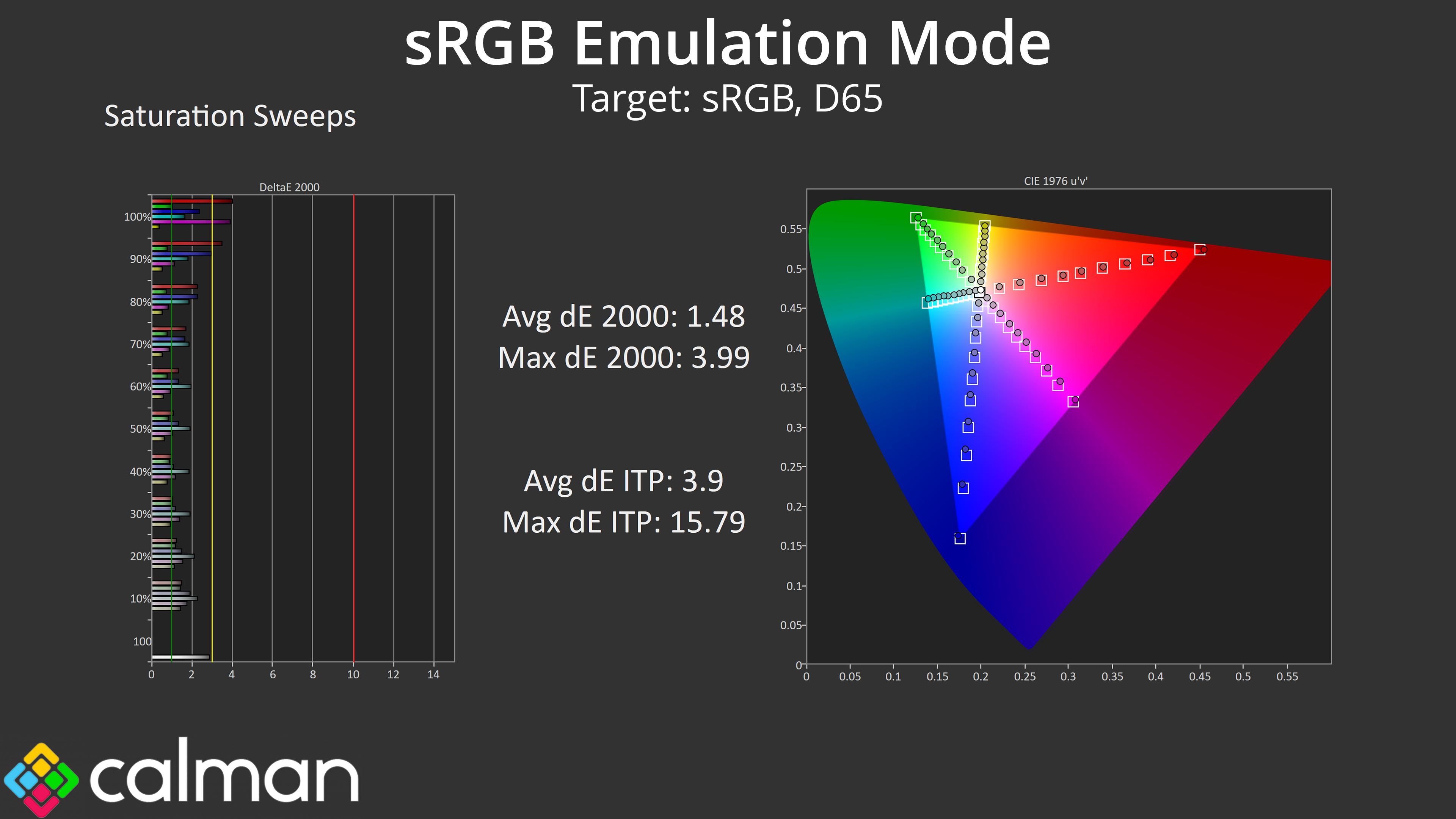
iiyama includes a range of colour space modes which we will assess here, starting with the sRGB mode. This does a good job at clamping the gamut to prevent oversaturation, and colour balance is slightly improved over the factory default. However, gamma is still too low across the first half of the curve, and it averages just 2.084.
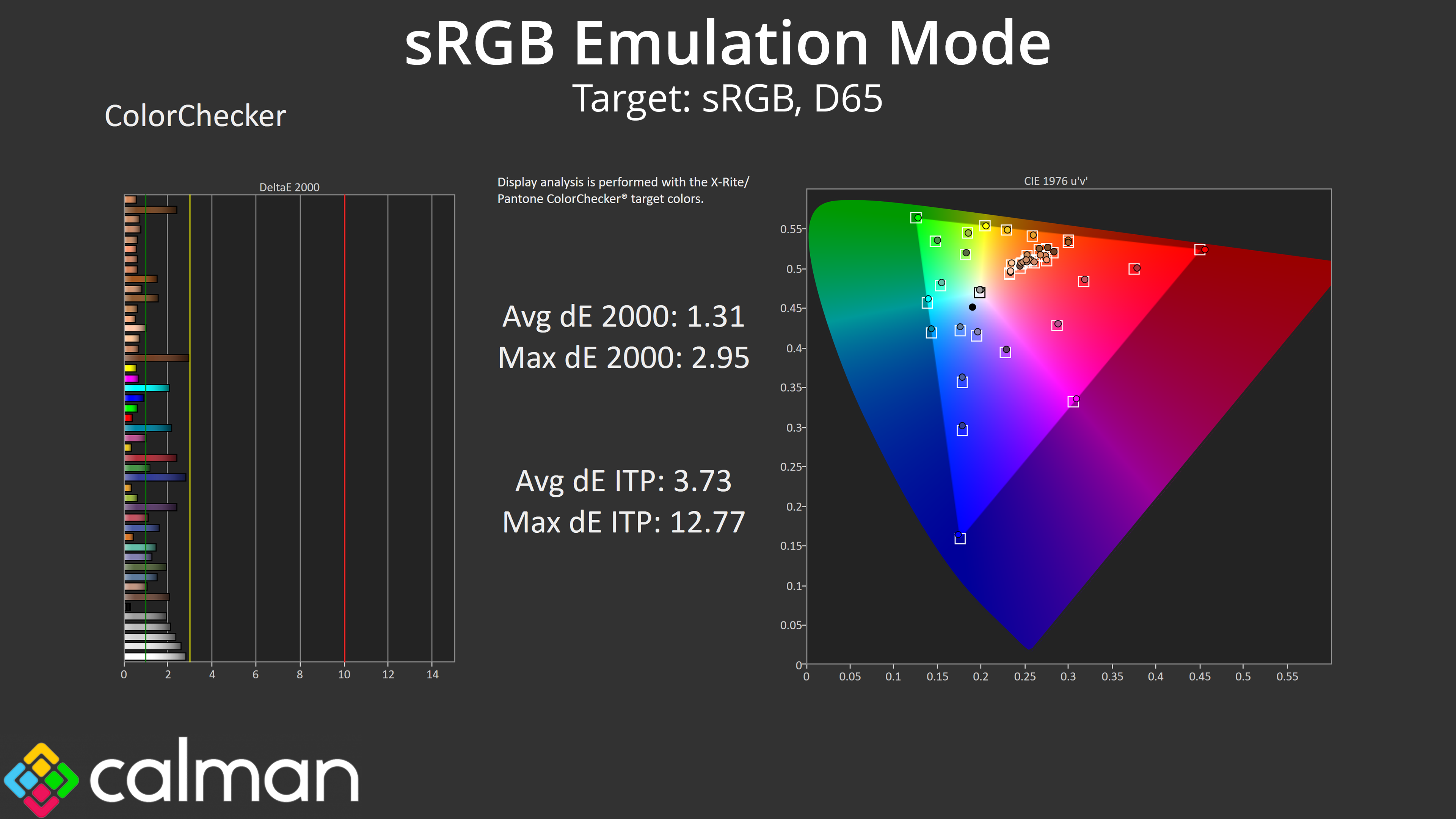
Still, an effective gamut clamp means saturation accuracy is much improved, with an average dE 2000 of 1.48, while colour accuracy also improves to 1.31 average. These are very good results, if not absolutely top tier.
Display P3 Emulation Mode
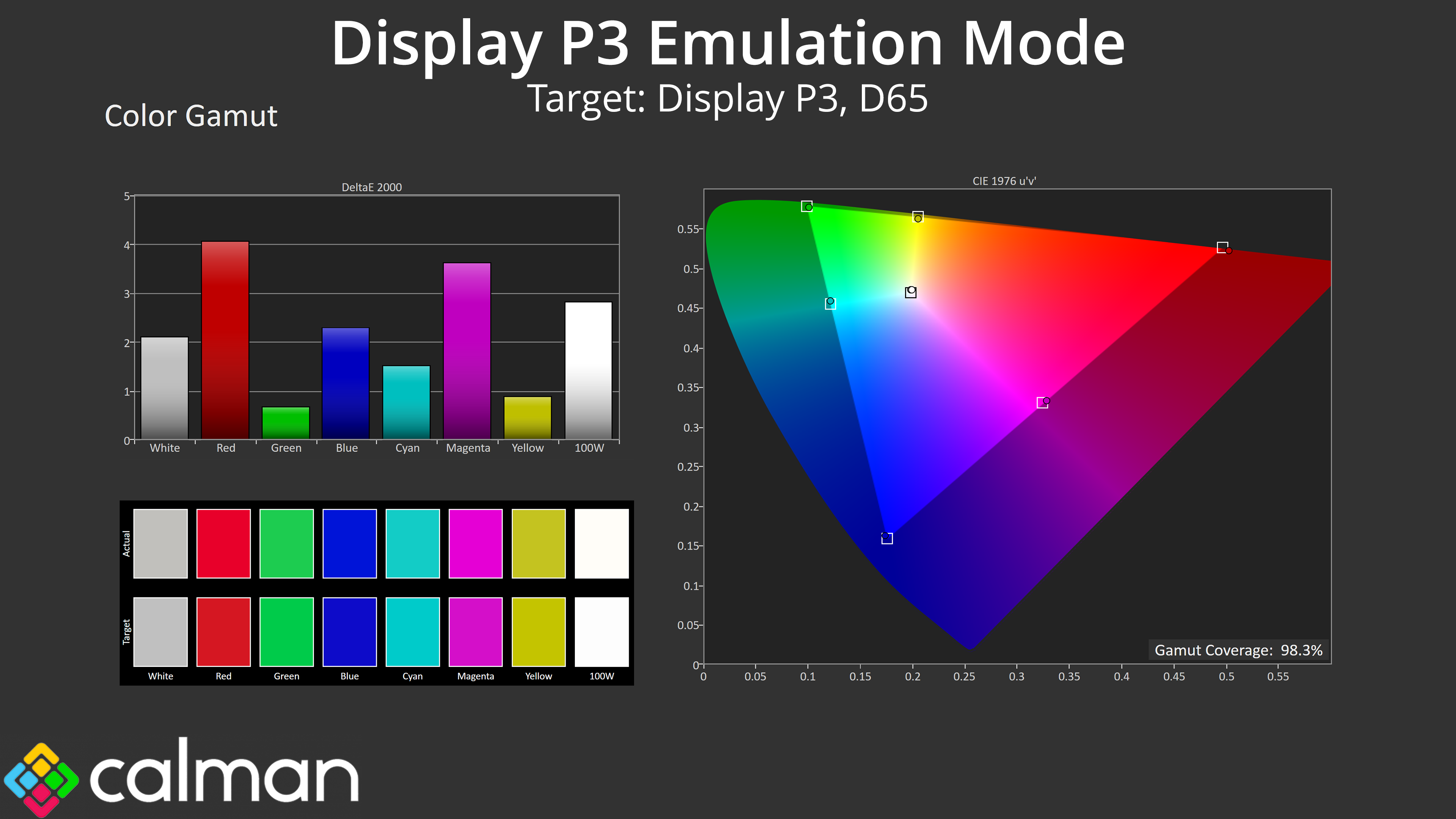
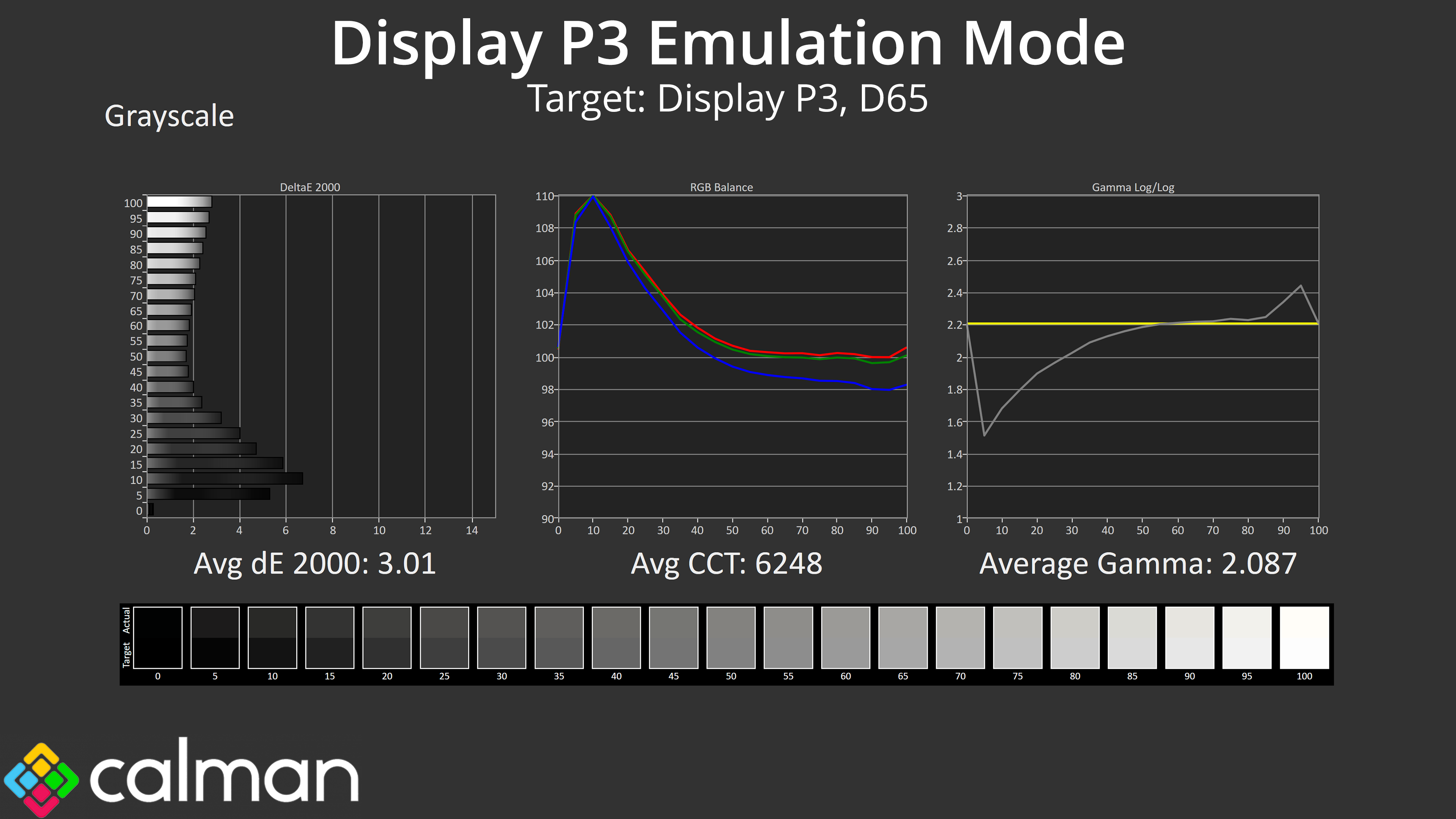
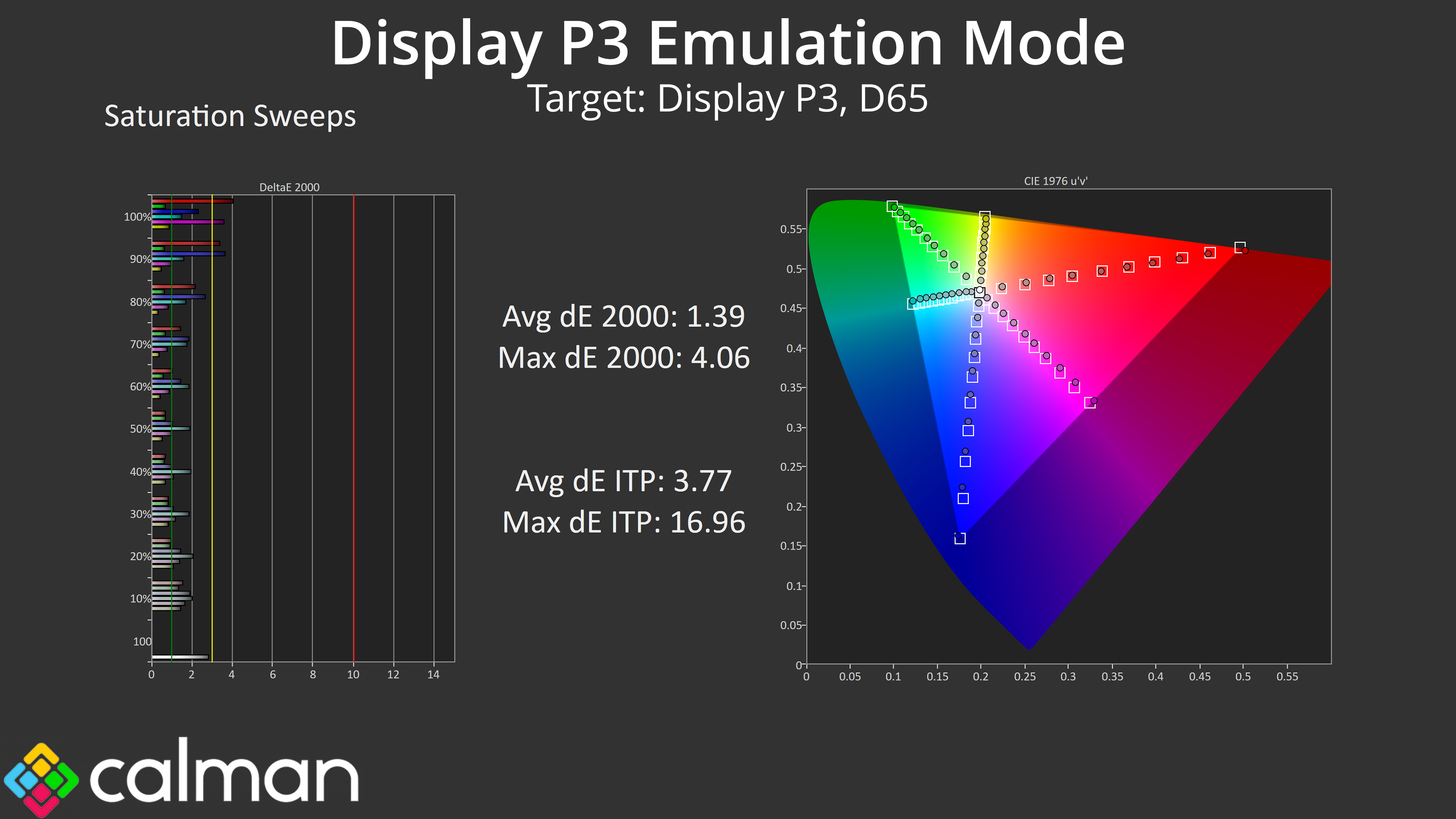
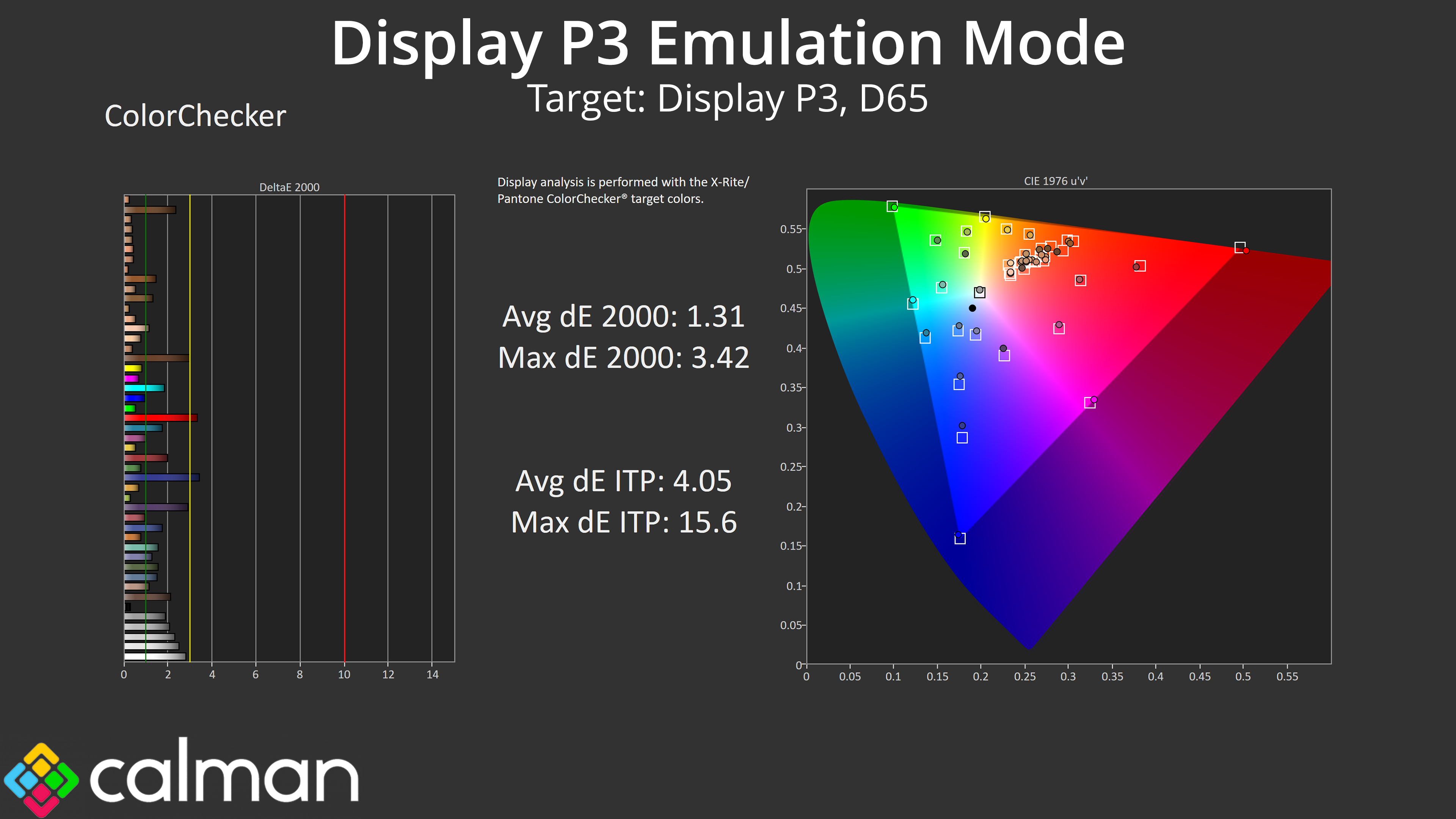
Next we tried the Display P3 mode and found more of the same. The gamut looks good, colour balance is just under 6300K, but gamma is just too low to meaningfully improve the greyscale accuracy. We still see much improved saturation and colour accuracy results, but the gamma is the real issue here.
Adobe RGB Emulation Mode
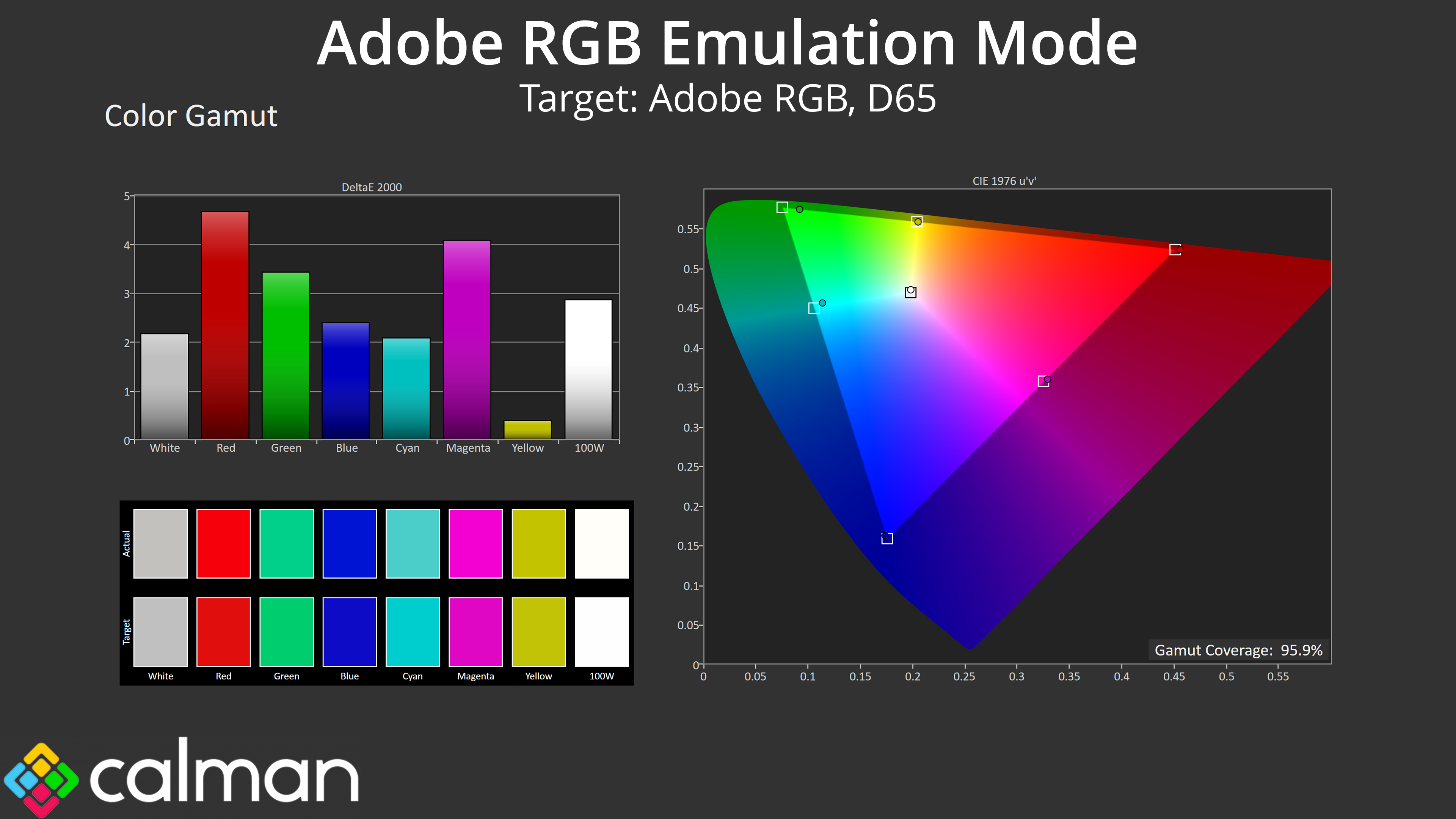
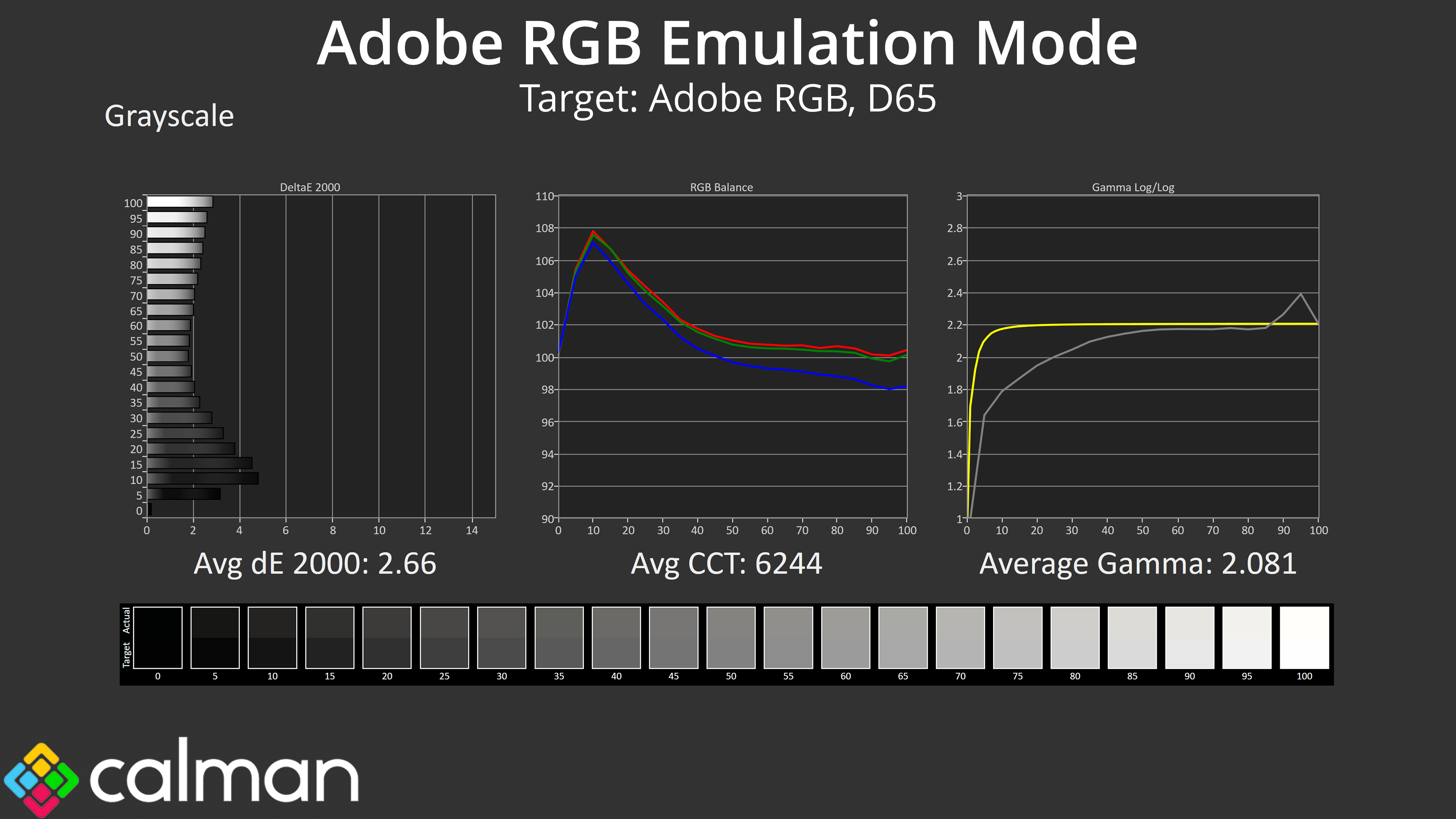
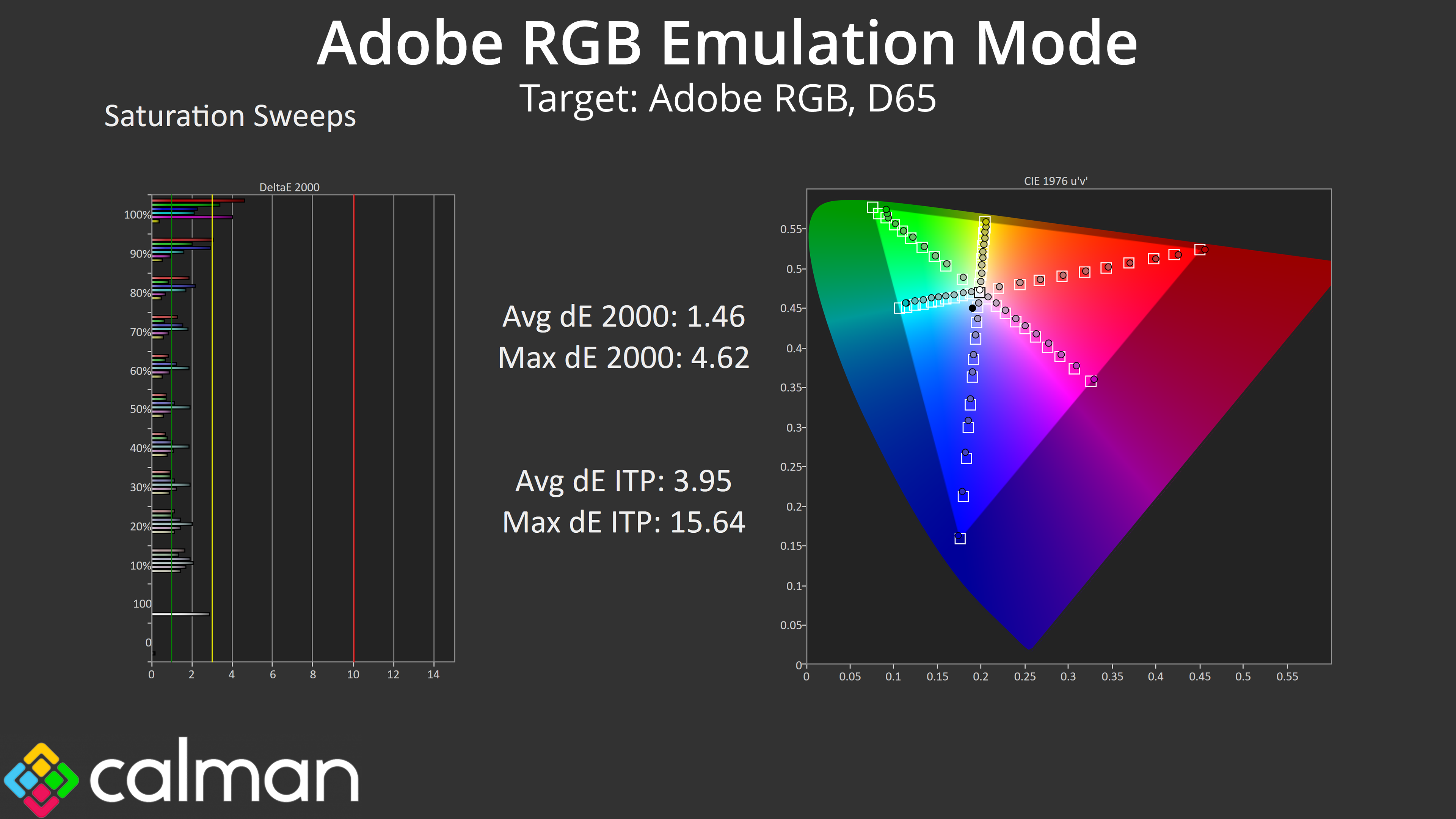
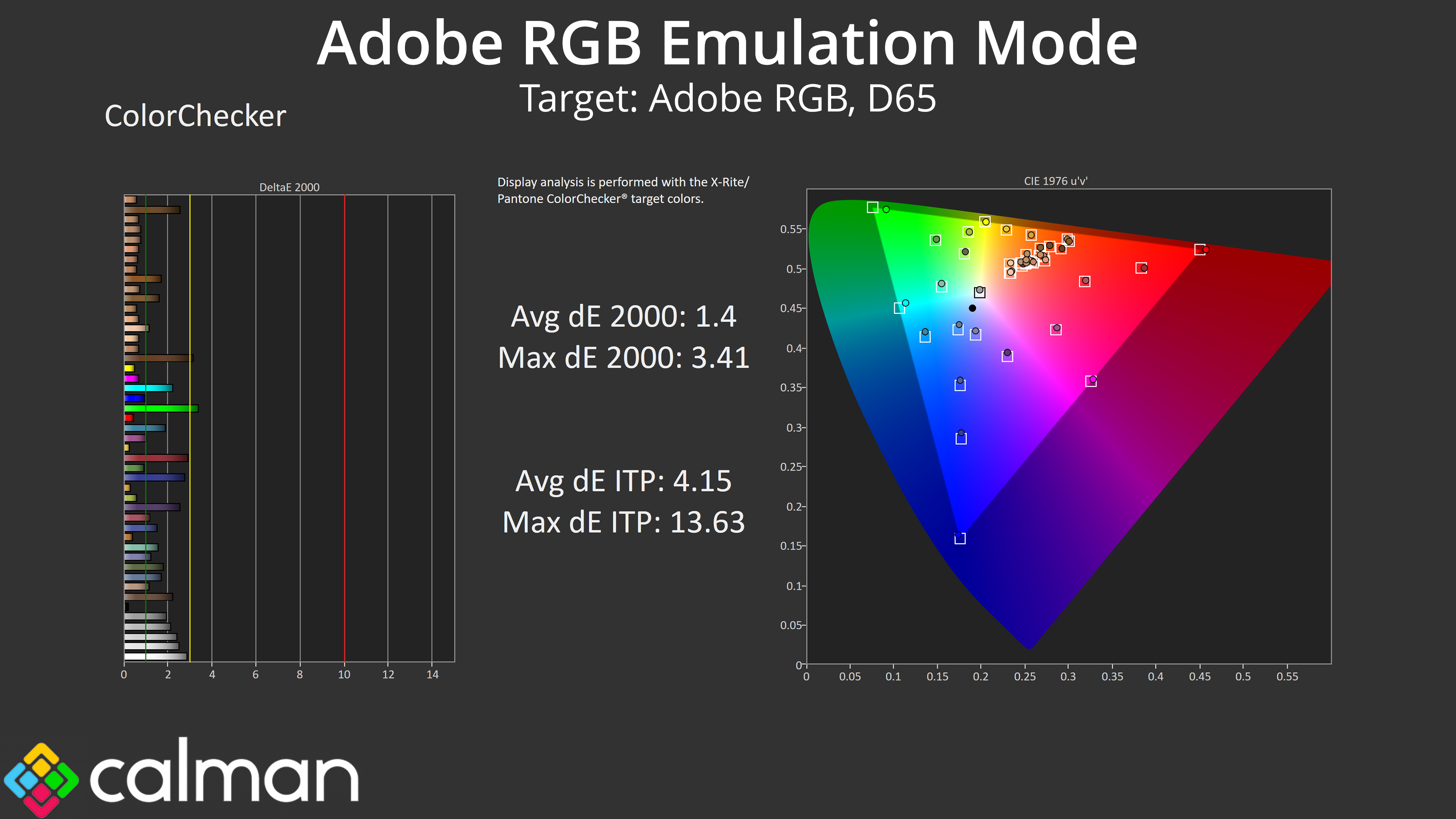
Lastly, the same can be said for the Adobe RGB emulation mode. All three colour space modes we tested are worth using over factory settings if you want to work with one of these colour spaces, as gamut tracking is much improved. However, gamma is too low across the board and that hurts overall accuracy of the screen.
Calibrated Results
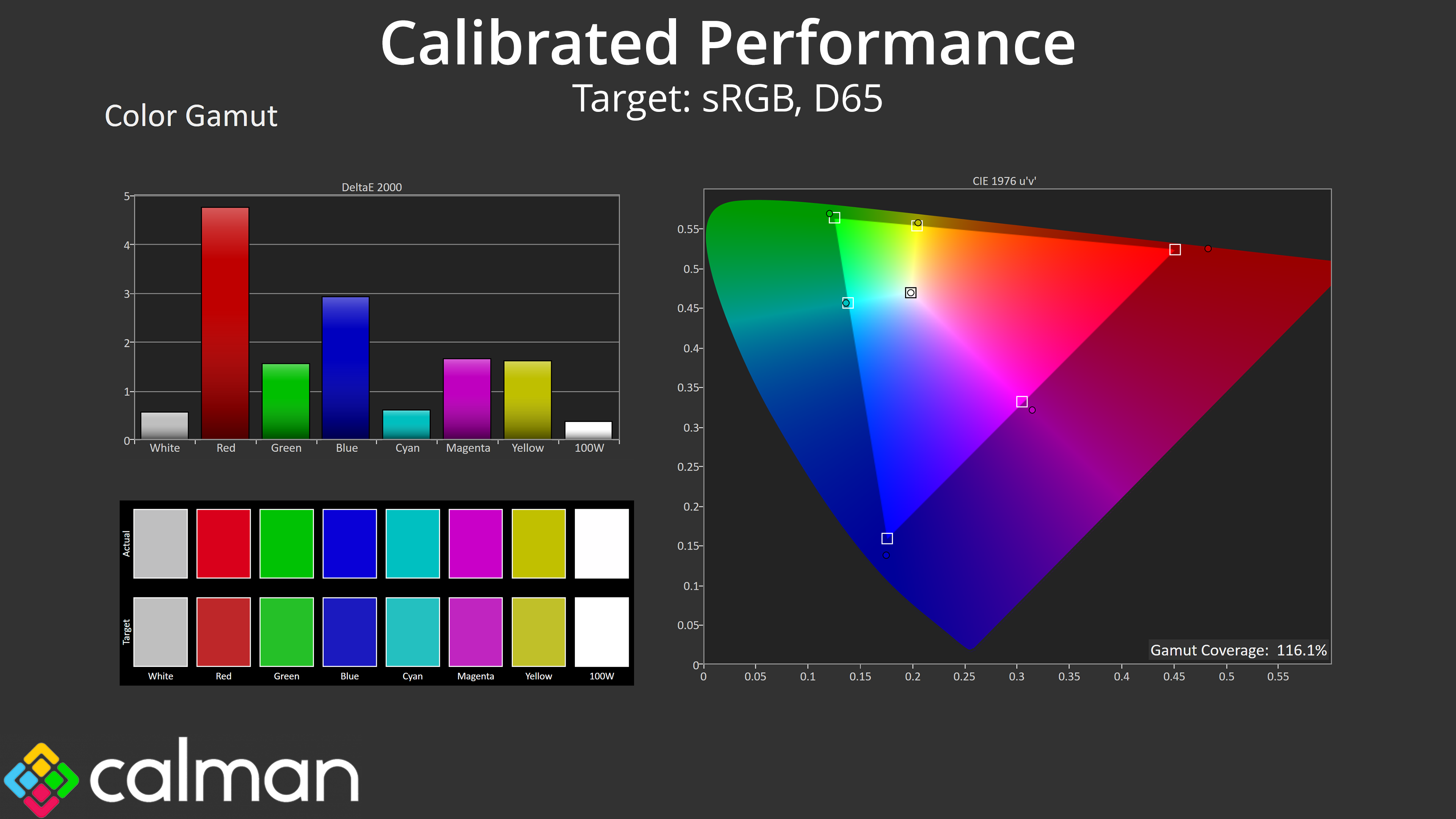
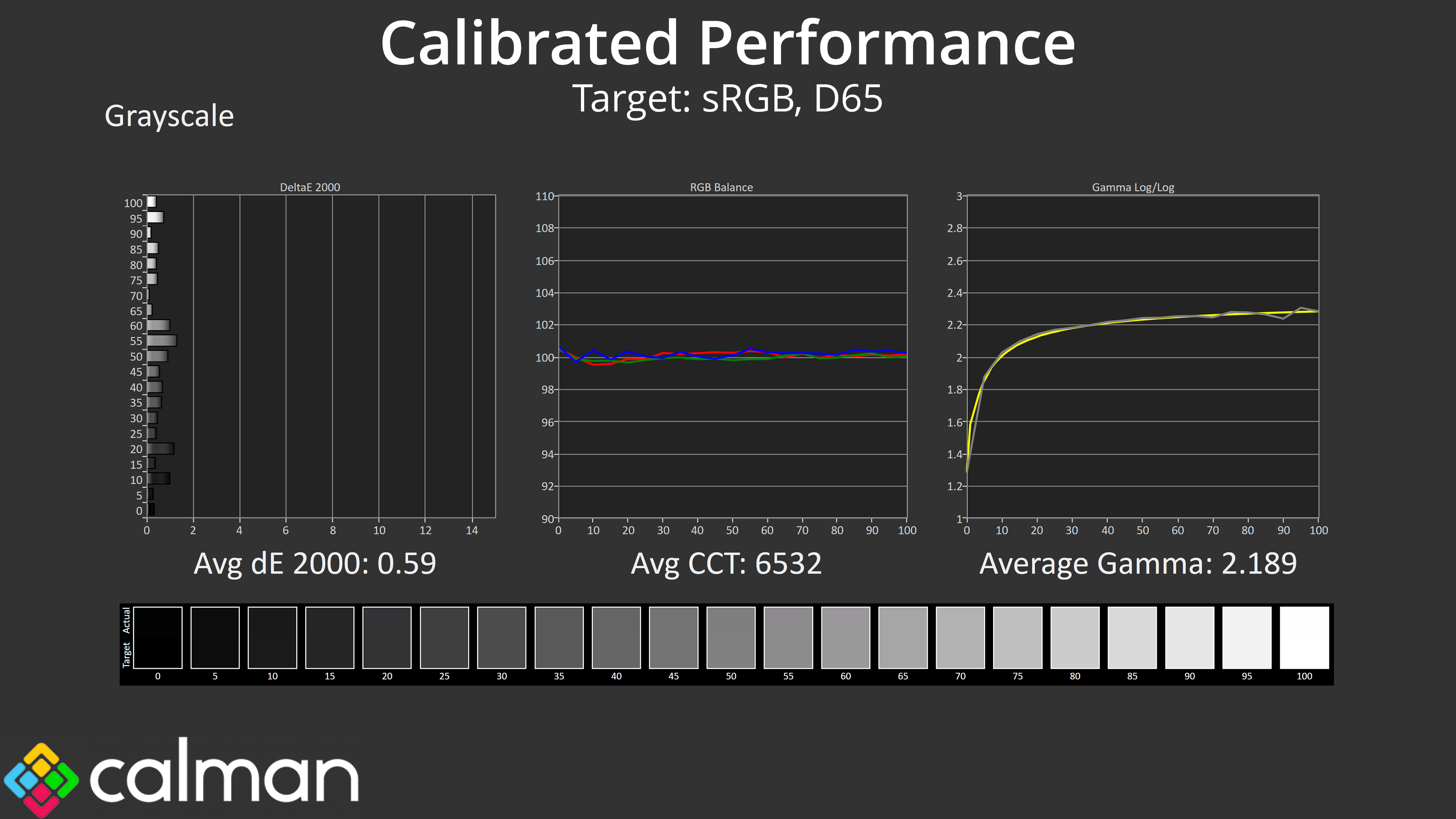
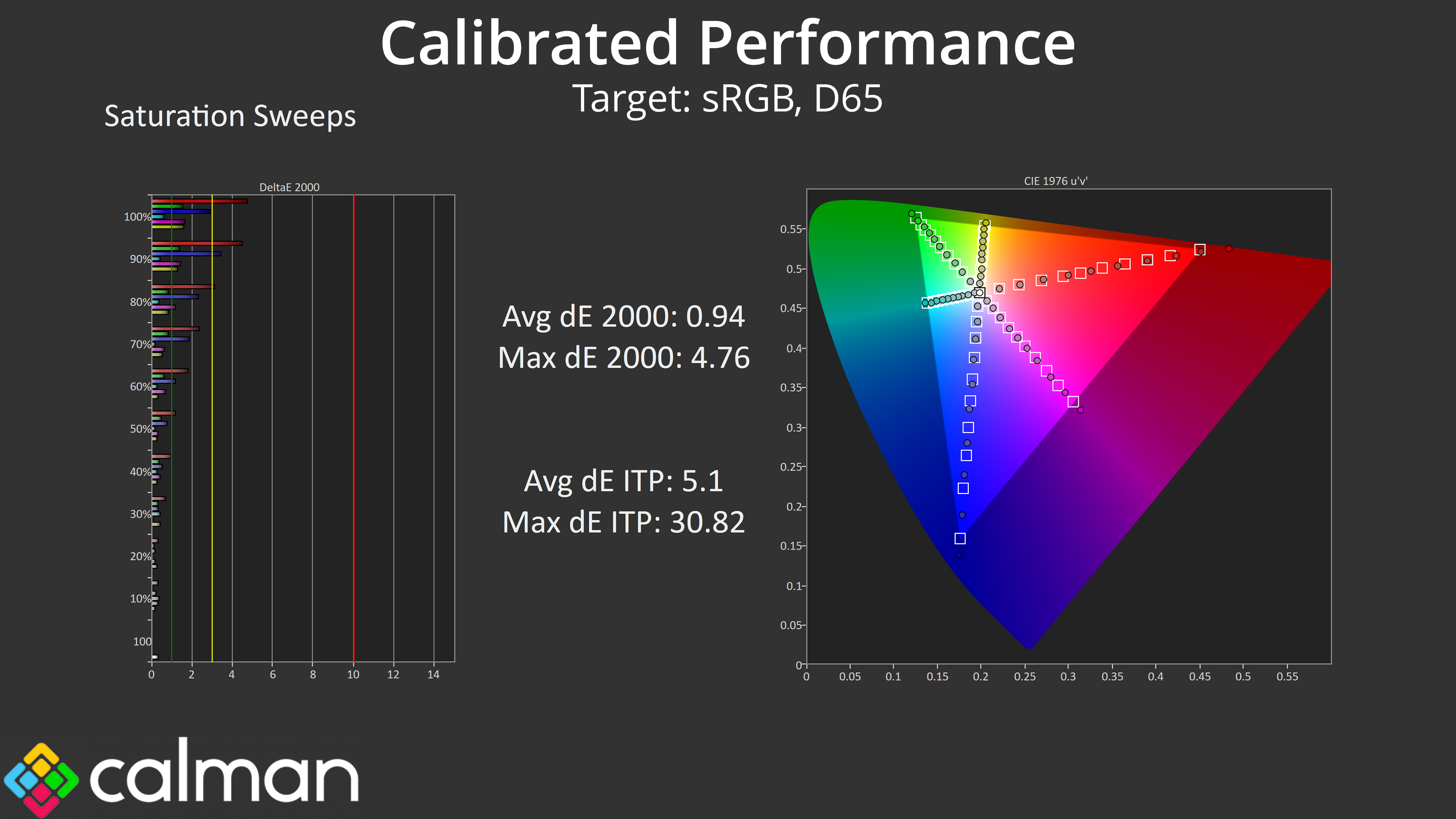
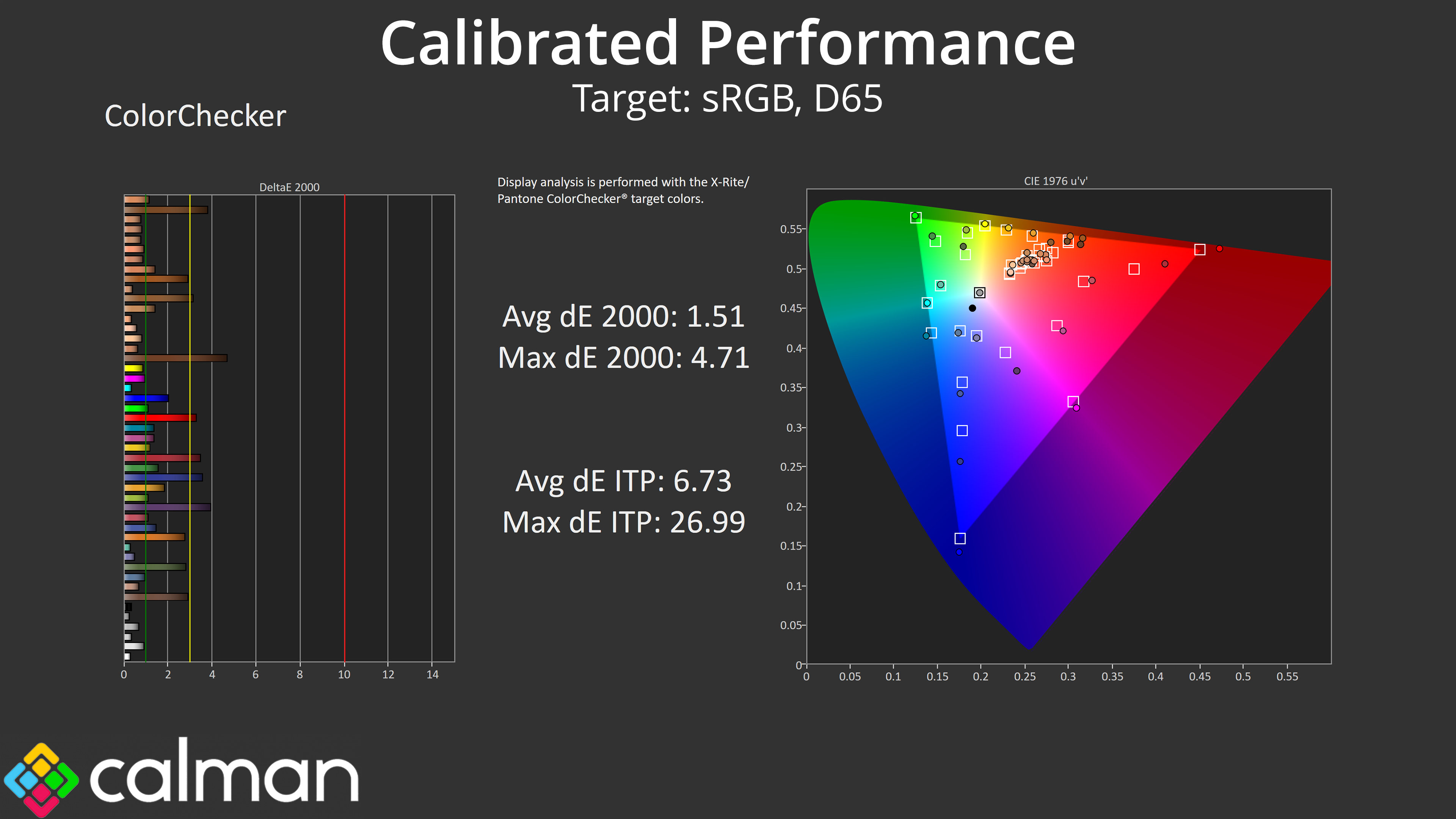
To try and fix that, we did a full calibration using Calman Ultimate. The good news is that it worked – sort of. Greyscale behaviour is basically flawless when calibrated, as you can see the perfectly flat colour balance chart, while gamma tracking is almost perfect, so that's a definite win.
The strange thing is that, for a still unknown reason, the gamut wasn't clamped by my calibration and when using the resulting ICC profile. Usually it locks in perfectly to the sRGB space (which we are targeting here), but not so for the HB2701UHSNP, and I'm not sure if that's because of the monitor or my calibration tools. It's a strange one, so if you have any insight, please do get in touch!
We use the Open Source Response Time Tool (OSRTT), developed by TechTeamGB, for our response time testing. This measures grey-to-grey response times and presents the results in a series of heatmaps, the style of which you may be familiar with from other reviews.
Initial Response Time is the time taken for the panel to transition from one colour to another, where lower values are better. We present the initial response time, so overshoot is not taken into account and is measured separately. We use a fixed RGB 5 tolerance for each transition.
Overshoot is the term given for when a monitor's transition exceeds or goes beyond its target value. So if a monitor was meant to transition from RGB 0 to RGB 55, but it hits RGB 60 before settling back down at RGB 55, that is overshoot. This is presented as RGB values in the heatmaps – i.e. how many RGB values past the intended target were measured.
Visual Response Rating is a metric designed to ‘score' a panel's visual performance, incorporating both response times and overdrive. Fast response times with little to no overshoot will score well, while slow response times or those with significant overshoot will score poorly.
Response Times
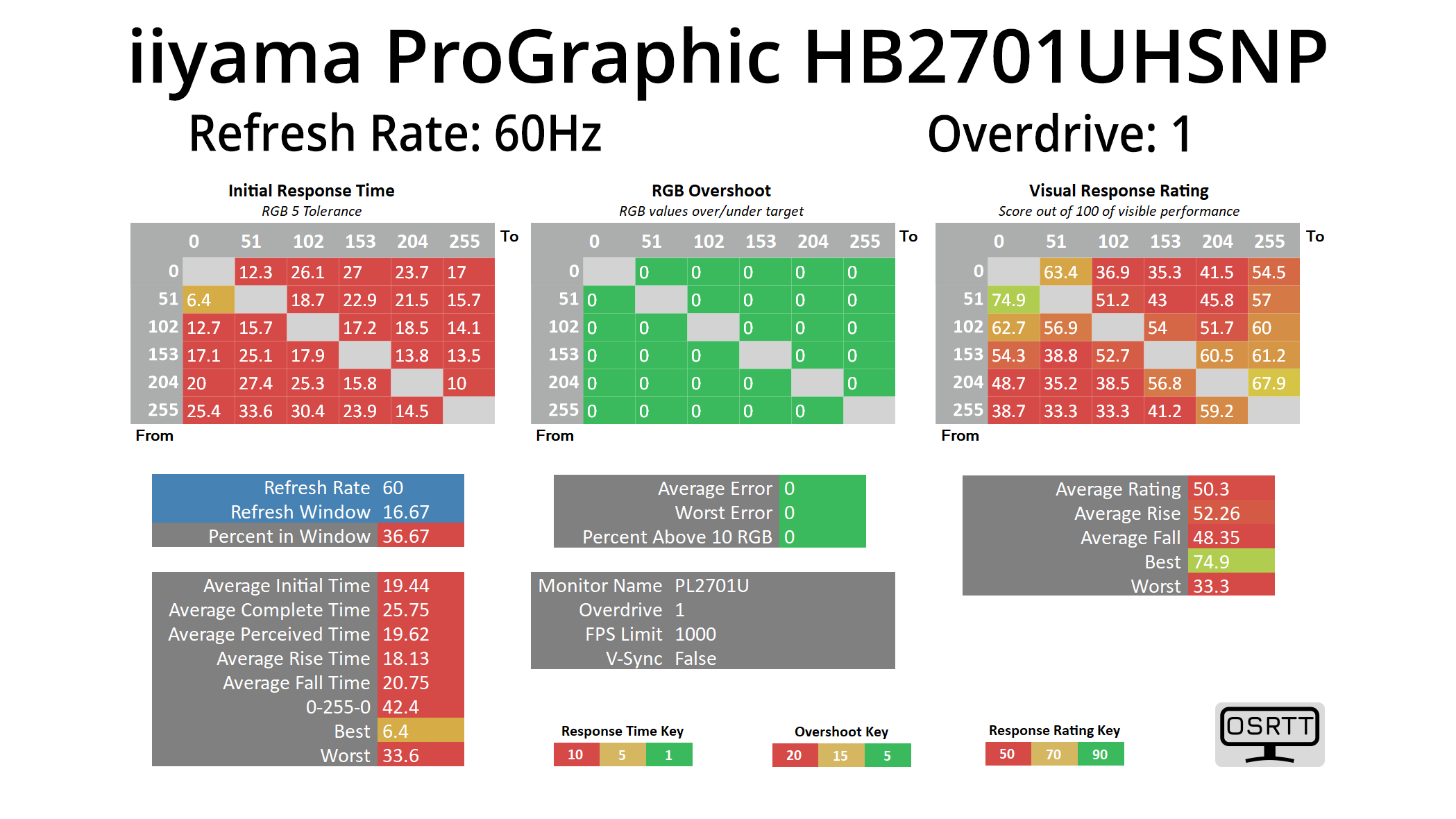
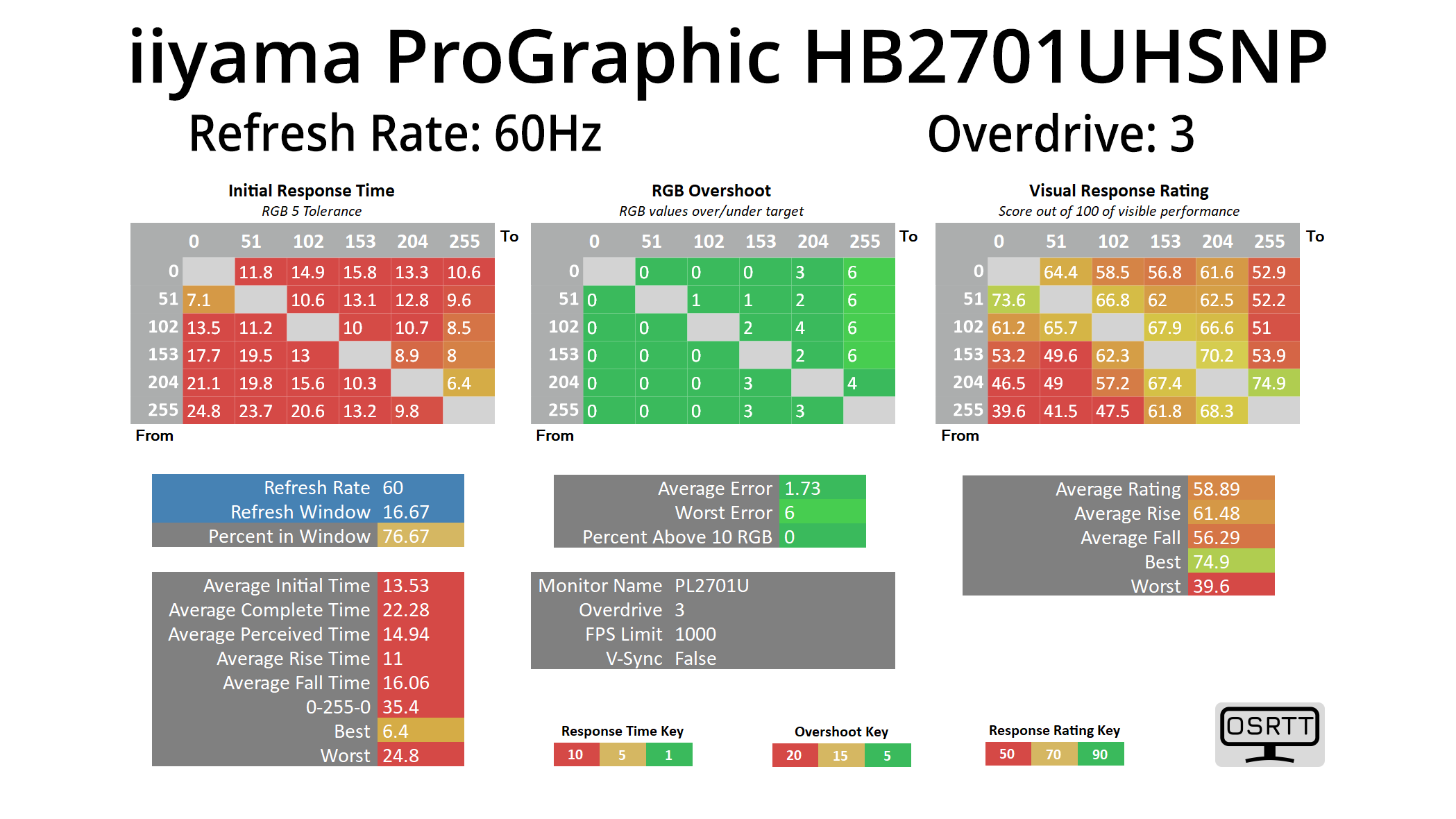
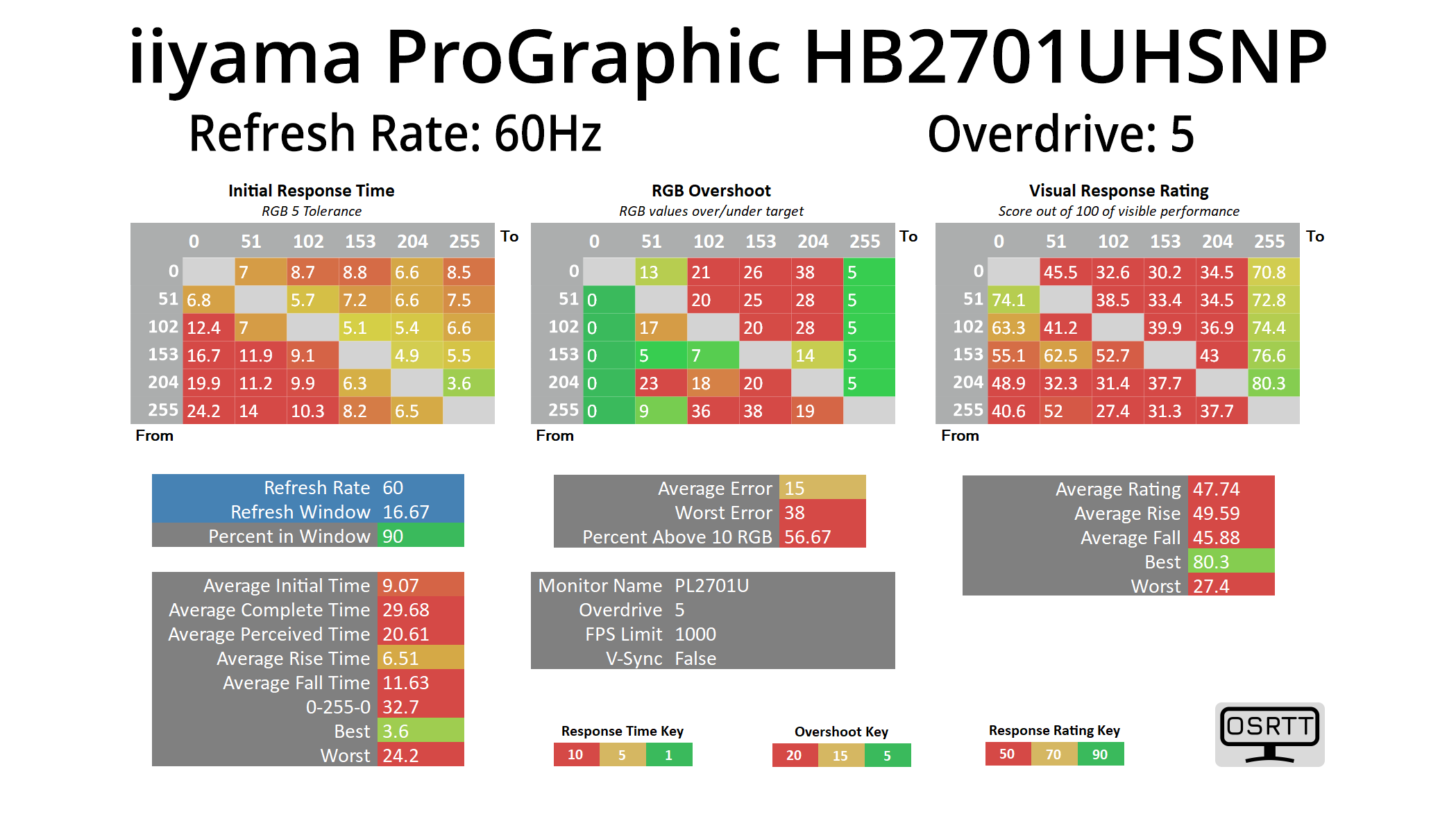
iiyama offers users a total of six overdrive modes – off, and then OD values 1 through 5. We tested OD 1, OD 3 and OD 5 to show you the range of response times on offer at differing overdrive levels.
Clearly, the HB2701UHSNP is not a fast screen, though we wouldn't expect it to be given it's a pro-grade 60Hz monitor. Even then, however, an average response time of over 13ms using the middling OD 3 setting is very slow – but that still means almost 80% of transitions occur within the 16.67ms refresh window for 60Hz, so we can't really complain.
Motion Clarity
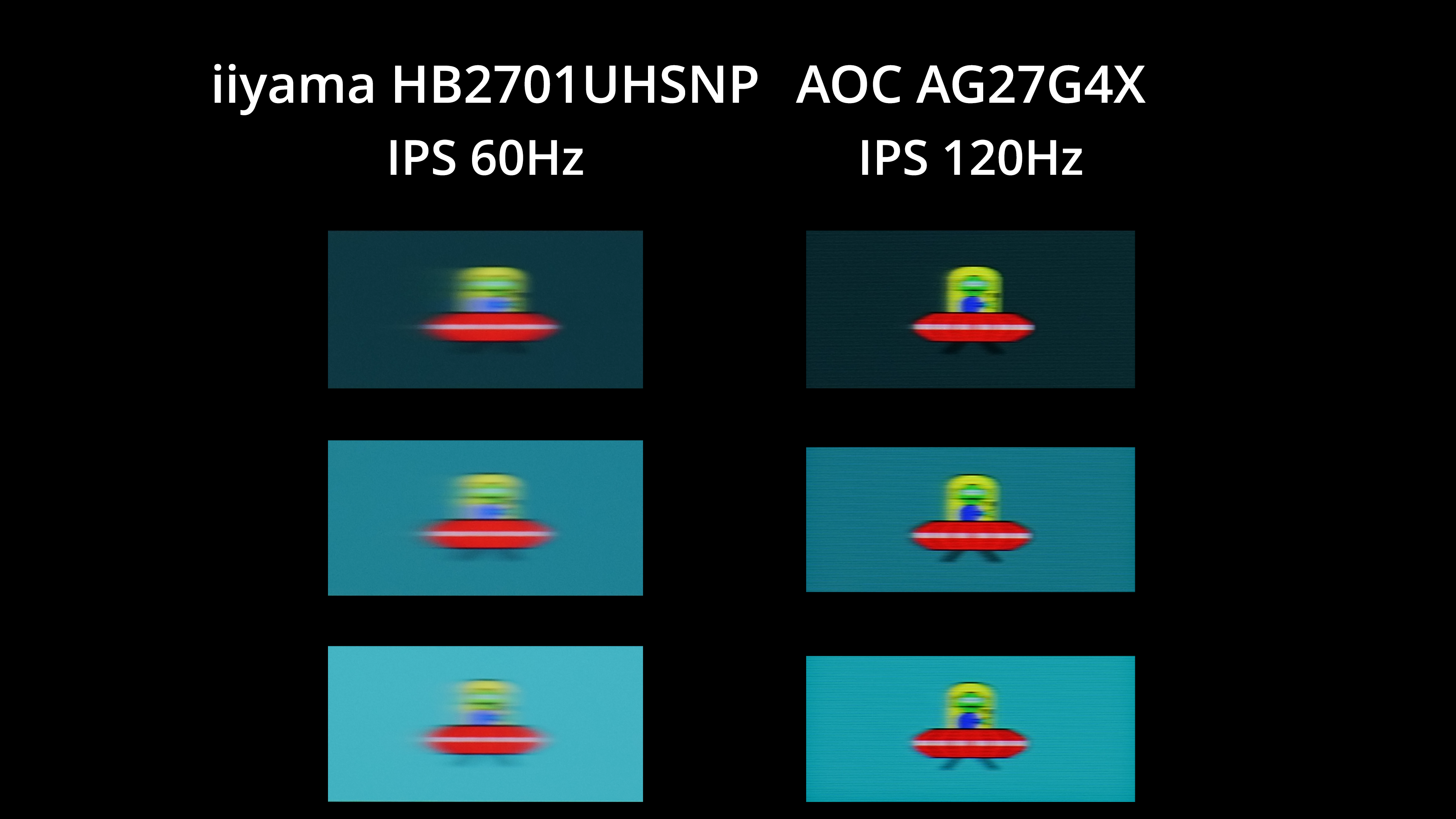
I've also included this motion clarity example so you can see what the monitor looks like in practice. We're comparing the HB2701UHSNP to the AOC Q27G4X, a budget 1440p 180Hz IPS screen which I ran at 120Hz for the purposes of this test.
As you can see, there is a fair amount of motion blur visible from the HB2701UHSNP. Clearly, an IPS panel running at 120Hz looks substantially clearer. Of course, you can argue as to whether or not a professional screen like this needs a refresh above 60Hz, and it may not be a factor for many considering this type of screen. Most pro-grade screens that offer a 120Hz refresh rate will be significantly more expensive, too, but we thought it was worth including the comparison so you can make your own decision.
We again use the Open Source Response Time Tool (OSRTT), developed by TechTeamGB, to report monitor input latency.
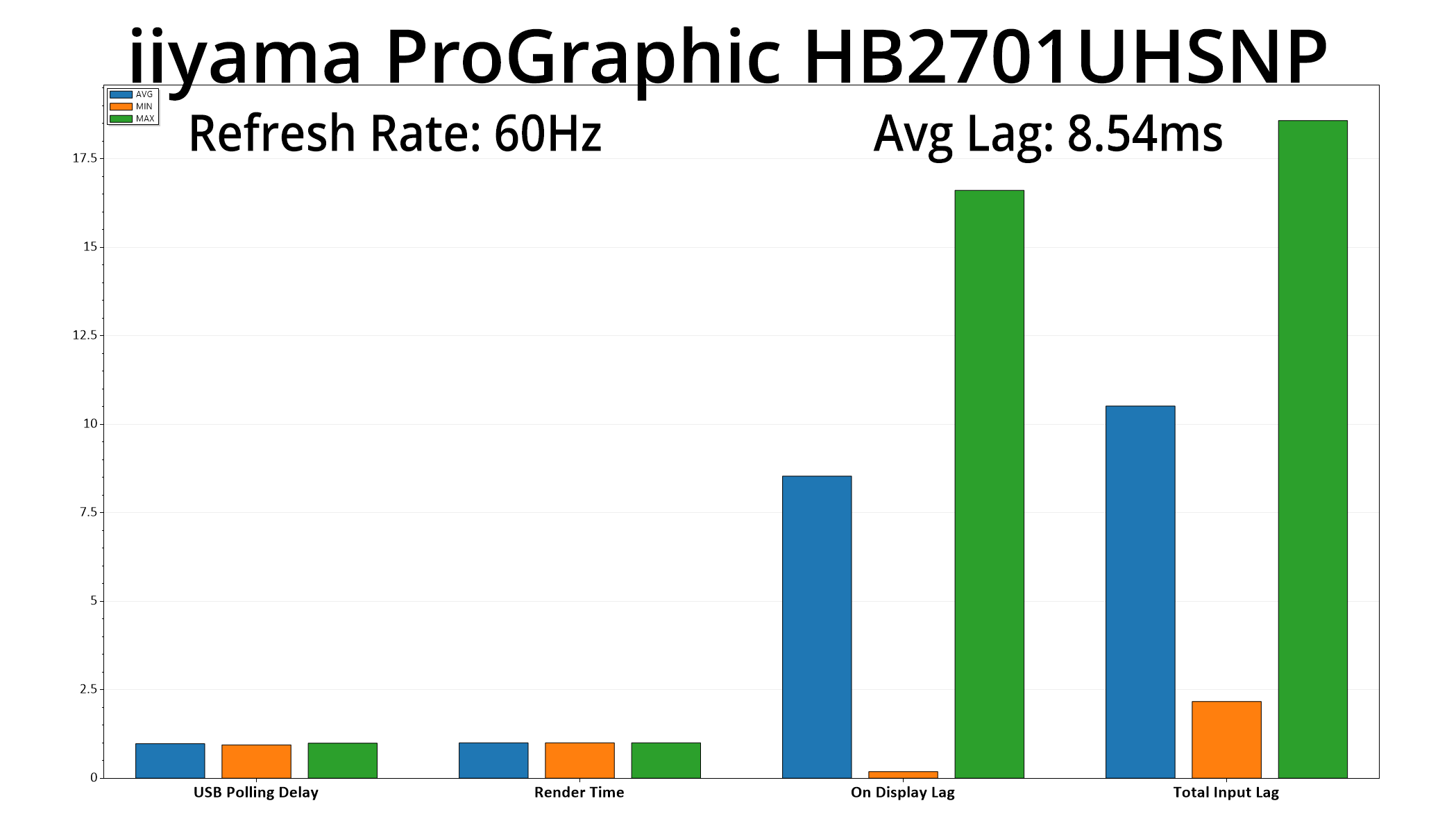
While not a particularly impressive figure compared to the gaming screens we test, an average latency of 8.54ms is only just over half a frame of lag at 60Hz, so there's nothing to complain about.
We review a lot of gaming monitors here at KitGuru and we love to see how manufacturers can push the boundaries when it comes to response times, ever-increasing refresh rates and motion clarity. That said, it's equally interesting to see what different pro-grade screens can do, given the priorities for a screen of this class are quite different to the gaming market.
Priced at £500, iiyama's ProGraphic HB2701UHSNP certainly has a lot going for it, but it does have some fairly sizable drawbacks, too. Starting with the good points, the gamut is very wide, rivalling Quantum Dot panels, while contrast is the highest we've ever tested for an IPS screen. I also like the clean and understated design, while the built-in USB hub and various colour space modes – to give just two examples – indicate a healthy set of features designed for professional users.
Overall performance is sadly hampered by the fact that, across every colour mode we tested, gamma tracking is just way too low out of the box. This resulted in dark to mid-greys looking quite washed out, preventing the HB2701UHSNP from achieving the sort of accuracy we'd expect from a professional monitor. This can be fixed via a manual calibration, but it's still a clear issue with the factory calibration, so that's something iiyama needs to look at.
Additionally, my sample hit contrast of around 2300:1, which as we've said, is incredibly high for an IPS monitor. However, this screen is using one of LG's new IPS Black 2.0 panels, with a claimed 3000:1 ratio, so we did fall someway short of that. Panel uniformity could also stand to be improved, as while we didn't register any particularly bad results, the error rate we did see across multiple sections of the monitor was higher than expected for this calibre of display.
Ultimately, that leaves us feeling that iiyama's ProGraphic HB2701UHSNP hasn't quite fulfilled its potential. There's clearly the foundation for a very impressive monitor here, but it's currently let down by a couple of not insignificant issues – particularly when it comes to gamma tracking. It's possible that a firmware update could improve things, but as it stands it's hard to look past those drawbacks, particularly when competing screens, like AOC's Graphic Pro U32U3CV, can now be found for less than £400.
You can buy the HB2701UHSNP for £498.98 from Scan HERE.
Pros
- Clean and understated design.
- Loads of colour space modes to work with.
- Incredibly wide gamut.
- Very high contrast by IPS standards (though we didn't hit the claimed 3000:1 ratio).
- OSD offers a good amount of features.
- Built-in USB hub with DP out and Ethernet.
Cons
- Gamma tracking is far too low and that affects overall accuracy.
- Contrast, although very high, fell short of the claimed 3000:1 ratio.
- Panel uniformity could be better.
- Lacks real HDR support given the DisplayHDR 400 certification.
KitGuru says: If iiyama can fix a couple of these issues with a new firmware update, we're hopeful that the HB2701UHSNP would be a much-improved screen. But as things stand, poor gamma tracking is the main thing holding this back from a stronger recommendation.