KitGuru KitGuru.net – Tech News | Hardware News | Hardware Reviews | IOS | Mobile | Gaming | Graphics Cards


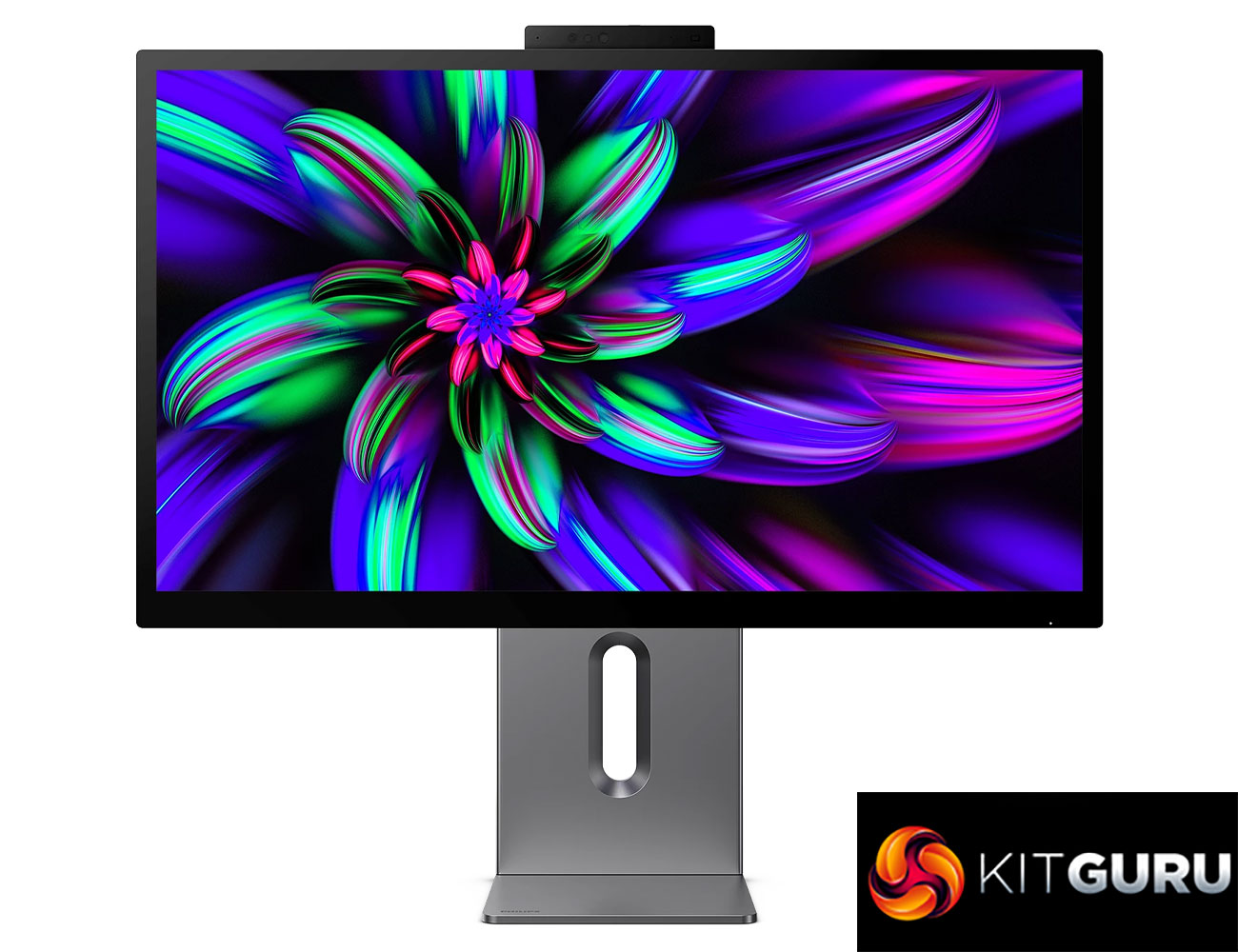
The 5K professional monitor market is expanding, with more and more options landing at increasingly affordable prices. We reviewed ASUS' ProArt PA27JCV last year and today our attention turns to the Philips Brilliance 27E3U7903. Packing a 5120×2880 IPS panel with glass finish, this monitor also boasts Thunderbolt 4 support, a 5MP integrated webcam and comes Calman Ready.
5K monitors remain incredibly popular for Mac users, and it seems manufacturers have identified that not everyone with a MacBook or Mac Mini/Studio wants to shell out another £1500 minimum for the Apple Studio Display. The Philips Brilliance 27E3U7903 offers the same 5K resolution and 27in form factor but has an MSRP of just £849. It's still very expensive, but it could be an enticing proposition for a number of professional users. And of course it's not limited to only Mac users!
Specification:
- Panel size: 27 inch / 68.5 cm
- Aspect ratio: 16:9
- LCD panel type: IPS
- Pixel pitch: 0.11655 x 0.11655 mm
- Brightness: 500 cd/m²
- Display colours: 1.07 B (8 bit+FRC)
- Colour gamut (typical): REC709 100%, Adobe RGB 99.5%; DCI-P3/Display-P3: 99%, sRGB: 160%, NTSC 130%*
- Contrast ratio (typical): 2000:1
- SmartContrast: 80,000,000:1
- Response time (typical): 4 ms (Grey to Grey)*
- Viewing angle: 178º (H) / 178º (V) @ C/R > 10
- Picture enhancement: SmartImage Premium
- Maximum resolution: 5120 x 2880 @ 70 Hz
- Effective viewing area: 596.736 (H) x 335.664 (V) mm
- Scanning frequency: 30-210 kHz (H) / 60-70 Hz (V)
- sRGB: Yes
- Delta E: <2 (sRGB)
- Flicker-free: Yes
- Pixel density: 218 PPI
- LowBlue Mode: Yes
- Display screen coating: Front Glass with Anti-Reflection, Anti-Finger 7%, 7H
- Low input lag: Yes
- EasyRead: Yes
- HDR: DisplayHDR 600 certified
- Calman Ready: Yes
- Signal input: HDMI 2.1 x 1, Thunderbolt 4 in x 1 (Upstream, Data, Video, PD 96 W)
- Sync input: Separate Sync
- Audio (In/Out): Headphone out
- RJ45: Ethernet LAN (10M/100M/1G)
- HDCP: HDCP 1.4 (HDMI), HDCP 2.3 (HDMI)
- Thunderbolt: Thunderbolt 4 in x 1 upstream (Data, Video, PD 96 W), Thunderbolt 4 out x 1 downstream (Data, Video, PD 15 W)
- USB Hub: USB version, Upstream: 1 x USB-C (Data only, 15 W), Downstream: USB-A x 2 (Gen2: 10 G; 1 for FC); USB-C x 1 (Data, 15 W)
- Max power delivery: USB to 96 W (5 V/3 A, 7 V/3 A, 9 V/3 A, 10 V/3 A, 12 V/3 A, 15 V/3 A, 20 V/4.8 A)
- Version: USB PD version 3.0
- Built-in speakers: 5 W x 2
- Plug and Play compatibility: DDC/CI, Mac OS X, sRGB, Windows 11/10
- Height adjustment: 150 mm
- Pivot: +90°
- Swivel: -/+ 360°
- Tilt: -5° / 20°
Firmware tested: V1.02
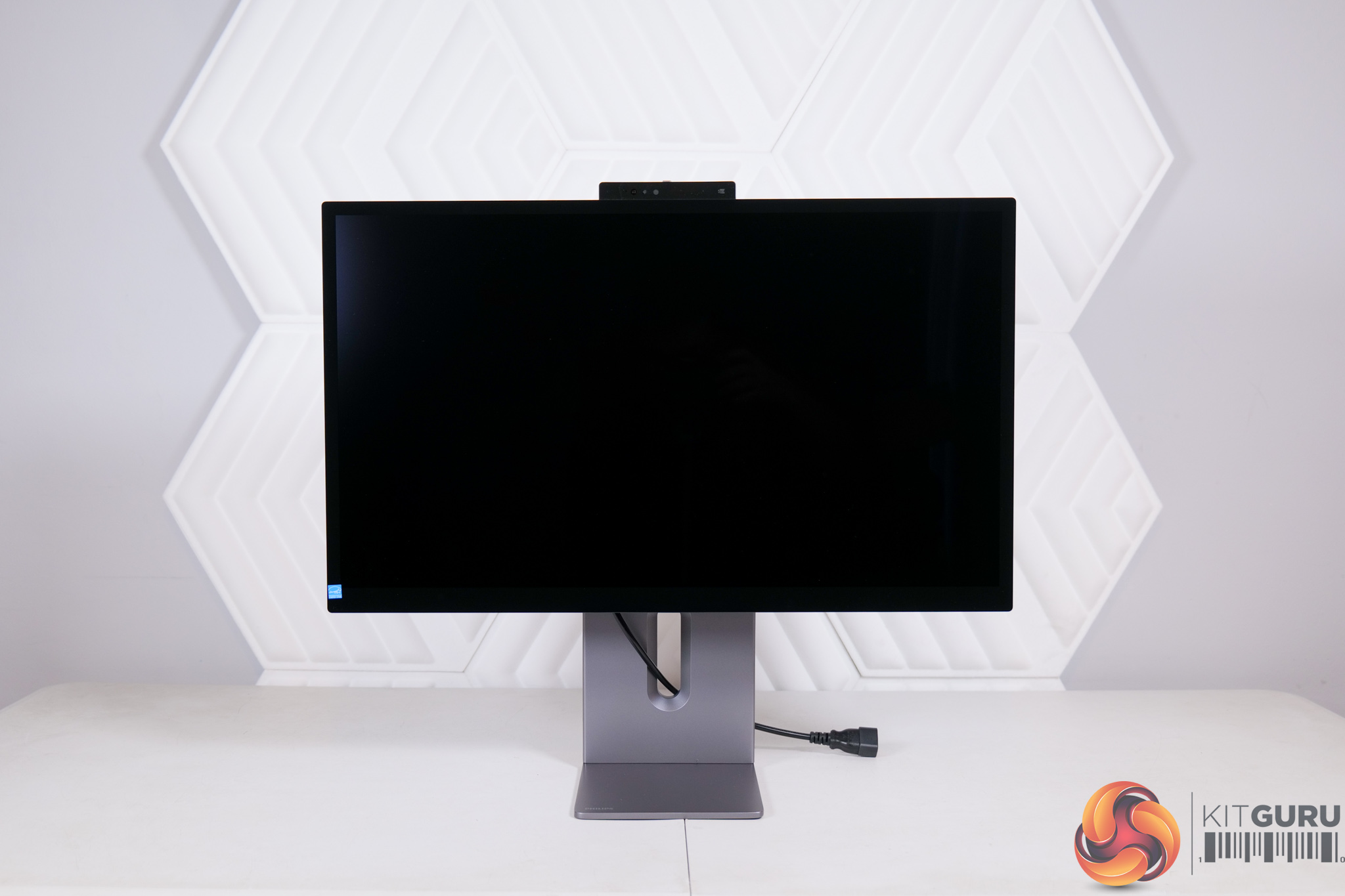
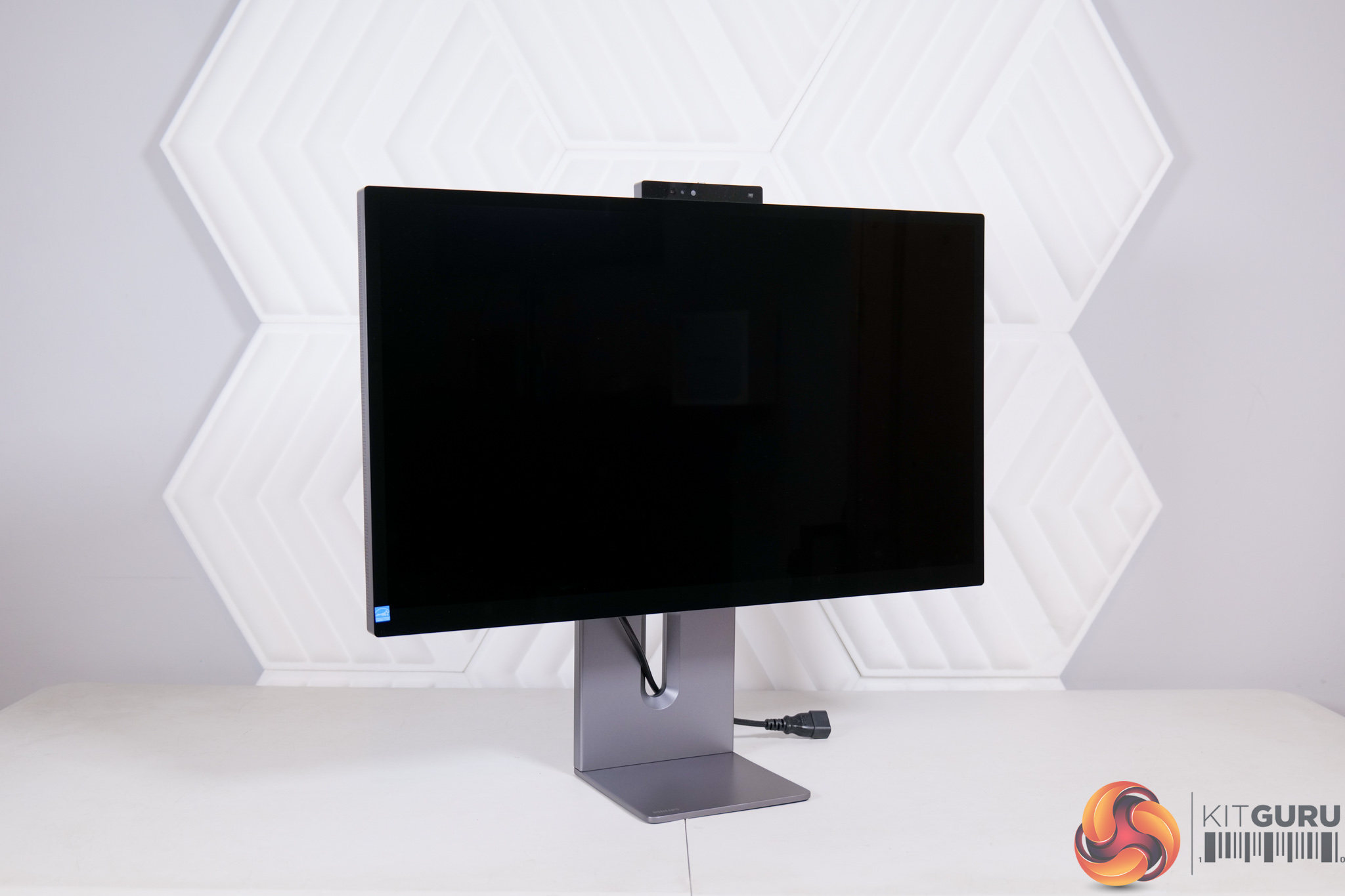
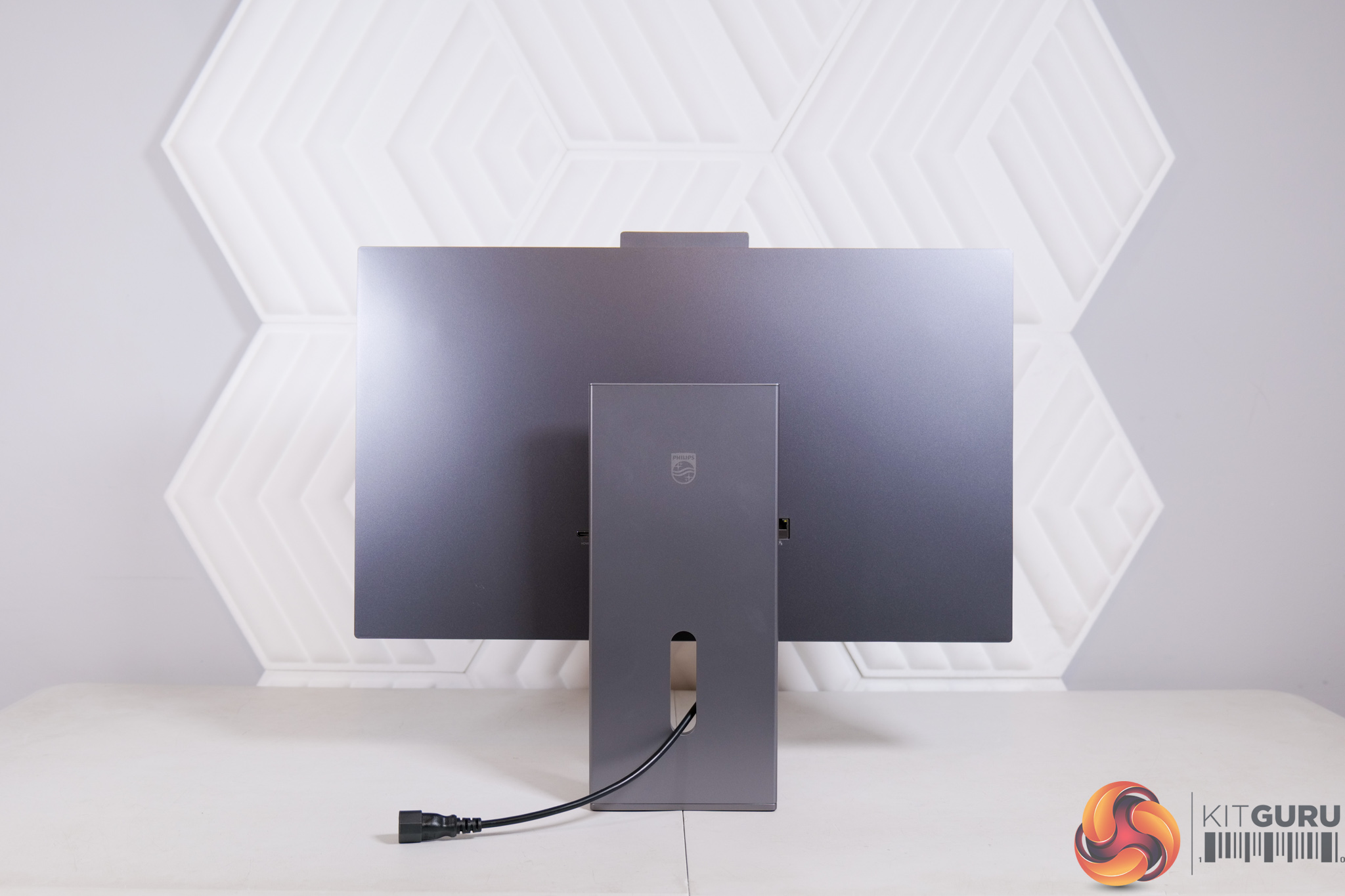
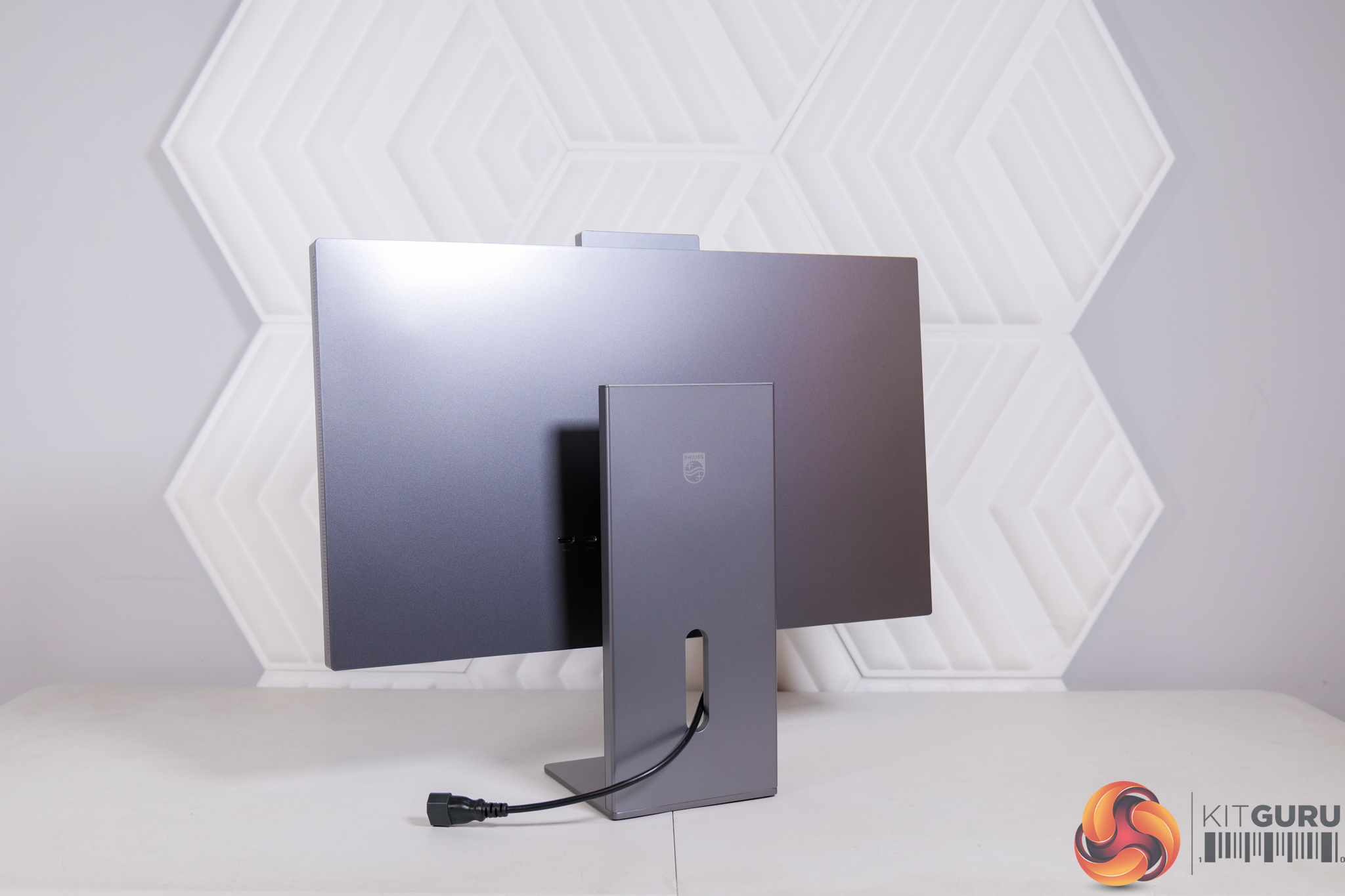
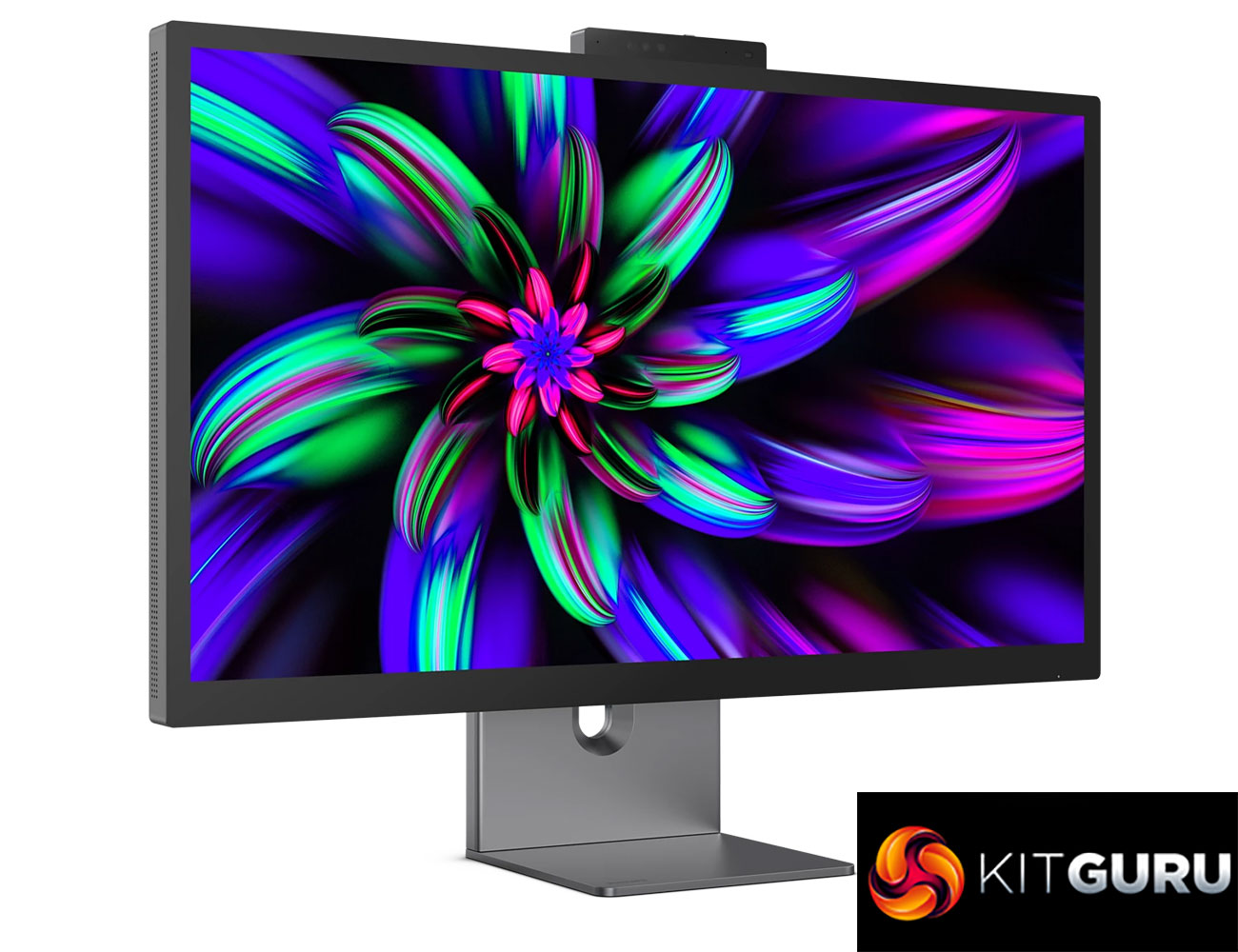
Kicking off with the design of the Philips Brilliance 27E3U7903, it is immediately reminiscent of the Apple Studio Display with its L-shaped stand and clean bezel-less design. Unlike the Studio Display, however, it's a mostly plastic construction which does feel incongruous at this price-point – it still costs the best part of a grand, after all, so I really would have expected to see a full-metal stand and perhaps some metal sections on the rear. The square base of the stand is made from metal, but the rest is plastic, and that is disappointing.
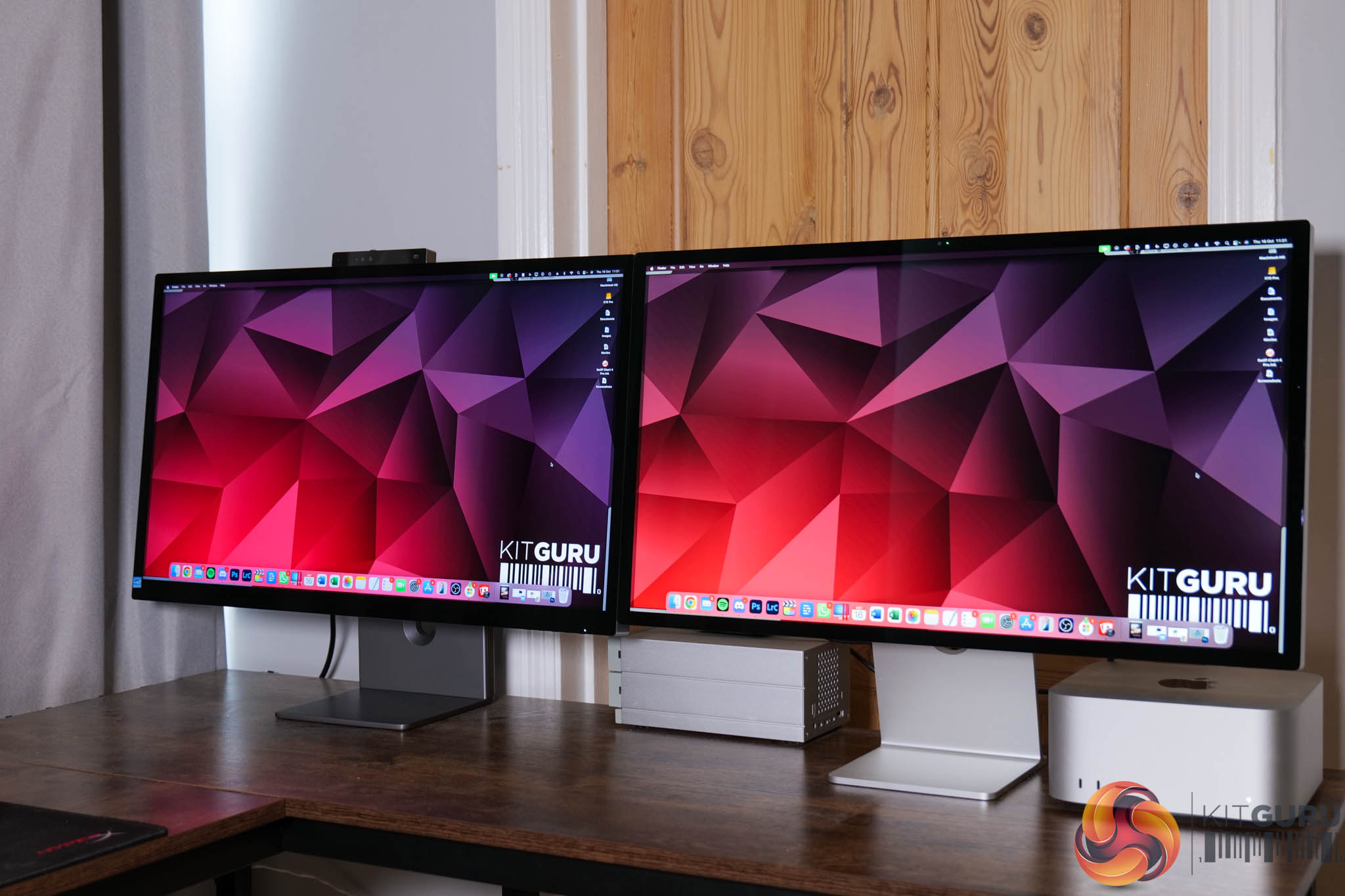
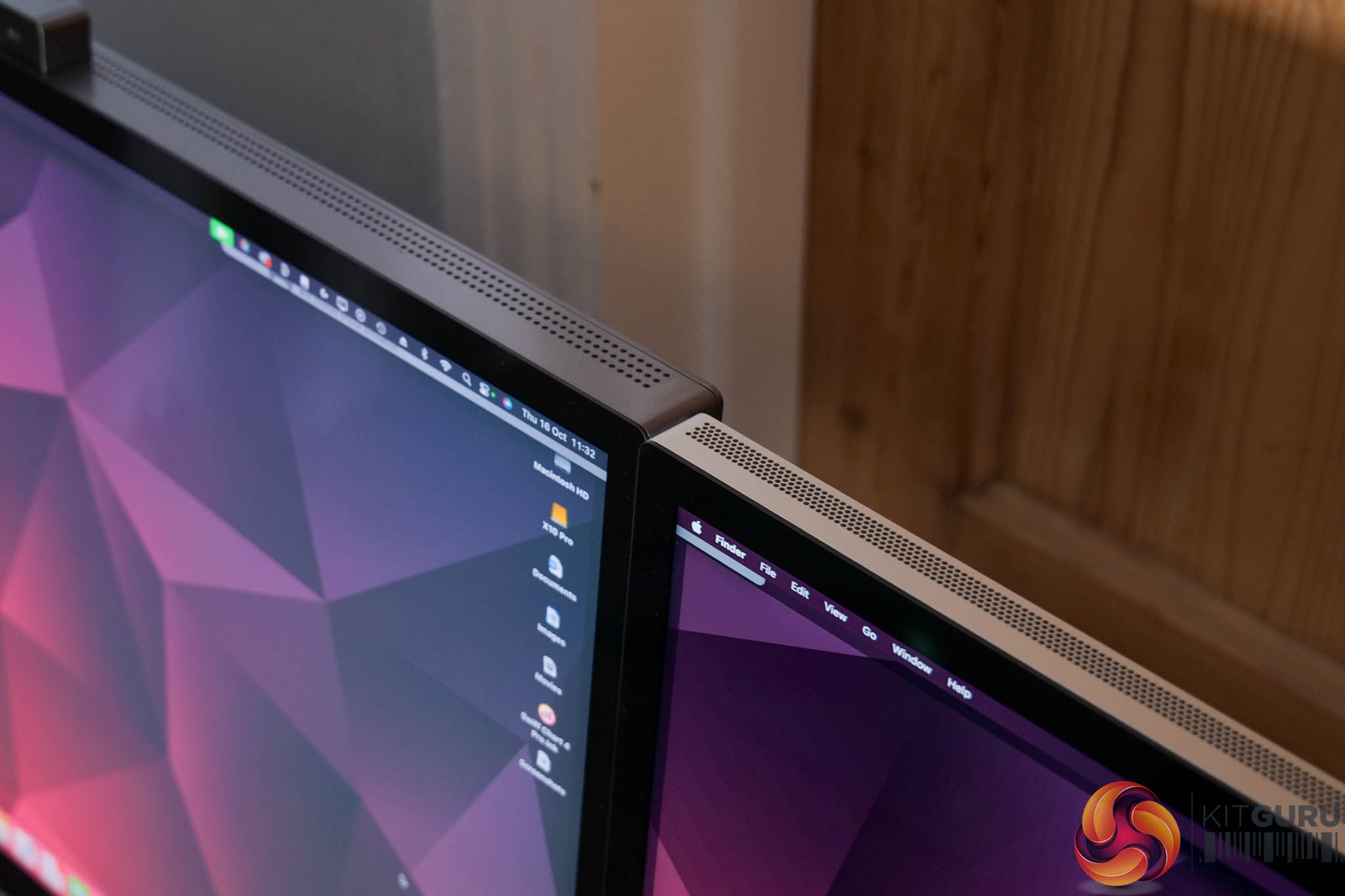
It's more of a ‘Space Grey' colour than Apple's silver approach for the Studio Display, and you can see the two screens side by side here – Philips' inspiration for the design even extends to the round perforations in the top and sides of the chassis. Imitation is the greatest form of flattery, as they say.
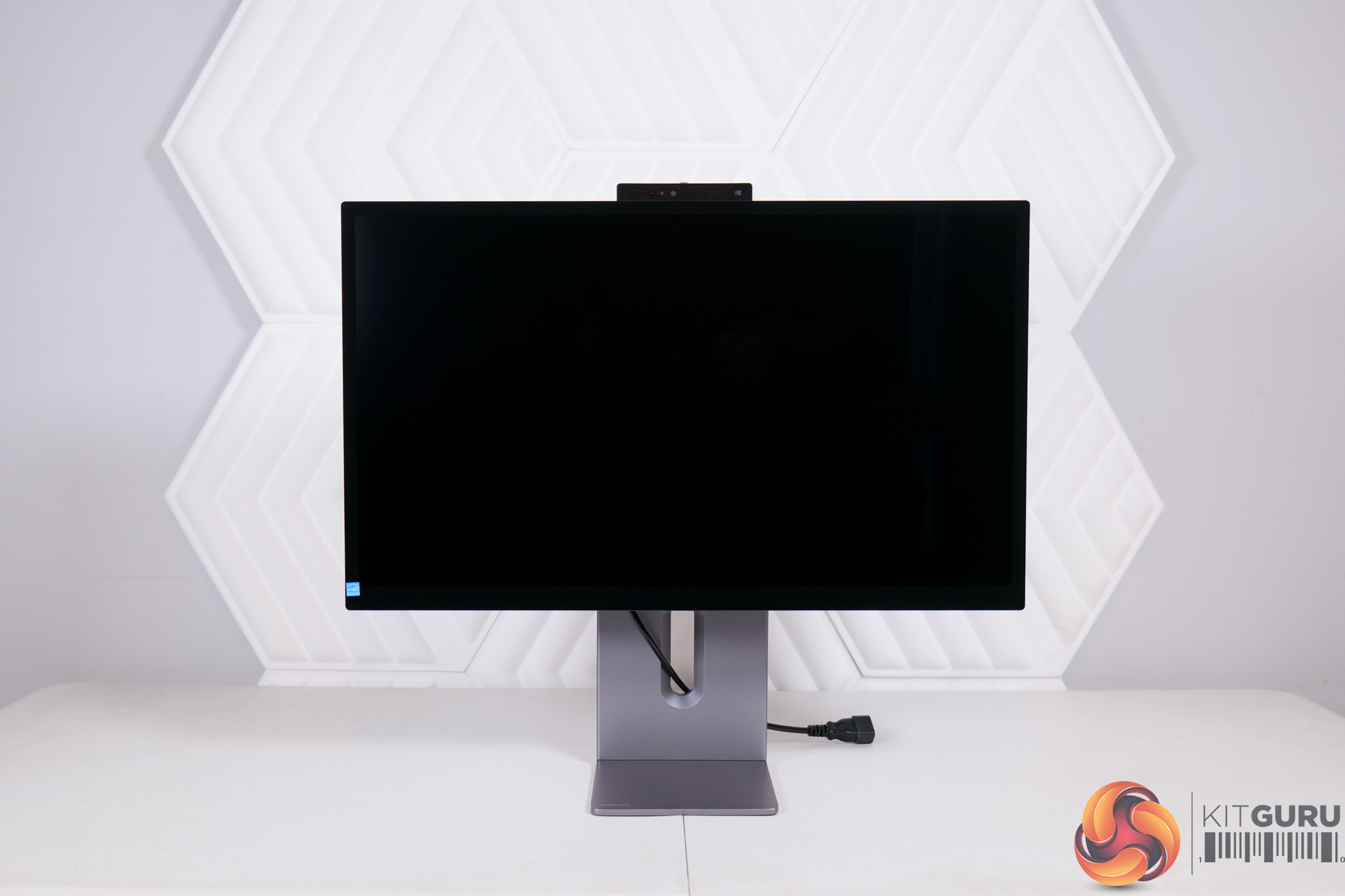
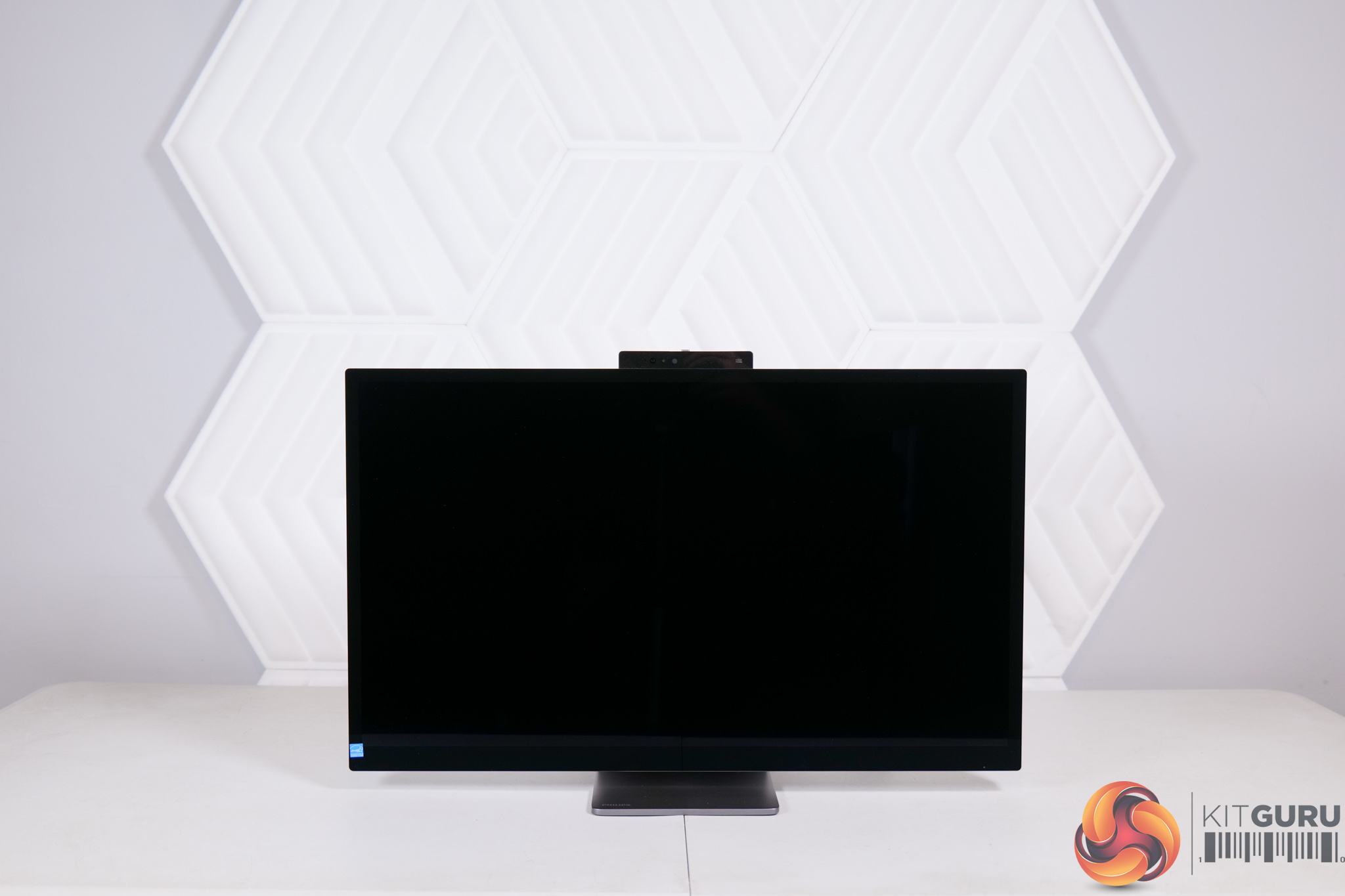
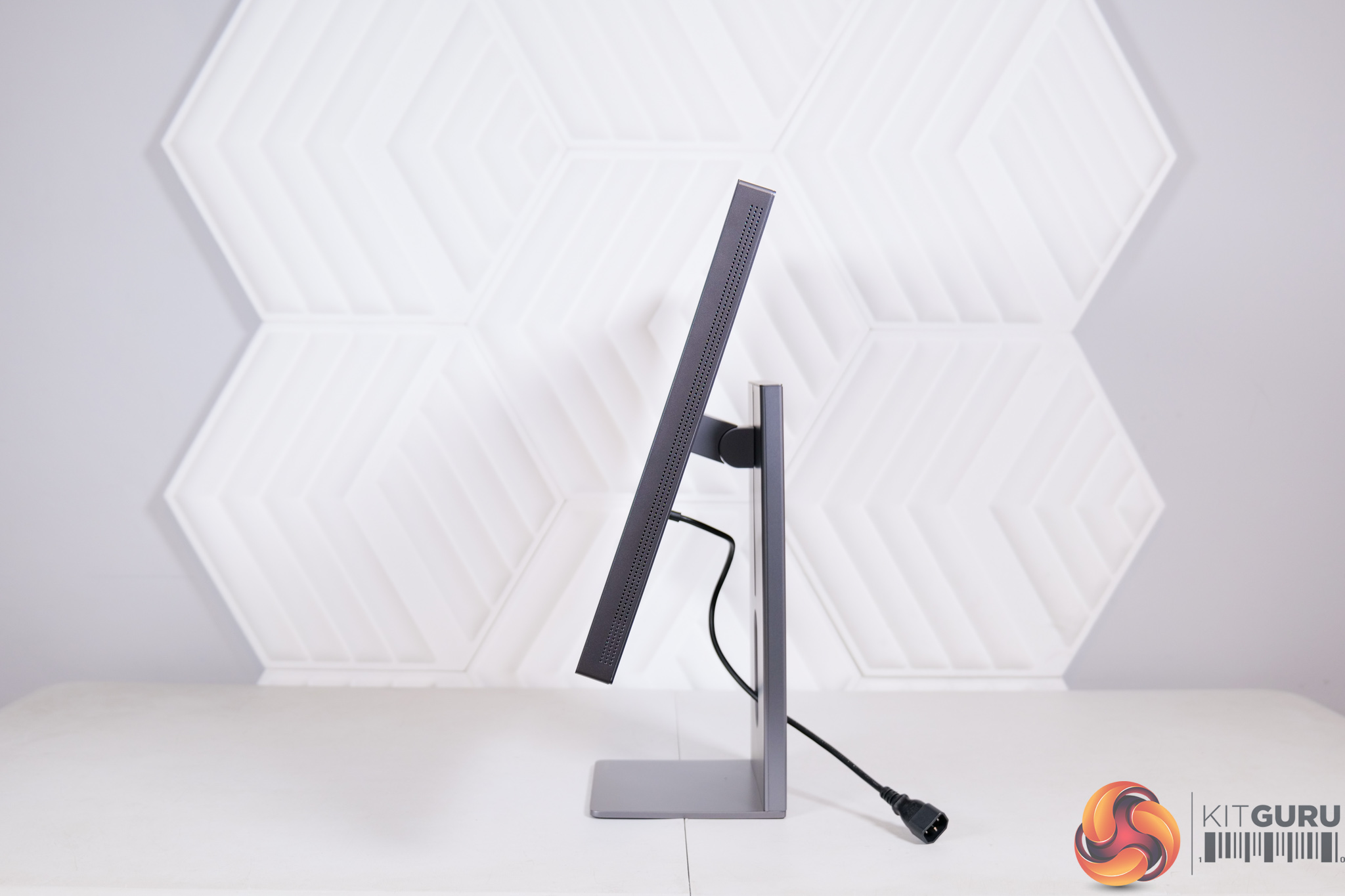
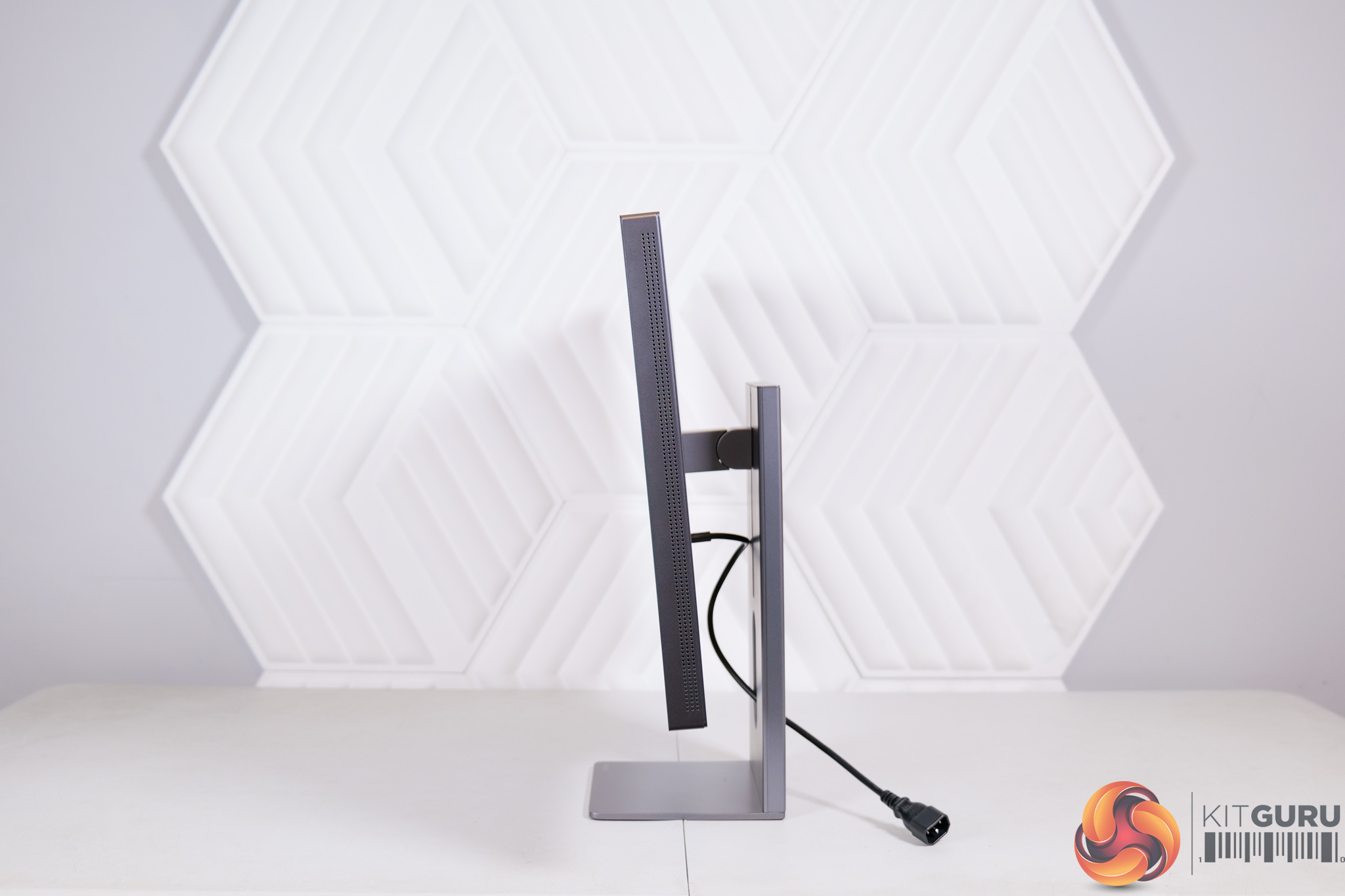
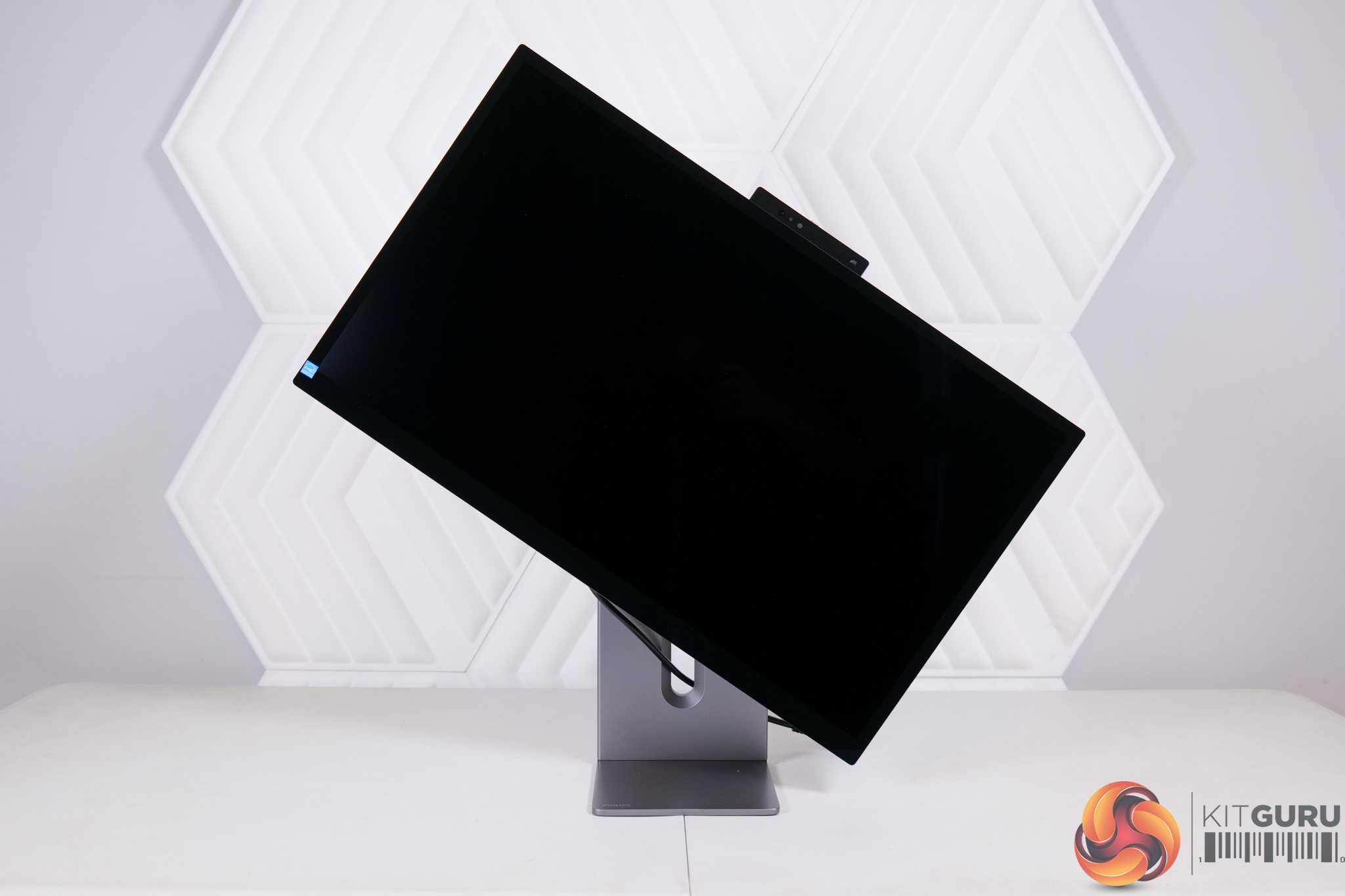
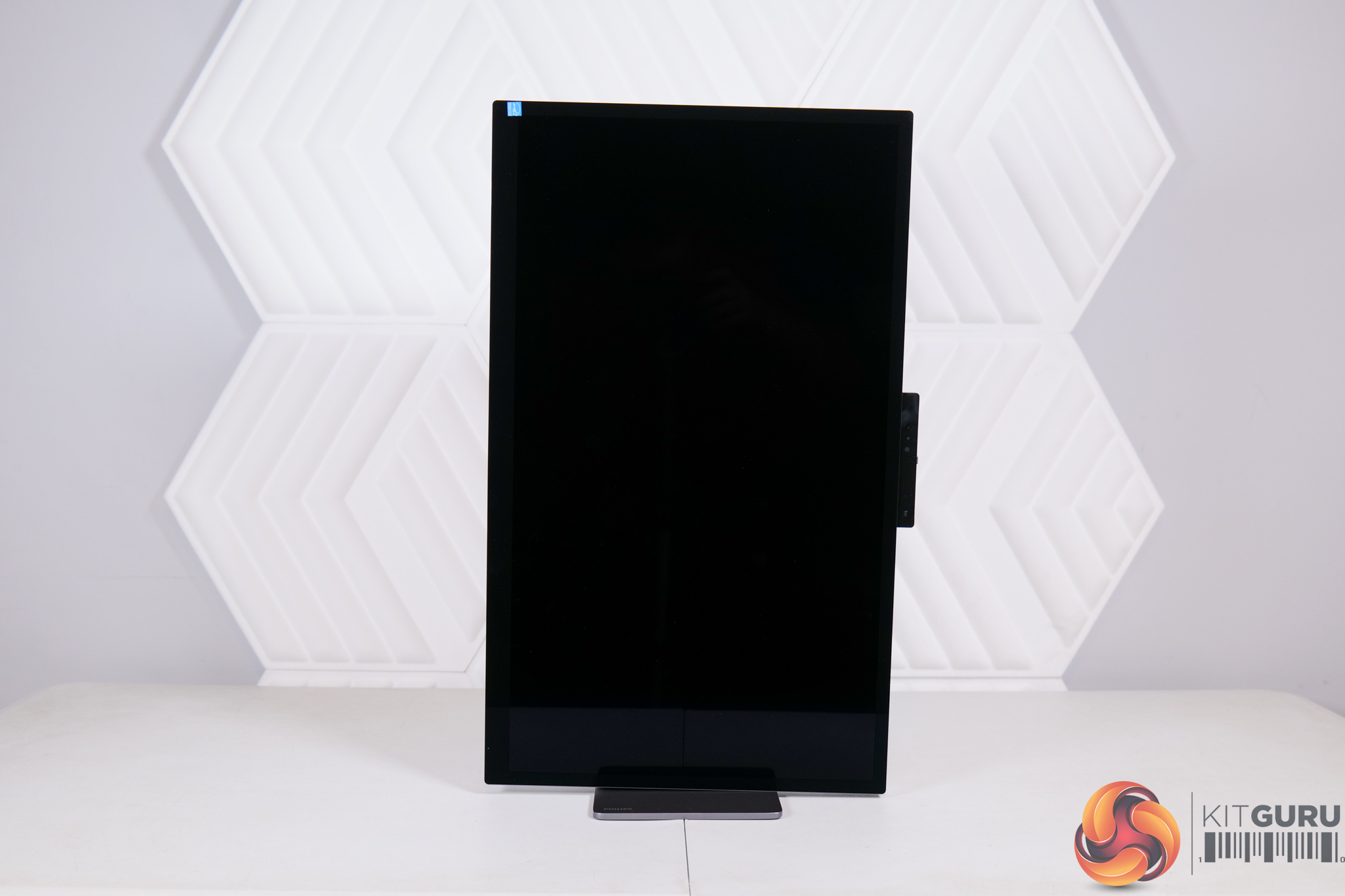
One area where Philips does have an advantage over the Studio Display is with the included stand. Apple's own is limited to just a tilt mechanism, unless you shell out another £400 for the height-adjustable option. With the 27E3U7903, you get up to 150mm height adjust, tilt from -5 to +20 degrees and full 90 degree pivot functionality. There is swivel, too, thanks to a rotating disc built into the foot of the stand, though that means the whole monitor swivels, rather than just the panel as we typically see.
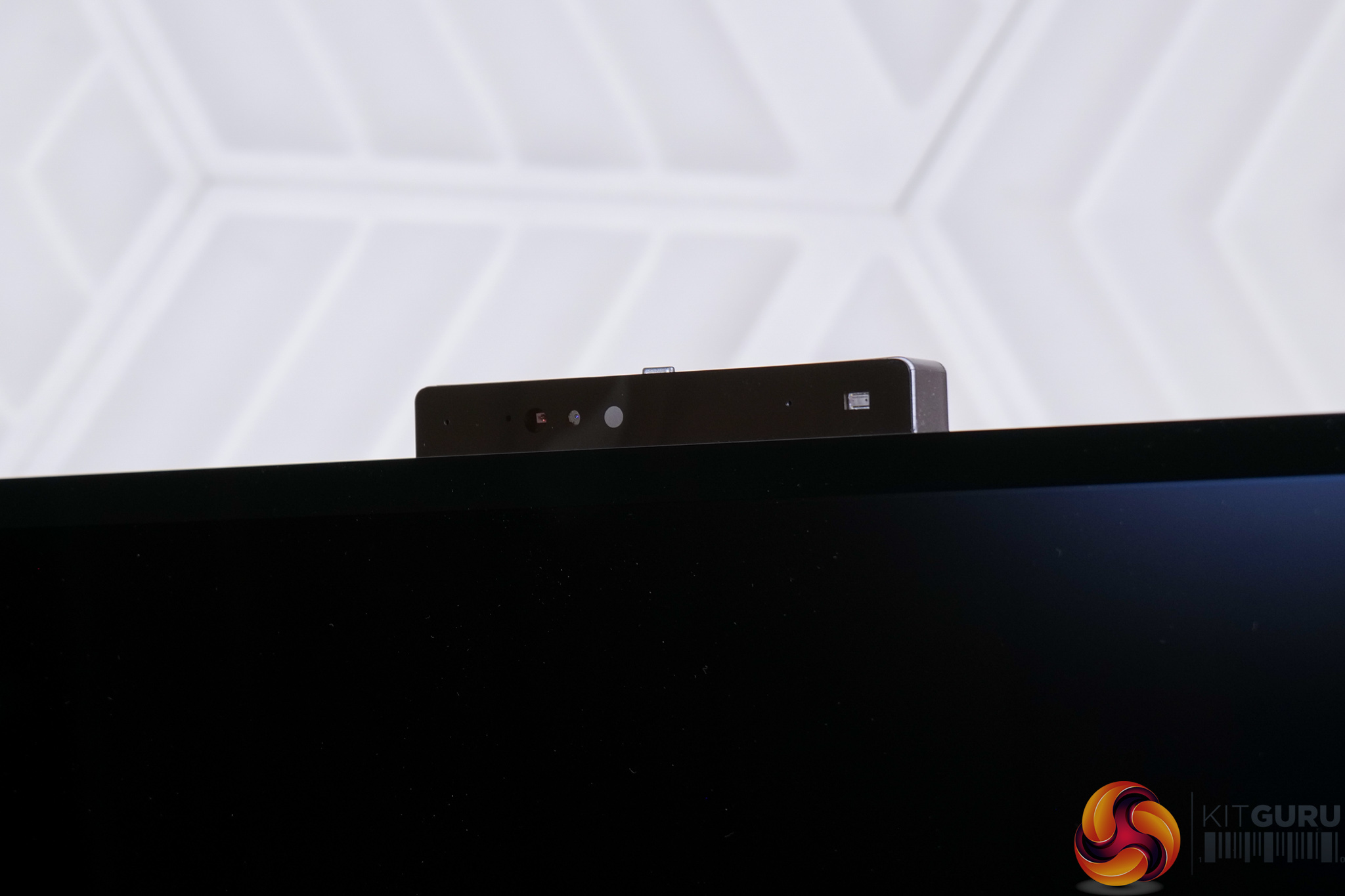
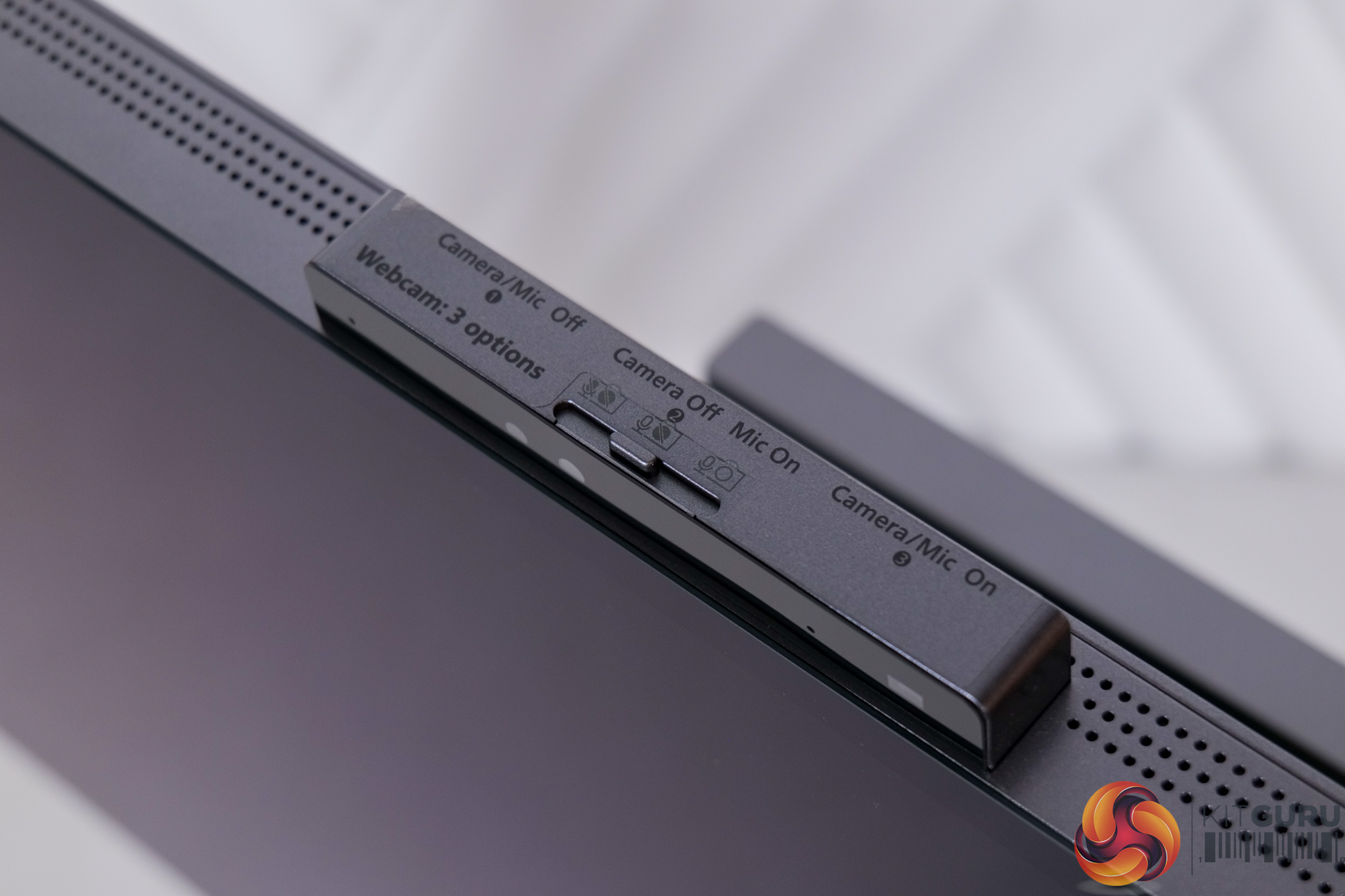
At the top we find the built-in 5MP webcam and a three-stage toggle to allow you to manually enable or disable both the camera and microphones. I presume this is also where Philips has included the sensor for the PowerSensor (AKA proximity sensor) feature which we discuss on the next page.
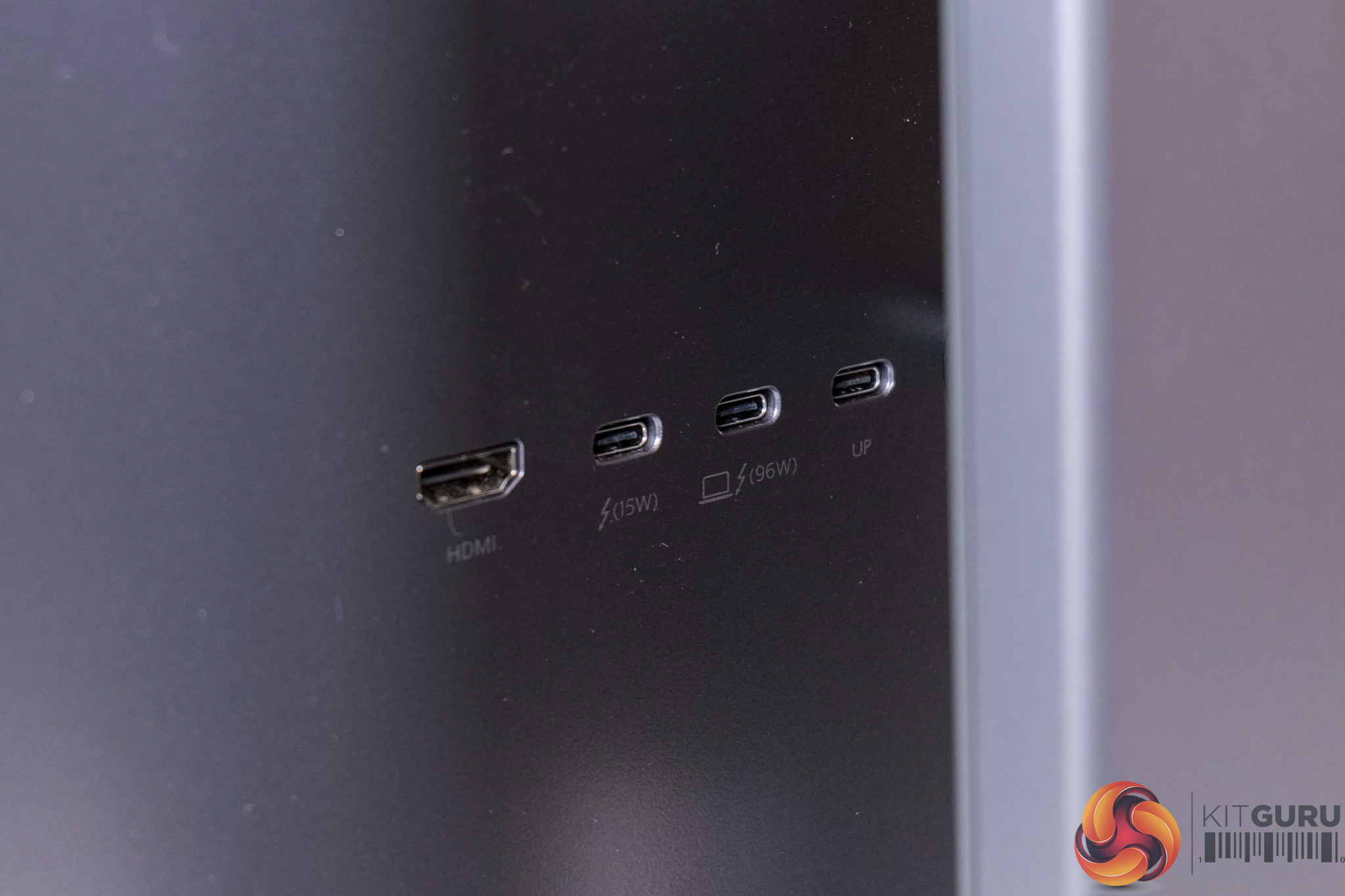
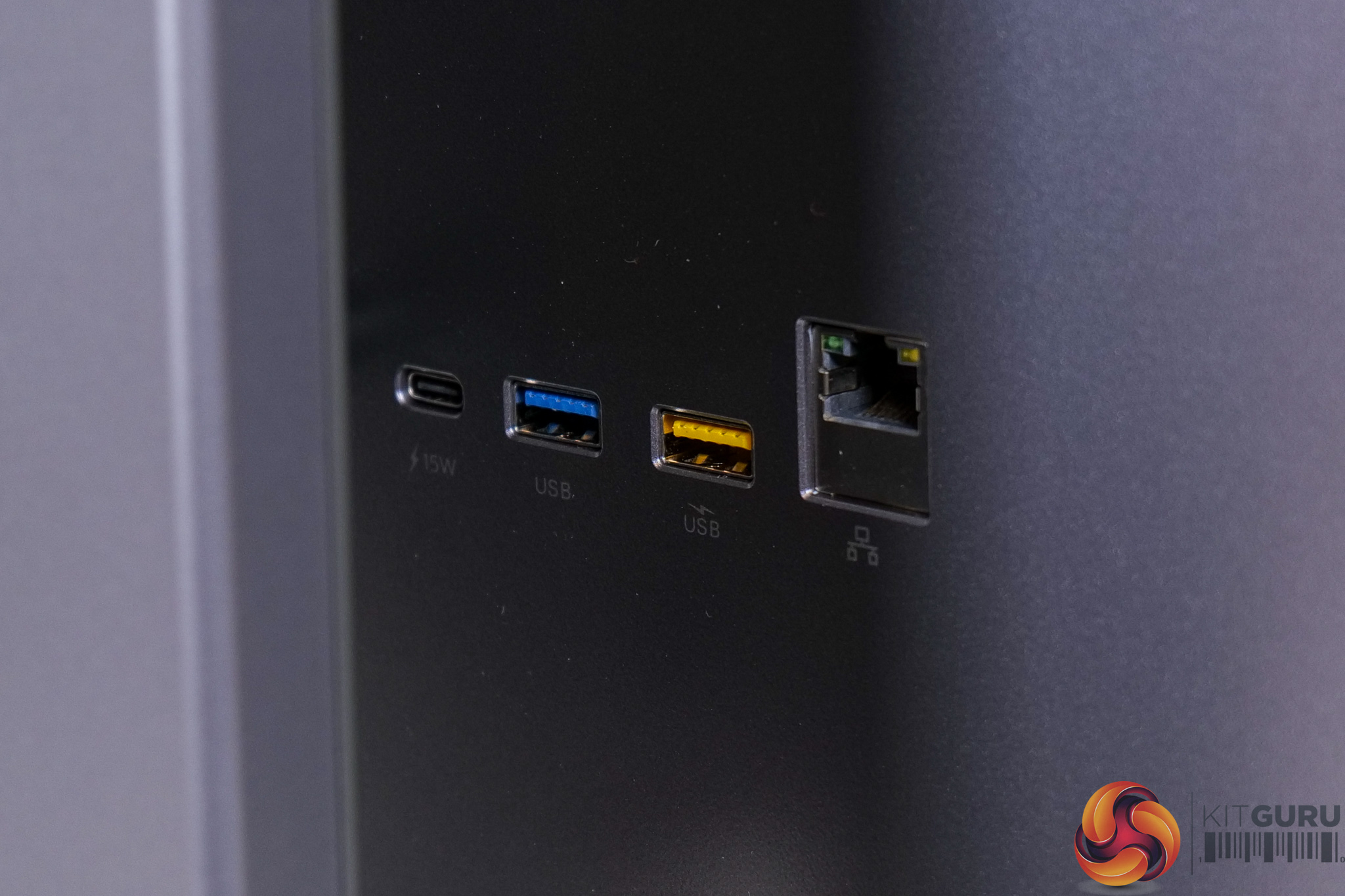
As for the connectivity options, there's one full-size HDMI 2.1 connector, one USB-C that supports DP-Alt mode and 15W power delivery, and one Type-C Thunderbolt 4 port which provides both video, data upstream and 96W power delivery. Then there's one more Type-C which is data upstream only plus 15W PD, one Type-C downstream that also offers 15W power, alongside two Type-A downstreams, with the yellow one providing fast charging support. Finally we also find a full-size Ethernet port.
It's overall a solid selection, though as I pointed out in my ASUS ProArt PA32UCDM, I do find the lack of a full-size DisplayPort connector a strange move. I completely get it's geared more towards Mac users or people connecting via USB-C to a laptop, but if you are a desktop PC user looking to connect from a graphics card, then you've only got the HDMI 2.1 port as an option.
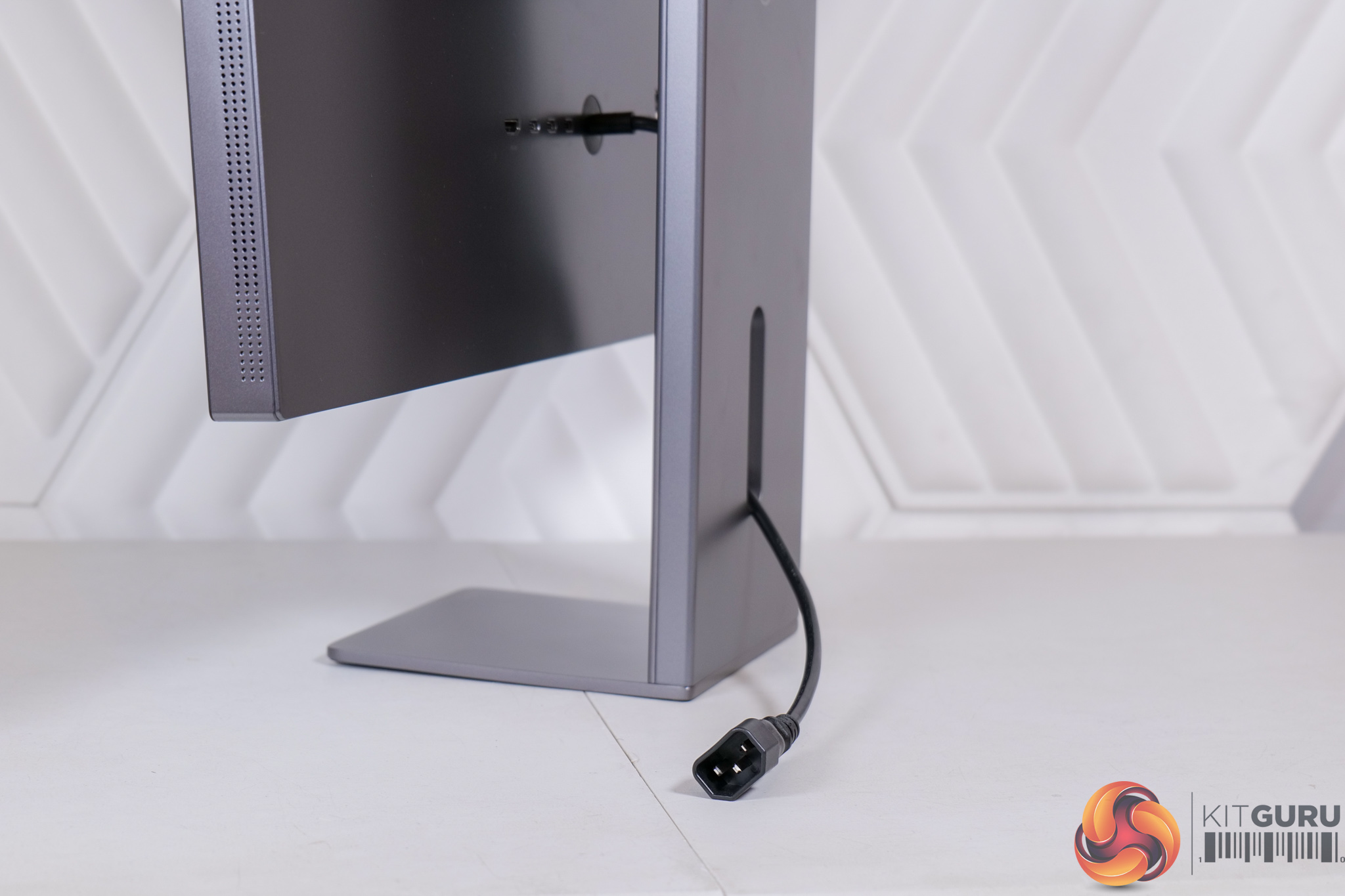
It's also worth noting that the power connection is non-removable – instead, a short kettle lead snakes out from the back of the monitor, effectively acting as an extension, and you plug into that. I guess Philips is thinking that it keeps the back of the monitor a bit cleaner without the bulky C13 connector going straight into the rear of the panel – either that or it allows the chassis to stay a little slimmer. It's not a big deal either way, just something to be aware of.
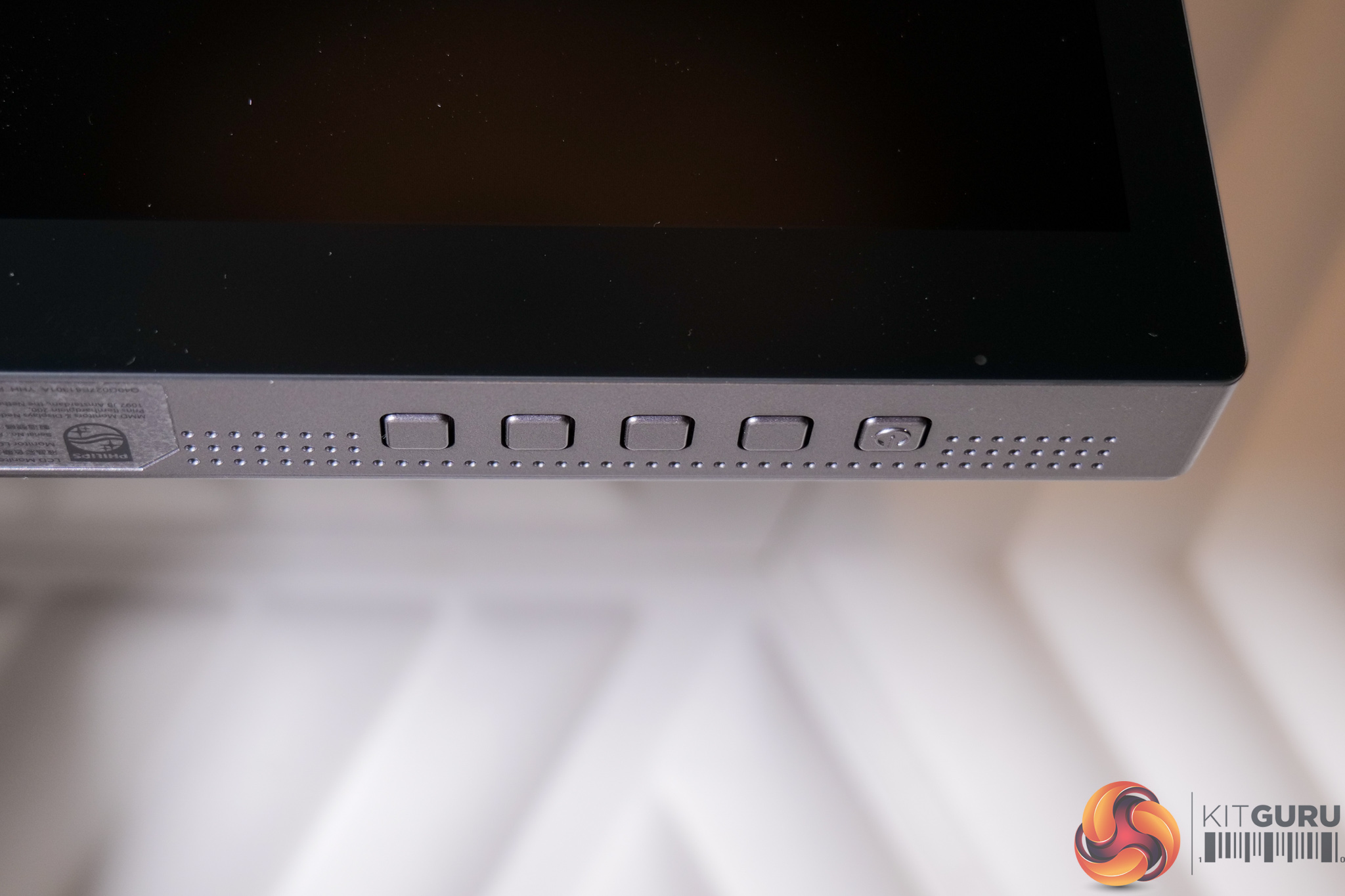
Lastly, Philips provides five buttons to navigate the OSD, positioned on the underside of the monitor chassis. Regular readers will know I am not a fan of these buttons and would much prefer a joystick – at the very least give us both options please, Philips!
Here we go through the OSD and the different settings available.
PowerSensor & Input:
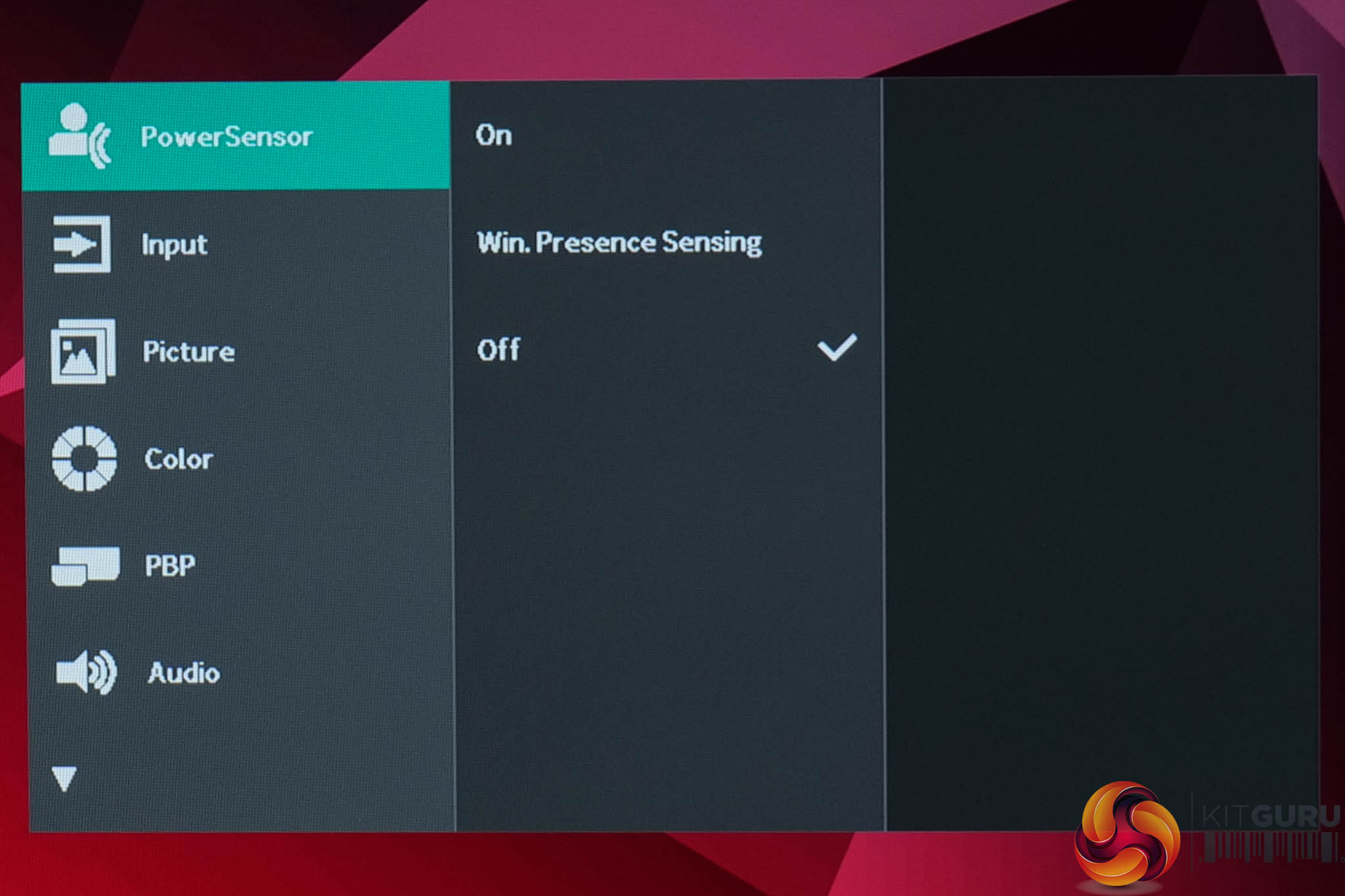
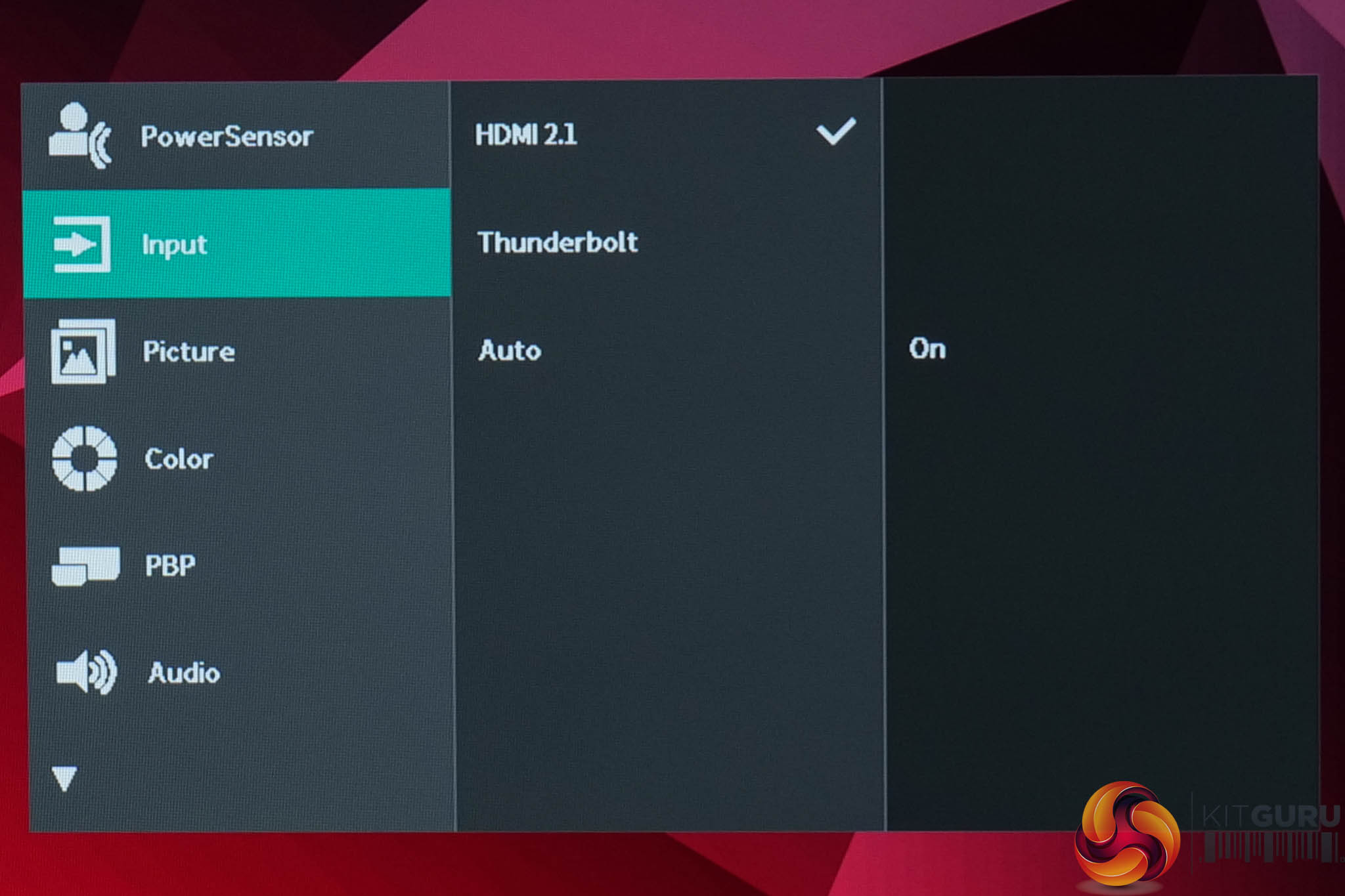
First we have the PowerSensor tab which is effectively a proximity sensor. This can be configured to Windows Presence Sensing feature too, allowing you to have both display and PC sleep or wake when it detects a user coming or going.
Then we also have an Input options tab which is self-explanatory.
Picture:
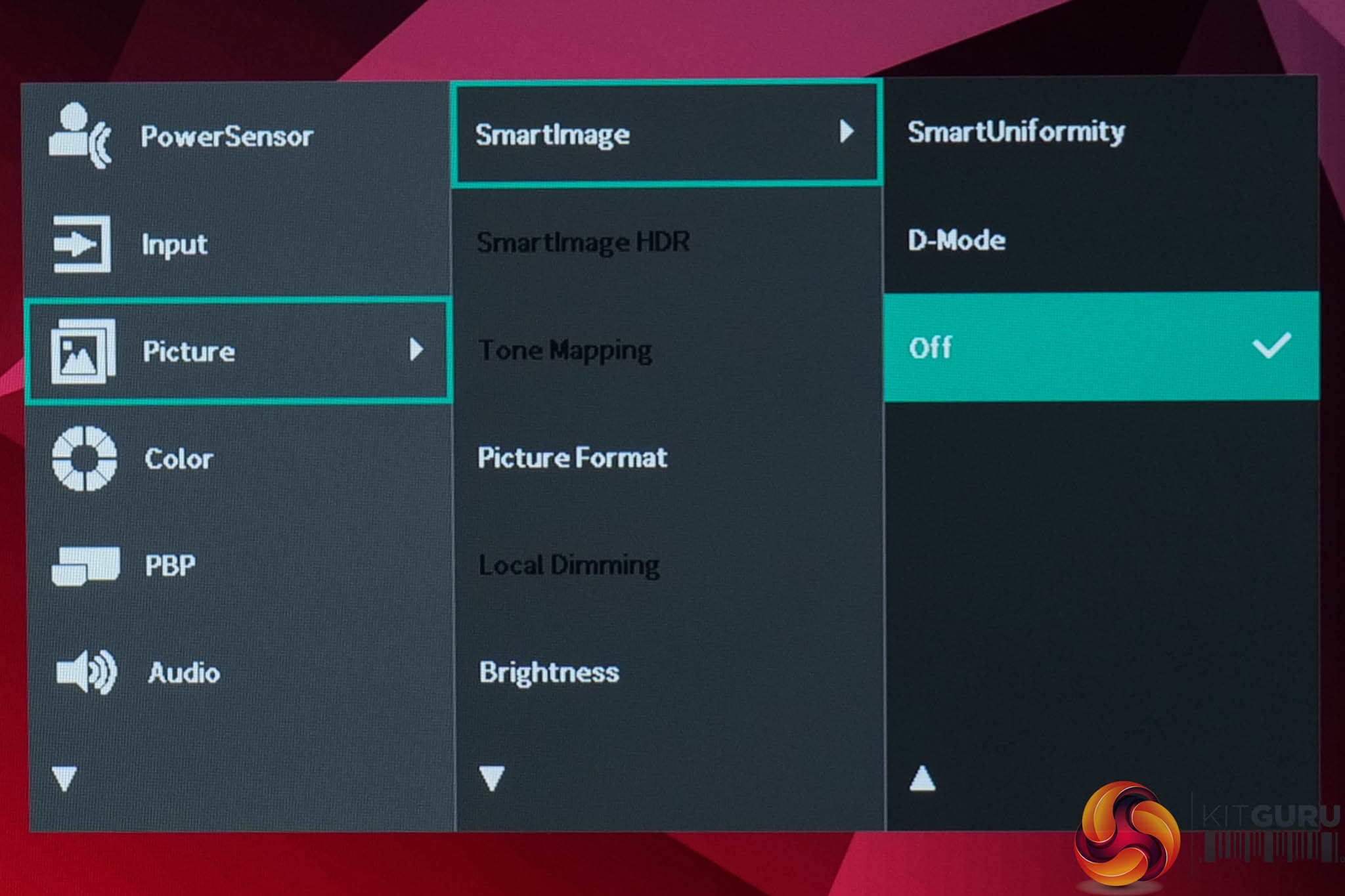
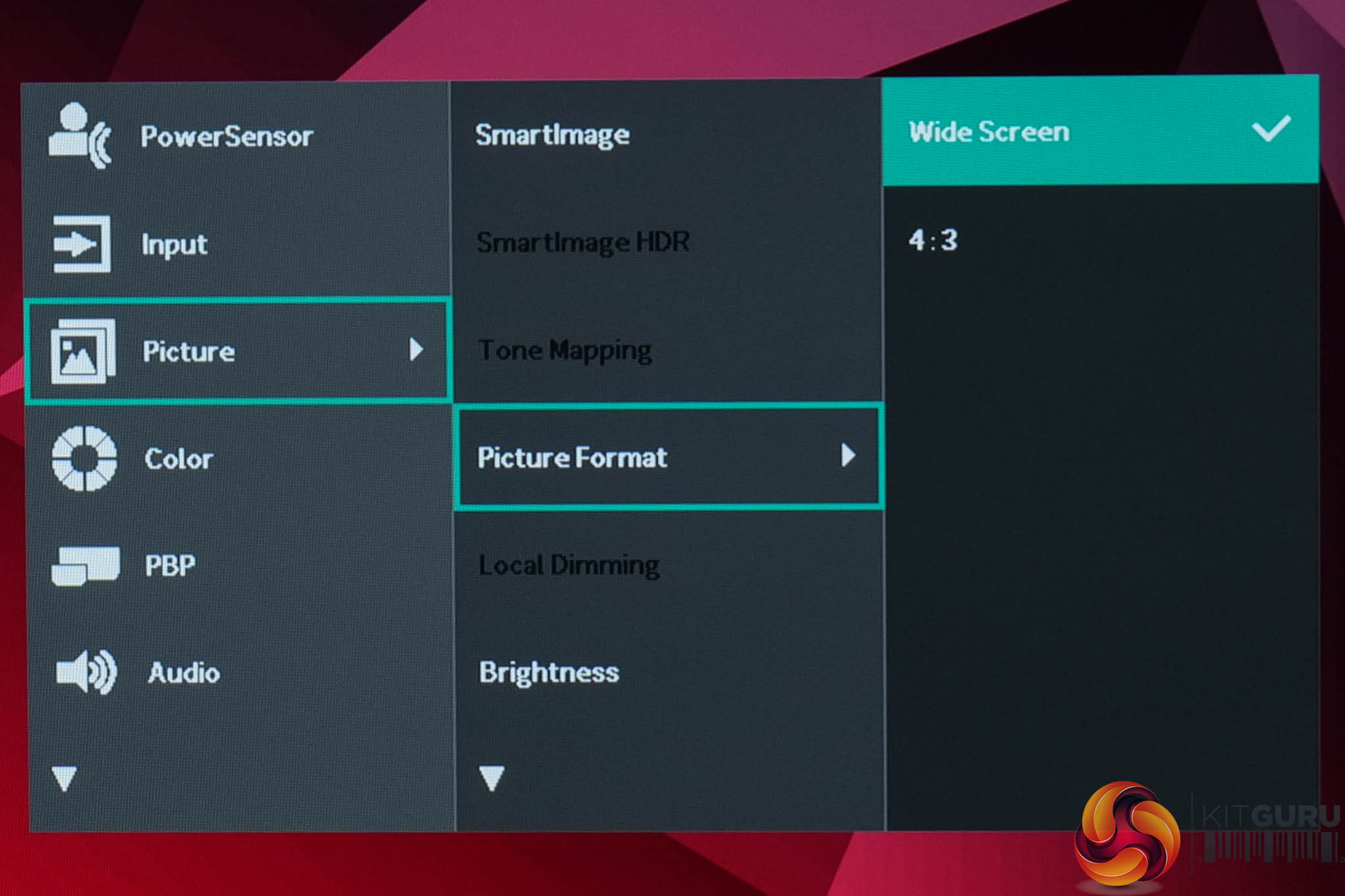
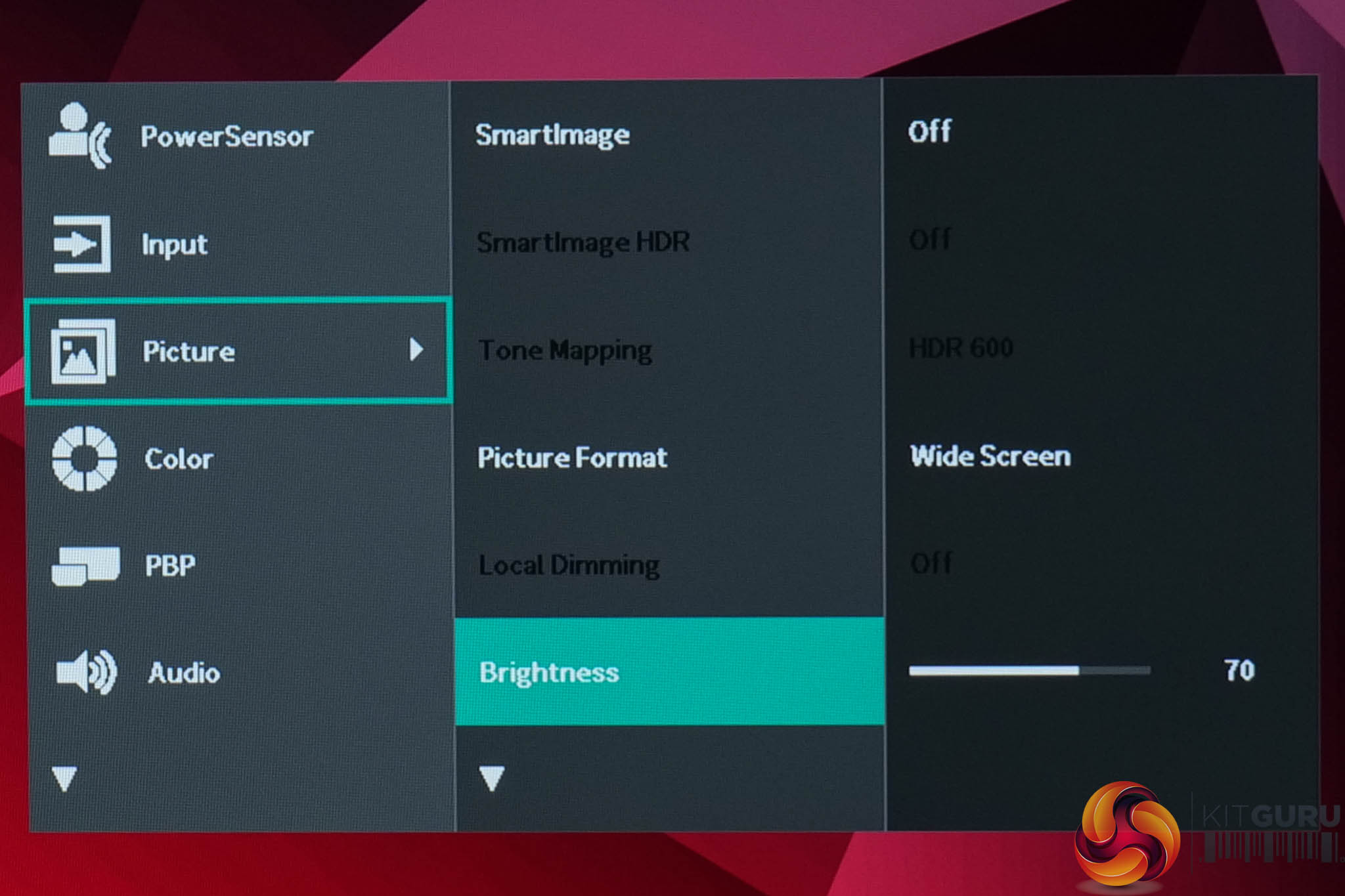
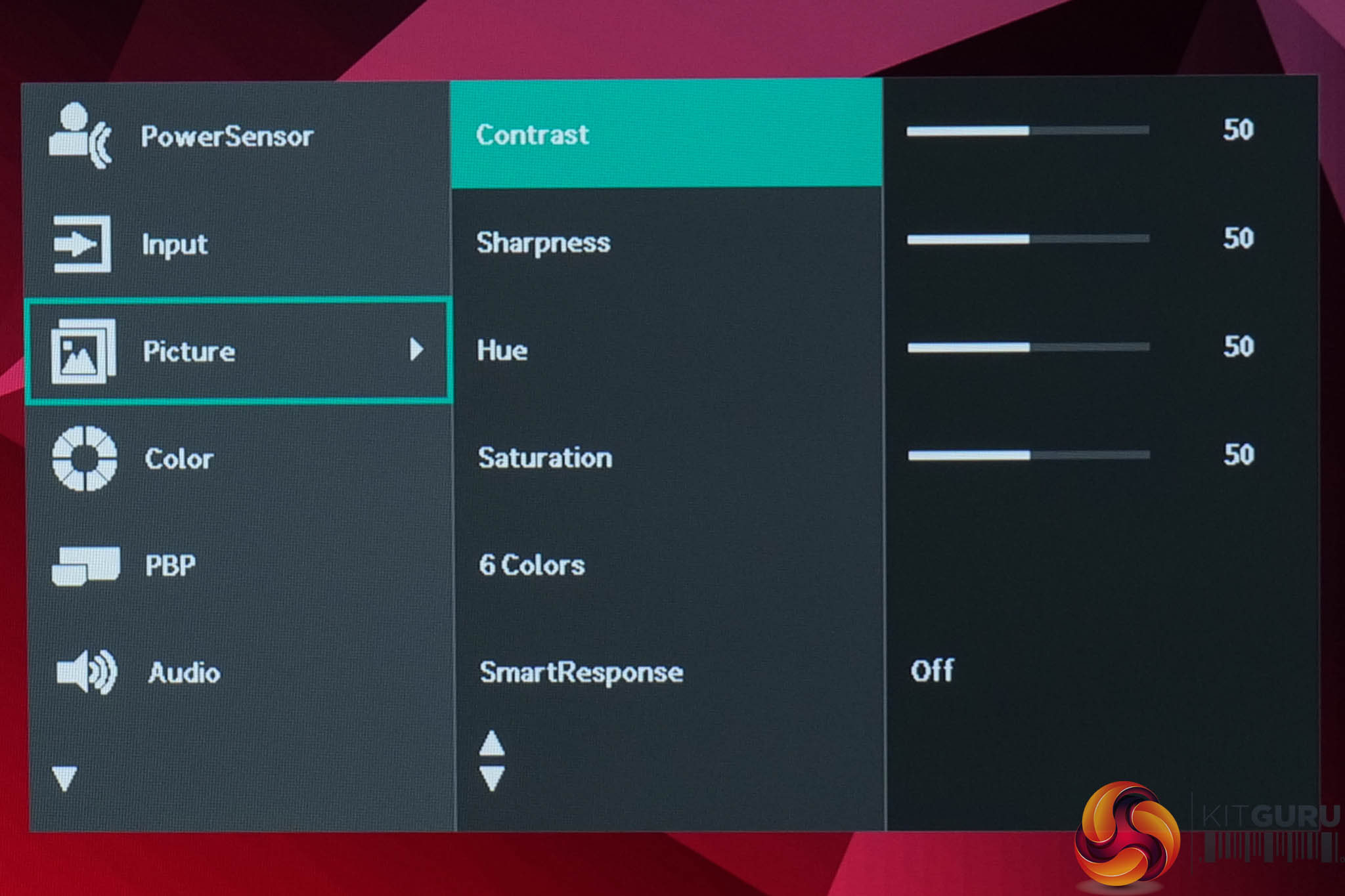


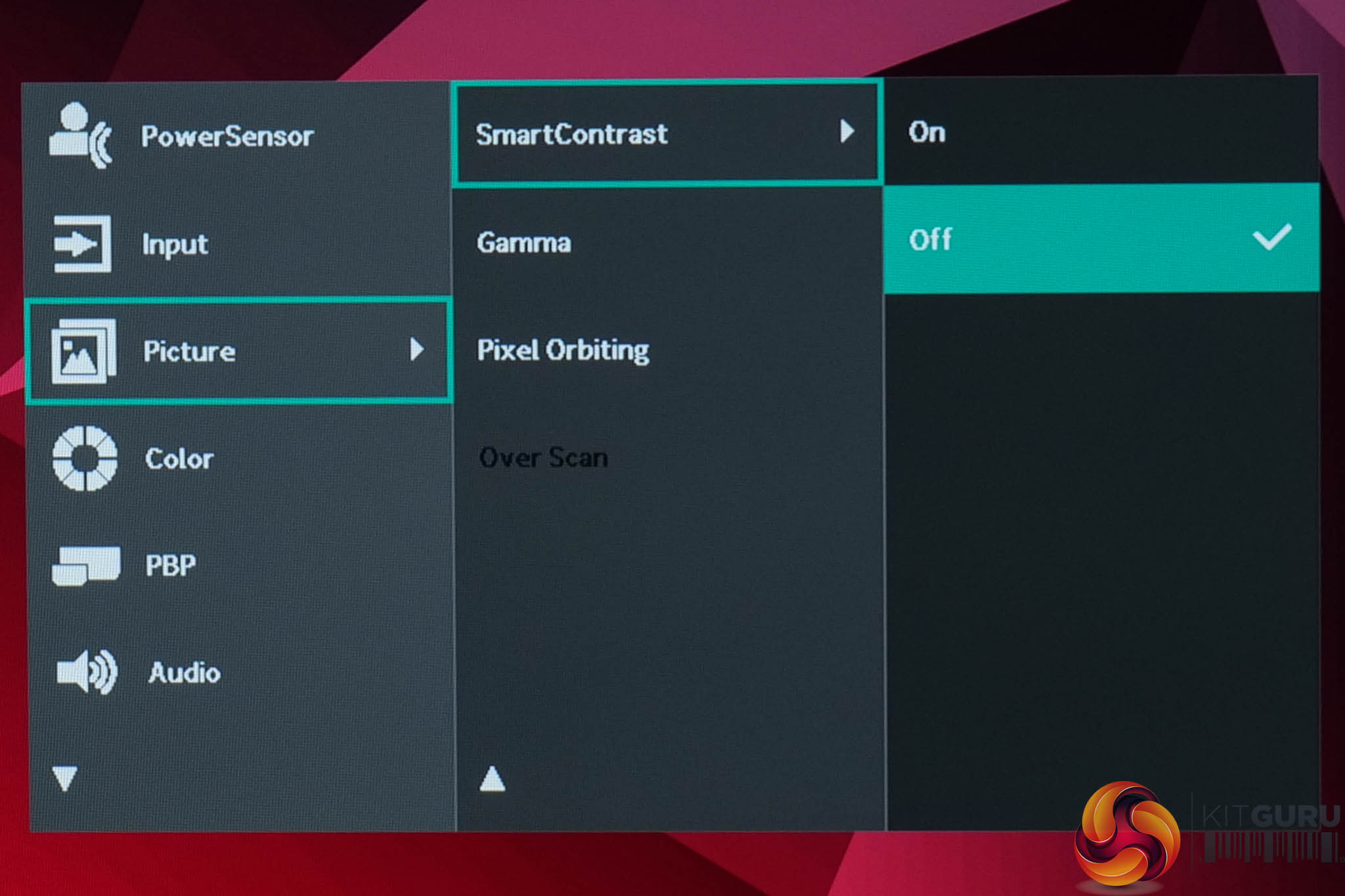
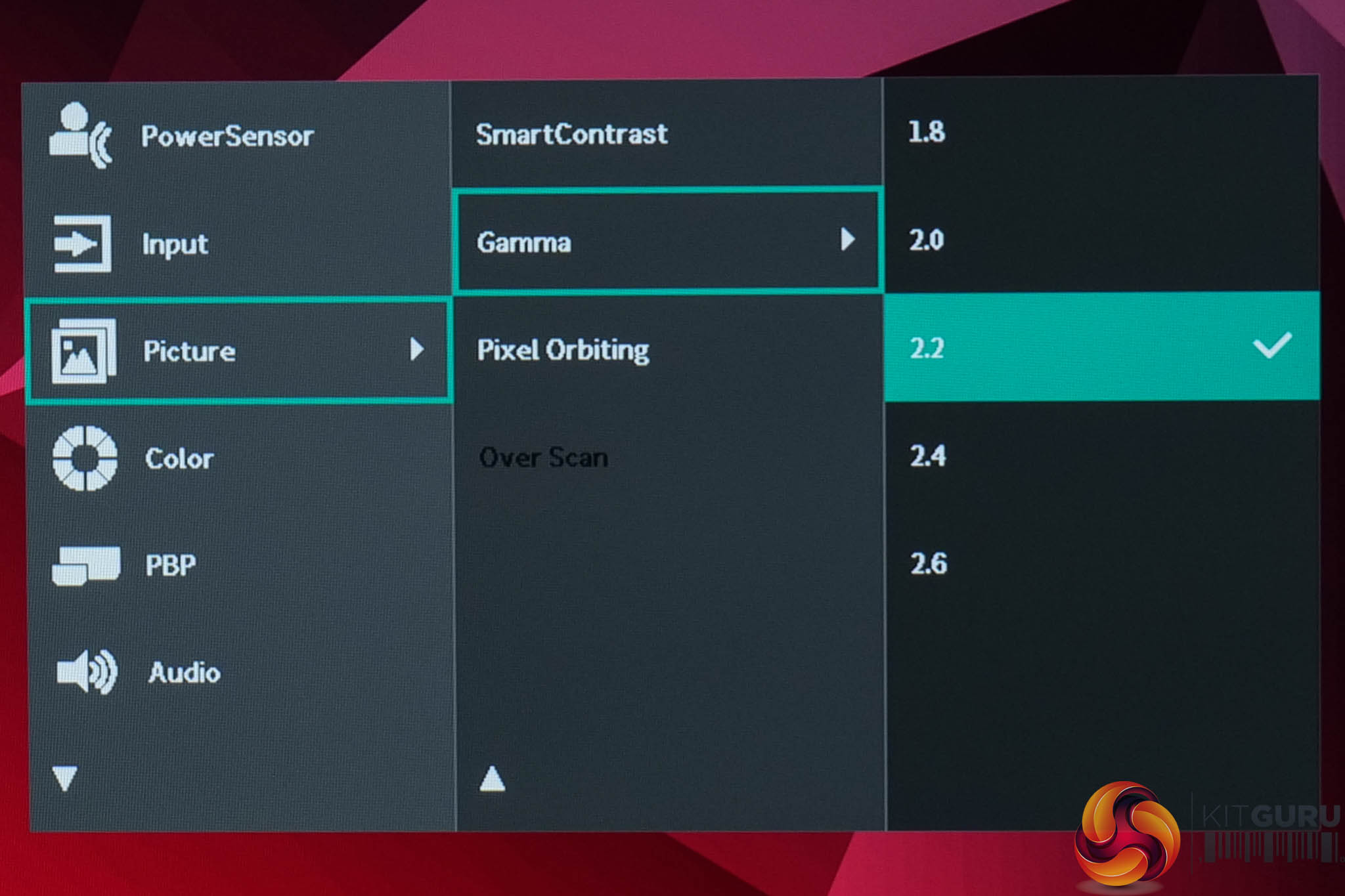
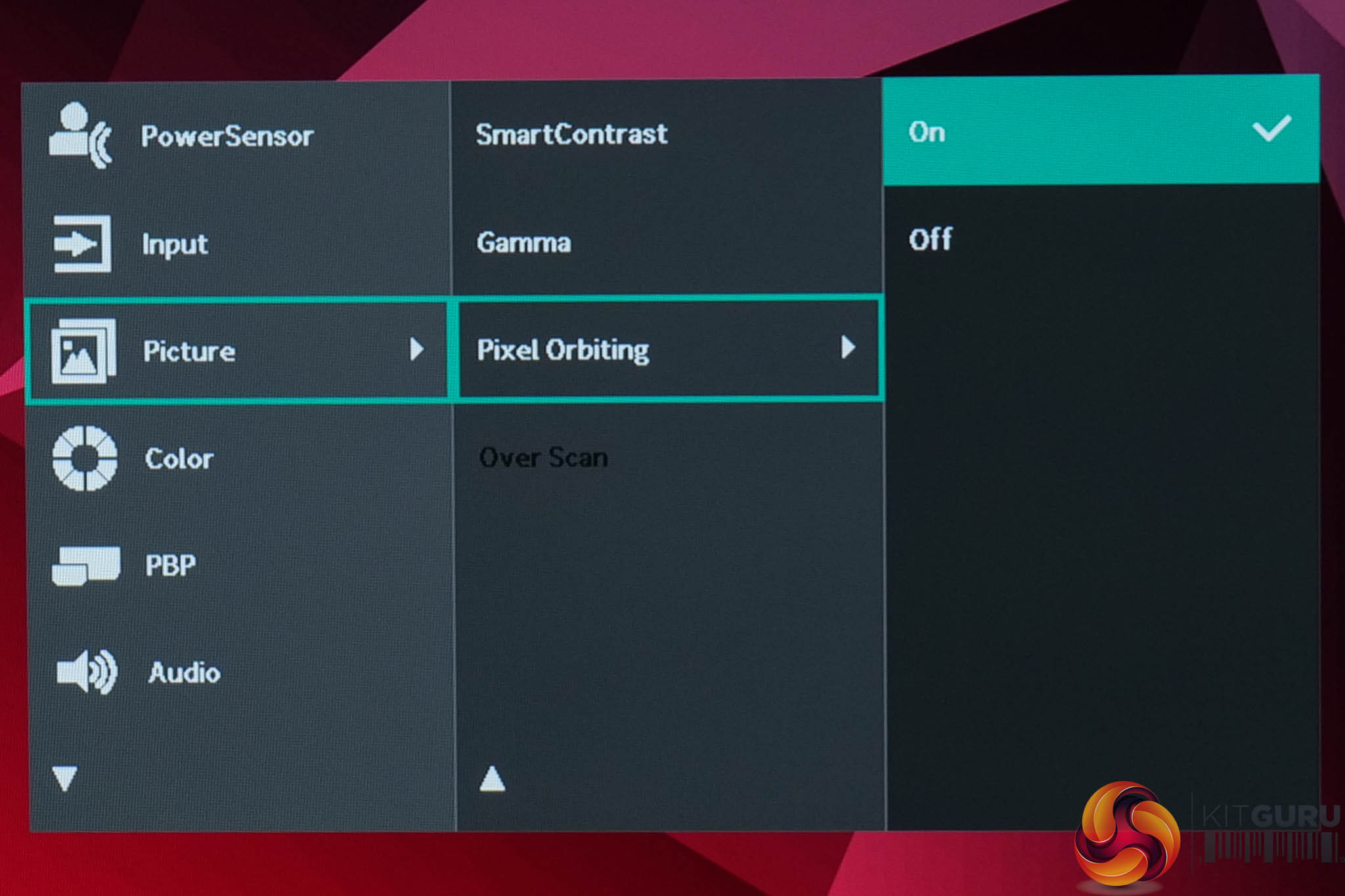
The Picture tab is extensive with a range of different settings. These include your standard brightness and contrast options, aspect ratio control, SmartResponse settings (AKA overdrive), along with gamma and Pixel Orbit functionality.
Color:
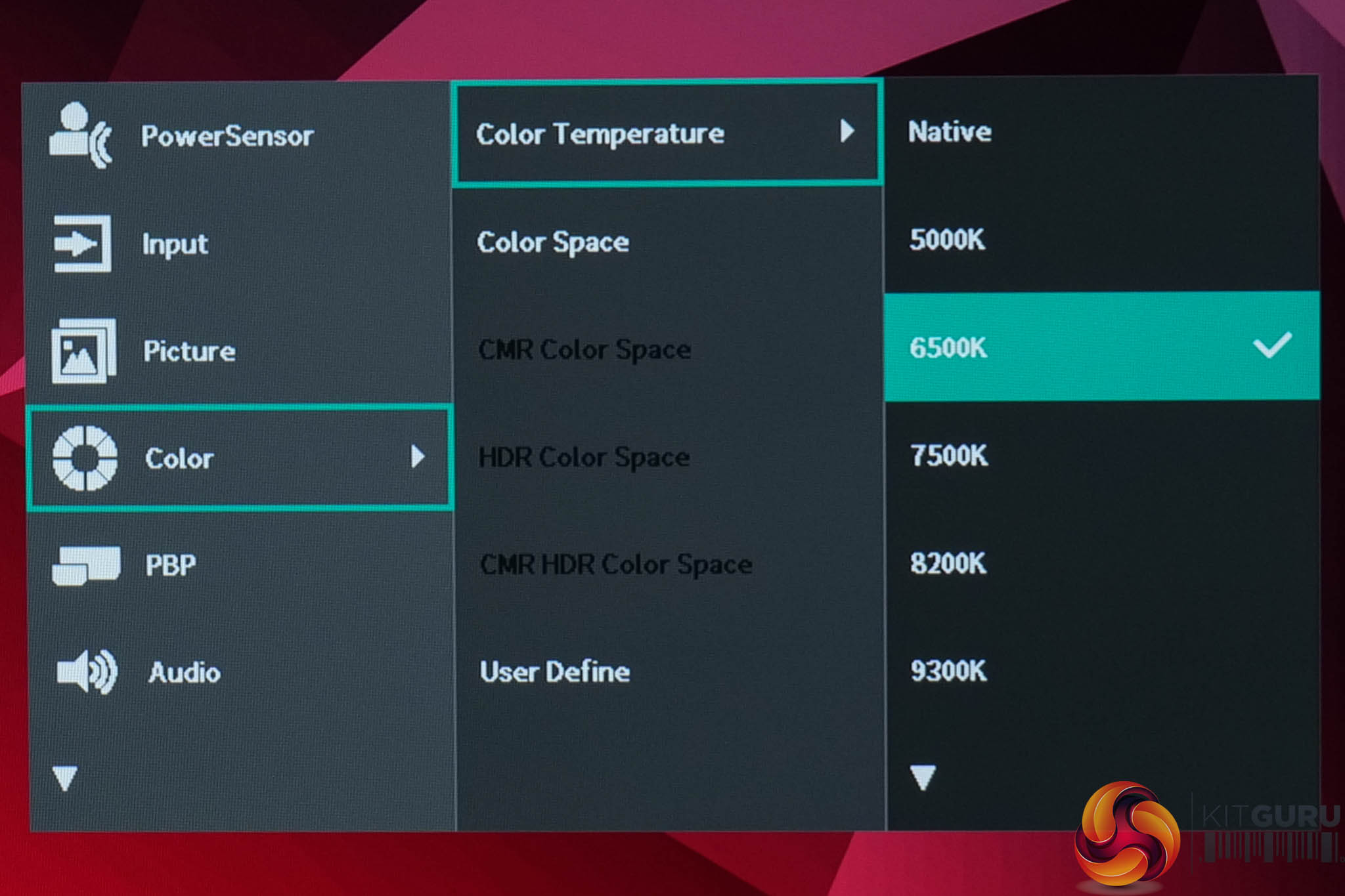
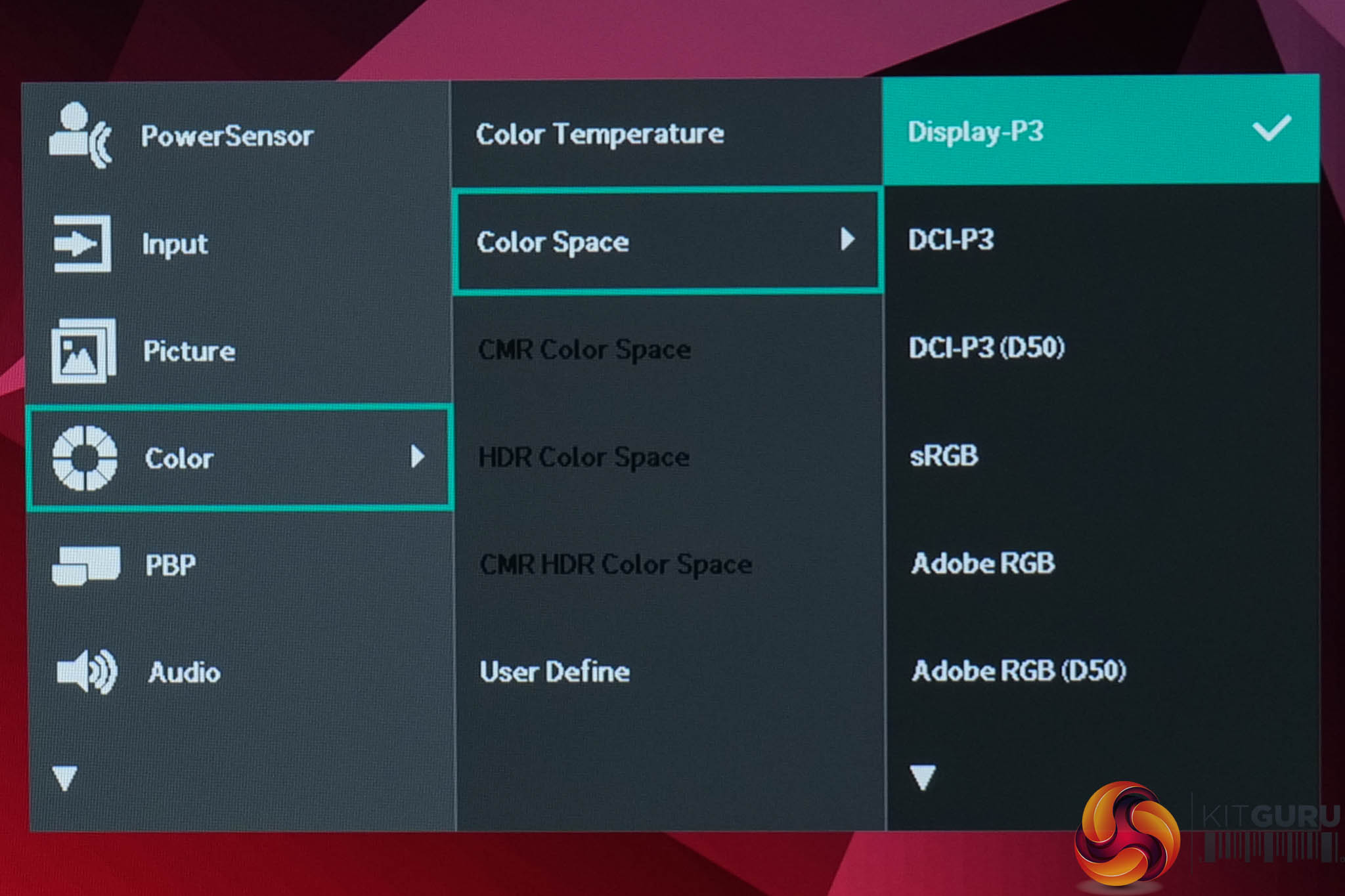
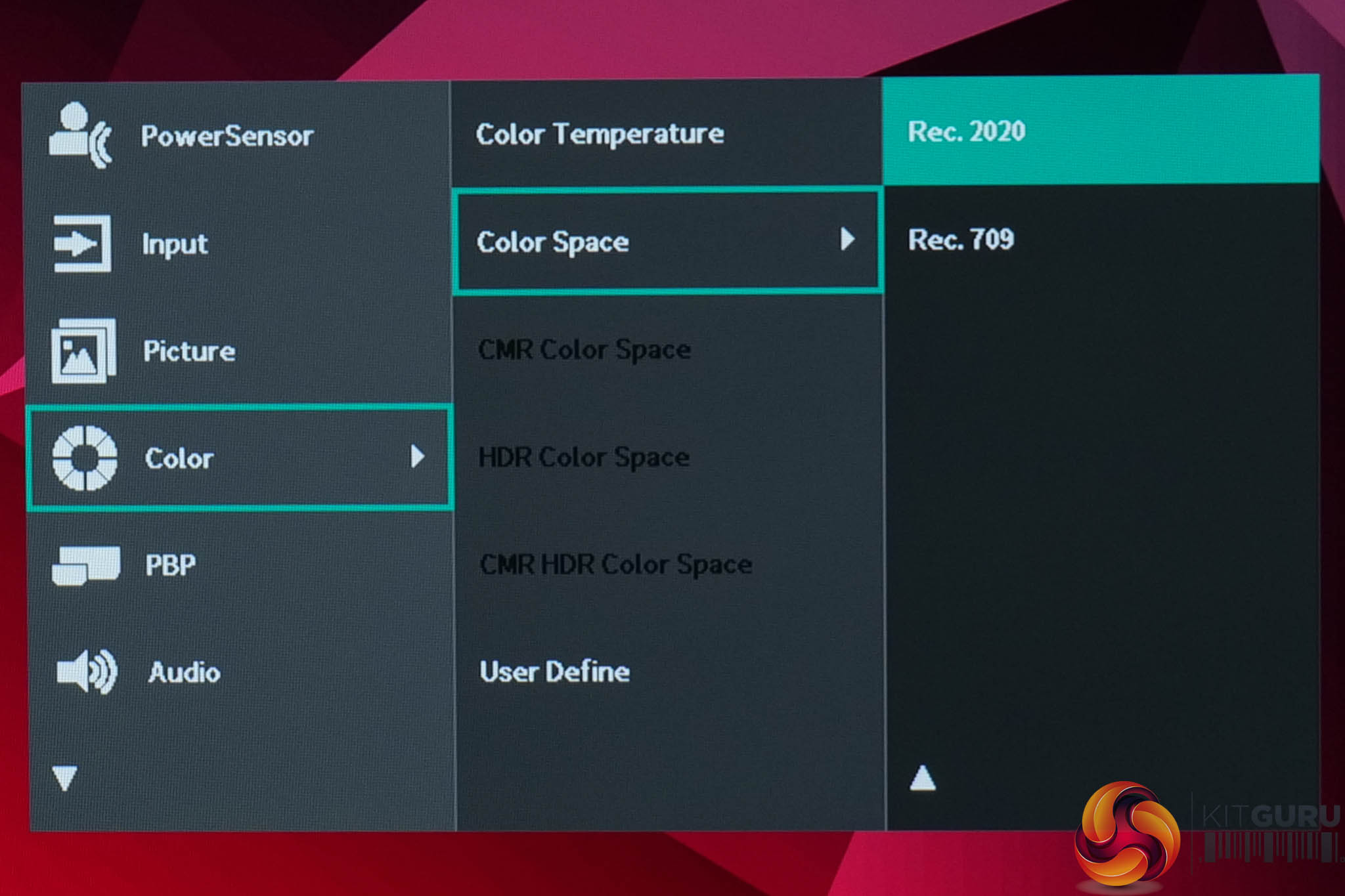
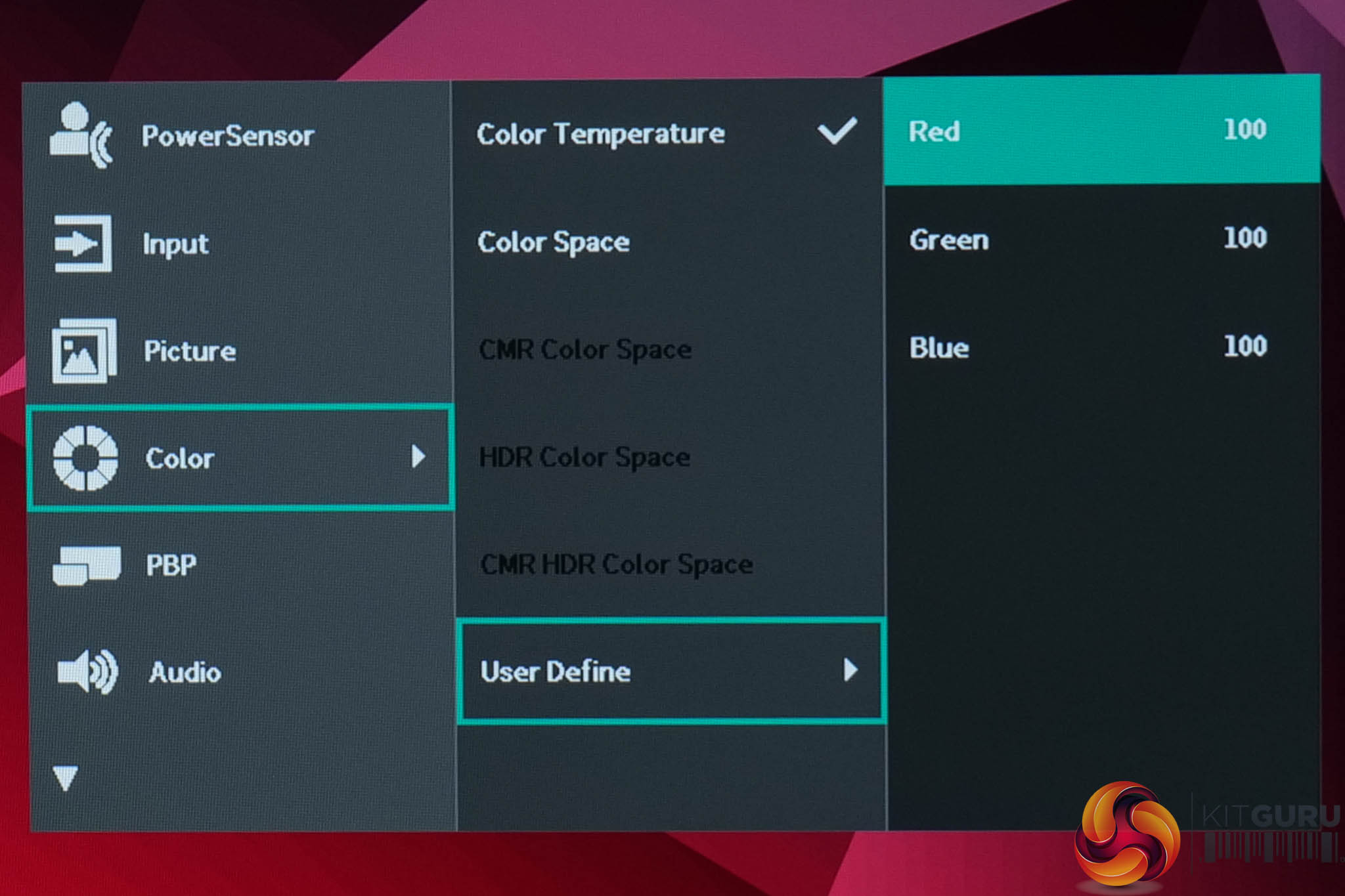
Color houses settings for colour temperature, along with plentiful colour space options – including sRGB, Adobe RGB, DCI-P3 and more. There's also a manual colour balance setting where users can adjust the RGB channels individually.
PBP, Audio, Language, OSD Setting:
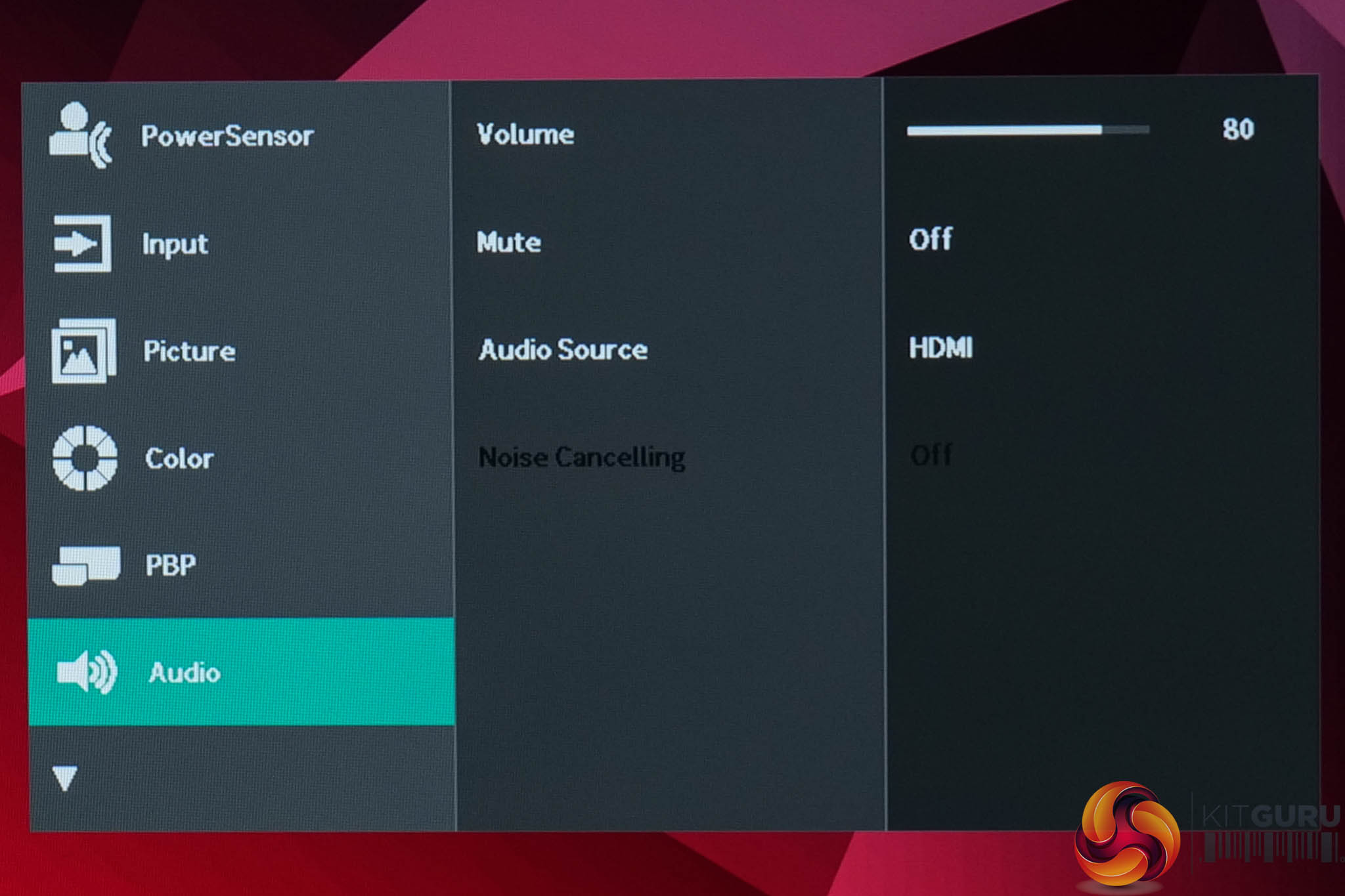
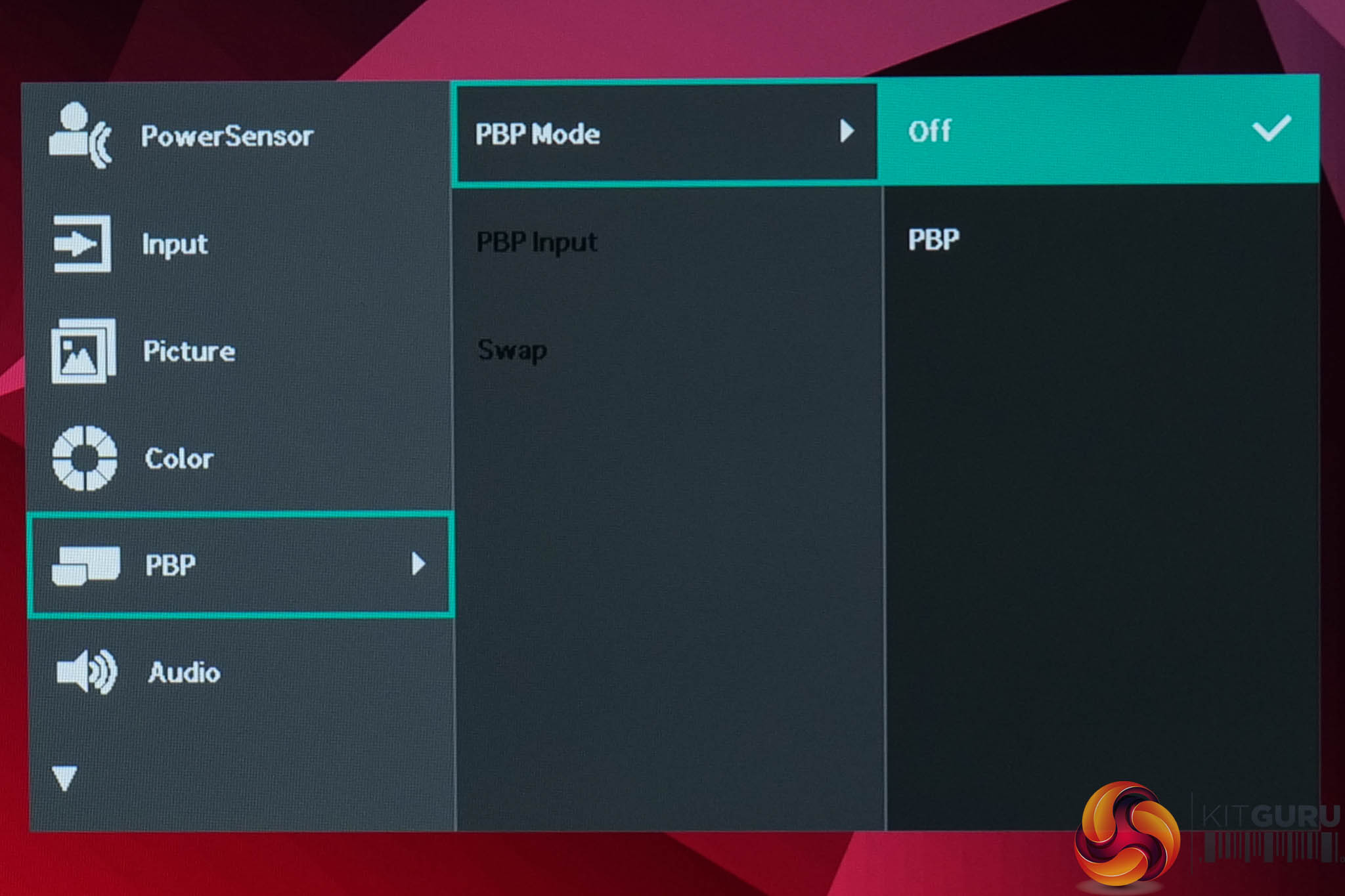
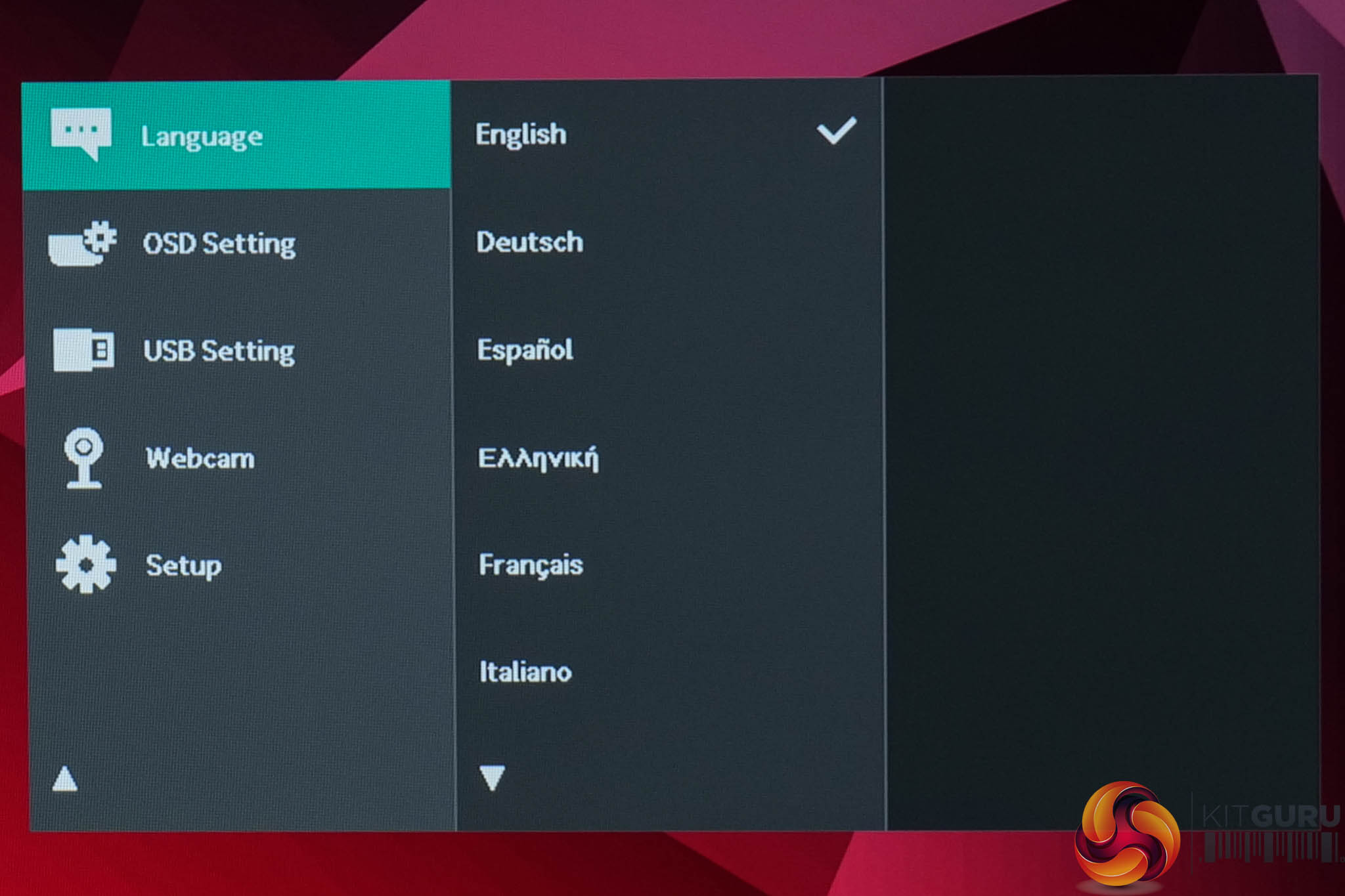
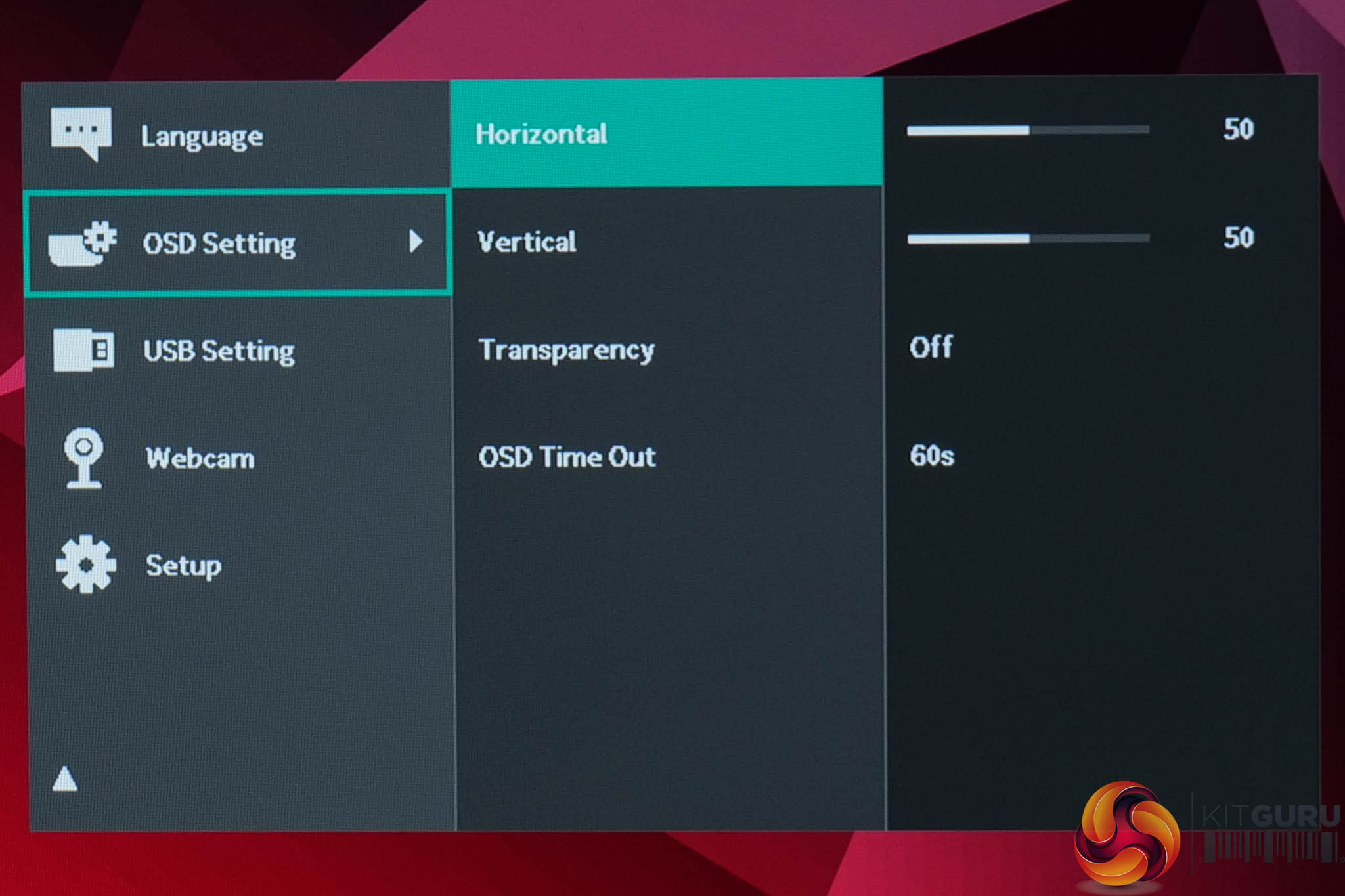
PBP allows the use of PBP/PIP functionality if you have two sources connected, while Audio gives control over the built-in 5W speakers. Language is self-explanatory, while the OSD Setting tab lets you adjust the OSD position, transparency and time-out length.
USB Setting & Webcam:
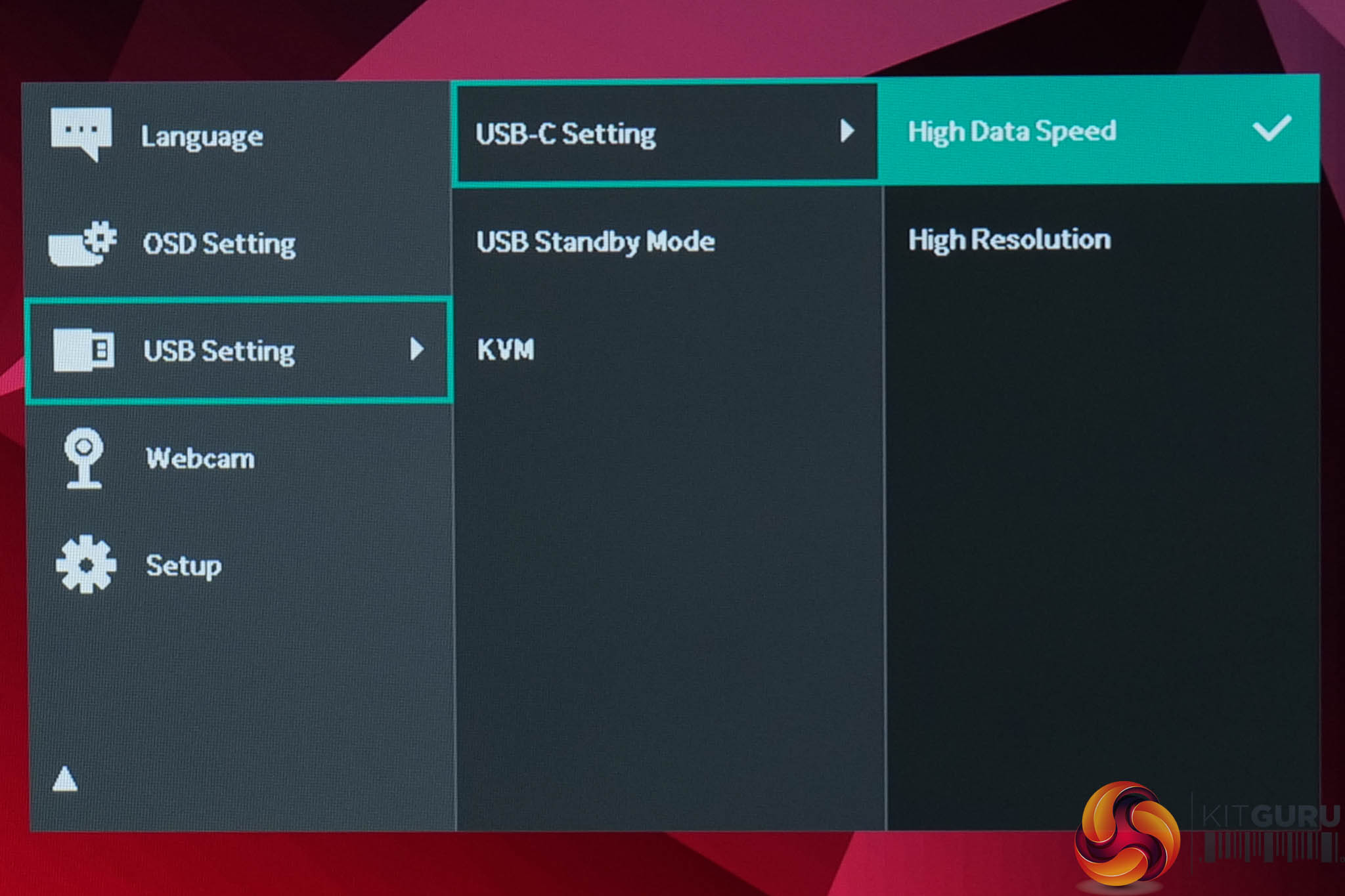
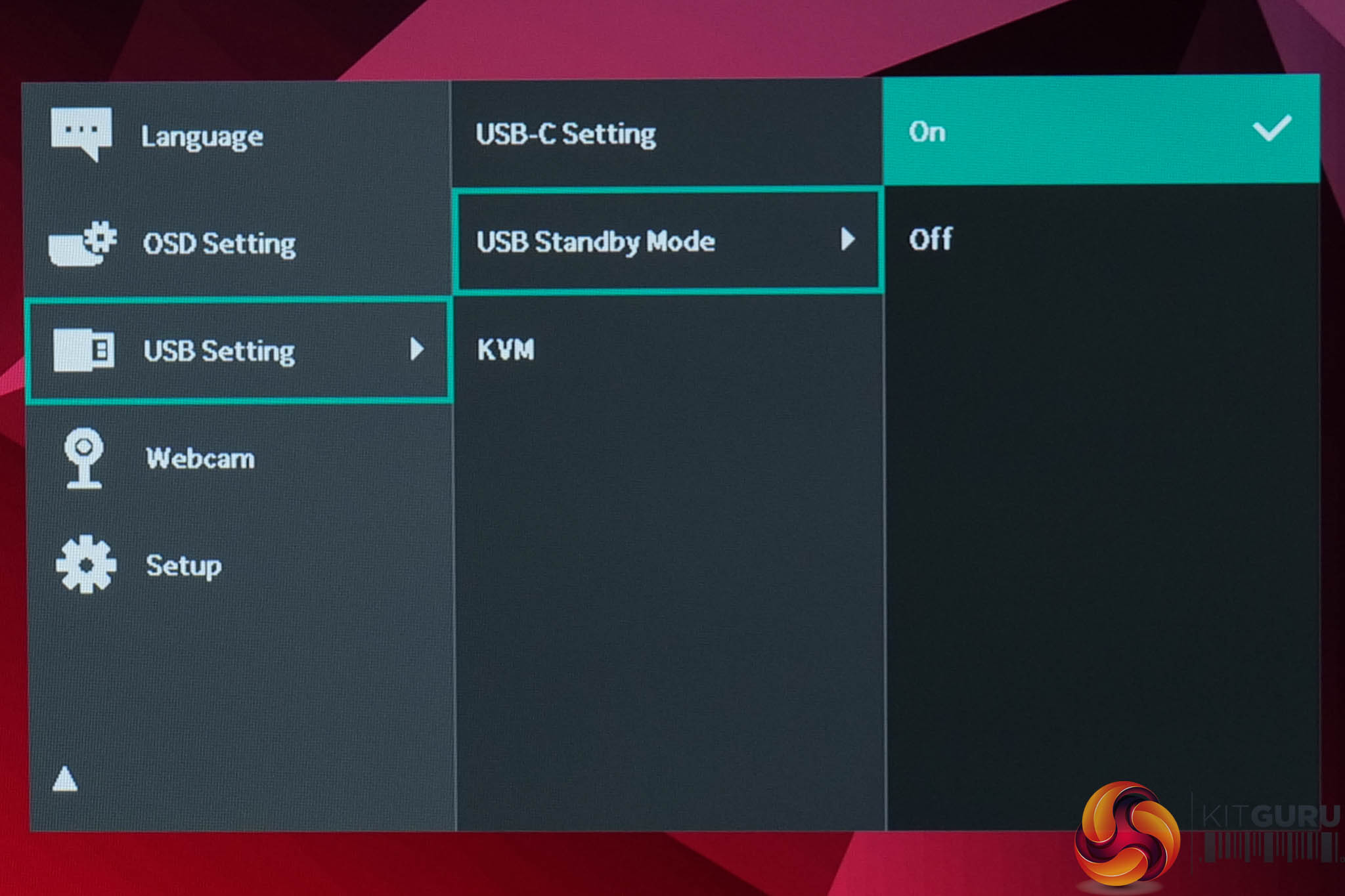
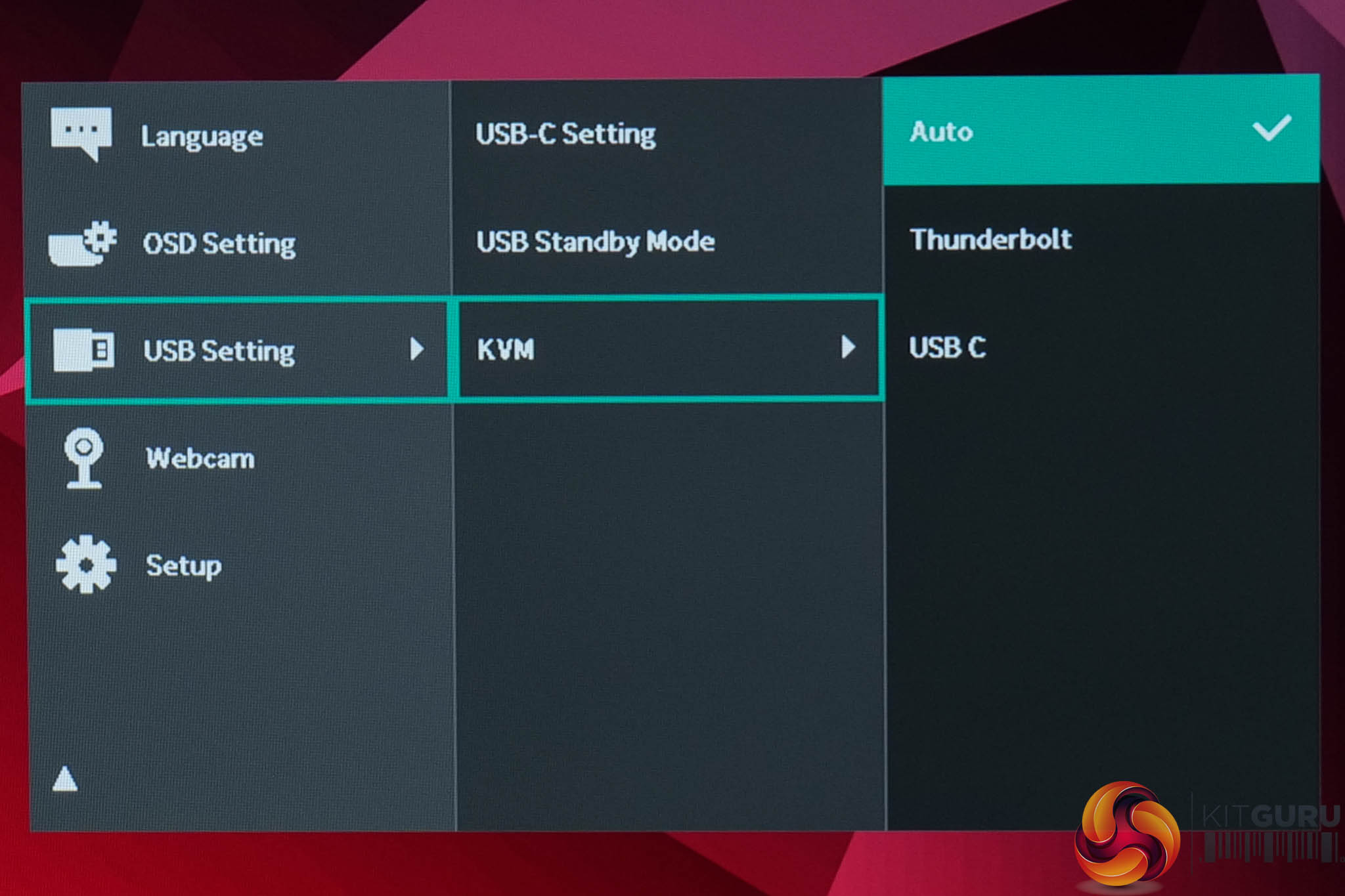
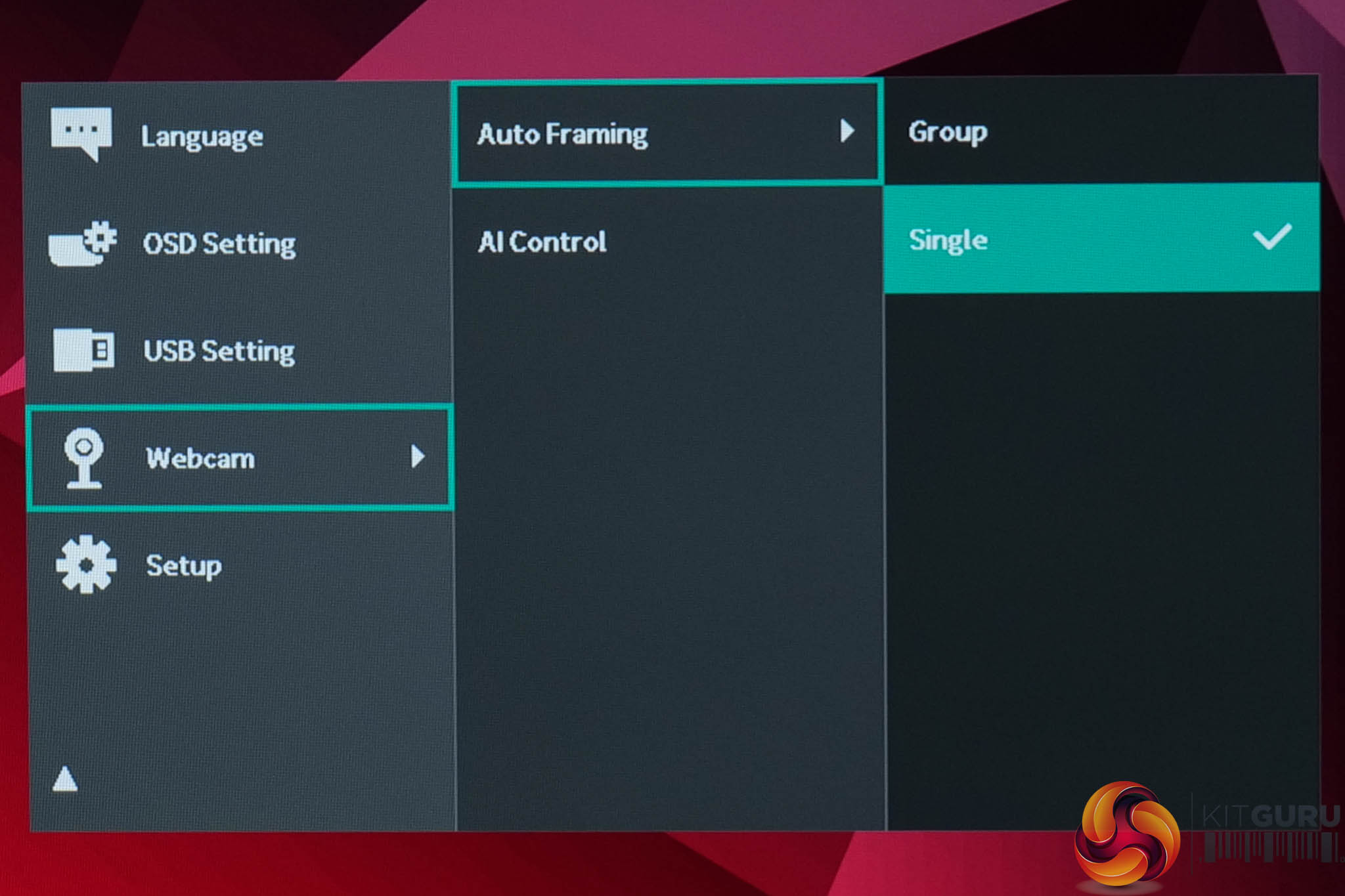
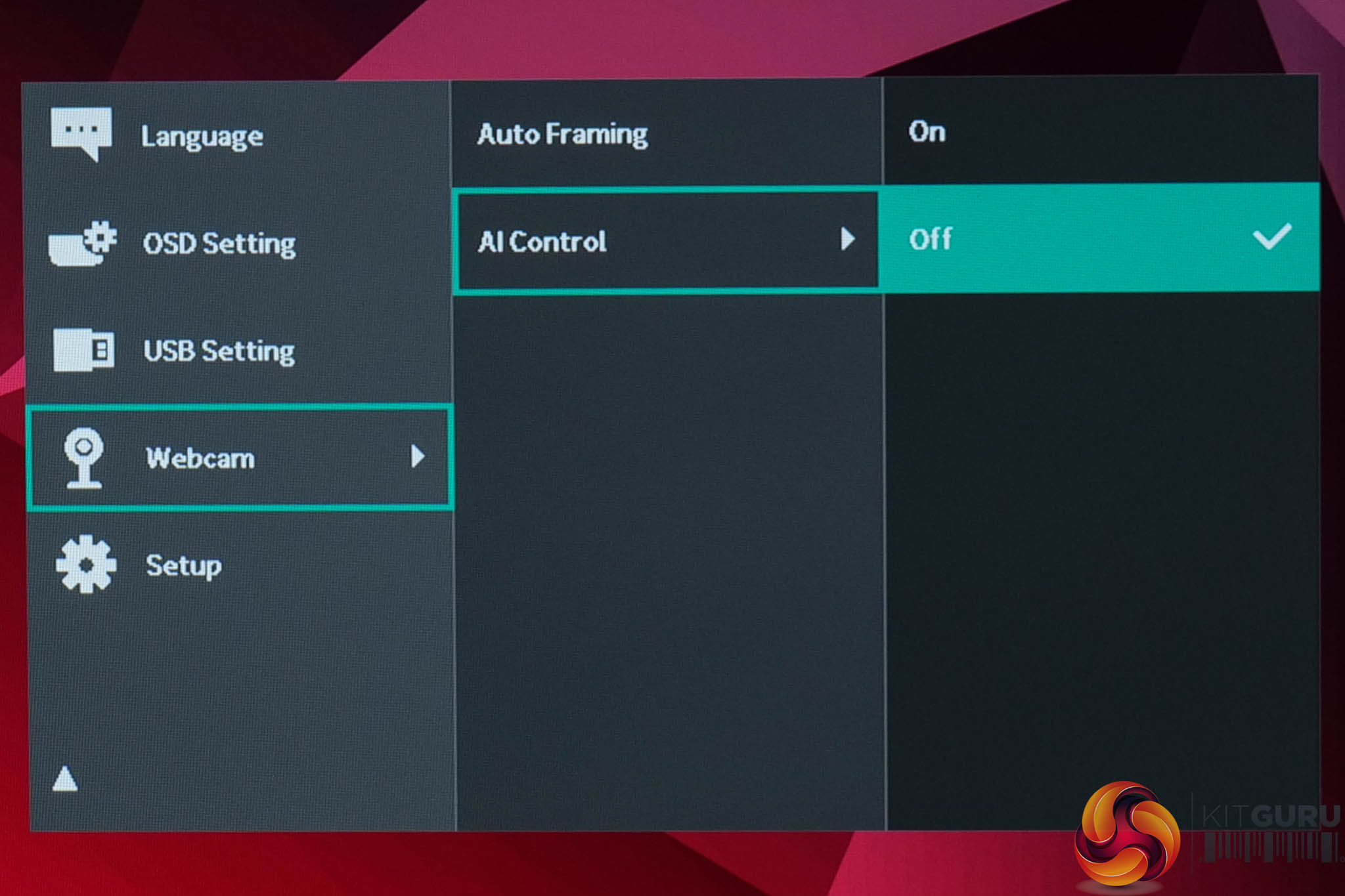
Next is the USB Setting tab where you have control over the USB input and KVM functionality, while the Webcam page offers a choice of Auto Framing (think Center Stage on Mac) and an AI control option. We show an example of the webcam footage later in the review.
Setup:
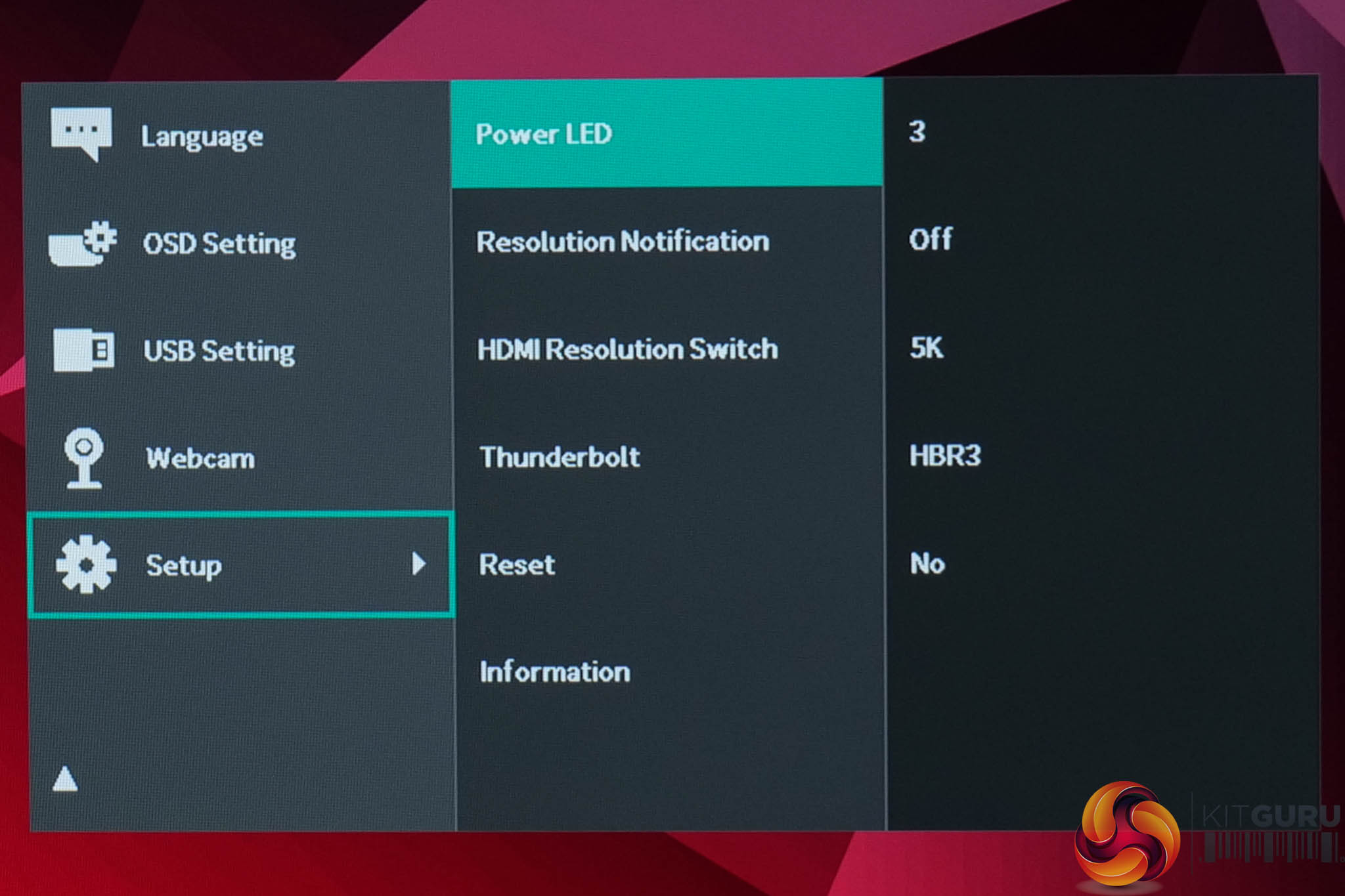
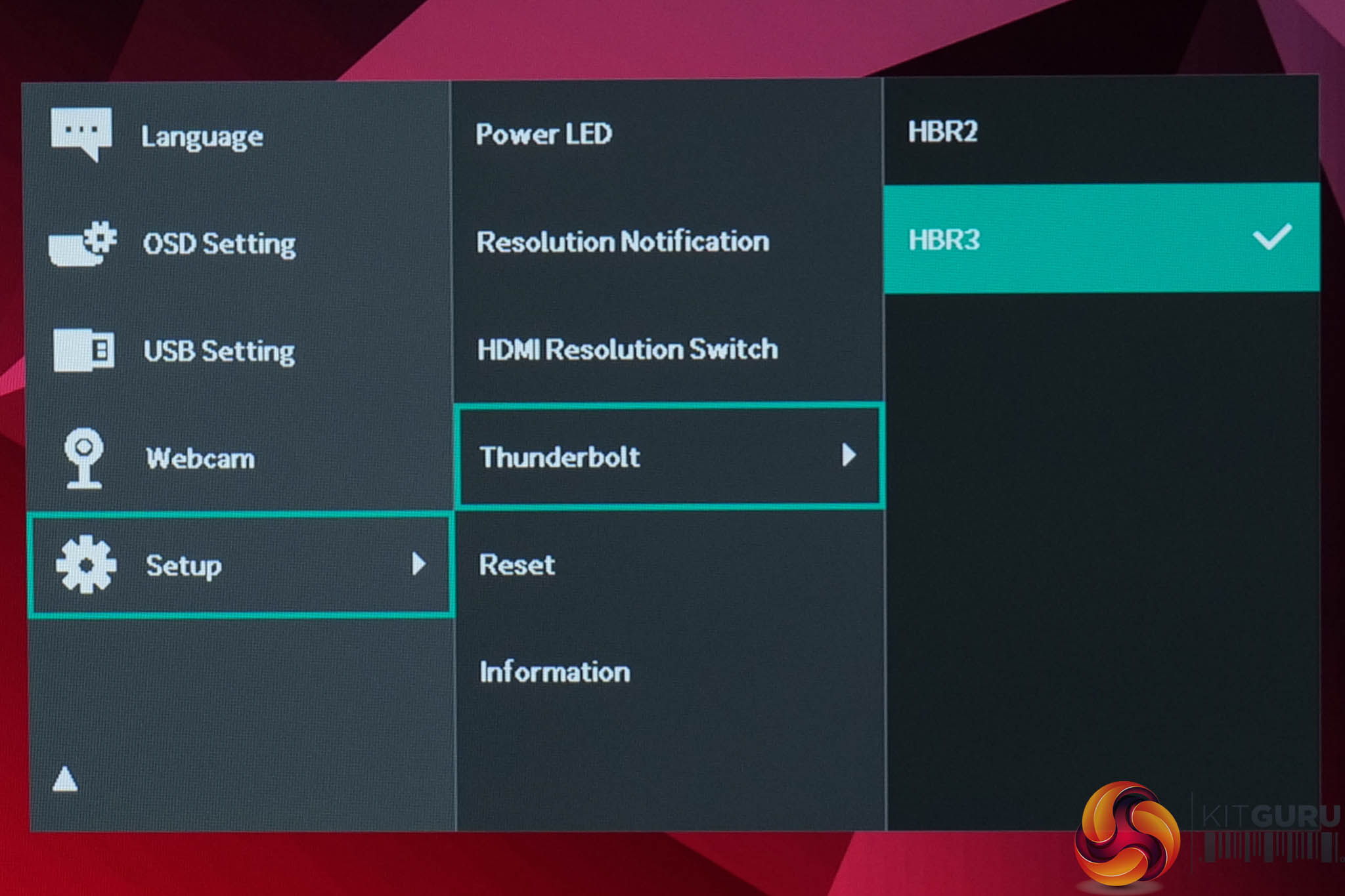
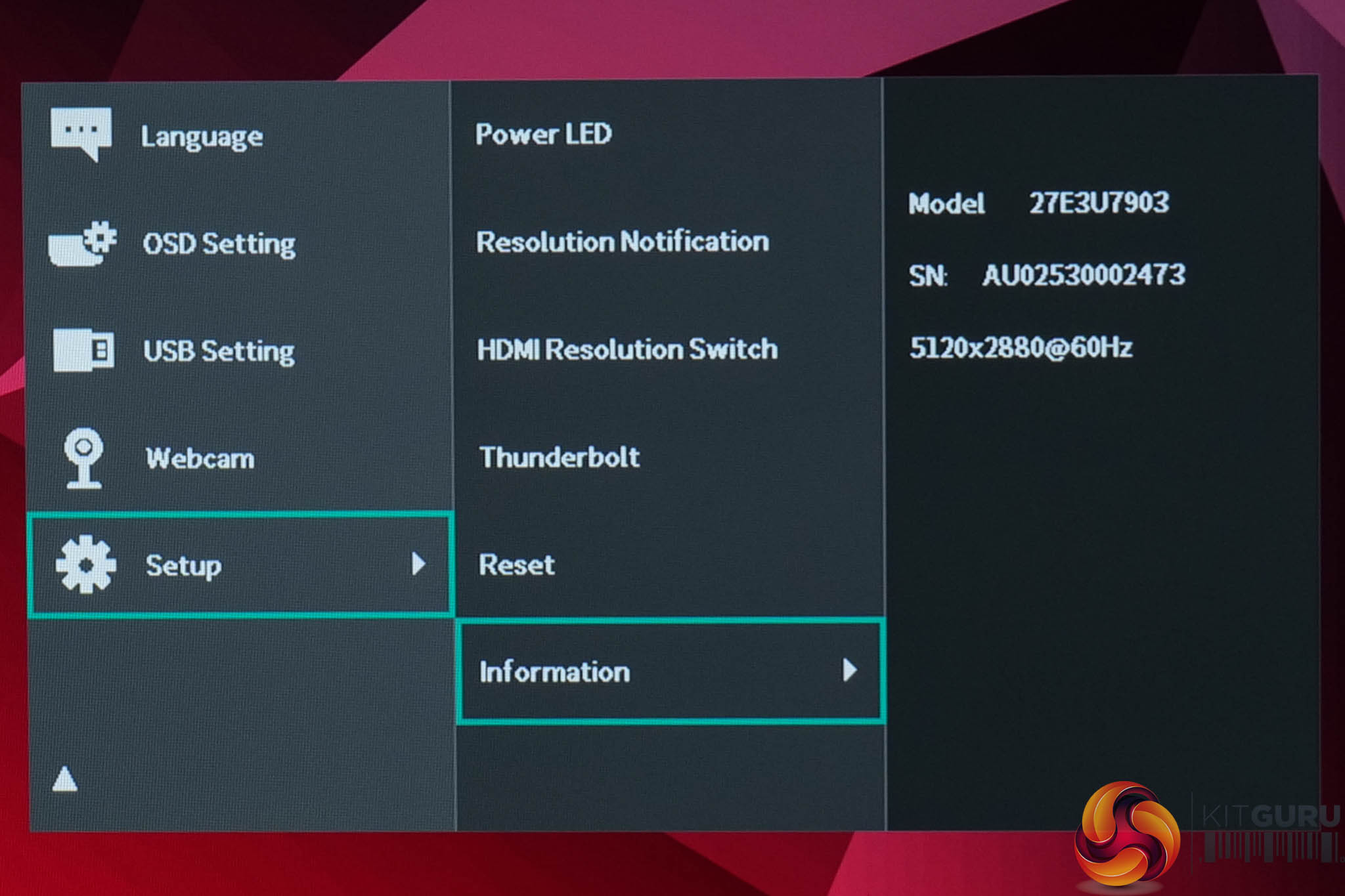
The final tab is Setup, giving you control over any other miscellaneous settings such as Thunderbolt and the power LED, while it also provides a handy information window.
HDR:
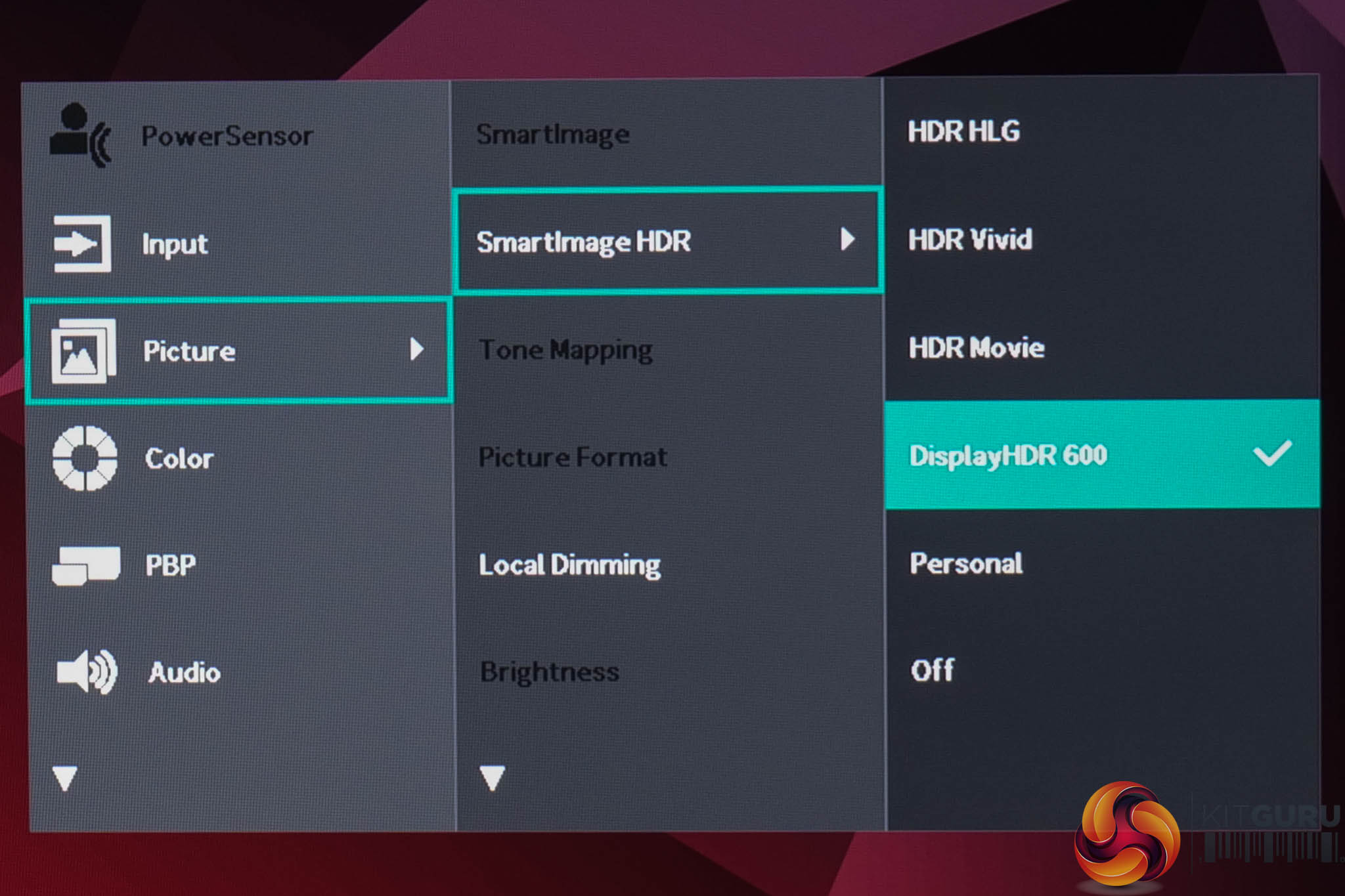
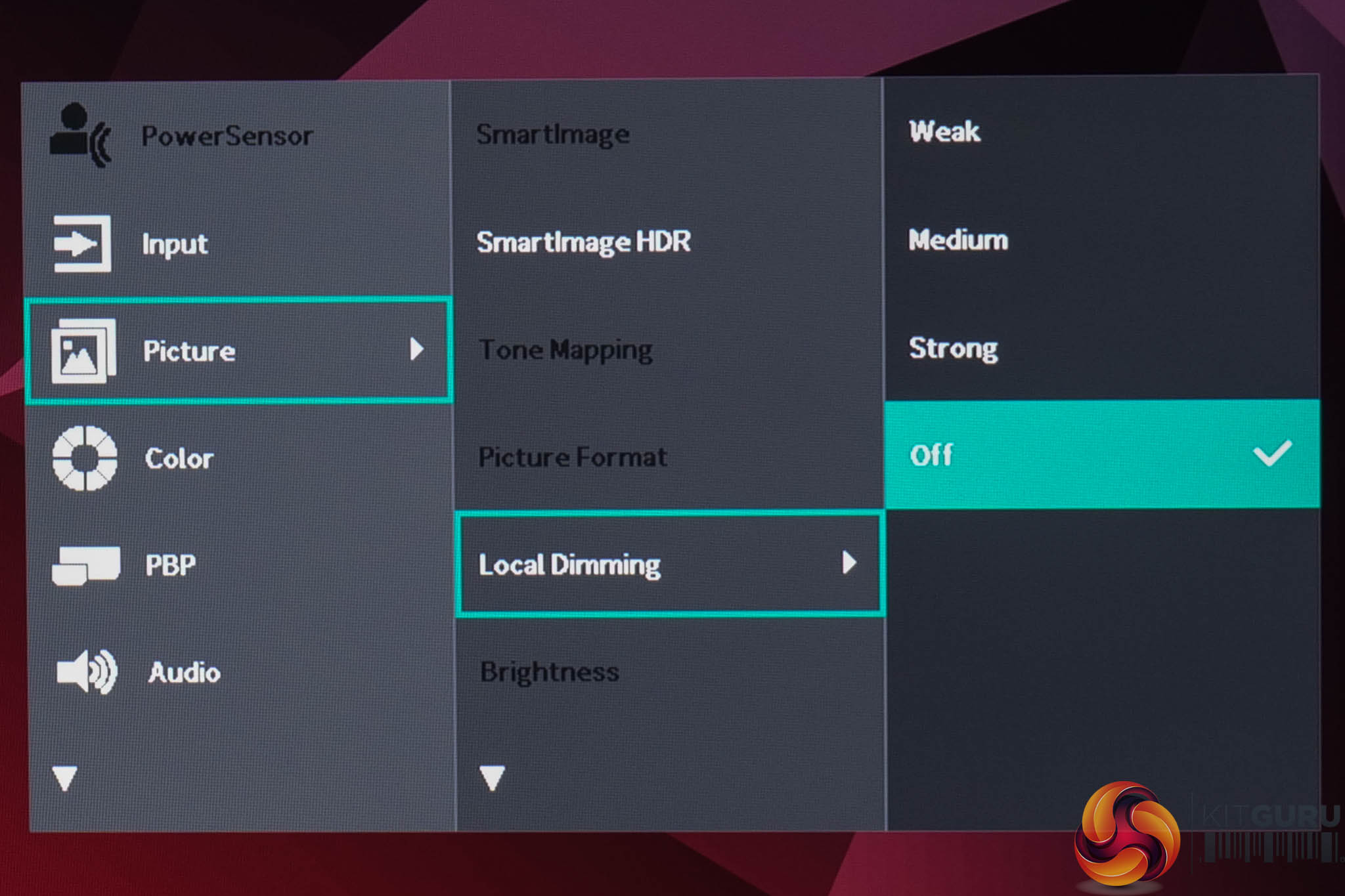

We did also enable HDR and revisit the OSD to give you an idea as to what changes – primarily you get to choose the HDR mode from within the Picture tab, enable or disable Local Dimming, and you can also choose between two options for the HDR colour space.
Philips SmartControl:
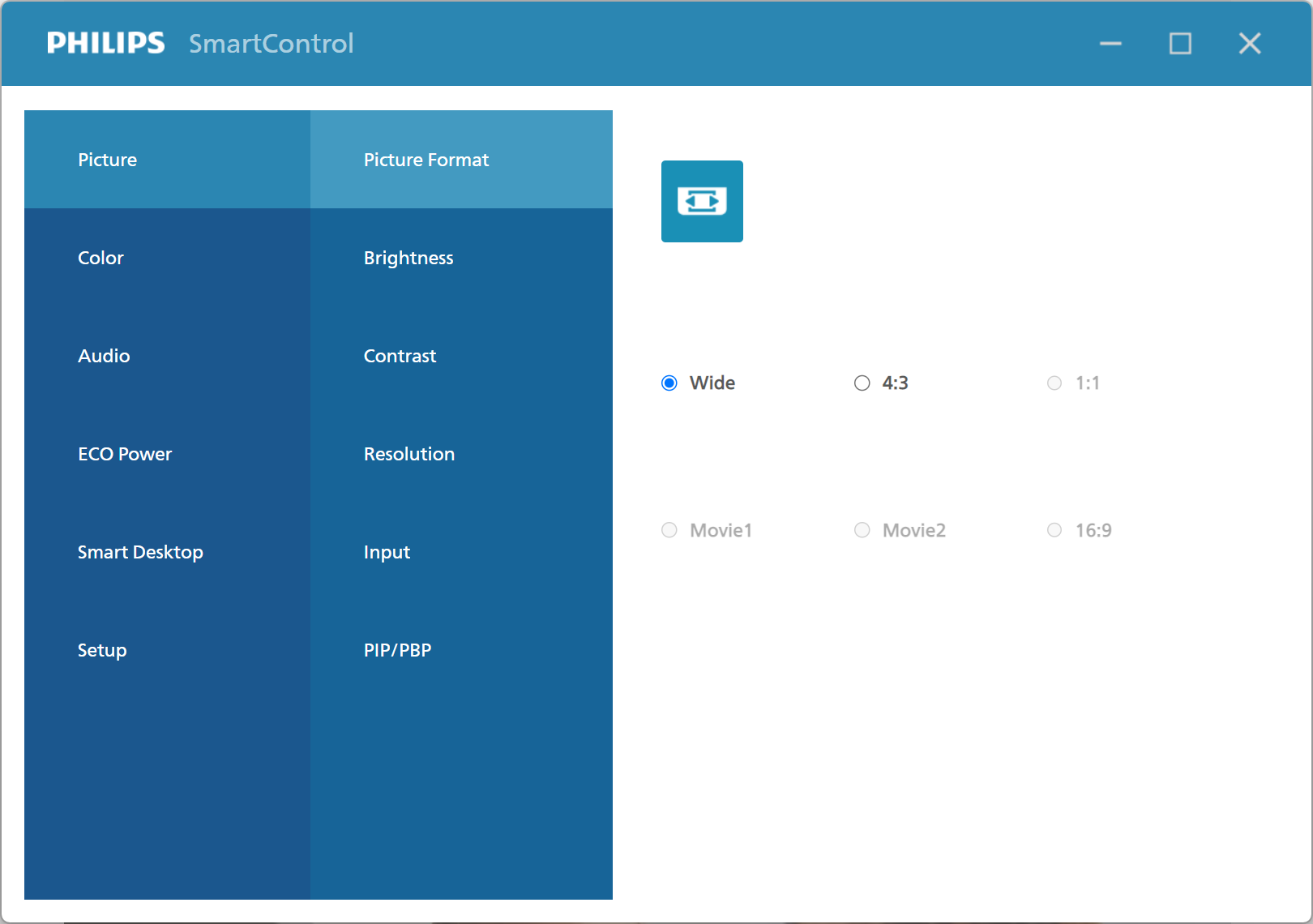
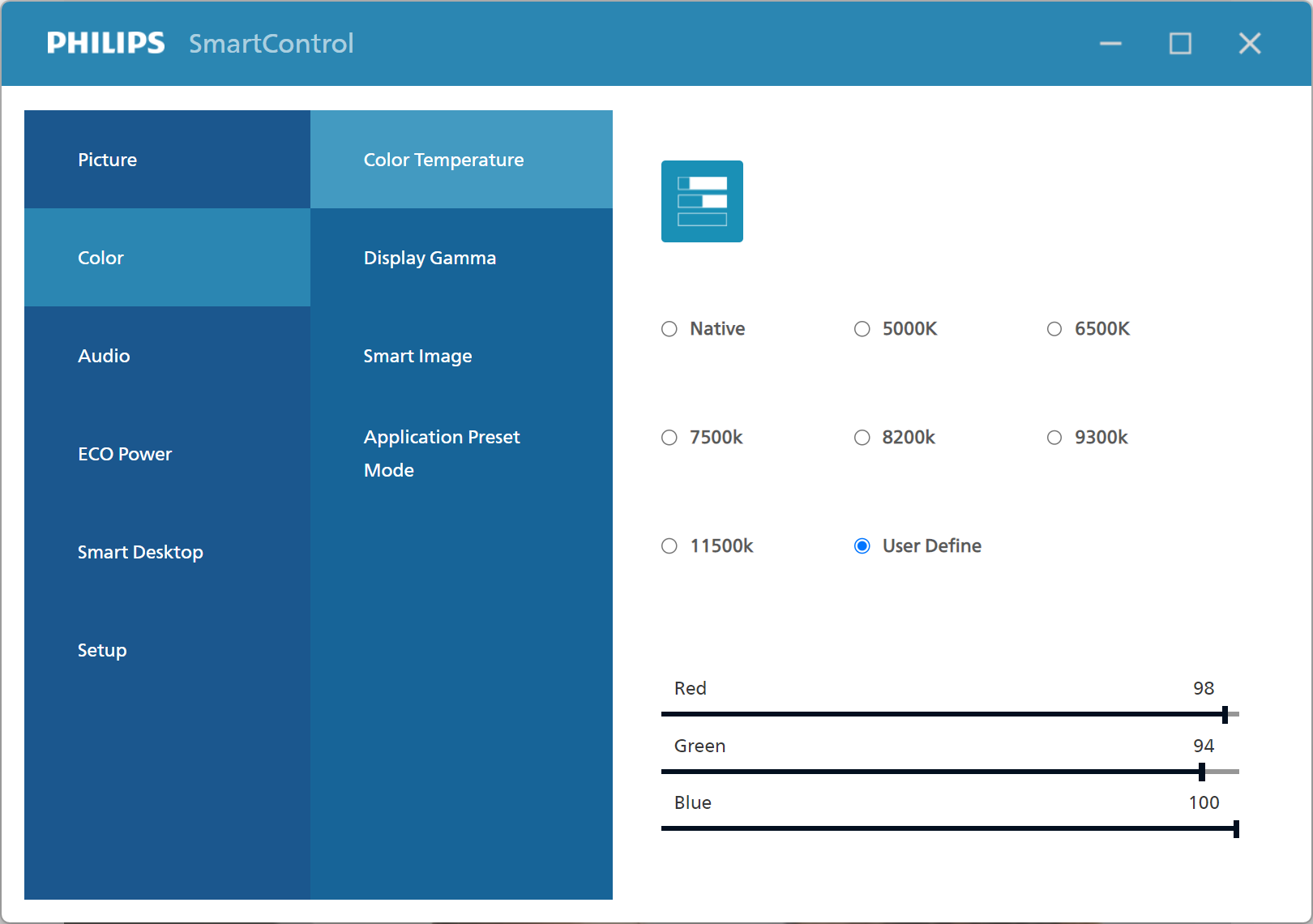
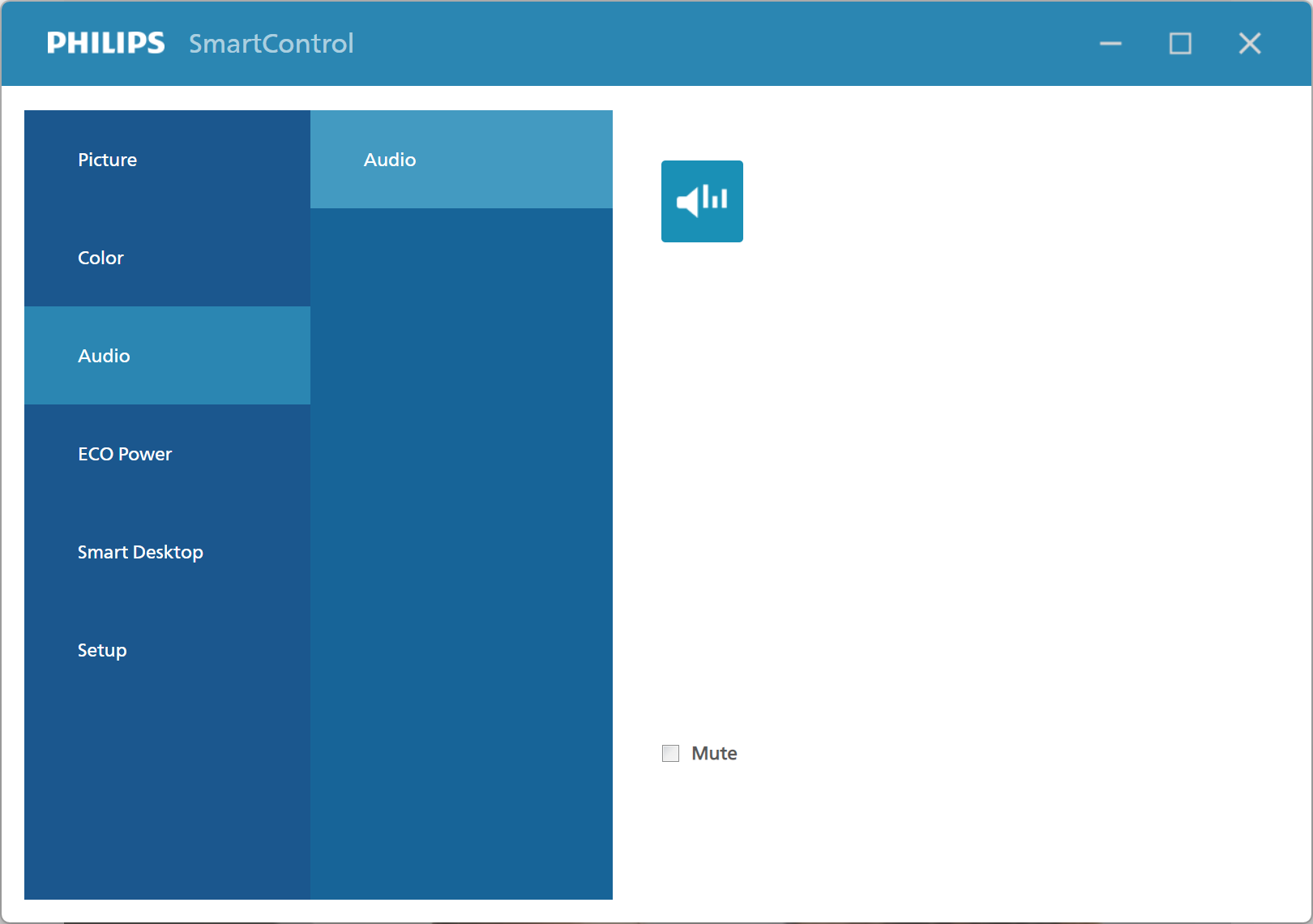
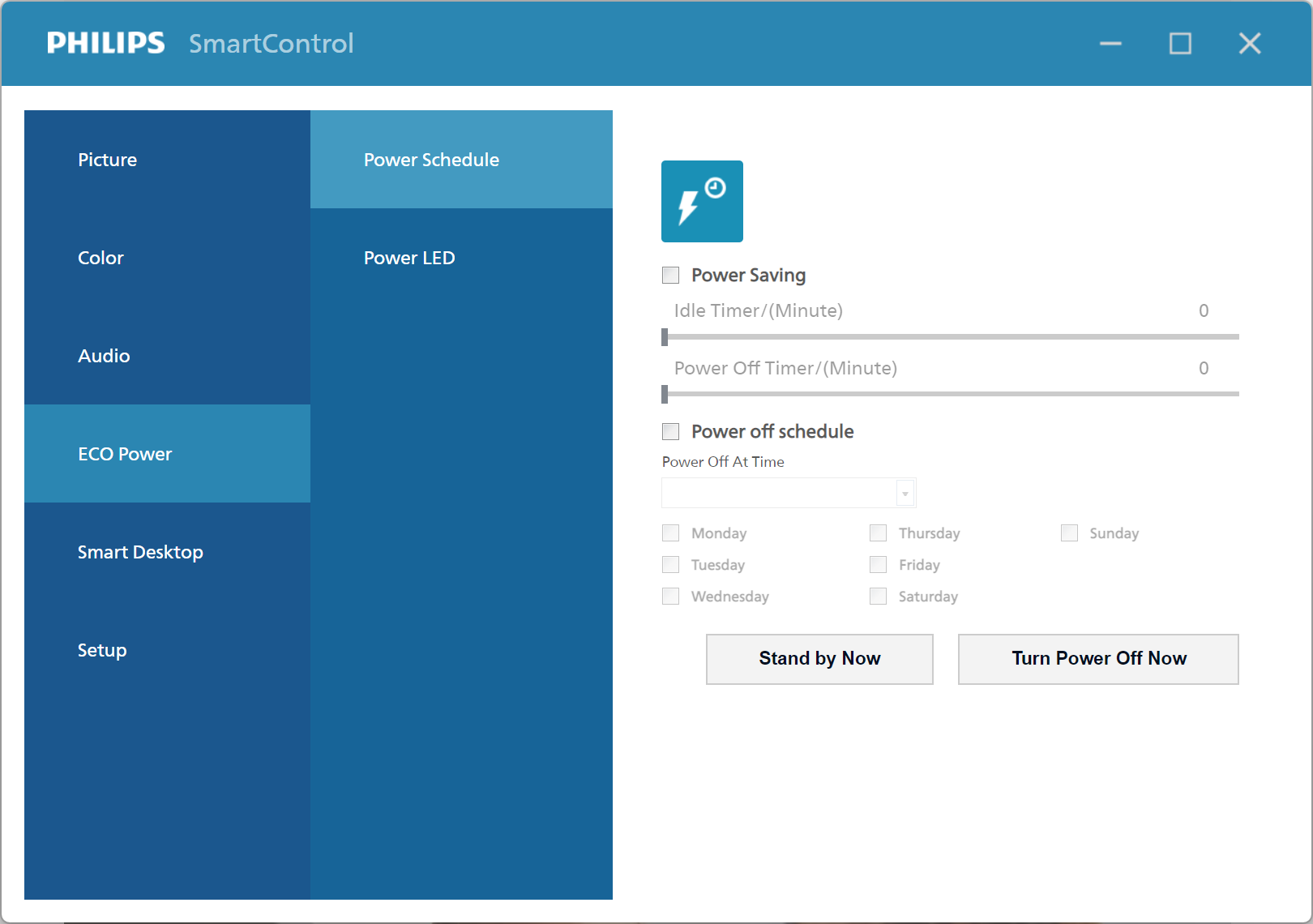
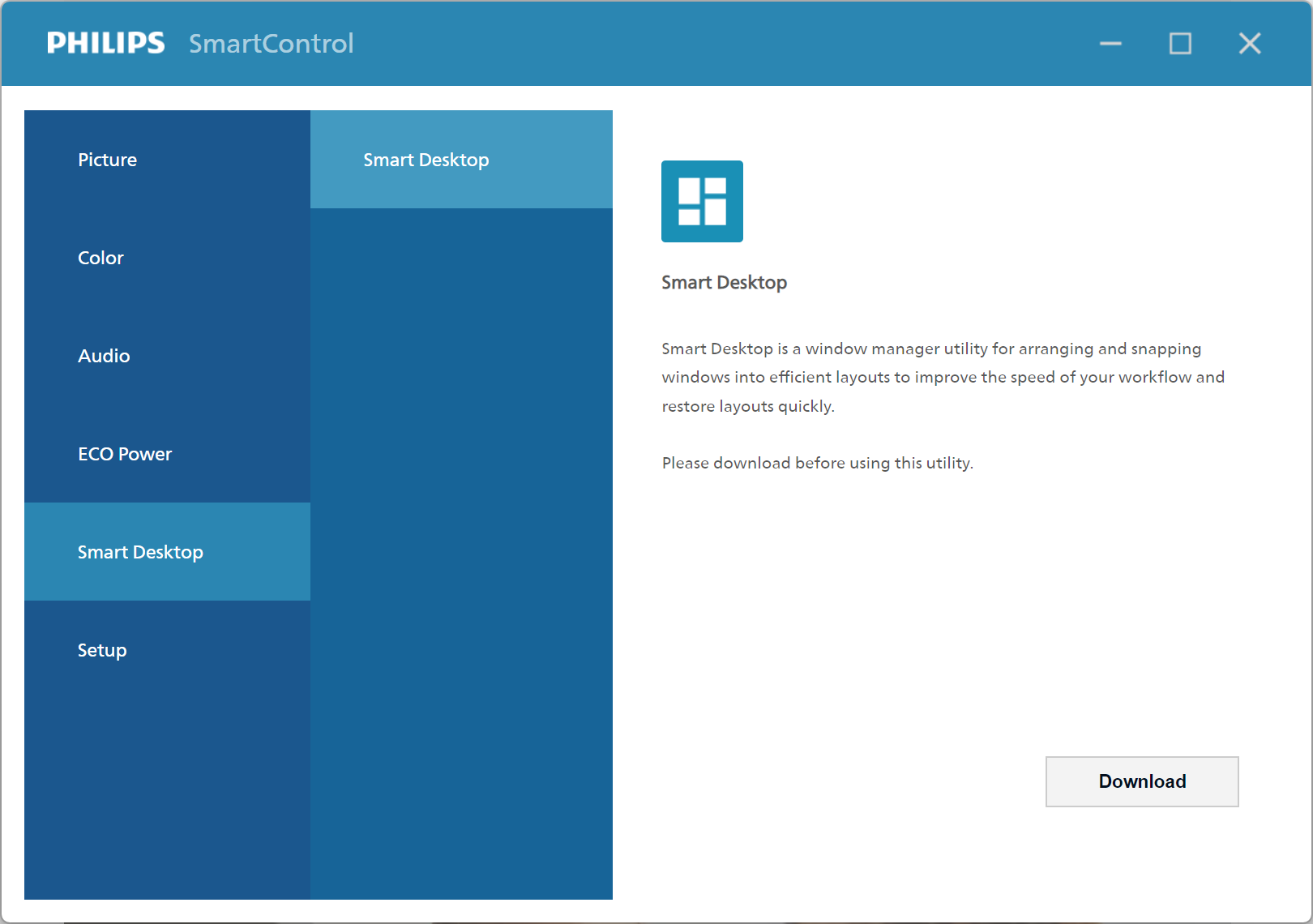
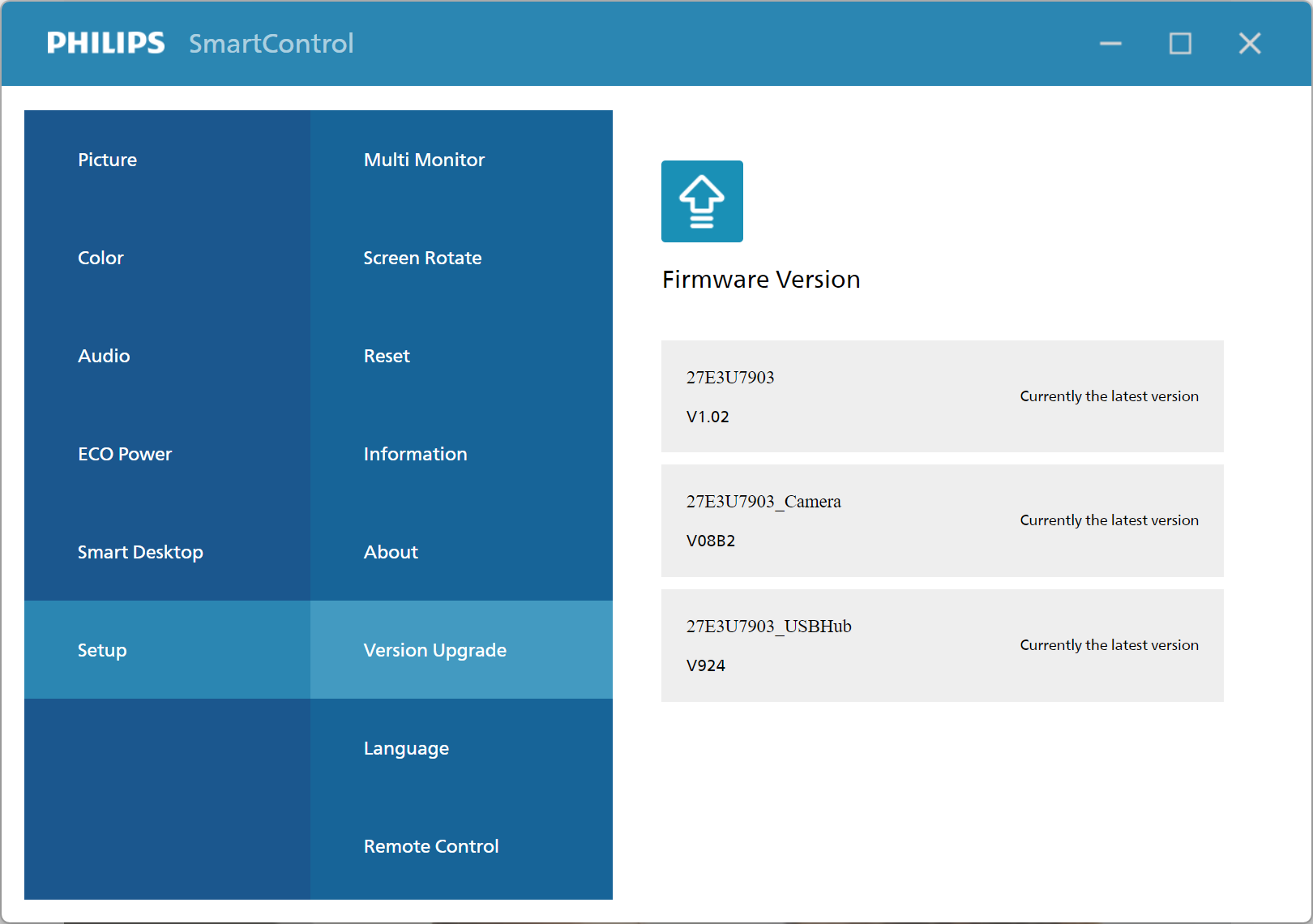
Lastly, Philips also offers its SmartControl software. It's looking quite dated now and needs an overhaul to modernise the UI (as we have seen with Evnia's Precision Centre software). Still, it works fine and provides options for firmware updates, always a feature I like to see included.
Our main test involves using an X-Rite i1 Display Pro Plus colorimeter and utilising Portrait Display's Calman Ultimate software. The device sits on top of the screen while the software generates colour tones and patterns, which it compares against predetermined values to work out how accurate the screen is.
The results show:
- A monitor’s maximum brightness in candelas or cd/m2 at various levels set in the OSD.
- A monitor’s contrast ratio at various brightness levels in the OSD.
- Gamut coverage, primarily focusing on sRGB and DCI-P3 colour spaces.
- Greyscale accuracy, measured across 20 shades, with an average colour balance reported.
- The exact gamma levels, with a comparison against preset settings in the OSD.
- The colour accuracy, expressed as a Delta E ratio, with a result under 3 being fine for normal use, and under 2 being great for colour-accurate design work.
We first run these tests with the display in its out-of-the-box state, with all settings on default. If there is an sRGB emulation option or other useful mode then we may test that too. We then calibrate the screen using the Calman Ultimate software and run the tests again.
You can read more about our test methodology HERE.
Default settings
Brightness and Contrast (Full Screen)
| OSD Brightness | White Luminance (cd/m2) | Black Luminance (cd/m2) | Contrast Ratio |
| 0% | 39.8 | 0.026 | 1535:1 |
| 25% | 113 | 0.073 | 1548:1 |
| 50% | 181.6 | 0.118 | 1545:1 |
| 75% | 301.8 | 0.195 | 1547:1 |
| 100% | 610.2 | 0.393 | 1551:1 |
Starting off with brightness and contrast, I was happy to see this LCD gets very bright even in SDR, peaking at 610 nits – well beyond Philips' claimed 500 nits figure. It also gets pretty dim at just 40 nits, giving it a very wide range of brightness.
I wasn't quite able to hit Philips' claimed 2000:1 contrast ratio, but around 1550:1 is still class-leading for a modern IPS panel and similar to what we saw from the ProArt PA27JCV last year.
Gamut (CIE 1976)
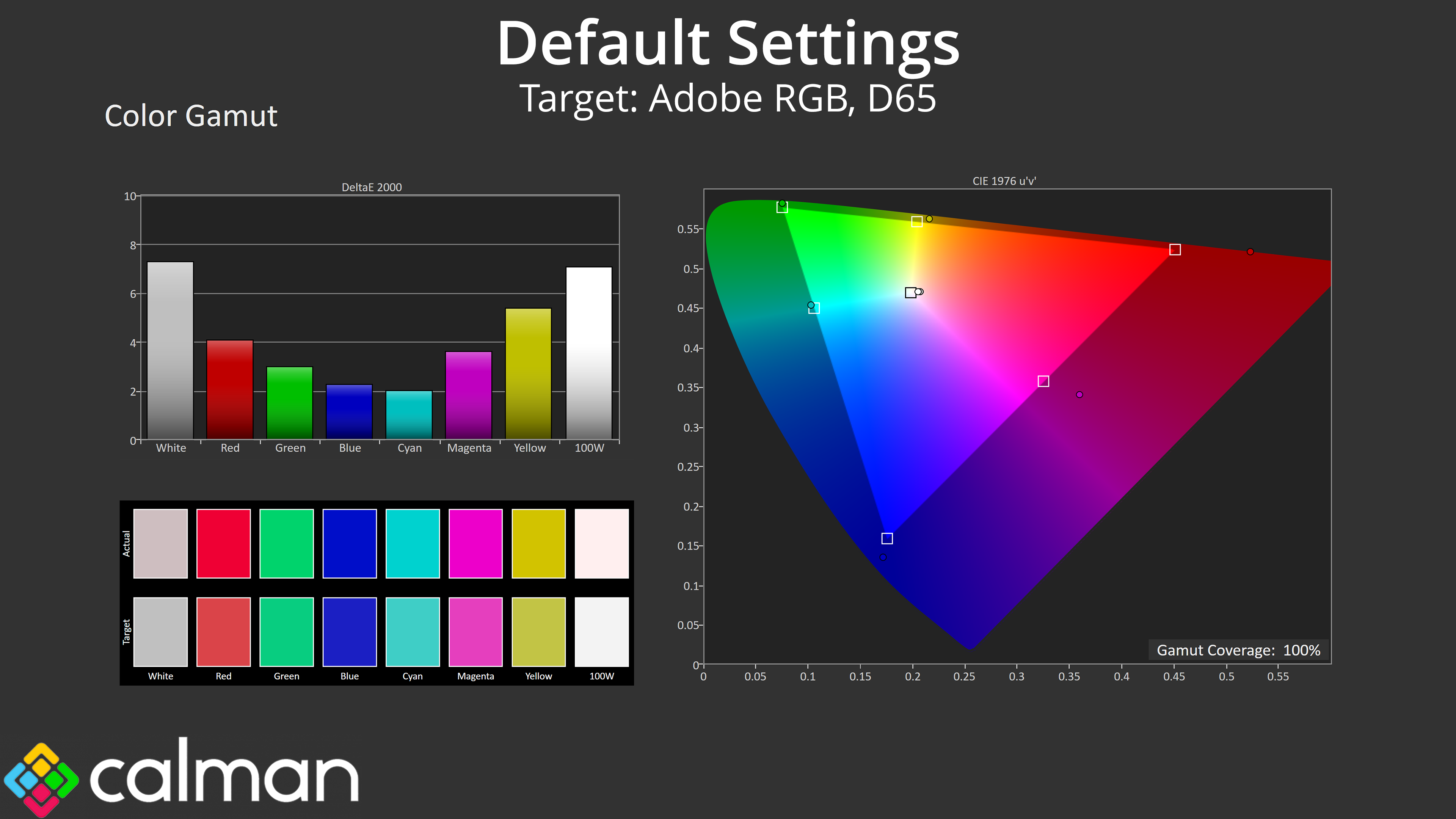
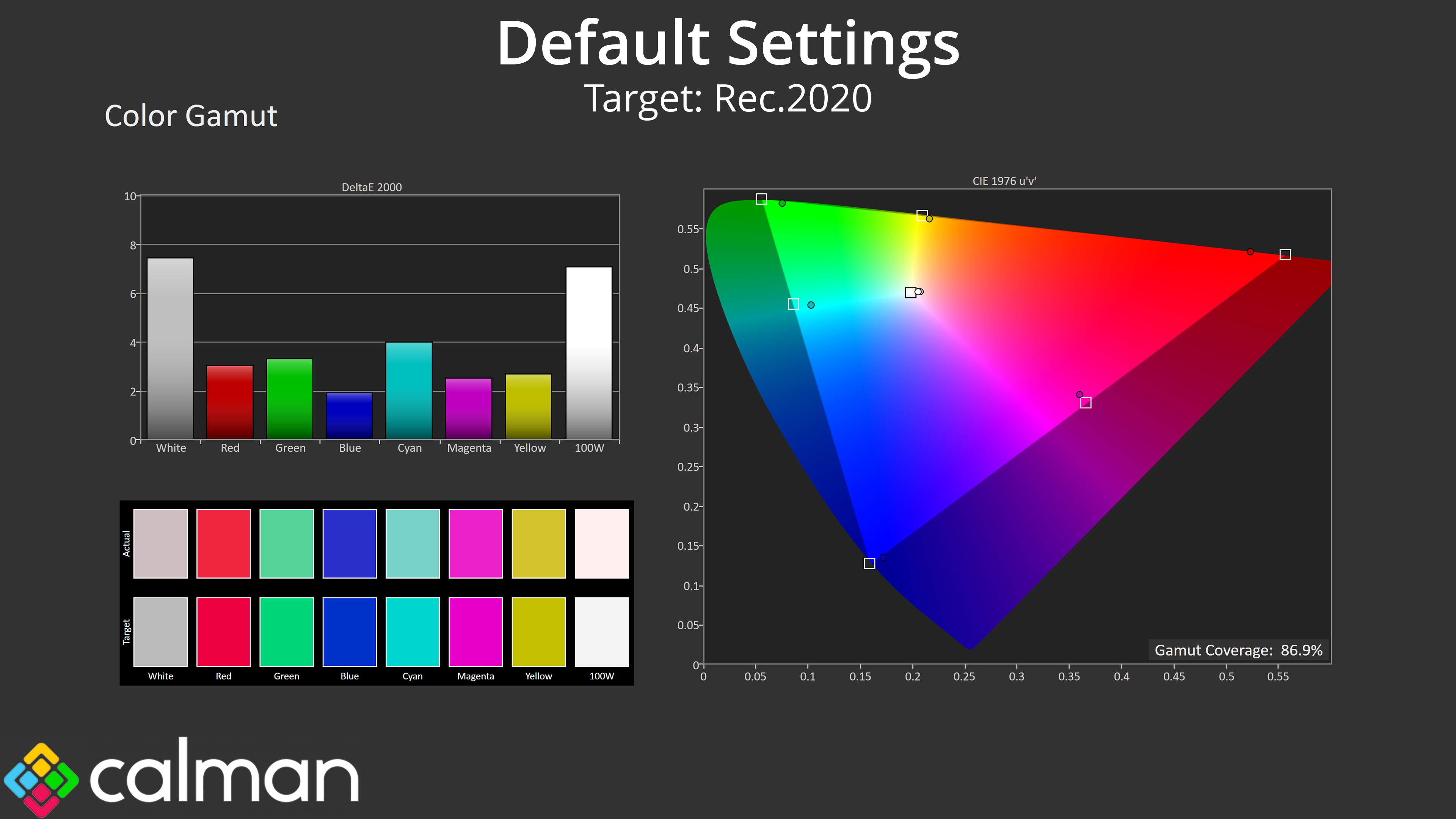
| Colour space | Coverage (%) |
| sRGB | 149.9 |
| DCI-P3 | 99.7 |
| Adobe RGB | 100 |
| Rec.2020 | 86.9 |
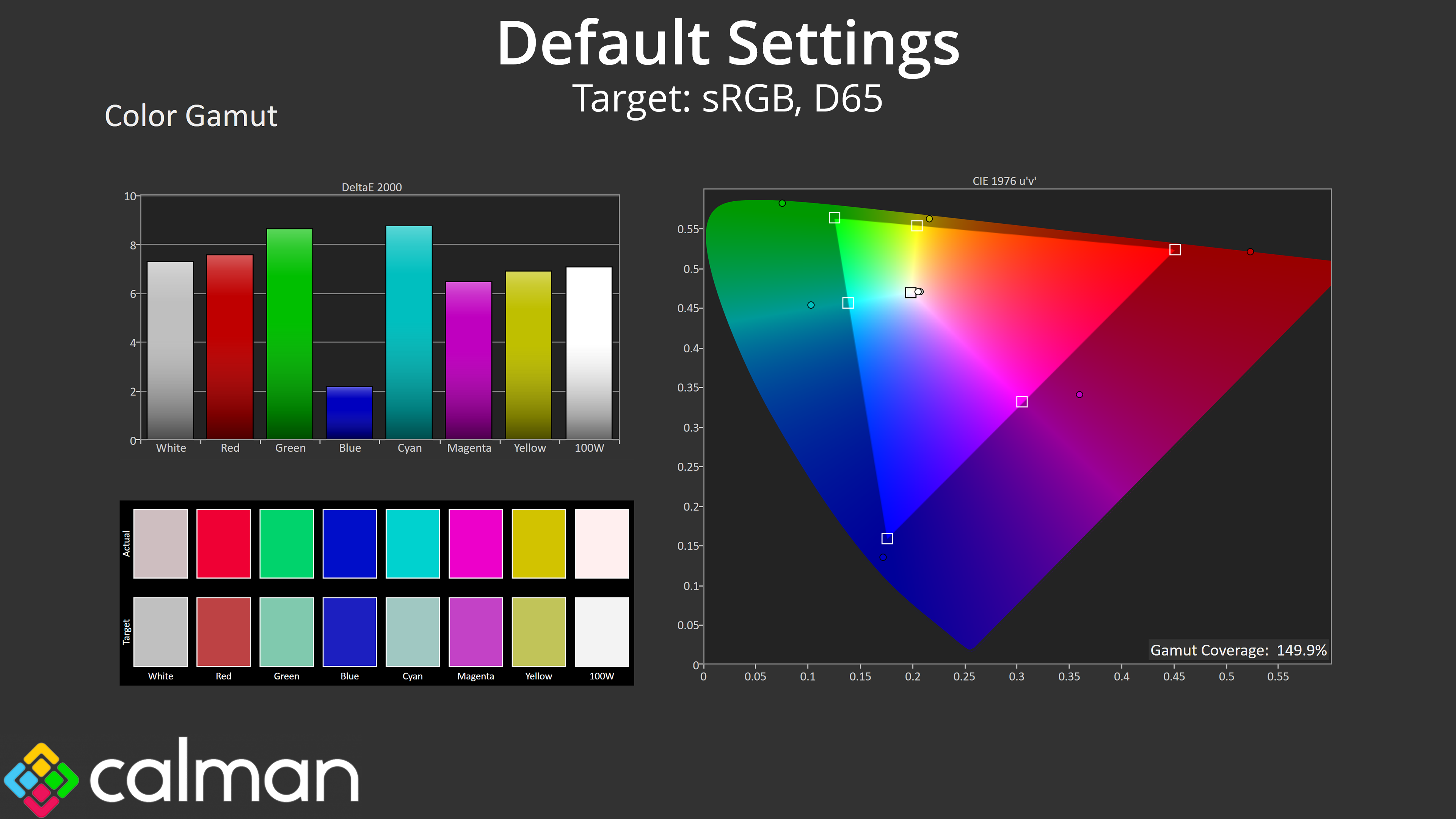
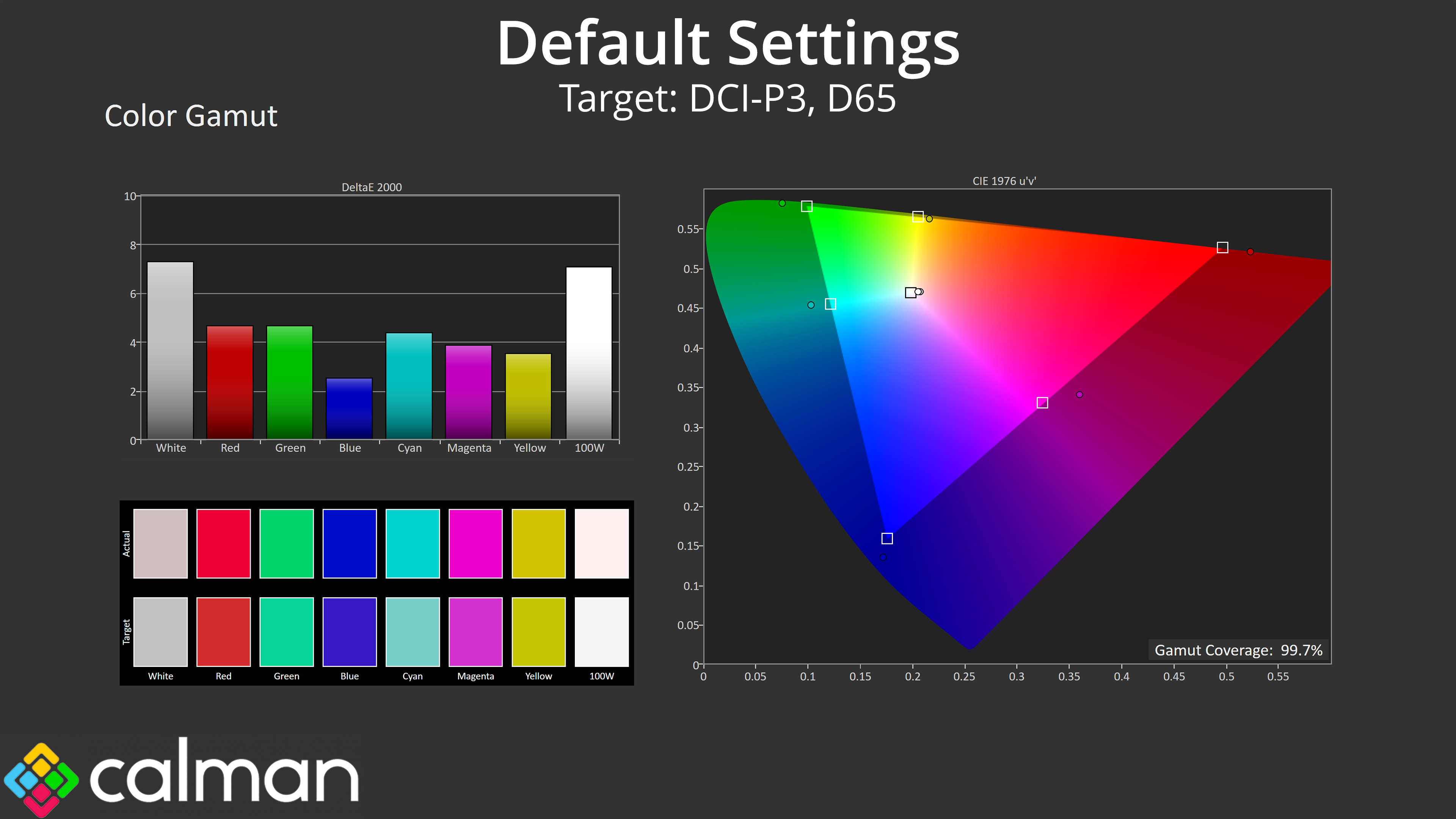
The monitor's gamut is exceptionally wide, I think the widest I have ever seen – even wider than what we typically see from QD-OLED! It far exceeds the sRGB and delivers 99.7% DCI-P3, 100% Adobe RGB and 86.9% Rec.2020.
Greyscale

Default greyscale performance leaves a bit to be desired, however. For one, the colour balance is noticeably warm, averaging 5979K in our tests. Gamma is also a little low – not by much across the curve, but it averages 2.106, rather than the 2.2 target we are aiming for. That, but primarily the colour balance, results in the higher-than-expected average dE 2000 of 5.12.
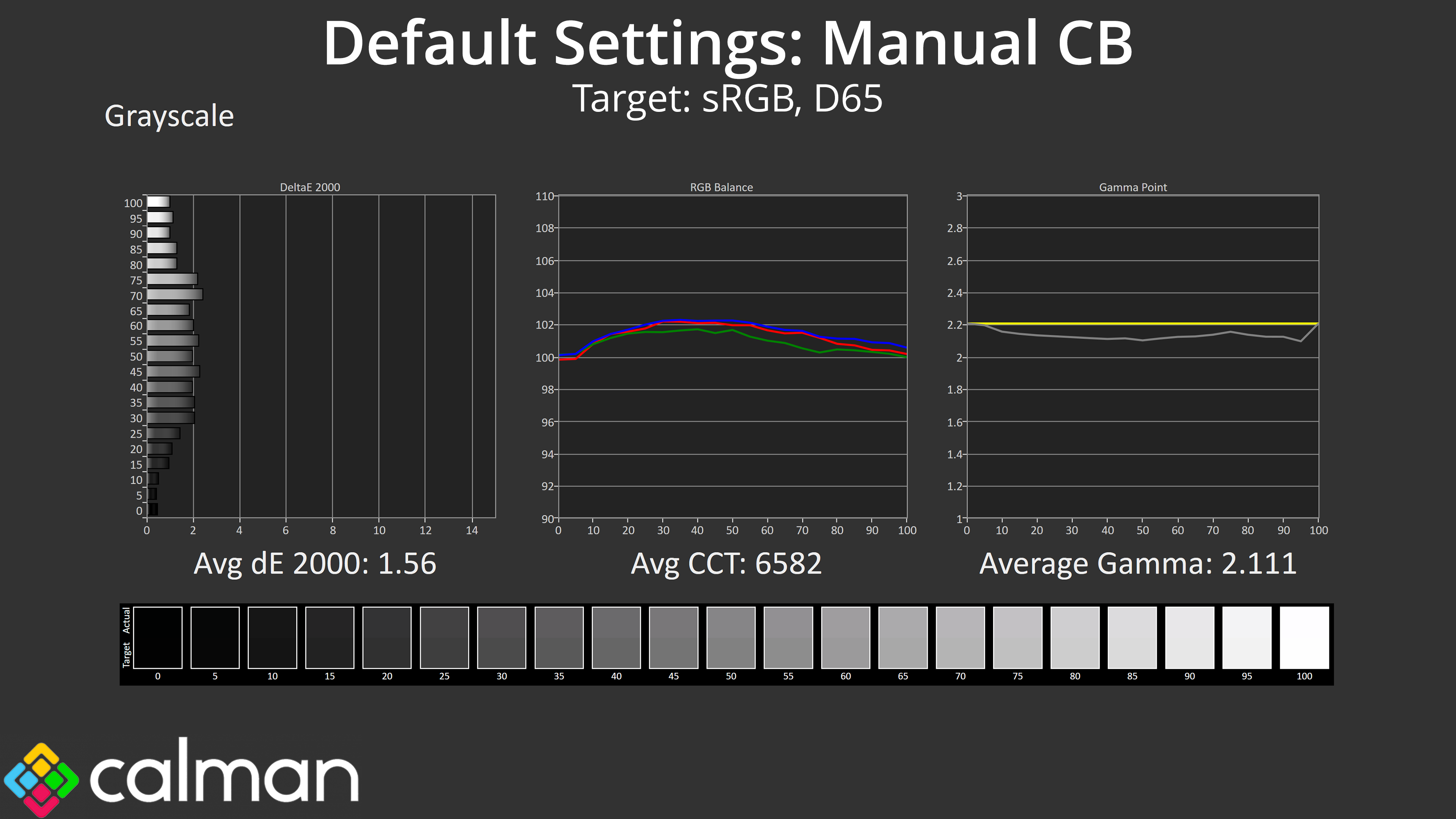
Philips does include manual colour balance, and I used the following settings for the above testing: R100, G94, B96. This makes a big difference, though doesn't correct gamma behaviour. Still, the average greyscale dE of 1.56 is much improved.
Saturation
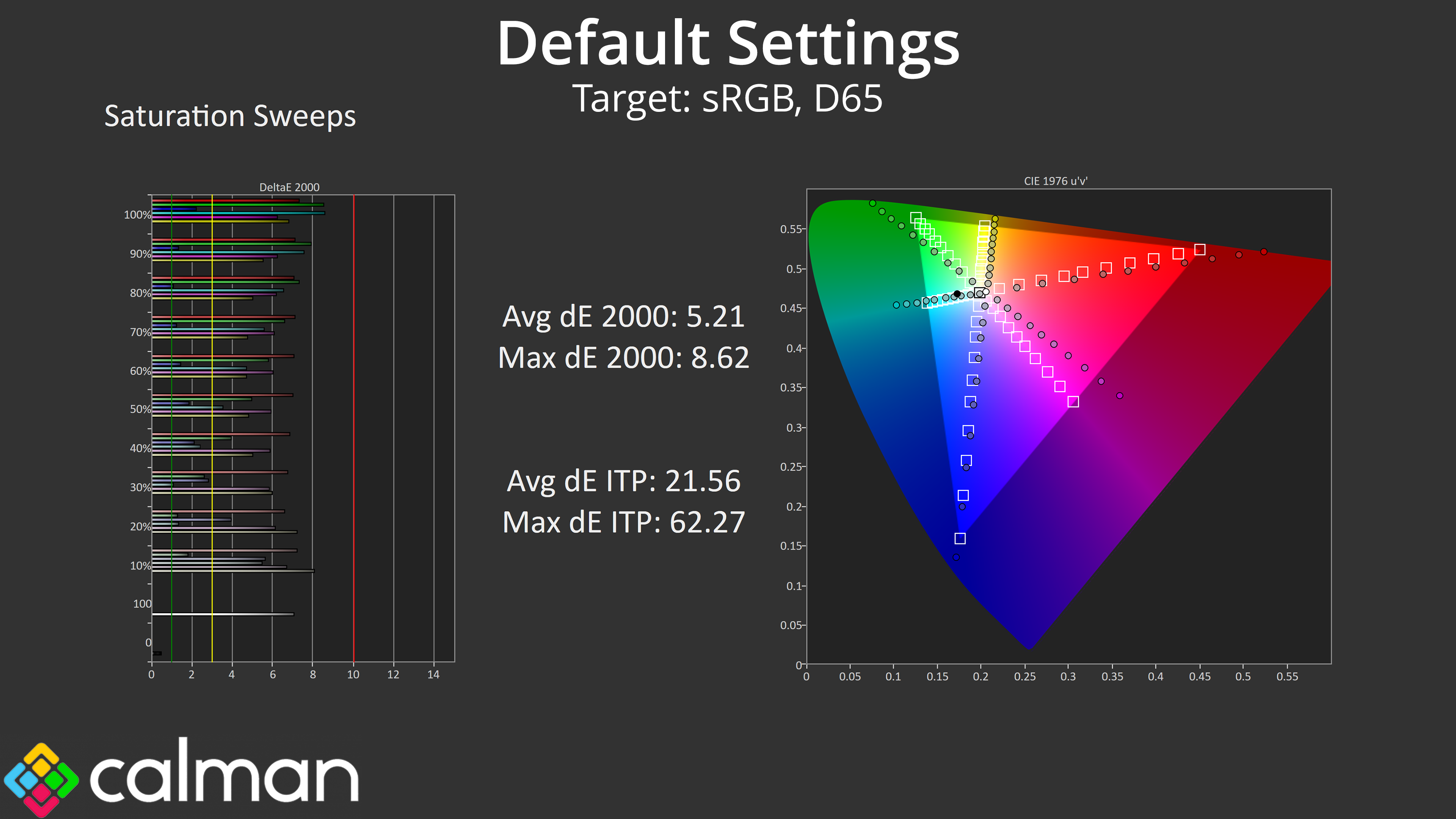
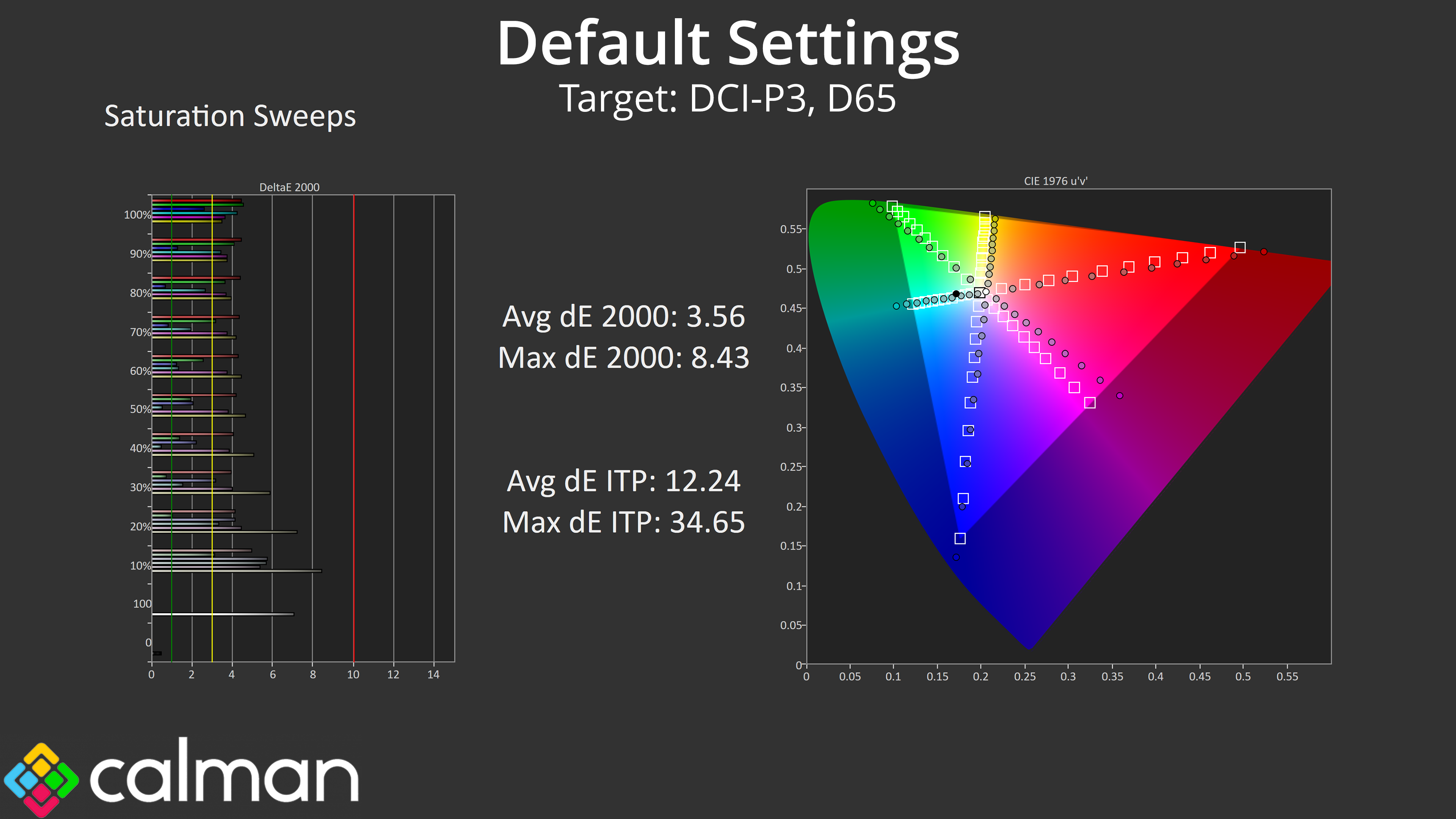
As we'd expect considering the incredibly wide gamut, there is lots of over-saturation – even relative to the DCI-P3 space, where we saw an average dE 2000 of 3.56.
Colour Accuracy
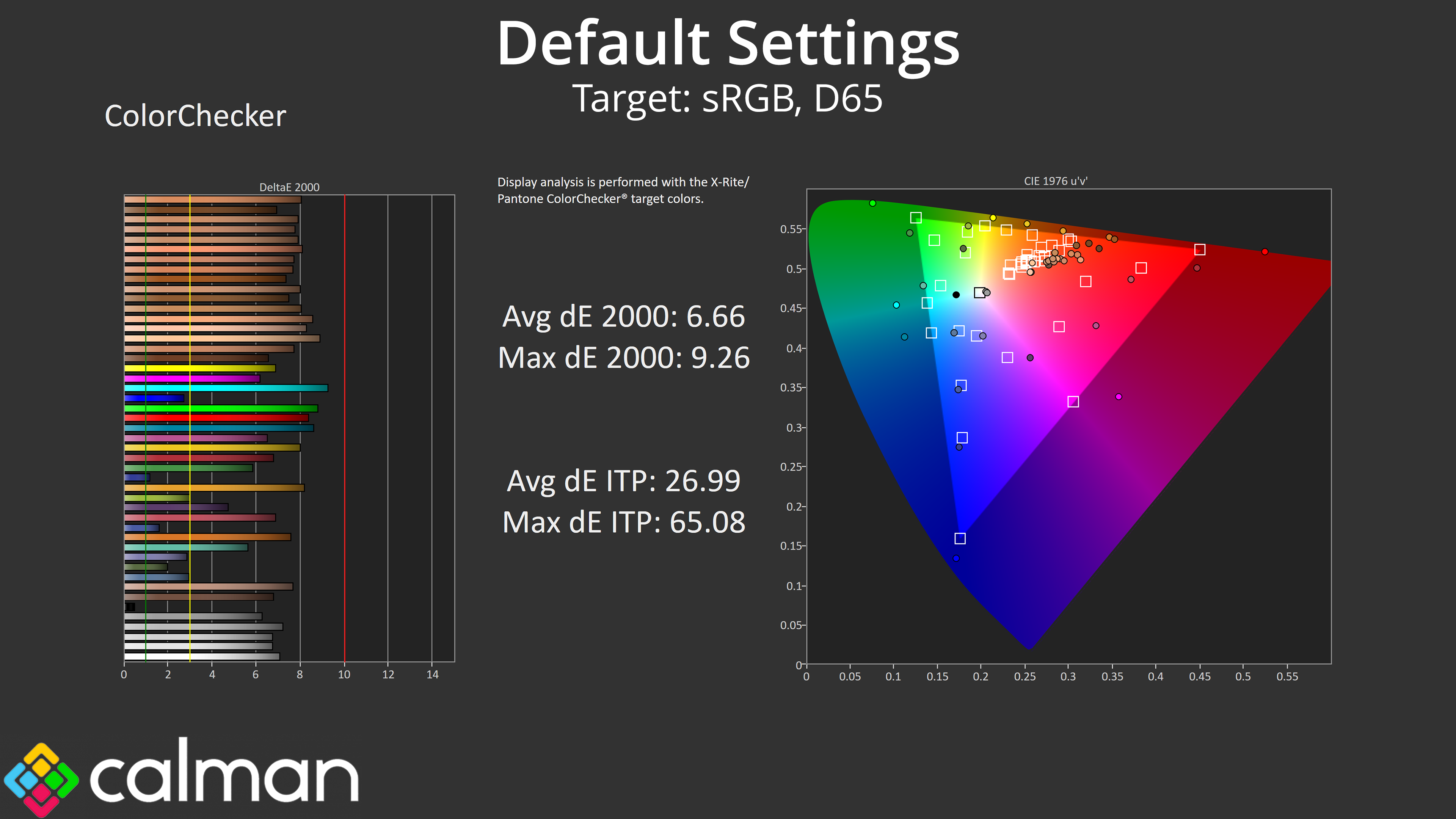
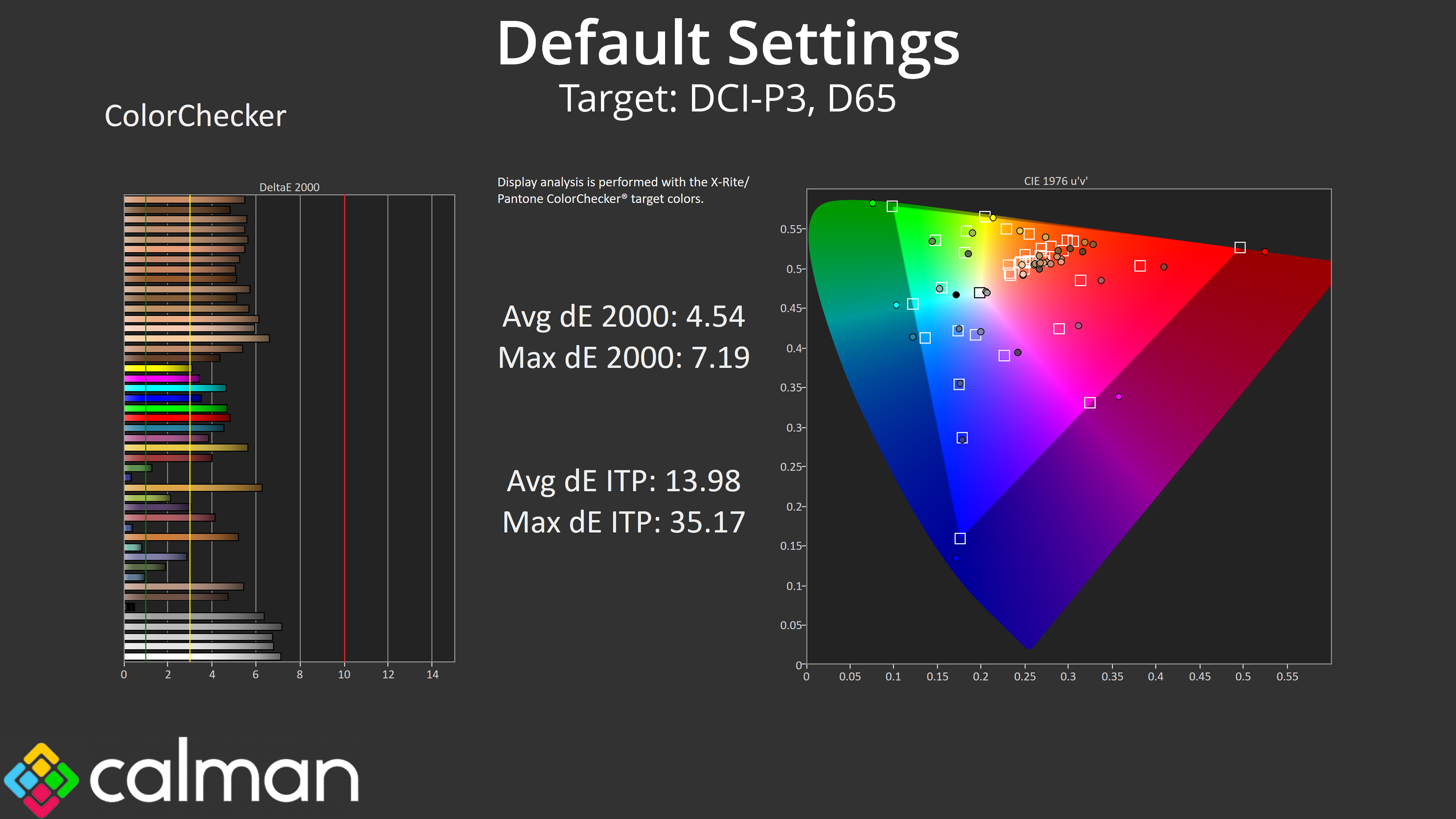
That has a knock-on effect for out of the box colour accuracy, with high average dEs on show regardless of whether we were looking at the sRGB or DCI-P3 space.
sRGB Emulation Mode
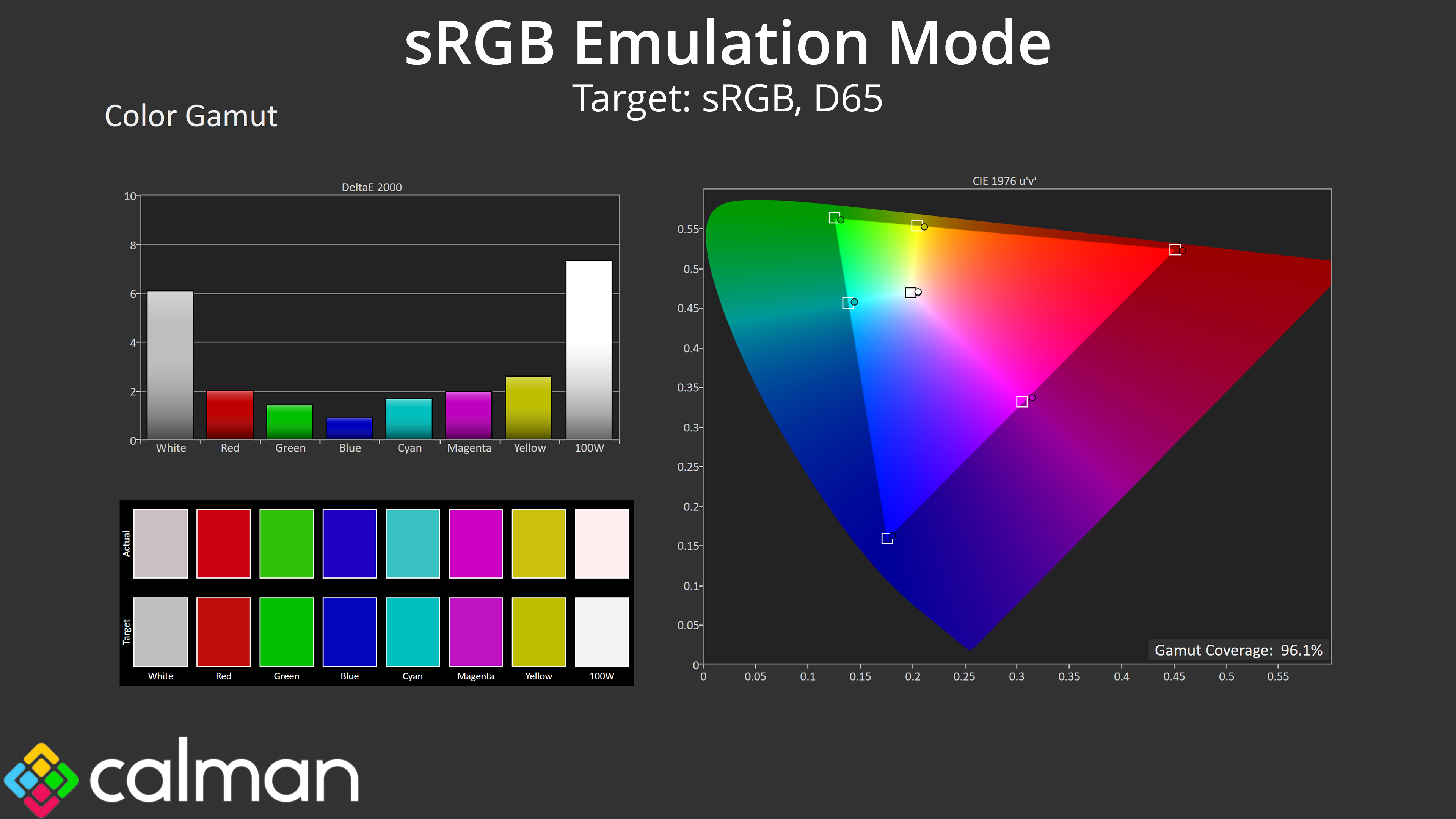
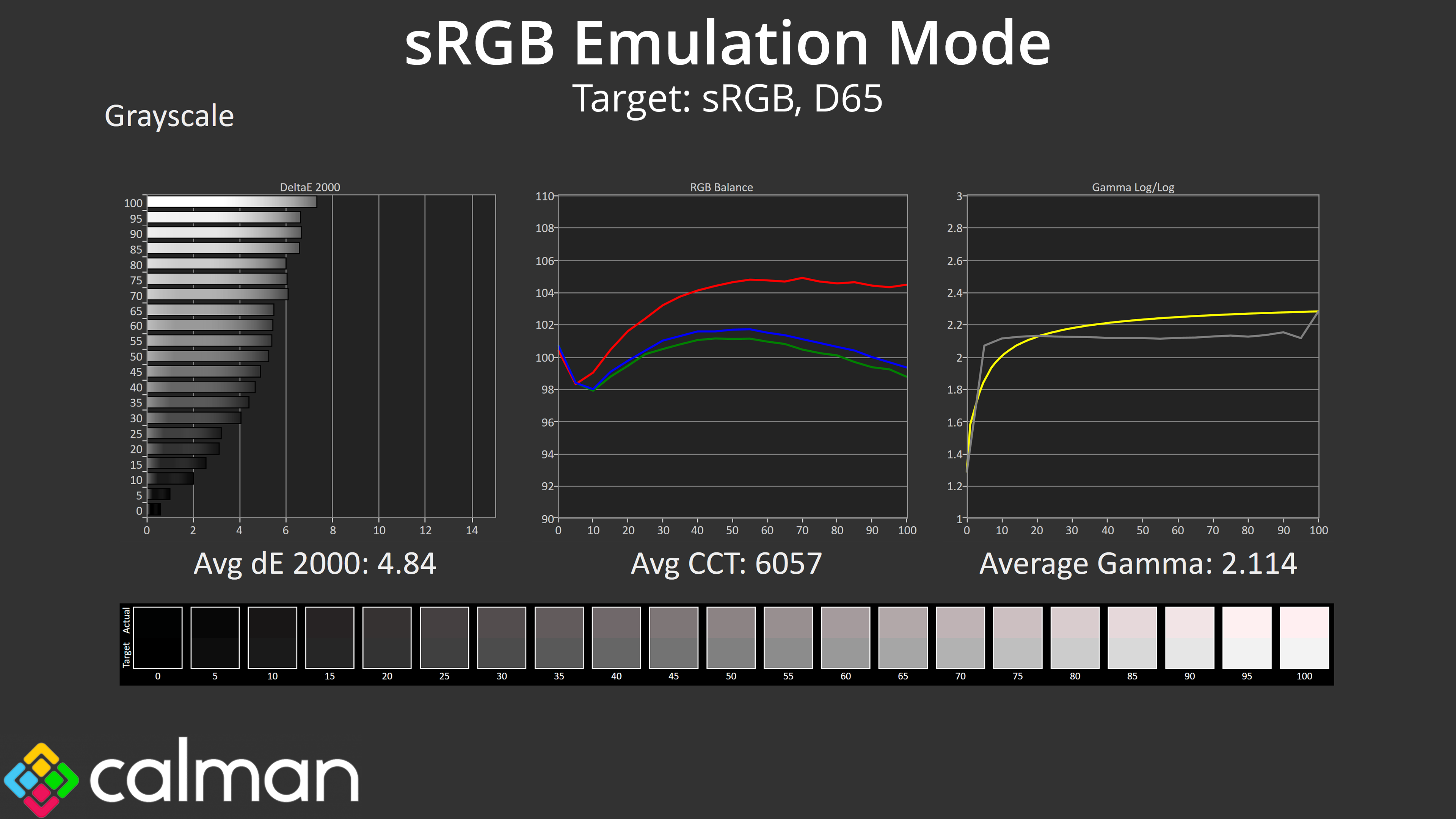
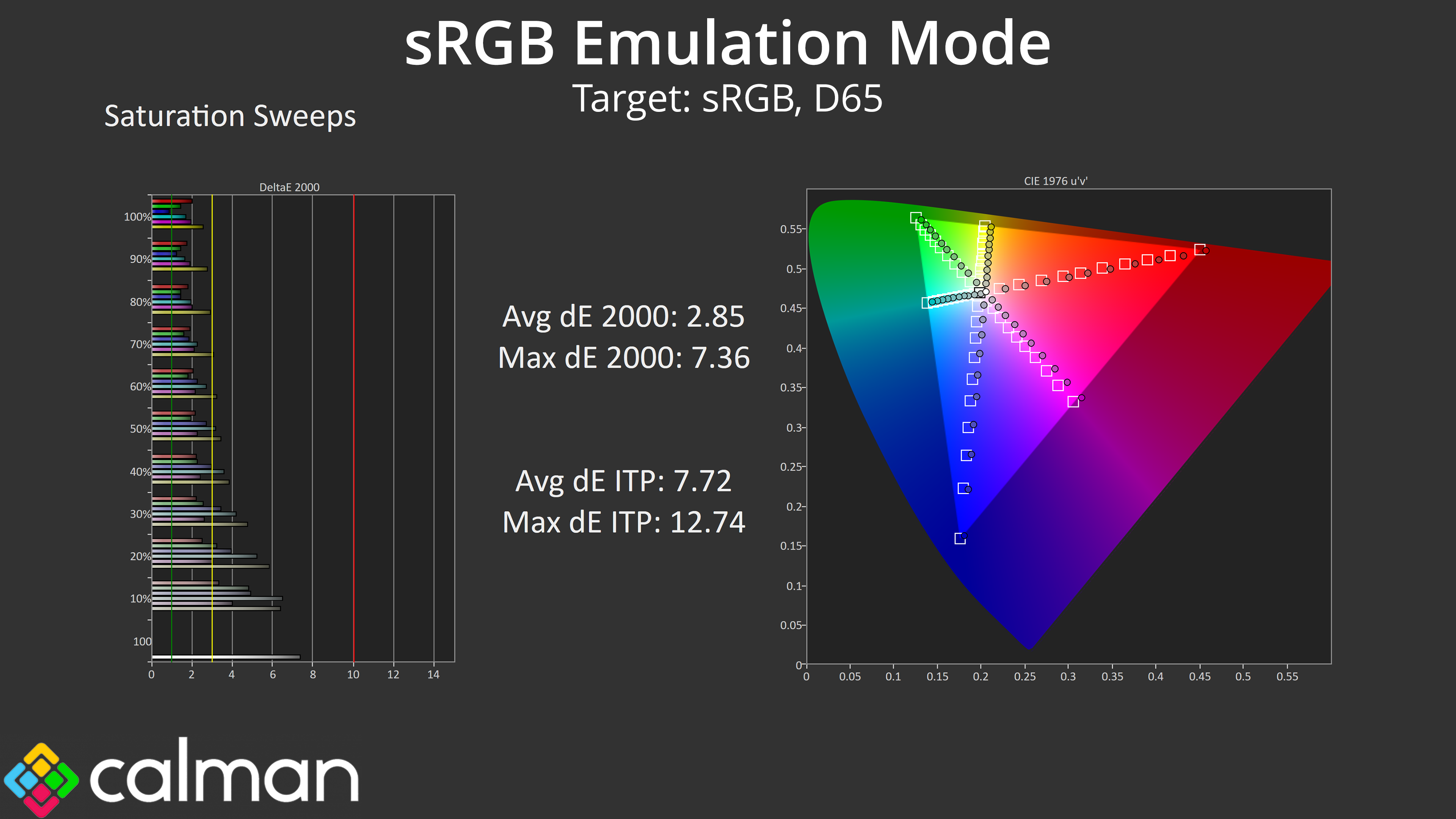
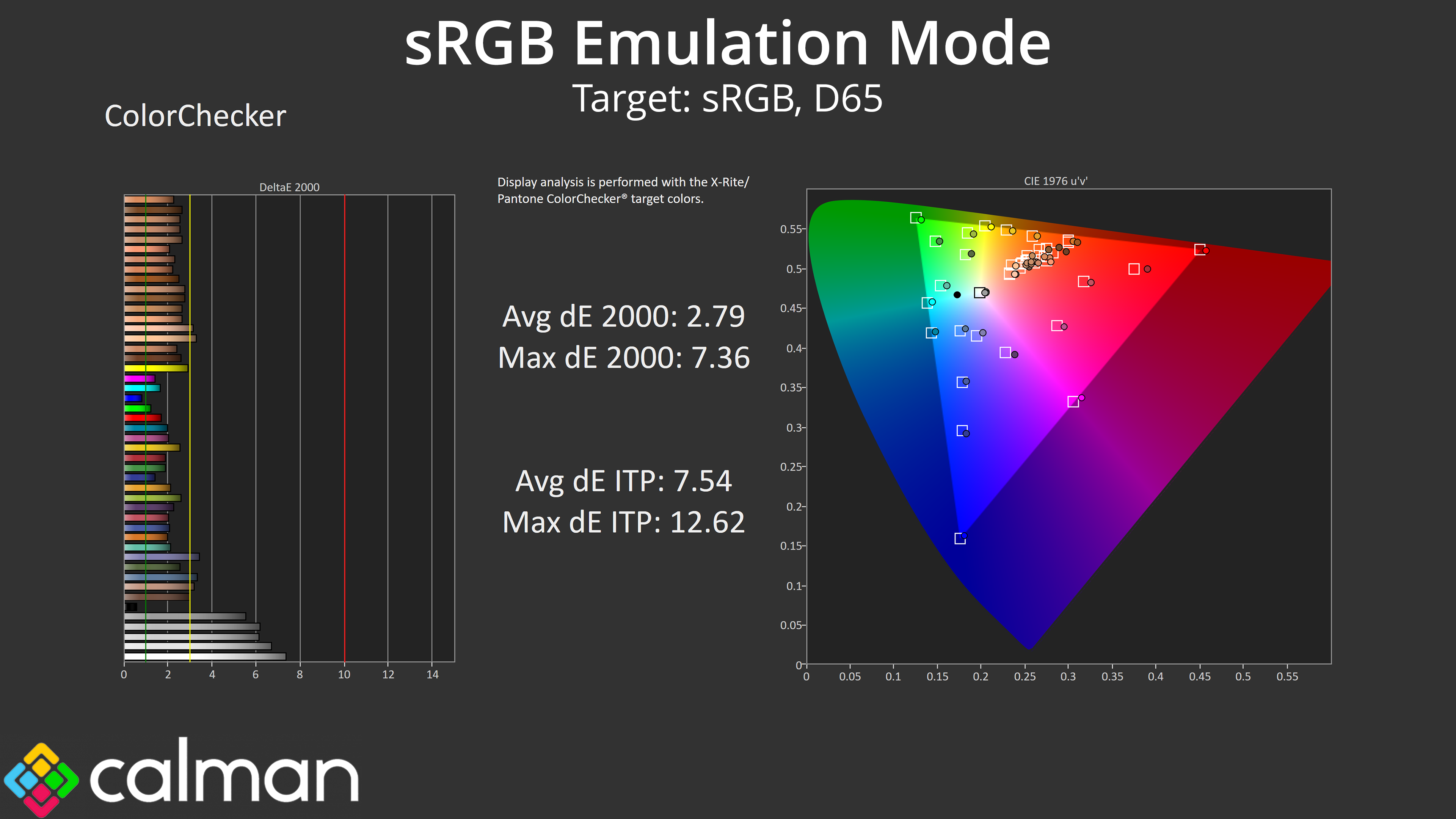
We tried three colour space modes, the first being the sRGB emulation option. This does a good job at clamping the gamut to avoid over-saturation, but it doesn't improve the warm colour balance or slightly low gamma, so the greyscale average dE of 4.84 is still higher than I'd like. Both saturation and colour accuracy have improved though, but still not to particularly high levels – the average dE of 2.79 for colour accuracy, for instance, is fine but not great. And we'd be hoping for great results from a screen at this price and with these specs.
DCI-P3 Mode
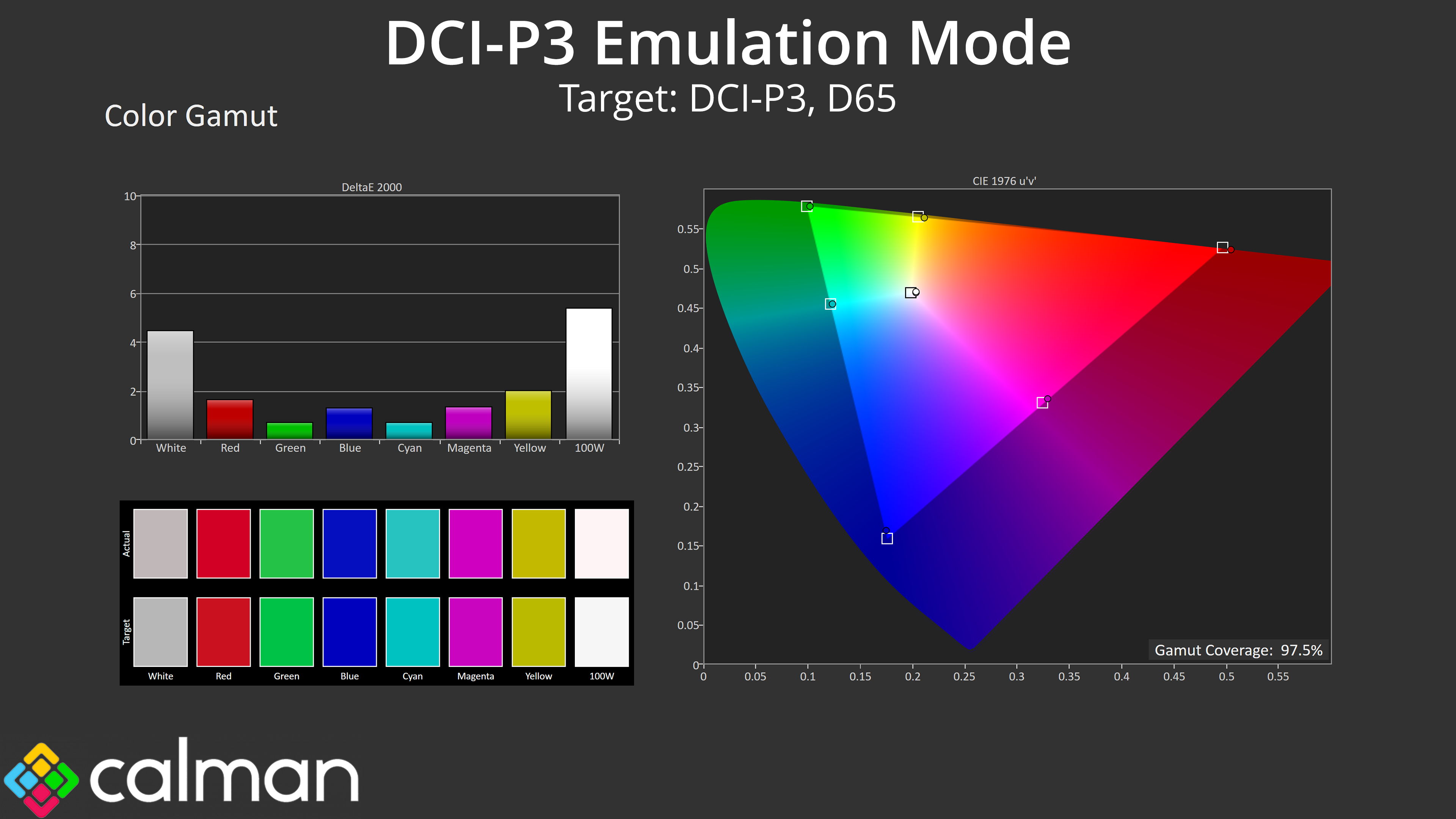
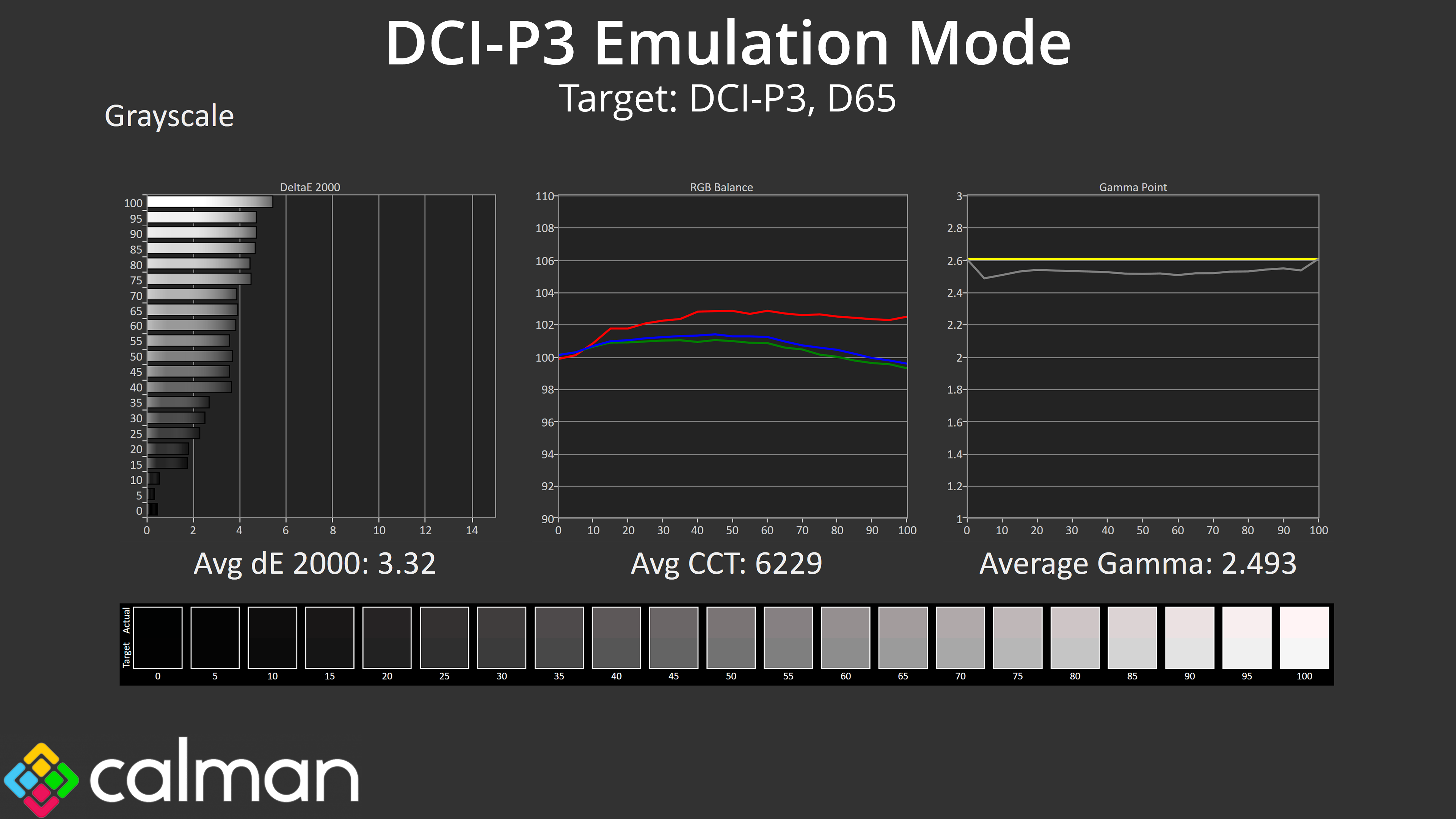
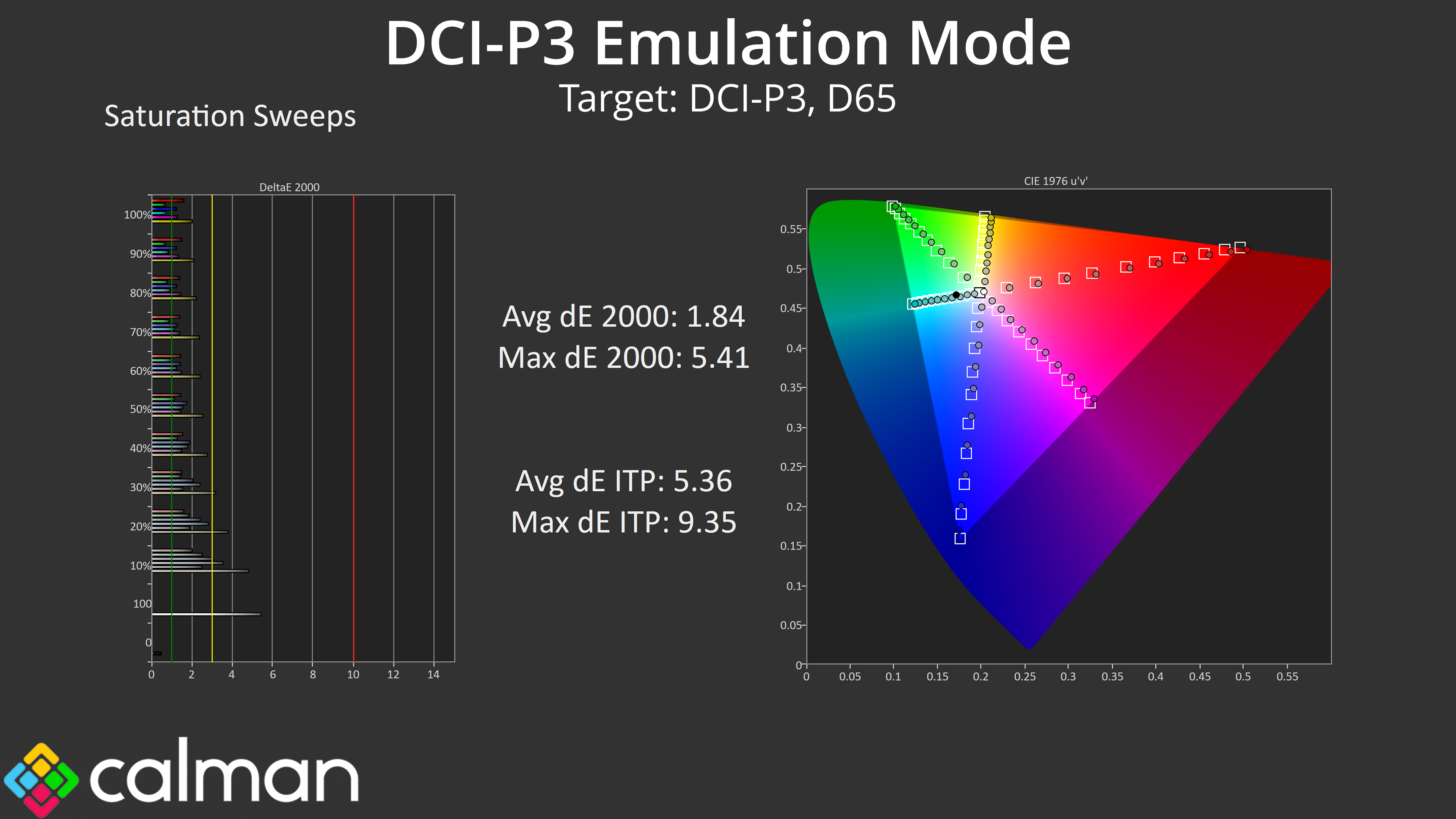
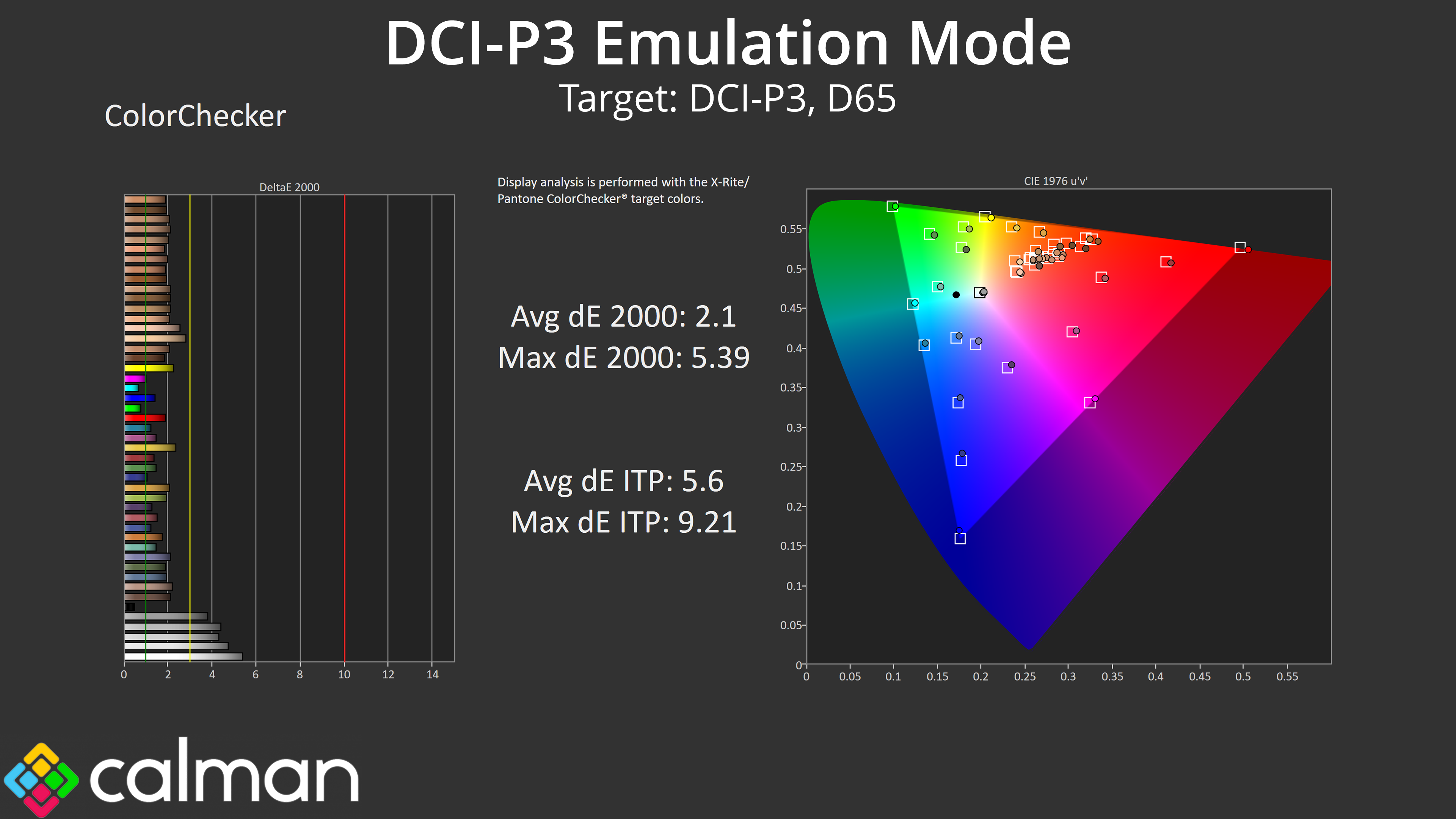
The DCI-P3 mode (not the Display P3 mode, to be clear) is a little better overall. Again it clamps the gamut well to avoid over-saturation and sees a small improvement to the overall colour balance, though gamma is still below the 2.6 target. The saturation average dE of 1.84 is more like it, and the colour accuracy result of 2.1 is also better, but still not exceptional.
Adobe RGB Mode
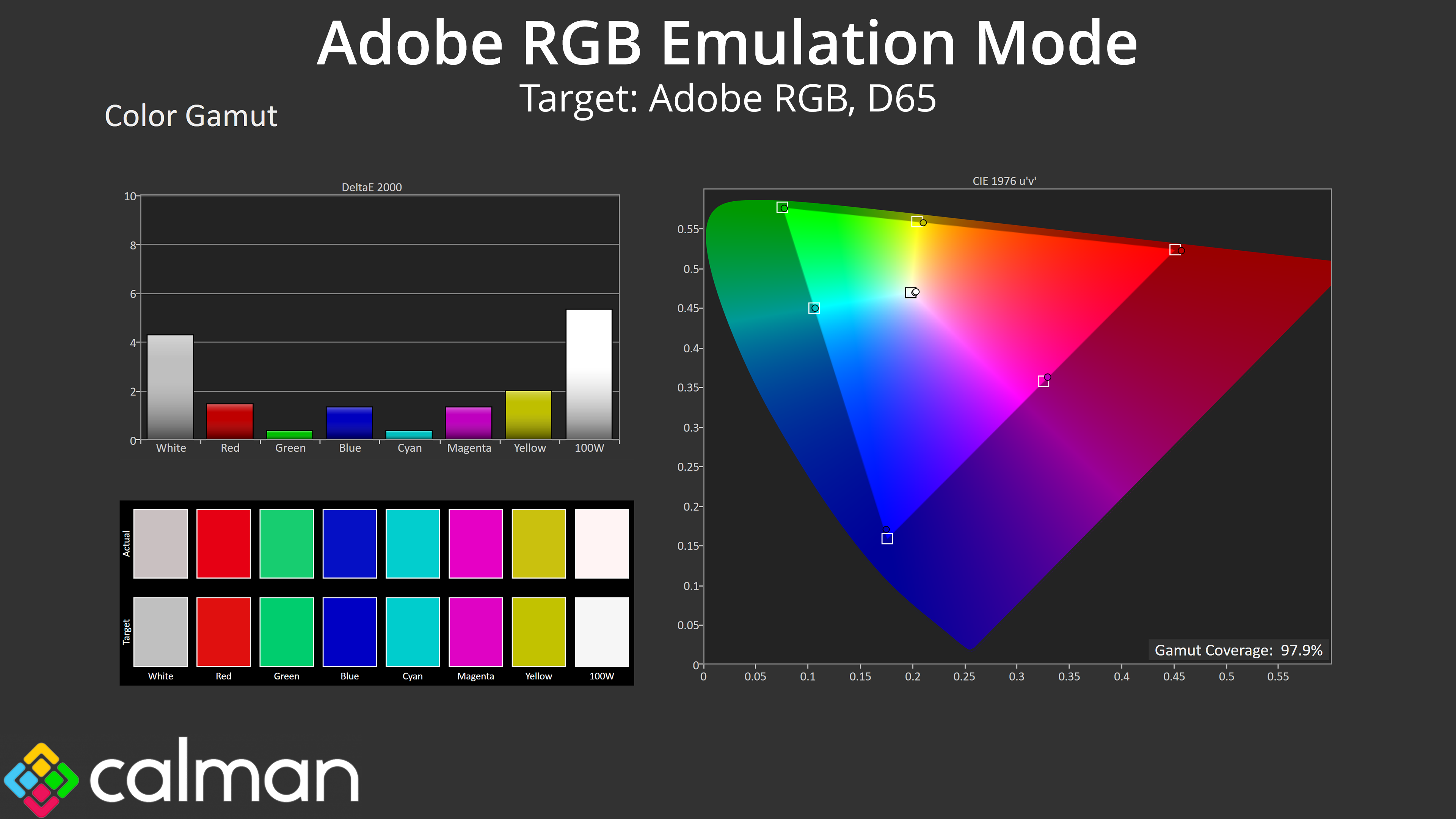
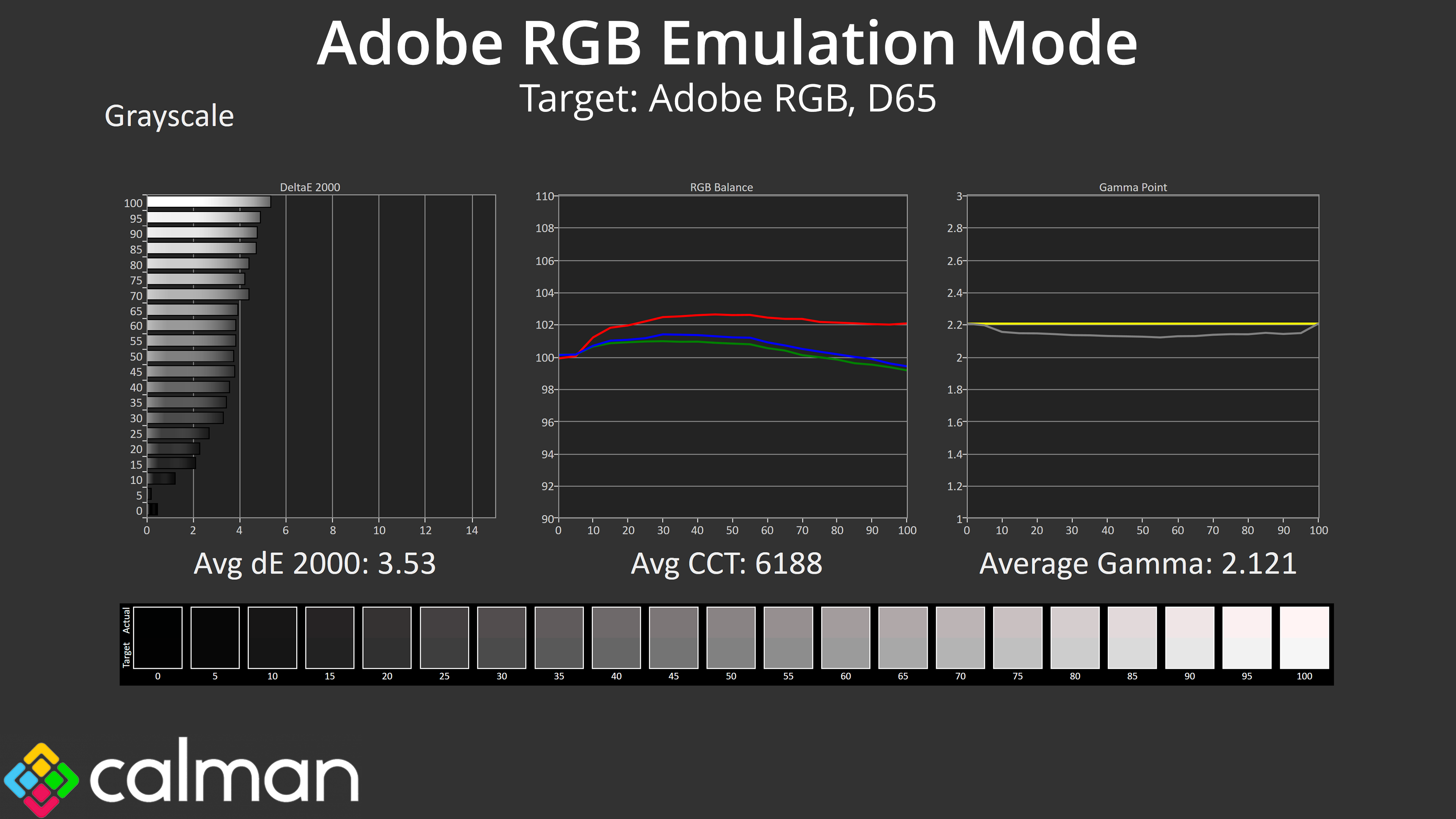
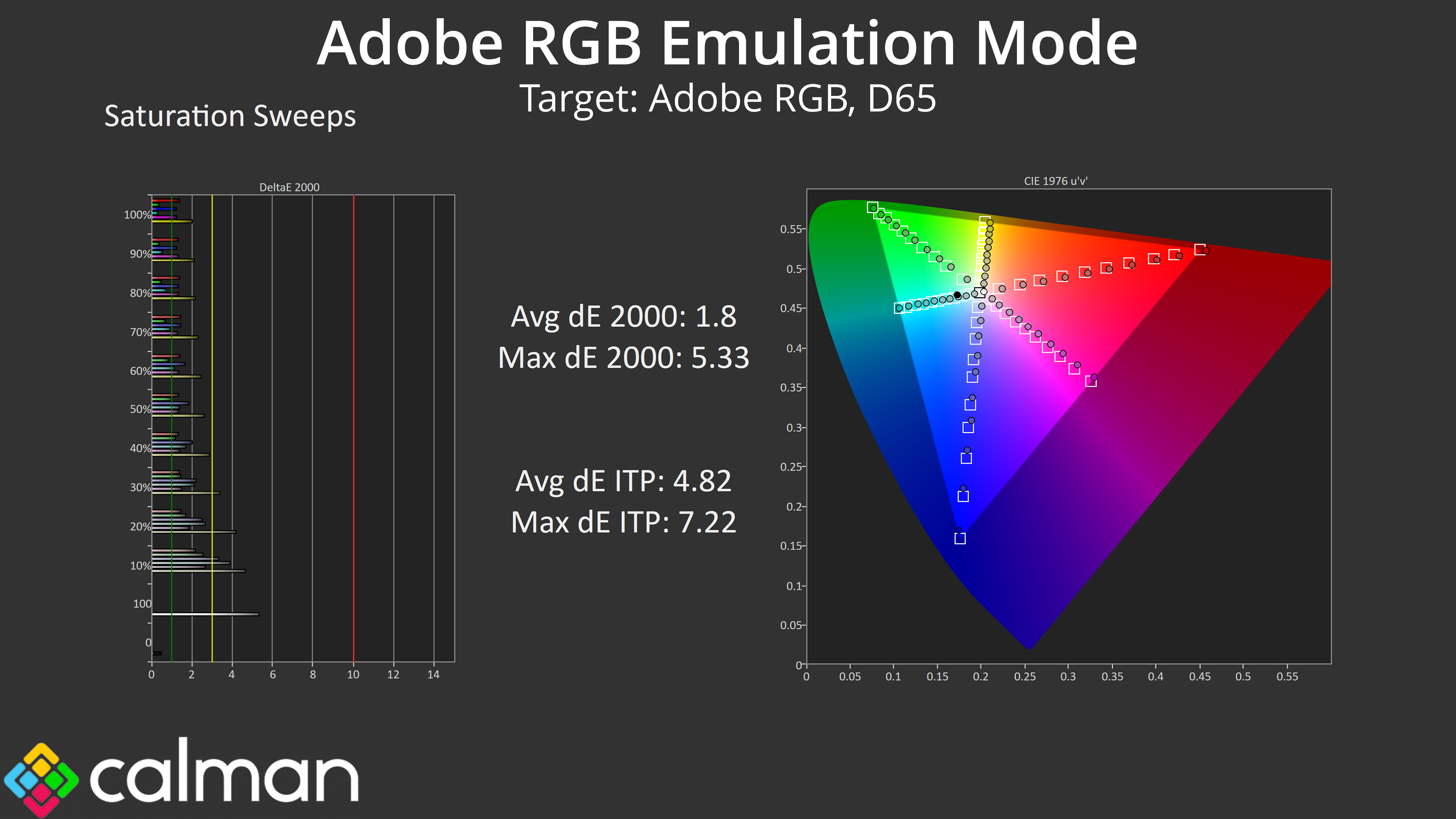
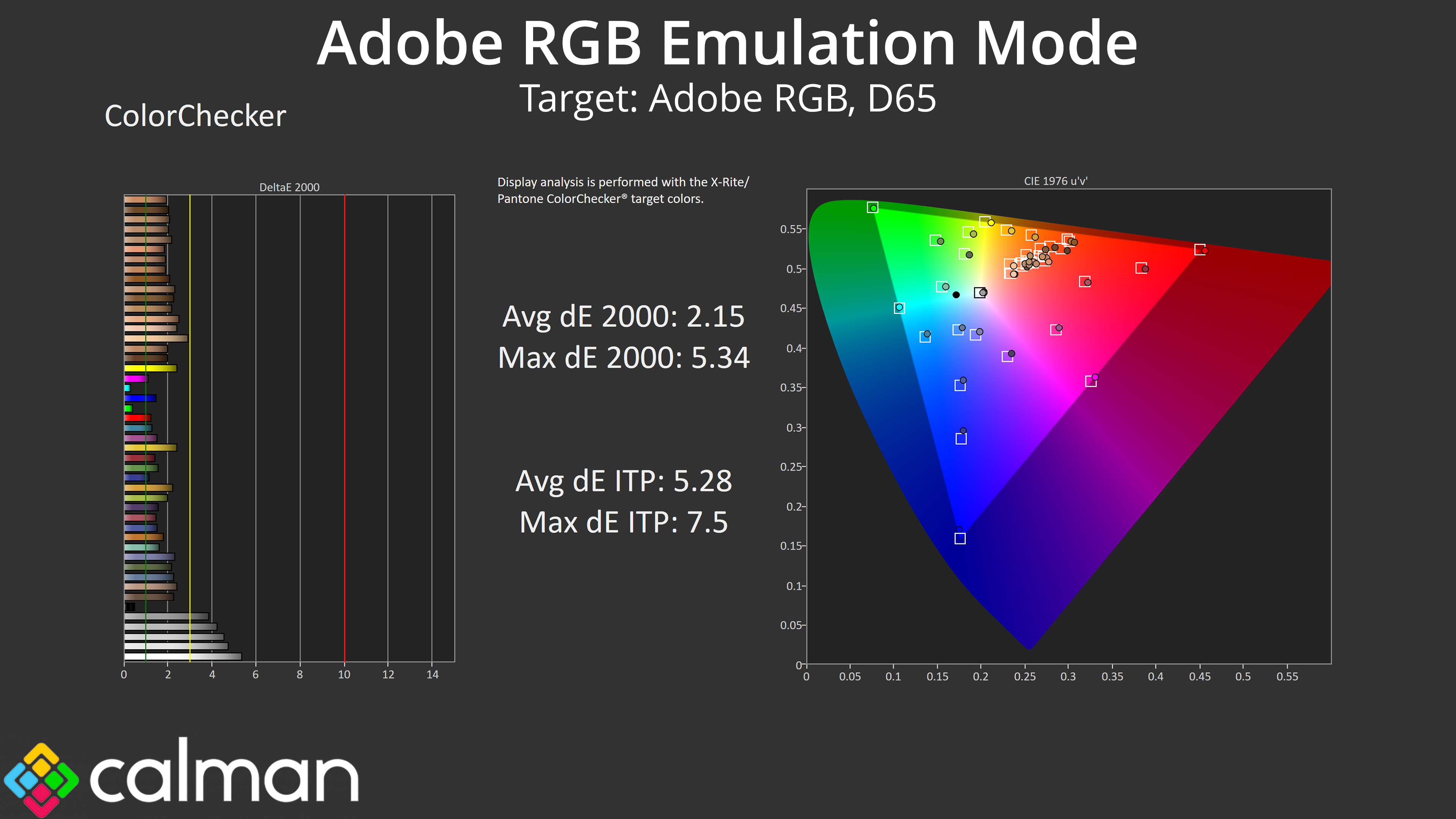
Lastly, we also tested the Adobe RGB mode. This is similar in performance overall to the DCI-P3 mode – gamma remains too low, but otherwise the saturation and colour accuracy average dEs are good without being spectacular.
Calibrated Results
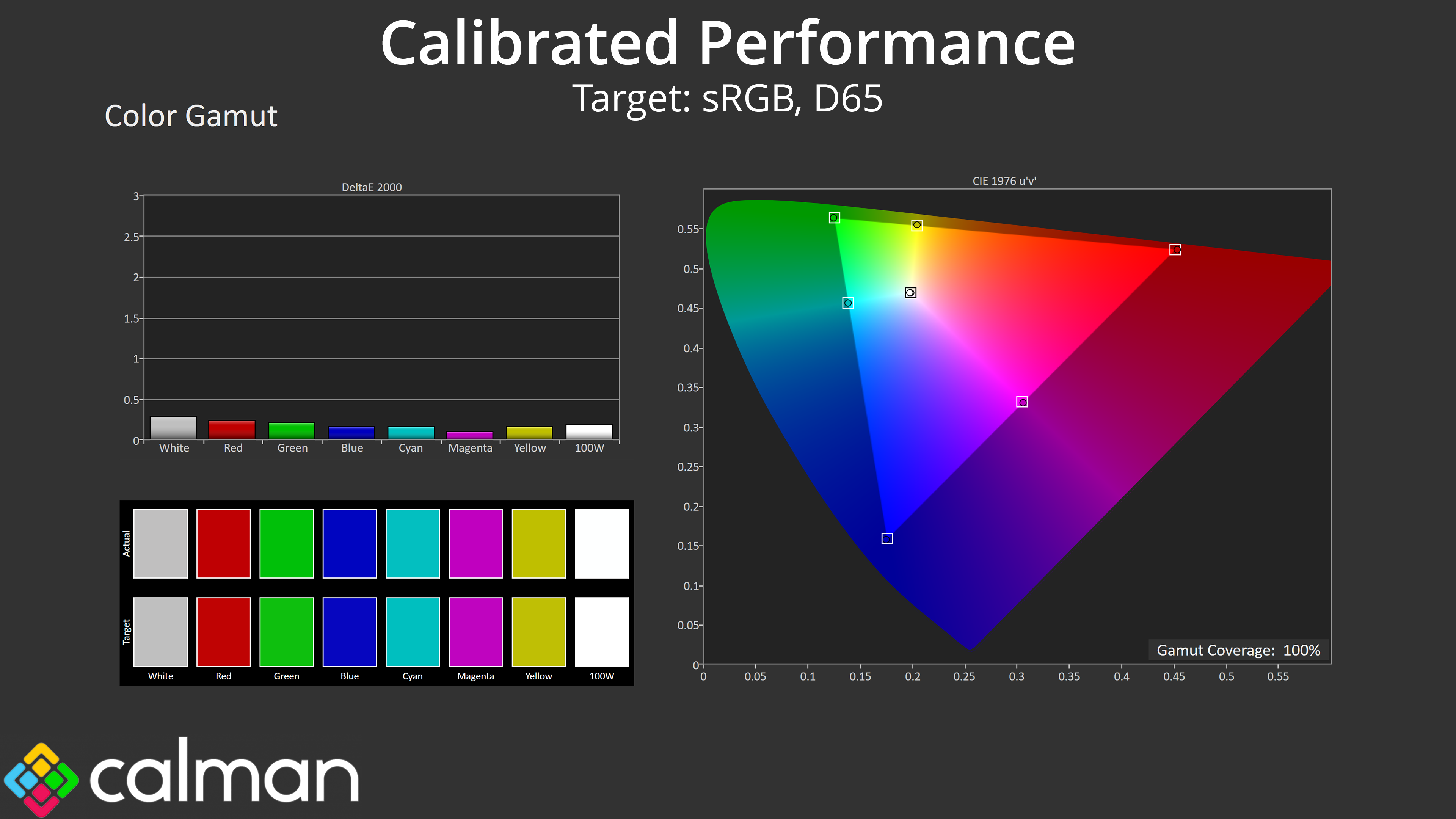
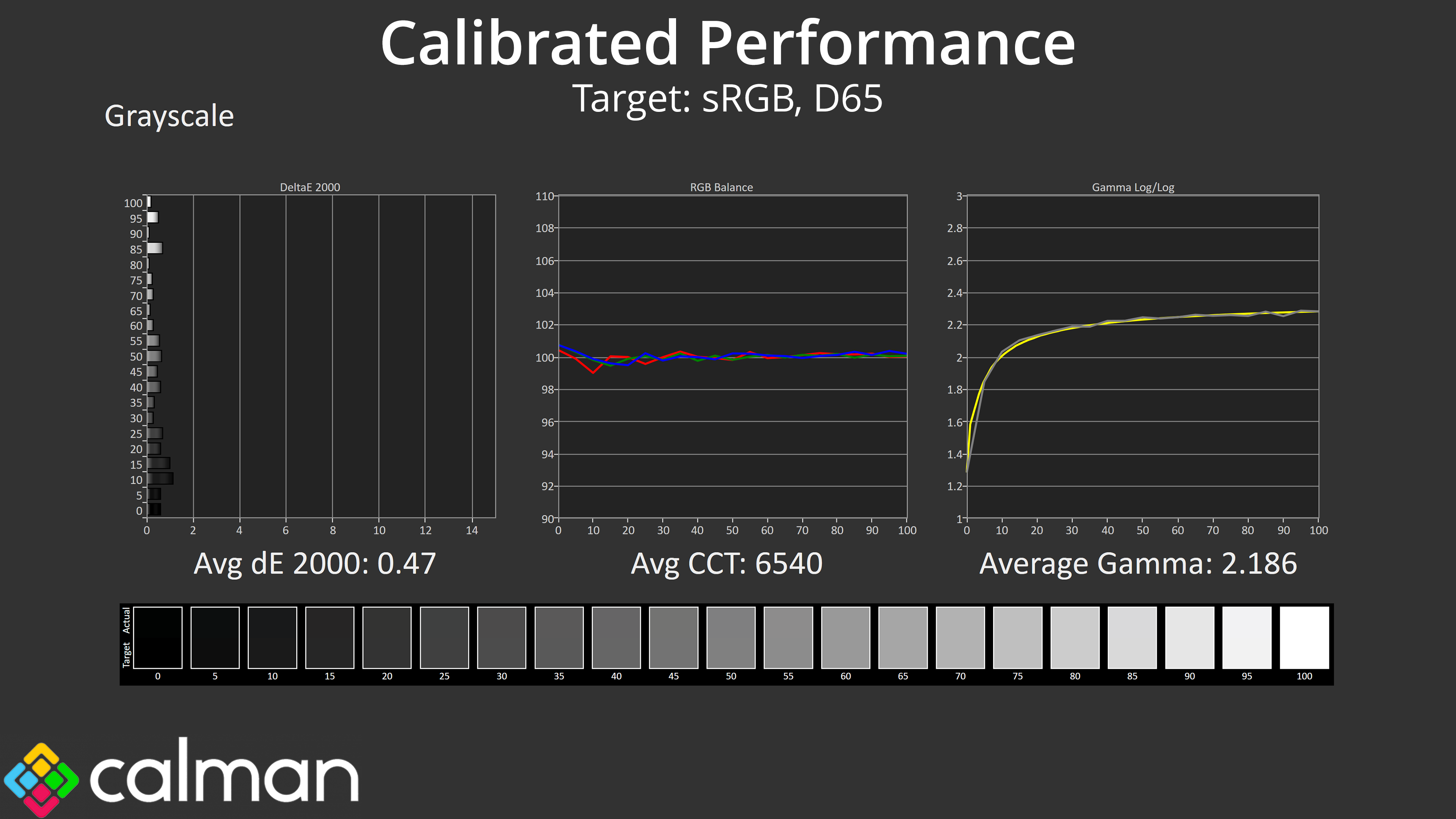
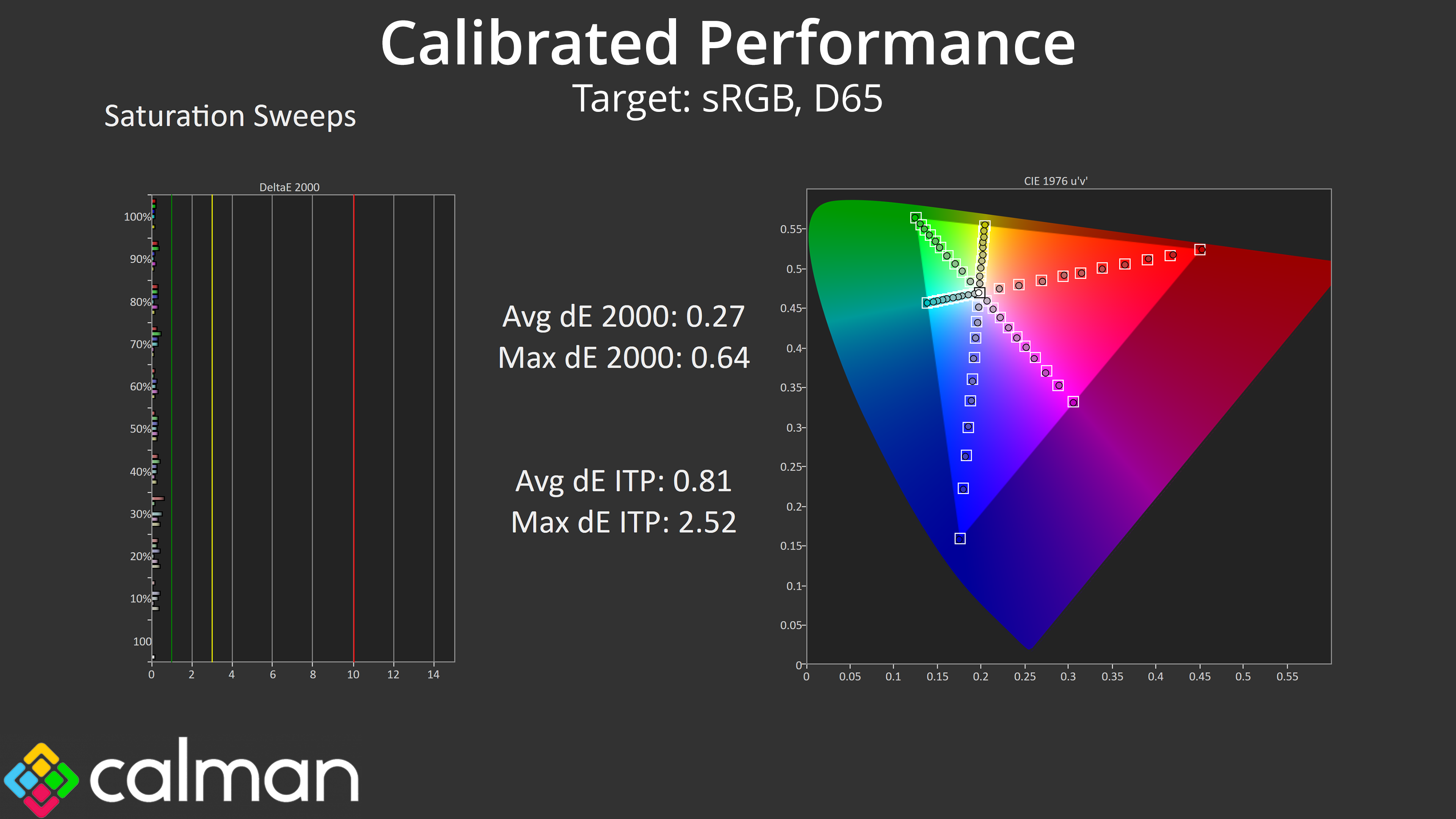
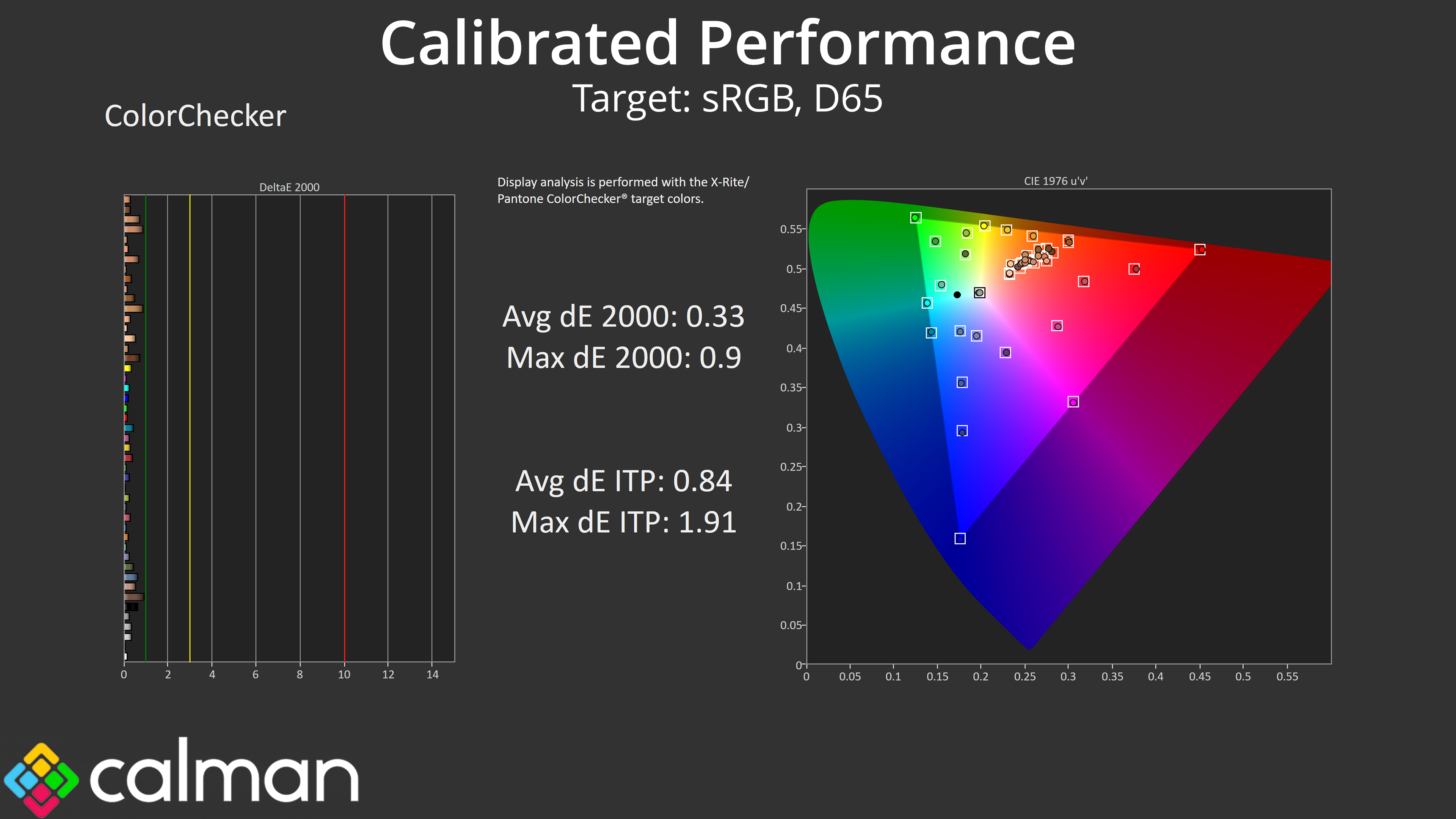
You'll need to calibrate for the best results, and as a reminder the 27E3U7903 is Calman Ready and supports hardware calibration. The results here are nothing short of outstanding, with some of the lowest average dEs I have ever seen – it goes to show the panel is capable of some highly impressive things if you have the required software and hardware tools – which I expect many people buying this screen may well do.
HDR Testing
Following on from the SDR results on the previous page, here we re-test the relevant areas of the display with HDR enabled.
Brightness
There's no need for a chart for the brightness results, given we saw the 27E3U7903 hit 770 nits across all window sizes (APLs). That's well above the DisplayHDR 600 spec which is good to see, though do note it's only a basic edge-lit dimming solution.
Greyscale
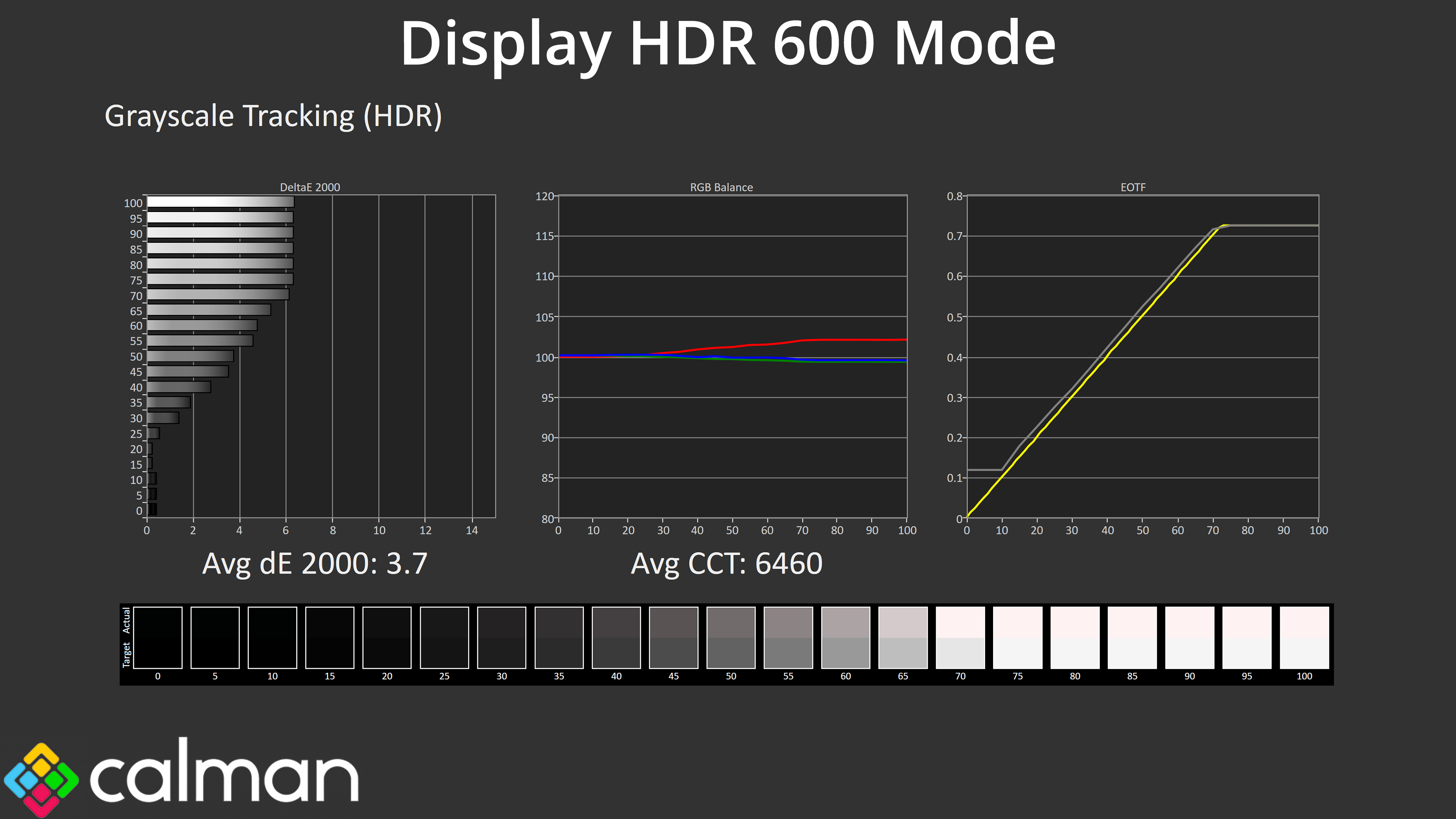
Using the default Display HDR 600 mode, the HDR greyscale performance is fine if unspectacular. It's still too warm overall, while the EOTF curve is too bright across the range.
Colour Accuracy
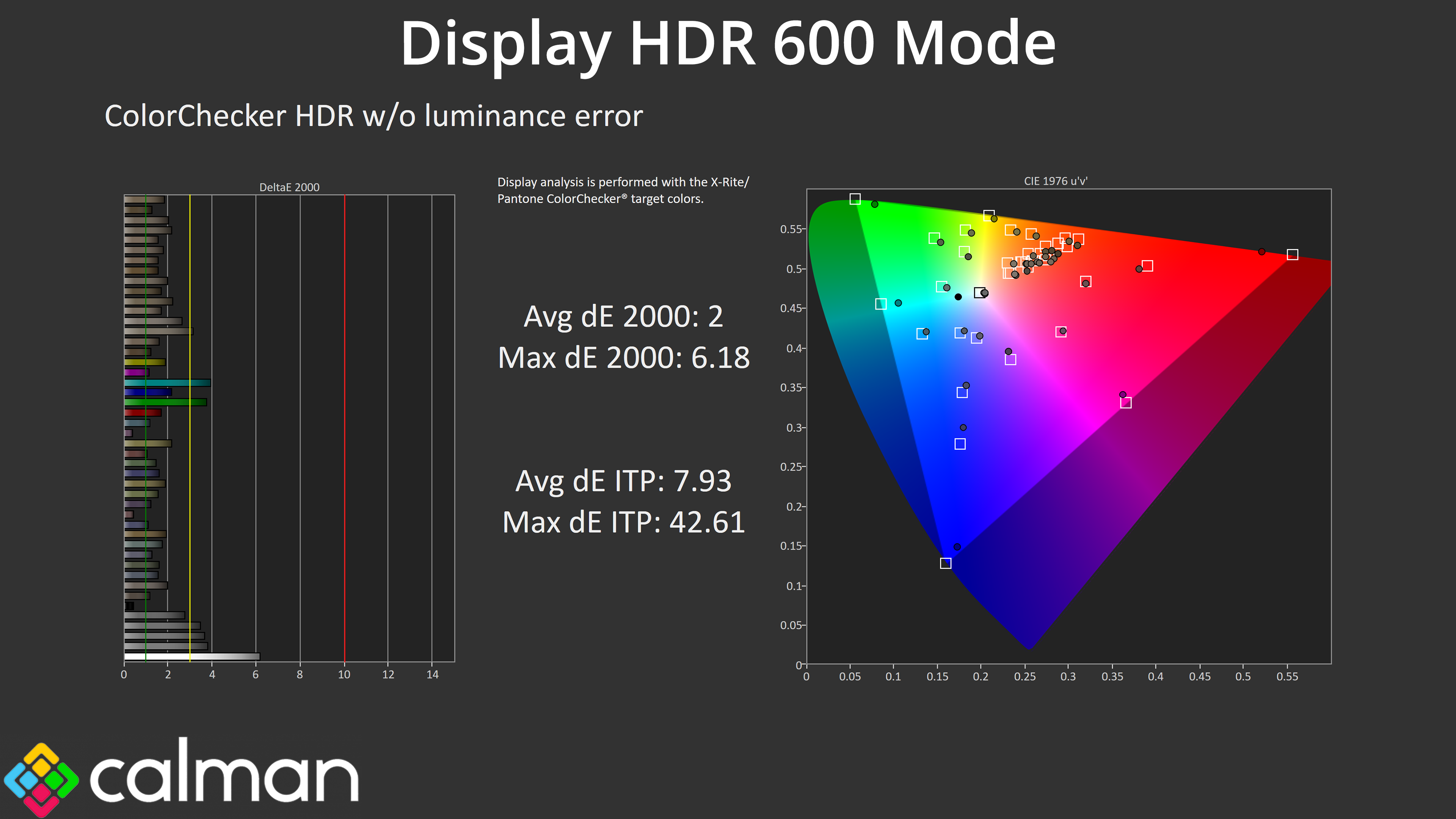
HDR colour accuracy is decent though, hitting an average dE 2000 of just 2. The biggest offenders are the 100% cyan and 100% green channels, though that is to be expected given the monitor doesn't cover the whole Rec.2020 colour space.
Overall, I'm not sure too many people will be buying this monitor for its HDR capabilities – it lacks proper local dimming that's necessary for the contrast levels required for a proper HDR experience, but it could get you by depending on your workflow.
Glossy coating
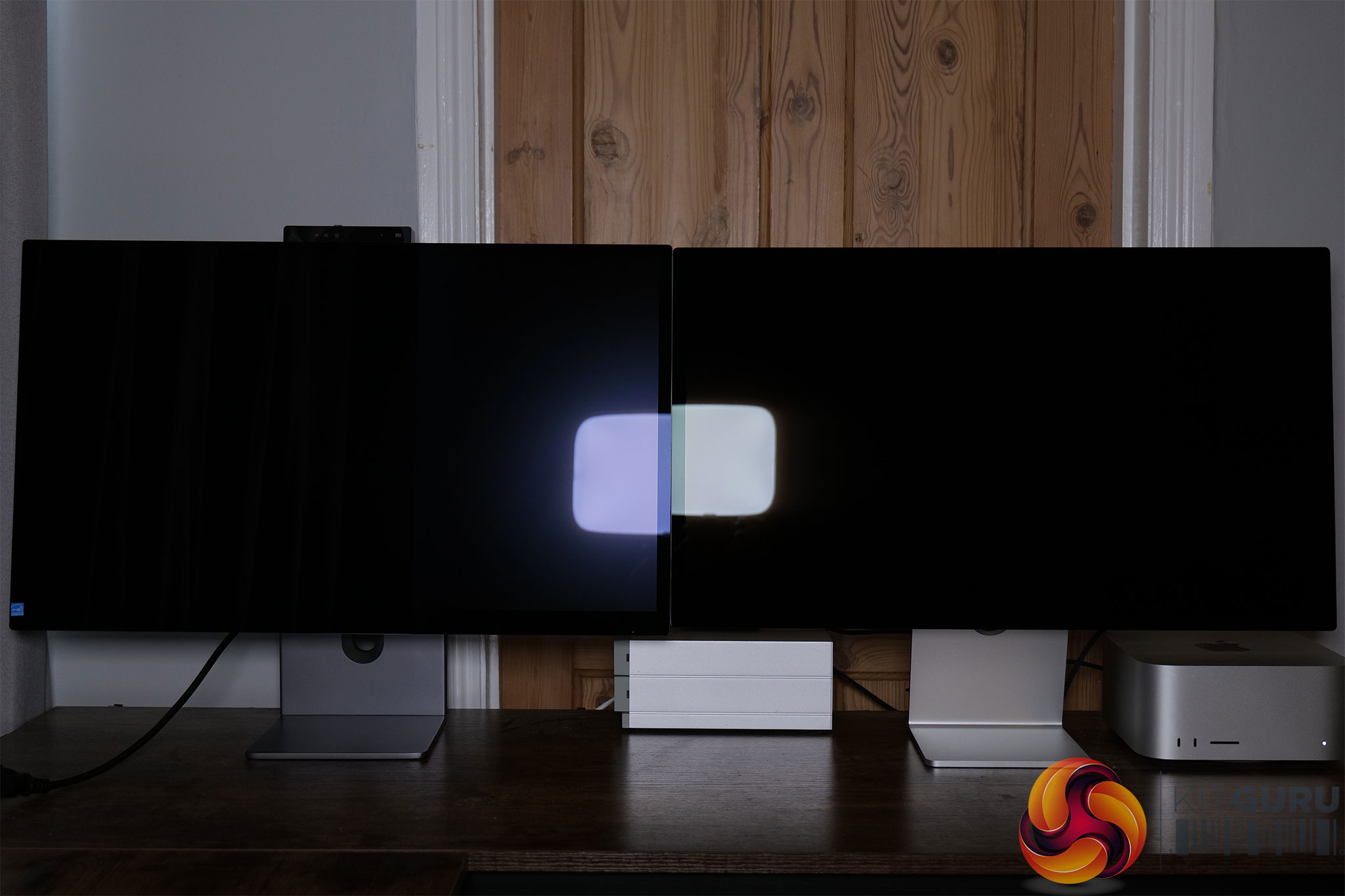
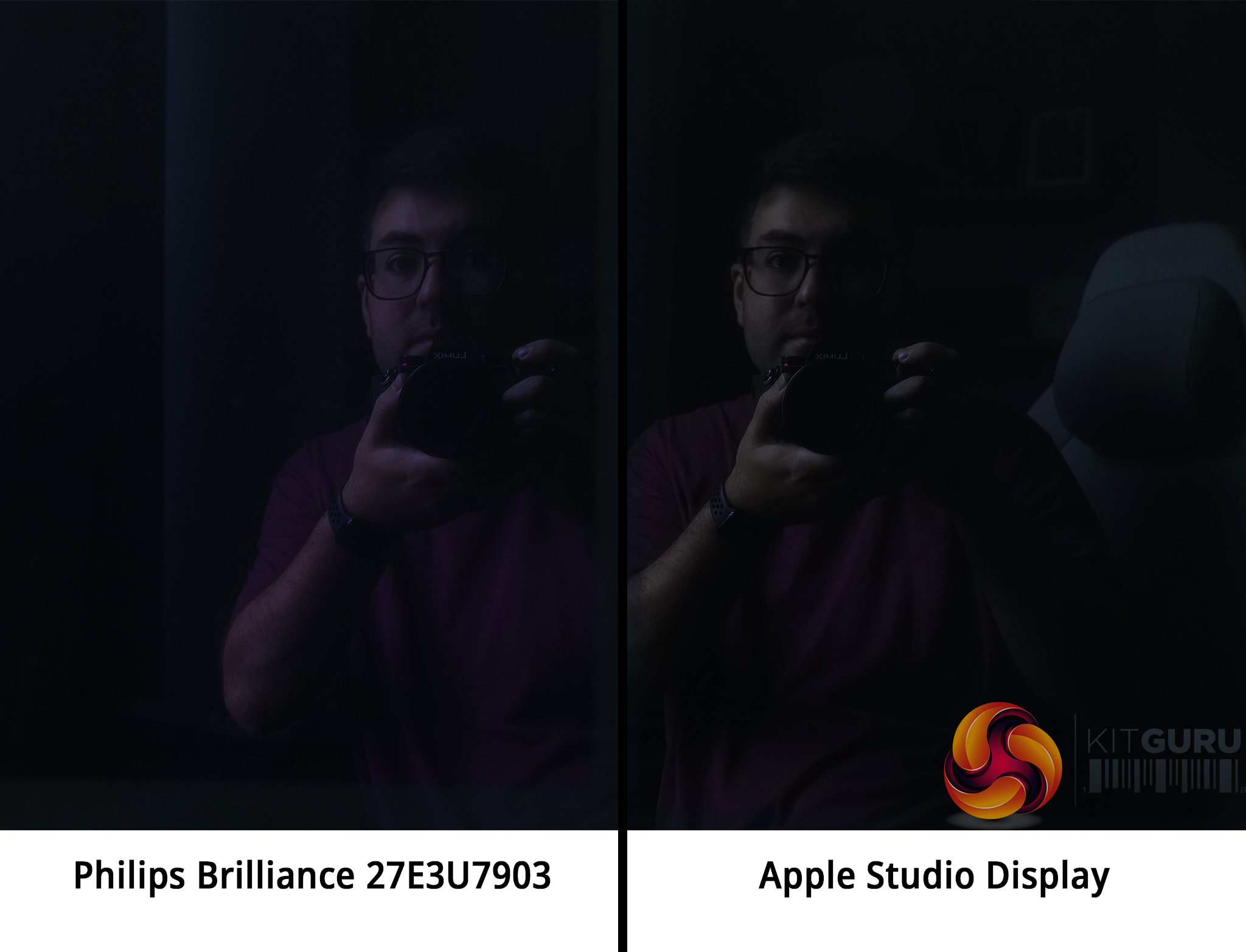
I also just wanted to quickly highlight the glossy coating used on the 27E3U7903, rather than the matte finishes we are used to seeing. I've put it next to the Apple Studio Display again and you can see a similar mirror-like reflection, though both have a slight anti-reflective coating that gives off different hues.
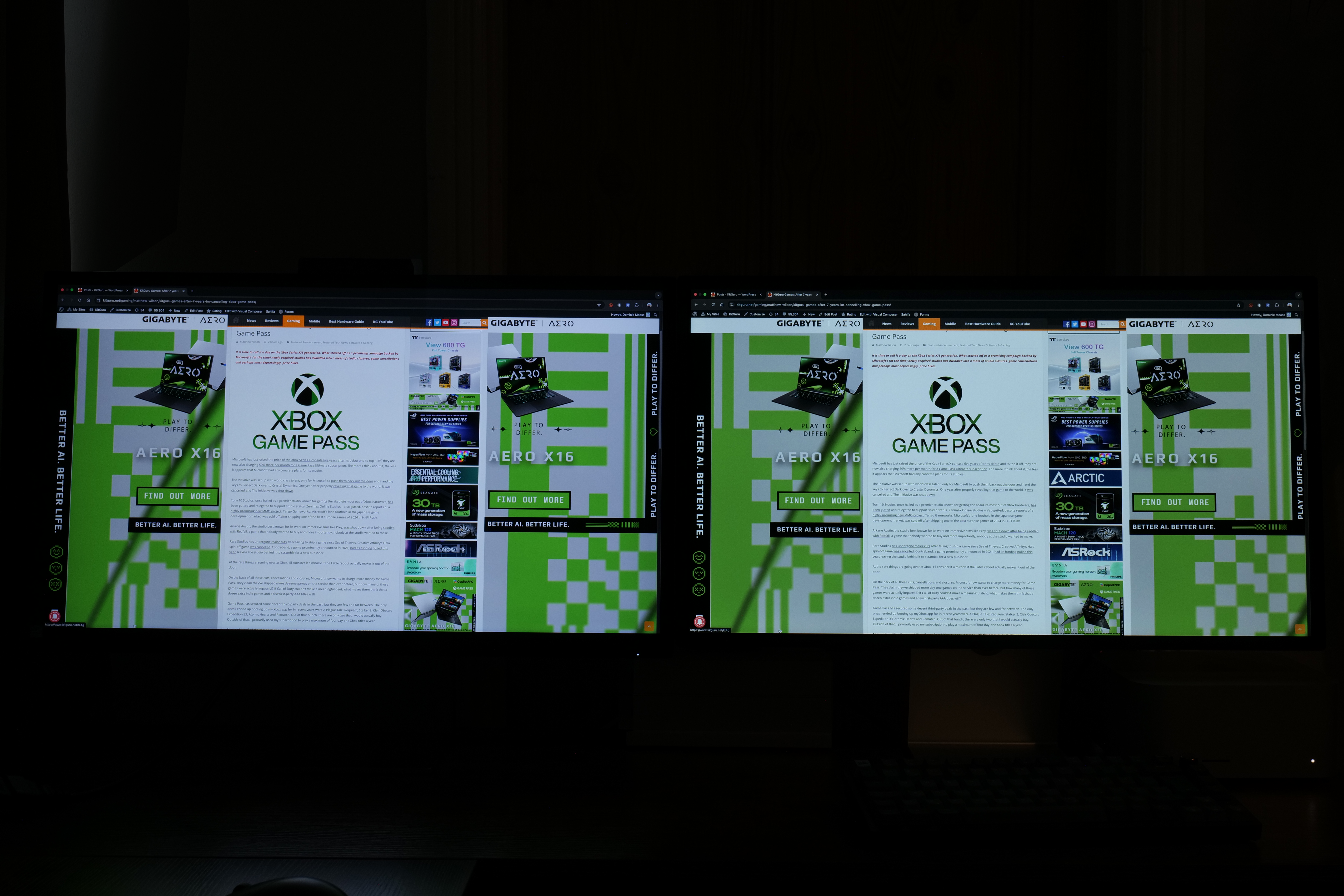
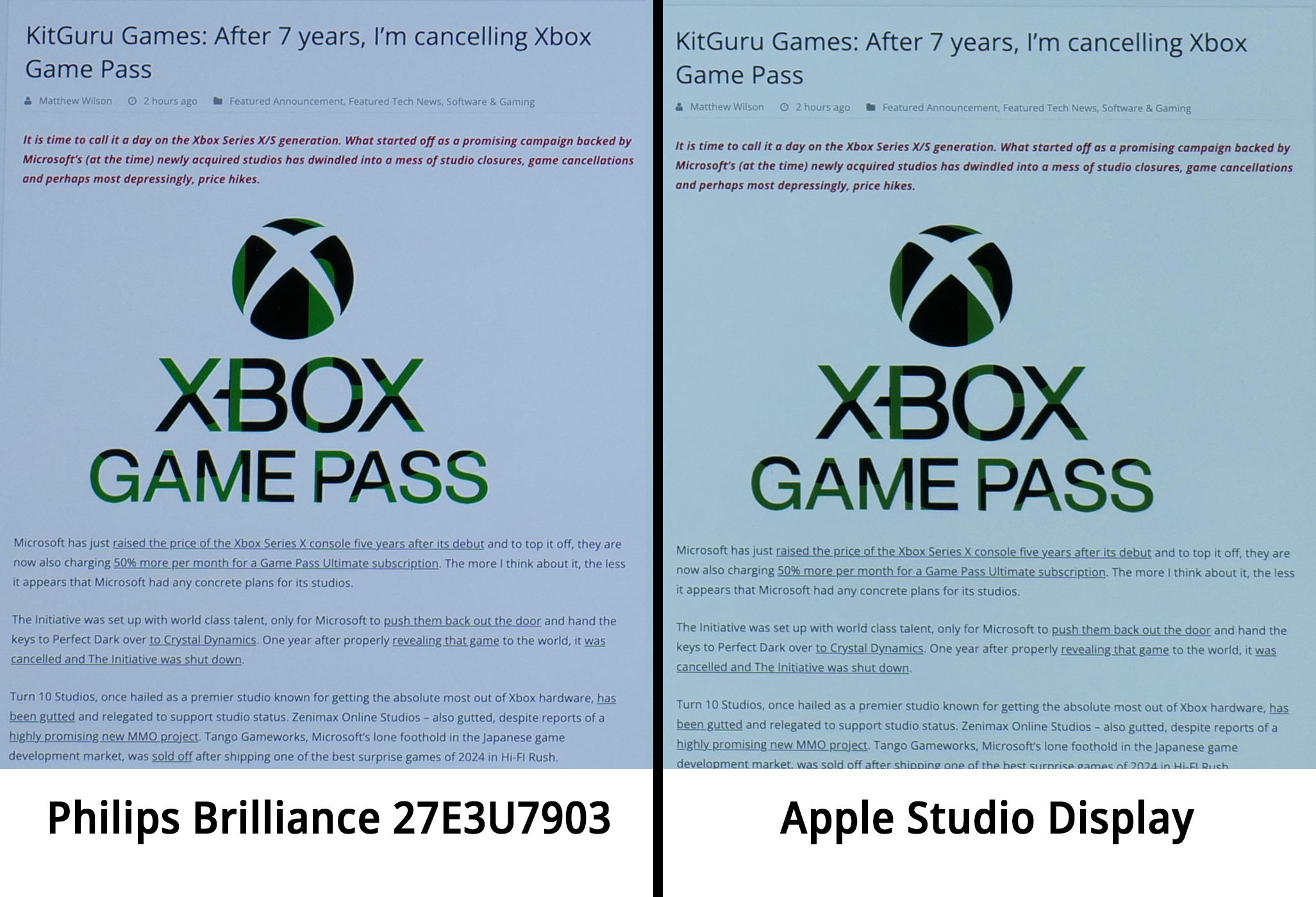
Ordinarily a glass finish like this means no coating grain, but I was surprised to see a small amount visible on the 27E3U7903. I wouldn't say it affects text clarity, as you can see from the above image.
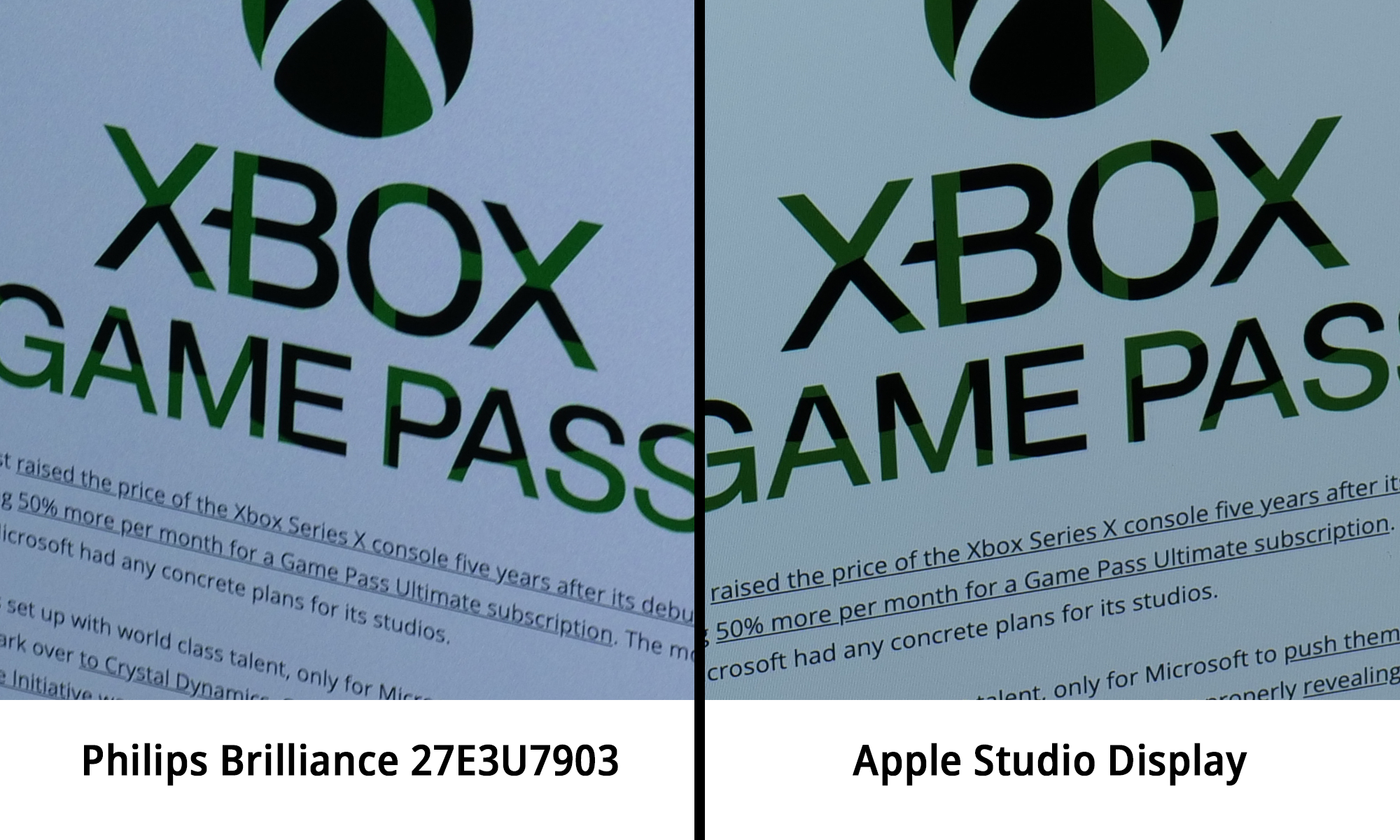
However, it is visible – particularly on light backgrounds – when the same can't be said for the Studio Display. It's definitely not as visible as with the ProArt PA27JCV and its heavy matte coating, but it's also not accurate to call the 27E3U7903 a ‘grain-free' monitor.
Webcam
We use the Open Source Response Time Tool (OSRTT), developed by TechTeamGB, for our response time testing. This measures grey-to-grey response times and presents the results in a series of heatmaps, the style of which you may be familiar with from other reviews.
Initial Response Time is the time taken for the panel to transition from one colour to another, where lower values are better. We present the initial response time, so overshoot is not taken into account and is measured separately. We use a fixed RGB 5 tolerance for each transition.
Overshoot is the term given for when a monitor's transition exceeds or goes beyond its target value. So if a monitor was meant to transition from RGB 0 to RGB 55, but it hits RGB 60 before settling back down at RGB 55, that is overshoot. This is presented as RGB values in the heatmaps – i.e. how many RGB values past the intended target were measured.
Visual Response Rating is a metric designed to ‘score' a panel's visual performance, incorporating both response times and overdrive. Fast response times with little to no overshoot will score well, while slow response times or those with significant overshoot will score poorly.
We test the 27E3U7903 at 70Hz, using all four of the overdrive settings found within the OSD.
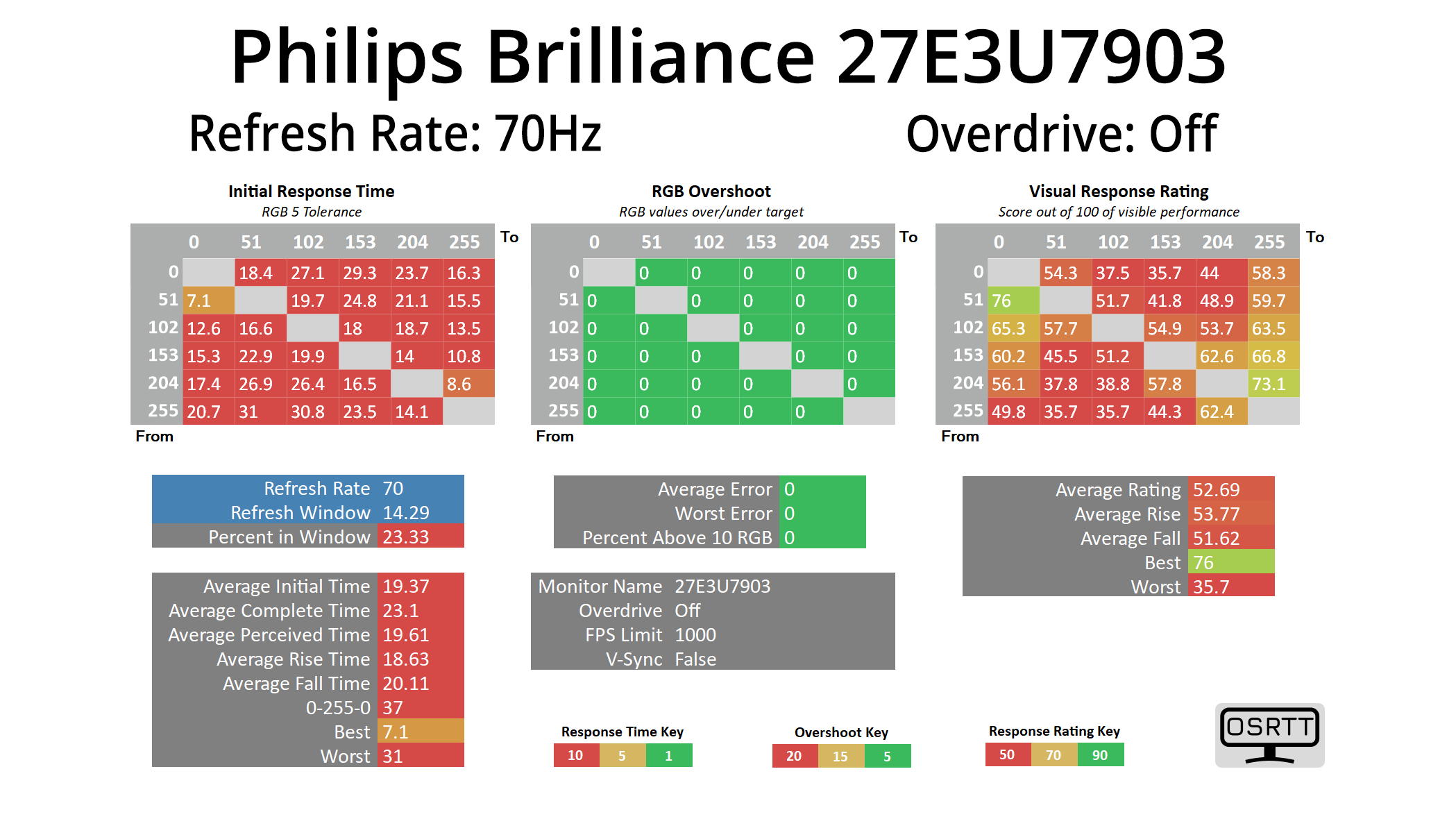


We tested the 27E3U7903 at its native 70Hz refresh rate, with overdrive off, then using each of the Fast, Faster and Fastest modes. With overdrive off and on Fast, the results are very slow. Faster makes a big difference, but even then, the average response time is just 9.17ms, with some particularly slow fall times (as shown in the bottom left corner of the heatmap.) Some overshoot is introduced too, but nothing major. The final mode, Fastest, introduces loads of overshoot and isn't worth using either.
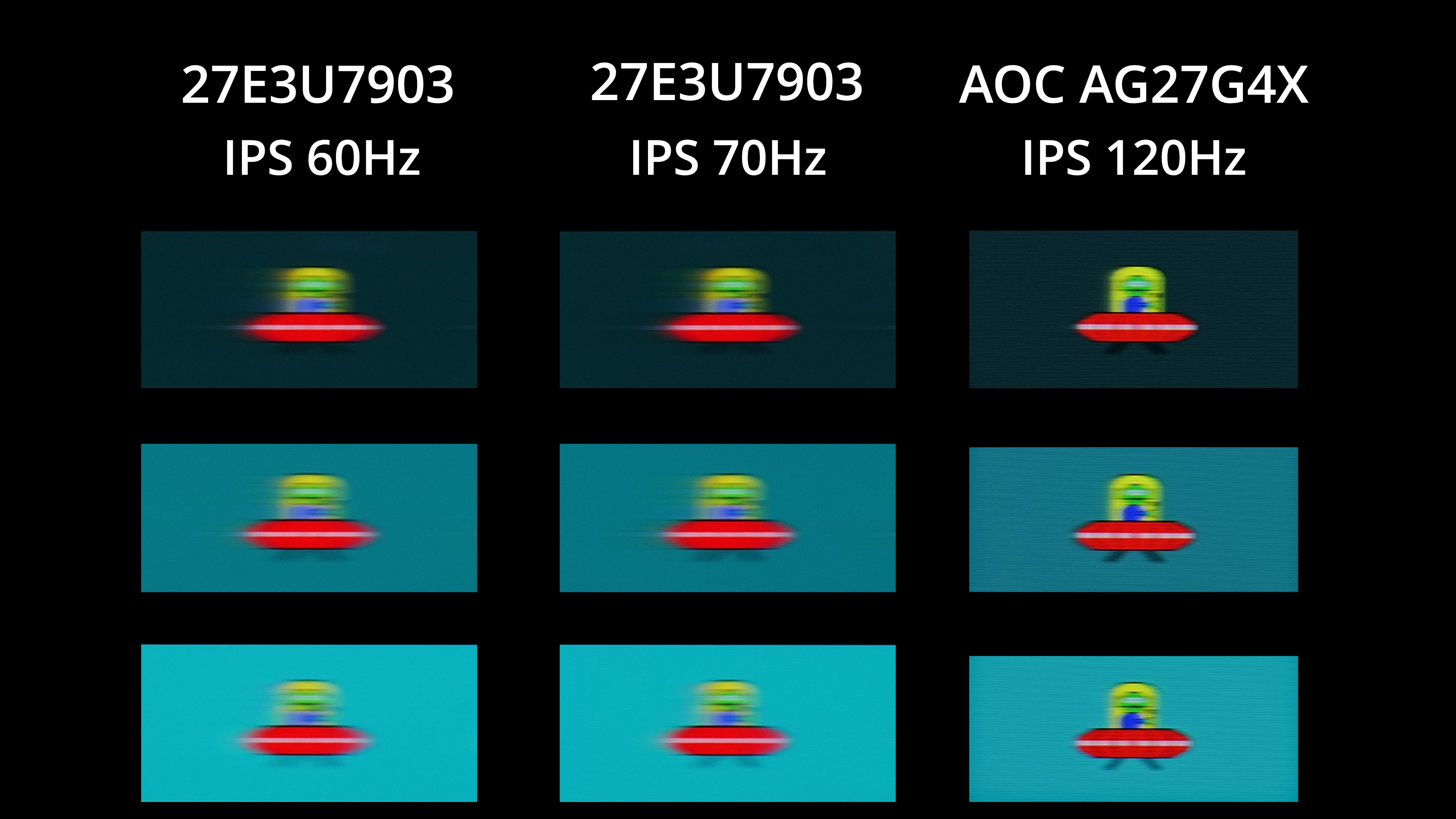
I've also included this motion clarity example so you can see what the monitor looks like in practice. We're comparing the 27E3U7903 to the AOC Q27G4X, a budget 1440p 180Hz IPS screen which I ran at 120Hz for the purposes of this test.
As you can see, there is a fair amount of motion blur visible from the 27E3U7903, while running it at 60 or 70Hz doesn't make much difference in the real world. Clearly, an IPS panel running at 120Hz looks substantially clearer. Of course, you can argue as to whether or not a professional screen like this needs a refresh above 60/70Hz, and it may not be a factor for many considering this type of screen. Most pro-grade screens that offer a 120Hz refresh rate will be significantly more expensive, too, but we thought it was worth including the comparison so you can make your own decision.
We again use the Open Source Response Time Tool (OSRTT), developed by TechTeamGB, to report monitor input latency.

We also test input latency, and thankfully it is no problem. 7.15ms may sound quite high compared to almost all of the gaming screens we test, but those typically have much higher refresh rates than the 70Hz panel found here. Even so, 7.15ms is almost exactly half a frame when running at 70Hz, so it's really not a problem for daily use.
The Philips Brilliance 27E3U7903 has offered a welcome break from the gaming monitors I usually review. Aimed squarely at creators and the professional market, this monitor offers a pin-sharp 5K IPS panel and a host of other features designed to appeal to pro users.
In terms of the overall design and build, it clearly takes strong inspiration from the Apple Studio Display, and that's no bad thing as it's a beautiful-looking monitor. The only real downside is that while it may look like the Studio Display, it lacks the premium metal chassis and is instead quite plasticky overall – a definite disappointment considering the £849 MSRP. Does it make much difference once it's set up and sat on your desk? Not really, but it doesn't make the best first impression.
However, Philips does offer a wide range of features that will help to entice prospective buyers. It offers Thunderbolt 4 support, for instance, along with a built-in proximity sensor and KVM functionality. There's also loads of different colour space options to choose from – including sRGB, DCI-P3, Adobe RGB and more – alongside integrated Ethernet and a 5MP webcam. The webcam isn't as good as the one on the Studio Display, but it's more than passable for video calls.
As for actual panel performance, the discussion becomes slightly more nuanced. Safe to say the factory calibration isn't the best, with a warm overall colour balance and gamma that's slightly too low, resulting in higher-than-expected average deltaEs. The colour space modes do help, but only to a certain extent – the Adobe RGB mode, for instance, is good but it's not great, and I'd certainly hope for the latter at this price.
On the other hand, the 27E3U7903 offers the widest gamut I've ever seen – wider even than QD-OLED – and the results when calibrated are nothing short of jaw-dropping. It's also worth reiterating that the monitor is Calman Ready, so anyone with an existing Calman Studio or Ultimate license will benefit from the integration. Not only can you use the AutoCal feature for a very speedy calibration, but it's a proper hardware calibration using 1D/3D LUTs, whereas most screens are limited to calibration via the ICC profile only.
That does mean users who don't want to manually calibrate, but still want a highly accurate experience using the preconfigured colour modes, may not be convinced by the 27E3U7903. On the other hand, if you were going to calibrate regardless, this monitor delivers some of the best results I've ever seen, so the panel is clearly stellar, even if Philips' factory calibration leaves a bit to be desired.
Ultimately, then, I do think the Philips Brilliance 27E3U7903 is worth buying – it may not be a blanket recommendation as outlined above, but there is enough on offer here to warrant a purchase. At an MSRP of £849, it's almost half the price of the Apple Studio Display, too, so that alone is a factor worth thinking about.
We found it listed on Amazon UK HERE but it's currently out of stock and only showing one listing for a used model.
Pros
- Smart and stylish design, clearly inspired by the Apple Studio Display.
- Widest colour gamut we've ever seen.
- Very high contrast for an IPS panel.
- Feature-rich OSD.
- Thunderbolt 4 support.
- Gets very bright at over 600 nits.
- Will do the job for some HDR workflows, even if it lacks proper local dimming.
- Some will prefer the glass glossy front over a matte option.
- Calman Ready certification allows for fast and accurate calibration.
- Built-in webcam (even if it isn't the best).
- 5K resolution at the 27in screen size is pin-sharp.
- Good value at £849 considering all of the above.
Cons
- Factory calibration could be better.
- Colour space modes are good but not great.
- Small amount of visible grain despite the glossy finish.
- Feels a bit plasticky considering the price.
- Webcam is clearly inferior to the Studio Display's.
- Lacks real HDR support given the DisplayHDR 600 certification.
KitGuru says: There are some drawbacks to consider, but if you're looking for a 5K monitor and were always going to calibrate, the Philips Brilliance 27E3U7903 delivers some phenomenal results.