KitGuru KitGuru.net – Tech News | Hardware News | Hardware Reviews | IOS | Mobile | Gaming | Graphics Cards


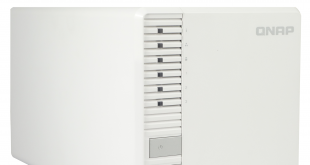
Sitting in their Home/SOHO product lineup, the TS-328 is QNAP's first 3-bay NAS and has been designed to offer the data protection of RAID 5 using the fewest disks possible to the entry level market space.
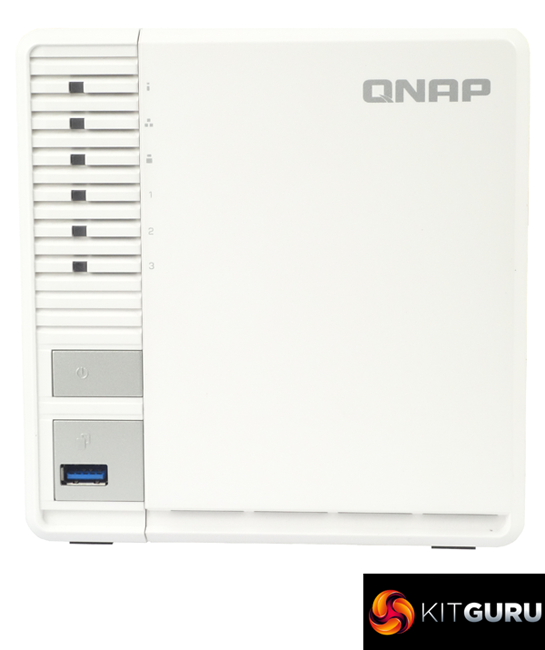
The QNAP TS-328 neatly fills the gap between low cost entry level 2-bay NAS which can only protect data with a RAID 1 array and more costly 4-bay solutions providing the better data protection and performance of a RAID 5 array. It can do this as the three drives it supports happens to be the least number of drives you need to build a RAID 5 array.
Powered by a Realtek RTD1296 quad-core 1.4 GHz processor the TS-328 comes with 2GB of DDR4 memory and if you feel the need to add more unfortunately you're out of luck as memory isn't expandable. The TS-328 comes with two Gigabit Ethernet Ports which support Link Aggregation, two USB 3.0 Type-A ports and a single USB 2.0 port
The Realtek RTD1296 is a slightly higher spec than the Realtek RTD1295 powering the TS-228A, which we reviewed recently HERE. The RTD1296 brings support for two Gigabit Ethernet ports, an additional USB3.0 port and an additional SATA port. The processor brings with it both hardware encryption and transcoding engines and the latter allows for real-time transcoding of 4K Ultra HD (10-bit H.265 (HEVC), MPEG-4 Part 2, MPEG-2, VC-1) at a maximum resolution for 4K of 4096 x 2160 and at a maximum frame rate of 30fps.
Physical Specifications
Processor: Realtek RTD1296 quad-core 1.4GHz.
Memory: 2GB DDR4.
Gigabit Ethernet Ports: 2 (supporting Link Aggregation).
Rear panel connectors: 1 x USB 2.0, 1 x USB 3.0. 3.5mm speaker and line out jacks.
Front panel connectors: 1 x USB 3.0.
RAID support: JBOD,0, 1, 5.
Cooling: 1 x 9 cm smart Fan.
Drive Bays Supported: 3.
Maximum hard drive size supported: 12TB.
Maximum Capacity: 36TB.
Internal File System support: EXT4.
Dimensions (D x W x H): 260.1 x 150 x 142mm.
Weight: 1.64kg.
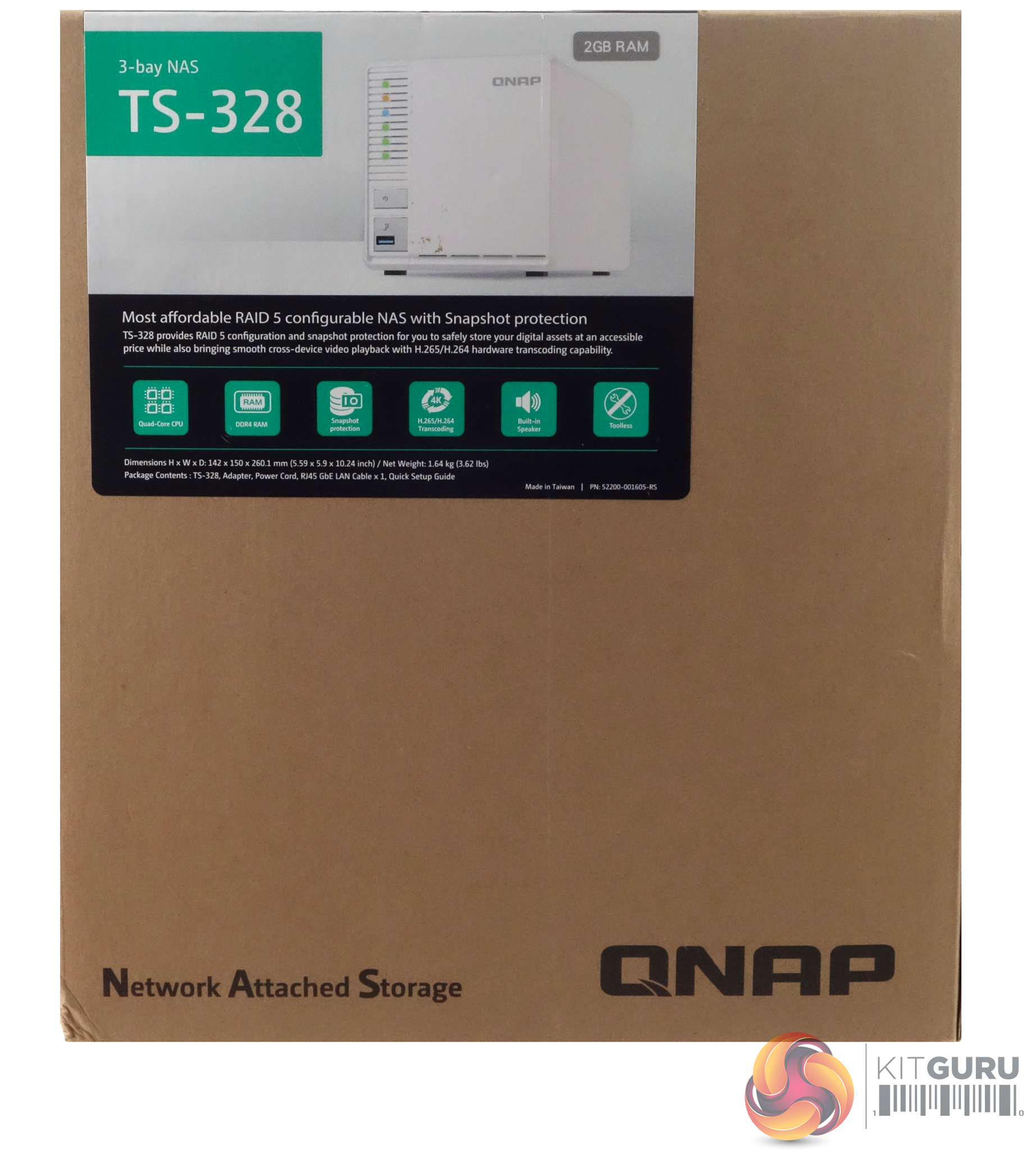
The TS-328 comes in a compact box with an image of the drive on the front label. A sticker on the top right of the label displays the amount of memory the unit comes with. Under the image is a couple of lines of text about what the NAS can do and under this is a row of icons listing some of the TS-328's features; Quad-core CPU, DDR4 memory, Snapshot protection, H.265/H.264 transcoding, built in speaker and the fact it's a tool-less design.
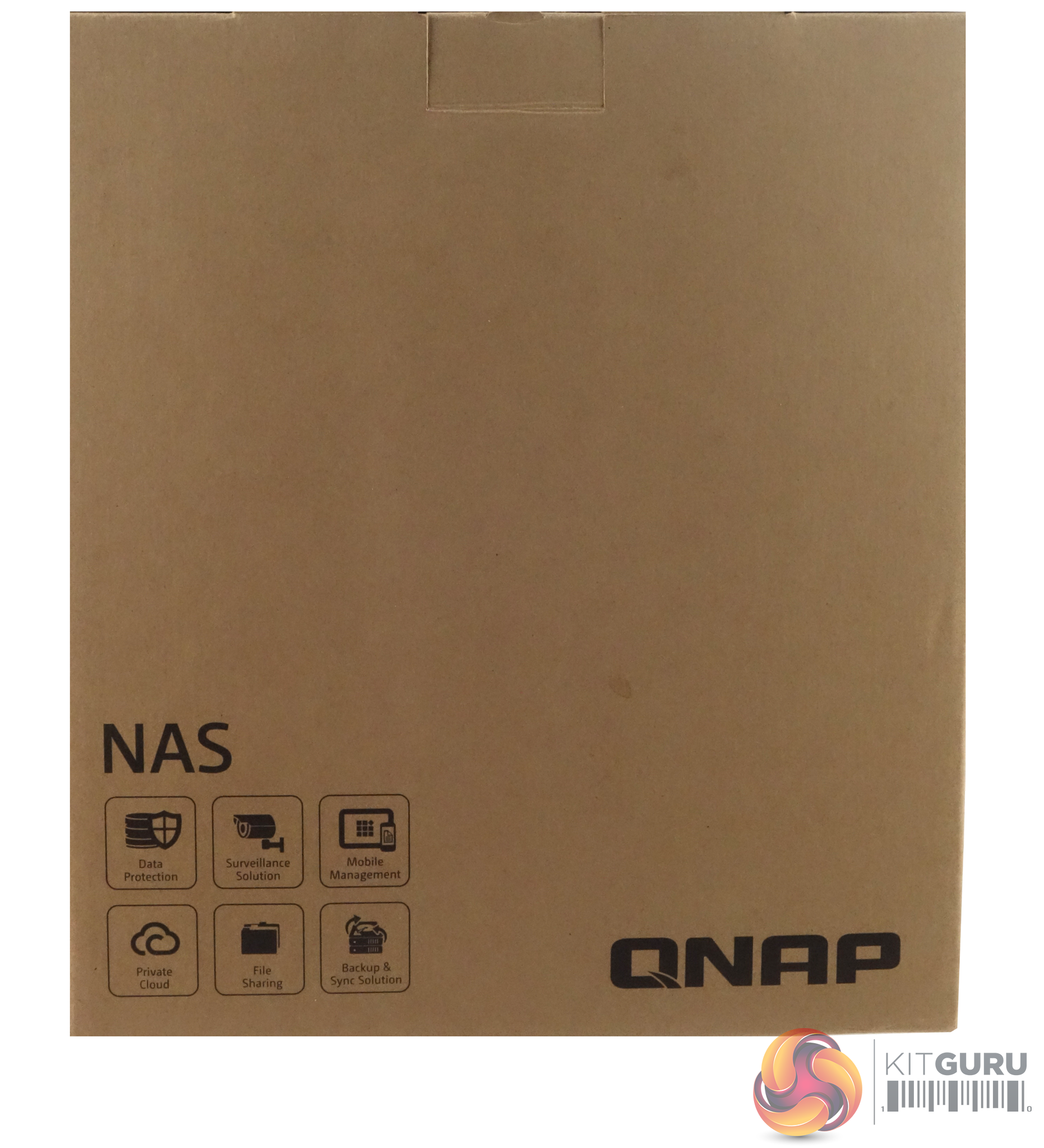
The rear of the box has icons in the bottom left hand corner listing some of the jobs that the NAS can do; Data Protection, Surveillance Station, Mobile Management, Private Cloud, File Sharing and Backup & Sync solutions.
One side of the box has carriage icons on the top right and an HDD compatibility panel on the bottom. The other side just has a double row of carriage and storage icons and marks of the various standards the NAS passes.
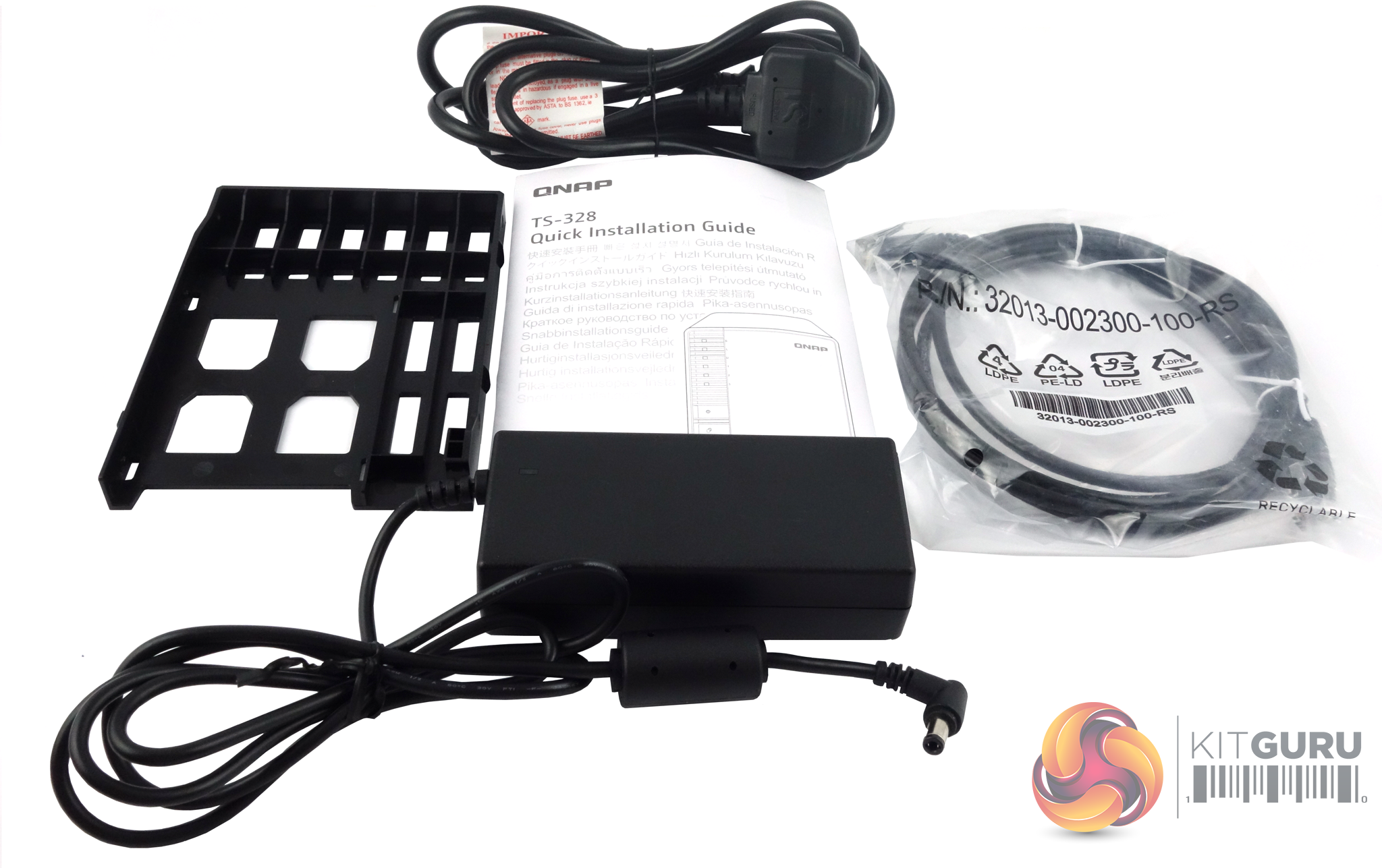
The box bundle has everything you need to get started with the TS-328; Ethernet cable, mains cable, 65W power brick (Delta DPS-65VB LPS) and a Quick Installation Guide (QIG). Also bundled in is a single 2.5in HDD/SSD drive tray base. Should you want any more of these trays, then they will have to be purchased separately.
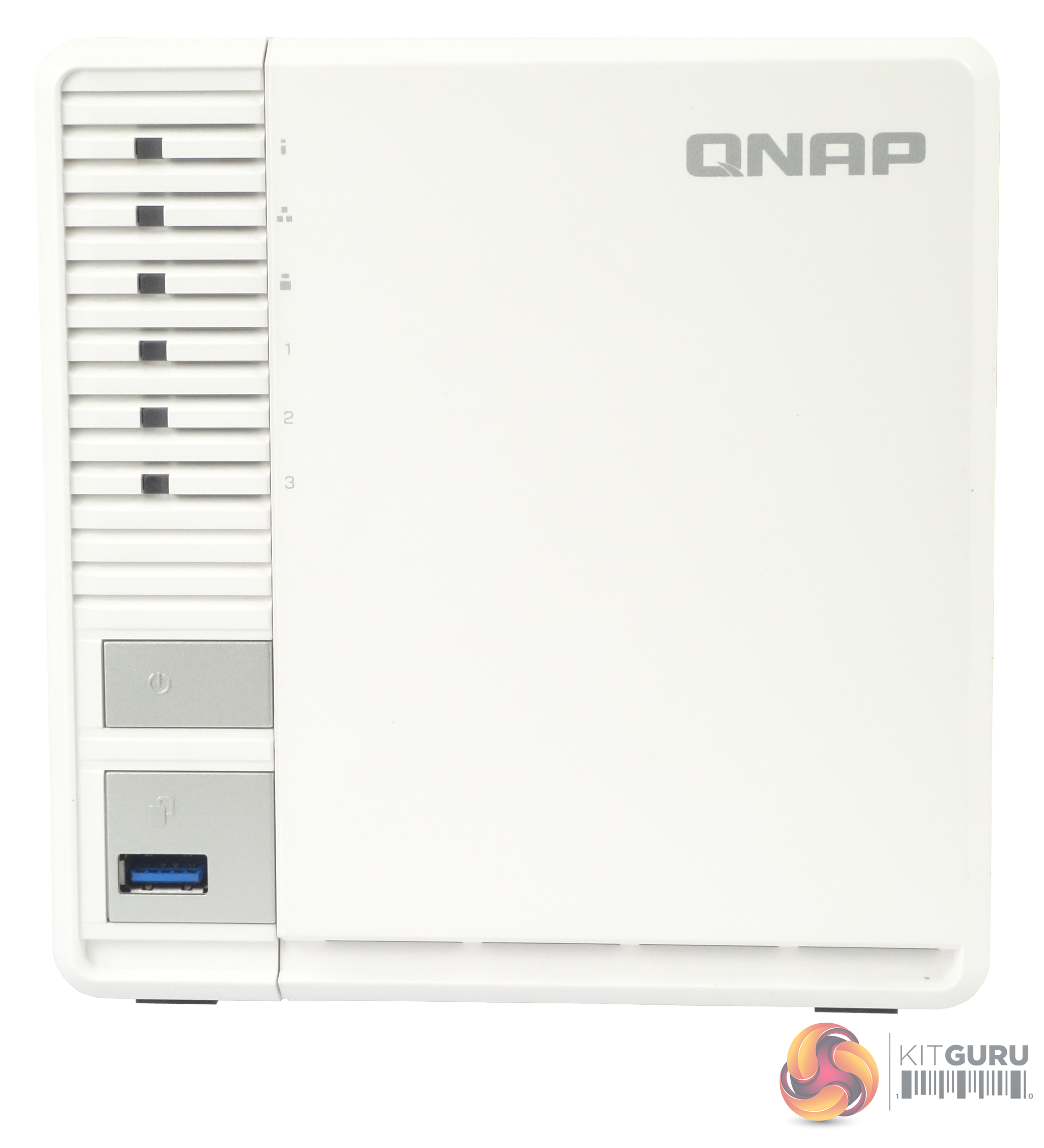
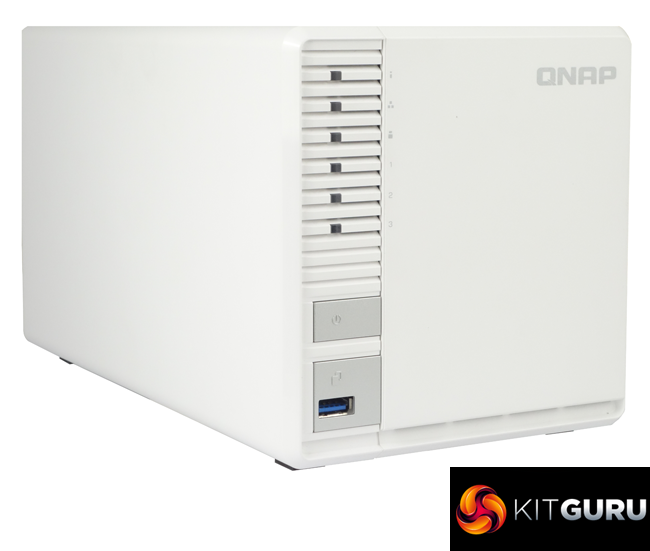
QNAP's TS-328 is a compact and quite attractive looking NAS with its white front bezel and side panels with silver grey power and USB copy buttons. Dominating the left side of the front bezel are the six indicator LEDs (reading from top to bottom they are: status, LAN, USB and three for drive activity). We say dominating, as these LEDs certainly grab your attention as they seem so much bigger than normal. So big in fact that we actually measured them – 4mm x 3mm. One thing is for certain you're not likely to miss them blinking away.
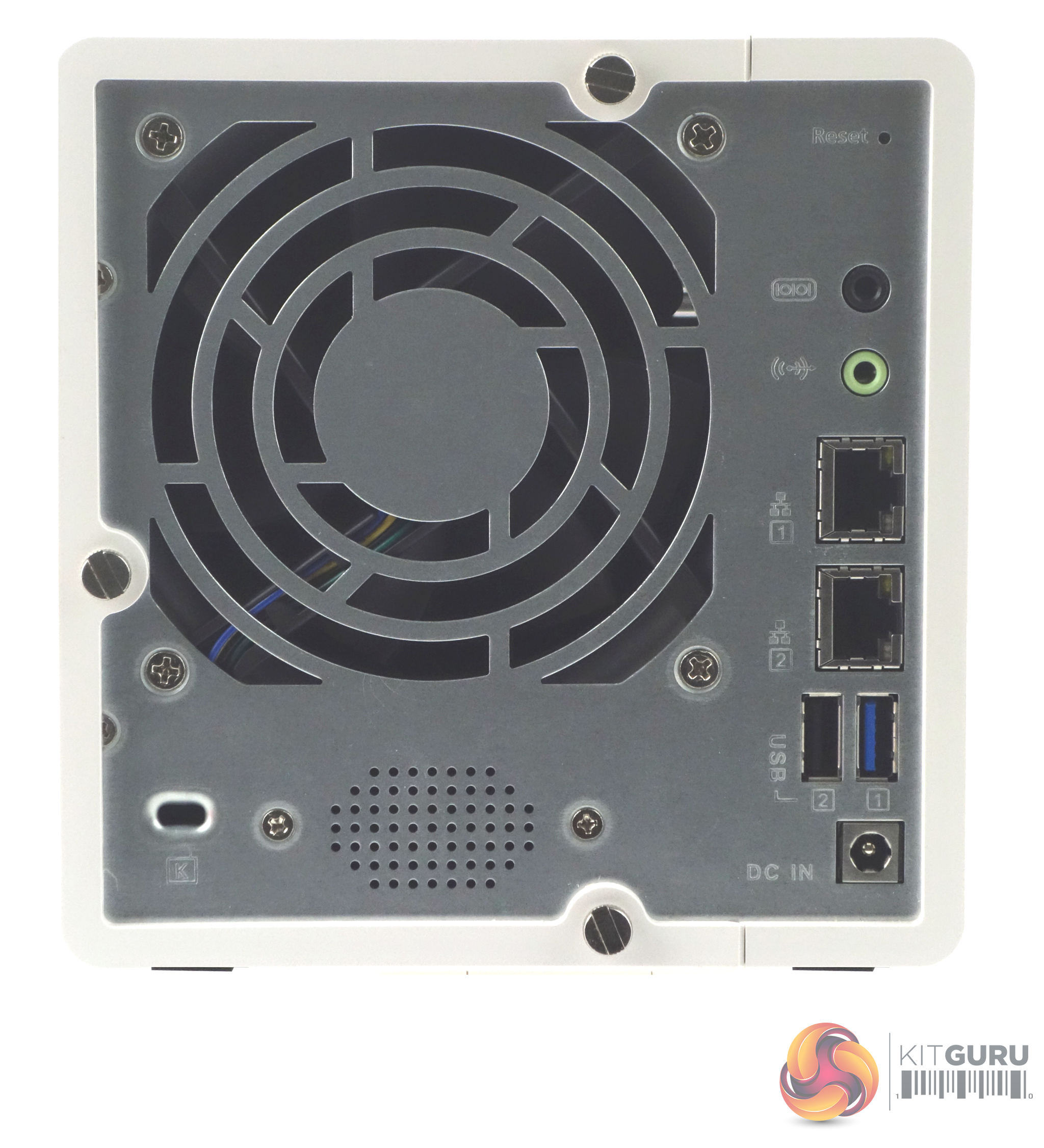
The real panel is dominated by the grill for the 90mm cooling fan. To the right of the grill sit all the external ports; 3.5mm speaker and line out jacks, two Gigabit LAN ports, which is a nice surprise for this level of NAS, and single USB 2.0 and 3.0 ports.
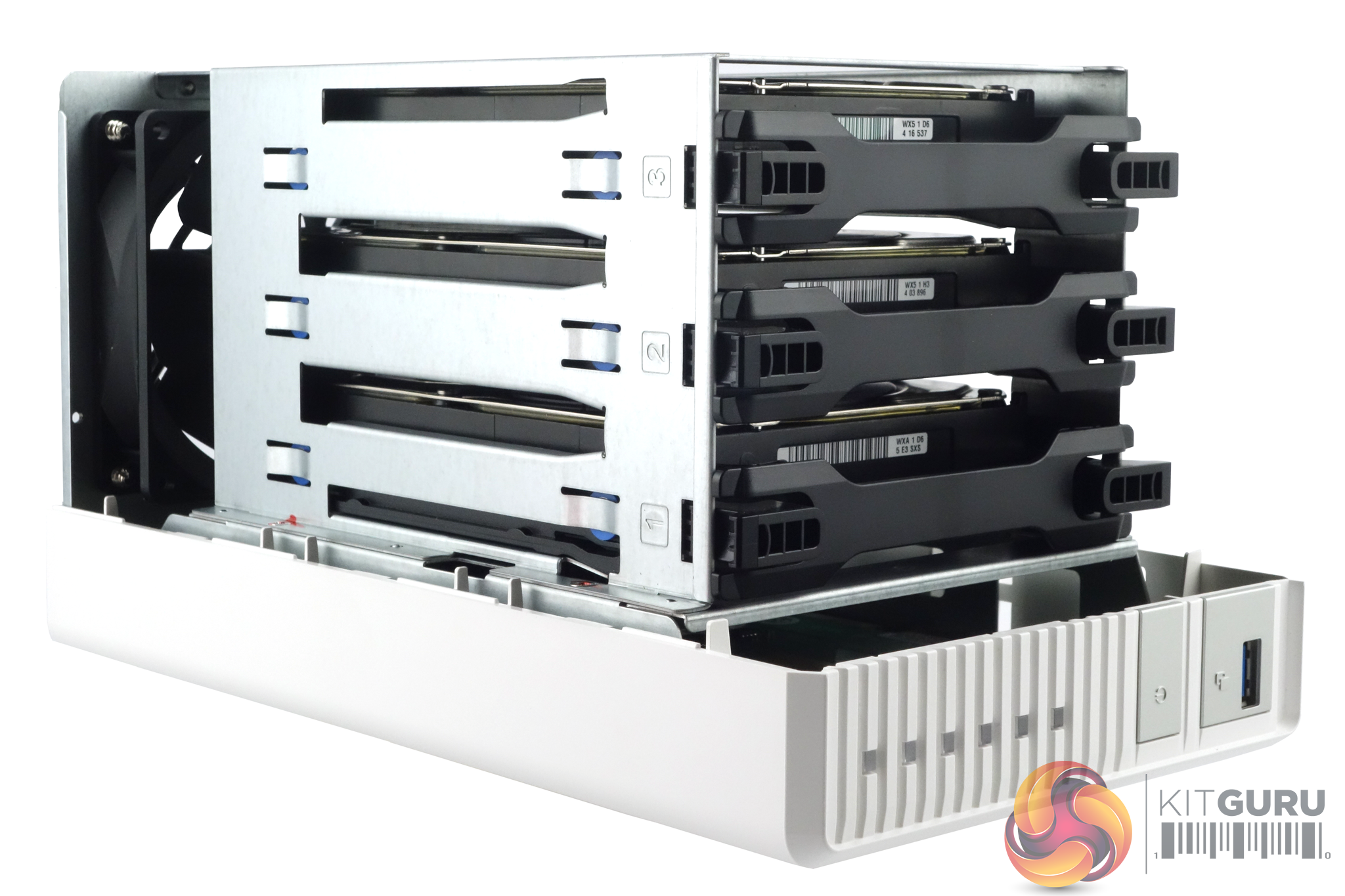
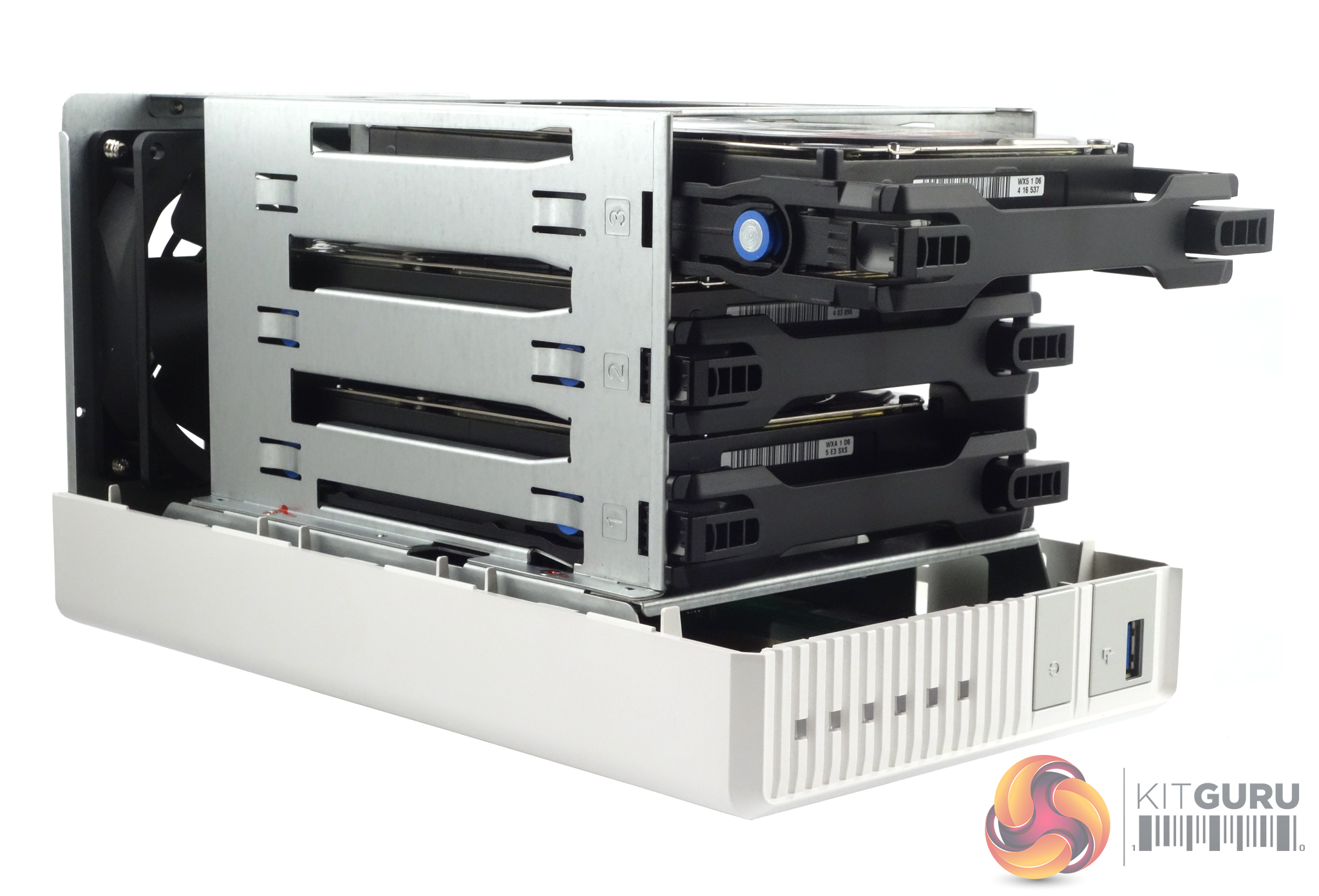
To get to the internal drive cage and the three drive trays you undo the three small thumbscrews on the rear panel and slide the two sides of the TS-328 apart. The hard drive trays are held in place by a simple but effective pair of sprung clips on the front of each tray. Pushing on the clips allows you to pull a drive tray out.
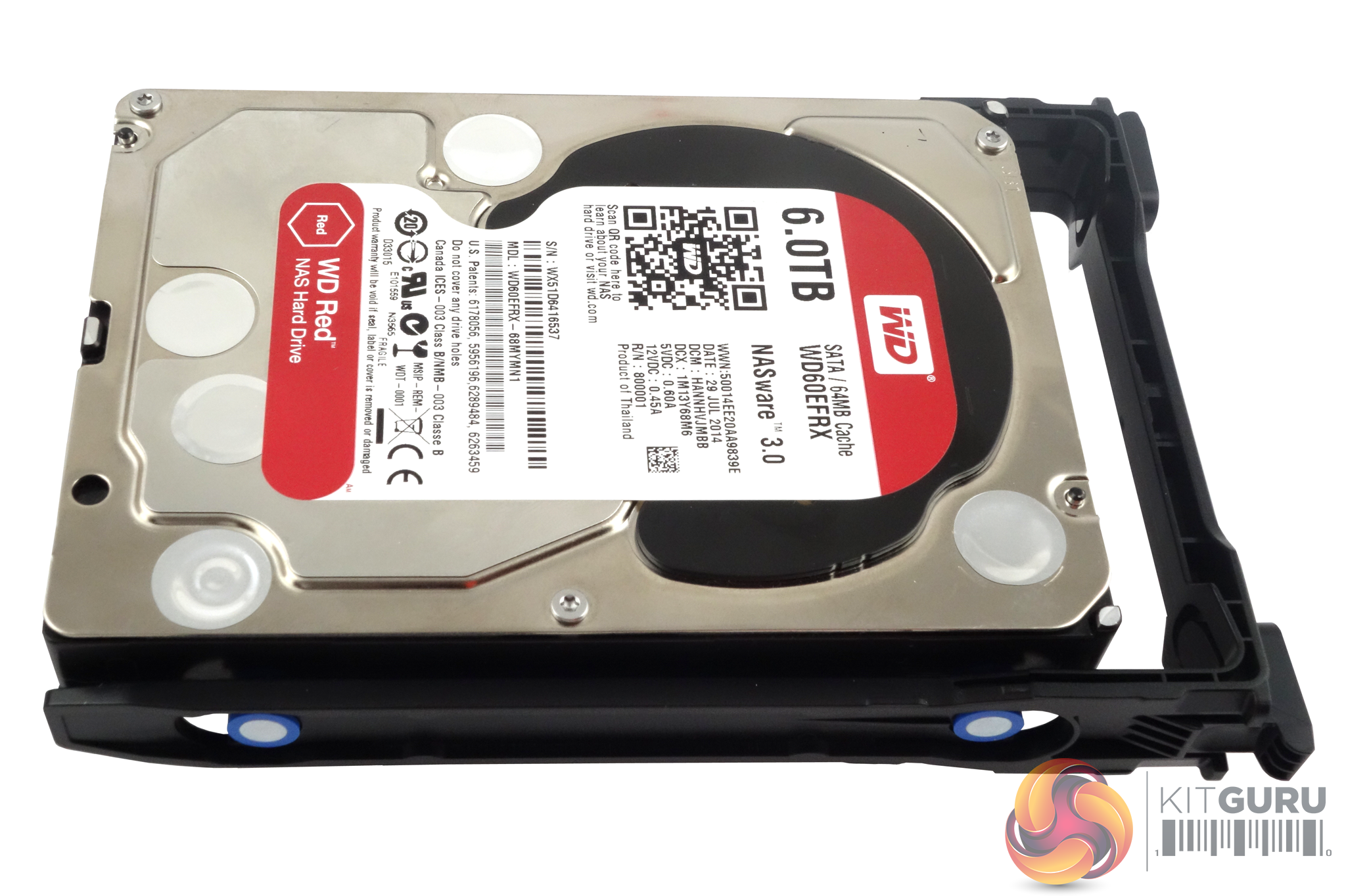
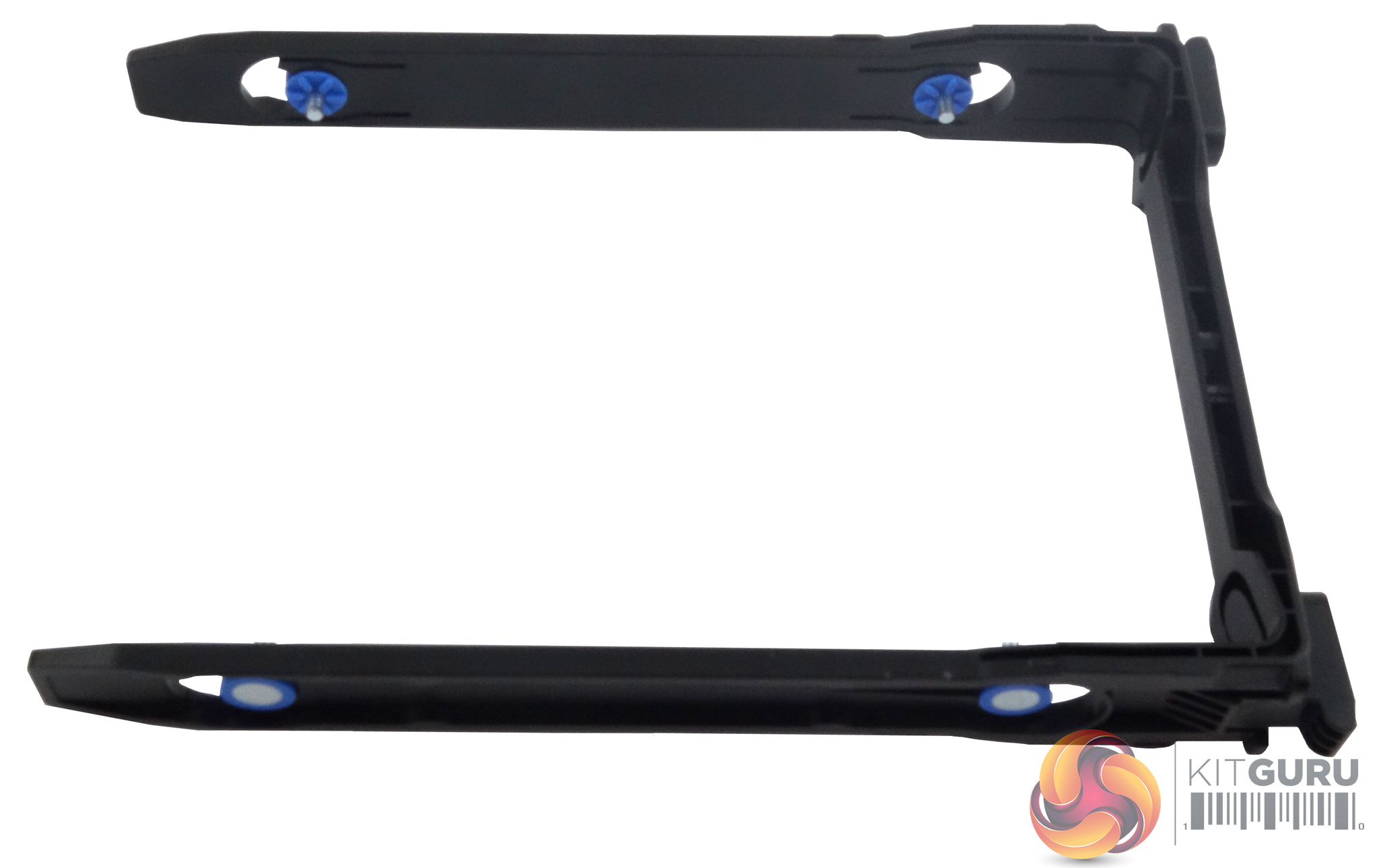
The back of the drive tray is open, allowing the tray side arms to open out a little to get the drive in. Each side arm has a pair of pins that fit into the side mounting holes of the hard drive. It's a little more flimsy than a standard NAS drive tray but it works well enough.
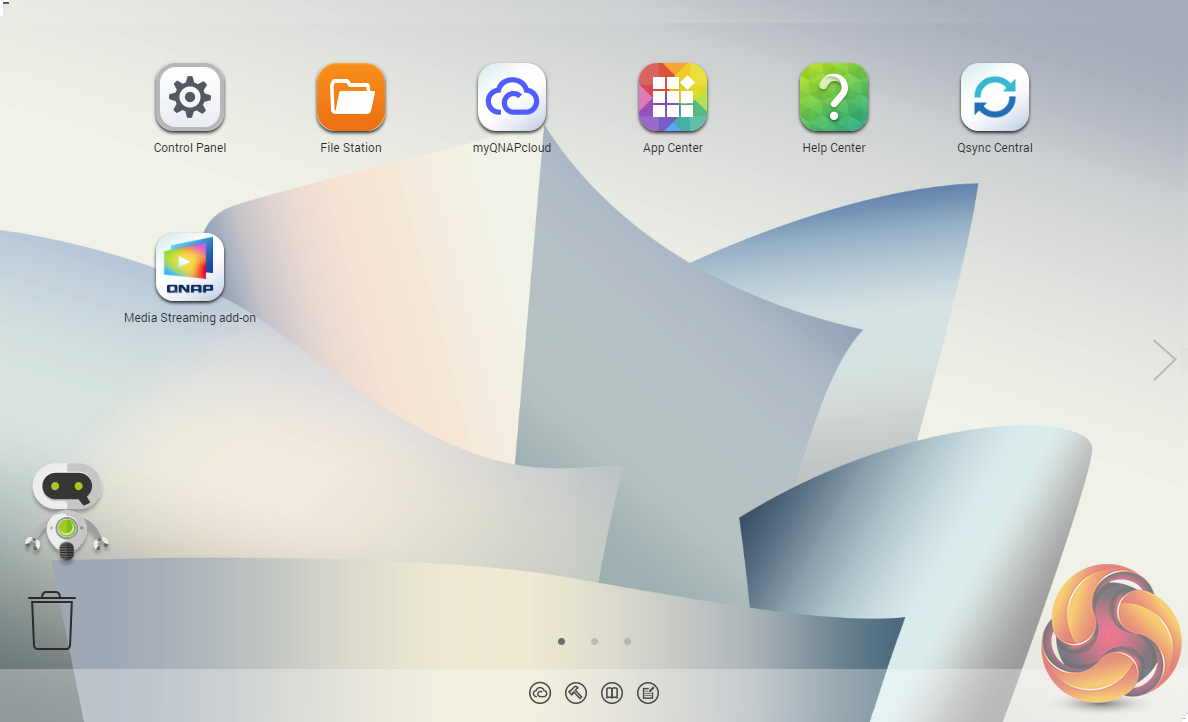
To test the TS-328 we used the latest (at the time of testing) 4.3.4.0615 (build 20180613) version of QNAP's QTS OS. QNAP’s QTS is a graphically-rich OS with links to the major functions appearing as icons on the main page.

When you access the NAS for the first time you are met by the HelpCenter app. This comprehensive help utility provides access to the QTS manual, Online Resources including tutorials, video tutorials, FAQs and forums – or if all else fails you can connect to the QNAP Helpdesk for technical support.
If you don’t want to see this page every time you access the NAS, don’t forget to uncheck the ‘show on startup’ option.
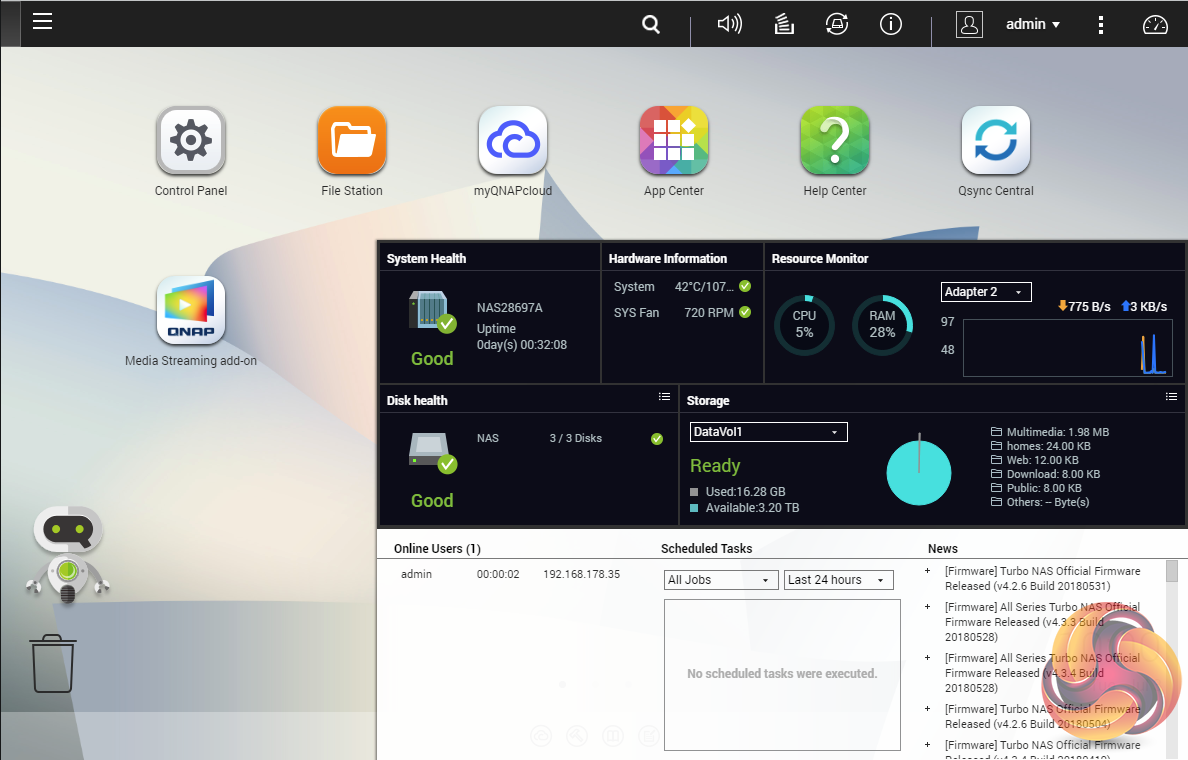
Clicking the icon in the top right of the main screen activates the Dashboard page which gives a snapshot of what’s happening with the NAS.
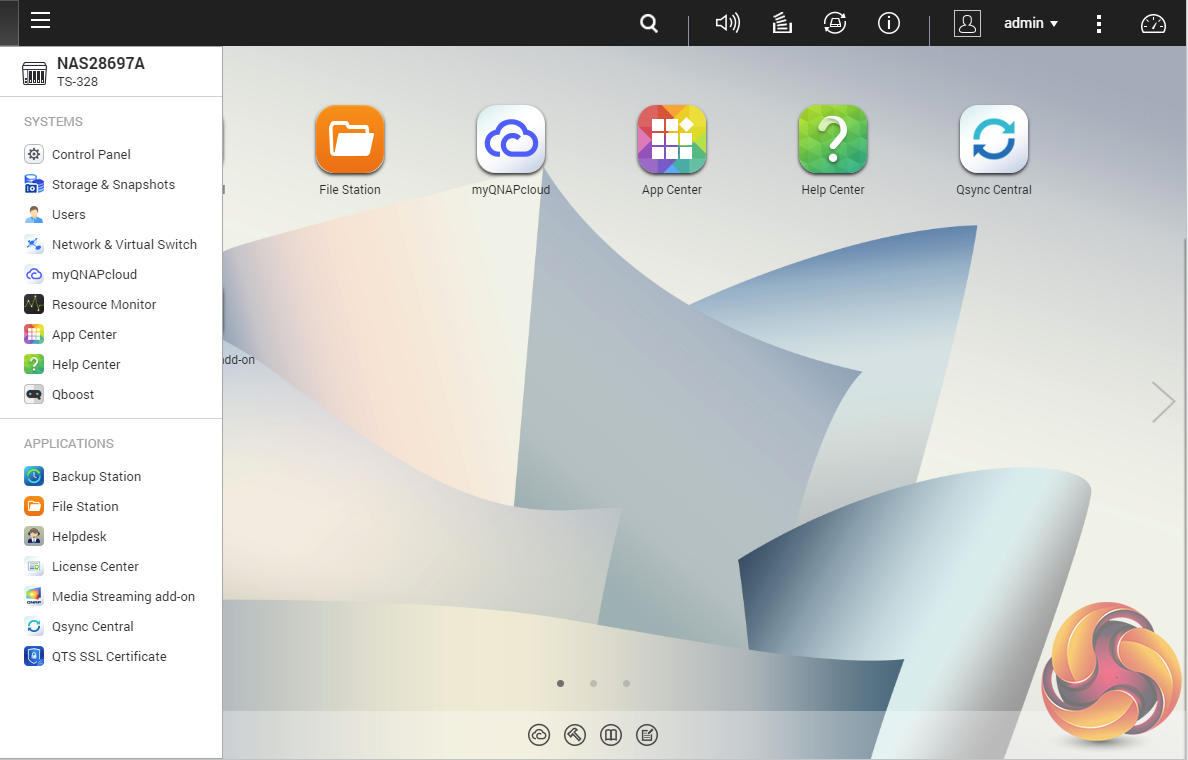
Clicking on the menu icon in the top left-hand corner of the screen drops down a very useful side menu with the most commonly used control panel items. Any of these can be dragged and dropped onto the main page for easy access.
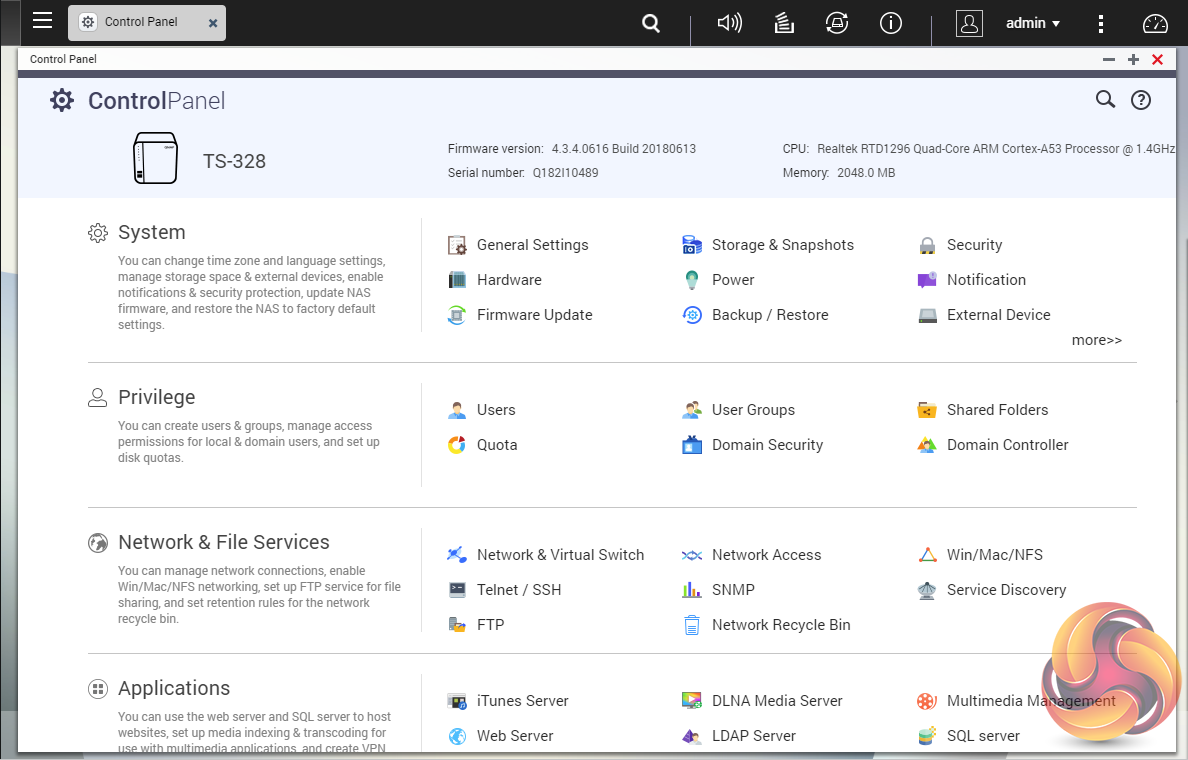
Clicking on the control panel icon on the main menu screen brings the complete control panel window with all the various functions of the NAS neatly divided up in sections.
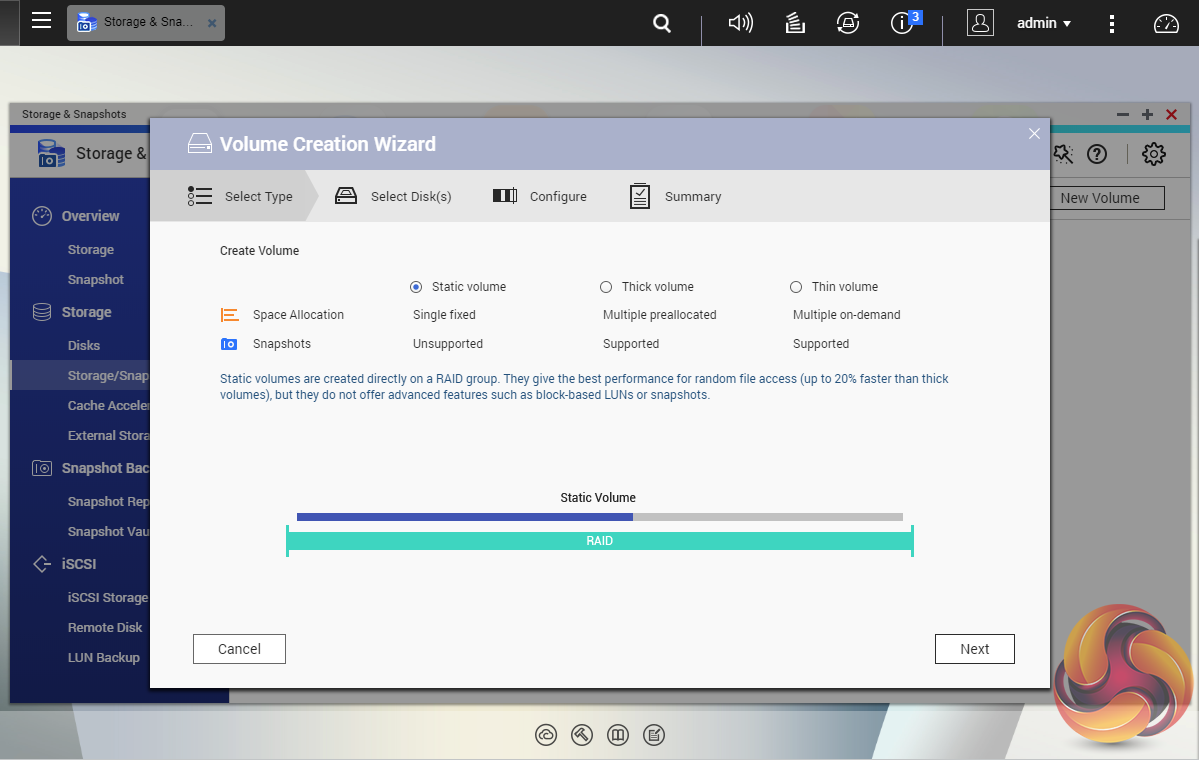
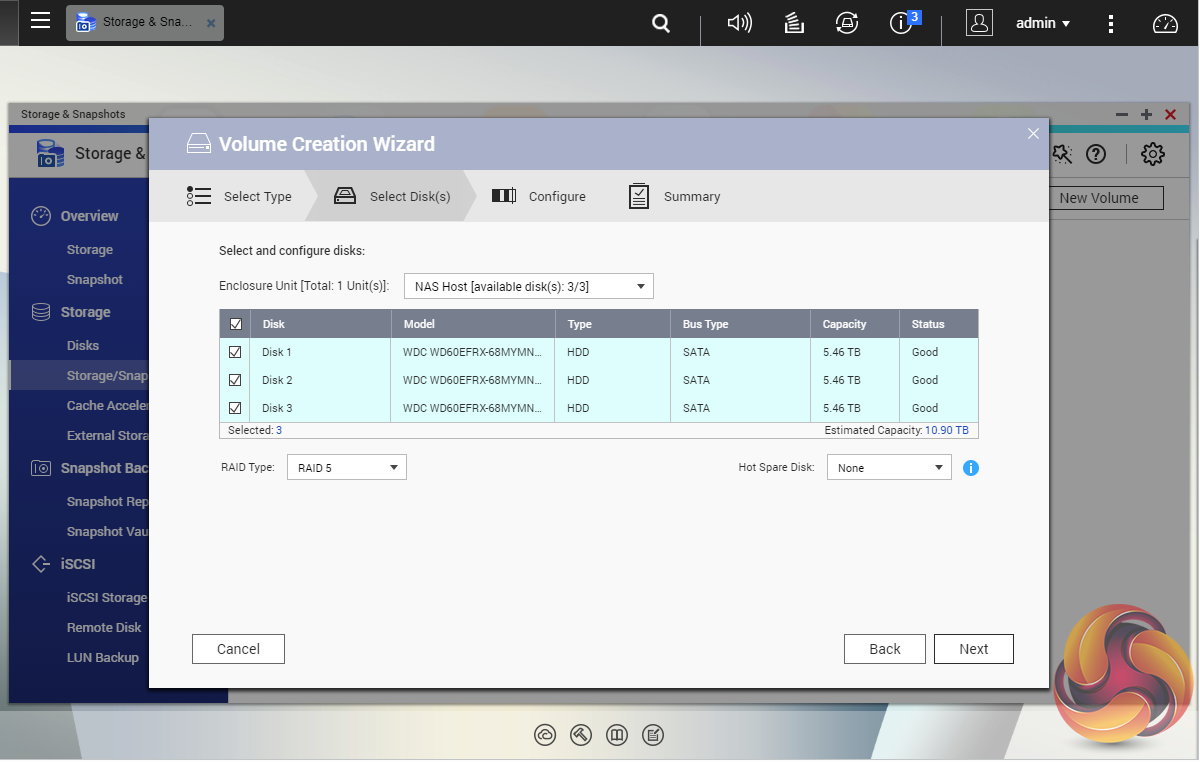
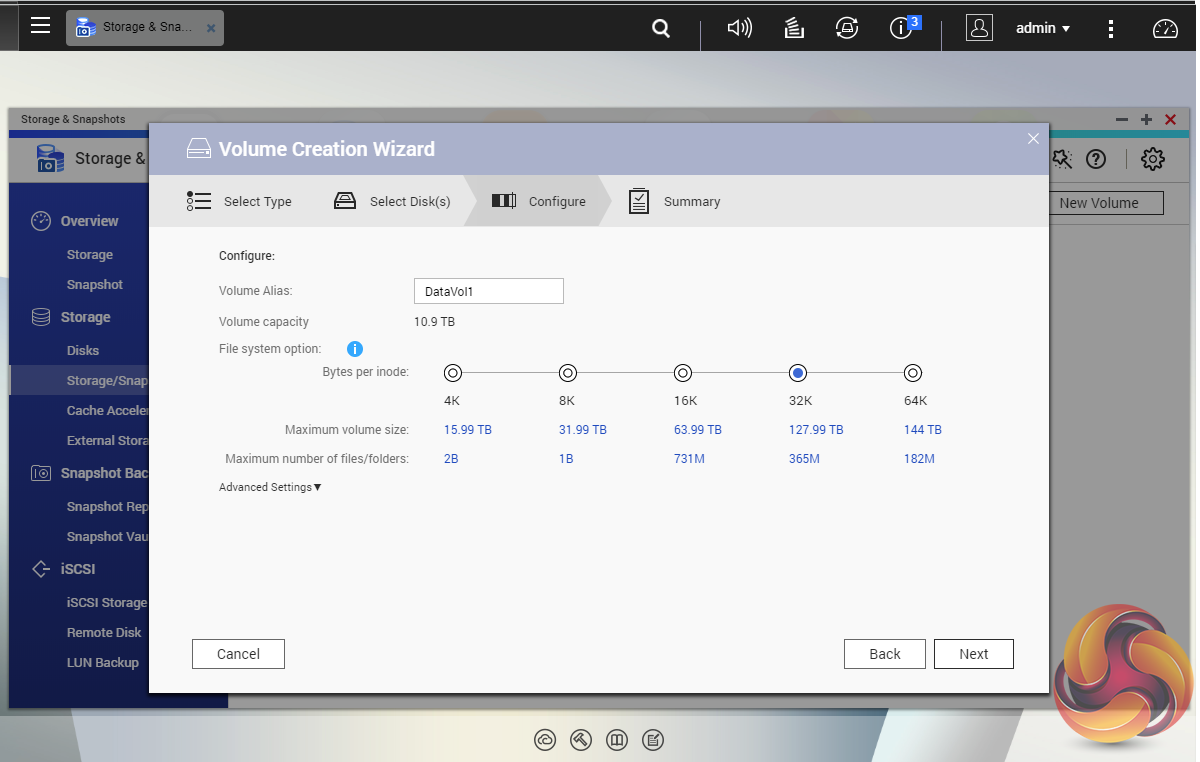
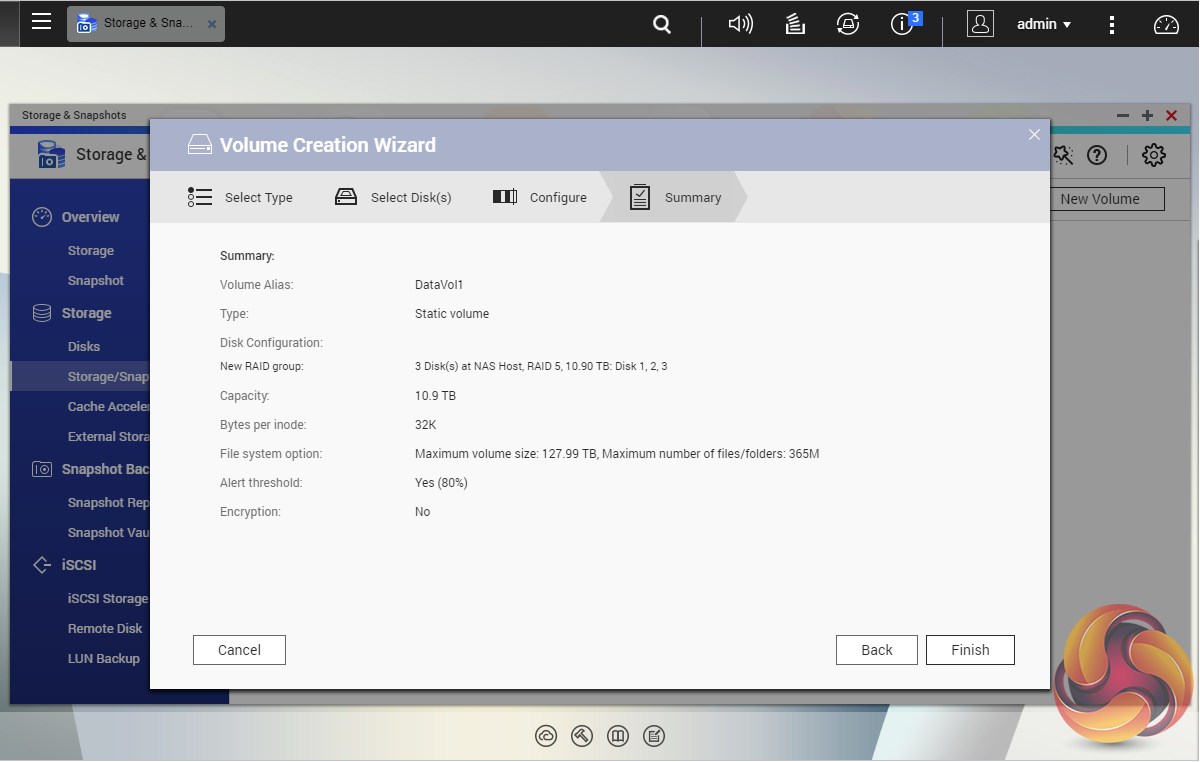
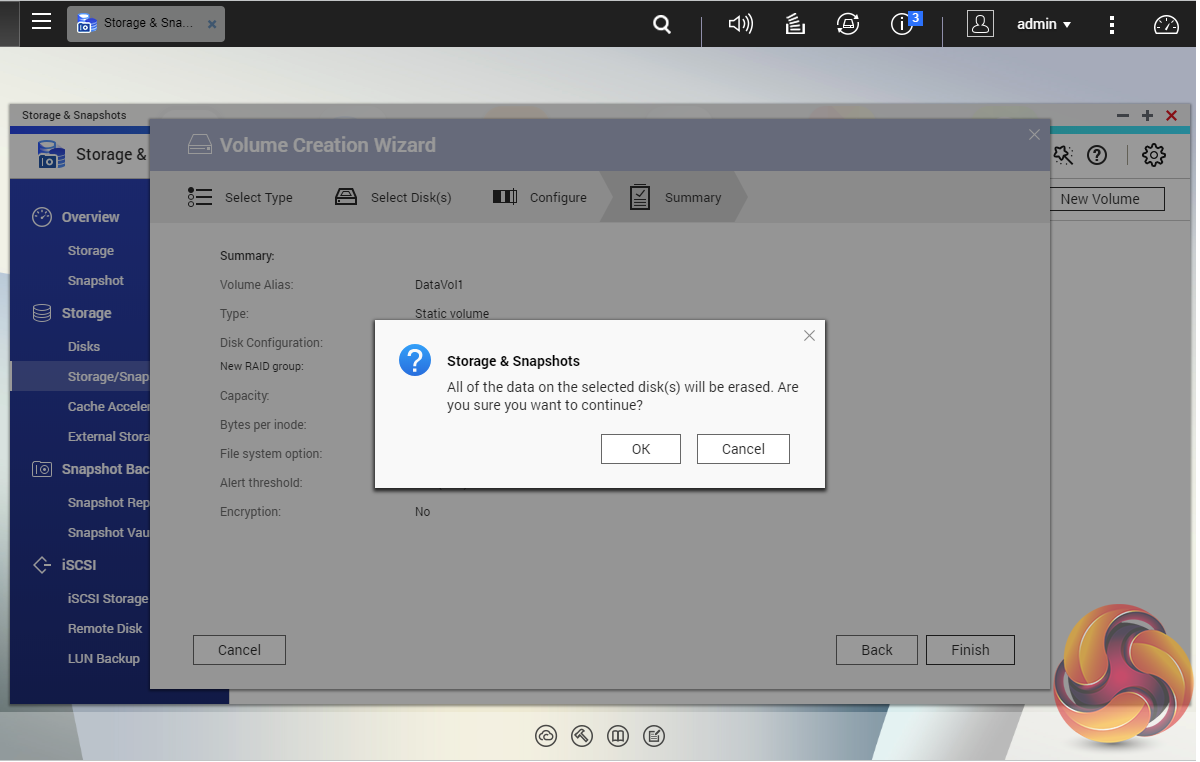
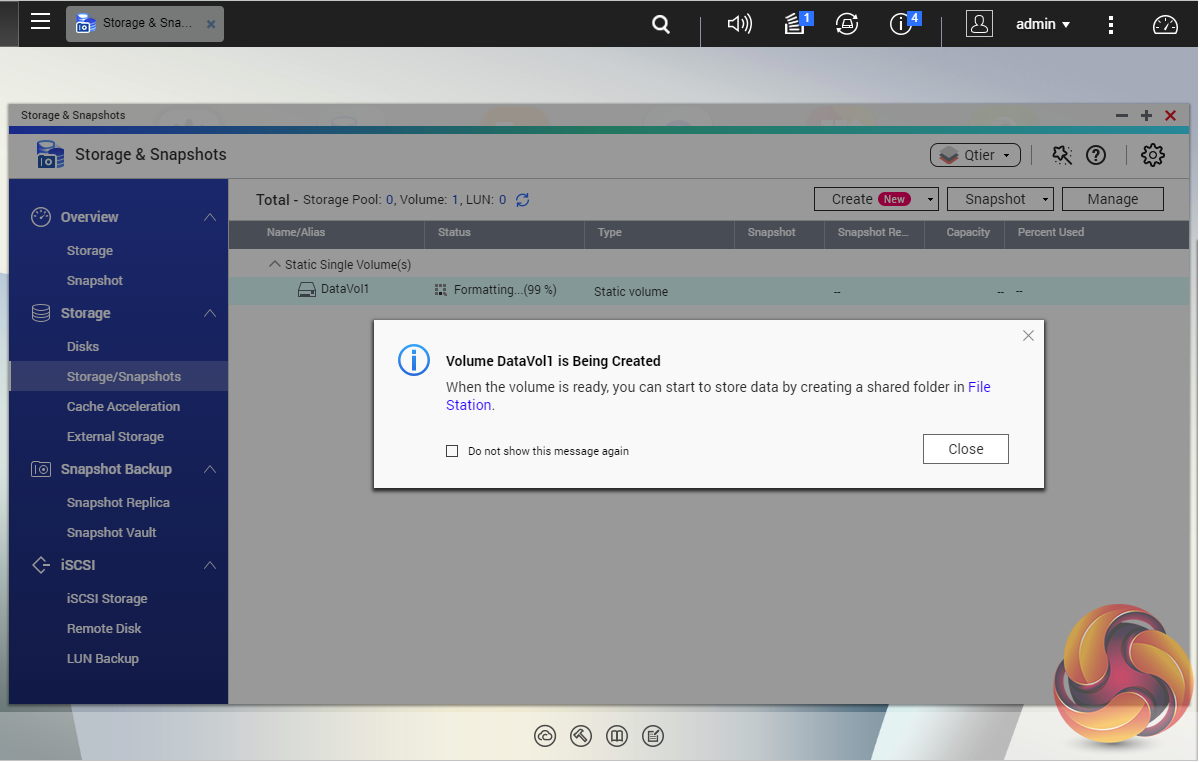
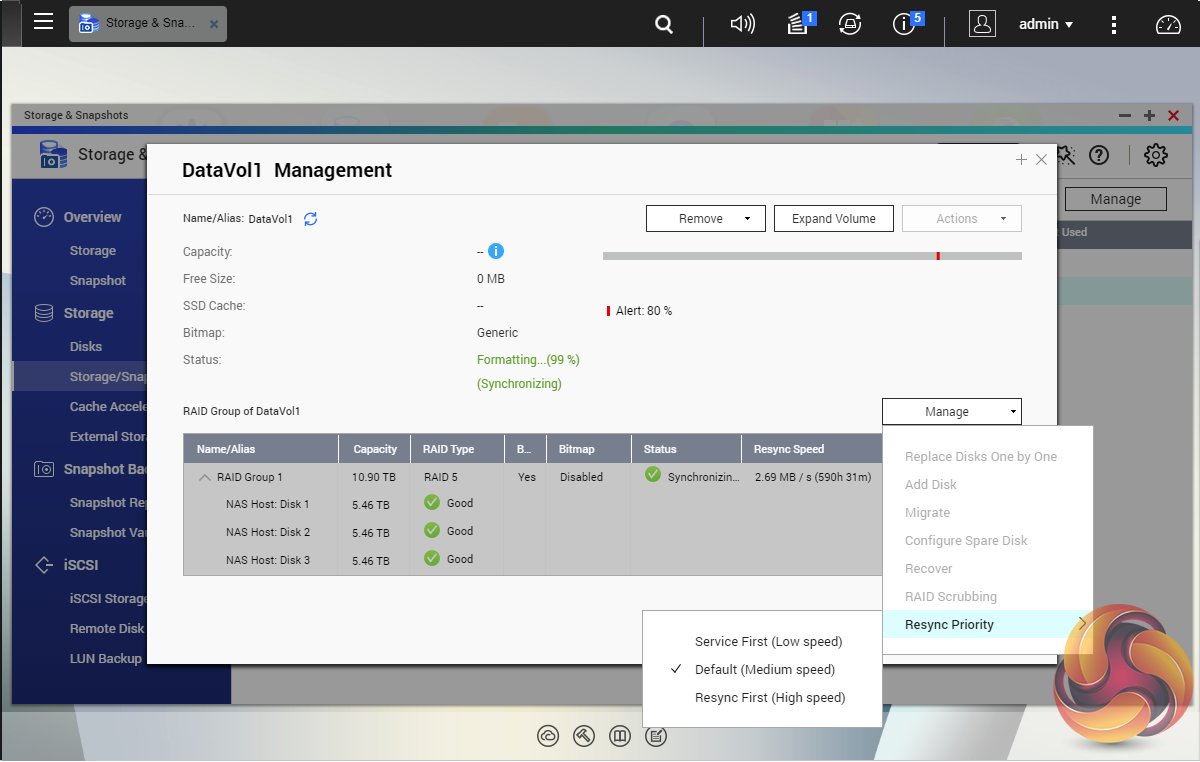
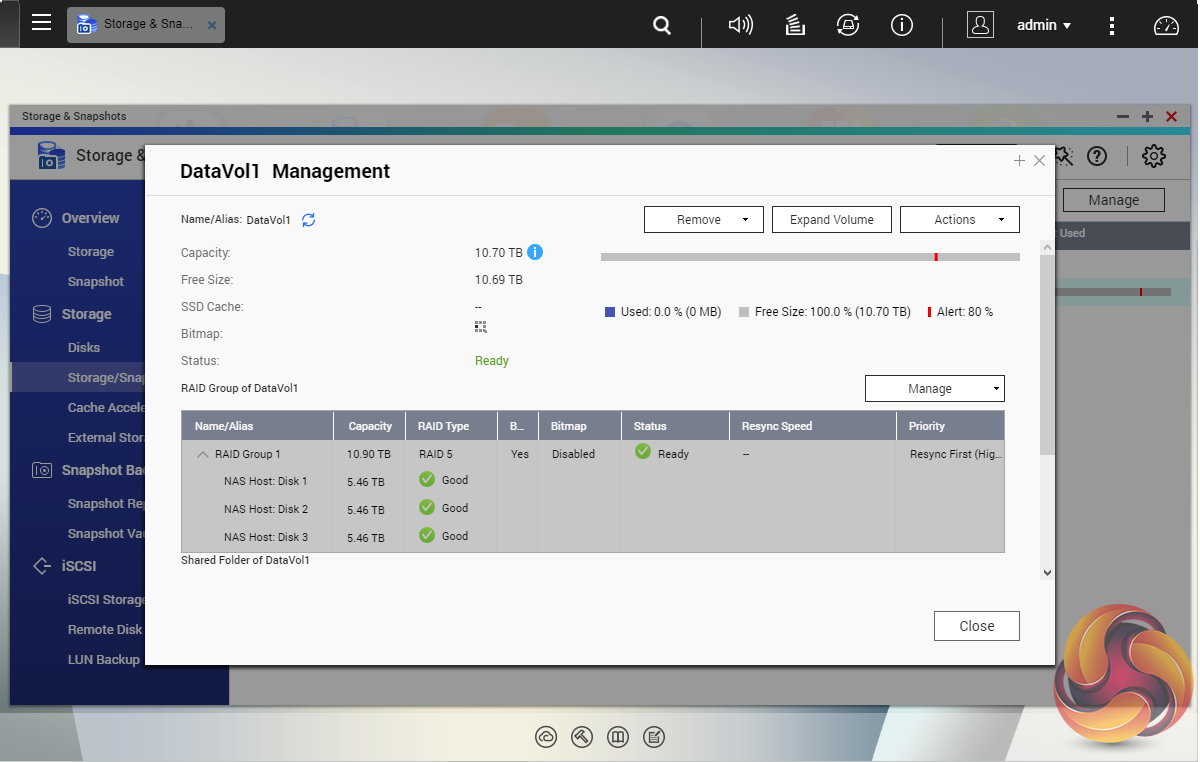
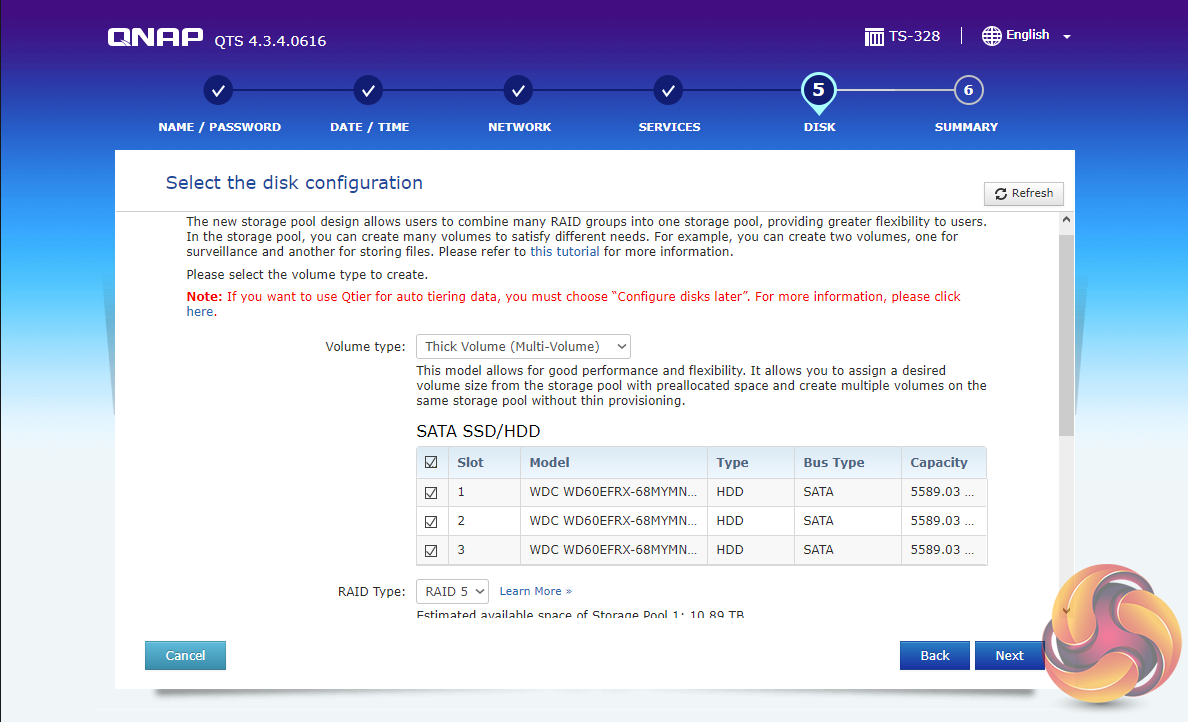
As with any NAS, disk management, RAID and volume creation are at the heart of things. Setting the storage space(s) up is pretty straightforward thanks to the clear and precise step by step setup pages in QTS.
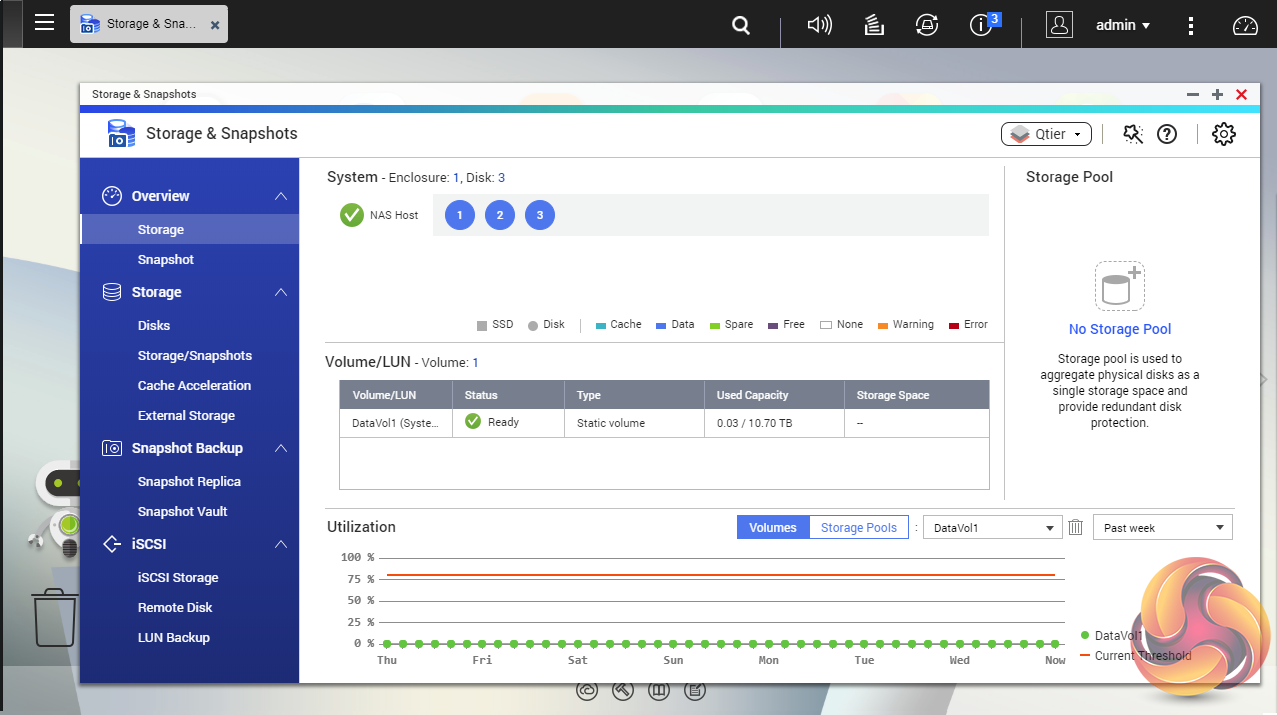
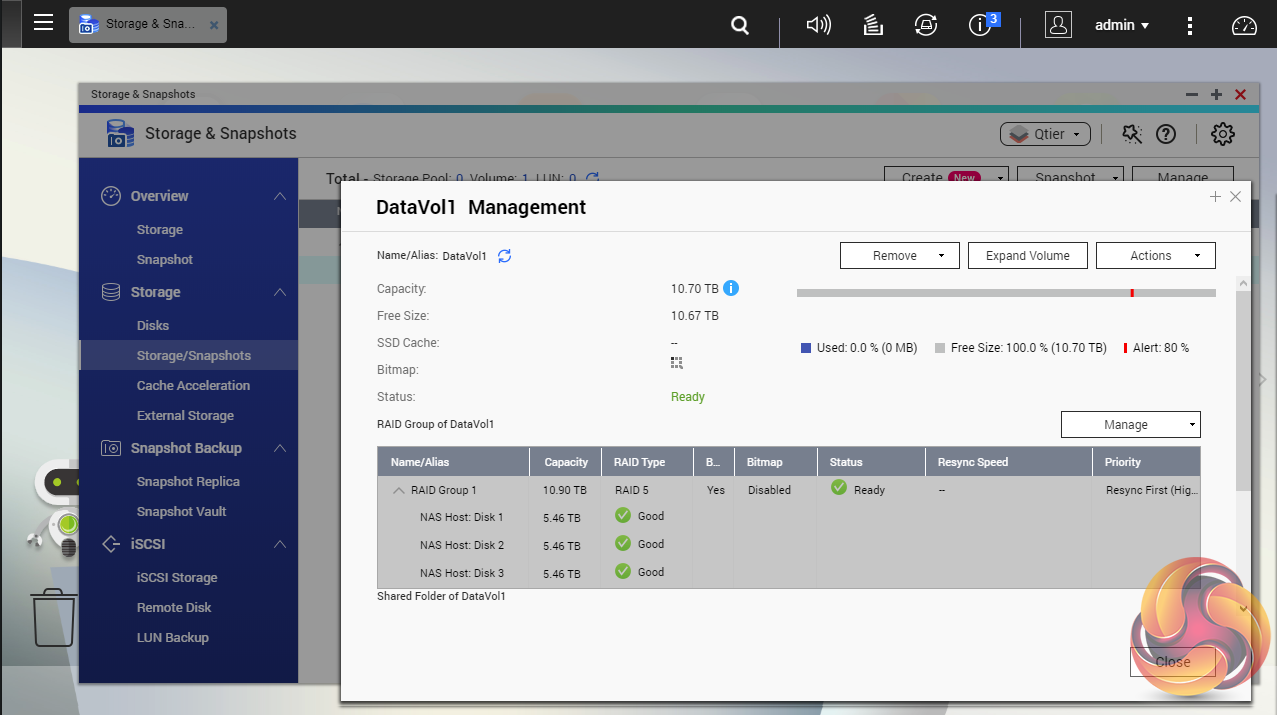

Storage & Snapshots Manager is a powerful app that allows the status of all volumes and storage pools to be shown at a glance in a very clear, well laid out manner. Global settings for disks, storage and snapshots can all be adjust from within the management window.
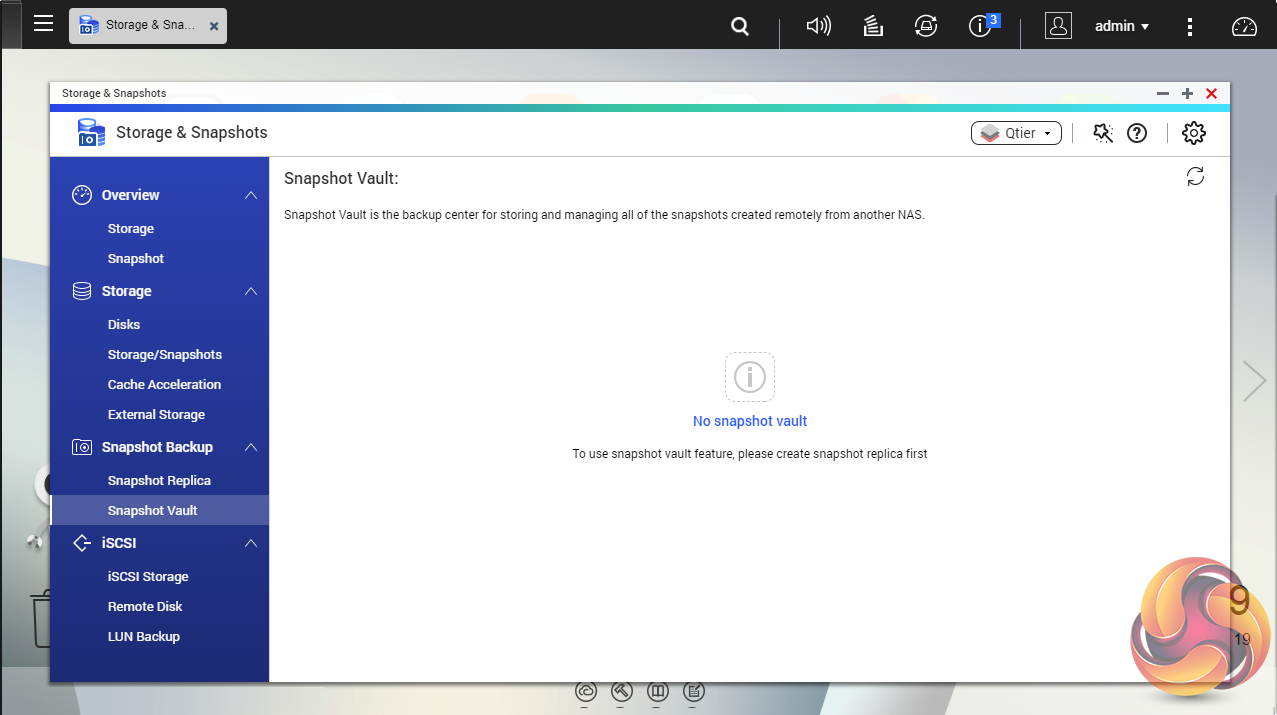
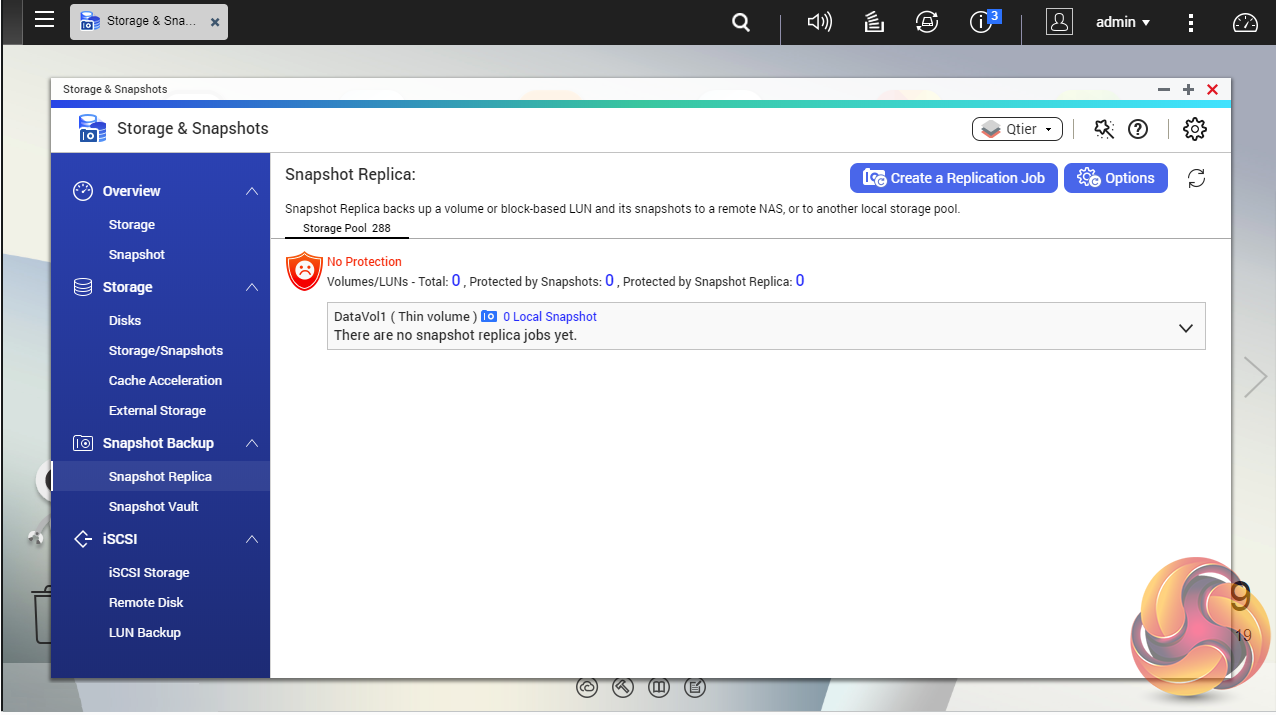
File snapshots used to be the preserve of high end business and enterprise systems but QNAP has brought it to this entry level NAS. Using snapshots you can record the state of the system and data at any time.
Using snapshot protection, should files be accidentally deleted or modified you can quickly restore them from a previous point in time. The same applies to data lost through hard disk failures or malware infected networks.
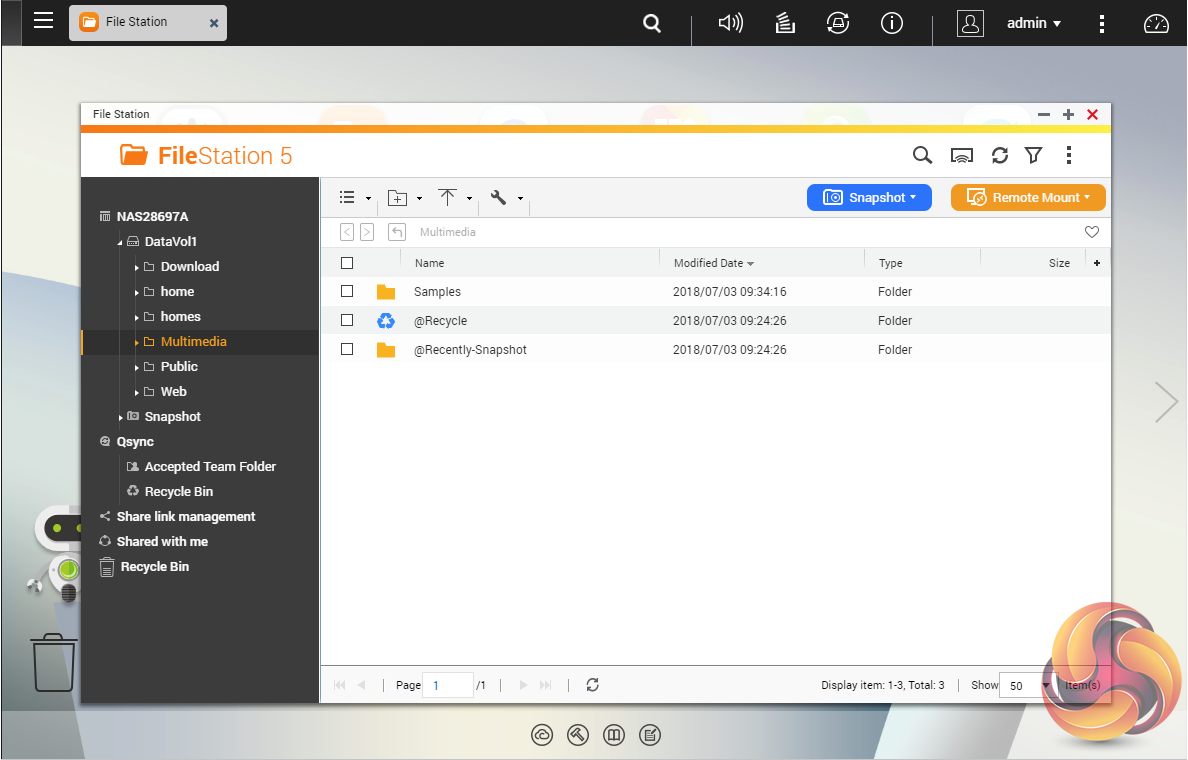
File Station, now up to version 5, is a complete file management system. It supports browsing and transfer of files from the NAS to public cloud services including Dropbox, Box, Google Drive, Microsoft OneDrive and OneDrive for Business, Yandex Disk, Amazon Drive and HiDrive. It also allows the mounting of shared folders from a remote NAS to a local NAS via FTP and CIFS/SMB.
Qfiling makes the job of archiving and organising large numbers of files much easier by allowing the setting of various filing conditions and schedules to enable automatic filing jobs.
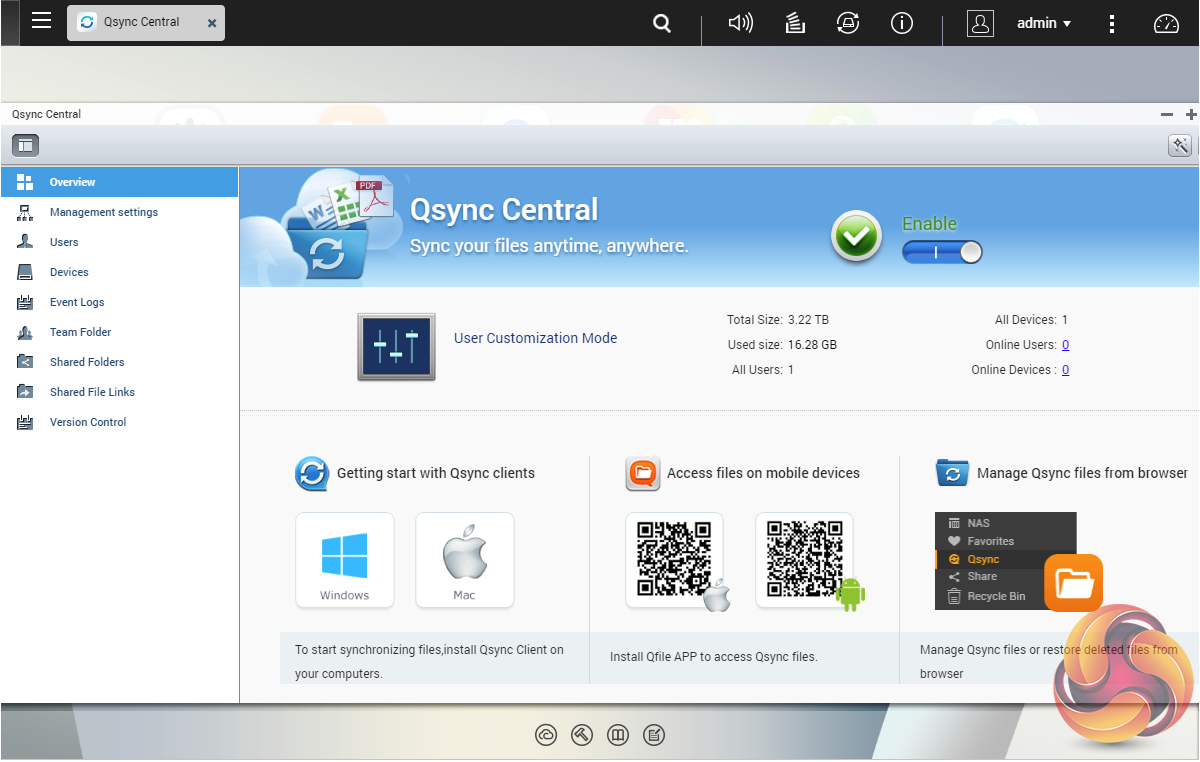
To access files from anywhere there is Qsync Central. Files added to the Qsync folder are available to the local NAS and all devices that are connected to it, including mobile devices.
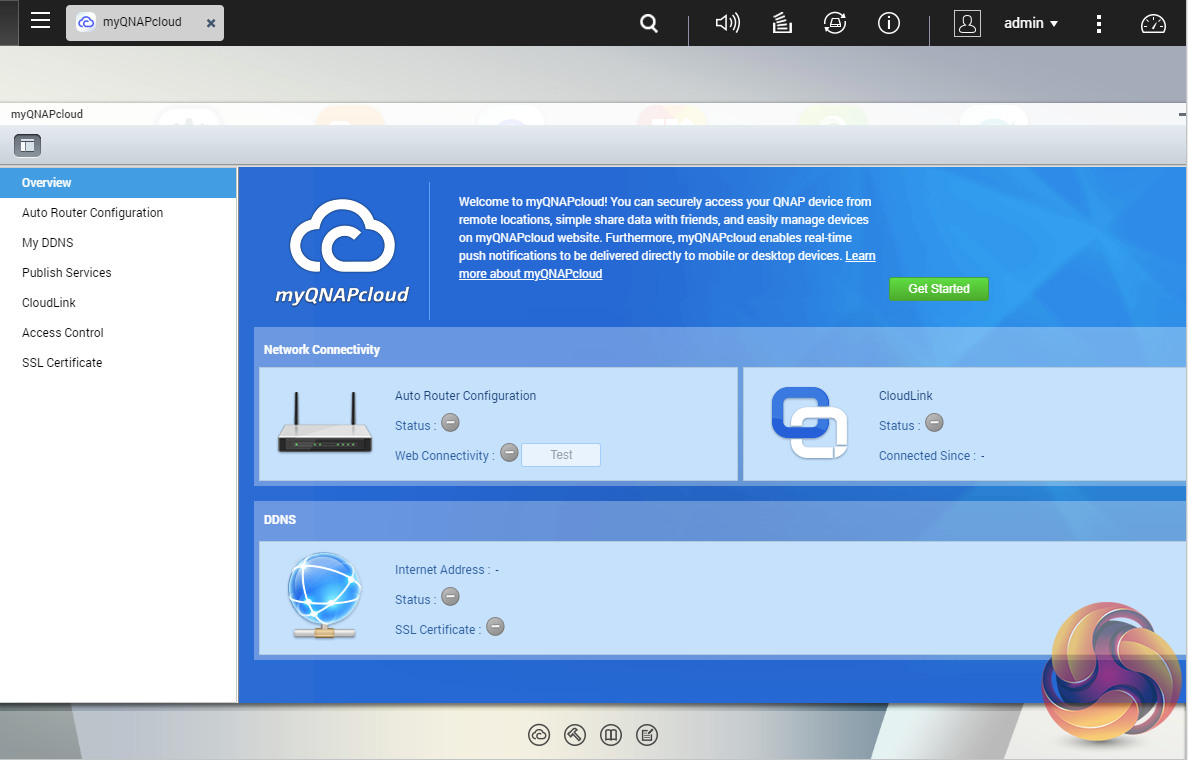
myQNAPclould allows for easy and safe access to a remote device. It allows multiple devices to connect to one central location to share and manage files. For even more secure connections, SSL certication is available.
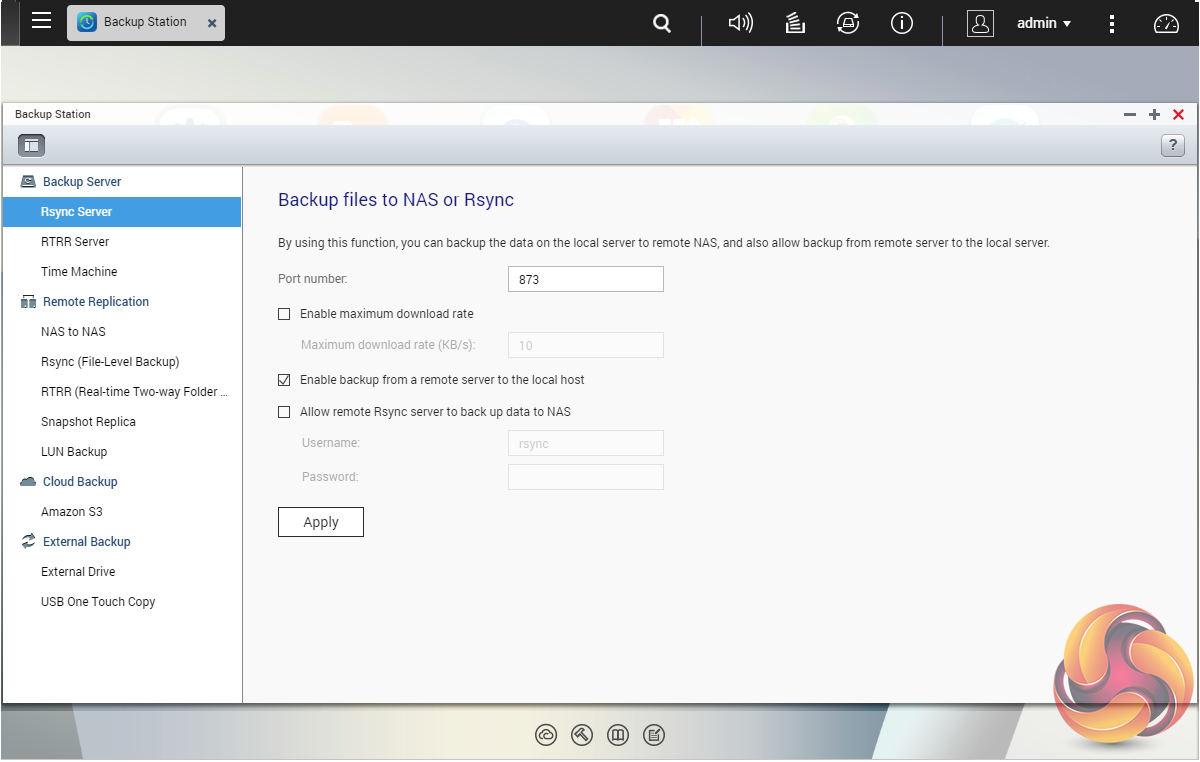
Backup Station allows the backing up of data with a wide range of options, including backup servers, cloud storage, and external devices.
The One Touch button on the front bezel can be set up to either upload or download files/folders or backup the NAS to an external USB drive. In the Backup Station pages in the QTS you can set up exactly what you want the One Touch system to do.
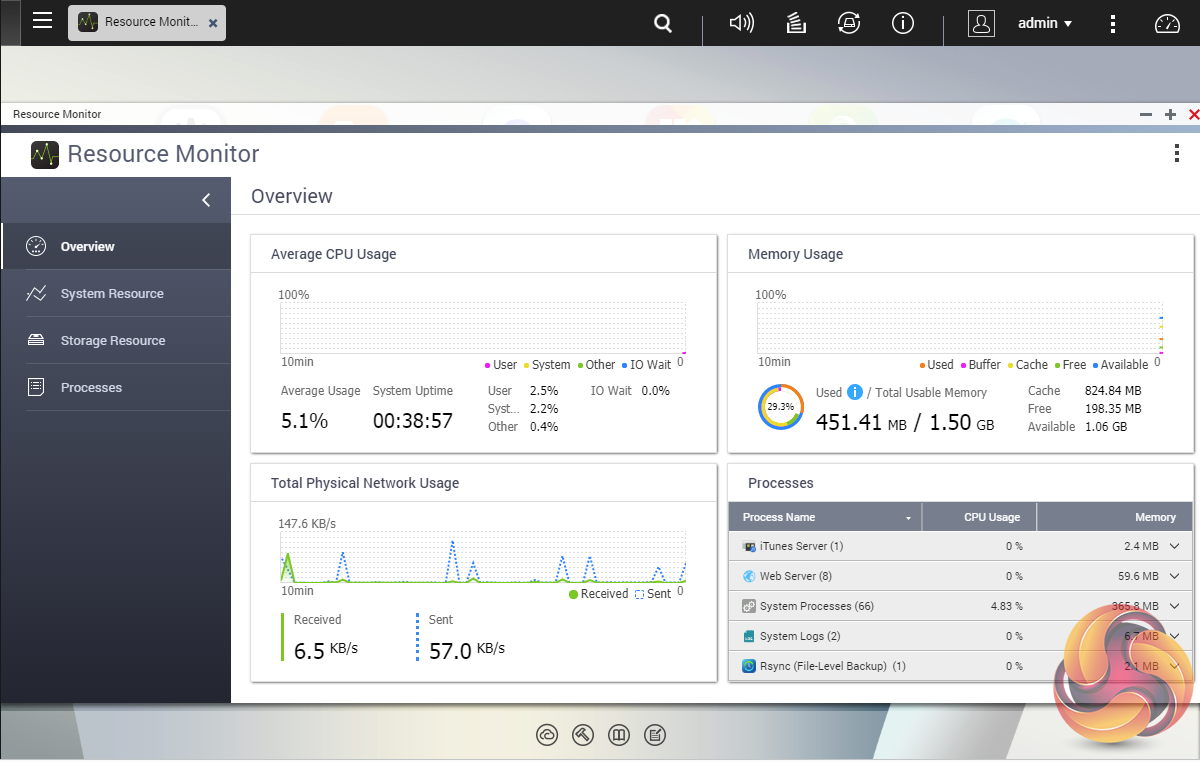
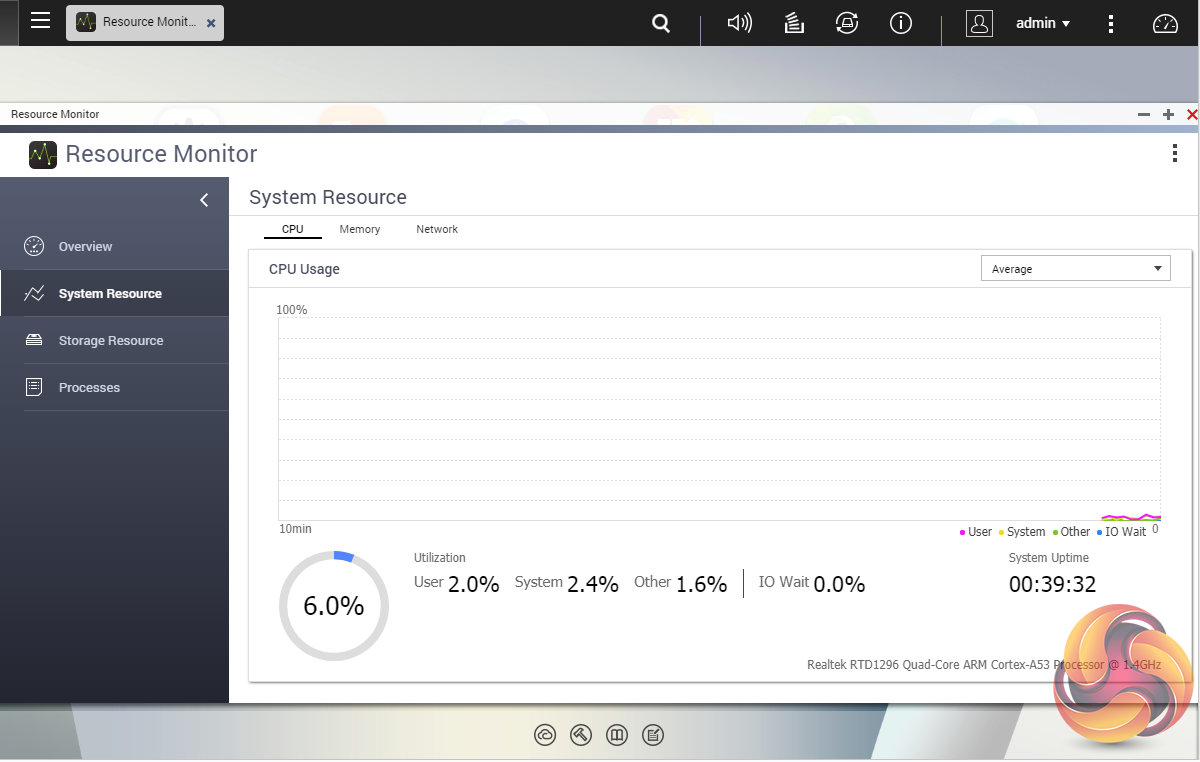
The Resource Monitor is a very useful tool, monitoring elements and offering detailed information on how the storage of the NAS is being used. It is divided into four sections; Overview, System (with separate tabs for the CPU, Memory and Network), Storage (with separate pages for pool, RAID and disk activities and how the storage space is being used) and Processes.
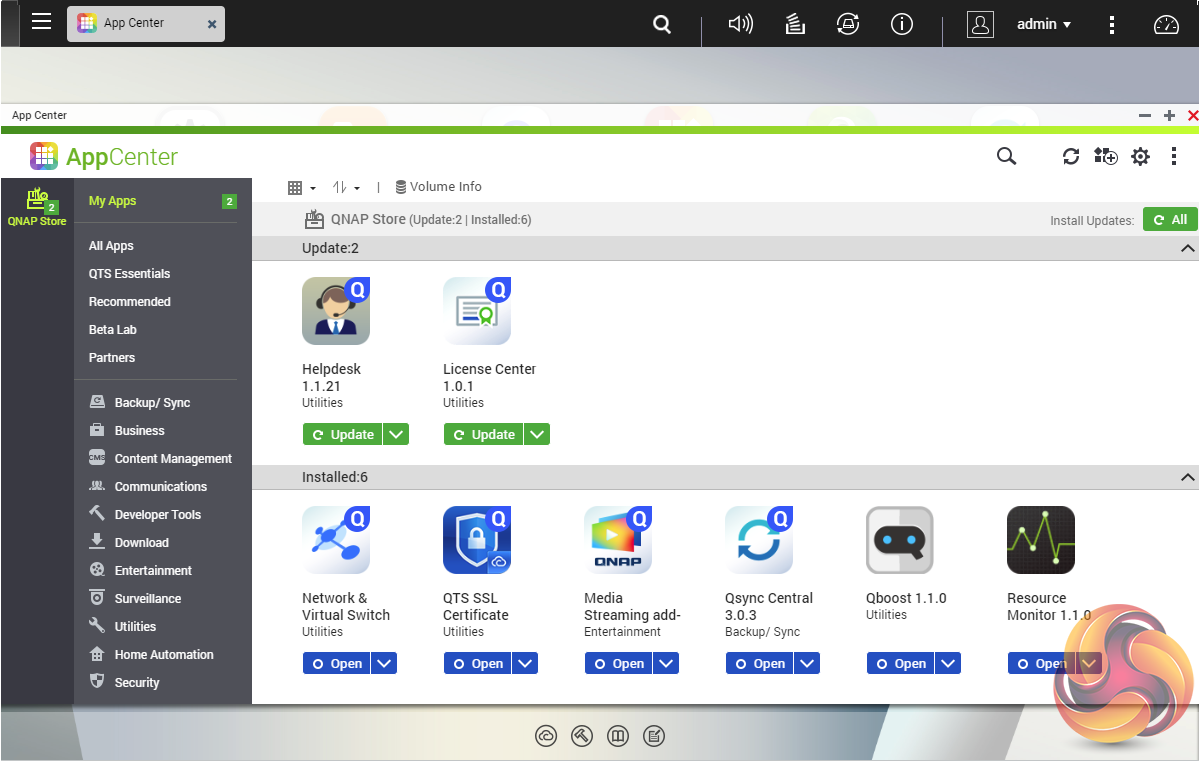
App Center has over 160 apps to choose from covering everything from backups to home automation and pretty much everything in between.
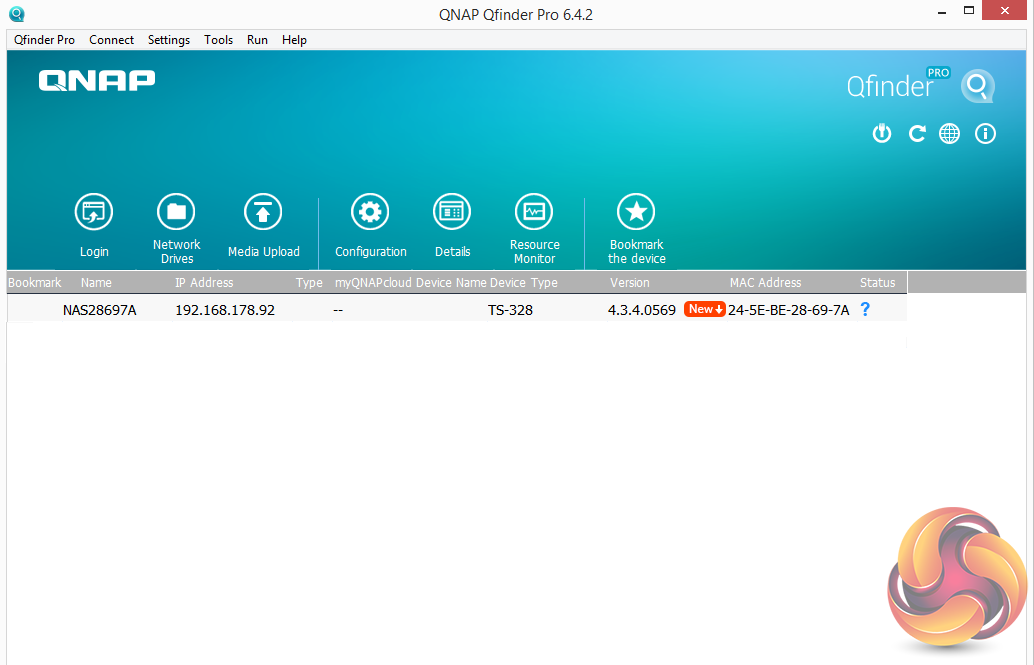
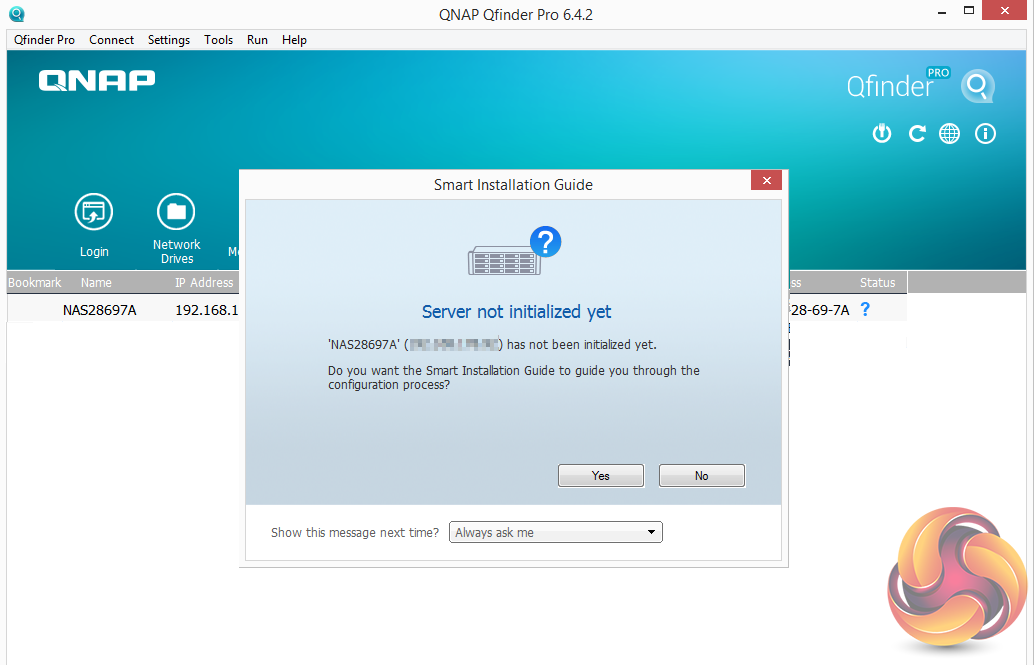
There are two ways of setting up the TS-328, either online by entering the Cloud key which is on the side of the unit or by using QNAP’s Qfinder Pro utility which can be downloaded from the QNAP website. Qfinder Pro searches for QNAP devices on the network.
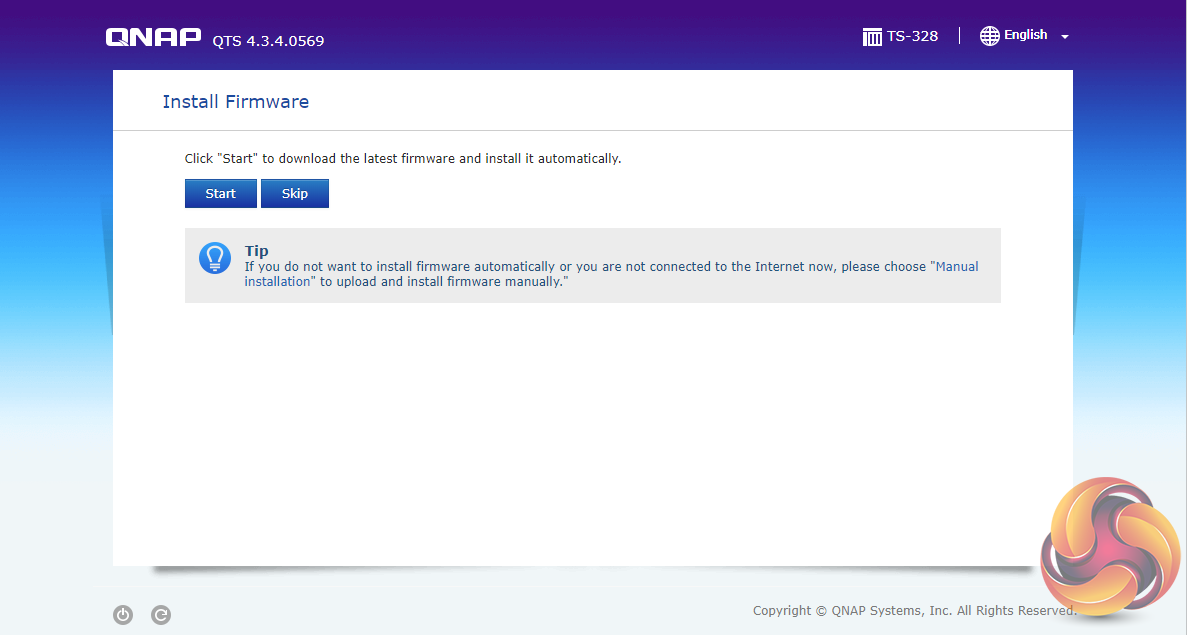
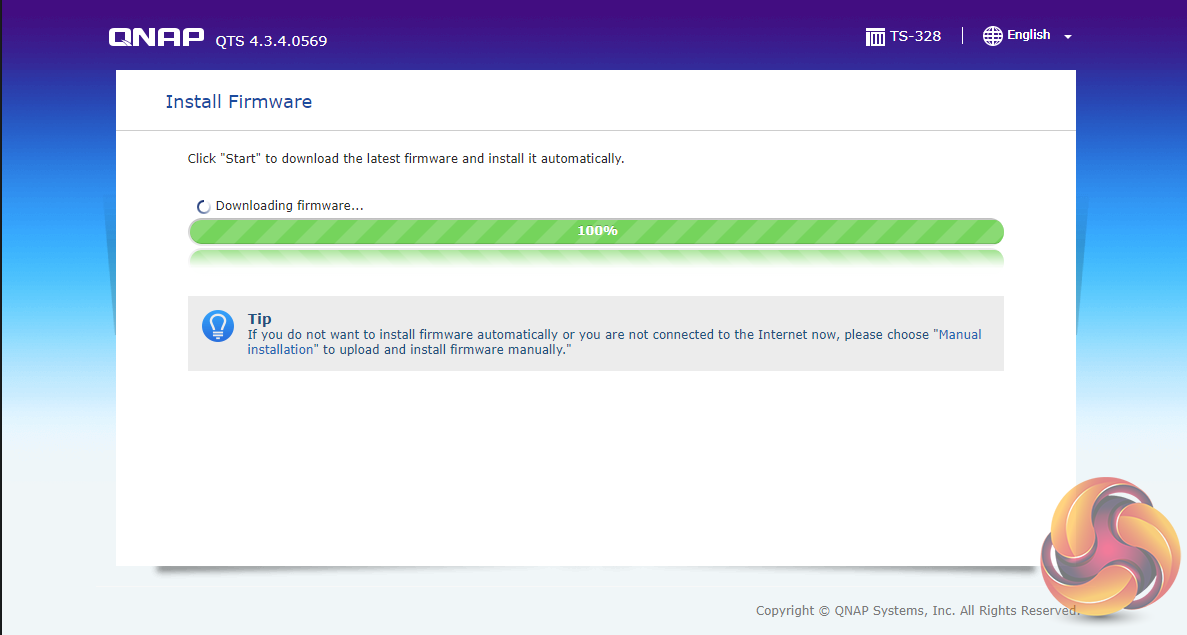
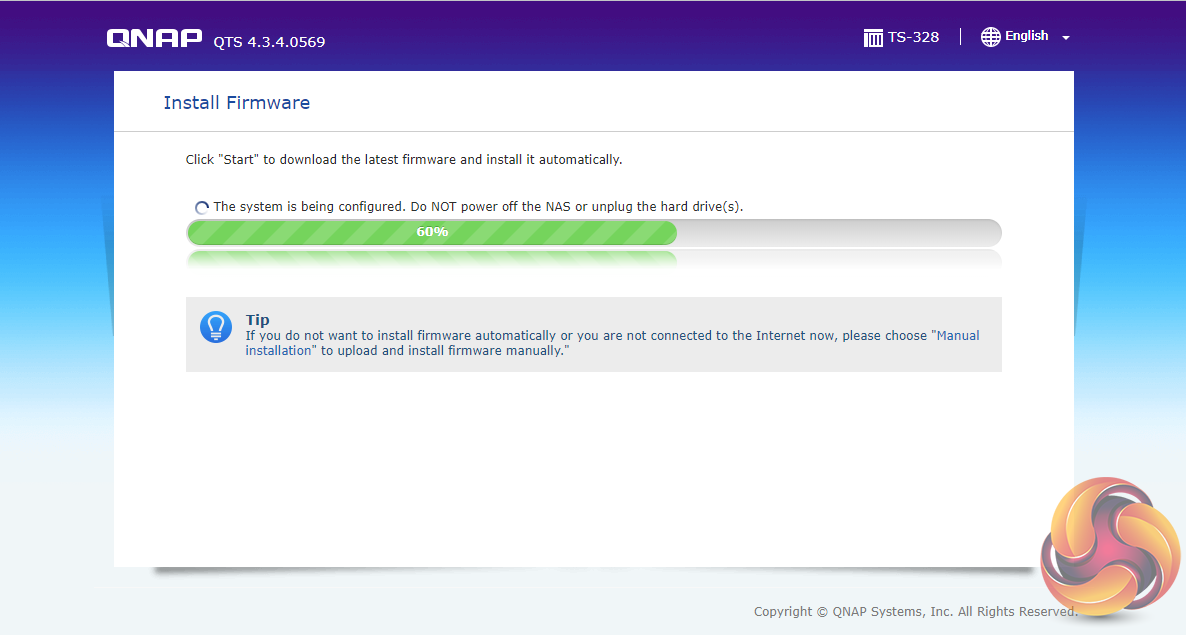
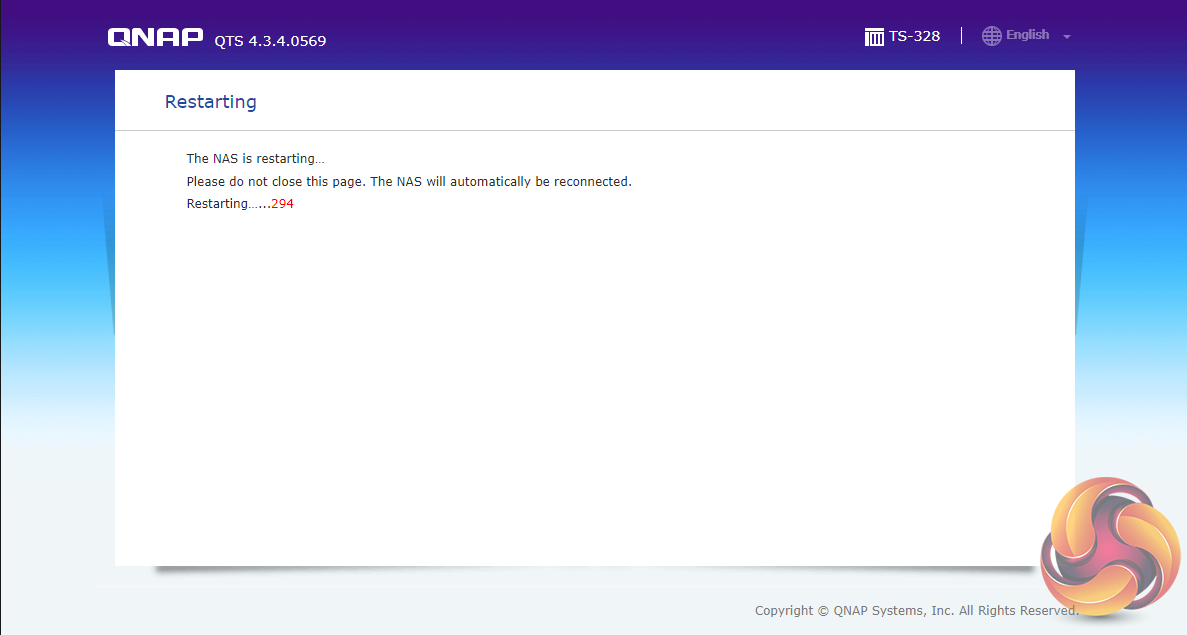
The first job you'll probably have to do is to update the NAS firmware, which is is easily done by following the walk through wizard.
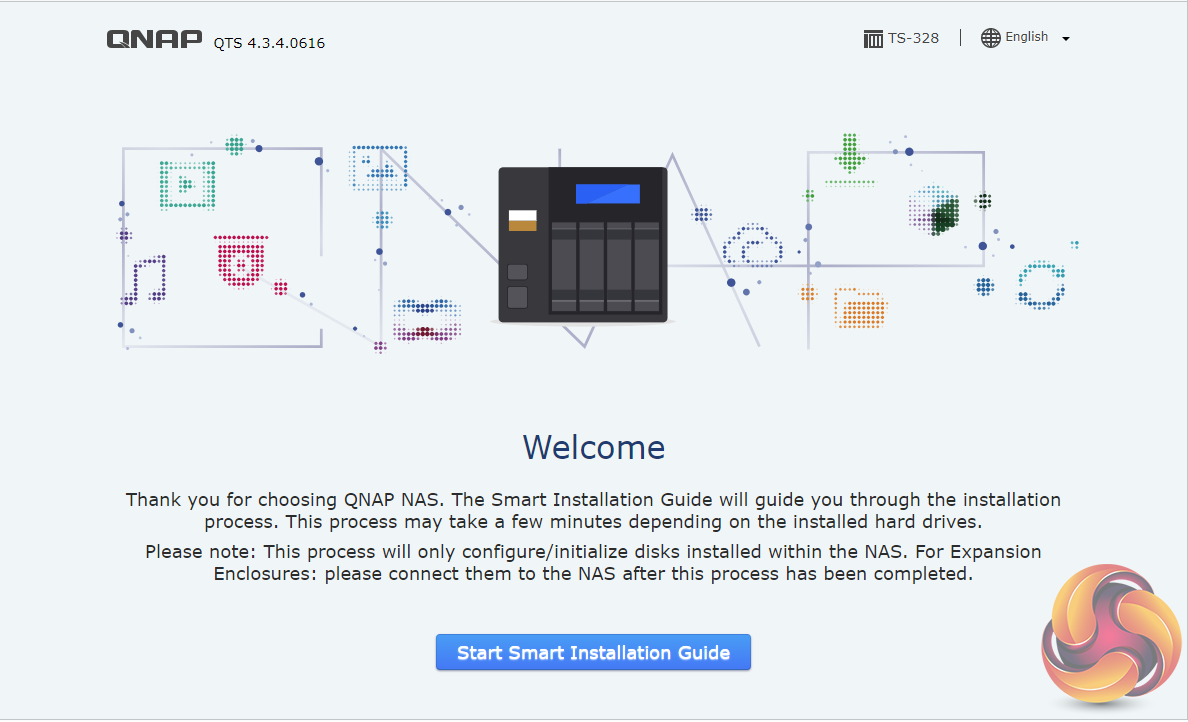
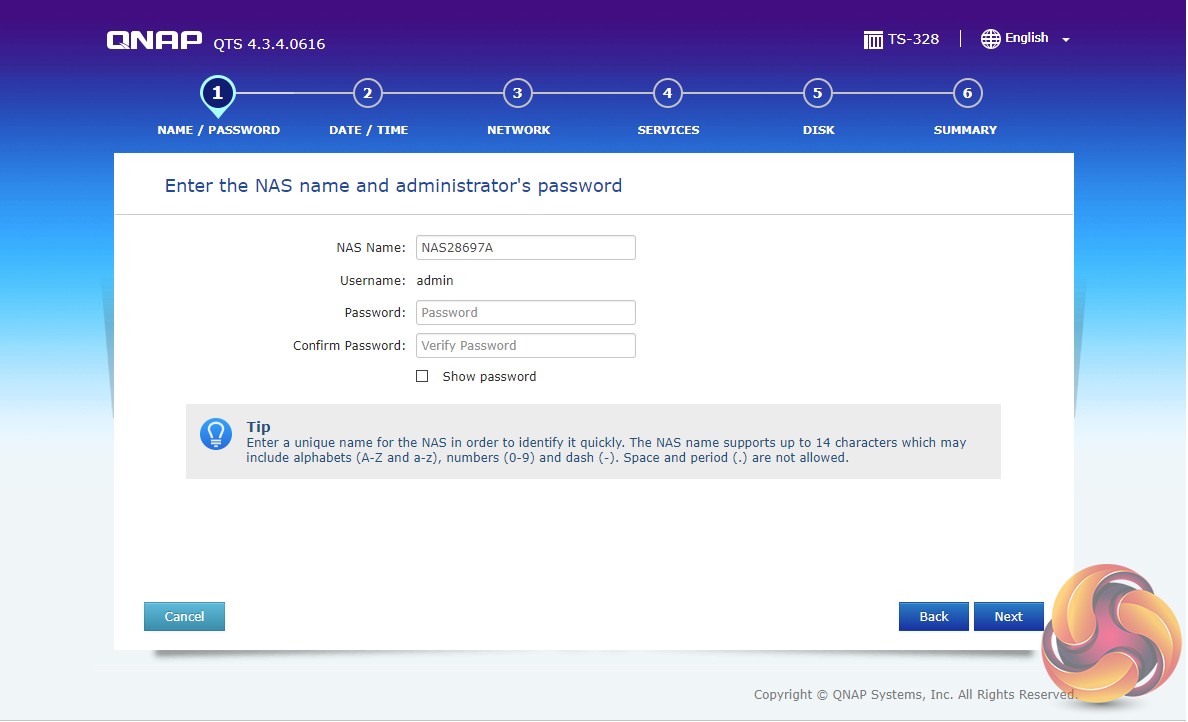
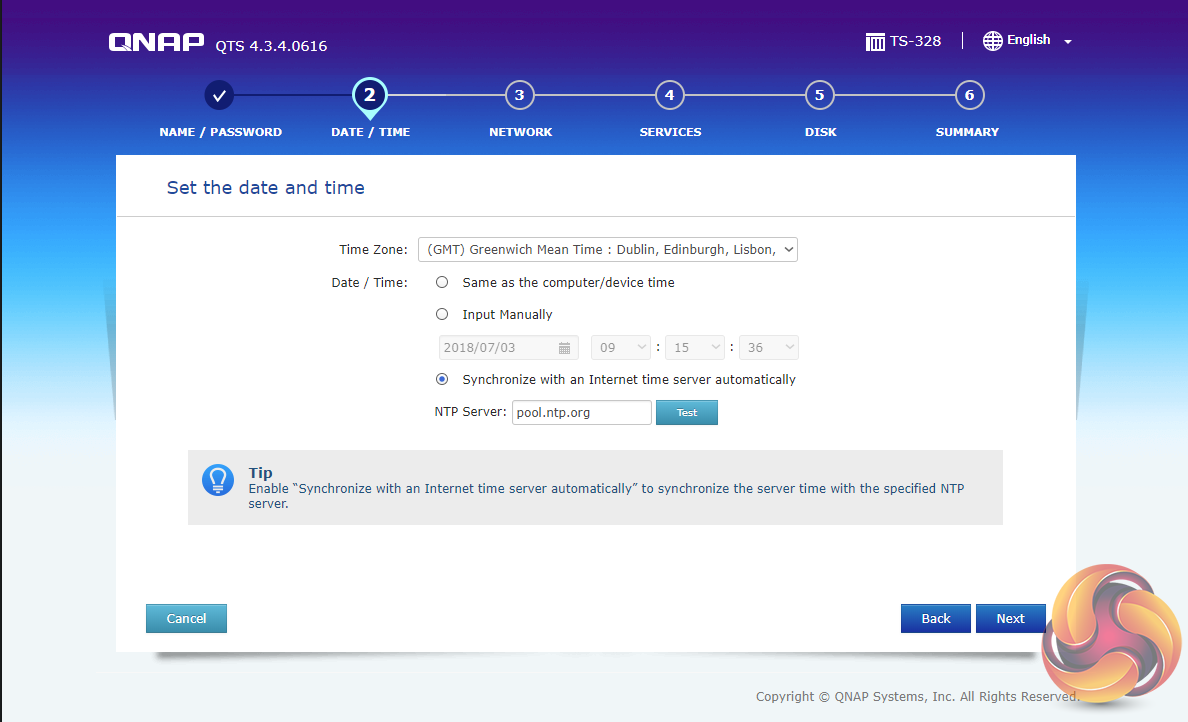
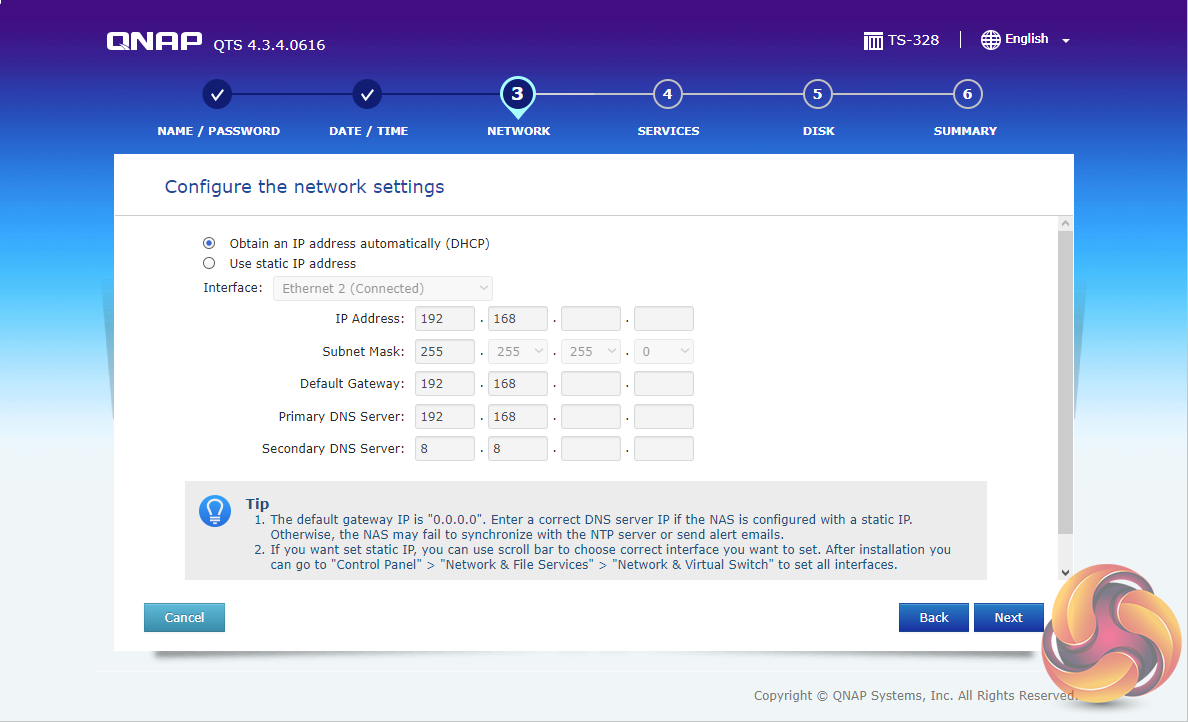
Once the firmware has been udpated, it’s just a simple matter of following the installation wizard to get the NAS setup.
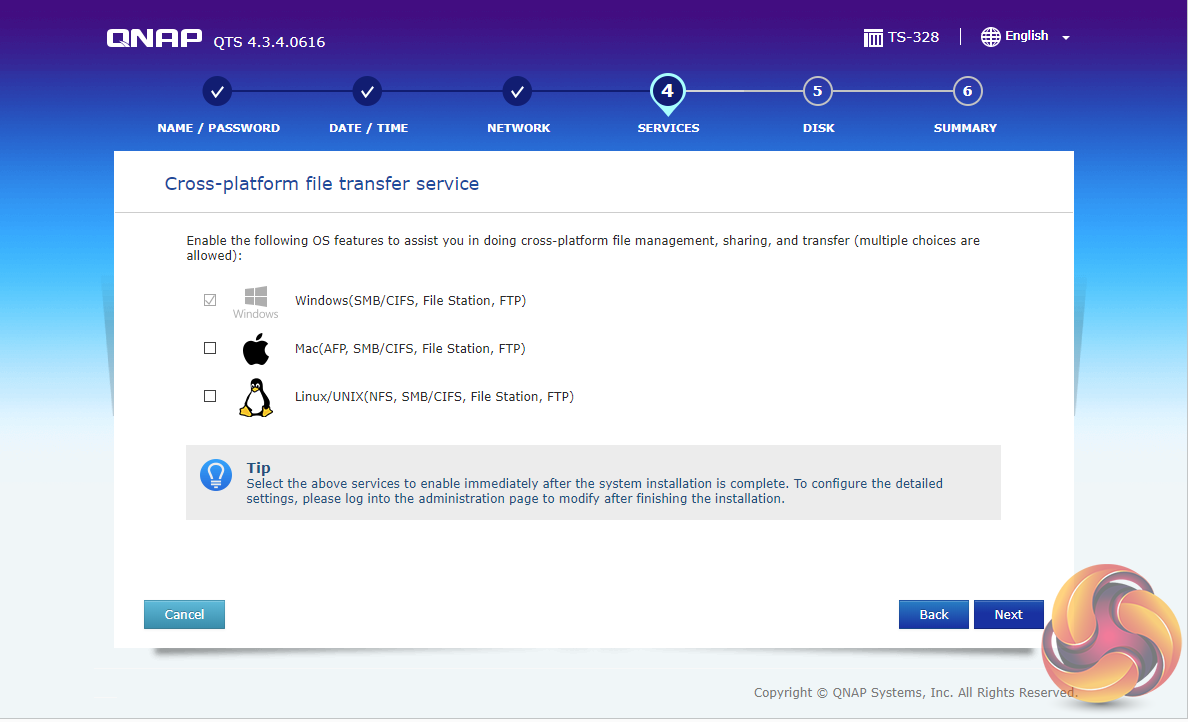
During the setup you can enable which OS cross-platform file management service you require – Windows (SMB/CIFS, File Station, FTP), Mac (SMB/CIFS, File Station, FTP) and Linux (NFS, SMB/CIFS, File Station, FTP).
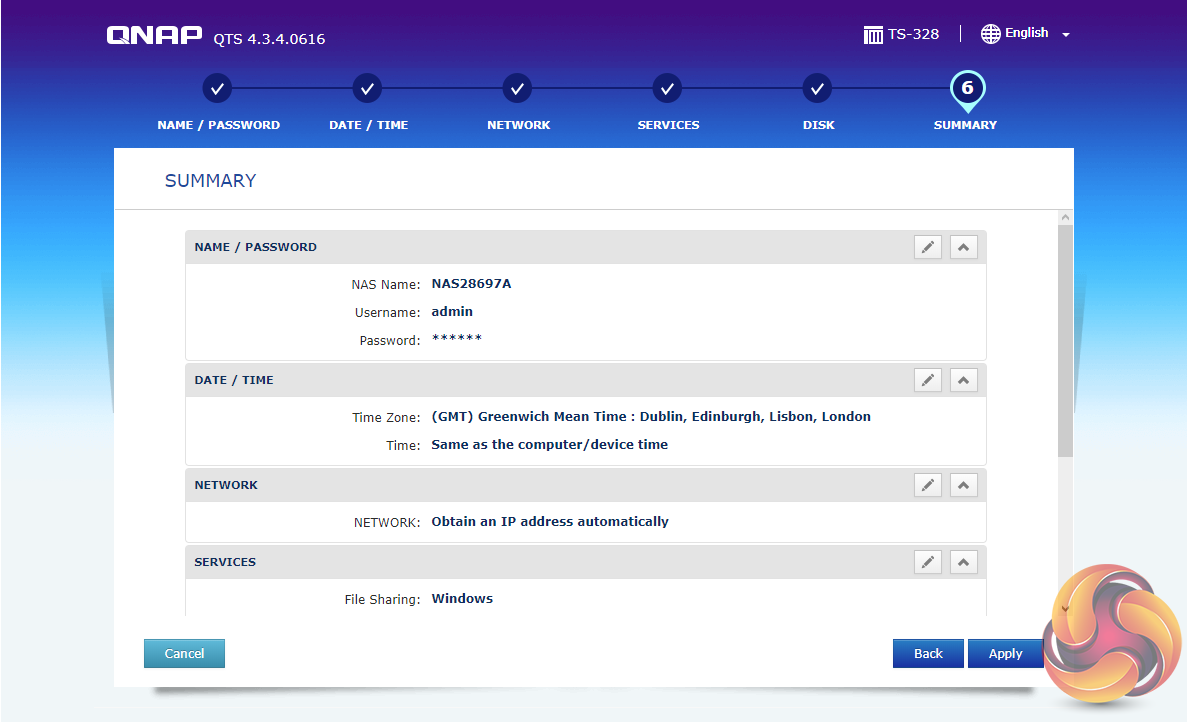
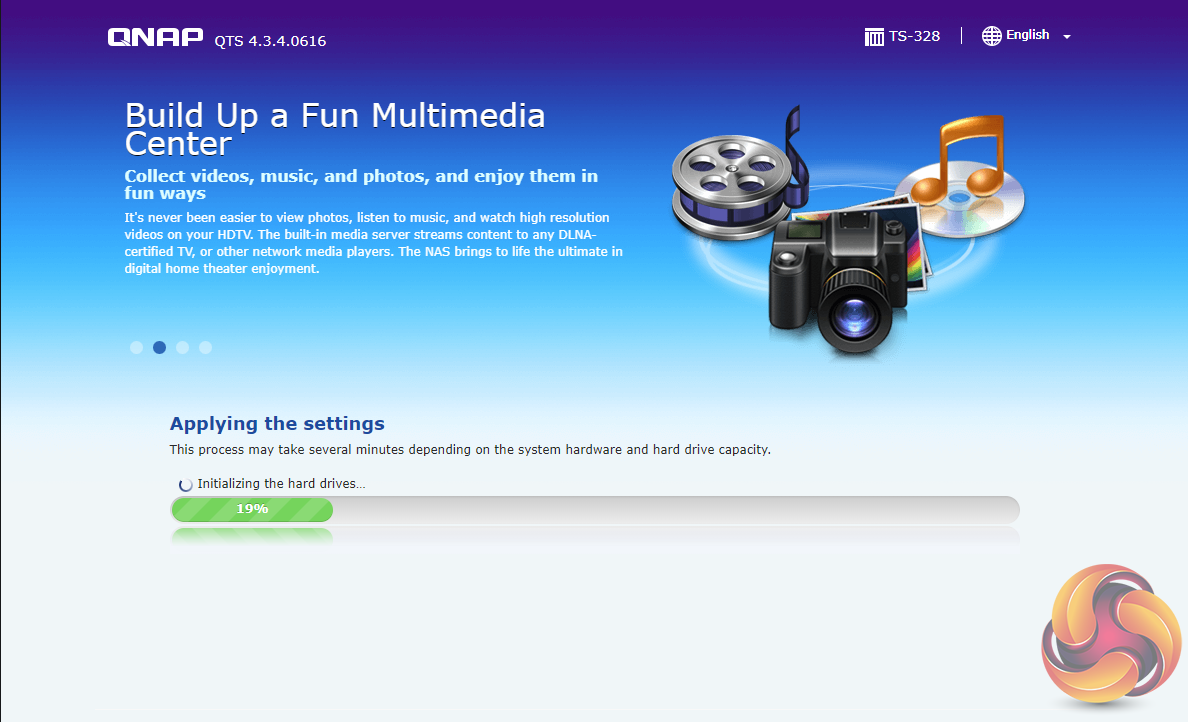
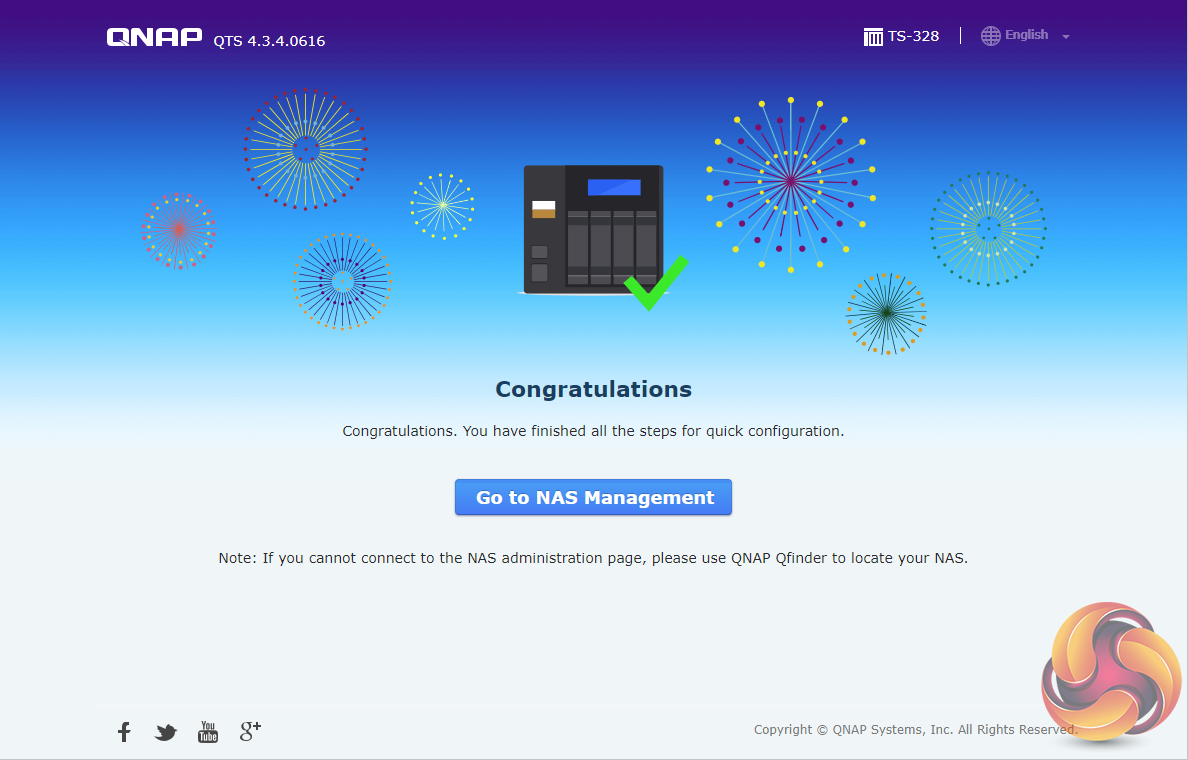

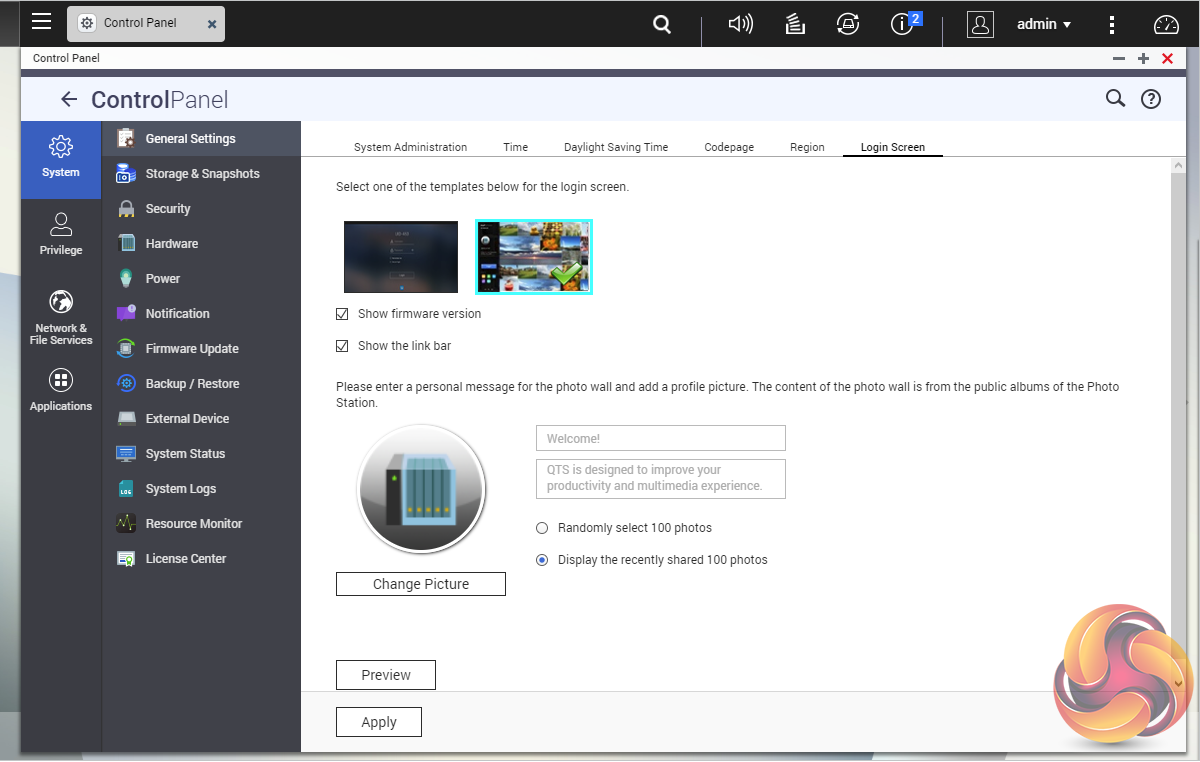
Once the TS-328 has finished setting up, you can then access the login screen. The login page can be customised to add your own photographs or corporate logo to the photo wall and messages can be added to the page as well.
To test the TS-328 we used three 6TB Red drives (WD60EFRX, 5,400rpm class, 64MB cache), built into all the RAID arrays supported by the device; RAID 0,1and 5 and then tested.
Software:
Atto Disk Benchmark.
IOMeter.
Intel NASPT.
The ATTO Disk Benchmark performance measurement tool is compatible with Microsoft Windows. Measure your storage systems performance with various transfer sizes and test lengths for reads and writes. Several options are available to customize your performance measurement including queue depth, overlapped I/O and even a comparison mode with the option to run continuously.
Use ATTO Disk Benchmark to test any manufacturers RAID controllers, storage controllers, host adapters, hard drives and SSD drives and notice that ATTO products will consistently provide the highest level of performance to your storage.
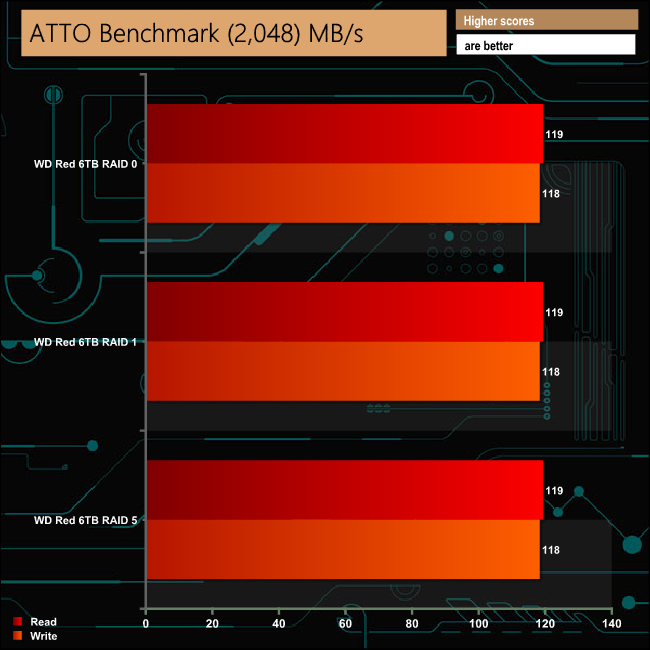
The TS-328 certainly doesn't lack for anything in performance in the ATTO benchmark. 119MB/s for reads and 118MB/s for writes is pretty much the limit for a 1GbE connection. Regardless of the RAID array type we got the same read and write performance figures from the unit.
Intel’s NASPT (NAS Performance Toolkit ) is a benchmark tool designed to enable direct measurement of home network attached storage (NAS) performance. NASPT uses a set of real world workload traces (high definition video playback and recording, video rendering/content creation and office productivity) gathered from typical digital home applications to emulate the behaviour of an actual application.
We’ve used some of the video and office apps results to highlight a NAS device’s performance.
HD Video Playback
This trace represents the playback of a 1.3GB HD video file at 720p using Windows Media Player. The files are accessed sequentially with 256kB user level reads.
4x HD Playback
This trace is built from four copies of the Video Playback test with around 11% sequential accesses.
HD Video Record
Trace writes an 720p MPEG-2 video file to the NAS. The single 1.6GB file is written sequentially using 256kB accesses.
HD Playback and Record
Tests the NAS with simultaneous reads and writes of a 1GB HD Video file in the 720p format.
Content Creation
This trace simulates the creation of a video file using both video and photo editing software using a mix of file types and sizes. 90% of the operations are writes to the NAS with around 40% of these being sequential.
Office Productivity
A trace of typical workday operations. 2.8GB of data made up of 600 files of varying lengths is divided equally between read and writes. 80% of the accesses are sequential.
Photo Album
This simulates the opening and viewing of 169 photos (aprrox 1.2GB). It tests how the NAS deals with a multitude of small files.
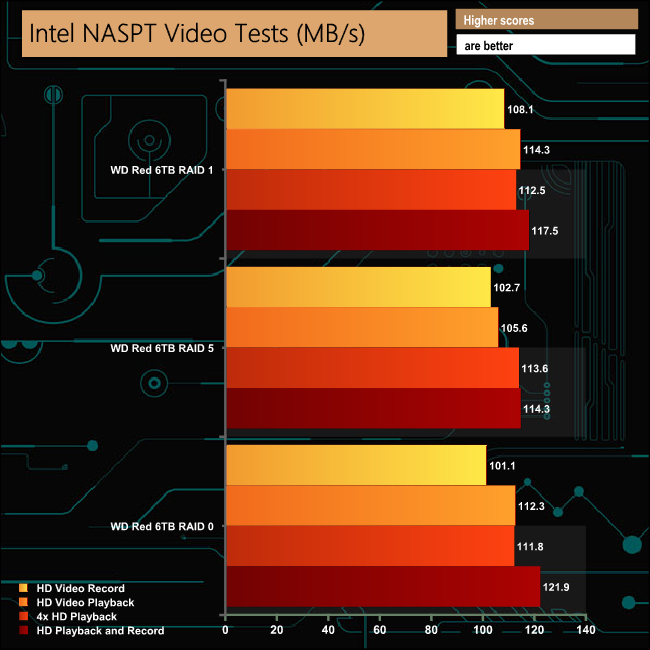
Despite only having a 1.4GHz processor and just 2GB of DDR4 memory, the TS-328 performs very well in Intel's NASPT benchmark. It shows very good consistency between the RAID arrays in the video parts of the benchmark, producing over 100MB/s for every test.
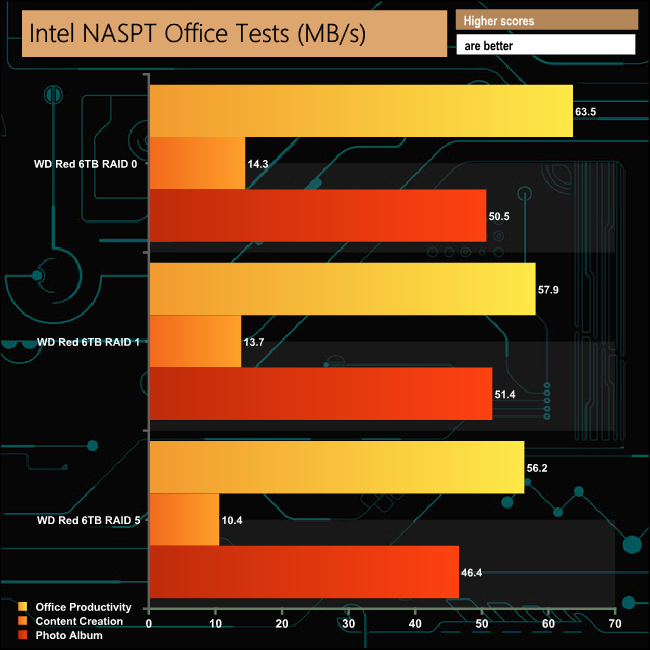
As with the video tests, the TS-328 deals with the Office parts of the NASPT in a pretty efficient manner. Taking the RAID 0 results out of the equation, there's not much to choose between the two arrays with data protection.
IOMeter is another open source synthetic benchmarking tool which is able to simulate the various loads placed on hard drive and solid state drive technology.
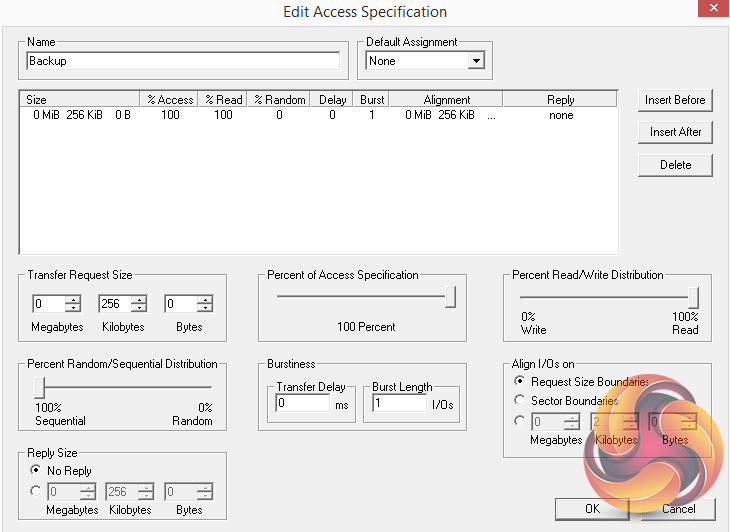
We set IOmeter up (as shown above) to test both backup and restore performance on a 100GB partition.
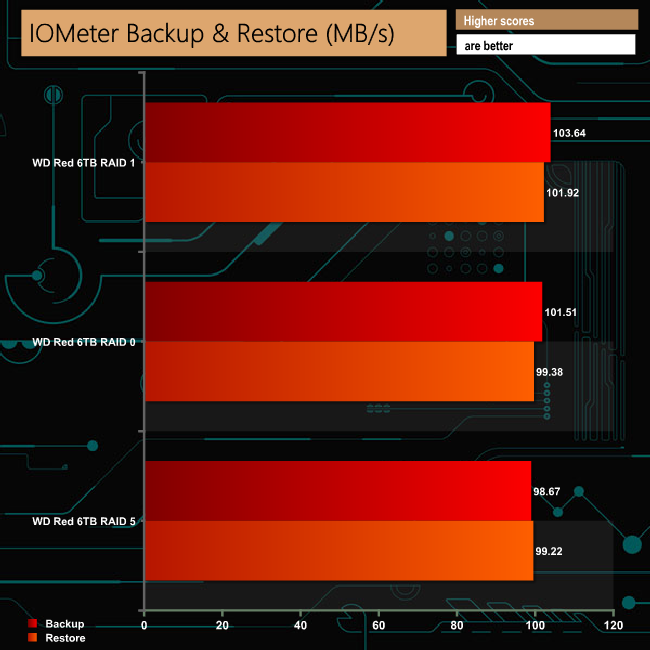
The TS-328 had no problem dealing with our backup/restore test, averaging 101MB/s for the backup test and 100.1MB/s for the restore test across the three arrays.
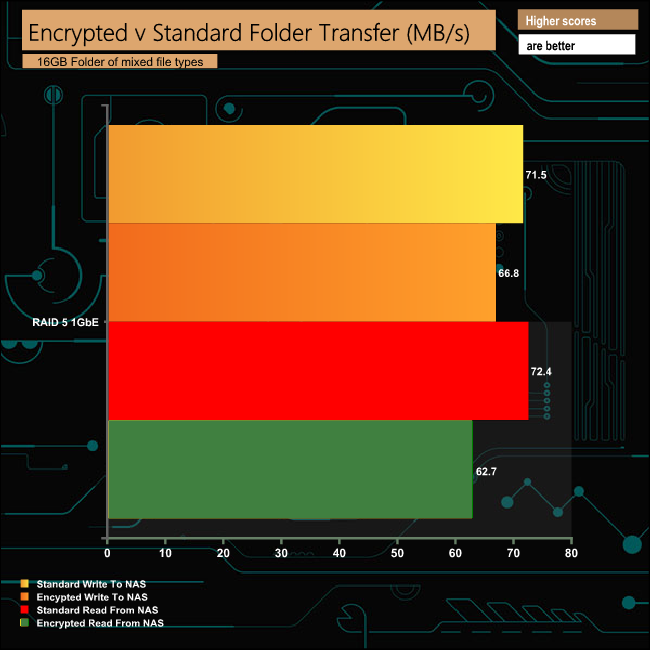
The hardware encryption engine of the Realtek RTD1296 processor that powers the TS-328 works very well, dropping just 2.7MB/s when encrypted data is being written to the NAS and 9.7MB/s when the data is read back.
To test real life file/folder performance we use a number of different file/folder combinations to test the read and write performance of the NAS device. Using the FastCopy utility to get a MB/s and time taken for each transfer, the data is written from and read back to a 240GB SSD.
100GB data file.
60GB iso image.
60GB Steam folder: 29,521 files.
50GB Files folder: 28,523 files.
12GB Movie folder: 24 files – mix of Blu-ray and 4K files.
10GB Photo folder: 621 files – mix of .png, .raw and .jpeg images.
10GB Audio folder: 1,483 files – mix of .mp3 and .flac files.
5GB (1.5m pixel) image.
BluRay Movie.
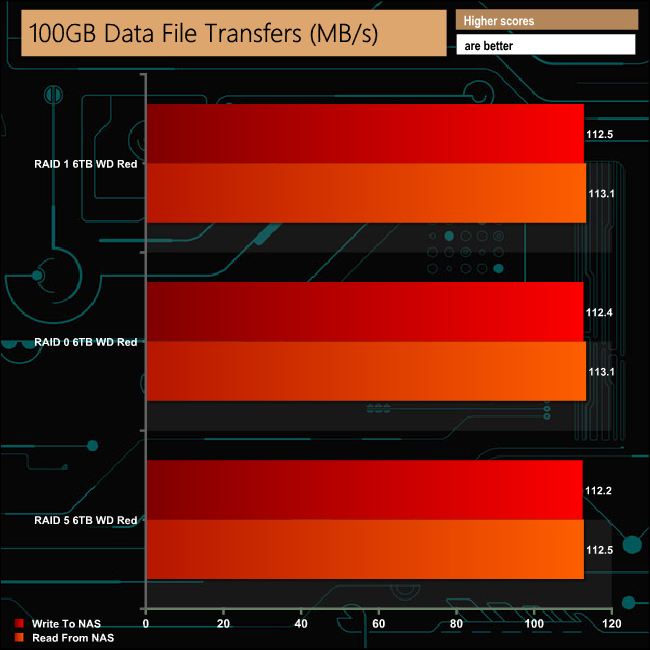
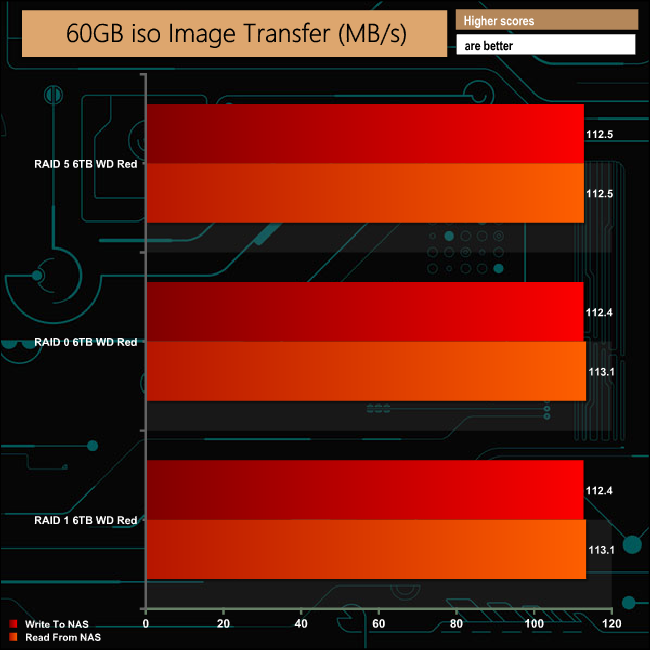
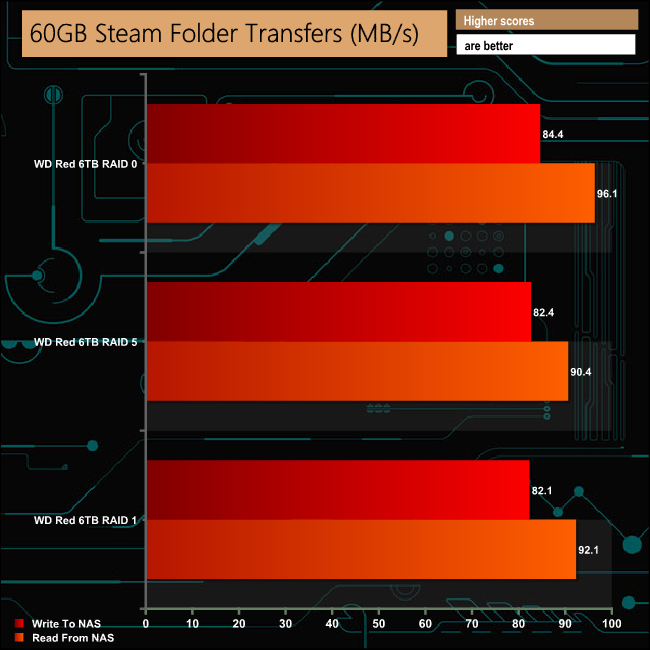
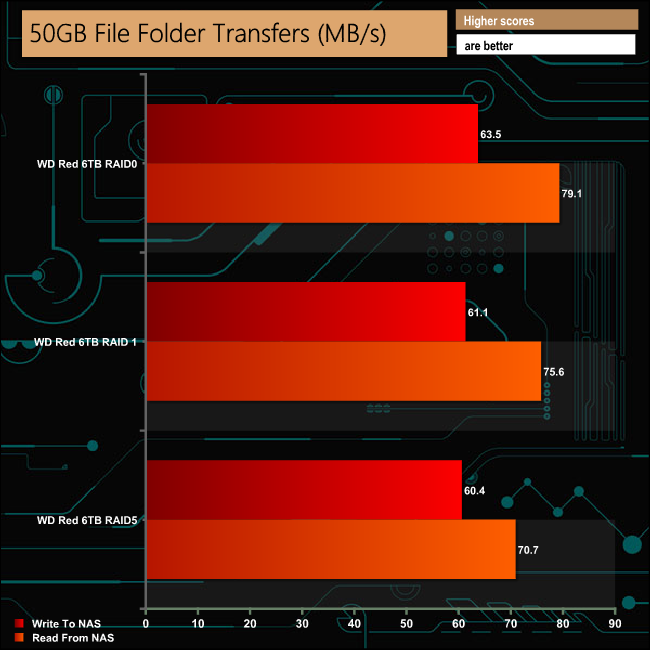
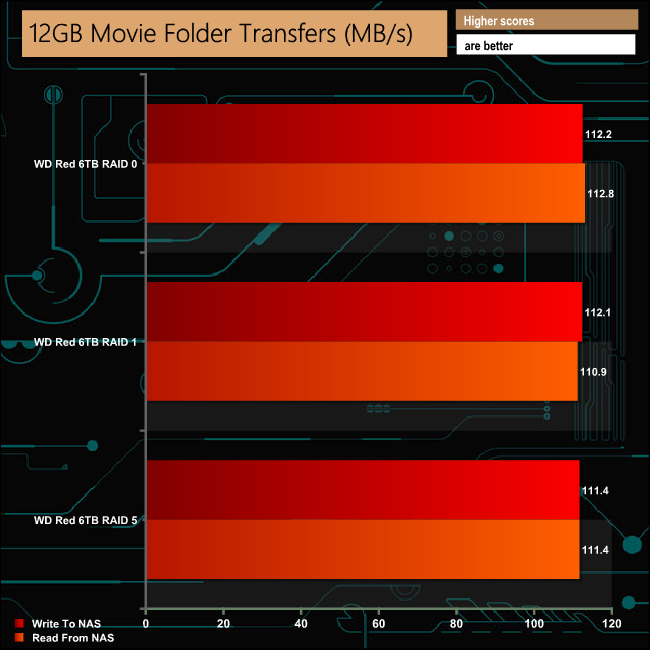
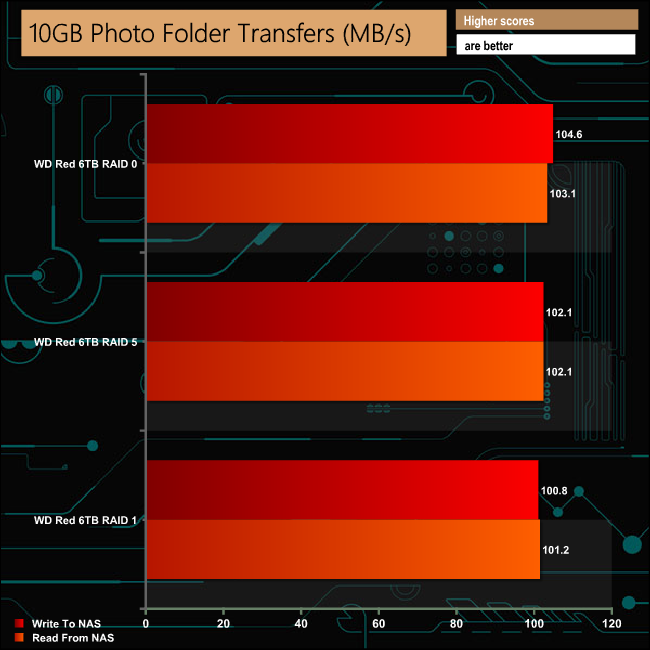
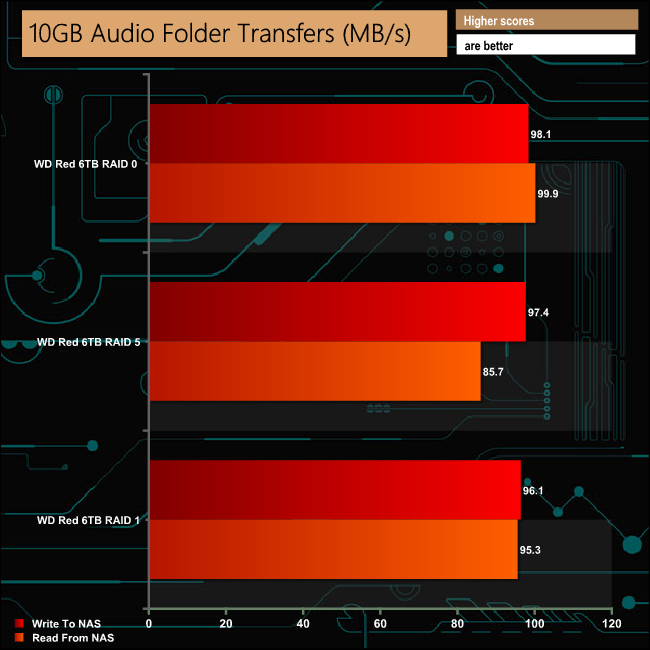
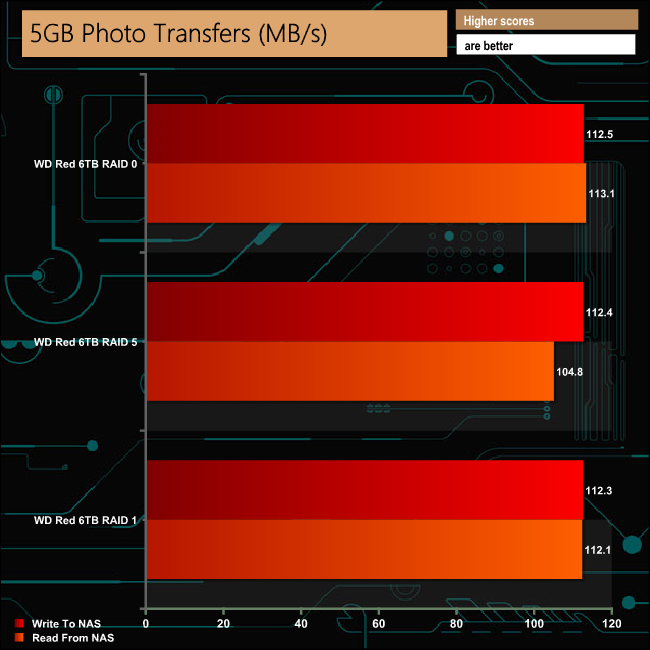
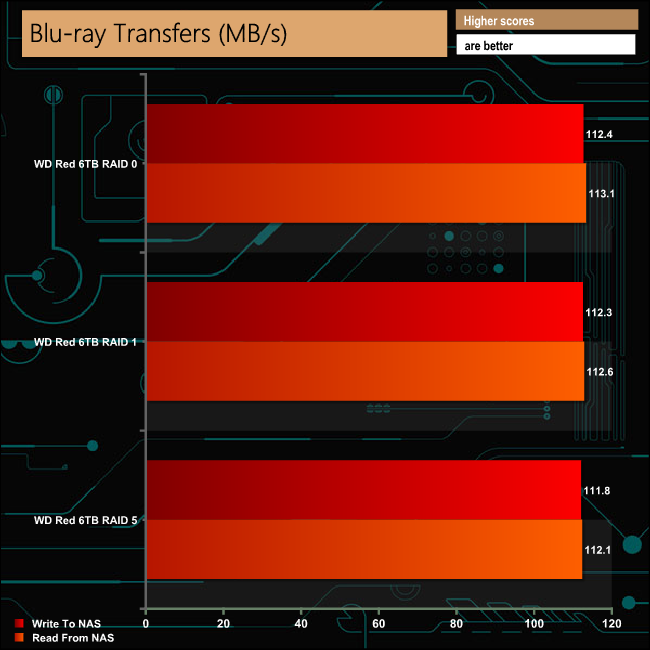
The TS-328 showed good consistency throughout our real life data transfer tests. Having said that there were a couple of times when the RAID 5 read performance dipped a little compared to RAID 1. In the 10GB Audio file transfer there was a 10MB/s difference between the RAID 1 and 5 read performance and in the 5GB Photo transfer the difference was 9.6MB/s.
We tested the peak power consumption of a NAS at the wall during a run of CrystalDiskMark 5.0.2 as this version of the benchmark runs the read and write benchmark suites separately so its easier to monitor what power the device is using during each function.
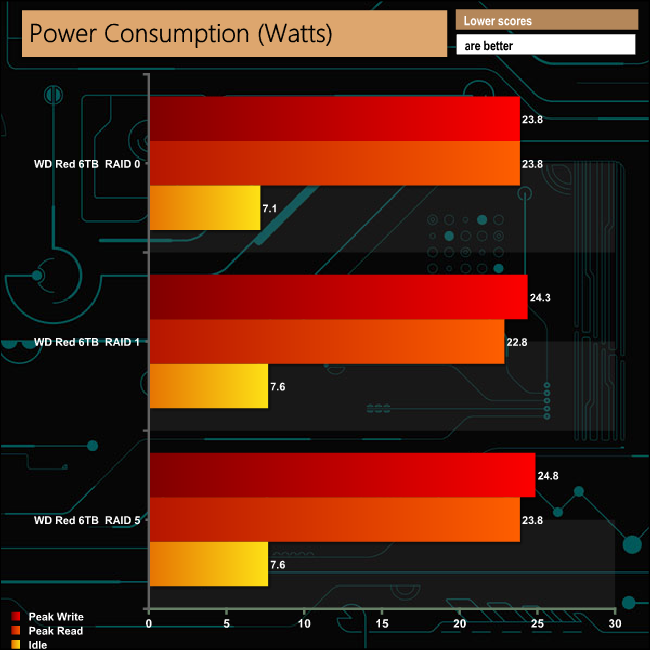
The specification sheet for the TS-328 has power figures of 7.25W in HDD standby and 18.35W in operation but we couldn't find any mention on the spec sheet which drives were being used to get these figures. The 6TB WD Red drives we used for testing have 0.4W standby/sleep, 3.4W idle and 5.3W active read/write power ratings.
QNAP's first 3-bay NAS, the TS-328 neatly solves the problem of providing better data protection for a NAS in the entry level market sector. A 2-bay NAS can provide RAID 1 data protection but if you want RAID 5 protection then you need to opt for a more costly 4-bay NAS option. The TS-328 gets around this by offering a more cost effective RAID 5 solution by using the least number of drives needed to build a RAID 5 array; three.
With a 1.4GHz quad core processor backed by 2GB of DDR4 memory, the TS-328 has enough grunt to perform the everyday functions of a NAS competently as can be seen from the test results earlier in our review today. If you have the feeling that a bit more memory might help the unit do the job a bit faster, then you are out of luck as the default memory configuration can't be changed.
Any NAS stands or falls by its OS and the TS-328 uses QNAP's QTS OS which is one of the best around. Fast and easy to install, the feature rich software offers a graphically rich interface with all the major functions represented by icons which makes navigating around easier for the first time user. For the more experienced user however using the control panel interface opens up a whole heap of extra settings to fine tune the NAS for whatever jobs its being asked to perform.
QTS also provides Snapshot data protection support for the TS-328. Once only found on SMB/enterprise NAS, Snapshots fully record the NAS system state and the metadata contained on it. If files are accidentally deleted or there is some other data related problem, the system can be brought back to how it was before the problems occurred. Using the Storage Manager in QTS, Snapshots can be either taken manually or scheduled and even backed up to other NAS units/servers for extra protection. It's to QNAP credit that they have brought this feature from the high-end NAS models to the entry level ranges.
We found the QNAP TS-328 on Span.com for £266.40 (inc VAT) HERE
Pros.
- RAID 5 support with three disks.
- Overall performance.
- Tool free drives.
- QTS software
Cons.
- Drive trays feel a little flimsy.
- Doesn't support drive hot swapping.
KitGuru says: QNAP's TS-328 is just the job if you want more data protection than a 2-bay NAS can offer but don't want to stretch the budget to a 4-bay unit.