KitGuru KitGuru.net – Tech News | Hardware News | Hardware Reviews | IOS | Mobile | Gaming | Graphics Cards


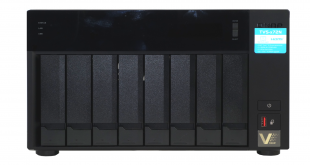
Part of QNAP's SMB product line, the TVS-872N is an 8-bay NAS supporting 5GbE/2.5GbE networking and comes with M.2 NVMe SSD support along with a pair of PCIe Gen3 slots. Is it worth the £1800 asking price?
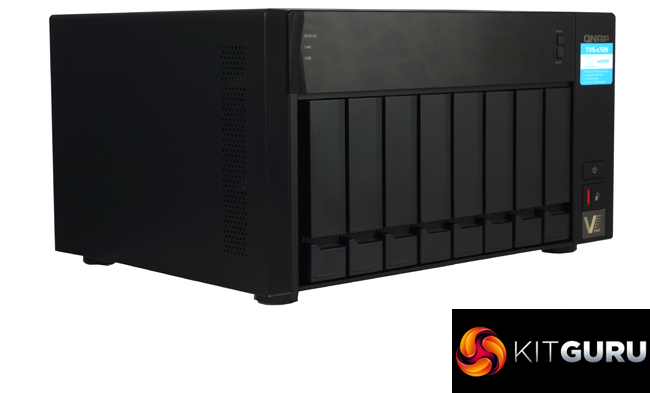
QNAP's TVS-*72N line-up comprises just two models, the 6-bay TVS-672N and the TVS-872N, the 8-bay model we are looking at here. Both are powered by an Intel Core i3 8100T quad-core processor clocked at 3.1GHz. Out of the box, the TVS-872N comes with 8GB of DDR4-2666 memory installed, the TVS-672N makes do with 4GB. Both models support up to 32GB of memory via a pair of SODIMM slots.
Internally the NAS supports a pair of M.2 2280 PCIe Gen3 NVMe slots for caching duties and two PCIe Gen3 slots. The x16 slot is controlled by the CPU while the x4 slot is looked after by the PCH. There is are lists of compatible cards and drives for all these slots on QNAP’s website.
The NAS comes with a single 5GbE(5GbE/2.5GbE) Ethernet port as well as a pair of Gigabit Ethernet ones.
Power consumption figures quoted by QNAP for the TVS-872N are 65.03W in typical operating mode and 41.47W in HDD sleep mode. These figures will, of course, change depending on the drives being used in the NAS. The official figures are from the NAS being filled with WD WD10EFRX drives.
QNAP back the TVS-872N-i3-8G with a 2-year warranty but if needed, you can purchase a warranty extension that increases the coverage by up to five years.
Physical Specifications
- Processor: Intel Core i3-8100T quad-core (3.1 GHz).
- Memory: 8GB DDR4-2666 (2 x 4GB) (Max 32GB).
- Gigabit Ethernet Ports: 2.
- Other Ethernet Ports: 1 x 5GbE(5GbE/2.5GbE).
- Rear panel connectors: 2 x USB 3.1 Gen 2 Type-C, 1 x USB 3.1 Gen 2 Type-A, 1 x USB 3.0 Type-A,
- 3 x audio, 1x HDMI 2.0.
- Front panel connectors: USB 3.1 Gen 2 Type-A (One Touch Copy).
- RAID support: 0, 1, 5, 6, 10, 50, 60, JBOD, Single.
- Cooling: Active – 2 x 120mm (System), 2 x 60mm blower (CPU).
- Drive Bays Supported: 8.
- Maximum hard drive size supported: 16TB.
- Maximum Capacity: 128TB
- PCIe slots: 2, 1 x Gen3 x16, 1 x Gen3 x4.
- Internal File System support: EXT4
- Dimensions (D x W x H): 279.6 x 329.3 x 188.2mm.
- Weight: 7.06kg.
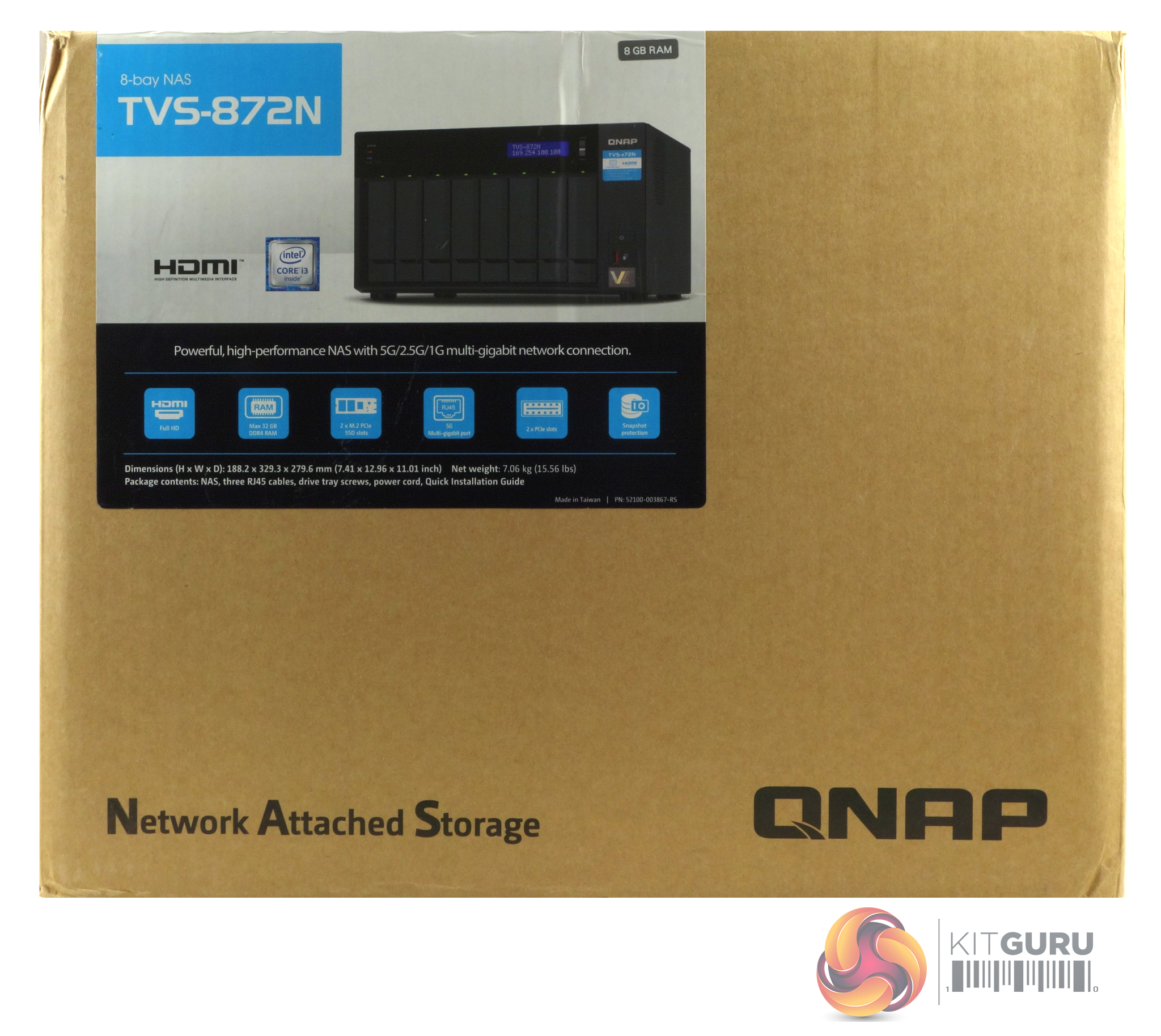
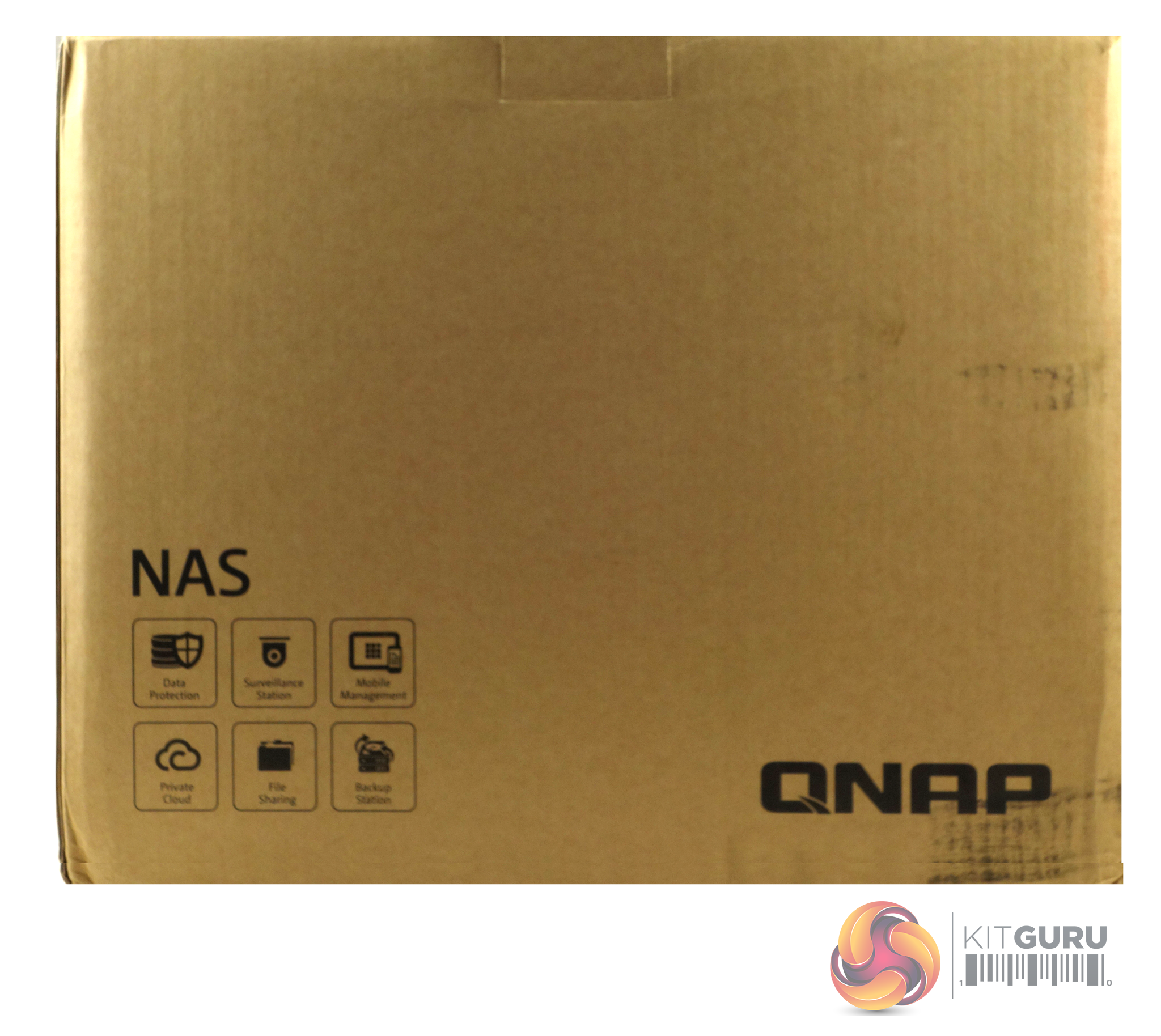
The TVS-872N comes in a large box with a clear image of the unit on the front. Above the image to the right is a sticker which displays the amount of memory the NAS uses. Under the image, there is a line of text and a row of icons describing some of the hardware features of the TVS-872N.
The rear of the box has a group of icons in the bottom left-hand corner representing some of the QTS OS features; Data Protection, Surveillance Station, Mobile Management, Private Cloud, File Sharing and Backup Station.
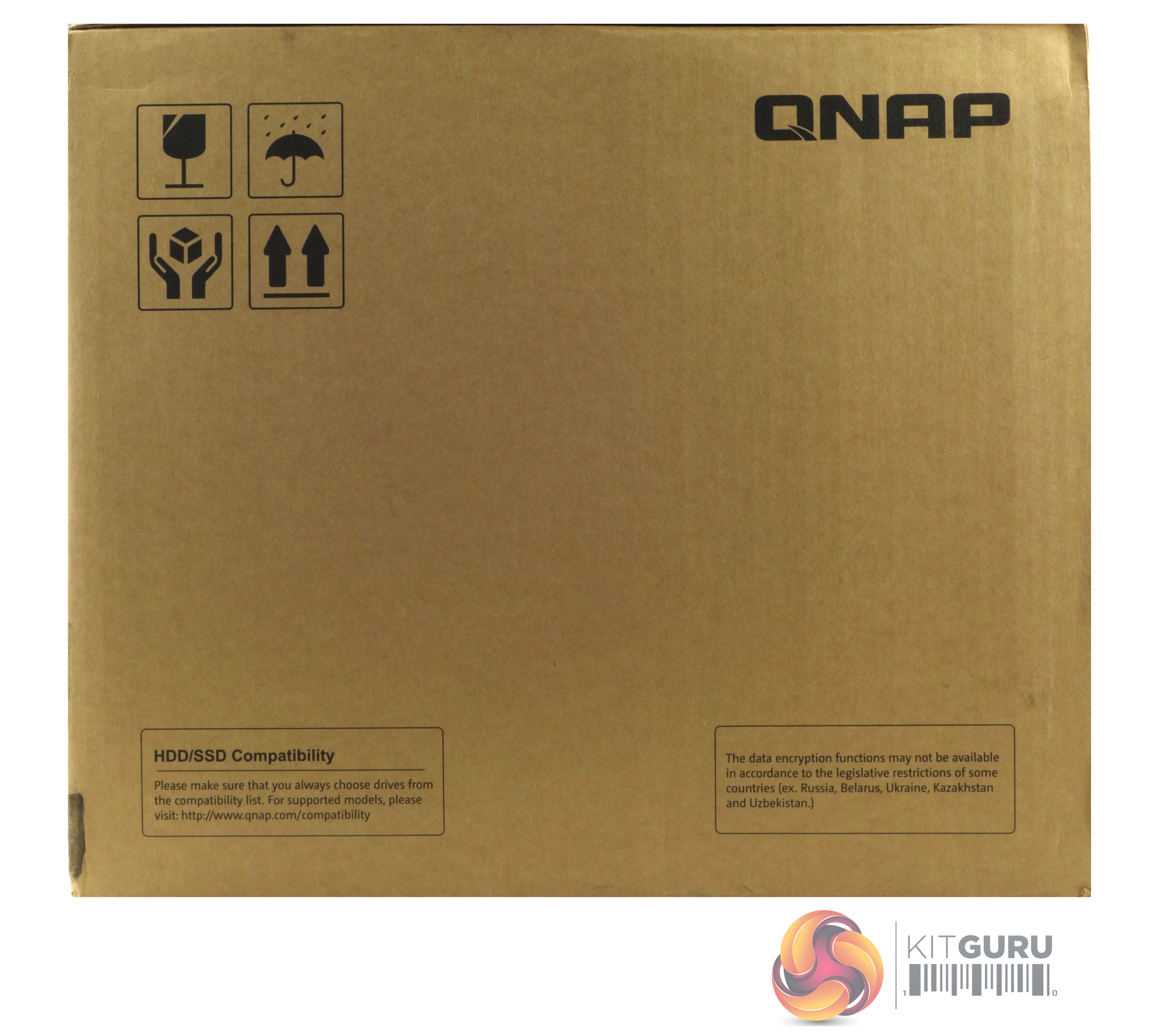
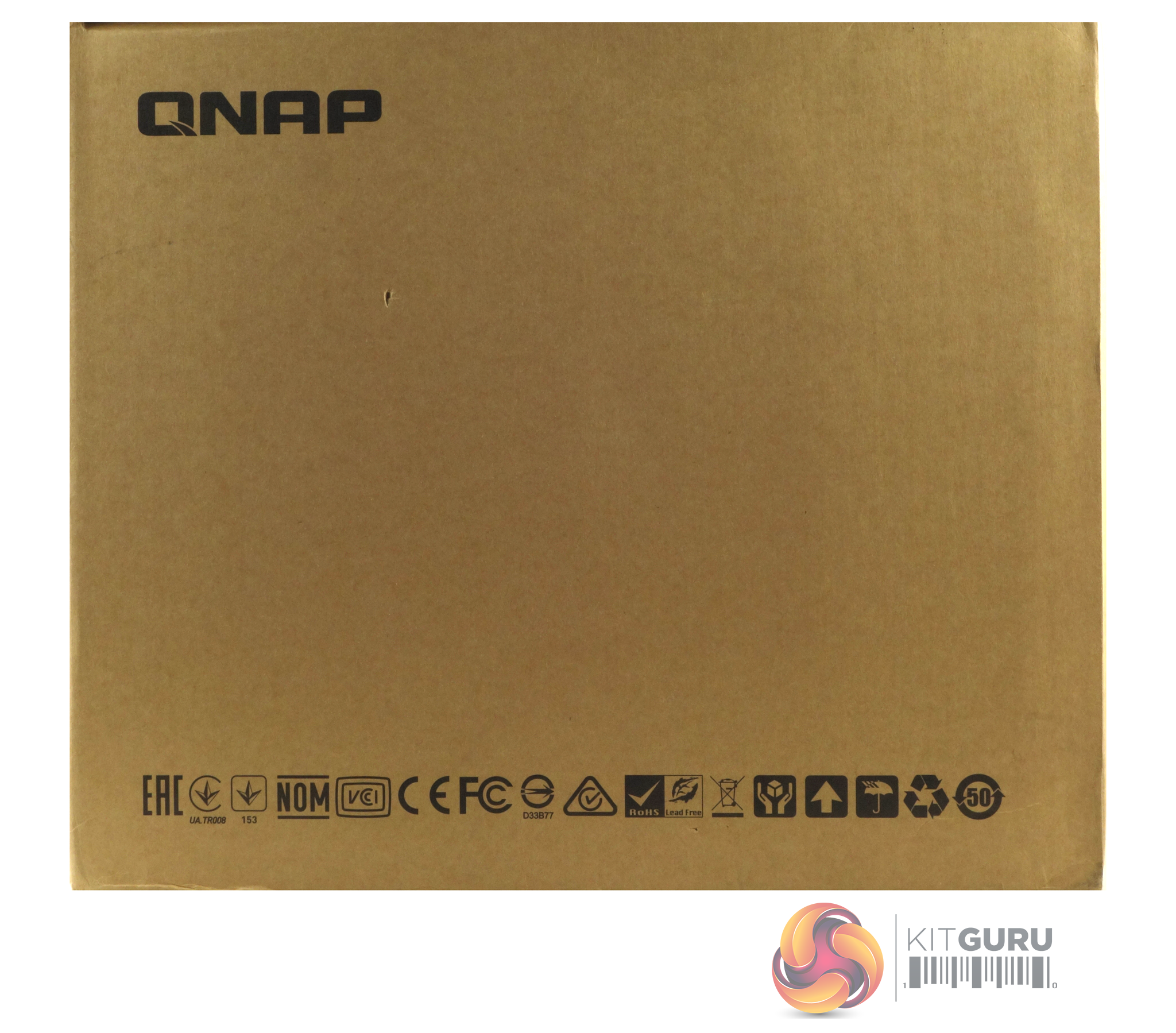
One side of the box just has a group of transportation icons in the top left-hand corner with an SSD/HDD compatibility panel on the bottom. The other side has a long line of icons representing the different standards that the device meets.
The box bundle for the TVS-872N is pretty comprehensive or rather it should be, our review model had been used for show demonstration purposes so was missing most of the items. What should've been in the box are three Gigabit Ethernet cables and enough fixing screws to secure 3.5in drives into the drive trays should you feel that the tool-free system doesn’t hold the drives firmly enough.
Extra screws for fixing 2.5in drives into the bays if you want to go down that route are also provided along with a quick installation guide. A nice touch is the inclusion of a pair of passive heatsinks to aid M.2 SSD cooling should you have any drives installed on the motherboard.
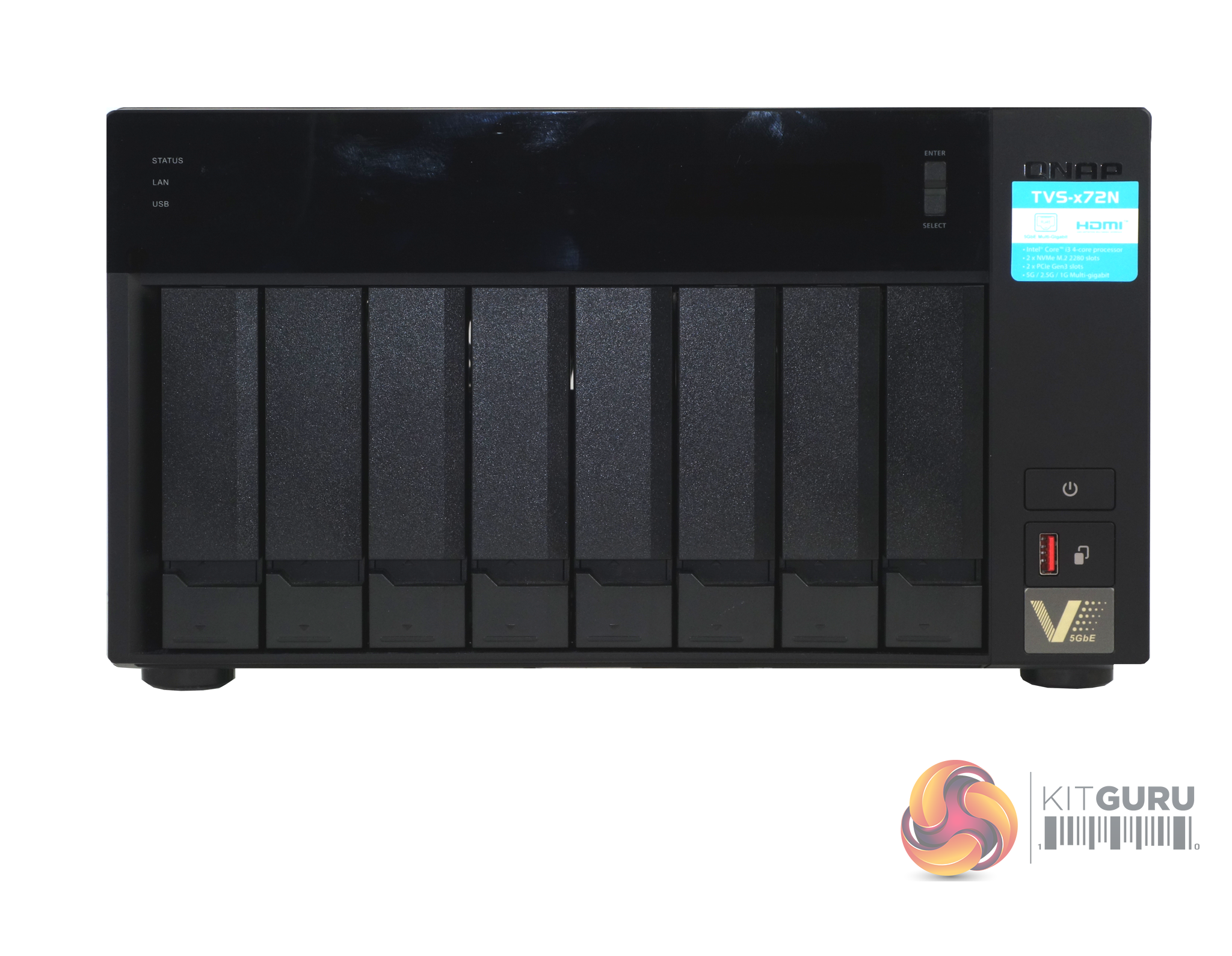
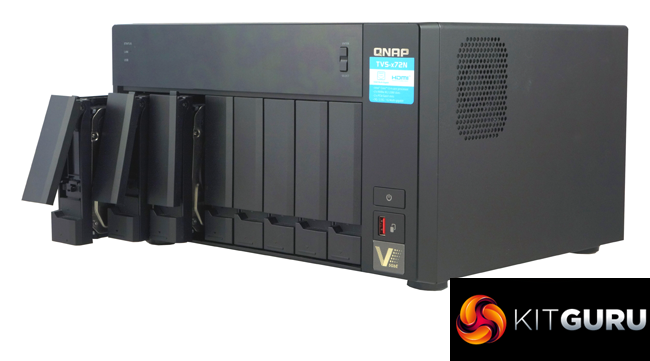
The TVS-872N is a compact tower NAS with a metal chassis supporting eight vertically mounted drive bays. Above the drive bays is a smoked plastic panel that is home to a monochrome backlit LCD display with Enter and Select buttons. The panel allows you to power on and off the NAS, view and configure network TCP/IP settings and displays warning messages if there is a problem with the NAS. Usefully, the LCD display can also display information about the NAS drives and volumes.
At the other end of the panel to the LCD screen are the indicator LEDs. These are for Status, LAN activity, USB in use and a pair for the two M.2 ports. Under these is an IR sensor and each of the eight drive bays has an indicator LED above it.
Just below the power button on the front of the unit is the one-touch copy button which has a single USB 3.1 Gen 2 Type-A port built into it. How this button handles data from an external drive can be configured in the QTS OS.
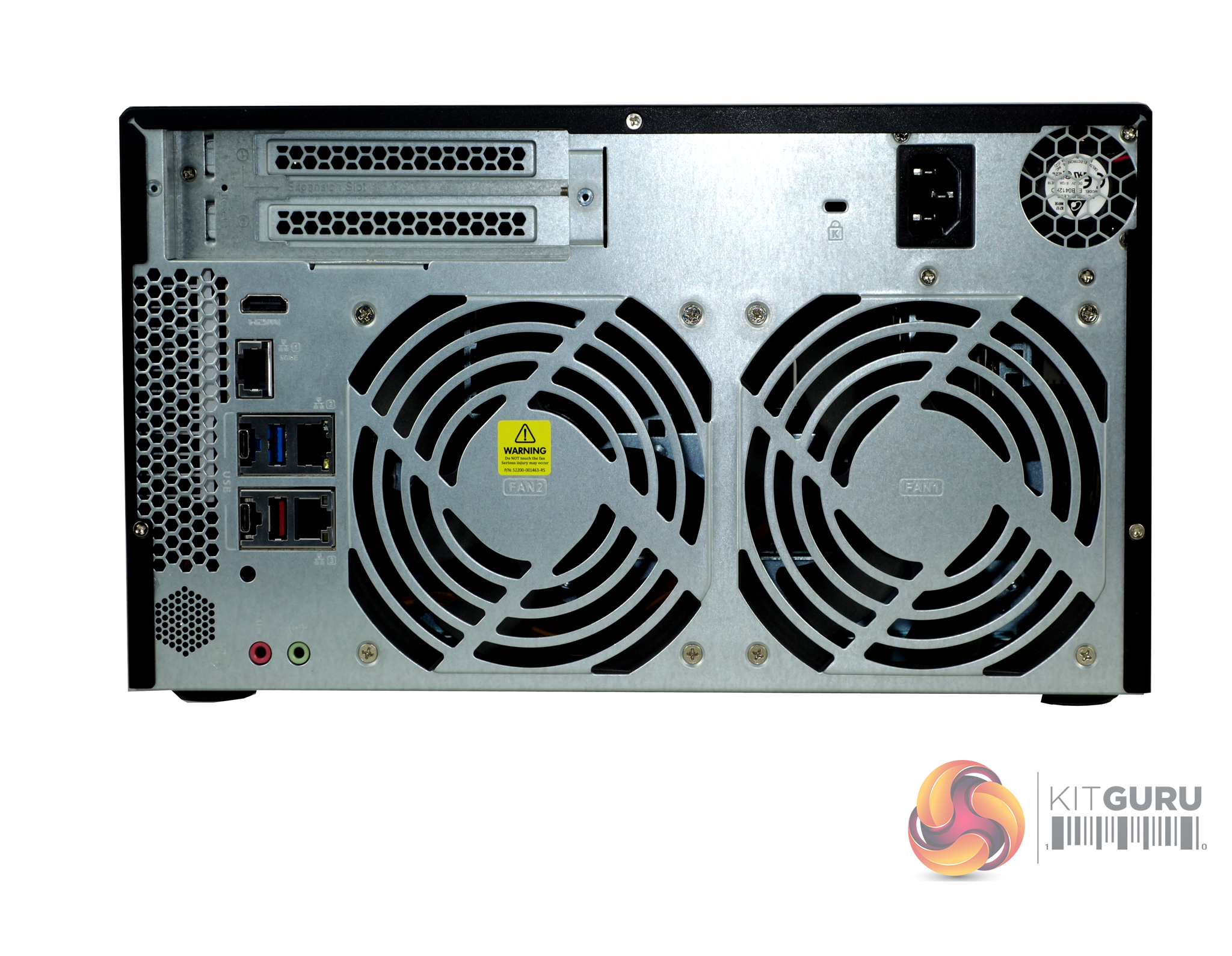
Dominating the rear panel of the TVS-872N are the pair of grills for the two 120mm system cooling fans. Above the fans to the left-hand side of the panel is the external access for the PCIe slots, also situated here is the reset button.
To the left of the fans are the ports. First up is an HDMI 2.0 port, under which sits the 5GbE port. Then comes a group of six ports; the two Gigabit Ethernet ports, a pair of USB 3.1 Gen 2 Type-C ports, a USB 3.1 Gen 2 Type-A port and a USB 3.0 Type-A port. Towards the bottom of the panel are the line-in and microphone ports.
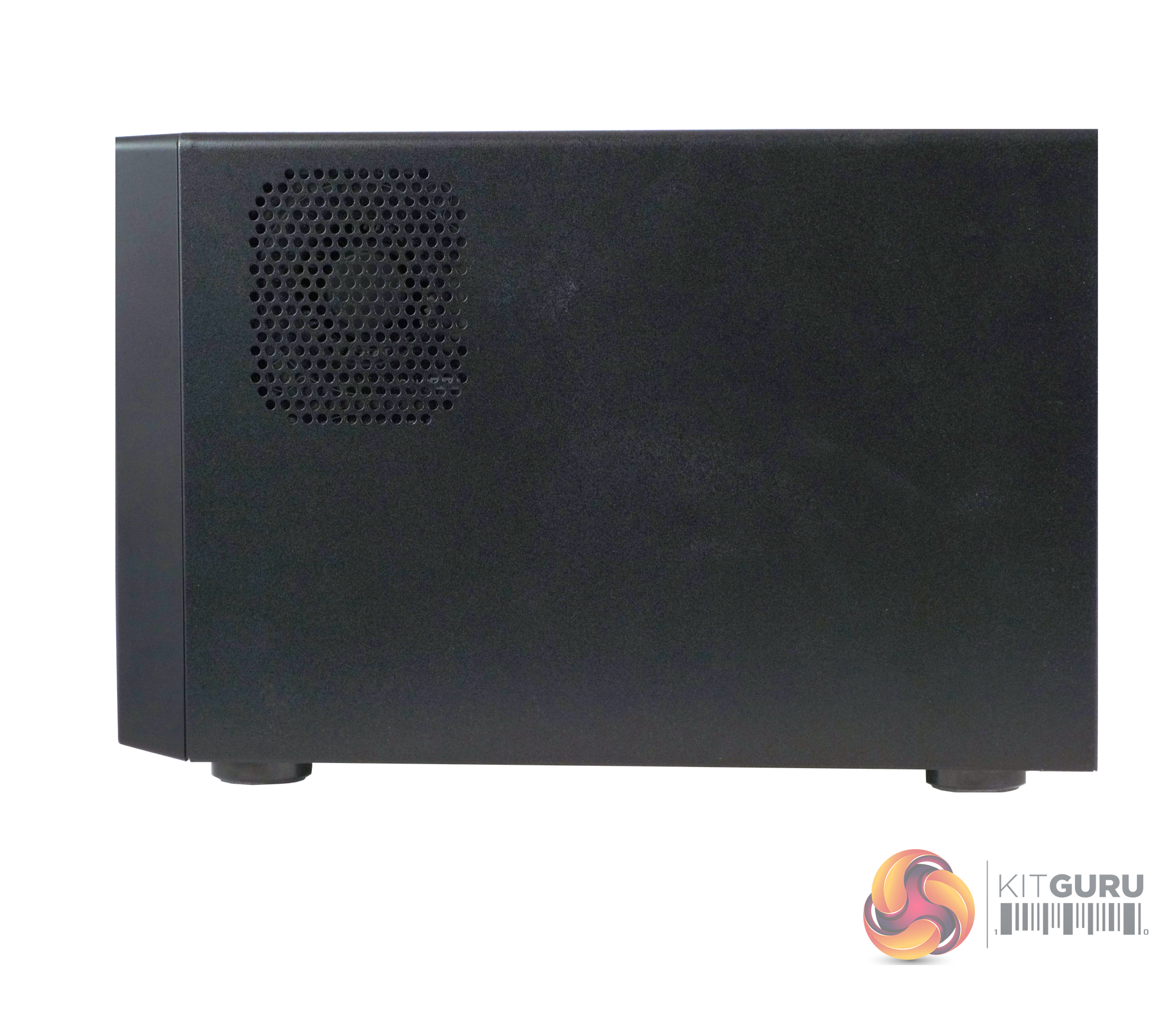
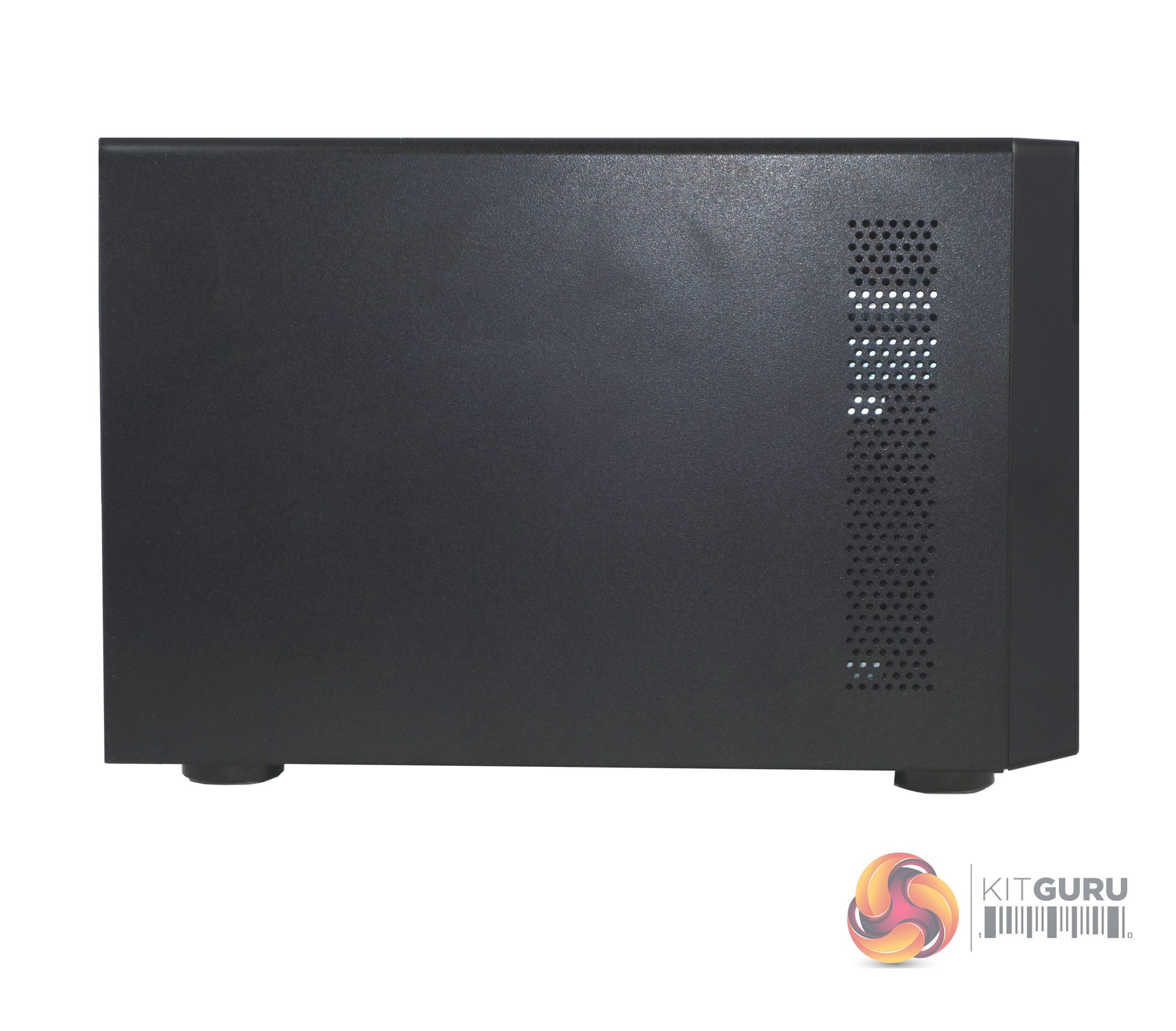
The eight 3.5in drive bay doors have a simple sliding locking mechanism. These locks work well and although they are not as secure as proper drive bay key locks, they are certainly better than nothing.
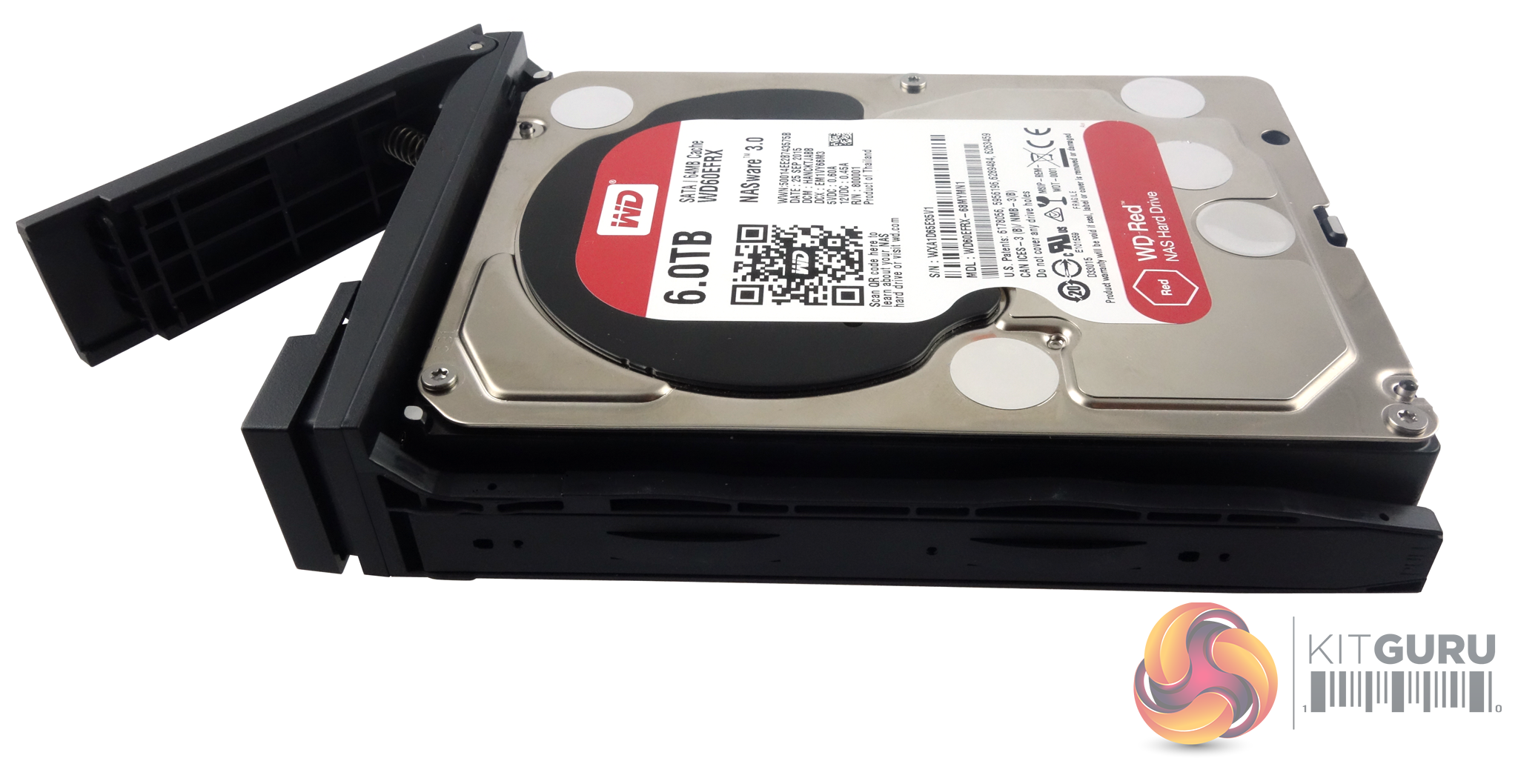
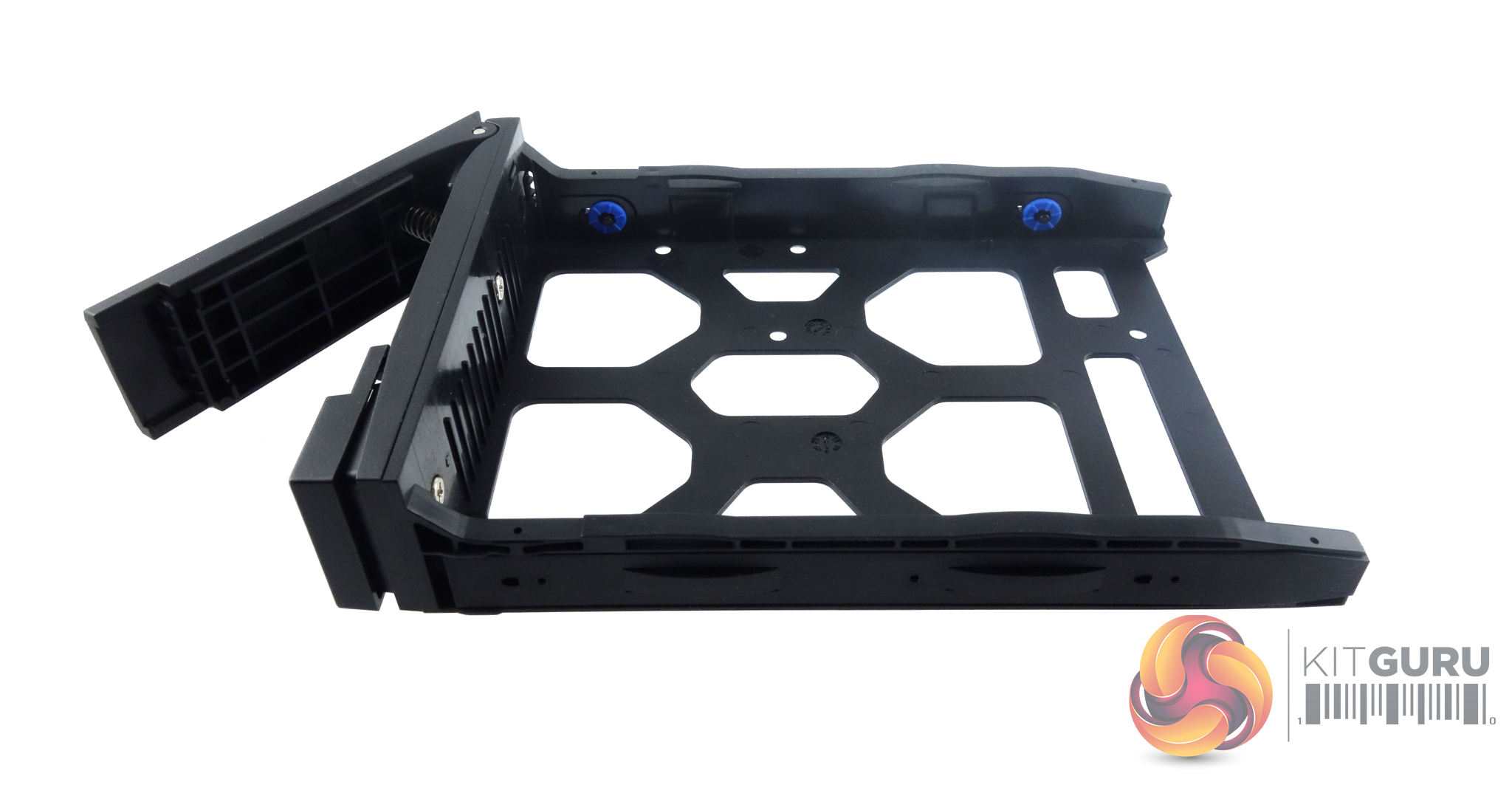

The 3.5in drive trays are tool-free. A plastic strip fits into the side rails with a pin at either end that goes through the corresponding holes in the rail sides. These pins then lock into the screw holes on the drive’s side – simple but effective. If you want to make sure the drives don’t move, then QNAP has supplied enough screws (3 per drive) to fix them in place. The holes in the tray sides have rubber vibration-reducing grommets fitted. The trays support 2.5in drives and the only way to fix them is to use the bundled screws (24) to go through the bottom of the tray into the drive.
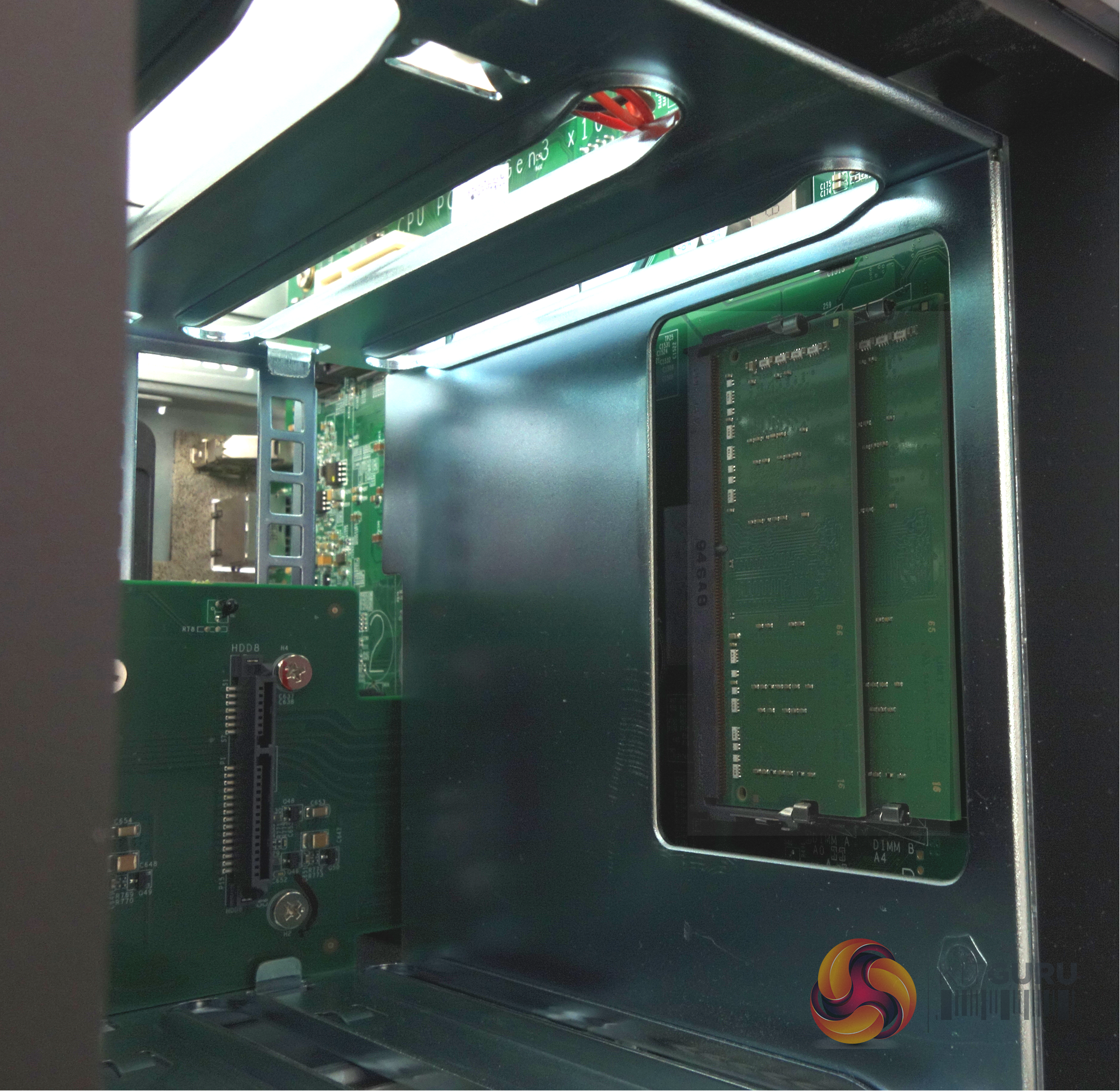
The two SODIMM memory slots sit behind a cut-out in the inner panel next to drive bay one (there's a little label on the top of the NAS showing how the drive bays are numbered). The TVS-872N comes with 8GB of DDR4-2666 memory but the motherboard supports up to a maximum of 32GB via these two slots.
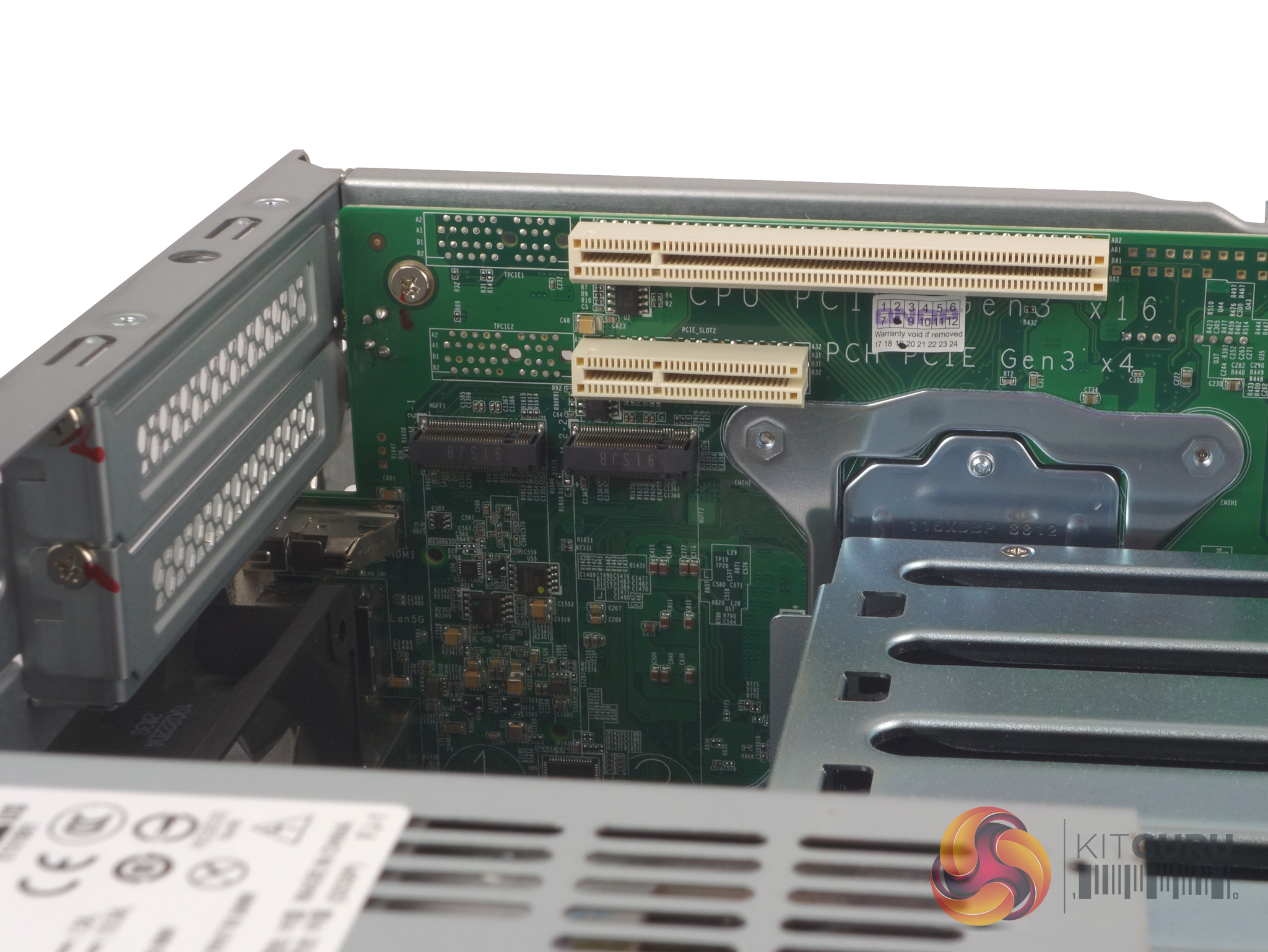
The TVS-872N comes with a pair PCIe 3.0 slots. The top one runs at x16 speed and is controlled by the CPU while below that sits the x4 slot, looked after by the PCH. If you in any doubt which one's which, the motherboard is clearly marked to show you.

Handily the two M.2 2280 NVMe drive slots are tool-free, they don’t use the usual small screw to hold them in place, instead, they use a plastic pin system.
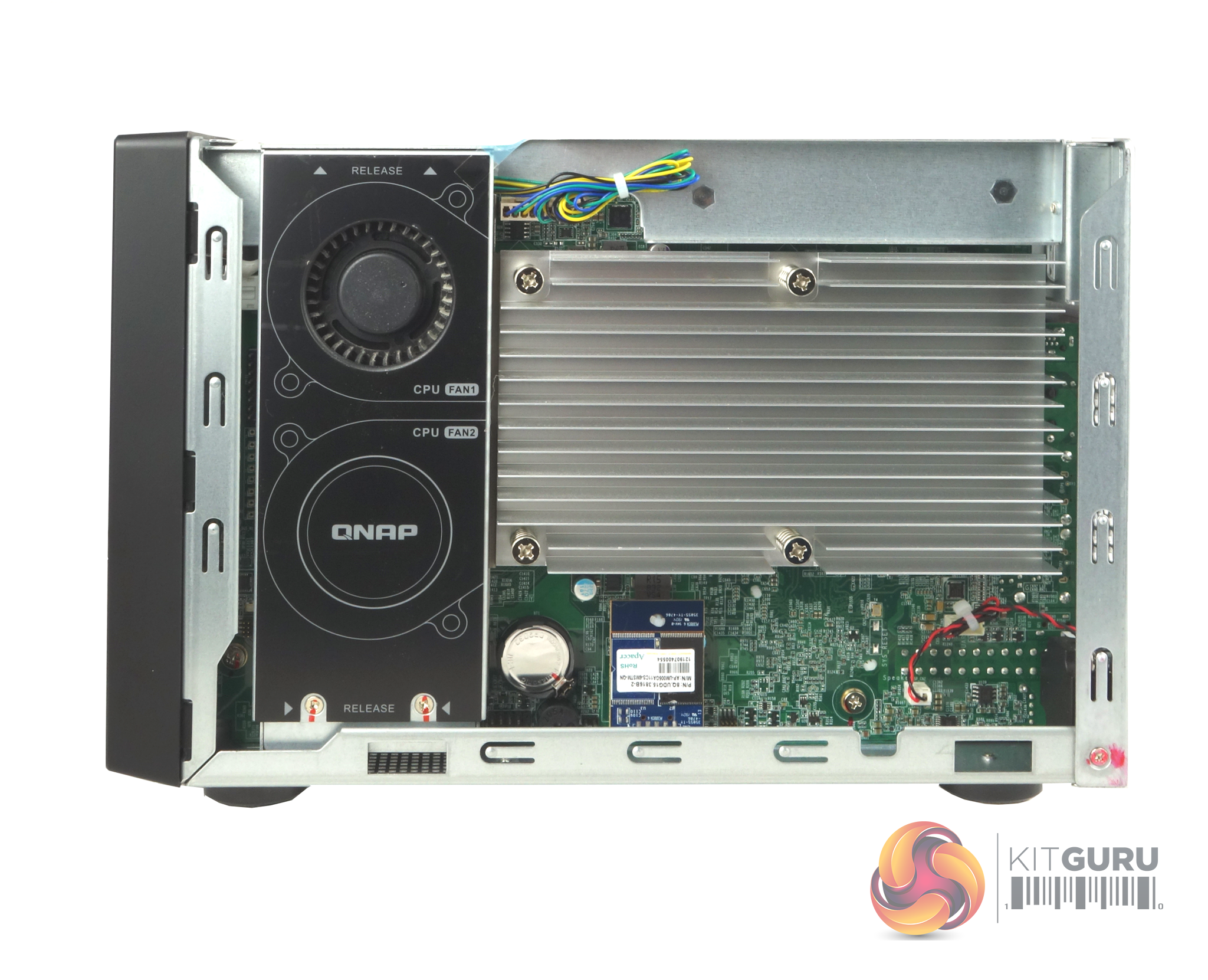
Besides the two 120mm system cooling fans, there are two 60mm blower fans and a massive heatsink to keep the CPU nice and cool. Even with this many fans, the TVS-872N is very quiet during normal operations.
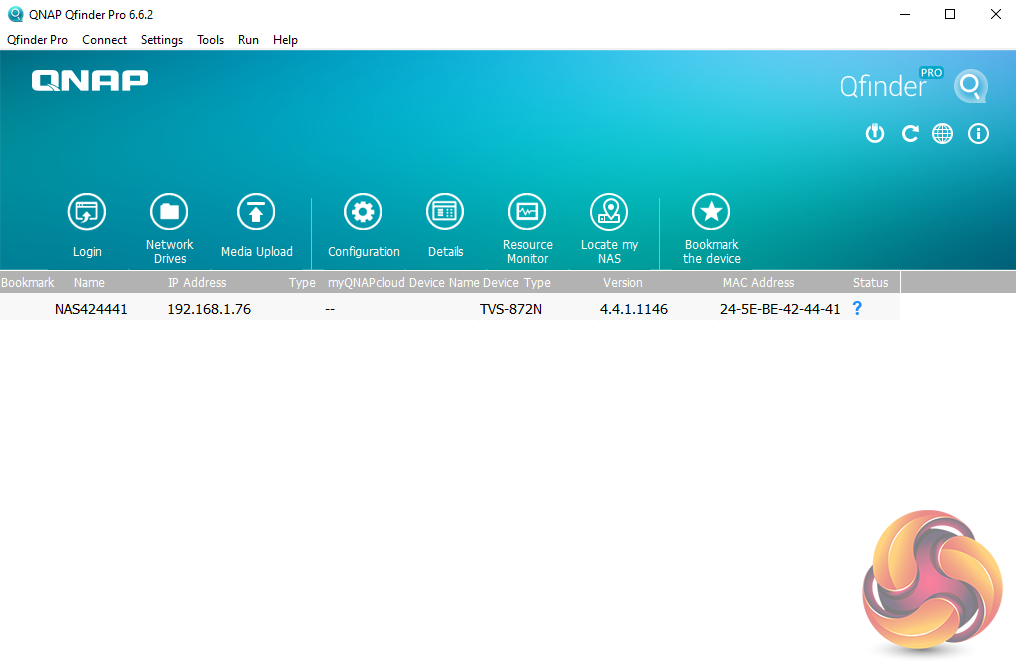
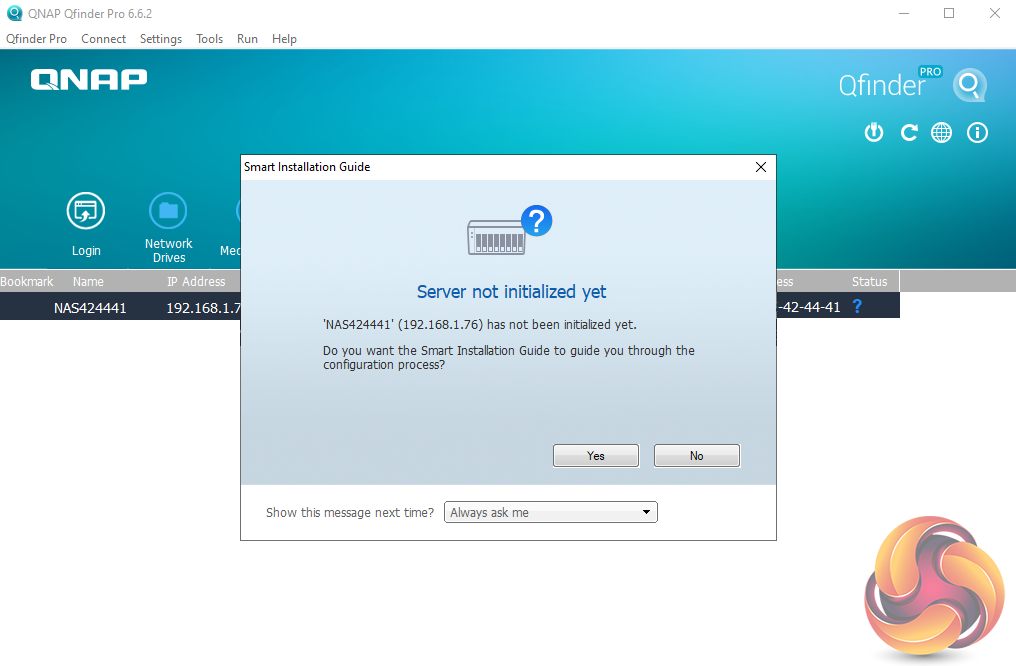
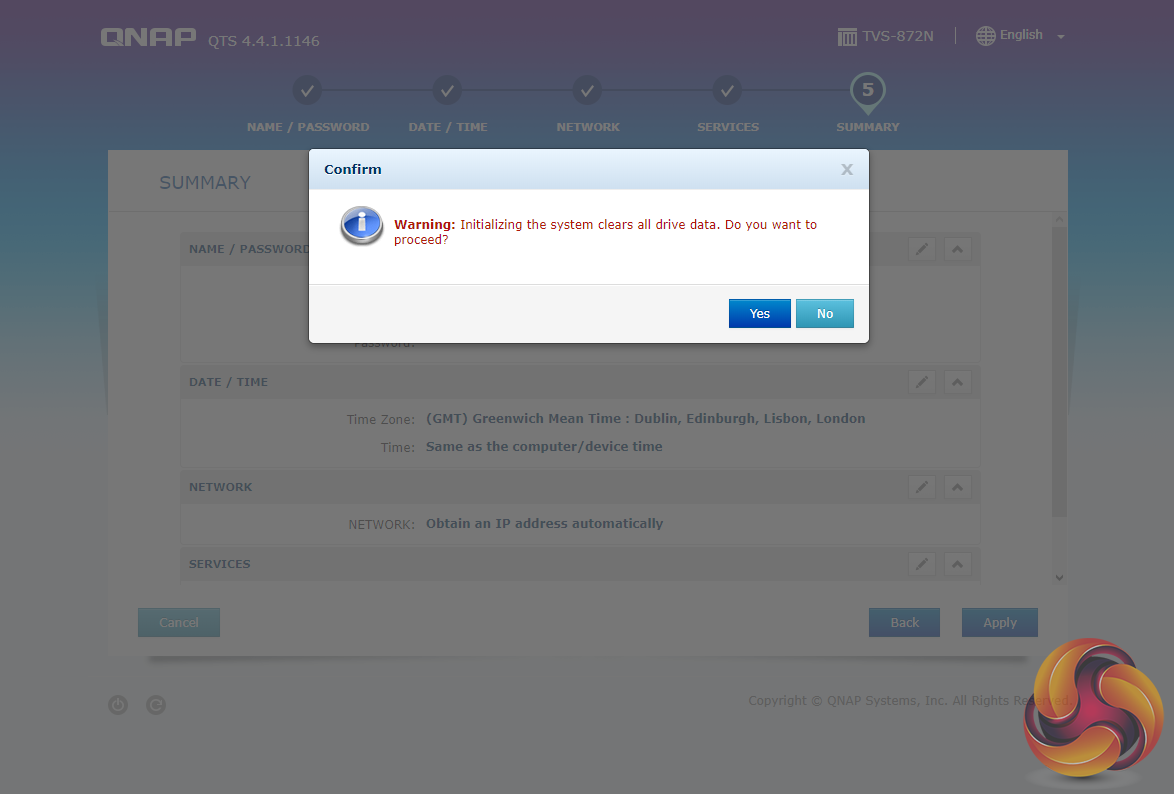
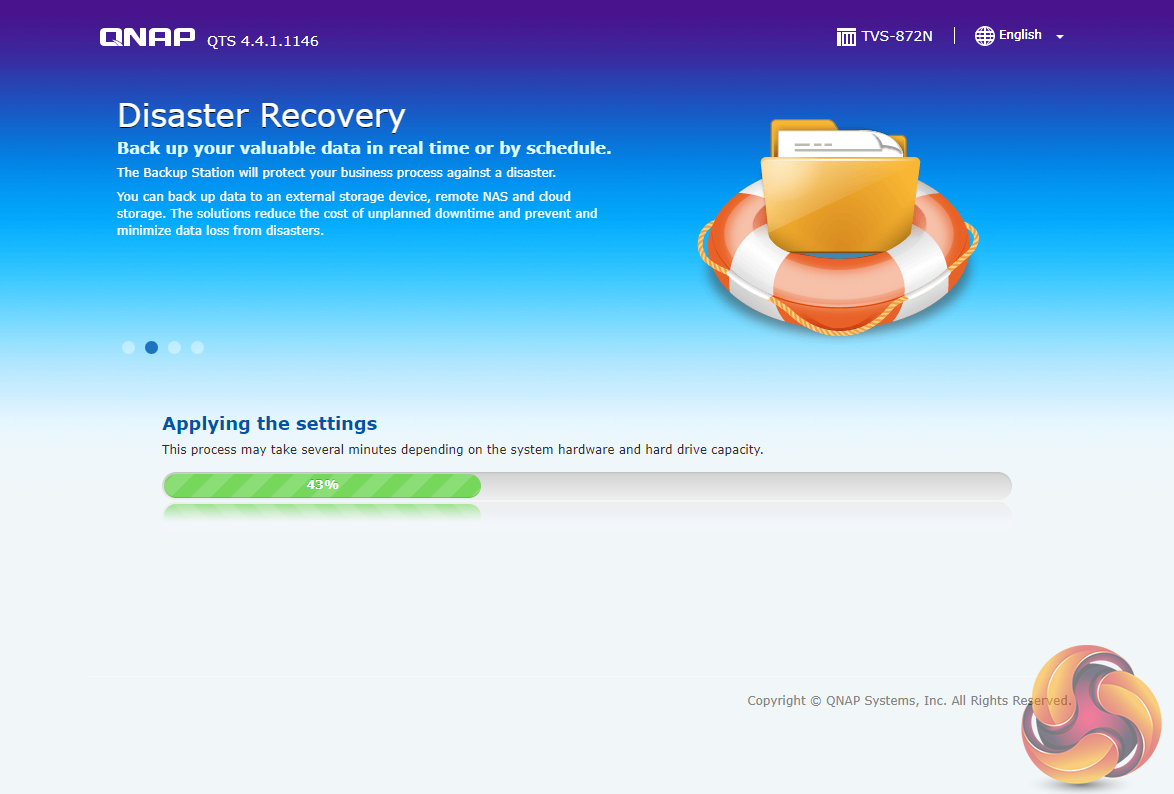
As is usual with a QNAP NAS there are two ways of setting up the TVS-872N, either online by entering the Cloud key which is written on a sticker on the top of the unit, or by using QNAP’s Qfinder Pro utility which can be downloaded from the QNAP website. Qfinder Pro searches for QNAP devices on the network.
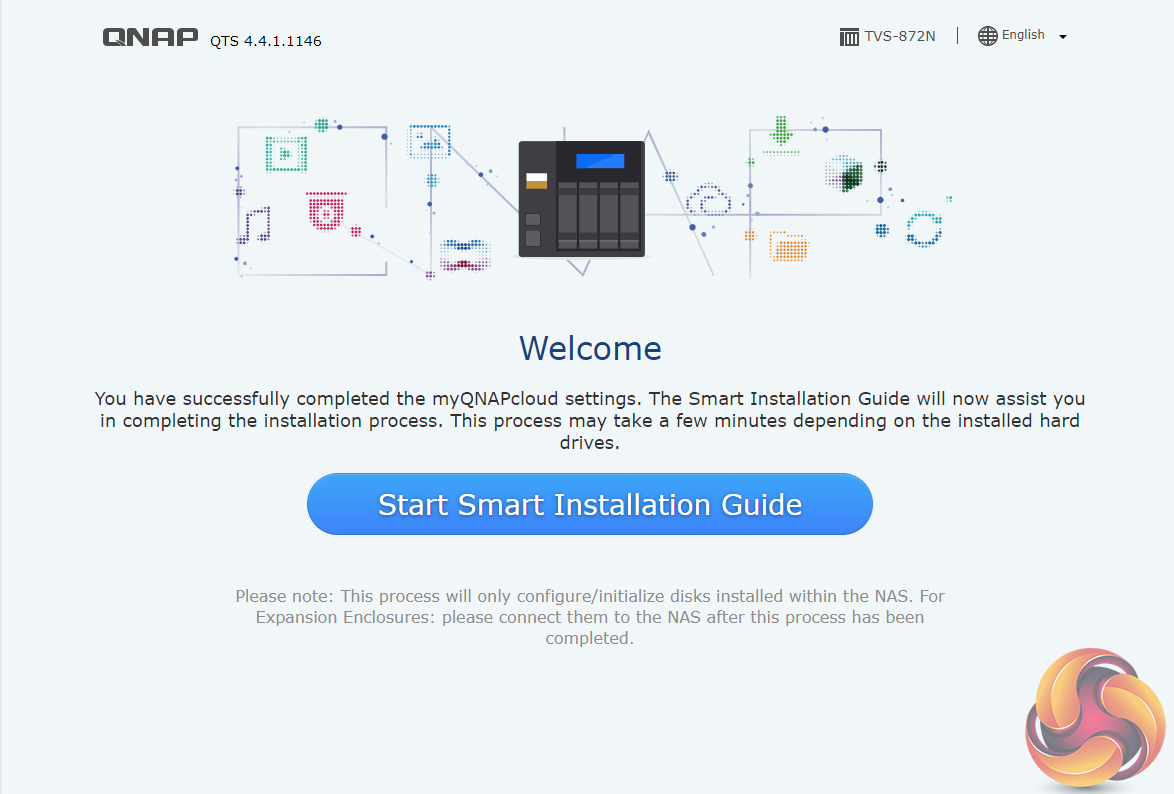
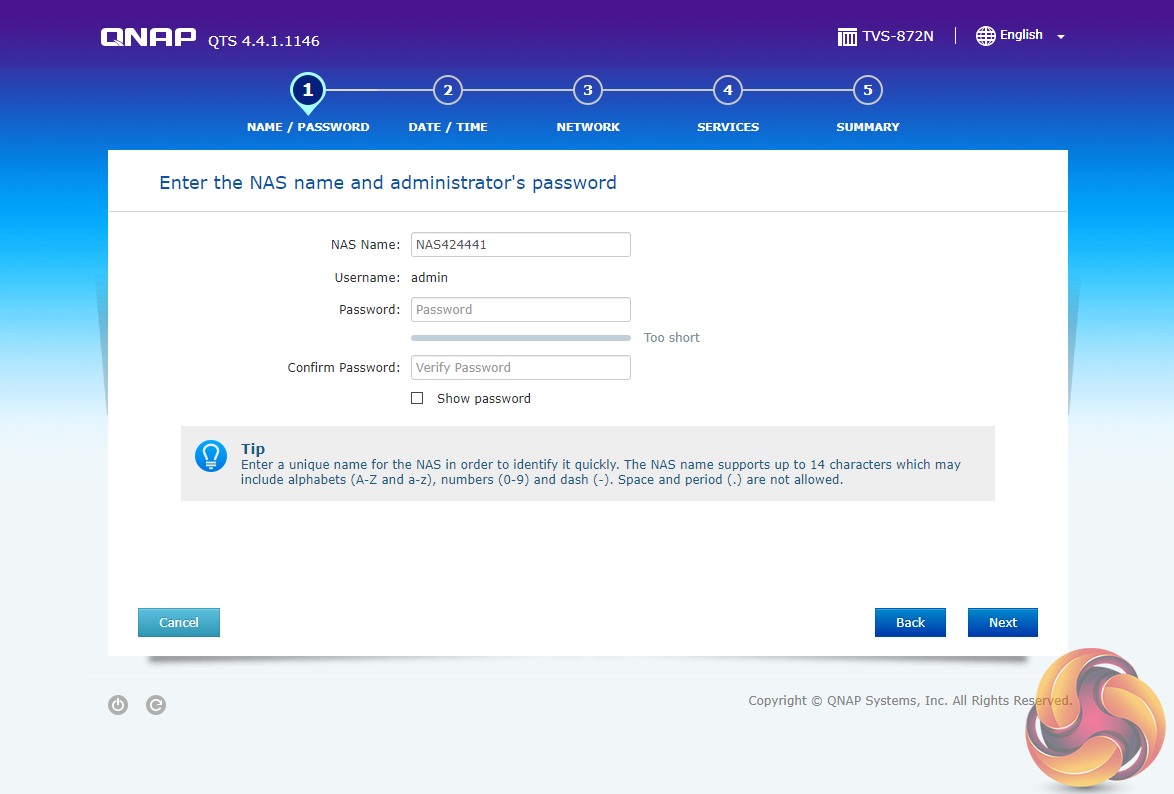
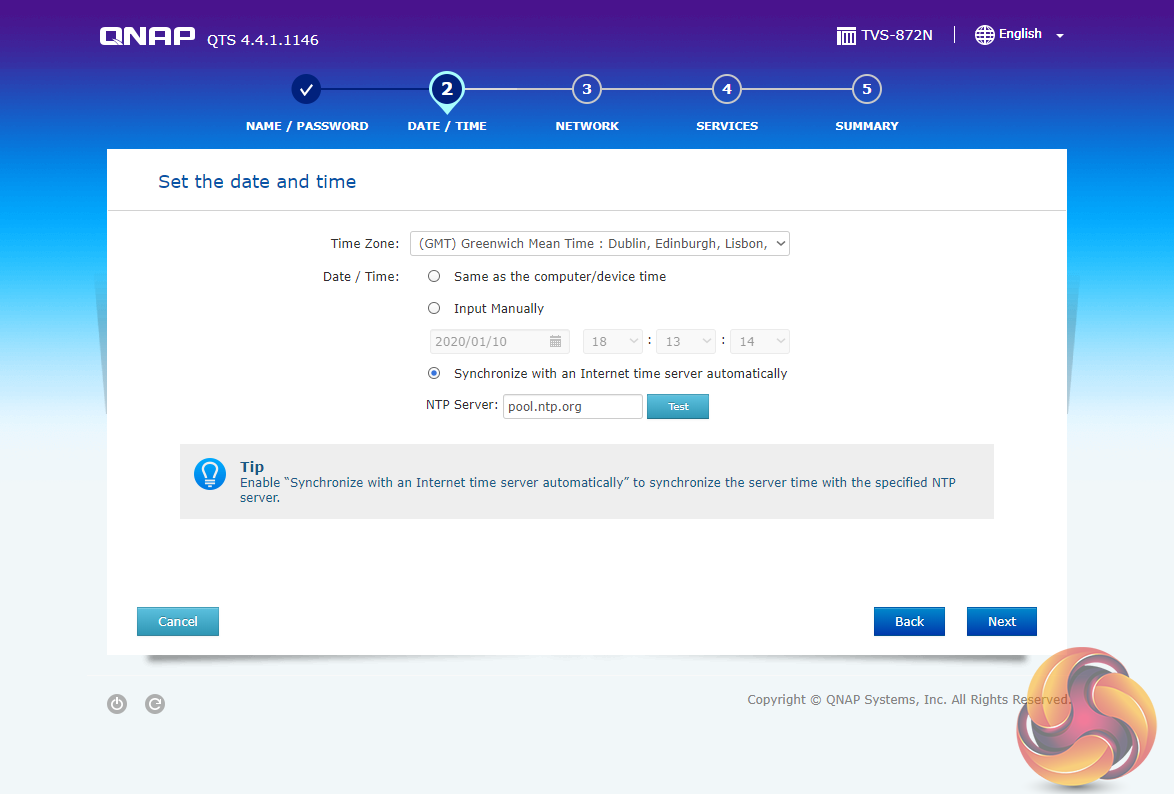
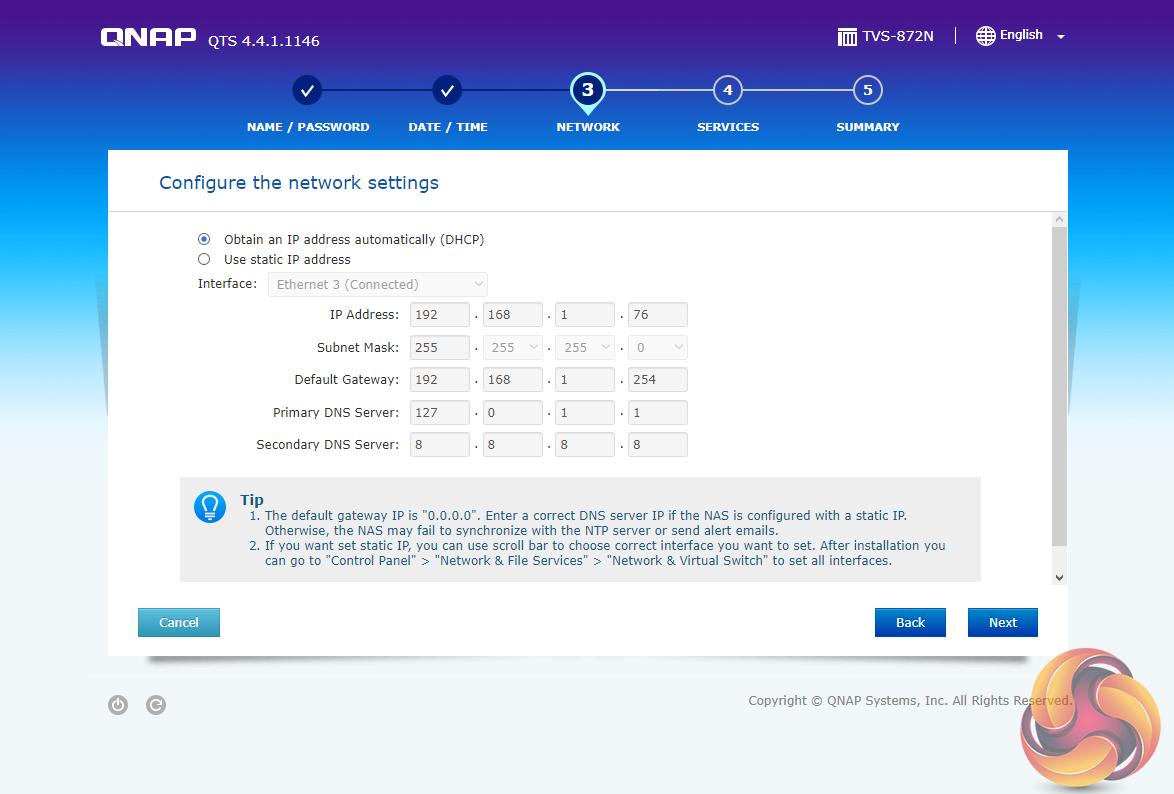
Whichever way you choose to start, it’s just a simple matter of following the installation wizard.
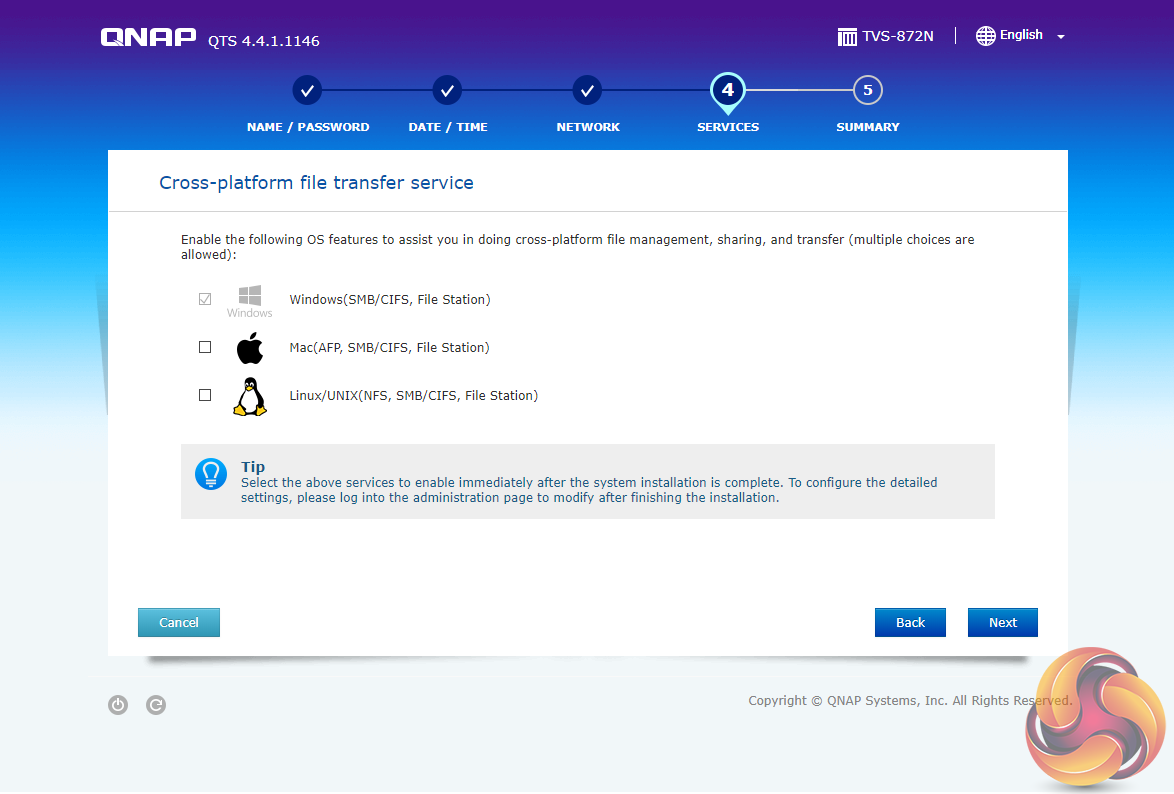
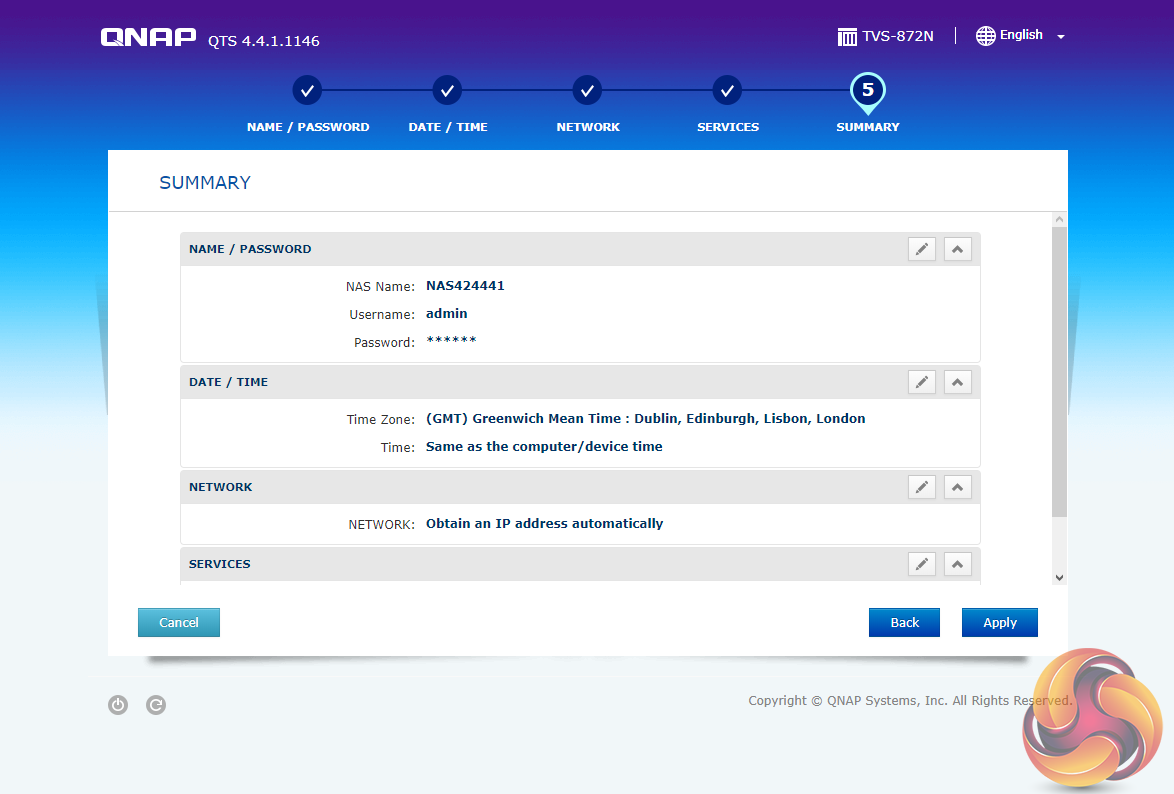
During the setup you can enable which OS cross-platform file management service you require; Windows (SMB/CIFS, File Station, FTP), Mac (SMB/CIFS, File Station, FTP) and Linux (NFS, SMB/CIFS, File Station, FTP). At this stage, you can also load a few basic apps; Photo Station, Music Station, iTunes Server, DLNA Media Server and Download Station.
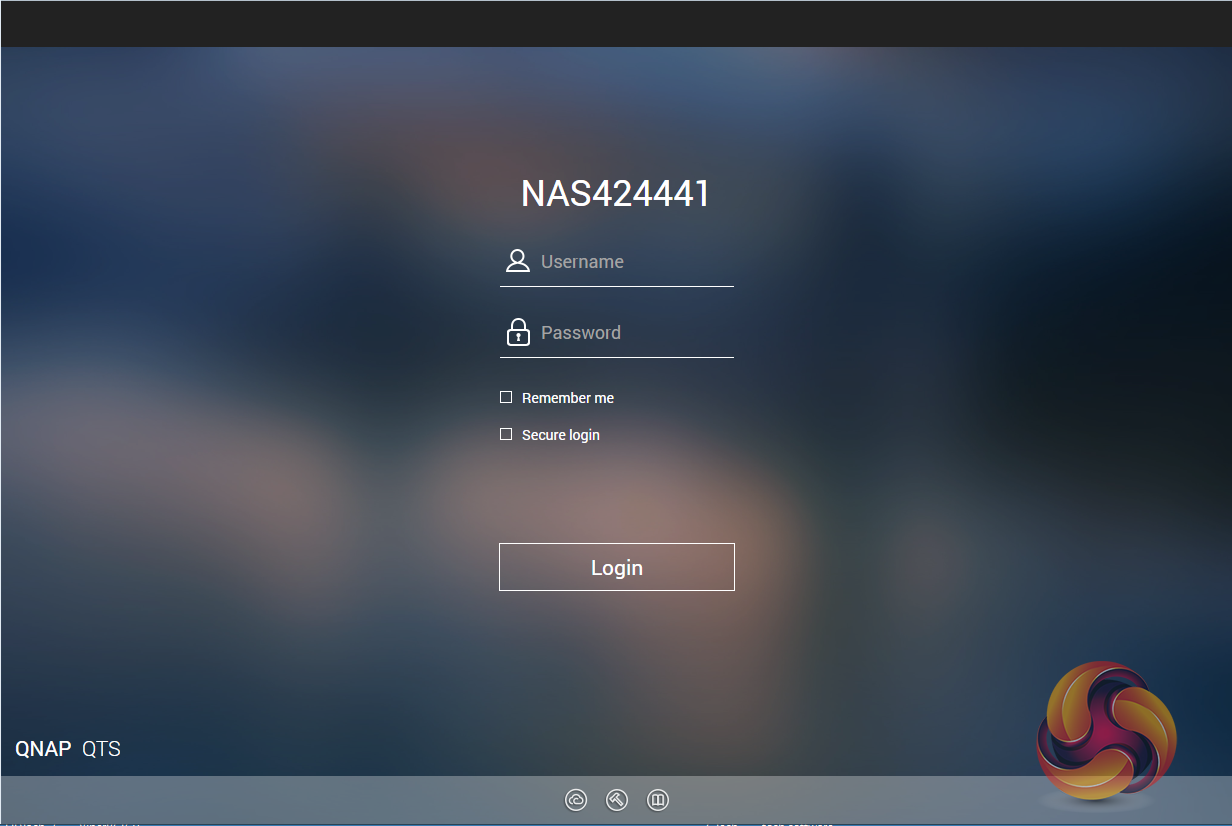
The login page can be customised to add your own photographs or corporate logo to the photo wall and messages can be added to the page as well.
To test the TVS-872N we used the latest (at the time of testing) 4.4.1.1216 version of QNAP’s QTS OS. QNAP’s QTS is a graphically-rich OS with links to the major functions appearing as icons on the main page.
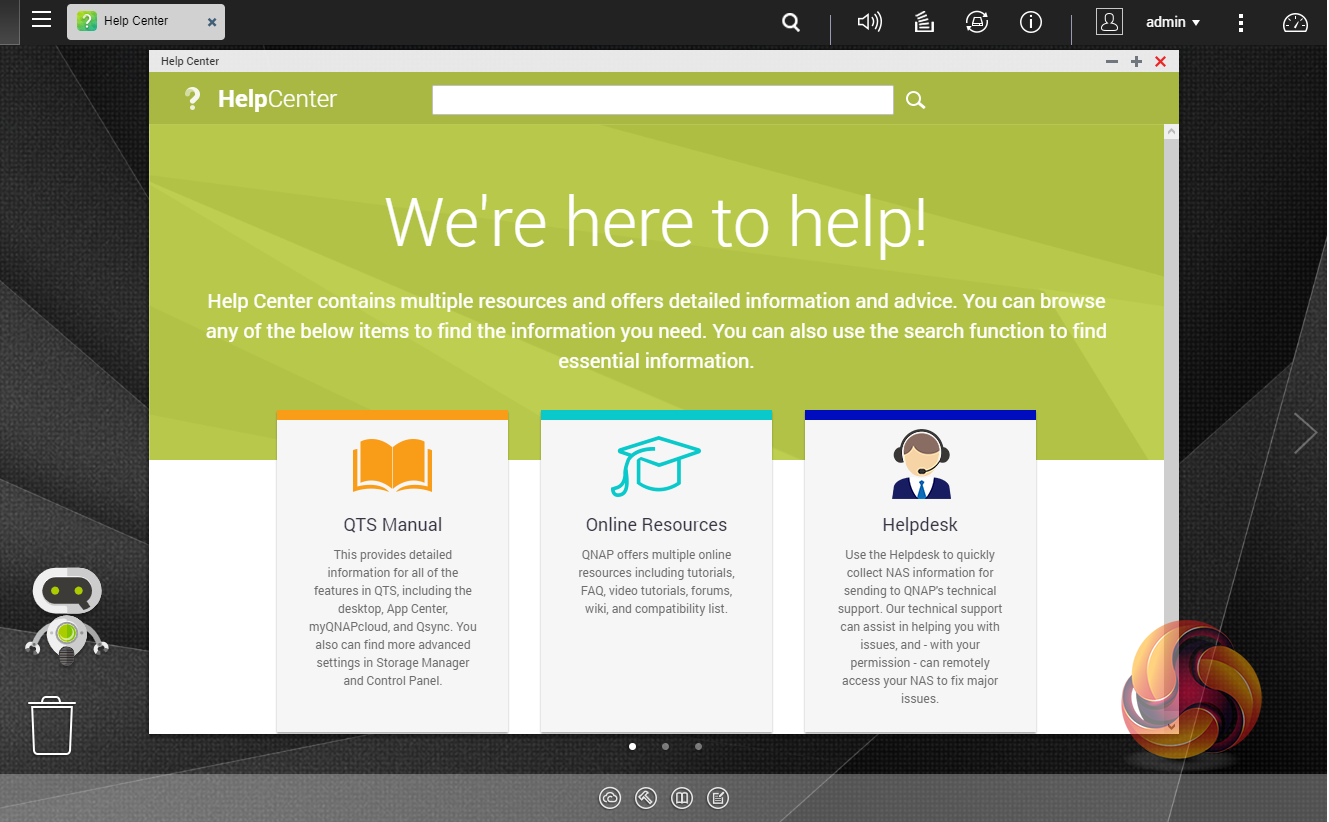
When you access the NAS for the first time you are met by the HelpCenter app. This comprehensive help utility provides access to the QTS manual, Online Resources including tutorials, video tutorials, FAQs and forums – or if all else fails you can connect to the QNAP Helpdesk for technical support.
If you don’t want to see this page every time you access the NAS, don’t forget to uncheck the ‘show on startup’ option.
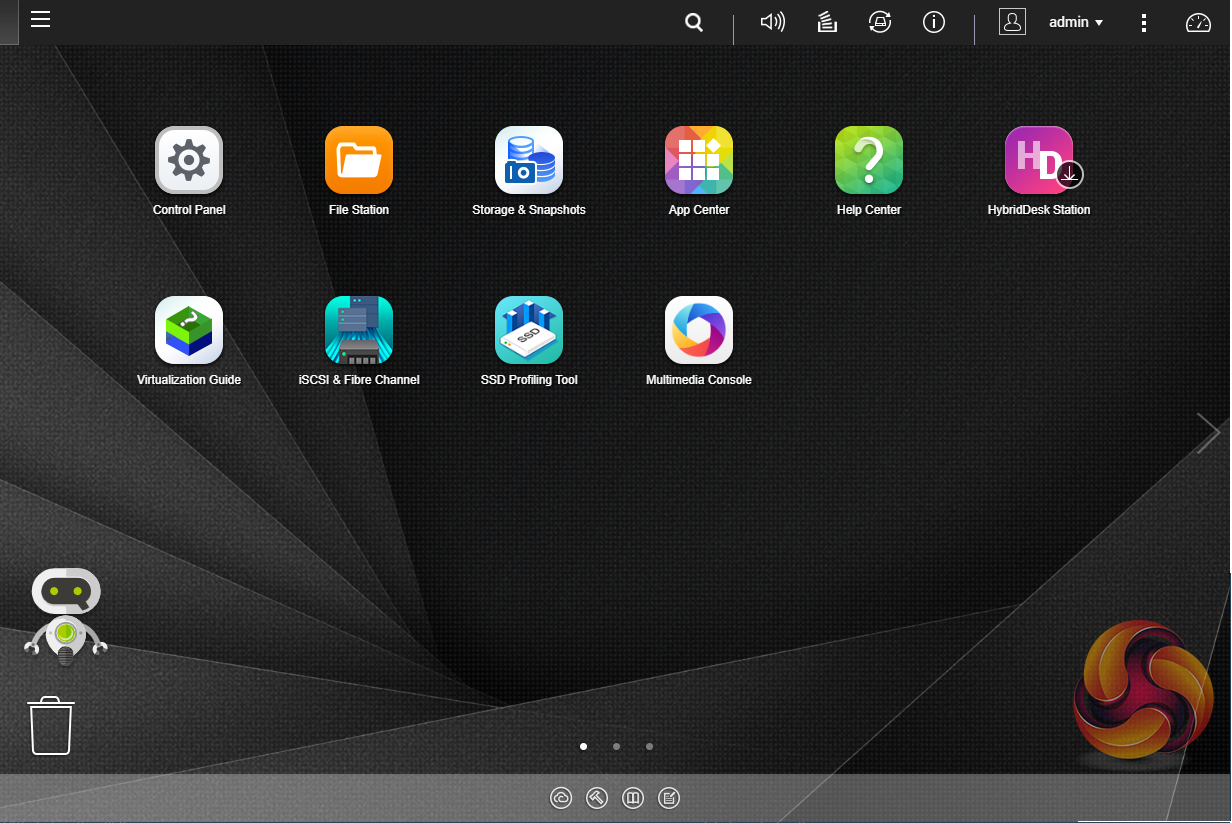
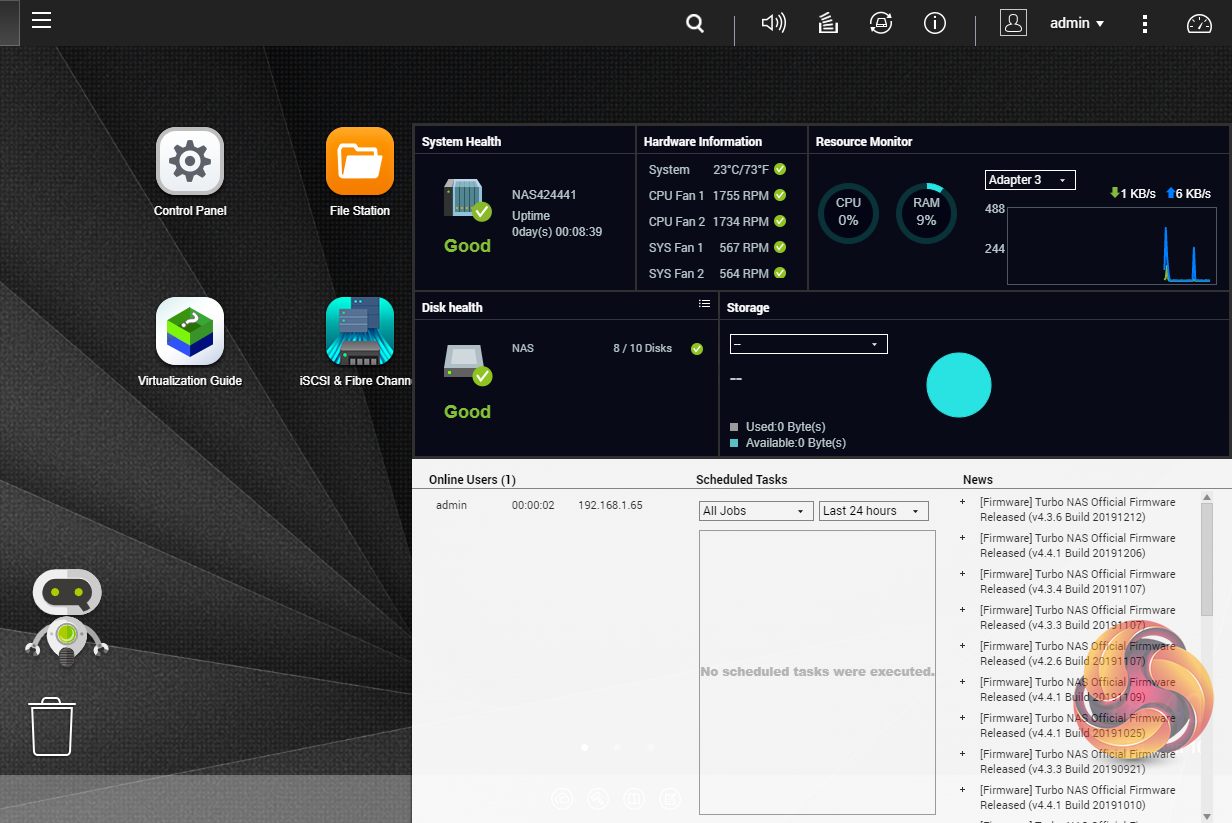
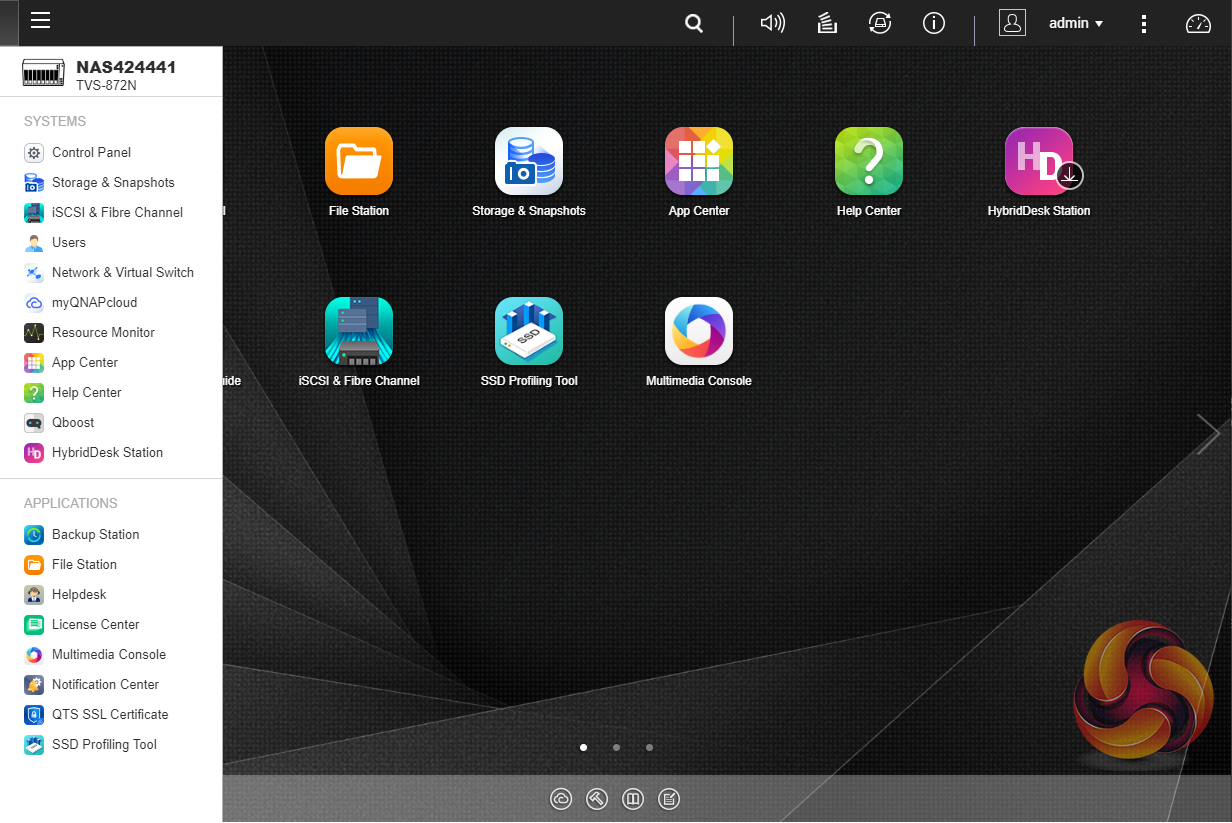
Clicking the icon in the top right of the main screen activates the Dashboard page which gives a snapshot of what’s happening with the NAS. Clicking on the ‘hamburger’ menu icon in the top left-hand corner of the screen drops down a very useful side menu with the most commonly used control panel items. Any of these can be dragged and dropped onto the main page for easy access.
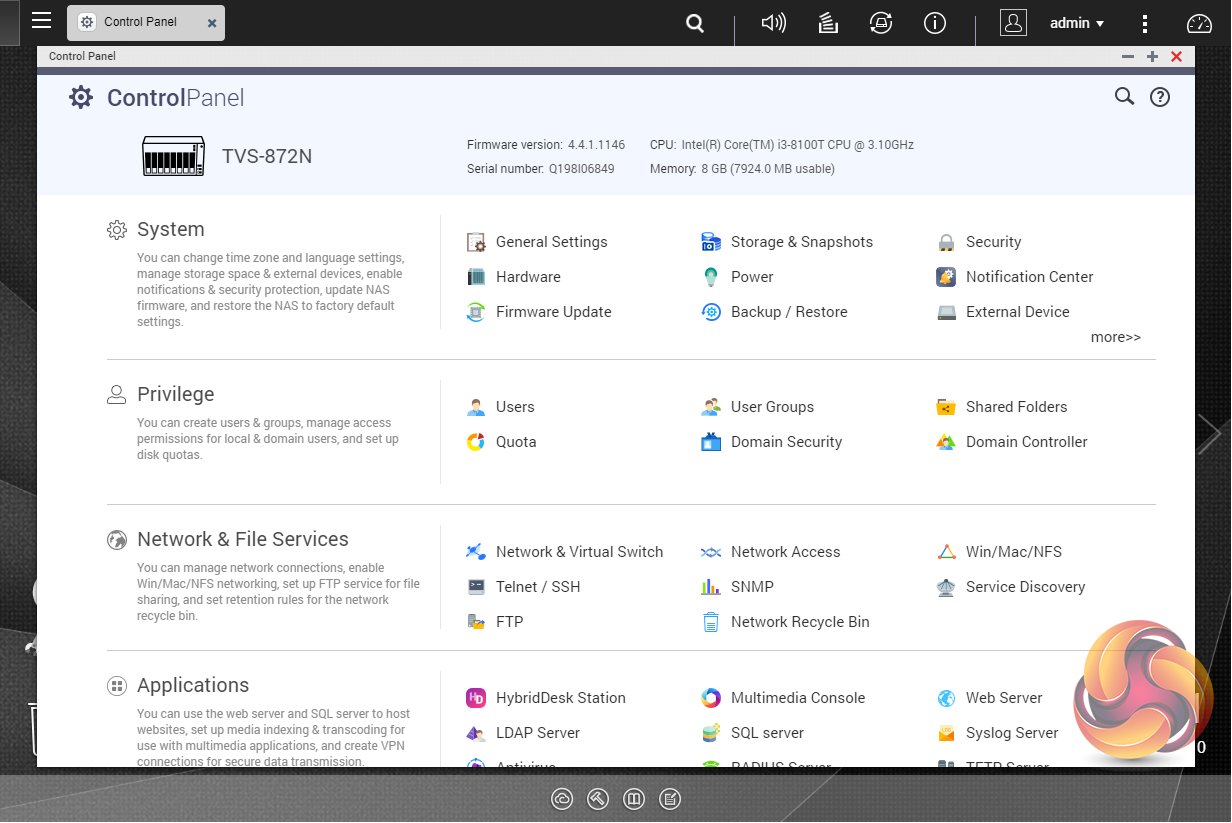
Clicking on the Control Panel icon on the main menu screen brings the complete control panel window with all the various functions of the NAS neatly divided up in sections.
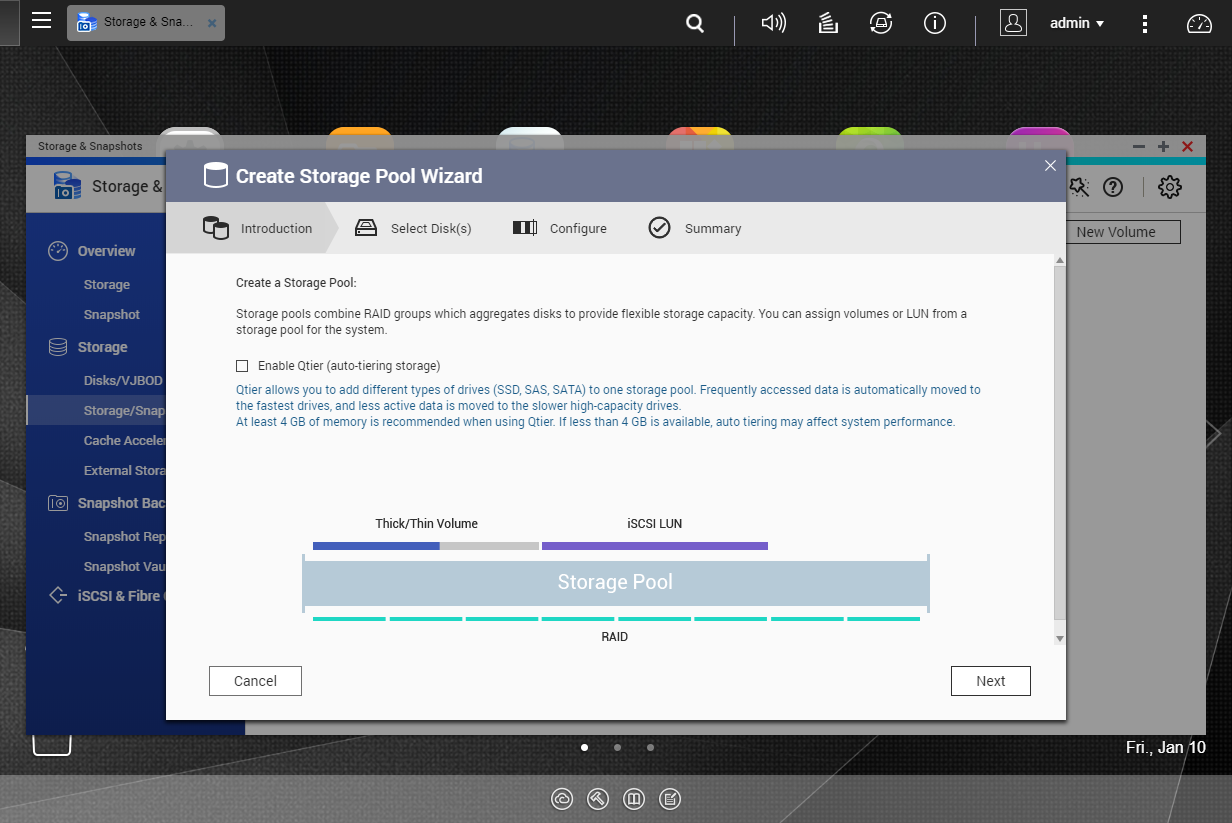
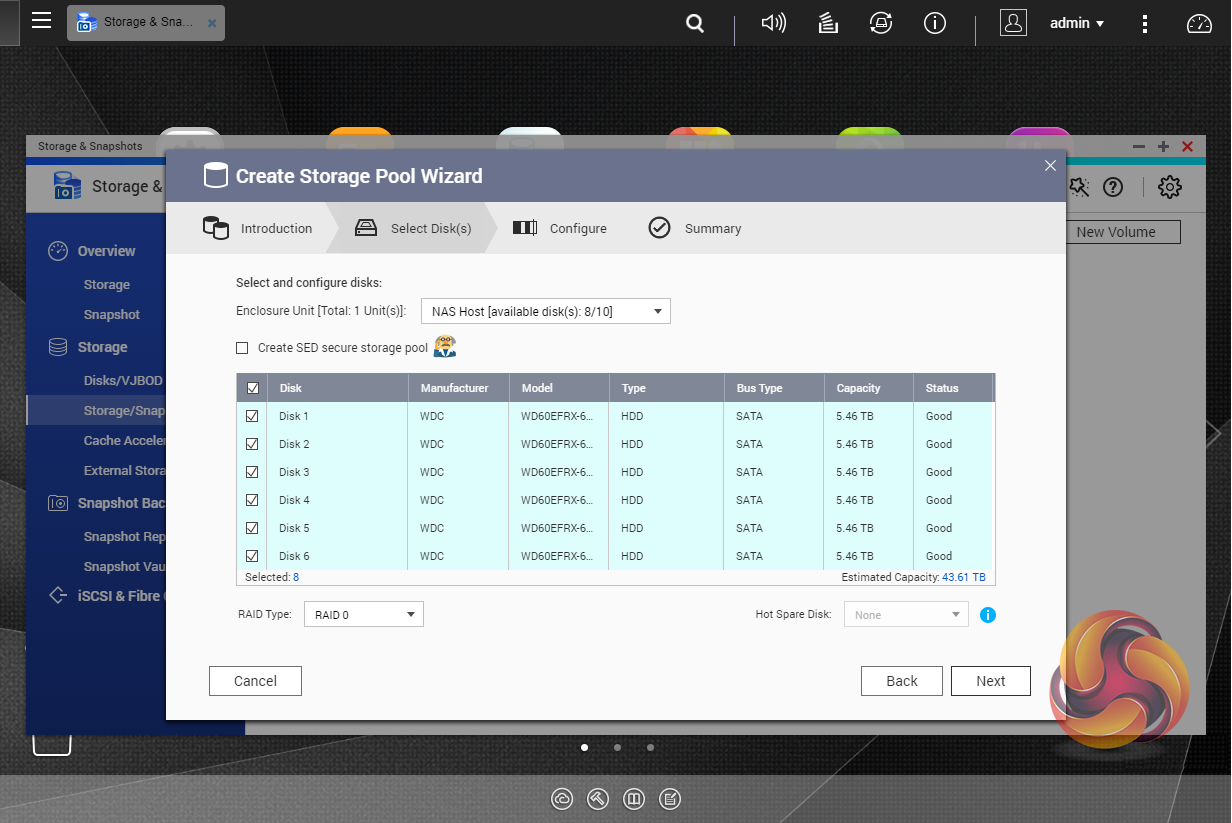
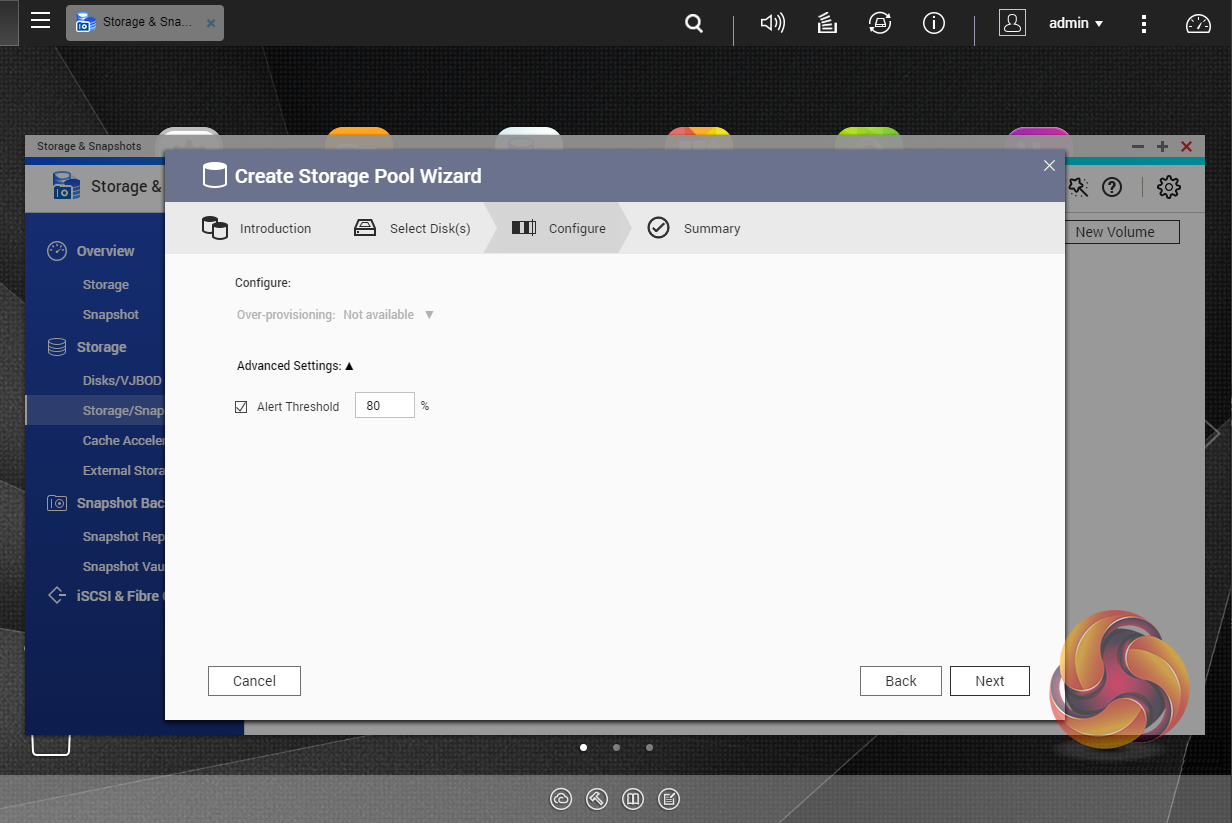
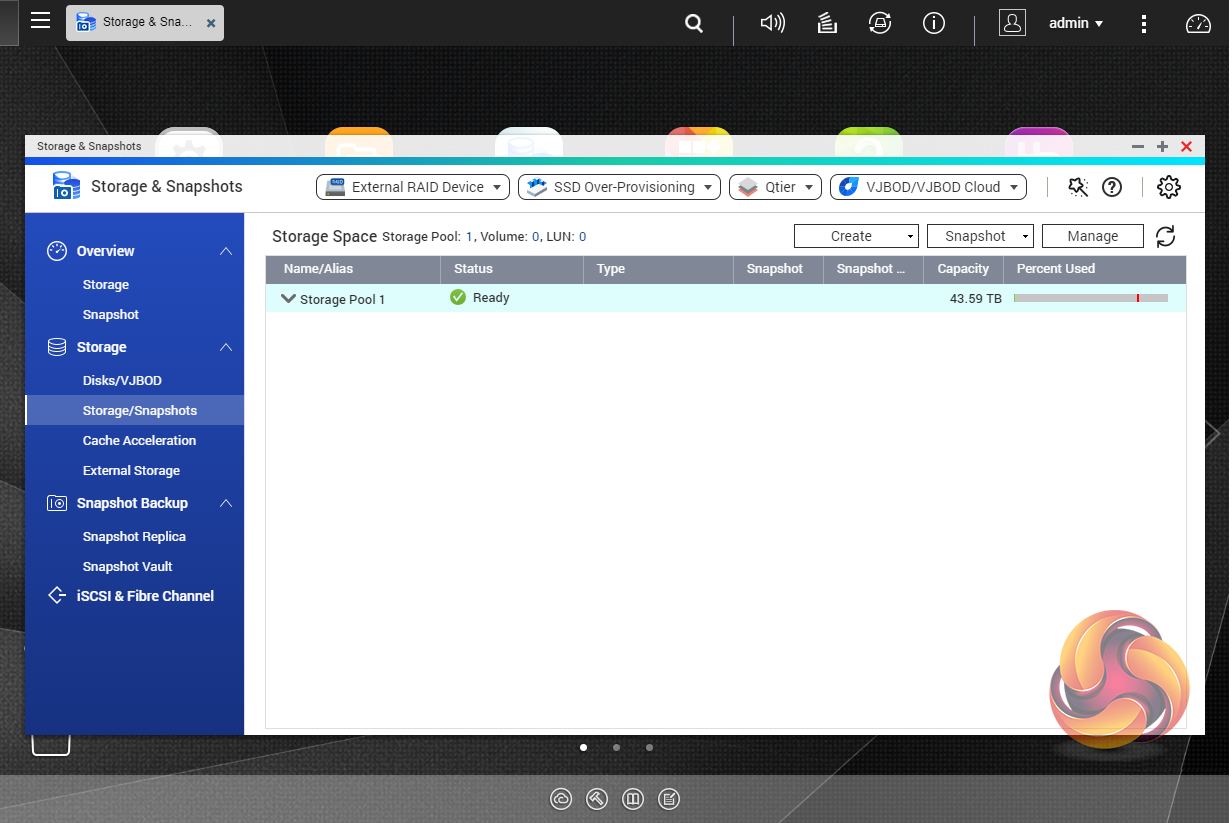
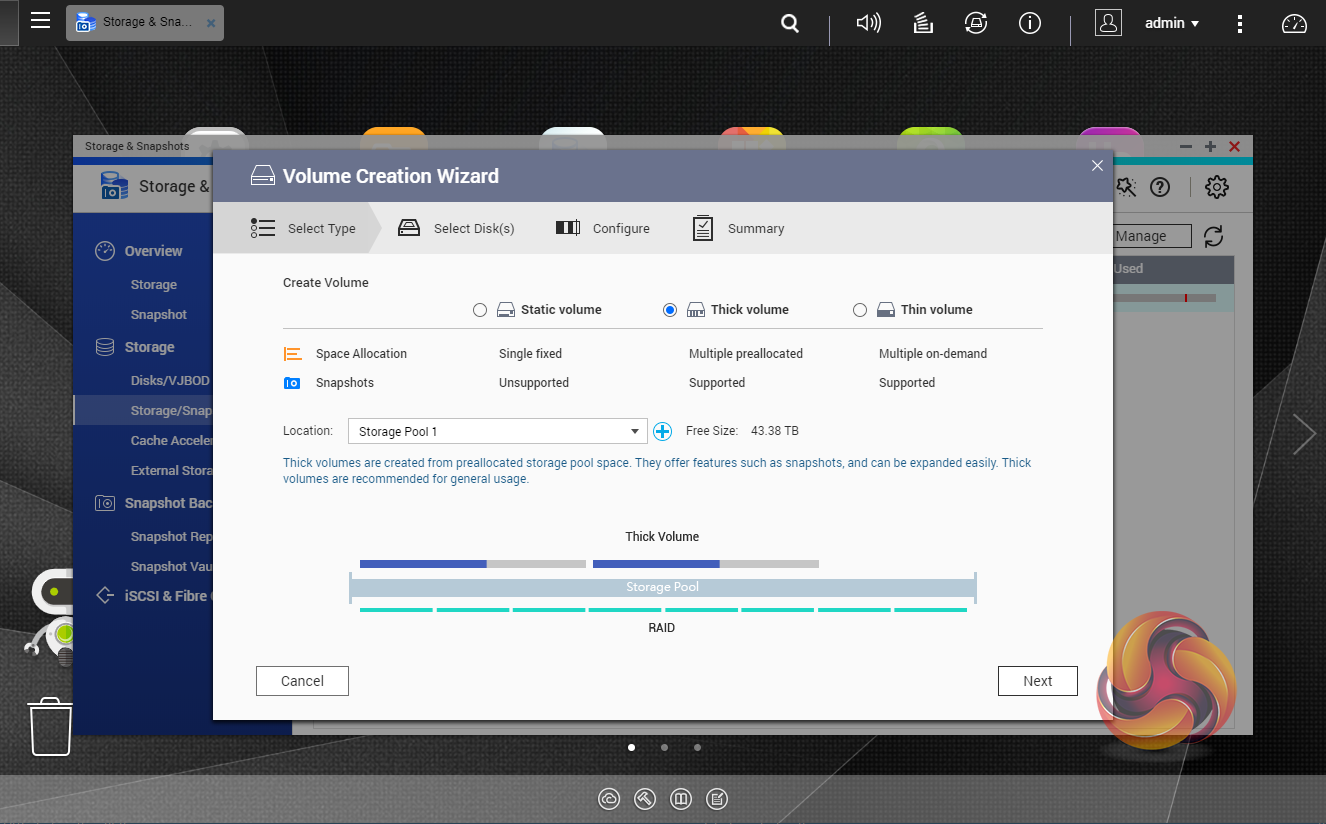
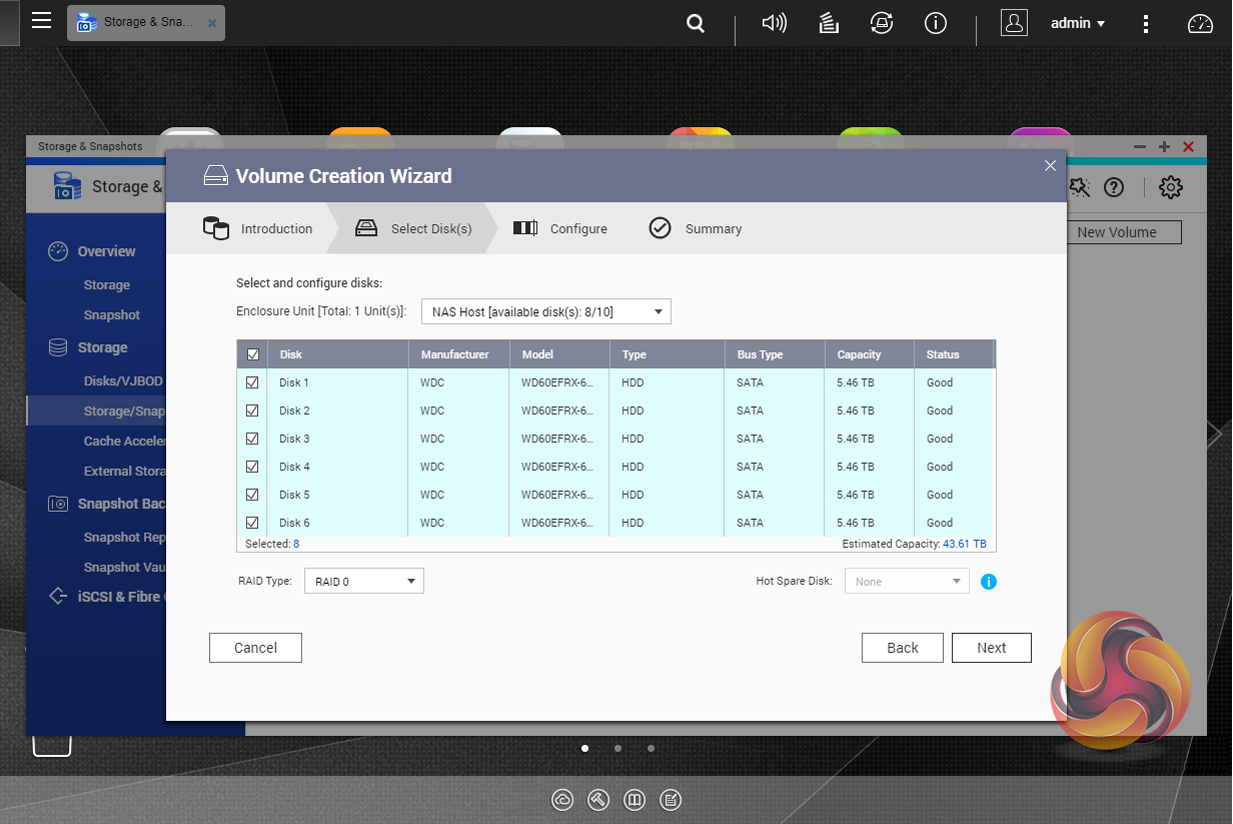
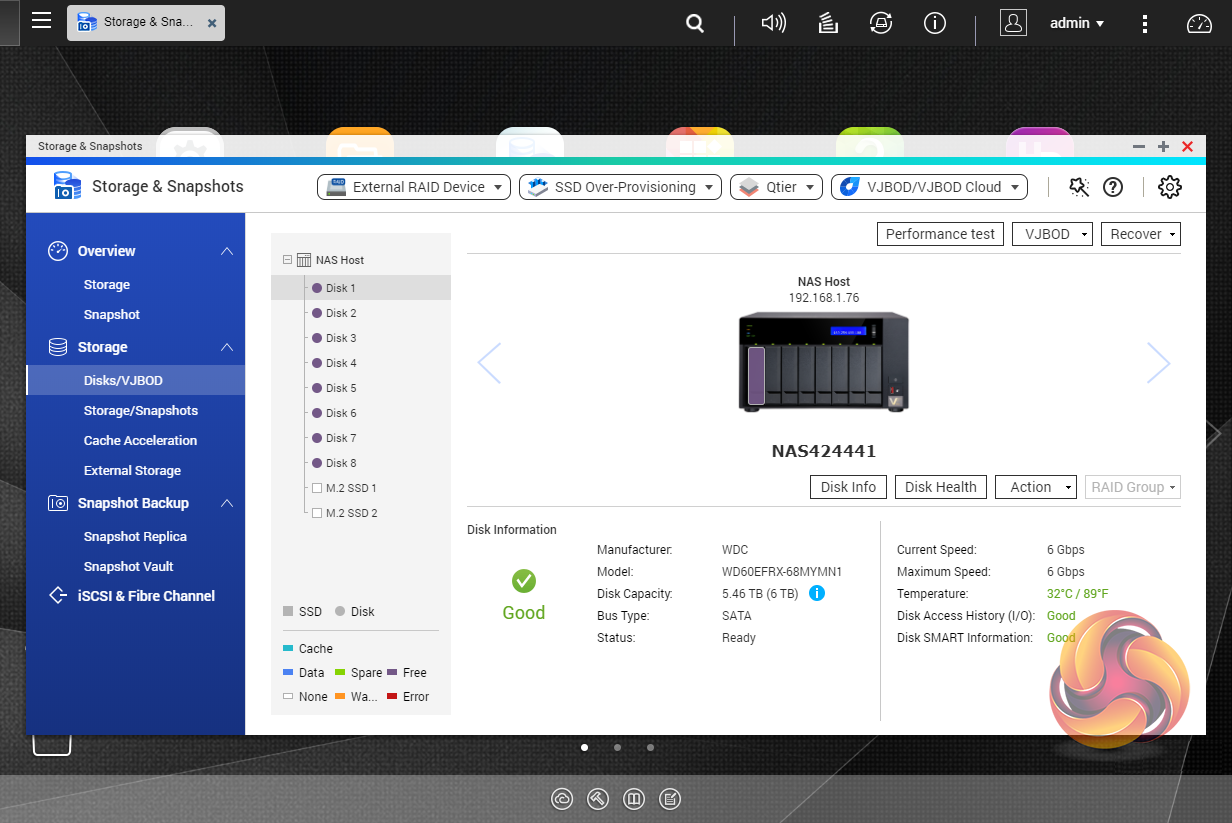
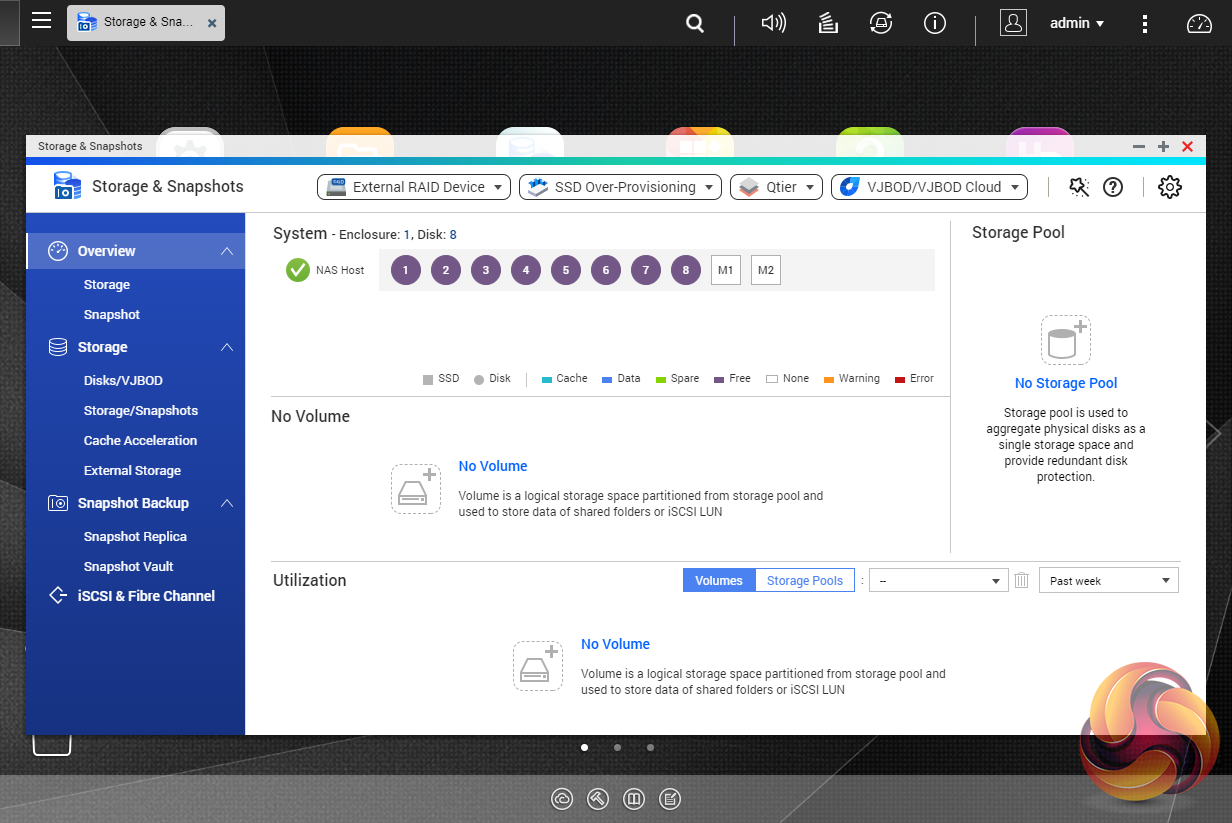
As with any NAS, disk management, RAID and volume creation are at the heart of things. Setting up storage pools and volumes up are pretty straightforward thanks to the clear and precise step by step setup pages in the QTS Storage & Snapshots Manager.
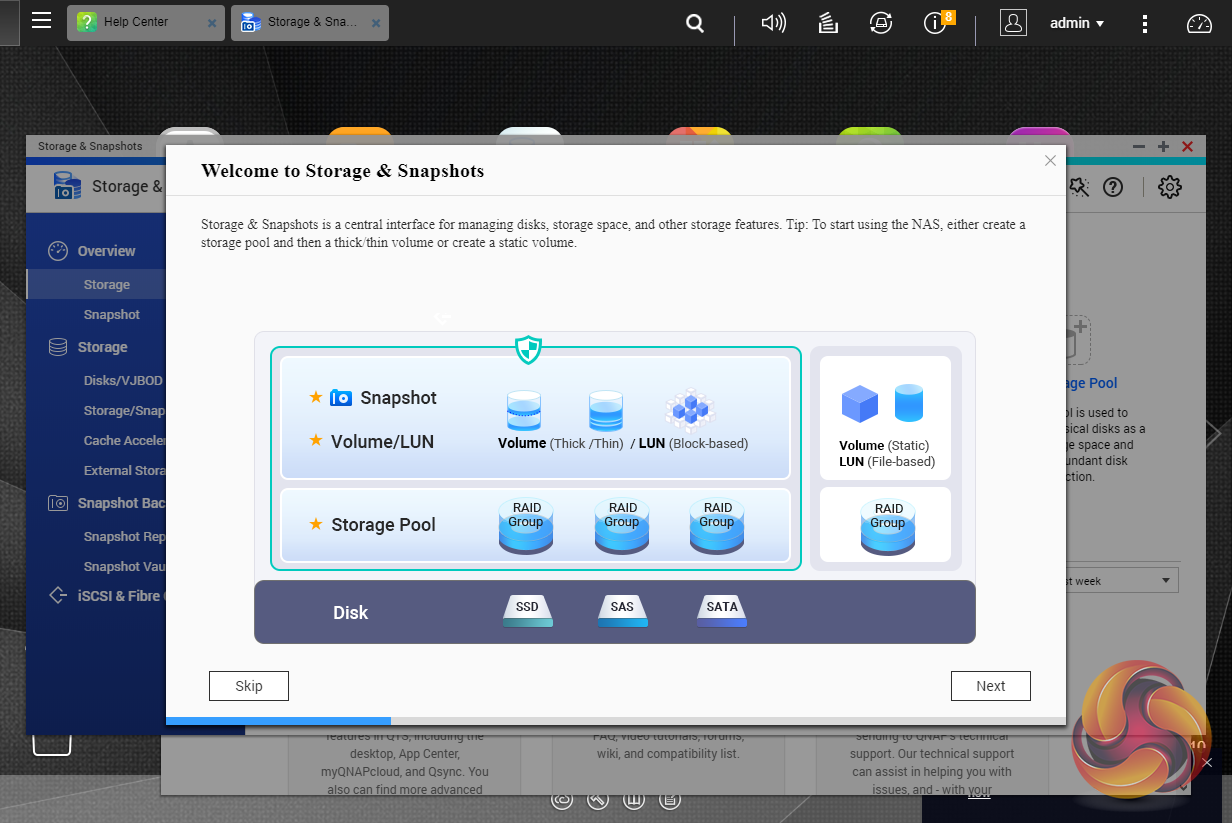
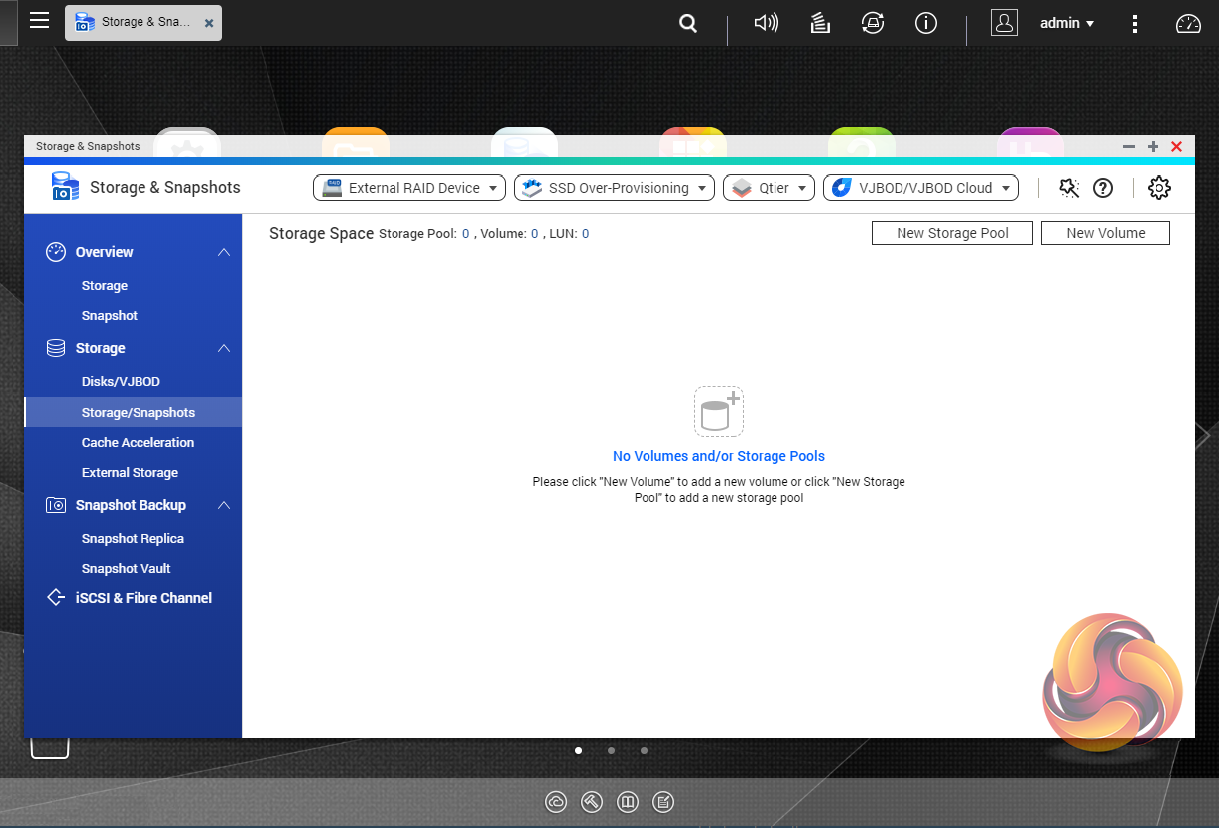
Storage Pool setup
Volume Creation
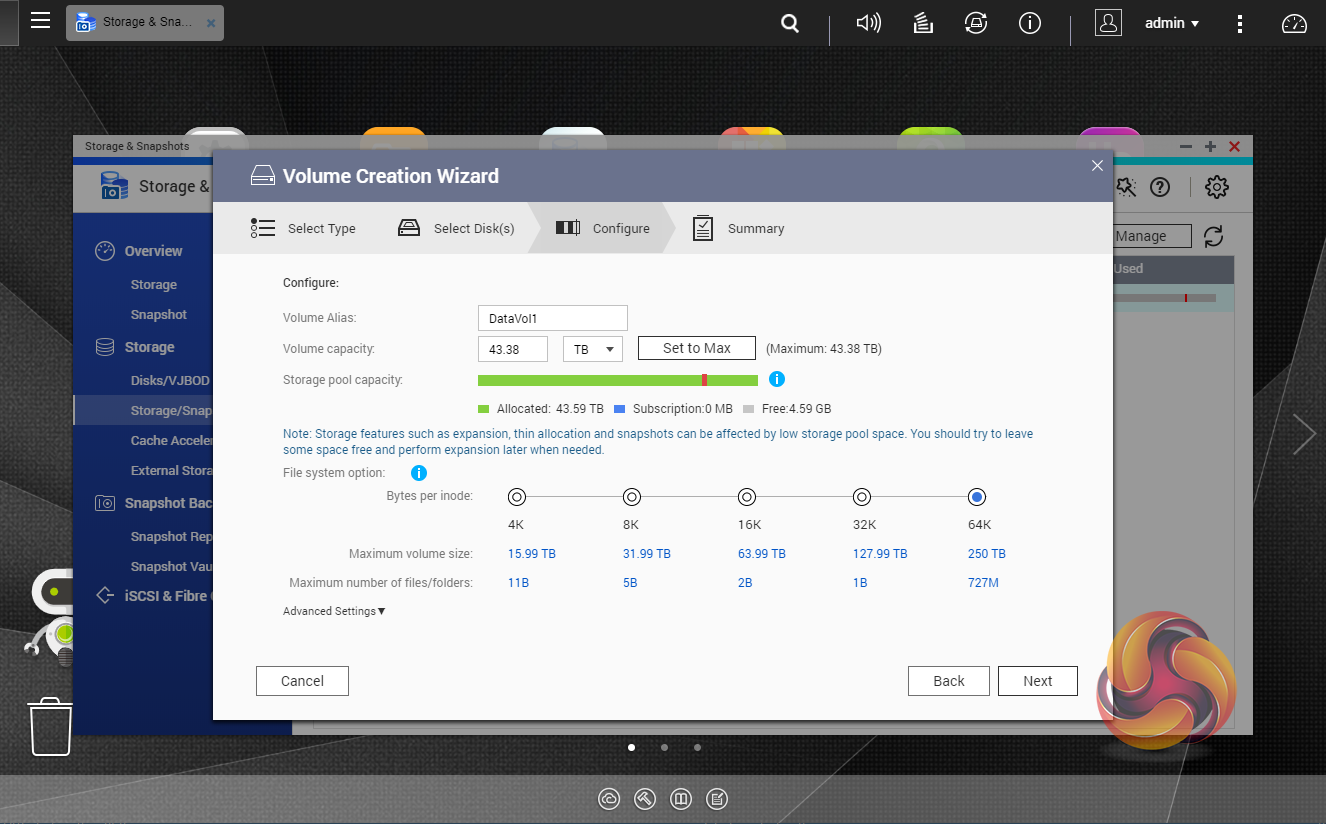
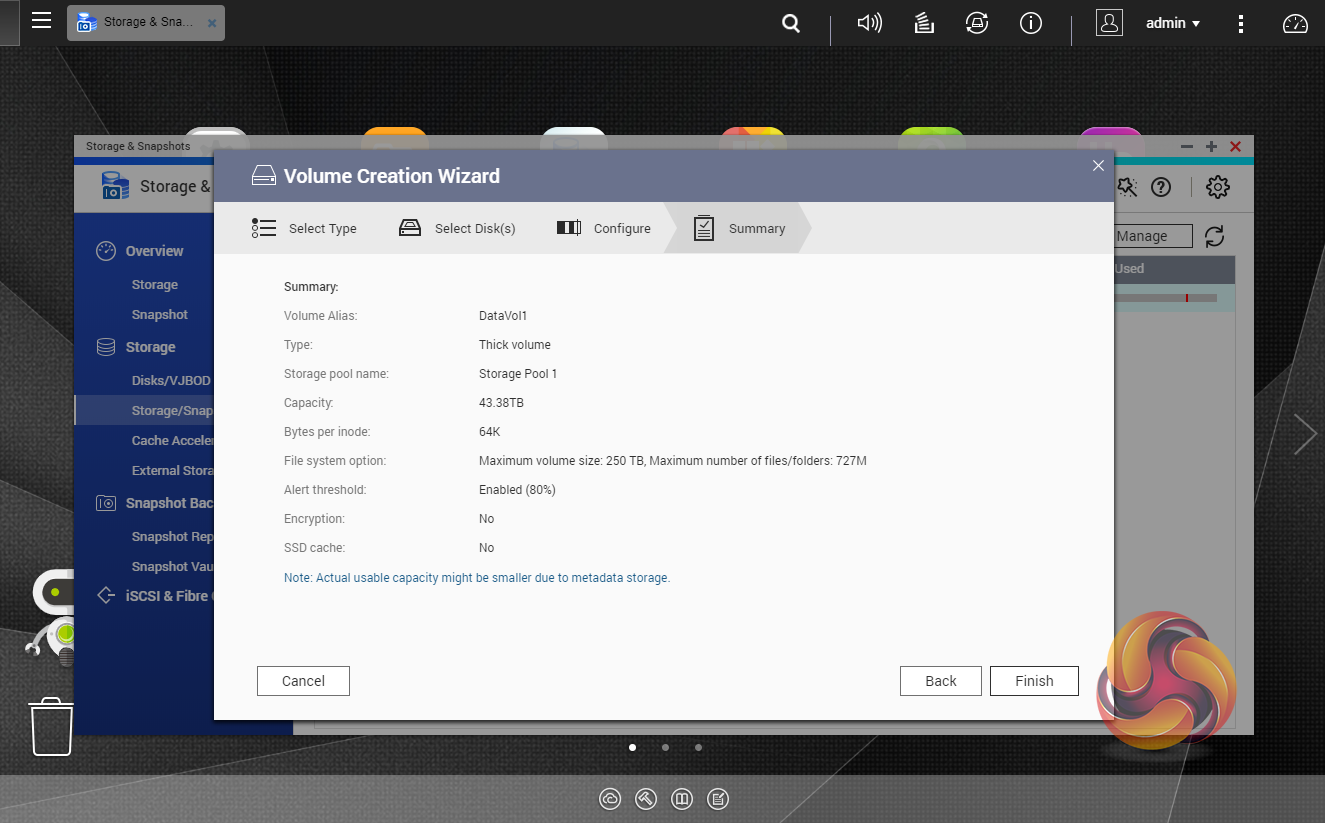
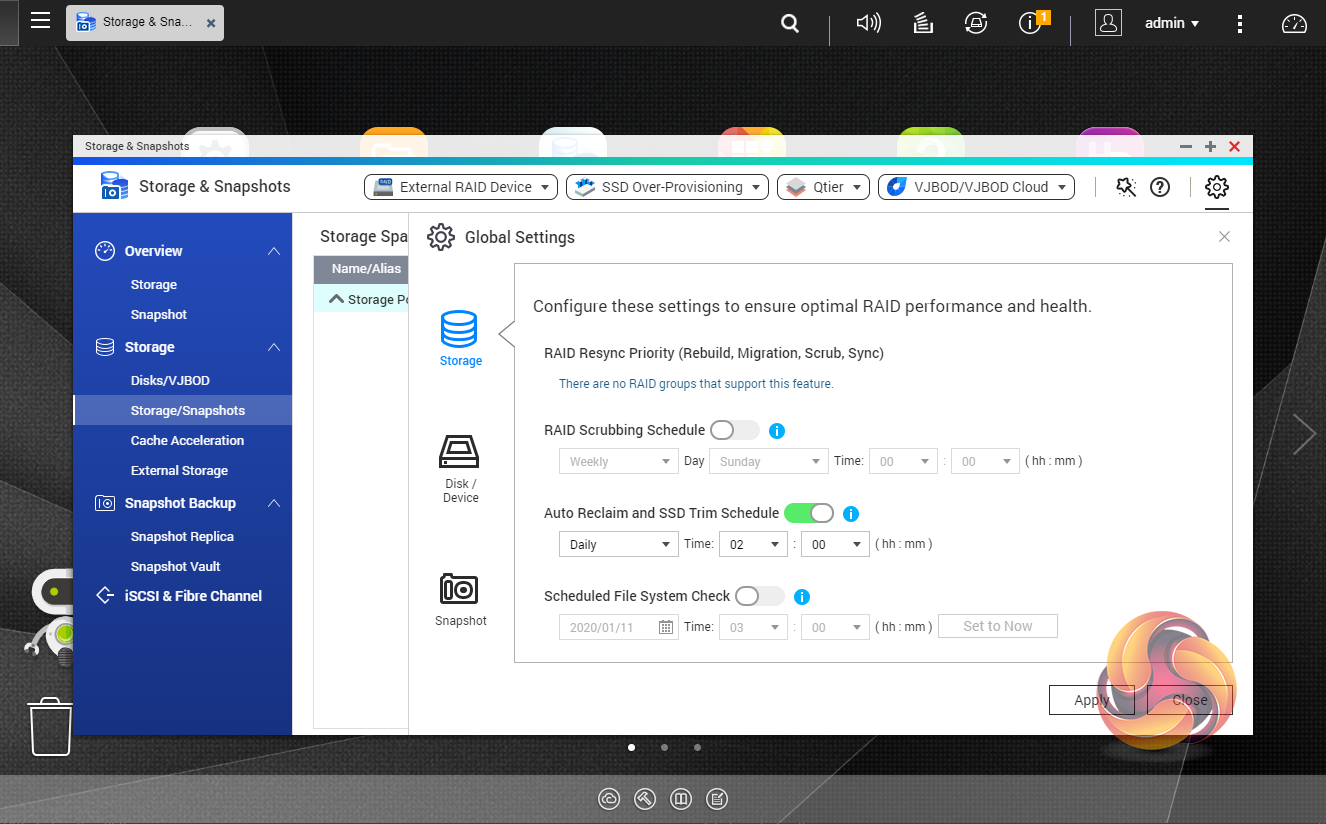
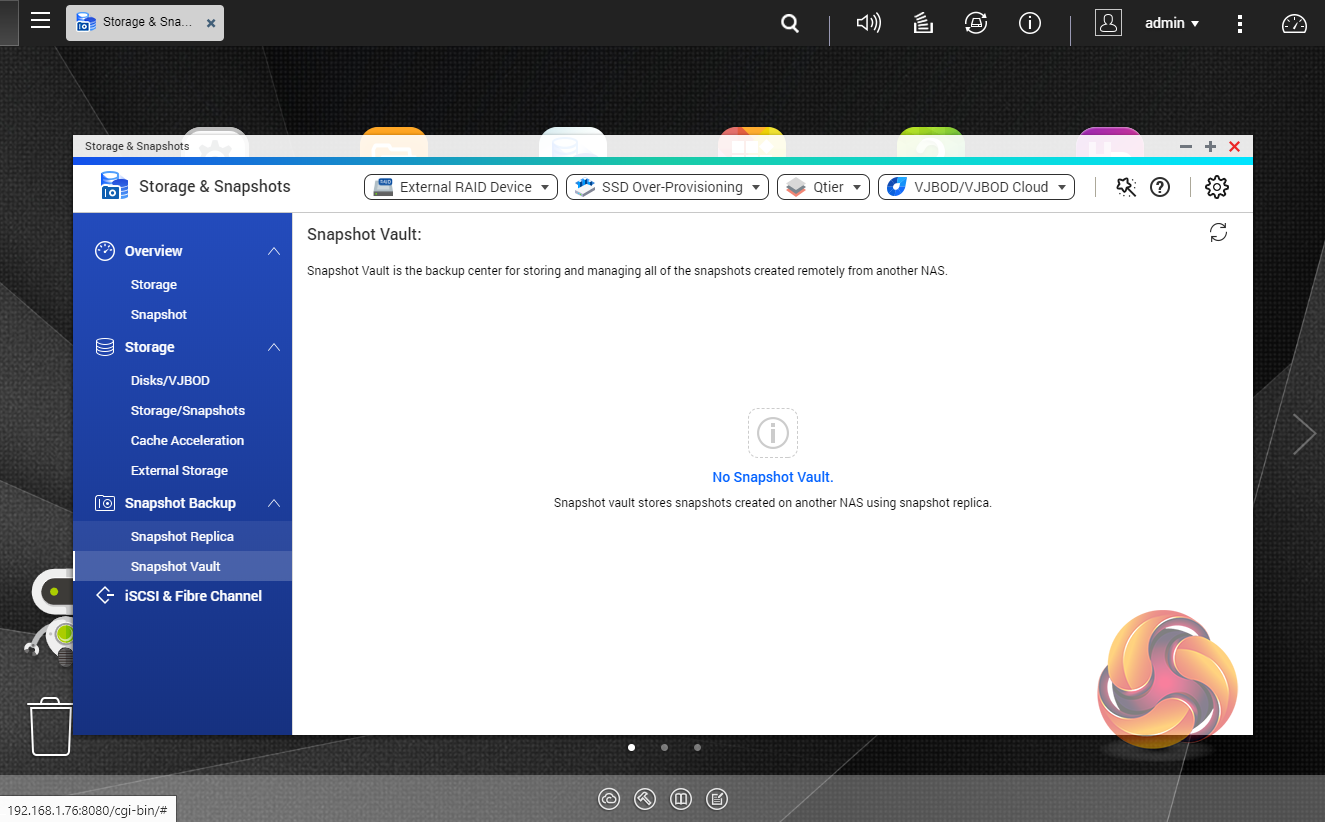
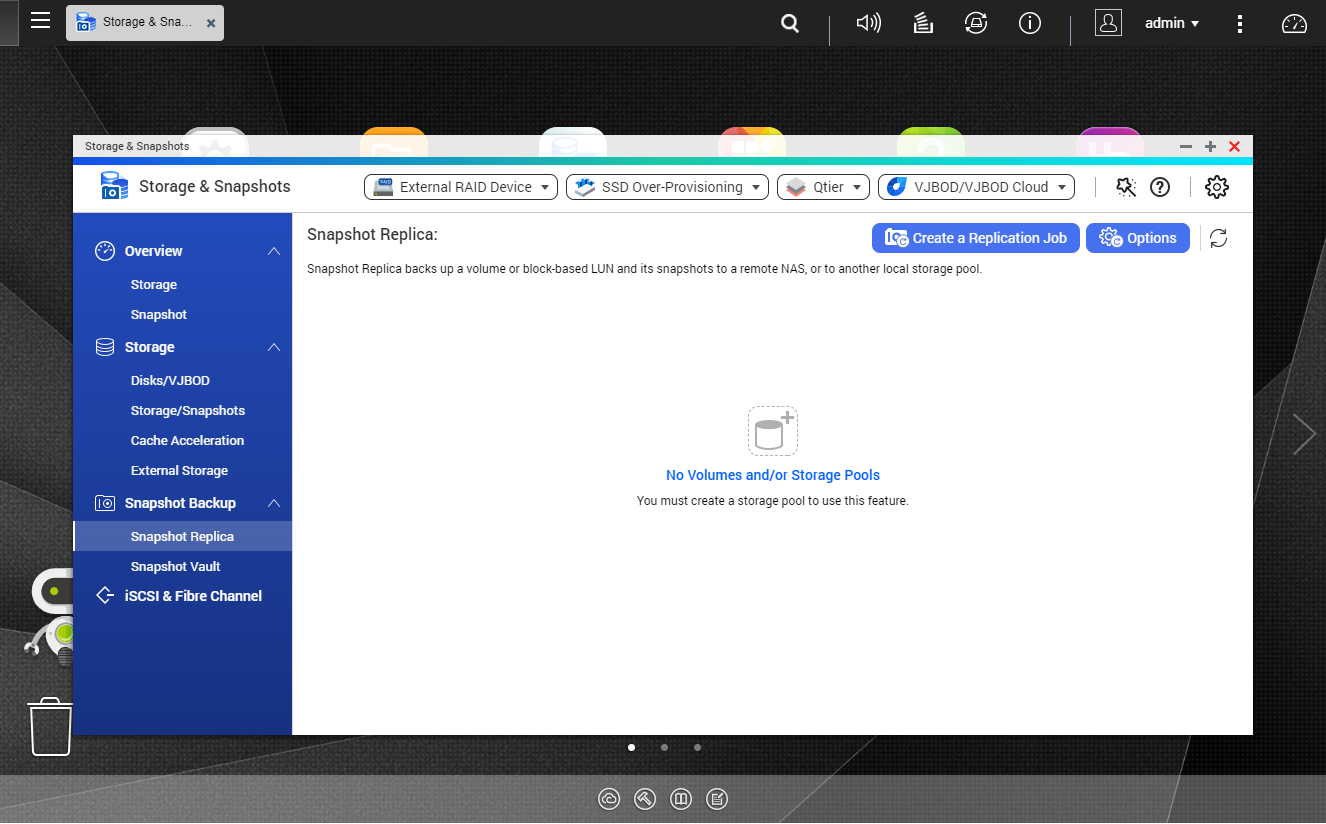
Snapshots used to be the preserve of high-end business and enterprise systems but QNAP has brought it to this NAS as well. Using snapshots you can record the state of the system and data at any time using Storage & Snapshots Manager. It displays the status of all volumes and storage pools at a glance in a very clear, well laid out manner. Global settings for disks, storage and snapshots can all be adjusted from within the management window.
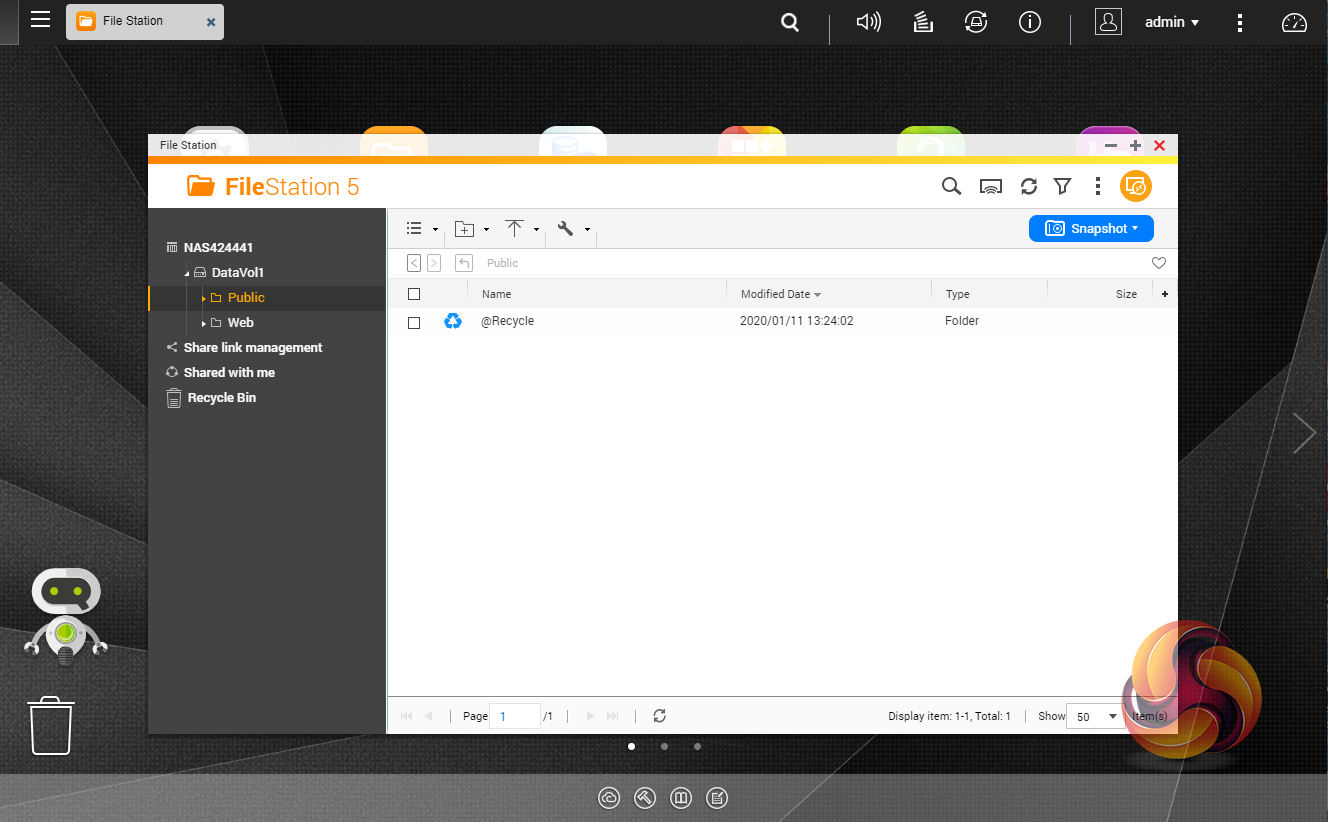
File Station, is a complete file management system. It supports browsing and transfer of files from the NAS to public cloud services including Dropbox, Box, Google Drive, Microsoft OneDrive and OneDrive for Business, Yandex Disk, Amazon Drive and HiDrive. It also allows the mounting of shared folders from a remote NAS to a local NAS via FTP and CIFS/SMB.
Qfiling makes the job of archiving and organising large numbers of files much easier by allowing the setting of various filing conditions and schedules to enable automatic filling jobs.
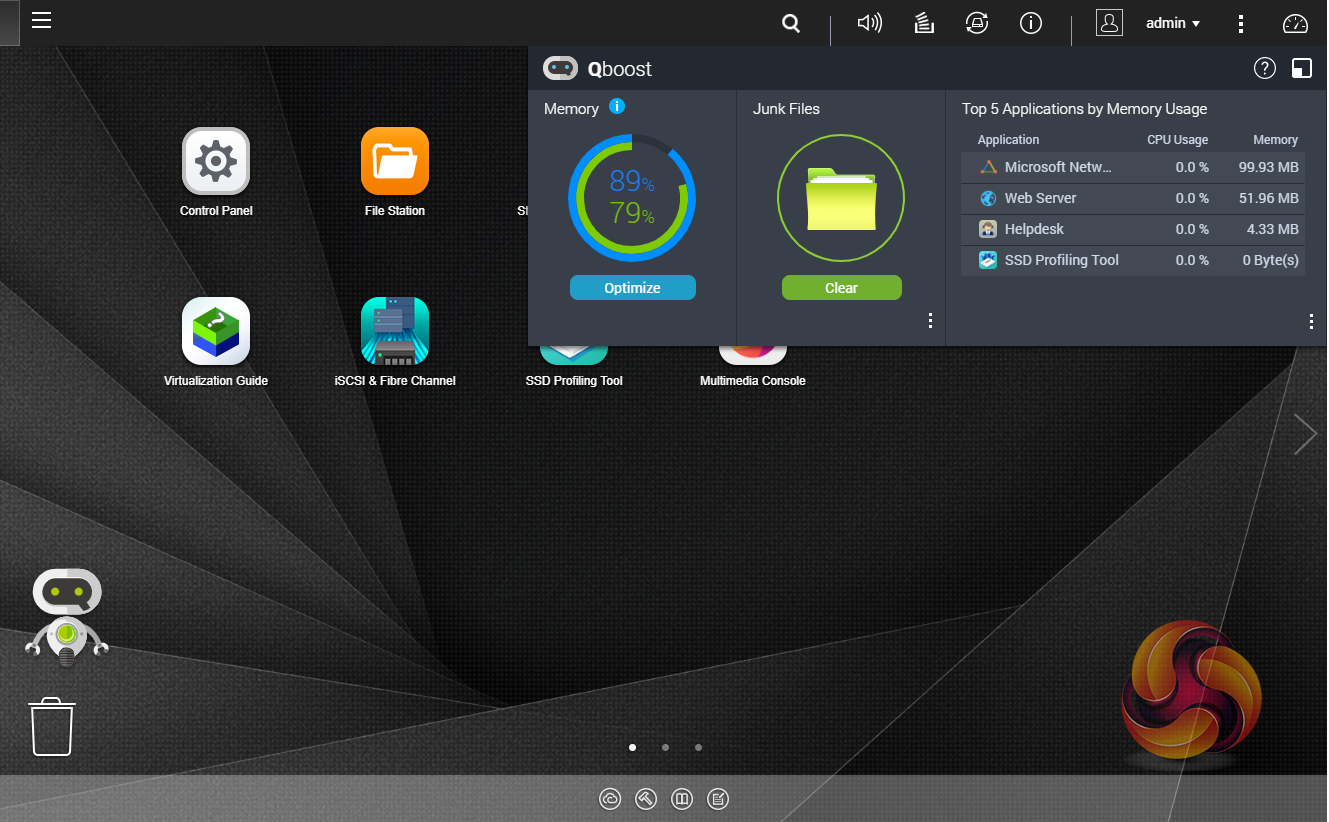
Qboost is an optimisation app that helps maintain the NAS at peak performance. It can free up system memory, reclaim storage space by clearing unnecessary system files and the recycle bin and help balance system load by managing schedules for most applications and services.
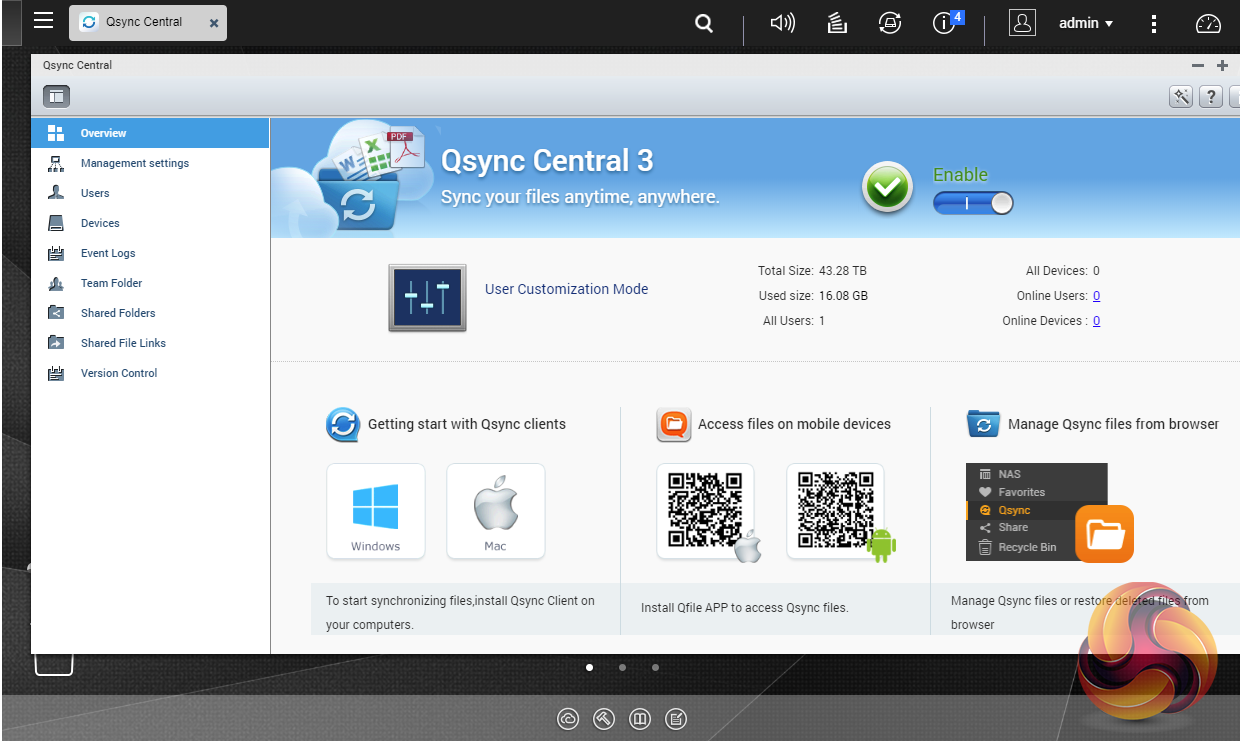
To access files from anywhere there is Qsync Central. Files added to the Qsync folder are available to the local NAS and all devices that are connected to it, including mobile devices.
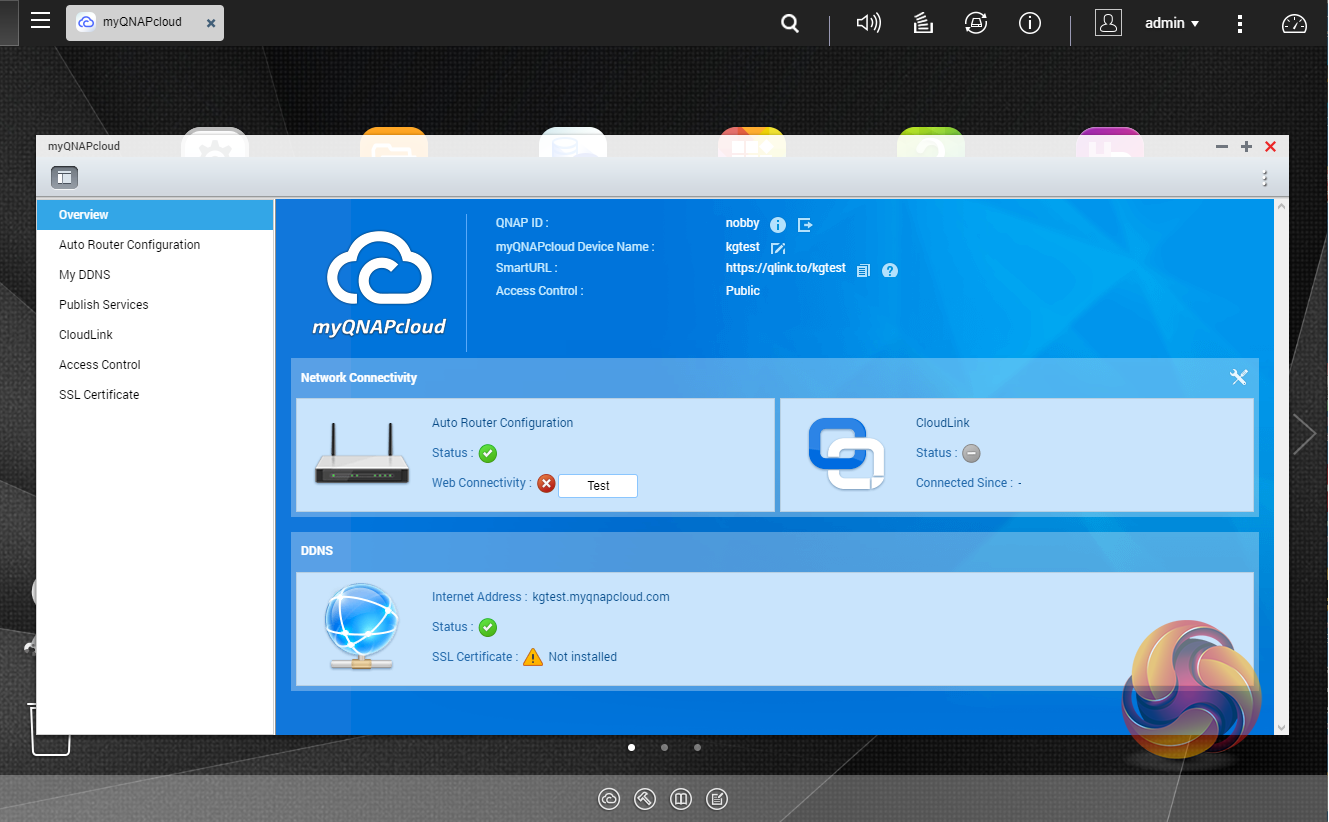
myQNAPcloud allows for easy and safe access to a remote device. It allows multiple devices to connect to one central location to share and manage files. For even more secure connections, SSL certification is available.
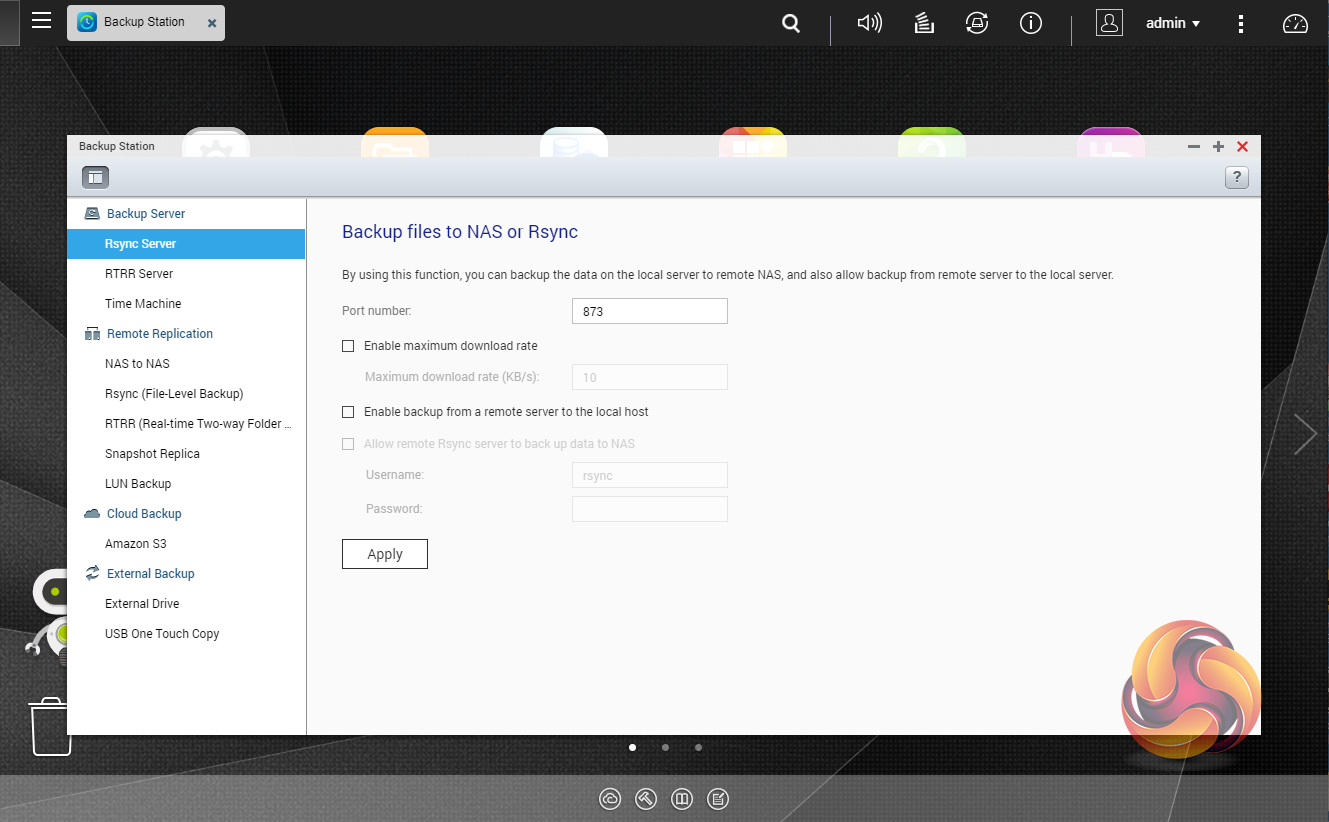
Backup Station allows the backing up of data with a wide range of options, including backup servers, cloud storage, and external devices.
The One Touch button on the front bezel can be set up to either upload or download files/folders or backup the NAS to an external USB drive. In the Backup Station pages in the QTS you can set up exactly what you want the One Touch system to do.
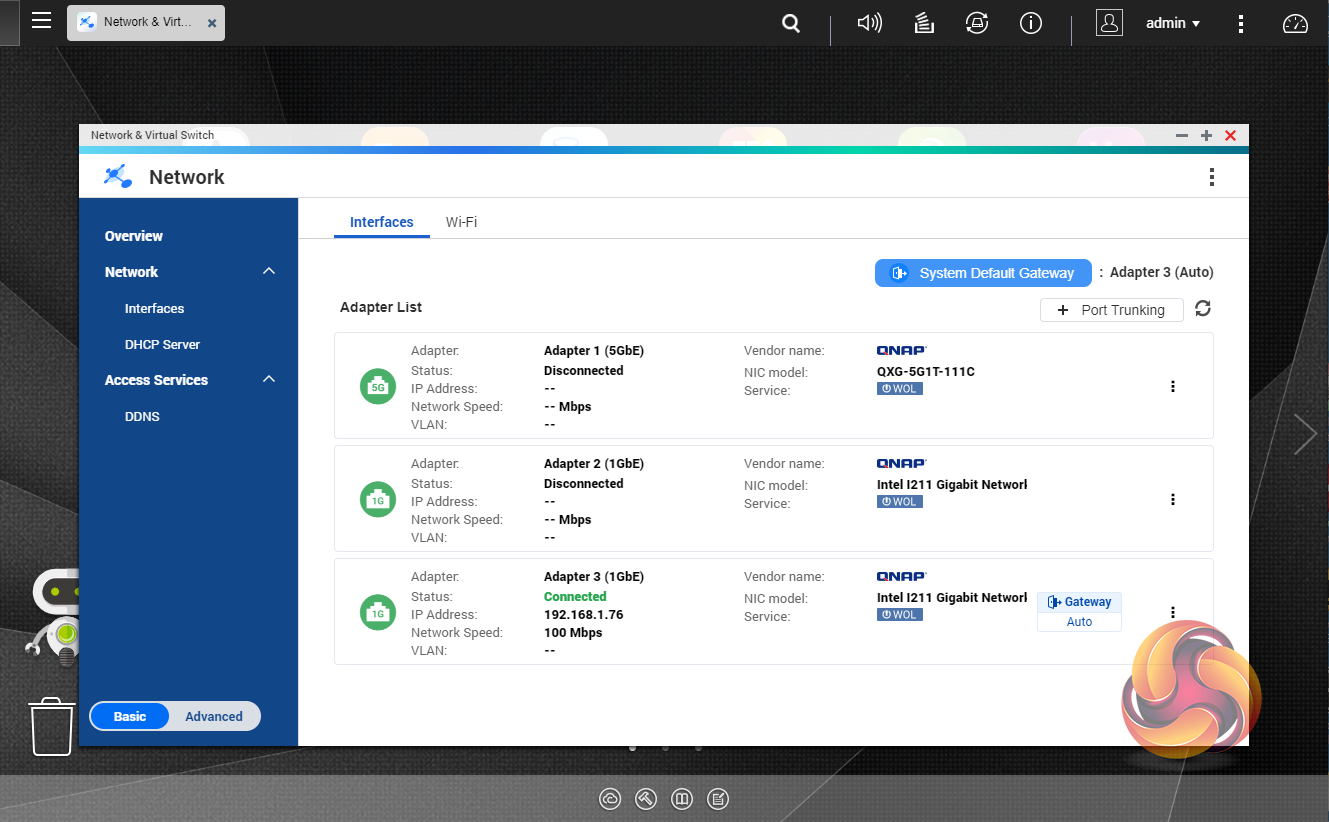
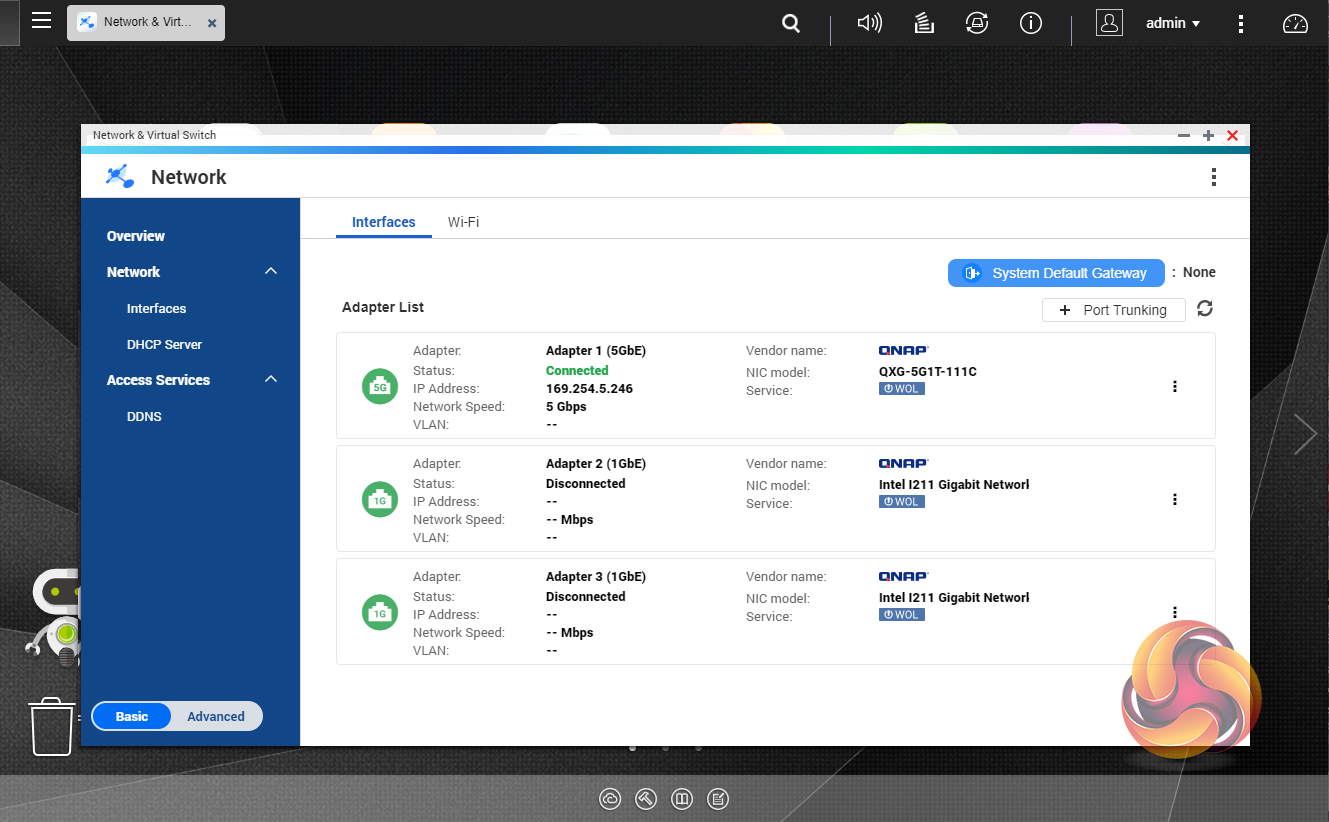
Network & Virtual Switch is a utility that centralises the creation, configuration, and control of network connections. It allows easy management of physical network interfaces, Thunderbolt and Wi-Fi connections as well as virtual adapters. It also makes controlling DHCP, DDNS and gateway services easier. It has both basic and advanced options, the advanced option gives you much more details about any connected networks and it also displays which port(s) are being used by highlighting them green in the graphics on the page.
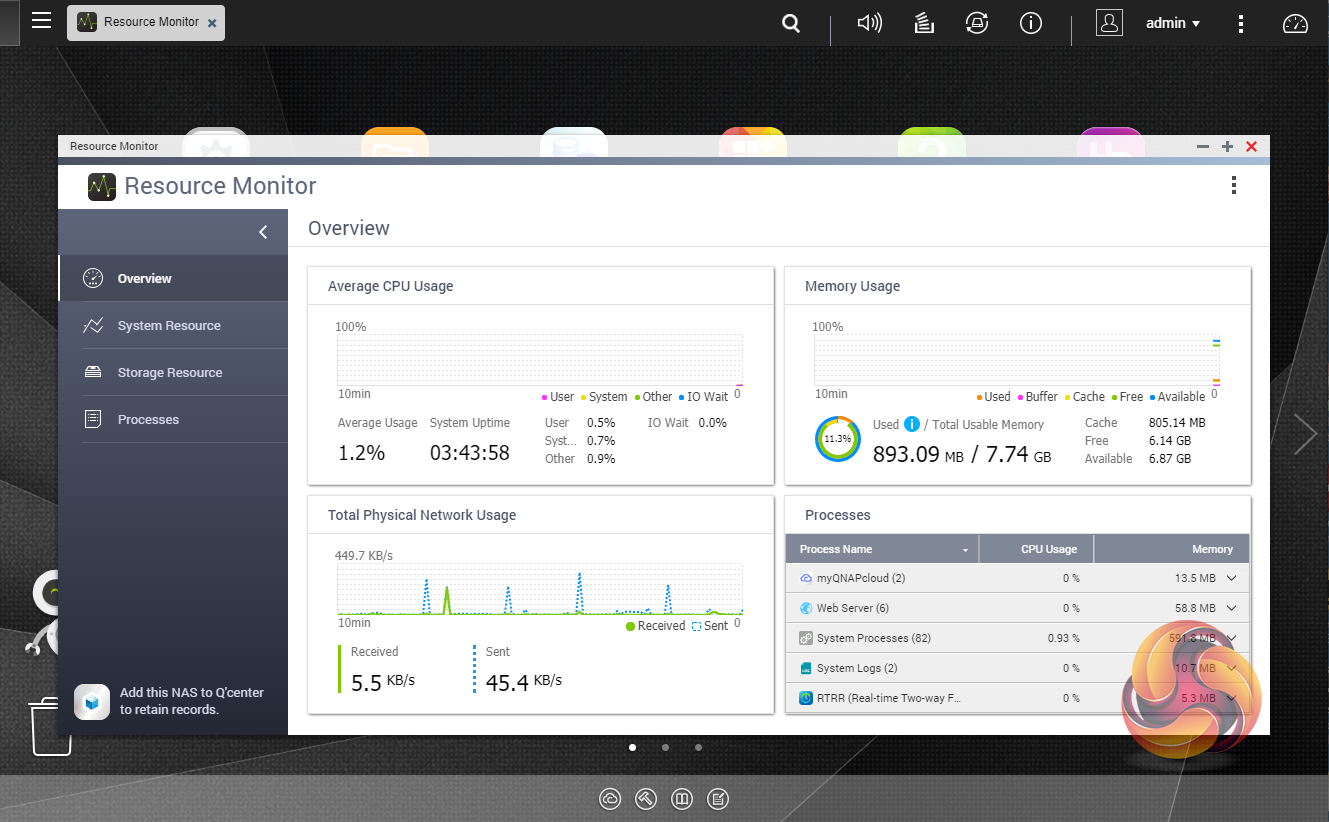
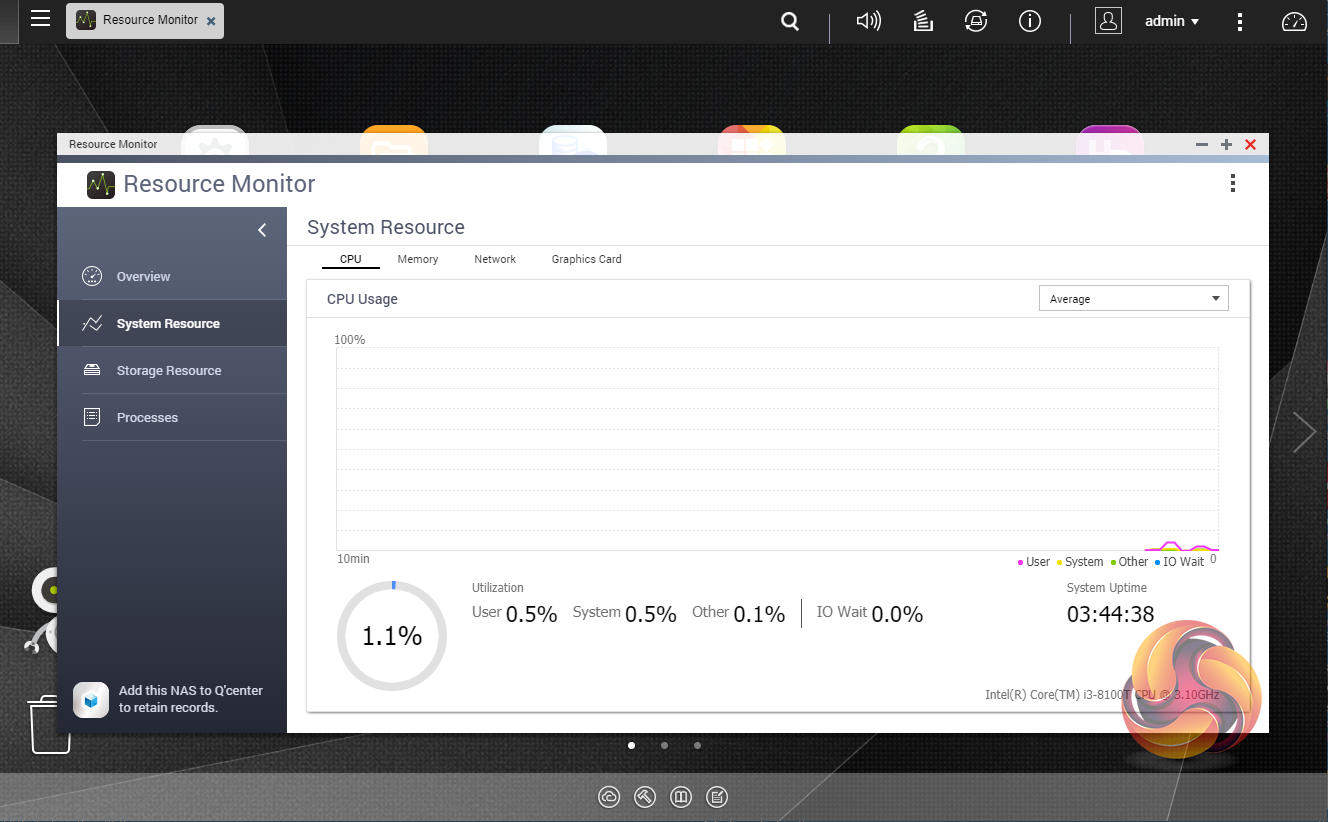
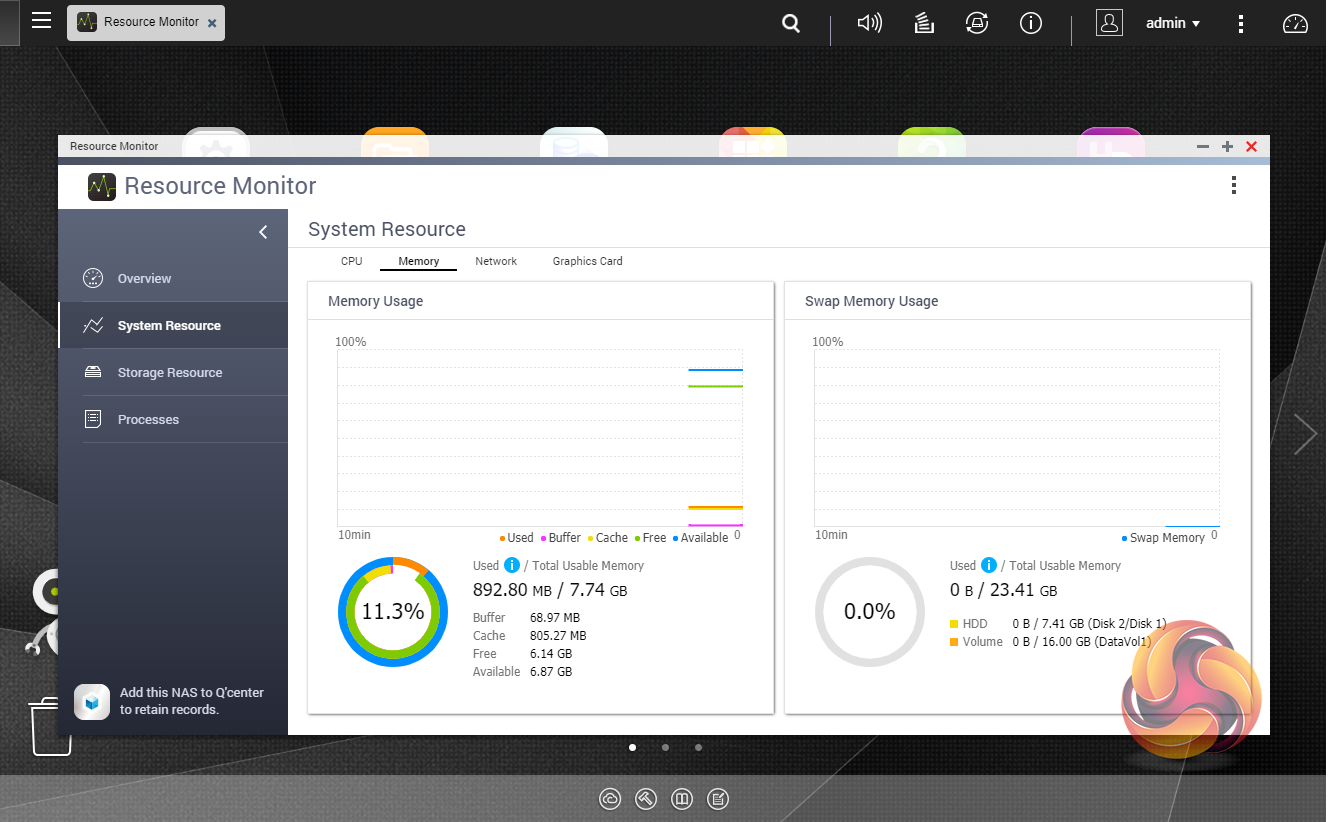
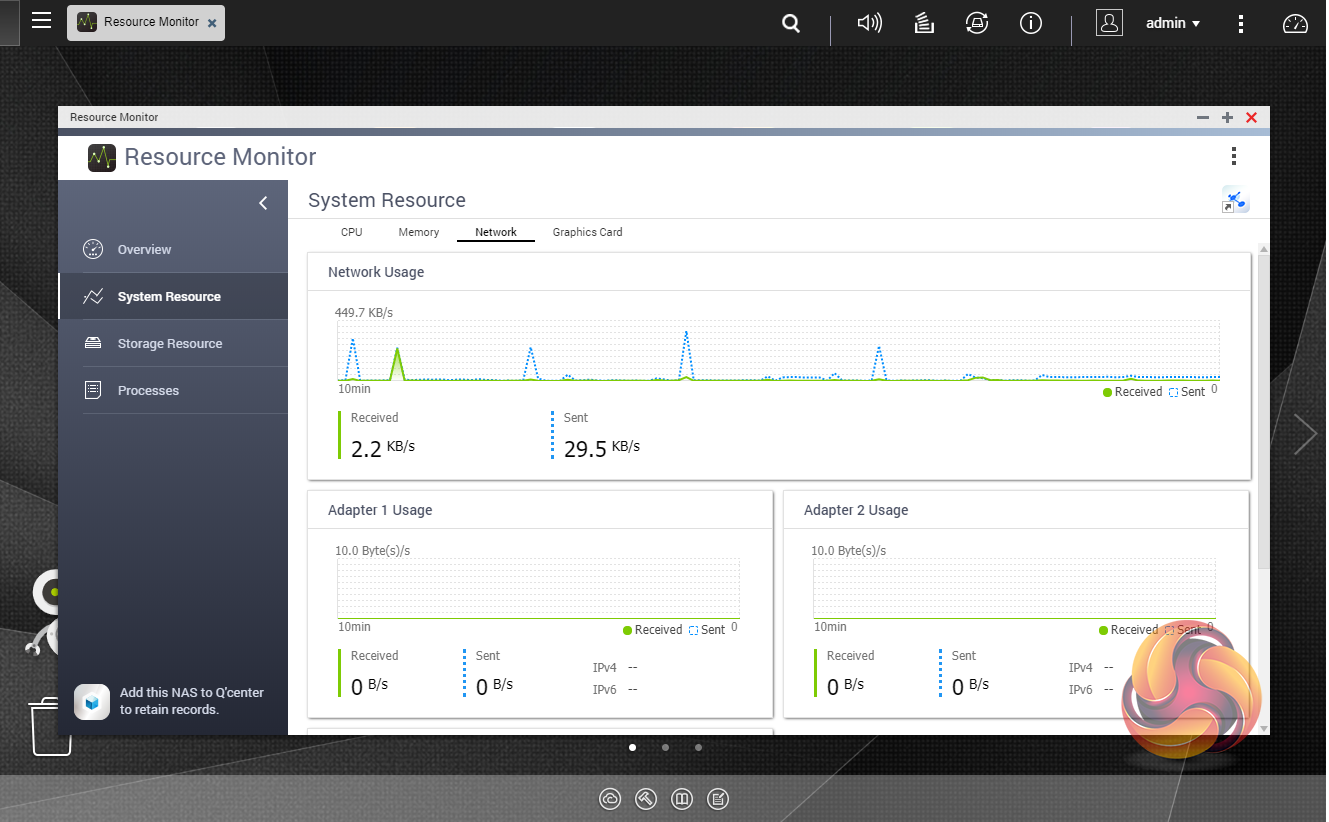
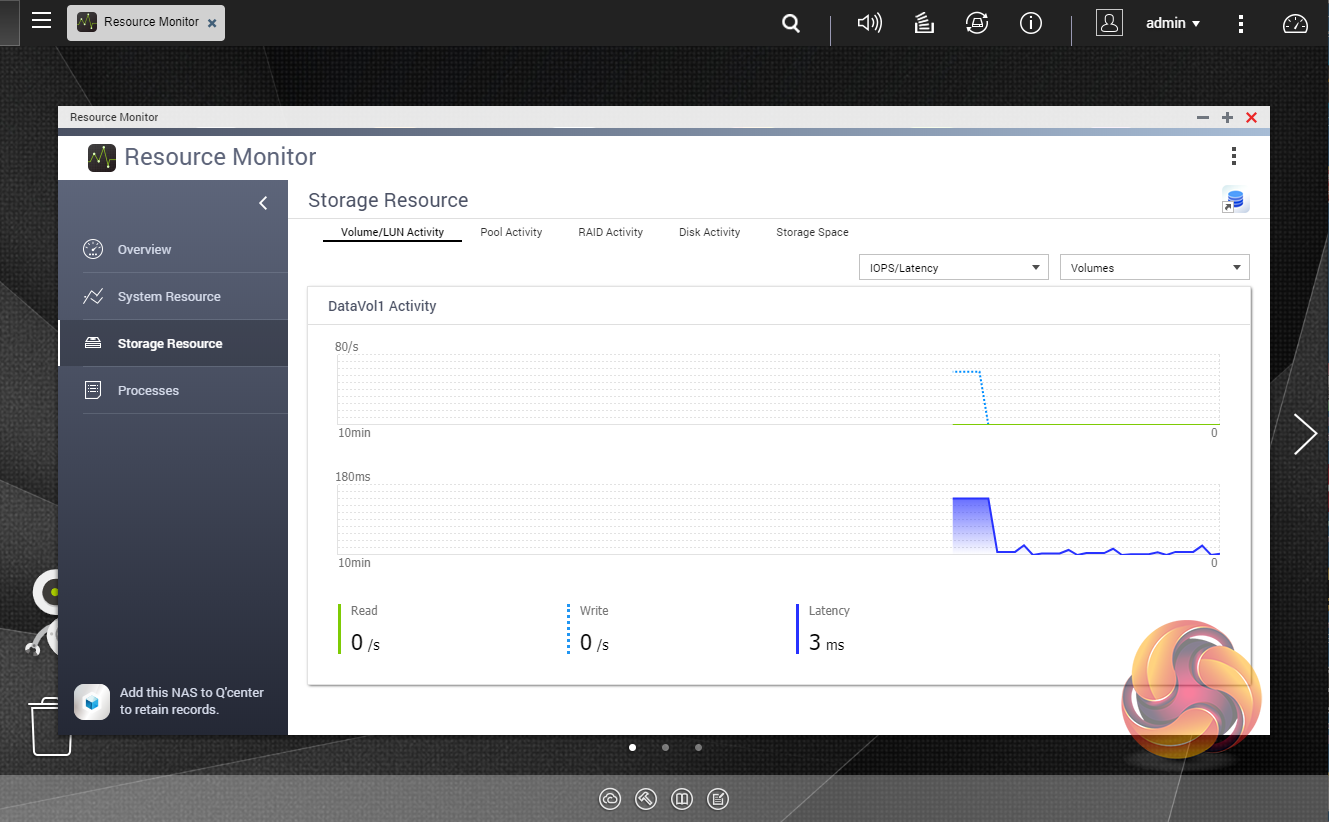
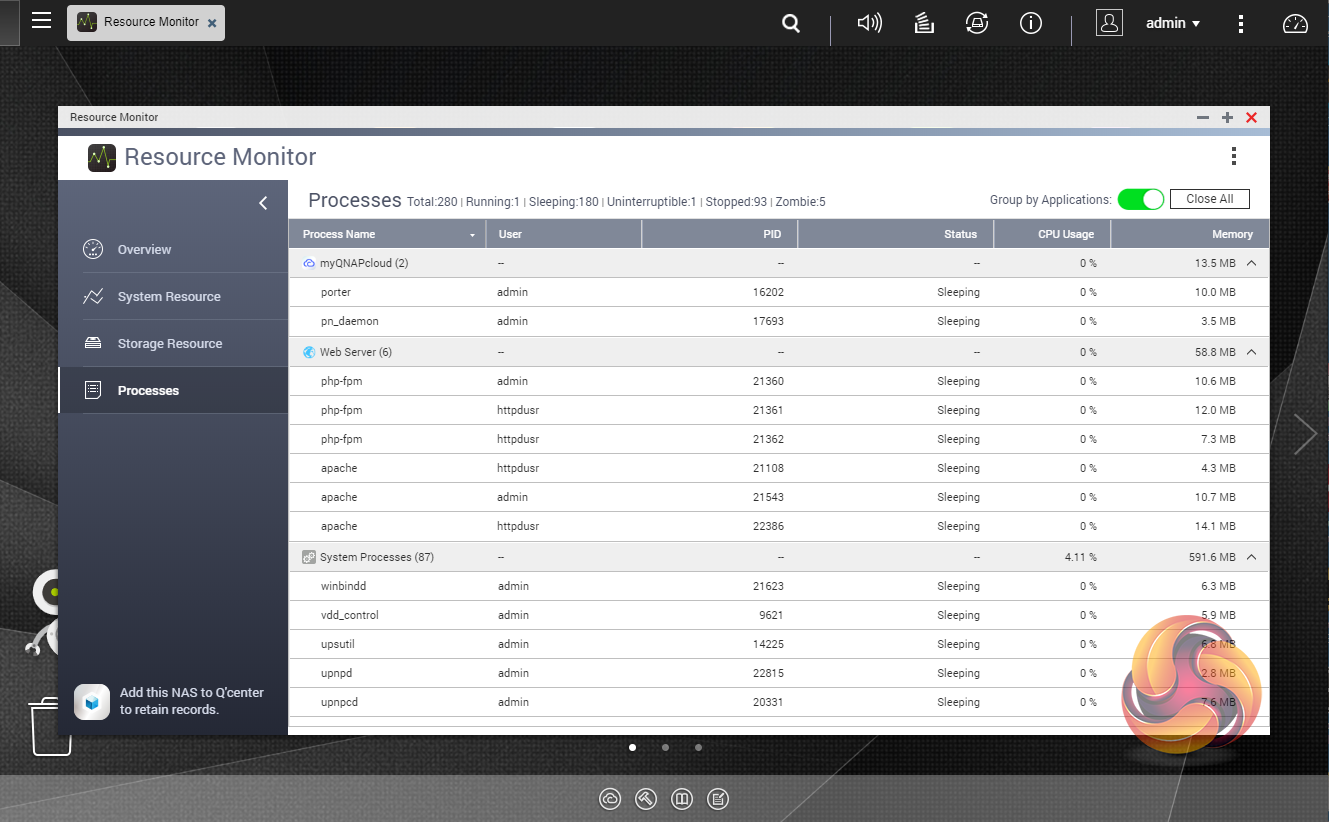
The Resource Monitor is a very useful tool, monitoring elements and offering detailed information on how the storage of the NAS is being used. It is divided into four sections; Overview, System (with separate tabs for the CPU, Memory and Network), Storage (with separate pages for pool, RAID and disk activities and how the storage space is being used) and Processes.
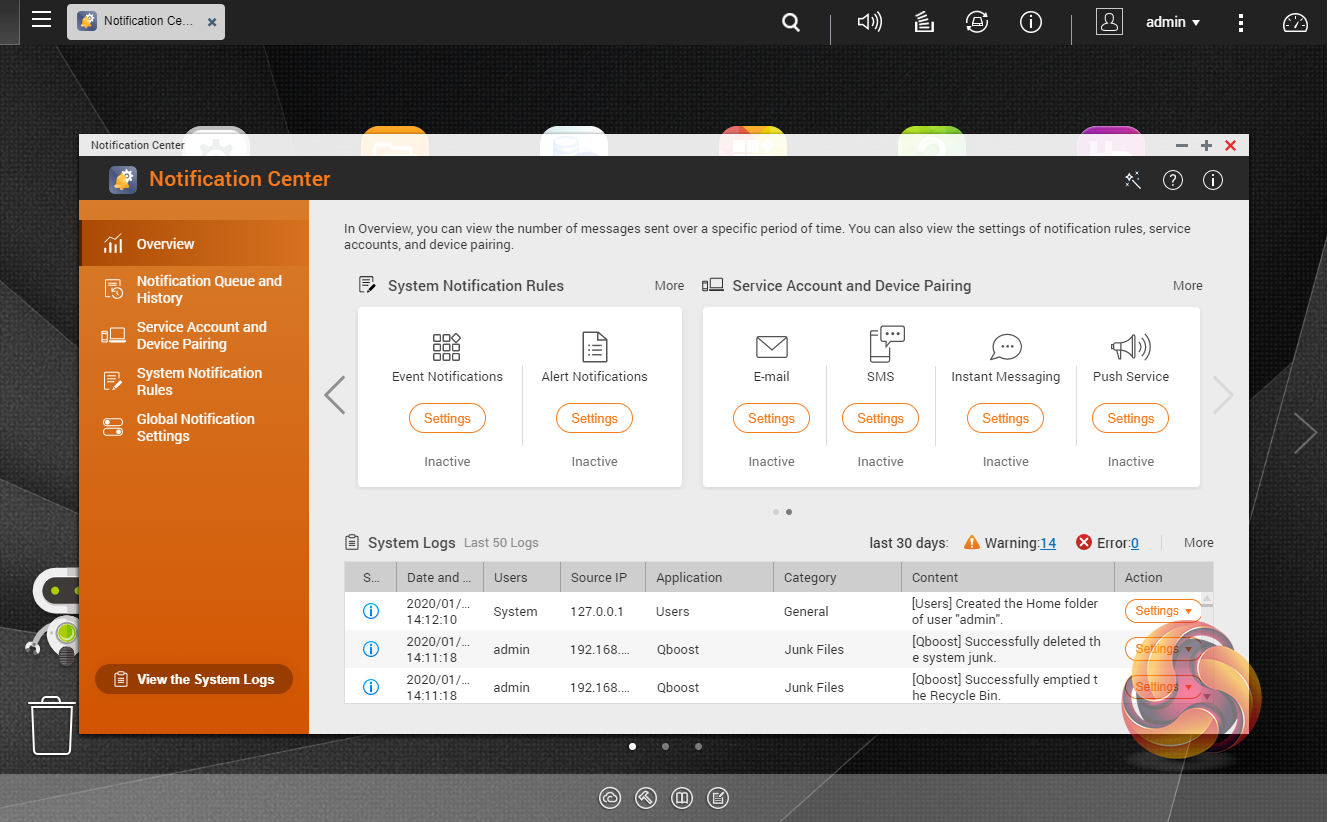
Notification Center is a very useful app that consolidates system logs and notifications for all the apps on the NAS into one single app. It supports flexible rule settings for easier NAS management and allows for more notification methods including email, SMS, instant message, and push notification.
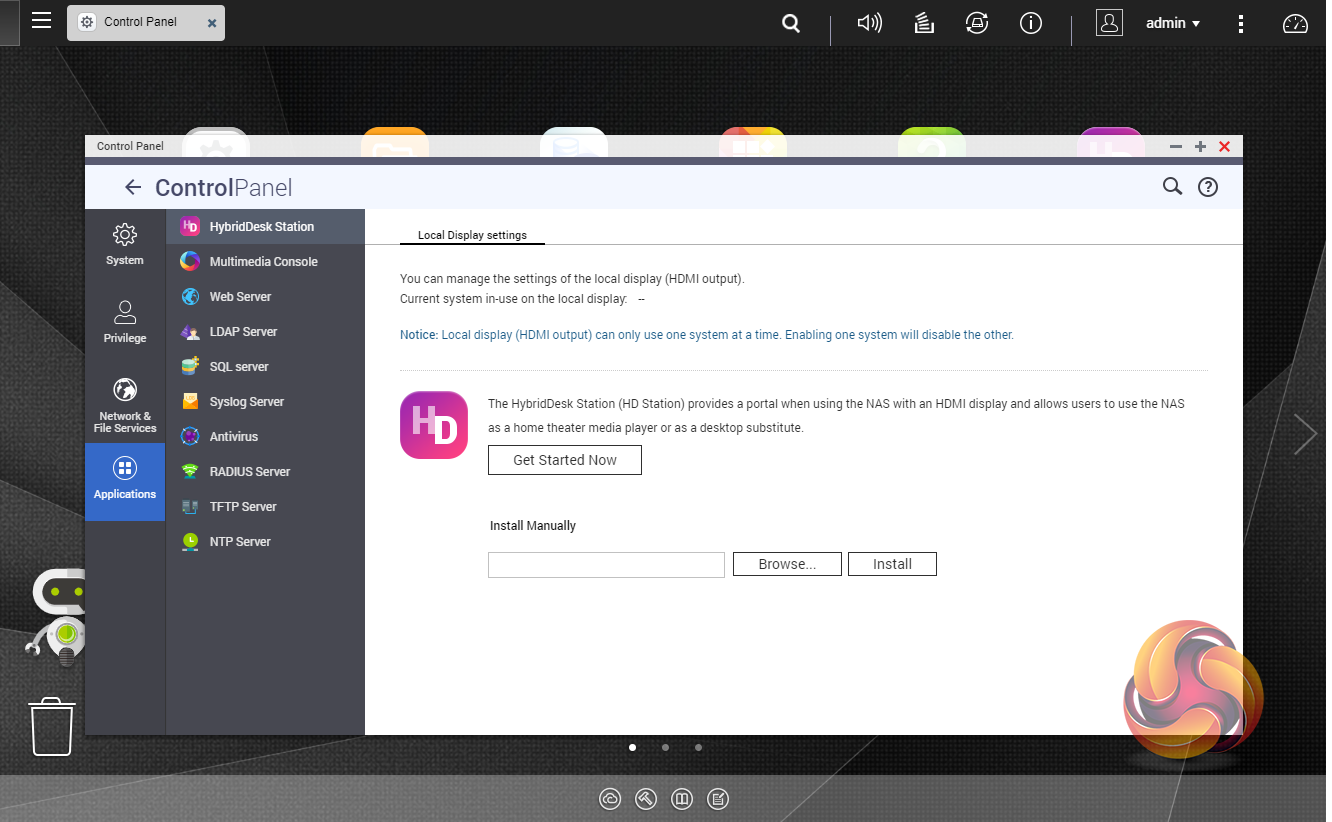
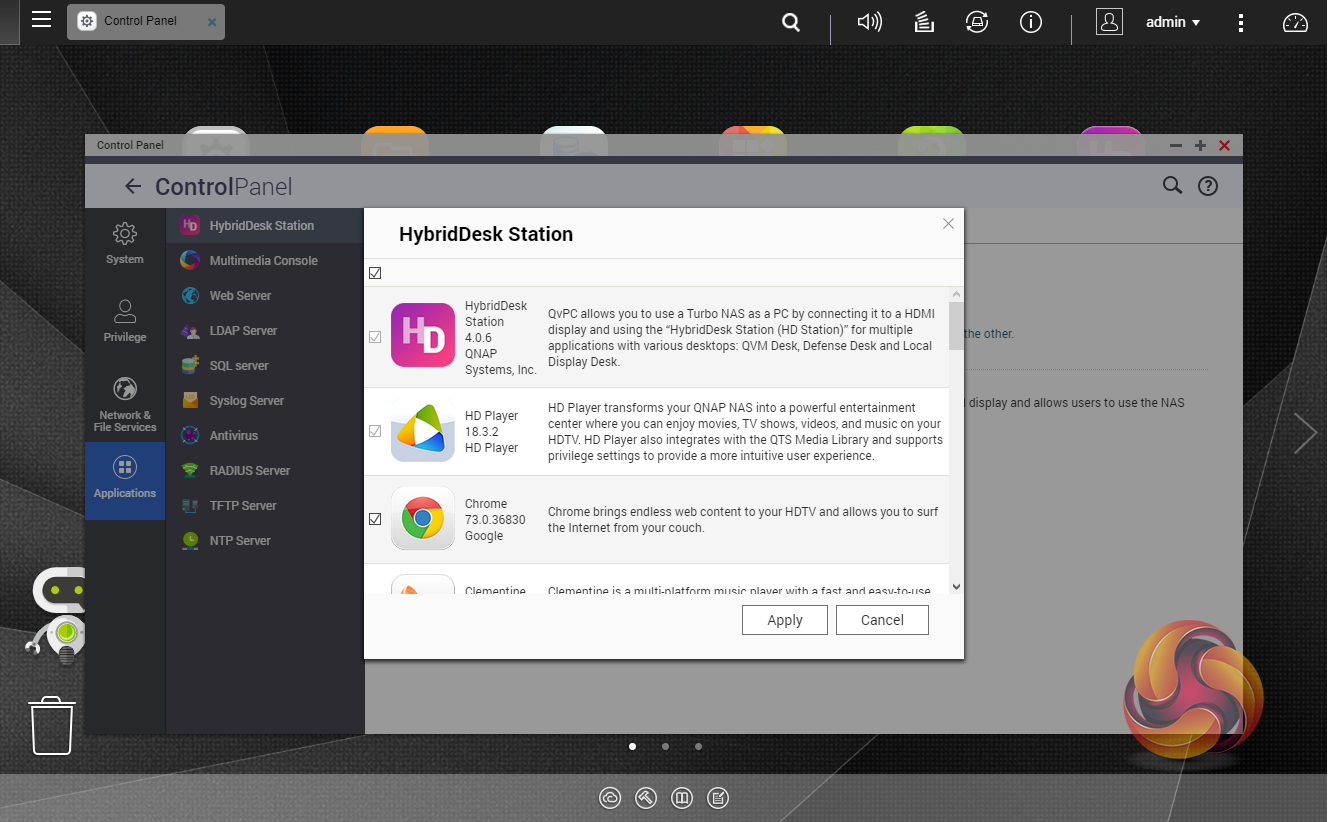
HybridDesk Station is a platform that connects a NAS to an HDMI-compatible TV or monitor enabling direct access to multimedia content and other applications. By installing HD Station and then connecting a USB keyboard and mouse together with an HDMI equipped display, the TS-251B can be used as a 4K output HTPC with the bonus of not needing a PC to use it.
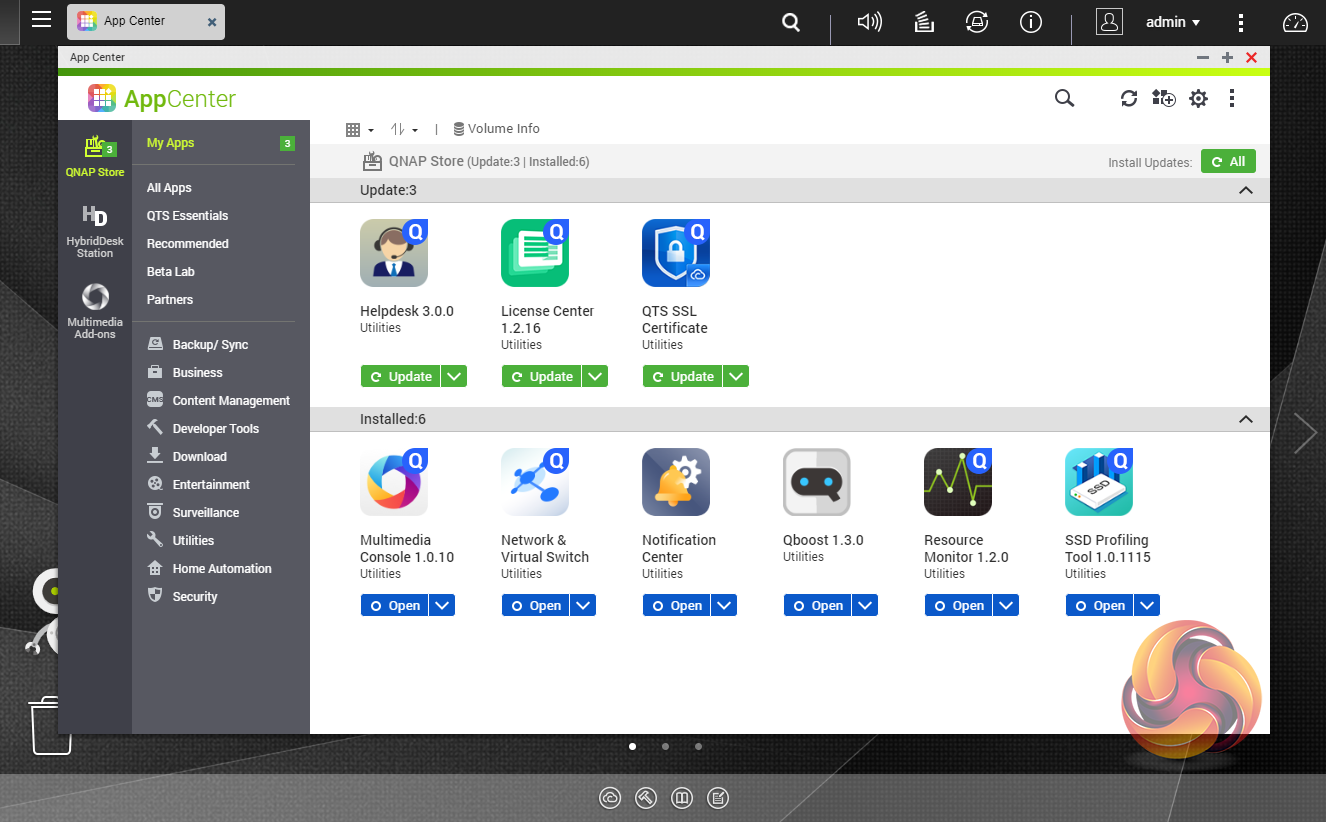
App Center has over 160 apps to choose from covering everything from backups to home automation and pretty much everything in between. To test the TVS-872N we used eight 6TB Red drives (WD60EFRX, 5,400rpm class, 64MB cache), built into RAID arrays supported by the device; RAID 0 (8 disks), RAID 5 (4 disks), RAID 6 (5 disks), RAID 10 (6 disks), RAID 50 (6 disks) and RAID 60 (8 disks) and then tested.
Software:
Atto Disk Benchmark.
IOMeter.
Intel NASPT.
The ATTO Disk Benchmark performance measurement tool is compatible with Microsoft Windows. Measure your storage systems performance with various transfer sizes and test lengths for reads and writes. Several options are available to customize your performance measurement including queue depth, overlapped I/O and even a comparison mode with the option to run continuously.
Use ATTO Disk Benchmark to test any manufacturers RAID controllers, storage controllers, host adapters, hard drives and SSD drives and notice that ATTO products will consistently provide the highest level of performance to your storage.
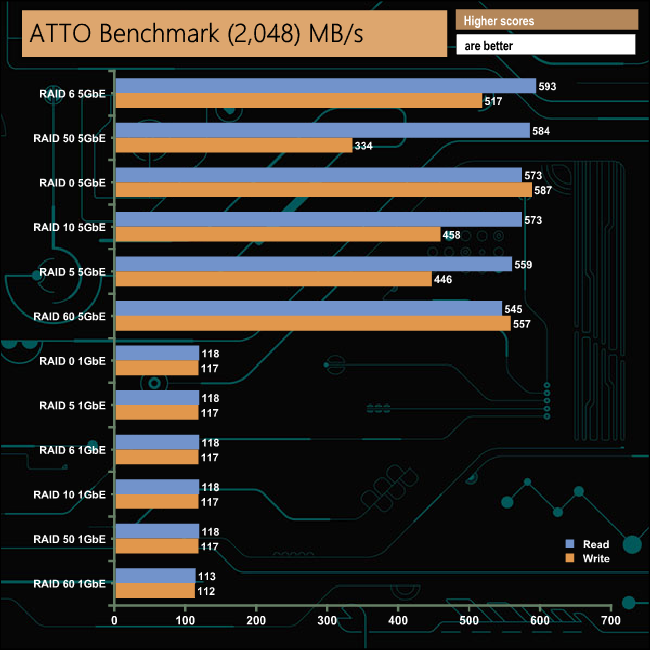
The fastest MB/s figure we got out of the TVS-872N was 593MB/s for reads, with the drives configured in a RAID 6 array and using a 5GbE connection. QNAP quote a Sequential read figure of 590MB/s using the 5GbE connection so that test figure can confirm that. The official Sequential write figure using 5GbE is 589MB/s, again we could confirm that with testing as the fastest write speed we saw was 587MB/s with the disks in a RAID 0 array. Using a 1GbE connection the unit was a model of consistency across all the tested RAID levels.
Intel’s NASPT (NAS Performance Toolkit ) is a benchmark tool designed to enable direct measurement of home network-attached storage (NAS) performance. NASPT uses a set of real-world workload traces (high definition video playback and recording, video rendering/content creation and office productivity) gathered from typical digital home applications to emulate the behaviour of an actual application.
We’ve used some of the video and office apps results to highlight a NAS device’s performance.
4x HD Playback
This trace is built from four copies of the Video Playback test with around 11% sequential accesses.
HD Video Record
Trace writes a 720p MPEG-2 video file to the NAS. The single 1.6GB file is written sequentially using 256kB accesses.
HD Playback and Record
Tests the NAS with simultaneous reads and writes of a 1GB HD Video file in the 720p format.
Content Creation
This trace simulates the creation of a video file using both video and photo editing software using a mix of file types and sizes. 90% of the operations are writes to the NAS with around 40% of these being sequential.
Office Productivity
A trace of typical workday operations. 2.8GB of data made up of 600 files of varying lengths is divided equally between read and writes. 80% of the accesses are sequential.
Photo Album
This simulates the opening and viewing of 169 photos (approx 1.2GB). It tests how the NAS deals with a multitude of small files.
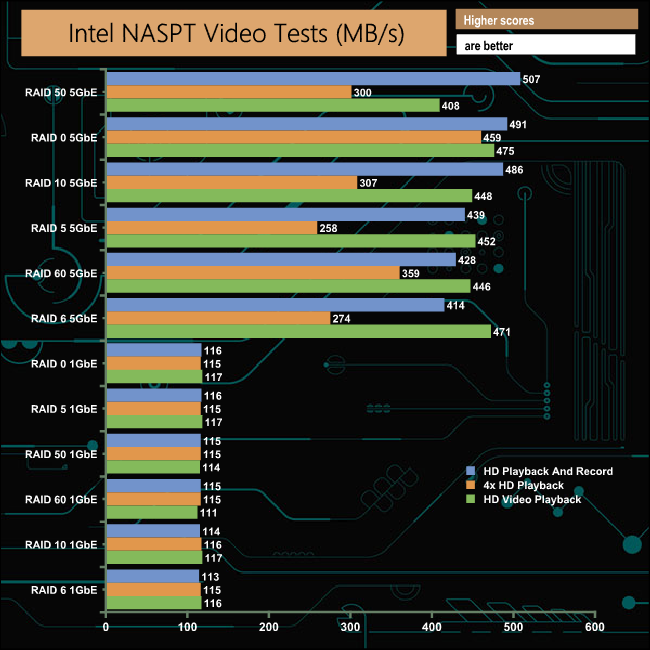
In the three Intel NASPT Video tests used, the fastest performance, 507MB/s, came from the drives set up in a RAID 50 array during the HD Playback and Record trace run. With a 1GbE connection, the performance across the arrays is very consistent throughout.
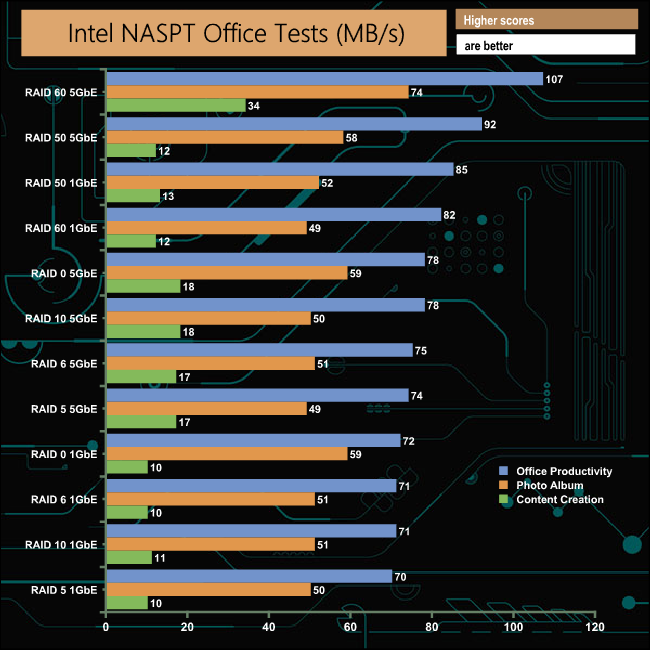
In the Office Productivity part of the NASPT Office tests the results of the two connection speeds closed significantly, with only a 37MB difference between the fastest bandwidth (RAID 60, 5GbE) result of 107MB/s and the slowest overall (RAID 5, 1GbE), 70MB/s.
IOMeter is another open-source synthetic benchmarking tool which is able to simulate the various loads placed on a hard drive and solid-state drive technology.
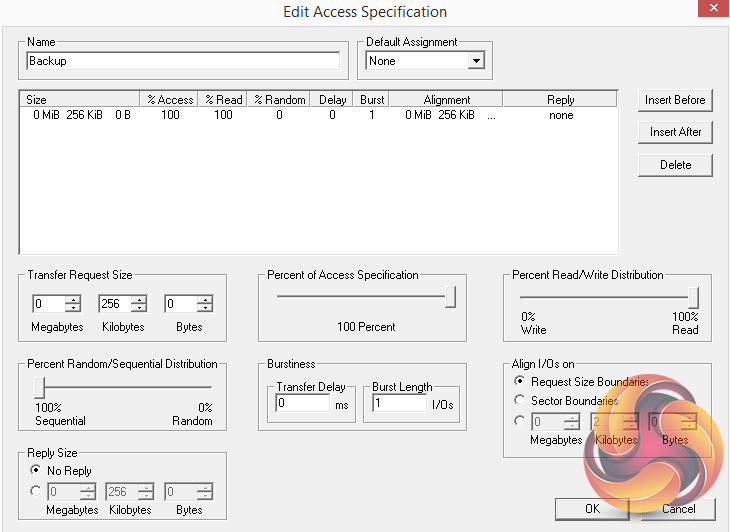
We set IOmeter up (as shown above) to test both backup and restore performance on a 100GB partition.
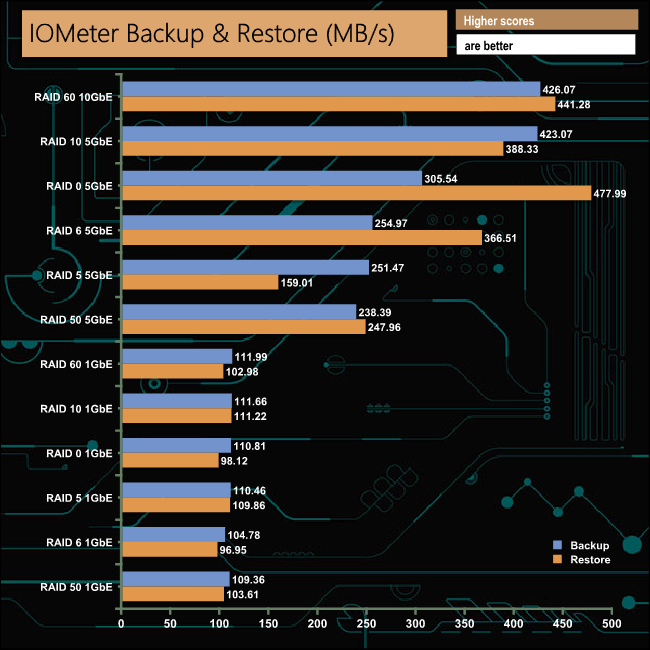
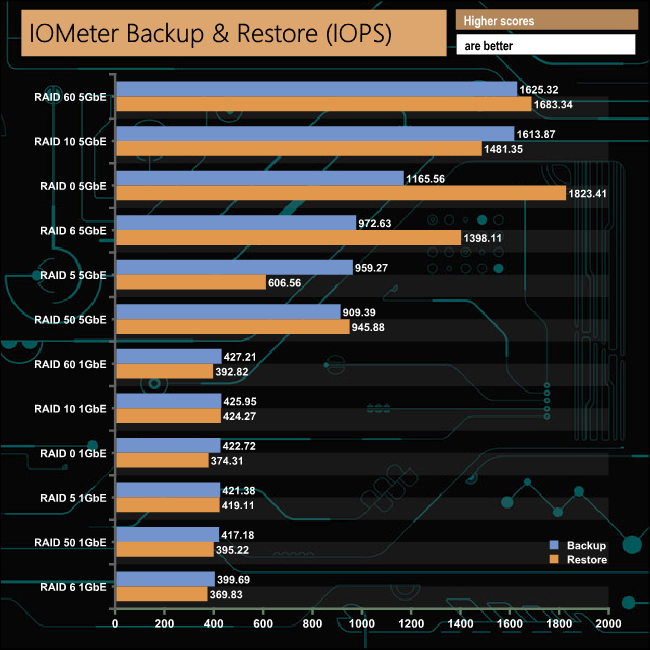
Our backup and restore tests proved no obstacle for any of the RAID arrays regardless of connection speed.
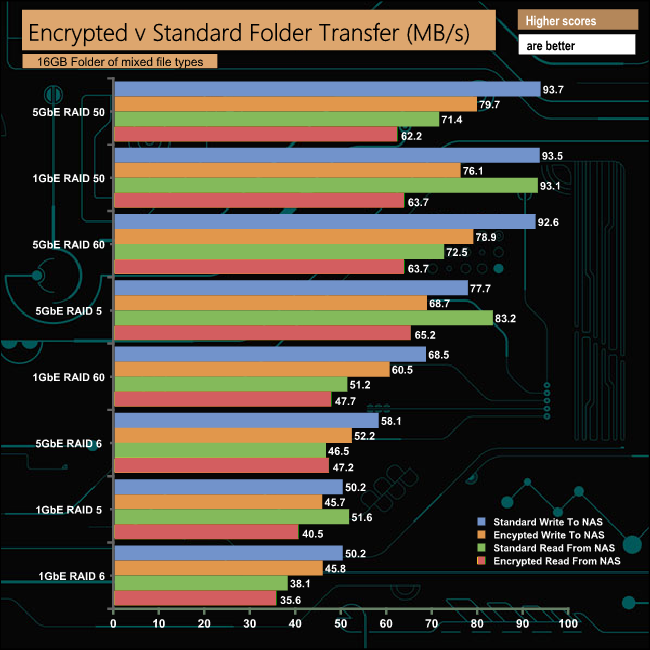
The encryption engine of the TVS-872N works hard to lessen the impact of dealing with encrypted data. Overall it appears to handle both encrypted read and write duties in a slightly more balanced way with a 1GbE connection than when using a 5GbE connection.
We tested the TVS-872N with a number of scenarios that it may face in the real world. The settings for these scenarios are as follows.
File Server
512MB file size, 16KB Block size, 80% Read 20% Write 100% Random, I/O queue depth 128
Web Server
1GB file size, 16KB Block size, 100% Read 0% Write 100% Random, I/O queue depth 64
Workstation
Transfer Size: 8K Reads: 80% Writes: 20% Random: 80% Boundary: 8K Outstanding IO: 64 Threads/Workers 4
Database
2GB file size, 4KB Block size, 90% Read 10% Write, 90% Random, 10% Sequential, I/O queue depth 128
Media Streaming
160GB file size, 64K Block size, 98% Read 2% Write, 100% Sequential, Boundary: 4K, I/O depth 64, Threads/Workers: 8
Video On Demand
160GB file size, 128K Block size, 100% Read, 100% Random, Boundary: 4K, I/O depth 512, Threads/Workers: 8
Digital Video Surveillance
160GB file size, 128K Block size, 90% Read 10% Write, 100% Sequential, Boundary: 512K, I/O depth 64 Threads/Workers: 8
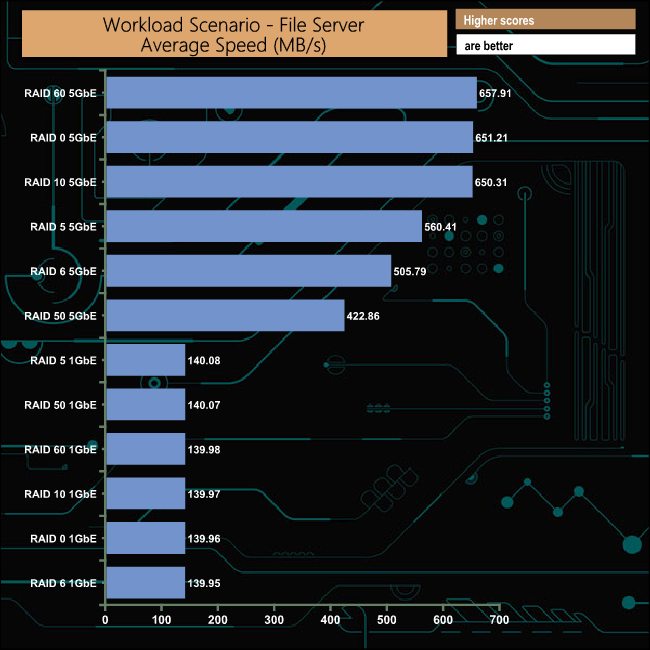
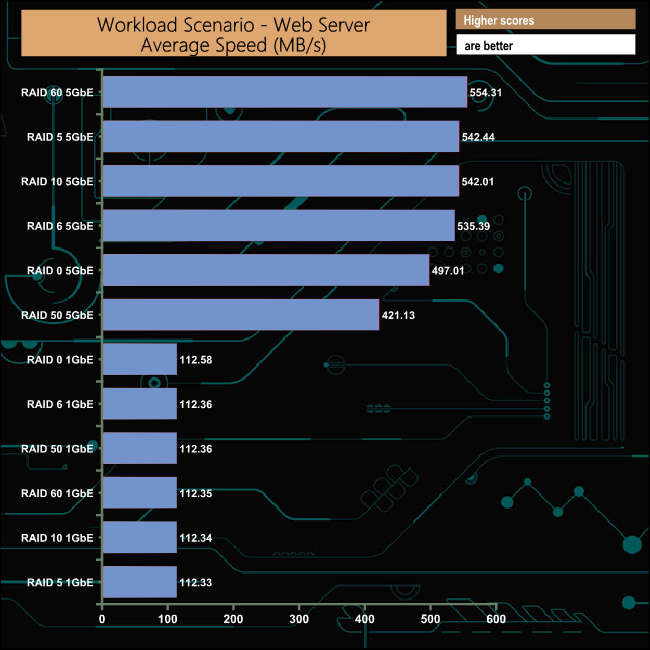
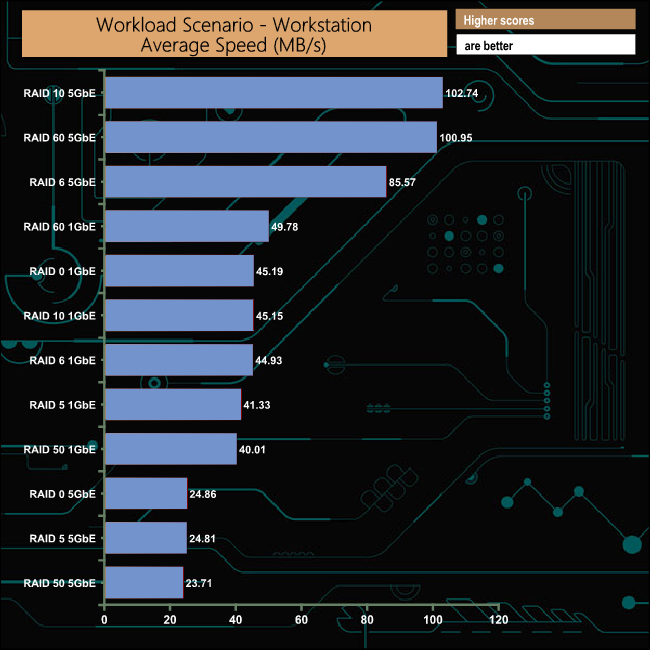
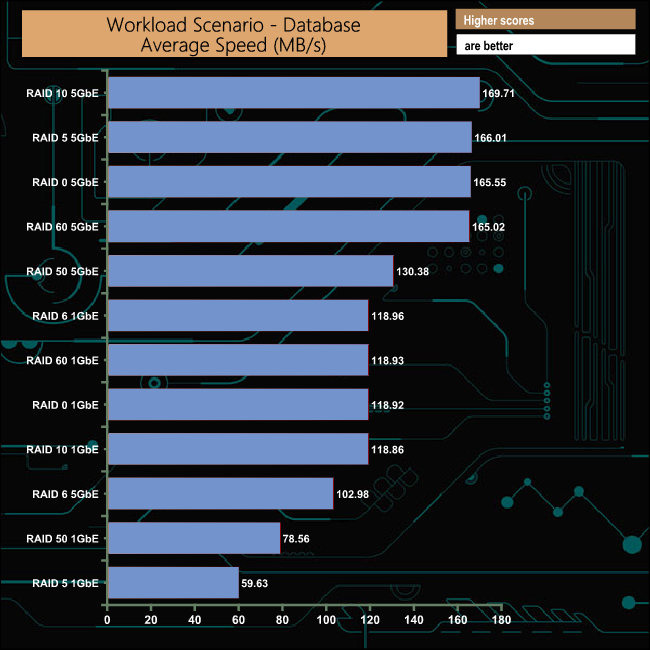
While the File and Web server tests produced much faster average speeds when using a 5GbE connection than the 1GbE connection as you might expect, the Database and Workstation tests produced results that were much more mixed between the two connection speeds.
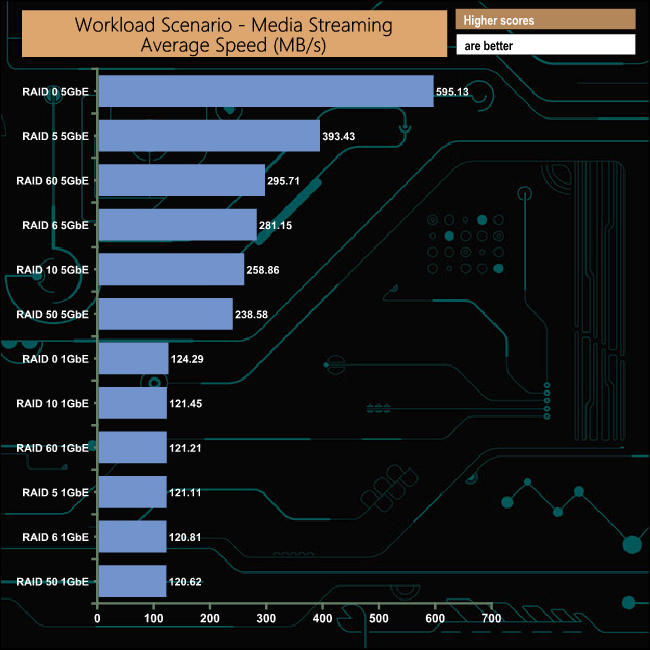
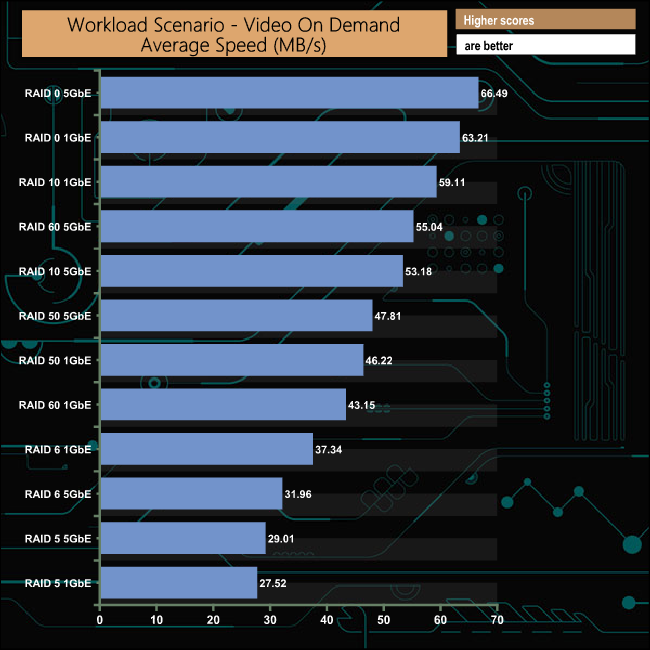
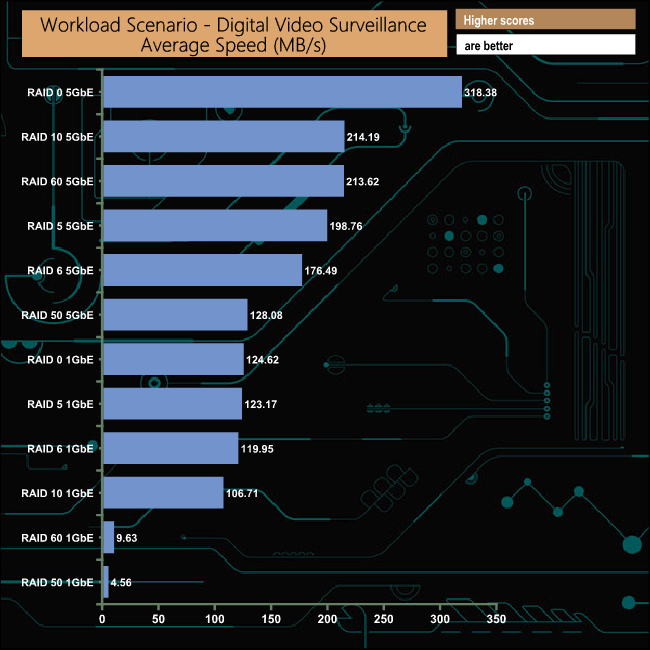
The fastest performance in the second group of workload scenarios came in the Media Streaming Test using a 5GbE connection and a RAID 0 array which gave an average speed of 595.13MB/s. The fastest performance with data protection also came in the Media Streaming Test, this time it was from a combination of a RAID 5 array and a 5GbE connection which produced a figure of 393.43MB/s.
To test real-life file/folder performance we use a number of different file/folder combinations to test the read and write performance of the NAS device. Using the FastCopy utility to get an MB/s and time taken for each transfer, the data is written from and read back to a 240GB SSD.
We use the following file/folder types:
- 100GB data file.
- 60GB iso image.
- 60GB Steam folder – 29,521 files.
- 50GB File folder – 28,523 files.
- 12GB Movie folder – 24 files (mix of Blu-ray and 4K files).
- 10GB Photo folder – 621 files (mix of .png, raw and .jpeg images).
- 10GB Audio folder – 1,483 files (mix of mp3 and .flac files).
- 5GB (1.5bn pixel) photo.
- BluRay Movie – 42GB.
- 21GB 8K Movie demos (11 demos).
- 16GB 4K Raw Movie Clips (9 MP4V files).
- 4.25GB 3D Printer File Folder (105 @ .STL, 38 @ .fbx, 11 @ .blend, 5 @ .lwo, 4 @ .obj, 3@ .3ds files).
- 1.5GB AutoCAD File Folder (60 @ .dwg and 20 @.dxf files).
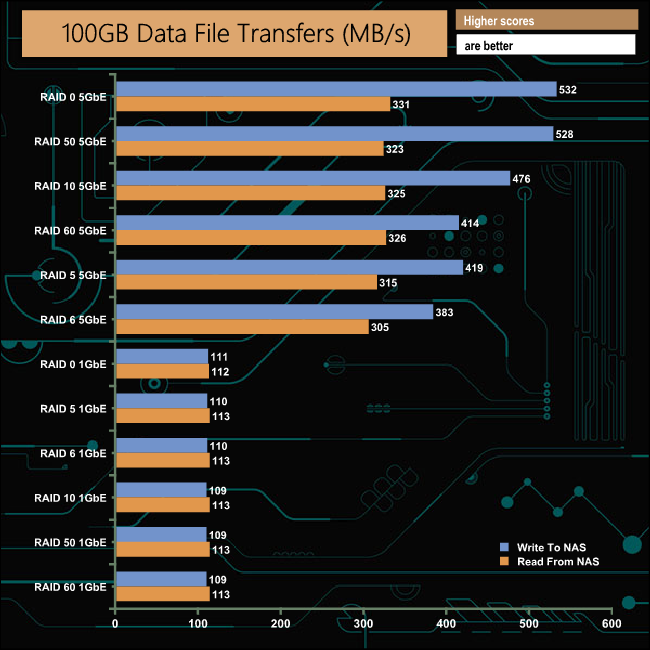
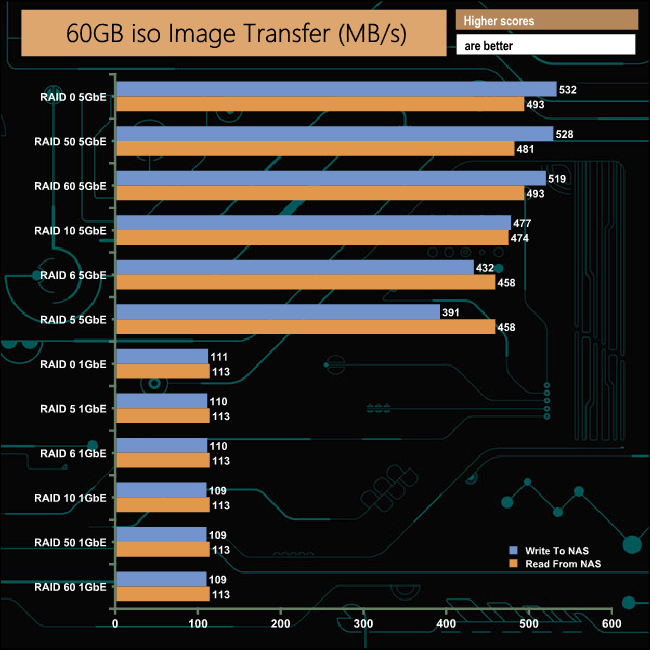
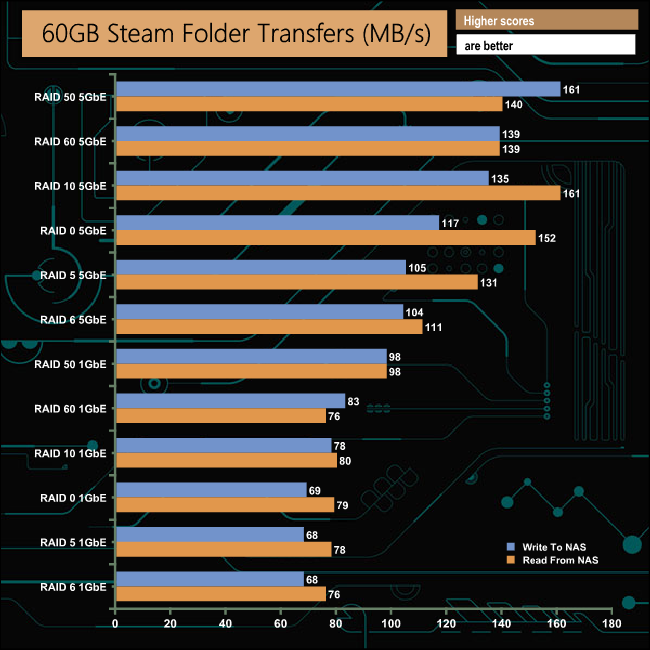
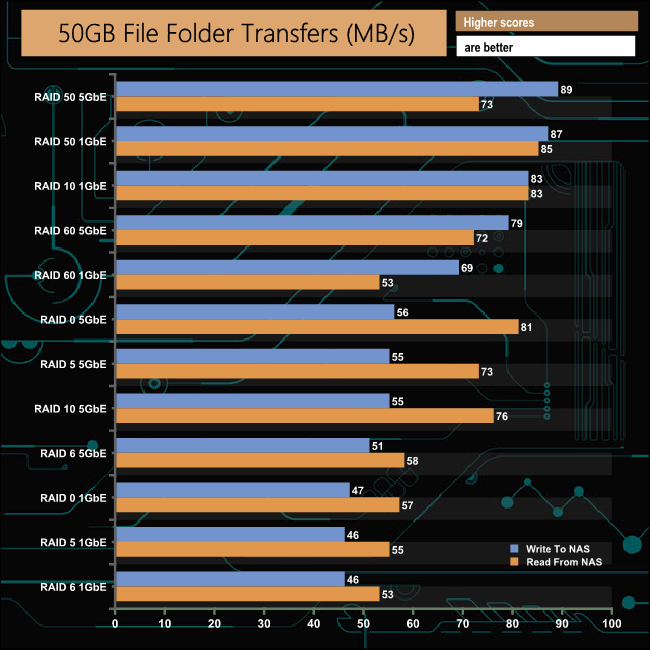
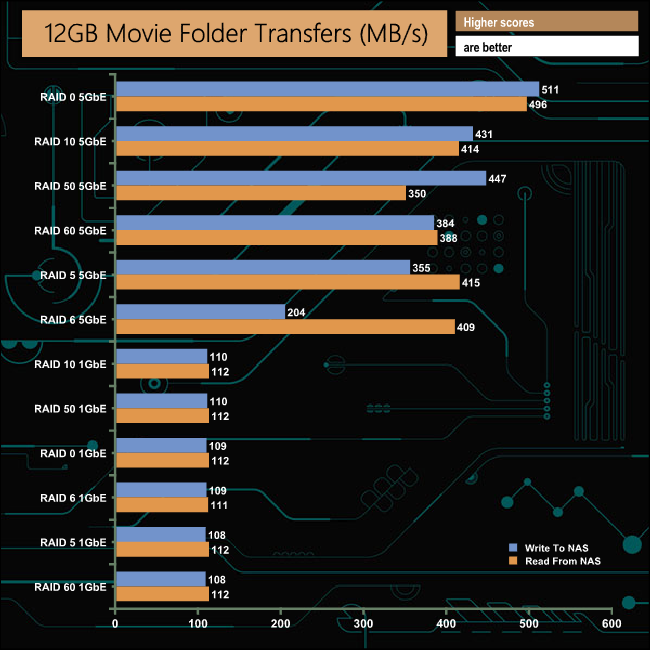
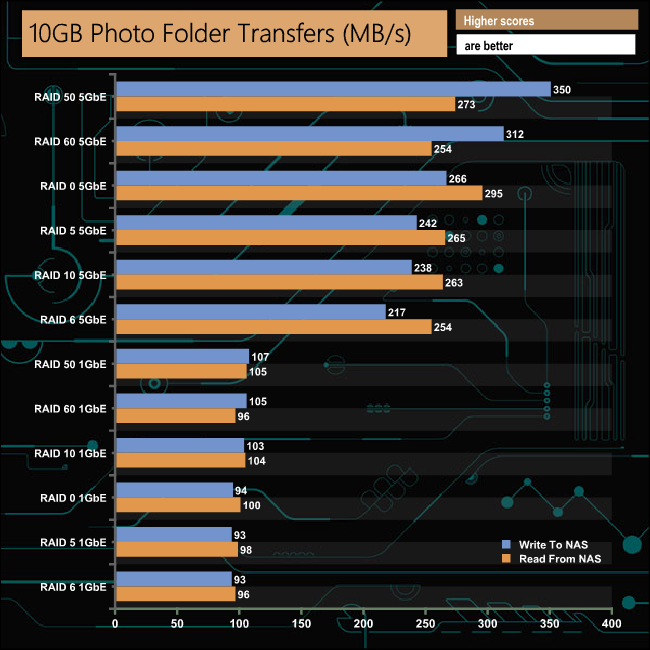
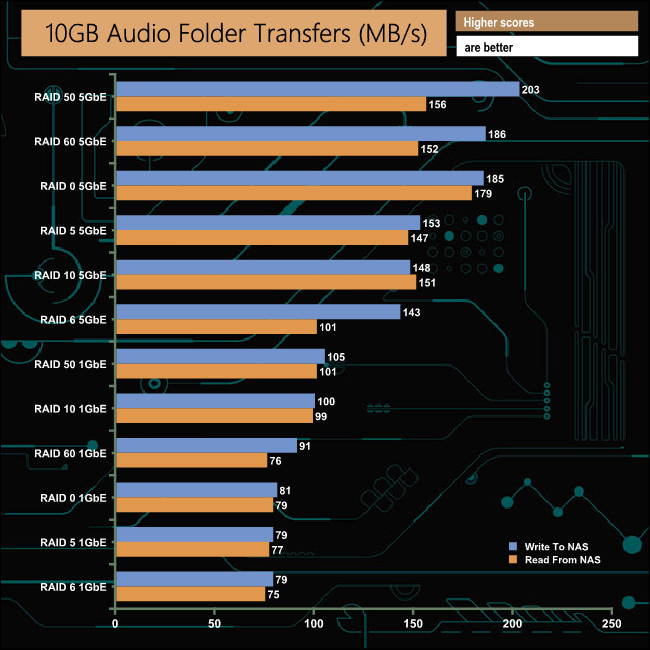
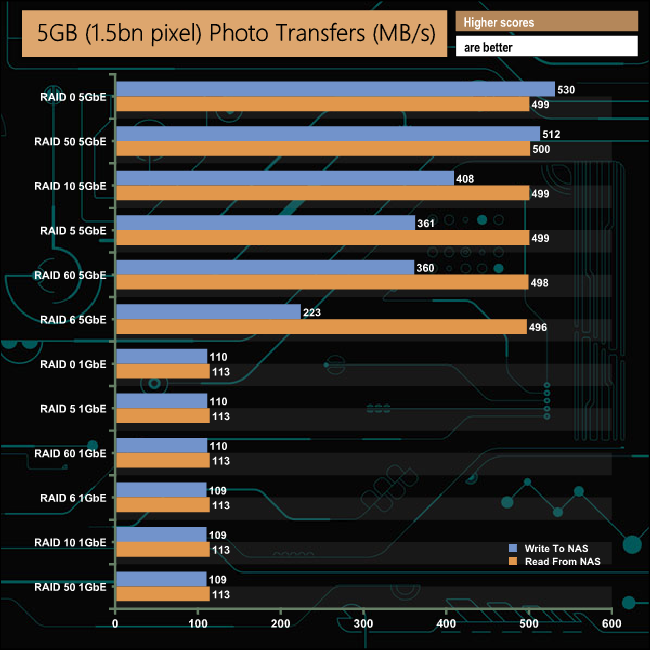
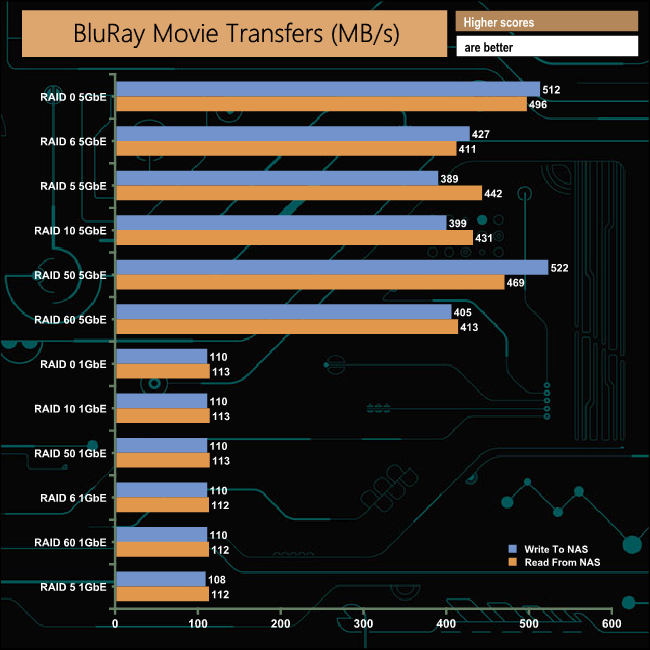
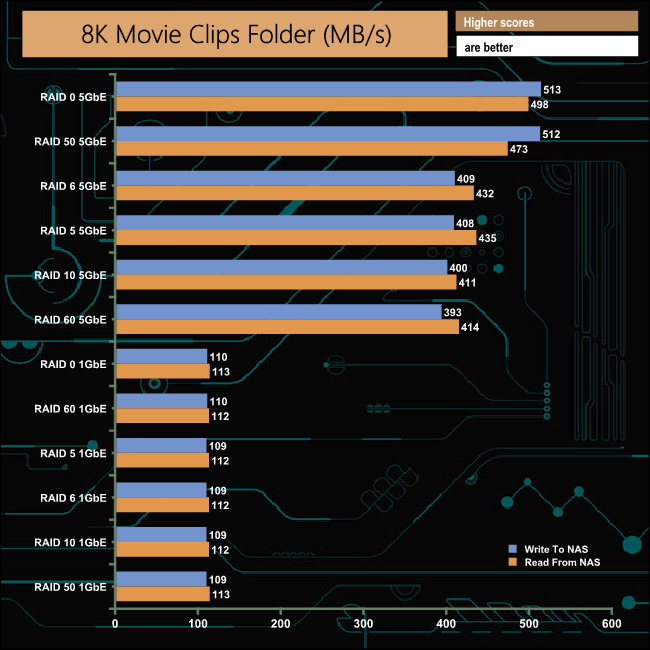
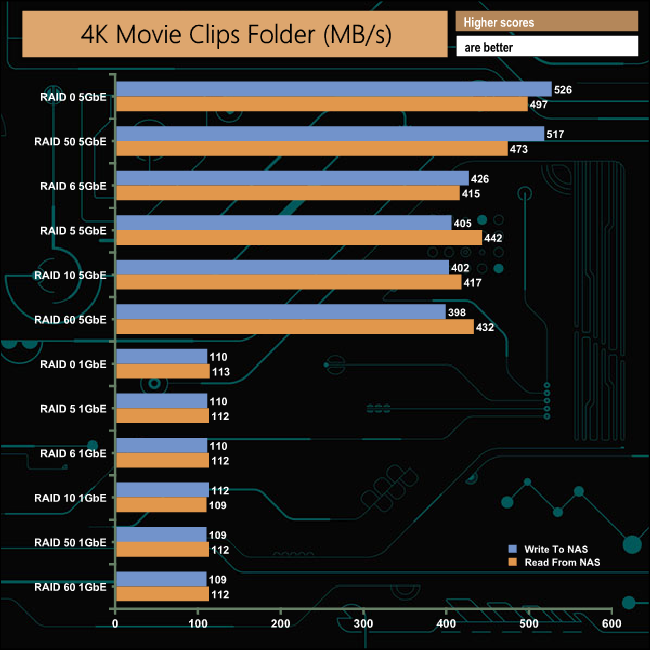
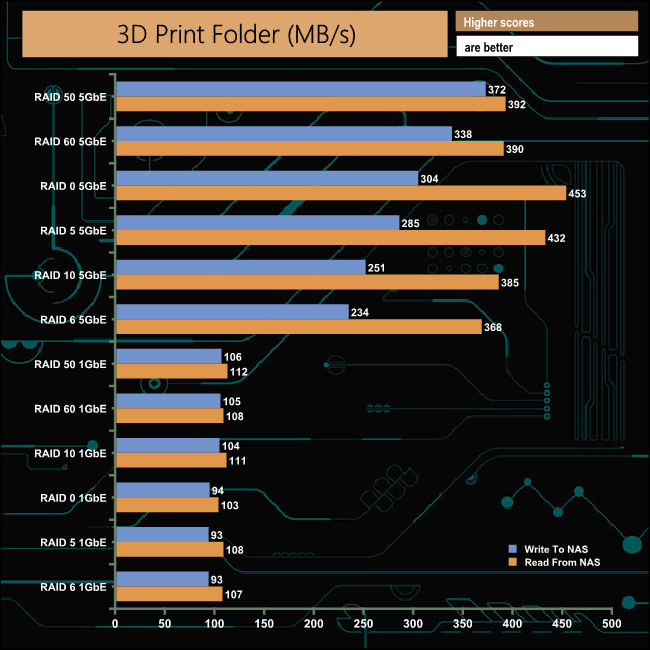
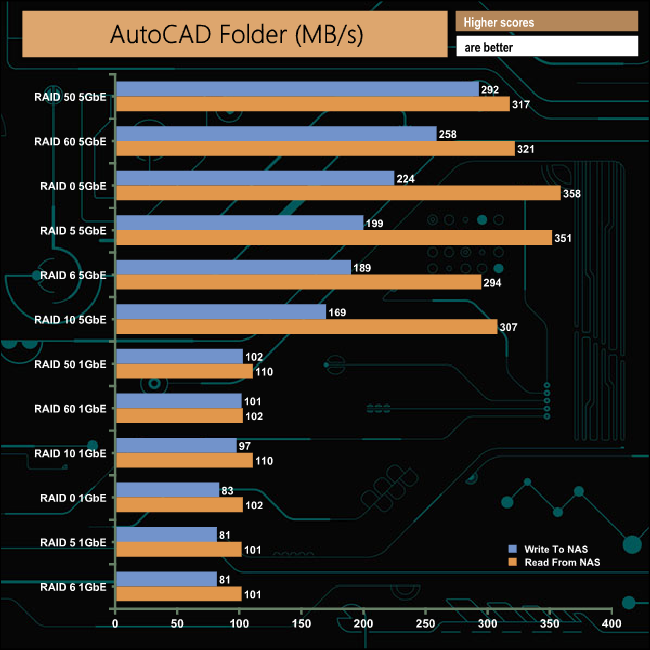
Click to enlarge.
When it came to dealing with our real-life file transfers, the TVS-872N didn’t miss a beat and handled the tests very efficiently.
We tested the peak power consumption of a NAS at the wall during a run of CrystalDiskMark 6.0.0, as this version of the benchmark runs the read and write benchmark suites separately so it's easier to monitor what power the device is using during each function.
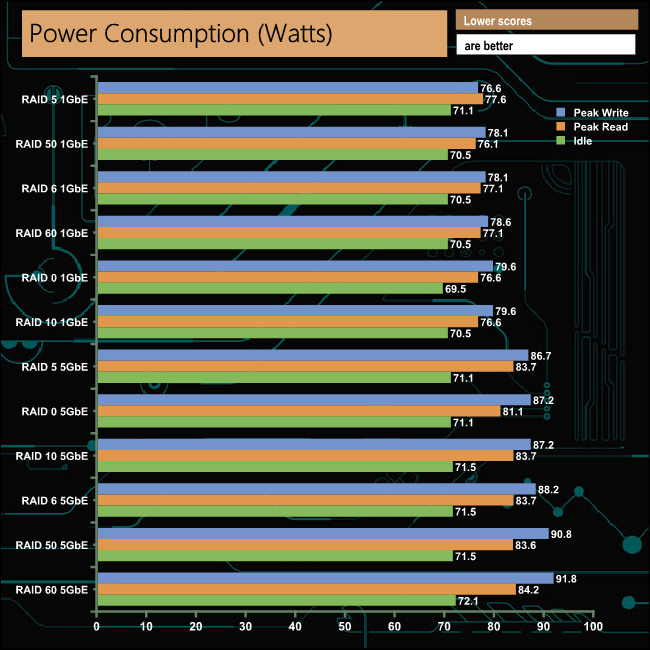
At the heart of the TVS-872N-i3-8G is an Intel Core i3 8100T processor which has a TDP of 35W. QNAP’s official power consumption figures for the NAS are; 65.03W in operation and 41.47W in HDD standby. These figures are from using eight WD10EFRX 1TB drives (average 3.3W read/write, 2.3W idle, 0.4W standby). The 6TB WD60EFRX drives we use for testing have average power ratings of 5.3W read/write, 3.4 idle, and 0.4W standby.
The TVS-872N is another member of QNAP's large and ever-growing range of SMB-focused NAS units and is one of only two units in the TVS-*72N product line-up, the other being the 6-bay TVS-672N.
At the heart of the TVS-872N-i3-8G (to use its full name) is an Intel Core i3 8100T 3.1GHz quad-core processor backed by 8GB of DDR4-2666 memory. If you should feel the need to add more, then the motherboard supports up to 32GB of memory via a pair of SODIMM slots.
There’s a good degree of future-proofing built into the TVS-872N, as along with its integrated 5/2.5GbE networking support there are a pair of PCIe slots (x16 and x4) and a pair of NVMe M.2 slots supporting 2280 format SSDs for data caching duties. When it comes to USB ports you might be stuck for choice as it comes with USB 3.1 Gen 2 Type-C, USB 3.1 Gen 2 Type-A and USB 3.0 Type-A ports.
Should you need more capacity than the 128TB (currently 8 x 16TB) the main storage bays provide, then no problem as the TVS-872N is supported by a number of QNAP expansion enclosures using USB 3.1Gen2 or USB 3.0 interfaces. The NAS can support a maximum of two of these expansion units.
The TR-002 is a 2-bay tower unit using a USB 3.1 Gen2 (Type-C) interface supporting hard drives up to and including 16TB. It also supports 2.5in HDD and SATA SSD's. As the model number suggests, the TR-004 supports four drives but using a USB 3.0 (Type-C) connection. If you want even more capacity then there are two supported UX-*00P expansion units that use a USB 3.0 Type-B interface. The UX-500P comes with five bays and the UX-800P, eight. Finally, there is the TR-004U which is a four-bay rackmount enclosure that uses a USB 3.0 Type-C port.
QNAP's QTS OS is quick and easy to install with a graphically rich interface. It offers both quick and easy to use solutions for the first time user but also delving beneath the surface reveals a whole host of features for the more advanced users. This includes setting up and maintaining network traffic distribution and tiered storage for data-heavy environments.
A very usual tool for business in the QTS armoury is HBS 3 (which can be downloaded from the App Center). HBS 3 is a powerful and comprehensive backup and data recovery tool that consolidates backup, restoration, and synchronisation into a single app. With it, you can back up data from the NAS to several locations; local, remote and cloud storage. It also features QuDedup technology which deduplicates the data at the source helping to reduce storage space, bandwidth usage and perhaps most importantly, reducing the time it takes to perform any backups.
We found the TVS-872N-i3-8G on Span.com for £1,865.60 (inc VAT) HERE.
Discuss on our Facebook page HERE.
Pros
- Integrated 5/2.5GbE.
- 2 PCIe slots.
- NVMe M.2 SSD support.
- Multiple types of USB ports.
Cons
- Pricey.
KitGuru says: QNAP's TVS-872N is a very well featured 8-bay NAS which comes with fast 5GbE networking built-in and has the ability to support even faster connection speeds using one of the two PCIe Gen3 slots. With two M.2 NVMe slots supporting SSD caching, multiple types of USB connectivity and the ability to expand the storage space beyond the internal bays, the TVS-872N could remain at the heart of a small/medium business for many years.