 KitGuru KitGuru.net – Tech News | Hardware News | Hardware Reviews | IOS | Mobile | Gaming | Graphics Cards


The latest addition to WD's popular My Cloud range of personal cloud storage drives is the My Cloud Home which features a fresh new design and capacities up to 8TB.
WD's original My Cloud range has been around for quite some time, both as single drive units and as dual disc setups (the My Cloud Mirror) and an update to the product line has been somewhat overdue. Just as with the original line-up, the new My Cloud Home drives come in single and twin drive versions.
The single drive My Cloud Home entry model is 2TB with 3TB, 4TB, 6TB (the drive we are reviewing) and 8TB versions. The My Cloud Home Duo has two drives in a RAID 1 array so extends the upper limit (4TB, 8TB, 12TB, 16TB and 20TB) of capacities.
The good news is that the My Cloud Home is quick and simple to set up and you don't even need a PC to do it, as the setup can be done via an iOS or Android phone.
WD back the My Cloud Home with a 2 year warranty.
Physical Specifications:
Usable Capacities: 2TB, 3TB, 4TB, 6TB, 8TB
Model number: WDBVXC0060HWT
Hard drive: WD
Interface: Gigabit Ethernet
Form Factor: External
Dimensions: 175.5 x 53 x 140mm
Drive Weight: 1.11g
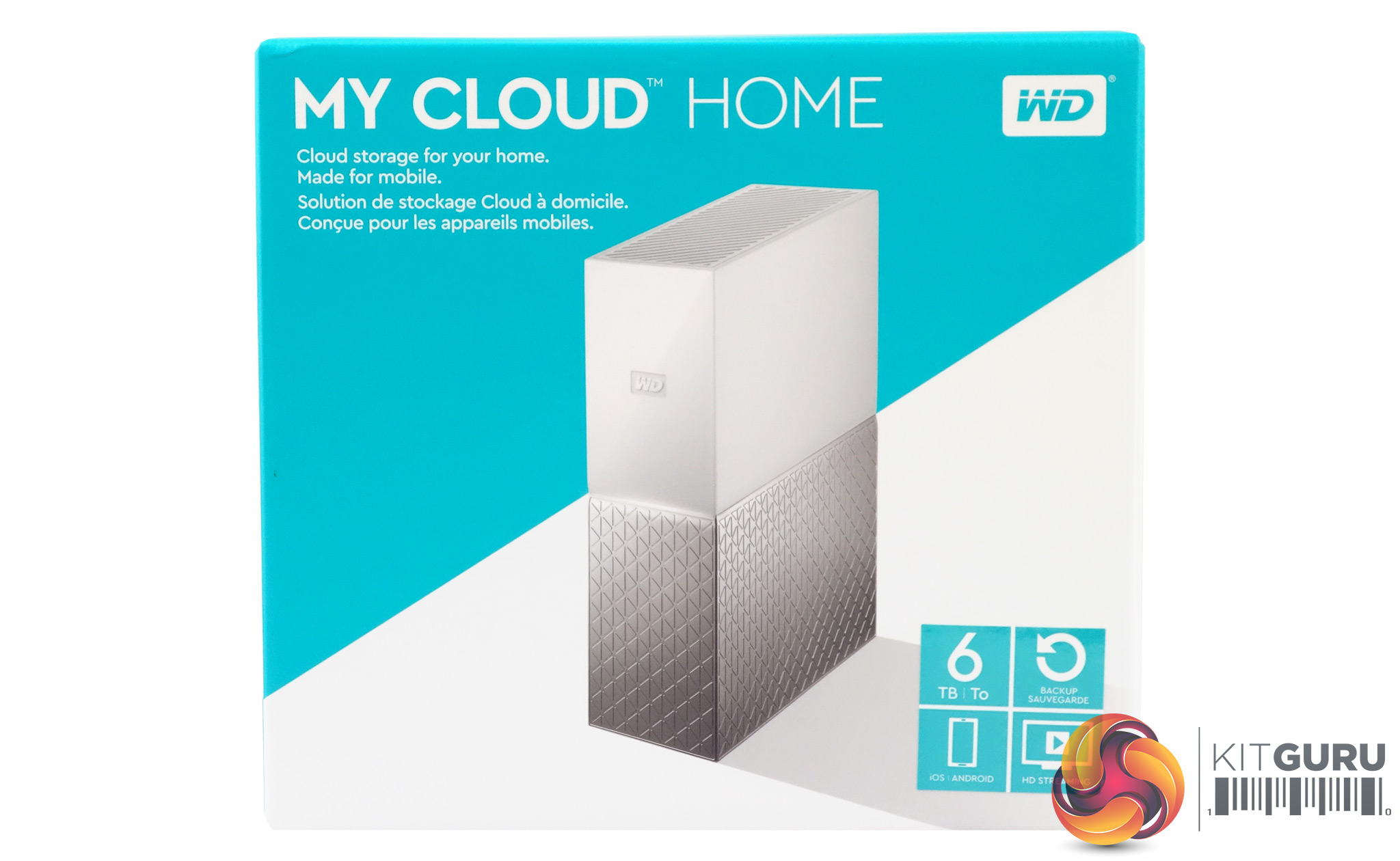
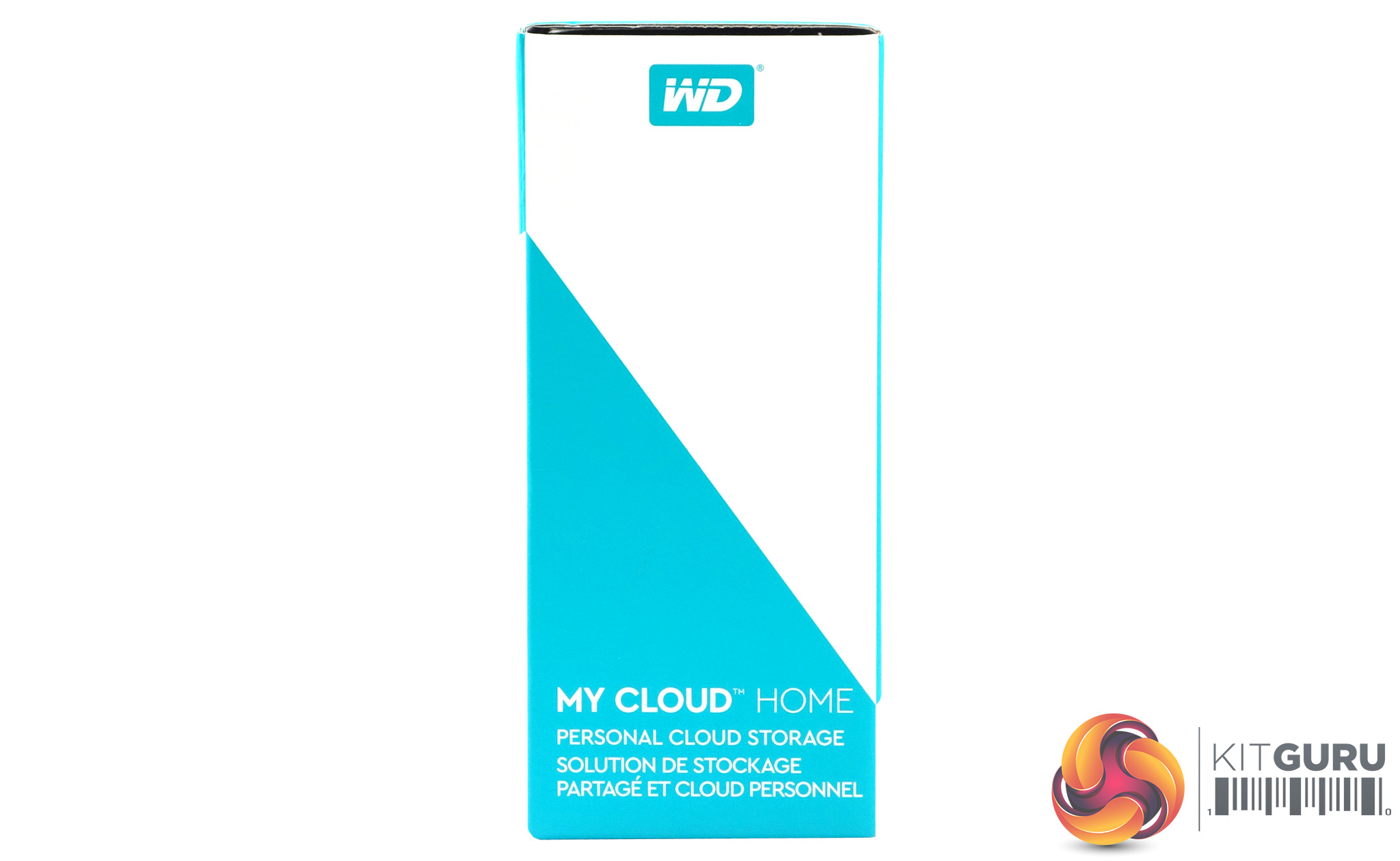
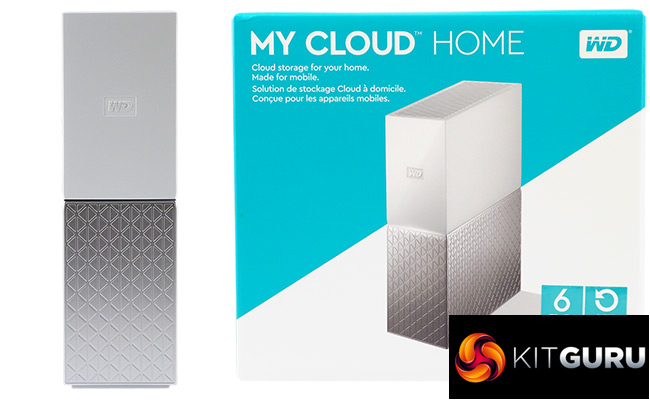
The front of the box has a large image of the drive with a sticker in the bottom right hand corner displaying its capacity and support for Android and iOS devices, HD Streaming and backing up.
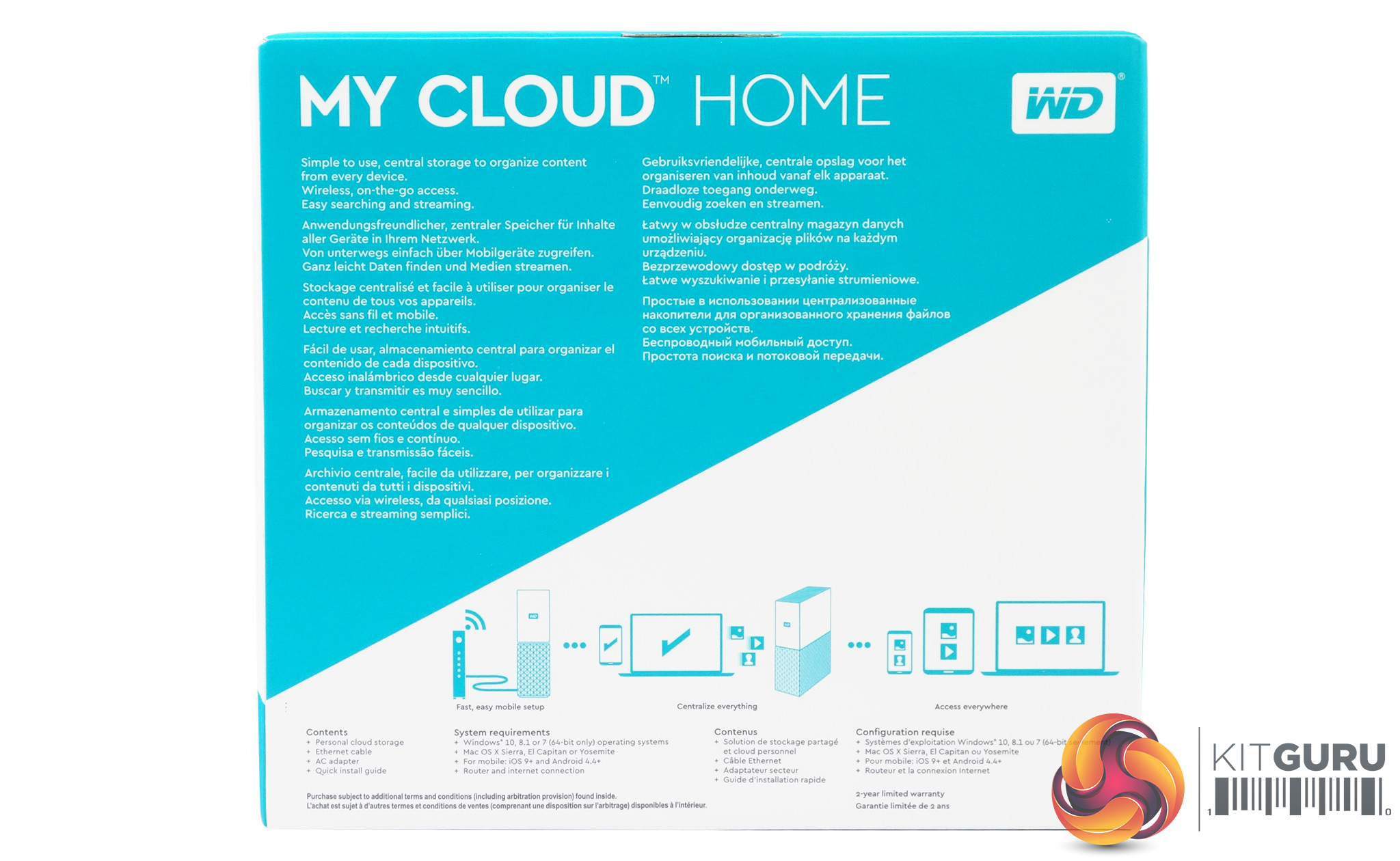
The rear of the box has some multilingual marketing under which is dual language bullet points about the box contents and system requirements.

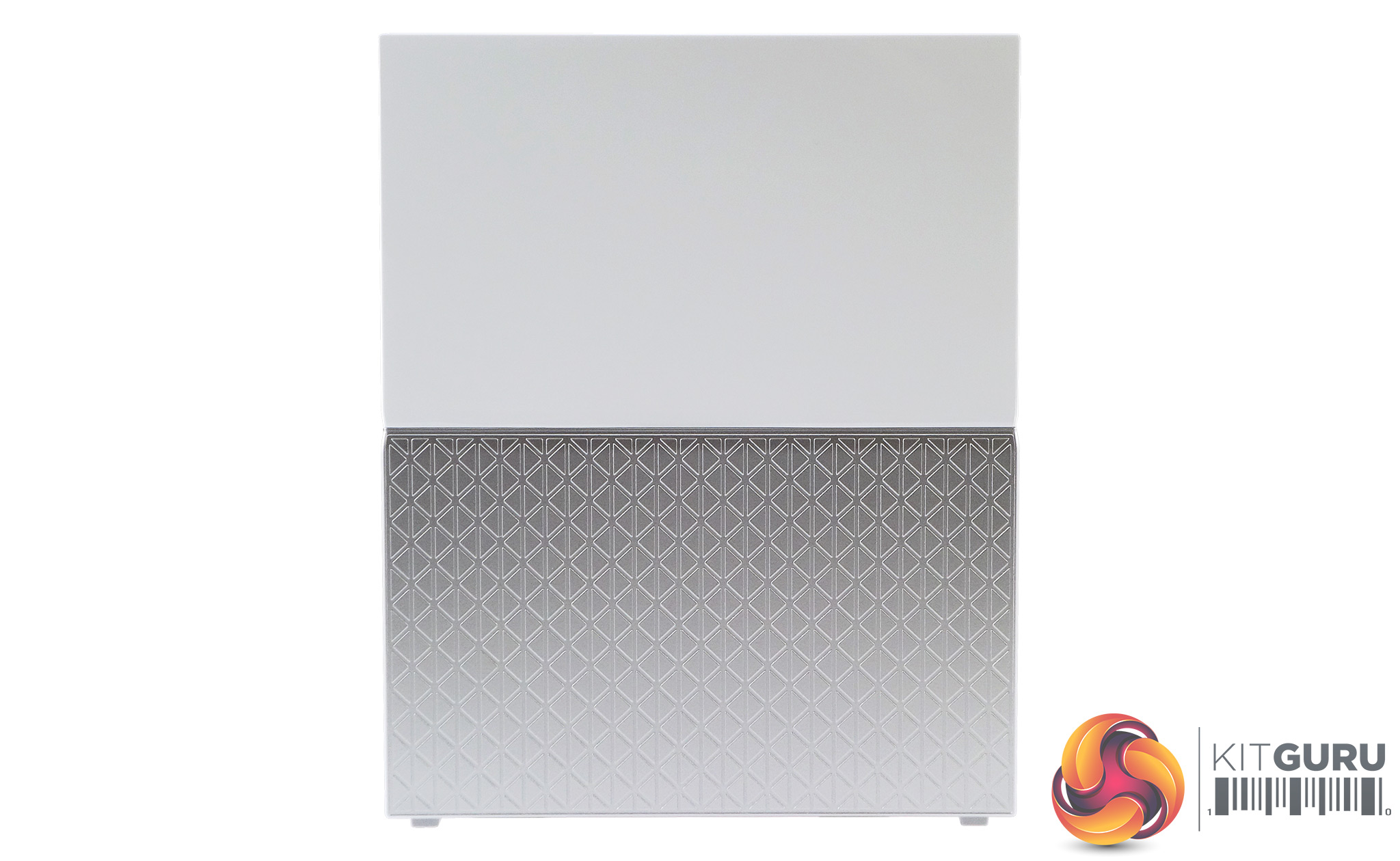
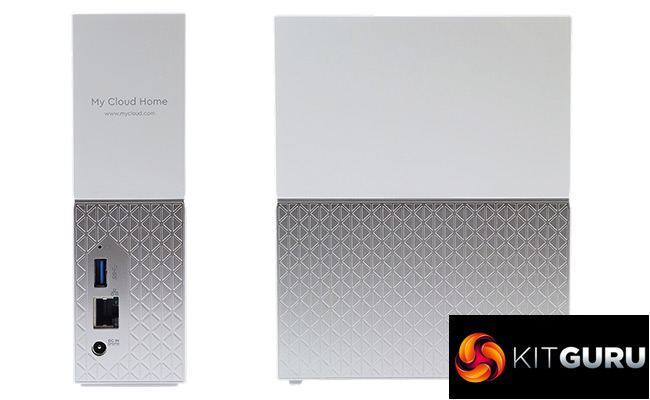
The My Cloud Home features a new design, moving away from the rounded, single colour units to a dual colour with a sharper cornered look and feel. The top half of the unit has a plain white finish while the bottom half is a patterned silver.
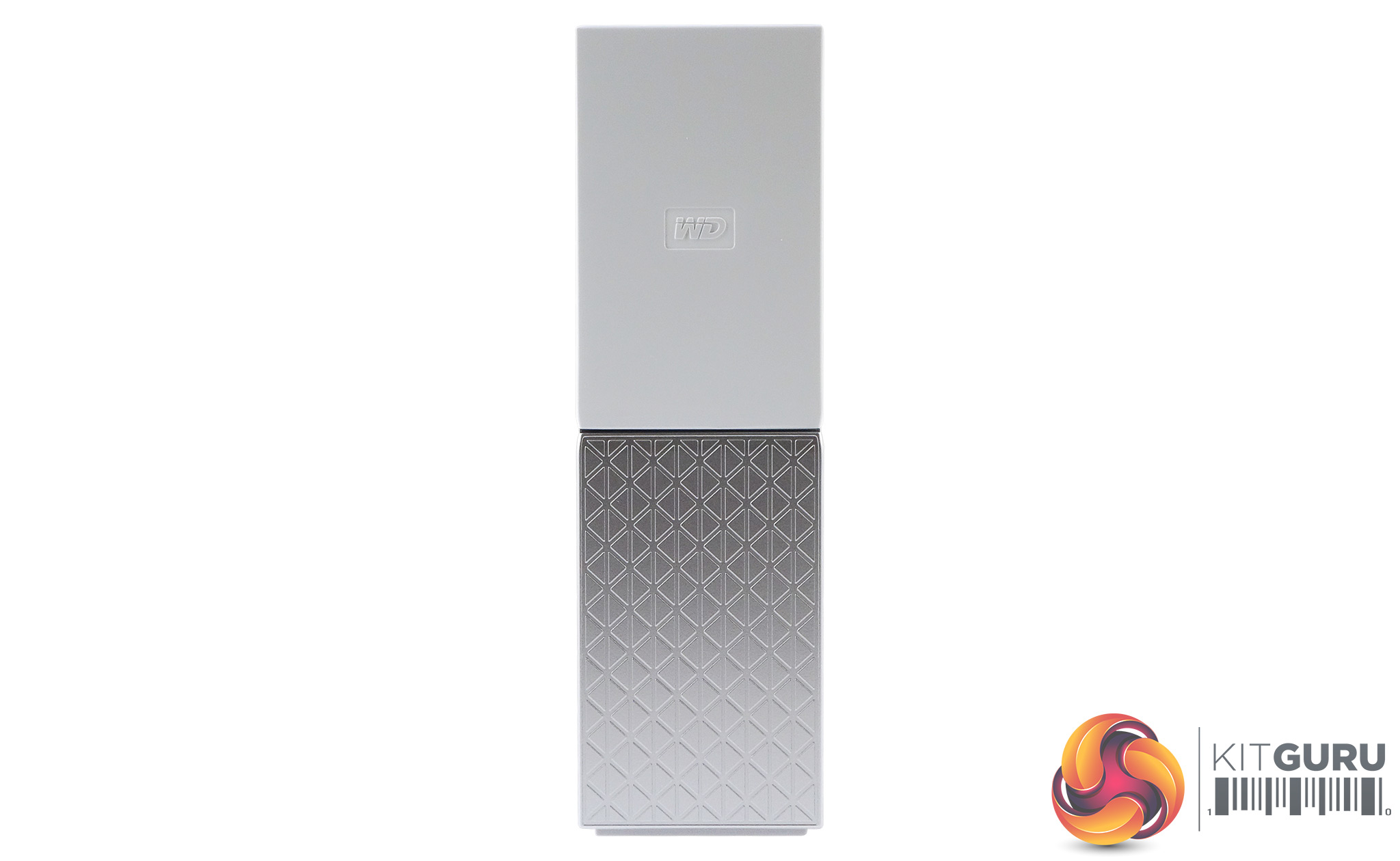
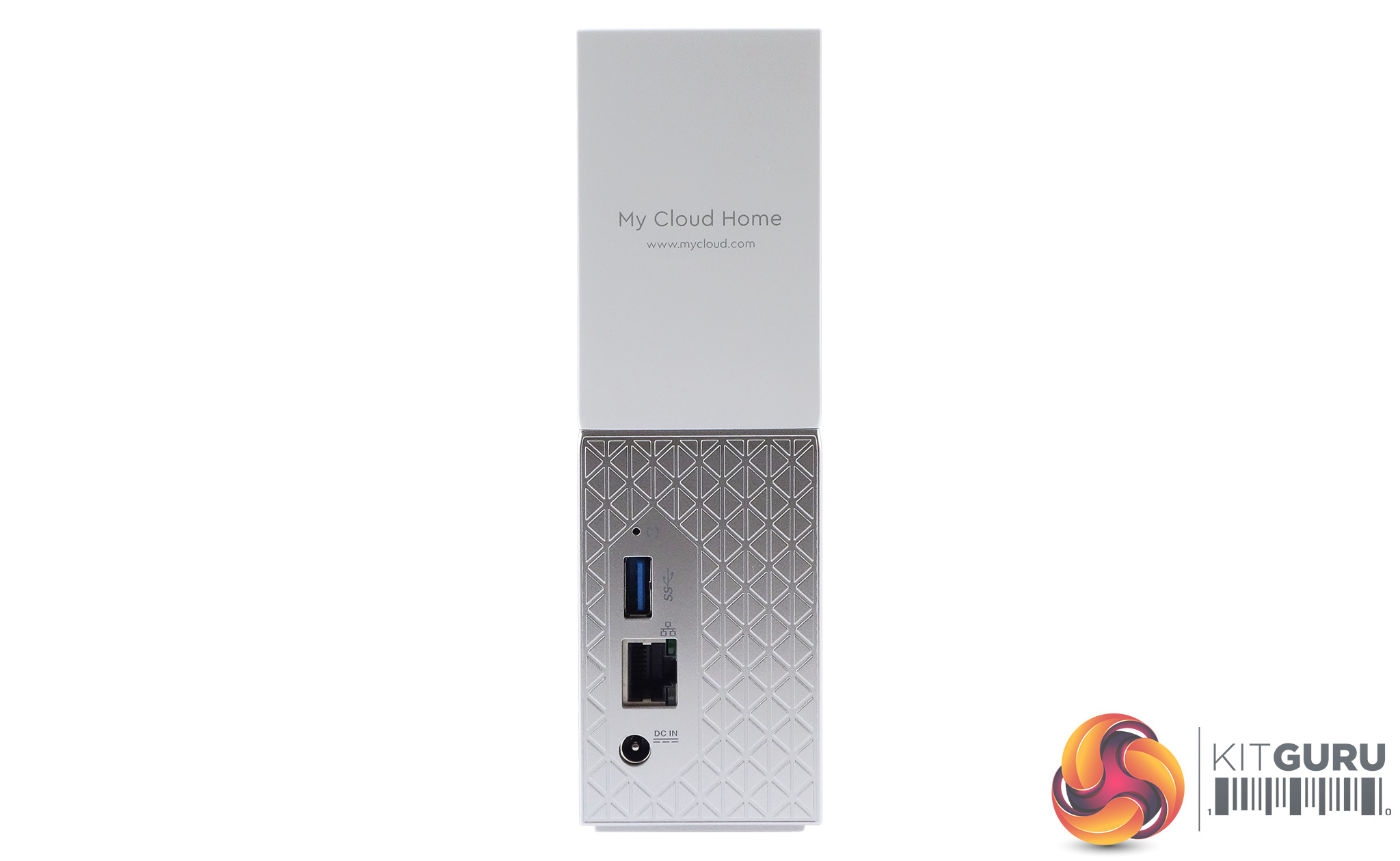
Where the two finishes meet at the front of the unit is a white LED activity indicator strip. WD's branding on the My Cloud Home is quite subtle, just a small embossed WD logo on the top white half of the unit while the rear panel carries the My Cloud Home name and the url of WD's My Cloud page. The rear panel of the drive just has a Gigabit Ethernet port and a single USB 3.0 (the My Cloud Home Duo has two) port, which only works for importing data. As for the power switch/button, don't worry, there isn't one.
If you fancy upgrading the drive inside the My Cloud Home, you are out of luck as the unit isn't user serviceable. If there is a problem with the drive you have to RMA the whole unit back to Western Digital.
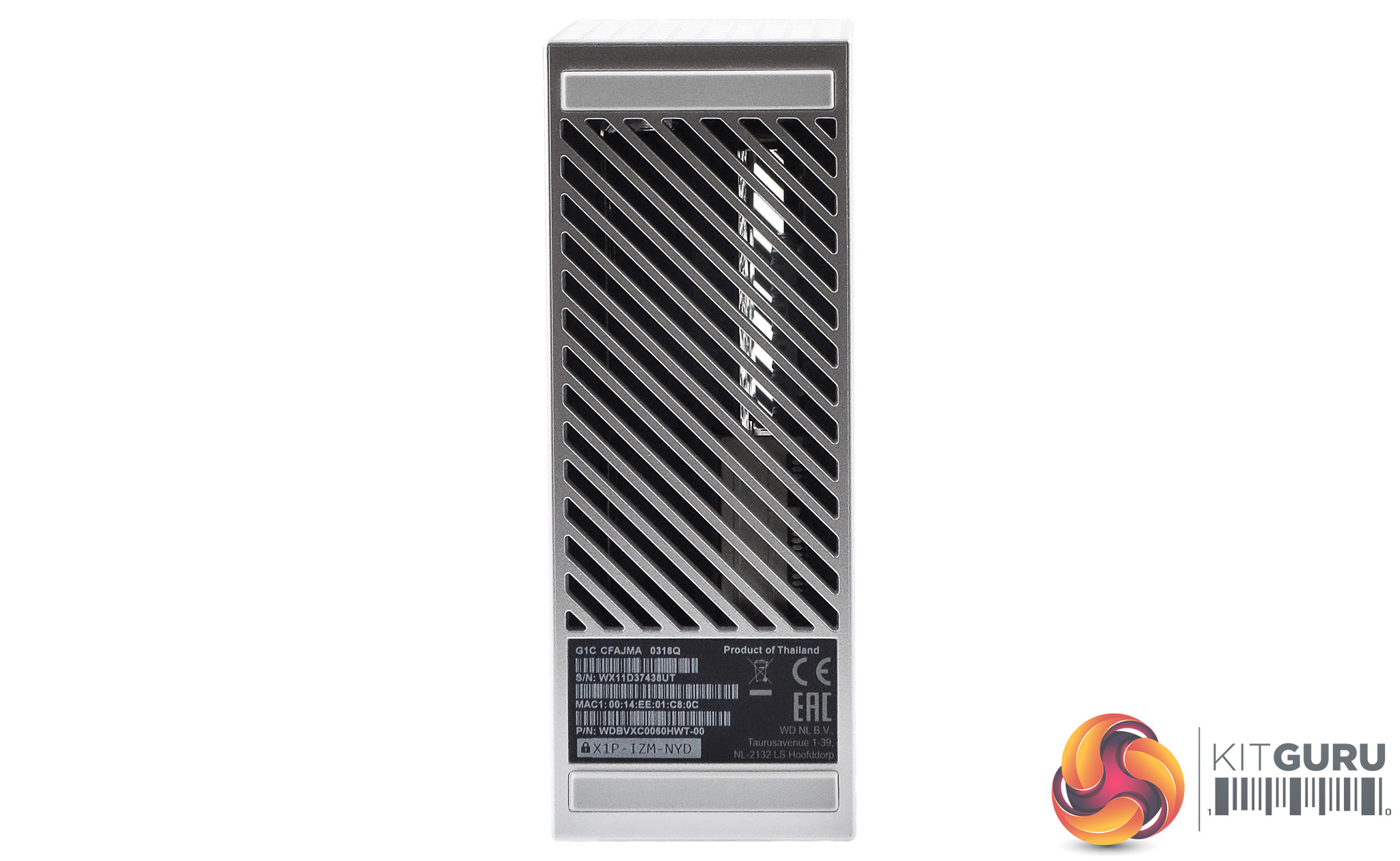
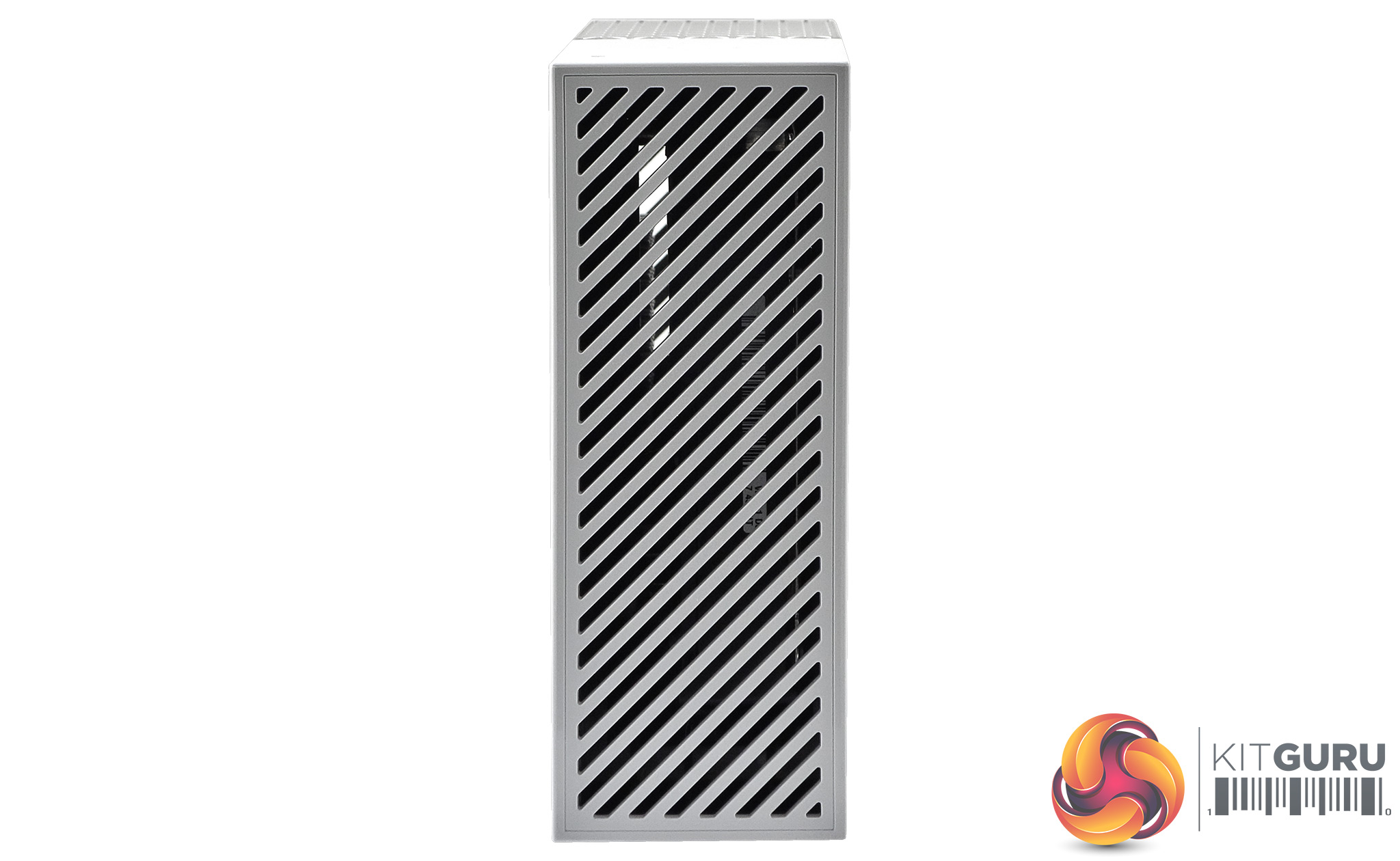
Most of the bottom and all of the top panels of the unit are given over for vents to help keep the My Cloud Home cool.

The bundle that comes with the My Cloud Home consists of a Gigabit Ethernet cable, an 18W power adapter (APD WB-18L 12R), warranty information and a setup guide card.
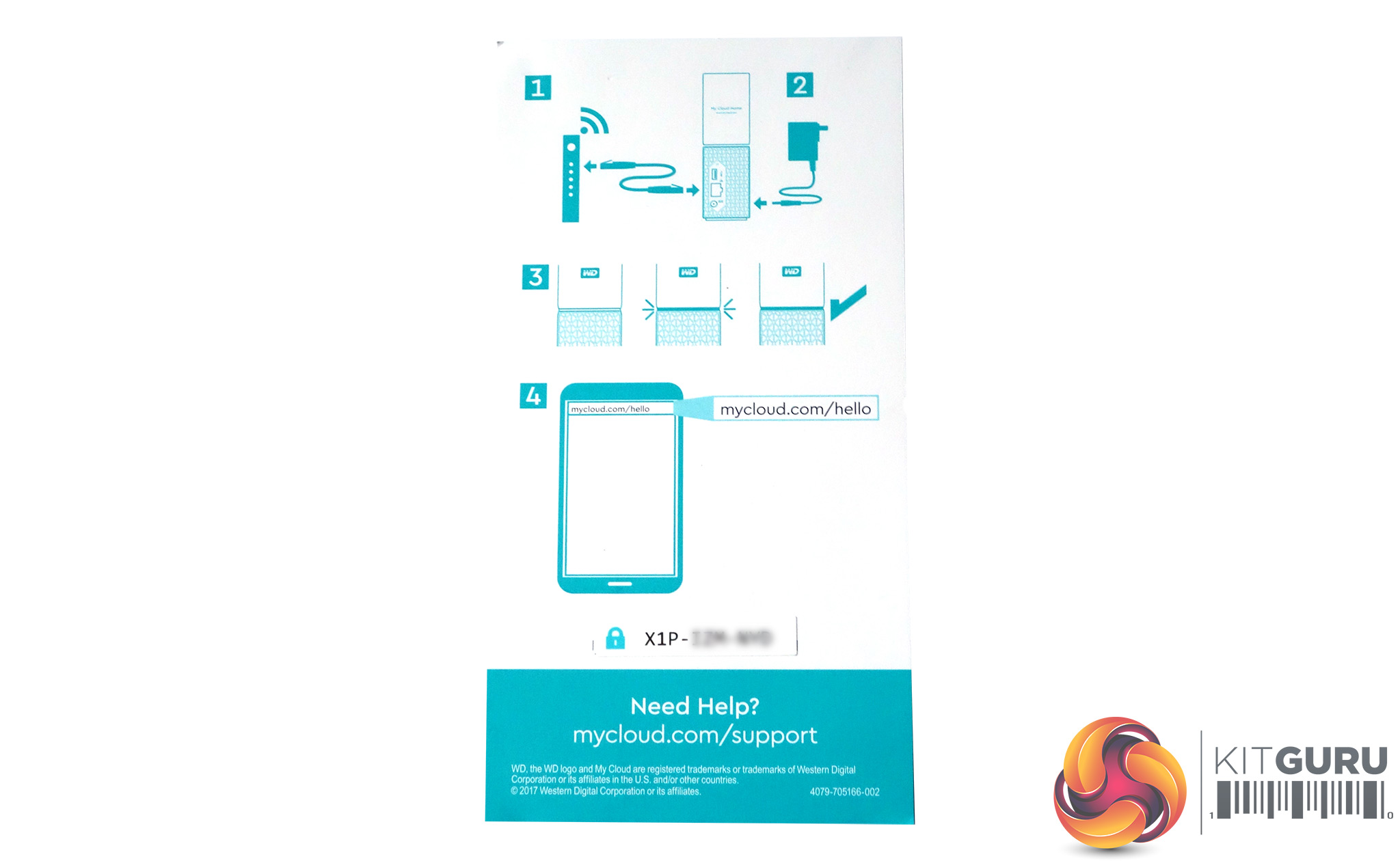
Setting up the My Cloud Home is very easy thanks to the useful little card WD bundle with the drive, which clearly walks you through the initial setting up of the device. Basically It's matter of simply plugging it into a Wi-Fi router (or via a switch connected to one) and connecting it to the mains.
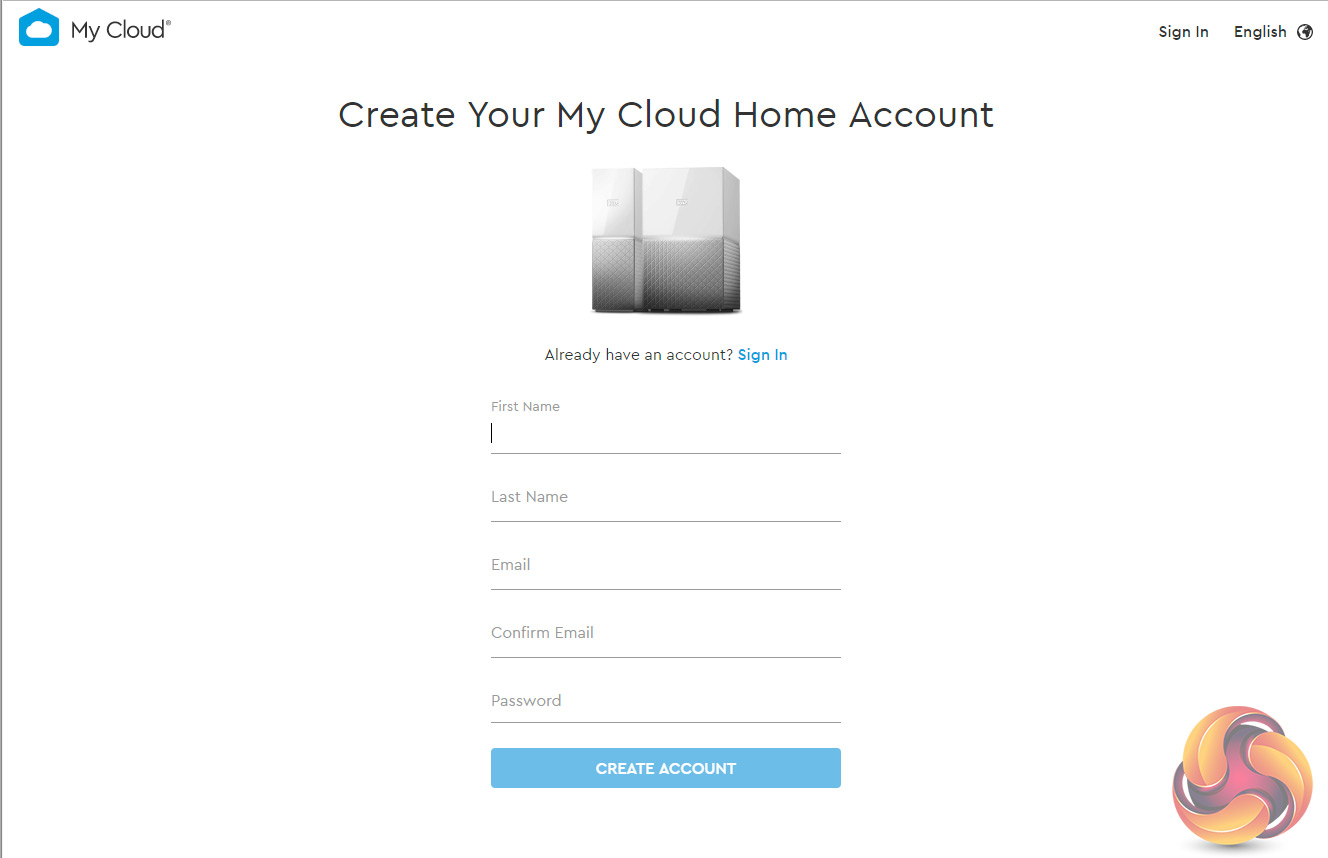
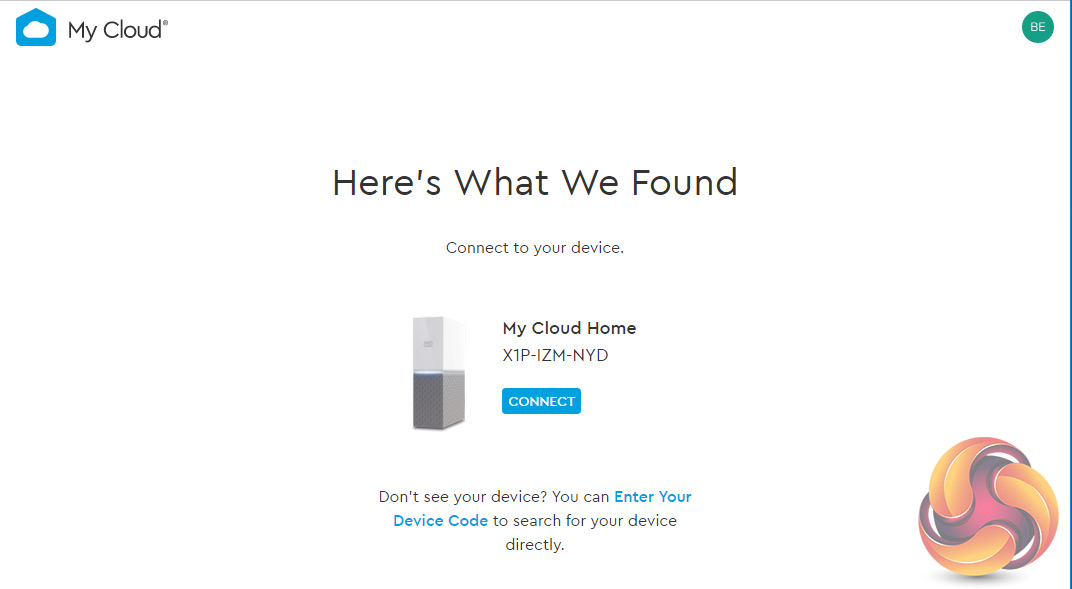
Next job is to access the Mycloud website – mycloud.com/hello, which can be done with either a PC or an iOS/Android phone to setup up the MyCloud account – or if you have one already, you simply sign in.
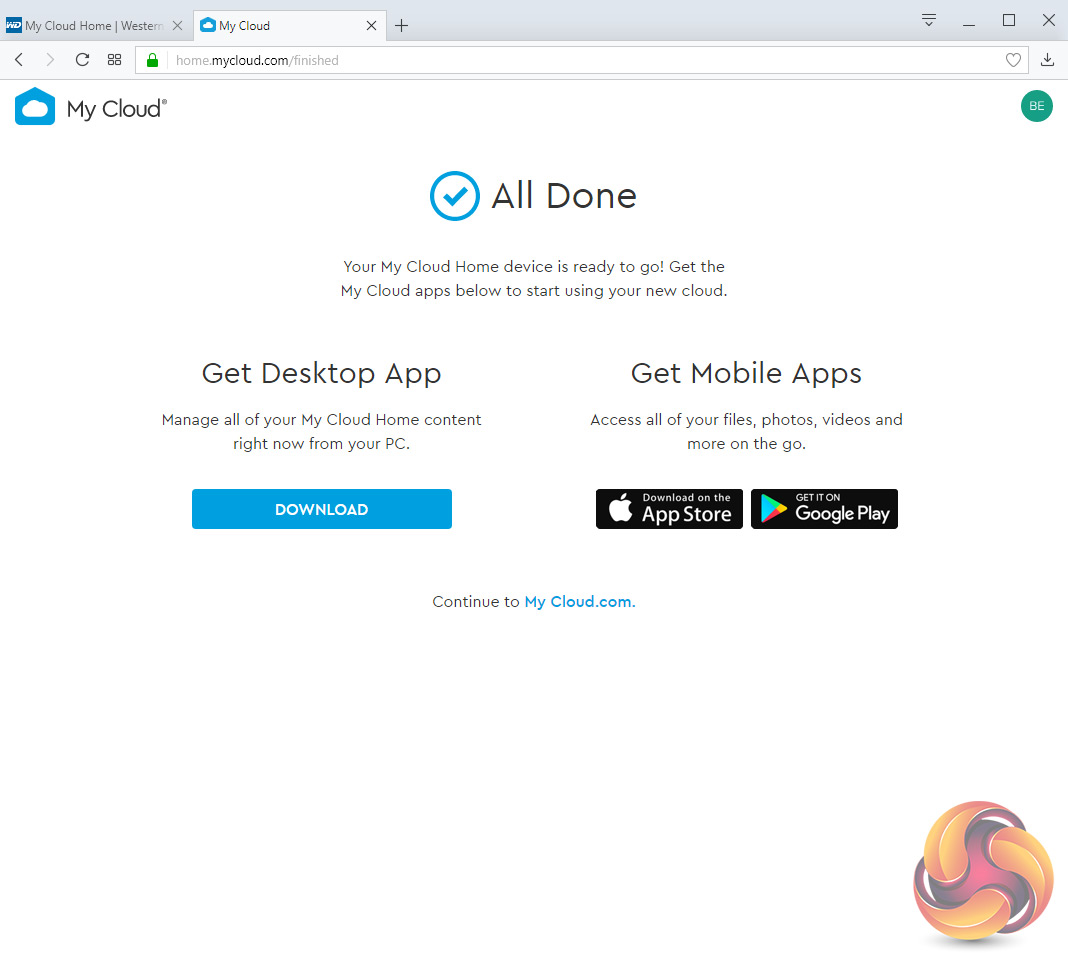
After the initial setting up is done, there are three ways of configuring the My Cloud Home.
Clicking on the Get Desktop App begins the download for the MyCloud Home Desktop app which is based around the Western Digital (Windows or Mac) Discovery software.
Then there is MyCloud Web App which uses an Internet browser for quick access regardless of the operating system.
Finally there is the My Cloud Home Mobile App for Android or Mac which is downloaded from either the Google Play or the Apple AppStore.
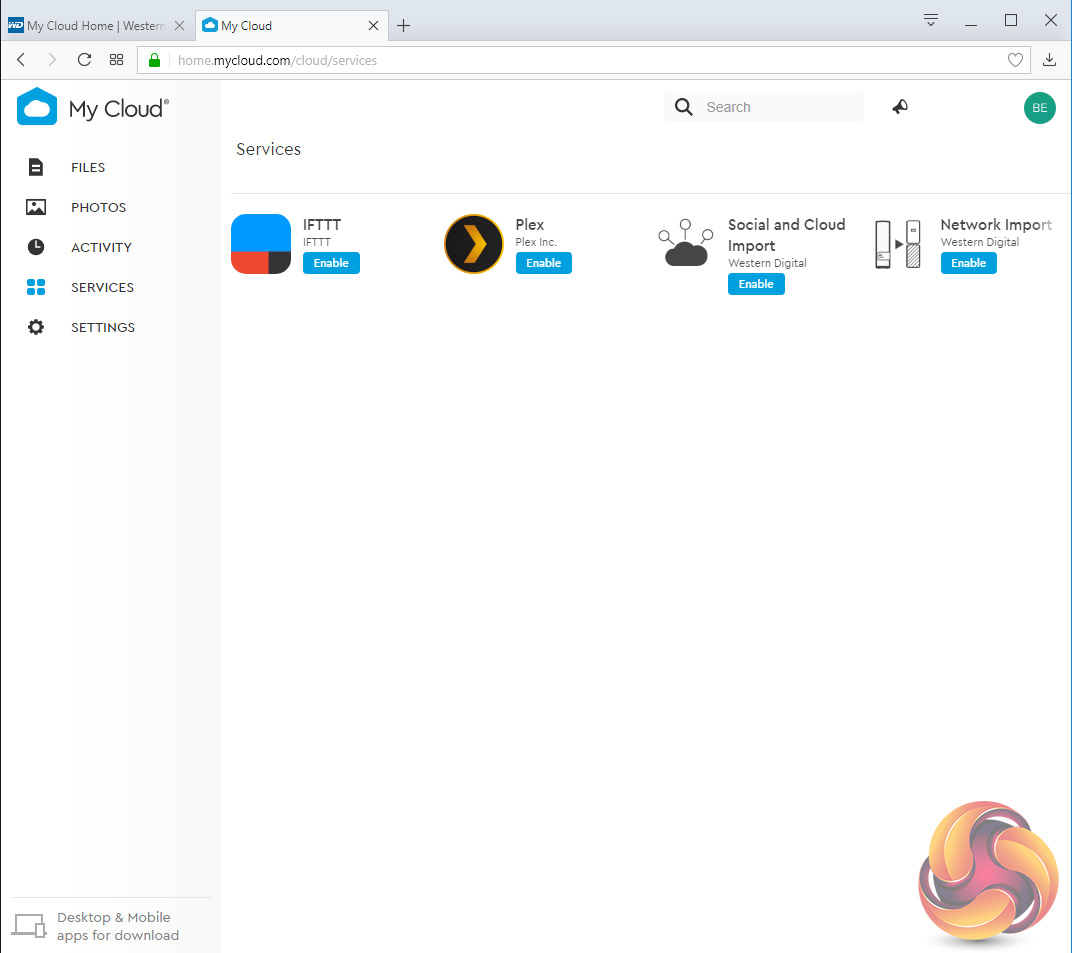
Integrated into the My Cloud Home mobile app are IFTTT and Plex along with sync support for Dropbox, Google Drive and OneDrive, amongst others. However some apps are noticeable by their absence – any DNLA servers and iTunes for example. A useful app if you have data on an original My Cloud unit is Network Import which allows the importing or copying data from the old unit to the newer model.
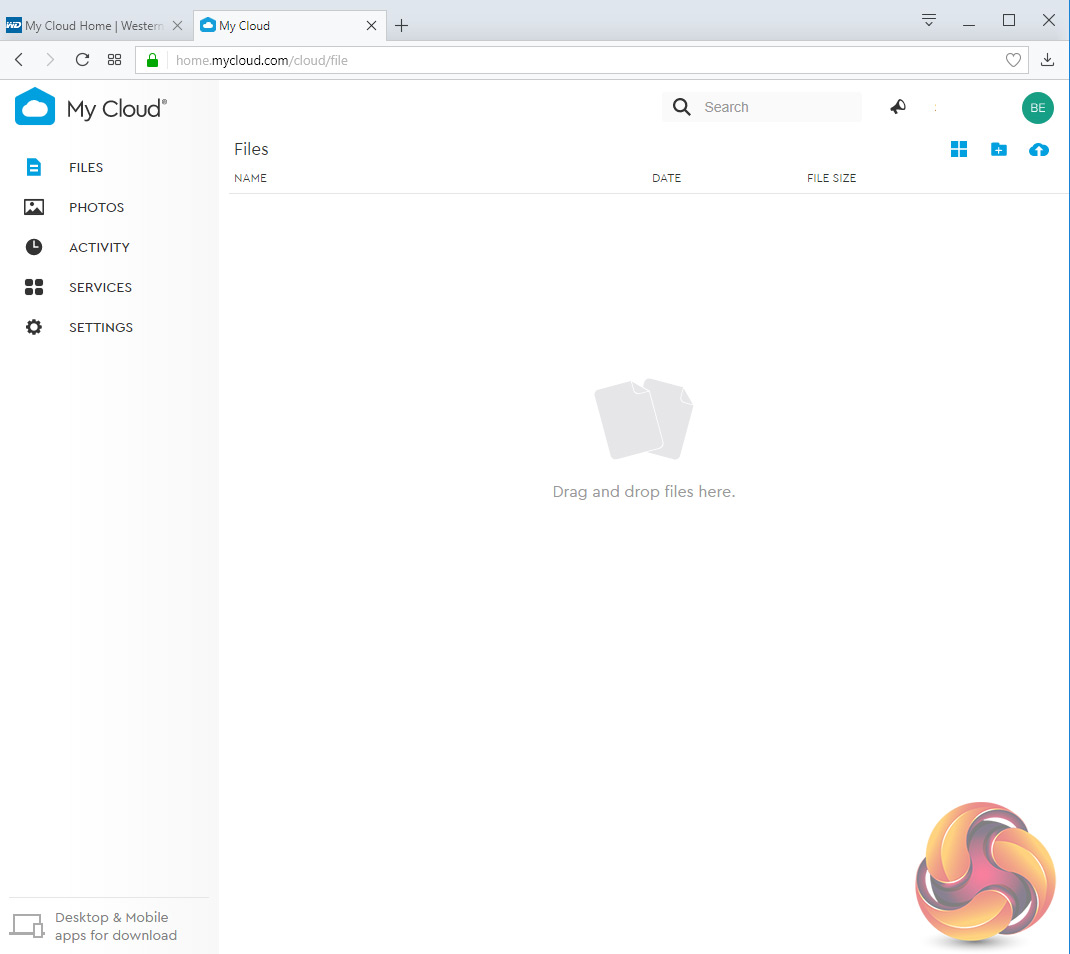
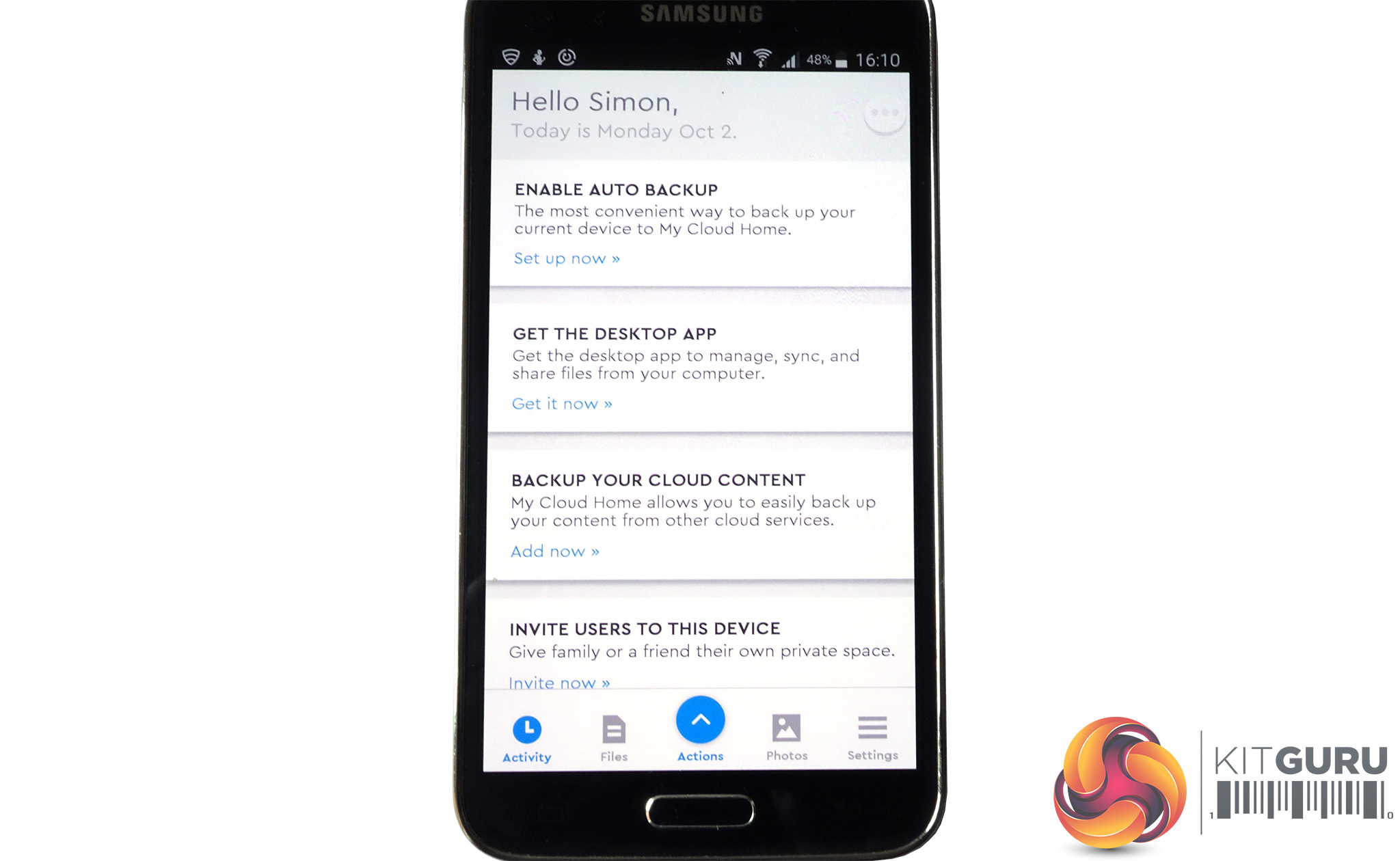
The Mobile App lets you view files on a smartphone and you can also setup the automatic back up of photos from the phone to My Cloud Home. You can also share content by sending out invitations (the invitees will then be prompted to create a My Cloud account or sign into one).
Connect a USB drive to the My Cloud Home unit and the contents of the drive can be backup up onto the device but you can't backup the My Cloud Home directly back down to a USB device. To back it up you have to resort to using backup software or by dragging and dropping data via Windows file manager.
We tested the My Cloud Home via a desktop PC via a Gigabit Ethernet connection.
Crystalmark is a useful benchmark to measure theoretical performance levels of hard drives and SSD’s. We are using V3.0.3.
The ATTO Disk Benchmark performance measurement tool is compatible with Microsoft Windows. Measure your storage systems performance with various transfer sizes and test lengths for reads and writes. Several options are available to customize your performance measurement including queue depth, overlapped I/O and even a comparison mode with the option to run continuously.
Use ATTO Disk Benchmark to test any manufacturers RAID controllers, storage controllers, host adapters, hard drives and SSD drives and notice that ATTO products will consistently provide the highest level of performance to your storage.
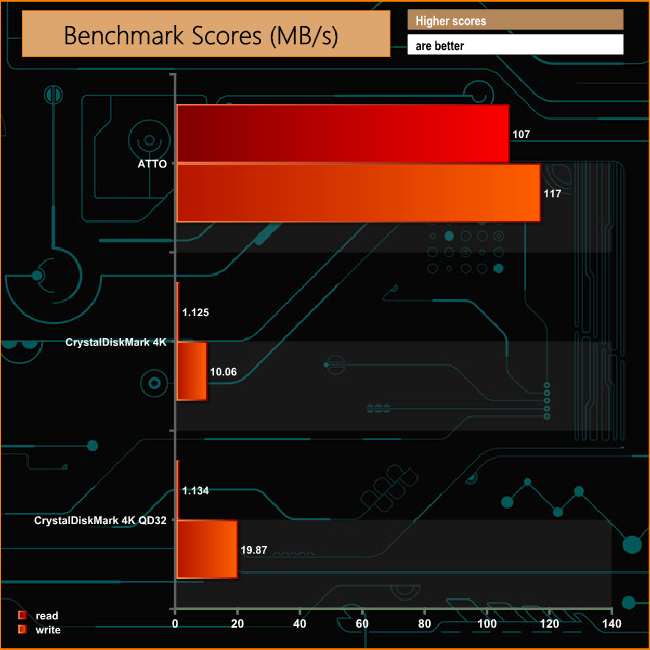
In the ATTO benchmark we got slightly better Sequential write performance at 117MB/s than reads at 107MB/s. Similarly in the Crystal Disk Mark tests, the write performance outshone reads.
IOMeter is another open source synthetic benchmarking tool which is able to simulate the various loads placed on hard drive and solid state drive technology.
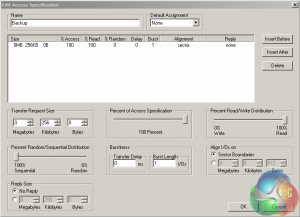
We set IOmeter up (as shown above) to test both backup and restore performance on a 100GB file.
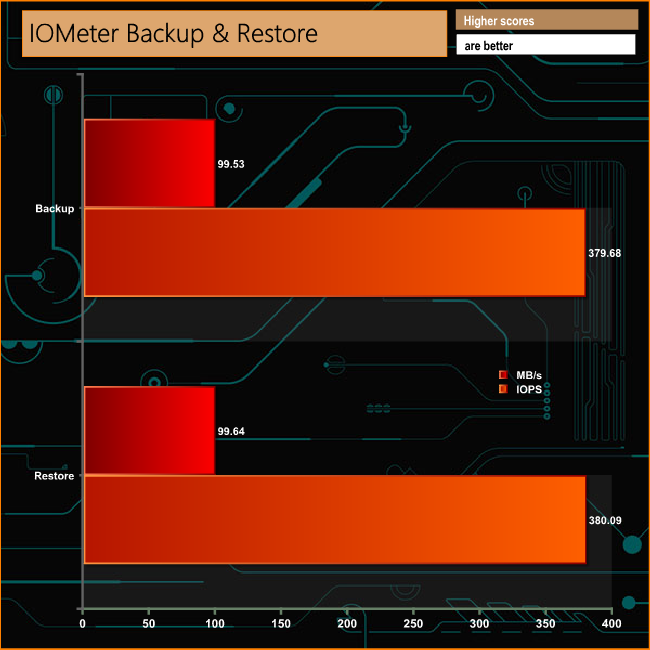
When it came to our backup/restore test, the My Cloud Home produced scores knocking on the door of 100MB/s for both read and writes.
To test real life performance of a drive we use a mix of folder/file types and by using the FastCopy utility (which gives a time as well as MB/s result) we record the performance of drive reading from & writing to a 256GB Samsung SSD850 PRO.
100GB data file
60GB iso image
60GB Steam folder – 29,521 files.
50GB File folder – 28,523 files.
12GB Movie folder – 24 files (mix of Blu-ray and 4K files).
10GB Photo folder – 621 files (mix of .png, raw and .jpeg images).
10GB Audio folder – 1,483 files (mix of mp3 and .flac files).
5GB (1.5bn pixel) photo.
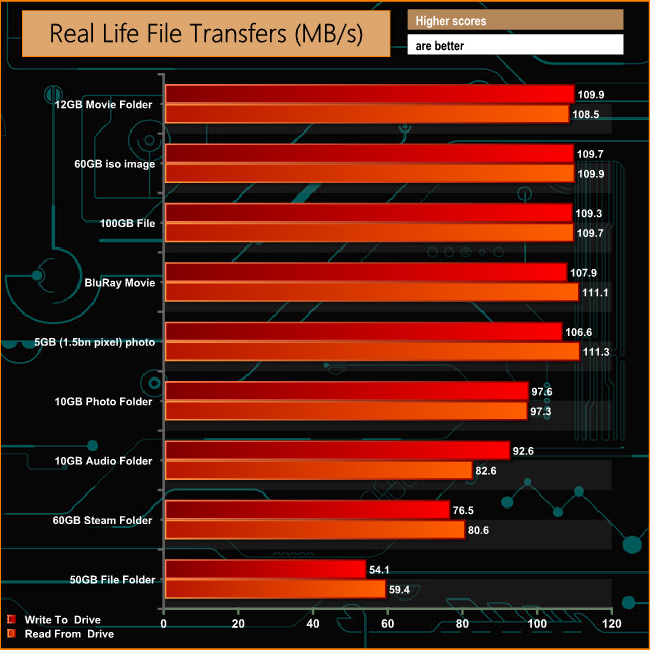
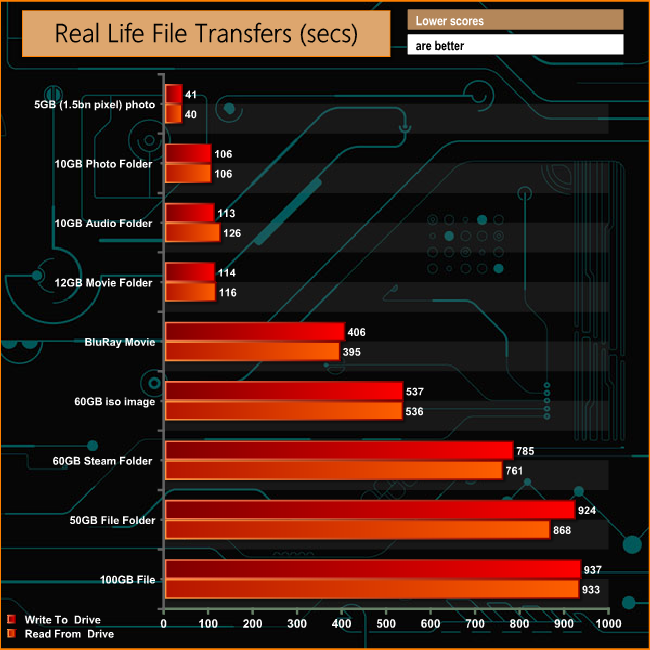
The My Cloud Home performed reasonably well when dealing with our real life file transfer tests although the performance did drop off when performing the 60GB Steam and particularly the 50GB File Folder transfers.
With the launch of the WD My Cloud Home comes a new look and feel for the My Cloud range. Gone is the familiar rounded “book” style, replaced by a sharper cornered design and a new two tone colour scheme. As with the original My Cloud there are single drive and dual drive versions. The single drive My Cloud Home ships in capacities from 2TB to 8TB while the two drive units (My Cloud Home Duo) has the drives pre-built in a RAID 1 in 4TB, 8TB, 12TB, 16TB and 20TB capacities.
With devices such as the My Cloud Home it is important to make the setting up of the device as easy as possible and full marks to Western Digital — the My Cloud Home is very quick and easy to setup. This is aided by the setup card that is bundled in the box and the fact you don't need a PC during any of the setup phase. Basically It is a matter of simply plugging it into a Wi-Fi router (or via a switch connected to one), connecting it to the mains and heading off to the mycloud website – mycloud.com/hello.
There are three ways to directly access the device once its set up; via a desktop (Windows or Mac) with the Western Digital Discovery software, via an Internet browser or with a smartphone, courtesy of the My Cloud Home mobile app.
WD Discovery (versions for Mac and Windows) incorporates WD Backup and WD Security software and a suite of apps; Plex, Upthere, EST Drive Security, Blancco Data Eraser, digi.me and Magisto EncryptStick. Integrated into the My Cloud Home mobile app are IFTTT and Plex along with sync support for Dropbox, Google Drive and OneDrive amongst others.
A useful app if you have data on an original My Cloud device is Network Import which allows the importing or copying data from the old unit to the newer model. That said, some apps are noticeable by their absence – any DNLA servers and iTunes for example.
Connect a USB drive to the My Cloud Home unit and the contents of the drive can be backed up onto the device but you can't backup the My Cloud Home directly to a USB device as the port only supports imports. To back it up you have to resort to using backup software or by dragging and dropping data via Windows file manager.
We found the 6TB version of WD's My Cloud Home for £284.40 on Span.com HERE
Discuss on our Facebook page over HERE.
Pros
- Easy to set up.
- Ease of use.
- Capacity.
Cons
- No direct backup from the WD Home to another device.
Pricey.
Kitguru says: The My Cloud Home is very quick and easy to set up, works well and there are plenty of capacity options to suit most pockets but its not without its foibles.

Products are OK but my came defective and I had worse the very worse customer service for an entire month, I spoke so make reps; I believe I spoke to the entire staff and at the end I was told that my American Express wasn’t good because it either had too many numbers or it was missing digits. The language barrier is the worst. Good luck, I still have my hard drive but can’t do anything with it..