KitGuru KitGuru.net – Tech News | Hardware News | Hardware Reviews | IOS | Mobile | Gaming | Graphics Cards


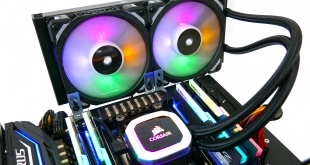
Since our initial review of the Corsair H100i RGB Platinum all-in-one liquid cooler, we have been looking at potential cooling solutions for the upcoming 3rd generation Threadripper release. As the H100i RGB Platinum officially supports socket TR4, it seems a good candidate to bring back for TR4 testing.
Corsair are considered as a big player in the AIO cooling sector, with a huge range of products available. Traditionally, Corsair partner up with Asetek to bring their all-in-one coolers to the customer. However, this time around the Hydro Series is a CoolIT design, which is interesting.
The Hydro Series H100i RGB Platinum is an all-in-one liquid CPU cooler, with a 240mm radiator and vivid RGB lighting that’s built for extreme CPU cooling. It’s also available as a 280mm H115i version. With the H100i priced around the £130 mark, does it represent a good value option for cooling Threadripper?
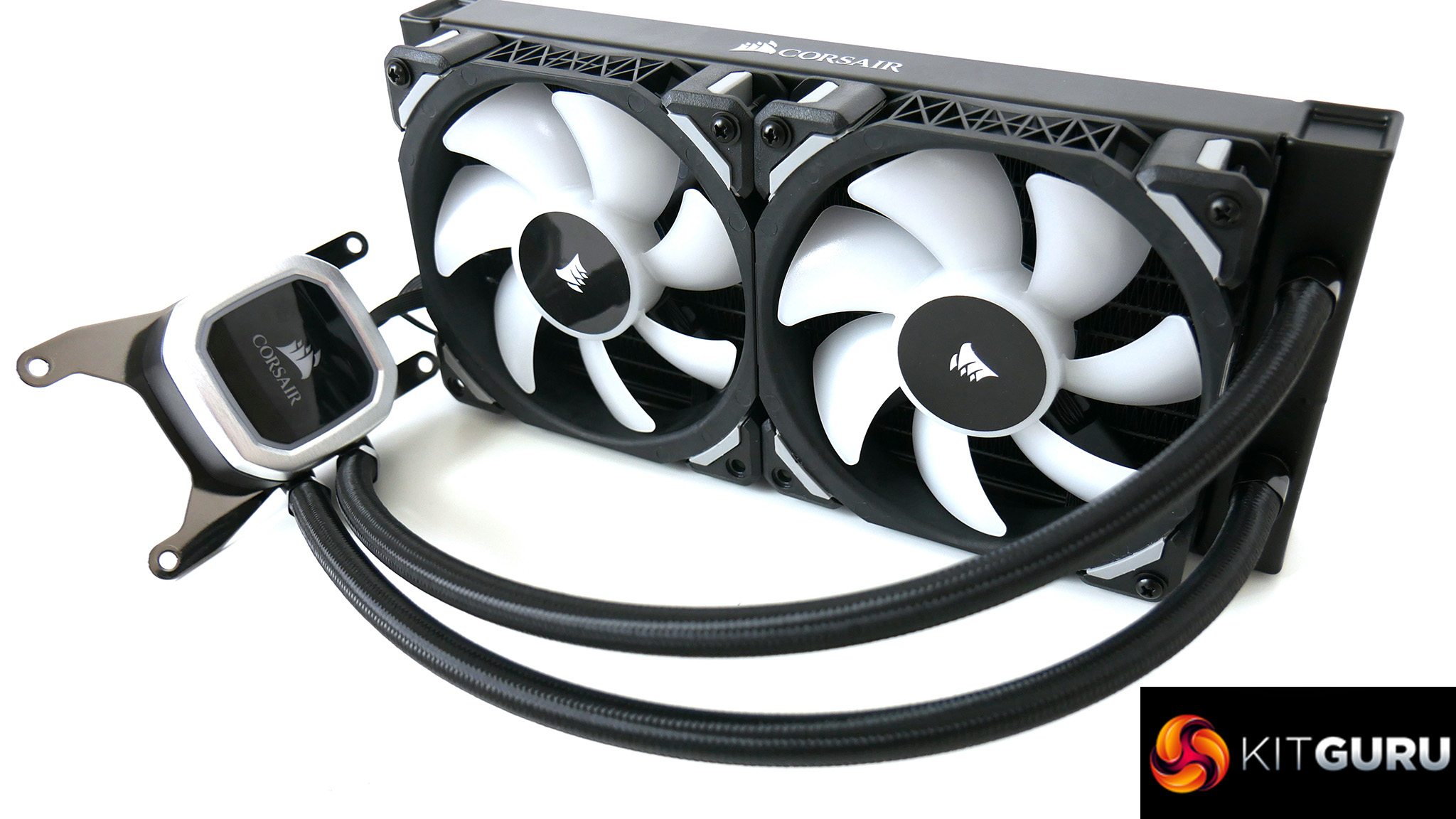
As is with many adapted AIO coolers which don't fully cover Threadripper’s huge IHS, the same can be said for the H100I RGB Platinum, but with a squarer shape to the base plate it could provide a more even spread of thermal transfer.
In our previous tests on a Core i7 7700K CPU, the H100i performed admirably – in fact it was the top cooler we had tested at the time. But with the much higher TDP of the Threadripper 2950X we have on our test bench now, it may prove a much tougher task to keep temperatures under control.
Key features:
- Multi-zone RGB pump
- Magnetic levitation fans
- Quiet cooling
- Aluminium radiator with copper thermal transfer plate
Specification:
- Model: Hydro Series H100i RGB PLATINUM 240mm
- Radiator Material: Aluminium
- Radiator Dimensions: 277 × 120 x 27mm
- Tubing Length: 350mm
- Fan Dimensions: 120 x 120 x 25mm
- Fan Speed: 400 – 2,400 RPM (PWM)
- Fan Air Flow: 75 CFM (Max)
- Fan Noise Level: 25 dBA
- Fan Connector: 4-Pin (PWM)
- Pump Connector: SATA Power, 3-Pin Pump Tach Cable
- iCUE Connector: Micro USB to USB 2.0 Header
- Intel Socket Compatibility: Intel LGA 115x, LGA 2011, LGA 2066
- AMD Socket Compatibility: AMD AM4, AM3+, AM3, AM2+, AM2, TR4
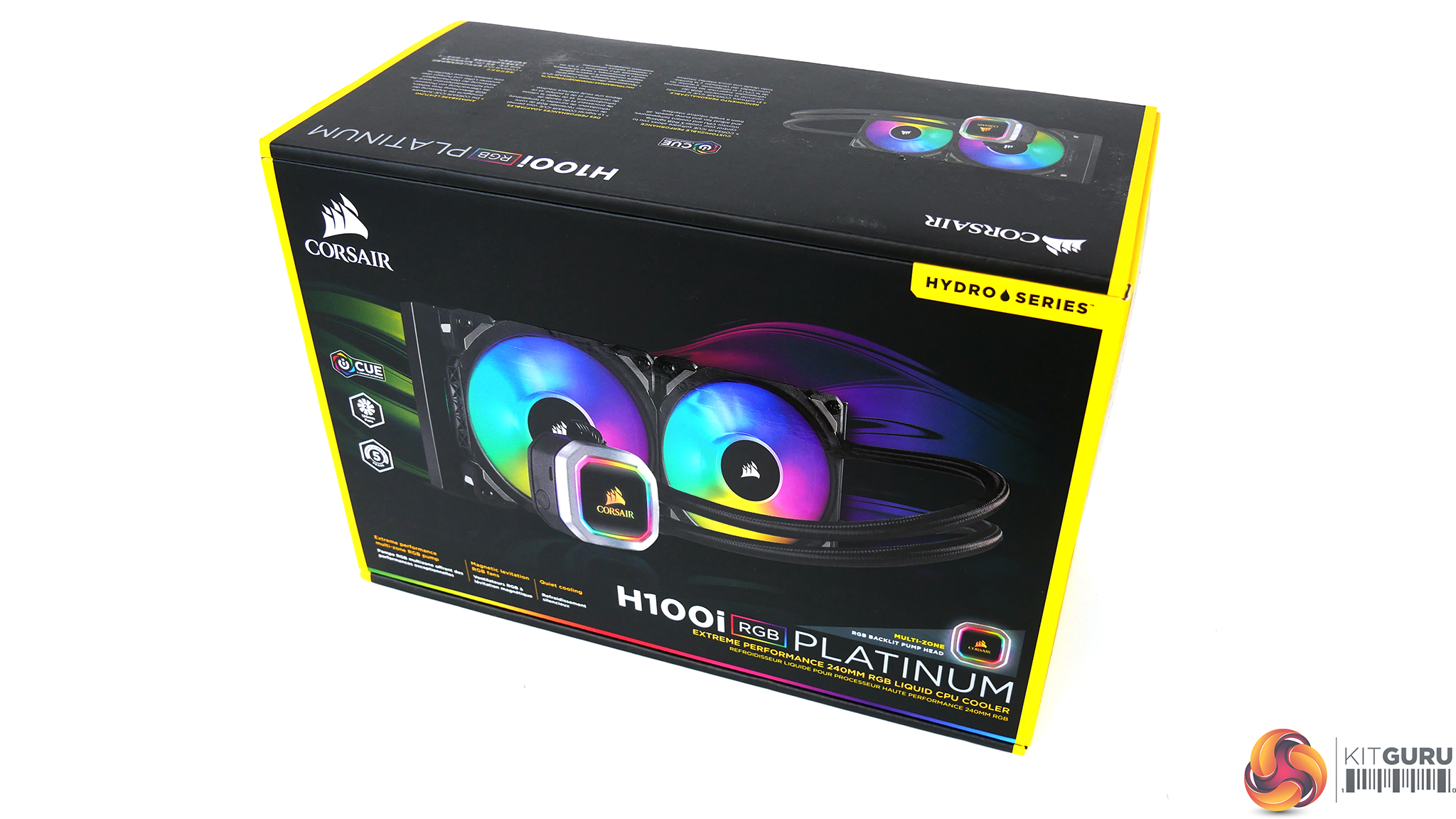
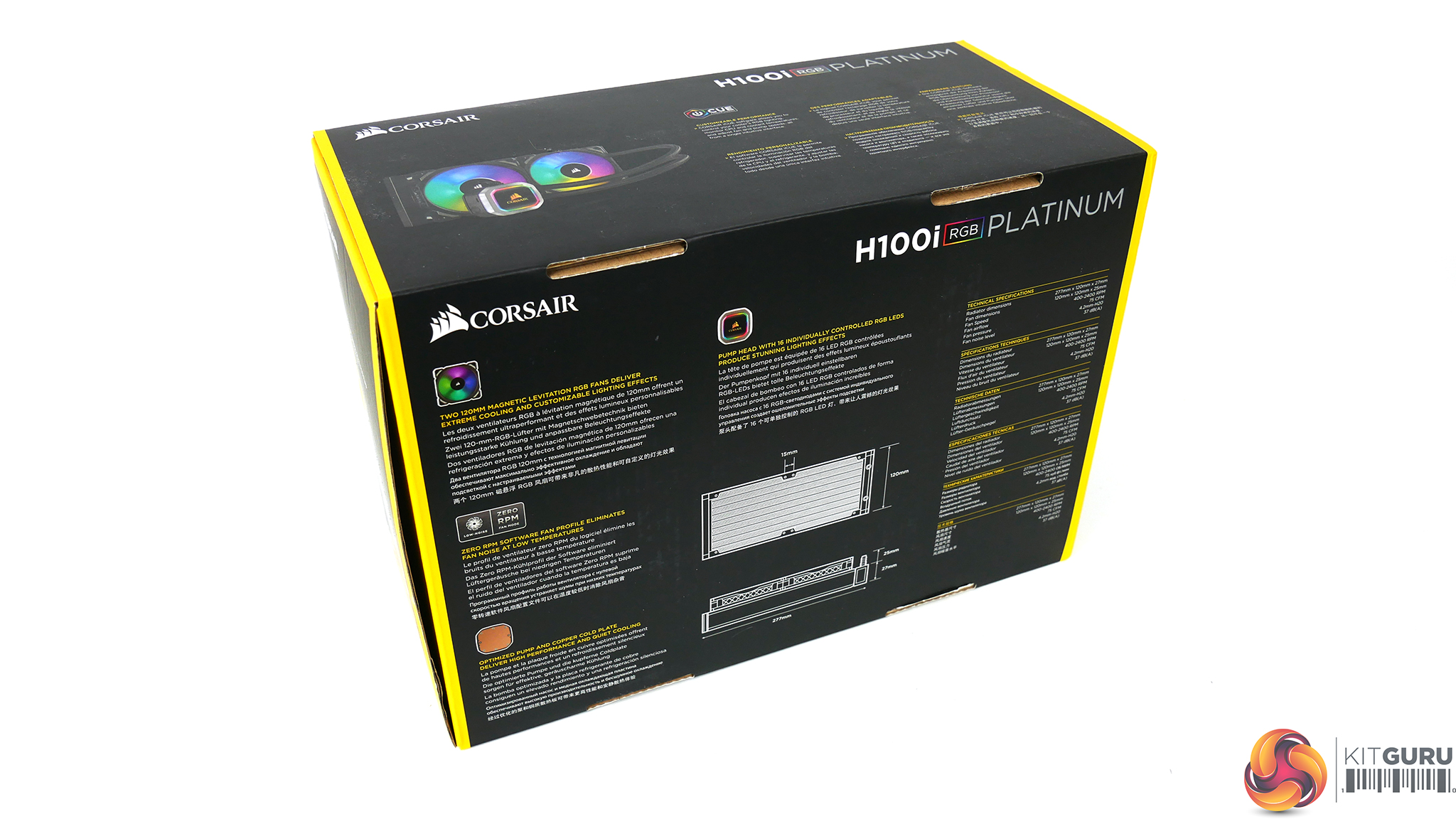
Packaging of the H100i RGB Platinum follows Corsair’s tradition of a black and yellow theme. On the front of the box is a large image of the cooler, Corsair's logo and other key information. The rear lists key features, technical specifications and a diagram of the radiator with dimensions.
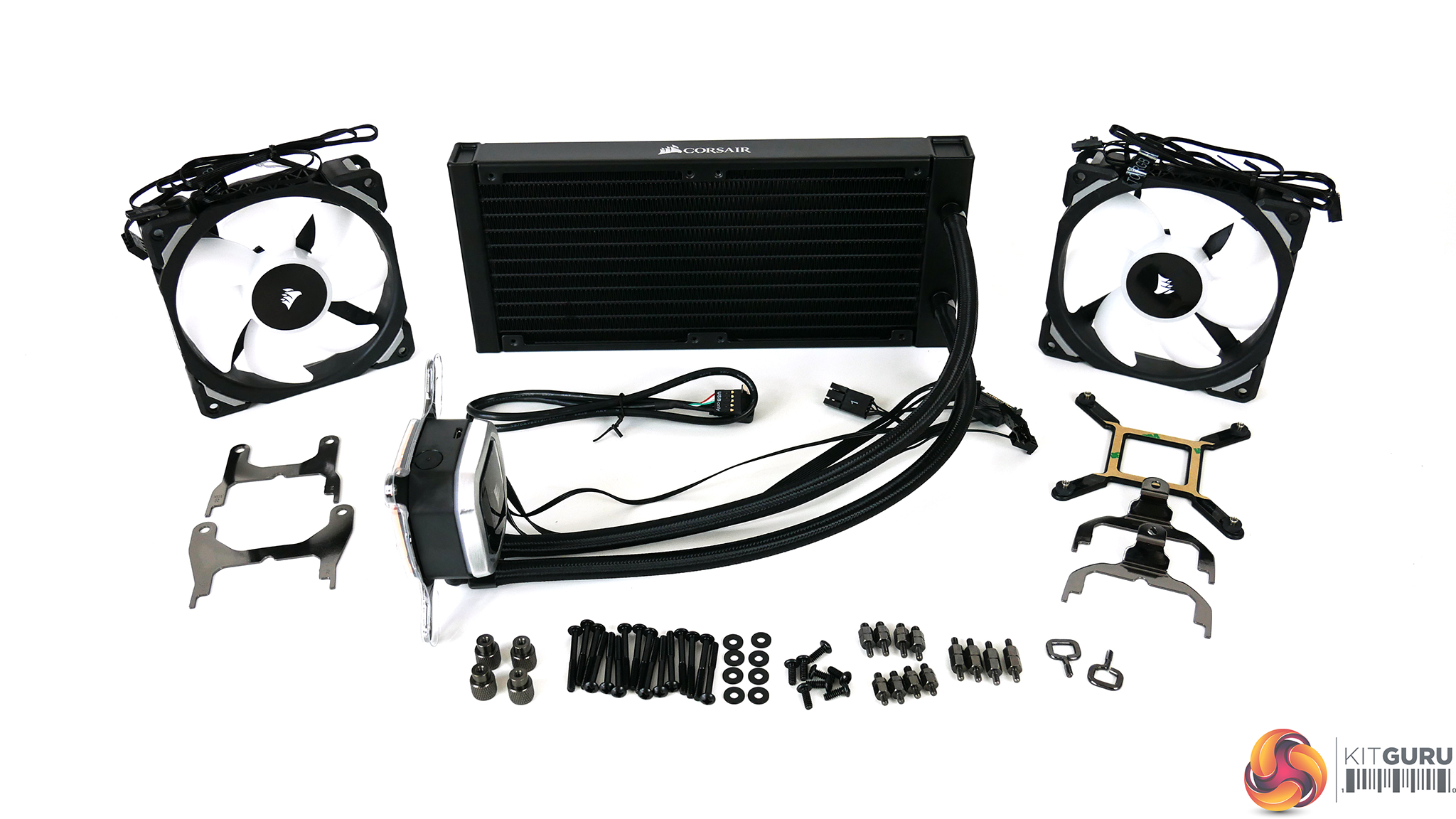
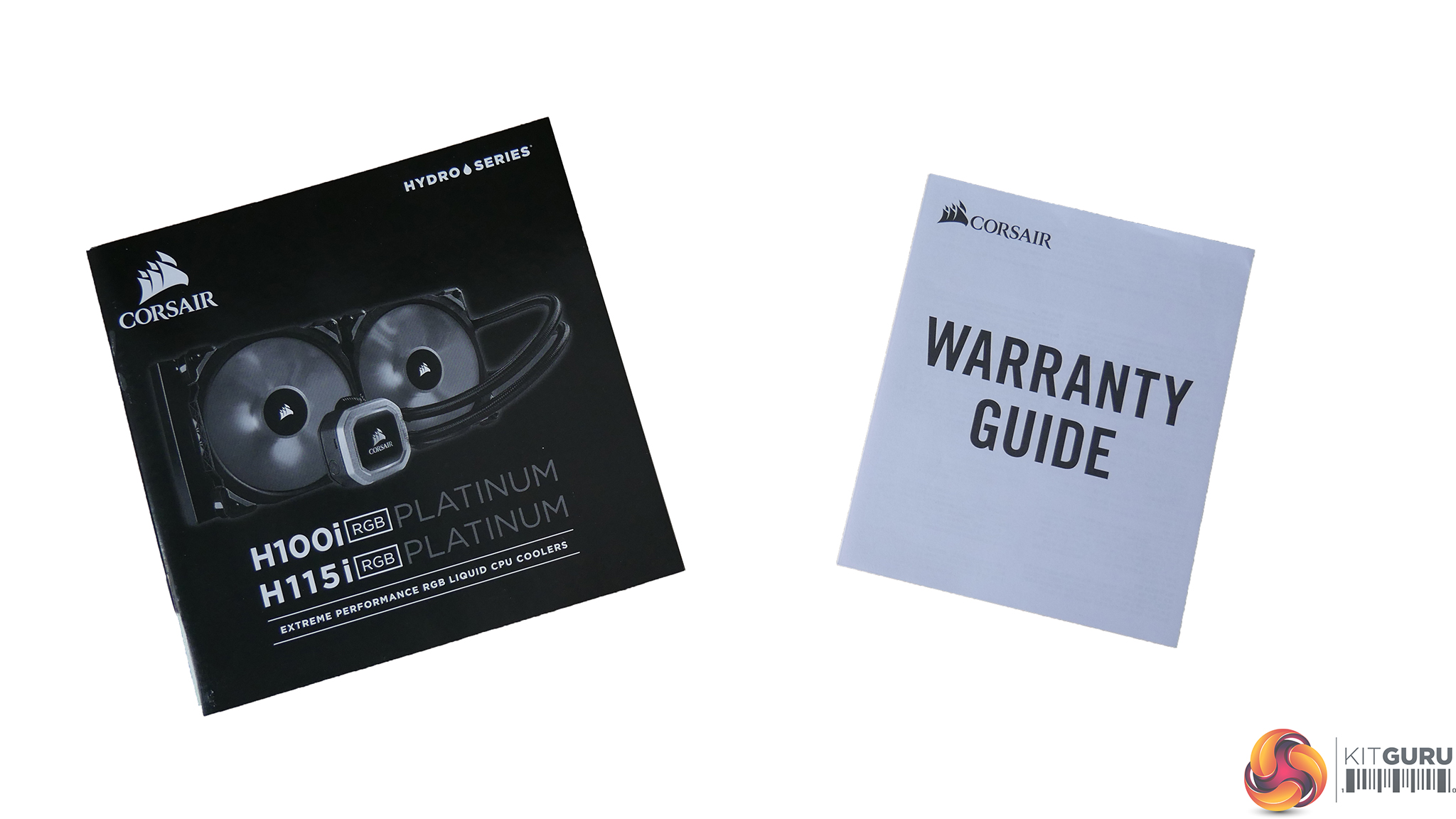
Once unpacked, we can clearly see what’s included. Along with the cooler itself, a pair of 120mm Magnetic Levitation fans, a bundle of screws and fixings, a USB cable to control RGB lighting, installation manual and warranty card are also present.
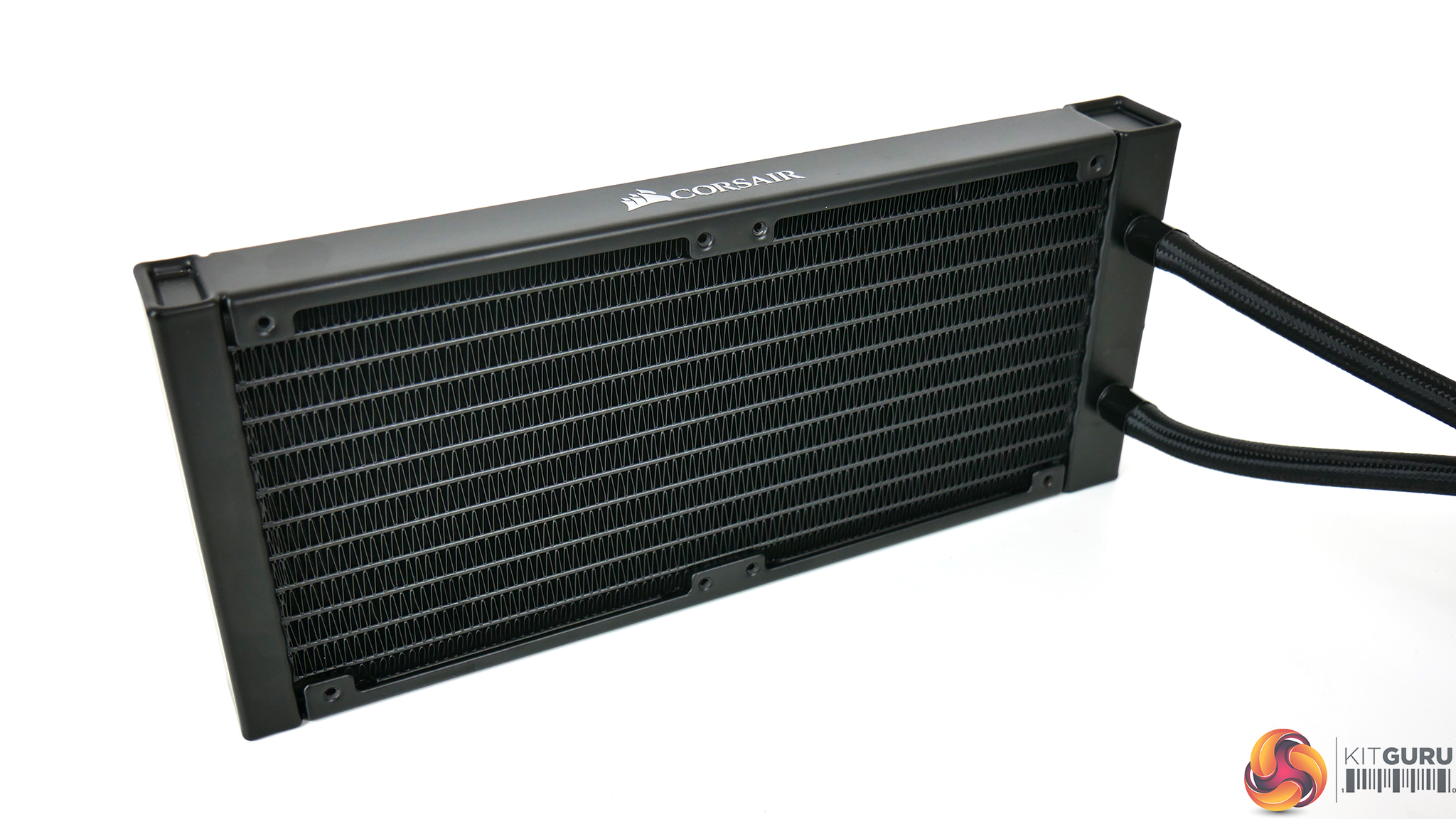
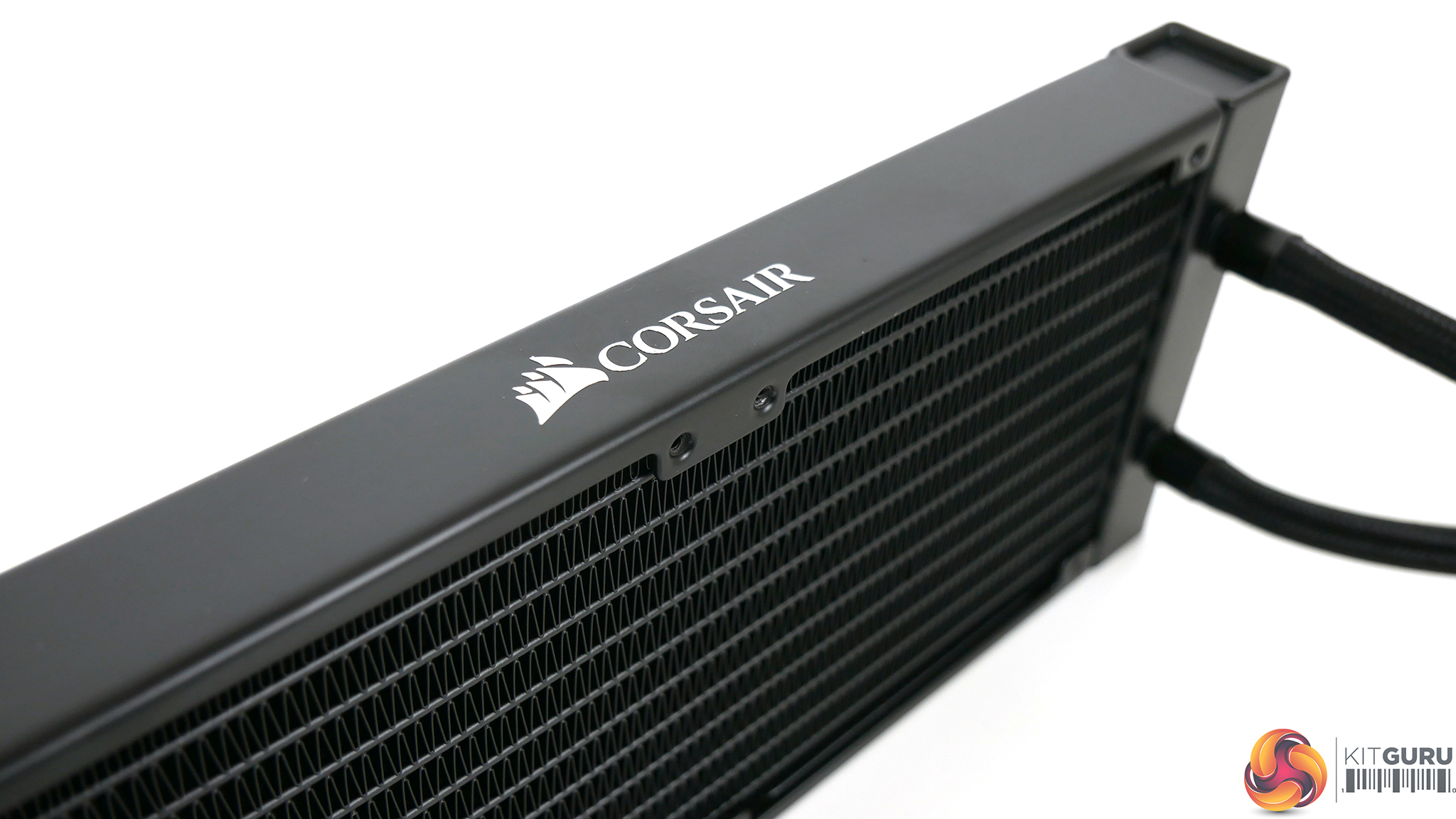
The H100i’s aluminium radiator is a simple, all black design with the Corsair logo embossed on the top and bottom in a chrome finish. As we have come to expect from Corsair AIOs, the product is manufactured from high quality materials and feels sturdy in the hand.
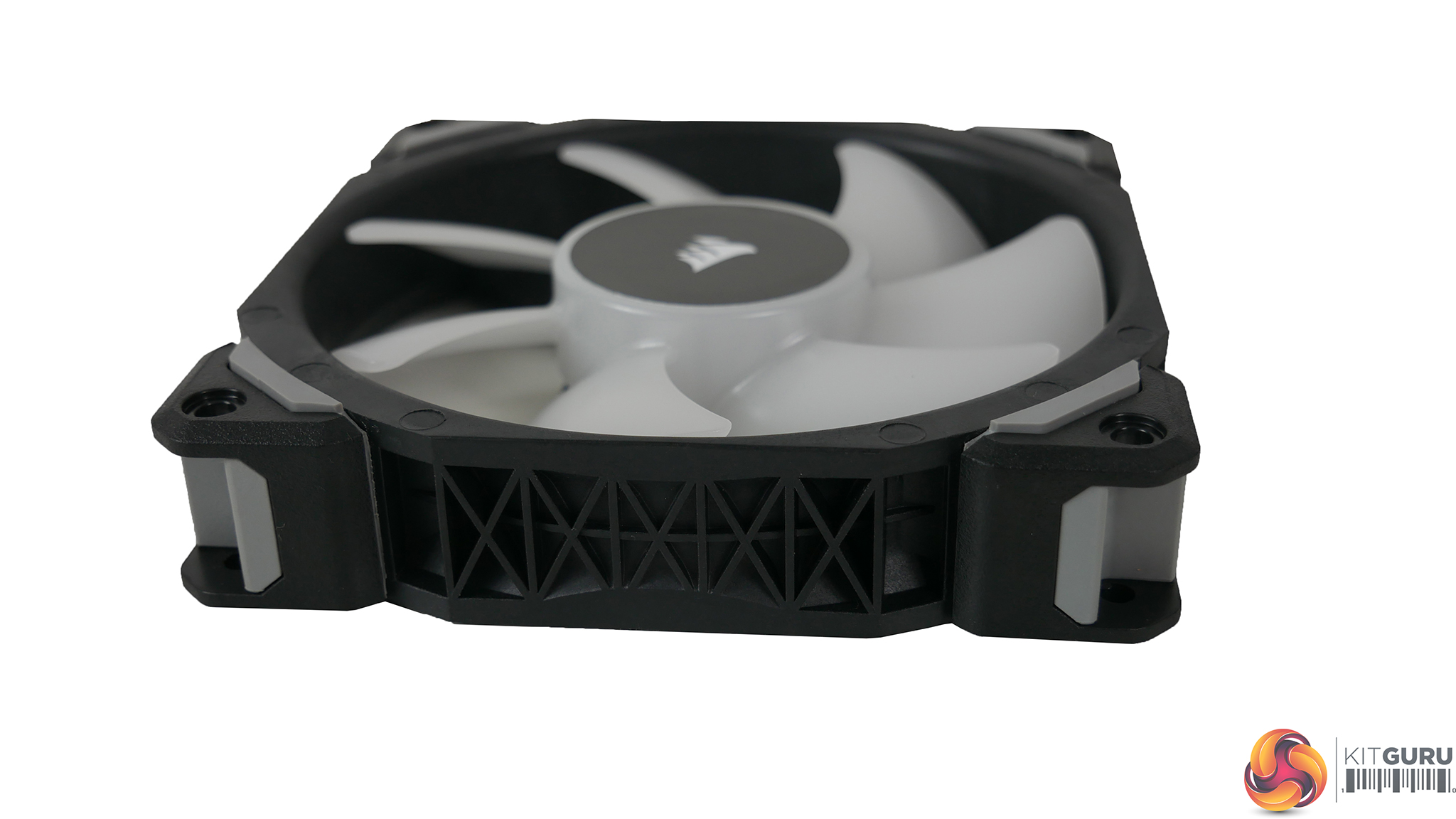
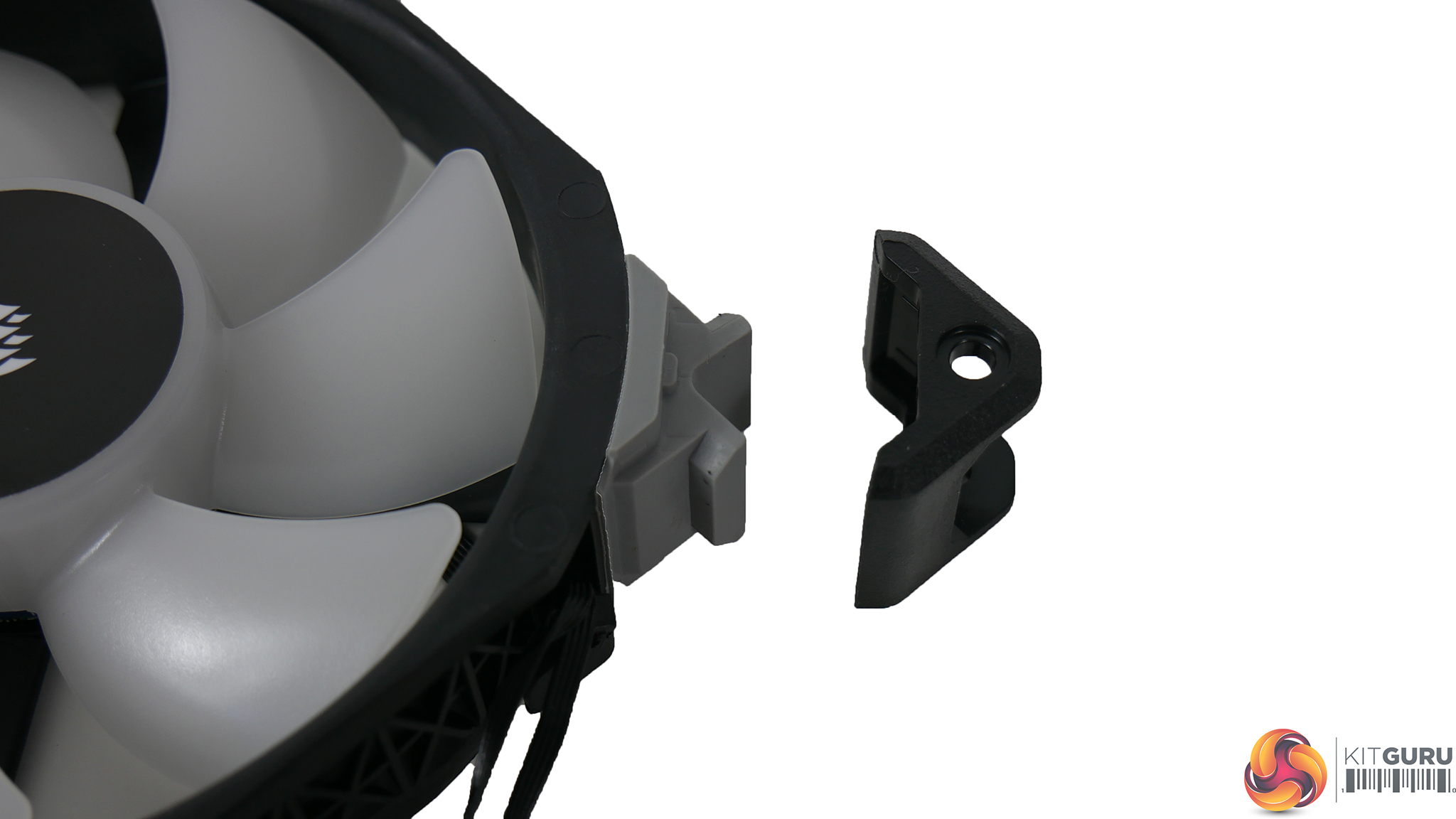
The ML120 fans also have a very high-quality look to them. A rather chunky design is complimented by the triangular detailing around the sides. The RGB has vivid colours which brightly light up the fan blades. The corner mounting points, with anti-vibration rubbers, are removable so could potentially be swapped with different colours.
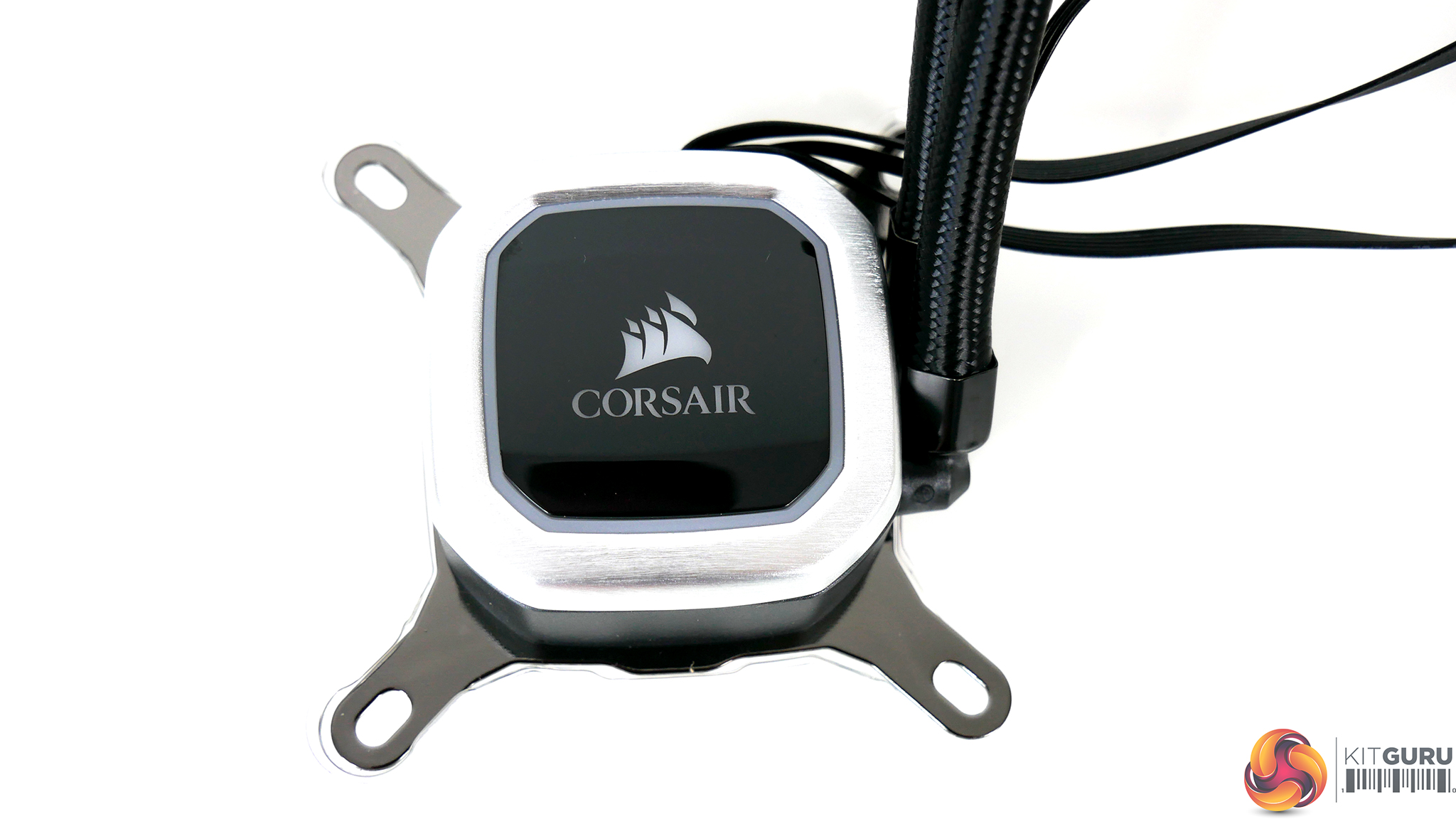
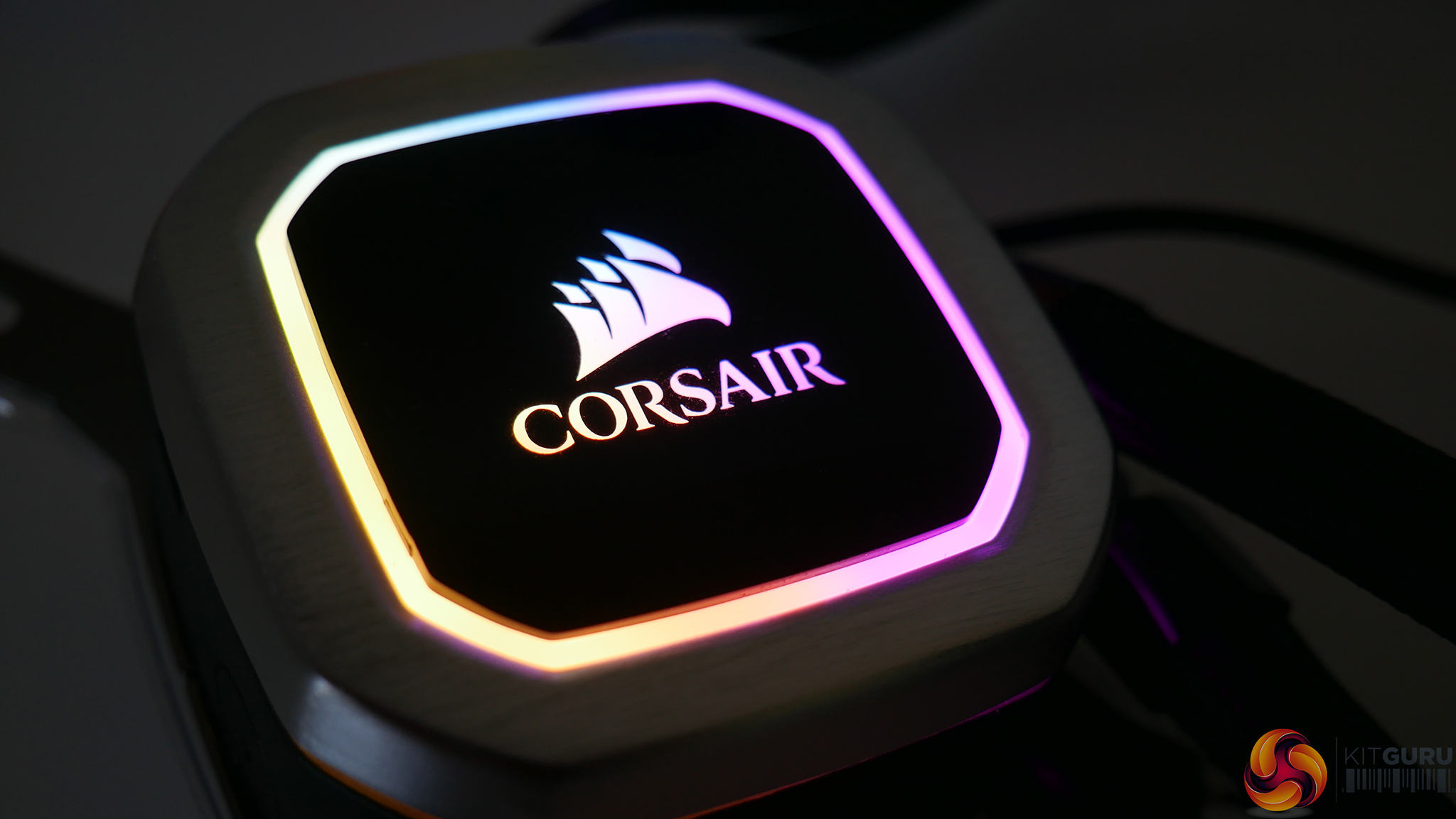
The pump housing of the H100i RGB Platinum takes on a black and silver theme with the central Corsair logo, and the outer ring is bathed in RGB lighting. The pump speed is technically PWM controlled, but the Corsair iCUE software must be used to manage this – otherwise the pump runs at 100% RPM.
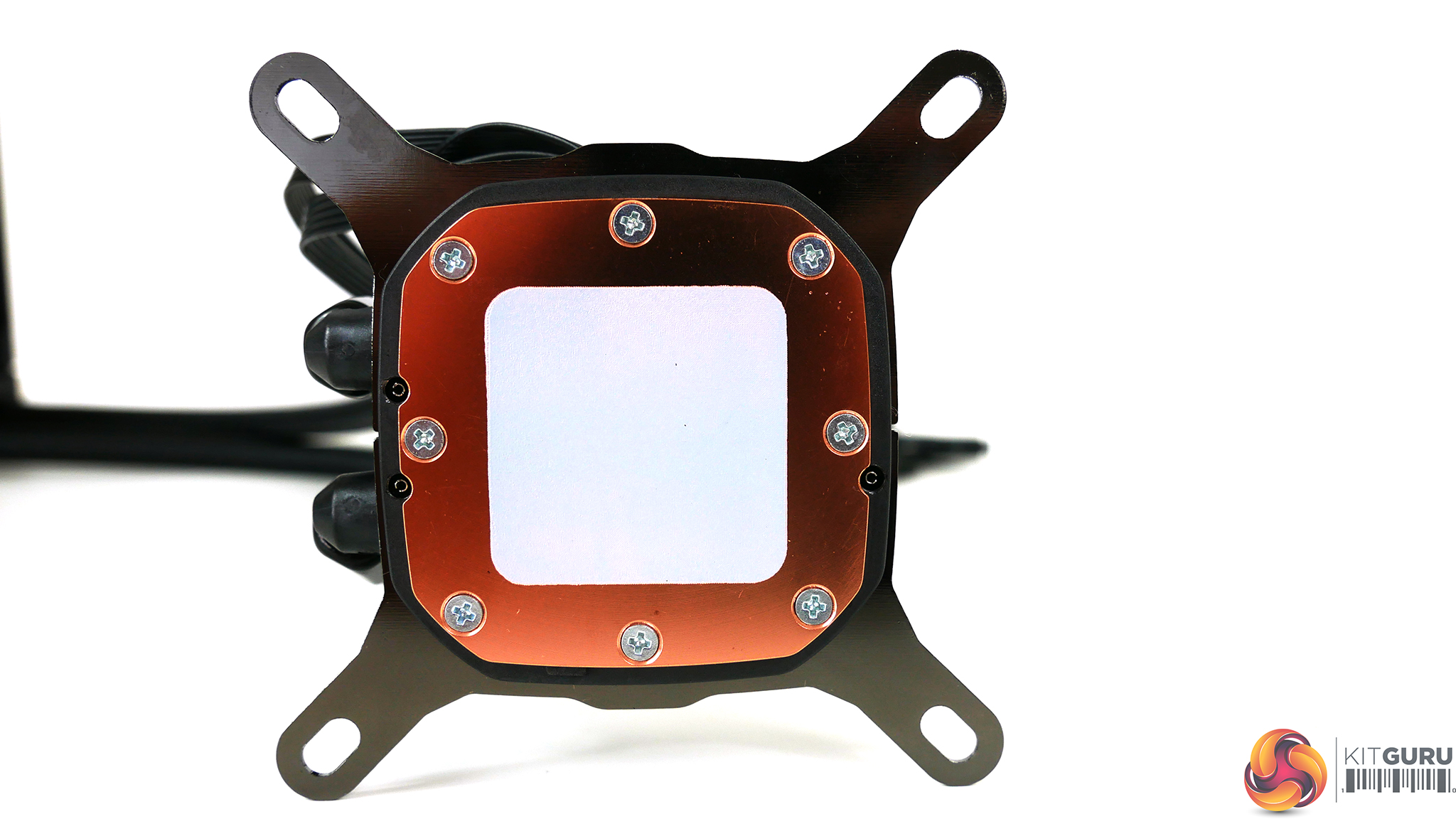
A thermal transfer plate on the underside of the pump is milled from a single piece of copper with a micro-fin chamber internally. A layer of thermal compound comes pre-applied to the base to provide even coverage while saving the end user time during installation.
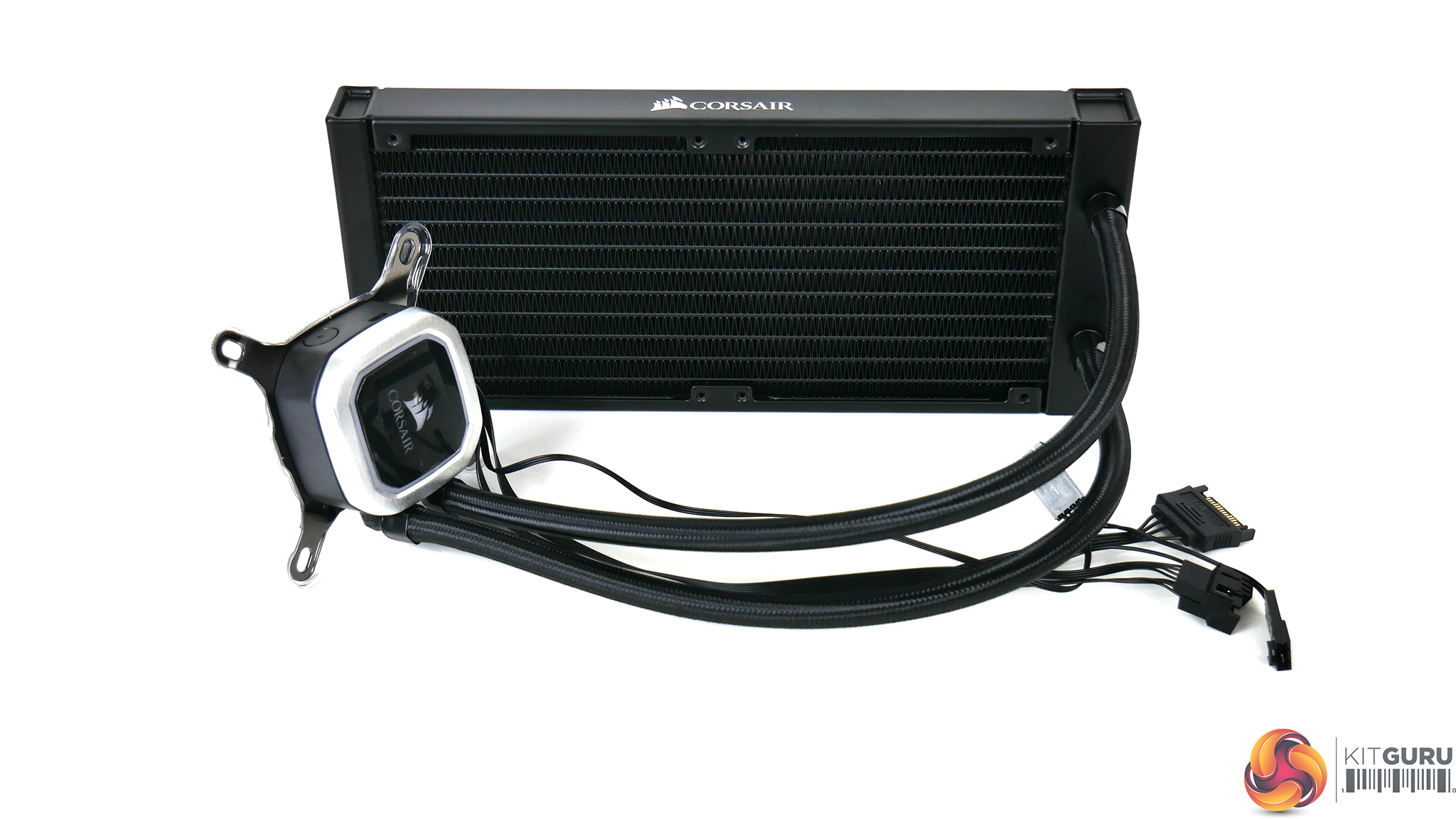
The H100i RGB Platinum has a generous 350mm long tubing, which is wrapped in black braided sleeving. Flexibility of the tubing is good while still having a re-enforced feel, so shouldn’t kink too easily. The 90 degrees swivel fittings at the pump should help with orientation and tube routing during installation.
Overall, the H100i RGB Platinum is an aesthetically pleasing cooler. A nice solid build combined with high quality materials and bright and colourful RGB means it shouldn’t look out of place in most systems.
Since we are testing the H100i RGB Platinum on socket TR4 this time around, we will be detailing the TR4 installation procedure. To see the Intel 115X installation procedure check out our earlier review here.
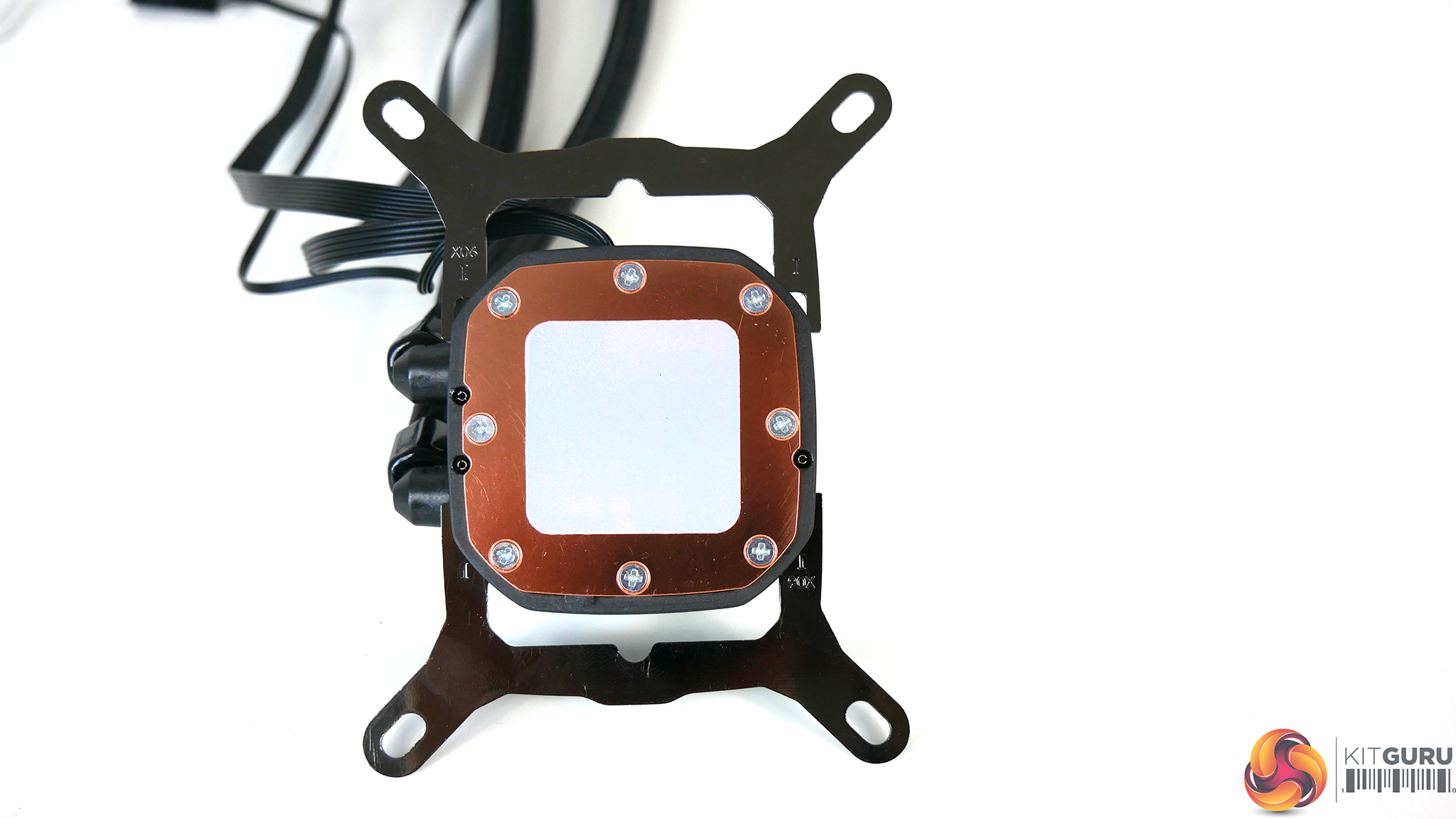
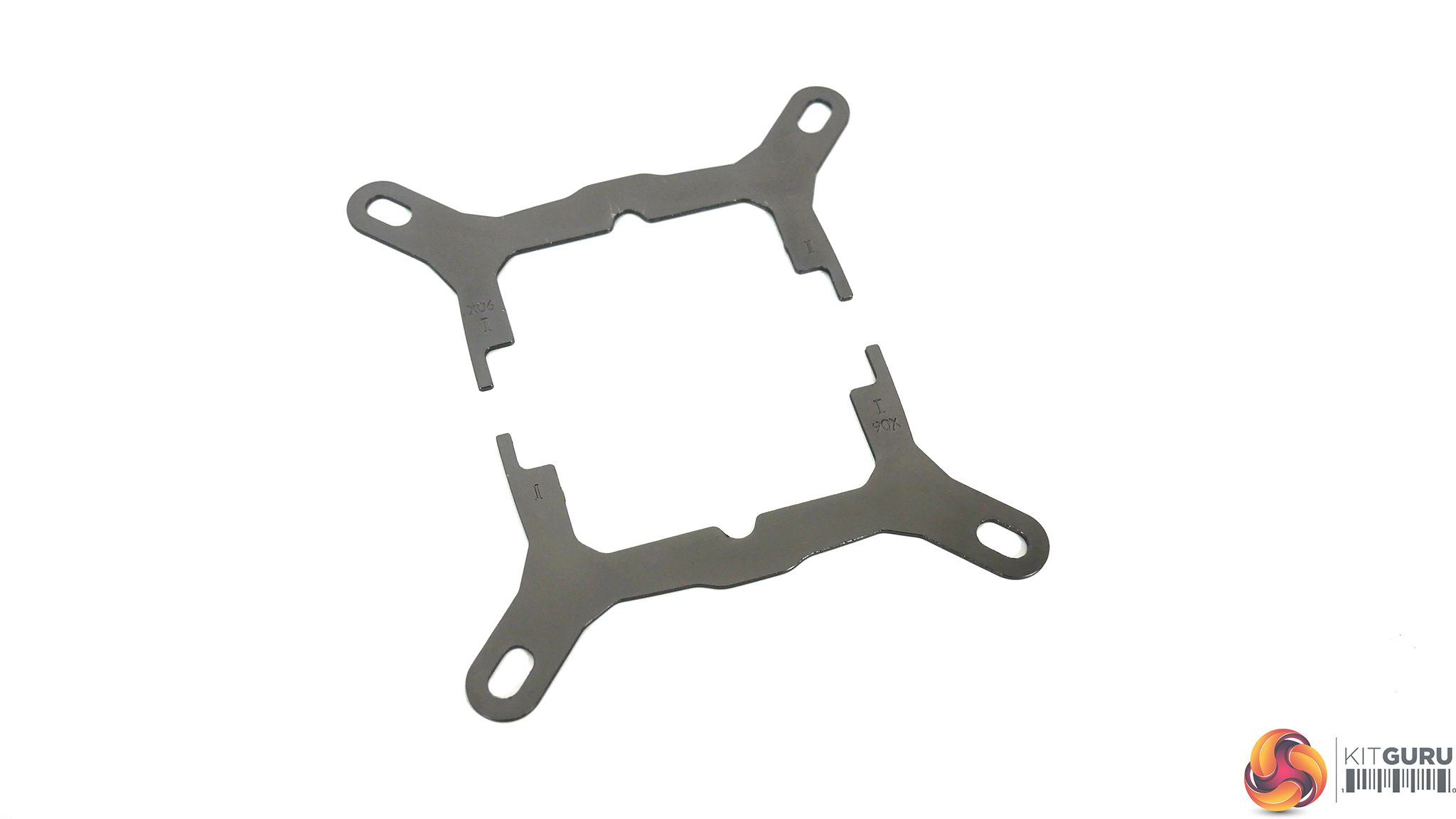
The first step to prepare for socket TR4 installation is to remove the pre-installed Intel brackets. The brackets are a clip together fit. Simply pull away and separate the brackets to remove.
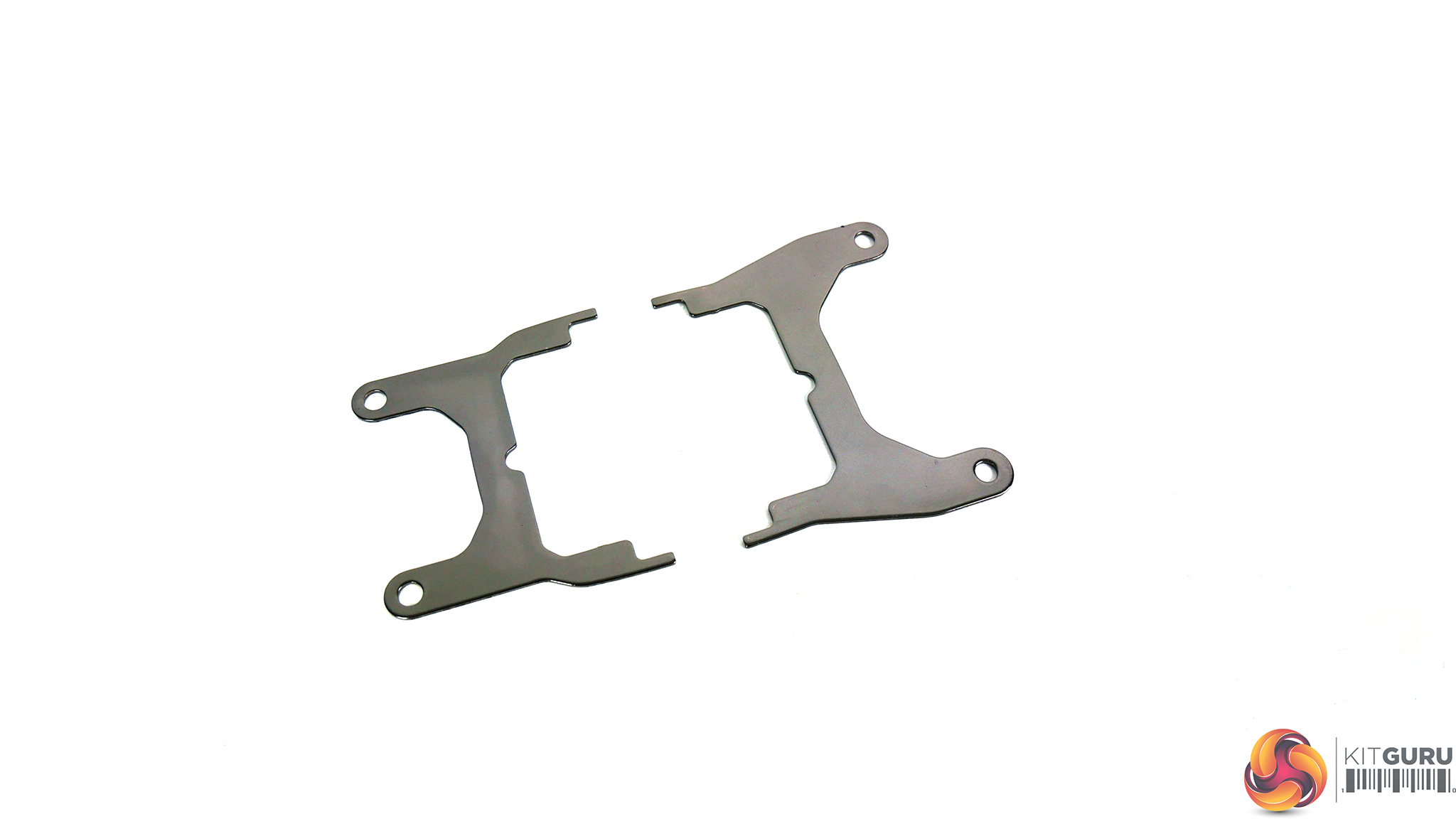
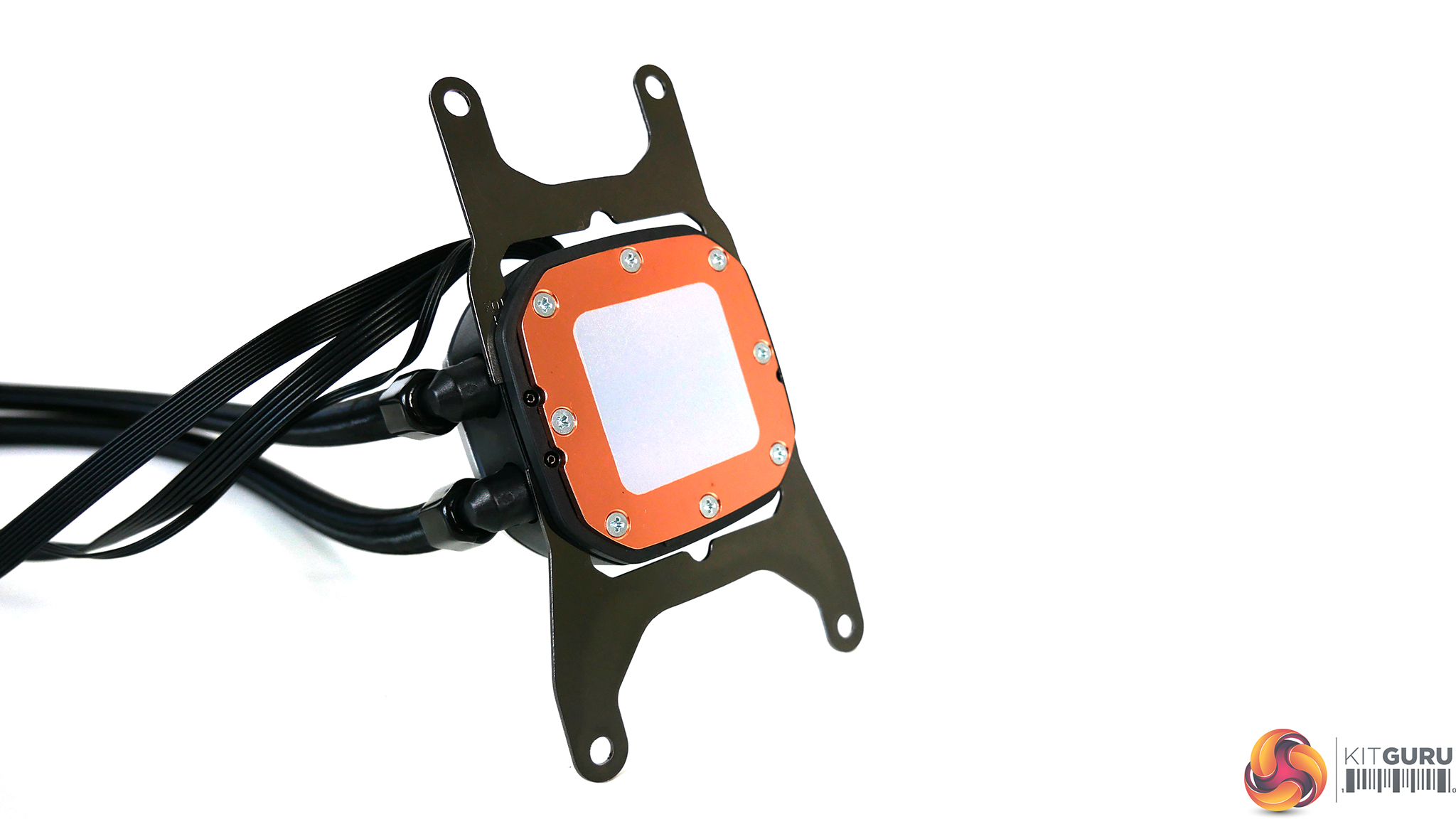
Next, install the socket TR4 specific brackets, which is a reversal of how we removed the intel ones above. Again, locate the brackets in their slots and push together until you hear them click into place.
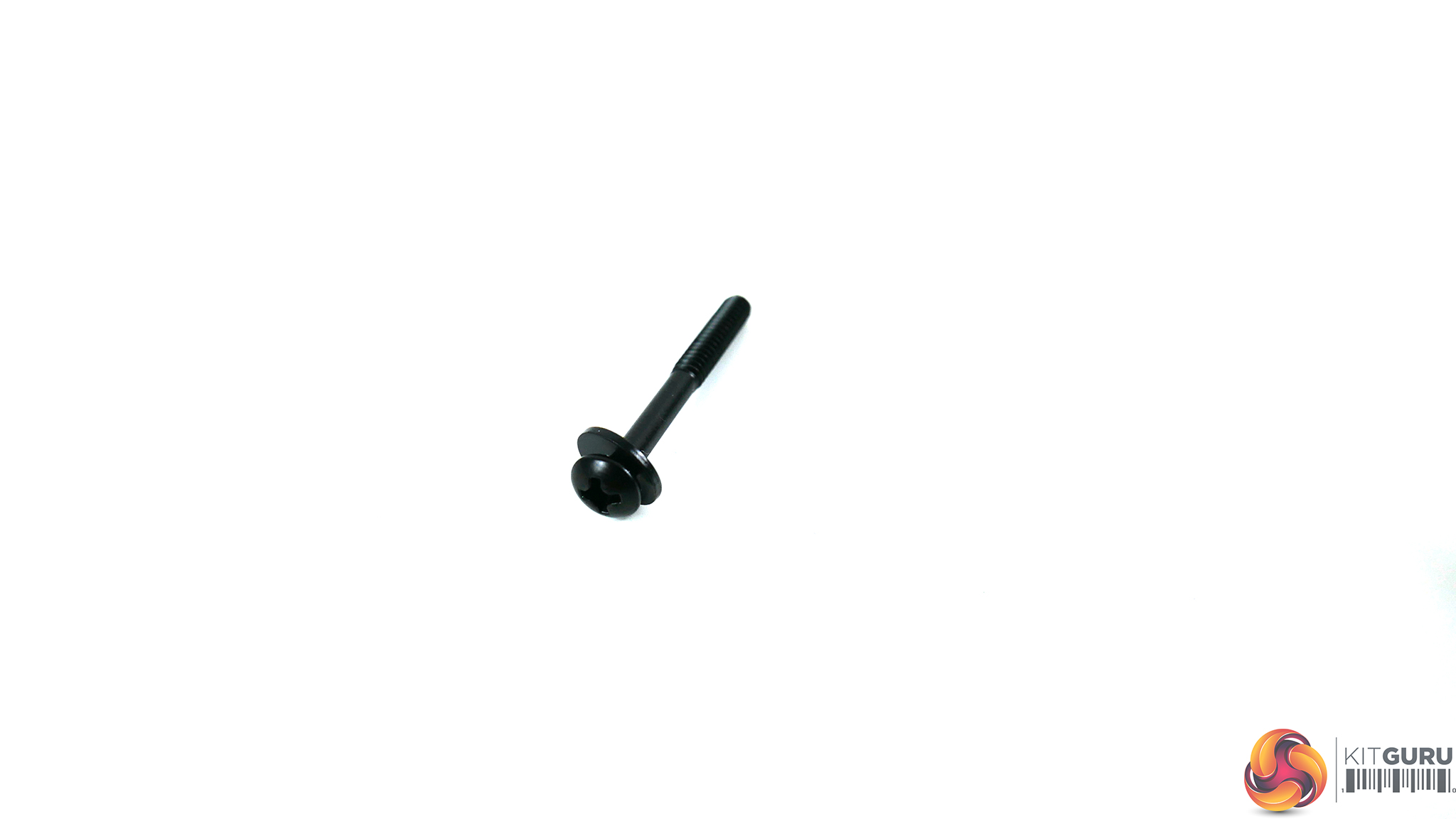
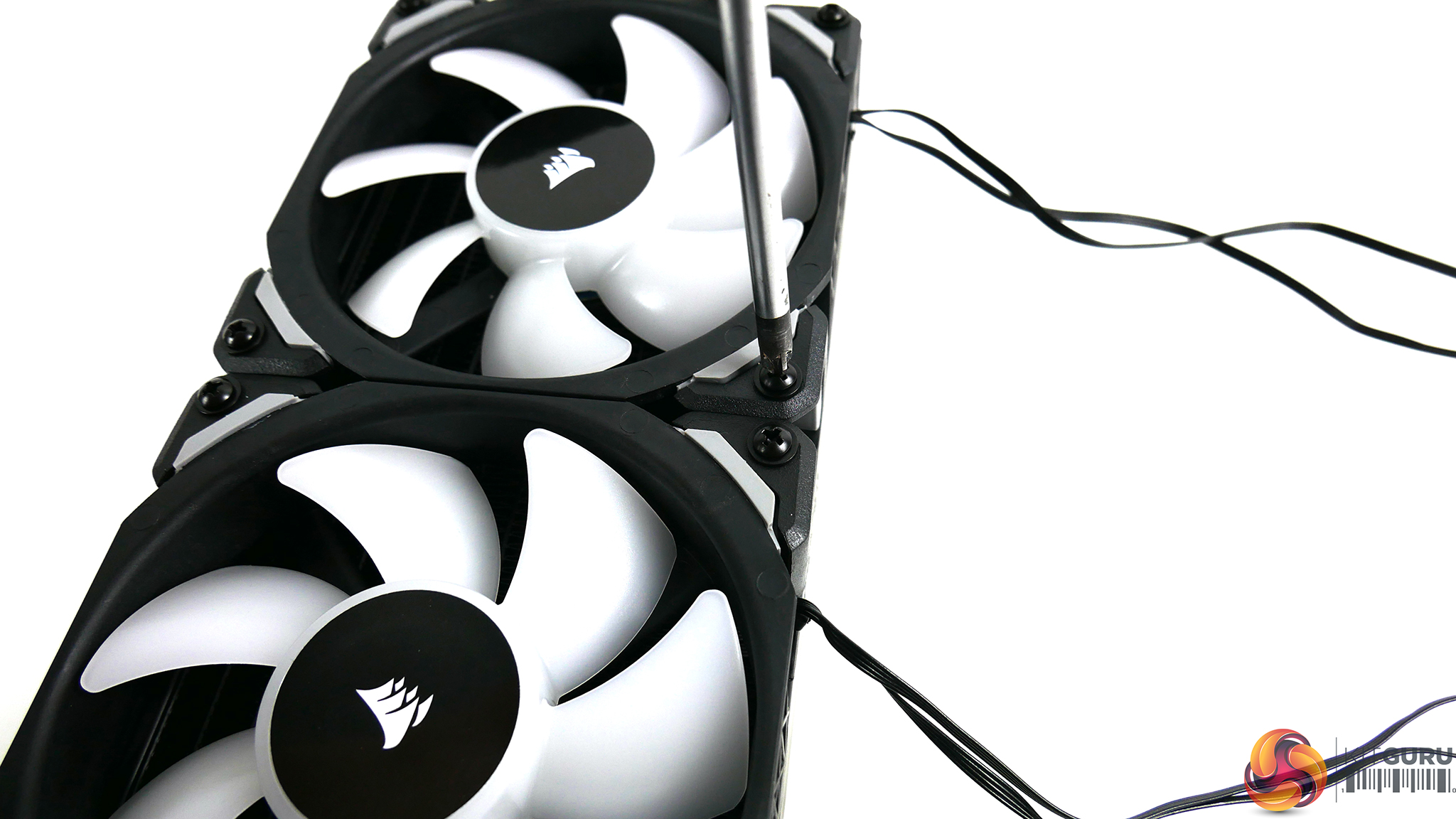
To install the fans, take the eight long, black Philips head screws and black steel washers, place the fans over the radiator in either push or pull configuration, depending on preference. Using a Philips screwdriver, tighten the screws until they are nipped up. Be careful not to over tighten, as it may distort the plastic.
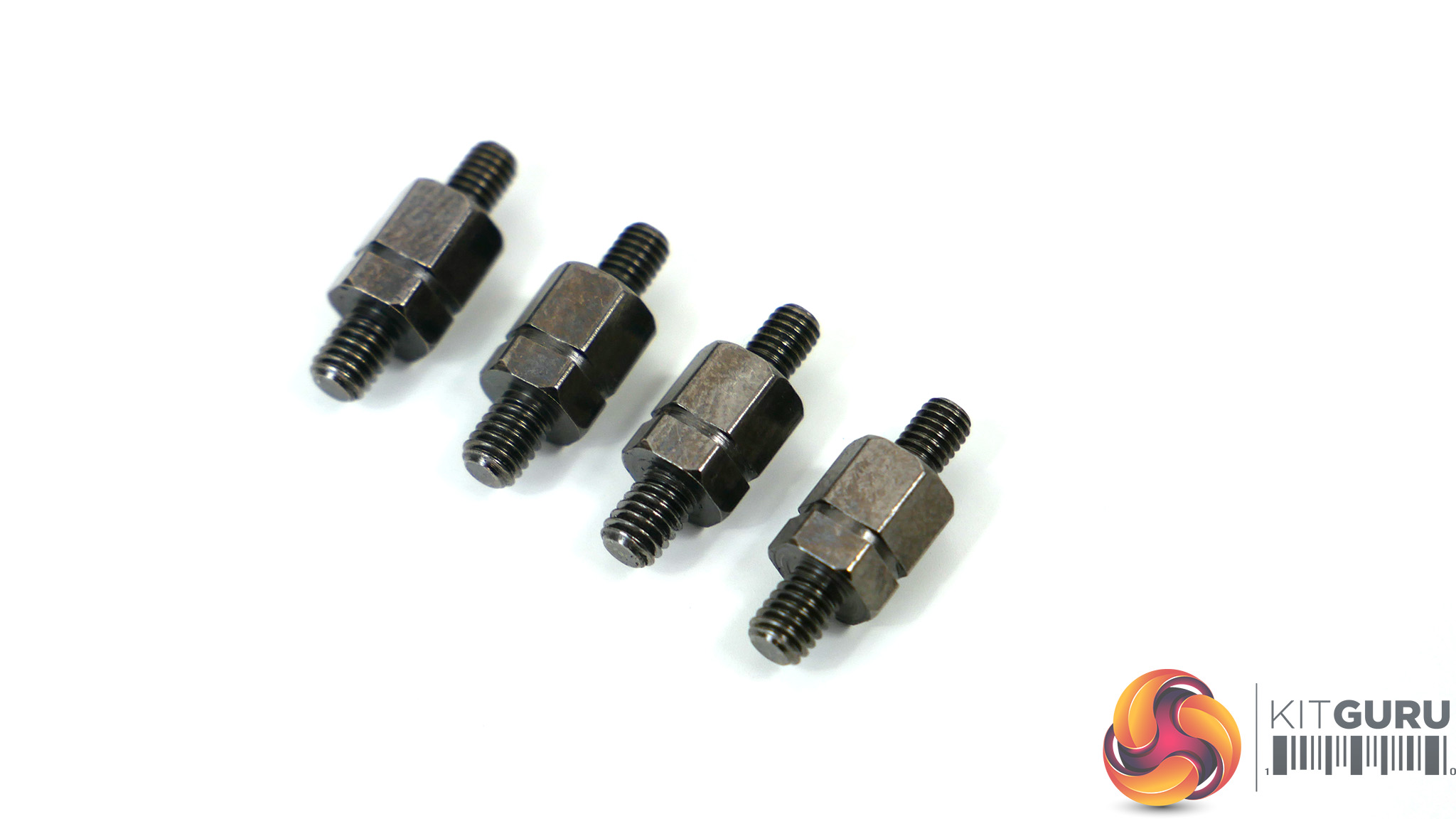
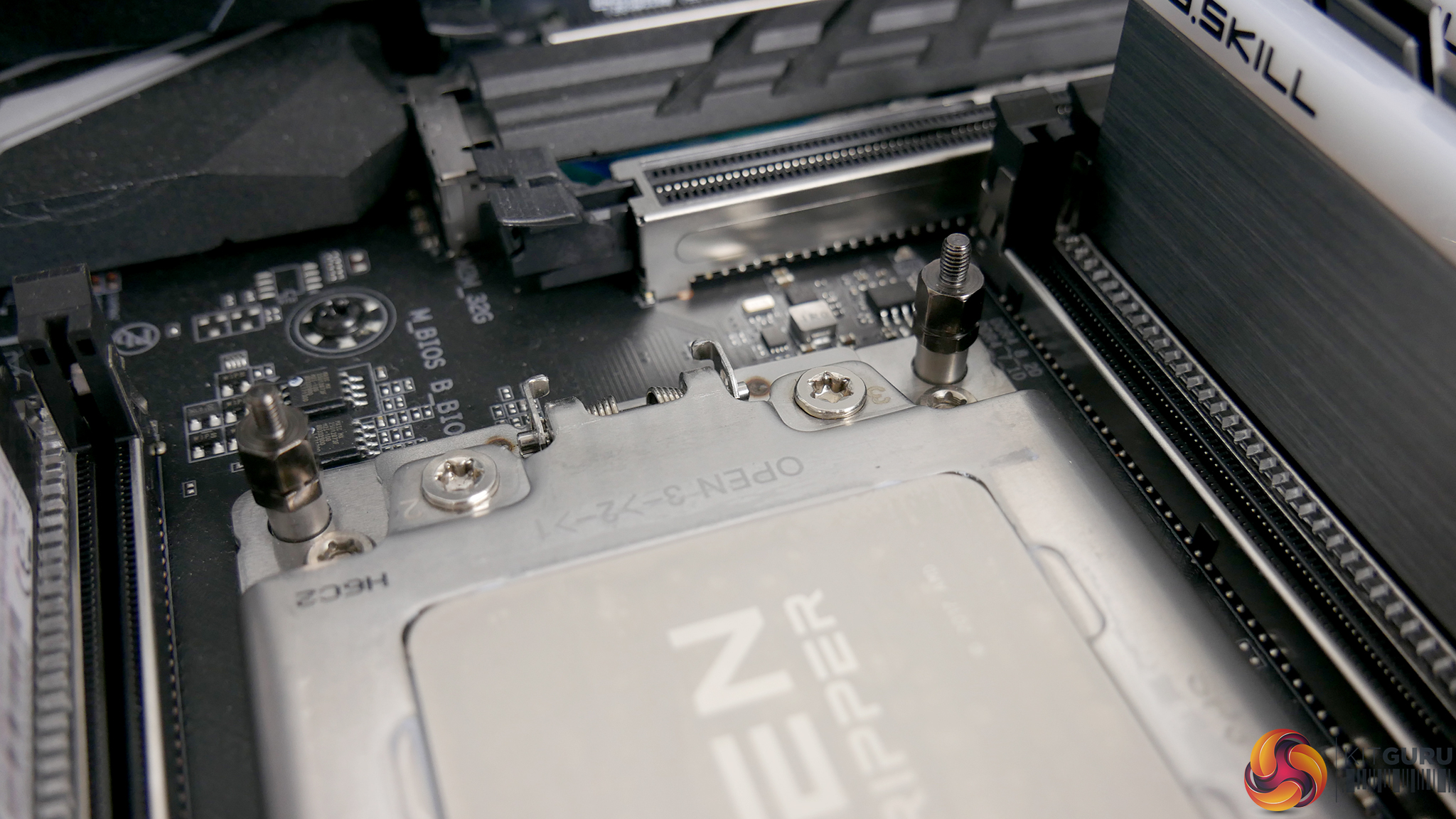
Consult the manual to select the correct stand offs for your socket type. TR4 uses the type labelled ‘N', with a coarse thread on one end and fine thread on the opposite end. Tighten the stand offs until firmly secure on the stock TR4 mounting holes.
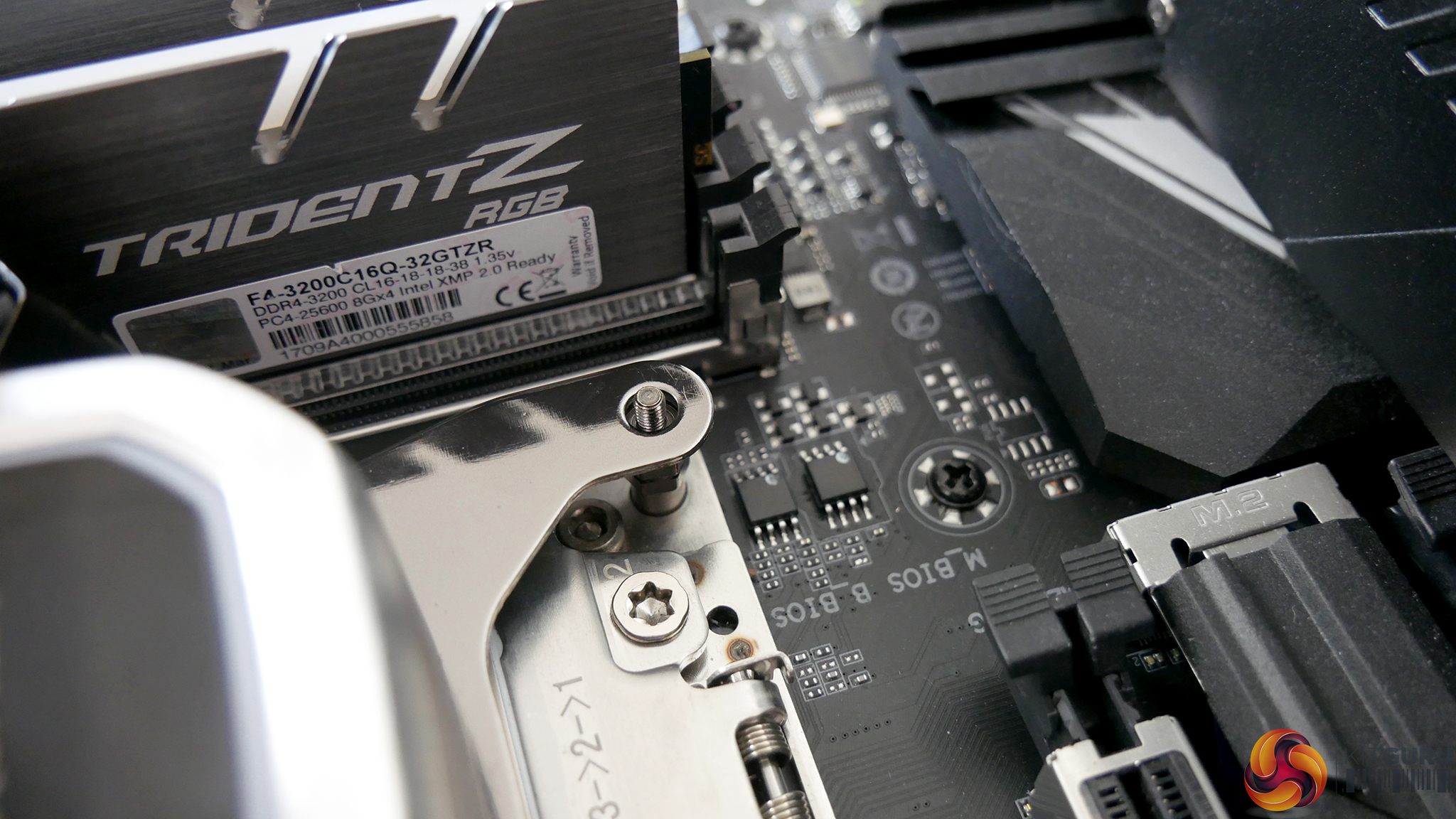
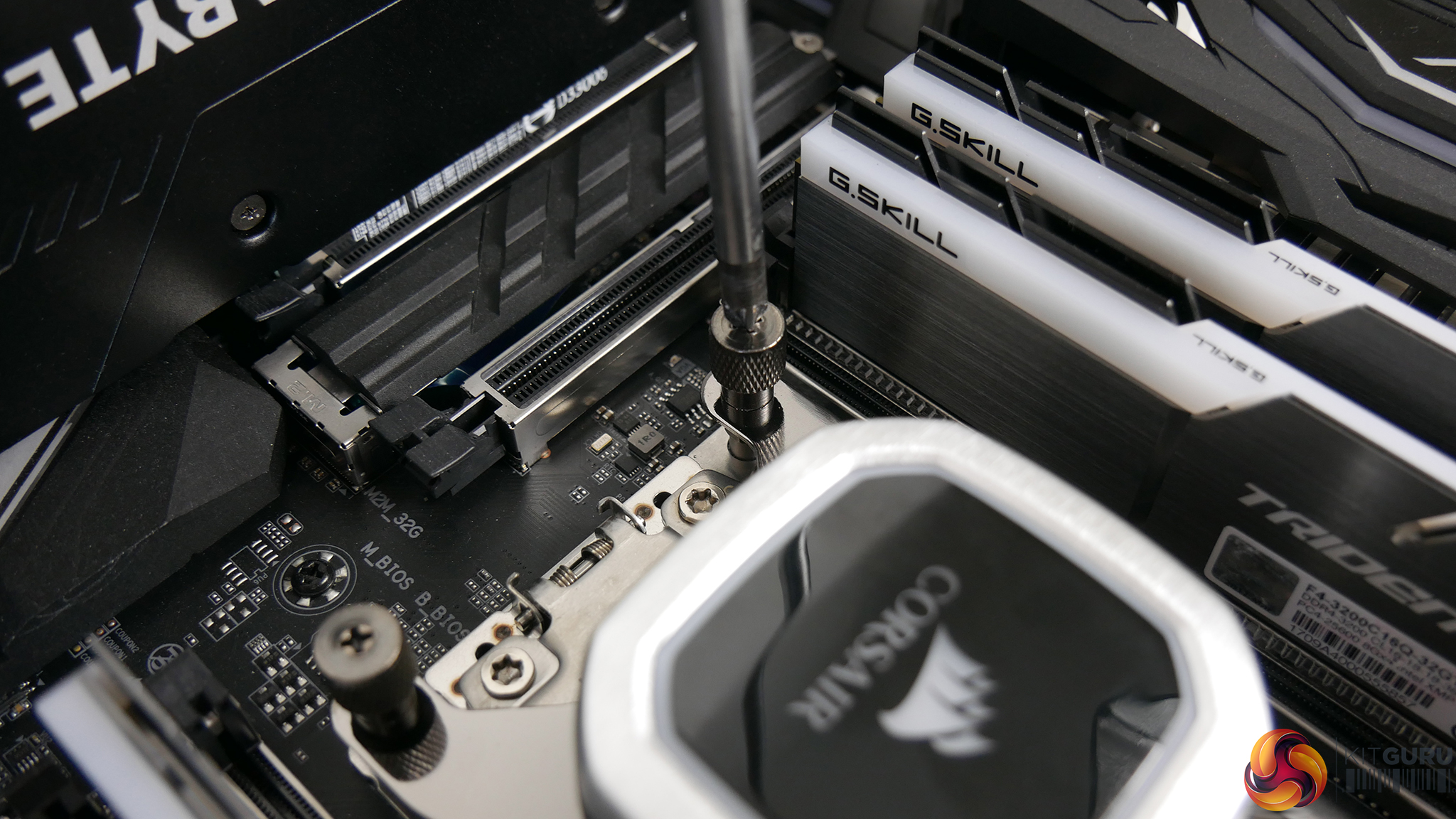
Next, lower the pump down over the CPU and align with the mounting posts. Take the four thumbscrews and tighten in an X pattern to evenly spread pressure on the CPU HIS. Final tightening can be finished off with a screwdriver if necessary.
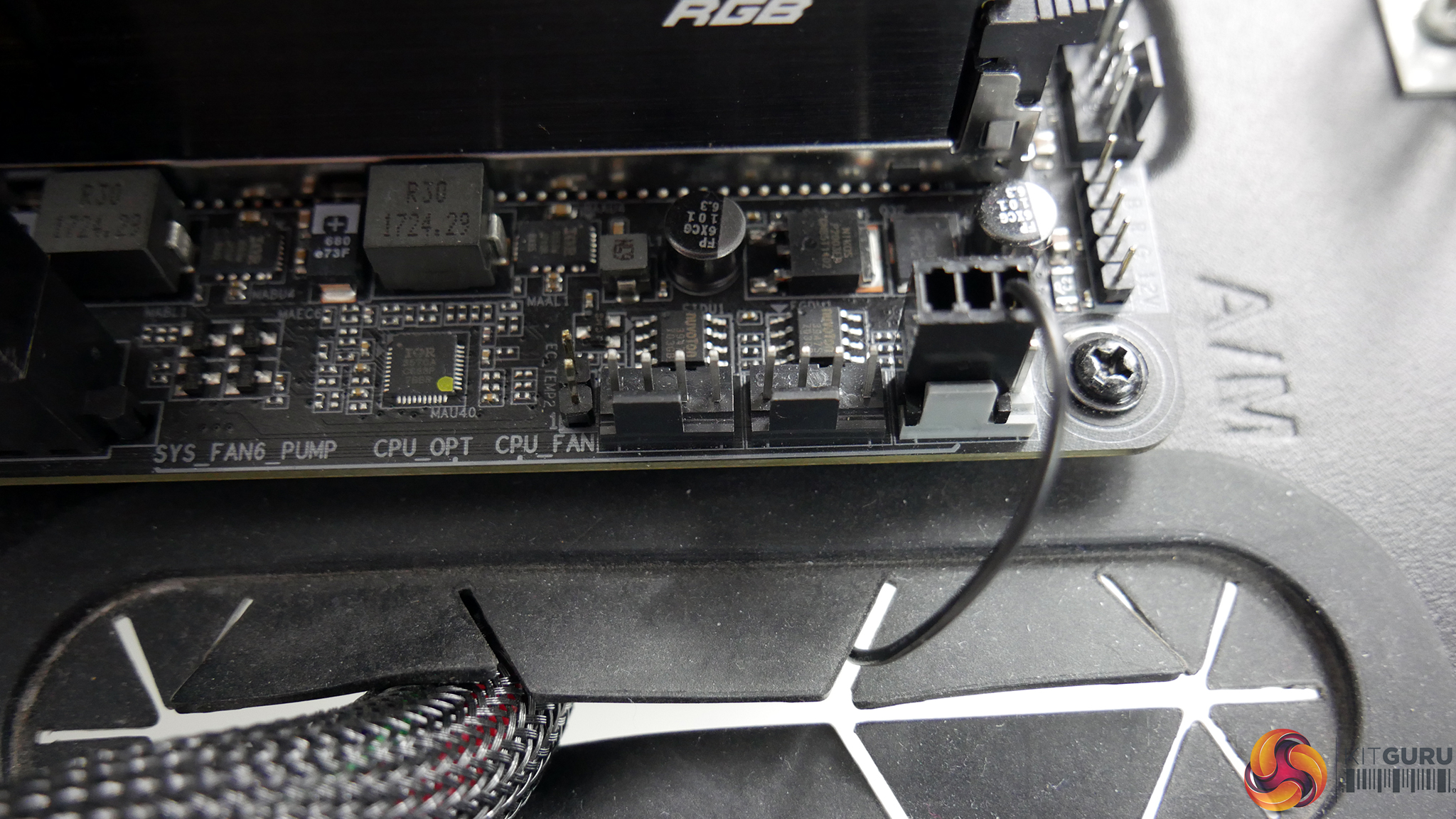
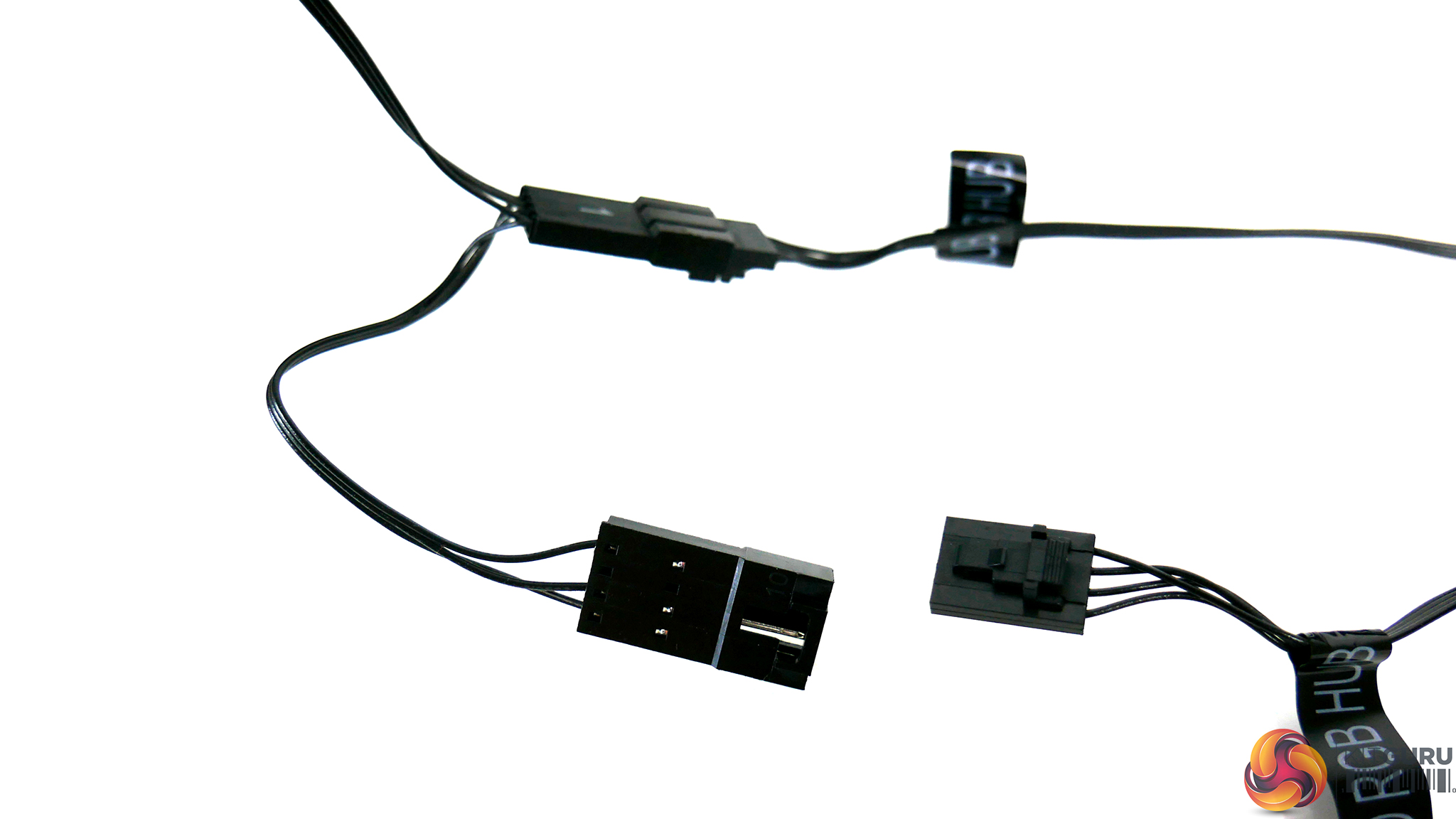
Connect the pump’s 3-pin tach cable to the CPU_FAN header on the motherboard and the pump power cable to a spare SATA power connector. The fan power and RGB cables need to be connected to the splitter cables coming from the pump housing.
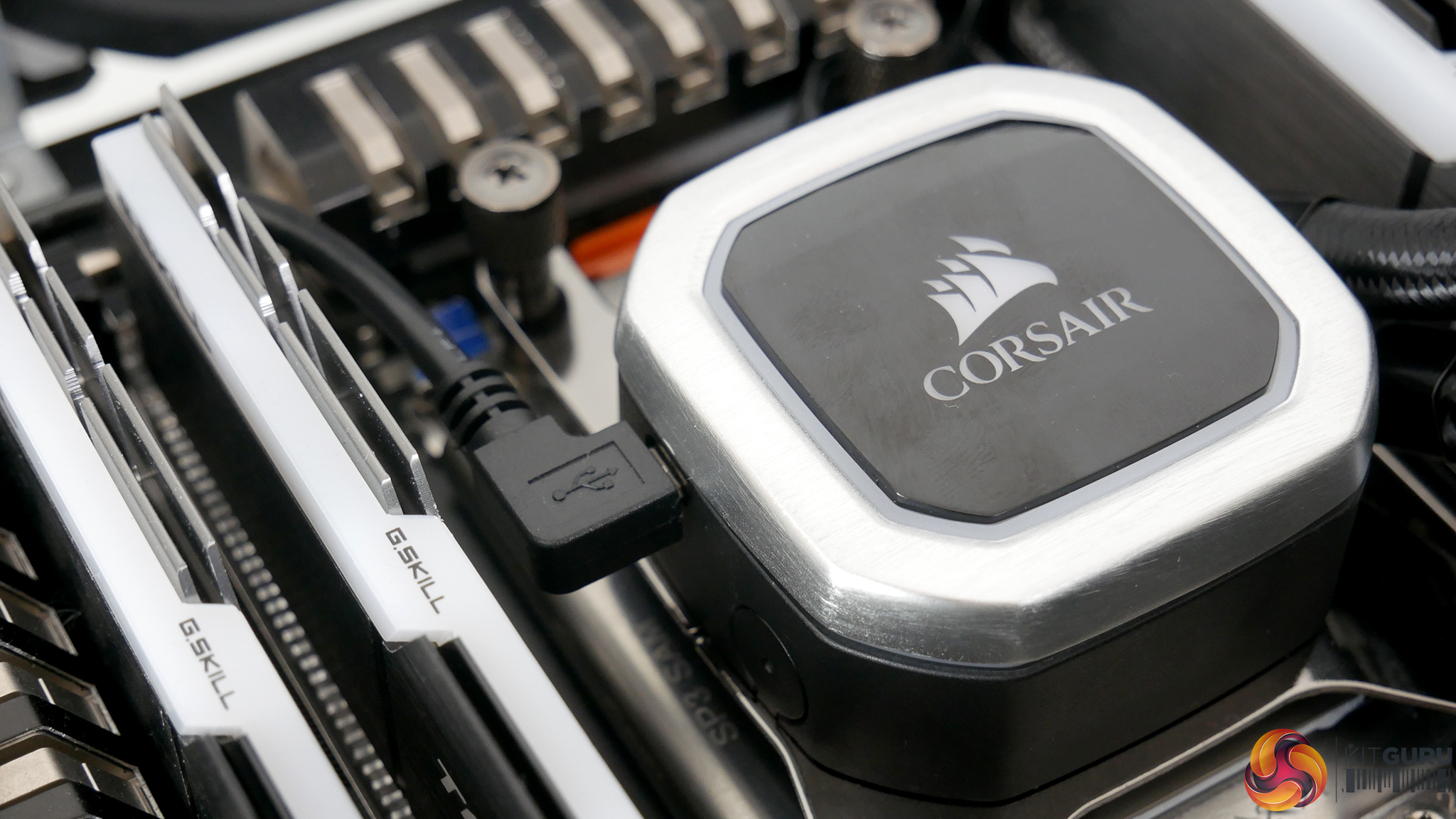
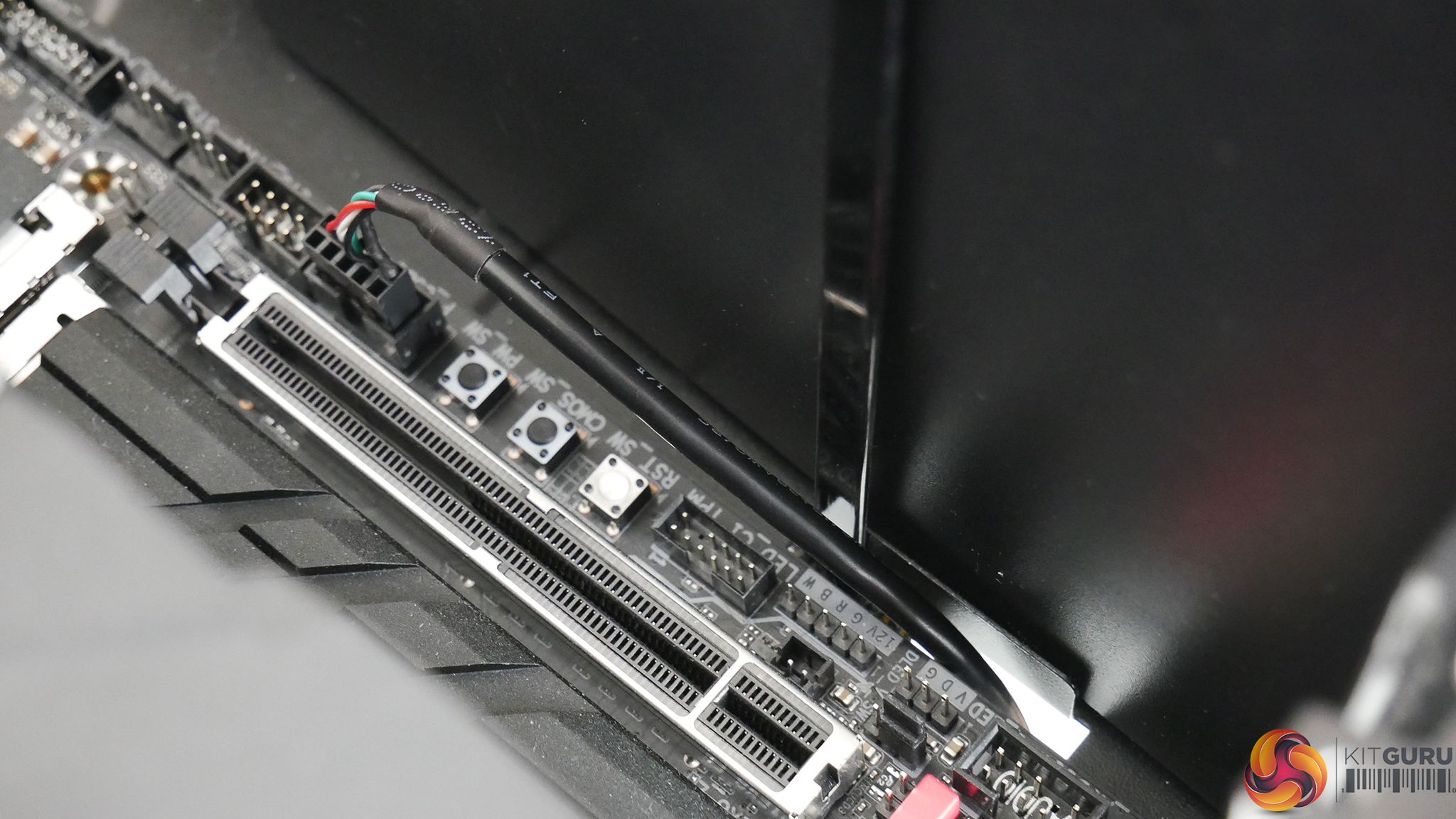
Finally, if you choose to use the Corsair iCUE software to control fan/pump speed and RGB lighting, connect the iCUE USB cable from the pump to a USB header on the motherboard. Routing the cable should be easy as Corsair have supplied a generous length.
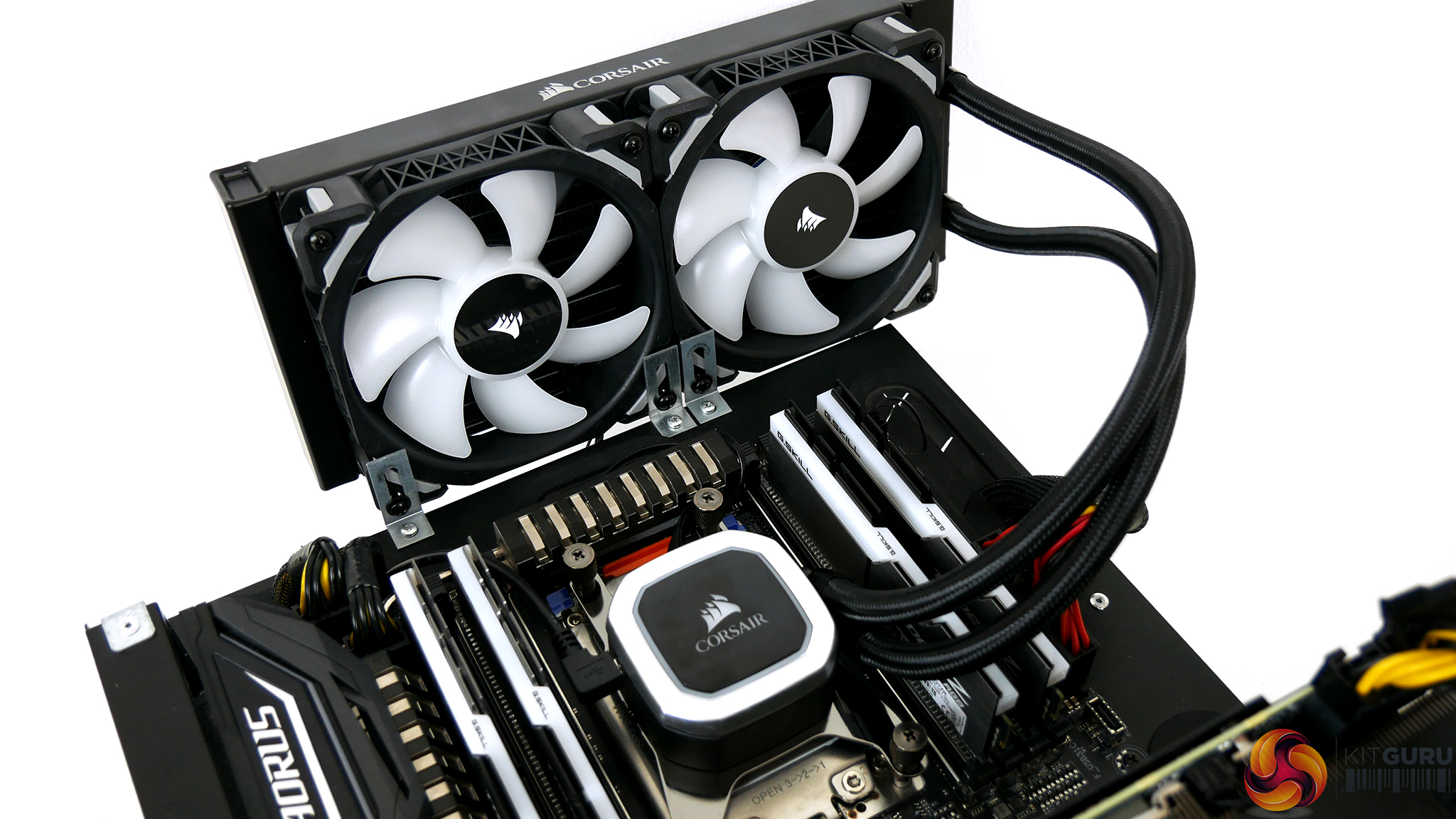
Mounting the radiator on our test bench is quite different to mounting in an ATX case, so it would be irrelevant to detail the process in this guide. Installation of the radiator in an ATX case is usually very simple and is shown in the Corsair installation manual.
Overall, the hardware installation procedure is very straightforward – just be careful when selecting the pump stand offs as there are two types, which look very similar and could easily be mistaken. Due to Corsair insisting on using their own iCUE software to control fans speeds and RGB, the amount of cables required makes the system look a little untidy, this can also be a bit of a headache when it comes to cable management.
Corsair iCUE Software
Corsair's iCUE software can be downloaded from their website here.
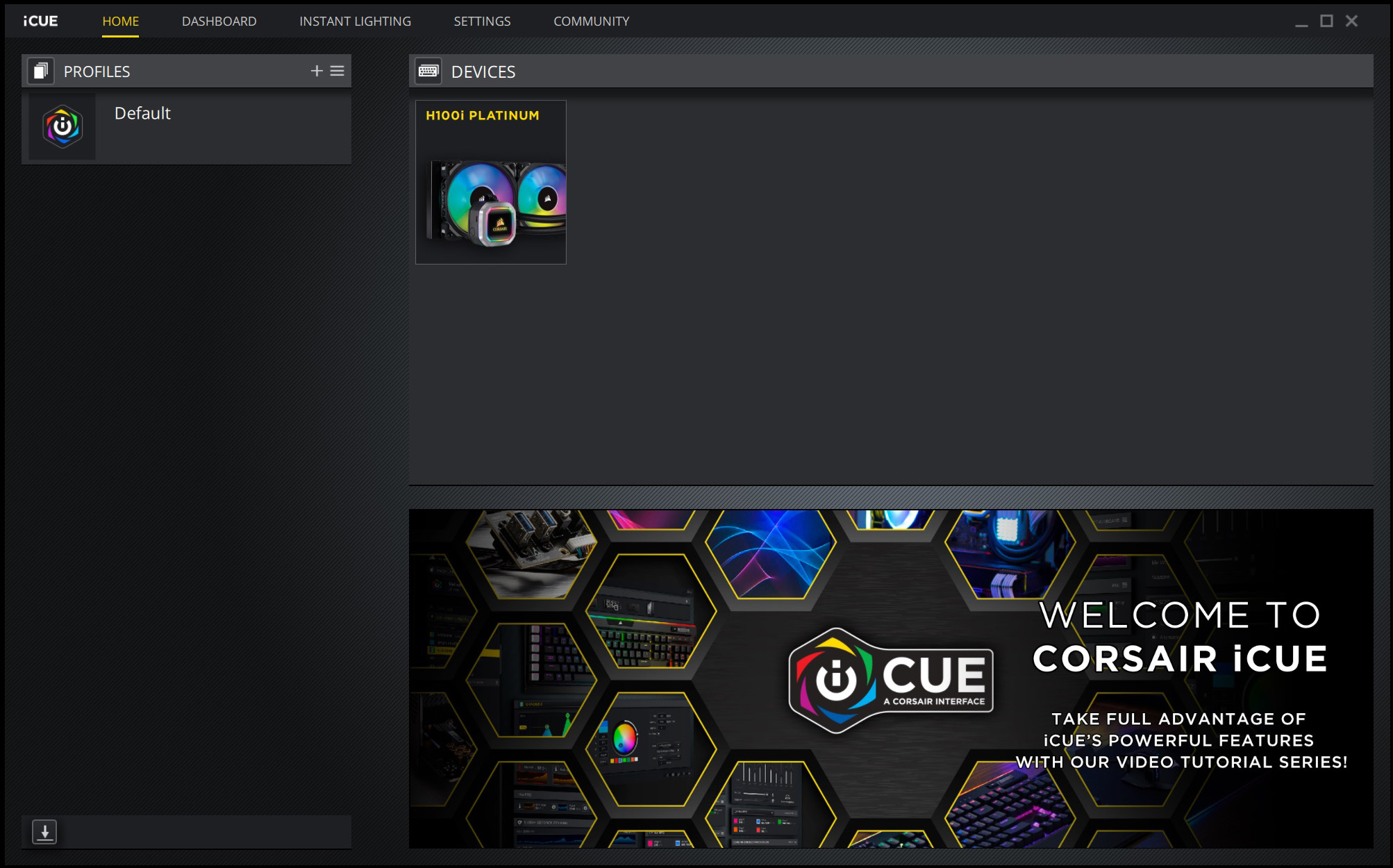
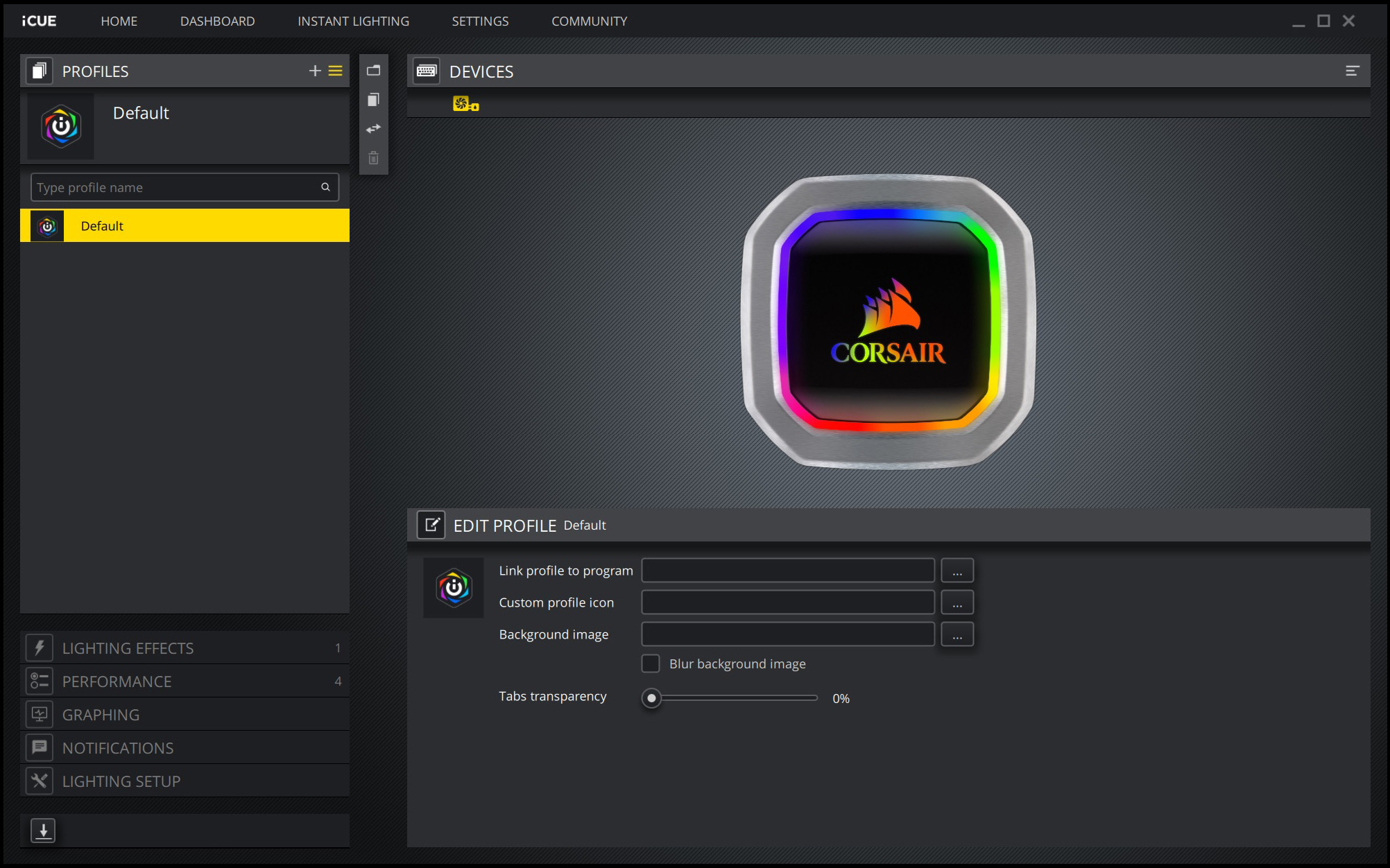
Corsair iCUE software can be a handy tool for users with Corsair products. It has the ability to configure RGB lighting and fan/pump speeds to suit the users preference. Multiple Corsair products can be configured to sync RGB lighting themes for seamless operation.
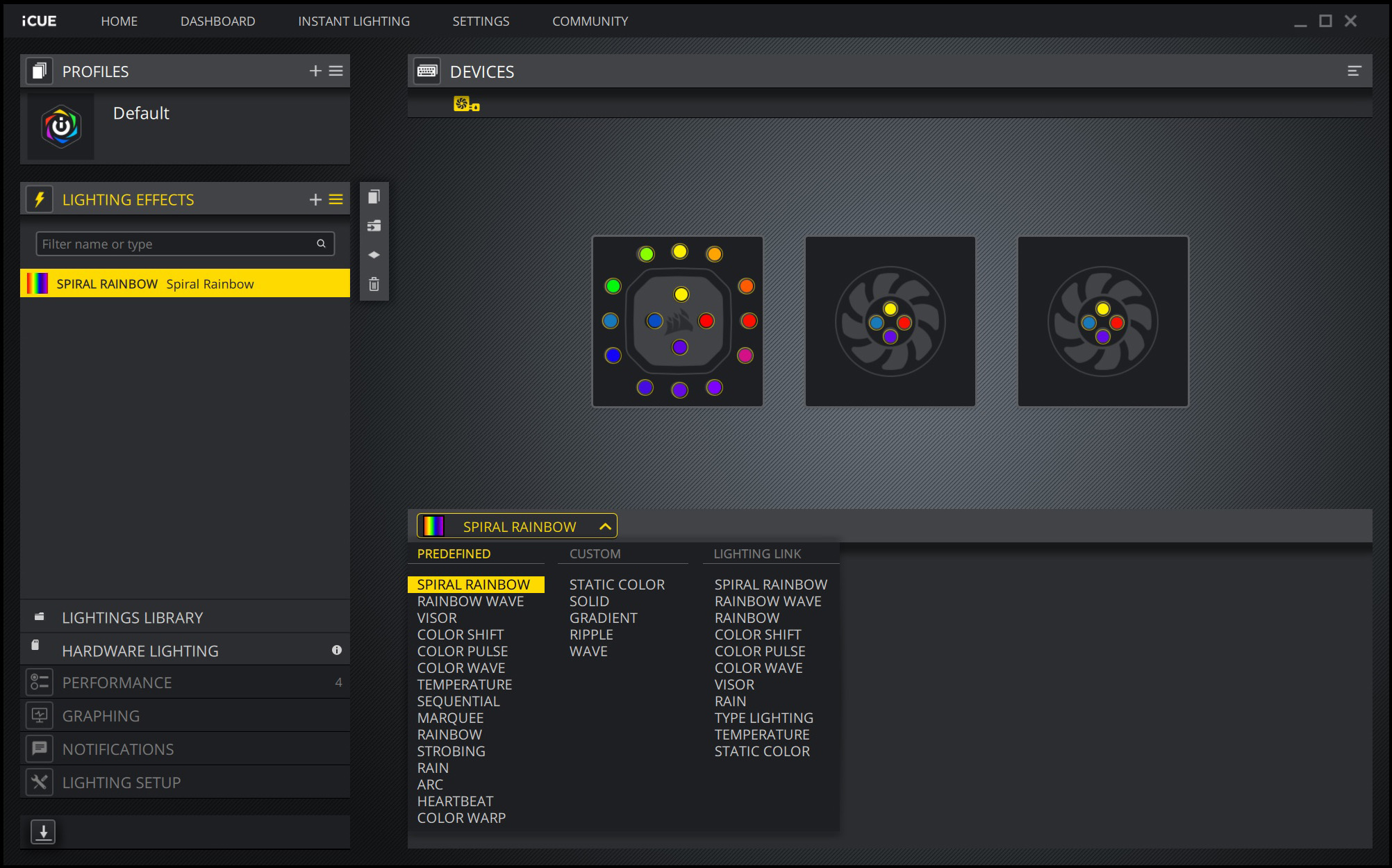
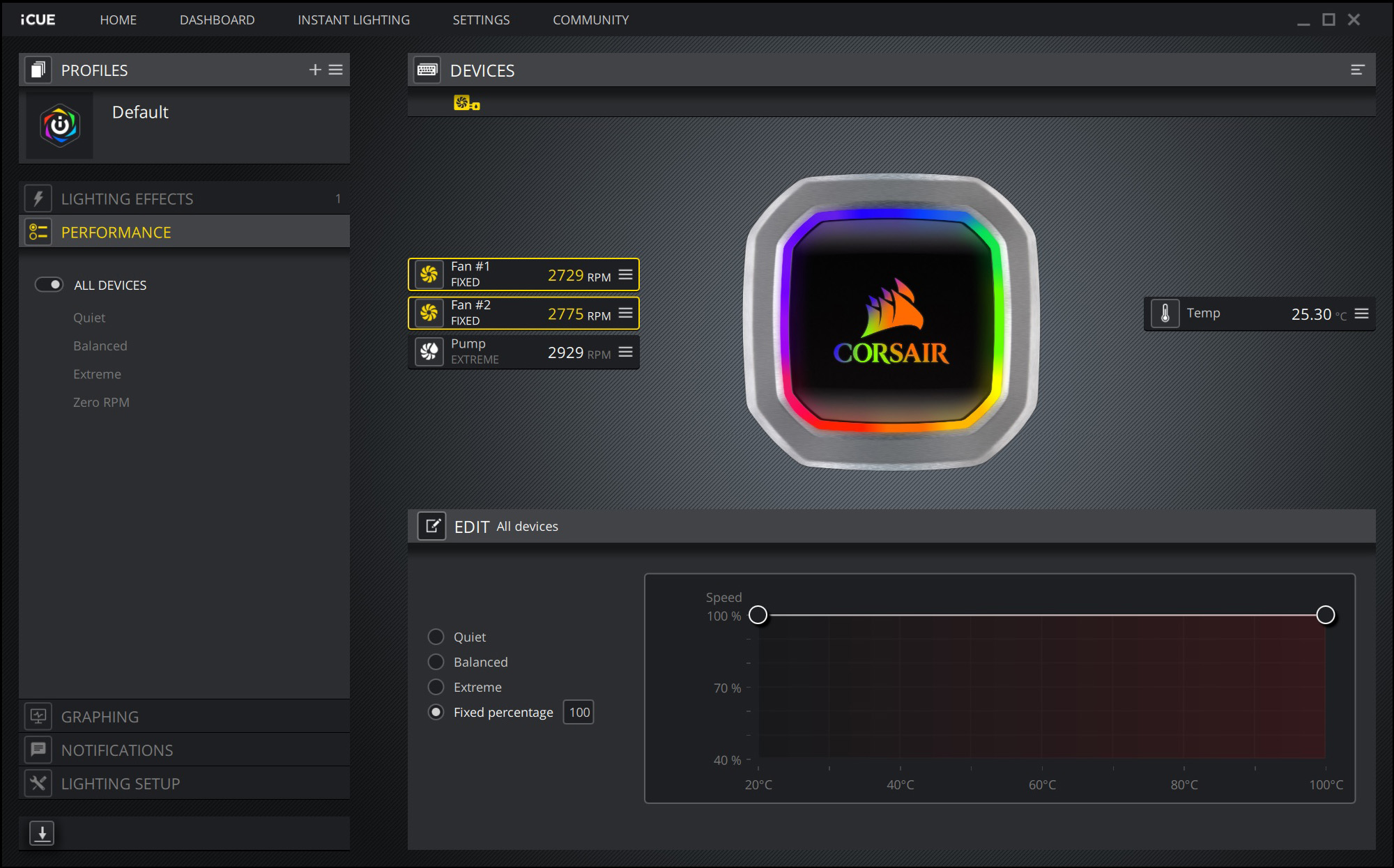
There are a huge range of RGB lighting effects and colour combinations to choose from since the H100i's ARGB LED areas can be configured in sync or individually. iCUE can be used to apply a range of fan/pump speeds in either pre-configured options such as ‘quiet', ‘balanced' or ‘extreme'. If preferred, there is an option to adjust fan speeds manually too.
To measure the performance of TR4 CPU coolers, we devised an easily repeatable series of tests. The only variable is the coolers themselves to ensure the results can be accurately compared against one another.
Test Rig
To reflect current hardware demands, we have updated the test system at KitGuru. It now comprises of an X399 platform and included is the AMD Zen+ Threadripper 2950X, mated with a Gigabyte X399 Aorus Gaming 7 motherboard and 32GB (4x 8GB modules) G.SKILL Trident Z RGB DDR4 RAM, running at 3200MHz CL16. Our storage device is the Corsair Force LE 120GB SATA SSD. A Gigabyte RTX 2070 Super GPU is installed to enable a display output. Power to the test system is managed by a Seasonic Platinum Series 1000w PSU.
Thermal Testing Procedure
The procedure consists of several tests, that will produce eight temperature readings for each cooler. The data can then be used to compare cooling performance.
First, we will lock the 2950X at its 3.6GHz all core base clock speed, with a 1.225V Vcore applied in the BIOS. Then, let the system idle in windows for 15 minutes and measure temperature. At the same frequency, we will then measure the load temperature.
To simulate overclocked frequency, we will then lock the 2950X to 3.8GHz on all cores with a 1.25V Vcore and run the same idle and load test again. To measure an extreme overclocking situation, we will lock the 2950X frequency to 4.0GHz on all cores with 1.275V Vcore and run the tests one final time – this should push the limits of the cooling performance of even the very best CPU coolers.
Admittedly, the overclocked frequencies/voltage may not be the highest achievable, but, nevertheless, it will give us a good set of data to compare the effect frequency/voltage changes have on temperature.
The temperatures presented in the graphs will be average Delta temperatures measured over the length of the test. We will calculate the Delta temperature by deducting the ambient temperature in the test room from the measured CPU temperature, both at idle and under load.
All idle temperatures are measured by letting the system idle in Windows for 15 minutes. Load temperatures are achieved by running AIDA64 stressing CPU, FPU and cache, again for 15 minutes. This should give the CPU enough time to reach its maximum temperature.
Throughout testing, Load Line Calibration will be set to Level 6 (Turbo) in BIOS and all CPU fans/pumps set to maximum RPM.
As the 2950X is suited more for productivity, a 300 second loop of Cinebench R20’s multi core benchmarks will be run, which amounts to 8 passes, followed by three passes of Blenders BMW CPU benchmark to give a better idea of temperatures during typical use.
Noise Testing
Noise levels will be measured with our sound meter at a distance of 1 meter from the test bench. The cooler’s fans will be set to their maximum RPM rating. Ambient noise level in the room is measured at 37.4dBA and the peak noise level of the cooler will be recorded in dBA.
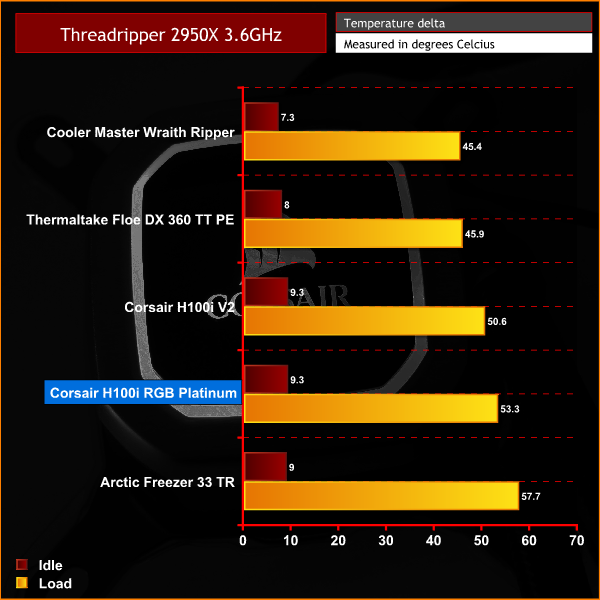
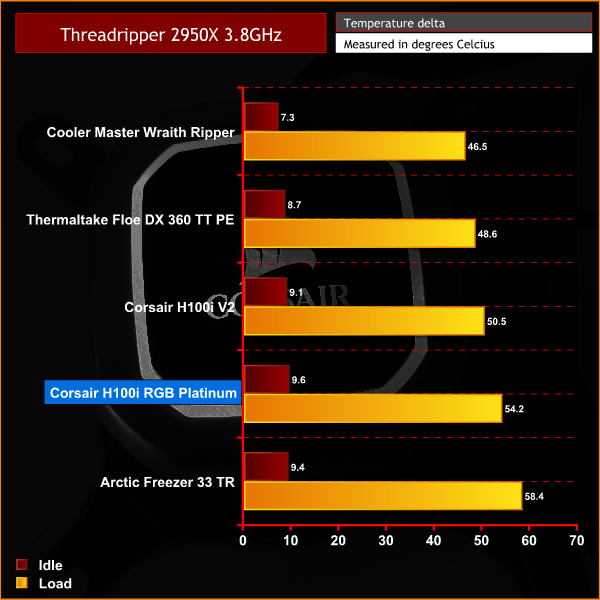
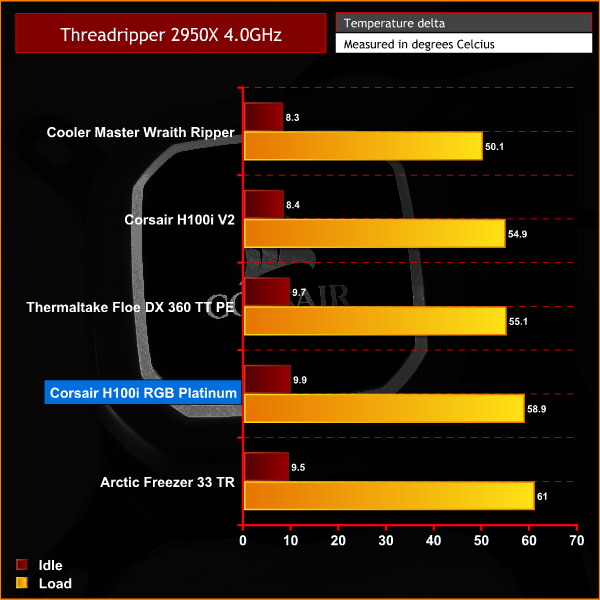
As we can see from the charts above the Corsair H100i RGB Platinum does not achieve the results we saw in our previous i7-7700k review. The considerably higher TDP of the 2950X proves to be a much more demanding task than the quad-core 7700K.
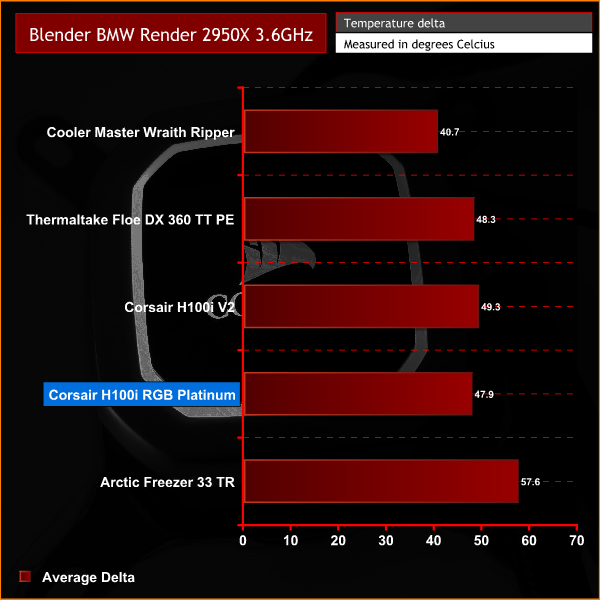
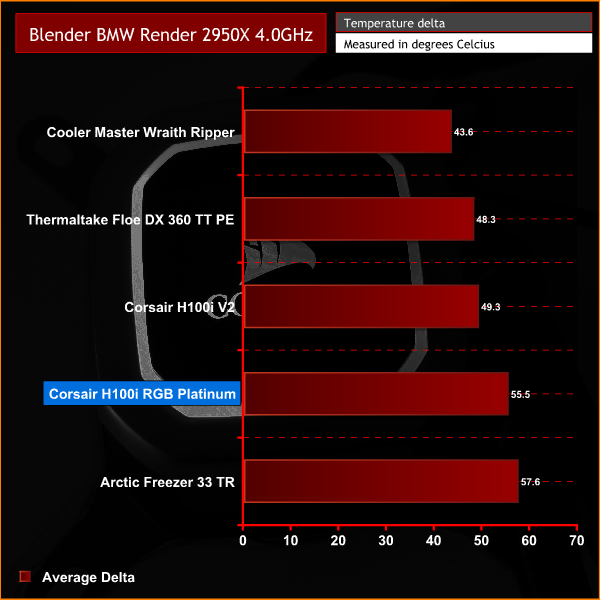
As we saw in the AIDA64 tests, the H100i RGB Platinum struggles to keep the temperatures of our 2950X under control, although it is still within a workable range. Again, things are a little disappointing here as it is only just out-performing the much cheaper Arctic Freezer 33 TR when overclocked.
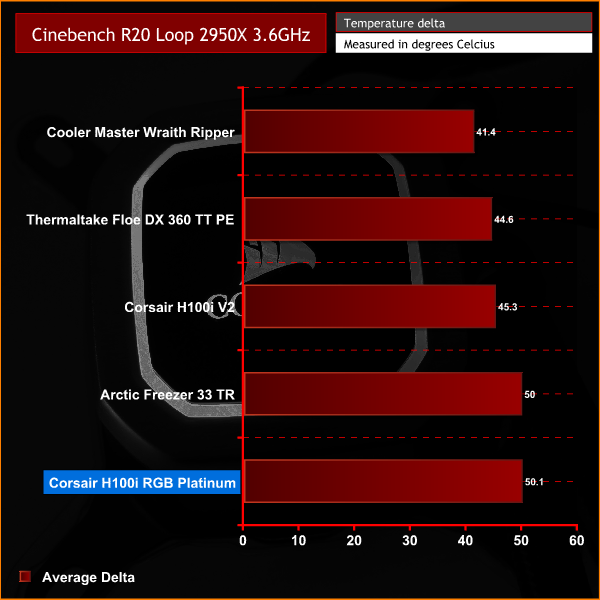
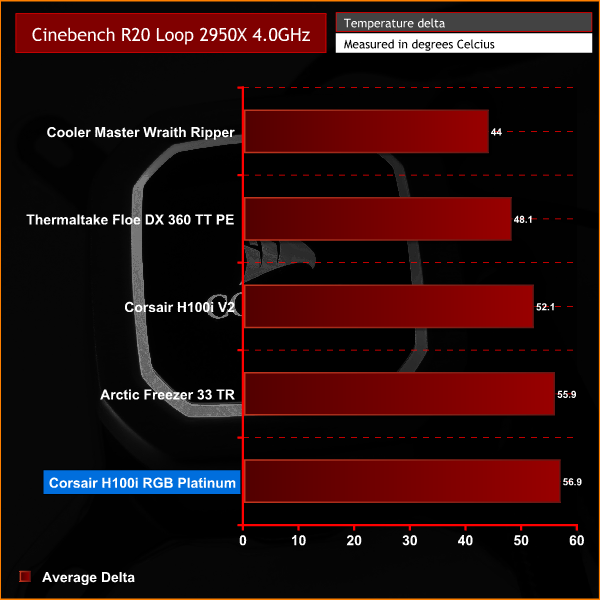
Continuing the theme in thermal performance tests, the H100i RGB Platinum does not perform well and is bottom of the list in our Cinebench R20 Tests. When the CPU is overclocked, the H100i RGB Platinum really struggles with thermal dissipation. Again, the much cheaper Freezer 33 TR does a slightly better job.
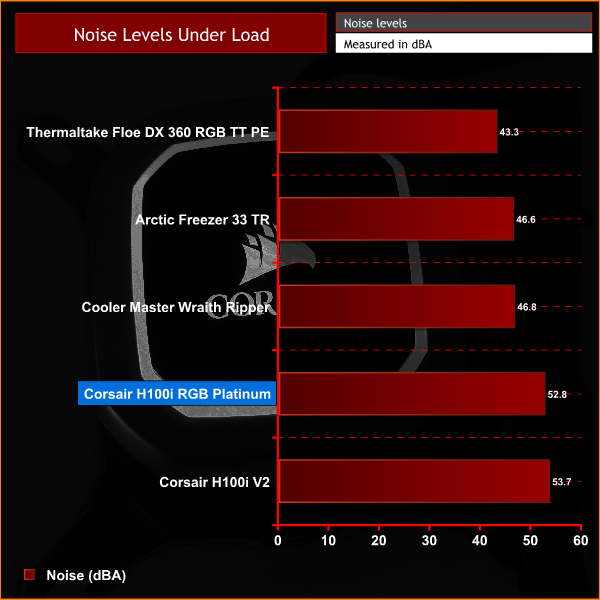
In our noise levels test the H100I RGB Platinum is one of the loudest coolers we have tested so far. This isn't a surprise as the Corsair fans are notoriously loud due to their 2700 RPM speeds.
Overall, the Corsair H100i RGB Platinum is an aesthetically pleasing and well built product. The implementation of RGB lighting on both the pump and fans looks great and the product has a real quality feel to it.
In our previous review of the H100i RGB Platinum installed in an i7-7700k system it performed very well. However, this time around, trying to cool the Threadripper 2950X was a different story, as the much higher TDP proved a bit much for the H100i RGB Platinum to handle.
Since Corsair specifically list support for socket TR4, we expected the H100i RGB Platinum to perform a little better. At stock CPU speed the thermal performance is adequate, but as soon as overclocking comes into the equation temperatures do start to soar. During our productivity tests, the H100i RGB Platinum was even beaten by the much cheaper Arctic Freezer 33 TR.
Due to the high speed of the Corsair ML120 fans when at 100%, unfortunately that means this is a very loud cooler. At 2700 RPM the fans produce 52.8 dBA noise, which can become quite distracting. With the H100i RGB Platinum not performing great thermally, this means the fans will be at high RPM quite often when the CPU is under load.
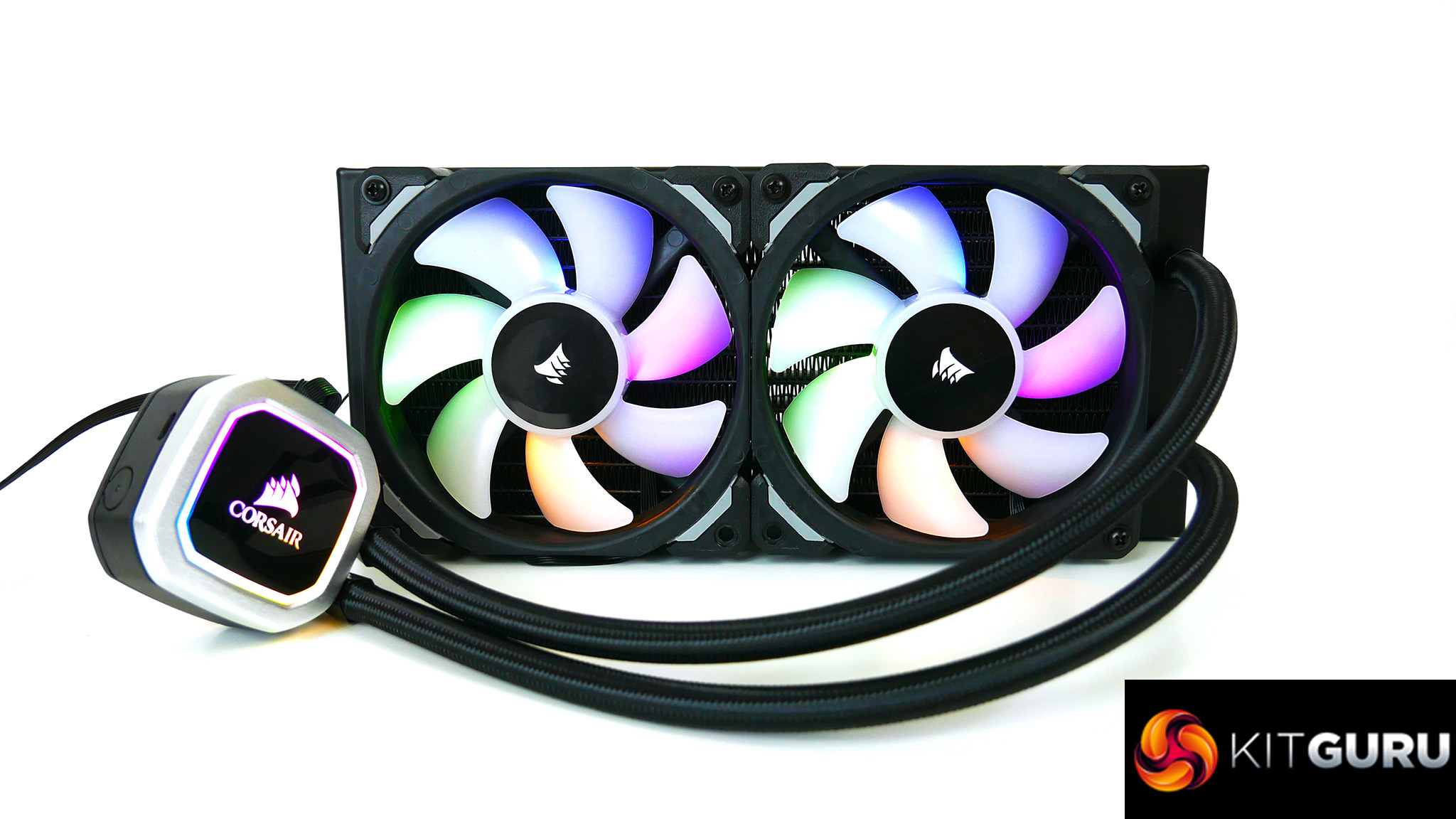
Since Corsair also uses its own iCUE software to control RGB and pump/fan speeds, there are a fair number of cables to work with. This makes the system look quite untidy and proves difficult when attempting to manage cables. We just wish Corsair would provide the option to use and alternative method, and allow users to connect direct to motherboard headers.
The benefit of using the iCUE software could provide advantageous for users with other Corsair products, however. The ability to sync other hardware's RGB lighting in the system is a nice feature, as long as it is compatible with iCUE.
Installation of the H100i RGB Platinum is pretty straightforward as it utilises the TR4 mounting points. The generous length of tubing and the 90 degree rotating fittings make orienting the pump position and routing the tubing in the system simple. All cables are a good length which is always nice to see.
Once installed into the system it is clear that the H100i RGB Platinum's thermal transfer plate only partially covers the large IHS of Threadripper. This will be a significant factor when explaining its average thermal performance. We often see coolers with full cover thermal transfer plates perform much better on socket TR4, as heat is spread more evenly and transferred efficiently.
With the price of the H100i RGB Platinum around £130 in the UK it is in line with other 240mm coolers with similar features. However, due to the average thermal performance, we wouldn't recommend going out and buying one to cool a 2950X CPU. If you already own a H100i RGB Platinum and are planning on running a TR4 CPU at stock speed, it may be worth sticking with as stock temperatures were within limits during our tests.

The Corsair H100i RGB Platinum is available for £129.95 from Overclockers UK HERE.
Pros
- Good implementation of RGB lighting.
- Generous tubing length.
- Compatible with socket TR4.
Cons
- Average thermal performance.
- Very loud under load.
- Many cables to manage.
KitGuru says: While the Corsair H100i is still considered a very good option for cooling CPUs with a lower TDP, the excessive heat from Threadripper is a different story.