KitGuru KitGuru.net – Tech News | Hardware News | Hardware Reviews | IOS | Mobile | Gaming | Graphics Cards


Longevity and reliability are particularly important purchasing decisions for a component such as a motherboard. Quite simply, your system's motherboard failing can be considered not too far off a personal disaster. Gigabyte aims to put those reliability concerns at ease with the 168 hour, server-level validation process used on its Black Edition motherboards.
The philosophy of Gigabyte's Ultra Durable Black Edition series is to offer proven reliability and durability. Gigabyte backs up those quality claims with a certificate of validation from the 168 hour stress test, as well as an enhanced warranty program which covers the motherboard for 5 years.
That warranty point may be an important factor to many buyers. After all, launch Z77 motherboards are approaching their third birthday and, in many respects, aren't showing glaring signs of their age when it comes to overall performance. Heck, we could extend that age statistic to a warranty-busting six-and-a-half years if we want to bring the venerable (and still popular) X58 platform into the picture.
One of the other major points for the Black Edition components is Gigabyte's Take One, Get 2 program. This service allows users to purchase a current Black Edition motherboard and then swap it for a new board in the next 3 years. It effectively protects your purchase against falling re-sale prices when new chipset motherboards launch.
So buying the Z97X-UD3H-BK, for example, will allow you to upgrade to the (theorised) 10-series chipset UD3H-BK version for free, or a higher-end SKU (e.g. UD5H-BK) for an upgrade fee. This is similar to EVGA's Step-Up program that has proven successful for the graphics card vendor. Gigabyte explains the program in detail, as well as turnaround times and options, HERE. [yframe url='https://www.youtube.com/watch?v=Hq7TotBA8XY']
Clearly after-sales support and quality are important points for the Z97X-UD3H-BK, but that doesn't mean it lacks on the hardware front. Two-card SLI and three-way CrossFire support is provided, there are 10Gbps M.2 and SATA-Express connectors, and Realtek's ALC1150 codec is at the heart of the audio system.
Does 168 hour stress testing and validated reliability translate into stable performance and strong overclocking results?
Features:
- Extended server level 168 hour durability Test
- SATA Express support for 10 Gb/s data transfer
- M.2 for SSDs drives with up to 10 Gb/s data transfer
- Intel GbE LAN with CFOS internet accelerator software
- Realtek ALC1150 115dB SNR HD Audio with built-in rear audio amplifier
- 2x copper PCB design
- Highly efficient MOSFET design
- Long lifespan Durable Black Solid caps
- APP Center including EasyTune™ and Cloud Station™ utilities
- GIGABYTE UEFI DualBIOS™
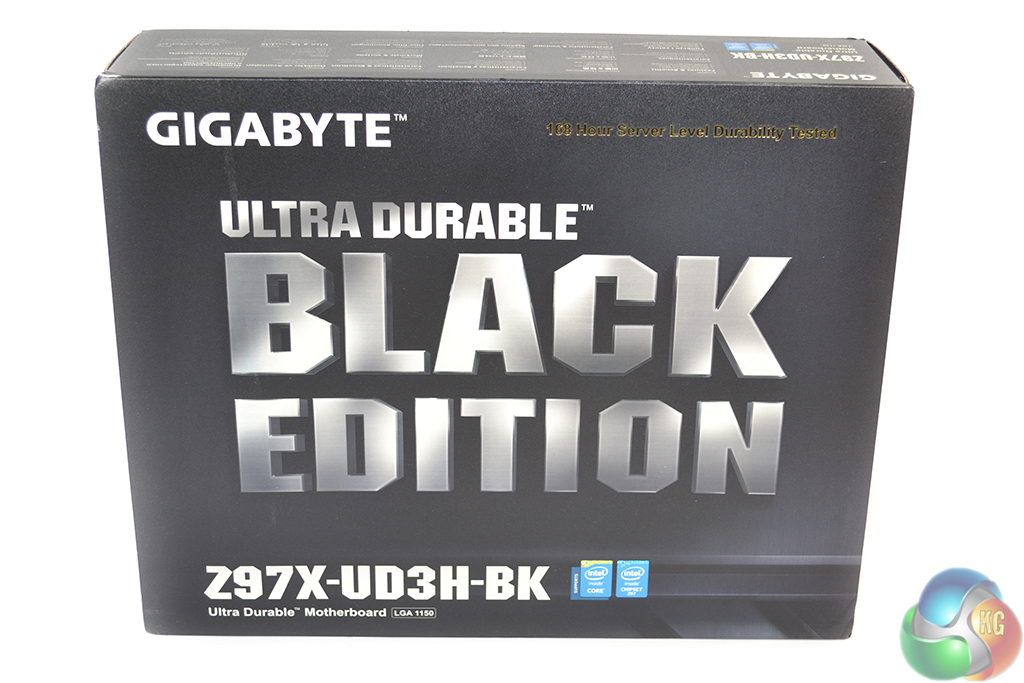
The packaging's rear side is home to a list specifications and an annotated image of the motherboard itself.
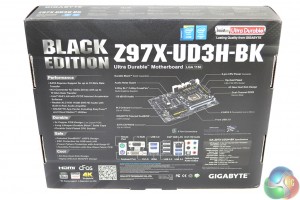
Gigabyte ships the Z97X-UD3H-BK in black packaging that features the product name on its front side.
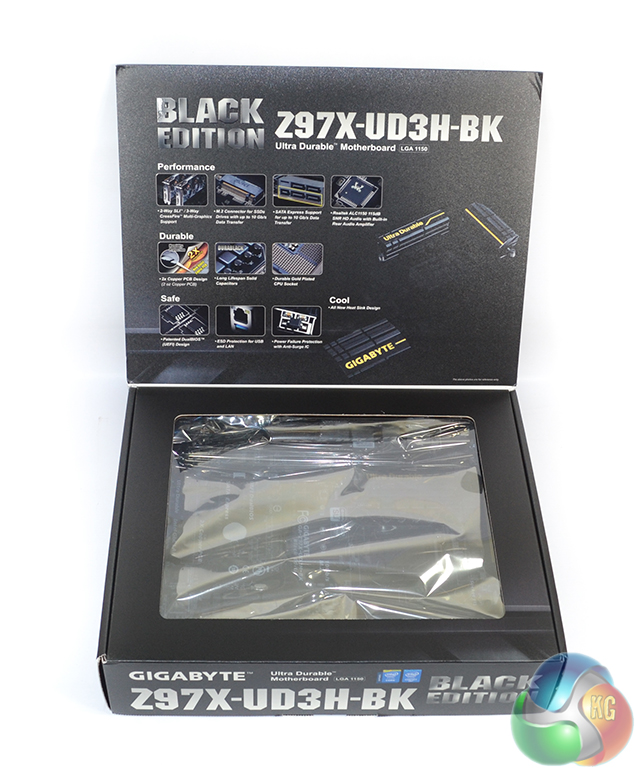
Opening a flap on the box gives a (restricted) view of the motherboard itself. Additional promotion of the board's features is found on the inside of the flap.
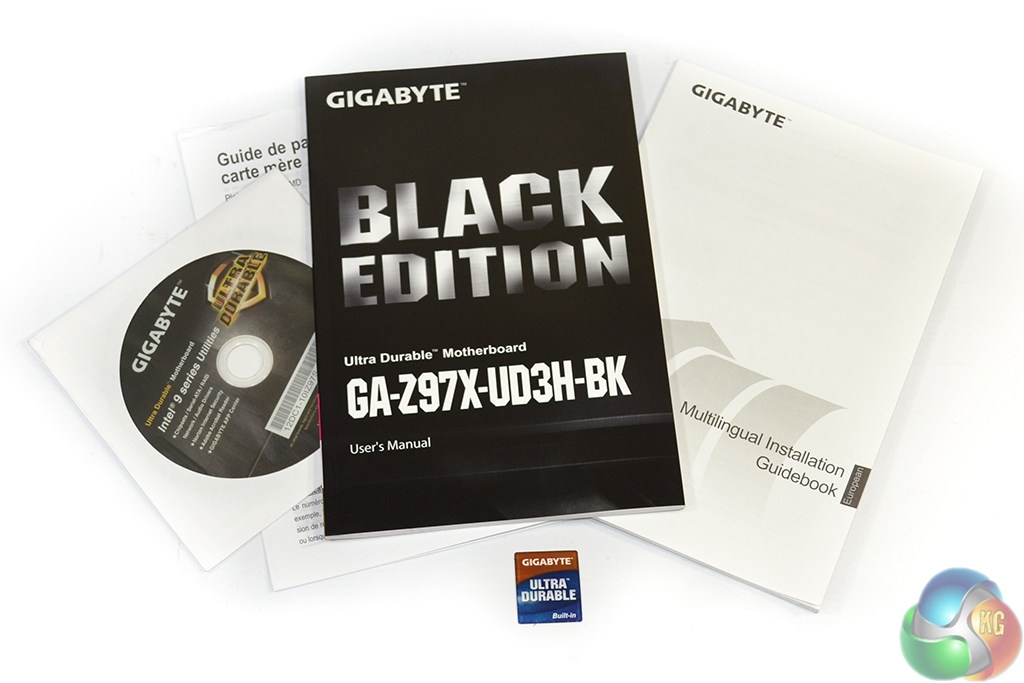
The usual affair of documentation is provided by Gigabyte, in addition to the driver CD and case badge. Credit to Gigabyte for continuing to include a block diagram in the motherboard manual, despite this part's lower selling price. Budget-strapped users may still have an interest in how their motherboard communicates with other hardware.
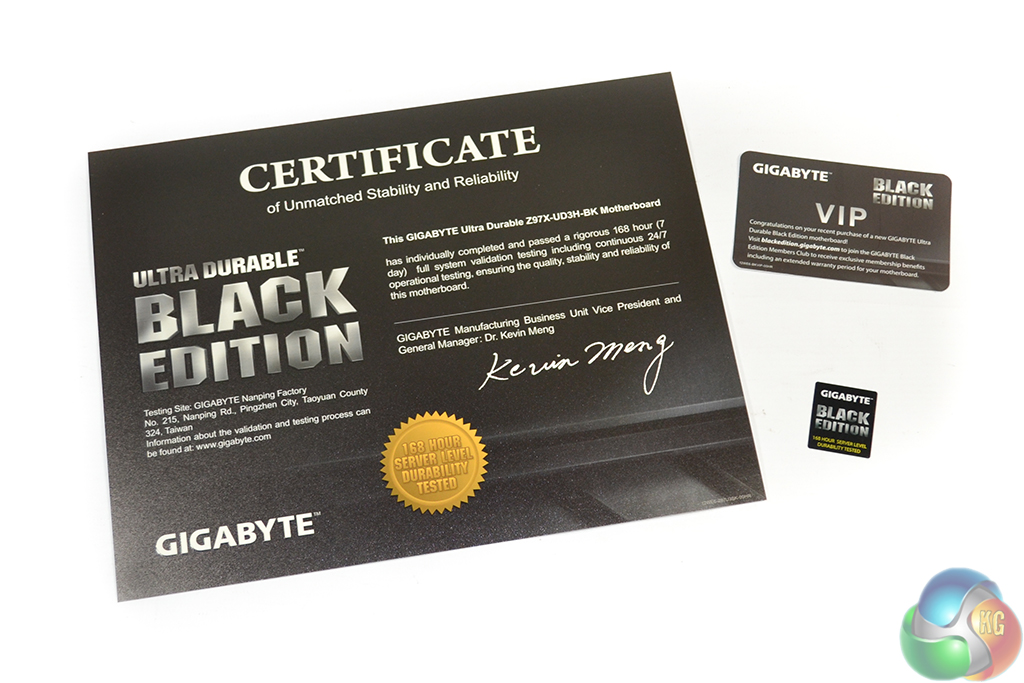
Additional documentation comes in the form of Black Edition items. Gigabyte includes a certificate of reliability to outline the motherboard's 168-hour validation. Also provided are a VIP card for the Gigabyte Black Edition Members Club, and an extra case badge.
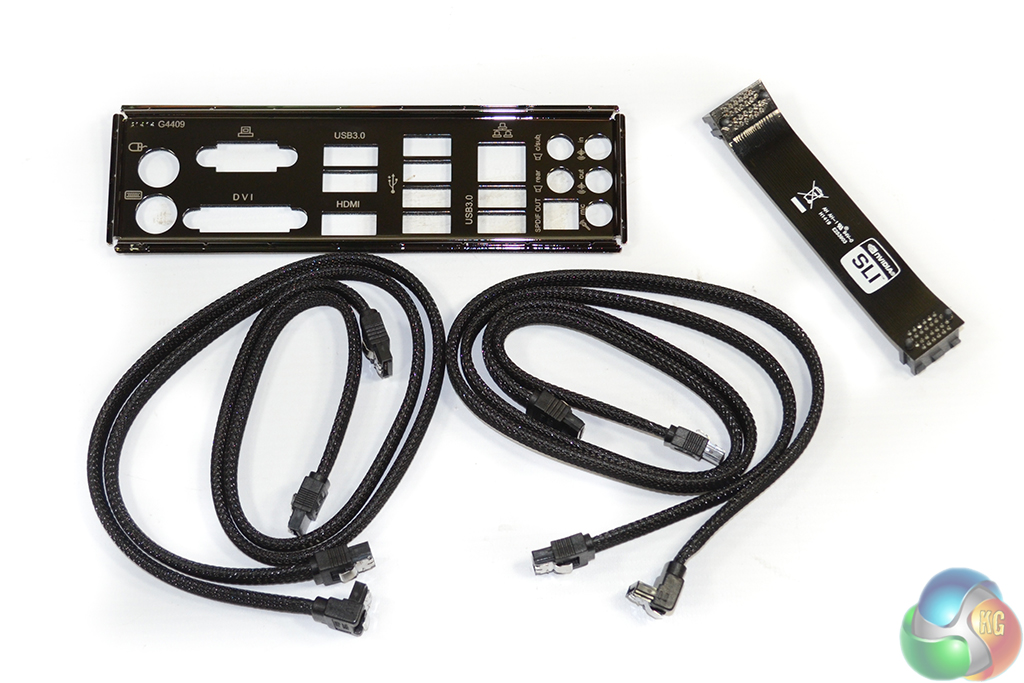
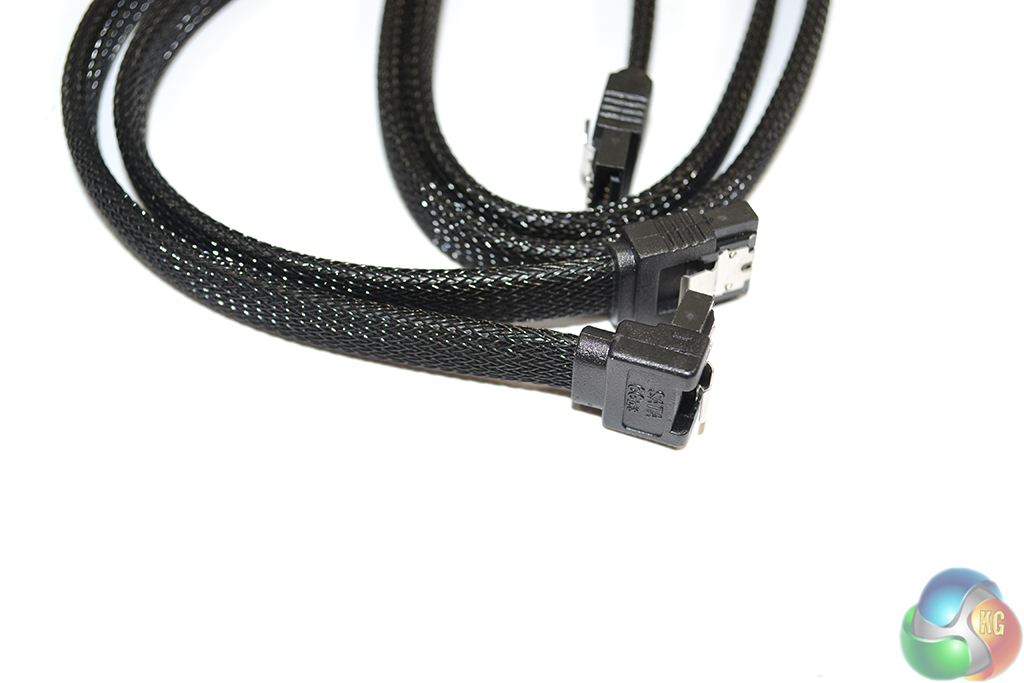
Gigabyte's accessory bundle consists of four SATA cables (two straight-to-straight and two right-angled-to-straight), a flexible black SLI bridge, and the rear IO shield.
Each of the SATA cables is housed inside a mesh covering which gives a unique appearance. Many system builders may be happy to show off their drive cables for once.
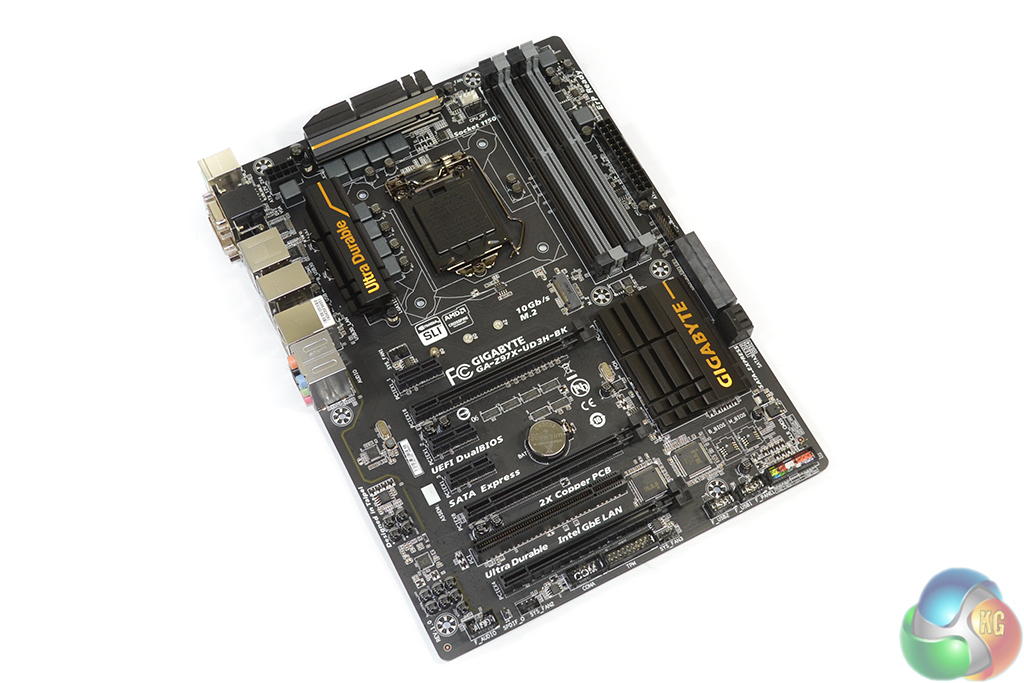
Black Edition, by name and by form, Gigabyte gives the Z97X-UD3H-BK motherboard a matte black PCB which is supplemented by hints of gold atop the heatsinks.
At 30.5×22.5 cm, the motherboard makes use of the ‘narrow-ATX' form factor. It will fit inside all ATX-capable cases without hassle, Gigabyte simply removes two right-edge mounting holes and shifts the remaining one further towards the centre.
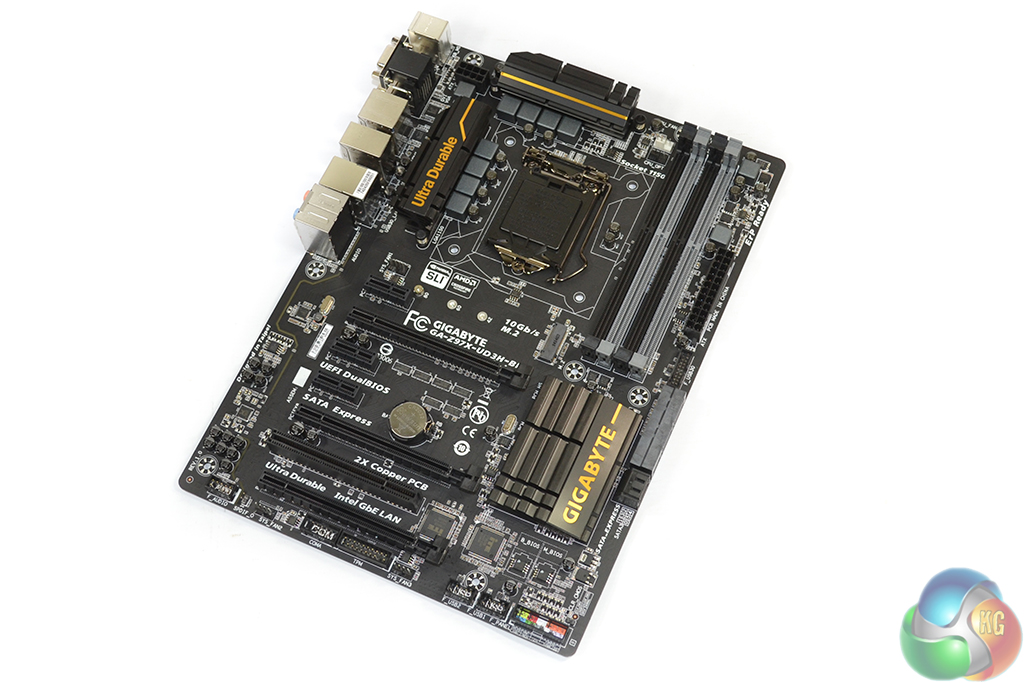
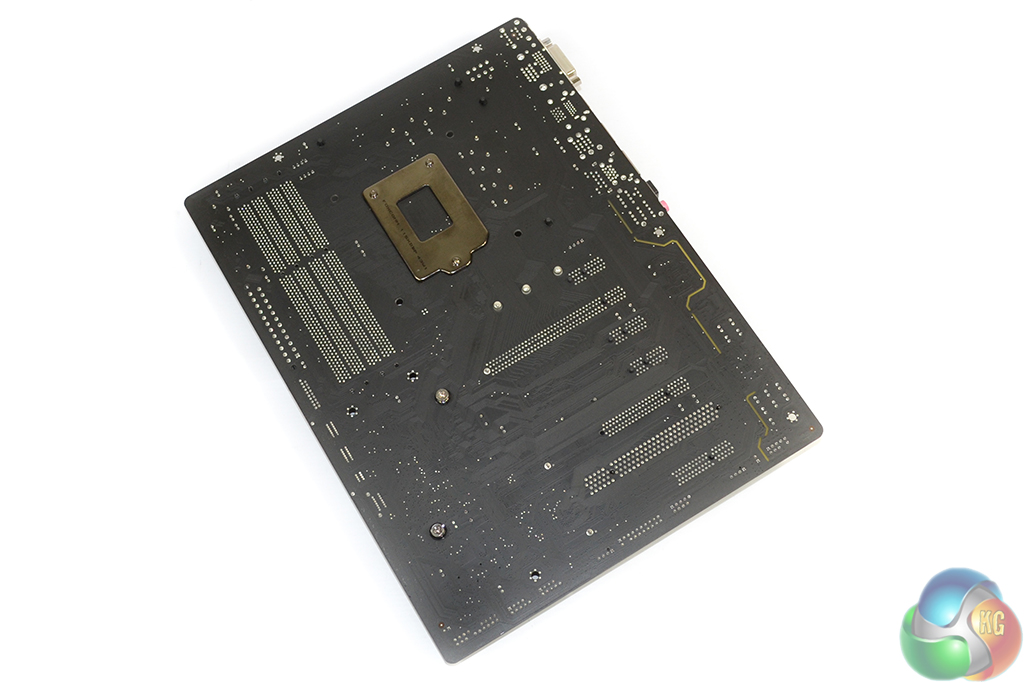
An examination of the motherboard's bottom-left corner reveals that Gigabyte is using a 2-layer PCB. This is a far cry from the 8-layer boards found on higher-end units, although power delivery which is capable of enthusiast overclocking is not really what this board is about.
The 2-layer PCB gives a clear indication of where budgets are being squeezed in order to reach the motherboard's price point. That said, Gigabyte is clearly confident in its design choices when providing a 5-year warranty.

An eight phase power delivery system runs the LGA 1150 CPU socket. Two individual heatsinks cool the motherboard's MOSFETs. Each heatsink is held in position by a pair of spring-loaded retention pins, rather than the far sturdier screw implementation.
In other words, do not lift this motherboard by its VRM heatsinks – they will probably detach and drop your board to the ground.
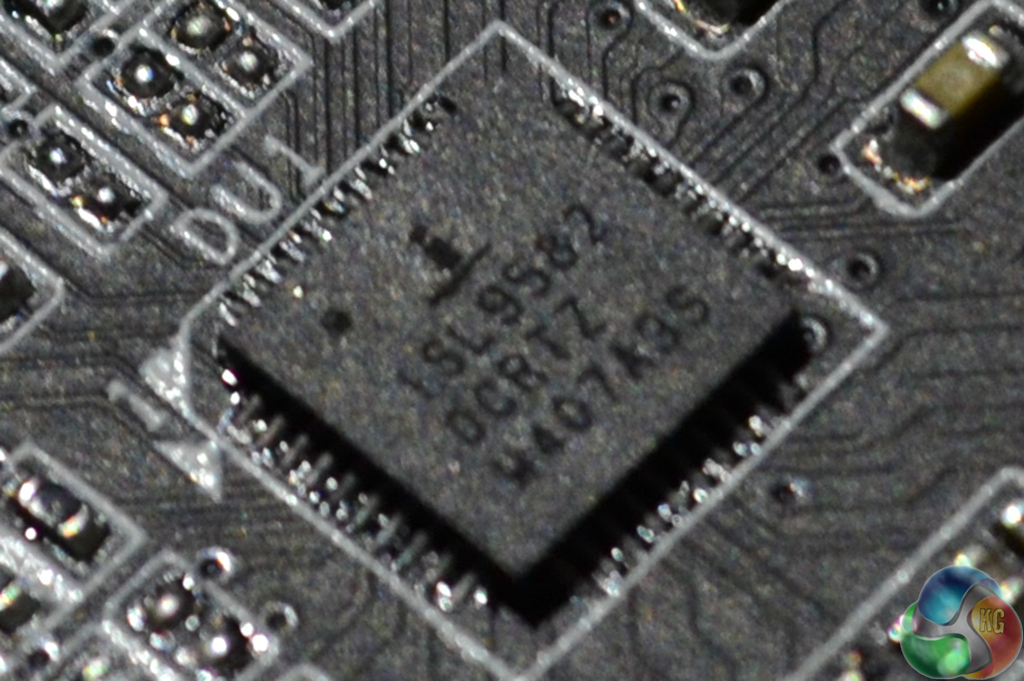
Control of the Gigabyte Z97X-UD3H-BK CPU power system is taken care of by an Intersil ISL95820 Hybrid controller (beneath the upper heatsink). Intersil's data sheet outlines the controller's ability to handle four phases – Gigabyte seem to be duplicating the output channels at a point in the system in order to obtain management of eight physical phases.
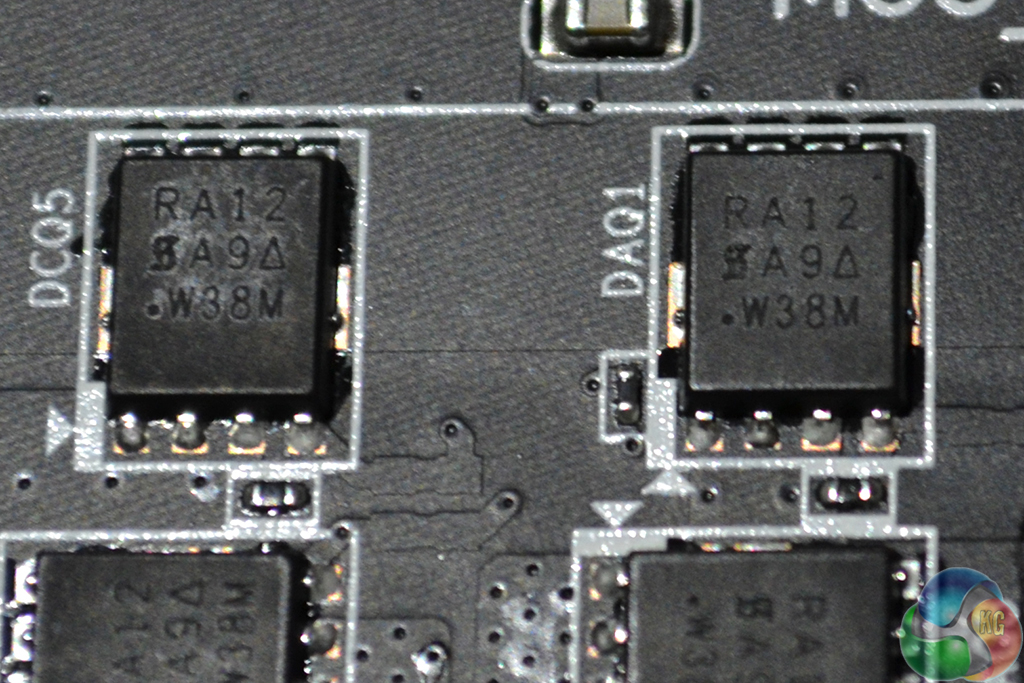
Eight pairs of MOSFETs marked RA12 switch power from the motherboard to the CPU. Unfortunately I struggled to find any information related to the specification of the MOSFETs.
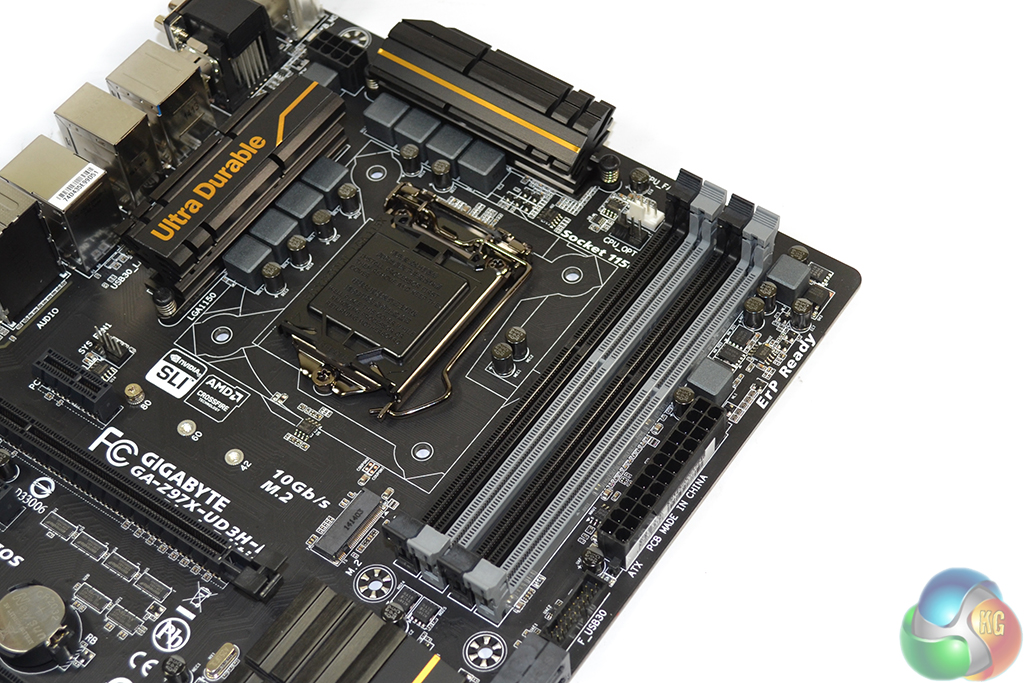
Up to 32GB of dual-channel DDR3 memory can be installed in the Z97X-UD3H-BK motherboard's four DIMM slots. Gigabyte claims support for frequencies as high as 3100MHz, although that will also depend on IMC strength, not to mention the improbability of using such expensive RAM with this kind of motherboard.
Richtek RT8120 and RT9173D controllers drive the memory and system voltage operations.
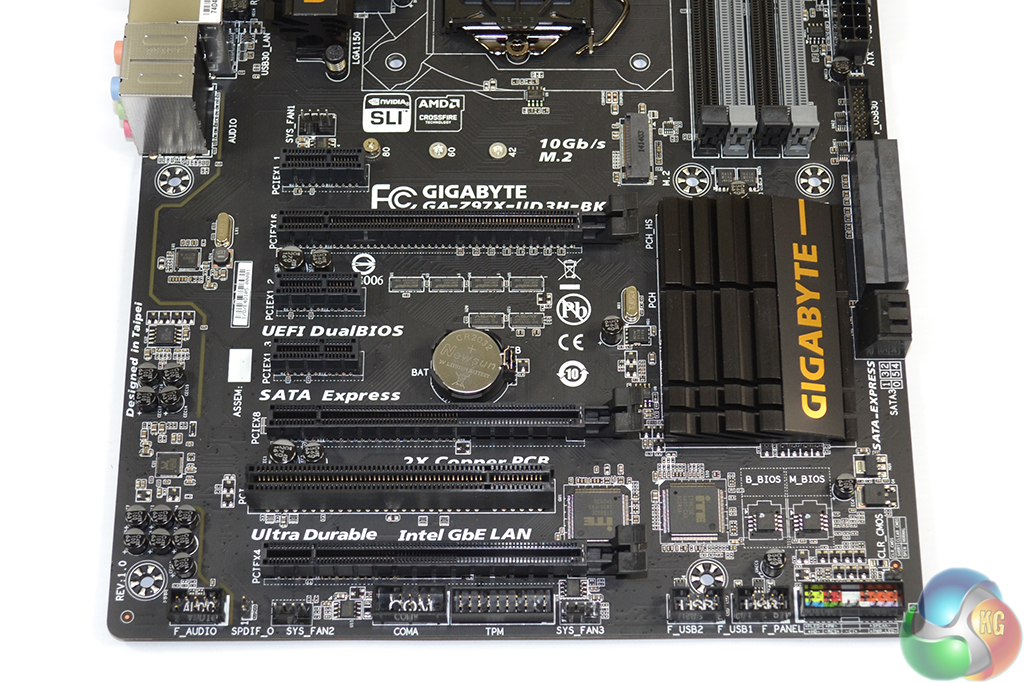
Two-card SLI and CrossFire are supported by the upper two full-length PCIe slots with x8/x8 bandwidth. That third full-length slot at the bottom of the board is limited to a PCIe 2.0 x4 connection from the PCH, so do not use it for an extra card in CrossFire (SLI does not run on an x4 link anyway).
That lower PCIe 2.0 x4 connection is, however, particularly useful for high-bandwidth add-on devices, such as a PCIe-based SSD. Receiving its four lanes from the PCH means that users can still run two-card SLI/CrossFire at x8/x8 bandwidth without interference to the CPU's PCIe 3.0 lanes, while also operating a high-speed PCIe x2 or x4 SSD.
I much prefer this PCIe 3.0 x8/x8 plus PCIe 2.0 x4 approach to PCIe 3.0 x8/x4/x4. The proportion of users running triple card CrossFire on a Z97 motherboard is likely to be less than the number who want SLI/CrossFire plus a high-bandwidth PCIe expansion card.
Spacing of the primary graphics slots is excellent. A dual card configuration will be given a one-slot cooling gap, or triple thickness graphics coolers can be used in tandem.
PCI is provided by the ITE IT8892E bridge chip, while three PCIe 2.0 x1 connectors, all of which share bandwidth with the aforementioned x4 connection, help populate the PCB.
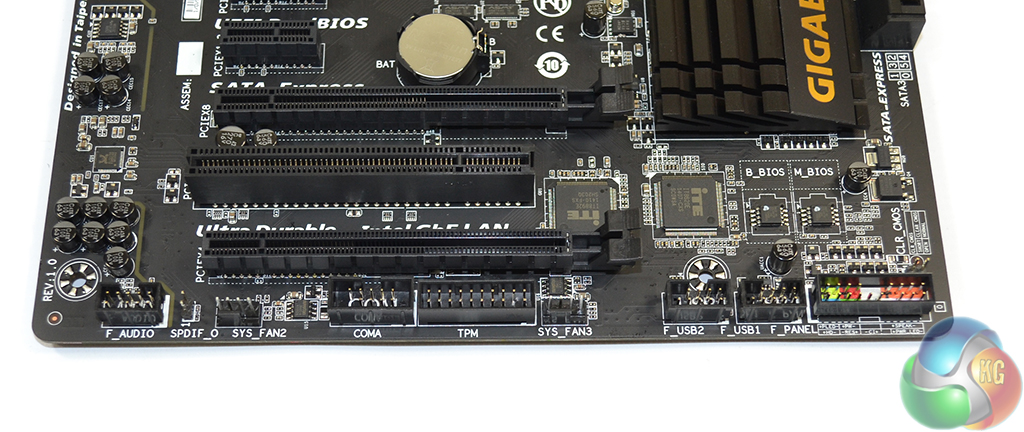
The standard affair of front panel connectors is found along the board's bottom edge. Audio is to the left and chassis headers sit on the right, next to a pair of USB 2.0 headers.
COM and TPM headers are thrown in for good measure to those who may actually use them.
Just above the USB 2.0 headers are two BIOS chips. This pair of chips gives Gigabyte's DualBIOS system its redundancy in cases of BIOS corruption.
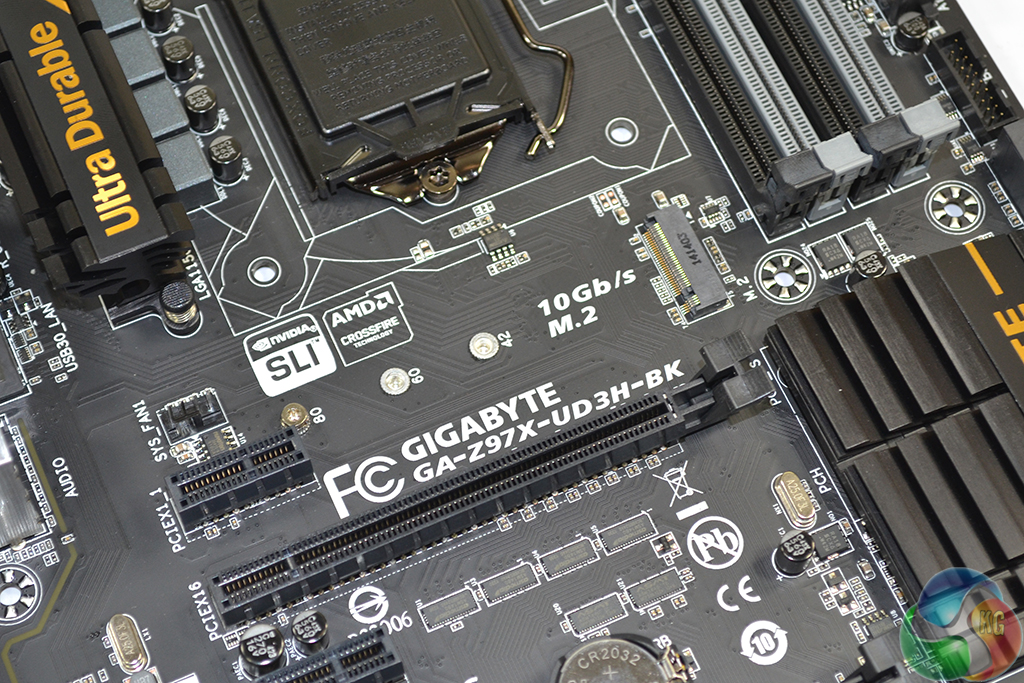
M.2 drives in the 2242, 2260, and (common) 2280 form factors can be installed on the Z97X-UD3H-BK. Gigabyte's positioning of the connector makes it easy to access with a graphics card installed (CPU cooler dependent), although its location will fail to mask an M.2 drive's ugly green PCB.
For PCIe SSDs, the M.2 connector supports transfer rates of up to 10Gbps by using a pair of PCIe 2.0 lanes from the Z97 chipset (shared with SATA-Express). 10Gbps is becoming a limitation with the speed potential of emerging M.2 SSDs. The restricted bandwidth is more of an interpretation of Z97's limited PCIe bandwidth than Gigabyte's design choices.
Compatibility with M.2 SATA SSDs is provided by stealing the connection from SATA ports 4/5.
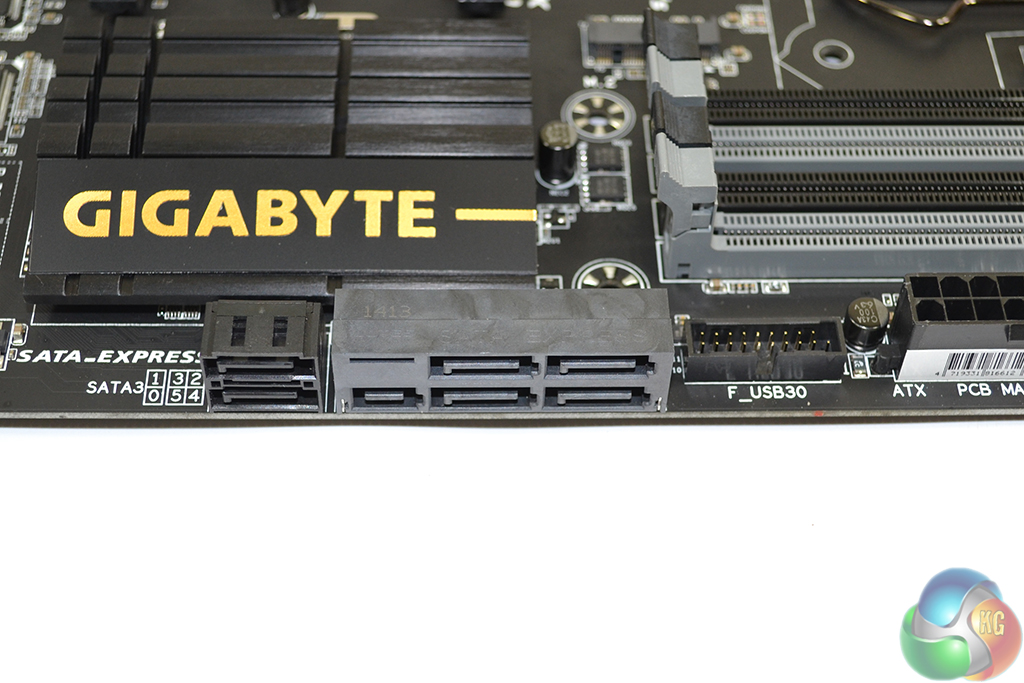
All six of the SATA 6Gbps ports operate directly from the Z97 chipset.
SATA ports 4/5 combine to form part of the 10Gbps SATA Express connector. Users are only able to operate either the M.2 slot, the SATA Express connector, or SATA ports 4/5 at any one time.
Next to the SATA bank is an outwards-facing USB 3.0 header which gets its connections directly from the Z97 chipset.

Gigabyte does not use a heavily enhanced audio system, with EMI shielding and fancy capacitors. But they are just about the only sections missing.
Strong individual audio components, in the form of a Realtek ALC1150 codec and Texas Instruments NE5532 rear audio amplifier, are utilised. Capacitor selection is slightly more generic, so we wouldn't expect the applied parts to show competitiveness against Nichicon Gold series units.
Omitting EMI shielding is a move that I do not fully understand. At least including a cheap metallic EMI shield over the Realtek ALC1150 codec may help to minimise interference from a graphics card above.
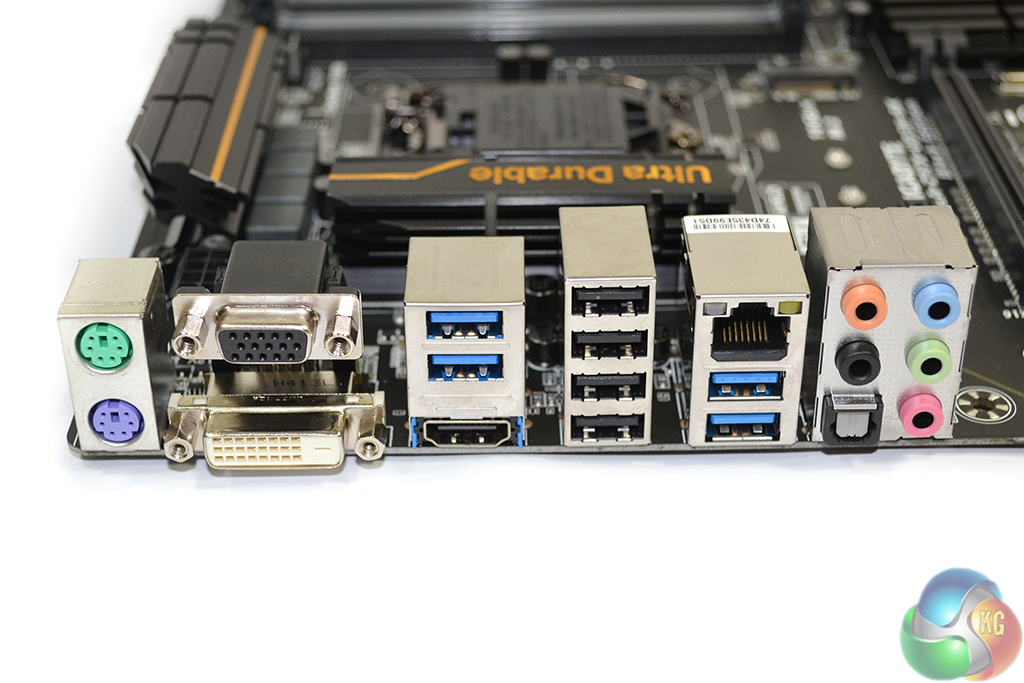
Four USB 3.0 ports, all deriving from the Z97 chipset, are found on the rear IO section. A further four USB 2.0 ports are provided – I love to see the inclusion of USB 2.0 for low-bandwidth peripherals and superior pre-OS mouse/keyboard compatibility. There's also PS/2 mouse and keyboard ports for further peripheral compatibility.
Gigabit Ethernet is provided by Intel's ageing I217-V chipset that seemed to have been all but replaced by the I218-V. DVI, VGA, and HDMI video connections are handled by the on-chip graphics and ASM1442K and PTN3360DBS shifters.
I would have liked to see a clear CMOS button on the rear IO. The solution is cheap to implement and provides convenience for users who overclock.
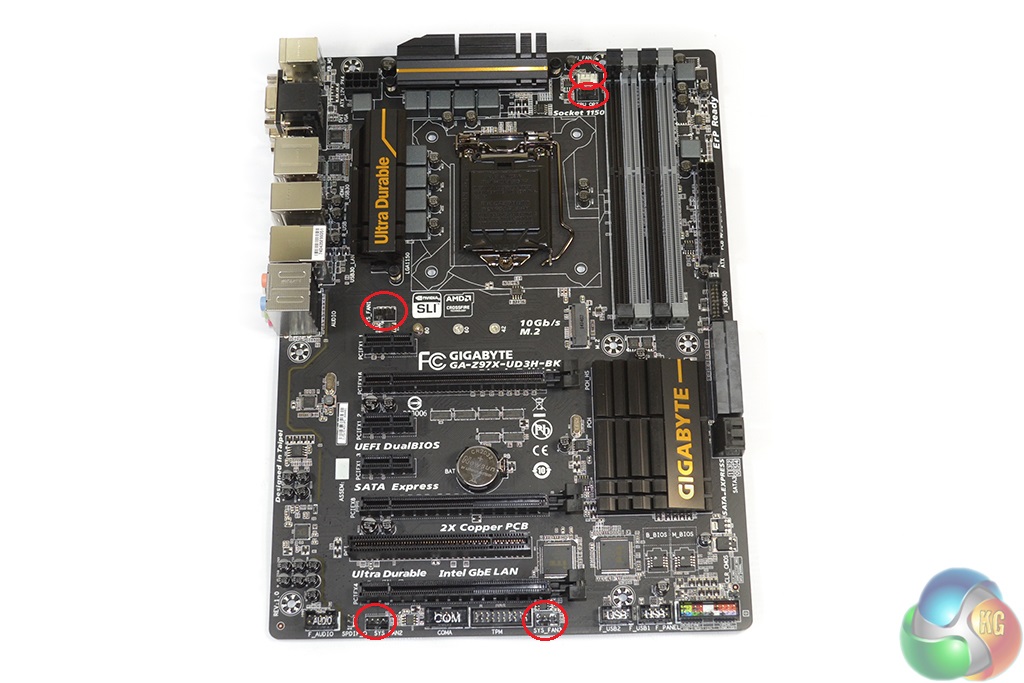
Gigabyte equips the Z97X-UD3H-BK with five fan headers, all of which are 4-pin. Distribution of the fan headers is good, but it could be slightly better. Two headers near the CPU is good for all-in-one liquid cooling users.
I would have preferred one of the bottom edge headers to be moved nearer the SATA ports, allowing it to easily power a front chassis fan. ITE's IT8620E Super I/O chip handles monitoring and fan control duties.
We could not get our regularly-problematic NZXT Avatar S mouse to work correctly with the F7e version of Gigabyte's UEFI implementation for Z97X-UD3H-BK. The cursor would jump across the screen and then find itself locked into a certain area. There are clearly some programming issues, although we are using a beta BIOS (the newest full release BIOS is over six months old).
Gigabyte’s DualBIOS UEFI implementation used on the Z97X-UD3H-BK is almost identical to that used on the company’s other Z97 motherboards. As such, pictures from the previous reviews are used and our analysis and recommendations are largely identical, with the point of reference adapted to the individual motherboard.
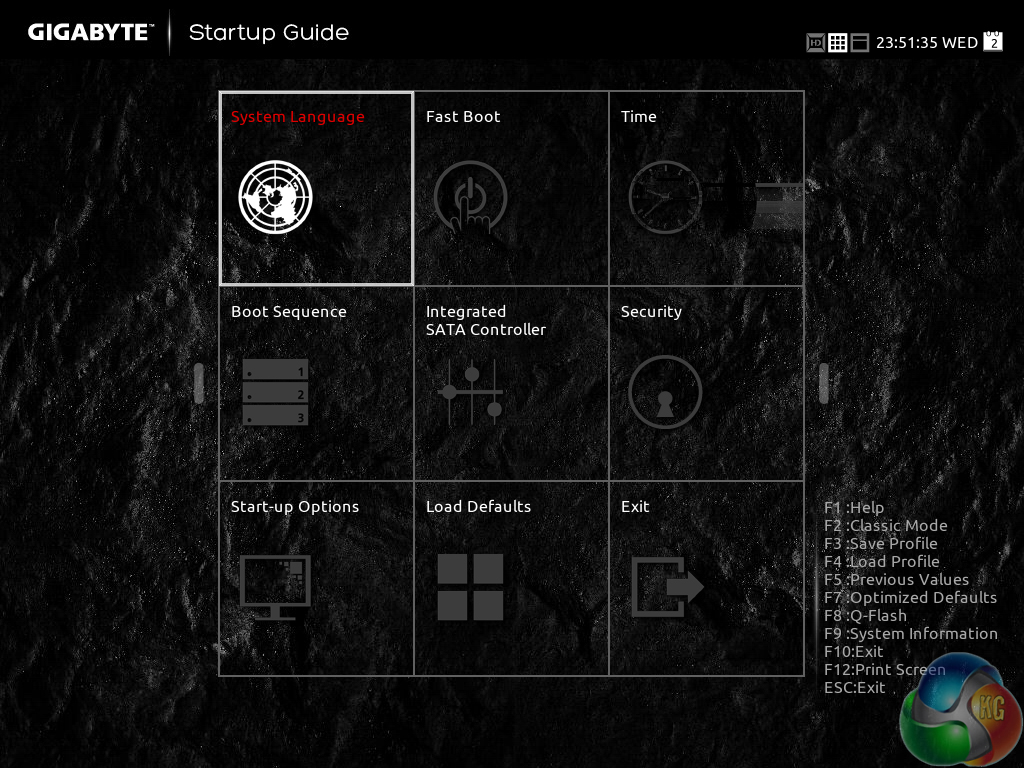
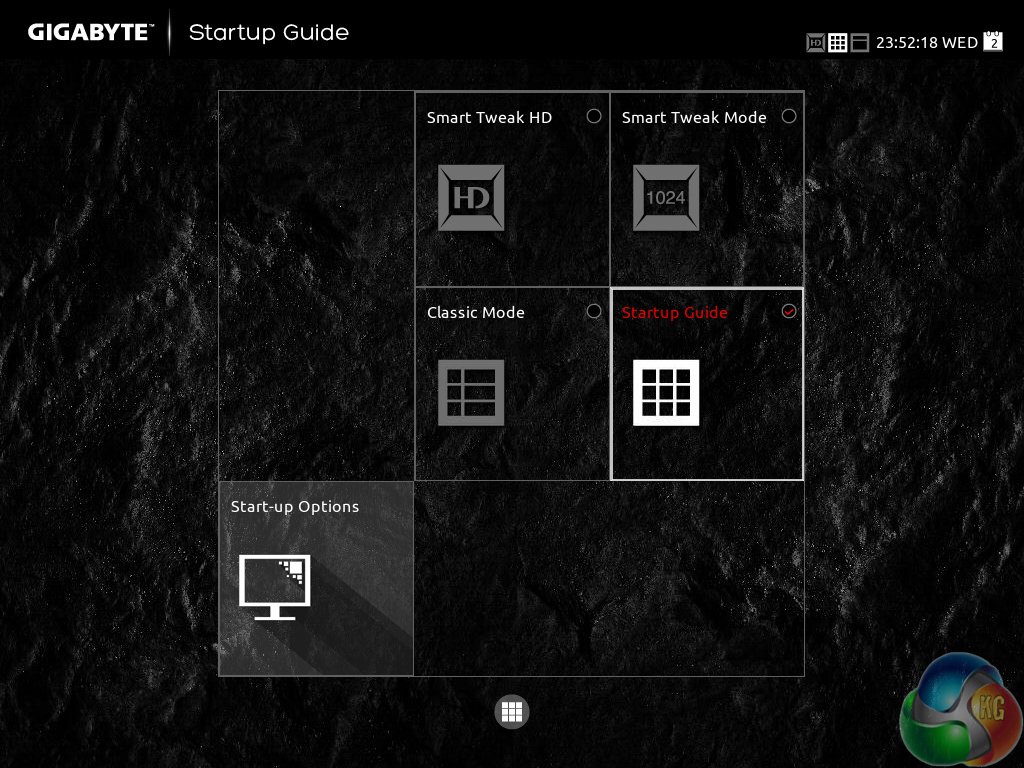
Gigabyte greets users with an entry page that resembles the Windows Metro UI. Tiles provide users with quick access to certain features and settings.
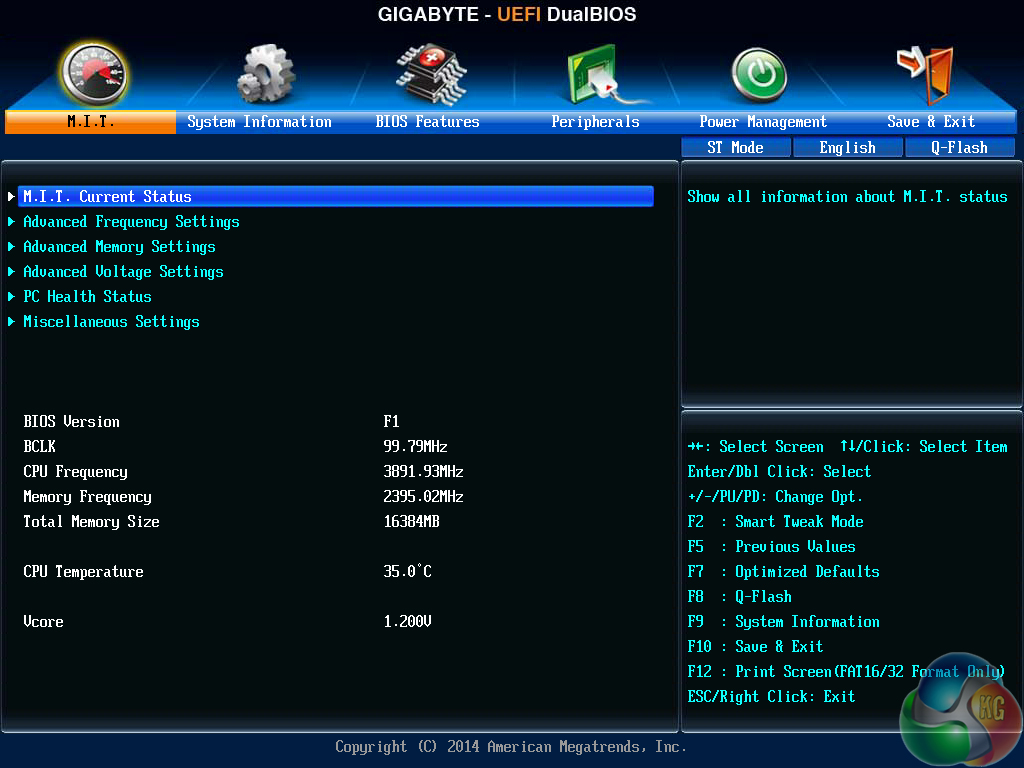
A UI based around Gigabyte's old style of BIOS is present on the Z97 UEFI. Users with a vast bank of experience in the old interface may welcome the BIOS-style layout.
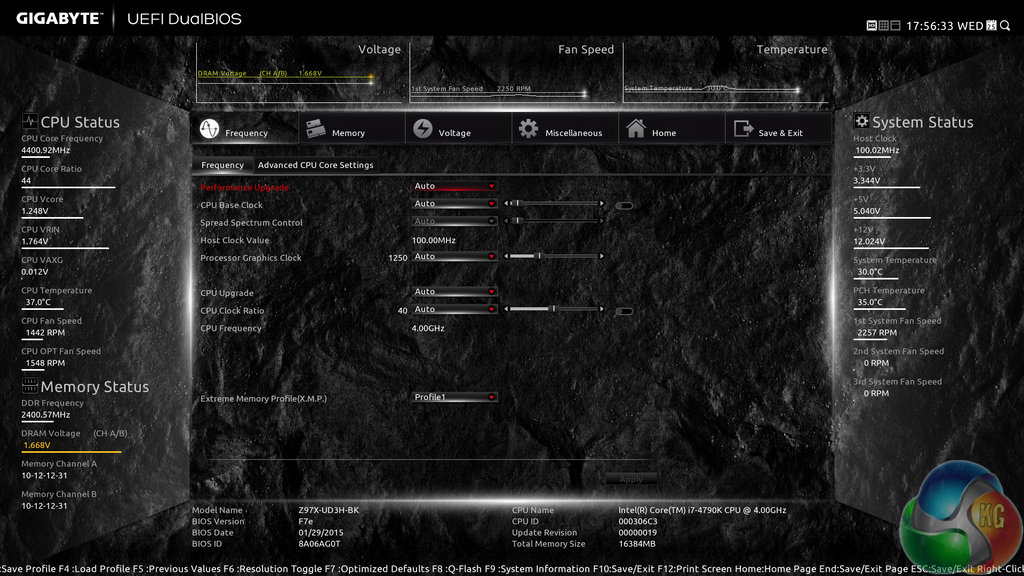
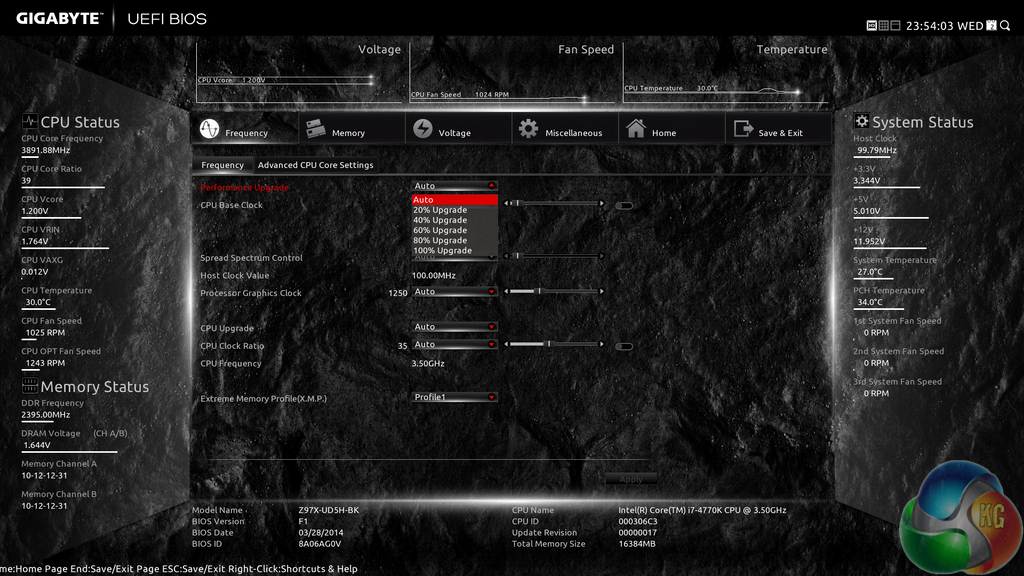
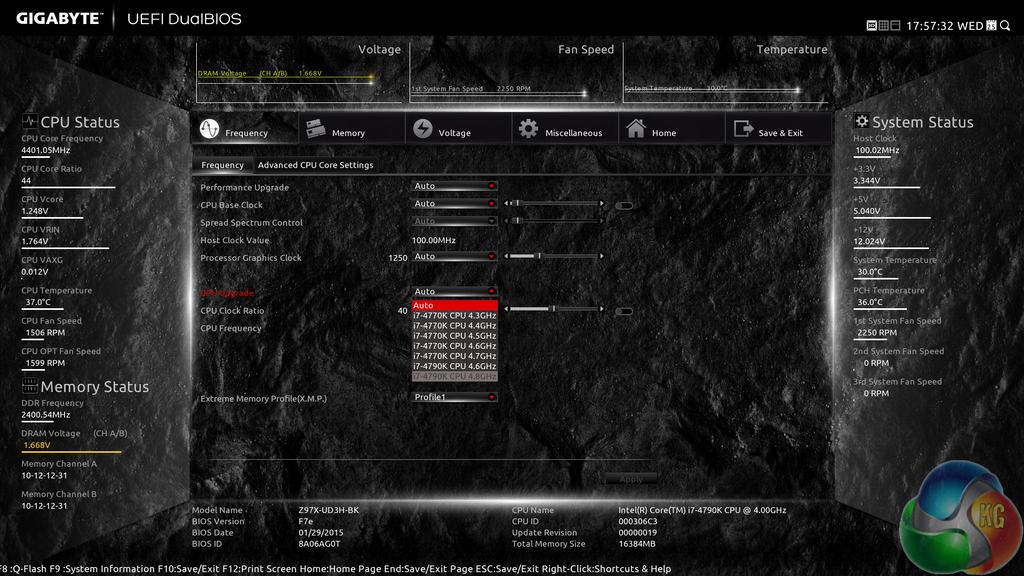
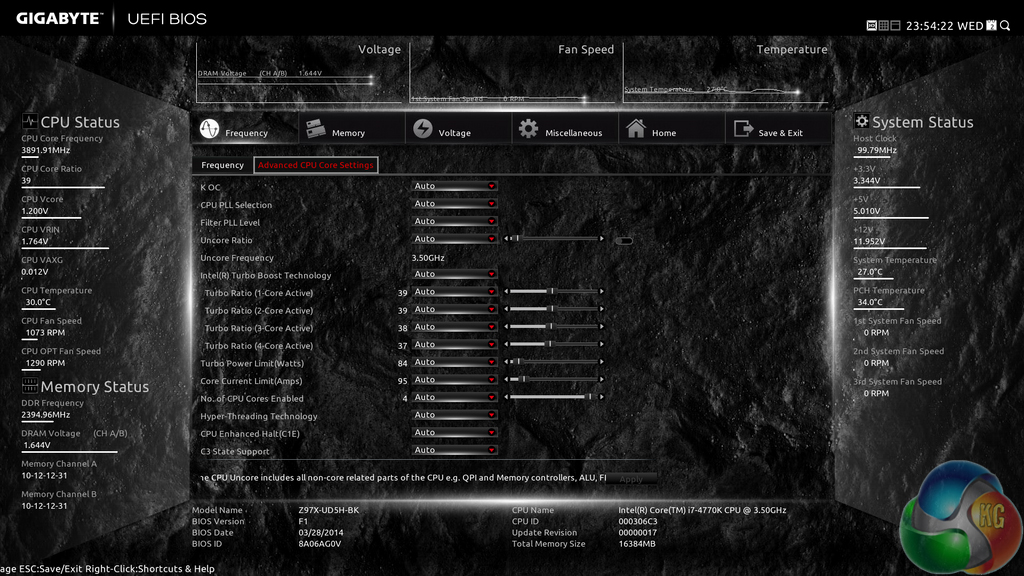
Upon entering the 1920×1080 (dependent upon your monitor's resolution) UEFI, Gigabyte opens the frequency page. The interface packs large amounts of information into a single screen by virtue of its 1920×1080 resolution. Voltages, frequencies and other monitoring parameters are consistently scattered around the outside of each page.
A number of speed parameters and performance boosts can be selected via the Frequency page and its subsections.


Frequency and timings configurations can be adjusted via the Memory section. Gigabyte includes pre-set profiles tailored for high-spec RAM kits by overclocking professionals such as HiCookie.
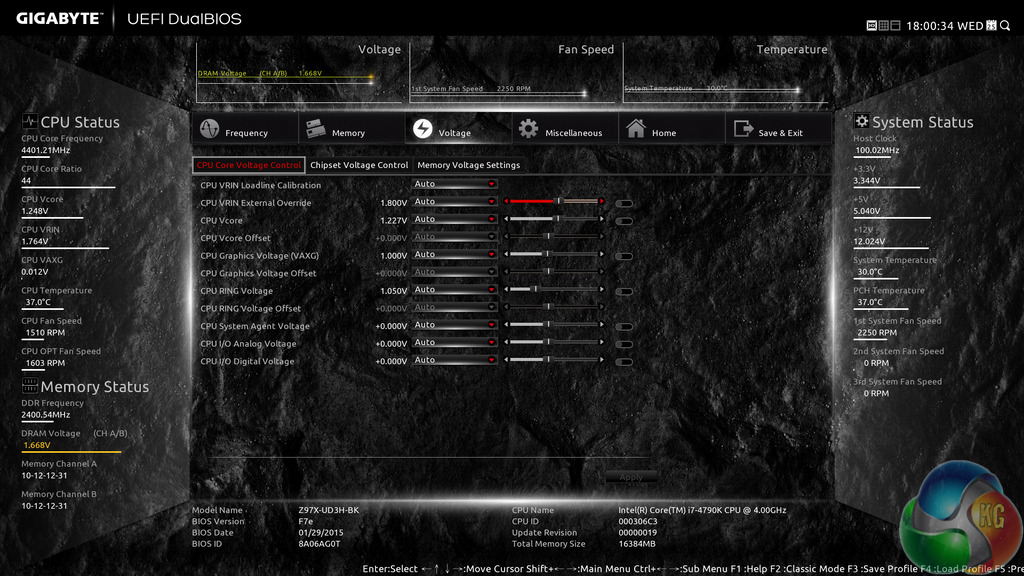
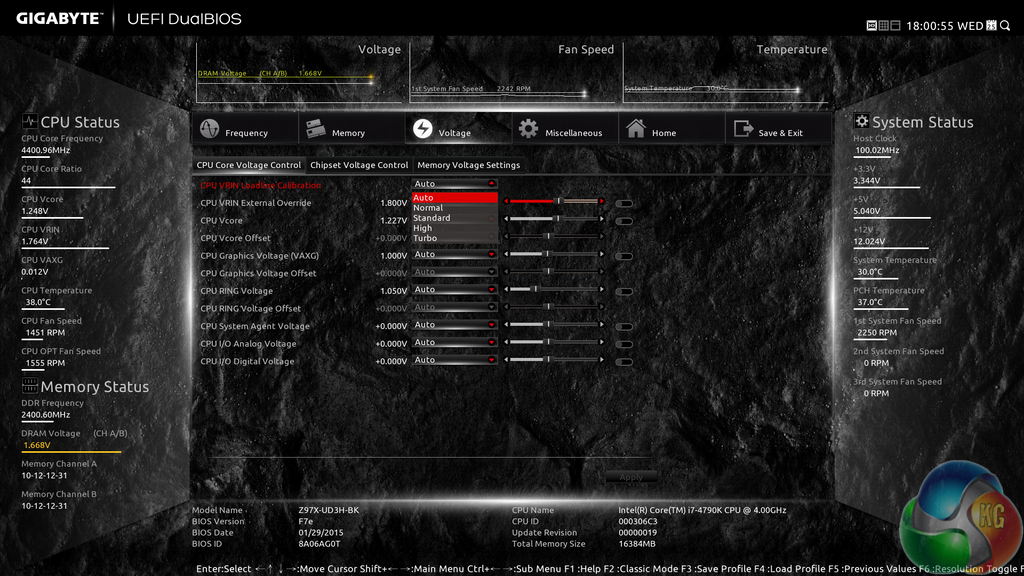
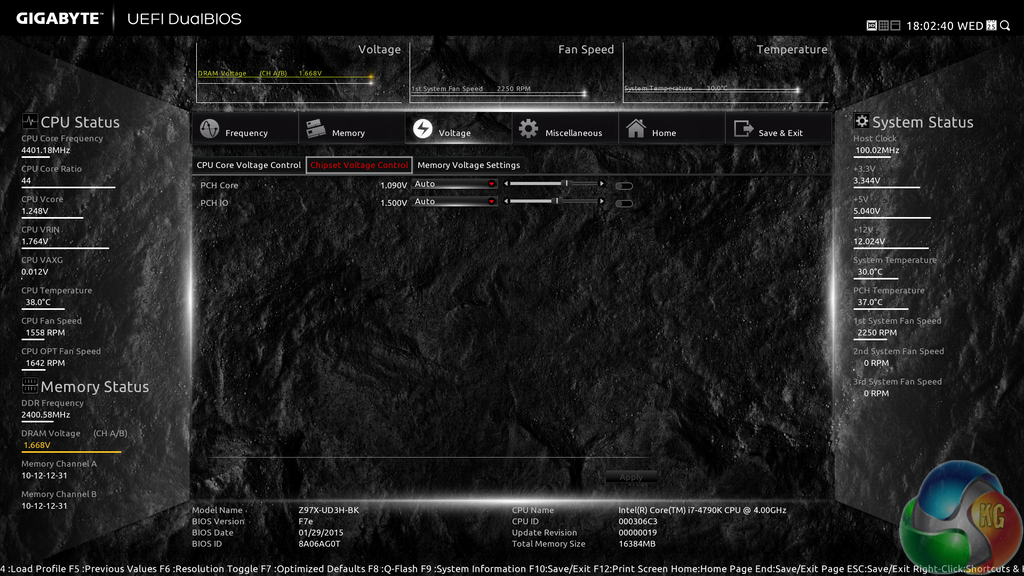
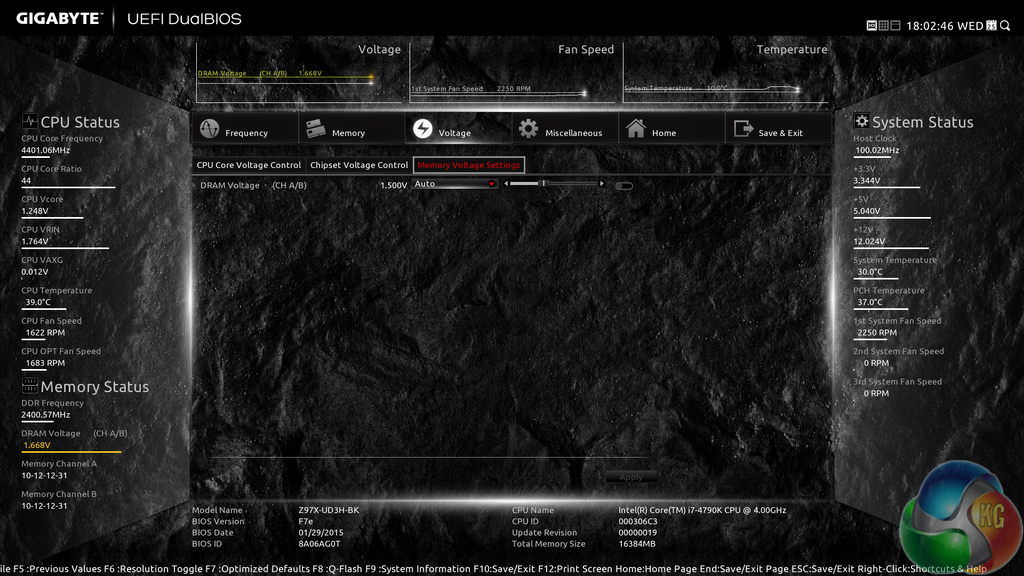
Power and voltage settings can be adjusted in the relevant subsection. Gigabyte previously gave some of the parameters, such as CPU VRIN Loadline Calibration, a graphical display to assist a user in making an appropriate choice. Unfortunately, this convenient graphical aid is not present on the Z97X-UD3H-BK's UEFI implementation.
If one does not like the slider approach of applying voltages, users are able to key in the relevant values.
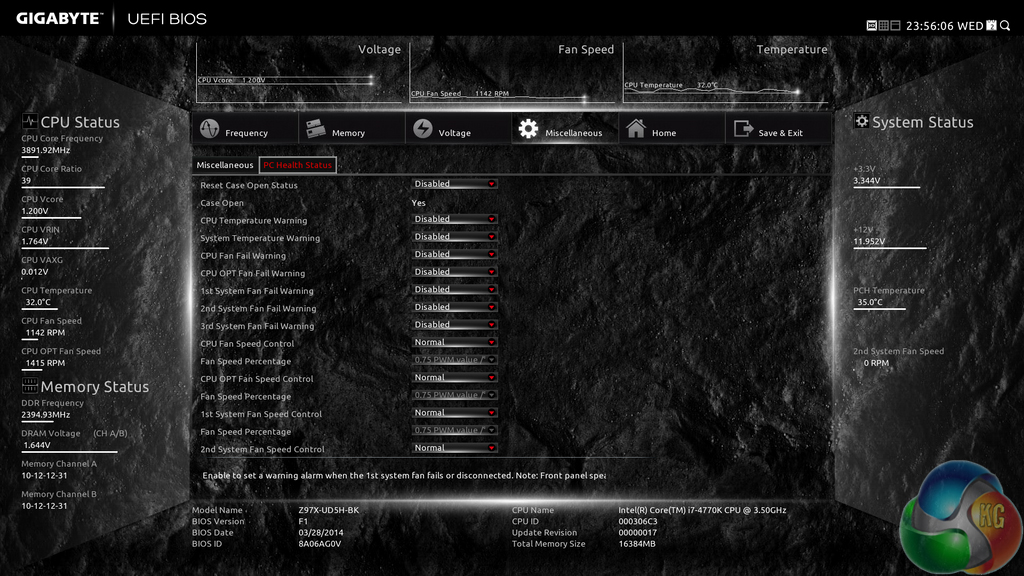
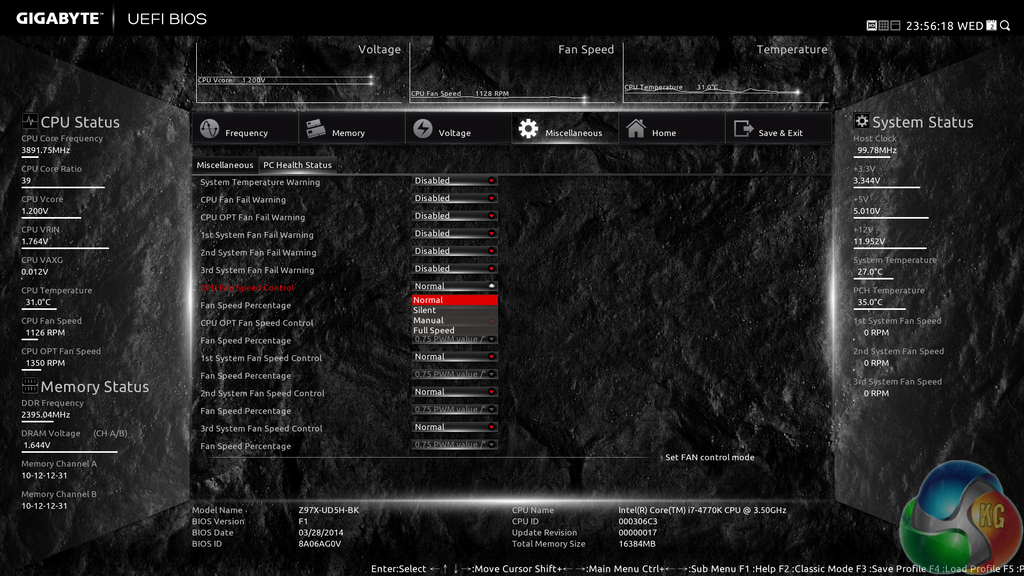
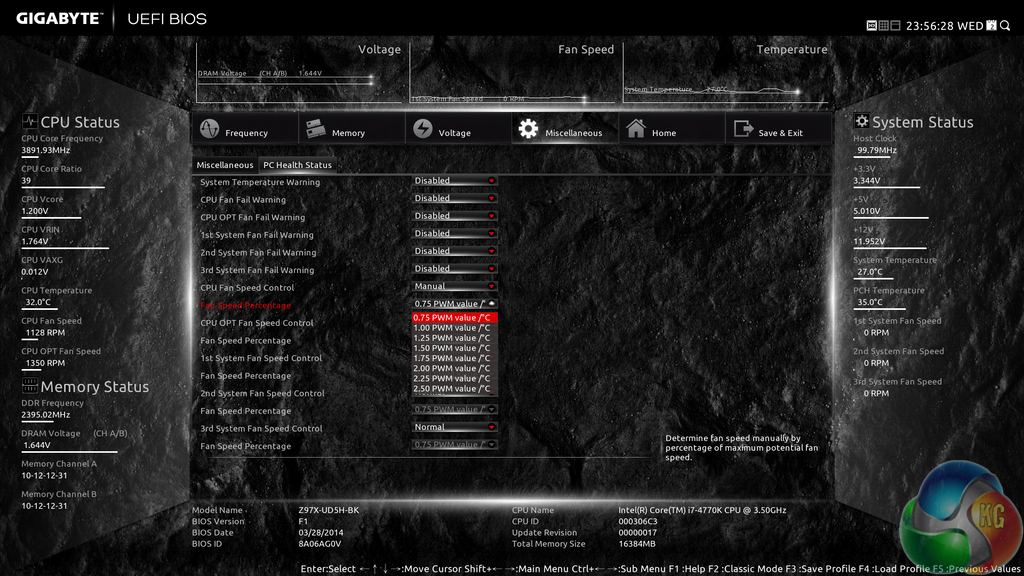
Fan and warning settings can be accessed via the PC Health Status column of the Miscellaneous section. Fan speed controls can be set to a user's preference, albeit with a limited range of input.
Gigabyte uses a drop-down list to outline the relevant fan speed curves, which is a less user-friendly approach than the graphical interface used by competing motherboard vendors. ****That graphical approach is, however, available through OS-based software. *****
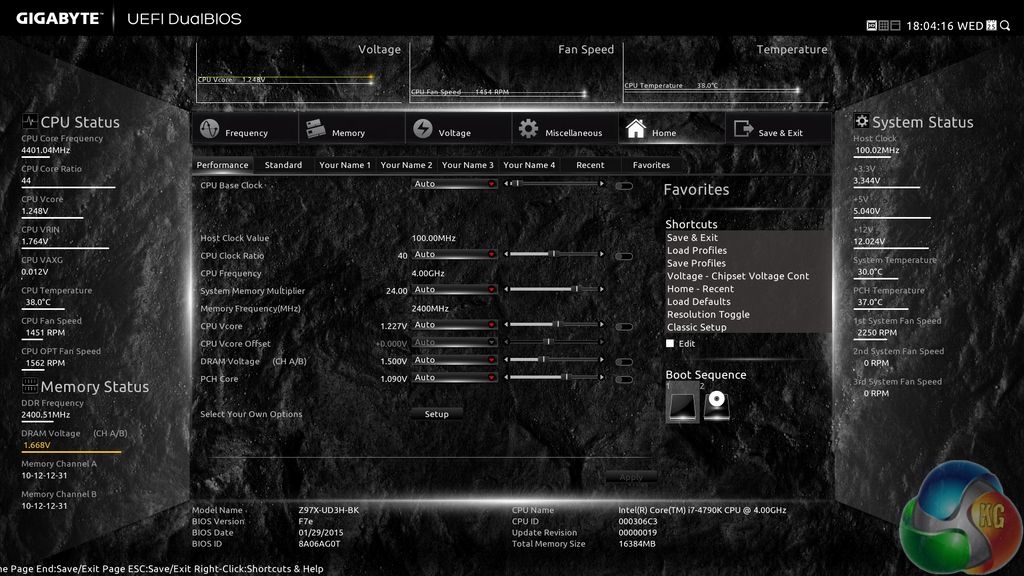
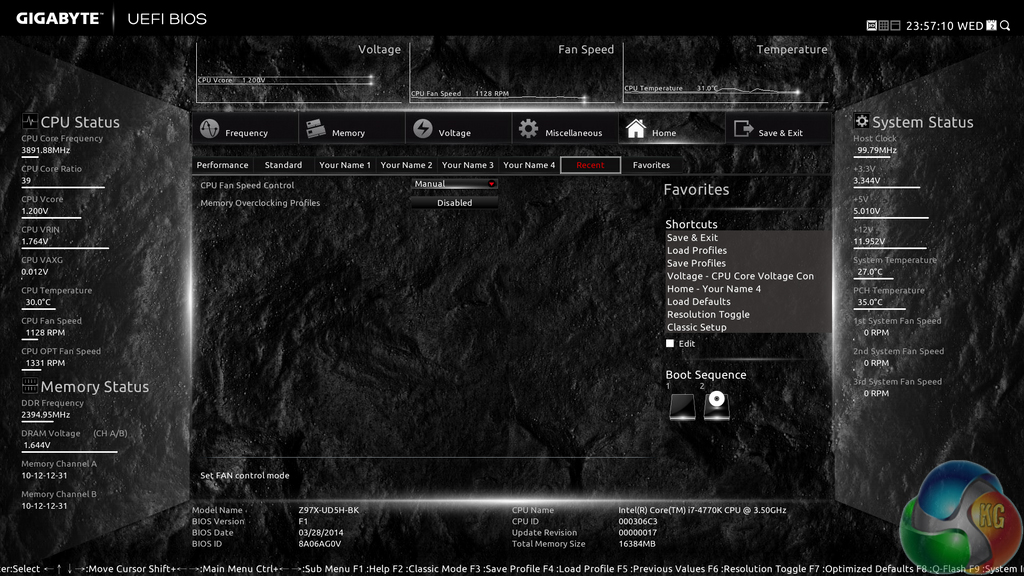

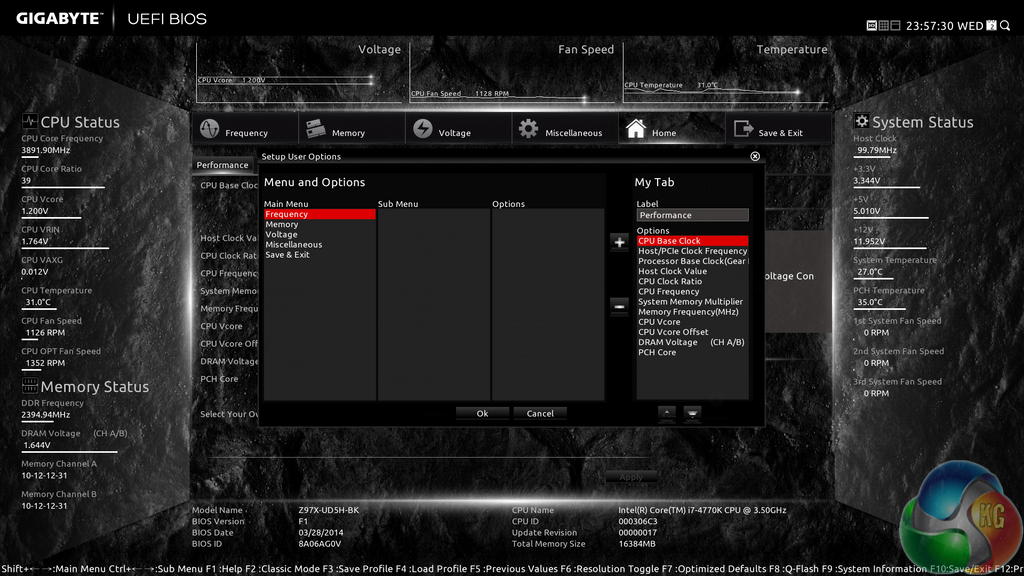
The Home section provides an area where users are given a degree of freedom as to the interface's layout. By default, key component parameters are displayed on the Home page, but this layout can be tweaked to a user's preference. And if you'd rather not tweak the interface, Gigabyte allows you to create four custom pages from scratch.
The Recent section displays recently used settings while the Favourites tab can provide quick access to frequently used parameters.
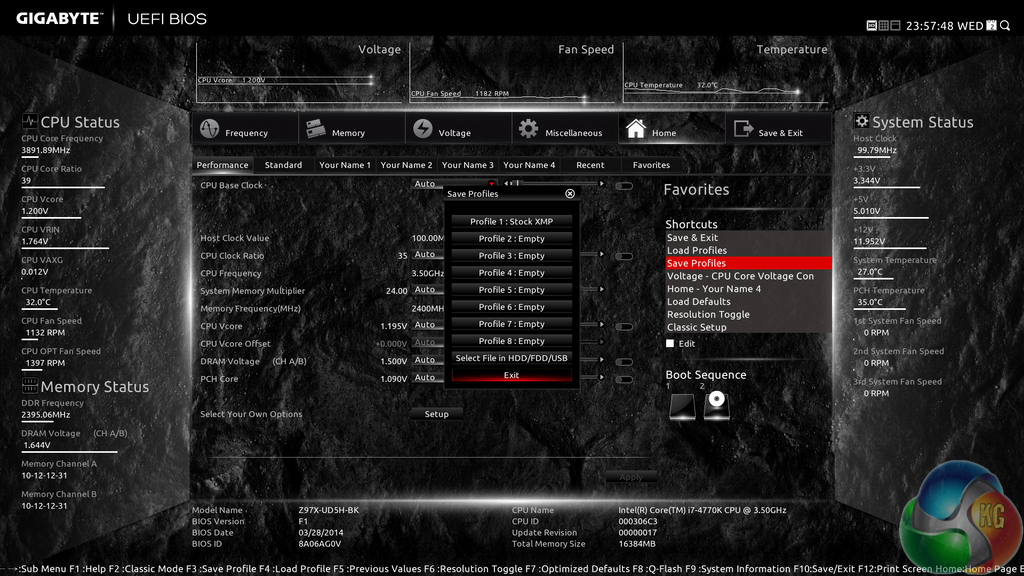

Up to eight OC profiles can be saved to the motherboard's internal memory, while many more and more can be exported or imported via USB.
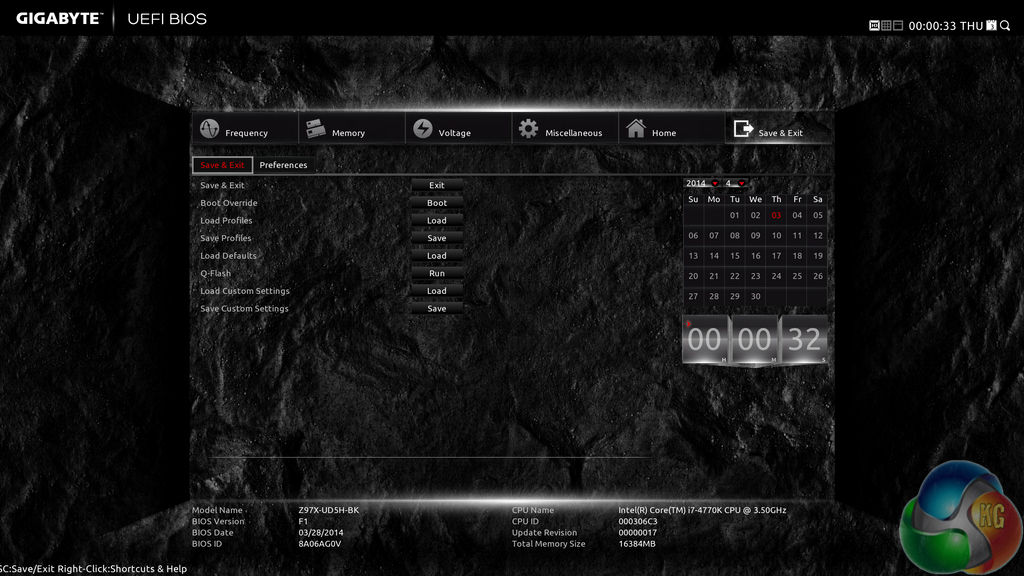
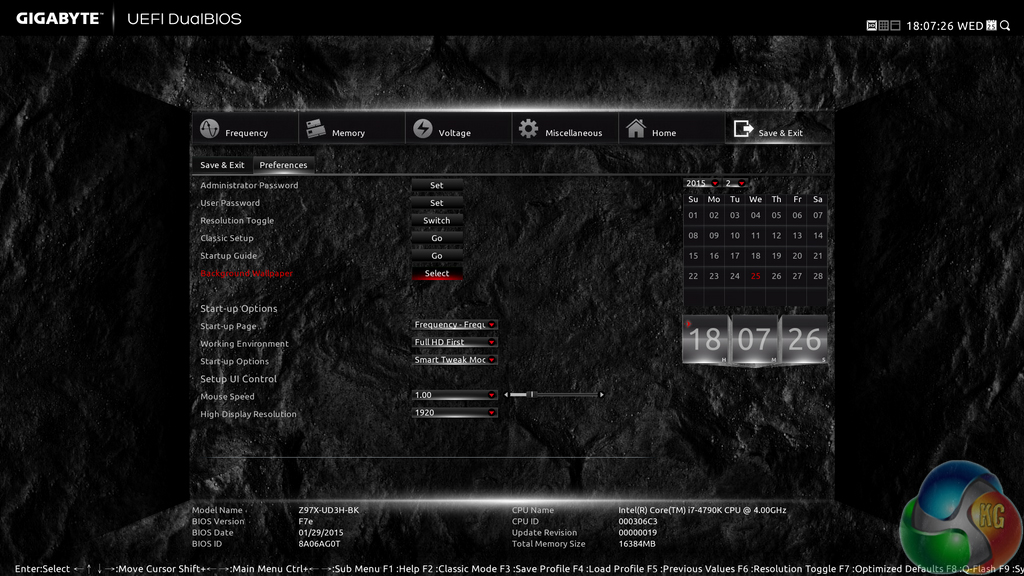
Control adjustments for the UEFI and the Q-Flash BIOS updater can be accessed via the Save & Exit section. I would prefer Gigabyte to have given the many of the control parameters their own section titled ‘Settings' to make them easier to spot in the UEFI. Save & Exit typically implies saving and exiting, not adjusting control options and updating the BIOS.
Some useful additions to Gigabyte's UEFI are the ability to change the visual theme, start-up page, and resolution.
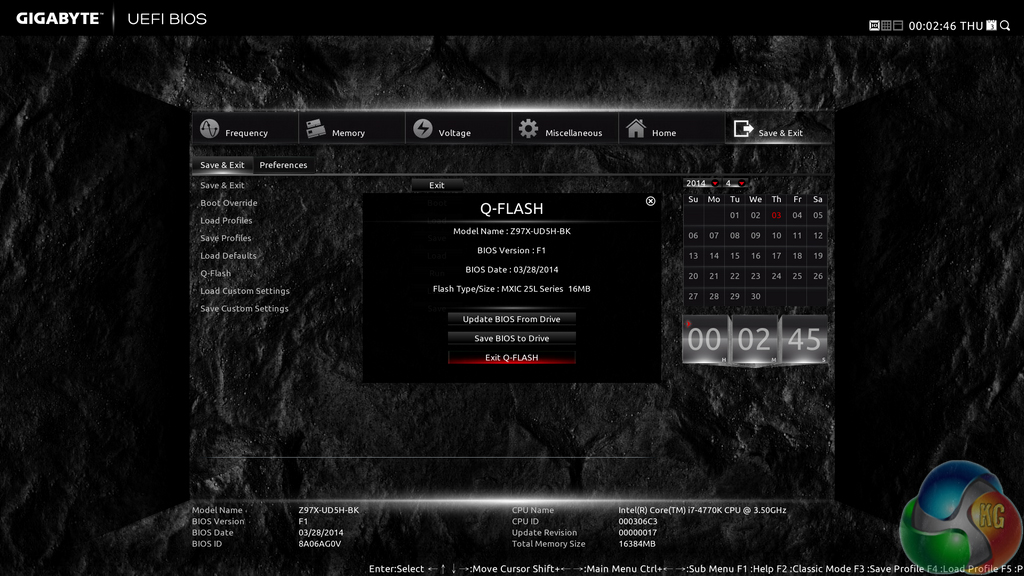

The Q-Flash updater is able to access folders in a USB flash drive, allowing users to manually seek a BIOS file.
UEFI Comments
Gigabyte has optimised the layout of its Z97 UEFI to make sifting through BIOS settings and sections a simpler task. It is indeed a pleasant experience working in the high-resolution Z97 UEFI, however we can see how less-experienced users will be overwhelmed by the sheer quantity of sections and options.
The use of a Full HD, 1920×1080 resolution is excellent. Additional information relating to operational recordings can be displayed on the sides of a page without interfering with the parameters that users intend to tweak. And there's also the old style of BIOS for people who have extensive experience with Gigabyte's motherboards from previous generations.
There are still a few issues relating to overlapping content. Many parameters for frequency and voltage are repeated multiple times causing the UEFI to seem more crammed than it actually is. Fan speed control is also a negative aspect; a list outlining arbitrary (to many people) values and units is less user-friendly than a graphical interface displaying the fan speed curves.
Overall, the high-resolution interface, constantly displayed system readings, and plethora of options are positives, but Gigabyte could further tweak the layout to make it more user-friendly.
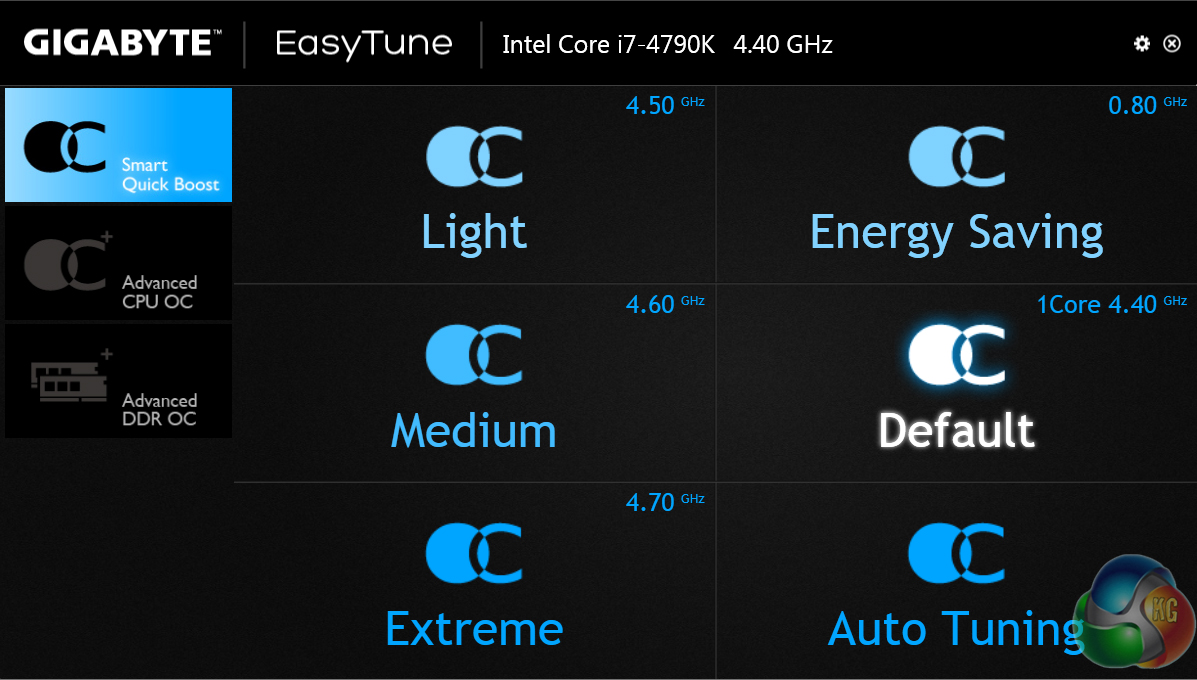
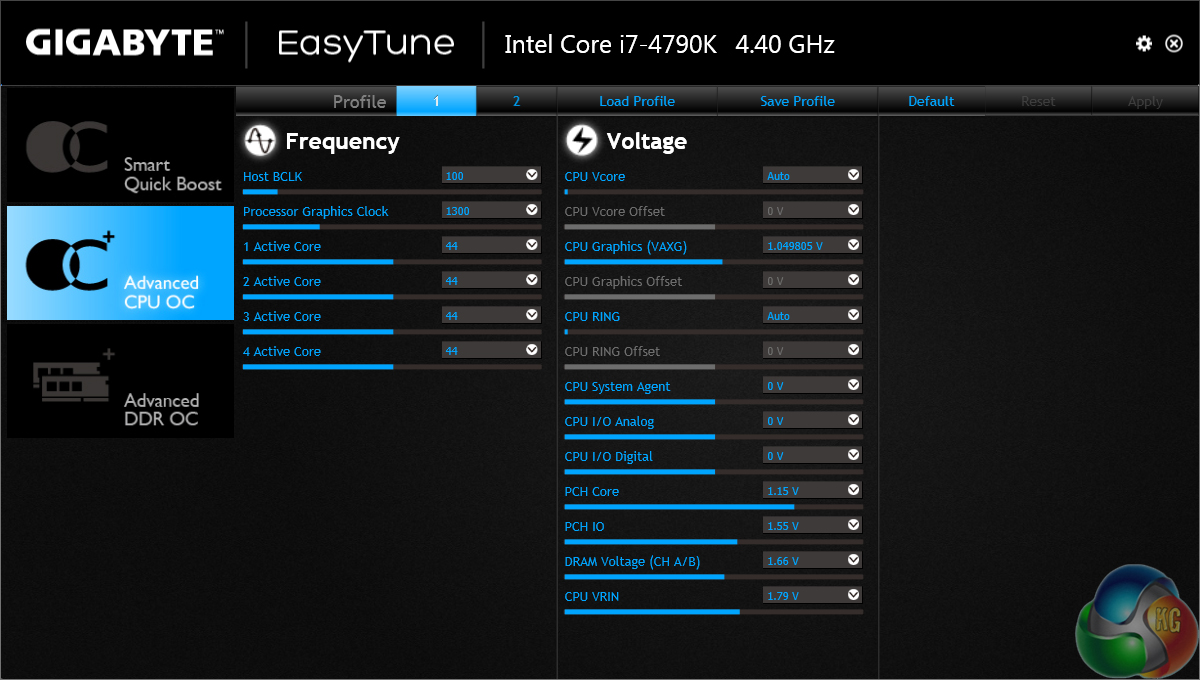
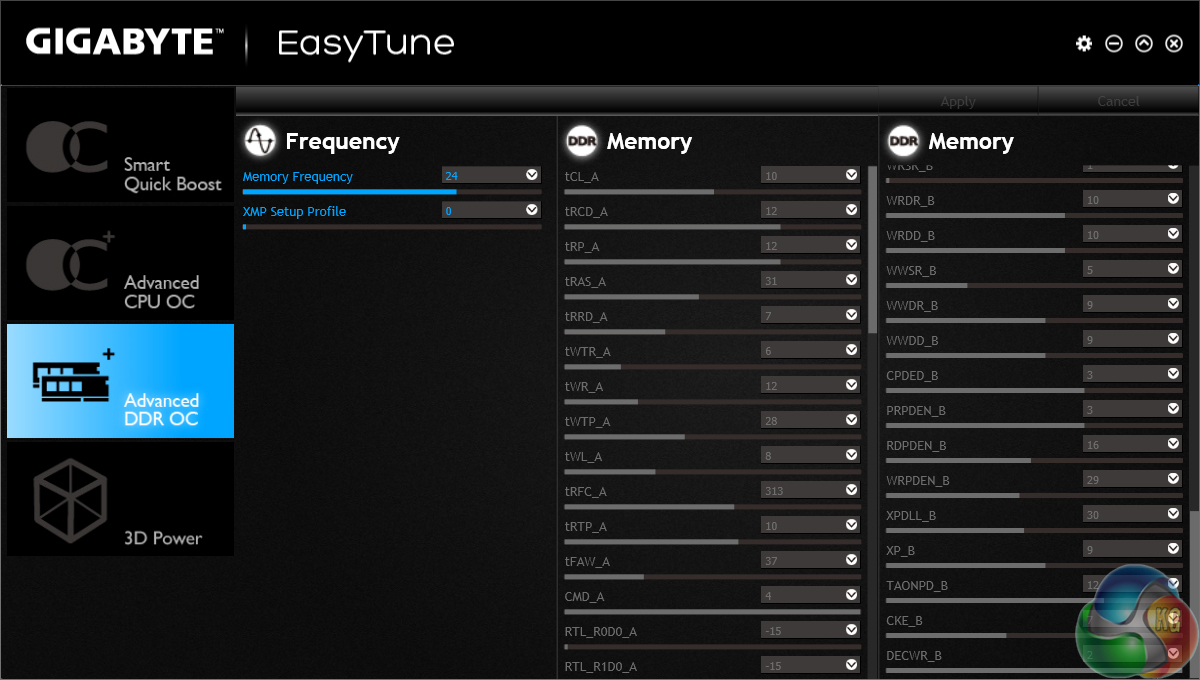
Gigabyte's EasyTune software allows users to view and adjust frequency, voltage, and other overclocking-related settings in an OS environment. Pre-set frequency profiles can also be selected.
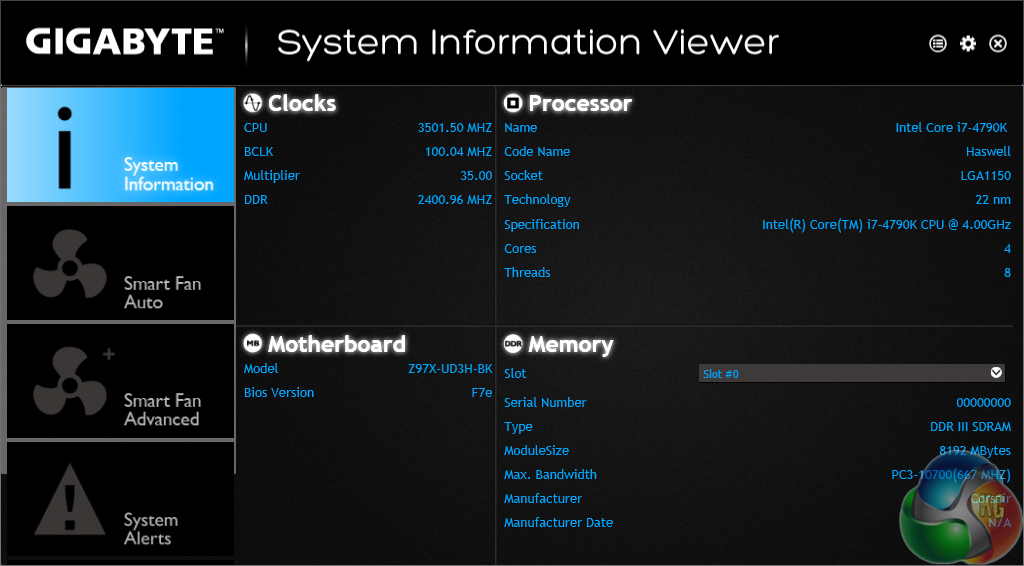
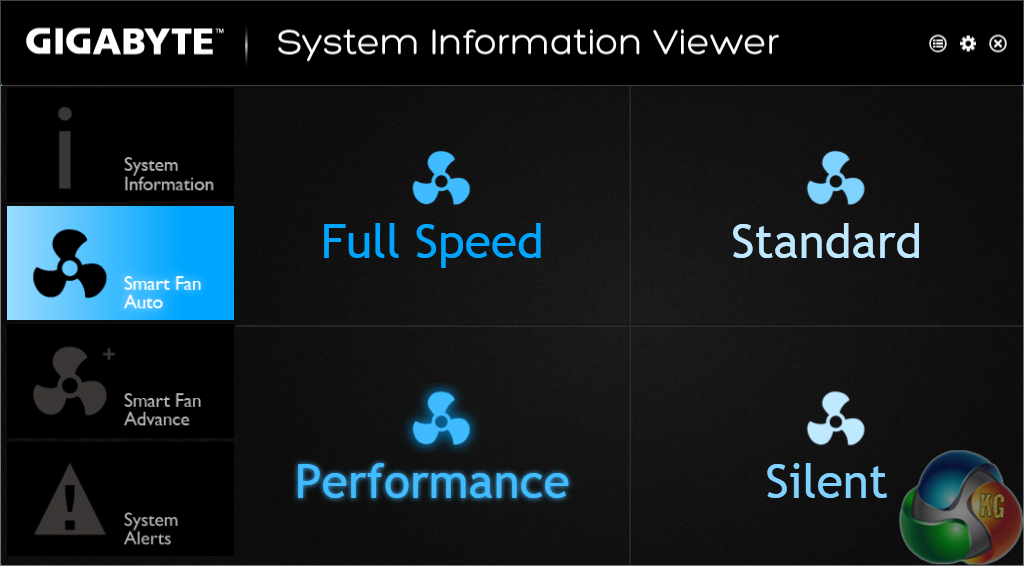
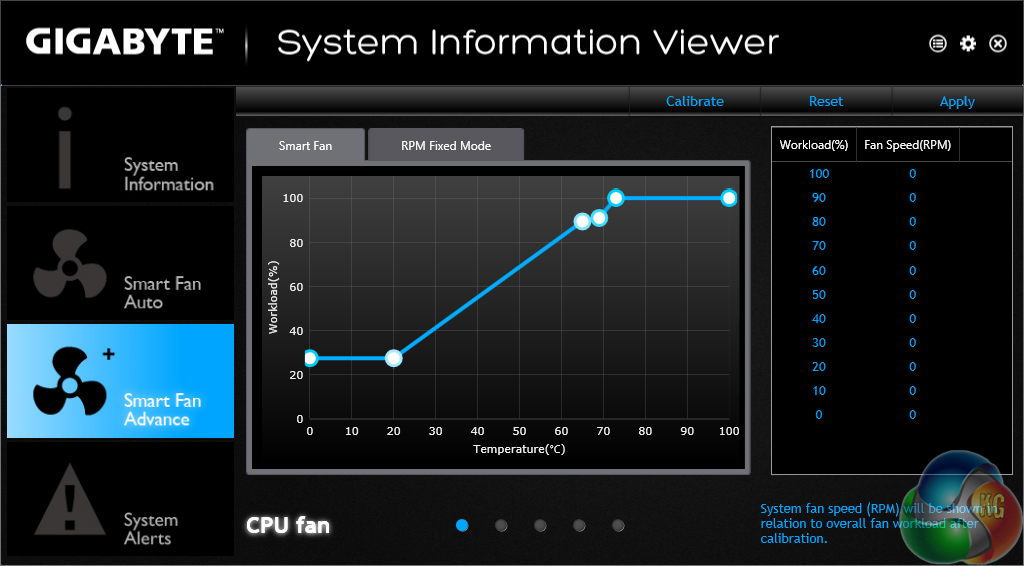
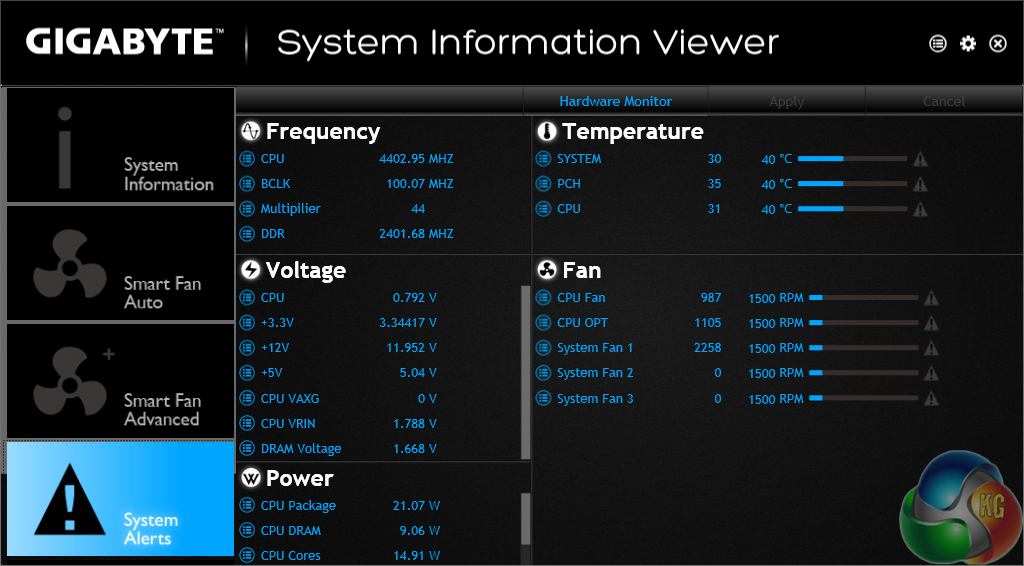
System information and fan speed settings can be tweaked via their own section in Gigabyte's software suite.
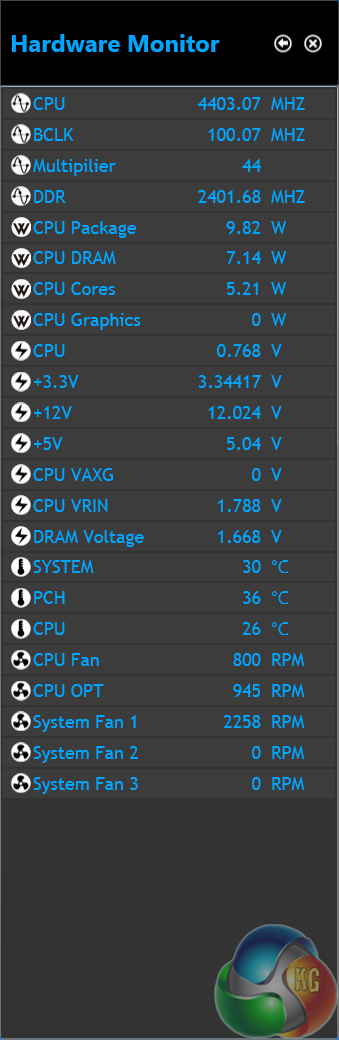
The Hardware Monitor section is detachable for convenient viewing when running processes.
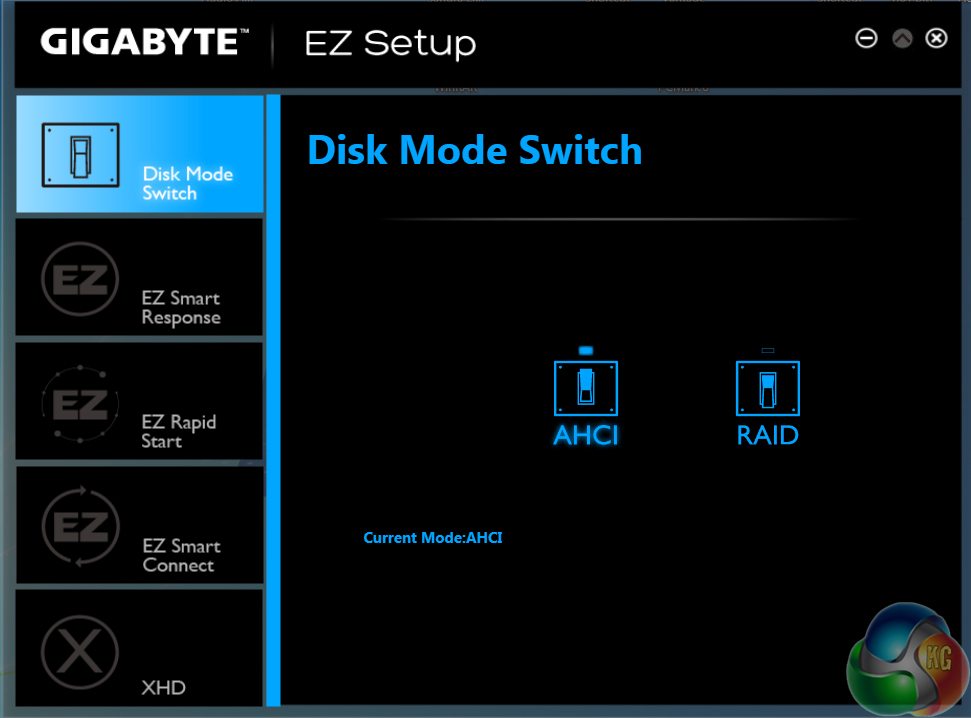
EZ Setup allows users to tweak their storage configuration settings.
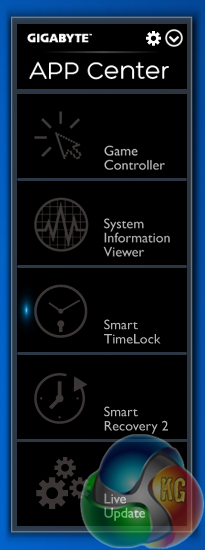
The app centre lists the installed applications that can be used with Gigabyte's motherboard.
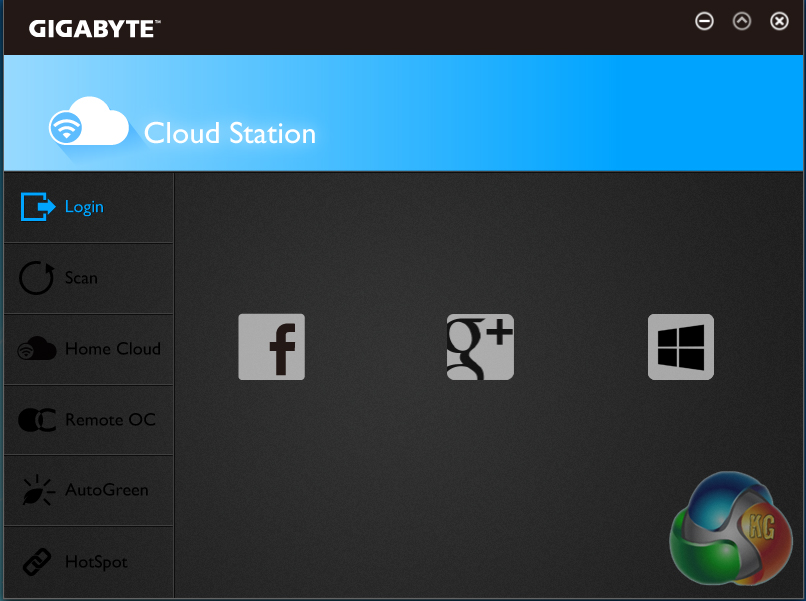
Gigabyte Cloud Station allows users to create their own personal cloud and use it to share files between their portable devices and computer. This could be convenient for backup and media streaming purposes.
There are also capabilities for remote PC control and access, as well as adjusting the system's operating state for power/security purposes.
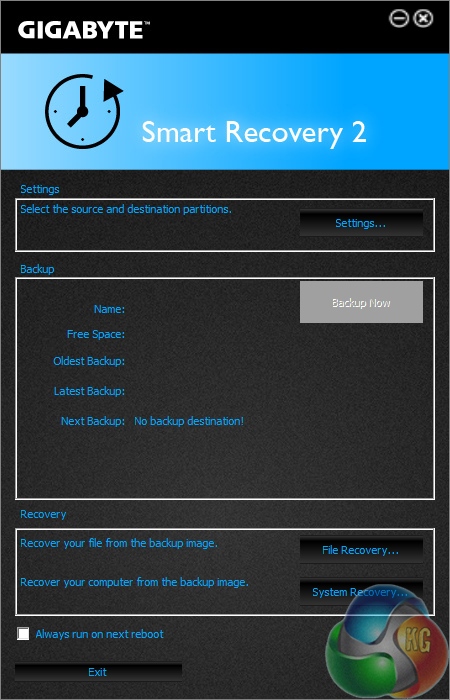
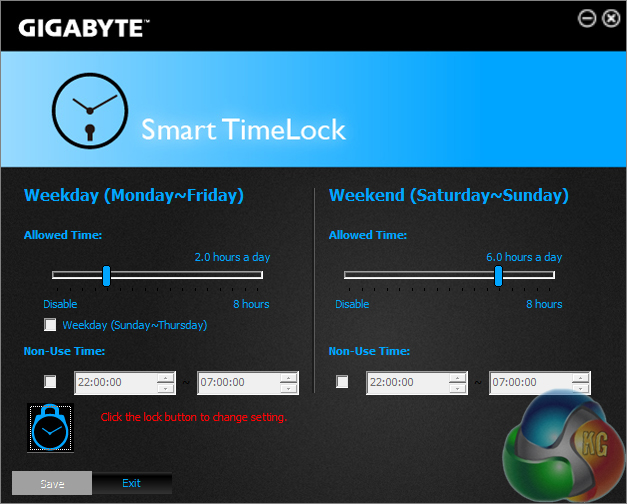
Smart Recovery 2 is Gigabyte's backup manager, while Smart Time Lock allows users to set times for when their system can be operated. The latter feature could be particularly useful to semi-professional users who demand an extra level of security.
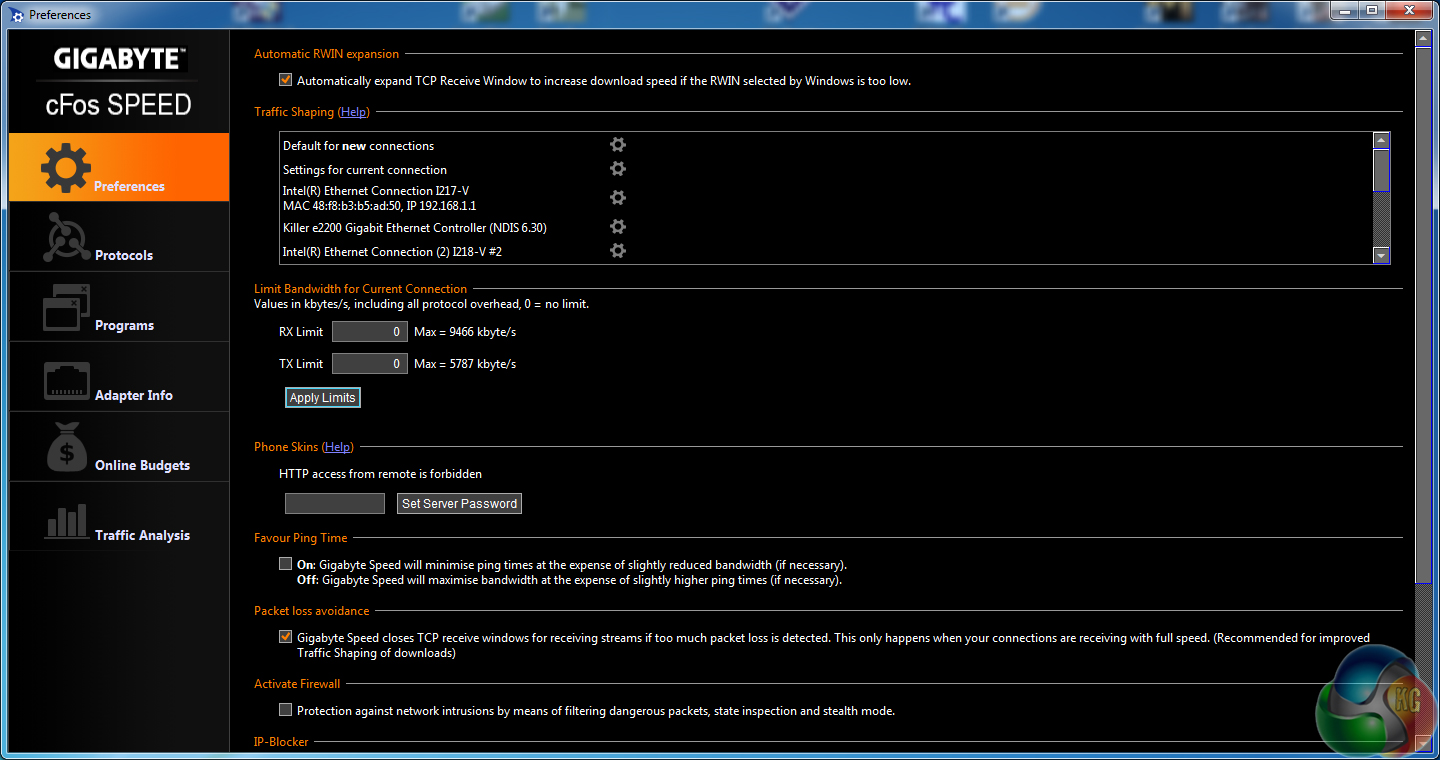
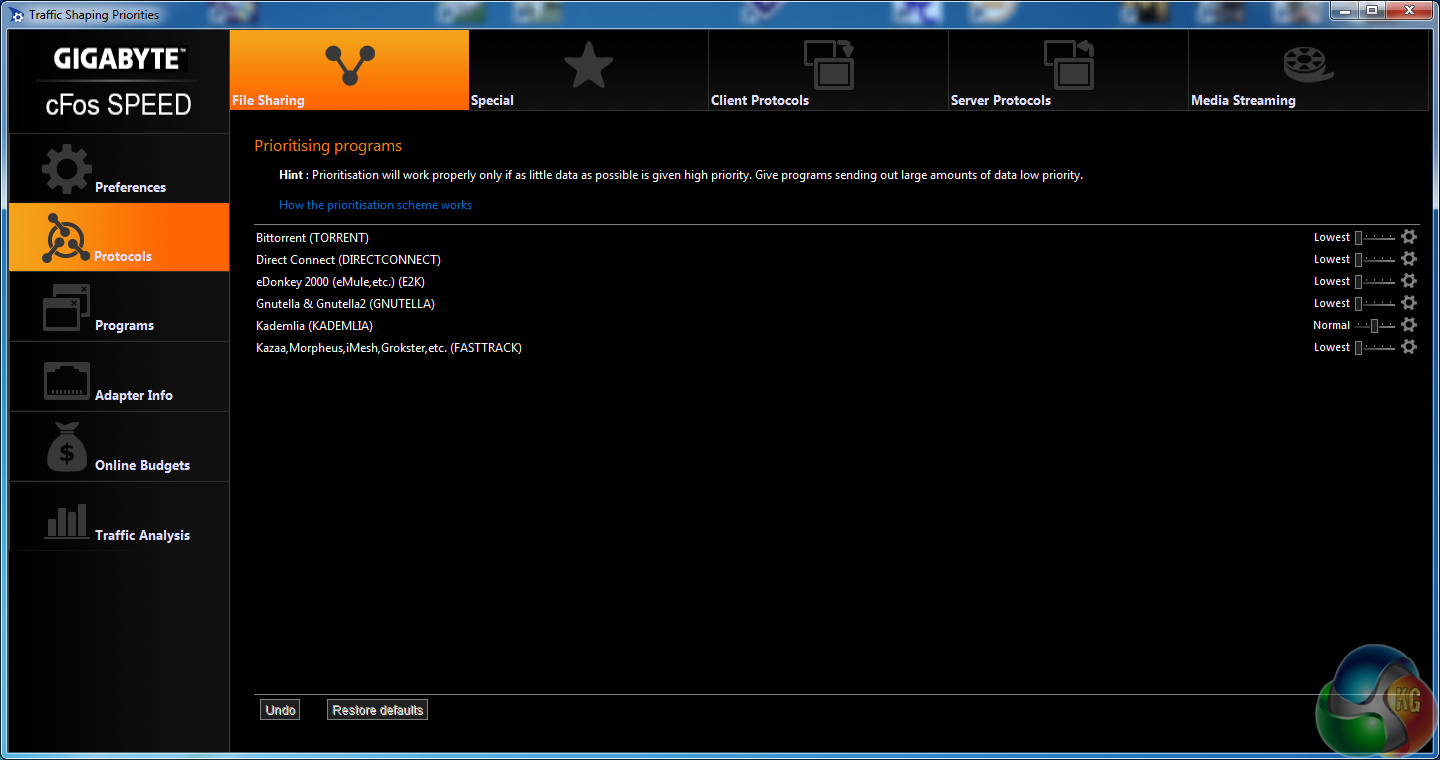
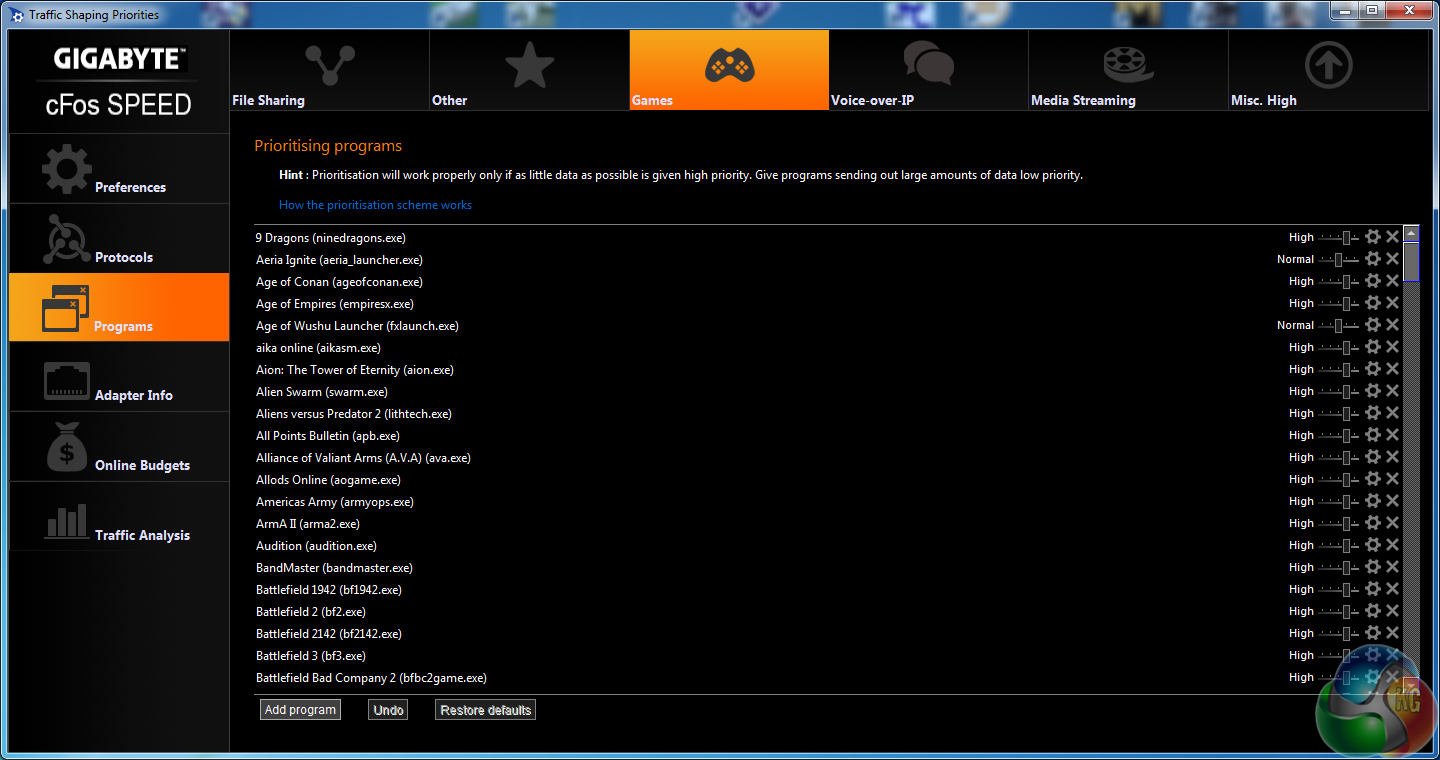
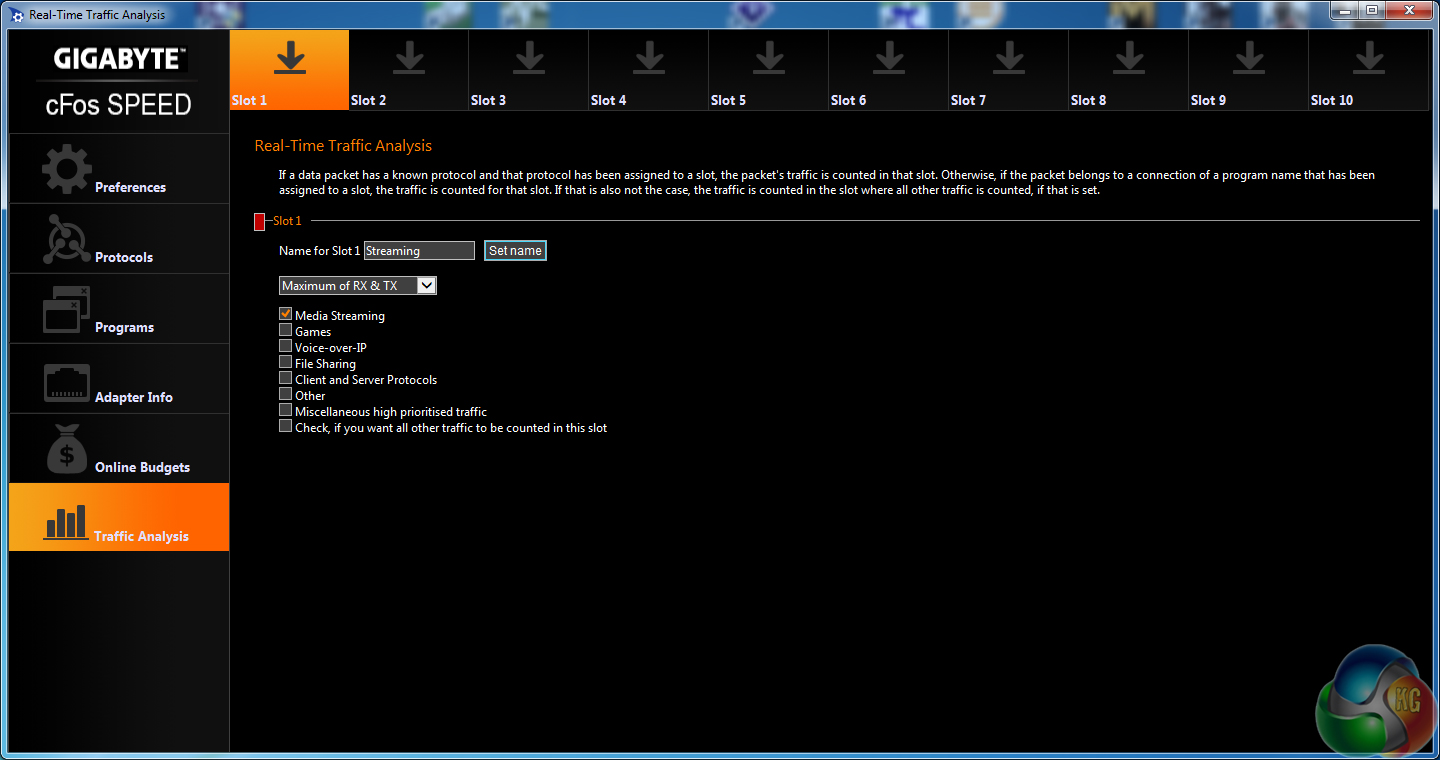
cFos speed is supported on Gigabyte's motherboards with an Intel NIC, and can be used to manage one's network. Prioritisation of gaming is one of the key features, although cFos Speed may be more useful to users without bandwidth-prioritising routers.
OS Software Comments
Gigabyte provides a solid range of OS-based apps. The Hardware Monitor implementation is welcomed, especially when CPU-Z struggles to correctly read data from the board's ITE monitoring chipset.
The software seemed to be a little more resource-hogging than competing vendors' software. With Gigabyte's App Center, Hardware Monitor tool, and cFos Speed utility running in the background, system performance would drop by a minor amount.
The impact genuinely was minor and dropping 7 points on an almost 900-point score in Cinebench, for example, is little cause for concern.
The Haswell micro-architecture in Devil's Canyon processors is just the latest Intel CPU architecture to see many of the critical system operations handled by the processor. As such, benchmarking a motherboard becomes more of a test to certify that the part operates correctly and meets the anticipated performance levels.
We will be outlining the Gigabyte Z97X-UD3H-BK motherboard's performance with the Core i7 4790K CPU at its stock frequency (4.4GHz due to forced turbo). Overclocked performance will be outlined later in the review.
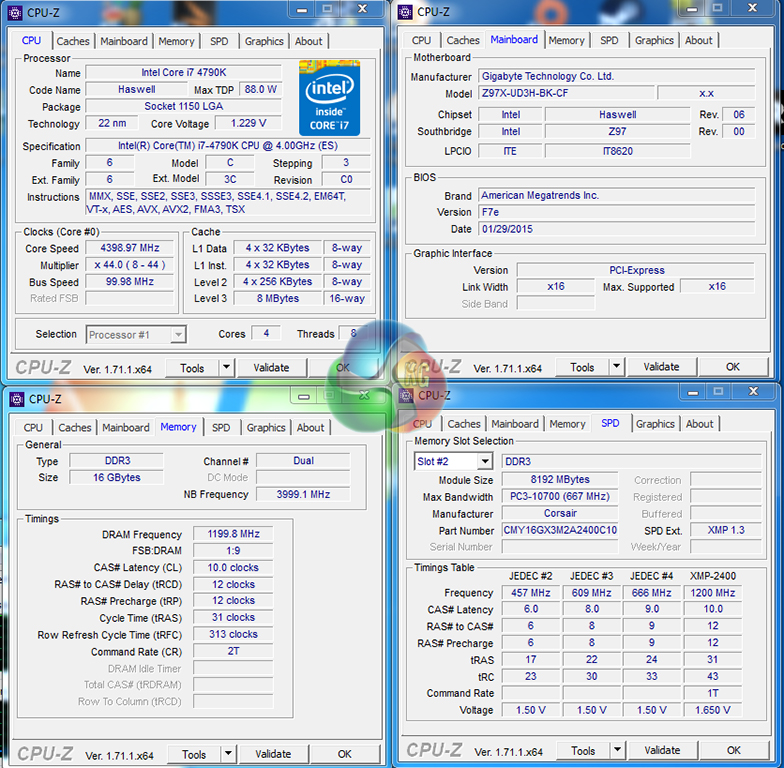
By default, the Gigabyte Z97X-UD3H-BK motherboard applies multi-core turbo (MCT) and forces the 4790K to a constant 4.4GHz when XMP is enabled. This will be displayed as the ‘stock’ setting.
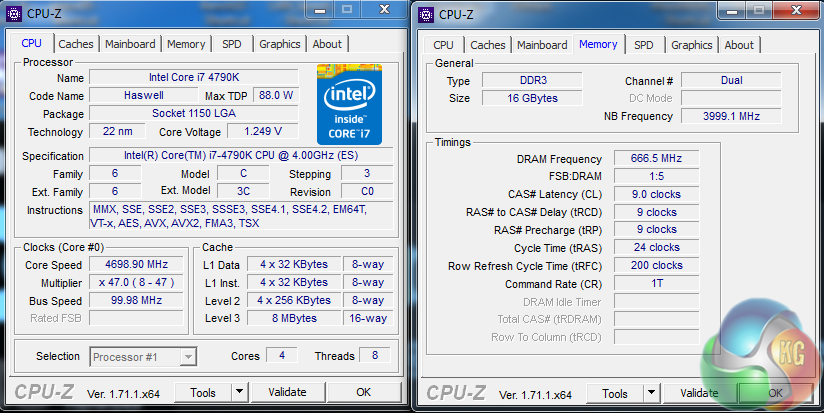
Many of the dynamic readings (such as CPU frequency and VCore) displayed by CPU-Z are incorrect. Static readings (such as the memory frequency, timings, CPU cores, etc.) are largely accurate.
We have noticed that CPU-Z is showing incompatibility (in the form of erroneous readings) with an increasing number of motherboards. This individual case is likely related to the specific ITE chipset used on the Z97X-UD3H-BK, so it is worth using Gigabyte's own hardware monitoring software.
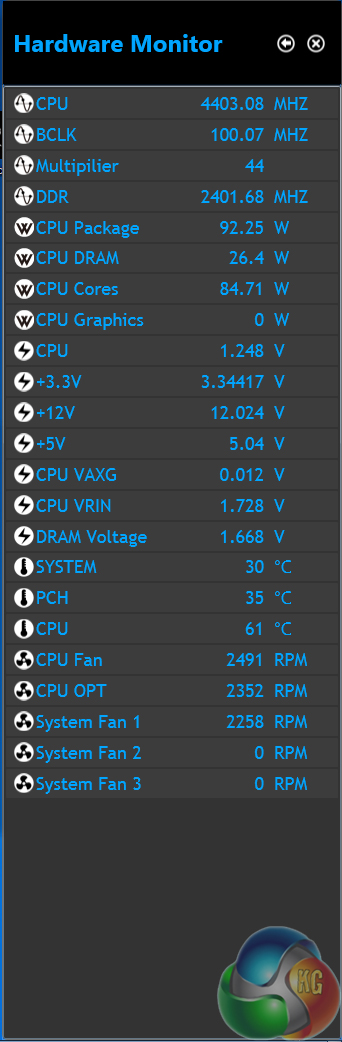
Gigabyte's Hardware Monitor tool can be launched through the App Center software package. Key voltages and temperatures are displayed, and, as system loads change, their dynamic adjustments are reported. There are some bugs though – we noticed discrepancies between the memory speeds reported, compared to the UEFI and CPU-Z.
1.248V is applied to the Core i7 4790K under load, in order to retain its 4.4GHz all-core turbo level. Under lower load conditions, the clock speed drops and the CPU voltage bounces around a 0.768V level.
Z97 Motherboard Test System:
- Processor: Intel Core i7 4790K ES (4.4GHz forced turbo).
- Memory: 16GB (2x 8GB) Corsair Vengeance Pro 2400MHz CL10.
- Graphics Card: Asus R9 280X Matrix Platinum 3GB.
- System Drive: 240GB SanDisk Extreme II SSD.
- CPU Cooler: Corsair H100i.
- Case: NZXT Phantom 630.
- Power Supply: Seasonic Platinum 1000W.
- Operating System: Windows 7 Professional with SP1 64-bit.
Compared Z97 Motherboards:
- ASRock Z97 Extreme6.
- Asus Maximus VII Hero.
- Asus Maximus VII Ranger.
- Asus Maximus VII Impact.
- Biostar Hi-Fi Z97WE.
- Gigabyte Z97X-SOC Force.
- MSI Z97 Gaming 9 AC.
Software:
- Gigabyte Z97X-UD3H-BK BIOS F7e (beta, but newest by more than seven months).
- Catalyst 14.4 VGA drivers.
- Intel 10.0 chipset drivers.
Tests:
- 3DMark 1.3.708 – Fire Strike (System)
- SiSoft Sandra 2014 SP2 – Processor arithmetic, memory bandwidth (System)
- Cinebench R15 – All-core CPU benchmark (CPU)
- WinRAR 5.10 – Built-in benchmark (CPU)
- HandBrake 0.9.9 – Convert 4.36GB 720P MKV to MP4 (CPU)
- ATTO – SATA 6Gbps, USB 3.0, M.2 transfer rates (Motherboard)
- RightMark Audio Analyzer – General audio performance test (Motherboard)
- Bioshock Infinite – 1920 x 1080, ultra quality (Gaming)
- Metro: Last Light – 1920 x 1080, high quality (Gaming)
- Tomb Raider – 1920 x 1080, ultimate quality (Gaming)
3DMark
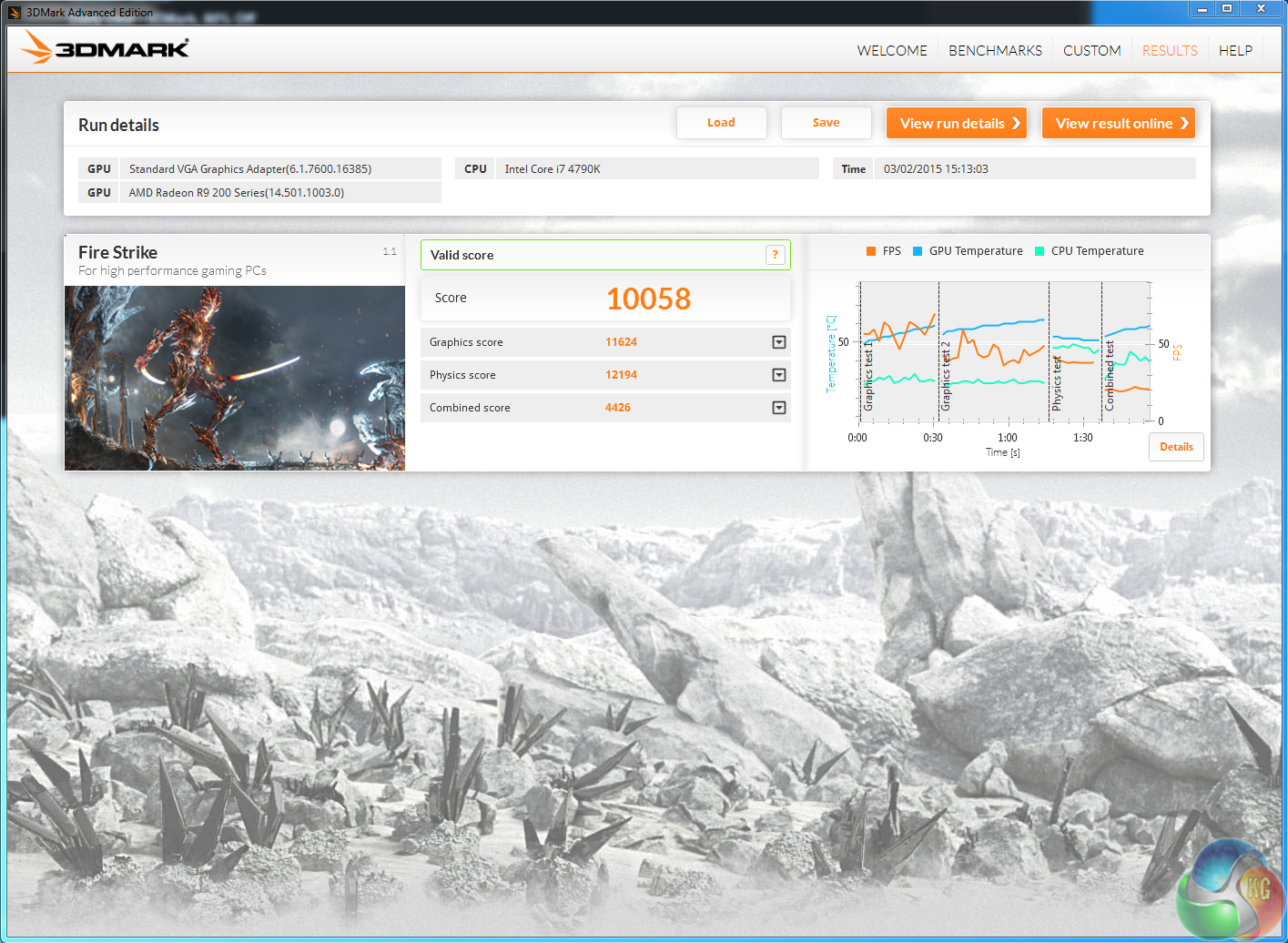
We used 3DMark‘s ‘Fire Strike’ benchmark which is designed to be used on gaming PCs. We opted for the Normal setting, NOT the Extreme mode.
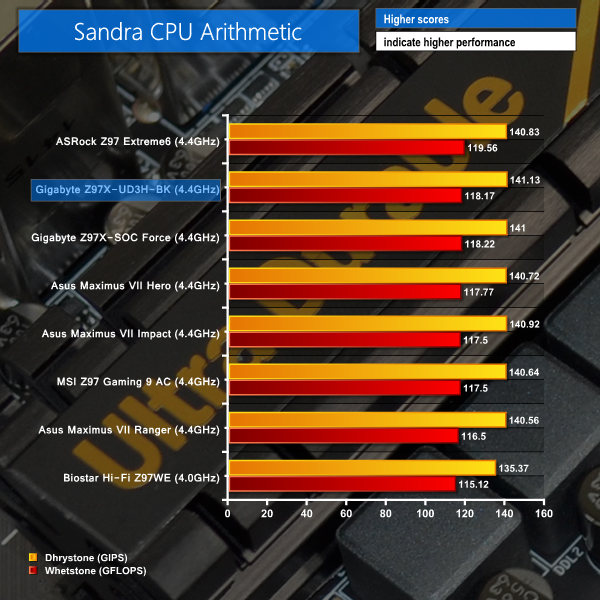
Sandra Processor Arithmetic
Sandra Memory Bandwidth
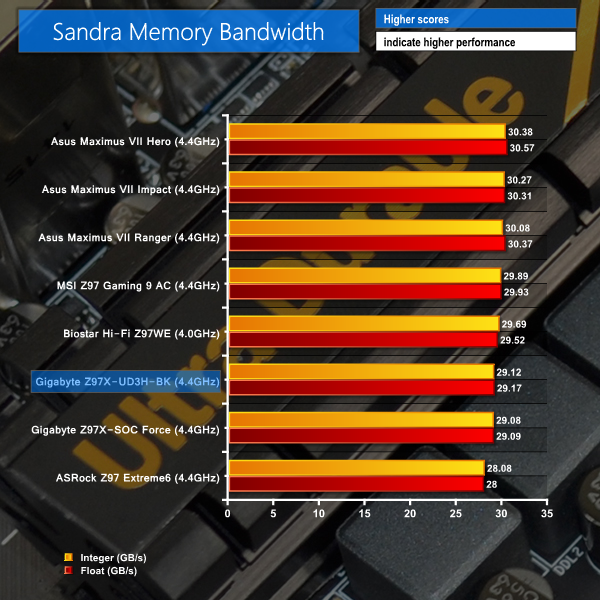
Gigabyte's Z97X-UD3H-BK shows positive performance in our batch of system-related benchmarks. The 3DMark Physics score is positive, and Sandra's Processor Arithmetic result puts the board in the top pair of contenders.
Memory bandwidth of the Gigabyte part isn't quite as strong as some of the contenders, most notably MSI and Asus. That said, the performance differences are likely to be negligible.
Cinebench
We used the ‘CPU’ test built into Cinebench R15 .
WinRAR
WinRAR’s built in benchmark and hardware test can help us outline the performance differentials between each motherboard. We record the amount of data processed after a 30-second run.
Handbrake Conversion
We measured the average frame rate achieved for a task of converting a 4.36GB 720P H.264 movie (in the MKV container) to one in the MP4 container.
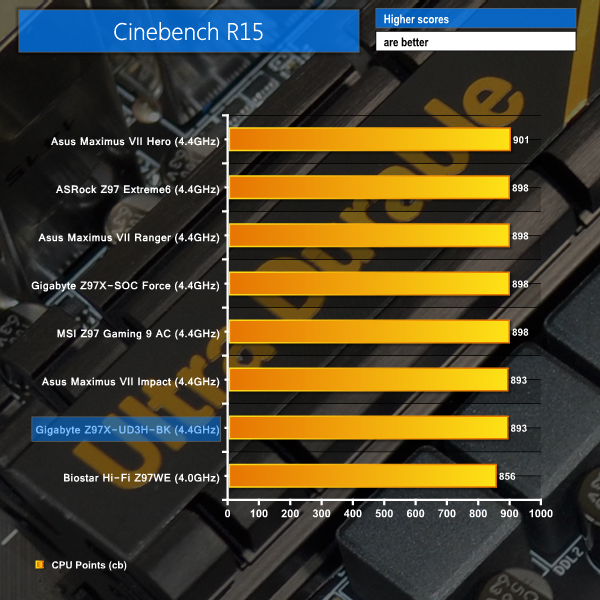
The CPU-related performance numbers posted in WinRAR and Cinebench are slightly disappointing for the Z97X-UD3H-BK. Cinebench places the Gigabyte part 8 points (~1%) down on the leading motherboard.
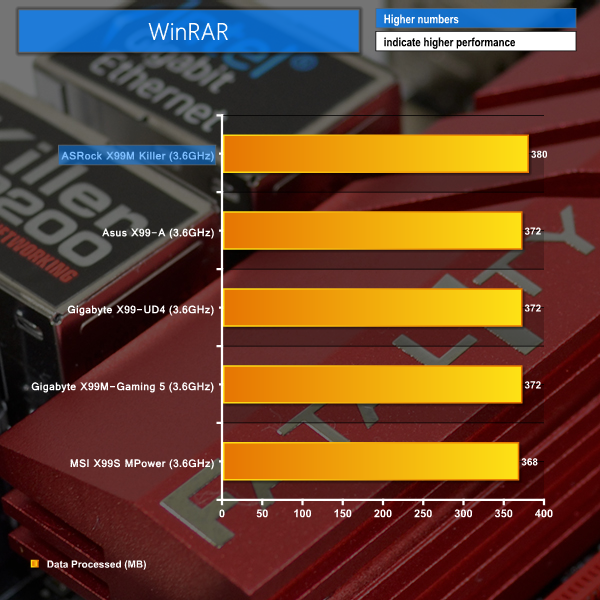
WinRAR didn't seem to like the Gigabyte board either – returning the lowest result that we have seen on all of our tested parts that use the 4.4GHz MCT frequency. This slight slowdown could be related to the minor performance losses introduced with the motherboard's beta BIOS.
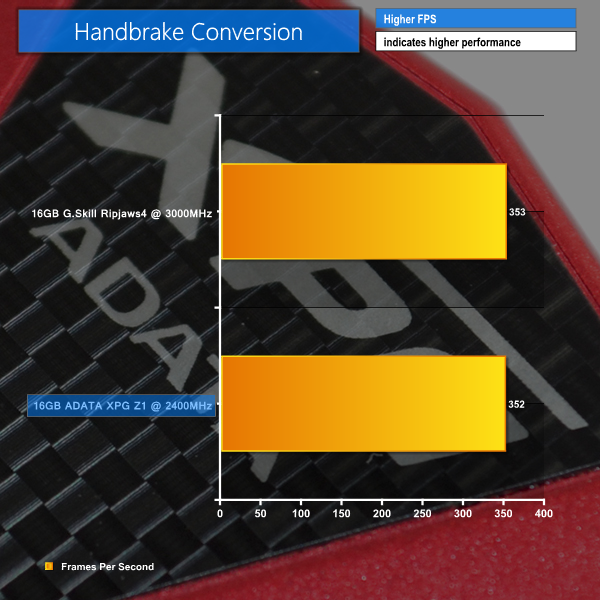
There were no issues with the Handbrake conversion performance – Gigabyte's frame rate for the Z97X-UD3H-BK sits close to the chart toppers.
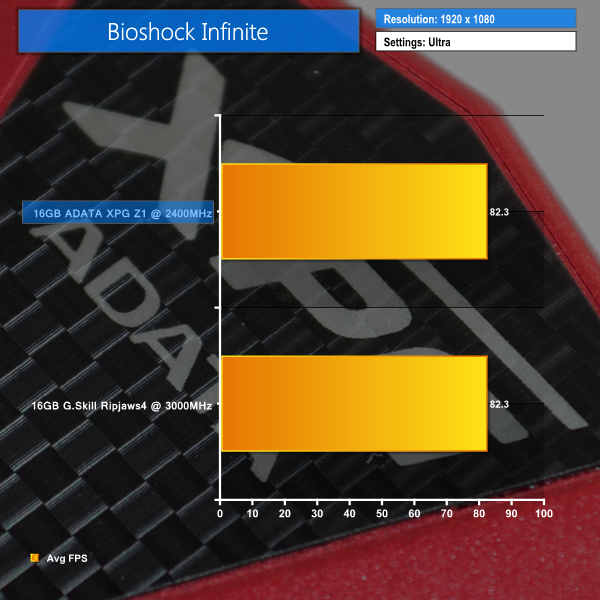
Bioshock Infinite
We used the Bioshock Infinite demanding ‘Ultra’ setting and a 1920 x 1080 resolution to push today’s gaming hardware. Our data was recorded using a section of the game, not the built-in benchmark.

Metro: Last Light
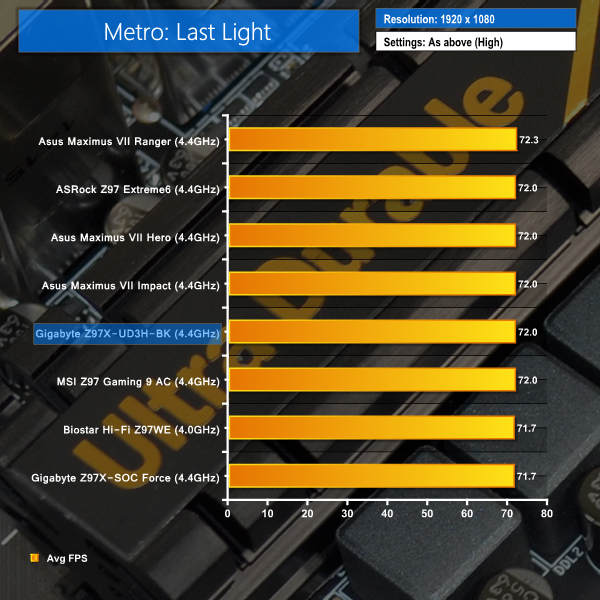
We used a 1920 x 1080 resolution and the Metro: Last Light built-in benchmark set to ‘High’ quality to offer an intense challenge for the gaming hardware while also making playable frame rates a possibility.

Tomb Raider
We used a 1920 x 1080 resolution and the Tomb Raider built-in benchmark set to ‘Ultimate’ quality.
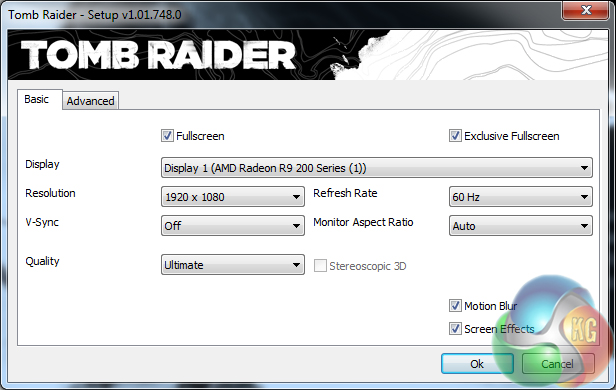
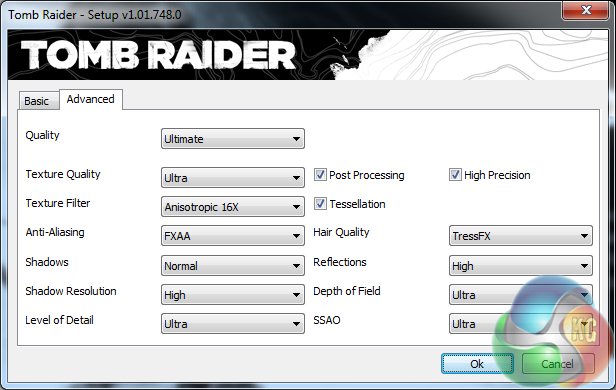
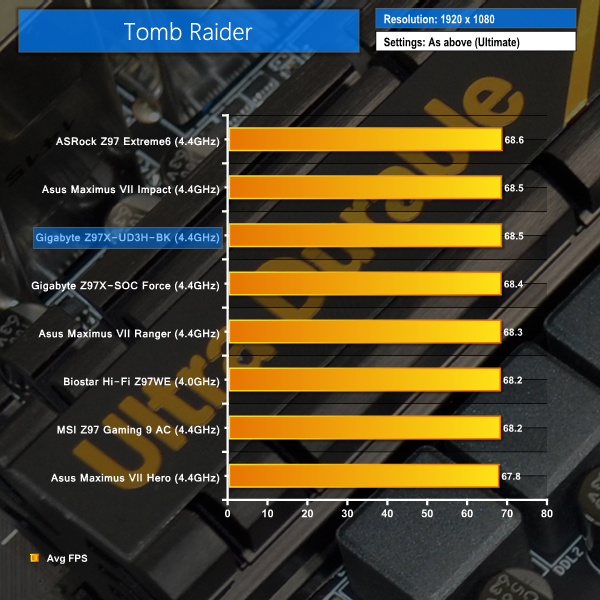
Gigabyte's Z97X-UD3H-BK has no problem showing off its gaming potential. Frame rates are consistent with the majority of other Z97 motherboards, and we didn't experience any unexplained slowdowns.
SATA
For SATA 6Gb/s testing we use a Kingston HyperX 3K (SandForce SF-2281) SSD.
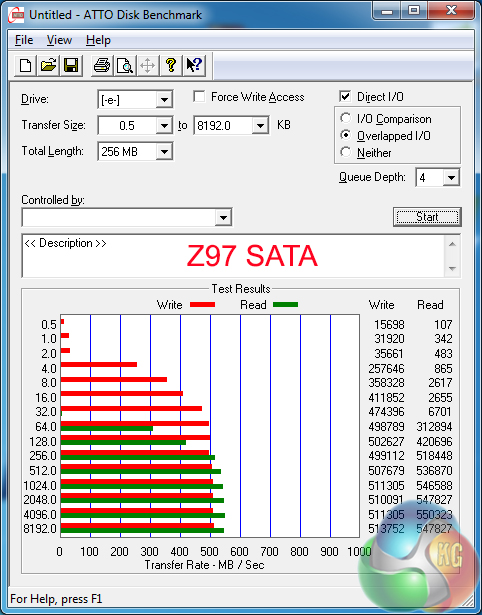
SATA performance is where we would expect it to be for a Z97 motherboard. There shouldn't be any bottleneck worries when using a modern SATA 6Gbps SSD.
M.2 connector
We use Plextor‘s fast M6e 256GB M.2 SSD to test the speed of a motherboard's M.2 connector. We reviewed the 512GB Plextor M6e (and its PCIe x2 adapter card) HERE.
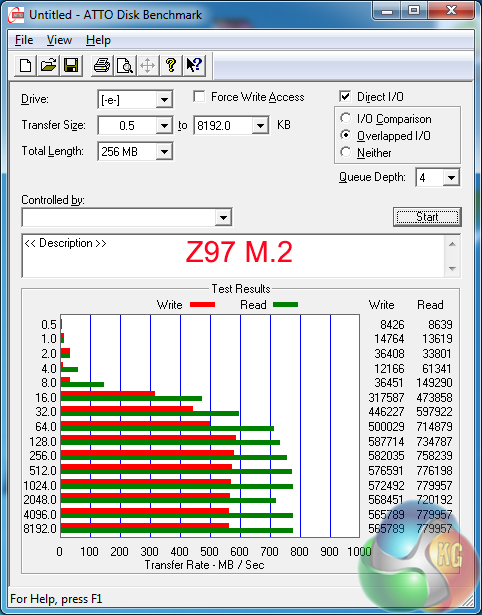
Gigabyte's 10Gbps M.2 connection has no problem providing ample bandwidth to the PCIe 2.0 x2 Plextor M6e SSD.
A faster – PCIe 2.0 x4 – SSD will, however, be limited by the 10Gbps connection, although this is a know trade-off with Z97's limited PCIe expansion.
USB 3.0
We tested USB 3.0 performance using the Kingston HyperX 3K SSD connected to a SATA 6Gb/s to USB 3.0 adapter powered by an ASMedia ASM1053 controller.
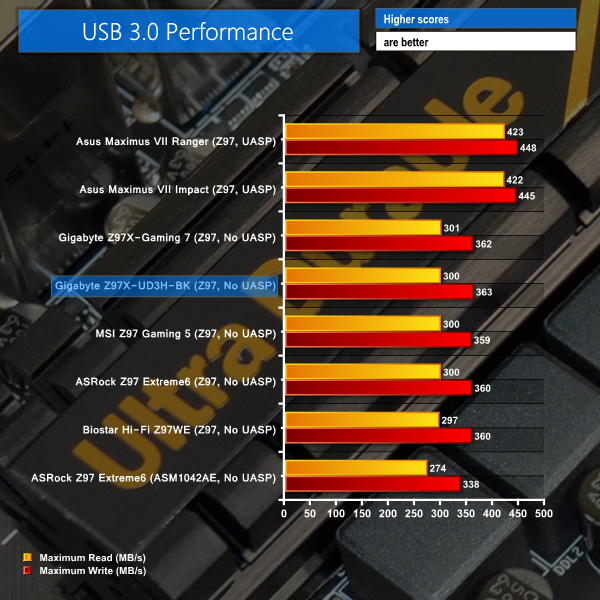
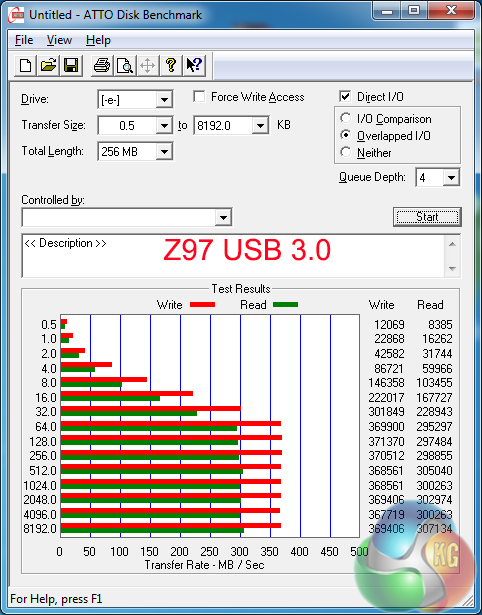
Gigabyte's Z97X-UD3H-BK posts the joint-best USB 3.0 transfer rates for any motherboard without a Windows 7 UASP-activating tool. That said, the performance lead over competing solutions is practically unnoticeable.
Audio
We use RightMark Audio Analyzer (RMAA) to analyse the performance of the motherboard’s onboard audio solution. A sampling mode of 24-bit, 192 kHz was tested.
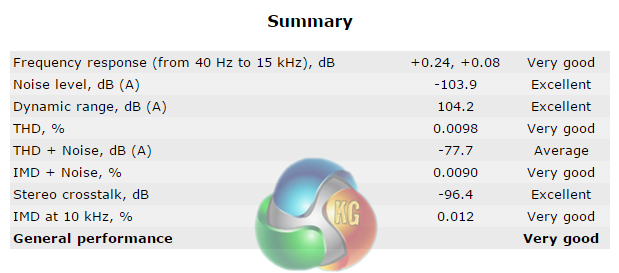
The Z97X-UD3H-BK motherboard's audio system consists of a Realtek ALC1150 codec and Texas Instruments NE5532 rear audio amplifier. Specific capacitors are used to filter the electronic signal, although Gigabyte uses very little in the way of EMI protection.
According to RMAA, the Gigabyte Z97X-UD3H-BK motherboard's audio system offers Very Good general performance. The strong Realtek ALC1150 codec and TI NE5532 amp can be thanked for the performance, and the lack of EMI shielding is not highlighted as a noticeable quality hindrance.
Automatic CPU Overclocking – OS-based:
In an attempt to keep this explanation brief, I will start by saying that Gigabyte's pre-defined overclocking profiles are a complete disaster. They're terrible. Putting them on the motherboard is insulting, because less-experienced users who trust the supposed manufacturer know-how will run a serious risk of damaging their CPU.
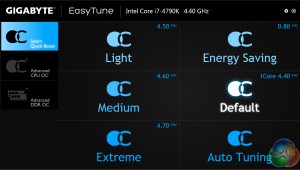
The OS-based overclocking profiles that can be selected via EasyTune range from a 4.5GHz ‘Light‘ option to a 4.7GHz ‘Extreme‘ profile. Both of these profiles see the CPU VCore peaking at 1.452V. Yes, you read correctly – 1.452V! That's about as ‘light' as a truck. A pre-set that forces a liquid-cooled CPU to more than 85°C after seconds of Prime95 is not smart.
Oddly enough, the 4.6GHz ‘Medium‘ profile uses a slightly less extreme CPU VCore of up to 1.38V. Memory speed is dropped to 1333MHz CL9 for all of the profiles.
I cannot comprehend how Gigabyte's well-informed system tuners would ever think that more than 1.45V is sensible for a 22nm processor designed with an 88W TDP in mind. Especially on a £140 mid-range motherboard. Bear in mind that our 4790K, for example, retains complete stability at 4.7GHz with a CPU VCore of around 1.3V.
Fortunately, Gigabyte's OS-based Auto Tuning tool is far more sensible. The process tests a small set of frequency levels to ensure system stability. Auto Tuning registered our CPU as good for a dynamic overclock which turbos up to 4.7GHz (4.5GHz for multi-core activity), with a CPU voltage that peaked around the 1.272V mark. Frustratingly, memory will still be dropped to 1333MHz CL9.
Automatic CPU Overclocking – UEFI-based:
The UEFI-led overclocking pre-sets aren't much better. Very little of the clearly-lacking perception of voltage sensibility seems to have been restored by the UEFI-based profiles. With a 4790K CPU, the ‘Performance Upgrade' profiles are:
- 20% = 4.3GHz static. CPU VCore up to 1.212V. 1600MHz CL11 memory.
- 40% = 4.4GHz static. CPU VCore up to 1.248V. 1600MHz CL11 memory.
- 60% = 4.5GHz static. CPU VCore up to 1.452V. 1866MHz CL11 memory.
- 80% = 4.6GHz static. CPU VCore up to 1.392V. 1866MHz CL11 memory.
- 100% = 4.7GHz static. CPU VCore up to 1.452V. 2133MHz CL11 memory.
Essentially, once you pass the 4790K's maximum turbo level of 4.4GHz (which is automatically applied when XMP is enabled), voltage sensibility disappears. More than 1.452V for an effective 100MHz clock speed increase is ridiculous.
And I have no idea how Gigabyte managed to derive the percentage figures. Since when is adding 300MHz onto a 4000MHz base CPU speed (not to mention wiping a third off the DRAM speed) considered a 20% ‘Performance Upgrade'? Presumably, these have not been updated to present the higher Devil's Canyon speeds.
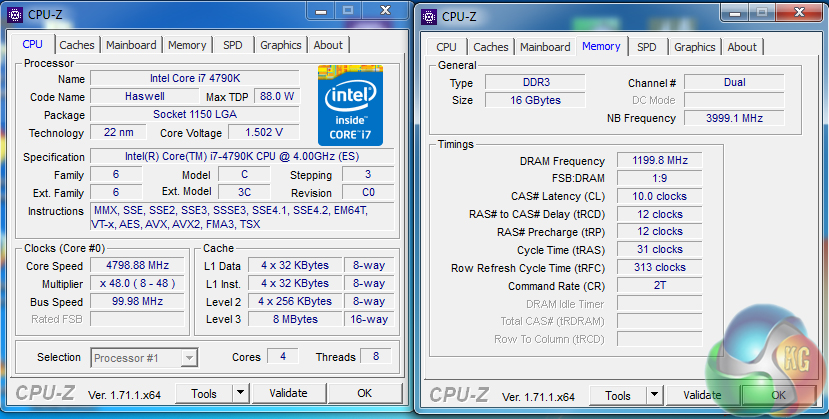
But the award for most entertaining setting of the day goes to Gigabyte's 4.8GHz ‘CPU Upgrade' profile. 1.524V CPU VCore when loaded. Yes, more than 1.5V on a £140, mid-range, medium-level overclocking motherboard.
Even the 4.6GHz profile was garnished with a CPU VCore level of up to 1.392V.
Manual CPU Overclocking:
To test the Gigabyte Z97X-UD3H-BK motherboard’s CPU overclocking potential, we first increased the CPU VCore to 1.31V, RING (Cache) voltage to 1.275V, CPU VRIN (Input voltage) to 1.900V, and PCH voltage to 1.10V. We also applied the Turbo CPU VRIN load-line calibration (LLC) level and set the cache ratio to 40x.
Our initial overclocking attempts did not provide stability at 4.7GHz, so we were forced to tweak the settings further. Filter PLL was set to ‘High', ‘K OC' mode was applied, System Agent voltage offset was +0.30V, CPU I/O Analogue voltage offset was +0.15V, and CPU I/O Digital voltage offset was +0.20V.
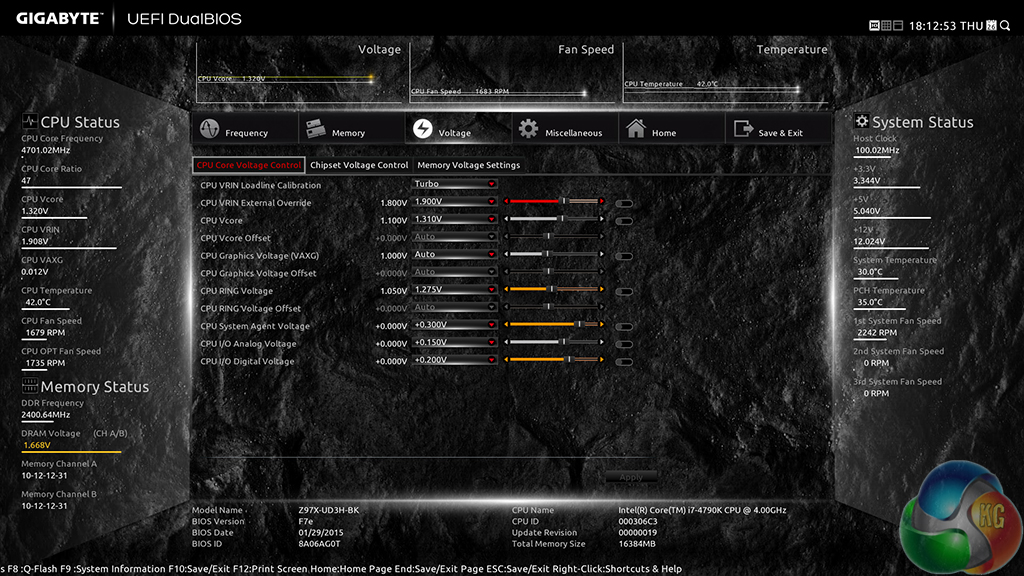
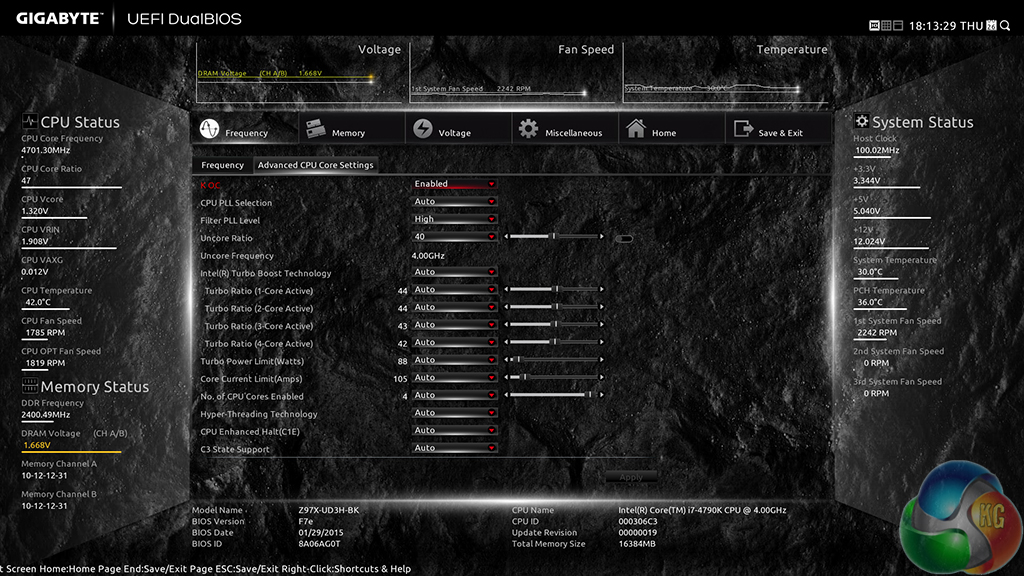
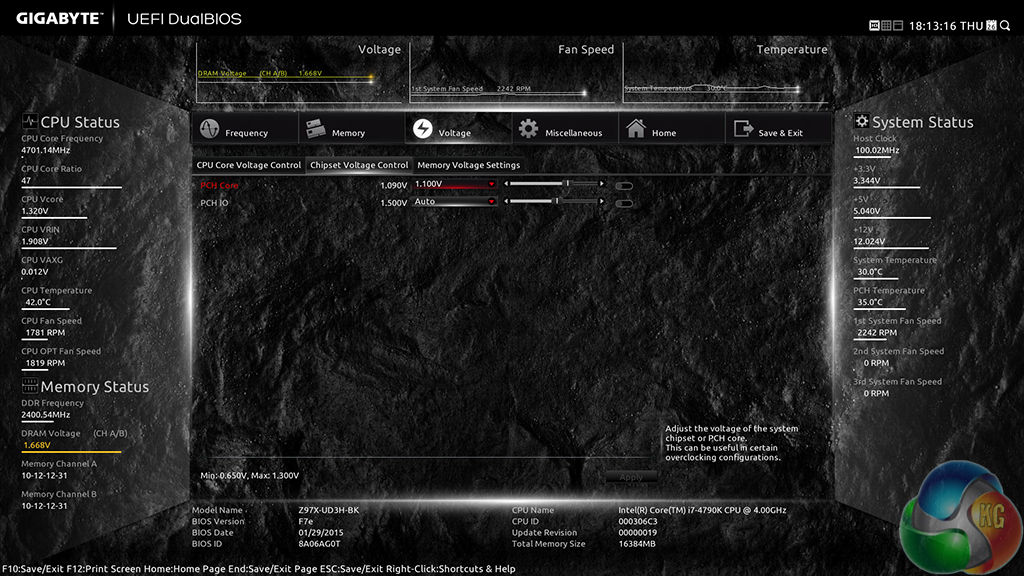
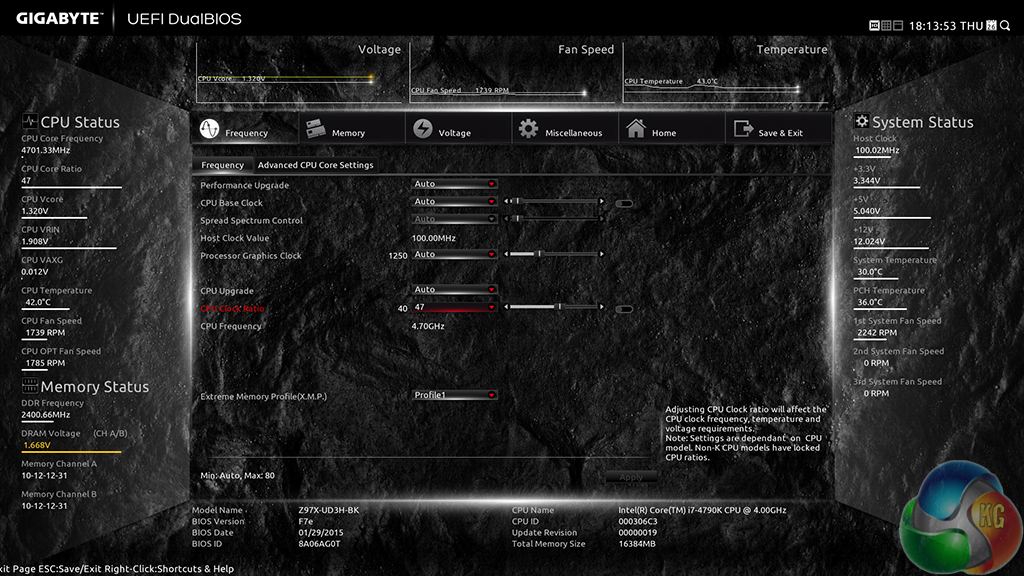
The feature-heavy nature of Gigabyte's UEFI becomes particularly helpful when trying to hold down a stable overclock. Many of the voltage parameters have small pieces of information linked to them in order to explain their function.
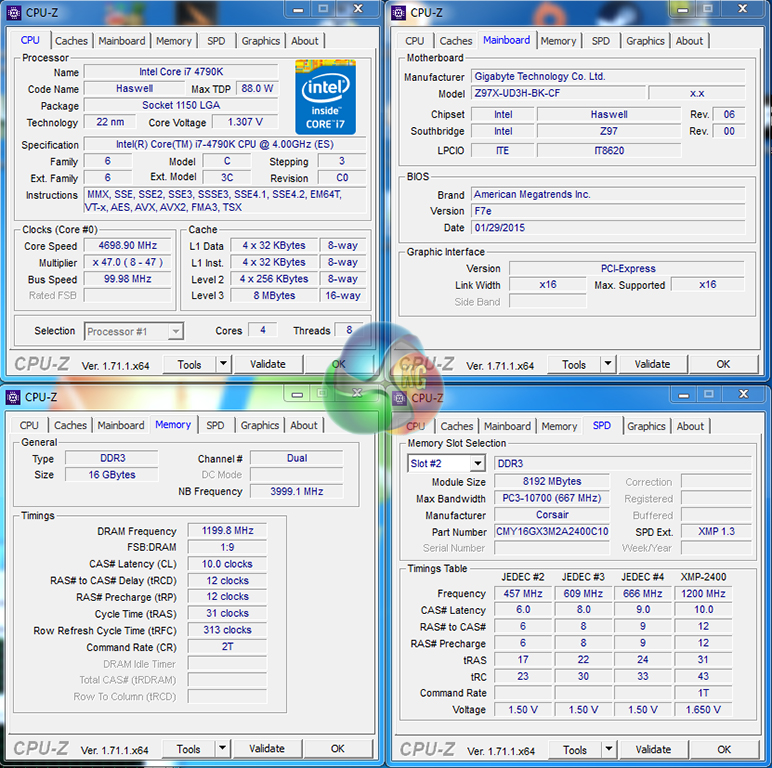
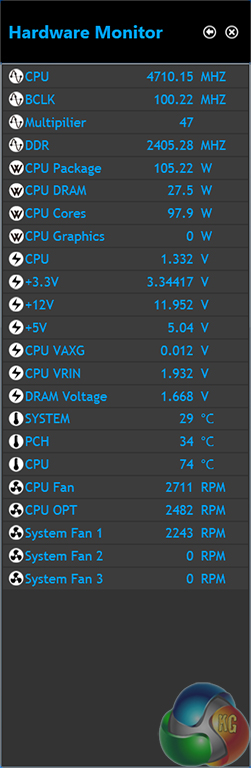
4.7GHz was the highest frequency we could reach with our relatively safe voltage levels. Our applied voltage level of 1.31V peaked at 1.332V under full load. A 22mV overshoot is a solid result for a mid-range motherboard.
The overclocking validation can be viewed here.
We will outline the performance increases that can be obtained from using the Gigabyte Z97X-UD3H-BK motherboard to overclock our system. Our overclocked processor frequency was 4.7GHz and memory speed was 2400MHz.
As a performance comparison, we have included the overclocked results from seven other Z97 motherboards. The maximum overclocked configuration achieved with each board was a 4700MHz (47 x 100MHz) processor frequency and 2400MHz CL10 memory speed.
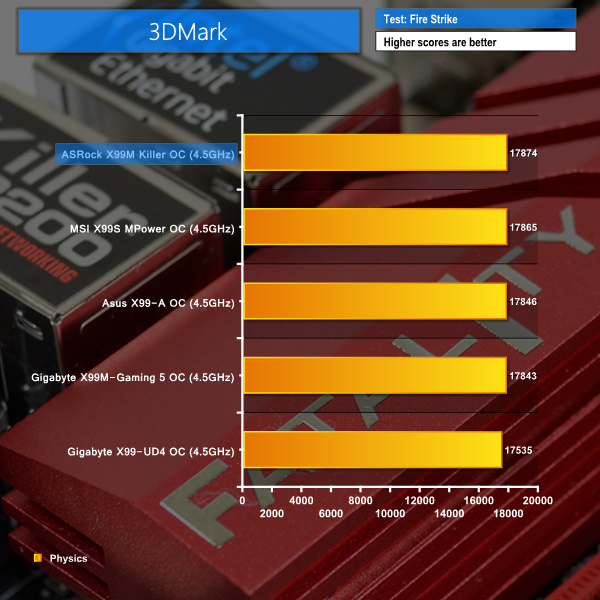
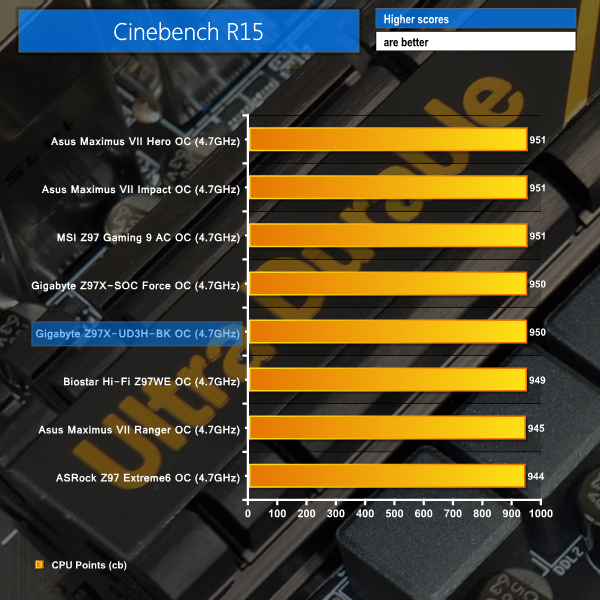
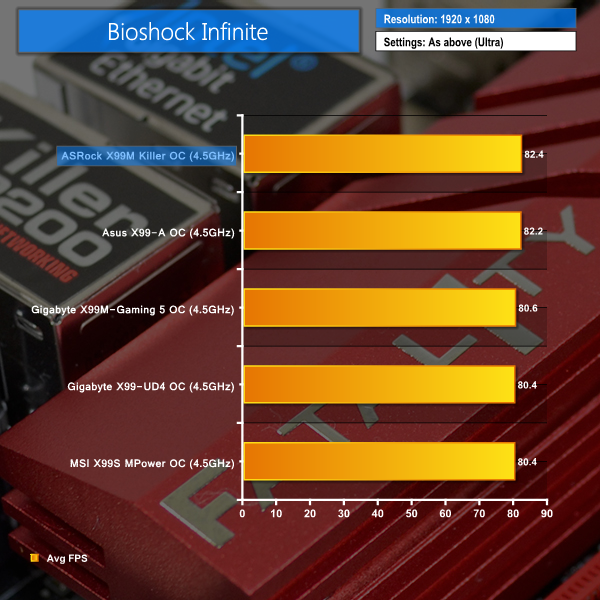
No problems are shown with the overclocked performance numbers. Gigabyte's Z97X-UD3H-BK shows pleasing performance with the CPU overclocked to 4.7GHz.
We measured the power consumption with the system resting at the Windows 7 desktop, representing idle values.
The power consumption of our entire test system (at the wall) is measured while loading only the CPU using Prime95′s in-place large FFTs setting. The rest of the system’s components were operating in their idle states, hence the increased power consumption values (in comparison to the idle figures) are largely related to the load on the CPU and motherboard power delivery components.
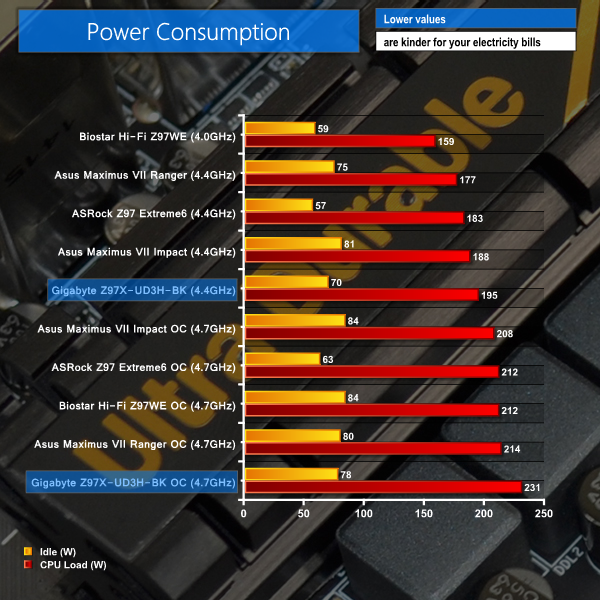
The use of a hybrid digital Intersil VRM controller presents the Z97X-UD3H-BK with positive idle power consumption numbers. At load, however, Gigabyte's part displays the highest stock and overclocked power consumption levels.
Overclocked load power consumption is higher than typical due to the board's reliance upon heavily tweaked voltage settings. We also noticed that the CPU temperature was a few degrees higher than normal while stress testing our overclocked settings. Gigabyte's relatively basic VRM solution is not the most efficient of the boards on show.
From a feature and performance perspective, Gigabyte's Z97X-UD3H-BK Black Edition offers a strong selection of the core features that general computing users will desire. And even for gamers, the board offers solid multi-GPU support, the ALC1150 audio codec, and network prioritisation capabilities through the Intel NIC.
Overall performance is generally competitive with other Z97 parts. Gaming performance was as positive as any of the other Z97 boards that we have worked with. Gigabyte's suite of OS-based software teetered on the resource-heavy side, with minor performance drops being registered while the apps ran in the background. Closing the apps eliminates the performance deficiencies.
Manual overclocking capabilities are comparable to many other Z97 motherboards, albeit with time and effort. Our CPU required a number of additional tweaks and 10mV more voltage than on the Gigabyte Z97X-SOC Force in order to reach 4.7GHz, but the 1.31V level and heavy fine-tuning is comparable to MSI's Z97 Gaming 9 AC.
For the safety of your processor, avoid Gigabyte's mostly ridiculous pre-set overclocking profiles. Whether they are loaded through the UEFI or OS-based EasyTune software, they are dire. If you really aren't confident at overclocking, the Auto Tuning option found in Gigabyte's OS-Based EasyTune software is actually pretty decent.
Expansion has clearly been carefully considered by Gigabyte. The choice of expansion slots and their positioning is smart. The same is true for the PCIe lane distribution, which provides x8/x8 CrossFire/SLI plus an additional non-graphics PCIe device (such as a PCIe x2 or x4 SSD). In addition to 10Gbps M.2 and SATA-E, a relevant number of USB 3.0 and SATA 6Gbps ports are also provided.
I like the use of Realtek's high-end ALC1150 and a TI NE5532 op-amp, although some EMI shielding would have been nice. That said, the Very Good audio result gives me little ground for complaint. Intel's ageing I217-V NIC is used rather than the popular I218-V, but the older chipset does the job and is typically preferred to a Realtek solution.
Gigabyte's high-res UEFI is filled with features, although it can be difficult to comprehend at times. The DualBIOS redundancy that comes from a pair of chips is great for reliability. OS-based applications are diverse, although nothing out-of-the-ordinary by today's standards.
The big talking points for a Black Edition motherboard are its after-sale support and touted reliability. Obviously the latter point is hard to quantify in the space of a review, but the 5-year warranty is definitely worth value to many consumers. And the opportunity for a free motherboard upgrade within 3 years of purchase is another valuable asset for many buyers.

But don't expect those benefits to come for free. OverclockersUK has the Z97X-UD3H-BK listed at £142.99 which is about £30 higher than the standard Z97X-UD3H motherboard's going-rate. At face value, that extra £30 may be hard to swallow for a hardware-identical component.
That said, when we factor in the extra 2 years of warranty, certified server-level stress testing, and guaranteed free-of-charge upgrade within 3 years, the extra outlay looks a great deal fairer. You could even consider the board a smart investment if you plan on upgrading within 3 years – £30 is likely to be far less than the asset depreciation applied through second-hand marketplaces, not to mention your time and effort.
Discuss on our Facebook page, over HERE.
Pros:
- Black Edition status – 168 hour server-level stress testing, 5-year warranty, motherboard upgrade program.
- Well-balanced set of features.
- Smart expansion slot configuration – CrossFire/SLI support with an additional PCIe 2.0 x4 device.
- Clean black appearance.
- M.2 and SATA-Express support.
- Solid software implementation and UEFI BIOS redundancy.
Cons:
- Noticeably more expensive than the non-Black Edition version.
- Pre-tuned overclocking profiles are terrible. Many are potentially damaging for your processor.
- OS-based software apps seem to be a little resource-heavy.
KitGuru says: A well-balanced motherboard with certified reliability and greatly enhanced after-sales care. A strong contender if you value reliability and the potential for a hassle-free upgrade within 3 years.