KitGuru KitGuru.net – Tech News | Hardware News | Hardware Reviews | IOS | Mobile | Gaming | Graphics Cards


While Cooler Master's first monitor, the GM34-CW, launched back in 2020, the company is still very much a newcomer to the display market. Today, we get hands-on with our first Cooler Master monitor in the form of the GM32-FQ, a 1440p IPS screen with a 165Hz refresh rate. Priced at £430 here in the UK, is Cooler Master onto a winner, or is there work still to be done?
Not only is today's review our first time assessing a gaming monitor from Cooler Master, but it also marks the introduction of our new response time testing. This has been made possible by the Open Source Response Time Tool (OSRTT), developed by TechTeamGB, meaning we can now present hard response time data when testing monitors, as opposed to relying on a subjective experience.
Additionally, we assess the design, colour performance, latency and more, so without further ado, here is our review of the Cooler Master GM32-FQ…
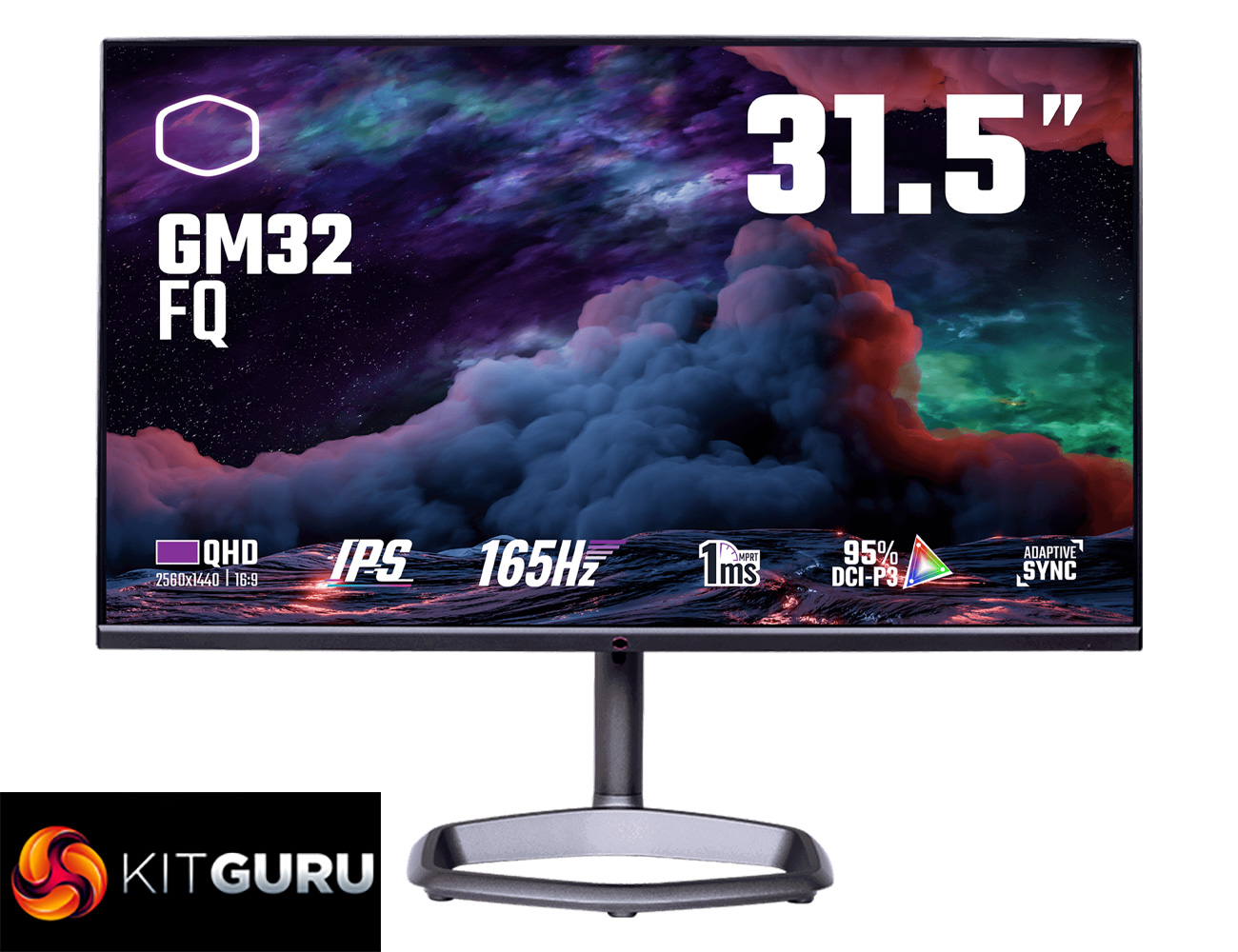
Specification:
- PRODUCT NUMBER: CMI-GM32-FQ
- PANEL TYPE: FLAT SERIES
- RATIO: 16:9
- SCREEN SIZE: 31.5″
- PANEL: ADS 10BIT (IPS)
- RESOLUTION: 2K QHD 2560X1440
- FRAME RATE: 165HZ (120HZ AND BELOW: 10BIT; >120HZ: 8BIT + DITHERING)
- CONTRAST RATIO: 1200:1
- BRIGHTNESS: 400 NITS
- DISPLAY HDR400 COMPATIBLE: YES
- COLOR GAMUT: DCI-P3 95%
- I/O – DP: 1
- I/O – HDMI 2.0: 2
- I/O – USB TYPE C: 1
- I/O – USB 3.0 TYPE B: 1
- I/O – USB 3.0 TYPE A: 2
- I/O – SPEAKER: 2 (2W)
- DCR (DYNAMIC CONTRAST RATIO): YES
- FREESYNC: FREESYNC PREMIUM, G-SYNC COMPATIBLE READY
- RESPONSE TIME: 1MS (MPRT)
- EYE PROTECTION: LOW BLUE LIGHT
- MODE SWITCH: GAME, STANDARD, GRAPHIC, MOVIE, SRGB
- LIGHTING: N/A
- VESA: 100X100MM
- HEIGHT ADJUSTMENT: 0~110MM
- SWIVEL ADJUSTMENT: -15°~+15°
- TILT ADJUSTMENT: -5°~+20°
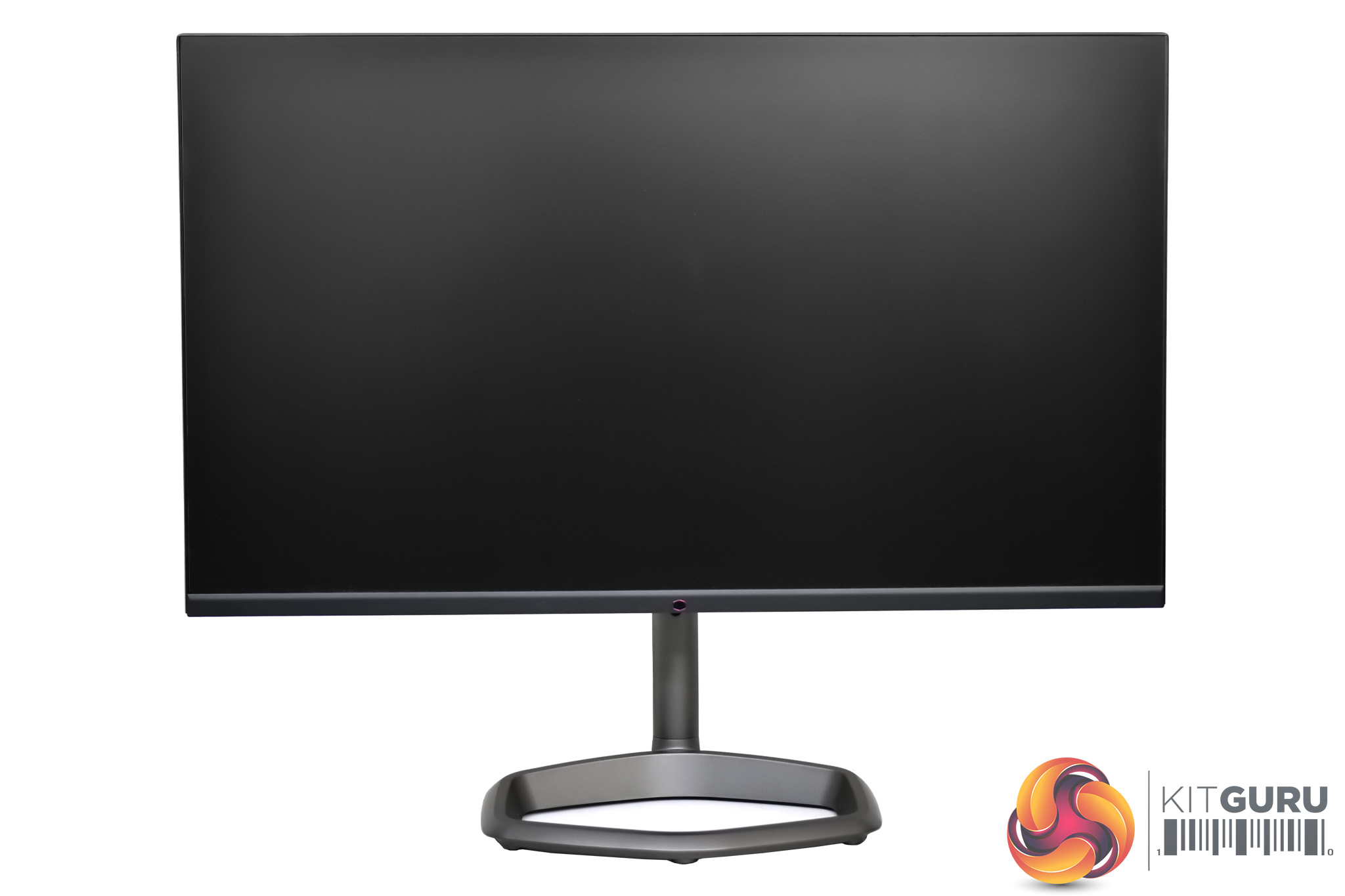
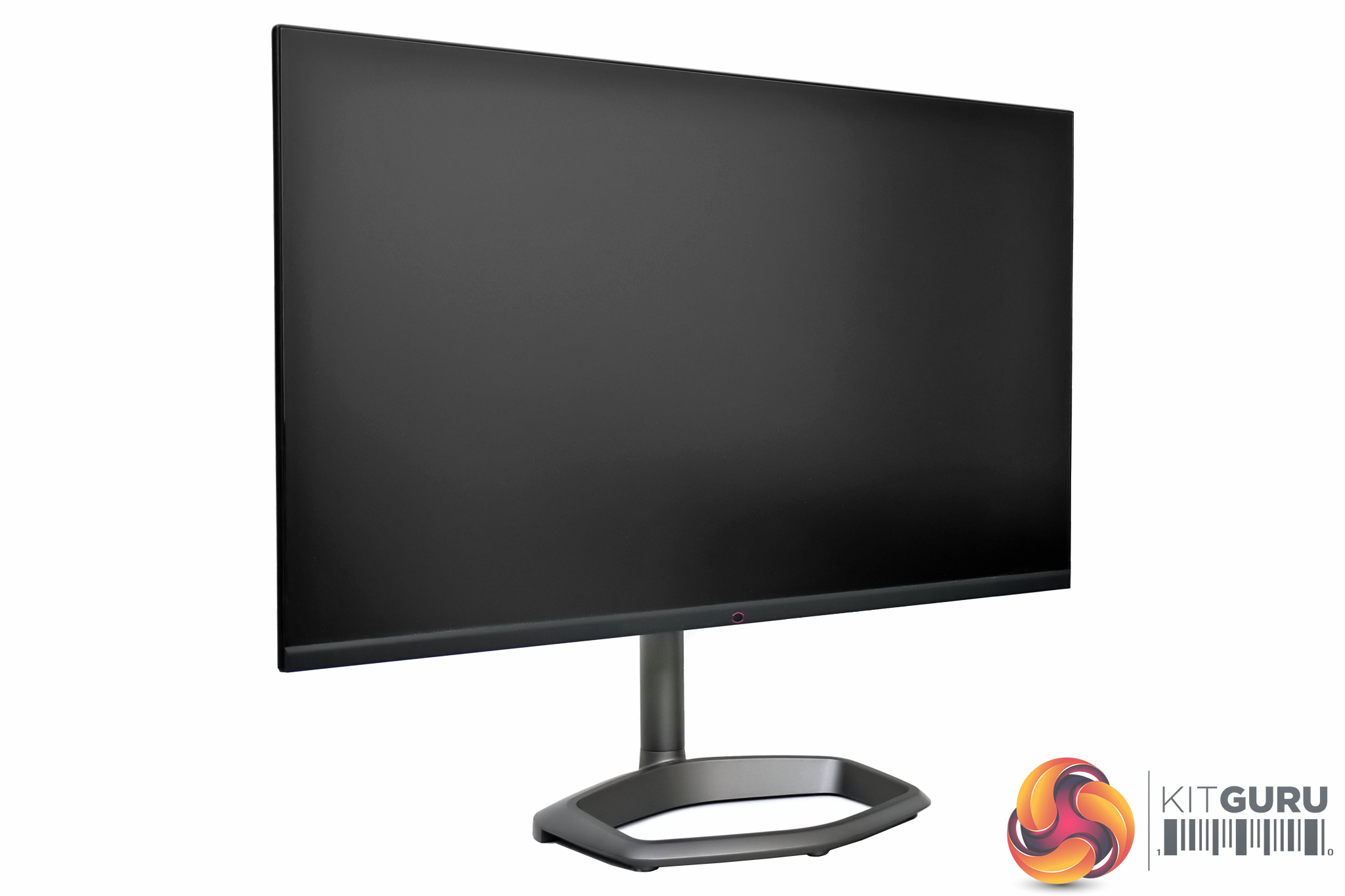
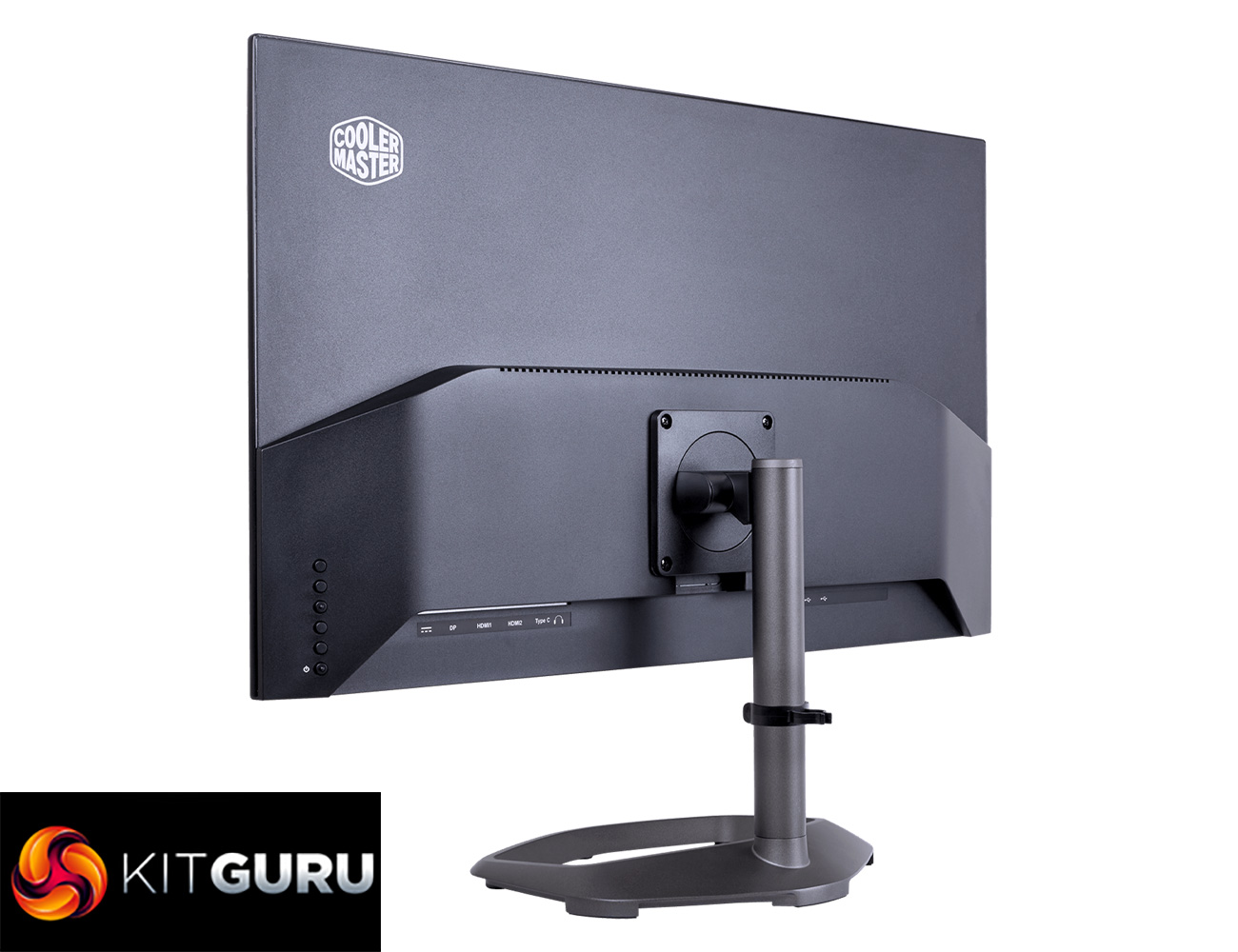
Kicking things off with the design of the Cooler Master GM32-FQ, I have to say I really like what Cooler Master has done here. It’s very minimalistic overall, and it certainly doesn’t scream ‘gamer’ at you, with no RGB lighting on show or any aggressive angles. The screen itself has a very slim profile which creates quite a sleek look, and the outer edge of the monitor is even made from metal, giving it a premium feel we don’t usually see from other monitors that can cost twice as much.
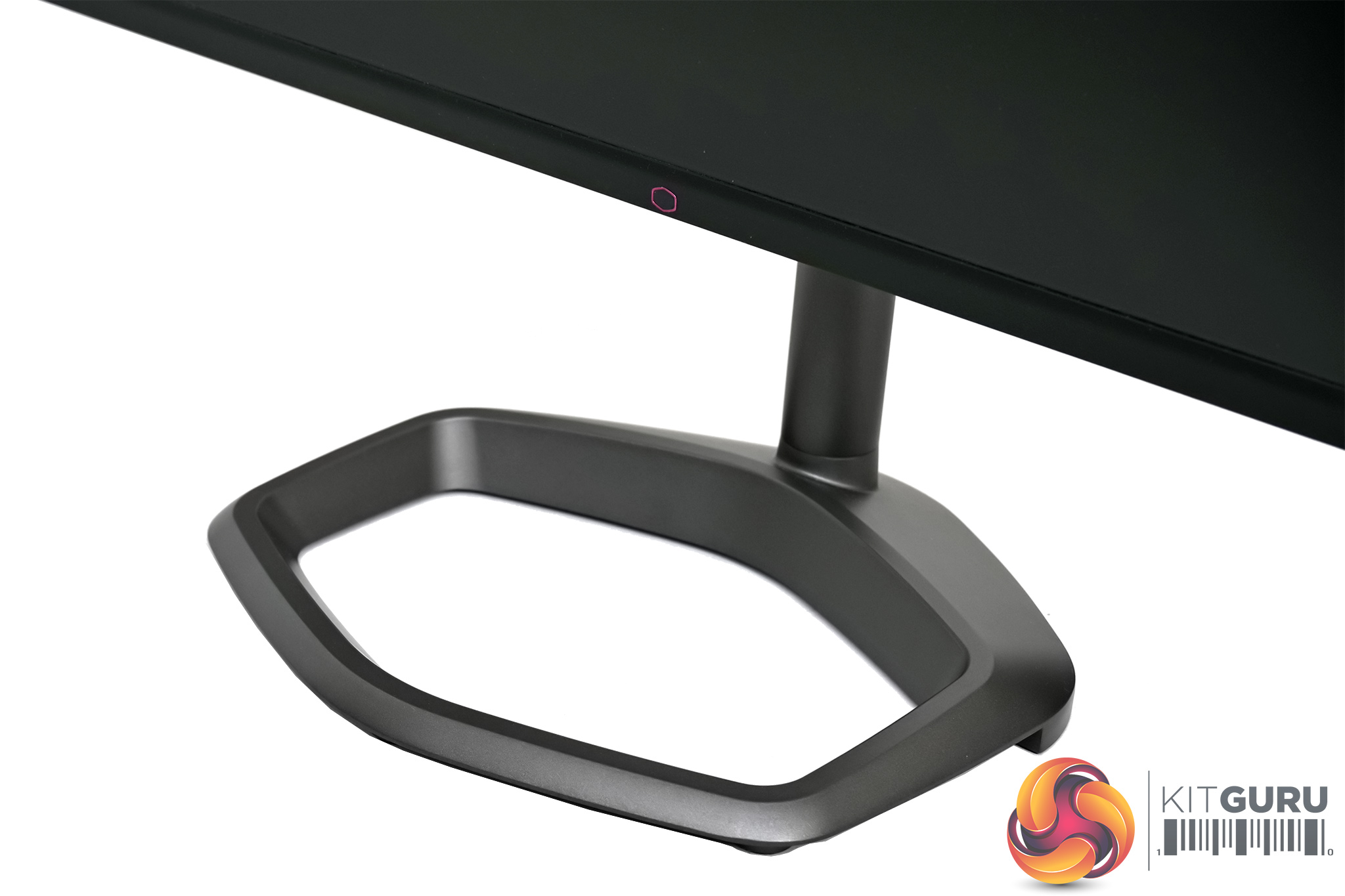
The metal stand also adds to the premium feel, both in terms of the construction quality, but I love that the stand’s base is actually hexagonal, in the style of Cooler Master’s logo. This is just something a different, I personally think it looks great, and it has the added benefit of taking up a lot less space on your desk than the V-shaped stands we typically see.
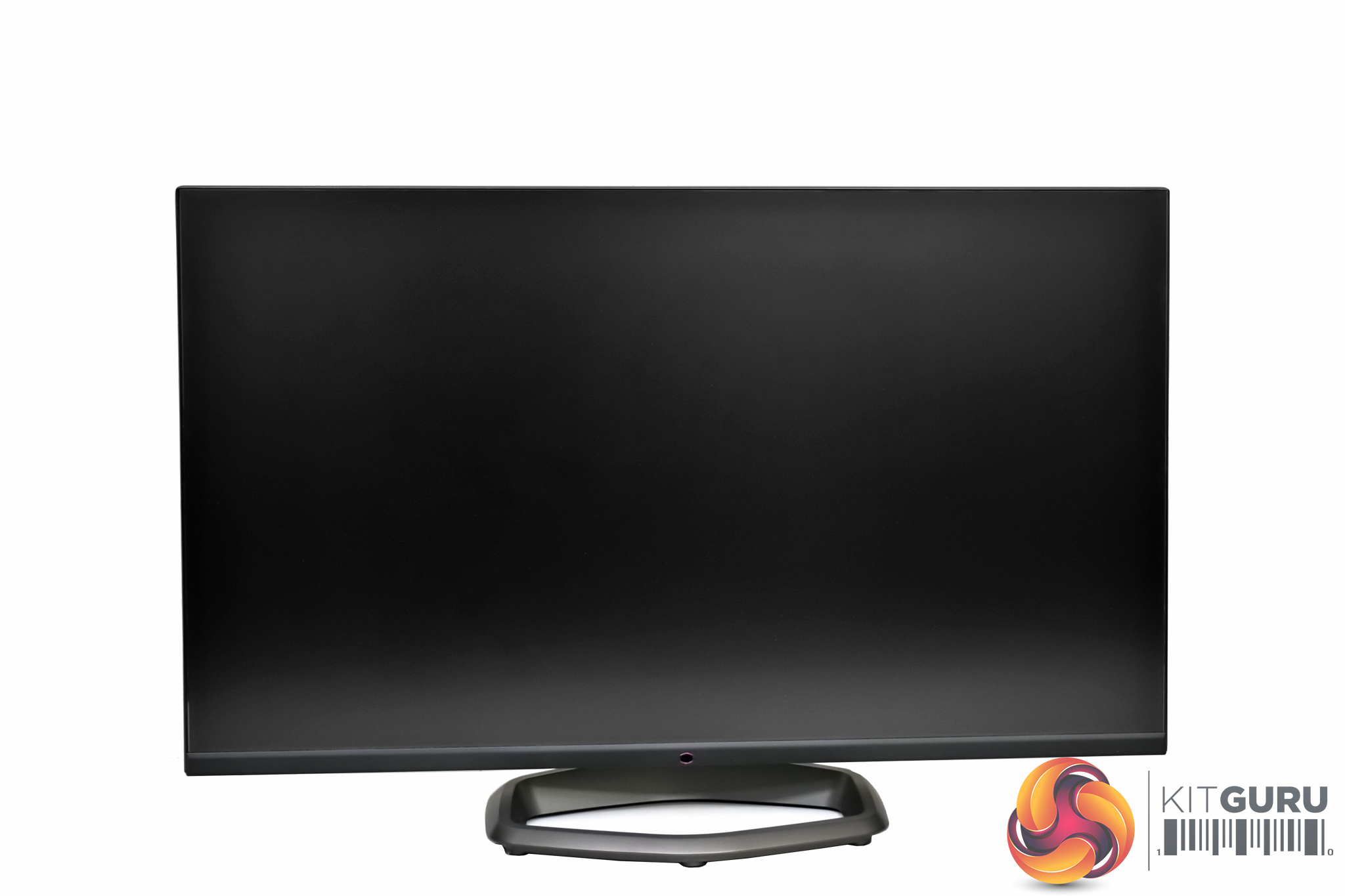
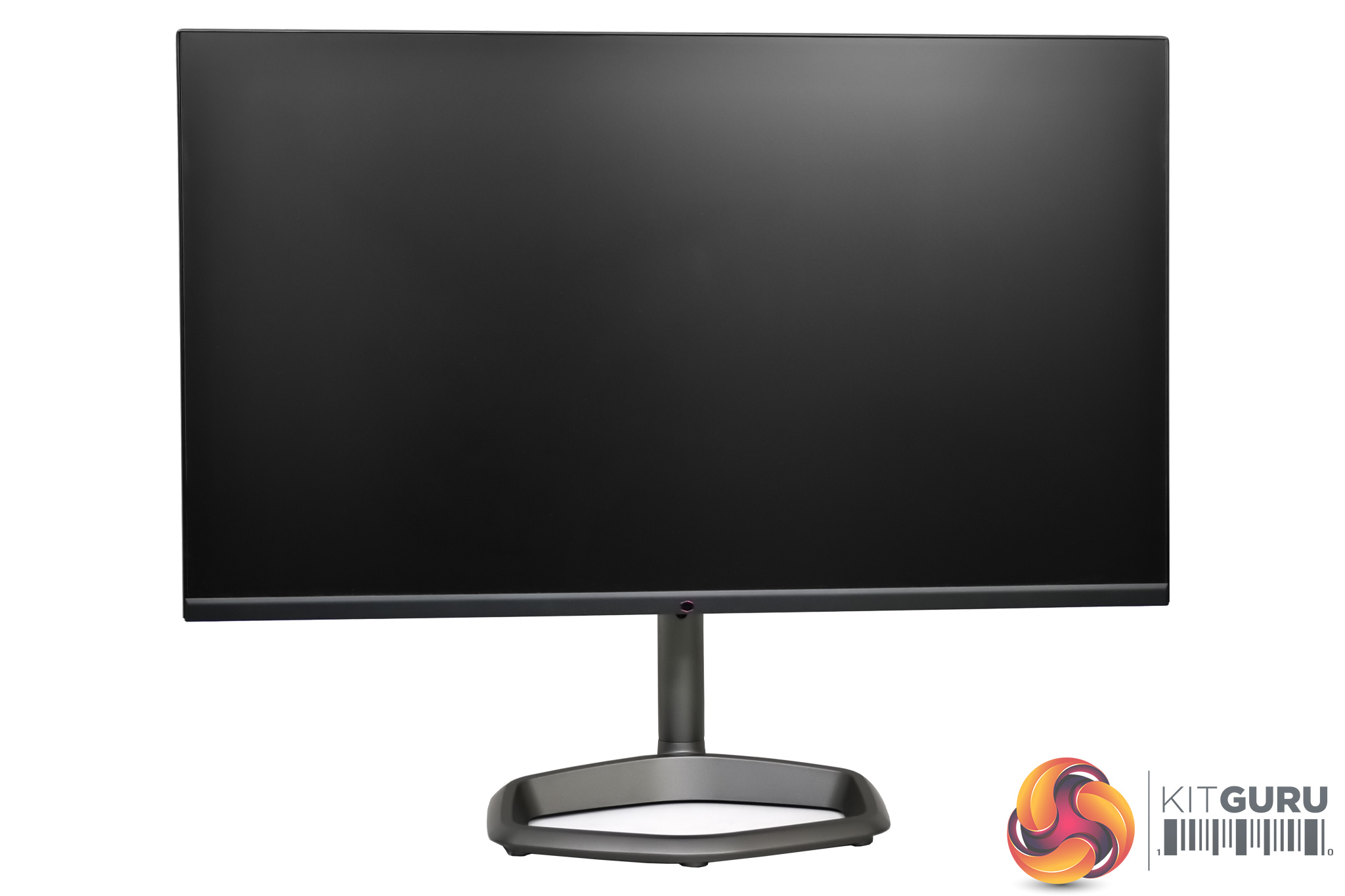
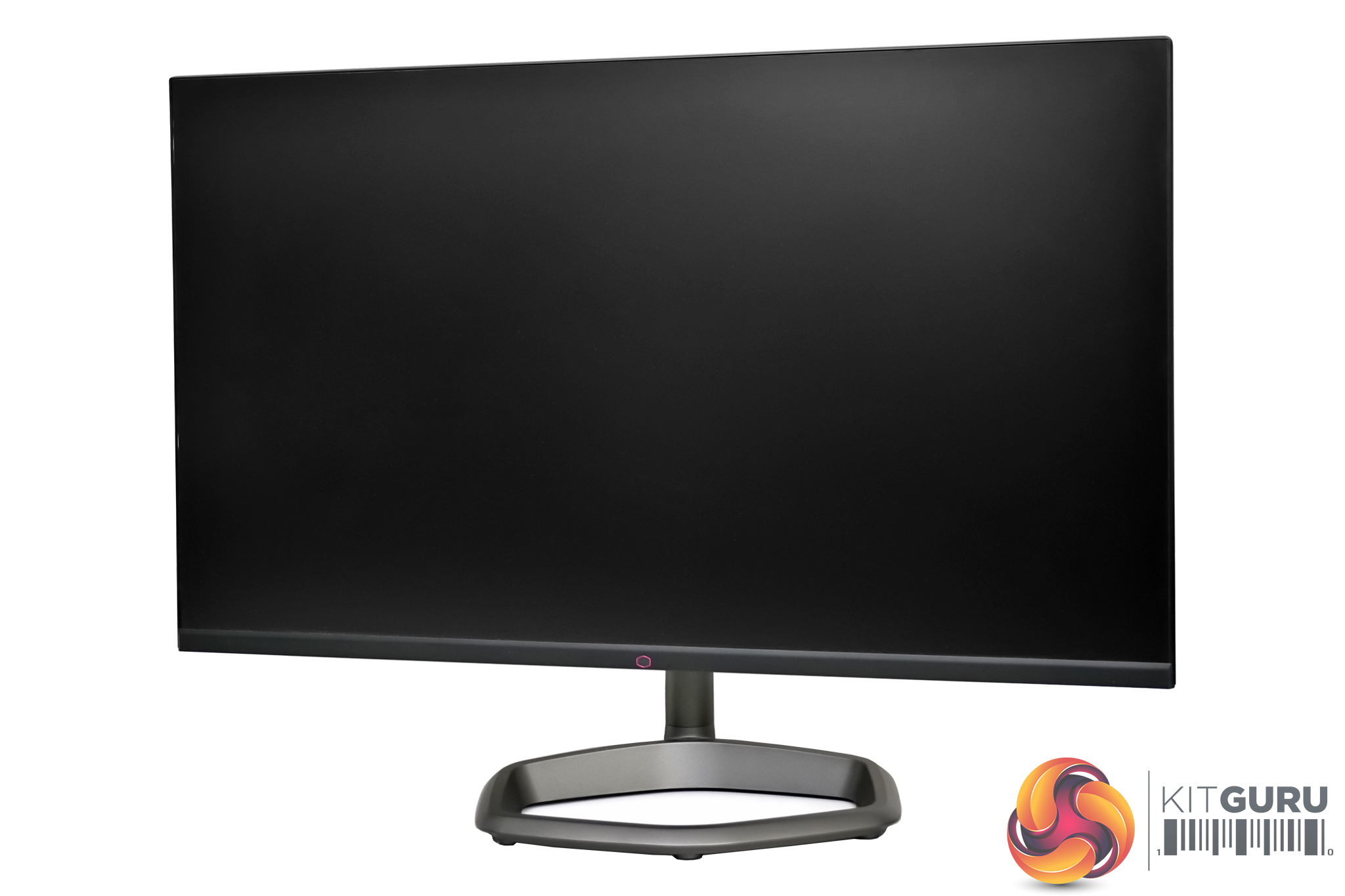
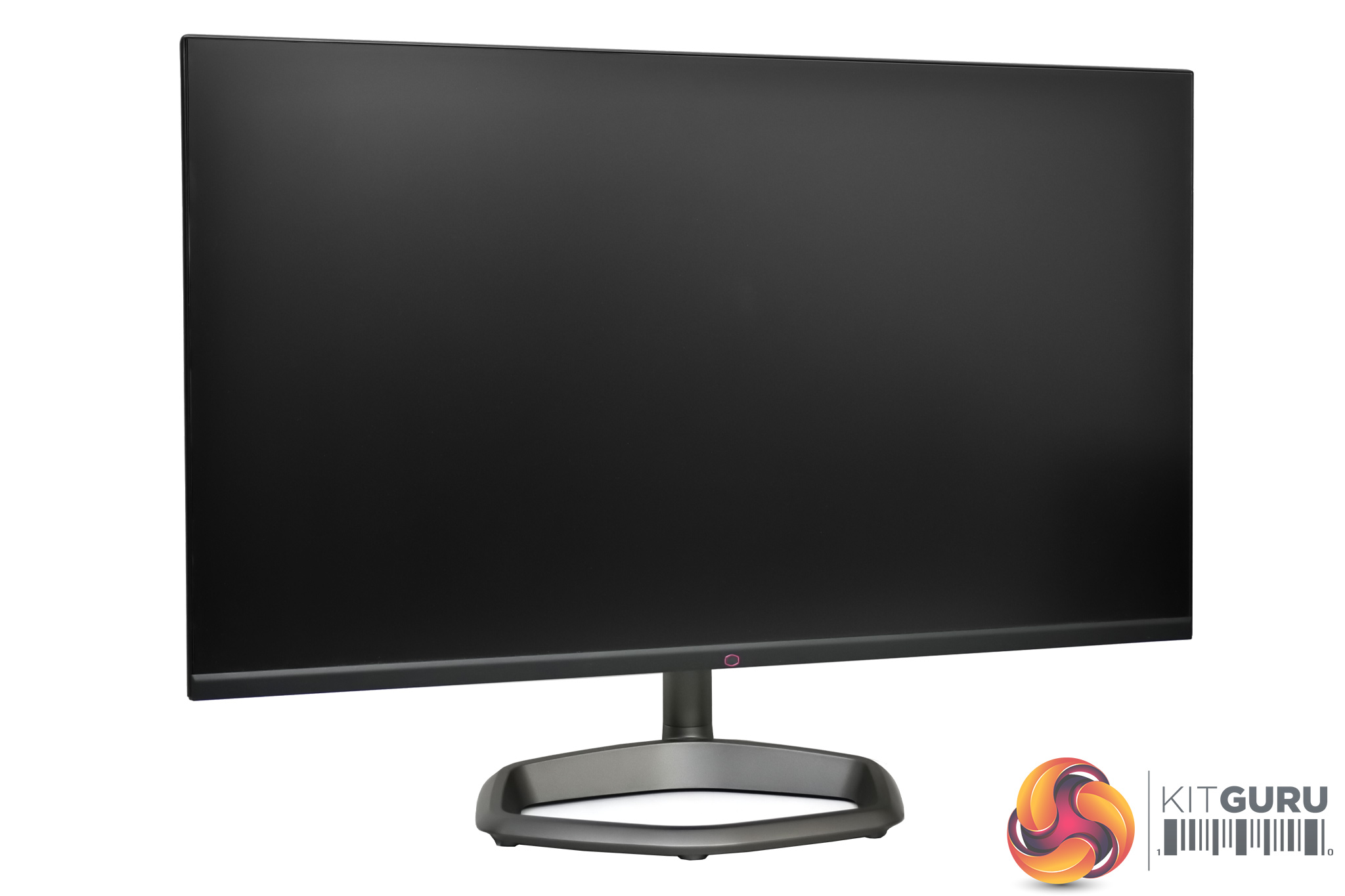
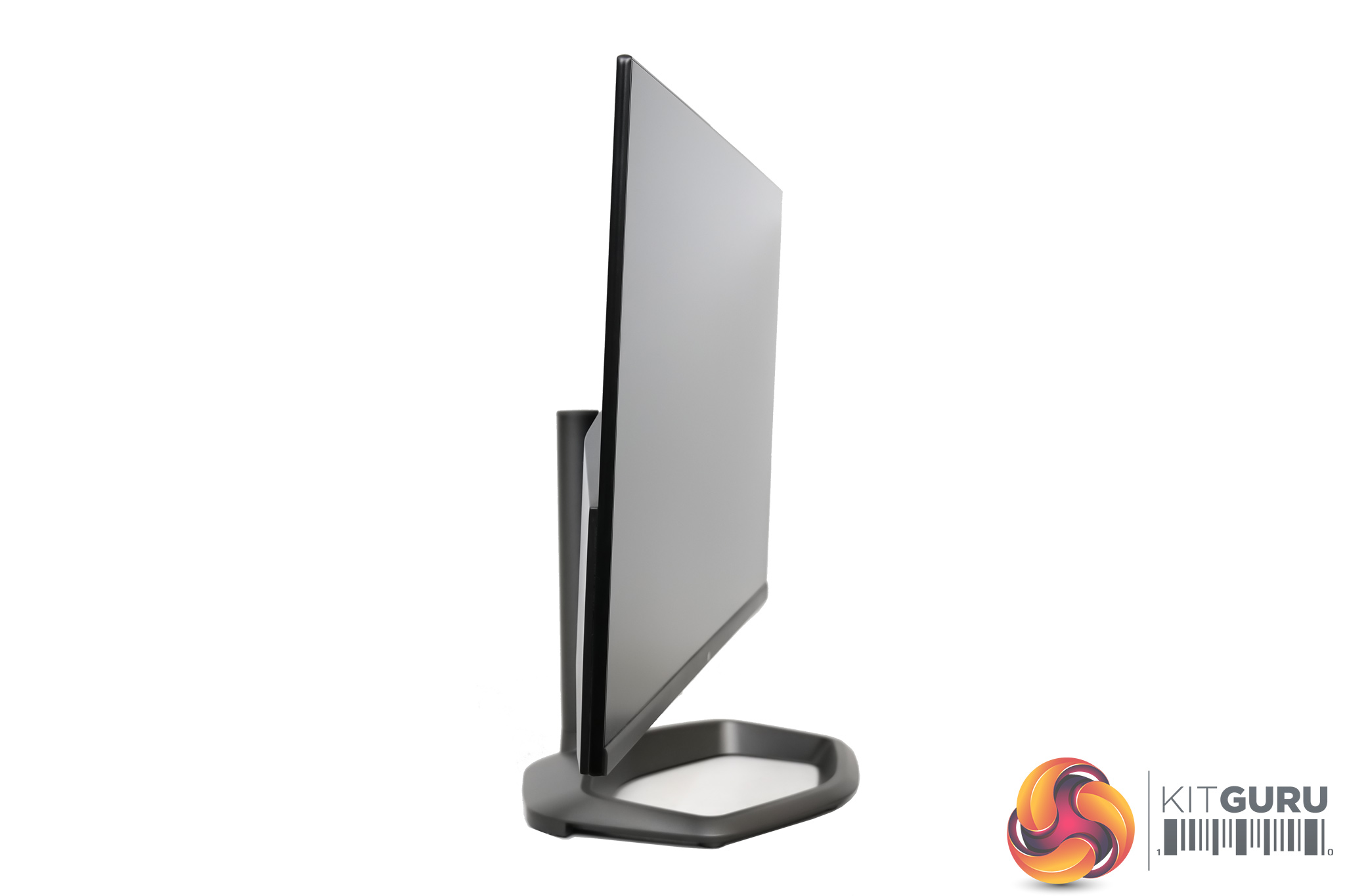
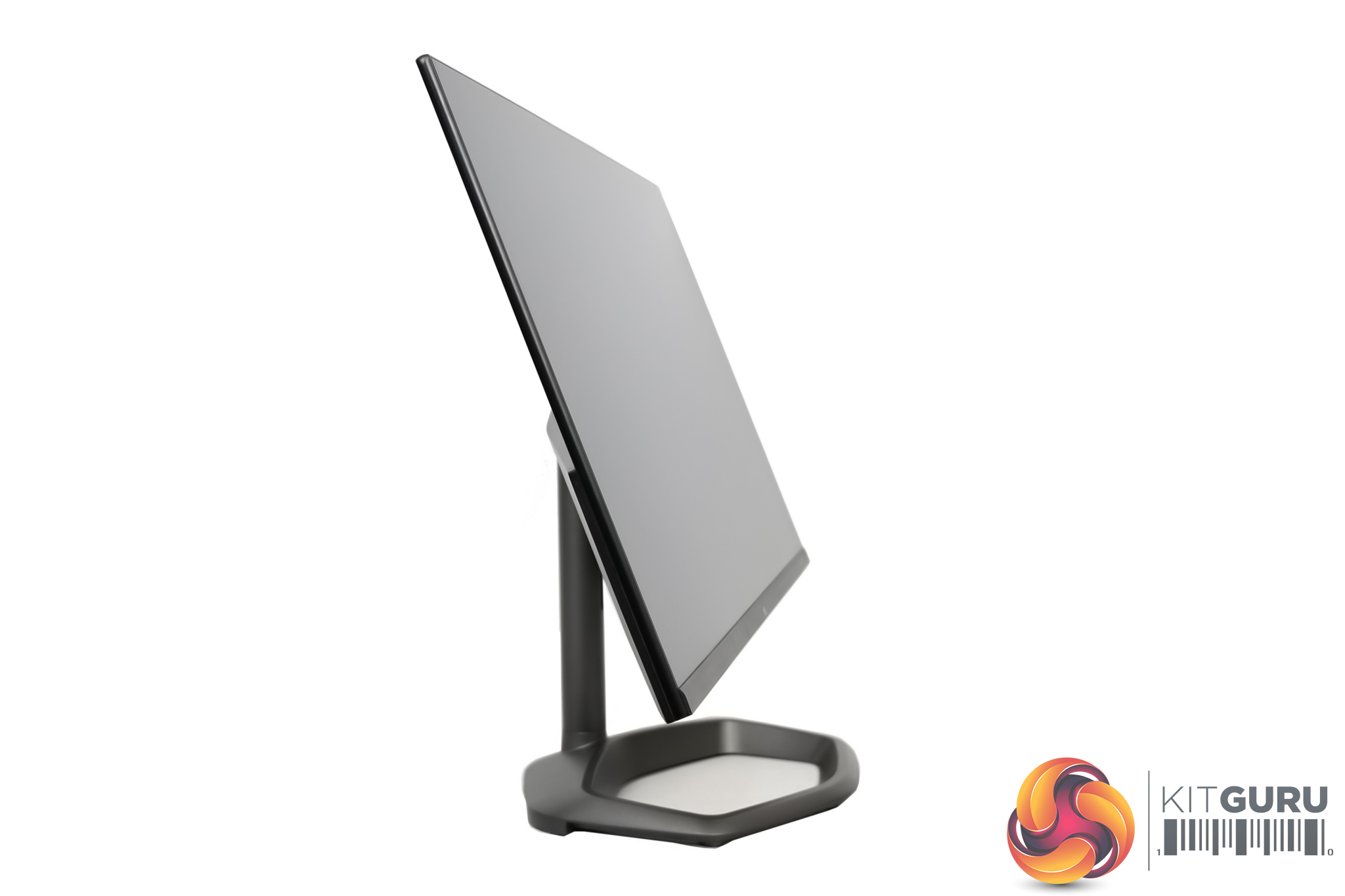
Still on the topic of the stand, this offers up to 110mm of height adjustment, there’s 15 degrees of swivel in both directions, and you can tilt from -5 to +20 degrees. The only thing missing is any kind of pivot, which is always a welcome inclusion in my book, but if you really need it the GM32-FQ does support VESA 100 mounting systems.
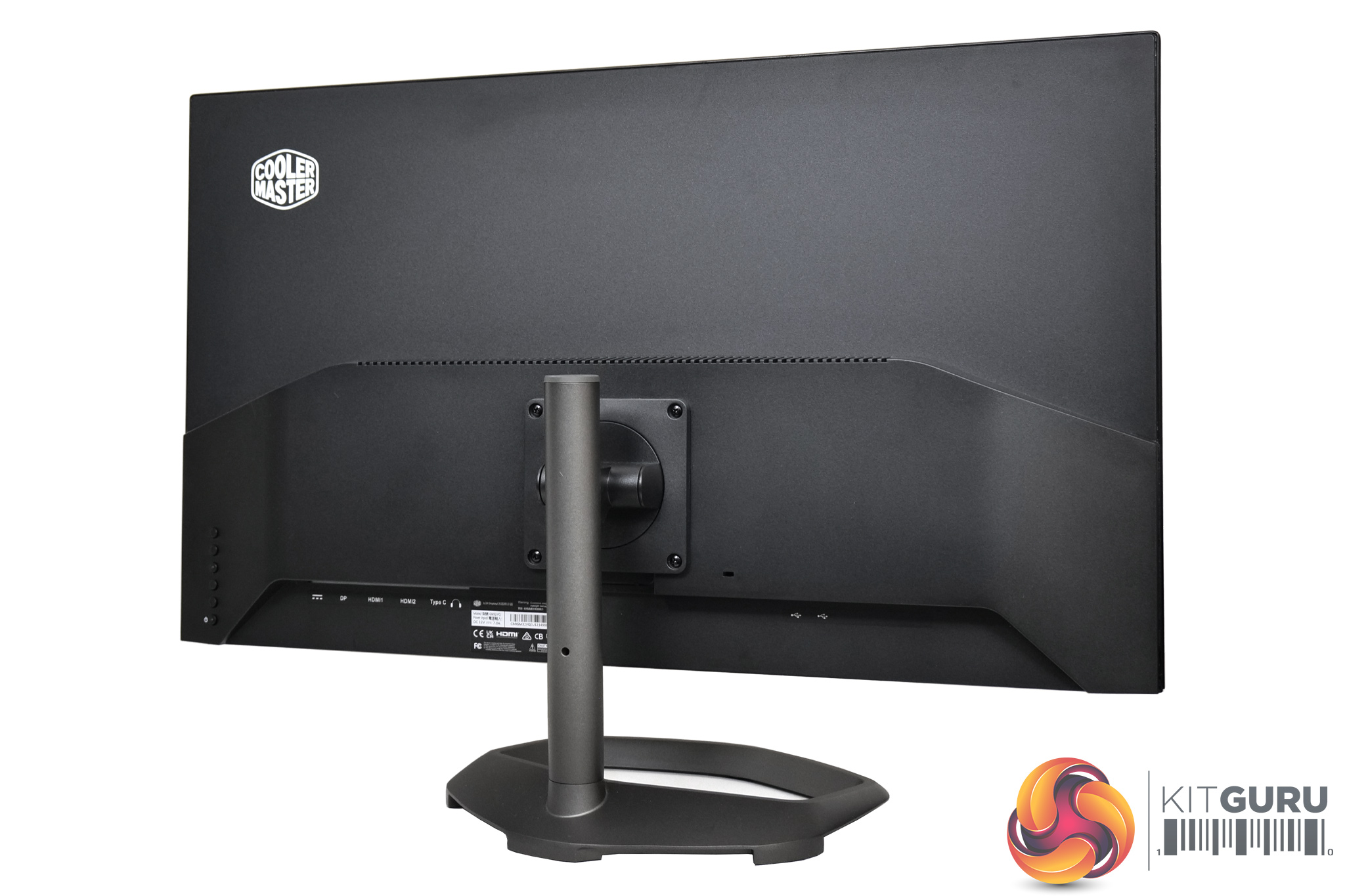
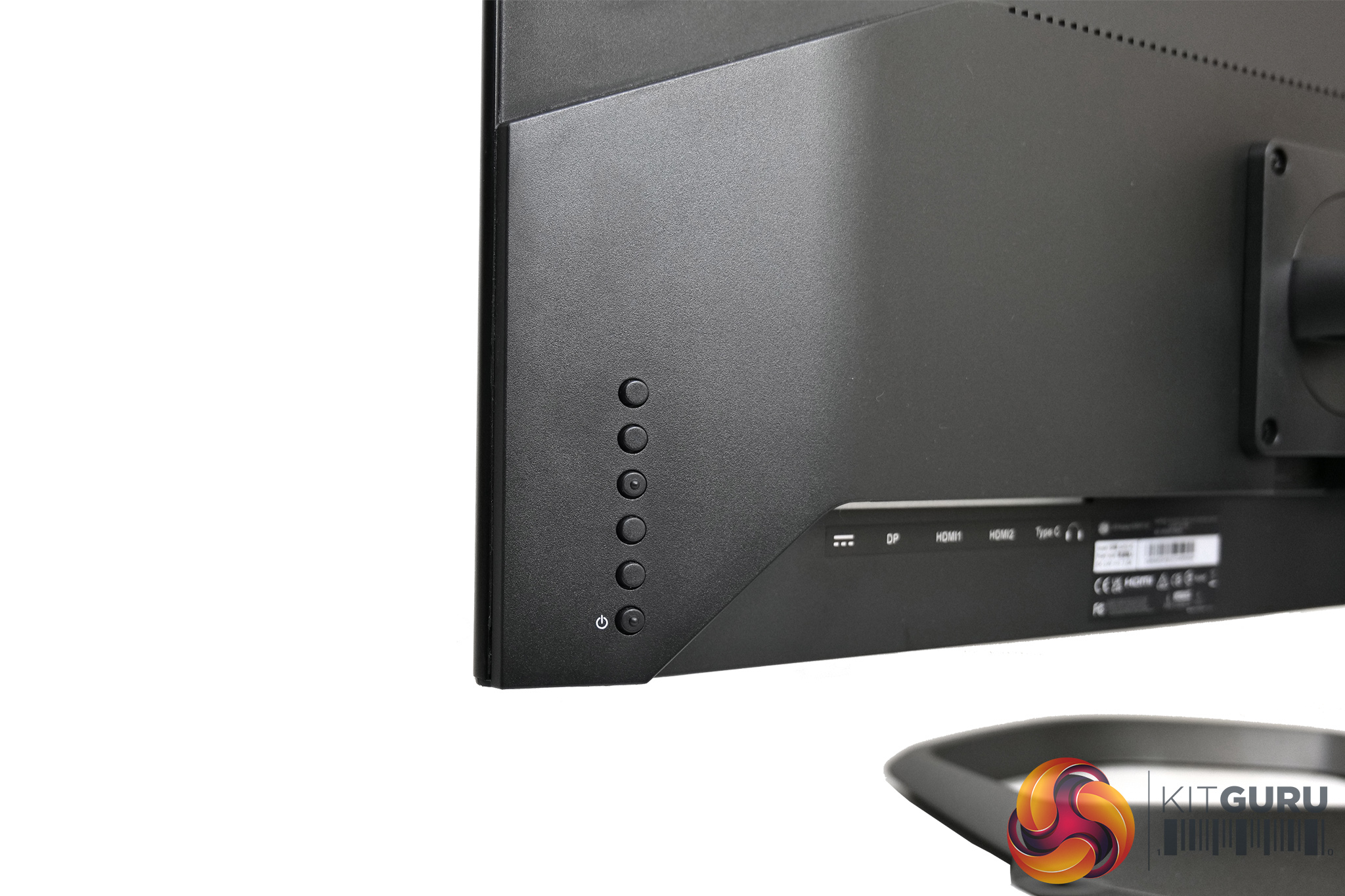
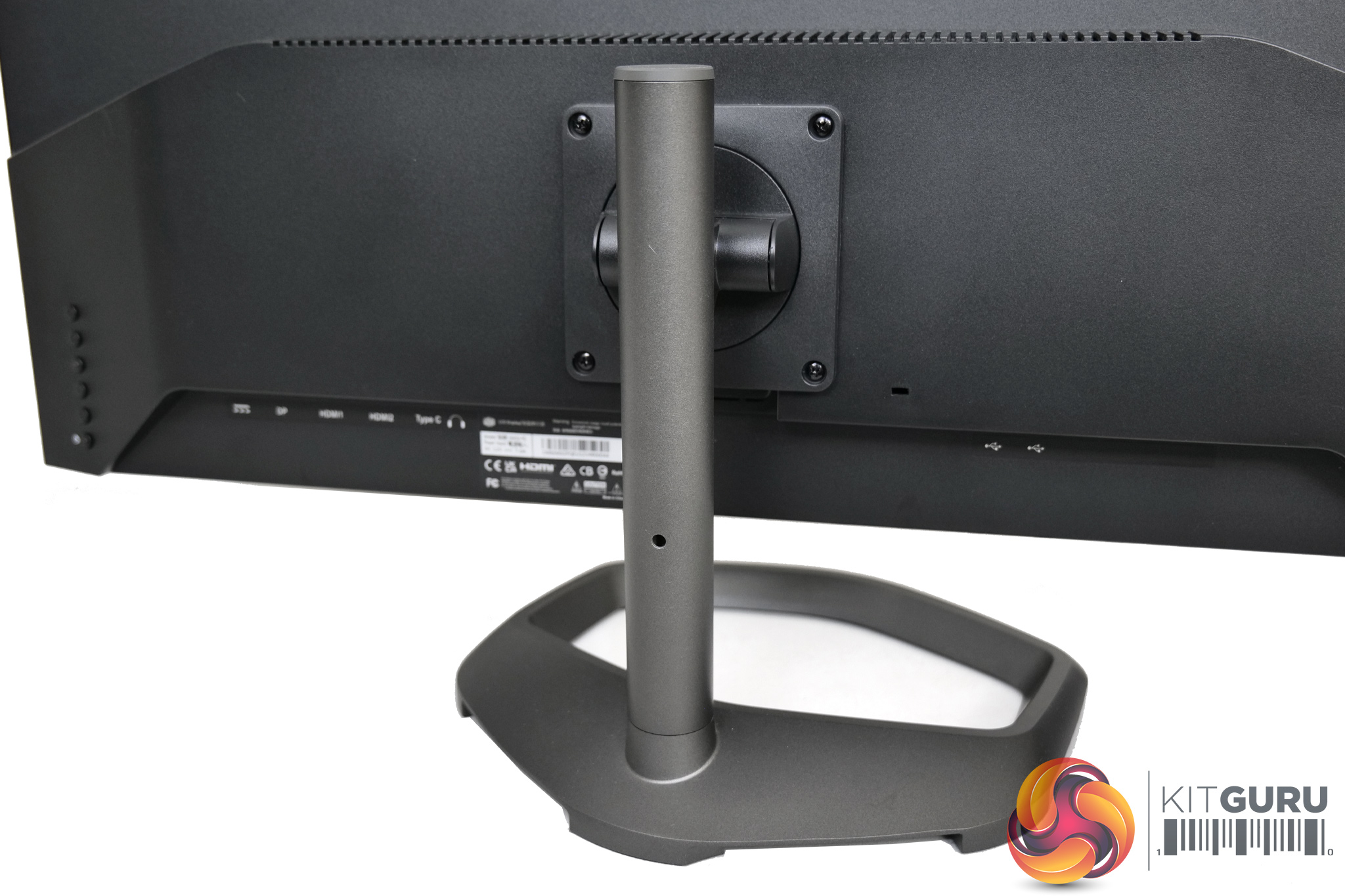
On the back of the monitor we find the OSD controls, with 5 individual buttons used here instead of a joystick. I asked Cooler Master why they took this approach and they told us that buttons are both more cost effective and more durable than a joystick, but I'd argue it is not at all worth the frustration you get from trying to navigate the OSD with fiddly buttons like these. I'd expect more from a £430 display.
To Cooler Master’s credit, the power button does at least have a dimple in the button itself, so you will get some tactile feedback which could help avoid accidentally turning off the monitor when navigating the OSD, but it’s still far from ideal.
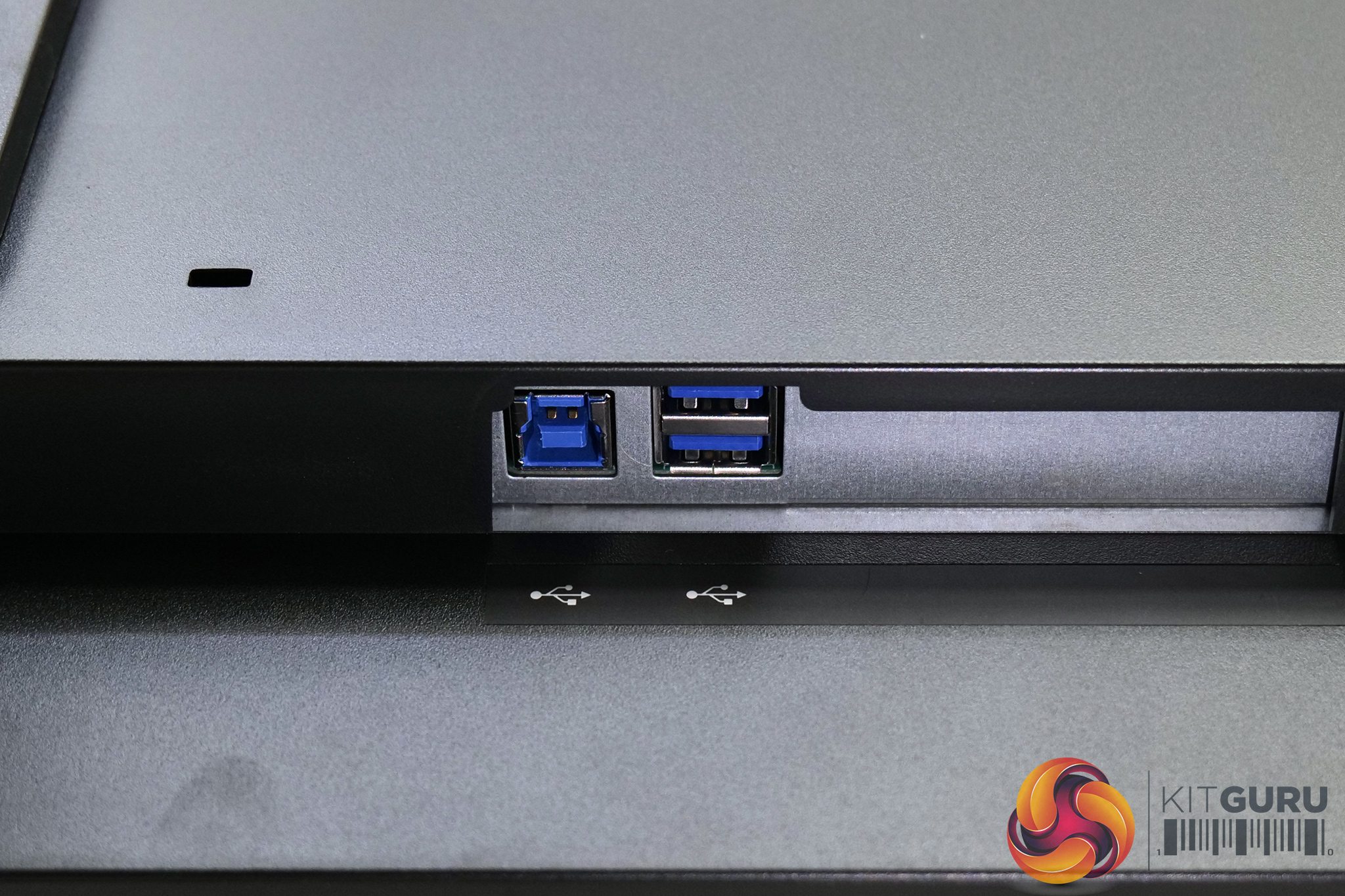
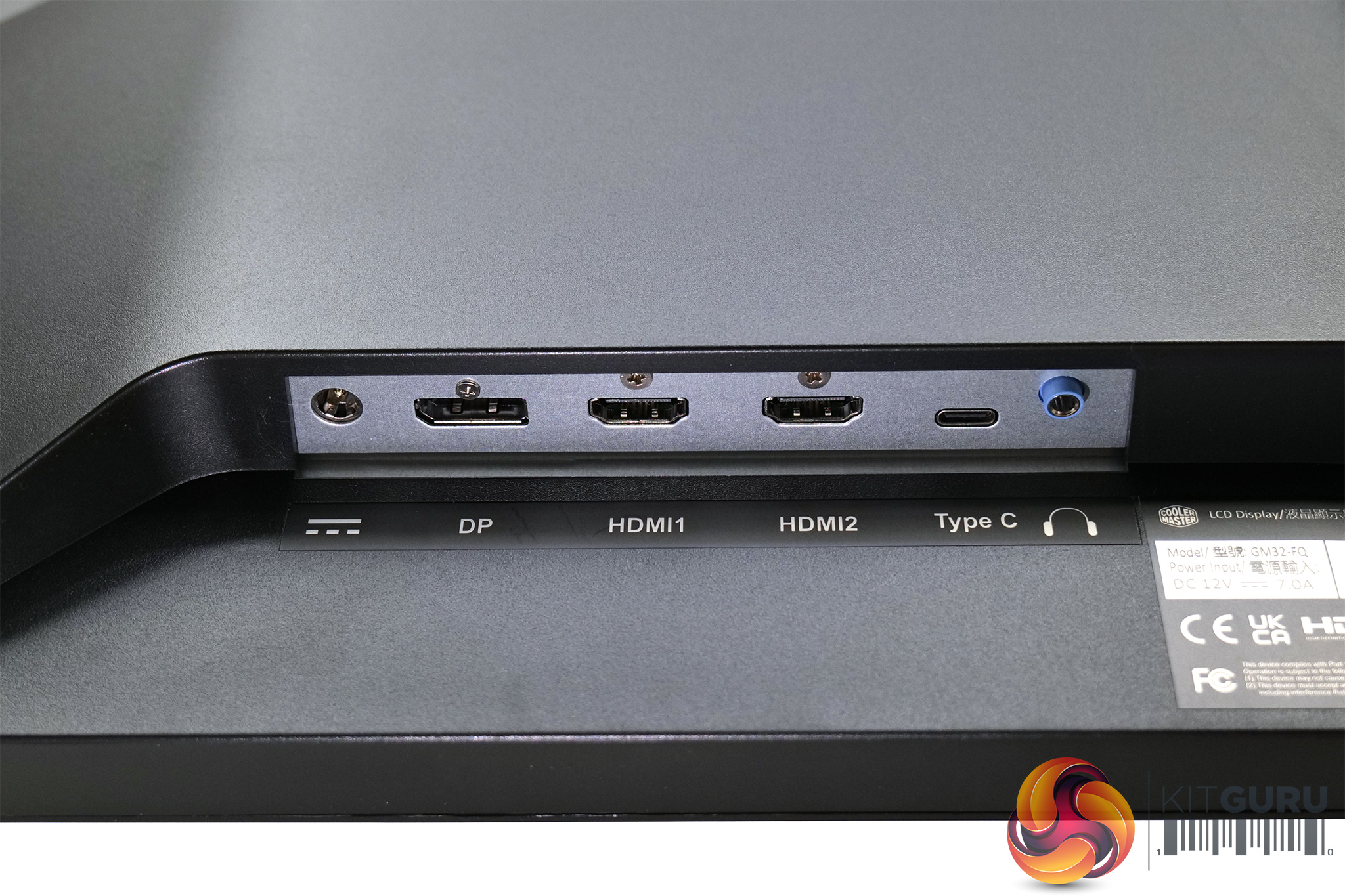
Lastly, for the I/O options, we find a two-port USB 3.0 hub on the right hand side of the screen, while all of the video outputs are on the left hand side. These include 2x HDMI 2.0, 1x DisplayPort, 1x USB-C, while there is a 3.5mm audio jack as well.
When looking at the GM32-FQ's OSD, I'd say this is the first clear indicator of Cooler Master's inexperience in the monitor market. The UI both looks and feels clunky and outdated, while I'd also argue the settings aren't really laid out in the most sensible way.
For instance, everything is split into six main tabs, which are as follows:
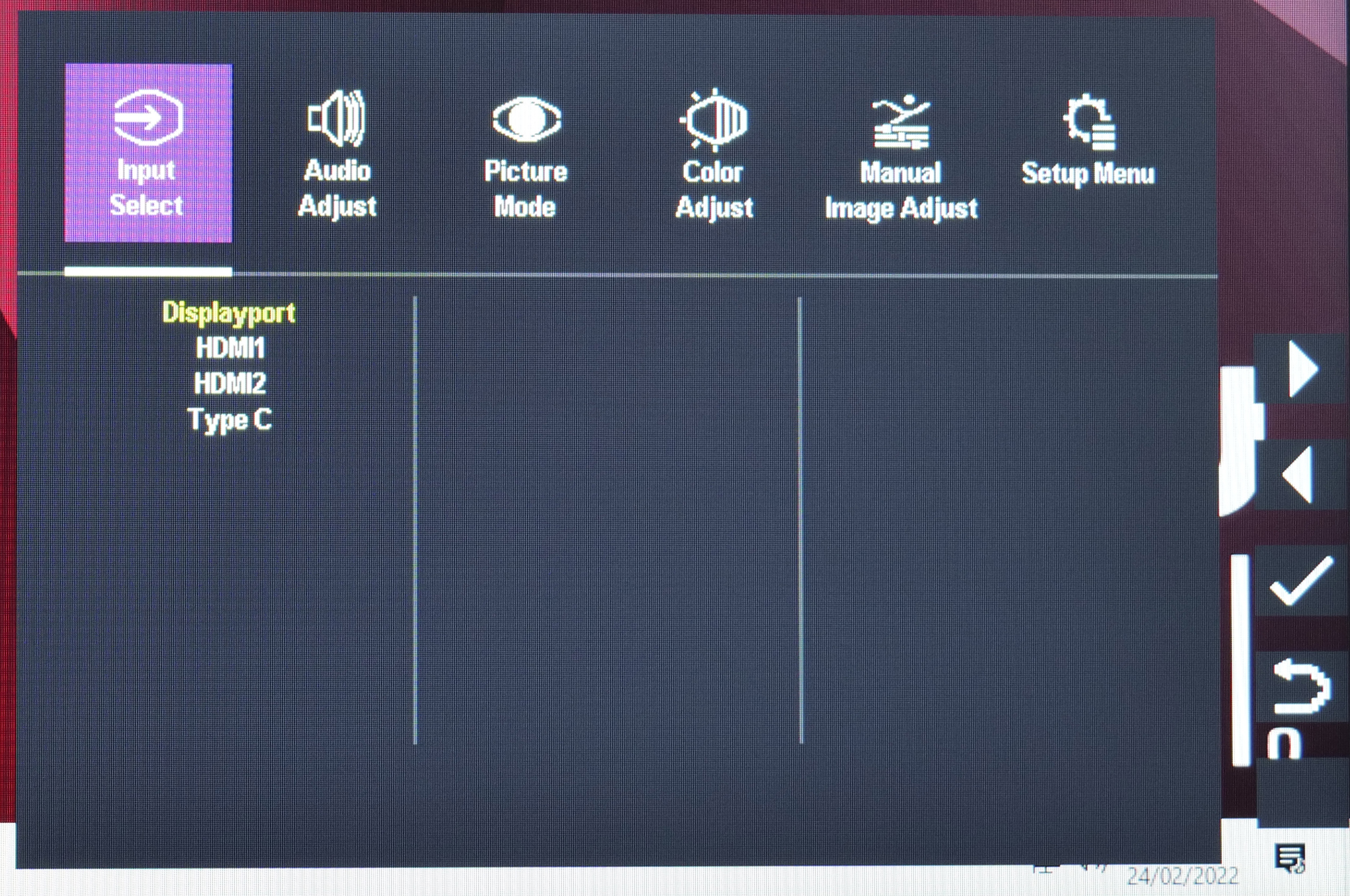
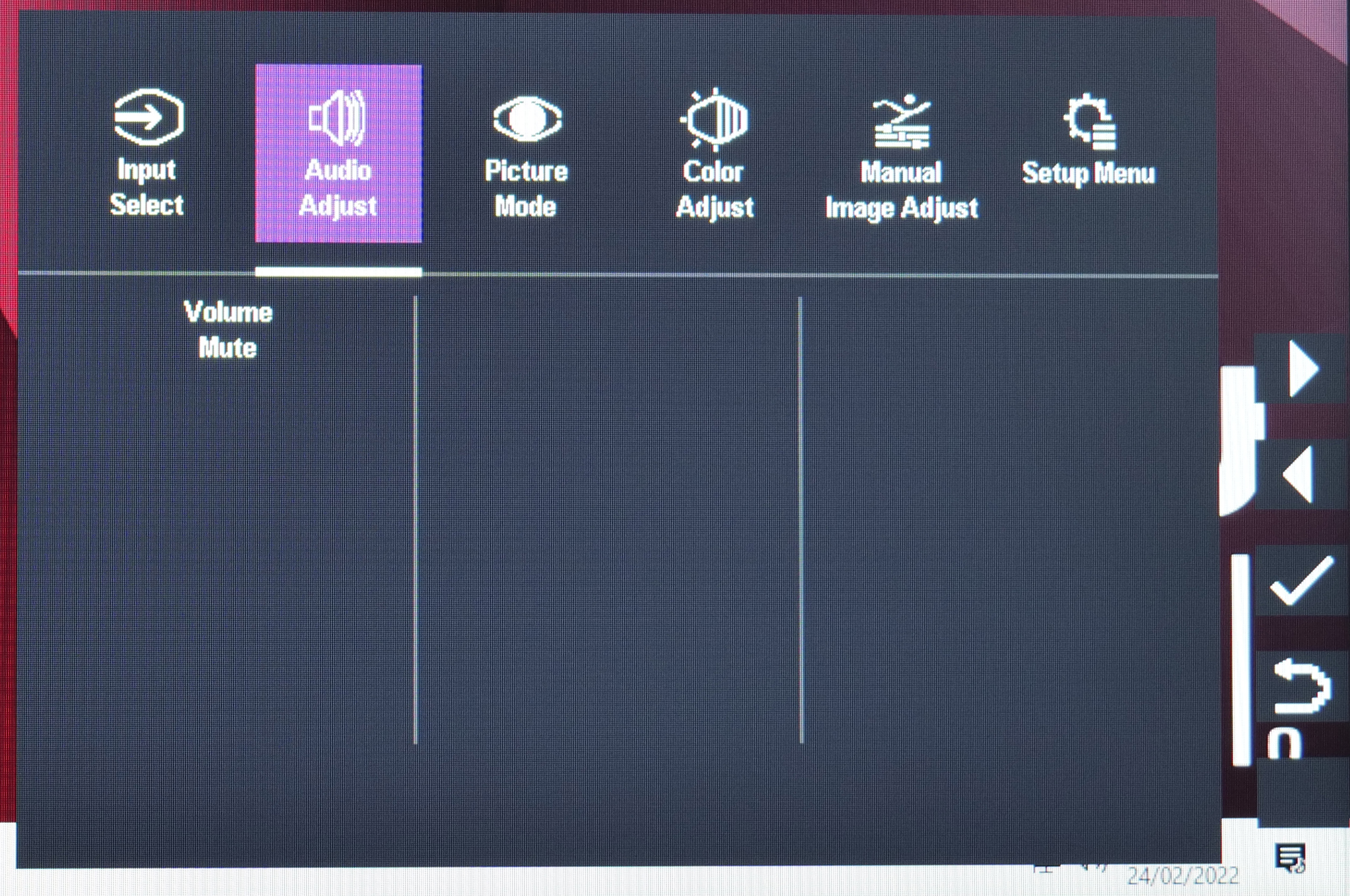
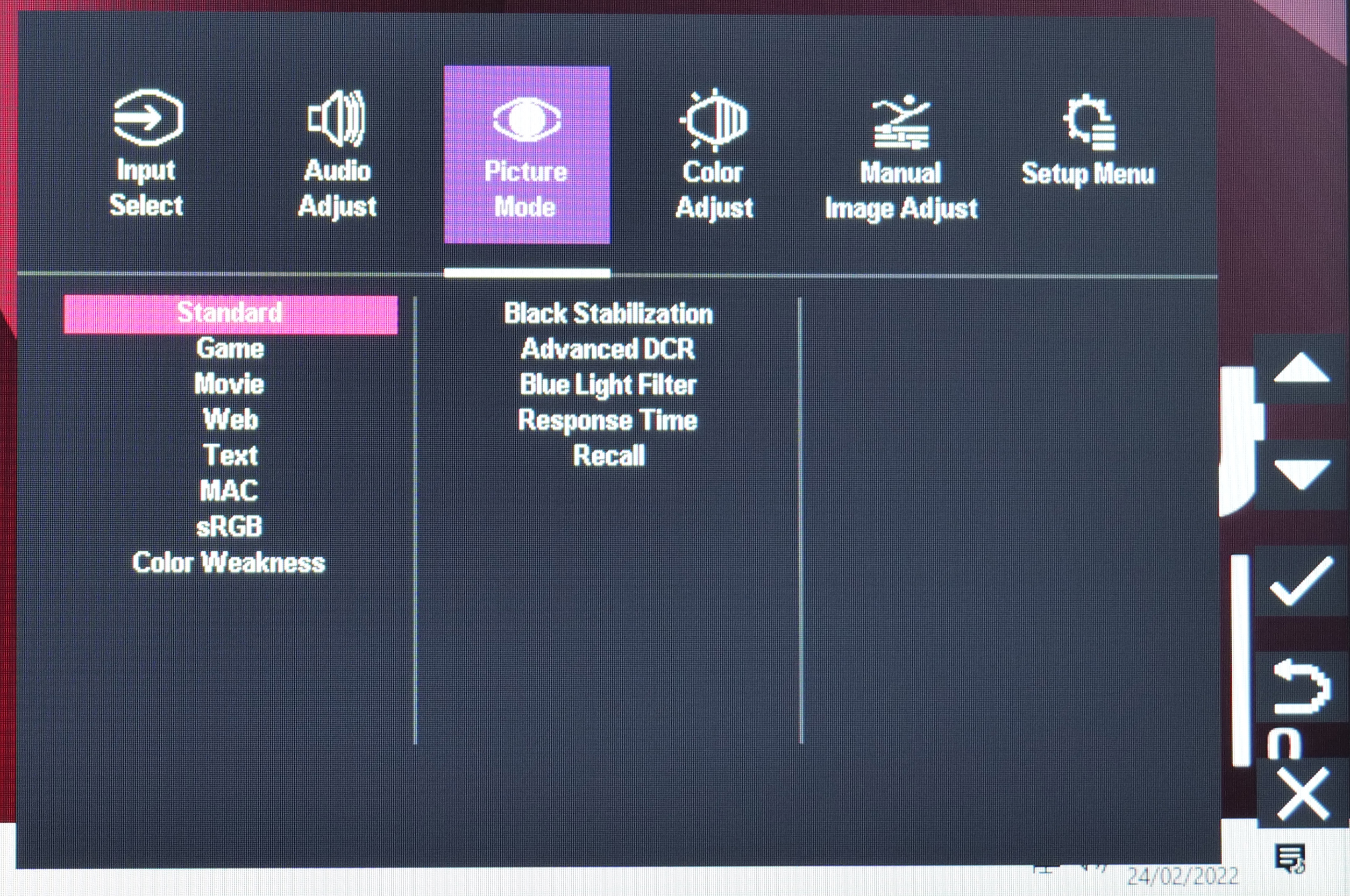
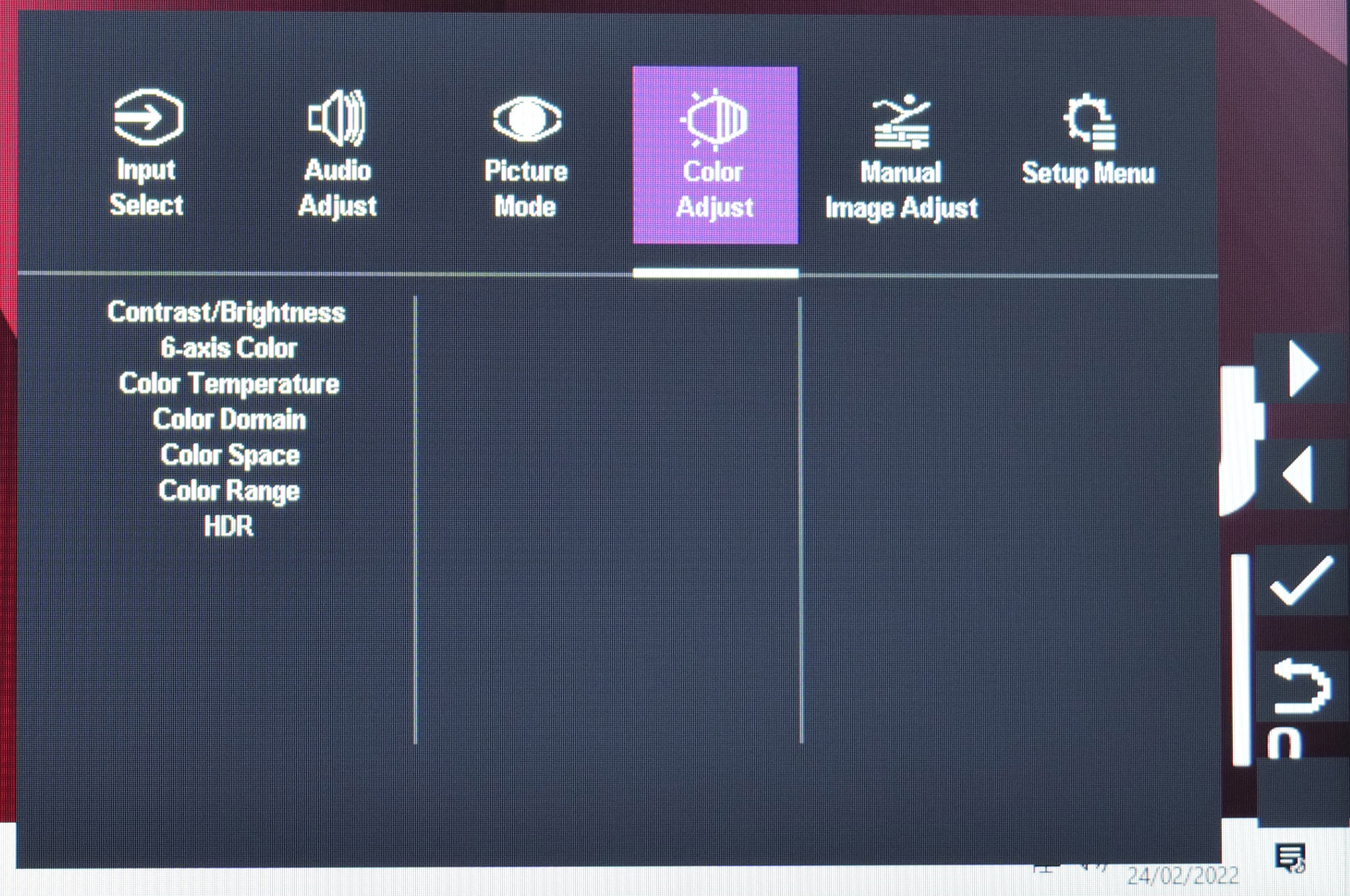
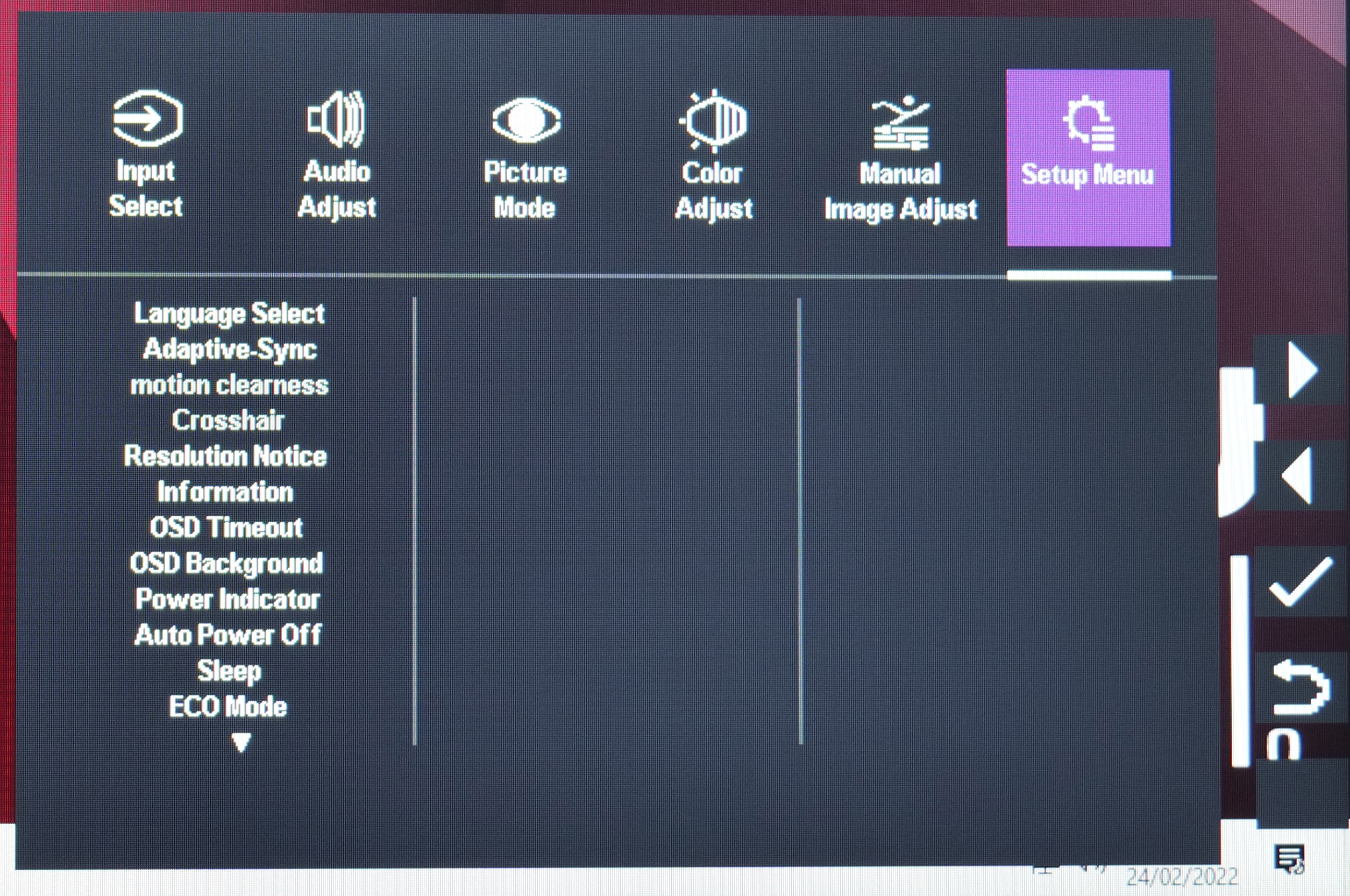
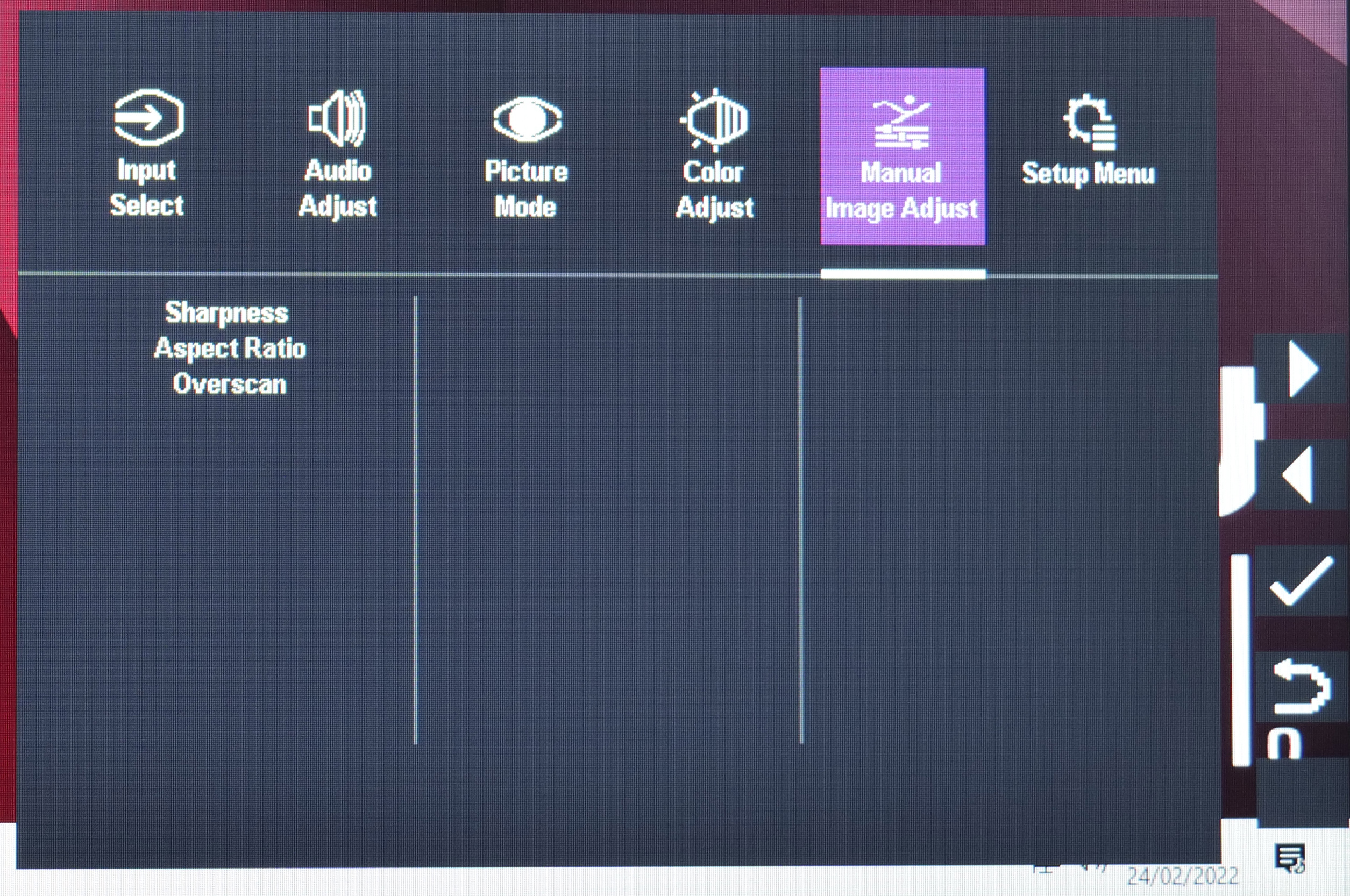
But the curious thing is there is no ‘Game' or ‘Game Control' settings window. Instead, you have to access the Picture Mode tab to adjust overdrive settings, while adaptive sync is housed within the Setup Menu tab. Add in the fact that the OSD controls themselves are very fiddly, while there's no Windows-based OSD control app either, and this is definitely an area for Cooler Master to work on.
Our main test involves using a DataColor SpyderX Colorimeter to assess a display’s image quality. The device sits on top of the screen while the software generates colour tones and patterns, which it compares against predetermined values to work out how accurate the screen is.
The results show –
- A monitor’s maximum brightness in candelas or cd/m2 at various levels set in the OSD.
- A monitor’s contrast ratio at various brightness levels in the OSD.
- The brightness deviation across the panel.
- The black and white points.
- The colour accuracy, expressed as a Delta E ratio, with a result under 3 being fine for normal use, and under 2 being great for colour-accurate design work.
- The exact gamma levels, with a comparison against preset settings in the OSD.
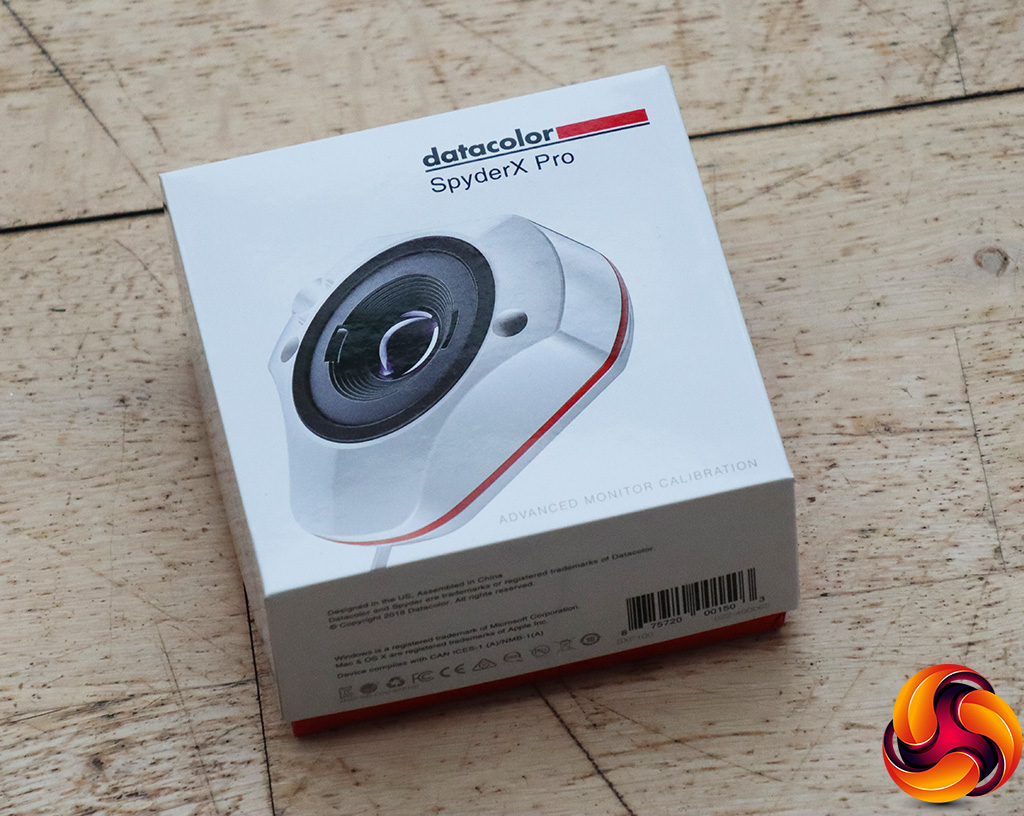
We first run this test with the display in its default, out-of-the-box state, with all settings on default. We then calibrate the screen using the Spyder software and run the test again.
Pre-calibration
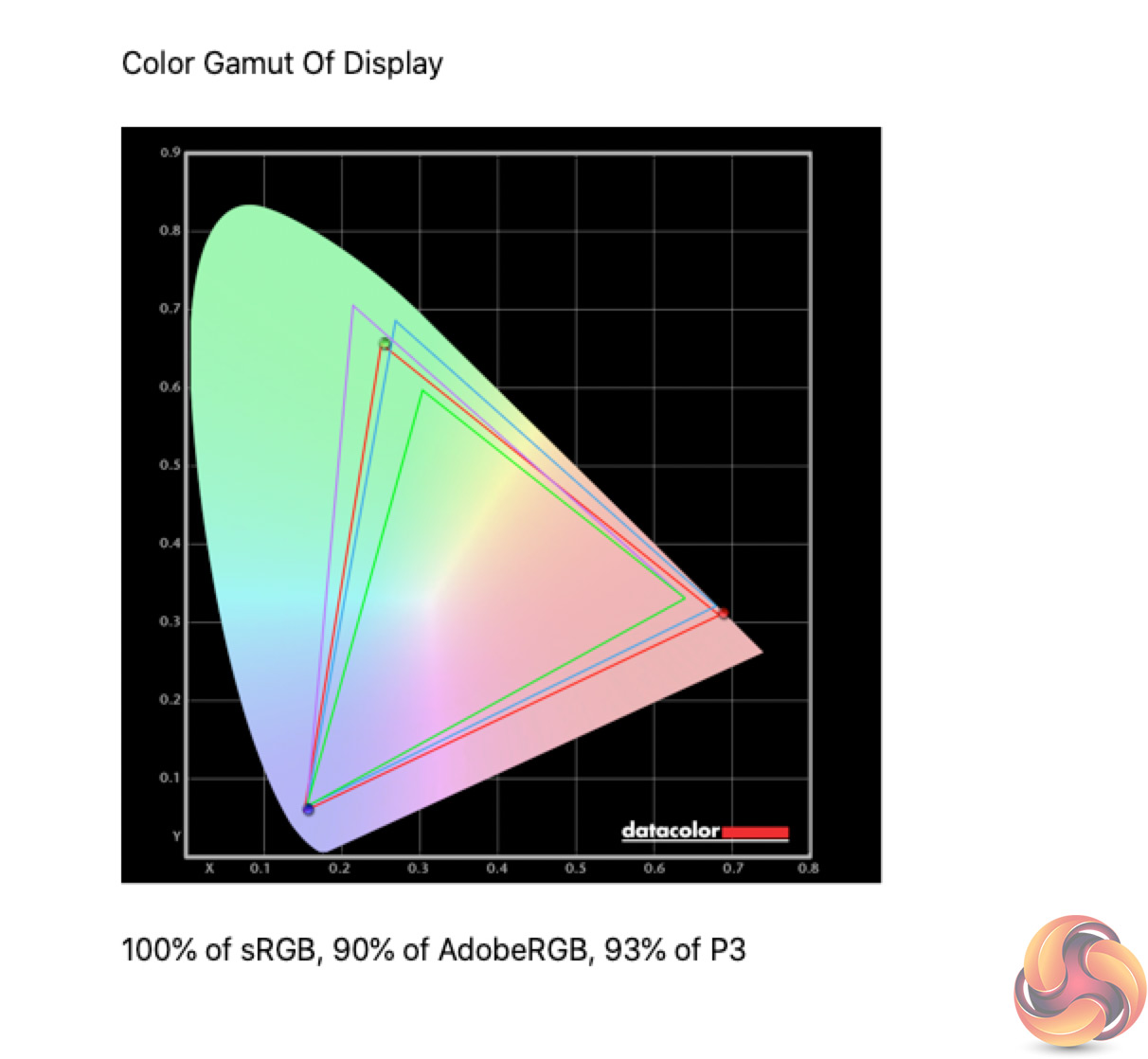
Starting with the Gamut testing, we measured 100% sRGB, 90% AdobeRGB and 93% DCI-P3 coverage. This is just shy of the quoted 95% DCI-P3 coverage, but it's still a strong start.
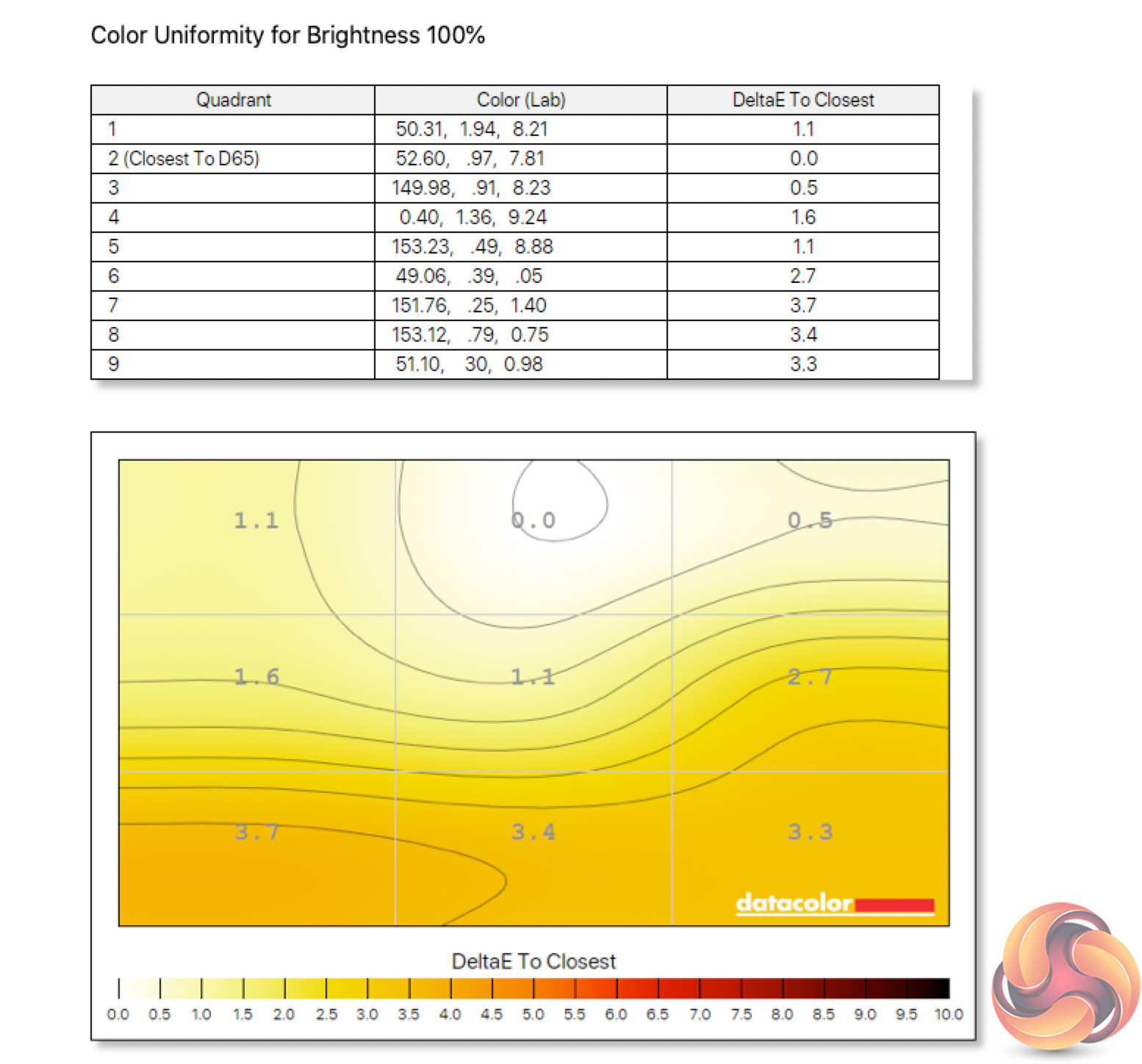
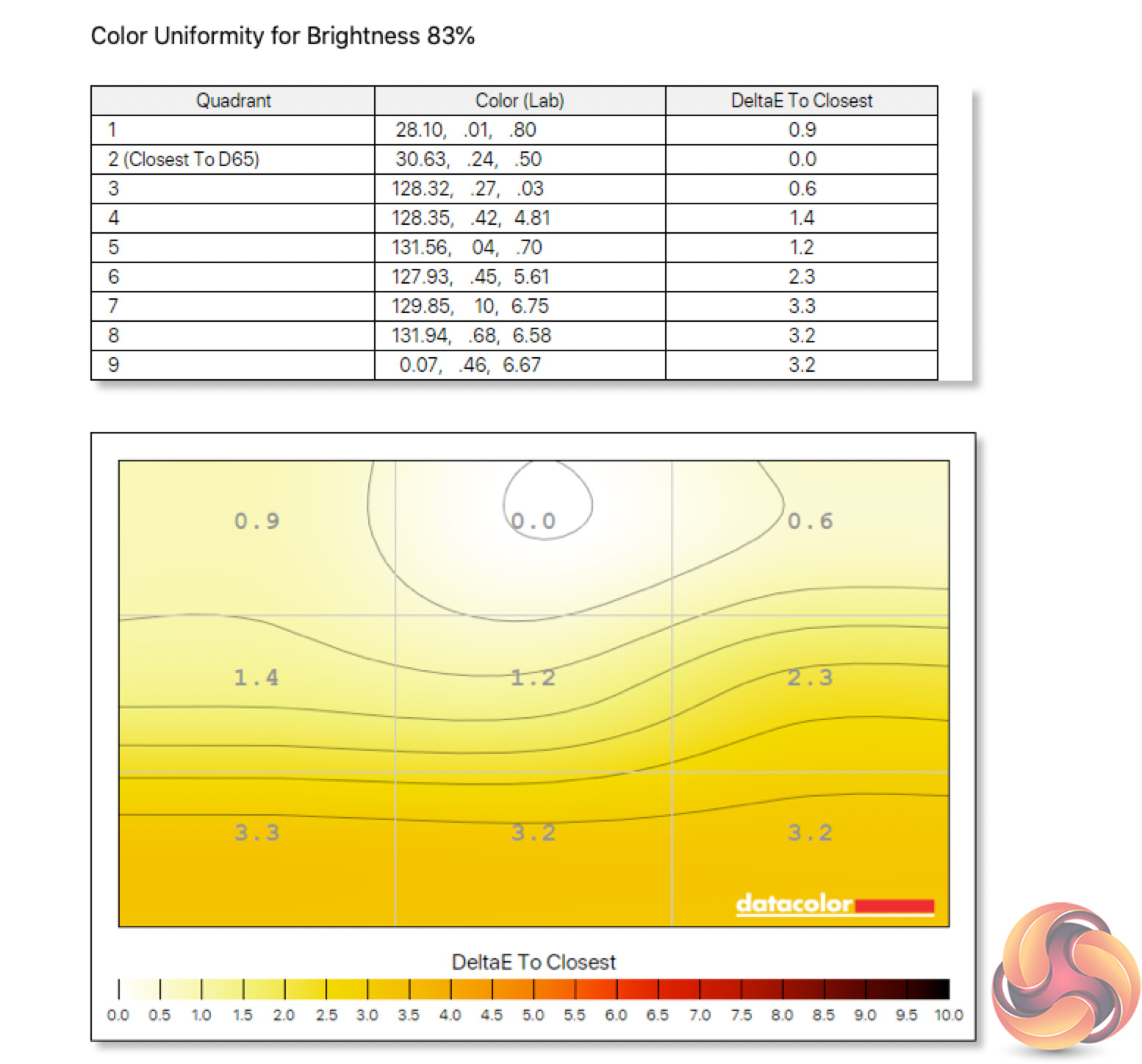
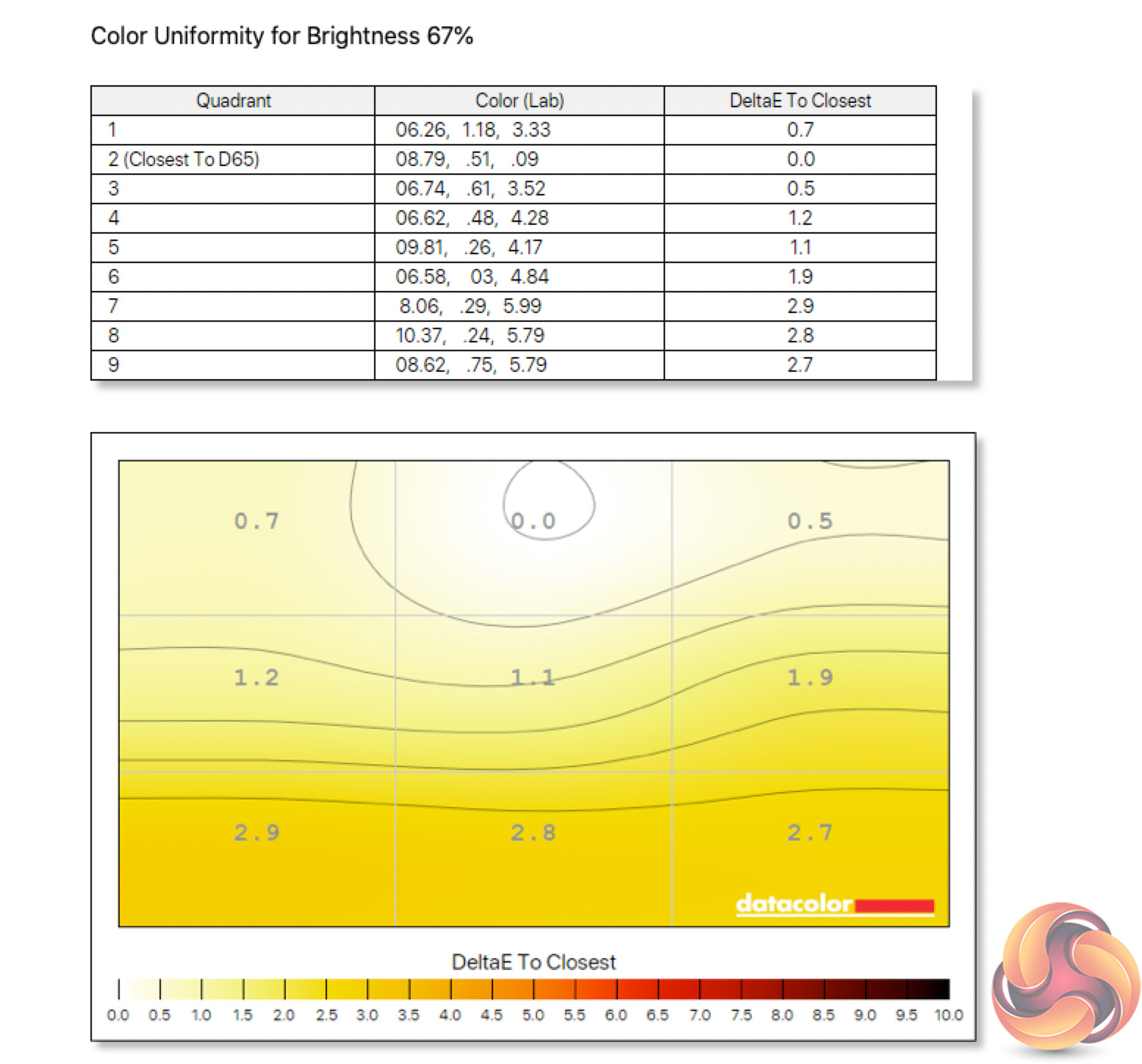
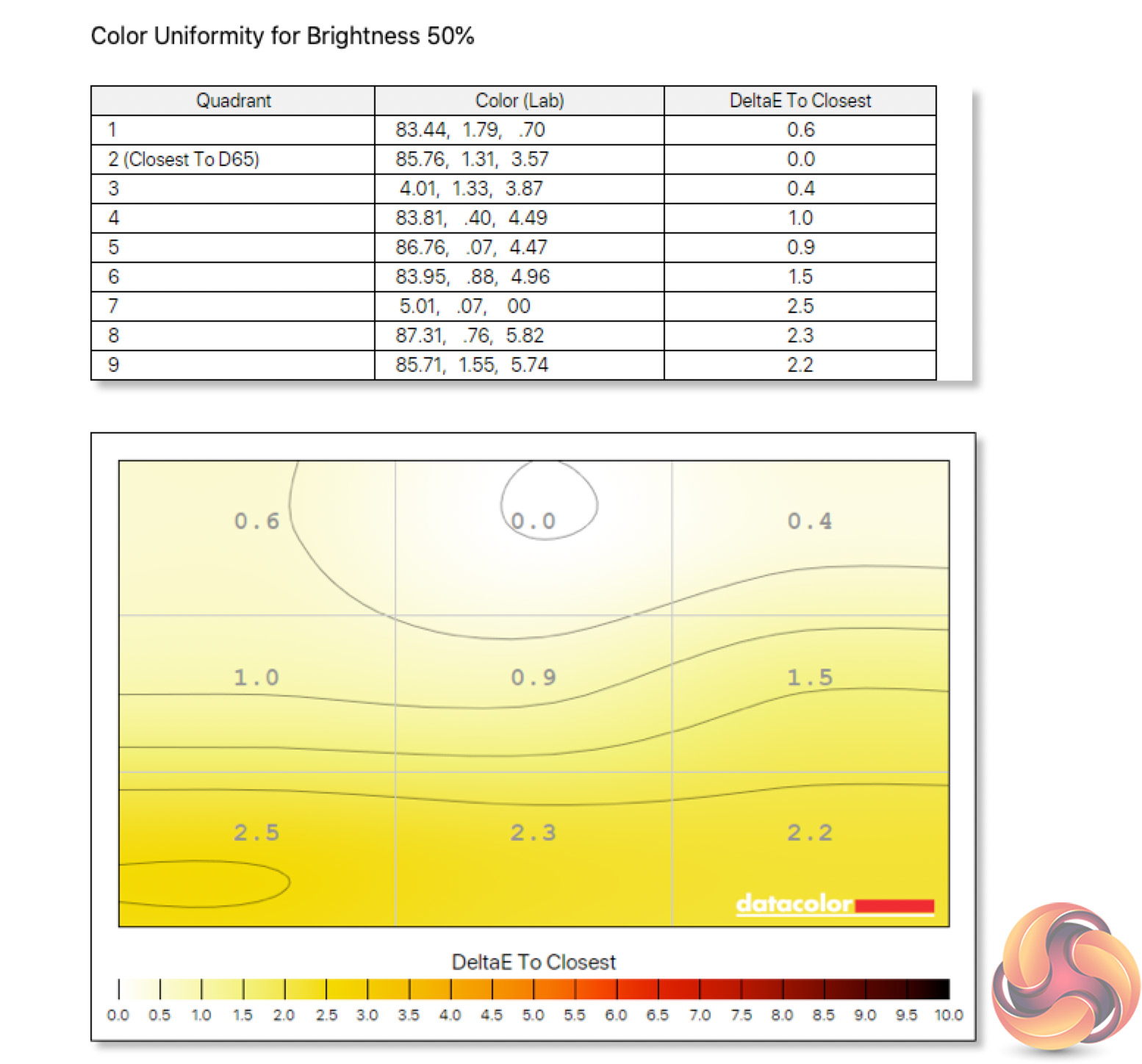
Colour uniformity is another solid area for the GM32-FQ, with only small aberrance along the bottom of the screen, though this gets better at lower brightness levels.
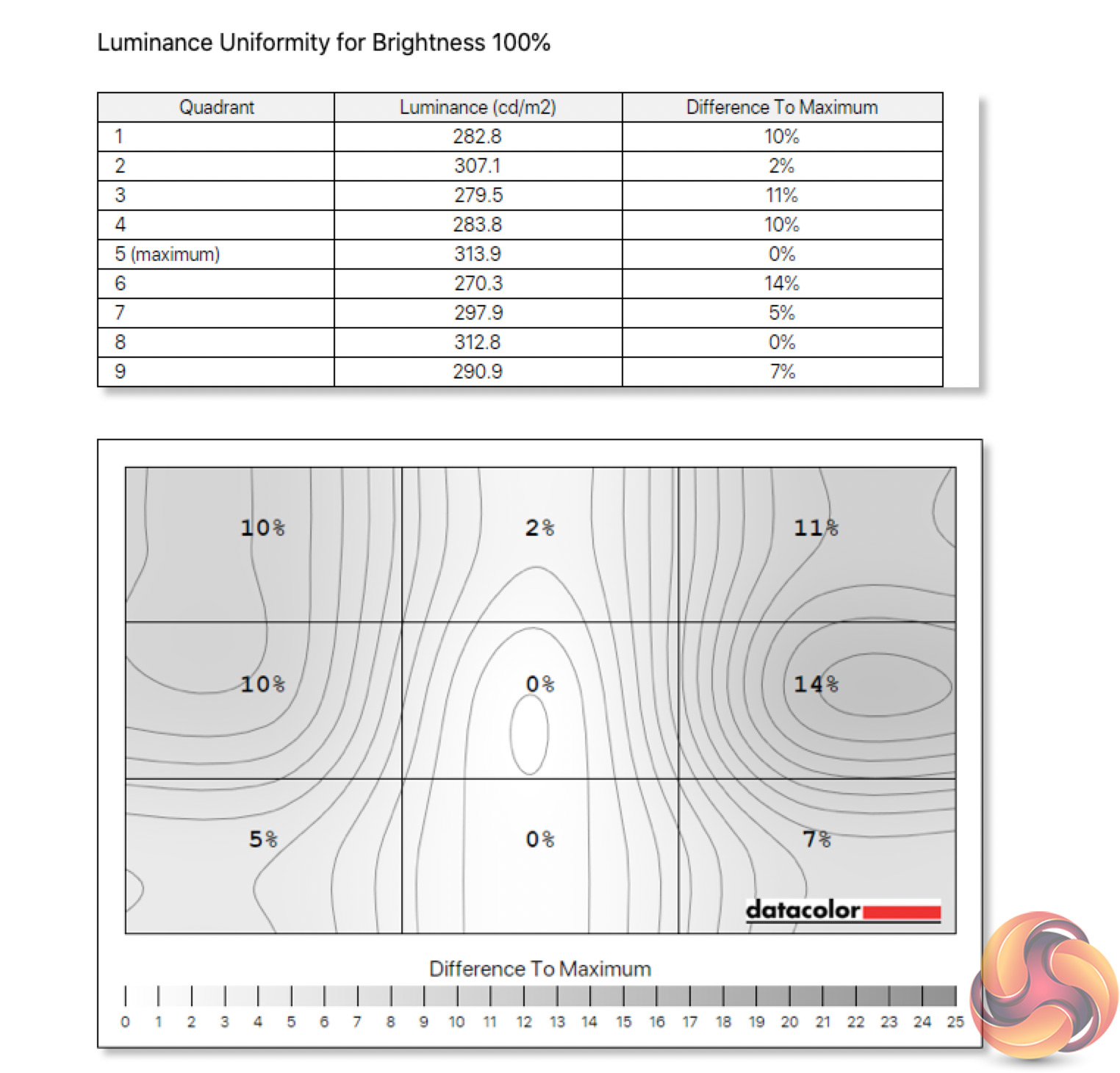
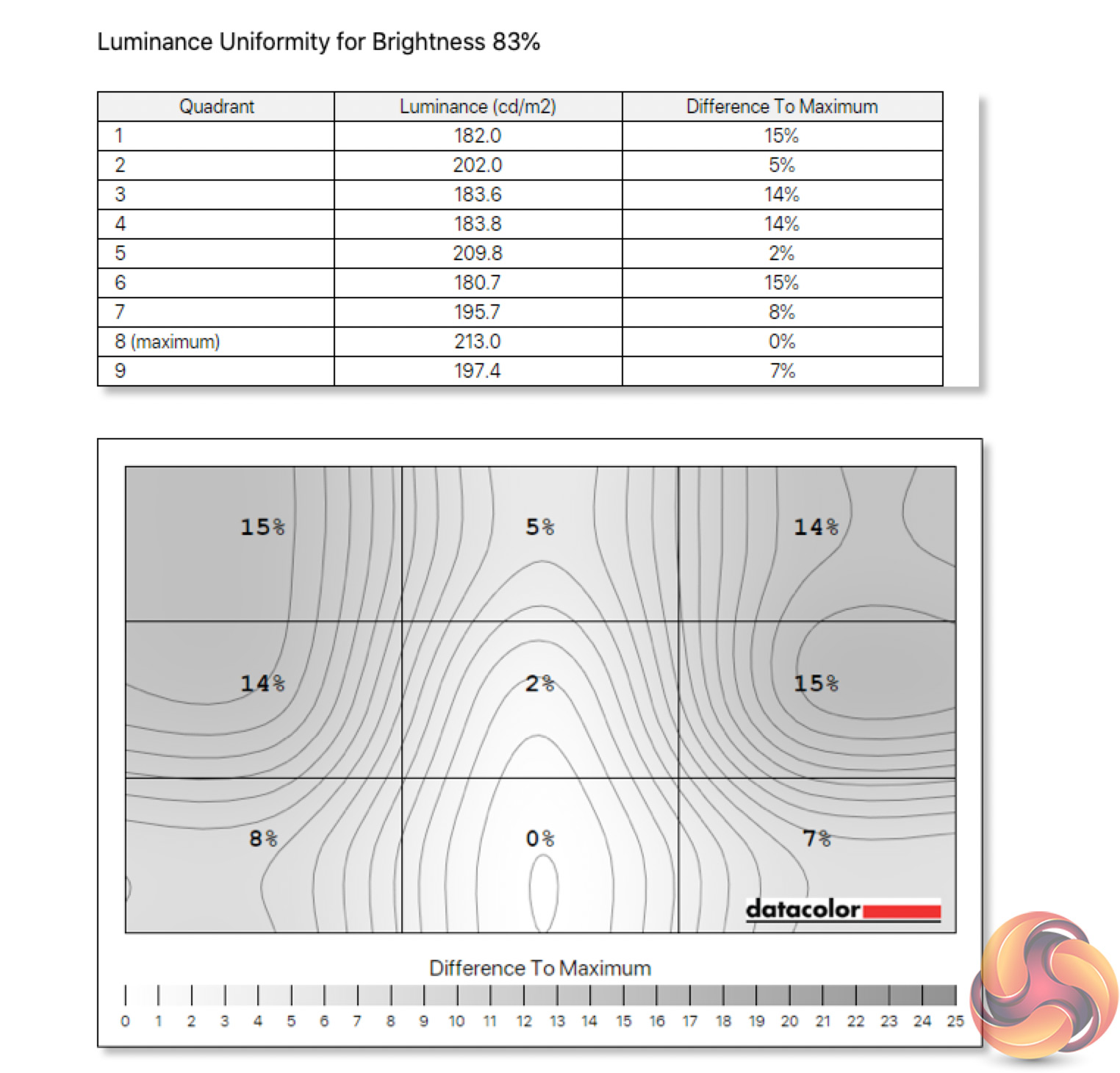
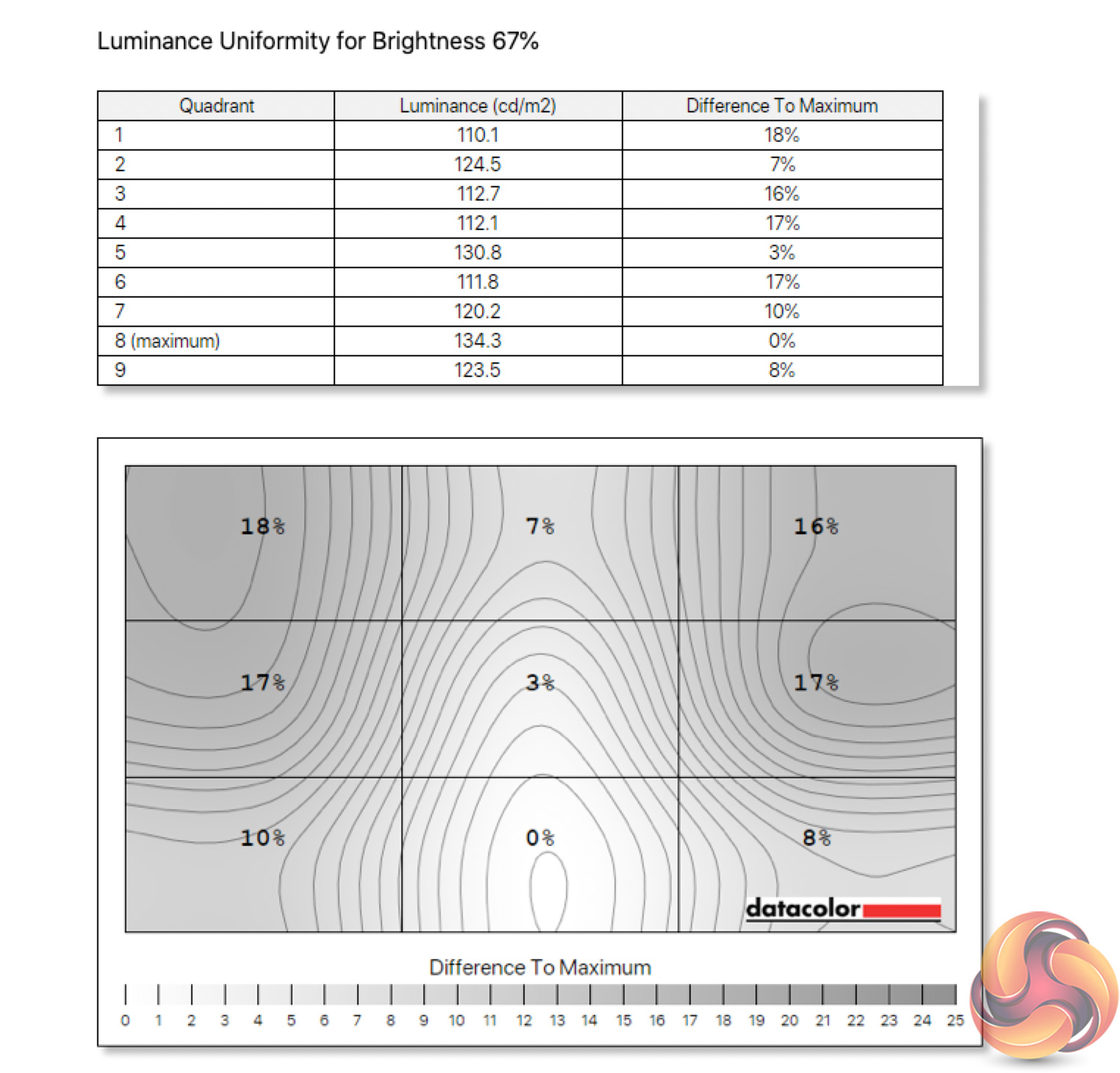
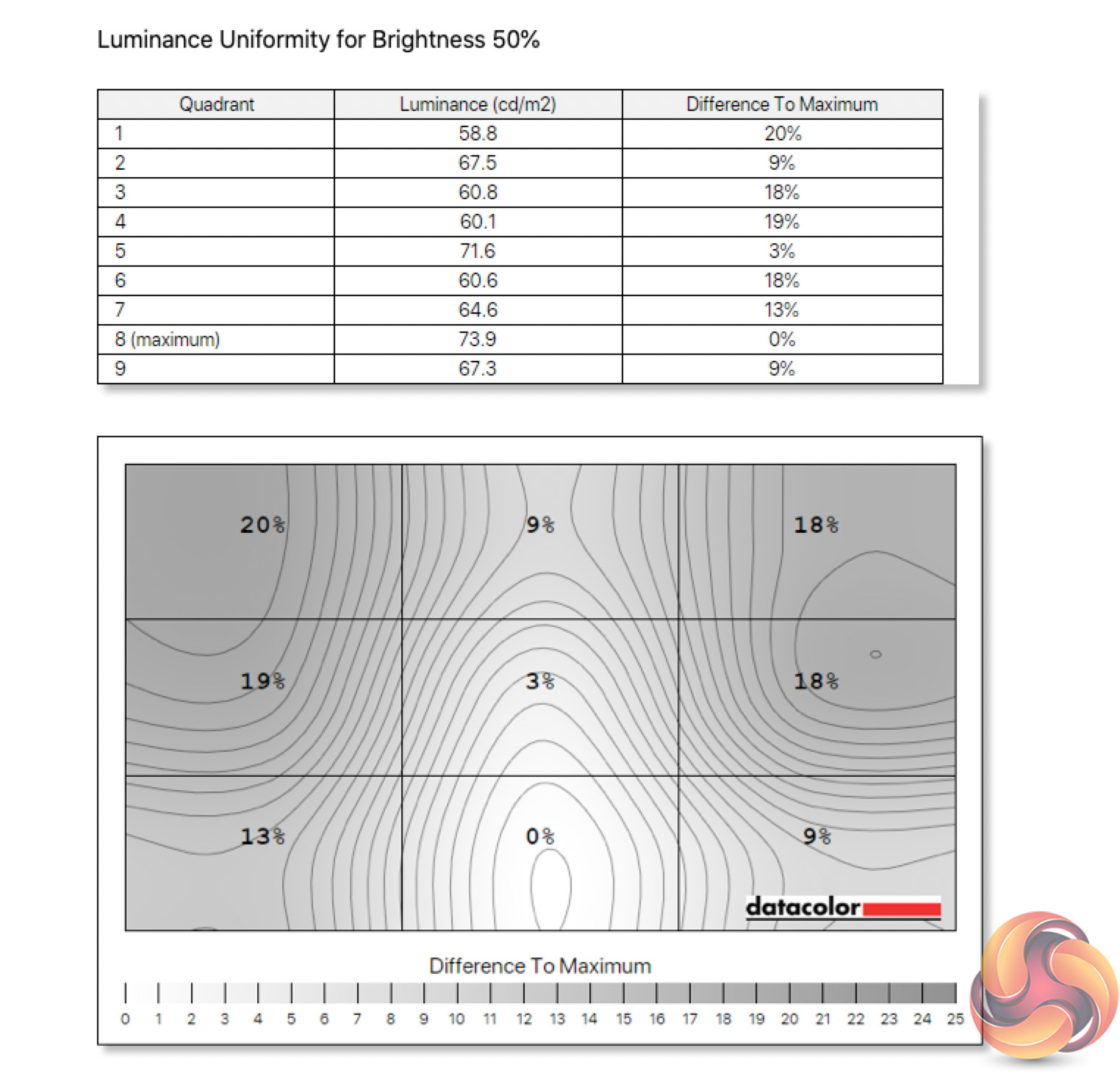
Luminance uniformity isn't quite so impressive however, with up to 20% deviation recorded when at 50% brightness, though this improves considerably when using the display at higher brightness levels.
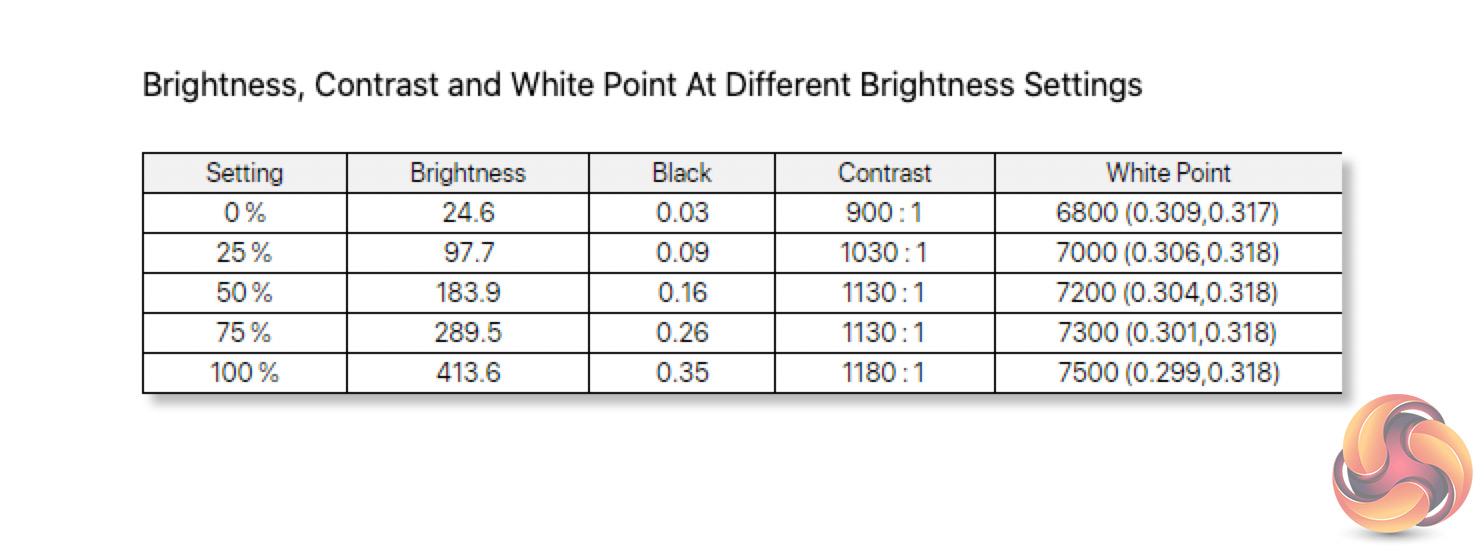
Speaking of brightness, Cooler Master claims 400 nits for the GM32-FQ, which is spot on as we measured just over 413 nits, so that should be more than bright enough for almost all users. Impressively, we also recorded a minimum brightness of less than 25 nits, one of the lowest figures I have seen.
Contrast is also very close to the claimed 1200:1 ratio, as we saw a peak of 1180:1, though the panel does run a touch cool at 7500K.
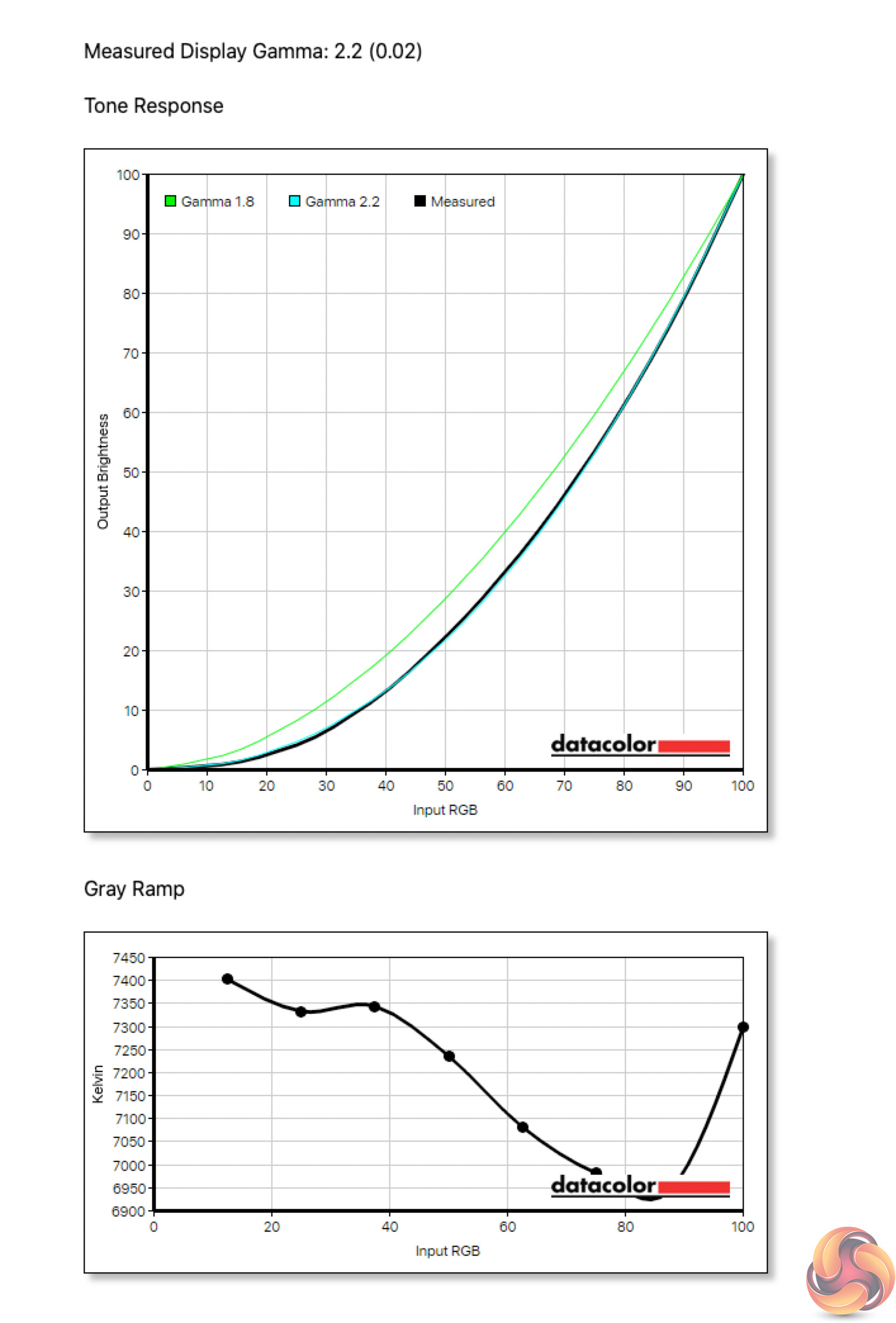
There's only one Gamma setting, but it delivers a result of 2.2, just where we'd want it.
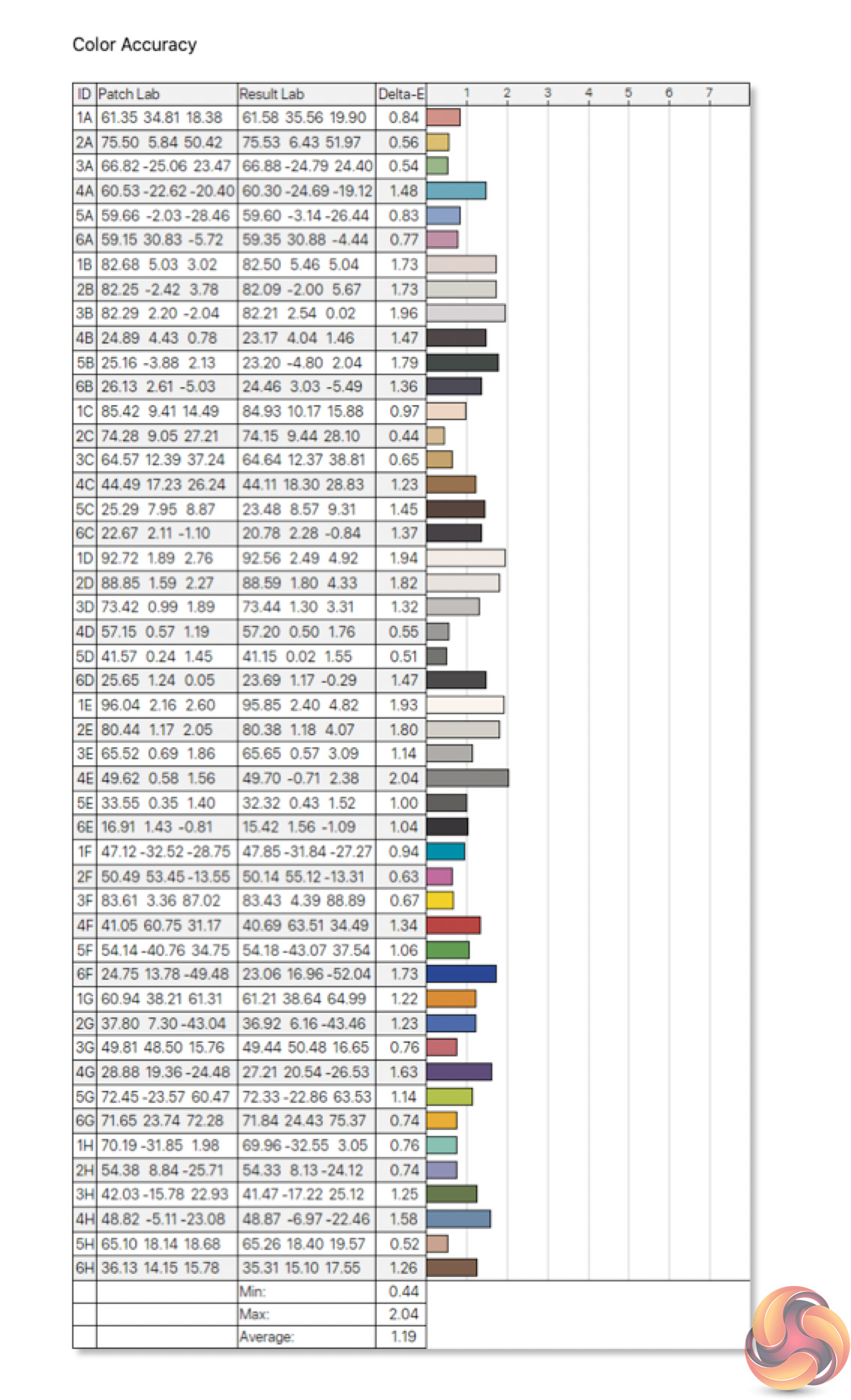
Colour accuracy is also very strong, with an average DeltaE of 1.19 out of the box, and a maximum of 2.04 which is highly impressive, if not the best we have ever seen.
Post-calibration
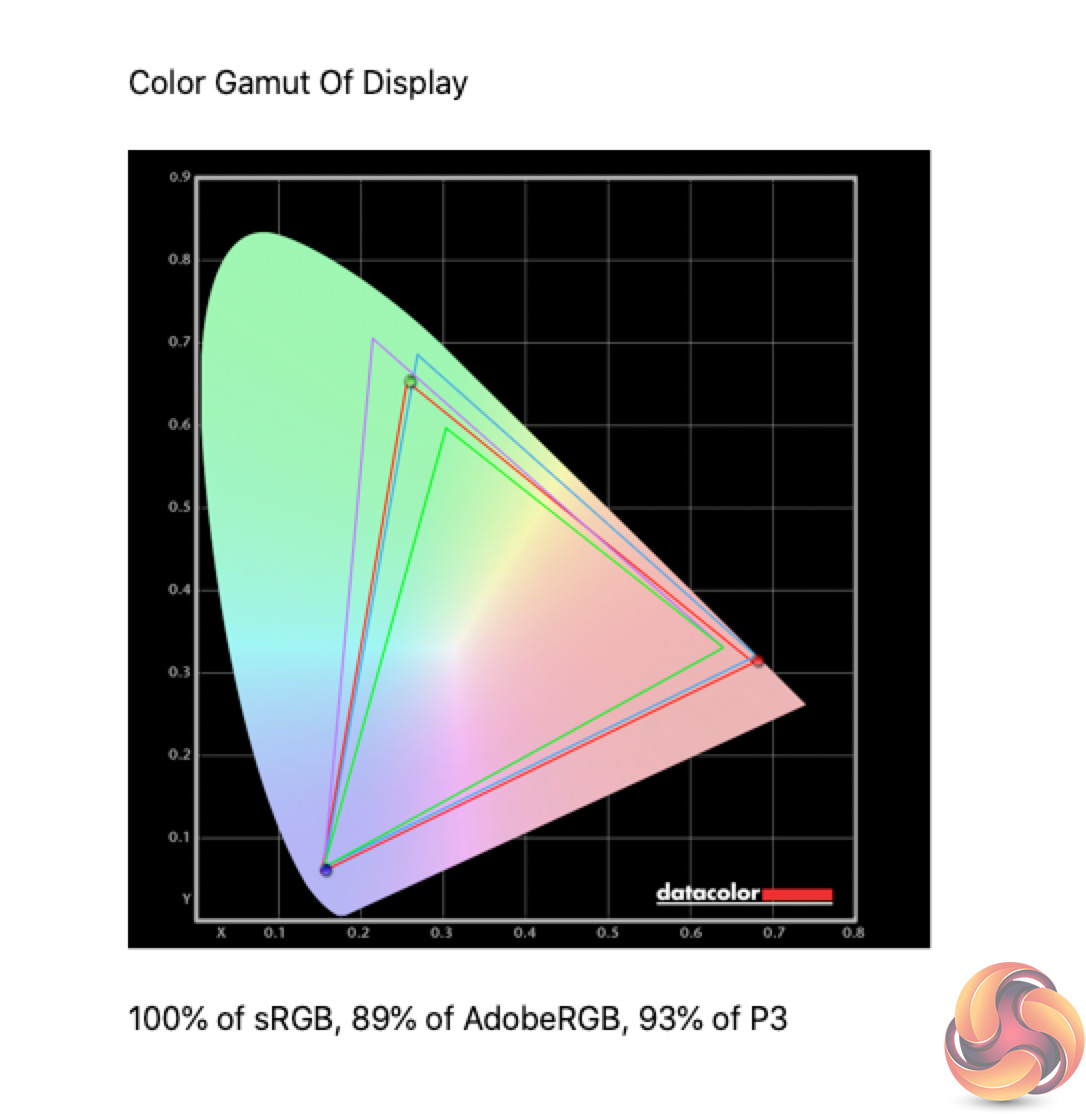
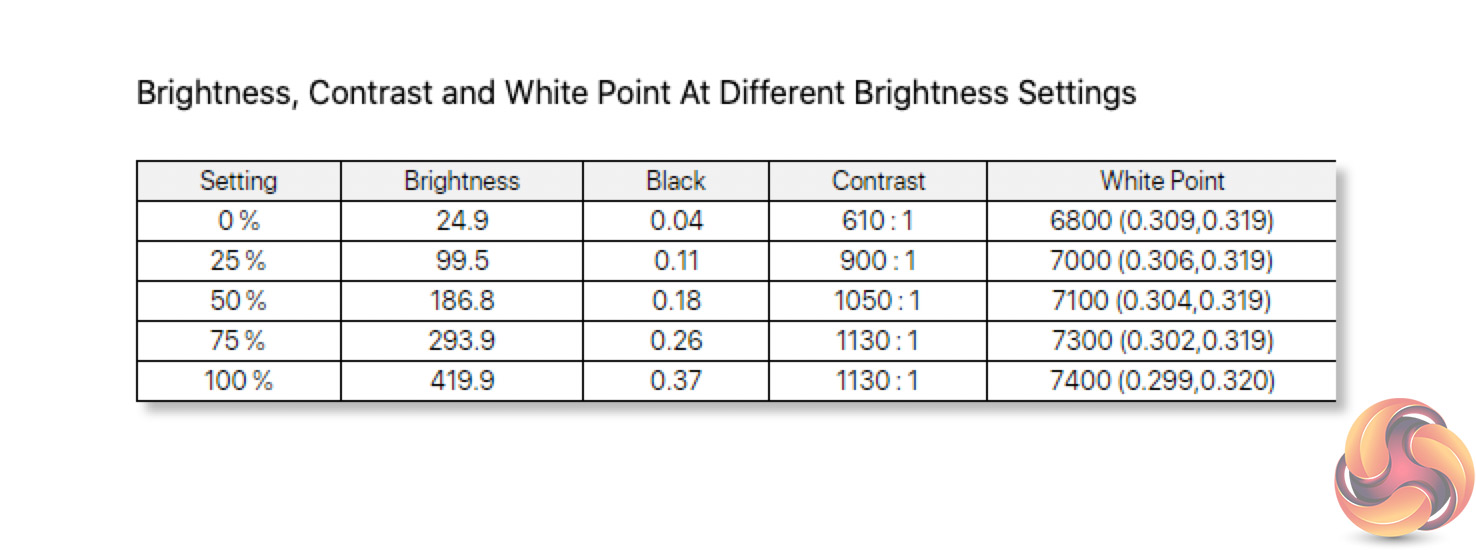
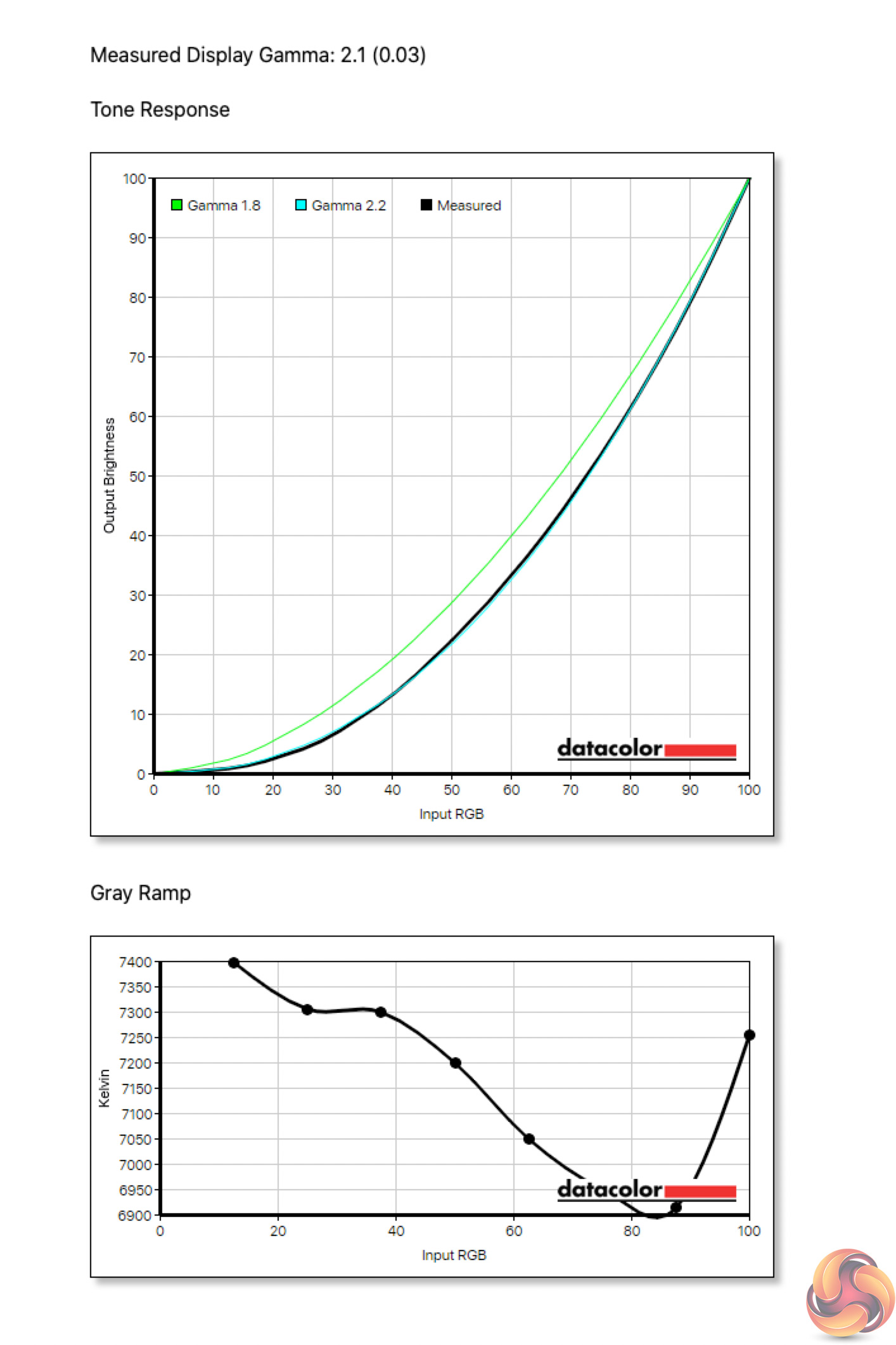
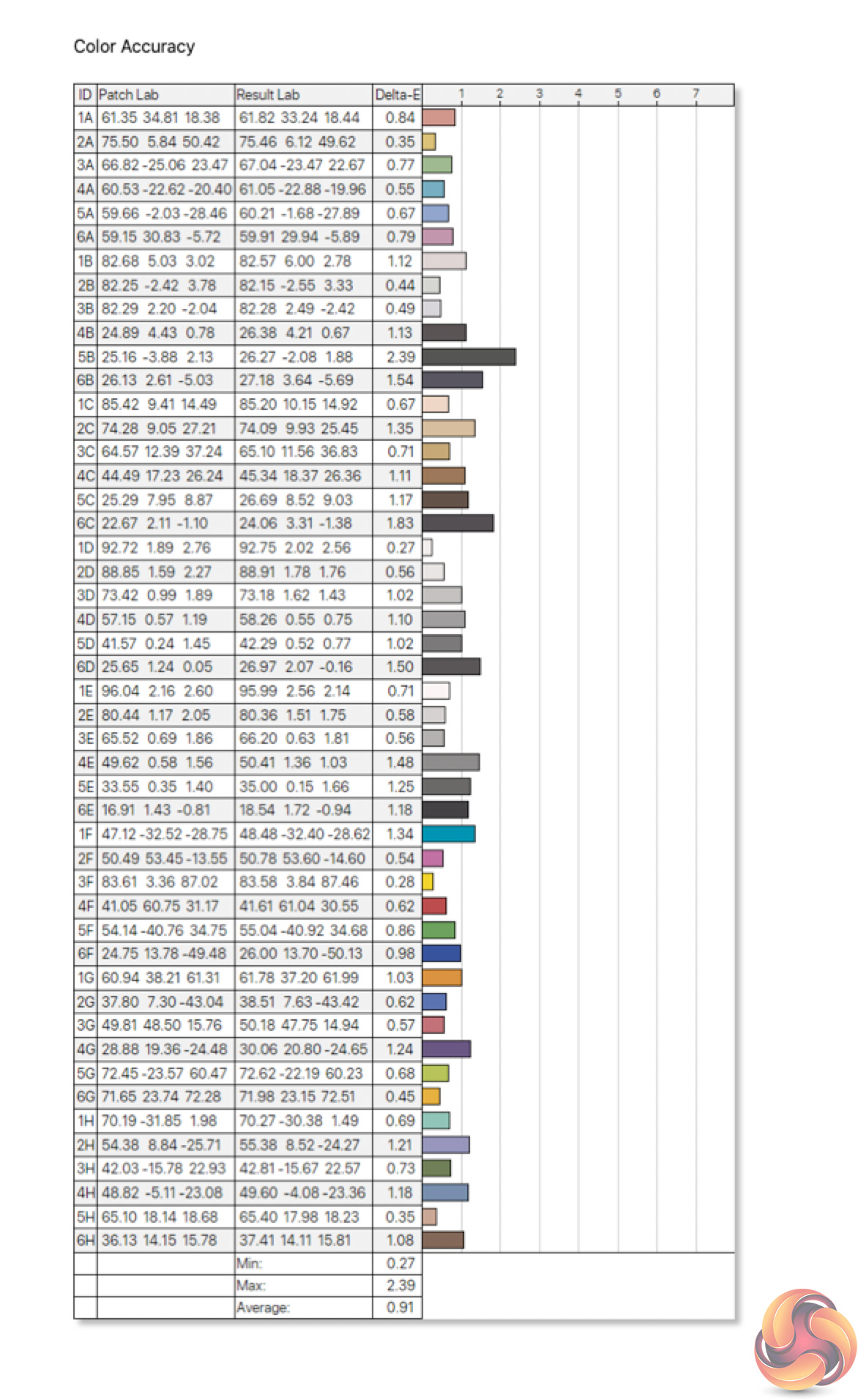
After calibration, not a whole lot changes aside from a marginal increase to colour accuracy, with a new average DeltaE of 0.91, which is a credit to Cooler Master's factory calibration process.
Monitor response time testing is a new addition to our reviews, where we use the Open Source Response Time Tool (OSRTT), developed by TechTeamGB. This measures grey-to-grey response times and presents the results in a series of heatmaps, the style of which you may be familiar with from other reviews.
Perceived Response Time is the time taken for the panel to transition from one colour to another, where lower values are better. Unlike other forms of testing monitor response times, the perceived response time shown here also includes overshoot as part of the results, so if a monitor takes 5ms to complete a transition, but overshoots and takes another 5ms to stabilise at the correct colour, the perceived response time is reported as 10ms. We use a fixed RGB 5 tolerance for each transition. All results shown are gamma corrected.
Overshoot is the term given for when a monitor's transition exceeds or goes beyond its target value. So if a monitor was meant to transition from RGB 0 to RGB 55, but it hits RGB 60 before settling back down at RGB 55, that is overshoot. This is presented as RGB values in the heatmaps – i.e. how many RGB values past the intended target were measured. All results shown are gamma corrected.
Visual Response Rating is a metric designed to ‘score' a panel's visual performance, incorporating both response times and overdrive. Fast response times with little to no overshoot will score well, while slow response times or those with significant overshoot will score poorly.
We test the GM32-FQ at 165Hz, using all four of the overdrive settings found within the OSD.
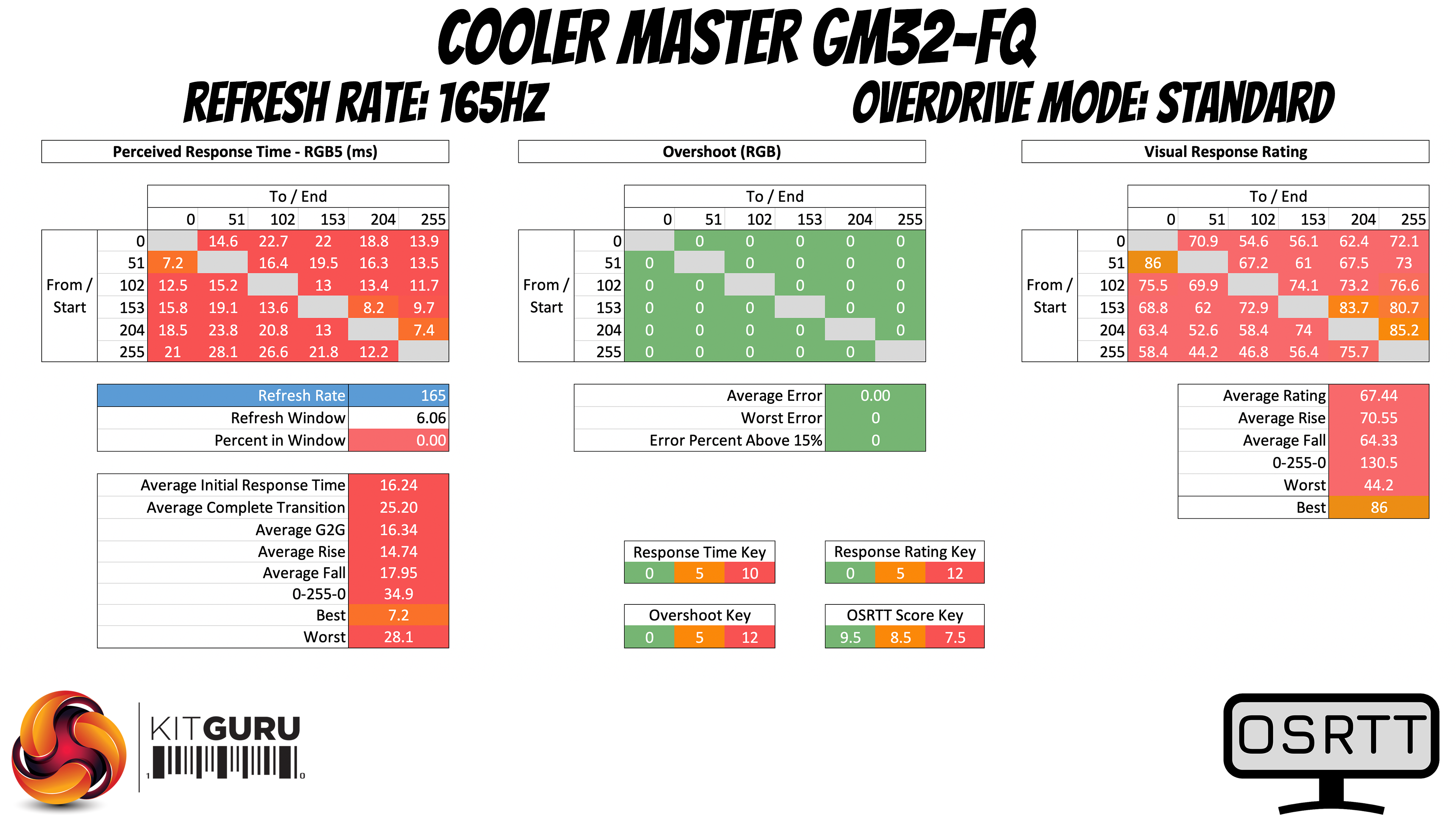
Starting with the Standard overdrive mode, this is the slowest option tested… and it is very slow indeed. We see poor transition speed across the board, with an average GtG response time of 16.34ms. No overshoot is present.
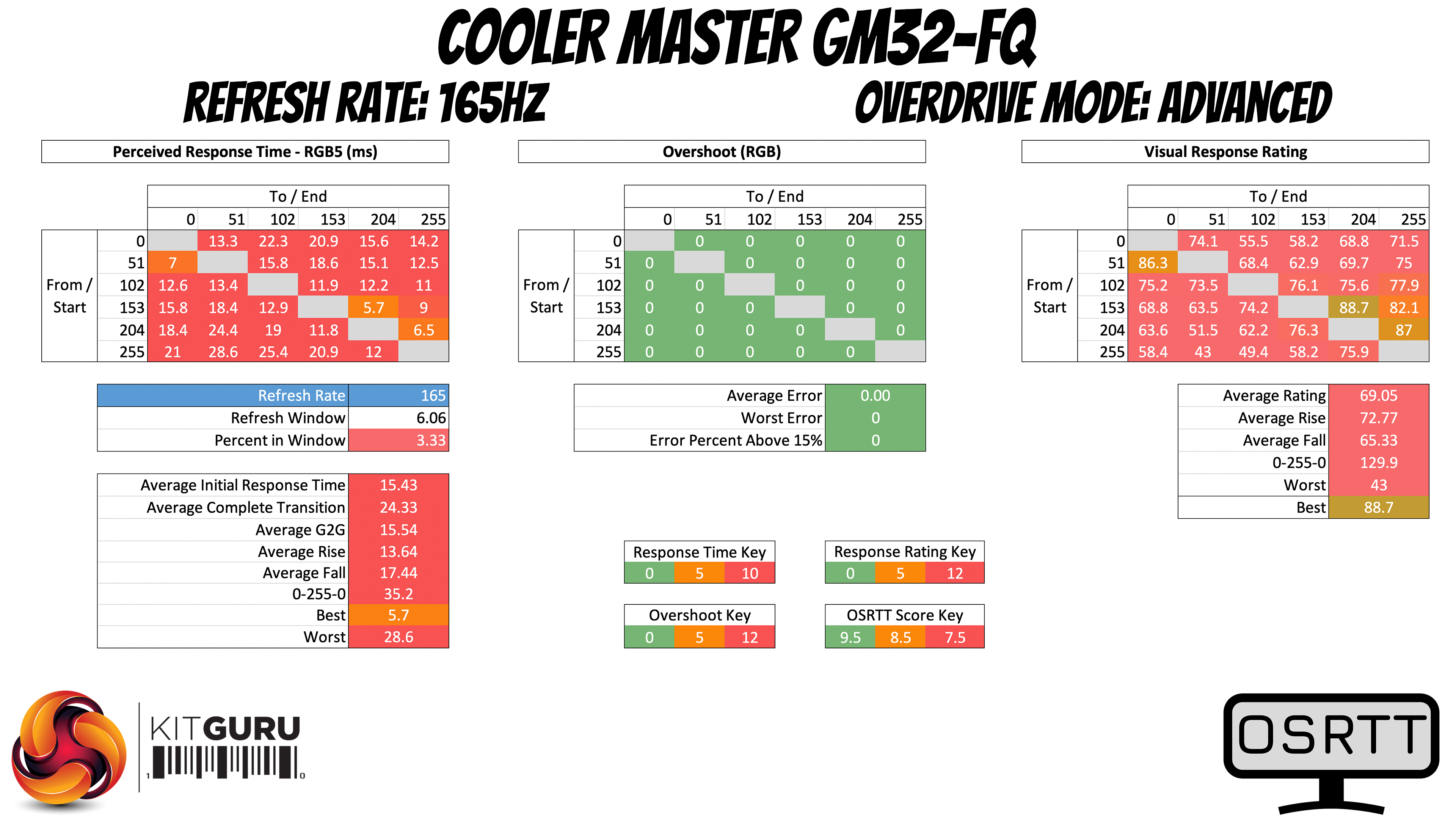
Switching to the Advanced overdrive mode, this is fractionally faster than Standard, but not by much – response times are still slow, averaging 15.54ms, again with no overshoot.
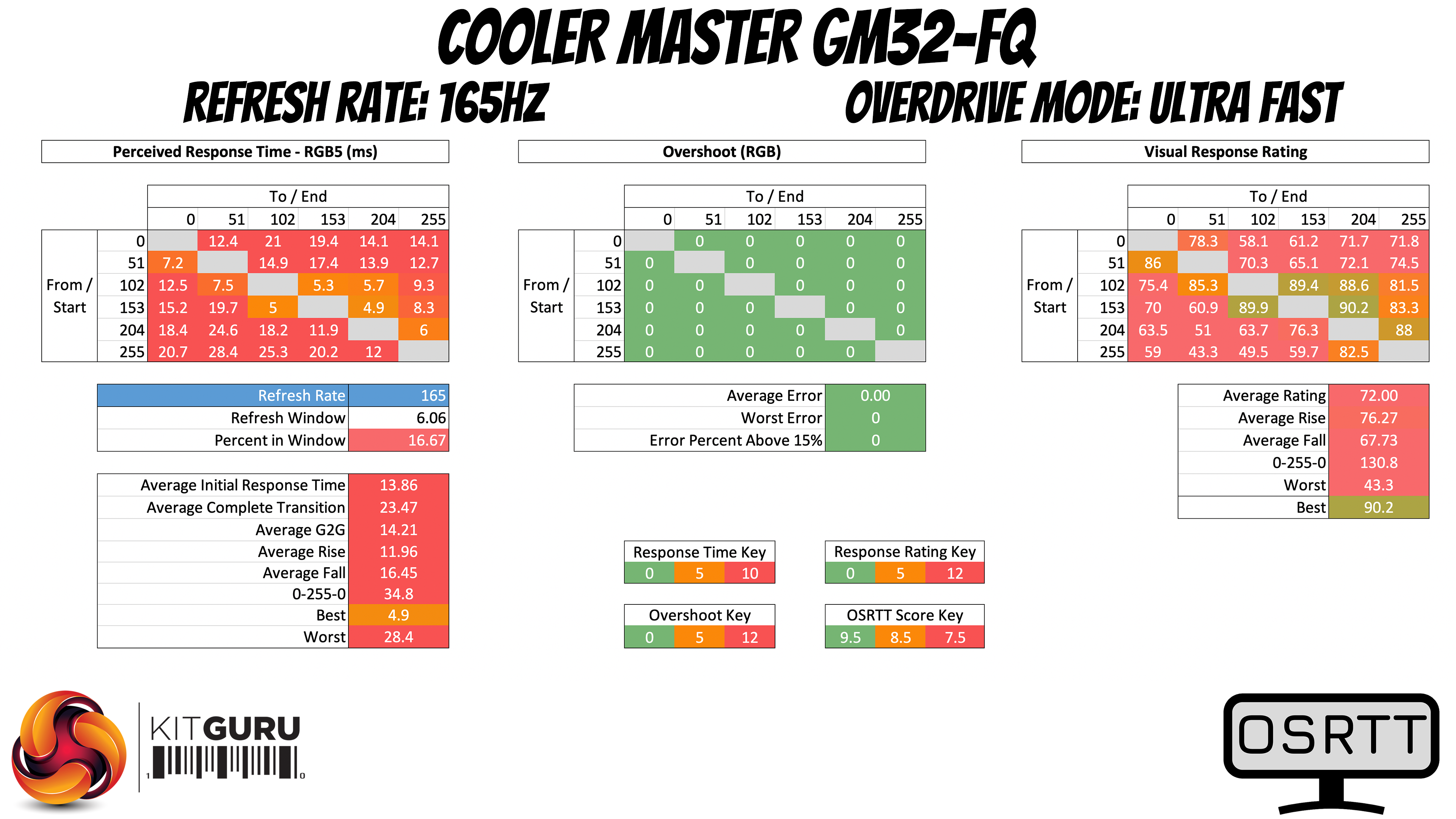
The Ultra Fast overdrive mode is another small improvement, still recording no overshoot and average response times of 14.21ms. That's still a very slow result however, with clear and obvious ghosting visible in use.
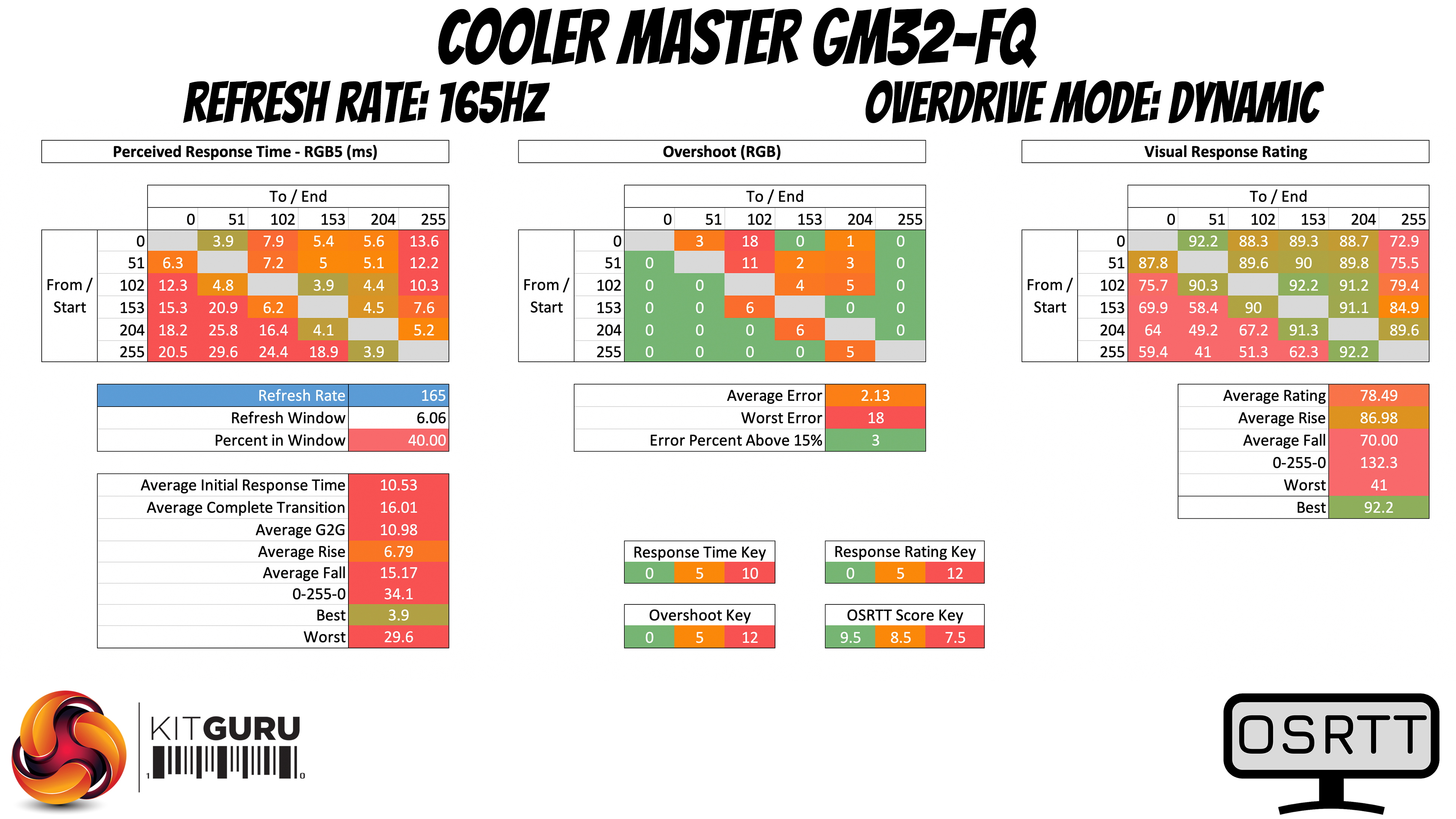
The last overdrive option is dubbed Dynamic, and this is the fastest, reducing average GtG transition times to 10.98ms, with fall times being particularly slow. The transition times shown here are still not anything approaching what I'd call ‘fast', and ghosting is still clearly visible. It is the fastest of the four modes, however, but it does also introduce some overshoot. It's not terrible, but it was noticeable for me while gaming.
Clearly, the GM32-FQ leaves a lot to be desired in terms of its response times. Of the four modes, I'd completely ignore the Standard and Advanced options, as they offer no benefit over the Ultra Fast mode, which is the fastest setting before any overshoot is introduced. Dynamic is faster still but does add some visible overshoot, so you'd have to pick which of those two options you prefer. The term ‘lesser of two evils' certainly springs to mind.
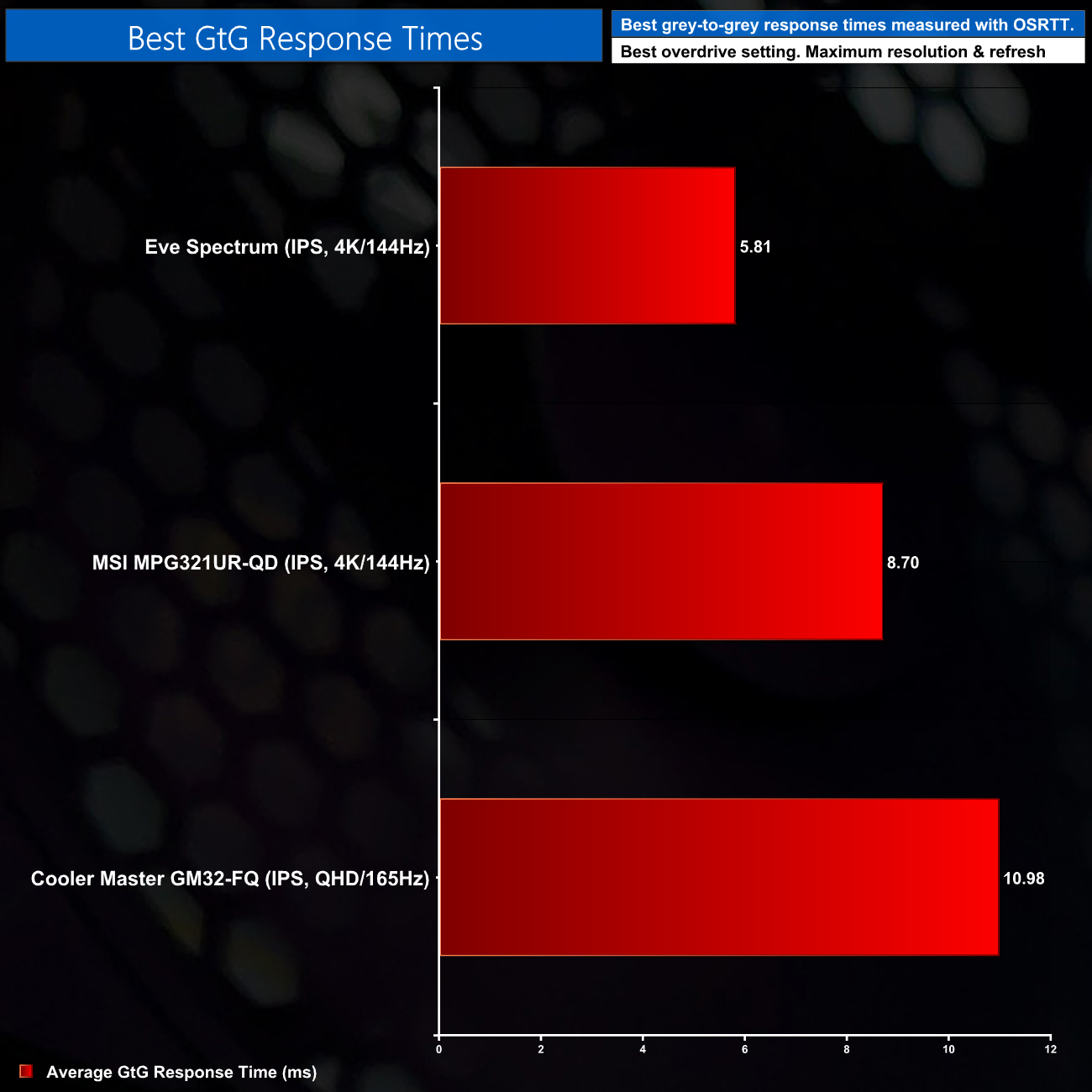
As we have only just started using OSRTT, we have unfortunately not been able to test any other competing 1440p displays. We did test two other 4K 144Hz screens though, the Eve Spectrum and the MSI MPG321UR-QD, with all three results showing the screens' best respective overdrive modes, testing at their maximum refresh rate.
The MPG321UR isn't the fastest panel going, but it's still noticeably better than the GM32-FQ, while the Eve Spectrum is in another class entirely, with sub-6ms average response times.
System latency is another area of our testing, where we use Nvidia’s Latency and Display Analyzer Tool (LDAT) to measure end-to-end system latency. LDAT itself is a photosensor which is placed on the monitor. It has an integrated mouse button, allowing it to measure the total time taken from mouse click, to an action happening on screen, which is done by measuring a change in luminance. This data is logged to a CSV file over USB, allowing for close analysis of the data.
As this is end-to-end system latency, we are not measuring only the processing/input latency of each monitor we test. However, we can standardise the test process so the monitor is the only variable. It also gives an insight into how different refresh rates and resolutions can affect end-to-end latency, which is of course highly relevant to your purchasing decision.
We use Rainbow Six Siege for this testing.
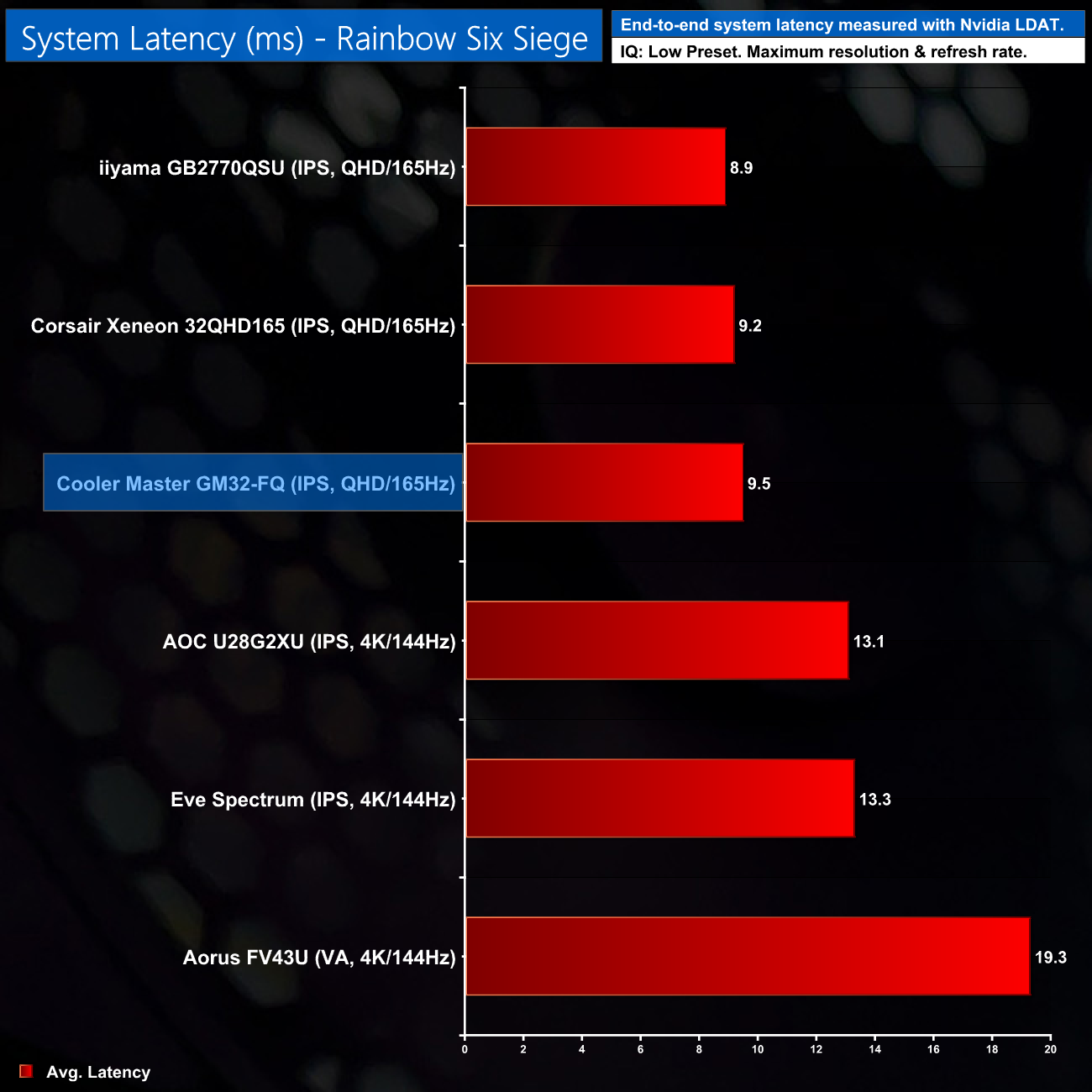
Thankfully, input latency is not an issue for the GM32-FQ, as it delivers an average latency figure that's bang on with the other 1440p panels we have tested. It's just 0.6ms behind the iiyama GB2770QSU which occupies the top of the chart.
Today we have assessed the Cooler Master GM32-FQ, and while it is not Cooler Master's first ever gaming monitor, it is the first time we have reviewed one here at KitGuru.
While there is plenty to say about the panel used here, I have to give Cooler Master a lot of credit for the work they put into designing the GM32-FQ as well as they did. It's incredibly well-built, with both a metal stand and a metal frame that wraps around the edges of the display, and the overall profile is very slender too. Add in the minimalistic styling and eye-catching base of the stand, and I'd say the GM32-FQ is one of the most stylish screens I have ever used.
The one area of the design that needs improvement is the OSD navigation buttons – Cooler Master really needs to implement a joystick here, as that is so much easier to use. The OSD itself could also do with an overhaul, as right now it feels quite clunky.
Thankfully the GM32-FQ is a colour accurate display as well. We saw strong brightness levels, peaking at over 400 nits, with a contrast ratio of 1180:1. It offers 100% sRGB and 90% AdobeRGB gamut coverage, while colour accuracy is excellent out of the box, with an average DeltaE of 1.19.
There is a catch however, and it is pretty significant. Put simply, the GM32-FQ is very slow, with average grey-to-grey response times north of 10ms, even using the fastest overdrive mode. This means it's not really possible to have a fluid gaming experience, as there is a lot of visible ghosting that creates a smeary overall picture.
This is a quite a fundamental problem for a gaming monitor, and if you are looking for a new screen to use solely for gaming, it's enough that I'd have to advise you to look elsewhere. If you want a screen for more general duties, maybe some photo editing and a bit of casual gaming, then the GM32-FQ is worth considering, largely thanks to its sleek design and strong colour accuracy.
Still, Cooler Master clearly has work to do before we can consider the company as a serious contender in the gaming monitor market. The groundwork has been laid, but the panel used here is just too slow by modern standards.
You can buy the Cooler Master GM32-FQ for £429.99 from eBuyer HERE.
Discuss on our Facebook page HERE.
Pros
- Lovely design.
- Very well built with metal stand and frame.
- Decent IO, including USB Type-C.
- Colour accurate.
- Peak brightness over 400 nits.
- Decent contrast for an IPS panel.
Cons
- Very slow response times.
- OSD controls are fiddly.
- OSD itself needs work.
KitGuru says: Cooler Master's GM32-FQ looks fantastic and offers a rich, colour-accurate display. The panel is just far too slow to be used for anything more than casual gaming, however.