KitGuru KitGuru.net – Tech News | Hardware News | Hardware Reviews | IOS | Mobile | Gaming | Graphics Cards


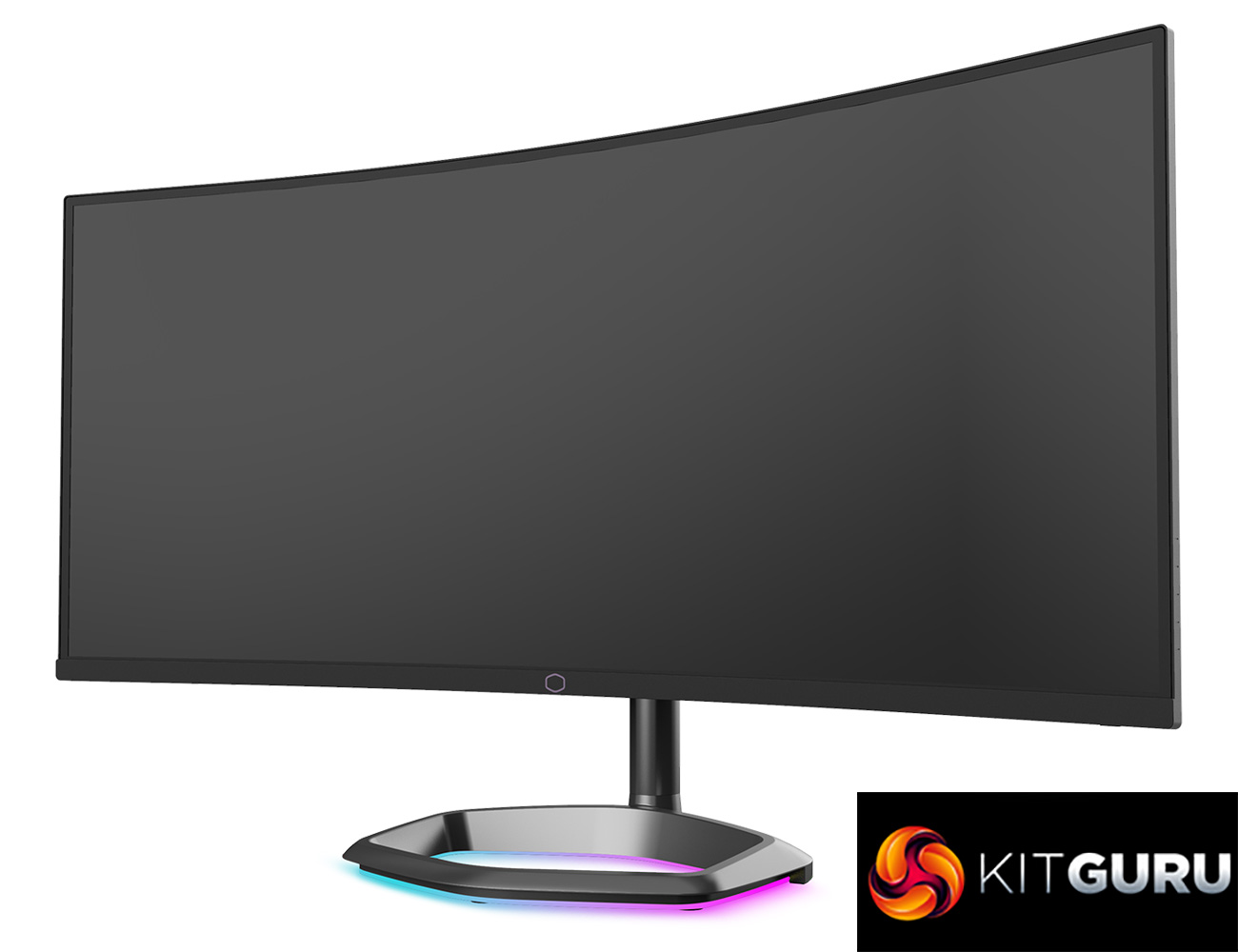
Back in 2020, Cooler Master launched its first ever gaming monitor, the ultrawide GM34-CW. Today, nearly two years later, the company is back with the GM34-CWQ ARGB. Sporting a 3440×1440 curved VA panel, on paper it may not look like much has changed compared to the original model. Cooler Master will be hoping its greater experience of the monitor market will be evident however – so let's find out if this new screen is worth buying.
Ultrawide gaming monitors have been growing in popularity over the last few years, and the Cooler Master GM34-CWQ ARGB looks to follow a tried-and-tested formula. The UWQHD resolution, paired with its 144Hz refresh rate, should offering an immersive yet fluid gaming experience, and we know VA panels offer some of the best contrast levels going – Cooler Master quotes a 4000:1 ratio here, compared to 3000:1 for the original CM34-CW.
There are plenty of similarities between the two monitors, with the same 1500R curvature and Quantum Dot technology in place, however the GM34-CWQ also boasts a faster 0.5ms MPRT. We have our own grey-to-grey response time figures as part of this review. As the name suggests, the CM34-CWQ also boasts the addition of ARGB lighting in the base of the stand.
Priced at £419.99 in the UK, let's find out what this screen has to offer…
Specification:
- Product Number: CMI-GM34-CWQA
- Curve / Ratio / Screen Size: 1500R / 21:9 / 34”
- Panel: VA 8bit w/ Quantum Dot
- Resolution: UWQHD 3440*1440
- Frame Rate: 144 Hz
- Contrast Ratio: 4000:1
- Viewing Angle (H/V): 178°/178°
- Brightness (Typical): 400 nits
- DisplayHDR400: Compatible
- Color Gamut: DCI-P3 98%
- I/O (Input/Output): DP*1 + HDMI2.0*2 + Speaker 5W*2, TypeC*1(PD 65W)+TypeB*1+TypeA*2″
- DCR (Dynamic Contrast Ratio): Yes
- VRR Technology: FreeSync Premium. FreeSync Range: Yes. G-Sync Range: Yes
- Response Time: 0.5ms (MPRT)
- Eye Protection: Low Blue Light
- Anti-flicker: Yes
- Overdrive Technology: Yes
- Lighting: ARGB
- VESA: 100*100mm
- Height Adjustment: 0-80mm
- Swivel: -15°~15°
- Tilt: -5°~+15°”
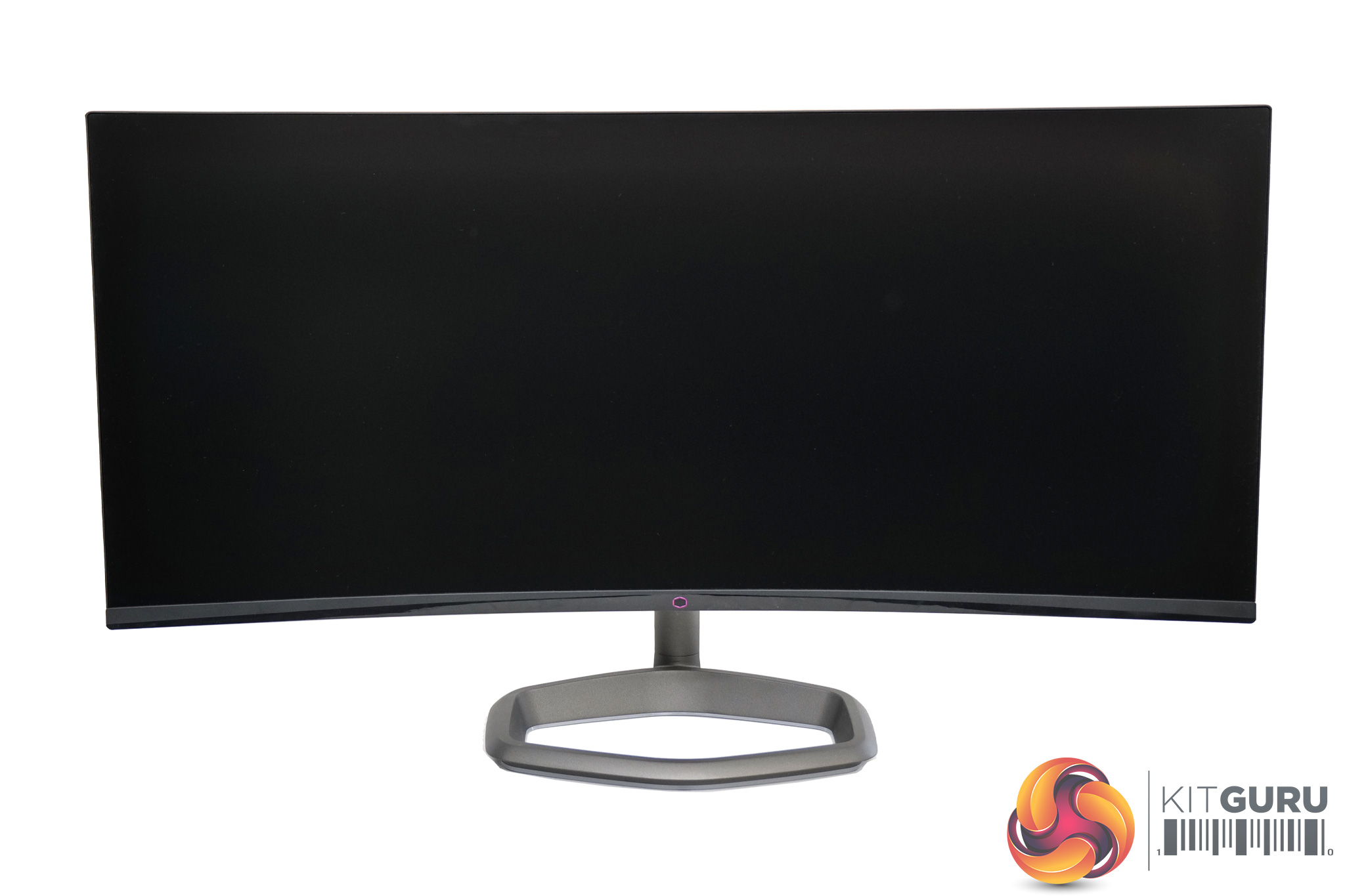
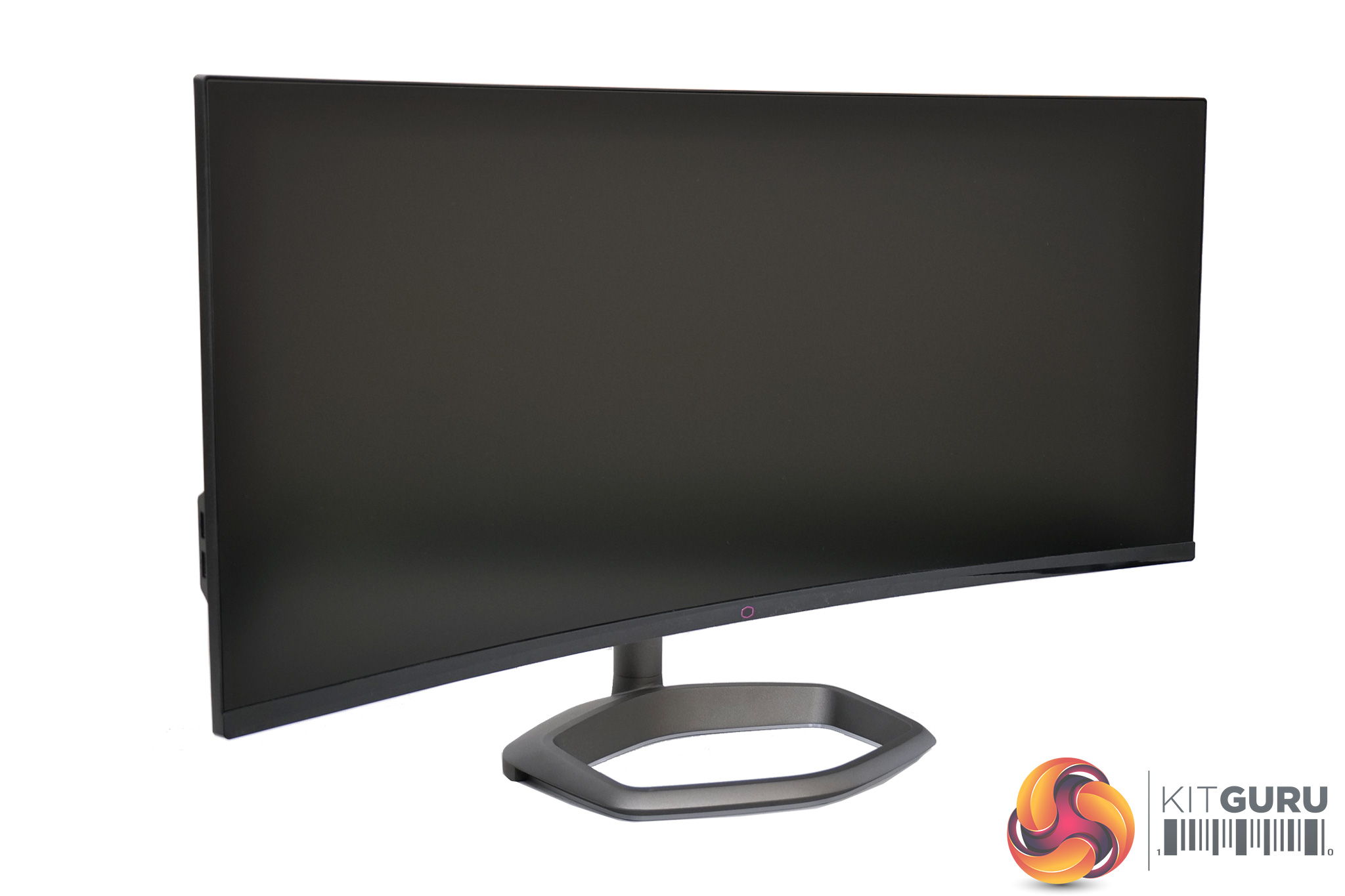
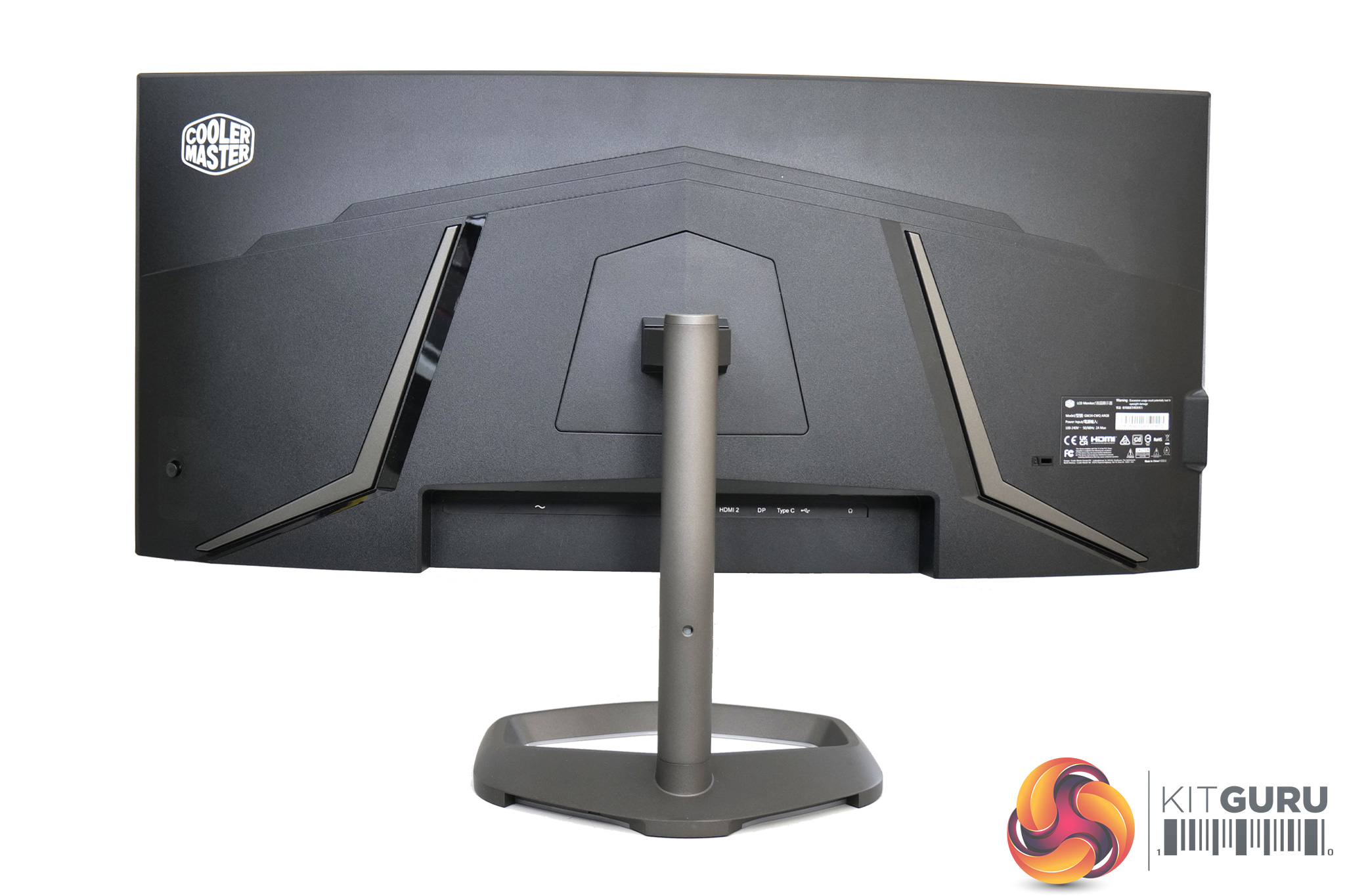
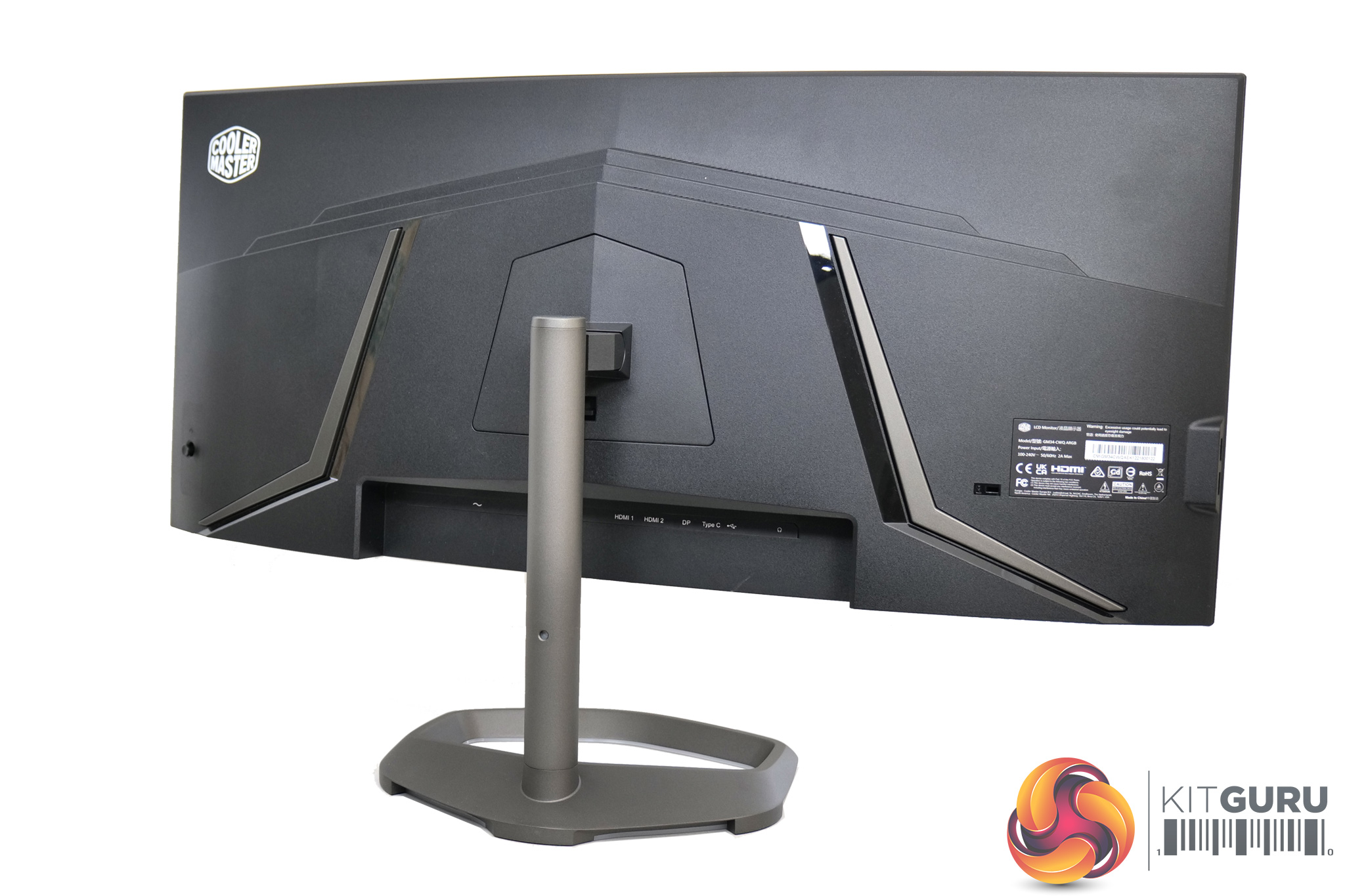
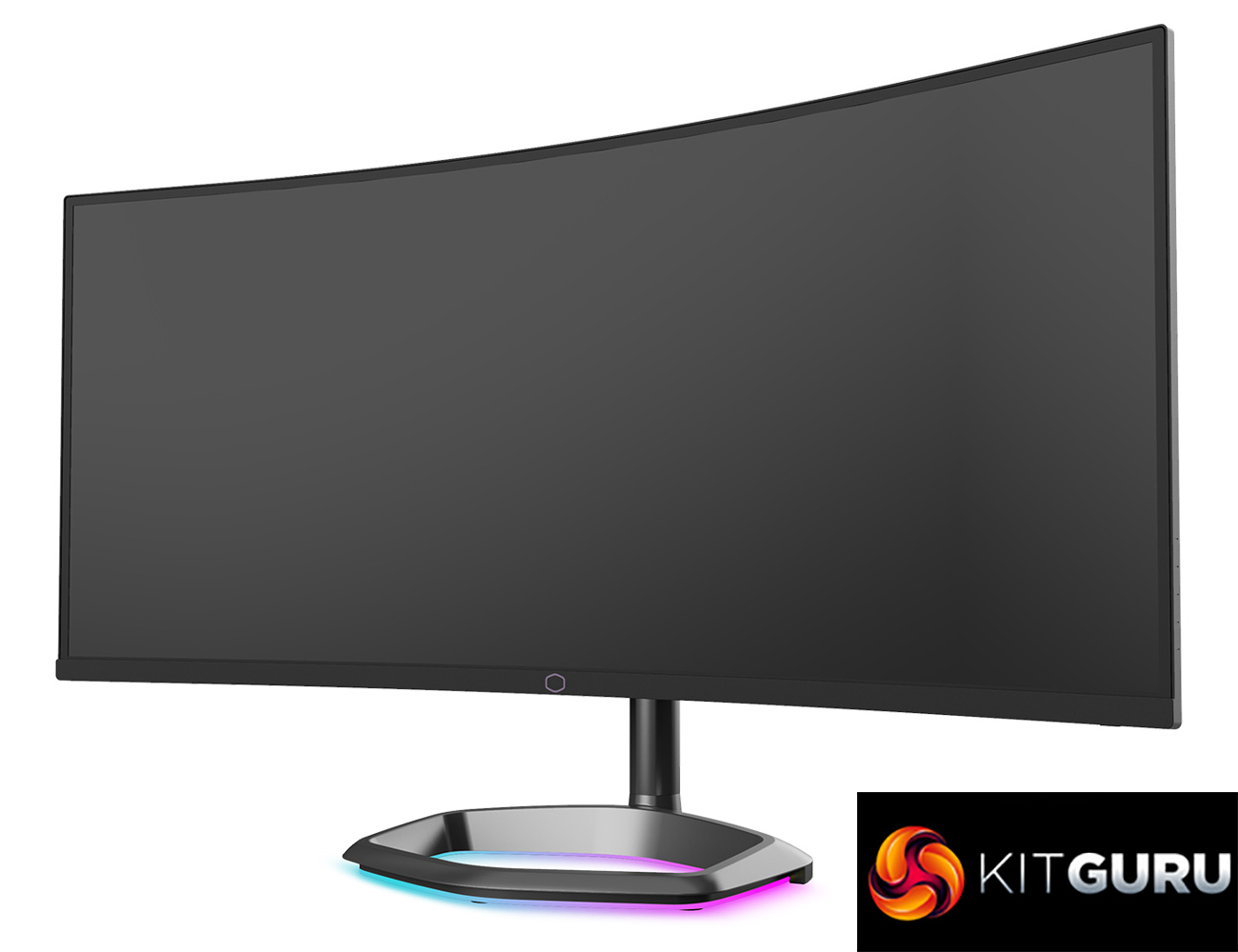
Looking at the design of the Cooler Master GM34-CWQ ARGB, at first glance it looks almost identical to the original GMC4-CW. Certainly from the front you would be hard pressed to tell them apart, with the inset bezels and curved 21:9 panel.
There are some slight aesthetic differences on the back of the screen though, with the GM34-CWQ adopting a more visually interesting design, with a couple of large glossy accents thrown in for good measure. There's no lighting on the back of the display though, whereas the GM34-CW offered two purple LED strips.
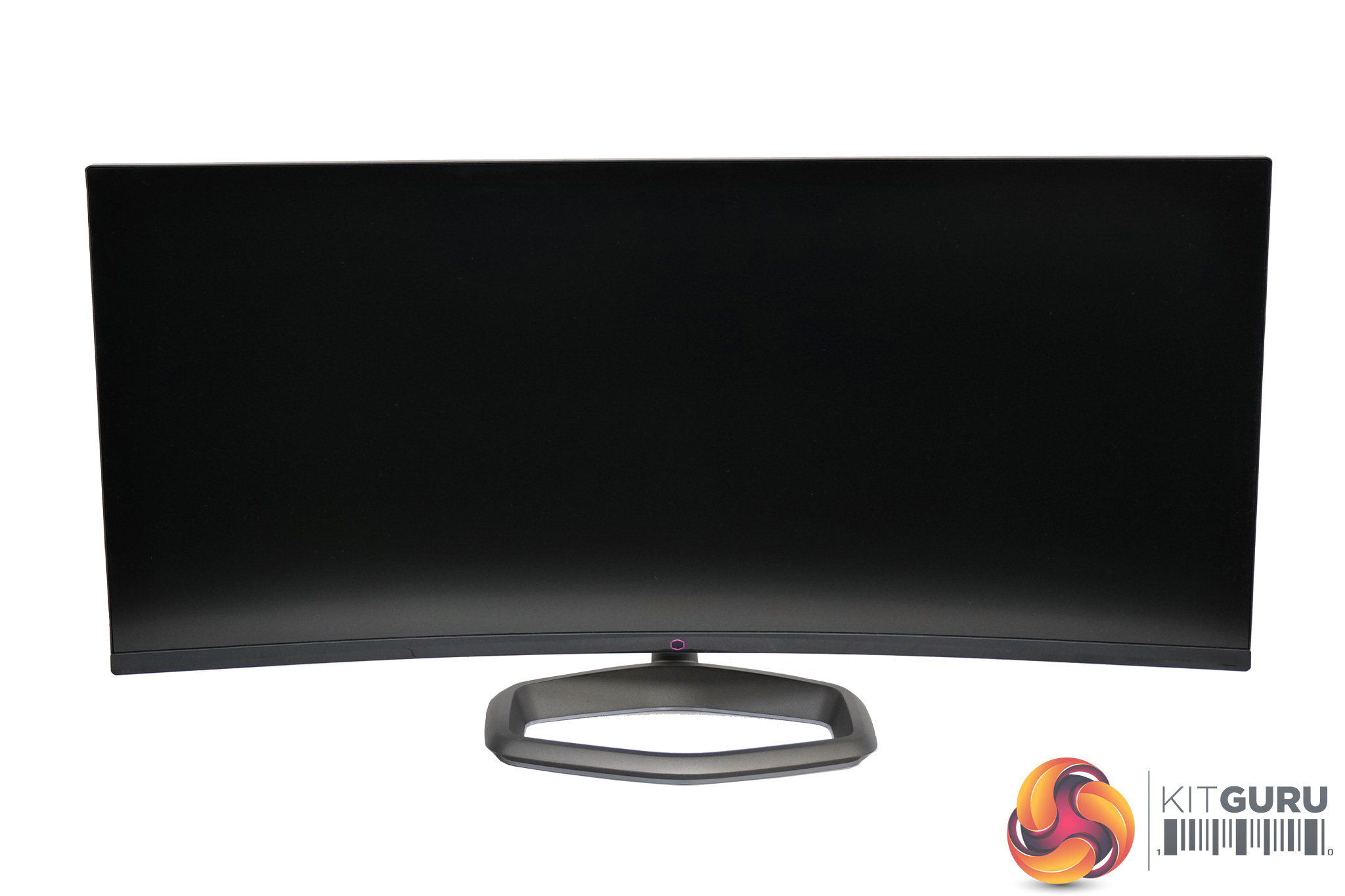
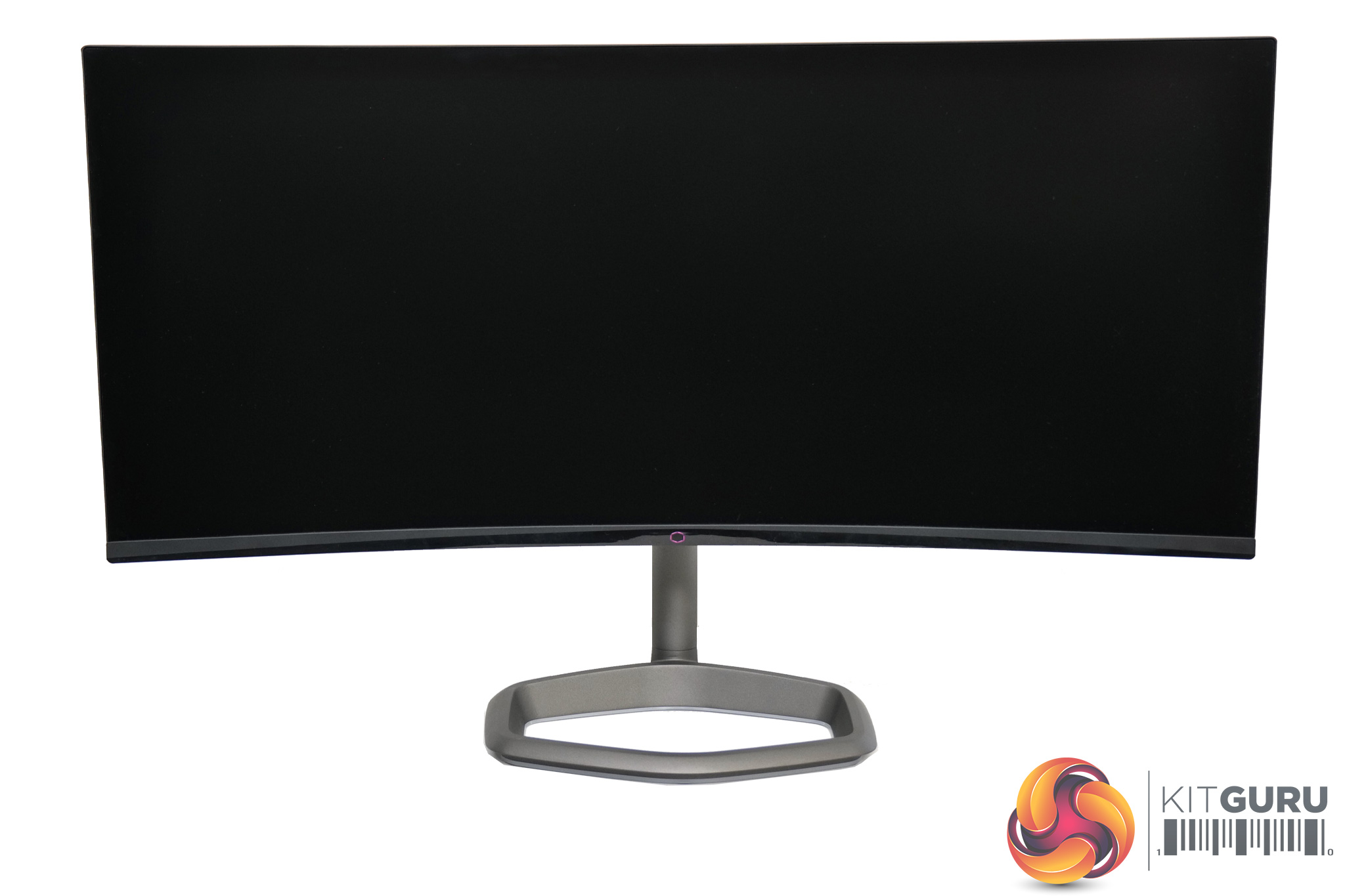
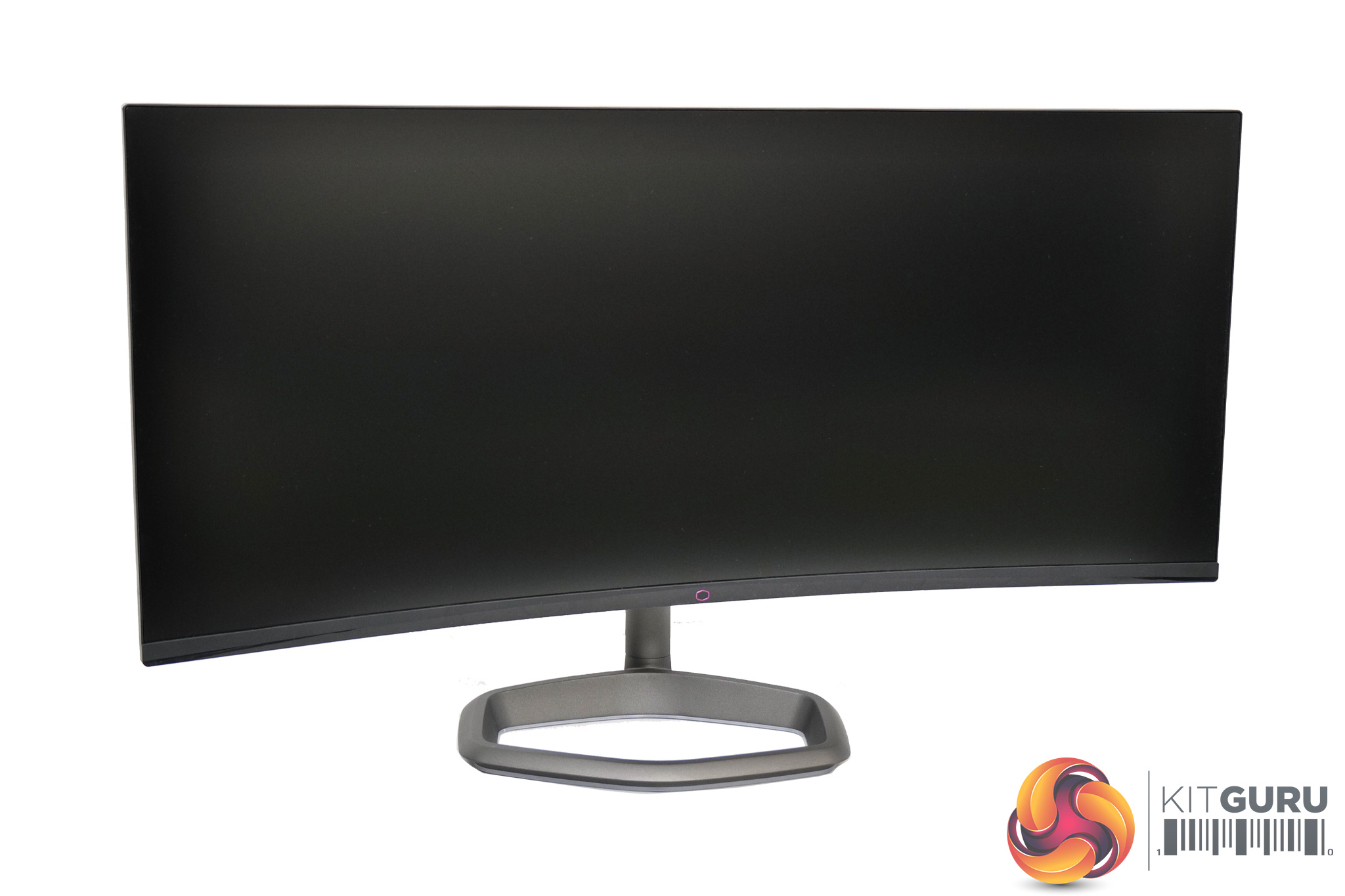
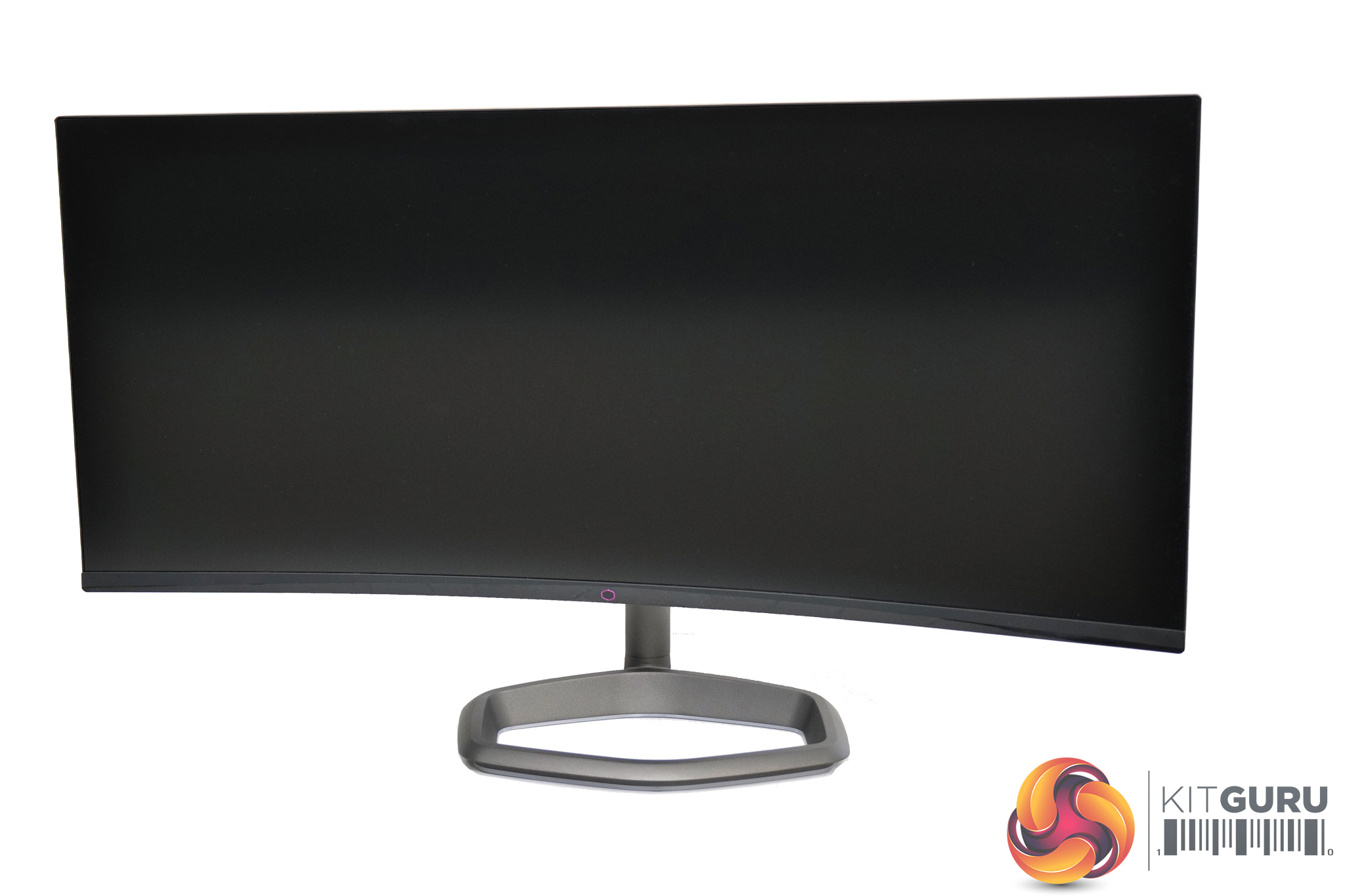
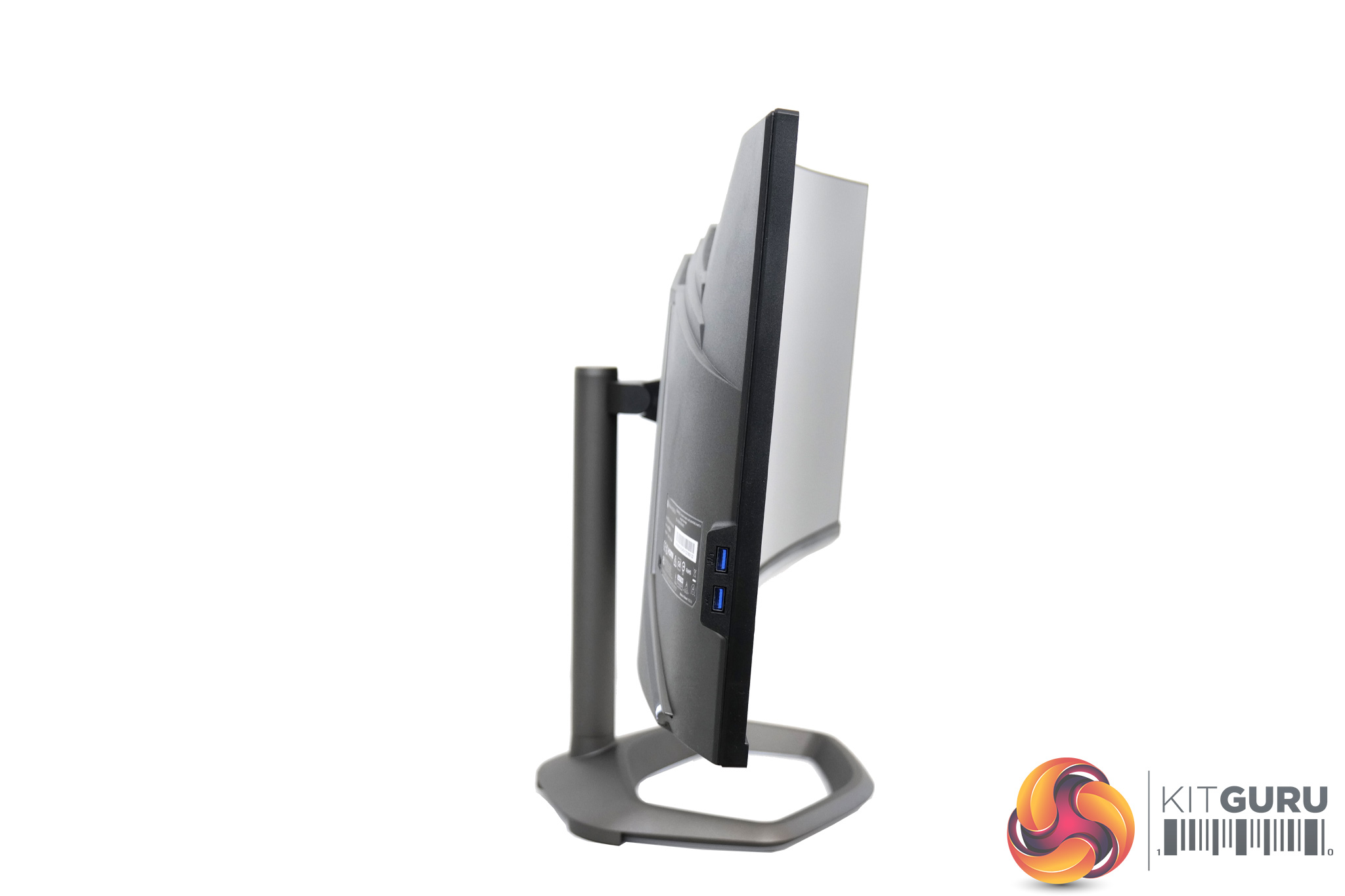
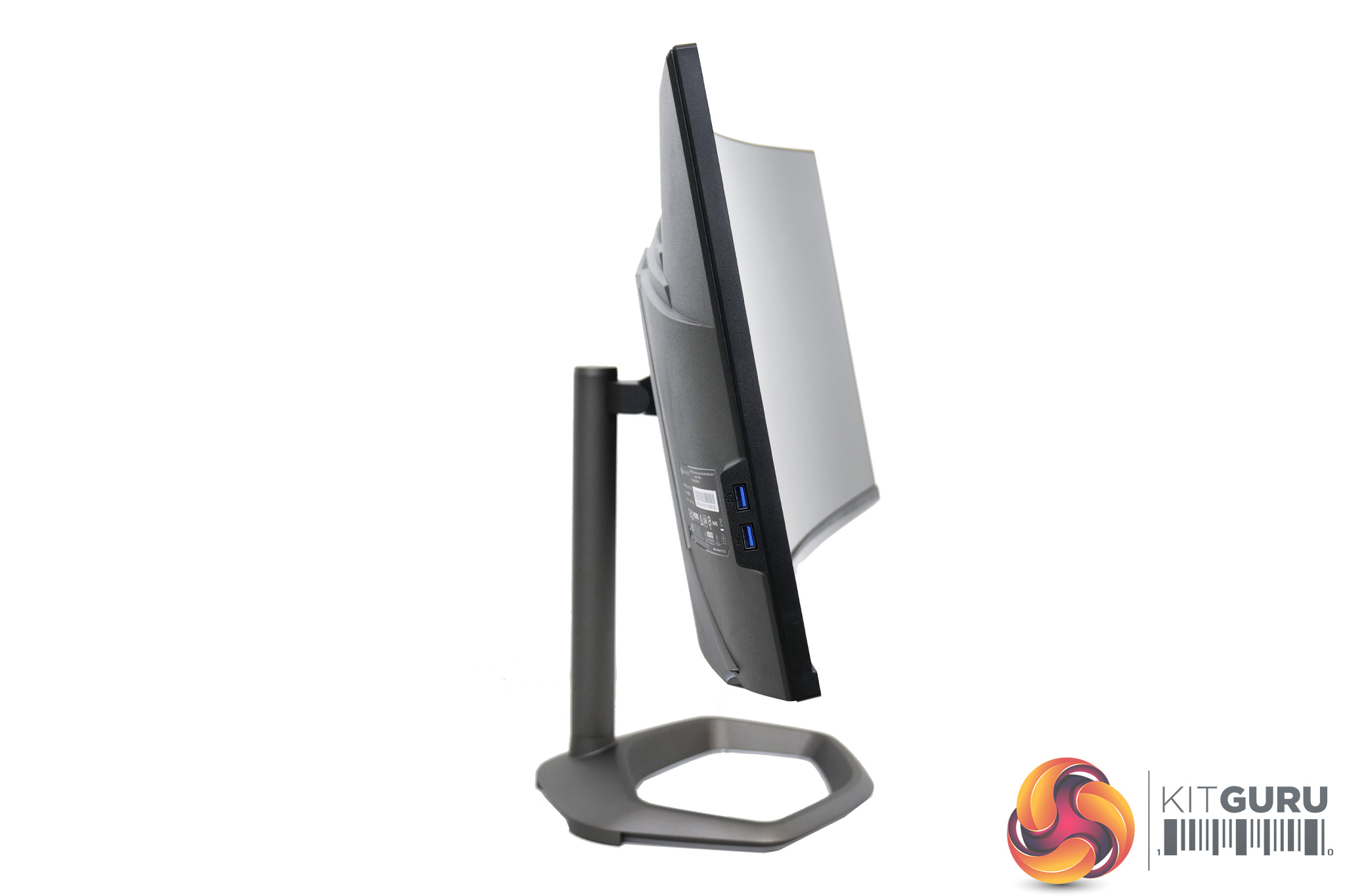
Cooler Master is still using a metal stand, as we saw with the GM32-FQ, and it offers a decent selection of ergonomic adjustments. There's up to 80mm of height adjust, 15 degrees of swivel in both directions, as well as tilt from -5 to 15 degrees. There's no pivot functionality, but that is less practical for an ultrawide monitor.
This is mostly fine, however I did find myself wanting a bit more in the way of height adjustment. Up to 80mm is just about acceptable for my uses, but the screen did sit just touch lower than I would have liked, and if you on the taller side, this may be something to consider. The good news is that VESA 100 mounting solutions are supported, so you can easily swap in your own monitor arm or wall mount.
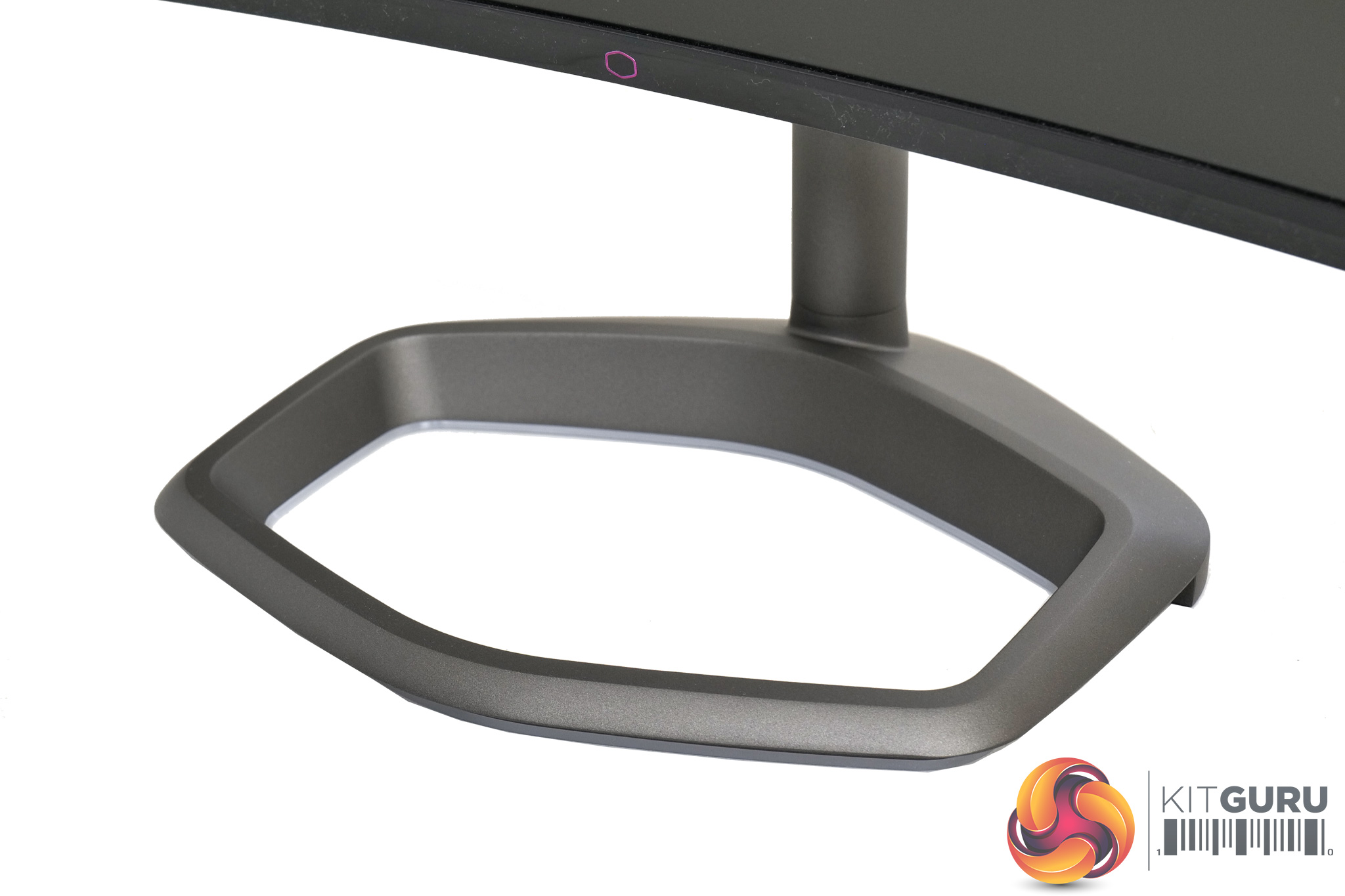
The base of the stand is where we find the ARGB lighting elements, with an LED strip that runs around the inside of the hexagonal base.
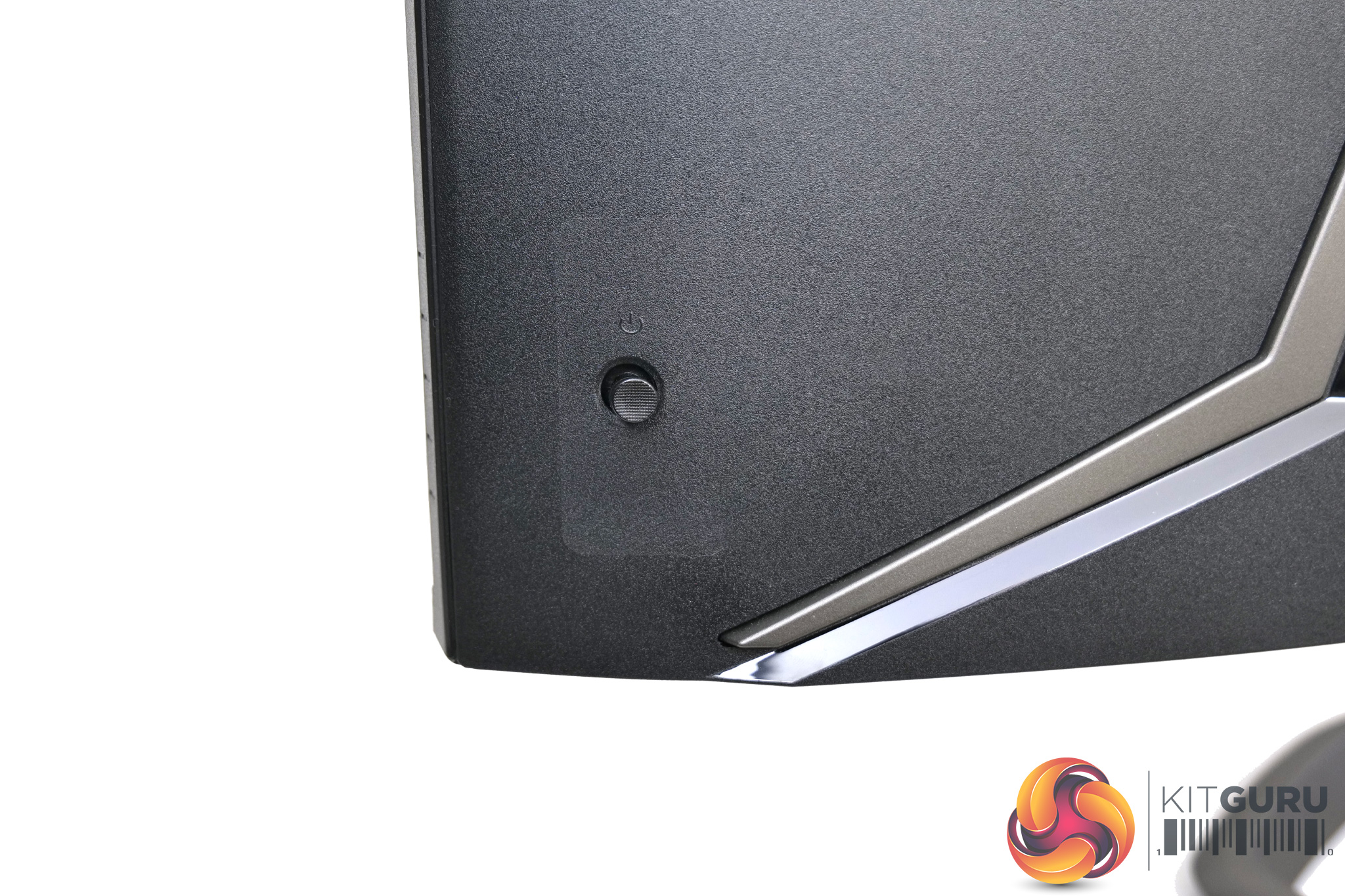
On the back of the monitor, in the lower right corner, we find a small joystick used to control the OSD.
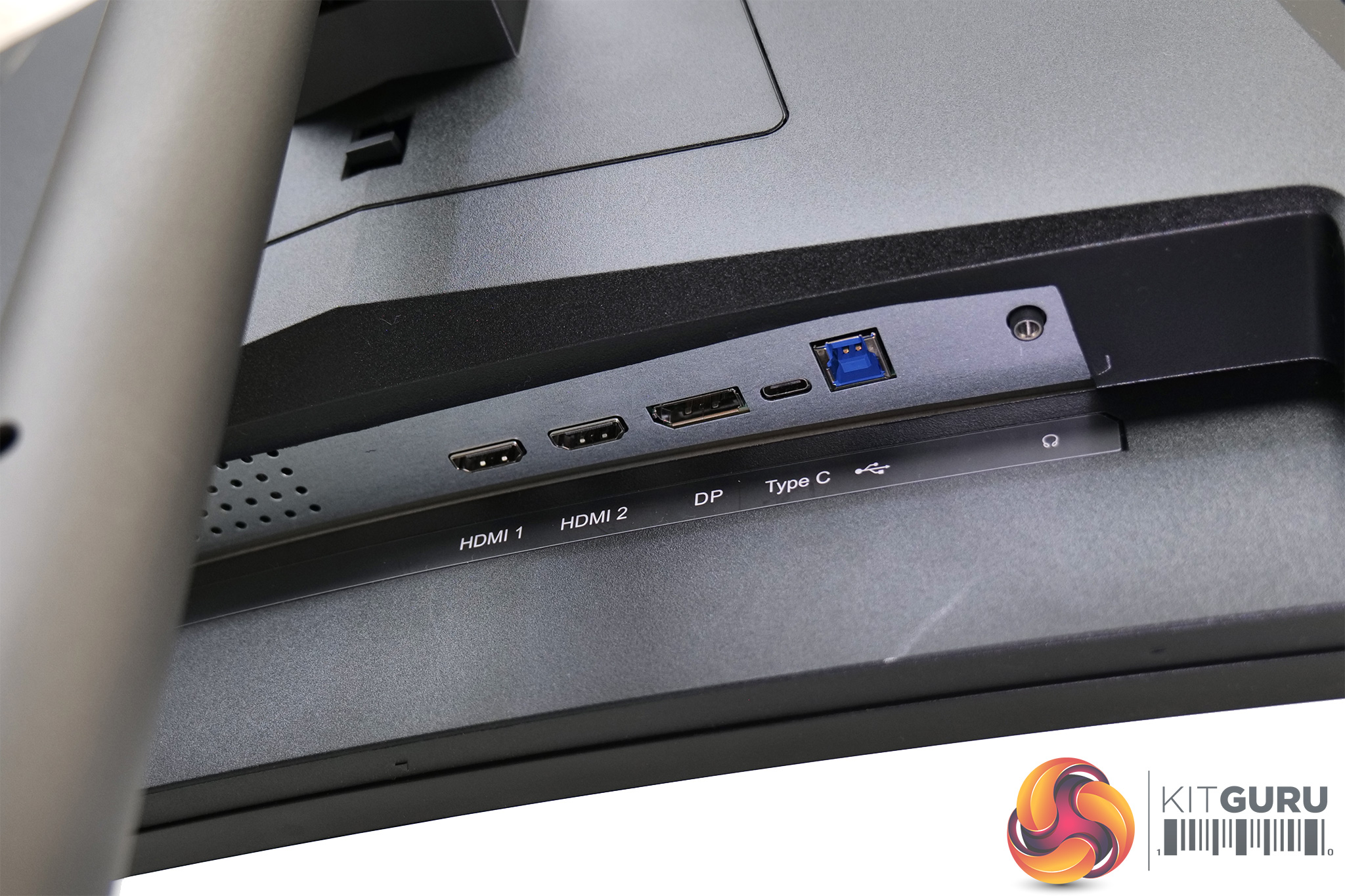
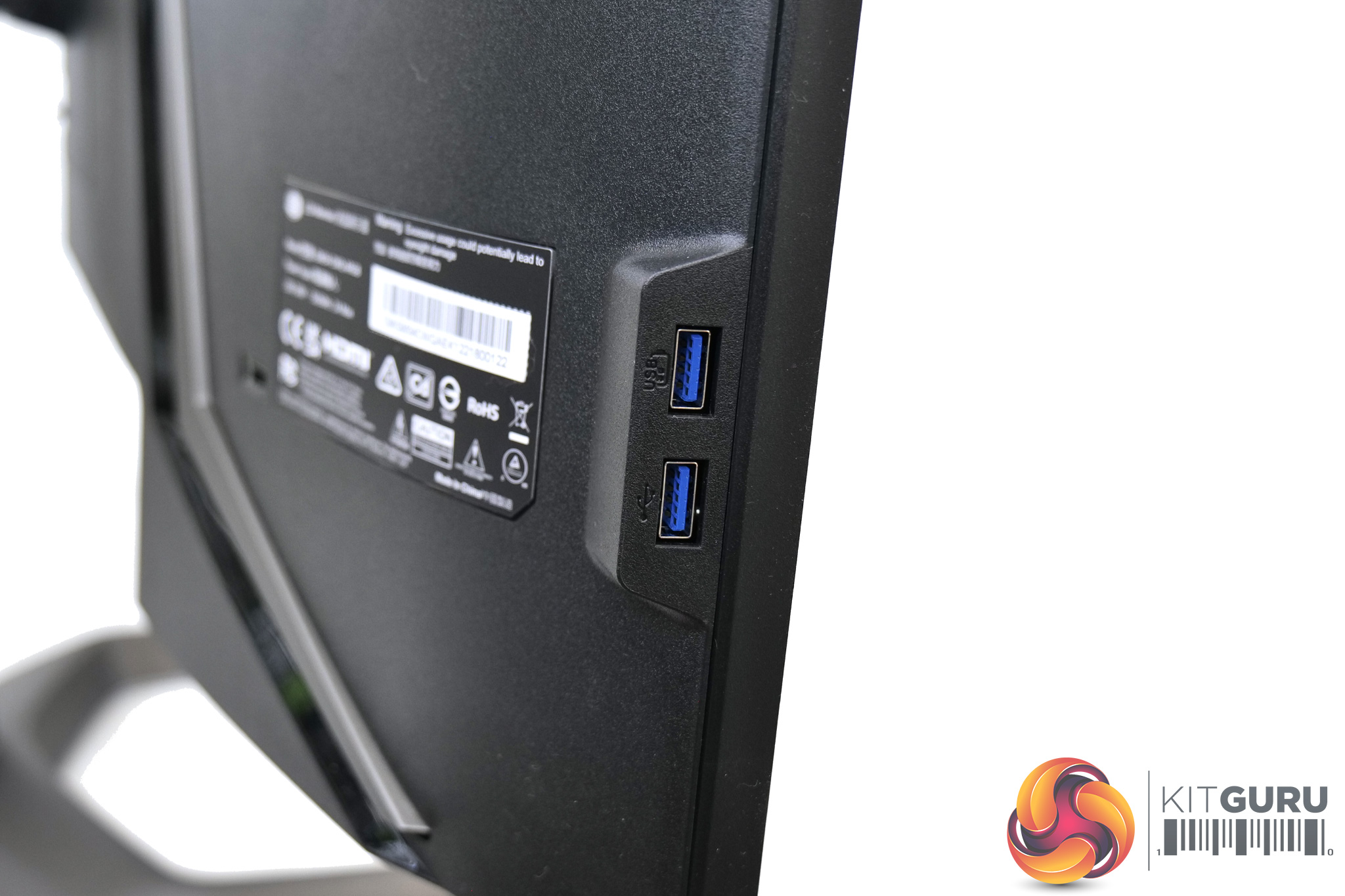
Lastly, as for connectivity, we find two HDMI 2.0 ports, one DisplayPort 1.4, and a USB-C port that can supply 65W power delivery. The USB Type-B upstream connector feeds two USB Type-A ports which are positioned on the left edge of the display.
A pair of 5W also come built in which offer a good amount of volume and a surprising amount of bass, though they are no replacement for a gaming headset or proper speakers.
As with the GM32-FQ, the OSD is split into six main tabs – Input Select, Audio Adjust, Picture Mode, Color Adjust, Manual Image Adjust, Setup Menu:
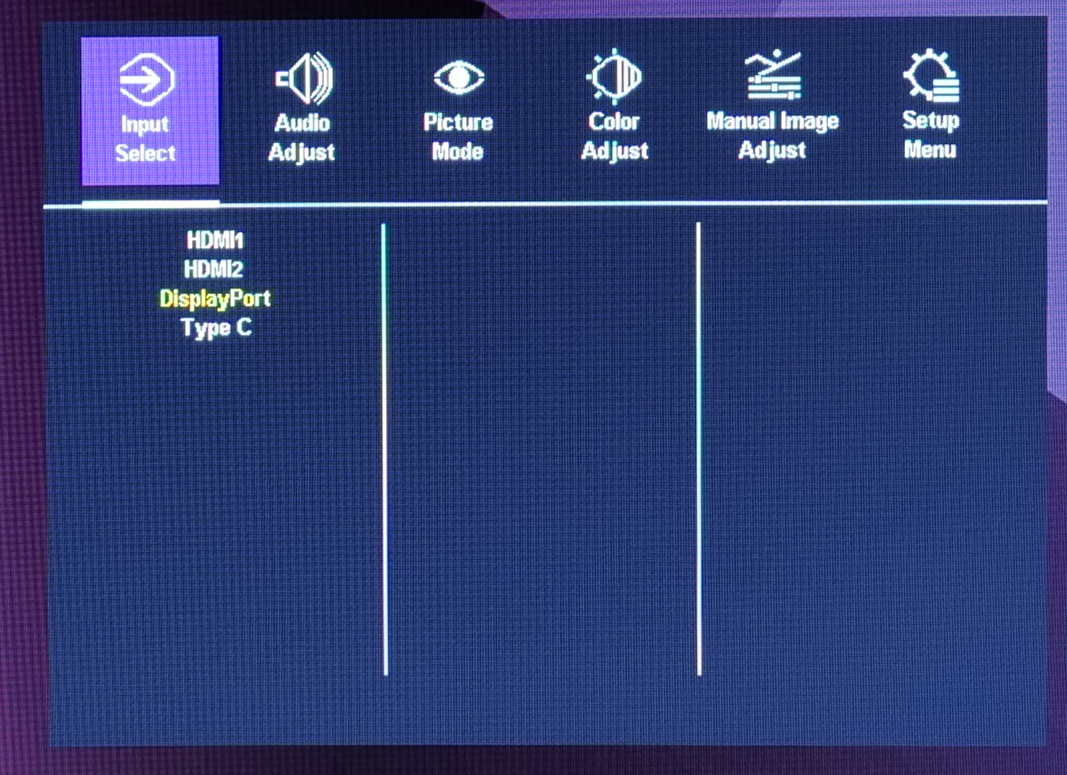
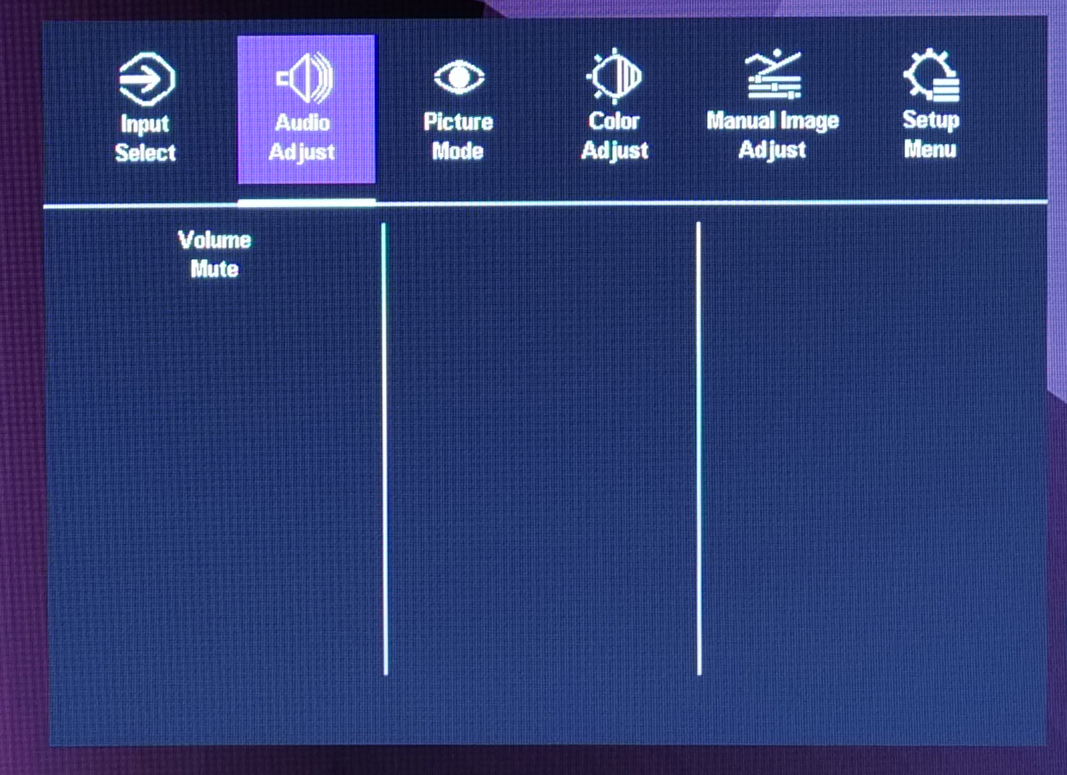
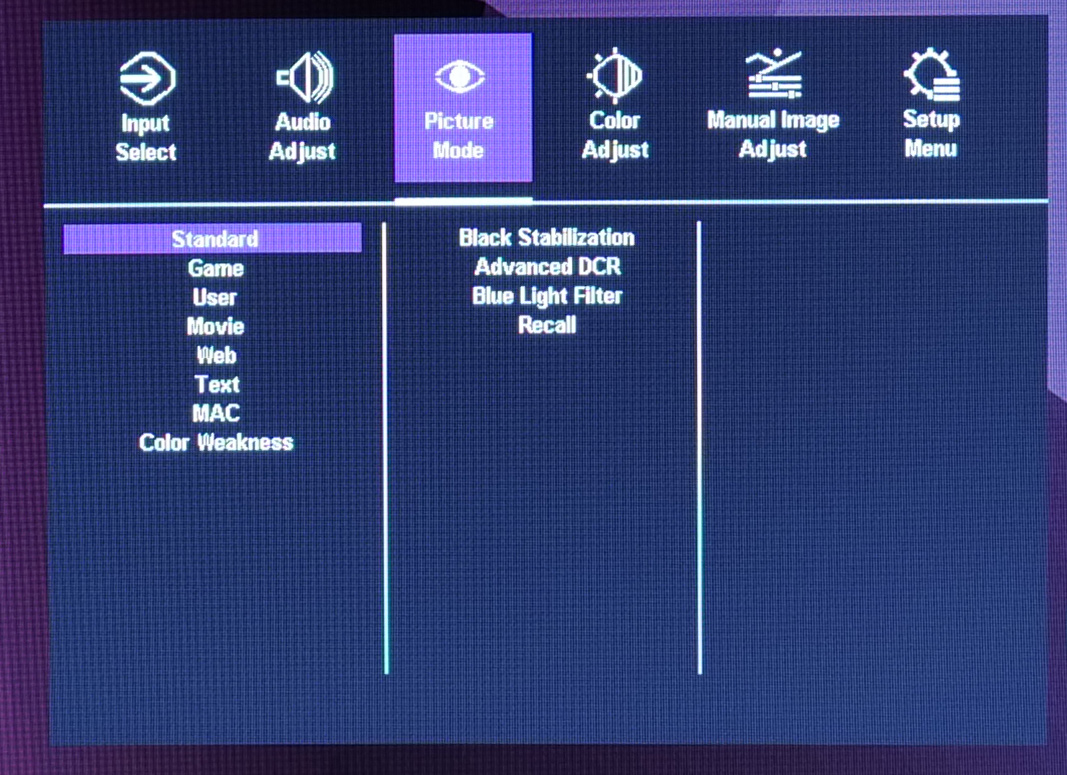
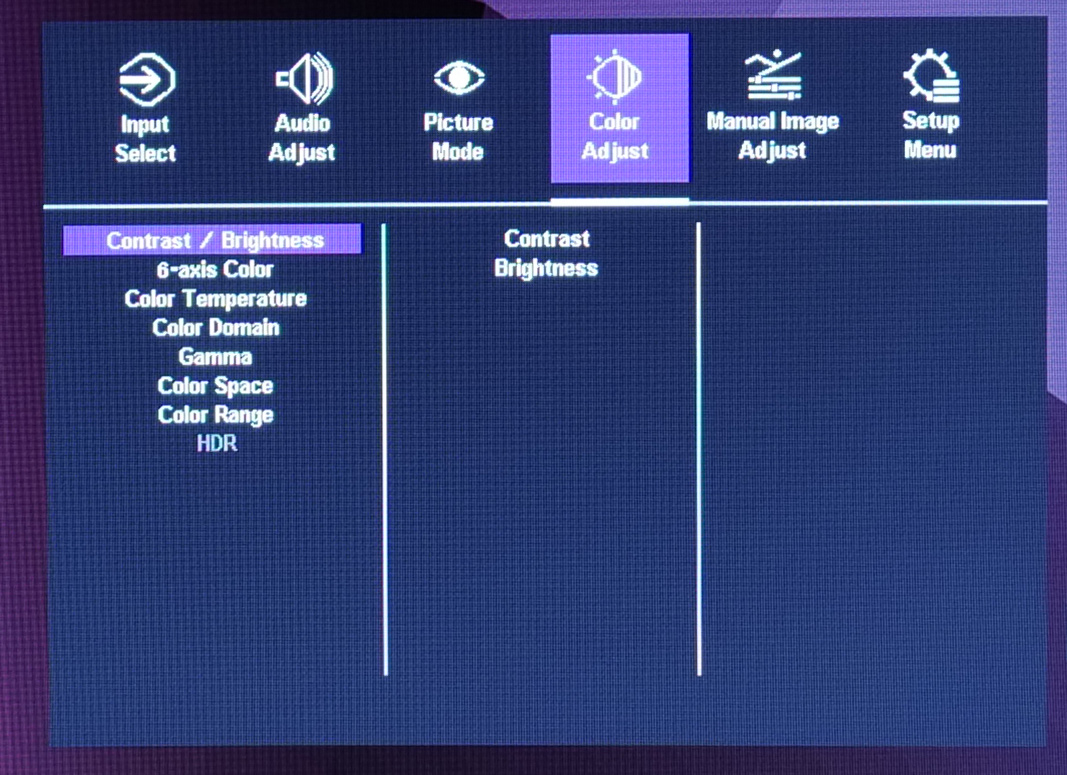
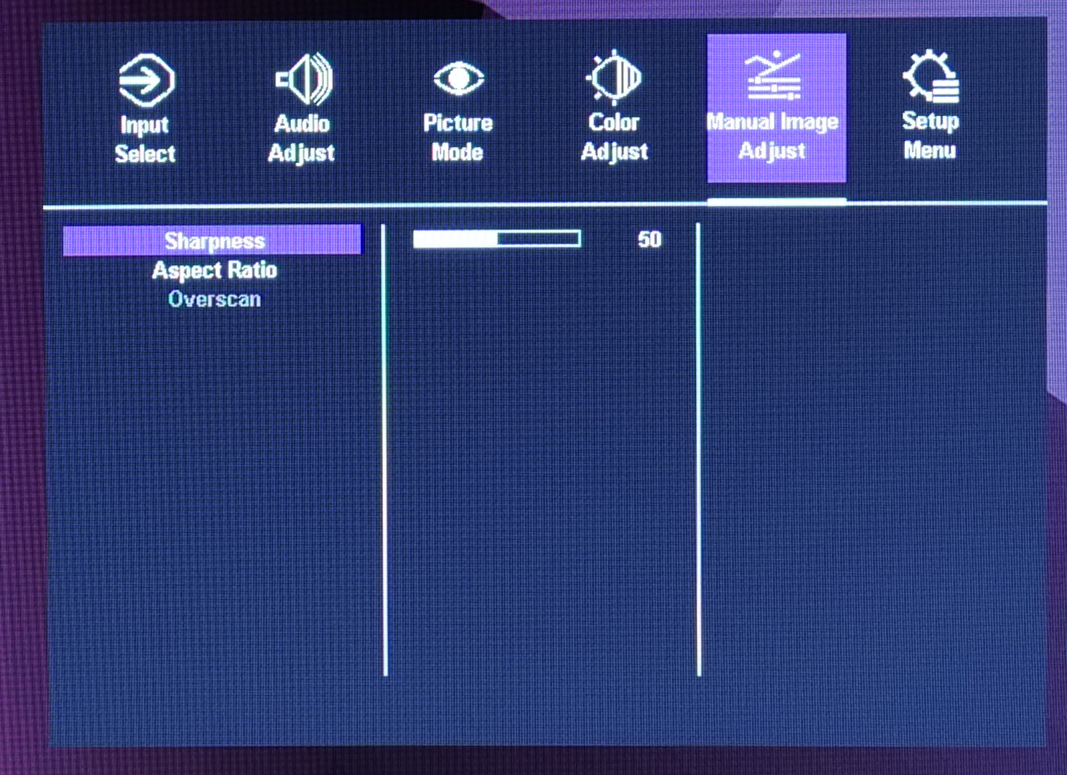
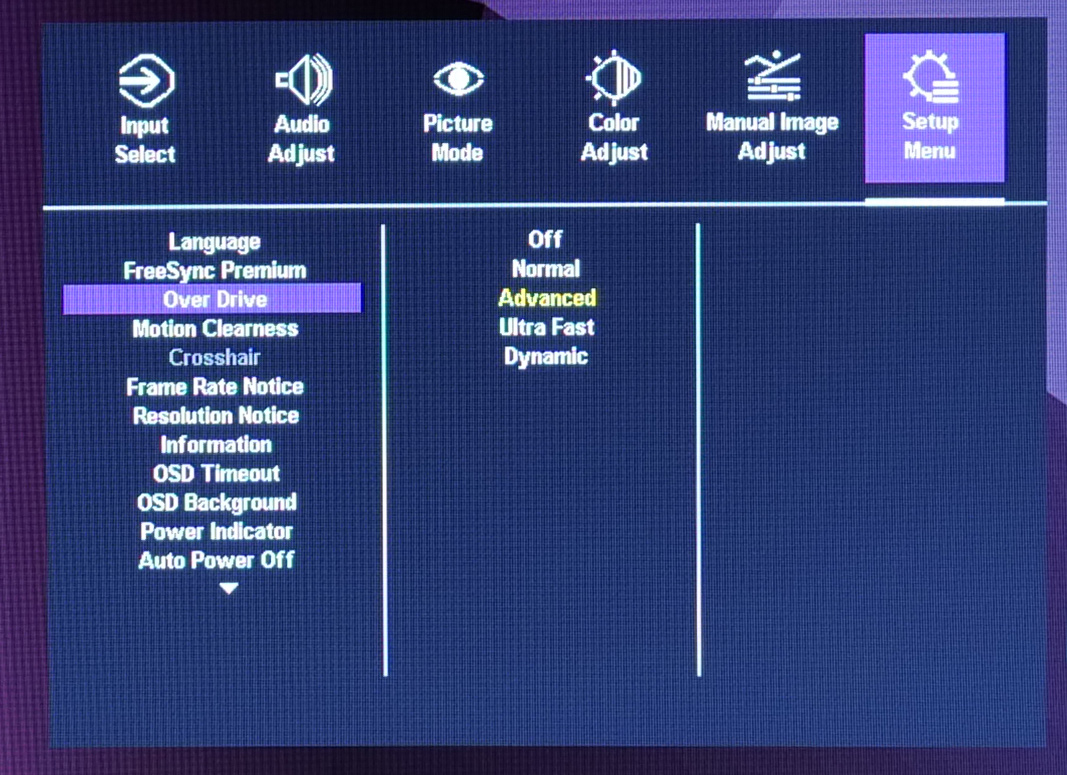
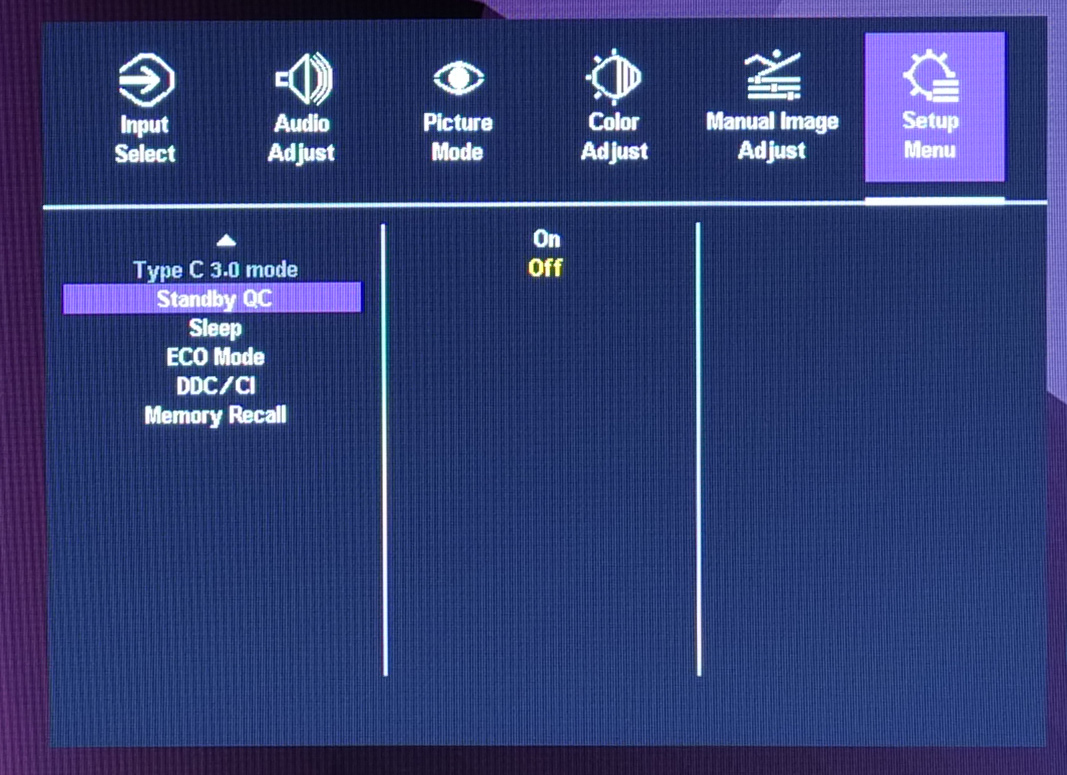
Overall, the UI has not changed much since I last looked at it, and it does feel very clunky and is distinctly unappealing from a visual standpoint. One of my previous criticisms has been at least partially addressed, as the Over Drive settings have now been moved to the Setup Menu tab – so you don't have to drill down into the Picture Mode settings anymore, which just felt a bit unnecessary to me.
Still, it does seem a bit odd to me that the likes of overdrive, adaptive sync and backlight strobing are lumped into the ‘Setup Menu', rather than there being a dedicated Gaming tab, while there's also a lack of some other gamer-centric features we have come to expect in recent times, including a shadow boost option or ‘live dashboard' overlay. There is a crosshair option in the OSD, but for some reason was greyed out and remained inaccessible during my testing.
I don't want to be too critical here as navigating the OSD is generally straightforward thanks to the use of a joystick – one of my complaints of the GM32-FQ was the use of the fiddly button system, so at least that has been corrected. It is still annoying to me, however, that when you have opened up the OSD menu, Cooler Master has decided that clicking in the joystick serves to close the OSD, instead of selecting whichever setting you are looking at. That feels unintuitive to me, and took some getting used to.
Our main test involves using a DataColor SpyderX Colorimeter to assess a display’s image quality. The device sits on top of the screen while the software generates colour tones and patterns, which it compares against predetermined values to work out how accurate the screen is.
The results show –
- A monitor’s maximum brightness in candelas or cd/m2 at various levels set in the OSD.
- A monitor’s contrast ratio at various brightness levels in the OSD.
- The brightness deviation across the panel.
- The black and white points.
- The colour accuracy, expressed as a Delta E ratio, with a result under 3 being fine for normal use, and under 2 being great for colour-accurate design work.
- The exact gamma levels, with a comparison against preset settings in the OSD.
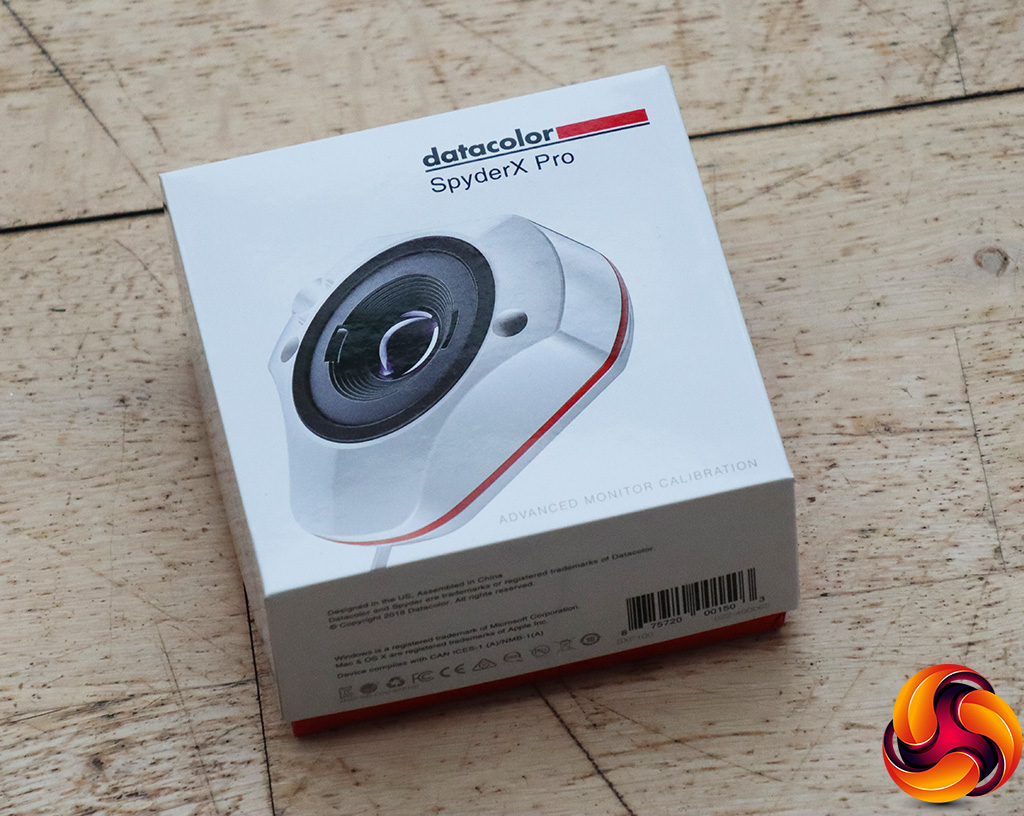
We first run this test with the display in its default, out-of-the-box state, with all settings on default. We then calibrate the screen using the Spyder software and run the test again.
Pre-calibration
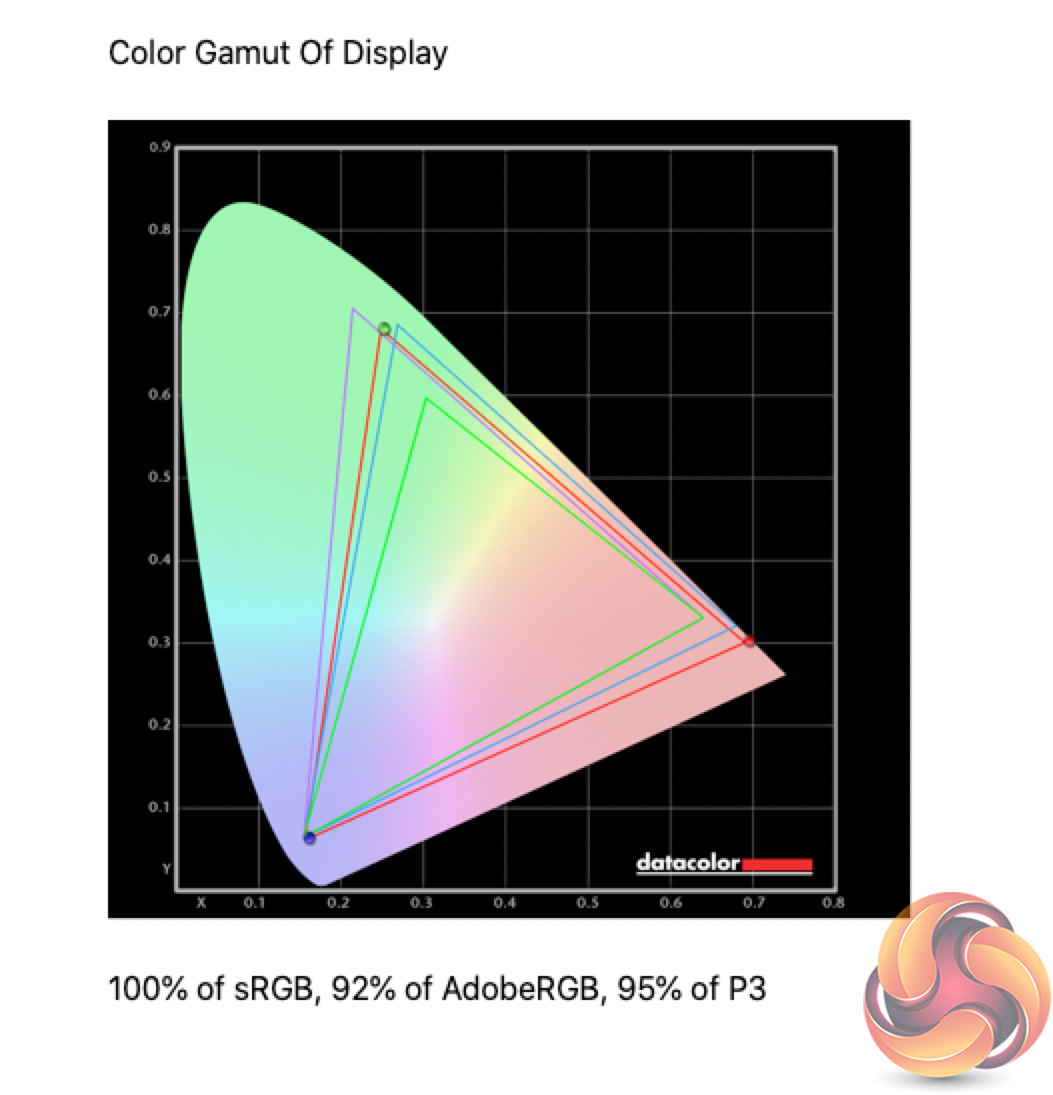
Starting with the colour gamut performance, we can see the GM34-CWQ delivers 100% sRGB, 92% AdobeRGB and 95% DCI-P3 coverage. It's an impressive start for a gaming screen.
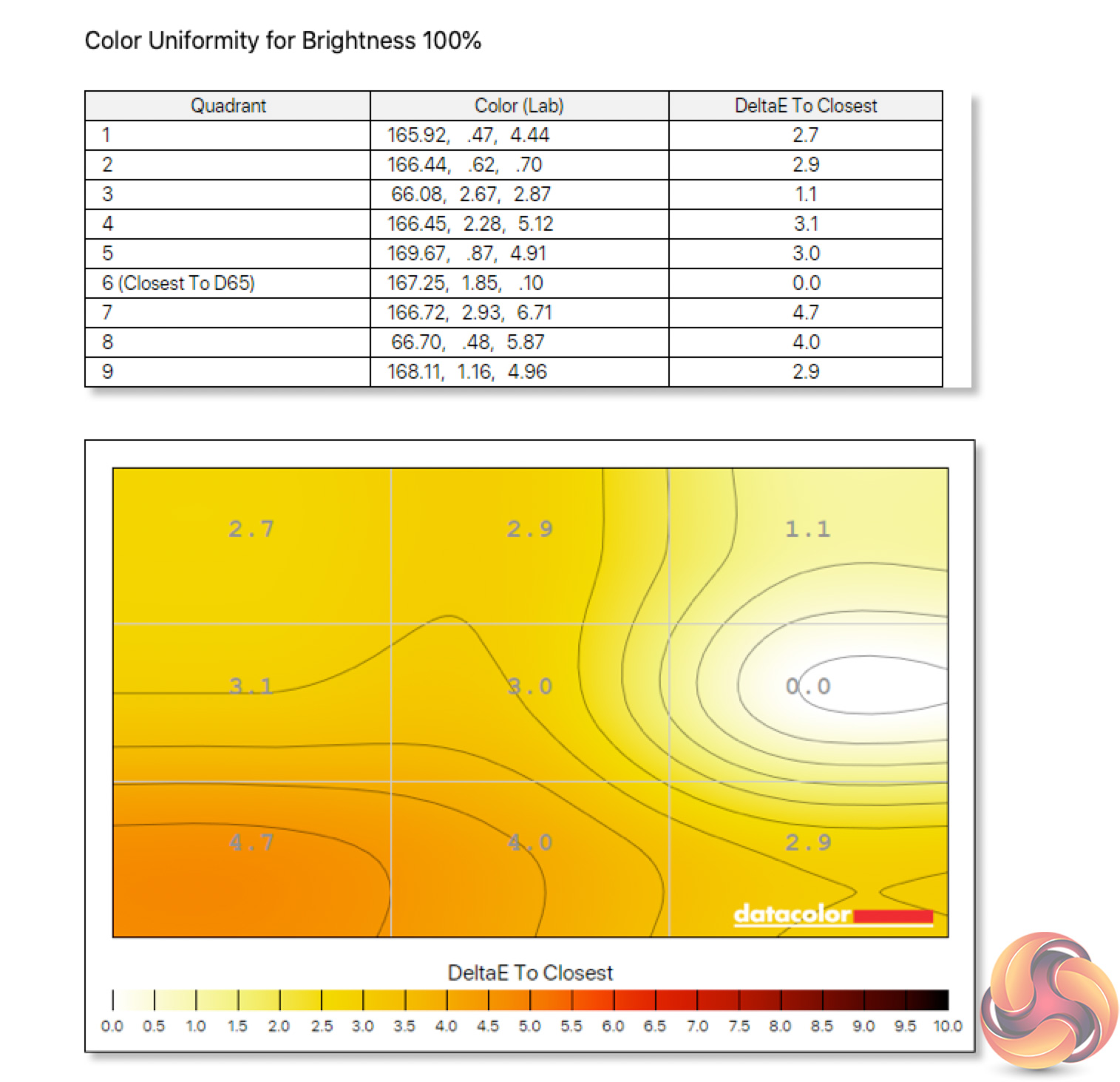

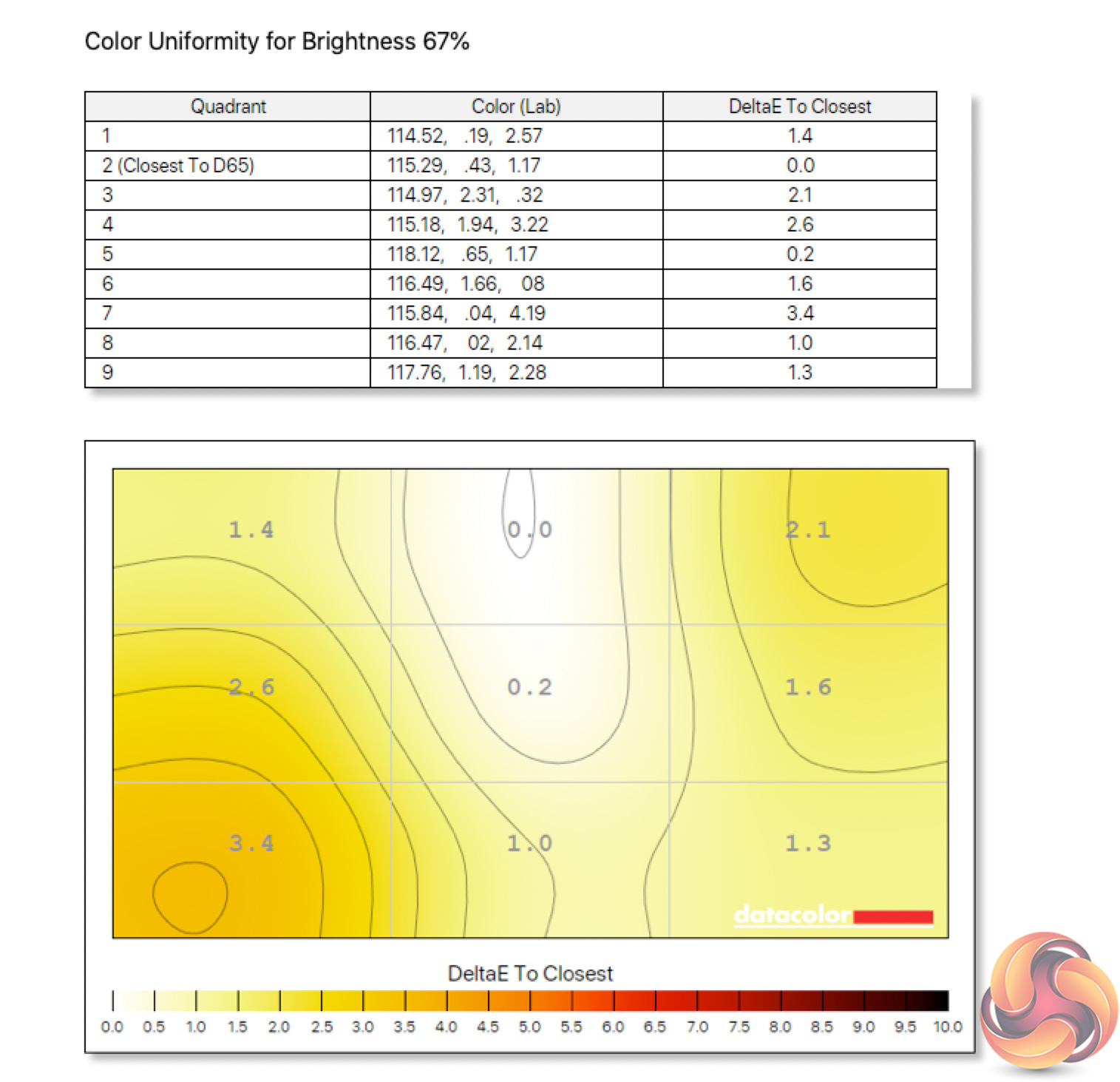
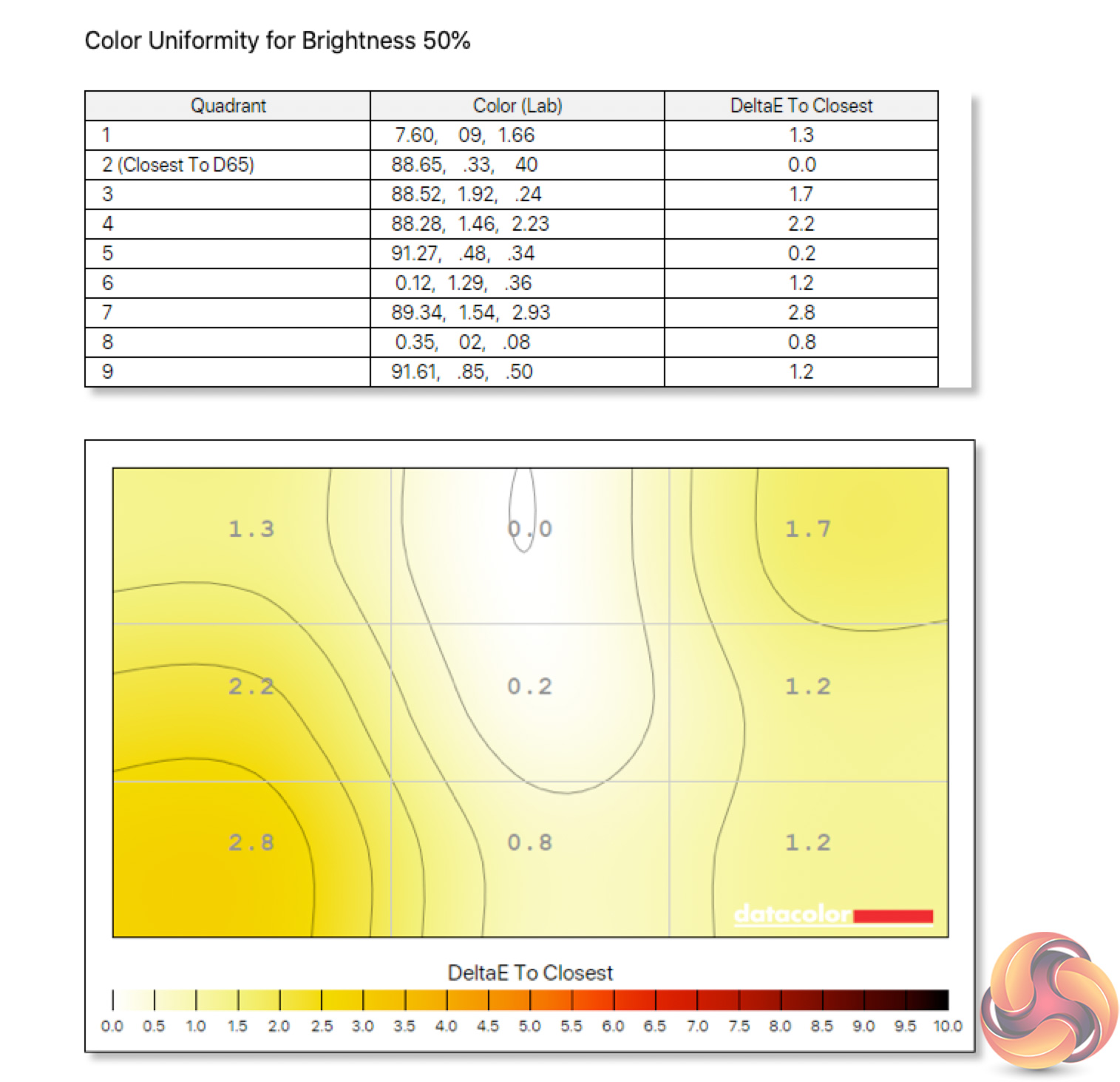
Colour uniformity is also solid. There's some deviation towards the bottom left corner of the panel, but this is fairly minor and gets even less pronounced at lower brightness levels. I typically used this display with brightness set to 75%.
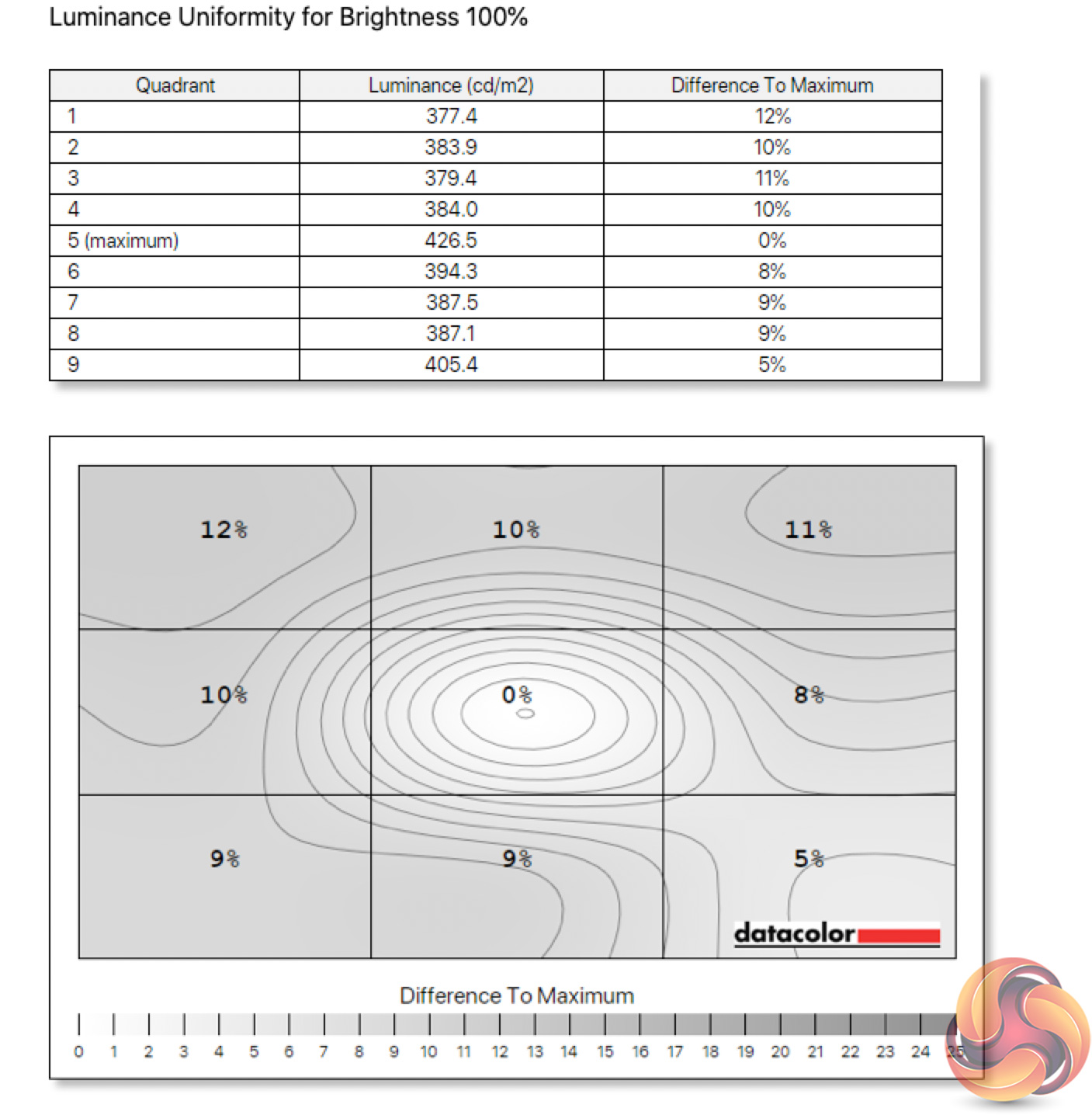
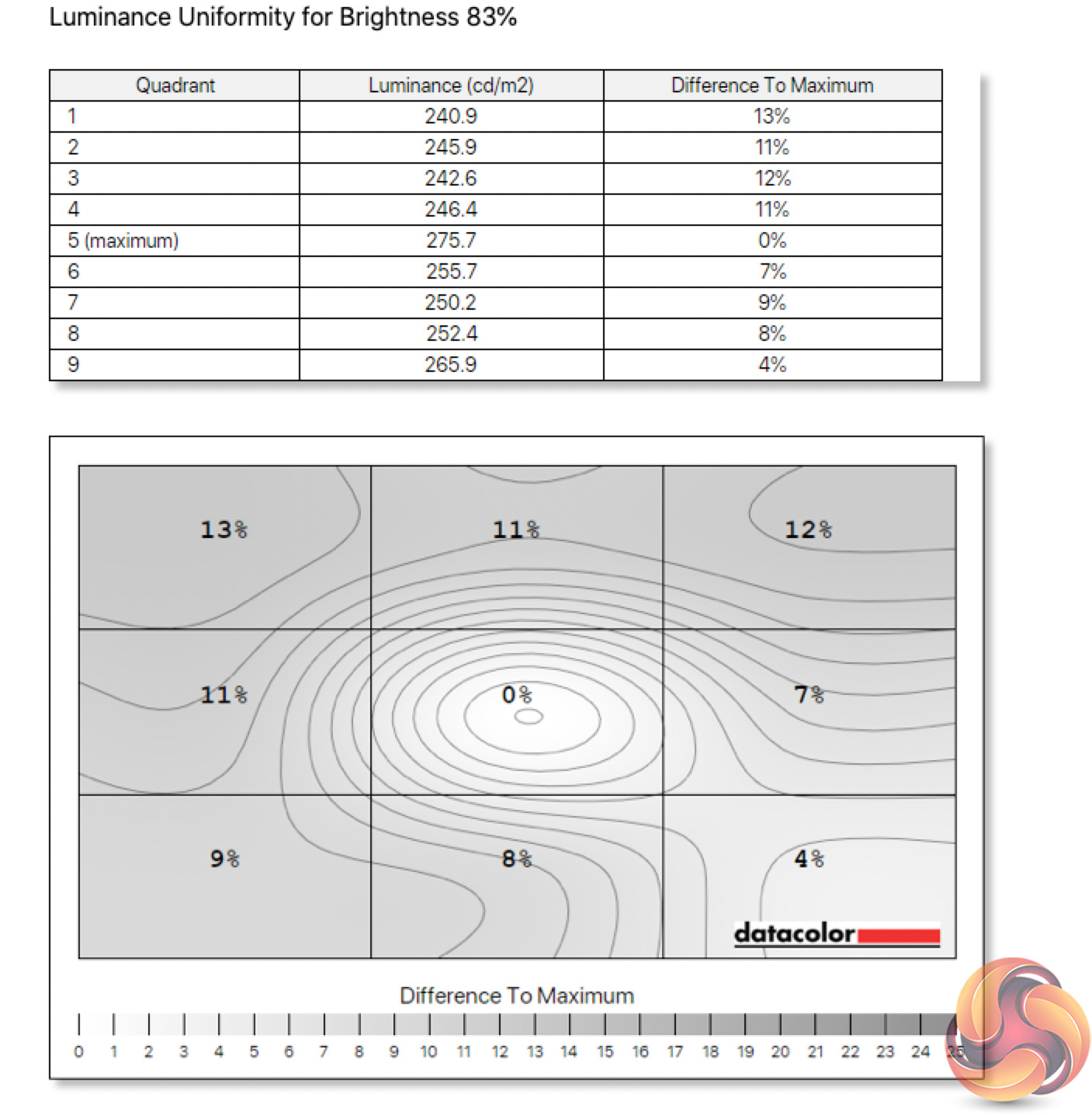
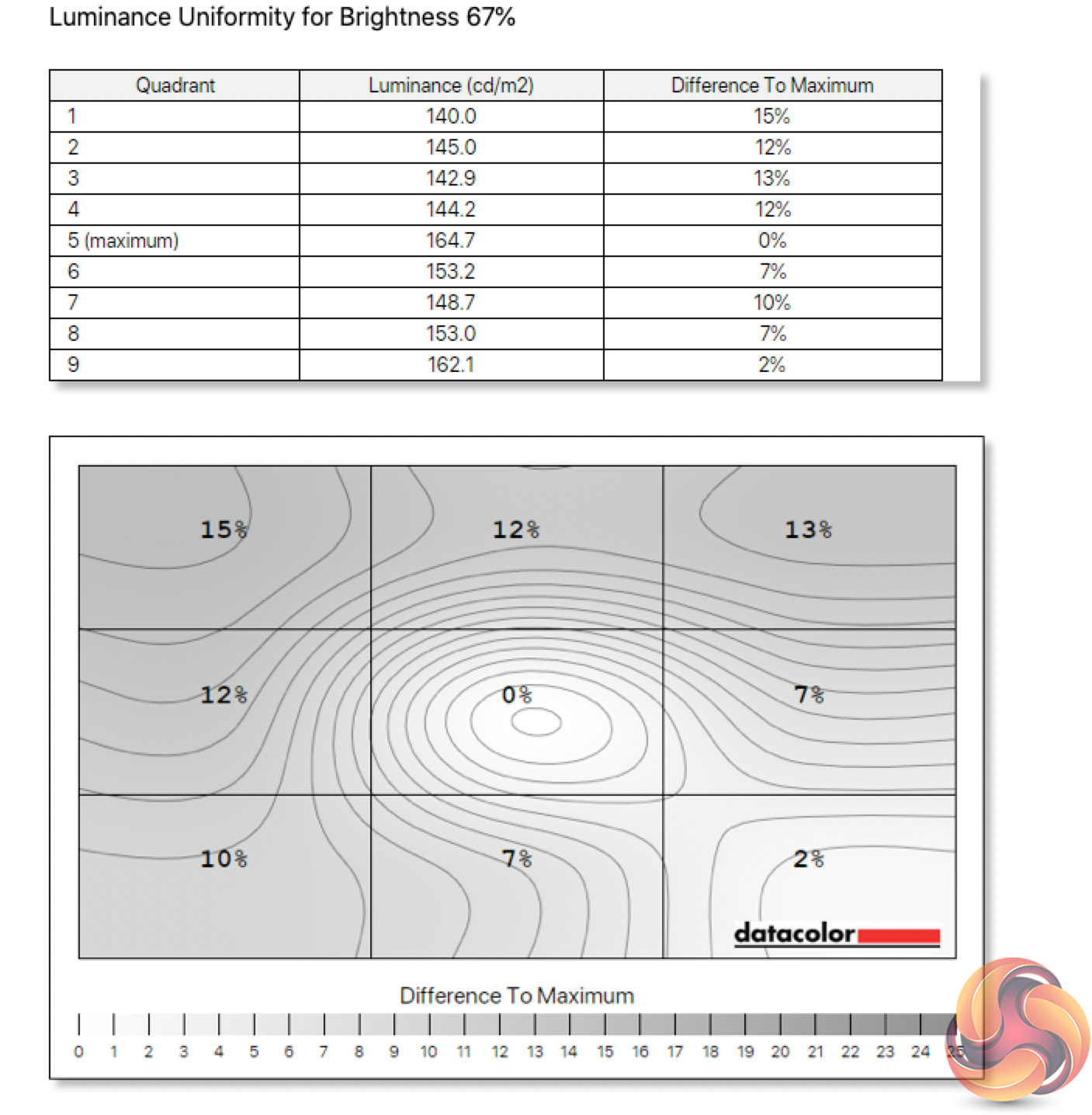
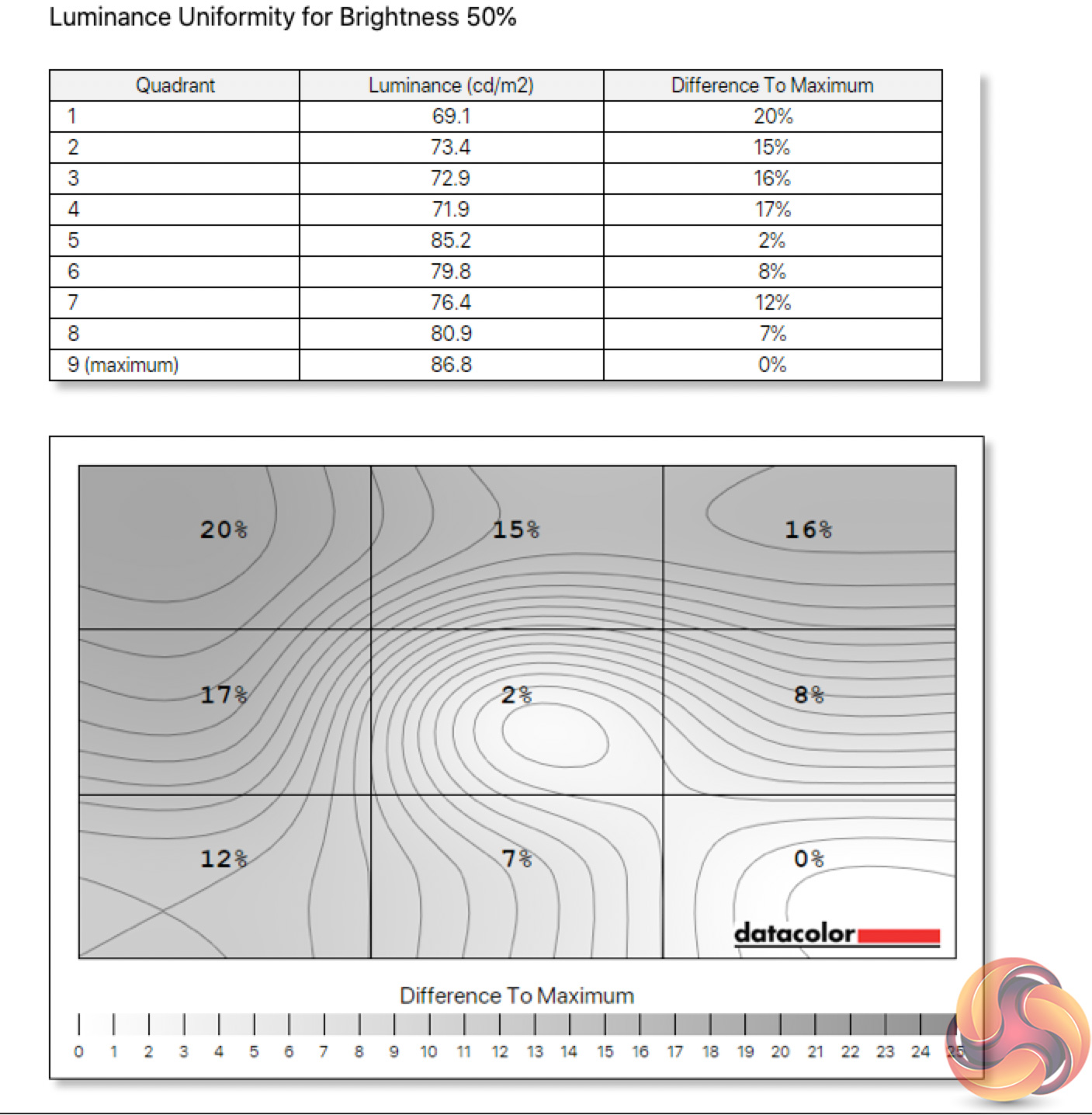
Luminance uniformity is slightly less impressive, though this time it gets worse at the lower brightness settings. In use, I could have no complaints at my preferred 75% brightness setting.
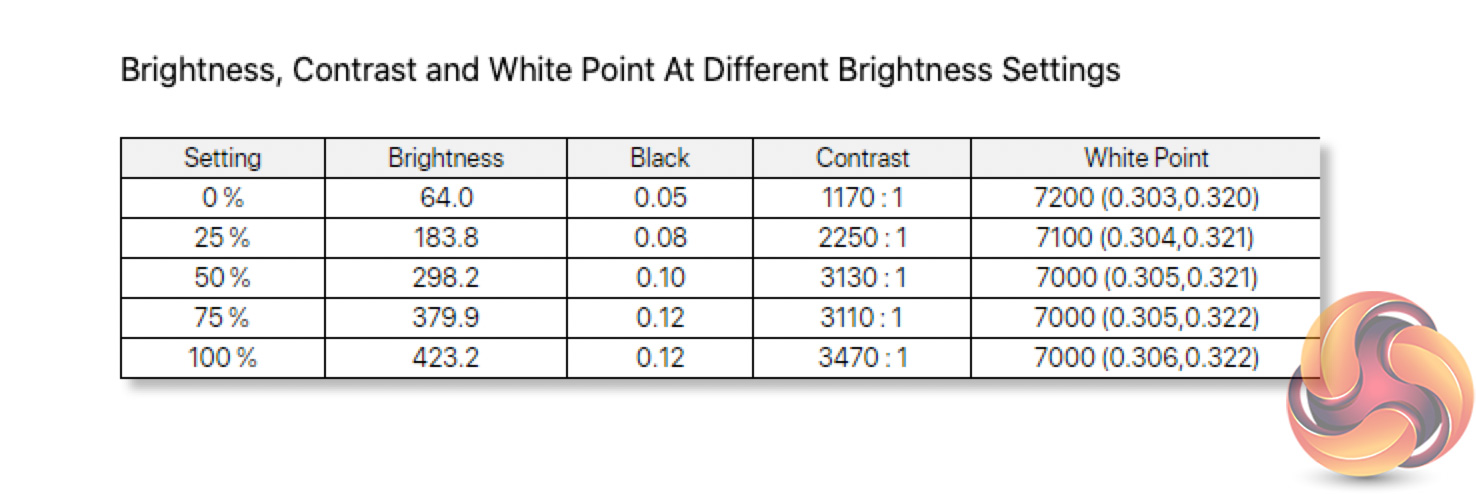
Speaking of brightness, Cooler Master claims a peak of 400 nits, and we exceeded that slightly, hitting 423 nits. The minimum brightness of 64 nits is also fine.
Contrast hit a peak ratio of 3470:1 in our testing, a fair bit below AOC's claimed 4000:1 ratio, but it is still a very good result and this aspect of the panel was immediately noticeable to me after switching from an IPS screen.
The other point to mention here is the slightly cool white point, which hit 7000K at 50% brightness and above.
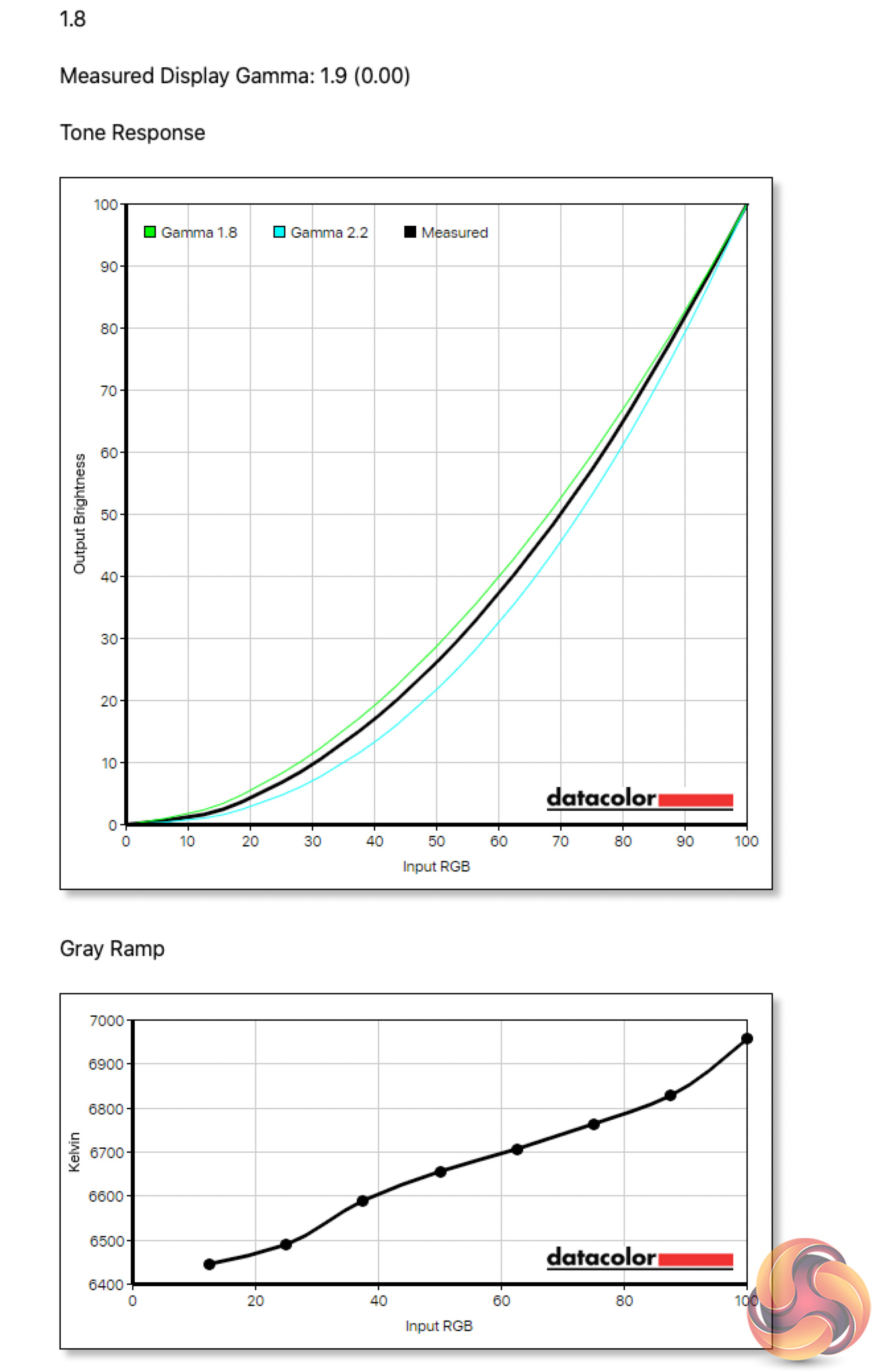
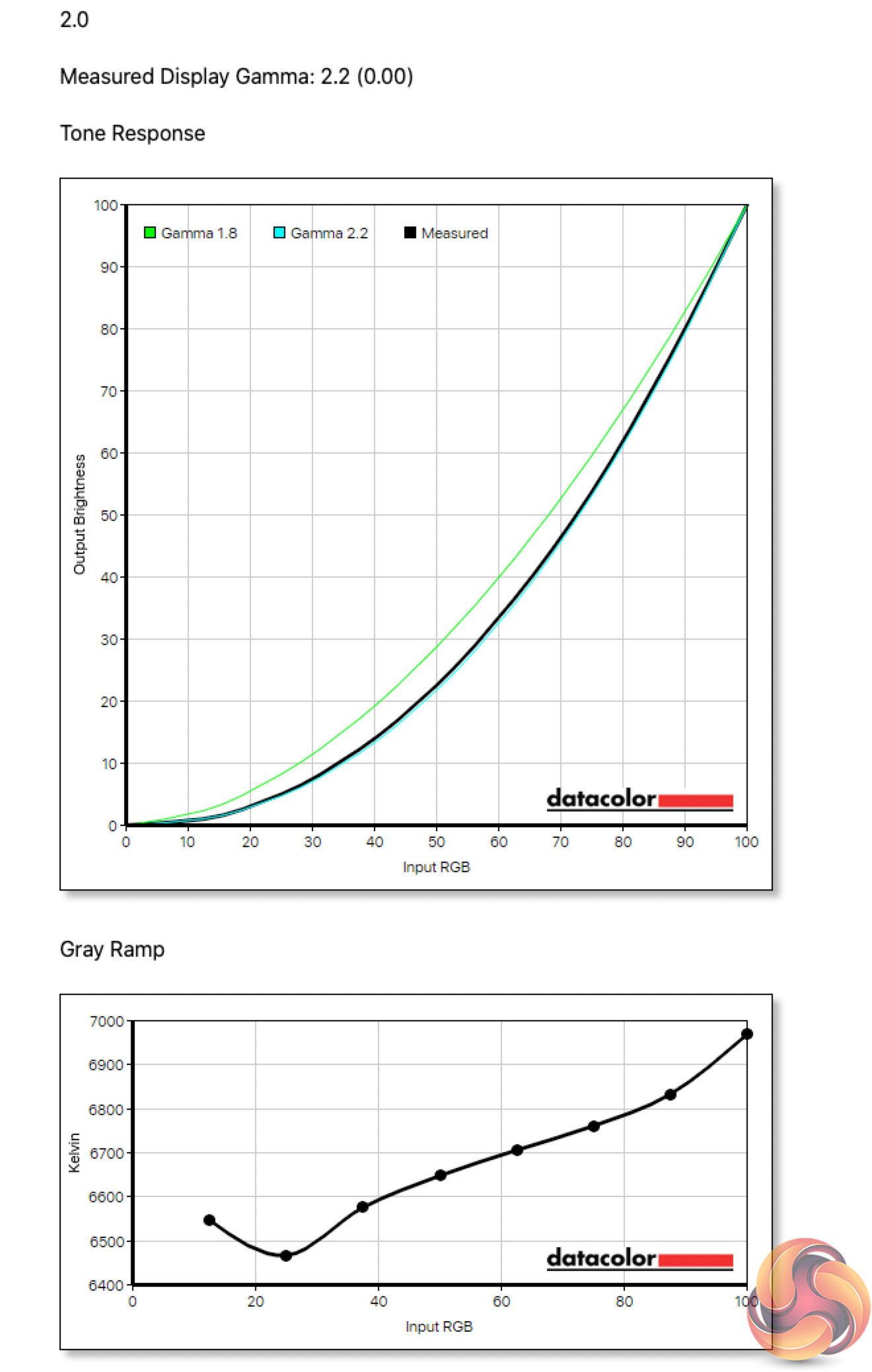
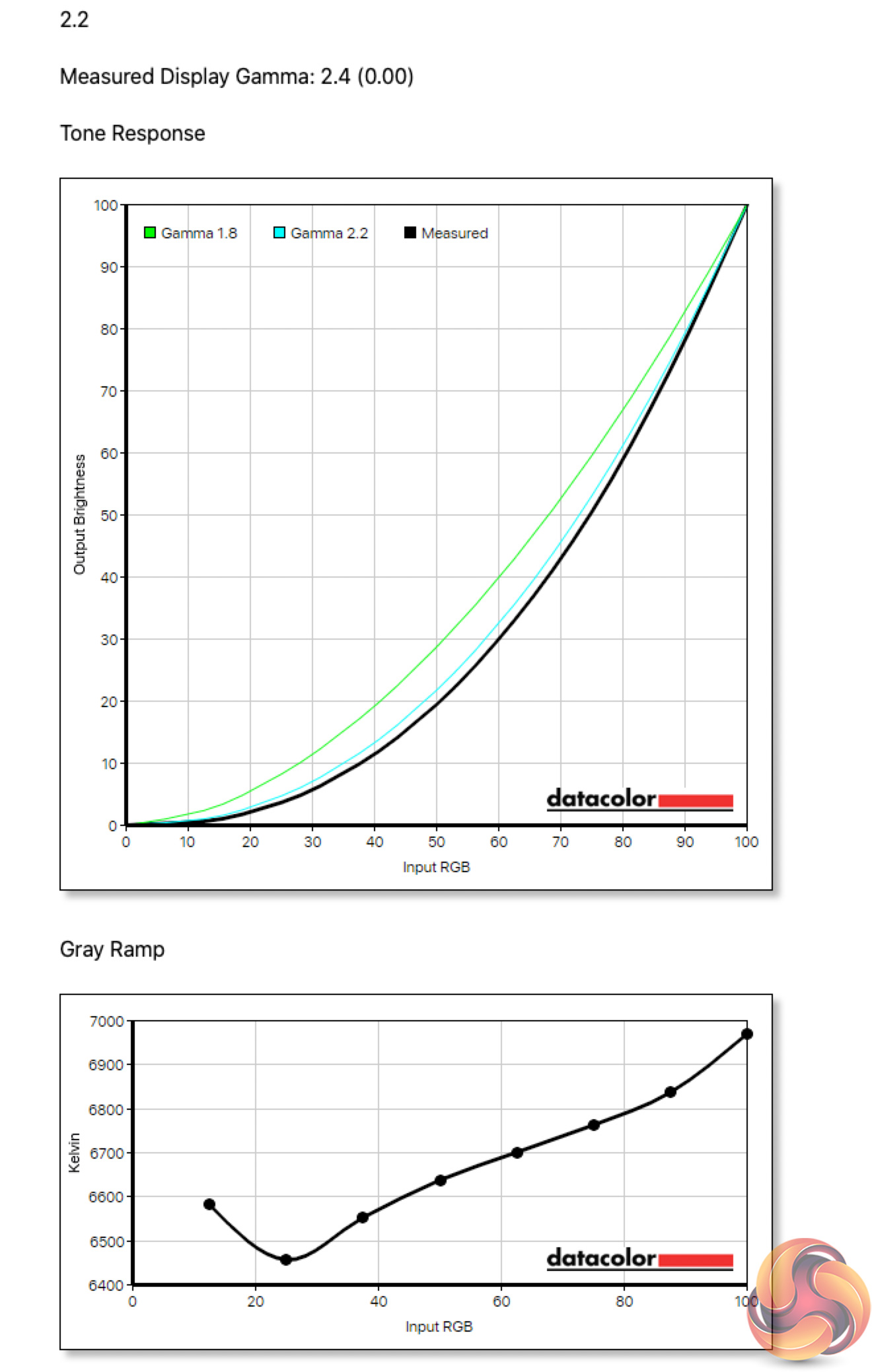
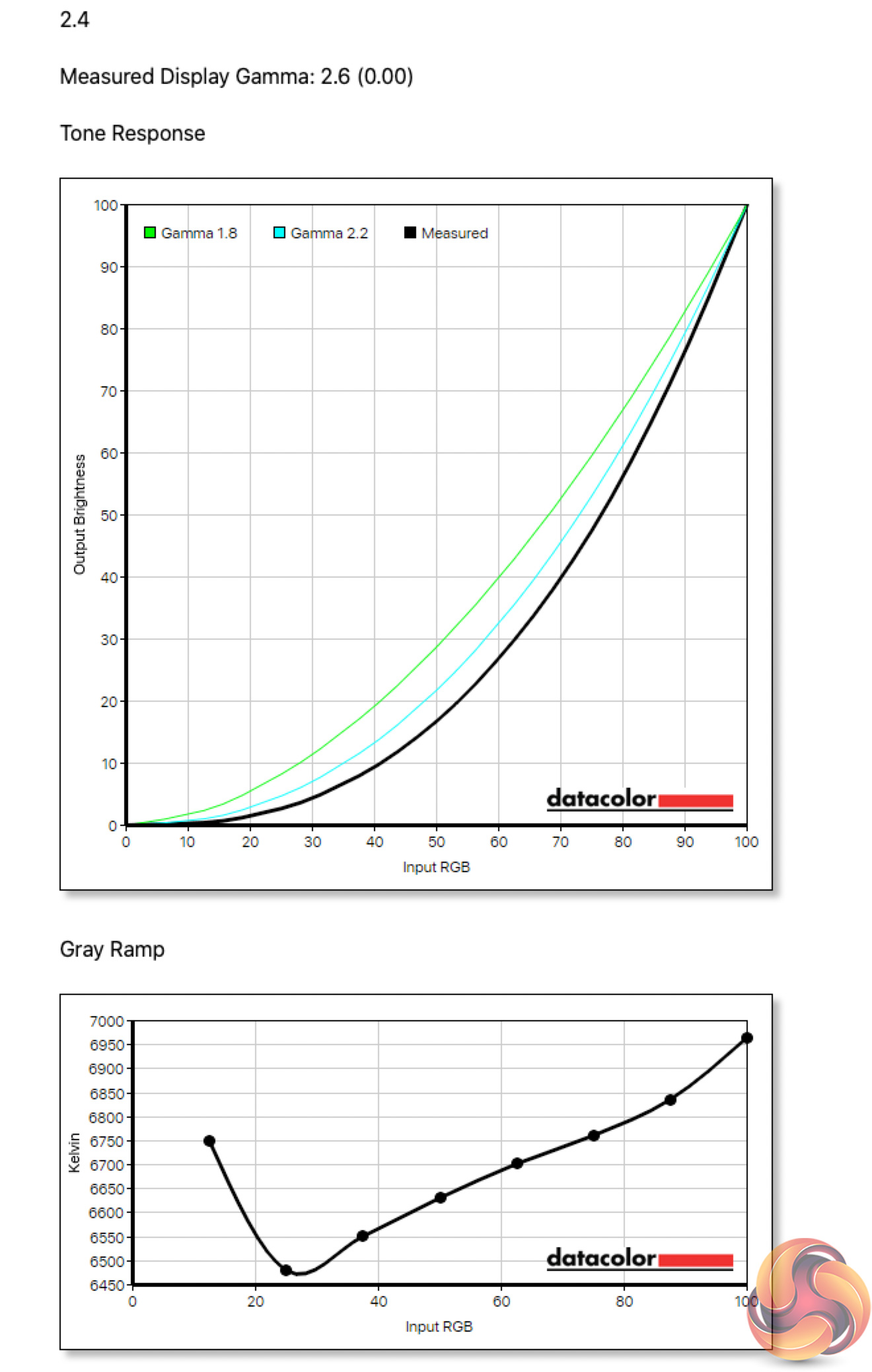
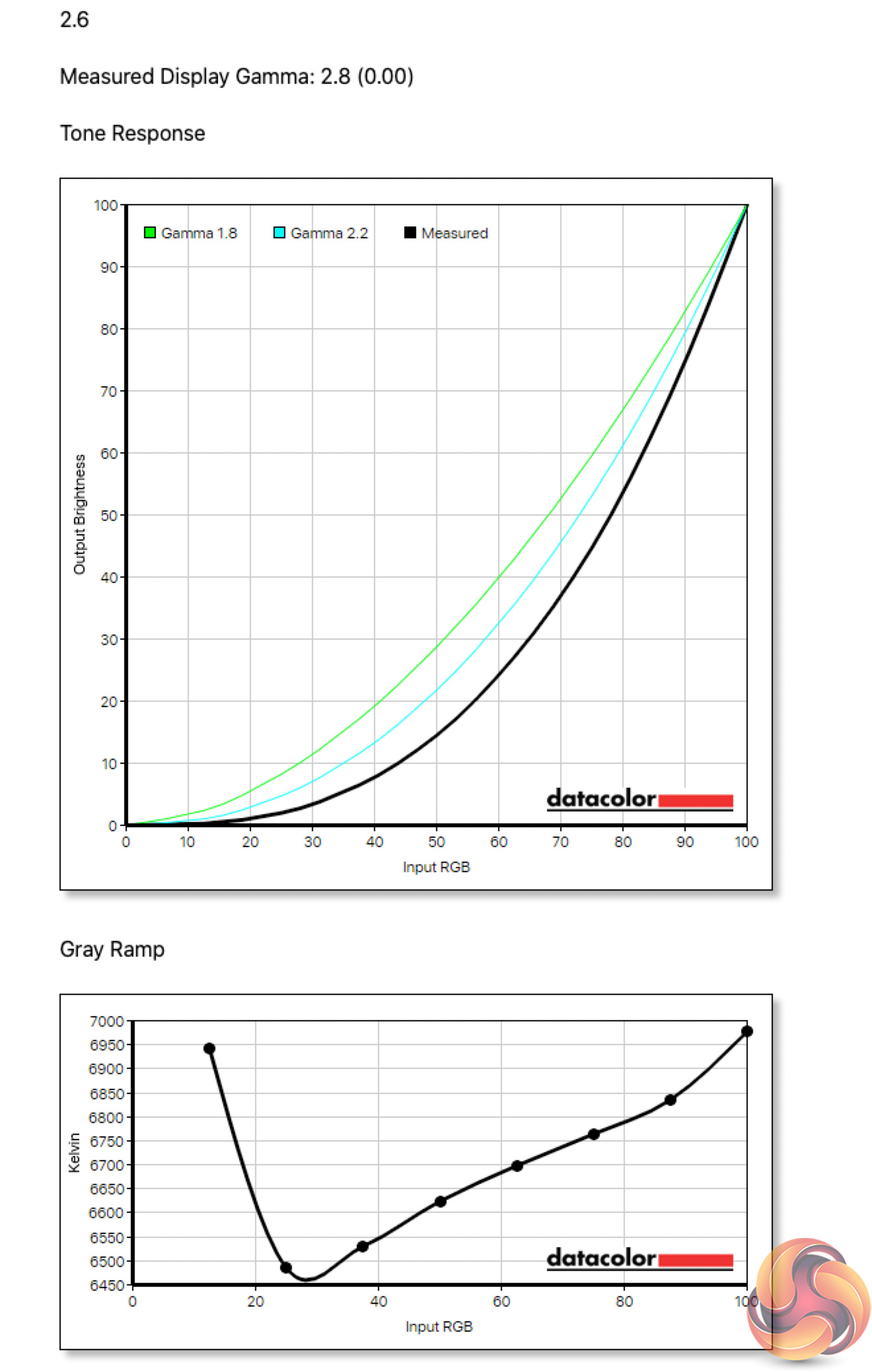
As for gamma, here Cooler Master offers five different options – 1.8, 2.0, 2.2, 2.4 and 2.6. Obviously each is meant to correspond to an actual gamma value, but I found these are not perfectly aligned. The 1.8 setting, for instance, game a gamma value of 1.9, while all the rest came in 0.2 above their targets.
This means, to achieve a gamma value of 2.2 out of the box, you actually want to use the 2.0 setting, as the 2.2 settings produces a gamma value of 2.4. It's a quirk for sure, but at least it is possible to achieve gamma 2.2.
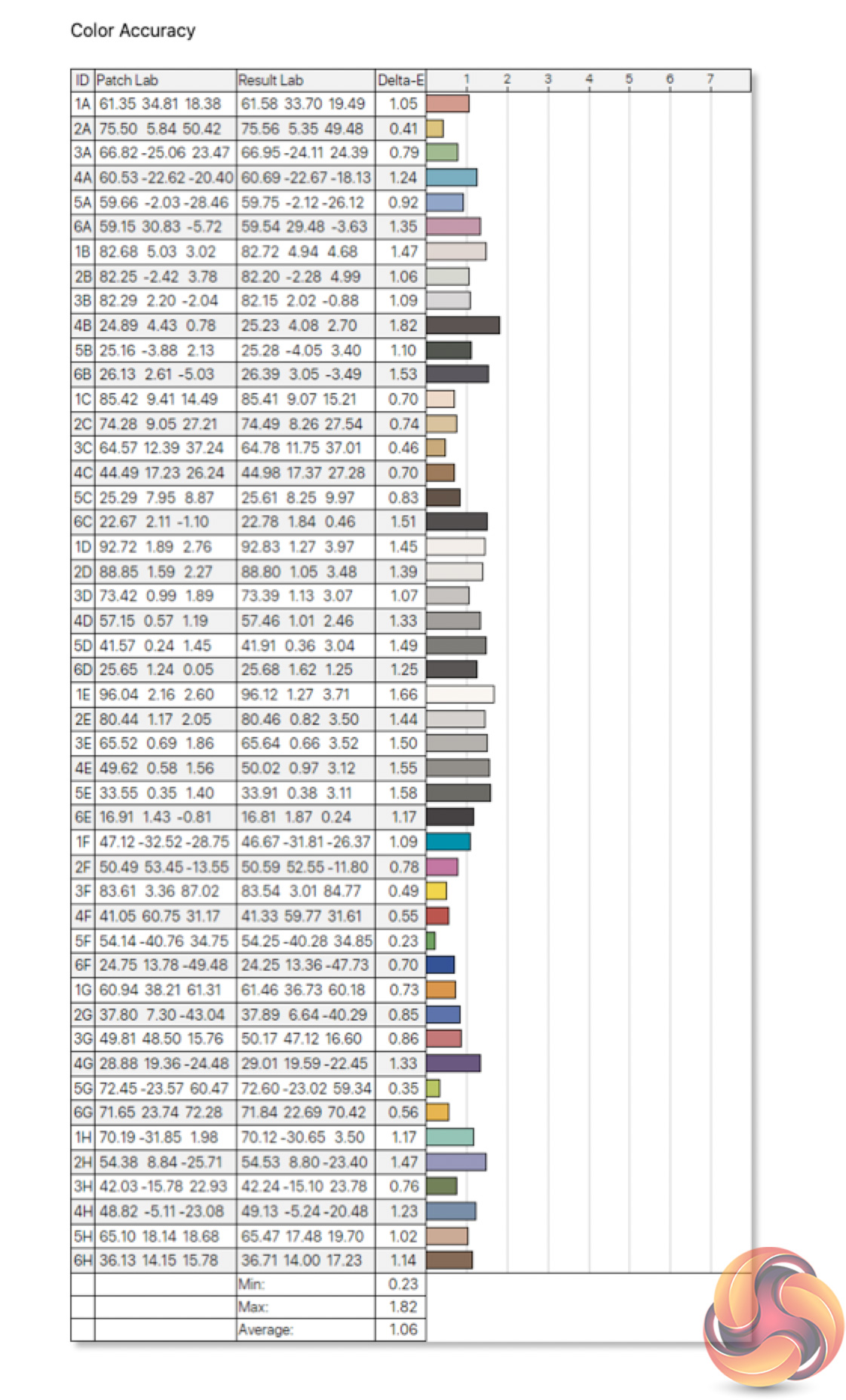
Out of the box colour accuracy is also impressive for a VA panel at this price-point. We've seen better results from similarly-priced IPS displays, but even then, the average DeltaE of just 1.06 is great to see, while a maximum of 1.86 is arguably even more impressive.
Post-calibration
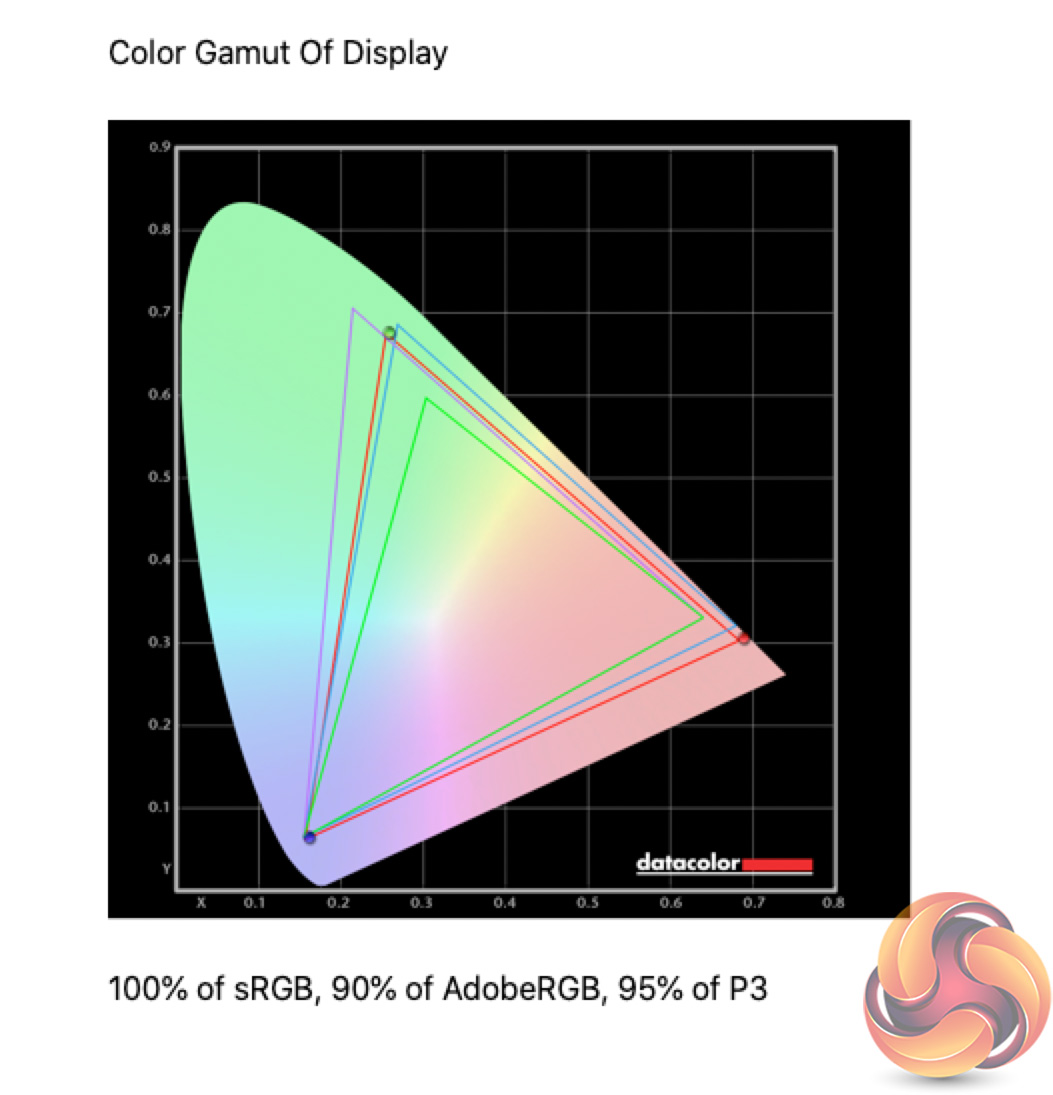

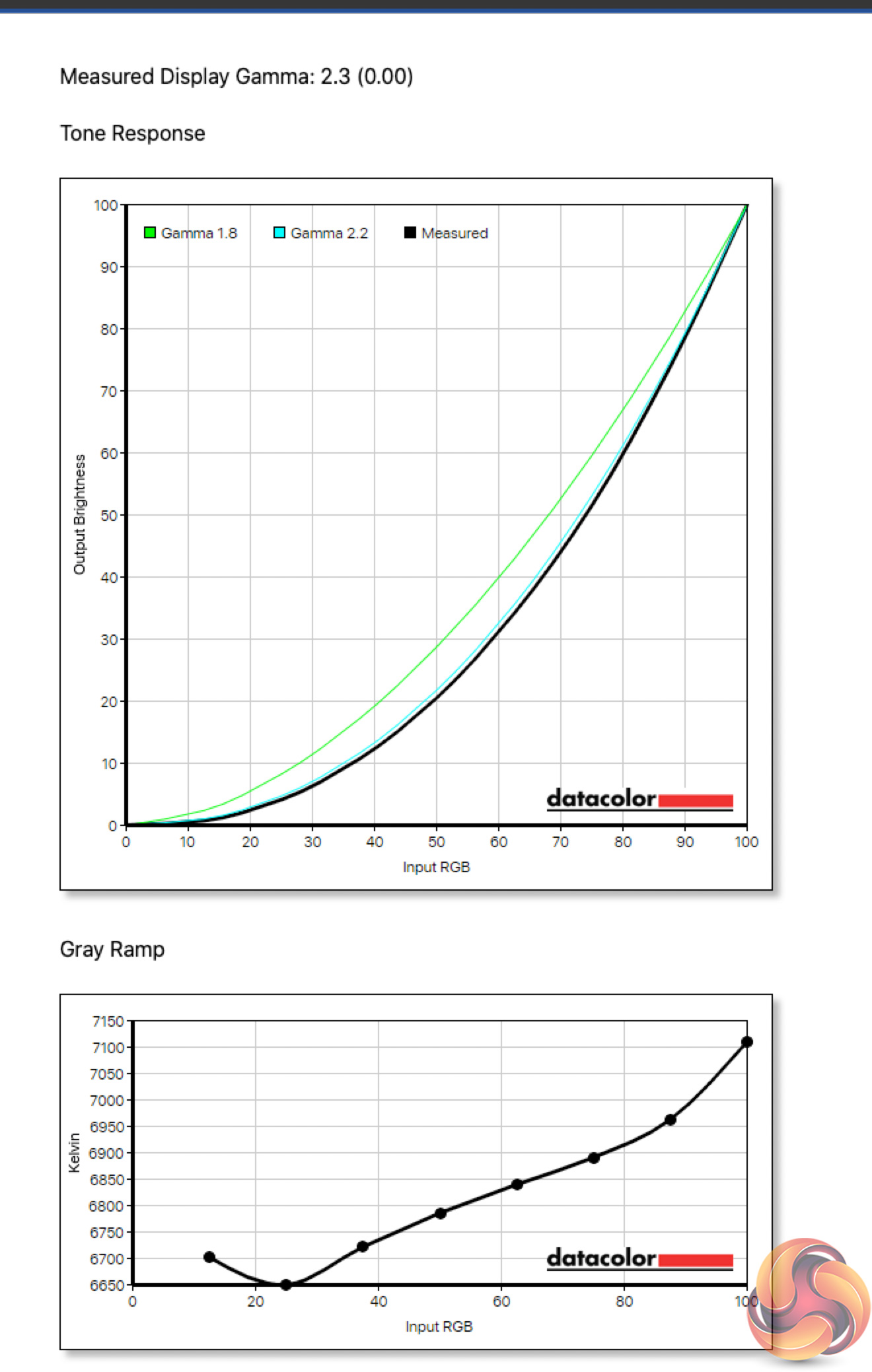
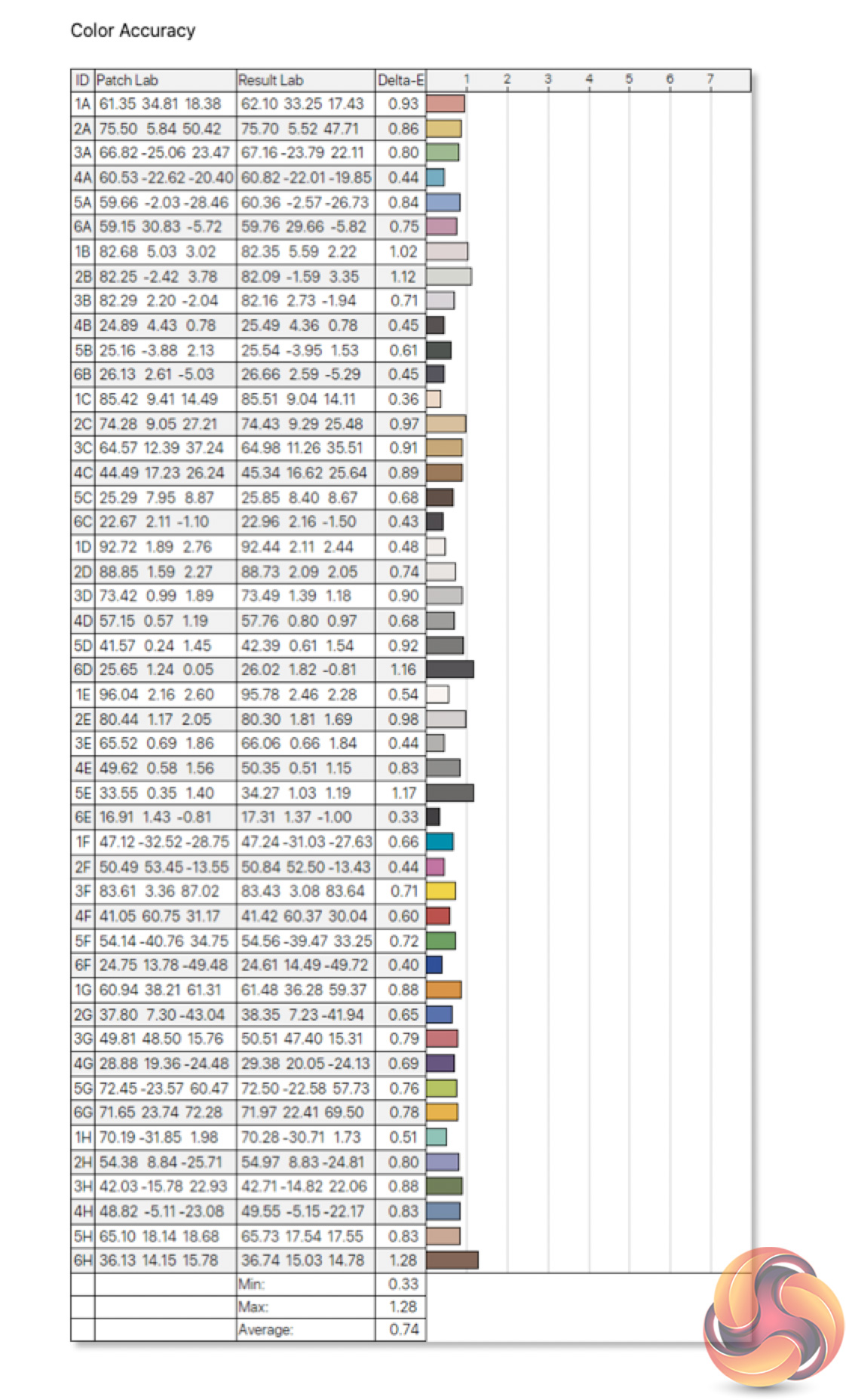
Once calibrated, not much has changed in terms of overall gamut coverage, or the monitor's white point. The Gamma 2.2 setting has improved slightly however, as it is now giving a gamma value of 2.3 – it's not completely fixed, but it's better than it was. Colour accuracy has improved further as we'd expect though, with a new average DeltaE of 0.74, and a maximum of 1.28 – two terrific results.
Monitor response time testing is a new addition to our reviews, where we use the Open Source Response Time Tool (OSRTT), developed by TechTeamGB. This measures grey-to-grey response times and presents the results in a series of heatmaps, the style of which you may be familiar with from other reviews.
Initial Response Time is the time taken for the panel to transition from one colour to another, where lower values are better. We present the initial response time, so overshoot is not taken into account and is measured separately. We use a fixed RGB 5 tolerance for each transition.
Overshoot is the term given for when a monitor's transition exceeds or goes beyond its target value. So if a monitor was meant to transition from RGB 0 to RGB 55, but it hits RGB 60 before settling back down at RGB 55, that is overshoot. This is presented as RGB values in the heatmaps – i.e. how many RGB values past the intended target were measured.
Visual Response Rating is a metric designed to ‘score' a panel's visual performance, incorporating both response times and overdrive. Fast response times with little to no overshoot will score well, while slow response times or those with significant overshoot will score poorly.
We test the GM34-CWQ at 144Hz, using all four of the overdrive settings found within the OSD.
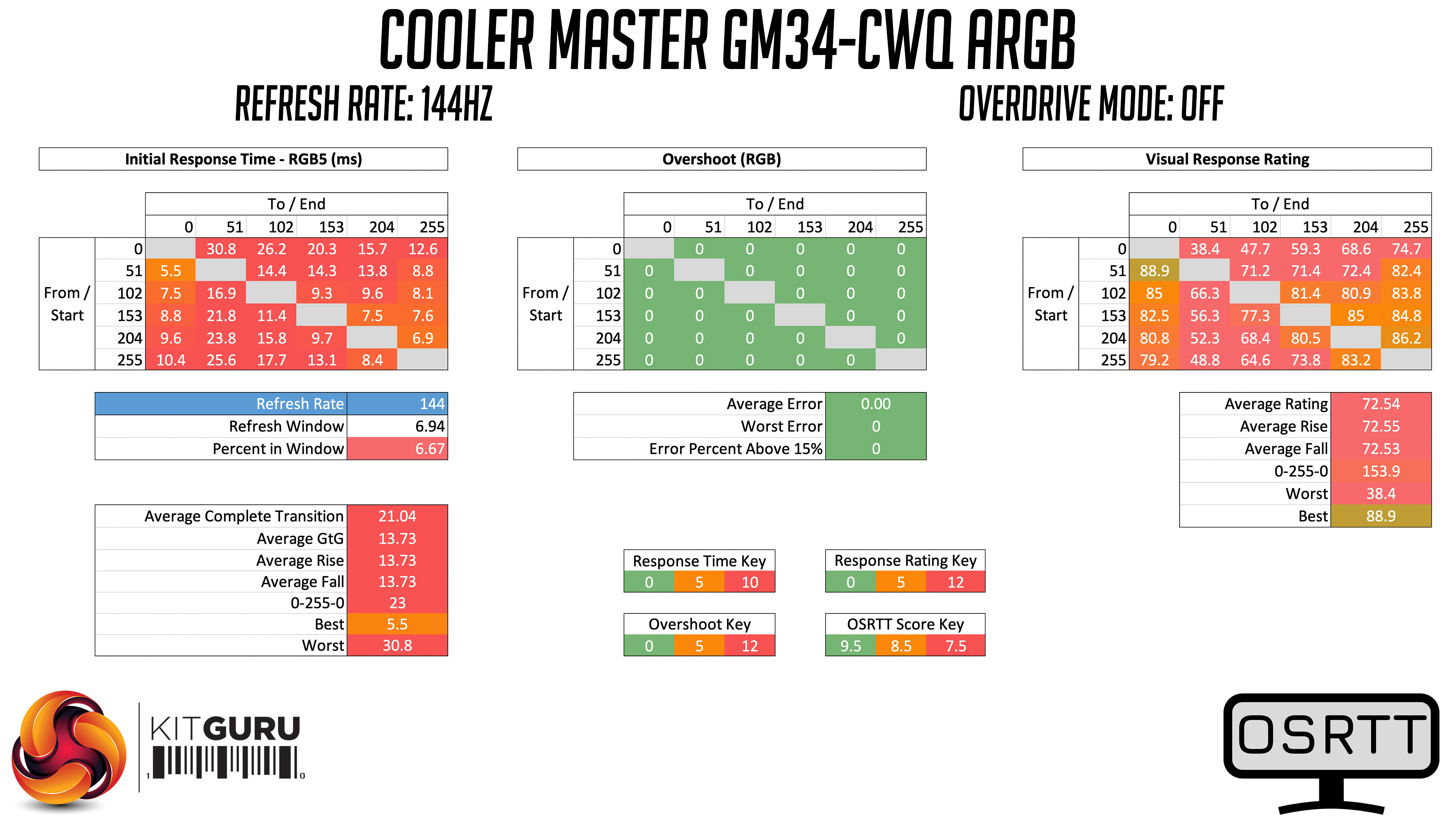
Starting with overdrive turned off, here we can see some very slow response times, with an average grey-to-grey transition time of 13.73 ms. There are some particularly slow rise times from dark shades, which you can see on the top row, indicating some dark-level smearing which is fairly common with VA panels.
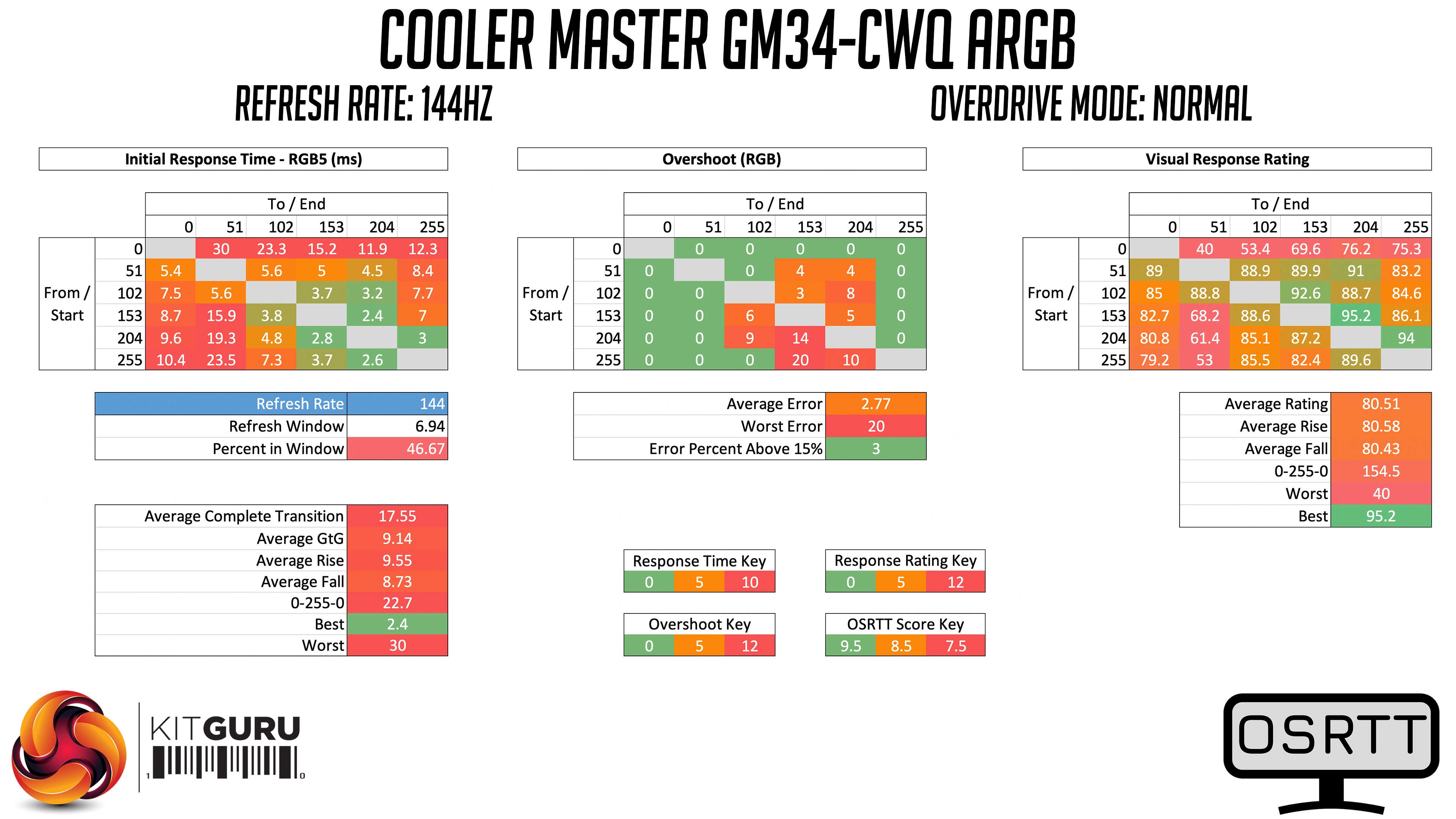
Using the Normal overdrive mode does yield better results, with a number of transitions speeding up, and so we get a new average transition time of 9.14ms. This mode doesn’t do much to improve the very slow rise times however, and we can see only 47% of transitions fall within the 144Hz refresh window, which is not exactly fantastic.
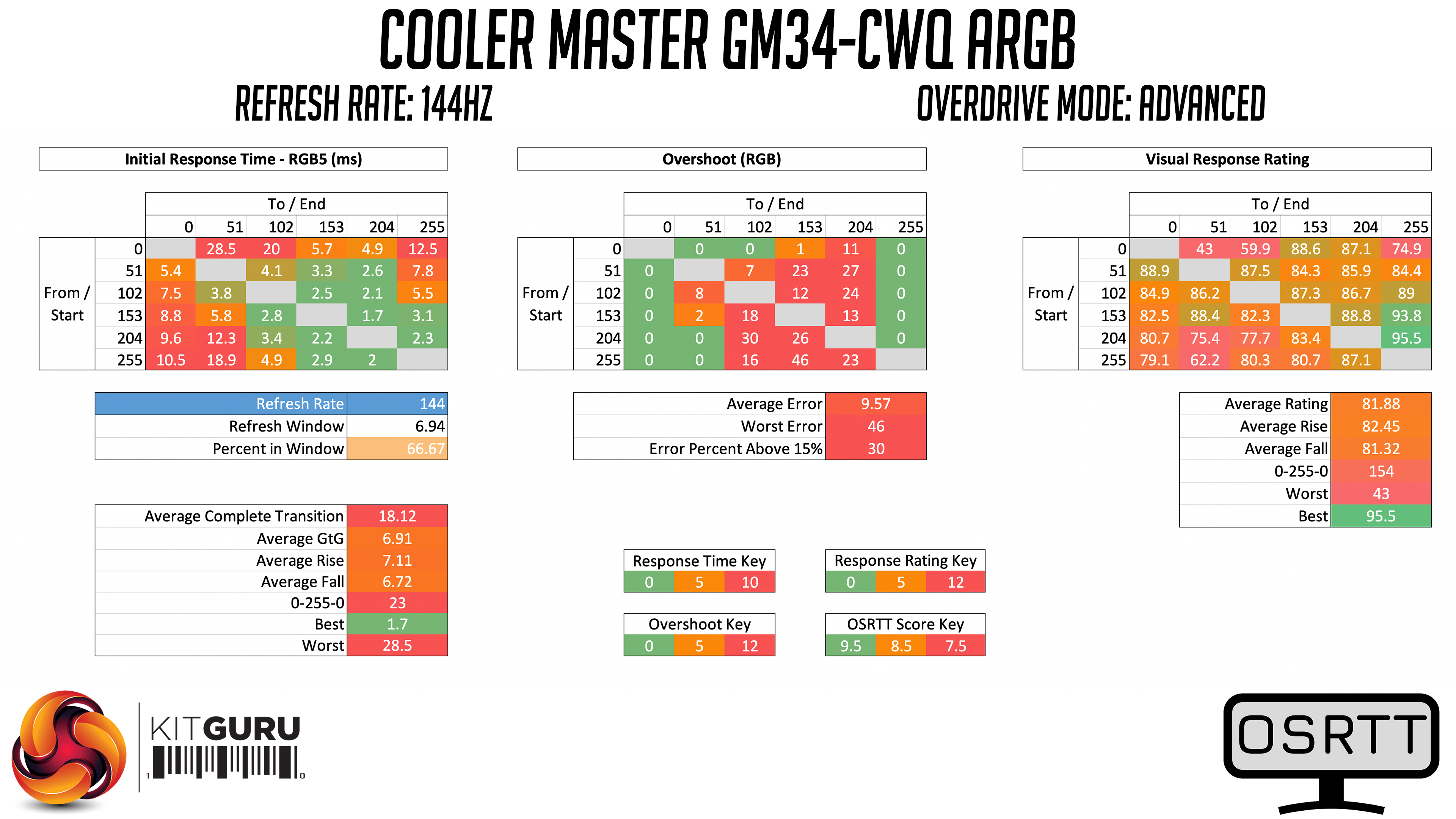
The Advanced mode is the one I ended up using. It does introduce too much overshoot for my liking, but also speeds up a number of transitions, and for me this setting gave the best overall balance. 67% of transitions are now within the 144Hz refresh window too, which is better but still not fantastic. We can also note that transitions from RGB 0 to RGB 51 and then 102 (on the top row of the heatmap) are still painfully slow, translating as dark-level smearing in the real world.
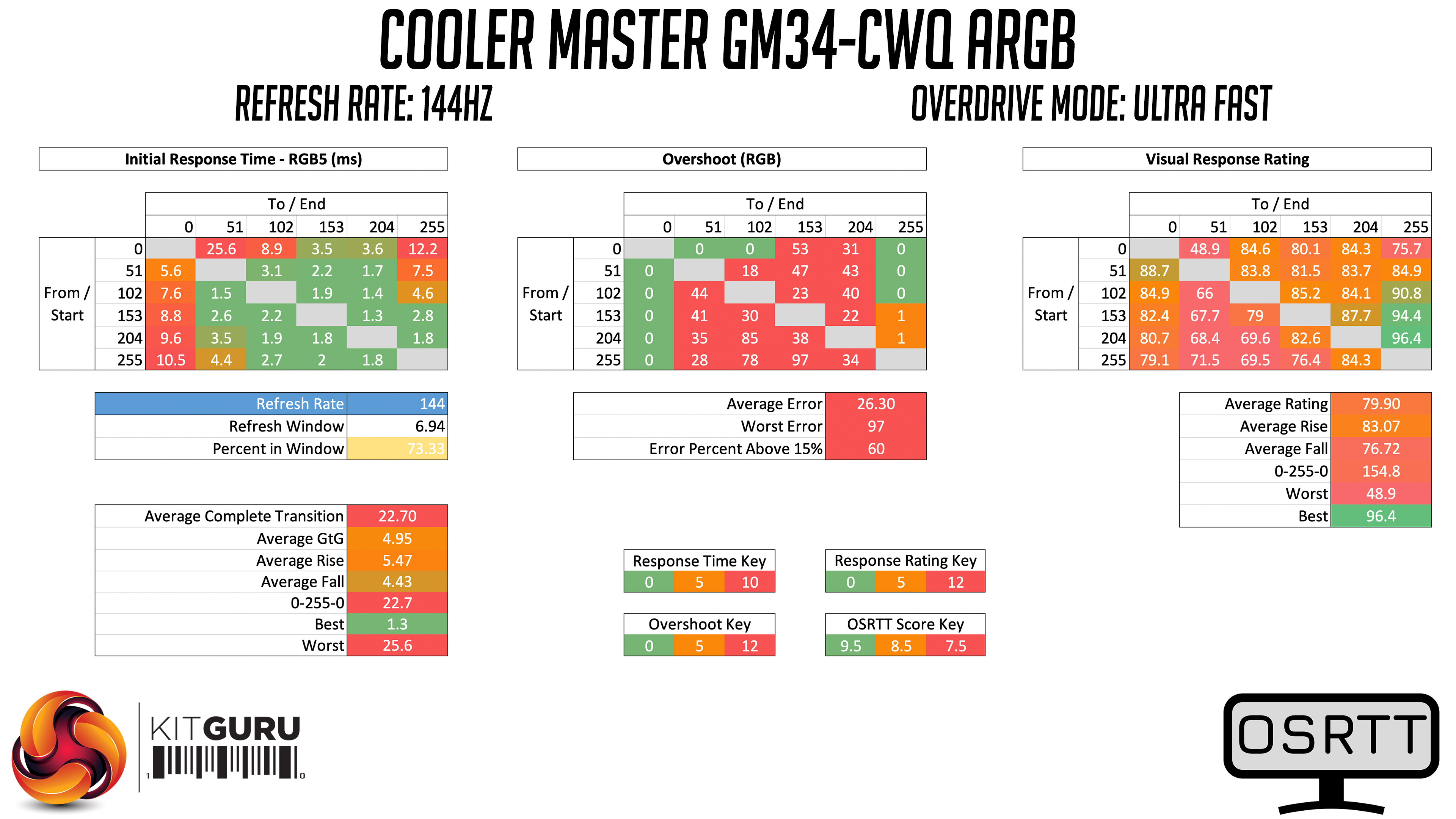
We do also have the Ultra Fast mode to look at, but frankly this is just not worth your time – the average grey-to-grey transition time drops below 5ms, but we also see that 60% of transitions overshoot their target by more than 15%, so it is just not worth using.
The same can be said for the Dynamic mode, which actually uses the Ultra Fast mode at 144Hz, which is clearly the worst of the lot, so I can’t really recommend using that mode either.
Overall, the two most usable modes are either Normal or Advanced. Normal overdrive is still fairly slow but only has minimal overshoot, whereas the Advanced mode does speed things up at the cost of a fair bit more overshoot, though it didn’t bother me too much while gaming.
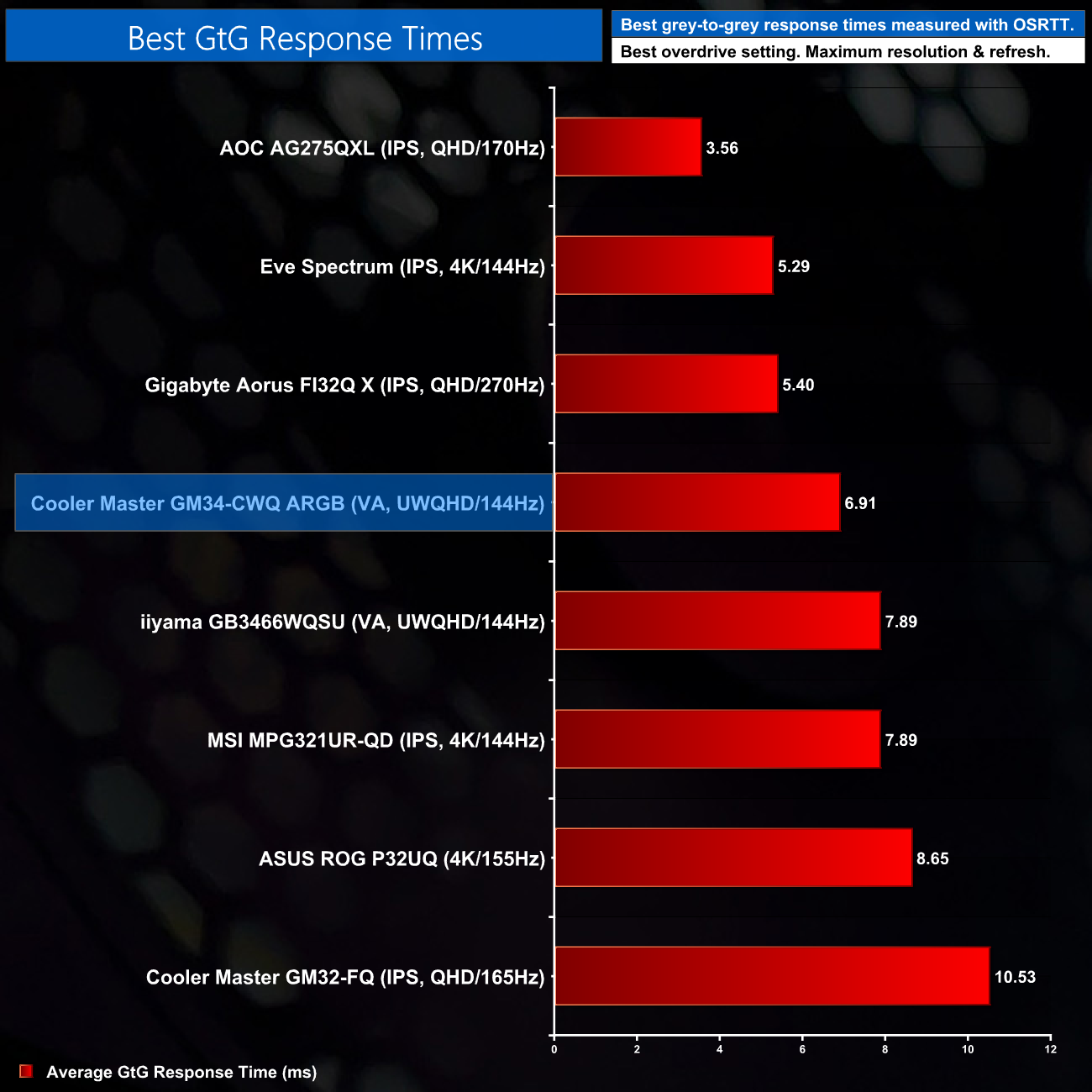
Using the Advanced setting then, as we can see from the chart, it is still a pretty middling response time overall, though it is a touch faster than the similarly-priced iiyama GB3466WQSU, although the iiyama does have less overshoot as well.
System latency is another area of our testing, where we use Nvidia’s Latency and Display Analyzer Tool (LDAT) to measure end-to-end system latency. LDAT itself is a photosensor which is placed on the monitor. It has an integrated mouse button, allowing it to measure the total time taken from mouse click, to an action happening on screen, which is done by measuring a change in luminance. This data is logged to a CSV file over USB, allowing for close analysis of the data.
As this is end-to-end system latency, we are not measuring only the processing/input latency of each monitor we test. However, we can standardise the test process so the monitor is the only variable. It also gives an insight into how different refresh rates and resolutions can affect end-to-end latency, which is of course highly relevant to your purchasing decision.
We use Rainbow Six Siege for this testing.
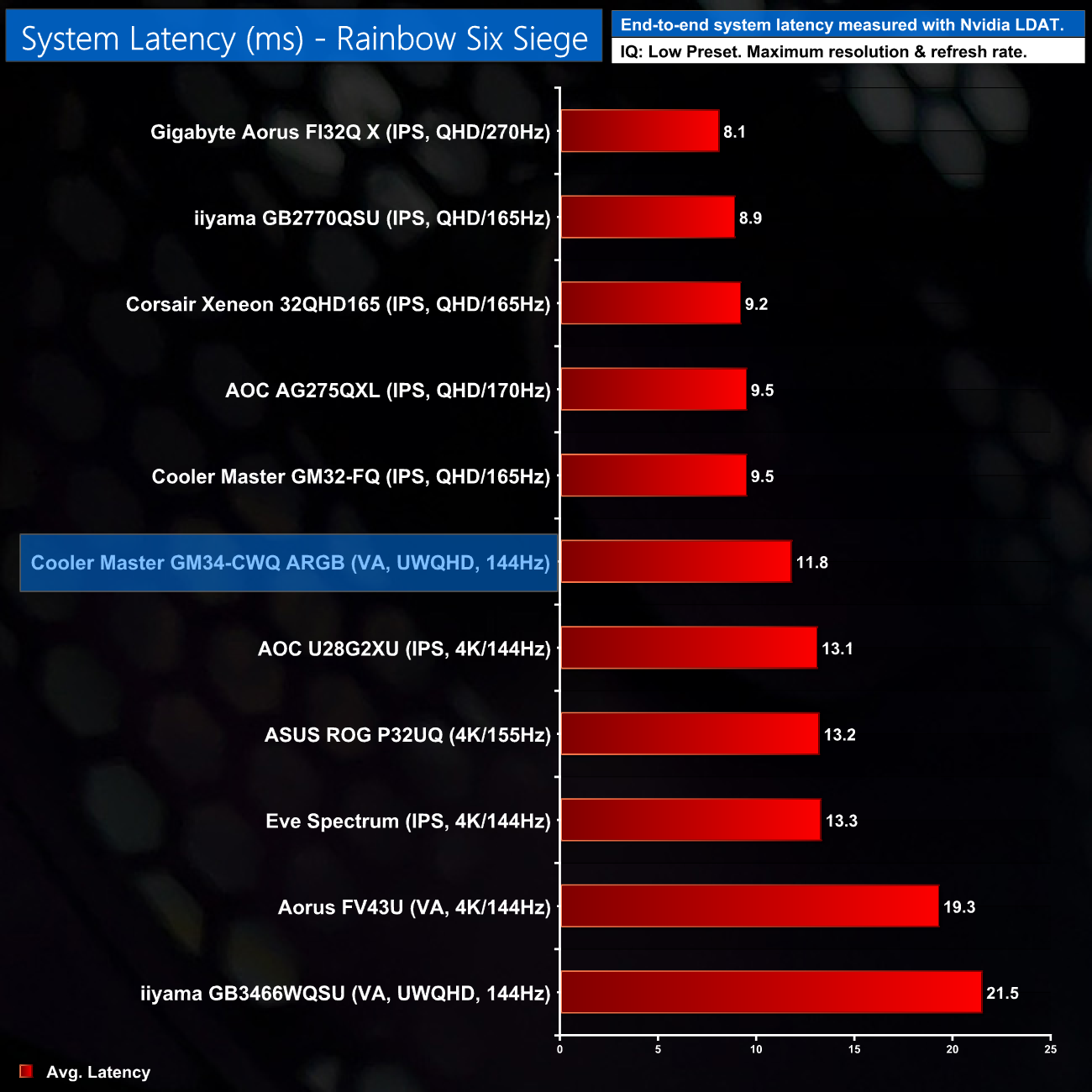
Latency is no problem for the GM34-CWQ, with an average figure of 11.8ms. That puts it directly between the ~9ms latency we'd expect from a QHD screen, and the ~13ms of a 4K display, so that makes sense.
We can see the GM34-CWQ is almost twice as fast as the iiyama GB3466WQSU in terms of latency too, but that's more a case of the iiyama needing work, than it is the GM34-CWQ being super fast.
Two years ago, Cooler Master launched its first ever gaming monitor – the GM34-CW. Today, the company is back with a new model, dubbed the GM34-CWQ ARGB. Priced at £419.99 here in the UK, it is positioned towards the entry level ultrawide space, though there are a few similar screens retailing for slightly less, including the iiyama GM3466WQSU.
Still, in this price bracket Cooler Master does have a few features to help set it apart from the competition. The main one being the use of Quantum Dot technology, which really helps to give the panel a punchy and saturated experience. I switched back and forth between the GM34-CWQ ARGB and the GB3466WQSU during this review, and Cooler Master definitely has the more visually alluring panel.
There's also no getting around the more premium design of the GM34-CWQ, with its metal stand and slim bezels. The ARGB lighting in the base of the stand could also be a boon for LED lovers, however the fact it requires a microUSB cable for the lighting to function is a slight drawback.
The main thing holding this monitor back really comes down to the response times and overall speed of the panel. The performance on offer from the Advanced overdrive mode should be enough for most users, with an average grey-to-grey transition time of just below 7ms. However, this isn't much faster than the aforementioned GB3466WQSU, and that panel is almost two years old at this point, so I would have liked to see a little more from Cooler Master in this regard.
Even factoring that in, the Cooler Master GM34-CWQ ARGB is still a good option to have. It's attractively priced, offers a gorgeous panel and a sleek design. There's still room for improvement, but you could do a lot worse than this when shopping for a new ultrawide monitor.
We don't yet have a buy-link but the MSRP for the GM34-CWQ ARGB is £419.99.
Discuss on our Facebook page HERE.
Pros
- Punchy and vibrant panel.
- Strong contrast, as we'd expect from a VA screen.
- Sleek design with metal stand.
- Well priced at £420.
- ARGB lighting looks good, if you like that sort of thing.
Cons
- Not the fastest monitor we've ever tested.
- iiyama GB3466WQSU could be worth a look for £50 less.
- ARGB lighting requires a microUSB connection.
KitGuru says: Cooler Master's GM34-CWQ ARGB is a good addition to the ultrawide space, especially at its £420 asking price. It's not the fastest panel we've ever reviewed, but it offers excellent colours and strong contrast.