KitGuru KitGuru.net – Tech News | Hardware News | Hardware Reviews | IOS | Mobile | Gaming | Graphics Cards


Cooler Master is still a relative newcomer to the monitor market but we've been reasonably impressed with the screens we have already reviewed from the company. The Tempest GP27U is a clear step up for Cooler Master however, with this display offering a 4K/160Hz IPS panel, enhanced with a Mini-LED backlight that offers 576 dimming zones. Mini-LED displays have historically been quite expensive, but with the GP27U retailing for £800 here in the UK, could this be a winner?
On paper, there's a lot to like about the Cooler Master Tempest GP27U. High refresh-rate 4K is one thing, but offered in combination with a fast IPS panel and a Quantum Dot filter certainly sounds like a recipe for success. Factoring in the aforementioned Mini-LED backlight, Display HDR1000 certification and HDMI 2.1 support, it seems that for £800 Cooler Master is offering a heck of a lot of monitor for the money.
We're here to find out exactly how good this screen really is, taking a look at the design, OSD, panel performance, response times, latency and more… so without further ado, let's dive in.
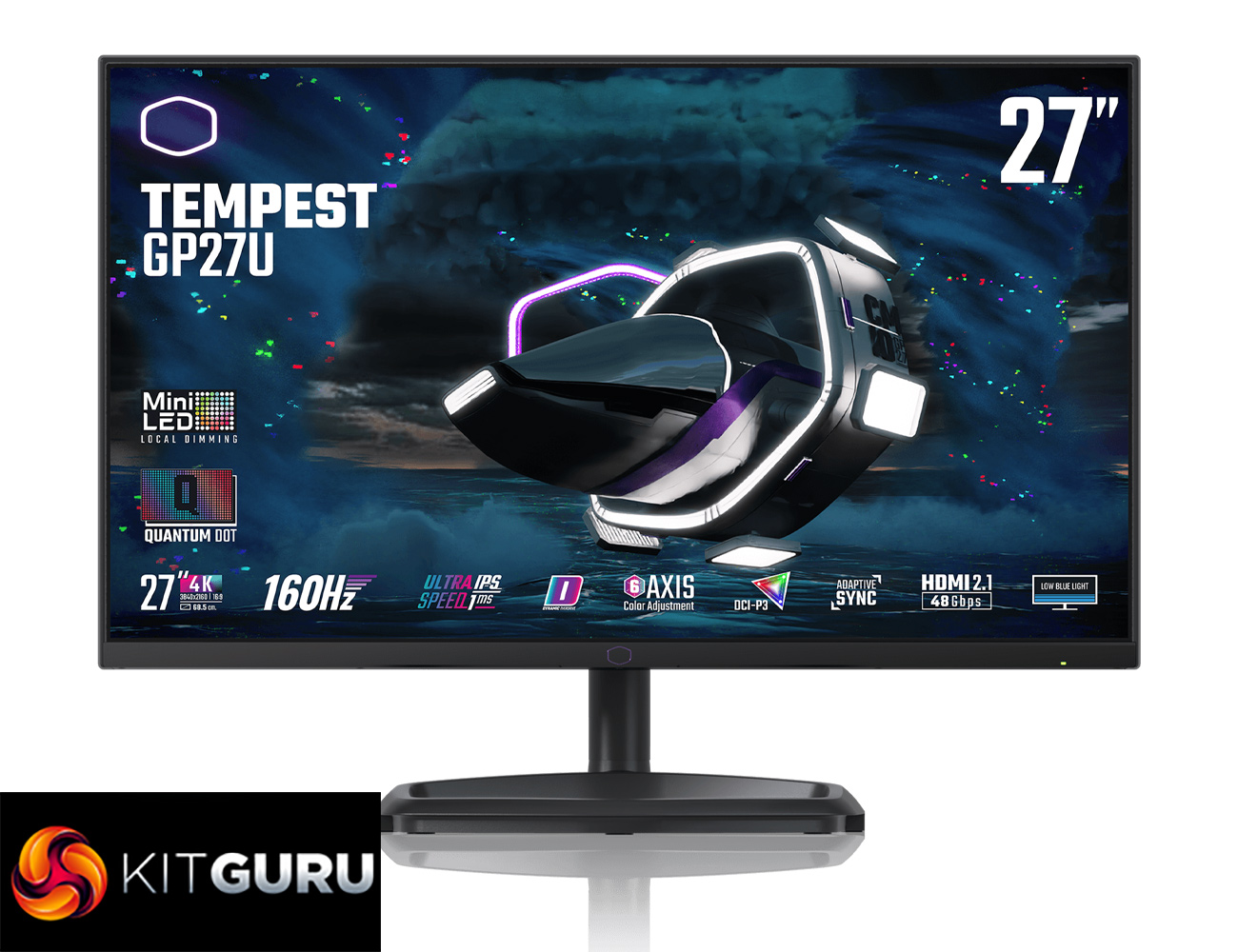
Specification:
- Product Number: CMI-GP27-FUS
- Panel Type: Flat Series
- Ratio: 16:9
- Screen Size: 27″
- Panel: Ultra-Speed IPS 1.07B colors w/Quantum Dot
- Resolution: UHD 3840×2160
- Frame Rate: 160 Hz
- Contrast Ratio: 1000:1
- Viewing Angle (H/V): 178°/178°
- Brightness: 600 nits (SDR), 1200 nits (HDR Peak)
- DisplayHDR1000: Compatible
- Color Gamut: Adobe RGB 99%, DCI-P3 98%
- I/O – DP x1
- I/O – HDMI 2.1 x2
- I/O – USB Type C x1 (PD 90W + DP ALT + USB data)
- I/O – USB 3.0 Type B x1
- I/O – USB 3.2 Type A x2
- I/O – Speaker x2 (3W)
- Local Dimming: MiniLED 576 zone
- VRR Technology: Adaptive Sync (Up to 144Hz), FreeSync Range: Yes, G-Sync Range: Yes
- Response Time: 1 ms
- Eye Protection: Low Blue Light
- Overdrive Technology: Yes
- Lighting: Rear Cover Lighting
- Delta E <2: Yes
- Firmware Update: Yes (USB)
- Power Consumption: 47.7W*
- VESA: 100×100 mm
- Height Adjustment: 0-110 mm
- Tilt Adjustment: -5°~+20°
- Swivel Adjustment: ±15°
- Pivot Adjustment: 0° ±90°
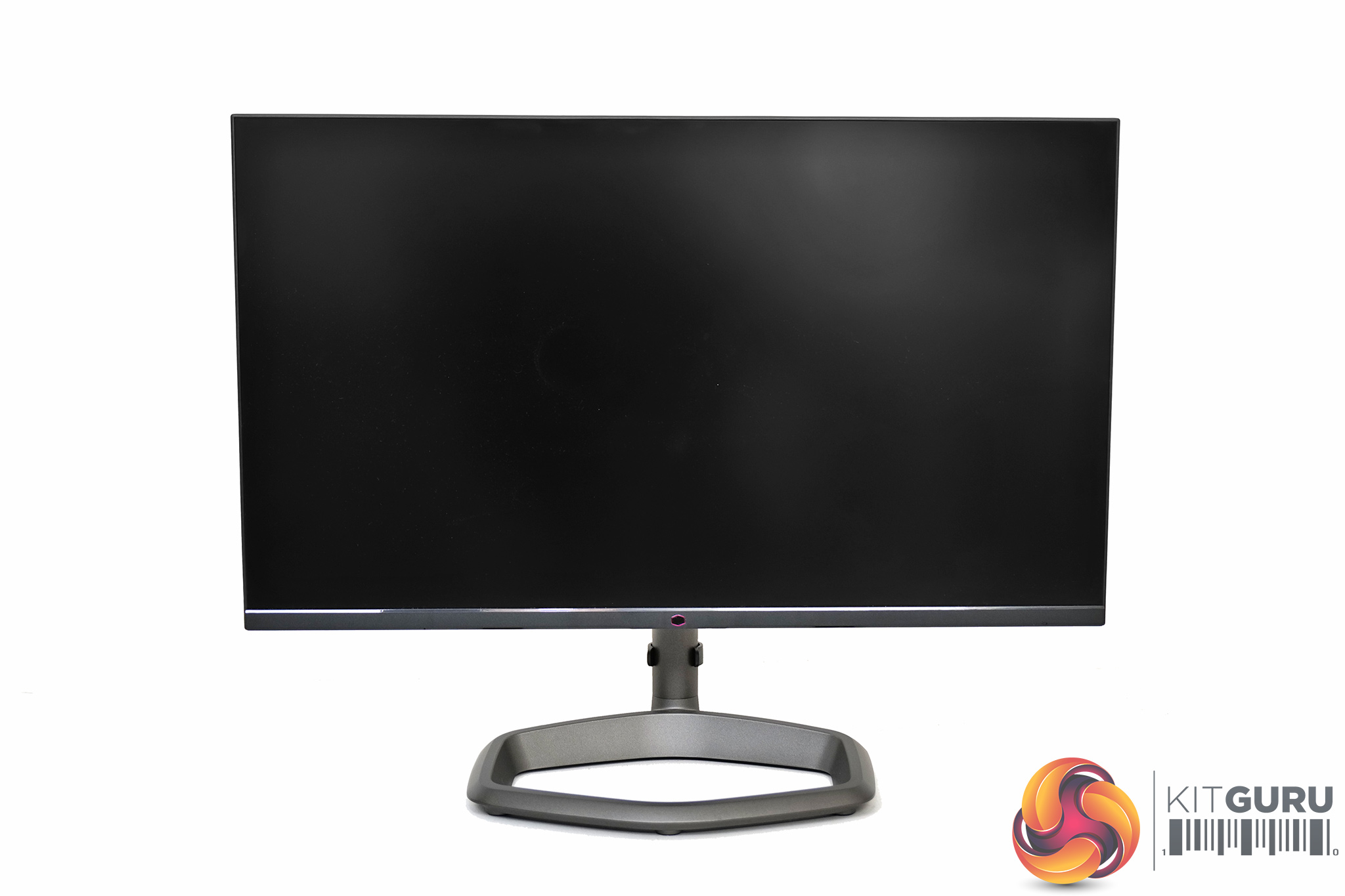
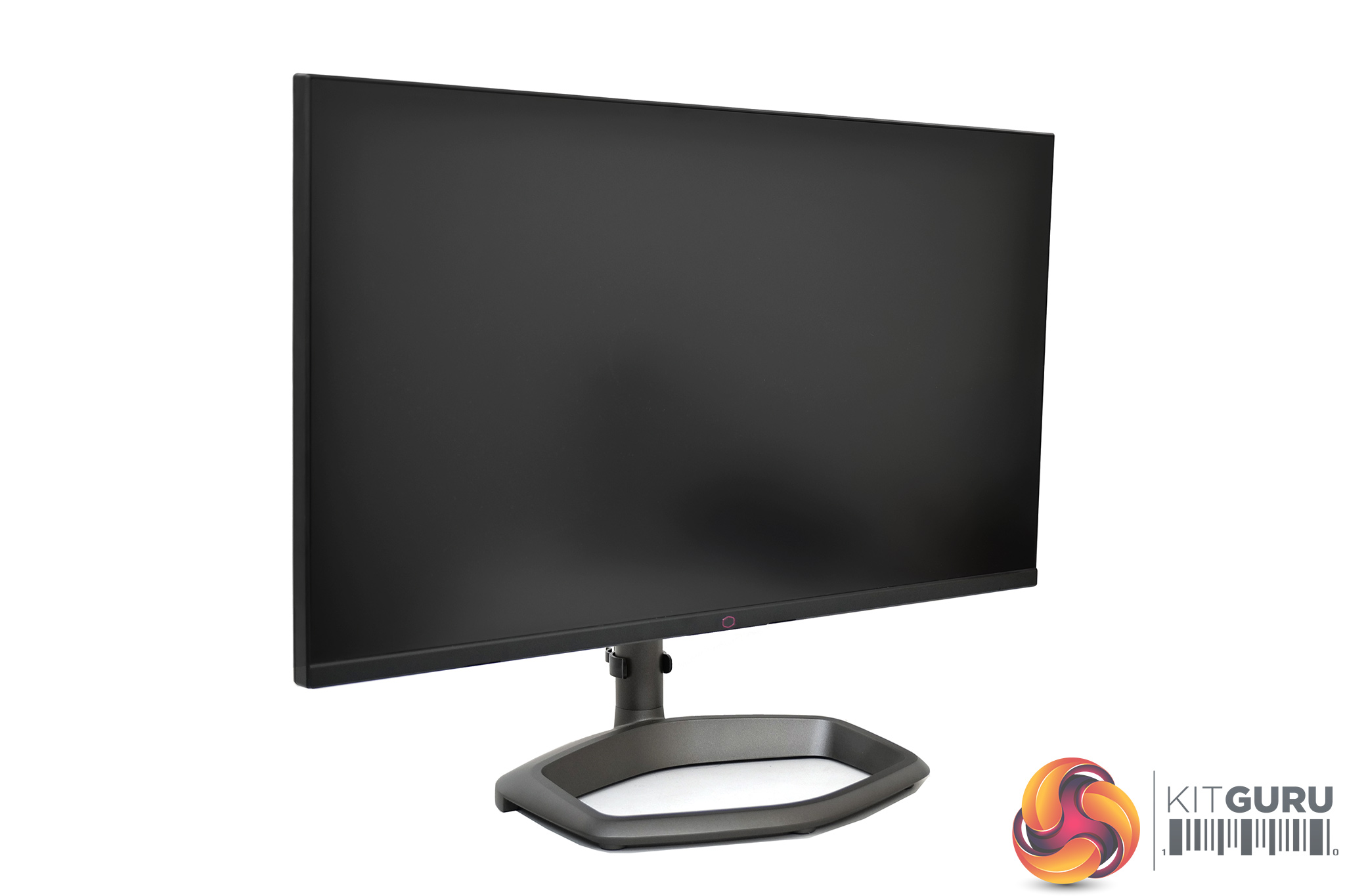
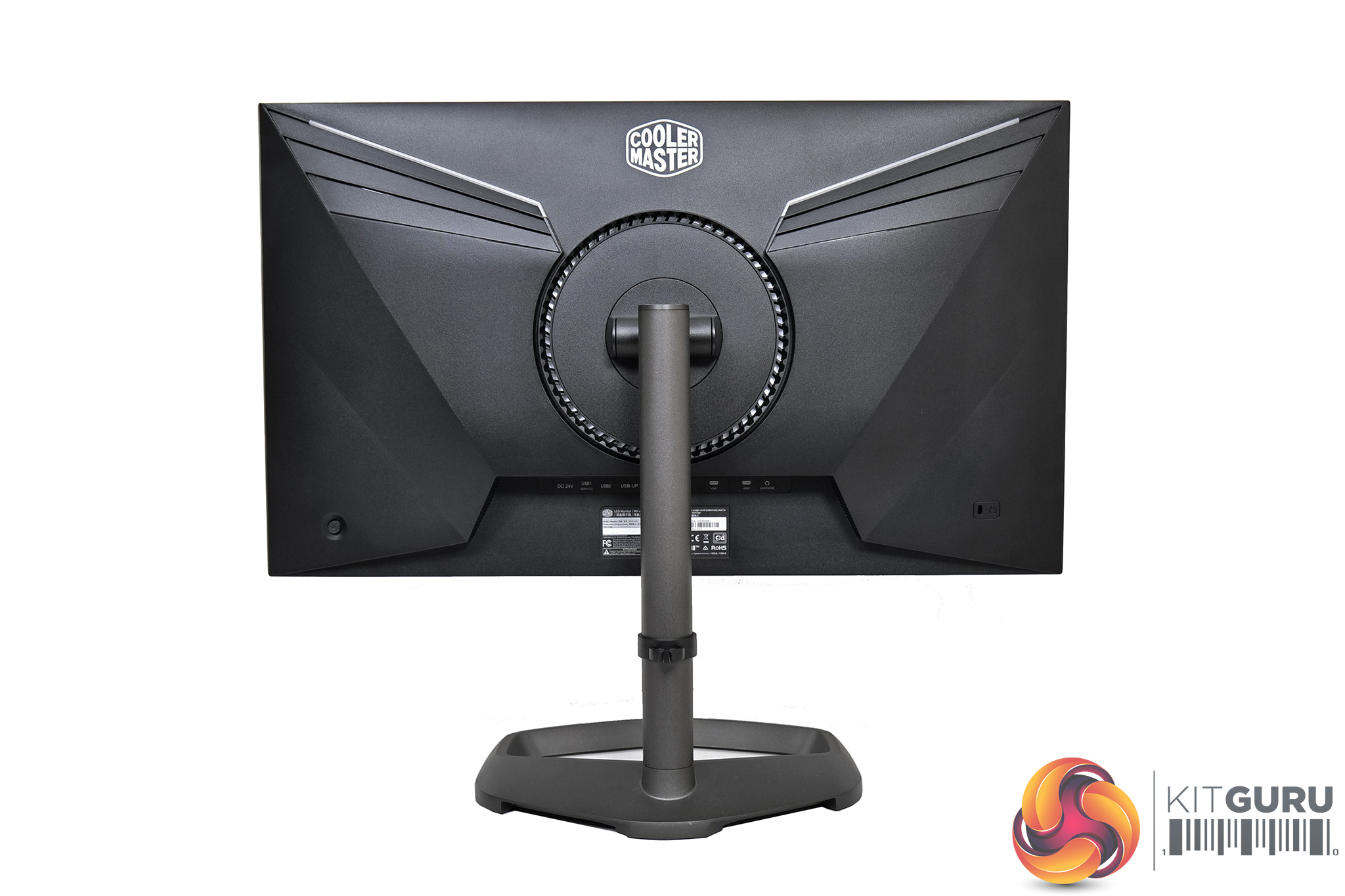
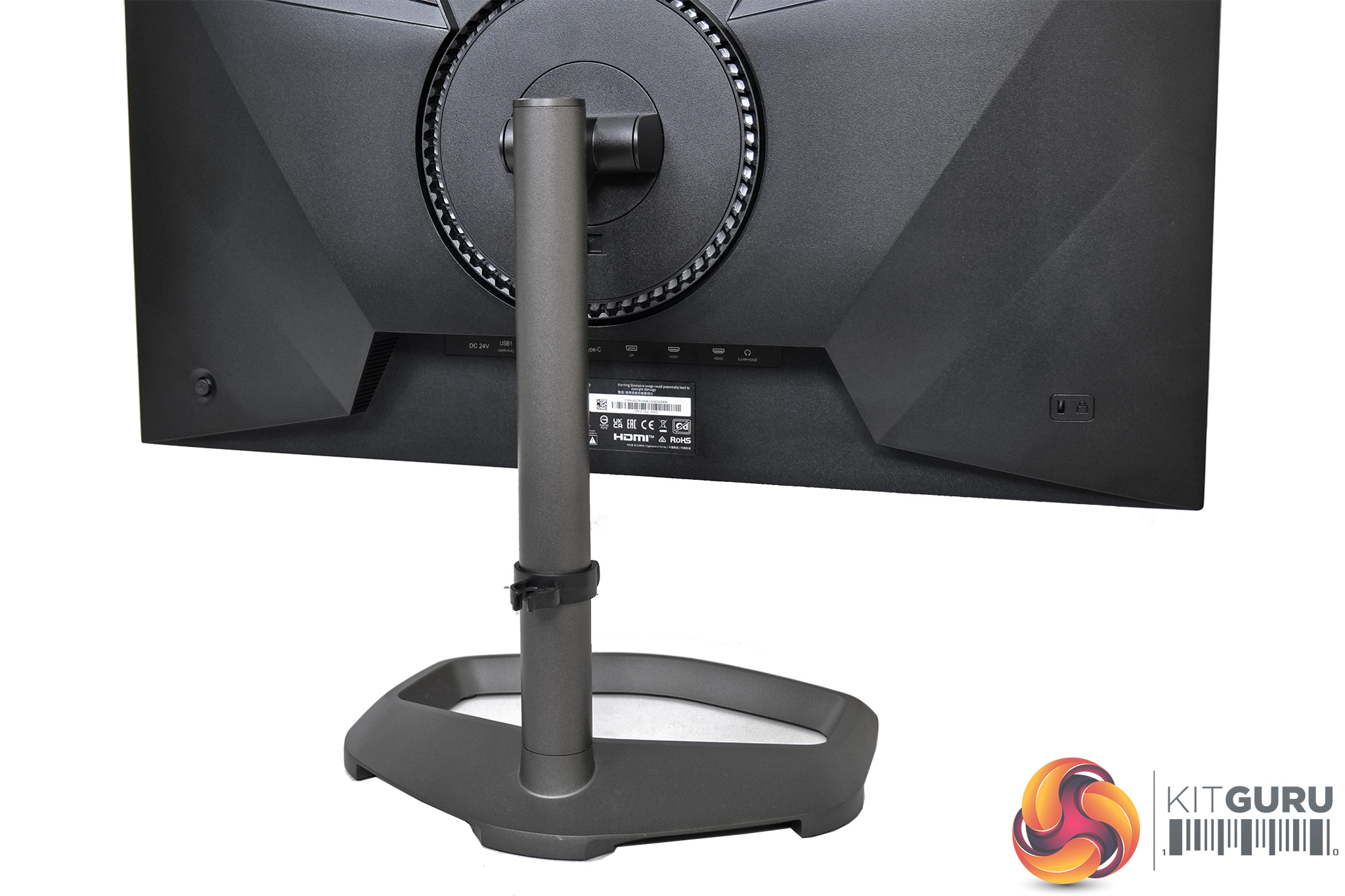
The design of the Cooler Master Tempest GP27U is pretty similar to previous CM displays we have reviewed. The front sports slim bezels on the top and sides, with the chin measuring about 14mm thick. We get a grey metal stand too, with a hexagonal-shaped foot that is clearly reminiscent of Cooler Master's logo.
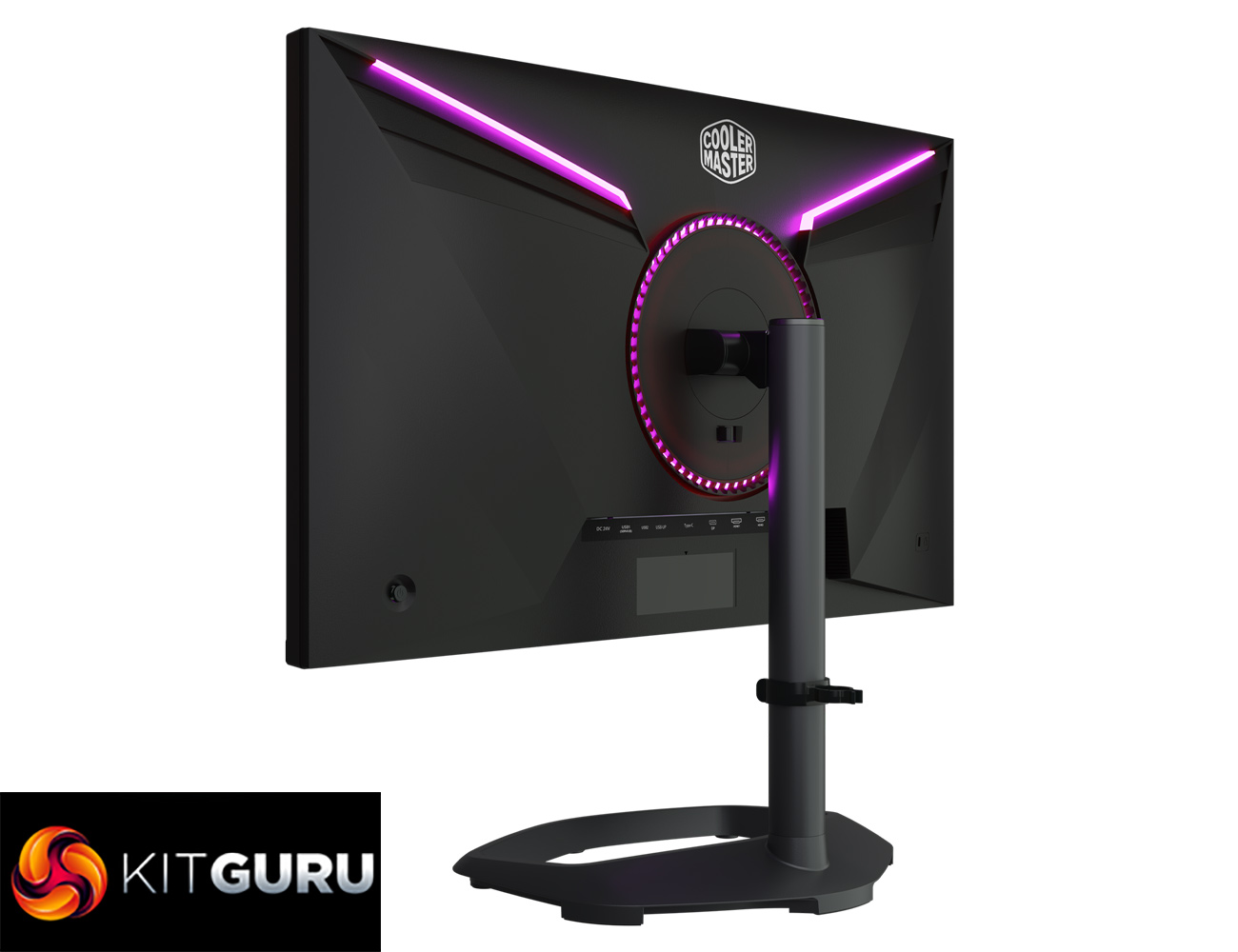
Round the back, the rear of the screen is made from matte black plastic. Those light grey/white-ish sections you can see are RGB diffusers, with one strip in each of the top corners, as well as a circular section around the central stand mount.
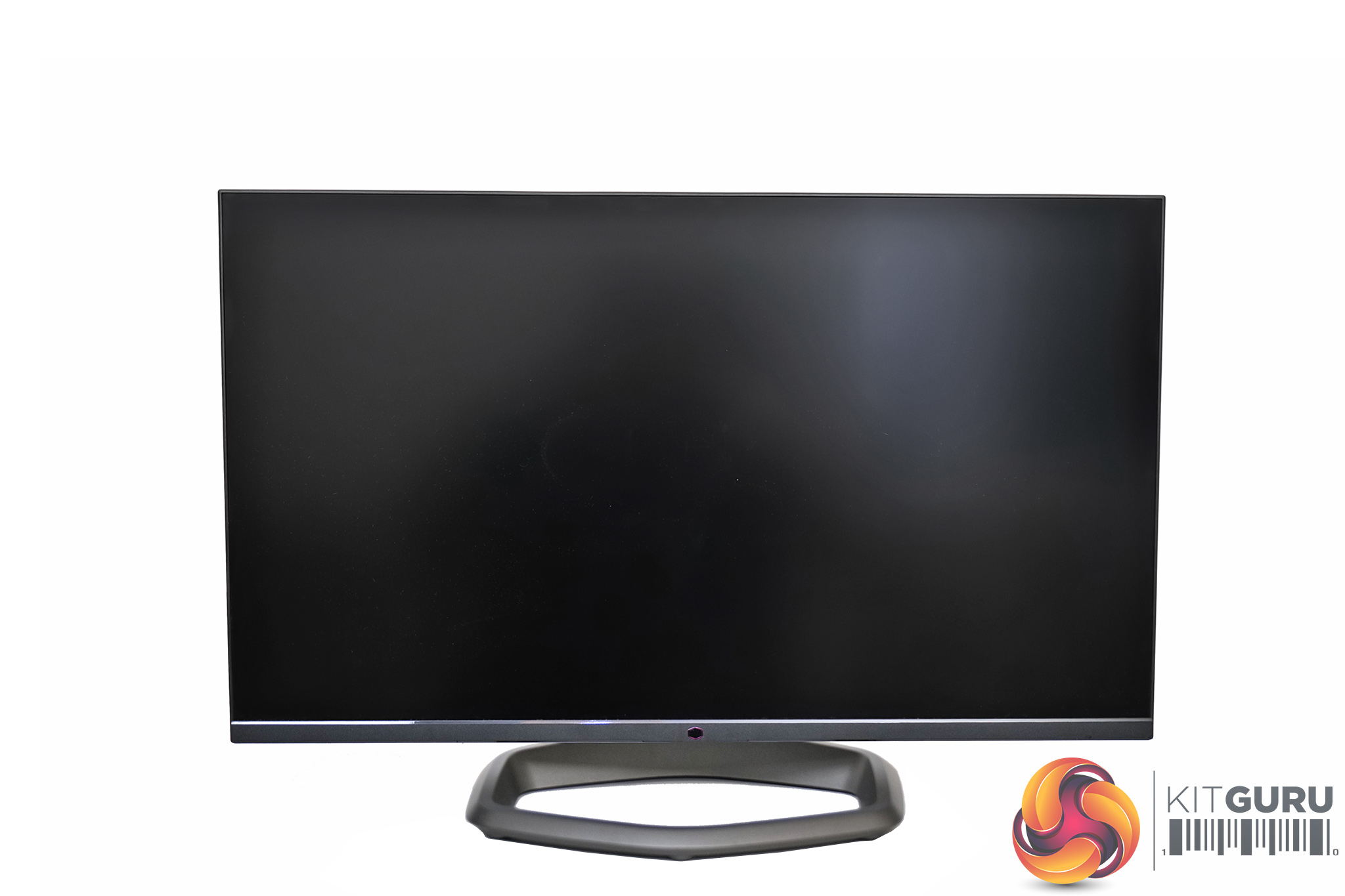
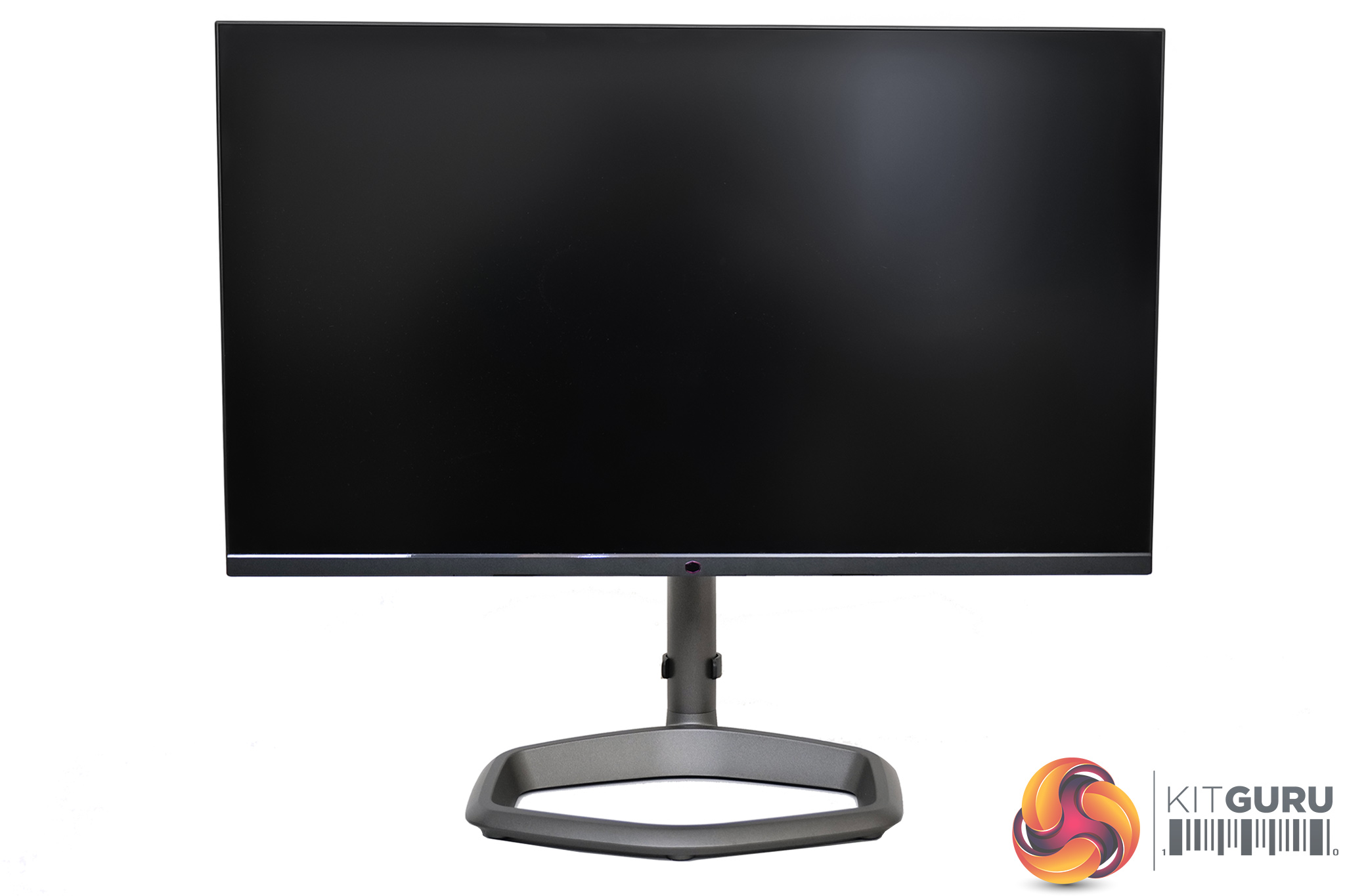
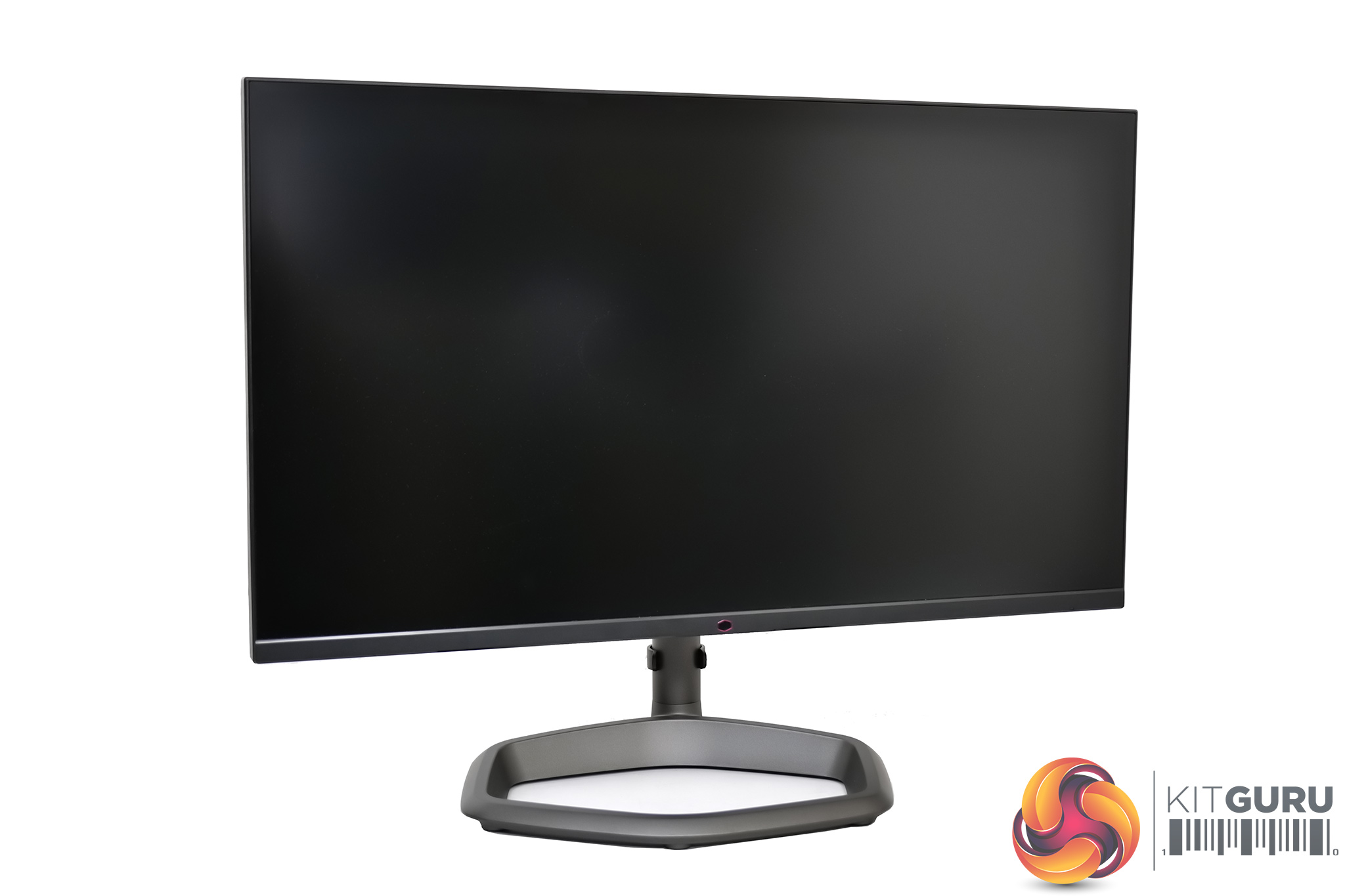
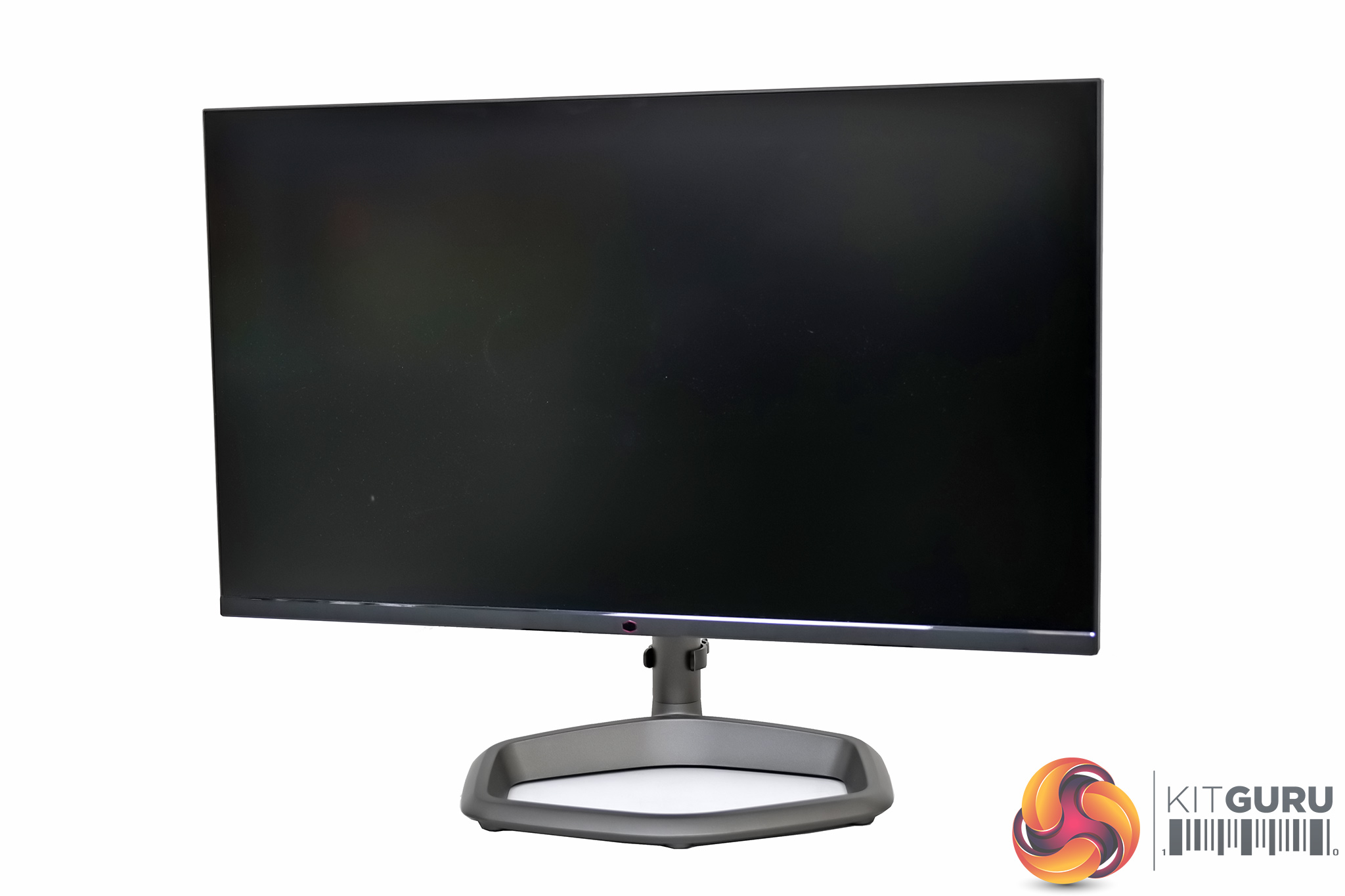
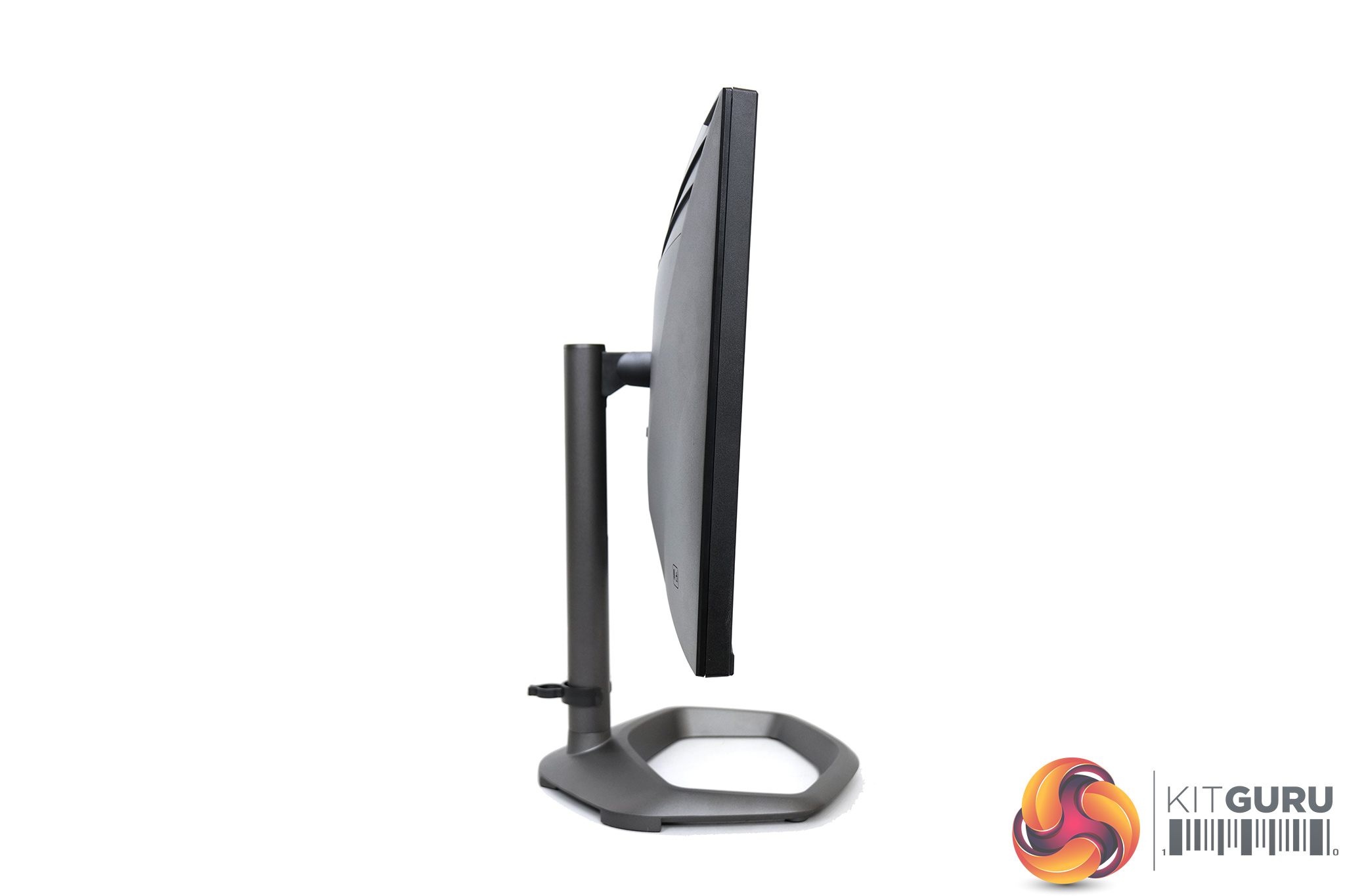
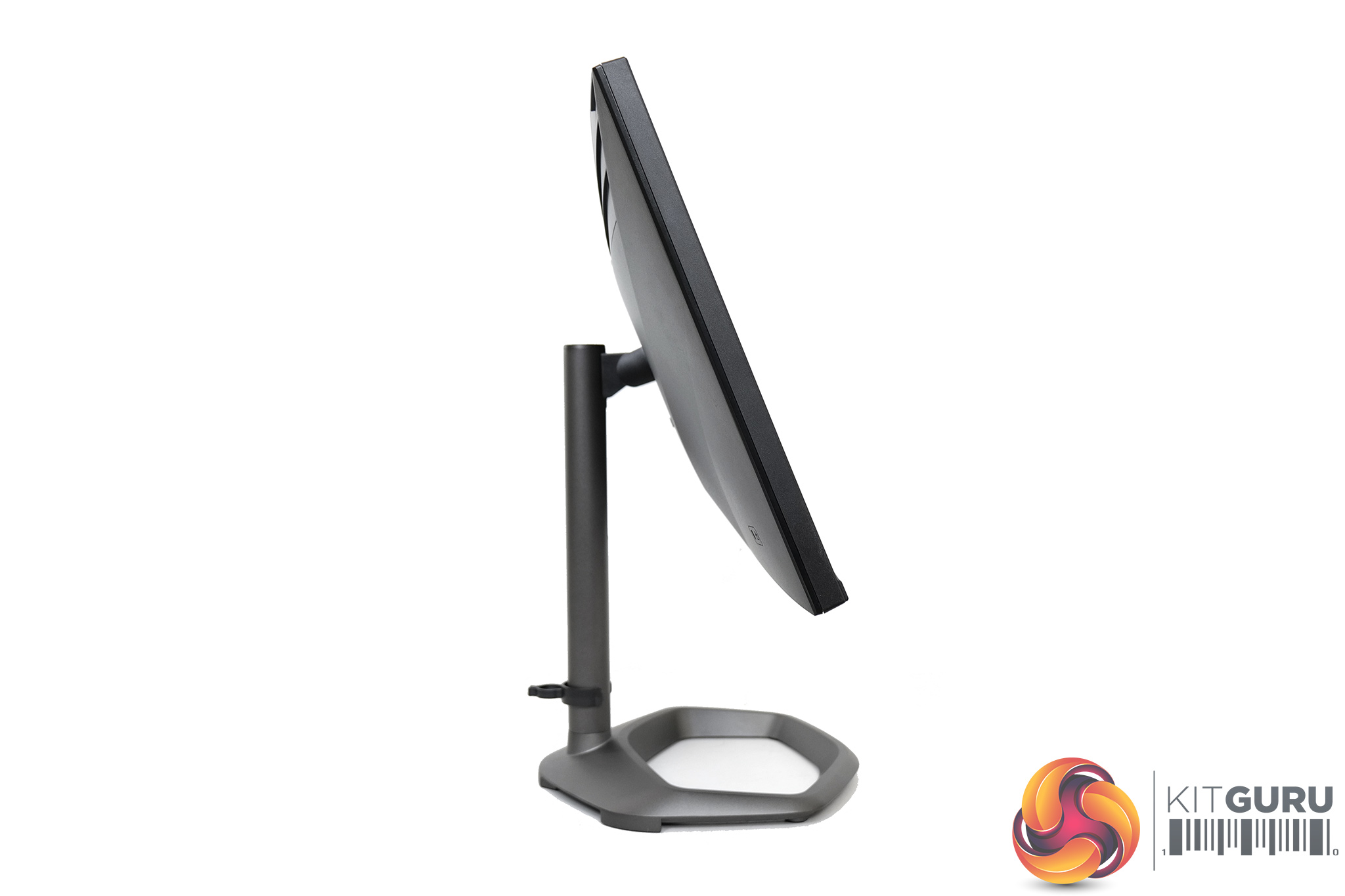
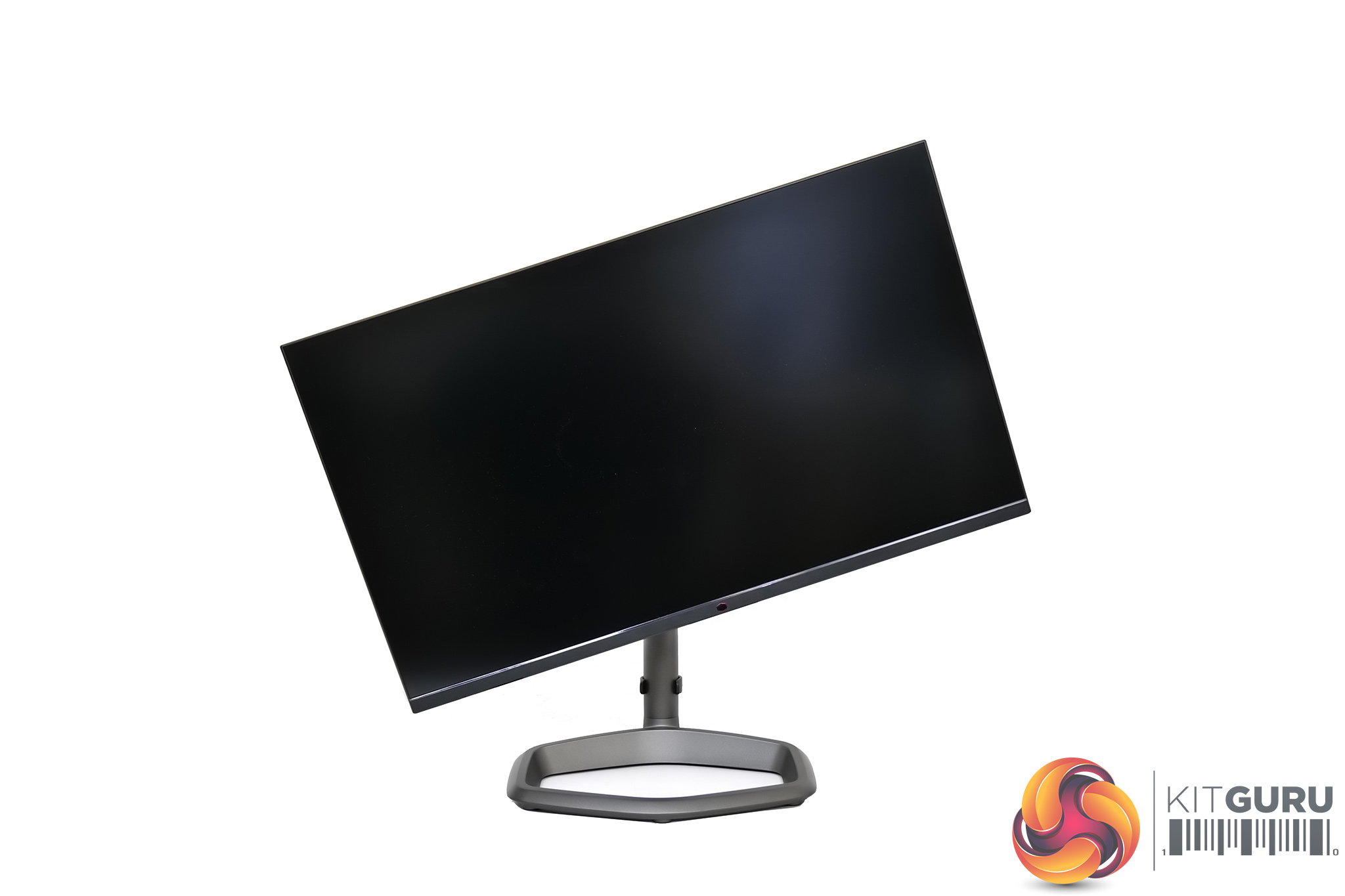
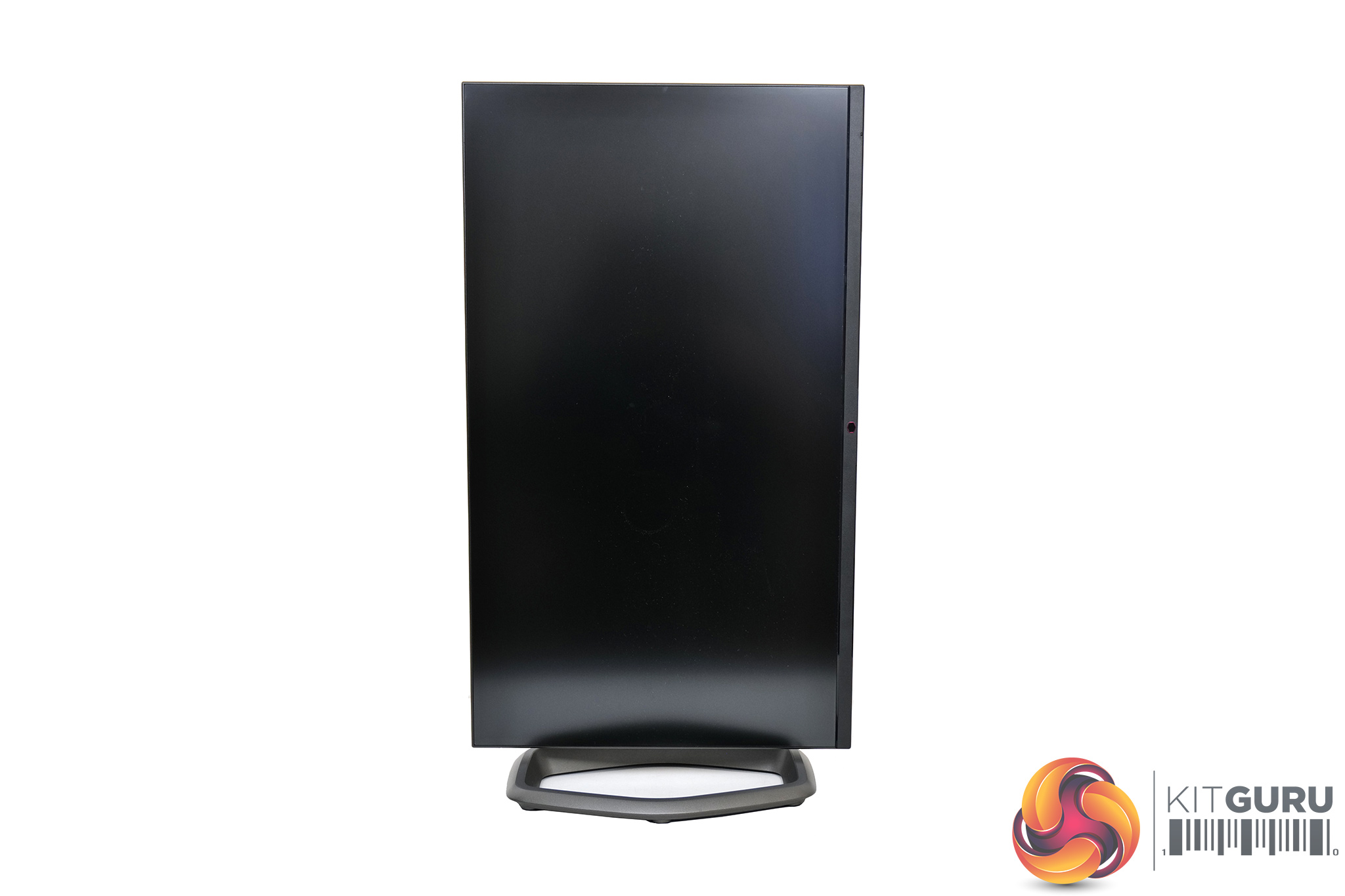
As for the stand, it's great to see Cooler Master offers a full array of ergonomic adjustments. We get up to 110mm of height adjust, 15 degrees of swivel both left and right, tilt from -5 to +20 degrees, alongside 90 degree pivot functionality allowing you to use the screen vertically. There's also support for VESA 100×100 mounts too, so we really have no complaints.
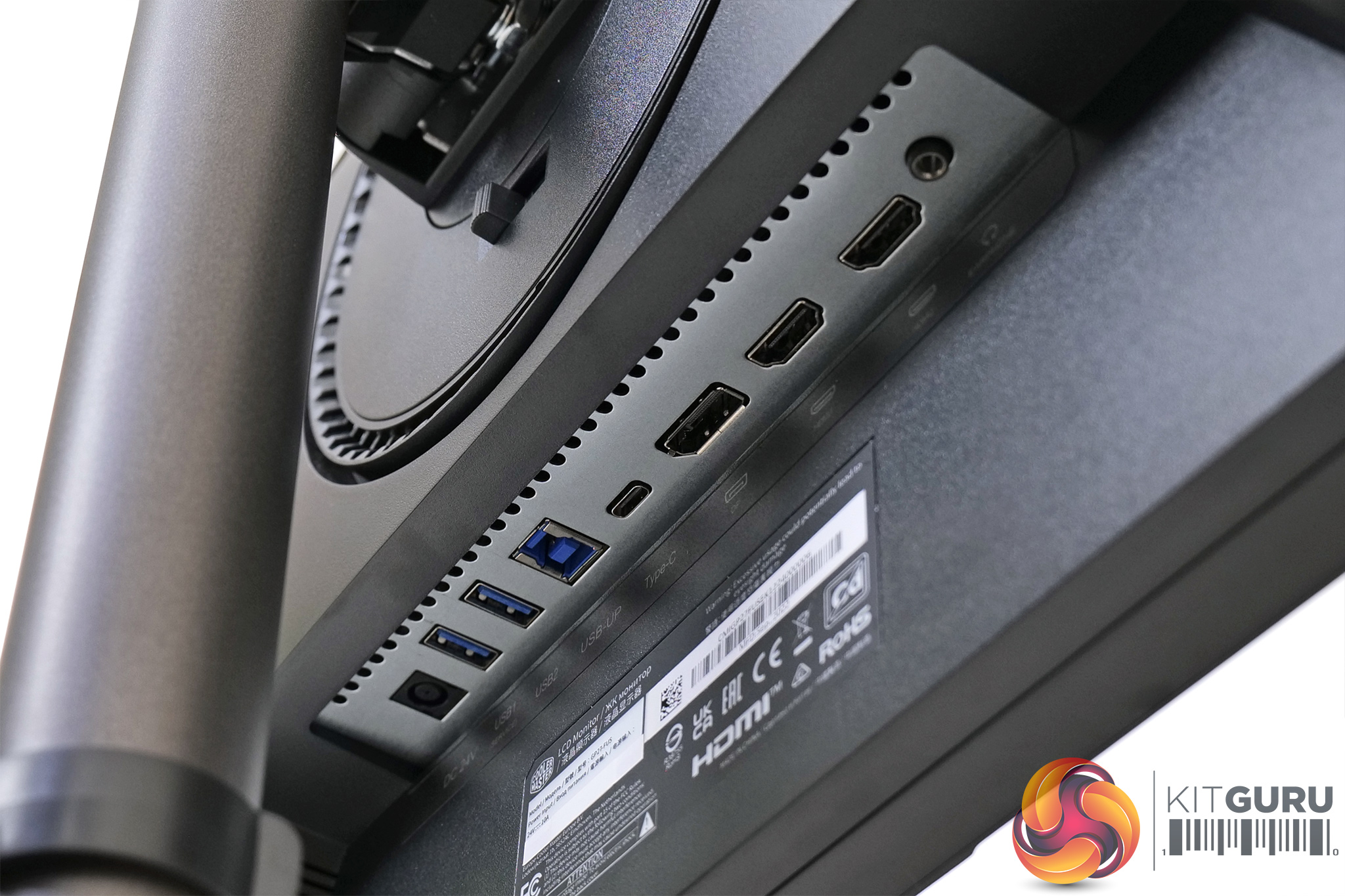
There's a healthy selection of connectivity options too. For display inputs, we get a pair of HDMI 2.1 ports, each offerings the full 48Gbps bandwidth, alongside a DisplayPort 1.4 connector and a Type-C port that supports DP Alt mode and up to 90W power delivery. A USB Type-B upstream port feeds two Type-A downstream connectors, and there's an audio jack too.
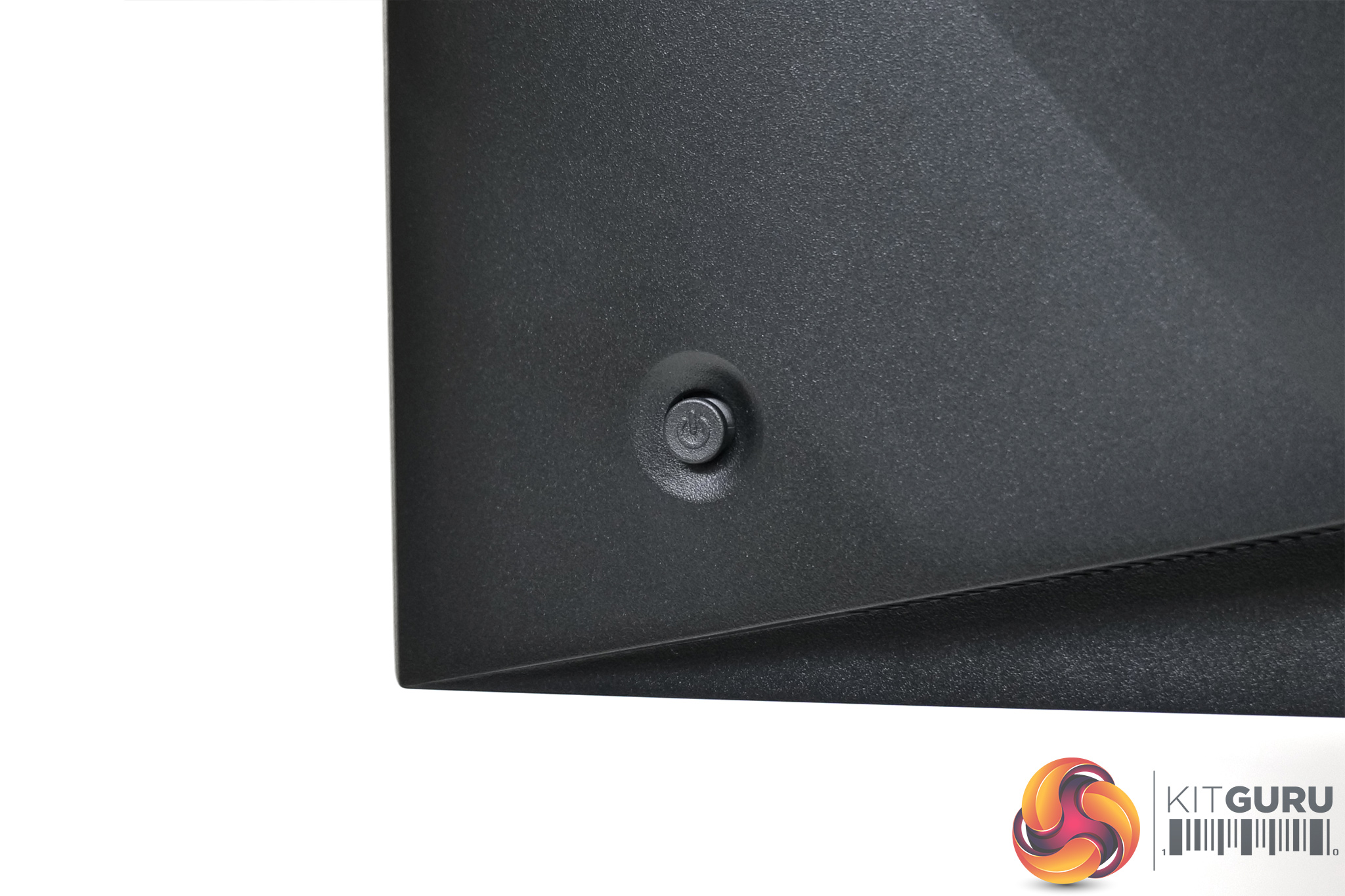
We can also note the joystick placed in the bottom right corner of the screen, and this is used to control the OSD. There's no other buttons or any other way to adjust things on the GP27U.
Cooler Master has updated its OSD menu system since I looked at the GM34-CWQ ARGB in June last year. It's still split into six main tabs, but the overall design has received a much-needed face lift.
Those six main tabs are as follows: Input Select, Picture Setting, Color Adjust, Gaming Setup, Advanced, System. You can see these below:
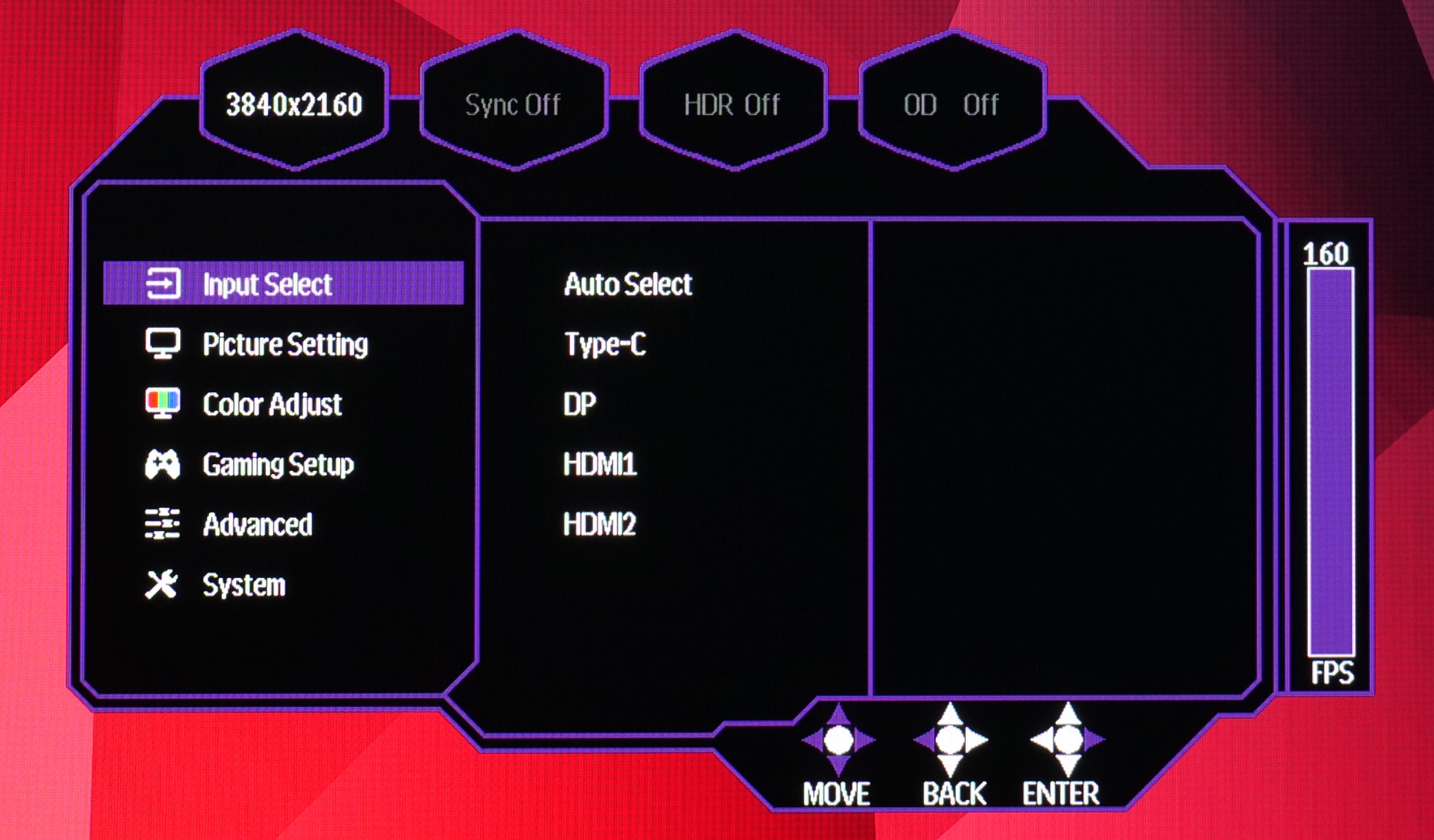
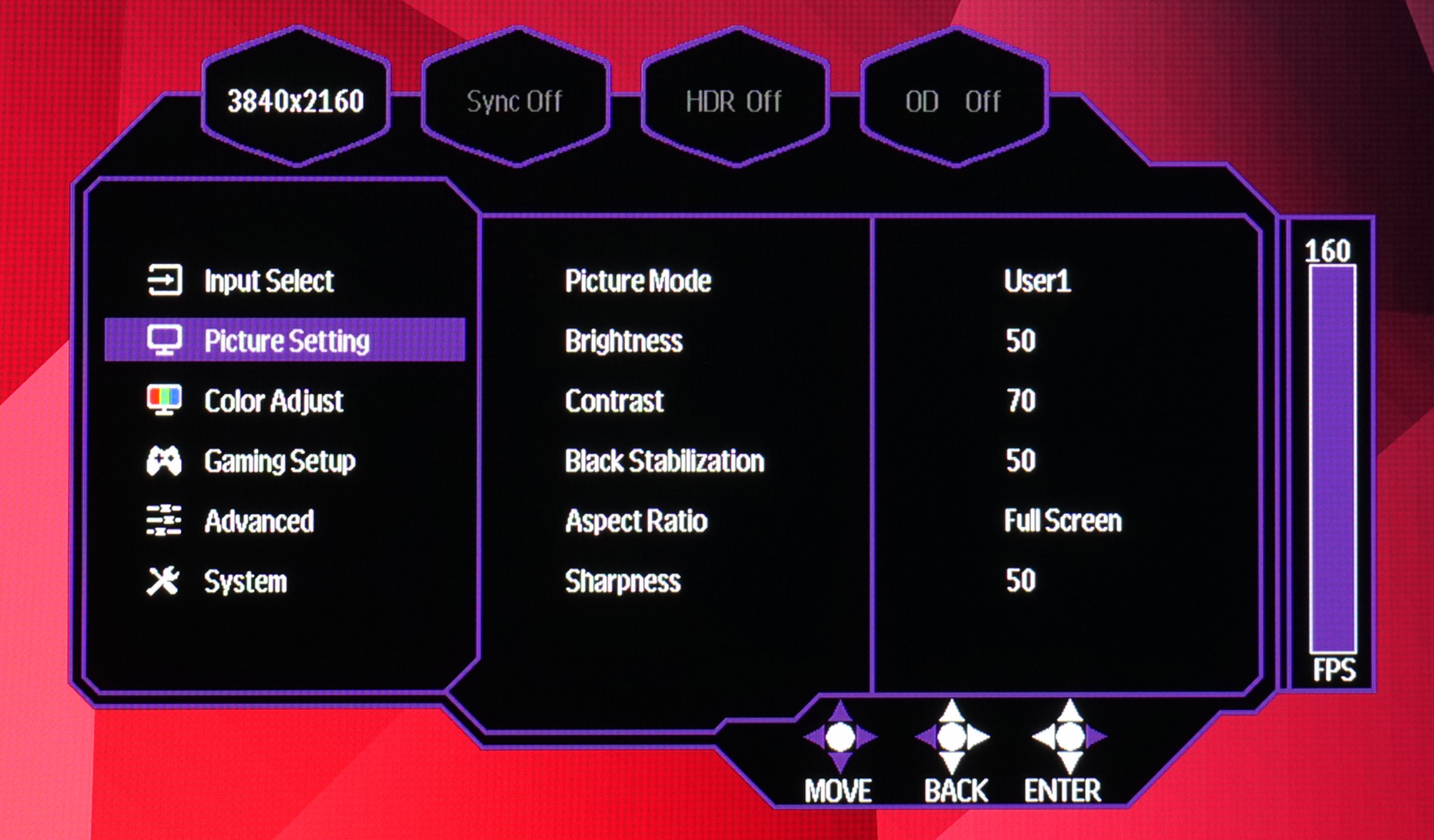
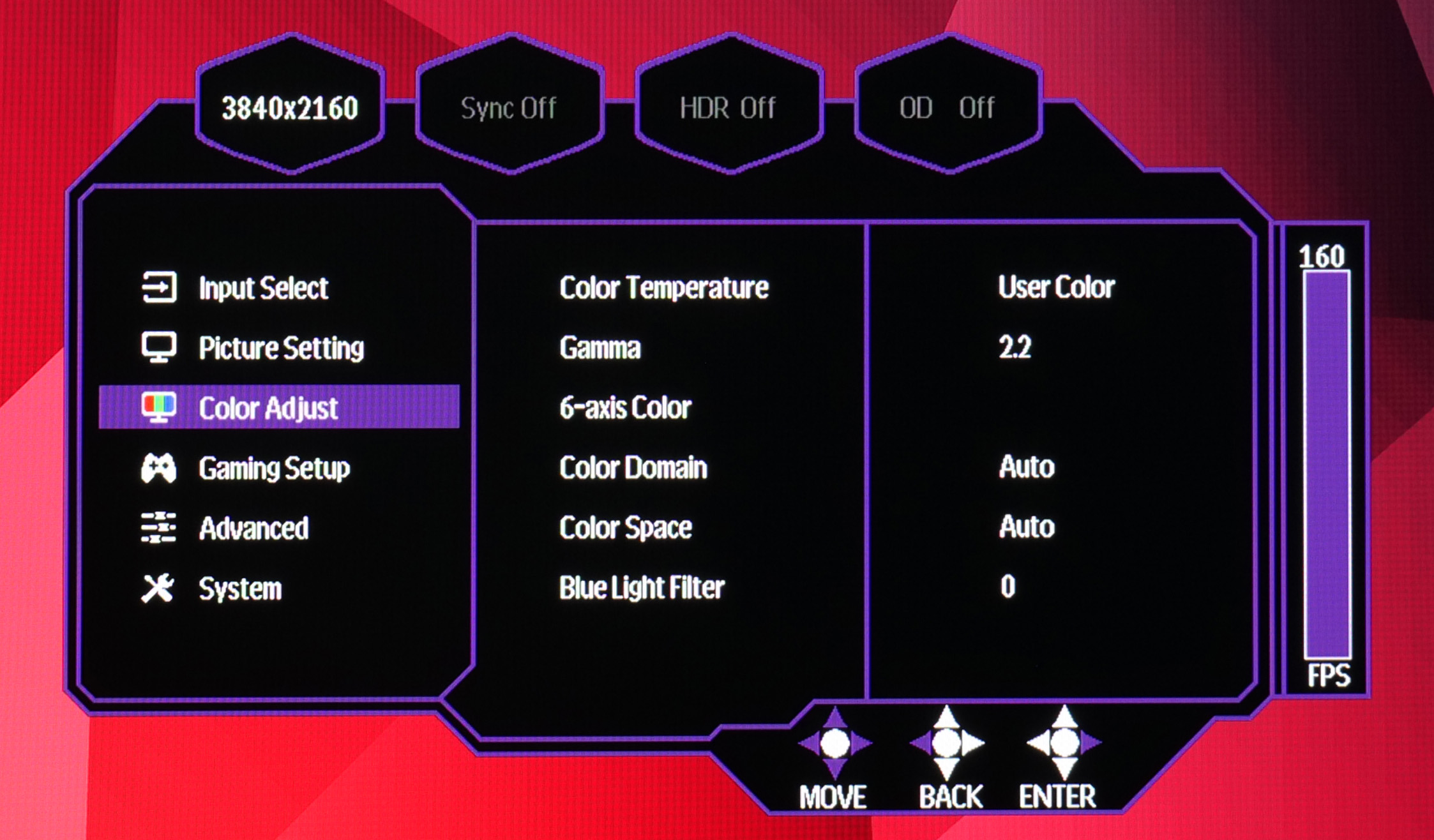
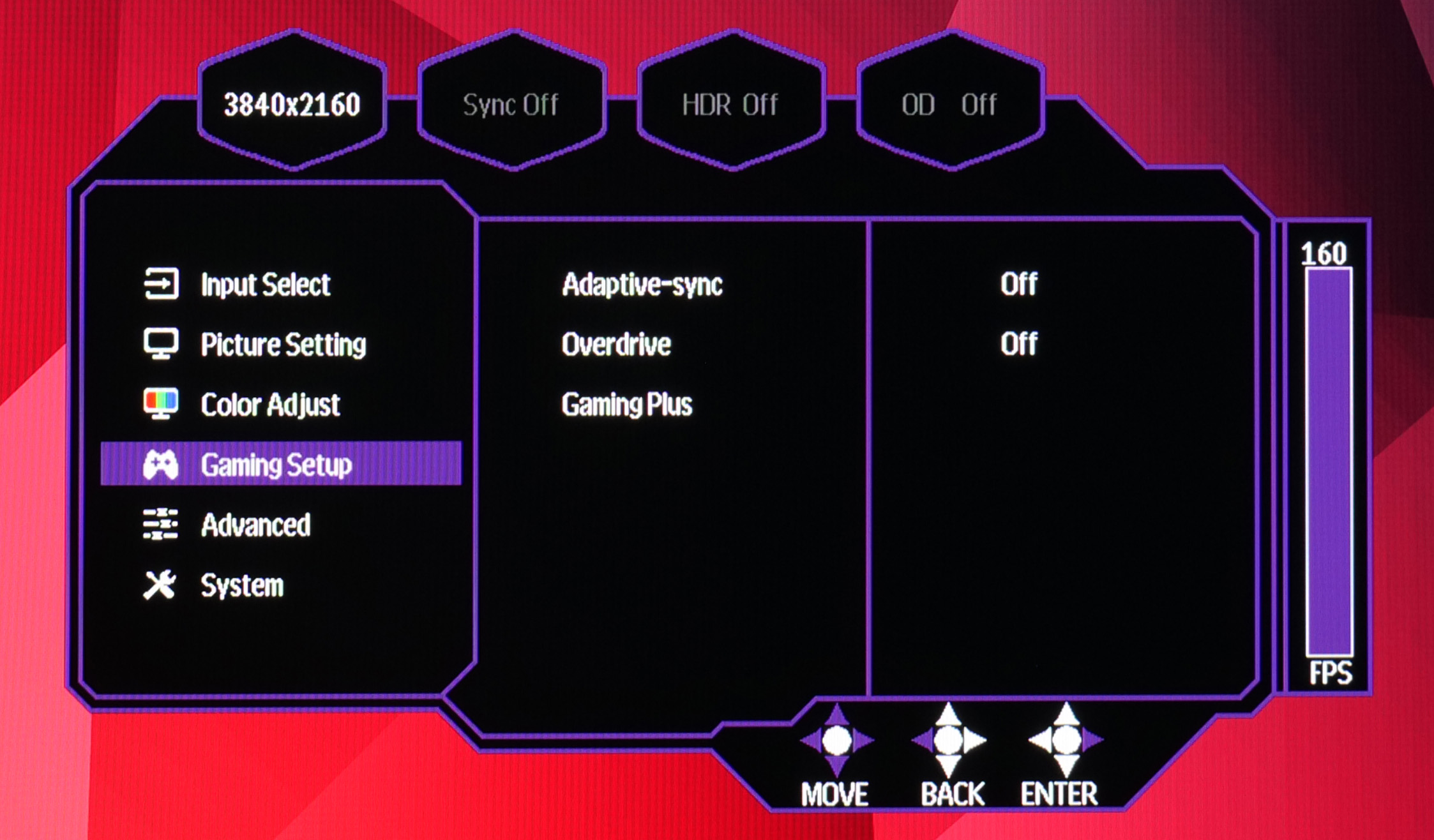
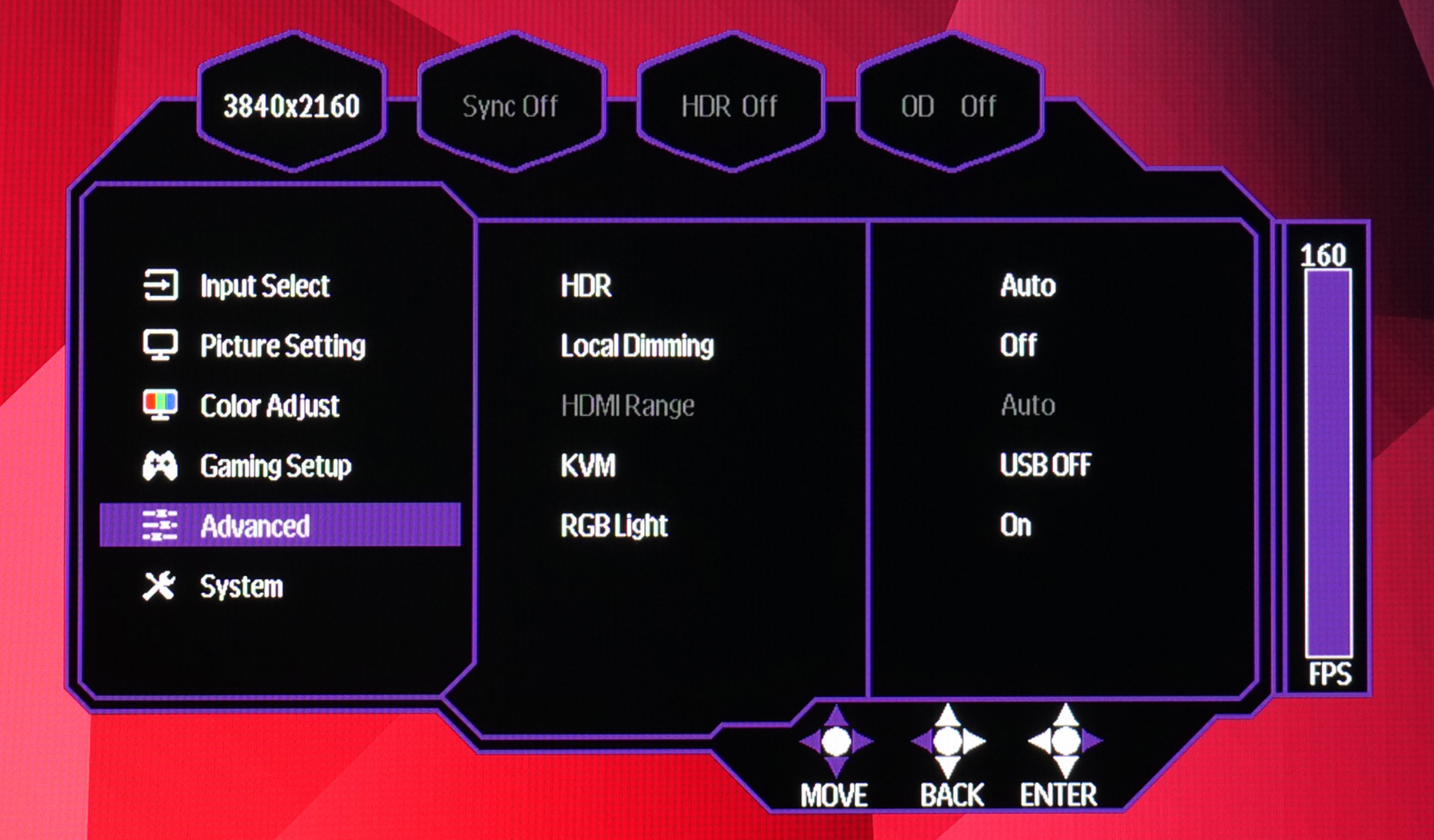
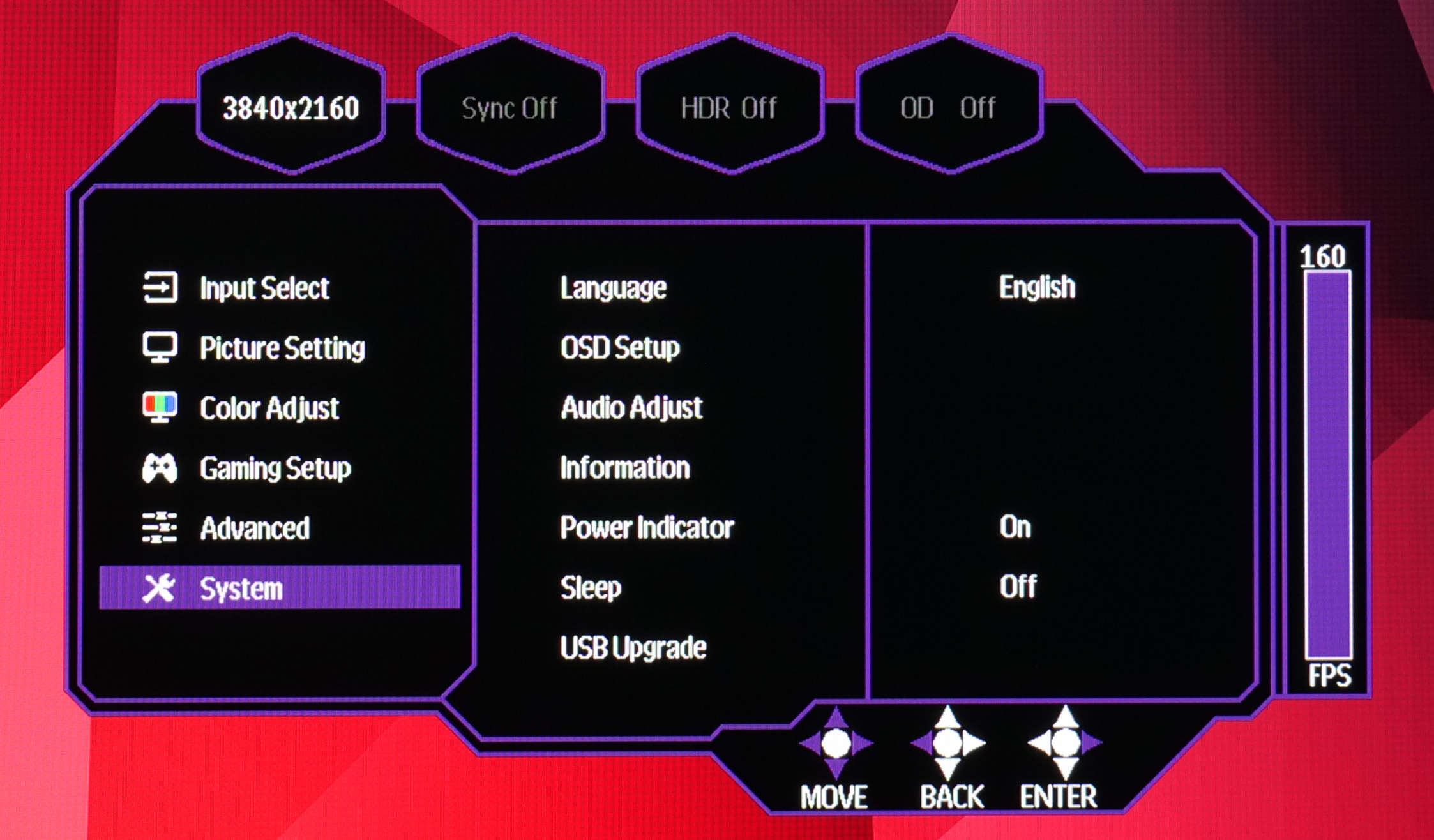
I found the overall layout of this OSD much more intuitive than previous Cooler Master menu systems. There's now a dedicated tab for gaming functionality, including adaptive sync, overdrive and various other features, including crosshair and on-screen timer. The menus are also fairly easy to navigate with the joystick, though I did notice an occasional slow-down when trying to navigate particularly quickly. The only other quirk is that ‘Enter' is mapped to pushing the joystick to the right, instead of clicking it in, which did take a bit of getting used to, but it's hardly the end of the world.
Our main test involves using a DataColor SpyderX Colorimeter to assess a display’s image quality. The device sits on top of the screen while the software generates colour tones and patterns, which it compares against predetermined values to work out how accurate the screen is.
The results show –
- A monitor’s maximum brightness in candelas or cd/m2 at various levels set in the OSD.
- A monitor’s contrast ratio at various brightness levels in the OSD.
- The brightness deviation across the panel.
- The black and white points.
- The colour accuracy, expressed as a Delta E ratio, with a result under 3 being fine for normal use, and under 2 being great for colour-accurate design work.
- The exact gamma levels, with a comparison against preset settings in the OSD.
We first run this test with the display in its default, out-of-the-box state, with all settings on default. We then calibrate the screen using the Spyder software and run the test again.
Pre-calibration
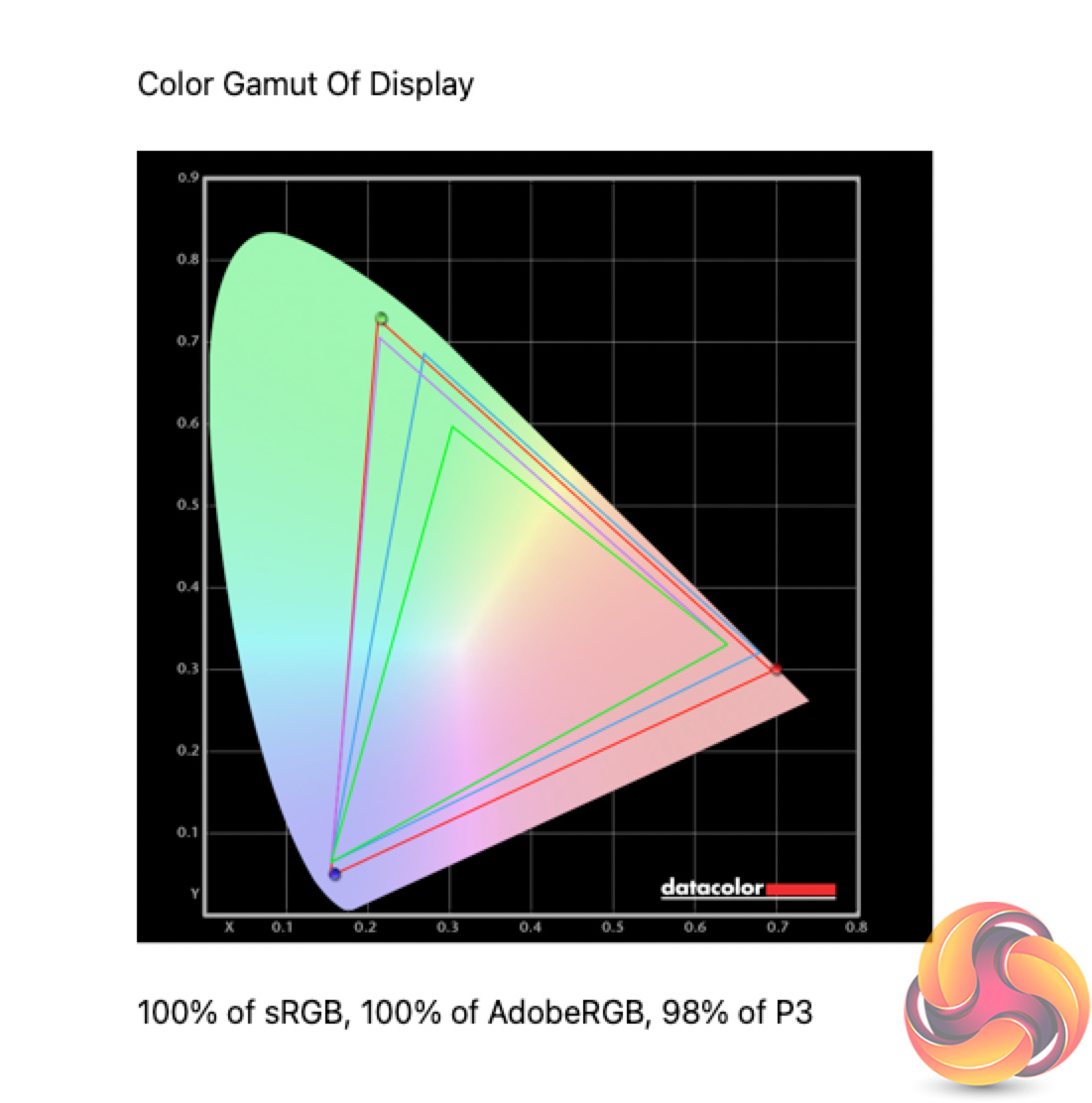
Gamut coverage is excellent for the GP27U, no doubt thanks to the Quantum Dot layer applied. It boasts 100% sRGB, 100% Adobe RGB and 98% DCI-P3, one of the best results we've ever seen.
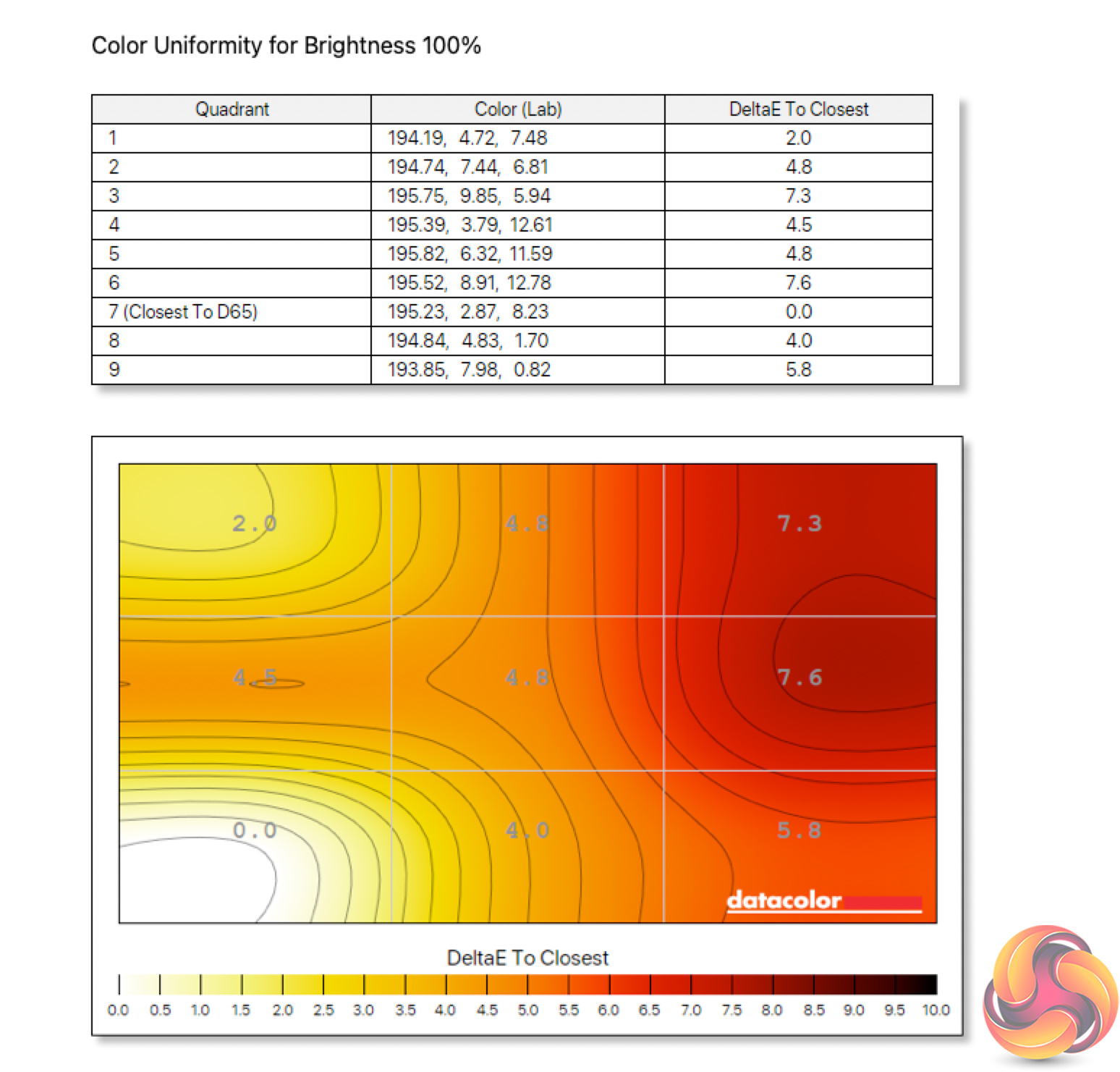
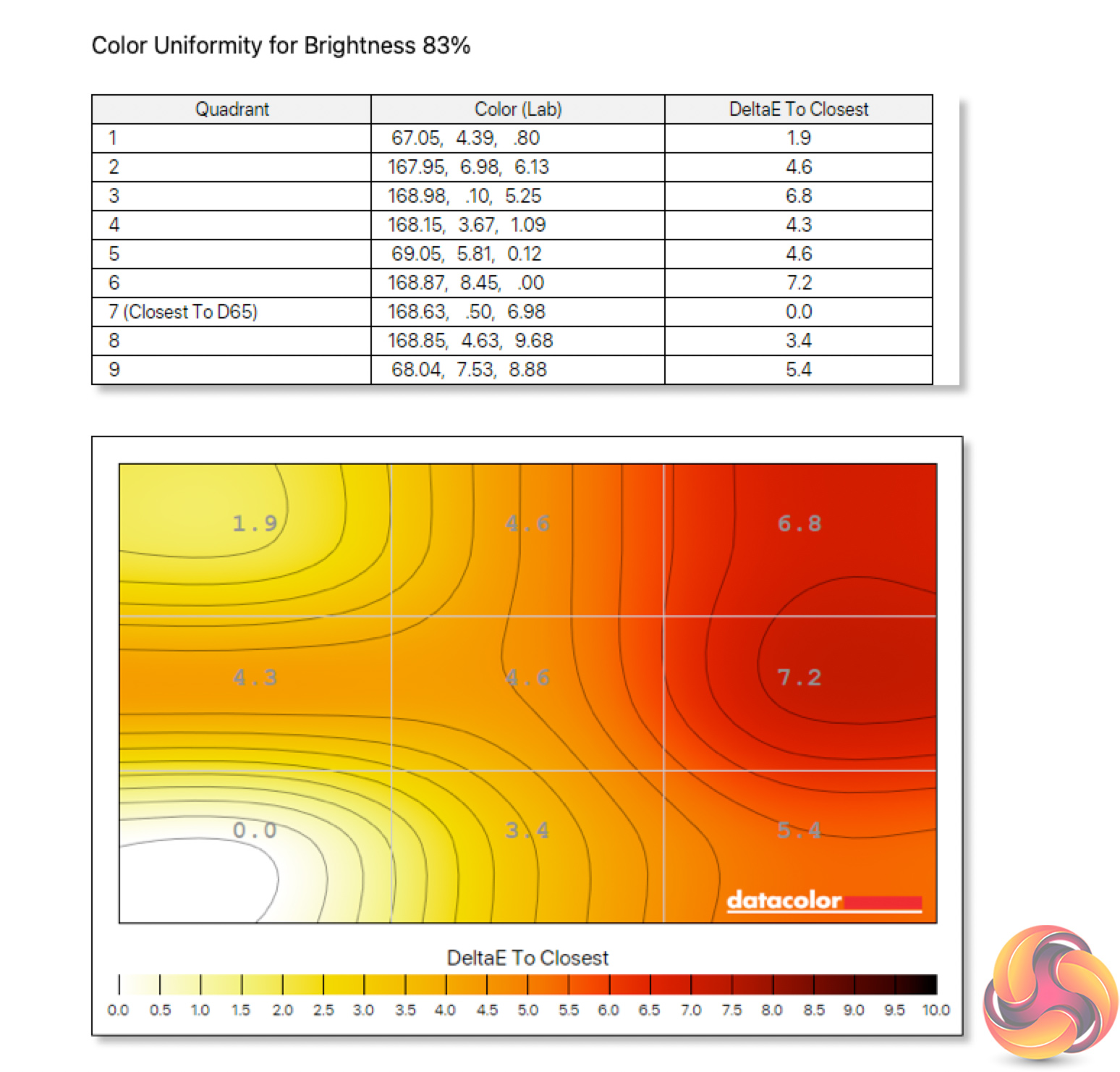
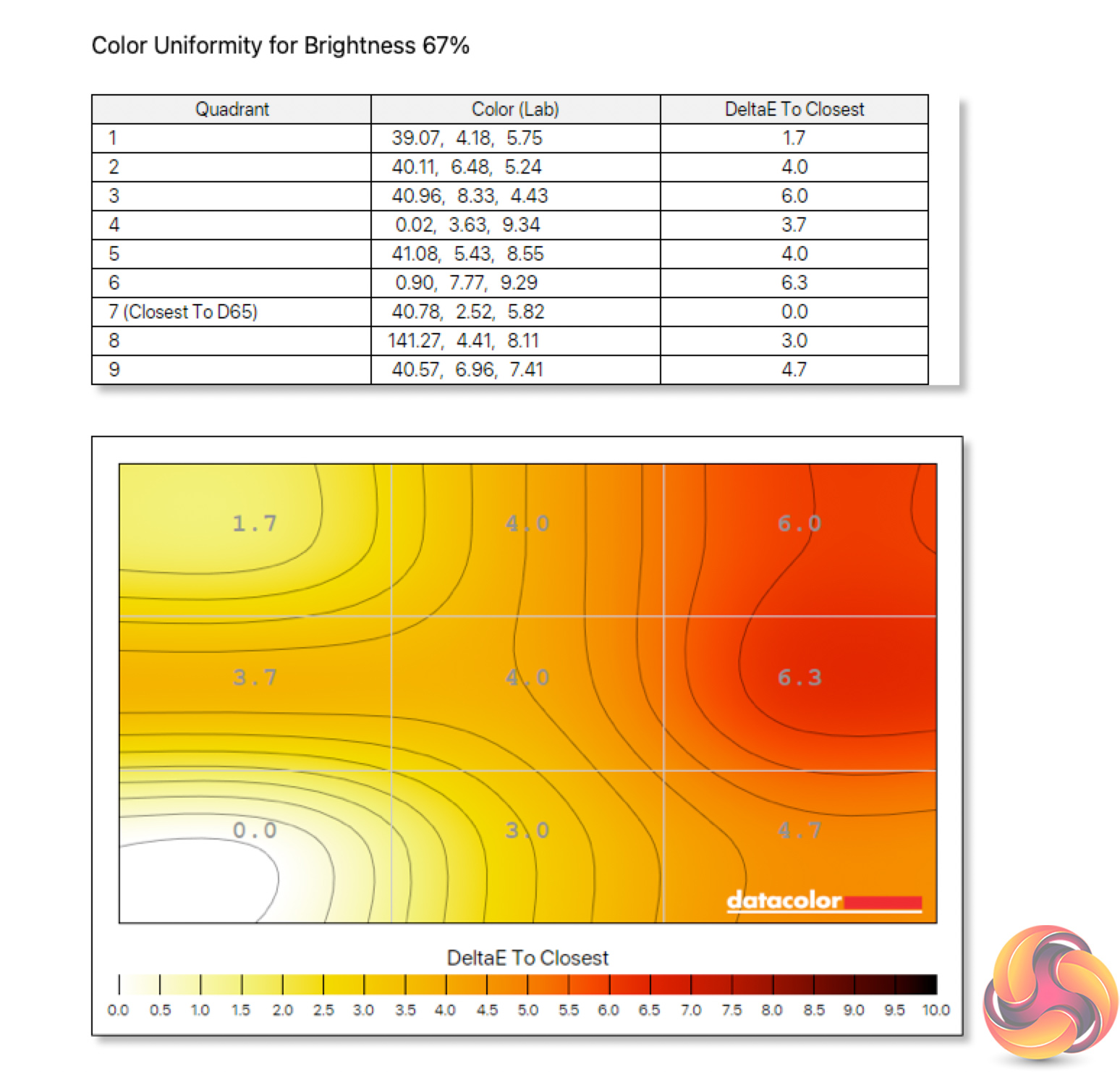
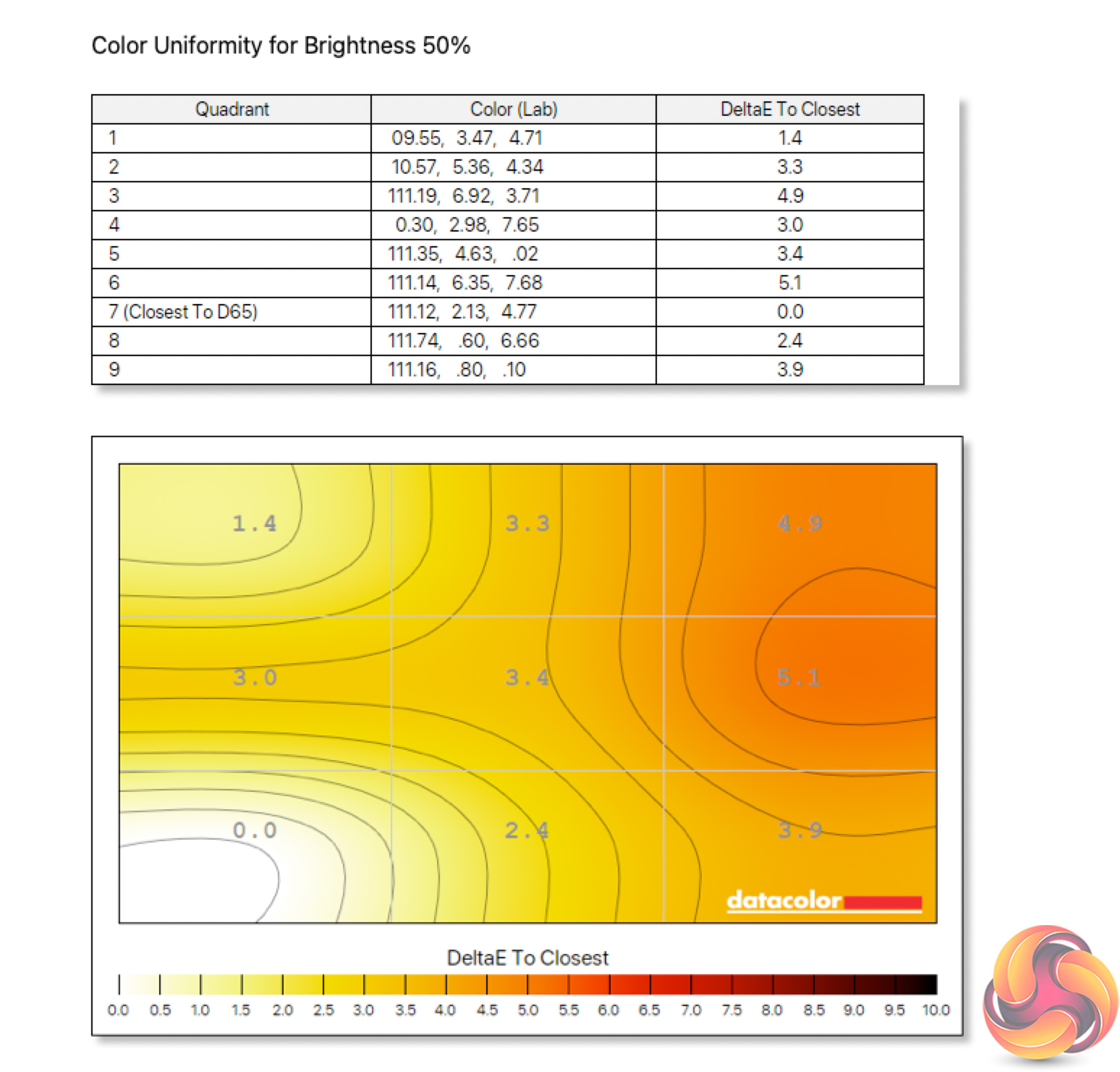
There is come aberrance when it comes to colour temperature uniformity however, particularly along the right-hand side. This gets less dramatic at lower brightness levels though, and considering the GP27U gets rather bright in SDR mode (as we see below), this is less of a problem than it otherwise would be as you're unlikely to be running at 100% brightness for regular usage.
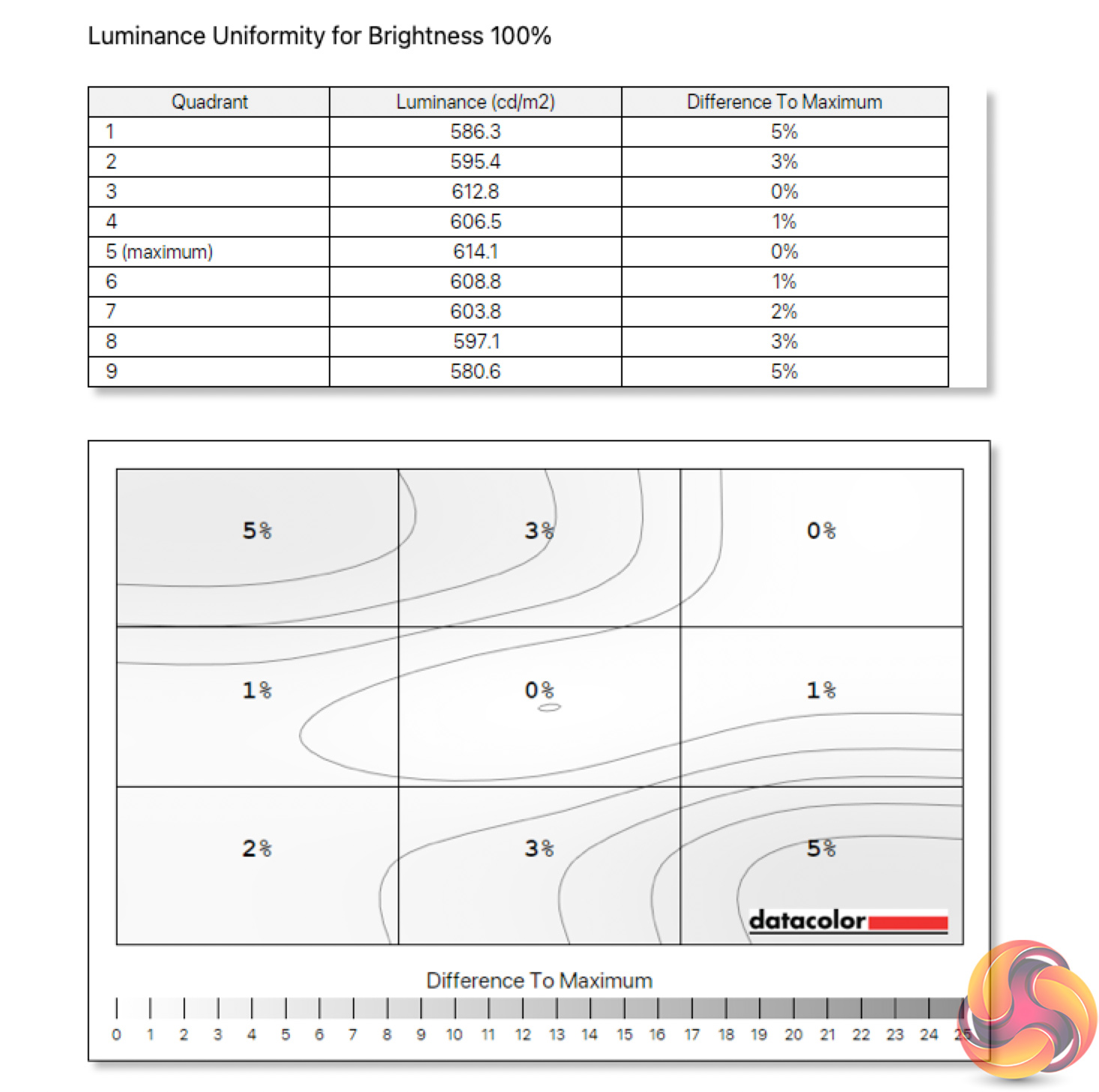
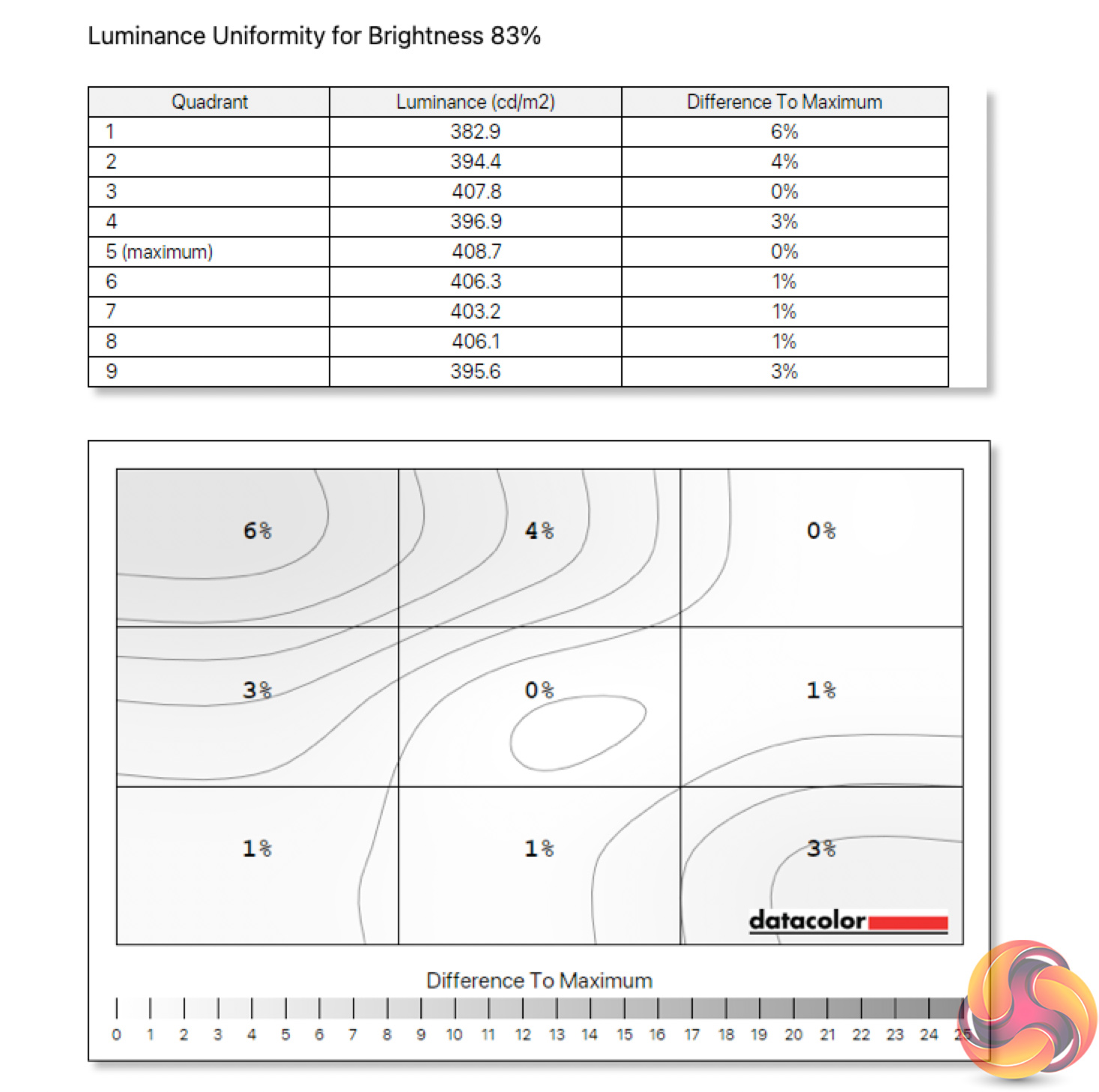
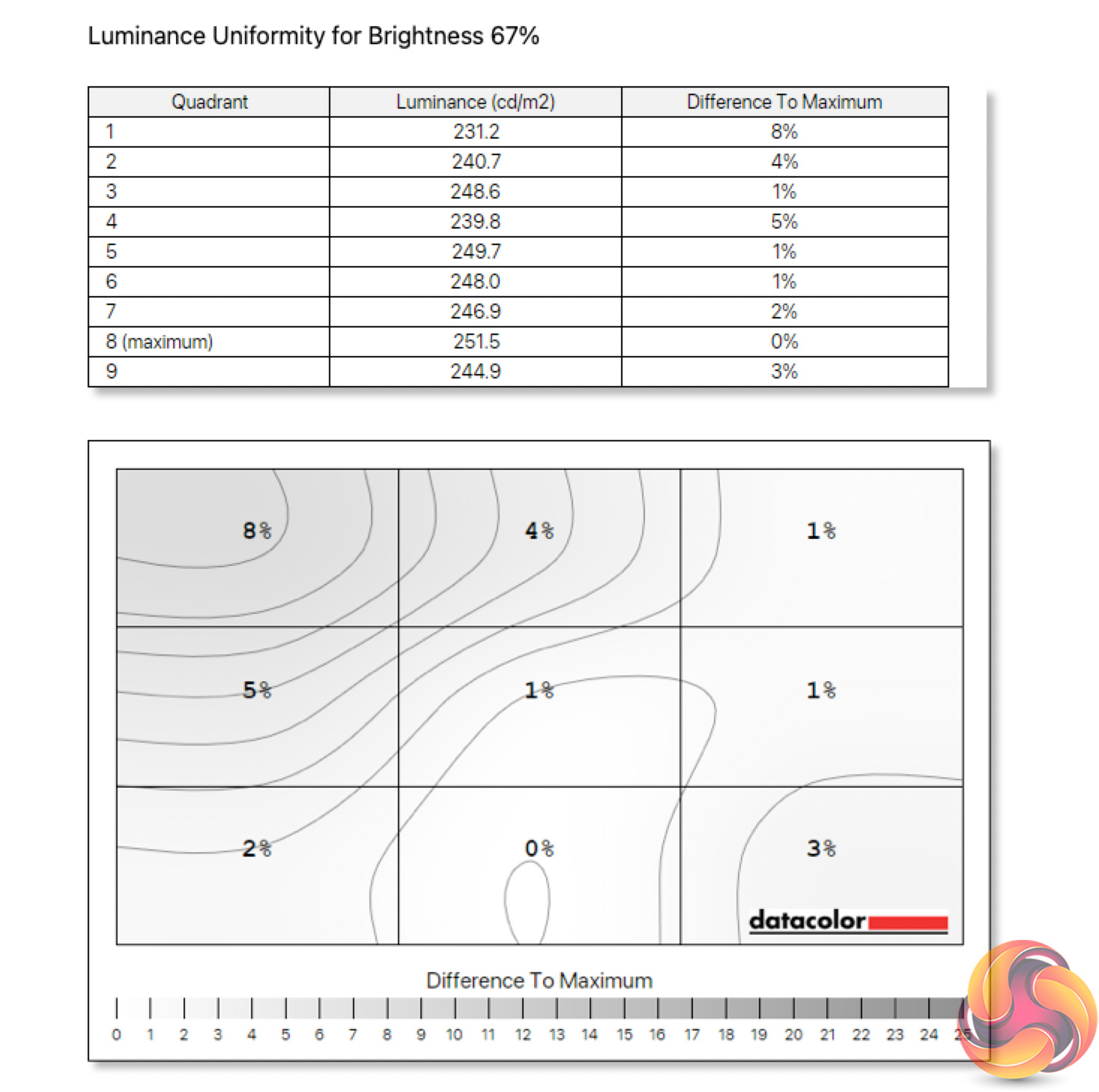
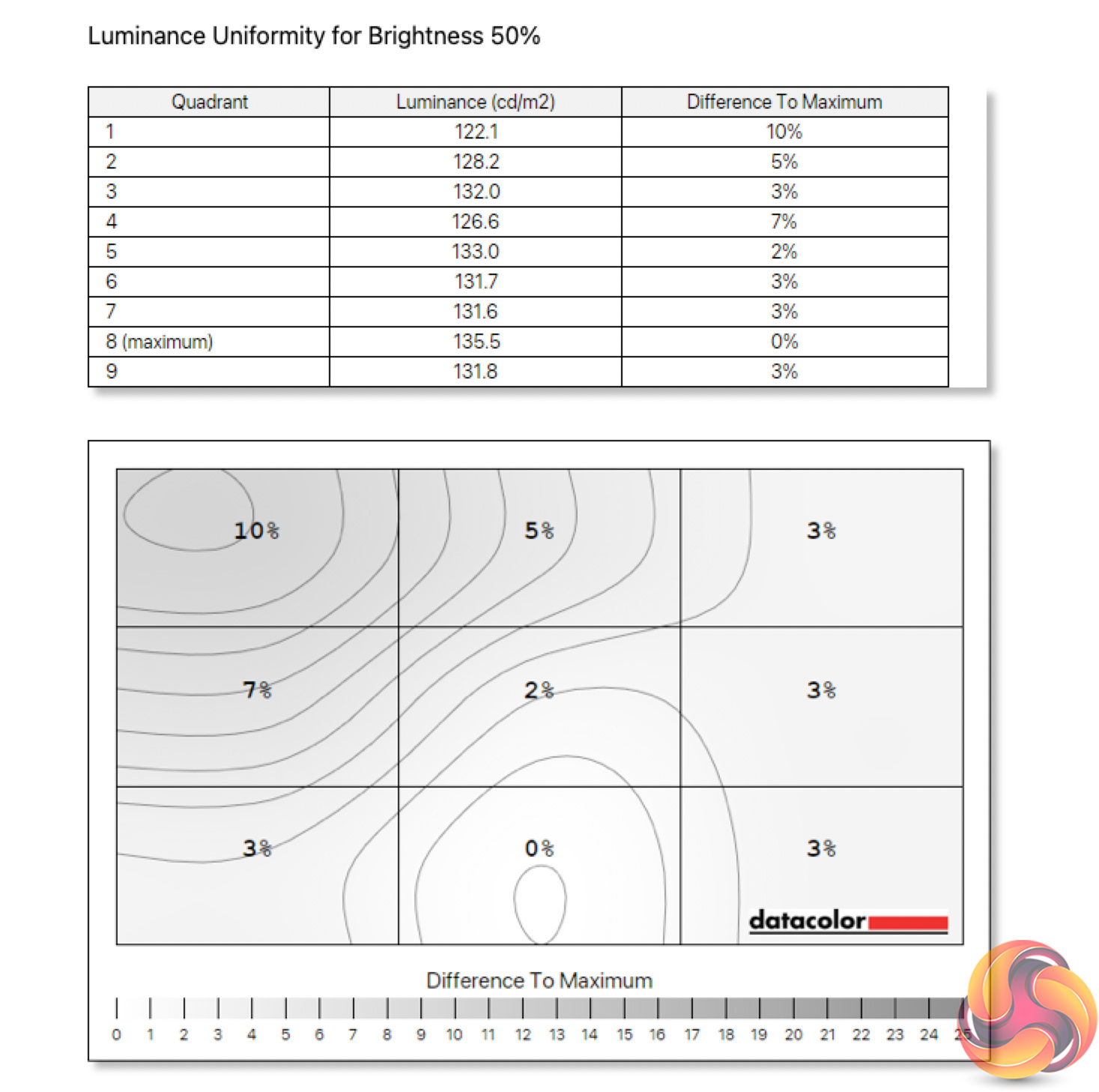
Luminance uniformity is very good across the board, likely due to the mini-LED backlight that is deployed. At 100% brightness for instance, we see 5% deviation at most. This does increase at lower brightness levels, but only to a maximum of 10% which is still decent.
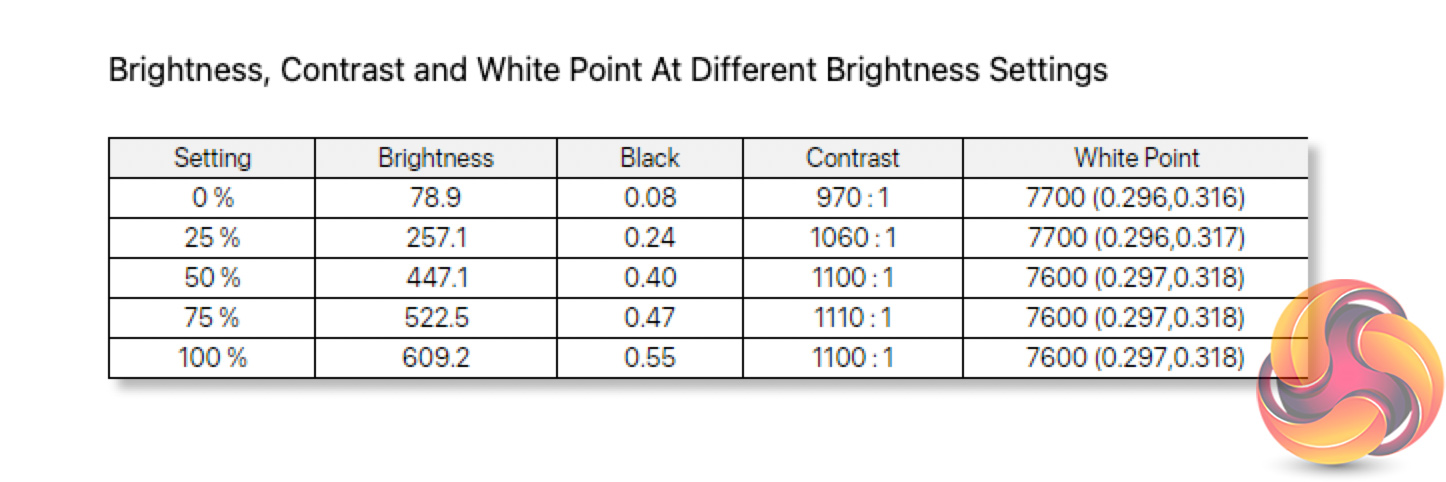
Speaking of brightness then, the GP27U was able to hit and even slightly exceed its rated luminance, with our measurements showing a peak of 609 nits in SDR. It's minimum of 79 nits could be better, but it's great to see just how bright it can get. Contrast is very decent for an IPS panel however, hitting 1100:1. It may not be at the same level as a VA panel, but as IPS screens go, this could be a lot worse.
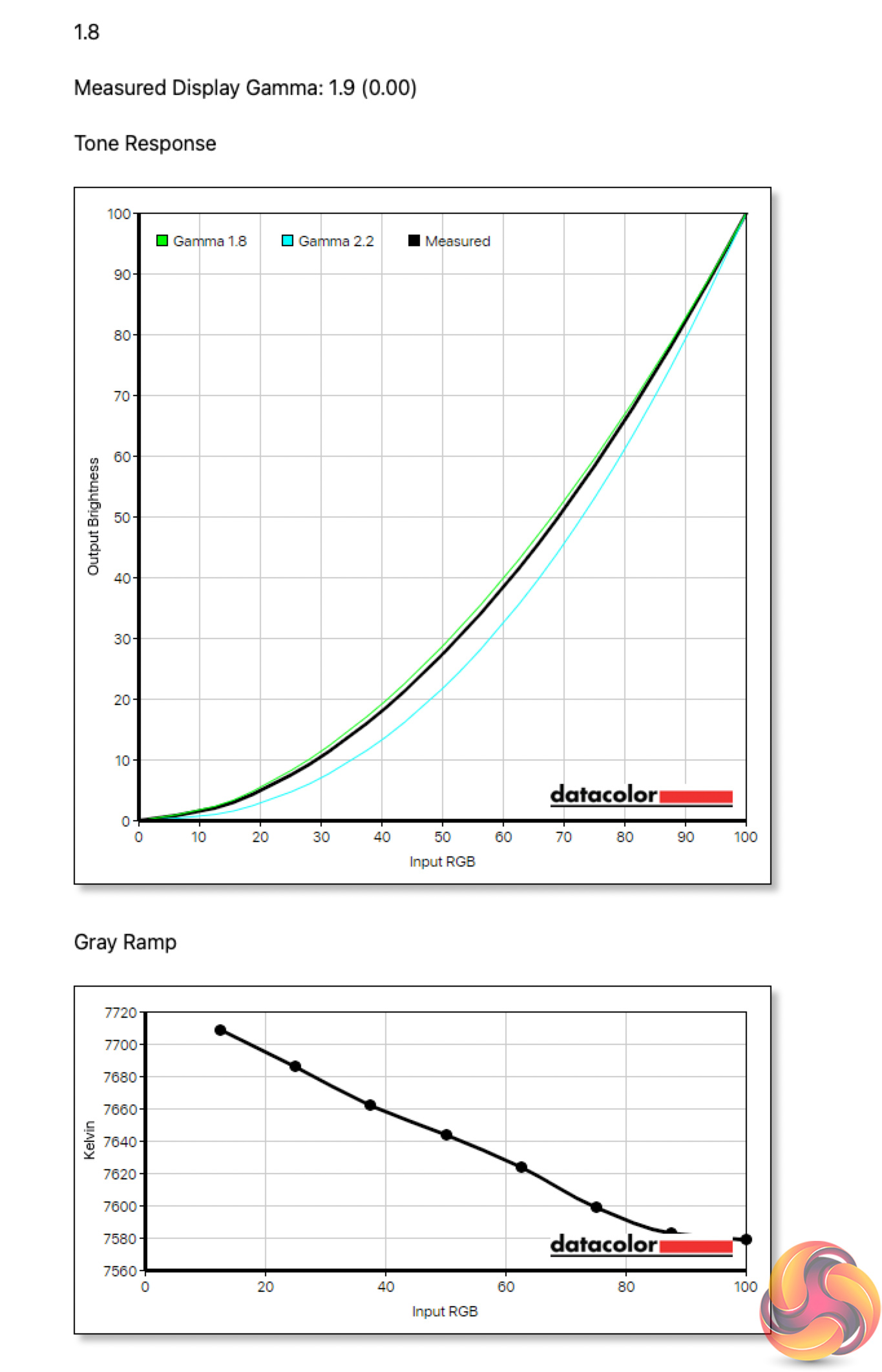
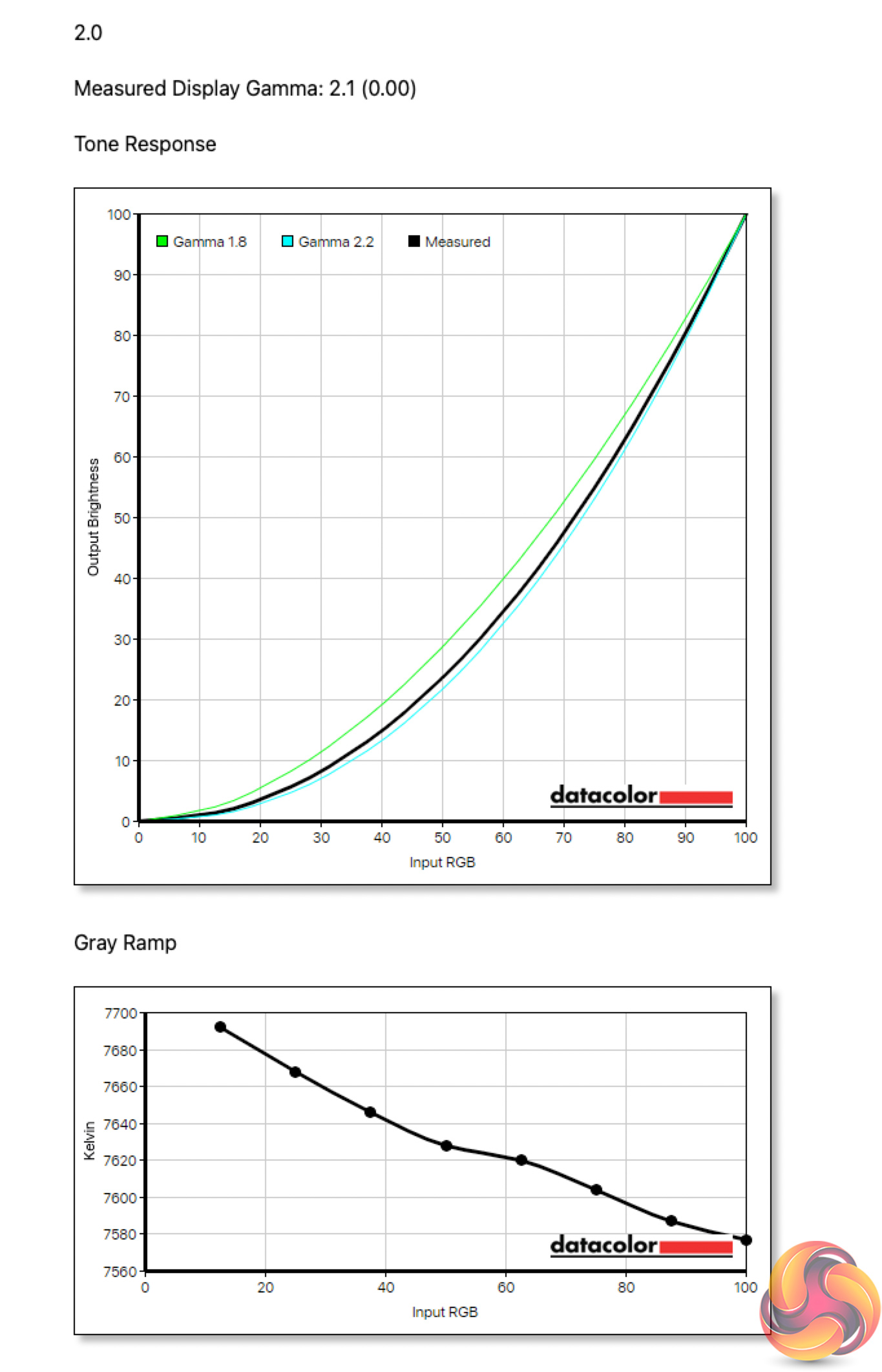
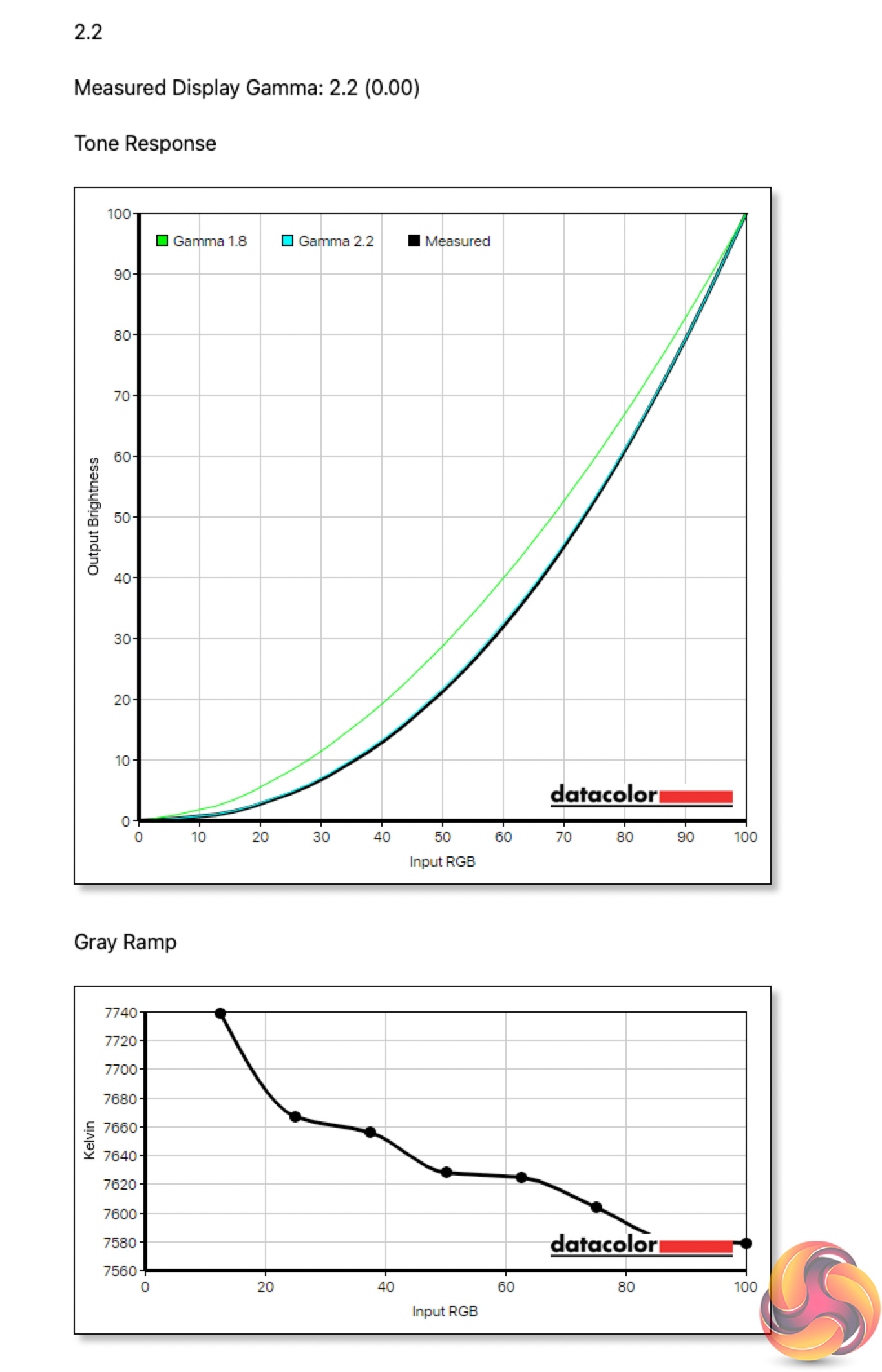
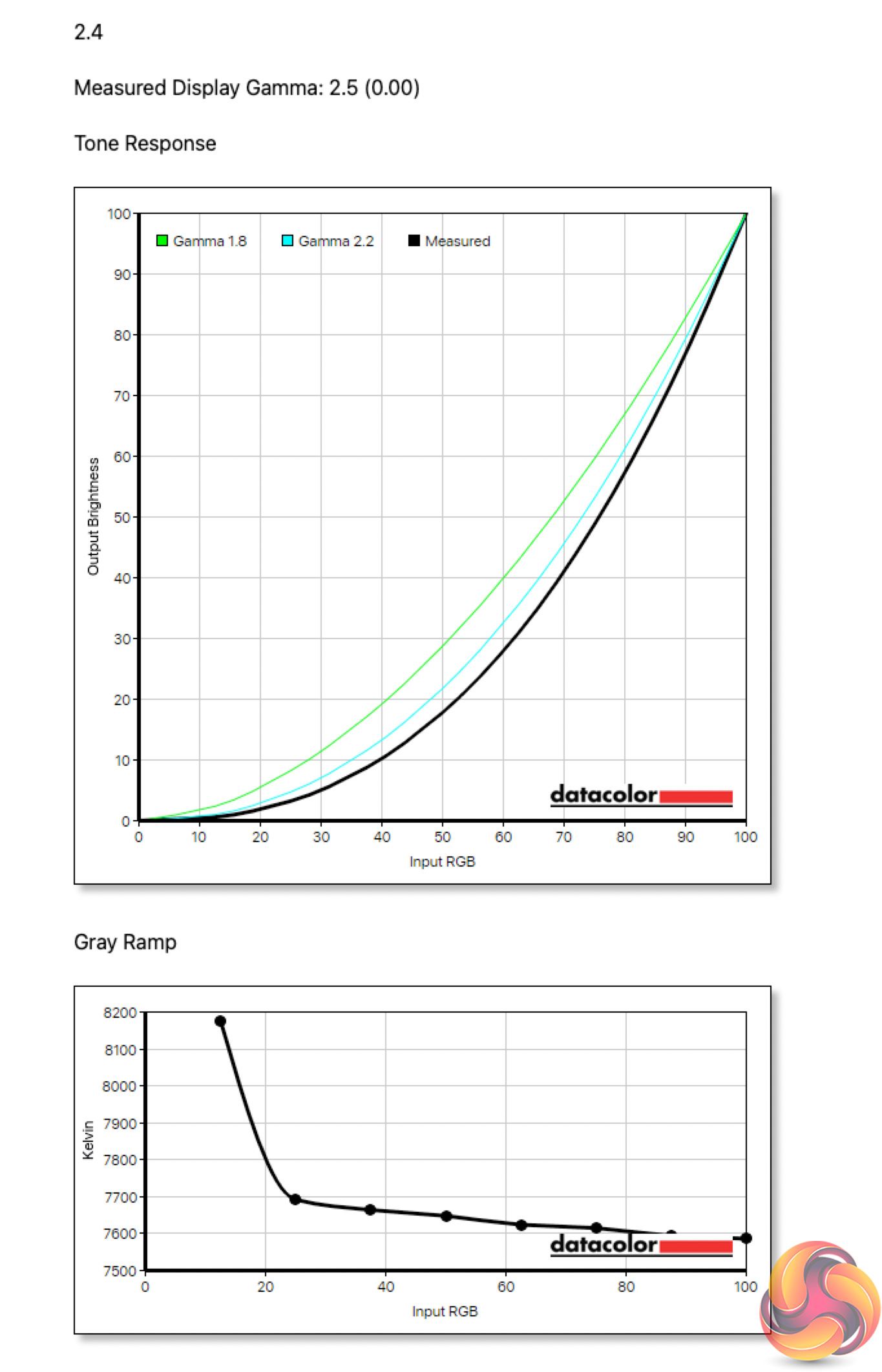
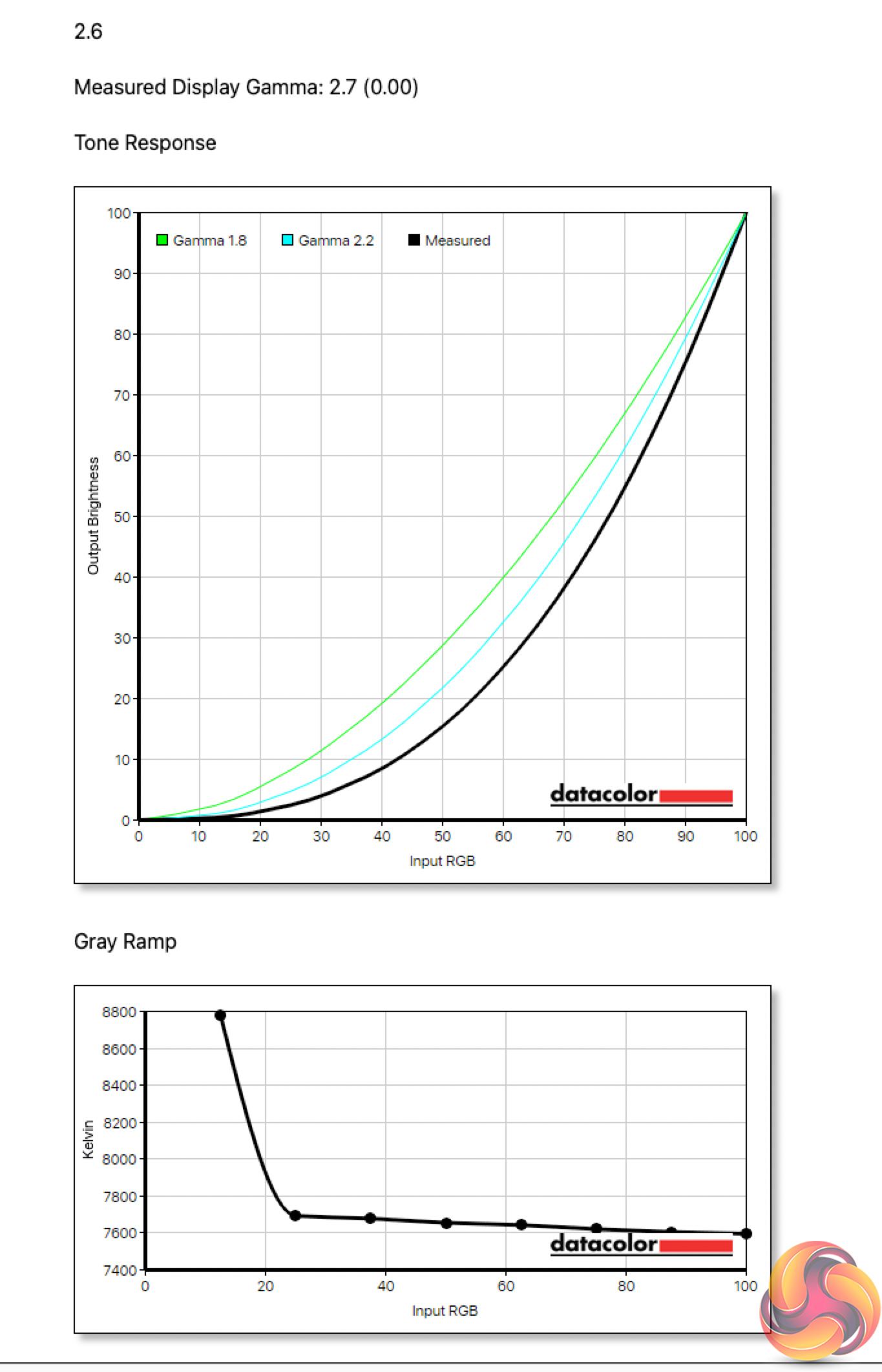
As for gamma, there's a total of five settings in the OSD. Each tends to read a slightly higher average gamma level than intended – with the Gamma 2.0 setting showing a value of 2.1 The good news is the Gamma 2.2 setting works as intended, offering an average gamma level of 2.2, so no complaints there.
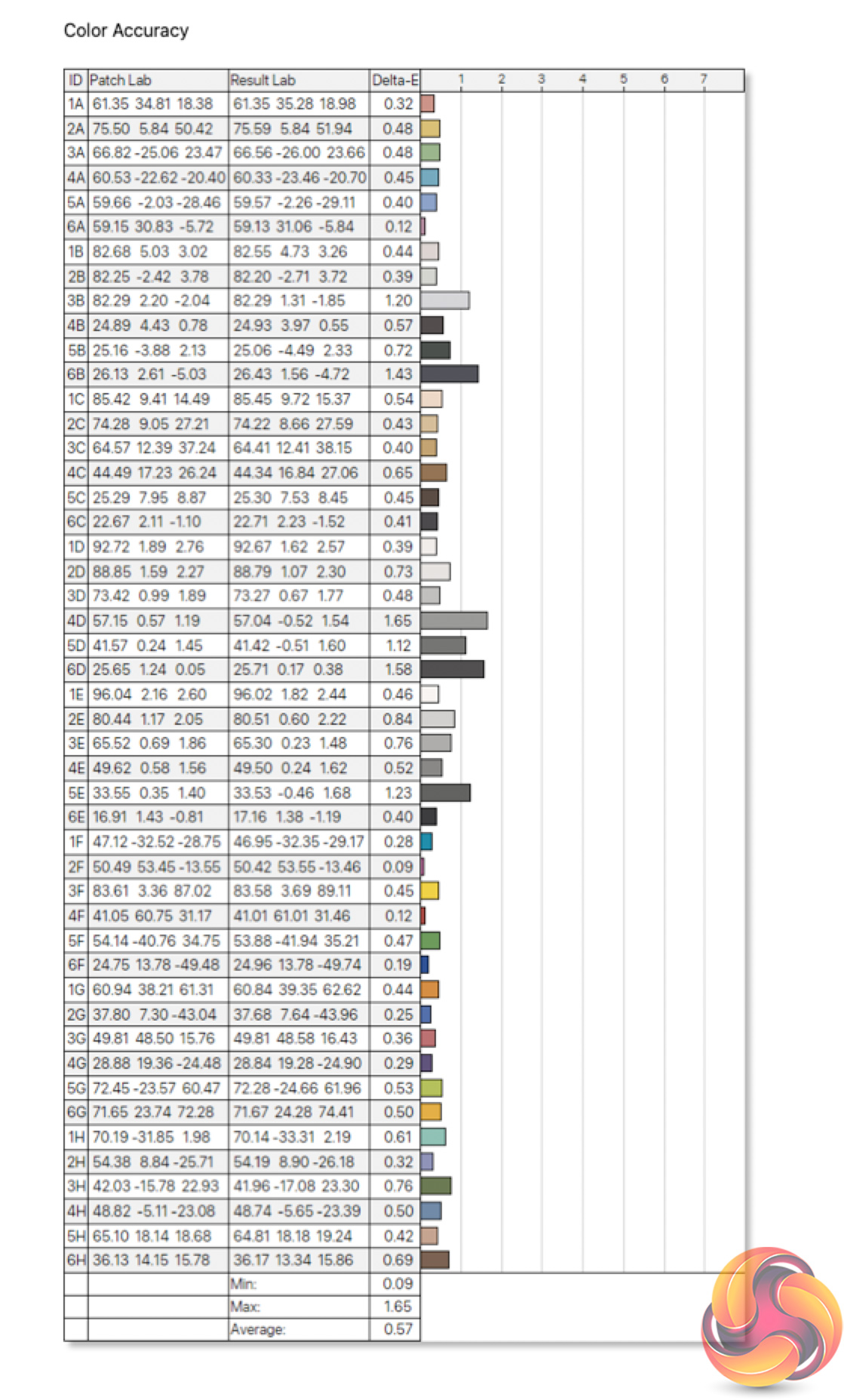
Lastly, out of the box colour accuracy is highly impressive. We recorded an average DeltaE of just 0.57, with a maximum of 1.65. This is one of the best results we've ever seen, so big kudos to Cooler Master here.
Post-calibration
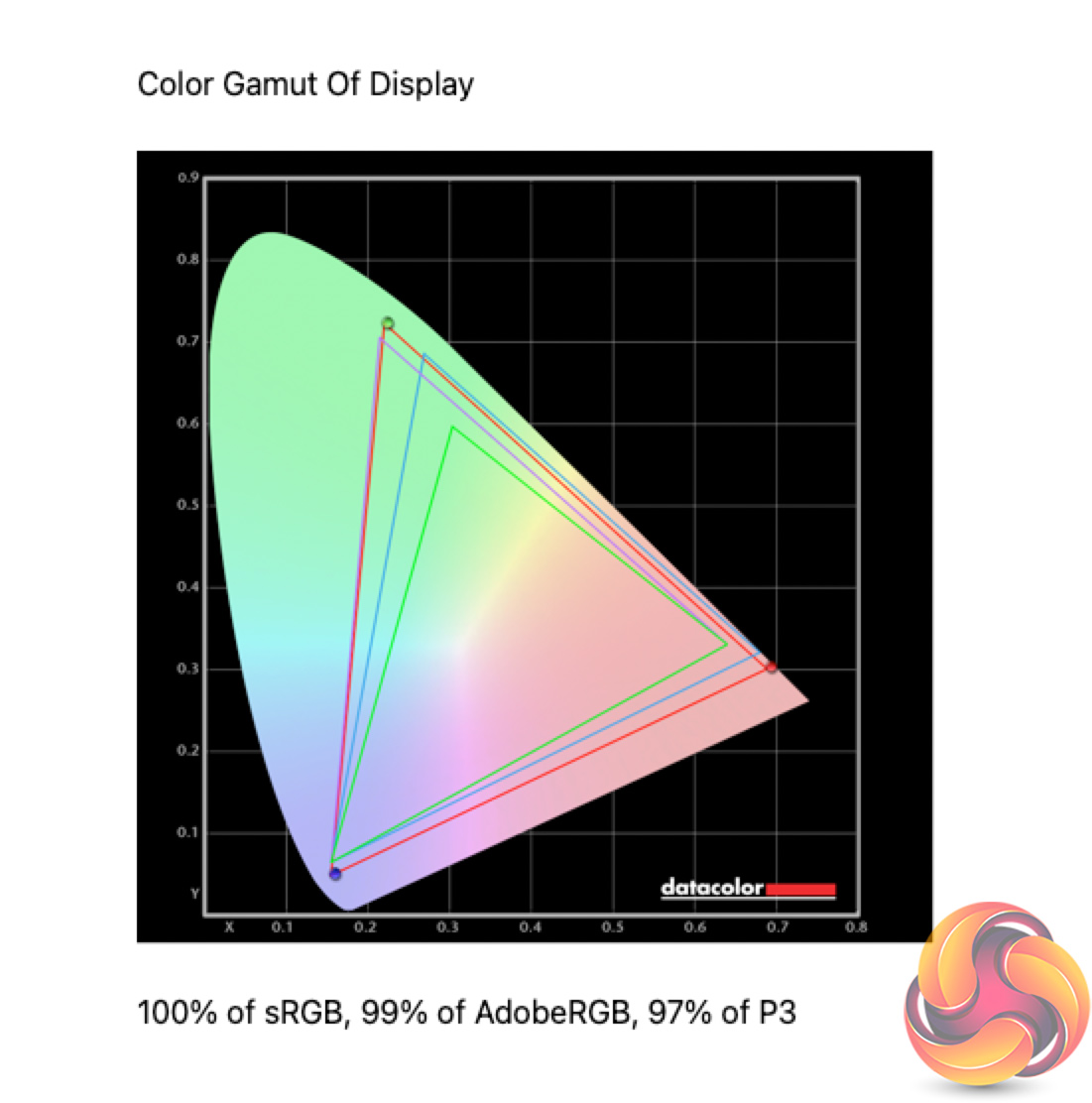
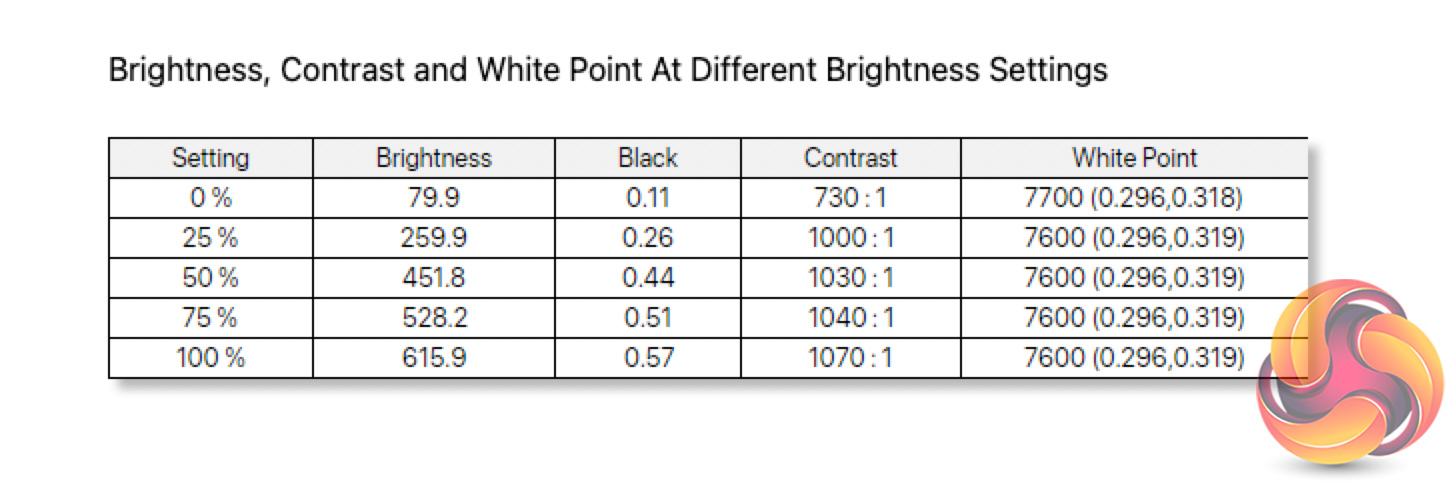
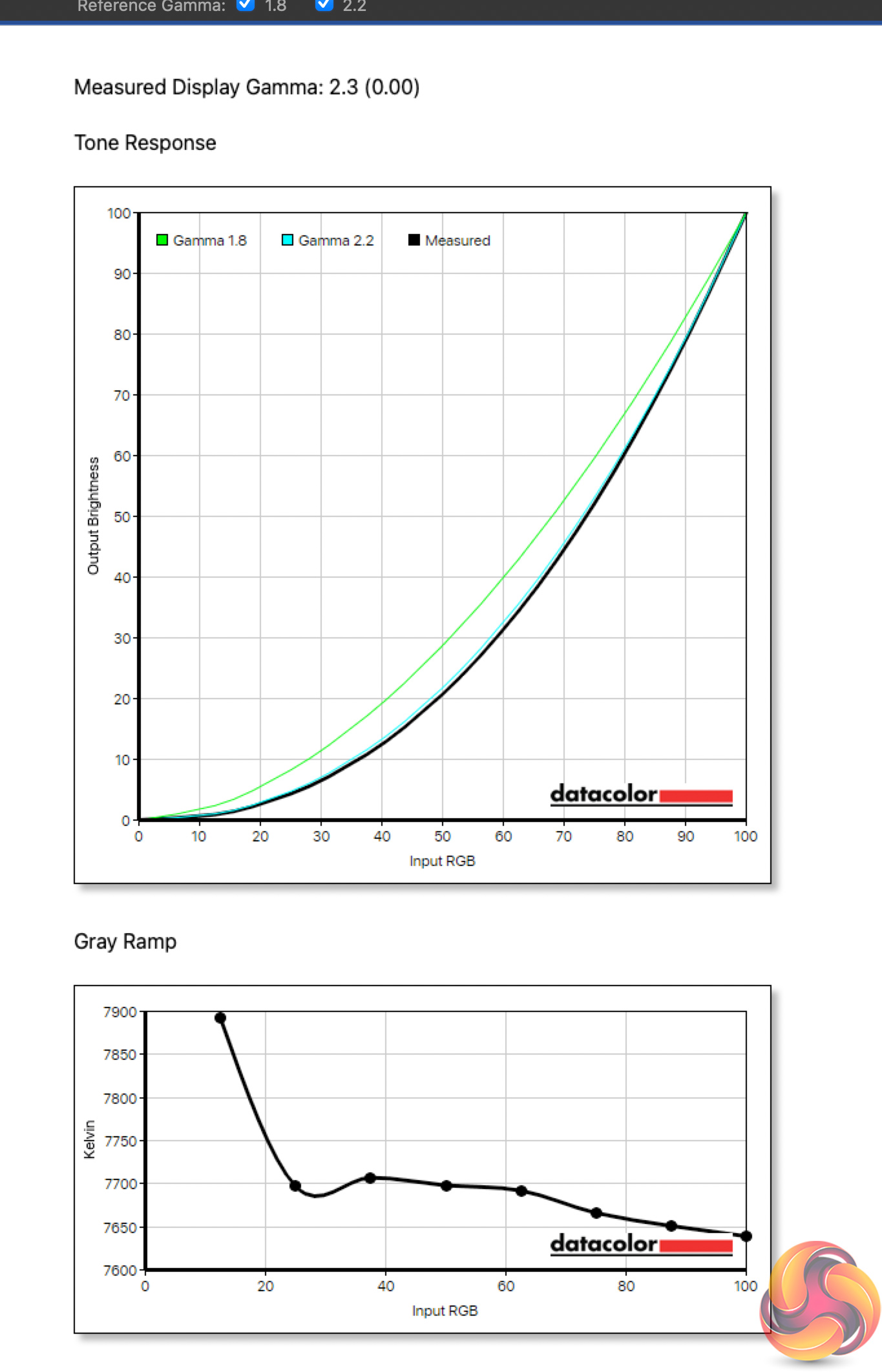
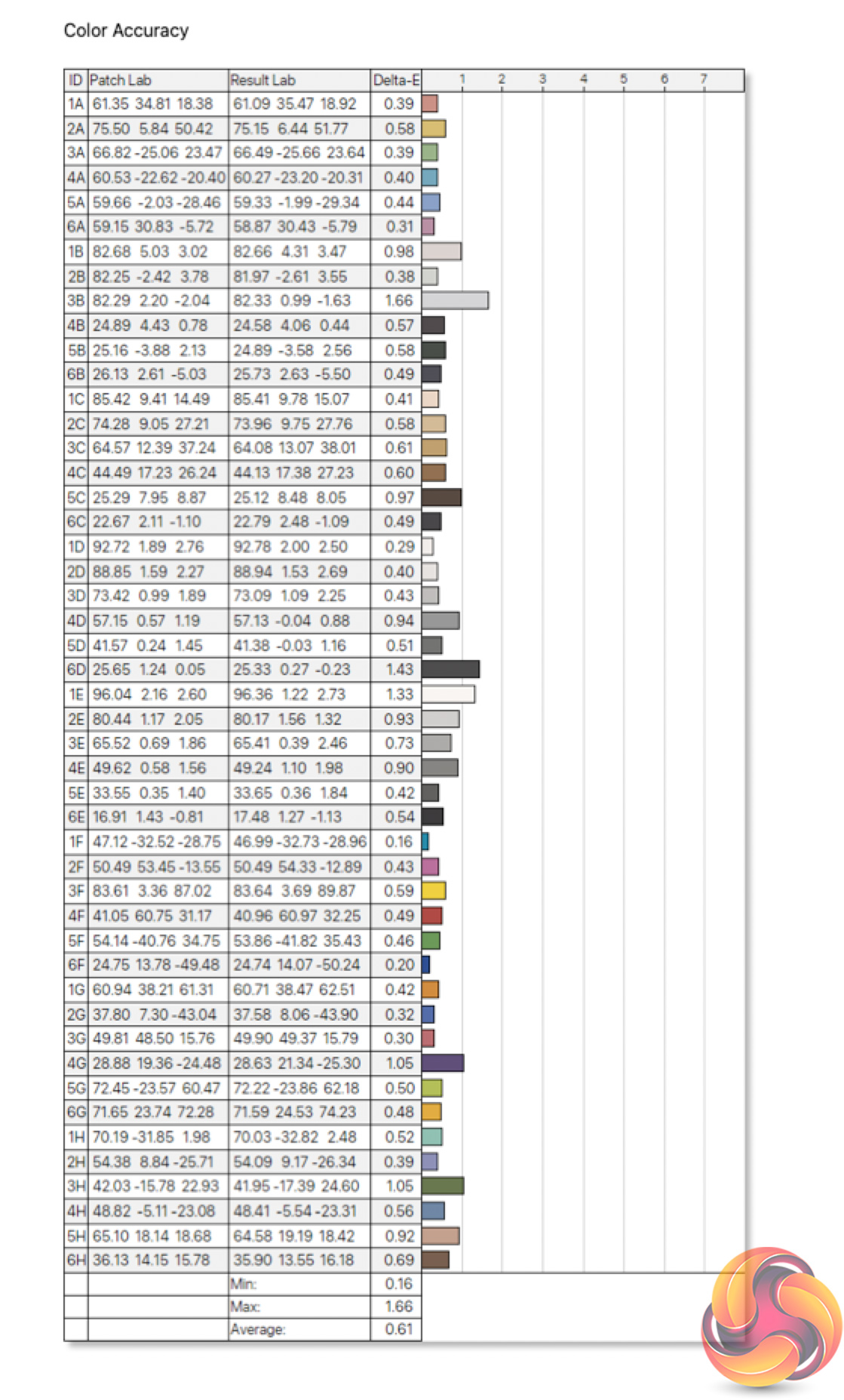
As always, we calibrated the screen and re-tested a few key metric, but honestly for gamers this isn't worth doing. Very little changed, and even the colour accuracy stayed about the same.
Monitor response time testing is a new addition to our reviews, where we use the Open Source Response Time Tool (OSRTT), developed by TechTeamGB. This measures grey-to-grey response times and presents the results in a series of heatmaps, the style of which you may be familiar with from other reviews.
Initial Response Time is the time taken for the panel to transition from one colour to another, where lower values are better. We present the initial response time, so overshoot is not taken into account and is measured separately. We use a fixed RGB 5 tolerance for each transition.
Overshoot is the term given for when a monitor's transition exceeds or goes beyond its target value. So if a monitor was meant to transition from RGB 0 to RGB 55, but it hits RGB 60 before settling back down at RGB 55, that is overshoot. This is presented as RGB values in the heatmaps – i.e. how many RGB values past the intended target were measured.
Visual Response Rating is a metric designed to ‘score' a panel's visual performance, incorporating both response times and overdrive. Fast response times with little to no overshoot will score well, while slow response times or those with significant overshoot will score poorly.
160Hz
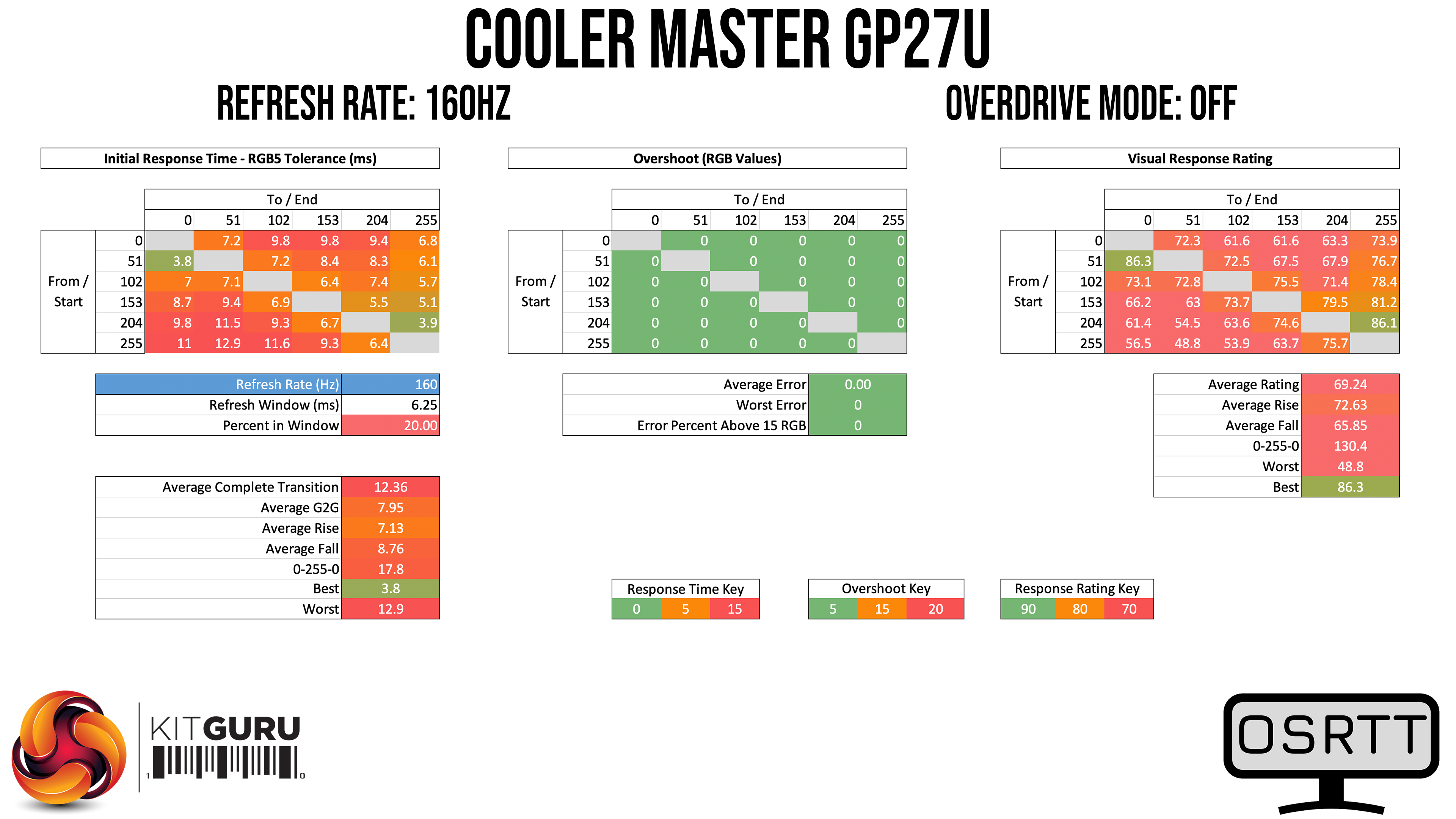
Starting our testing at 160Hz with overdrive turned off, an average grey-to-grey response time of 7.95ms isn't actually that bad. Of course, you'd likely not use this option, but it does indicate a certain level of overall panel quality.
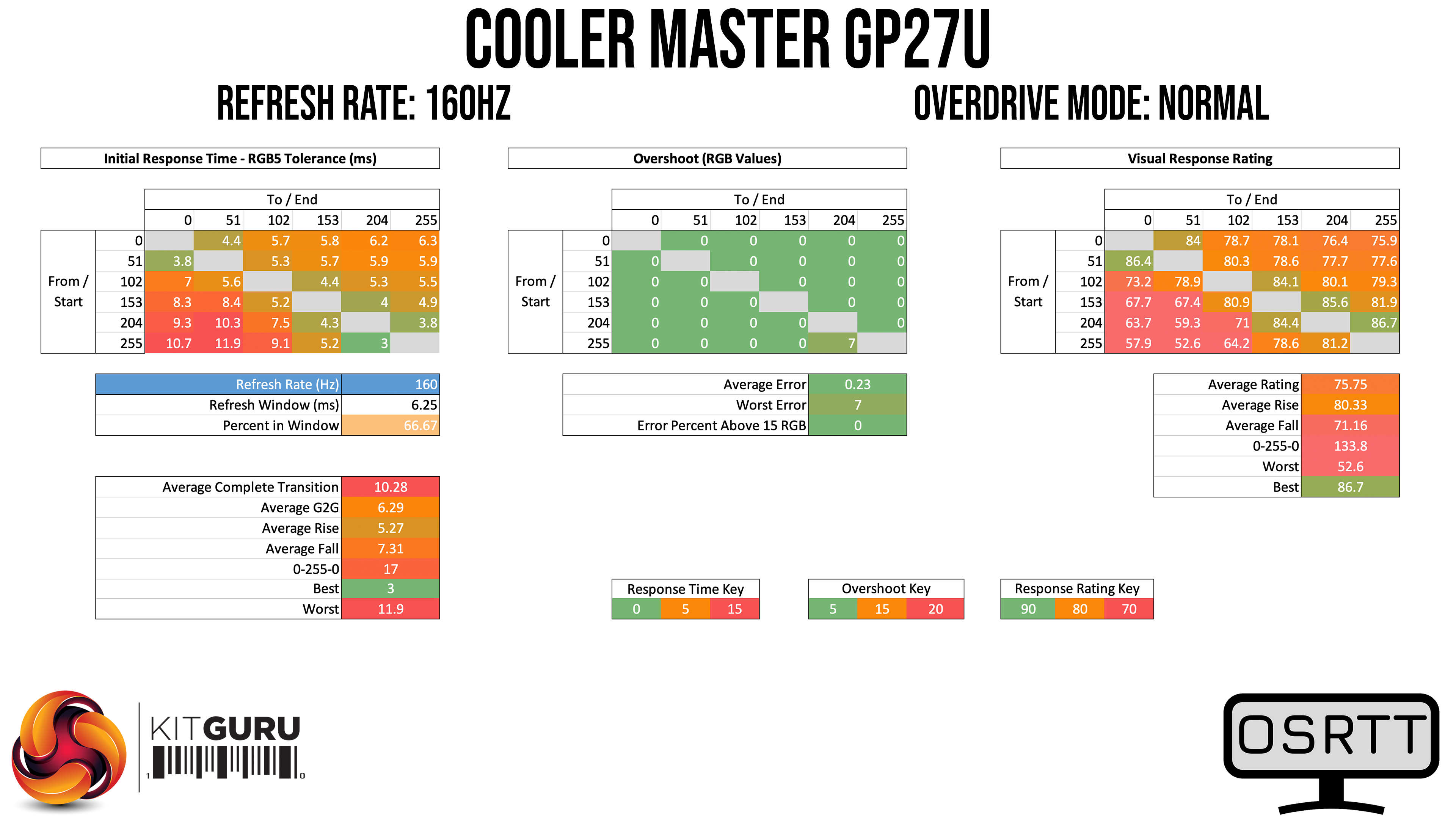
Stepping up to the Normal overdrive mode improves things noticeably, with a new average of 6.29ms. The display isn't more than 67% refresh-rate compliant using this mode, but there's still no overshoot (apart from one pesky transition).
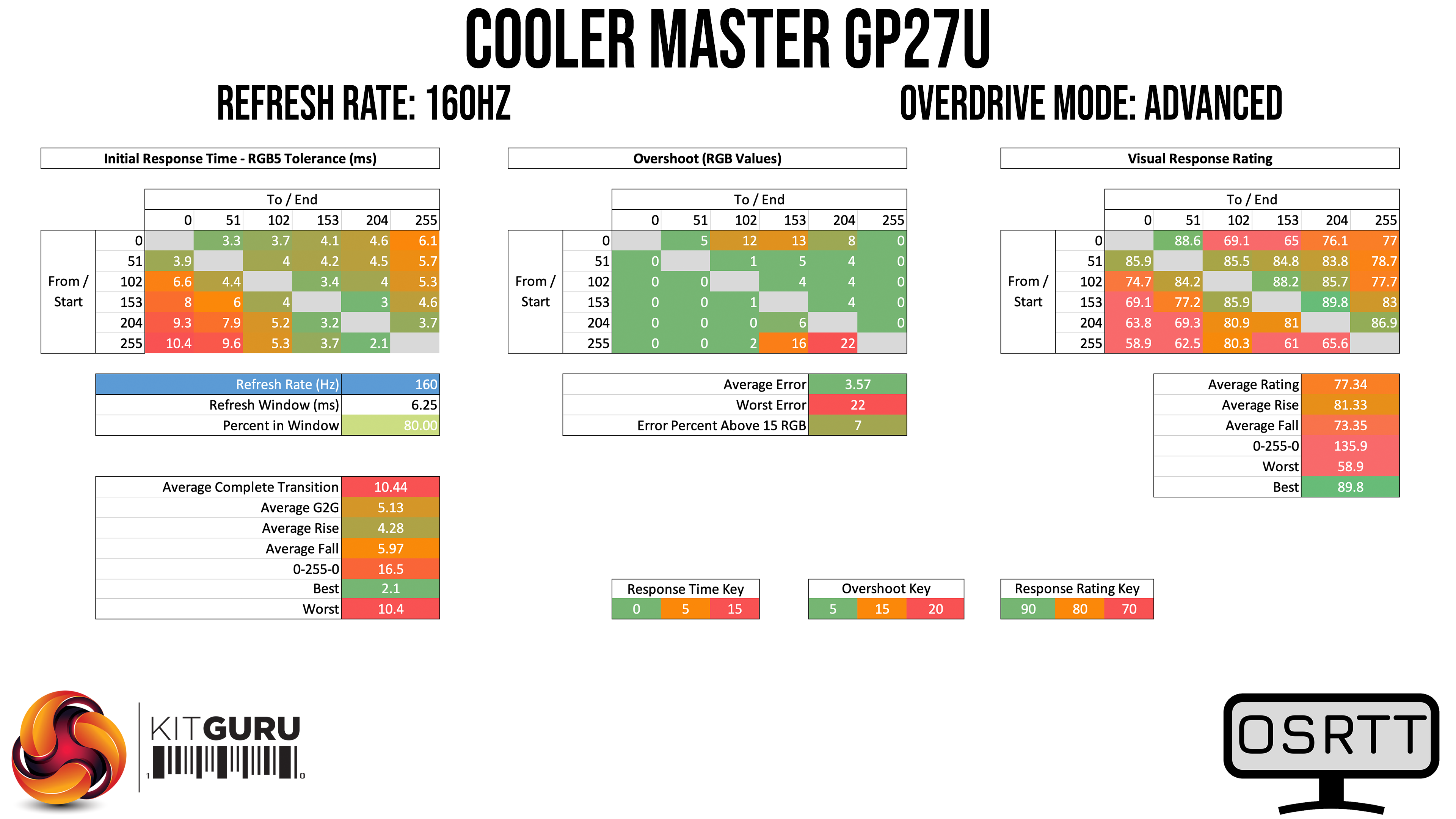
The Advanced mode is the most usable at 160Hz. Here we can see a decent average response time of 5.13ms, despite only a small amount of overshoot. The fall times do seem to be most problematic for the GP27U, particular transitions from RGB 255 (as seen in the bottom left corner) which hurt the average overall, but visually the performance is very acceptable.
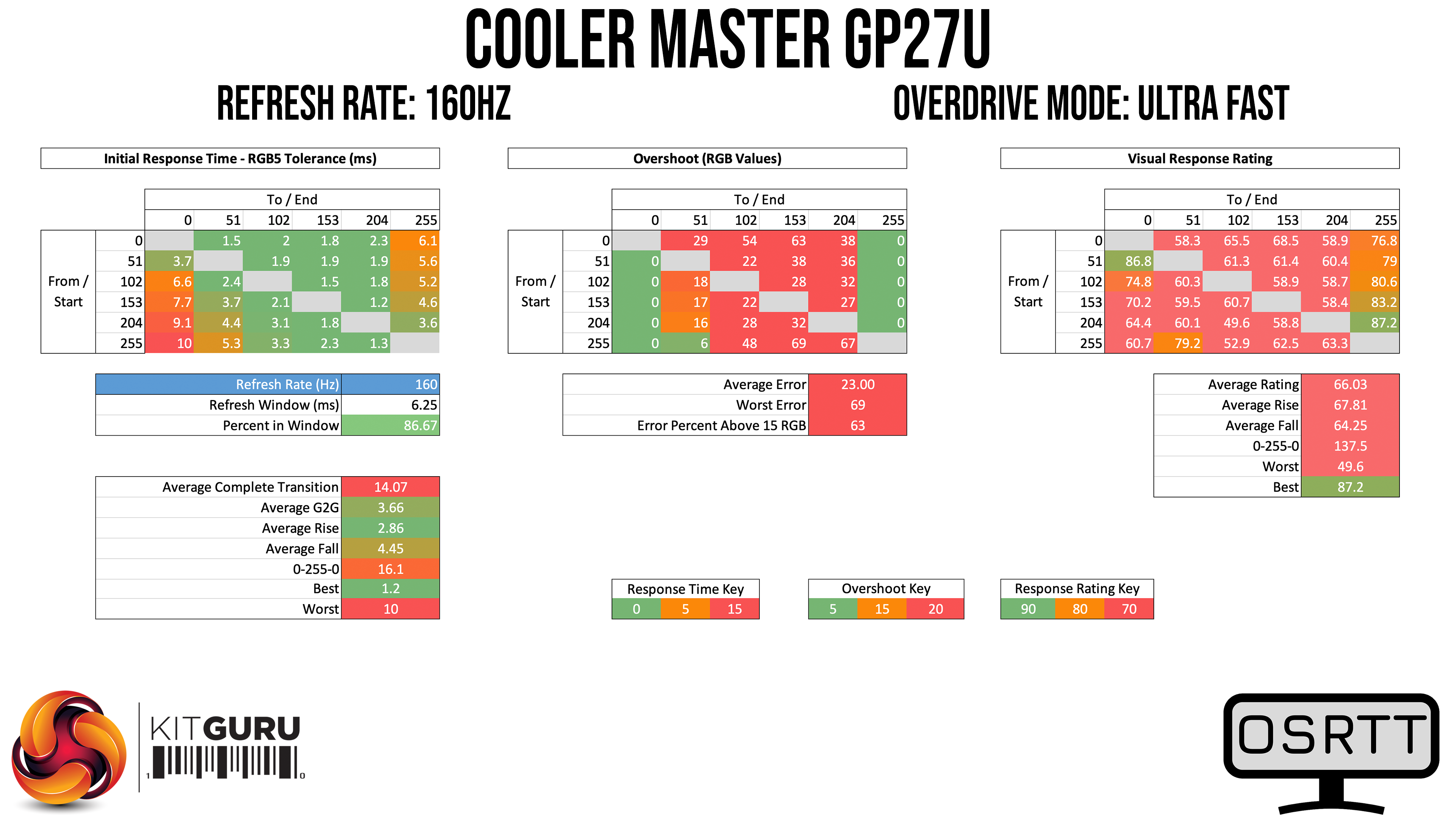
As you might have guessed, the Ultra Fast mode is the one that's included to allow Cooler Master to claim a ‘1ms' response time, when in reality this mode is not usable at all due to excessive overshoot. It's simply not worth using at any refresh rate.
Dynamic mode
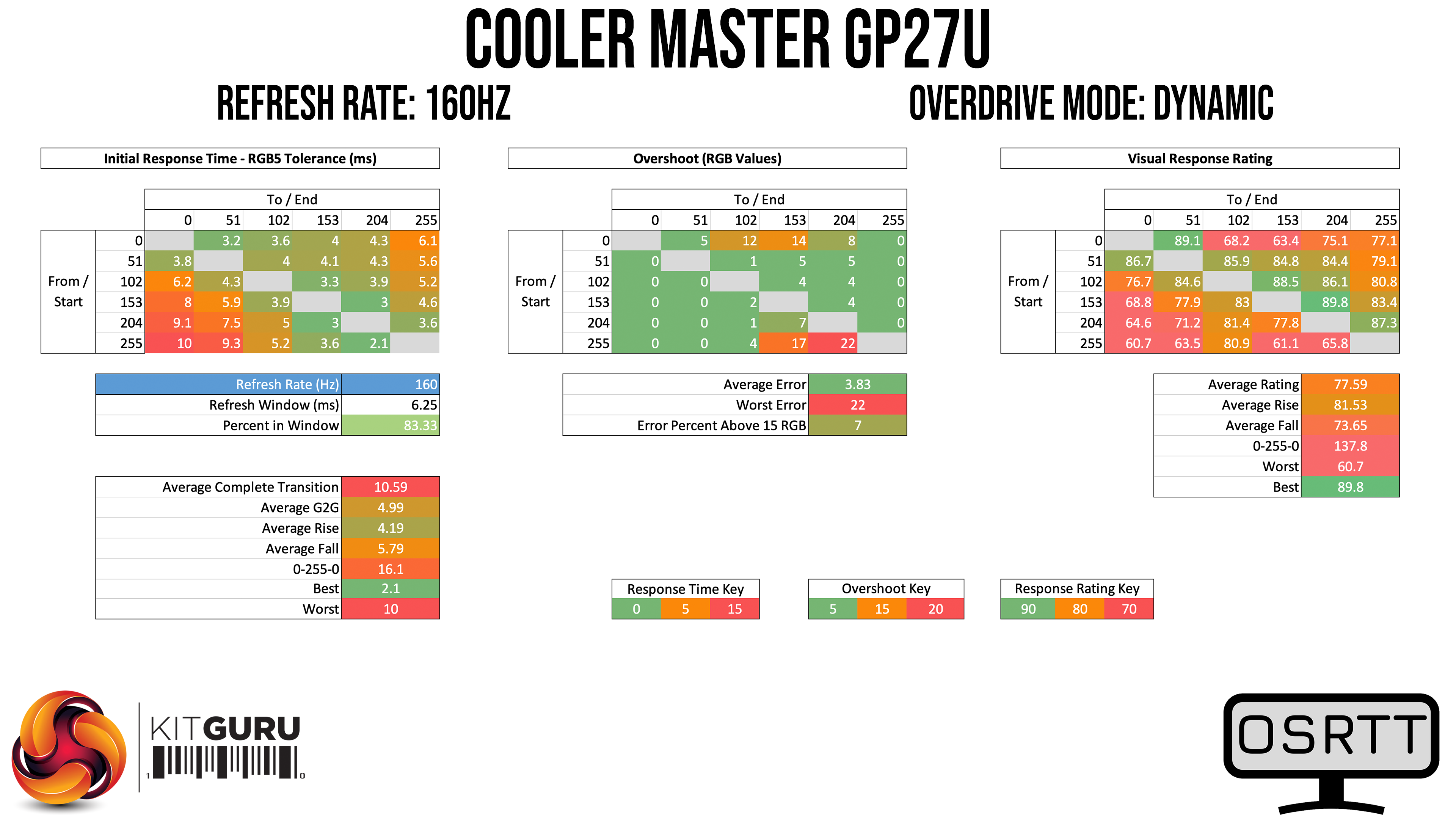
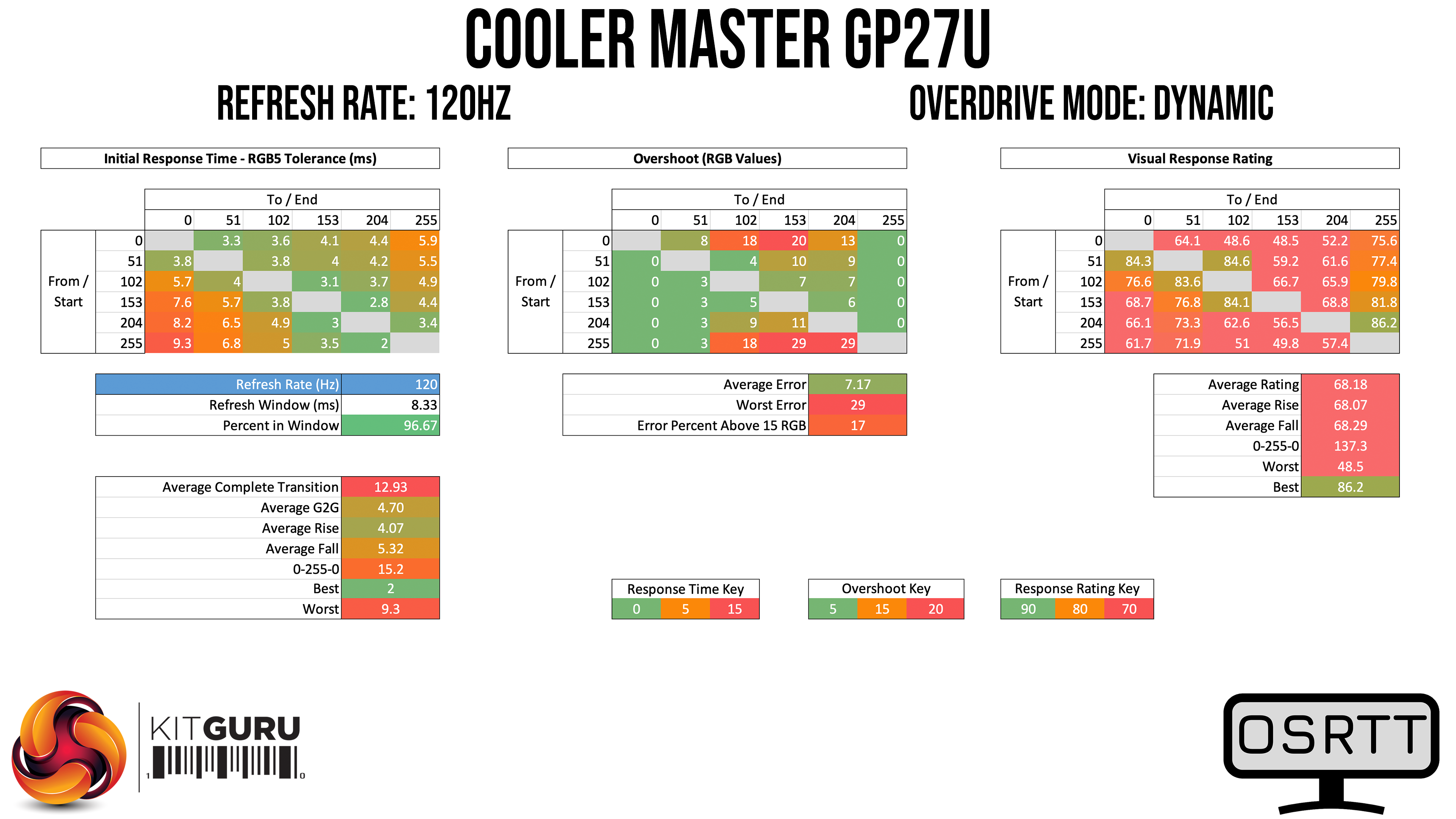
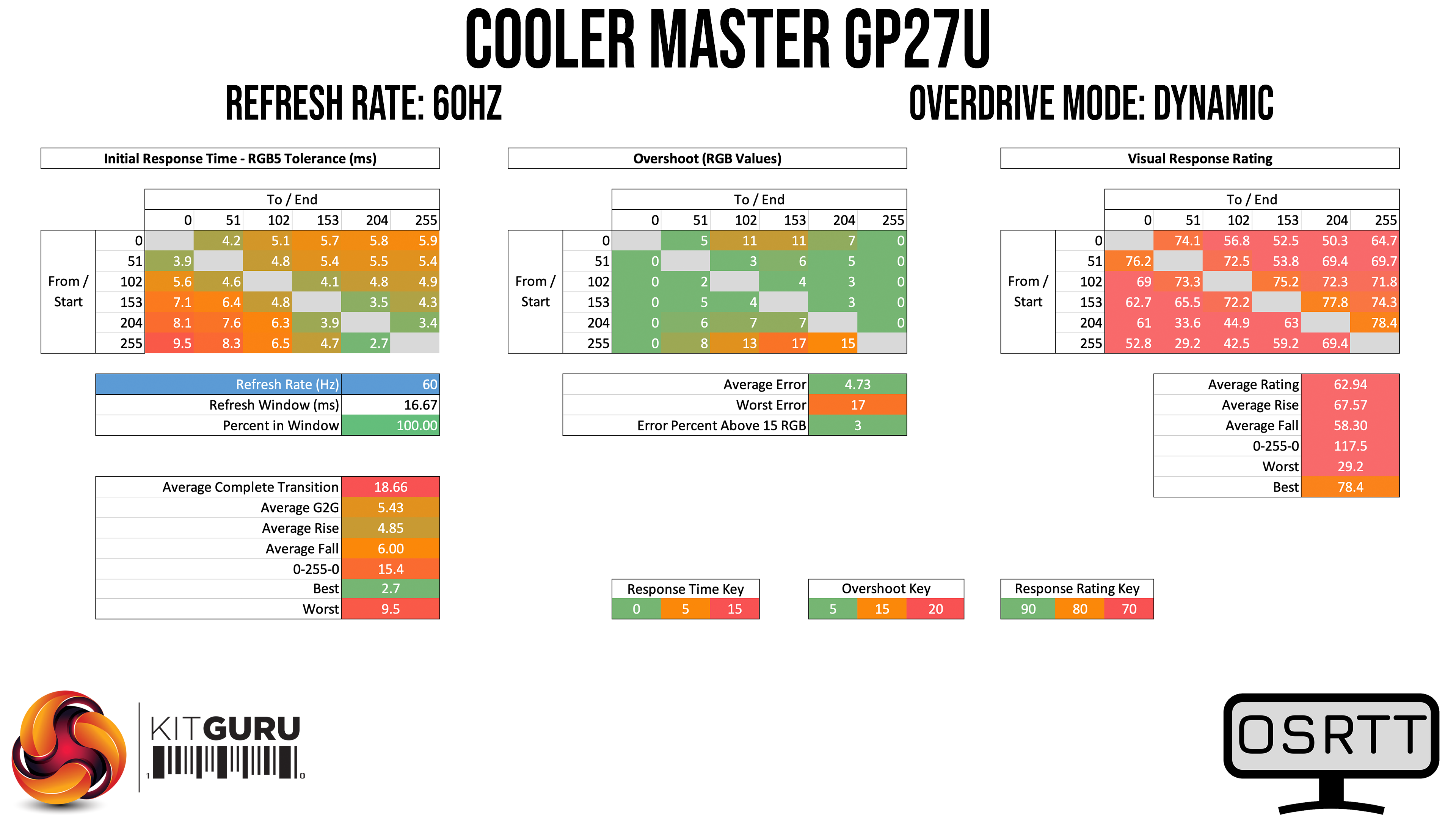
There is another overdrive setting however, called Dynamic. This acts as a variable overdrive, and we found it engaged the Advanced settings at 160Hz and 120Hz, but switched to the Normal overdrive settings at 60Hz. I used this mode for my personal gaming sessions on the GP27U and couldn't fault it, so it's definitely worth using.
Comparisons
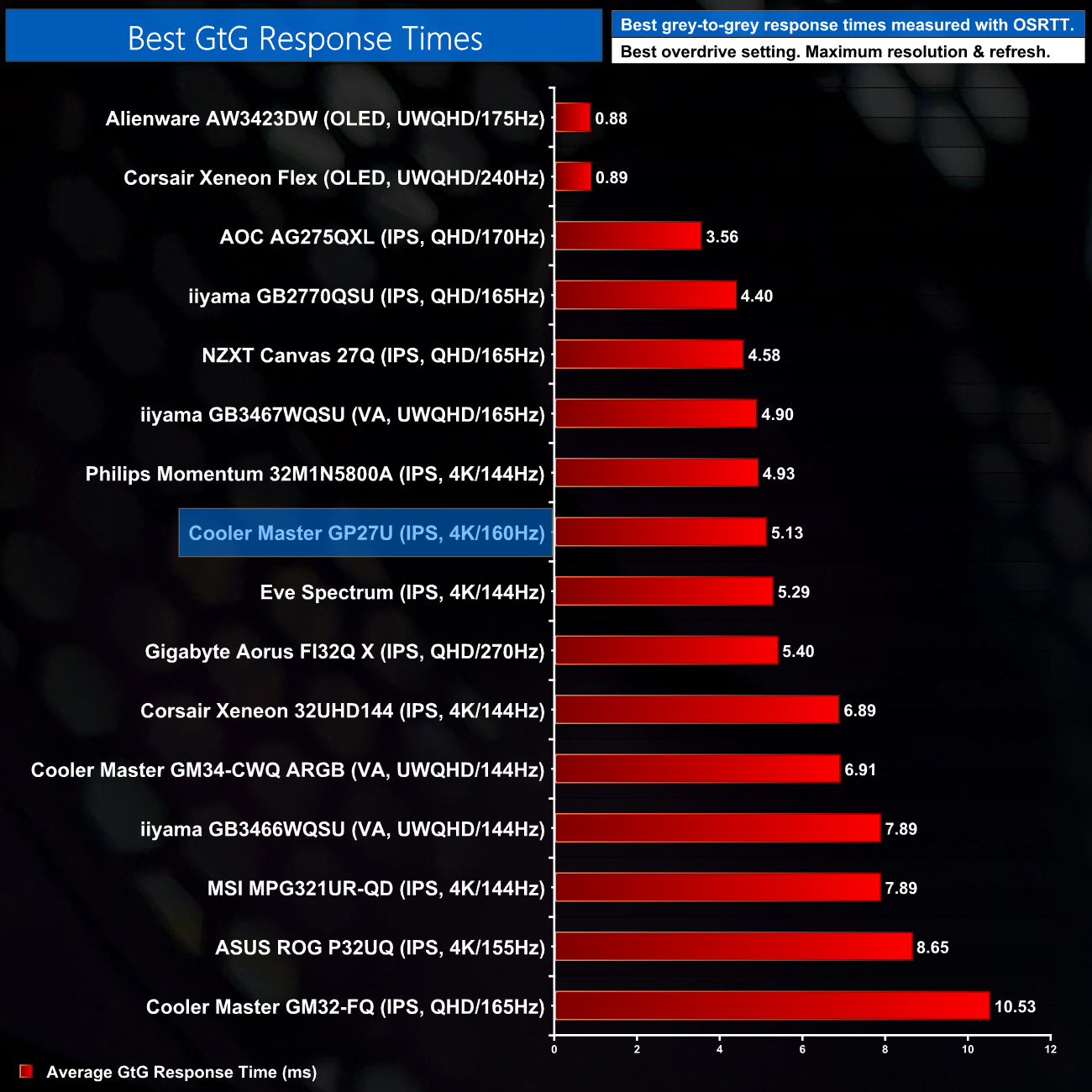
Looking at the average figures taken using a monitor's best overdrive setting at its maximum refresh rate, the GP27U does fairly well. Granted it's not super fast, but a 5ms average is at a similar level the fastest 4K/144Hz screens we've reviewed, while it's noticeably better than some other models, including the ROG PG32UQ and Xeneon 32UHD144.
Display latency is another area of our testing, where we use Nvidia’s Latency and Display Analyzer Tool (LDAT V2) for our measurements. Display latency is the signal processing delay of a display from when a frame starts scanning out on the GPU to when the screen responds. LDAT detects the first observable change (6% increase from the initial brightness).
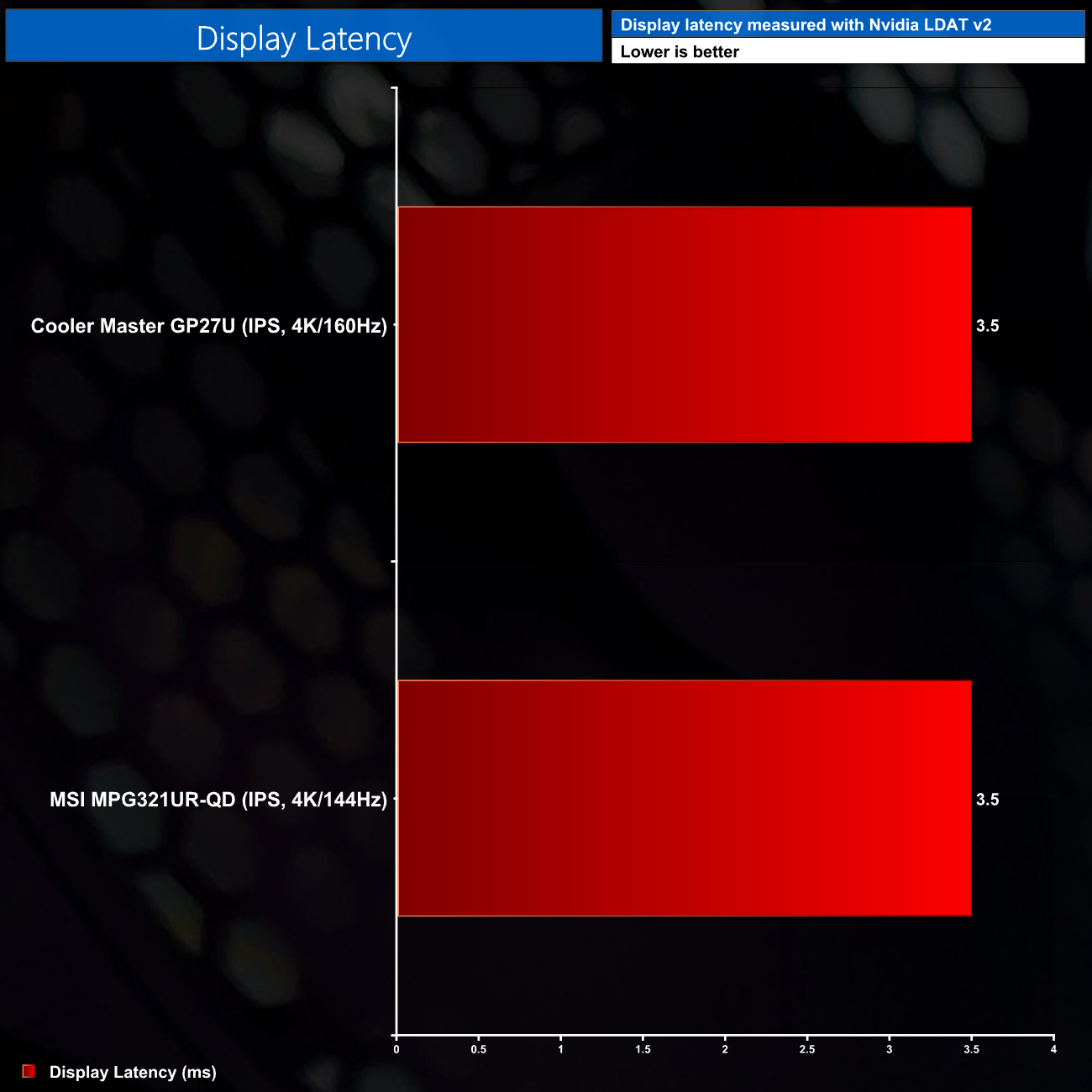
We've just switched from testing total system latency, to testing display latency using Nvidia's LDAT V2 tool. Nvidia describes this as the signal processing delay of a display from when a frame starts scanning out on the GPU to when the screen responds. Considering it's a new test for us, we need to build up more comparisons, but it's good to see the GP27U is on par with MSI's MPG321UR-QD, both offering 3.5ms latency.
Cooler Master has well and truly arrived on the monitor scene with the Tempest GP27U. While the company has already put out some decent displays over the last couple of years, none of them have been as good as the GP27U.
The star of the show is undoubtedly the excellent HDR implementation, with a 576-zone mini-LED backlight. I'd say this is one of the best HDR experiences on the market right now, bar OLED, and it really does make a huge difference for gaming versus an edge-lit HDR implementation, which I've never been impressed by.
Cooler Master has got a lot of other fundamentals right, too. For one, out of the box colour accuracy and contrast are both very good, as is the range of brightness in SDR usage, while the Quantum Dot filter enables an extremely wide colour gamut. We also can't forget about the response times, averaging about 5ms grey-to-grey using the Advanced overdrive mode.
Despite all of that, one thing is stopping me from being completely effusive with my praise for the GP27U, and that is the issue of flickering when both HDR and adaptive sync are enabled. This is something discussed extensively in our video review, and for me it is a significant enough problem that I'd personally want to hold off on a purchase until Cooler Master has issued a new firmware (which they have assured me is in the works.)
Of course, some of you may well not consider that flickering to be as significant of an issue as I do, in which case I’d say the GP27U is a cracking monitor. On sale at £800 here in the UK, it’s cheaper than a whole load of 4K/144Hz screens – including the Corsair Xeneon 32UHD144 and even Sony's InZone M9 – despite trouncing most of them with its HDR implementation. It really is fantastic value at this price point, so fingers crossed Cooler Master and solve the flickering once and for all.
You can order the Cooler Master Tempest GP27U for £798.98 HERE.
Discuss on our Facebook page HERE.
Pros
- Excellent HDR with mini-LED backlight.
- Very impressive colour accuracy and gamut coverage.
- Strong contrast for an IPS panel.
- Decent response times, including a single overdrive mode.
- Strong connectivity, including KVM, Type-C port and two HDMI 2.1.
- Clean design.
Cons
- Visible flickering when HDR and adaptive sync are enabled simultaneously.
- OSD can feel a touch slow at times.
KitGuru says: The Cooler Master GP27U is very nearly the complete package. The visible flickering when both HDR and adaptive sync are enabled is a clear issue, but if Cooler Master can get that fixed, this would be an incredibly easy recommendation.