KitGuru KitGuru.net – Tech News | Hardware News | Hardware Reviews | IOS | Mobile | Gaming | Graphics Cards


OLED panels have been common place in the TV market for years, but it is only recently we have started to see the technology make its way to the gaming monitor segment. The Dell Alienware AW3423DW offers a QD-OLED panel manufactured by Samsung, in a 34″ 3440×1440 form-factor, with a fast 175Hz refresh rate. Today we find out exactly what OLED is capable of for the enthusiast PC gamer.
On paper, OLED technology looks like a dream for gamers. Offering native, near-instant response times is a key part of this, as are the per-pixel dimming capabilities of OLED panels, which should surpass even full-array local dimming HDR solutions. Wide viewing angles are also promised, along with an effectively infinite contrast ratio.
At £1099, the Dell Alienware AW3423DW isn't cheap, but compared to some flagship LCD solutions that have hit the market in recent years – including as the ASUS ROG PG35VQ at £2700 – I don't think the pricing is outrageous considering the features on offer. Without further ado, let's dive in and find out if it is worth the cash.
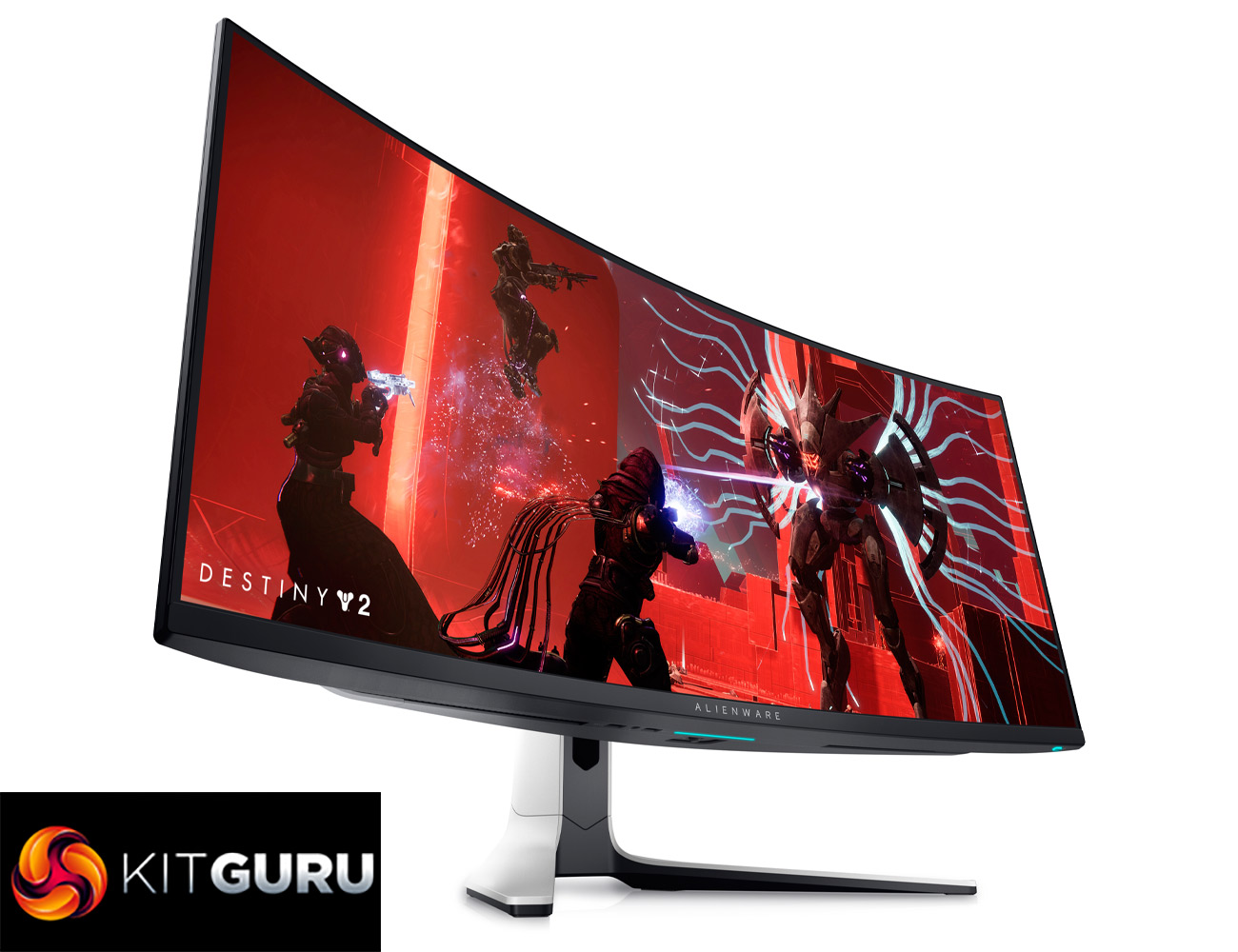
Specification:
- Display Type: OLED monitor / Quantum Dot OLED
- Energy Class: Class G
- Energy Class (HDR): Class G
- Diagonal Size: 34.18″
- Curved Screen: Yes (1800R)
- Adaptive-Sync Technology: NVIDIA® G-SYNC® ULTIMATE
- Built-in Devices: USB 3.2 Gen 1 hub
- Aspect Ratio: 21:9
- Native Resolution: QHD 3440 x 1440 at 175 Hz
- Pixel Pitch: 0.23 mm
- Pixel Per Inch: 110
- Brightness: 1000 cd/m²
- Contrast Ratio: 1000000:1 / 1000000:1 (dynamic)
- Colour Support: 1.07 billion colours
- Colour Gamut: 99.3% DCI-P3, 149% sRGB
- Response Time: 0.1 ms (grey-to-grey)
- Horizontal Viewing Angle: 178
- Vertical Viewing Angle: 178
- Screen Coating: Anti-reflective
- Features: ComfyView
- Dimensions (WxDxH): 81.525 cm x 30.571 cm x 52.527 cm – with stand
- Interfaces:
- 2 x HDMI
- DisplayPort 1.4
- 2 x USB 3.2 Gen 1 downstream with Battery Charging 1.2 (Type A)
- 2 x USB 3.2 Gen 1 downstream (Type A)
- USB 3.2 Gen 1 upstream
- Audio line-out
- Headphones
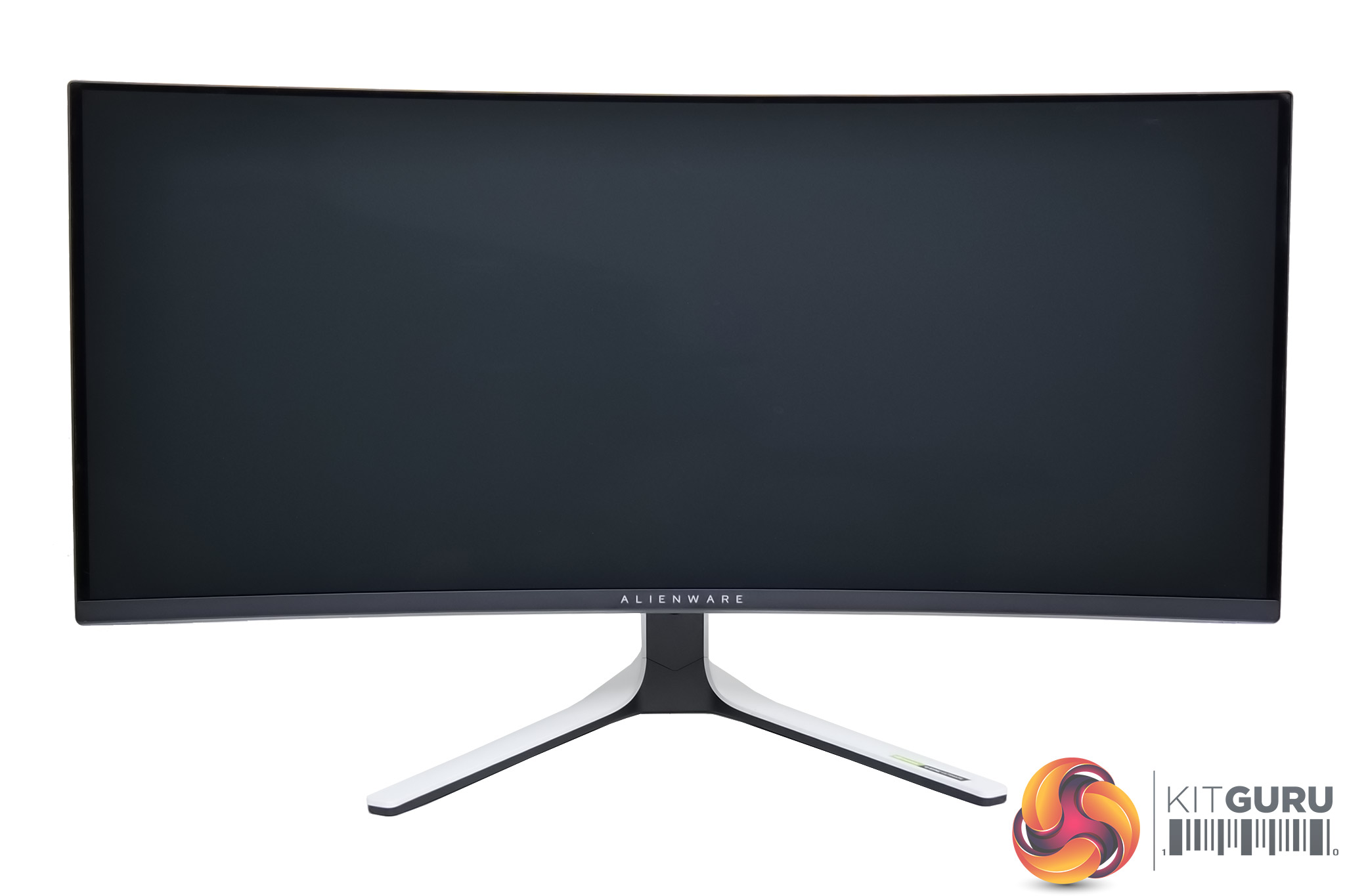
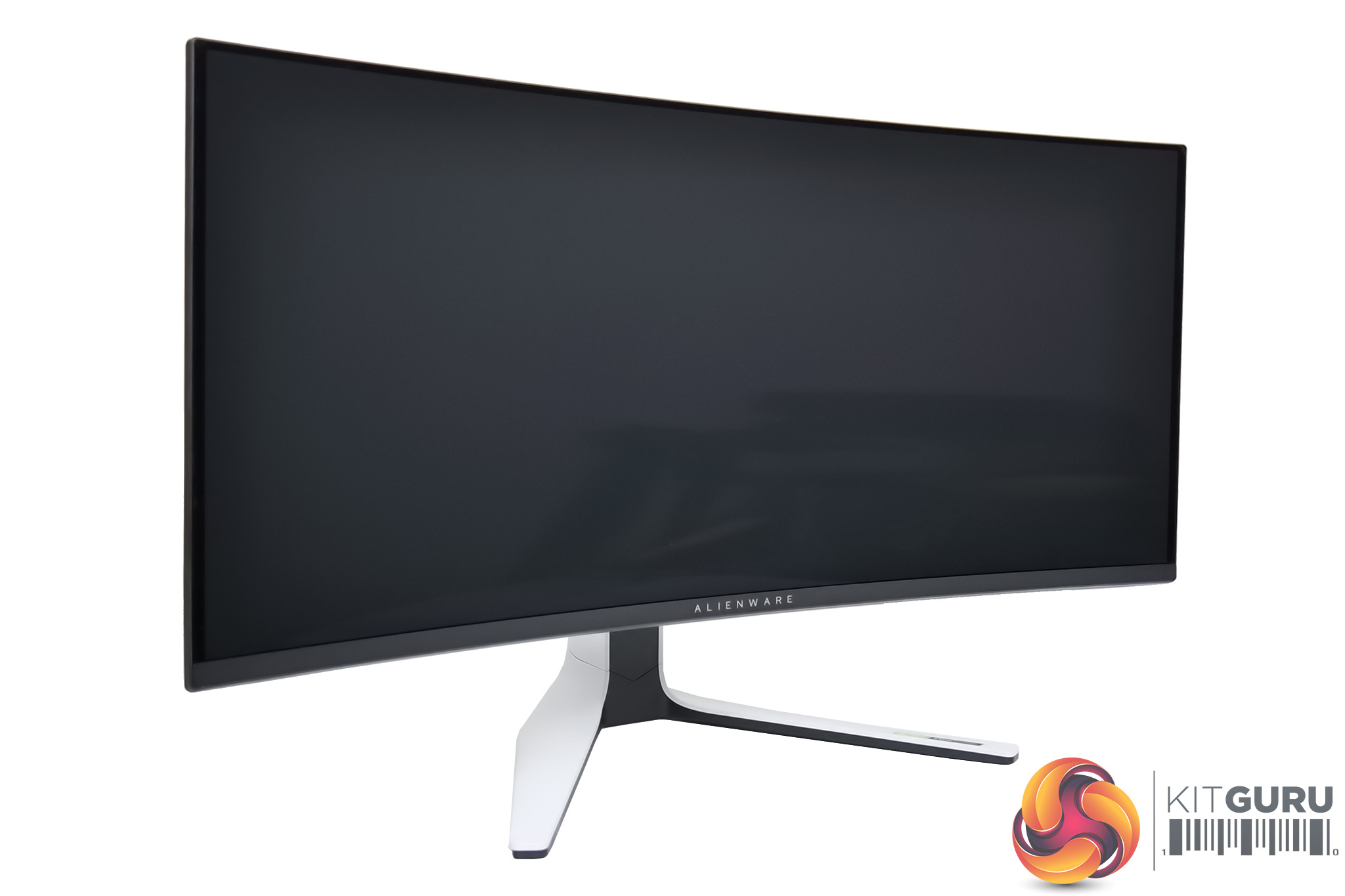
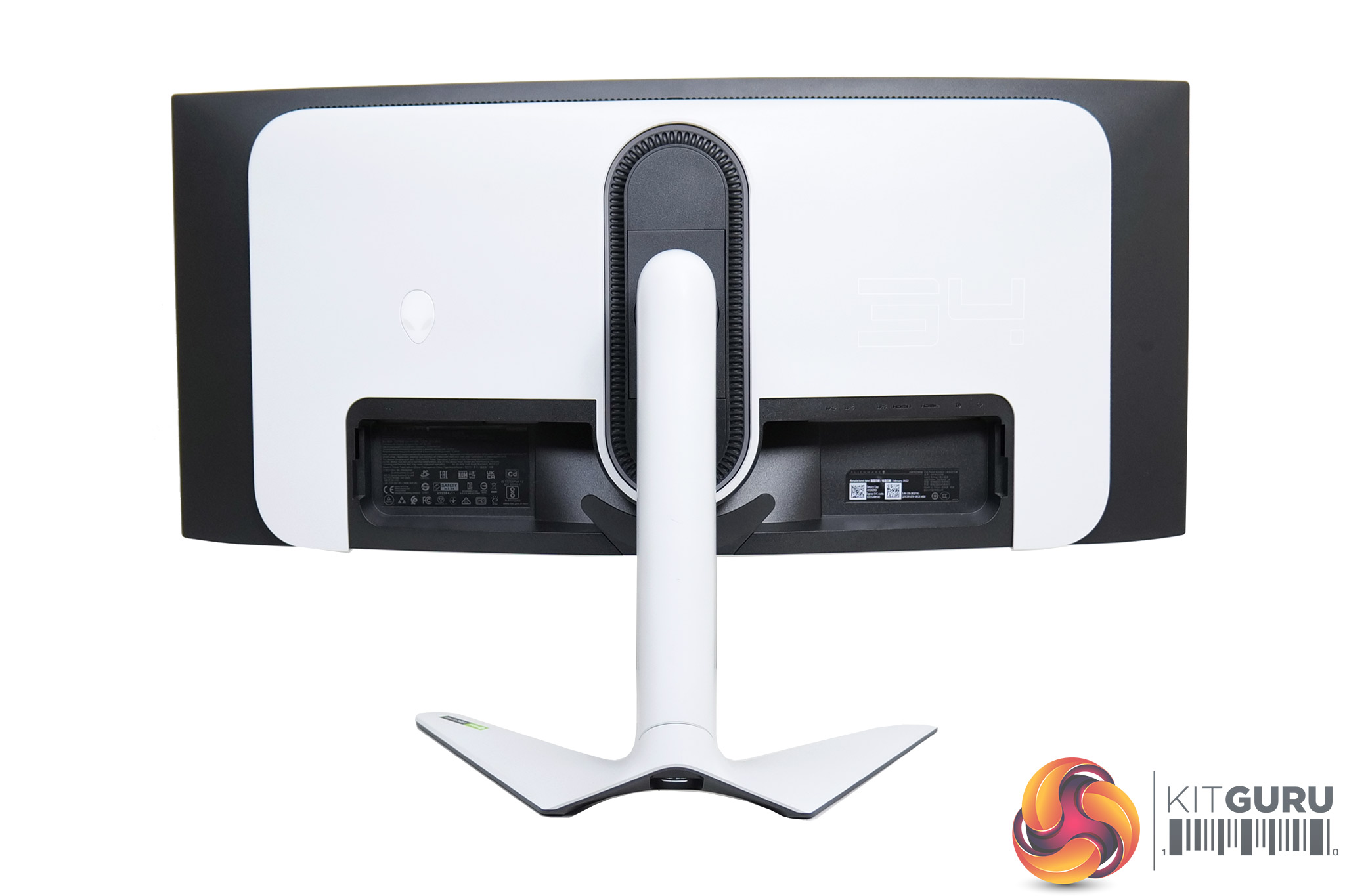
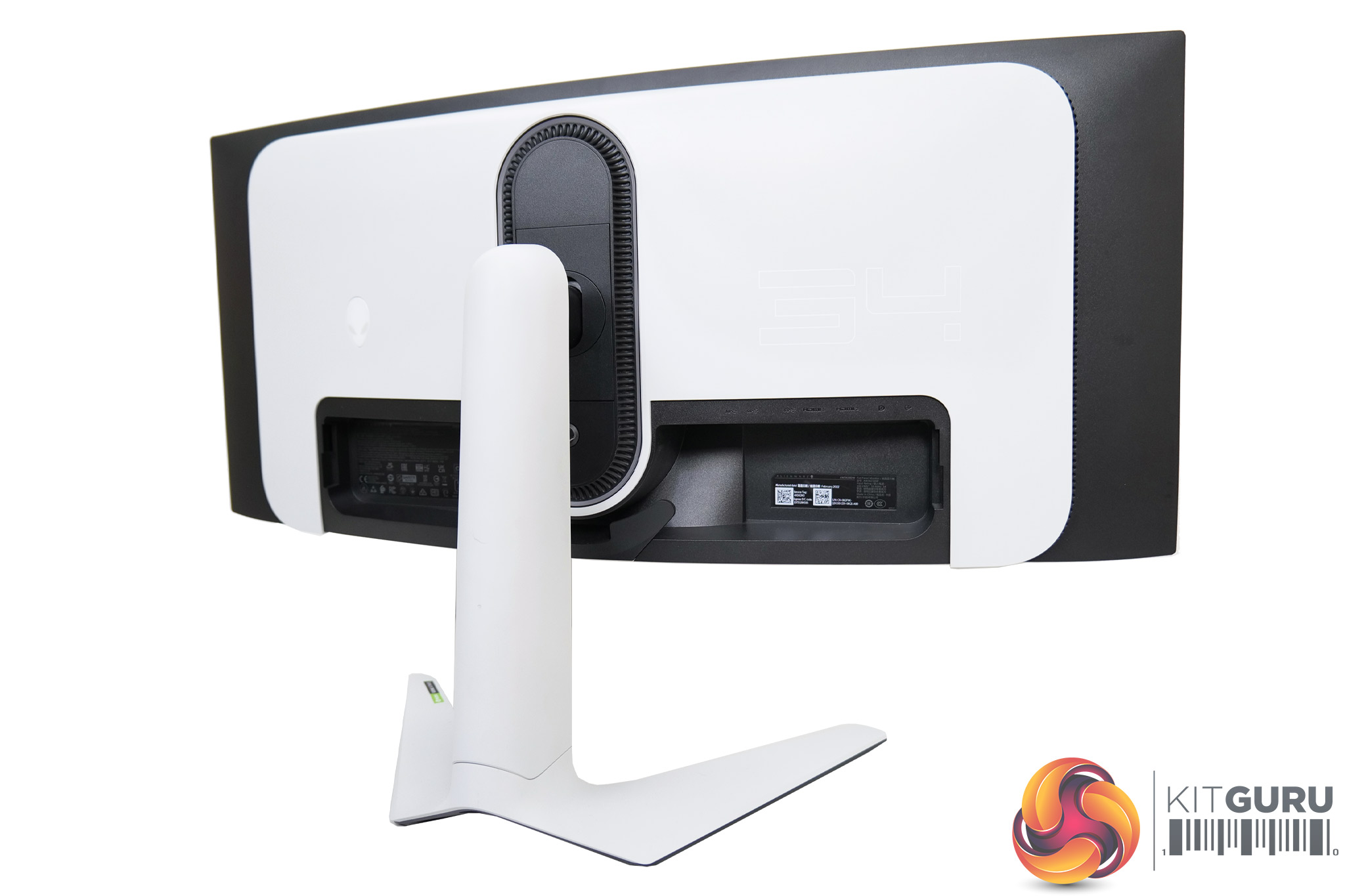
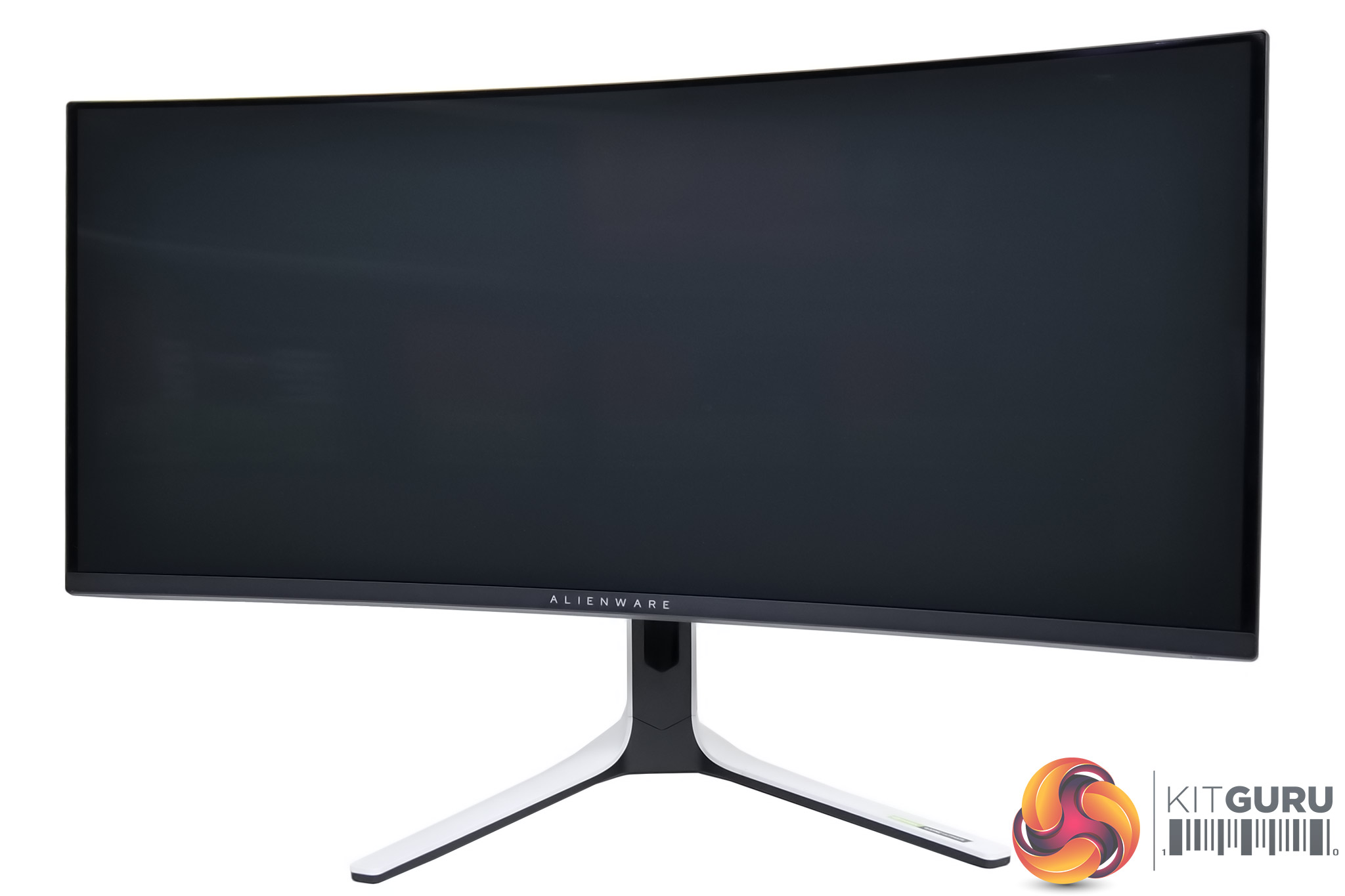
Starting things off with a look at the design of the Alienware AW3423DW, its overall aesthetic is very much in keeping with other Alienware monitors released over the last year or so. Starting at the front, we find a sleek ‘bezel-less' design, with a bottom chin that measures about 1.5cm thick.
The rear of the display is a bit more eye-catching, with matte white plastic panels covering most of the stand and the back of the screen. Those give it a clean-looking two-tone appearance, though you obviously don't see most of the white sections when actually using the display.
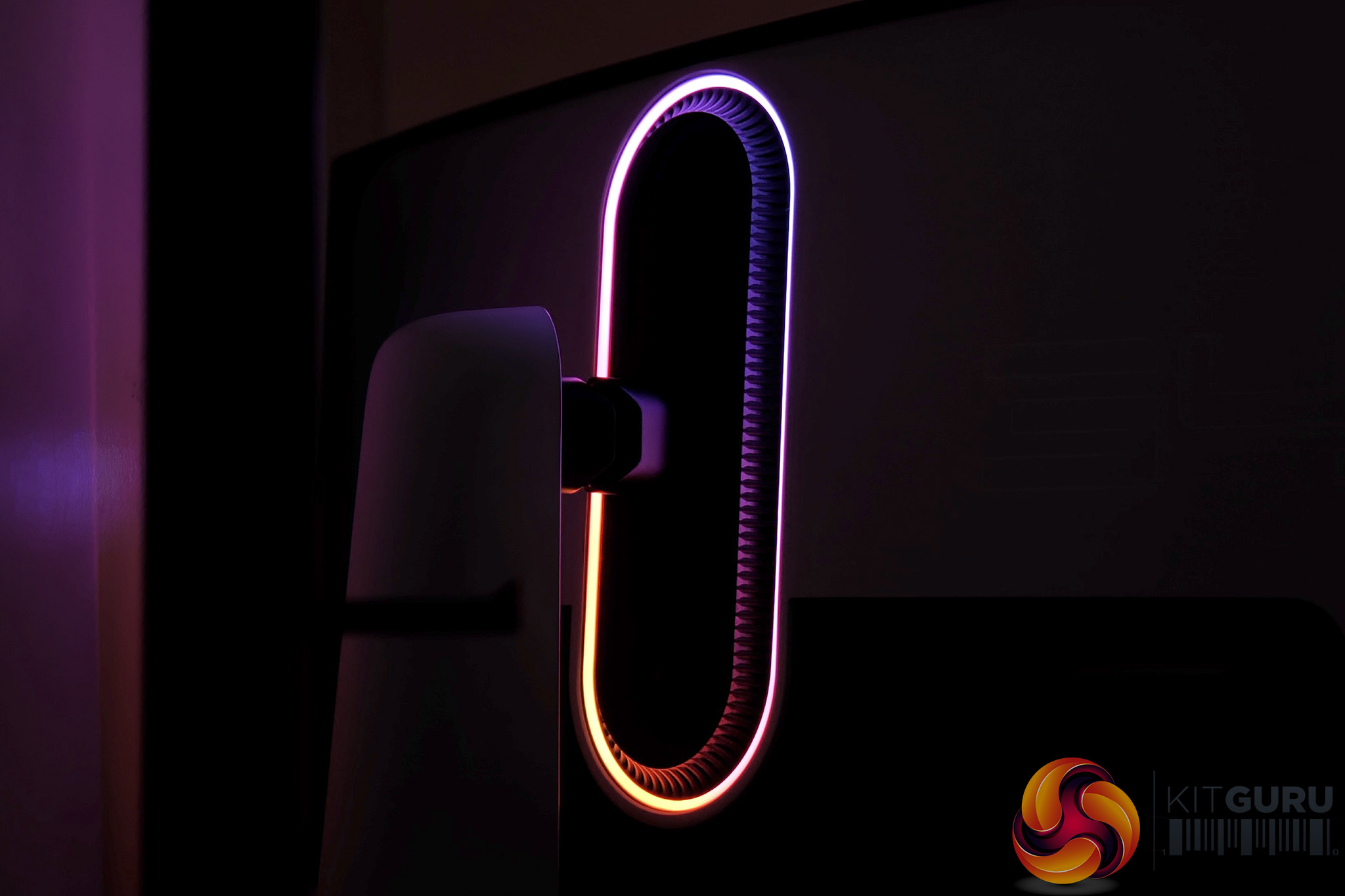
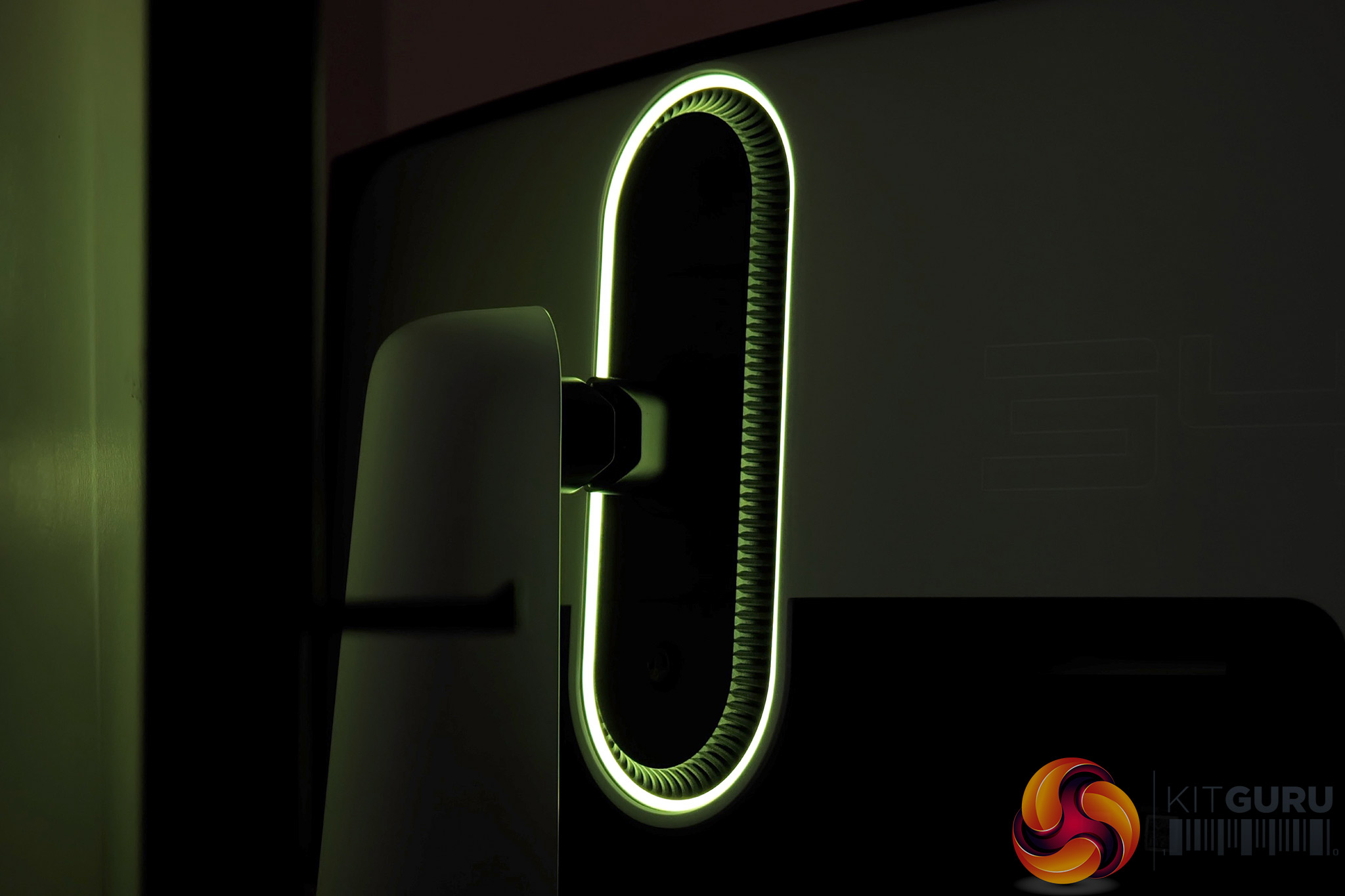
We do also find the inclusion of RGB lighting, with an oval-shaped LED strip running around the stand. A small Alienware logo is positioned to the left of this, which is another RGB zone.
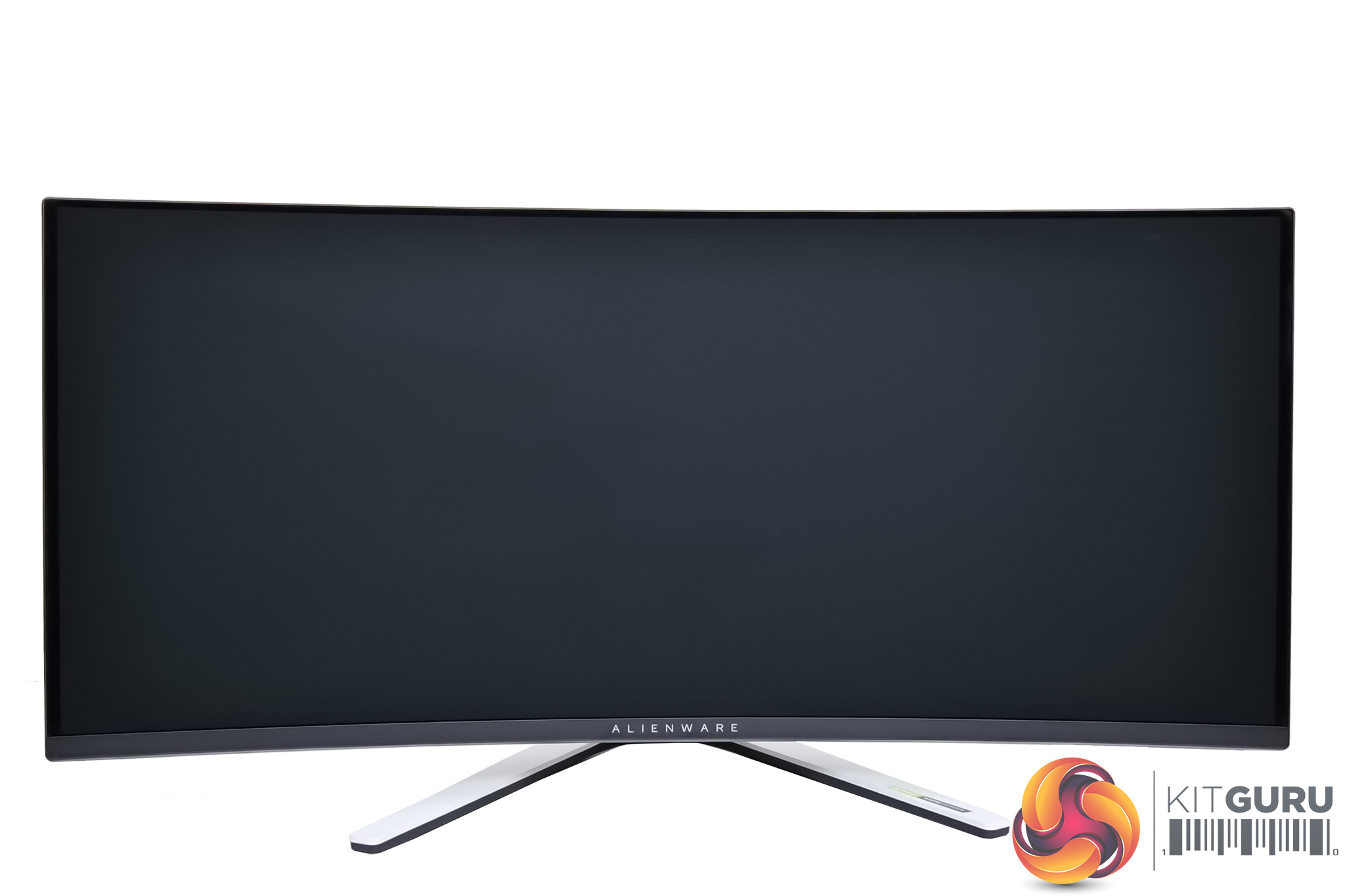
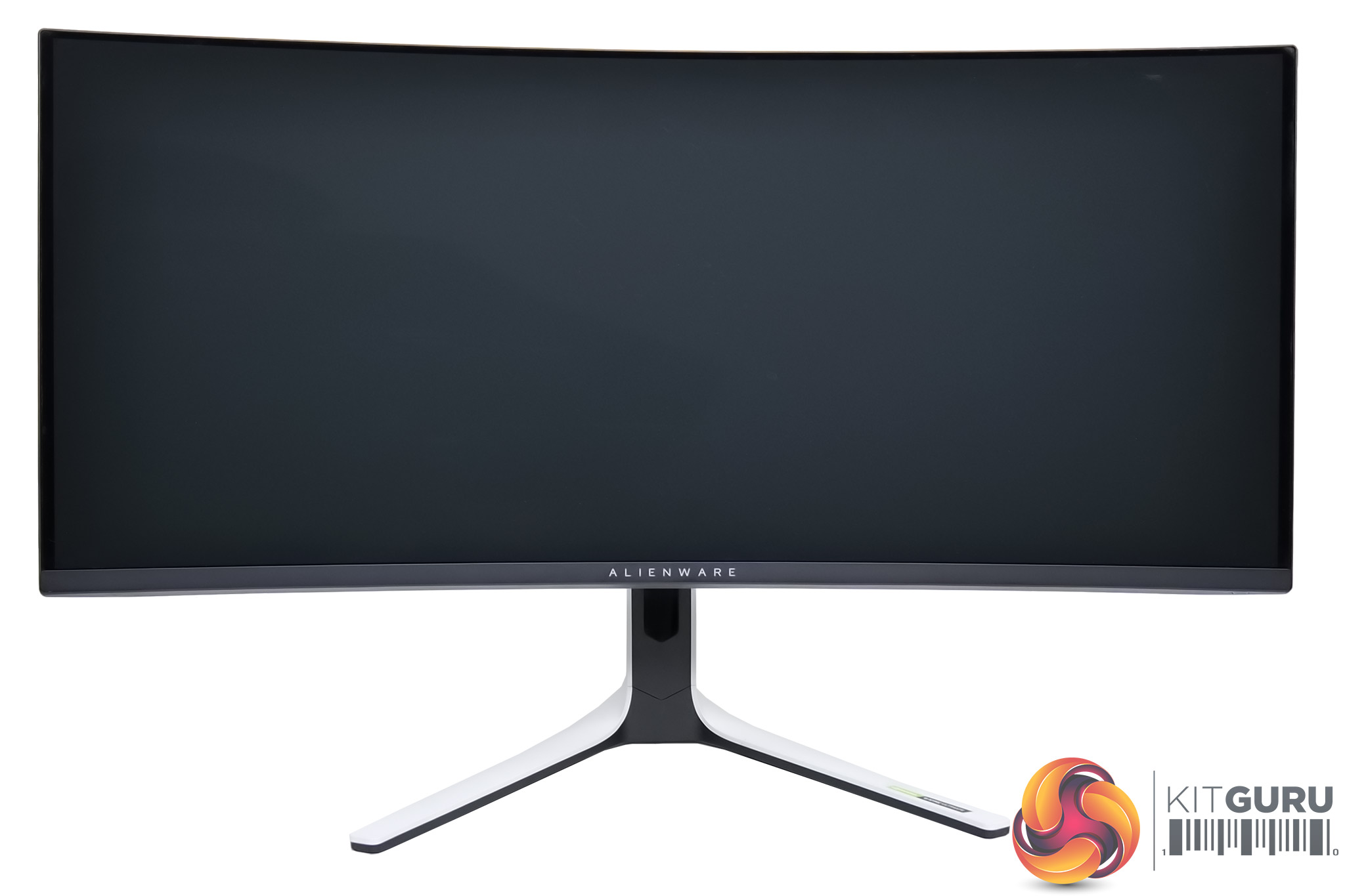
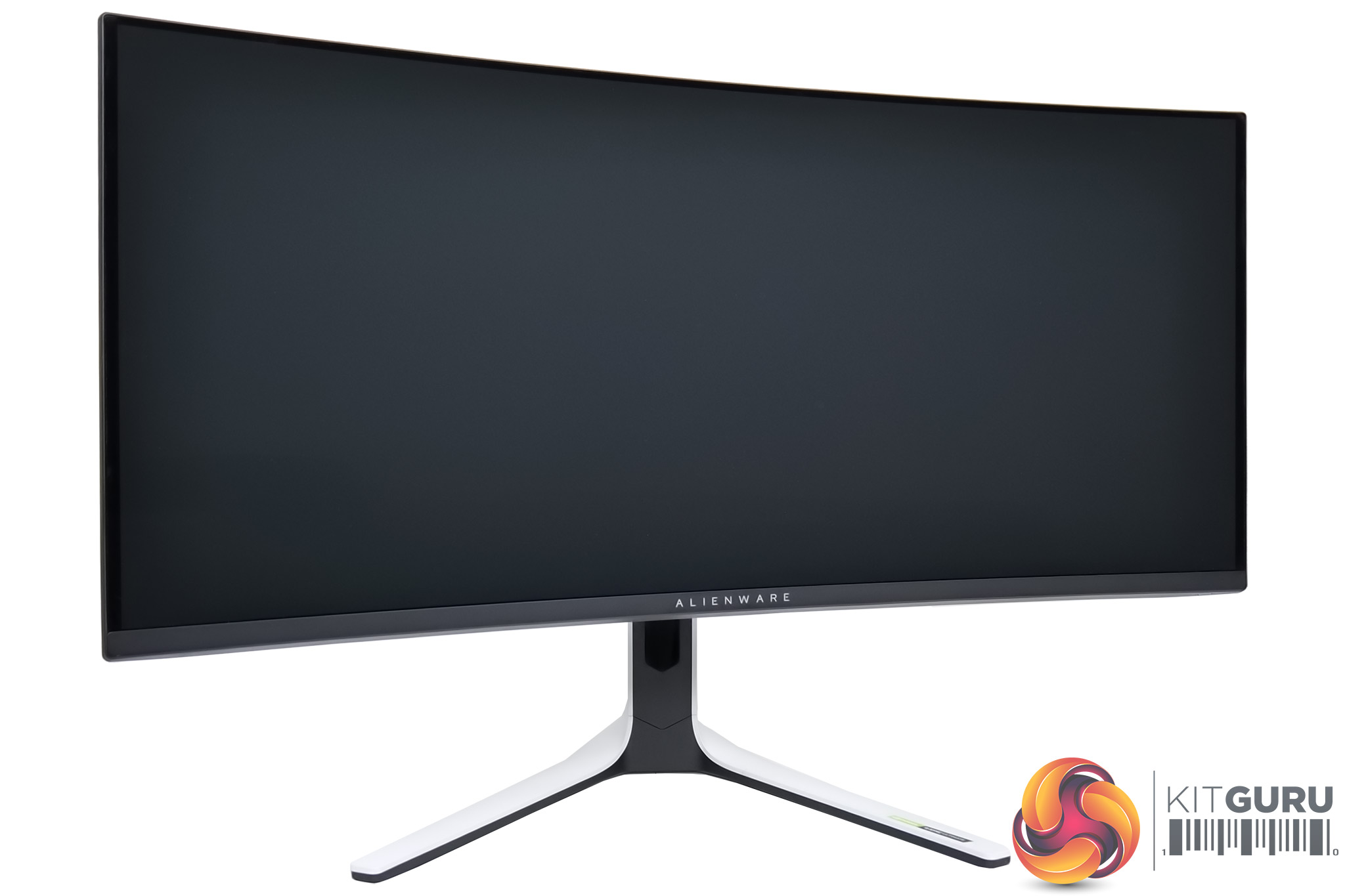
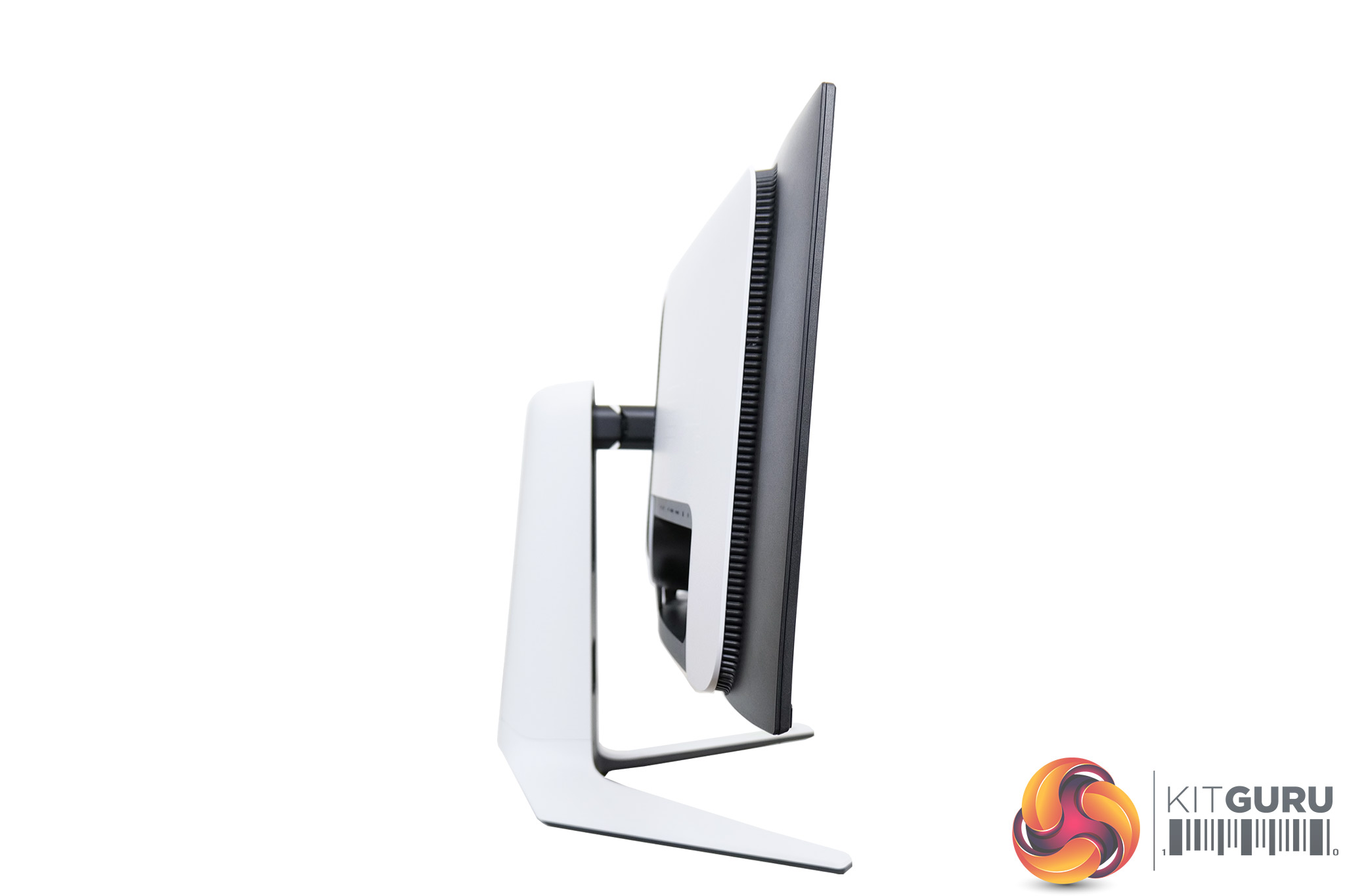
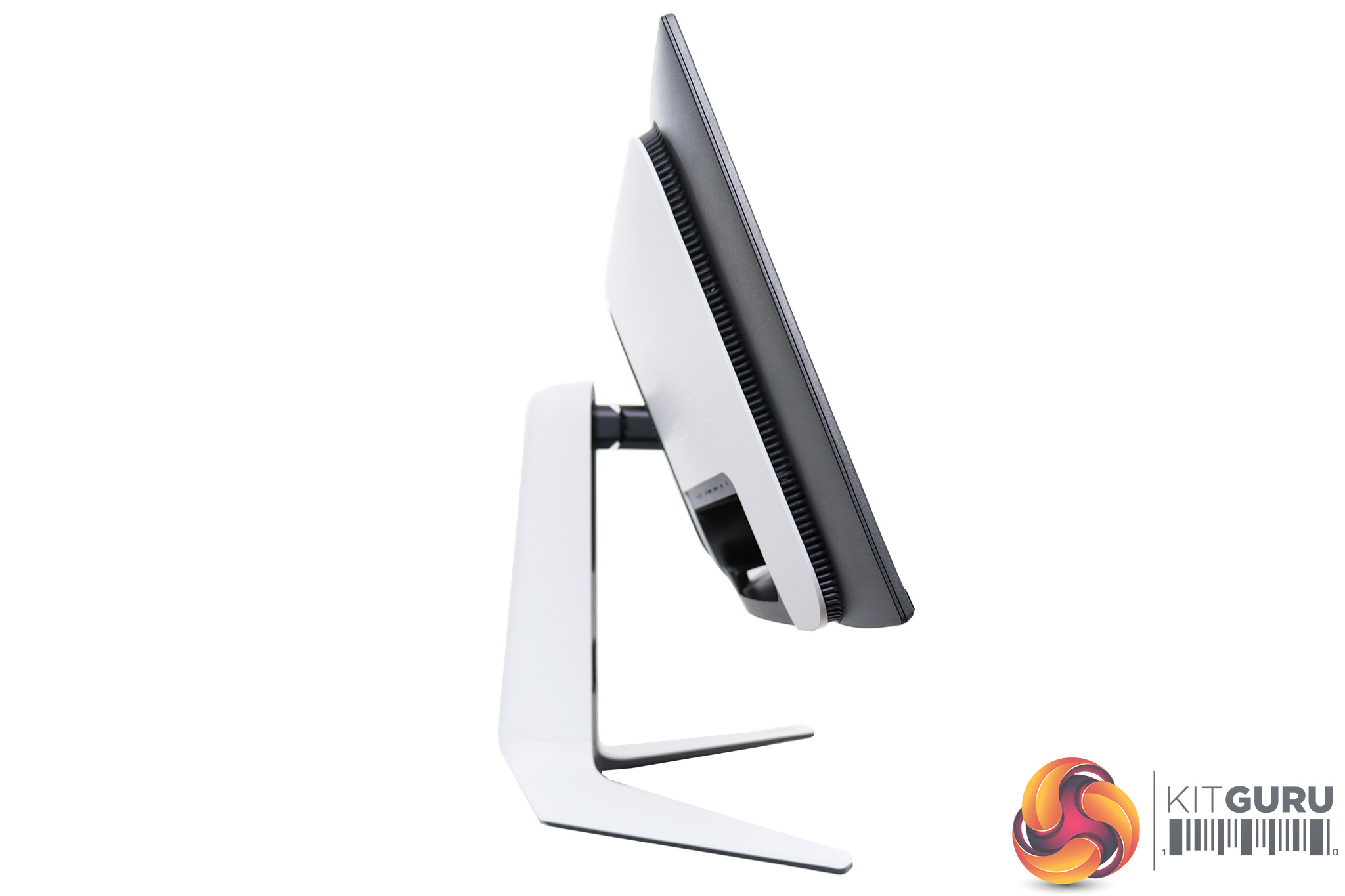
The included stand offers a good amount of ergonomic adjustment too, including up to 110mm of height adjust, 40 degrees of swivel both left and right, as well as tilt from -5 to +21 degrees. There's no pivot or rotational abilities however, but I don't see that as a big loss due to the size and 1800R curve of the screen.
My one gripe with the stand is the overall depth of it – the display measures about 30cm from front to back, so it's fairly thick and will sit a bit further forward on your desk as a result. Still, it is possible to switch the stand out for a custom VESA 100×100 mount if you prefer, with the depth of just the monitor itself (minus the stand) coming in at about 13cm.
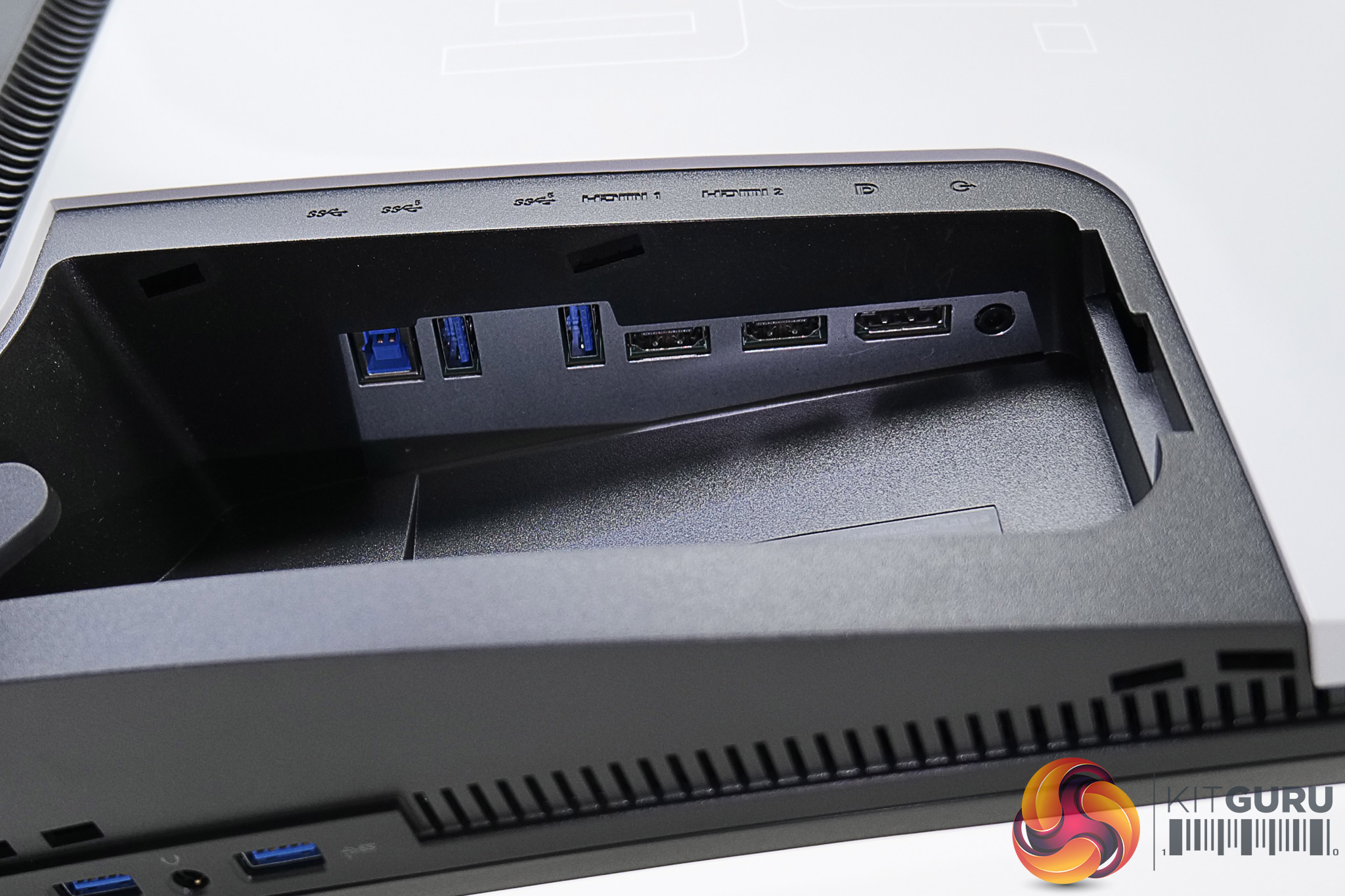
The I/O is neatly tucked away in a recessed panel on the back of the screen. We find 1x DisplayPort 1.4, and then 2x HDMI 2.0. That means no HDMI 2.1, something we understand is due to the use of a hardware G-Sync module which still doesn't support HDMI 2.1. While the DisplayPort 1.4 connector can offer the full 175Hz refresh rate at the 3440×1440 resolution, the HDMI 2.0 ports will be limited to 120Hz, so it is a bit disappointing to have only one video input which can make full advantage of the refresh rate on offer.
There's also a USB upstream port and two USB 3.2 Gen1 downstream ports, but no Type-C.
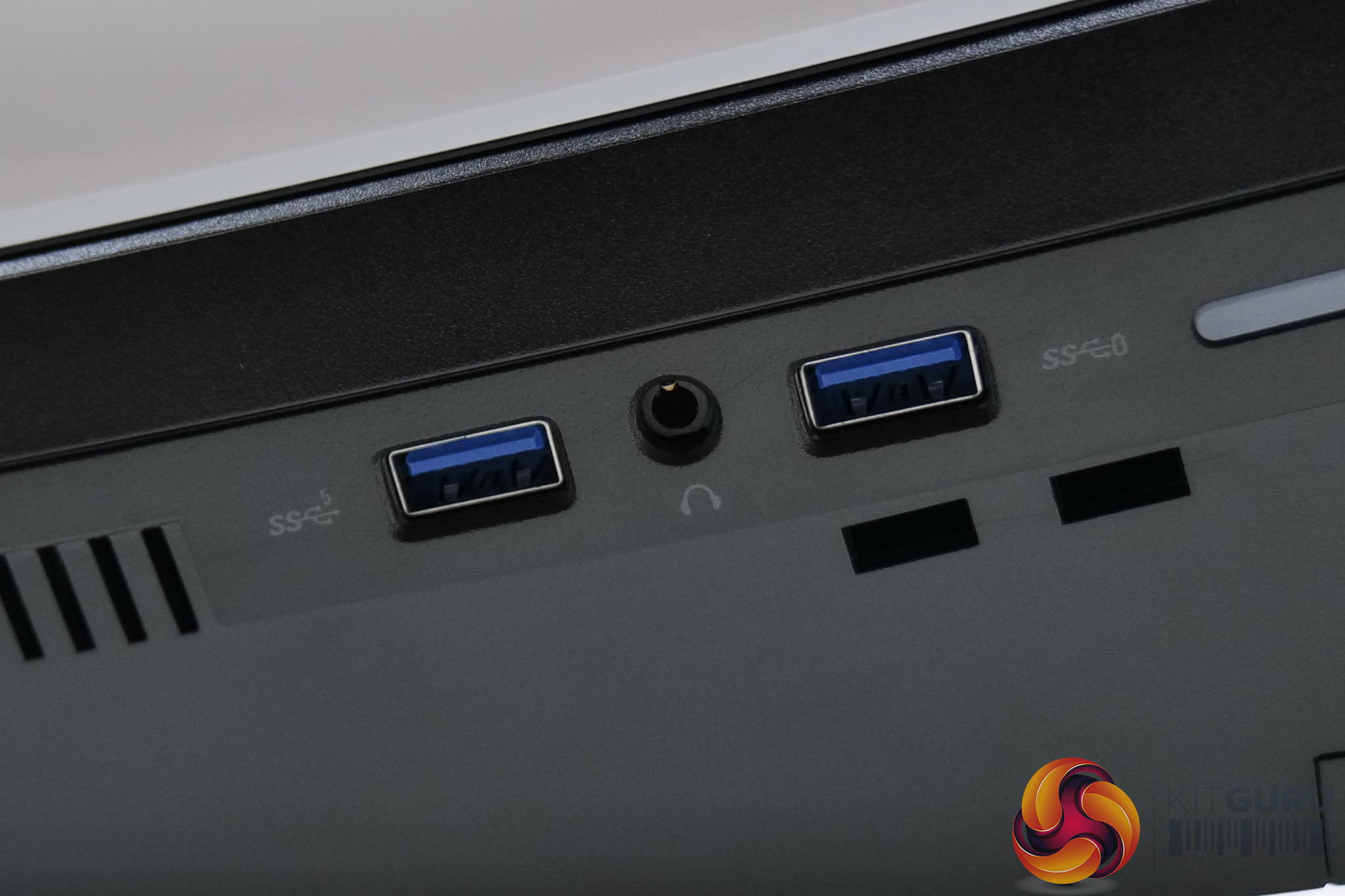
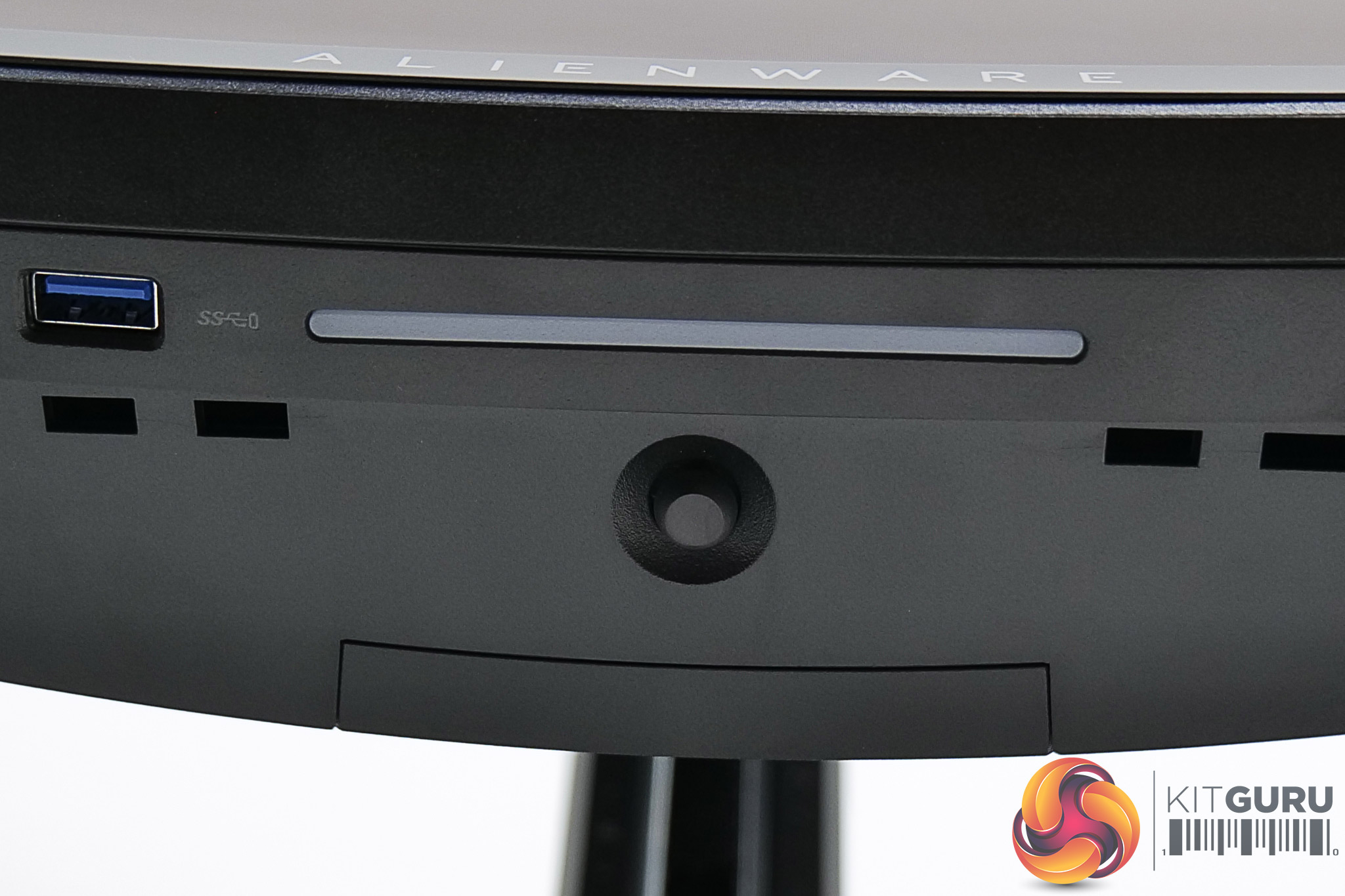
On the underside of the front bezel, two more USB ports are positioned for easy access as well as a 3.5mm jack. This is also where we find the small joystick used for controlling the OSD.
The OSD for the AW3423DW is very straightforward and easy to use thanks to the joystick. There's actually no physical buttons on the monitor at all, aside from the power button.
The menu system is broken down into eight tabs, as seen below. These are: Game, Brightness/Contrast, Input Source, AlienFX Lighting, Audio, Menu, Personalize, Others.
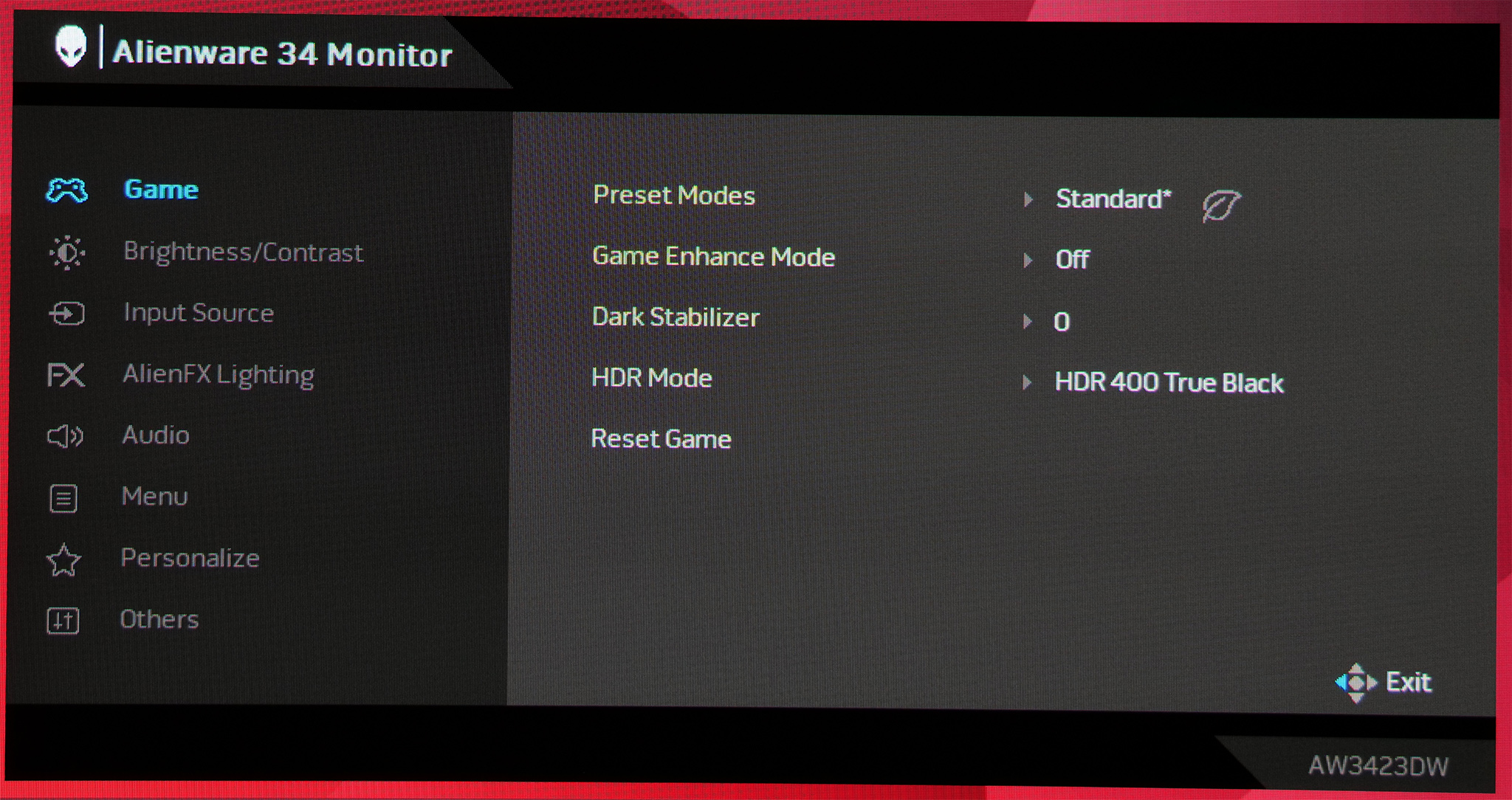
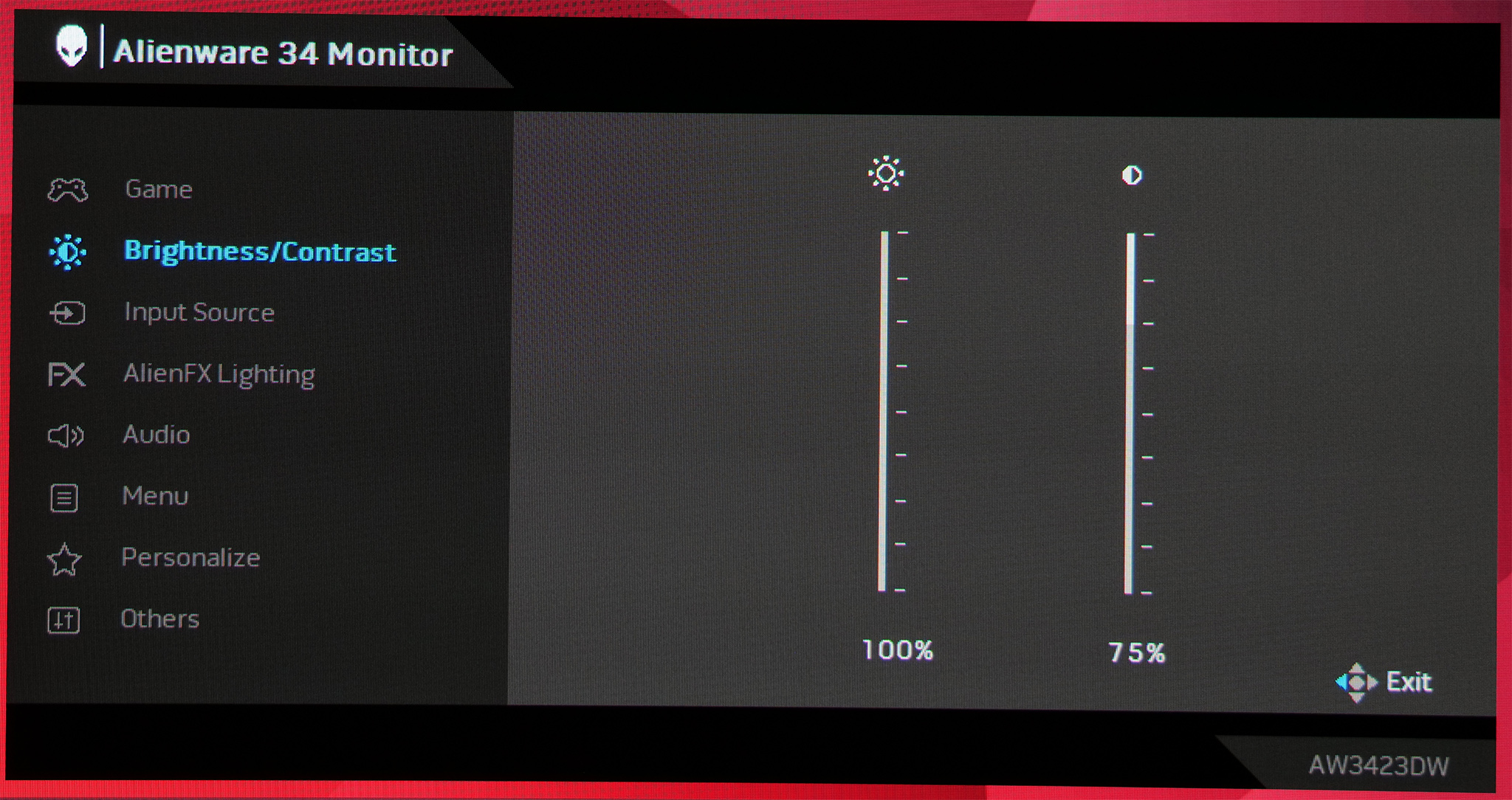
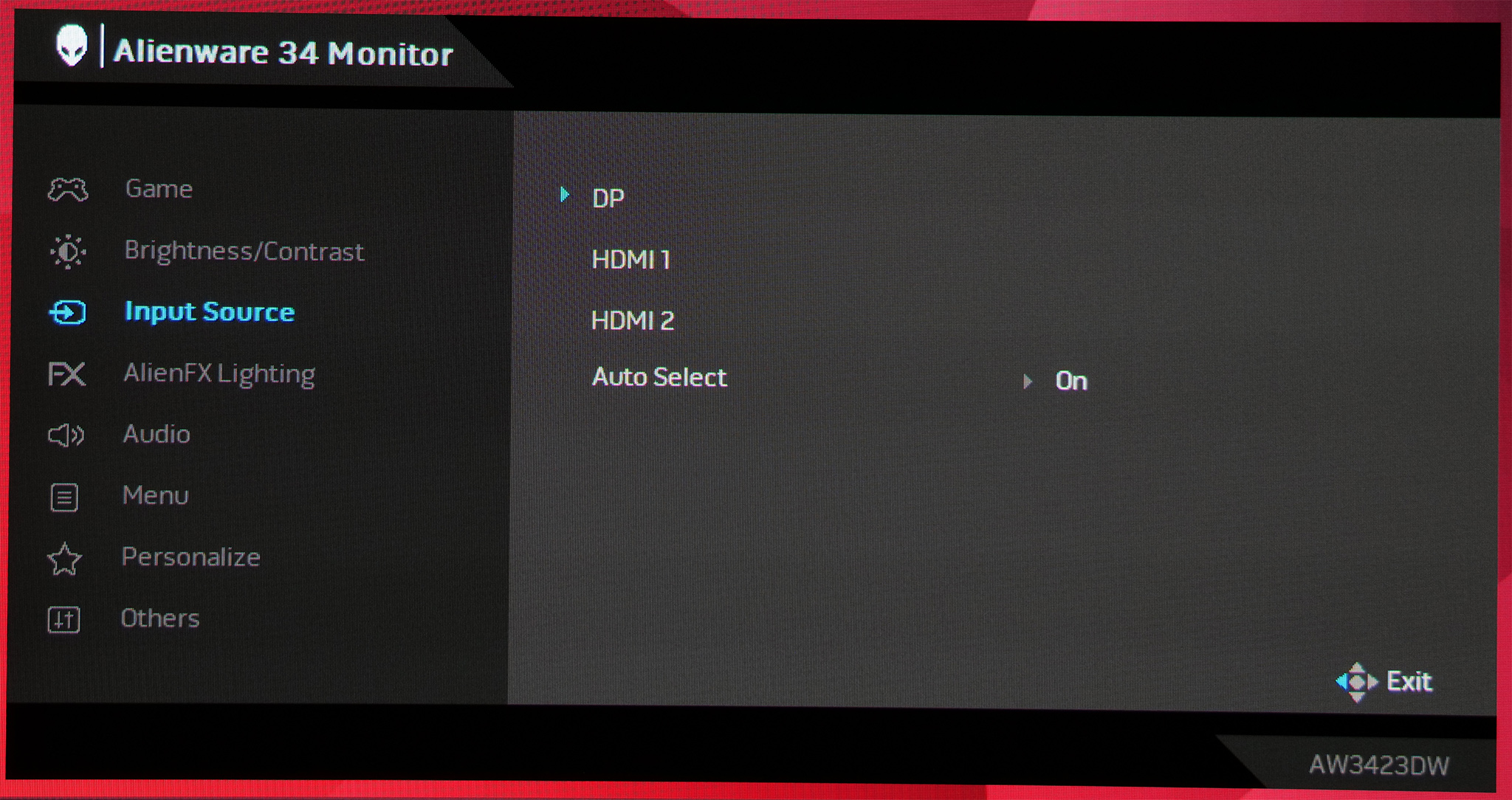
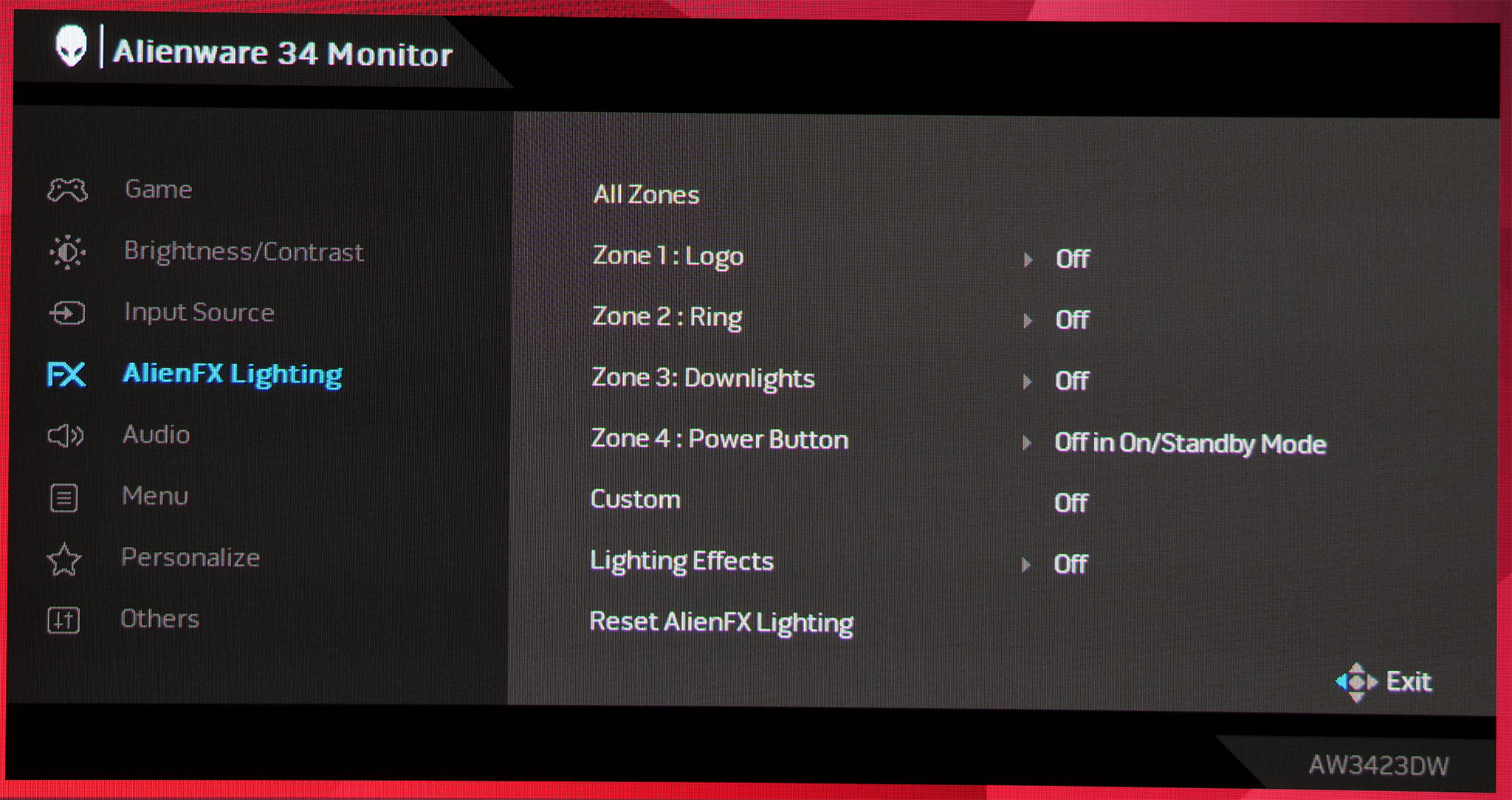
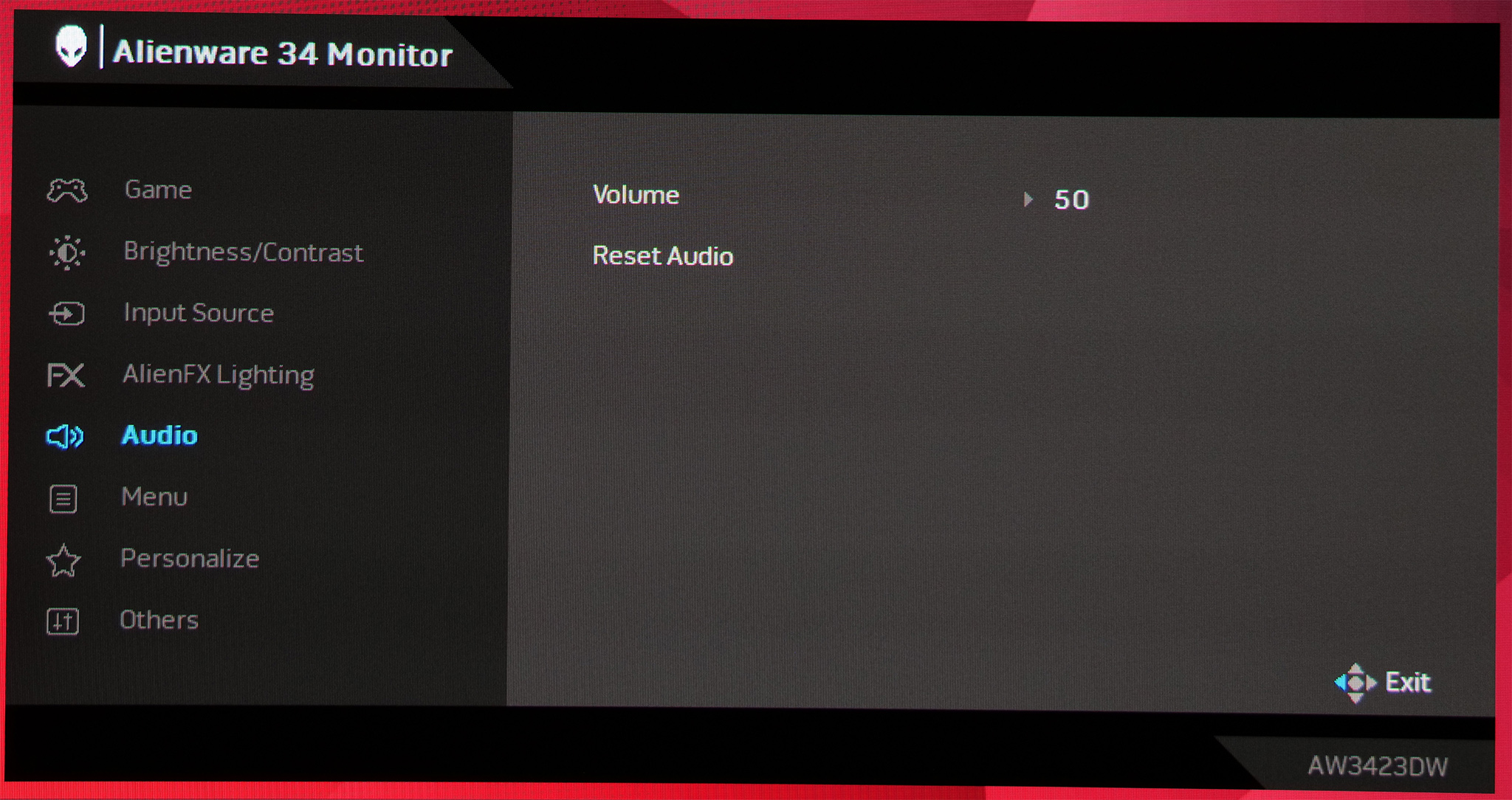
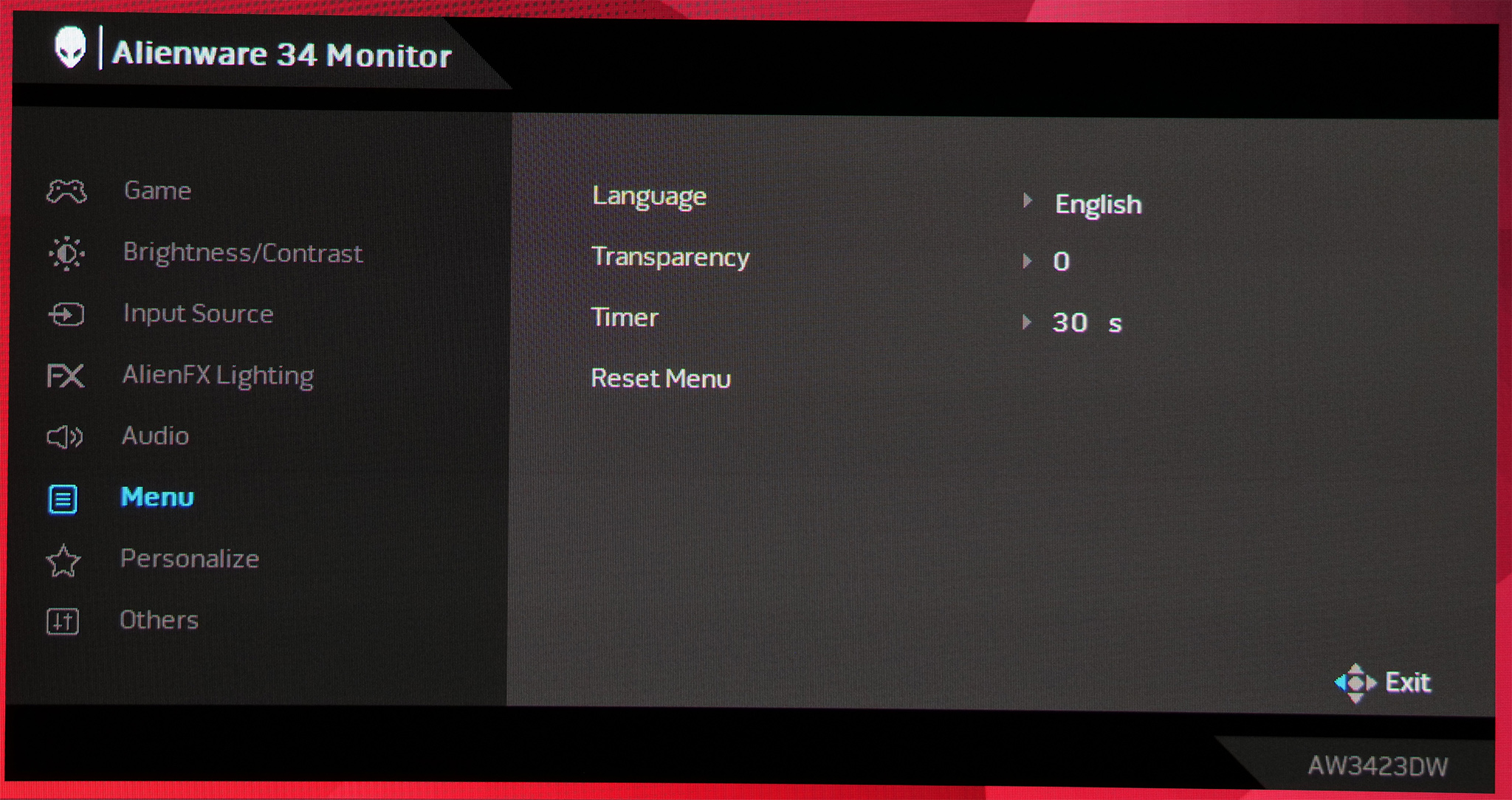
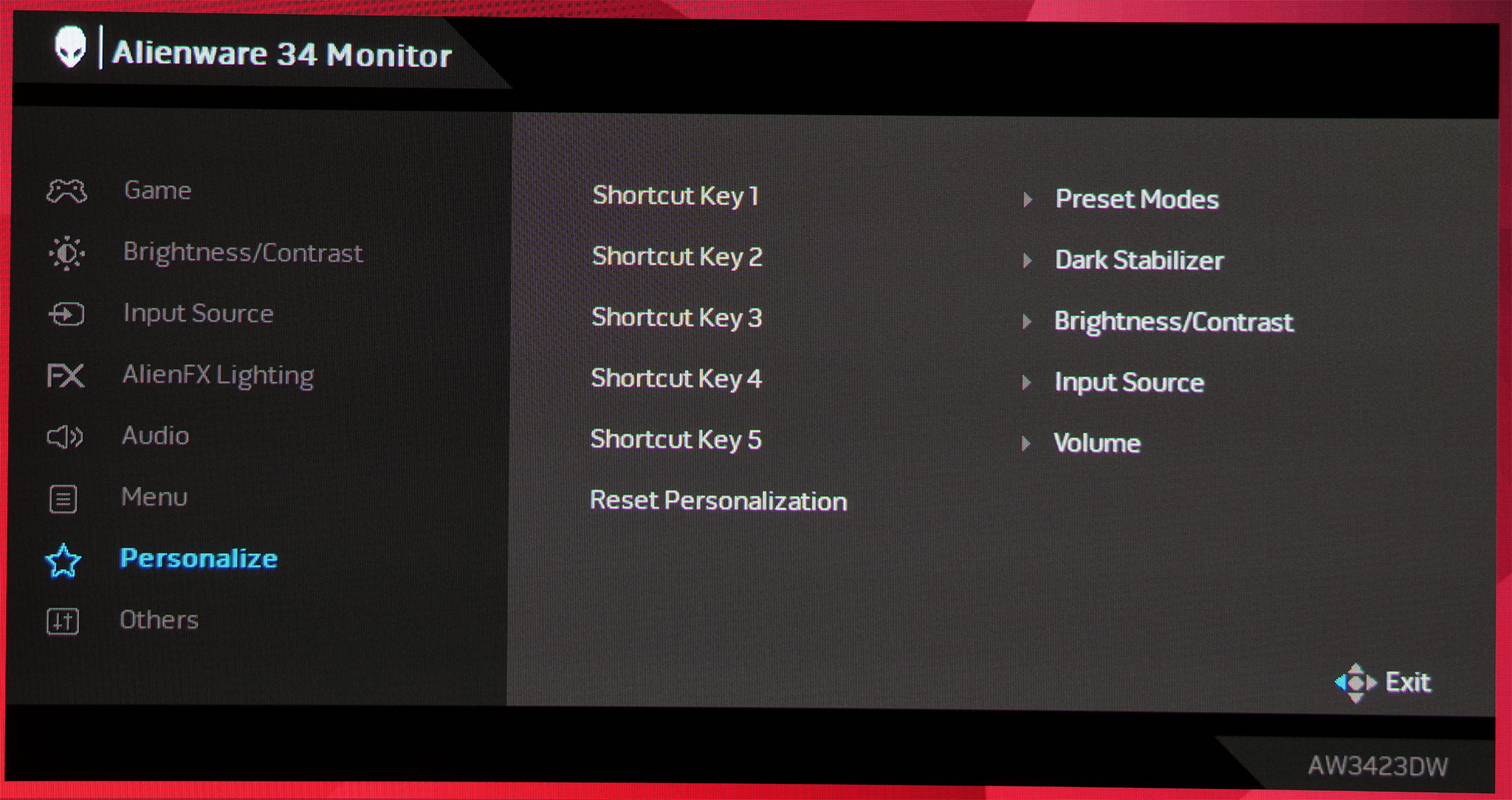
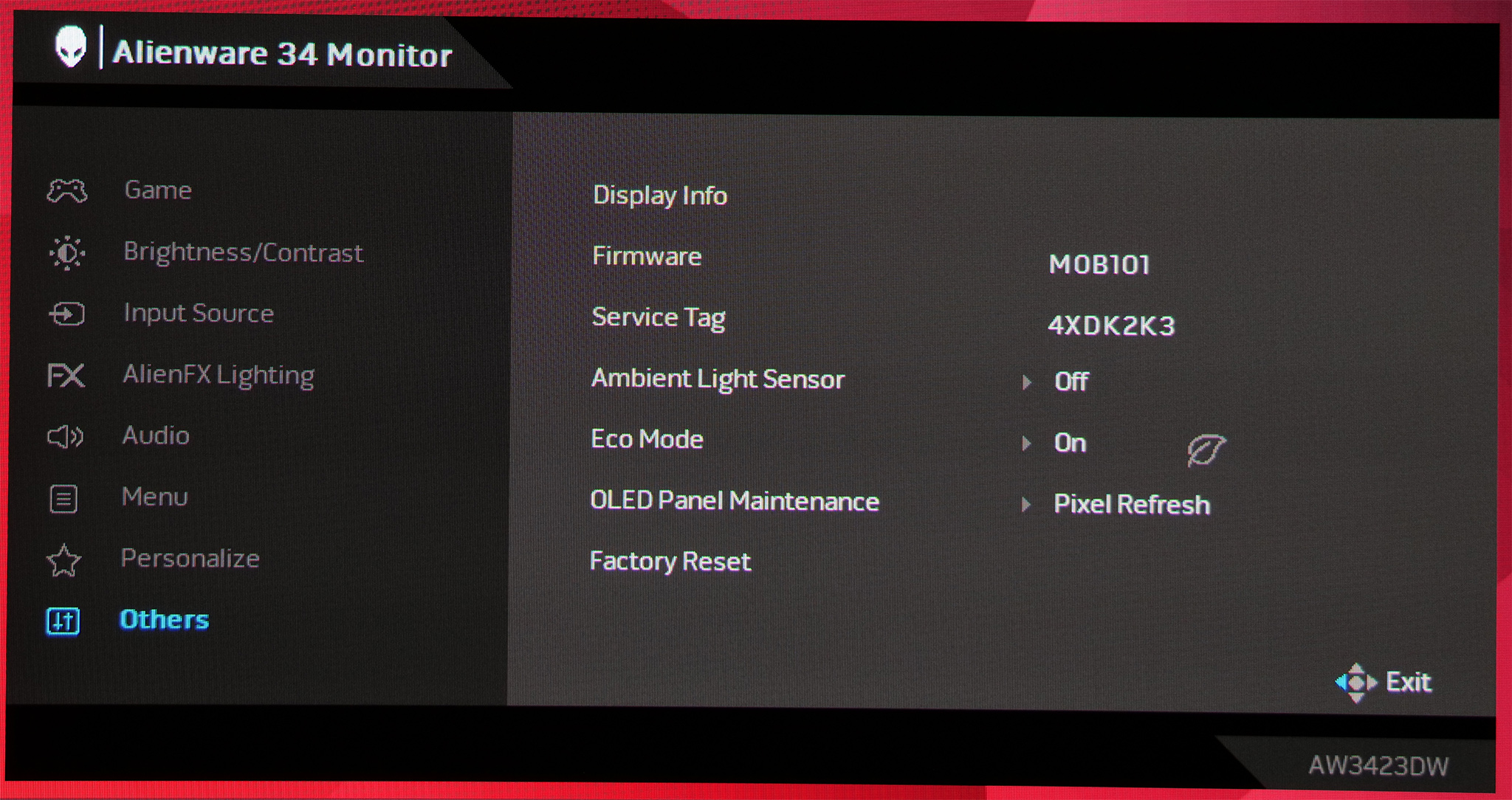
I can't fault the OSD used here. It's very easy to navigate through, you can customise different shortcuts accessible via the joystick and it has all the usual image adjustment settings we'd expect. You may be wondering about the lack of overdrive, but as this is an OLED panel with native near-instant response times, this is not needed.
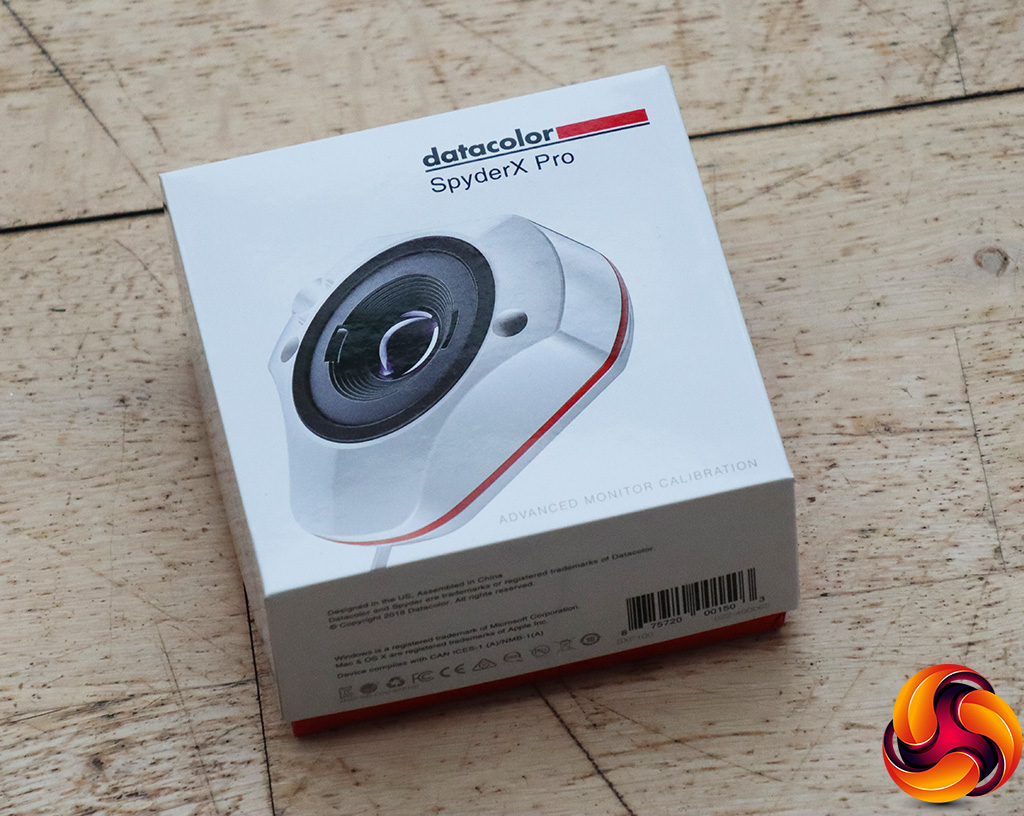
Our main test involves using a DataColor SpyderX Colorimeter to assess a display’s image quality. The device sits on top of the screen while the software generates colour tones and patterns, which it compares against predetermined values to work out how accurate the screen is.
The results show –
- A monitor’s maximum brightness in candelas or cd/m2 at various levels set in the OSD.
- A monitor’s contrast ratio at various brightness levels in the OSD.
- The brightness deviation across the panel.
- The black and white points.
- The colour accuracy, expressed as a Delta E ratio, with a result under 3 being fine for normal use, and under 2 being great for colour-accurate design work.
- The exact gamma levels, with a comparison against preset settings in the OSD.
We first run this test with the display in its default, out-of-the-box state, with all settings on default. We then calibrate the screen using the Spyder software and run the test again.
Pre-calibration
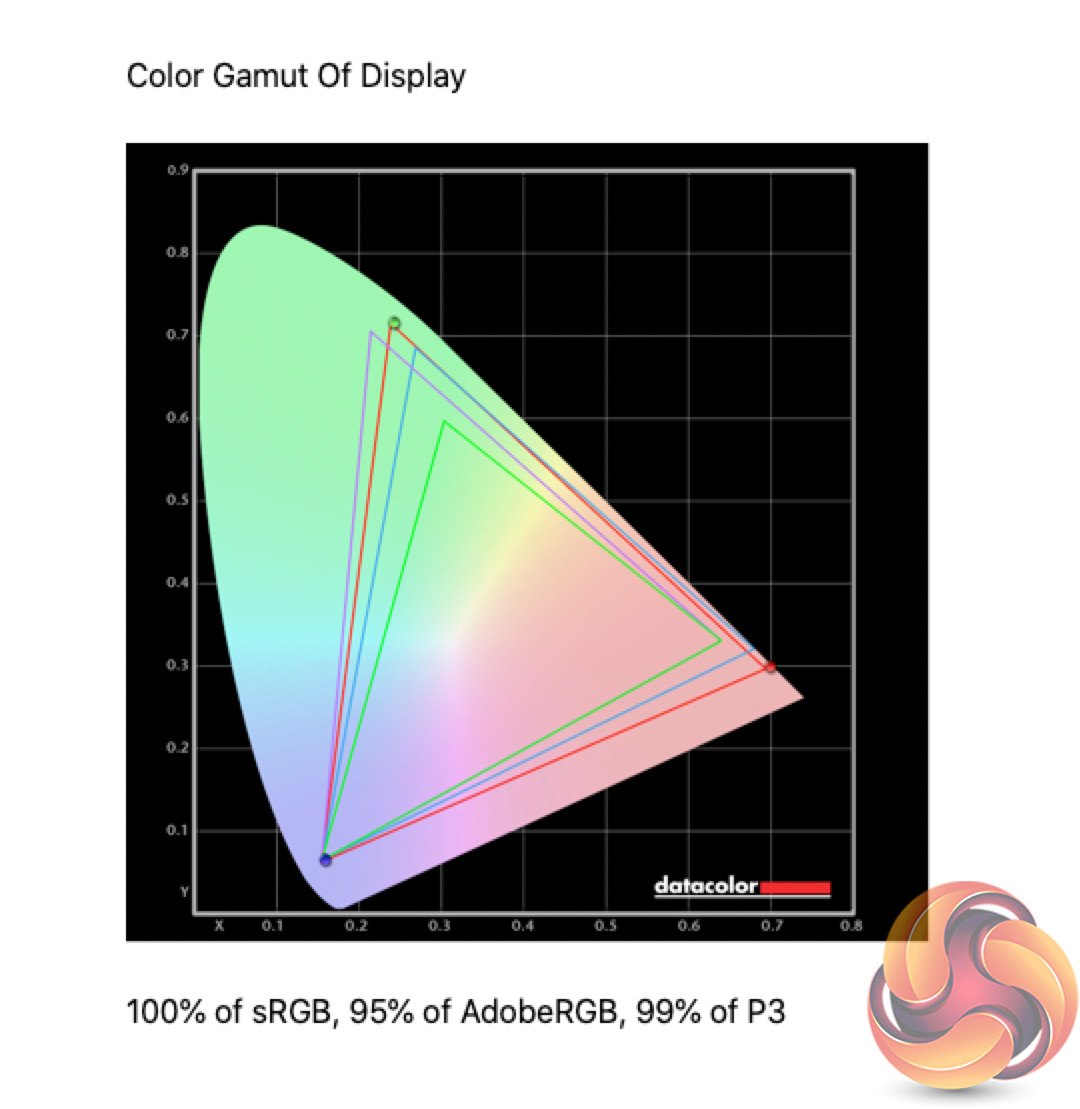
As the Alienware AW3423DW uses a QD-OLED panel, where a Quantum Dot layer convert's the panel's blue light into red and green, we find a very wide colour gamut on offer. That includes 100% sRGB, 95% AdobeRGB and 99% DCI-P3 coverage, so it's not a bad start at all.
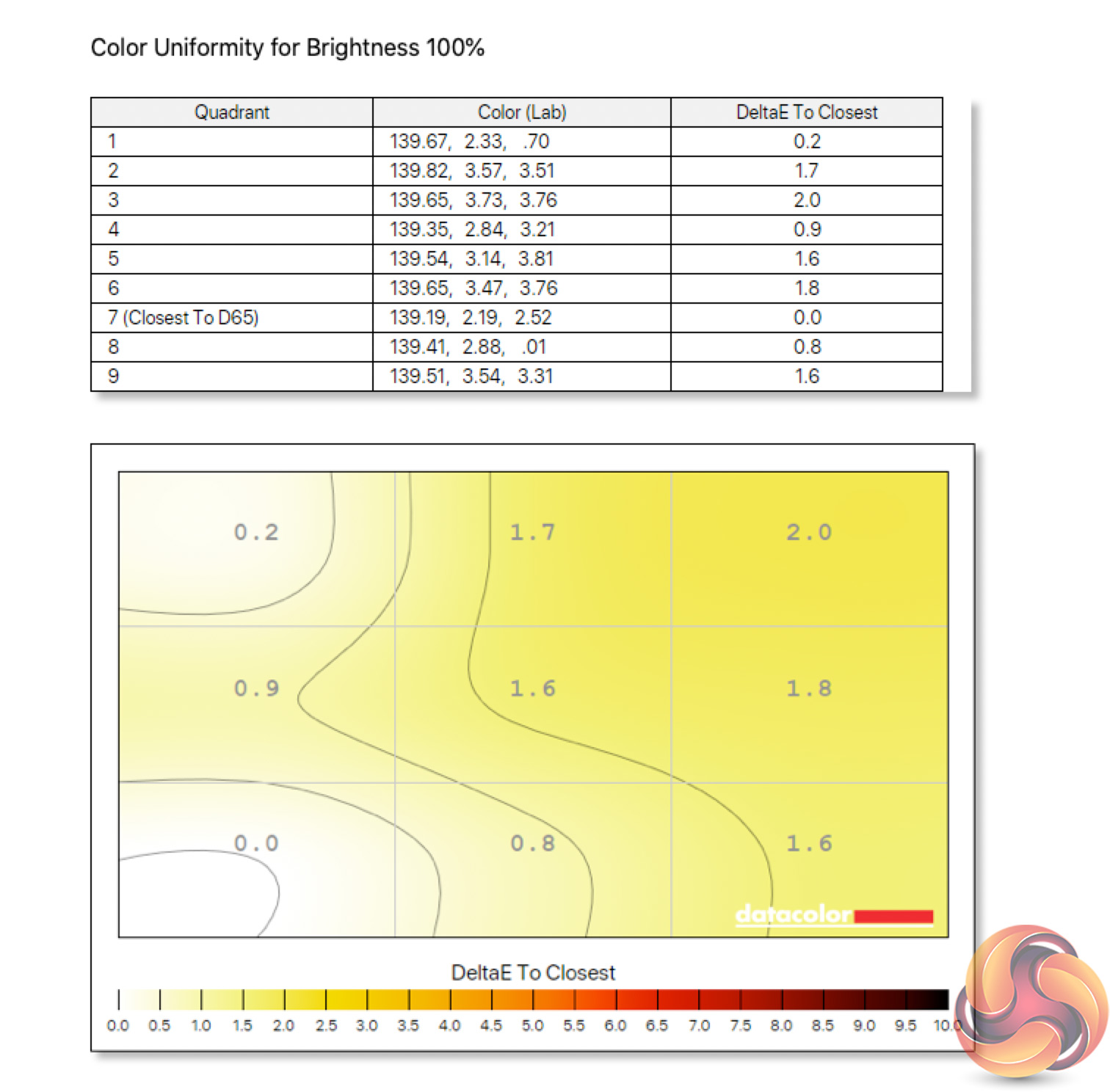
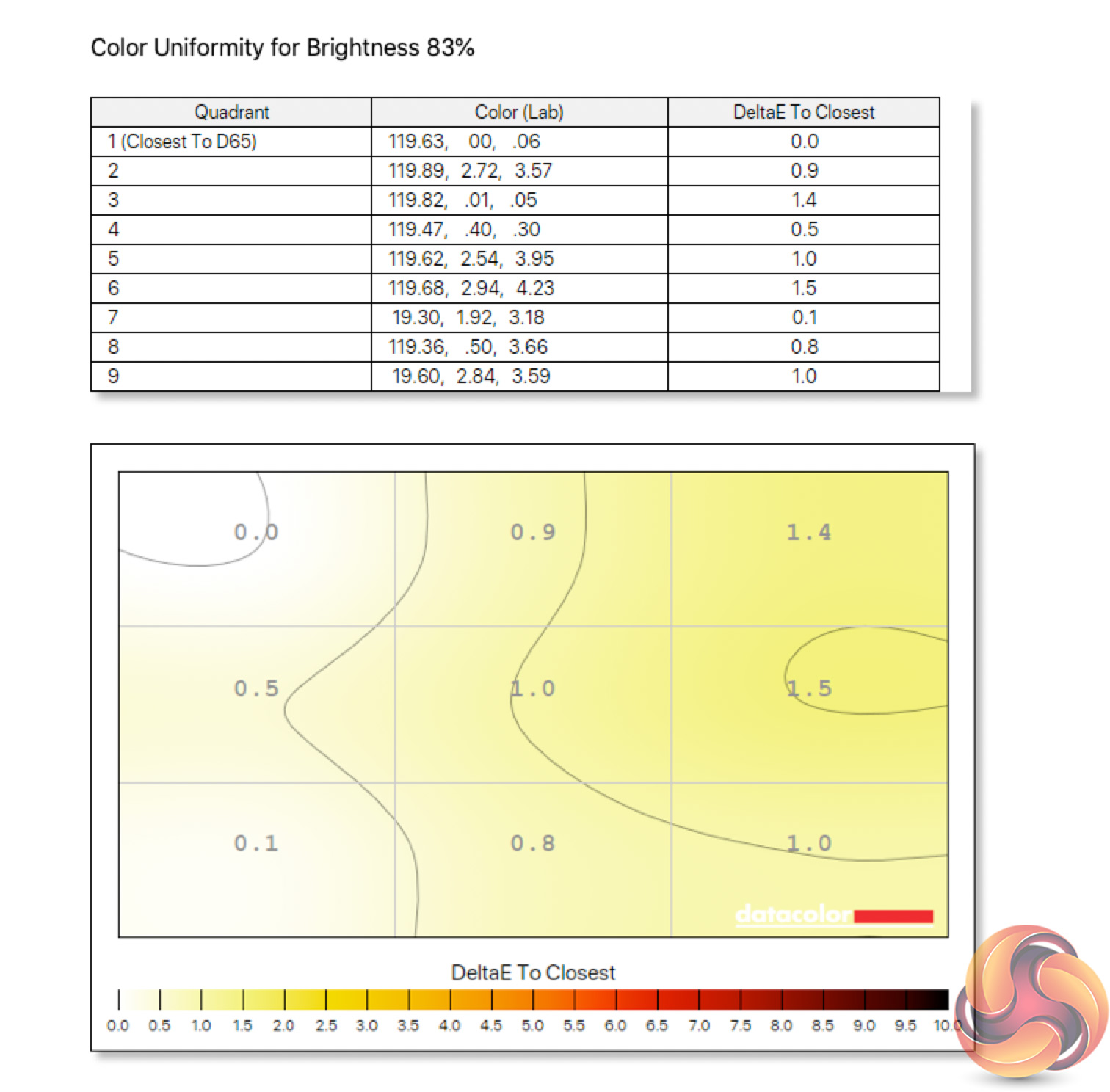
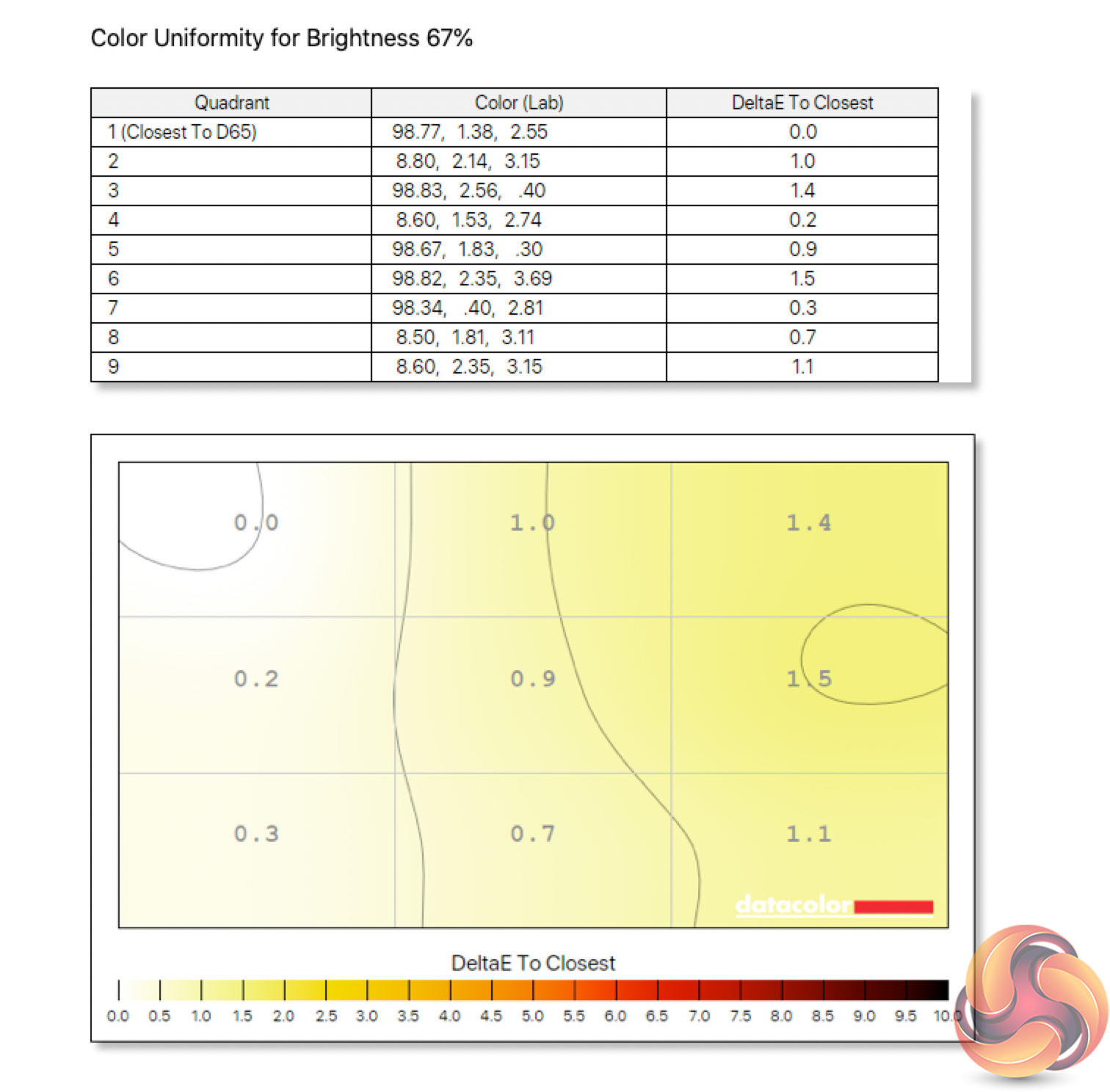
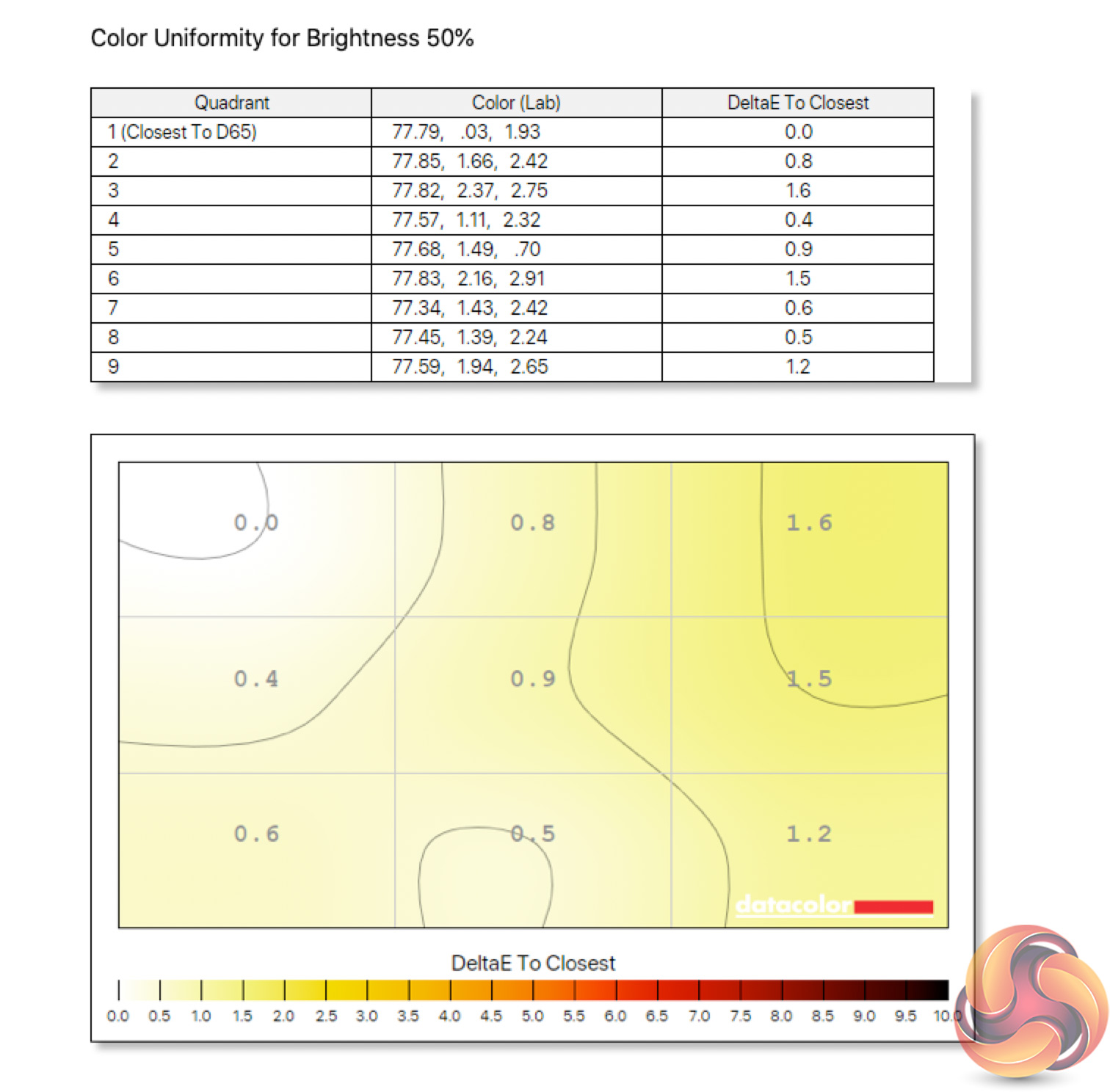
Colour uniformity is also top class, with only very minor deviation towards the upper right corner of the display. Even then, this is the most colour-uniform display I have ever tested.
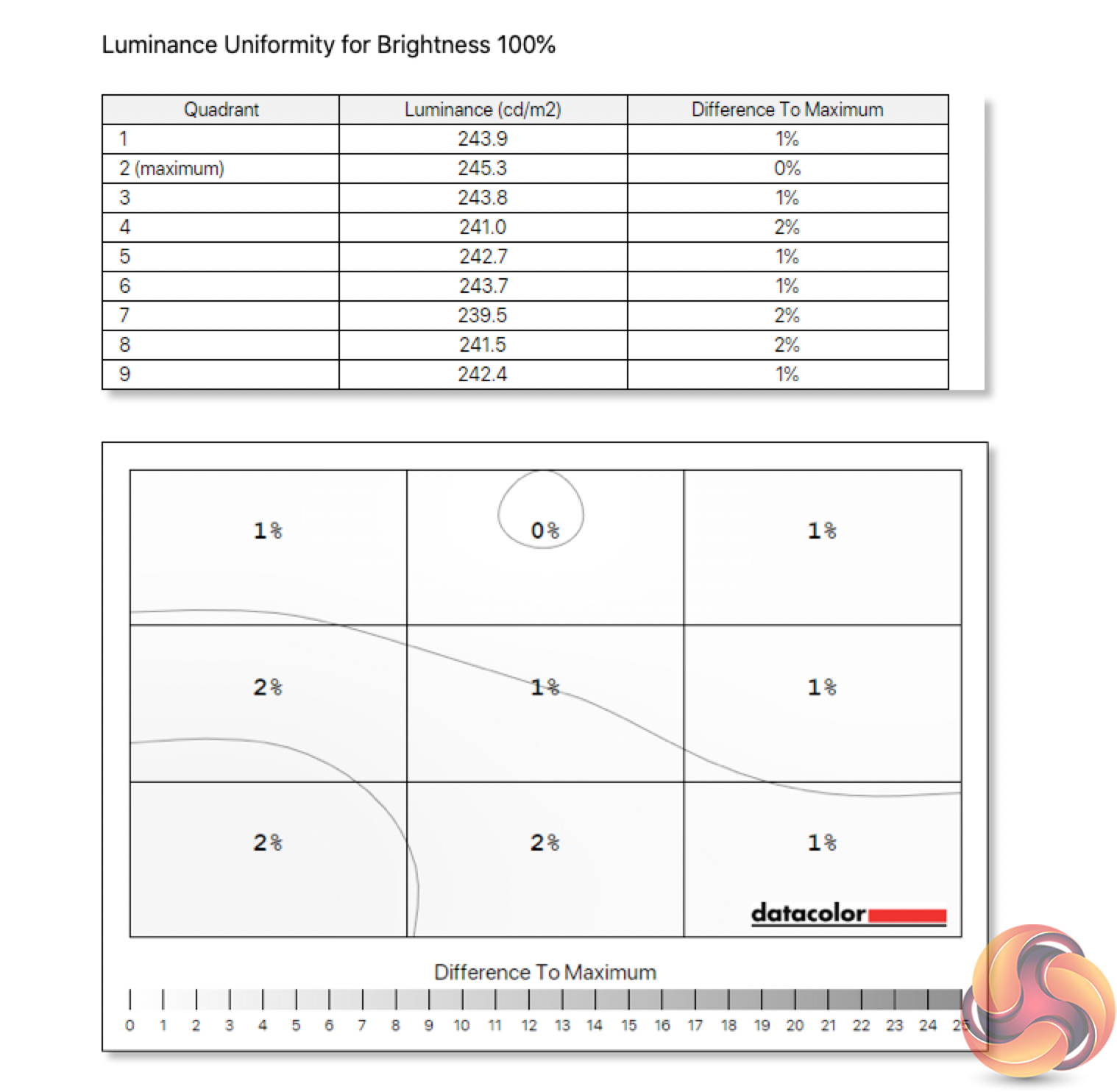
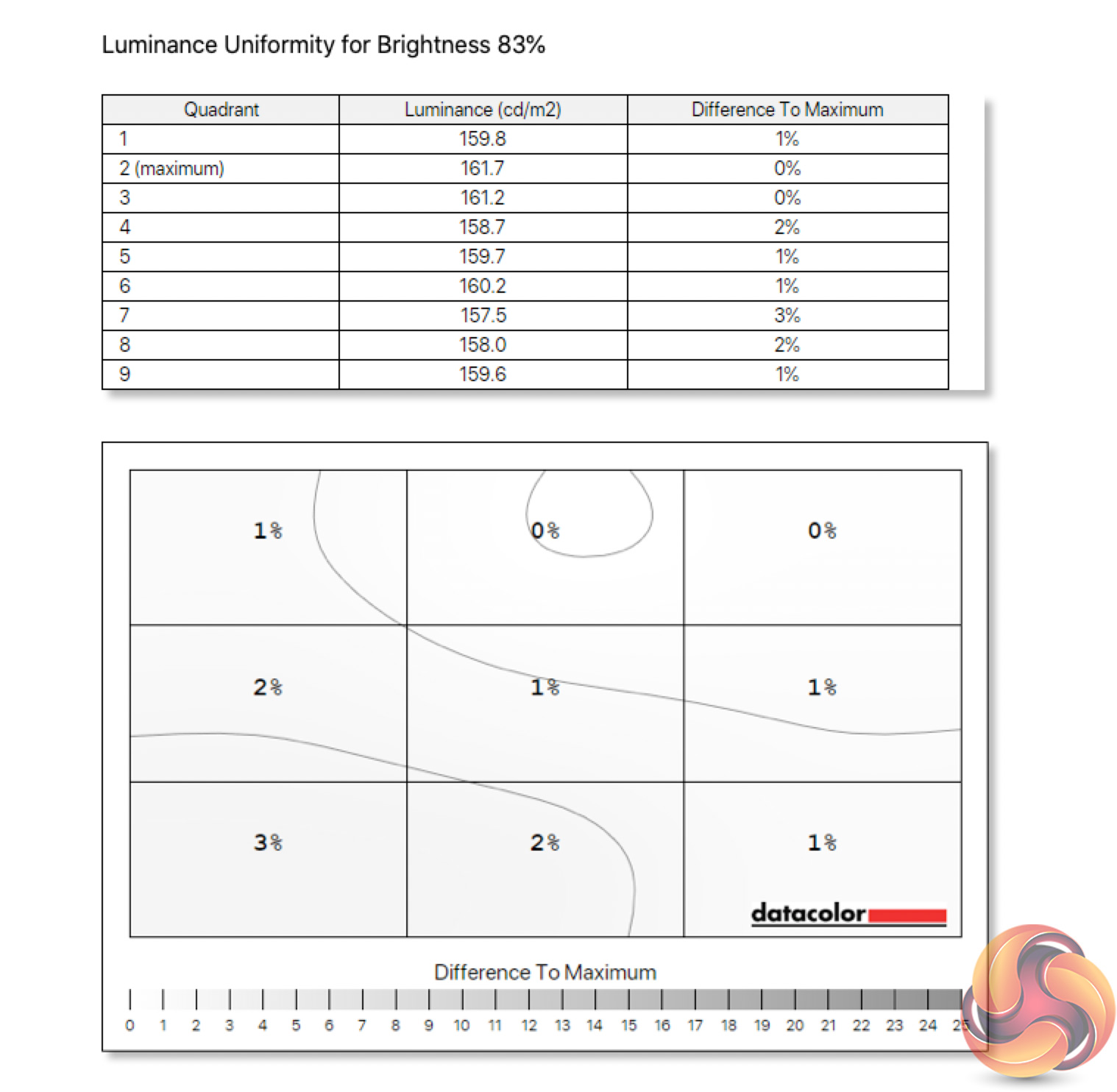
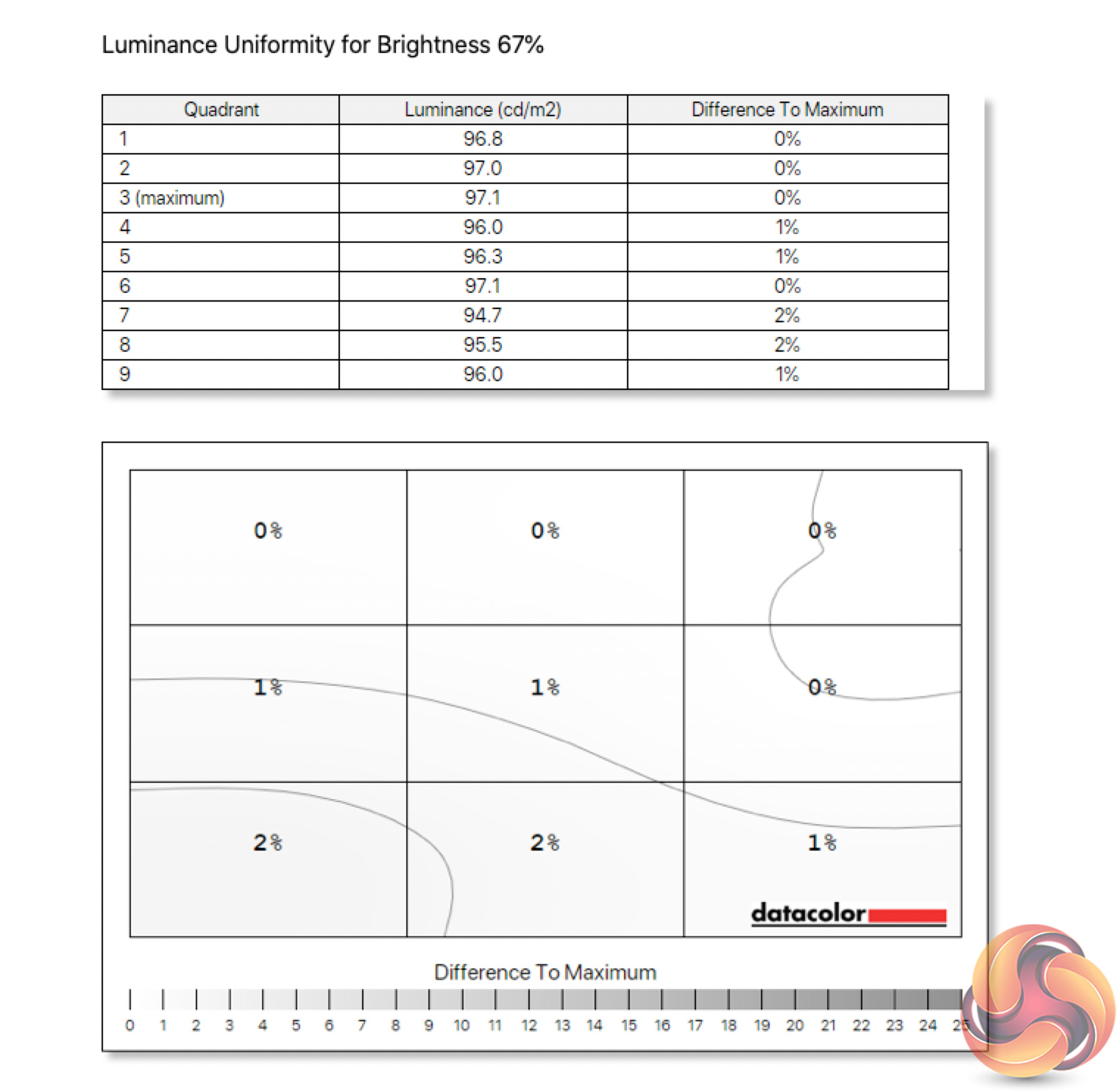
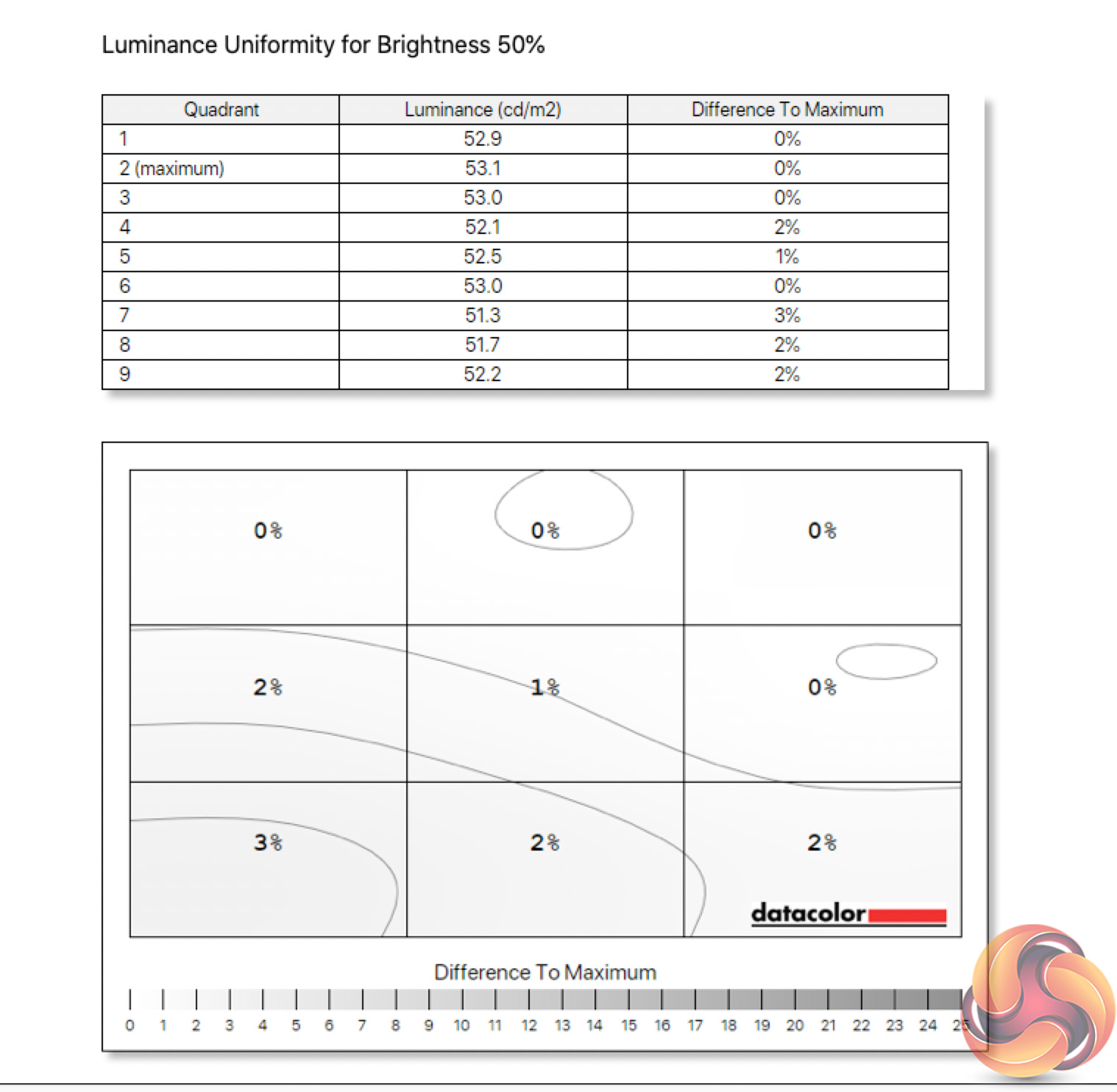
Similarly, luminance uniformity is exceptional. At most we see just 3% deviation, indicating incredible evenness of lighting across the panel – one of the clear benefits of OLED, as there's no backlight that needs to evenly illuminate the panel.
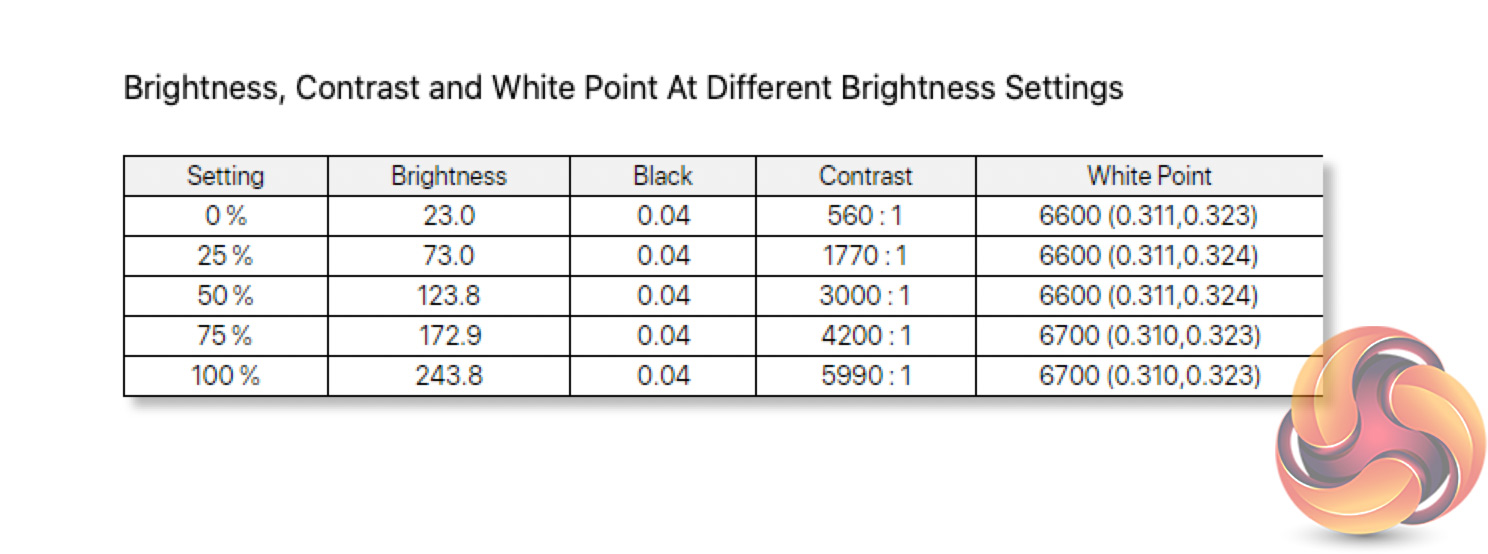
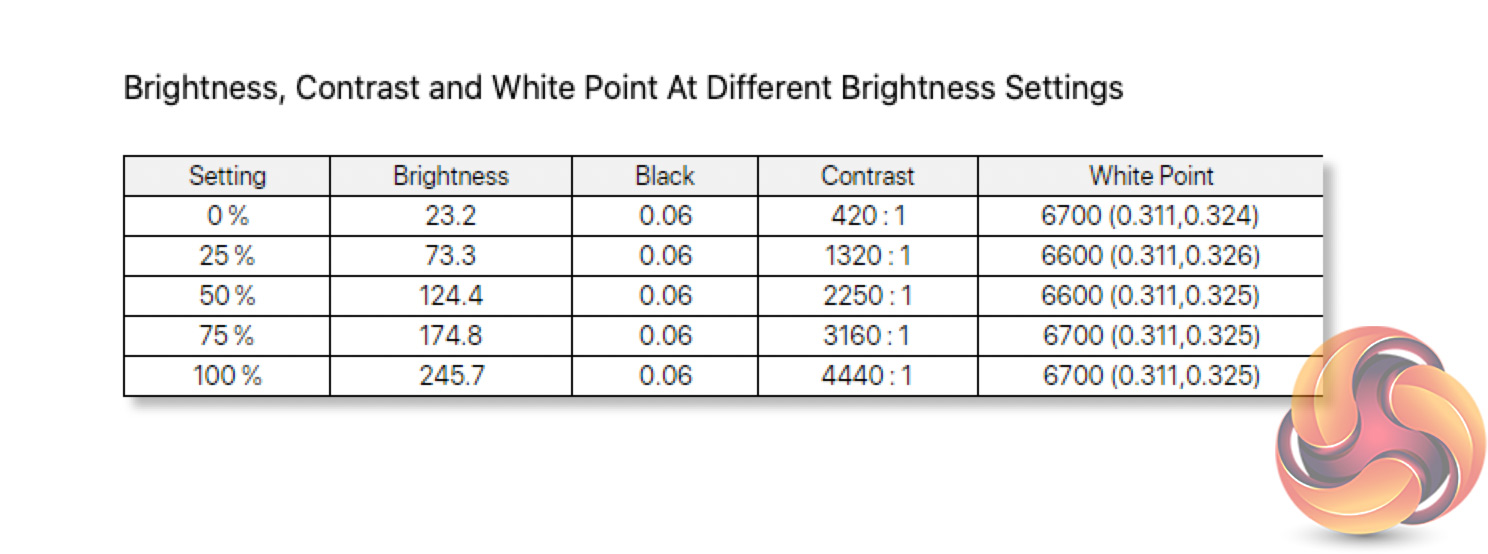
Overall brightness is not bad – for an LCD display we'd probably be a bit disappointed, but as OLED screens go, this is very usable, with a peak brightness of 243.8 nits. It also gets impressively dim at just 23% nits when set to 0% brightness in the OSD.
The contrast figures shown in the above test, you can easily ignore – the AW3423DW uses an OLED panel so its pixels can switch off to display true black, giving an effective ‘infinite' contrast ratio. The numbers shown above indicate the limitations of the SpyderX hardware and software.
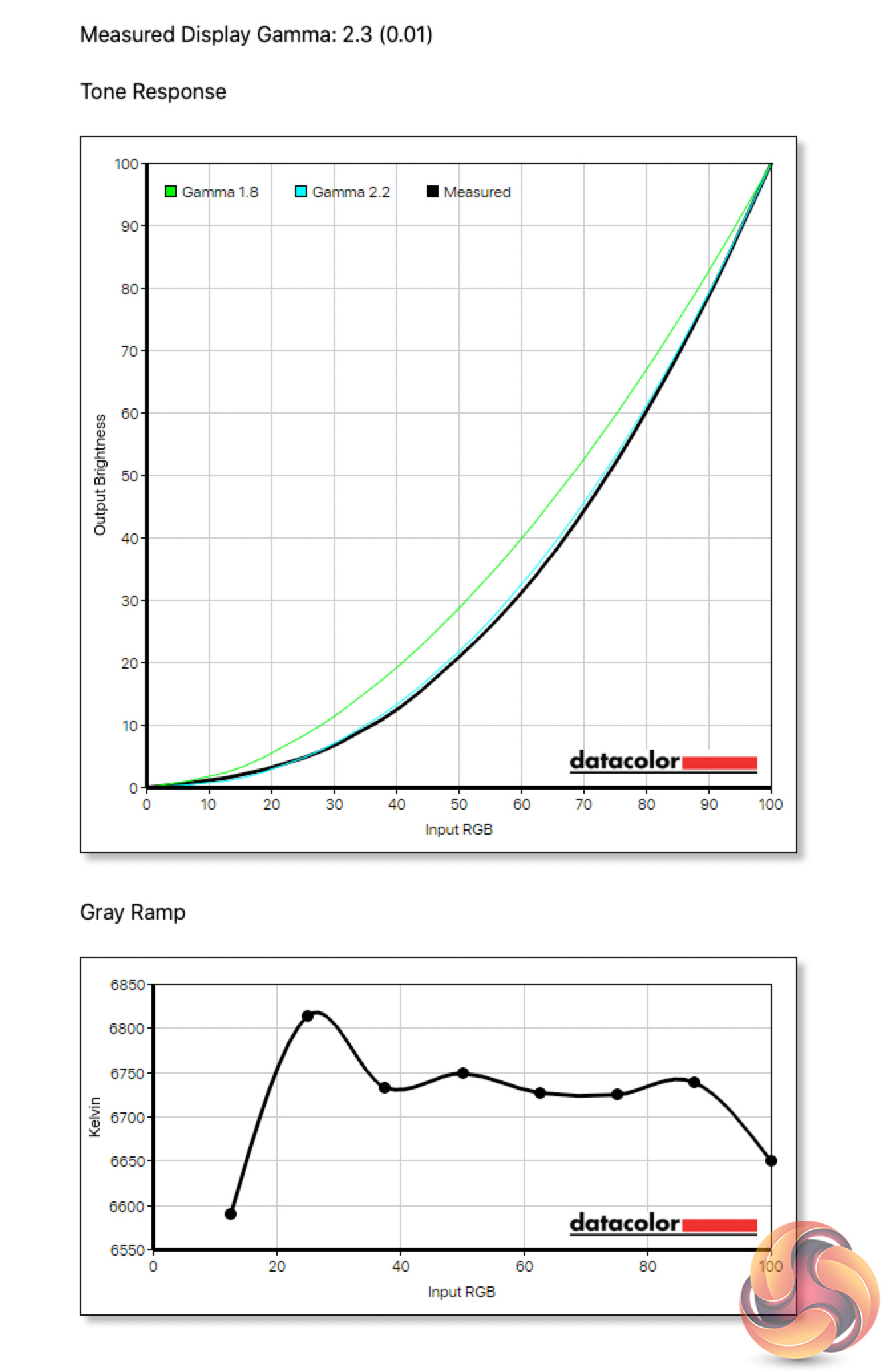
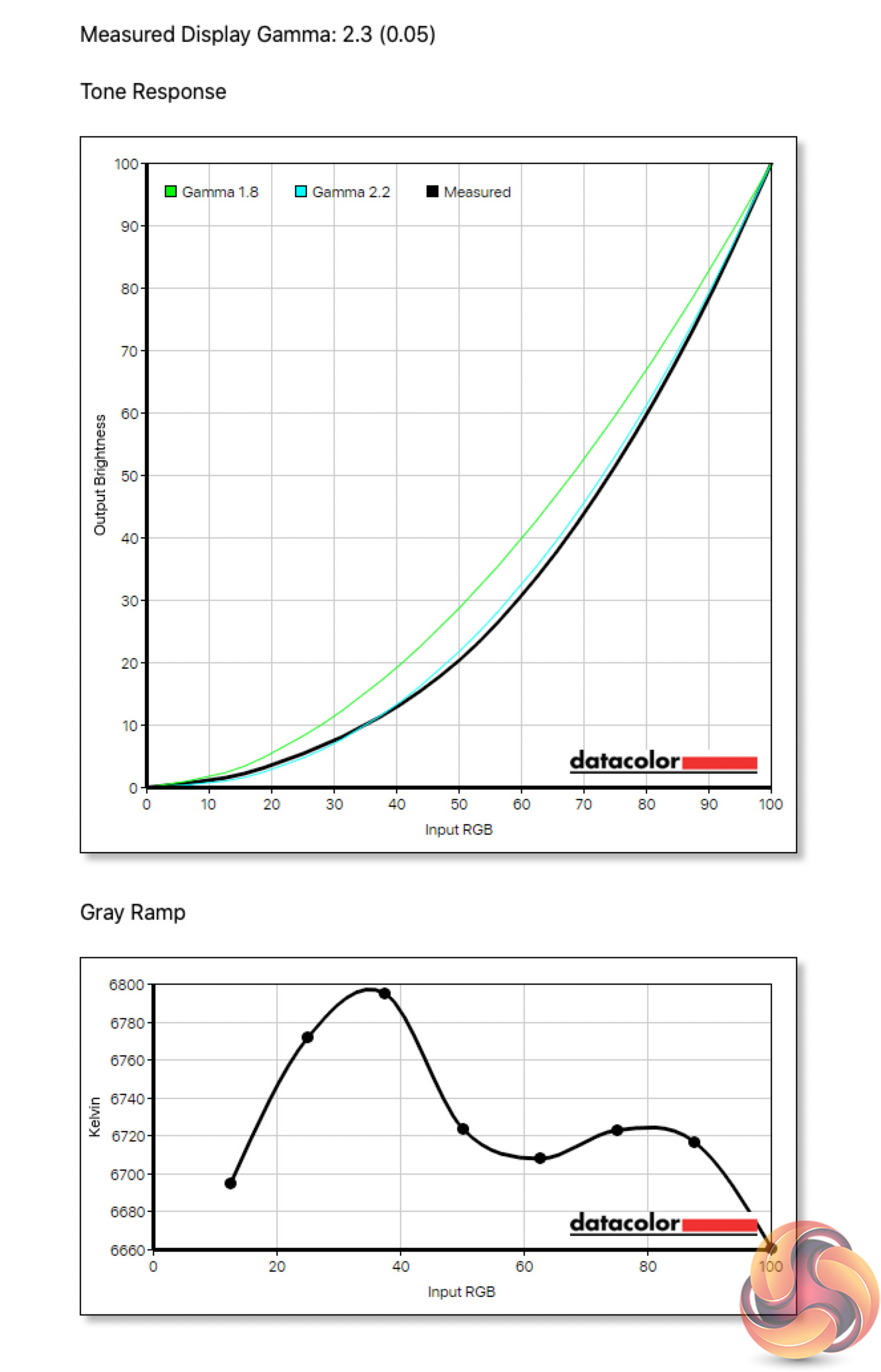
As for gamma, using the Standard colour profile, which is enabled by default, there's no option to adjust Gamma – though you can do this via the Creator profile instead. Still, using the out of the box mode, we get a Gamma of 2.3.
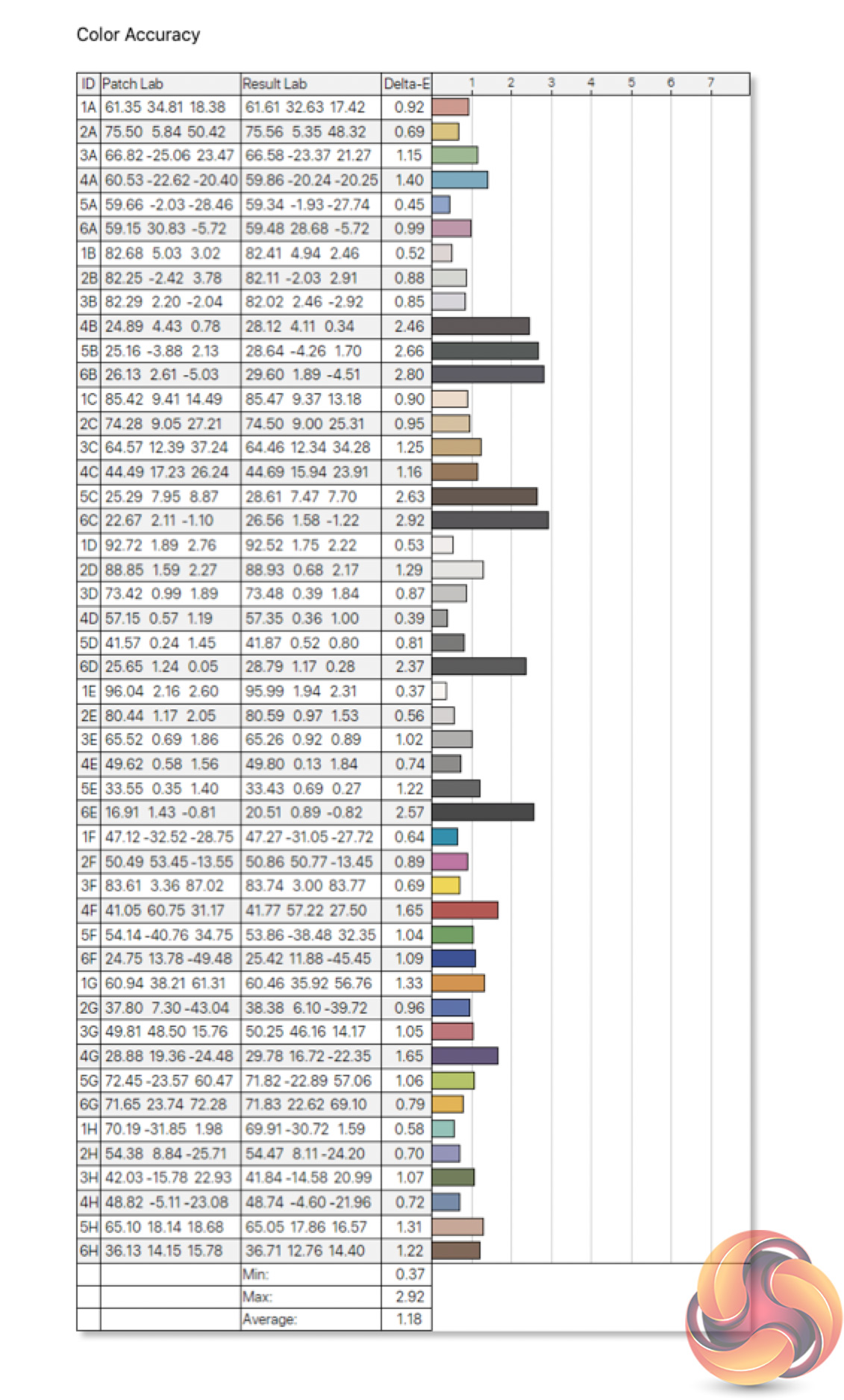
Colour accuracy is also decent out of the box. It's not the absolute best we've ever seen, but with an average DeltaE of 1.18 and a maximum of 2.92, it is still impressive.
Post-calibration
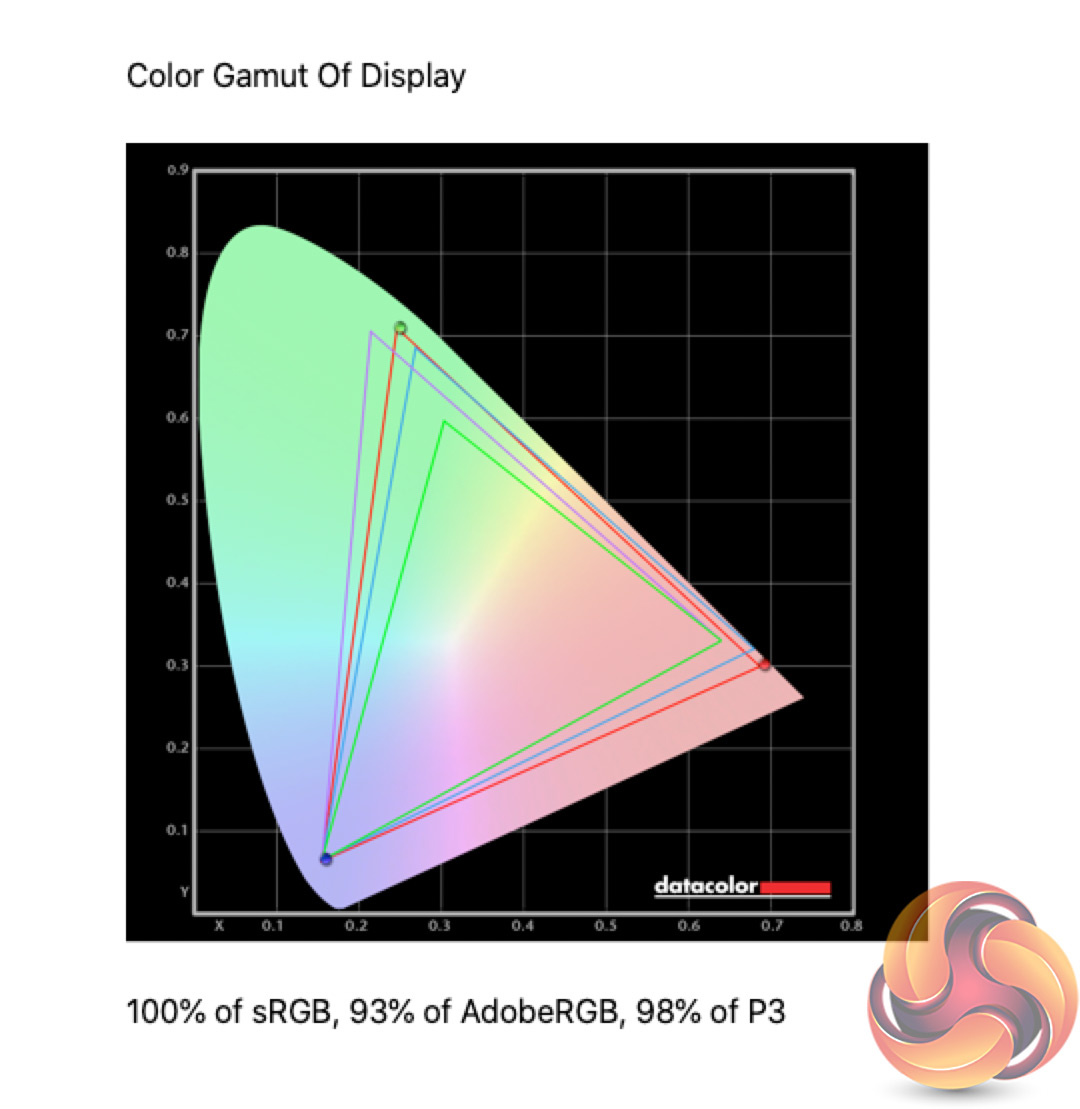
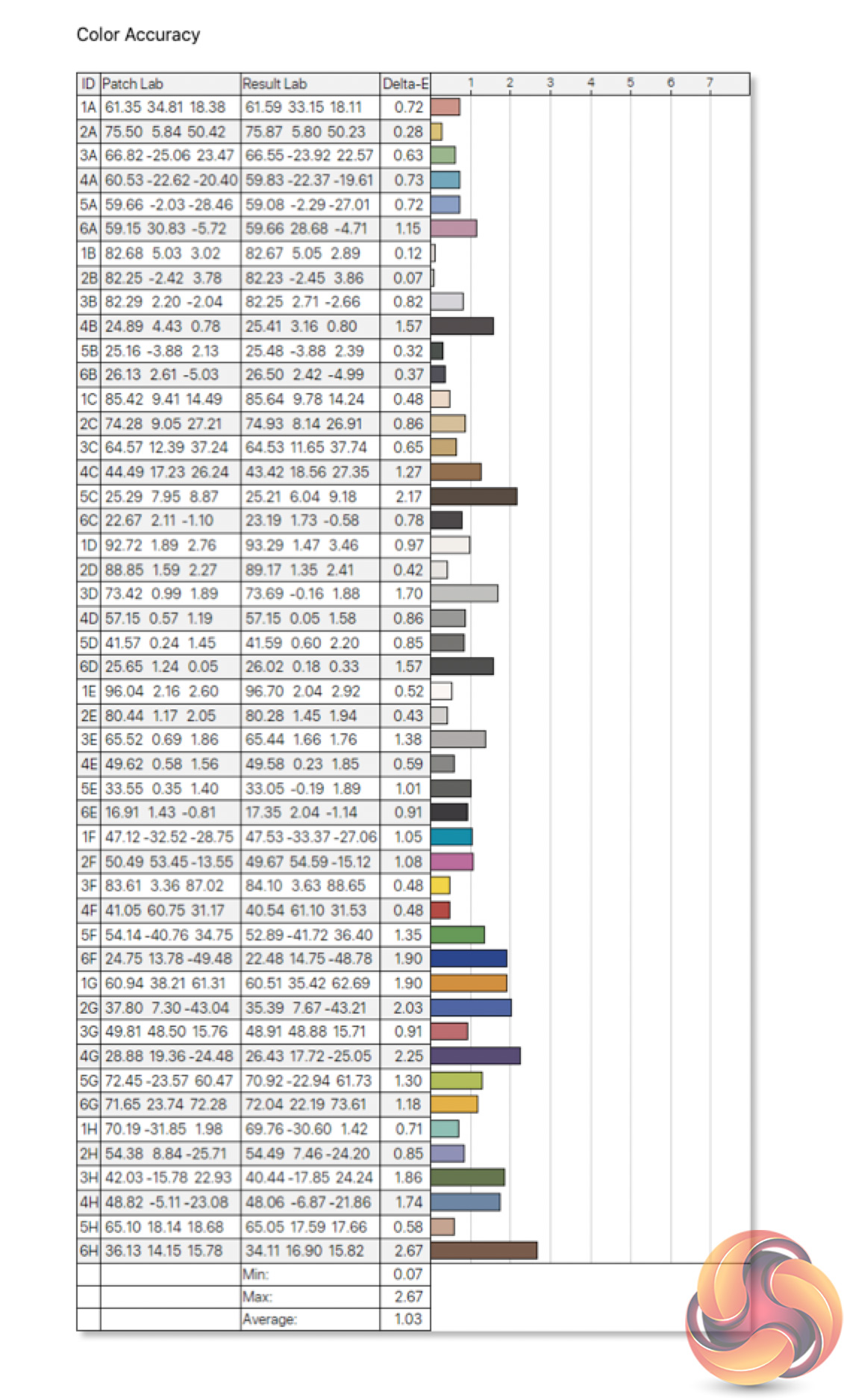
We did also run the screen through our usual calibration process, resulting in improved colour accuracy – not by loads, but we see a new average DeltaE of 1.03 and a maximum of 2.67, so it is a little better.
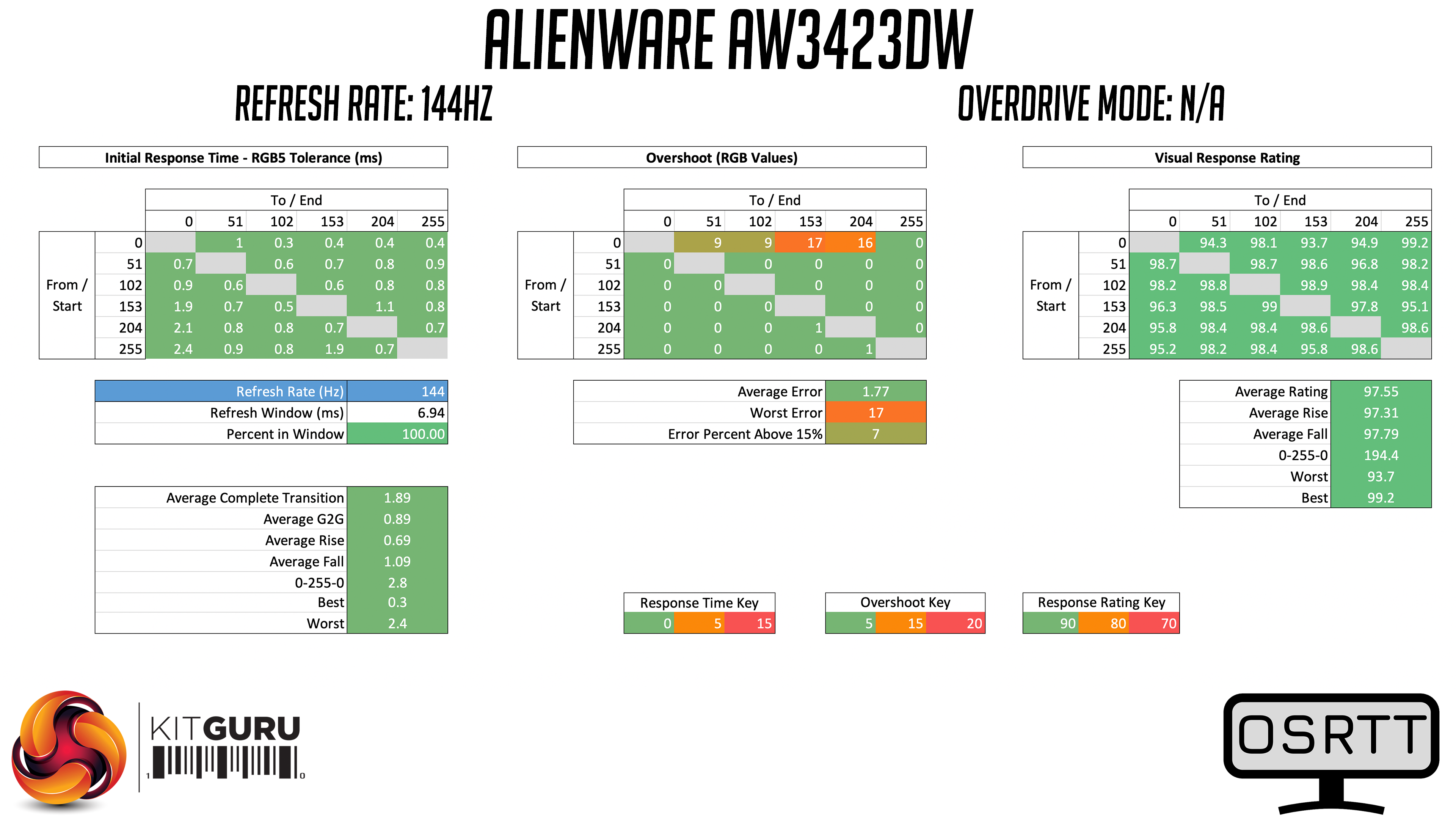
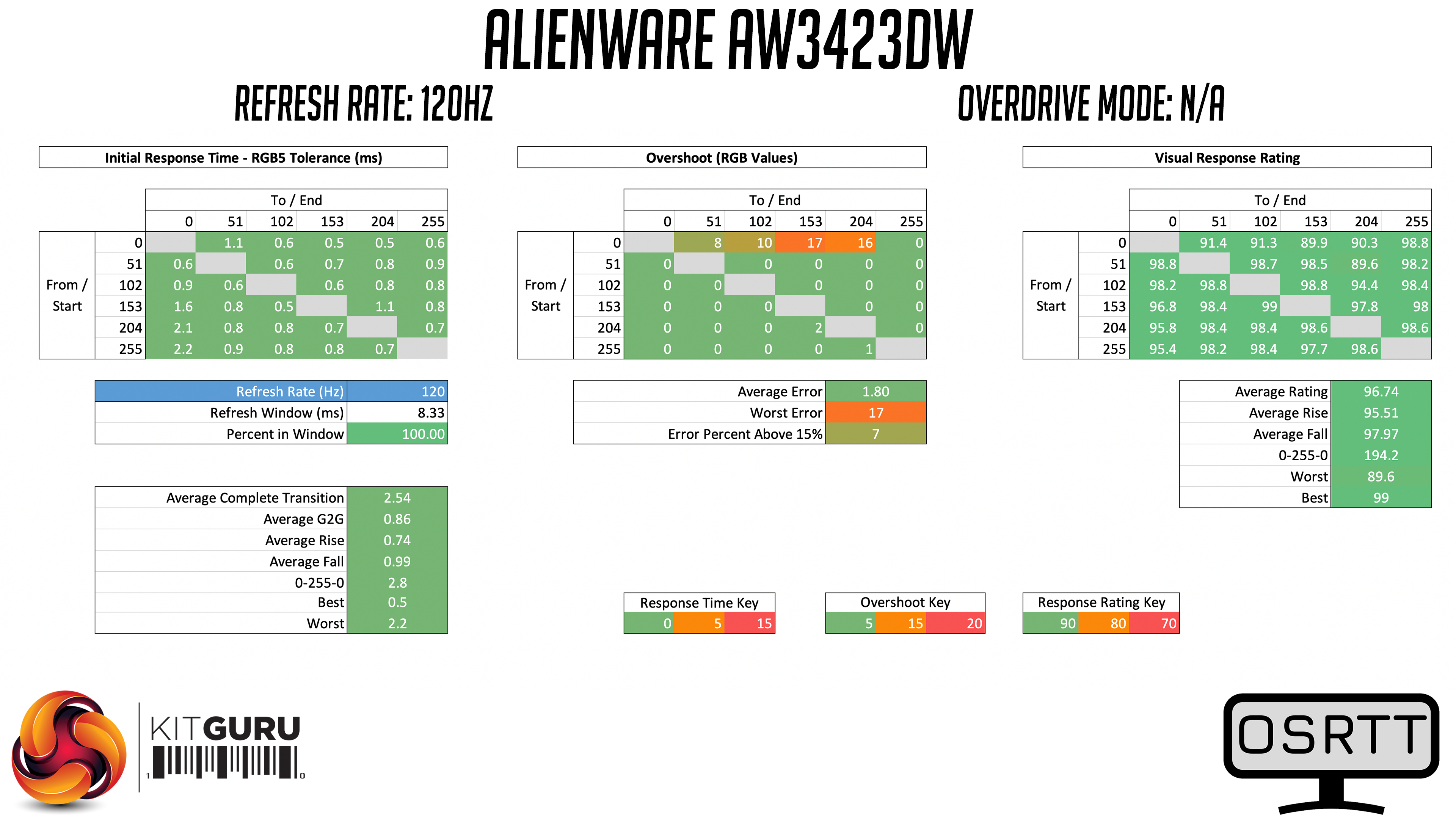
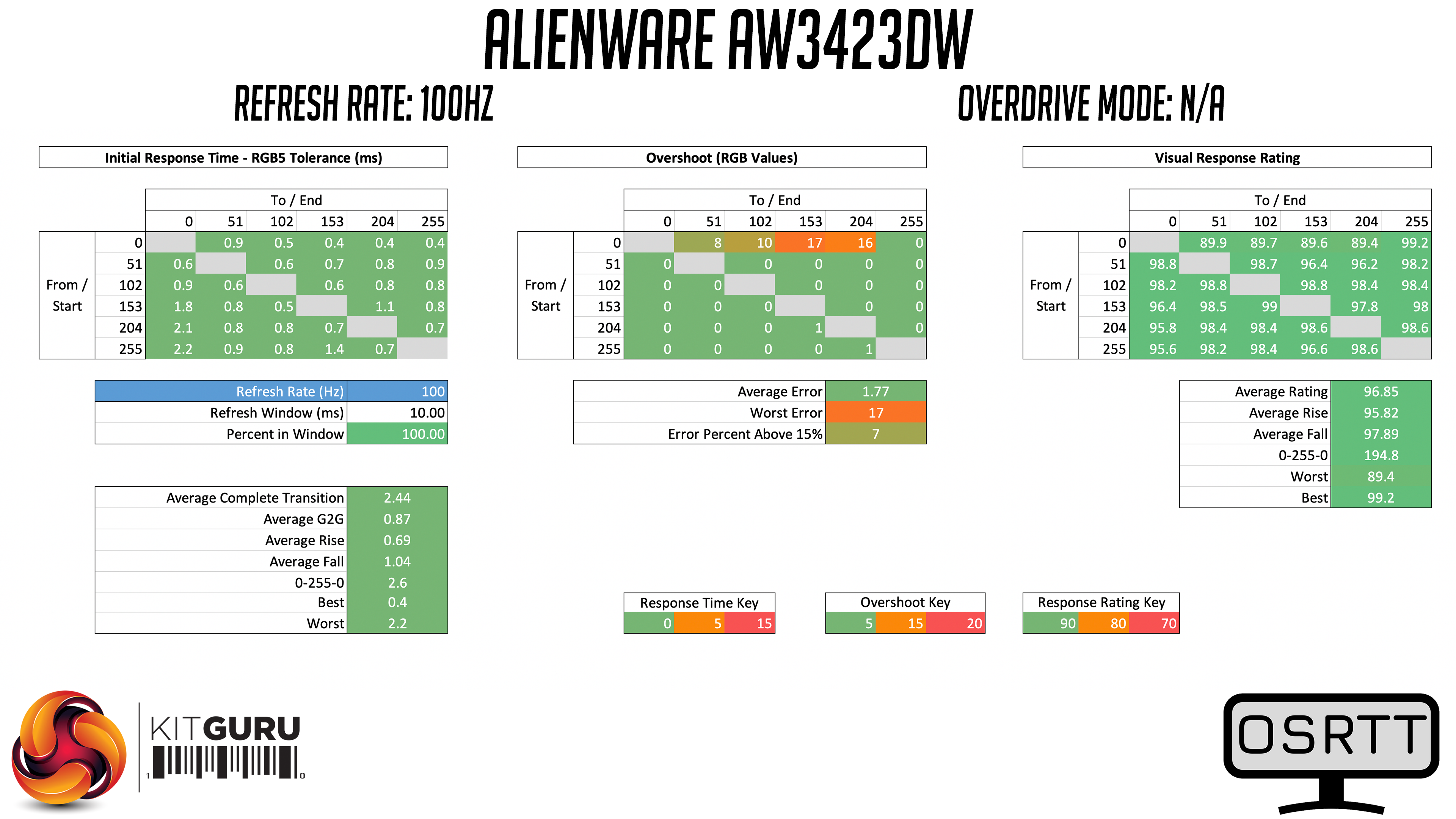
Monitor response time testing is a new addition to our reviews, where we use the Open Source Response Time Tool (OSRTT), developed by TechTeamGB. This measures grey-to-grey response times and presents the results in a series of heatmaps, the style of which you may be familiar with from other reviews.
Initial Response Time is the time taken for the panel to transition from one colour to another, where lower values are better. We present the initial response time, so overshoot is not taken into account and is measured separately. We use a fixed RGB 5 tolerance for each transition.
Overshoot is the term given for when a monitor's transition exceeds or goes beyond its target value. So if a monitor was meant to transition from RGB 0 to RGB 55, but it hits RGB 60 before settling back down at RGB 55, that is overshoot. This is presented as RGB values in the heatmaps – i.e. how many RGB values past the intended target were measured.
Visual Response Rating is a metric designed to ‘score' a panel's visual performance, incorporating both response times and overdrive. Fast response times with little to no overshoot will score well, while slow response times or those with significant overshoot will score poorly.
We test the AW3423DW across the refresh range. Being an OLED monitor with native near-instant response times, there's no overdrive modes to choose from.
175Hz
144Hz
120Hz
100Hz
60Hz
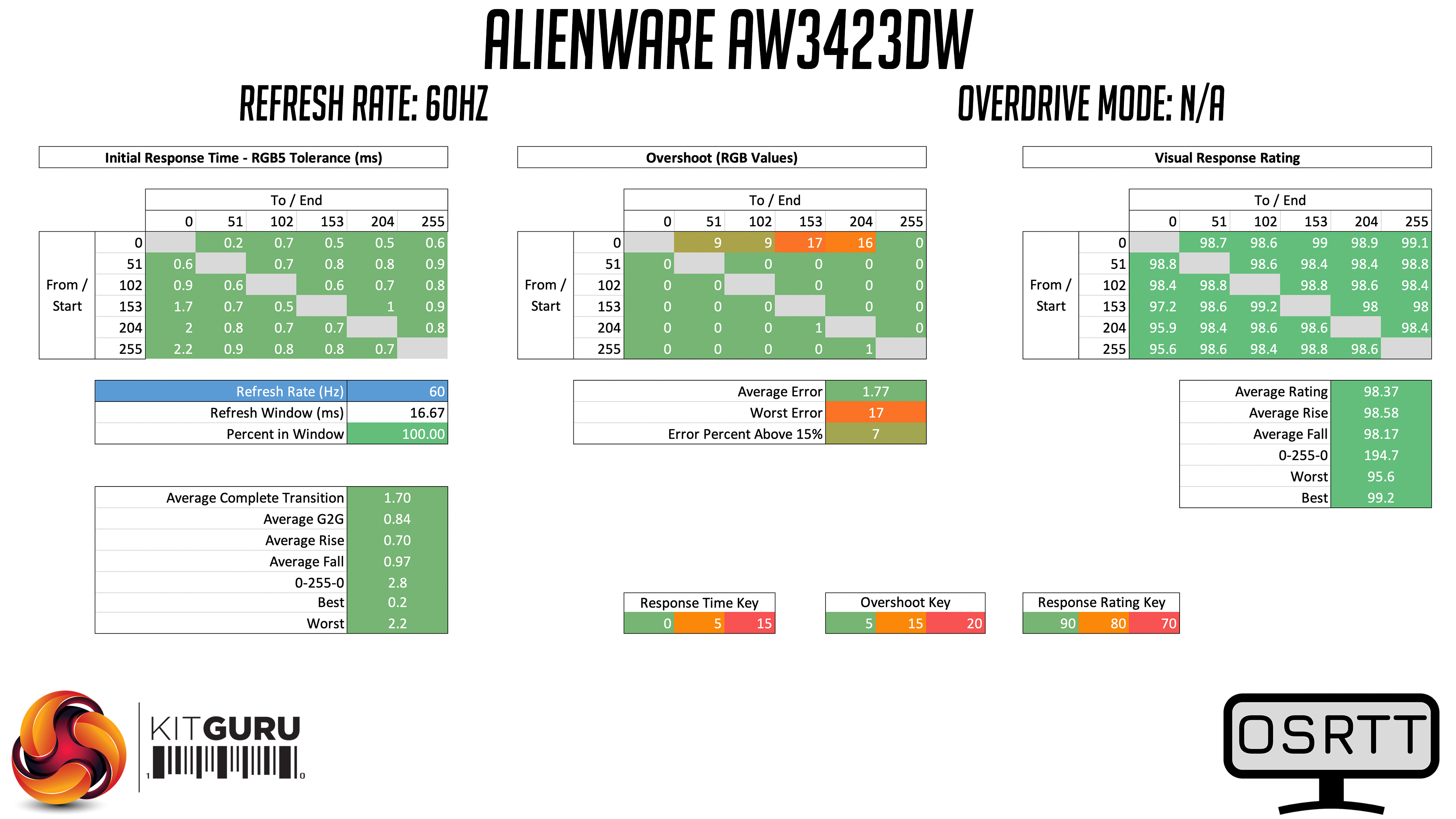
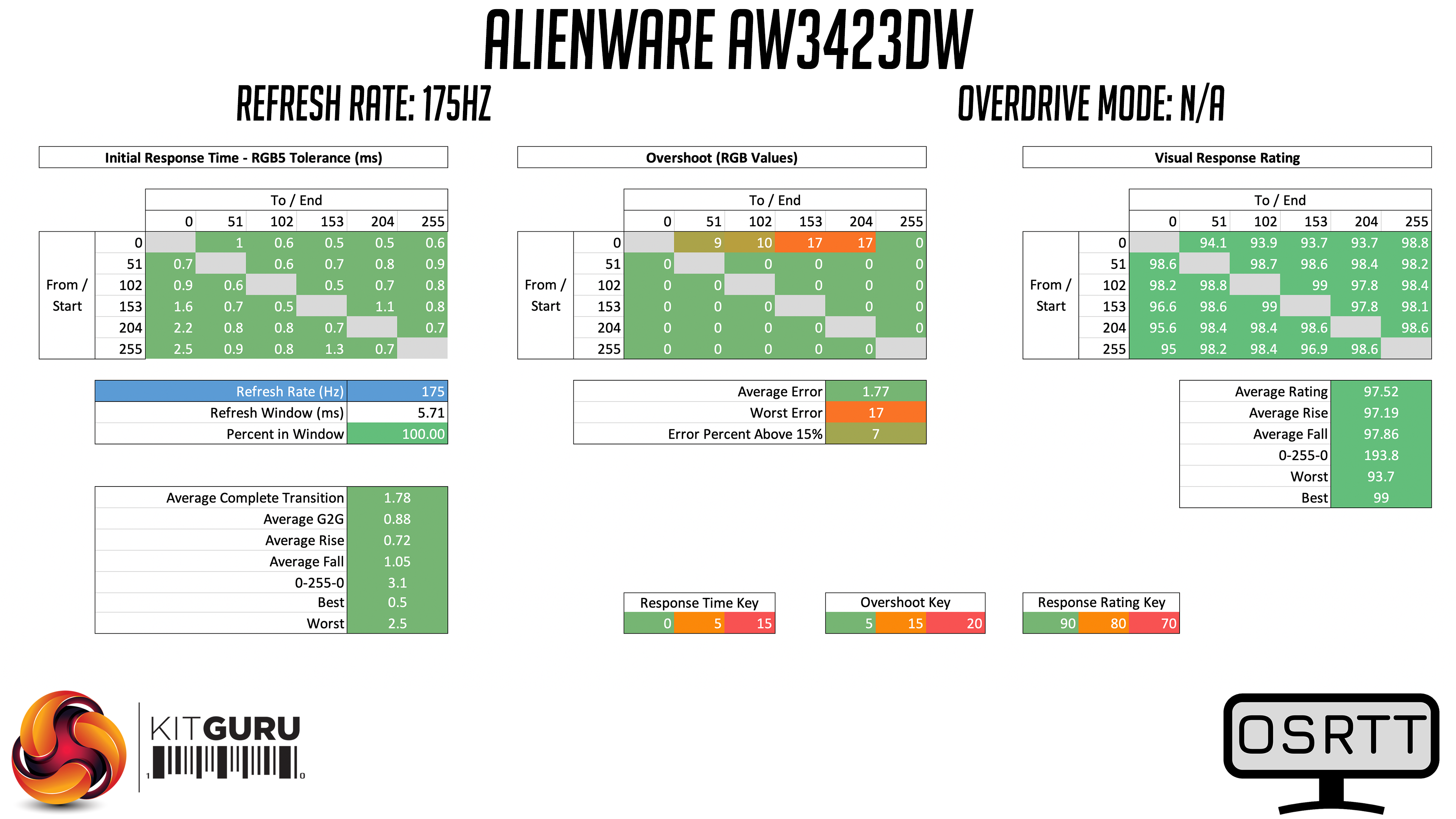
Grey-to-grey response times are top-class across the board. We would expect this from an OLED screen, but as this is actually the first OLED monitor I've ever tested with OSRTT, it is still very cool to see so many transitions in the sub-1ms range, with only a few exceeding the 1ms mark. This applies to every refresh rate tested as well, from 60Hz all the way up to 175Hz. You will of course still get better motion clarity at the higher refresh rates, but in terms of sheer response times, this is the best we have ever seen.
Overshoot?
The one area which may raise eye brows is in terms of overshoot. You can see this on the top row of the overshoot heatmap, where transitions from RGB 0 to RGB 51, 102, 153 and 204 all produce a degree of overshoot. It's not really bad at all and certainly wasn't visible to my eye, but it was measurable.
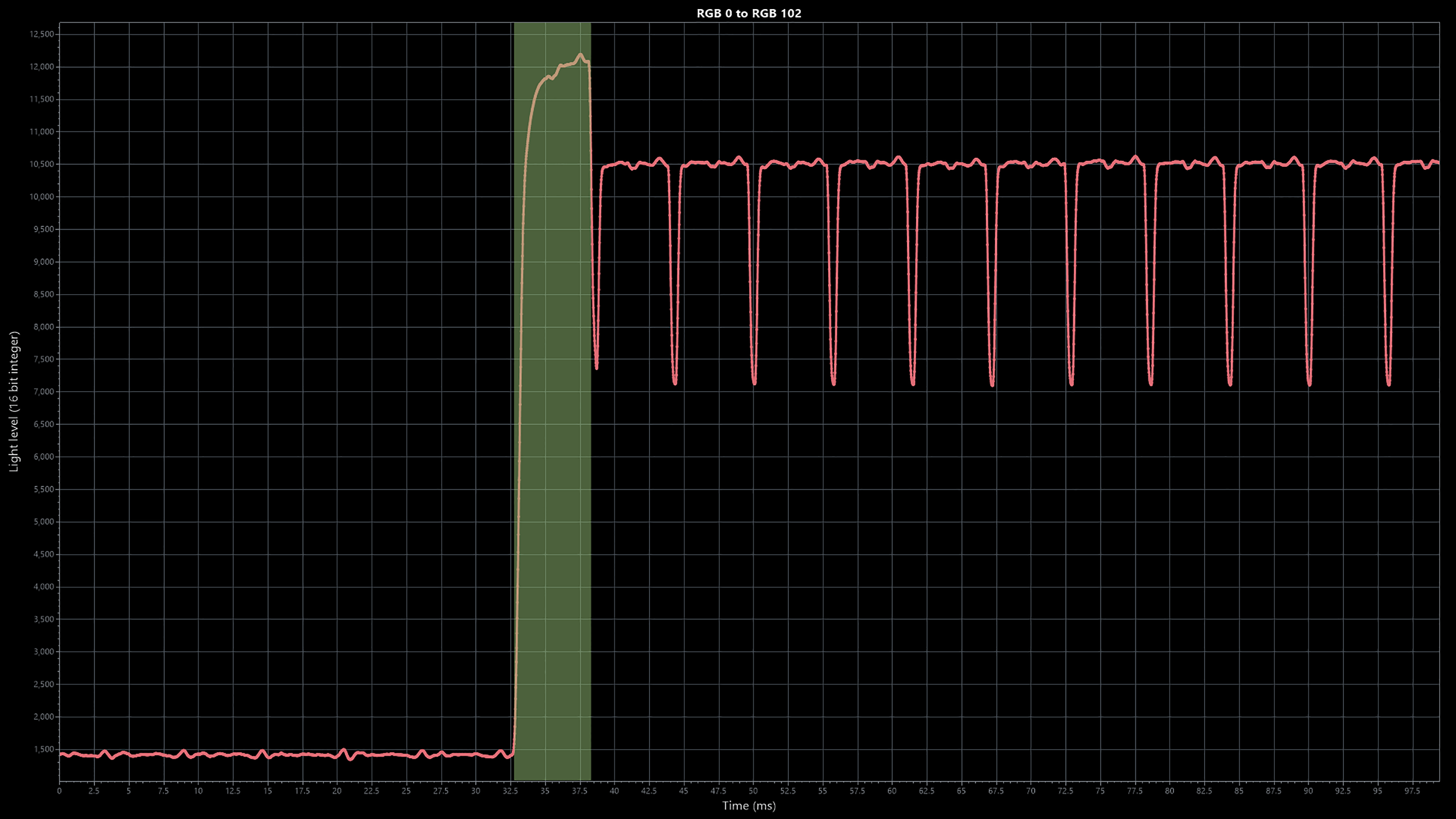
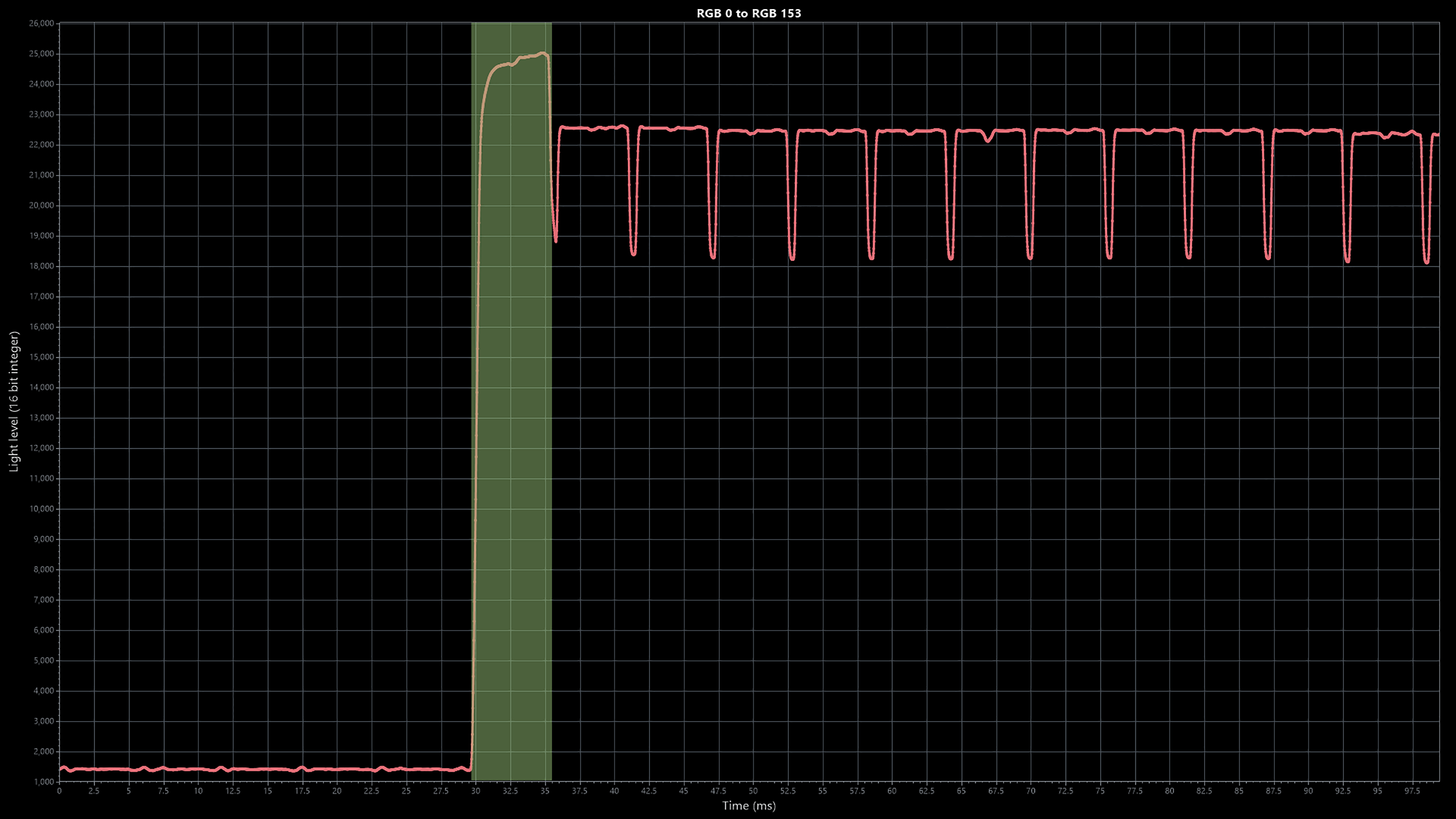
To look at this closer, above we can see two of the individual transitions, in line-graph format. The top shows the transition from RGB 0 to RGB 102, and the bottom shows the transition from RGB 0 to RGB 153.
In both cases, we can see the light level shifting up from RGB 0 (a full black shade) and almost immediately transitioning up to its target. On the first frame however, there is a clear spike as the monitor overshoots its target, before it settles perfectly at the target by the next refresh.
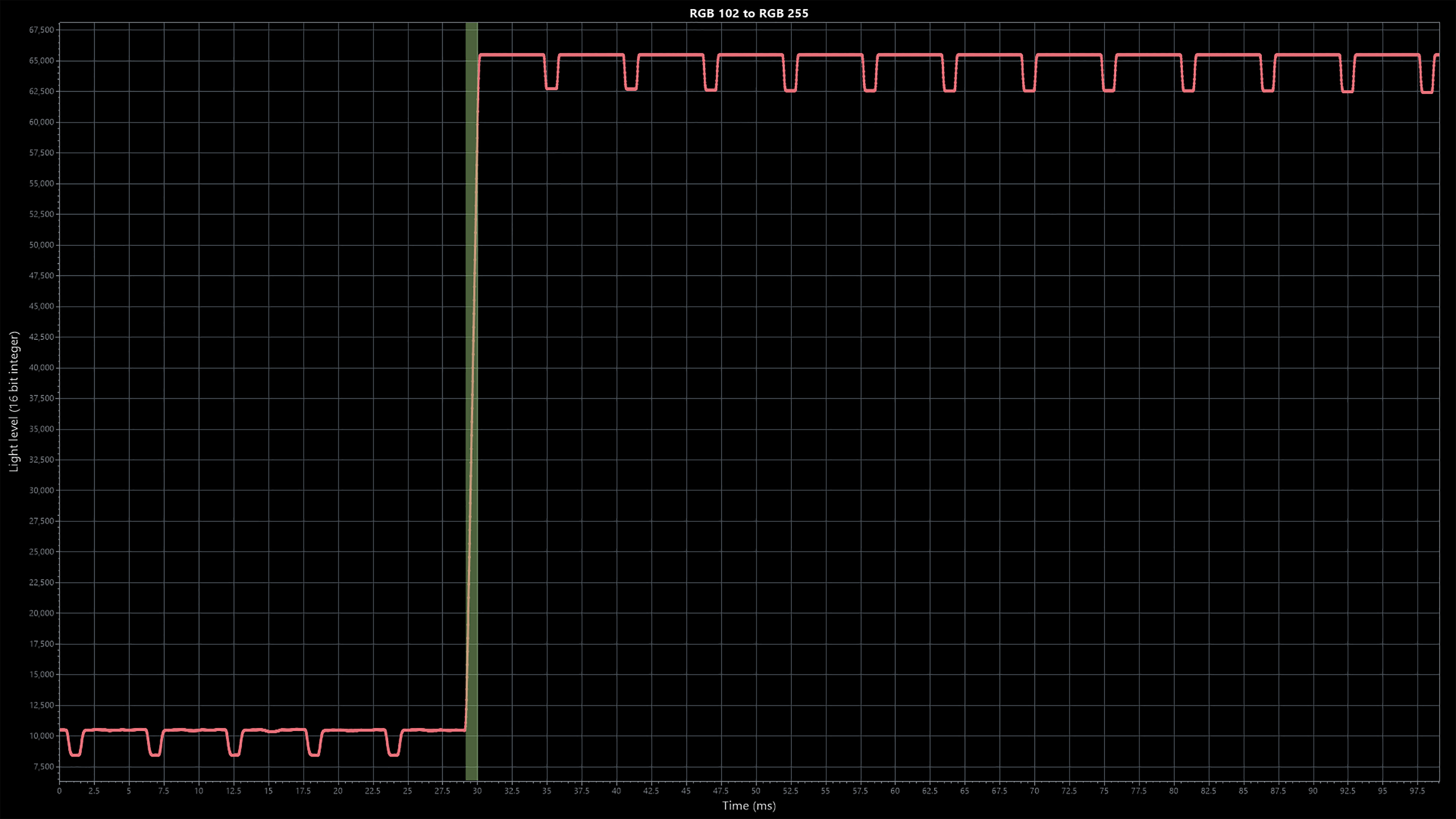
We can contrast that with this image, showing the transition from RGB 102 to RGB 255. This transition displays no overshoot as the monitor hits its target perfectly the first time around and stays there for the subsequent screen refreshes.
From what I can work out, we only see this overshoot behaviour from transitions starting at RGB 0, which would be a fully black display. The reason appears to be that, for an OLED to display a black screen, the pixels have to turn off, so to turn them back on again and transition to another colour requires a small jolt of power which can cause the monitor to exceed its target colour, before it is able to correct itself near-instantly.
Like I said, this is not a problem at all while gaming and it's not something visible to my eye. It's just interested behaviour that seems common to OLED screens. This is something Nada from TechTesters pointed out, so that thread on Twitter is worth a read if you're interested.
Performance comparison
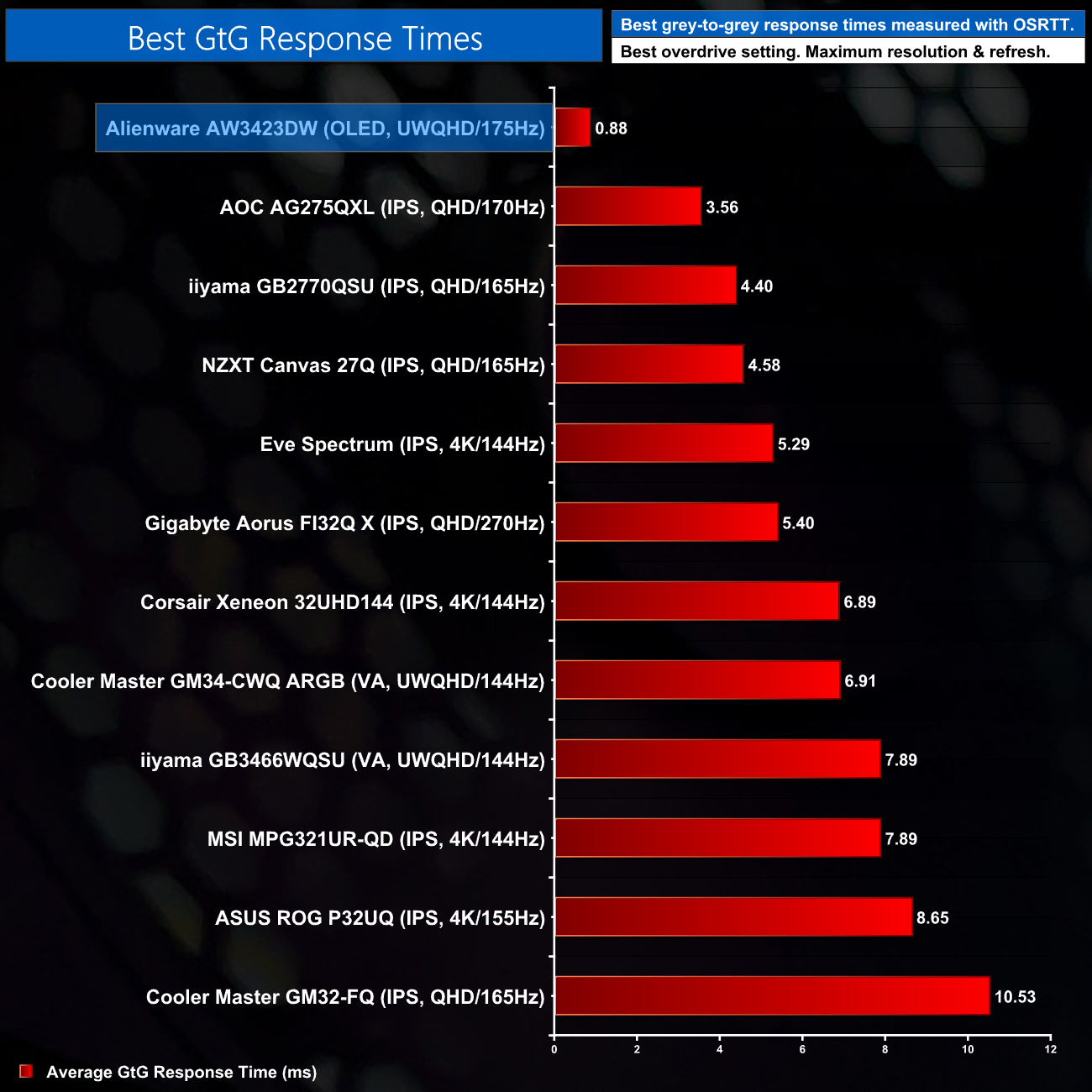
As expected, being the first and only OLED screen we have tested, the AW3423DW jumps to the top of our chart with its average GtG response time of 0.88ms. We hope to add more OLED screens to this chart in the coming weeks, but it does go to show how superior this display technology is compared to LCD panels in terms of the response times.
System latency is another area of our testing, where we use Nvidia’s Latency and Display Analyzer Tool (LDAT) to measure end-to-end system latency. LDAT itself is a photosensor which is placed on the monitor. It has an integrated mouse button, allowing it to measure the total time taken from mouse click, to an action happening on screen, which is done by measuring a change in luminance. This data is logged to a CSV file over USB, allowing for close analysis of the data.
As this is end-to-end system latency, we are not measuring only the processing/input latency of each monitor we test. However, we can standardise the test process so the monitor is the only variable. It also gives an insight into how different refresh rates and resolutions can affect end-to-end latency, which is of course highly relevant to your purchasing decision.
We use Rainbow Six Siege for this testing.
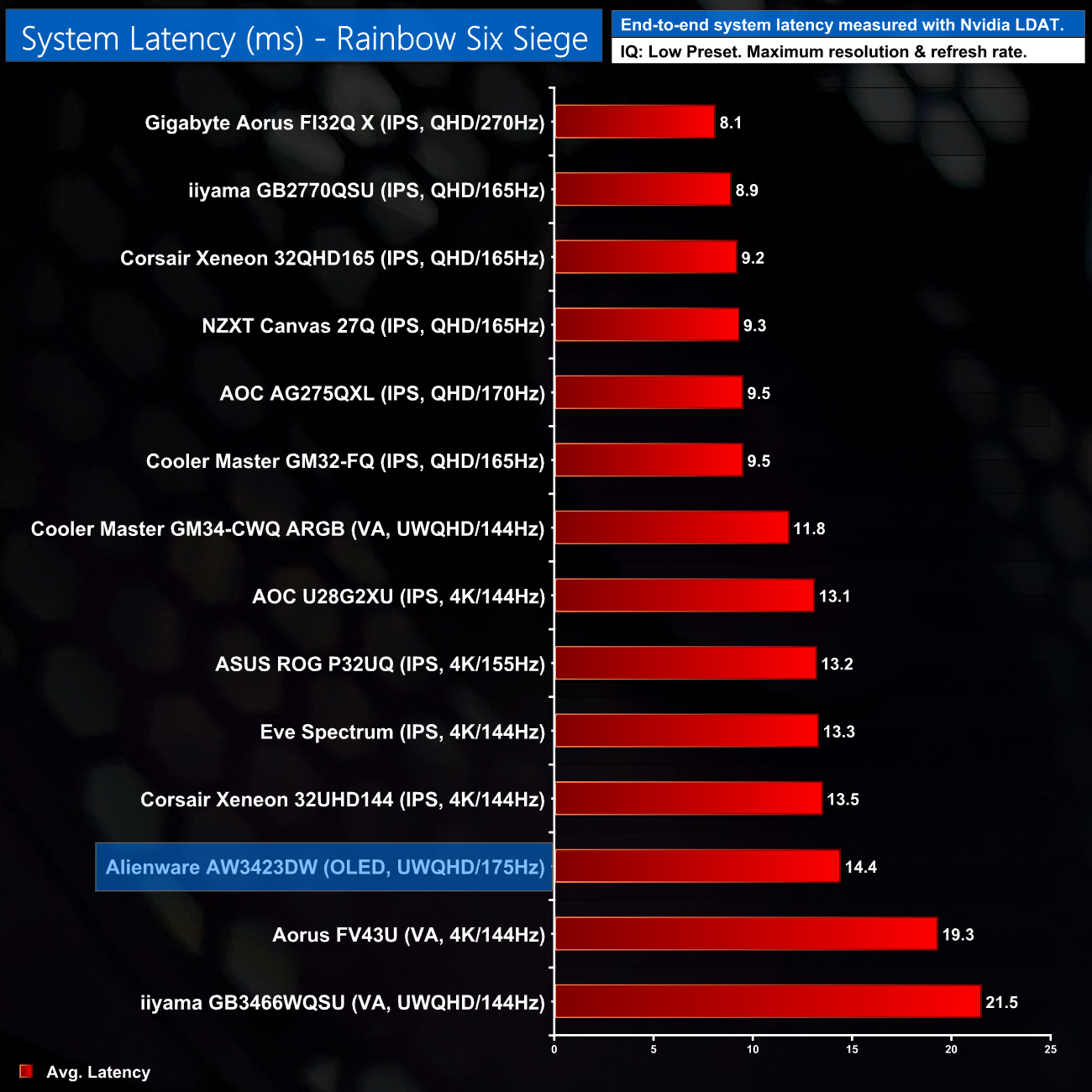
One slight oddity is the amount of latency shown by the AW3423DW. It's not bad by any means, but it is slower than we'd expect – the Cooler Master GM34-CWQ ARGB offers the same screen size and resolution, but produces about 2.6ms less latency.
We are of course talking fine margins, but it's something worth pointing out. I'm still not really sure a human would be able to tell the difference, but it was repeatable during our testing.
After existing in the TV market for several years now, OLED panels are finally transitioning to the gaming monitor market. The Dell Alienware AW3423DW is at the forefront of this movement, using a QD-OLED panel from Samsung, offering a 3440×1440 ultrawide resolution coupled with a 175Hz refresh rate. After putting it through its paces for the last couple of weeks, it's clear to why so many are optimistic about this technology for PC gaming.
The near instant response times are one of the biggest selling points. OLED has an inherent advantage over LCD displays here and it was clear to see during our tests, with the AW3423DW averaging sub-1ms grey-to-grey response times. Our next-best result from an LCD monitor is about four times slower.
HDR is also an area to get excited about. Too many LCDs have weak edge-lit local dimming solutions, but with the AW3423DW you get proper per-pixel dimming and effectively infinite contrast. Couple that with a peak brightness of 1000 nits, and a sustained full-screen brightness that's a still very usable 240 nits, and this has to be the best HDR gaming monitor I have ever used – far exceeding any other HDR monitor at this price-point.
There are a few quirks though, as we perhaps should have expected from the industry's first real OLED gaming monitor. Two I have to say I am not bothered about – being the built-in fan and the semi-glossy coating. The fan I really struggled to hear in normal use, and certainly not while gaming with a headset or speakers. The semi-glossy coating can also reduce the appearance of blacks on-screen, but this is very much dependent on your environment and lighting setup, and you'll still get better contrast and black-levels with this than an LCD anyway.
Much has also been written about the colour fringing around text, due to the irregular sub-pixel layout, but again I can't say this bothered me on a daily basis. The fringing is noticeable if I look at text closely, but from a regular viewing distance I'm not sure it's something I would have spotted were it not for already knowing about it.
I would have liked to see HDMI 2.1 however. Right now, the use of a hardware G-Sync module means the screen is limited to HDMI 2.0, while it only has a single DisplayPort 1.4 connector as well. This does mean that to operate at the maximum 175Hz refresh rate when using HDR, the screen can't use the full 10-bit colour depth and instead switches to 8-bit plus dithering. I don't see that as a big issue, but it is frustrating to have only a single port on the monitor that can actually use the display at its maximum refresh rate – HDMI 2.0 will limit you to 120Hz at the native 3440×1440 resolution.
We also have to mention burn-in. Alienware is keen to emphasise its 3-year warranty which does cover burn-in, but it's really too hard to say how much of an issue this will be. PC usage would generally throw up more static elements than a TV, so enabling a screensaver or using a dark wallpaper and auto-hiding the task bar would seem sensible. Right now it is still too early to say how much, or if at all, this is a problem for this monitor.
Nonetheless, for those looking for a high-end PC gaming monitor, the Dell Alienware AW3423DW is a terrific choice. There are a few things to be aware of as we've just mentioned, but for me they don't even come close to out-weighing the positives here, including the near-instant response times and proper HDR.
The final thing to say is the £1099 asking price certainly isn't cheap, but it is surprisingly reasonable considering this monitor is the first of its kind, certainly when the likes of the ASUS ROG PG32UQX hit the market at about three grand.
You can buy the AW3423DW directly from Dell for £1099 HERE.
Discuss on our Facebook page HERE.
Pros
- Near-instant response times.
- Real HDR with per-pixel dimming and good peak brightness.
- Essentially infinite contrast ratio.
- Punchy colours.
- Easy to use OSD system.
- 34″ ultrawide is a popular form-factor.
Cons
- Lack of HDMI 2.1.
- Ambient lighting can reduce appearance of black levels due to the semi-glossy coating.
- Colour fringing around text may be noticeable for some.
KitGuru says: The Alienware AW3423DW is a next-level display with numerous advantages over LCD panels. It has a few quirks, but for the PC enthusiast I think this is the best gaming monitor on the market right now.