KitGuru KitGuru.net – Tech News | Hardware News | Hardware Reviews | IOS | Mobile | Gaming | Graphics Cards


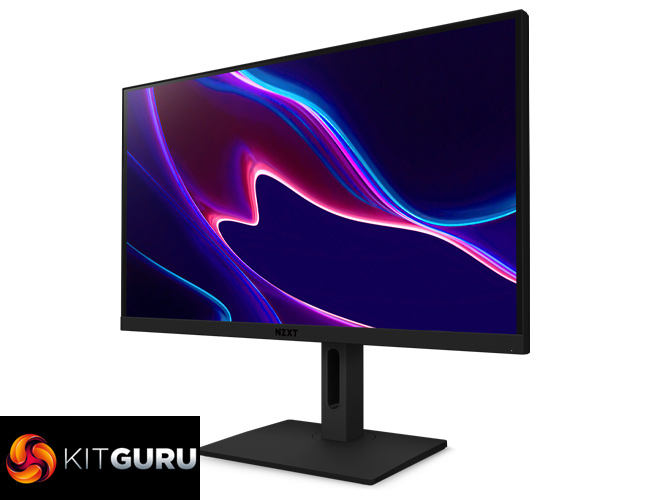
It's not often we see an established brand trying its hand at something completely new. But that is the case for NZXT, as the company recently launched its first ever gaming monitors. In this review we focus on the Canvas 27Q, a 27in 2560×1440 IPS display with a 165Hz refresh rate. Available for £389, or without a stand for £40 less, we find out if this screen is worth buying.
We've been reviewing NZXT cases for years, and it wasn't that long ago the company expanded into motherboards too. This year has seen further expansion for the company, with NZXT peripherals hitting the market, but today we are checking out the Canvas 27Q – NZXT's first gaming monitor.
More accurately, it is one of the first gaming monitor's from NZXT, as the company has also launched the Canvas 32Q. Both share the same core spec, but the 32Q is a 32in screen size, while it's also curved. Today however, we are focusing on the flat-screen 27Q in this review.
Specification:
- Size: 27″
- Panel Type: IPS
- Resolution: QHD (2560×1440)
- Refresh Rate: 165Hz
- Bezel Type: Borderless
- Form Factor: Flat
- Aspect Ratio: 16: 9
- Color Gamut: sRGB 99%
- HDR: HDR 10
- Adaptive Sync: FreeSync Premium, G-Sync Compatible
- VESA Compatibility: 100x100mm
- Display Surface: Anti-Glare
- Flicker Free: Yes
- Low Blue Light: Yes
- Display Colors: 16.7M
- Response Time: 1ms
- Brightness: 300cd/m²
- Viewing Angle: 178° / 178° (Typ)
- Active Display Area: 596.74 (H) x 335.66 (V)
- Contrast Ratio: 1000: 1
- Ports and connectors:
- HDMI: 2.0 x2
- DP: 1.2 x1
- USB Type A: 3.0 x2
- USB C / DP Alt: x1
- USB B: 3.0 x1
- Audio: 3.5mm x1
- Product Dimension (with stand): 615mm x 526.6mm x 219.7mm
- Product Dimension (without stand): 615mm x 367mm x 69.8mm
- Net Weight (kg), Panel Only: 3.7kg (8.15lb)
- Net Weight, Stand Only: 2.6kg (5.73lb)
- Warranty: 3 years
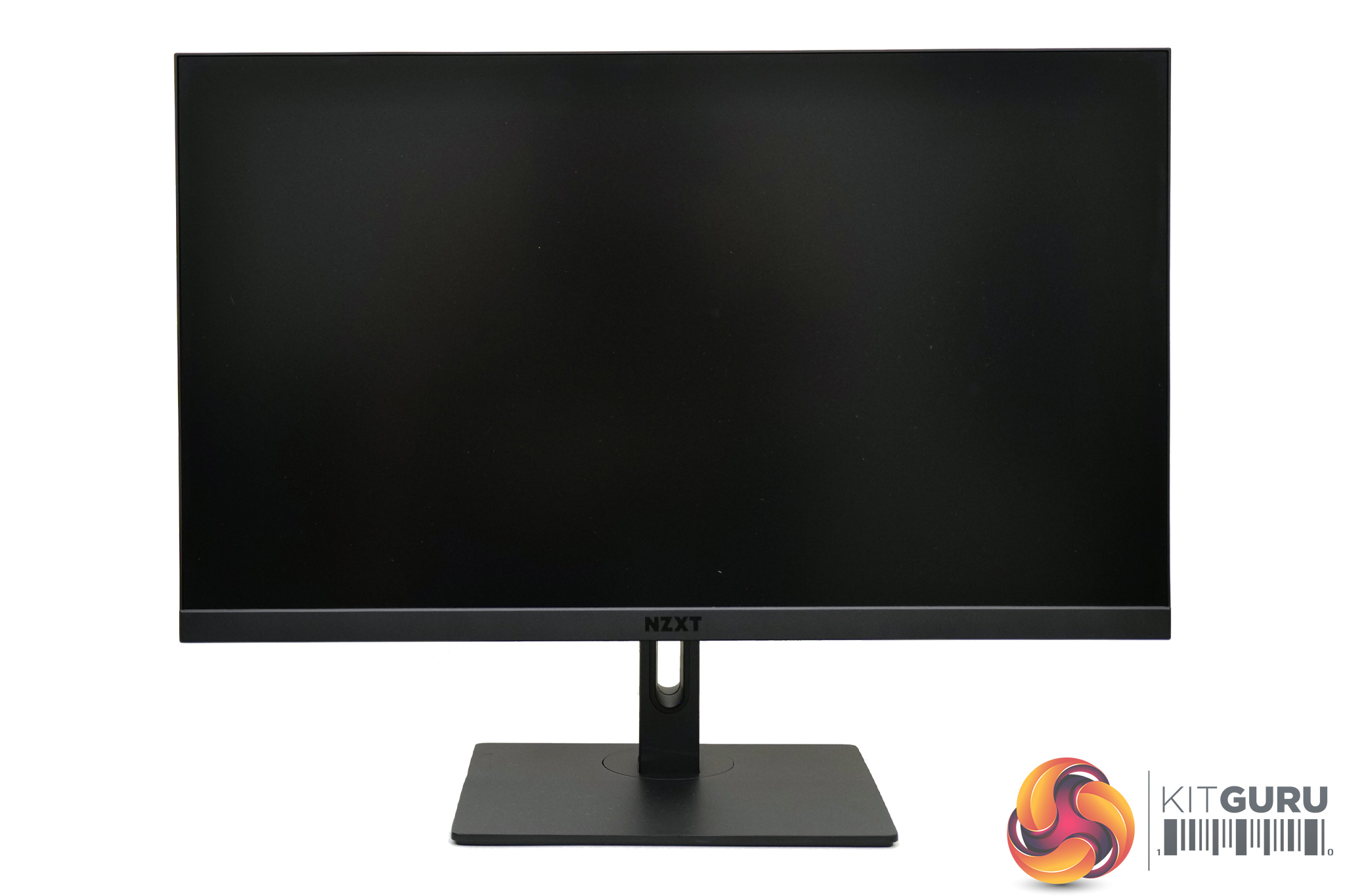
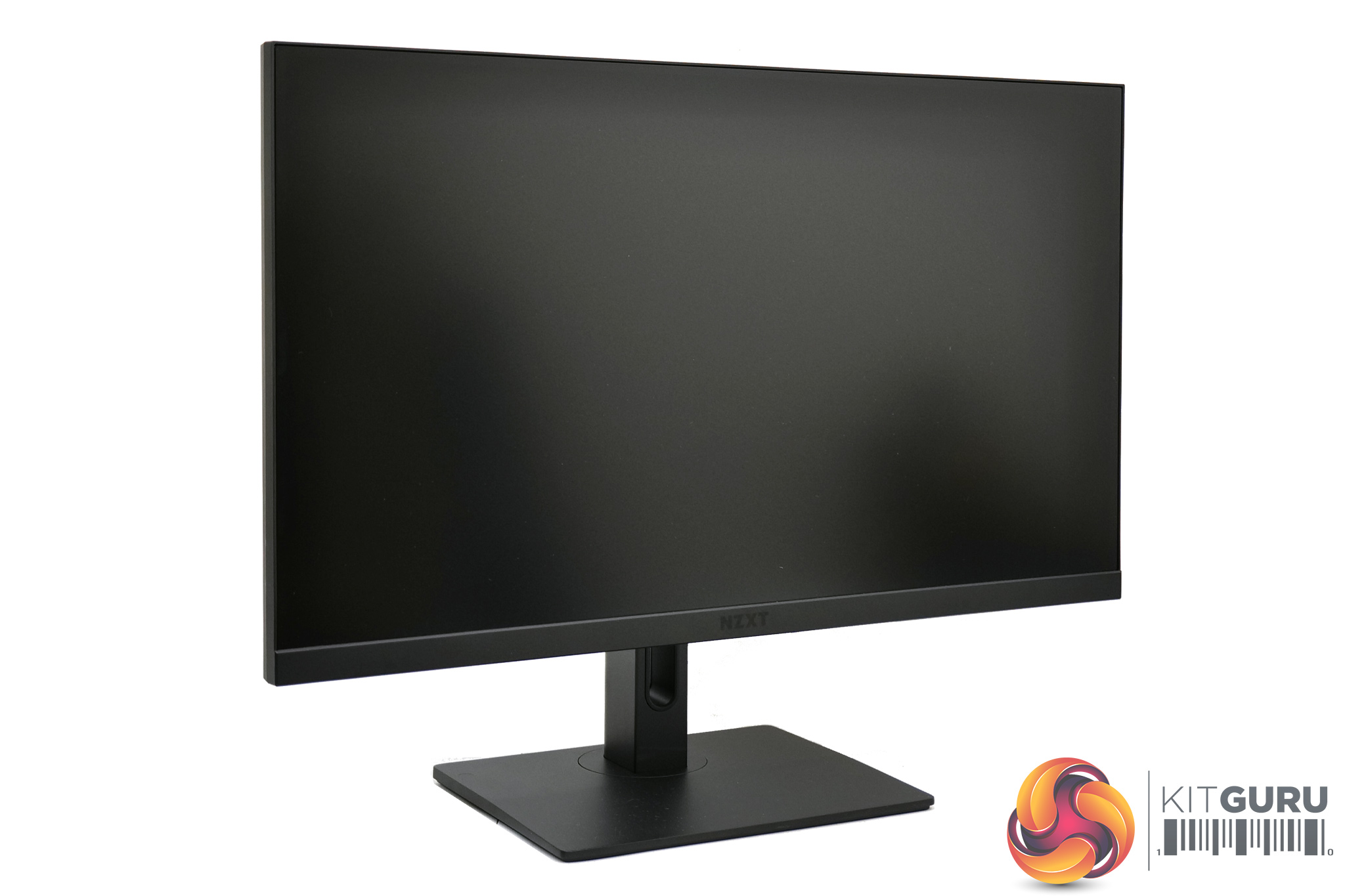
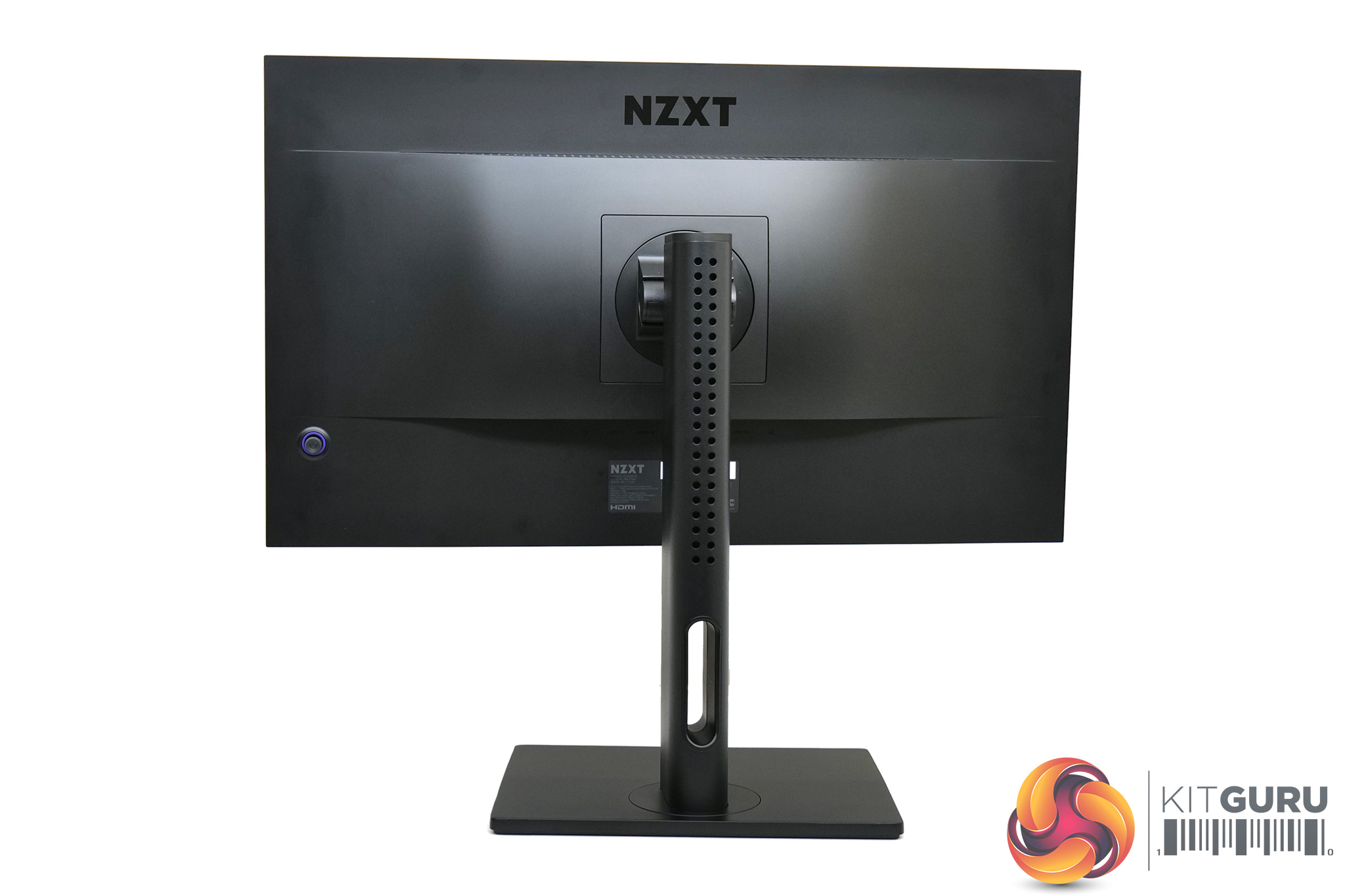
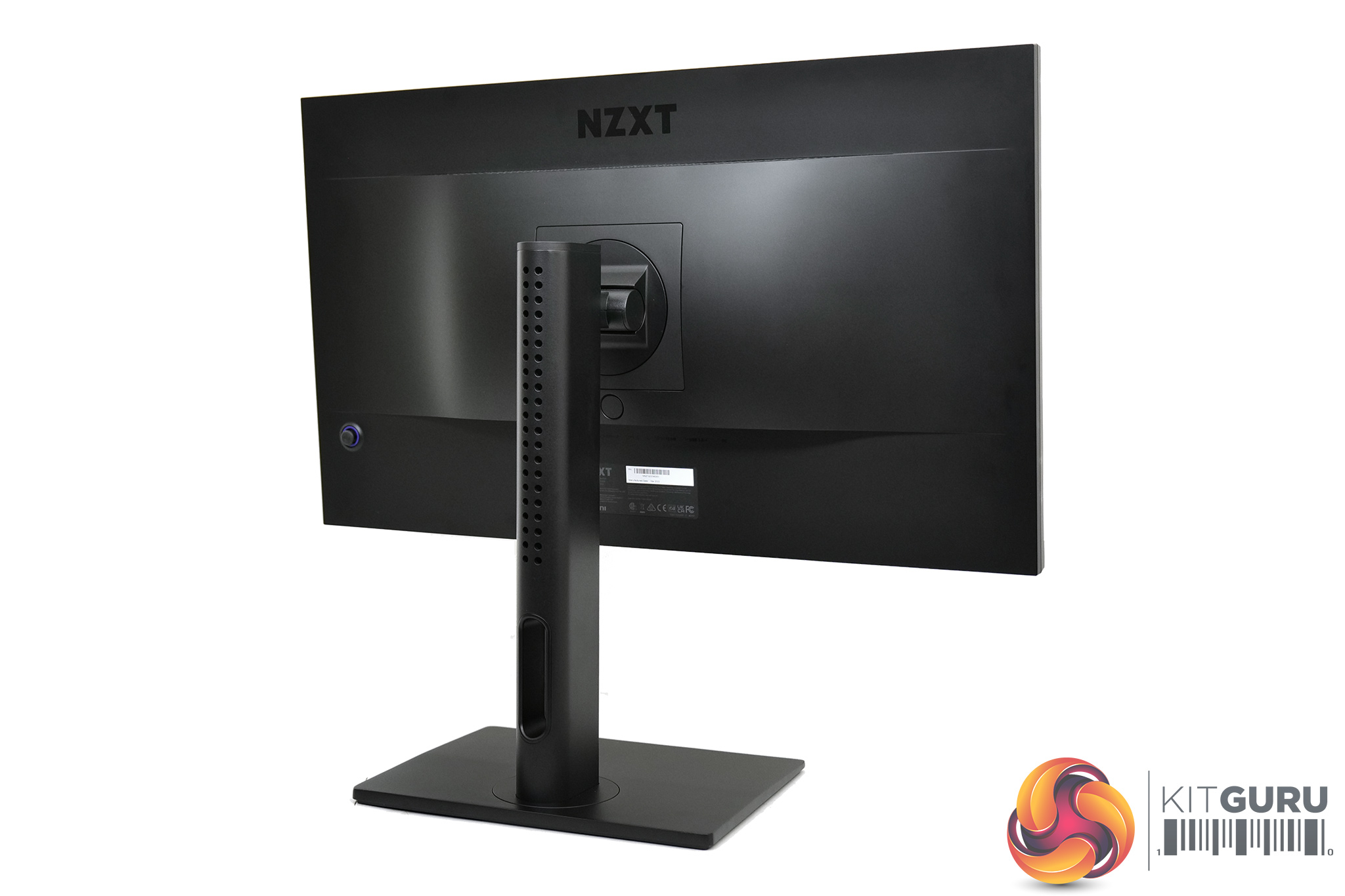
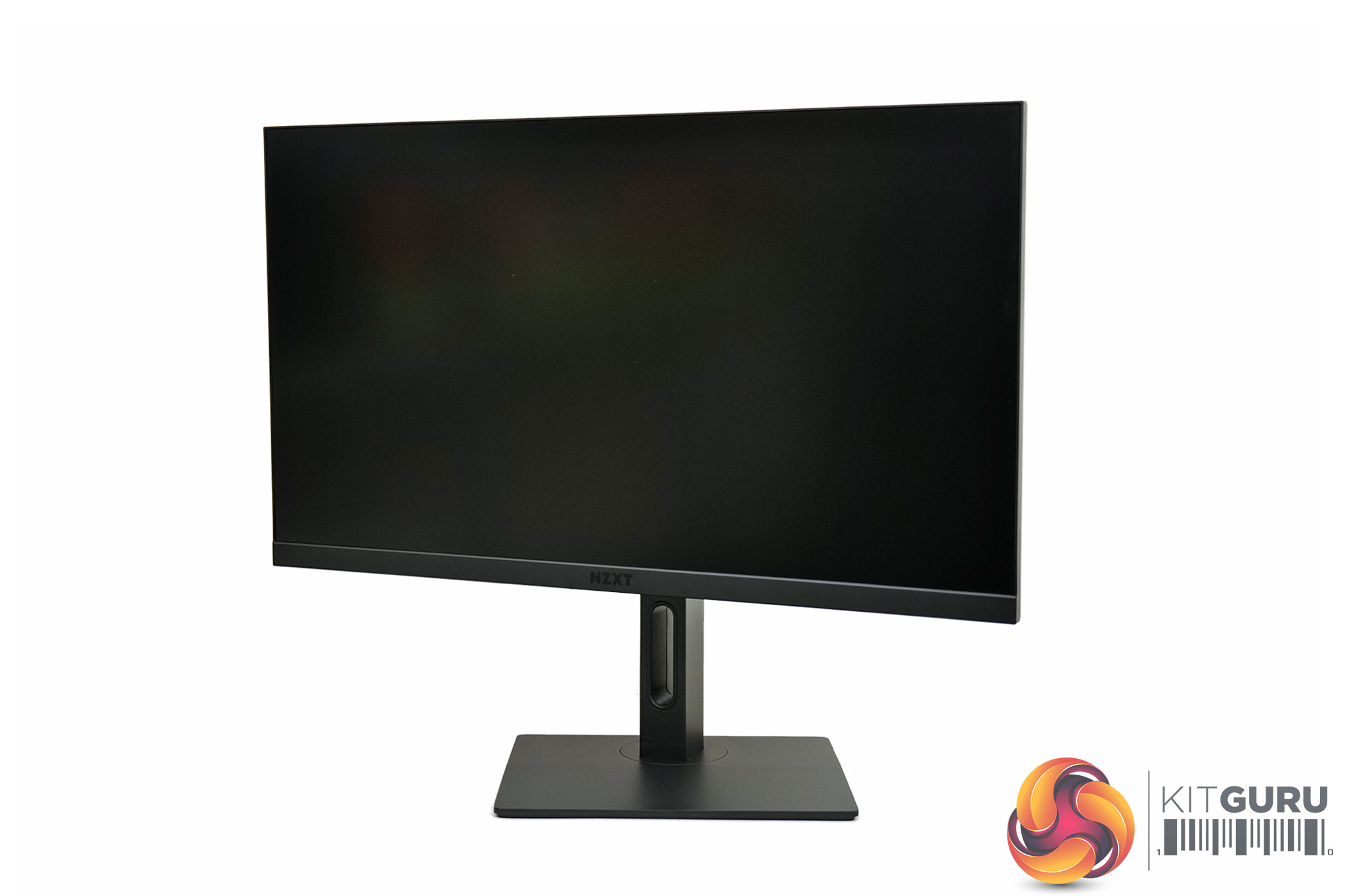
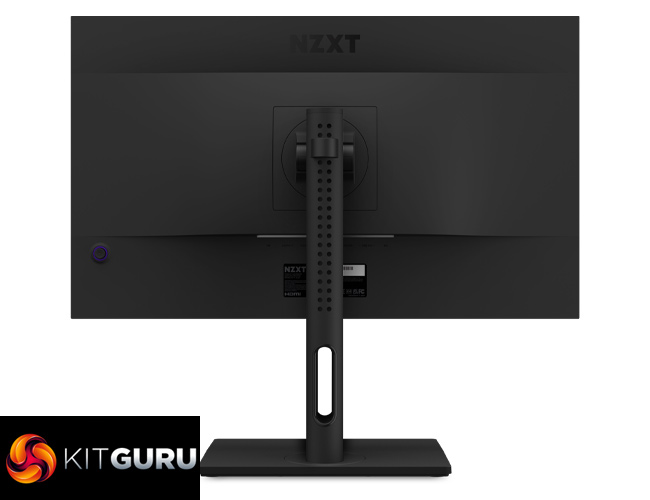
Kicking things off with a look at the design of the NZXT Canvas 27Q, I really like the overall aesthetic the company has gone for. It's very sleek and understated, being entirely matte black (aside from one small purple accent on the joystick), while the bezels are also very slim. There's minimal branding, too, with just a small NZXT logo positioned on the bottom bezel, and another on the rear of the screen.
I thought NZXT might throw in a lot of RGB lighting, or try and do something with the design that might be a bit gimmicky – but the opposite its true. It's a simple, clean-looking monitor and I'd be more than happy to have this on my desk as a daily driver.
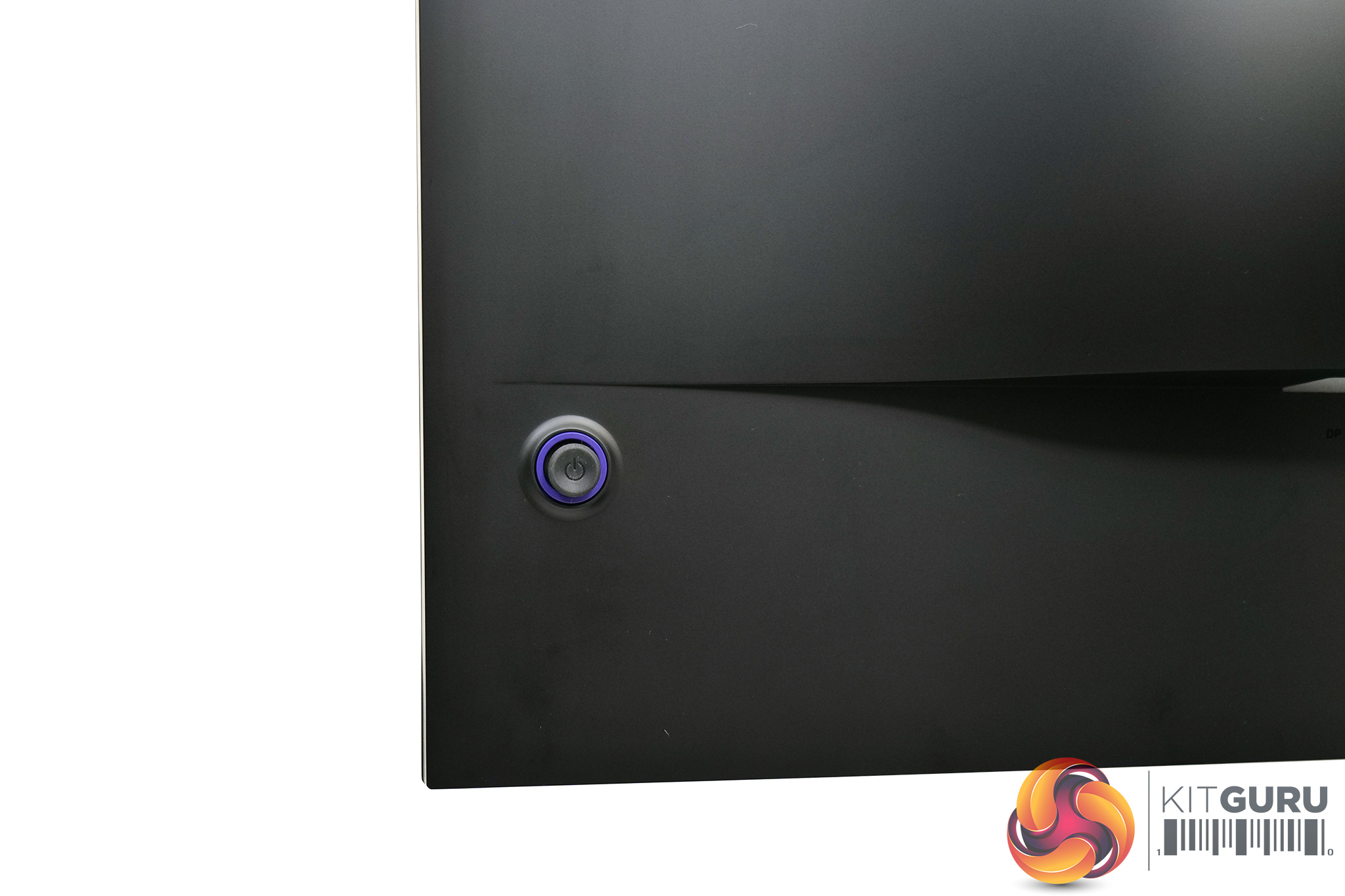
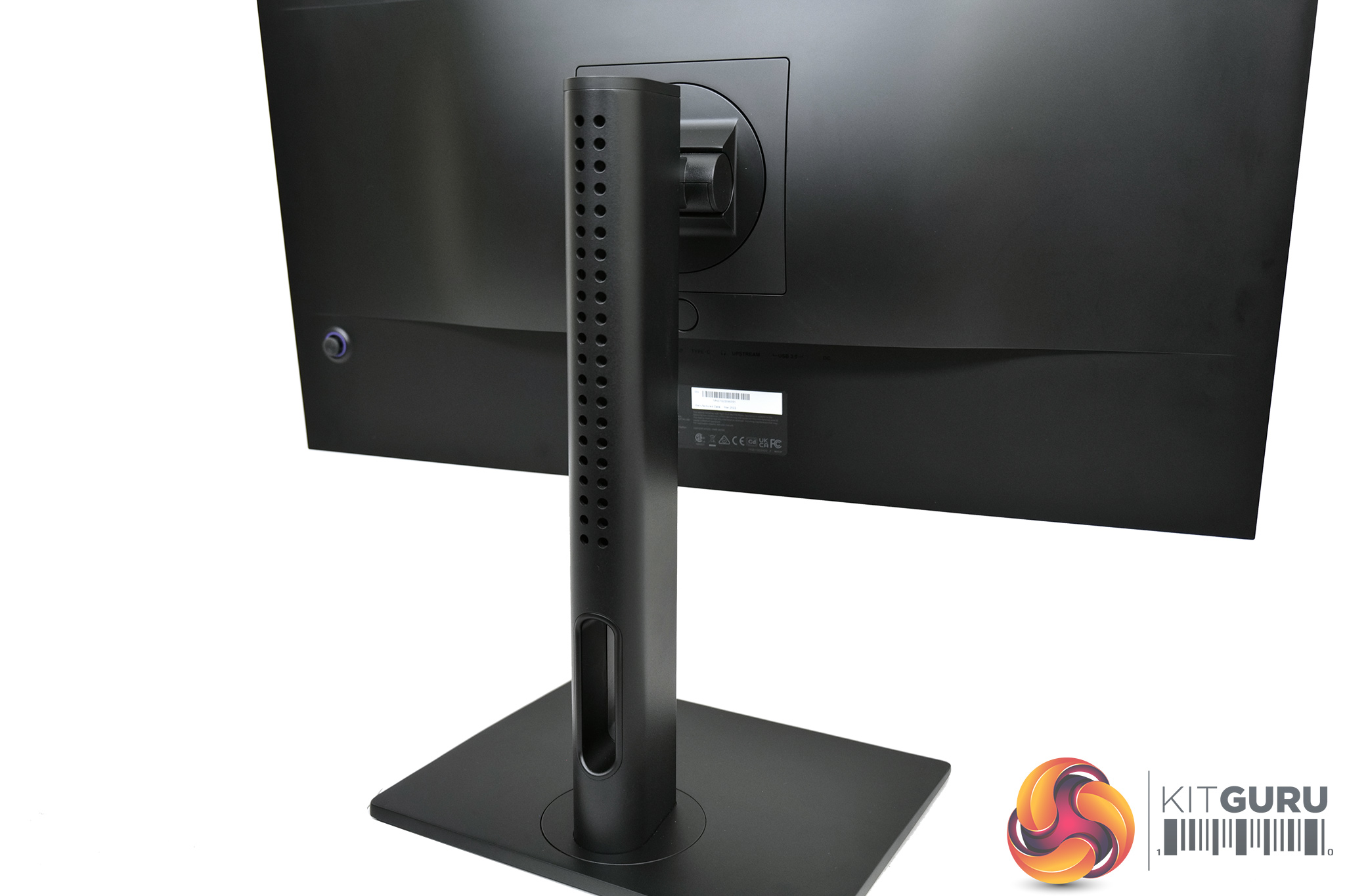
We already mentioned the OSD joystick which is positioned in the bottom right corner (when viewed from the back of the screen). This is the only way to control the OSD from the monitor itself, there's no other buttons at all, something which also contributes to the sleek design.
For the purposes of this review, NZXT also sent us their monitor stand. Do note that this is not a mandatory purchase, as the screen itself can be bought separately for £349, while the stand can be added-on for an extra £40. I like this approach as anyone who already owns a third-party stand or mounting arm doesn't have to spend the extra cash on something they won't use, while £40 isn't too expensive for a matching stand with good ergonomic functionality.
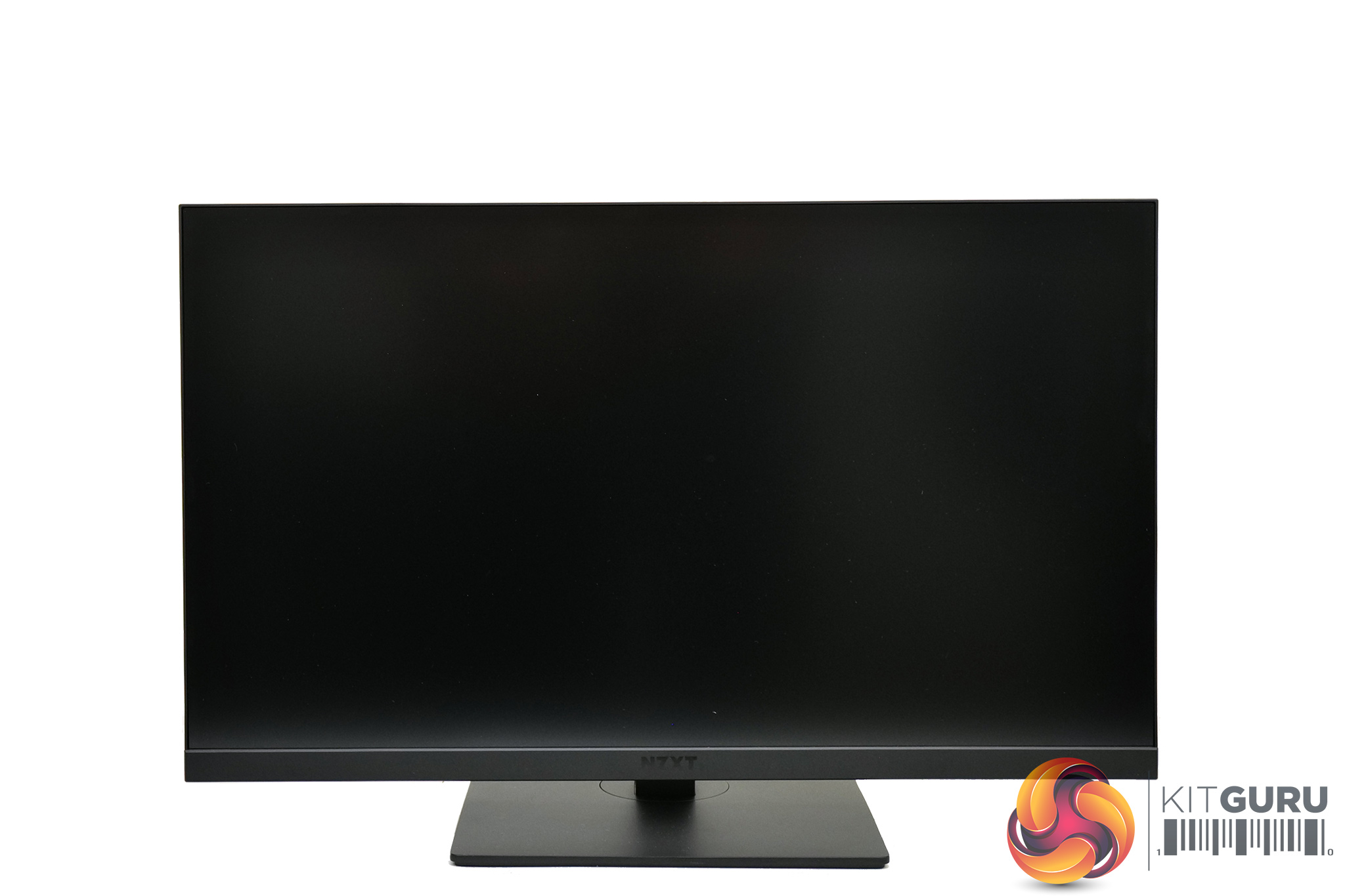
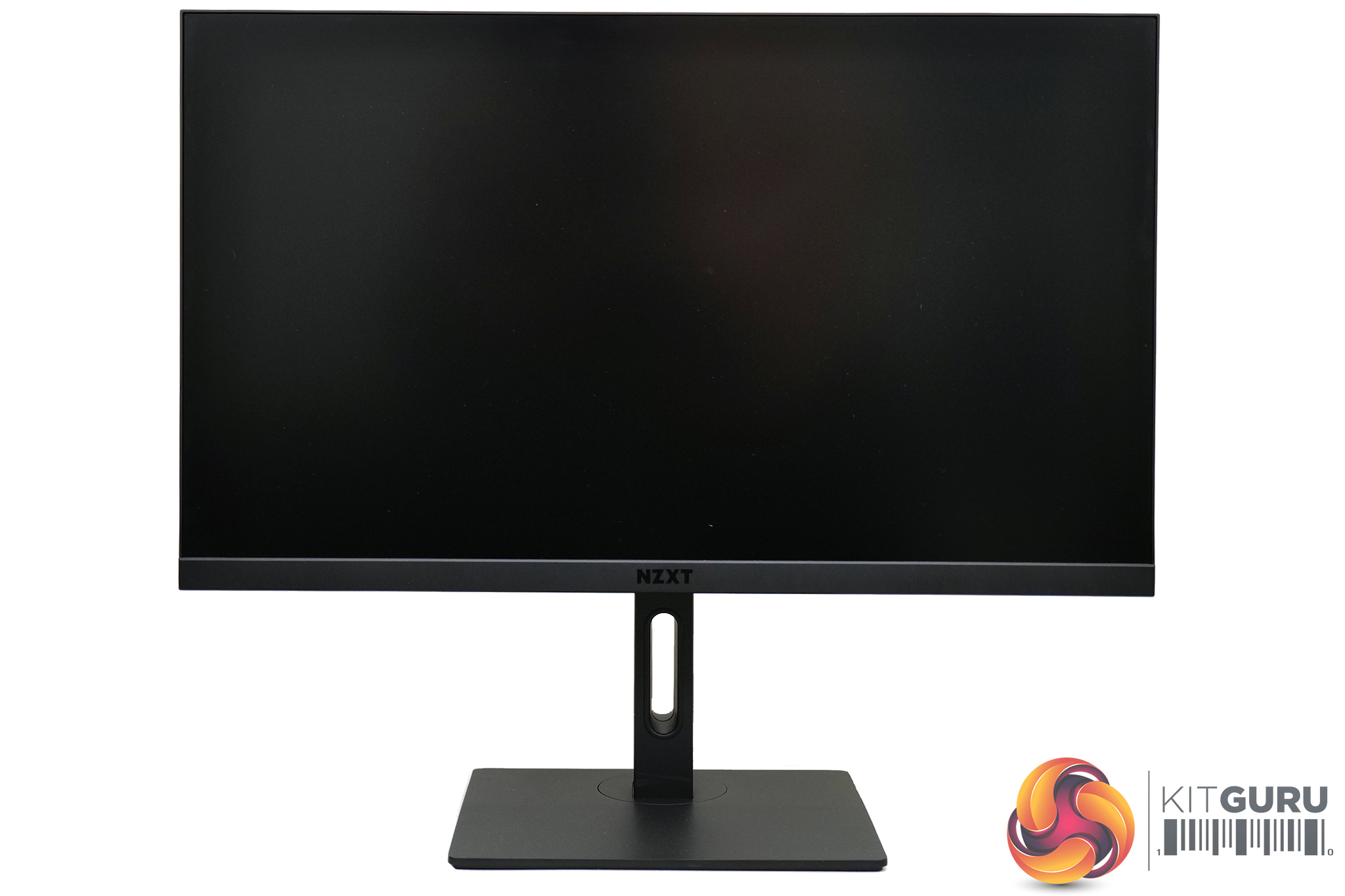
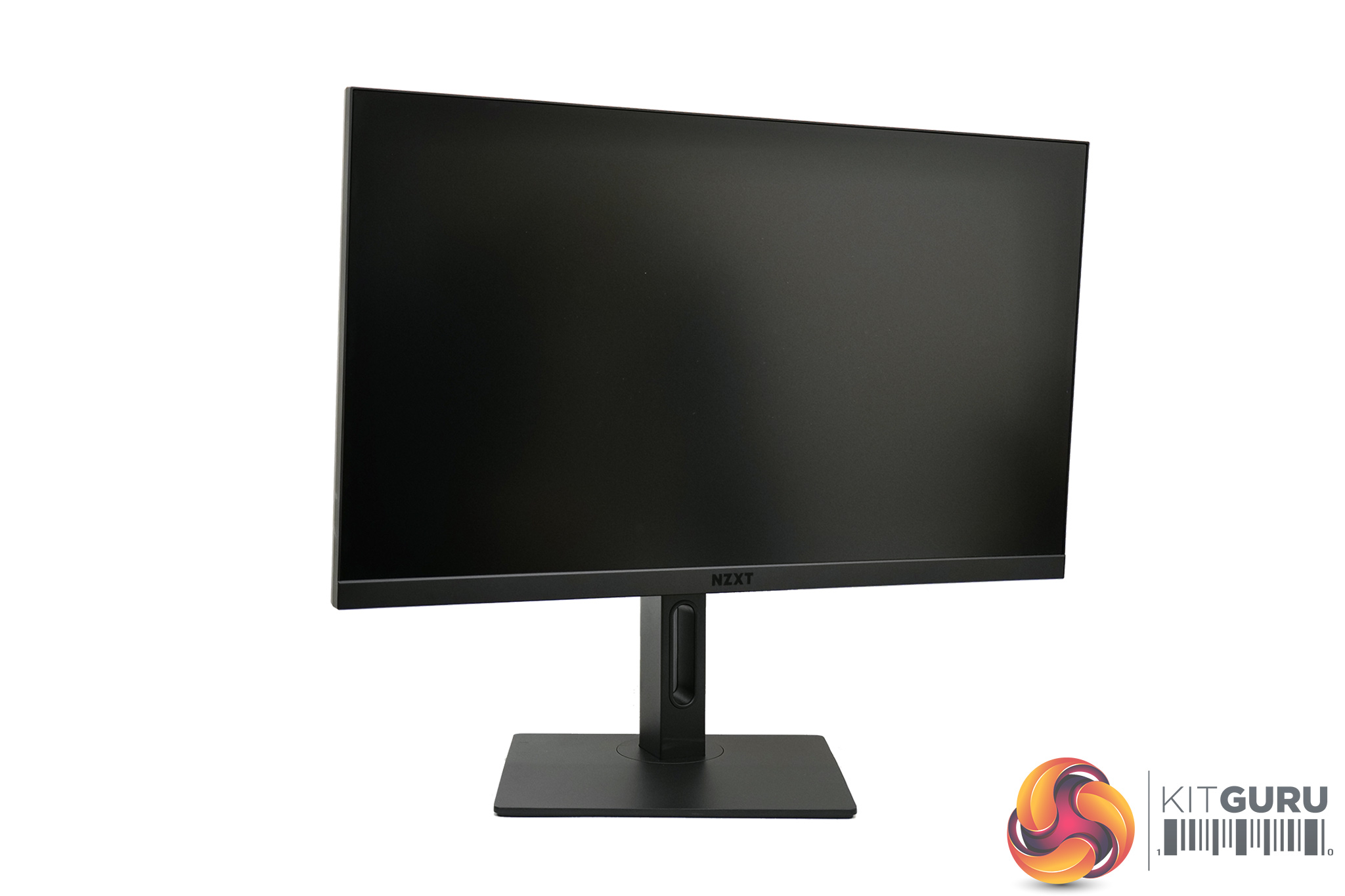
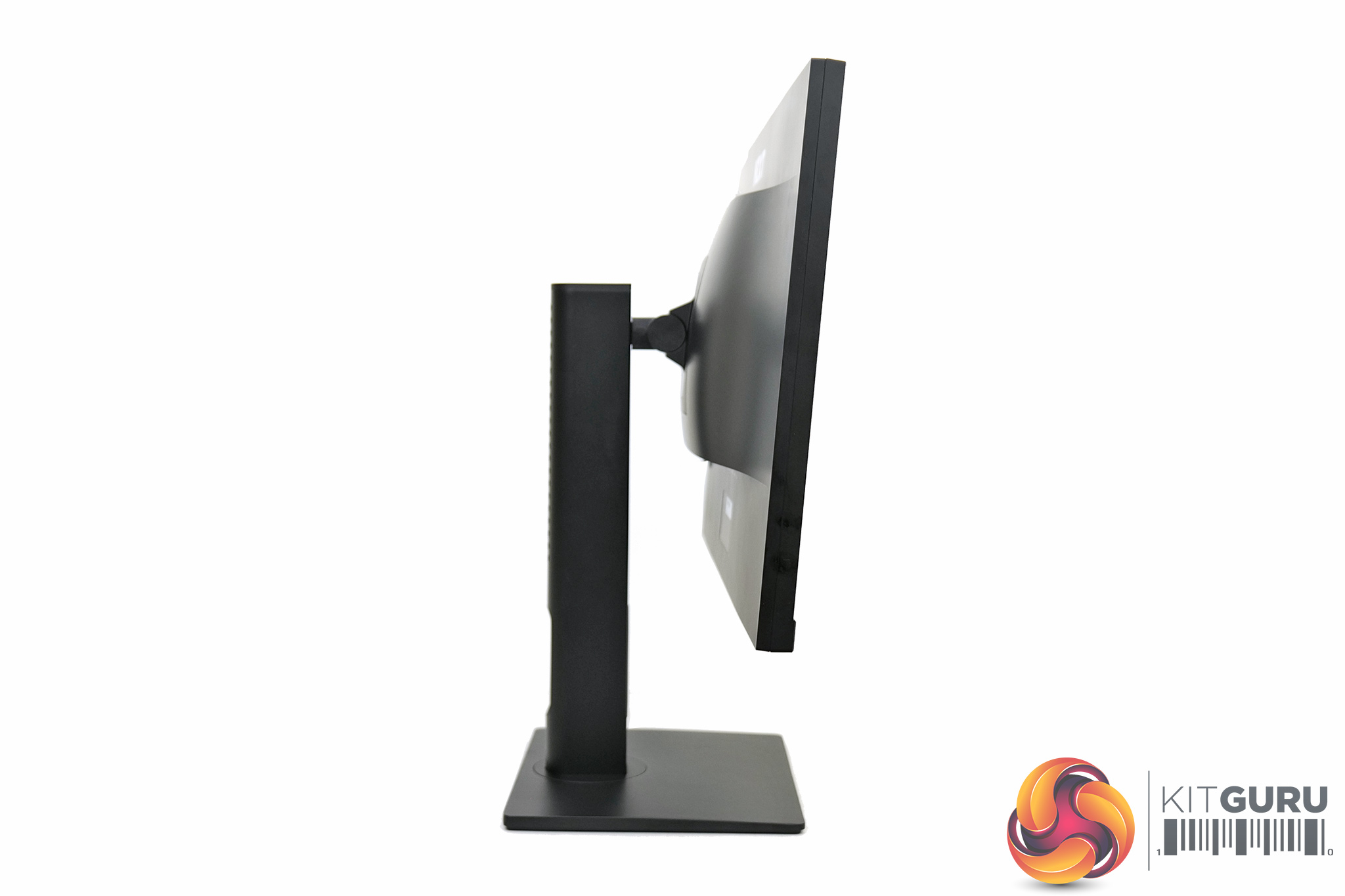
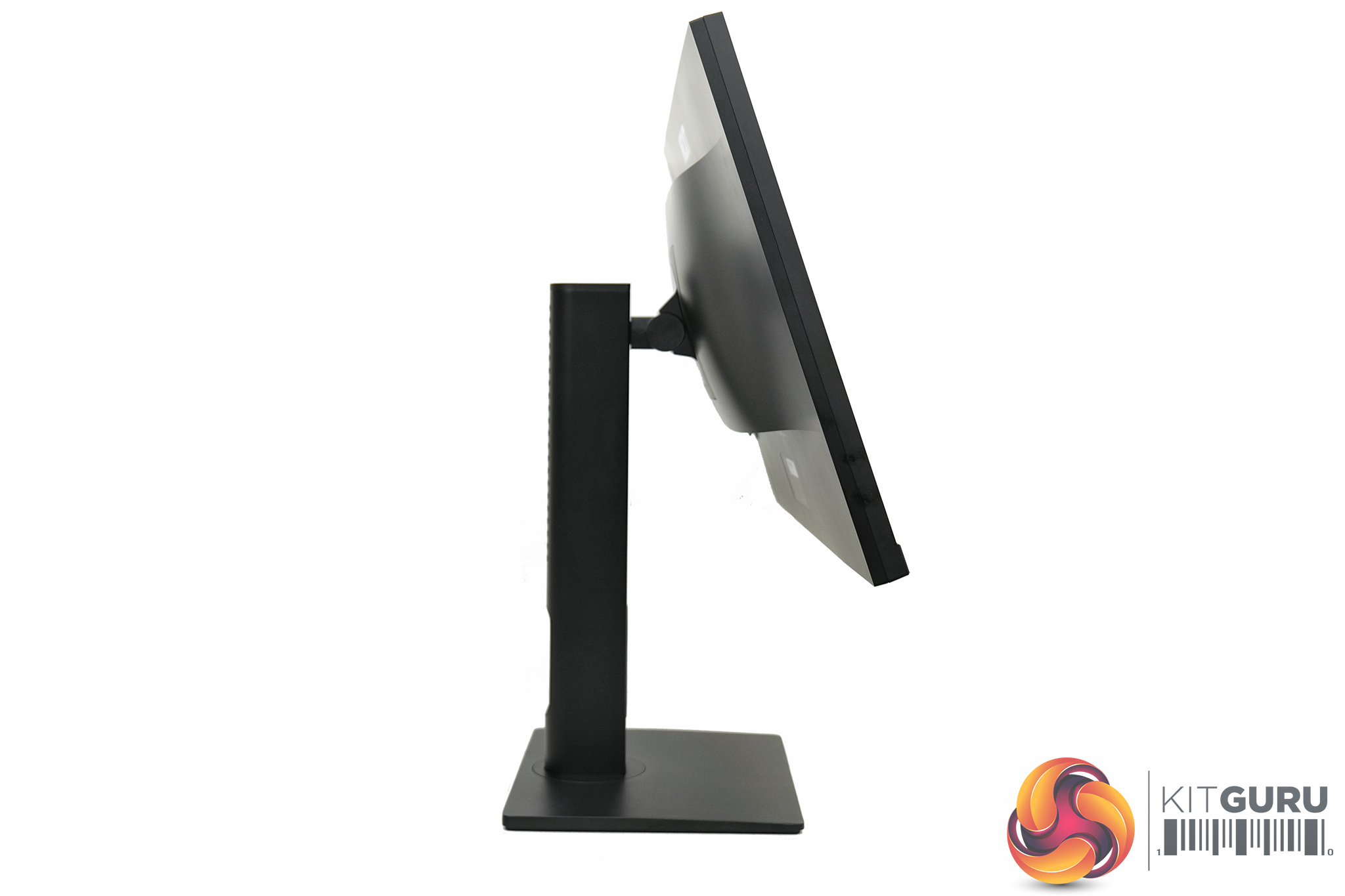
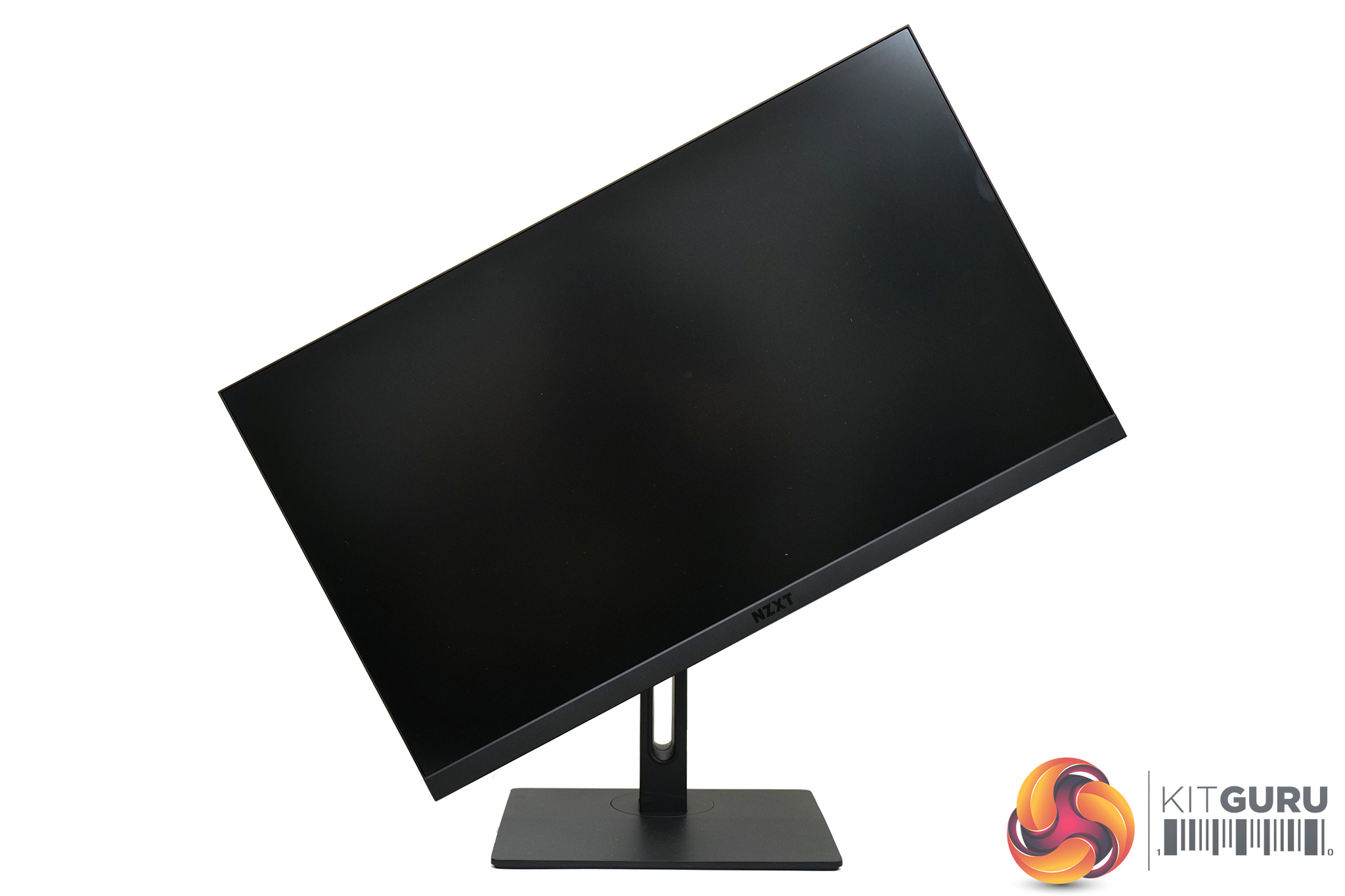
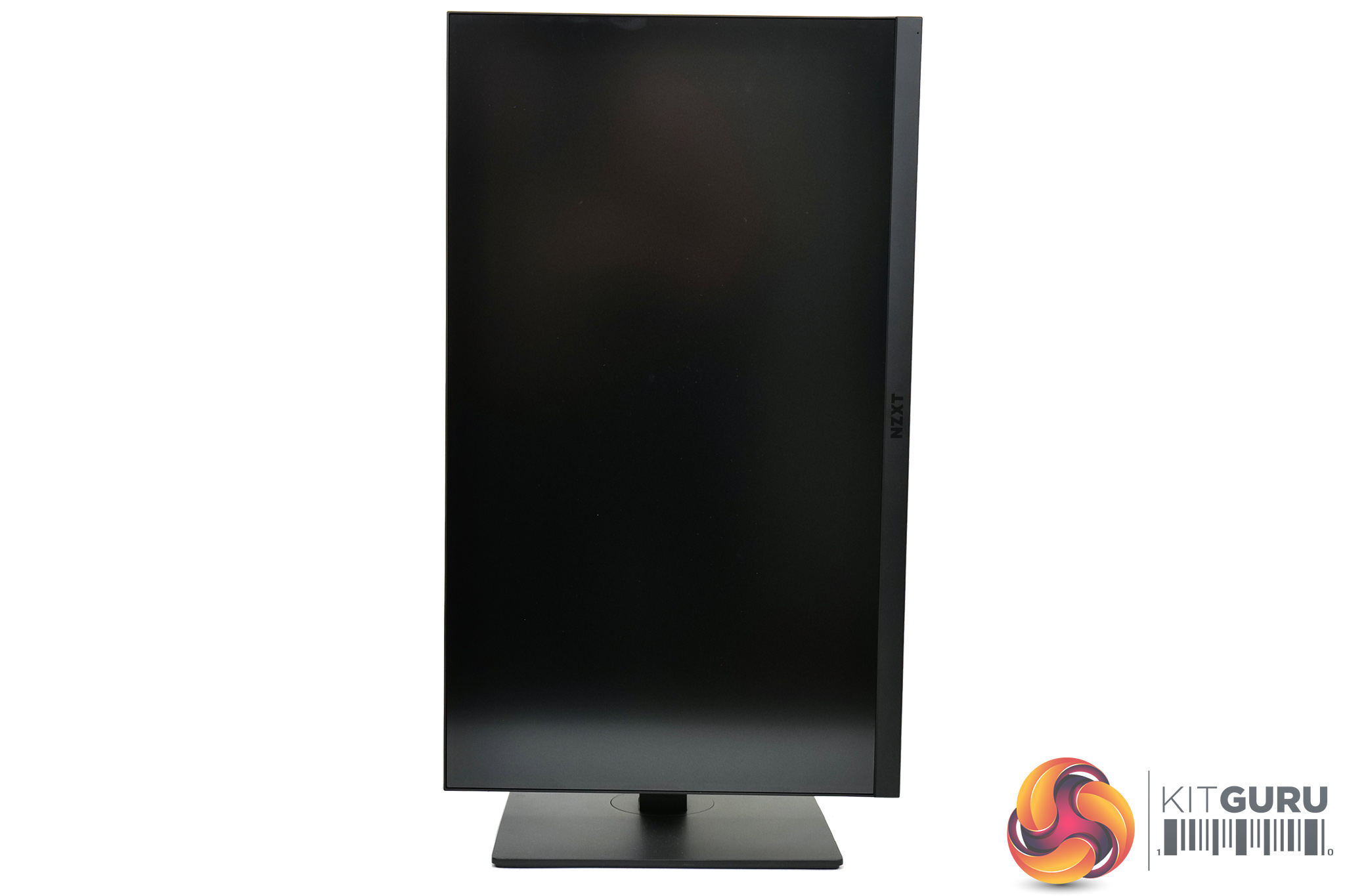
Speaking of the ergonomics, NZXT's stand can do the whole lot – we find up to 120mm of height adjustment, 20 degrees of swivel in both directions, tilt from 5 degrees downards to 20 degrees upwards, and there's also full 90 degree pivot functionality so you can use the screen vertically if you should choose.
I also have to add that's its great to see NZXT opt for a single rectangular foot which is nice and compact – I much prefer this to the v-shaped monitor foot design we typically see from gaming monitors.
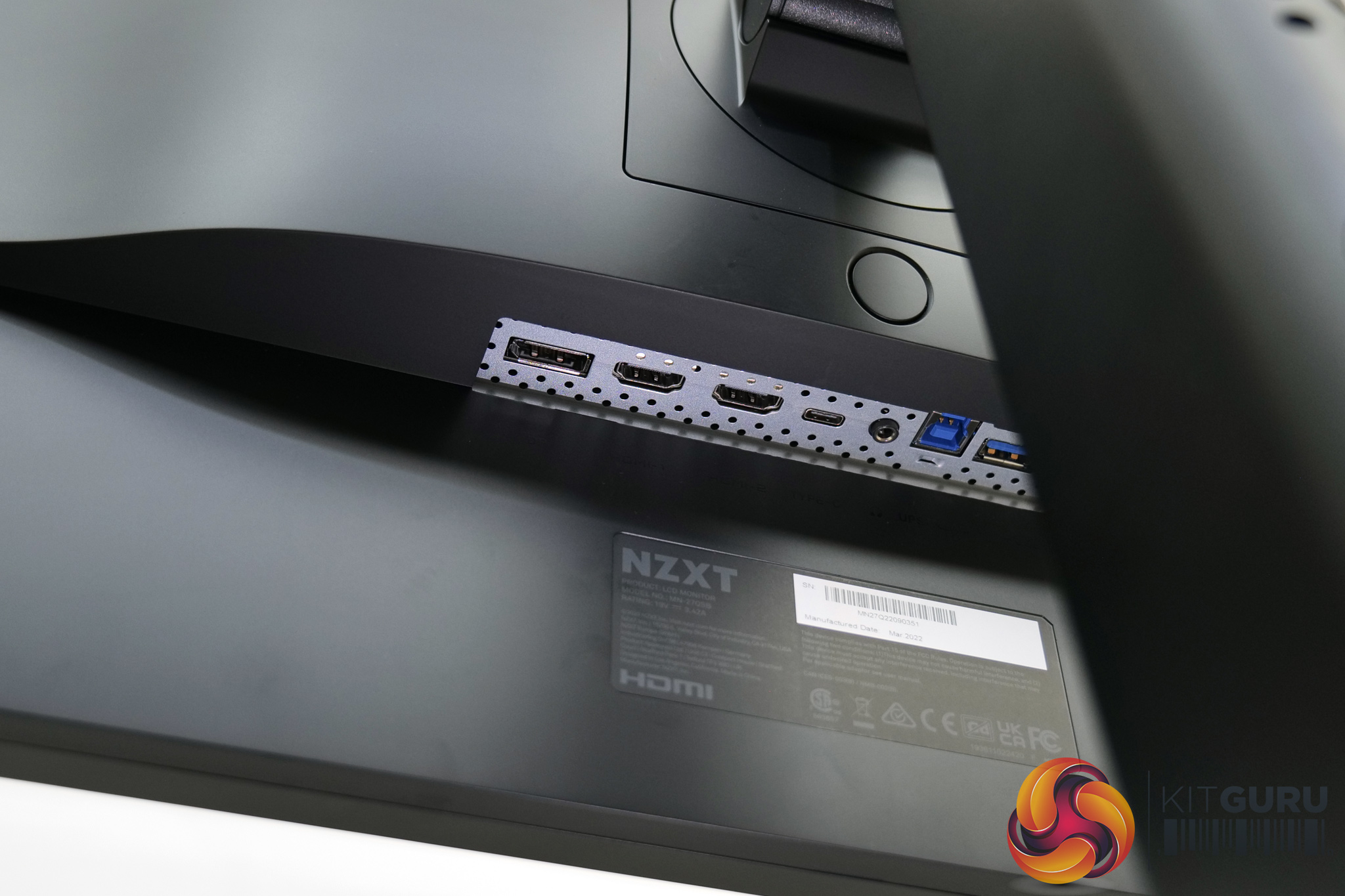
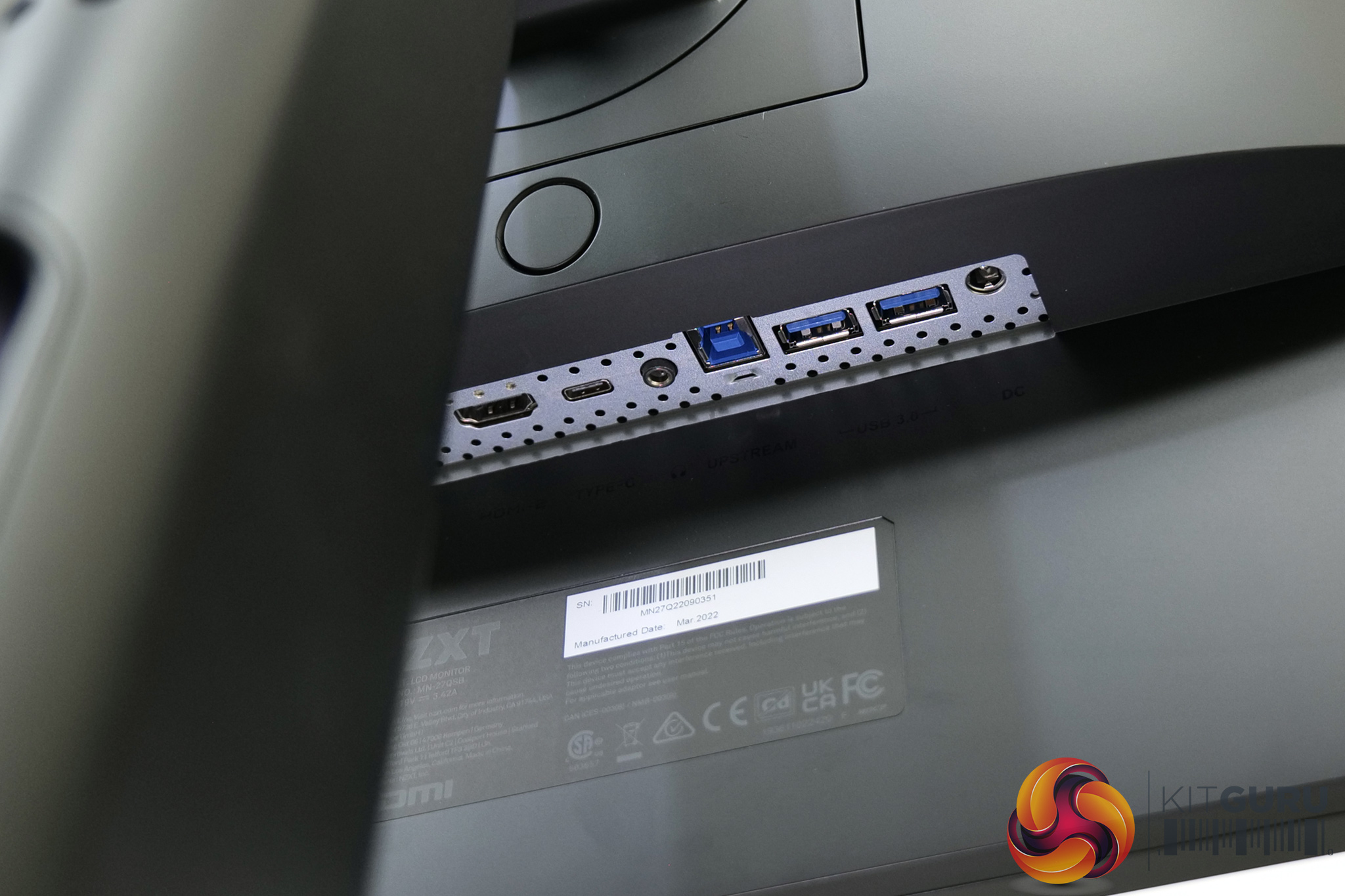
Lastly, for ports and connectors, we have 1x DisplayPort 1.2, 2x HDMI 2.0 and a USB Type-C that supports DP Alt mode. There's also a USB Type-B upstream port that feeds two 5Gbps downstream Type-A ports, and lastly a 3.5mm audio jack. There are no built-in speakers.
For their first ever gaming monitor, I was pleasantly surprised by the OSD system used by NZXT for the Canvas 27Q. It is, again, very clean and easy to use thanks to the joystick, with no funky GUI – it's entirely text based and it looks fantastic.
The controls are split into five main tabs – Image, OSD Setting, Other Setting, Input Source, and Information:
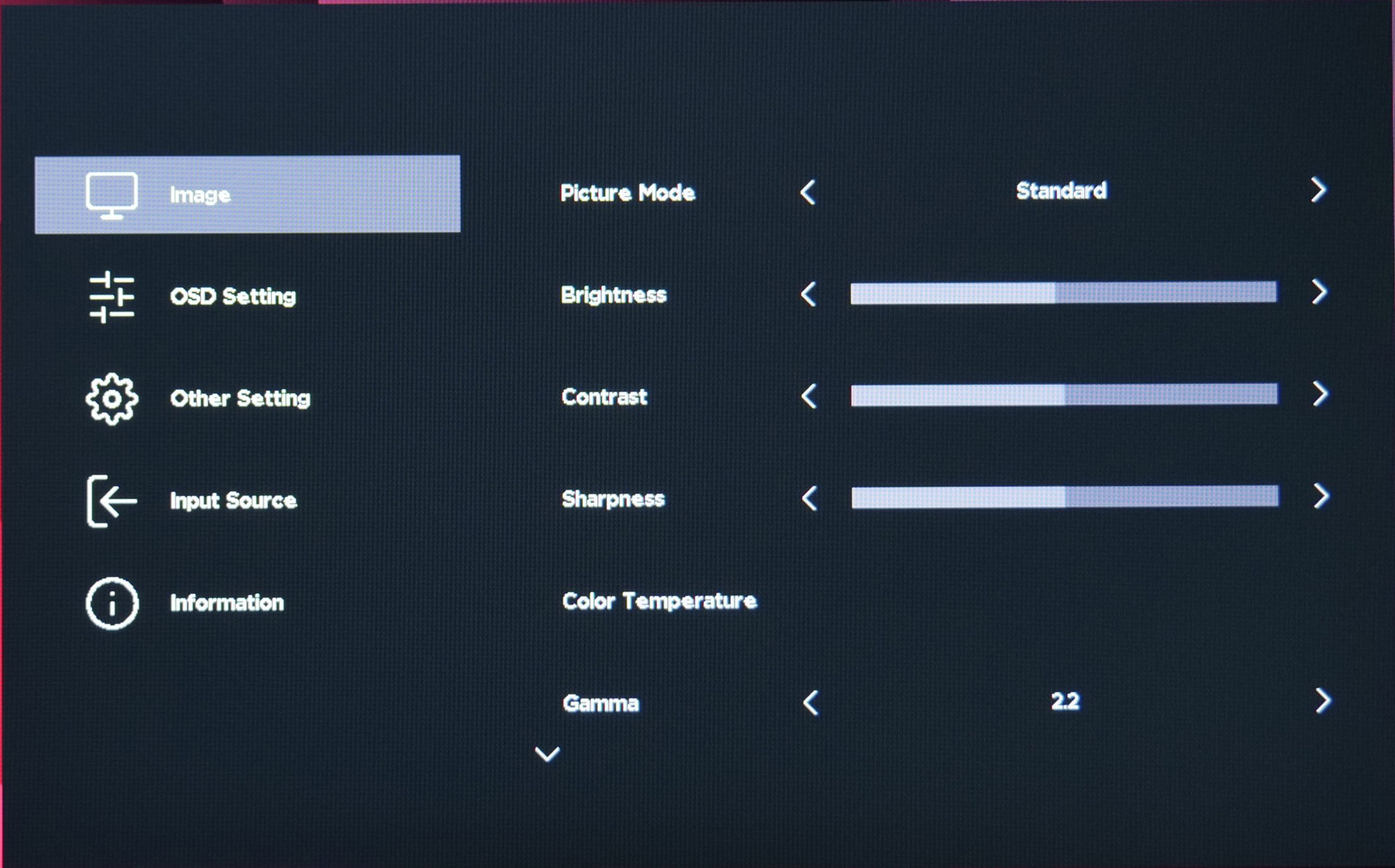
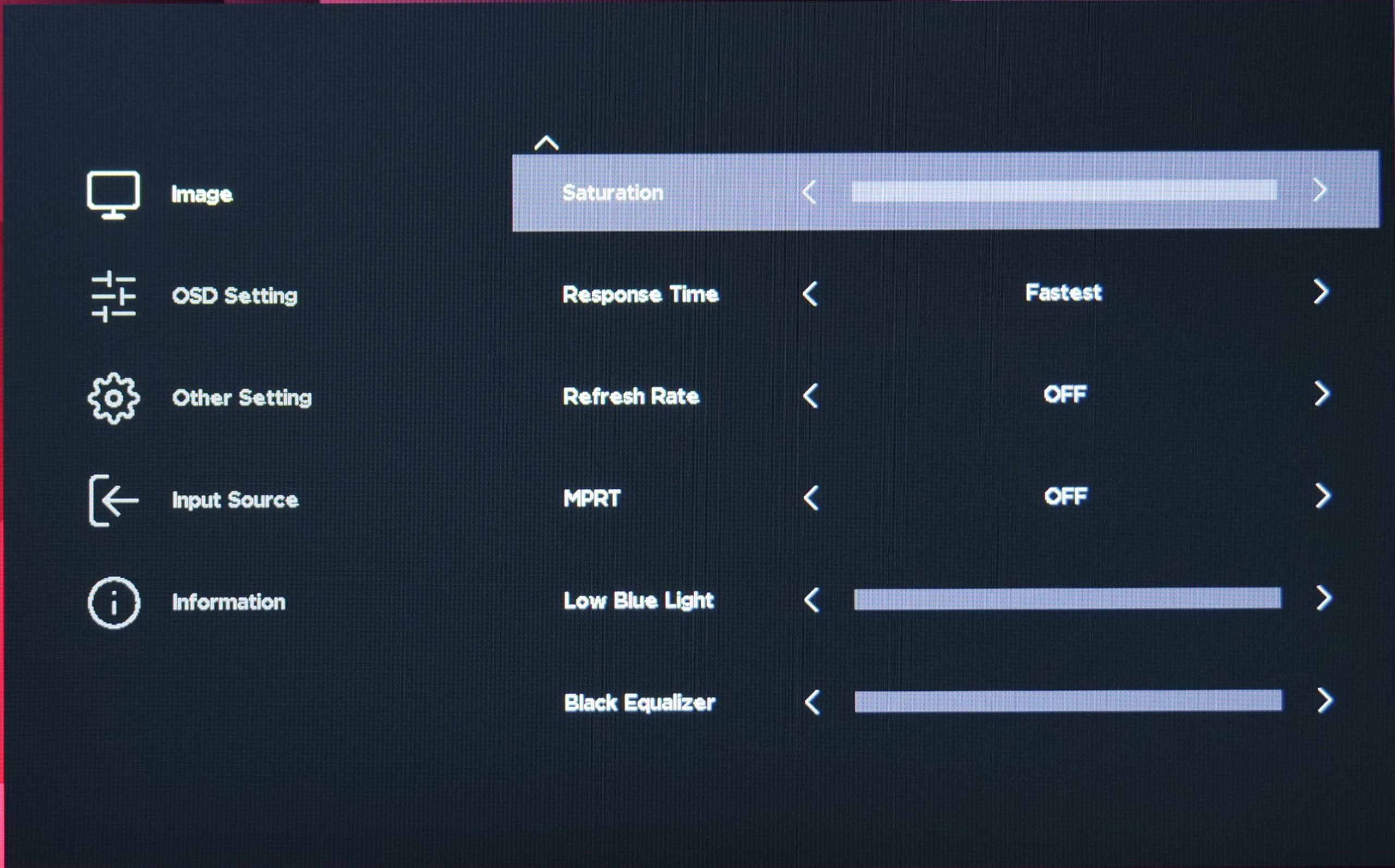
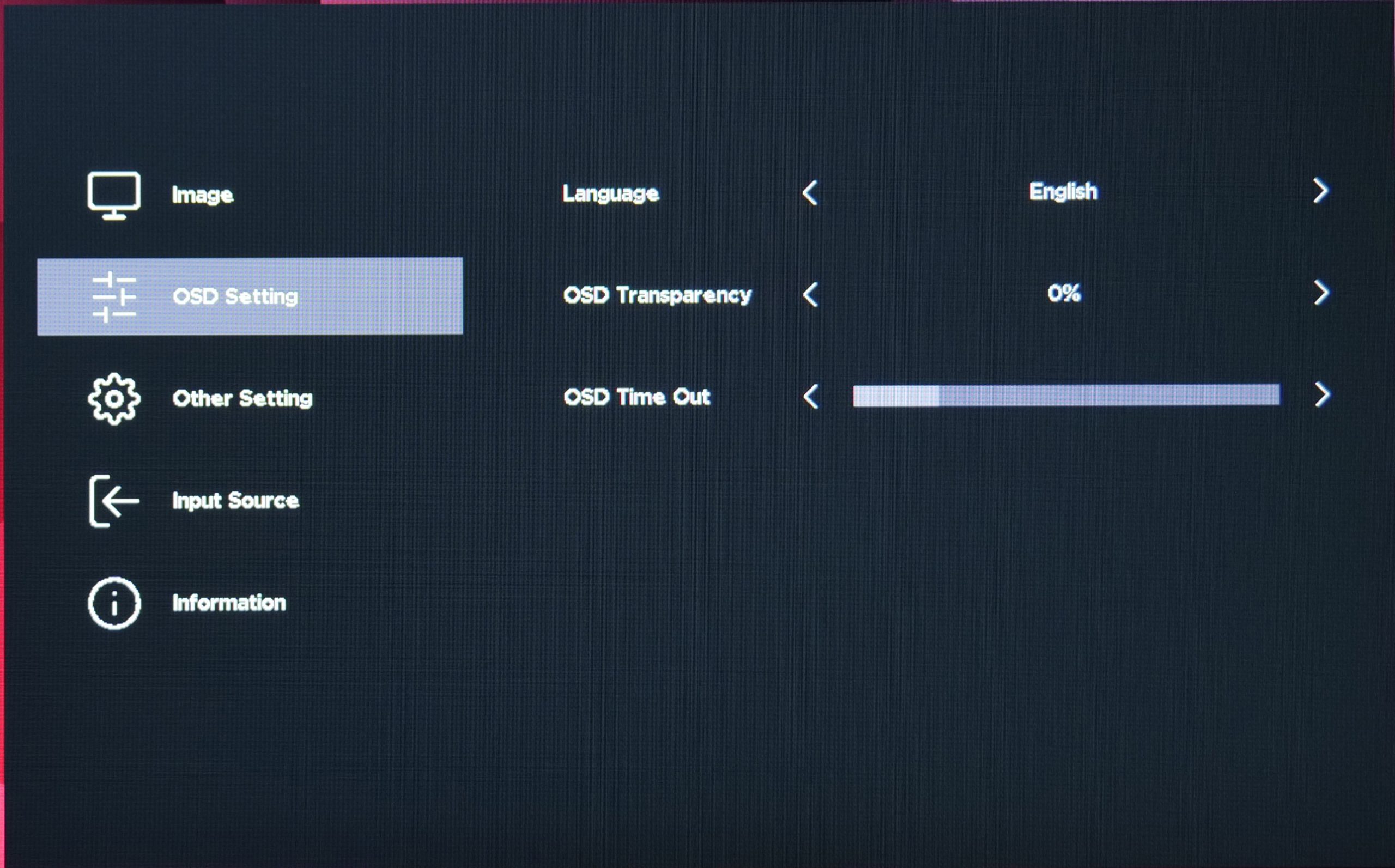
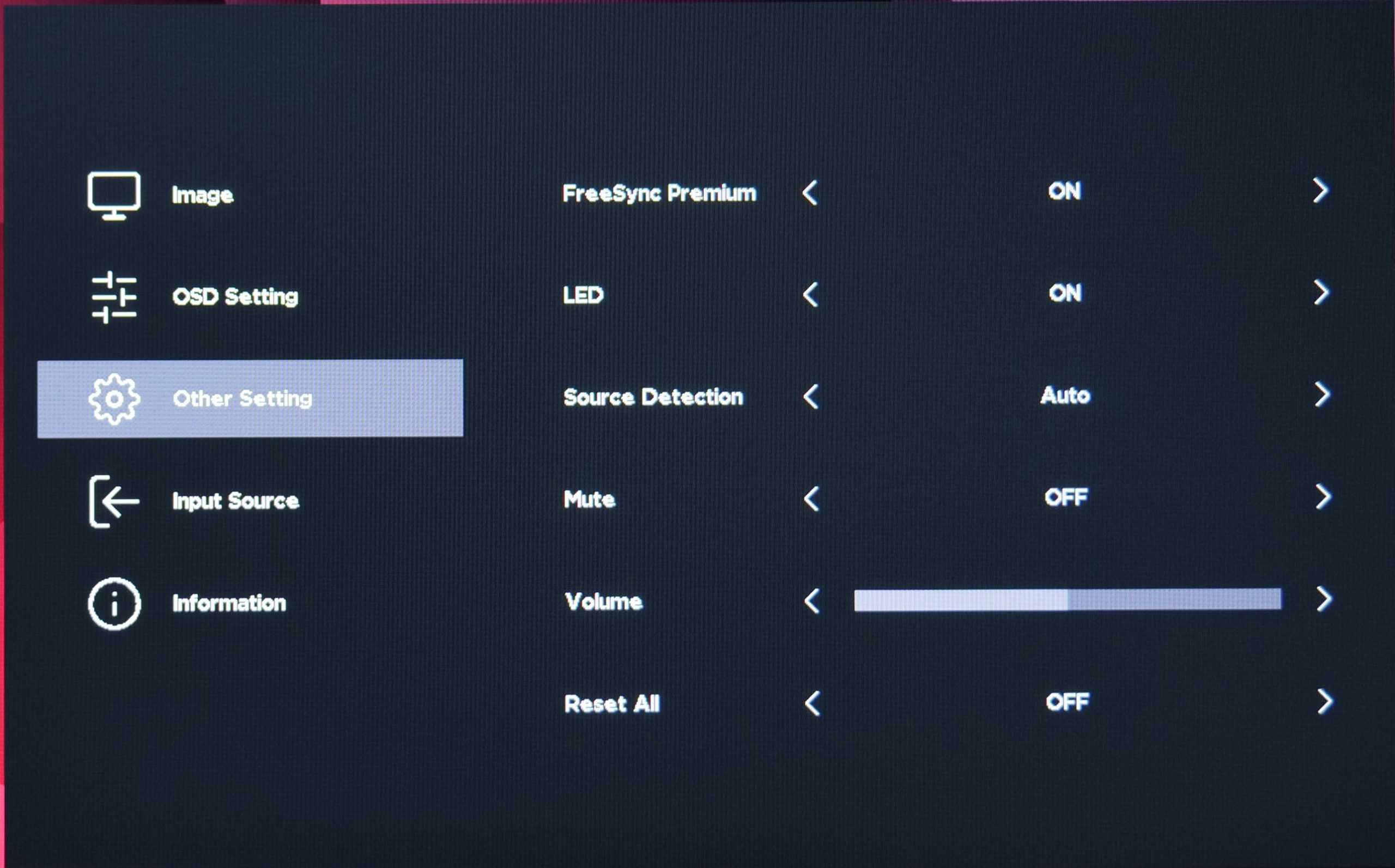
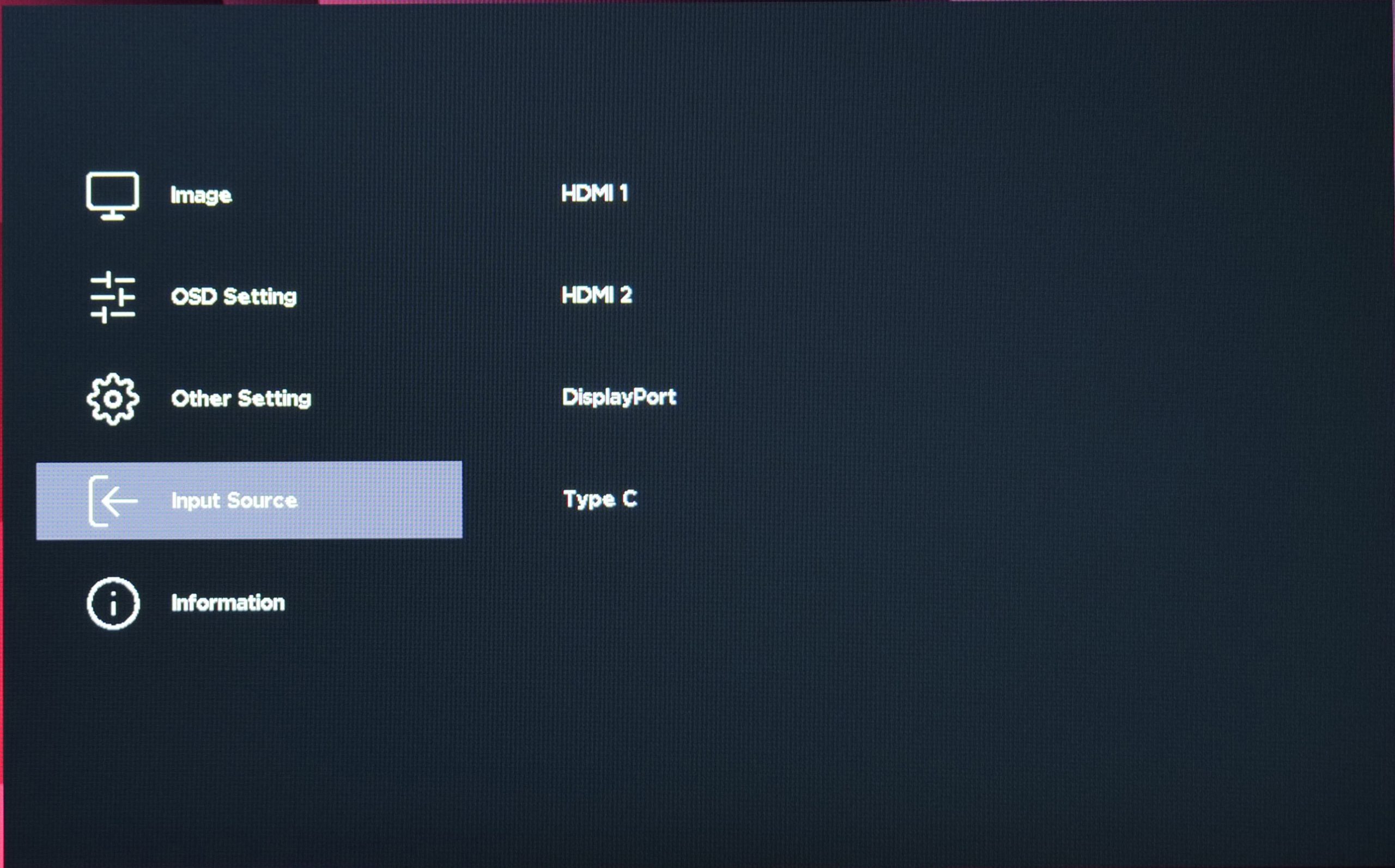
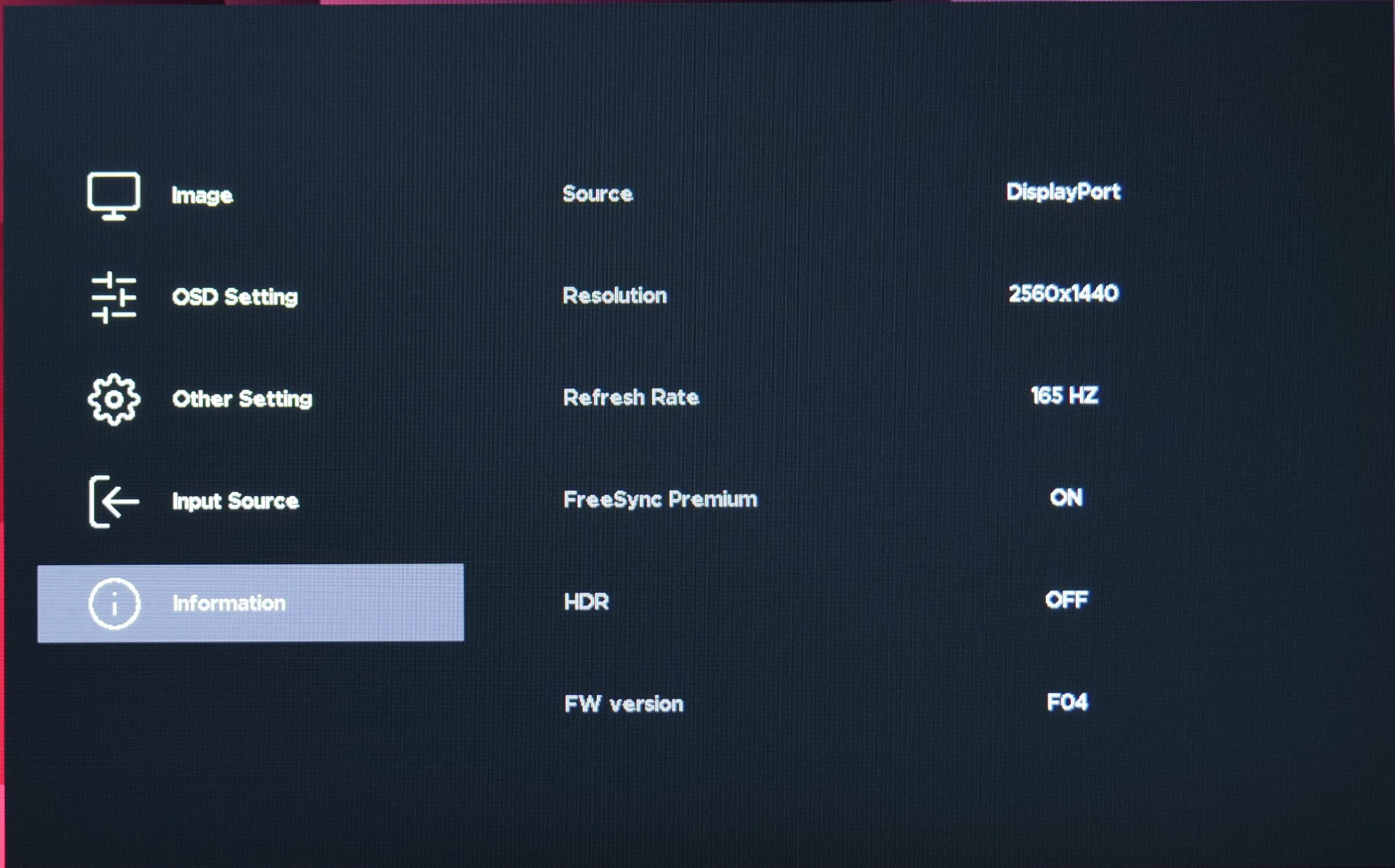
As expected, the OSD isn't quite fully fleshed-out just yet, with no option for things like an on-screen crosshair or a shadow boost setting. I also find it a bit peculiar that none of the adjustable settings like Brightness or Contrast give you a number out of 100 so you know what percentage you are currently using. You can still adjust those values between 1 and 100, you just won't know the exact setting you are currently using, which is a bit strange.
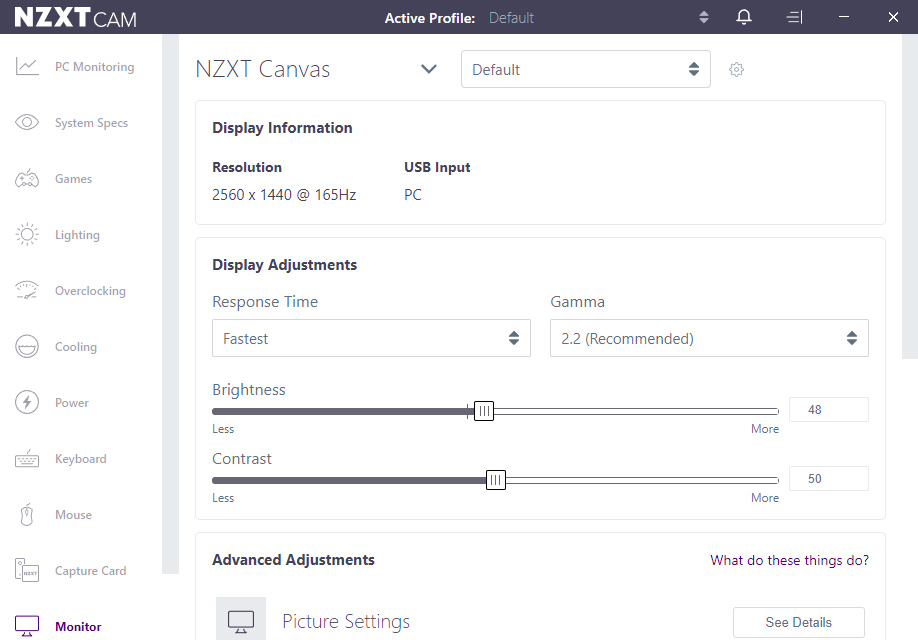
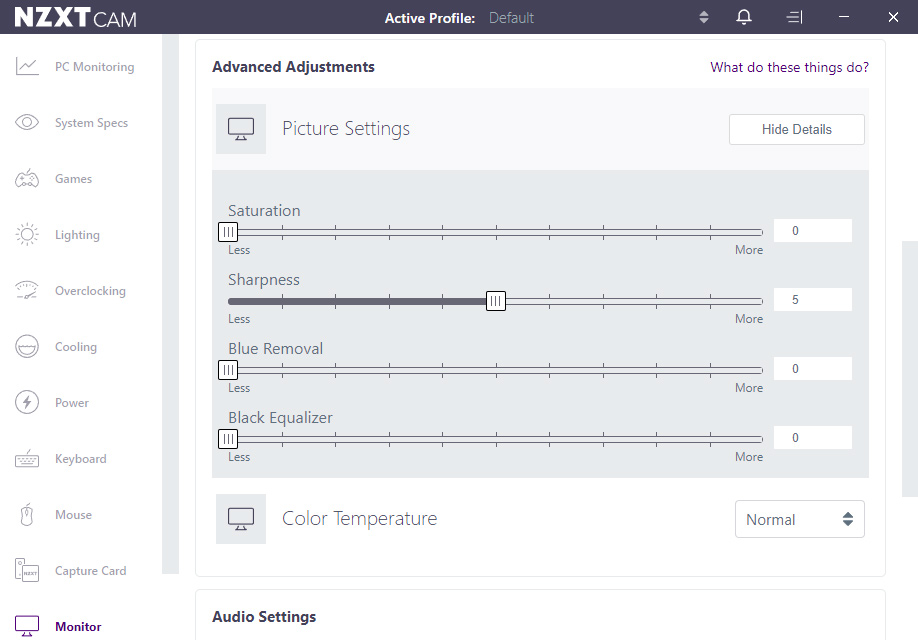
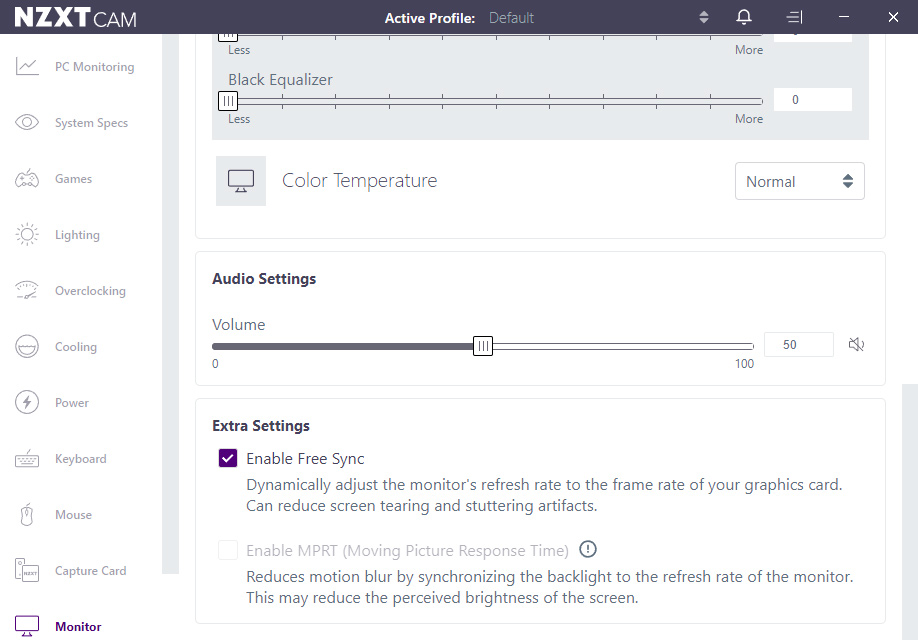
If you connect your monitor to your PC via USB cable, there is also the option to adjust the monitor settings within Windows, thanks to NZXT's CAM software. I've not used CAM for a few years and I was pleasantly surprised with how smooth the software ran, it was nice and responsive and you don't need an NZXT account to tweak the settings.
As I pointed out in my review of the Corsair 32QHD165 however, I do think there is scope for these software integrations to be a lot more powerful. Having the option to add custom overlays, or a overdrive slider that can be fine-tuned to your specific preference – these are all features that could be great additions to CAM for the Canvas 27Q. It is their first ever monitor though, hopefully more and more functionality will be added over time, but now it at least provides a quick and easy way to adjust the monitor's settings.
Our main test involves using a DataColor SpyderX Colorimeter to assess a display’s image quality. The device sits on top of the screen while the software generates colour tones and patterns, which it compares against predetermined values to work out how accurate the screen is.
The results show –
- A monitor’s maximum brightness in candelas or cd/m2 at various levels set in the OSD.
- A monitor’s contrast ratio at various brightness levels in the OSD.
- The brightness deviation across the panel.
- The black and white points.
- The colour accuracy, expressed as a Delta E ratio, with a result under 3 being fine for normal use, and under 2 being great for colour-accurate design work.
- The exact gamma levels, with a comparison against preset settings in the OSD.
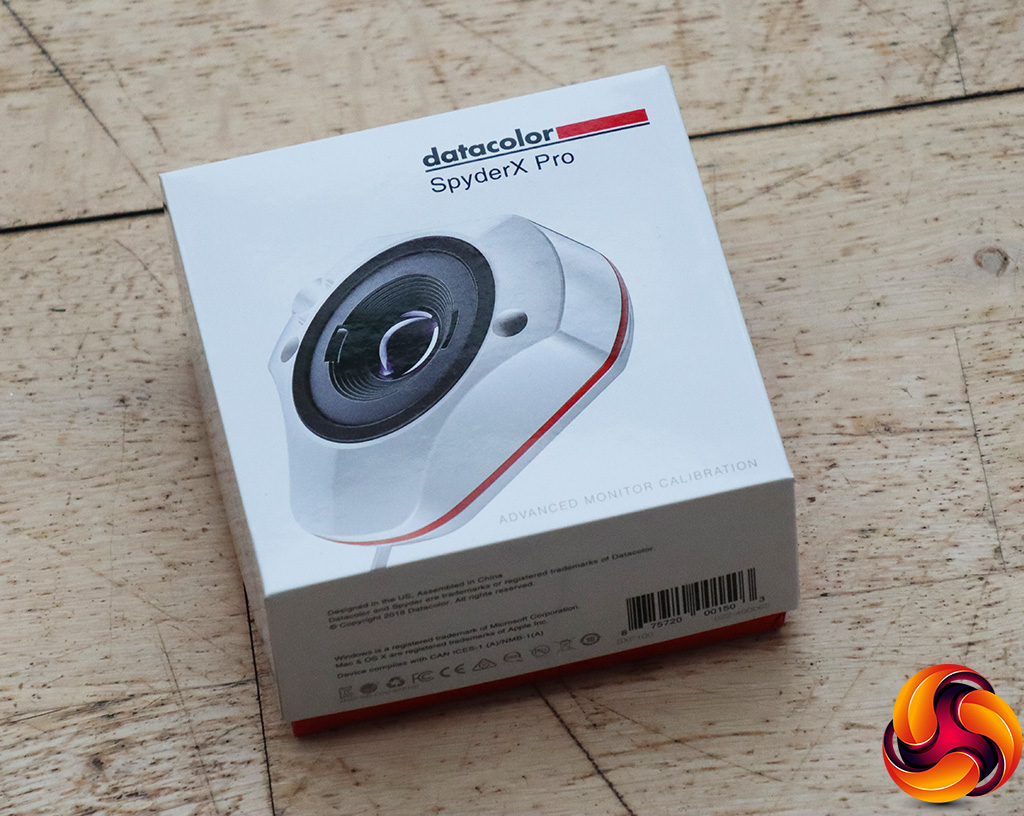
We first run this test with the display in its default, out-of-the-box state, with all settings on default. We then calibrate the screen using the Spyder software and run the test again.
Pre-calibration
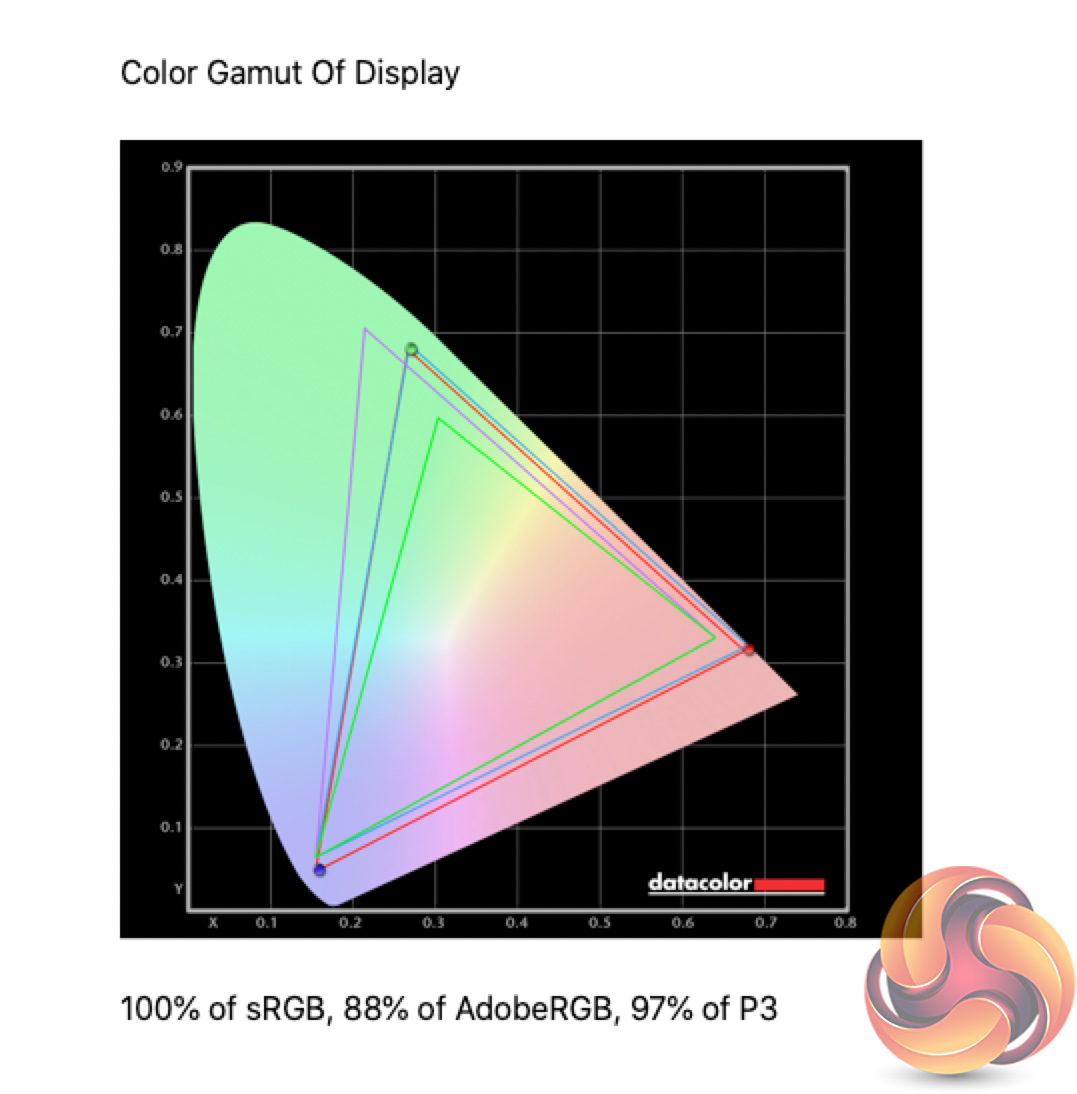
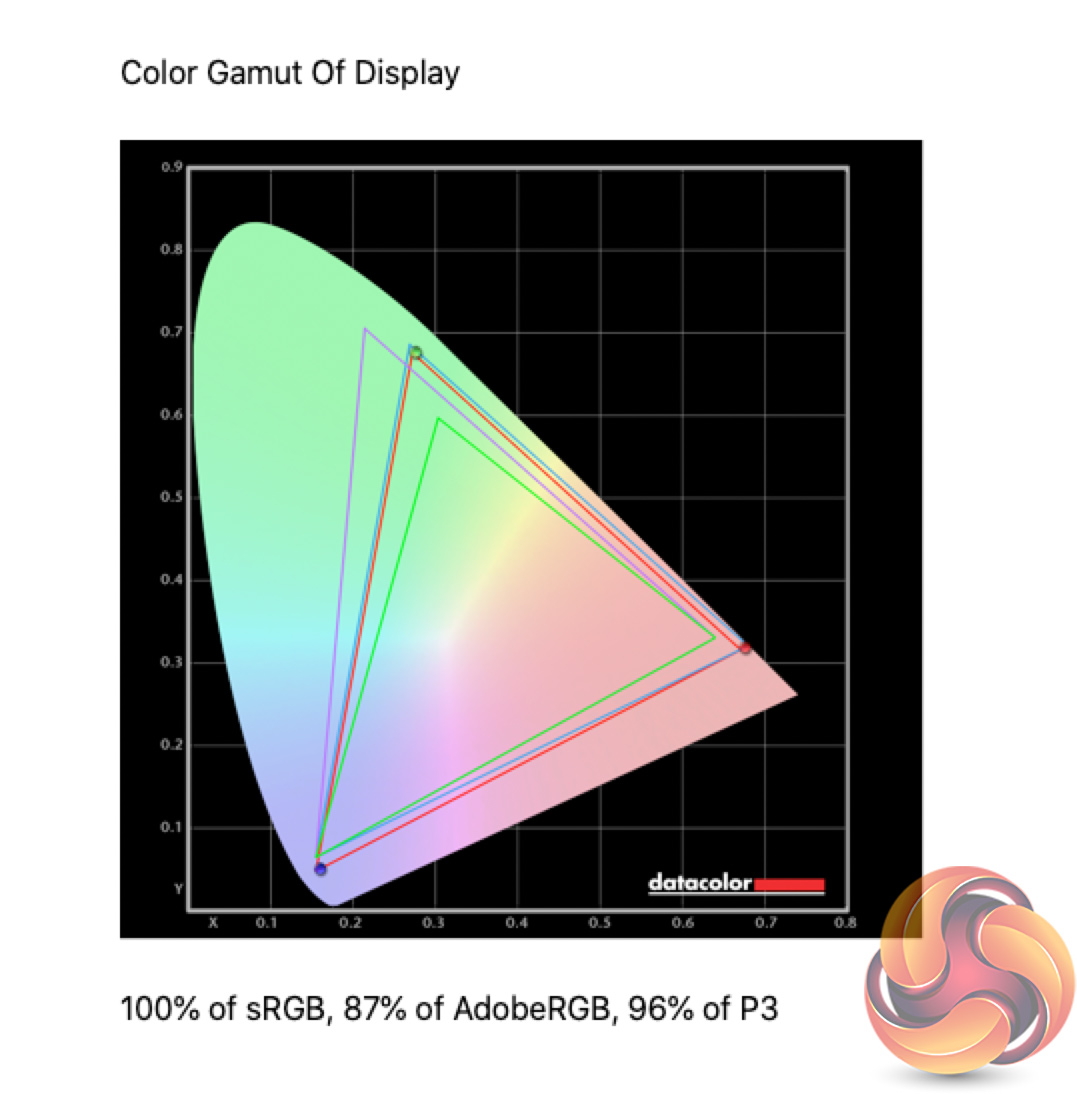
Looking first as the colour gamut, we get impressive results here. The Canvas 27Q offers 100% sRGB and 88% AdobeRGB coverage, while we also get 97% of the DCI-P3 colour space.
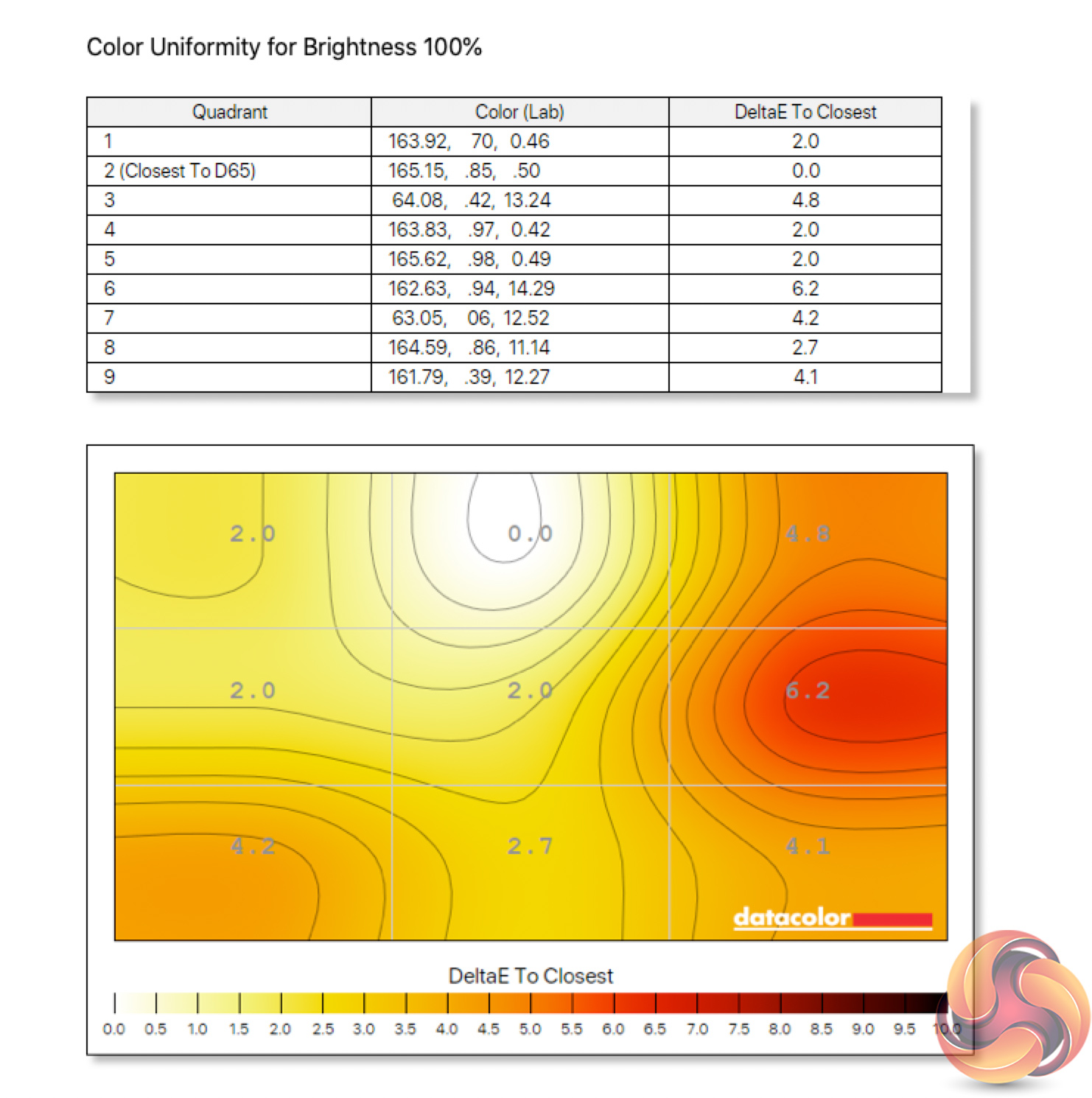
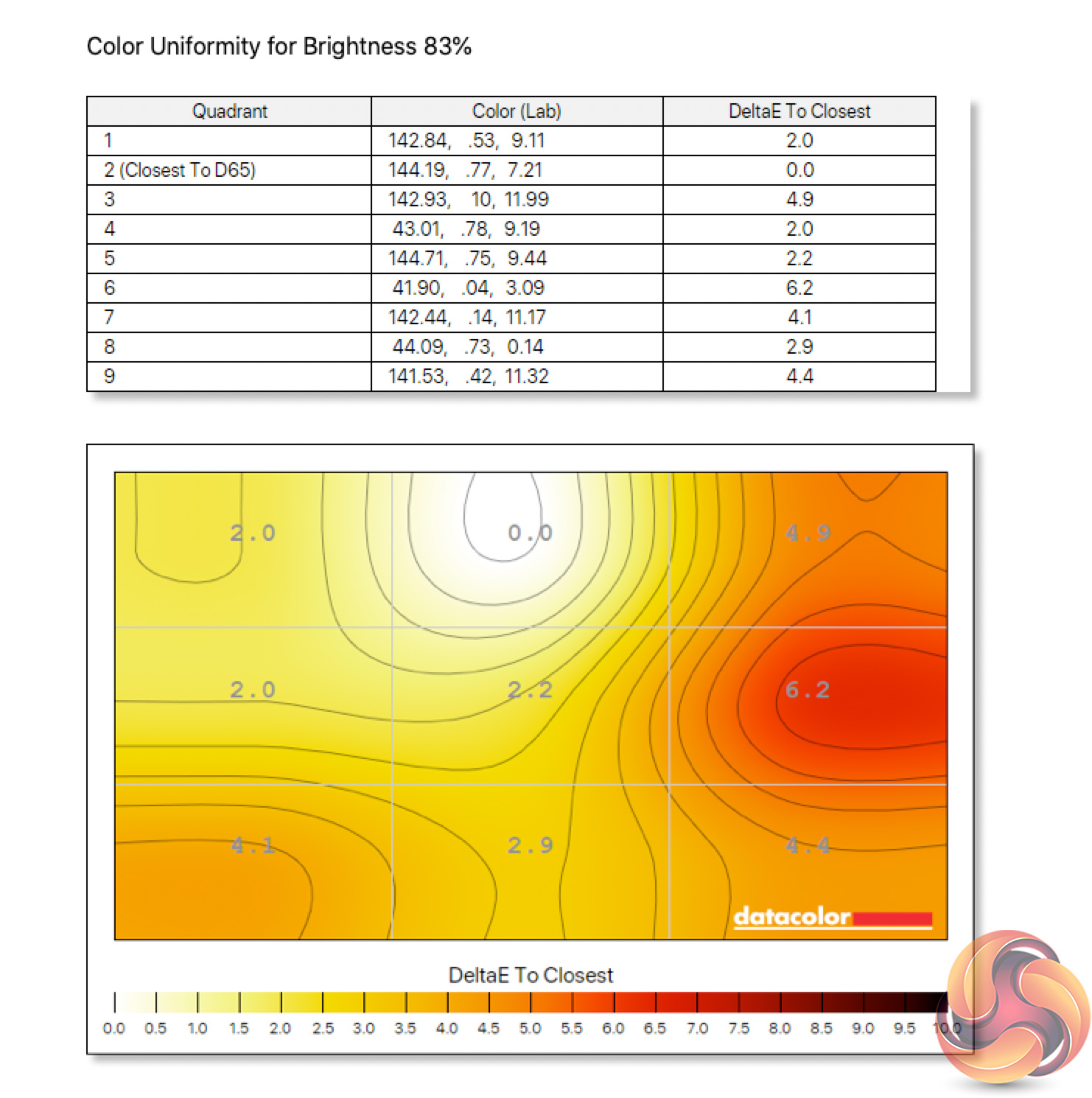
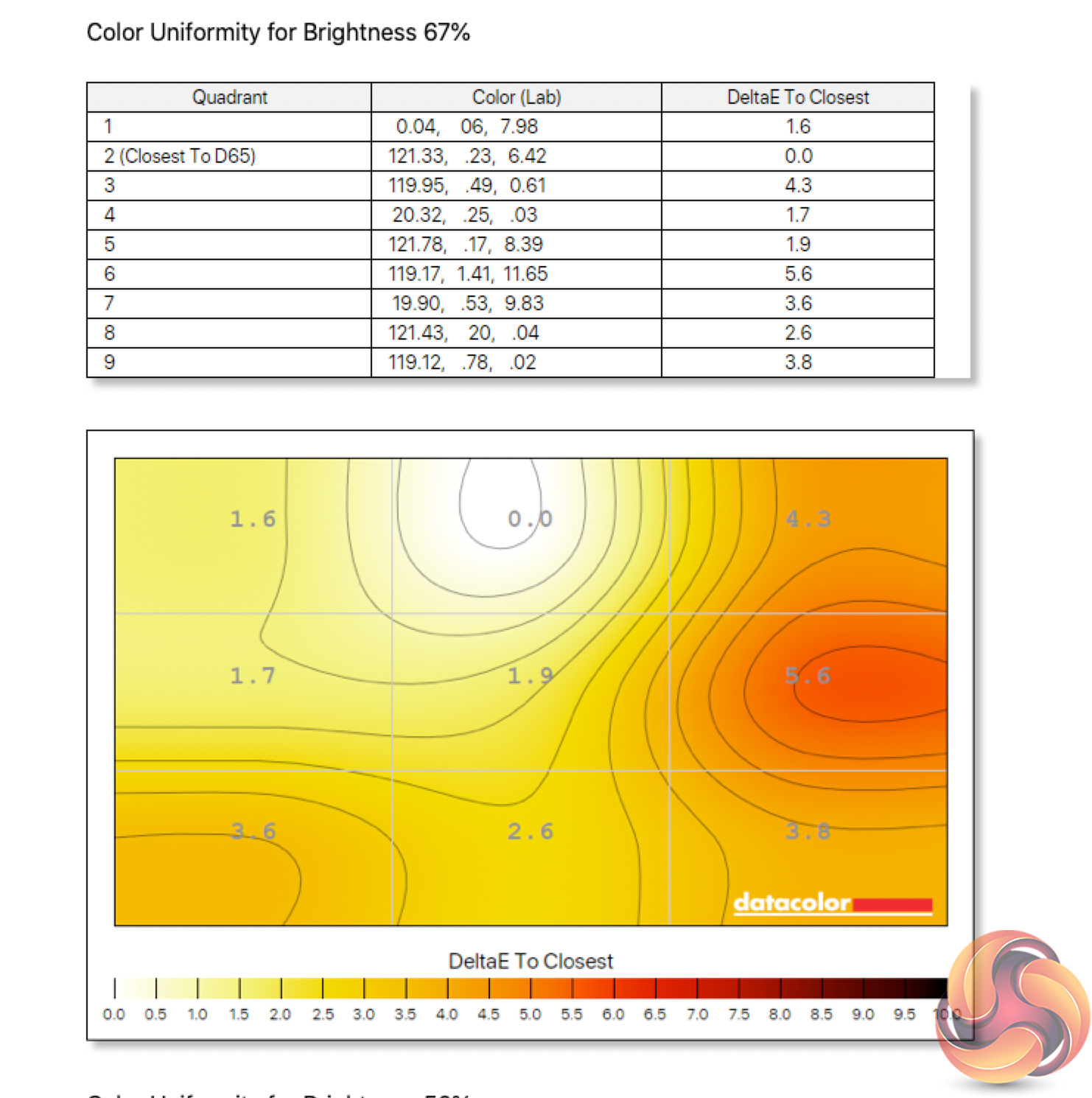
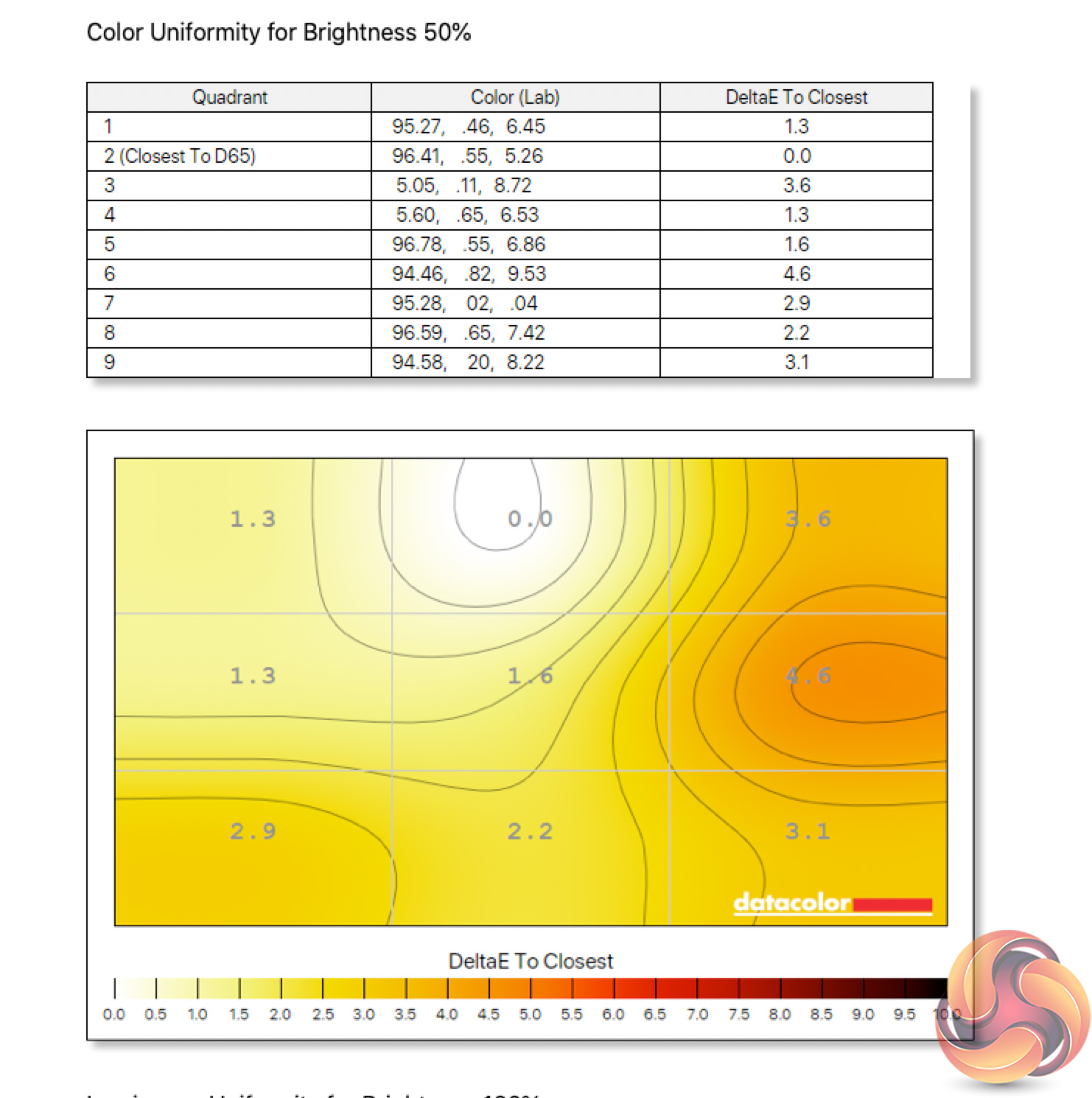
Colour uniformity is OK, there is a hot-spot on the right-hand side of the panel but the rest of the display is fairly uniform. The issue is exacerbated at higher brightness levels too, at 67% brightness or below the aberration is less pronounced, and it's not something I noticed during my testing.
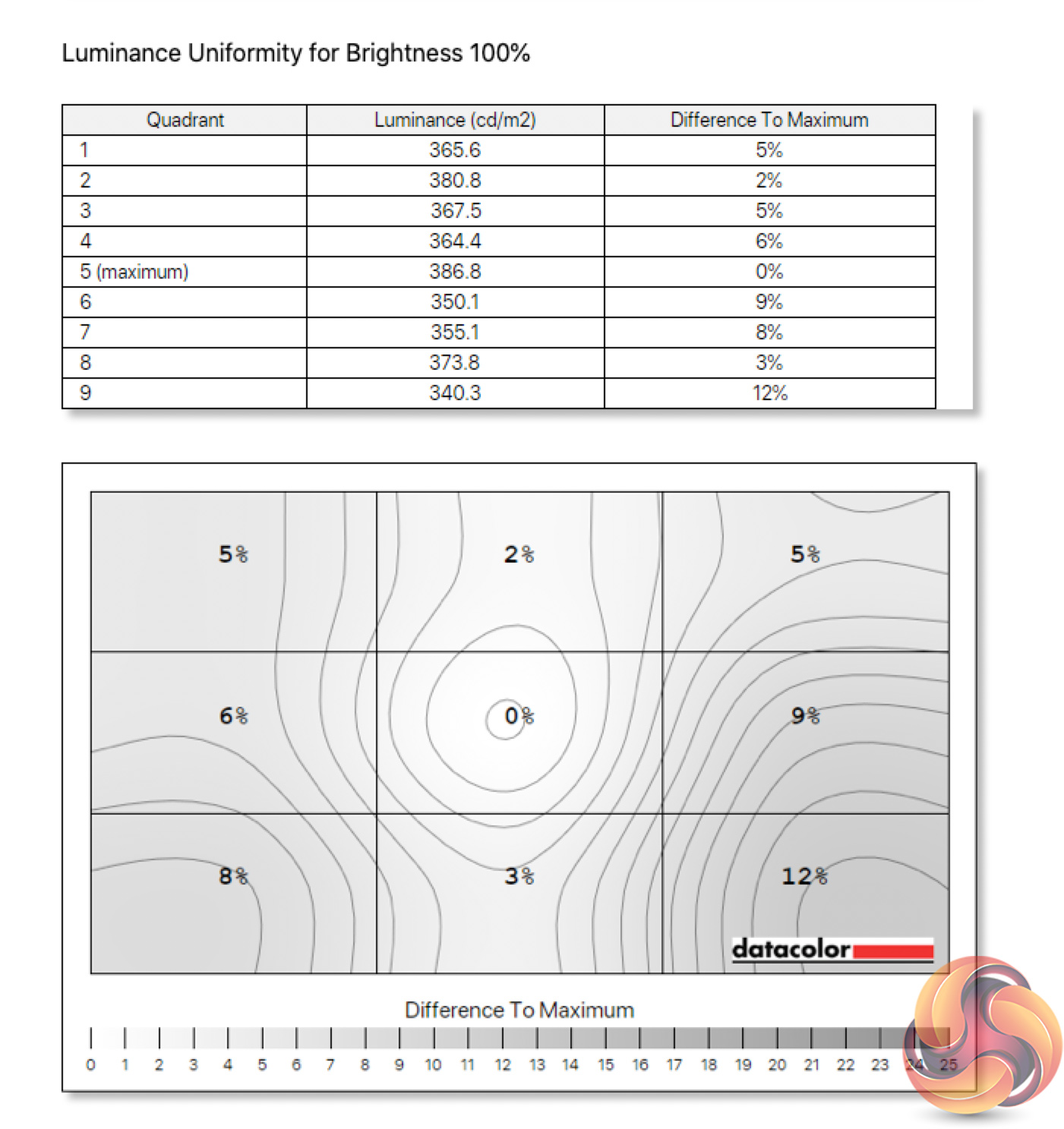
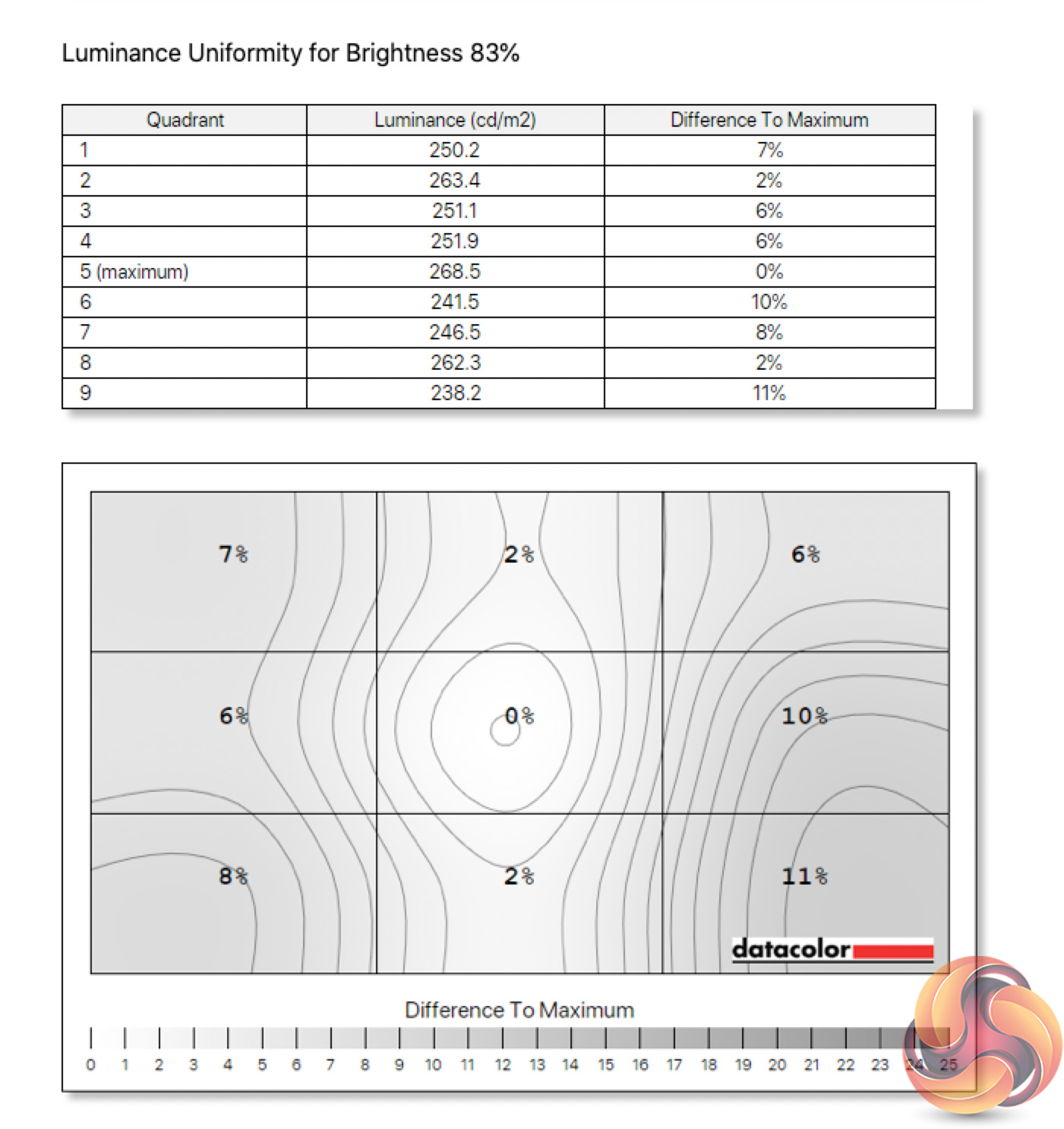
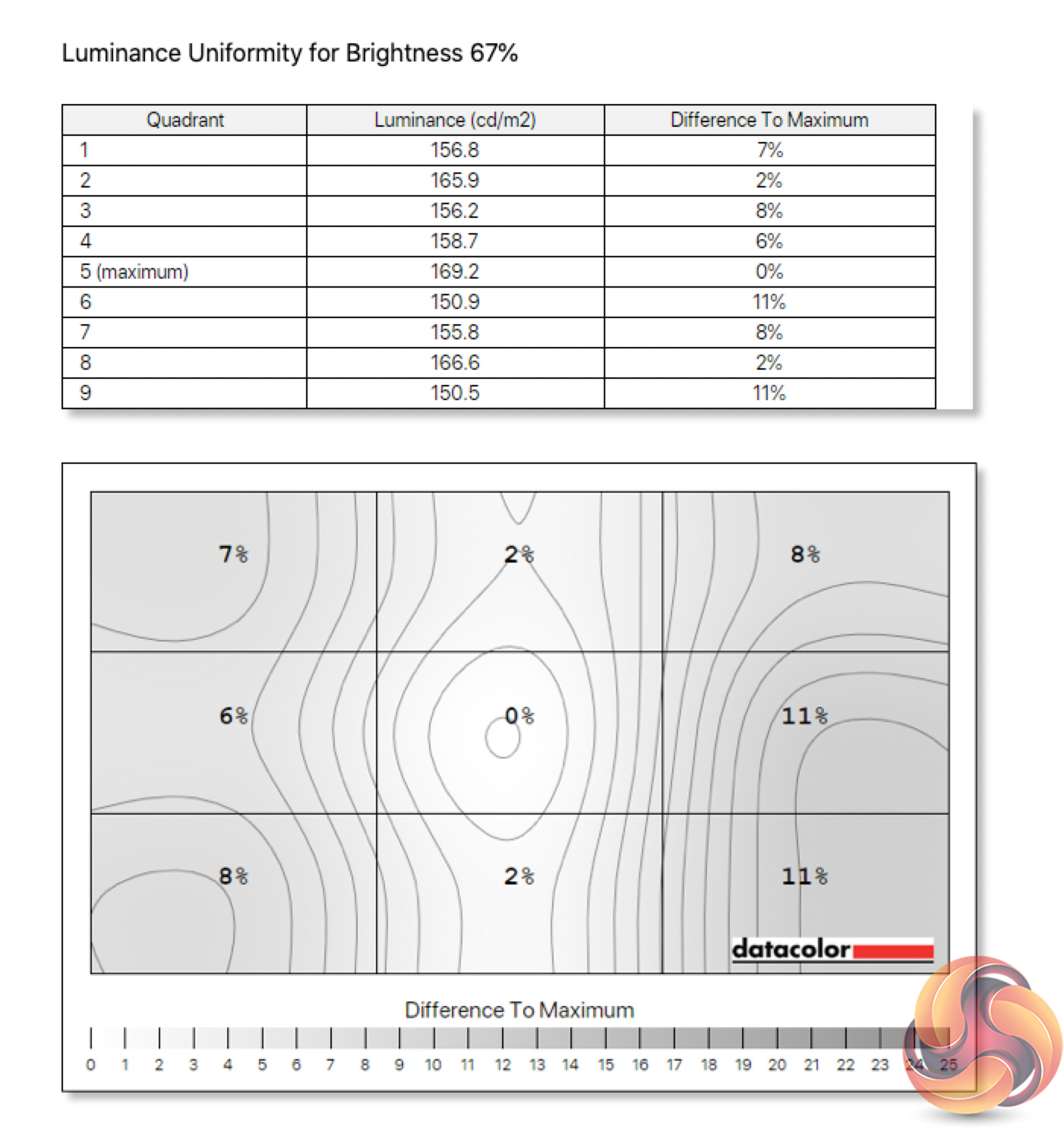
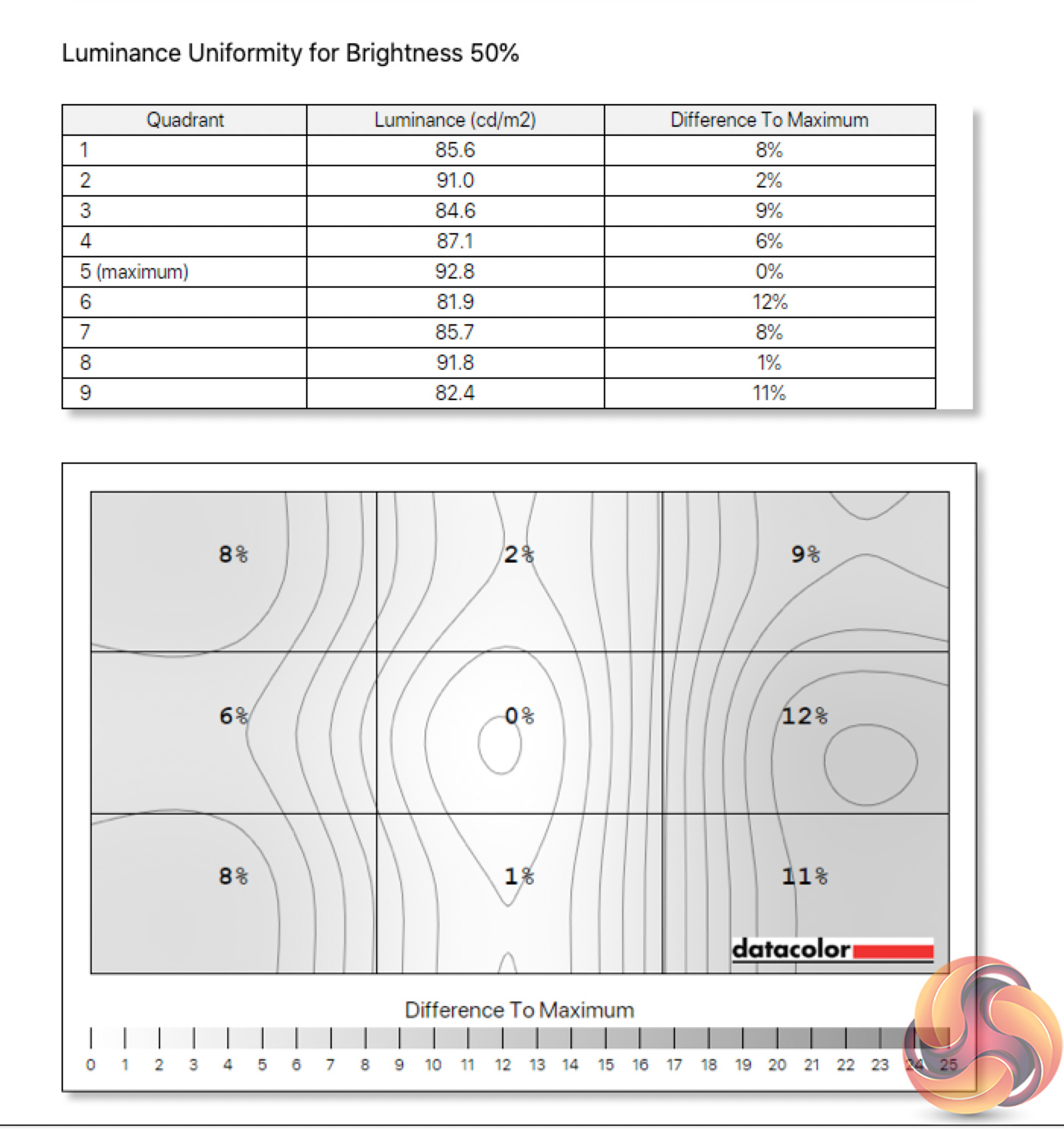
Luminance uniformity is nothing to worry about. The bottom left corner deviates the most, by 12% at 100% brightness, but again it's not really a concerning result at all.
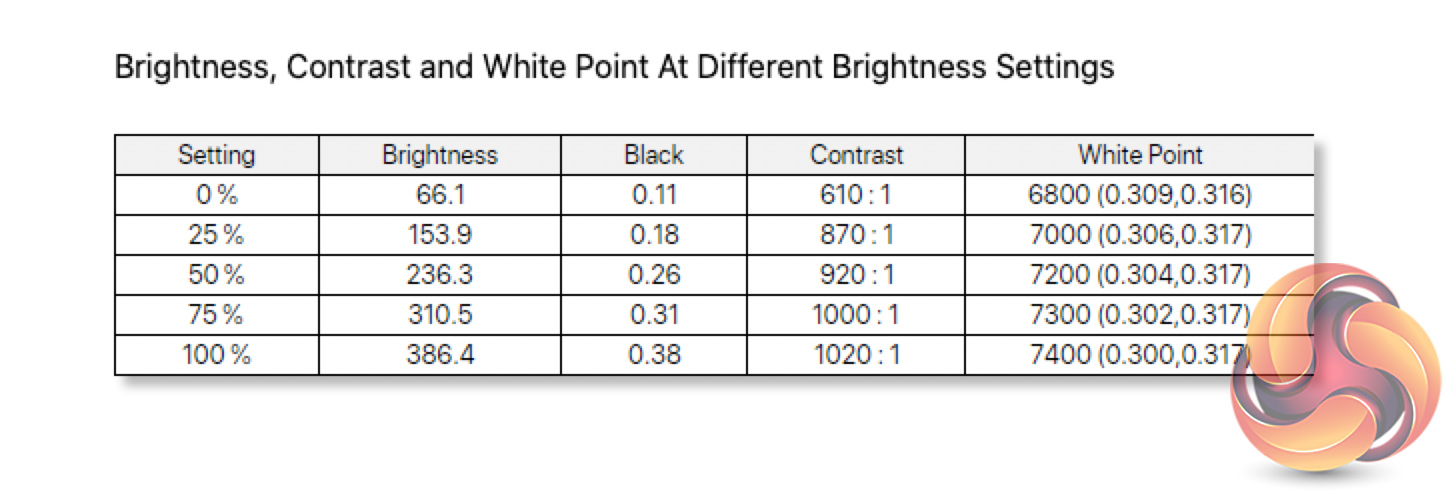
Speaking of brightness, the Canvas 27Q gets decently bright, with a peaking reading of 386 nits, while we can also note of minimum of 66 nits at 0% brightness, which is OK. Contrast is exactly where we'd expect for a decent IPS panel, with a 1020:1 ratio, though the white point is just a touch cool at 7400K.
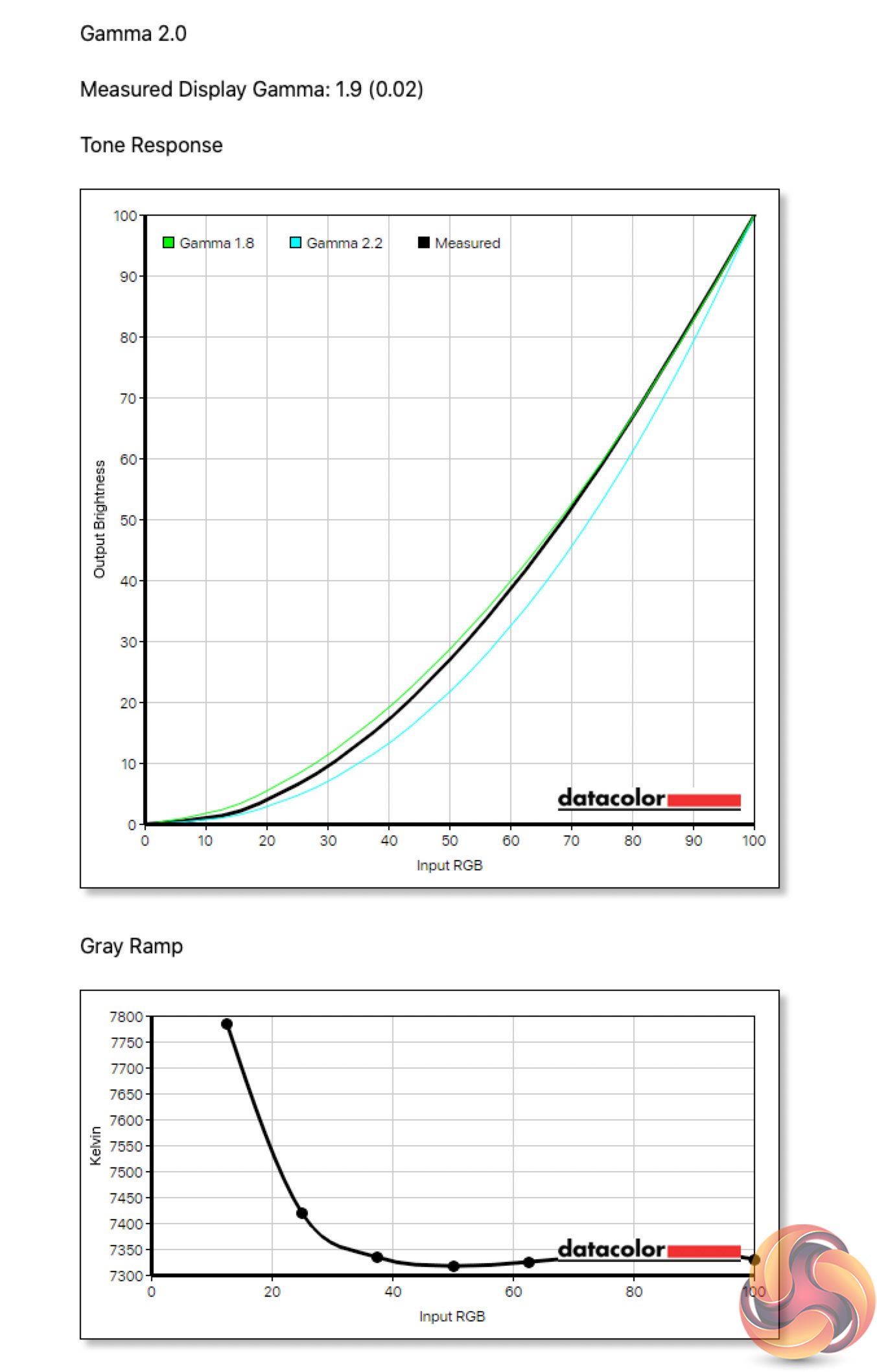
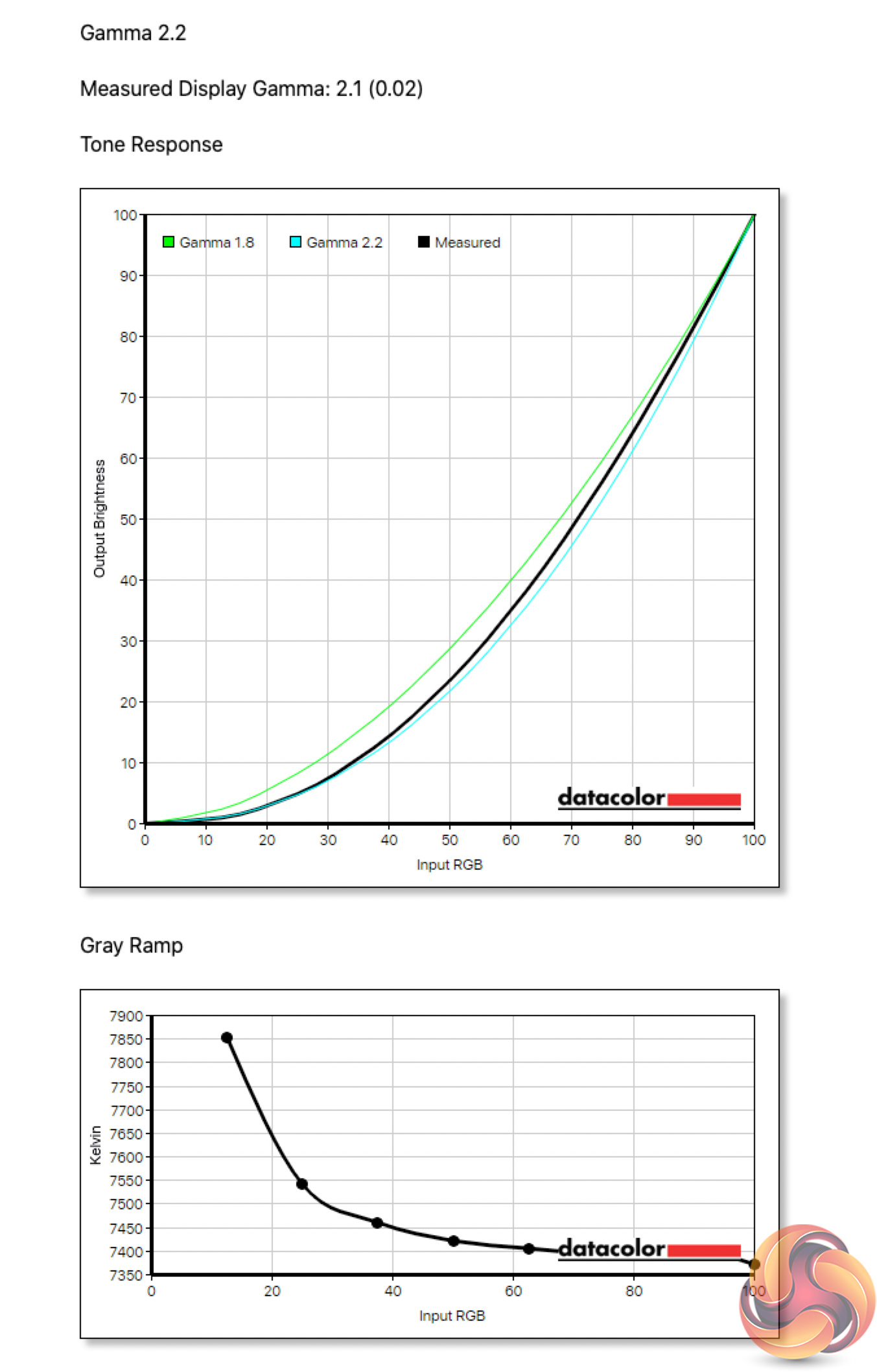
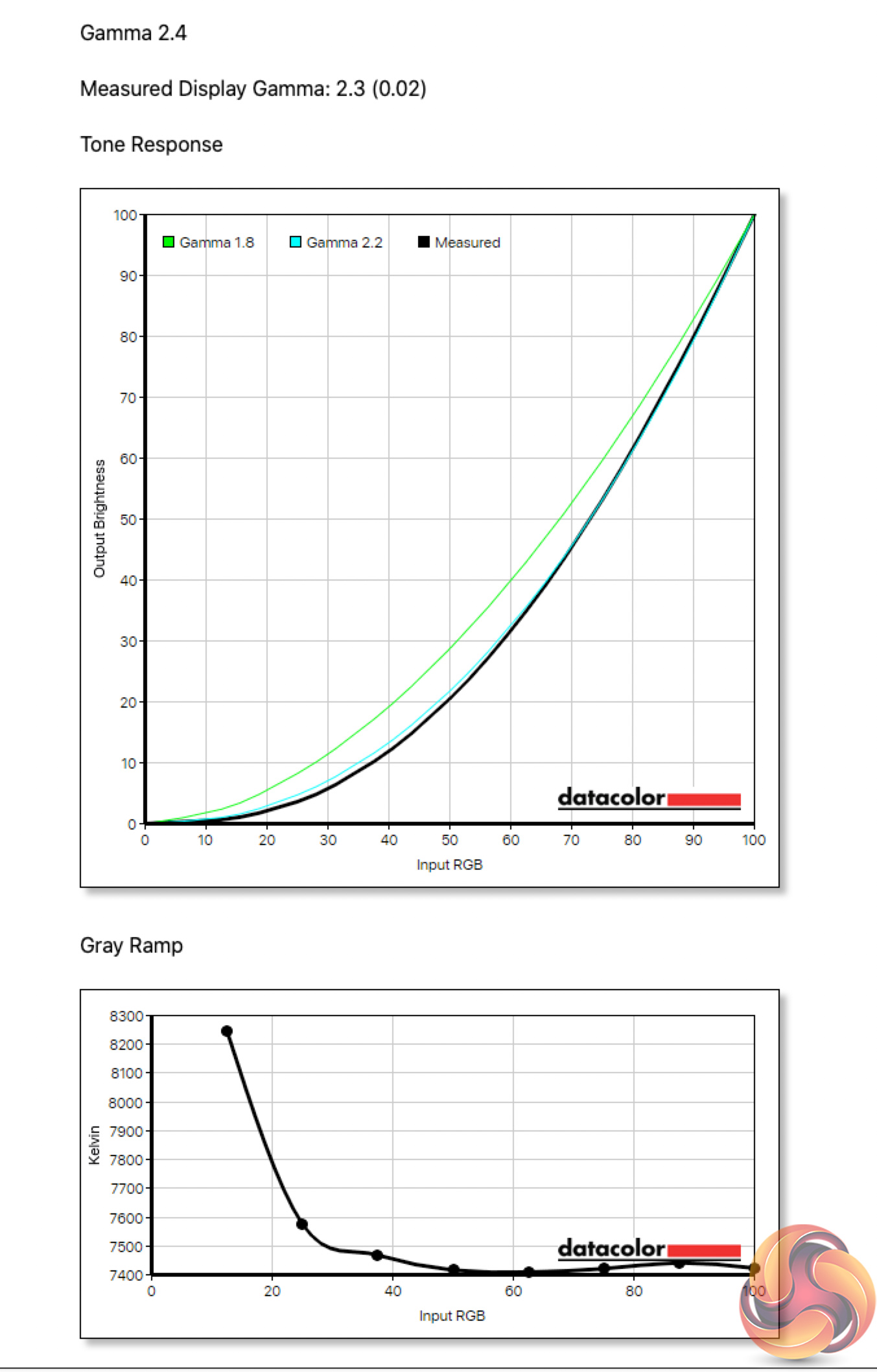
Of the three Gamma settings, each measures 0.1 below their target – meaning the Gamma 2.0 setting delivers an actual value of 1.9, while Gamma 2.2 delivers a value of 2.1 and so on. The steps are still uniform which is good, but it's a slight disappoint we can't hit the standard of Gamma 2.2.
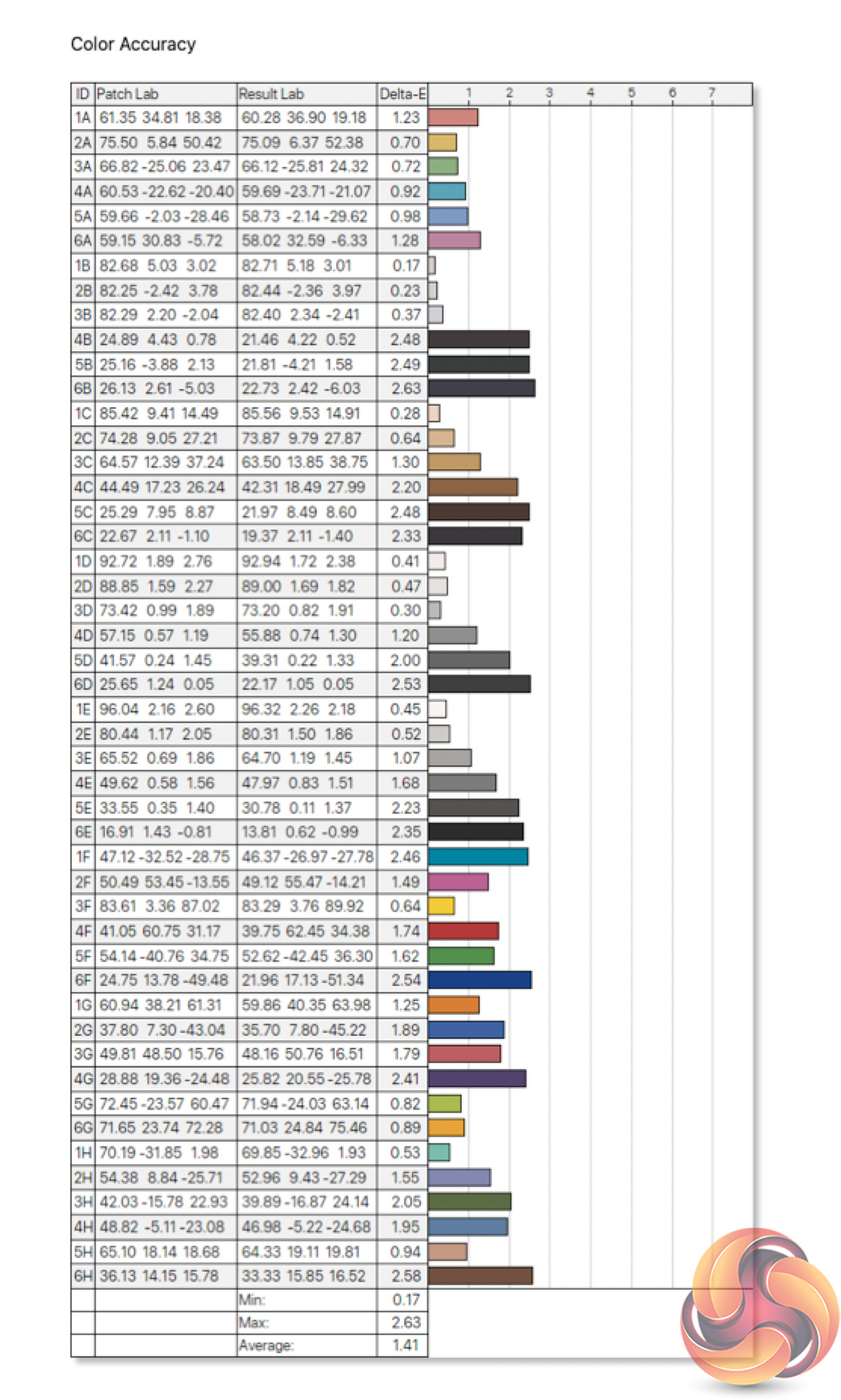
As for colour accuracy, the out of the box result here is good, but perhaps not the best we've ever seen – with an average deltaE of 1.41 and a maximum of 2.63. For a gaming panel it's still a very good result, but we have seen better from some other IPS displays recently.
Post-calibration
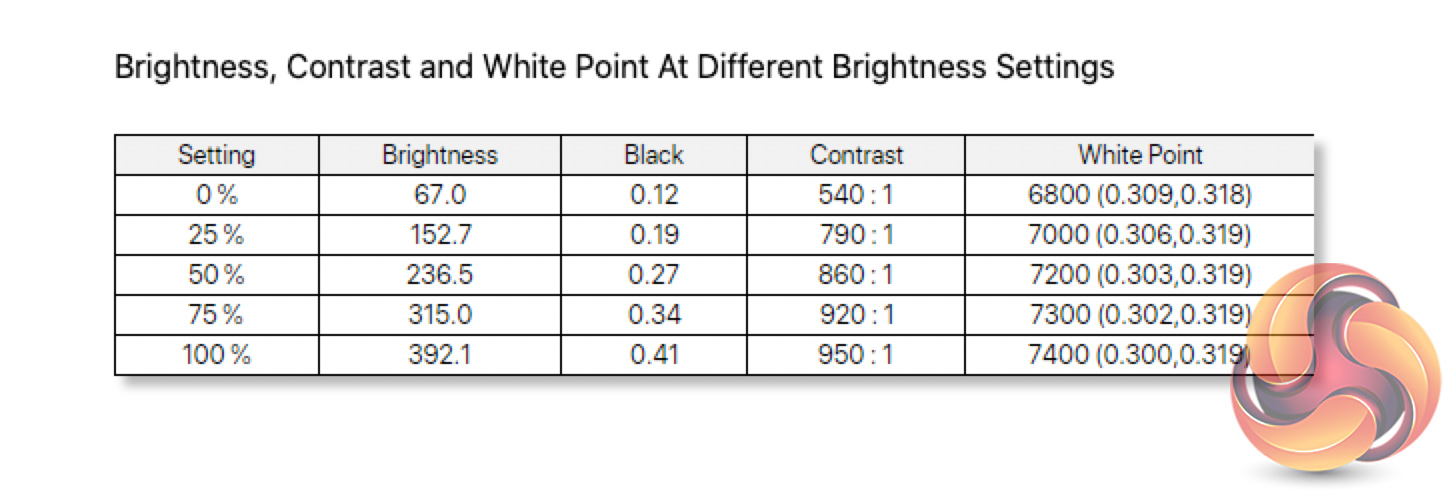
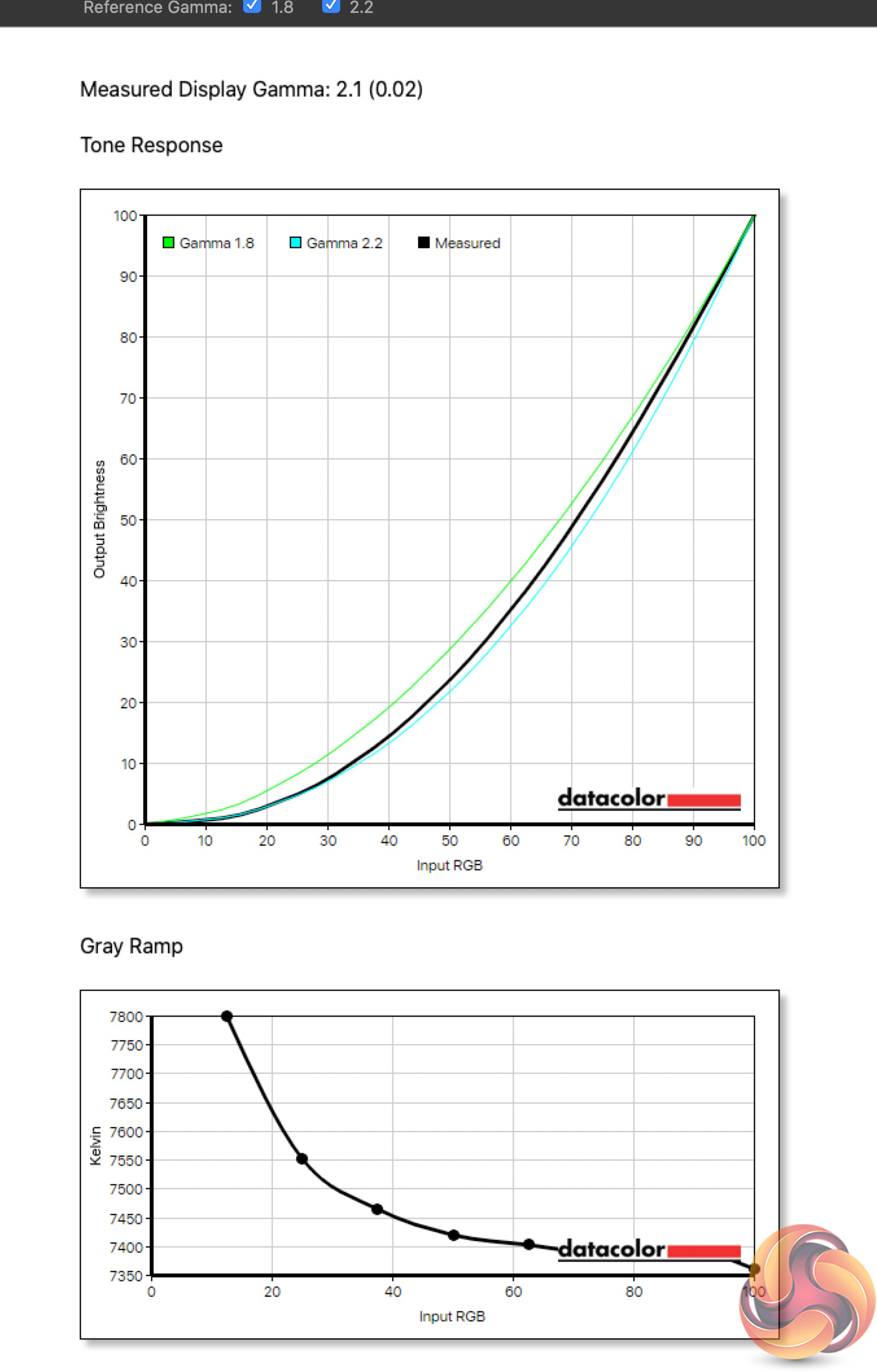
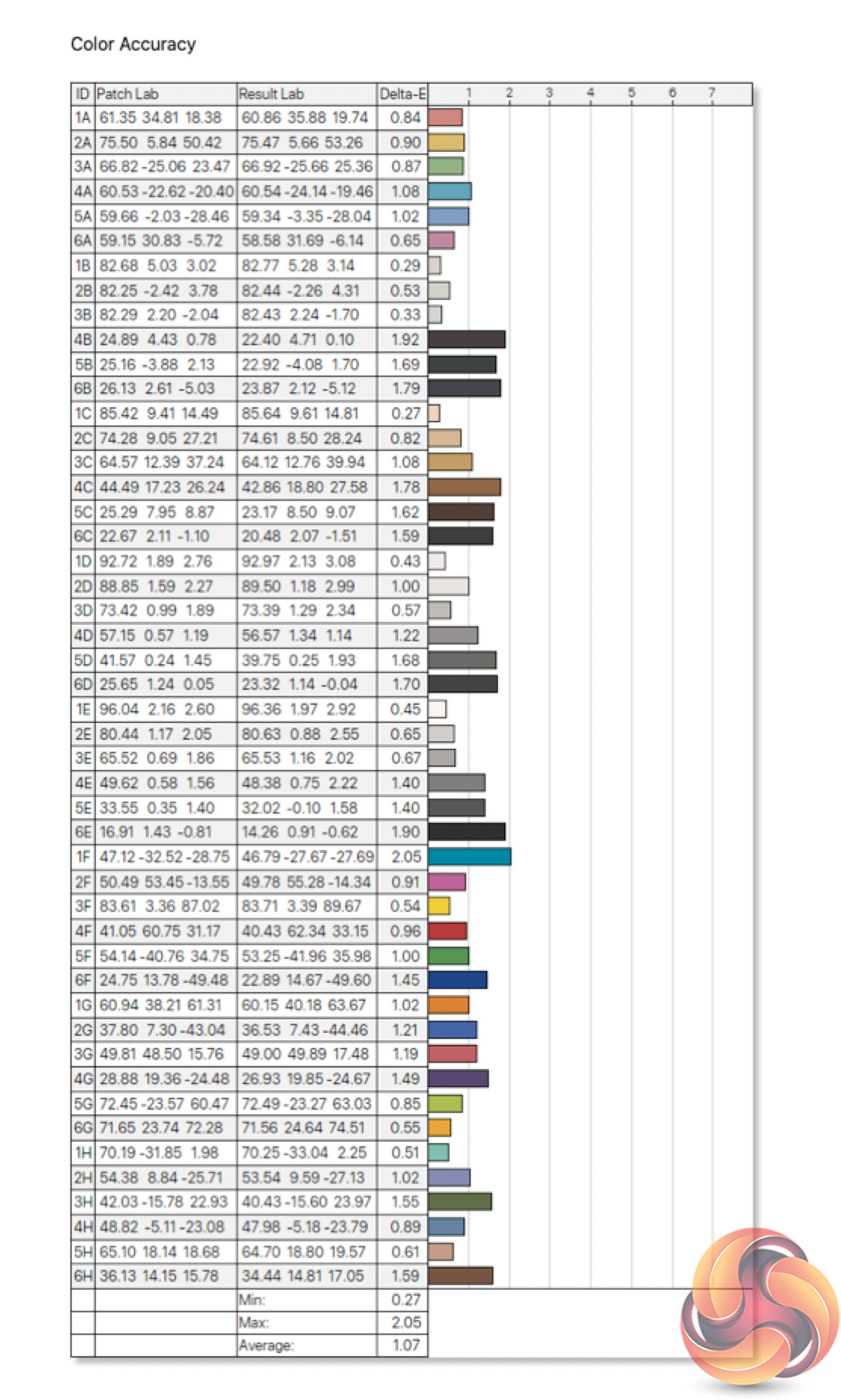
Once we calibrated the display, the gamut, gamma and brightness settings remained very consistent. Colour accuracy did improve however, with a new average deltaE of 1.07 and a maximum of 2.05. Out of the box performance is still very good however, and certainly if you're primarily gaming, I wouldn't bother with the calibration.
Monitor response time testing is a new addition to our reviews, where we use the Open Source Response Time Tool (OSRTT), developed by TechTeamGB. This measures grey-to-grey response times and presents the results in a series of heatmaps, the style of which you may be familiar with from other reviews.
Initial Response Time is the time taken for the panel to transition from one colour to another, where lower values are better. We present the initial response time, so overshoot is not taken into account and is measured separately. We use a fixed RGB 5 tolerance for each transition.
Overshoot is the term given for when a monitor's transition exceeds or goes beyond its target value. So if a monitor was meant to transition from RGB 0 to RGB 55, but it hits RGB 60 before settling back down at RGB 55, that is overshoot. This is presented as RGB values in the heatmaps – i.e. how many RGB values past the intended target were measured.
Visual Response Rating is a metric designed to ‘score' a panel's visual performance, incorporating both response times and overdrive. Fast response times with little to no overshoot will score well, while slow response times or those with significant overshoot will score poorly.
We test the Canvas 27Q at 165Hz, using all three of the overdrive settings found within the OSD.
165Hz
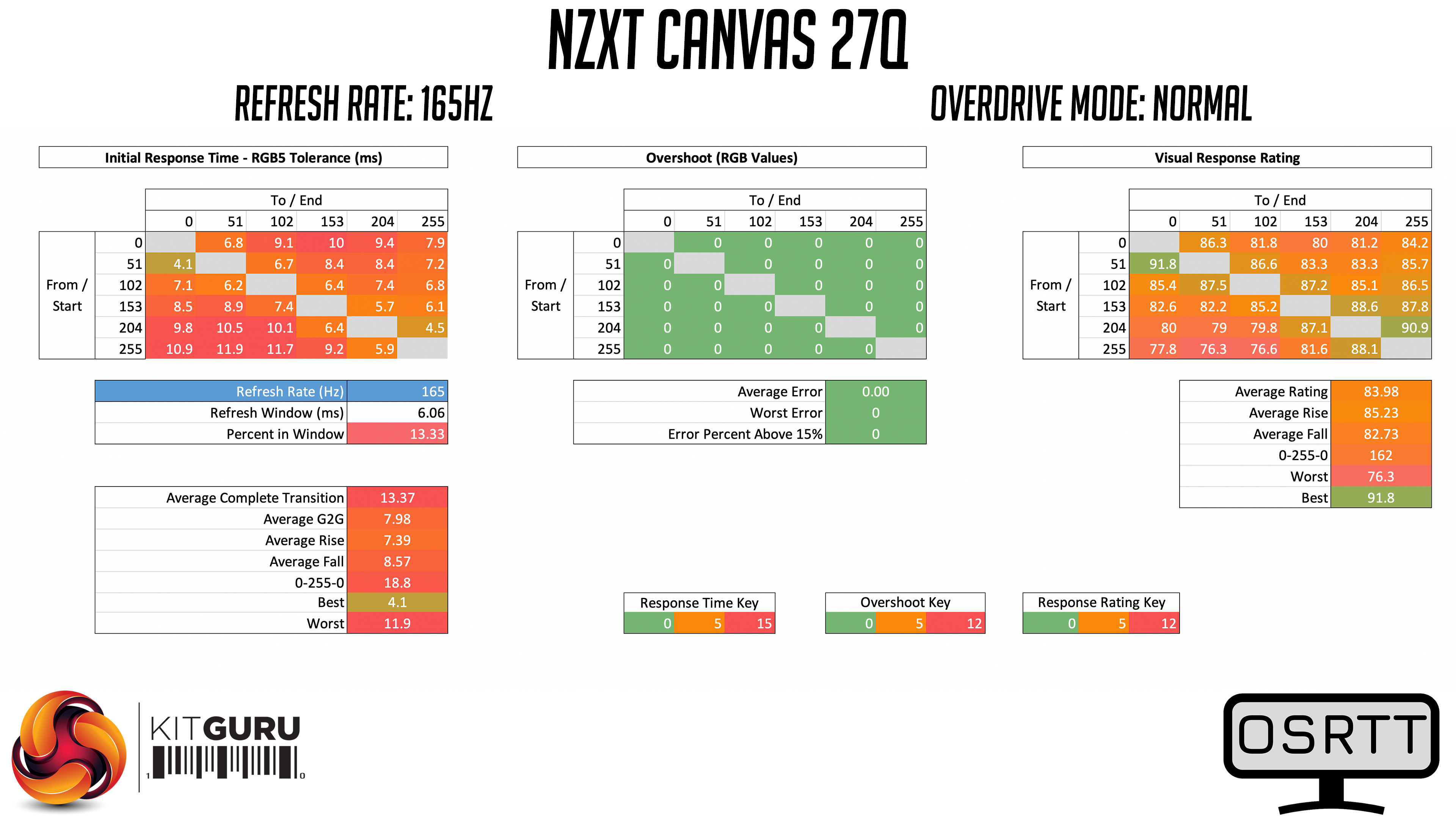
Starting with the Normal overdrive mode, this is basically the panel's performance without any overdrive at all, and to be honest it's not awful, with an average GtG response time of 7.98 ms. It could definitely be improved with some overdrive though, so quickly moving on…
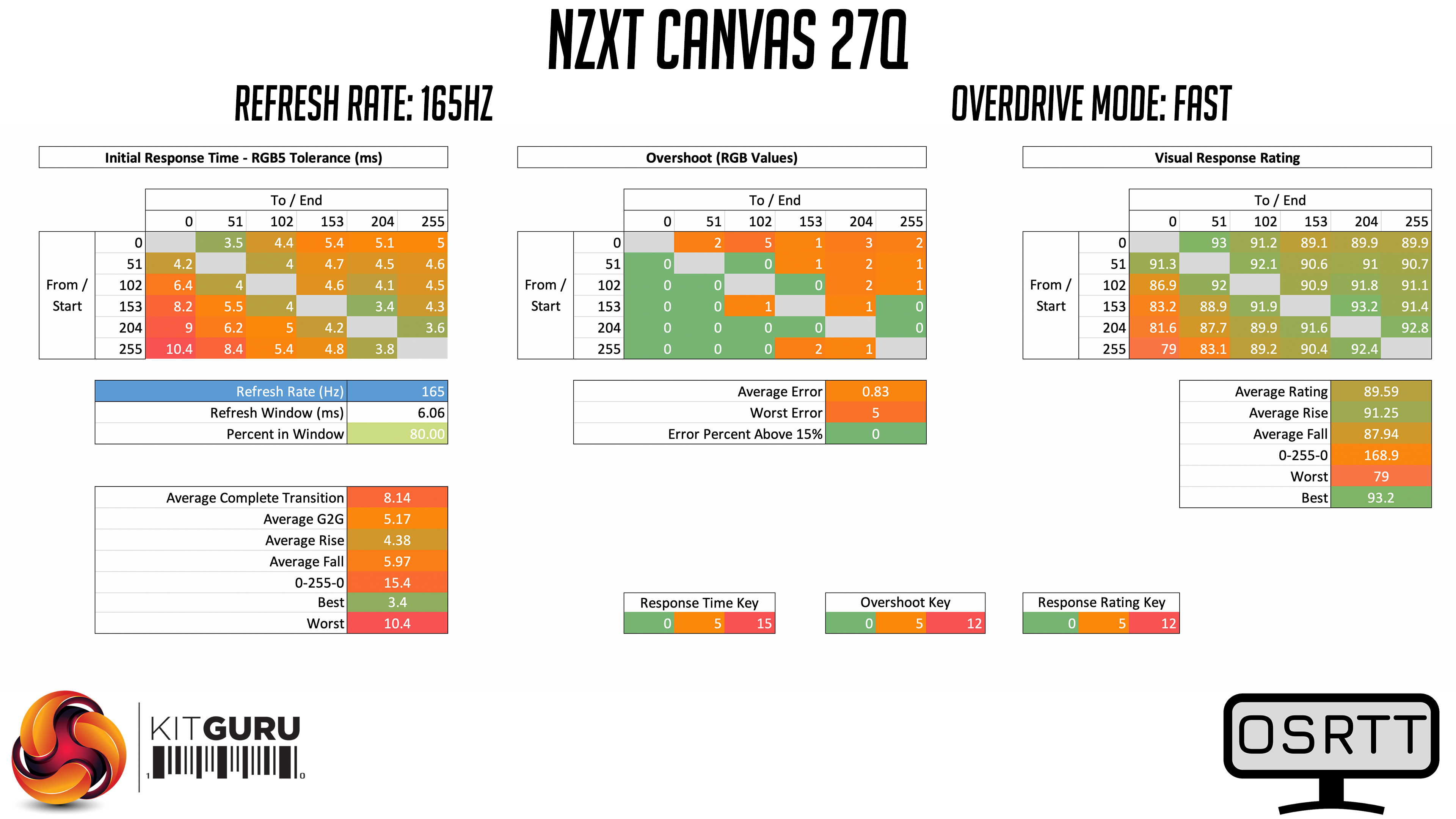
Next we come to the Fast overdrive mode. This is a much better result, with an average response time of 5.17ms and barely any overshoot – the average error was less than a single RGB value, so it's not something you'd notice.
The main problem area for the 27Q seems to be the fall times when transitioning to RGB 0, or a complete black (these can be seen on the left-most column on the heatmap).
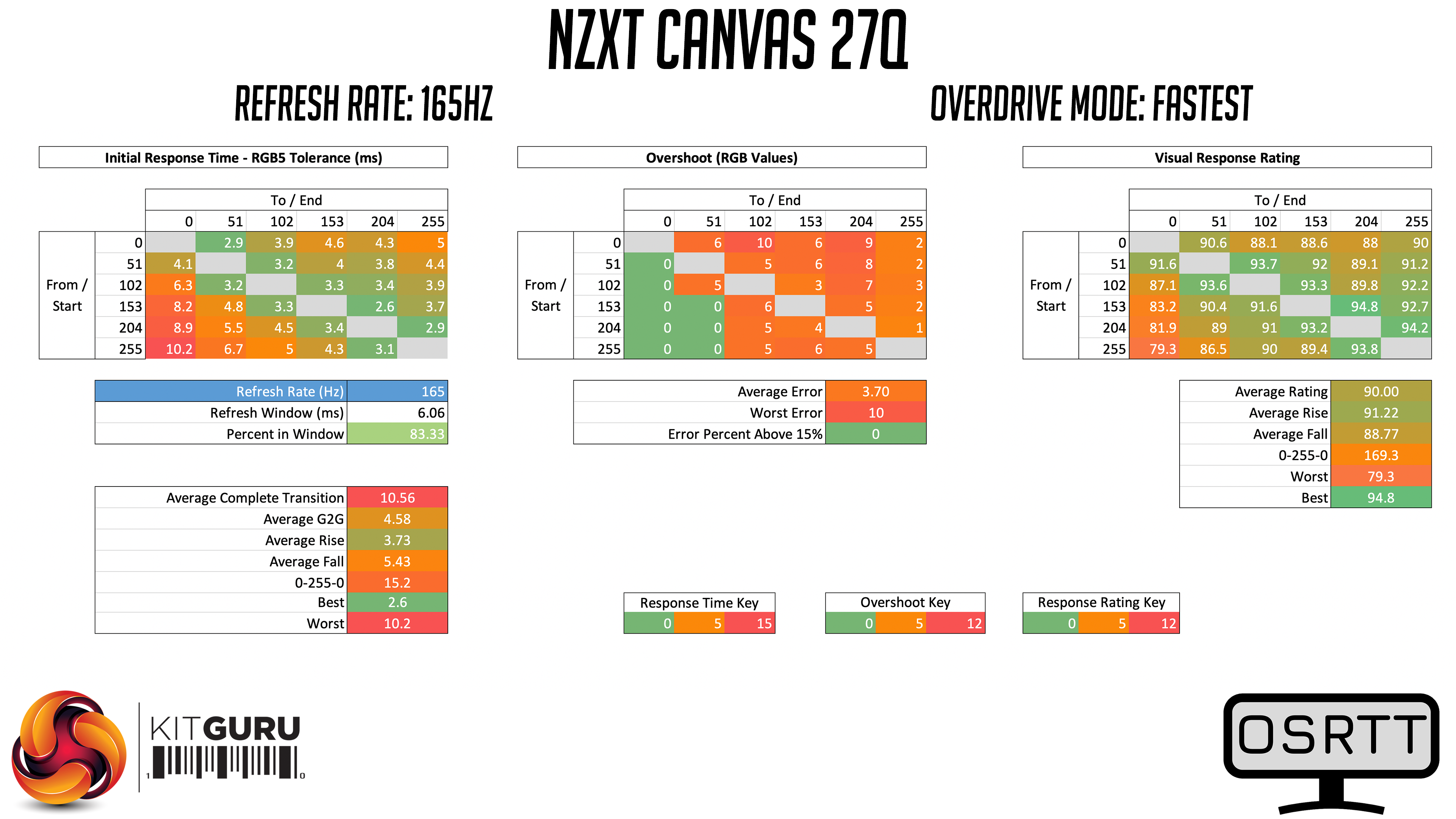
As for the Fastest overdrive mode, this isn't actually that much faster than the Fast mode, with a new GtG average of 4.58ms. It's better, but not by a whole lot, and overshoot does increase slightly as a result. The worst error was only 10 RGB values over its target though, with an average error rate of 3.7, and again I had no problems using this mode at 165Hz.
120Hz
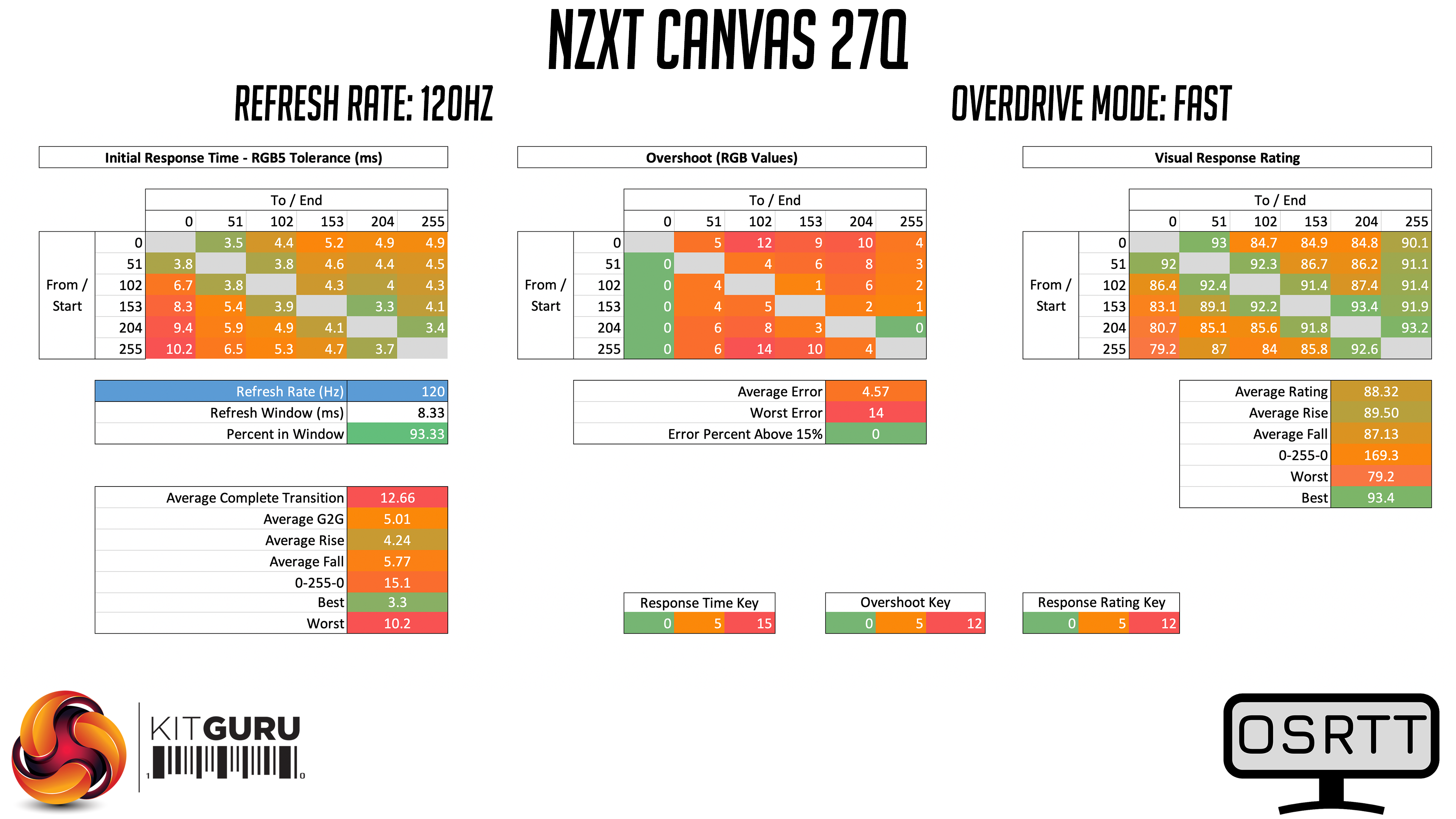
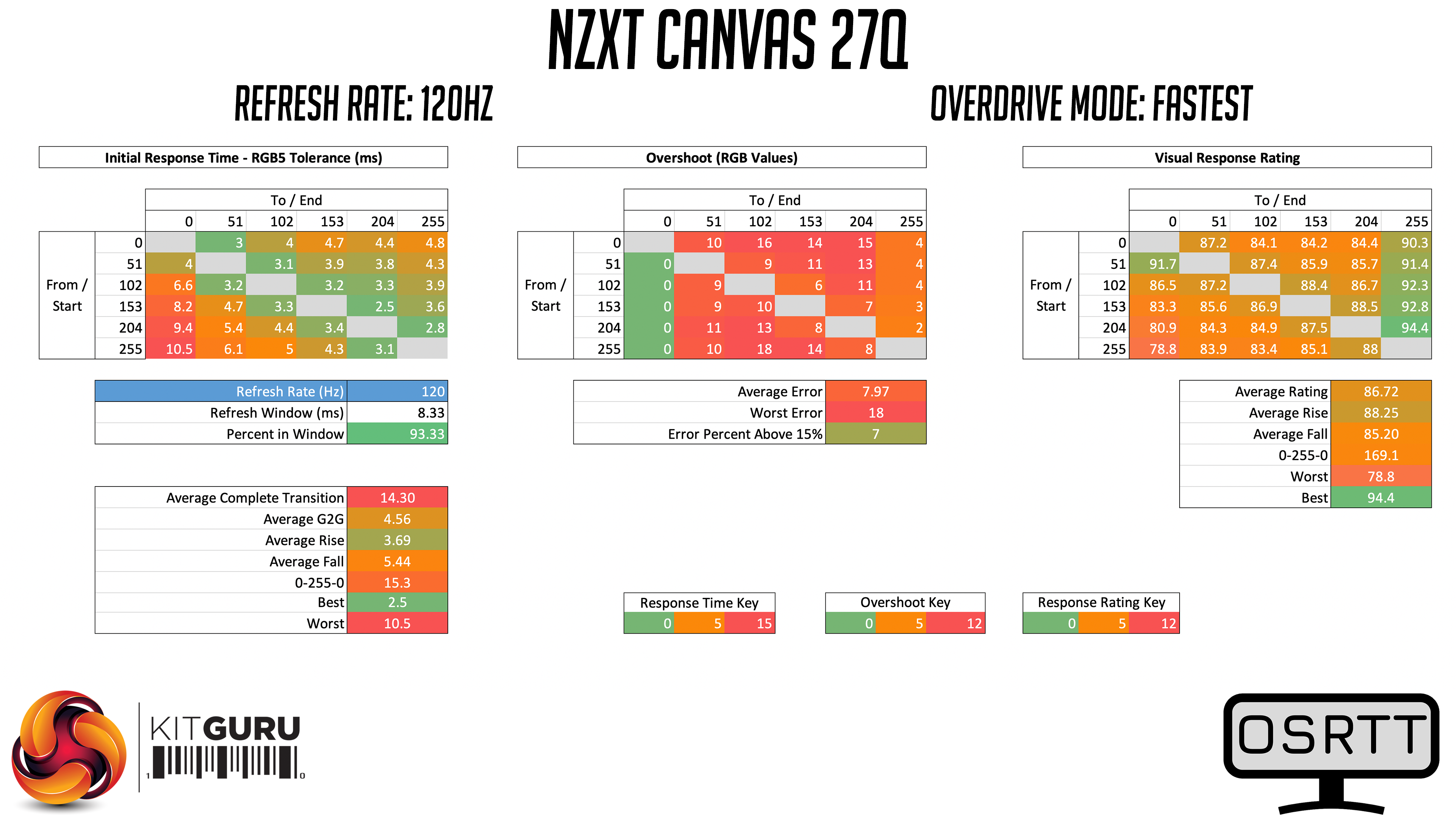
There's no variable overdrive for the Canvas 27Q, which means at 120Hz, we notice a lot more overshoot from both the Fast and the Fastest modes. The Fast overdrive setting is still usable, with an average GtG of just over 5ms, while the average overshoot error hit 4.57. Using the Fastest mode is not so good anymore however, with an average error rate of about 8 RGB values, and a worst error of 18. For 120Hz usage, I'd stick with the Fast mode.
60Hz
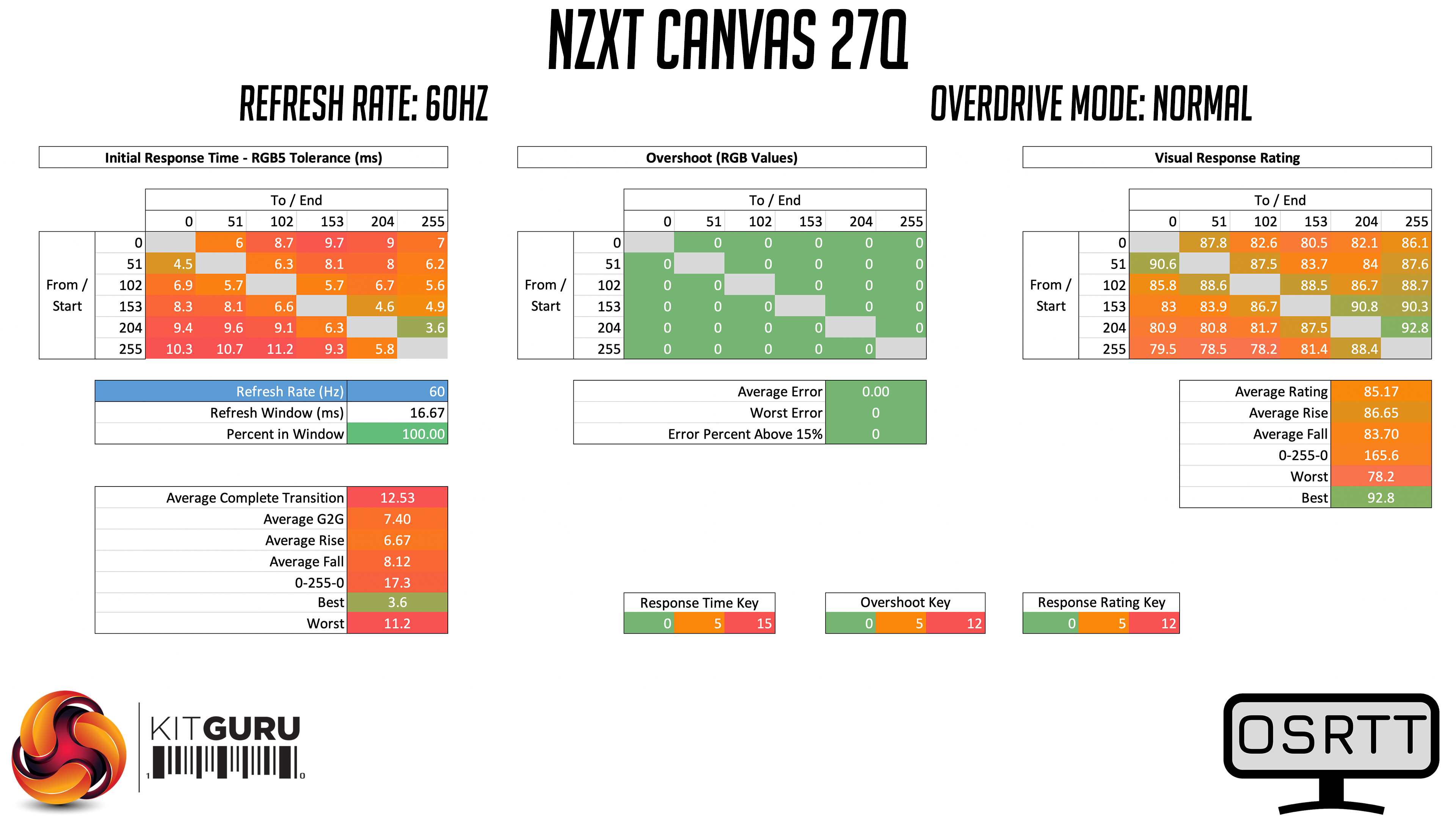
At 60Hz however, both Fast and Fastest modes introduce far too much overshoot, to the point where only the Normal mode is usable. It's still OK, and it's average response time of 7.4ms is well within the 16.67ms window needed for the 60Hz refresh rate. It's just a shame there's no single overdrive settings for the Canvas 27Q, as we'd recommend the Fastest mode at 165Hz, Fast at 120Hz and Normal at 60Hz.
Relative performance
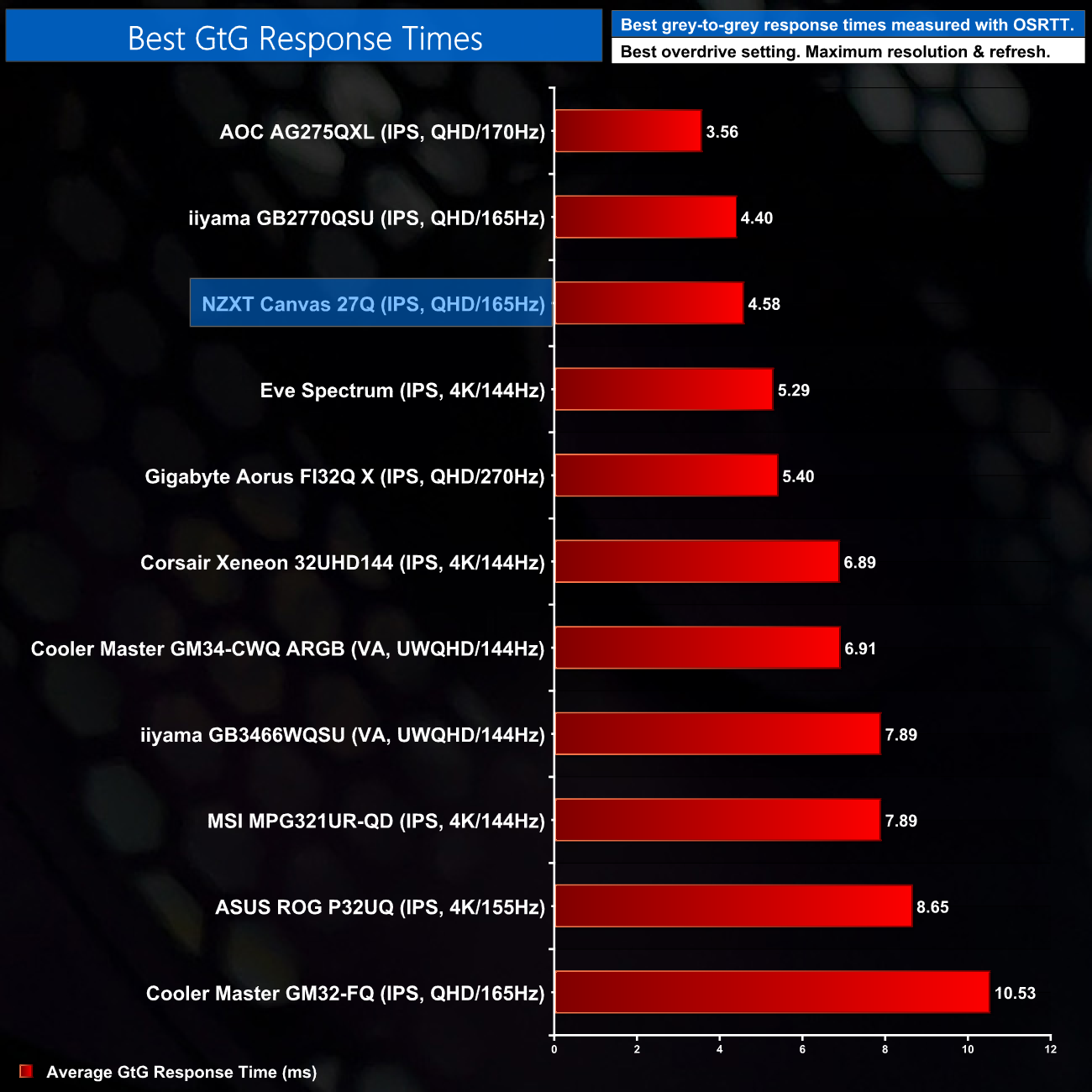
Looking at the best response times in comparison to the other monitors we have tested, performance is strong from the Canvas 27Q. Granted, it's not quite as fast as the AOC AGON AG275QXL, but it's up there. It's also trading blows with the iiyama GB2770QSU, which is admittedly a less premium design, but if you're only interested in raw gaming performance, it's a match for the 27Q.
System latency is another area of our testing, where we use Nvidia’s Latency and Display Analyzer Tool (LDAT) to measure end-to-end system latency. LDAT itself is a photosensor which is placed on the monitor. It has an integrated mouse button, allowing it to measure the total time taken from mouse click, to an action happening on screen, which is done by measuring a change in luminance. This data is logged to a CSV file over USB, allowing for close analysis of the data.
As this is end-to-end system latency, we are not measuring only the processing/input latency of each monitor we test. However, we can standardise the test process so the monitor is the only variable. It also gives an insight into how different refresh rates and resolutions can affect end-to-end latency, which is of course highly relevant to your purchasing decision.
We use Rainbow Six Siege for this testing.
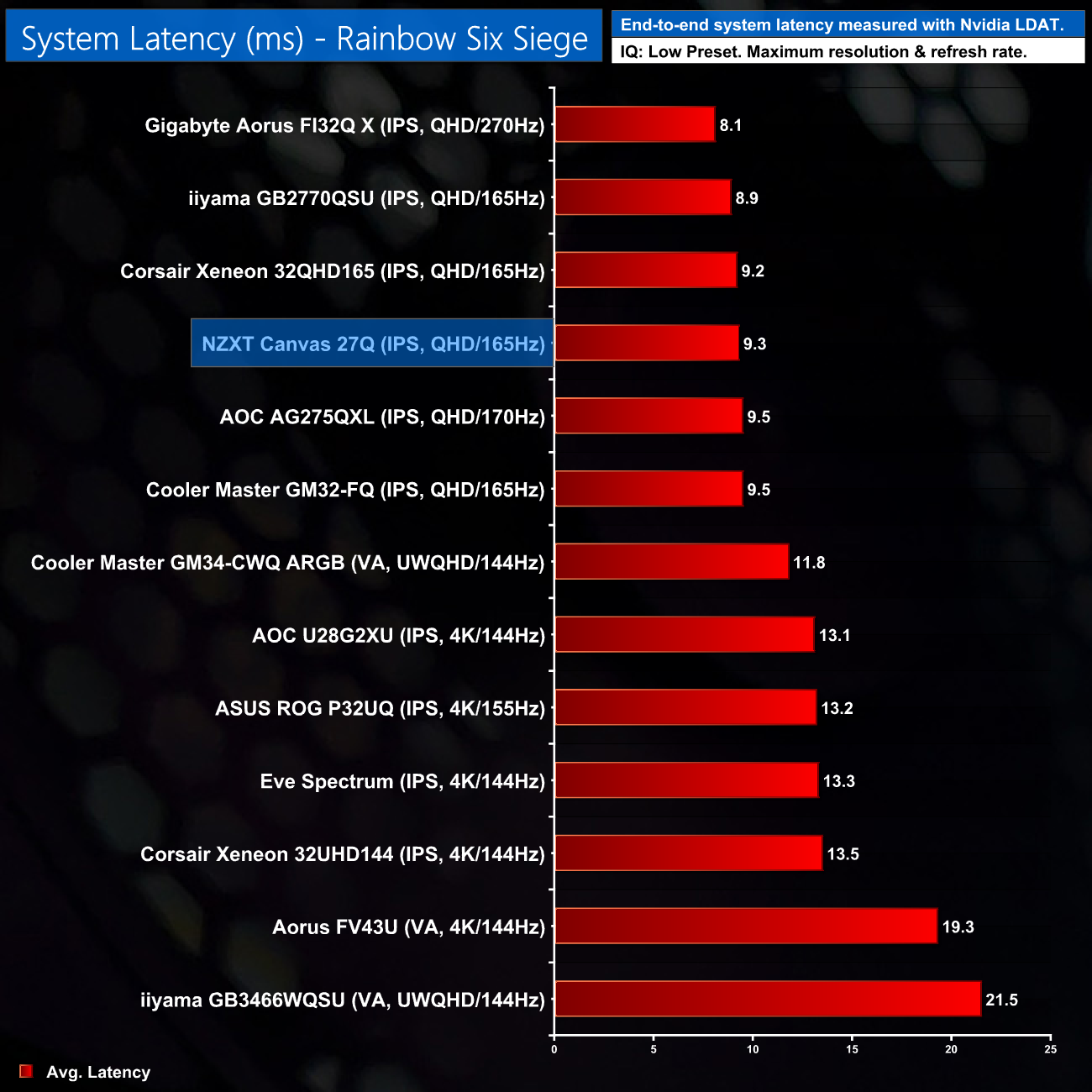
As for latency, this is right in line with other 1440p 165Hz display we have tested. The GB2270QSU does deliver fractionally less latency, but we're talking a difference of 0.4ms, so we have no complaints about the latency on show here from the Canvas 27Q.
It can't be easy for an established manufacturer to branch out into a completely new product line, but NZXT has done a very good job with their first ever gaming monitor – the Canvas 27Q.
For starters, the design of this screen is absolutely lovely – it's sleek, minimalistic and just a very clean aesthetic. When I first heard NZXT was making a monitor I was thinking it would be a lot of RGB lighting or maybe have a very ‘gamer-y' look to it, but I have been proved wrong on both. It makes an excellent first impression when set up on your desk.
NZXT is also using a very capable IPS panel, too. Offering a 1440p resolution over the 27in screen size, this is considered by many to be the modern day ‘sweet spot', and it delivers the goods – colour accuracy is strong, contrast is exactly where we'd expect and it gets decently bright, too.
For gaming, the response times on offer here are similarly impressive, with an average GtG speed of below 5ms using the Fastest overdrive mode. We have tested faster screens overall, but this is still fast enough to deliver a very fluid gaming experience, especially as 1440p isn't too hard to drive at high frame rates.
Honestly, looking in isolation at the Canvas 27Q, it doesn't do much wrong at all – the OSD system is a bit light on features, but we'd expect that from NZXT's first ever gaming monitor. The main thing to consider when assessing the 27Q is the breadth of competition available, as there are a lot of capable 1440p/165Hz displays on the market.
The iiyama GB2770QSU is one such model, and although it lacks the premium build quality, software support and OSD joystick of the 27Q, the IPS panel performs just as well, but it's £140 cheaper than the 27Q which is quite a significant savings if you only care about raw gaming performance. Likewise, other premium screens including the AOC AG275QXL can offer slightly improved response times at a similar price-point.
Nonetheless, the Canvas 27Q is an impressive first foray into the monitor market from NZXT. It ticks pretty much all of the boxes and doesn't do a lot wrong, so we look forward to seeing what comes next.
You can buy the Canvas 27Q direct from NZXT HERE. The price is £349 without a stand, or £389 with a stand.
Discuss on our Facebook page HERE.
Pros
- Sleek design.
- Colour accurate display.
- Good response times.
- Can be bought with or without a stand.
- Clean OSD menu.
Cons
- Lots of competition at, or below, the price-point.
- OSD is fairly light on features.
- HDR is not worth using.
KitGuru says: NZXT has done a very good job with their first gaming monitor. The sheer amount of competition in this space means it's not a slam-dunk, but it's definitely one to add to your shortlist.