 KitGuru KitGuru.net – Tech News | Hardware News | Hardware Reviews | IOS | Mobile | Gaming | Graphics Cards



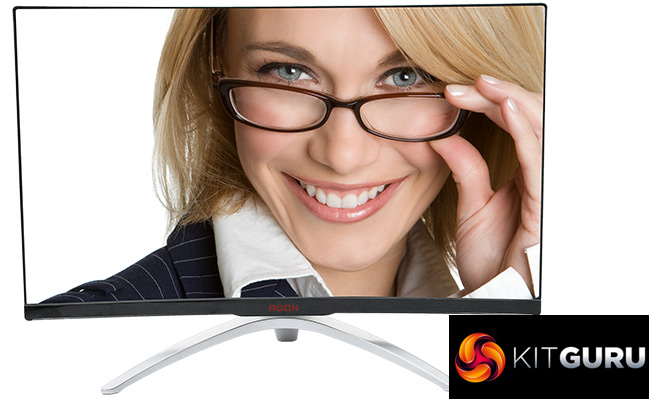
Curved screens are really starting to come of age for gaming. We are seeing more and more of these, in many different sizes, and the latest to grace the KitGuru testing table is the AOC AGON AG322QCX. It's pretty sizeable at 31.5in, but unlike many larger screens it's still packed with features to please the serious gamer.
The AG322QCX plots the middle ground for a screen this size. It could have been 4K, but that's not always the best option for gaming as it will necessitate very hefty graphics to drive this resolution at acceptable gaming framerates. The 2,560 x 1,440 resolution takes some advantage of the large diagonal without compromising on resolution. However, this isn't the usual TN panel we find in many gaming monitors. Instead, MVA technology is employed, promising good colour and contrast, but not the low response that is TN's secret weapon.
Instead, grey-to-grey response is just 4ms, similar to IPS panels. Contrast is a healthy 2,000:1, although the 300cd/m2 brightness rating is rather mediocre. On the plus side the maximum refresh is a healthy 144Hz, and AMD FreeSync is supported so the screen can dynamically change its refresh to match the frame rate that the graphics card is actually delivering.
You also get the very handy separate control puck we have seen with other AOC AGON monitors, so you don't have to reach for awkward buttons on the screen itself to make adjustments.
The port allocation is generous, with two DisplayPort 1.2 connections and two HDMI 2.0, plus even VGA. There's a USB hub, although this only has two ports and they are around the rear. You also get not entirely weedy built-in 5W speakers, and there's even a handy little fold-out hook to hang headphones on. There is a full range of adjustments, with swivel, tilt and height available. You can't rotate into portrait mode, but that wouldn't make sense on a curved screen anyway.
So there's already a lot to like about the AG322QCX just from the specification, and not a lot to worry about. The sub-£500 price is quite reasonable for a screen this size too. So let's find out how it does under closer scrutiny.
Specification:
Screen size: 31.5-inch, 16:9 aspect, curved
Native resolution: 2,560 x 1,440
Refresh rate: 144Hz
Panel type: MVA
Contrast ratio: 2,000:1 (typical)
Brightness: 300cd/m2
Response time: 4ms Grey-to-Grey
Display inputs: 2 x HDMI 2.0, 2 x DisplayPort 1.2, VGA
USB hub: Yes, 2-port
Tilt: Yes
Raise: Yes
Swivel: Yes
Other: Headphone jack, microphone input, built-in 5-watt speaker, headphone hook, external OSD controller.
Retail Price: £469.99 (inc. VAT)
The AOC AGON AG322QCX is a subtle and stylish design. But it's impossible to avoid the fact that this is a large screen.
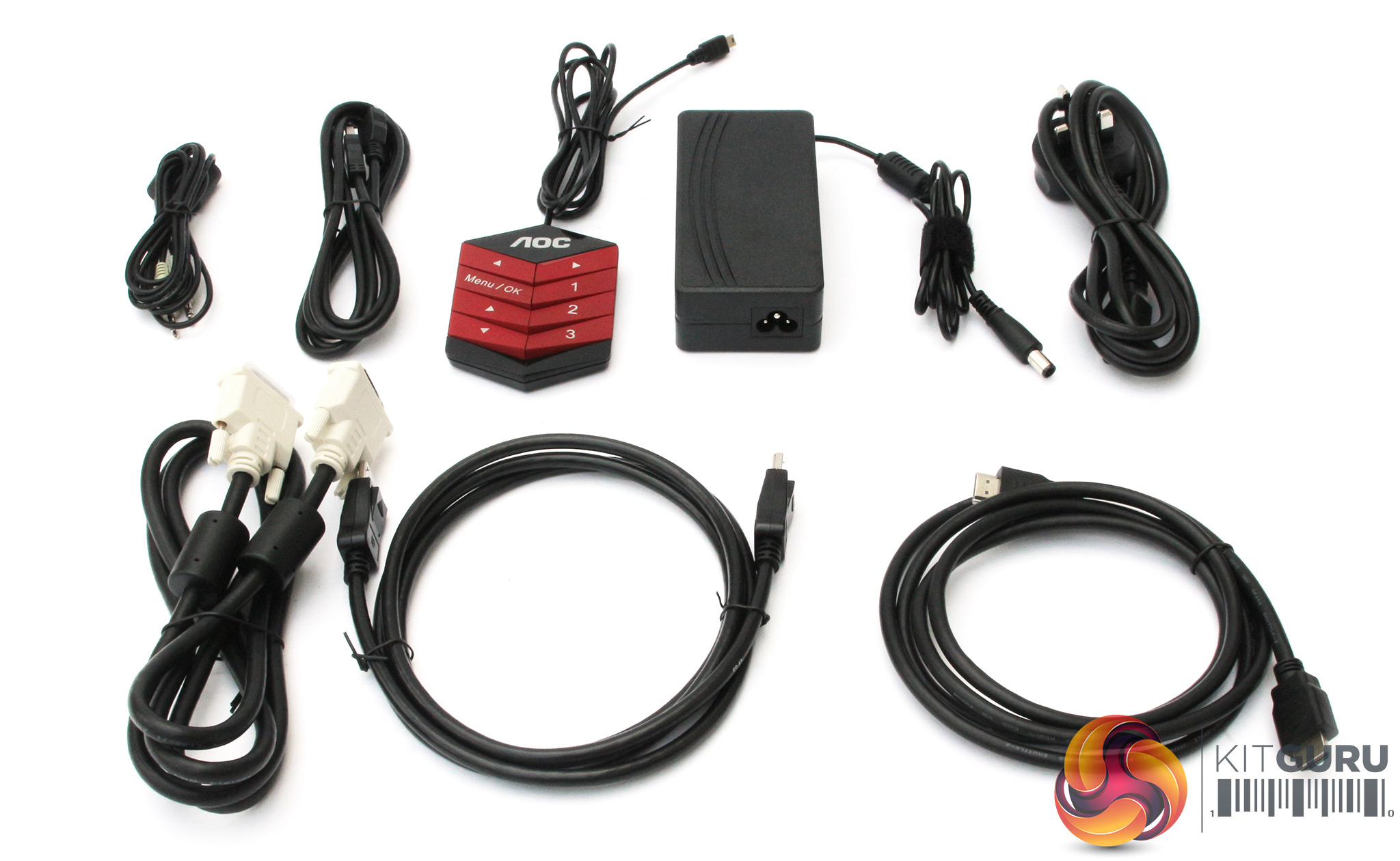
Aside from the power brick and cables, you get one each HDMI and DisplayPort. There's also a minijack cable for analog audio input, a USB upstream cable for plugging in the hub, and the OSD control puck.
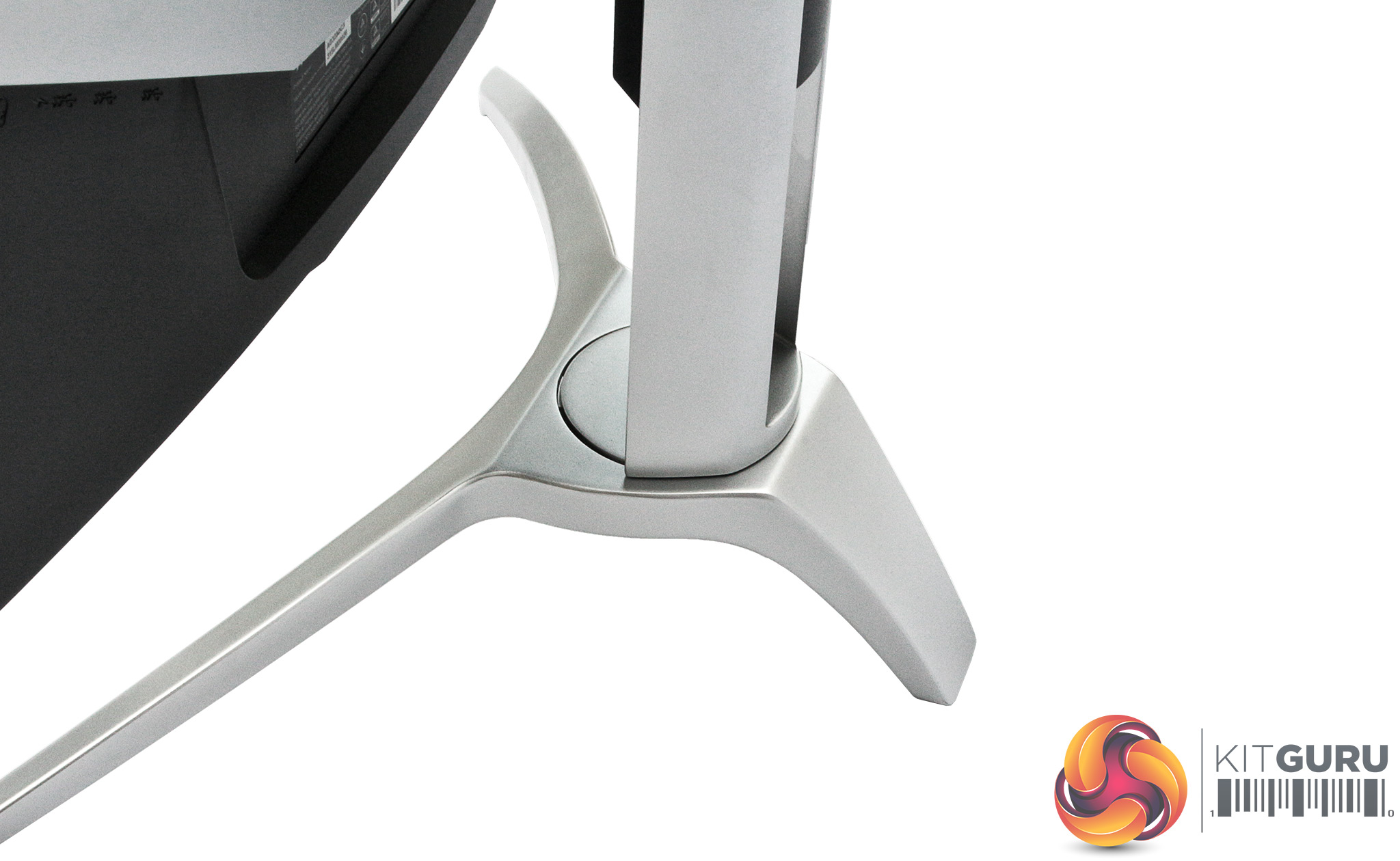
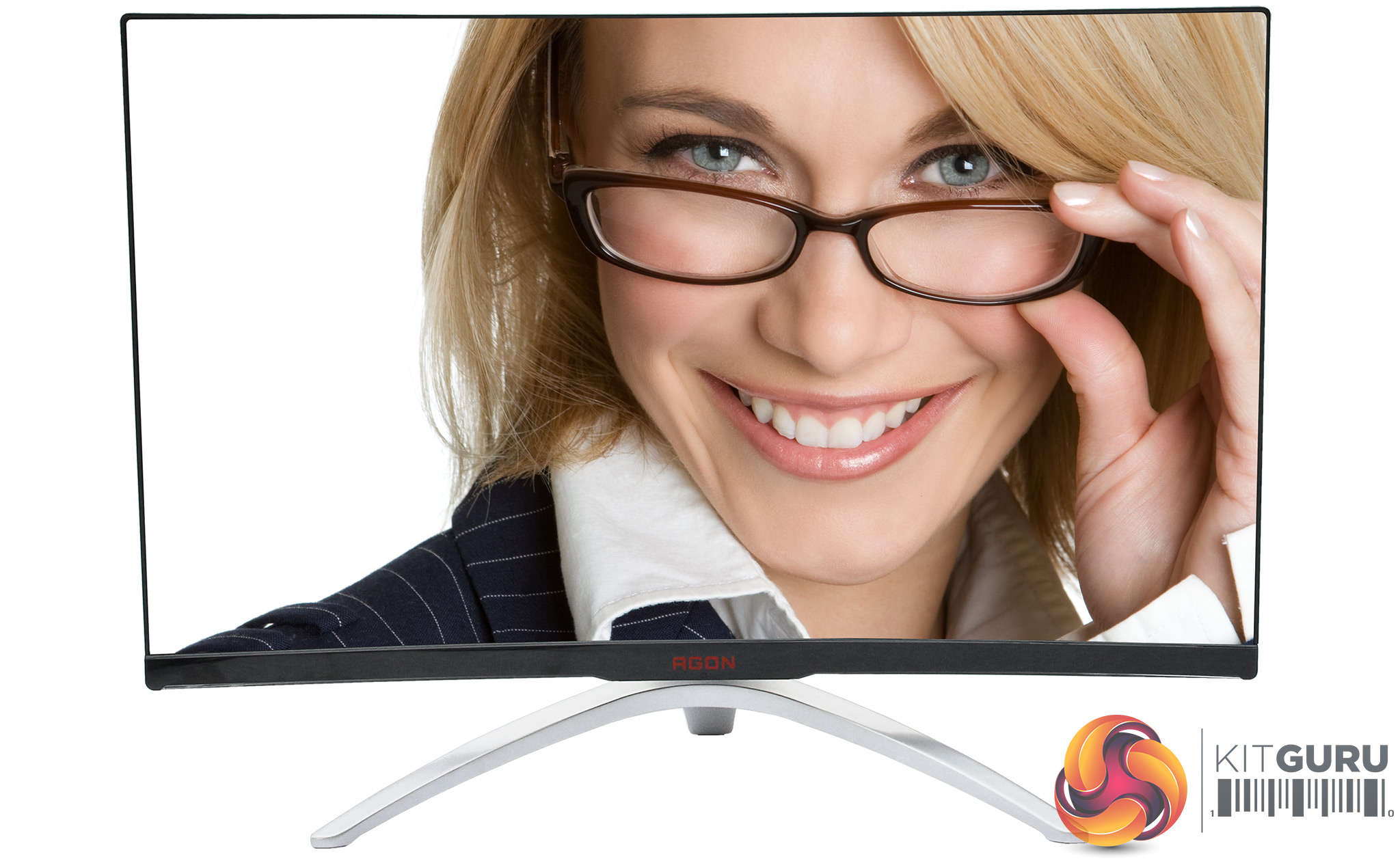
Some of the AOC AGON screens blend colour and black quite extensively in their design, but the AG322QCX's combination of black and silver is more subtle.
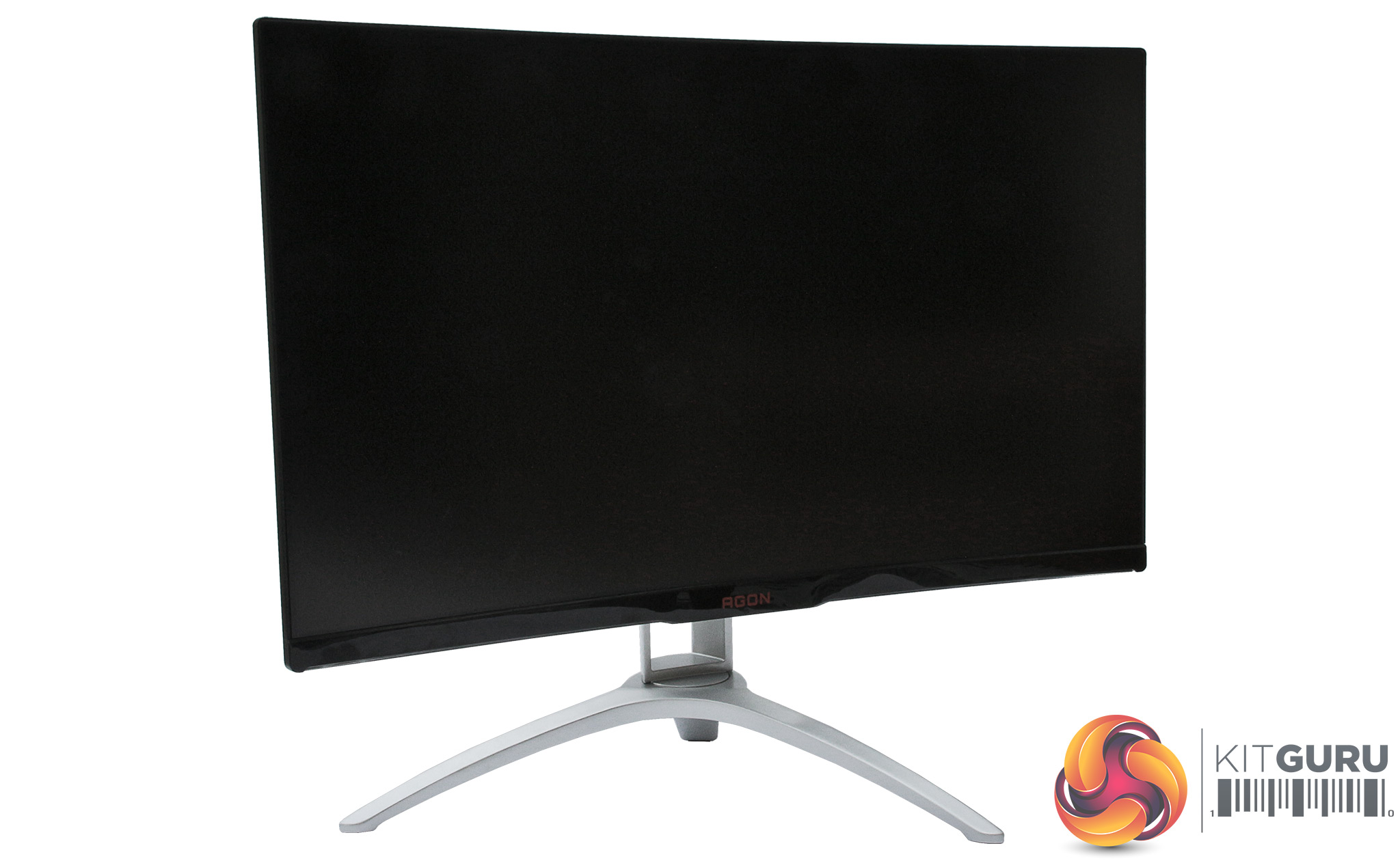
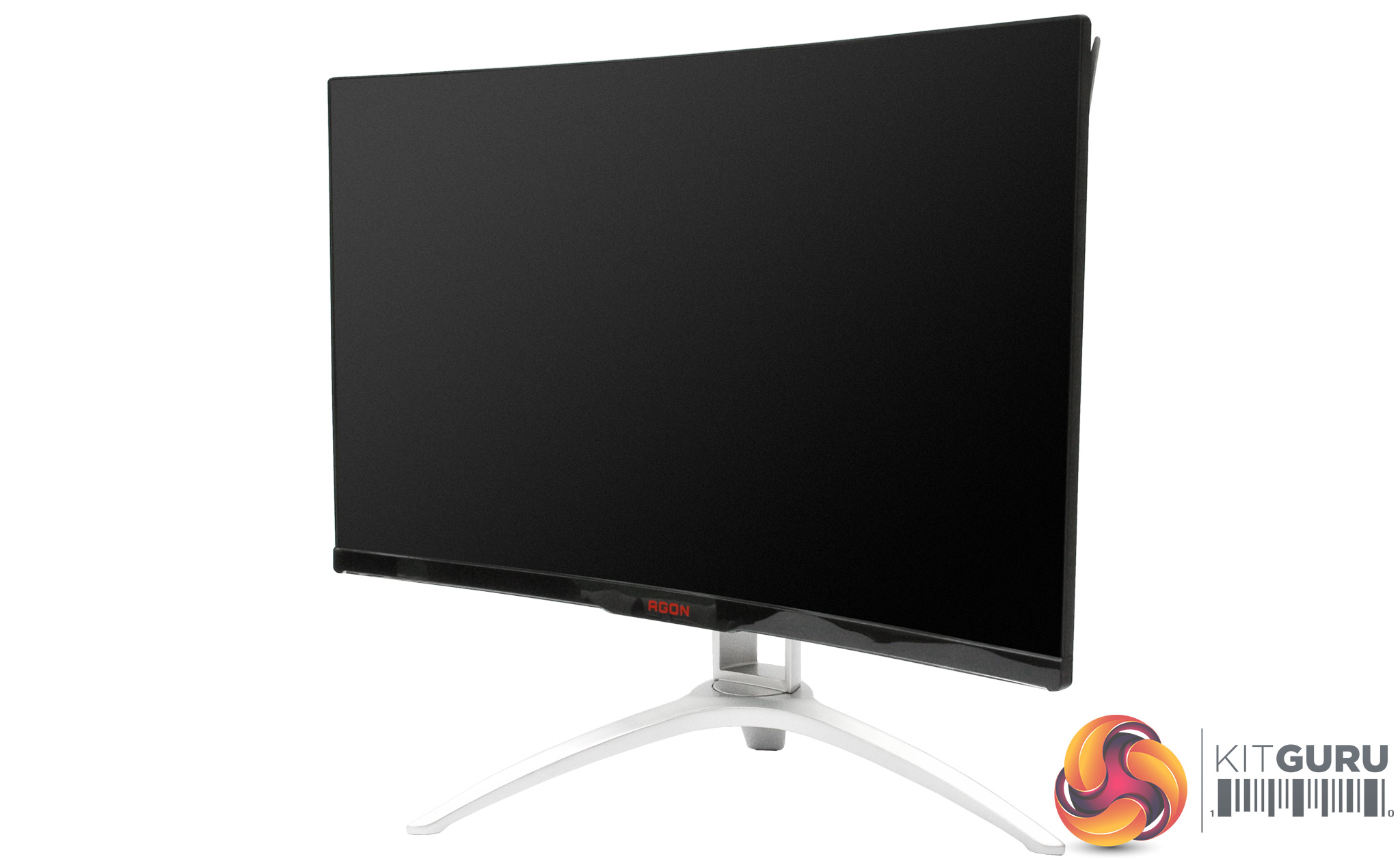
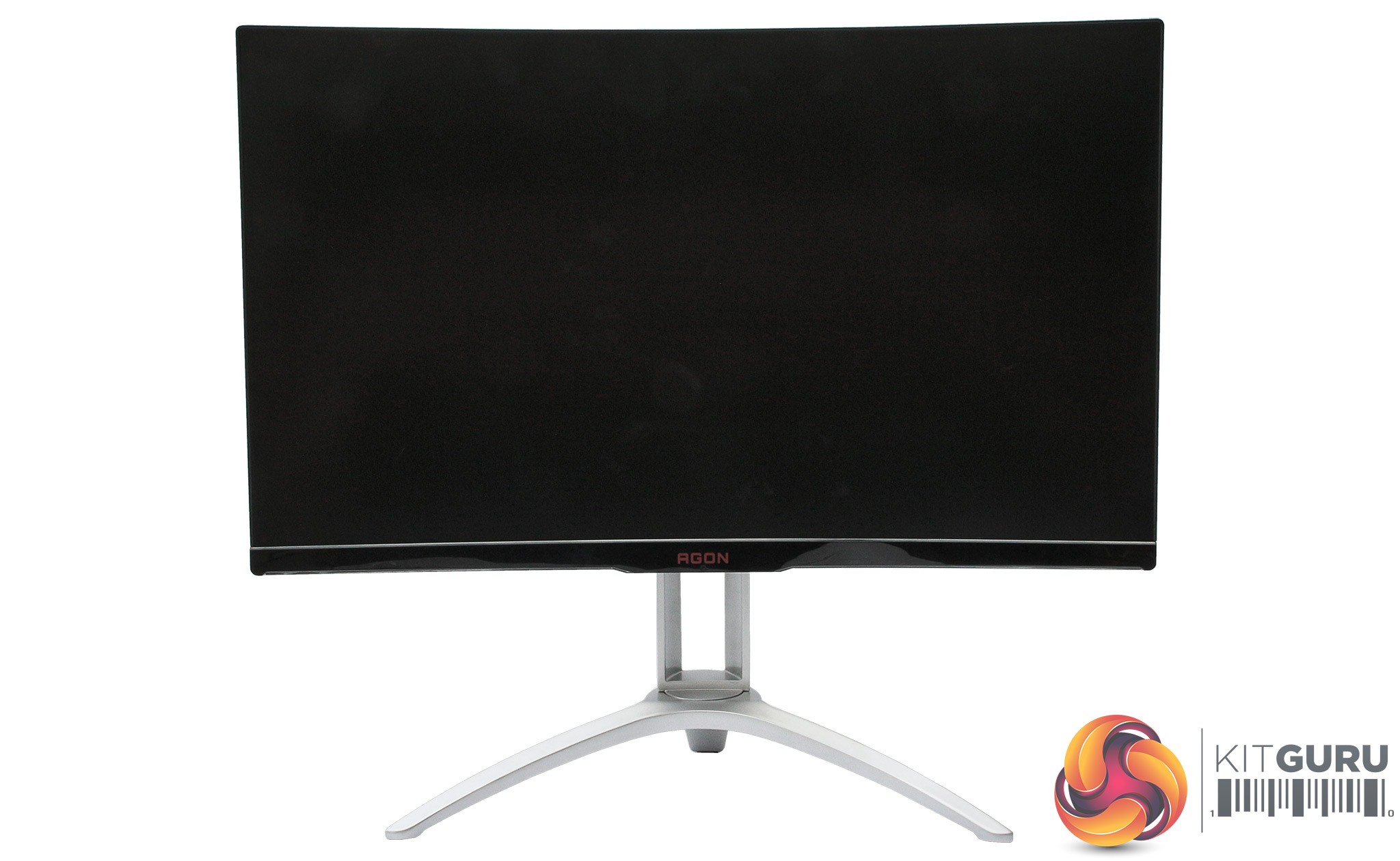
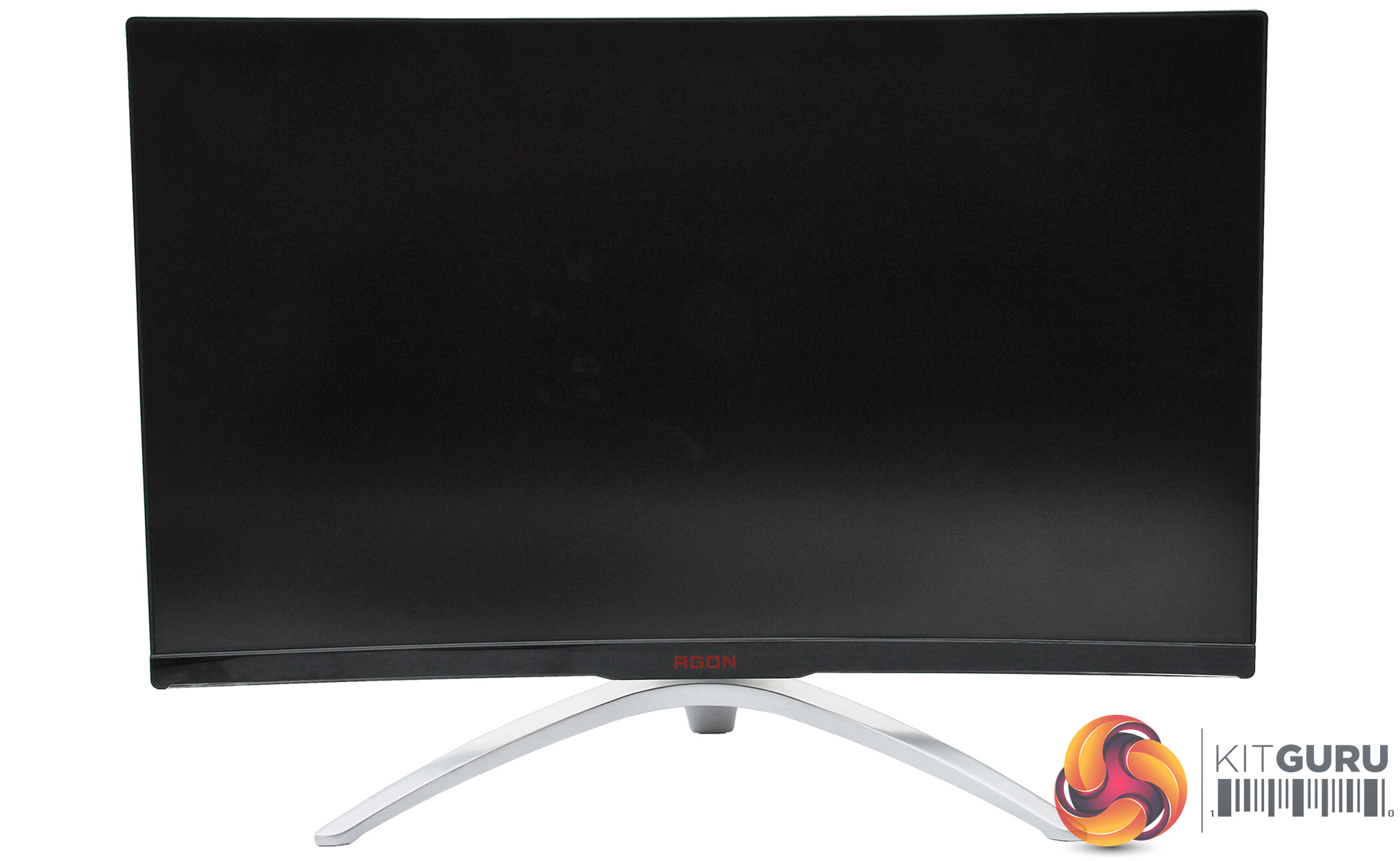
The clear perspex along the bottom edges lights up red when the monitor is on. You can choose other colours, but more of that when we look at the OSD controls later in this article.
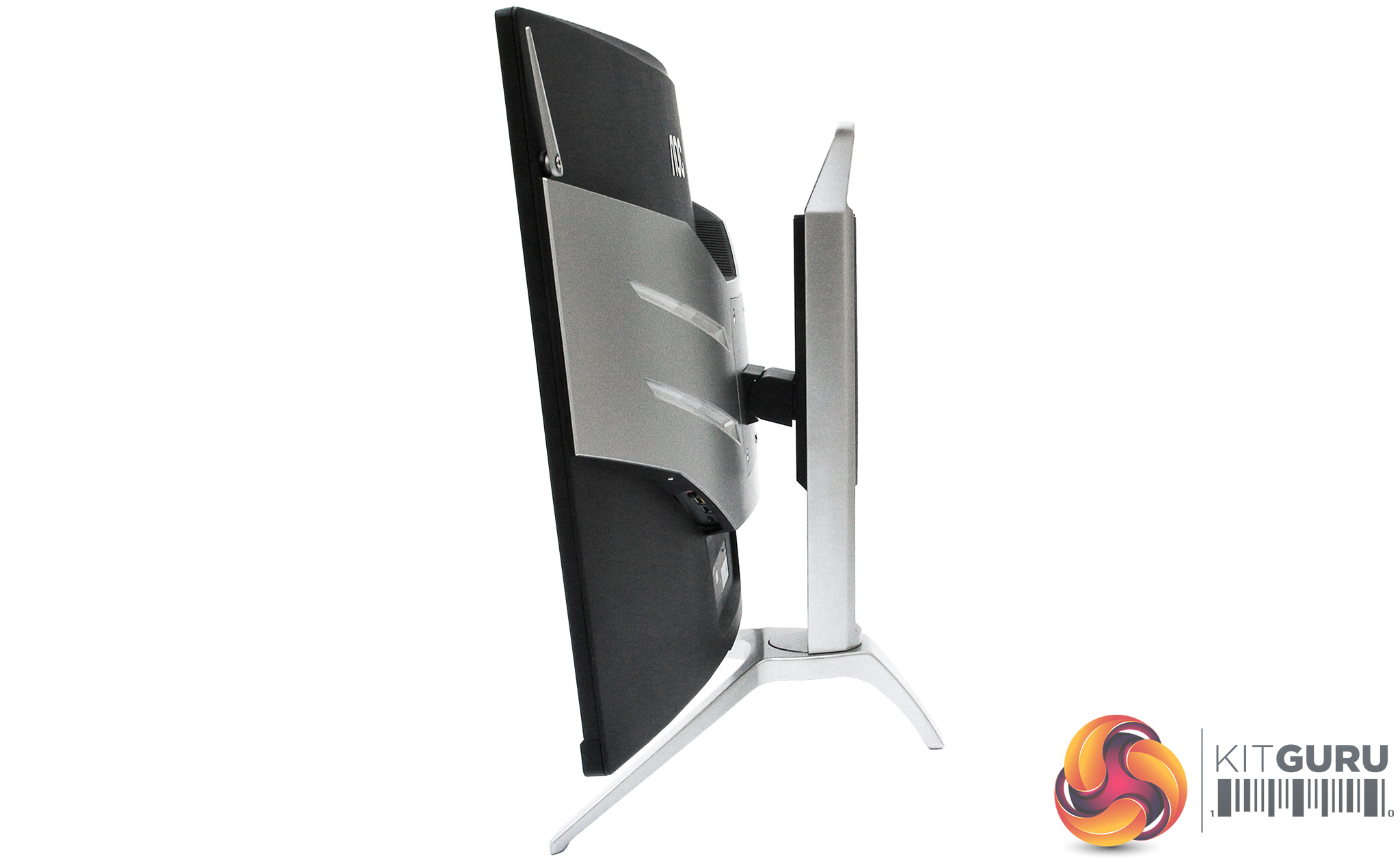
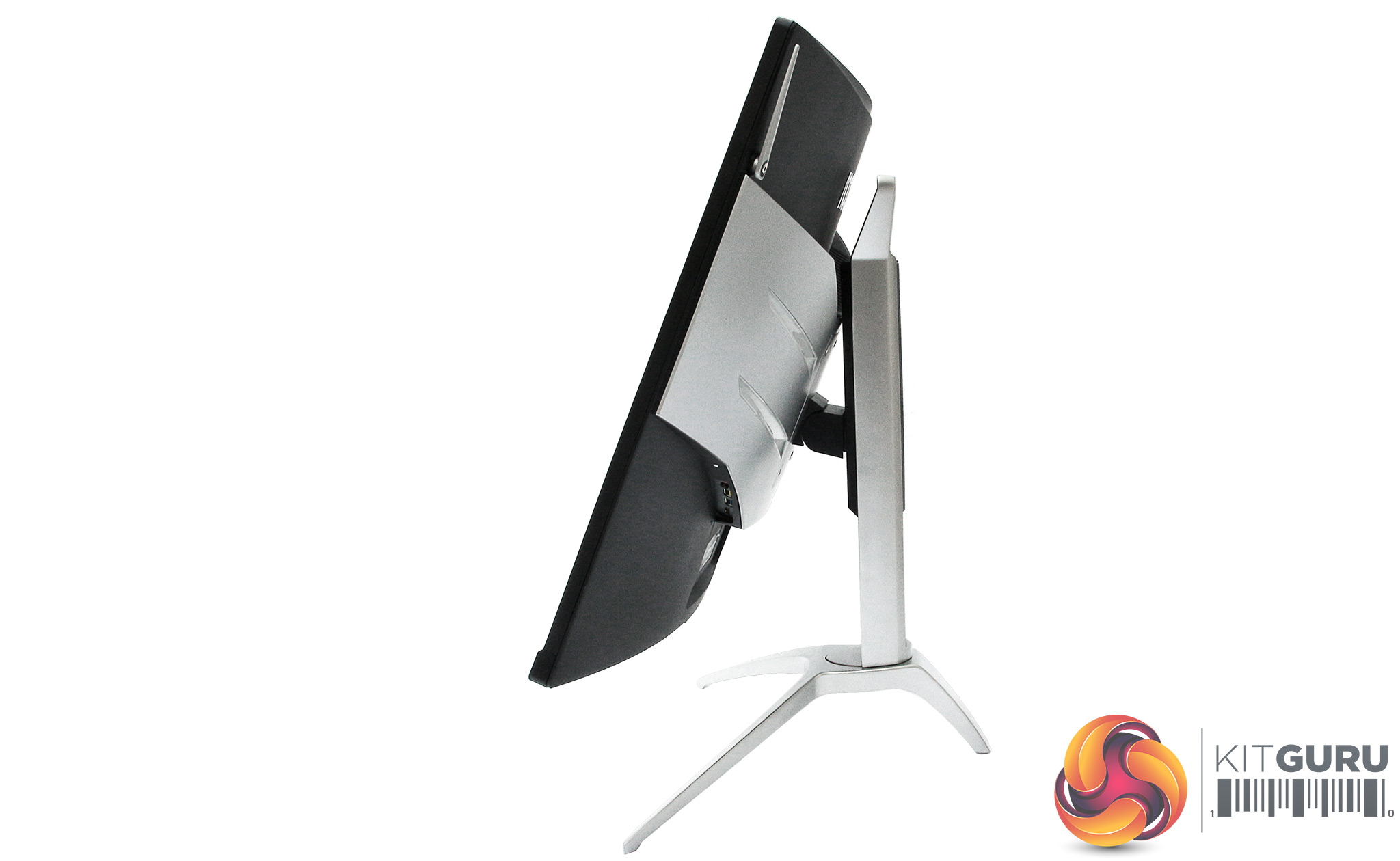
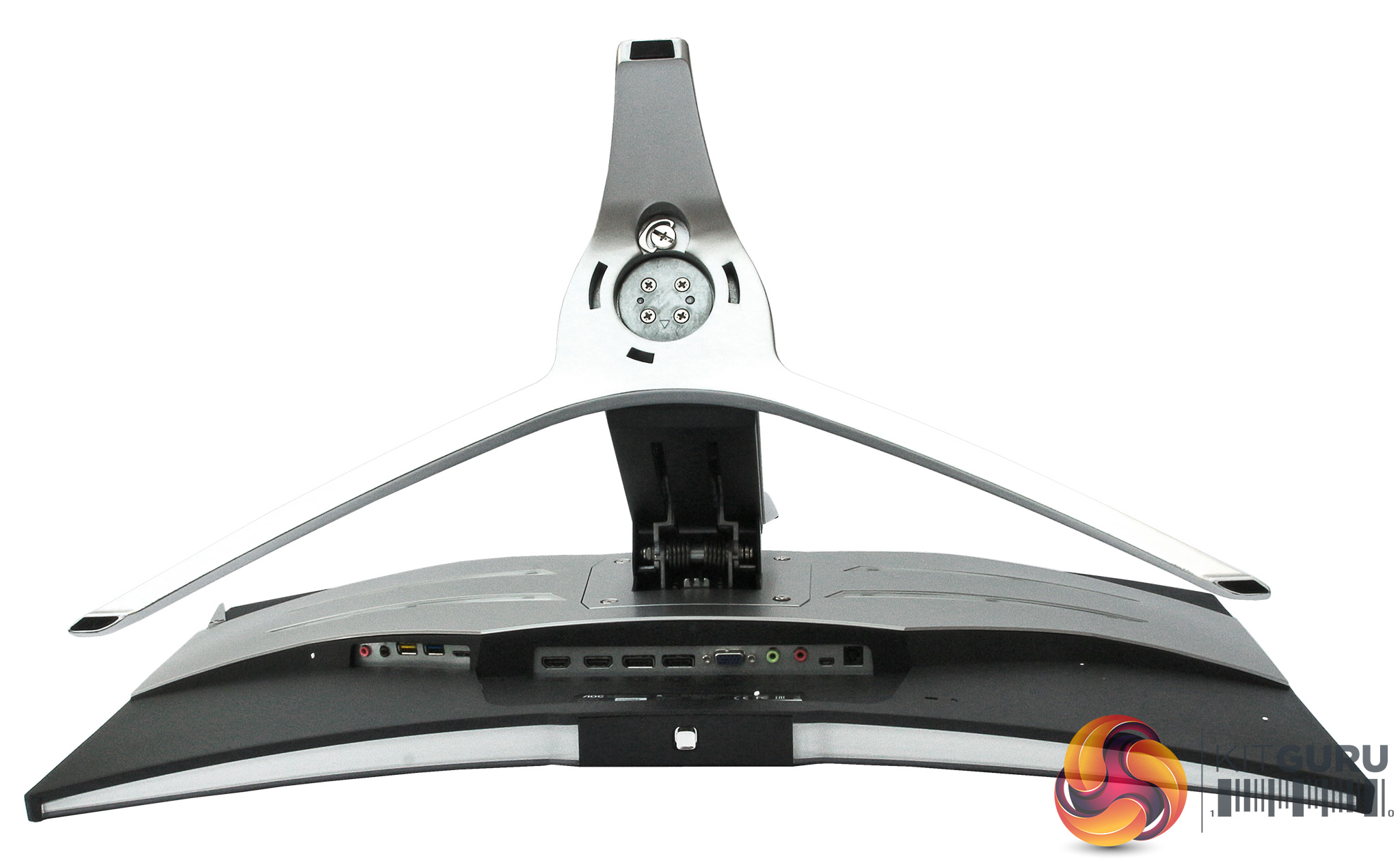
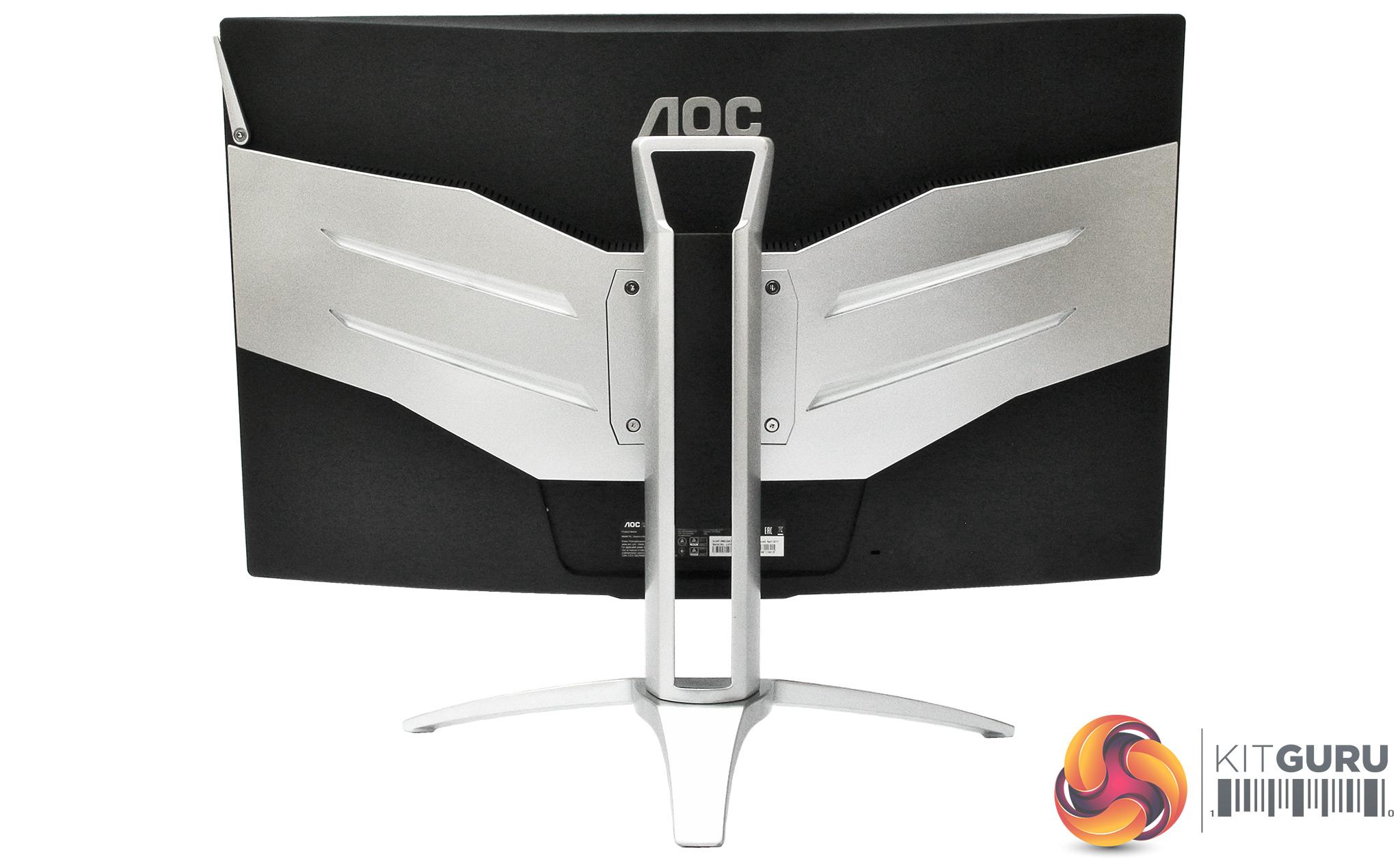
The adjustments let you swivel the screen 30 degrees left or right, tilt 5.5 degrees forward or 28 degrees backward, and raise or lower the height by 110mm. This is plenty to be able to ensure the screen is at the most comfortable physical orientation. The curvature is reasonably curvy, with a 1800R rating.
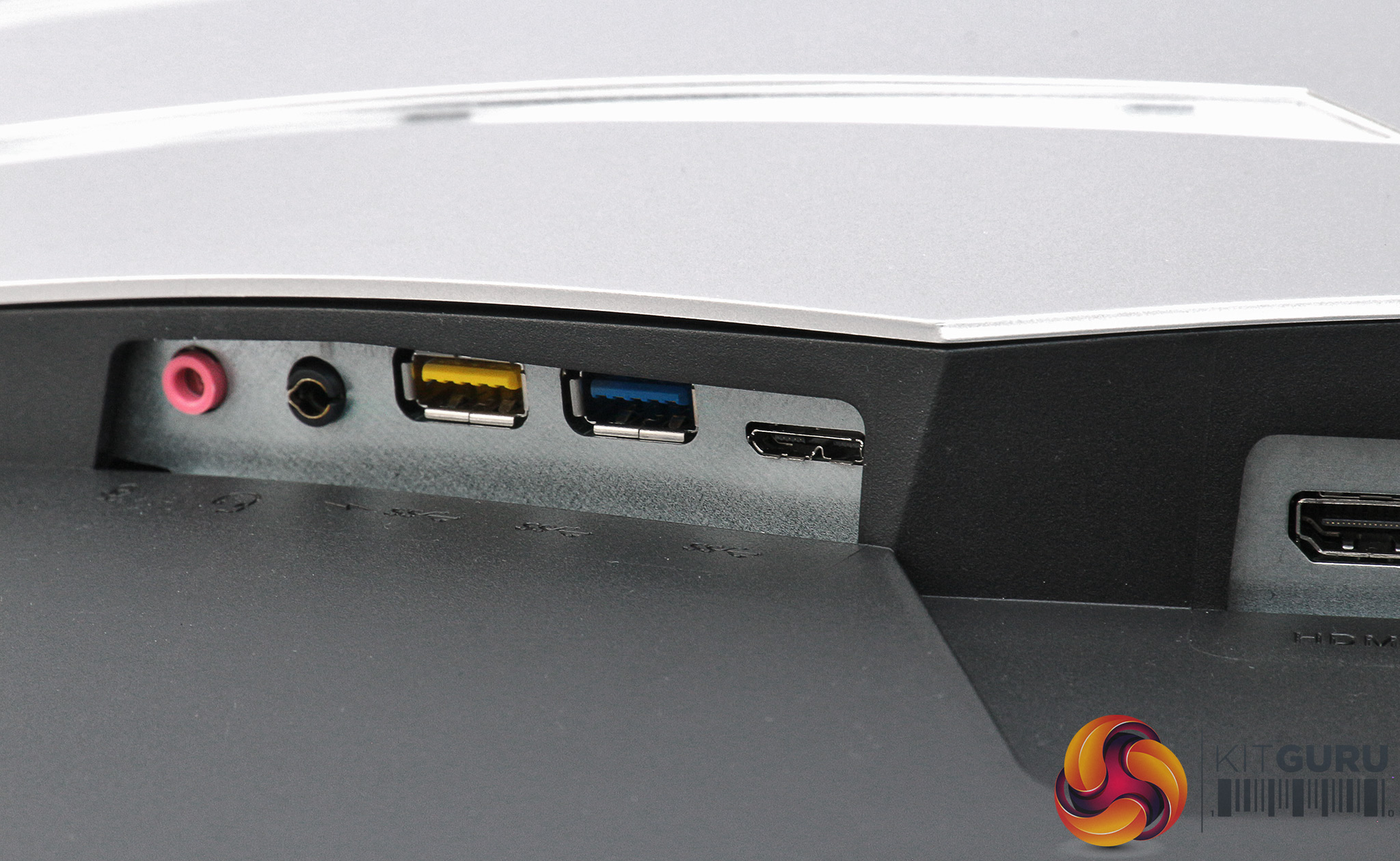
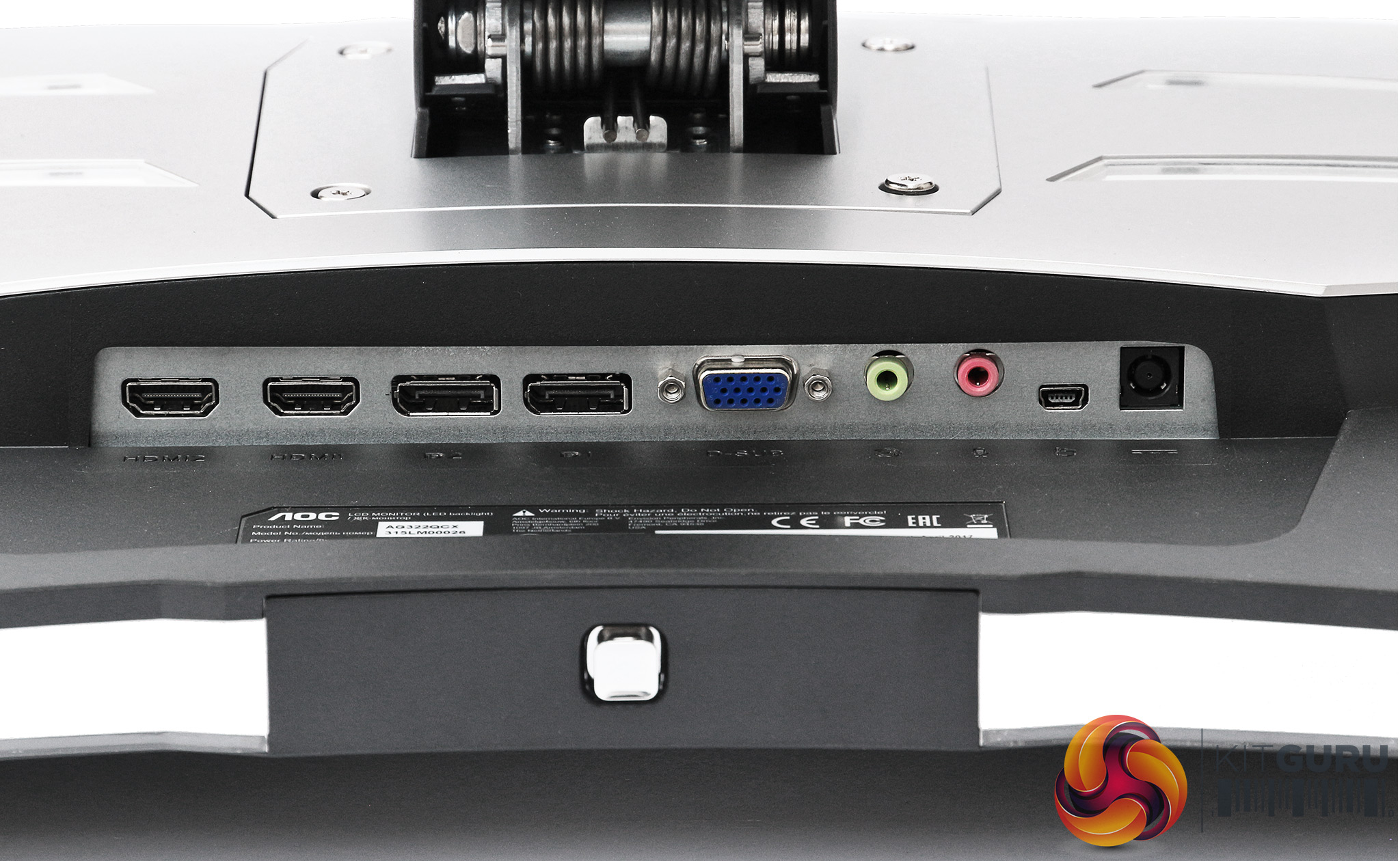
There really are quite a lot of ports on the back of this screen. Starting from the left, there are the microphone input and headphone output, which might have been more conveniently placed on the side of the screen. Likewise, the USB 3.0 (or should that be USB 3.1 Gen 1?) connections, plus the input for the USB. The latter uses the Micro-B 10-in type so that USB 3.0 performance can be supported. The yellow USB 3.0 plug denotes that it can charge devices when the system and screen are otherwise off.
In the next section, two HDMI 2.0 connections sit next to two DisplayPort 1.2 inputs, then VGA. Line and microphone minijacks are next, plus a mini USB port that is exclusively for the external OSD control puck. Finally, the power input completes the lengthy line.
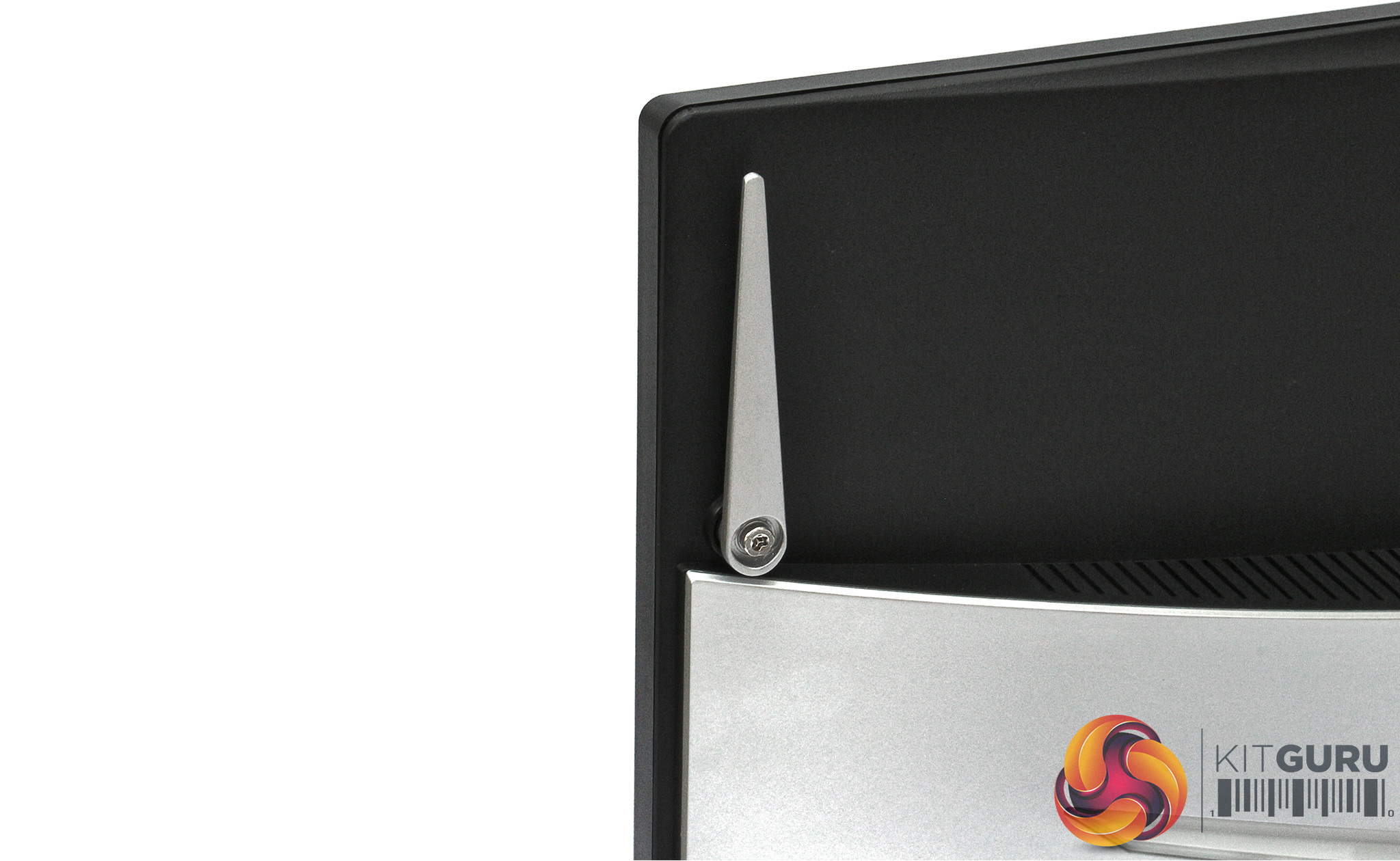
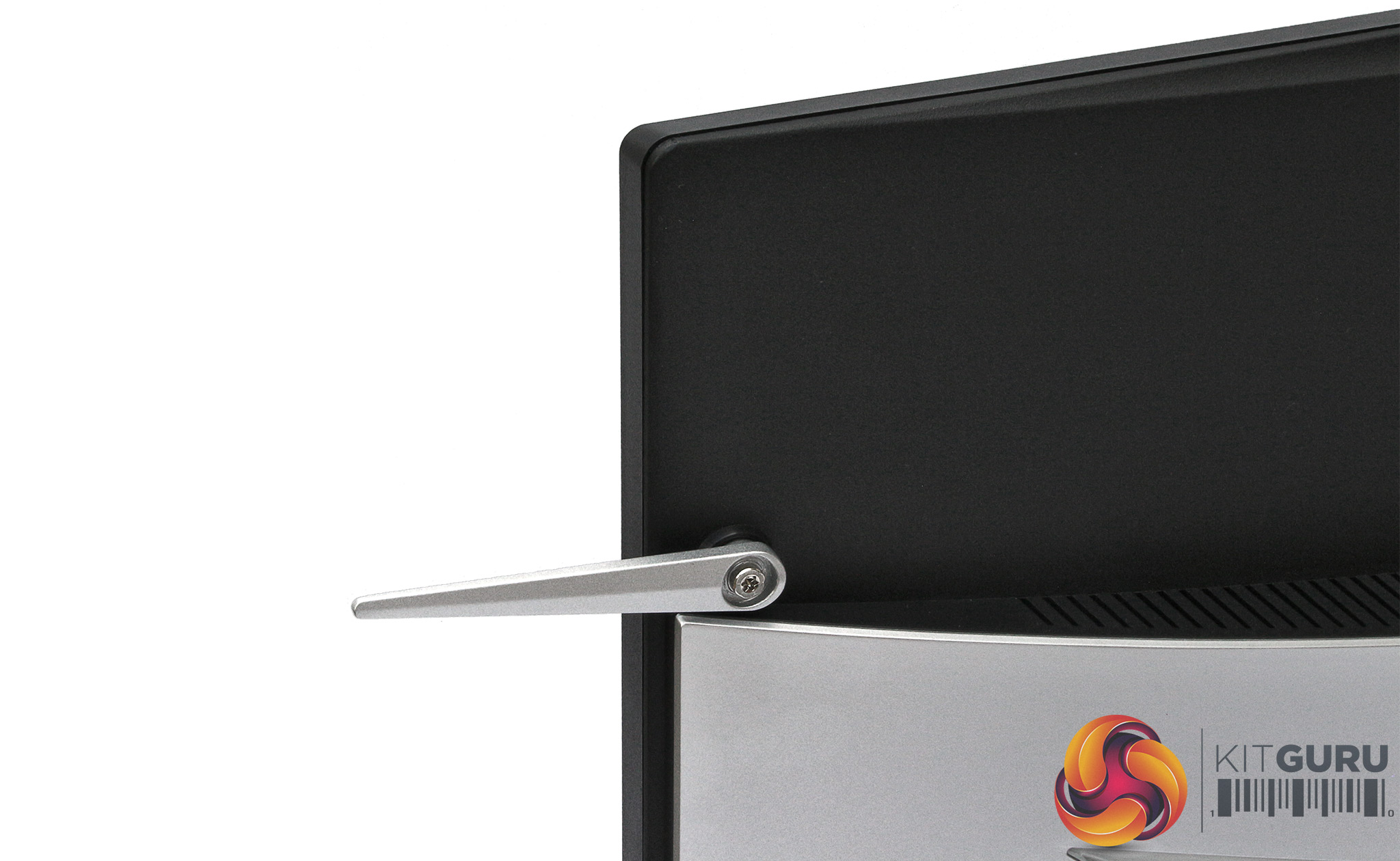
Also on the rear is the fold-down bracket for hanging your headphones on.
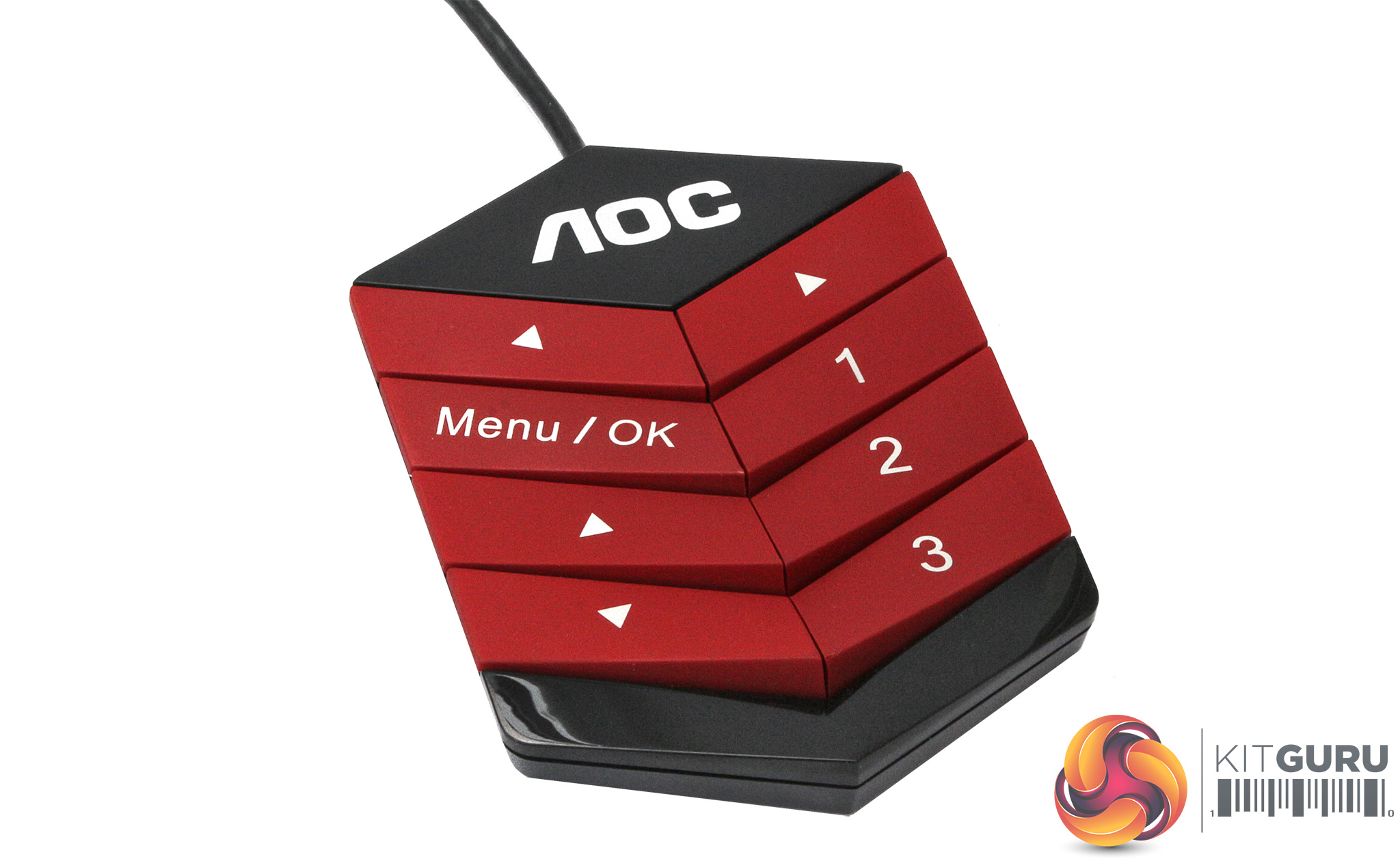
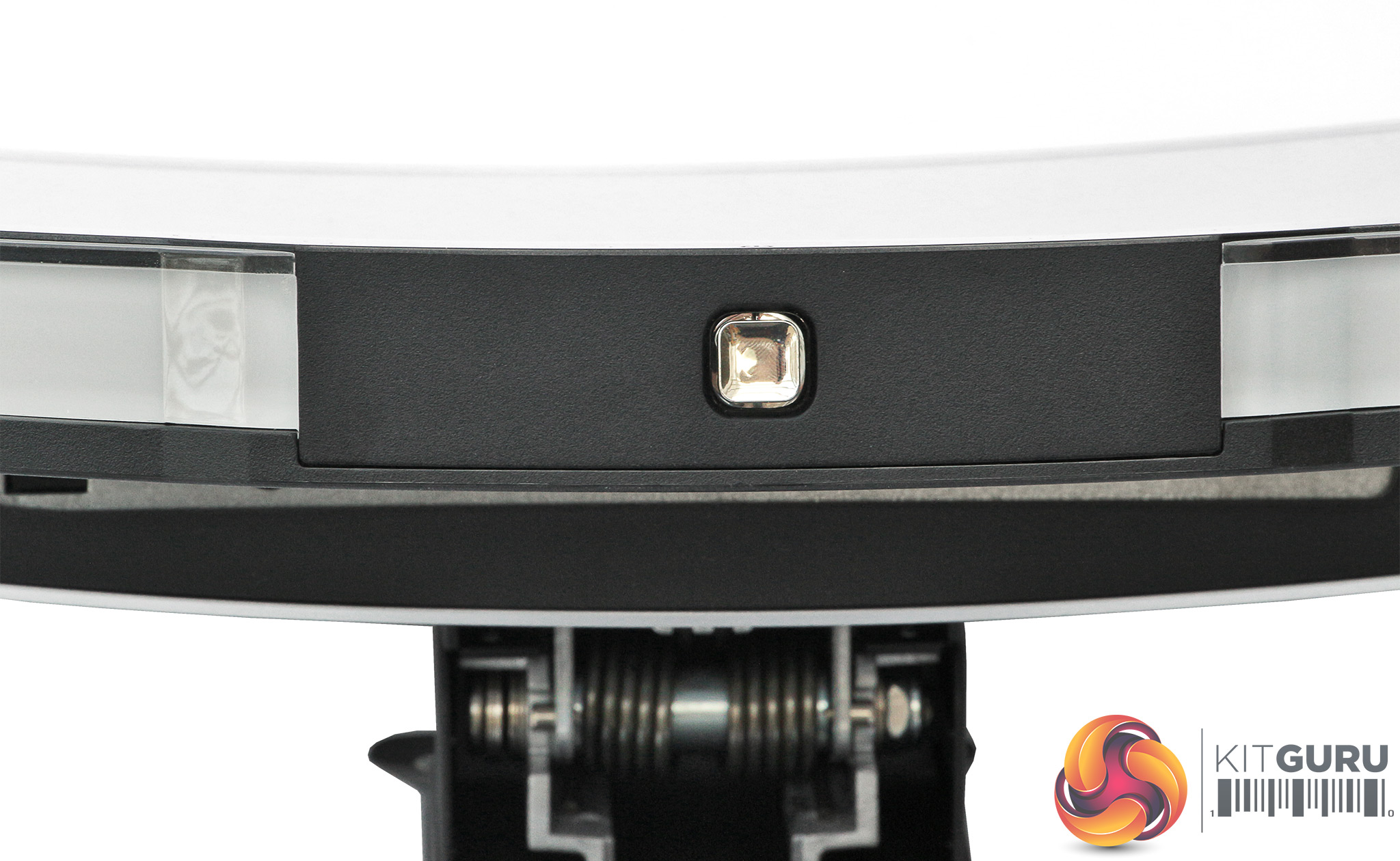
There is a joystick on the bottom centre of the AG322QCX's bezel, but there's a much better option for controlling the OSD. We particularly like the QuickSwitch puck that AOC supplies with some of its premium monitors. The top arrow buttons let you cycle between the various presets, and the numbered buttons call up the three user-configurable options. But best of all the menu and arrow buttons together make it easy to change menu settings without having to reach around the screen in an awkward fashion.
The external keypad is definitely the way to go for controlling the AG322QCX's settings.
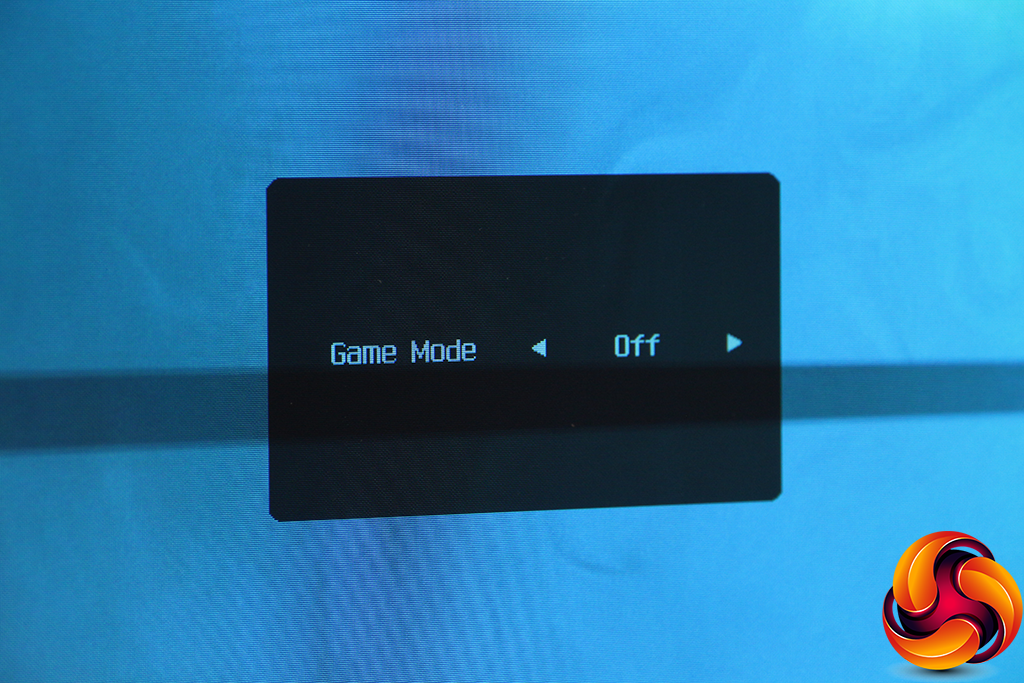
Hit the top left arrow on the QuickSwitch keypad, and the top arrows on the keypad then let you cycle through the Game Mode presets. These include the three user-configurable presets, plus FPS, RTS and Racing options.
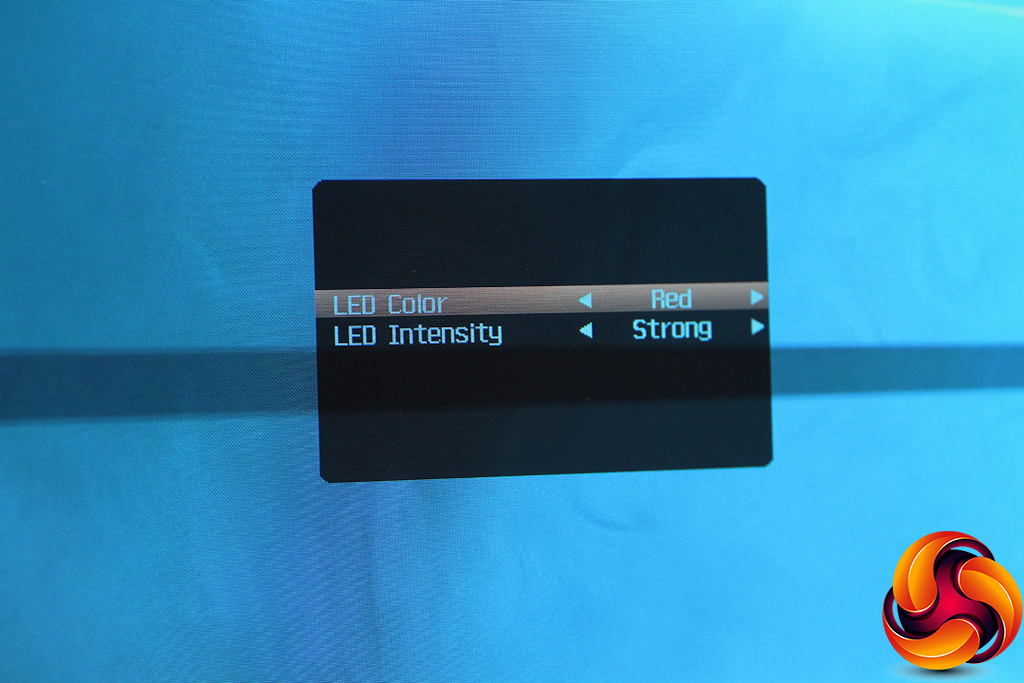
Press the top right arrow and the colour controls for the LED lighting on the bottom of the bezel appear. Red, green and blue options are available, plus strong, weak and medium options for intensity, or you can turn the lighting off entirely.
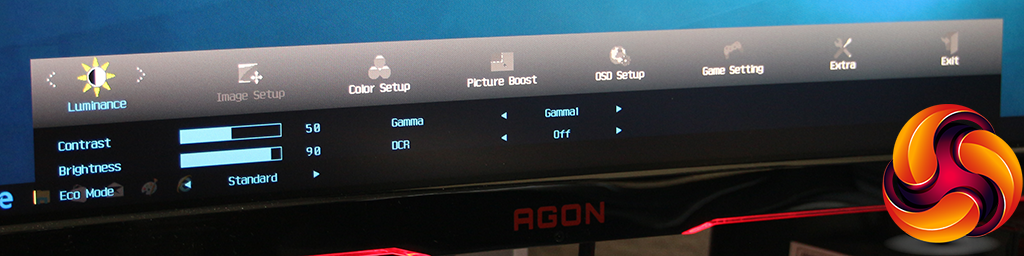
Hit the Menu / OK button and you get the full set of controls. This recalls the last submenu you were using, but the first in the list is Luminance. This gives you access to brightness and contrast control, plus the ability to switch between economy modes, which set the brightness and contrast for Text, Internet, Game, Movie, or Sports.
There are three gamma modes, and a dynamic contrast that automates all the other settings so greys them out, rendering them inaccessible.
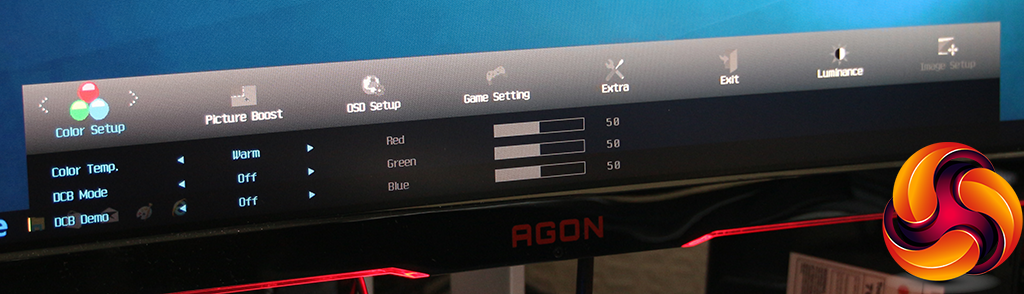
The next menu option is Image Setup, but that is only available if you're using an analog input, and include things like positioning the input frame onscreen. With a digital input, the next submenu is Color Setup, which is where you can configure the colour temperature. There are Normal, Cool, sRGB, and User options, with the latter enabling separate controls over red, green and blue. But no specific control over K values is available.
There's also an option to enable Dynamic Color Boost (DCB), which has presets for Full, Nature Skin, Green Field, Sky-blue and Auto Detect, with a setting to split half the screen so that you can compare results against the image with DCB turned off. Note that the Color Setup submenu isn't available if a Game Mode preset has been selected (see below).
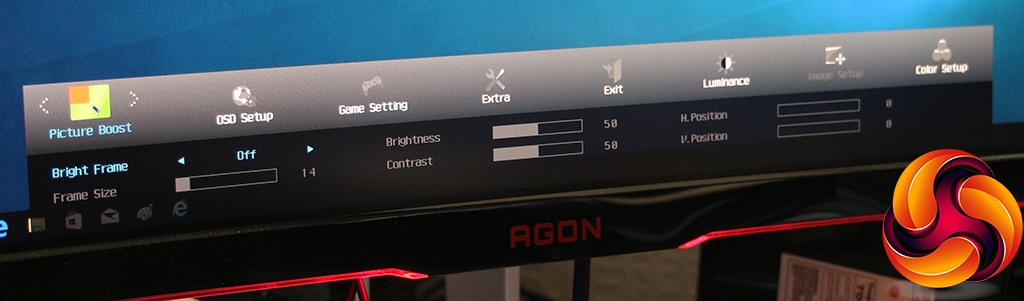
The Picture Boost option is a slightly odd function that seems to be unique to AOC AGON monitors. It includes an feature called Bright Frame, which lets you define a rectangle within the overall frame that you apply separate brightness and contrast settings to. You can choose the size of this frame and move it around the screen horizontally and vertically. We've seen this function a few times now, and we're still not sure what it's actually for.
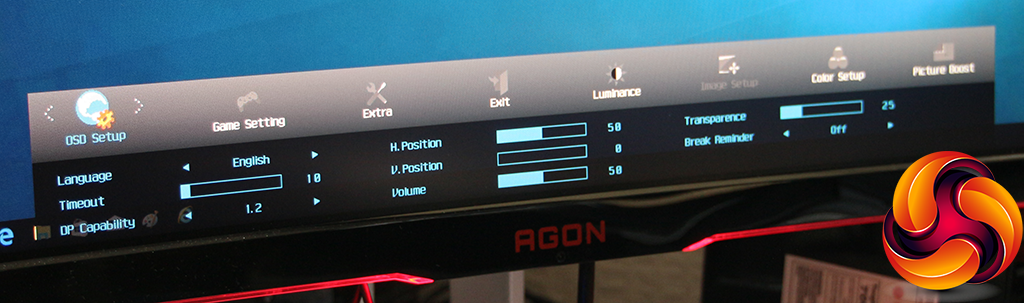
The OSD Setup submenu includes options to confgure how the OSD is displayed, but also lets you change which DisplayPort levels are supported, as well as audio volume and a break reminder. This will tell you to have some non-screen time every so often.
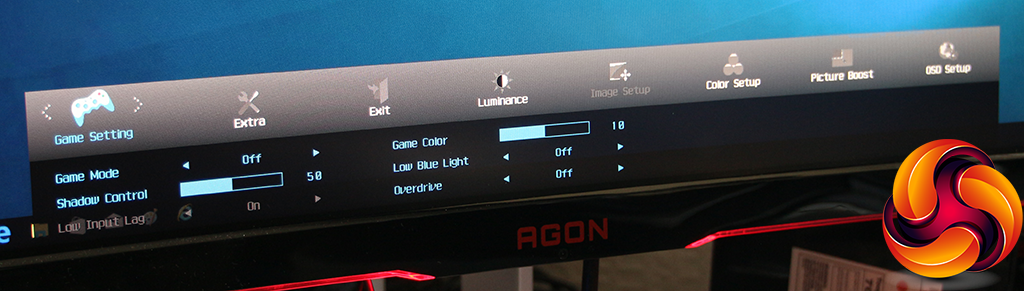
Under Game Setting can be found the same array of picture presets that you can cycle through with the control puck's arrow buttons – for FPS, RTS, Racing, and three slots for user-defined Gamer presets. The latter can also be rapidly chosen using the numbered buttons on the monitor's Quick Switch external keypad.
In each case, you can alter the Shadow Control, which is another type of contrast adjustment, and turn on a frame buffer to reduce input lag. There's a 20-step Game Color setting, which is a bit like a hue control. The Low Blue Light can reduce the blue light output, which supposedly reduces eye fatigue when you're looking at a screen for a long time. There's an overdrive option to improve the pixel response time.
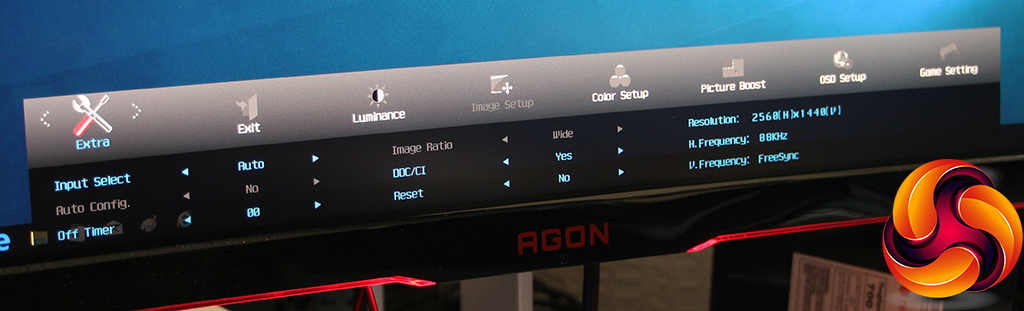
The final Extra OSD menu section is where AOC has thrown everything that didn't fit elsewhere. You can choose whether the screen reacts to inputs automatically or defaults to one in particular. There's a timer so that the screen will turn off a certain period of usage. You can turn DDC/CI off or on. This is the system whereby certain features of the monitor can be controlled directly from inside Windows, such as brightness, contrast and colour.
You can also reset everything to default settings and get a readout of the current display resolution and frequency settings. You can see here that our screen was operating in FreeSync mode due to our use of an AMD graphics card supporting this.
Overall, there's plenty to play with in the AGON's OSD, although virtually everything is heavily game focused, which is to be expected considering the target audience for this screen. We would have liked to have seen some presets for other types of entertainment such as movies, though, or even everyday work usage, because in reality you will probably not just be gaming all the time on a monitor costing nearly £500.
Our main test involves using a DataColor Spyder Elite 5 Colorimeter to assess a display’s image quality. The device sits on top of the screen while the software generates colour tones and patterns, which it compares against predetermined values to work out how accurate the screen is.
The results show –
- A monitor’s maximum brightness in candelas or cd/m2 at various levels set in the OSD.
- A monitor’s contrast ratio at various brightness levels in the OSD.
- The brightness deviation across the panel.
- The black and white points
- The colour accuracy, expressed as a Delta E ratio, with a result under 3 being fine for normal use, and under 2 being great for colour-accurate design work.
- The exact gamma levels, with a comparison against preset settings in the OSD.
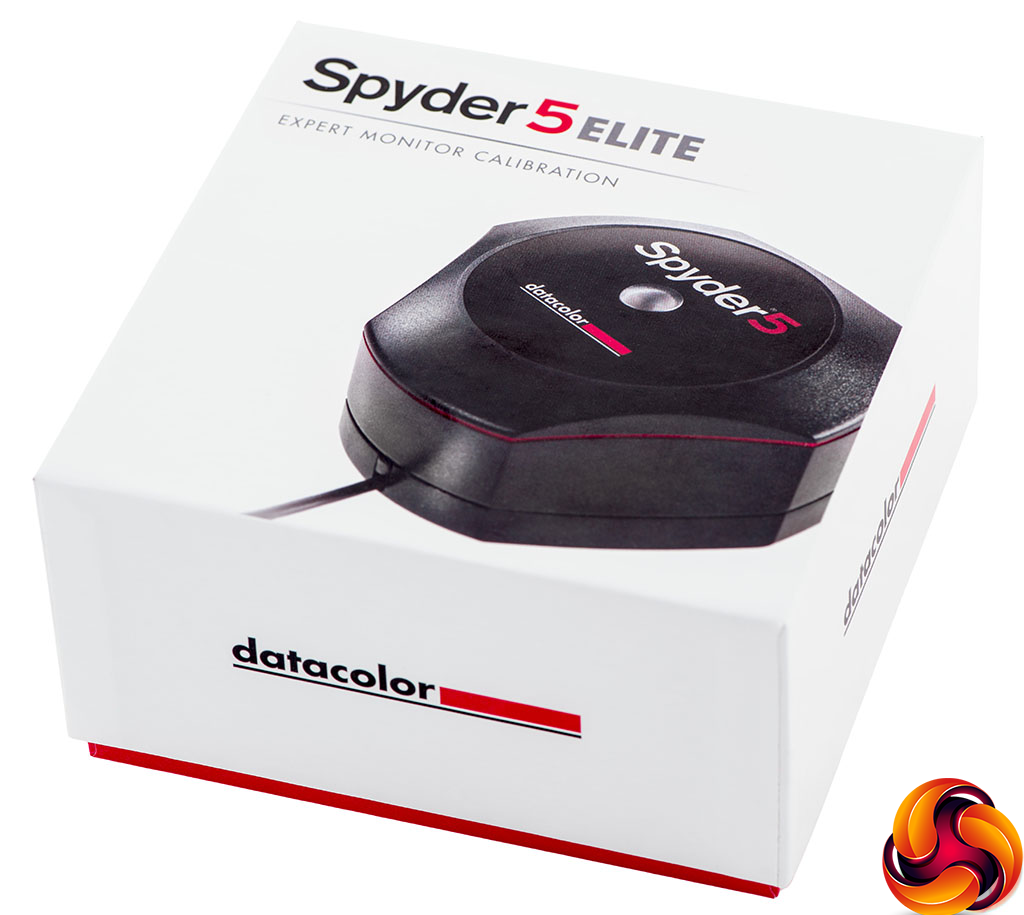
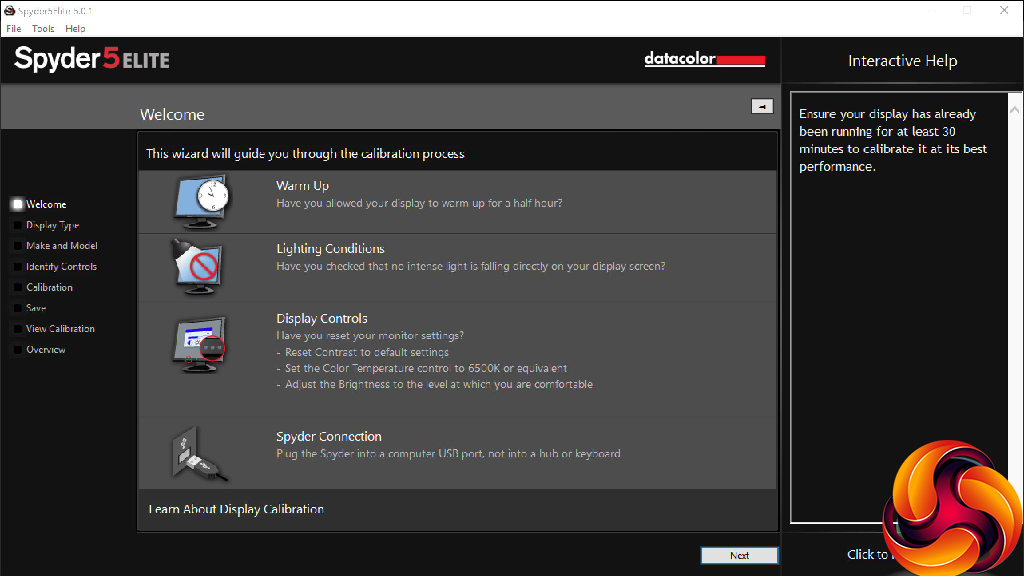
We first run this test with the display in its default, out-of-the-box state, with all settings on default. We then calibrate the screen using the Spyder software and run the test again.
We always test the display subjectively on the Windows desktop, using it for general tasks such as browsing and word processing, and with games as well, even if the display is not intended solely for that purpose. We pay careful attention to any artefacts, ghosting or motion blur, and enable any gaming specific features, such as adaptive-sync settings like G-Sync, using a compatible graphics card in our test PC.
In the case of the AG322QCX, we performed the primary testing at the native 2,560 x 1,440 resolution in the default mode, after resetting the OSD, which appeared to revert to the Gaming 1 preset. This also left the screen in AMD FreeSync mode, rather than using a specific set refresh. Our test system was equipped with an AMD Radeon Vega Frontier Edition graphics card, which supports FreeSync.
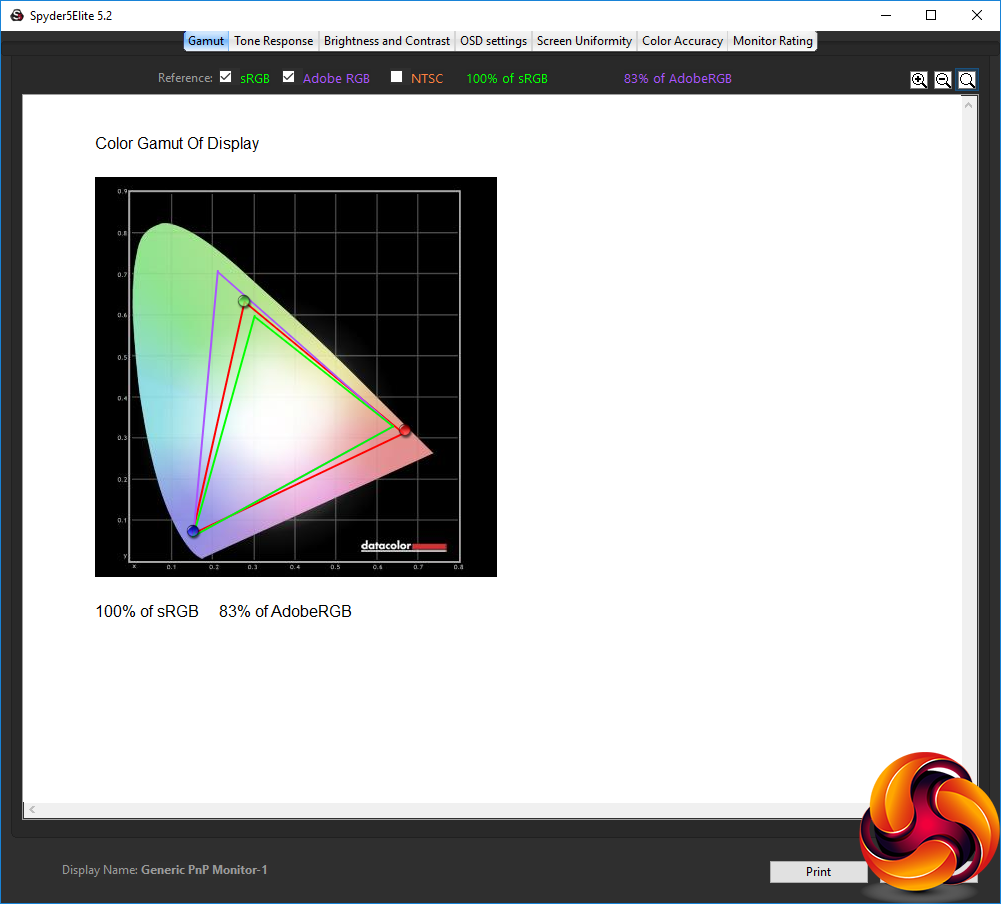
The gamut is commendable, with 100 per cent of sRGB and 83 per cent of AdobeRGB.
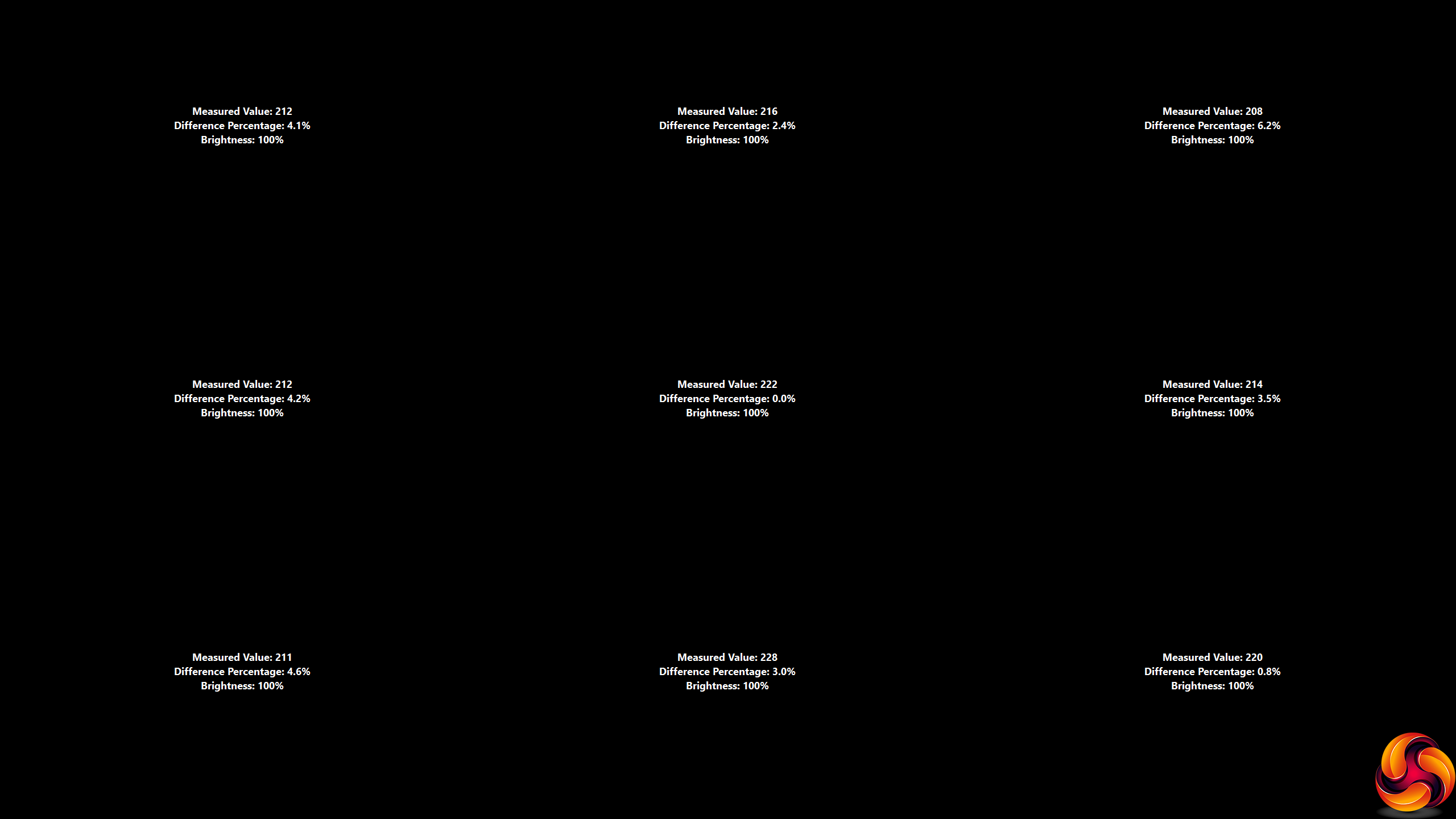
Brightness uniformity is also very good, with only the top right-hand corner going above 5 per cent variation.
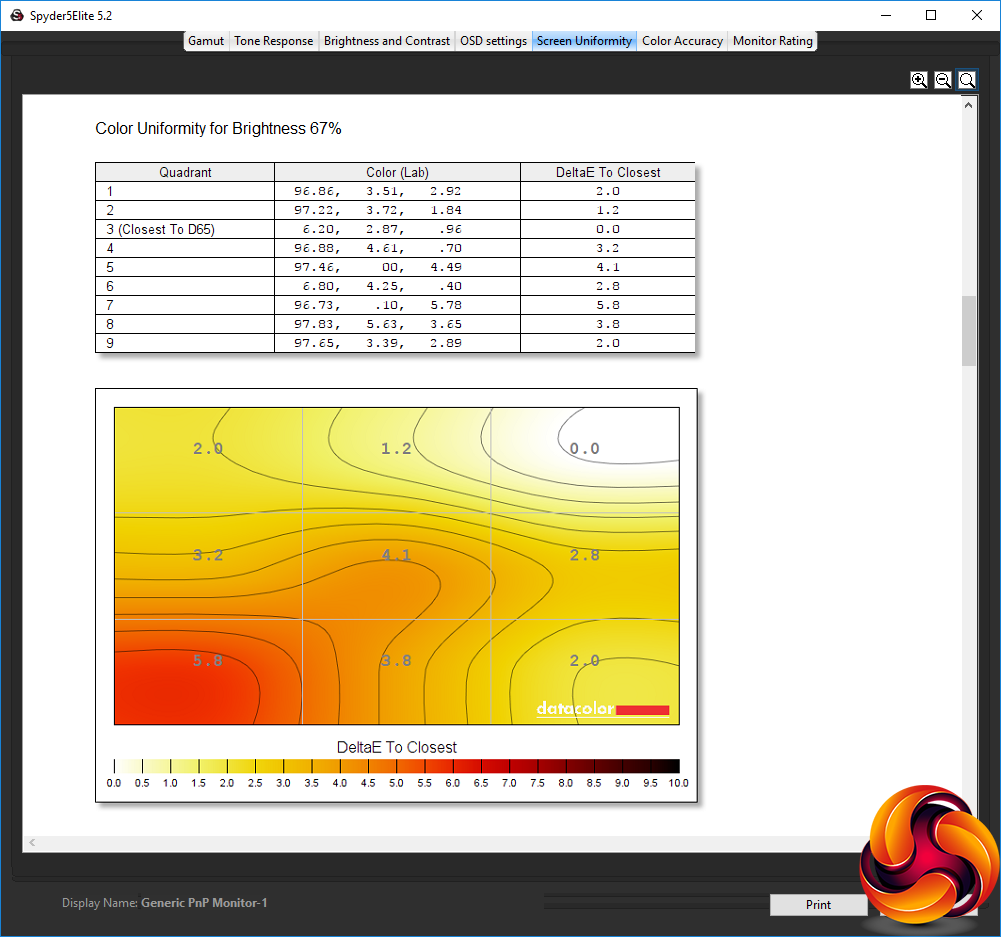
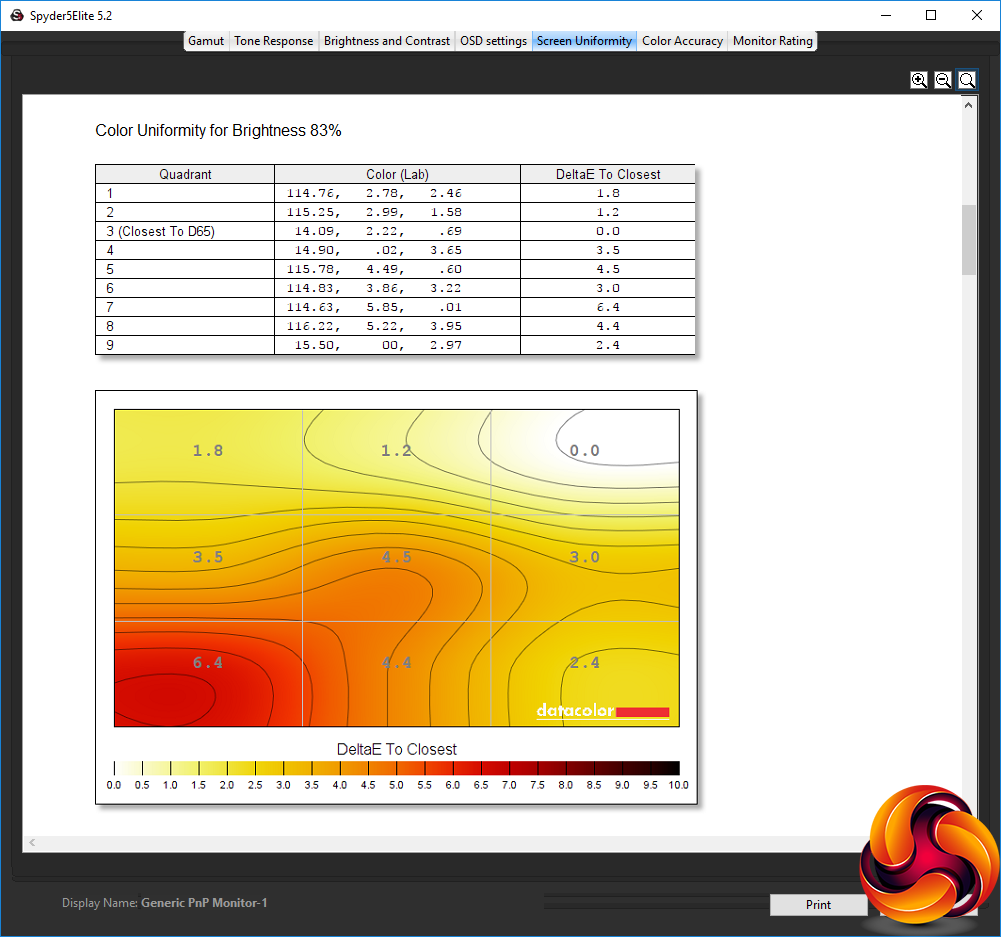
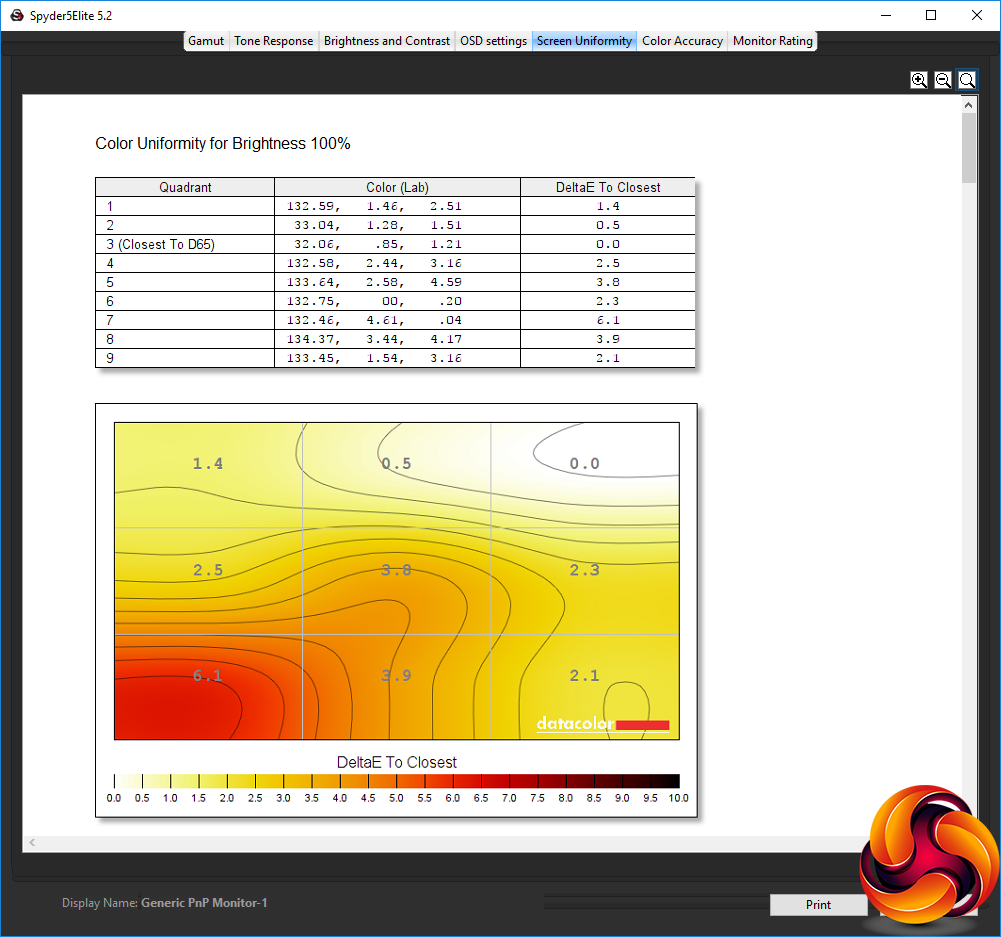
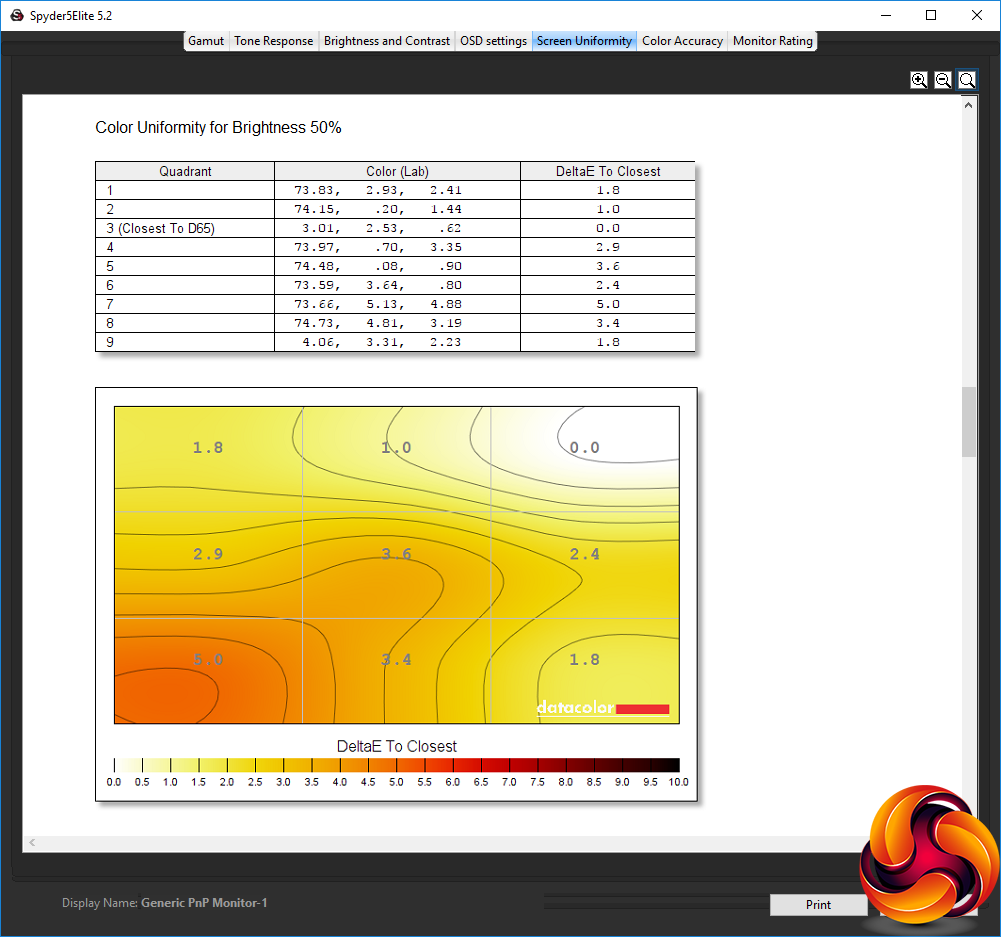
Colour uniformity isn't quite so good, but still decent, with this time the bottom left-hand corner posing a problem.
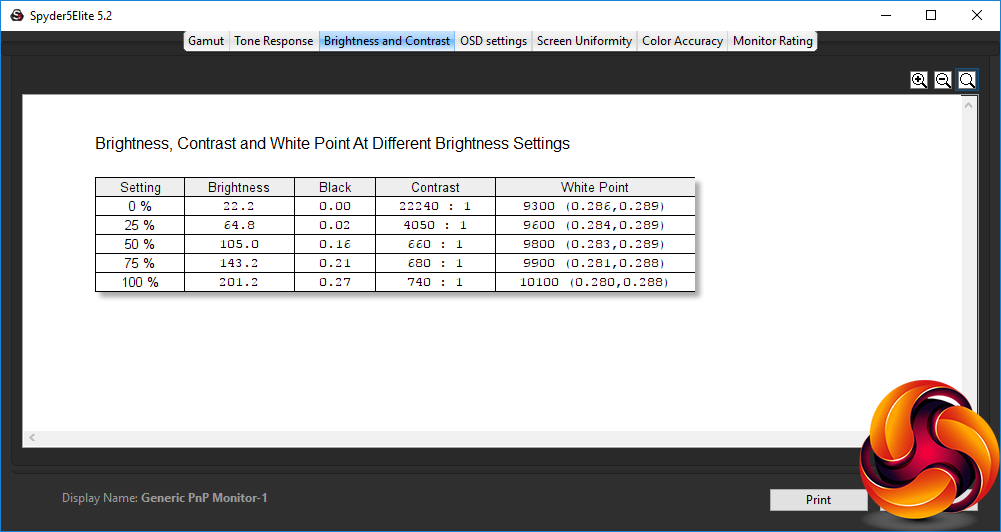
Although you don't get a sense of this in everyday usage, this is not a particularly bright screen. Even at 100 per cent brightness, the screen is only delivering 201.2cd/m2. Contrast also doesn't match the 2,000:1 rating, and the white point at the default setting is decidedly cool, ranging from 9300K at zero brightness to a very blue 10100K at 100 per cent brightness, although you can of course change the temperature settings and RGB if this doesn't suit you.
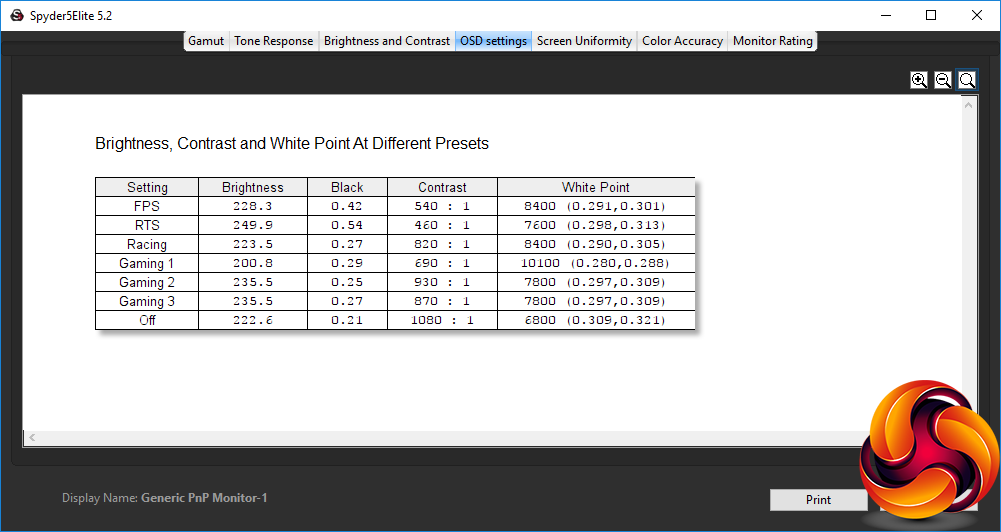
There's quite a bit of variation between the different OSD settings, and some of these provide a higher brightness than Gaming 1, although still not close to the 300cd/m2 rating. The FPS mode is quite bright at 228.3cd/m2, but offers relatively low contrast of 540:1, and a fairly cool white point of 8400K. RTS is the brightest of all, with 249.9cd/m2, but with the lowest contrast of 460:1, and a mid-range 8400K white point. Racing mode uses a similar 223.5cd/m2 brightness to FPS, but a much greater 820:1 contrast and the same 8400K white point as FPS.
The Gaming modes can all be configured, but they appear to come with some different settings out of the box (unless these aren't reset by resetting the OSD). Gaming 1 only provides 200.8cd/m2 brightness, and in this test a mediocre 690:1 contrast, with the very cool white point of 10100K we measured before. Gaming 2 is brighter at 235.5cd/m2, but a higher 930:1 contrast and midrange 7800K white point. Gaming 3 isn't that different, with the same brightness and white point but lower 870:1 contrast.
Turn all these off and you get 222.6 brightness, the highest 1,080:1 contrast, and warmest 6800K white point. Overall, we would have liked to have seen some non-gaming presets as well, just in case you actually want to do something else with your screen, like watch movies or (perish the thought) work.
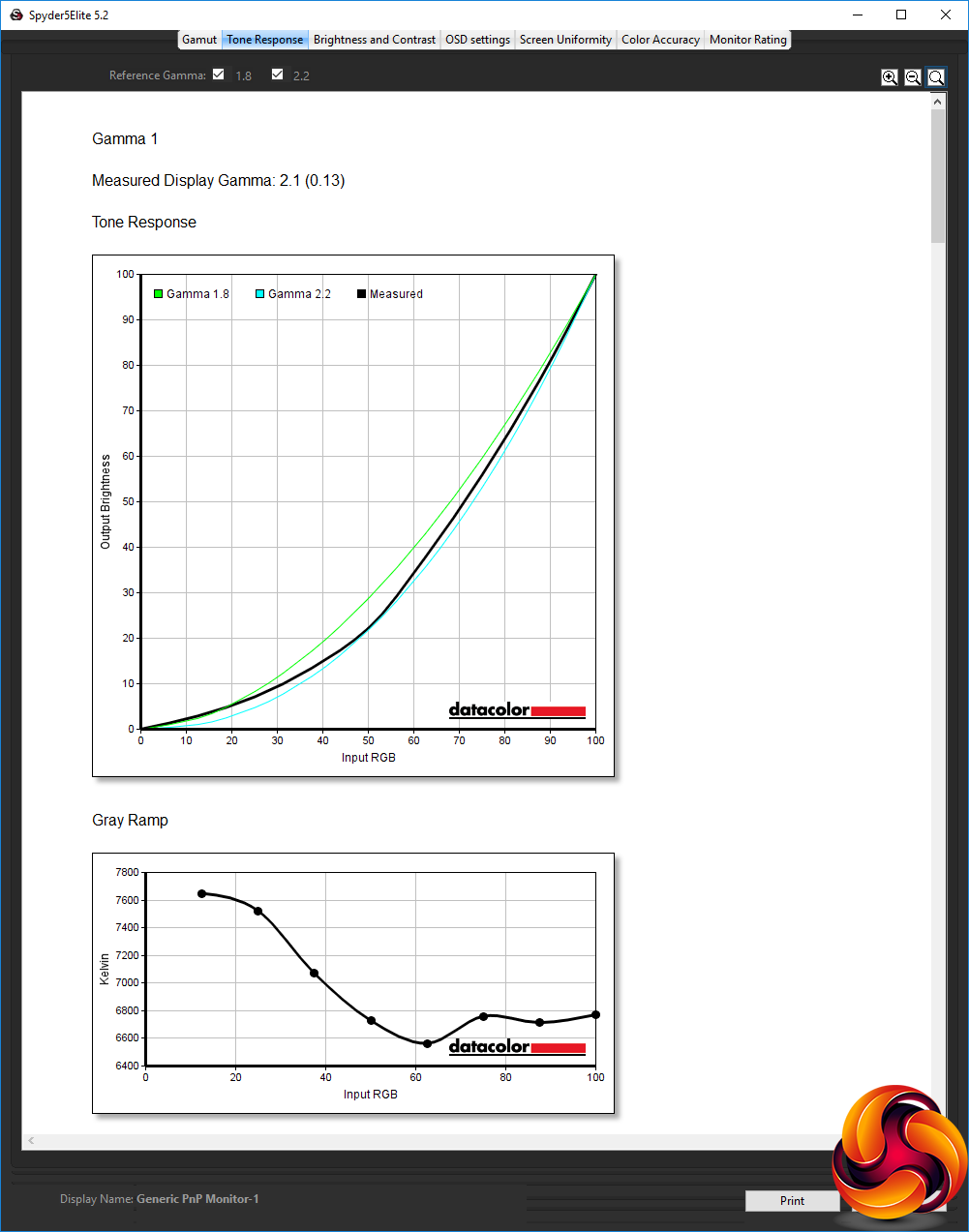
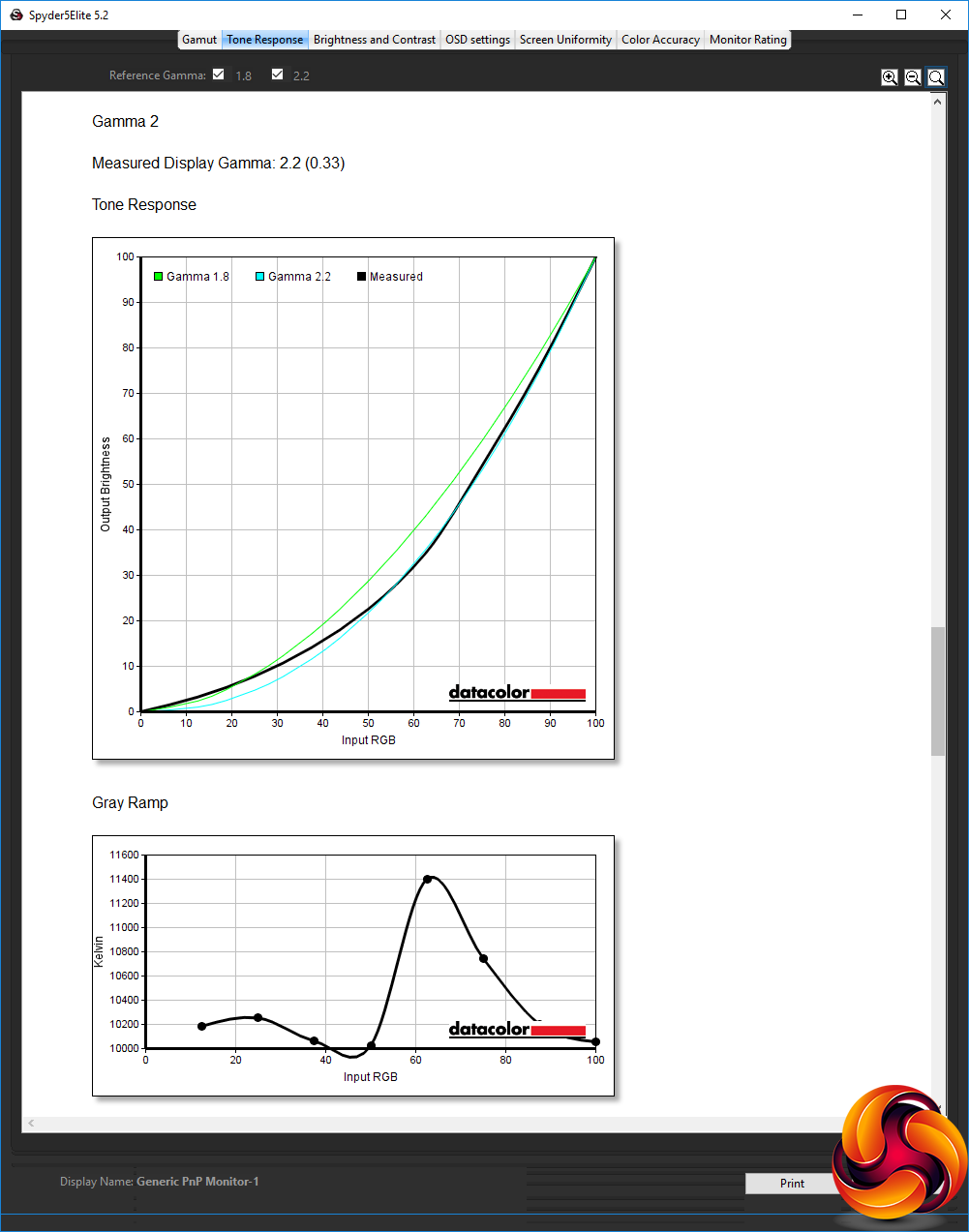
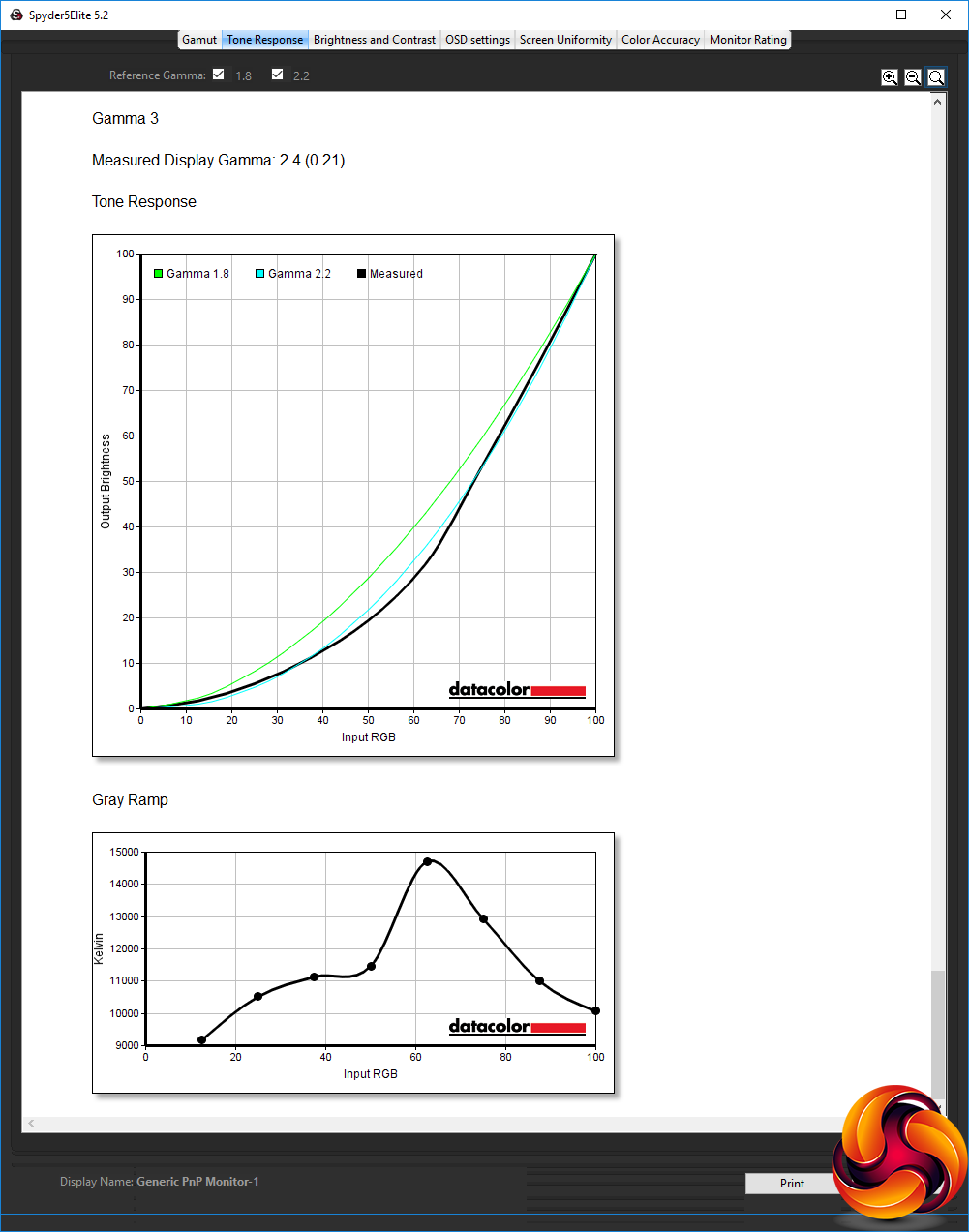
There are three Gamma settings, called 1, 2 and 3. The first one equates to 2.1, the second to 2.2, and the third to 2.4. It's useful to have gamma presets, but it might have been handy to have more of them or a slightly greater variation between them.
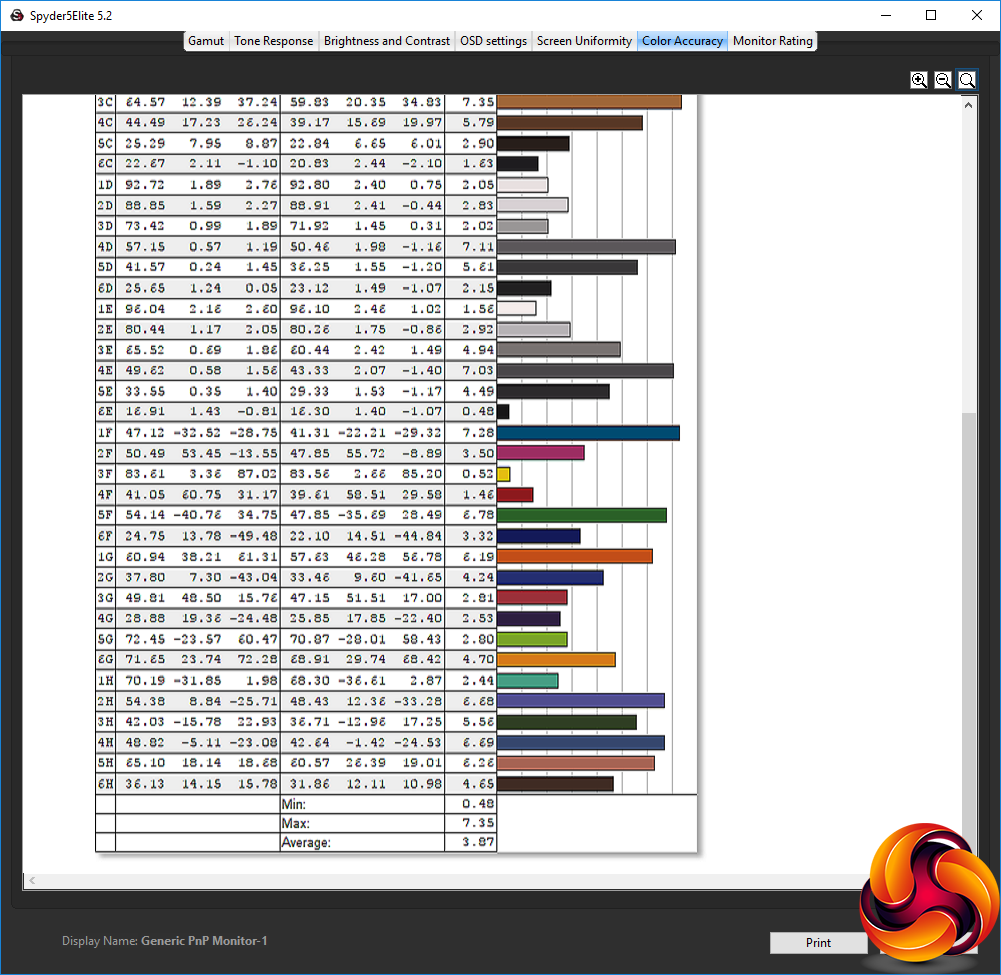
The default colour accuracy of 3.87 on average is not that great. This isn't a terrible score, but it's a shame that you can't rely on top-notch colour out of the box. So, as usual, we calibrated the screen with the Spyder to see if we could improve things.
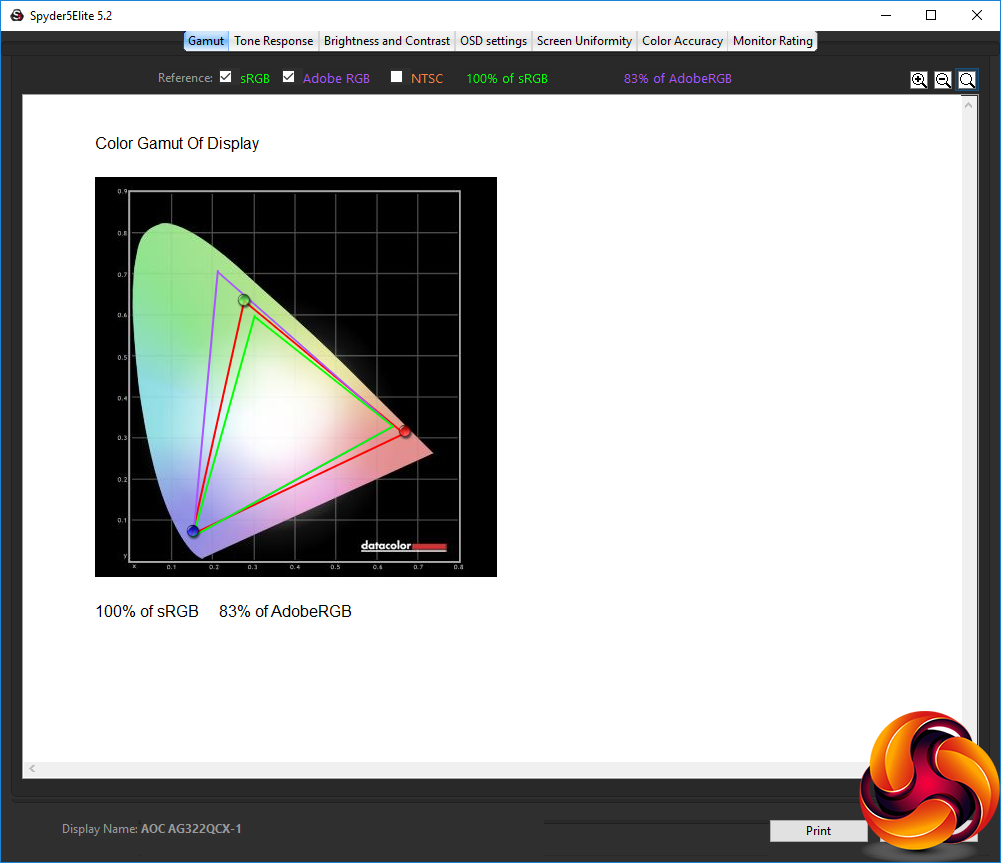
The colour gamut hasn't changed (and almost never does), with 100 per cent sRGB and 83 per cent AdobeRGB.
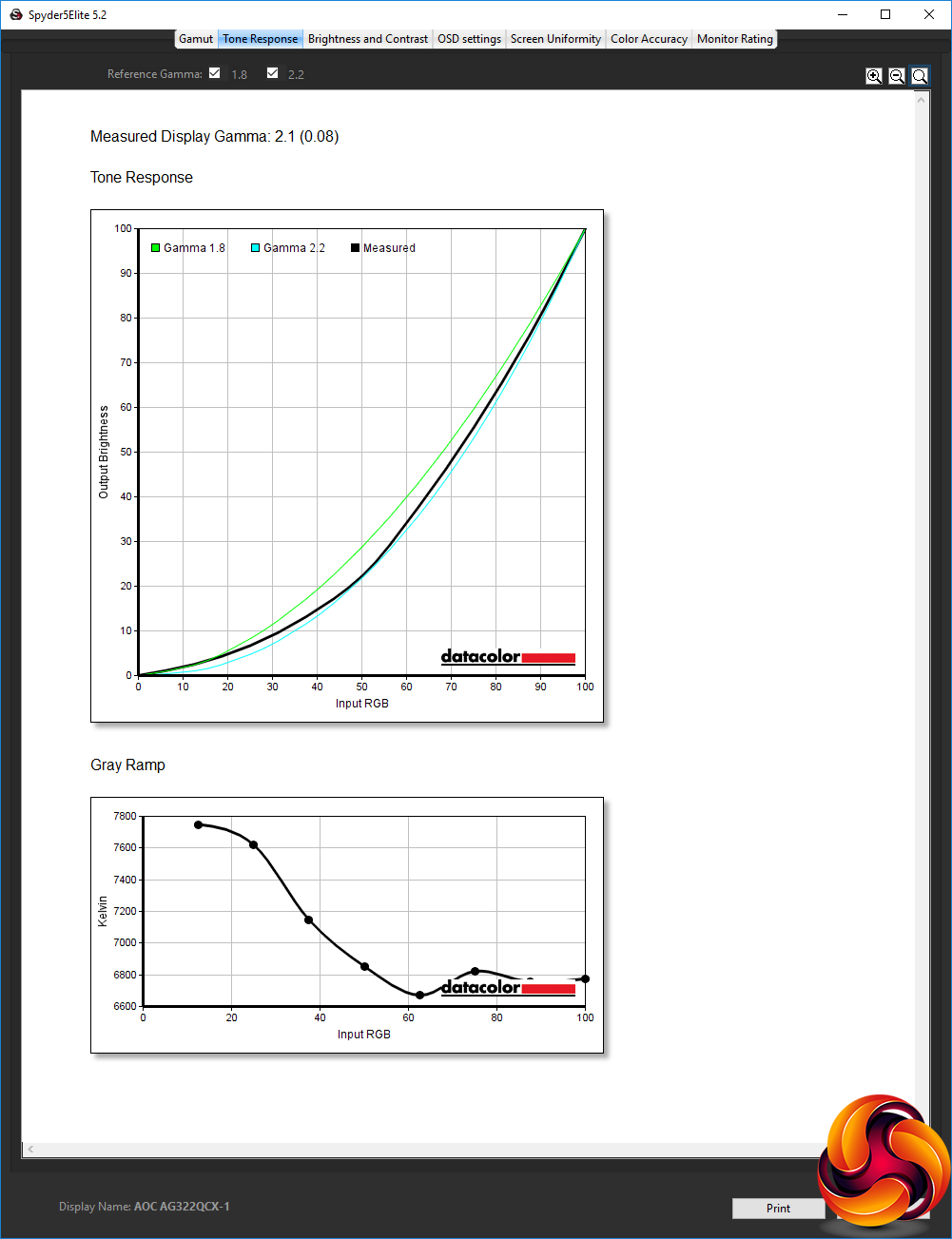
We had left the gamma on the 1 setting, and that didn't change noticeably either, still equating to 2.1.
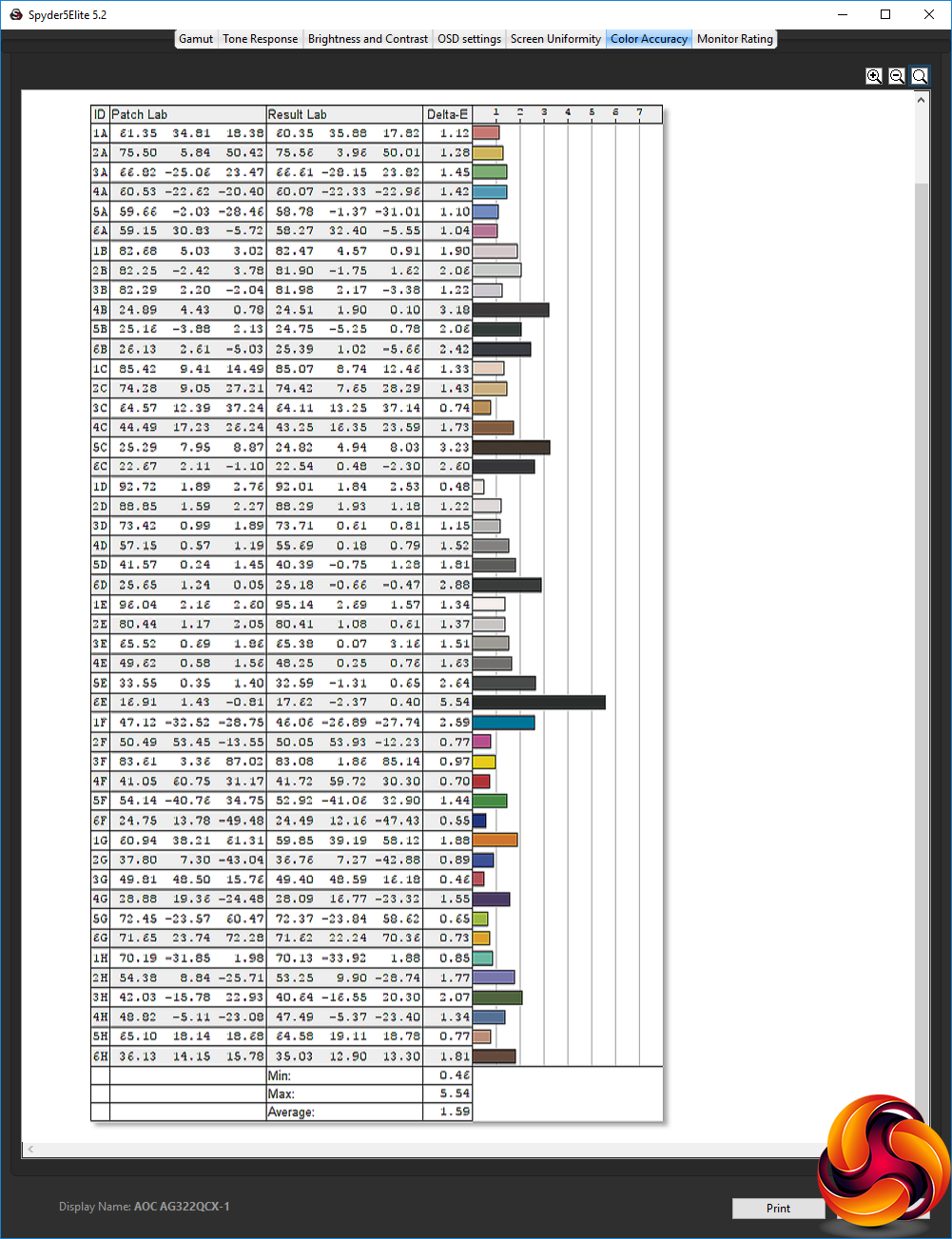
However, colour accuracy had improved considerably with calibration, hitting an average variation of just 1.59. The very best screens can achieve below 1 in this test, but anything below 2 is still very good.
So, overall, with a bit of adjustment, you can achieve some commendable results from the AG322QCX. Brightness and colour uniformity are good, and it's possible to achieve very decent colour accuracy with calibration. Overall brightness is a little low, and you can't seem to achieve close to the stated contrast, although overall contrast levels are still acceptable compared to TN or IPS panels. We just wish there were a few more non-gaming presets.
Of course, gaming is where this screen is aimed, and with FreeSync detected and enabled automatically for our AMD Radeon Vega Frontier Edition, the experience was very smooth and lacking in tearing. The pixel response does show a little ghosting, which only partially disappears with the Overdrive option, but this still wasn't a major issue.
The AOC AGON AG322QCX isn't quite perfect, and if you want a no-compromise gaming screen there are some even more focused options such as AOC's own AGON AG271QX or AGON AG271QG. But you do get a lot of screen for your money, and the 144Hz refresh allied with AMD FreeSync makes this screen a great partner to the latest Radeon graphics cards, although not so good if you're using NVIDIA GeForce. The plethora of inputs is also handy if you want to use it with a gaming PC and a couple of consoles or a TV streaming box.
There are a few niggles, such the fact that the USB and audio ports are around the back, rather than on the side as with some AOC AGON designs, and there's no built-in memory card reader. Having only two USB ports is also a bit limiting. The entirely gaming-focused OSD presets are a disappointment, although there are plenty of manual configuration options, and you could turn one of the Gaming user-configurable presets into your own movie or work option.
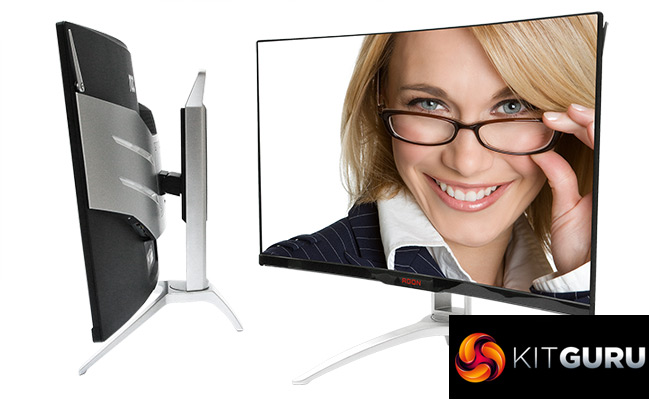
Overall, while this isn't quite the “must-have” gaming screen at this size, there's no area that counts it out of the running, although it's less enticing if you're using NVIDIA graphics. It's reasonably priced for its screen size, has the right native resolution for a gaming screen (1440p hits a sweet spot), and has a good smattering of features for the gamer. It's well worth considering if you are after a large gaming screen.
The AOC AGON AG322QCX is available on Amazon.co.uk.
Discuss on our Facebook page, over HERE.
Pros:
- 144Hz refresh.
- AMD FreeSync.
- Good colour accuracy – with calibration.
- Decent brightness and colour uniformity.
- Big screen with appropriate 2,560 x 1,440 native resolution.
- Reasonably priced for size and features.
- Lots of inputs.
- External QuickSwitch OSD controller.
- Headphone hook.
Cons:
- No presets for non-gaming activities.
- Only two downstream ports on USB hub.
- USB hub and audio ports around the back, not on the side.
Kitguru Says: The AOC AGON AG322QCX offers plenty of screen size, fast refresh, a good feature set and AMD FreeSync into a reasonably priced package for games enthusiasts.

Don’t understand why all the new “gaming” monitors are with freesync as most gamers have NVidia cards
freesync is cheaper than gsync and all ppl haven’t the money to pay 100/150$ more on a monitor for gsync
coz freesync is free and it’s included in the display port/hdmi 2.0 hardware while gsync costs money, needs additional hardfware (hence more power) and it’s exactly the same as freesync.