KitGuru KitGuru.net – Tech News | Hardware News | Hardware Reviews | IOS | Mobile | Gaming | Graphics Cards


Consoles used to just be devices you plugged into a TV. But even though the model update cycles mean the devices can lag behind PCs for hardware ability, they're offering 4K now, and if you're serious about your console gaming you may be considering a dedicated screen for yours. This is where Asus's CG32UQ comes in, providing 4K and HDR plus a bunch of other features that make it worth considering if your gaming needs involve both consoles and PCs – and at least a quarter of KitGuru readers fit this category.
Although announced some time ago, the CG32UQ has only recently arrived in the UK. This is a 32in-class screen (actually 31.5in diagonal) with a native 3,840 x 2,160 resolution. It uses VA panel technology, with all the usual benefits this provides. Typical maximum brightness is 400cd/m2, but peak can be 600cd/m2, allowing DisplayHDR 600 certification. To go with this Asus claims a 95 per cent DCI-P3 colour gamut. The max contrast ratio is 3,000:1, as we expect from VA.
A major downside for the crossover PC gamer, however, is the fact that this screen only supports a 60Hz refresh, although adaptive sync is available. This is based on FreeSync, but with G-Sync Compatible accreditation. Many graphics cards will struggle to deliver A-list games in 4K at over 60Hz, but if you do have high-end PC graphics that can, this screen may not be for you. Response is only 5ms grey-to-grey, although there are electronic systems included to reduce the perception of lag.
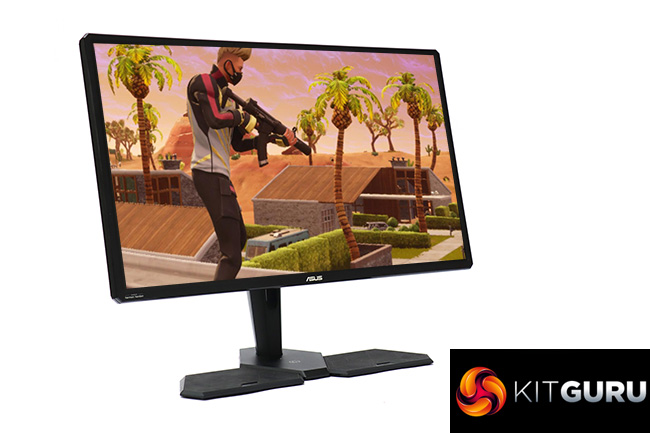
Where this screen really positions itself for console gamers is in the design and features. A remote control for changing settings is just the beginning. There are also power-only USB ports in the base and pads nearby to place your controllers, so you can easily recharge them when not in use. Otherwise, you get a trio of HDMI 2.0 video inputs and a single DisplayPort 1.2. Then there's a two-port USB 3.0 hub for peripherals and built-in stereo 12W speakers, which is decidedly loud for integrated audio.
So there are plenty of features to lure you over to the Asus CG32UQ, but one thing that might dampen your enthusiasm is the price. At over £750, now that 4K screens have dipped well below this, you're paying a fair bit for the console friendliness. Is this worth the extra money? Let's find out.
Specification:
- Screen size: 31.5-inch, 16:9 aspect
- Native resolution: 3,840 x 2,160
- Refresh rate: 60Hz, Adaptive-Sync
- Panel type: VA
- Contrast ratio: 3,000:1 (typical)
- Brightness: 600cd/m2 peak
- Response time: 5ms grey-to-grey
- Display inputs: 3 x HDMI 2.0, 1 x DisplayPort 1.2
- USB hub: Yes, 2 x USB 3.2 Gen1, plus pass-through for 2x USB charging and 2x USB 3.0
- Tilt: 5 degrees forward, 20 degrees backward
- Raise: 100mm
- Swivel: No
- Portrait: No
- Other: Audio output, 2 x 12W speakers
Retail Price: £764.99 (inc. VAT)
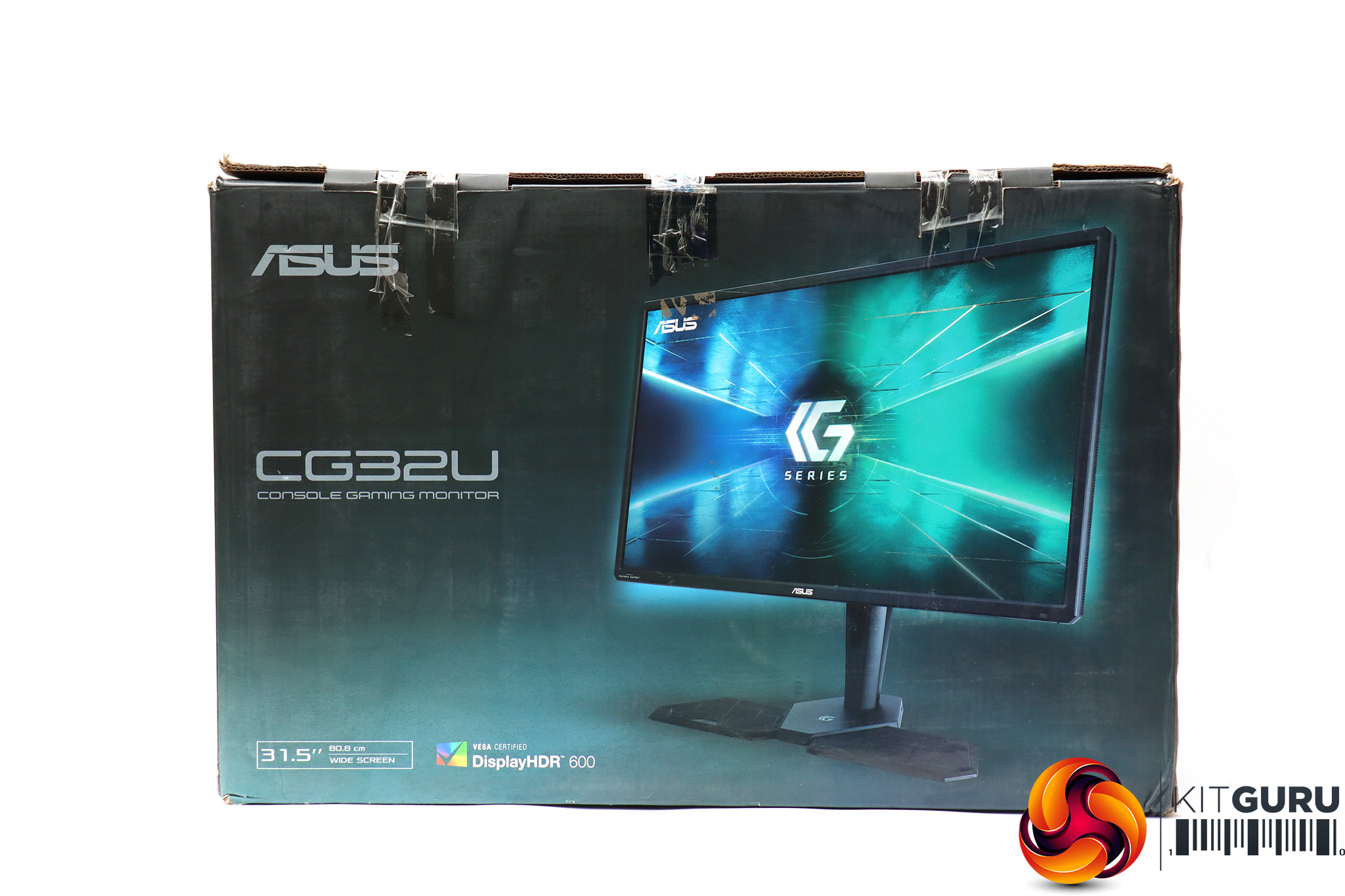
The Asus CG32UQ box is surprisingly coy about this screen's console gaming intentions. We'd would have expected to see an Xbox or PlayStation somewhere.
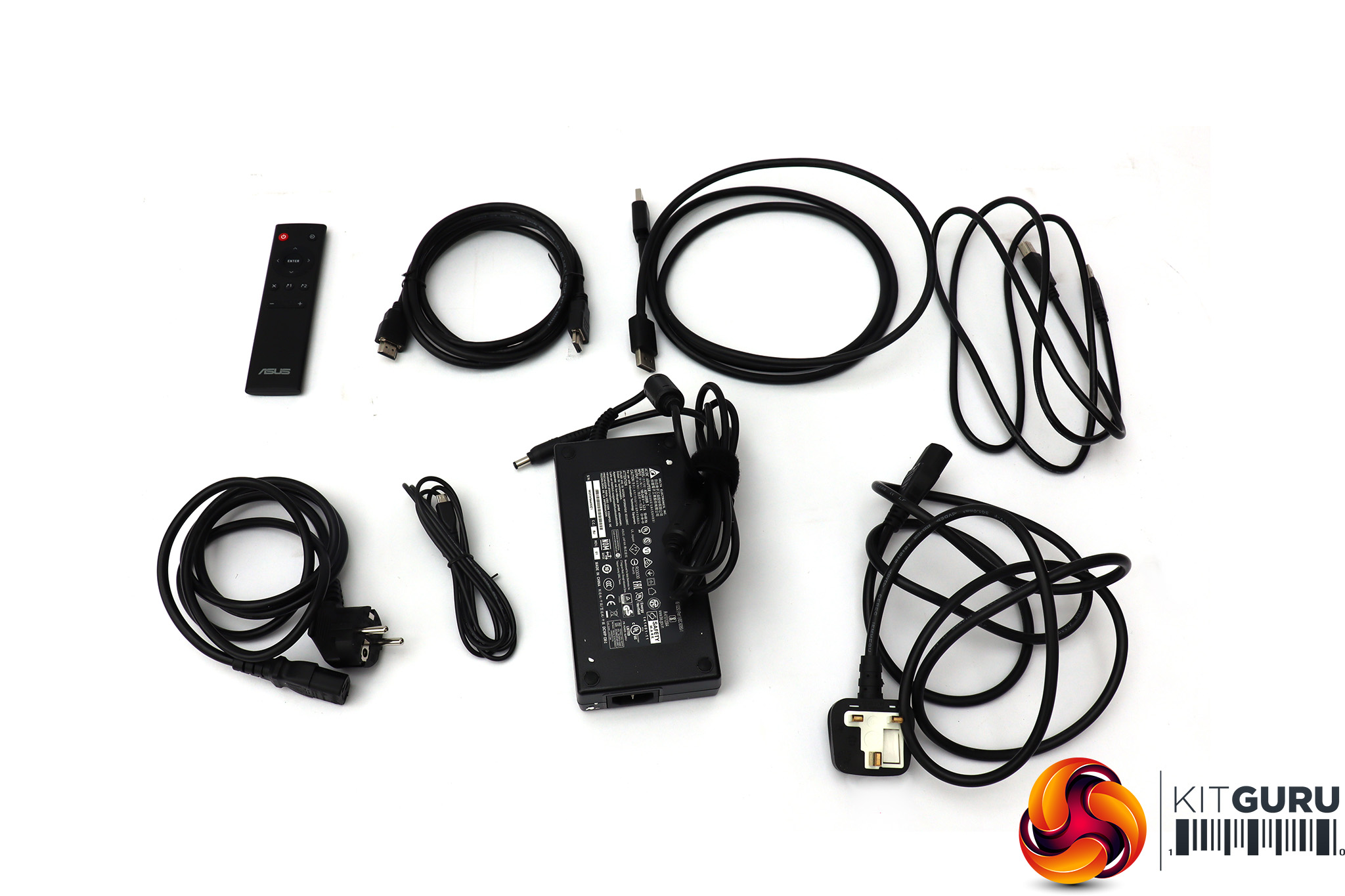
There are quite a few bits and bobs inside. Apart from the requisite power brick and cords for EU and UK sockets, plus both DisplayPort and HDMI cables, there's a USB upstream for hooking up the hub. More unusual is the USB Type A to Micro-USB, the function of which we will discuss shortly. There's also a remote control for operating the OSD from the comfort of your sofa – a welcome convenience for the lean-back experience of console gaming.
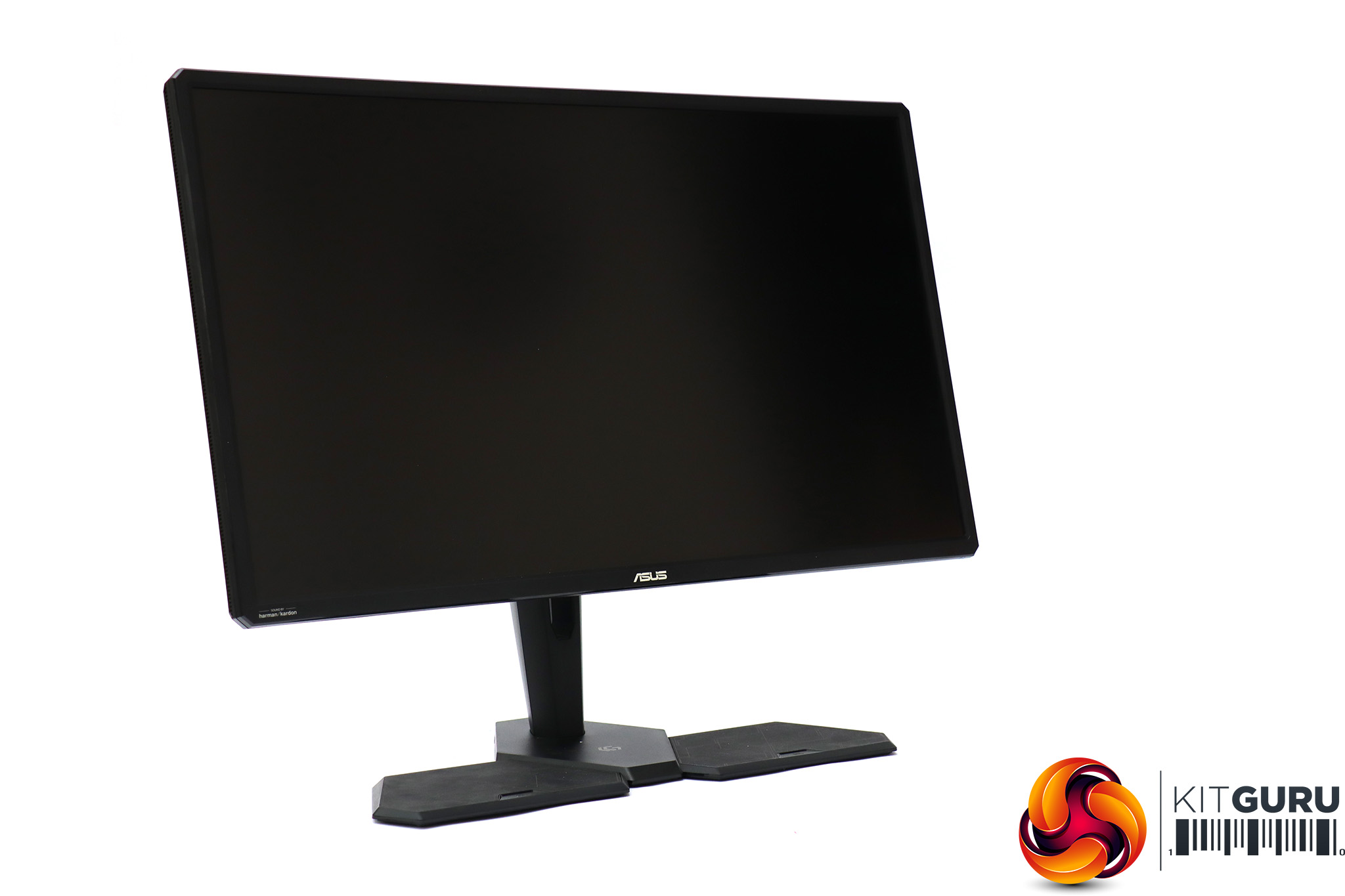
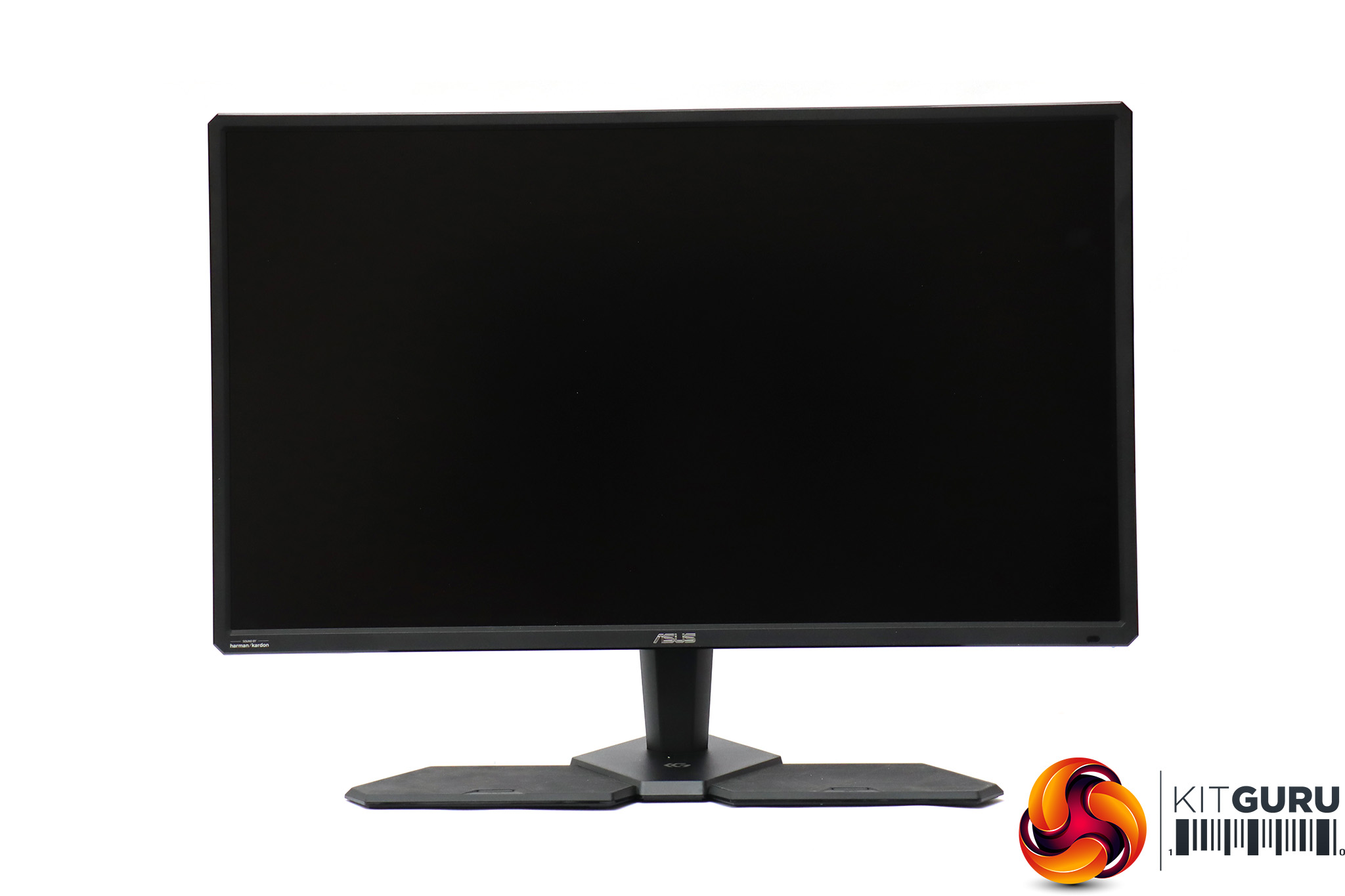
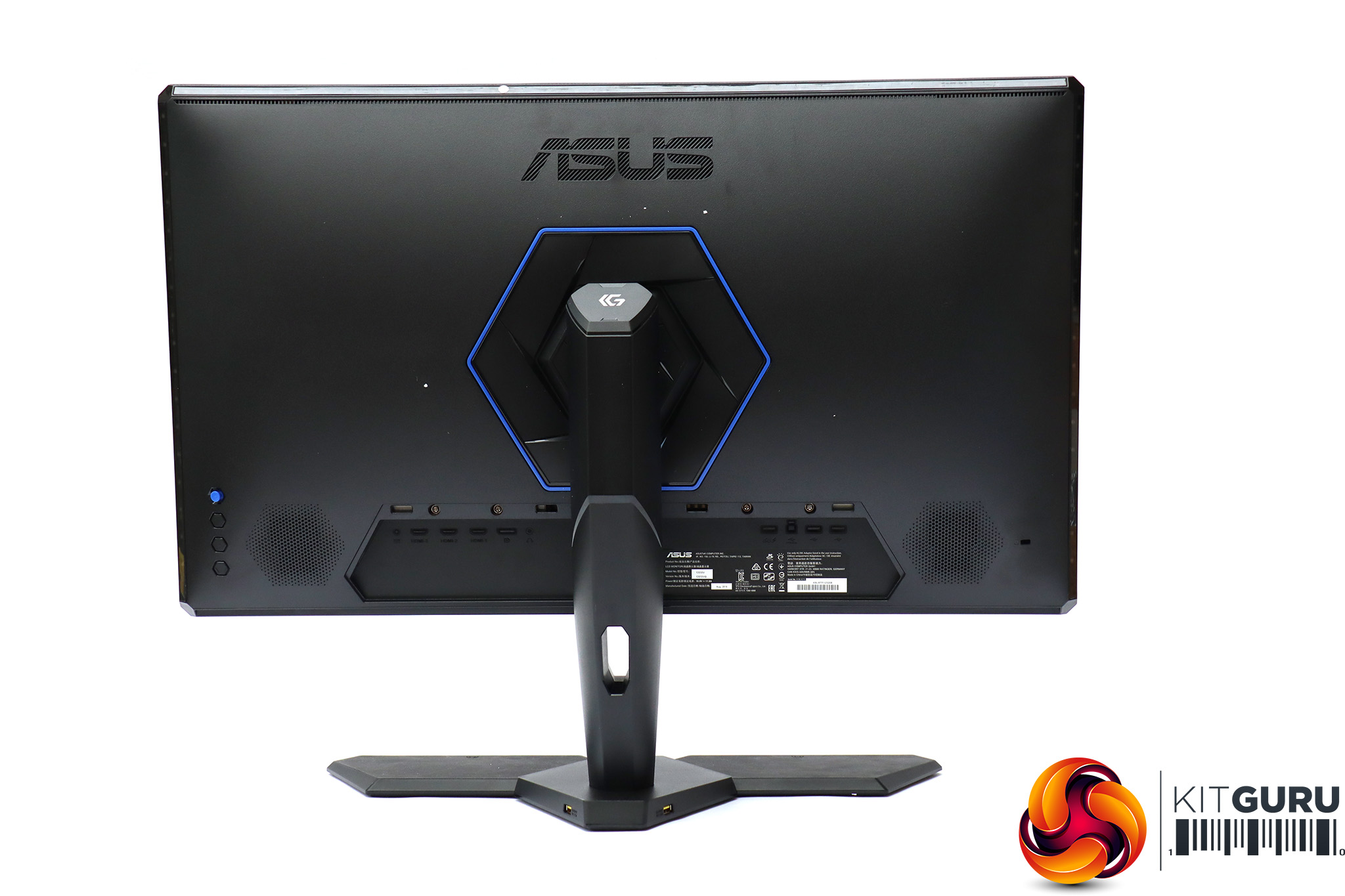
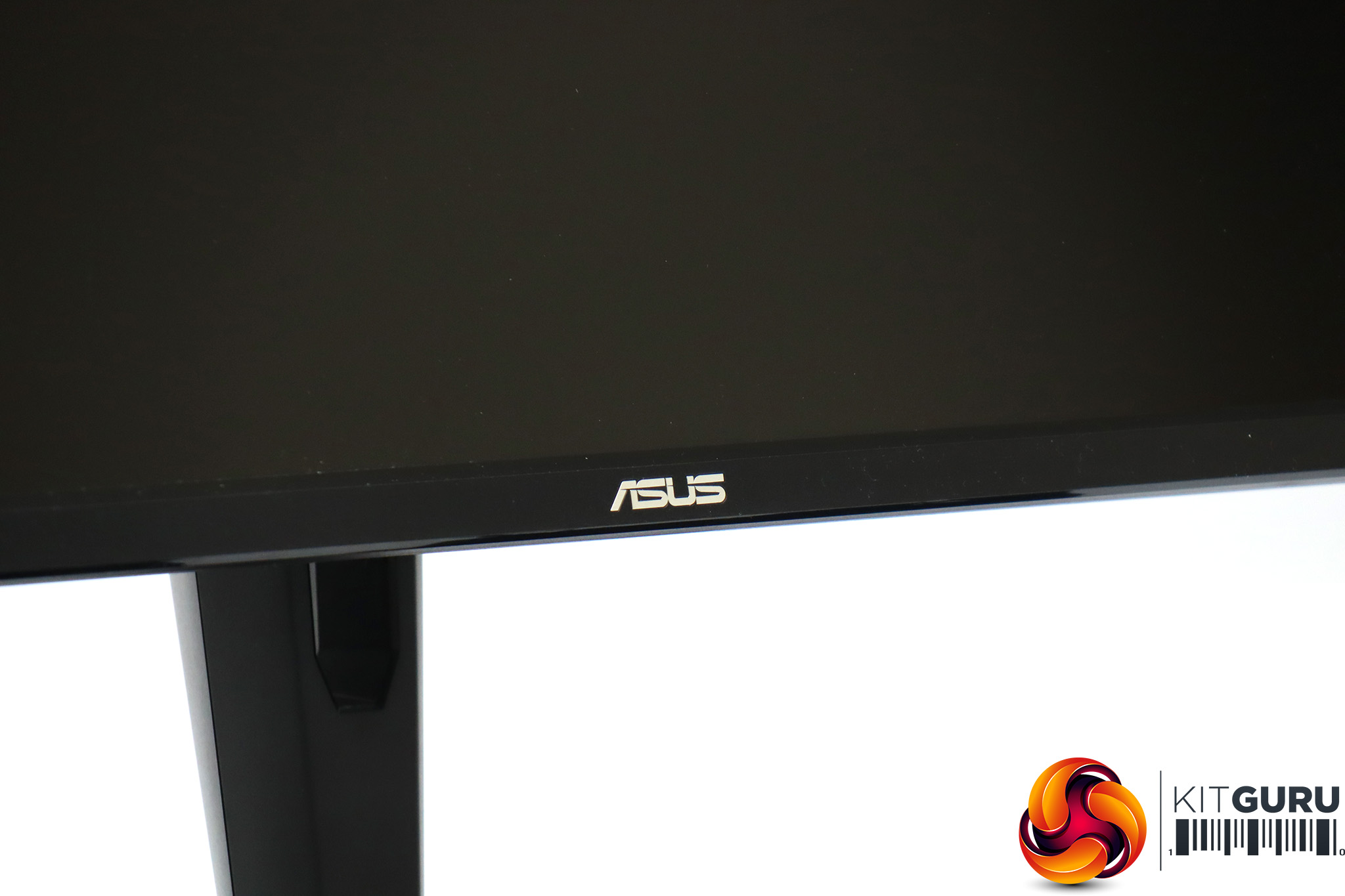
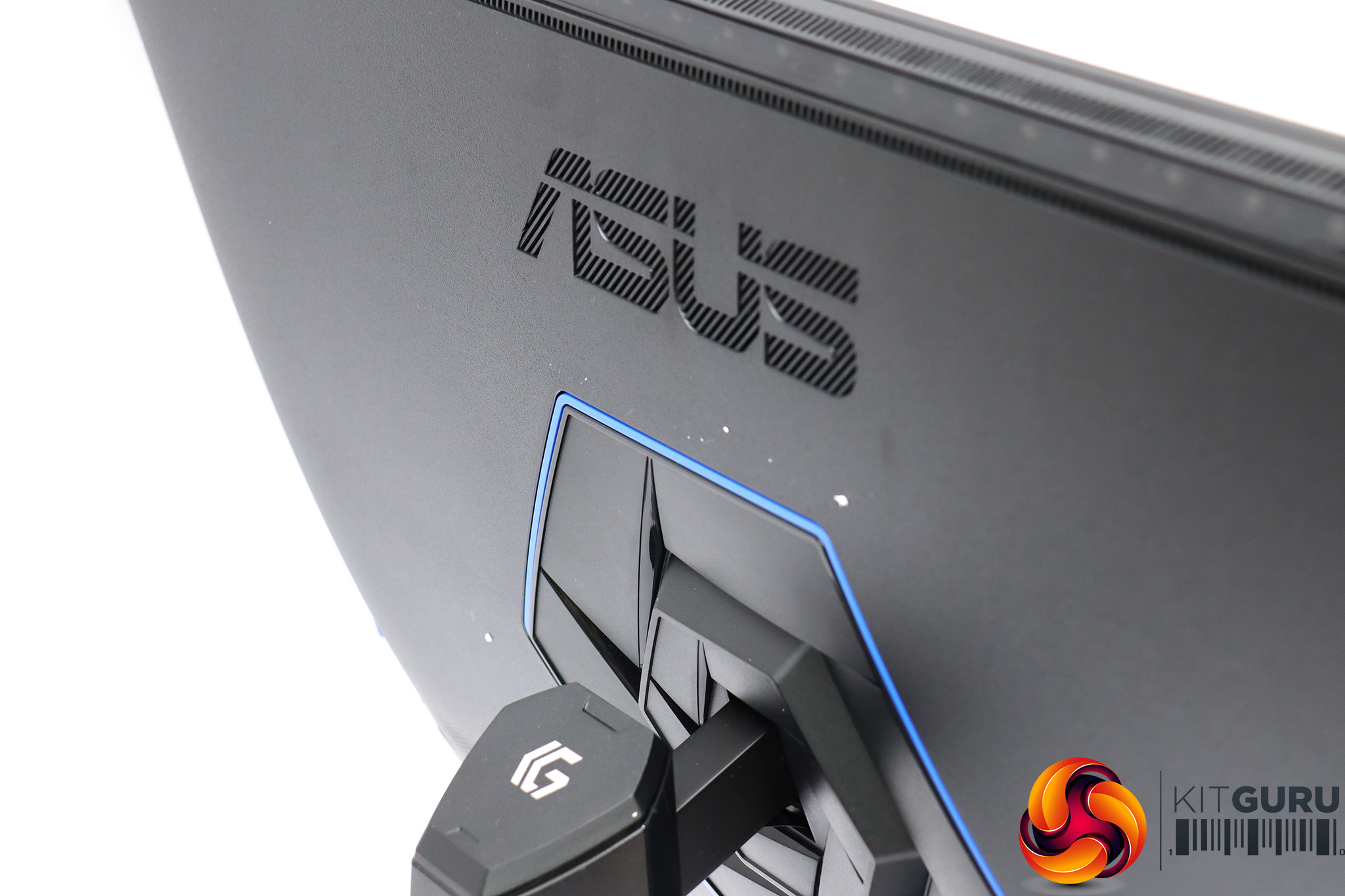
The CG32UQ is a fairly sober visual design by gaming screen standards. The blue hexagon on the rear around where the stand meets the panel is the only flash of colour. The appearance is solid but not overly exciting. However, turn this screen on and the dots you can see around edge of the rear of the bezel light up – these are ambient lighting that can be set to react to the hue of what is onscreen.
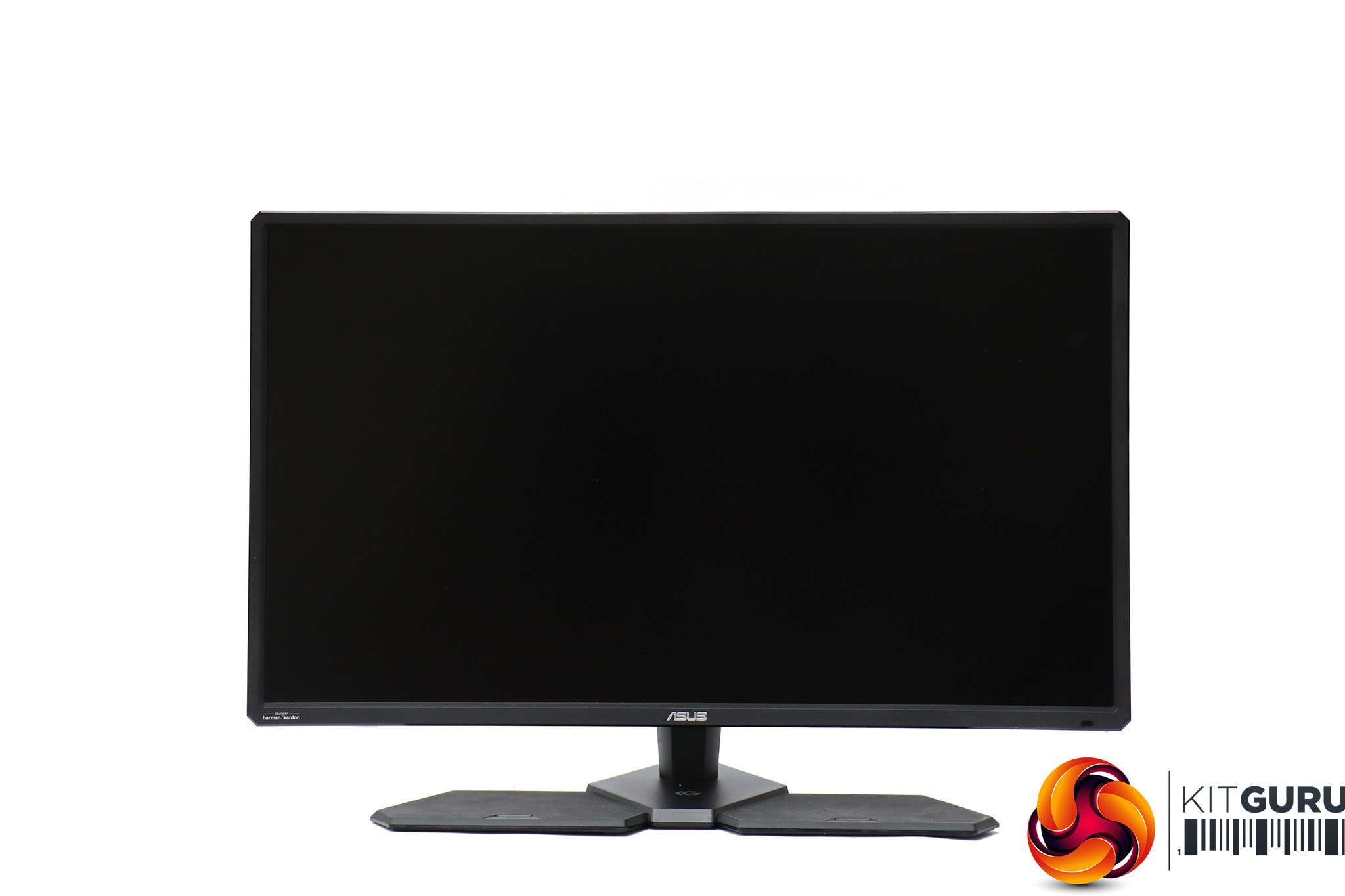
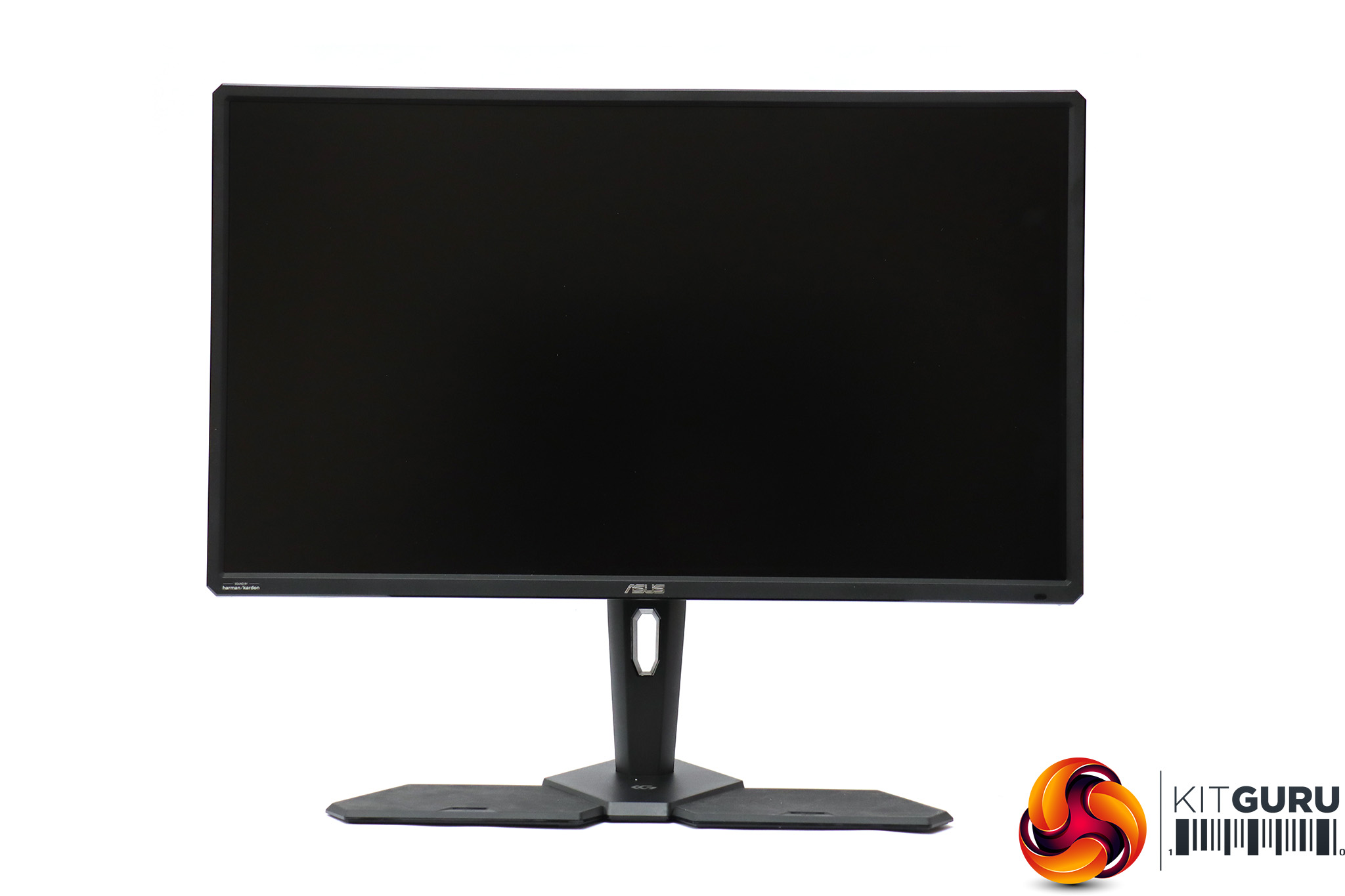
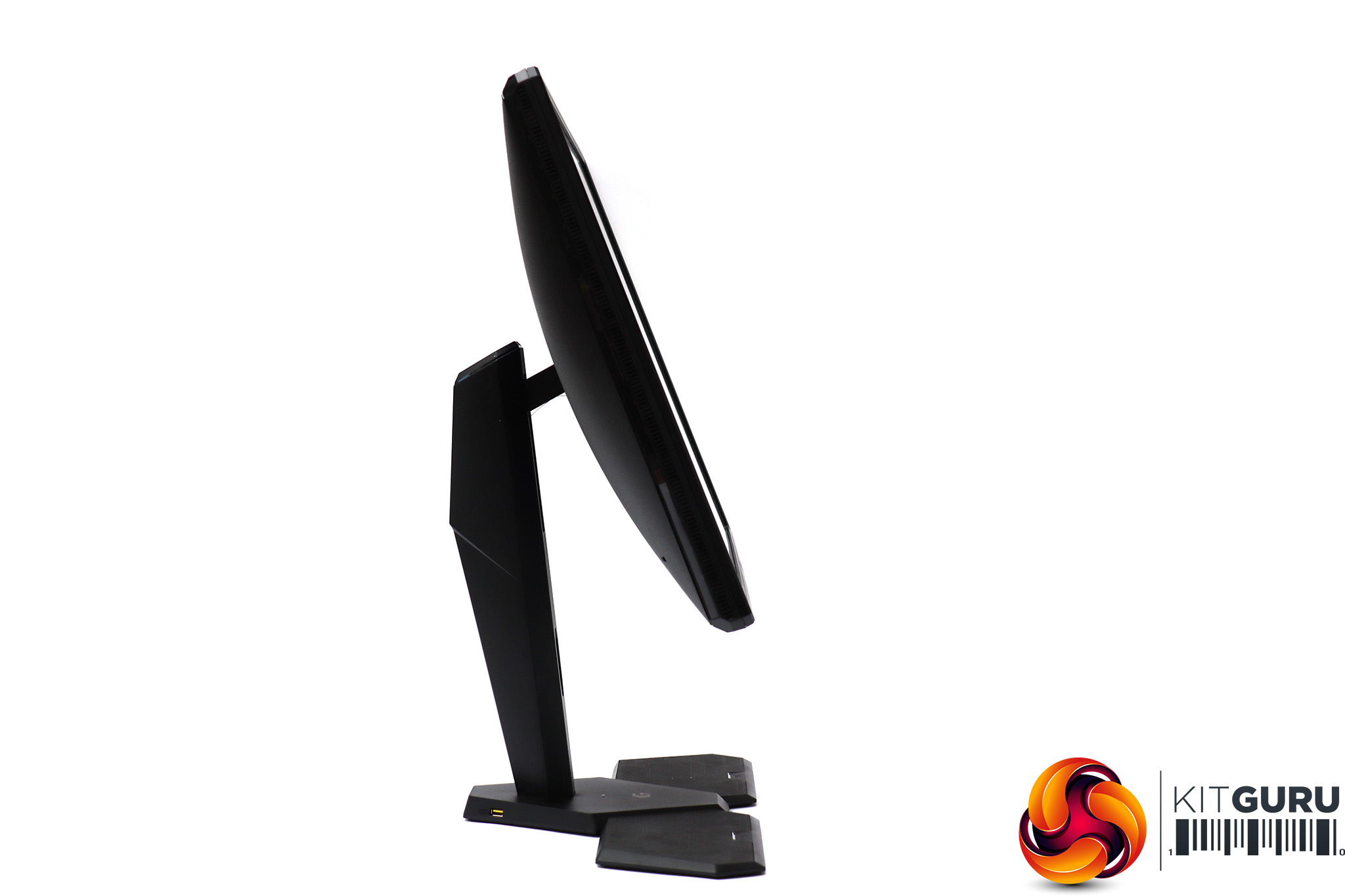
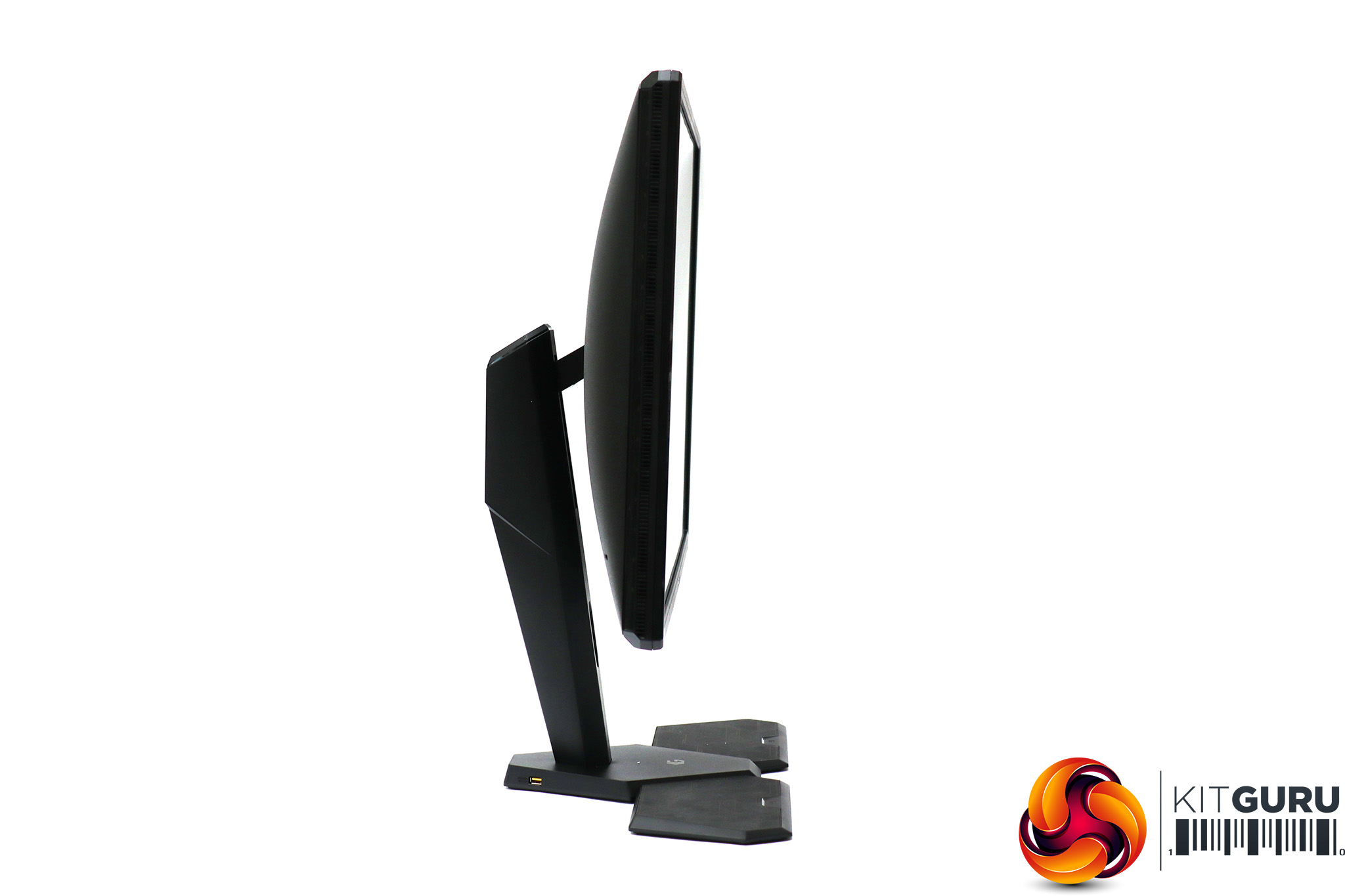
You only get a few adjustments, including raising and lowering by 100mm and tilting 20 degrees backwards or 5 degrees forward. The screen is statically fixed to its base with no swivel available.
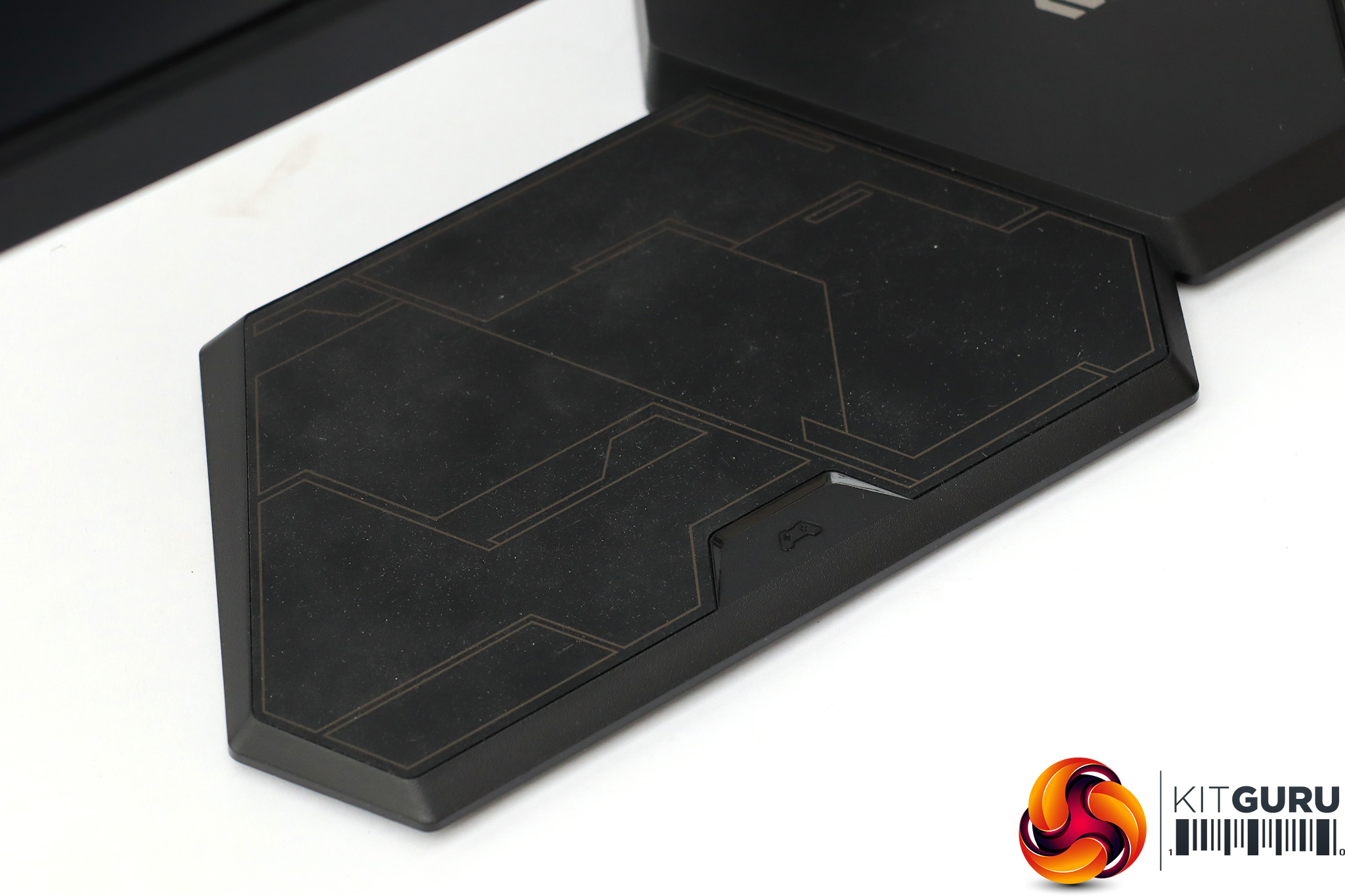
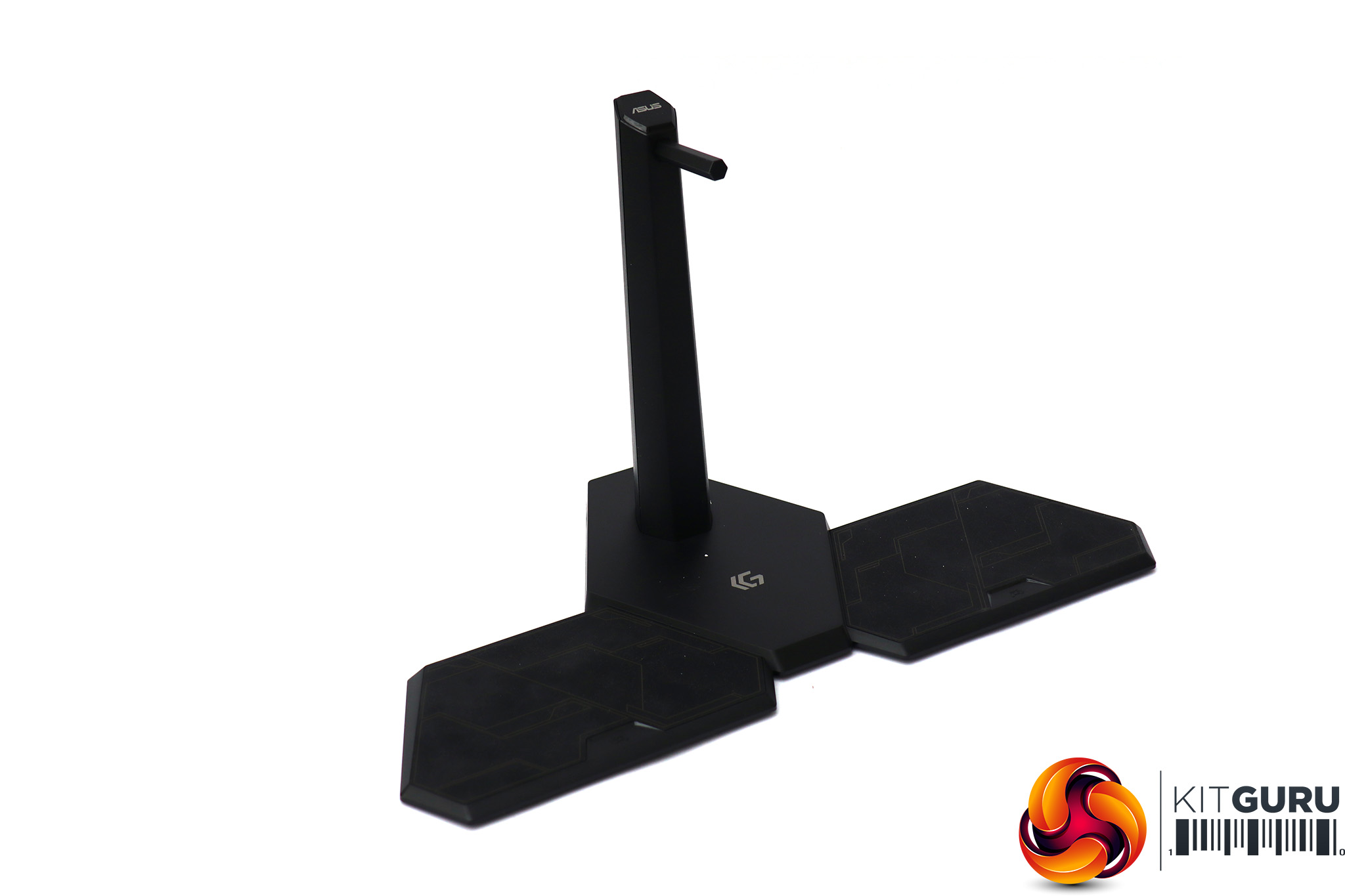
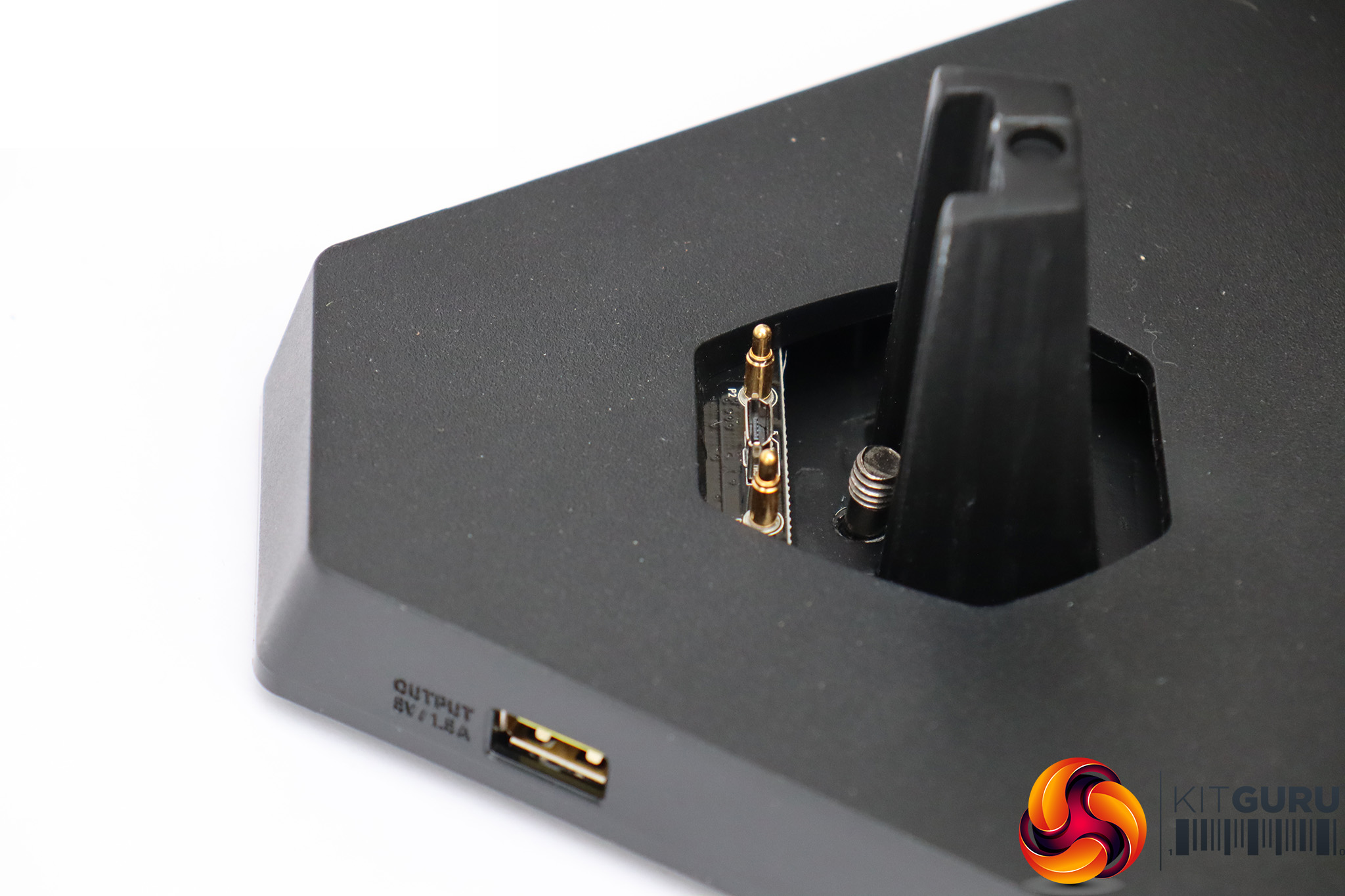
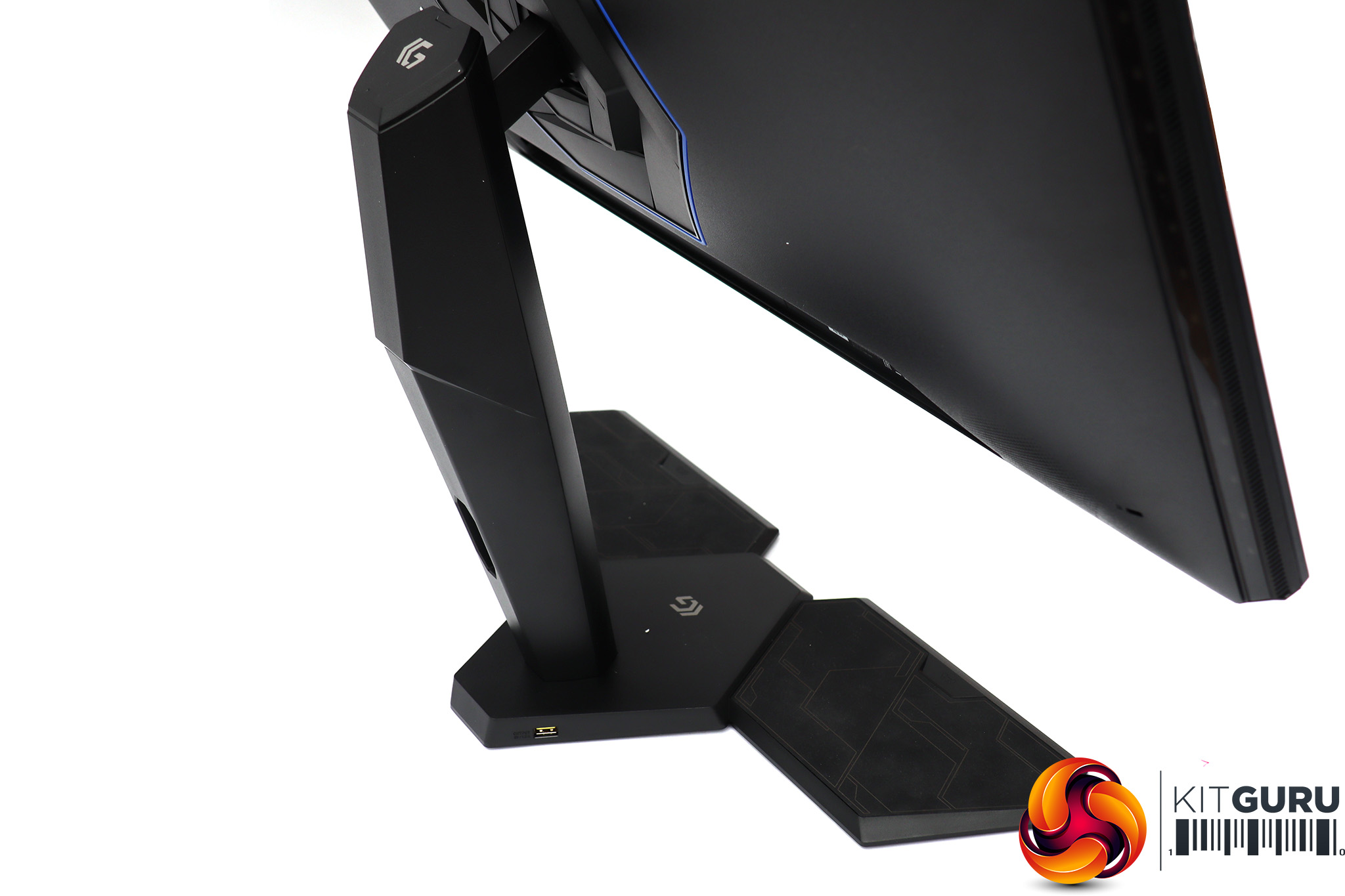
However, the base has a bit more going on than your average monitor stand. The angular surfaces on either side are strangely reminiscent in shape to a console control pad, and if you look closer you will see a symbol of this very item. They're there for you to place your controllers when not in use. Even better, USB charge-only ports are located on either side at the rear. You attach your controllers' cables to these and can conveniently charge them.
The base of the stand has another trick up its sleeve, which comes into play if you wall-mount the panel. Obviously, then you don't need the stand, but you can use the bundled USB Type A to MicroUSB cable to route power from the screen (or another USB source) so you can still use it as a charge station for your controllers. There's also an extra plastic tower that can be attached. This has a bracket on which to hang your headset. Altogether, quite well thought out.
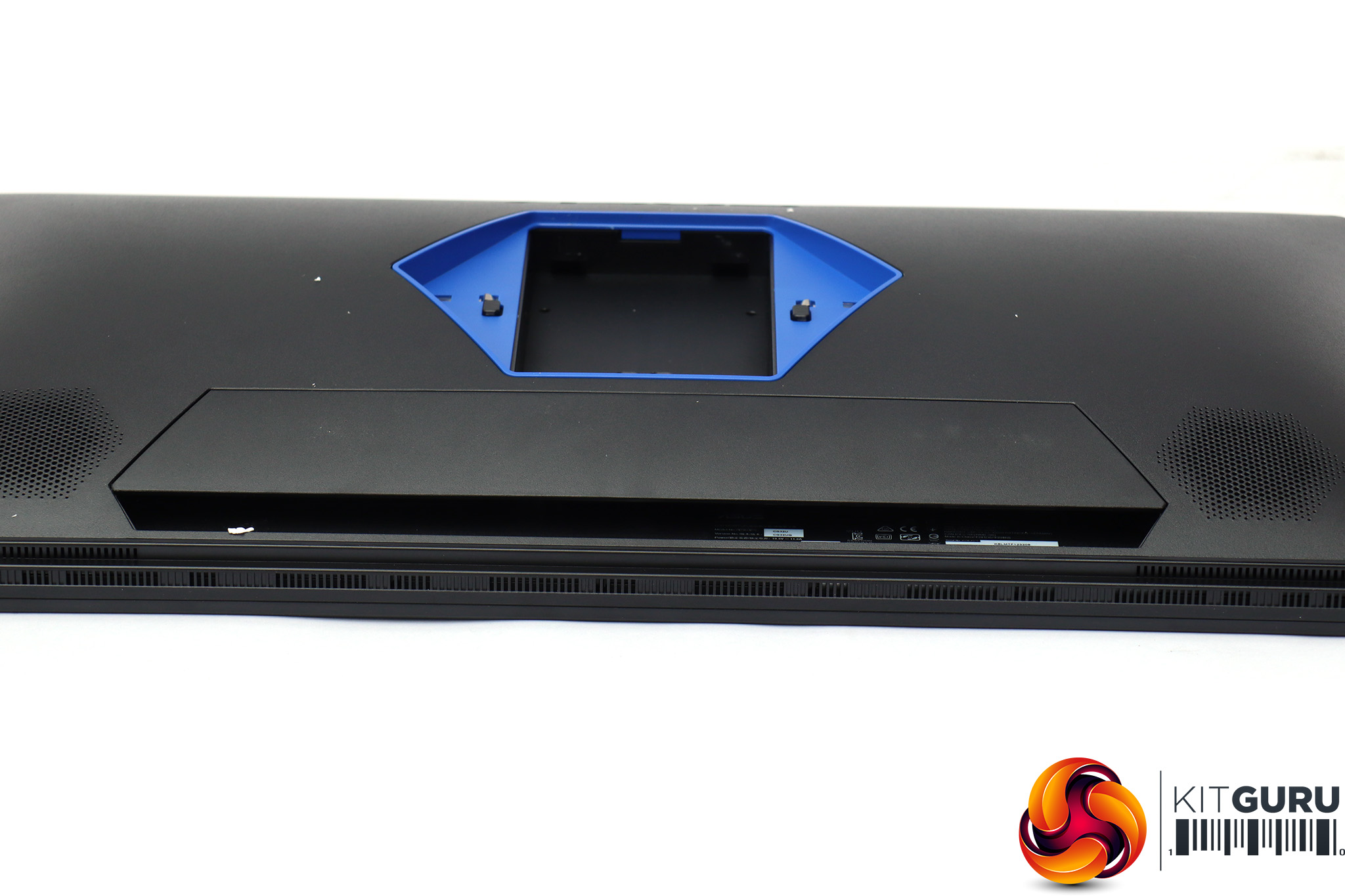
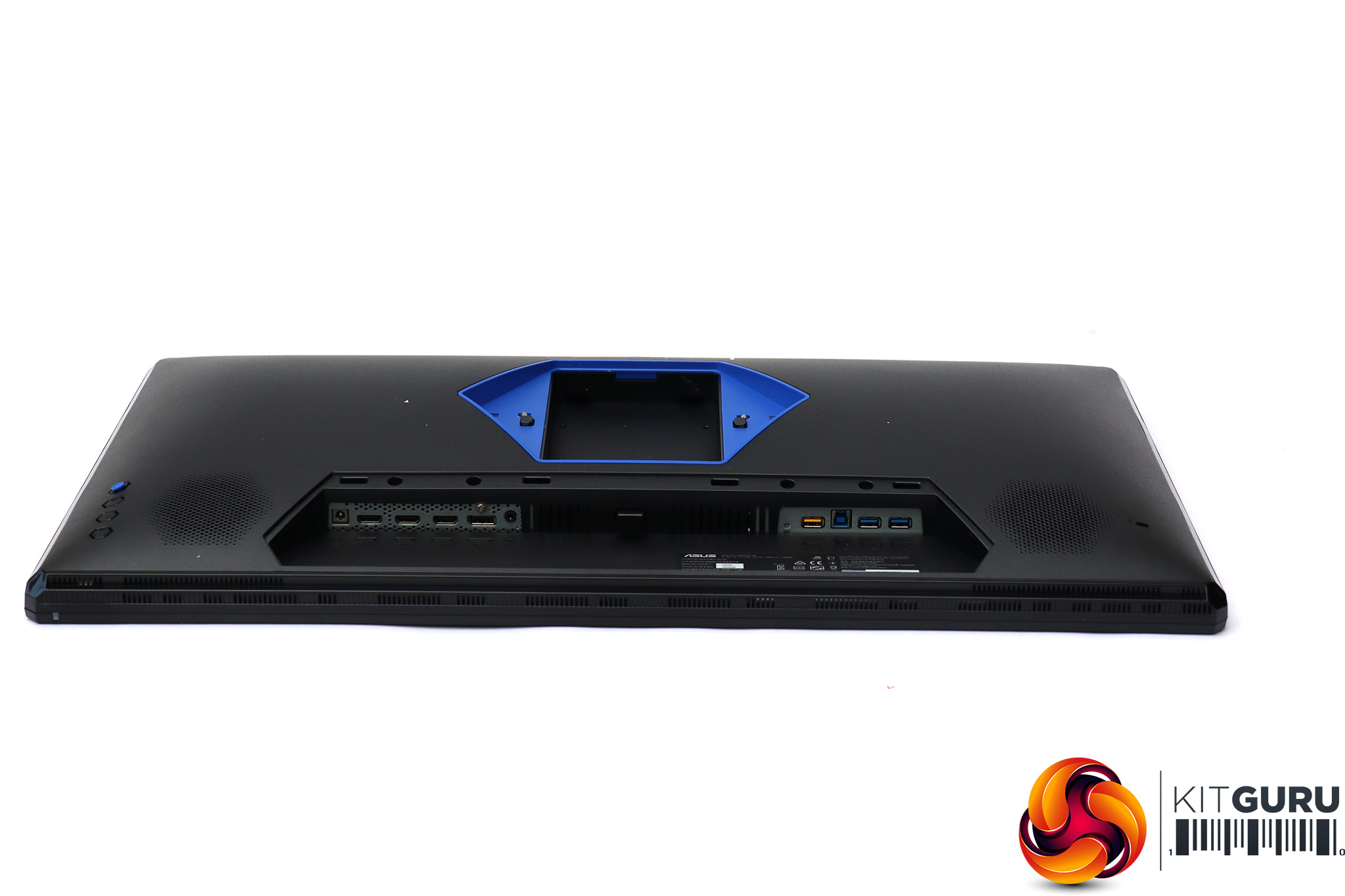
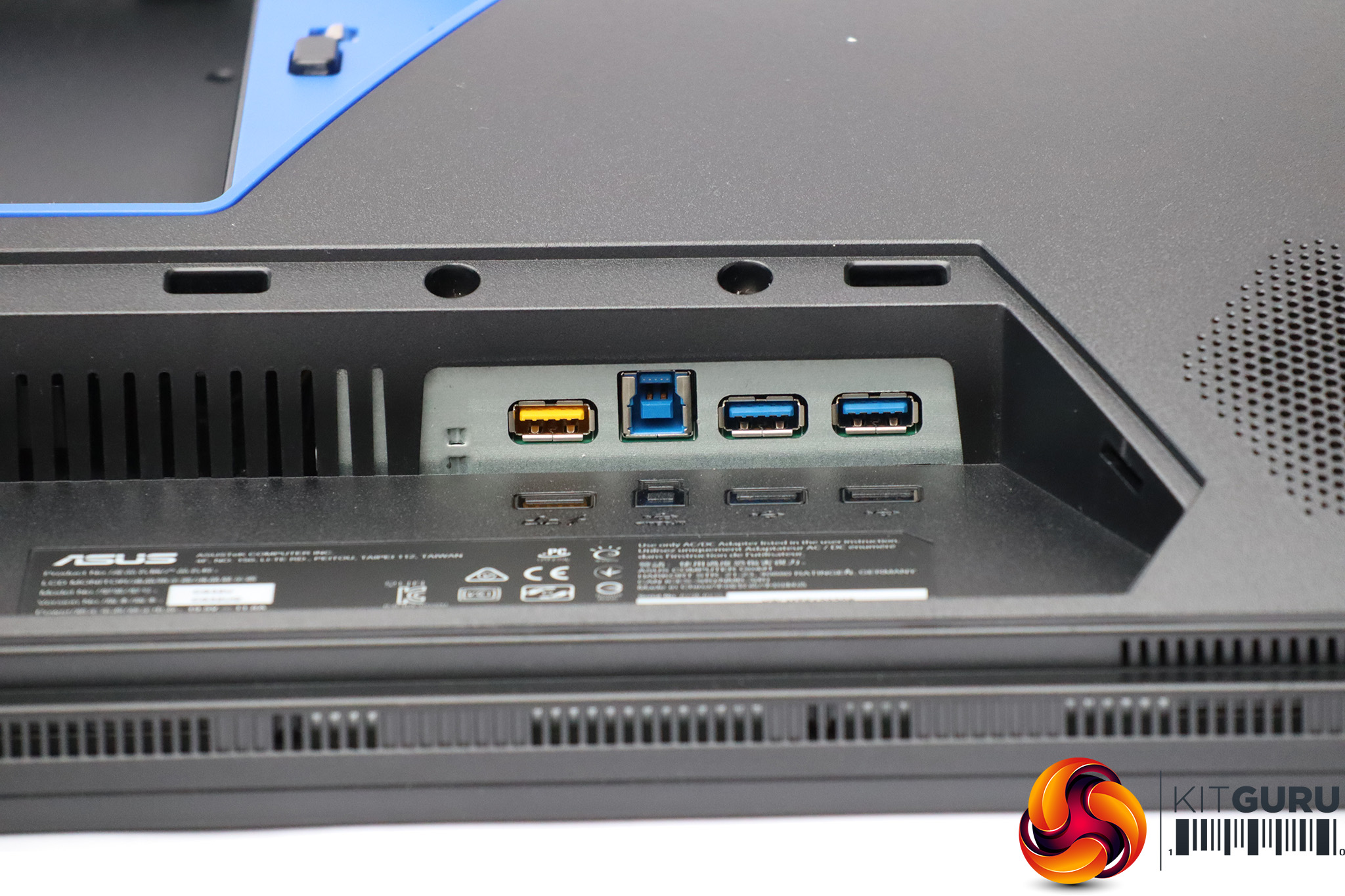
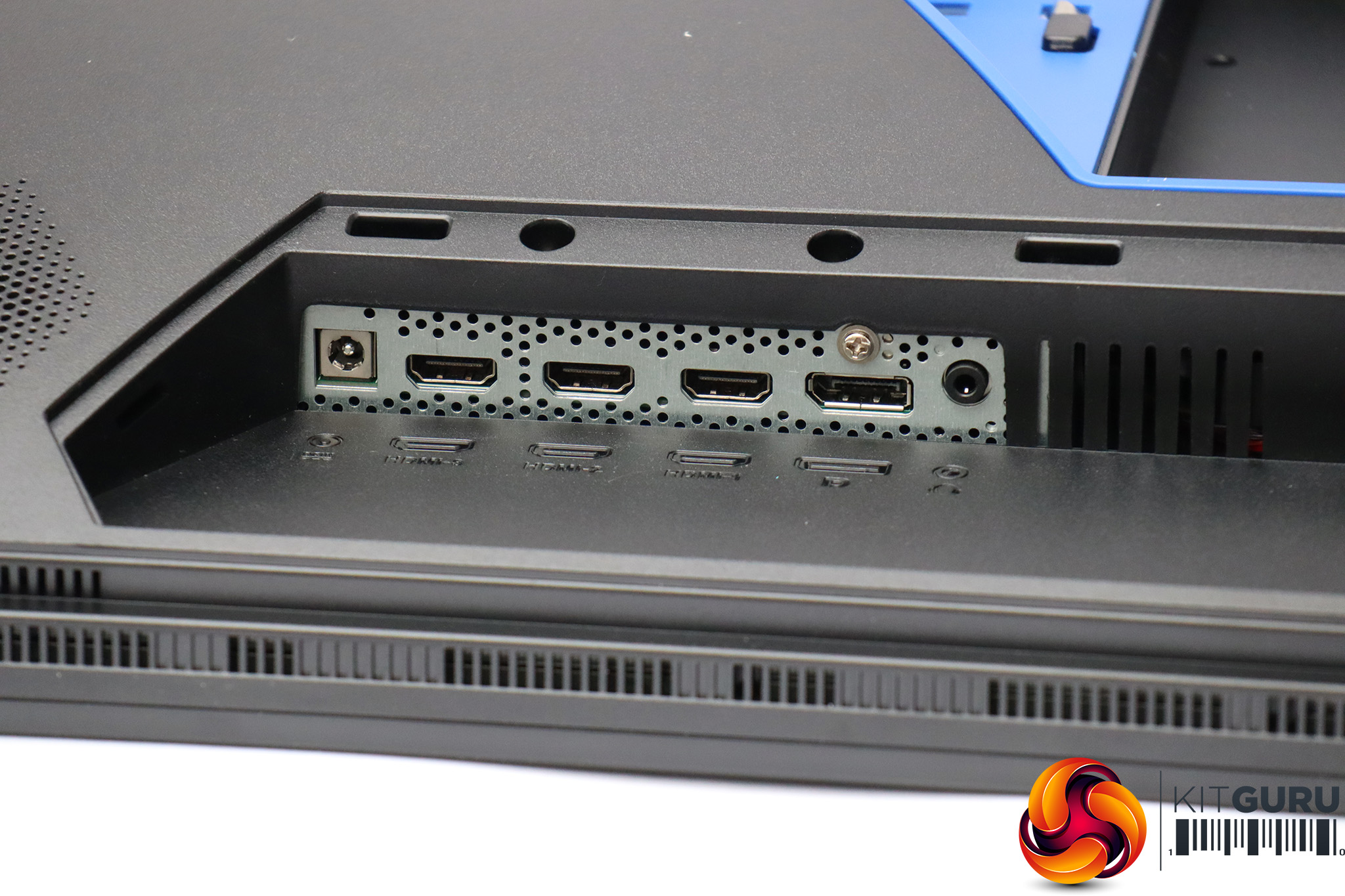
The ports are hidden behind a plastic panel that pops out. On one end is the power input, followed by the three HDMI 2.0 inputs, DisplayPort, and the audio minijack output. On the other side of the stand is the USB hub. There's a Type B upstream input and two USB 3.0 outputs. The yellow USB output is for powering the stand if it's being used separately from the monitor. Otherwise, power contacts in the stand itself relay power to the USB ports in the base.
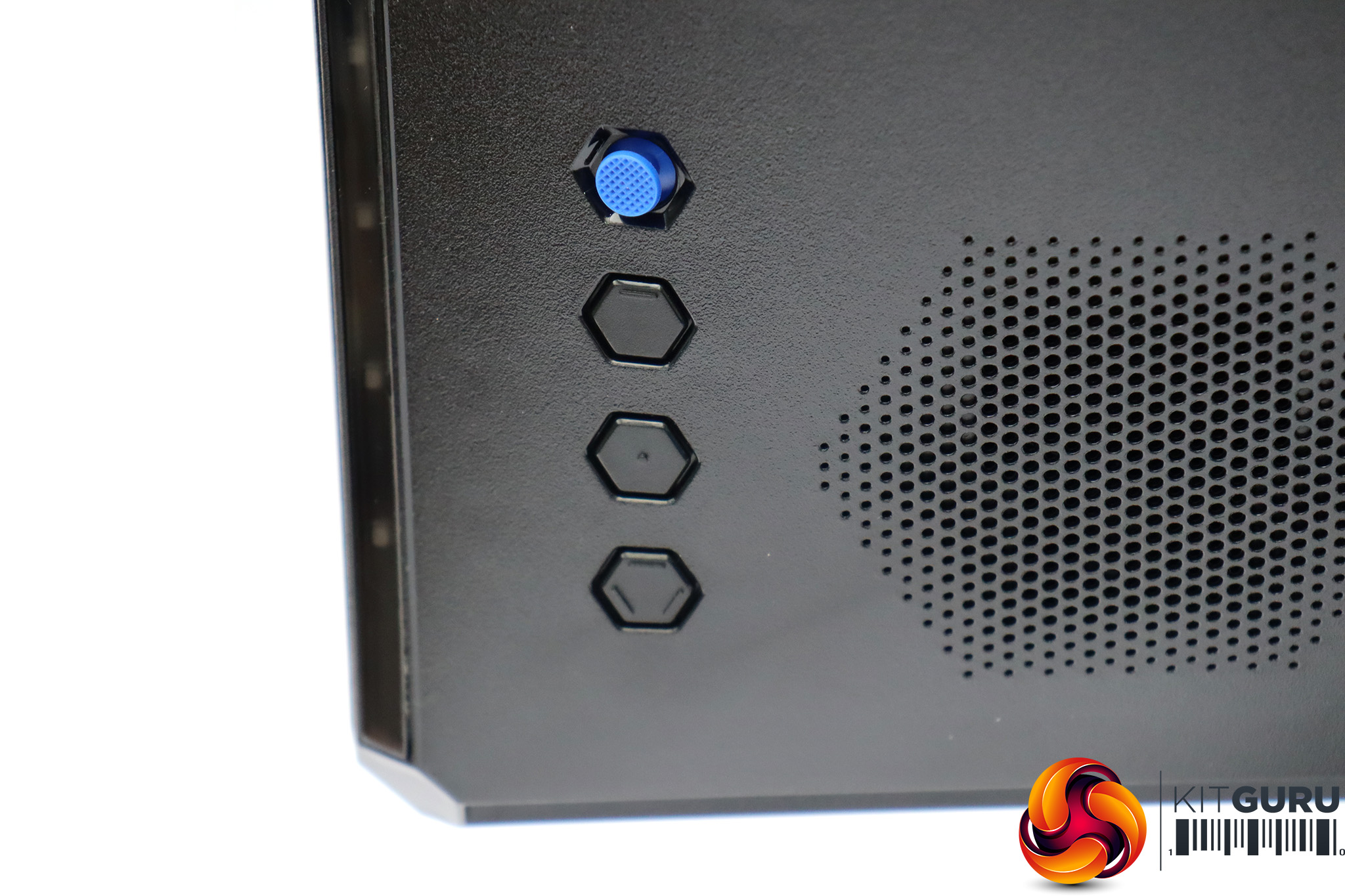
Unless you're using the remote control, a joystick and three hexagonal buttons are used for operating the OSD menu.
The controls are a little unusual in that the bottom button isn't an immediate power on/off control.
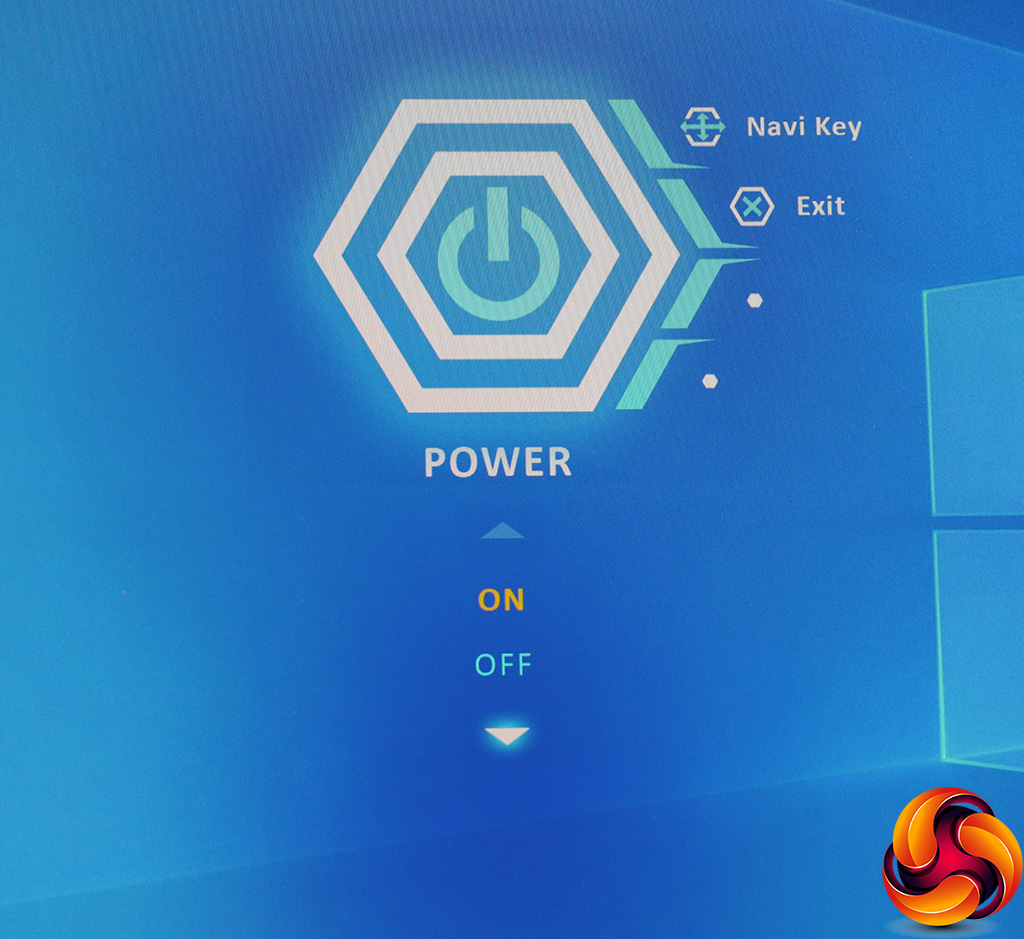
In order to turn off the power, you need to pull the joystick down and press in. This is probably a good thing, as it's easy to accidentally turn off a screen where the lowest button does this without notification.
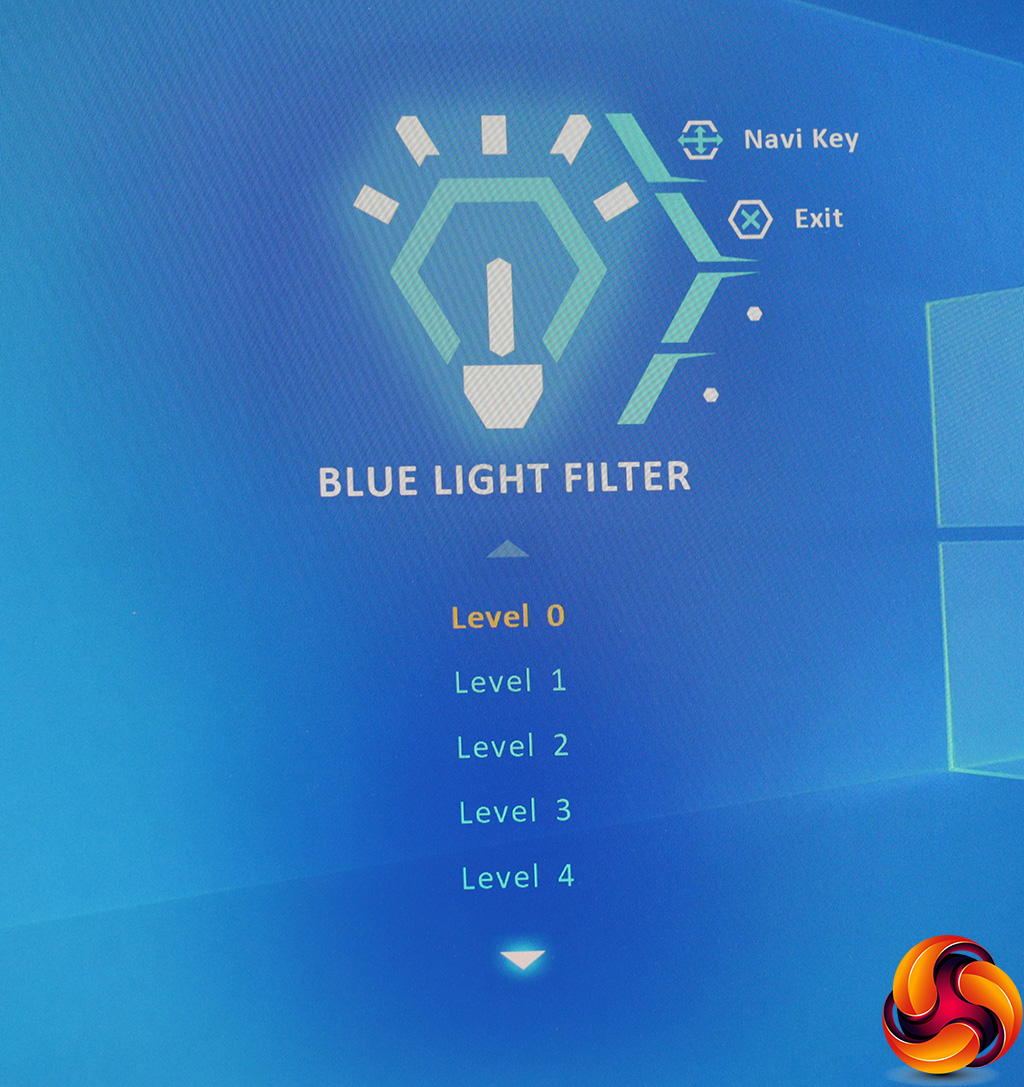
The next button up accesses the Blue Light Filter, which has four levels above zero. This is there to protect your eyes from long durations of usage.
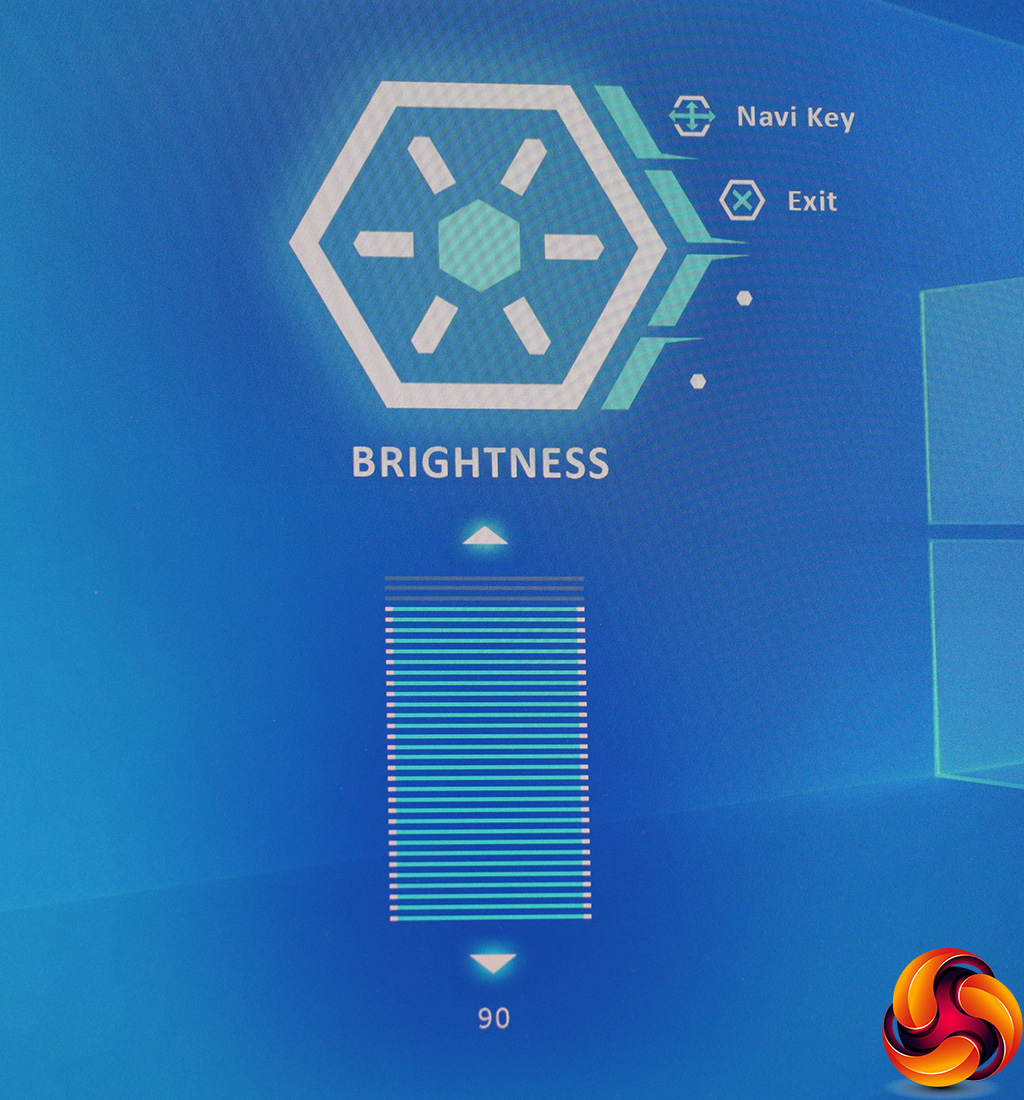
The closest button to the joystick calls up the brightness level control.
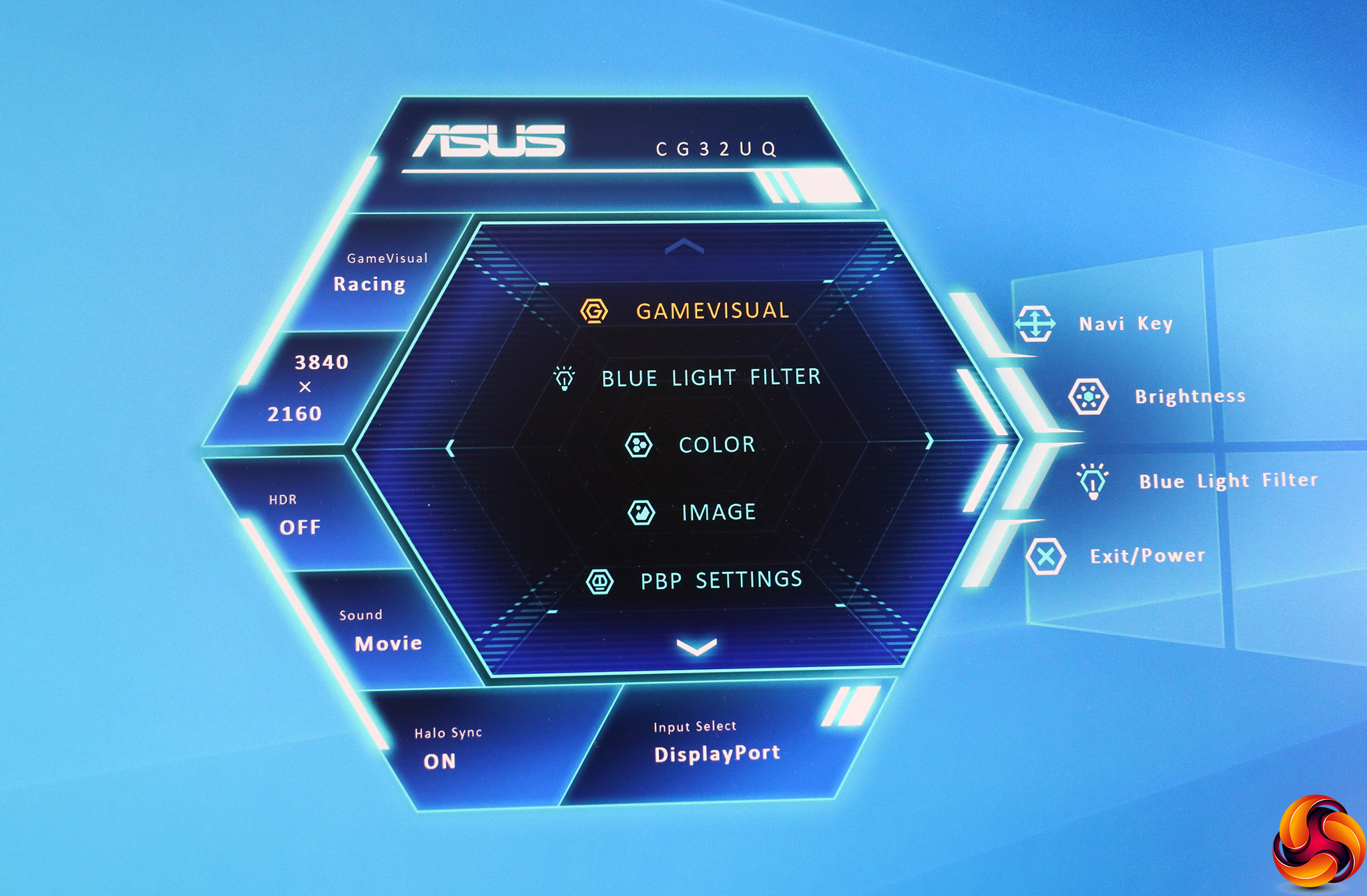
Finally, pushing the joystick in calls up the main menu. Note that pushing the joystick any other direction than in won't do anything unless a menu is already visible, and you need to select each of the items on the main menu to get into its options.
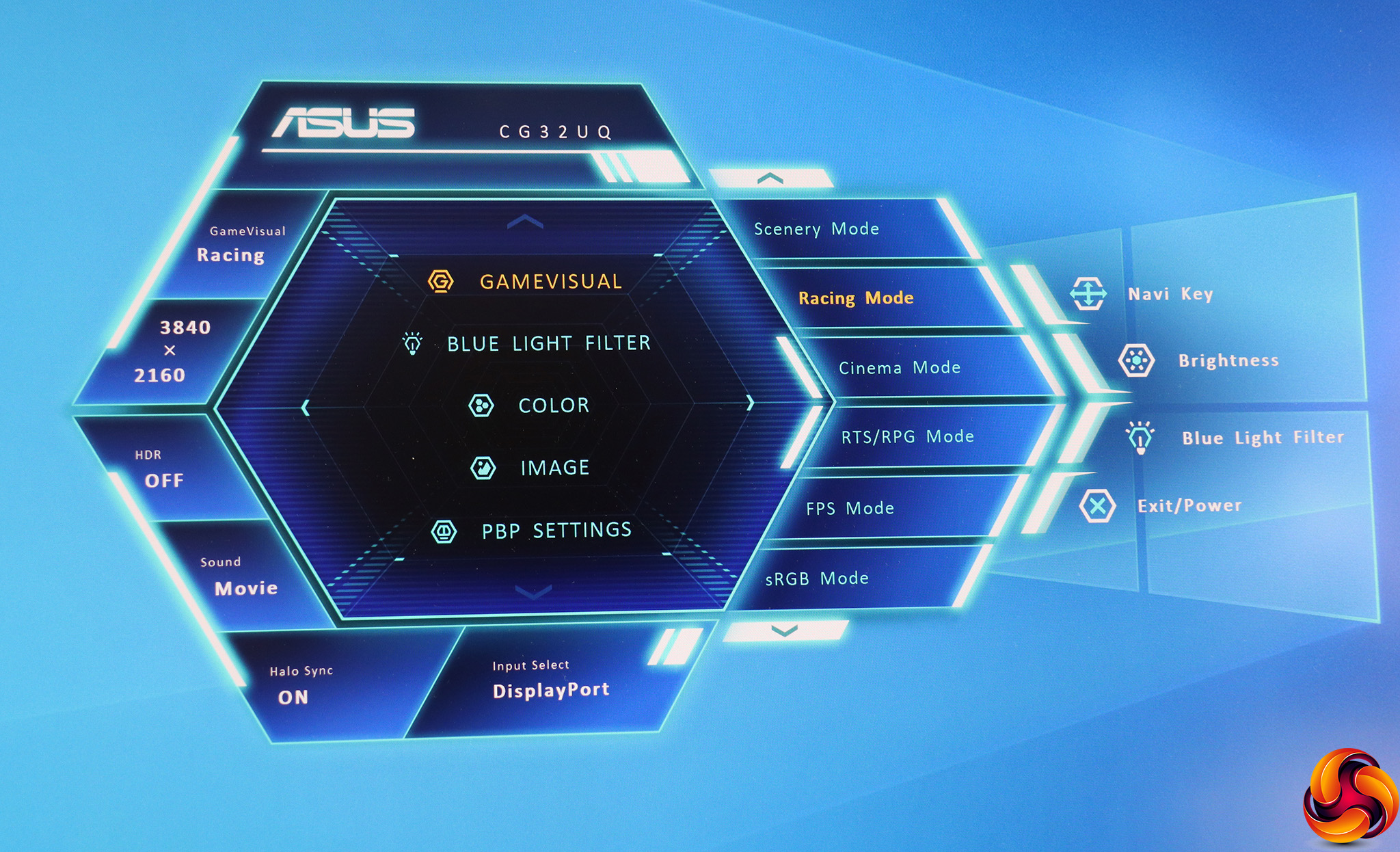
First up on the main menu is the section for choosing a GameVisual preset. The options include Scenery, Racing, Cinema, RTS/RPG, FPS, sRGB, MOBA and completely configurable User mode. There's no standard or default option. The default setting is Racing.
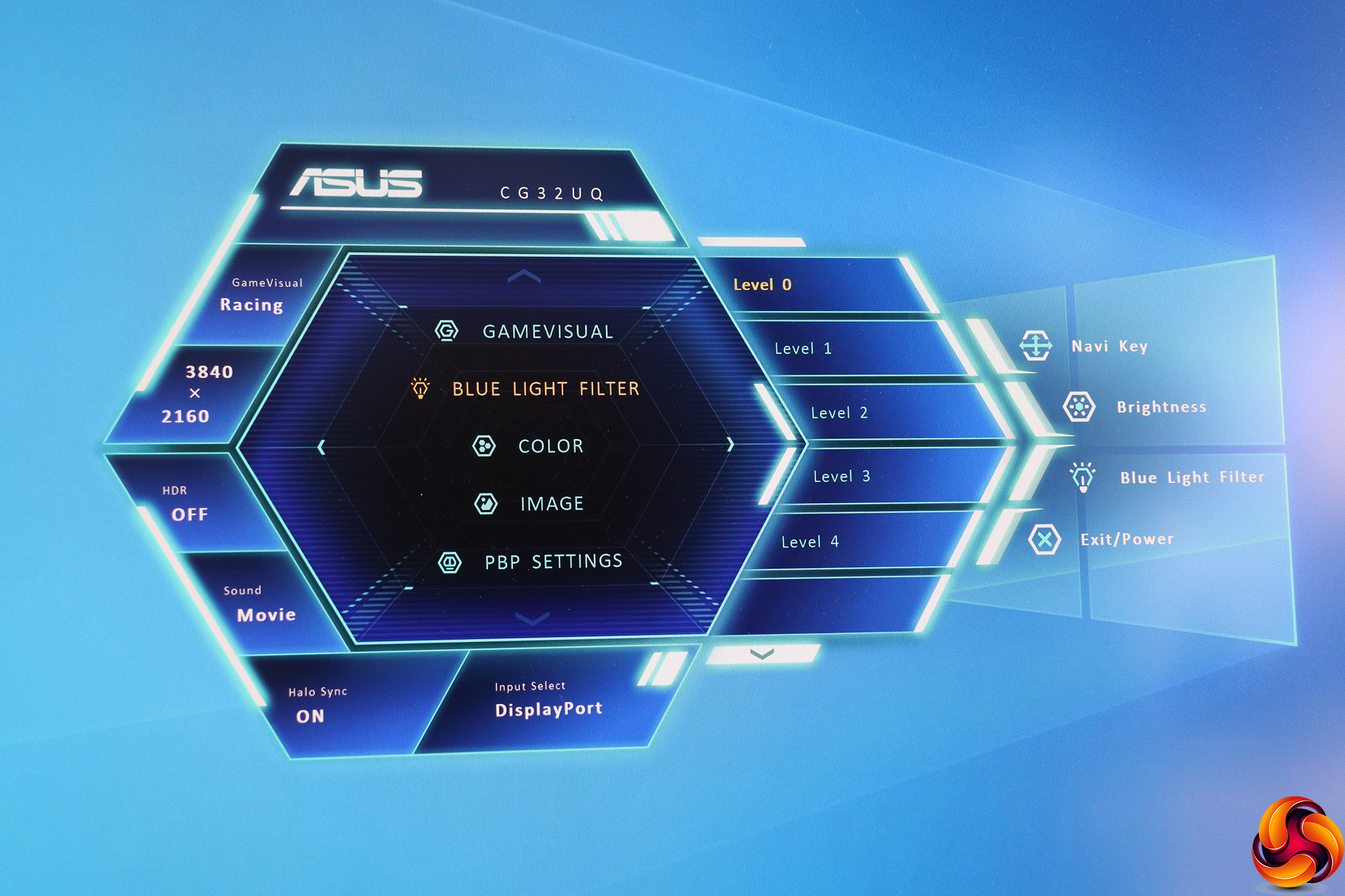
Next down is another opportunity to enable the Blue Light Filter.
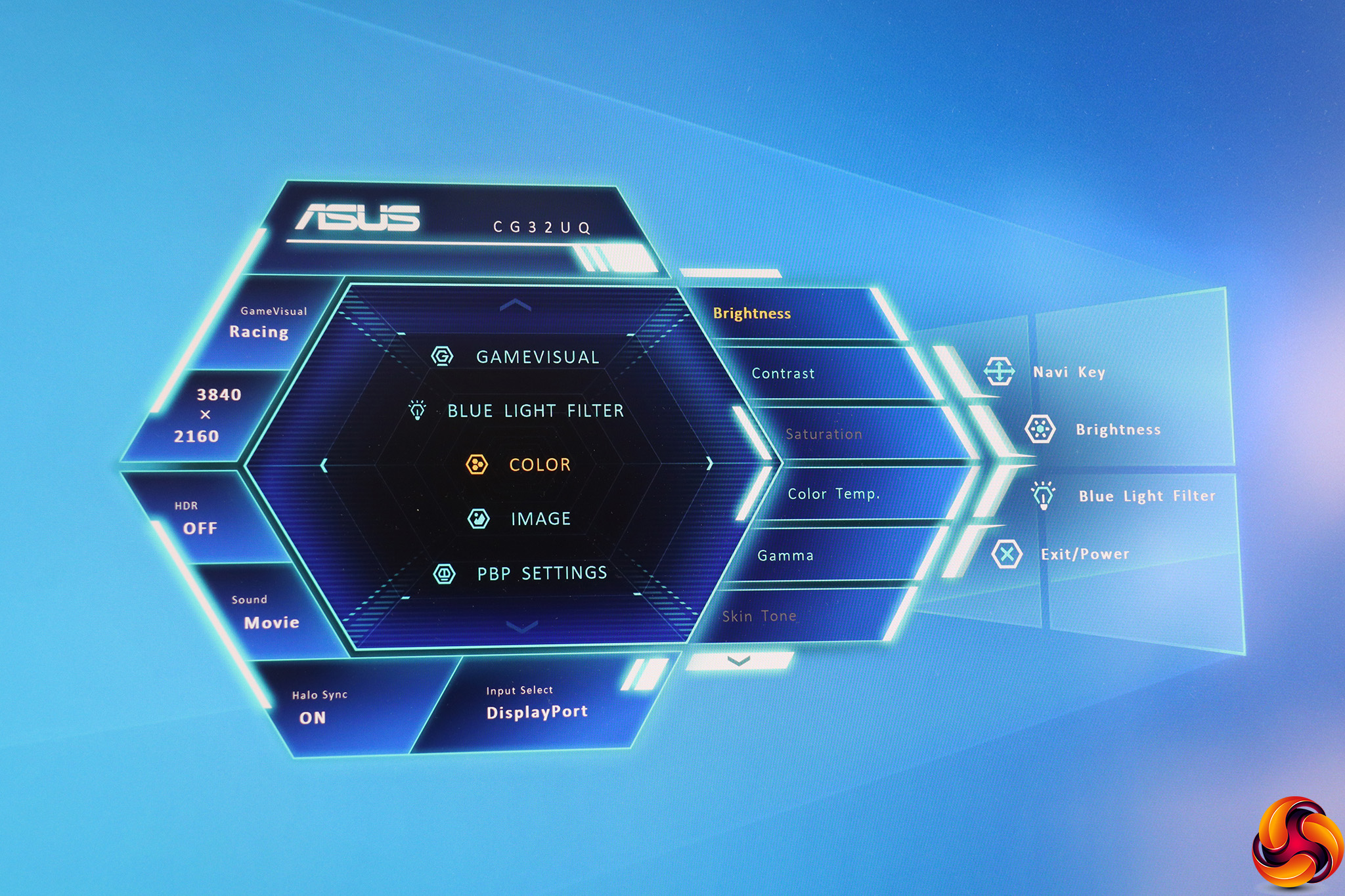
The Color submenu offers the ability to change Brightness and Contrast, although Saturation and Skin Tone are only available with some presets. Color Temperature options include Cool, Normal, Warm, and User-configurable red, green and blue values. Gamma options consist of 1.8, 2.2 and 2.5.
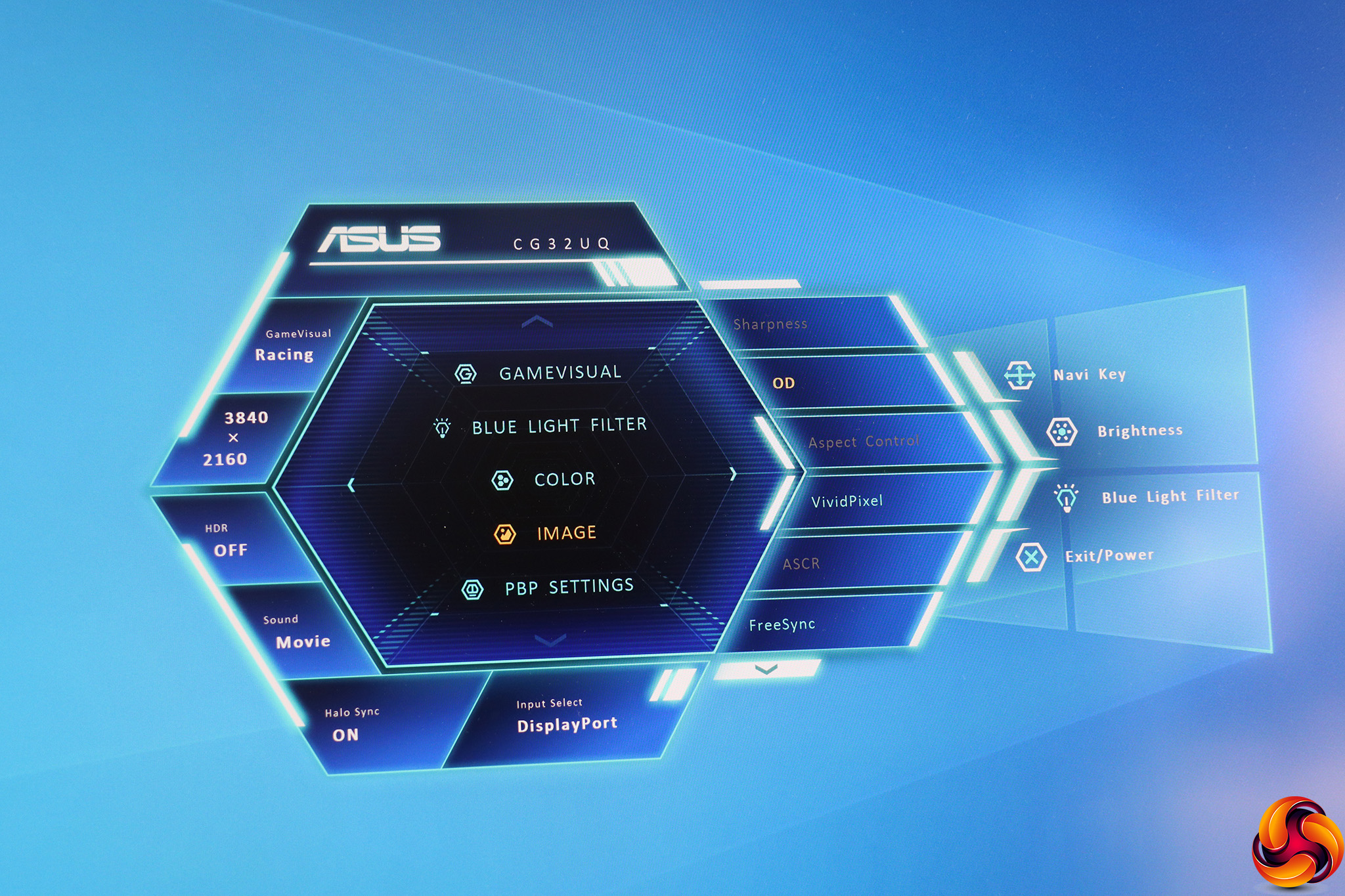
Under Image you can turn on OD pixel overdrive, which improves response time at the expense of quality and has four levels. There's also a VividPixel option which improves colour and ranges from 0 to 100 but only in 25 per cent increments. You can toggle FreeSync adaptive sync. The Sharpness, Aspect Control and ASCR smart contrast options are only available with certain input types and presets.
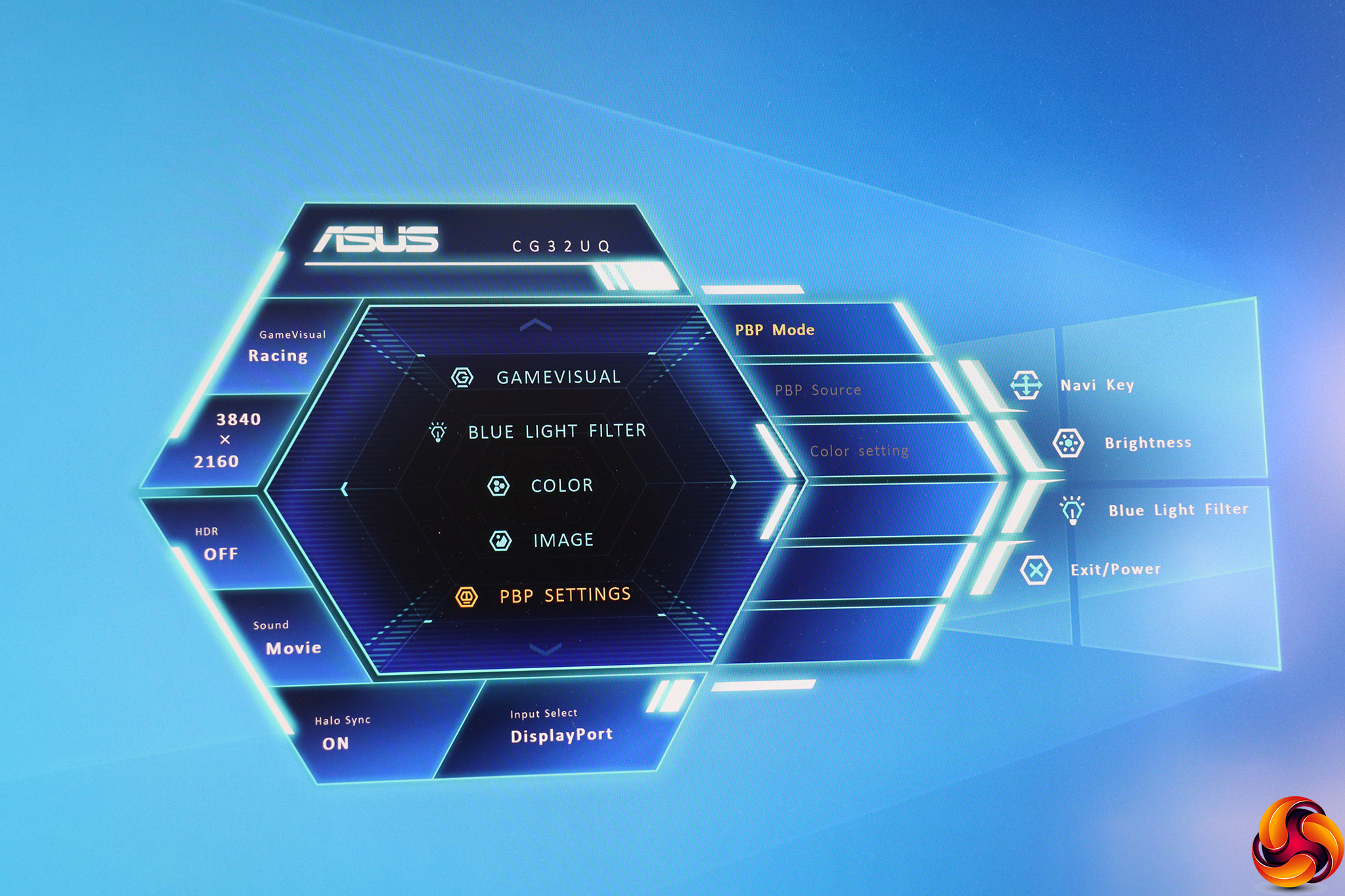
With four different video inputs available and a huge 4K screen, it makes complete sense to have picture-by-picture available, although picture-in-picture might have been handy too, so you could (for example) watch live TV while playing a game.
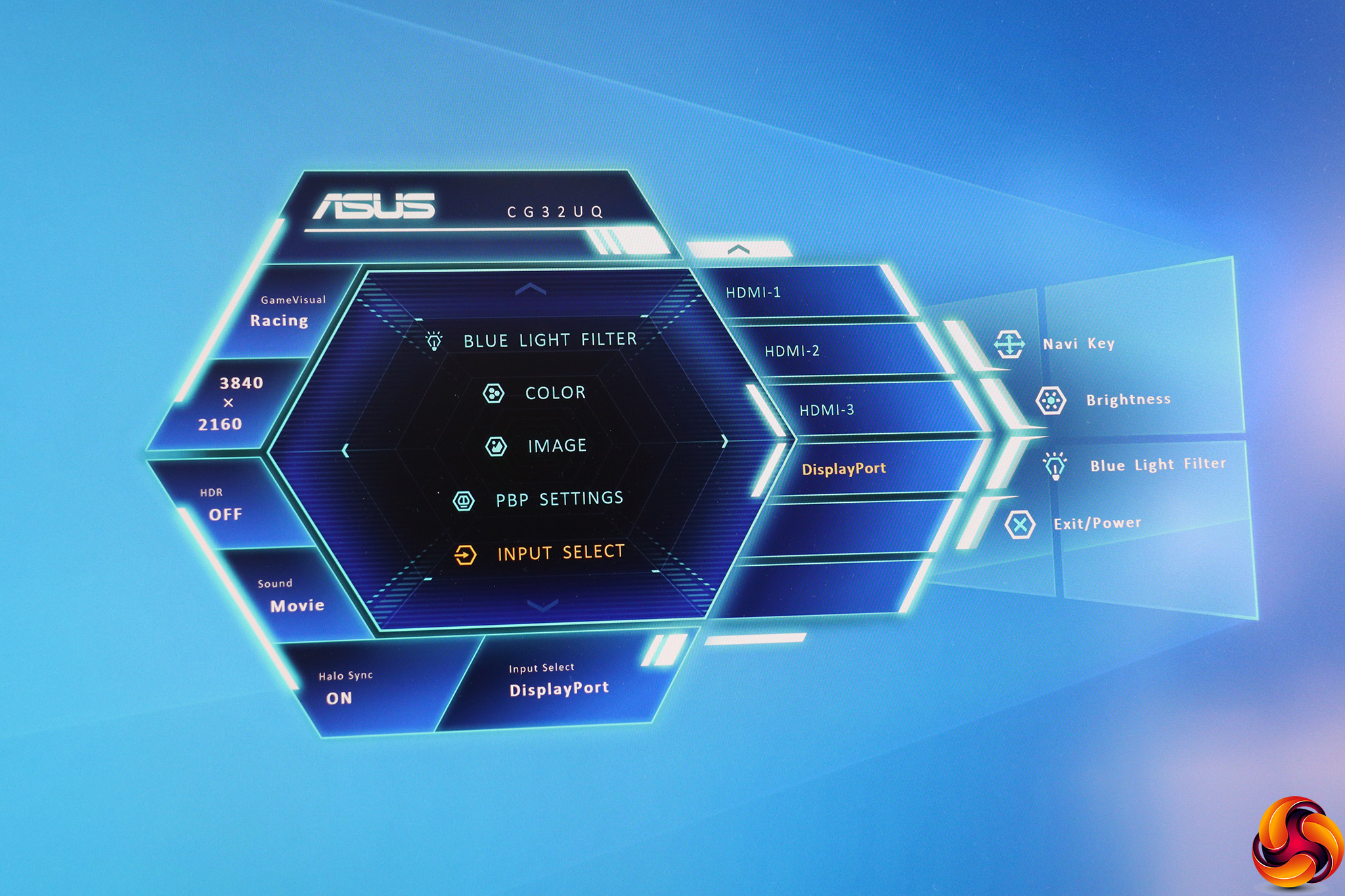
You can manually select one of the video connections via Input Select.
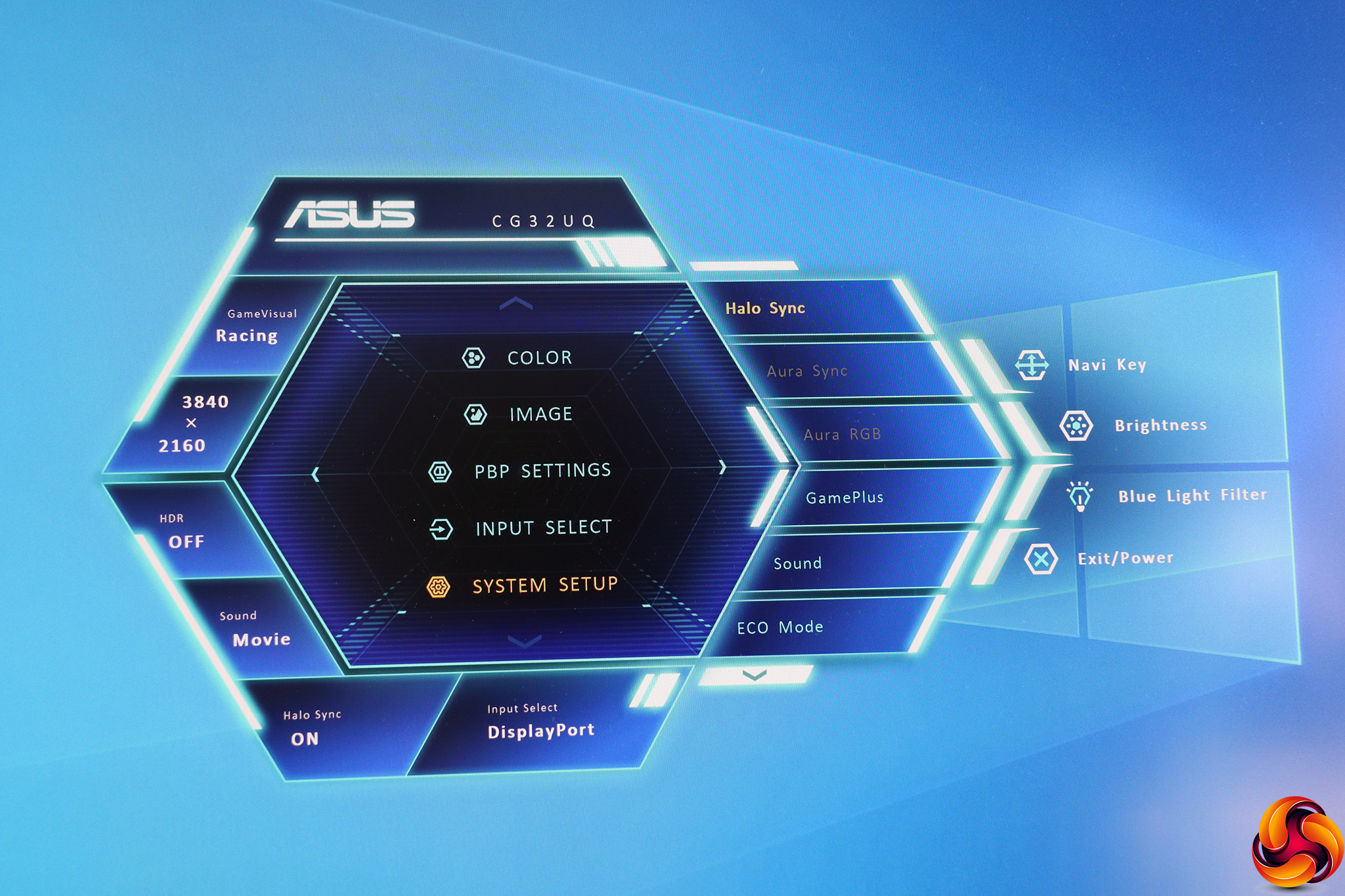
Sundry options are available under System Setup. Halo Sync is Asus's ambient lighting system, operating via the LEDs on the back of the bezel. Aura Sync and Aura RGB also provide options for configuring lighting. GamePlus provides helpful widgets like a hardware crosshair, timer or FPS counter. It also includes a facility to place a grid onscreen to help with aligning multiple displays.
The Sound option includes volume control and audio muting. You can also follow AudioWizard to set audio according to game type or other kind of usage, such as Movie. There's a power-saving ECO mode here too.
However, System Setup includes a lot of options, some of which might have been better in their own sections. The GamePlus features seem particularly hidden here. The OSD configuration options are buried in this section too, as well as the reset facility.
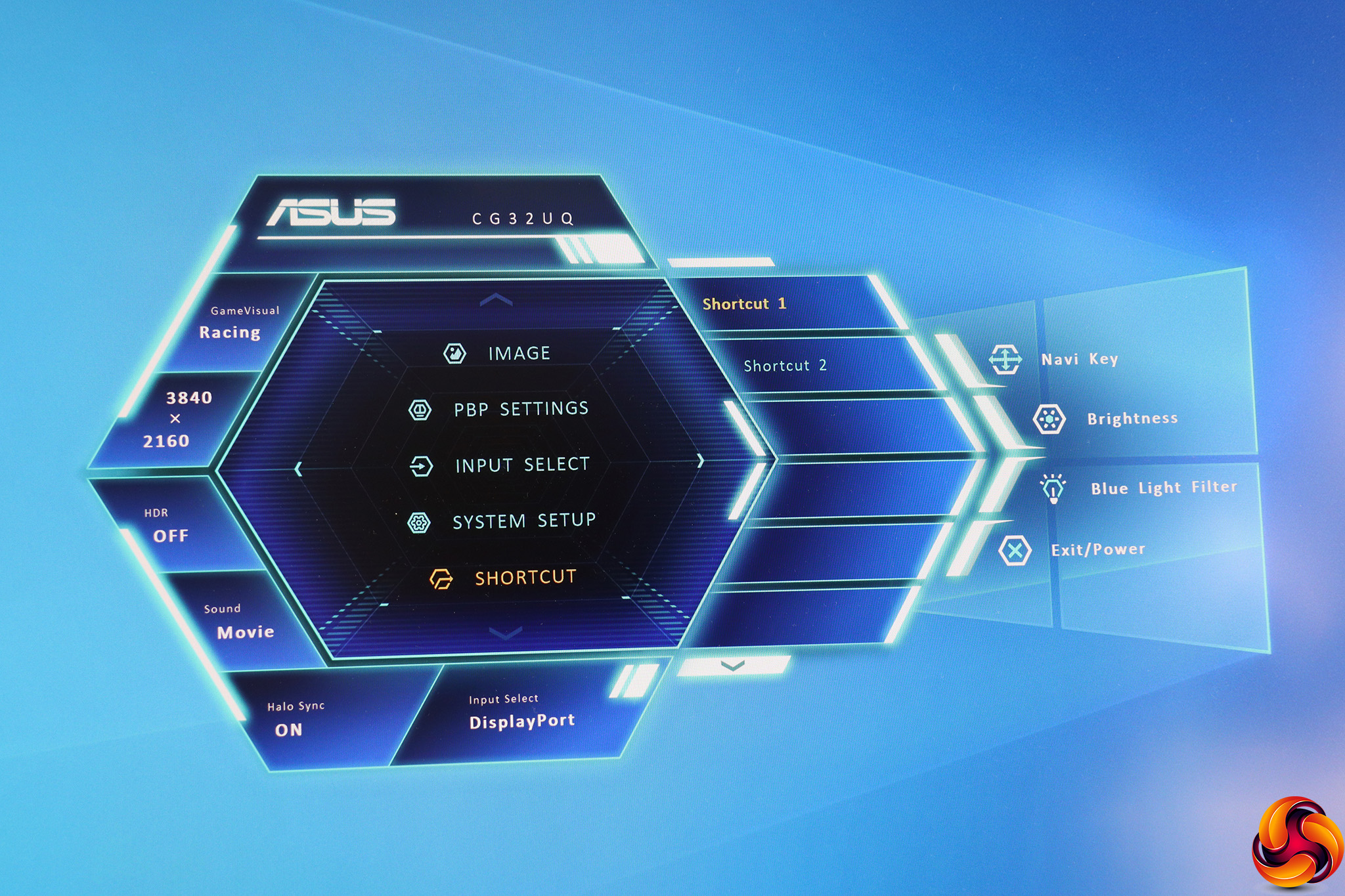
Luckily, you can use the Shortcut section to change the function of the two buttons between bottom one and the joystick, so you could put the GamePlus options here instead.
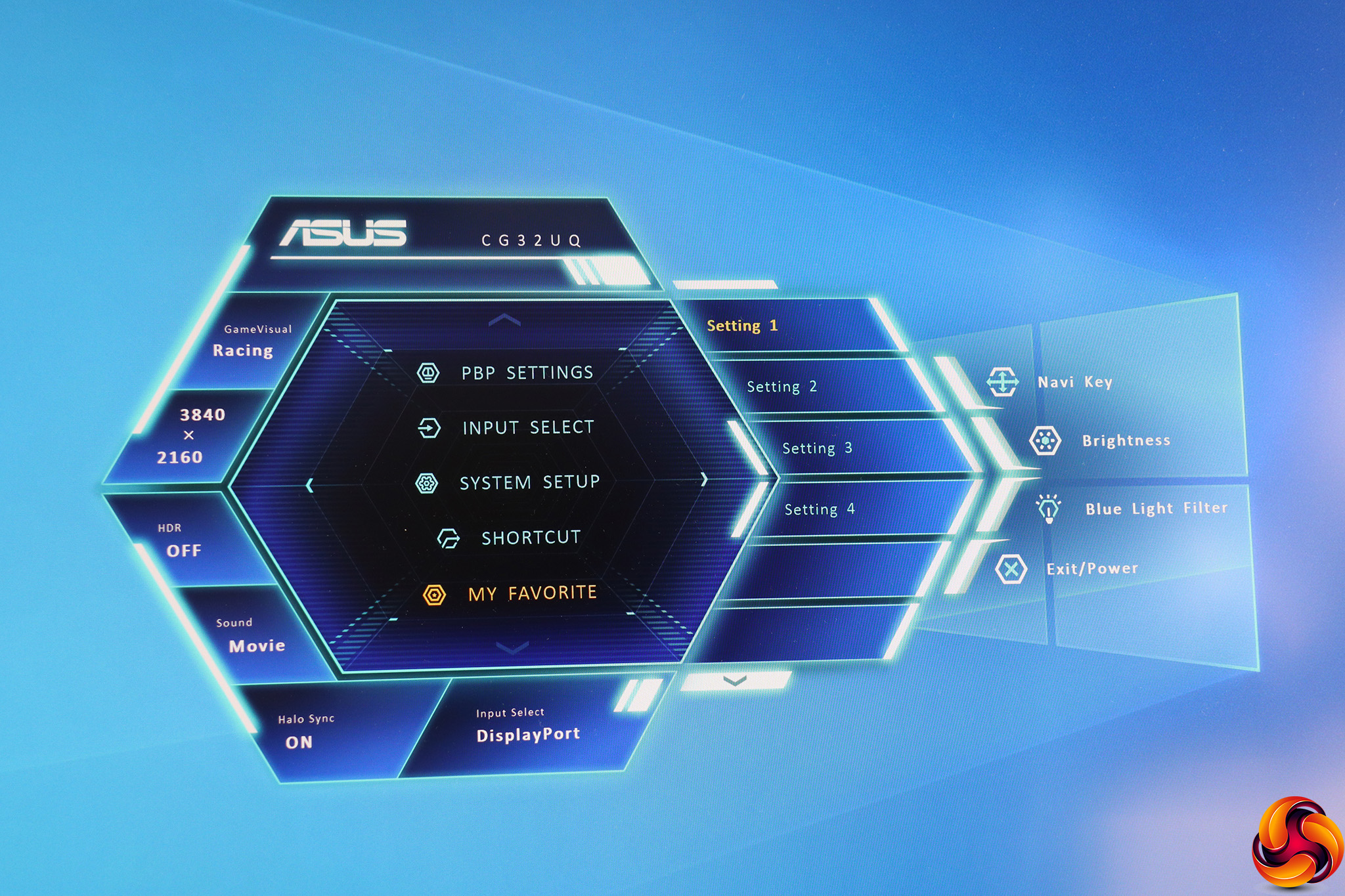
You can create up to four different groups of settings that you can save and reload via My Favorite.
Overall, the OSD looks great, and is easy enough to get around. There's a decent range of configuration for a gaming screen. We question some of the menu organisation, and there are too many functions buried within System Setup – some of these could have done with their own section. The remote provides access to some of these functions, like changing the brightness, volume and video input, but won't let you delve into the menu deeply.
Our main test involves using a DataColor SpyderX Pro Colorimeter to assess a display’s image quality. The device sits on top of the screen panel surface while the software generates colour tones and patterns, which it compares against predetermined values to work out how accurate the screen is.
The results show –
- A monitor’s maximum brightness in candelas or cd/m2 at various levels set in the OSD.
- A monitor’s contrast ratio at various brightness levels in the OSD.
- The brightness deviation across the panel.
- The black and white points.
- The colour accuracy, expressed as a Delta E ratio, with a result under 3 being fine for normal use, and under 2 being great for colour-accurate design work.
- The exact gamma levels, with a comparison against preset settings in the OSD.
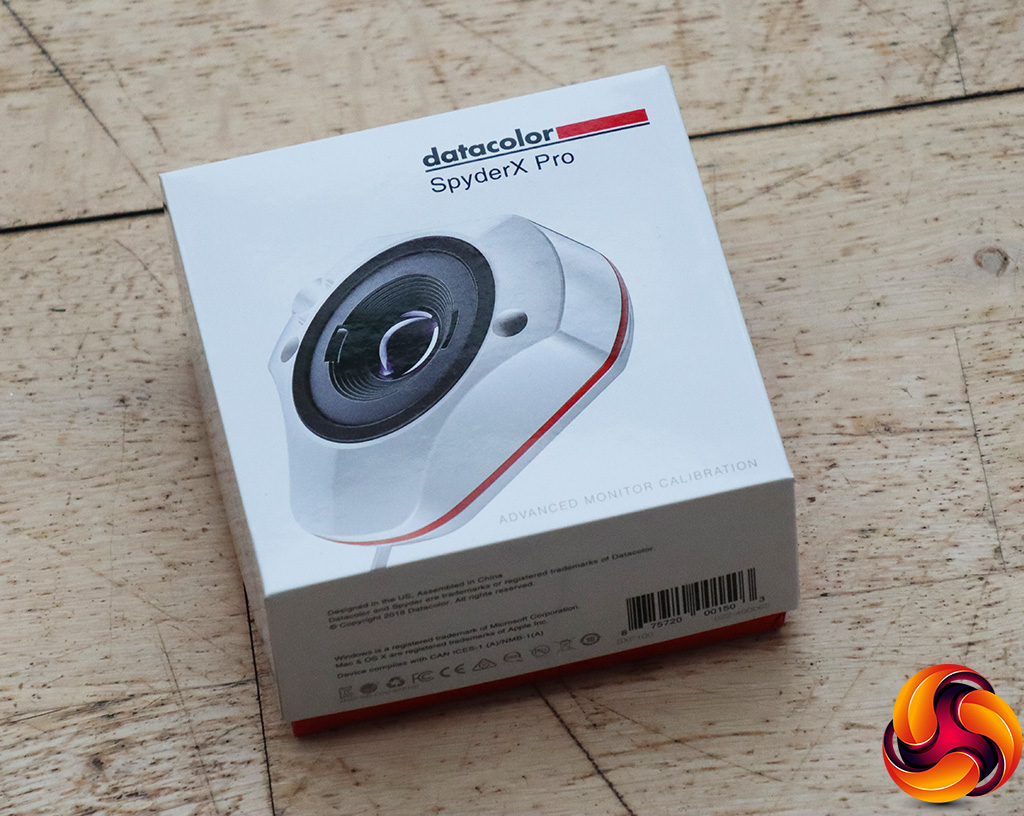
We first run this test with the display in its out-of-the-box state, with all settings on default. We then calibrate the screen using the SpyderX software and run the test again.
We always test the display subjectively on the Windows desktop, using it for general tasks such as browsing and word processing, and with games as well, even if the display is not intended solely for that purpose.
We pay careful attention to any artefacts, ghosting or motion blur, and enable any gaming-specific features, such as adaptive-sync settings like G-Sync or FreeSync, using a compatible graphics card in our test PC.
We performed the quality tests on the Asus CG32UQ at its native 3,840 x 2,160 resolution in the default mode, after resetting the OSD, which sets the refresh to 60Hz. Our test system was equipped with an AMD Radeon Vega Frontier Edition graphics card, which supports FreeSync.
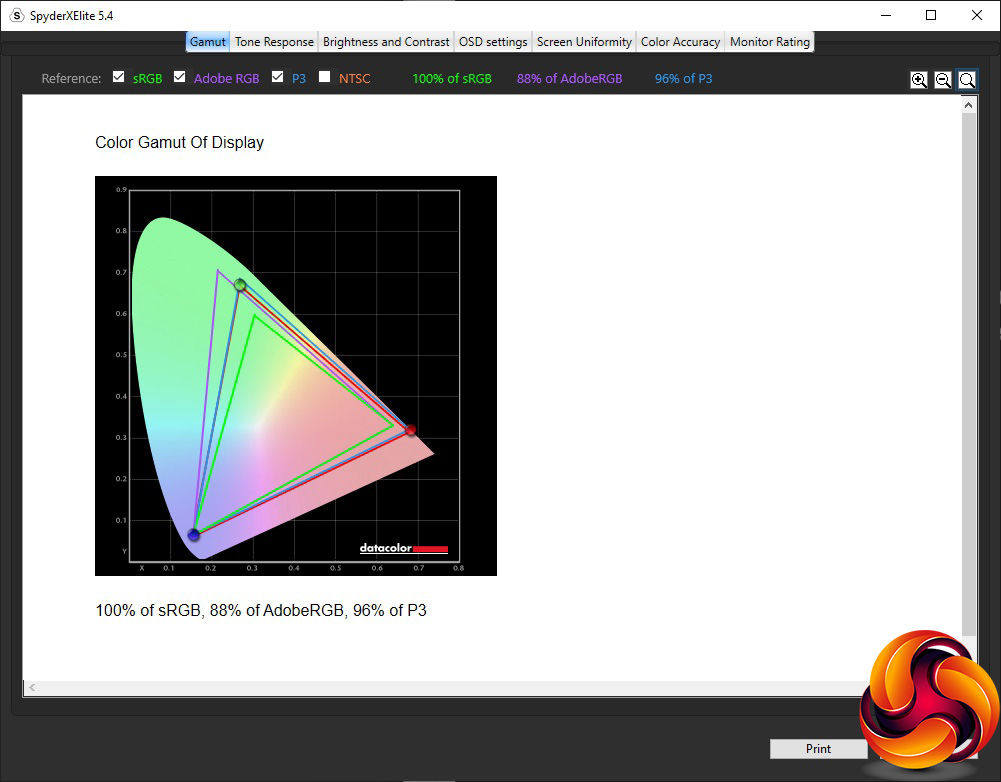
The CG32UQ goes slightly beyond specification with gamut, registering 100 per cent sRGB and a superb 96 per cent DCI-P3, with a very good 88 per cent of AdobeRGB too.

Brightness uniformity is somewhat suspect, with high deviations down the left-hand side and bottom middle, although other areas are less concerning.
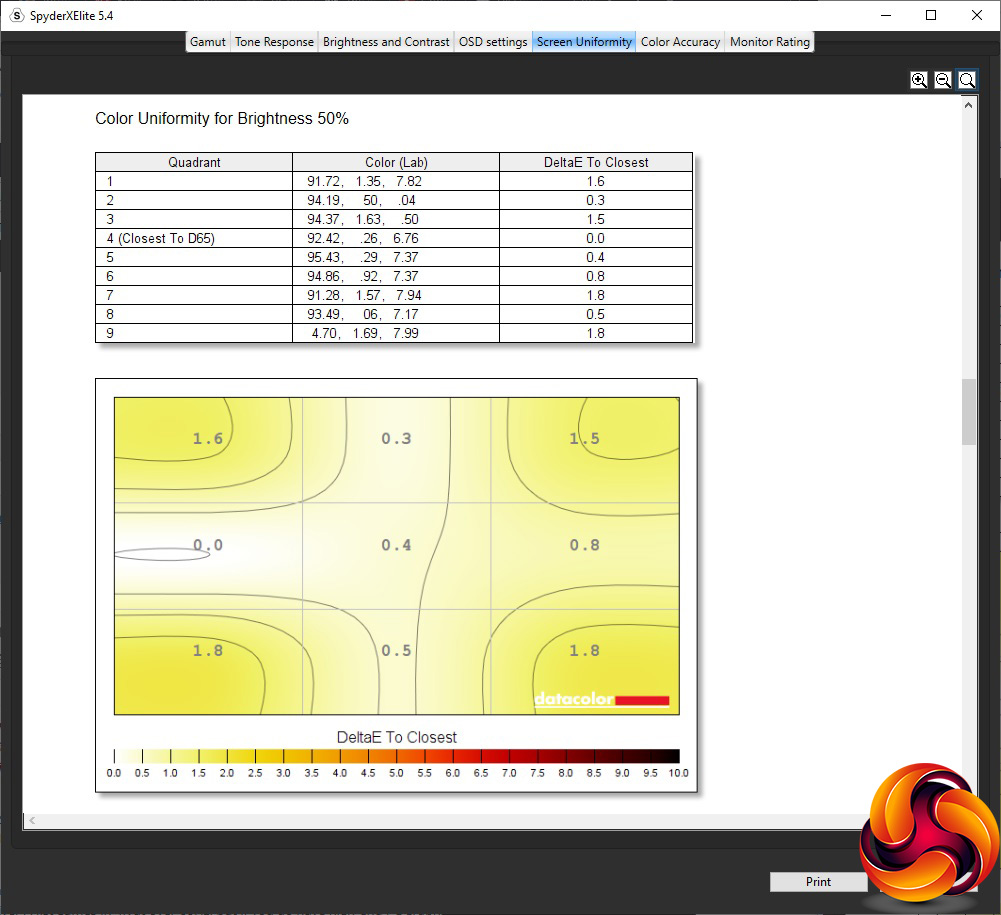
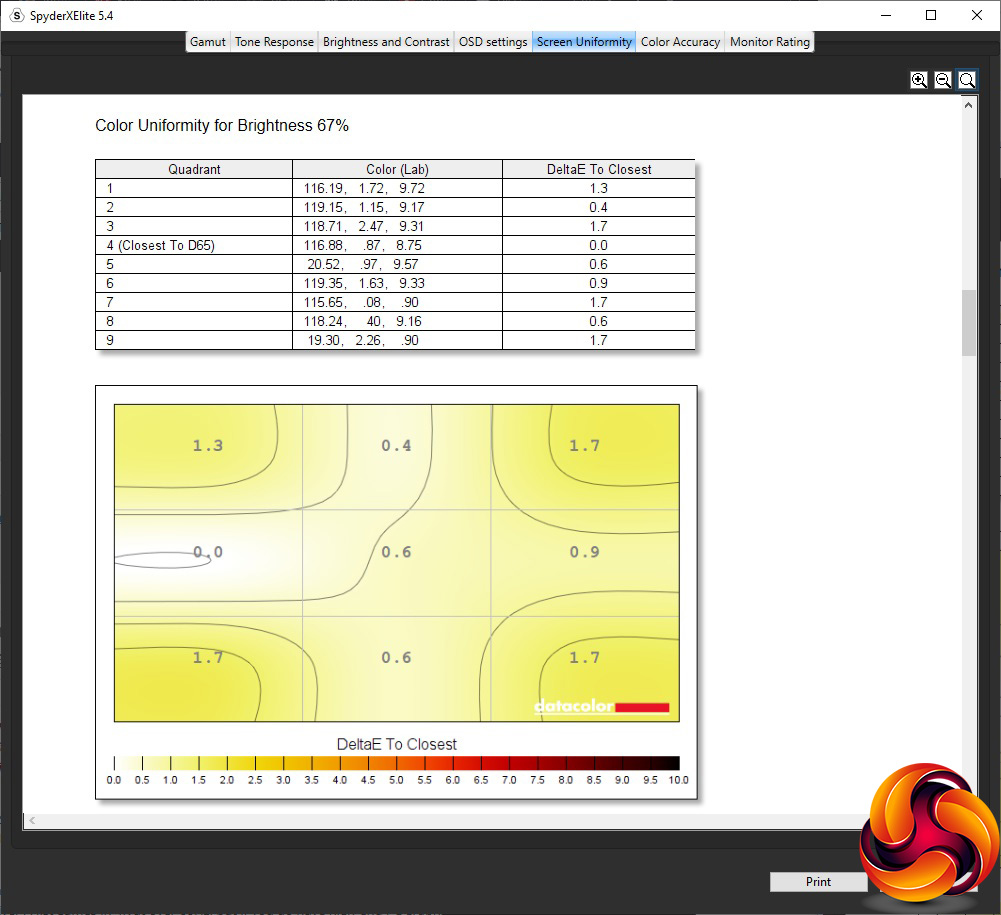
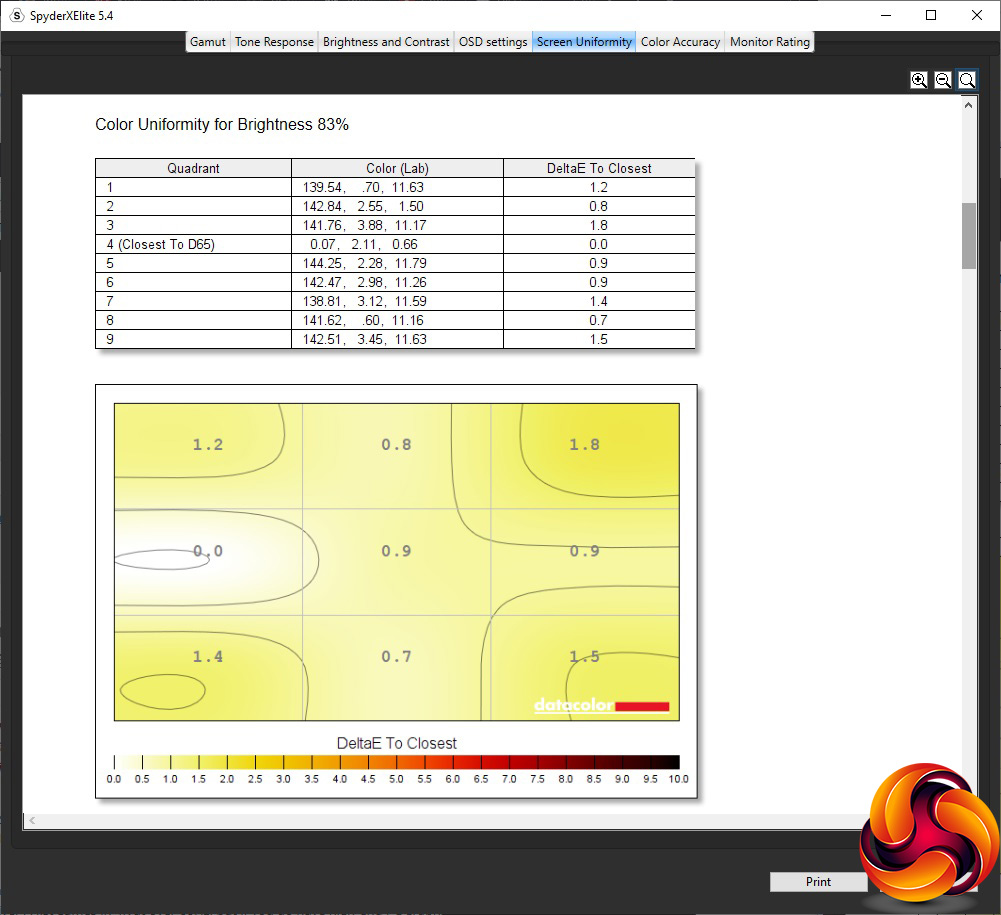
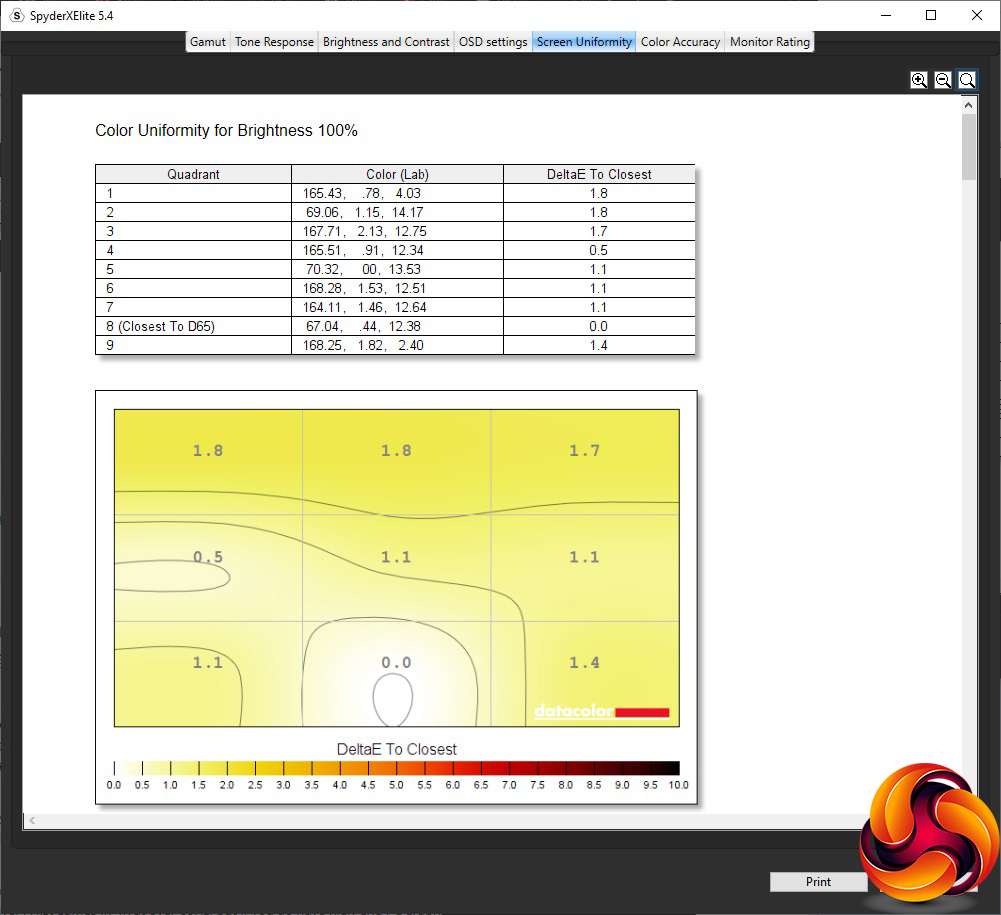
Luckily, this isn't replicated in colour uniformity, which is excellent at all brightness levels.
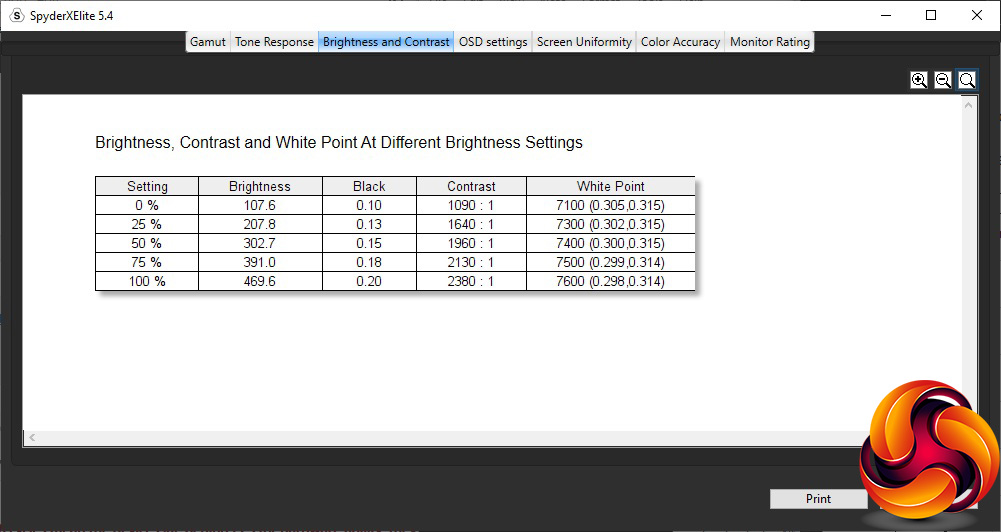
You con't get the full 600cd/m2 of brightness even at 100 per cent, but that's mainly aimed at HDR and the recorded maximum of 469.6cd/m2 is still very good when the regular maximum is meant to be 400cd/m2. Contrast increases from 1,090:1 at zero brightness to 2,380:1 at maximum, which is very good. The white point varies a fair bit, from 7100K to a cooler 7600K at maximum brightness.
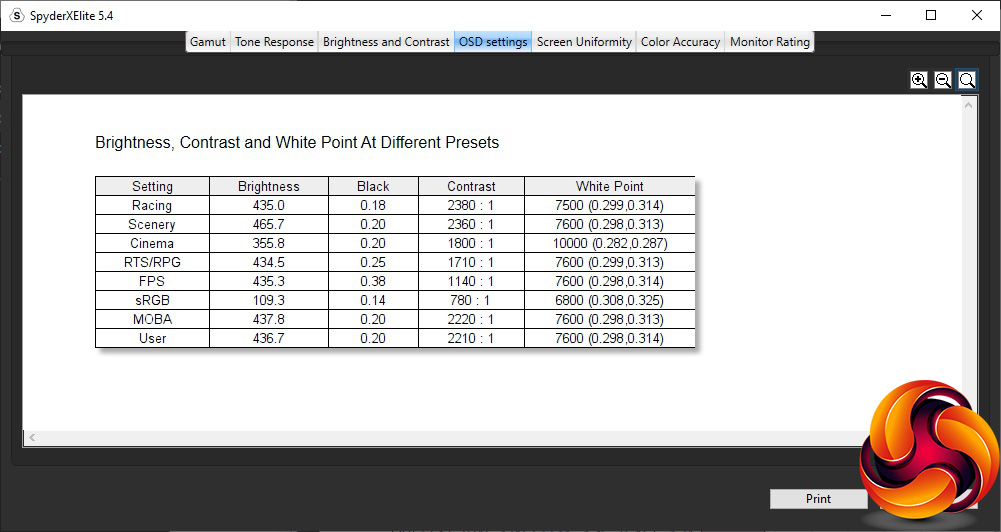
The GameVisual modes offer a healthy variety of presets. The default Racing equates to a brightness of 435cd/m2, 2,380:1 contrast and 7500K white point. Scenery is brighter still – who doesn't want their scenery shining? – hitting 465.7cd/m2 but with a similar 2,360:1 contrast and 7600K white point. Cinema, on the other hand, is less bright at 355.8cd/m2 and with a lower 1,800:1 contrast, but a much cooler 10000K white point, as is usually the case with monitor modes aimed at watching movies.
RTS/RPG and FPS modes both have a very similar brightness level of 434.5 and 435.3cd/m2 respectively and identical 7600K white points, but 1,710:1 contrast for RTS/RPG and a lower 1,140:1 reading for FPS. The other game mode, MOBA, also has a similar 437.8cd/m2 brightness and the same 7600K white point, but a higher 2,220:1 contrast. At default settings, the User mode is exactly the same as MOBA. The sRGB option, in contrast (or not, when you see the values) is much less bright at 109.3cd/m2 and with the lowest 780:1 contrast, as well as the warmest 6800K white point, although that's still very mid-range.
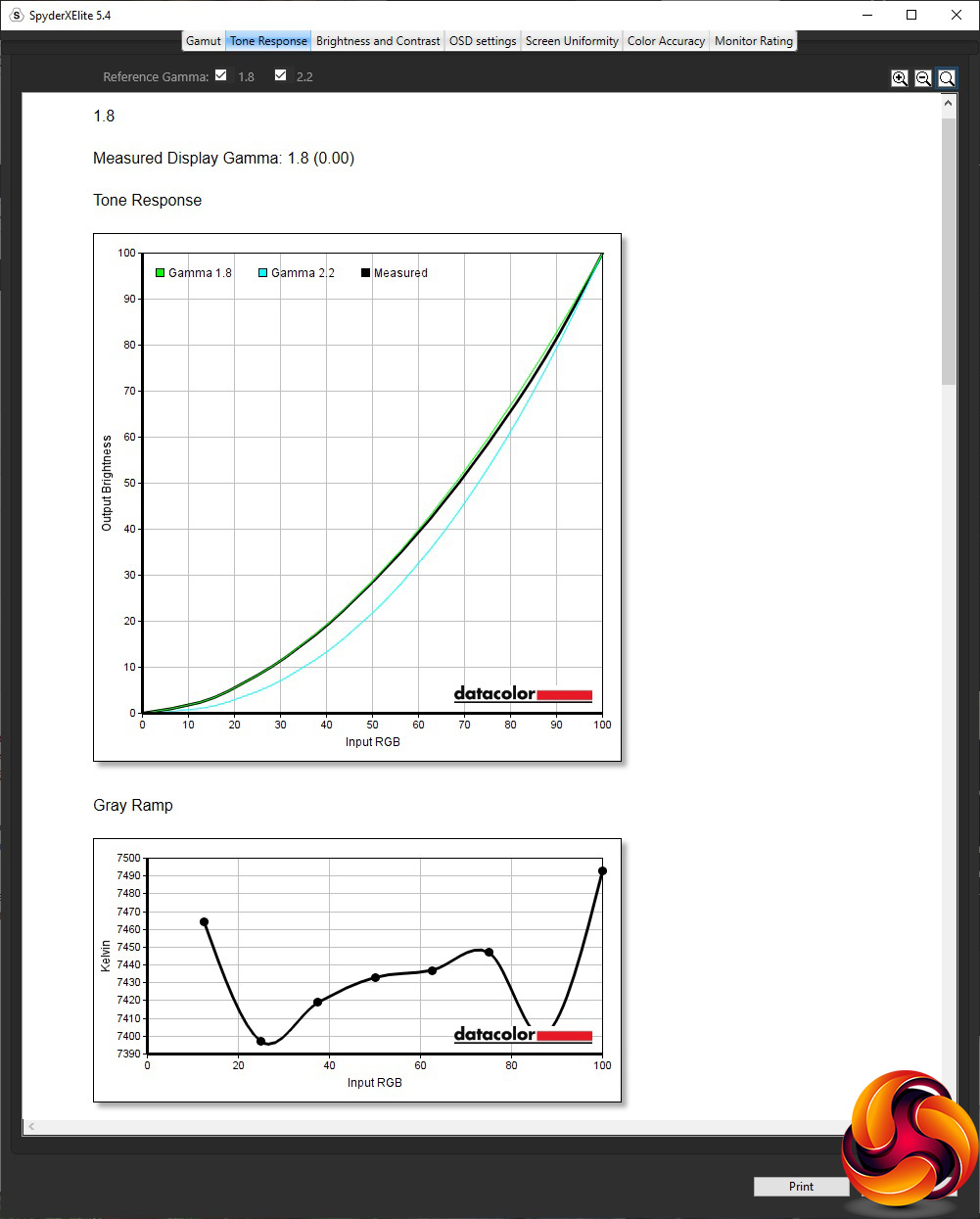
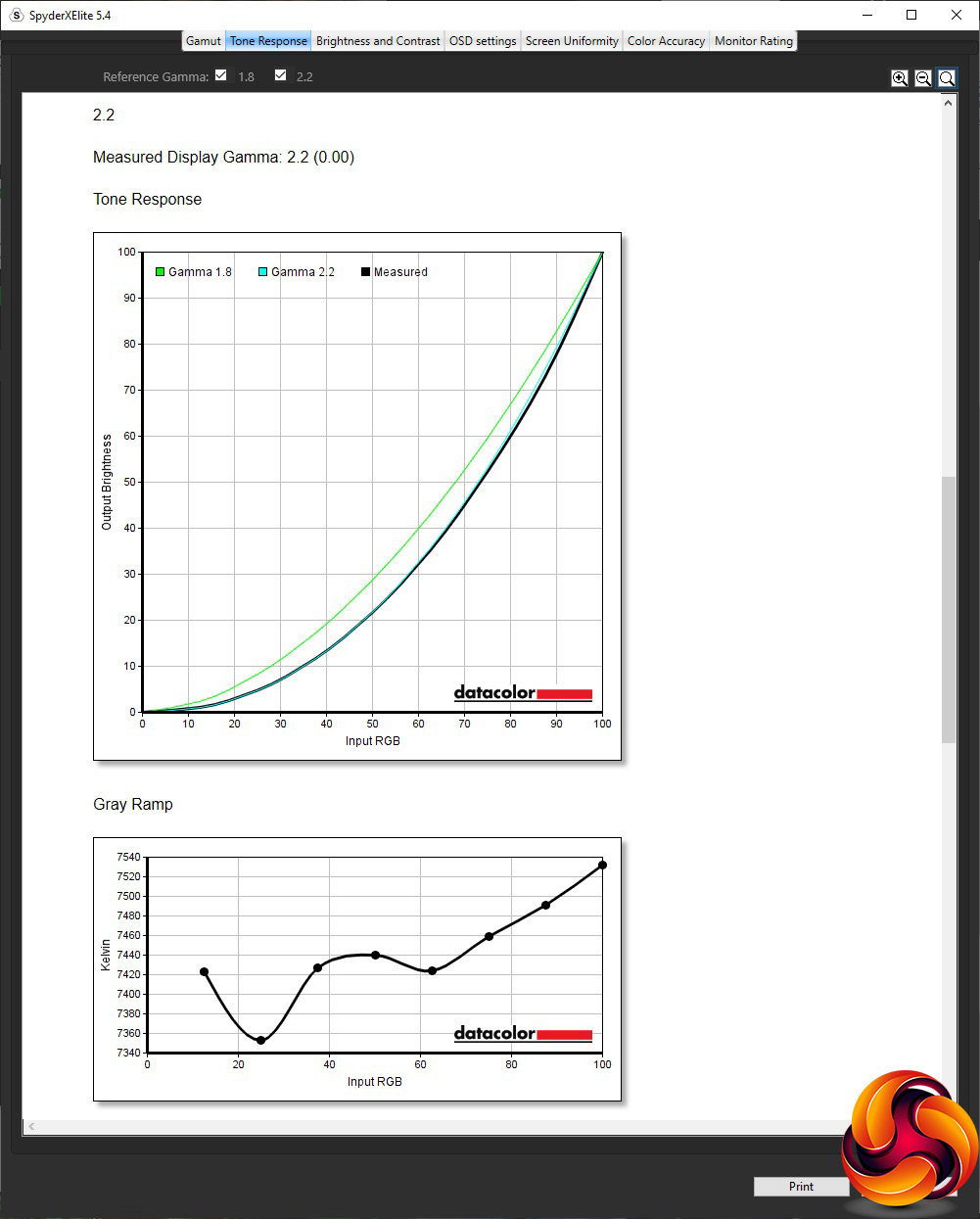
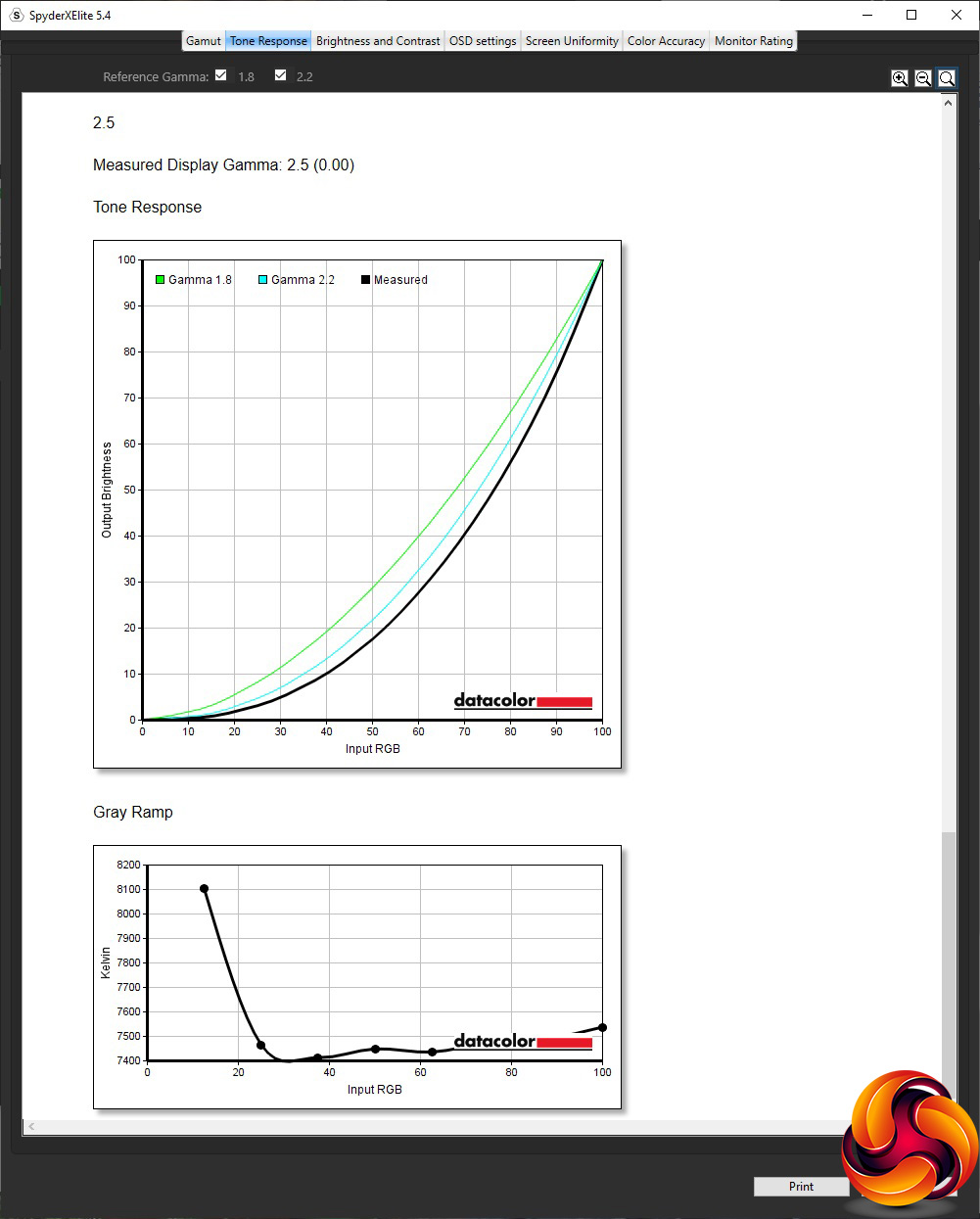
The Gamma presets read exactly as their names imply, giving you precise options of 1.8, 2.2 and 2.5.
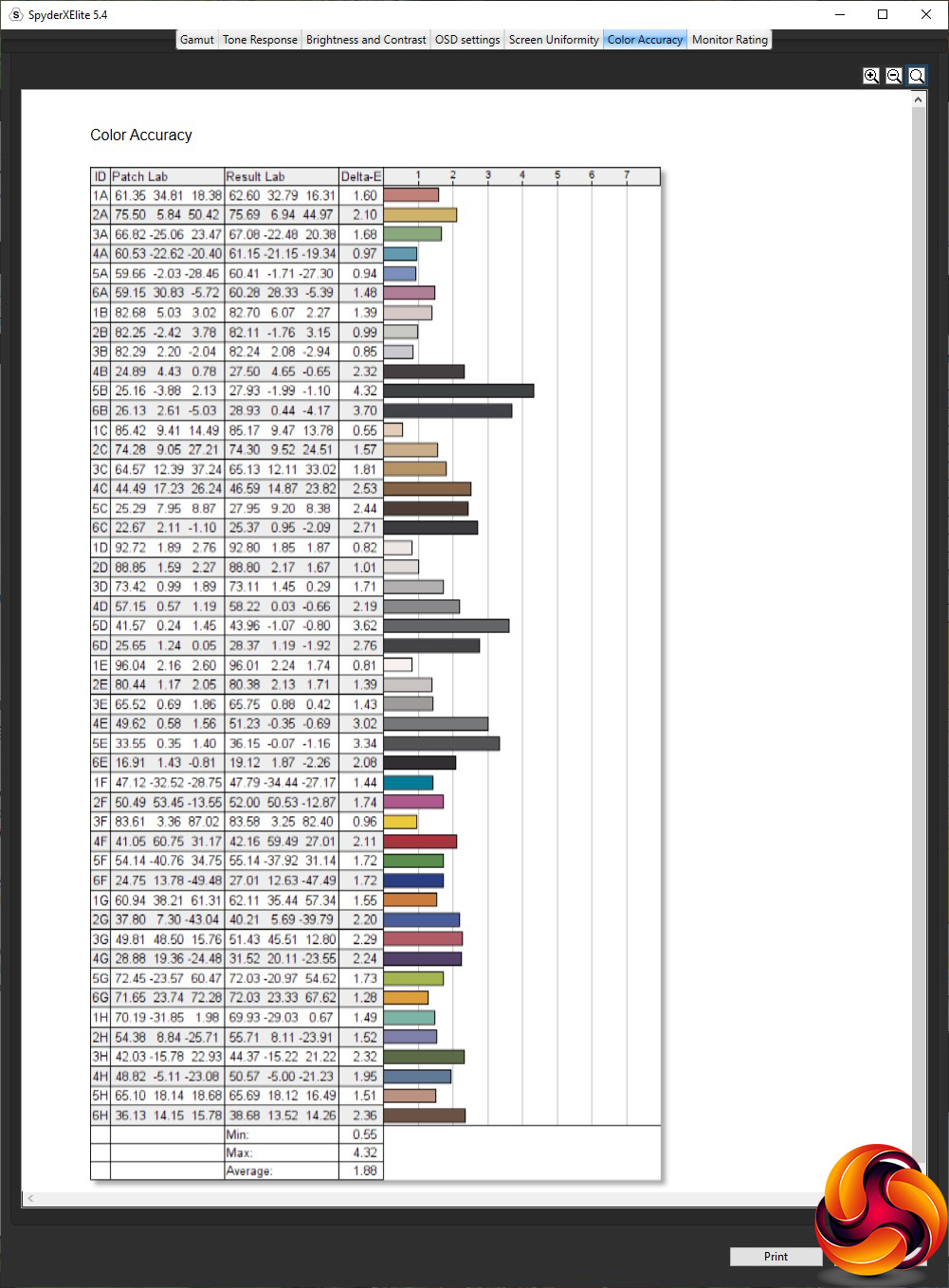
Out of the box, the colour accuracy is very good indeed, registering as an average deviation of 1.88. But we still thought the CG32UQ could do better, so we calibrated using the SpyderX.
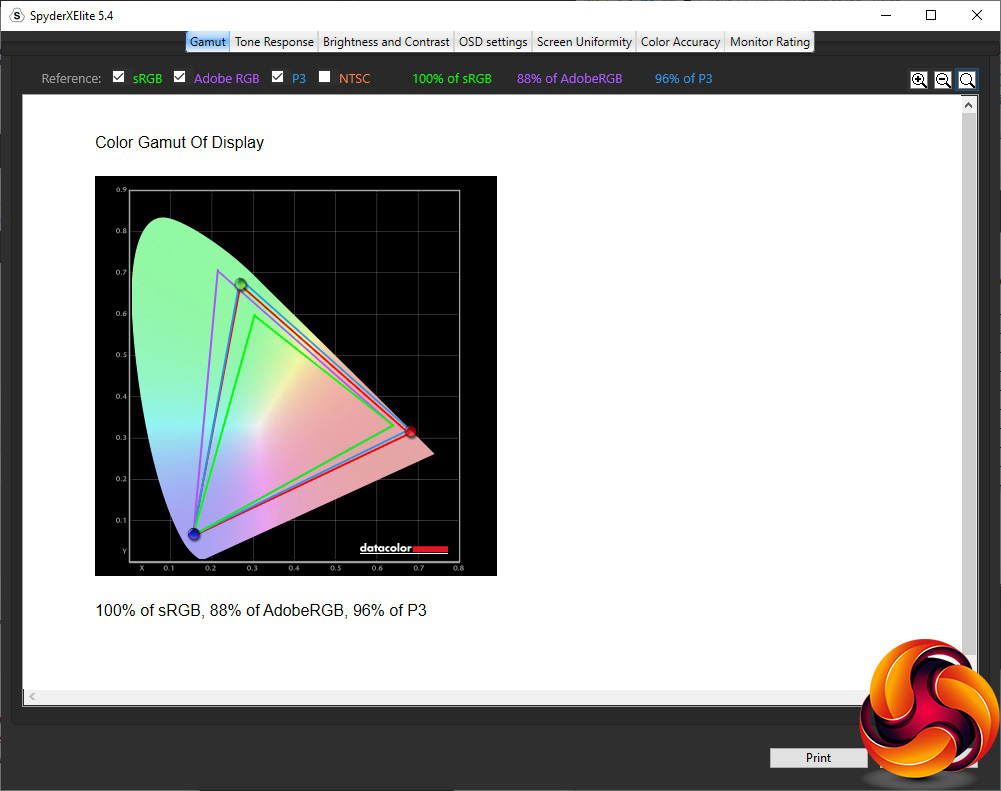
No change to the excellent gamut scores, with 100 per cent sRGB, 88 per cent AdobeRGB and 96 per cent DCI-P3.
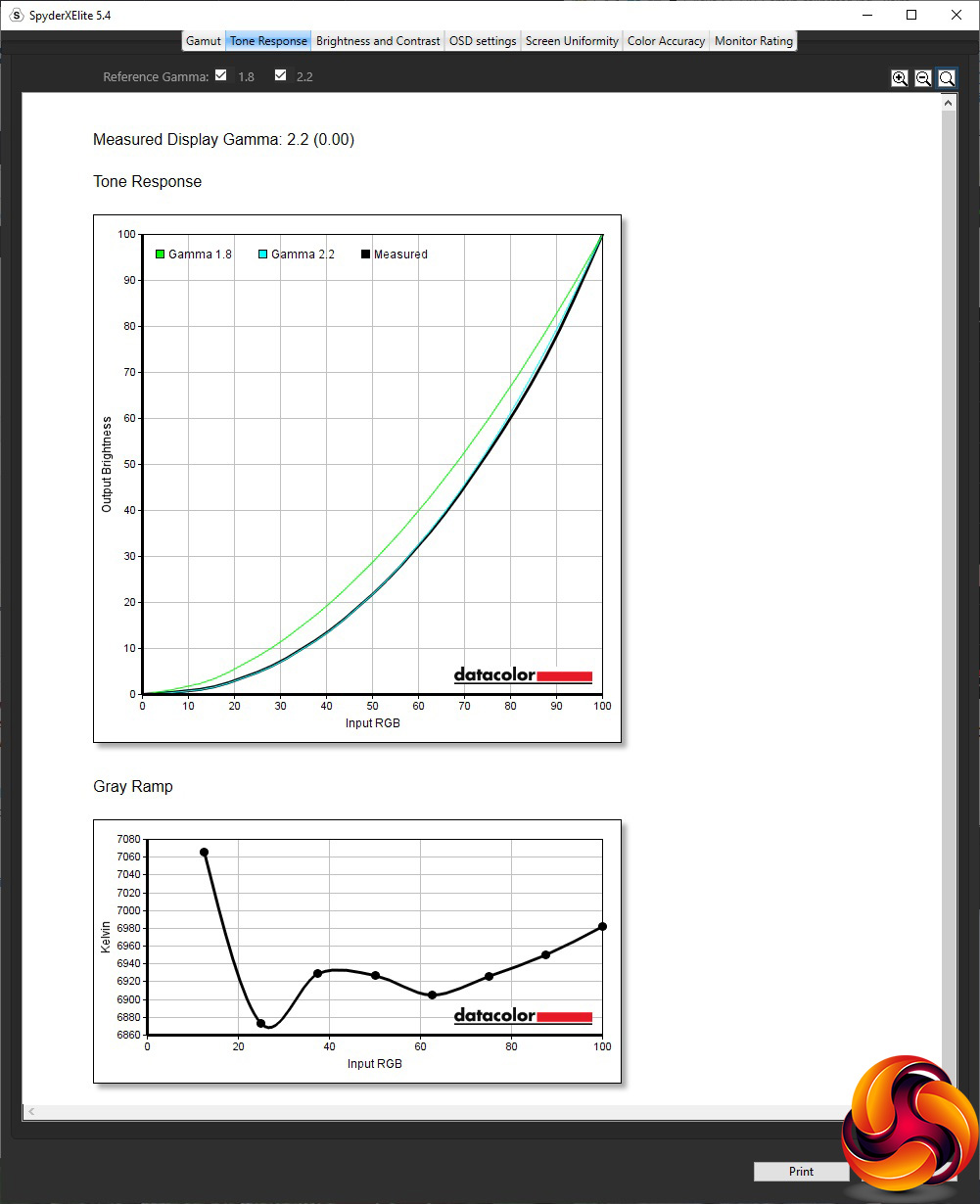
We only retested the default 2.2 gamma, which continued to read as 2.2.
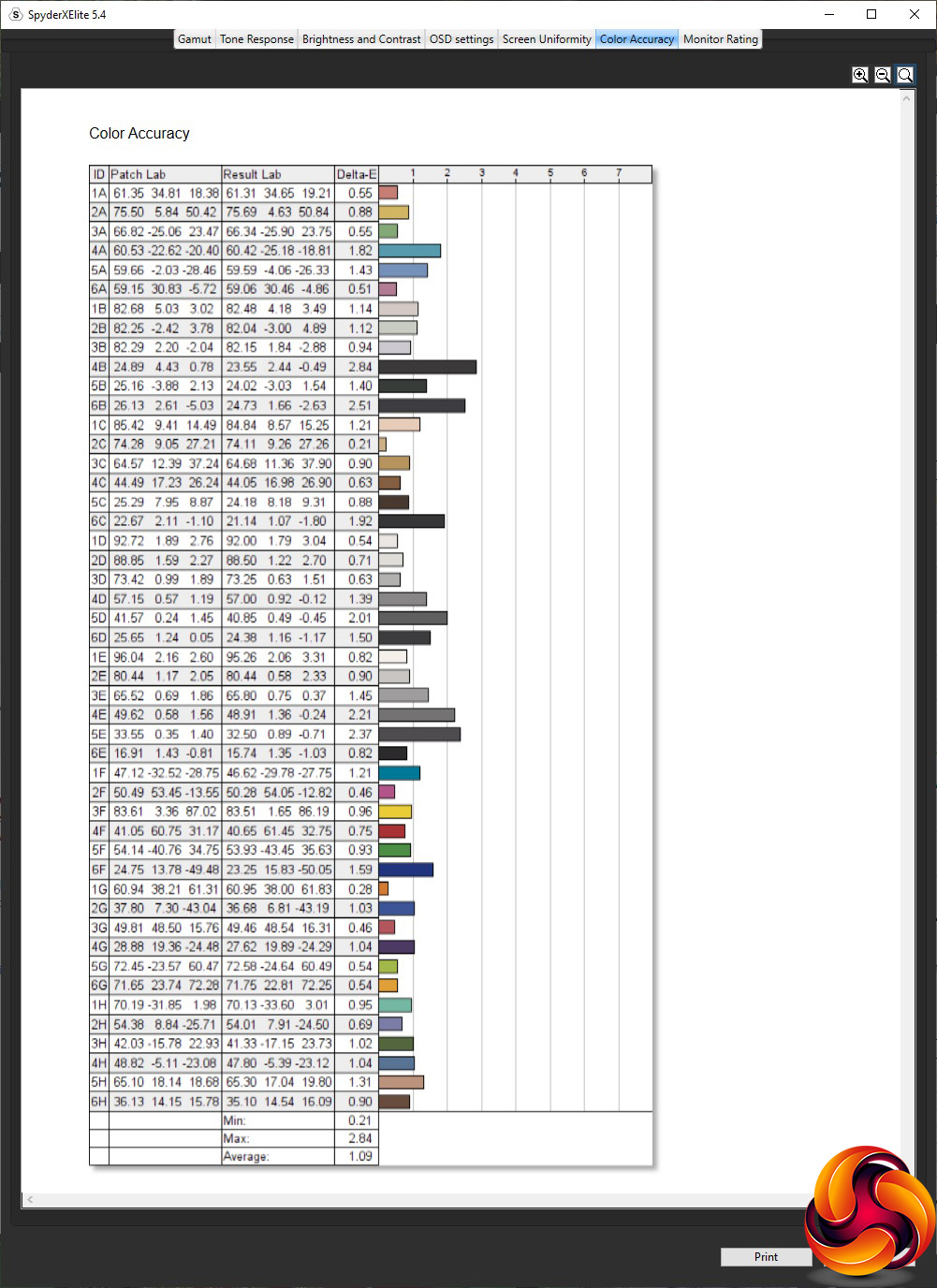
The colour accuracy has improved quite a bit, to an excellent level, although we have seen some monitors recently that are even better when calibrated. But at least this monitor is already very good without calibration, which is probably a good thing as if you exclusively use it with a console you're probably not going to be able to calibrate it anyway.
Even gamers want ultimate visual quality, but playing is where this monitor must shine. We didn't have a 4K-capable console to hand to test with, and couldn't borrow one due to the pandemic lockdown at the time of writing, but we still tried some Fortnite with an Xbox One S and found the experience excellent.
To push the limits of the screen more, we fired up our usual CS:GO, Rainbow 6 Siege and League of Legends on the test PC. CS:GO was smooth but was pretty much constantly at 60fps. Rainbow 6 Siege also felt very smooth. We also tried Shadow Warrior 2 in HDR mode, which looked superb on this monitor. If you're a serious FPS PC gamer, the 60Hz limit will dampen your enthusiasm for this screen, but for other types of game the huge size and visual quality are clear, and it's going to be superb for its target audience of 4K console players.
The Asus CG32UQ is a relatively unique screen, as there aren't that many monitors aimed specifically at high-end console usage. For this audience, it's hard to fault, with great visual quality and lots of convenient features specifically aimed at consoles, like the charging station built into the base. Even the speakers are louder and better quality than most monitors, since console gamers could well just be using the TV for this rather than a separate audio system.
This screen can cross over as a PC gaming monitor as well, but it's not so persuasive here. Yes, it's 4K and has adaptive sync, but if you own a really high-end graphics card you'll be limiting yourself with the 60Hz maximum refresh, and will want to look elsewhere, such as Acer's truly humungous CG437K. On the plus side, the CG32UQ is G-sync Compatible as well as supporting FreeSync, so both AMD and NVIDIA graphics will benefit from the adaptive sync.
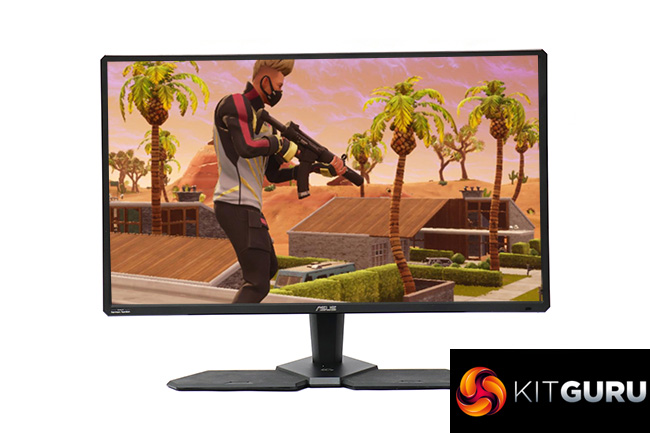
You get loads of video inputs, so you can hook up other audiovisual devices like your set-top box or online streaming device. There's no USB-C, but this is more relevant to the PC market at the moment than consumer electronics. The USB power ports and gamepad spaces on the base are a really convenient touch, and the content-aware lighting adds some immersive bling.
However, this is not a cheap monitor. On the one hand, if you want a 4K high-frame-rate PC gaming screen, you will currently be paying more. But with other 60Hz 4K 31.5in screens now costing £400 or less, such as the Iiyama ProLite XB3288UHSU-B1, you're paying a considerable premium for the console-oriented enhancements. We still think this is an attractive package for the ultimate console experience, and higher refresh would be a waste if this was your main activity, but this is very much a screen that is a master of one trade rather than a jack of all.
The Asus CG32UQ is available from Amazon UK for £764.99.
Pros:
- Dual charging stations for console gamepads.
- 3,840 x 2,160 resolution.
- FreeSync 2 adaptive sync plus NIVDIA G-sync Compatibility.
- Great colour accuracy out of the box.
- Content-aware rear ambient lighting.
- Lots of video inputs.
- Built-in USB 3.2 Gen1 hub.
Cons:
- Expensive.
- 60Hz maximum refresh.
- Questionable brightness uniformity.
KitGuru says: The Asus CG32UQ provides high-quality 4K screen technology to console gamers, with plenty of convenient features as well, but it's not cheap.