KitGuru KitGuru.net – Tech News | Hardware News | Hardware Reviews | IOS | Mobile | Gaming | Graphics Cards


In all the excitement about curved and 4K screens, it's easy to forget that a fast, high quality Full HD screen could be all your gaming needs, particularly if you mostly play first-person shooters. Prices have been going down on high-refresh screens, and now 144Hz panels are almost in the “budget” category. Iiyama's G-Master GB2570HSU is one rung up from that at 165Hz, but still costs a reasonable £220.
The GB2570HSU is a 24.5in Full HD panel, but sits in an Iiyama Red Eagle family of models alongside a 23.8in version (GB2470HSU) and 27in version (GB2770HSU), all with 165Hz. There's another 27in model with 2,560 x 1,440 resolution called the GB2770QSU, which also offers 165Hz refresh. Unlike high-refresh monitors of a few years ago, the GB2570HSU uses a Fast IPS panel rather than TN, with the usual positives and negatives of this technology. The 400cd/m2 brightness is decent for IPS, but the 1,000:1 contrast falls behind VA technology.
The circuitry bumps up the perceived MPRT response time to 0.5ms, although the underlying grey-to-grey response will be considerably lower than this. As you would hope for a monitor offering fast refresh, adaptive sync is supported in the form of AMD FreeSync Premium, which is one rung up from the basic version, guaranteeing at least 120Hz at Full HD resolutions and low framerate compensation support. Unfortunately, none of Iiyama's monitors are on the official NVIDIA G-Sync Compatible list, so you would have to cross your fingers and hope if you have NVIDIA rather than AMD graphics.
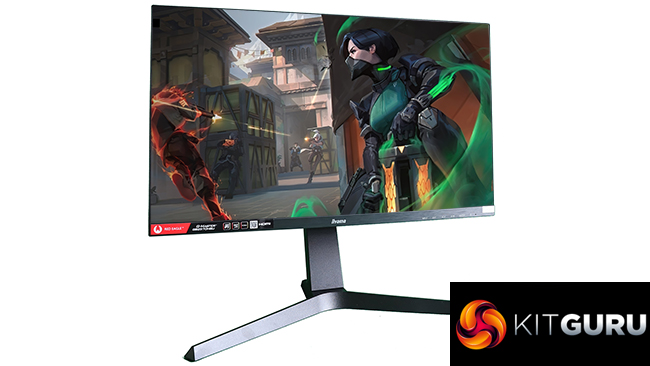
Strangely, this monitor doesn't support swivelling, but it does offer height raising and pivoting 90 degrees into portrait mode, as well as tilting backwards and forwards. You also only get one each HDMI and DisplayPort connection, although there is a two-port USB 3 hub built in, so you can plug in keyboard and mouse to the screen and just have one USB wire to the PC.
There's a pair of 2W speakers built in and minijack for headphones. Overall, the basic spec and price give you what you need for no-nonsense gaming. Let's find out if the performance lives up to the specification.
Specification:
- Screen size: 24.5-inch, 16:9 aspect
- Native resolution: 1,920 x 1,080
- Curvature: None
- Refresh rate: 165Hz, AMD FreeSync Premium
- Panel type: Fast IPS
- Contrast ratio: 1,000:1
- Brightness: 400cd/m2
- Response time: 0.5ms MPRT
- Display inputs: HDMI, DisplayPort
- USB hub: Yes, 2 x USB 3.0
- Tilt: 3 degrees forward, 18 degrees backward
- Raise: 130mm
- Swivel: No
- Portrait: Yes
- Other: Audio output minijack, 2 x 2W speakers
Retail Price: £214.97 (inc. VAT)
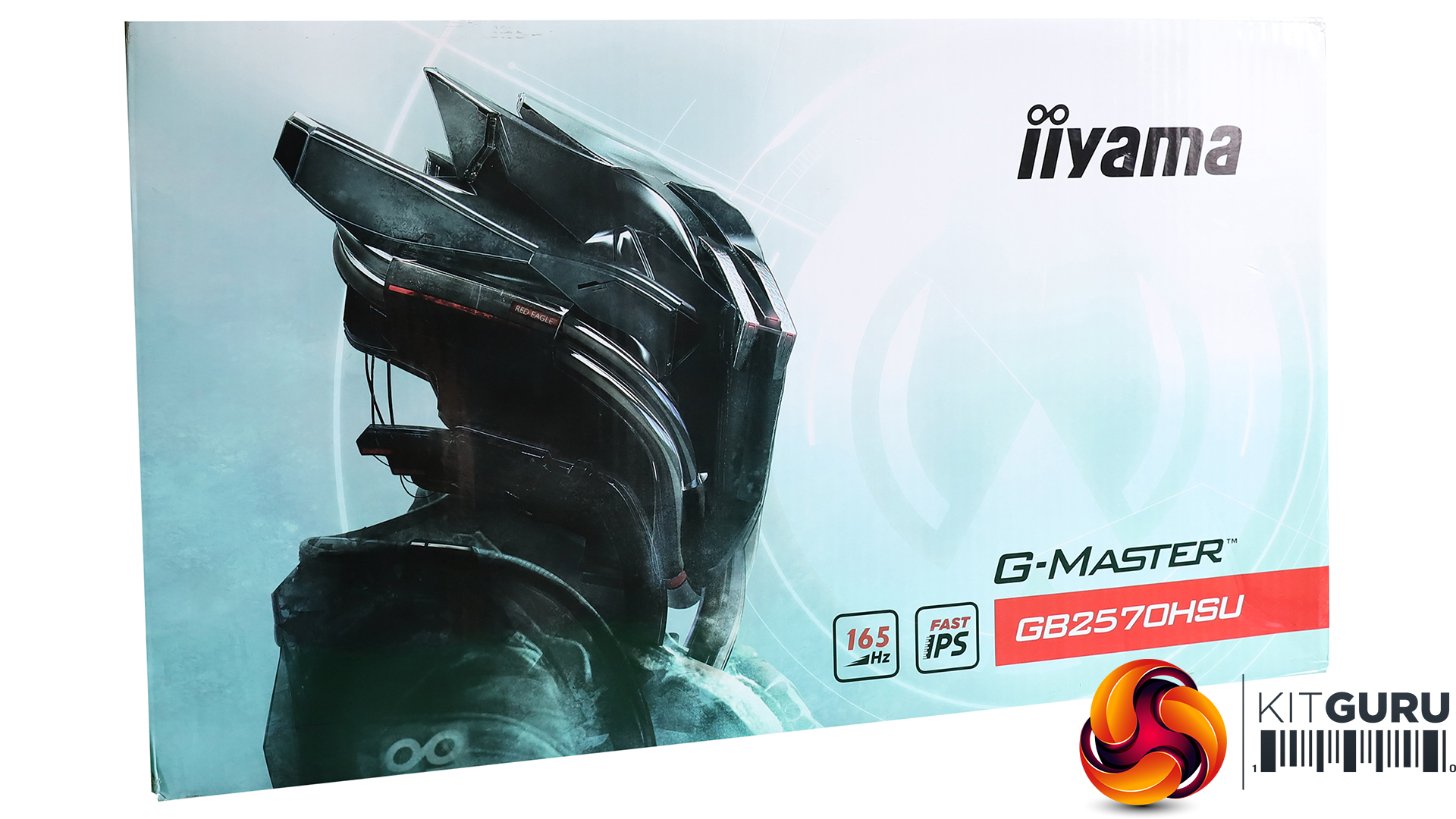
The Iiyama G-Master GB2570HSU box is typical for Iiyama's gaming screens – a bit more exciting than its business monitors.
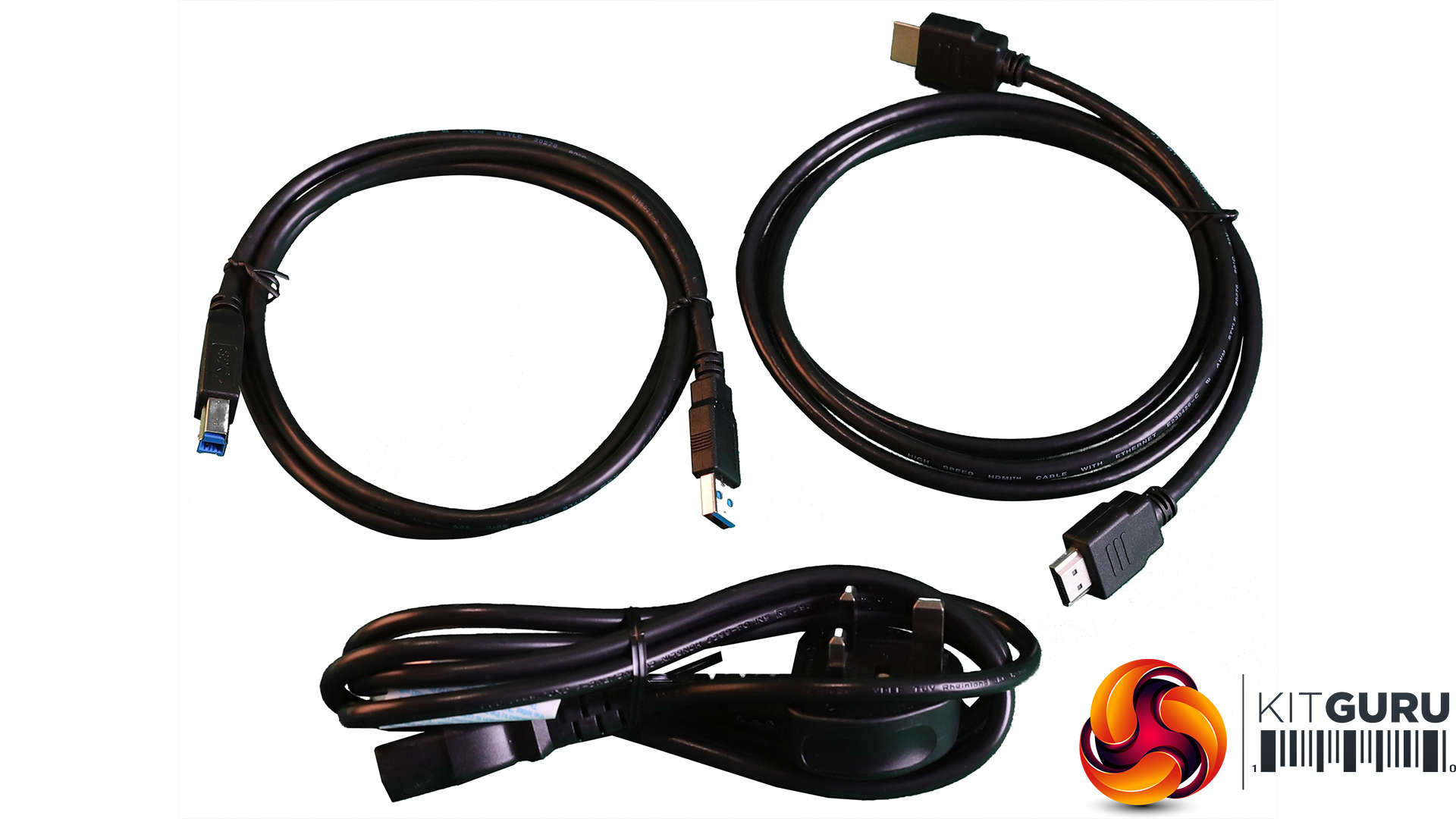
Inside, you only get an HDMI cable, power cord and upstream connectivity for the USB port. No DisplayPort cable is included.

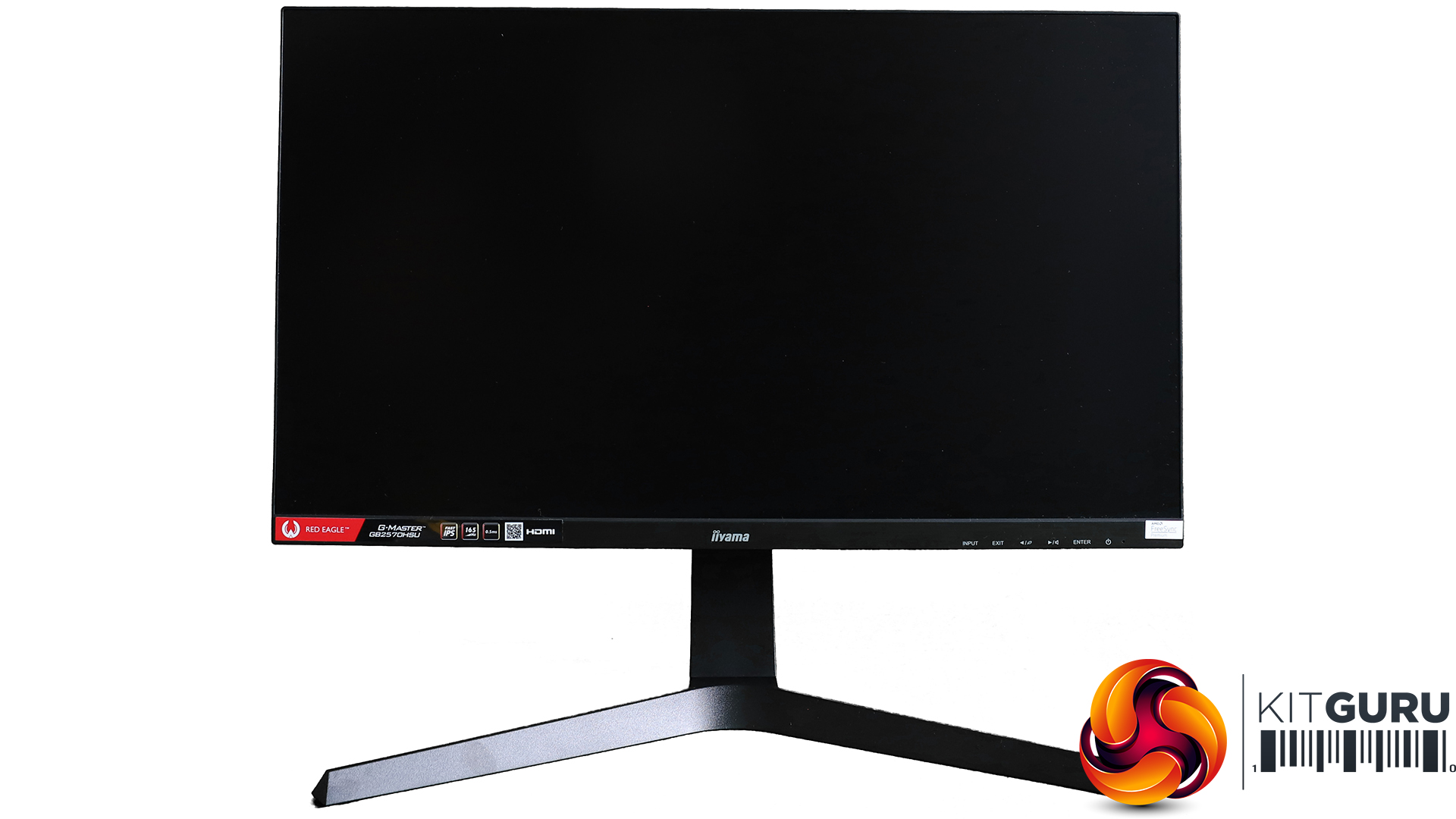
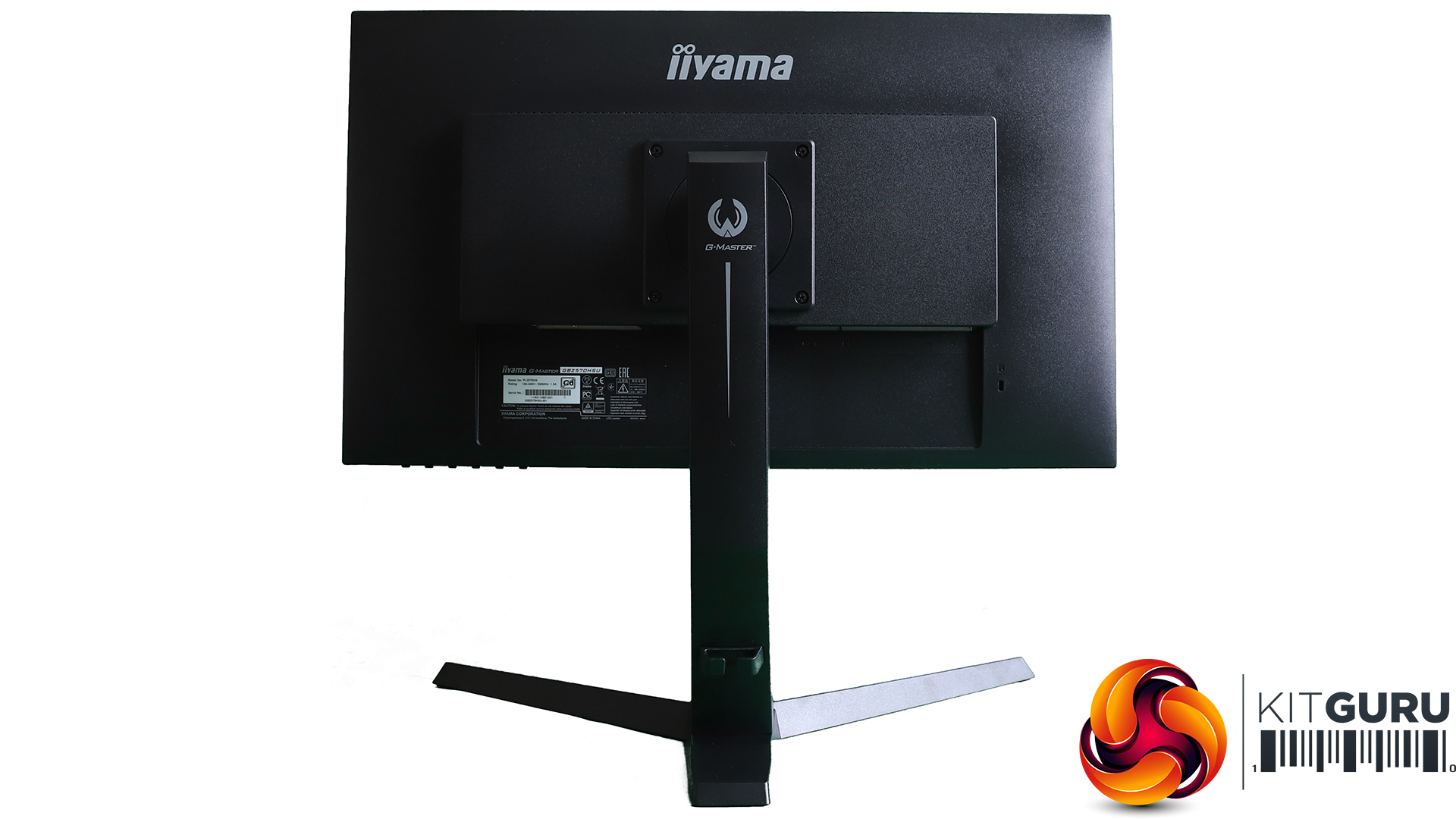
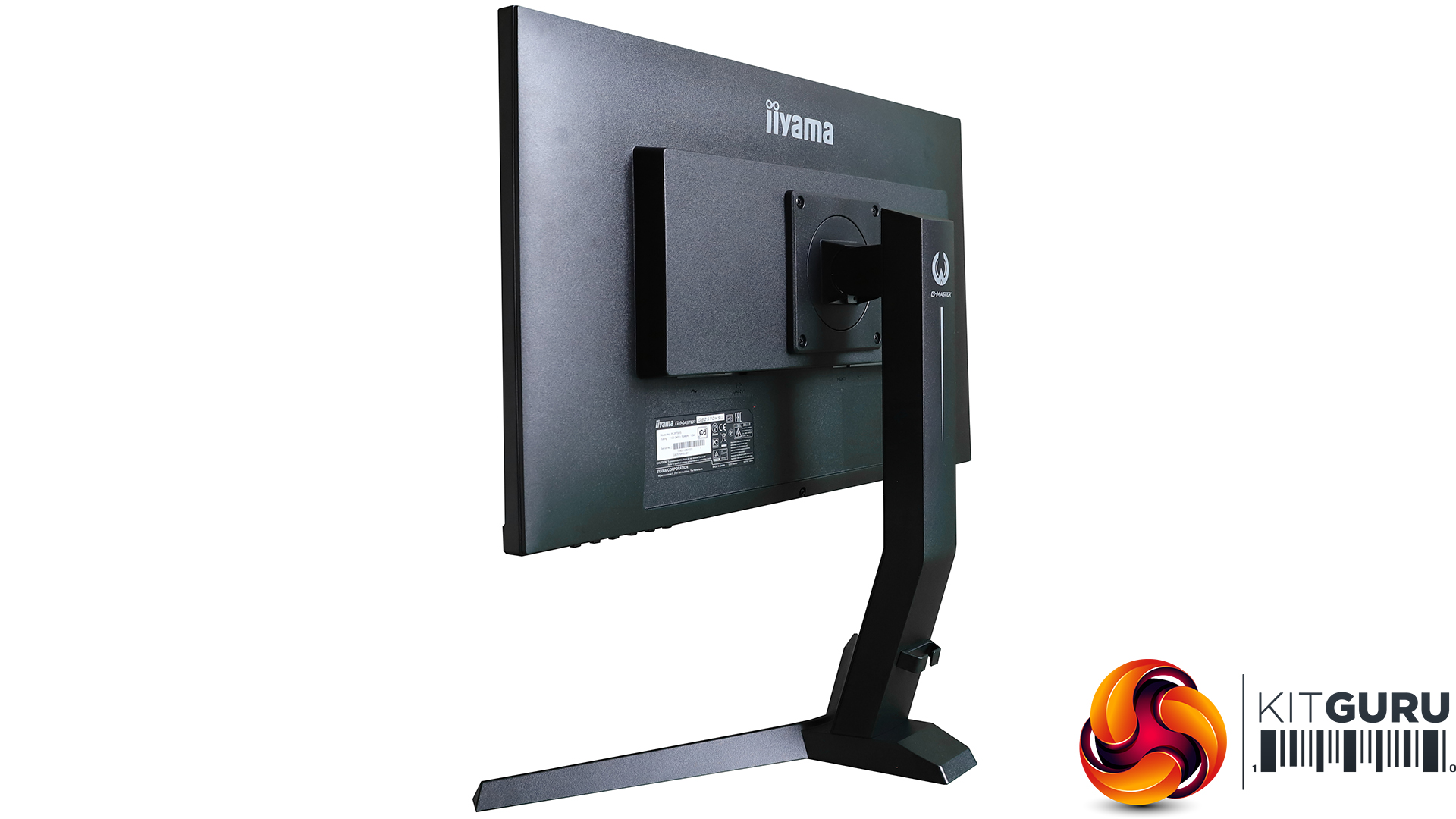
Like other Red Eagle monitors from Iiyama, the only real red is in the name and the removable label on the front. Otherwise, this is a predominately black screen. Sure, black goes with everything, but bling lovers will be disappointed.
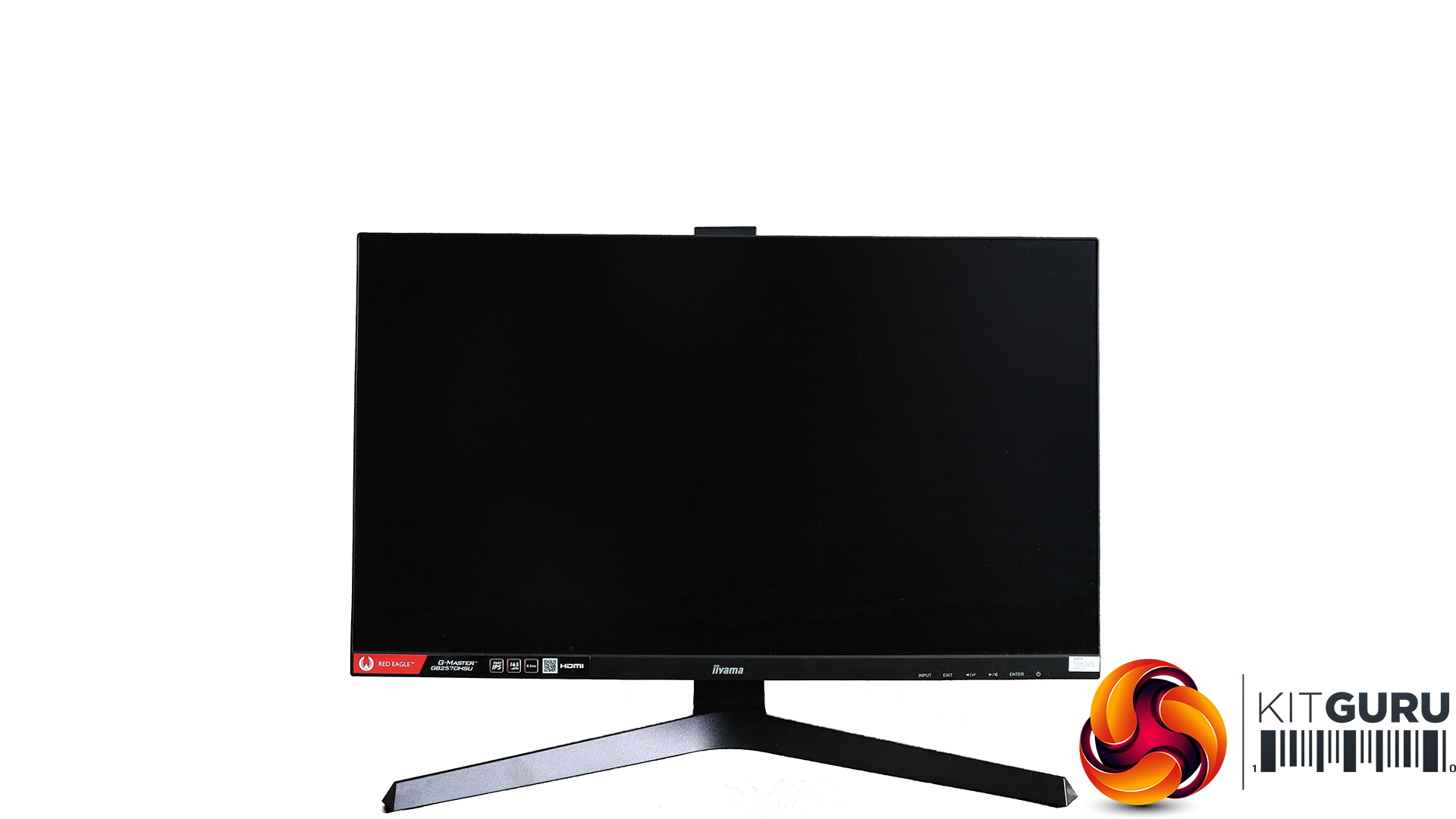
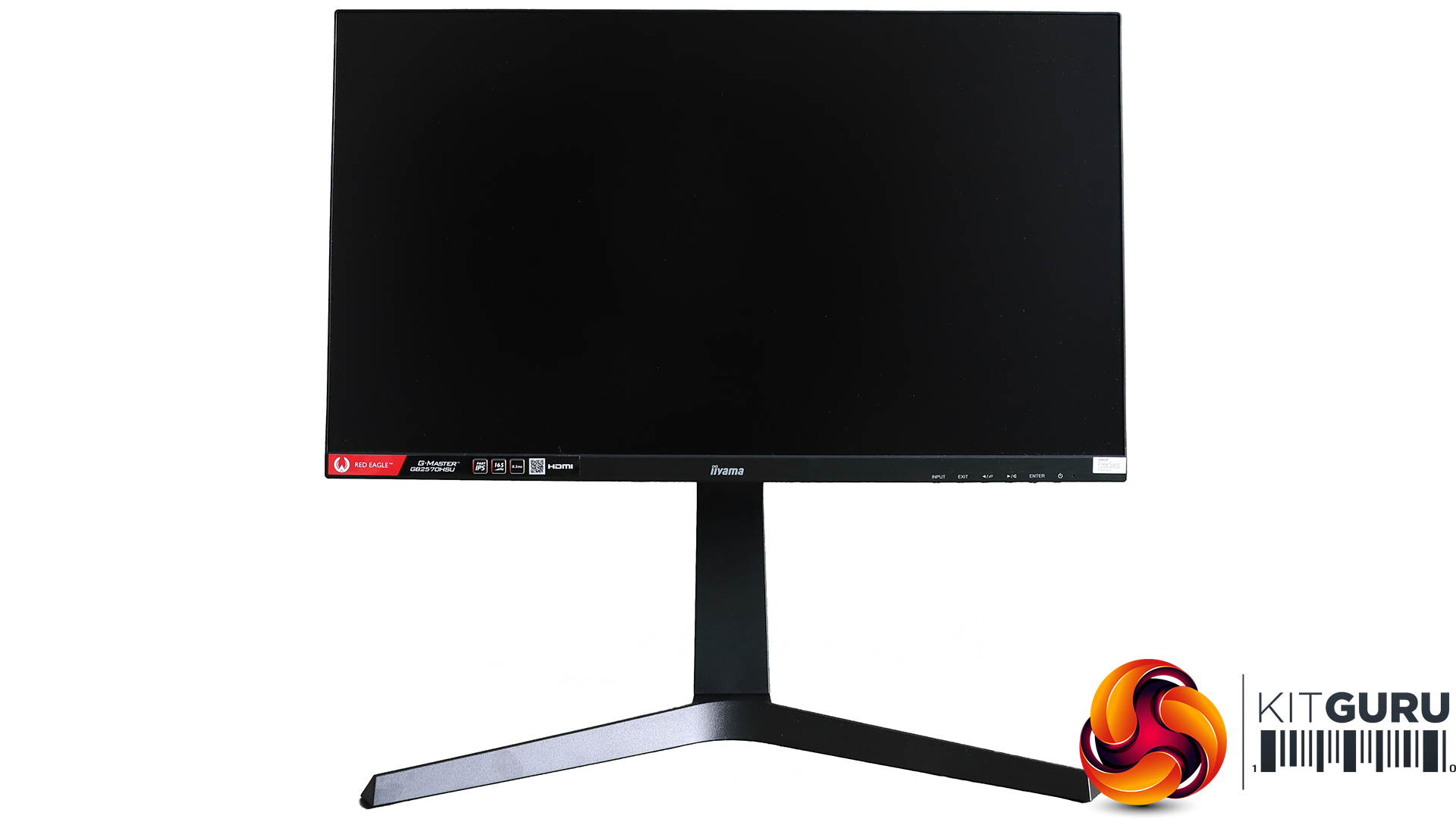
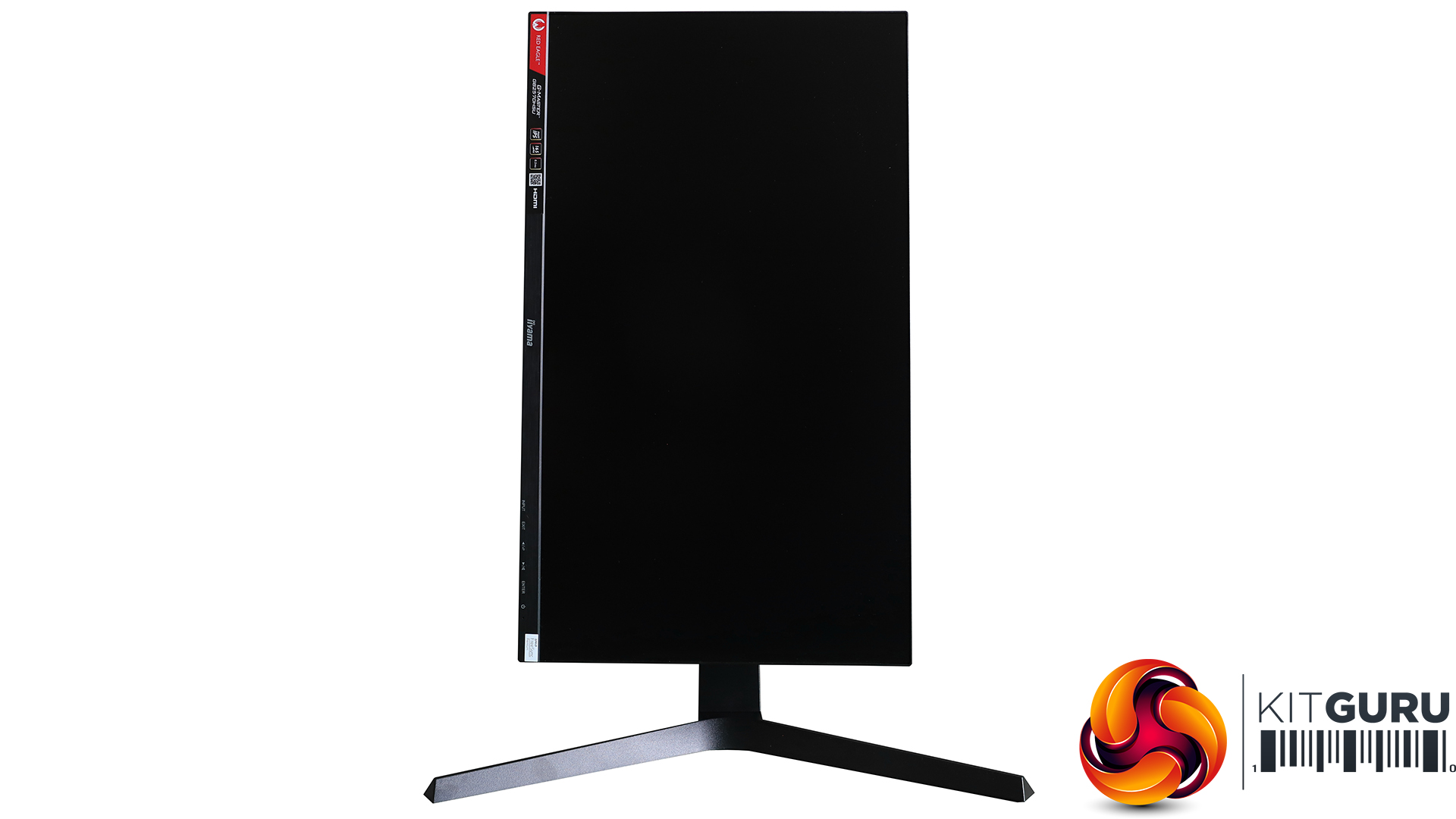
Adjustments only include the ability to raise the screen up and down by 130mm, or tilt 18 degrees backwards and 3 degrees forwards. There is no swivelling. However, you can rotate the panel through 90 degrees on the stand into portrait mode.
As this isn't a curved screen, you might make use of this function when reading documents or in a multi-screen setup where it's handy to have interface elements arranged vertically rather than horizontally.
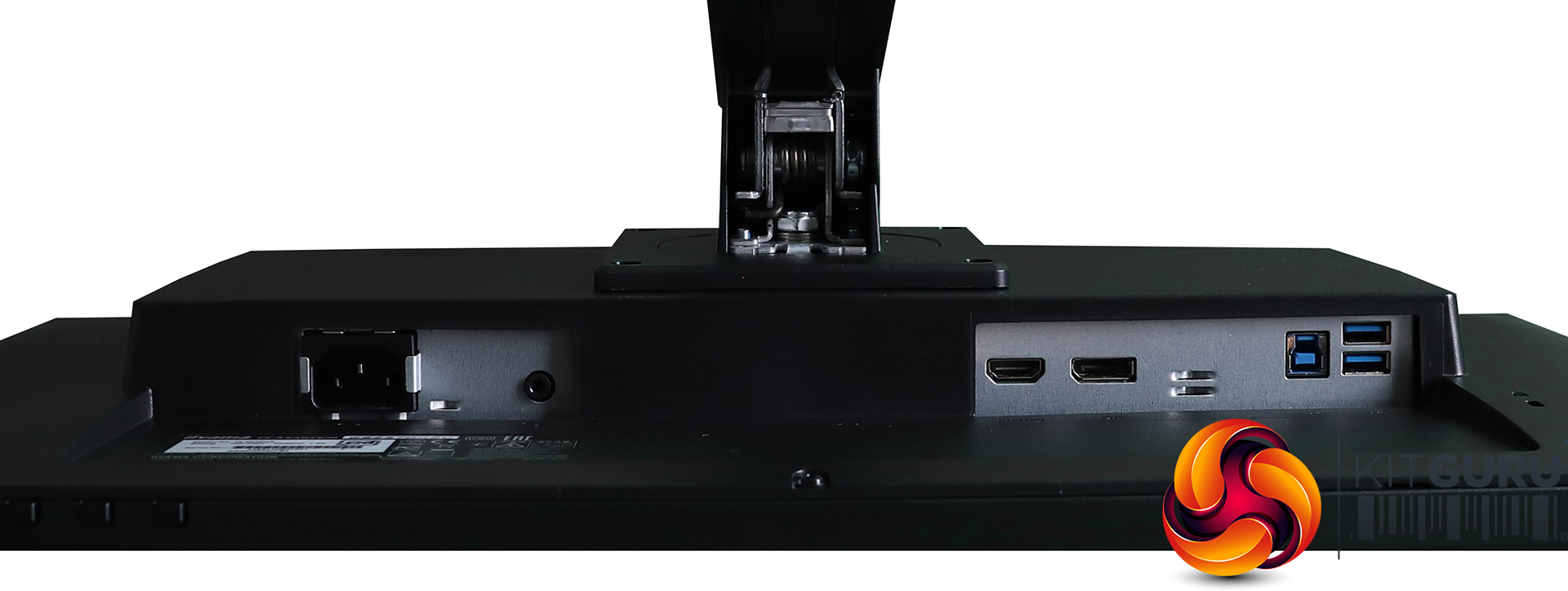
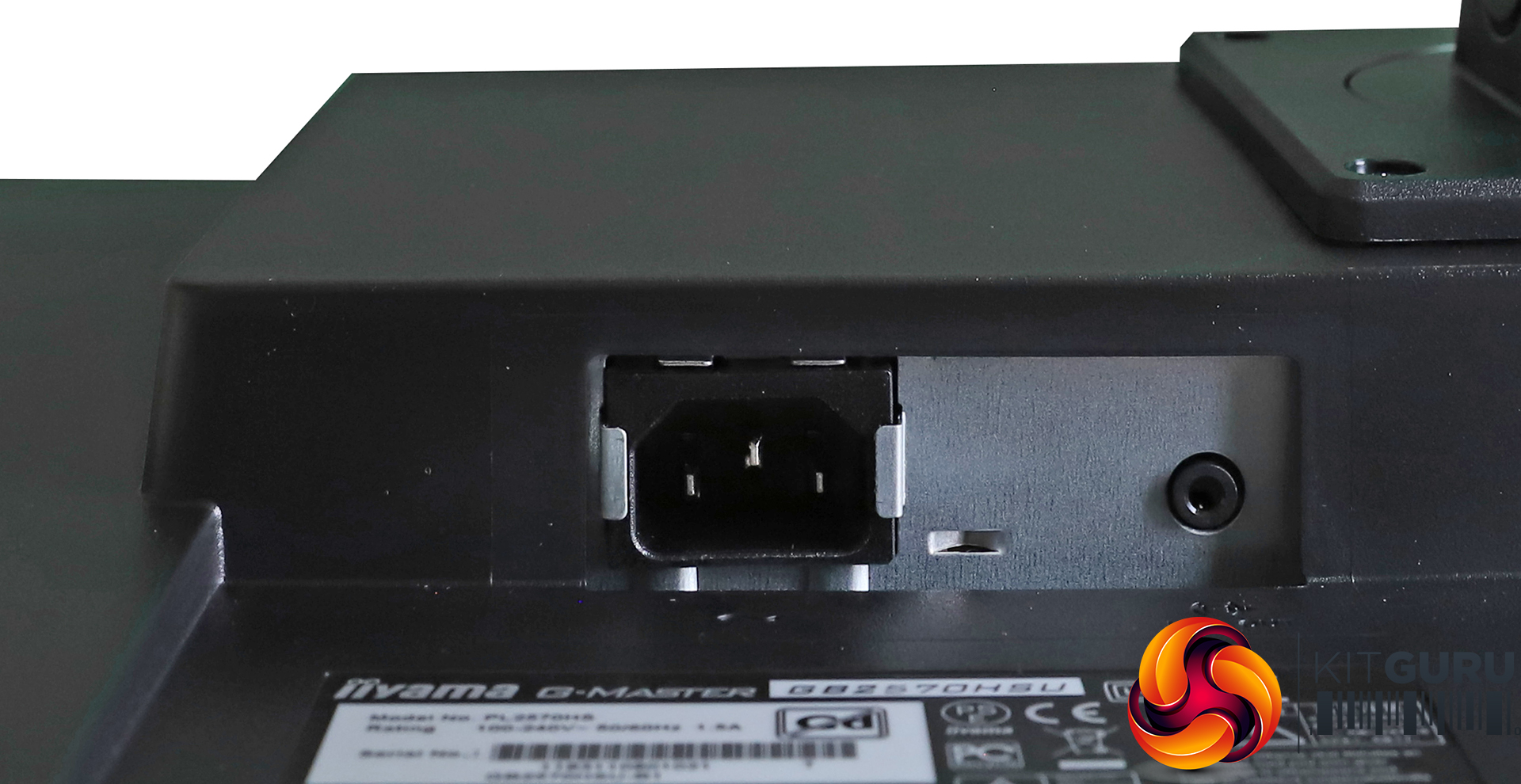
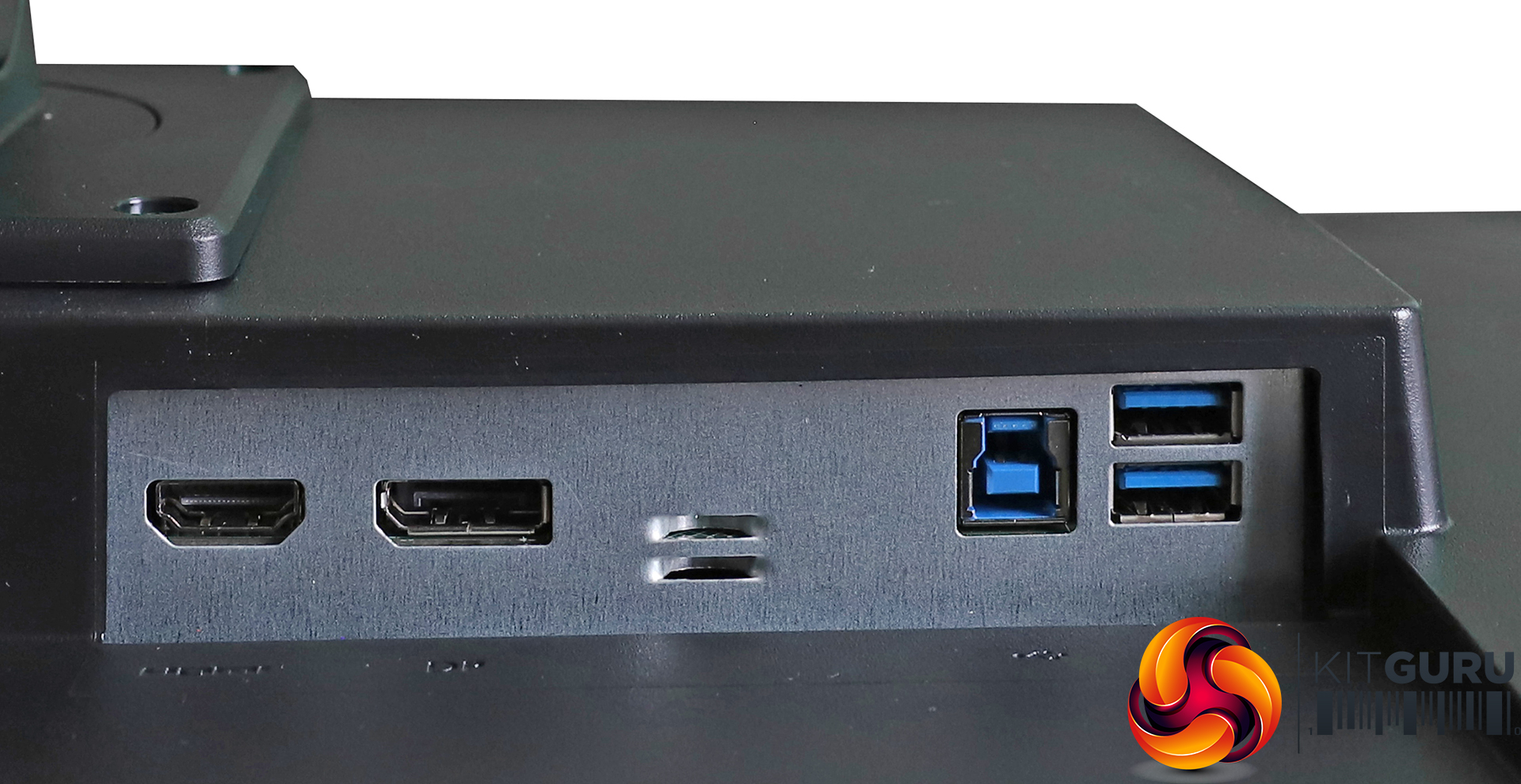
Connectivity covers most bases but isn't that generous. You get an HDMI port supporting version 2.0 of the standard, and the single DisplayPort meets the 1.4 standard. Both ports support a 165Hz refresh at Full HD, so it doesn't matter in this respect at least which type of cable you use. The USB hub is 3.0 level and only offers two ports, although that's adequate for neatening up and simplifying your keyboard and mouse cabling.
Next to the kettle power lead input is a minijack for audio output, including headphones. You will definitely want to plug the latter in, because the built-in 2W speakers are extremely weedy.
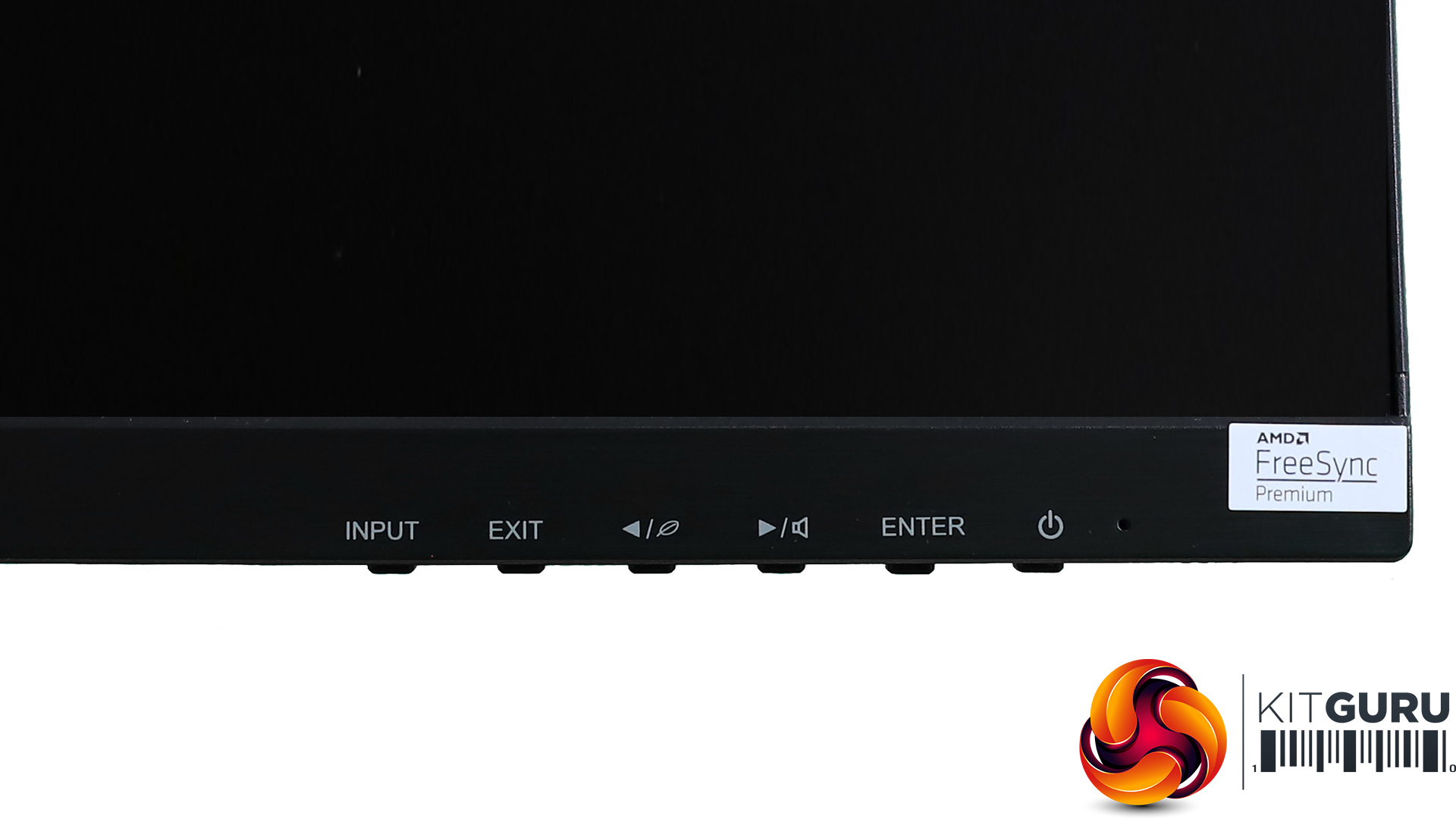
There aren't any fancy external pucks or joysticks for operating the menu on the GB2570HSU. Instead, you get a traditional row of six buttons under the bezel on the right-hand side with clear labels above so you know what each one does.
The first button from the right is the power button, so we are going to start at the other end with the quick menu options.
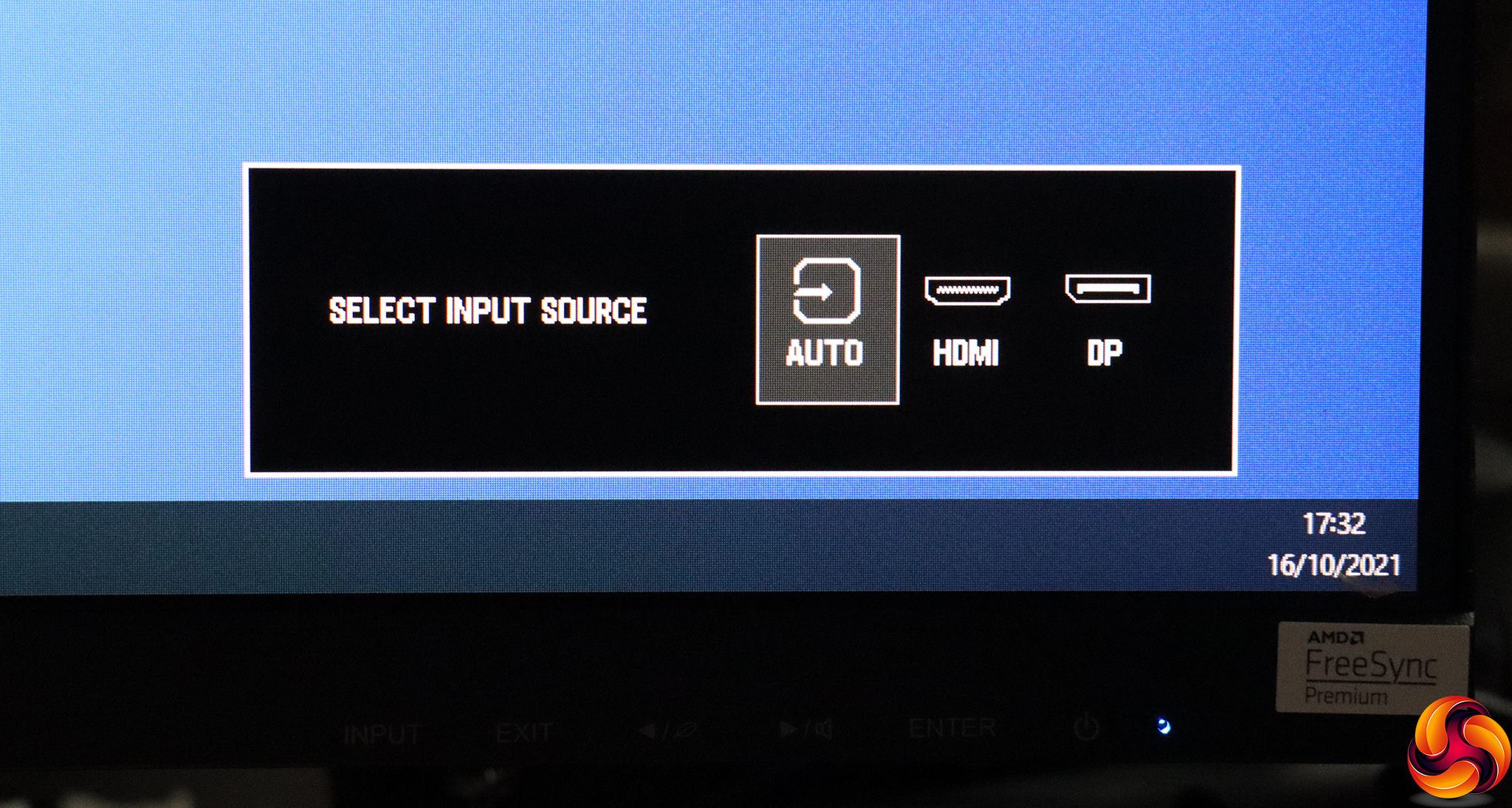
The first button from the left lets you choose between the two inputs manually.
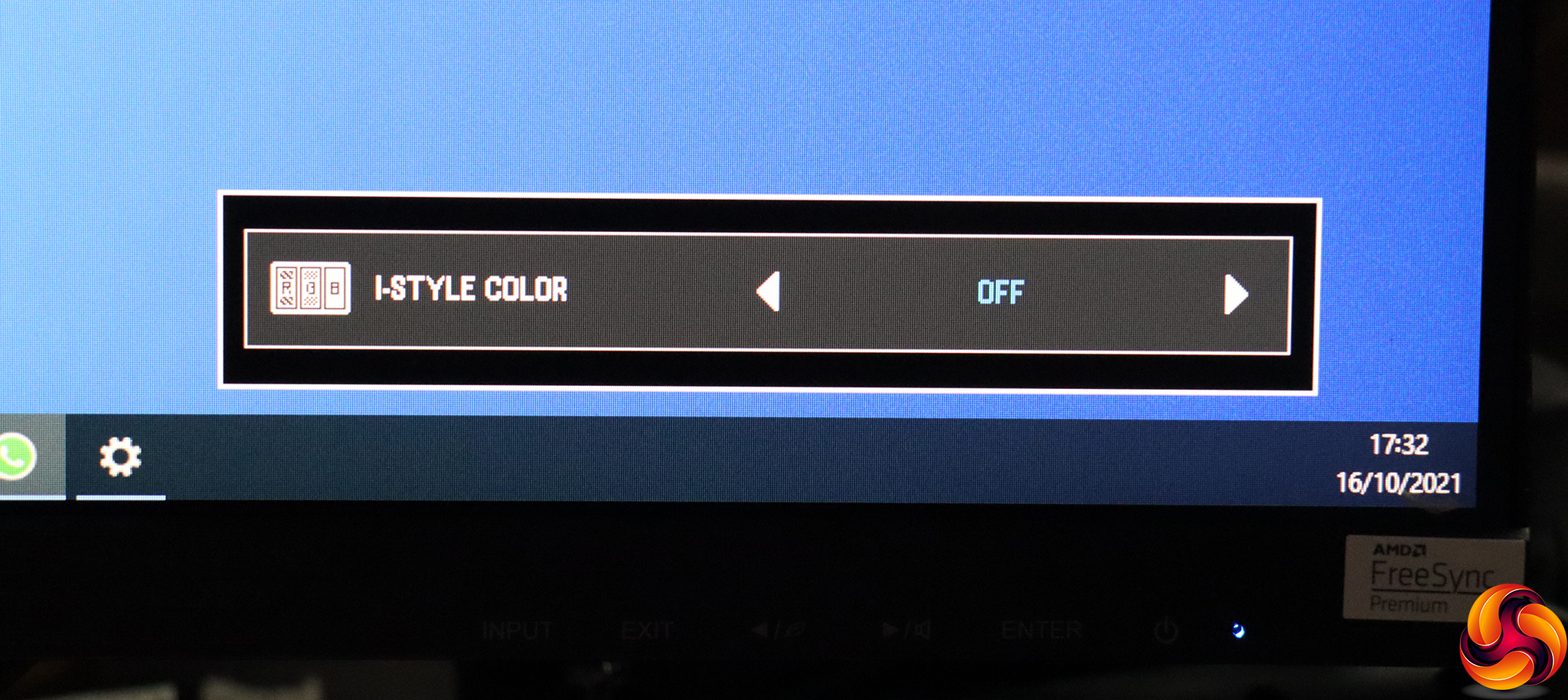
Next along are the I-Style Color modes. These are the primary presets, ranging from the default Off to Standard, Sport Game, FPS Game, Strategy Game, Text, and three user-configurable slots.
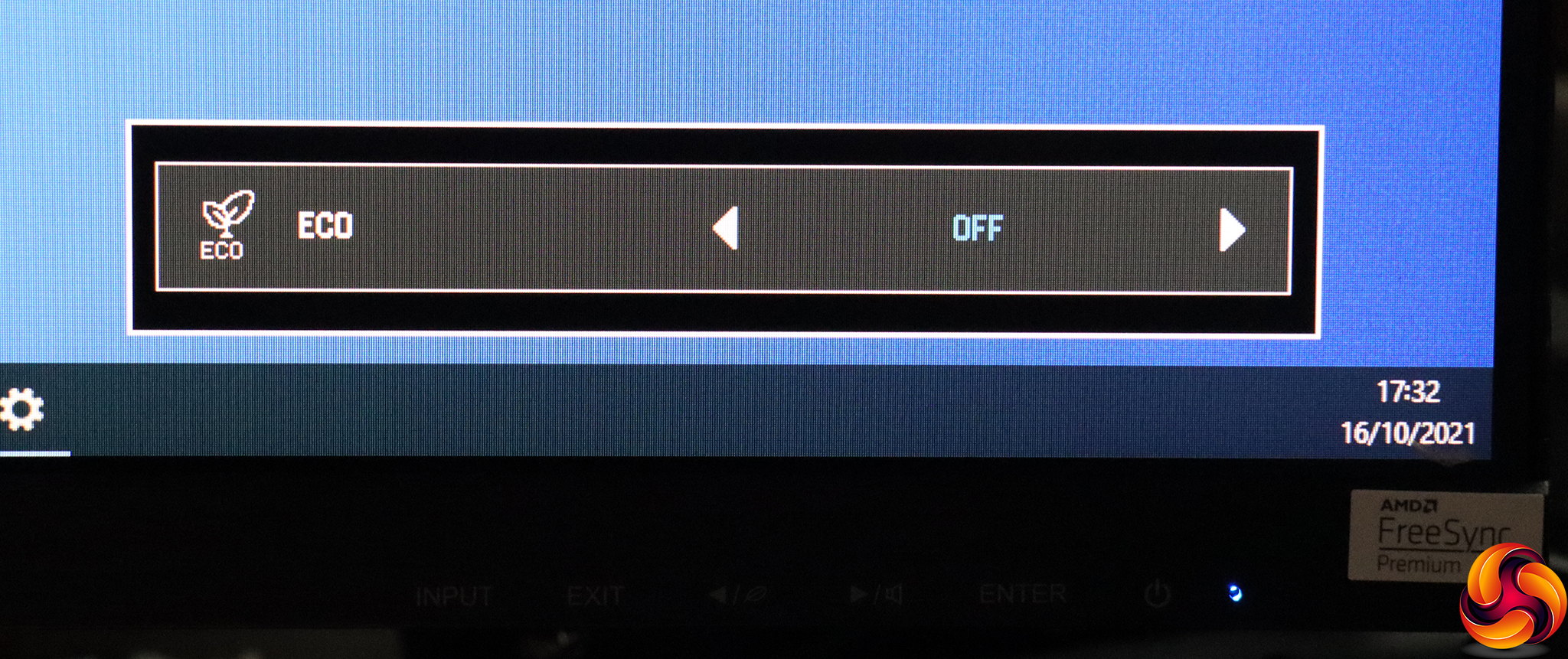
The third button along provides a slightly different set of Eco presets aimed at reducing power consumption. There are three Mode levels beyond Off.
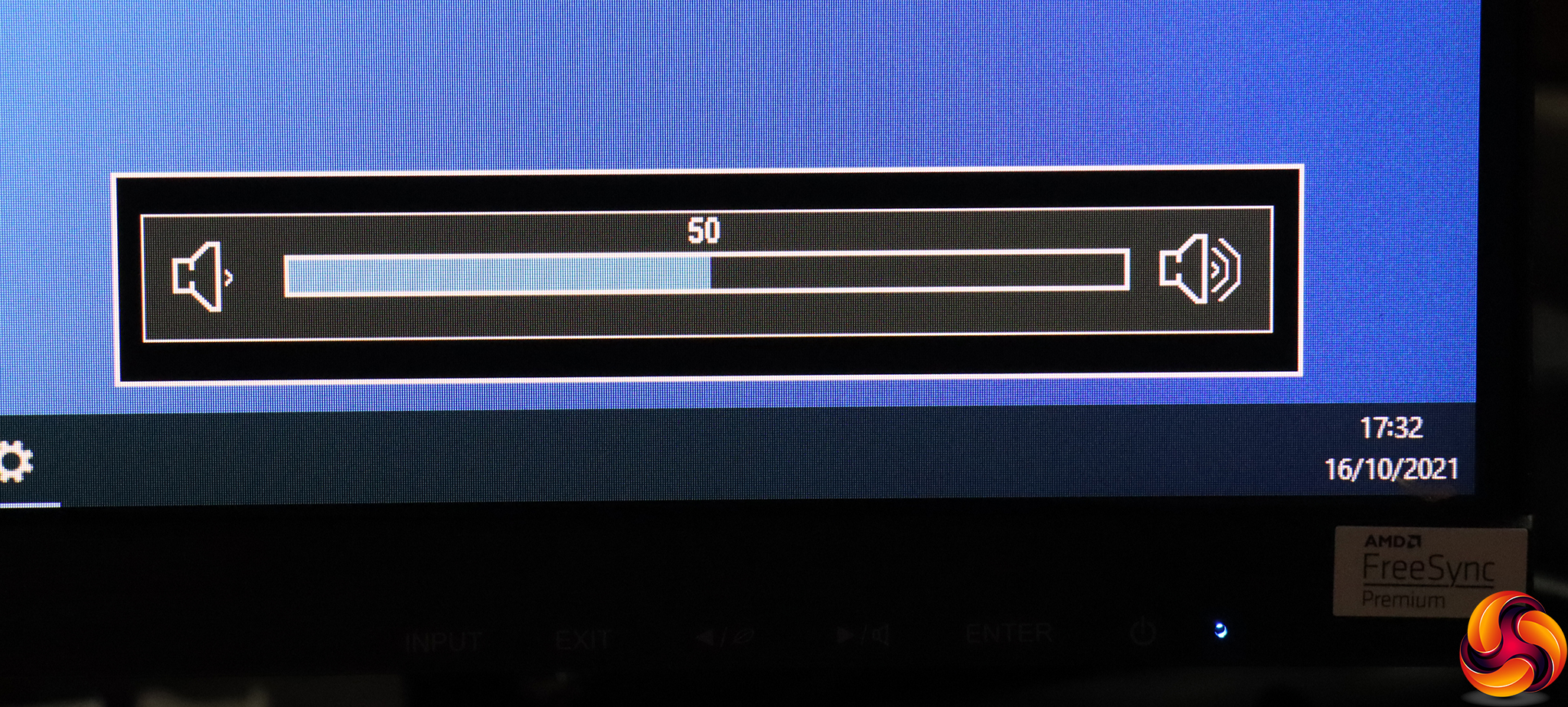
The fourth button simply lets you adjust the volume of the built-in speakers or attached headphones.
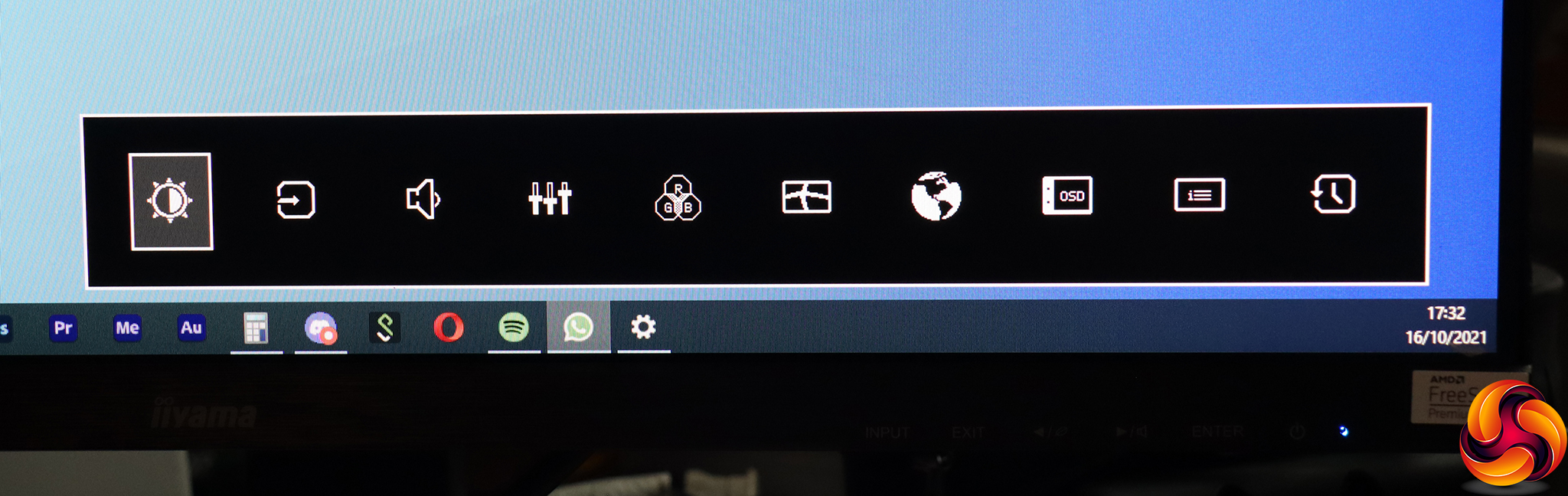
Finally, the fifth button calls up the main menu, first showing a series of icons so you can get to the subsection of the main menu you want more rapidly.
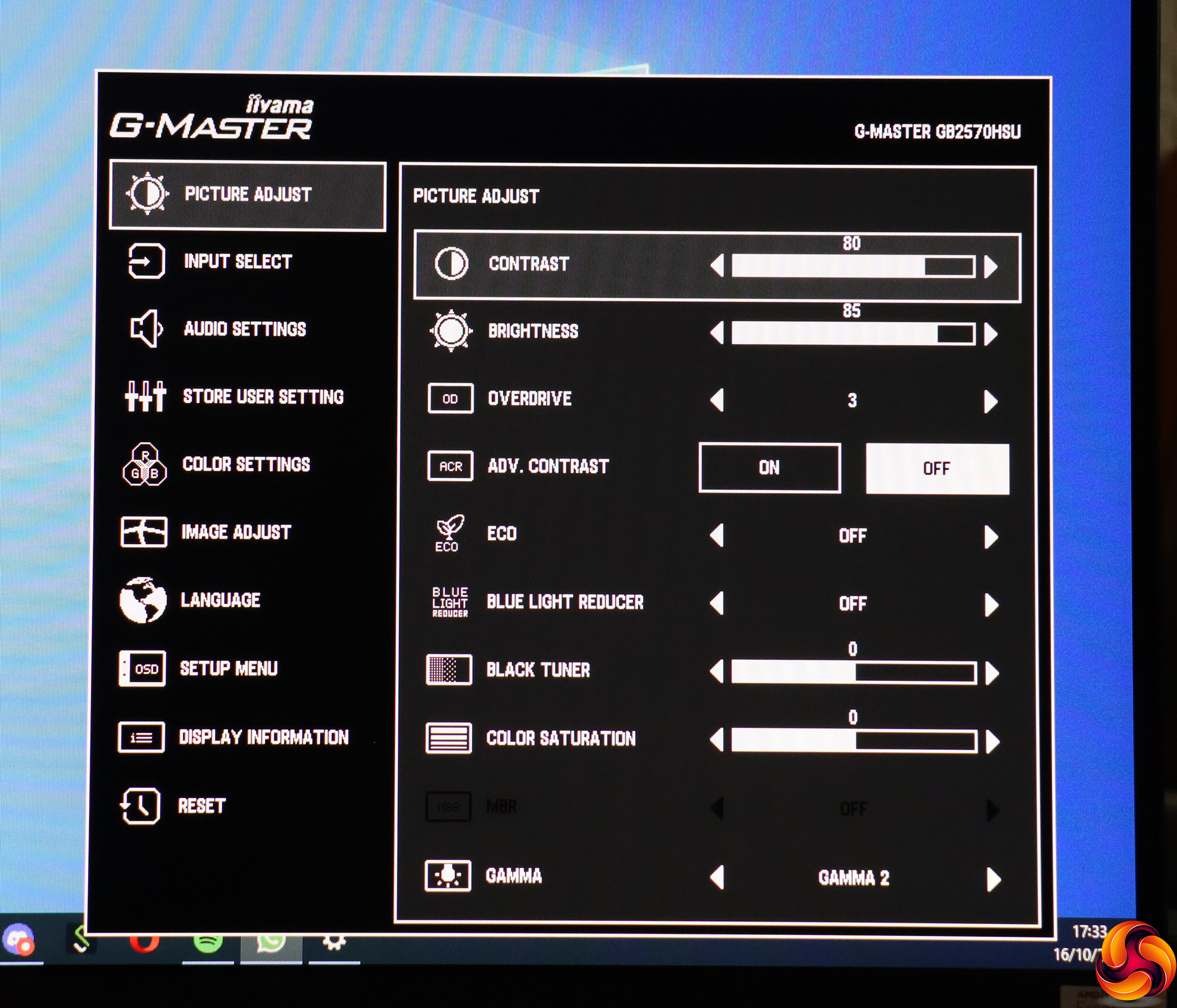
The first option is Picture Adjust, which has all the sundry quality configurations, starting with contrast and brightness. You can adjust pixel overdrive from 1-5, with 3 the default. Advanced Contrast is an artificial contrast boost.
There is a further route to the Eco Modes, plus the ability to add three levels of Blue Light Reduction for limiting eye strain.
The Black Tuner helps you bring out contrast in shadows, and there's a separate control for Color Saturation. Finally, there are three Gamma levels, with 2 (in the middle) being the default.
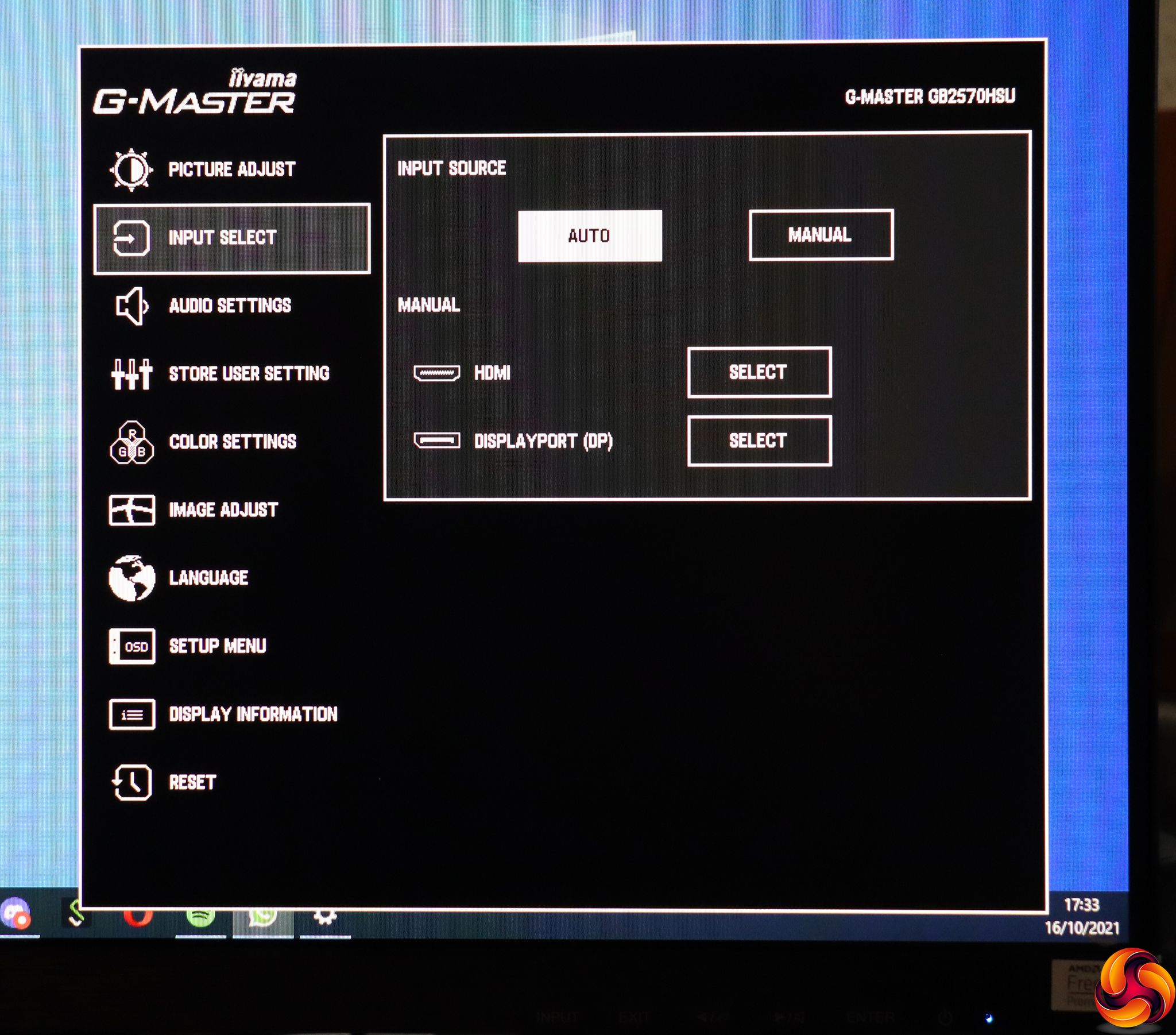
The next main menu section just replicates the ability to choose between the video inputs manually.
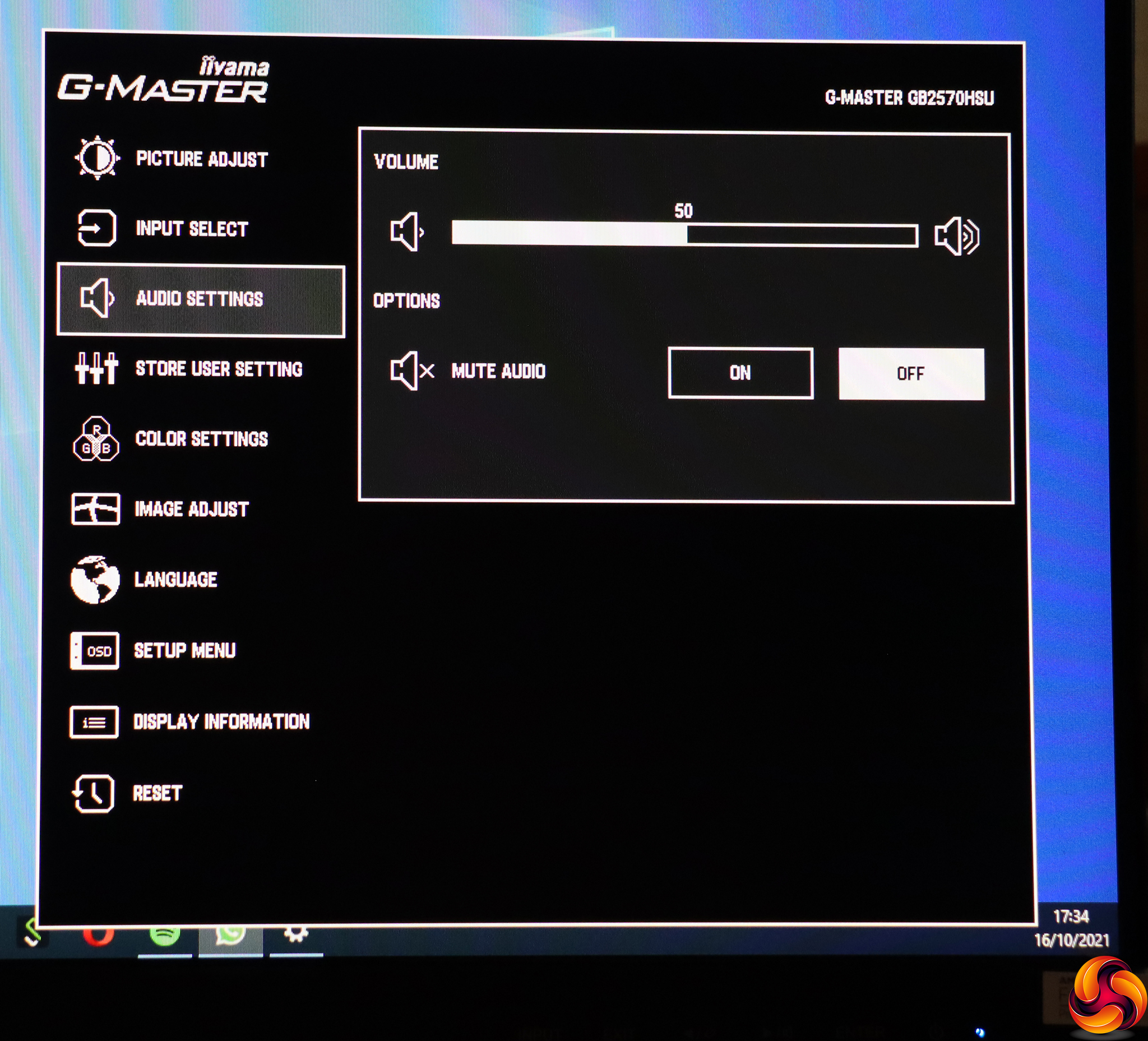
Audio settings merely include volume and the ability to mute. There are no equalisation controls to be found here.
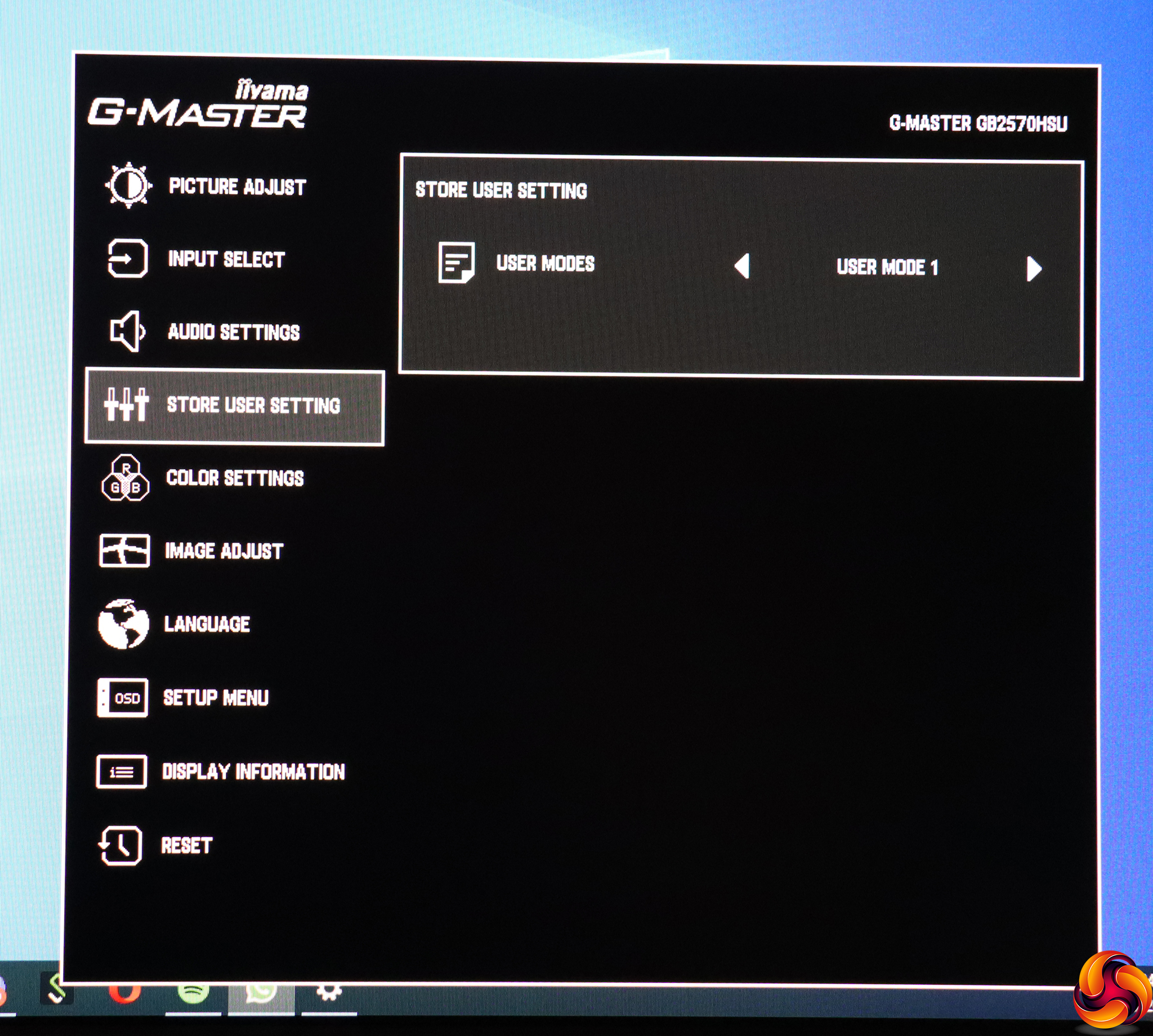
The fourth setting is for storing your current settings in one of the three User I-Style slots we mentioned earlier.
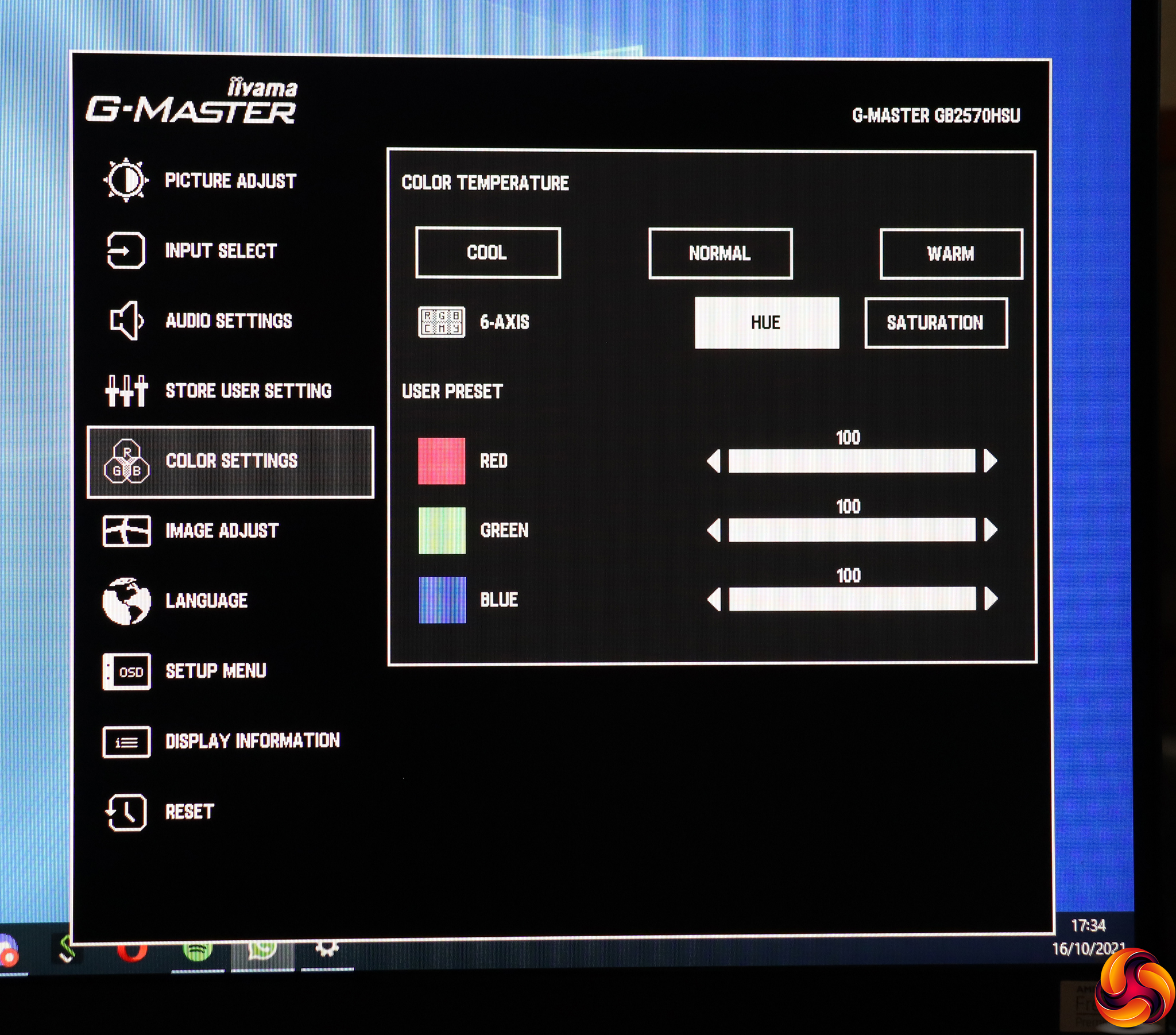
Under Color Settings, you can choose between three Color Temperature presets, or adjust colour manually via six-axis Hue or Saturation.
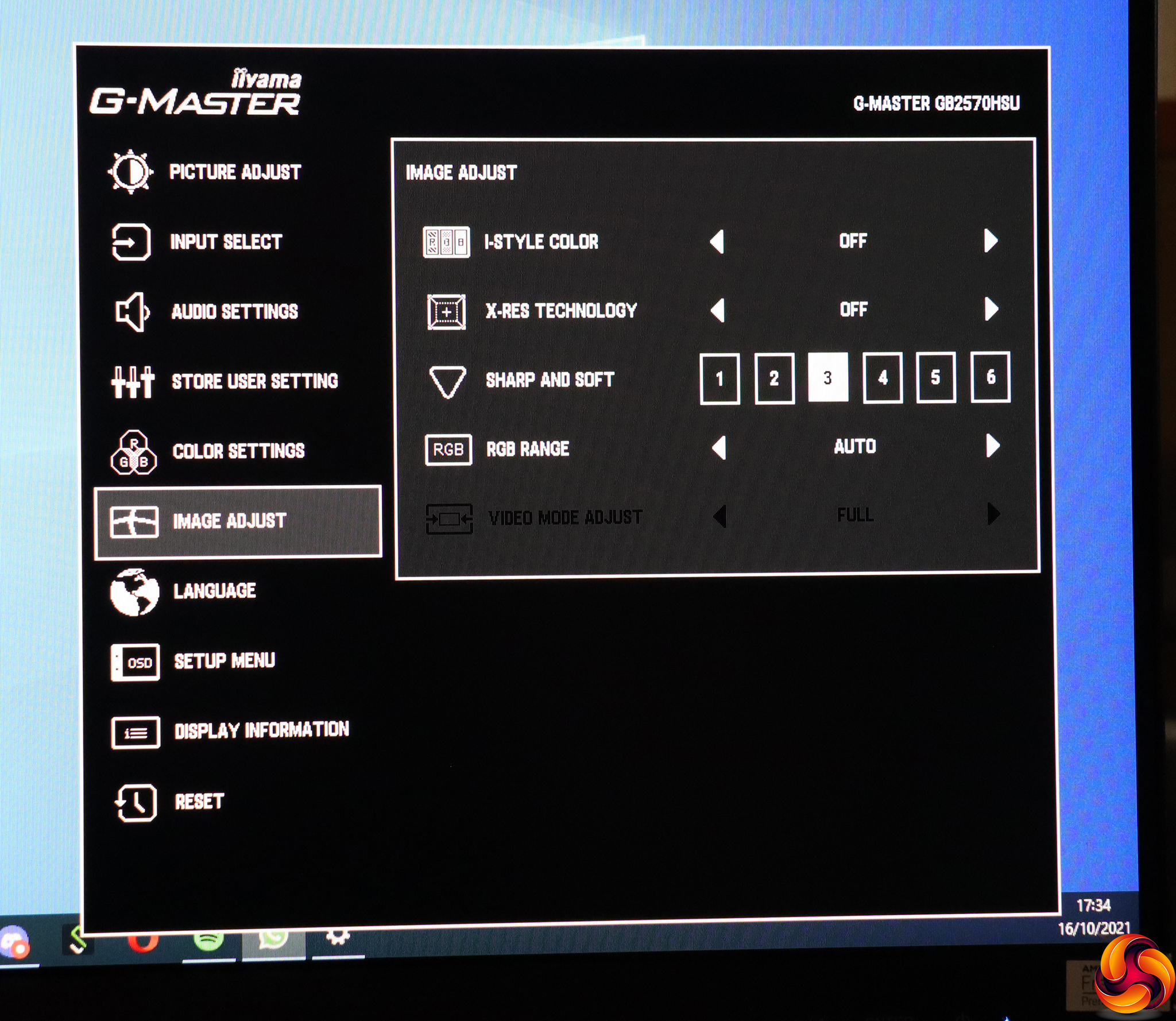
Image Adjust provides another route to the I-Style Color presets, but you can also enable Iiyama's X-Res Technology, which is an edge enhancement algorithm with Soft, Middle and Hard levels. You can separately adjust Sharpness between 1 and 6 with 3 the default. It's also possible to limit the RGB range shown. The Video Mode Adjust, greyed out in the above screenshot, let's you show the signal as various screen sizes and aspects instead of native resolution.
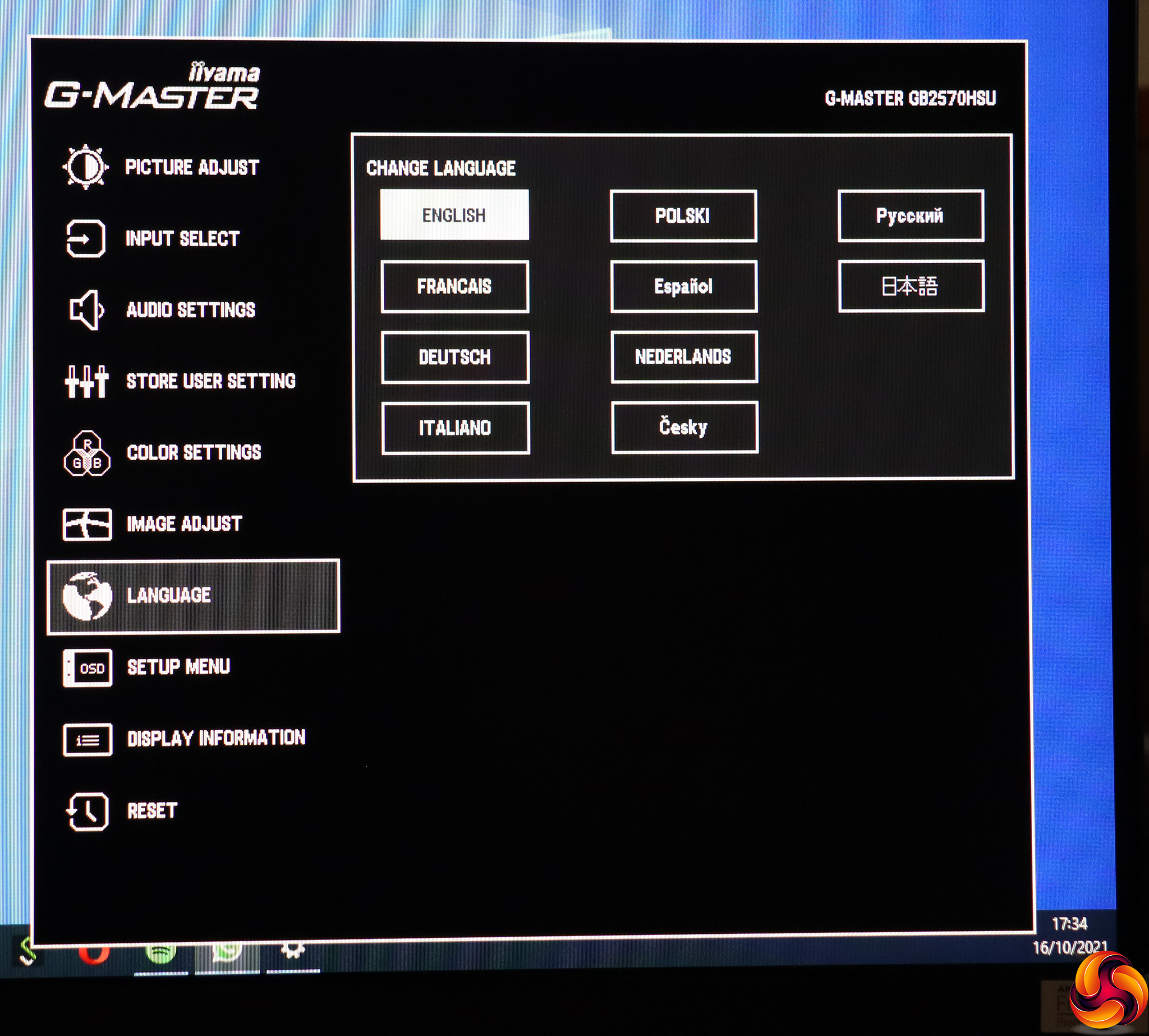
There are 10 different OSD language options to choose from.
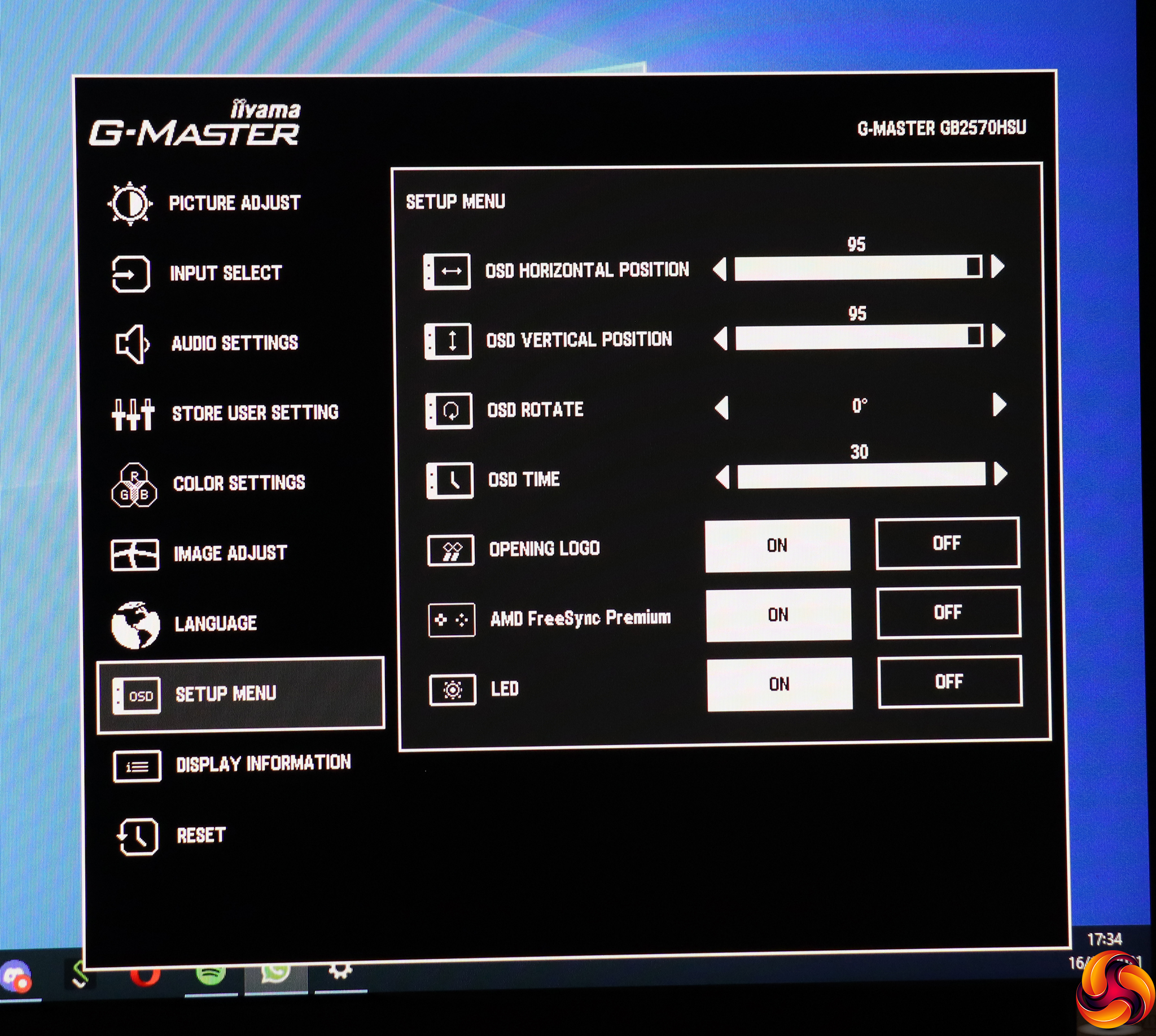
Setup Menu is where you configure the way the OSD appears, but also whether you see a logo when you turn the screen on, whether the power LED is on, and also (strangely in this context) it lets you enable and disable AMD FreeSync Premium adaptive sync.
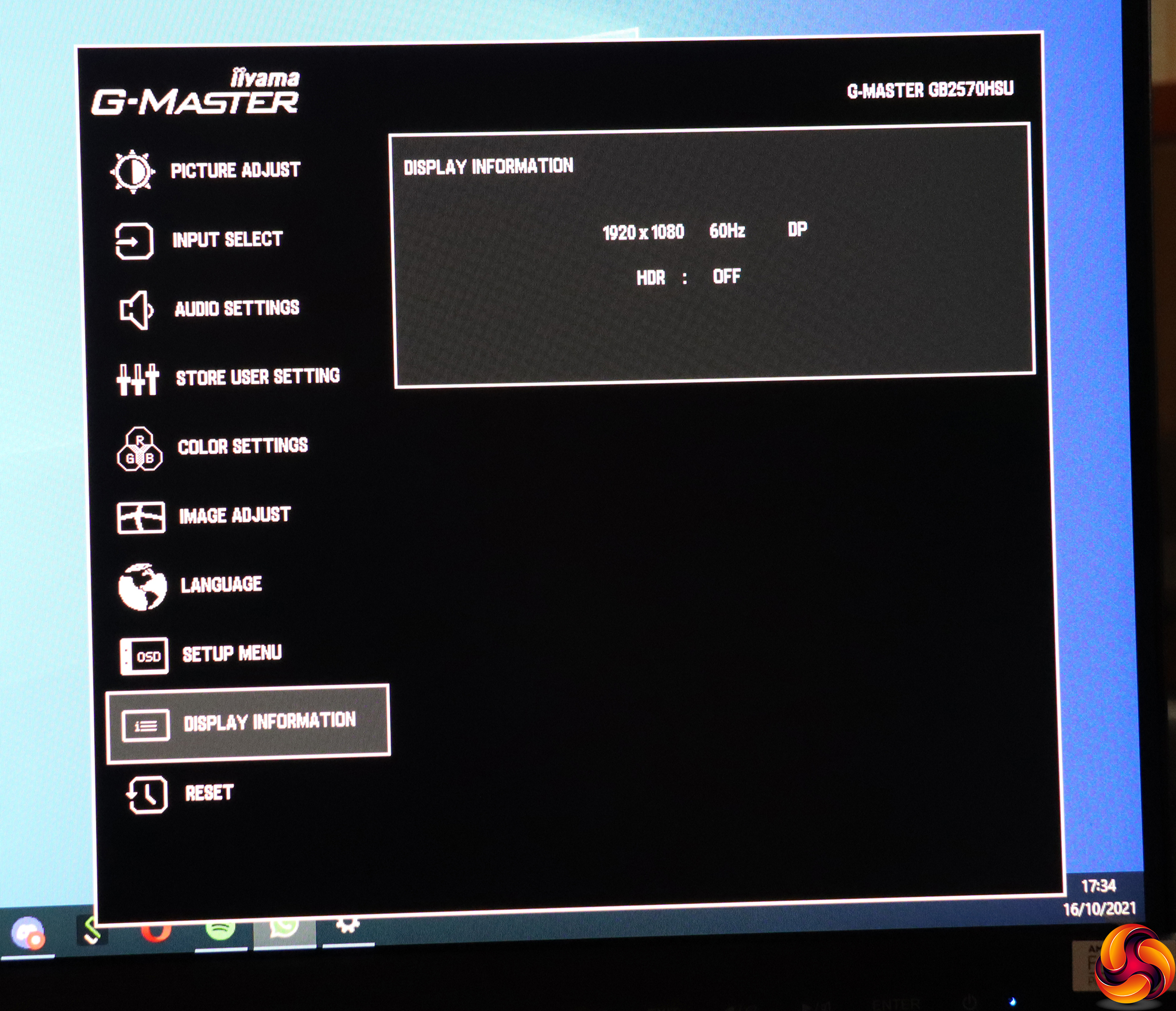
Display Information simply shows you what your current resolution and refresh rate are, as well as the input being used and whether HDR is enabled. You can't actually change anything here.
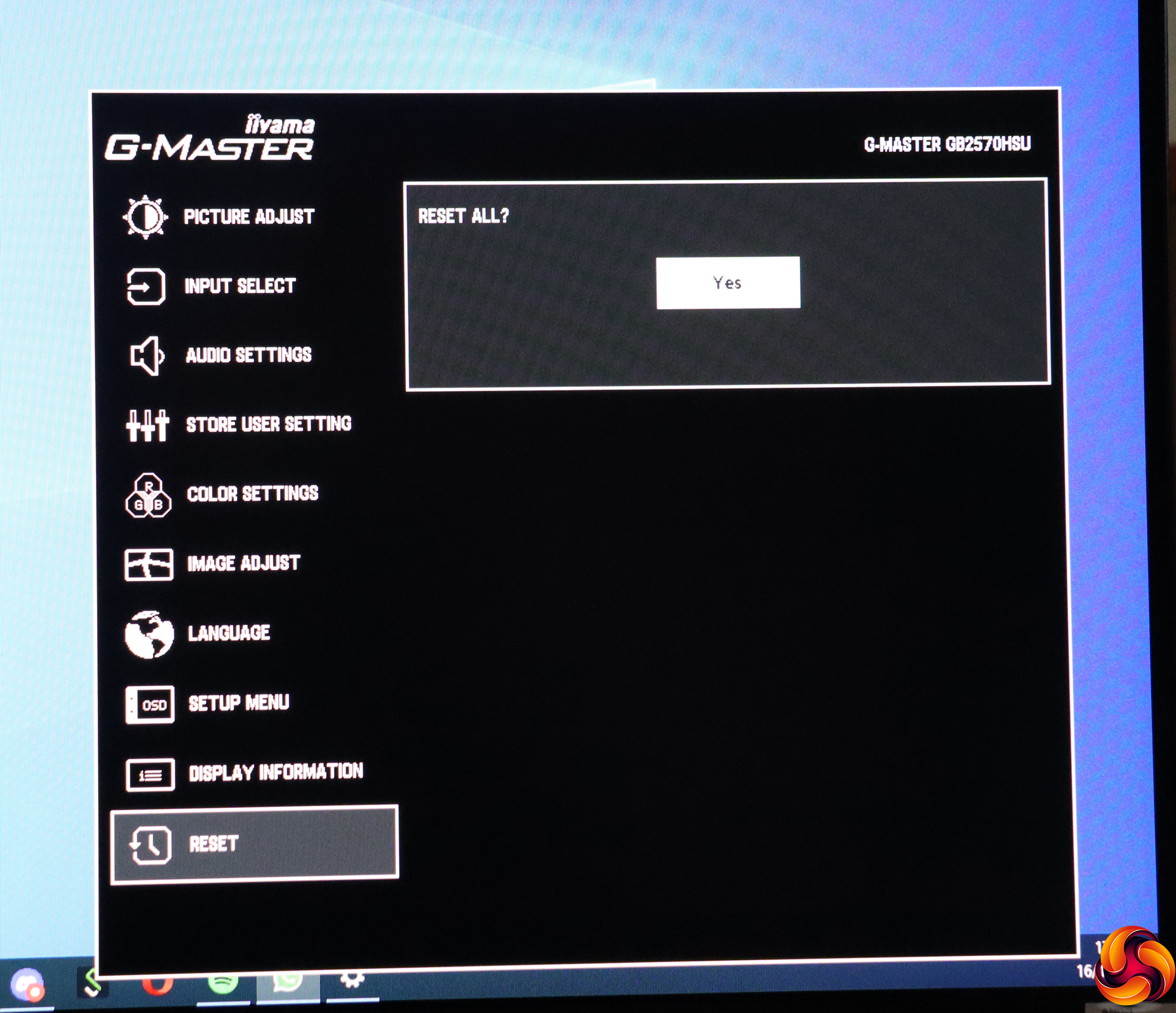
Finally, Reset, as the name suggests, lets you reset everything back to factory default.
Overall, this is a decent set of options laid out in a sensible and logical fashion. There aren't any extra game widgets like hardware crosshairs or frame counters. But there is plenty here to set the screen up the way you like, or just use a preset to keep things simple.
Our main test involves using a DataColor SpyderX Colorimeter to assess a display’s image quality. The device sits on top of the screen while the software generates colour tones and patterns, which it compares against predetermined values to work out how accurate the screen is.
The results show –
- A monitor’s maximum brightness in candelas or cd/m2 at various levels set in the OSD.
- A monitor’s contrast ratio at various brightness levels in the OSD.
- The brightness deviation across the panel.
- The black and white points.
- The colour accuracy, expressed as a Delta E ratio, with a result under 3 being fine for normal use, and under 2 being great for colour-accurate design work.
- The exact gamma levels, with a comparison against preset settings in the OSD.
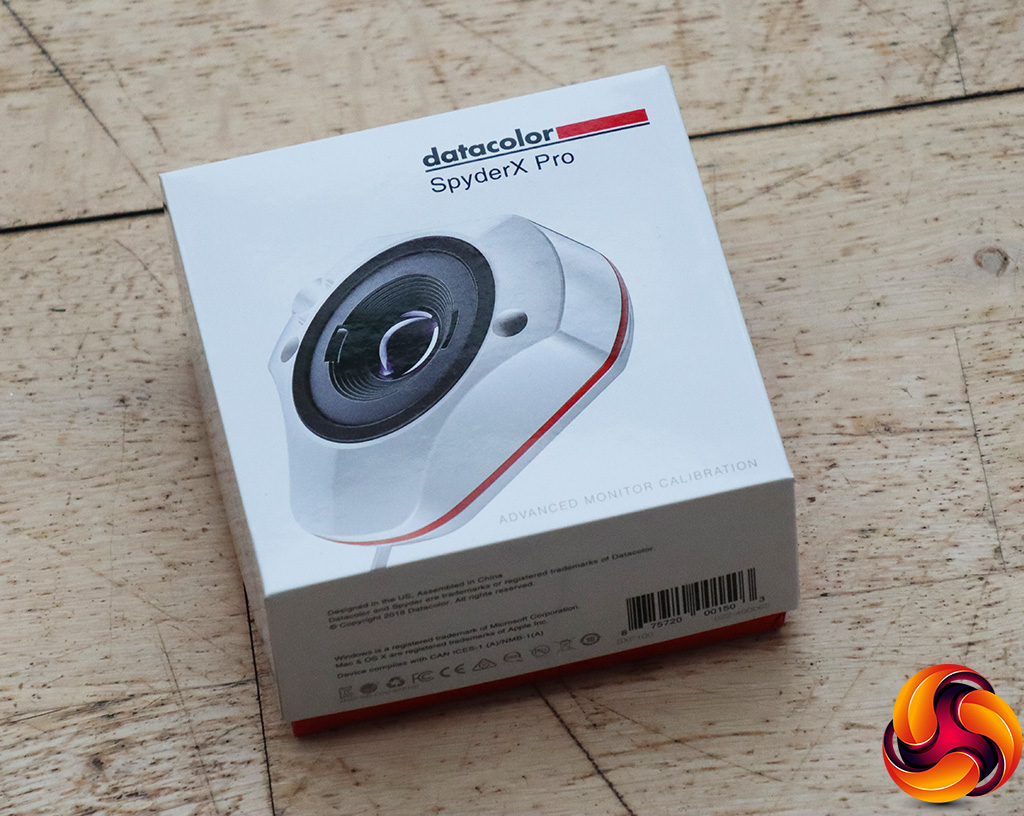
We first run this test with the display in its default, out-of-the-box state, with all settings on default. We then calibrate the screen using the Spyder software and run the test again.
We always test the display subjectively on the Windows desktop, using it for general tasks such as browsing and word processing, and with games as well, even if the display is not intended solely for that purpose.
We pay careful attention to any artefacts, ghosting or motion blur, and enable any gaming-specific features, such as adaptive-sync settings like G-Sync or FreeSync, using a compatible graphics card in our test PC.
We performed the quality tests on the Iiyama G-Master GB2570HSU at its native 1,920 x 1,080 resolution in the default mode, after resetting the OSD, which sets the refresh to 60Hz. Our test system was equipped with an AMD Radeon Vega Frontier Edition graphics card, which supports FreeSync.
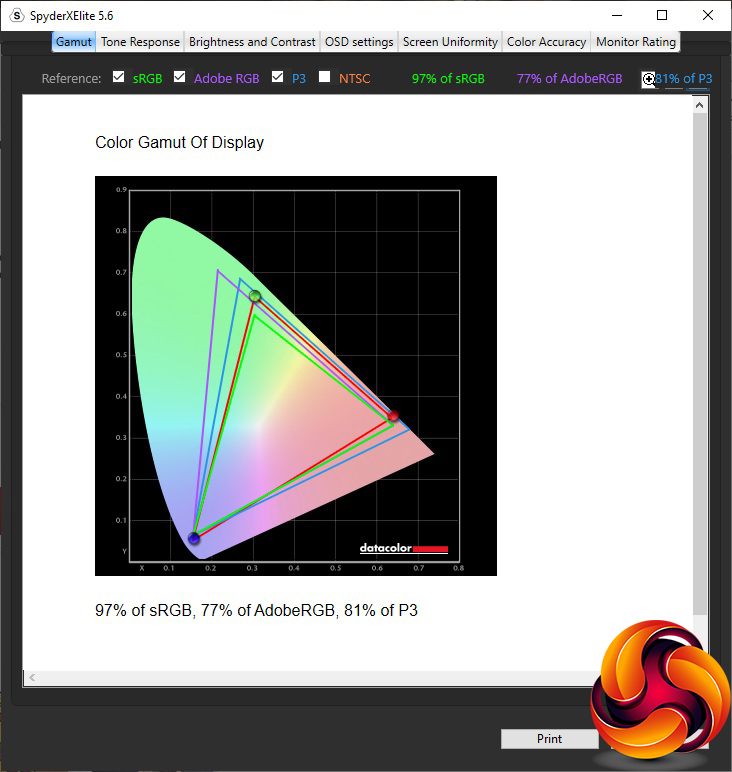
The gamut is not as good as we expected. Having under 100 per cent sRGB is rare, and 77 per cent AdobeRGB is also lower than some, although 81 per cent P3 is around what we would expect.

Brightness uniformity is also not as great as we would have expected, with the top edge showing 10 per cent or more difference from the centre.
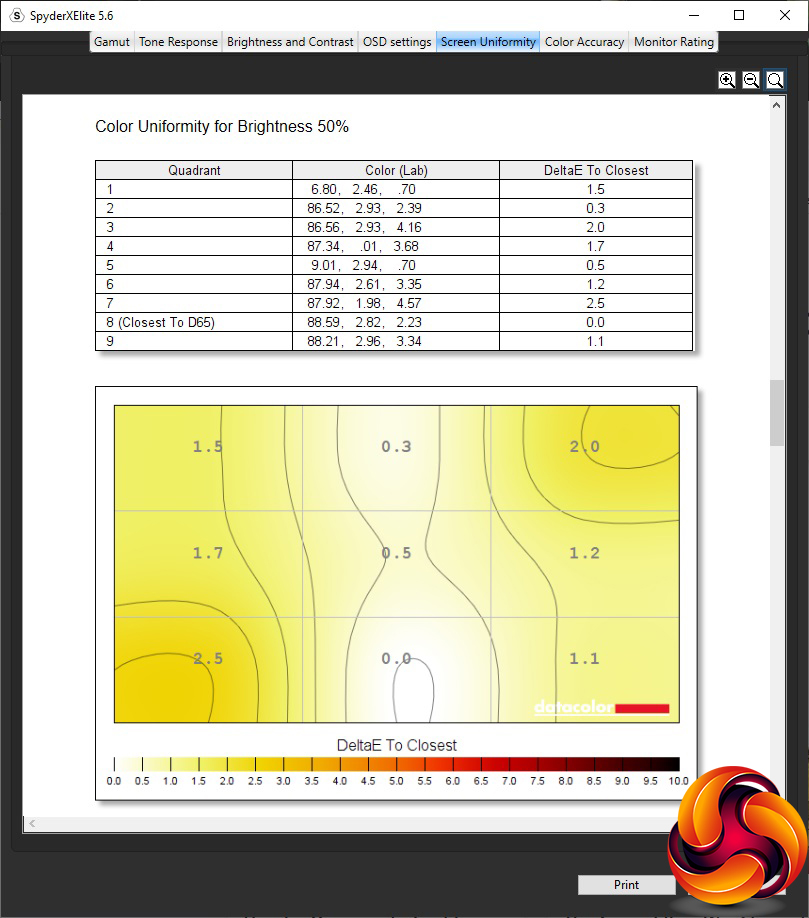
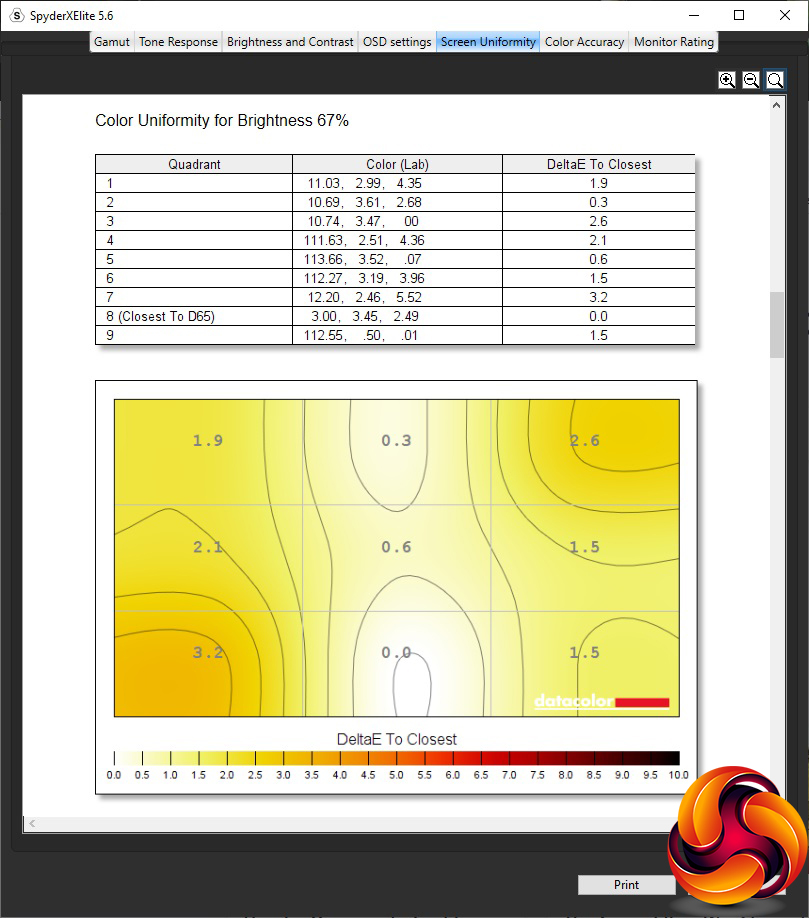
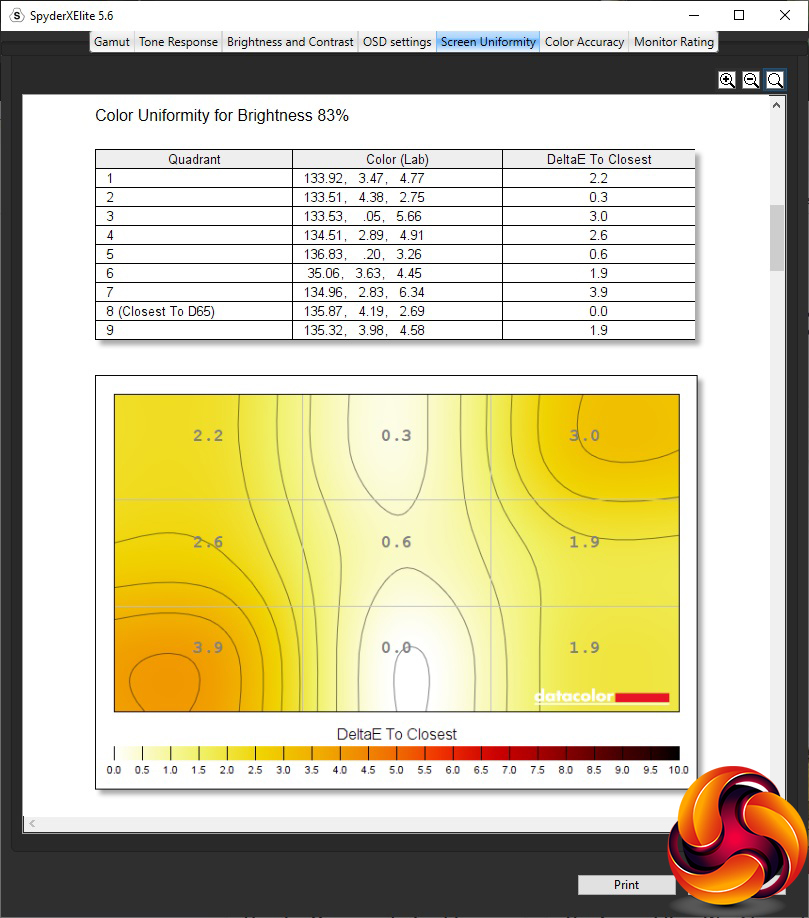
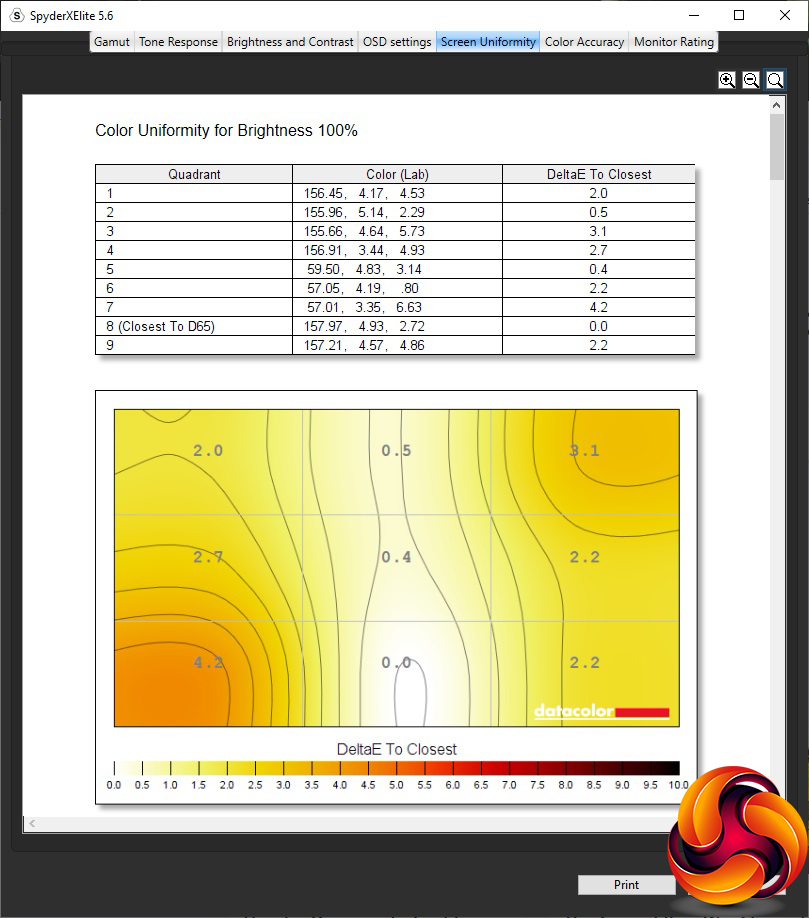
Colour uniformity, however, is excellent at all brightness levels.
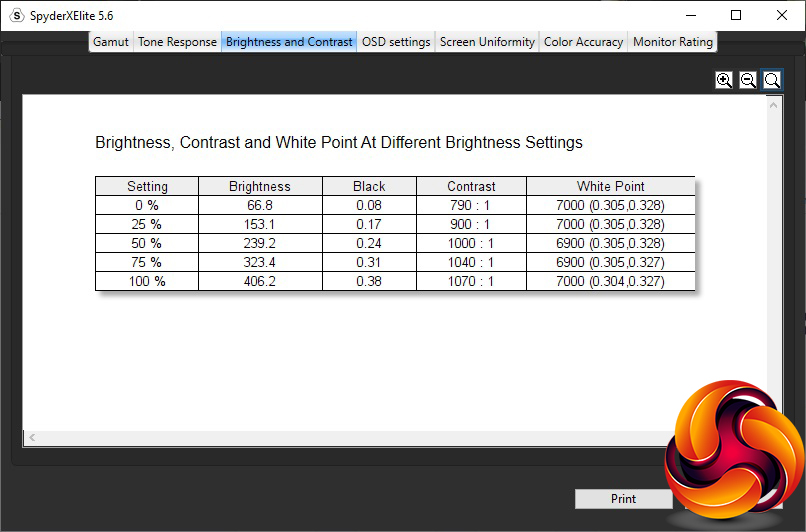
Brightness and contrast live entirely up to the specification, with the maximum illumination being 406.2cd/m2, and 1,000:1 contrast from 50 per cent brightness onwards.
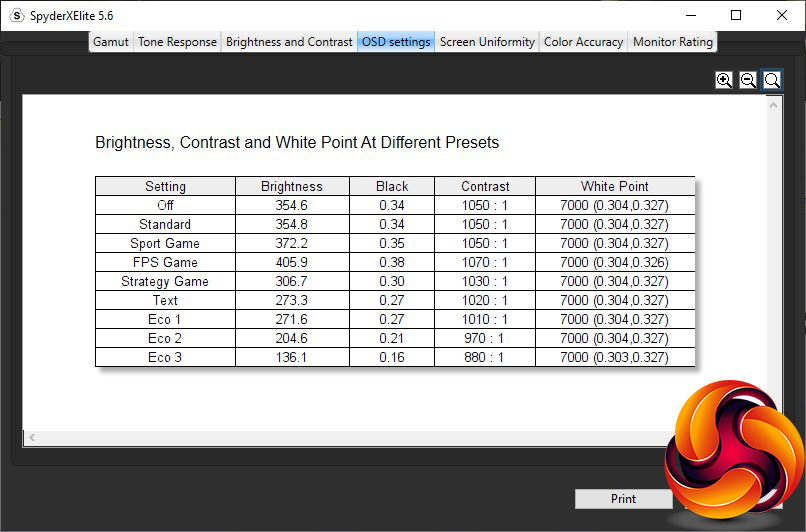
The presets are not as variable as you might expect. All have exactly the same white point of 7000K, which is a midrange value. Off and Standard I-Style Color presets are the same, providing 355cd/m2 brightness and 1,050:1 contrast. Sport Game only differs by offering a slightly higher 372cd/m2 brightness. FPS Game cranks the brightness up to the max at 406cd/m2 and contrast to 1,070:1, but is otherwise the same too. Strategy Game, on the other hand, has a reduced 307cd/m2 brightness and 1,030:1 contrast. Text mode is also a little less bright at 273cd/m2 and 1,020:1 contrast.
The Eco modes do vary things a bit more. Eco 1 is virtually the same as the Text I-Style Color option, but Eco 2 drops brightness to 205cd/m2 and a lower 970:1 contrast. Eco 3 drops the brightness a lot more to 136cd/m2, with a lower 880:1 contrast. Iiyama doesn't supply a movie/media option or specific office application preset, but the Standard I-Style Color would cope with both reasonably well.
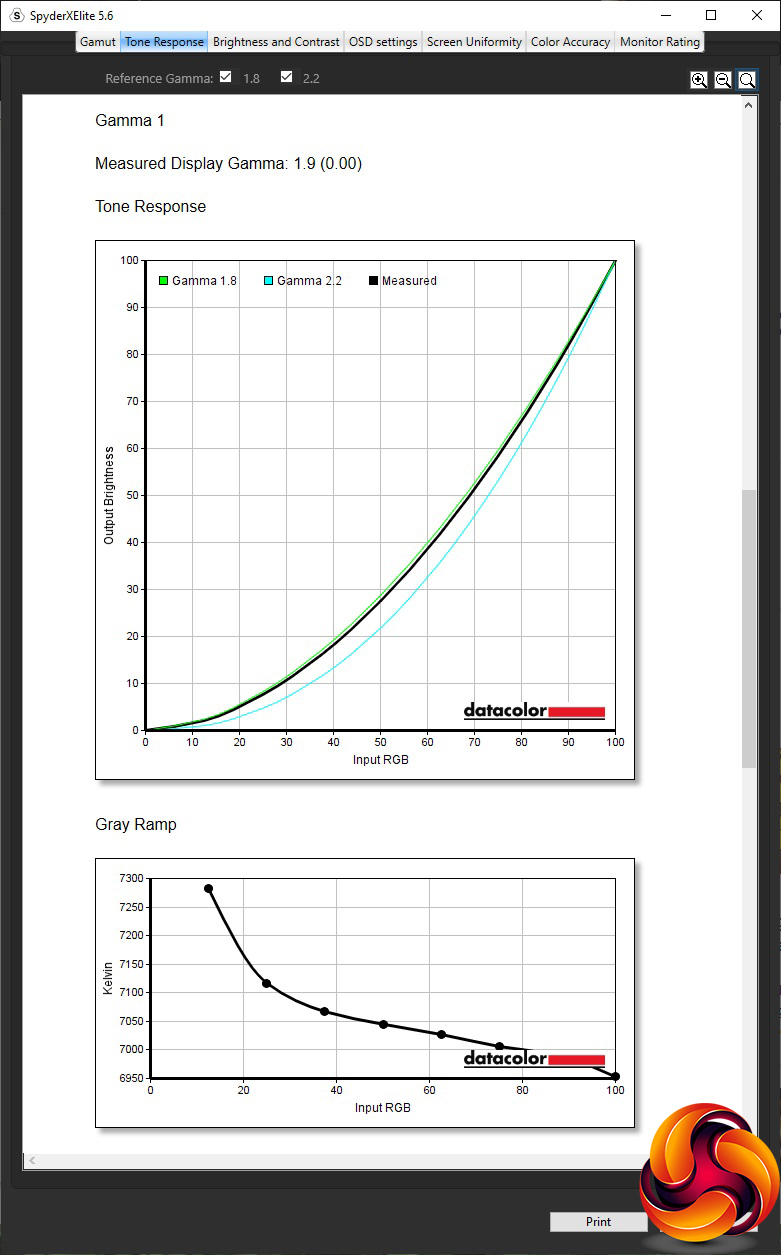
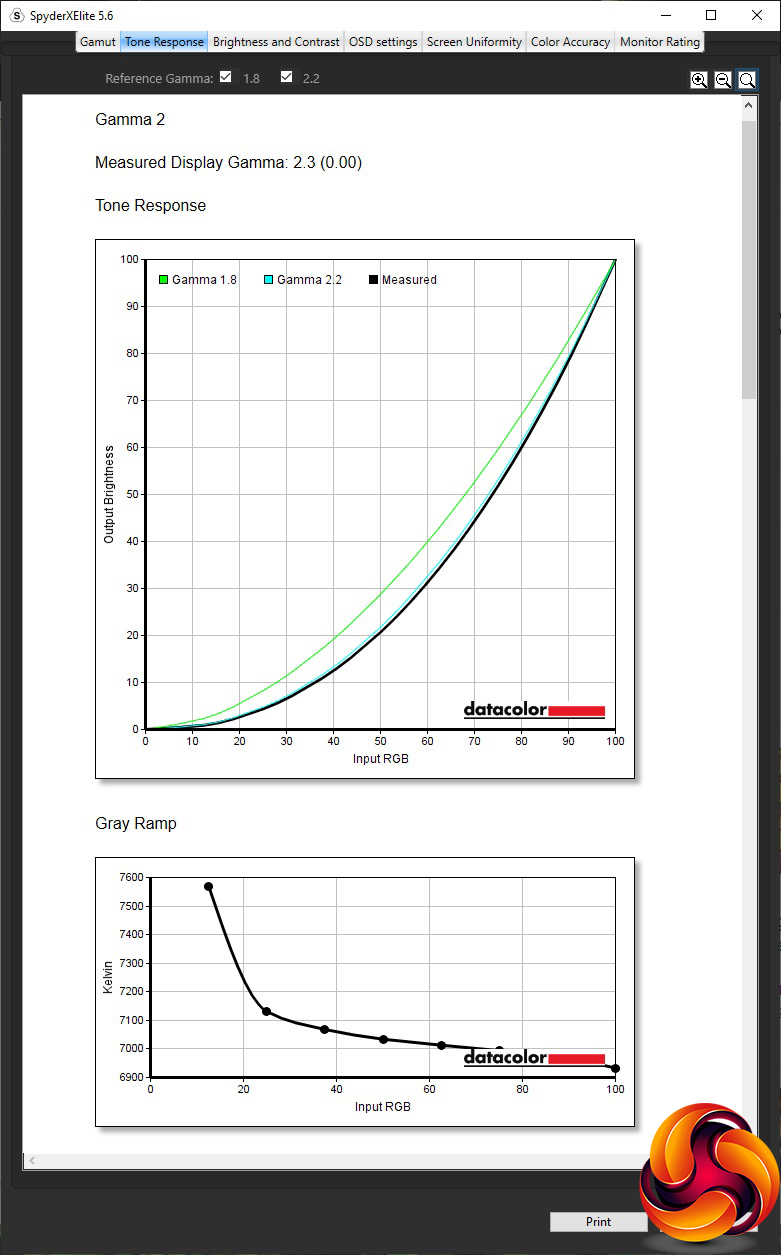
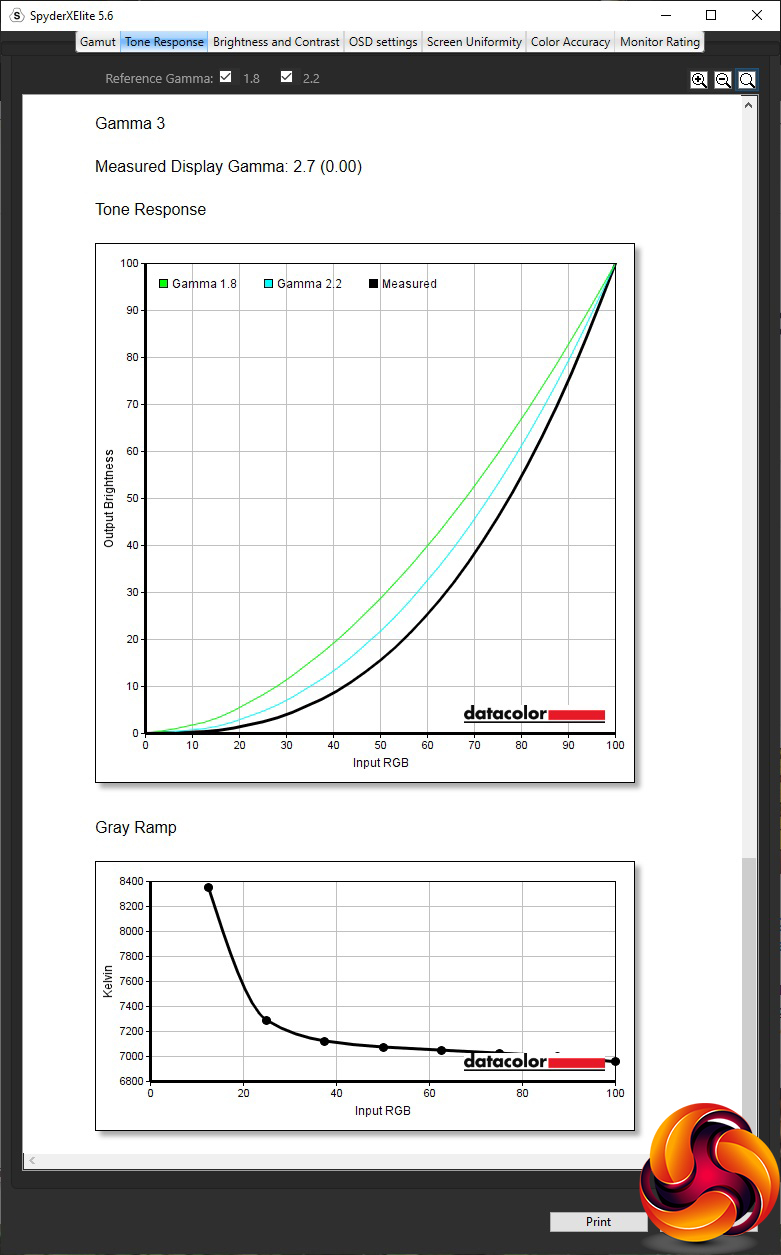
The gamma modes make a fair bit of sense. The default Gamma 2 equates to 2.3, which is approximately where we would expect a standard gamma to be (usually 2.2). The Gamma 1 and 3 either side are evenly spaced, with Gamma 1 equating to 1.9 and Gamma 3 to 2.7, so they are useful if you really want to lower or boost gamma respectively.
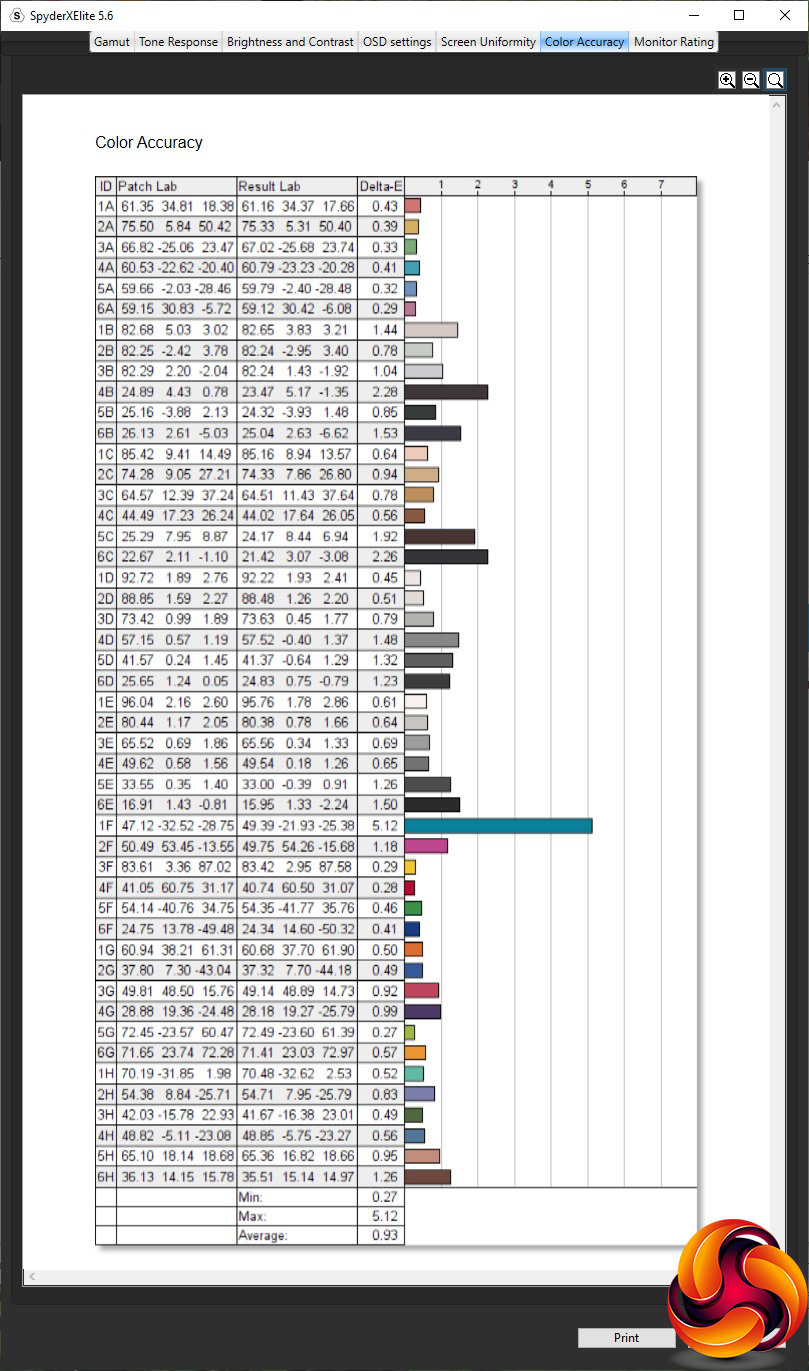
The area where IPS panels reign supreme is Color Accuracy, and here the Iiyama does an incredible job straight out of the box, with just 0.93 average colour variance. However, we always think there's more to be had from calibration, so we fired up the SpyderX again to see what could be achieved.
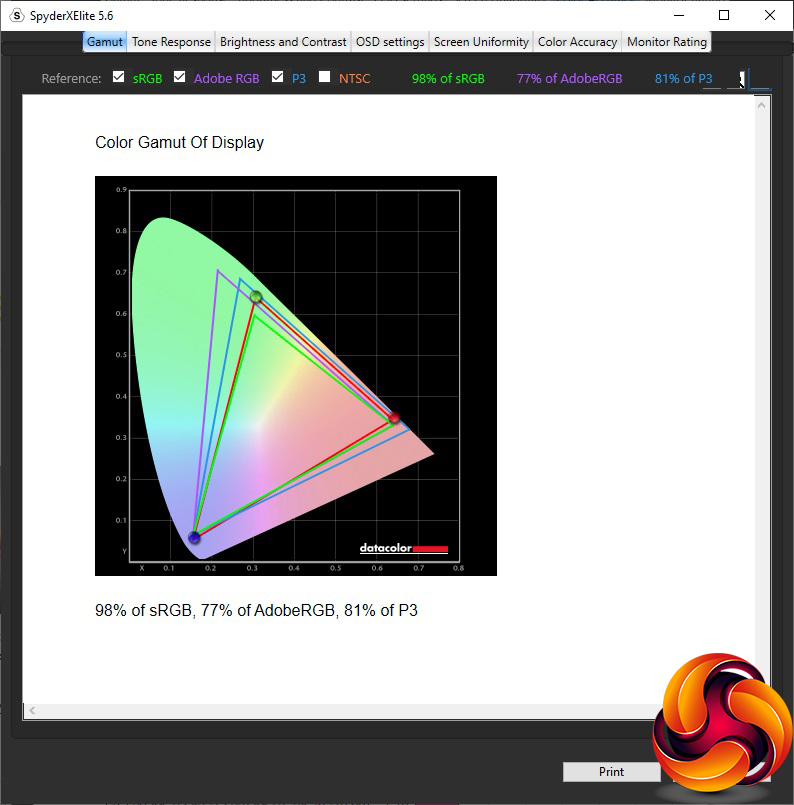
After calibration, the Gamut has slightly improved, although we were still not getting 100 per cent sRGB, just 98 per cent. The AdobeRGB score of 77 per cent and P3 score of 81 per cent remain the same.
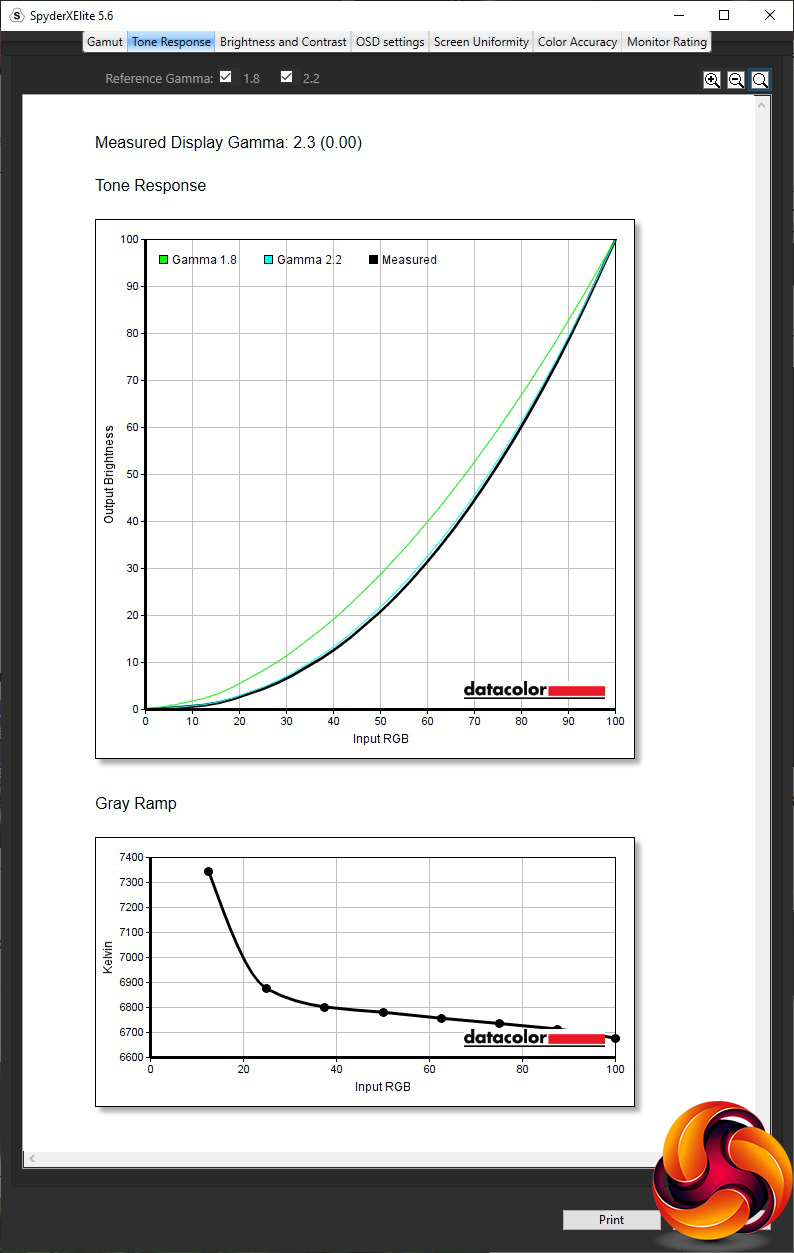
We only retested the default Gamma 2, which remained at 2.3.
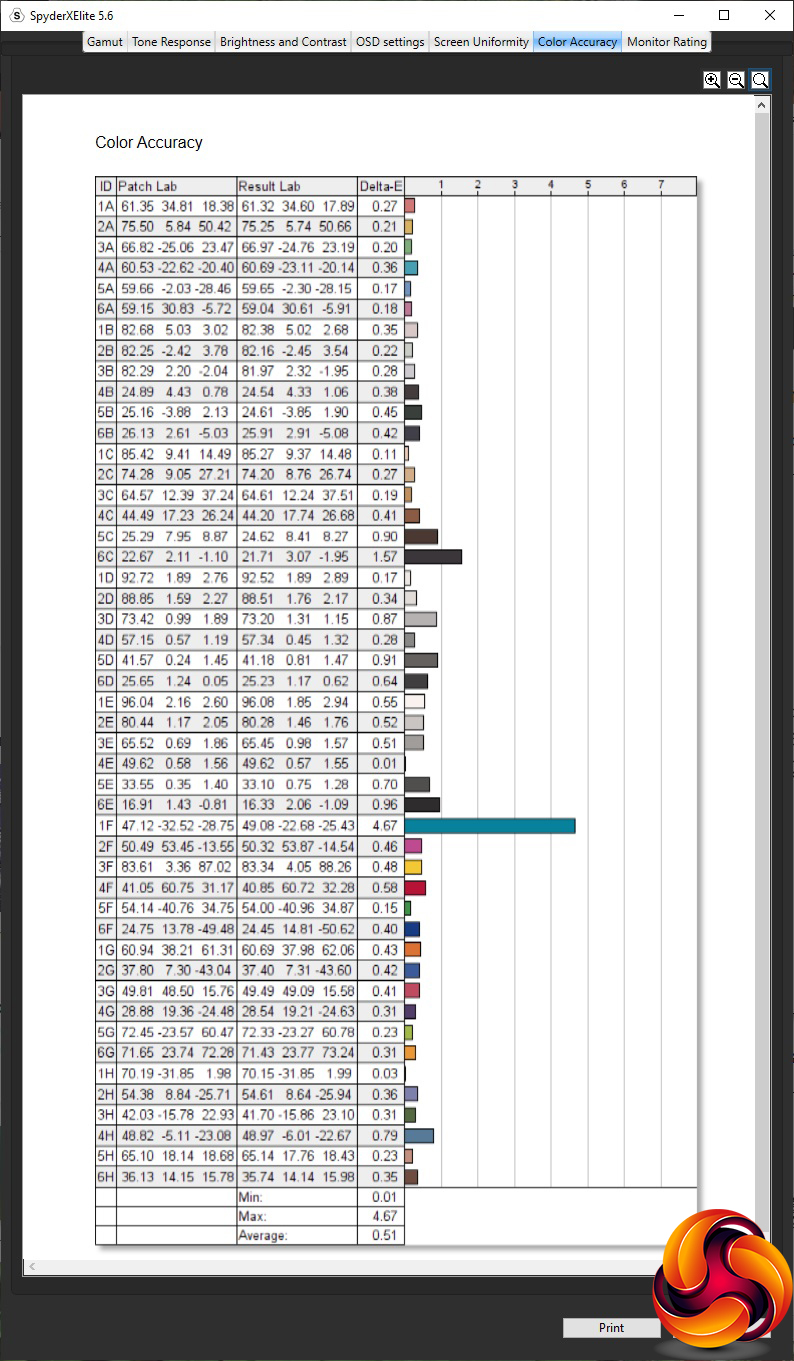
Color Accuracy, however, was even more phenomenal after calibration – just 0.51 variance on average. This is one of the best scores we have ever seen, showing how strong Iiyama is in delivering chromatic fidelity from its long reputation making professional monitors.
Overall, though, this isn't a pristine set of results. The Color Accuracy and Uniformity are amazing, but Brightness Uniformity not so much, and the gamut has a small question mark over it, although we have seen problems with monitors not registering their true sRGB gamma using the SpyderX in the past.
Of course, as this is a gaming screen, we had to fire up some titles to see how the monitor coped subjectively and how the adaptive synchronisation worked with our AMD graphics. The games we used included CS:GO, Rainbow 6 Siege, and LoL. Since the resolution is only Full HD, all games were delivering frame rates well into the upper tiers of the refresh ability of this screen, providing silky smooth tear-free images. This monitor definitely delivers on requirements in this respect.
The Iiyama G-Master GB2570HSU is a very capable gaming screen, if not a perfect one. The colour fidelity is incredible, particularly when calibrated, and the colour uniformity is excellent too. The brightness and contrast are exactly as specified.
We do have some concerns about brightness uniformity and the gamut, but in practice you're unlikely to find this gets in the way of your gaming experience. The 165Hz refresh and AMD FreeSync Premium deliver smooth framerates for games that really need them, particularly FPS ones.
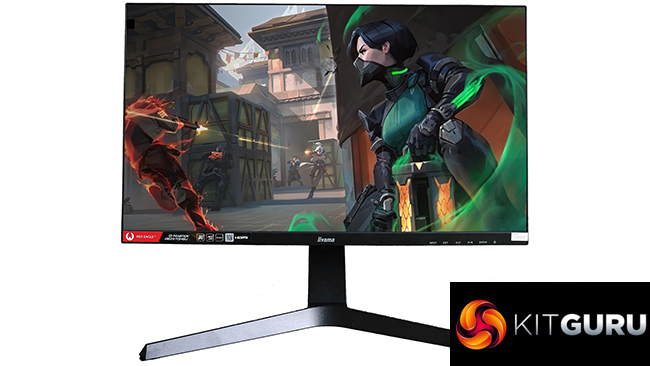
There aren't so many gaming widgets, and you only get two video inputs where many screens will offer at least three. But there is a two-port USB hub built in and a decent set of adjustments available via the menu. We can live without the ability to swivel, as you can move the stand and there is at least tilting, raising and portrait rotation available. With a reasonable street price just under £215, the Iiyama G-Master GB2570HSU is a solid value choice for high-framerate game lovers.
You can buy the Iiyama G-Master GB2570HSU from Scan over HERE for £214.97 inc VAT.
Discuss on our Facebook page HERE.
Pros:
- Super colour fidelity, and even better when calibrated.
- Fast 165Hz refresh.
- AMD FreeSync Premium.
- Reasonable price.
- Excellent colour uniformity.
- Built-in two-port USB hub.
Cons:
- Mediocre gamut and brightness uniformity.
- No swivel.
- Limited extra gaming OSD features.
KitGuru says: The G-Master GB2570HSU delivers high-framerate Full HD AMD FreeSync Premium gaming for a reasonable price with the superb colour fidelity we expect from Iiyama.