KitGuru KitGuru.net – Tech News | Hardware News | Hardware Reviews | IOS | Mobile | Gaming | Graphics Cards


The first WiFi 7 routers may be starting to appear, but it's early days yet for the next generation wireless standard. Until then, a WiFi 6 router is a more sensible choice. However, there's a new flavour of WiFi 6 to tide you over until version 7 matures, called 6E, which adds a 6GHz waveband above the 5GHz of the non-E version. MSI had a new range of gaming routers on show at CES 2023, including the RadiX AXE6600, which aims to give you WiFi 6E and a host of features to improve your wireless experience.
The MSI RadiX AXE6600, as the name suggests, has an AXE6600 rating, which means it offers three radios that can simultaneously offer an aggregated total of 6,600Mbits/sec. It can operate at 5GHz, 2.4GHz, and the latest 6GHz frequencies. At 2.4GHz, the router can deliver up to 573.5Mbits/sec, but this more than doubles to 1,200Mbits/sec at 5GHz. The 6GHz waveband offers 4,800Mbits/sec.
The RadiX also promises gaming focused features including Quality of Service (QoS) settings that can prioritise gaming traffic. MSI claims this can reduce the ping by 90 per cent for extremely low latency when gaming – ensuring you can be one of those “Low Ping B*****ds”.
However, the AXE6600 is not to be confused with the almost identically named MSI RadiX AX6600. This doesn't have the 6GHz WiFi 6E support, although it superficially looks very similar and also has the QoS features of the AXE6600. MSI supplied us with its new AX1800 USB adapter to go with this review, but that is only WiFi 6.
In fact, there are precious few devices that do support 6GHz yet. Some USB-based adapters are coming, but right now the only option is a PCI Express card for a desktop PC. A few Apple products also support 6E, and a selection of notebooks.
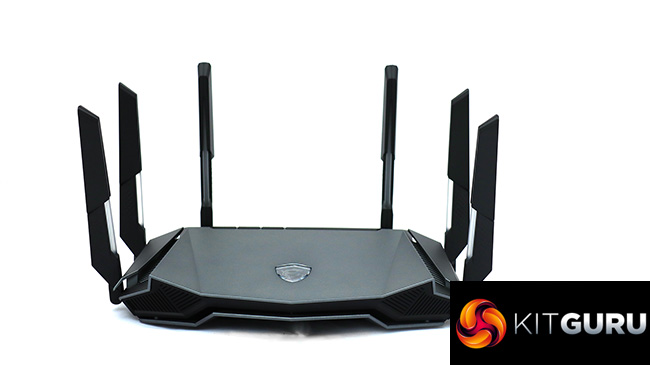
The most eye-catching feature of the MSI RadiX AXE6600, literally, is that it incorporates lighting into its antennae, with shades that indicate the priority mode enabled – gaming, streaming, working from home or AI auto. A fairly typical set of physical ports is available, including four Gigabit Ethernet connections for wired devices. However, the broadband WAN port stretches to 2.5Gbit Ethernet. There's a USB 3.0 port for attaching storage to share across the network.
With its plethora of lights and decent specification, the MSI RadiX AXE6600 shows promise. Priced at a suggested £319, it's not cheap, when you can pick up WiFi 6 routers without 6GHz support for £100 less. Let's find out if it's worth the extra money.
The MSI RadiX AXE6600 has a suggested retail price of £319 inc VAT. Keep an eye on your favourite retailer for availability.
Specification:
- Wireless protocols: MU-MIMO with 802.11b/g/n 2.4GHz, 802.11a/n/ac/ax 5GHz/6GHz
- Performance: AXE6600 (4,800 + 1,200 + 600 Mbits/sec)
- Antenna Configuration: 6×6 external antennas
- Ports: 4 x Gigabit Ethernet, 1 x 2.5Gigabit Ethernet WAN, 1 x USB USB 3.0
- Modem Support: VDSL/ADSL 2+ or cable
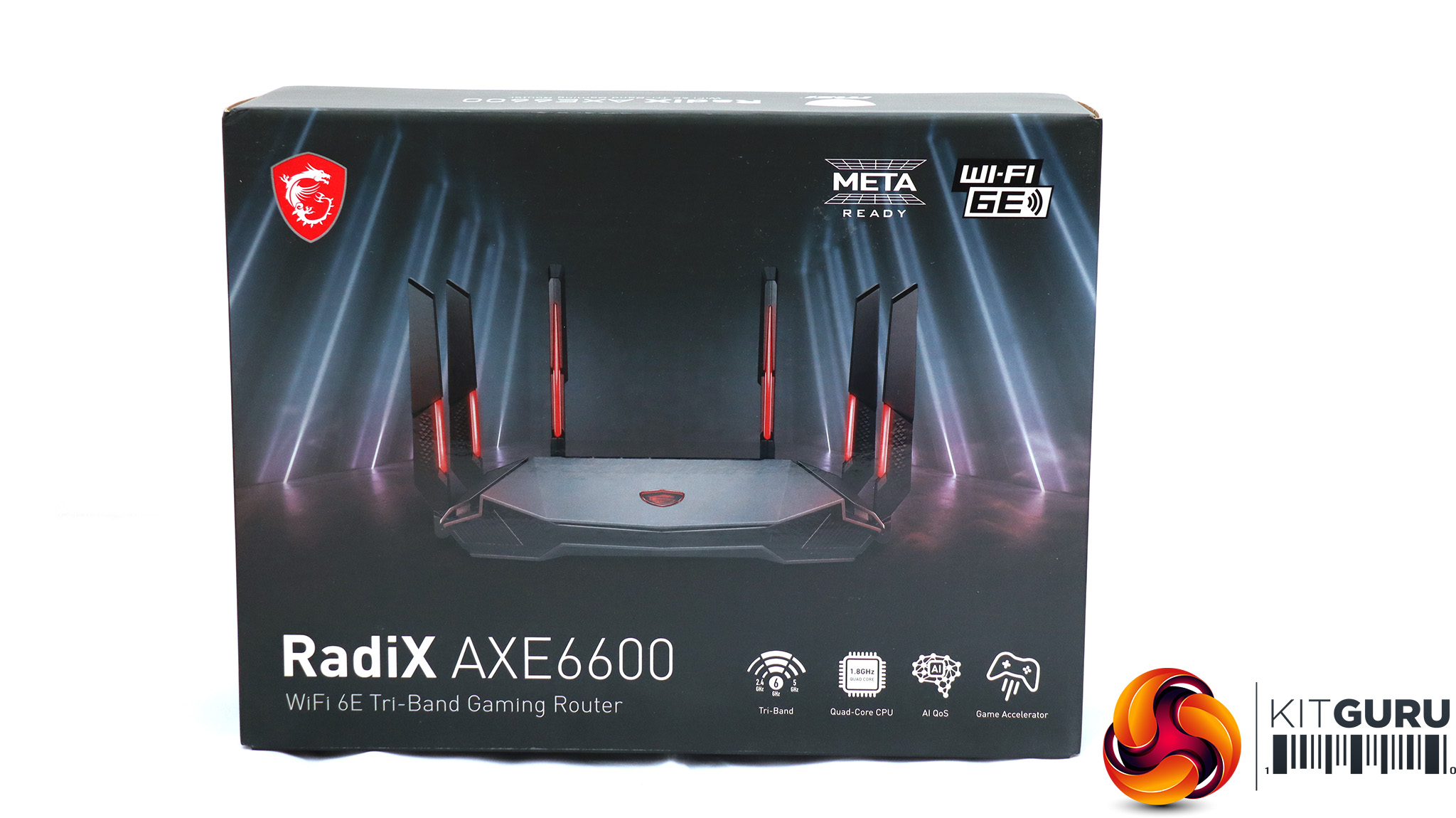
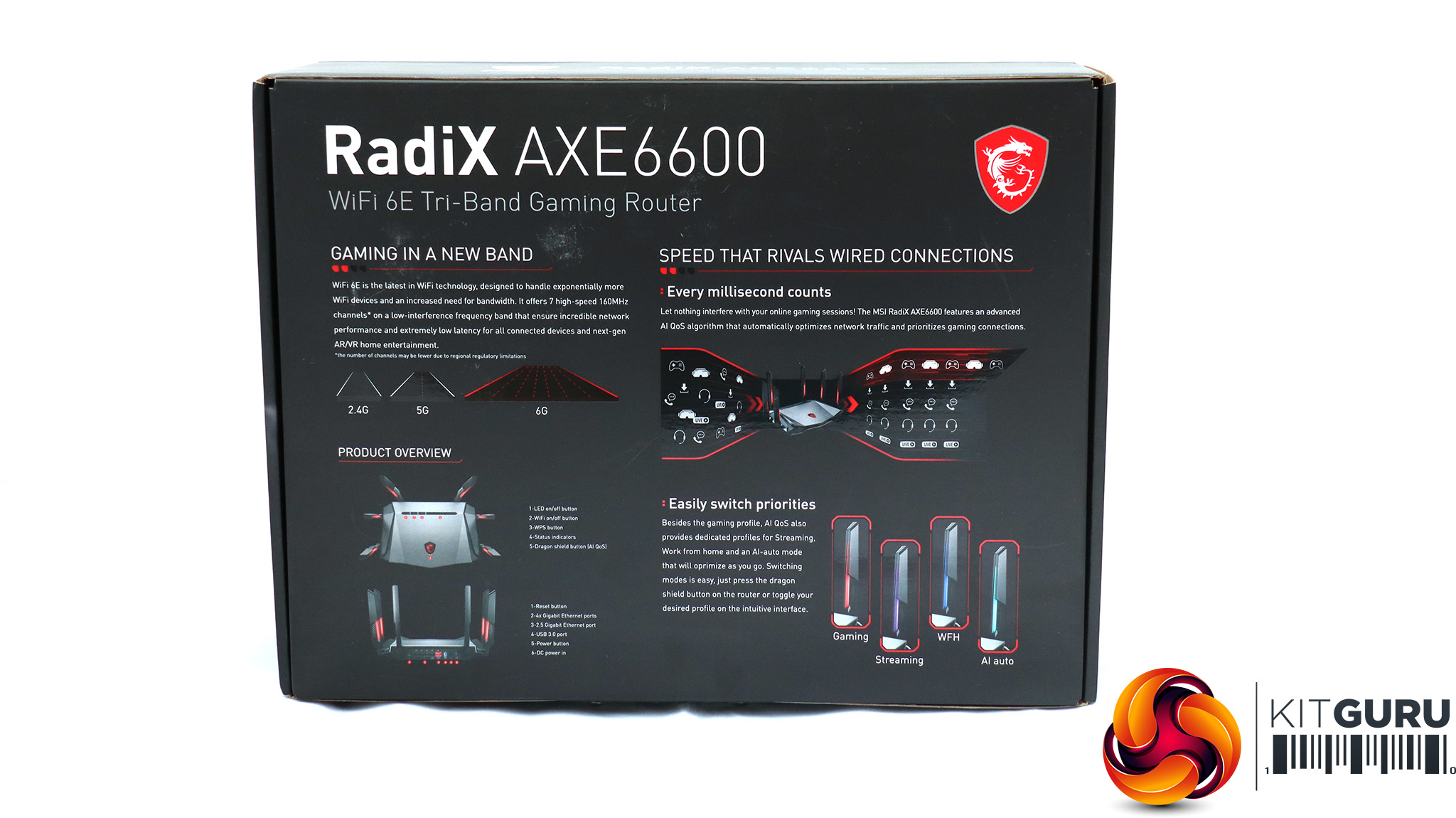
The RadiX comes in a typical MSI box, which doesn't economise on colourful cardboard unlike Synology's packaging. There's plenty of information and alluring imagery emblazoned on the top and bottom.
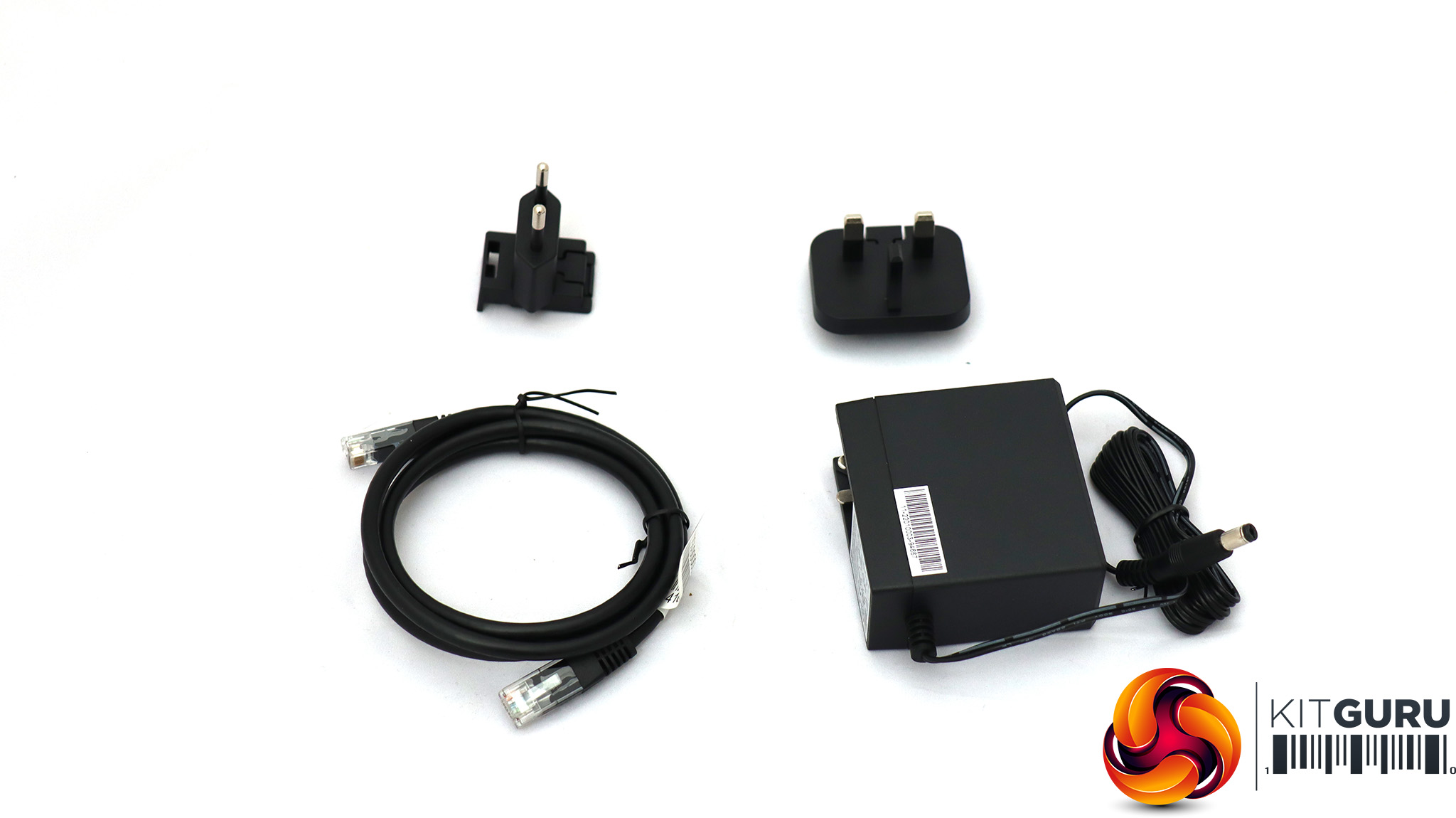
The power supply comes with European and UK plug pin options, and there's a Cat 5 Ethernet cable included as well, intended for use with the broadband modem.
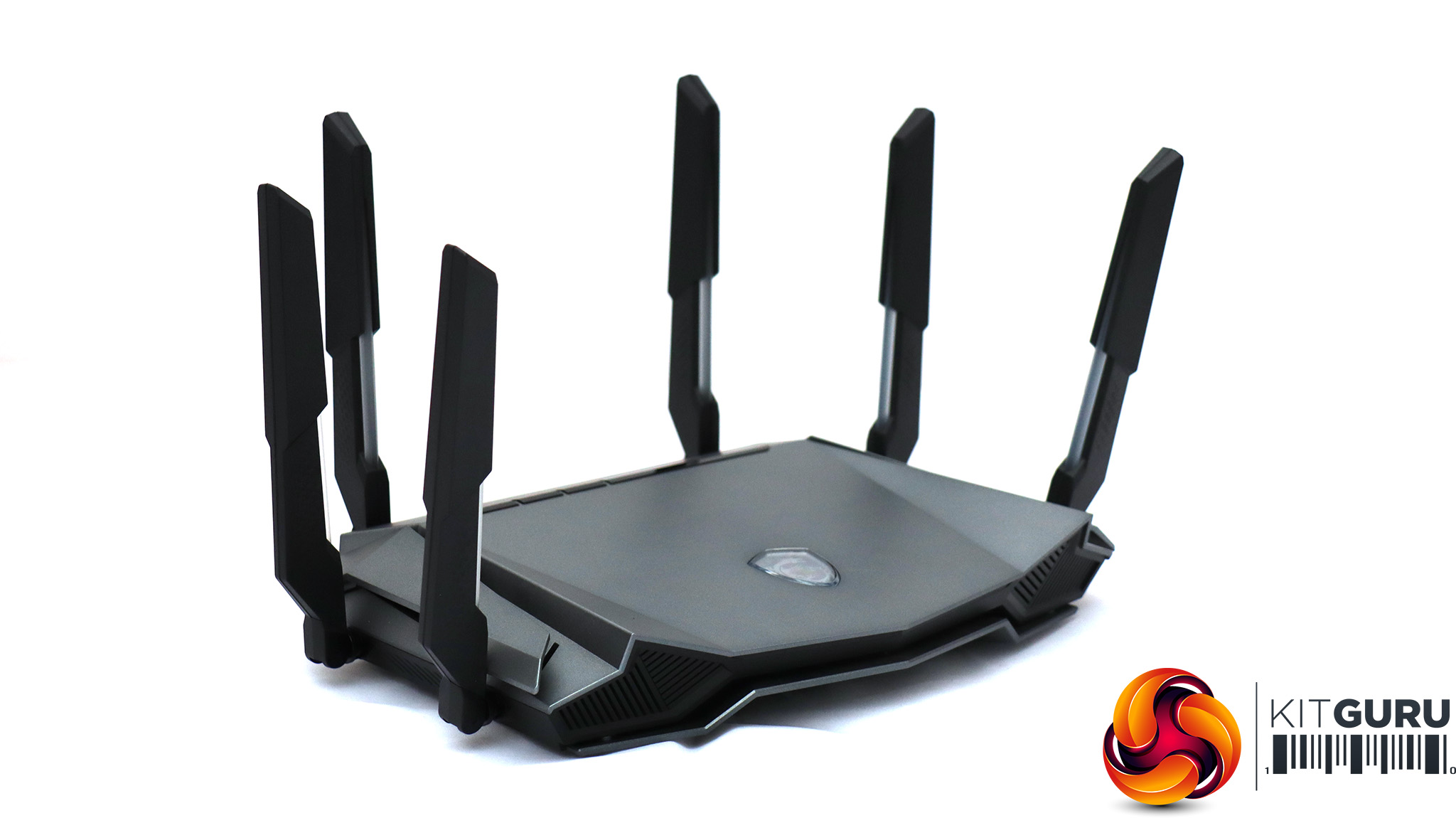
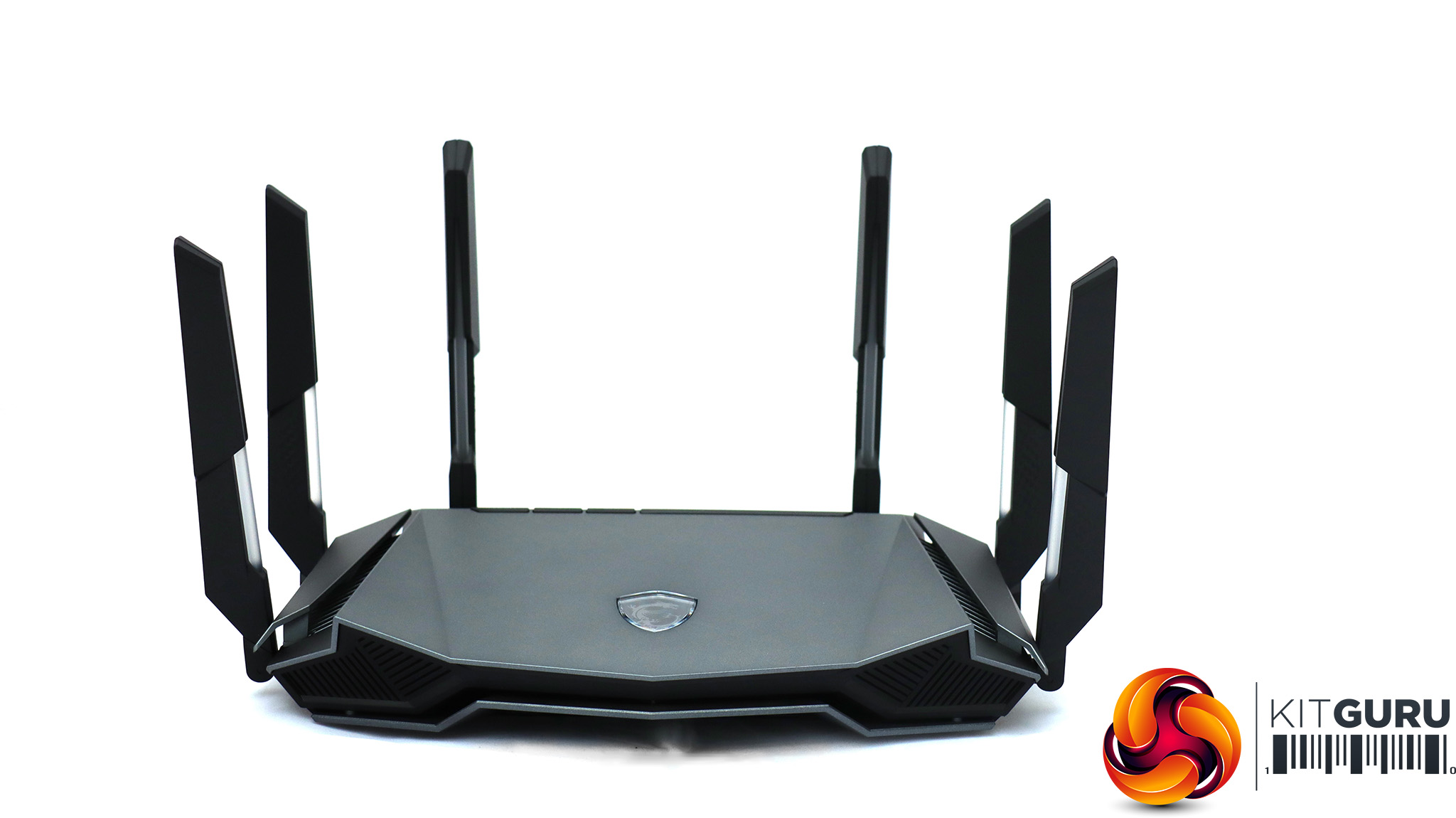

This is an aggressively styled router, with six chunky antennae ranged around the sides and rear. These are permanently attached, so there's no need to connect them yourself during installation. Each one has a translucent tube embedded, which will be lit with a different colour depending on the mode preset chosen in the user interface, which we will get to shortly. The MSI logo on top is actually a button, which lets you quickly change between these router modes.
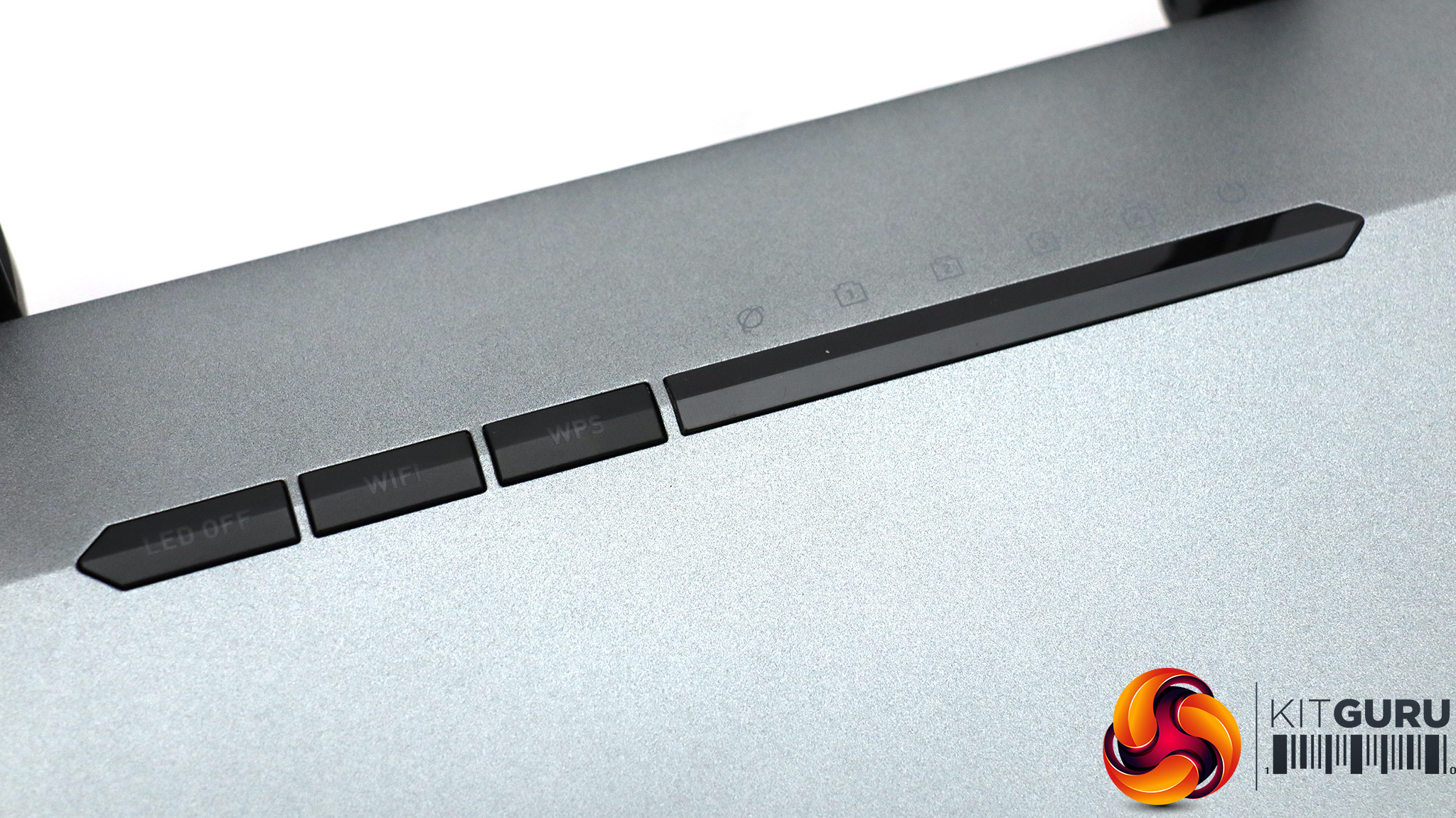
A row of lights and some buttons are subtly integrated into the top of the device near the rear. When the router is off, you might not even realise these features are here. The lights indicate status for the four LAN and single broadband WAN ports. From left to right, the buttons turn the LED lighting off and on, enable or disable the WiFi radios, and call up the WPS automated setup function.
Apparently, this is the first router to use heat pipes for cooling, although in practice that's not a hugely significant feature.
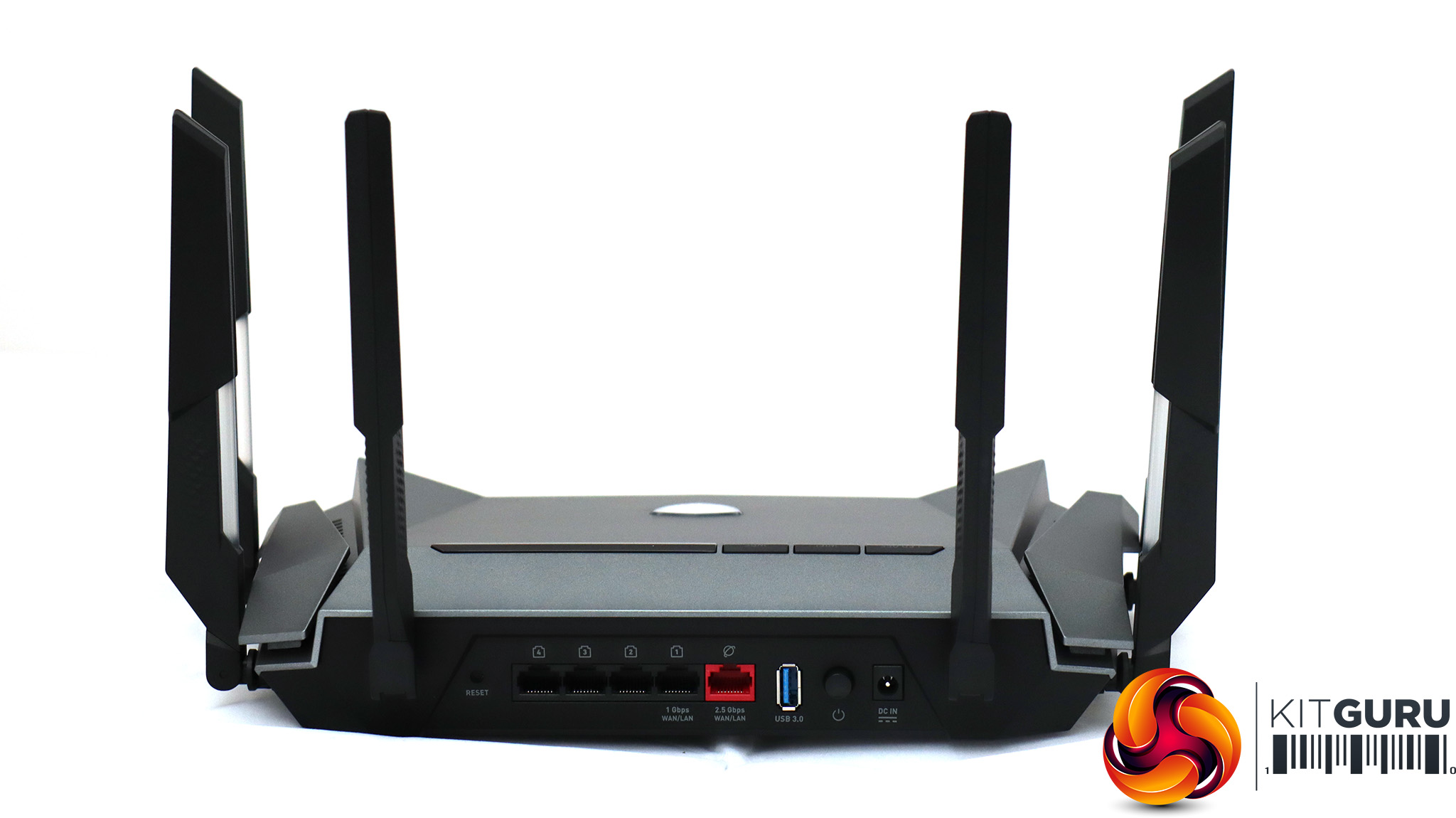
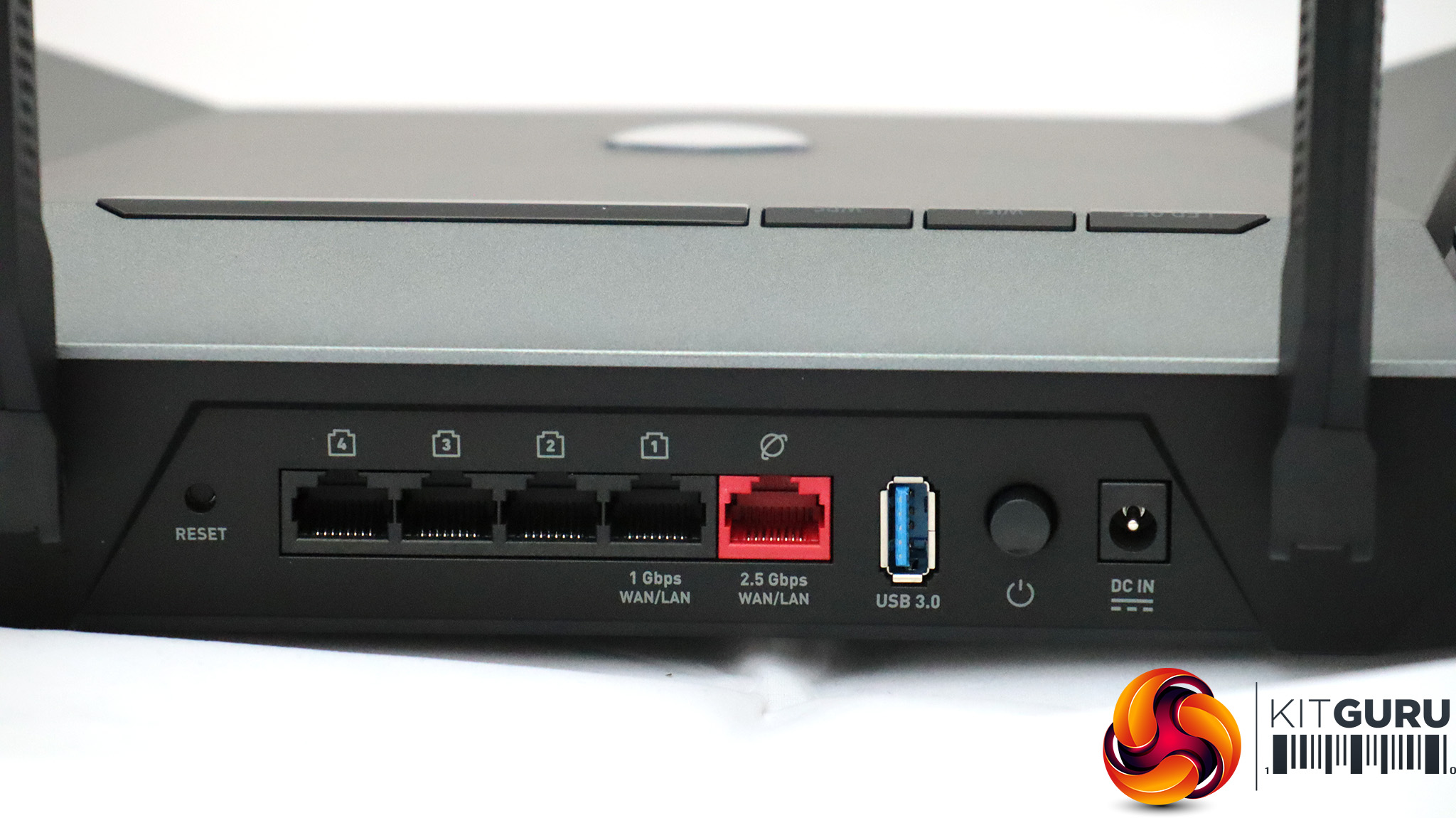
All the ports can be found in a row on the rear. On the far left is a reset button, followed by four Gigabit Ethernet LAN ports and the 2.5Gbit Ethernet WAN port. However, as the visible markings show, you can also use LAN Port 1 for the WAN, freeing up the 2.5Gbit for connecting a high-bandwidth networked device such as a NAS drive or uplink to another networking switch.
Next is the USB port, which is labelled 3.0, now known as USB 3.2 Gen 1. This delivers a theoretical 5Gbits/sec bandwidth. The USB port can be used for sharing storage but not a printer. Next along is a physical on/off switch and the power connection.
Overall, the physical characteristics of the RadiX AXE6600 are decent but unexceptional, apart from the lighting on the antennae. A USB port is typical but not universal, so it's good to see one of these. It's also good to see a 2.5Gbits/sec WAN port. Generally the build feels solid, although the elevated plastic wings on either side come off rather easily. Otherwise, so far so good for MSI.
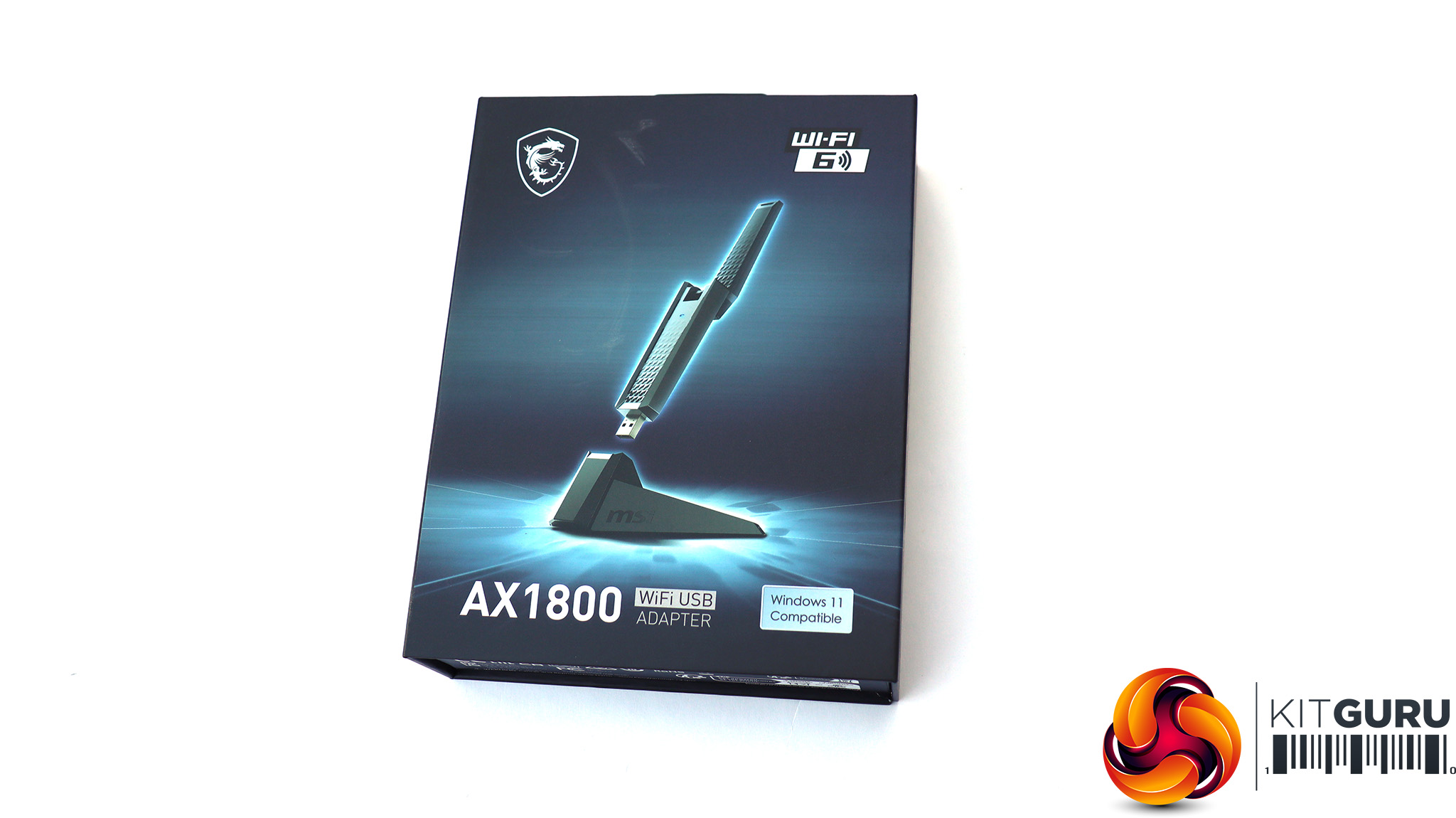
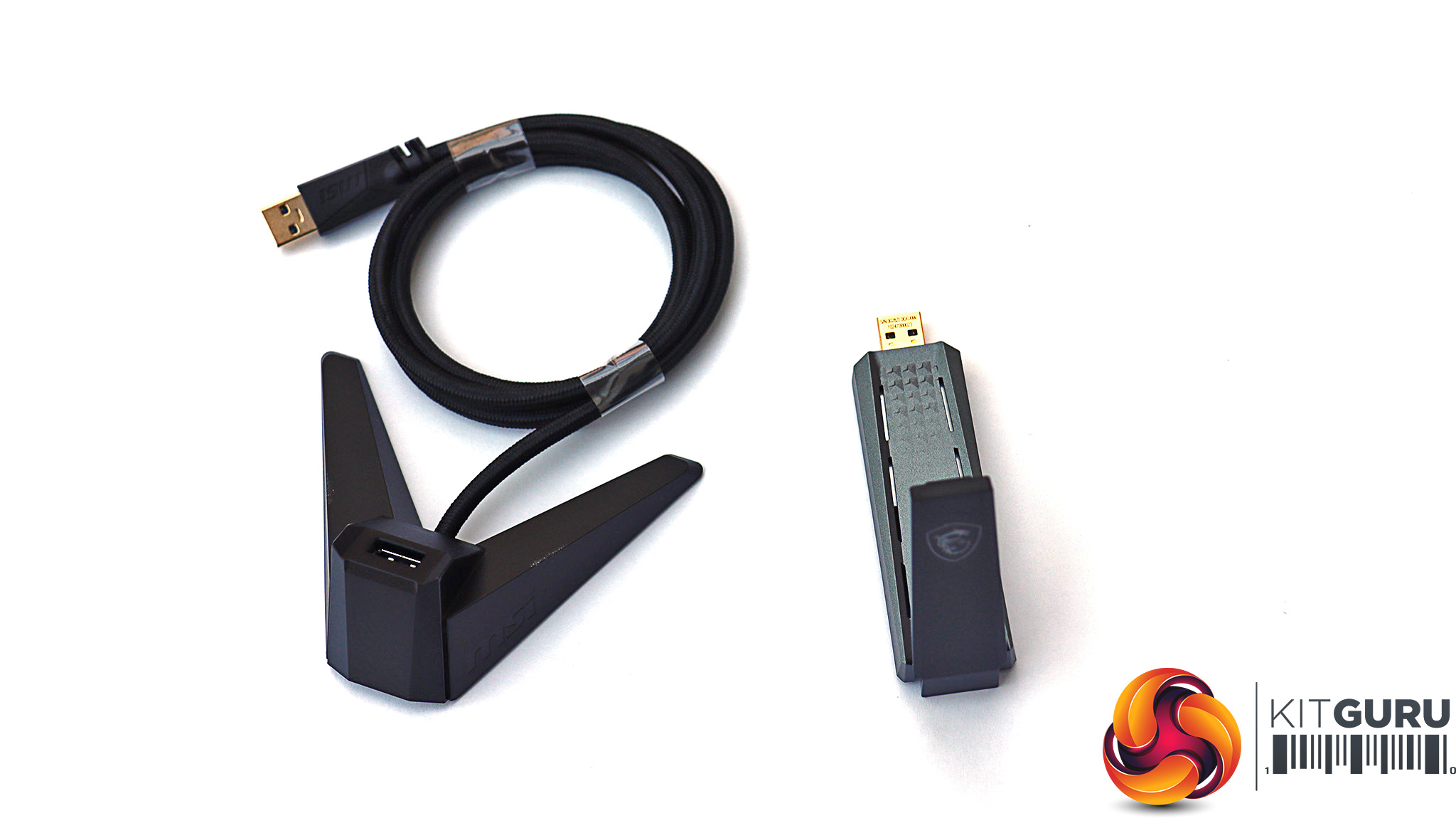
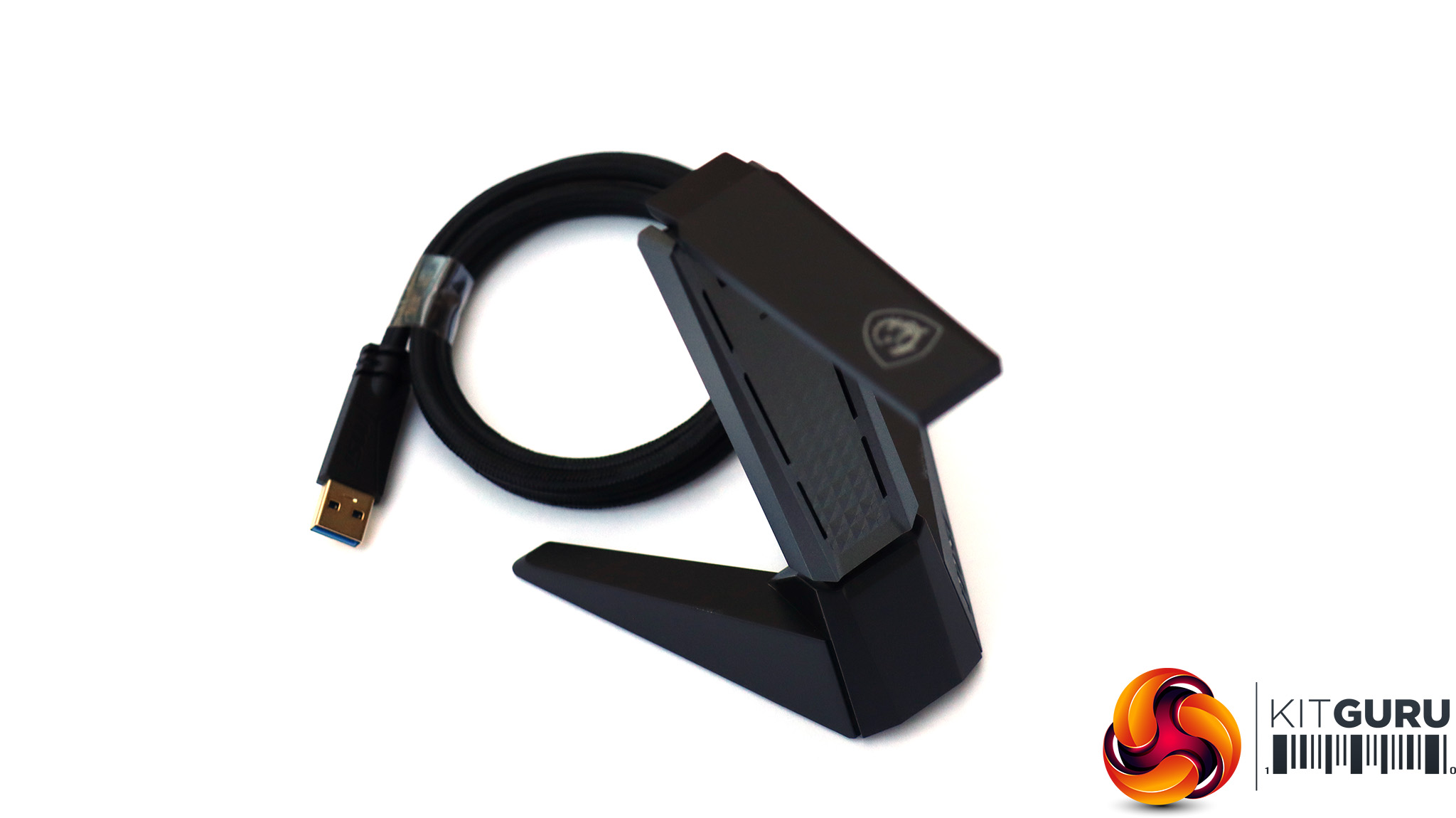
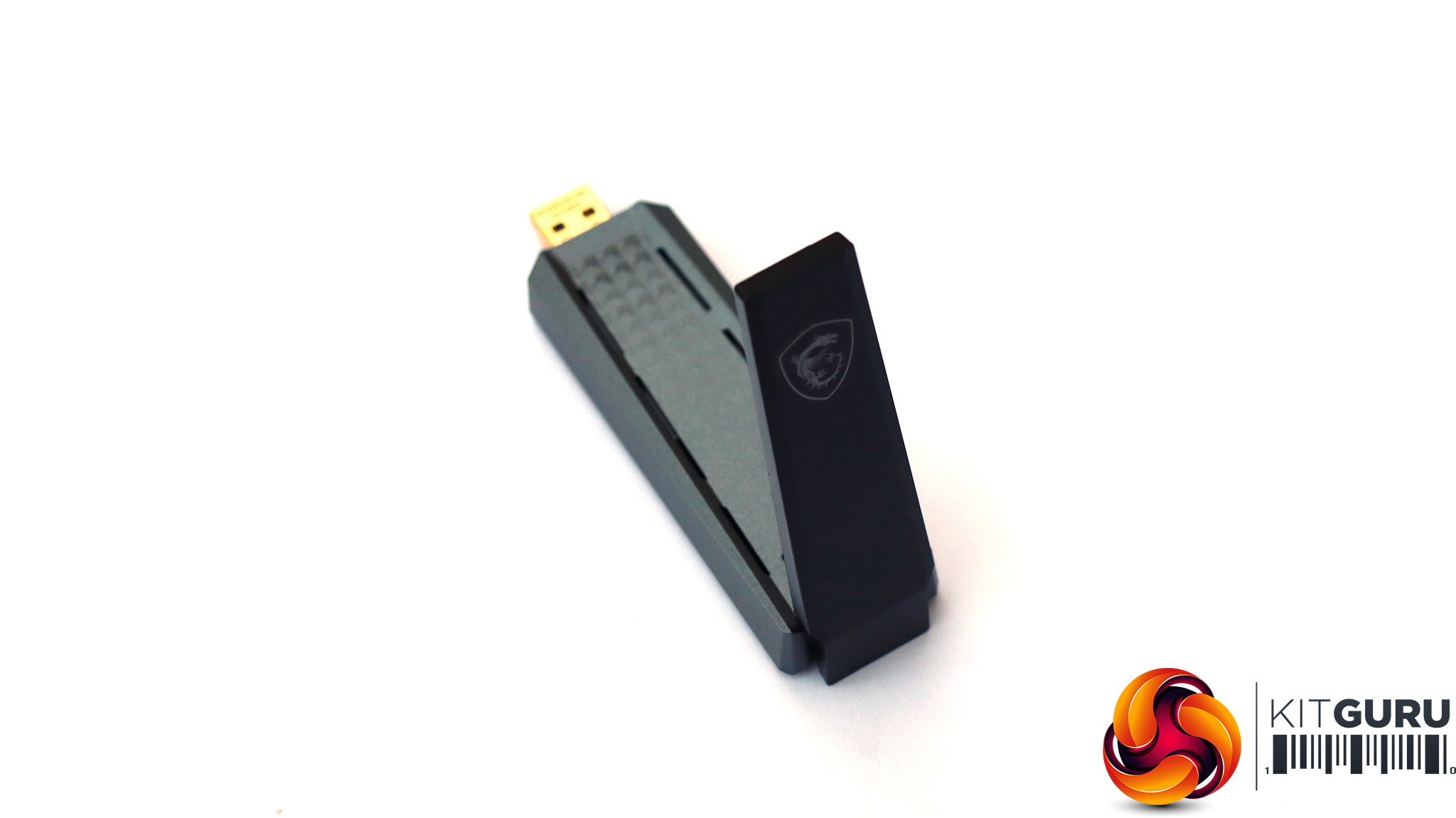
MSI also sent us its newly released AX1800 USB WiFi adapter, which is WiFi 6 but not 6E. We installed that and tested it, although the drivers weren't officially available from MSI's own website at the time of writing (we found them elsewhere).
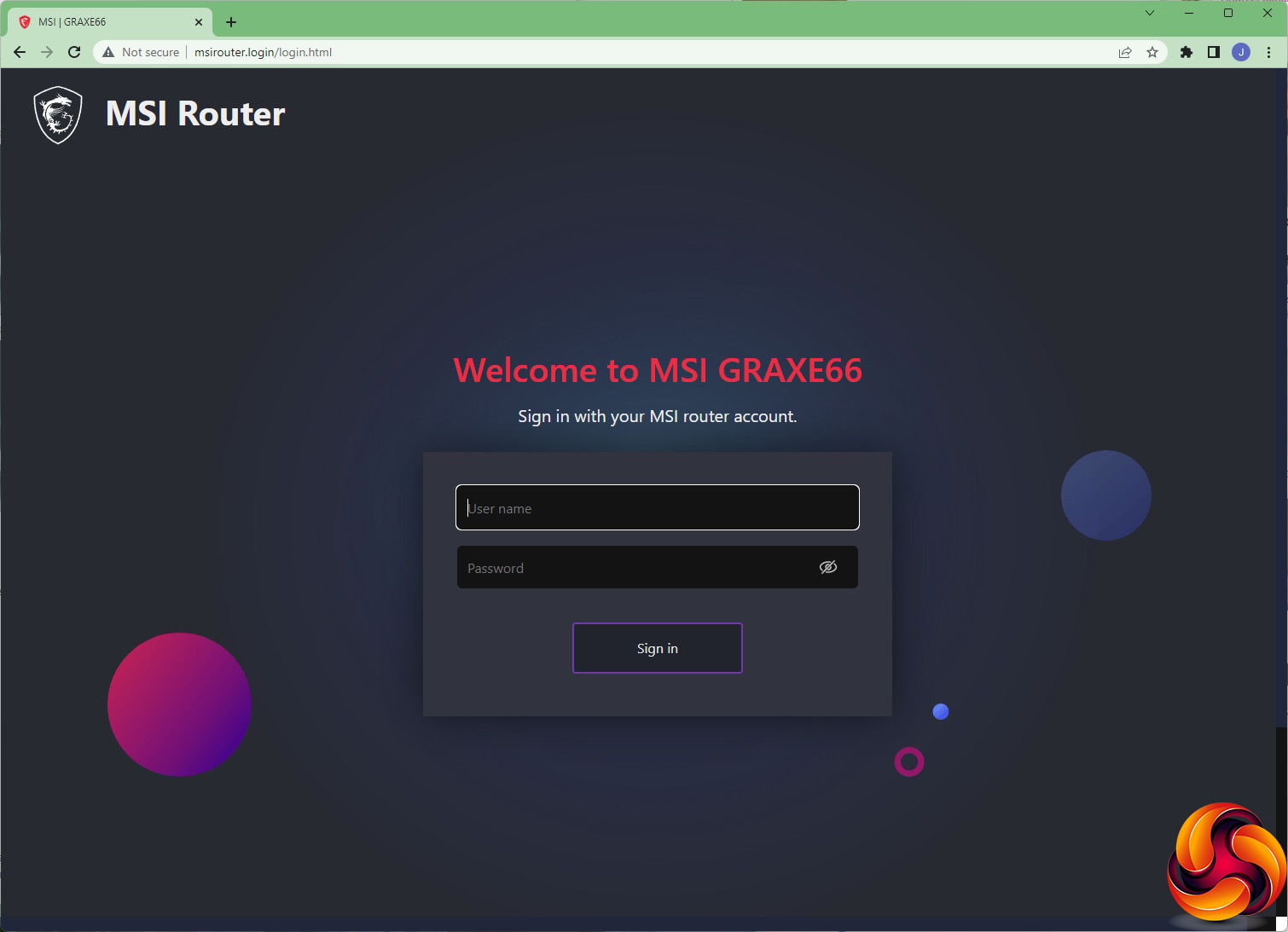
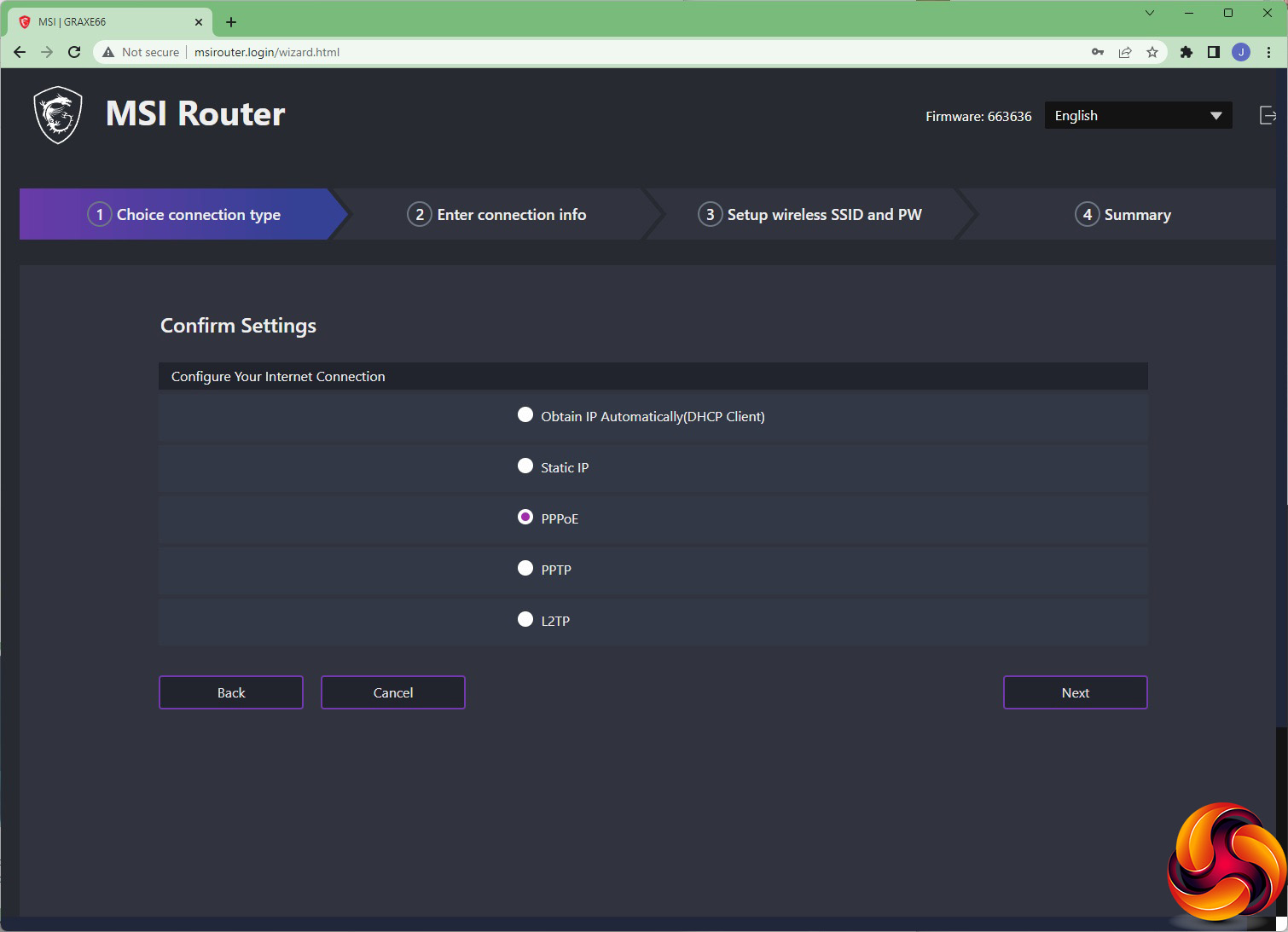
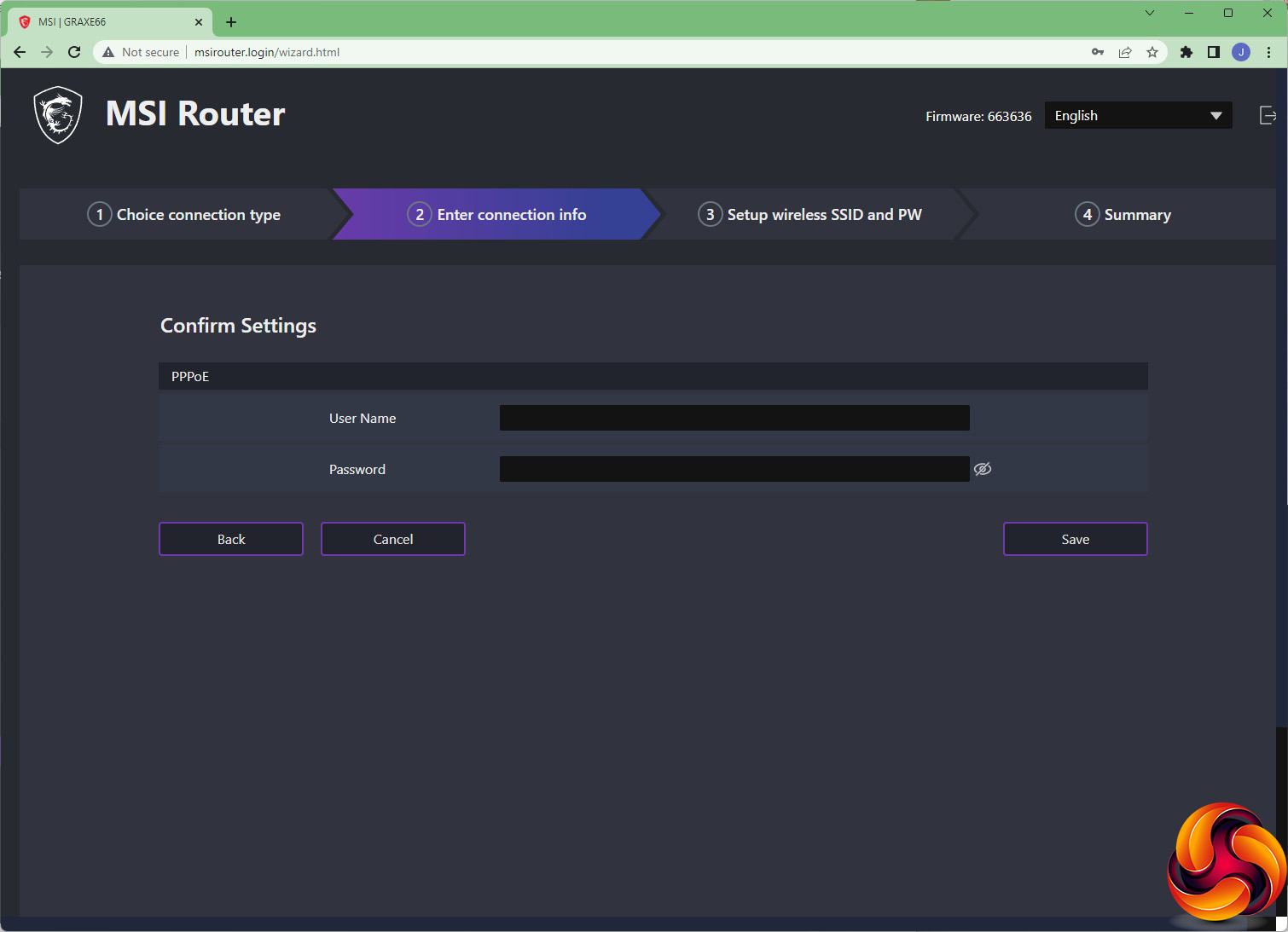
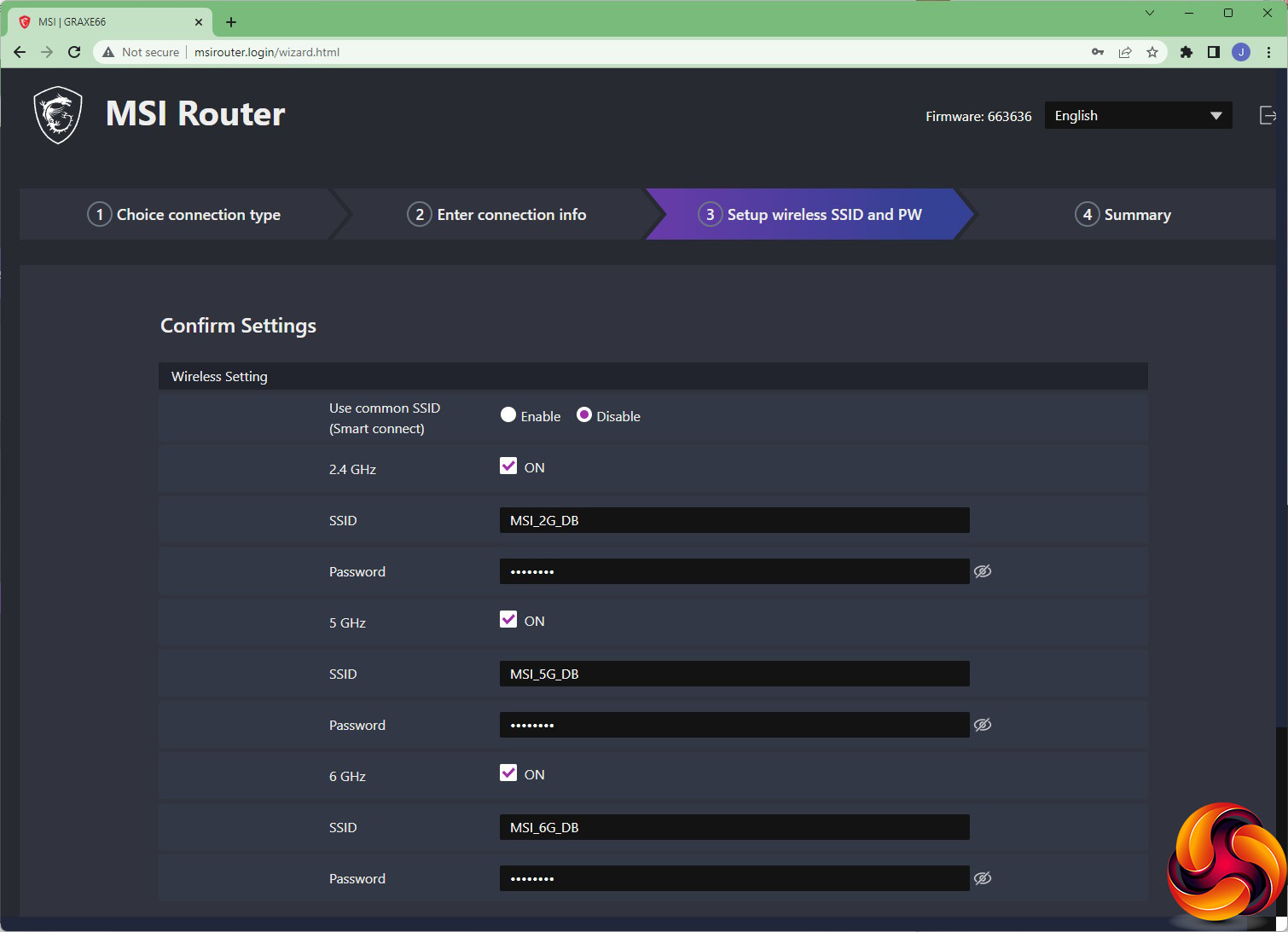
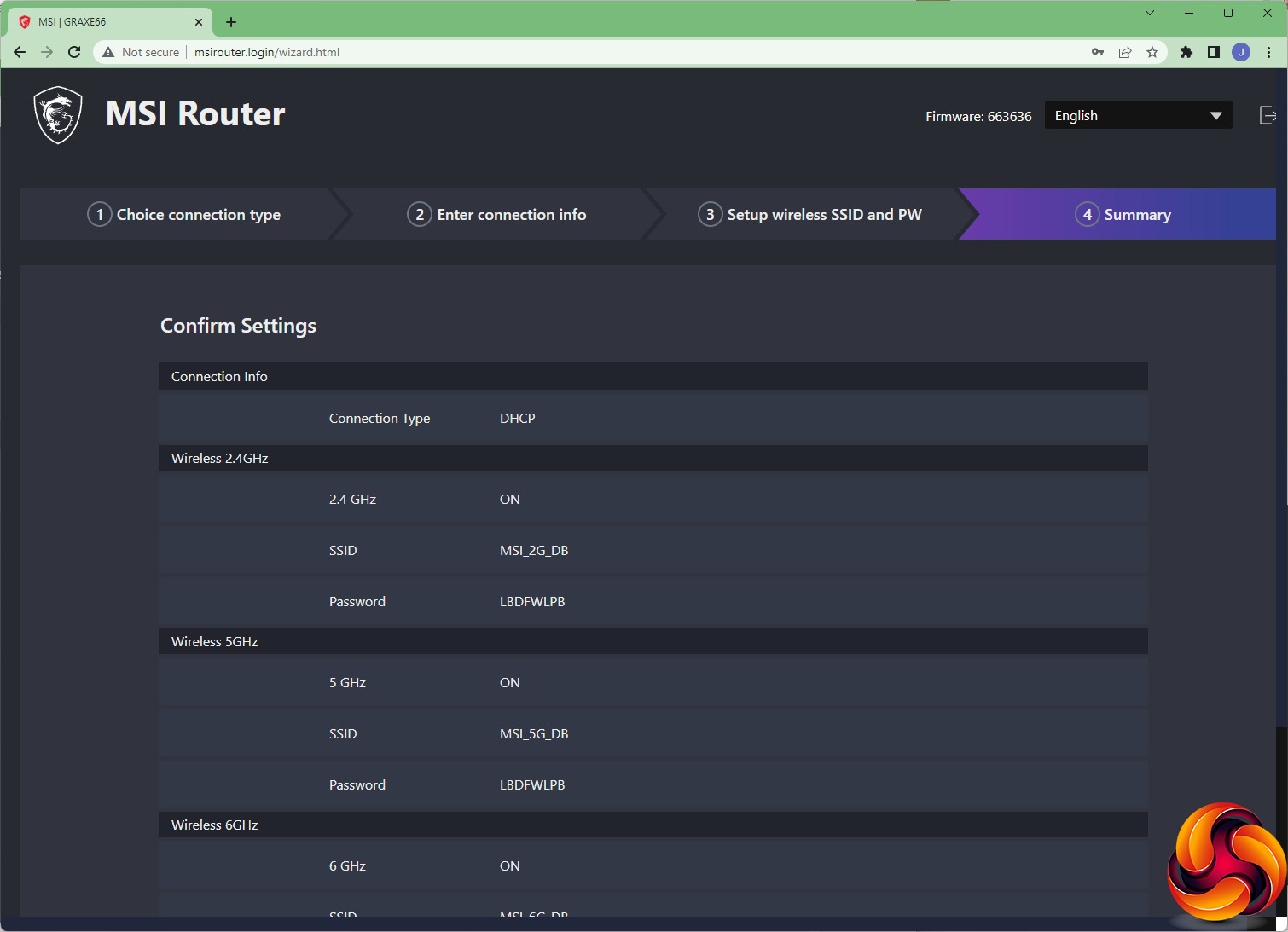
Unusually for routers these days, the MSI RadiX AXE6600 comes with a paper installation guide. However, this just leads you into setting up via the Web interface or a smartphone. We tried both, but above can be seen the setup routine for the Web. You enter a simple URL, which will route you directly to the device's management login.
The default username and password for this can be found on the bottom of the router itself. You are then led through setting up the broadband type, adding any login details you might need for that, configuring the wireless networking SSIDs and passwords, and finally checking a summary of your settings. You're then ready to go.
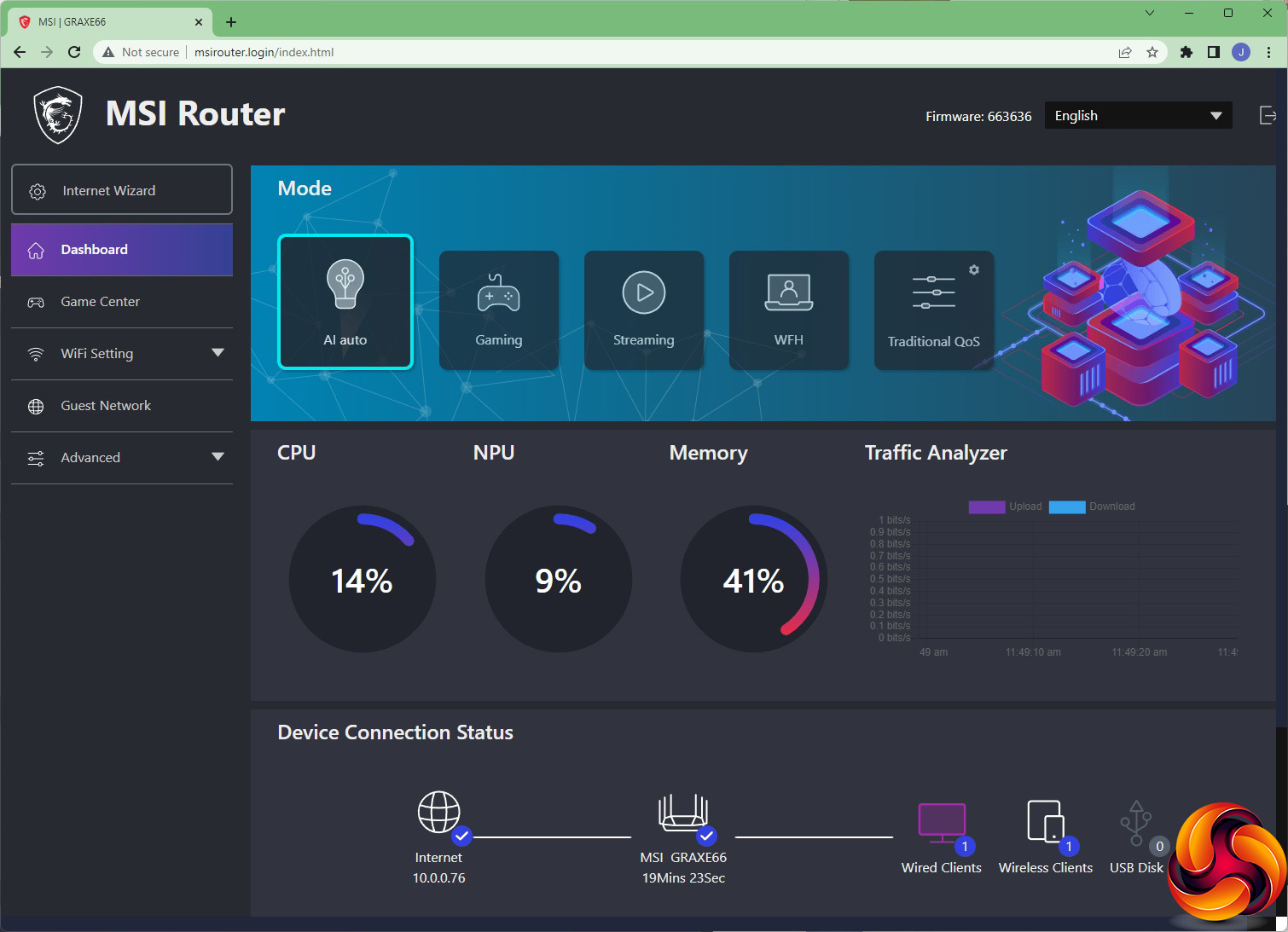
Initially, the Web interface looks incredibly simplistic. But that's because it focuses on what MSI hopes will be the big selling point of this router – the Modes. These are preset Quality of Service (QoS) configurations that will prioritise different types of traffic. Each one comes with a colour scheme that is reflected in the colouring of the antennae and MSI logo button. You can also press the latter to quickly cycle through the modes.
The default AI auto mode, coloured teal blue, optimises the router for a balance of usage types. Gaming, in red, unsurprisingly optimises for gaming, and Streaming, in purple, for streaming video such as Netflix. WFH, in blue, optimises for online meetings and conference calls. The Traditional QoS options lets you preset your own values and limits so no client device or application hogs all the bandwidth.
Below the Mode section can be found a typical array of status information about the router itself and attached clients.
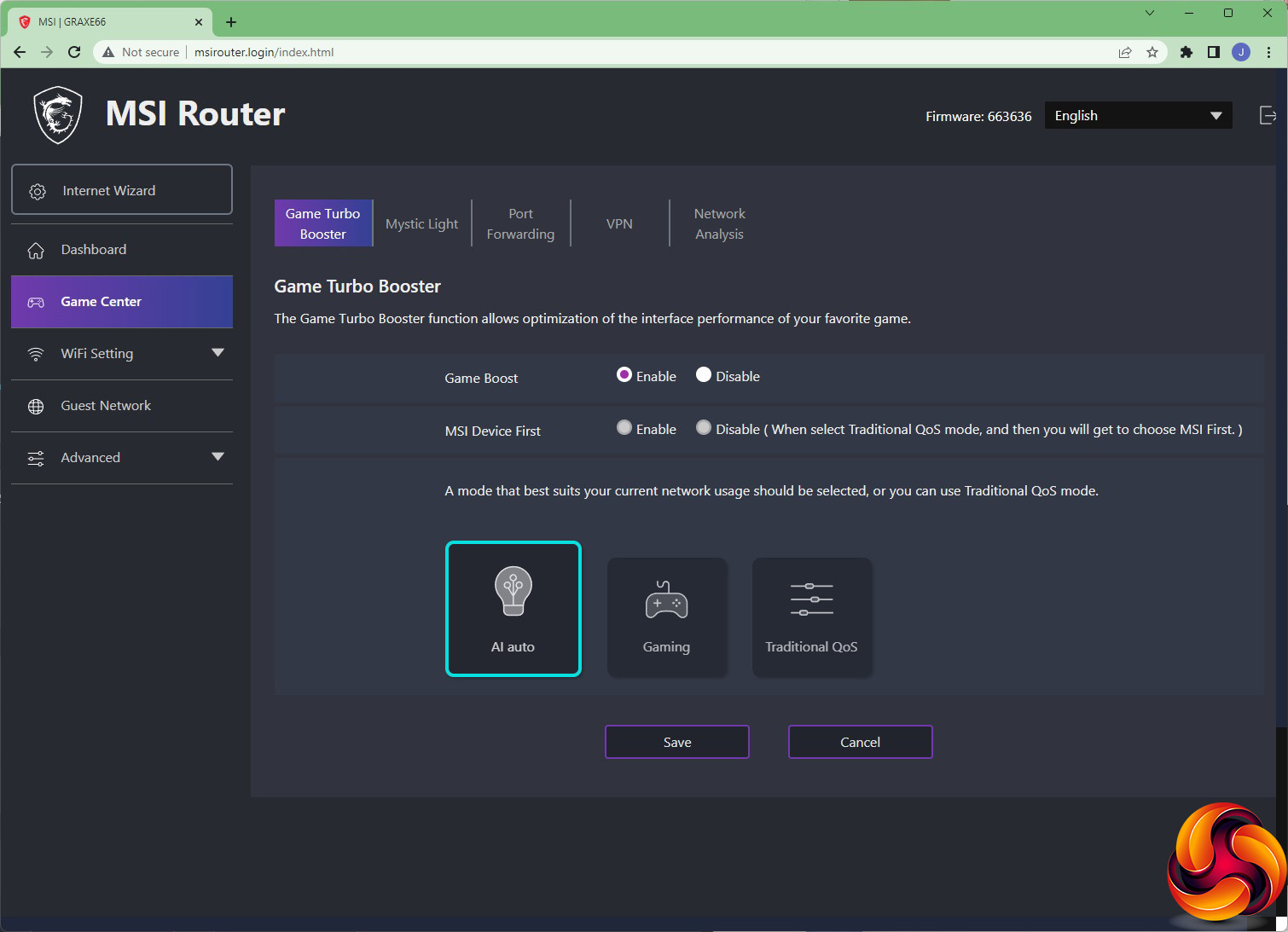
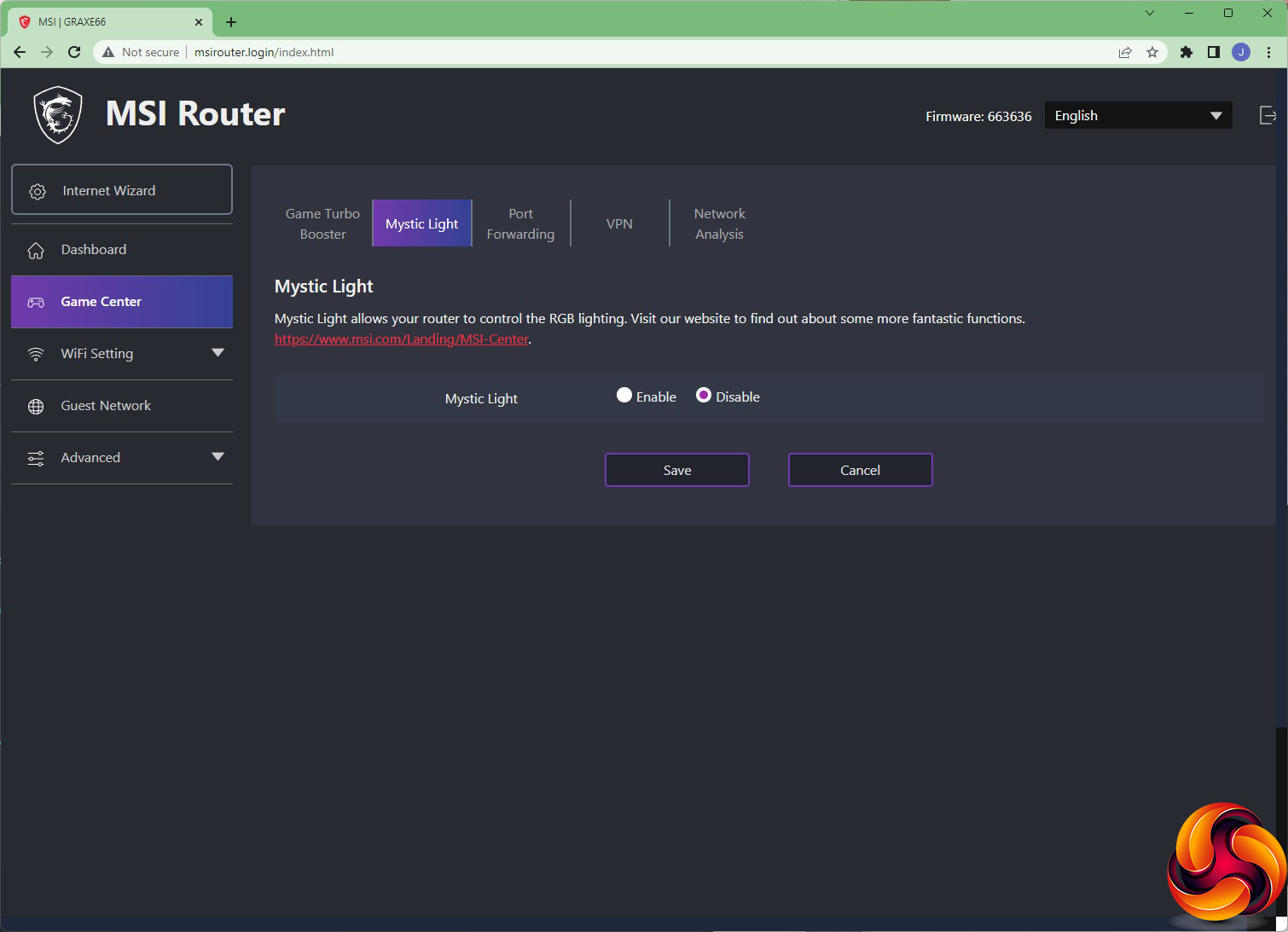
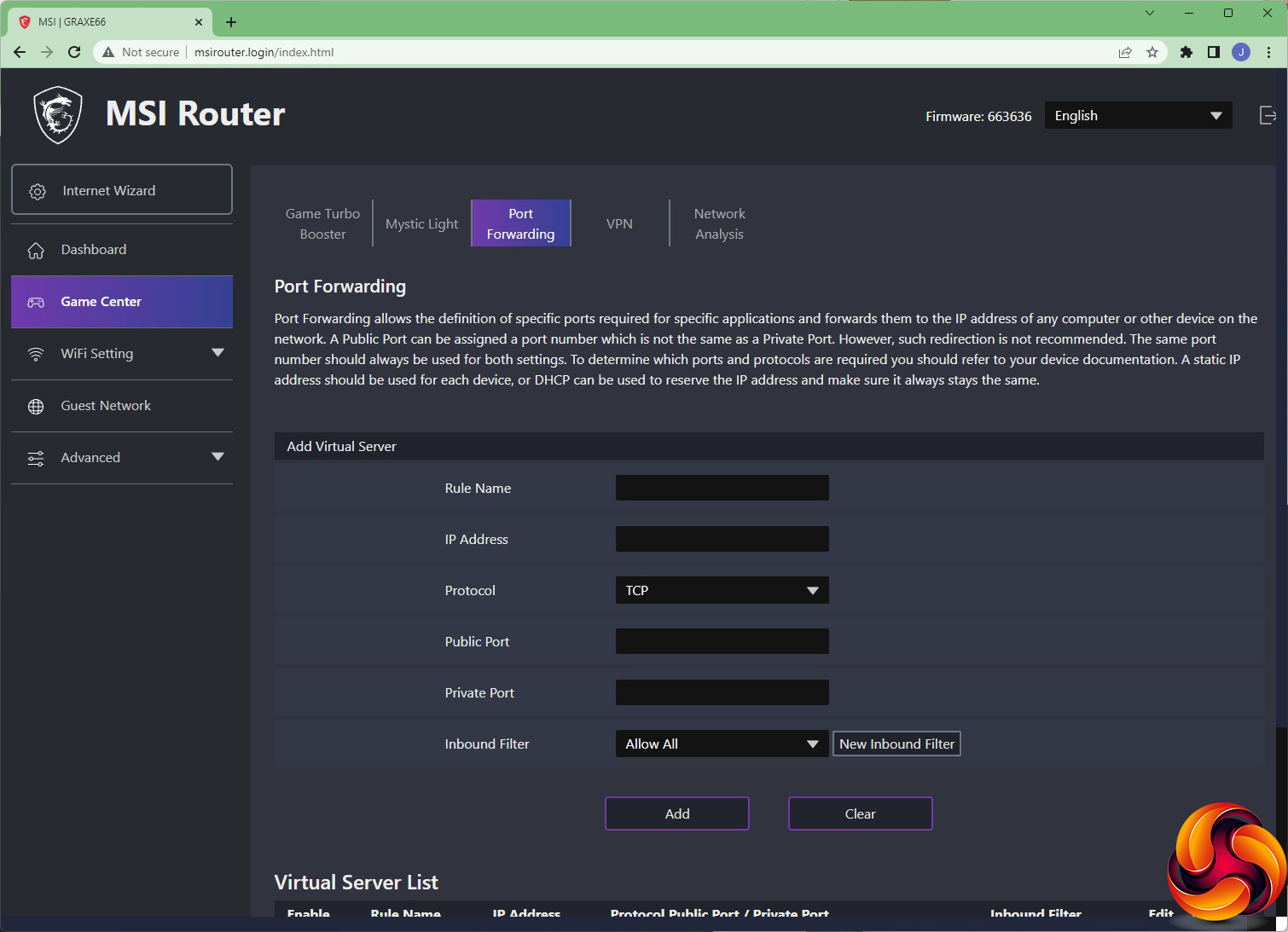
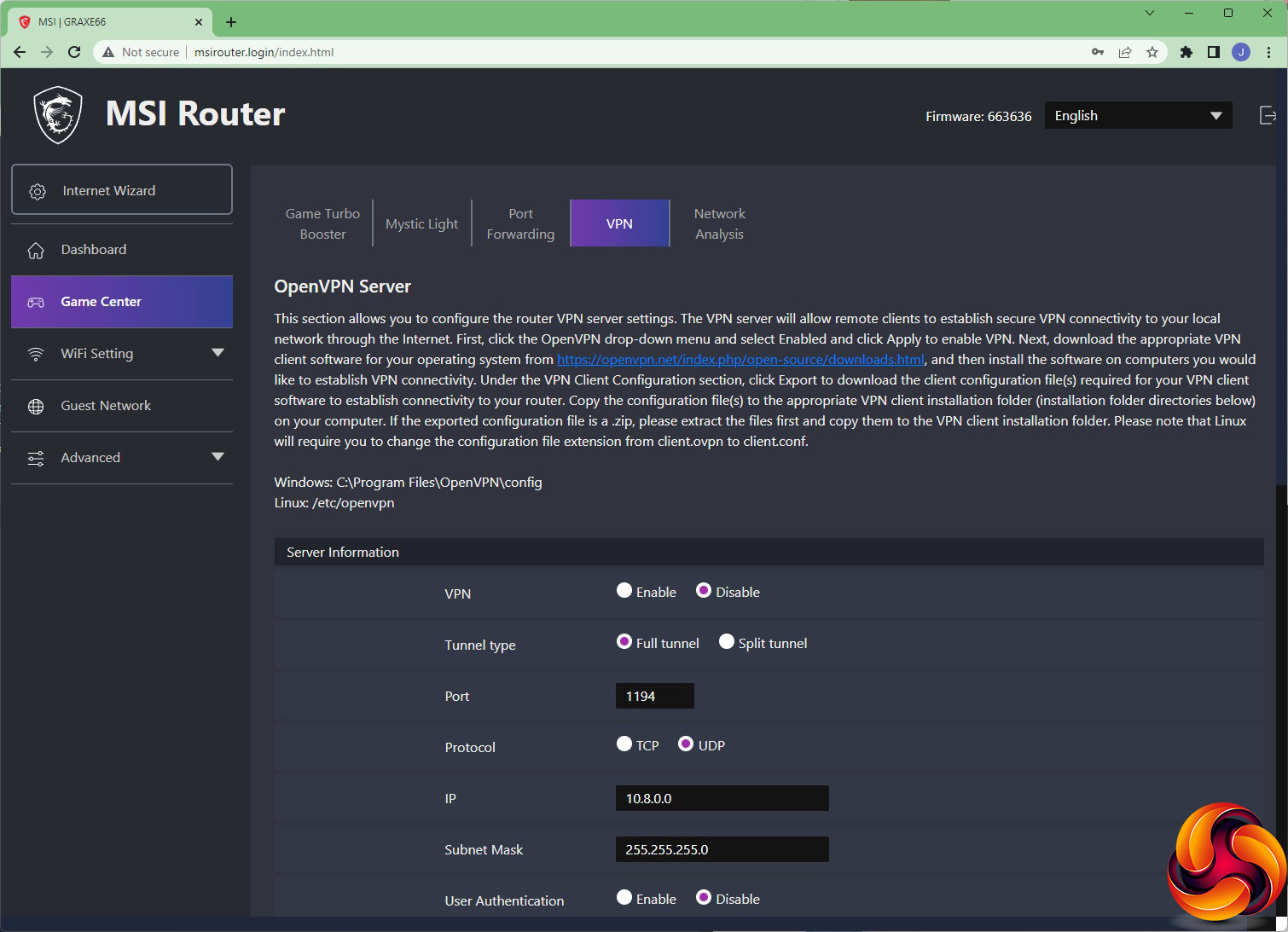
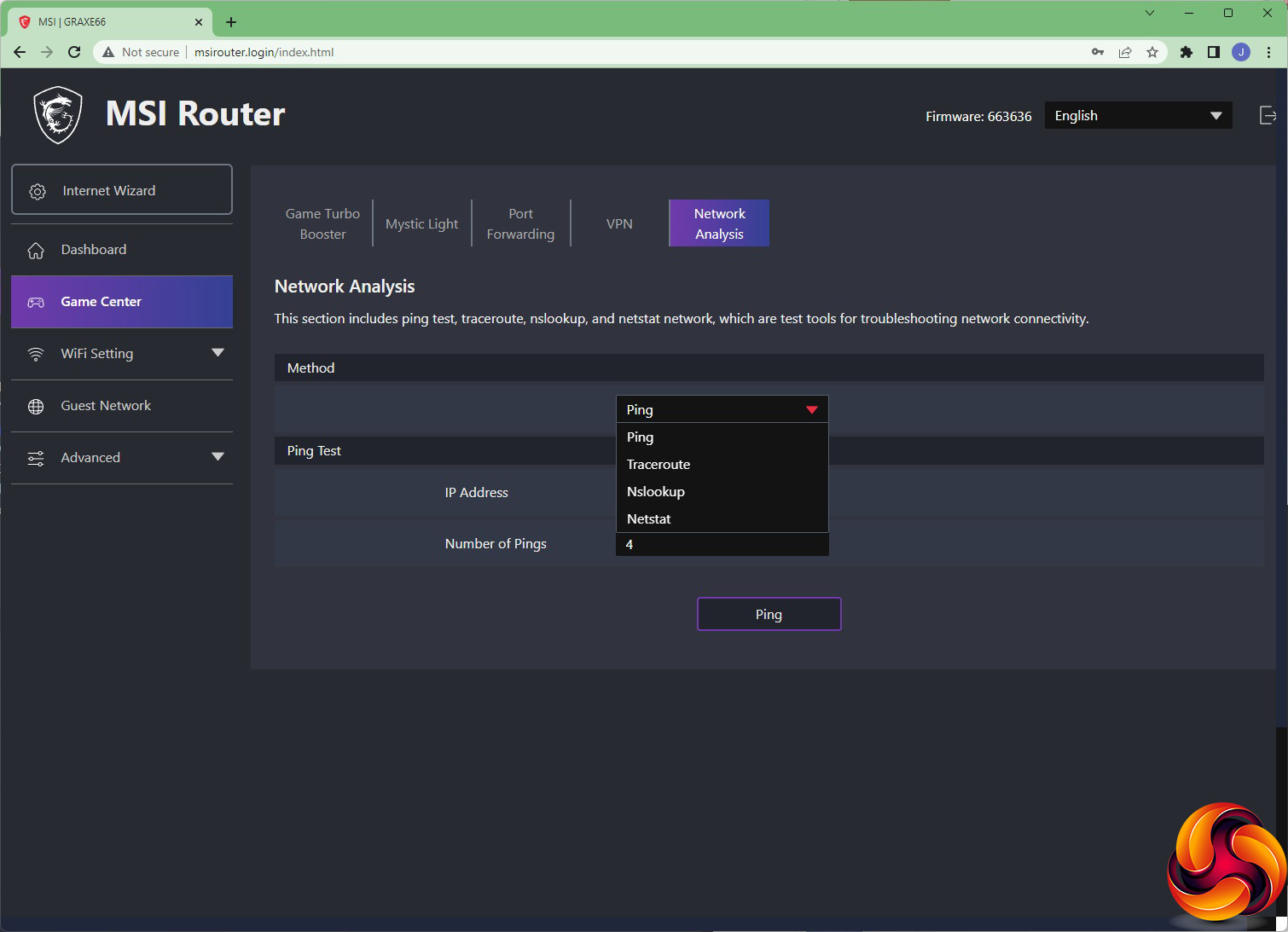
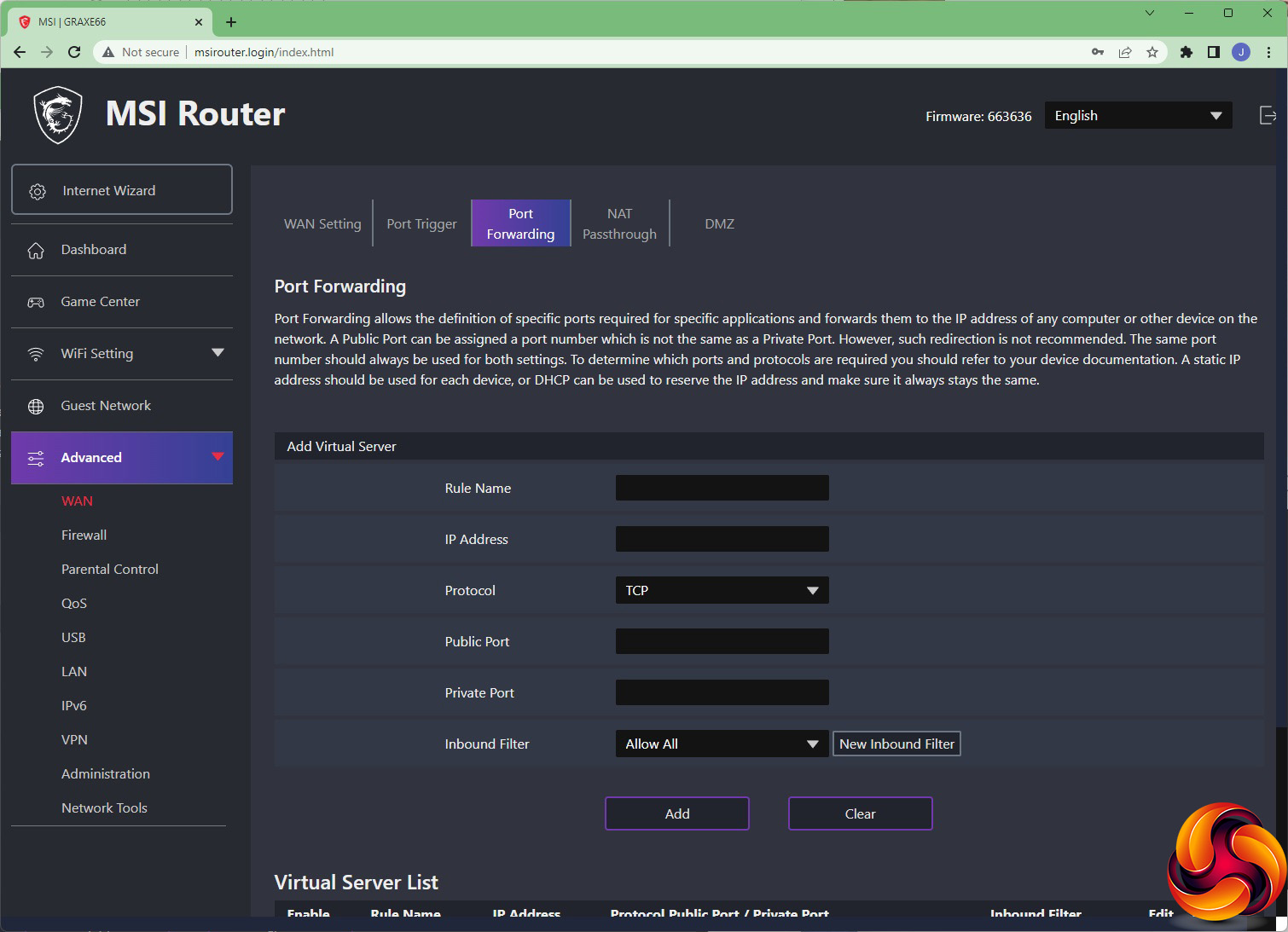
The Game Center is a grab bag of cosmetic and more fundamental options and tools. You can choose to boost games in a compatible Mode preset, including the ability to prioritise MSI devices. You can enable the router to control the MSI Mystic Light options on your other MSI devices. Port forwarding allows you to configure devices on the internal network so they act like they are directly connected to the Internet, enabling them to be externally accessible game servers, for example.
This is also one area where you can set the RadiX up as a VPN server, conforming to the OpenVPN standard. Once you have configured this, you can download a setup file to use with your client devices' software. Finally, Network Analysis lets you use test your connection using four different standard tools such as ping and traceroute.
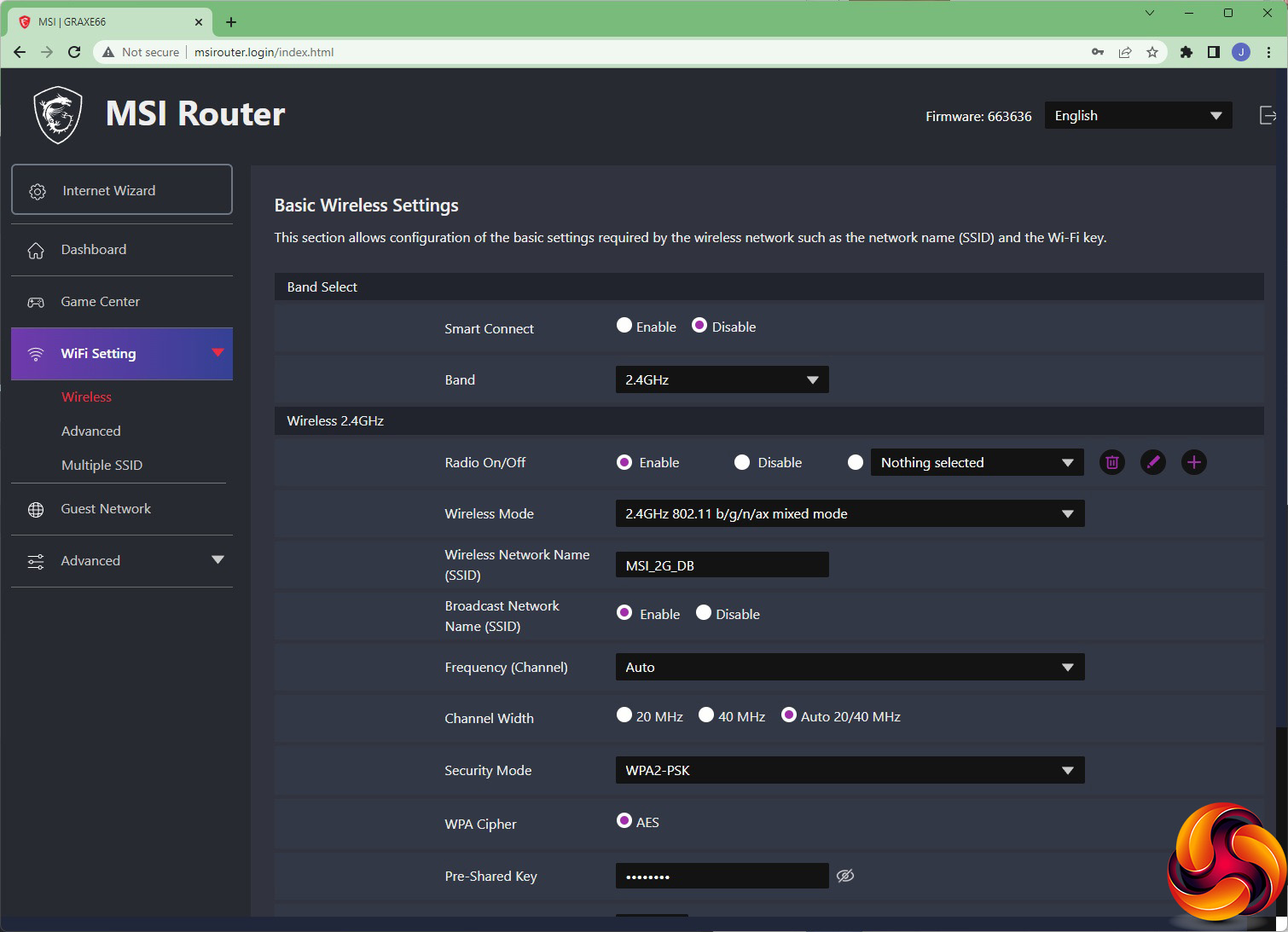
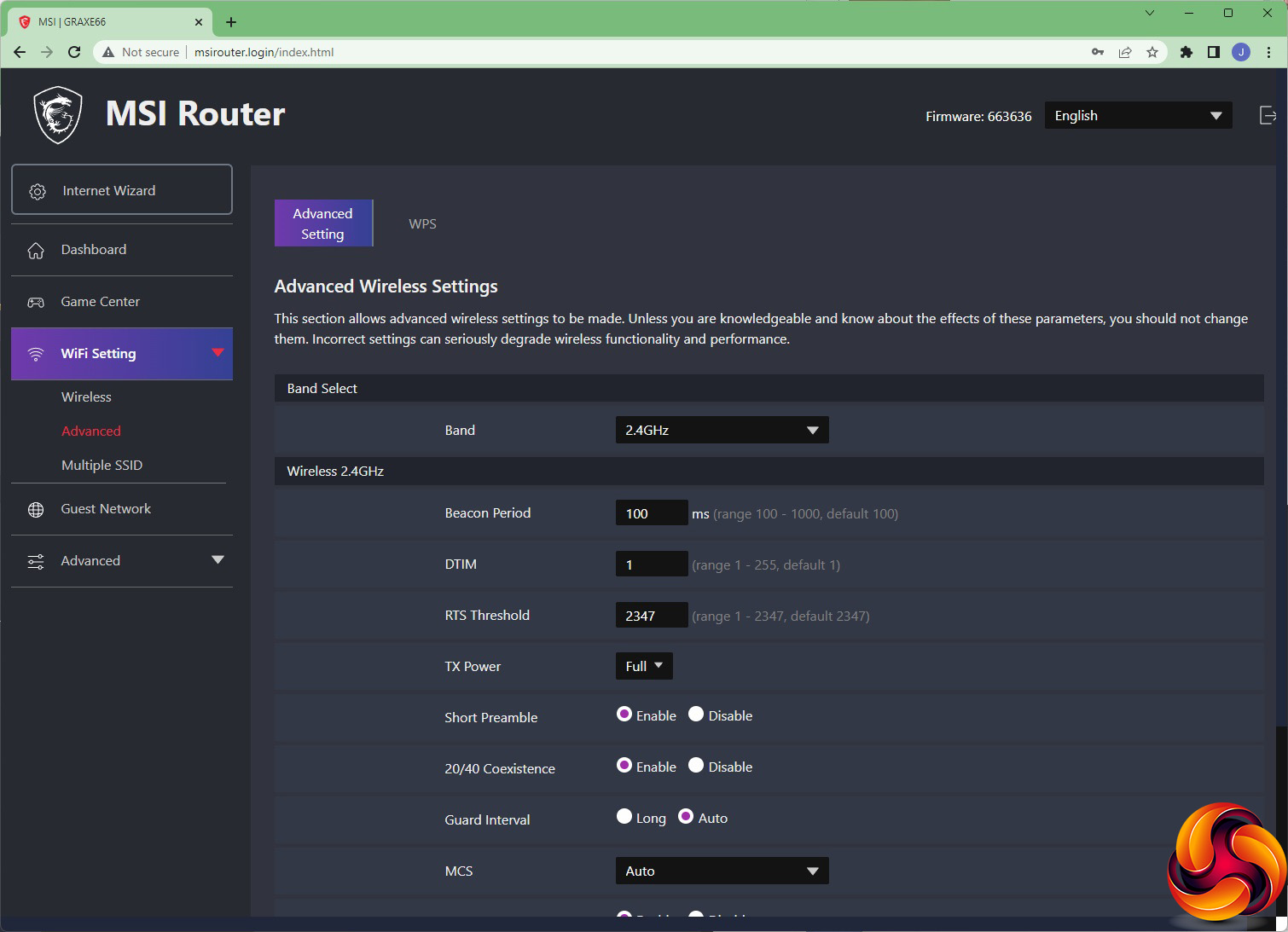
The WiFi Setting section is where we start to see a bit more depth in the RadiX's configuration options. As well as changing the SSIDs and passwords, you can alter the waveband and channel for each radio frequency type. By default, each frequency has its own SSID, but by choosing Smart Connect you can present just one and enable the waveband usage to be selected automatically.
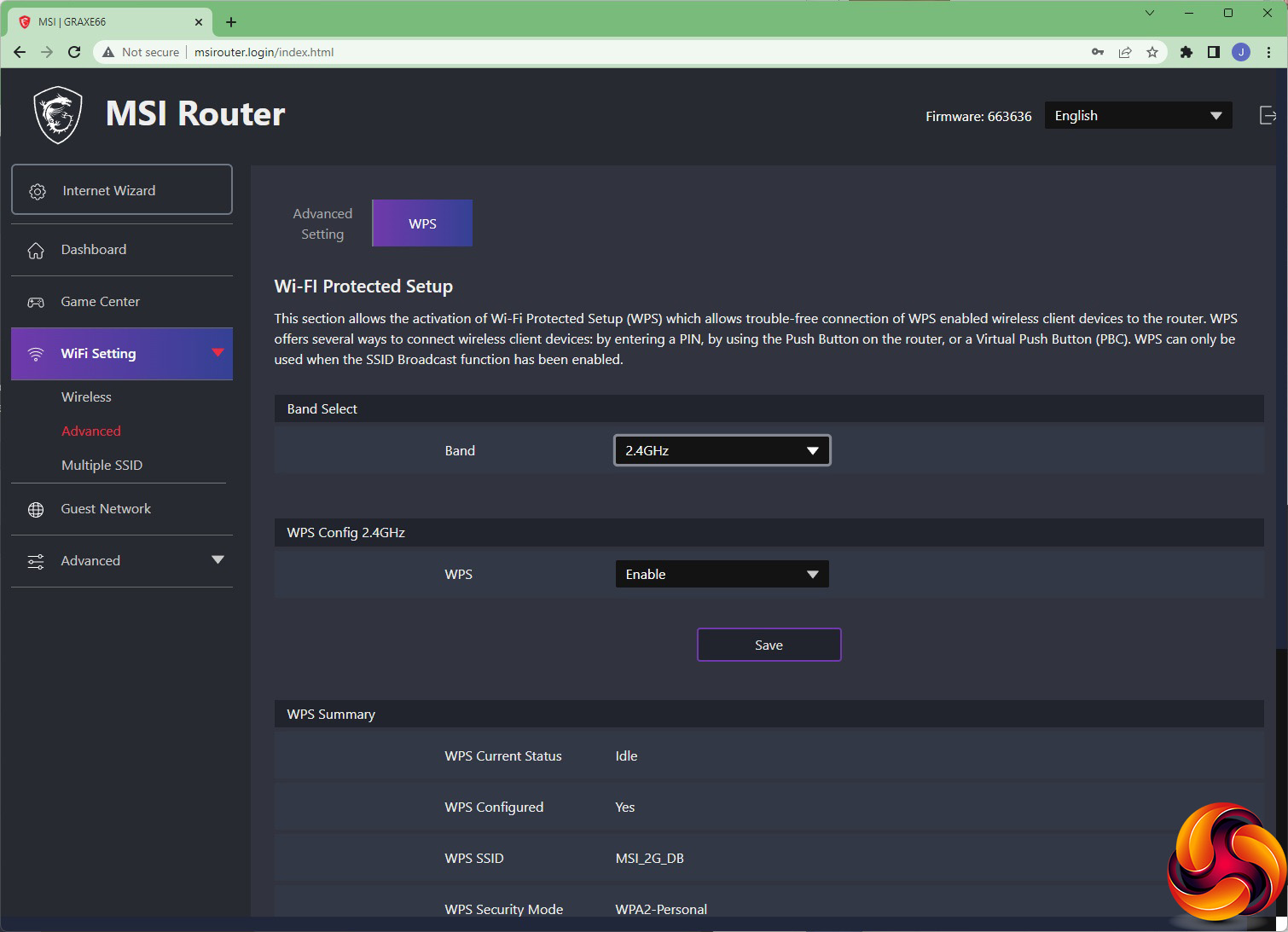
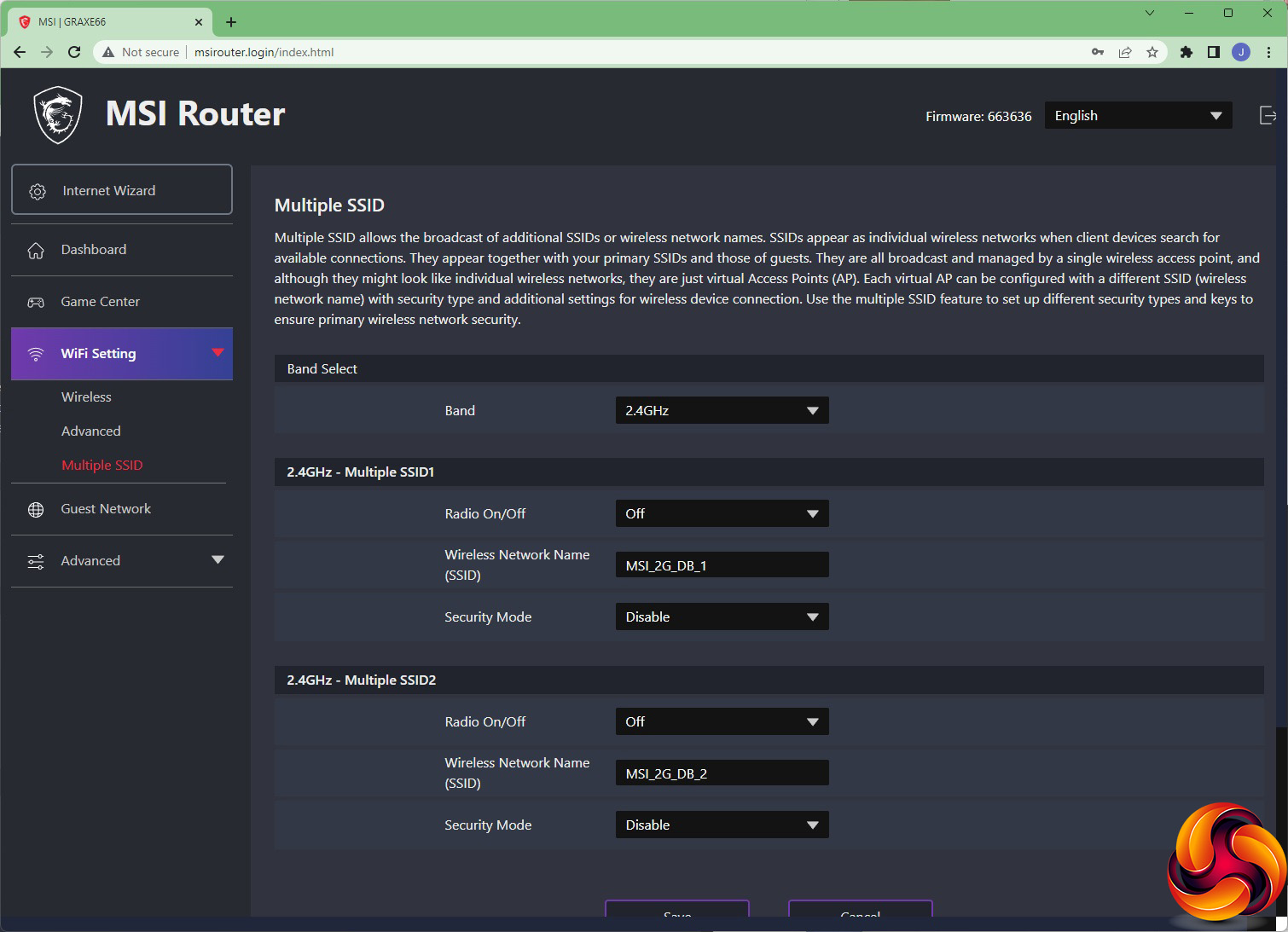
Under Advanced, you can configure much more granular settings for each WiFi waveband, but you will probably only use this if you're encountering problems and really know what you're doing. You can configure the WPS automated client enrolment system here. It's also possible to present two different SSIDs for each waveband, if you want to segment your wireless devices.
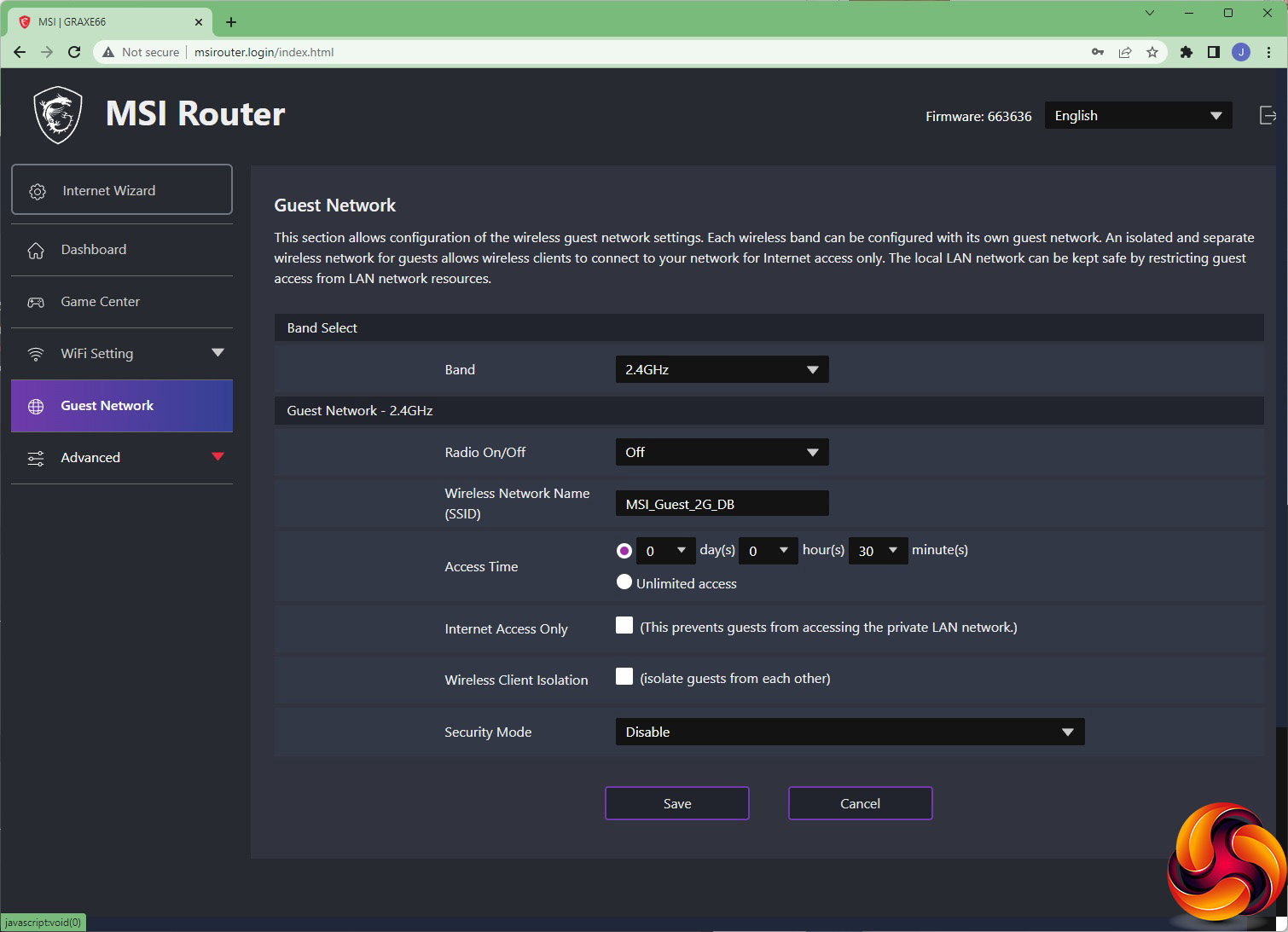
As well as different fully trusted SSIDs, you can also set up Guest SSIDs for each waveband, including the ability to provide a time limit and prevent access to LAN shares.
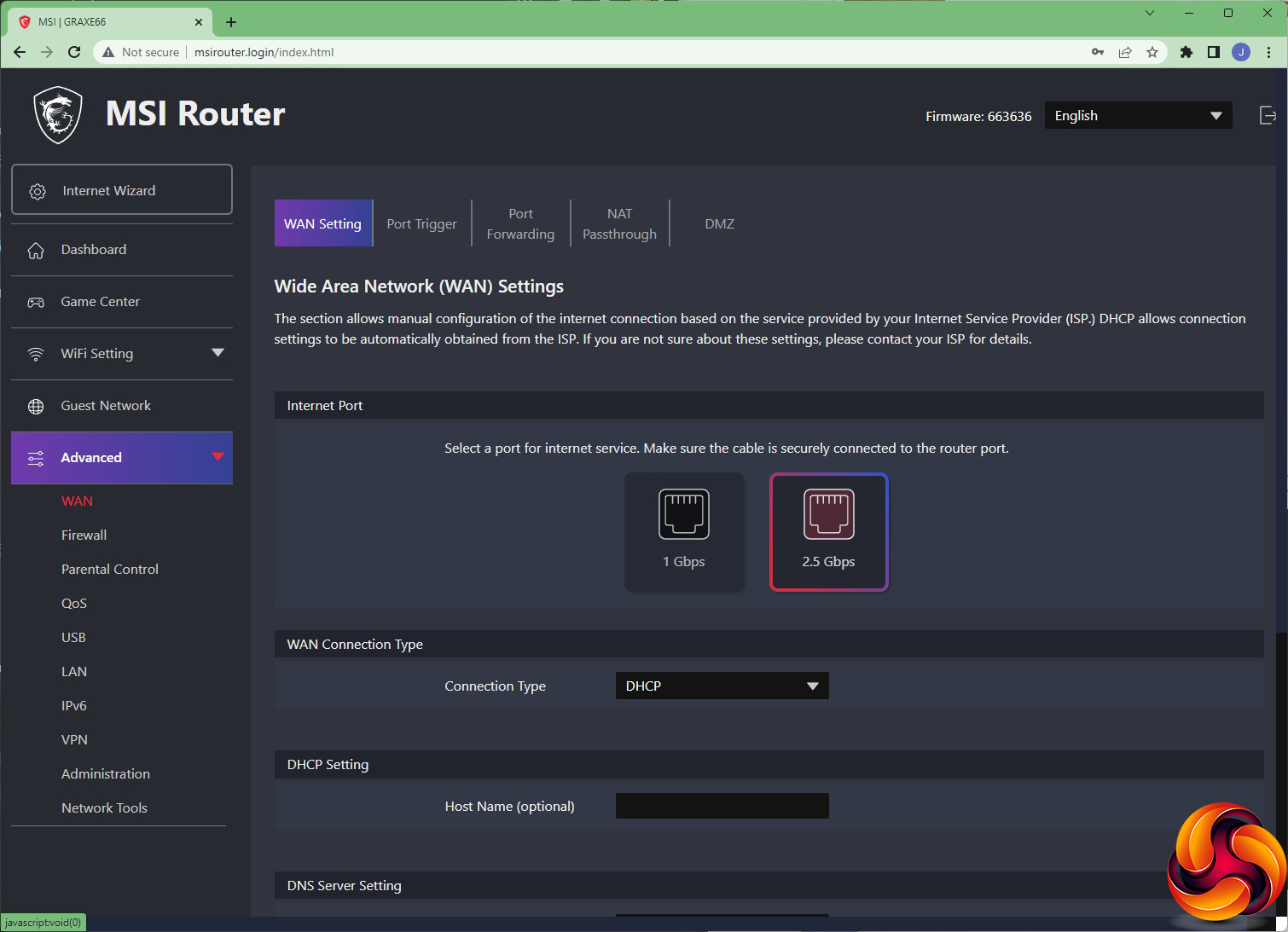
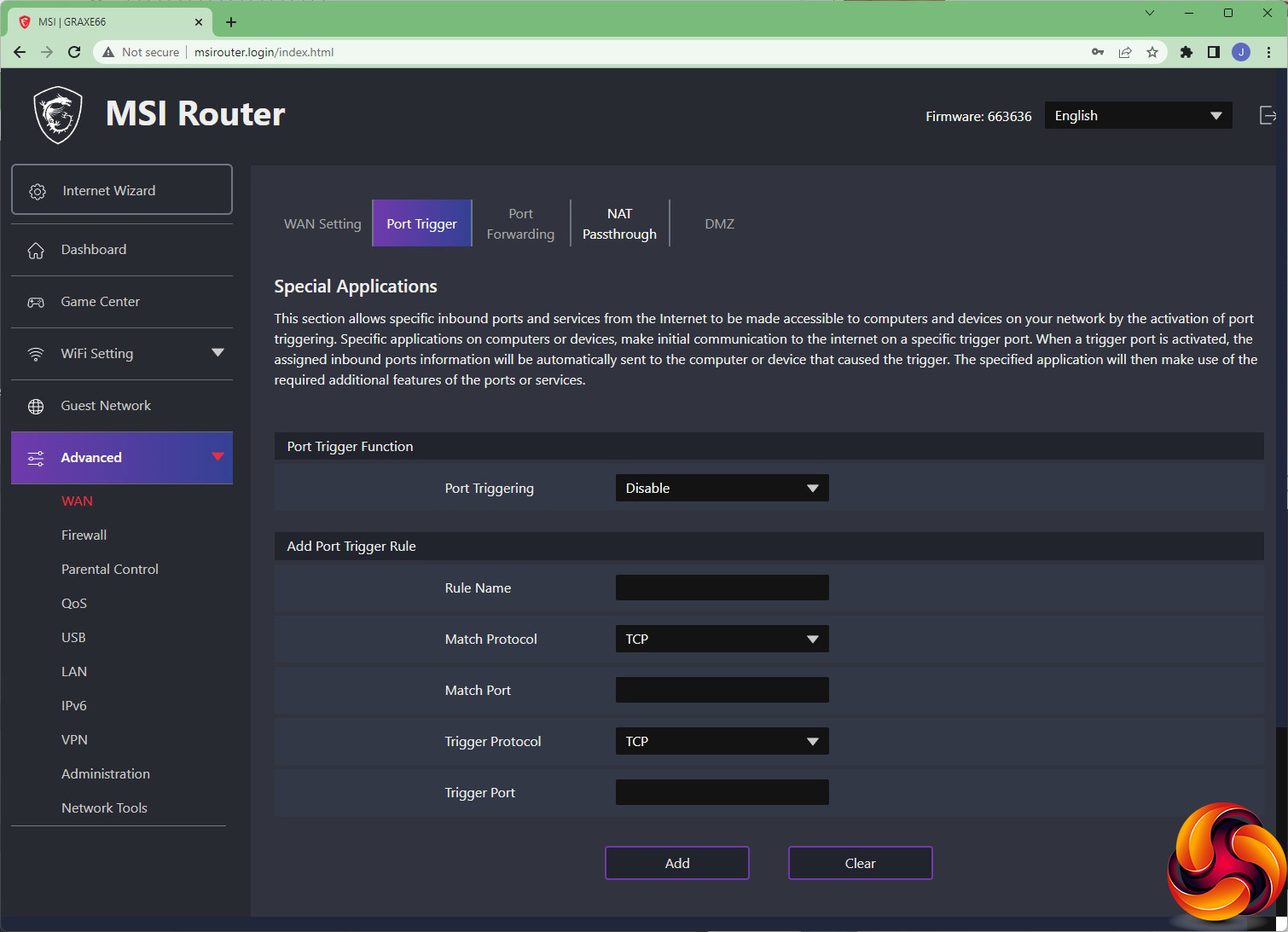
Finally, we get to the Advanced section, where the RadiX reveals that it's not just a pretty face where networking is concerned. The WAN setting lets you choose whether the 2.5Gbit Ethernet port is used for broadband, or the first Gigabit port. You can also configure other broadband-related settings here.
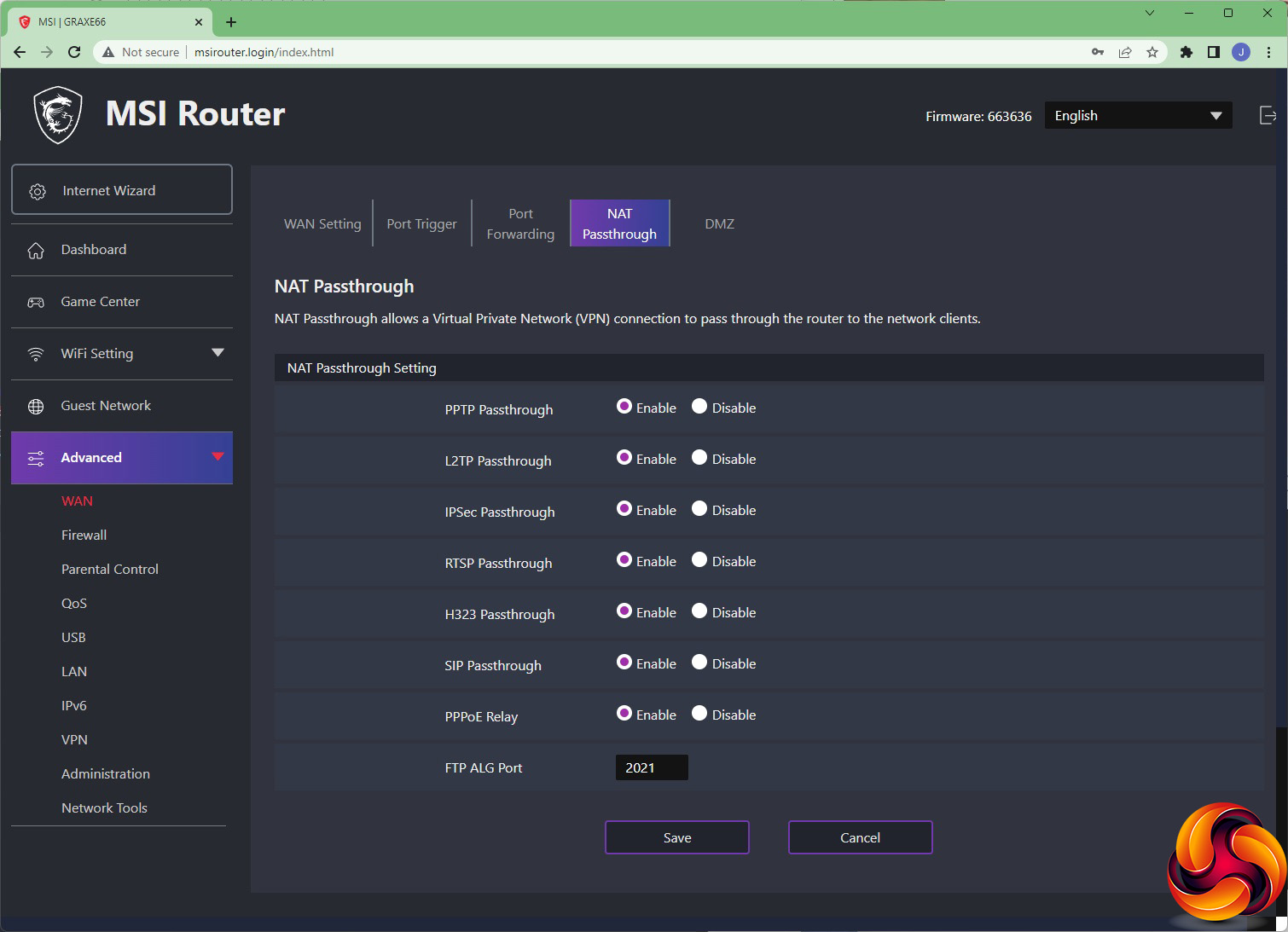
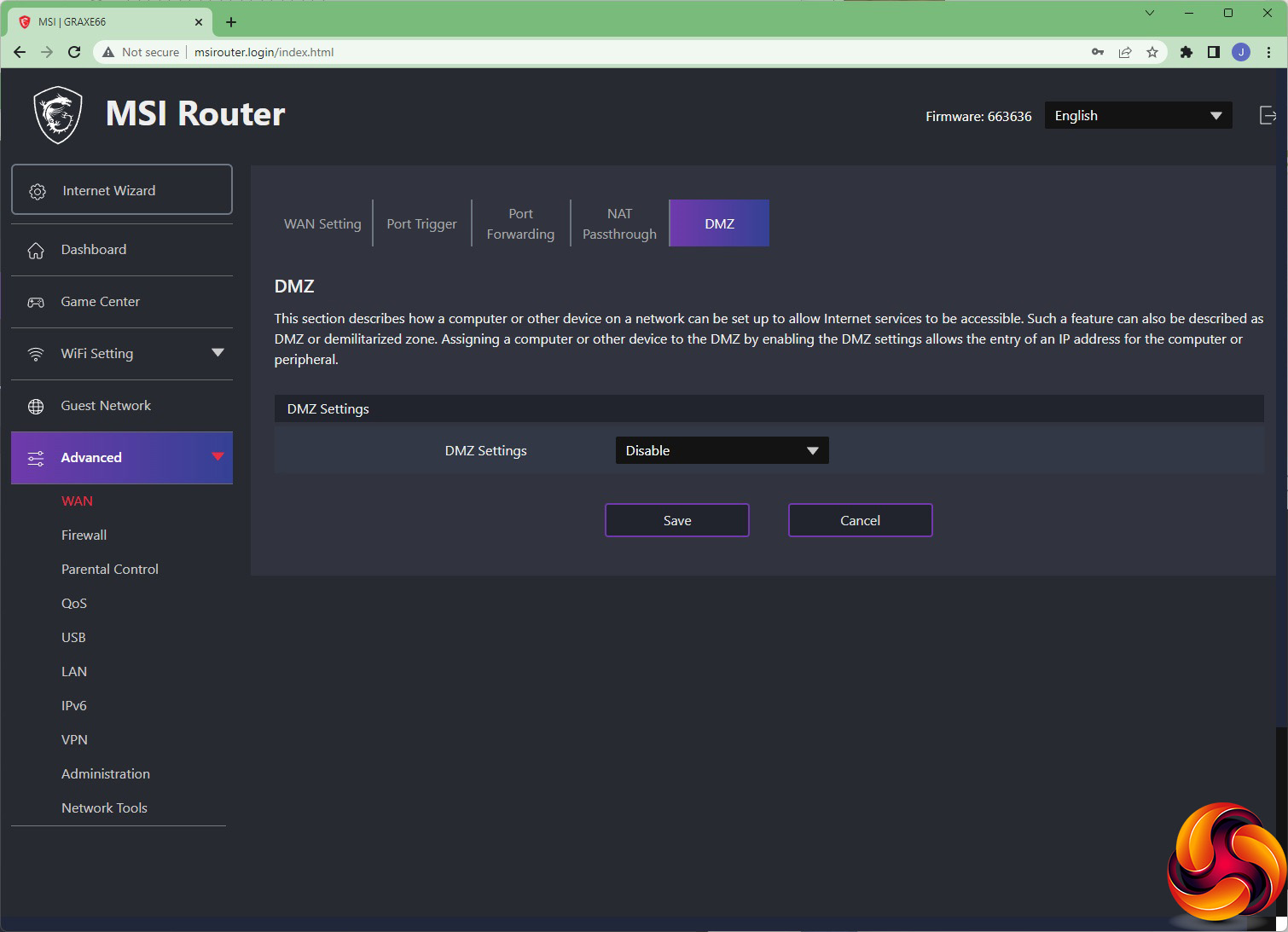
You can set port triggering and forwarding, as well as NAT passthrough, to enable specific applications to be visible externally. You can set up a single computer as a DMZ, with all its network services externally available. The Port Forwarding interface is the same as the one found in the Game Center section.
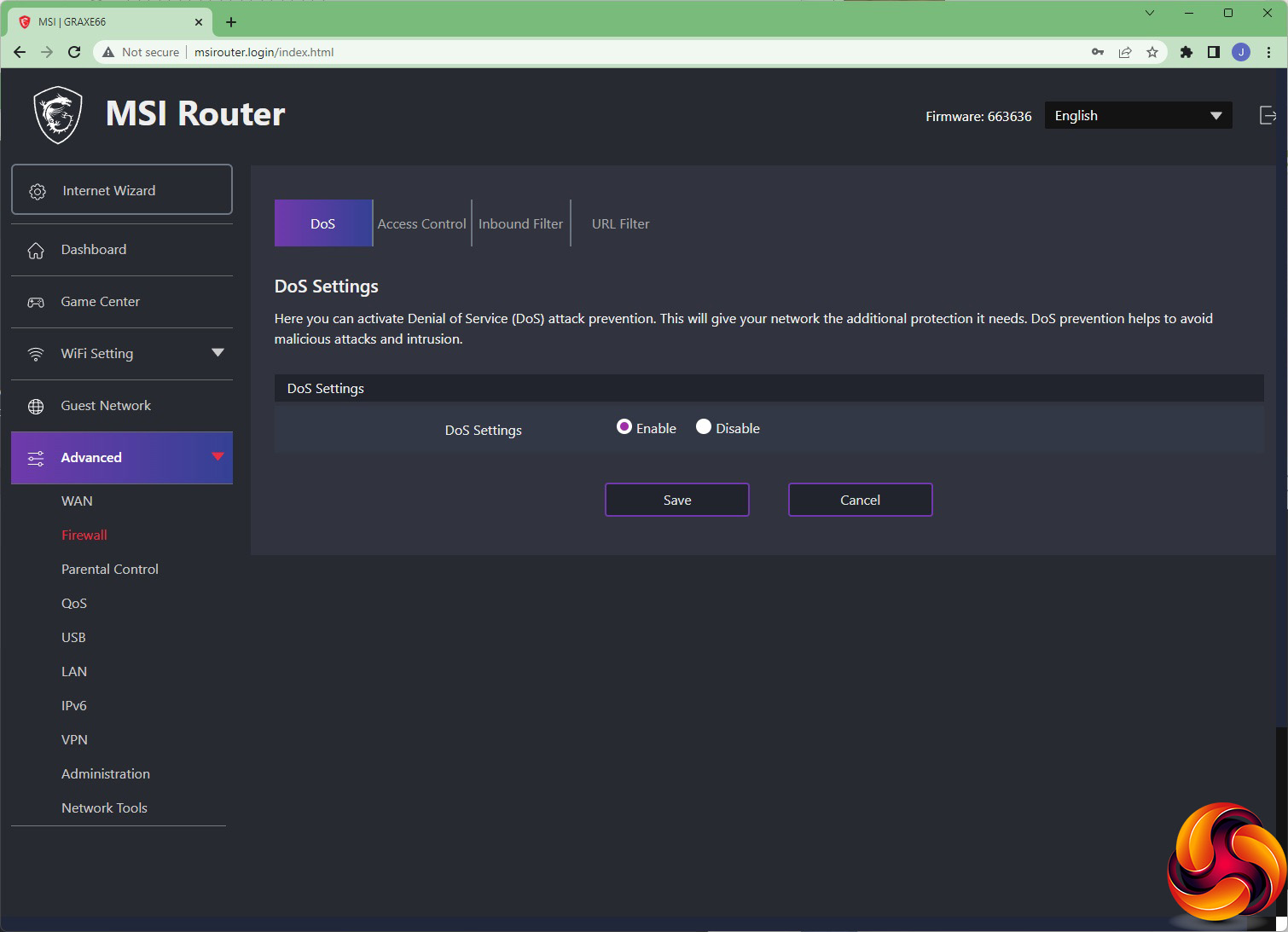
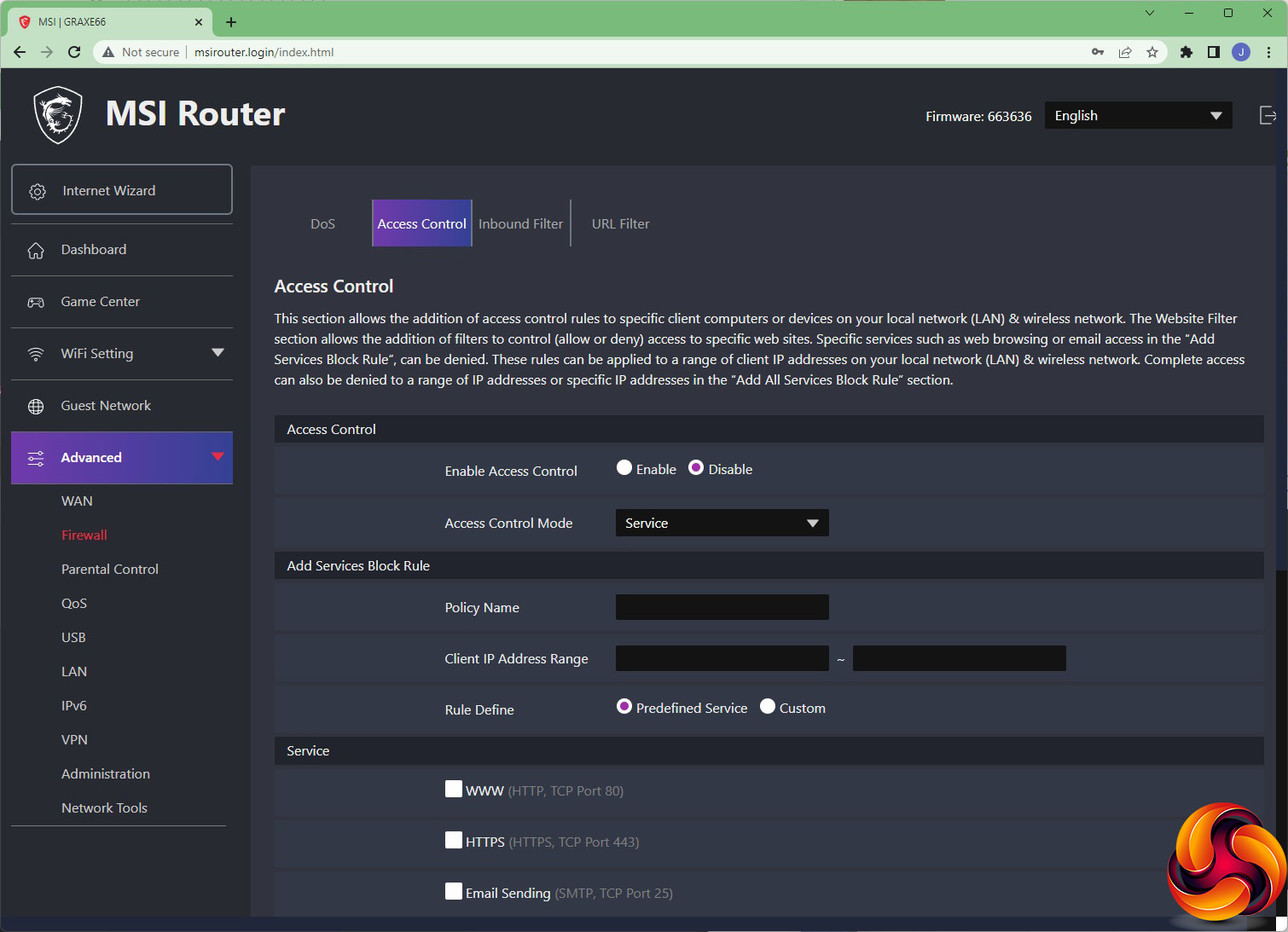
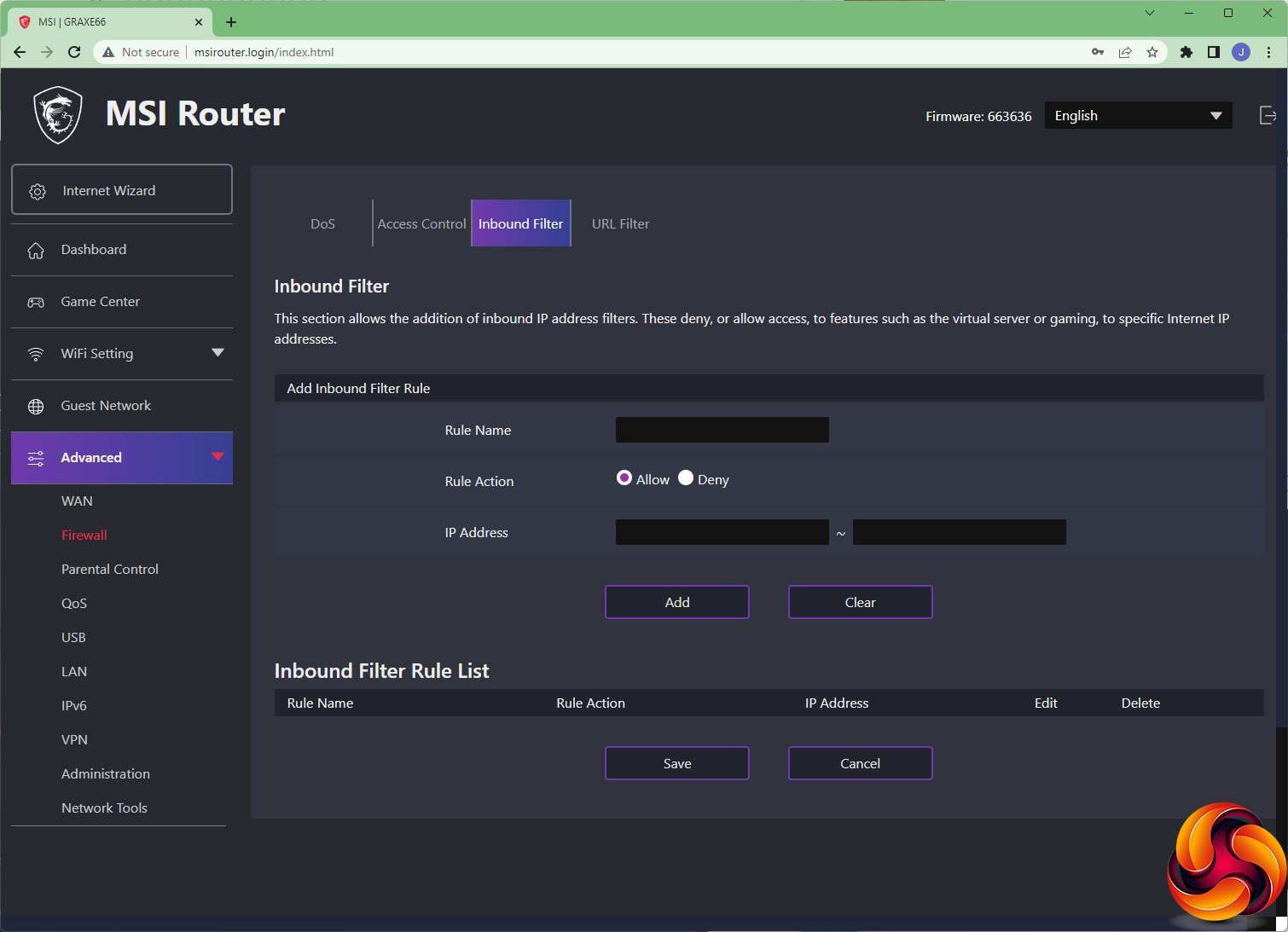
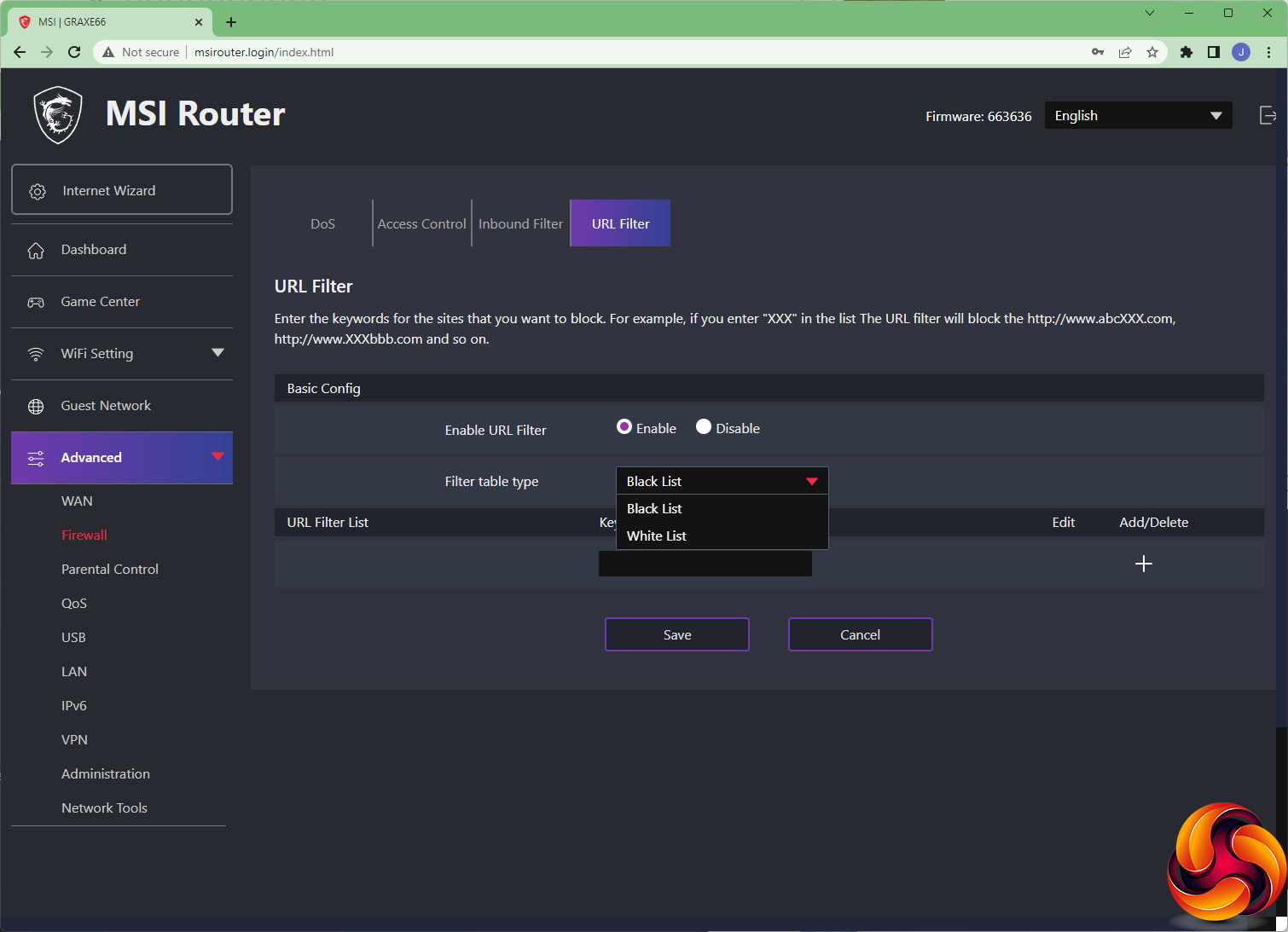
The RadiX has a competent firewall built in. You can guard against Denial of Service attacks, and deny access to certain service types and IP addresses. There are presets for HTTP, HTTPS and email SMTP sending. You can also allow or deny inbound services and IP addresses. The URL filter lets you black list or white list website addresses.
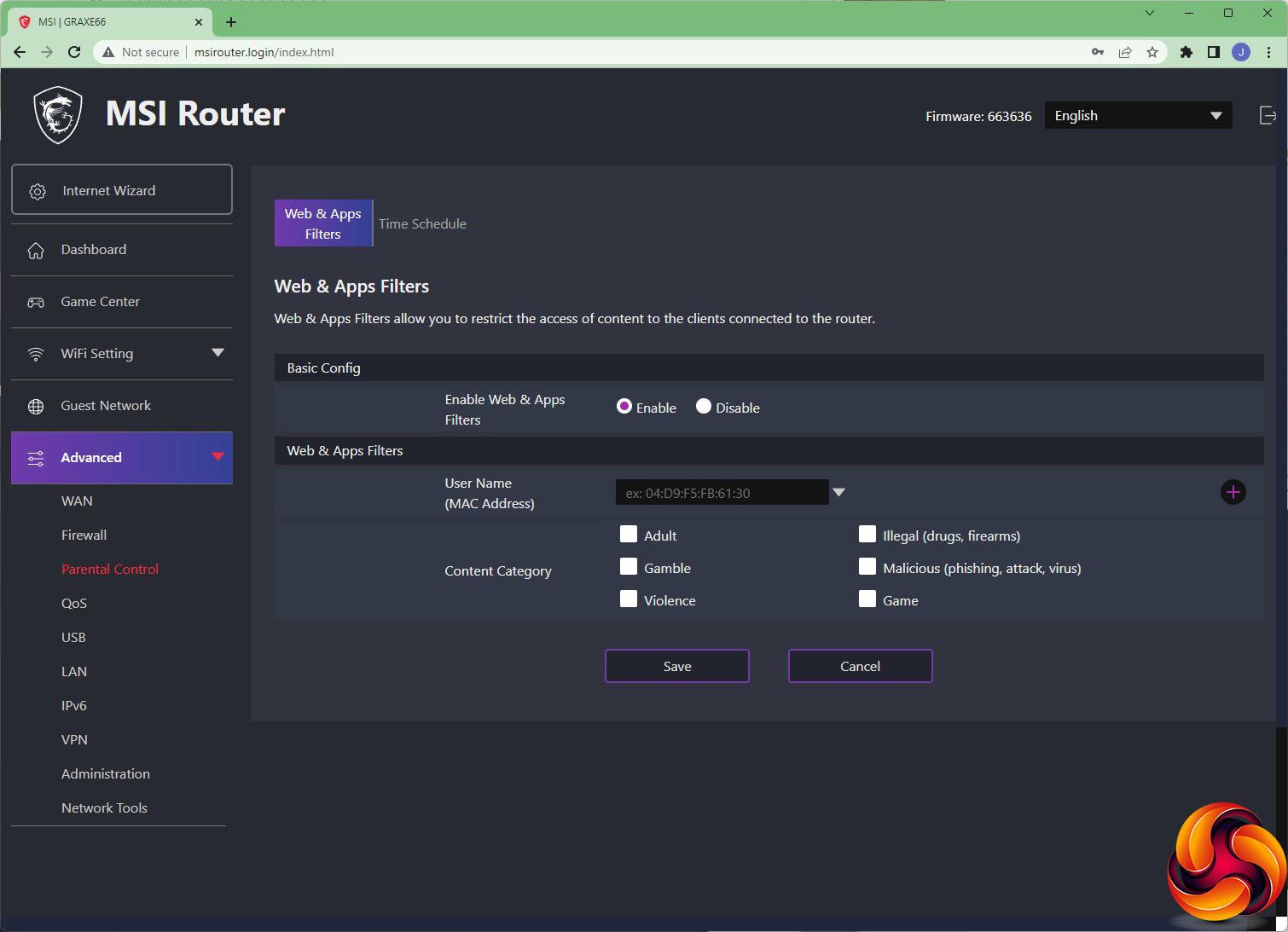
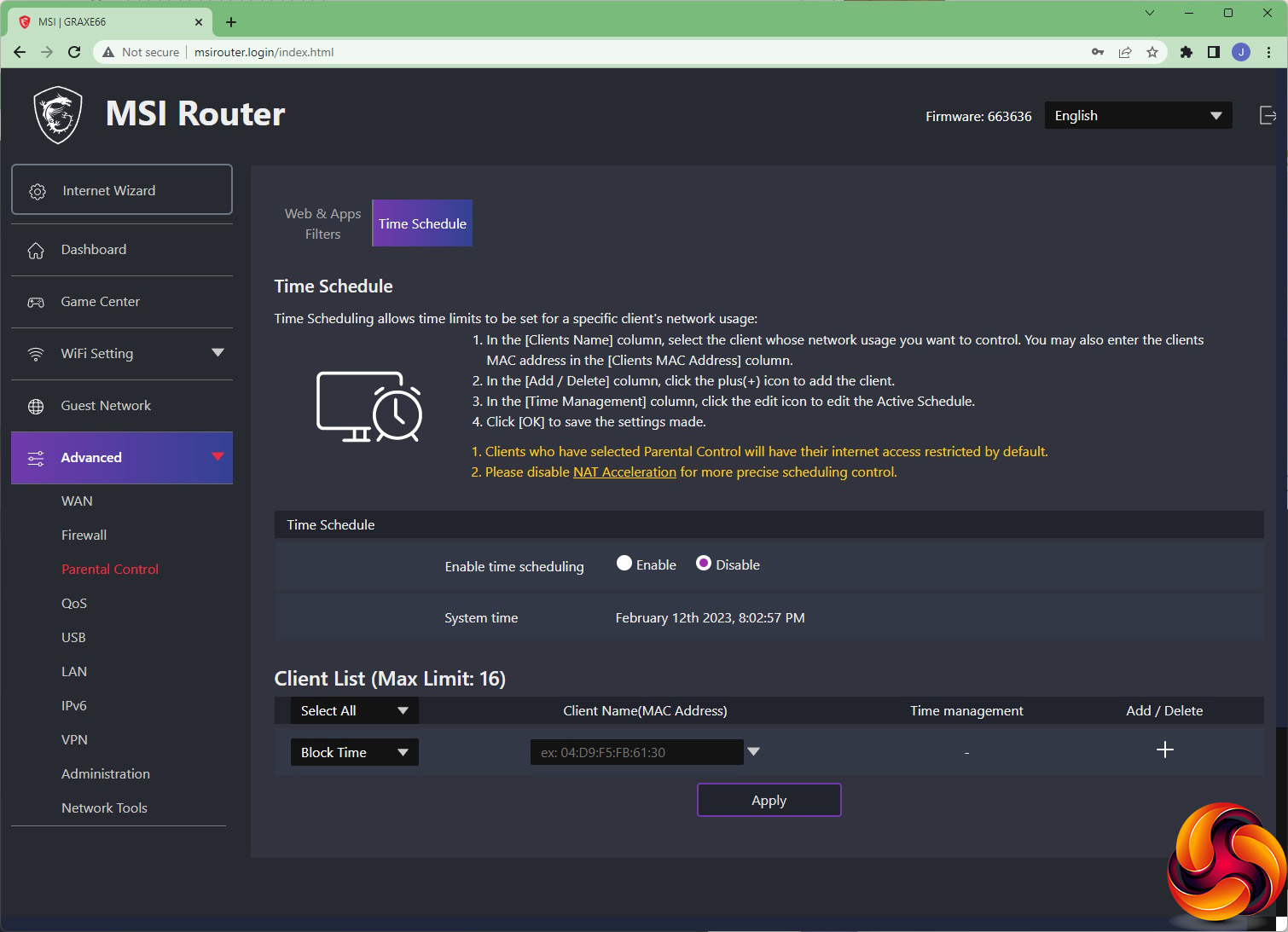
The parental controls don't use a third-party service such as Disney's Circle. But you can still restrict the content category types available to a device name or MAC Address, and set up usage times so your kids can only access the Internet when you allow them to.
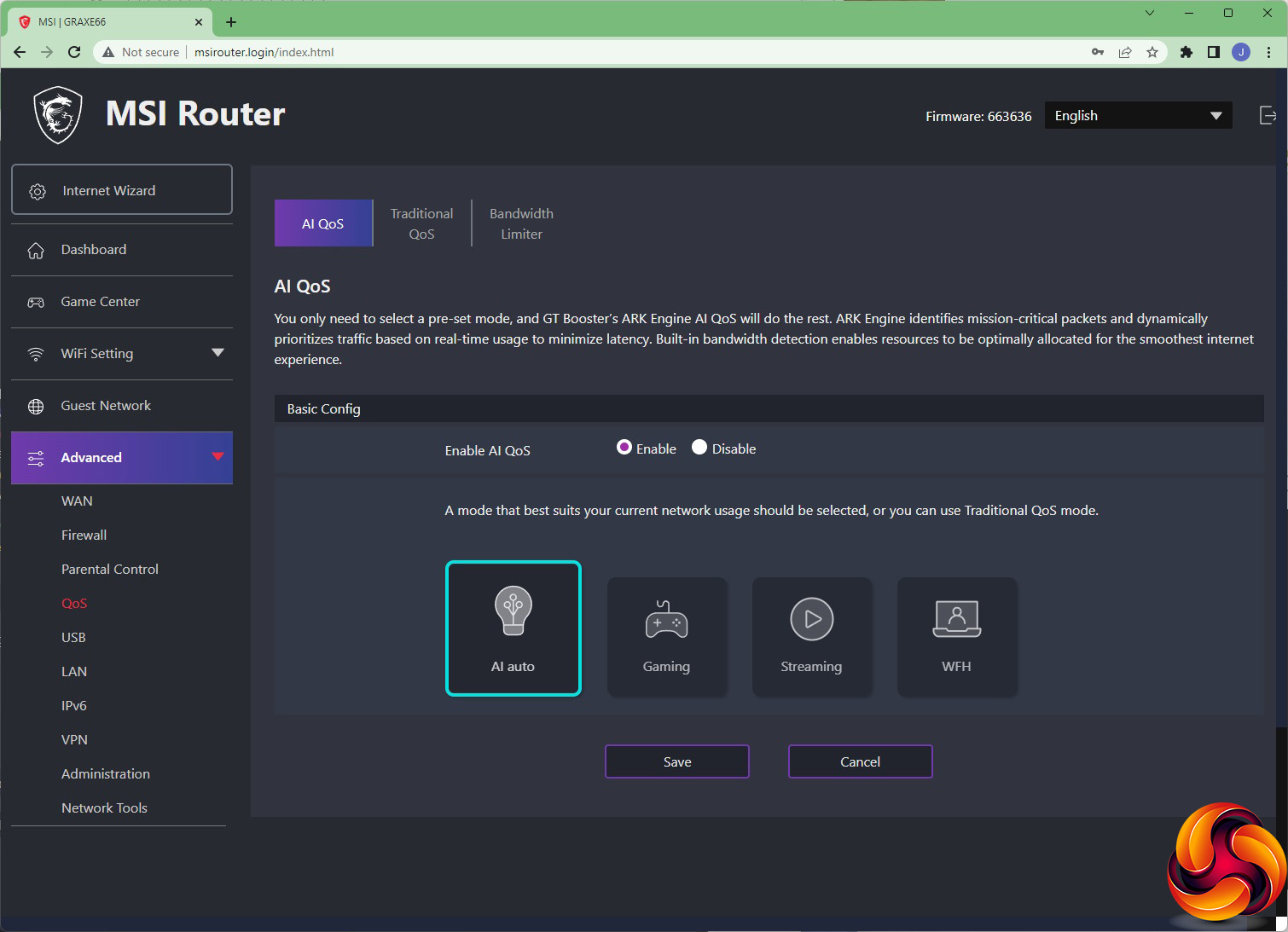
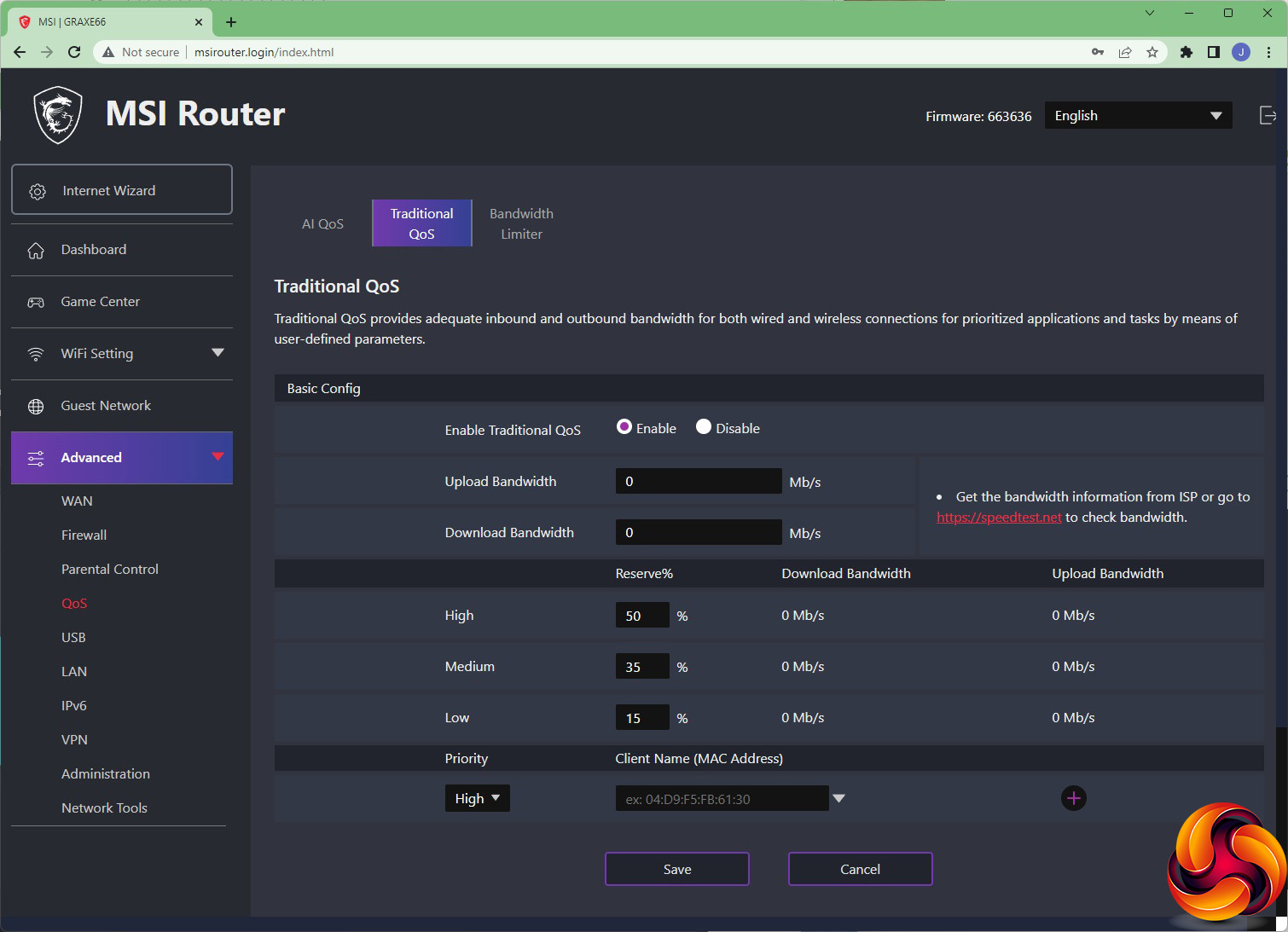
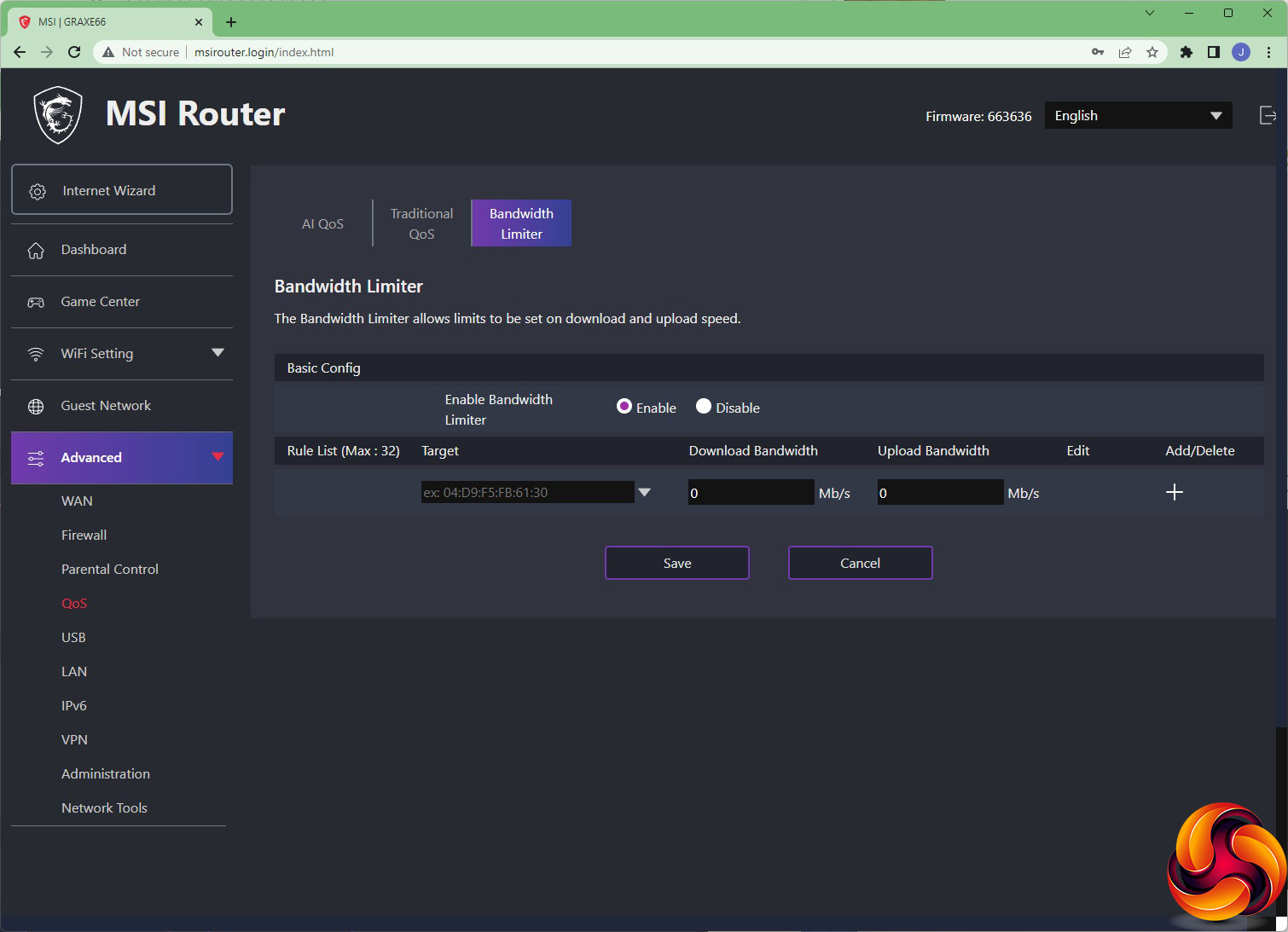
The QoS section gives you another way of changing the Mode, or you can disable this feature entirely. Alternatively, you can set the QoS manually by specifying limits and giving individual clients priority levels. It's also possible to limit download and upload bandwidth for specific clients by MAC Address.
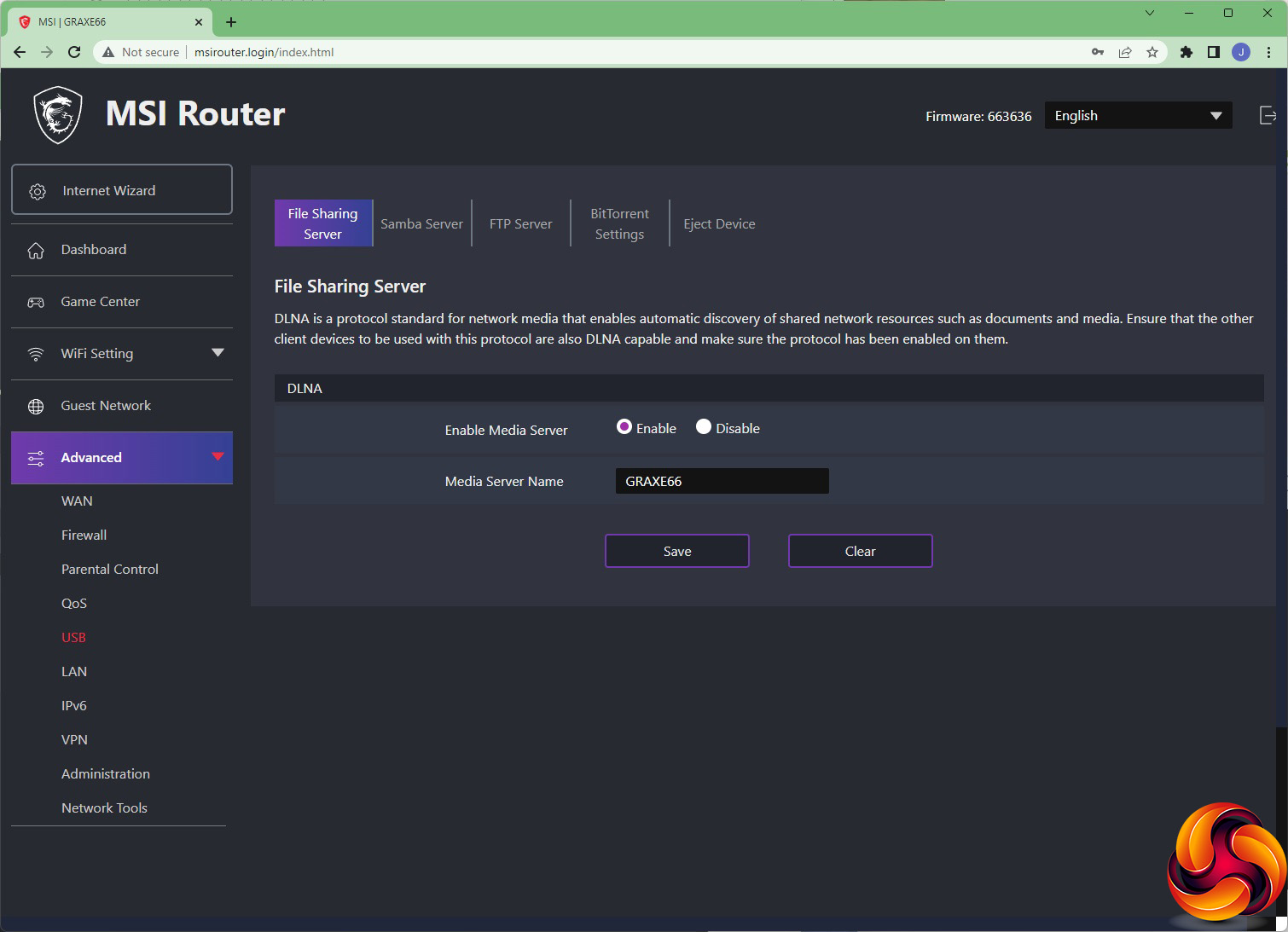
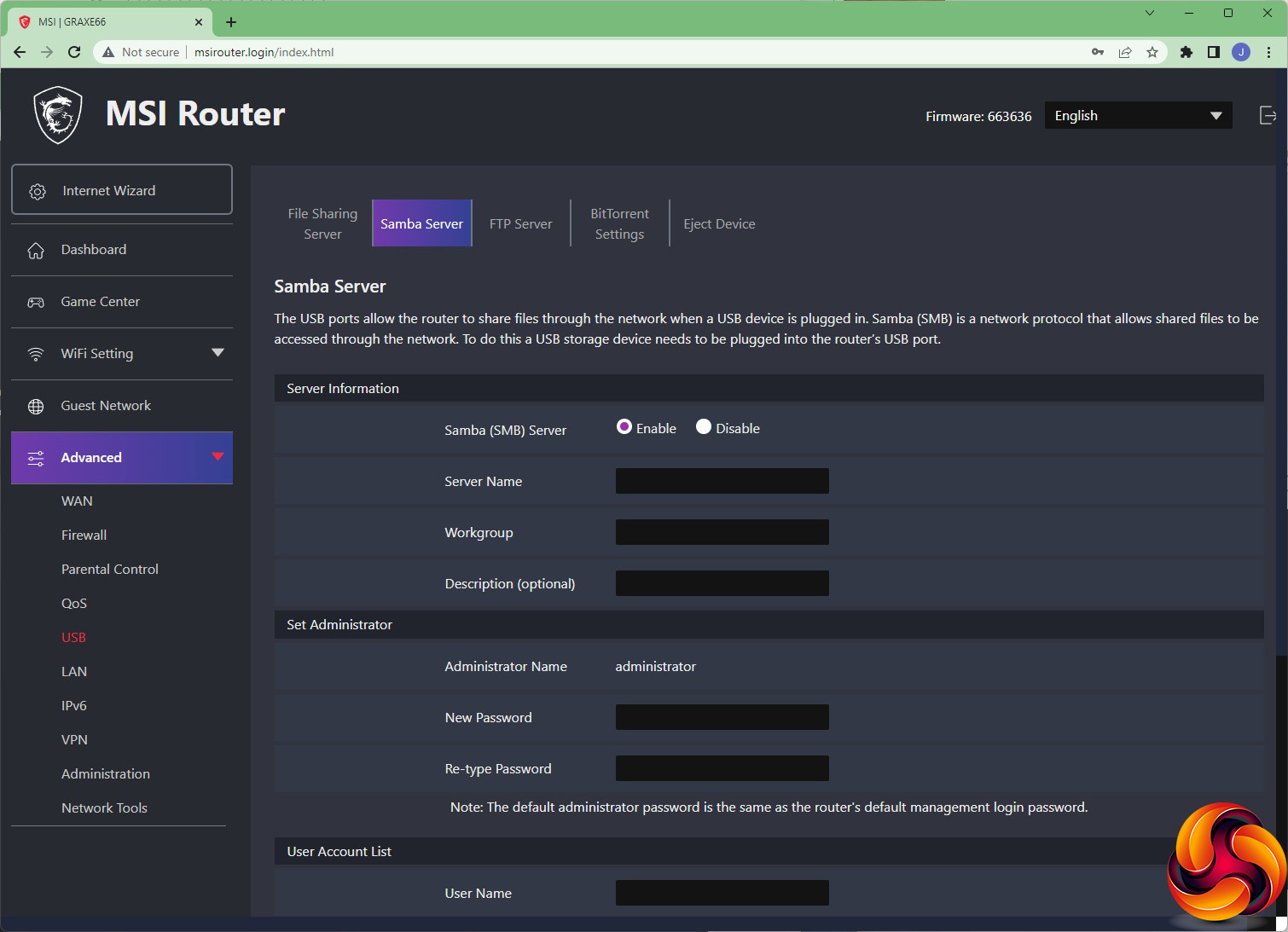
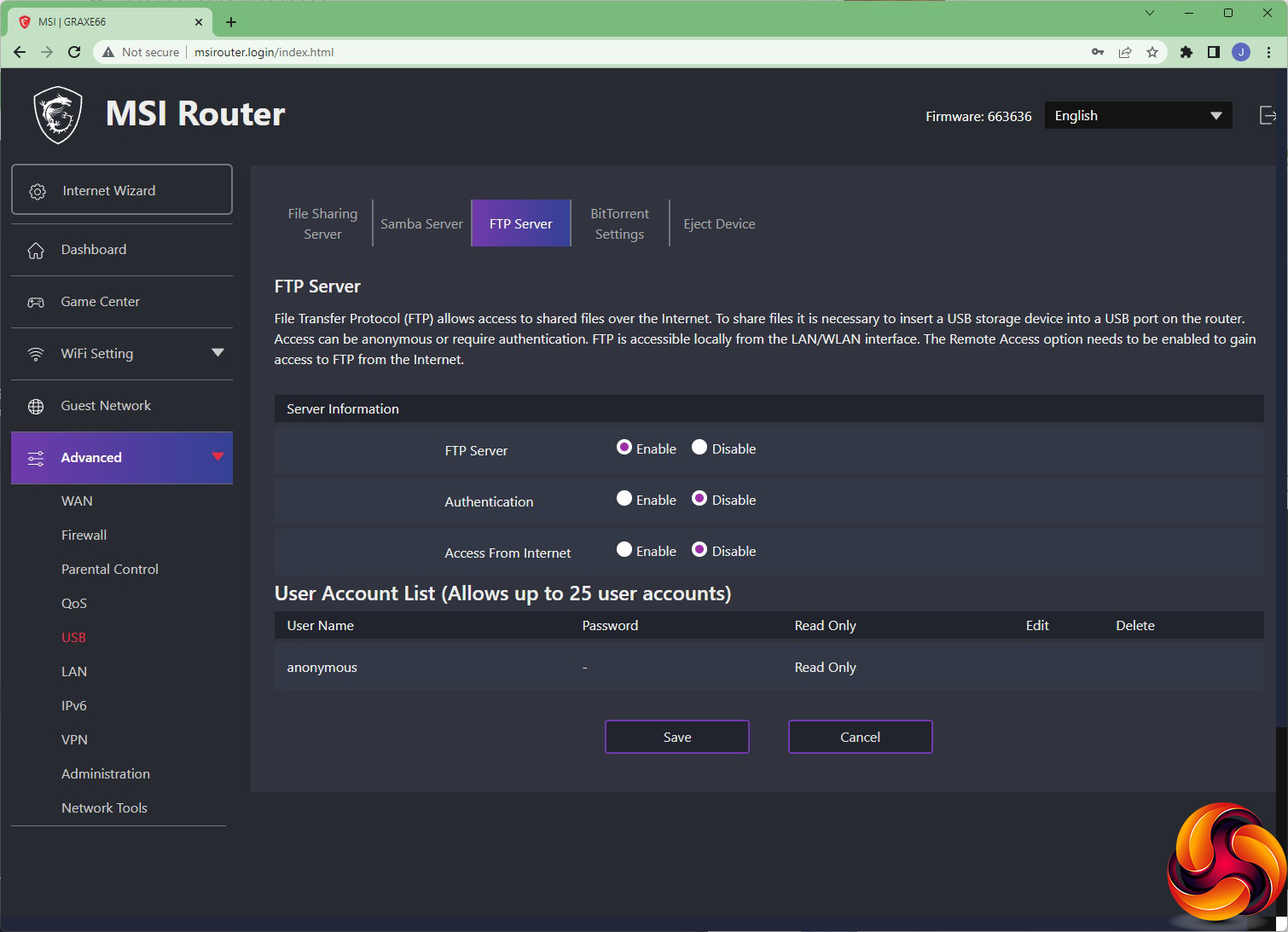
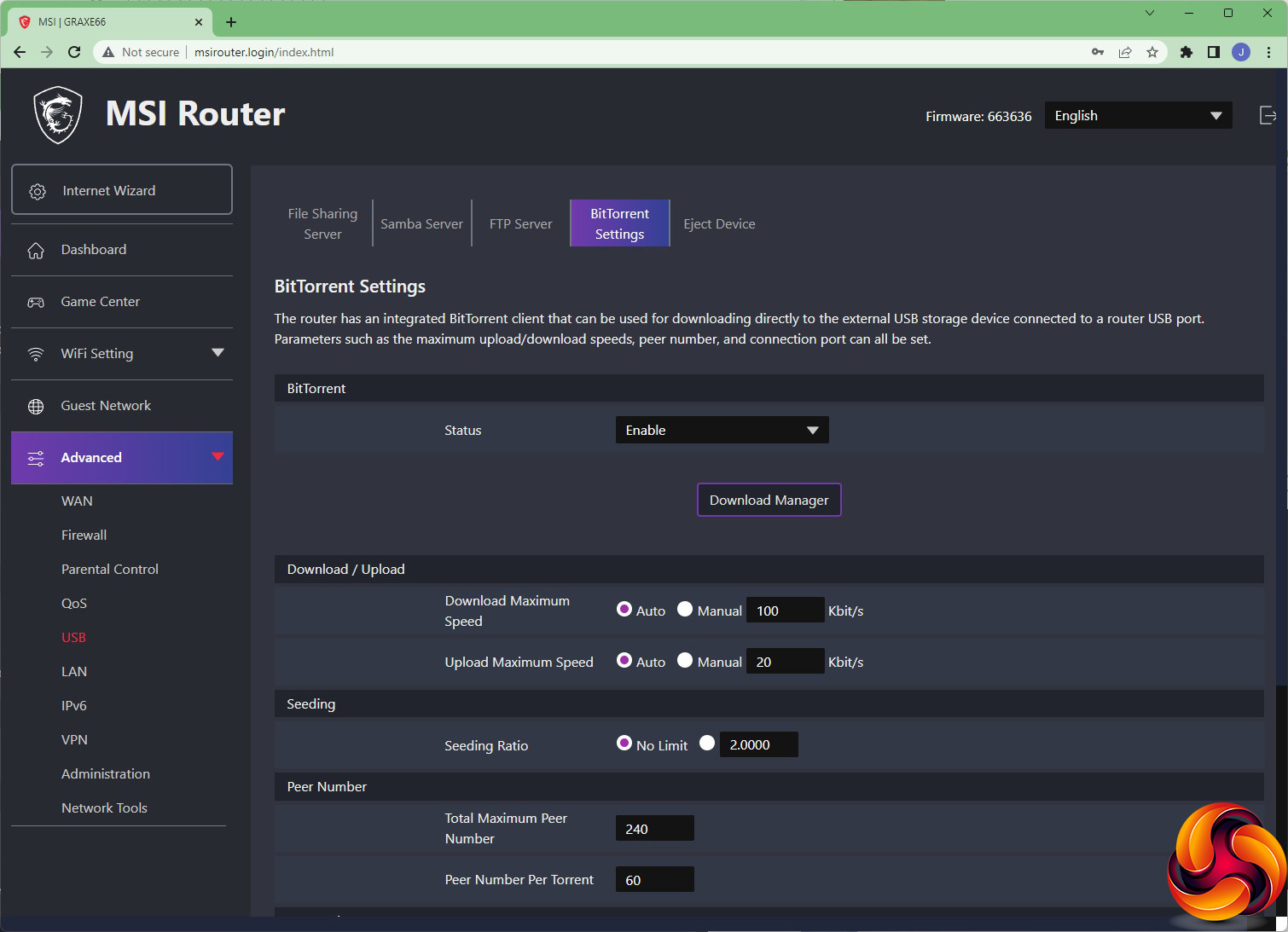
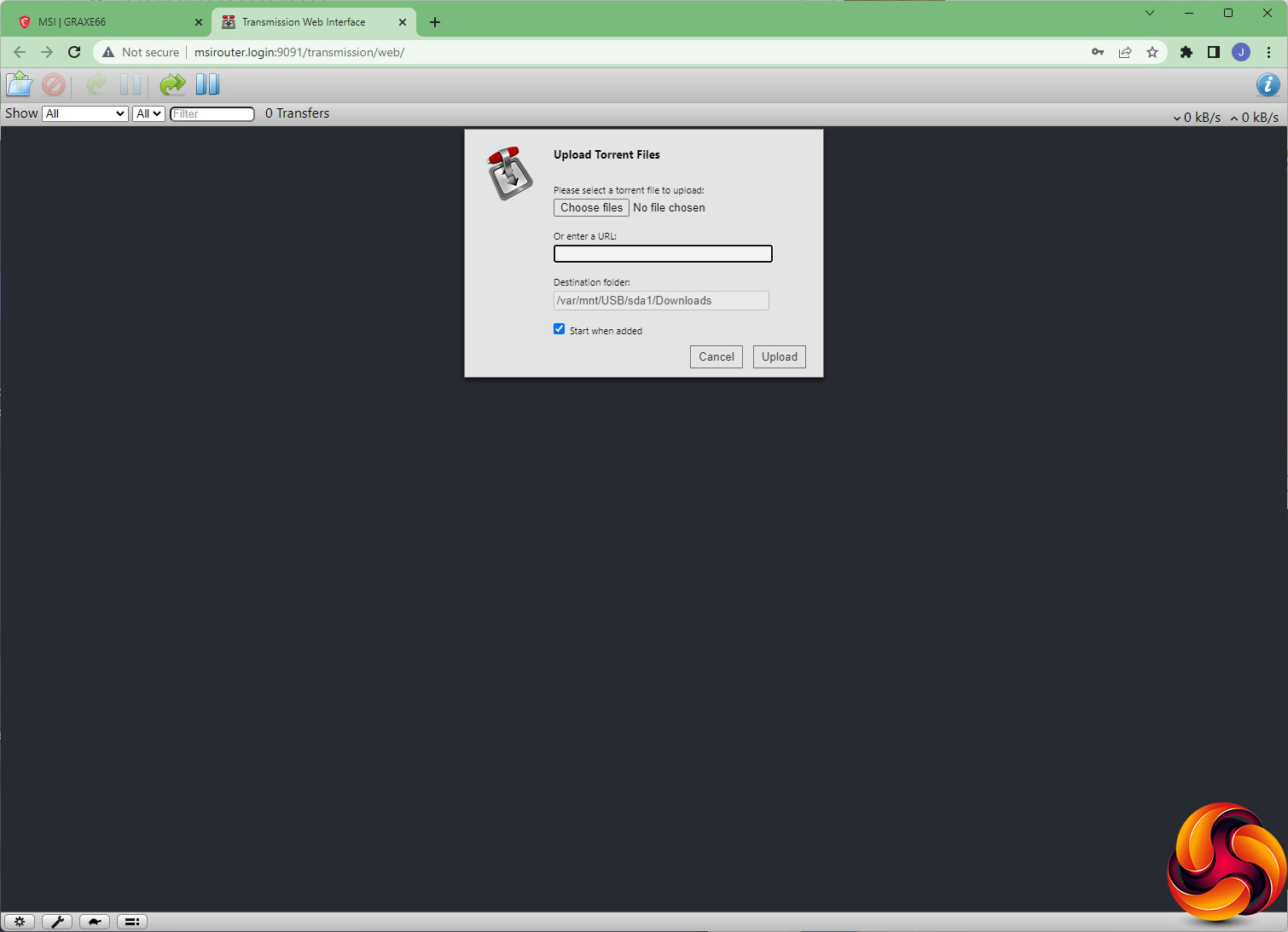
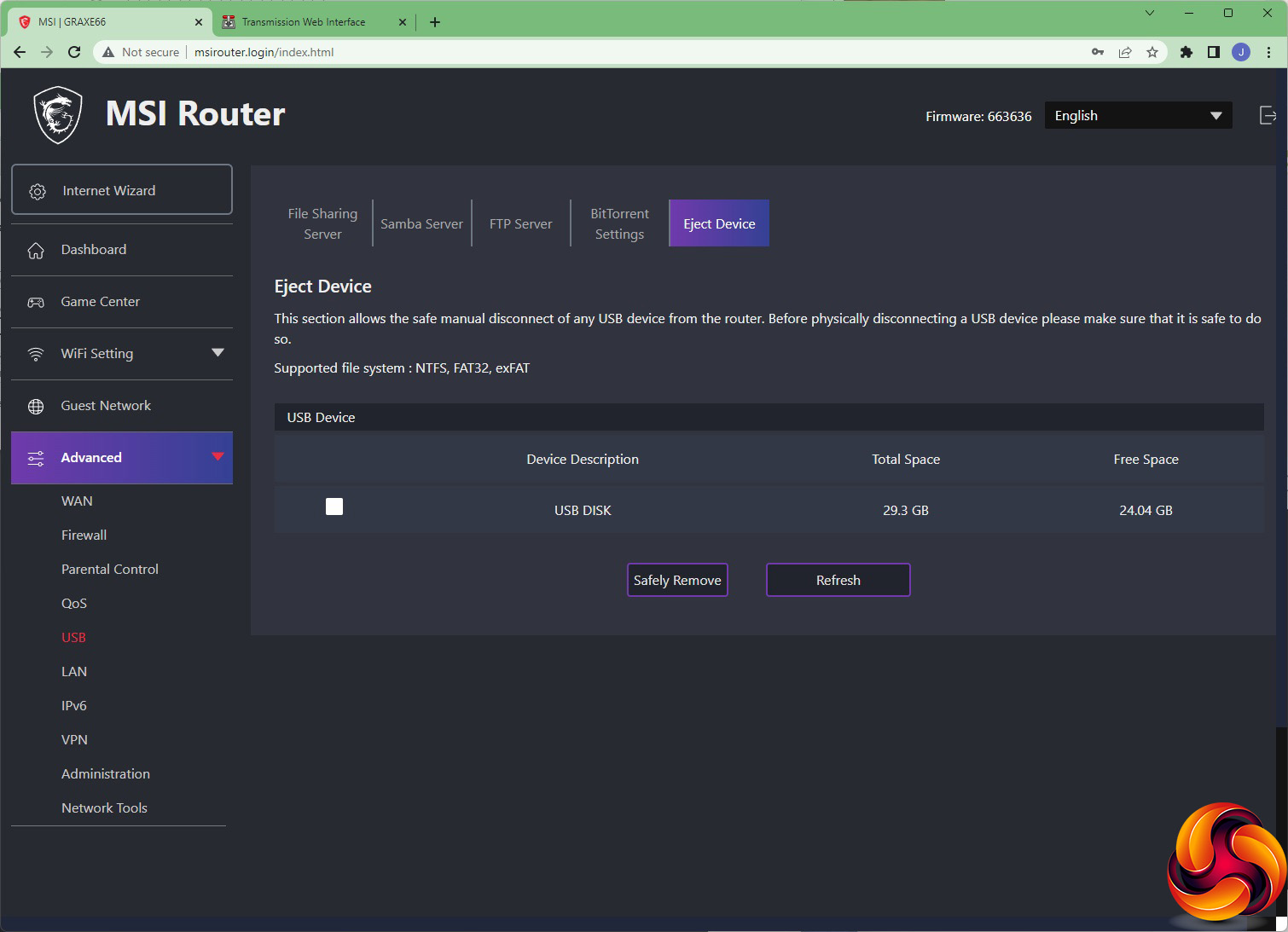
The USB port can only be used for sharing storage, not a printer, but there are a decent number of ways you can do this. First of all, you can present the storage as a DLNA-compatible media server. You can also set up Samba to present the storage as a standard Windows network drive share. You can enable FTP access to the storage device, and configure the router as a BitTorrent client. This then allows you to access the Web interface to the Download Manager, where you can add torrents and let the RadiX handle the downloading for you, no client PC required. Finally, you can eject the USB storage gracefully, to avoid file corruption.
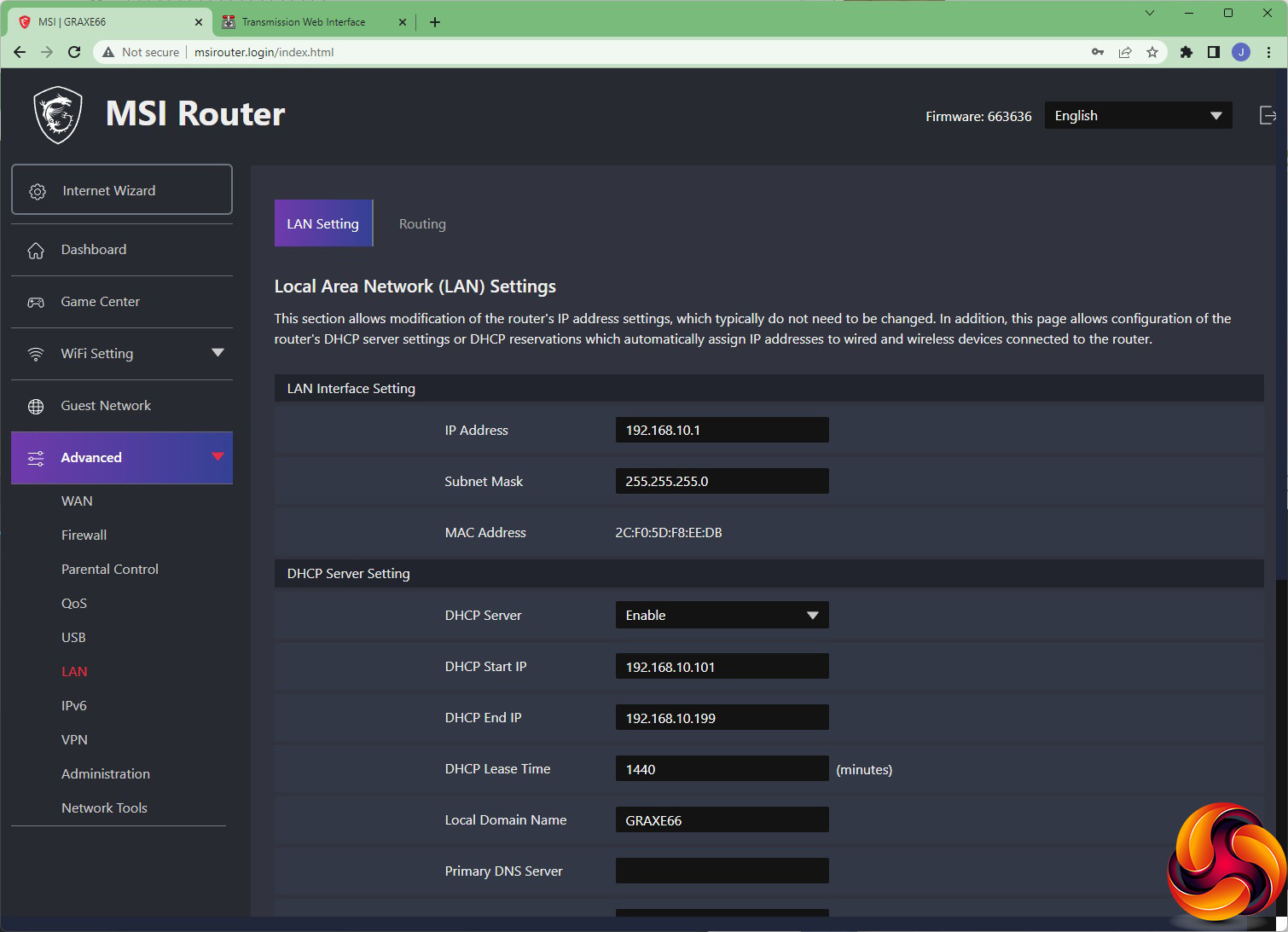
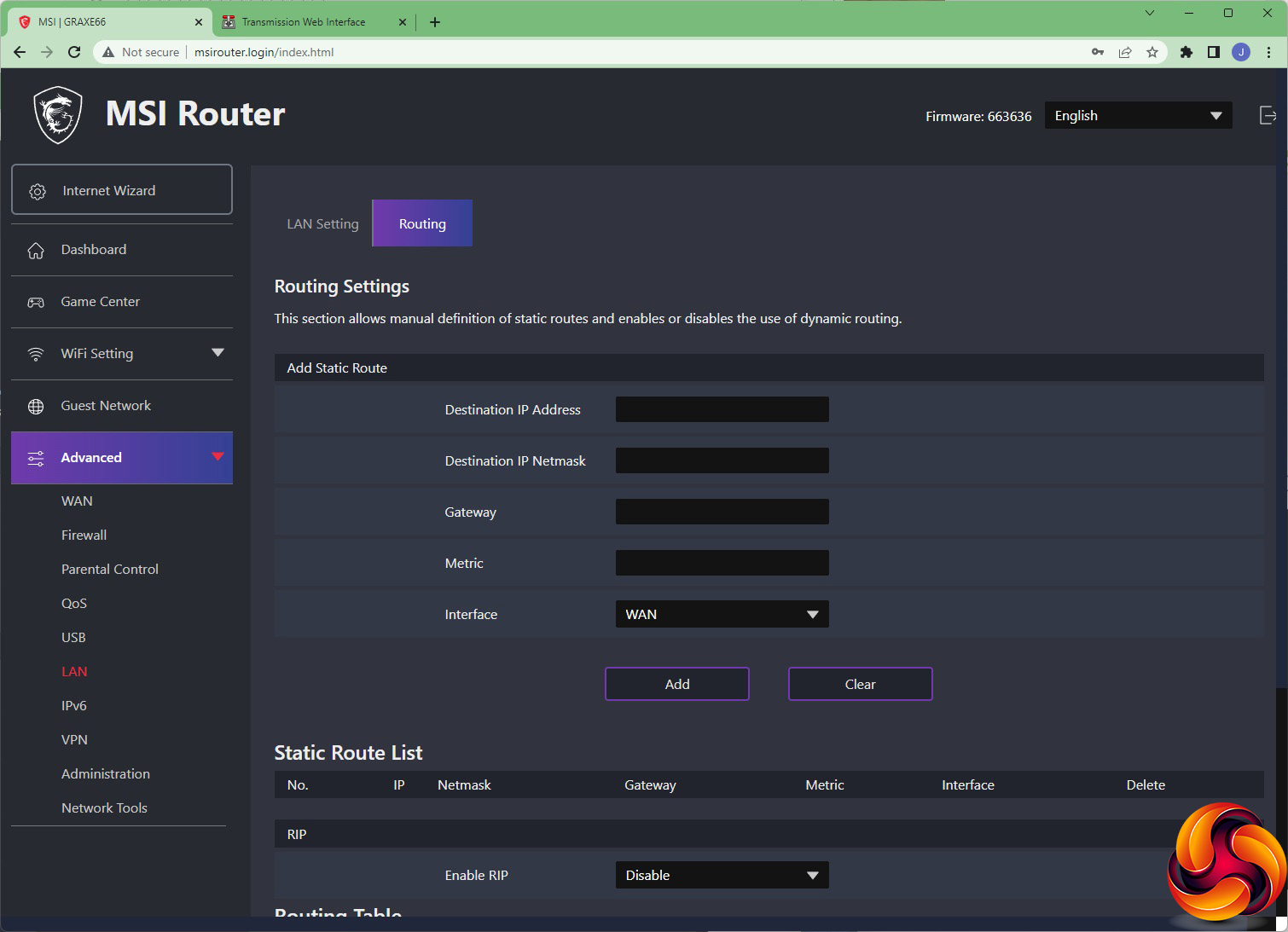
The LAN section lets you configure how wired clients access the network, including DHCP settings and static routes.
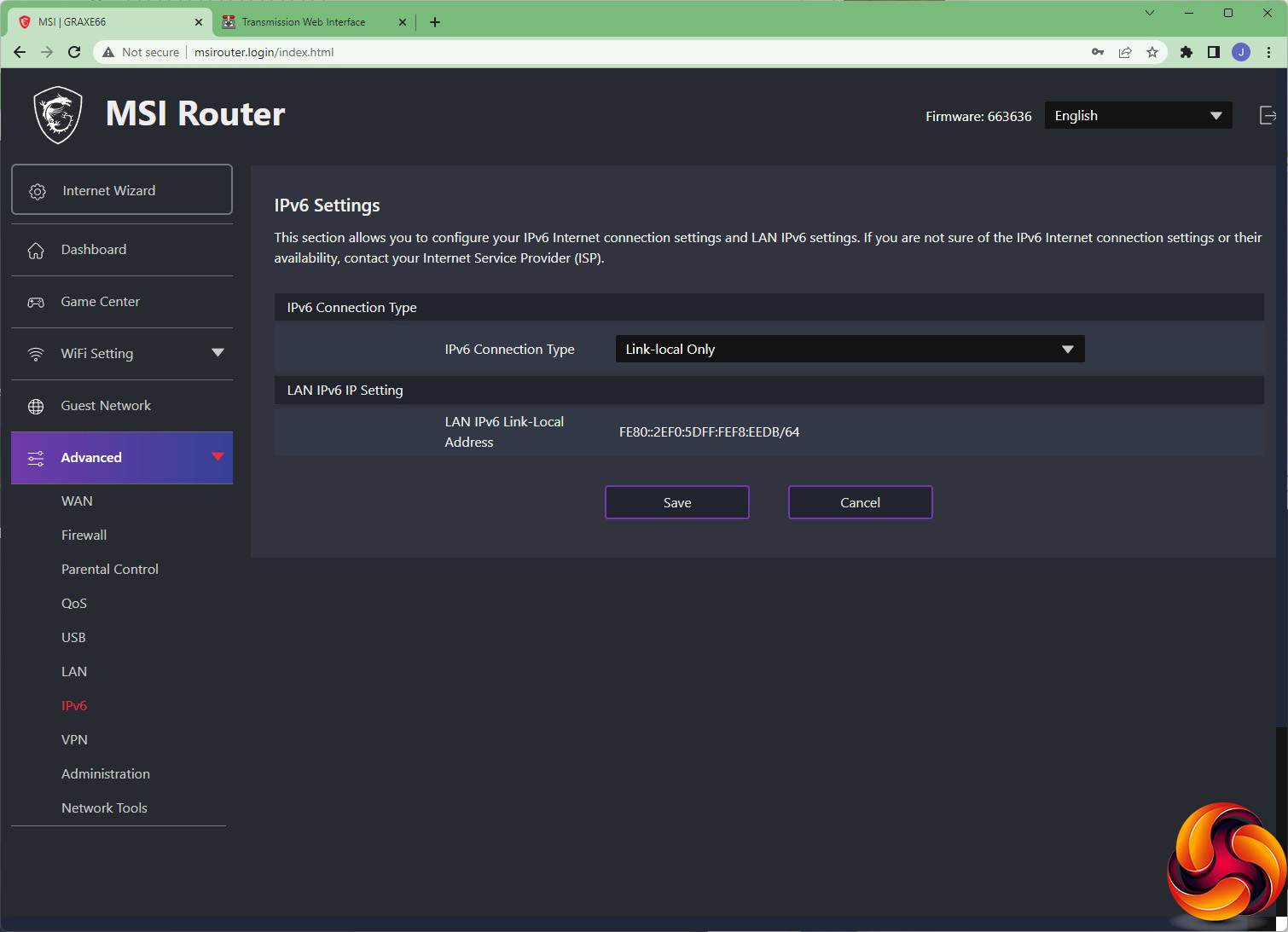
Basic IPv6 options are available.
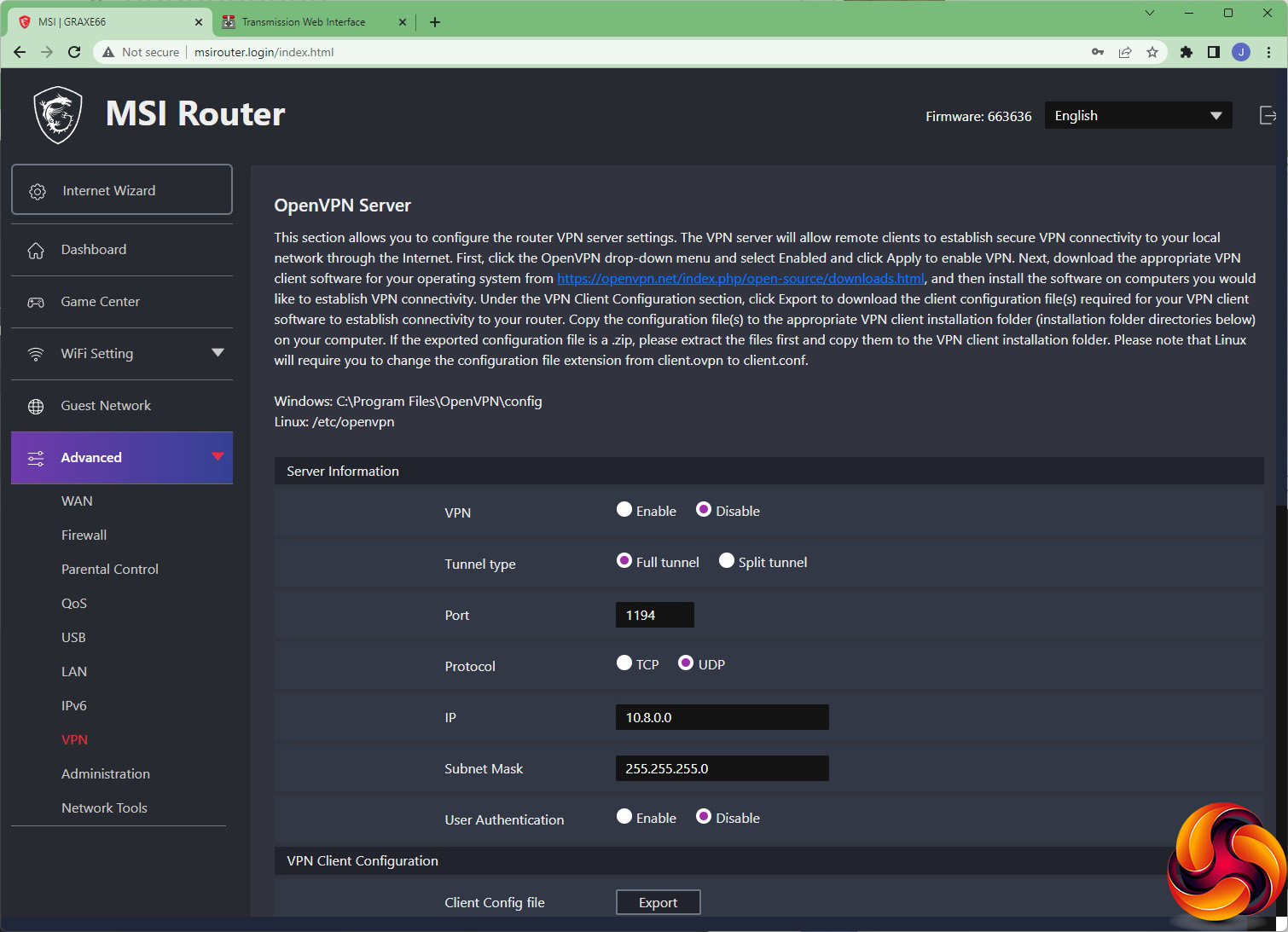
The VPN server settings from the Game Center can also be found under the Advanced section. Note that the RadiX can only act as a VPN server, not a client. So you can't tunnel your entire local network to an external server with this router. It's intended only for you to tunnel into with a remote client system.
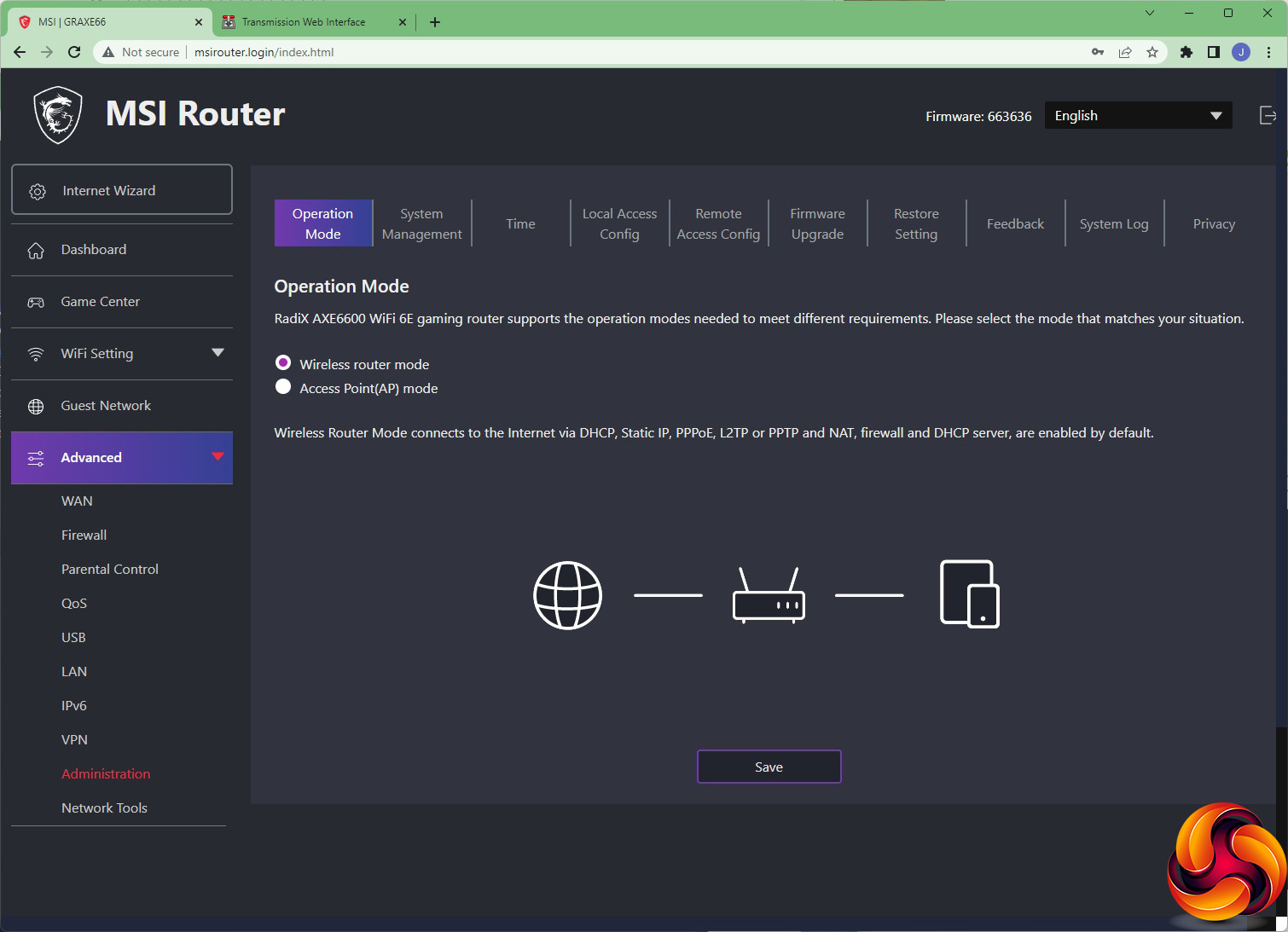
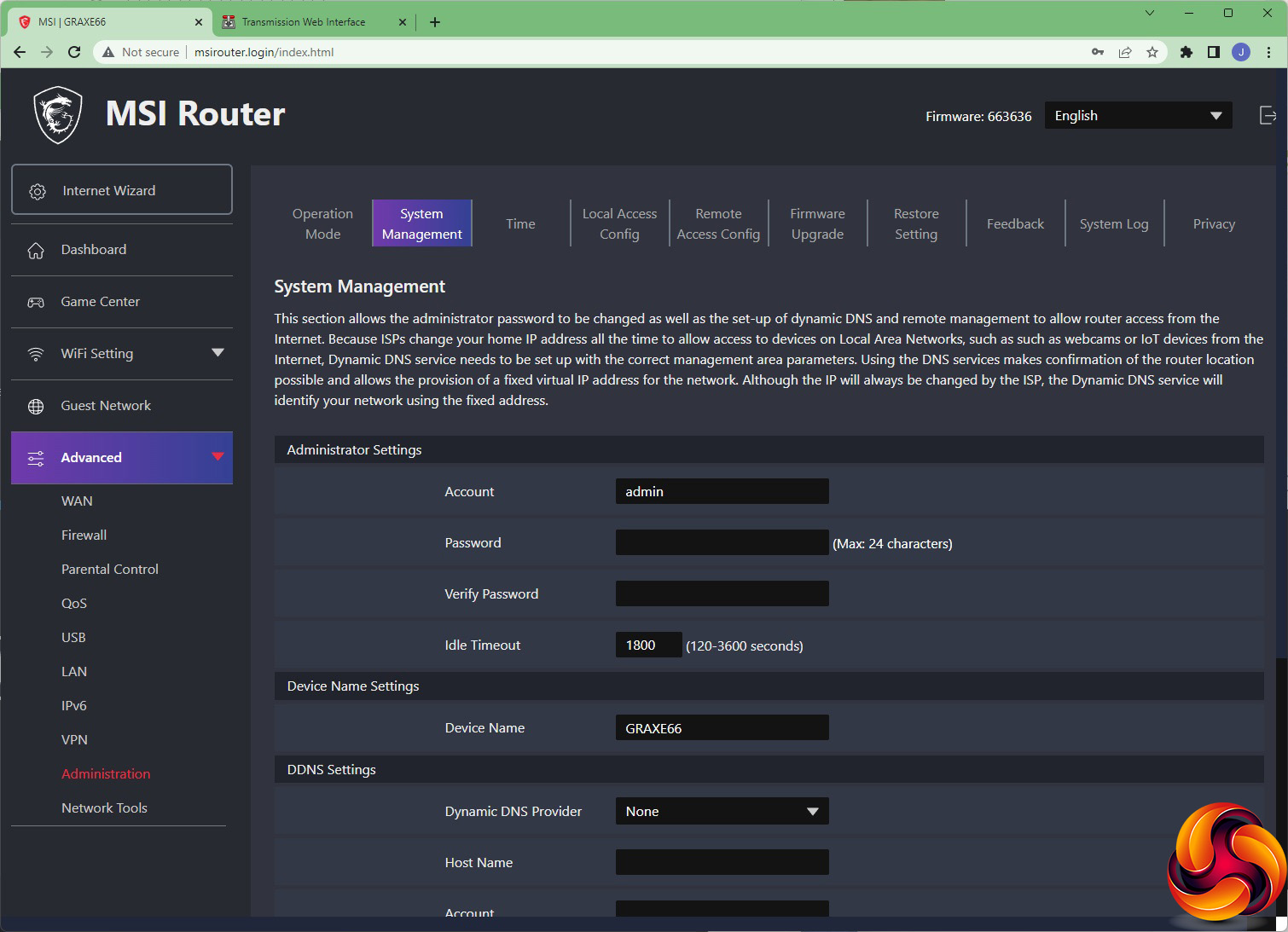
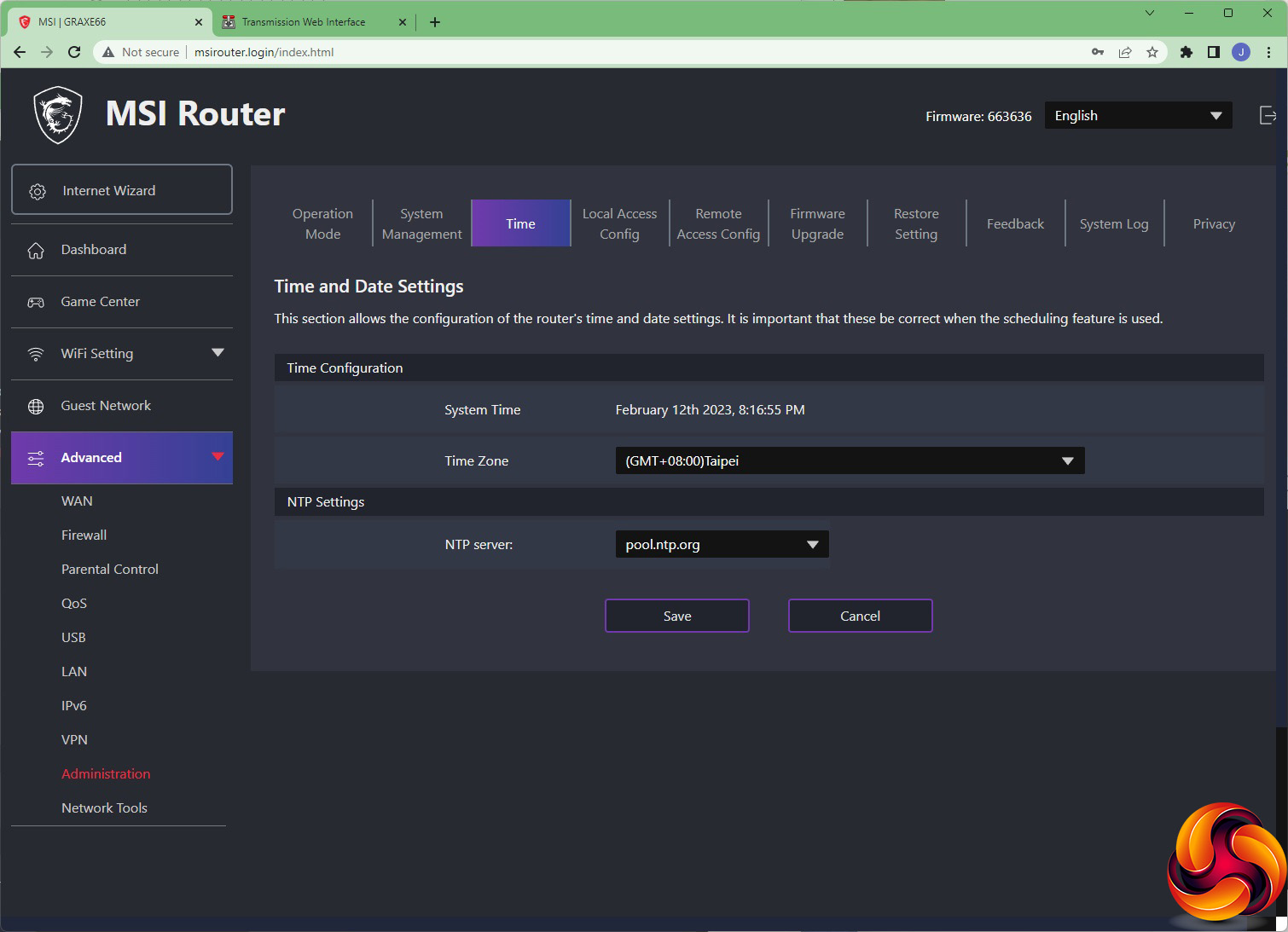
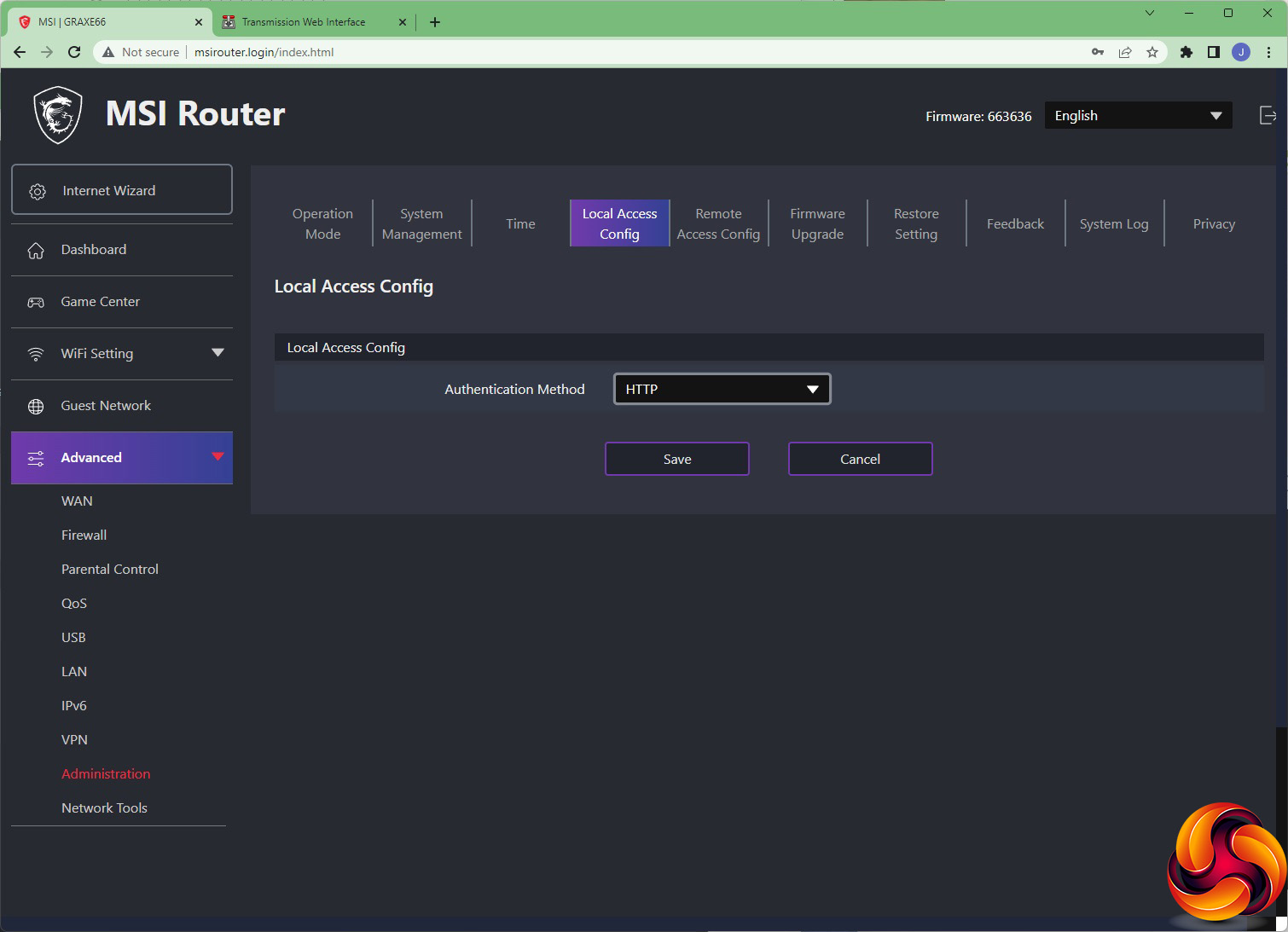
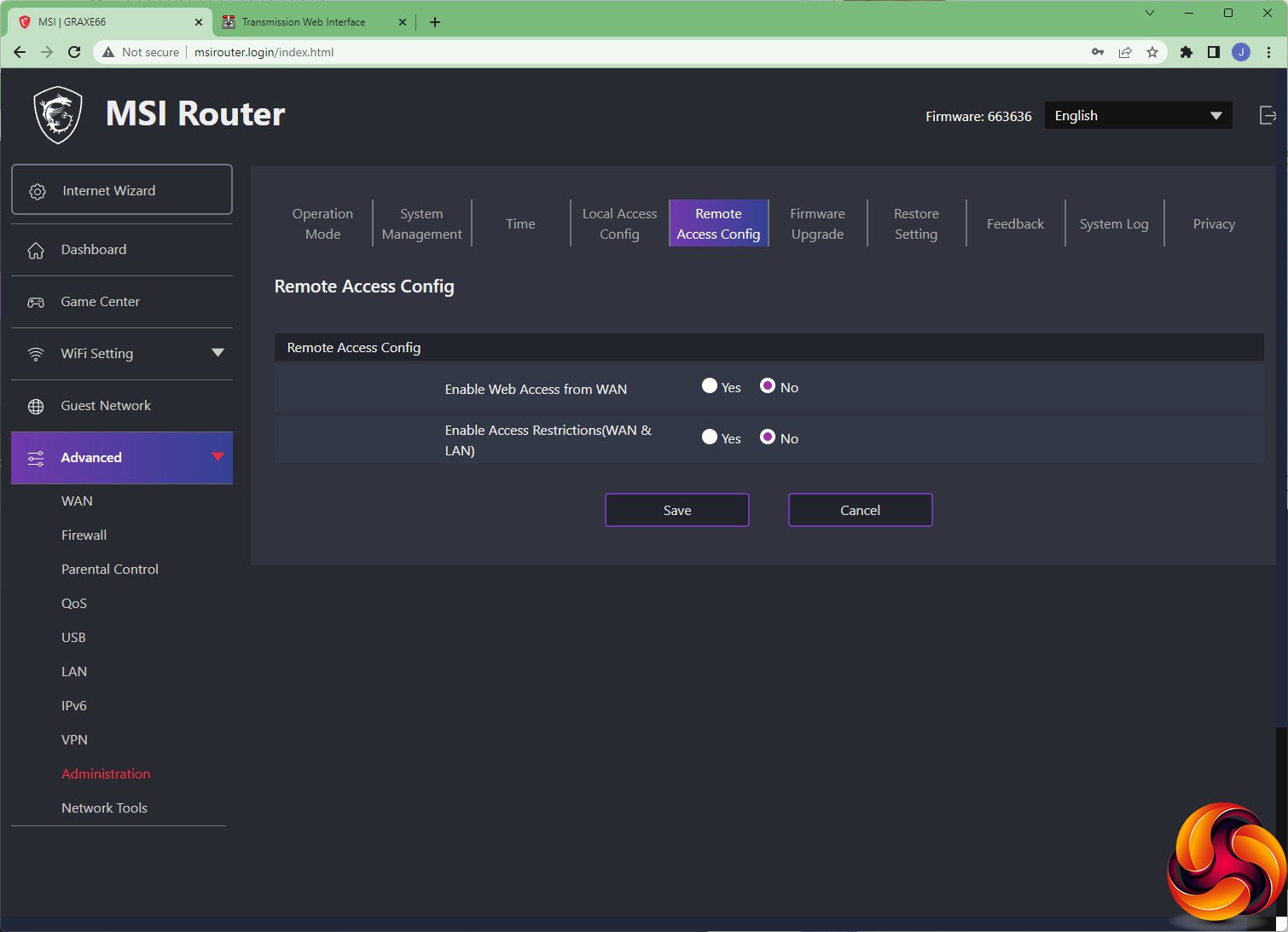
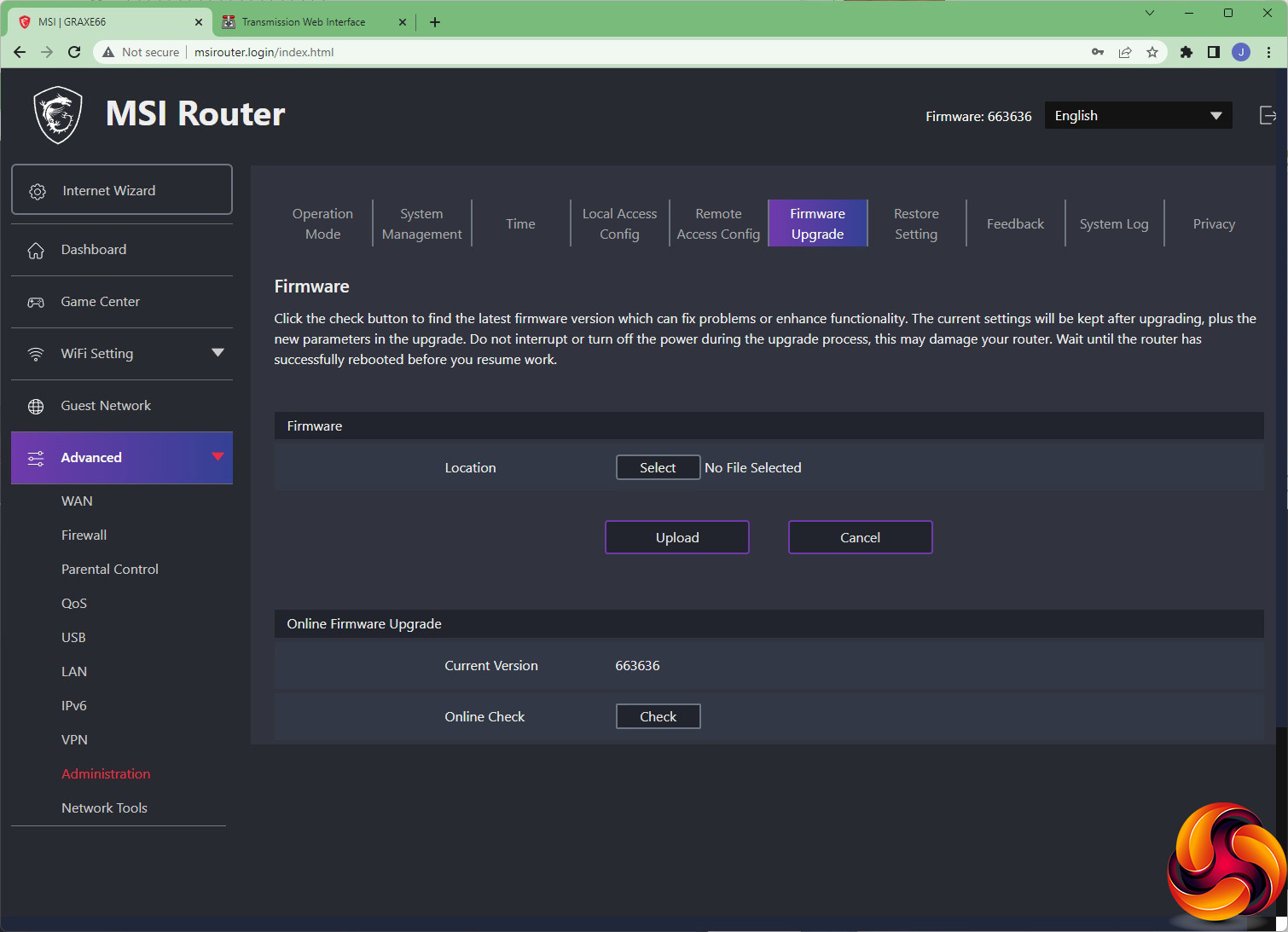
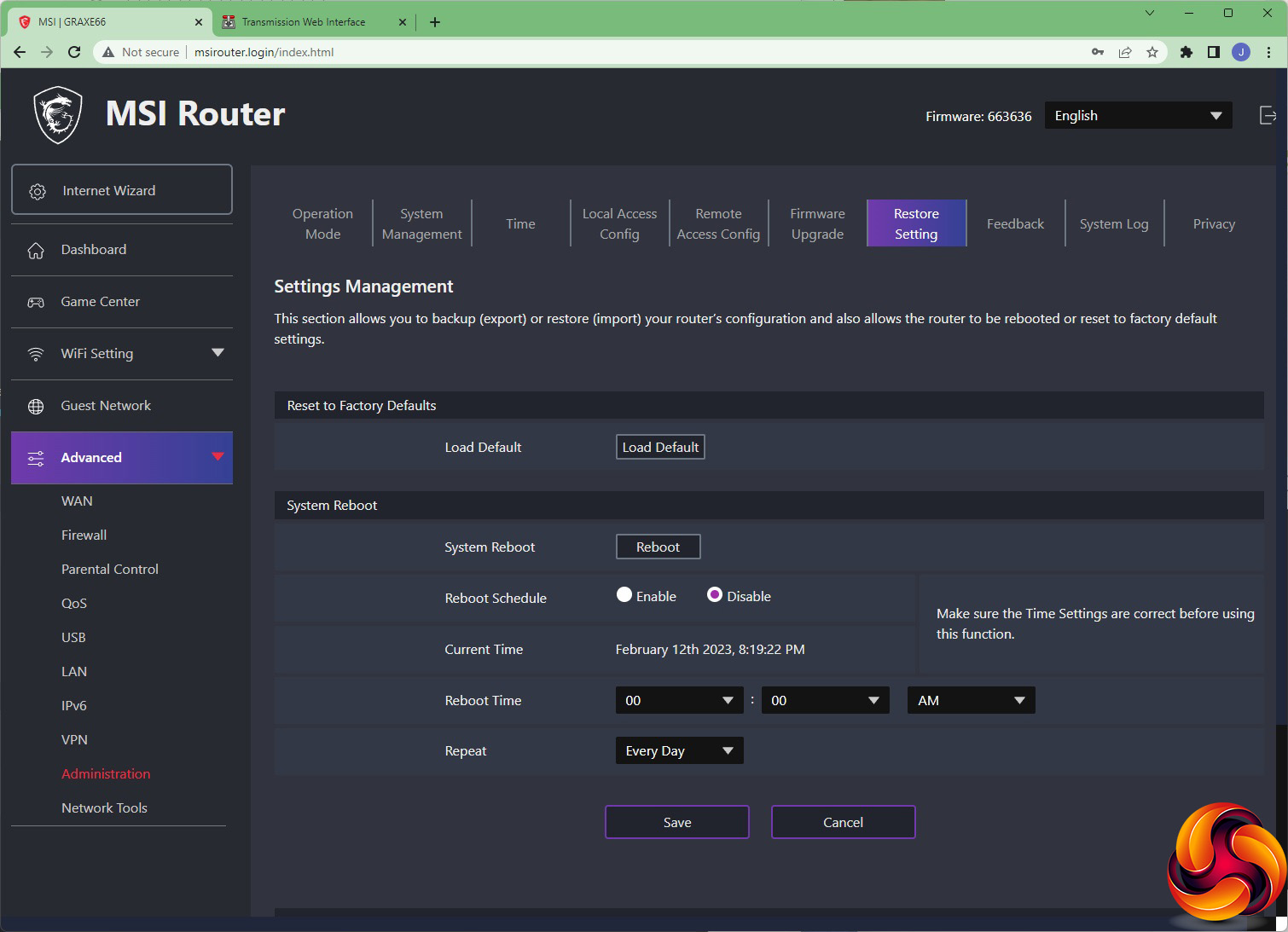
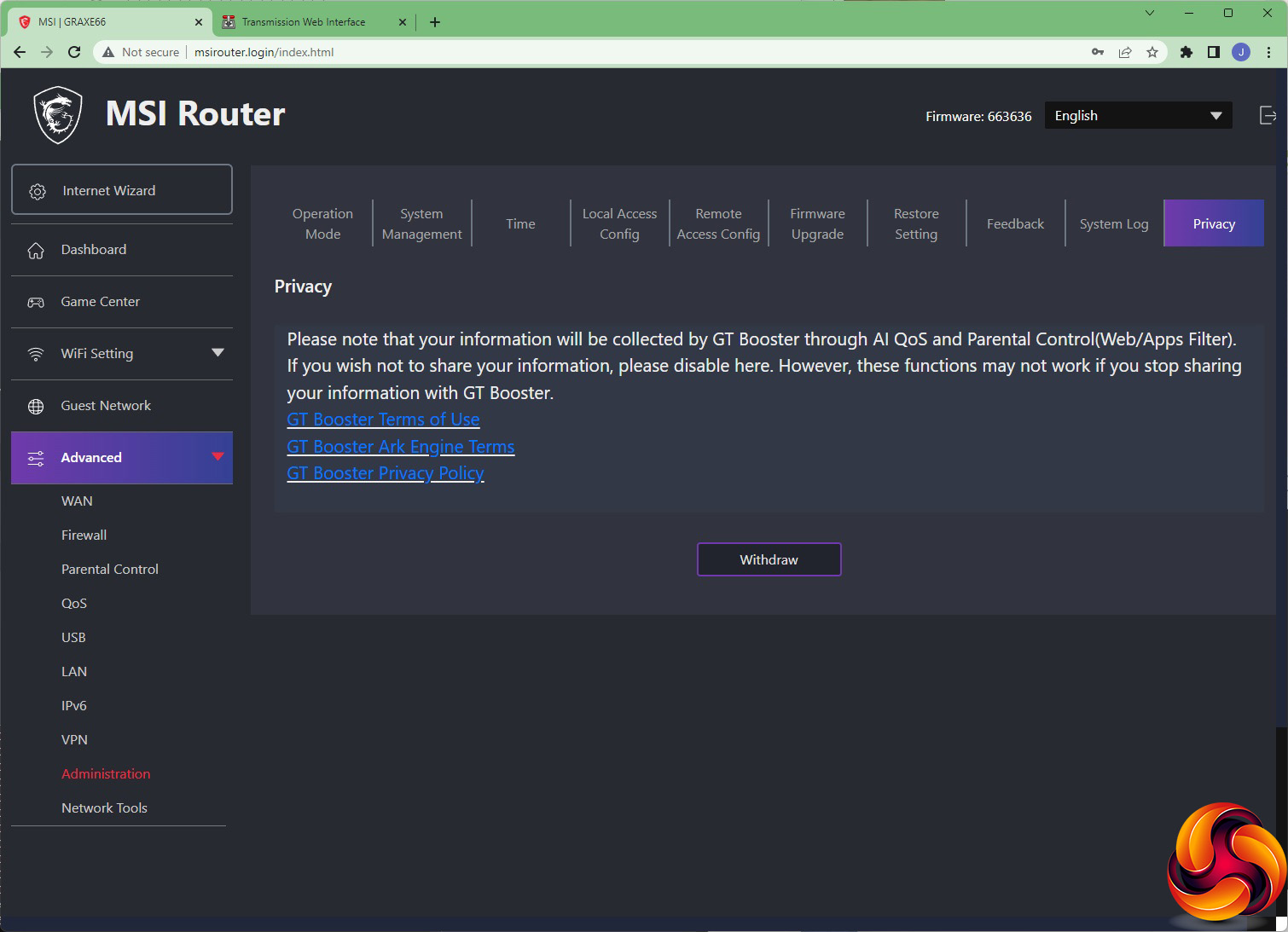
The Administration area in the Advanced section pulls together a huge range of basic system settings. You can switch between access point or router operation modes. You can change the admin login and password, and connect to a dynamic DNS service, including Dyndns.com, No-IP, and domains.google.com. You can point the router at a specific NTP server to get its time updates from. The admin interface can be set to HTTP or HTTPS access, or both. You can also choose to make it available to external connections as well.
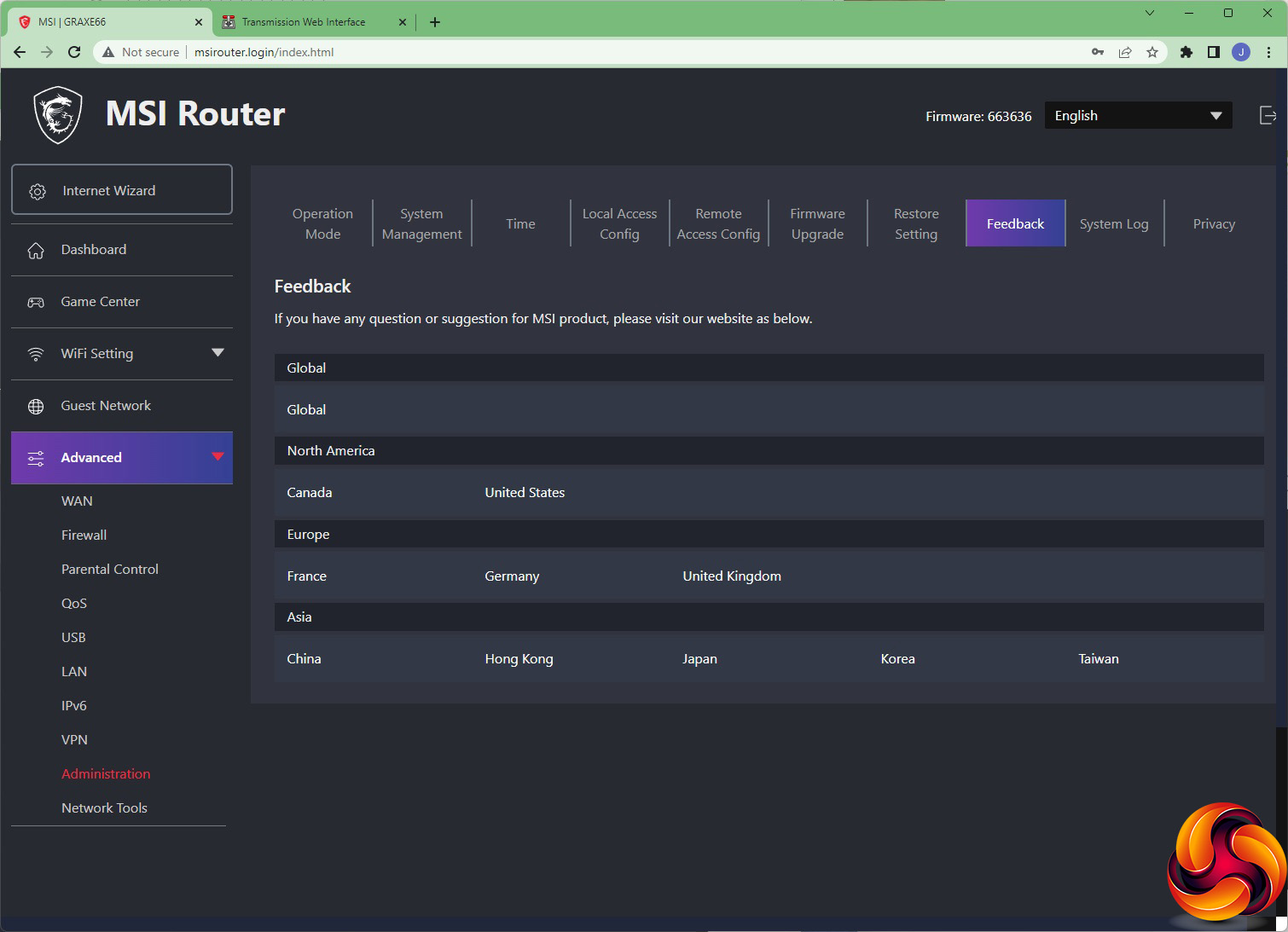
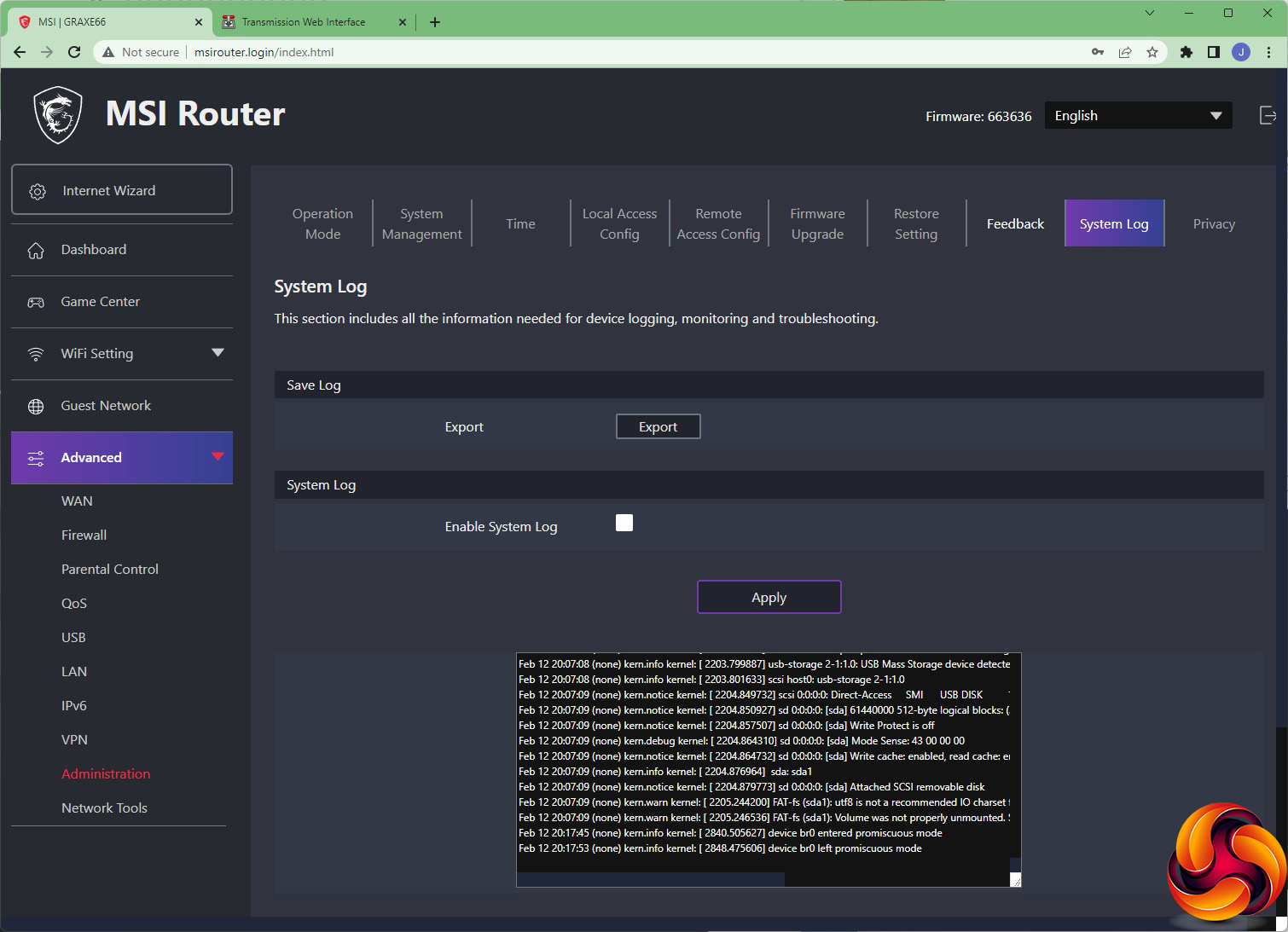
There is a section for upgrading the firmware either manually or automatically. It's also possible to restore default factory settings and configure the device to reboot regularly at a fixed time period. There are links to provide feedback, and a system log. You can withdraw the router from providing information from the device to the GT Booster service.
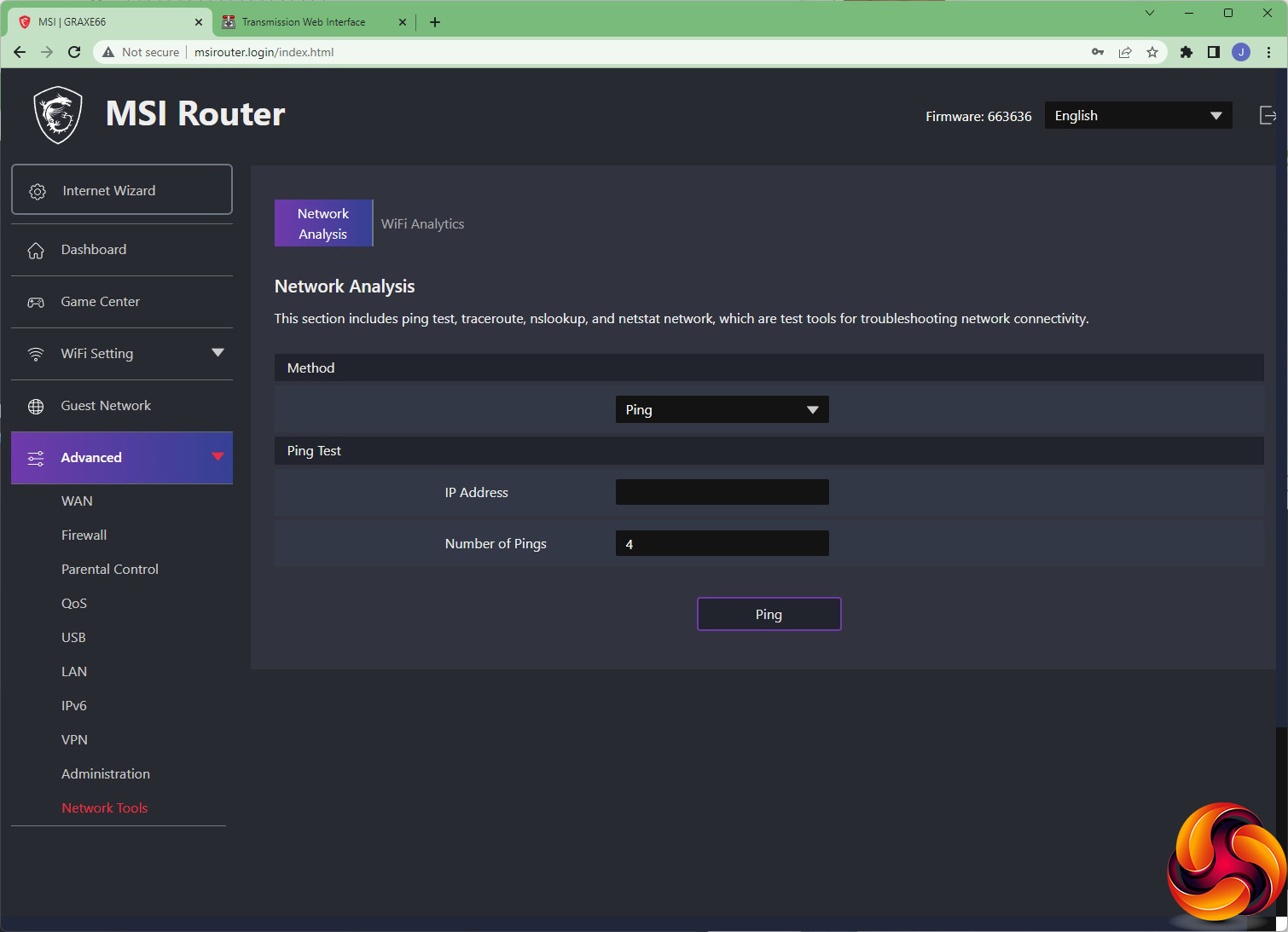
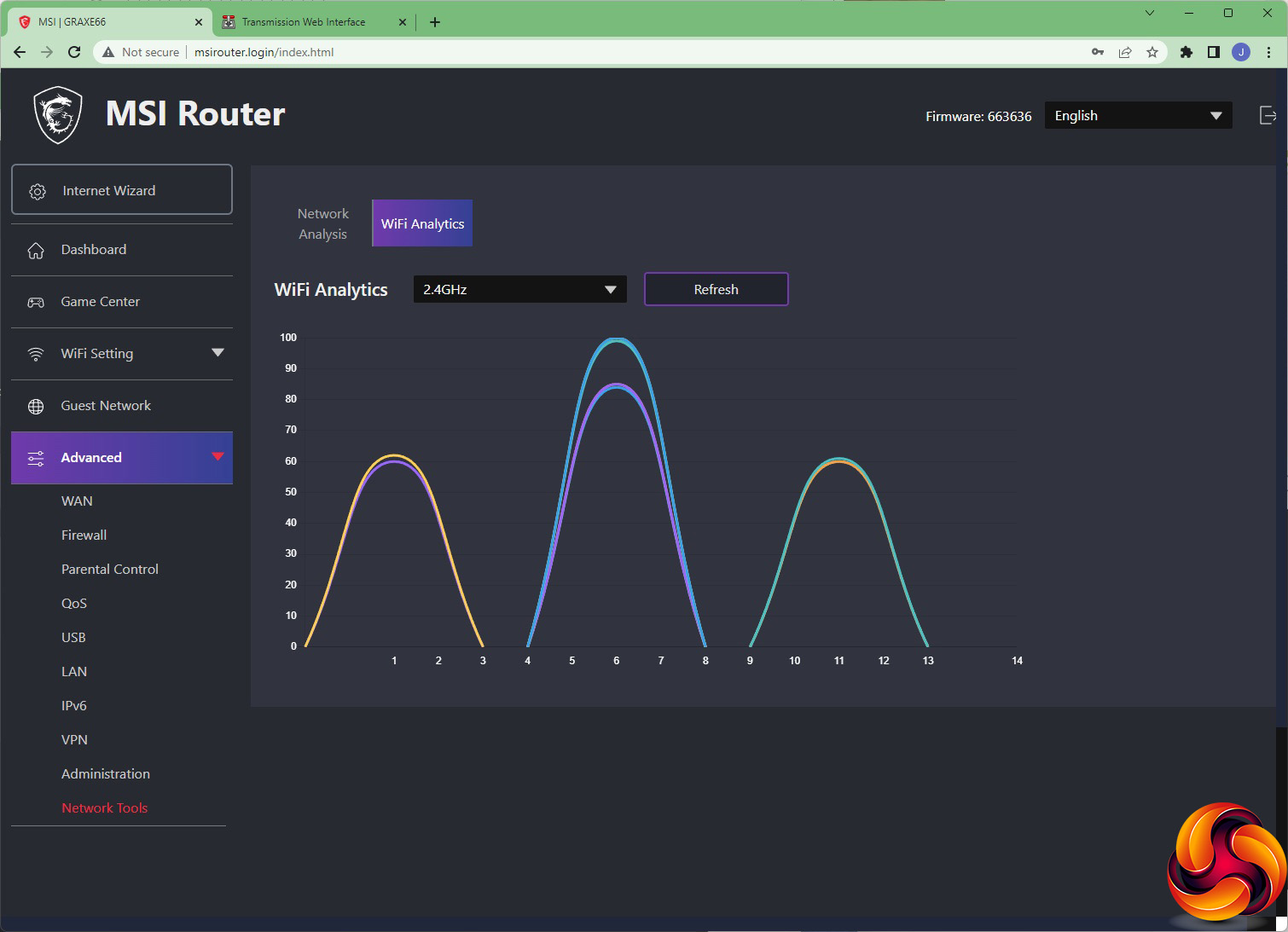
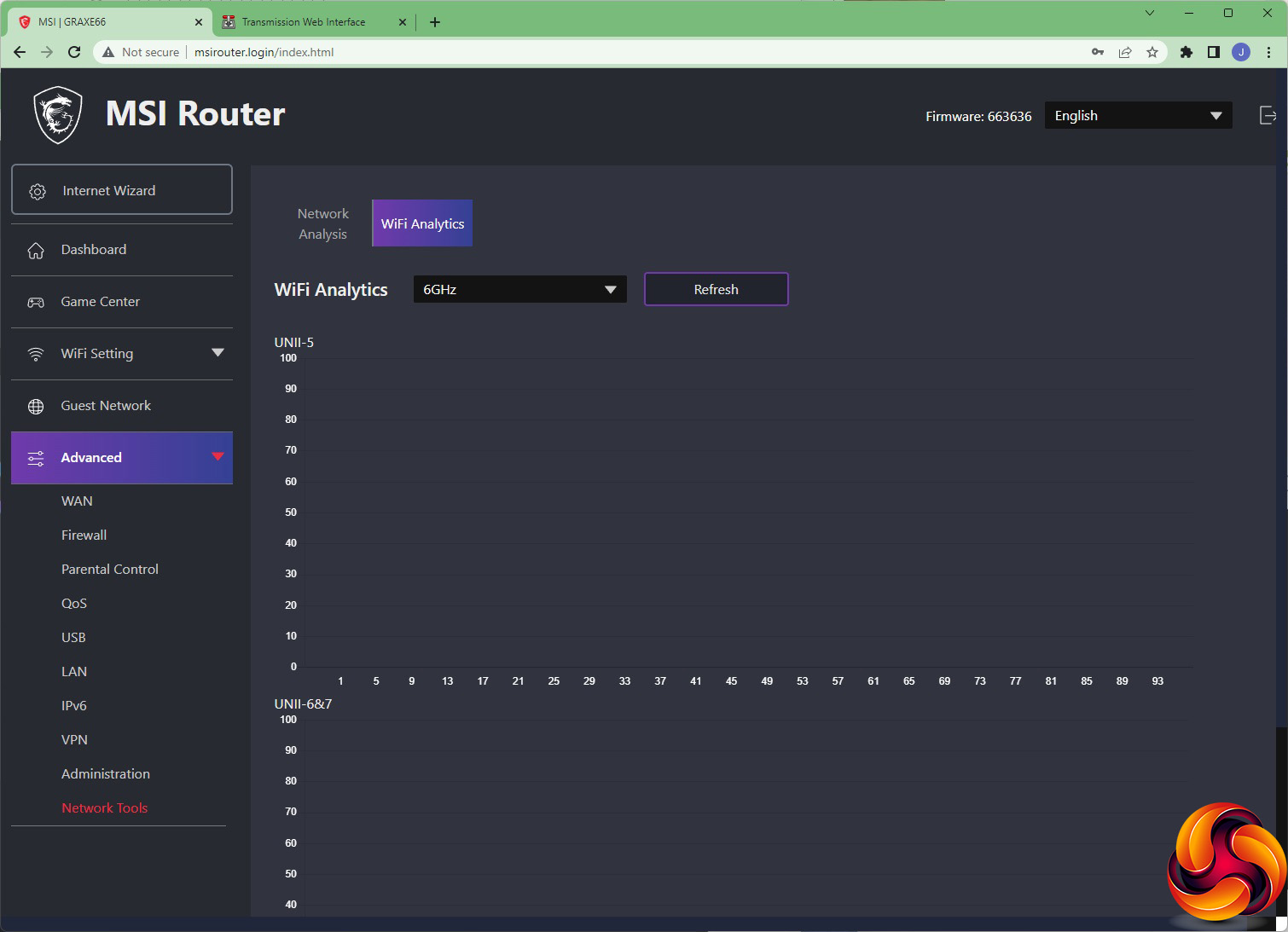
Finally, the Network Tools include the same four options as found in Network Analysis within the Game Center. But you can also get an overview of other WiFi signals in the area, in case you need to avoid contention. You can see here that while there are quite a few 2.4GHz networks nearby, there are no 6GHz ones, which is why (for now at least) WiFi 6E can provide faster, uncontended bandwidth – assuming your clients support it.
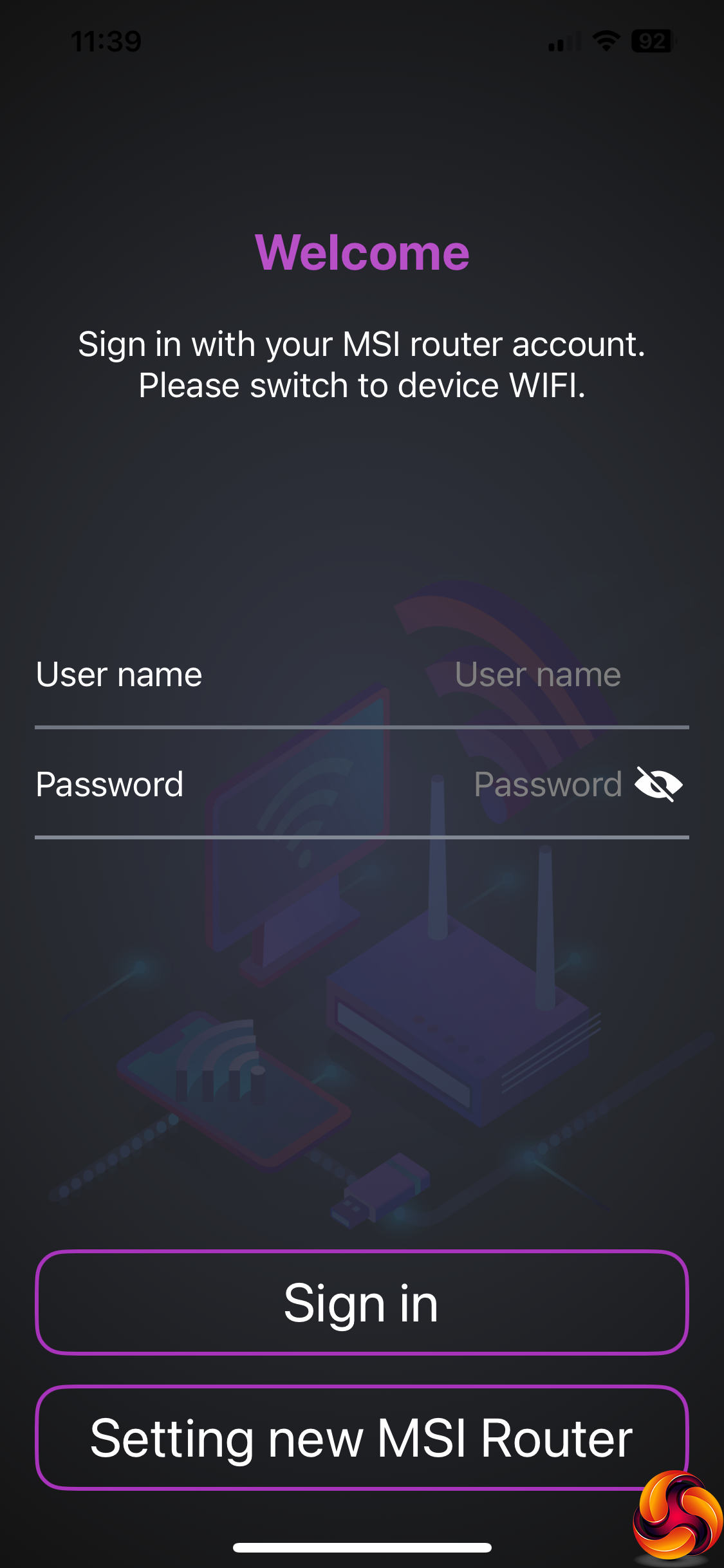
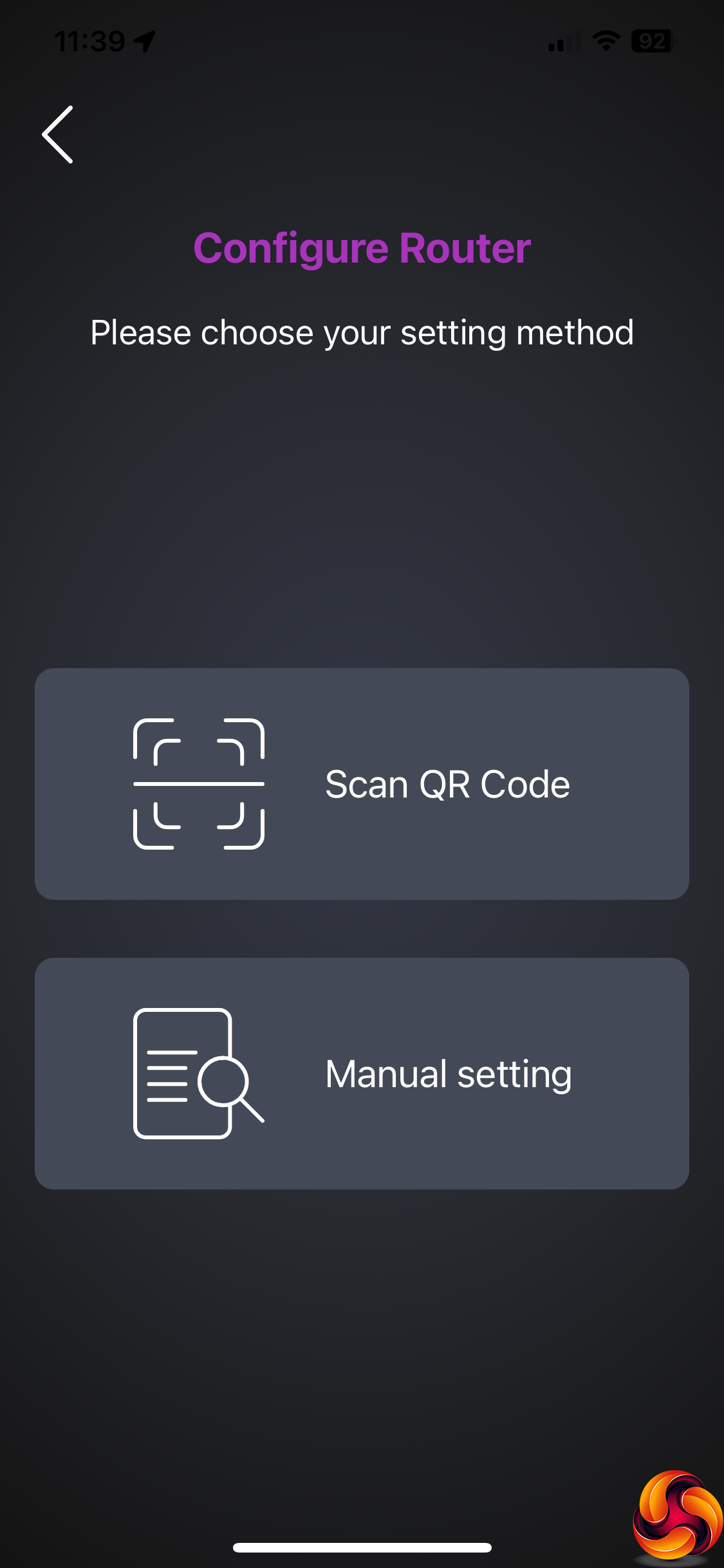
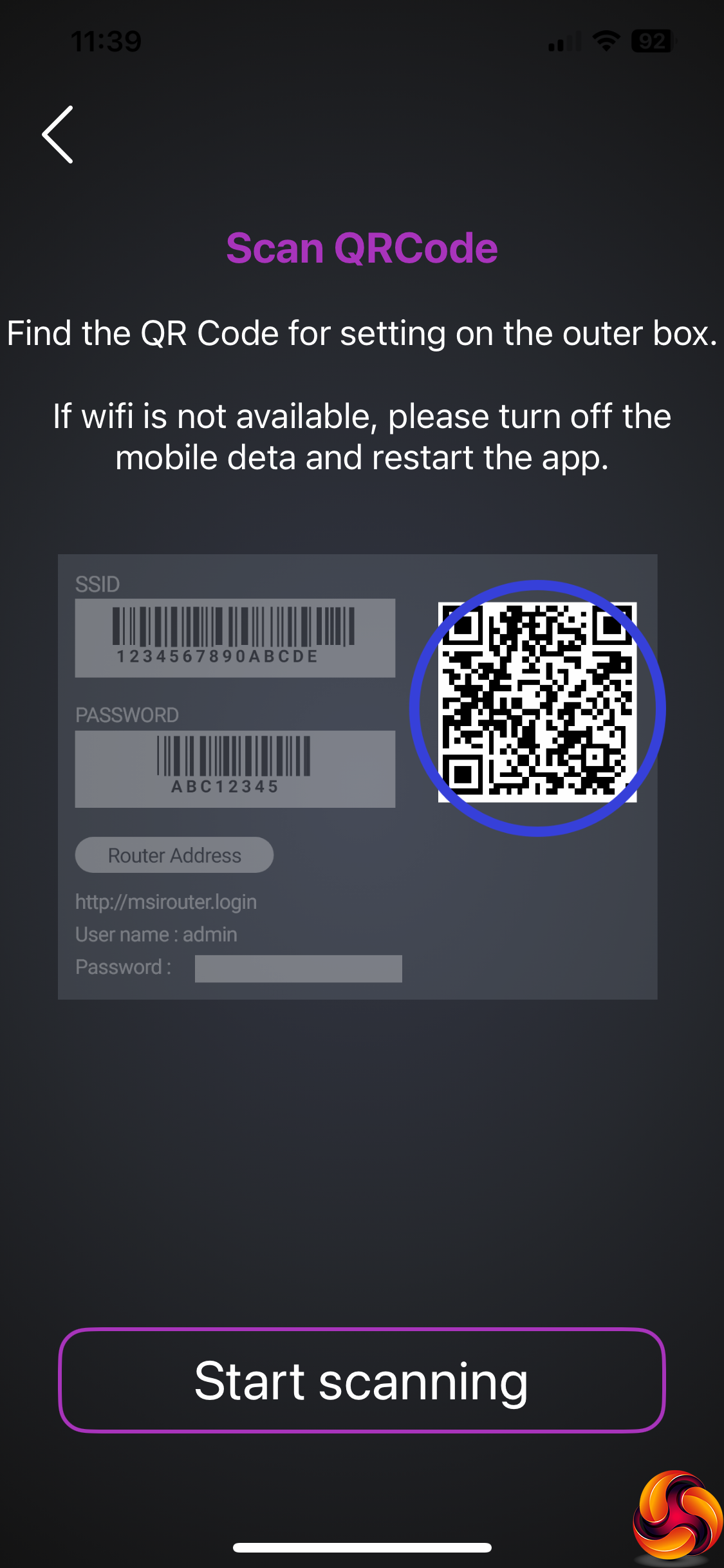
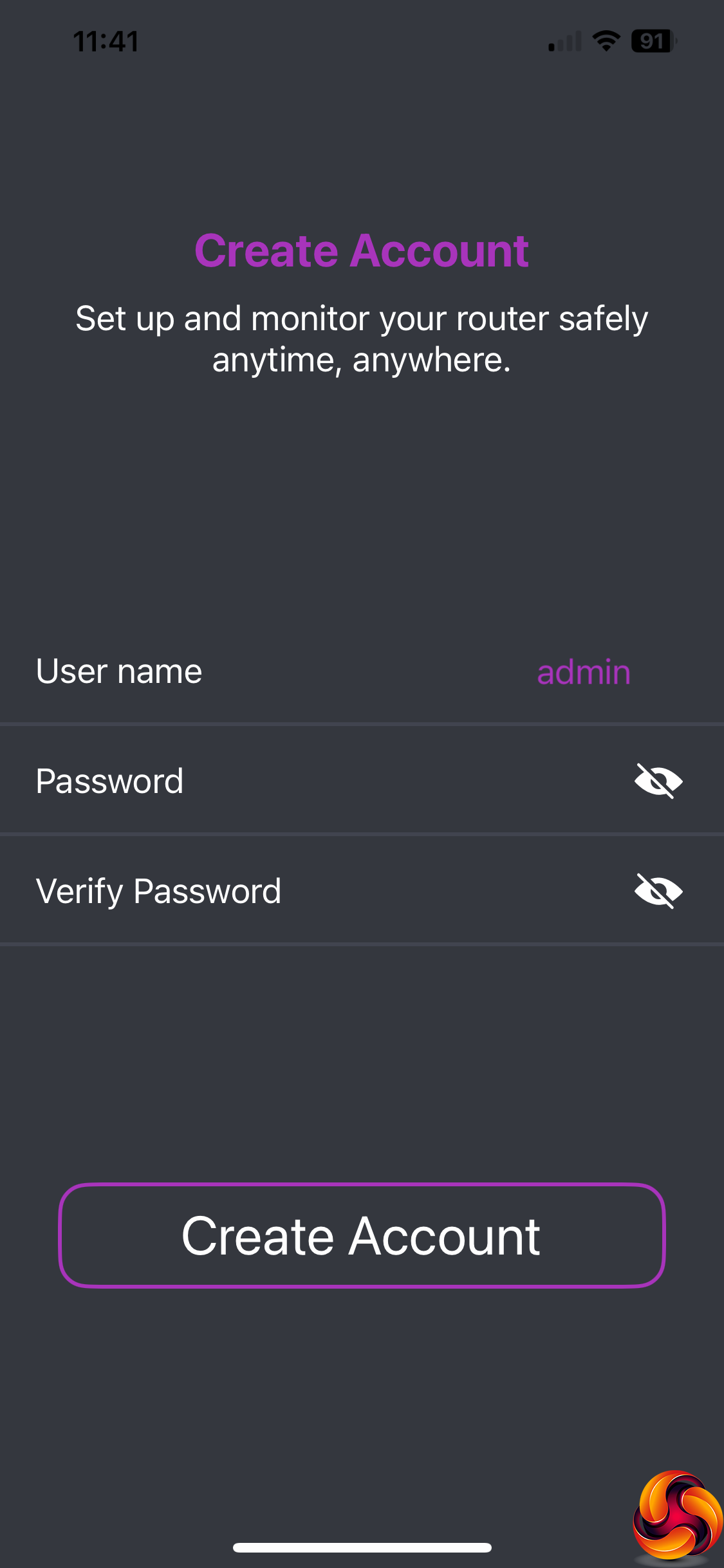
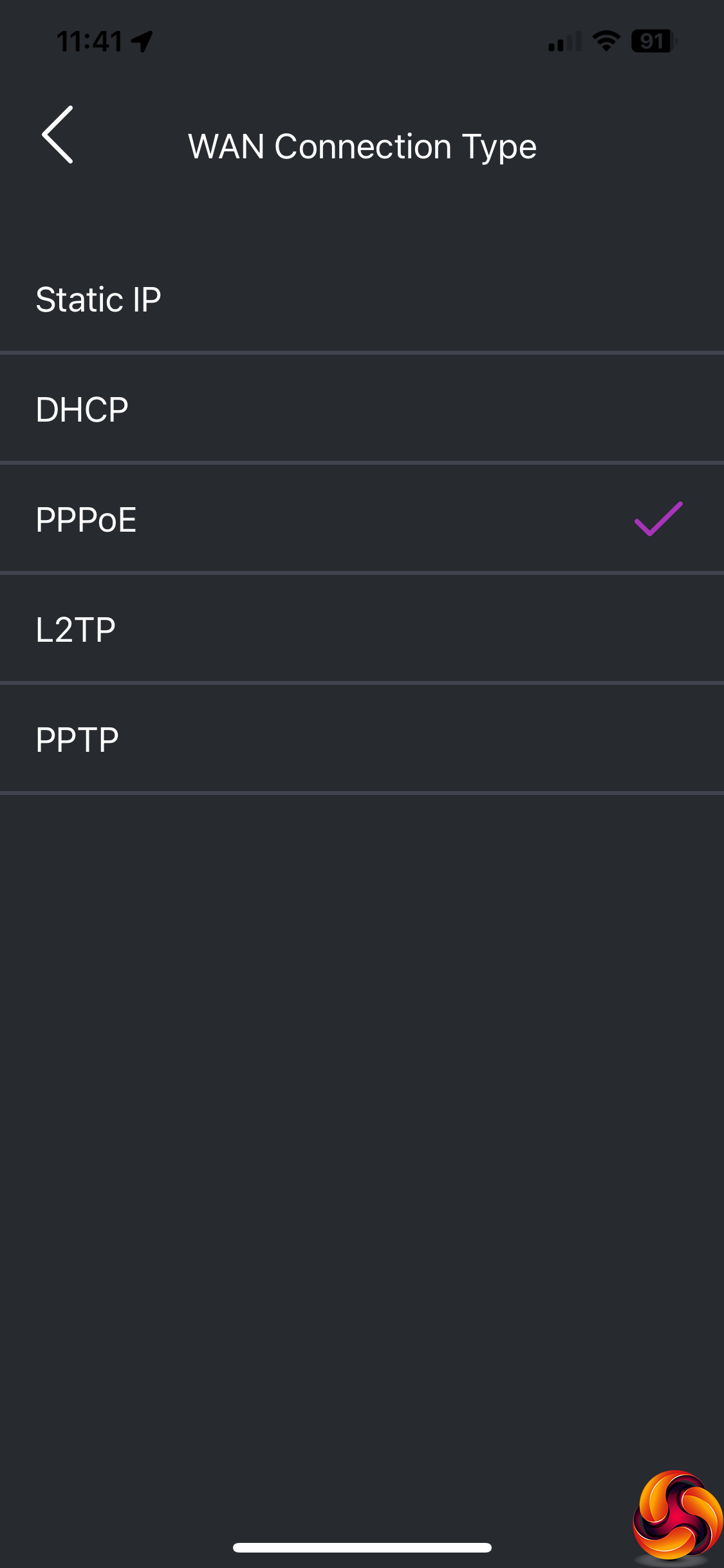
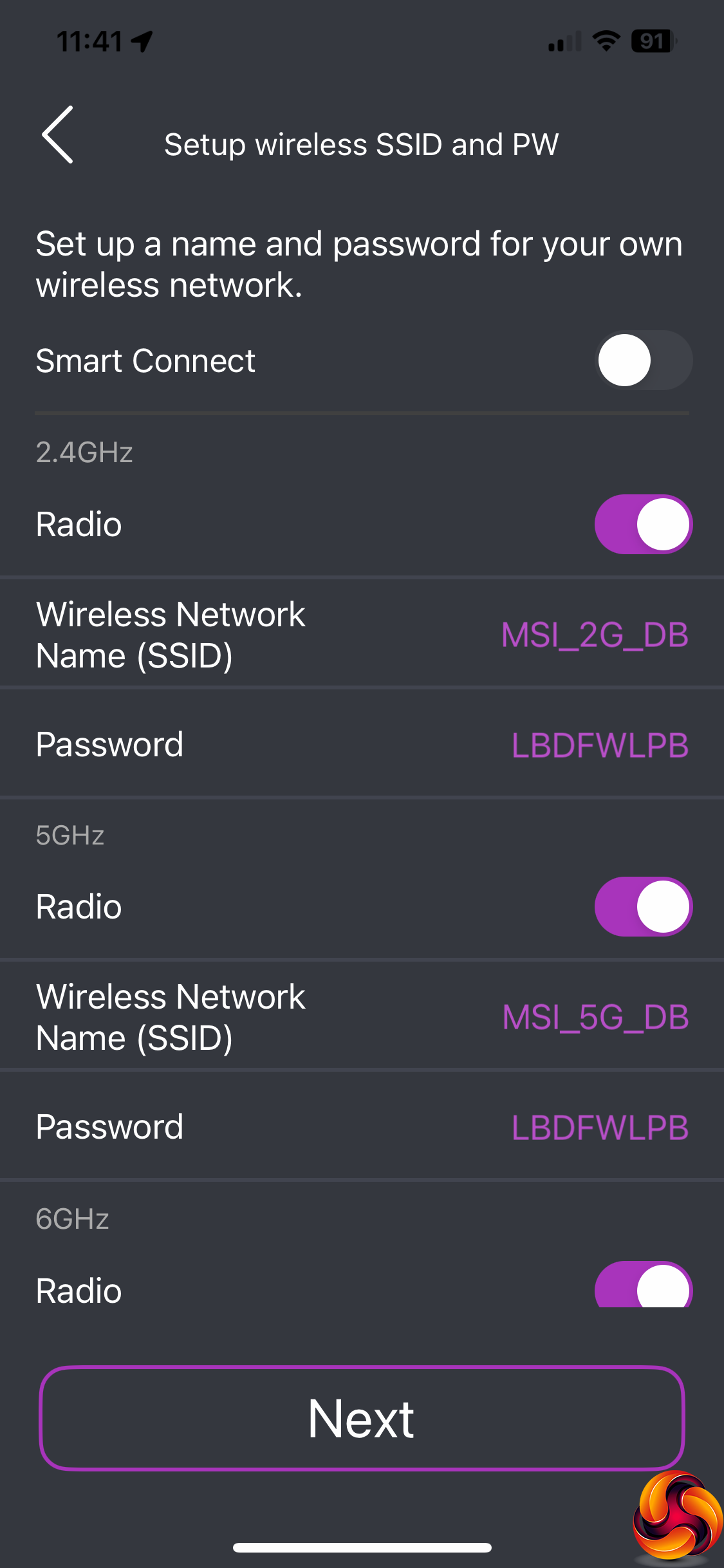
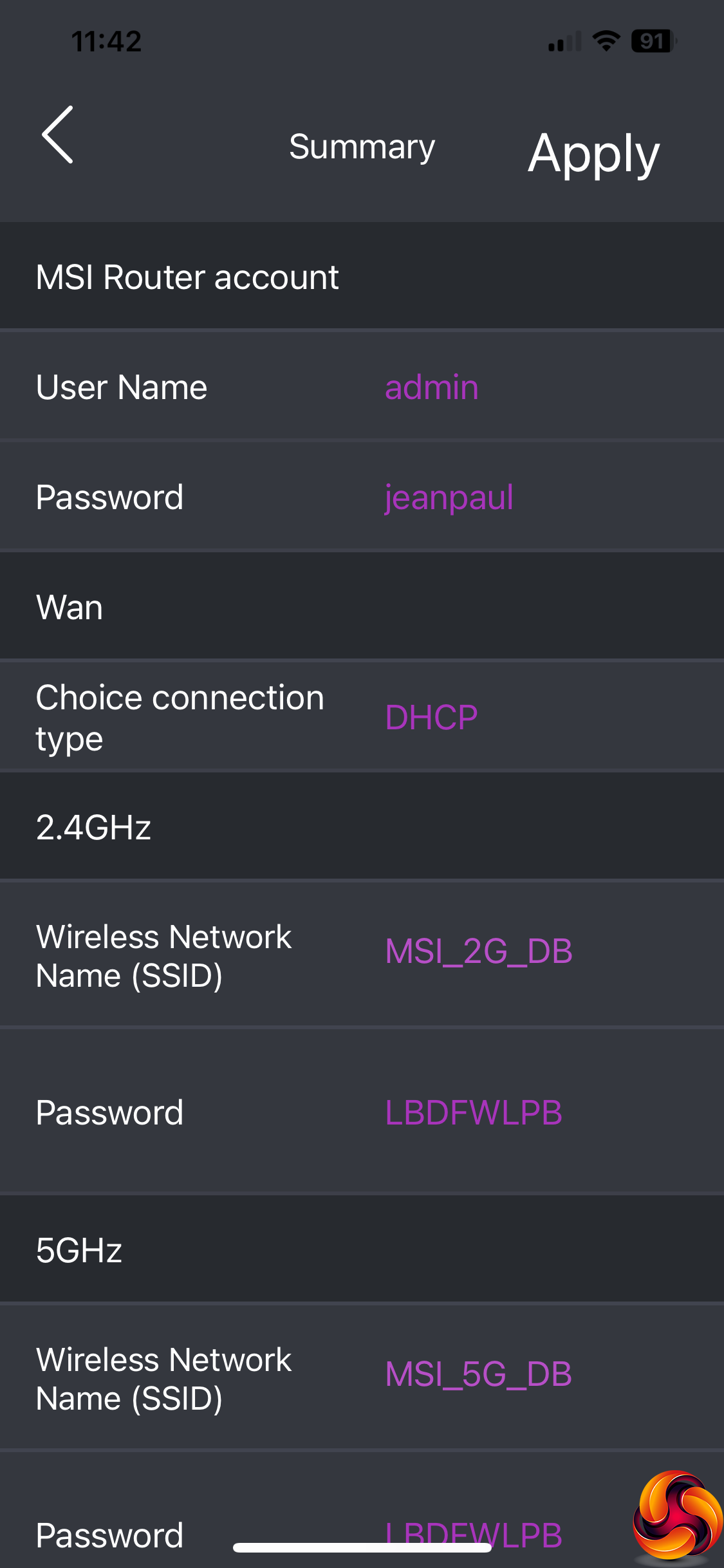
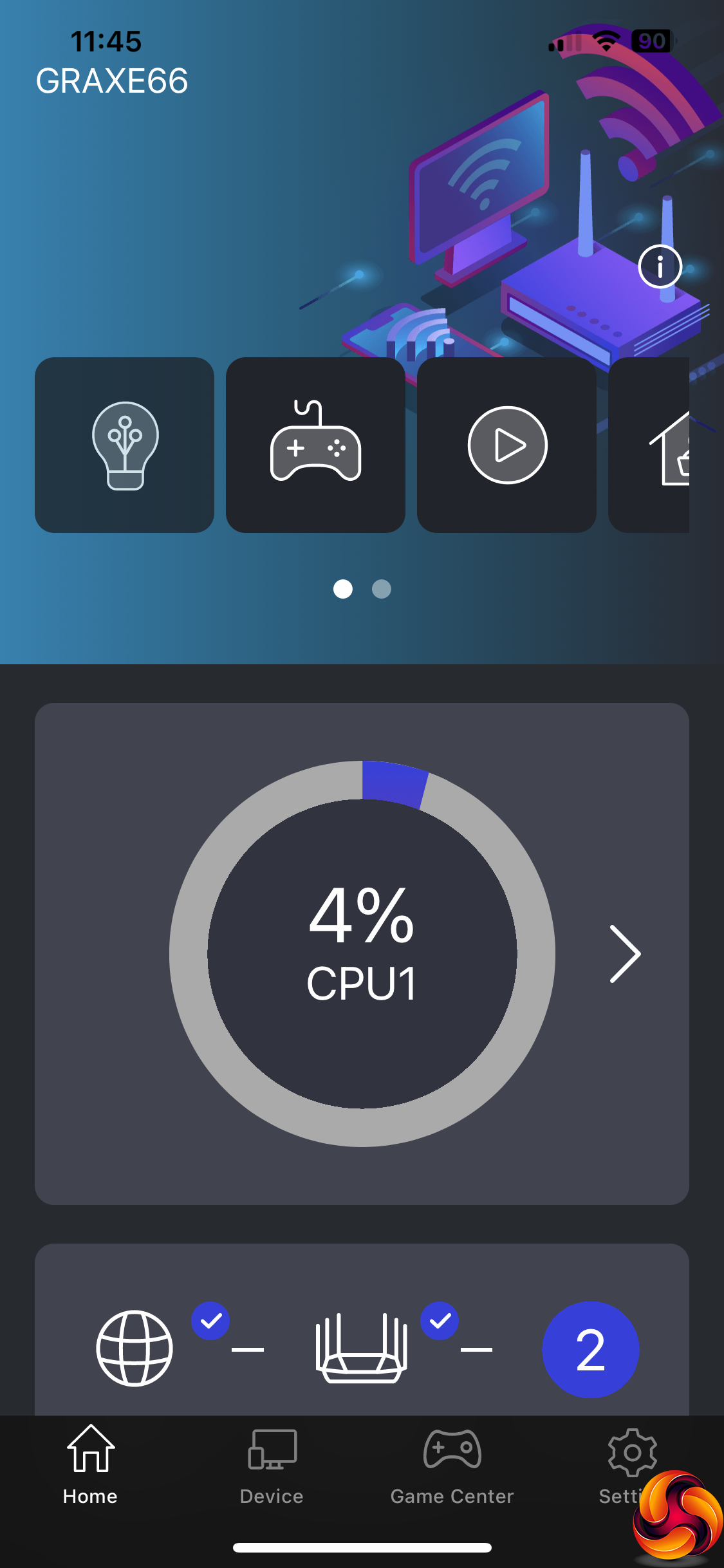
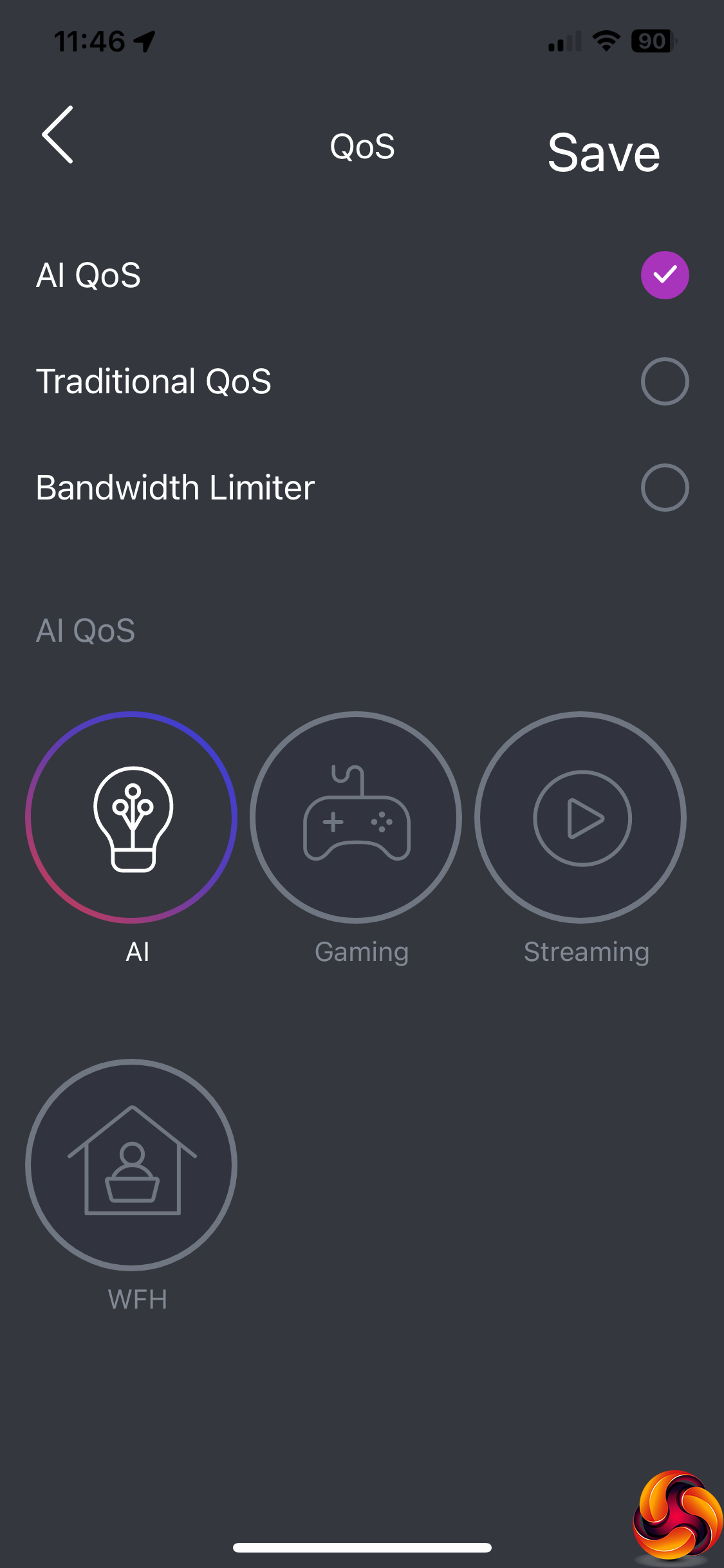
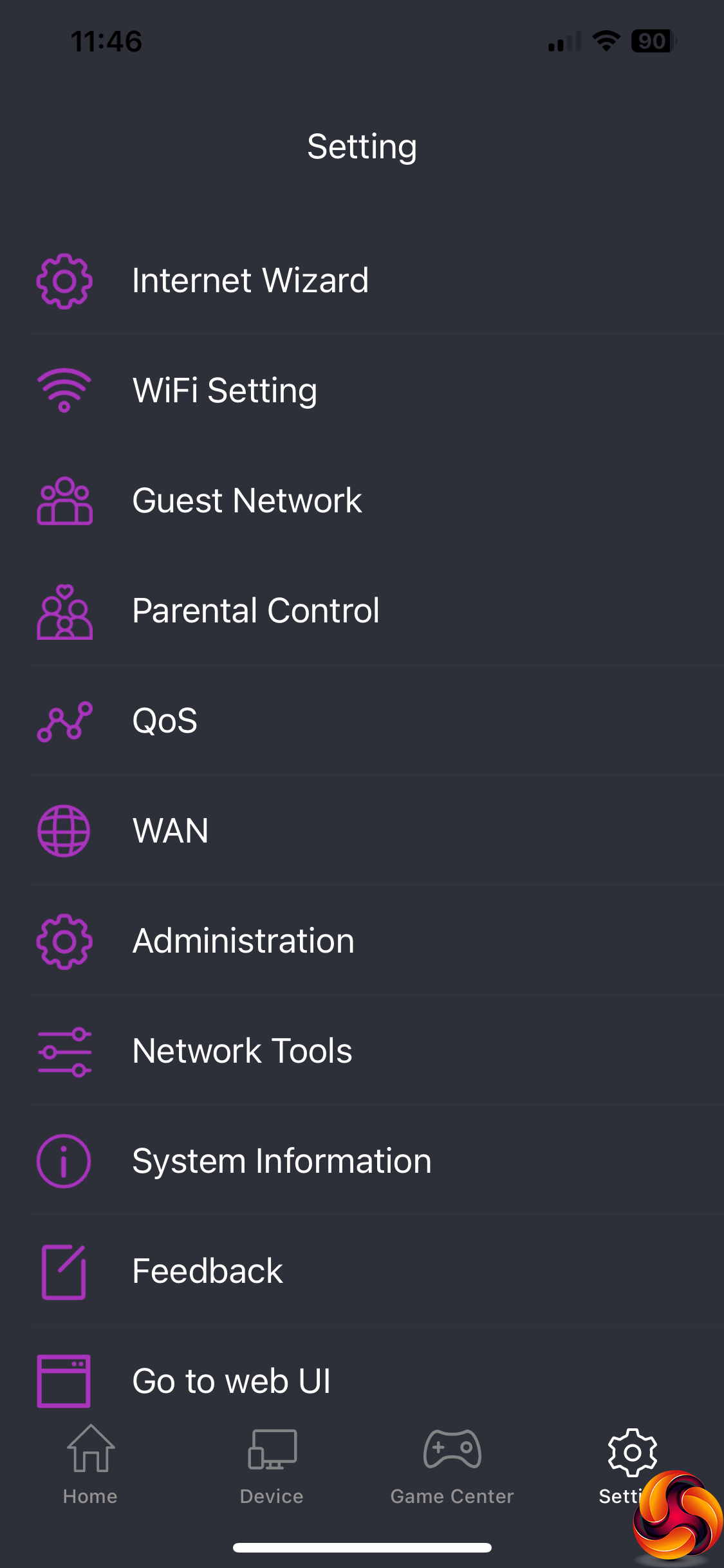
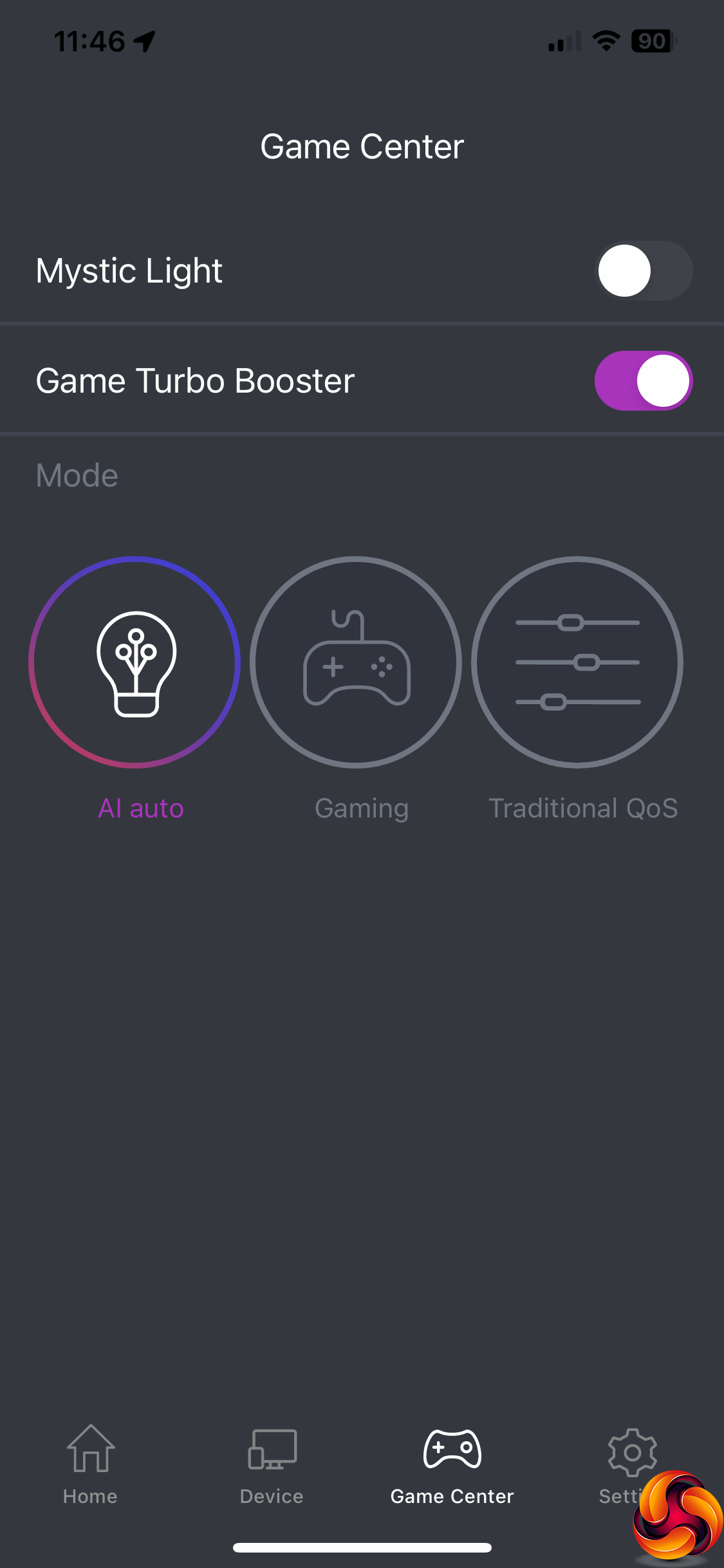
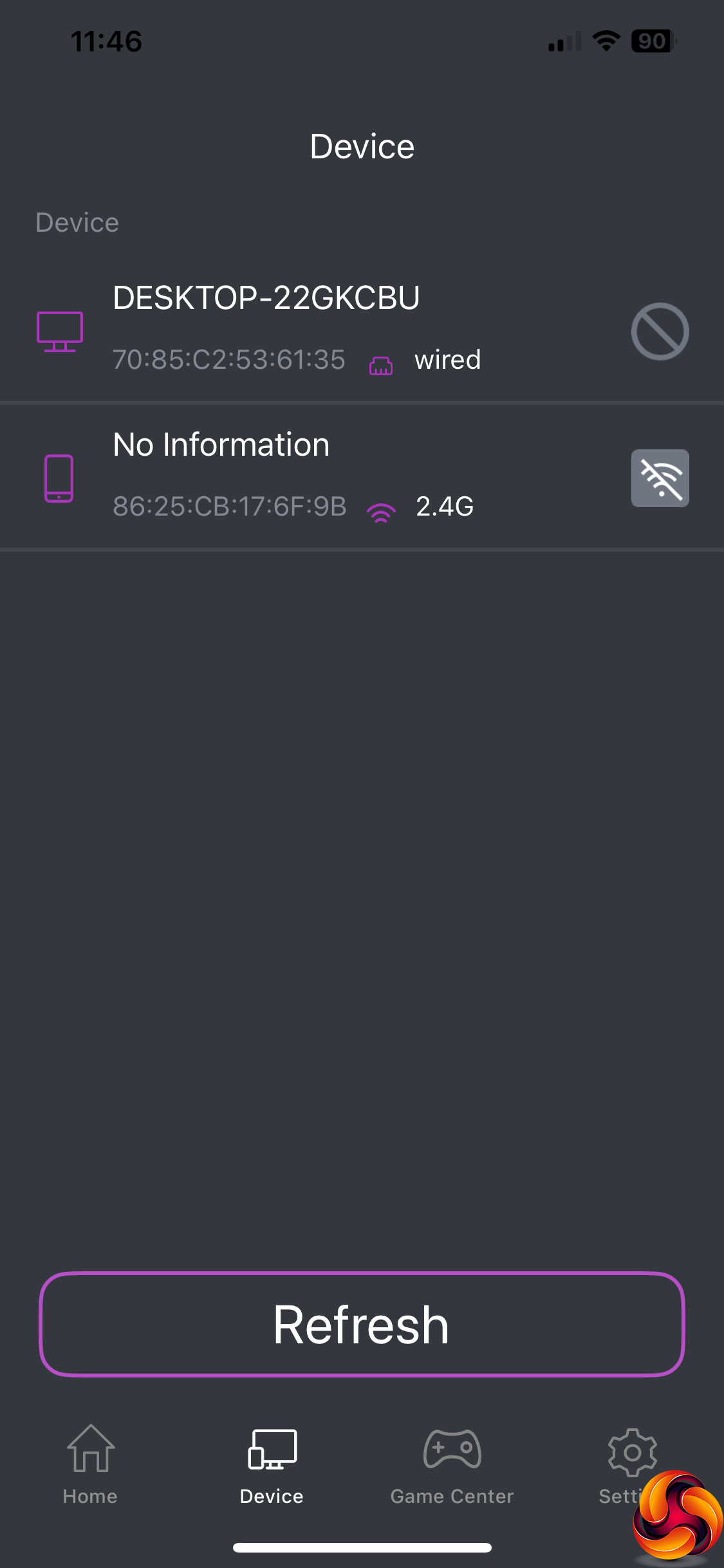
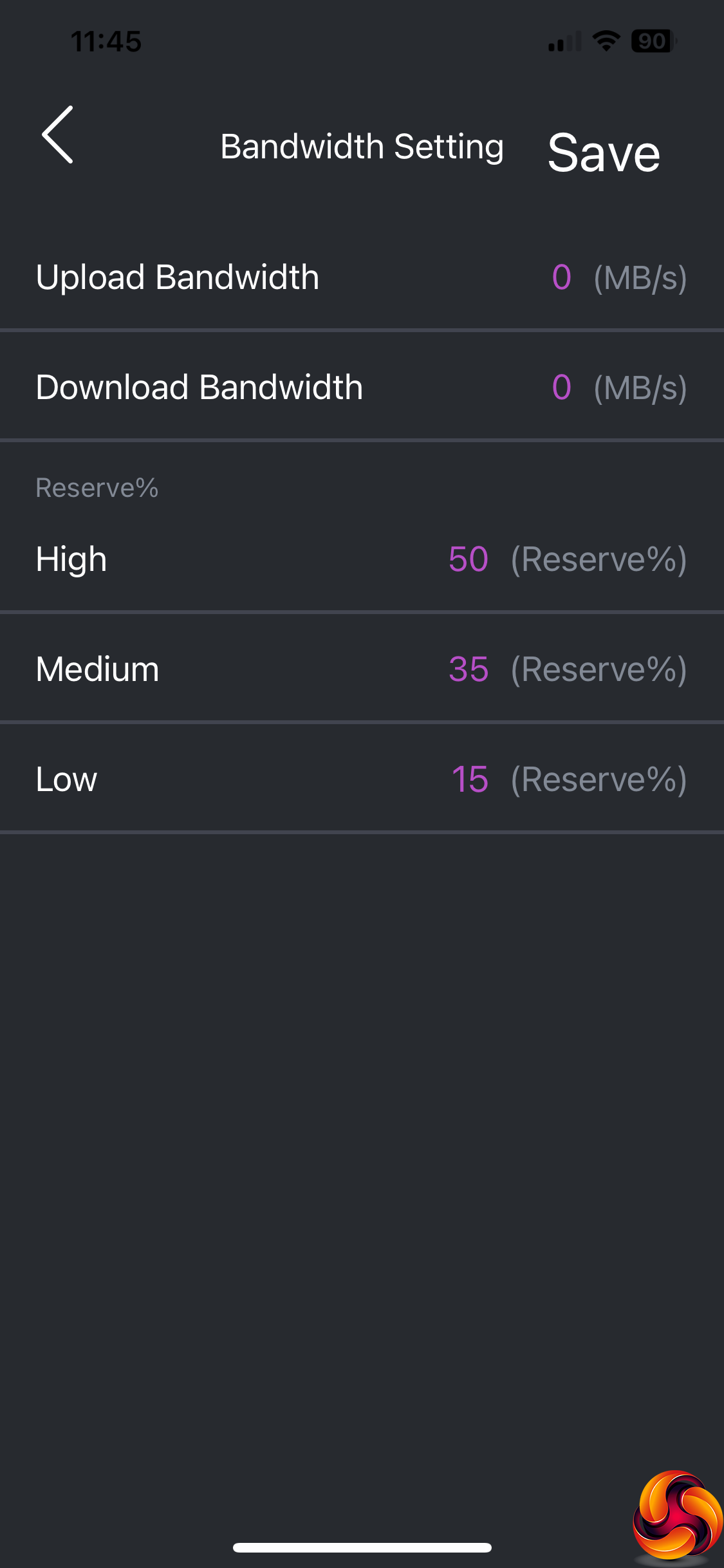
You can set the router up using a smartphone too. This involves using the QR code on a sticker on the base of the device, and then going through the same configuration system as with the Web interface. Once that is completed, the smartphone admin interface is well featured, although it is still a subset of what you can configure via the Web interface.
Overall, while the level of configuration isn't quite as deep as high-end products from ASUS or Netgear, there is still plenty available here. The menu layout is excellent, and most users will probably stick with the upper levels and just make use of the QoS modes. The shared storage abilities are also relatively comprehensive. MSI has most bases covered where the RadiX's administration is concerned for the intended gaming user. However, you don't get the ability to load apps to extend functionality that is available from Synology routers such as the Synology RT6600ax.
We tested the raw throughput of the MSI RadiX AXE6600 across the three different WiFi standards it supports – 802.11ax, 802.11ac and 802.11n. We also tested 802.11ax at 6GHz as well as 5GHz using a PCI Express-installed adapter.
We used the open-source iPerf 3.1.3 software for testing, which can simulate multiple clients streaming at once. Four Windows systems were used. One was an Armari 32-core AMD Ryzen Threadripper workstation running Windows 11, another a Dell XPS 17 notebook (with WiFi 6), a third was an MSI WS63-7RK (802.11ac) notebook, and finally an HP Folio 3 notebook (802.11n only – to show performance with legacy devices). The Dell notebook and Armari workstation were running Windows 11 but the other two notebooks were Windows 10-powered.
We also installed the AX1800 USB adapter supplied by MSI on the MSI WS63-7RK notebook to give it WiFi 6 capability and retested that notebook.
For all but one set of tests, the Armari workstation was connected to one of the AXE6600's Gigabit Ethernet ports, and the notebooks via various WiFi connections (802.11ax for the Dell, 802.11ac for the MSI, 802.11n for the HP). The notebooks were then placed in four different locations – within 1m of the router, approximately 5m away with a wall in between, 10m away and on a lower floor (with multiple walls and a floor in between), and then 15m away on the same lower floor. We tested all four distances with the three WiFi standards.
However, we only had a desktop client adapter for WiFi 6E 6GHz, so we installed that in the Armari workstation and moved the router to the different test locations (1m, 5m, 10m, 15m) instead.
With each WiFi standard and distance, we took 60 readings of throughput at one second intervals and calculated the average (iPerf does this automatically). We tested the AXE6600 against the NETGEAR Nighthawk X10 R9000, Synology RT2600ac, NETGEAR Nighthawk XR500, NETGEAR Nighthawk XR700, Synology RT6600ax, and NETGEAR Nighthawk AX12.
802.11ax 5GHz (WiFi 6)
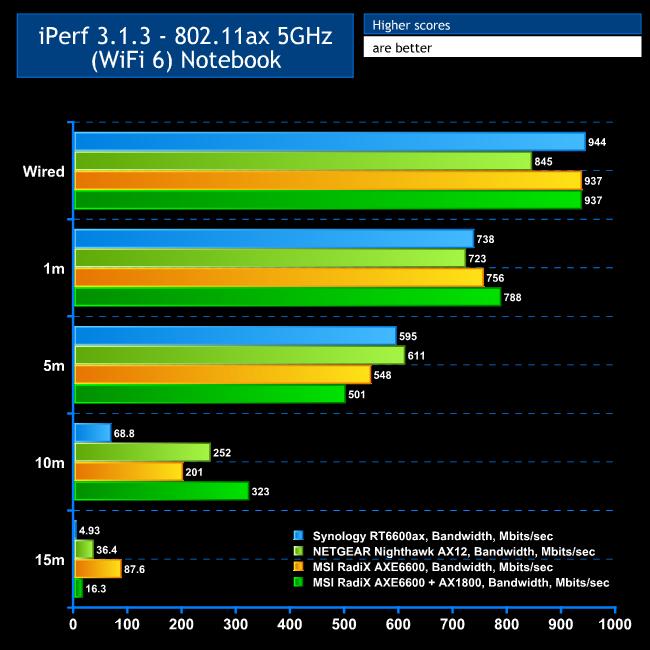
As a control for all our testing, we attached the MSI notebook to one of the wired LAN connections. The desktop was only attached via Gigabit Ethernet, but you can see that you are getting close to wire speed with the RadiX, hitting 937Mbits/sec.
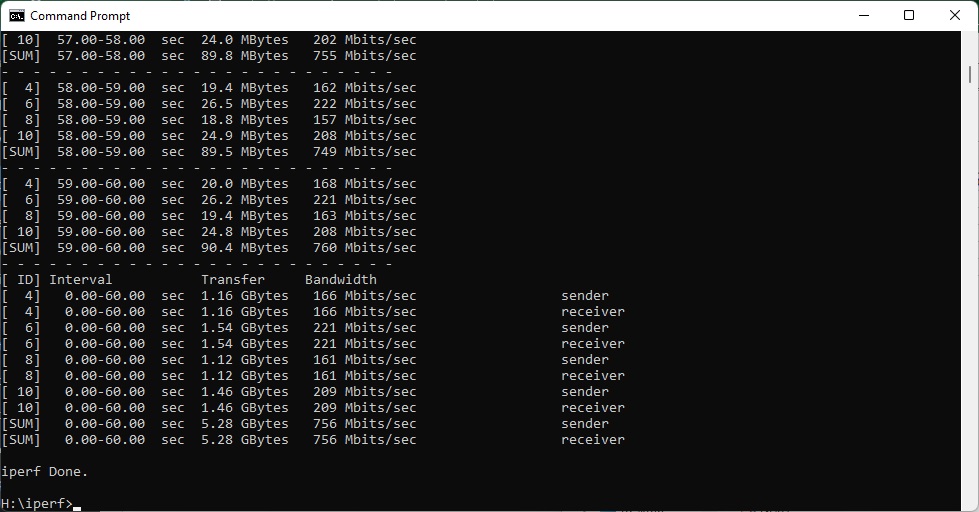
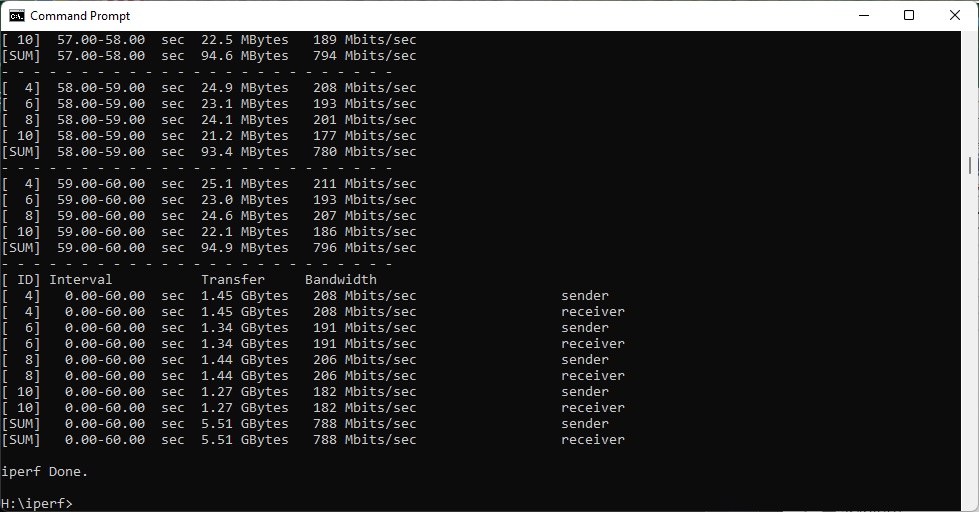
WiFi 6 performance at close range is impressive too. The RadiX beat the NETGEAR Nighthawk AX12 with 756Mbits/sec. MSI's 1800AX adapter was even more impressive, hitting 788Mbits/sec.
At 5m, however, performance dropped although this was still an incredibly fast throughput. Bandwidth was 548Mbits/sec with the RadiX and the Dell notebook, and 501Mbits/sec with the MSI AX1800 adapter.
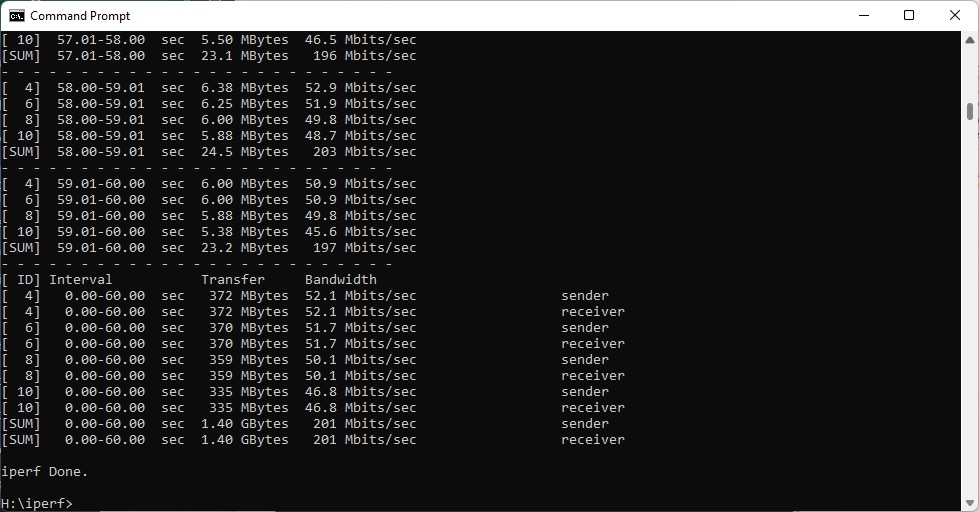
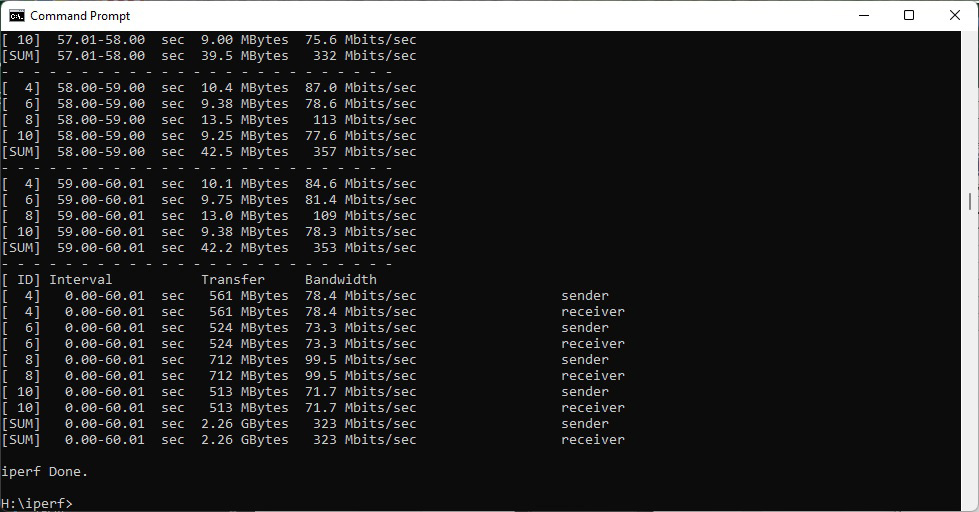
The RadiX showed decent range ability, managing 201Mbits/sec at 10m and here the AX1800 was even better at 323Mbits/sec.
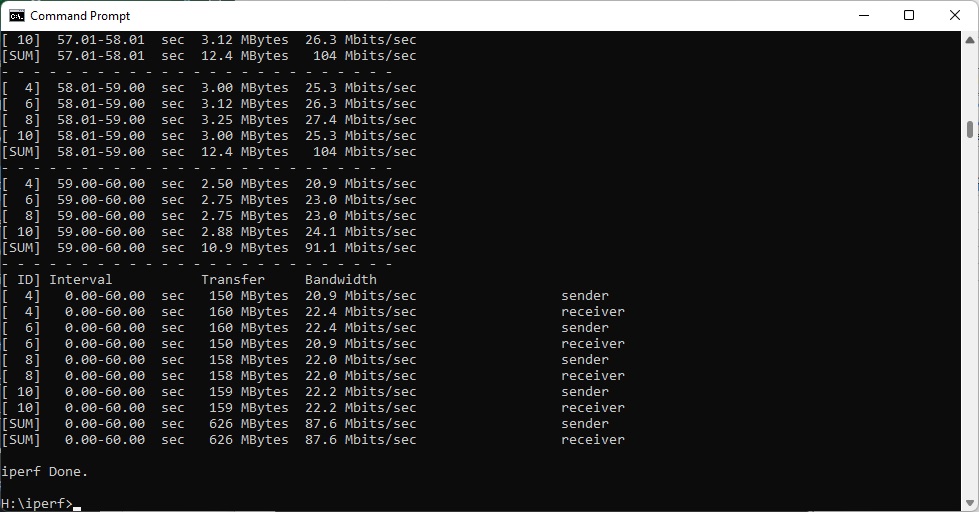
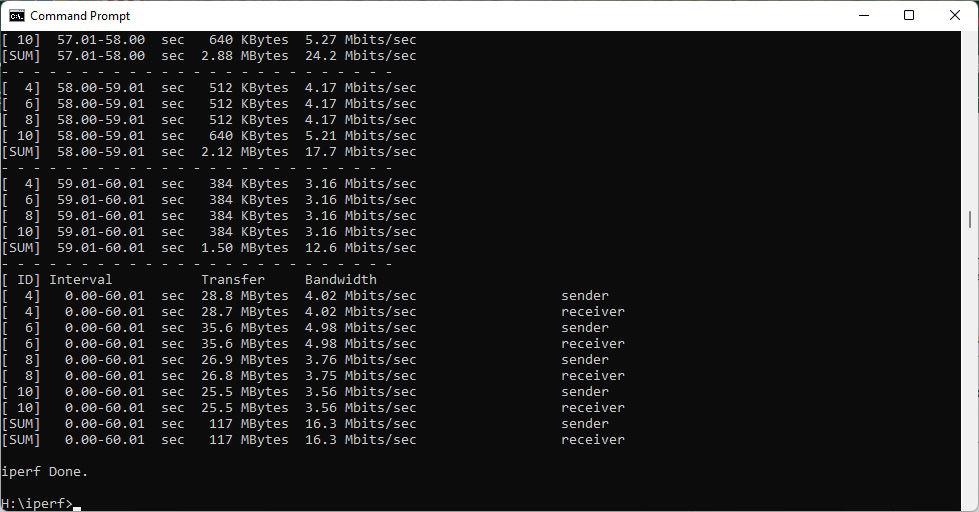
However, the roles were reversed at 15m, with the RadiX / Dell notebook combo managing 87.6Mbits/sec and the RadiX / AX1800 just 16.3Mbits/sec – but this is still a usable amount of bandwidth.
Overall, the RadiX does well with 5GHz WiFi 6, delivering solid performance and range.
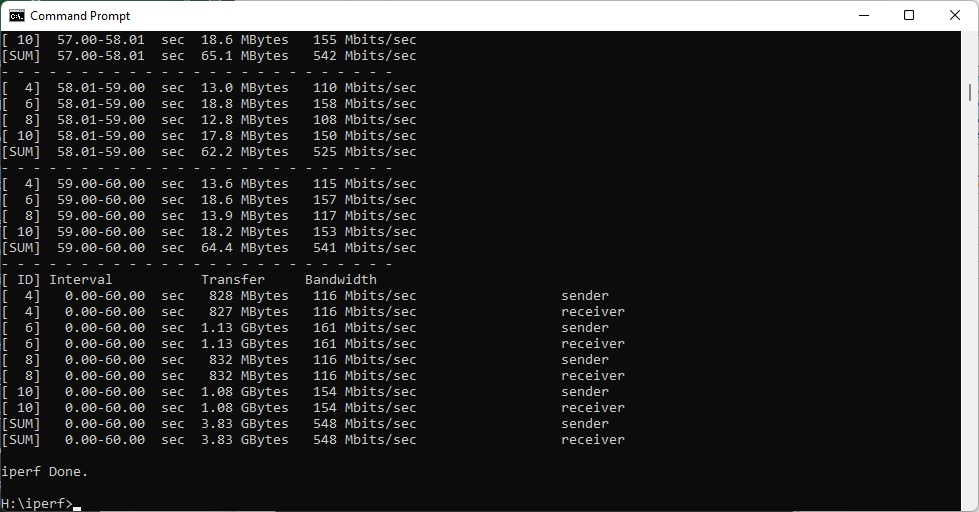
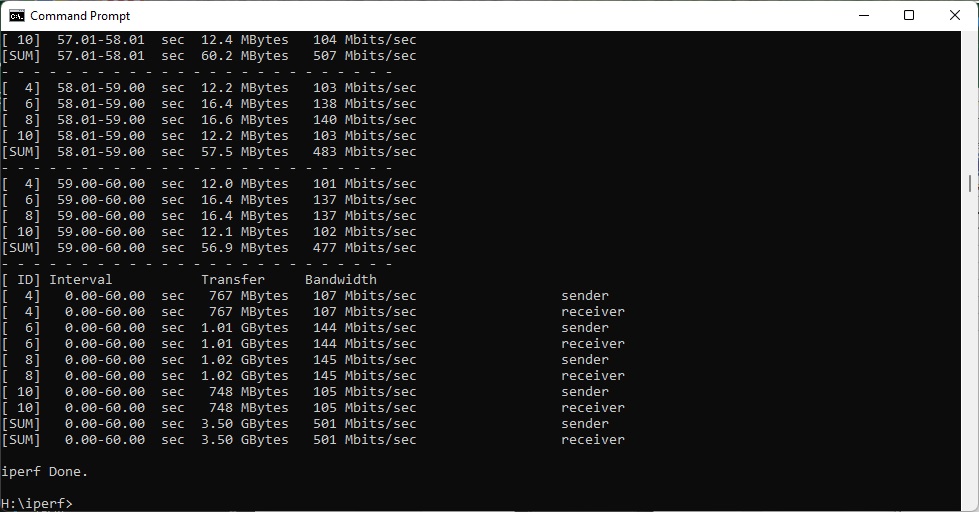
802.11ax 6GHz (WiFi 6E)
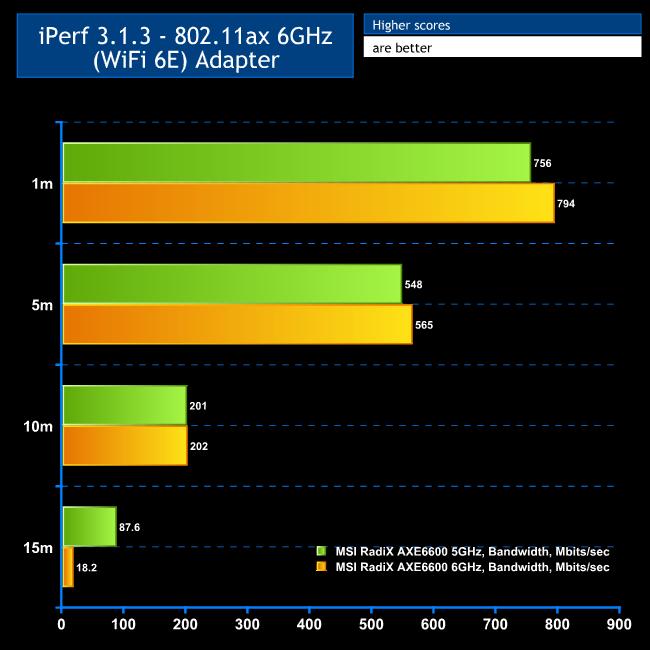
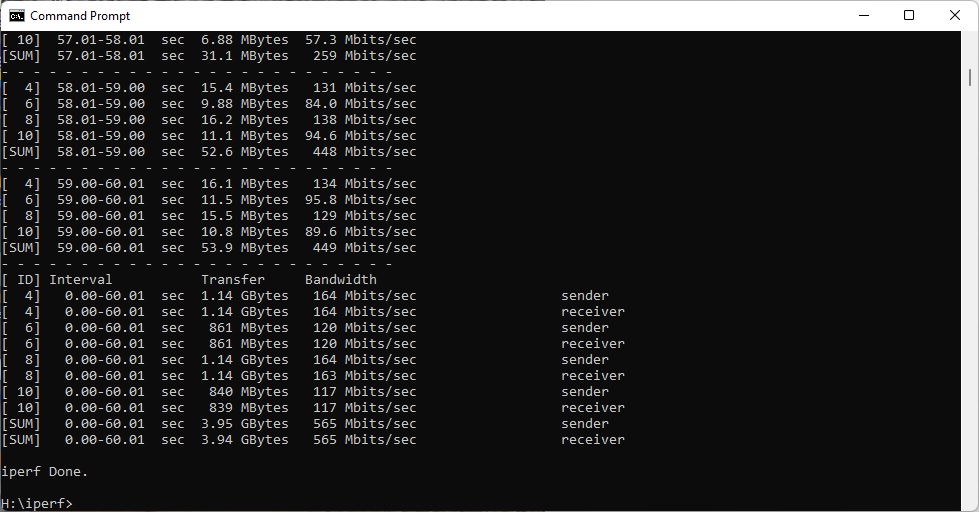
Of course, the headline act for the RadiX where bandwidth is concerned is how it performs at 6GHz. We don't have any comparisons for this, so we have compared the results against the RadiX's performance with 5GHz WiFi 6 using the Dell notebook as client.
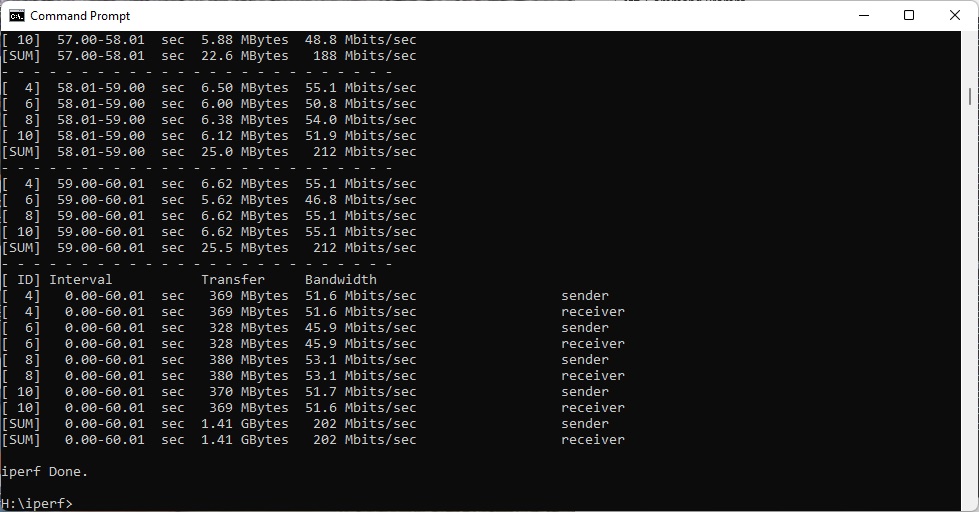
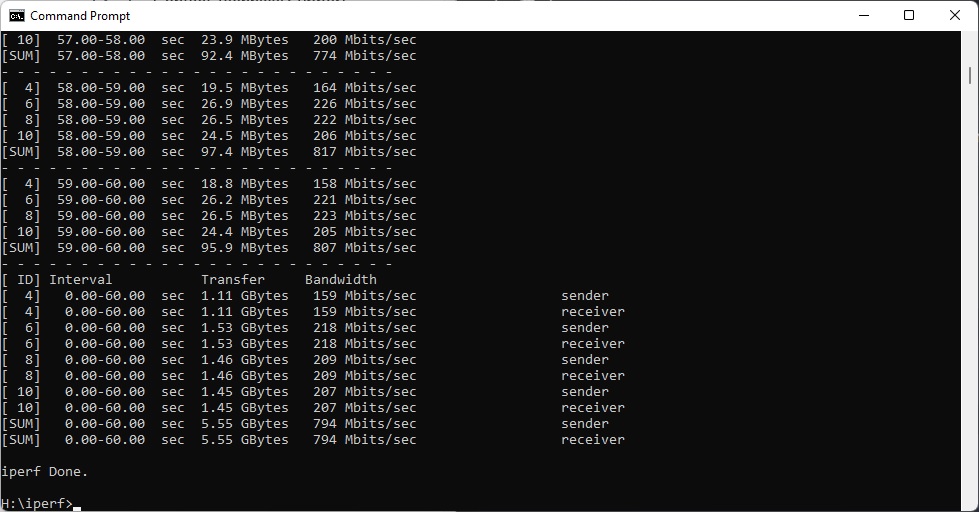
In close proximity, 6GHz is a bit faster than 5GHz – 794Mbits/sec versus 756Mbits/sec. This is very close to Gigabit wired Ethernet, implying that going wireless won't lose you much bandwidth over a LAN cable.
The small performance boost over 5GHz is also visible at 5m, with 565Mbits/sec versus 548Mbits/sec.
However, at 10m the benefit of 6GHz is a rounding error – 202Mbits/sec instead of 201Mbits/sec.
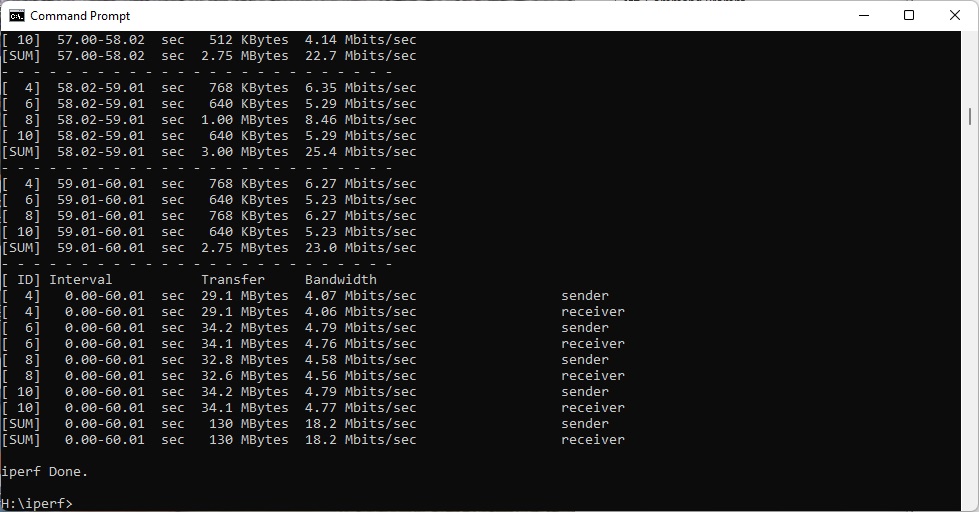
At 15m the 6GHz signal is weaker, so we only saw 18.2Mbits/sec versus 87.6Mbits/sec. This is still usable, but implies that 6GHz doesn't have the range of 5GHz.
Overall, there isn't a huge performance benefit from 6GHz over 5GHz, even close to the router. The main plus will be that there will be little or no contention at this waveband, and with so few 6GHz clients around, you can reserve this frequency for your most important devices – such as your gaming notebook.
802.11ac 5GHz
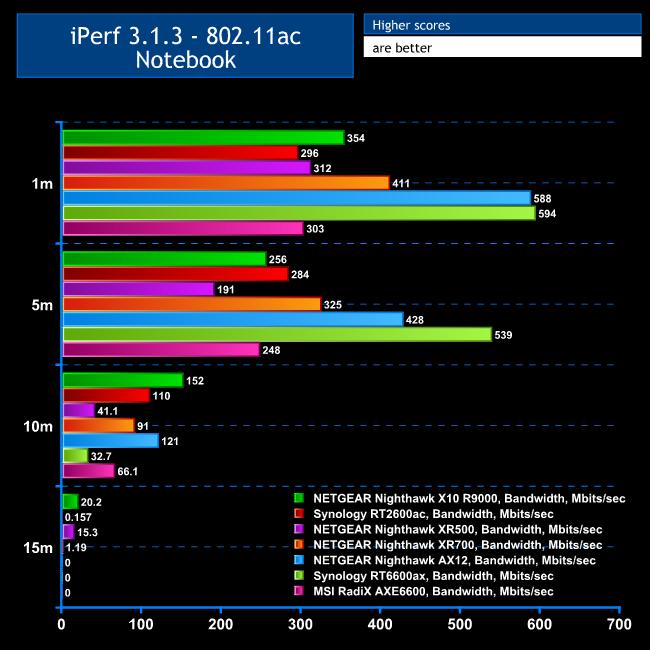
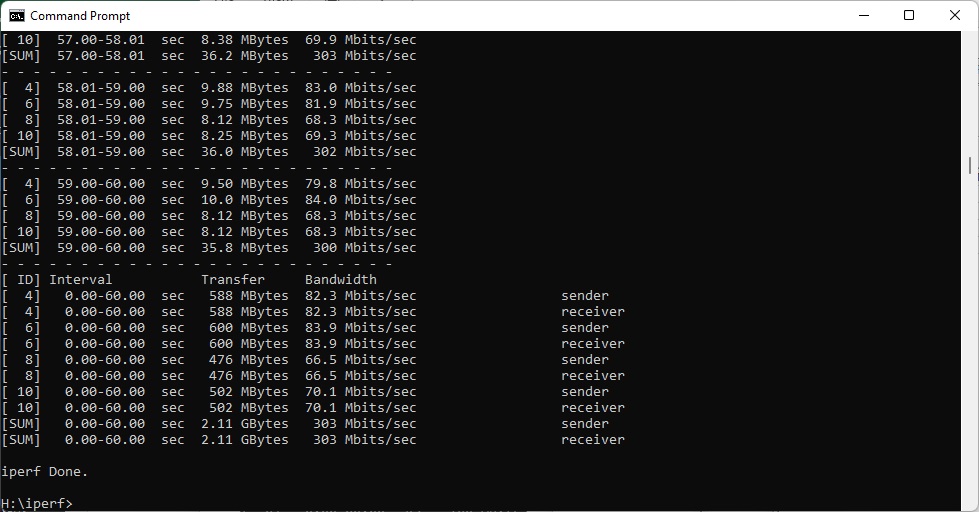
Results are not so impressive with 802.11ac / WiFi 5, however. In close proximity, the RadiX only manages 303Mbits/sec – not a terrible result, and similar to other decent routers such as the Synology RT2600ac and Netgear Nighthawk XR500. But we have seen more recent devices perform better.
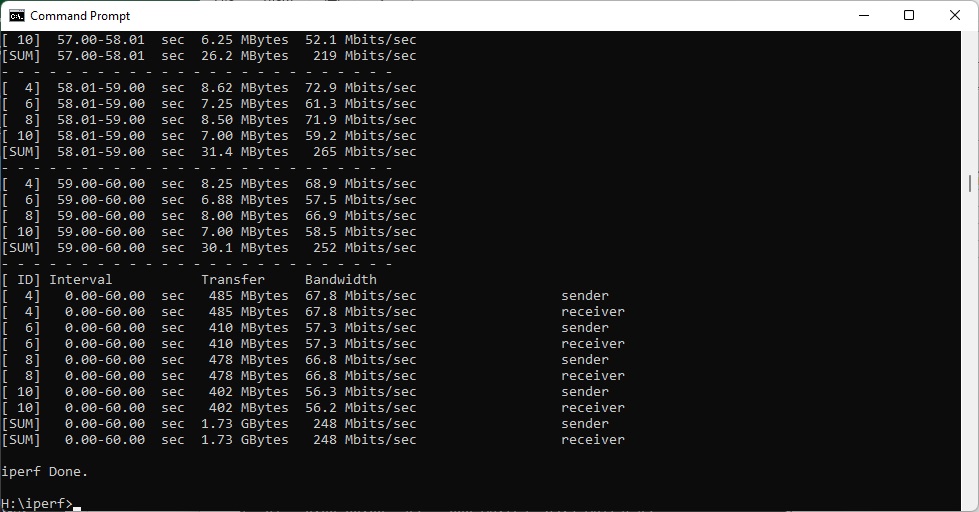
At 5m, the results are similar, with an acceptable but not outsanding 248Mbits/sec.
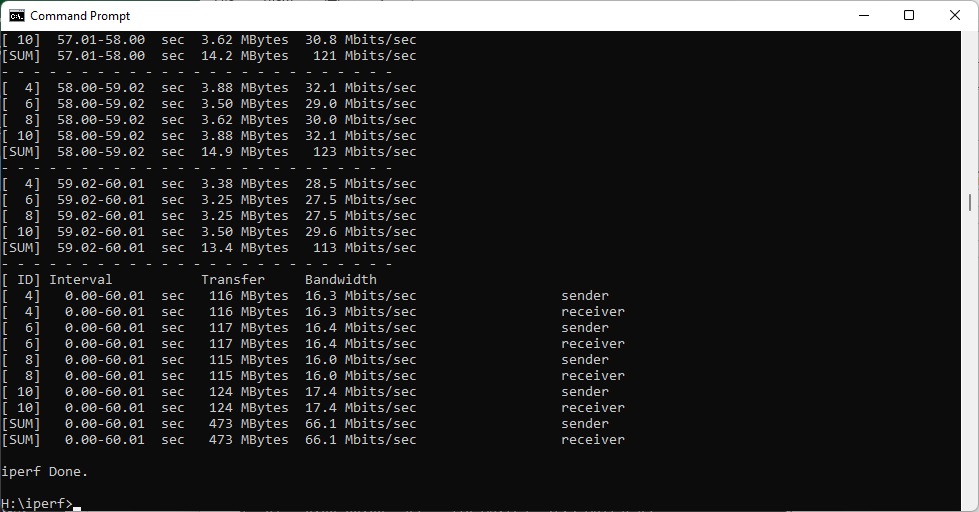
However, at 10m the RadiX was holding its own better than some routers, maintaining a bandwidth of 66.1Mbits/sec.
Nevertheless, like most devices we have tested, at 15m it couldn't maintain a signal long enough to complete a test run. It's in good company here, so there's nothing major to criticise. If you're using WiFi 5, you will need to stick within a 10m range for decent performance.
802.11n 2.4GHz – Legacy
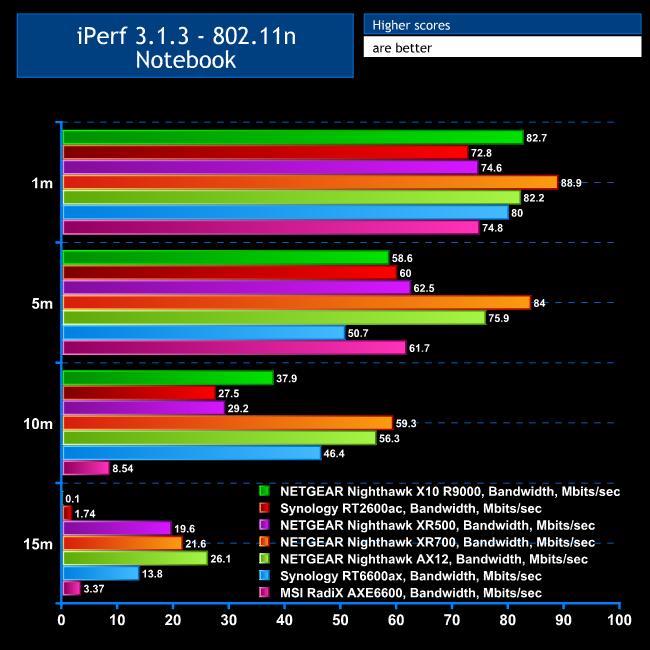
This test is very much a legacy one, as the notebook we use for it is around 10 years old now. But this is exactly the kind of device you may also need your WiFi to support, which is why we still include this result to show backwards compatibility. Although more modern notebooks also offer 802.11n, they will only employ it in a legacy situation.
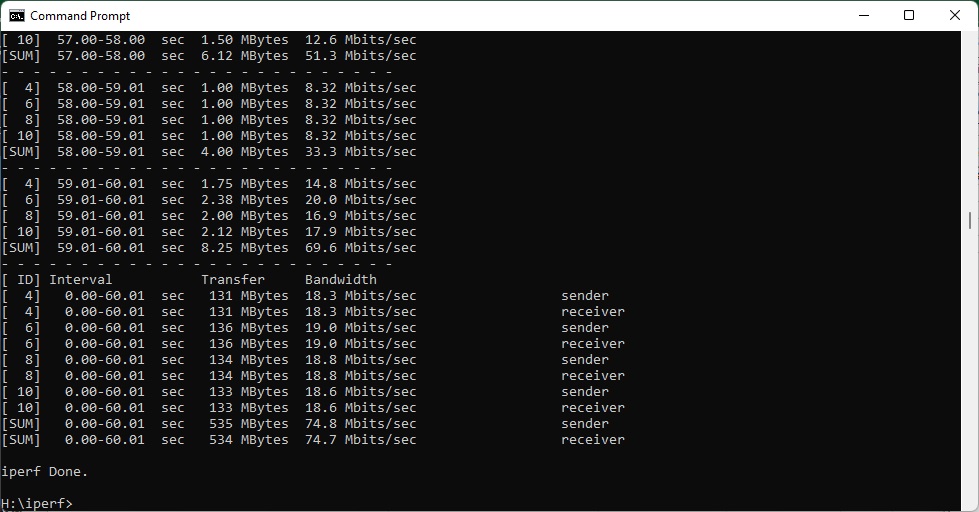
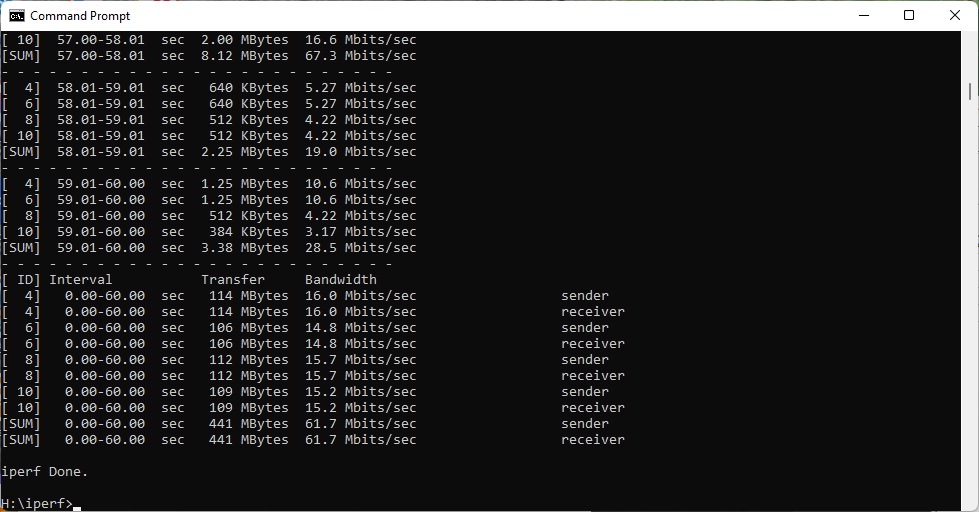
The RadiX is a mixed bag here. In close proximity, the result of 74.8Mbits/sec is par for the course, and at 5m the throughput of 61.7Mbits/sec is similarly amongst the pack.
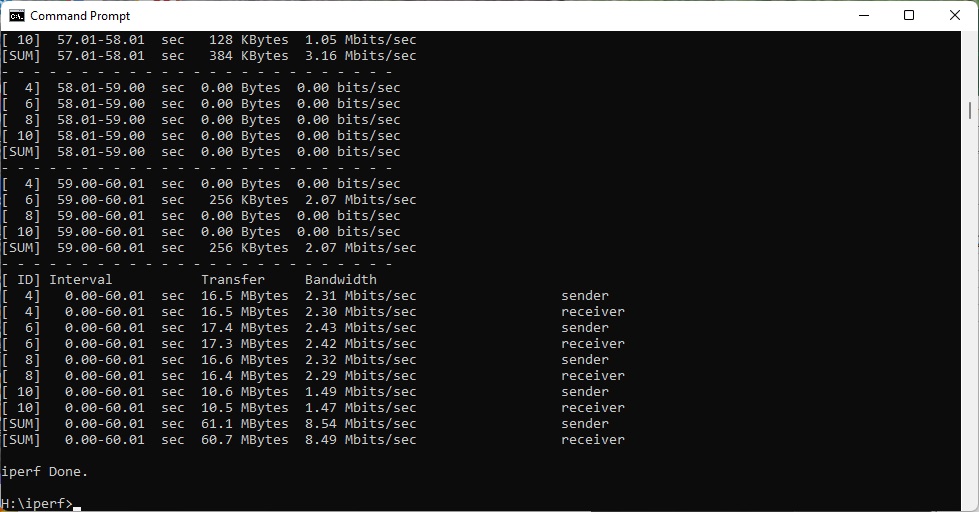
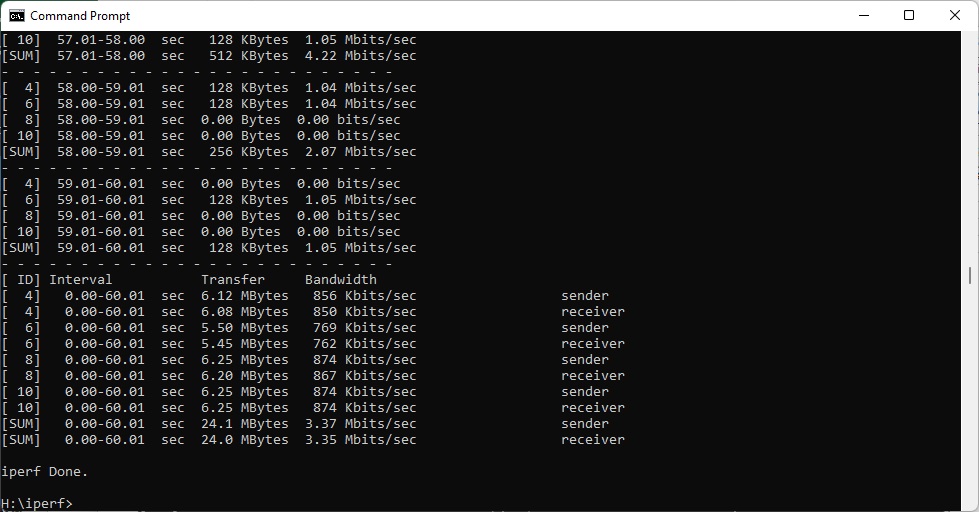
Move out to 10m, however, and the bandwidth drops to just 8.54Mbits/sec, which will provide Web browsing but not reliable video streaming. At 15m, although there is still a signal, the bandwidth of 3.37Mbits/sec will mean checking your email will probably be the only thing you will want to do. Plenty of other routers are still going strong with 2.4GHz 802.11n at 15m.
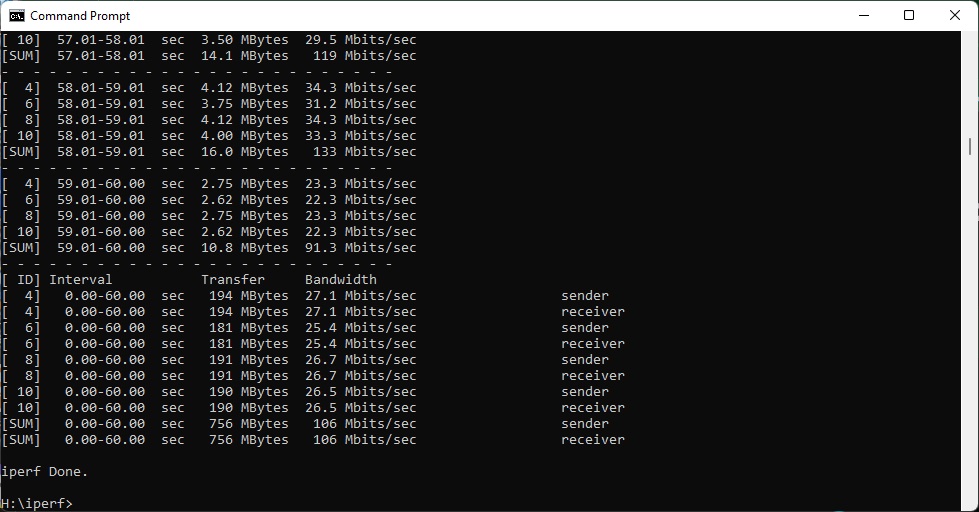
For comparison, we also tested the Dell notebook with 2.4GHz 802.11n at 1m, and it managed 106Mbits/sec, showing that a more modern device will be faster than our legacy HP Folio 13.
Overall, performance results are mixed for the MSI RadiX AXE6600. With its headline WiFi 6 and 6E it's competitive, but with WiFi 5 and legacy 802.11n it's more mediocre. In terms of throughput, you're best off with client devices that support its headline WiFi 6 and 6E abilities.
The MSI RadiX AXE6600 is competent router that includes a decent depth of features and a well laid out management interface. Its performance with 5GHz and 6GHz WiFi 6 and 6E is solid, and it has good range with WiFi 5. However, the performance in close proximity with WiFi 5 isn't so exceptional, and legacy 802.11n performance is merely mediocre.
The 2.5Gbit port and USB 3.0 connectivity with its comprehensive storage sharing support add options. The fact you can share storage via Windows fileshare, DLNA, FTP, and as a BitTorrent repository makes the USB port genuinely useful.
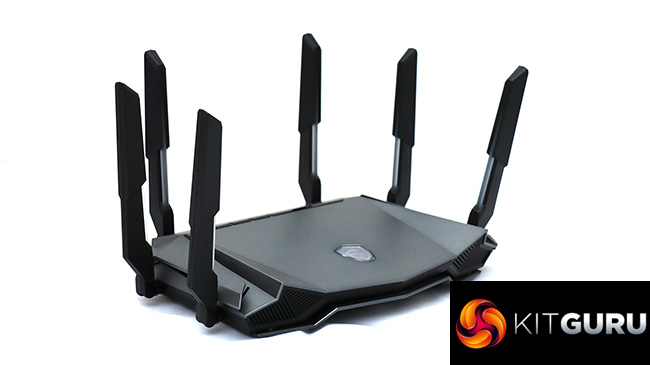
The design is aggressive, and the coloured antennae will appeal to the intended gamer audience looking for a bit more “bling”. Having the ability to switch QoS modes without even bothering to venture into the management interface could mean you actually use this feature regularly.
MSI is not a brand you regularly associate with networking kit. Indeed, at the time of writing, the company didn't even have a section on its website for this category of product. But there is clearly some competence there, because this is a generally capable router. It's not perfect, but certainly worth considering if you want WiFi 6E support plus easy-to-use gaming QoS features.
The MSI RadiX AXE6600 has a recommended retail price of £319 inc VAT.
Discuss on our Facebook page HERE.
Pros:
- WiFi 6E 6GHz support.
- Excellent short-range performance with WiFi 6 and 6E.
- Decent WiFi 5 range.
- Four-port Gigabit Ethernet switch.
- 2.5G WAN or LAN port.
- USB 3.0 for storage sharing.
- Nicely presented management interface.
- Well featured smartphone app.
- Comprehensive storage sharing options.
Cons:
- Performance with WiFi 5 / 802.11ac mediocre.
- Average legacy 802.11n performance.
- Premium price for WiFi 6E.
KitGuru says: The MSI RadiX AXE6600 offers Quality of Service functions that are easy to use alongside good WiFi 6 and 6E performance, but the price and middling legacy performance mean you will need a bleeding edge wireless client to benefit from its abilities.